Microsoft is retiring Editor extensions for Edge and Chrome this October

If you’ve used Microsoft Editor in the past but now rely on something like Grammarly, this update is for you. Microsoft has reportedly announced that it’ll retire the first-party Editor extensions for Chrome and Edge on October 31, 2025.

For the uninitiated, the extension was first introduced in April 2020 as a free, built-in writing assistant. It offered grammar checks, spelling corrections, and style suggestions, making it a lightweight alternative to third-party add-ons.

However, Microsoft says the extensions are no longer needed because the same capabilities are now baked into Edge itself. In the announcement message, the company explained that users will get “smarter, enhanced suggestions” for writing, as well as a seamless proofing experience inside Edge without needing extra downloads.

You can always enable or disable the built-in system in settings, with no action required from IT admins. As of now, you can continue using the extensions until the October deadline.

Following the retirement date, it’ll automatically transition to Edge’s integrated writing tools. Admins tracking the change through the Microsoft 365 Admin Center can find the official notice under ID MC1144651.

To catch you up, the company also announced plans to retire its Microsoft Lens document scanning app, which is another free and popular tool.

Sims 4 Gallery Not Working? Quick Fixes

If the Sims 4 Gallery is not loading, it usually means the servers are down, your internet is unstable, or your game files are corrupted. This guide will show you how to easily fix this issue so you can get back to browsing and sharing creations.

1. Check your connection and servers

  1. Test your internet by opening another website or streaming video.
  2. Restart your router and, if possible, use a wired connection.
  3. Disable VPNs or proxies that may block EA servers.
  4. Visit EA’s official server status page or Twitter for outage updates.
  5. Restart Sims 4 and check if the Gallery loads.

2. Clear cache and repair the game

  1. Close Sims 4 completely.
  2. Go to Documents > Electronic Arts > The Sims 4.
  3. Delete the file named localthumbcache.package.
  4. Open Origin or EA app, right click Sims 4, and select Repair.
    repair sims 4 wont open
  5. Restart the game and test the Gallery.

3. Disable mods and update the game

  1. Move all files from the Mods folder to a safe backup location.
  2. Start Sims 4 without mods to check if the Gallery works.
  3. Re enable mods one by one to find problematic files.
  4. In Origin or EA app, install all pending game and launcher updates.
  5. Relaunch the game and try the Gallery again.

4. Reinstall Sims 4 as a last resort

  1. Back up your Sims 4 saves from the Documents folder.
  2. Uninstall the game from Origin or the EA app.
  3. Restart your computer.
  4. Reinstall Sims 4 with the latest version.
  5. Restore your saves and test the Gallery.

If the Gallery stopped working right after a patch, follow this dedicated guide on Sims 4 not working after update for more targeted fixes.

FAQs

Why is the Sims 4 Gallery not loading?

The Gallery usually fails to load because of EA server outages, a weak internet connection, or corrupted local files.

How do mods affect the Sims 4 Gallery?

Outdated or conflicting mods can block online features like the Gallery. Disabling mods helps you confirm if they are causing the problem.

How can I fix Sims 4 Gallery without reinstalling the game?

Check your internet, clear the cache, repair the game, and disable mods before reinstalling. These steps often solve the issue.

Will reinstalling Sims 4 remove my Gallery creations?

No, Gallery creations are stored online. Always back up your personal saves before reinstalling the game.

Most Sims 4 Gallery issues come from temporary server problems, corrupted cache, or outdated mods. Clearing the cache or repairing the game often solves the problem. If the servers are down, you will need to wait for EA to restore them. For other common problems, check our guides on Sims 4 not starting and Nisa error.

If none of the steps work, reinstalling Sims 4 is the safest option to refresh all game files. This reduces the chance of recurring errors. You can also look at our fix for save error code 0 in Sims 4 to prevent losing progress in the future.

Windows 11 holds top position in the US, but lost some market share to Windows 10 globally

Windows 11 has lost momentum in global usage yet again. Well, that’s according to the latest data published by StatCounter. The operating system now sits on 49.02% of Windows PCs worldwide, a drop of 4.49 points compared to August.

Windows 10, on the other hand, bounced back, climbing 2.77 points to reach 45.65%. That’s not all; the remaining market is still shared by older versions like Windows 7, Windows 8.1, Windows 8, and even Windows XP, despite their long-expired support lifecycles.

So what’s beind this surprising climb of Windows 10? One likely reason is Microsoft’s new Extended Security Updates program for Windows 10.

Following a recent bug fix delivered through an optional update, private users can now officially enroll to ESU program. That means even though Windows 10 is already a decade old, you can keep receiving updates until October 2026.

In the United States alone, Windows 11’s performance looks stronger, though. It leads with 59.28% share, and in the UK it does even better at 60.53%. Europe, however, tells a different story. There, Windows 10 remains dominant at 53.01%, while Windows 11 lags slightly behind at 43.89%.

It’s not hidden anymore that the company has been flooding PCs with ads and banners, trying to move users toward upgrading. However, the latest figures suggest that many still aren’t ready to move on.

2K26 Theater not Working: 12 quick fixes

2K26 theater not working, stuck on “Searching for players,” or booting you back to The City? This guide gives fast, low-friction fixes that restore matchmaking. Follow the steps in order—most issues are version mismatch, privacy/crossplay limits, or stale cache.

Before you start

  • Confirm you’re on the latest title update on all devices in your squad.
  • Restart the game completely (quit to dashboard) and power-cycle your console/PC.
  • Avoid VPNs/overlays while testing (Discord, GPU panels).
  • If you mix platforms, temporarily enable crossplay for everyone.

1) Check playlist & region alignment

Make sure your whole squad selects the same Theater playlist, server region, and difficulty. Mixed regions or rotating playlists can block entry.

2) Verify updates for everyone

All players must run the same build. Open your platform’s “Check for updates,” patch, then relaunch the game (not Resume/Quick Resume).

3) Toggle crossplay and privacy

Go to Settings → Online/Privacy and allow cross-network play, party invites, and messages. Mixed-platform parties often fail when crossplay is off or privacy is too strict. If crossplay keeps flaking, see our focused guide: 2K26 crossplay not working. Windows Report

4) Rebuild the party from inside Theater

Have one host walk into Theater, create the lobby from that screen, then invite squadmates. Rebuild parties fresh instead of reusing old ones.

5) Refresh identity & friends presence

Sign out/in of your 2K account and your PSN/Xbox/Steam/Epic profile, then open the in-game friends tab for 60–90 seconds to resync presence. If friends don’t appear or invites fail, work through: 2K26 friends list not working. Windows Report

6) Clear cache / reserved space (platform-specific)

Fully shut down your console (not rest mode) and unplug 30 seconds; on PC, exit the launcher and clear temporary cache folders. Relaunch and retry Theater.

7) Improve NAT and router rules

Aim for Open/Moderate NAT. Enable UPnP on your router, reboot it, and avoid double-NAT (bridge ISP modem if needed). Test again without VPN.

8) Try a different route into Theater

Walk in solo first, then invite people from the Theater screen; or join a teammate already inside via a direct join. Avoid crowded hub entrances during peak hours.

9) Match platform features

Disable platform-level “Appear Offline/Do Not Disturb,” allow party chat/joins from “Friends (or friends of friends),” and remove any parental/child limitations temporarily.

10) Verify/repair game files (PC)

On Steam/Epic, run “Verify integrity/Repair.” Corrupted assets can stall matchmaking handshakes. Relaunch and retry Theater after the check completes.

11) Remove conflicting overlays & background apps

Close Discord overlay, GPU overlays, browser game bars, or capture tools. Overlays can interfere with network handshakes and party invites.

If you use the app for party discovery or face features, reinstall it, log in with the same 2K account, and wait 2–5 minutes for sync. For camera imports and scan sync, use: 2K26 face scan not working. Windows Report

Tips

  • Queue at off-peak times or switch to a less busy Theater playlist to avoid “looping” lobbies.
  • Keep platform display names consistent so teammates can find/join faster.
  • If one user keeps failing, have them host—you only need one stable route for the squad.

FAQs

Why does Theater keep returning me to The City?
Usually a version or privacy mismatch. Update all players, enable crossplay, then rebuild the lobby from the Theater screen.

Does crossplay work in Theater?
Yes, but strict privacy or disabled cross-network settings break mixed-platform squads. Enable crossplay and rebuild parties from inside Theater. See 2K26 crossplay not working for detailed checks. Windows Report

My friends appear offline even though they’re in The City.
Presence desync is common—re-auth 2K + platform accounts, wait on the friends tab for a minute, and clear cache/reserved space if needed. Use the steps in 2K26 friends list not working. Windows Report

Summary

  1. Align playlist/region for the entire squad.
  2. Update everyone to the same game build; relaunch.
  3. Enable crossplay and relax privacy/invite settings.
  4. Rebuild the party from inside Theater.
  5. Re-auth 2K + platform accounts; refresh presence.
  6. Clear cache/reserved space; power-cycle devices.
  7. Open NAT/enable UPnP; avoid VPNs/overlays.
  8. Verify/repair game files (PC).
  9. Reinstall companion app and re-link if used.

Conclusion

Most “2K26 theater not working” cases come down to mismatched versions, privacy/crossplay blocks, or stale cache/network paths. Work top-down—update, enable cross-network play, rebuild parties from Theater, and clean your cache/NAT—to jump back into matches quickly.

IRCC Portal Not Working? Easy Fixes to Try

If the IRCC portal is not working, you might struggle to log in, upload files, or submit an application. This guide shows you practical fixes that usually get the site running again.

How can I fix IRCC portal if not working?

1. Check your internet connection

  1. Confirm that your Wi-Fi or mobile data is stable.
  2. Restart your modem or router.
  3. Switch to another network or hotspot if possible.
  4. Open a different site to see if the issue is specific to IRCC.
  5. Contact your internet provider if nothing loads at all.

Some users face similar access problems with other government sites, like the EPFO site not working in Chrome.

2. Use a supported browser

  1. Open the IRCC portal in Chrome, Firefox, or Edge.
  2. Update your browser to the latest version.
  3. Clear cache and cookies to remove old files.
    clear cache and data chrome
  4. Try using an incognito or private browsing window.
  5. Turn off browser extensions that might block scripts.

If you get a compatibility warning, see this browser not supported service portal fix for guidance.

3. Disable VPN or Proxy

  1. Turn off any VPN or proxy you are using.
  2. Reopen your browser and try the portal again.
  3. If it still fails, connect through another network.

4. Clear DNS cache

  1. Press Windows + R and type cmd.
    run cmd
  2. Type: ipconfig /flushdns and press Enter.
    cmd_ipconfig\flushdns
  3. Restart your browser and try the portal again.

5. Check IRCC server status

  1. Sometimes the outage is on IRCC’s side.
  2. Check their website or social media for service alerts.
  3. Wait and try again later if the portal is down.

FAQs

Why is the IRCC portal not working?

It usually happens due to poor internet, unsupported browsers, cached data, or server downtime.

Which browser should I use for the IRCC portal?

The portal works best on updated versions of Google Chrome, Mozilla Firefox, or Microsoft Edge.

Can a VPN block access to IRCC?

Yes, some VPNs may prevent you from logging in or slow down the connection. Disable them if needed.

How do I check if IRCC is down?

You can confirm by visiting the official IRCC status page or checking their social media updates.

If the IRCC portal is not working, start with basic fixes like updating your browser, clearing cache, or disabling VPNs. These simple steps often solve the issue.

If the problem is on IRCC’s side, you may just need to wait until their servers are back online. Check their official channels for updates before trying again.

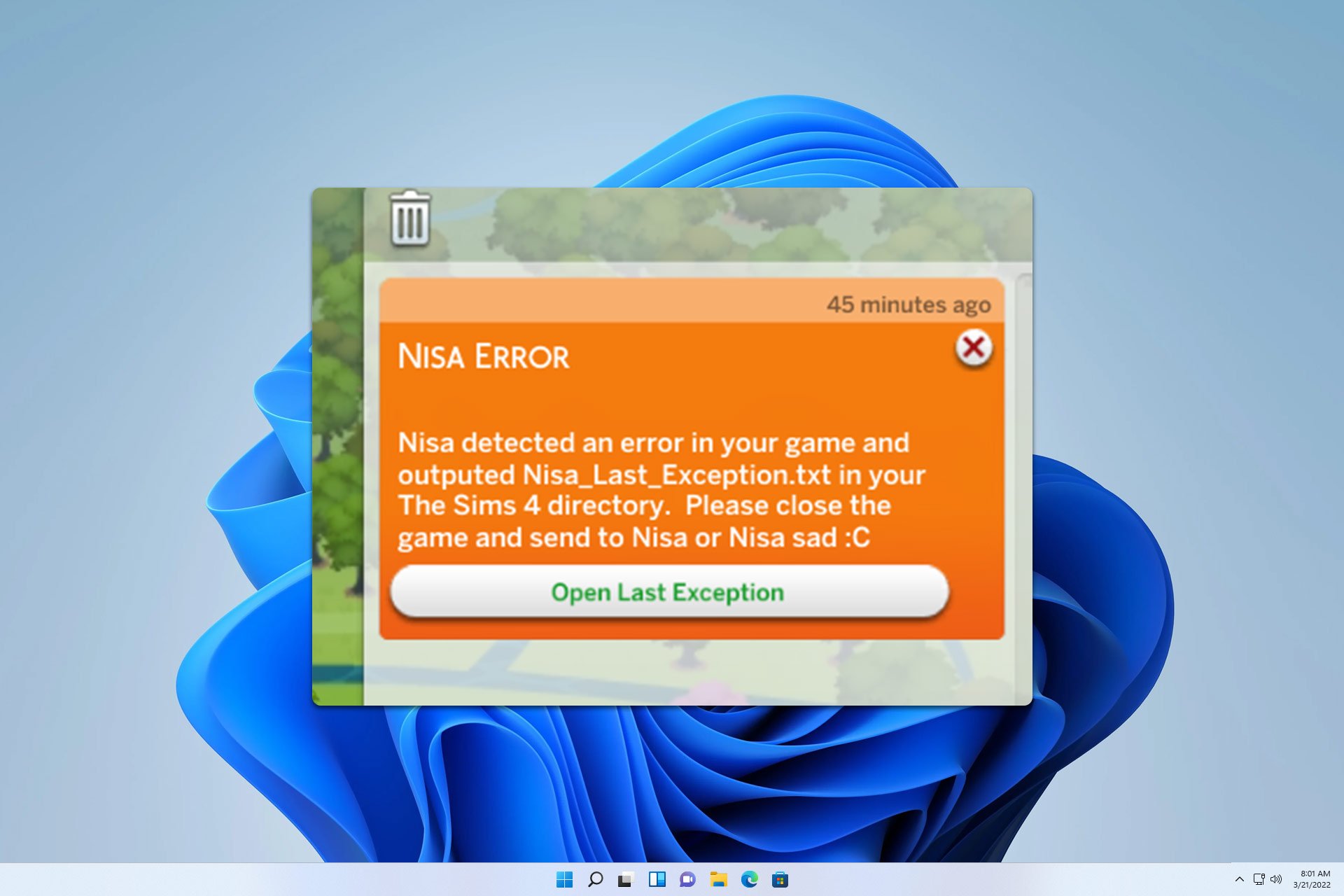
Nisa Error in Sims 4: Fix it With These 3 Methods

Running into the Nisa error in Sims 4 can be frustrating since you won’t be able to play the game at all. But don’t worry— we got you covered with some practical solutions to get you back on track.

How can I fix Nisa error in Sims 4?

1. Update your mods

  1. Visit trusted mod websites or the mod creator’s page where you downloaded Nisa’s mod.
  2. Look for the latest version of the mod that is compatible with your current game version.
  3. Download the updated mod files.
  4. Delete the old mod files and replace them with the newly downloaded ones. You can find them at Documents\Electronic Arts\The Sims 4\Mods
    mods sims
  5. Restart Sims 4 to check if the error has been resolved.

Do this for both Nisa mods and other mods that you have installed.

2. Remove Conflicting Mods

  1. Open File Explorer by pressing Win + E.
  2. Navigate to the Mods folder in your Sims 4 directory. It should be in Documents\Electronic Arts\The Sims 4\Mods
  3. Look for any other mods except for Nisa’s mod and move them out of the Mods directory.
  4. If that helps, return mods to the Mods directory one by one, and try to run the game. This will help you find the culprit.
  5. In case the problem appears with all mods, try moving Nisa’s mod as well.

In the worst-case scenario, you might have to remove all mods and install Sims 4 mods again on your PC.

Conflicts are especially common with complex script mods. If you notice issues with Wicked Whims specifically, here’s a guide on fixing Wicked Whims not working in Sims 4 that addresses common compatibility problems.

3. Clear cache

  1. Open your File Explorer and navigate to Documents\Electronic Arts\The Sims 4
  2. Locate and delete the localthumbcache.package file.
    localthumbcache file sims 4 folder
  3. After doing that, use the Repair option in origin to repair the Sims 4 installation.

Many are suggesting removing the localthumbcache.package file, after removing a mod from the saves folder, so be sure to do that.

As you can see Nisa error in Sims 4 is usually caused by incompatible or outdated mods, so update your mods or remove the ones that are causing issues to fix this problem. If your game launches but you cannot access online features, check out our Sims 4 Gallery not working guide for more solutions.

Many are also experiencing a Sims 4 error code 123, but we covered this one in a separate guide, so don’t miss it.

Do keep in mind that Sims 4 won’t open if your Sims 4 mods aren’t working, but we covered these issues in the past articles, so don’t miss them.

Weather Network App Not Working: Quick Fix Guide

If the Weather Network app is not working on your phone, it can be annoying if you just want to check the forecast. Here are some quick fixes to get it running again.

What can I do if Weather Network app not working?

1. Check your internet connection

  1. Make sure Wi Fi or mobile data is turned on.
  2. Test another app or open a website to confirm the connection works.
  3. If your signal is weak, move to a better spot or switch networks.
  4. Toggle airplane mode on and off to refresh the connection.
    android airplane mode
  5. Restart your router if you are using Wi Fi at home.

2. Restart the app

  1. Open your phone’s recent apps menu.
  2. Swipe the Weather Network app away to close it.
  3. Wait a moment, then reopen it.
  4. Check if the forecast updates properly.

3. Clear app cache and data

  1. On Android, go to Settings.
  2. Tap Apps or Application Manager, then select the Weather Network app.
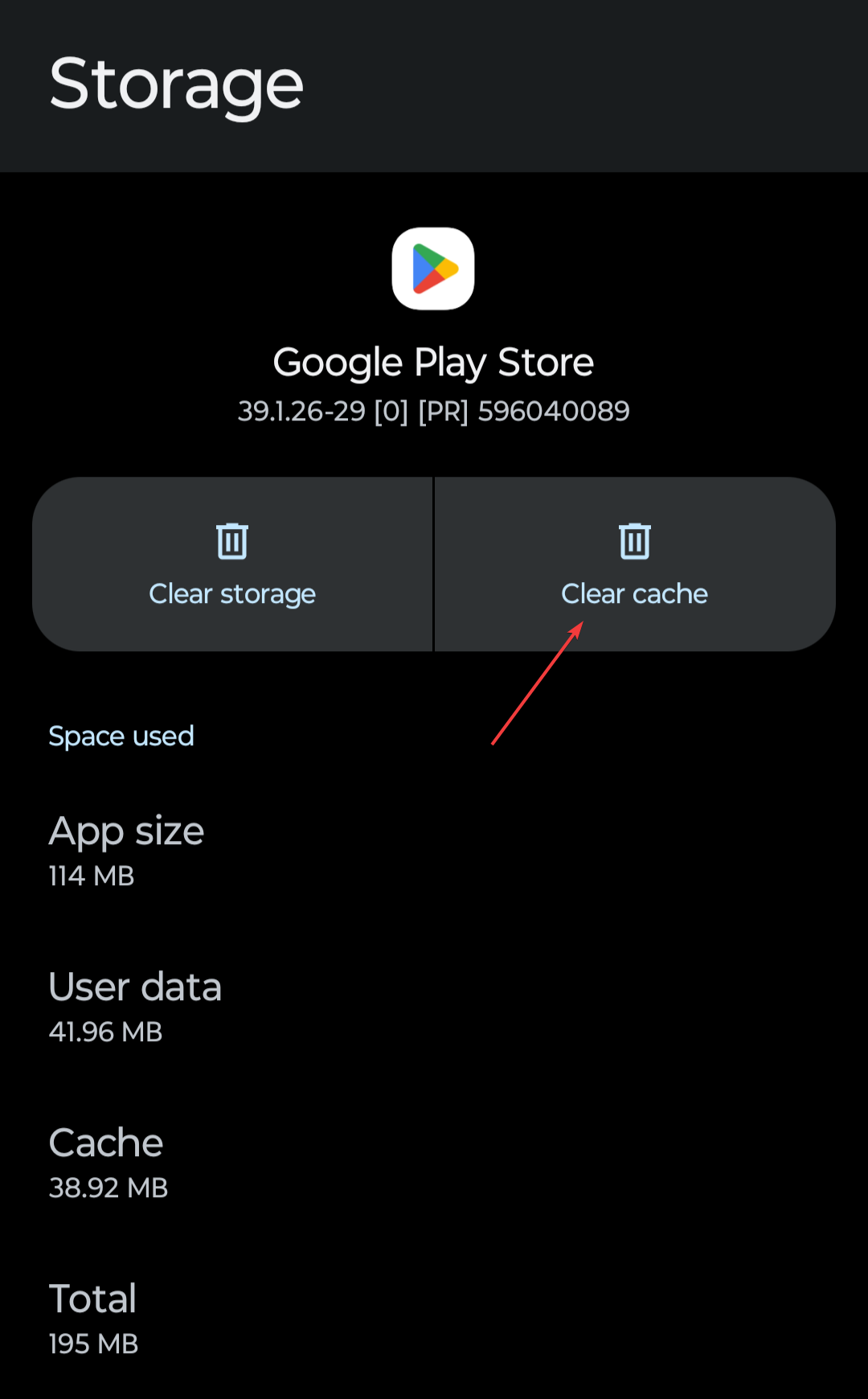
  3. Tap Storage.
  4. Clear cache. If it still does not work, choose Clear data to reset the app.
  5. On iPhone, you may need to uninstall and reinstall instead.

4. Update the app

  1. Open the App Store on iOS or the Play Store on Android.
  2. Search for Weather Network.
  3. If you see an Update button, tap it.
  4. Launch the app again to see if the issue is fixed.

5. Reinstall the app

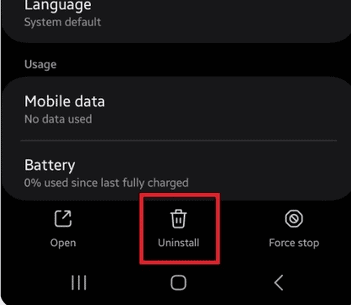
  1. Uninstall the Weather Network app from your phone.
  2. Restart your device to clear any temporary glitches.
  3. Open the App Store or Play Store.
  4. Download and install the app again.
  5. Sign in and check if the weather data loads correctly.

If the Weather Network app is still not working after these steps, the problem may be related to your device or system updates. We have a full guide on how to fix the Weather app live tile not working on Windows 10 and another one that shows what to do if the Windows 11 weather taskbar is not showing.

For those using a browser version instead of the mobile app, follow our step by step guide to fix Wundermap not working in Chrome and get the weather map updating again.

Flipp App Not Working? Easy Fixes You Should Try

If the Flipp app is not working, it can be annoying when you just want to check local deals and flyers. Try these simple steps to get it back on track.

How to fix Flipp app if it’s not working?

1. Check your Internet connection

  1. Open a browser and load any website to confirm your connection works.
  2. If you’re on Wi-Fi, move closer to the router.
  3. Switch between Wi-Fi and mobile data to see if performance improves.
  4. Restart your router by unplugging it for 30 seconds and plugging it back in.
  5. Test if the Flipp app works again.

2. Restart the app

  1. Close the Flipp app completely.
  2. On iPhone, swipe up from the bottom and remove the app from the app switcher.
  3. On Android, open recent apps and swipe the Flipp app away.
  4. Wait a few seconds before reopening.
  5. Open the app and check if it loads properly.

3. Clear app cache and data

  1. On Android, go to Settings and select Apps.
  2. Find and tap on Flipp.
  3. Open Storage.
  4. Tap Clear Cache.
  5. If the issue persists, tap Clear Data. On iPhone, uninstall and reinstall instead.

For a similar receipts app, check our guide on Shoppix app not working.

4. Update the app

  1. Open the Google Play Store or Apple App Store.
  2. Search for Flipp.
  3. If an update is available, tap Update.
  4. Wait until the update installs.
  5. Reopen the app and test it again.

5. Reinstall the app

  1. Locate the Flipp app on your device.
  2. Press and hold the icon and select Uninstall or Remove.
  3. Open your app store.
  4. Search for Flipp and tap Install.
  5. Log back into your account after installation.

Flipp can stop working for several reasons, from poor internet to outdated app versions. By following the steps above, you’ll often fix the issue quickly and get back to browsing local deals without interruptions.

If you want more options to save while shopping, you can explore some of the best Windows shopping apps. And if you’re interested in setting up your own store, this guide on the best software to sell online covers everything you need to know.

For food ordering apps, you can also follow this guide to fix the McDonald’s app not working, which uses the same connection, cache, update, and reinstall steps for iPhone and Android.

How to Fix Roku Remote Back Button Issues

If your Roku remote back button is not working, it can make navigating apps frustrating. Here are some quick and effective ways to fix the issue.

How to fix Roku remote back button not working?

1. Check the remote batteries

  1. Remove the batteries from your Roku remote.
  2. Insert fresh batteries, making sure they are aligned correctly.
  3. Test the back button again to see if it responds.

2. Re-pair your Roku remote

  1. Open the battery compartment of your remote.
  2. Press and hold the pairing button for 5 seconds until the LED starts flashing.
  3. Wait for the Roku device to recognize and pair with the remote.

3. Restart your Roku device

  1. Unplug your Roku device from the power source.
  2. Wait at least 10 seconds.
  3. Plug it back in and wait for it to reboot.
  4. Try using the back button again.

4. Use the Roku mobile app

  1. Download the Roku mobile app from the App Store or Google Play.
  2. Open the app and connect your phone to the same Wi-Fi network as your Roku device.
  3. Select your Roku device from the list in the app.
  4. Use the on-screen remote in the app to navigate and press the back button.

If the physical button is still unresponsive, the app can serve as a reliable alternative. For more fixes, follow this full guide on Roku remote not working.

5. Check for Roku system updates

  1. Go to Settings > System > System update.
  2. Select Check now to install pending updates.
  3. Updates can fix bugs that affect remote buttons.

If you run into issues during updates, see how to fix Roku error 004 or the common Roku error 006.

6. Reset your Roku remote

  1. Remove the batteries from the remote.
  2. Disconnect the Roku device from power for 30 seconds.
  3. Reconnect the device and reinsert the batteries.
  4. Pair the remote again using the pairing button.

FAQs

Why is my Roku remote back button not working?

The back button may stop working due to dead batteries, poor pairing, system glitches, or outdated software.

Can software updates fix Roku remote issues?

Yes. Updating your Roku system often resolves button glitches by installing the latest firmware and bug fixes.

What if my Roku remote still doesn’t work?

Try using the Roku mobile app as a backup remote. If the problem continues, consider replacing the remote or contacting Roku support.

When the Roku remote back button stops working, it usually comes down to pairing issues, dead batteries, or system glitches. Try the steps above to restore its functionality.

If the problem persists, consider replacing your remote or contacting Roku support.

Fix Sky Remote Volume Buttons Not Working (Quick Guide)

If the volume buttons on your Sky remote stop working, it can make watching TV frustrating. Here’s a quick guide to help you restore full control.

What to do if volume buttons are not working on Sky remote?

1. Check if the remote is paired correctly

  1. Hold down 7 and 9 together for a few seconds to reset the remote.
  2. Press 1 and 3 to re-pair it with your Sky device.

For more help with remote pairing, see this Sky Glass remote not working guide.

2. Test the batteries

  1. Replace the batteries with a fresh set.
  2. Make sure they are inserted in the correct direction.

3. Power cycle your Sky device

  1. Switch off your Sky Glass TV or Sky box.
  2. Unplug it from the power outlet for 2 minutes.
  3. Plug it back in and try using the remote again.

If your TV is the issue, check this guide on Sky Glass not turning on.

4. Update or reset the software

  1. Go to Settings > System Management > Resets and updates.
  2. Select Check for updates and install any available updates.
  3. If that does not work, try a factory reset of the remote.

5. Try with another Sky device

  1. If you have a Sky Mini Box, test the remote with it.
  2. This helps determine if the issue is with the remote or the main unit.

You can read more troubleshooting advice in this Sky Mini Box not working guide.

FAQs

Why are the volume buttons on my Sky remote not working?

They may fail due to pairing issues, weak batteries, or outdated software.

Can the volume issue be caused by the Sky Glass TV?

Yes, sometimes the TV software or power supply can affect remote functions.

Do I need a replacement if the buttons still do not work?

If none of the fixes help, you may need a replacement remote from Sky.

Wiz App Not Working? 5 Quick Fixes That Actually Help

If your Wiz app is not working, you may be unable to control your smart lights or devices. This guide will help you troubleshoot the issue and apply quick fixes to get the app running smoothly again.

What can I do if Wiz app is not working?

1. Fix connection and network problems

  1. Restart your Wi Fi router and reconnect your phone.
  2. Switch from 5GHz to 2.4GHz Wi Fi for better compatibility.
  3. Test internet speed to make sure your network is stable.
  4. Turn off VPNs or firewalls that might block the app.
  5. Forget and re add your Wi Fi network on your phone.

For broader control options, see this guide on smart home software.

2. Update and refresh the app

  1. Open the App Store or Google Play and install the latest update.
  2. Restart your phone after updating the app.
  3. Clear the app cache and data in settings (Android only).
  4. Reinstall Wiz for a fresh copy if issues persist.
  5. Sign out of your Wiz account and sign back in.

Keeping your app up to date is the simplest way to avoid bugs and crashes.

3. Reconnect and manage devices

  1. Remove unresponsive lights from the app.
  2. Add the devices back using the setup wizard.
  3. Update firmware if available for your Wiz devices.
  4. Reset the devices by turning them on and off per instructions.
  5. Confirm they are on the same Wi Fi as your phone.

Device reconnection usually solves sync issues quickly.

4. Fix compatibility and conflicts

  1. Close other smart home apps that may interfere.
  2. Update all connected smart home software.
  3. Test Wiz with a different phone or tablet.
  4. Restart integrations like Google Home or Alexa.
  5. Check if the devices respond via other platforms.

For more reliable setups, you can explore smart home apps for Windows 10.

5. Explore alternatives if Wiz still fails

  1. Try another control app with Wiz device support.
  2. Use physical switches until the app works again.
  3. Install the app on another device to test stability.
  4. Contact Wiz support for advanced troubleshooting.
  5. Explore automation platforms for stronger device compatibility.

Conclusion

Considering alternatives ensures you do not lose control of your devices entirely. If you also face problems with Sengled bulbs, see this guide on Sengled not working for fixes that cover Wi-Fi, app, and pairing issues.

FAQs

Why is my Wiz app not connecting to Wi Fi?

Your Wi Fi may be unstable or set to 5GHz. Use a 2.4GHz connection.

Do I need an account to use Wiz?

Yes, it syncs your settings and enables remote access.

Can outdated firmware cause the app to fail?

Yes, always update both the Wiz app and device firmware.

Is Wiz compatible with Windows PCs?

The mobile app is primary, but you can connect devices via integrations.

Mozilla Firefox Officially Gets MKV Video Playback Support

Update, October 2025:
Mozilla has confirmed that Firefox Nightly 145 now supports Matroska (MKV) video files using all the most popular codecs: AVC (H.264), HEVC (H.265), VP8, VP9, AV1 for video, and AAC, Opus, Vorbis for audio.
Just drag and drop any compatible MKV file into the browser’s address bar, no add-ons or conversions needed.

If you are on an older Nightly build (before version 145), you may still need to enable the media.mkv.enabled setting in about:config and restart the browser.

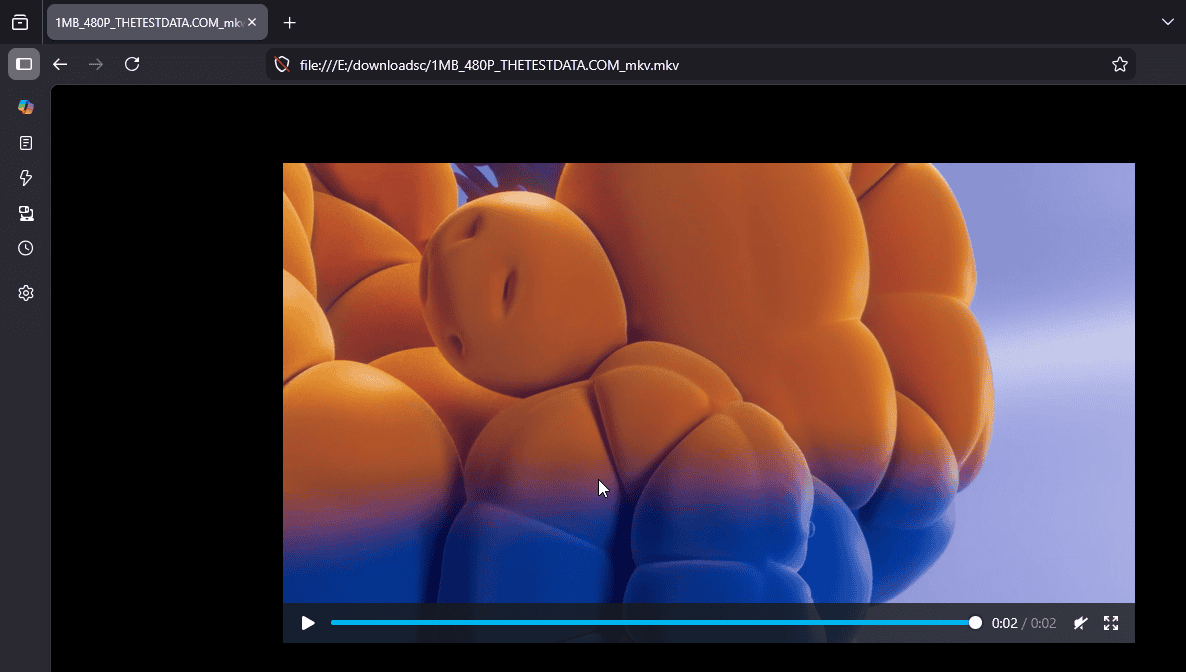
This screenshot shows Firefox Nightly 145 successfully playing an MKV video file, with no add-ons or conversions needed. Image Credit: Venkat | WindowsReport.

Original article continues below.

Great news for Firefox users: after making PWA support available for testing, the browser is finally gaining the ability to play MKV video files directly, a feature that Chrome and Edge have supported for years.

Until now, trying to open an MKV file in Firefox wouldn’t work. Instead, the file would either fail to load or trigger a download, forcing users to convert it, install an add-on, or switch browsers.

MKV (Matroska Video) is a video file format that can pack video, audio, and subtitles into a single file. It works with many modern video and audio types, which is why it’s popular among creators and video fans. Since Firefox couldn’t play MKV until now, this has been a major frustration for users.

Even Windows 10 and Windows 11 support MKV playback out of the box, making Firefox’s gap even more noticeable until now.

Firefox to Play MKV Videos Natively

Mozilla’s Plan

Mozilla has now assigned an engineer to implement MKV playback in Firefox. According to Mozilla’s technical brief, the rollout will happen in stages:

  • Testing in Firefox Nightly with the most common setups first, such as H.264 video with AAC audio.
  • Expanding codec support to cover formats like VP9 or AV1 paired with Opus or FLAC.
  • Full release once stability and compatibility checks are complete.

Mozilla hasn’t given an exact release version yet, but the testing phase is already in motion. Once development and quality checks are finished, MKV support will be rolled out to all Firefox users.

This move finally brings Firefox in line with Chromium browsers, making video playback easier and removing a long-standing annoyance for many users.

That’s not all. Firefox has fixed a long-standing Virtual Desktop bug on Windows and added Google Lens support for image searches. Additionally, Firefox will not delete downloaded PDFs in private browsing and will be able to reinstall itself after a Windows 11 upgrade.

Games Joining Xbox This Week (September 1–5)

Microsoft has announced the list of new titles coming to Xbox between September 1 and September 5. On September 1, you can get your hands-on Bad Cheese, a psychological horror inspired by 1920s animation. The game mixes unsettling family drama with eerie cartoon vibes for a truly offbeat experience.

On September 2, Xbox GamePass will add Scar-Lead Salvation, which is a mystery-driven adventure with procedural layouts and AI guidance. Besides that, Nachtmahr is also joining the Game Pass on the same day. In this game, you sign up for a magical unicorn journey through five poetic realms.

Then comes September 3, bringing several options. You’ll be able to play Attic Archive, a retro compilation of 1980s classics, or try Deadzone: Rogue, a roguelite FPS set aboard a hostile space station. Besides that, puzzle fans get Dragon Snack, while horror enthusiasts can check out The Nameless City, inspired by Lovecraft.

The most anticipated release lands on September 4, as Hollow Knight: Silksong finally arrives day one on Game Pass. You can take on the role of Hornet, facing new lands, enemies, and mysteries.

That’s not all; Above Snakes, a Wild West survival RPG, launches the same day, alongside Adventure of Samsara, and Chocolate Factory Simulator. Next, you have Detective – Scene Crime, Double Dangerous, Fling to the Finish, Gunsmith Simulator, Hell is Us, and more on the same day as well.

On September 5, the schedule gets even busier. If you’re into horror games, you can jump right into Cronos: The New Dawn, while action lovers can pilot mechs in Daemon X Machina: Titanic Scion. Additionally, sports fans finally get NBA 2K26, offering enhanced gameplay across MyCareer, MyTeam, and MyNBA.

Besides those, you can also explore Soulbind: Tales of the Underworld, Sokocat: Islands – Remastered, Psycho Dream, Carnival Heroes, DeTechtive 2112, Dragon Ruins, and more. In short, this week covers everything from indie horror to big-budget sequels, proving September is off to a strong start for Xbox players.

Mixed Reality Link now works on Snapdragon X-powered PCs

It appears Microsoft has quietly rolled out the Mixed Reality Link app for Snapdragon X-powered PCs, allowing owners of devices like the Surface Pro 11 to connect directly to Meta Quest 3 and Meta Quest 3S headsets. Until now, the app has appeared limited to Intel and AMD PCs.

The change was first spotted by Reddit user “Nicalay2”, who confirmed that a Snapdragon X-based Surface Pro could pair successfully with the app.

As noted by Windows Central, Microsoft hasn’t yet updated its official documentation to list Snapdragon X compatibility, and the Microsoft Store entry for Mixed Reality Link only shows an August 29 update without a changelog.

For those unfamiliar, Mixed Reality Link enables up to three virtual monitors inside VR, letting users connect a PC either wirelessly or via cable to a Meta Quest headset. It also integrates with Windows 365 Cloud PC, offering the ability to stream a virtual desktop within VR.

With Snapdragon X compatibility in play, Windows on Arm users now have the same flexibility as x86 users, making it easier to use local PCs in VR workflows.

That’s not all; this support extends to both Meta Quest 3 and the more affordable Quest 3S, giving a broader audience access to multi-monitor setups in virtual reality.

Microsoft reportedly adds advanced multi-file analysis to Copilot

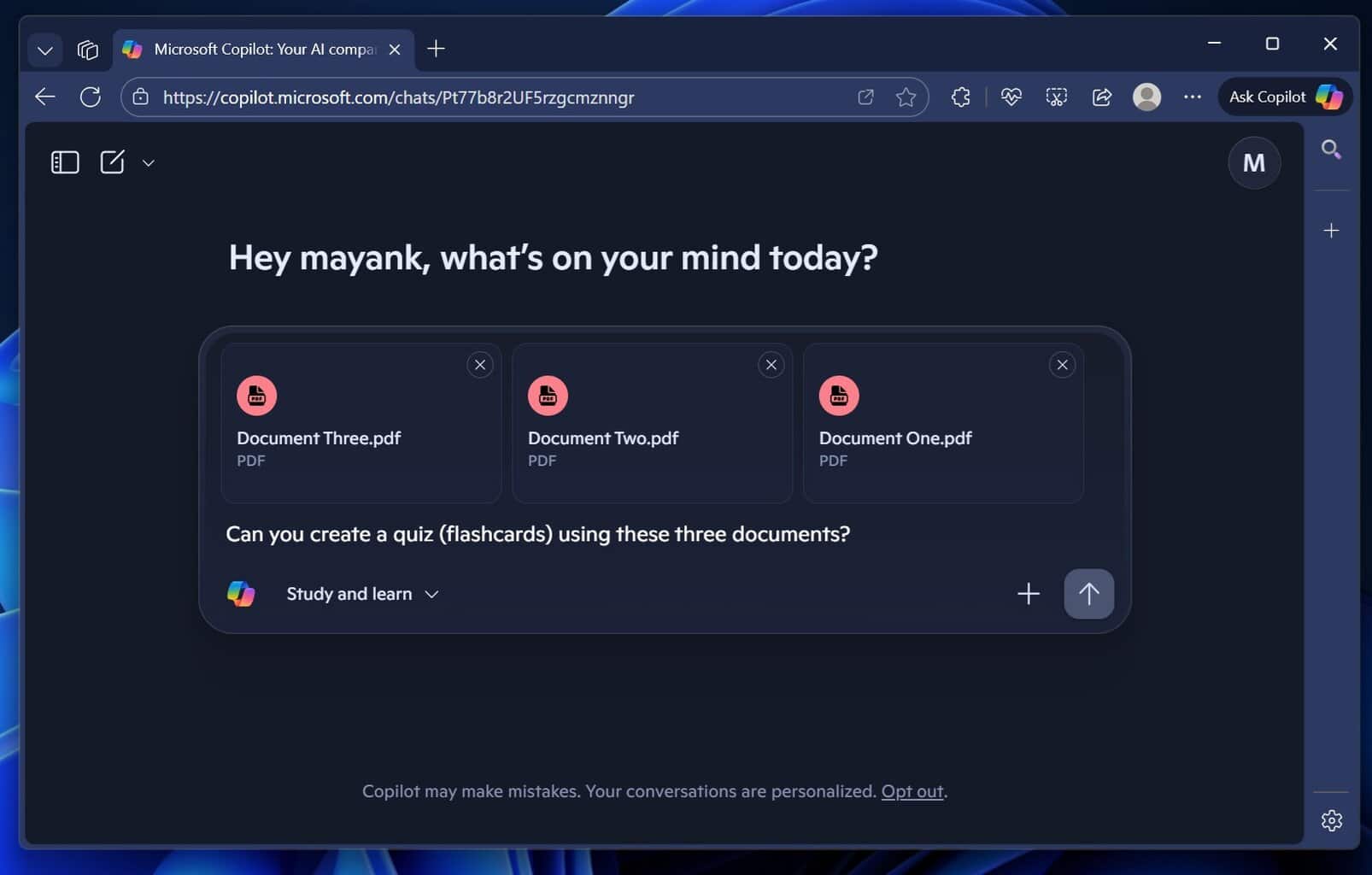
Microsoft has reportedly enabled advanced multi-file analysis in Copilot for both Windows 11 and the web. The feature, previously limited to ChatGPT, allows Copilot to process up to three files together instead of handling them individually.

Microsoft has been giving Copilot multiple new features lately, and as Windows Latest notes, this upgrade is among the most requested. Until now, Copilot could handle as many as 20 uploads in one message but treated each separately.

With the new feature in place, it can connect the dots across files, just like ChatGPT. For example, you can upload a resume alongside two job listings and ask Copilot to highlight overlaps.

In the same way, travelers could provide an itinerary, budget, and packing list to uncover missing details or reduce costs. The update also complements Copilot’s new Study and Learn mode.

Copilot-for-web-with-GPT-Advanced-file-analysis
Image credit: Windows Latest

Once enabled, it can read three study documents together to generate flashcard-style quizzes, explanations, and scores. Other creative uses include analyzing book collections, suggesting reading orders, or producing discussion prompts.

Besides file analysis, Copilot also has an audio expression feature, powered by Microsoft’s in-house model. Unlike ChatGPT’s synthetic voice, this option is tuned to sound more natural and personal, especially in storytelling tasks.

PlayStation’s State of Play to showcase 007 First Light gameplay on September 3

PlayStation has confirmed that its next State of Play will spotlight 007 First Light, giving fans their first in-depth look at IO Interactive’s upcoming James Bond adventure.

The broadcast is set for September 3 at 11 AM PT / 7 PM BST, streaming live on PlayStation’s YouTube and Twitch channels. Unlike the reveal trailer shown back in June, this event will dive deep into the game itself.

Viewers can expect more than 30 minutes of uninterrupted gameplay, starting with Bond’s first mission as an MI6 recruit. According to PlayStation, the demo will showcase a variety of classic spy action sequences, including high-speed car chases, tense stealth infiltration, and explosive shootouts.

Following the playthrough, the developers at IO Interactive will share insights into how they’re bringing their signature gameplay style into the world of James Bond. Given IO’s reputation with the Hitman series, expectations are high for how the team adapts espionage, stealth, and cinematic action to the 007 universe.

Fans eager to see the new Bond in action won’t have to wait long; September 3 is going to be the day for PlayStation and spy game enthusiasts alike.

Microsoft confirms Windows 11 version 25H2 won’t add new features

Microsoft released Windows 11 version 25H2 last Friday. If you want to download it right away, we already have a guide that walks you through the process. Now, onto what you need to know about this update.

Unlike past releases, version 25H2 doesn’t bring any new features of its own. Microsoft, in its announcement post, confirmed that it shares the same servicing branch as version 24H2, meaning both will continue to receive the same improvements through regular monthly updates.

In other words, if you’re already on 24H2, there’s no functional difference once you move to 25H2. That said, a couple of legacy tools are being dropped in this release. Worth noting that PowerShell 2.0 and the Windows Management Instrumentation Command-line (WMIC) are no longer available after upgrading.

While both have been outdated for years, Microsoft is finally removing them from Windows 11 altogether. The company also highlighted that the move to 25H2 will be seamless for those upgrading from 24H2.

Since it’s delivered as an enablement package, the installation is quick, and we also witnessed the same while downloading the update. What’s nice is that it requires just one restart and shouldn’t cause compatibility issues with apps or games.

With testing now in the Release Preview Channel, version 25H2 is expected to hit general availability in the coming weeks.

Edge Canary on Android lets you play YouTube in the background; that too without Premium

Microsoft is quietly testing a new feature in its Edge Canary browser for Android, one that could take away one of YouTube Premium’s biggest selling points. The experimental feature lets users play YouTube videos in the background without paying for a subscription.

The change first spotted by Leopeva64 on X points to a new experimental flag buried in Edge Canary. Once enabled, the flag unlocks background video playback not only for YouTube but also for other websites. That means you can lock your phone, switch apps, or even browse in another tab while the video continues to run.

Edge Canary flag YouTube background play
Image credit: Leopeva64 on X

Trying it out isn’t too complex either. You just need to install Edge Canary, head to edge://flags, search for Video Background Play, and set it to Enabled. After restarting the browser, head to Settings > Site settings > Background video playback, and you’re done. From there, YouTube videos keep playing seamlessly in the background, even if you don’t have YouTube Premium.

That’s not all, Edge Canary also pops up a built-in ad blocker prompt on first launch, giving users the option to block ads across the web, including YouTube. It’s another perk that could reduce the appeal of Google’s $14 Premium plan.

Whether Google calls out Microsoft’s move in the future remains to be seen, but for now, Edge Canary users can enjoy one of the biggest YouTube Premium features without paying a dime.

Banner image source: Unsplash

YouTube Autotranslate Not Working: Quick Fixes

If YouTube autotranslate is not working, it can be annoying when you are trying to watch videos in another language. These solutions can help you fix the problem quickly.

What to do if YouTube autotranslate is not working?

1. Enable auto translate in YouTube settings

  1. Play the YouTube video you want to watch.
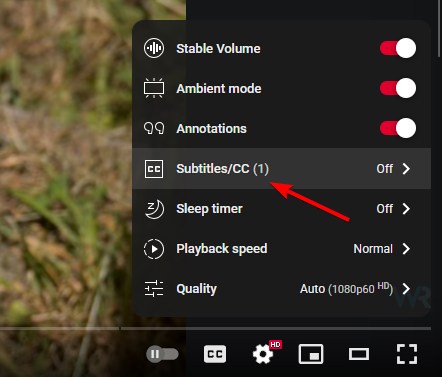
  2. Click the gear icon (Settings) in the video player.
  3. Select Subtitles/CC.
  4. Choose Auto translate from the menu.
  5. Pick your preferred language.

If you use Microsoft Edge, our guide on how to enable video translation in YouTube can walk you through the steps.

2. Clear browser cache and cookies

  1. Open your browser’s settings.
  2. Go to Privacy & Security or History.
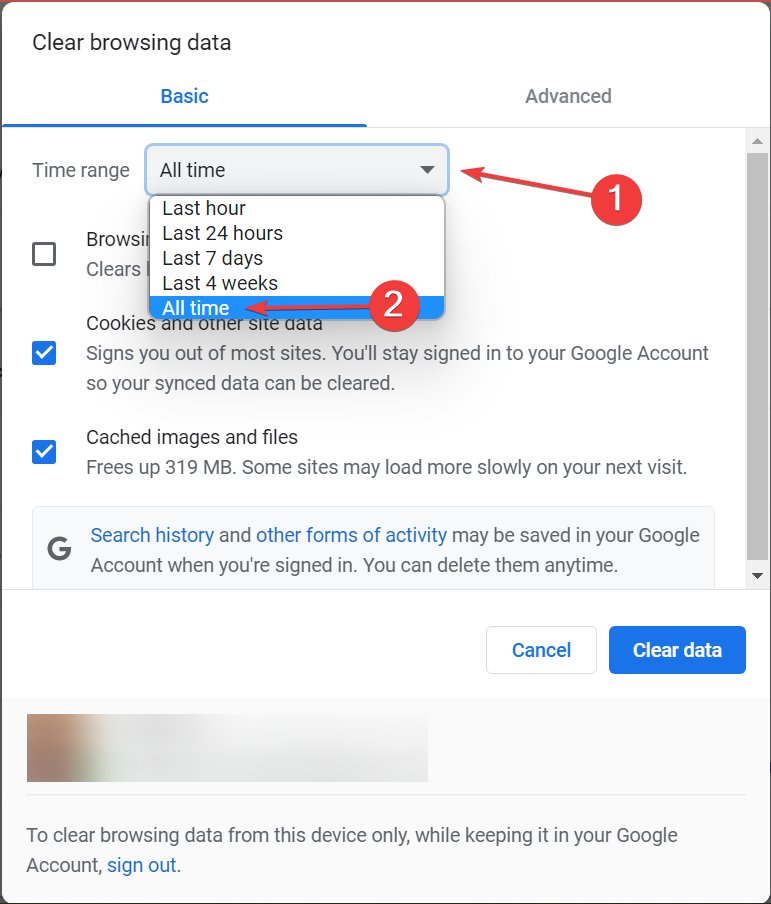
  3. Select Clear browsing data.
    clear browsing data in google chrome
  4. Check Cached images and files and Cookies and site data.
  5. Restart your browser and try YouTube again.

3. Verify subtitle availability

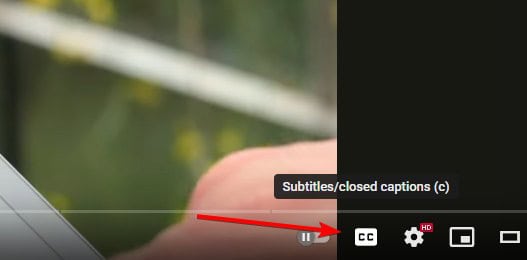
  1. Click the CC button under the YouTube video.
  2. Check if captions are available.
  3. If captions exist, open Settings > Subtitles/CC > Auto translate.
  4. Pick the language you want.
  5. If no captions appear, the video may not support autotranslation.

We also covered what to do if you get the YouTube download error loading captions, which is closely related to missing subtitles.

4. Change the video audio language

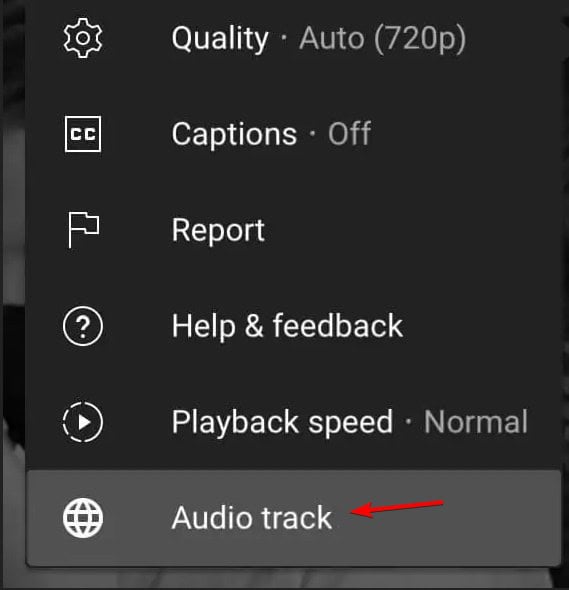
  1. Open the video and select the Settings gear icon.
  2. Look for Audio track (if multiple languages are available).
  3. Select the language you prefer.
  4. Enable Subtitles/CC if you also need captions.
  5. Reload the video and check if the translation is working.

5. Try another browser or update the app

  1. Close the current YouTube tab or app.
  2. Update your browser or the YouTube app to the latest version.
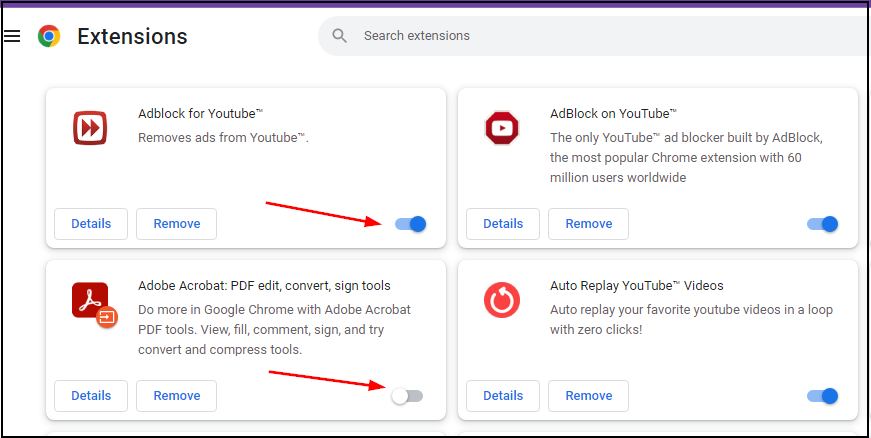
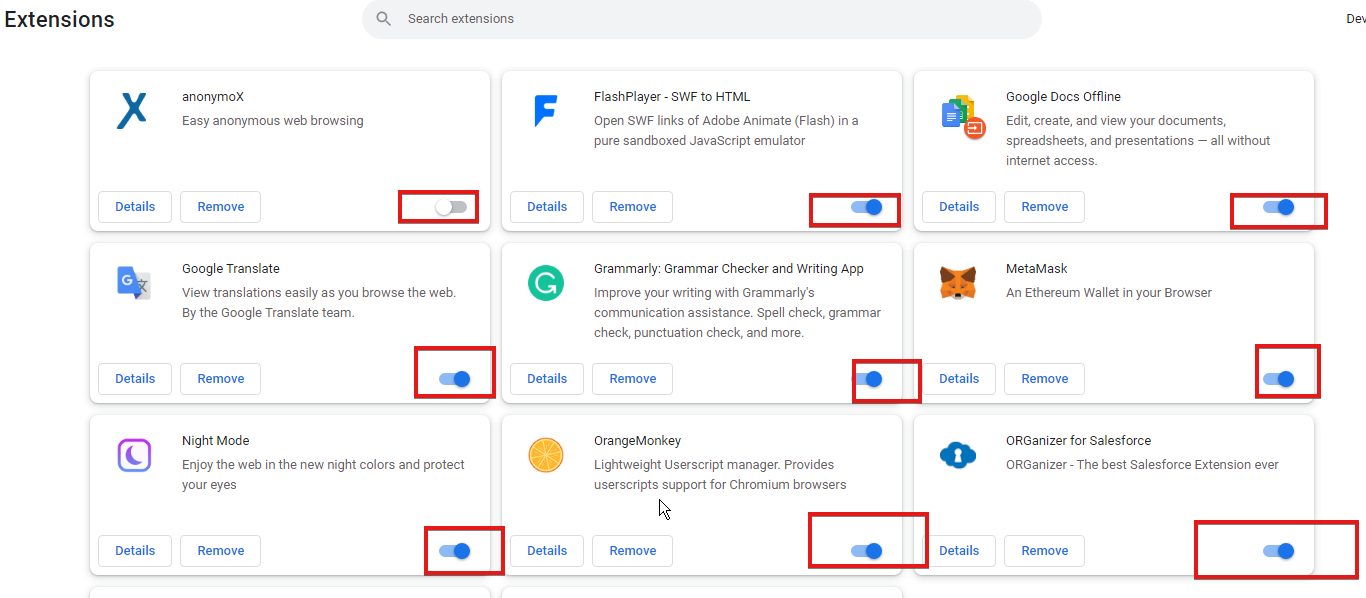
  3. Disable any extensions that may block scripts or interfere with video playback.
  4. Try opening YouTube in another browser such as Chrome, Edge, or Firefox.
  5. Test the autotranslate feature again.

Using a Nintendo Switch 2 and still experiencing YouTube issues? Check our dedicated guide here: YouTube Not Working on Switch 2.

FAQs

Why is YouTube autotranslate not showing?

Because the video may not have captions enabled, the auto translate option will not appear.

Can I force YouTube to generate subtitles?

You cannot force it on videos without captions, but you can enable automatic captions if YouTube supports them.

Does autotranslate work on all devices?

No, some smart TVs or older app versions may not support the feature. Try updating your app or using another device.

What if none of the fixes work?

If the issue continues, it may be a wider YouTube problem. Waiting for an update or checking online resources can help.


These fixes should help you resolve the issue when YouTube autotranslate is not working. By enabling auto translate, clearing cache, checking for available captions, and keeping your browser or app updated, you can usually get translations working again without much trouble.

If the issue still persists, you may want to try changing the video’s language track. We also explained in detail how to change the audio language on YouTube, which can be a useful workaround when autotranslate fails.

Microsoft Fixes CertificateServicesClient (CertEnroll) Error in Windows 11

Microsoft has addressed a CertificateServicesClient issue that was causing error events to appear in the Windows Event Viewer after recent updates. The company confirmed the fix through its official Windows release health dashboard, noting that affected users no longer need to take any action.

The bug first surfaced following the July 2025 non-security preview update (KB5062660) and persisted through the August 2025 Patch Tuesday release.

Users on Windows 11 version 24H2 reported seeing repeated error messages logged with Event ID 57, pointing to the Microsoft Pluton Cryptographic Provider. The event was triggered on every reboot, yet Microsoft clarified that the error was harmless and had no effect on system functionality.

That’s not all; the company explained that the logged message related to a feature still under development and could safely be ignored. No Windows processes or security features were impacted, and performance remained unaffected.

Microsoft has patched the issue with KB5064081, released on August 29, 2025, and is rolling out gradually. Consumer devices running Home and Pro editions will receive it automatically, while commercial customers with IT-managed environments can expect availability within the next month.

Besides fixing the immediate problem, Microsoft says all future security and non-security updates will carry this resolution by default, ensuring users will no longer encounter the error in Event Viewer after restarts.

Download Icecream Ebook Reader for Free on PC

There’s a lot of digitalized books in various formats just waiting to be read. And when it comes to ebook readers, there’s a couple of viable applications to choose.

At the top of free software solutions stands the Ebook Reader by IceCream Apps.

There are not many boxes to check when it comes to ebook readers but the IceCream Ebook Reader checks most of them, with classic interface and support for all known formats. Including EPUB, MOBI, FB2, PDF and other popular formats.

Besides the self-explanatory usual features, IceCream Ebook Reader has a well-designed digital book library, contextual Search and Translate options, annotations, and great night mode to kill off that blue tint and bring ease to readers eyes.

Also, you can configure fonts size and color or background and foreground colors. The PRO version offers some extra features like text-copying or editing titles and authors, and most importantly, the fullscreen support.

It’s simple and light, covering everything a reader needs in order to enjoy favorite books or comics. It works great for standard PCs, as well as Windows-powered tablets and phones.

Download it now free
download icecream ebook reader free
  • Translate ebooks
  • Annotate text
  • Nightmode available

Download Transcribe! for Windows

Music transcription is a niche which most people will hardly come into touch with. However, if the need arises, we have a perfect application for you.

Transcribe! is the software which helps its users (music professionals and aficionados) to transcribe the music from some previous recordings.

Basically, Transcribe! is a specialized music player with whom you should be able to slow down tracks without losing the pitch or quality.

Even though it doesn’t output the notation, it’ll get you as far you can go when it comes to transcribing musical notes.

In comparison to some other programs used for the music transcription, Transcribe! offers a variety of features.

The interface and workflow are simplest of the bunch, with EQ filter, advanced tuning capabilities, and note/chord guessing.

So, if you’re a music enthusiast and were looking for an application to assist you with the music transcription, look no further. Transcribe! is everything you need, so make sure to give it a try.

We recommend
download transcribe! for windows 10
  • User-friendly
  • Supports footswitch pedals

Download IceCream Slideshow Maker Pro for Windows

There is an abundance of slideshow and presentation tools you’ll run into if they fall into your interest points. And most of them, like the Powerpoint, will do just fine.

But if you like to take it a notch further, software like Slideshow Maker Pro from IceCream Apps studio is just the right tool for you.

It puts all professional features into an intuitive package in order to be accessible for both journeyman creators and newbies alike.

There’s an abundance of witty features. Starting with fancy transition effects and background audio, all the way through transitions and duration should finally result with high-resolution slideshows.

Best slideshow maker
icecream slideshow maker download
  • Pause/Resume your project
  • Enhanced control of time and transitions
  • 4K slideshow
  • Compatible with Windows XP, Vista, 7, 8, 8.1, 10

It supports 4K slideshows, so the image resolution isn’t something you’ll need to worry about.

It has all the necessary customization tools and some more. With it, the slideshows and presentations can be immediately shared upon the creation process is done.

We suggest giving the free version a try and, if you want some extra features, going for the PRO version is a no-brainer.

Download IceCream Slideshow Maker Pro

Download WavePad Audio Editor for Windows

Any kind of work without a proper set of tools is waste of time, especially if you’re looking for perfection. Music editing can be quite a hardship, with all minutiae and precision it requires.

However, with the right tool for the job, like WavePad Audio Editing Software and a bit of professional knowledge, audio editing would make for a much better experience.

This tool is, as advertised, a professional tool. Tool for those who know their way around such software. In comparison to some other software solutions in this niche, WavePad Audio comes with an abundance of effects and tools packed in an intuitive user interface.

You can trim sound bites out of longer audio files, create ringtones from music files or recordings, cut together audio for radio broadcasts or podcasts, and plenty more.

Download WavePad Audio

The free version of WavePad is great for starters (limited number of SFX files in the library), but a journeymen user will probably decide for the premium version which provides all audio editing tools.

Download IceCream Screen Recorder for Windows 10 & 11

There’s an abundance of screen-capturing software these days. Taking the screenshot feature a notch further and creating presentations, capturing tutorials or reviews or even gameplay and video calls, is always handy.

There are a lot of applications to choose from, based on your needs, but the Screen Recorder by IceCream Apps is one of the best we can think of from the top of the head.

The PRO version is just a sweet piece of software, with everything you’ll ever need in regards to the screen recording. The intuitive interface makes it simple to use and pre-assigned hotkeys and a variety of adjustments allow you to record only what you need and nothing more.

Here’s the list of major features you can expect to get from IceCream Screen Recorder Pro:

  • Screenshots.
  • Drawing panel to mark recordings.
  • Custom watermarks.
  • Video quality selection and various video outputs.
  • Step tool and the Around-the-mouse screen recording.
  • Converter for post-processing of screen recordings.
  • Scheduled recording.
  • Willing support on the official page.

You can try the free version and then upgrade or go for the PRO version immediately. It’s your choice.

Microsoft confirms TLS 1.3 breaks IIS Express client certificate handling on Windows 11

A Microsoft engineer has confirmed that TLS 1.3’s default use in Windows 11 is causing compatibility problems for IIS Express when working with client certificates. The issue, which also affects full IIS under some conditions, stems from TLS 1.3’s lack of support for a feature called renegotiation.

That’s not all; renegotiation allowed servers on TLS 1.2 and earlier to request a client certificate partway through an encrypted session. Unfortunately, without it, IIS Express cannot validate client certificates unless they are requested during the initial TLS handshake. Since IIS Express depends on Windows’ http.sys driver for handling TLS, it gets control too late to intervene.

Well, the change impacts developers’ testing projects that rely on mutual TLS (mTLS). On older Windows 11 builds and Server 2022, the browser simply resets the connection. Whereas, on version 24H2 and Server 2025, IIS responds with a 500.0 Internal Server Error and error code 0x80070032, which translates to not supported.

Microsoft has not announced a permanent fix for IIS Express, and it’s unclear if it will roll out one in the future. For now, developer Matt Hamrick suggests three possible workarounds:

  • First, you need to disable inbound TLS 1.3 via registry edits. This forces Windows to use TLS 1.2 for local server sessions.
  • If the above workaround doesn’t work, simply modify http.sys bindings with netsh, so certificates are requested during the initial handshake.
  • If nothing works, remove client certificate requirements from the IIS Express configuration file if possible.

Besides these steps, Hamrick warns that some methods may require administrative privileges or could be reset during Visual Studio updates. Worth noting that full IIS on Windows Server 2025 already includes a Negotiate Client Certificate option for site bindings, giving administrators more control.

IIS Express, however, lacks that flexibility because its bindings are preconfigured by Visual Studio, limiting direct management. That’s not all; most web browsers do not yet support the TLS 1.3 extension for post-handshake authentication, meaning the problem is as much about client support as it is about server settings.

As of now, Microsoft hasn’t detailed whether IIS Express will receive a proper fix. Hamrick himself wrote that he is “not sure if there will be a fix and what it will look like if there is.” For now, developers building on IIS Express must rely on workarounds or adjust their configurations.

Microsoft rolls out KB5065848, KB5065847, and KB5065813 OOBE updates for Windows 11

Microsoft has released Out-of-Box Experience (OOBE) updates under KB5065848, KB5065847, and KB5065813. These packages cover Windows 11 versions 22H2, 23H2, 24H2, and even Windows Server 2025, ensuring fresh installs run on the latest critical fixes from day one.

All the aforementioned updates arrive just days after Microsoft pushed dynamic updates under KB5065378 and KB5064097, which focused on setup binaries and recovery improvements. Together, the two sets of releases highlight Microsoft’s strategy of polishing both installation and recovery experiences.

Unlike cumulative features or security patches, these OOBE updates don’t list detailed changelogs. Instead, they act as behind-the-scenes enablers, making sure devices receive zero-day patches, updated drivers, and essential fixes while going through initial setup. Microsoft says that the updates are mandatory, so users can’t decline them during OOBE.

Besides security patches, there’s another benefit. If a newer build of Windows 11 is already available, the system can pull it in during the last stage of OOBE. That means a brand-new PC may boot for the first time already running the latest release.

Not to forget, the KB updates span multiple supported versions:

  • KB5065848 and KB5065847 apply to Windows 11 version 24H2 and Windows Server 2025.
  • KB5065813 applies to Windows 11 versions 22H2 and 23H2.

Worth noting that the updates are applied automatically during setup if the device is online. Moreover, Microsoft notes that installation speed depends on both hardware and internet performance.

Radio Tuner Software for PC: 5 Best to Use in 2026

Are you looking for the best radio tuner for PC? Or the best radio receiver for PC? Windows Report team has come up with the best programs for this purpose.

Radio Tuner seemed to be going out of vogue with the influx of music managers and programs like Spotify, iTunes, and Pandora. These programs have simplified the concept of music management but at one point you’ll get tired of your music collection.

However, this is where internet radio comes in as these radio apps give you access to listen to numerous radio stations with a single click. There are thousands of radio tuners and receivers online which can cause dilemma when looking for the right one.

Meanwhile, Windows Report has narrowed down the best radio tuner available for your Windows PC based on tests from our experts.

Best radio tuner/radio receiver software for PC

Nexus Radio

radio tuner for pcNexus Radio is popular radio tuner software that streams over 1000 internet radio stations to your system. This Radio tuner software has a smooth interface with all features and options neatly arranged and radio stations are easy to navigate.

In addition, the radio stations are arranged according to musical style, and station name. There are great varieties of genres and you’ll have lots of options to choose from. You can arrange your songs and artists into favorite’s playlist for easy navigation. Also, this radio tuner enables easy Facebook integration, and other social media are easily integrated.

Furthermore, Nexus radio gives you radio station options, slick interface and other tools give you a unique online radio listening experience.

Download Nexus Radio

Screamer Radio

radio tuner for pcScreamer Radio is a freeware radio tuner application used to listen to radio via the internet. The application is lightweight and doesn’t use much of your computer resources. Stations are arranged through default preset which includes language, network, region, and genre.

The radio tuner software also contains a web search directory where you can add your favorite stations for easy access later. When listening to a particular station all the information about the station and track being listened to are displayed on the radio window menu.

Finally, Screamer Radio overall gives a clean user-friendly interface with a good number of stations and quality music quality. The tool is also lightweight and does all the things you would expect from a radio tuner.

Download Screamer Radio

Tapin Radio

radio tuner for pcTapin Radio is an excellent internet radio receiver with over three thousand free online radio stations for you to pick from.

The Radio tuner gives access to various radio stations across the world. The stations are divided into genre, region, and network. You can preset the type of stations you want from the menu although this could be taxing because of the huge amount of radio stations available.

In addition, the radio tuner also enables you to record music from the radio stations onto your hard drive by simply clicking the record button in the menu.

However, Tapin Radio has all the necessary features for an excellent radio tuner with good functionality and beautiful user interface.

Download Tapin Radio

Online Radio Tuner

radio tuner for pcOnline Radio Tuner is a nice lightweight application with a variety of themes and is easy to configure options. This enables users to control most of the features of the program from sound recording profiles to the app hotkeys.

This is a useful online radio which is needed if you’re the type that likes online radio streaming and possesses a streamlined user interface.

In addition, Online Radio Tuner enables users to add URL of various music website which enables you to access your best music easily. Online Radio Tuner overall is nice handy software to have as you have access to many presets and it has a cool friendly user interface.

Download Online Radio Tuner

RadioSure

radio tuner for pcSaving the best for the last, RadioSure is a top radio tuner for PC. This software enables you to enjoy all the benefits of internet radio stations. If you want to toggle through settings and arrange radio stations based on language, genre, country, and title; this radio tuner software is sure to do that, just as its name implies.

In addition, you can also use shortcut hotkeys assigned to your favorite stations to enable easy access later. The search function enables you to choose from various stations across the world. There are many stations which give you endless streaming of music from any genre.

RadioSure is a complete package and is an excellent radio tuner application to download for your Windows PC

Download RadioSure

Conclusion

In conclusion, these are the best radio tuner for PC which also doubles as radio receiver for PC. However, most of the programs we mentioned are easy-to-use due to their understandable graphical user interface (GUI).

Meanwhile, these radio tuner software has various features and are free to download, you can test each of them individually to have a better experience. This will make your decision on which to use permanently easier.

RELATED STORIES TO CHECK OUT:

How to Boot Windows Server 2019 into Safe Mode

If you’ve been using using Windows Server 2019 for a long time now, it’s important to learn how to boot it in the Safe Mode. Now, you may ask, why? Well, because it is a diagnostic startup mode that loads only the essential drivers and services needed to run the system.

That’s not all, it strips away unnecessary processes, it provides a clean environment to troubleshoot issues like boot failures, driver conflicts, malware infections, or corrupted updates. Without further ado, let’s jump into different methods to boot Windows sServer 2019 into Safe Mode.

How do I boot Windows Server 2019 into Safe Mode?

Method 1: Use System Configuration (msconfig)

  1. First, press Windows + R, type msconfig, and then, hit Enter.
  2. Now, in the System Configuration window, go to the Boot tab.
  3. Next, under Boot options, check Safe boot, and select Minimal.
  4. Finally, click OK and then Restart. Now, the server will boot into Safe Mode.

Method 2: Using Shift + Restart from Login Screen

  1. On the login screen, click the Power icon in the lower-right corner.
  2. Then, hold down Shift and select Restart.
  3. In the recovery menu, navigate to: Troubleshoot > Advanced Options > Startup Settings > Restart.
  4. When prompted, press the key for Enable Safe Mode.

Method 3: Using Command Prompt with bcdedit

  1. Open Command Prompt as Administrator.
  2. Then, type: bcdedit /set {default} safeboot minimal
  3. Restart the server and it will boot into Safe Mode.
  4. To revert Safe Mode, run: bcdedit /deletevalue {default} safeboot

Method 4: Using Installation Media or Recovery Drive

  1. First, insert your Windows Server 2019 installation media or bootable USB.
  2. Then, boot from the media and select Repair your computer.
  3. Now, go to Troubleshoot > Advanced Options > Command Prompt.
  4. Finally, enter the bcdedit command (same as Method 3) to enable Safe Mode.

Summing up

Booting Windows Server 2019 into Safe Mode can help with a wide range of issues. For example, it’s often the first step when trying to repair Windows Server when it doesn’t boot up. It can also make it easier to reset a forgotten Windows Server password without interference from background services.

Admins working with Active Directory on Windows Server may also use Safe Mode to troubleshoot replication errors or recover from directory corruption. Even in setups where you dual boot Windows 10 and Windows Server, Safe Mode offers a clean environment to isolate compatibility problems.

In short, Safe Mode provides a controlled space to roll back changes, remove malware, or run system tools like sfc /scannow and DISM, without the risk of other processes interfering.

FAQs About Booting Windows Server 2019 into Safe Mode

How do I boot Windows Server 2019 into Safe Mode from startup?

You can simply useinstallation media or press Shift and select Restart on the login screen to access recovery options.

What is Safe Mode with Networking in Windows Server 2019?

It’s a version of Safe Mode that includes drivers and services for network connectivity, useful for downloading tools or updates while troubleshooting.

Can I access Safe Mode if Windows Server 2019won’t boot normally?

Yes, by using installation media or recovery options, you can force Safe Mode startup.

How do I exit Safe Mode in Windows Server 2019?

Open Command Prompt and run:
bcdedit /deletevalue {default} safeboot
You can also uncheck Safe boot in System Configuration.

Why would Safe Mode help fix Windows Server 19 issues?

It loads only essential drivers, letting you isolate whether the issue is caused by third-party software, hardware drivers, or system corruption.

Do booting Windows Server 2019 in safe mode affect server roles or applications?

Yes, some services (like Active Directory or IIS) may not run in Safe Mode. It’s best for troubleshooting, not production workloads.

Is Safe Mode safe for Windows Server 2019 domain controllers?

Yes, but keep in mind domain services may be unavailable. Use Directory Services Restore Mode (DSRM) if repairing AD.

Rightmove Not Working? Try These Quick Solutions

If Rightmove not working is stopping you from browsing properties, you might see issues like listings not loading, filters failing, or the website not opening at all. However, there are few ways to fix this issue, and here’s a quick guide to help you get back on track.

What to do if Rightmove is not working?

1. Check if the issue is external

  1. Visit a downtime checker to confirm if Rightmove’s servers are down.
  2. If it’s a widespread outage, the only fix is to wait until service is restored.

If you encounter Access Denied issues on Hotels.com, it could also point to temporary service outages or region-related blocks.

  1. Clear your browser’s cache and cookies, then restart it.
    clear cache and data chrome
  2. Update your browser to the latest version.
  3. If issues persist, switch to another browser such as Chrome, Edge, or Firefox.
  4. Disable extensions or ad blockers that might interfere with the site.
    disable extensions google chrome

3. Resolve connection issues

  1. Restart your router to refresh the network.
  2. Switch to mobile data or a different Wi-Fi connection to rule out ISP restrictions.
  3. If using a VPN, disable it and try again.

4. Test on another device

  1. Open Rightmove on your smartphone or tablet.
  2. If it works there, the problem is likely specific to your main device.

If you’ve tried these steps and Rightmove is still not working, the problem could be linked to your internet connection or the service itself. Similar issues often affect other platforms, such as when Airbnb is not accepting payment, and the troubleshooting approach is very similar.

If you continue facing problems with property websites, it might be worth exploring more reliable booking software options. You can also contact Rightmove’s official support for direct assistance with account or access issues.

FAQs

Why is Rightmove not loading on my browser?

It could be due to outdated cache, browser extensions, or a temporary server outage.

Can I use Rightmove on mobile if the website is down?

Yes, try the official app, which often works when the browser version has issues.

Does Rightmove block certain regions?

In some cases, access problems can occur if you’re browsing from abroad or using a VPN.

What should I do if Rightmove keeps freezing?

Update your browser, clear cache, and disable unnecessary extensions to improve stability.

GoMovies Not Working? 15 Quick Fixes That Actually Work

GoMovies not working can mean pages won’t load, videos won’t play, or links keep redirecting to ads. Below are fast, safe fixes that address browser cache, extensions, DNS, device settings, and network glitches. Follow them in order for the quickest win.

Before you start

  • Check if the homepage loads for others using any neutral status check on the web (don’t sign in anywhere).
  • Restart your browser/device and try another network (mobile hotspot vs Wi-Fi).
  • Respect local laws; do not attempt to bypass unlawful restrictions.

1. Clear cache and cookies

Open your browser settings and clear cached images/files and cookies for recent time ranges, then reload the site.
Why it helps: Corrupted or stale data breaks logins, sessions, and page scripts.

2. Hard refresh and try a private window

Press Ctrl+F5 (Cmd+Shift+R on Mac) to force-reload, then test in an incognito/private window.
Why it helps: Private mode skips cached data and conflicting cookies.

3. Disable ad-blockers and privacy extensions

Pause uBlock/Adblock/Privacy Badger and any popup/script blockers for the site and refresh.
Why it helps: Aggressive filters can block player scripts, CDNs, and buttons.

4. Turn on JavaScript and enable cookies

Ensure JavaScript is allowed and third-party cookies aren’t fully blocked for the site.
Why it helps: Most players and login/session logic require JS and cookies.

5. Update or switch browsers

Update your current browser to the latest version, or quickly test with Chrome, Edge, Firefox, or Safari.
Why it helps: Outdated engines hit modern player/codec and TLS issues.

6. Flush DNS and renew your IP

On your device, flush DNS and renew the IP lease, then reconnect to the network.
Why it helps: Old or bad DNS entries can misroute domains and mirrors.

7. Try a different DNS resolver

Change your network DNS to a reputable public resolver and restart your connection.
Why it helps: Some ISPs have stale or over-filtered DNS; alternatives can resolve domains more reliably.

8. Sync your date and time

Set your device to automatic time and time zone, then reopen the site.
Why it helps: TLS certificates and streaming tokens can fail with bad clocks.

9. Temporarily pause antivirus/firewall

Briefly pause overly strict security suites or firewalls, test the site, then immediately re-enable.
Why it helps: Some suites block embedded players, trackers, or CDNs.

10. Test another network

Try mobile data, a guest Wi-Fi, or a different router.
Why it helps: Network-level blocks, captive portals, or DNS filtering may be the cause.

11. Reset browser settings to default

Restore default settings (keep a note of what will reset) and test again.
Why it helps: Misconfigured flags, proxies, or content settings often break playback.

12. Toggle hardware acceleration

Turn hardware acceleration off (or on) in your browser/player settings and reload.
Why it helps: GPU/driver quirks can cause black screens, stutter, or crashes.

13. Check system-wide proxy/VPN settings

Make sure no old proxy or VPN settings are left enabled at the OS level.
Why it helps: Misrouted traffic can cause timeouts, captchas, or endless redirects.

14. Try another device

Open the site on a different phone/PC to isolate whether the issue is device-specific.
Why it helps: Confirms whether your original device has unique conflicts.

15. If it’s down or blocked, use safe alternatives

When the domain is offline or restricted in your region, consider reputable, lawful options. See the best GoMovies alternatives for picks that actually work.
Why it helps: Saves time and reduces risk when the original site is inaccessible.

Tips

  • Avoid unfamiliar mirror lists and deceptive pop-ups; they often deliver malware.
  • Bookmark working pages and re-check periodically – mirrors can change without notice.
  • Prefer legal, reputable streaming platforms for reliability and safety.

FAQs

Why does GoMovies keep changing domains?
Such sites frequently rotate domains to avoid takedowns, which causes broken links and DNS delays.

Is it legal to use GoMovies?
Legality varies by country. Accessing or distributing copyrighted content without permission may be illegal. Always follow local laws.

Why does video keep buffering or freezing?
Common culprits: overloaded servers, ISP congestion, misconfigured DNS, or hardware acceleration conflicts.

Why do links redirect to ads or new tabs?
Aggressive ad scripts or blocked resources can trigger forced redirects. Disabling conflicting extensions or trying a different browser can help.

Will changing DNS really help?
Yes, if your ISP has stale or filtered records. A reputable public resolver can improve domain resolution and reliability.

Summary (ordered steps)

  1. Clear cache and cookies.
  2. Hard refresh; try private mode.
  3. Disable ad-blockers/privacy extensions.
  4. Enable JavaScript and cookies.
  5. Update or switch browsers.
  6. Flush DNS and renew IP.
  7. Use a different DNS resolver.
  8. Sync device date/time.
  9. Temporarily pause antivirus/firewall.
  10. Test another network.
  11. Reset browser settings.
  12. Toggle hardware acceleration.
  13. Check proxy/VPN settings.
  14. Try another device.
  15. If down/blocked, pick safe alternatives.

Conclusion

Most “GoMovies not working” issues come down to cached data, extensions, DNS, or network blocks. Work through the list in order, and if the domain is unavailable in your region, switch to safer alternatives for a smoother, legal experience.

Microsoft Issues New Guidance Related to USB Type-C Notifications in Windows for OEMs

If USB Type-C notifications aren’t showing up in Windows 11, the issue may not be with the OS itself but with OEM implementation. Over the weekend, Microsoft shared new guidance for manufacturers on how to properly configure and validate these features. Apparently, this will help users troubleshoot problems like slow charging, unsupported accessories, and faulty connections.

According to Microsoft, missing or incorrect ACPI markup is one of the most common reasons. Since Windows relies on ACPI descriptors to identify ports and their capabilities, any mislabeling, such as marking a Type-A port as Type-C, can prevent alerts from triggering.

Similarly, ports incorrectly flagged as internal may suppress notifications even when accessible to users. OEMs are urged to use the Windows Hardware Lab Kit (HLK) to validate USB port descriptors and confirm that _UPC (USB Port Capabilities) and _PLD (Physical Location of Device) ACPI methods are implemented correctly.

Microsoft also recommends stress-testing across charging scenarios, such as using underpowered chargers or USB hubs, to ensure notifications display consistently. Some device makers disable USB data in untrusted environments for security.

Microsoft advises that such policies should only apply to externally accessible ports and that OEMs provide toggles where possible. More importantly, disabling data must not interfere with internal devices like the keyboard or touchpad.

Microsoft’s recommendations include auditing ACPI descriptors across all ports, validating notification behavior in supported scenarios, and coordinating with Windows Hardware Compatibility Program (WHCP) requirements.

Moreover, OEMs are also advised to document exceptions clearly if specific ports or configurations do not support notifications.

LinkedIn Games Explained: Benefits and Downsides

LinkedIn recently introduced games to make the platform more engaging. Here’s what you should need to know about them.

LinkedIn Games: What you need to know

How LinkedIn Games work

  1. Open your LinkedIn app or desktop account.
  2. Look for the Games section in your feed or menu.
  3. Choose from a small library of puzzle and trivia games.
  4. Play directly without leaving the LinkedIn platform.

Benefits of LinkedIn games

  • Networking through play: Scores are visible to your connections, sparking conversation.
  • Quick brain exercises: The games are short and designed to fit into busy schedules.
  • Increased visibility: Regular participation can make your profile more active in feeds.

Downsides to consider

  • The games can be distracting during work hours.
  • Not everyone is comfortable mixing professional branding with casual gaming.
  • Limited titles may feel repetitive over time.

Some professionals may even feel that these features dilute LinkedIn’s focus on work. In that case, learning the steps for how to delete your LinkedIn account could be the right move if you prefer a fully distraction-free professional space.

Instead of leaving the platform entirely, you can also remove Open to Work on LinkedIn to keep your profile professional while still managing how others see you.

Should you play LinkedIn games?

If you want to casually connect with colleagues or show a lighter side of your profile, LinkedIn games can be useful. However, if you prefer a strictly professional presence, you may want to ignore this feature until it matures.

If you prefer to focus on strengthening your professional presence, learn how to upload a resume on LinkedIn so your profile stands out while still enjoying lighter features like games.

If you enjoy quick brain teasers on LinkedIn but also play outside the platform, keep this handy: our NYT Mini Crossword not working guide walks you through fast fixes for loading, login, and access issues.

FAQs

What are LinkedIn games?

LinkedIn games are short puzzle and trivia challenges built into the platform to encourage engagement and networking.

Are LinkedIn games available to everyone?

Not yet. LinkedIn is gradually rolling out the feature, so availability may depend on your region or account type.

Can I turn off LinkedIn games?

You cannot remove the feature itself, but you can limit distractions by adjusting your LinkedIn settings or disabling integrations.

Do LinkedIn games affect my profile visibility?

Yes, scores and activity may appear in your feed, which can increase your visibility to connections.

If the platform itself gives you trouble, such as when LinkedIn is not loading on Chrome or LinkedIn not opening on Safari there are simple fixes that we covered in our earlier articles, so check them out.

123movies not Working: 10 Fixes to Try

When 123movies stops loading or endlessly redirects, it’s typically domain rotation, takedowns, or network blocking. Follow the steps below to separate local issues from global outages and choose safer options if it’s down.

Before you start

  • Don’t hunt for mirrors or third-party loaders – high malware risk.
  • Keep protections on: anti-malware, tracker blocking, and updates.
  • If you see security warnings, back out immediately.
  • Prefer legitimate services when a domain keeps disappearing.

Fix 123movies not working

1. Confirm it isn’t just your setup

Open the site on a different device and network (mobile data vs home Wi-Fi).
Short why: Quickly separates local misconfigurations from site-wide issues.

2. Double-check the domain spelling

Clones and phishing sites use look-alike domains. Verify the URL precisely.
Short why: Avoids fake sites that harvest data or push malware.

3. Obey security prompts and certificate errors

Browser warnings exist for a reason. Don’t proceed on deceptive pages.
Short why: Protects against injected scripts and drive-by downloads.

4. Clear site data and restart your browser

Remove cache, cookies, and storage for the domain, then relaunch.
Short why: Resets broken redirects and expired sessions.

5. Test in a private window or fresh profile

No extensions, no custom flags. If it loads differently, your main profile is the culprit.
Short why: Narrows down extension or profile issues.

6. Remove problematic extensions

Disable or uninstall anything unfamiliar or recently added.
Short why: Extension hijacks can block loads or reroute traffic.

7. Identify network/ISP restrictions

Managed networks and some ISPs filter piracy domains. Respect those rules.
Short why: Explains failures unrelated to your device.

8. Run a comprehensive security scan

Check for adware/PUAs, DNS changers, and browser hijackers.
Short why: Cleans components that interfere with streaming sites.

9. Skip risky workarounds

Avoid VPN/DNS “fixes,” mirror lists, or custom loaders intended to reach 123movies.
Short why: Reduces legal risk and keeps your system safe.

10. Use reputable alternatives instead

Save time and risk: switch to dependable services. Start here: best 123movies alternatives.
Short why: Better uptime, quality, and safety.

Tips

  • Don’t install “codec packs” or “player updates” from streaming pages.
  • Deny notification prompts from unfamiliar sites.
  • Consider a separate browser profile just for media browsing.
  • Keep everything updated – OS, browser, extensions.

FAQs

Why is 123movies down today?
Frequent domain changes, seizures, or blocks are typical. Many “new” domains are clones with added risks.

Is 123movies legal to use?
Depending on your jurisdiction, it may violate copyright laws. Choose legal services.

Can a VPN make it work?
This guide doesn’t recommend bypassing restrictions. Prioritize safety and legality.

Do ad blockers cause issues?
Some clones may depend on ad scripts, but turning protection off is unsafe on such sites.

What’s the long-term fix?
Stop relying on unstable mirrors and move to trusted platforms. See the best 123movies alternatives.

Summary (ordered steps)

  1. Test on another device and network
  2. Recheck the domain spelling
  3. Respect browser warnings
  4. Clear cache and cookies
  5. Try a private window/fresh profile
  6. Remove suspicious extensions
  7. Check for network/ISP blocks
  8. Run security scans
  9. Avoid VPN/DNS/mirror “fixes”
  10. Switch to safe alternatives

Conclusion

“123movies not working” usually means the domain is down, blocked, or unsafe. Don’t chase mirrors. Safeguard your device and move to stable, legal services such as those listed in the best 123movies alternatives.

Microsoft rolls out new Dynamic Updates (KB5065378 & KB5064097) for Windows 11 24H2 and Server 2026

Microsoft has released two new Dynamic Updates over the weekend for Windows 11 version 24H2 and Windows Server 2025. These releases, separate from the latest optional preview updates, aim to improve the Windows Recovery Environment (WinRE) and setup binaries used during feature updates.

Dynamic Updates are a behind-the-scenes part of Windows servicing. They ensure upgrades run smoothly by fixing setup files, updating SafeOS components, and keeping features like Language Packs (LPs) and Features on Demand (FODs) intact during installation.

The first update, KB5065378, focuses on setup binaries. Microsoft says this update enhances the files used during Windows feature updates, improving reliability for upgrades on both Windows 11 24H2 and Windows Server 2025.

The second release, KB5064097, targets the Windows Recovery Environment (WinRE). Unlike previous cycles where Microsoft listed specific fixes, this update delivers general improvements to SafeOS components. These updates play a crucial role during recovery scenarios, ensuring system stability if Windows needs to repair itself.

It’s worth noting that Both dynamic updates are delivered automatically through Windows Update. For IT admins or advanced users who prefer manual installation, the packages are also available via the Microsoft Update Catalog (KB5065378 & KB5064097).

Fmovies not Working? 10 Fixes to Apply

If Fmovies won’t load or keeps redirecting, it’s usually domain churn, blocks, or unsafe mirrors. Use the quick checks below and, if it’s down, move to trustworthy options instead of chasing new URLs.

Before you start

  • Don’t bypass blocks with random mirrors or loaders – high risk.
  • Keep your browser and security tools updated and active.
  • If the browser shows security warnings, stop immediately.
  • Prefer reputable, legal services when a domain disappears.

Fix Fmovies not working

1. Check if the outage is global

Try a different device and network (mobile data vs Wi-Fi). If it fails everywhere, it’s likely blocked, seized, or abandoned.
Short why: Confirms it’s not just your device or router.

2. Verify the exact URL

Fmovies clones and look-alike domains are common. Double-check the address and avoid typosquats.
Short why: Typos lead to phishing copies and malware.

3. Respect browser security warnings

TLS errors, deceptive-site alerts, or download prompts are red flags. Close the tab if you see any.
Short why: Many mirrors are weaponized with scripts and push notifications.

4. Clear cache, cookies, and site data

Settings → Privacy → Clear browsing data for the site, then relaunch the browser.
Short why: Flushes bad redirects, stale cookies, and infinite loops.

5. Try a clean profile or private window

Open an Incognito/Private window with no extensions, or create a fresh profile.
Short why: Isolates extension conflicts and profile corruption.

6. Audit extensions and remove shady add-ons

Disable anything unfamiliar, then re-enable only trusted tools.
Short why: Adware and proxy extensions can break loads or hijack pages.

7. Check local network or ISP rules

School, office, hotel, or family filters may block such sites. If blocked, don’t attempt to circumvent.
Short why: Explains failures caused by policy filtering.

8. Run a full malware and PUA scan

Use your security suite to scan for adware, PUAs, and browser hijackers.
Short why: Cleans components that inject ads or alter DNS/TLS.

9. Avoid circumvention “fixes”

Random VPNs, DNS tweaks, mirror lists, or third-party loaders can be risky and unlawful.
Short why: Prevents legal exposure and device compromise.

Instead of hunting mirrors, move to reliable services. Start here: best Fmovies alternatives.
Short why: Stable access, better quality, and lower risk.

Tips

  • Never install “codecs,” “updates,” or “players” prompted by streaming pages.
  • Block site notifications you didn’t explicitly request.
  • Use a separate, locked-down browser profile for media browsing.
  • Keep your OS, browser, and extensions updated.

FAQs

Why is Fmovies down today?
Domains rotate, get seized, or blocked. Temporary outages are common, and “new” domains are often clones.

Is Fmovies legal?
Accessing copyrighted content from unauthorized sources can be illegal depending on your region. Choose legitimate platforms instead.

Will a VPN fix Fmovies?
This guide doesn’t recommend bypassing network or legal restrictions. Focus on safe, legal options.

Do ad blockers break Fmovies?
Some pages expect ads to load, but disabling protection on risky sites isn’t advisable.

What’s the safest long-term solution?
Stop relying on unstable mirrors and use legitimate services. See the best Fmovies alternatives.

Summary (ordered steps)

  1. Test on another device and network
  2. Recheck the URL to avoid typosquats
  3. Heed browser warnings
  4. Clear cache and cookies
  5. Use a clean profile/private window
  6. Remove suspicious extensions
  7. Identify network/ISP blocks
  8. Run malware and PUA scans
  9. Skip VPN/DNS/mirror “fixes”
  10. Move to legal alternatives

Conclusion

If “fmovies not working” persists, the domain is likely gone, blocked, or unsafe. Don’t chase mirrors. Protect your device and switch to reputable, legal streaming options like those in our guide to the best Fmovies alternatives.