If you are a soccer fan, and you want to know all the scores and all the games that will be played, then you might be interested in an app that provides you this information. A great example of such an app is FotMob.
Many of you might be already familiar with this name, as the Android and iOS versions of FotMob have been very successful and received great feedback from the users.
Now, the developers have created a Windows-compatible version of the app, and we’ll be taking a look at it today.
FotMob for Windows 10 & Windows 8
This free app can be downloaded from the Microsoft Store, and if you haven’t used it before, you’ll be in for a treat.
As mentioned before, the app targets soccer fans that want to be informed of all the scores and the games that are played.
From the start, you can see that the app has a simple user interface, that shows all the information you need in a clean manner that is simple to read. In the main menu, you will be able to find four categories of games, each showing games from a different period:
Yesterday
Today
Tomorrow
Ongoing
By clicking on each category’s header you will see a more detailed look of it, with all the games and the scores very well placed.
From this same menu, you can jump to any other category. Also, for each category, you can see how many games it contains.
If you want more information on a particular game, all you have to do is click on it and it will open an additional menu where you can see Match Facts, Lineup, Stats, and Table.
In the Table column, you can see the country’s leaderboard, but this only works if both the playing teams are from the same country.
One of the best features that FotMob provides for its users is the Ongoing panel, where you can see in real-time each game.
The scores are live and are updated on the spot. Also, if you click on a particular match, you can hear commentaries in different languages. This feature is not found on all of the games, so you will have to look for the headphones icon next to the playing teams.
The audio quality of the stream is top-notch, and thanks to the fact that it is provided in different languages, it is of use for a much larger audience.
FotMob
A football app any soccer fan should have to stay up to date with real-time details in every football league out there.
Overall, the app has a quality build, it displays live and detailed information and soccer fans will definitely want to try it out. In the time I tested the app, there were absolutely no glitches, and everything worked perfectly.
Last but not least, here are some of the leagues covered by this app:
Premier League
SPL (Scottish Premier League)
League 1 & 2
Euro 2012
Champions League
Bundesliga (1, 2 & 3)
Serie A
Liga BBVA
Ligue 1
MLS (Major League Soccer)
Plus over 100 additional leagues.
If you’ve already tried the app, tell us what you liked about it. Use the comments section.
OneDrive is one of the most commonly used cloud storage services since it’s already integrated with Windows10 and you can find the OneDrive folder in File Explorer.
Since for some users the cloud storage is already enabled, your files will begin to synchronize automatically with the cloud storage.
Regardless of the reason why you want to stop saving documents to OneDrive, there is a quick and simple solution for this and we will present it in this article, so keep on reading.
How can I stop saving documents to OneDrive?
1. Use a specialized tool
If you don’t want to necessarily use the cloud storage that already comes with Windows 10 then we have great news for you. There are plenty of other, more advanced, cloud storage solutions that you can try.
With the advancement of information and communication technology, data volumes continue to grow, requiring more and more storage for organized documents as well as fragmented images and videos.
While cloud storage technology makes data management easier, data permanence is always a major problem and an important basis for cloud service providers to evaluate service levels.
Cloud Storage may be used for a variety of purposes, including providing website content, archiving and disaster recovery data, and sending huge data to your contacts via direct download.
2. Pause syncing
From the notification/menu area, select the OneDrive icon.
Select Help & Security, and click on Pause syncing.
Here, you can select how much time to pause syncing: 2, 8, or 24 hours.
Now you will see that the OneDrive cloud icon shows Paused.
This is one way to stop saving documents to OneDrive, but this is just a temporary solution that you’ll have to repeat regularly.
3. Remove all the files
Press the OneDrive icon and click on Help & Settings and choose Settings.
Navigate to the Account tab. In here, press Choose Folders.
Next, disable Sync all files and fodlers in OneDrive.
Finally press OK for the change to save.
4. Stop OneDrive from starting with Windows
Press the OneDrive icon and click on Help & Settings.
Select Settings tab and disable the Start OneDrive automatically when I sign in to Windows option.
Press OK to save the changes and close the window.
After making these changes, you’ll stop saving documents to OneDrive permanently.
5. Unlink OneDrive
Locate OneDrive icon in the notification area and click on Help & Settings. Choose Settings.
Next, navigate to the Account tab, and click on the Unlink this PC option.
When asked to confirm the change press Unlink this account.
After you confirm, OneDrive will sign out from your PC.
If you want to stop saving documents to OneDrive, you should be able to do so with the solutions from this guide.
Please let us know in the comments section below if you have additional comments and recommendations, we would love to read them.
The new Microsoft Edge web browser is great for many reasons, but not everyone might be used to it. If you’ve clicked upon the new surf icon for Edge and just landed inside by accident, there’s plenty of good reason to keep using it. The browser is built on the same engine as Google Chrome and is more optimized, modern, and speedy when compared to what we now know as legacy Microsoft Edge.
So, what if you’re hoping to switch Edge to your new web browser? Today, we’ll be sharing our top 10 tips and tricks to get the most out of Edge. Sit back, and get ready as we tour you through Microsoft’s web browser (which is now the second most popular web browser, by the way!)
Microsoft Edge Tip 1: Download and use Edge everywhere!
Our first tip might seem obvious, but it is one that longtime users like ourselves usually like to begin with when talking to other people about the new Edge. Unlike the legacy Microsoft Edge, the new Edge is cross-platform just like Chrome. You can experience it across all your major devices — Android phones, iPads, iPhones, MacBooks, and even Linux computers. That’s why we suggest you download Edge on all your devices to begin your journey. Everything will sync up well, as we’ll get into later.
Microsoft Edge Tip 2: Optimize the memory usage and performance of Microsoft Edge
The next tip in our list is one that will be useful for you if you’re switching over from Google Chrome. It’s well known that Chrome can be a hog on system resources, slowing down your PC and taking up RAM and CPU usage. Well, the new Microsoft Edge isn’t like that at all, despite being built on the same engine as Chrome.
You can actually configure both the sleeping tabs feature, as well as Startup boost to get the most out of Microsoft Edge. These are available by clicking to Edge System Settings (or going to edge://settings/system in the address bar.) The sleeping tabs feature will put inactive tabs to sleep to help save system resources. In addition, the startup boost feature will help boost Microsoft Edge and start it up in the background when you log in so you can jump into your web browsing more quickly.
Microsoft Edge Tip 3: Sync your history across your devices
Our first tip mentioned that Edge is available across all different types of devices. Well, that also means you can sync across your devices, too. For tip 3, we suggest you enable syncing in Microsoft Edge. This makes it easier to pick up where you left off and get to webpages more quickly across different devices. Of course, you’ll need to sign in with a Microsoft Account to enable this feature, though.
You can enable this by going to edge://settings/profiles/sync in the Edge address bar. From there, you can check to see if all the switches are turned on. Currently, you can sync your favorites, personal info, passwords, history, open tabs, extensions, and collections. You also can sync up your settings, too, so it’s easier to set up Edge on new devices.
Microsoft Edge Tip 4: Use Edge and Microsoft Authenticator for password generation
So, we talked about syncing, so what about passwords? Well, the new Microsoft Edge is great at creating strong passwords, too, which is why this lands in as our fourth tip.
You can enable a password generator in Edge by going to edge://settings/passwords in the address bar. From there, click the Suggest Strong Passwords toggle switch to make sure it’s blue. Once clicked, every time you visit a new page to sign up for something, Edge will suggest a password for you to use.
And while we’re talking about passwords, did you know that if you sign into Edge with a Microsoft Account, your saved passwords will save to your account? You can download the Microsoft Authenticator app on your iPhone or Android to see these passwords at any time, even when Edge isn’t open. This makes Edge a great password manager! We talked more about that in a separate post.
Microsoft Edge Tip 5: Take control of your privacy
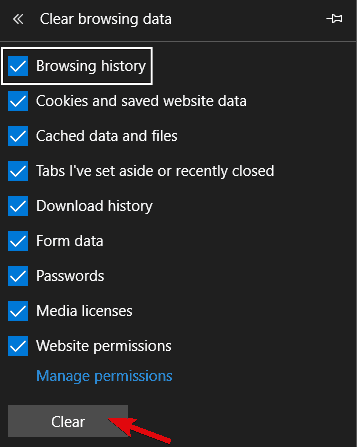
Privacy is everything these days, and you really don’t want websites following you around, don’t you? Well, Edge actually has a lot of privacy features built-in to help out, which is why we add it to number 5 on our list. Simply visit edge://settings/privacy to see a list of all the privacy settings you can take control of. We suggest setting tracking prevention to Strict, sending do not track requests, and clearing your browsing data regularly.
Microsoft Edge Tip 6: Use vertical tabs
Are you the type of person who has a lot of tabs open in your web browser? Well, Edge has your back with our sixth tip. Nobody likes seeing a list of open tabs at the top of the screen, but with the vertical tabs feature in Edge, you can see your open tabs to the left, instead, allowing you to easily drag them around, and quickly peek at what you’re working on. You can toggle to vertical tabs at any time by clicking the icon at the top left of the browser, next to your most left-facing open tab.
Microsoft Edge Tip 7: Use multiple profiles
Just like Google Chrome, in Microsoft Edge it’s possible to add multiple profiles to your browser. This allows you to separate out your web browsing sessions if you’re sharing a PC with someone. It also lets you separate your work and personal profiles, too. This is a great way to avoid using multiple web browsers, as well. You can set this up by going to edge://settings/profiles, and then clicking the Add profile button.
Microsoft Edge Tip 8: Use Collections and Edge for shopping
Doing a research project? Collecting recipes? Shopping? Why don’t you consider using the Collections feature in Edge to do so? Collections in Edge lets you keep track of your ideas and save webpages in a hub at the top of the browser. It syncs up with all your devices where you’re signed in.
In addition to Collections, Edge also has built-in shopping tools, too. At any time you visit a webpage when shopping, you’ll see an icon of a price tag appear in the address bar. If you click it, you’ll see a list of prices and retailers where you can get the item that you want. There could be coupon offers, too. Just hover over the deal and click the Copy Code link.
Microsoft Edge Tip 9: Take screenshots with Edge
There are a lot of ways to take screenshots on a computer, but Microsoft Edge also has its own screenshot tool, too. If you click CTRL+SHIFT+S on your keyboard on Windows, you’ll get a selection tool that will let you select text and pick a spot to screenshot. You also can summon the tool by going to the Edge settings menu via the (. . .) at the top of the screen and choosing Web Capture. Once you capture something, you can click Add Notes to ink or annotate what you see on your screen. When finished, you can click Save to save it as a file.
Microsoft Edge Tip 10: Immersive Reader and PDF reader
Our last tip is one that’s easy on the eyes, as well as the mind. Edge has a feature known as an immersive reader, which will cut out the excess on web pages and show you just text and images. You’ll see the immersive reader when you visit a webpage and see a book icon in the address bar. We talked about immersive reader before, so check it out if you’re curious as to what it can do. There are grammar, learning tools, and so much more in it.
Also related to this is the built-in PDF reader in Edge. Edge can be used as a PDF reader, in place of Adobe Reader or other programs. Edge’s reader lets you ink on PDFs, annotate, and more. You can set Edge as your default PDF reader by going into Windows 10 settings, searching for default apps, choosing default apps by file type, and then choosing Microsoft Edge as default.
Edge is always improving!
We’ll end our piece with a quick note. Although we’ve covered or top tricks and tips for Edge, the web browser is always evolving. Microsoft releases new Edge versions every six weeks, and there are always big improvements and features coming with new releases. So, unlike old Edge which was only updated with operating system releases, you can always expect new features to play with. Join the Edge Insider program to try these features out early!
Microsoft Teams is set to launch a new feature that will allow users to join meetings via digital code. Last week, the company announced the introduction of the feature on the Microsoft 365 Admin Center, which is expected to roll out to Teams users starting in May.
Microsoft recently updated Teams to make it possible for users to create and share meeting invites, but the app will soon match Zoom’s ability to join a new meeting by entering a meeting ID. The feature will be available on all platforms, including the Microsoft Teams desktop, mobile, and Web clients.
“All meetings will have a Meeting ID that is automatically assigned to a Microsoft Teams user and added to the meeting invite under the meeting link. Meeting attendees can join the meeting by entering the Meeting ID. For all meeting attendees, the pre-join, lobby and security will remain the same,” the company explained.
The addition of the new meeting joining experience will further expand the usability of the Teams collaboration platform. This should provide an additional way for users to quickly jump into the Teams meetings when they don’t have the full meeting invite or join link. While the feature will begin rolling out in early May, Microsoft noted that it should be generally available by the end of next month.
Malwarebytes is a great antimalware tool, however, many users reported Malwarebytes memory issues.
It seems that this application is using more memory than it should, and this can be a big problem and drastically impact your performance in Windows 10.
Malwarebytes is a solid antimalware tool, but sometimes Malwarebytes memory issues can occur and cause various problems.
Speaking of memory issues, here are some problems that users reported:
Malwarebytes high memory usage Windows 10, CPU usage Windows 10 – Sometimes high CPU or memory usage can appear with Malwarebytes. If that’s the case, try ending the process and change its priority to low.
Malwarebytes freezes computer – This can be a serious problem, and in most cases, it’s caused by a corrupted installation. To fix the problem, update Malwarebytes to the latest version and check if that helps.
Malwarebytes service high CPU, high disk usage – According to users, sometimes Malwarebytes service can cause this issue to appear. To solve the problem temporarily, you can disable the service and check if that helps.
Malwarebytes uses too much memory – If Malwarebytes uses too much memory on your PC, perhaps you should consider switching to a different antimalware software tool.
Locate the Malwarebytes process, right-click it, and choose End Task.
Now Malwarebytes should start again. If it doesn’t start on its own, start it manually.
Go to the Details tab and locate the new Malwarebytes process, right-click it and choose Set priority,and change toLow.
If you’re having problems with the memory usage on your PC, perhaps you can fix the problem simply by restarting the Malwarebytes process and changing its priority.
This isn’t as hard as it sounds, and you can do it by following the above steps. After doing that, the problem should be resolved and everything will start working again.
Bear in mind that this is just a workaround, so you might have to repeat it if the issue reappears. If Malwarebytes won’t open use this excellent troubleshooting guide to fix it in no time.
2. Switch to a different antivirus solution
If you keep having Malwarebytes memory issues on your PC, perhaps the best way to fix the issue is to try out a different antivirus solution.
There are many great antivirus tools on the market, but if you’re looking for one that is light on your system resources while providing unbeatable protection, you should consider the security solution recommended below.
Having a quality antivirus able to face the latest threats – viruses, spyware, and malware, to name a few – doesn’t have to cost a small fortune.
The ultimate package provides a suite of tempting security tools, is capable of covering multiple devices at once, and is currently available at a major discount.
TotalAV
Try an antivirus solution that doesn’t interfere with your system and apps and it’s less prone to errors.
Open your browser and click the Menu icon in the top right corner.
Choose More tools and selectExtensions from the list.
A list of extensions will now appear. Locate HTTPS Everywhere and click the little switch next to it to disable the extensions.
Many users tend to use HTTPS Everywhere add-on in their browser. This is a great extension since it will force your browser to use an encrypted version of a website thus providing extra security.
Although this extension can be useful, it can also cause Malwarebytes memory issues on your PC.
If Malwarebytes is using too much memory, perhaps you can fix the problem by disabling the HTTPS Everywhere add-on in your browser. To do that, follow the steps detailed above.
After disabling the extension, restart your browser and check if the problem is still there.
The method that we showed you will allow you to disable this extension in Google Chrome, but if you’re using a different browser, the steps should be more or less the same.
4. Start the scan and end the process
Start the threat scan in Malwarebytes.
Now start Task Manager.
While the scan is running, locate the Malwarebytes process in Task Manager and end it.
An error message will appear. Ignore it and don’t click the OK button.
End the Malwarebytes process a couple more times. Be sure not to click the OK button if the error message reappears.
This is another workaround, but if Malwarebytes is using too much memory, perhaps this solution might help.
Several users are suggesting to keep ending the Malwarebytes process and the memory usage will eventually go down. To do this, just follow the steps above.
After ending the Malwarebytes process a couple of times, the issue should be resolved. This is an unusual workaround, but several users reported that it works, so you might want to try it out.
5. Stop Web Protection
Open Malwarebytes and click on Settings.
Go to the Protection tab and set Web Protection to off.
If you’re having Malwarebytes memory issues on your PC, perhaps the issue is the Web Protection feature.
Several users reported that this feature was causing high memory usage on their PC, but after disabling it, the problem was completely resolved.
To disable this feature, just complete the above procedure.
Bear in mind that by disabling the Web Protection you might leave your system more vulnerable, so keep that in mind.
6. Disable Malwarebytes Service
Press Windows Key + R to open the Run dialog. Enter services.msc and press Enter or click OK.
When the Services window opens, locate Malwarebytes Service and double-click it to open its properties.
Set the Startup type to Disabled. Click the Stopbutton to stop the service and click Apply and OKto save the changes.
After doing that, Malwarebytes will be prevented from starting automatically and you should be able to troubleshoot this problem.
Many users reported Malwarebytes memory issues, and sometimes even the ending the application doesn’t help, since it will start automatically on its own.
To fix this problem, users are suggesting to permanently disable Malwarebytes Service. By doing so, you’ll prevent Malwarebytes from automatically restarting itself.
7. Reinstall Malwarebytes
If this problem keeps appearing, perhaps your Malwarebytes installation is corrupted. Sometimes Malwarebytes memory issues occur if the installation is corrupted or damaged.
In order to fix that problem, it’s advised that you reinstall Malwarebytes. You can use several methods to reinstall the application, but the most effective one is to use uninstaller software such as Revo Uninstaller.
If you’re not familiar, the uninstaller software will completely remove the selected application, but it will also remove all its files and registry entries.
This is quite useful since there won’t be any leftover files that can interfere with future installations or other applications.
Once you remove Malwarebytes, install it again and check if the problem is still there.
Malwarebytes memory issues can be quite problematic, and in most cases, these issues are related to the code itself.
If that’s the case, the only way to fix the problem is to update the application to the latest version.
Once you update the application, check if the problem is resolved. Many users reported that updating Malwarebytes to the latest version fixed the problem, so be sure to try that.
Problems with the Malwarebytes memory usage can lead to various issues, and in most cases, this is caused by HTTPS Everywhere add-on.
If disabling the add-on doesn’t help, try reinstalling or updating Malwarebytes to the latest version.
You should also check our list with the best antiviruses for routers. Ensuring protection at the router-level can provide enhanced protection.
We hope that our solutions helped you fix the Malwarebytes memory usage. Let us know in the comments area below.
An antivirus tool is a necessity since there are many threats that can infect your Windows PC. Although many viruses target your OS, some malware can be tricky and it can infect your boot sector.
This type of malware can be hard to remove, and the only way to eliminate it is to use an antivirus with a boot scan.
If malware infects your boot sector, you might not be able to boot to Windows or you’ll experience booting issues. Several antivirus tools have a built-in feature that can initiate a boot scan on system restart.
If you suspect that your boot sector is infected, but you can still boot to Windows, you can start a boot scan using these tools.
In other cases, you might not be able to boot to Windows at all. This can be a big problem, and to fix it, you need to download and use a rescue CD or DVD to remove the malware.
As you can see, dealing with these types of malware can be difficult, so we compiled a list of antivirus tools that can scan and fix your boot sector.
What are the best antiviruses to remove hidden malware?
Not all antiviruses can be used with command-line parameters and that makes ESET HOME Security Premium even more attractive for advanced users.
You can quickly enable the boot sector scanning and master boot scanning by using the /scanboot+ and /scanmbr+ commands.
But this premium security solution can do a lot more than boot scanning. It comes with multi-platform protection, password management, file encryption, and even theft protection for your laptop.
Its minimum power usage will not modify your portable’s autonomy and will keep you up to date with all security solutions to ensure constant protection.
Take a look at some of its key features:
This solution is used by over 110 users around the world
Easy to renew, install, and update
Adapted for both beginner and advanced users
Password management features
Anti-theft and identification features
ESET HOME Security Premium
Use this premium security solution to ensure perfect boot sector and MBR scanning at your fingertips.
Another antivirus with boot scan is Avast Free Antivirus. With this tool, you can easily schedule a boot scan from Windows.
In addition to boot scanning, this tool can also remove all sorts of viruses and other malware. In order to achieve maximum security, Avast Free Antivirus will also analyze unknown files in order to prevent malware infection.
Thanks to the Behavior Shield, Avast Free Antivirus will keep an eye on your apps and report any suspicious behavior.
The application will scan your Wi-Fi for any security vulnerabilities, and it will inform you if you miss an important security update or if your applications are out of date and vulnerable.
It’s also worth mentioning that it has a DNS shield and a Sandbox mode that allows you to run potentially unsafe applications in a safe environment.
Let’s quickly look at its key features:
Boot scan, malware, and ransomware protection
Wi-Fi vulnerability scanner
Behavior Shield
Password manager
Fraud detection and Sandbox
Firewall and spam protection
Avast Free Antivirus
An antivirus solution that will cover all the protection necessities of a home PC.
Although it’s a free antivirus, it comes with an impressive set of features and not even boot scanning escapes this great solution.
To start the boot scanning, you only need to go to its Extras tab and click on the Boot records scan option from the list.
And if we’re talking about great features, Avira even offers a free VPN that can protect your privacy and identity online, a very prized feature nowadays.
And that’s not all, this antivirus comes with tune-up tools that can speed up and clean your PC to make it run like a new machine again.
Let’s see its best features:
Completely free
Built-in VPN service
Speed boosting and cleaning tools for your PC
Blocks all online threats, including spyware, ransomware and malicious websites
Built-in, configurable firewall
Avira
This free-for-life antivirus will amaze you with its multiple features and boot records scanning.
If you’re looking for an antivirus with boot scan, Bitdefender might be just what you need to protect yourself against viruses, worms, and Trojans.
In order to provide you with maximum protection, this tool has an advanced scanner that monitors the behavior of your applications, and in case anything suspicious occurs, you’ll be notified immediately.
Bitdefender antivirus also offers multi-layer ransomware protection so you can easily protect your files.
It’s also worth mentioning that there’s phishing protection available that will recognize and prevent malicious websites from stealing your data.
If you have malware in your boot sector, you’ll be pleased to hear that the Bitdefender boot scanning feature called Rescue Mode can scan your PC before Windows starts.
Thanks to this feature, you can remove hidden viruses or rootkits that are located in your boot sector. Keep in mind that you need to log in to Windows in order to use this feature.
If you can’t access Windows at all, you might have to download and use Bitdefender Rescue CD to remove the malware from your boot sector.
Let’s quickly look at its key features:
Data protection, ransomware protection, Rescue mode
Anti-phishing, anti-fraud
Secure browsing
Vulnerability scanner
Password manager
File Shredder
Bitdefender
If your boot sector is in distress, Bitdefender’s Rescue Mode will come to the rescue.
Another antivirus that can protect you from hidden malware is Panda Antivirus. The basic version offers real-time protection for your Windows or Android device.
Panda also offers Panda Cloud Cleaner Rescue ISO that you can download and boot your PC from it to remove various malware that can infect your boot sector.
Overall, Panda Antivirus is a solid antivirus, but if you want to remove malware from the boot sector, you need to download and use the Panda Rescue disc.
Let’s quickly look at its key features:
Windows and Android antivirus and anti-theft protection
Many antivirus companies offer rescue disks that you can use to scan your PC and remove malware from it.
Sometimes if your boot sector is infected, you might not be able to boot to Windows. This can be a problem, so you need to use a Rescue Disk to remove the malware.
As we already mentioned, many antivirus companies offer rescue disks, but one that stands from the rest is Kaspersky.
To use a rescue disk, you need to download it on a working PC and burn the ISO to the CD or create a bootable USB flash drive.
Once you boot your PC from the bootable media, you need to choose graphic or text mode. Now you just have to follow instructions on the screen to perform a Kaspersky boot scan and remove the malware.
Keep in mind that this tool requires a bit of setup and configuration before you can use it.
Let’s quickly look at its key features:
Solid solution if you have malware that prevents you from booting to Windows
Norton Bootable Recovery Tool is a recovery and booting tool that allows you to quickly resume your activities if your PC has been infected to the point where it no longer starts.
You have the option of creating a CD / DVD, a bootable USB stick, or an ISO file as bootable media.
Once copied to your CD or backup USB stick, you can restore your system in no time. To do this, you only have to run Norton Bootable Recovery Tool on the infected computer.
Industry-leading and award-winning BullGuard is more than an antivirus, it’s a complete security suite that covers everything and anything starting with your boot sector.
Malware has no chance of remaining hidden thanks to this tool’s unmatched next-gen triple-layered antimalware protection that recognizes trusted sites.
It continually scans for emergent malware codes, and immediately neutralizes infected files.
Furthermore, sophisticated behavioral detection rules are fed daily automatic upgrades to guarantee your PC is shielded against any threat, no matter how new or how cunningly disguised.
Let’s quickly look at its key features:
Sophisticated algorithms to deliver lightning-fast threat detection
Next-gen triple-layer antimalware protection
Vulnerability Scanner and boot scan options
Integrated firewall for end-to-end protection before, during and after apps’ download
Behavioral engine and advance machine learning-based prevention and detection
For instance, in a scenario whereby a video is corrupted and won’t play, especially when we’re talking about precious memories of birthday, wedding, meetings, the aftermath becomes a big problem and can be very devastating.
Windows report has compiled some of the best tools to help you in fixing all corrupted video files. These tools are compatible with Windows 7, 8, 8.1, and 10.
What tools should I use to fix corrupted video files?
This video repair software is capable of repairing corrupt AVI Video Files. It is a good video repair tool for Microsoft Windows to fix all corrupted video files such as unplayable MOV files in QuickTime player.
In addition, video files with corrupted issues such as header corruption, sound corruption, duration corruption, format change, and movement issues can be automatically fixed by using Stellar Repair For Video.
Also, this tool enables the repair of multiple video files simultaneously.
Stellar Repair For Video features:
MOV, MP4, M4V, 3GP, 3G2, M4A, and F4V video file formats repair supported
Repairs videos on memory cards, hard disks, and other storage media
Preview of the repaired videos is provided
Repaired files are saved at a user-specified location
It supports Windows 10/8/8.1/7/Vista
Meanwhile, the new version has a new feature which enables users to repair severely corrupted video file by using a sample file.
A sample file, on the other hand, is a working file of any size created from the same device and of the same format as of your corrupt video file.
Stellar Repair for Video
Repair all of your video files and restore them to their previous state with the help of this very simple utility!
Unlike the other entries on our list, Recoverit form iSkysoft is not just a dedicated video repair tool, as it can easily handle all sorts of other formats as well.
In fact, the number of supported file formats ramps up toa round 1000, and it can recover them from all sorts of media.
This includes your HDD, external HDDs and SSDs, flash drives, disks, and more.
Finally, you must know that you don’t need any experience using similar tools since Recoverit was created with the common user is mind.
iSkysoft Data Recovery
Recover all files from your system, bot just your videos, with the help of this well-rounded recovery and repair tool!
Saving the last for the best, Remo Repair AVI is very good at repairing corrupt XVID, DIVX, AVI, and other video file formats. Therefore, it can be utilized in fixing all corrupted video files.
In addition, Remo Repair tool comes with a powerful algorithm that is able to de-mux broken parts of a damaged file. Remo Repair enables corrupted videos to be turned into useful files.
Remo Repair tool features:
Repairs corrupt XVID, DIVX AND AVI, file formats that are unplayable.
Repairs and adjoins video and audio data stream side by side.
Fixed AVI files can easily be played both on Windows.
It has a demo version that fixes the corrupted file.
It provides a preview of the repaired file.
Remo Repair AVI supports memory cards, hard disk drives, USBs etc.
In addition to using standalone tools for fixing corrupted video files, you can also make use of VLC media player. VLC comes with lots of features, some of which are not generally known such as fixing corrupt video files.
For instance, you can fix corrupt MOV files using VLC Player by using the ‘transcode’ feature; this enables VLC to convert the damaged MOV videos into playable files.
Method 1: Repair corrupt MP4 or MOV Files with VLC Media Player
Here’s how to do this:
Launch VLC Player > Go to Media, and then select Convert or Save
Include input files that need to be transcoded, and then click Convert or Save
When the convert window appears, a file name for the destination file should be provided.
From the profile list, select the desired input Codec.
Press Edit Selected Profile button to edit profile settings
Also, you can select ‘to add a new profile’ or delete any existing profile
Click on Start.
Method 2: Replicate Video File
Here’s how to do this:
Copy the corrupted MOV file.
Rename the video file extension to .AVI.
Launch the VLC media player.
Select VLC > Preferences, and then click on Input or Codecs.
Click on Save in the Preferences tab.
Select Always Fix next to repair AVI Files
Open the copied video file with VLC media player afterward.
All corrupted video files stored on internal or external hard drives, memory cards, smartphones, digital camera or other video storage devices can be repaired with any of the video repair tools we mention in this post.
Video file formats such as MOV, MP4, F4V, M4V, 3GP, etc can be repaired on Windows PC by using any of the tools.
On the other hand, VLC Media Player is a free option to repair corrupt video files but it is not easy to use unlike the aforementioned video files repair tool.
With the Stellar Phoenix, Yodot AVI, Digital, or Remo Video Repair, you can repair multiple videos of various file formats in just three steps i.e. upload, repair, and save. These Windows compatible professional video repair tools save time.
Meanwhile, in order to prevent future video files corruption, we do recommend that you use a strong antivirus such as BullGuard, Malwarebytes, or Bitdefender.
If you o have any question regarding how to fix all corrupted video files on your Windows PC, don’t hesitate to comment below.
Have you ever toiled away on a presentation, perhaps for a new project idea or for pitching your services to a prospect, and then the morning of the big day comes, and it just won’t open?
This can be really devastating, especially if the night before, the presentation worked just fine, and you probably even rehearsed, timed it, and your workmates gave it a thumbs up.
Sometimes, the antivirus is preventing PowerPoint from opening the presentations, and you get an error message saying Your antivirus software has blocked the file you were trying to open, Then you go blank and don’t understand why this would happen.
This happens when your antivirus program and its signature files are out of date, thus preventing or blocking files from opening, including your presentations.
The error message is sent back for three reasons: incompatibility issues between your antivirus and Office, the file may be infected with a virus that your antivirus could not remove, or the file is damaged.
So, it’s important to treat the file with caution, or the file you’re trying to open is damaged.
When you get the PowerPoint antivirus error, there are some quick-fix solutions to help you restore it, as well as fix the problems based on the error message, and get back to your presentation in good time.
What can I do if the antivirus is blocking PowerPoint?
1. App PowerPoint to the antivirus exclusion list
Launch the Search field and type Windows Defender.
From Windows Security, click on Virus & Threat protection.
Next, navigate towards Virus & Threat protection settings.
Click on Add or remove exclusions.
Add PowerPoint or the whole Microsoft 365 suite to the exclusion list so that the program can be re-enabled.
Save your changes and reboot.
If you have installed a third-party antivirus, go to its settings and find the exclusion option. All antiviruses have it.
2. Uninstall and reinstall the antivirus program
Sometimes it helps to uninstall your antivirus and reinstall the correct version for the Windows 10 operating system. Try this and see if it fixes the antivirus-blocking PowerPoint problem, or try the next solution.
Antivirus vendors periodically provide updated virus signature files downloadable from the internet.
If your antivirus is outdated or needs an update, connect to the Internet and download the latest updates available from your antivirus software vendor.
You can also purchase a new antivirus program altogether.
We want to recommend our list of the best antiviruses that will keep your PC safe without having any compatibility problems with Windows or any other programs.
If the file is damaged, it cannot be correctly managed or handled by the antivirus or Office. In order to use the file again, try to recover it.
Symptoms of a damaged file give back errors when trying to open the presentation such as:
This is not a PowerPoint presentation
PowerPoint cannot open the type of file represented by ppt
Part of the file is missing
General Protection Fault
Illegal Instruction
Invalid Page Fault
Low system resources
Out of memory
There are several ways to determine whether your presentation is damaged, including opening the file on another computer. If the same behavior occurs, try creating a new file and see if it persists.
4. Try a temporary file version of the presentation
Right-click the file.
Select Rename.
Change old file name extension from .tmp to .pptx
Start PowerPoint.
In PowerPoint, click File, then select Open.
Browse to the folder that has the renamed file.
Try opening it in PowerPoint.
When you edit a PowerPoint presentation, the program creates a temporary version or copy of the file, named PPT####.tmp (#### represents a random four-digit number).
If you find several corresponding files, try opening each to see if one is the temporary copy of your presentation.
When issues arise with your presentation, the temporary file remains in the saved file location.
This temporary version or copy of the presentation may be in the same folder as the original presentation, or in the temporary files folder.
If there are no temporary files or copies of your presentation, or you can’t open them, try using PowerPoint Viewer as described in the next solution.
Now, when you click on your presentation from OneDrive it should open automatically on PowerPoint for web.
This is a solution that worked for a few users but it’s not guaranteed to work if your presentation is too damaged. It doesn’t hurt to give it a try though.
6. Make a copy of the damaged presentation
Right-click on the presentation and select Copy.
Press the Windows key + E to open File Explorer, right-click on a blank space, and click Paste.
If the file cannot be copied, it may be damaged, or resides in a damaged part of the hard disk (see solution 2). If you can copy the file, try opening it in PowerPoint.
You will have a clean boot environment after all these steps are carefully followed, after which you can try and check if you can perform a system restore.
After performing the clean boot, perform the next step.
8.2 Uninstall the antivirus
Install, uninstall antivirus program.
Run PowerPoint application.
Fix an error or problem, in this case to fix antivirus blocking PowerPoint.
Reset the computer to start normally after clean boot process.
While your computer is in a clean boot environment, try to install or uninstall the program (antivirus), or an update of it, which you had tried before clean boot but failed.
If successful, the issue has been resolved. But, if it fails, then the antivirus blocking PowerPoint issue isn’t caused by an app or service interference.
If you could not run PowerPoint before the clean boot, try and run it again while in clean boot environment. If it runs correctly or your presentation opens, then the issue is caused by an app or service interference.
If you manage to boot in Safe Mode, perform a clean boot to eliminate any software conflicts that may be causing the antivirus blocking system restore problem in Windows 10.
Performing a clean boot for your computer reduces software-related conflicts that can bring up the root causes of the problem.
These conflicts can be caused by applications and services that start running in the background when you start Windows normally.
Follow the next procedure described below to fix an error or problem after a clean boot.
9. Troubleshoot the Powerpoint blockage
Log on using the administrator account.
Click Start.
In the search box, type msconfig.
Select System Configuration from the results.
In the System Configuration box, click Services tab.
Click to check the Hide all Microsoft Services box.
Click to select the upper half of the boxes in the Service list
Click OK, and then click Restart
After the restart is complete, check if the antivirus blocking PowerPoint issue persists.
If the problem persists, repeat the above steps but this time clear the lower half of the boxes in the Service list you selected before.
If the problem goes away, repeat the above steps but only select the upper half of the boxes that are unchecked, and repeat the steps until you have selected all boxes.
Suppose the antivirus blocking PowerPoint problem persists when only one service is selected from the Service list. In that case, that is the service causing the problem, after which you can contact the program manufacturer to see if this can be resolved.
Alternatively, run System Configuration utility then click to clear the checkbox for the problem item. Reset the computer to start normally after clean boot process
10. Reset your PC
Click Start.
Go to the search box and type msconfig.
Select System Configuration.
Go to the General tab.
Click Normal startup.
Click Services tab.
Uncheck the box beside Hide all Microsoft services.
Click Enable all.
Click Startup tab.
Click Open Task Manager.
In Task Manager, enable all your startup programs
Click OK, if prompted to restart, click Restart.
Follow the steps above to reset your PC and restart it properly. Check if your presentation works now.
Did any solutions here help you fix the Presentation cannot be opened issue caused by your antivirus? Let us know in the comments section below.
Select Nahimic software and click the Uninstall button.
According to users, after the installation of the update, the sound became distorted.
Users reported this problem with X99A Gaming Pro Carbon motherboards, and according to them, reinstalling the audio drivers and Nahimic software fixes this problem.
After you do that, you need to uninstall your audio drivers as well. To do that, follow these steps:
Press Windows Key + X shortcut to open Power User Menu and select Device Manager.
When Device Manager opens locate your audio driver, right-click it and choose Uninstall from the menu.
If available, select Delete the driver software for this device and click OK.
After you’re done, restart your PC.
After you remove audio drivers and Nahimic software you need to reinstall them. To install audio drivers you need to visit your motherboard manufacturer’s website and download the latest drivers.
Users reported that this solution fixed issues with distorted audio after the Windows update, and even if you don’t use Nahimic software, you can still try reinstalling your audio drivers.
3. Update all your drivers
Press the Win Key + S and search for Device Manager.
Open Device Manager and search for the device you want to update.
Right-click on it select Update driver.
Repeat for all the devices you need to update.
Sound issues after installing the Windows Update can occur if your drivers are outdated, so we highly recommend that you update them.
Update drivers automatically
To fix this problem, be sure to update your motherboard and chipset drivers first, and then update drivers for your network card, and all other major components.
We recommend this third-party tool (100% safe and tested by us) to automatically download all the outdated drivers on your PC.
4. Reinstall DirectX
Some older games are missing audio after installing the Windows Update, and one of those games is Phantasy Star Online.
If you have issues with audio in this or in any other game, be sure to reinstall the necessary version of DirectX. After reinstalling DirectX, restart your computer, and problems with missing audio should be fixed.
5. Set the audio to 24-bit format
Start your multimedia app and play any file.
While music is playing, press Windows Key + S, enter the sound, and select Sound from the menu.
In the Playback tab double click the Speakers option to open its properties.
Go to the Advanced tab and set the Default Format to a 24-bit value.
After you’re done, click Apply and OK to save changes.
Users reported that the quality of their audio severely dropped after installing the Windows Update. One potential workaround that was discovered by users is to set the audio to the 24-bit format.
After setting the sound to 24-bit format, the audio quality should instantly change and you should fix the Windows 10 Windows update sound not working issue.
You might have to experiment with a few different values until you find the one that works for you. Also, you’ll have to repeat it every time you start a different multimedia application.
Click Troubleshoot audio playback and wait for troubleshooter to fix the problem.
According to some users, if you have problems with the sound quality, you might be able to fix this issue by running Audio Playback Troubleshoot.
Even though the Windows Update brought many improvements, many users are complaining about sound issues.
If you’re having sound issues on your device, we advise you to try all of our solutions from this article and give us feedback regarding your experience in the comment section below.
Blue Screen of Death errors can be caused by both hardware and software issues, and what’s common for all these errors is that they crash Windows 10 and restart your PC in order to prevent damage.
Since these errors are serious, today we’re going to show you how to fix DRIVER_PORTION_MUST_BE_NONPAGED error.
How do I fix the DRIVER_PORTION_MUST_BE_NONPAGED BSoD error?
Open the Settings app and go to the Update & Security section.
Select Troubleshoot from the menu on the left.
Select BSOD from the right pane and click Run the troubleshooter.
Follow the on-screen instructions to complete the troubleshooter.
Another thing we can try is running Windows 10s built-in troubleshooting tool. This tool is designed to deal with various system issues, including BSODs. So, it might be helpful in this case, as well.
2. Run the SFC scan
Right-click on the Start Menu button, and open Command Prompt (Admin).
Enter the following line and press Enter:sfc/scannow
Wait until the process is done (it may take a while).
If the solution is found, it will automatically be applied.
Now, close the Command Prompt and restart your PC.
The SFC scan is a command-line tool that basically scans your PC for potential errors and resolves them if the solution is available. Among other errors that the SFC scan can help with are the BSOD issues.
3. Update your drivers and keep Windows 10 up to date
Outdated or buggy drivers can cause Blue Screen of Death errors to appear on Windows 10, therefore it’s crucial that you keep them up to date.
Updating your drivers is relatively simple, and you can download all the necessary drivers right from your hardware manufacturer’s website.
The DRIVER_PORTION_MUST_BE_NONPAGED error sometimes can tell you which file caused the crash, and with little research, you can find what driver you need to update.
If you’re not sure which driver is causing this error, it’s usually best that you update all your drivers.
Downloading drivers is important if you want to prevent BSoD errors, but it’s also important that you download the latest Windows 10 updates.
Microsoft is constantly fixing hardware and software issues, and you can download the latest patches by using Windows Update.
Even though these patches fix many hardware and software issues, they also offer security improvements and new features.
Therefore if you wish to keep your PC safe and error-free, we strongly advise you to update Windows 10 frequently.
Update drivers automatically
Searching for drivers on your own can be time-consuming. So, we advise you to use a tool that will do this for you automatically.
Using an automatic driver updater will certainly save you from the hassle of searching for drivers manually, and it will always keep your system up to date with the latest drivers.
Our software recommendation will help you update drivers automatically and prevent PC damage caused by installing the wrong driver versions.
After several tests, our team concluded that this is the best automated solution, so be sure to give it a try.
Make sure to change an X value with the letter of the mounted drive with Windows 10 installation.
After the procedure is finished, restart your PC.
DISM is yet another command-line troubleshooter that we can use if the previous ones failed to resolve the issue.
In fact, DISM might be the most powerful troubleshooter, because it freshly deploys the system image.
5. Reset Windows 10
Hold the Shift key on your keyboard and click the Restart button. Alternatively, you can start the Automatic Repair by restarting your PC a few times during the boot sequence.
Choose Troubleshoot > Reset this PC > Remove everything. During this step you might be asked to insert Windows 10 installation media, so be sure that you do that.
Choose Only the drive where Windows is installed > Just remove my files. Click the Reset button to start the process.
This process is similar to Windows 10 installation, and you just have to follow the instructions in order to complete it.
If this error is caused by certain software, you can easily fix it by performing Windows 10 reset. To perform Windows 10 reset, follow the above steps.
We have to warn you that Windows 10 reset is similar to clean install, therefore we urge you to back up your important files from the C partition.
To perform Windows 10 reset you might need a bootable USB flash drive with Windows 10 on it, and you can easily create one by using the Media Creation tool.
When this process is done, you should have freshly installed Windows 10 without any third-party applications. If the error appears again, it’s most likely caused by your hardware.
6. Uninstall a problematic application or driver
Press the Windows Key + X, and select Device Manager from the list.
Locate the driver you want to uninstall, right-click it and select Uninstall from the list.
After the driver is uninstalled, restart your PC.
When your PC restarts, Windows 10 will install the default driver. If the default driver works and your system is stable, you can continue using it, or you can try to update that driver.
Software can often cause the DRIVER_PORTION_MUST_BE_NONPAGED error to appear, and it’s worth mentioning that almost any installed software can cause this error.
Therefore if you installed or updated any software recently be sure that you remove it or revert to the previous version.
A common cause for Blue Screen of Death errors can be your antivirus software or firewall, and if you want to fix this error you might have to temporarily uninstall your antivirus and firewall.
Even if you uninstall your antivirus, your PC won’t be defenseless since Windows 10 comes with its own antivirus program called Windows Defender.
In order to fix these errors, it’s not enough just to uninstall all third-party antivirus programs, you also have to remove all files related to your antivirus software.
To do so we strongly recommend you to use a dedicated removal software found below.
In addition to third-party software, Blue Screen of Death errors can be caused by certain drivers, and in order to fix this error, you’ll have to find and uninstall the problematic driver.
Few users reported that this error was fixed after uninstalling the AMD CPU driver, so you might want to try that. To uninstall a certain driver from Windows 10, follow the above steps, or letCClenaer do the job for you.
7. Use a repair tool
BSoDs affect all Windows operating systems and fixing them is quite a difficult task that requires a lot of patience, but with the right tool, you can fix it in no time.
You can therefore use efficient third-party software capable of system malfunctions troubleshooting and optimizing your PC accordingly in a few steps.
8. Check your hardware
DRIVER_PORTION_MUST_BE_NONPAGED and other Blue Screen of Death errors are often caused by faulty or incompatible hardware, so if you’re having this error, we urge you to check your hardware.
Faulty RAM is the common cause of this error, and we advise you to test your RAM modules one by one in order to find the one that is faulty.
If your RAM is working properly, be sure to check other major hardware components such as your motherboard, hard drive, network adapter, etc.
DRIVER_PORTION_MUST_BE_NONPAGED BSoD error can be a hindrance, but you can usually fix this error by updating your drivers or by replacing the faulty hardware.
We hope that our recommendations from above were helpful for your needs. For more suggestions, please access the comments section below.
Welcome back to our Windows 10 news recap, where we go over the top stories of the past week in the world of Microsoft’s flagship operating system.
Microsoft releases first production ready release of Project Reunion with version 0.5
Project Reunion was announced at Build 2020, and now it has received its first production release, starting with version 0.5. Its aim is to make it easier for developers to build apps for all Windows devices, reducing fragmentation between Windows APIs and Universal Windows Platforms.
Twitter gains new Topics menu and support for Fleets on Windows 10 and web in latest update
A new update for Twitter on Windows 10 and the web has been released, which adds a new Topics menu, as well as support for Twitter’s Fleets feature. Full Fleets support is not yet available, with Fleets being viewable via DMs, but no menu existing along the top which displays available Fleets.
Copyright Marisa Allegra Williams (@marisa) for Twitter, Inc.
PowerToys 0.35 is now available with a bunch of improvements and bug fixes
A new version of PowerToys was released this week, version 0.35, which brings a number of improvements and bug fixes, including adding shortcuts for swapping FancyZones layouts, the ability to specify the location of the PowerToys Run tool, and more. You can read the full release notes here.
Microsoft news recap is a weekly feature highlighting the top Microsoft news stories of the past week. Sit back, grab some coffee, and enjoy the read!
Microsoft Build scheduled for May 25 through 27, 2021
Microsoft’s annual developer conference, Build, has been announced for 2021, and will run from May 25 through May 27. The conference will be streamed online.
That moment you go to confirm the dates of #MSBuild and find this! Hey that is me!!! ? Can't wait! Let's do this!!! pic.twitter.com/bBdV9orRpz
— Donovan Brown #BlackLivesMatter (@DonovanBrown) April 1, 2021
Microsoft delays the “full” reopening of its Redmond campus to September 7
The full reopening of Microsoft’s Redmond campus has been delayed to September 7. Originally, a full reopening was planned for July 6, but this has now been pushed back by 2 months, with Microsoft saying it is to allow employees to “make summer plans”.
Microsoft will make Xbox Series X Mini fridges available for Xbox fans
Thanks to everyone who voted, this was down to the wire and thrilling to follow. Now that @Xbox won, we will move forward on our promise to make those Xbox Series X Mini Fridges. First one off the line will be filled with games & headed to our friends @Skittles of course! ???????? https://t.co/xeeN8yLGV8
— Aaron Greenberg ????????♂️????U (@aarongreenberg) April 2, 2021
Microsoft snags potential $21.88 billion U.S. Army contract for HoloLens headset production
Offering between $6,000 and $30,000 per security flaw, Microsoft Teams now has a Bug Bounty Program, aimed at encouraging white hat hackers to identify security flaws in Microsoft Teams and report them to Microsoft, to help bolster the security of its communication platform.
Microsoft has launched a bounty program for its Teams communication platform.
Microsoft Teams is adding Supervised private chats for educational institutions next month
Beginning to roll out in mid-April, Microsoft Teams is adding a new Supervised private chat feature for educational institutions. Supervised chats provides an alternative to the traditional 1:1 messaging system, allowing an educator to be present to monitor the chat between individuals, which is aimed at stopping inappropriate behaviour.
Microsoft Teams phones get new meeting stage, simplified sign-in experience, and more
A host of improvements have arrived for Microsoft Teams phones, including an improved sign-in experience, a new meeting experience, as well as an option to dock the call controls. The new sign-in experience in particular aims to simplify signing in, by allowing you to enter a code on another device, such as a computer or smartphone, in order to sign in.
That’s it for this week. We will be back next week with more Microsoft news.
Gears of War is a popular game series on both Xbox and PC, and speaking of this game, many users reported black screens while trying to run Gears of War 4 on their PC.
This can be a big problem, and in today’s article, we’ll show you how to permanently fix this issue.
Gears of War 4 is a great game, but PC users reported various issues with it. Here are some of the most common problems that users reported:
Gears of War 4 crashes on startup, splash screen crash – Sometimes Gears of War 4 might crash on startup due to missing updates. To fix this problem, download the latest updates for Windows 10.
Gears of War 4 stuck on loading screen PC – Your graphics card can sometimes cause this problem to appear. To fix the issue, make sure that Gears of War 4 is set to use your dedicated graphics.
Gears of War 4 PC freezing – This problem can occur if your drivers aren’t up to date. To fix the issue, be sure to install the latest drivers and try to run Gears of War 4 again.
Gears of War 4 PC won’t start, launch – This problem can appear if you don’t have Offline Permissions feature enabled in Microsoft Store. Simply enable this feature and the problem with Gears of War 4 should be resolved.
Open the Settings app. The fastest way to do that is to use Windows Key + I shortcut.
After the Settings app opens, head over to the Update & Security section.
In the right pane, click the Check for updates button.
Windows will now check for available updates and download them in the background.
If you’re getting a black screen while trying to run Gears of War 4, perhaps the problem is related to your system. Sometimes certain glitches can lead to this and many other problems.
To fix the problem, it’s advised that you update Windows 10 to the latest version. This process is quite streamlined in Windows 10.
For the most part, your OS automatically installs the missing updates. Once the updates are downloaded, restart your PC in order to reinstall them.
After you update your system to the latest version, check if the problem is still there. This simple solution worked for several users, so be sure to try it out.
Here’s a useful tutorial dedicated to fixing a black screen with cursos in Windows 10.
2. Update your graphics card drivers
Go to the Settings and type Device Manager.
In the Device Manager, search for the display adapter and expand it.
Select your GPU, right-click on it, and click Update driver.
Sometimes a black screen can appear in Gears of War 4 due to your drivers. Your graphics card drivers are crucial for multimedia and games.
If your drivers are out of date, you might experience various issues. To fix this and other problems, users are suggesting that you update your graphics card drivers.
Update your GPU drivers automatically
Updating graphics card driver is relatively simple, and you can do it by visiting your graphics card manufacturer’s website and downloading the latest drivers for your model.
However, if this process seems a bit complicated and you don’t know how to do it properly, you can always use third-party tools to download your drivers.
3. Try downloading a different game from the Microsoft Store
In the Search, bar enter store and select the Microsoft Store from the list.
Now try to download any free game from the Microsoft Store.
The download process will now start.
Wait for about 10 seconds and then click the down arrow icon next to your profile picture.
Now click the X button to stop the download.
If you’re getting a black screen while trying to run Gears of War 4 on your PC, perhaps this workaround can help you.
According to users, you can temporarily fix them simply by trying to download a different game from the Microsoft Store and then cancel the download process.
After doing that, the download process will stop. Now you can try to run Gears of War 4 again and it should start without issues.
Several users reported that this method worked for them, but bear in mind that this is just a workaround.
4. Make sure that you’re signed in to the Xbox app with a correct email
Press Windows Key + S and enter Xbox.
Now pick Xbox from the list of results.
When the Xbox app opens, sign out of it.
To do that, click the Gear icon in the left pane. In the right pane, click the Sign out button.
Now click on Sign in If you’re asked to sign in with your Microsoft account, then click Not you option in the top left corner.
Select Use a different account option and click Continue.
Now enter your email and password and you should be logged in to the Xbox app.
According to users, sometimes a black screen with Gears of War 4 can occur if you aren’t signed in to the Xbox app with the correct account.
Users reported that if you’ve signed in to Xbox app with a Microsoft account instead of an Xbox account, you might encounter this problem.
5. Make sure that you’re using your dedicated graphics to run the game
In the left pane, select Manage 3D settings. In the right pane, go to the Program Settings.
Locate Gears of War 4 on the list.
If it’s not available, click the Add button to add it.
Now set the Select the preferred graphics processor for this program to High-performance Nvidia processor.
Then, click the Apply button to save changes.
Many laptops and some PCs come with both dedicated and integrated graphics, and this can sometimes be a problem.
Your PC might be configured to run the game using the integrated graphics, and that can cause this problem to appear. To fix the problem, you need to change your graphics card settings.
After making these changes, Gears of War 4 will always run using the Nvidia graphics card and the problem should be permanently resolved.
If you’re using AMD graphics, you should be able to find all these settings in the Catalyst Control Center.
6. Enable the offline permissions feature
Open the Microsoft Store.
Click the More icon in the top right corner and choose Settings from the menu.
Now locate the Offline Permissions feature and enable it.
According to users, if you’re getting a black screen while trying to run Gears of War 4, perhaps you can fix the problem by changing a few settings in Microsoft Store.
After doing that, the problem should be resolved and you’ll be able to run Gears of War 4 without any issues.
7. Reset the Microsoft Store cache and start the required services
Press Windows Key + R to open the Run dialog.
Enter wsreset.exe and press Enter.
According to users, sometimes problems with Microsoft Store can affect other applications and cause issues such as a black screen in Gears of War 4.
However, you can fix that problem simply by resetting Windows Store cache. To do that, follow the steps above.
After doing that, you need to enable certain services. To do that, follow these steps:
Open the Run dialog and enter services.msc, then press Enter.
When the Services window opens, locate Windows PushToInstall Service, right-click it and choose Start from the menu.
After doing that, try to run Gears of War 4 again and check if the problem is still there.
The black screen can be a big problem and prevent from your running Gears of War 4 on your PC. However, we hope that you managed to fix this problem using one of our solutions.
Feel free to tell us how these solutions helped you, or if you have any other suggestion regarding the subject in the comment section below.
The first thought that comes to the user’s mind when something goes awry with anything Windows is System Restore. This feature is as old as the Windows platform itself and it provided a safe exit for many concerned Windows users.
As you probably know, System Restore creates restore points you can use to rewind time.
But what happens when you just can’t access any restore point? Some users reported this issue in Windows 10, but it’s frequently occurring in previous iterations, as well.
How do I restore Windows 10 if there is no restore point?
1. Make sure System Restore is enabled
Right-click on This PC and open Properties.
Click on System protection on the left side.
Select Local Disk System partition, usually (C:).
Click on Configure… below.
Click on Turn on system protection.
Select the preferred disk usage limit on the scale. Once the restore points reach the limit, they’ll be deleted from older to newer. Take into consideration the available space since they tend to pile up quickly.
Confirm changes and restart your PC.
After that, your system will keep track of changes and create restore points accordingly. Basically, after every newly installed program or major system change, the system will create a restore point.
With Windows 10, Microsoft decided to disable the System Restore feature by default in order to preserve storage space and lower the requirements.
Restore points can take a lot of storage space and, with them running in the background, the minimum of 16GB of free space Windows 10 actually requires, would be impossible to work with.
For that reason, make sure that automatic restore maintenance is enabled. Of course, if you’re trying to repair your already damaged system, enabling System restore won’t help you too much.
2. Create restore points manually
In the Windows Search bar, type restore and open Create a restore point.
Under the System protection tab, click on Create….
Name the restore point and click on Create.
The system will create a restore point and you’ll be good to go when the future issues emerge.
There’s a scenario where you are certain that there were some restore points but they’re gone for no apparent reason. Sadly, that’s not unusual.
Sometimes they’re wiped out by system updates, configuration changes, or even third-party antivirus solutions. And the worst thing is that you are, most of the time, unaware of that.
And when the dire times come and you’ll need to restore PC and fix the errors – not a single restore point is there to answer your call.
If this is a repeating occurrence, your best bet is to leave the automatization behind and do it manually. You can create a restore point whenever you deem it needed, but you can’t move it from the default location which complicates things.
The only thing you can do to avoid possible absence at the time of need is to create them as often as you can.
In the Windows Search bar, type Disk and open Disk Cleanup.
Select the system partition (usually C:) and click on OK.
Click on the Clean up system files.
Check whatever you want but checking Temporary files is a must since those take the most space.
Click OK.
Of, course, you can uninstall old or unused programs or games to get even more free space.
Many users use third-party tools to delete temporary and unnecessary files, but our advice is to stick with Disk Cleanup in order to avoid critical damage.
4. Check the HDD state with command prompt
Type cmd in the Windows Search bar, right-click on Command Prompt and run it as an Administrator.
In the command line, type chkdsk /f C: and press Enter.
In case the Check Disk utility finds any errors, it will repair them accordingly.
Once the procedure ends, restart your PC and try creating a restore point manually (as explained above).
5. Rollback to previous Windows 10 version
Via Recovery
Press Windows key + I to open Settings.
Click on Update & security.
Select Recovery from the left pane.
Under Go back to the previous version of Windows 10, click Get started.
Follow the instructions until you roll back the Windows 10 version and, hopefully, resolve the problem that’s bothering you.
The previous steps were mainly intended to fix the issues with missing restore points. But, what to do when you’ve already bumped into a critical system issue and there’s no restore point you can turn to for help?
Luckily, there are a lot of alternative recovery options in Windows 10. It’s just like they predicted the possible problems that might occur.
The first one is mainly introduced to repair an abundance of issues that often emerge after a major update. It enables you to restore to a previous build version.
You’ll eventually update again (just Windows 10 thing, we guess), but waiting for patches with the fully functional system is a much more pleasant experience.
Via Advanced Startup
Right-click Start and open Settings.
Choose Update & security.
Highlight Recovery from the left pane.
Under the Advanced Startup section, click Restart now.
When the Advanced Startup menu appears, click Troubleshoot.
Select Advanced options.
Click on the Go back to the previous version of Windows option.
If the first option is missing, there’s an alternative way to utilize this recovery tool. Follow the instructions above.
Click on the ”Get started” button under ”Reset this PC”.
Chose whether to keep or erase all your files.
Continue with the steps until the system is fully restored to default values.
This recovery option enables you to reset your PC to default settings, restoring everything in the process to the default values. It’s analog to reinstallation of the system, with the exception that you can keep your files untouched.
Finally, if none of the previous steps worked for you, you can always perform a clean reinstallation. Make sure to check out our detailed explanation in our guide.
That should do it. In case you have questions or suggestions in regards to System restore and/or missing restore points, don’t forget to tell us in the comments section below.
Malwarebytes offers a plethora of amazing protective features in all their security tools. Their main suite, called Malwarebytes Anti-Malware is currently one of the most popular antimalware solutions on the market.
However, some users have had a hard time starting the tool and accessing it, as Malwarebytes won’t open after the update. For others, Malwarebytes won’t open or uninstall.
This is most likely a virus issue, where the malicious software blocks the execution of the anti-malware executable. We offer some solutions for this problem below, so make sure to check them out.
What can I do if Malwarebytes Anti-Malware won’t open?
1. Reinstall Malwarebytes Anti-Malware
In the Windows Search bar, type Control, and open Control Panel.
Choose Uninstall a program.
Uninstall MalwarebytesAnti-Malware.
Navigate to here and download the latest version of MalwarebytesAnti-Malware.
A clean reinstallation should provide the resolution for the problem at hand. After you successfully remove Malwarebytes Anti-Malware from your PC, download and install the latest version.
Don’t forget to keep your credentials, so you can activate them right away.
For this solution to work, you need to make sure that you trust the source from which you are about to download the program. We strongly recommend you use the official website of the manufacturer for this job.
On the other hand, you can try another antivirus solution that has Malwarebytes features or even more. You need to document first and pick the best antivirus software for Windows 10.
2. Run Malwarebytes Chameleon
Open Start and scroll until you reach Malwarebytes Anti-Malware.
Expand the MalwarebytesAnti-Malware.
Choose Tools and then select Malwarebytes Anti-Malware Chameleon.
The elevated DOS windows should appear so press Enter to continue.
This should open and automatically update the stable version of the Malwarebytes Anti-Malware suite.
Scan for malware immediately and restart your PC afterward.
In these unwelcome scenarios when you can’t start Malwarebytes, we can safely turn to Malwarebytes Chameleon. This built-in utility is there to start Malwarebytes when the usual ways fail you.
If Malwarebytes is unable to connect the service, this tool should work its magic. After the Malwarebytes Anti-Malware suite starts, immediately run the in-depth scan.
Usually, you’ll need to do this only once. Once Malwarebytes remove threats, everything should get back to normal.
3. Run Malwarebytes as an administrator
Navigate to C:/ProgramFiles/MalwarebytesAnti-Malware
Right-click on the mbam.exe and choose Properties from the contextual menu.
Open the Compatibility tab.
Check the Run this program as an administrator box and confirm changes.
This is a long-shot solution, especially since most of the users run their system with an administrative account already.
However, if that’s not the case (more common on earlier Windows iterations), it’s advised to run the application with administrative permission.
4. Try running Malwarebytes in the Safe mode
During the startup, when the Windows logo appears, press and hold the Power button until the PC shuts down.
Power on the PC and repeat the procedure 3 times.
The fourth time you start the PC, theAdvanced recovery menu should appear.
ChooseTroubleshoot.
SelectAdvanced Optionsand thenStartup Settings.
ClickRestart.
Choose Safe mode with Networking from the list.
Start Malwarebytes and scan for malware.
Restart PC afterward and check whether the Malwarebytes start or not.
As you probably already figured out, the main goal here is to get Malwarebytes to run once. After that, the tool will remove all threats, including the ones preventing it from working.
Now, another way to do so while avoiding a third-party infliction is to boot your system into the Safe Mode with Networking.
This should vastly limit malicious software and you should be able to start Malwarebytes without major problems along the way.
5. Rename the mbam.exe to explorer.exe
Navigate to C:/ProgramFiles:/MalwarebytesAnti-Malware
Right-click on the mbam.exe and choose Rename from the contextual menu.
Rename mbam.exe to explorer.exe and run it.
Some users managed to get the Malwarebytes Anti-Malware suite to start by renaming the executable file. There’s a high chance that its execution is prevented by a malicious presence.
You’ll need administrative permission in order to rename this file. And, after you’ve managed to start Malwarebytes, perform a scan and get the executable file its default name. It should work now.
6. Use another antivirus
The situation that caused Malwarebytes not to open may be caused by the operating system being infected with viruses or malware. We recommend you use third-party software in this regard and solve this issue.
This is a fast and light software that can be used by everyday users or dedicated gamers to protect their computers. It can be used on any Windows, Mac, and Linux devices.
Feel free to watch your favorite movies, play some of the newest games available or create amazing presentations for your work or school. Once it starts scanning and repairing your system, this software will not require a lot of your computer’s resources.
The third-party software will scan, detect and remove any viruses, spyware, worms, ransomware and all types of malware it detects. It also contains a battery saver feature, that will allow you to stay unplugged and online longer.
This software has an intuitive setup which means you can easily install it, renew it, and upgrade it. Once it has cleaned your computer of any harmful files, the Malwarebytes Anti-Malware will open without any errors.
Keeping your system safe is important, and the same applies to Windows Server. There are many great antivirus applications for Windows Server, but in today’s guide, we’ll show you the best antivirus for Windows Home Server.
Windows Home Server 2011 is based on Windows Server 2008 R2, so in theory, any antivirus software that works on Windows Server 2008 R2 should work on Windows Home Server 2011.
In this short guide we’ll show you the best Windows Home Server antivirus software that you can use, so let’s get started, shall we?
What’s the best antivirus solution for Windows Home Server?
ESET PROTECT Advanced works with Windows Server 2008, so it should be able to handle Windows Home Server as well. The application offers a cloud-based console so you can manage your security remotely with ease.
The application also has multilayer protection, so it can detect malware before, during, and after execution.
Of course, strong endpoint protection is available on a wide array of devices including computers, smartphones, and VMs.
ESET PROTECT Advanced also supports full disk encryption, so it will protect you from both data breaches and data theft at all times.
ESET PROTECT Advanced
Protect your Windows Home Server with multilayer protection using ESET PROTECT Advanced.
If you need an antivirus for Windows Home Server, consider Bitdefender GravityZone Business Security. The software offers granular security control for websites and applications thus providing you with maximum safety.
Thanks to the single console, you can monitor the security on all devices in your network with ease. Regarding malware, the software offers protection against viruses, rootkits, phishing attacks, exploits, and ransomware.
As for additional features, the software has a two-way firewall with intrusion detection and prevention, so you can rest assured that your network and server are perfectly safe from unauthorized access.
Bitdefender GravityZone Business Security
Bitdefender GravityZone Business Security is a professional antivirus software for all versions of Windows Server.
Another antivirus for Windows Home Server is Avast Business Antivirus Pro. The software offers enterprise-level security, so it will protect all of your sensitive information.
Thanks to next-generation defense and machine learning, the antivirus can detect any suspicious activities and unknown threats. Of course, the software has the ability for remote deployment and scheduled scans.
Avast Business Antivirus Pro is incredibly simple to use and set up, and even if you’re not an IT expert, you shouldn’t have any issues with it.
Avast Business Antivirus Pro
If you need easy-to-use and reliable antivirus for Windows Home Server, try Avast Business Antivirus Pro.
Another great antivirus for Windows Server is VIPRE Endpoint Security Server. This application offers an advanced security engine that will protect you against all types of zero-day threats and ransomware.
The software is easy to install and configure and it allows you to manage devices across your network with ease. It’s worth mentioning that the software is lightweight, so it won’t ever affect your performance.
VIPRE Endpoint Security Server uses real-time behavior monitoring and artificial intelligence, so it will detect and neutralize any suspicious activity with ease.
VIPRE Endpoint Security Server
For the best and easy to set up antivirus protection, use VIPRE Endpoint Security Server.
Another antivirus for Windows Home Server that you might want to consider is ClamWin. This software works on all versions of Windows, and Home Server isn’t an exception.
We have to mention that this is a completely free and open-source solution, so you can use it without any restrictions. As for the features, it offers a high detection rate for both viruses and spyware.
Additional features include scheduled scans, automatic updates, standalone scanning for files, and a Microsoft Outlook add-on.
Windows Home Server has been discontinued years ago antivirus companies have stopped developing new software for it. However, most of these solutions should work with it without too much hassle.
And if they don’t, then perhaps this would be a great time to consider moving to a more modern and better-maintained version of Windows Server.
If Microsoft has partially re-opened its Redmond campus this week to give more flexibility to its employees in the Puget Sound area, the company has now delayed its plan to fully reopen its headquarters on July 6. In a note sent to employees yesterday (via ZDNet), Microsoft’s head of Corporate Strategy Kurt DelBene said that the company has now chosen September 7 as the new reopening date for its Redmond campus.
The two months delay will give “flexibility for employees to make summer plans,” the exec said in the internal note. Last week, a Microsoft spokesperson told ZDNet that the company would “continue to monitor the situation” after choosing July 6 as the earliest date for a “full opening” of its Redmond campus.
The worldwide COVID-19 pandemic is far from being over, and Microsoft previously unveiled a Hybrid Workplace Dial detailing six stages of the COVID-19 hybrid workplace. The company is currently at stage 4, a “soft open” stage where employees are still encouraged to work remotely, with stage 6 being the “full opening.”
Microsoft currently employs over 57,000 people in the Puget Sound area, and the company is still in the middle of a massive re-architecturing effort of its Redmond campus that will take an estimated 5 to 7 years to complete. Even though the company is now experimenting with a hybrid workplace model, the construction project will lead to the creation of 2.5 million square feet of new office space to welcome more employees at the company’s headquarters when the pandemic is over.
Aside from the refreshed Surface Pro 7 Plus released in January of this year, Microsoft has been relatively quiet about its plans for future hardware in 2021. Despite a healthy release of products during a global pandemic that included the Surface Go 2, Surface Pro X (2), and Surface Laptop Go, fans and journalists are still mounting rumors and speculations about Microsoft’s updates to its flagship devices in 2021.
To that end, another set of Surface rumors have found their way to the internet via Windows Central journalist Zac Bowden. According to Bowden’s latest reporting, Microsoft is still planning a Spring-time Surface event and that said event could be host to updated accessories and color options such as Cobalt Blue for laptops, new Teams specific Bluetooth headphones, and the Surface Classroom Pen options as well as minor refreshes of “existing product lines,”
Regarding the refreshed Surface lineup, rumors in 2021 remain constant with those of last year speculating that Microsoft’s Surface Laptops will come in both 11th Gen Intel and AMD Ryzen variants. While the specific Ryzen chipset option speculation has ping-ponged back and forth between the latest cutting-edge offerings or the more seasoned 4000 processors, it’s clear Microsoft and AMD are continuing their chipset relationship with the Surface lineup after mixed reviews in 2019.
In addition to Intel and AMD processors, Microsoft is rumored to be enabling configurations of up to 32GB of RAM for the laptops, which breaks the 16GB ceiling that was previously in place for years. A new base model configuration of the Surface Laptop 4 is talked about as 8GB with 256GB of storage with either an entry-level 11th Gen or AMD Ryzen 4000 processor starting at $999 for the 13.5-inch variant. Microsoft could also be readying a new color option for the Surface Laptop 4 in Cobalt Blue.
Alongside its laptop, Microsoft is rumored to be prepping a pair of Surface Headphones targeted at commercial users with a specific emphasis on Teams enabled functionality. The new headphones could come with the same Plus moniker as the Surface Pro 7 Plus of this year, further solidifying a naming convention that delineates its consumer products from its commercial. Brad Sams of Petri and Thurrott.com fame identifies the commercial use of the Surface Headphones Plus as part of a Teams certification that’s specific to a dongle that supports headset connectivity to PCs without Bluetooth.
In a move similar to Apple and other headphone makers, Microsoft will also extend the longevity of its devices by selling replacement earmuffs/cup replacements. Unfortunately, Cobalt Blue will not be a color option for these rumored headphones at release with most speculating that the standard matte black with being the only option initially. Lastly, there is talk of a new Microsoft webcam in tow for the rumored Spring event. The dedicated external webcam is expected to support 4K resolution recording, high-dynamic-range (HDR), and privacy cover functionality.
In other Spring gadget news, Microsoft is also said to be bringing an update to the Surface Classroom Pen. The Surface Classroom Pen, which resembles the same bulky-looking pen used for Surface Hubs is said to be in its second generation but no specifics on added functionality have been listed. It could be, just an update to the connectivity features to include the latest Bluetooth protocol support for reduced latency as well as an update to the software to smooth out jitters.
Again, everything listed above is being filed under the speculations column as Microsoft has made no public statements or even any indication that it plans to host a Spring, Summer, or Fall event yet. However, Sams and Bowden are pretty confident in their sources and reporting and that has typically boded well for fans.
In recent months, many Xbox fans have been asking the company to sell the same Xbox Series X fridges it sent to various influencers to promote the console. Well, this is finally going to happen after Twitter used chose the Xbox brand as the first-ever #BestOfTweets Brand Bracket champion.
For those unfamiliar with the competition, Twitter’s #BestOfTweets Brand Bracket gives Twitter users the chance to crown the best brand on Twitter. The competition included many popular food companies such as Doritos, Oreo, or Pizza Hut, as well as entertainment brands including MTV, Bravo TV, Spotify, and Xbox.
In the final Brand Bracket, the Xbox brand beat Skittles by a very thin margin, with 50.5% of a total of 341,731 votes. Before the final result, Xbox Marketing Aaron Greenberg had promised that Microsoft would put into production this year real Xbox Series X Mini Fridges if it won the final brand bracket, and this certainly helped to swing the votes.
We first saw these Xbox Series X Mini fridges in a promotional campaign for ZOA, a new brand of energy drinks created by Hollywood and WWE superstar Dwayne “The Rock” Johnson. In an elegant move, Greenberg said that the first Xbox Series X Mini Fridge will be “filled with games & headed to our friends at Skittles of course.”
Thanks to everyone who voted, this was down to the wire and thrilling to follow. Now that @Xbox won, we will move forward on our promise to make those Xbox Series X Mini Fridges. First one off the line will be filled with games & headed to our friends @Skittles of course! ???????? https://t.co/xeeN8yLGV8
— Aaron Greenberg ????????♂️????U (@aarongreenberg) April 2, 2021
With 15.9 million Twitter followers as of this writing, the Xbox brand actually has fewer fans than the PlayStation brand (21.6M). In recent months, though, the Xbox social media team has made an excellent use of Twitter to promote Xbox Series X|S consoles and Microsoft’s Xbox Game Pass subscription service.
If you’re not following the Xbox Game Pass Twitter account yet, you really should. The team behind the account doesn’t take itself too seriously, and the perfect mix of smart teases, funny gaming references, and apologetic messages towards gamers with ever-increasing backlogs.
Can you guys help us think of ways to say we added more games? we're running out of ideas pic.twitter.com/kmUYQghMCA
One of the best tweets the Xbox team published this year was probably the one posted to react to the leaks about the Xbox Series S, which made excellent use of the popular “Awkward Look Monkey” meme. Microsoft was reportedly planning to officially announce its second-next-gen console just a couple of days later, but the leaks forced the Xbox team to change its plans at the last minute.
Anyway, this tweet was a pretty great way make to make fun of a not-so-fun situation for all the teams that have been working very hard on the Xbox Series S official reveal.
We’re looking forward to seeing the Xbox team share more price and availability details for these Xbox Series X Mini fridges. They may definitely become a great companion accessory for Xbox Series X owners, and a cool collector item to remember this console generation in many years. Let us know in the comments if you’re planning to treat yourself with an Xbox Series X Mini Fridge later this year.
Installing the latest Windows Defender updates helps you to keep your computer safe. Usually, Windows 10 will automatically download and install updates once a day for you.
You can also download the latest updates manually. However, there are instances when users can’t install the latest Windows Defender updates due to various error messages.
Error 0x8050800c is one of the most frequent Windows Defender issues. Users are complaining on Microsoft Community forum about it.
I am getting this error whenever I want to update the virus definition in Windows Defender. Sometimes the defender itself automatically turns off. […] The error code I am getting is: 0*8050800c. What should I do? I am using Windows 10.
If you’re experiencing the annoying error 0x8050800c on your computer, follow the instructions listed below in order to fix it for good.
How do I fix Windows Defender update error 0x8050800c?
1. Restart your computer
First of all, you should try to restart your PC, then download and install the latest Windows Defender updates.
Users report that a simple action such as rebooting your computer eliminates error 0x8050800c and allows you to update your antivirus.
Restarting is one of the most used troubleshooting steps and usually, the first one taken when users are dealing with software or other computer issues.
2. Install the latest Windows 10 Updates
If there are any pending Windows 10 updates, install them first and then try to update Windows Defender. Many users confirm that this simple action solves the majority of Defender’s errors.
Once you have installed the latest Operating System updates, restart your computer and try to update your antivirus.
If you can’t install Windows Updated due to errors, we recommend you to check our dedicated guide and easily fix this problem.
3. Make sure you’re not running a third-party antivirus
It is possible that you’ve installed another antivirus program on your computer. If such is the case, this may explain why you can’t update Windows Defender.
Uninstall the third-party antivirus solution from Control Panel, as you usually do with any program. In case this doesn’t completely remove it, use a software removal tool.
If you’re a Norton user, we’ve got a detailed guide on how to completely remove it from your personal computer.
4. Clean your registry
If your system files are corrupted, Windows Defender may not be able to download and install the latest updates.
In order to quickly scan and repair your registry, install a registry cleaner on your computer and let it do its job.
“Both MLB The Show 21 Xbox One and Xbox Series X|S Standard Editions will be included with Xbox Game Pass so members will be able to play the best version of the game regardless of which console they’re on. And with cross-platform play and progress, you can play against others online, and earn and use content across the platform and generation you choose,” said Jamie Leece, MLB Senior Vice President, Games & VR today.
MLB The Show used to be a PlayStation exclusive franchise, and MLB The Show 21 will be the first game in the series to ship on Xbox consoles. It will also support cross-platform play with players on PlayStation 4 and PlayStation 5 consoles, which is a pretty big turnaround considering Sony’s initial reluctance to enable crossplay with Xbox players in games like Minecraft or Fortnite.
It’s nice to see Sony’s MLB The Show video game series getting on board with Xbox Game Pass and Xbox Cloud Gaming, though it’s worth noting that the cross-gen game won’t support Smart Delivery on Xbox consoles. There are separate versions of the game for Xbox One and Xbox Series X|S consoles, and the next-gen version is $10 more expensive than the Xbox One version. Both the Xbox One and Series X|S versions of MLB The Show 21 will be available on Xbox Game Pass on launch day, and you can also get both of them by pre-ordering one of the two cross-gen bundles starting at $84.99.
Microsoft has announced the release of version 0.35 of its PowerToys suite of tools. The latest update brings some new features, such as shortcuts for swapping FancyZones layouts, plenty of notable improvements to various tools, and bug fixes.
First off, PowerToys FancyZones now has new keyboard shortcuts to swap between different layouts quickly. PowerToys Run also is receiving some new options, and users will now be able to specify the location of the tool on the screen. There are some general localization improvements with this release, too.
Unfortunately, the Video Conferencing Mute utility is not being added yet. “Yes we know we’ve stated this before, but we’re hyper focused on doing a 0.36 experimental release week of April 5th. We feel we are near ready to add in Video Conference mute into the stable release pending feedback from the pending 0.36 experimental release,” said Clint Rutkas, Program manager lead on PowerToys.
Here’s the full list of improvements and fixes in regards to PowerToys Run and FancyZones:
FancyZones
Added hotkeys and quick swap functionality for custom layouts! Users can now assign a hotkey in the editor and use it to quickly set a desktop’s zones with Ctrl + Win + Alt + NUMBER key binding, or by pressing the hotkey while dragging a window.
Fixed zone placement algorithm for when the Taskbar is vertical
Bug fixes
PowerToys Run
Users can specify where to show the launcher window. Thanks @addrum!
New plugin added to support opening previously used Visual Studio Code workspaces, remote machines (SSH or Codespaces), and containers! When enabled, use { to query for available workspaces. Thanks @ricardosantos9521! Please note, this plugin is off by default.
Shell history now saves the raw command instead of the resolved command. A command like %appdata% would now save in the Shell history as is instead of C:\Users\YourUserName\AppData\Roaming. Thanks @mayitbeegh!
Better logging to try to track down some bugs
Bug fixes
Finally, the general improvements section mentions an upcoming system requirements change for the PowerToys suite of tools. The software giant plans to remove the specific settings in PowerToys version 0.37, which currently supports older versions of Windows. Microsoft may revert this change with migration to WinUI3, but in the meantime, users will need to run Windows 10 version 1903 or higher to install the next major stable release.
We invite you to head to the GitHub releases page to download the latest update or check out the complete list of fixes for this version on this page.
Do you keep getting the OneDrive Script error? We let you know how to resolve it.
OneDrive is a cloud solution that works just like Google Drive, or Dropbox, for you to store your personal files securely, and access them anytime, anywhere, and from any device or browser.
Like every innovation, there are bound to be a few troubleshooting issues.
Users of OneDrive have expressed concerns about the OneDrive Script Error on Windows. This also happened with their personal accounts as well as OneDrive for Business. This may occur for the following reasons:
Active scripting, meaning that ActiveX controls or Java programs on your network or computer are blocked. Programs such as antivirus, firewalls, or Internet Explorer can also be configured to block active scripting, ActiveX controls or Java programs.
Corrupted or outdated scripting engine
Incompatibility with older versions of Internet Explorer
NOTE
Note: it is important to understand the make and model of your computer, where you downloaded the OneDrive application from, as well as the browser you are using. If Internet Explorer is your default browser, know which version is installed on your computer.
If you’re getting the OneDrive Script error on Windows, here are solutions to help you resolve the issue.
How do I fix the OneDrive script error?
1. Check your browser
If you’re on Internet Explorer and the OneDrive Script error issue arises, check these two things first:
That script errors are on multiple web pages because if they do, then the problem may be the pages themselves. You can also disable script debugging if you choose to ignore the errors. Don’t disable this function if the issue is on multiple sites.
That the problem is due to files or settings on your computer. You can use another user profile or browser, or even a different computer to view the pages that caused the OneDrive script error. If it doesn’t occur, then the issue is in files and settings on your computer.
There are three ways to resolve the problem with regards to Internet Explorer.
1. Verify that the Active Scripting, ActiveX controls, and Java programs are not blocked by your browser
Launch Internet Explorer.
Go to Tools
Click Internet Options.
Then, click on the Security tab.
Click the Default Level, then click Ok.
If these are blocked, it can disrupt web page displays. With the steps below, you can reset your browser’s security settings to unblock the three.
2. Remove temporary Internet files
Launch Internet Explorer.
Go to Tools.
Click Internet Options.
Click the General tab.
Go to Browsing History and click on Delete.
In the Delete Browsing History dialog box, select Temporary Internet Files, Cookies, and the History boxes, then click Delete.
Click Close then Ok.
Each time you open Internet Explorer, a local copy of your browsing history is stored in a temporary file. If these stored files folder becomes too big, you may have display issues. You can resolve this by clearing such files.
3. Install the latest Internet Explorer service packs and software updates
Download and install the latest service packs and software updates if you already don’t have them as they contain updates that can fix the OneDrive Script Error issue. You can do this via Windows Update.
You can also try downloading the OneDrive desktop app using Internet Explorer to check whether the OneDrive Script error issue persists.
4. Switch to a better browser
Internet Explorer is a really old browser. Even it’s newest counterpart, Microsoft Edge, even if it holds up really well to modern times, doesn’t compare to other browsers on the market.
Therefore, we recommend changing your browser to a better one that is constantly updated and optimized, and benefits from a multitude of features.
Opera
Opera is the fastest, most optimized, and feature-rich browser available at the moment!
You can create this using the Windows Media Creation Tool.
Boot Windows Technical Preview from the installation media.
Under Windows setup page, select Language to install.
Select Time and currency format.
Select Keyboard or input method.
Click Next.
Click Repair your computer.
Select Troubleshoot.
Select Automatic Repair, then choose the operating system.
A blue screen will appear with an option to choose from. Choose Troubleshoot.
Select Advanced options.
Choose Automatic Repair from the Advanced boot option.
Follow the prompt’s instructions.
Using Windows 10 installation media, you can use Automatic Repair to detect and fix any problems that prevent your computer from starting.
Such problems include drivers, program conflicts, malware, and memory.
However, if you do not have installation media, you can download and create Windows 10 installation media, then follow the steps below to perform the Automatic Repair.
Does the issue persist? If it does, try the next solution.
3. Enable Active Scripting
Right-click Start button and select Run.
Type inetcpl.cpl and press Ok.
Under Internet Options, select the Security tab.
Click the Custom Level button.
A Security Settings – Internet Zone dialog window will open.
Locate Scripting.
Go to Active Scripting.
Select Enable.
A warning window will pop up asking you Are you sure you want to change settings for this zone.
Click Yes.
Under Internet Options, click Ok to close.
Check whether you’re still having the OneDrive Script error issue.
4. Optimize OneDrive syncing with office files
To do this, verify that Use Office to work on files with other people at the same time option is unselected under the OneDrive app settings.
If you still get the OneDrive Script error issue, then the OneDrive sync is being interfered with possibly by the Office Upload cache. In this case, clear the cache for the Microsoft Office Upload Center files then check if this fixes the issue.
You can clear the cache by clicking Delete cached files or enabling Delete files from the Office Document Cache when they are closed. However, a listing of open files remains in the cache and is stored on your computer.
Any luck after this? No worries, there are more solutions ahead.
5. Install critical Windows Updates
Press the Windows Key + S and search for Settings.
Open Settings and select Update and Security.
Go to Windows Update and select Check for updates.
Let Windows download and install any updates.
This will in turn update Internet Explorer, security definitions, and all the required drivers.
6. Check OneDrive system requirements for your computer
This helps you know if your computer meets the standard requirements for downloading and installing OneDrive.
For starters, OneDrive requires an active Microsoft account, so if you don’t have one, get signed up.
The desktop app requires the following:
An operating system of 32-64 bit version for Windows 10
A processor of 1.6 GHz or higher,
Memory of 1GB of RAM or more,
1024 x 576 resolution (minimum)
High speed internet access, and
NTFS or HFS+ file systems.
Users with the built-in OneDrive need to be aware that the OneDrive Script error occurs whenever JavaScript of VBScript code on an app affected by internet connection settings has a problem.
Since the program uses JavaScript, you need to make sure you installed Java on your devices.
The built-in OneDrive application uses Internet connection settings via Internet Explorer, so incorrect settings may affect the app, possibly leading to the OneDrive Script error.
We trust you’ve been assisted, but let us know if you have any further questions, issues, or additions to this article.
In today’s Internet world, it is very dangerous to run your computer without any protection. So, people install antivirus programs to keep their computer as safe as possible.
But the new operating system always brings some problems with itself, and this time Windows 10 caused problems with installing antivirus software to some users.
Your antivirus software should work just fine on the new Windows operating system, but if you’re unable to install it for some reason, follow the instructions below, and hopefully, you’ll solve the problem.
Several users reported that they are unable to install antivirus on their Windows 10 PC. Regarding antivirus problems, users reported the following issues:
Not able to install antivirus on Windows 10 – According to users, some of them are unable to install antivirus on their Windows 10 PC. This can occur if your antivirus isn’t compatible with Windows 10.
Virus blocking antivirus installation – Sometimes malware can prevent you from installing your antivirus. To fix that, you need to create a rescue disk on a different PC and use it remove the malware.
Antivirus program won’t install – In some cases, your antivirus won’t install due to file corruption. However, you can fix the problem by running DISM and SFC scans.
Computer won’t let me install antivirus – In certain cases, you can’t install an antivirus on Windows 10. This can happen due to certain third-party applications, so be sure to remove them.
What do I do if Windows 10 prevents installing an antivirus?
1. Turn off Windows Defender
Go to the Settings app, and then to Update and security.
Go to Windows Defender tab and click on Open Windows Defender Security Center.
Navigate to Virus & threat protection.
Select Virus & threat protection settings.
Uncheck Real-time protection.
Windows Defender is Microsoft’s built-in security tool, which protects your Windows 10 if you don’t have any other antivirus installed.
It shouldn’t make any problems with the third-party antivirus, but maybe some features of the antivirus conflict with Windows Defender, and that’s why you can’t install it.
So, try to turn off Windows Defender, and then install the third-party antivirus.
Now your Windows Defender is disabled, and you can try to install your antivirus program again.
2. Check if your antivirus is compatible with Windows 10
If you’re using some less famous antivirus, there’s a chance that it’s not compatible with Windows 10.
If you’re looking for antivirus that works with Windows 10, we have already given you a couple of recommendations in Solution 3.
3. Make sure you don’t have any other antivirus installed
You should know that two antivirus programs don’t function well together, so if you already have some other antivirus installed, you should uninstall it before you try to install the new one.
There’s a chance that you didn’t even know that you have another antivirus on your computer, as it maybe came as a bloatware, along with another software you installed on purpose.
So, head to Control Panel, then click on Programs and features, and if you have any other antivirus installed, just uninstall it and try to install your desired antivirus again.
Then again, you could choose an alternative antivirus altogether, one that doesn’t any compatibility issues at all, such as the one recommended below.
This solution is rated as being one of the top antivirus tools in the world in terms of sheer protection, and that is thanks to the constant live scanning features that do not slow your PC down in any way.
TotalAV
Try an antivirus that is really protecting your data but doesn’t interfere with your programs.
Sometimes third-party applications on your PC can interfere with your system and cause this problem to appear.
To fix the issue, you need to find and remove that application from your PC. Users reported that applications such as System Mechanic can cause this issue to appear, so be sure to remove them from your PC.
In order to completely remove an application, you need to use uninstaller software. These tools are designed to remove all files and registry entries associated with the problematic application, so be sure to use one for your applications.
Dedicated uninstaller software not only will remove any apps that are preventing you from installing an antivirus, but it will get rid of residual files as well since this too can contribute to such issue.
5. Run a SFC and DISM scans
5.1 Run a SFC scan
Press Windows Key + S, type cmd, and click on Run as administrator to open Command Prompt as administrator.
If Command Prompt isn’t available, you can also use PowerShell (Admin).
When Command Prompt starts, enter the following command and press Enter to run it: sfc /scannow
SFC scan will now start. This scan can take about 15 minutes, so be sure not to interrupt it.
Once the SFC scan is finished, check if the problem still persists. If the issue is still present, or if you were unable to run SFC scan, you’ll have to run DISM scan as well.
5.2 Run a DISM scan
Start Command Prompt as administrator as shown in the previous solution.
When Command Prompt starts, enter the following line, and press Enter: DISM /Online /Cleanup-Image /RestoreHealth
DISM scan will now start. This scan can take up to 20 minutes or more, so don’t interrupt it.
When the DISM scan is finished, check if the problem still persists. If the problem is still present, or if you were unable to run SFC scan before, try to run it again. After running SFC scan again, the issue should be resolved.
If your Windows 10 prevents antivirus install, the issue might be file corruption. Your system files can become corrupted and that can lead to this and many other problems.
Fortunately, there are several ways to fix file corruption on your PC. One of the easiest ways is to run an SFC scan.
SFC scan is designed to repair a corrupted Windows 10 installation.
6. Clean your PC with a dedicated tool
According to users, sometimes this issue can be caused by temporary files on your PC. To fix this problem, you need to remove temporary files.
There are several ways to do it, and the simplest one might be to use a dedicated tool. You already have the Disk Cleanup tool embedded in Windows but that doesn’t have too many features.
If you want to use a more complex tool, you might want to try using Ashampoo WinOptimizer.
This tool comes with advanced features and it will clean your temporary files as well as your registry, so feel free to try it out.
7. Perform a Clean boot
Press Windows Key + R and enter msconfig.
Press Enter or click OK.
System Configuration window will now open. Navigate to Services window and check Hide all Microsoft services.
Click the Disable all button.
Navigate to Startup tab and click on Open Task Manager.
A list of startup applications will appear. Right-click the first item on the list and choose Disable from the menu.
Repeat this step for all startup applications on the list.
After disabling all startup applications, close Task Manager and go back to System Configuration window.
Now click on Apply and OK to save the changes.
After doing that, restart your PC and check if the problem is resolved.
Third-party applications can interfere with your antivirus, and prevent you from installing it. If your Windows 10 prevents antivirus install, you might be able to fix the problem by performing a Clean boot.
This is rather simple and you can do it by following the steps above.
After you install your antivirus, enable all startup applications and services once again.
8. Restart the Windows Audio service
Press Windows Key + R and enter services.msc. Press Enter or click OK.
When Services window opens, locate Windows Audio service.
Right-click the service and choose Stop from the menu.
Wait for a few moments, right-click the service again and choose Start from the menu.
After restarting the service, try to install your antivirus again.
If your Windows 10 prevents antivirus install on your PC, the issue might be your services. Speaking of services, users reported that Windows Audio service is a common cause for this problem.
To fix the issue, you need to find this service and restart it.
9. Disable Fast Startup
Press Windows Key + S and enter power settings.
Choose Power & sleep settings from the list of results.
Now select Additional power settings.
From the menu on the left, select Choose what the power button does.
Now click Change settings that are currently unavailable.
Uncheck Turn on fast startup (recommended) option and click on Save changes.
Windows 10 comes with an interesting feature called Fast Startup. This feature combines shutdown and hibernation into one allowing your system to boot faster.
Although this is a useful feature, it can lead to certain issues. Speaking of issues, few users reported that this feature can prevent you from installing certain applications, such as your antivirus.
After doing that, the Fast Startup feature should be disabled. Keep in mind that your PC might boot a bit slower after disabling this feature.
That’s it! We hope that our solutions helped you fix the problem with the antivirus not installing in Windows 10 and you were able to do that. If you have any other suggestions, leave them in the comments section below.
Low memory could be one of the most annoying issues on your computer, especially if you just bought a new Windows 10 8GB laptop, and you know that everything should work smoothly.
The message is clear: Your computer is low on memory Windows 10! But luckily, there’s a solution for this annoying problem, and we hope it will be helpful to you like it was helpful to other users.
What to do if you have a low memory problem in Windows 10?
1. Close unnecessary processes from Task Manager
Right-click on a free spot on the taskbar and select Task Manager from the list.
Once the new window opens, you will see the list of processes and programs that are running in that moment.
Identify the program or process that is using excessive memory and end them but be careful not to close any system processes because you will cause other problems.
Closing any background programs and processes can free up memory and get rid of the low memory error in Windows 10.
2. Increase virtual memory in Windows 10
Press Windows logo and X at the same time.
Click on System and then on Advanced system settings.
Then click Settings from Advanced pane under Performance.
Click on the Advanced tab.
Click on the Change button below.
Uncheck Automatically Manage Paging File Size for all Drives.
Check the Custom Size and set Initial Size and Maximum Size properly.
Click Set and then click OK.
This procedure will set the right amount for the programs you’re using and block Windows from allocating too much memory for certain programs.
3. Perform a SFC scan to fix the registry
Press the Windows key + S, type cmd, then click on Run as administrator to start Command Prompt with full privileges.
Now type the following command and press Enter: sfc /scannow
Wait for the scanning process to complete and then restart your computer.
After this System File Checker scan, all the corrupted files will be replaced but the action will take effect after restarting your system.
According to reports, the main reason for overused memory in Windows is a memory leak, caused by some driver. So, to bring your memory usage to normal, you’ll have to either re-install or update that driver.
But first thing first, you’ll have to identify which driver is causing low memory issues. Here’s how to analyze your memory usage, and determine which driver needs to be updated or reinstalled.
Once you determine which driver is the problem, it’s easy to deal with it. You can head to Device Manager, and look for updates, or maybe you can try reinstalling that driver, it depends on your case.
All your drivers need to be updated, but doing it manually is very annoying, so we recommend you download a dedicated Driver updater tool.
We recommend Outbyte Driver Updater because it is able to update drivers in bulk, find the exact driver version you need for you hardware, and check your drivers on a regular basis.
All these while being light and easy-to use. The tool can scan your whole PC and update or repair any driver that requires it, or you can select the specific driver you want to fix.
Our solution should solve this problem but in case you’re still getting the Low memory or Out of memory error in Windows 10, you can check out our previous article about low memory in Windows, to find a solution
If you have any suggestions or you know about any possible solutions, don’t hesitate to leave us a comment in the dedicated section below.
Go to the following folder: C:\Documents\Sports Interactive\Football Manager 2016
Locate the graphics folder and delete it.
Football Manager 2016 players have experienced crashing issues, and according to them, these issues are caused by installed graphics such as kits, logos, etc.
If you are using any skins, it’s recommended to delete them by following the steps above.
2. Delete your preference files
Press Windows Key + R to open Run dialog. Enter %localappdata% and press Enter or click OK.
Go to the Sports Interactive\Football Manager 2016 folder.
Delete the Preferences folder and start the game again.
Sometimes crashes can be caused by corrupted preference files, and if that’s the case, we advise you to delete corrupted preference files. To do that follow the steps above.
We have to point out this folder isn’t related to your save game, and your saved games will remain intact even if you delete this folder.
3. Verify game cache
Start Steam and go to your game library.
Locate Football Manager, right-click it and choose Properties.
Go to Local Files tab and click Verify integrity of game cache button.
Wait for the process to complete.
If certain core files are missing, that can cause Football Manager 2016 to crash, so it’s advised you verify integrity of game cache. To do that, follow the steps above.
4. Change GPU Rendering to Software
Start Football Manager 2016, go to Preferences, and select Interface.
Go to General panel and change Rendering mode to Software.
Save the changes.
If Football Manager 2016 is crashing on your computer, be sure to set the GPU Rendering to Software. To do that, follow the steps above.
5. Make sure that your graphics drivers are up to date
Sometimes Football Manager 2016 crashes are caused by outdated graphics card driver, so be sure to update it. You can find all the necessary updates on your graphics card manufacturer’s website.
6. Turn off your antivirus
In some cases, your antivirus software can interfere with Football Manager 2016 and cause the game to crash. If that’s the case, you might have to temporarily disable your antivirus before you start the game.
7. Disable your audio devices
Press Windows Key + X and choose Device Manager from the list.
When Device Manager opens, go to Sound, video and game controllers section.
Right-click the audio device and choose Disable. Repeat this process for all audio devices.
Close Device Managerand start the game.
This is peculiar solution, but it can be helpful with Football Manager 2016 crashes.
Sometimes crashes can be caused by your audio device, and some users are suggesting that you disable it before starting Football Manager 2016. To do that, follow the steps above.
Your game will run without sound, but that’s normal because you’ve disabled audio devices. If crashing has been fixed, it means the problem is most likely related to your audio driver, so you should update it.
After you’ve done with Football Manager 2016, make sure to go back to Device Manager and enable your audio devices.
These are some of the ways to fix the FM 2016 crash dump in Windows 10 so make sure you try them.
Fix – Football Manager 2016 black screen
1. Run the game in borderless window mode
Open Steam and go to your game library.
Find Football Manager 2016 and right-click it. Choose Properties from the menu.
Go to General tab and click Set Launch Options.
Enter the following: -small_screen -windowed
Click OK and start Football Manager 2016 again.
Users have reported issues with black screen in Football Manager 2016, and in order to fix this issue, it recommended to run the game in windowed or borderless window mode.
To run Football Manager 2016 in windowed mode, follow the steps above.
Fix – Football Manager 2016 no sound
1. Disconnect USB peripherals and update audio drivers
If you have any problems with sound in Football Manager 2016, it’s recommended you unplug any USB peripherals, such as your printer or external hard drive, before starting the game.
In addition, you might want to upgrade your audio drivers.
Updating drivers manually is OK, but it can also be tricky and time-consuming. The easiest way is to use a dedicated software that will do that automatically.
The software recommended below will update and repair all the problematic drivers in just a single action with only a few clicks.
Fix – Football Manager 2016 won’t install
1. Disable your antivirus
If you have issues with installing Football Manager 2016, you try disabling your antivirus. After you’ve disabled your security software, try to install Football Manager 2016 again.
These are some of the most predominant Football Manager 2016 issues on Windows 10, and we hope that our solutions have helped you fix these issues.
The FM 2016 crash dump error is the worst in our list but our solutions will help you fix it in no time. Leave us a comment in the section below if you have more ideas.
Today’s world is so technologically advanced that we are slowly but steadily digitizing everything, from social security to digital signatures and crucial data. Living in such a world makes you prone to cyber-attacks.
Therefore, cybersecurity and data protection are mandatory if you wish to keep your data intact and your devices safe. This is where Acronis True Image comes into play. This software was made to protect your PC from both malware, and the occasional system crashes.
The product combines both data backups and antimalware systems to bring you a powerful tool that will protect your data at all costs, from accidents, threats, invasive or unwanted programs, and spyware.
Both a backup and a cybersecurity tool in one simple package
Acronis True Image 2021 is a personal solution that combines backup and anti-malware in one so it can guard your digital life from today’s threats – from hard disk failures to cybercriminal attacks. It’s powerful cyber protection that’s intuitive and easy-to-use.
Acronis True Image keeps your data authentic, ensuring safe data recovery in case of any breach or loss. In addition, it keeps all of it unaltered, defending it from corrupting malware.
It benefits from AI and behavioral algorithms that cannot be easily bypassed by new types of malware, detecting and stopping threats in real-time. Thanks to the backup integration, you can restore any affected file.
All of these are combined into one easily manageable, comprehensive, and really easy-to-use UI that can be used and understood by everyone.
What features does Acronis True Image bring?
Acronis True Image includes features that will ensure your safety at all times, and many options for you to customize. Let’s have a look at them, shall we?
Backup
Acronis True Image allows you to make backups of all your data. You can create backups on your own computer, your external drive, or you can upload them to the Acronis cloud.
Acronis doesn’t just have a backup system. It comes with a plethora of options such as scheduling, which allow you to decide when the backups are made, and under what conditions.
How do you make a backup?
Open Acronis True Image.
Click on Select Destination.
Choose where you would like to make the backup.
For our demonstration, we chose to make one on the local drive.
Select your folder then click Ok.
Click Backup Now to create a backup.
Let the program run its course.
If you wish to customize your backup or create a schedule, click Options.
There are lots of customization options for you there.
Protection
The next big component of Acronis True Image is its cybersecurity. Acronis True Image has all the settings and information regarding your system’s scans, vulnerability, and status under the Protection tab.
The first thing you will notice when selecting the Protection tab is a section containing the following:
Turn protection on/off: This will obviously turn the antimalware on or off. You can turn it off temporarily or indefinitely.
Detected Issues: this includes a list of all the issues that were found after scans.
Quarantine: A list of isolated potential threats found running real-time and scheduled anti-malware scans.
Protection exclusions: You control exclusion lists that allow approved programs to run uninterrupted.
The tab has two main sub-tabs, mainly Overview and Activity. The Overview tab contains information about the scanned files, the last time your PC was scanned, and how protected it is.
Now, to add a brief summary of the scanning system. You can perform Full scans, which are thorough and take longer or you can run Quick scans which will be faster as scans only scans critical areas and anti-malware most common locations.
Actually, the program will constantly perform Full scans by itself, and it does inform you when it will do so. In the Overview tab you there will be a section telling you when the next full scan will take place.
One last thing that you can find in the Overview tab is the Vulnerability assessment. This feature will give you a list of the vulnerable files and data in your computer.
In the Activity tab, you will see information about all the actions performed by the antivirus on your PC, with a date and a time attached to each and every one of them.
This is great when trying to keep track of changes in your computer, which will help you pin-point the exact moment when something harmful happened to your device.
Archive
Another nifty feature you will find is Archive, which allows you to free up some of your internal storage space by moving your files to an external storage or even the Acronis cloud.
These archives can be encrypted with 256-bit AES encryption which will ensure their safety and protection. The cloud has a multitude of data centers, so you can choose the one closest to you for faster upload speeds.
You can freely access your files easily with the Acronis Drive Folder from your computer, or directly from your browser.
How do you archive files?
Open Acronis True Image.
Select the Archive tab.
Click Analyze Home Folder.
Select the file you wish to archive.
Select a destination.
We chose the Acronis Cloud for this demonstration.
If you wish, click on Options and select the nearest data center.
Here you can also encrypt it with a password.
Press Ok, then Archive.
You will be prompted with a message giving you some information.
Select Yes, then wait for the program to finish moving the files.
Sync
The Sync feature is pretty self-explaining. Acronis True Image will sync your data across all of the devices which are signed-in with the same account. The feature works cross-platform with tablets, phones and PCs.
Tools
The Tools section includes many tools to save you time and optimize your data protection. That being said, let’s talk about each one of them.
Disk cloning
This feature allows you to clone your entire Operating System, applications, and data to a brand new disk. You will be able fully to utilize the disk since it will be bootable and completely identical.
Rescue Media Builder
This feature allows you to create bootable media which you can use to recover your computer in case something happens and you won’t be able to buy it anymore.
This is how you set up Rescue Media Builder
Open Acronis True Image.
On the Tools section, select Rescue Media Builder.
Select the Simple method.
Select which type of file you wish to make.
For this demonstration, we selected an ISO file.
Select the folder where you wish to save it and click Save.
Wait for the program to run its course and you’re set.
Acronis Universal Restore
This is Acronis’ own media creation tool. You can use this software to create a Universal Restoration media builder. This allows you to boot old systems on newer hardware, which is great when you replace old PC components.
How do you use Acronis Universal Restore
Open Acronis True Image.
Go to Tools, then select Acronis Universal Restore.
Follow the instructions in the new window.
The instructions require you to access their site and download another program.
Parallels Access
This feature allows you to remotely control your PC or laptop through your mobile device. You will need to download Parallels Access on your mobile.
Thanks to this app, you will have access to your computer at all times in case anything dangerous happens and needs to be solved immediately while you’re away.
Try&Decide
This small tool allows you to perform any potentially dangerous operations without worrying that you might damage your operating system, programs, or data.
This way, you can try out the software, see if it is harmful to your system, and when you’re done, you can revert everything back to how it was before you made any changes or installed the respective software.
System Cleanup
The System Cleanup tool will erase your saved computer passwords, other personal information, and activities saved in your device, thus protecting your privacy by eliminating the possibility of data theft.
Acronis Security Zone
Just as its name suggests, this is a specially allocated zone that is highly secured, and where all of your system’s backups will be stored and protected from any external harm.
Acronis Drive Cleaner
This tool will completely wipe off all the information on your partitions in case you wish to completely clean them.
Third-party Tools
Here you will find a collection of extra add-ons and tools that are really useful to have on your computer alongside Acronis True Image.
All Tools
This is just a collection of all the existing tools you can find in the software, all grouped in the same folder.
What about the price plans?
We will be honest with you, when it comes to pricing, Acronis True Image does not play around. The software runs on a yearly subscription, coming in the form of three price plans, for one computer, three, or five.
However, the program includes a whooping 30-day trial period for you to try out and explore it. Here are all the different price plans:
The Essential plan:
$49.99 billed yearly for one computer.
$79.99 billed yearly for three computers
$99.99 billed yearly for five computers.
Includes flexible backups
Active disk cloning
Quick recovery/Universal restore
Ransomware protection
30-day antimalware protection trial for device and data backup.
Tech support including mail, online chat, and phone
The Advanced Plan:
$89.99 billed yearly for one computer.
$129.99 billed yearly for three computers
$189.99 billed yearly for five computers.
Includes flexible backups
Active disk cloning
Quick recovery/Universal restore
Ransomware protection
Antimalware protection for device and data backup.
Tech support including mail, online chat, and phone
500 GB of extra cloud backup and features
Automatic data application in the cloud
Backups for Microsoft 365
The Premium plan:
$124.99 billed yearly for one computer.
$189.99 billed yearly for three computers
$209.99 billed yearly for five computers.
1TB of free cloud storage
Ability to add up to 5TB of extra cloud storage
Includes flexible backups
Active disk cloning
Quick recovery/Universal restore
Ransomware protection
Blockchain file certification
Electronic signatures
Antimalware protection for device and data backup.
Tech support priority including mail, online chat, and phone
Cloud backup and features
Automatic data application in the cloud
Backups for Microsoft 365
Acronis True Image
Keep your computer safe with the wide variety of awesome features included with Acronis True Image!
No cloud storage included in the cheaper price plans
Acronis True Image is software that offers more than just anti-malware protection since it includes a multitude of other useful tools. However, not everyone will make use of all those features.
We think that the program and its price are great for those who will actually utilize it to its full extent. In regards to those who are just looking for antivirus software, the price tag is a little bit too high.
Many users use Windows Server, even the older versions, so in today’s guide, we’re going to show you the best antivirus software for Windows Server 2003 and 2008.
If you’re running a Windows Server, it’s crucial that you protect it properly and make sure to install the latest updates and get reliable antivirus software as well.
Different antivirus solutions still support the latest release of Windows Server 2008, and some even work with Windows Server 2003. So let’s see what are the best options to choose from.
What is the best antivirus software for Windows Server 2003 & 2008?
ESET PROTECT Advanced offers reliable protection against zero-day threats with cloud-based sandboxing technology. It is the ideal solution for securing crucial business data.
An encryption feature is also available and it allows you to easily encrypt an entire disk. The software offers a cloud-based console allowing you to remotely manage your configuration.
Plus, this server antivirus offers endpoint protection for computers, smartphones, and virtual machines, so you can rest assured that your entire network is completely secure.
As for the file server support, the software works with Microsoft Windows Server 2019, 2016, 2012, and 2008. So if you’re using a Windows Server, feel free to install it on your PC.
ESET PROTECT Advanced
Protect your Windows Server against all threats with this cutting-edge antivirus.
This Bitdefender antivirus is the getaway for preventing malware and fishy activity on multiple server networks or business databases.
First, this solution works on various versions of Windows, including Windows Server 2008 R2. It also offers an advanced level of protection against brute force attacks, password stealers, and network exploits.
For maximum security, there’s layered protection for all security endpoints. Thanks to a single console, you can monitor the security of your workstations and servers with ease.
Bitdefender GravityZone Security also has advanced application behaviour monitoring. With its machine learning technology, you will be able to detect any suspicious activity in a few moments.
It’s worth mentioning that you benefit from layered ransomware prevention and mitigation strategies. So, you’re assured of web-based endpoint security and cyberattack monitoring for any device.
Bitdefender GravityZone Business Security
This tool offers the best protection for your business while offering Windows Server 2008 compatibility.
Vipre antivirus is incredibly straightforward, and you can get it up and running in a matter of minutes.
First of all, the application offers award-winning defence against all types of malware as well as ransomware.
With this solution, you can block malicious websites and keep all your computers in the network secured thanks to the integrated Patch Management feature. Moreover, you have trustworthy security against malware, ransomware and other risky threats.
The VIPRE antivirus also offers file encryption and advanced control for removable devices. As for the supported systems, the software works on Windows Server 2008 R2 and newer.
VIPRE
Try this anti-phishing antivirus for the best Windows Server 2008 protection.
Avast Business Antivirus Pro offers support for all versions of Windows Server, starting from Windows Server 2008.
The software offers advanced threat protection that analyzes the behaviour of malware and prevents it to infiltrate your server network.
At the same time, the application has a centralized management system, allowing you to easily manage all devices that are using Windows server protection software.
In conclusion, if you need dependable security for Windows Server, then Avast Business Antivirus Pro is exactly what you need.
Avast Business Antivirus Pro
Looking for an antivirus that works with various Windows Servers? You can count on Avast Business.
ClamWin is free antivirus software that works on all versions of Windows, including Windows Server 2003 and 2008. It is an open-source tool, so you can easily check its code if needed.
The application offers you a high detection rate against viruses and spyware. Plus, due to the scheduled scanning, you’ll be sure that your server is perfectly safe at all times.
Moreover, this software automatically updates your virus database, and it can scan files individually as well.
A worth-noting useful feature is an add-on for Microsoft Outlook that lets you scan attachments automatically.
Although Windows Server 2003 has reached its end of life, you can still find a couple of antivirus applications that work with it. However, we recommend updating to Windows Server 2008 or newer for improved security.
Concluding here, these are our top antivirus applications for Windows Server 2003 and 2008, so be sure to check them all. What is your antivirus of choice? Let us know in the comments below.
Blue Screen of Death errors such as CRITICAL_OBJECT_TERMINATION, can be caused by both hardware and software, and this is why these errors are sometimes so hard to fix.
Since BSoD errors can cause so many problems, today we’re going to show you how to fix this error on Windows 10.
How can I fix CRITICAL_OBJECT_TERMINATION BSoD error?
1. Repair your PC with a dedicated tool
A great idea for solving BSoD errors on Windows 10 is to restore your system to a healthier state, with specialized software that can also repair damaged files as well as keep you safe from dangerous websites.
These tools can automatically analyze your device for corrupted or damaged files and then repair them to restore normal operation.
2. Run the Hardware Troubleshooter
Open the Settings app and go to Update & Security section.
Select Troubleshoot from the menu on the left.
Select BSOD from the right pane and click Run the troubleshooter.
Follow the instructions on the screen to complete the troubleshooter.
If updating your drivers didn’t resolve the problem, we’re going to use Windows 10’s troubleshooting tools.
The first tool we’re going to use is the built-in troubleshooter that can be found in the Settings app. You can use this tool to resolve all sorts of issues within the system, including BSODs.
3. Run the SFC scan
Right-click on the Start Menu button, and open Command Prompt (Admin).
Enter the following line and press Enter:sfc/scannow
Wait until the process is done (it may take a while).
If the solution is found, it will automatically be applied.
Close the Command Prompt and restart your computer.
The next troubleshooter we’re going to try is the SFC scan. This is a command-line tool that goes through your system searching for potential issues.
Of course, if resolving these issues is possible, the SFC scan will do it automatically.
4. Update your drivers
4.1. Update drivers manually
Press the Windows key + R together at the same time on your keyboard.
This should open the Device Manager menu list.
From Device Manager click on the specific driver you need to update.
Right-click on the icon and choose Update.
If an update for this driver is available, follow on-screen prompts and install it.
Restart Windows 10.
Many BSoD errors are caused by outdated or incompatible drivers, therefore it’s important that update them in order to fix this error.
Updating drivers is fairly simple, and you can easily do it by visiting your hardware manufacturer’s website and downloading the latest drivers for your device.
4.2. Update drivers automatically
Searching for drivers on your own can be time-consuming. So, we advise you to use a tool that will do this for you automatically.
Using this automatic driver updater will scan your device right from the installation and provide you with an accurate report of all the elements that need to be updated, then download the missing patches in seconds.
Right-click Start and open Command Prompt (Admin).
Paste the following command and press Enter:
DISM /Online /Cleanup-Image /RestoreHealth
Wait until the scan is finished.
Restart your computer and try updating again.
And the third troubleshooter we’re going to use is DISM. Deployment Image Servicing and Management (DISM) is a powerful tool that reloads the system image. So, it can also resolve potential BSOD errors.
We’ll walk you through both standard and the procedure that utilizes the installation media below:
5.2. With the Windows installation media
Insert your Windows installation media.
Right-click the Start menu and, from the menu, choose the Command Prompt (Admin).
In the command line, type the following commands and press Enter after each:
Make sure to change an X value with the letter of the mounted drive with Windows 10 installation.
After the procedure is finished, restart your computer.
6. Remove problematic applications from your PC
Third-party applications can often cause Blue Screen of Death errors, and users reported that Comodo Optimizer was the cause for the CRITICAL_OBJECT_TERMINATION error.
According to users, after removing the Comodo Optimizer the issue was resolved, so be sure to remove this software if you have it installed.
Another common cause for this error can be your antivirus or firewall, so we advise you to temporarily uninstall any third-party antivirus programs that you have installed.
Windows 10 comes with Windows Defender that works as a default antivirus, so even if you remove your third-party antivirus, your PC won’t be completely defenseless.
We have to mention that uninstalling the antivirus software might not fix the problem, so be sure to use a dedicated removal tool and remove all files associated with your antivirus.
If removing the antivirus fixed the problem, you can now reinstall your antivirus or you can switch to a different antivirus program.
You can also access the BSoD file log location in order to find out the main reason why your PC crashed and what actual program is causing this annoying error.
7. Update your SSD firmware
Many users reported that the CRITICAL_OBJECT_TERMINATION error was caused by outdated SSD firmware, and in order to fix this error, it’s recommended that you update the firmware on your SSD.
Updating your firmware is an advanced procedure, and it can cause damage to your SSD if you’re not careful, therefore be extra careful if you decide to update SSD firmware.
8. Disable TRIM on your SSD
Press Windows Key + X on your keyboard to open Power User Menu and choose Command Prompt (Admin) from the list.
When Command Prompt opens, insert the line below and press Enter to see if TRIM is enabled or disabled. If you get 0 as a result, it means that TRIM is enabled and you need to disable it. fsutil behavior query DisableDeleteNotify
If TRIM is enabled, insert the line below and press Enter: fsutil behavior set DisableDeleteNotify 1
Close Command Prompt.
According to users, disabling TRIM can sometimes help you with CRITICAL_OBJECT_TERMINATION error. Bear in mind that this is just a workaround, but it might be helpful to you.
9. Turn off Hotplug for SATA devices
Few users reported that theCRITICAL_OBJECT_TERMINATION BSoD this issue can be fixed by turning off Hotplug for SATA devices in BIOS.
To see how to enter BIOS and how to turn off Hotplug for SATA devices, we strongly advise you to check your motherboard manual for detailed instructions.
We also recommend you stay informed on the factors that usually are at the root of this problem. Check out this ultimate guide on all the causes that generate the BSoD error.
10. Check your swappable SATA board
Many SSD drives come with swappable boards that you install on your PC and use to connect your SSD.
Sometimes these boards might stop working, and you’ll have to replace the faulty SATA board with a new one. Alternatively, you can just connect your SSD directly to the SATA port on your motherboard.
11. Set the Drive mode to ATA in BIOS
Sometimes CRITICAL_OBJECT_TERMINATION error can be caused by certain BIOS settings, most commonly Drive mode.
According to users, you need to change the Drive mode in BIOS to ATA in order to fix this error. For detailed instructions, we strongly suggest that you check your motherboard manual.
As an alternative solution you can also try some high-quality specialized software that can get you out of the predicament, so you should take a look at this article on the best BSoD repair tools.
12. Replace your SATA cables
Few users reported that this error was caused by SATA cables, and according to them, replacing the SATA cables fixed the Blue Screen of Death error, therefore we strongly advise you to check and replace your SATA cables.
CRITICAL_OBJECT_TERMINATION BSoD error is often caused by your hard drive or SSD, and if you’re having this problem, we strongly suggest that you try some of our solutions.
Since Windows 10 is available as a free upgrade, users can rollback to the previous version in the first month after the upgrade.
Unfortunately, many users reported blue screen after reverting to the previous version of Windows. This can be a big problem, therefore today we’re going to show you how to fix it.
How can I fix the blue screen after Windows 10 rollback?
1. Use third-party solution
The blue screen after Windows 10 rollback is a Blue Screen of Death error that upsets many users. However, there is a fast and efficient manner to solve it: use third-party software.
We recommend powerful technology that will safely repair and secure your computer. This kind of repair software is ideal for any PC user as it offers you important benefits.
2. Deactivate Turbo memory driver
Start Intel Turbo Memory console.
Uncheck Enable Windows ReadyBoot and Enable Windows ReadyDrive.
According to users, Intel Turbo Memory can cause blue screen after Windows 10 rollback to appear. Therefore, it’s advised that you disable it.
In addition to disabling Intel Turbo Memory, some users are also advising to remove the Intel Turbo Memory module from the system as well.
3. Change your hard drive mode in BIOS
Some users claim that this problem is caused by your hard drive mode, and in order to fix this problem you need to change it. To do that press Del or F2 while your computer boots to enter BIOS.
Once you enter BIOS locate hard drive mode setting and switch between available modes.
These are UEFI, Legacy, Raid On, and AHCI, and you must try them until you find the one that works for you.
For detailed instructions on how to enter BIOS and how to change your hard drive mode we strongly suggest that you check your motherboard manual.
4. Uninstall the problematic drivers
Press Windows Key + X to open Power User Menu and select Device Manager from the list.
Find the driver that you want to uninstall, right-click it and choose Uninstall device from the menu.
If available, check Delete the driver software for this device and click OK.
After you remove the driver restart your PC. When your PC restarts Windows will install the default driver instead of the deleted driver.
According to users, this issue can sometimes occur due to your drivers, and in order to fix this issue you need to find and remove the problematic driver.
Users reported that touchpad or display driver can cause this problem to occur, therefore you might want to remove them. To do that follow these steps:
If the default driver works well you can continue using it, but if there are any problems you might have to update it.
5. Install the latest drivers
According to users, sometimes this issue can occur if your drivers are out of date. To fix this problem, it’s advised that you update all your drivers.
To do this manually, you need to find the model for each hardware device on your PC and download the latest drivers from the manufacturer.
As an alternative, you can use a performant driver management software to help you with this task. Download and install it, then let it perform a full scan of your operating system.
Once the scan has ended, this solution will provide you with a detailed report of missing, damaged and outdated drivers. From there, it is up to you to choose to download and install one or all drivers found.
In some instances, your USB devices can lead to blue screen, and in order to fix this problem, it’s advised to disconnect the unnecessary USB devices. This includes USB hard drives, flash drives, printers, wireless adapters, etc.
As a rule of thumb, you should only keep your keyboard and mouse connected to your PC in order to troubleshoot the issue.
If the issue doesn’t appear after disconnecting certain devices, try connecting them again and wait for the problem to reappear.
If the issue reappears, it’s probably caused by your drivers. Alternatively, it’s possible that a certain USB device is faulty, so you might have to replace it.
7. Remove the problematic applications
It’s possible that a certain application is causing the blue screen to appear after Windows 10 rollback. Sometimes the application might be damaged, and that can lead to a blue screen and many other issues.
However, you can fix the problem simply by finding and removing the problematic applications.
You can usually uninstall the problematic application right from the Settings app.
Although this method is the simplest, it’s not always effective. Even if you remove an application, it can still leave certain files and registry entries that will interfere with your system.
To completely remove an application, along with all of its files and registry entries, you can use uninstaller software. It is a special application that can remove any software from your PC.
In addition, this application will remove all files and registry entries associated with the application you want to remove, thus completely removing the application from your PC.
We suggest you should try reliable uninstaller software. With Powerful Scan and File Shredder features, this tool will completely remove leftovers or stubborn plug-ins without any hassle.
Restart your computer a few times during the boot to start Automatic Repair.
Choose Troubleshoot > Advanced options > System Startup and click the Restart button.
When your computer restarts again, press 5 or F5 to choose Safe Mode with Networking.
When Safe Mode starts you need to find and remove your antivirus software. If you cannot access Windows at all due to blue screen error, you can remove the antivirus programs from Safe Mode.
Blue screens are often caused by certain software, most commonly your antivirus.
So, if you’re having this problem after rolling back from Windows 10 we suggest that you remove all third-party antivirus programs from your PC.
Users reported that Avira and Kaspersky antivirus caused this problem to appear, but bear in mind that almost any third-party antivirus can cause this error.
9. Perform a Clean boot
Press Windows Key + R and enter msconfig. Now click OK or press Enter.
From System Configuration, navigate to the Services tab, check Hide all Microsoft services, and click Disable all.
Navigate to the Startup tab and click Open Task Manager.
Right-click the first entry on the list, choose Disable from the menu. Do this for all entries on the list.
Return to System Configuration, click Apply and OK to save changes and restart your PC.
After your PC restarts, check if the problem is still there. If the issue doesn’t appear, it means that one of the disabled applications was causing the problem.
To find the problematic application you need to enable services and applications one by one until you manage to recreate the problem.
Once you find the problematic application, you need to remove it using the uninstaller software or keep it disabled.
If you’re having blue screen errors after Windows 10 rollback, the problem might be third-party applications or services. It’s advised to perform a Clean boot like in these above-mentioned steps.
Blue screen after Windows 10 rollback can be a big problem, but we hope that you managed to fix this issue by using one of our solutions.
If you’re having issues accessing Microsoft 365 services right now, you’re not alone. The software giant has acknowledged that several Microsoft services including Microsoft Teams, Azure, Dynamics, and Xbox Live may be inaccessible for some users due to a DNS issue, and the company is currently working to mitigate impact.
We're investigating a potential DNS issue and are evaluating our mitigation options.
— Microsoft 365 Status (@MSFT365Status) April 1, 2021
Microsoft will provide live updates about these intermittent issues on the Microsoft 365 Status Twitter account, the Microsoft 365 Health Status page, and the Azure Status website. If you’re an Xbox gamer, you can also get live updates on the Xbox Status site. As of this writing, the Xbox team has acknowledged various issues affecting Xbox Live sign-in, multiplayer gaming, Cloud Gaming, and Store and subscriptions.
In the latest update posted on Twitter a couple of minutes ago, the company said that it has “rerouted traffic to our resilient DNS capabilities and are seeing improvement in service availability. We are continuing to investigate the cause of the DNS issue.” The company plans to publish another update in an hour or earlier as events warrant.
Update 5PM PT: Microsoft says that the issue should now be resolved. “We have confirmed that the underlying DNS outage has been mitigated. Currently we’re validating the recovery of the downstream Microsoft 365 services,” the company said on Twitter.
Blue Screen of Death errors is one of the most serious errors that you can encounter on your Windows 10 PC. They shut down your device and all of the unsaved progress of your projects or work will possibly be lost.
These errors can be sometimes hard to fix, since it is hard to pin-point exactly the root of the problem. Therefore, today we’re going to show you how to fix PAGE_NOT_ZERO error.
Since fixing a Blue Screen of Death manually is pretty hard to do on your own, especially when you don’t have a lot of background knowledge, you should look for something else to help you with the problem.
Downloading a third-party system restoration tool will be really helpful because the software will automatically scan your system for any possible data corruption and fix it on its own.
PC repair tools are able to accurately detect the underlying issue that causes the BSoD in the first place. They use their own system file database to replace or repair any damaged system files.
Moreover, you can use them as optimization tools for all sorts of PC issues. They can help you clean your PC, fix high CPU usage, repair virus damage, and more.
2. Download the latest Windows 10 updates
Press Windows Key + S then type in Settings.
Go to Update & Security.
Select Windows Update, then Check for updates.
Allow Windows scan for newer versions and install all of them.
Blue Screen of Death errors can be caused by both hardware and software issues, and if your operating system has problems with certain hardware or software, you can fix those problems by downloading the latest patches.
Microsoft is constantly working on Windows 10, and new patches are released frequently. Many of these patches bring improved security, new features, and various bug fixes related to both hardware and software.
If you’re experiencing any Blue Screen of Death errors on your Windows 10 PC, we strongly advise that you use Windows Update and download the latest patches.
3. Run the BSOD Troubleshooter
Open the Settings app and go to Update & Security section.
Select Troubleshoot from the menu on the left.
Select BSOD from the right pane and click Run the troubleshooter.
Follow the instructions on the screen to complete the troubleshooter.
In case updating your drivers didn’t get the job done, let’s try Windows 10’s built-in troubleshooting tool.
This tool is designed to deal with various system issues, including the BSOD problems. So, it might be helpful when resolving the PAGE_NOT_ZERO error, as well.
4. Install the latest drivers
Blue Screen of Death errors, such as PAGE_NOT_ZERO, can be caused by outdated or buggy drivers. Drivers are especially important because they allow your operating system to work with your hardware.
If a certain driver is outdated or not compatible with Windows 10, you might experience a BSoD error. To fix BSoD errors, it’s important that your drivers are up to date.
You can update the necessary drivers simply by visiting your hardware manufacturer’s website and downloading the latest drivers for your device.
Bear in mind that you might have to update all drivers on your PC in order to fix this error.
4.1 Update drivers automatically
Searching for drivers on your own can be time-consuming. So, we advise you to use a tool that will do this for you automatically. Using an automatic driver updater will certainly save you from the hassle of searching.
The program will always keep your system up to date with the latest drivers, so you won’t have to worry about updating them or any compatibility issues.
Go to Search, type cmd, and open the Command Prompt (Admin).
Enter the following line and press Enter: sfc/scannow
Wait for the scan to complete (it will take a while)
The tool will automatically resolve the problem, if possible.
Now, close the Command Prompt and restart your computer.
Another troubleshooter that could be helpful here is the SFCscan. This is a command-line tool that scans your system for potential flaws, and resolves them, if possible. So, it could also resolve the PAGE_NOT_ZERO error.
6. Run DISM
Right-click Start and open Command Prompt (Admin).
Paste the following command and press Enter: DISM/Online/Cleanup-Image/RestoreHealth
Wait until the scan is finished.
Restart your computer and try updating again.
And the final troubleshooting tool we’re going to try is DISM. This is perhaps the most powerful troubleshooter, as it deploys the system image all over again.
We’ll walk you through both standard that utilizes the procedure above and the procedure that utilizes the installation media below:
With the Windows installation media
Insert your Windows installation media.
Right-click the Start menu and, from the menu, choose the Command Prompt (Admin).
In the command line, type the following commands and press Enter after each: dism/online/cleanup-image/scanhealthdism/online/cleanup-image/restorehealth
Now, type the following command and press Enter: DISM/Online/Cleanup-Image/RestoreHealth/source:WIM:X:SourcesInstall.wim:1/LimitAccess
Make sure to change an X value with the letter of the mounted drive with Windows 10 installation.
After the procedure is finished, restart your computer.
7. Check the hard drive
Enter the Advanced Startup (Restart your computer while holding the Shift key).
Choose Troubleshoot > Advanced Options.
Select Command Prompt from the list of options.
When Command Prompt appears, enter the following lines and press Enter after each line in order to run it: bootrec.exe/rebuildbcdbootrec.exe /fixmbrbootrec.exe /fixboot
Some users are also suggesting that you need to run additional chkdsk commands as well.
To perform these commands, you need to know drive letters for all your hard drive partitions.
In Command Prompt you should enter the following (but remember to use the letters that match your hard drive partitions on your PC): chkdsk/r C:chkdsk/r D:
Restart your computer and check if the issue is solved.
This is just our example, so keep in mind that you have to perform chkdsk command for every hard drive partition that you have.
If there’s a problem with your hard drive, BSOD issues are quite possible. To check if that’s the case, run the chkdsk command.
This command will scan all your partitions for potential problems. If the solution is available, this tool will also apply it.
8. Temporarily remove your antivirus program
It’s not uncommon for Blue Screen of Death errors to be caused by third-party software such as your antivirus. According to users, Both Avast and Bitdefender can cause these types of errors to appear.
Therefore be sure to remove that software from your PC. Uninstalling the software might not be enough since antivirus programs are prone to leaving certain files and registry entries behind after you uninstall them.
To completely remove an antivirus program from your PC, we strongly suggest that you use a dedicated removal tool.
Almost all antivirus companies have a dedicated removal tool for their software available for download, so be sure that you download it and use it.
Even though users reported Avast and Bitdefender as the main causes for PAGE_NOT_ZERO Blue Screen of Death error, you should know that almost any antivirus program can cause this error to appear.
It’s advised to remove all third-party antivirus programs from your PC. If removing the antivirus fixes the error, you can now reinstall it, or you can switch to different antivirus software.
Make sure that all files related to your antivirus software are completely removed from your system before you try to install a new one.
We encourage you to check our detailed list of the best antivirus software on the market and choose one of the products that fit your needs.
9. Update BIOS
Few users reported that they fixed PAGE_NOT_ZERO Blue Screen of Death error by performing BIOS update. By updating BIOS you’ll unlock new features of your motherboard thus allowing it to work with new hardware.
Bear in mind that updating BIOS is a potentially dangerous procedure, so be extra careful if you don’t want to cause any damage to your motherboard.
To make sure that you update your BIOS properly, we strongly advise you to check your motherboard manual for instructions.
10. Reset Windows 10
Restart your computer a few times during the boot sequence to start Automatic Repair.
Choose Troubleshoot > Reset this PC > Remove everything.
You might get asked to insert Windows 10 installation media, so be prepared to do so.
Select Only the drive where Windows is installed > Just remove my files and click the Reset button.
Follow the instructions to complete the reset.
If this error is caused by certain software, you can easily fix it by resetting Windows 10. This procedure is similar to clean install, so we advise you to back up all your important files before you start it. In addition, you might also need a bootable USB flash drive with Windows 10 on it, so be sure to create one. To reset Windows 10, do the following:
After you complete the reset don’t install any software. Instead, test your PC for a while and check if the error appears again. If the error appears again, it’s probably caused by your hardware.
11. Check for faulty hardware
If you’re having PAGE_NOT_ZERO Blue Screen of Death error, we strongly advise that you check your RAM first. Several users reported that faulty RAM can cause this error to appear.
We strongly advise you to test if your RAM is working properly. Sometimes you just have to place your RAM into a different slot in order to fix this error.
If your RAM is working properly, check other hardware components. Users reported that a faulty CPU caused this error, so be sure to check your processor first, and then move on to other components.
PAGE_NOT_ZERO Blue Screen of Death error is usually caused by software or faulty RAM, but you can easily fix it by using one of our solutions.
It would really help us if you left any feedback or suggestions regarding the subject in the comment section below, so don’t hesitate to do it.
If you are already using PowerToys, you may already know of all of the helpful utilities available to make your life easier, including Keyboard Manager. Another bonus of PowerToys is the Image Resizer utility, which allows you to ability to resize images in bulk without the need to open an image editor.
Once the Image Resizer utility is set up, you can resize images directly from File Explorer or the desktop on Windows 10. In just a few short steps you will have Image Resizer set up and running. Here’s what you need to do.
If you don’t already have it installed, you need to download and install PowerToys from GitHub. After the installation process is complete, launch PowerToys from your desktop or Start menu and toggle on “Enable Image Resizer.”
Close the PowerToys window and try resizing images in File Explorer or desktop on Windows 10 using right-click.
Resize images in File Explorer or desktop
Once Image Resizer is enabled, locate the images you want to resize in File Explorer or on your desktop. Select the images individually or in bulk (as shown) with your mouse and right-click them. In the menu that pops up, select Resize pictures.
The Image Resizer menu will appear, requiring you to choose a size from the list (or enter a custom size), select the options you want and then click Resize to resize your pictures.
Once completed, your resized images will save in the same folder as the source images. Image Resizer will definitely save you a lot of time if you need to resize images in bulk.
Additional Image Resizer Settings in PowerToys
If you want to change the default small, medium, and large sizes, you can adjust the dimensions of the default sizes in the Image Resizer settings in PowerToys. Here’s what you need to do.
Open PowerToys and on the Image Resizer options page, there are three sections available; Images sizes, Encoding, and File.
Image sizes
In Image Resizer options, Image sizes defines the small, medium, large, and Phone (as seen on mobile devices) default sizes available. You can rename and change any of the sizes to your own preferences and add an infinite or finite number of custom sizes. Each image size can also be configured as Fill, Fit or Stretch. The dimensions that you use for resizing can also be changed as Centimeters, Inches, Percent and Pixels. Keep in mind, the width and height of the specified size may be swapped to match the portrait or landscape orientation of the resized image. In order to always use the width and height as specified, be sure to un-check Ignore the orientation of pictures.
Encoding
There is also an Encoding section to provide even more customization settings for your images. By default, Image Resizer will save the resized image in the source image file format. However, in the instances that Image Resizer is unable to resize the image in the source image format, Image Resizer will use the Fallback encoder option available here. You can also configure the JPEG percentage quality level, PNG interfacing, or TIFF compression.
File
The File section is allows you to indicate the resized images’ file name format. The default file format includes the original file name with the size you select. You also have several other options that you can add to the File section to change how your resized images are saved. Here are the file parameters available as provided by Microsoft.
%1: Original filename
%2: Size name (as configured in the PowerToys Image Resizer settings)
%3: Selected width
%4: Selected height
%5: Actual height
%6: Actual width
Bear in mind, you don’t need to use any of these additional Image Resizer Settings in PowerToys, but it is helpful to know what these settings do just in case you find a need to use them later.
What program do you use to resize your images in Windows 10? Let us know in the comments!
For podcasting and video conferences on Microsoft Teams or Slack, it’s often great to use an external desktop microphone. Using one in favor of the built-in microphone from your PC, headset, or webcam helps boost your voice, and makes you sound a little bit more professional — and less like you’re sitting inside of a tin can.
Movo, a company which is known for its audio, video, photography, and smartphone equipment, recently reached out via email and sent over one of their best-selling microphones for me to sample. Here’s a look at how I used the Movo UM700 Desktop Studio Microphone in my life and why it’s great for podcasting, and Microsoft Teams calls.
Premium design for a desktop studio microphone
First off, I want to get into the design of the microphone. Naturally, the Movo UM700 desktop microphone looks a lot like a Blue Yeti. It features a solid metal base, and design, which is important for the $125 price point on Movo.com. The only bit of plastic on the mic comes on the swivel stand. This is on the sides where you can adjust the tightness of the screws on the mount. The mic is also cool to the touch and feels premium no matter where you touch it.
Yet despite being made of metal, the UM700 is quite compact. I was able to move it between my podcasting setup and my work from home desk without worrying about the weight. Movo says it weighs around 2.3 pounds, which is quite manageable.
Thanks to the included base (there’s a felt material on the bottom which grips your desk) you can point the microphone in any direction you want. However, it is best practice to keep the mic facing upwards to get the best audio quality. The base helps you adjust the mic to your own settings.
I felt that having the UM700 in the camera frame during OnPodcast made me feel quite professional. The design is quite simplistic, and it looks great in the camera frame. It isn’t bulky, it doesn’t require screws or mounts to set up, and it sits cozily on a desk to fit with any aesthetics.
Features that you want in a desktop studio microphone
In terms of features, the UM700 doesn’t disappoint. The most important one is the plug-and-play compatibility. You just need to plug your microphone into your PC or Mac to get started. The connection happens via Micro USB, with the cable being included in the box.
The cable is quite long, too, which means the mic can be far away from your PC if need be. I liked this because the USB port on my laptop is on the left side, and I keep the mic on the right. The extra cable length gives me room to play.
Other big features onboard the UM700 include its adjustable polar patterns, headphone jack, dial controls, and a mute switch. There’s even room for a 5/8″ thread for mounting, too.
All of these are features you want on a premium microphone. But interestingly, the dials on the UM700 are bigger than what you’d find on a Blue Yeti. I liked this, as it makes it easier to grab onto the dial and change settings on the fly.
On the polar patterns, there are four to choose from. These patterns help adjust the microphone to different scenarios. It’s great to see these different patterns as it gives you more bang for your buck. You won’t be stuck to using the microphone for just one thing. It can be your do-it-all microphone should you decide to move on from podcasting to something else later on.
Anyway, the stereo pattern uses the left and right channels on the mic for a wider sound image, say for playing guitar, or acoustics. The Omnidirectional pattern picks up sound equally from all sides of the microphone, for natural voice and for conference calls. The Cardioid pattern is recommended for podcasting gaming, or Twitch, as it records sound directly in front, and rejects sounds from the sides and the rear of the microphone. And finally, there’s the Bi-directional pattern. This one records from the front and rear and is suggested for interviews.
As I used my UM700 for podcasting, I depended a lot on the Cardioid pattern. I’ll talk about that more in the next section, but this mode definitely helped elevate and clear up my voice. When I hopped on Skype or Teams calls, meanwhile, I switched over to the Omnidirectional pattern.
The final thing of note is the headphone jack, gain control, and mic gain switch. With these, you’re in total control of your sound and experiences. I plugged my headphones into the UM700, and I was able to control the volume coming out of Teams independently from my PC.
It’s great to be able to do this, as when you’re podcasting, you don’t want to awkwardly put your hands on your PC while on camera to get to a volume slider. I was able to make slight hand movements and adjust the gain and the volume quite subtly. The mute mic button is nice, too. I use this when Kareem is speaking on OnPodcast, to avoid the feed picking up noises in the room around me and give Kareem the spotlight.
I do have a note on the patterns. It’s best to pick a pattern and stick with it before you record. Switching pattern mid-recording doesn’t always switch over while you record, so be a bit careful here.
The audio quality is great
Design and features are one thing for a mic, but the audio quality is the most important. I’ll say that in my use, here is where the Movo UM700 really does exceed expectations. It captures 48kHz/16-bit broadcast quality sound and runs on the frequency response of 20Hz to 20kHz.
Now, I’m not an audiophile, and I’m not the technical type when it comes to audio. However, you can see a sample above in OnPodcast Episode 27 where I switched to the Movo UM700 microphone and judge for yourself by watching and listening.
Previously, I was using a generic microphone, and you could tell so by going back to previous podcast episodes. That mic picked up the echo in the room, as well as ambient noises around me. The UM700 does a better job of canceling out those ambient noises, as well as echoes, too. It puts emphasis on my voice, and my voice only, largely thanks to the Cardioid pattern.
Other than the Cardioid pattern, I also used the Omnidirectional pattern. I set up the microphone to pair up with a Dell monitor that I am reviewing and gave my family a voice call using the UM700.
Set in the Omnidirectional mode, the mic picked up both my voice, as well as my father’s voice, who happened to be sitting quite a ways away. I already podcast through Teams, but for this reason, I can see the mic being useful for personal Teams calls, or Skype calls, too.
An all-around excellent desktop microphone
After using the Movo UM700 for two weeks, I think it’s a great microphone. The design is quite premium, and fits well with my podcasting needs. Granted, I am not an audiophile, I also think the audio quality shapes up well, too. The Movo UM700 is definitely a microphone to consider if you’re new to podcasting, or just looking to boost your set up at home.
Robinhood is among the leading trading apps for stock, options, and exchange-traded funds (ETFs).
This app is appealing to investors as it offers commission-free investing with no account minimums.
Robinhood is also an intuitive app that’s straightforward to utilize, so this gives it even more of an edge when it comes to competing applications.
What countries is Robinhood available in?
Lots of investors might be interested in adding Robinhood to their Android or iOS mobiles. However, the app is restricted to a small number of countries.
Robinhood is not currently available in all but two countries. You can only register a Robinhood account and download the app in the USA and Britain.
There are also a few more requirements for users in those countries to set up a Robinhood account.
Users in the United States must be 18 years or over, be U.S. nationals, and have valid social security numbers. If you don’t meet those requirements, you can’t register a Robinhood account in the USA.
Alas, there aren’t really any tricks that will enable users outside Britain and the U.S. to utilize Robinhood.
To download the app, users can change their Apple App Store and Google Play account settings to the USA. However, users still won’t be able to register a Robinhood account to utilize the app.
Can I utilize Robinhood in Windows 10?
The app itself is not available for Windows 10. However, users can utilize Robinhood’s browser web app.
Alternatively, you can install an Android emulator to utilize the Robinhood mobile app within Windows.
Can I utilize Robinhood on vacation?
Some registered Robinhood users might wonder if they can still utilize the mobile app outside of their countries when on vacation.
Yes, you can still utilize your Robinhood account and app in the vast majority of countries when on holiday.
However, the U.S. Office of Foreign Assets Control restricts U.S. financial services in a few (currently five) sanctioned countries. So, you won’t be able to access your Robinhood account within a sanctioned country.
What can I use instead of Robinhood?
There are plenty of trading apps, but we stick with eToro, which is available in 140 countries all over the world. eToro brings an easy-to-use, intuitive interface, plus innovative trading features.
The tool includes 2000+ financial instruments such as stock, crypto suited for novices and experienced Forex and CFD traders alike, and ready-made copy portfolios and strong data protection policies. The platform is considered a safe, low-risk broker to trade Forex and CFDs.
Beginners, but not exclusively, will find the CopyTrader technology a gold gem since they can borrow the same trading techniques used by more successful traders to learn from.
eToro USA LLC does not offer CFDs, only real Crypto assets are available for US users.
eToro
Dive into the secrets of cryptocurrency trading with this app which is available in over 140 countries all over the world.
74% of retail investor accounts lose money when trading CFDs with this provider. You should consider whether you can afford to take the high risk of losing your money.
Disclaimer: This ad promotes virtual cryptocurrency investing within the EU (by eToro Europe Ltd. and eToro UK Ltd.) & USA (by eToro USA LLC); which is highly volatile, unregulated in most EU countries, with no EU protections & not supervised by the EU regulatory framework. Investments are subject to market risk, including the loss of principal.
That being said, some might be surprised Robinhood is restricted to two countries after about five years since its launch. However, financial markets in countries are closely regulated.
Robinhood Markets Inc. needs to gain the required permissions to expand its trading service to other nations.
So, for now, most of the world must wait for Robinhood to expand more. Australia and Canada are two countries that Robinhood Markets Inc. has hinted it might extend its trading app to in the future.
We hope that the information from this article managed to answer your questions. If you have any other curiosities, don’t hesitate to leave a comment.
If you’re a casual consumer of third-party applications (especially free ones), you’ve probably seen various offers during the installation, with a variety of different applications.
When it comes to Yahoo! Powered program, things are not as transparent. This tool installs in the background and then completely overtakes your browsers.
And, seemingly, it’s rather hard to remove once it’s installed in your Windows 10 OS.
We decided to shed some light on this and provide you with the recommended solutions on how to uninstall Search Powered by Yahoo.
How can I remove Yahoo! Powered from Windows 10?
1. What’s Yahoo! Powered and what does it do?
Yahoo! Powered is the PUP (Potentially Unwanted Program) which tends to install in the background while you’re installing some other third-party application.
We already wrote about the adware search bars and browser hijackers and their tendency to hide in plain sight.
Say, if you choose the Standard installation (which most users do) instead of the Custom, chances are that the Yahoo PUP will install without you even knowing.
So, be careful with freeware applications – they can infect your PC with something you obviously don’t want. And you won’t be aware until it’s too late.
Once you accidentally get this tool on your PC, it’ll disrupt your browsing experience by changing the home address and default search engine on one or multiple browsers and plague you with ads.
However, in comparison to some other similar malicious tools, this application is quite resilient when it comes to uninstalling.
And due to its non-virus nature, there’s a chance that antivirus solutions won’t recognize it as a threat.
Some users reported that it, even after they remove it from the Control Panel, it was still present in their respective browsers. Luckily, there are a few ways to remove it for good.
2. Use a malware removal tool
Download the antivirus using the link below.
Run the tool and click Scan.
Wait until the tool scans your system and then select what to do with the detected programs.
Restart your PC.
One way to do so is to use a dedicated malware and adware remover like the one recommended below.
Not only does it function like a standard antivirus tool that removes all unwanted malware from your PC and prevents them from getting there in the first place, but it can also handle programs that are installed, but are PUPs.
TotalAV
Any time you have a PUP in your PC that needs removing, TotalAV will get rid of it quickly.
Removing this application from your system requires a 3-stage procedure. Firstly, you’ll need to uninstall the carrying program from your PC.
One efficient way to remove programs and all associated sub-programs from your PC is by using a dedicated uninstaller.
We recommend picking one of the best uninstaller software on the market, that will wipe your PC clean of any program that you deem unnecessary.
They are generally very straightforward. Simply open the software, select the program that needs removal, and then select to delete all leftover files as well.
This will ensure that no PUPS will be left behind, that your storage has been freed up, and that you can perform a clean reinstall as if for the first time.
That’s it. After these steps, you will completely remove Search Powered by Yahoo from Windows 10.
If you still have problems with the Yahoo! Powered uninstall, check our list with the best PUP removal tools. For any other questions or suggestions, feel free to leave them in the comments section below.



![How to stop saving documents to OneDrive [Complete guide]](https://windowsreport.com/wp-content/uploads/2021/04/stop-saving-documents-to-onedrive.jpg)


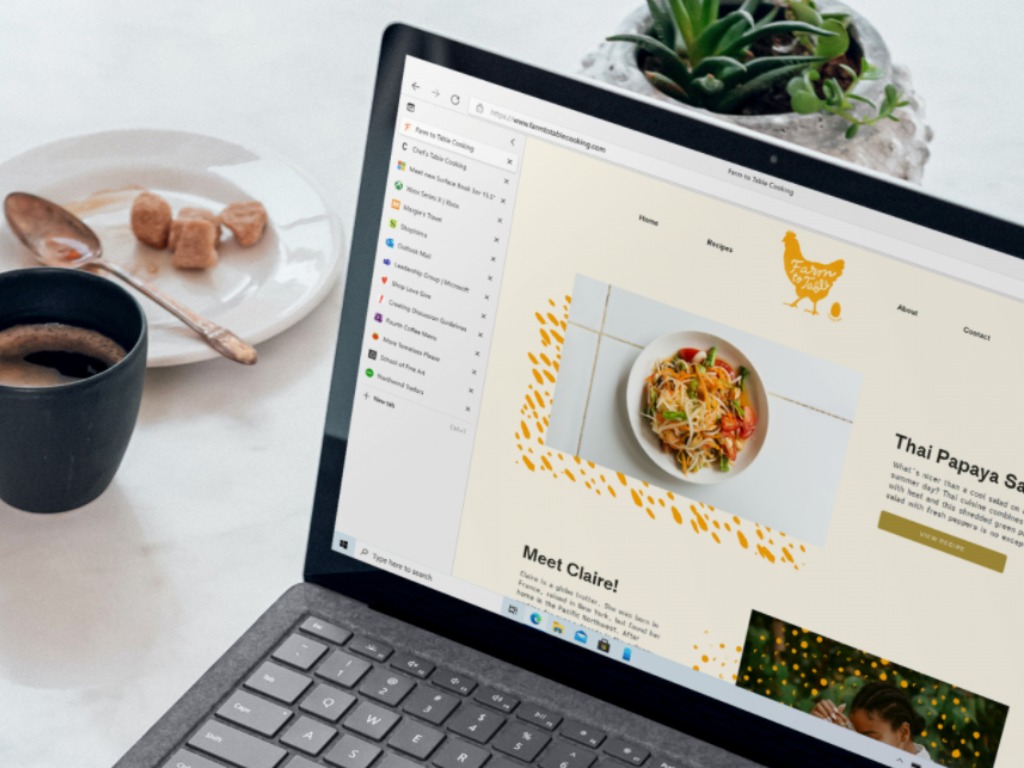
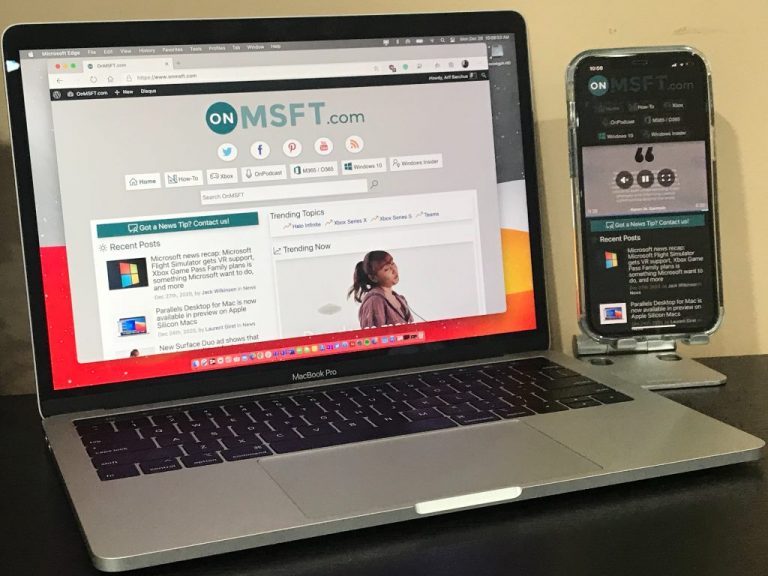


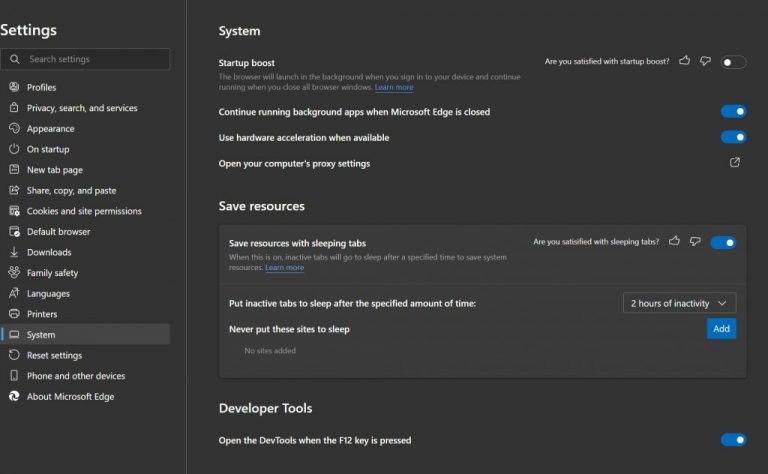
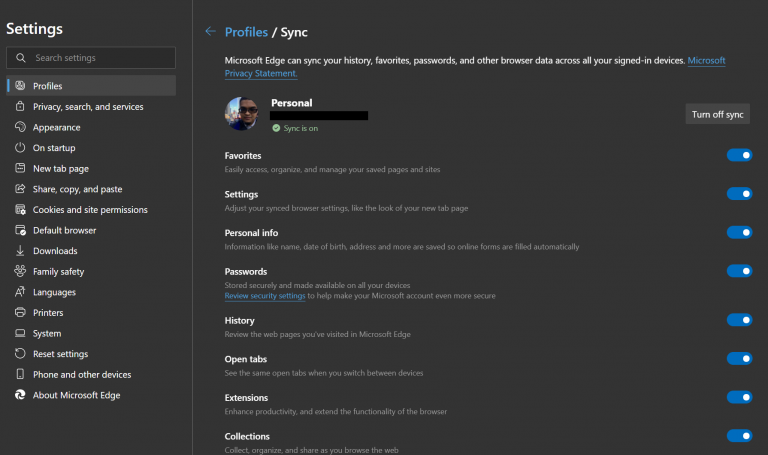
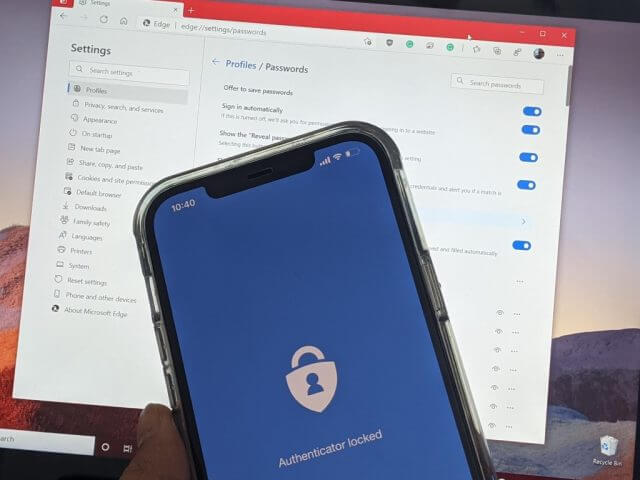
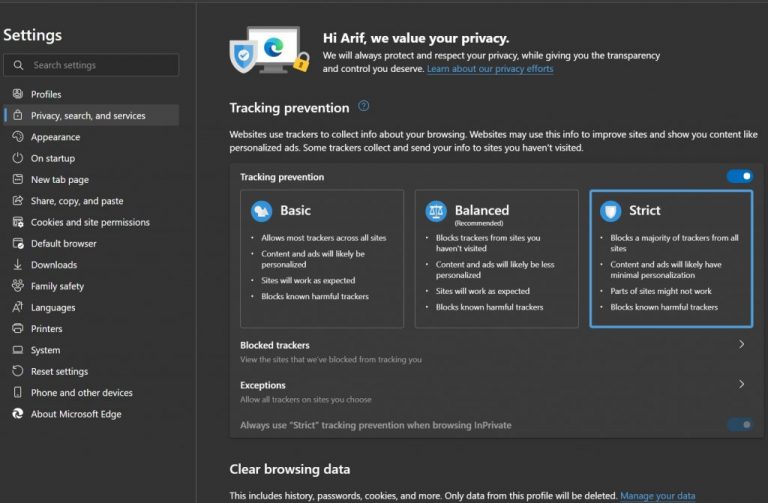
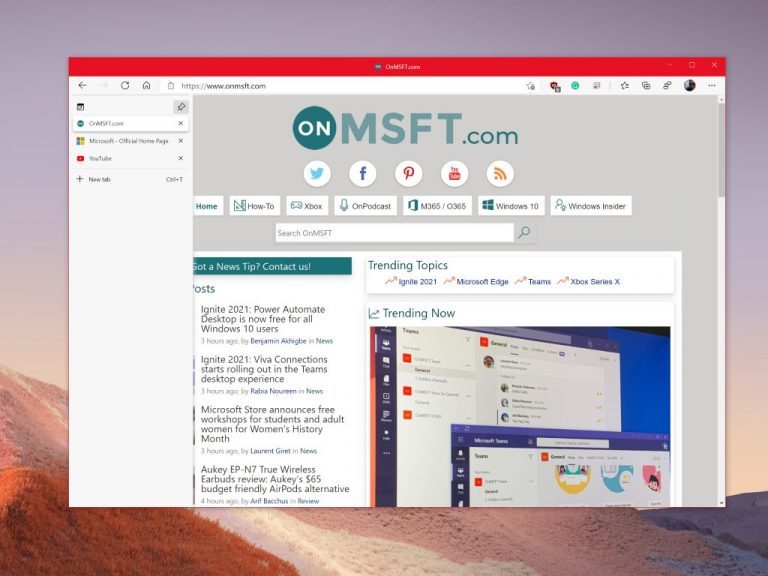
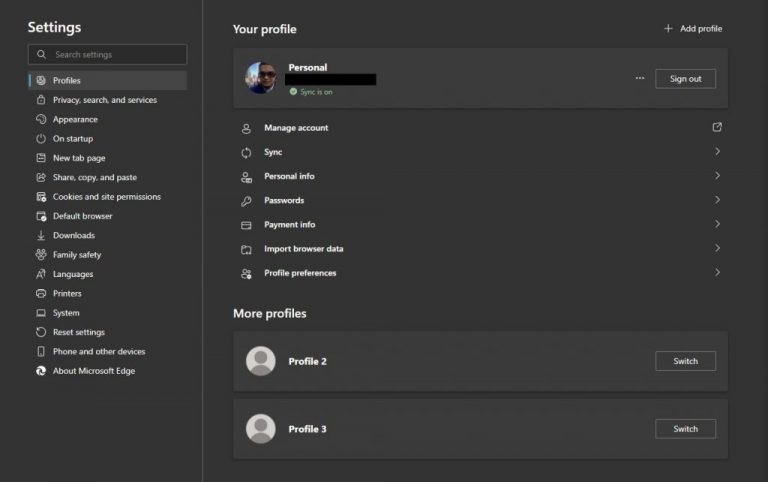
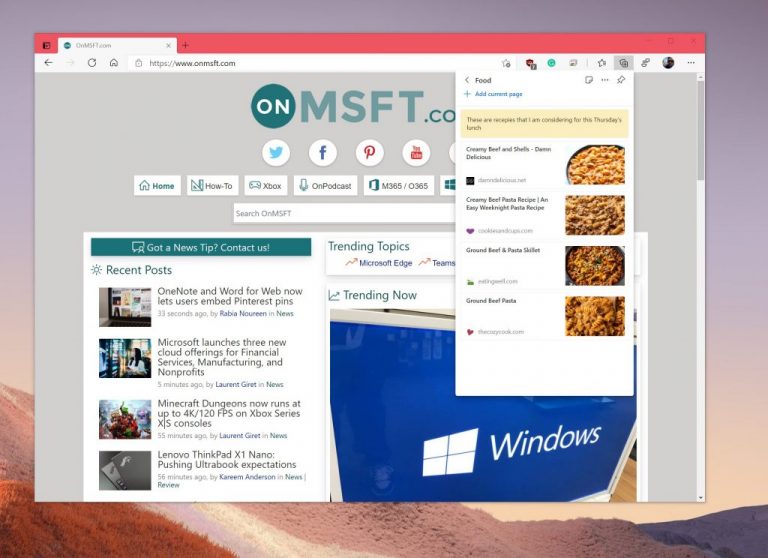
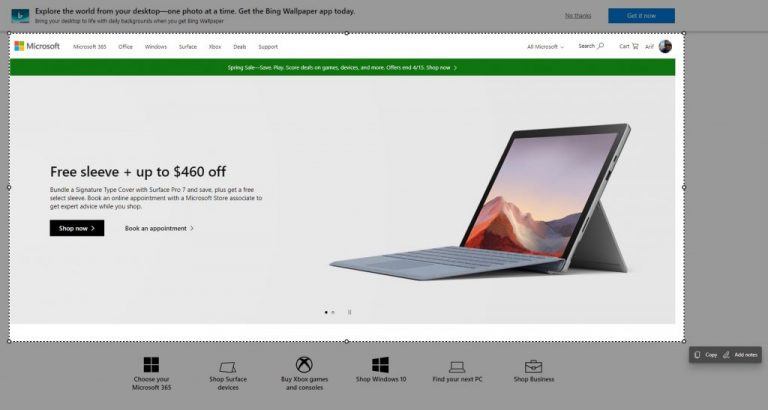


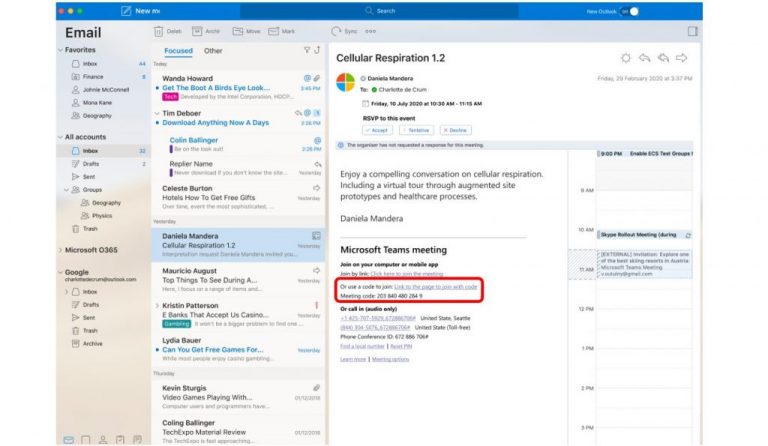
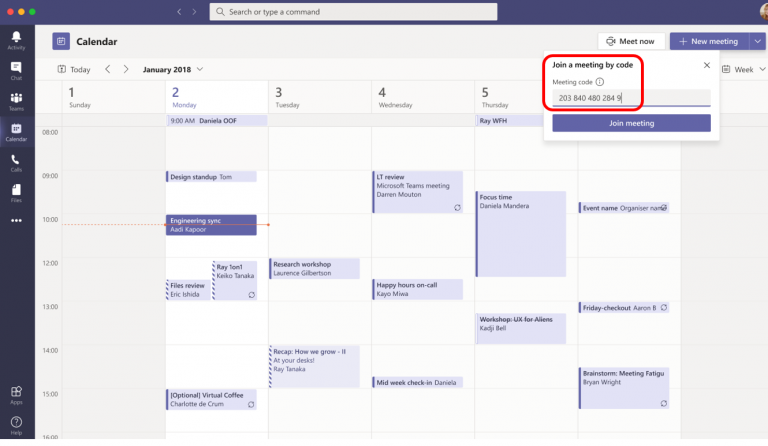
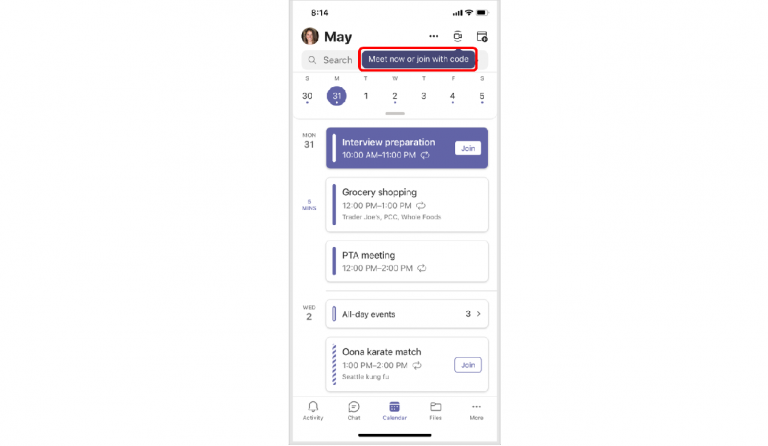
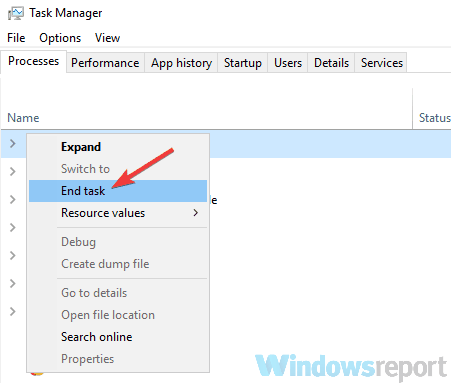
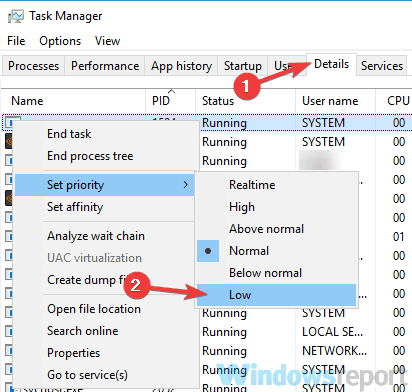

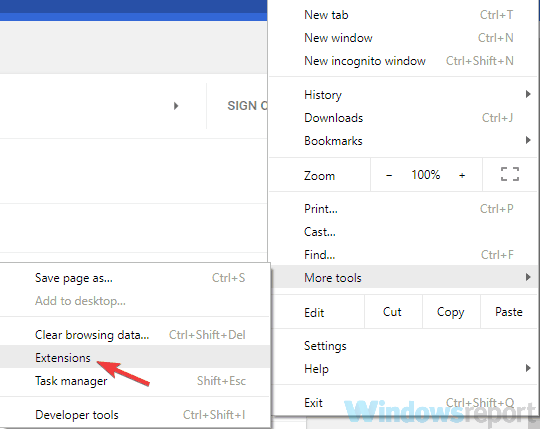
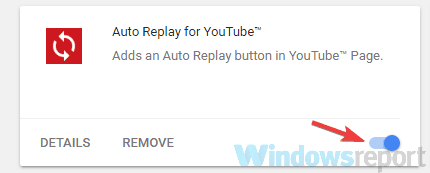
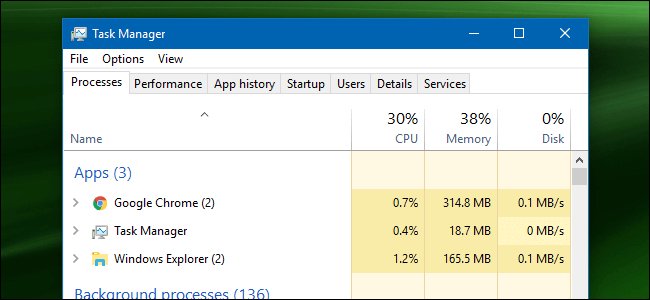
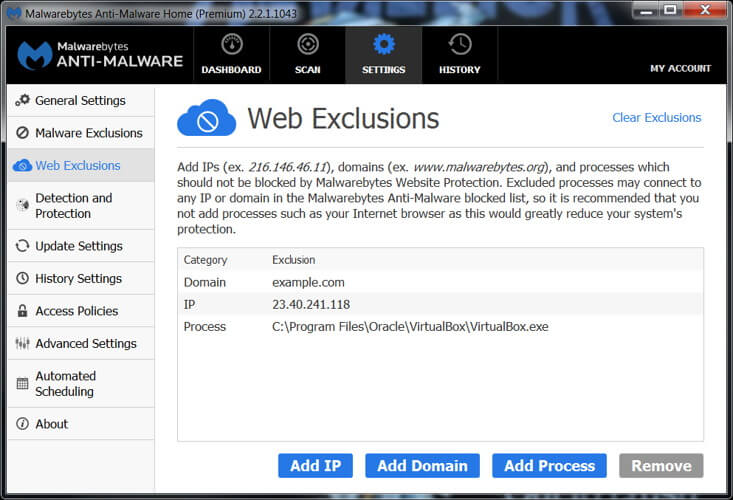
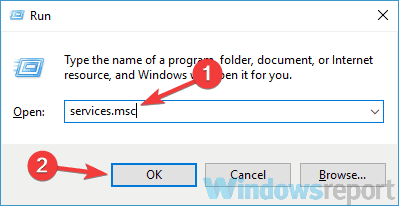
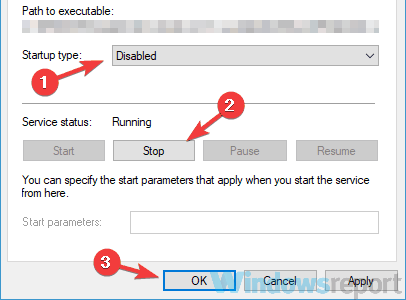


















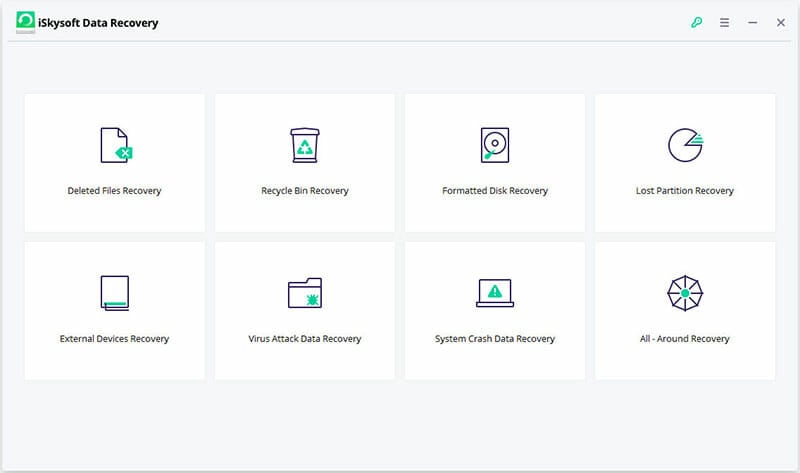




![Fix: The Presentation Cannot be Opened [Antivirus error]](https://windowsreport.com/wp-content/uploads/2017/12/Antivirus-blocking-PowerPoint.jpg)


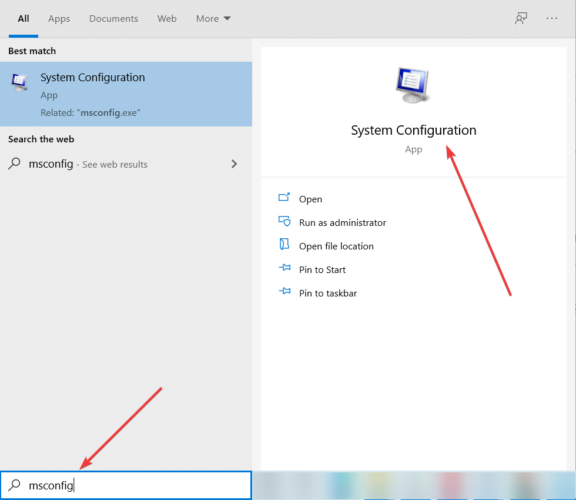


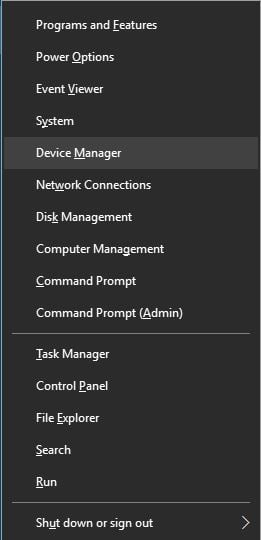
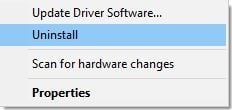
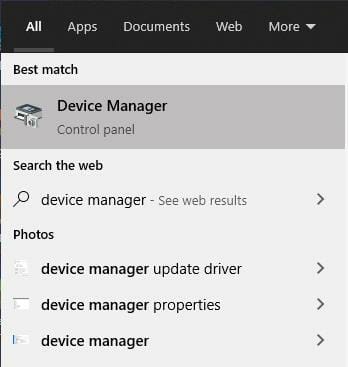
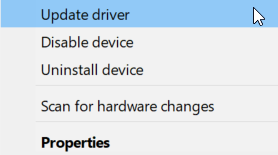

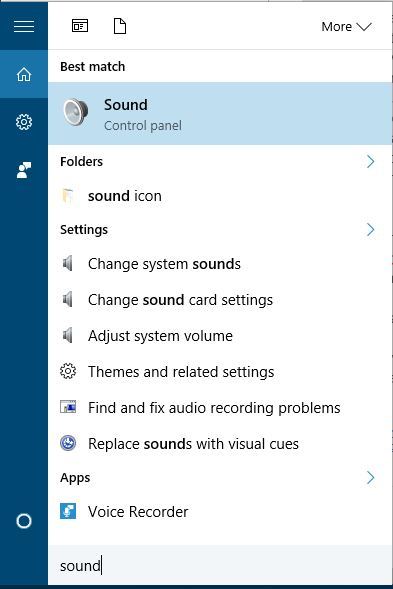
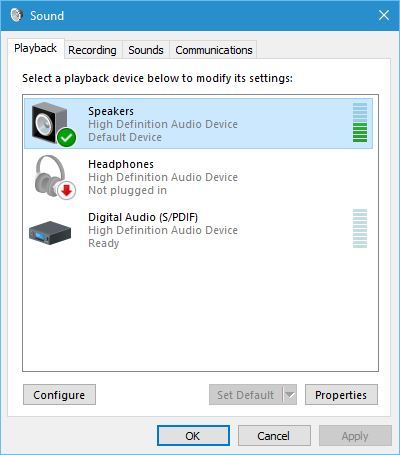
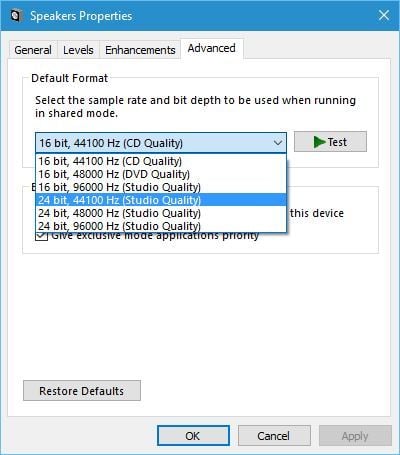
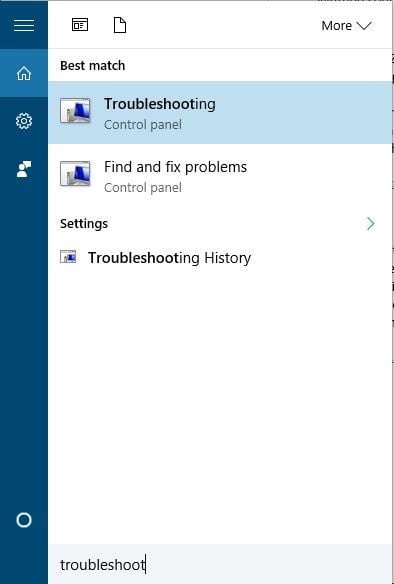
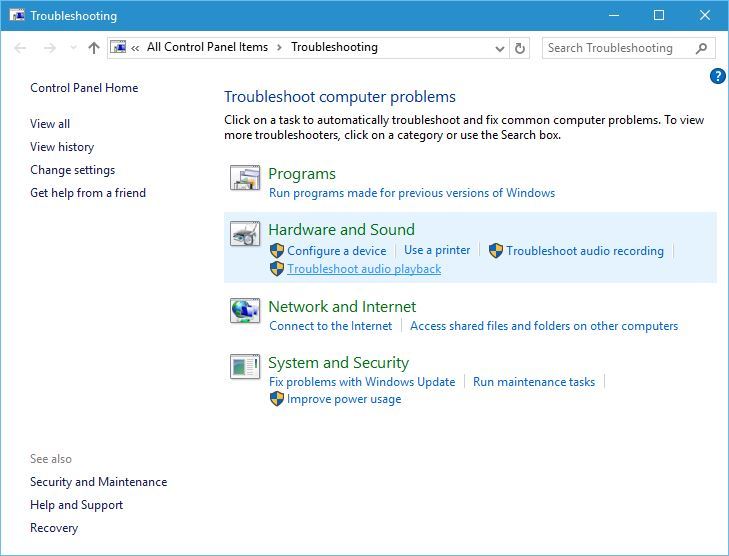





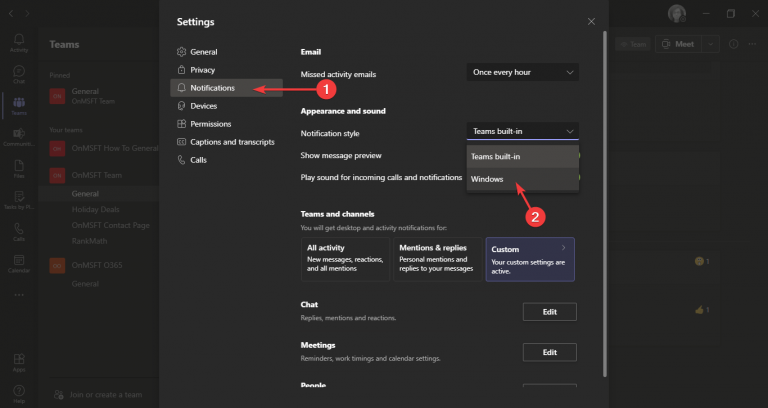
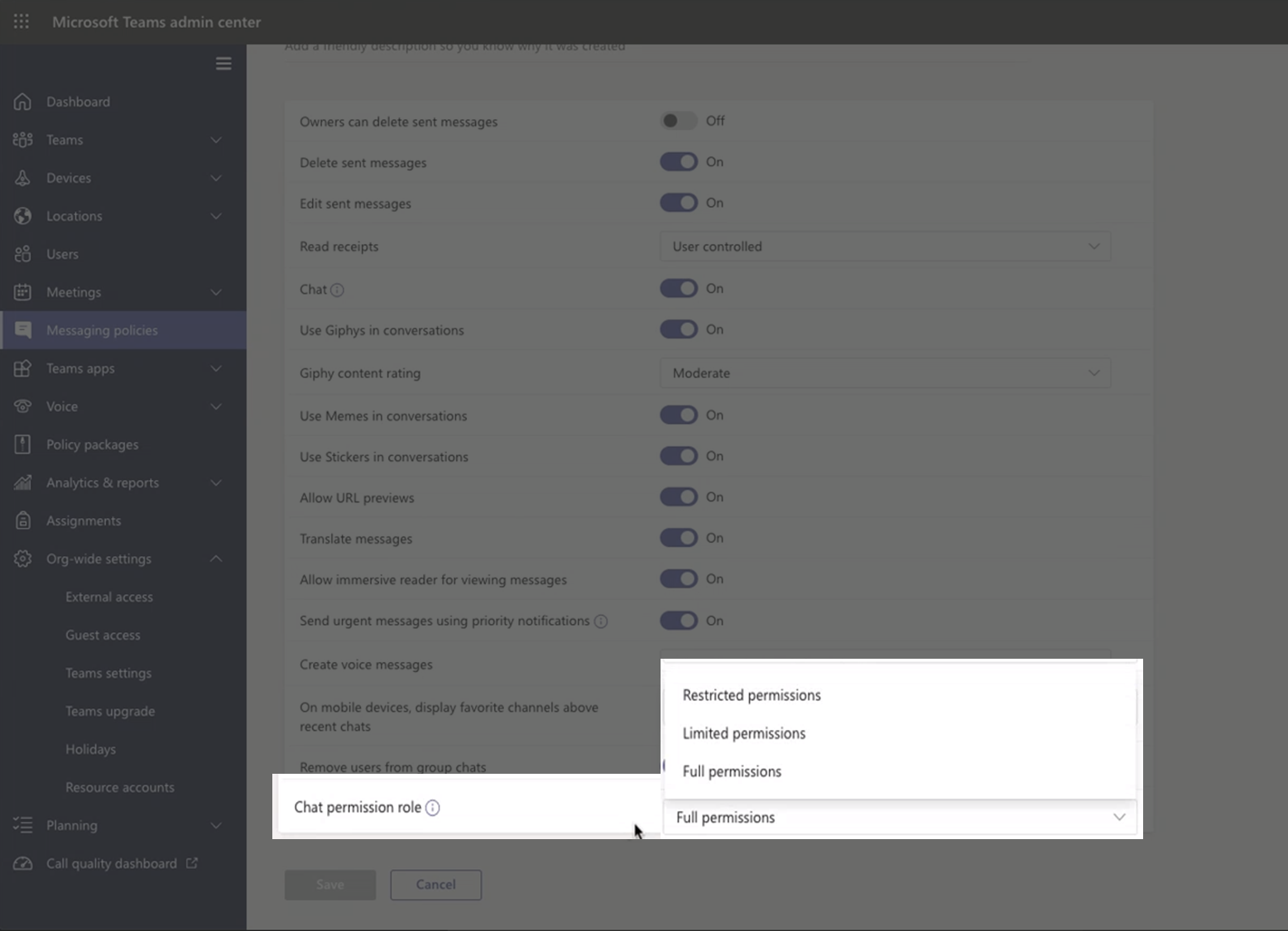
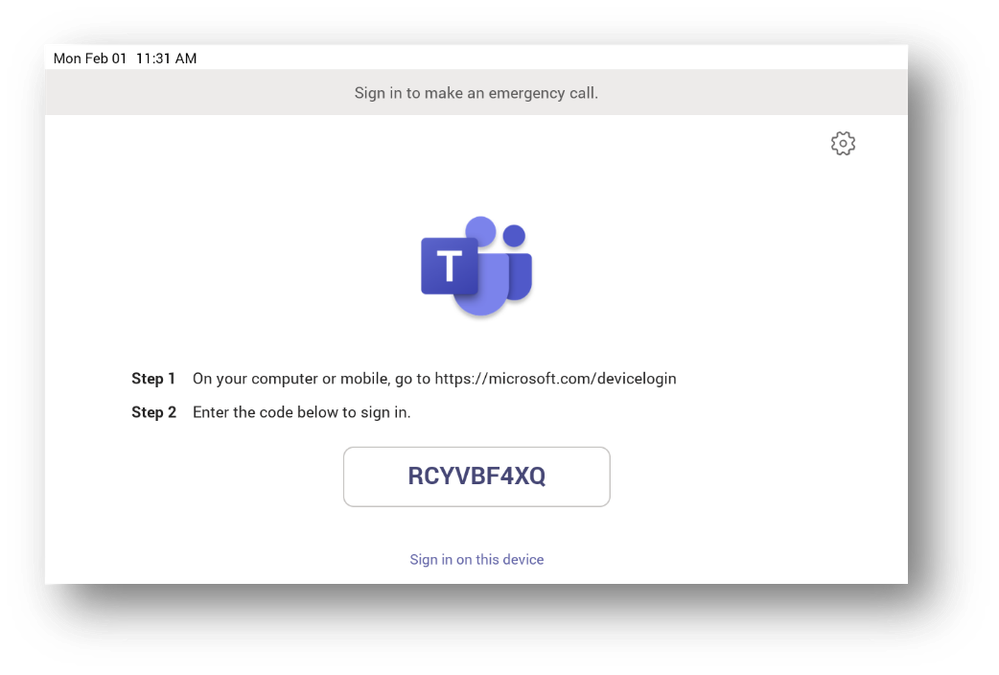

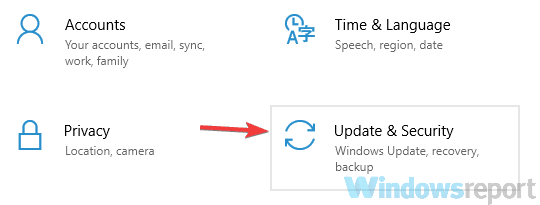
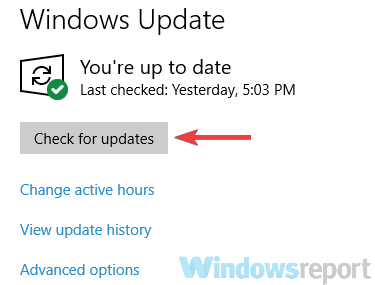
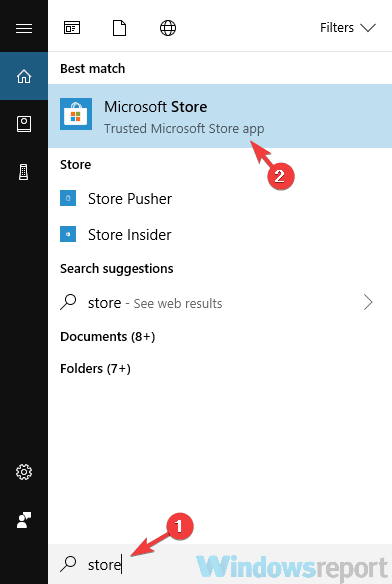
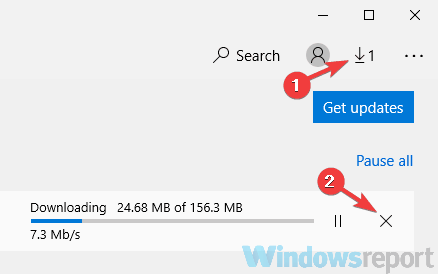
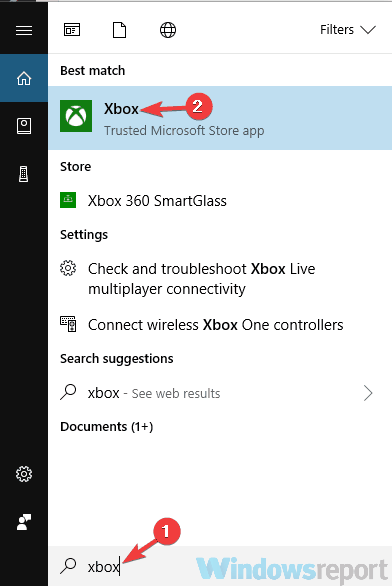
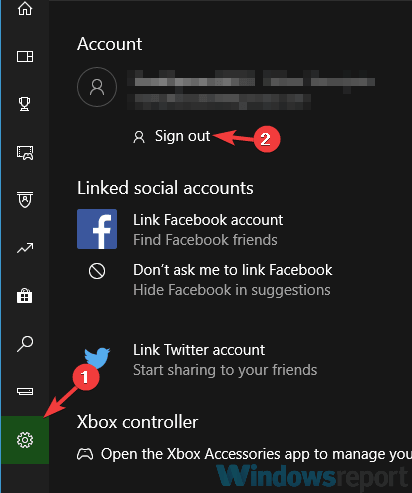
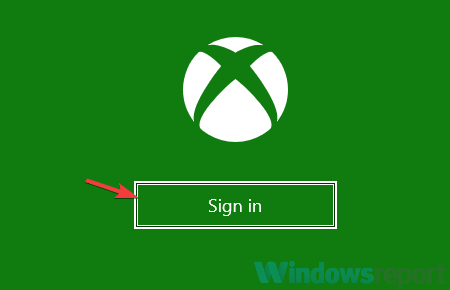
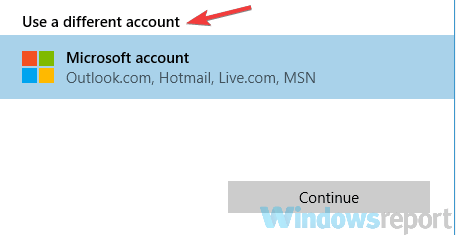
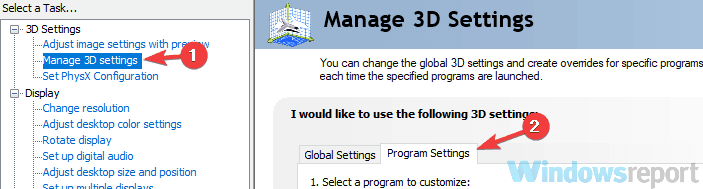
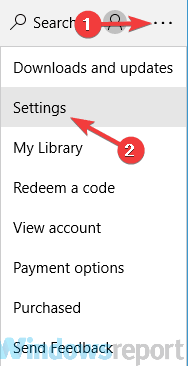
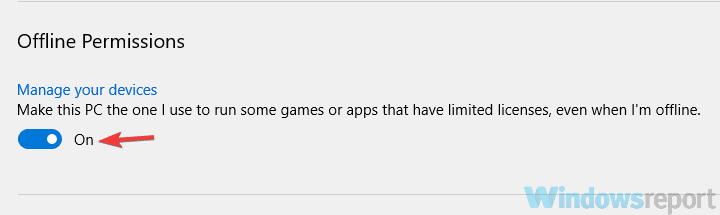

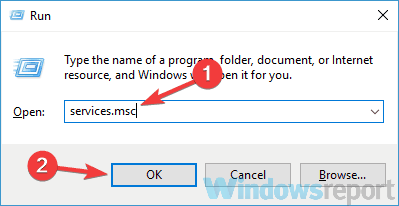


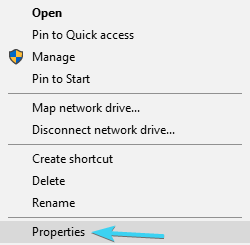
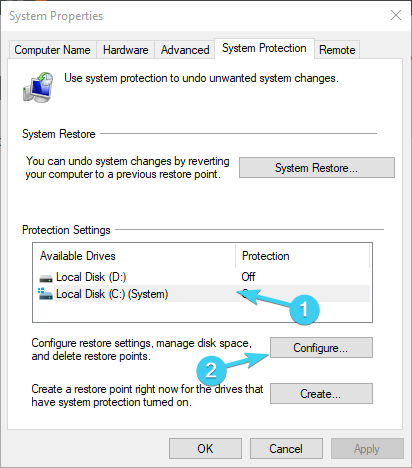
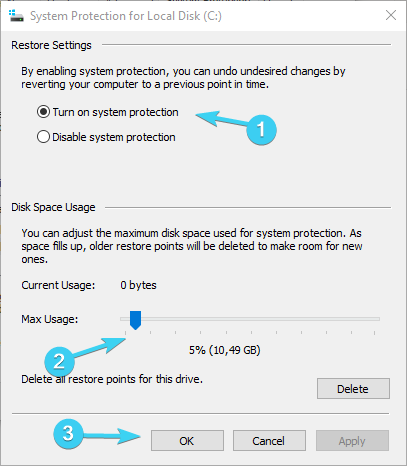
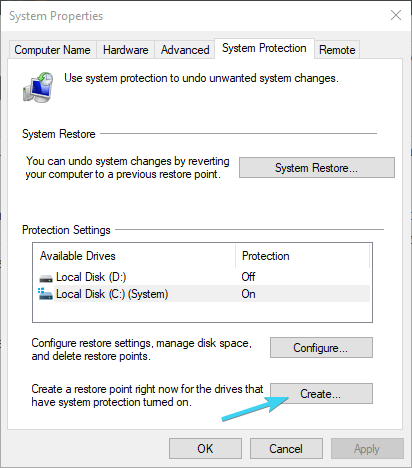
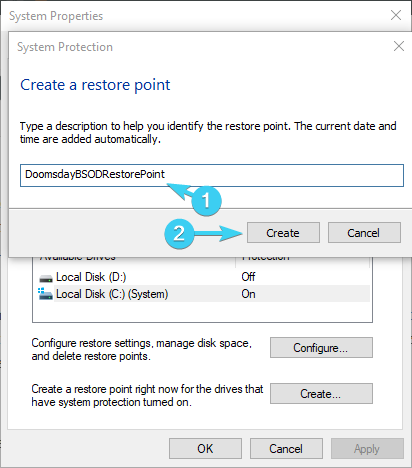
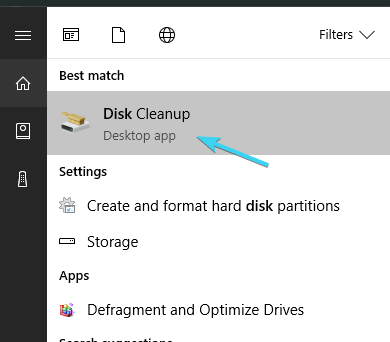
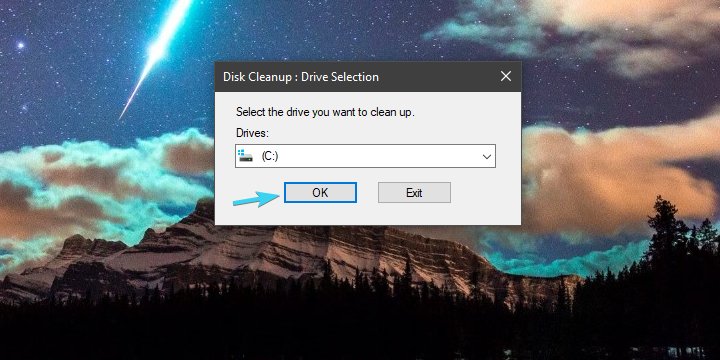
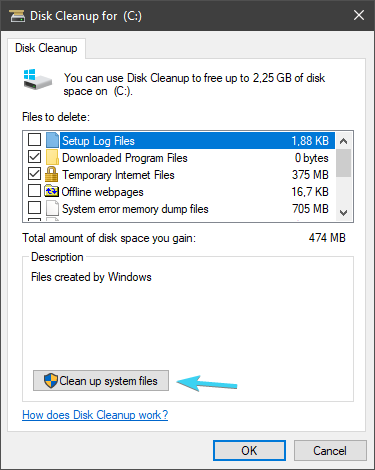
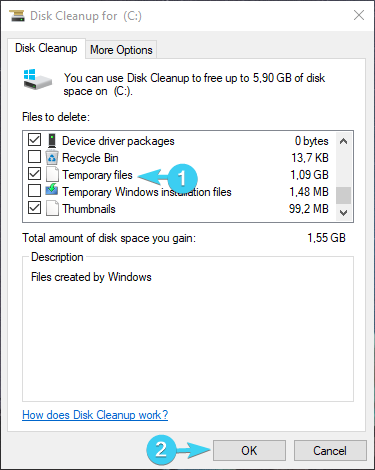
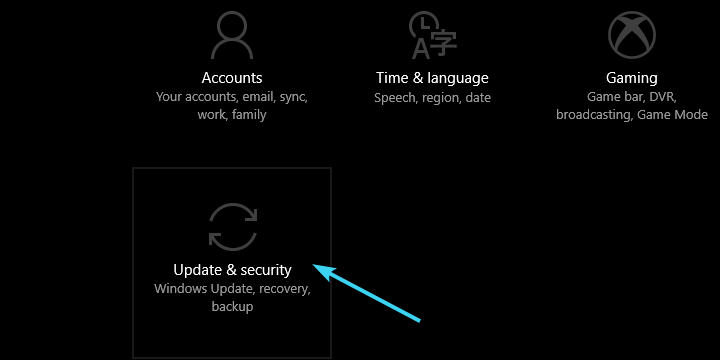
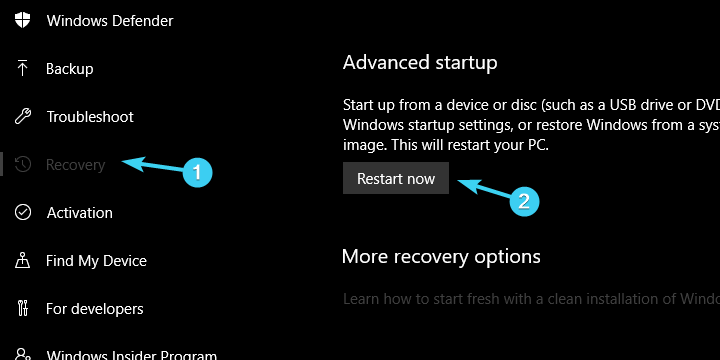
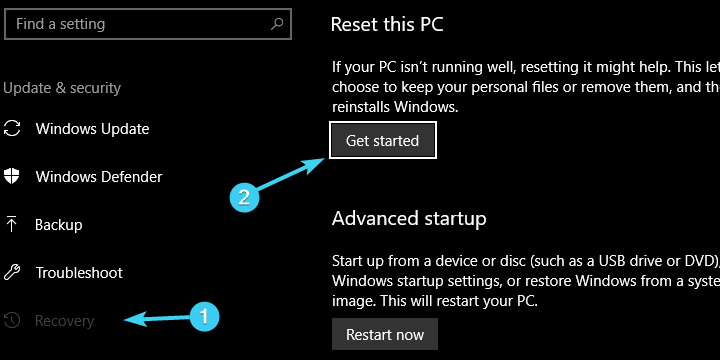
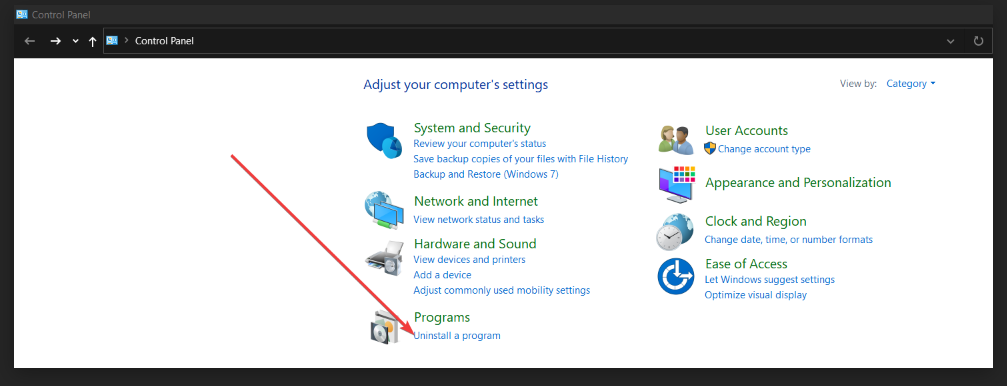

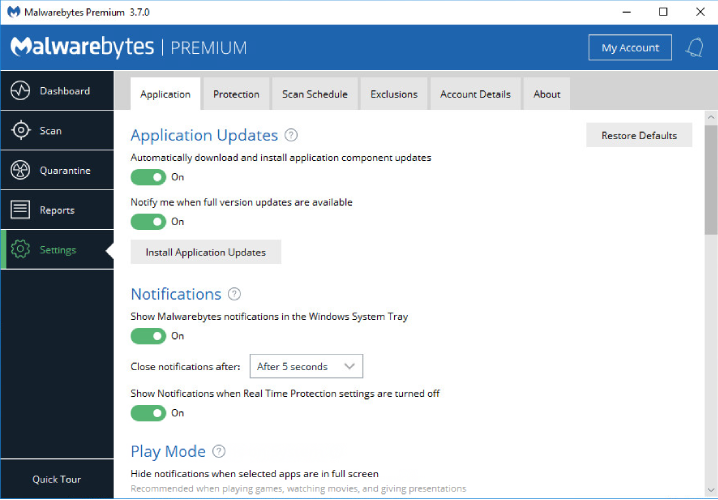
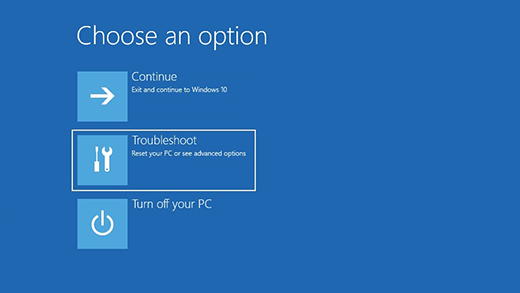














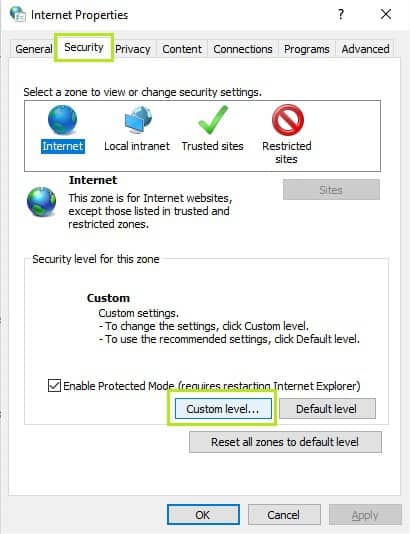
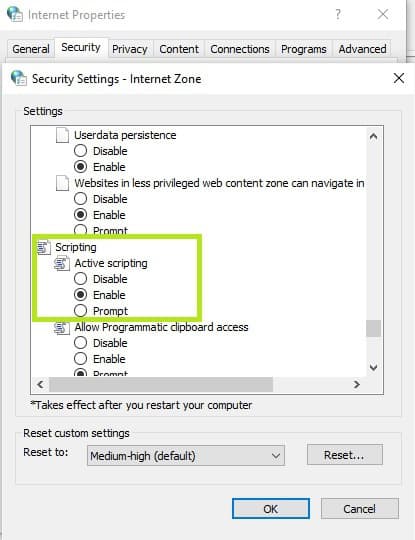
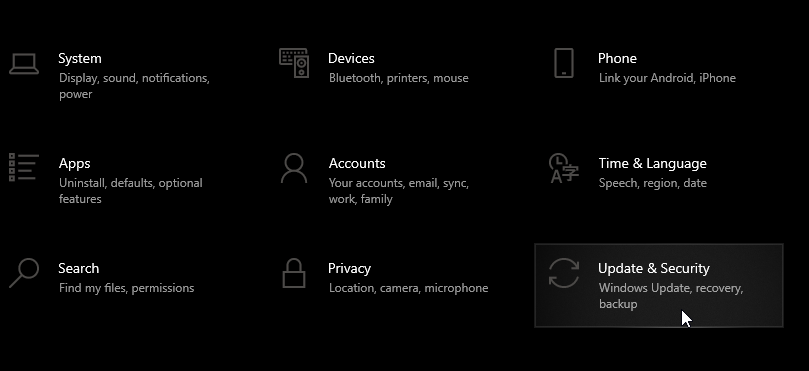
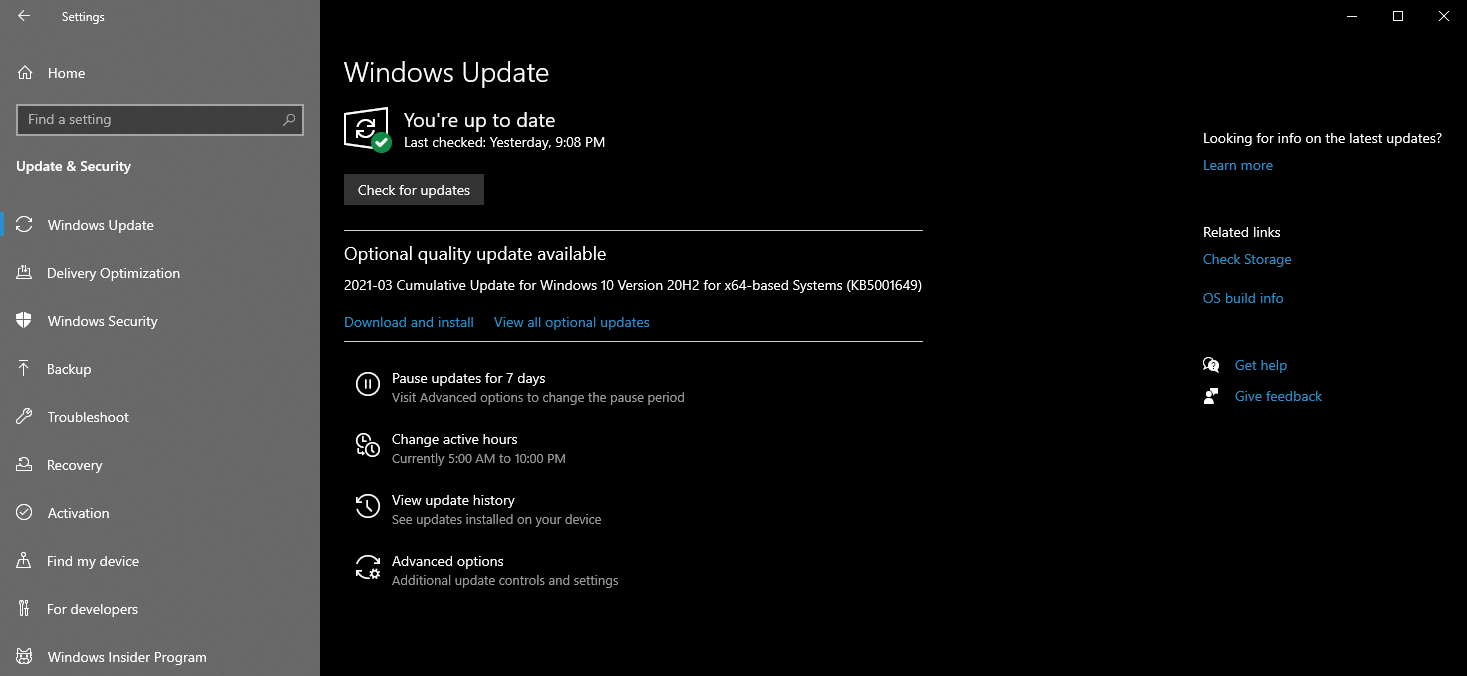



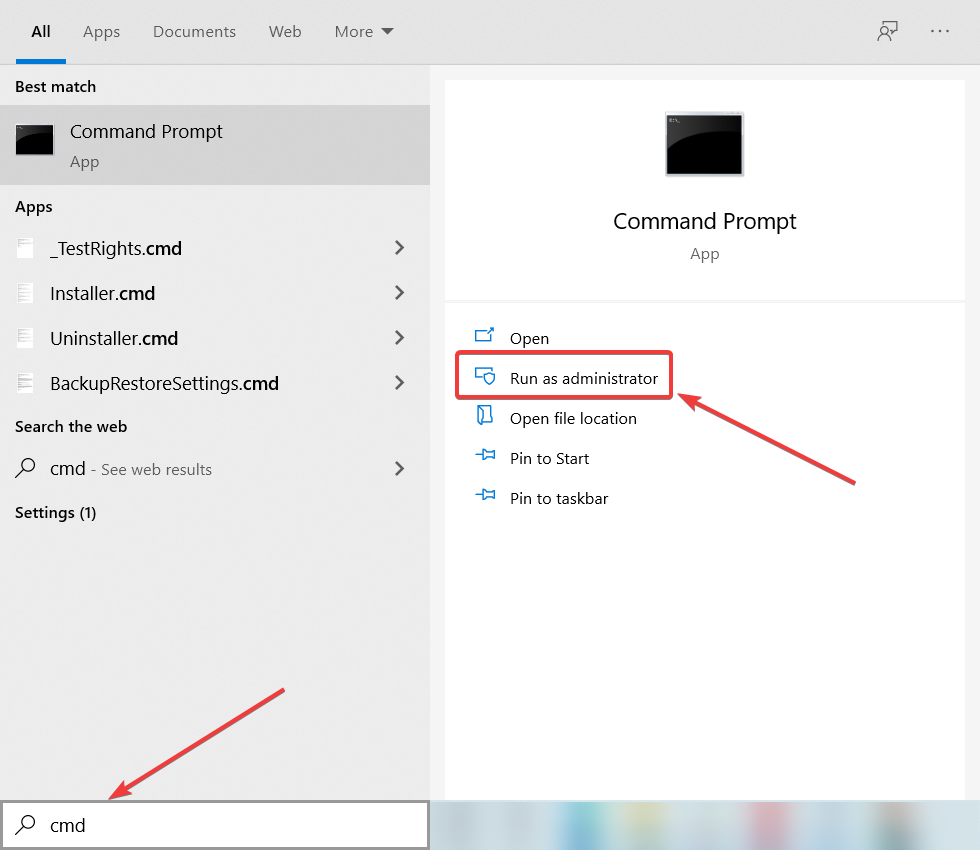


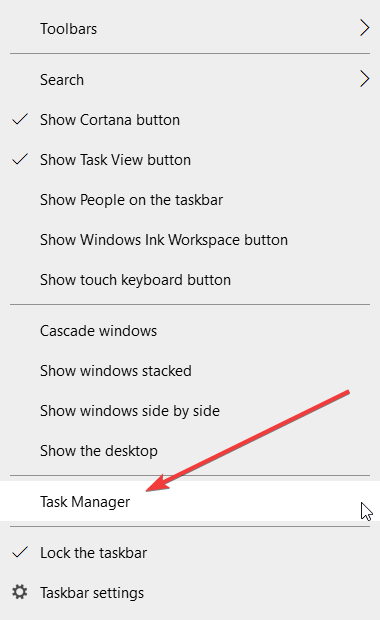
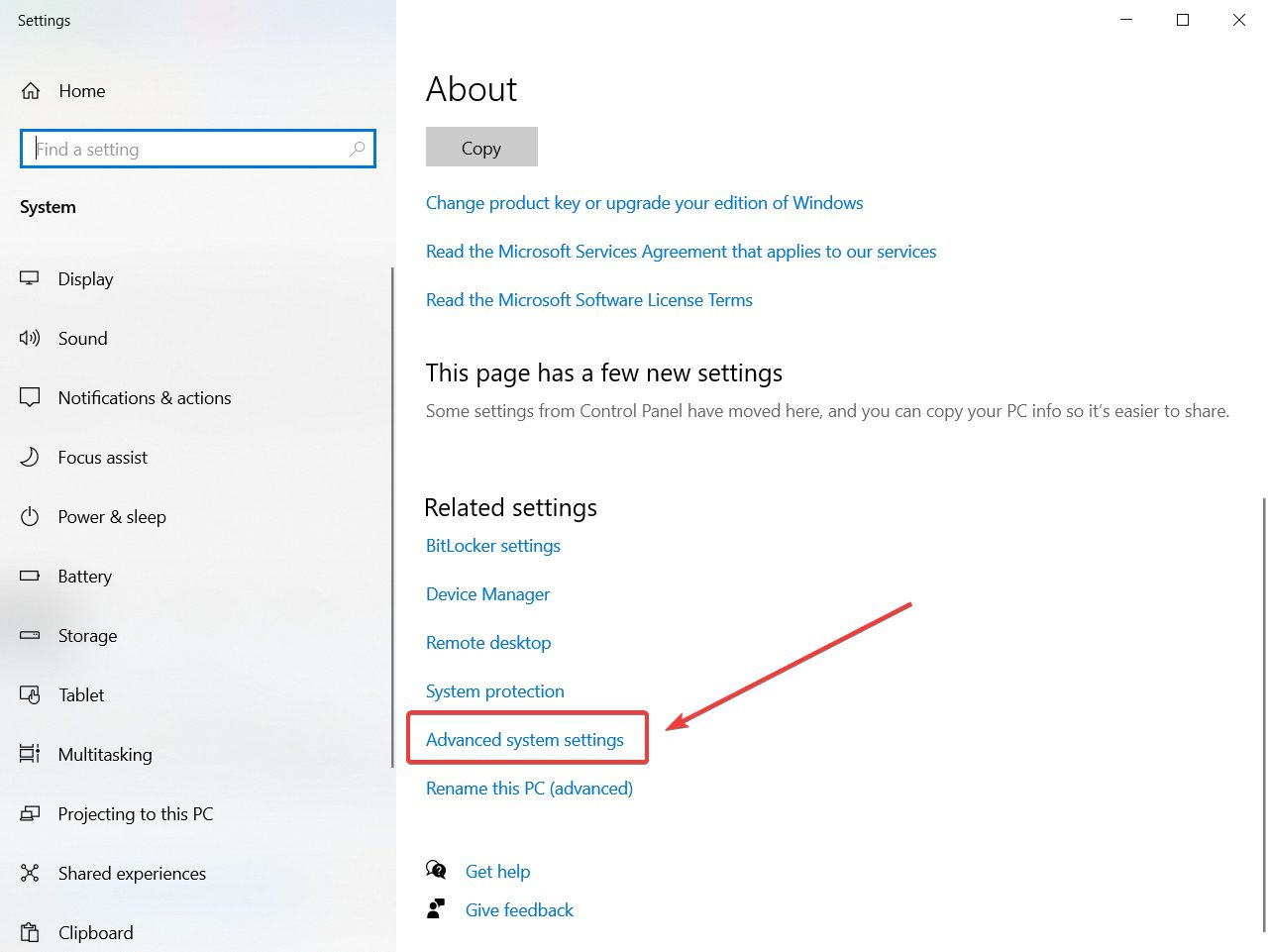
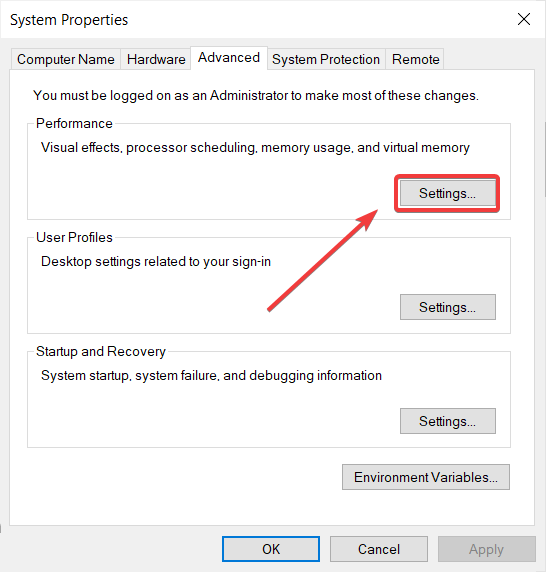
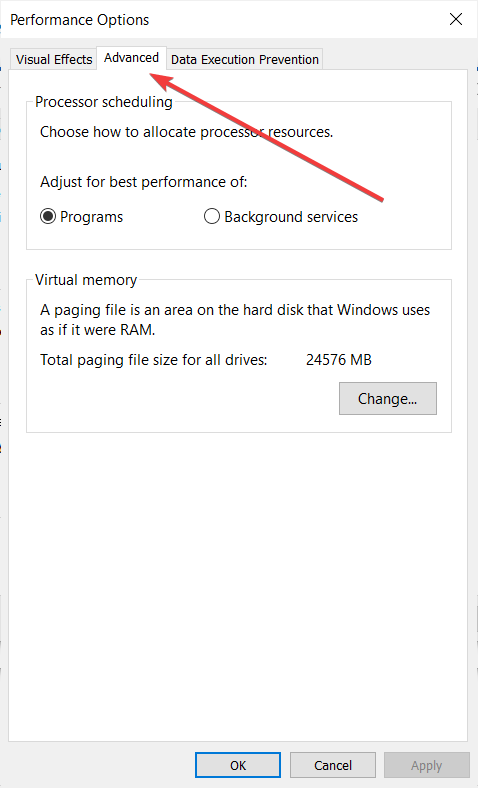
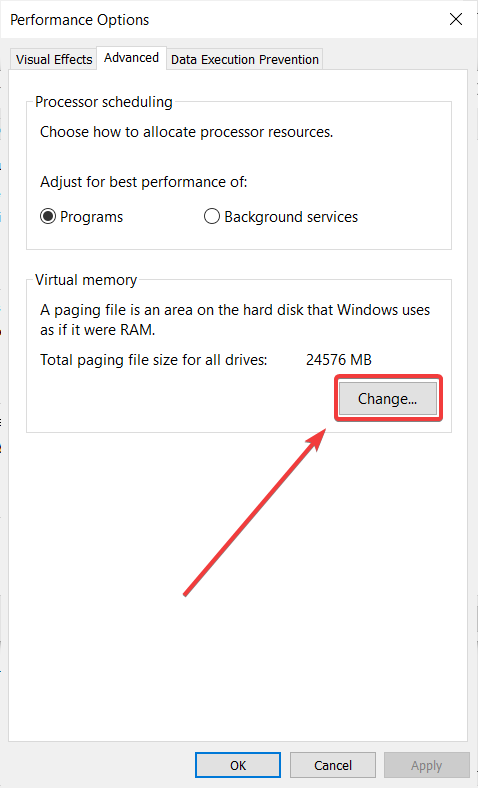
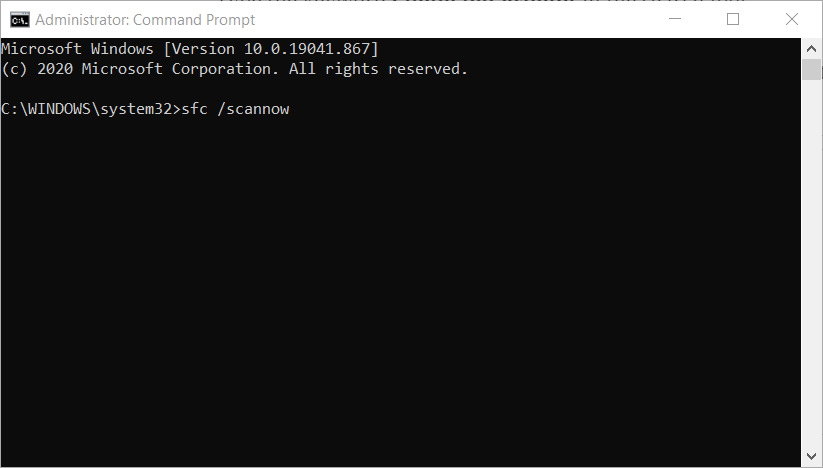
![Football Manager 2016 problems and solutions [Windows 10/11]](https://windowsreport.com/wp-content/uploads/2016/03/football-manager-1.jpg)
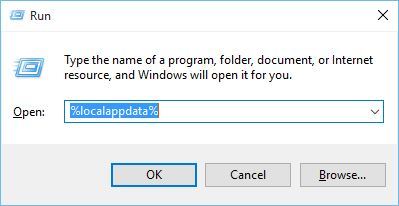


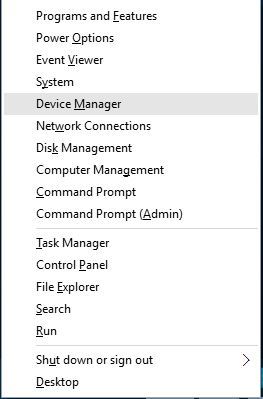
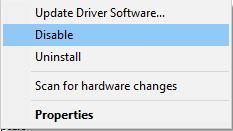


![What is Acronis True Image & how to use it [Review]](https://windowsreport.com/wp-content/uploads/2021/03/acronis-true-image-2021.jpg)





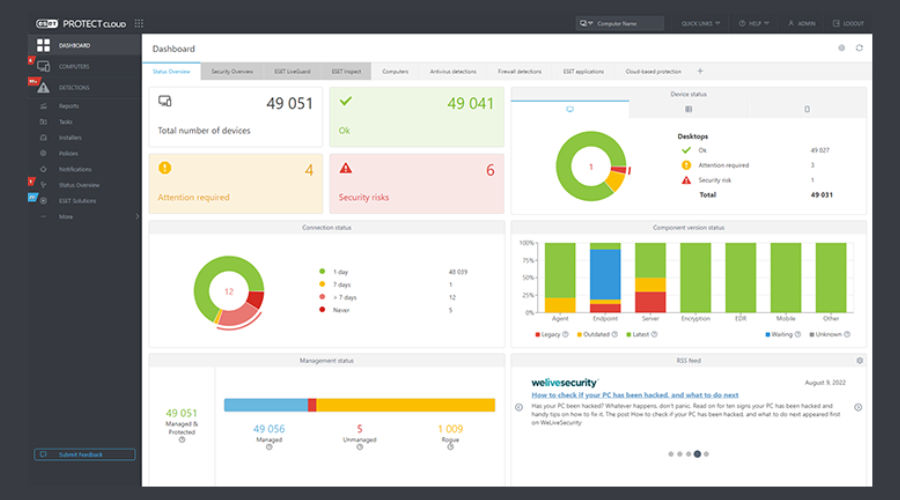
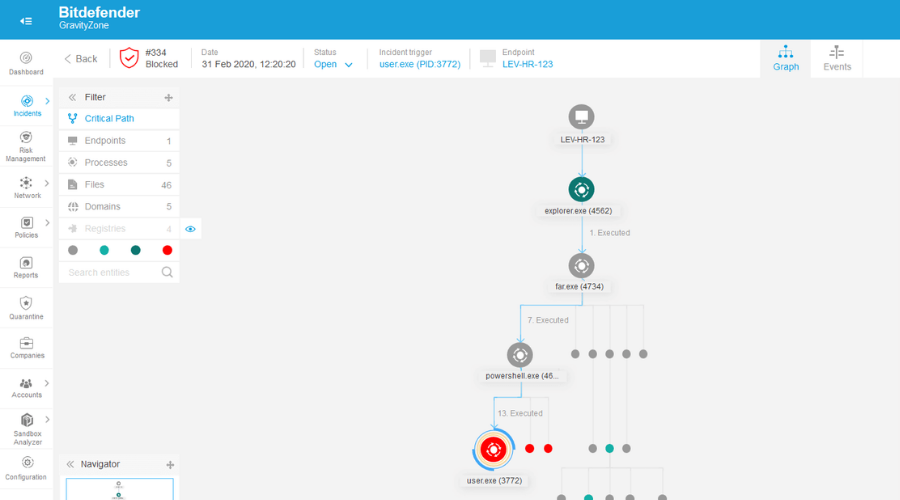

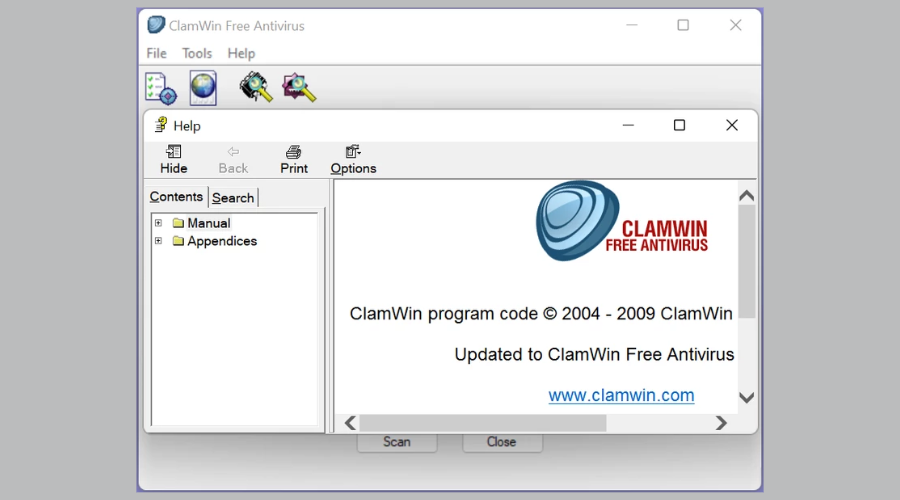


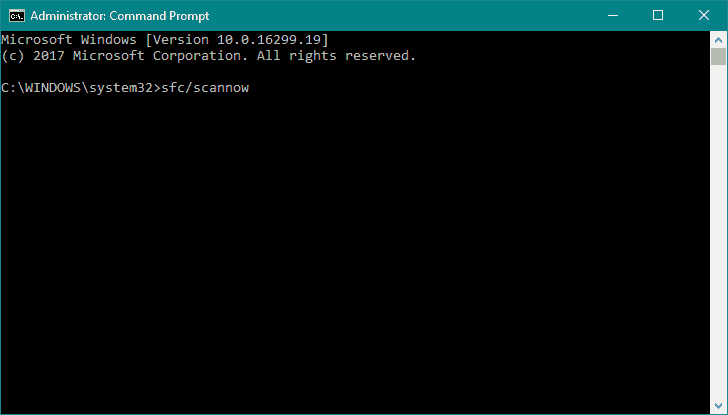




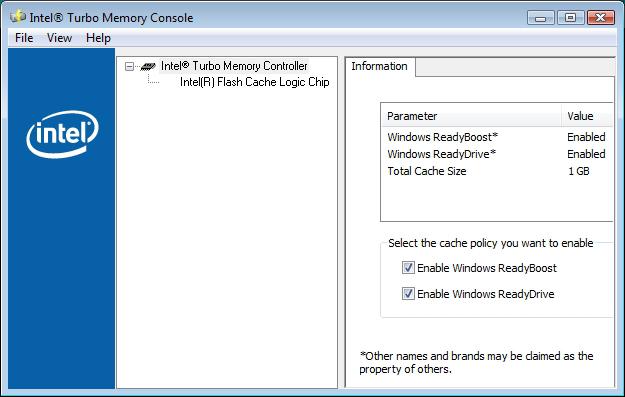
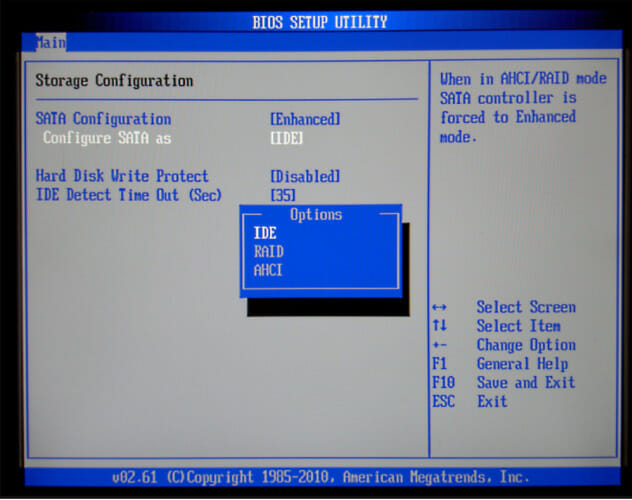
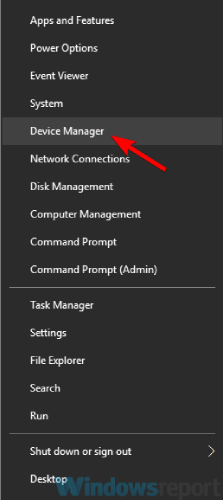
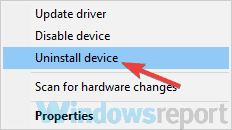
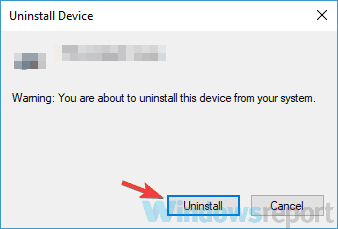
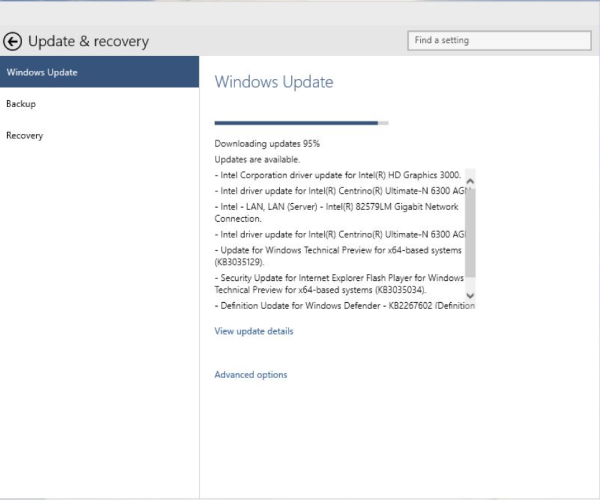
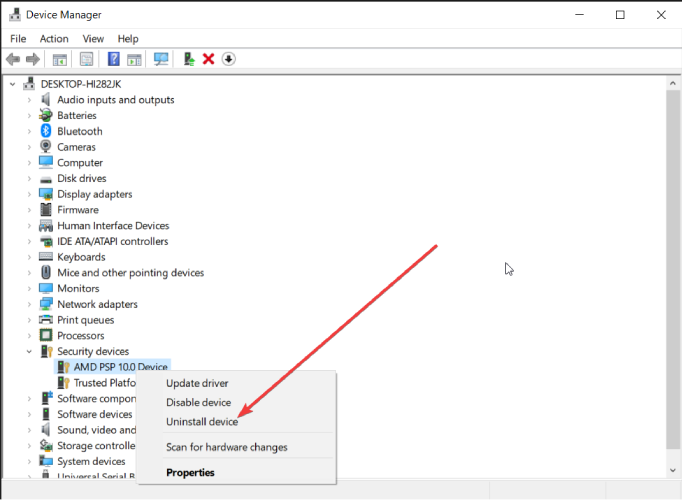
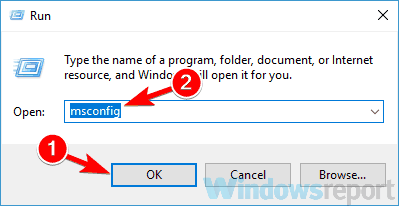
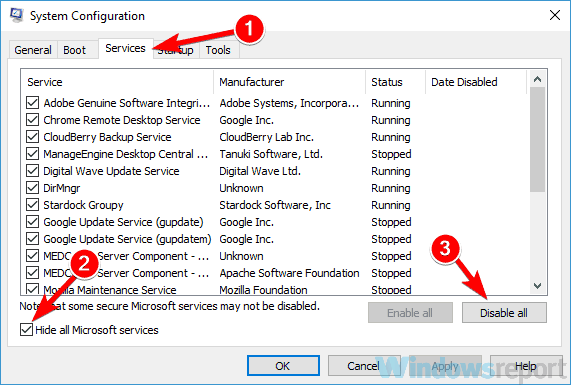
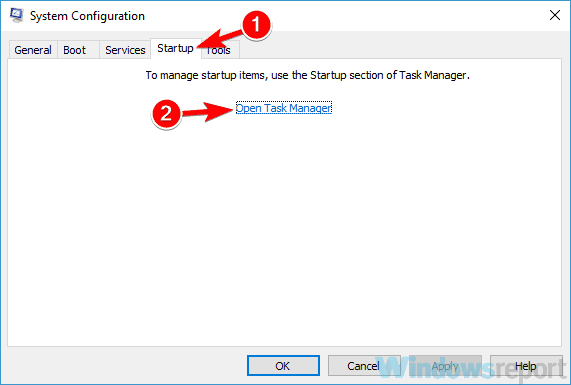
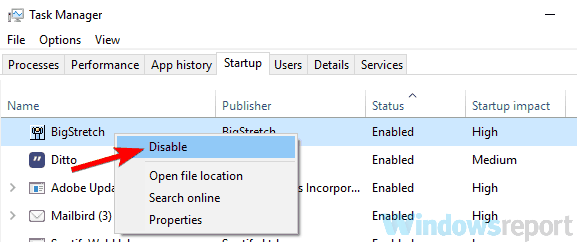
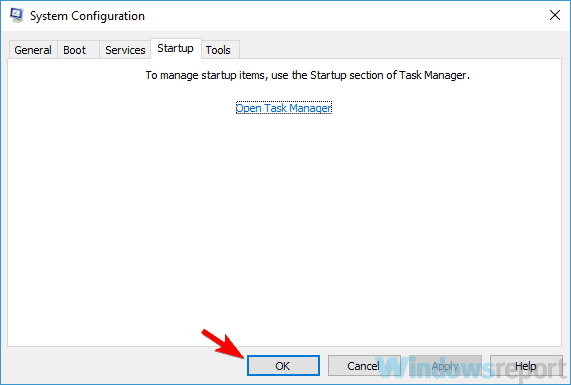

![FIX: PAGE NOT ZERO error in Windows 10/11 [Full Guide]](https://windowsreport.com/wp-content/uploads/2018/10/PAGE-NOT-ZERO-error.jpg)
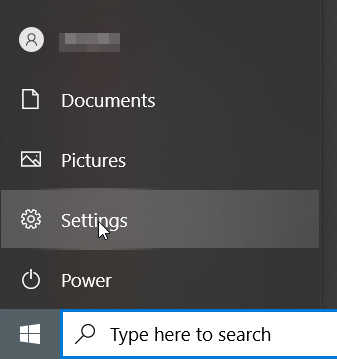
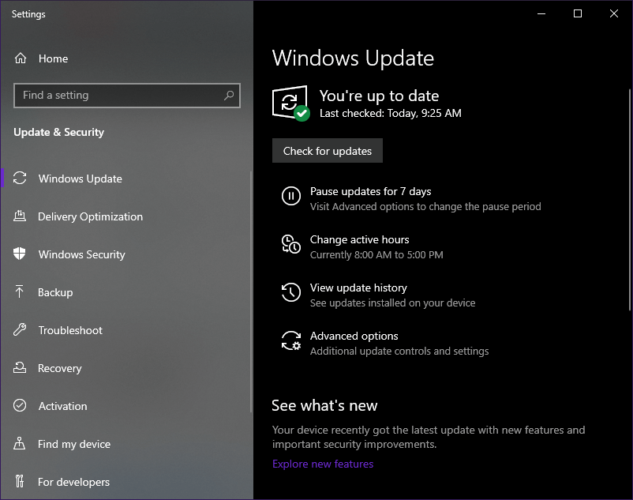
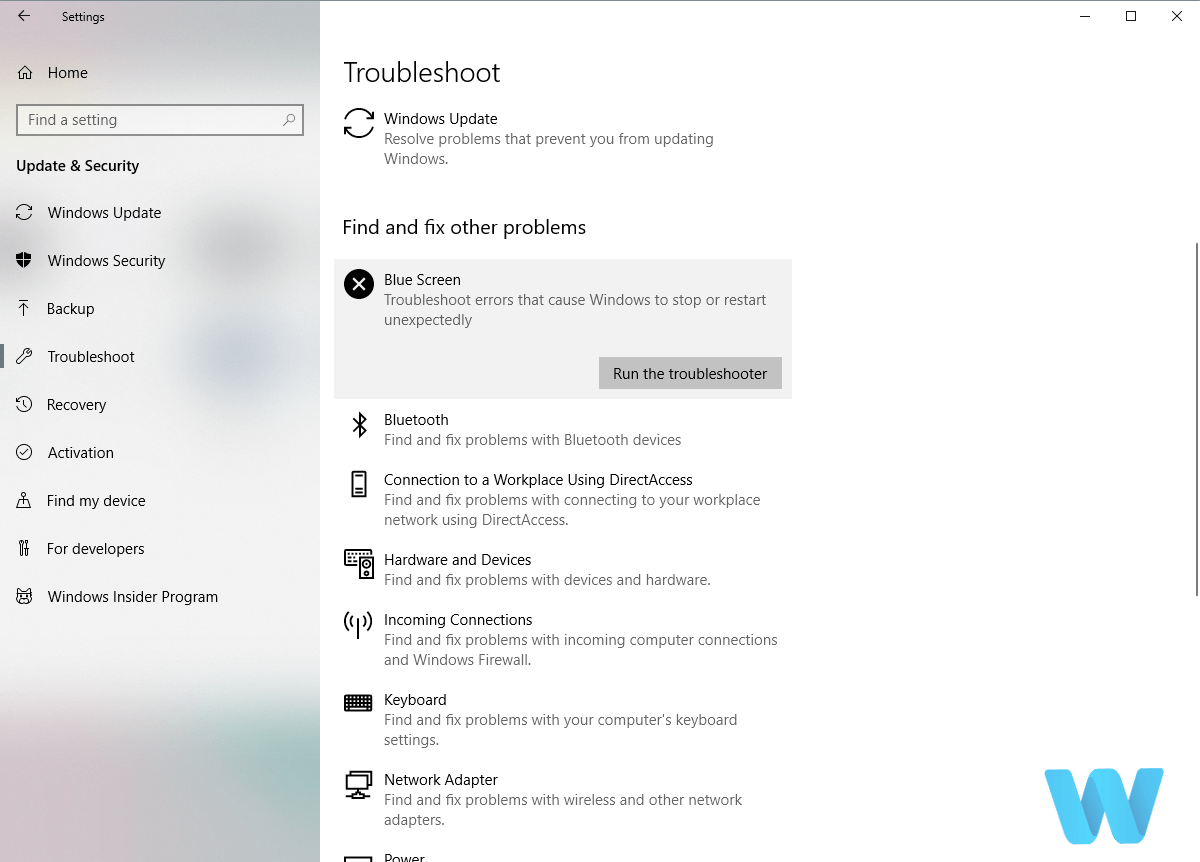
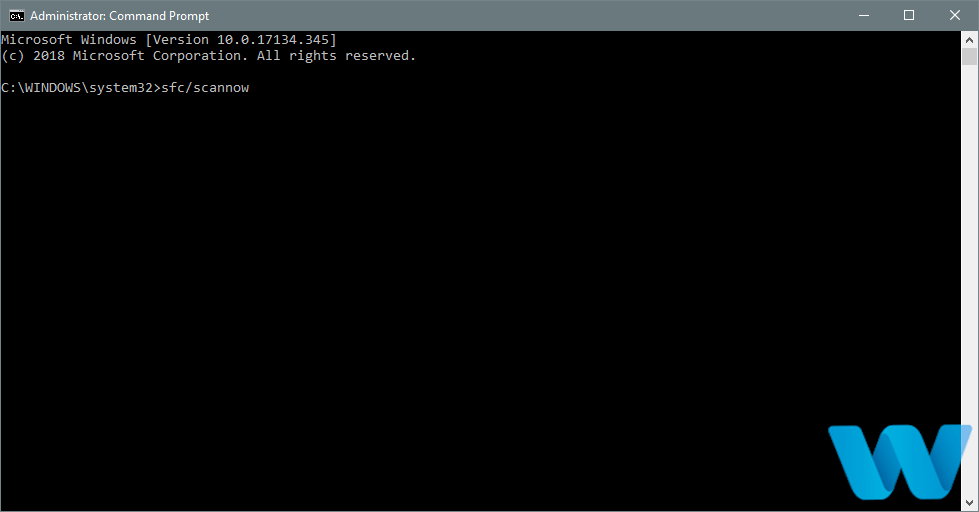
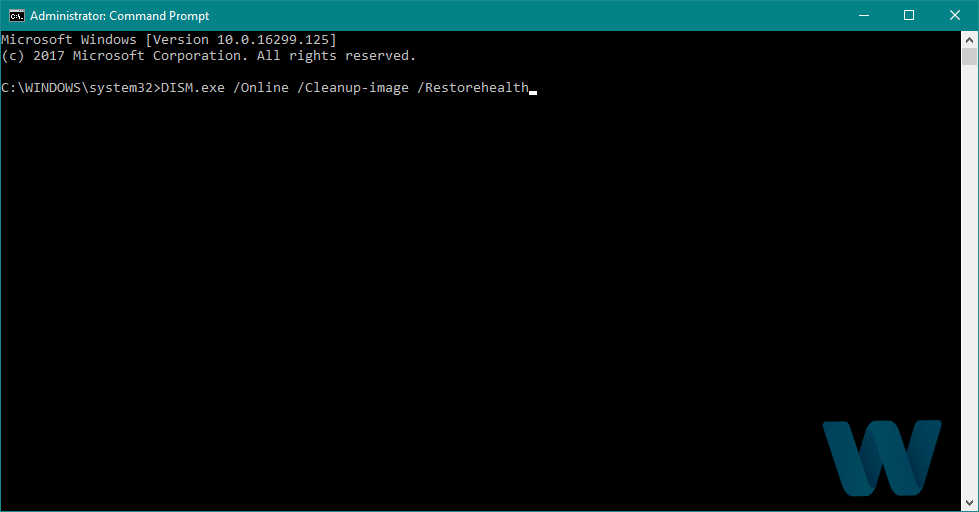
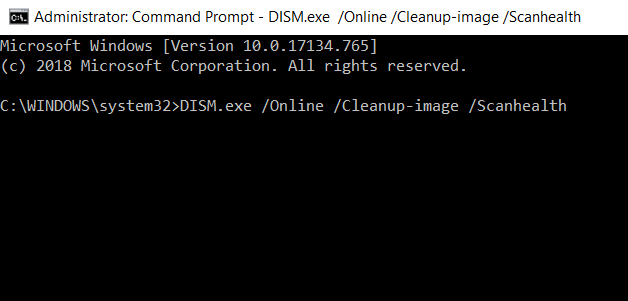
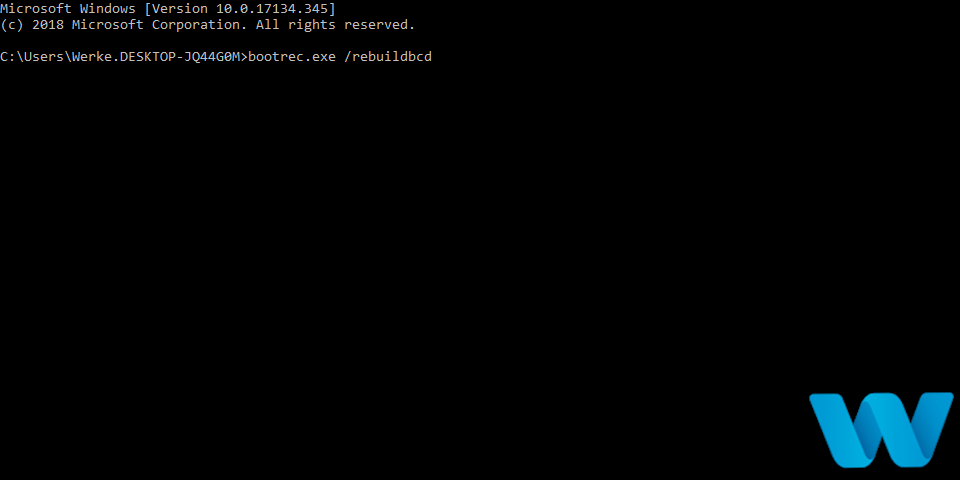
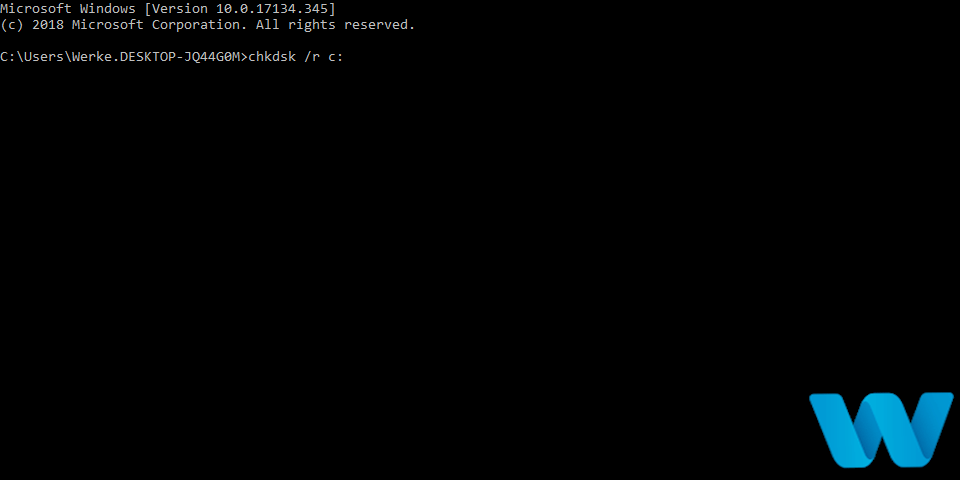
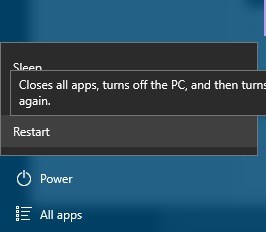
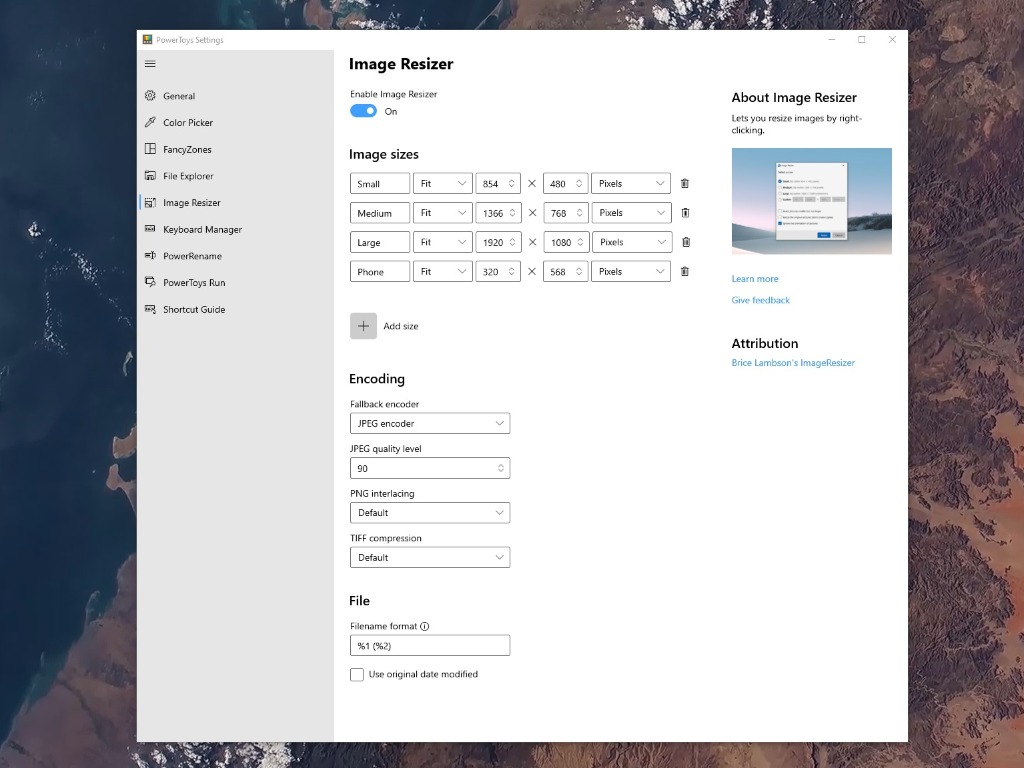
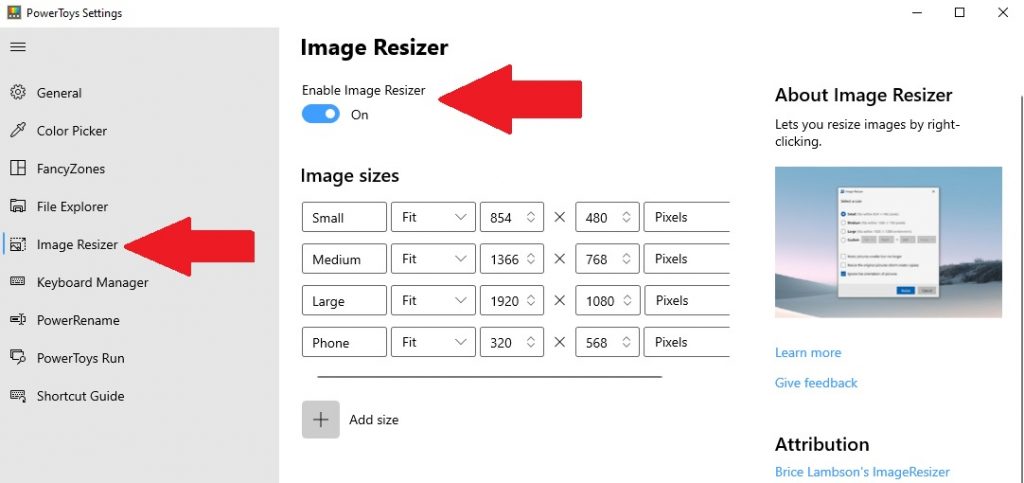
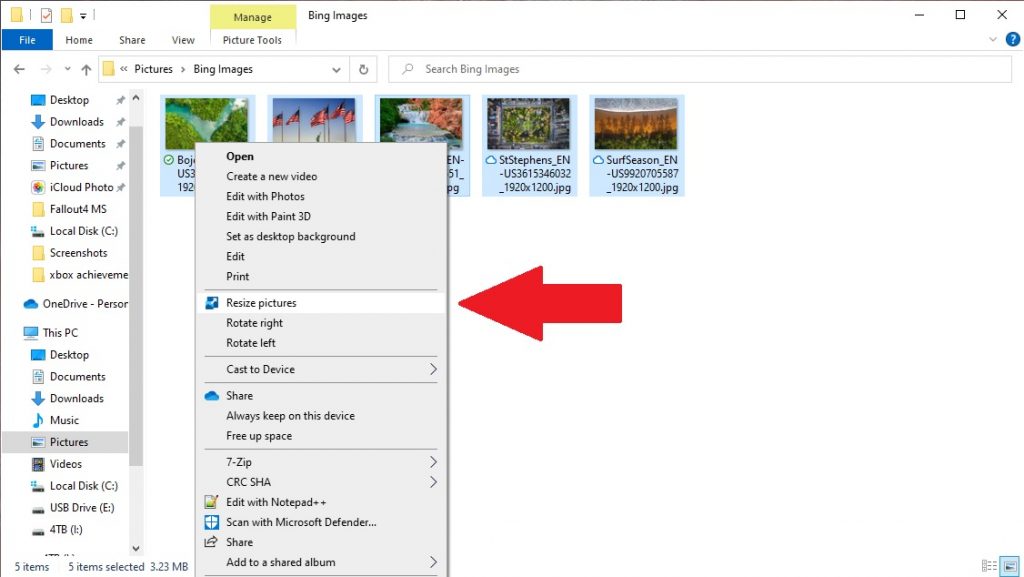
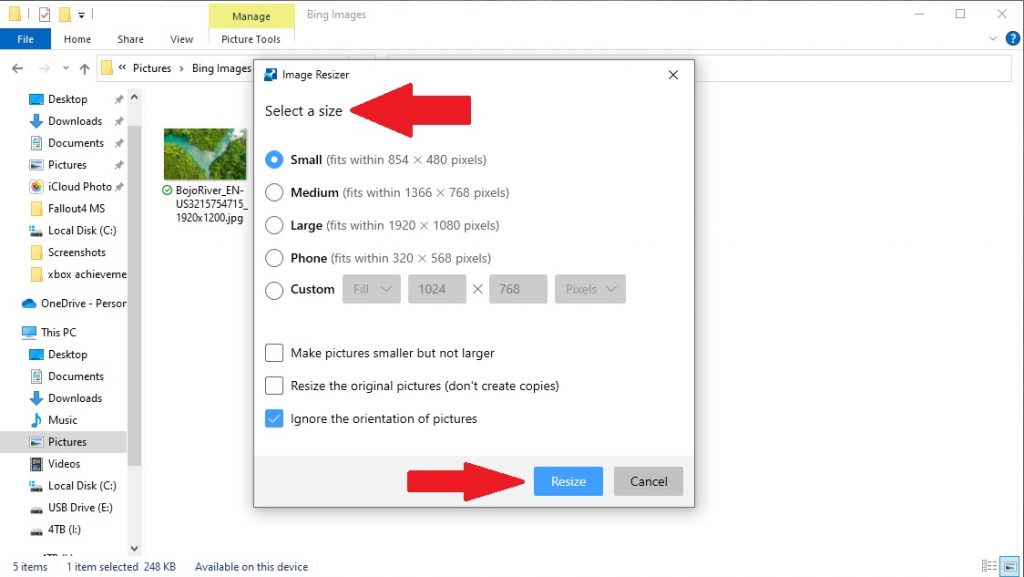
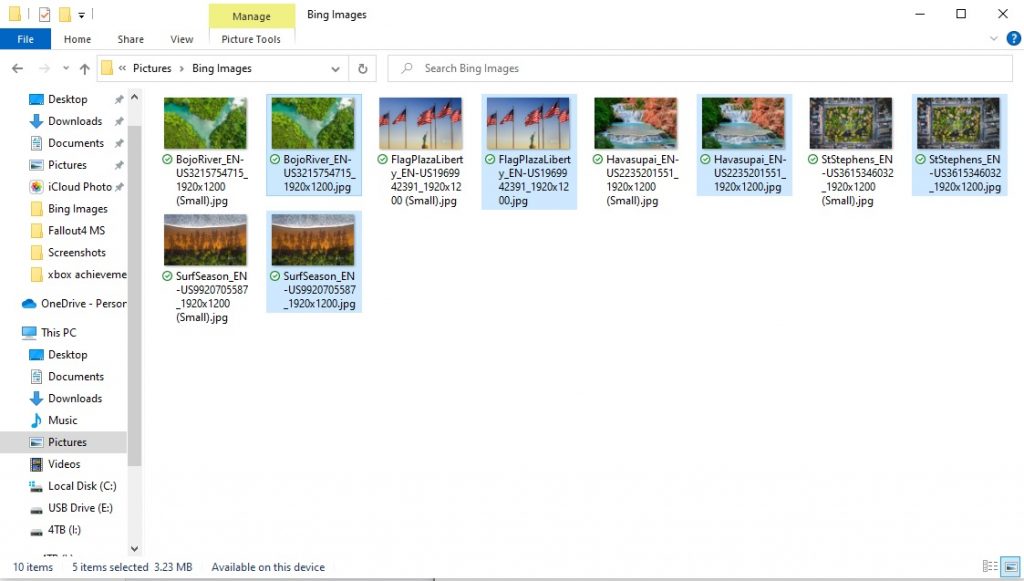
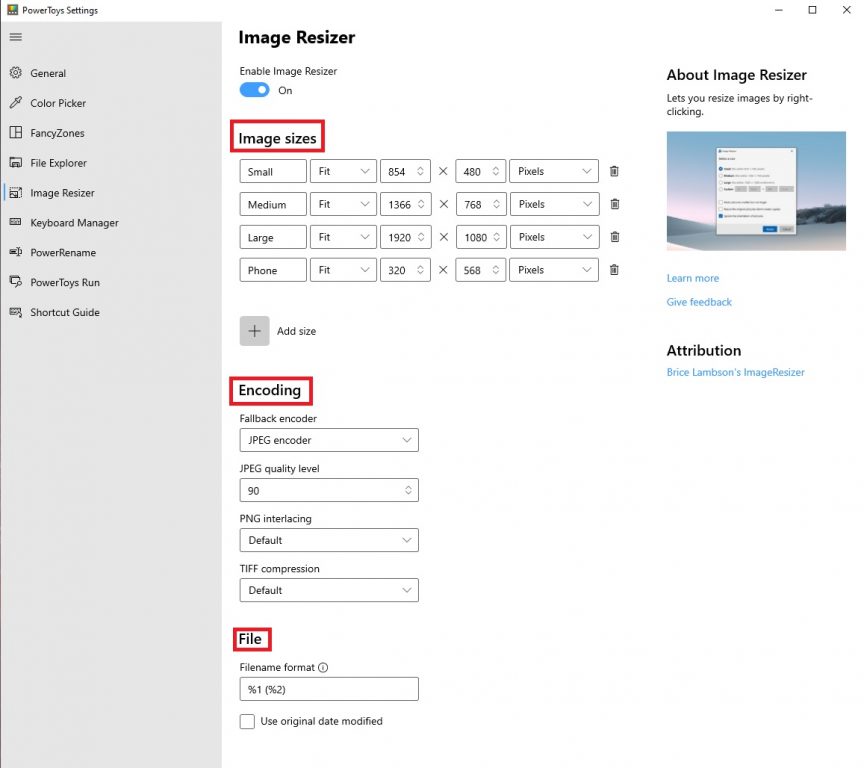
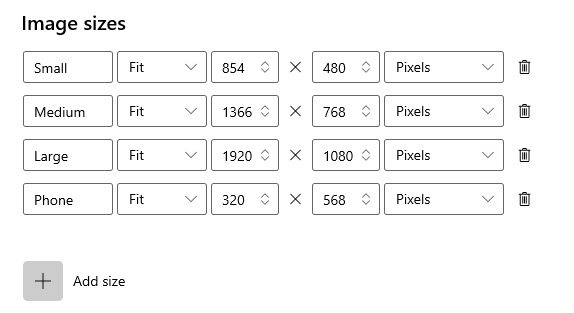



![Robinhood Not Available in Your Country? [Full Guide]](https://windowsreport.com/wp-content/uploads/2021/04/Robinhood-featured-image.jpg)

![How to remove Yahoo! Powered tool on Windows 10 [Quick Fix]](https://windowsreport.com/wp-content/uploads/2018/05/Yahoo.jpg)