New phishing scam steals Office 365 login credentials

It wasn’t a boring moment for attackers and scammers in luring Office 365 users.

Some phishing campaigns are using renewal warning messages, others are even trying to use the Office 365 voicemails to steal your data.

They even use calendar invites to break the increasingly work-from-home users accounts.

The newest threat is coming from a phishing campaign that attempts to steal Office 365 login credentials by trying to convince users to accept a new Terms of Use and Privacy Policy.

The phishing campaign targets secure email gateways (SEGs)

Cofense Phishing Defense Center (PDC) researchers who spotted this campaign describes the modus operandi of the phishing threat:

At first glance, the user will see This message was sent with High Importance. Again, the from address contains the word security and the subject talks about a Recent Policy Change, creating urgency to click and handle the matter immediately.

The email body talks about accepting the newly updated Terms of Use & Privacy Policy. Also, it notes how this new policy will affect personal data and discontinue all active services on the user’s account. Curious users will likely want to Learn More.

The attacker is using Google Ad Services to redirect users so this person or organization probably paid to have the URL go through an authorized source.

According to Cofense, this bypasses secure email gateways and exposes users to the phish.

If you click on either of the buttons presented, you are redirected to a duplicate of the real Microsoft page.

On that page, you will see a pop up of the privacy policy (taken from Microsoft’s website) and some logos that seem to be legitimate.

The next step is to be redirected again to a fake Microsoft login page. Needless to say that if you complete the credentials you will provide them to the phishing attacker.

Nothing sets a red flag since the next message on the screen ensures you that you have updated the terms and this time you are redirected to the legitimate Microsoft page, their Service Agreement.

How to stay safe? Make absolutely sure when clicking on unsolicited e-mails and links.

Have you been a victim of this phishing scam? Tell us all about it in the Comments section below.

[wl_navigator]

Browser intrusion prevention is malfunctioning [Symantec]

Many Windows users reported an issue when running the Symantec Endpoint Protection on their browsers.

The Symantec Endpoint Protection add-on shows this error message: Browser intrusion prevention is not functioning correctly.

This issue was reported to occur mostly after a software update and caused by incorrect user settings or system incompatibility. It’s also related mostly to Internet Explorer.

If you’re dealing with this browser intrusion issue, consider the following steps.

How to fix Browser Intrusion Prevention malfunctioning?

1. Try out something different

Microsoft’s Internet Explorer is, by all means, an outdated piece of software and, as such, it shouldn’t (if not necessary) be relied on.

Instead of Internet Explorer or other browsers, consider switching to Opera which allows you to do everything you can on IE, but with so much reliability and versatility, in a private and secure environment.

If you are in a dire need to use Internet Explorer features, you can add the IE Tab extension to simulate it on Opera.

Feature-wise, Opera is based on the Chromium open-source platform using the Blink layout engine, so it supports all Chrome extensions.

But, in comparison to Chrome, there’s no fear of privacy intrusion, thanks to its countless anti-tracking built-in tools.

Opera

If you are tired of the Browser intrusion prevention not functioning correctly error, Opera saves the day.

2. Change Group Policy settings

  1. Press the Windows logo key + R on your keyboard > type gpedit.msc in the Run box and hit Enter.
  2. Open the following location in the Local Group Policy Editor:
    User Configuration/Policies/Administrative Templates/Windows Components/Internet Explorer/Security Features/Add-on Management
  3. Remove CLSID {6D53EC84-6AAE-4787-AEEE-F4628F01010C}=1.GPU browser intrusion prevention is not functioning correctly
  4. Close the Local Group Policy Editor and restart your computer to see if it fixed the issue.

3. Disable the add-on

  1. Open Internet Explorer > select the Tools button > choose Manage add-ons.
  2. Under Show, select All add-ons > select Symantec Endpoint Protection.IE Add ons browser intrusion prevention is not functioning correctly
  3. Choose Disable > Close.
  4. Restart Internet Explorer and see if it fixed the issue.

4. Troubleshoot Symantec Endpoint Protection

  1. Type Command Prompt in the Windows search bar > click the first search result and choose Run as administrator.
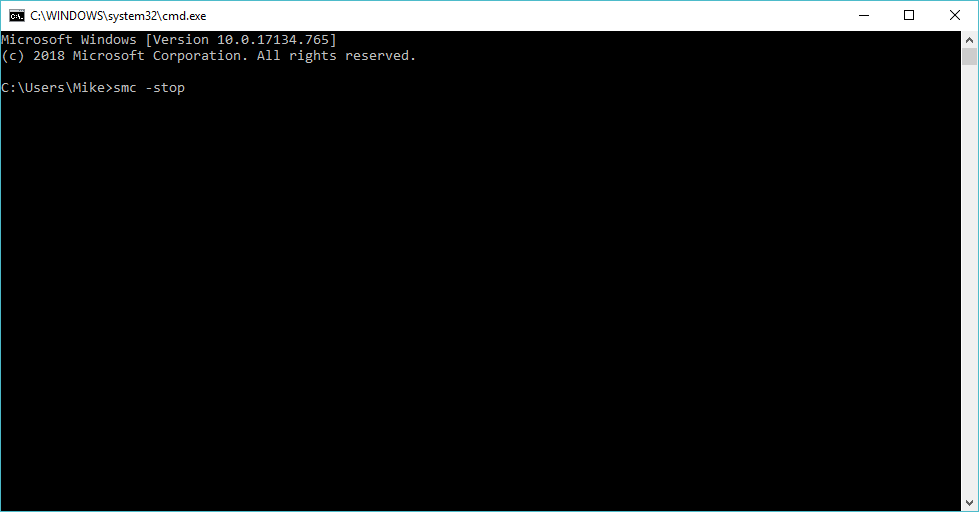
  2. Type the following commands in the Command Prompt and press Enter after each: smc -stop and then smc -start.smc -stop browser intrusion prevention is not functioning correctly
  3. Download the SymDiag tool for Windows.
  4. Open SymDiag.exe and follow the instructions to fix the issue.

5. Update Windows

  1. Press the Start button > open Settings.
  2. Click Update & Security.
  3. Select Windows Update.
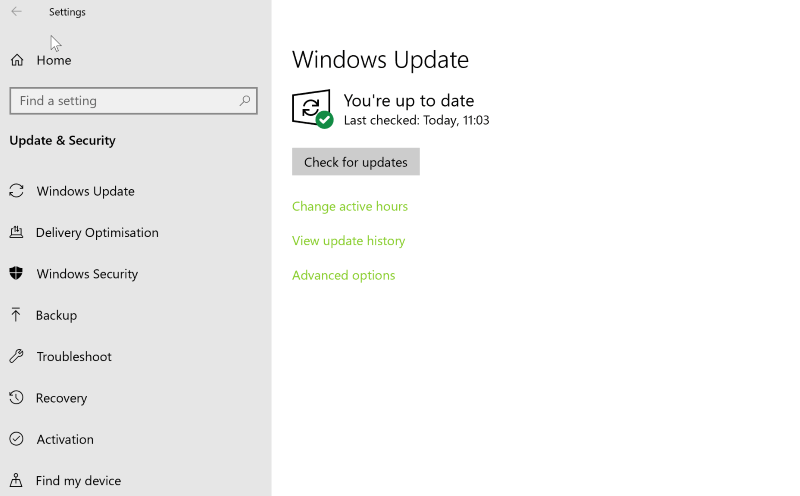
  4. Click Check for updates.windows update browser intrusion prevention is not functioning correctly
  5. If it finds any updates, let it complete the process and restart your computer.
  6. After rebooting your PC, check if updating Windows fixed the issue.

We hope that one of the above solutions helped you fix the issue you are facing. Whenever lacking the time to go through all these steps, rest assured that installing Opera Browser is a safe choice.

If you have any questions, leave a comment in the section below. We’d be glad to hear from you.

Microsoft’s new Battletoads game will be released on August 20 on Xbox One, PC, and Xbox Game Pass

Battletoads, Rare’s decades-old beat em’ up franchise, is coming back to life next month with a new game developed by Dlala Studios. It’s been quite some time since we last heard about this new game, but Microsoft has just revealed that it’s coming on August 20 on Xbox One, Windows 10, Steam, and Xbox Game Pass.

“It’s been quite a while — 26 years, in fact — but at long last, the Battletoads are ready to morph, leap and smash their way back into the limelight for an all-new adventure helmed by Dlala Studios and supported by series creator Rare, a partnership first teased during the Xbox E3 2018 Briefing,” wrote Adam Park, Head of Brand and Licensing at Rare.

This new Battletoads game will features familiar protagonists Zitz, Rash and Pimple, and it will support three players co-op. The vintage Battletoads games were notoriously difficult, and rest assured that this new game will come with different difficulty settings. As for the art style, Dlala Studios opted for hand-drawn graphics reminiscent of cartoons of the nineties.

The Steam page for Battletoads is now live, but you can’t pre-order the game yet. The Microsoft Store listing is still missing, and the Xbox Wire blog post curiously didn’t include pricing details for the game. However, it’s currently listed at $19.99 at GameStop. We’ll update this post with the Microsoft Store link once it goes live.

Best invitation makers for impossible to decline invites

Birthdays, weddings, graduation parties – there are several events in our lives to which we convey particularly high importance. If the occasion is special enough to deserve a dedicated event, why not go big and make everything about it special, starting with the invitations?

Sure, you can order premade ones, but you can instead add your own personal touch to make the invitations truly unique. It is possible to design stunning invitation cards that reflect your style and tell your unique story thanks to invitation makers.

Using an invitation maker takes customization to a whole new level by allowing you to control things like text font, text size, photo resizing, and the best thing is that they usually come packed with design templates to make your work easier with equally impressive effects.

Check out the best invitation makers we have selected for you and start planning your next jaw-dropping event in detail, starting with one-of-a-kind invitations to which people cannot say No.

Top 5 invitation makers to create one-of-a-kind invites

Adobe Photoshop

Adobe Photoshop

If you’re planning to design your own invitations, the best in business can be no other than the world’s best imaging and graphic design software.

From photo editing to digital painting and graphic design, Adobe Photoshop makes it easy for you to crop, remove objects, retouch, combine photos and play with color and effects to create stunning invitations cards that reflect your style with accuracy.

Let’s quickly go through its key features:

  • Lens Blur (blurring an object in the foreground has never been more natural and realistic)
  • Improved Content-Aware Fill (fill multiple areas of an image without leaving the window)
  • Object Selection tool (make fast and precise selections)
  • Improved Properties panel (more of the controls you need in a central location, plus convenient Quick Actions)
  • Modern presets (new gradients, patterns, swatches, layers, styles, and shapes)

Adobe Photoshop

Create stunning invitations by using the wide range of features contained in this amazingly powerful digital creation software.
Check price Visit website

Adobe Creative Cloud Express

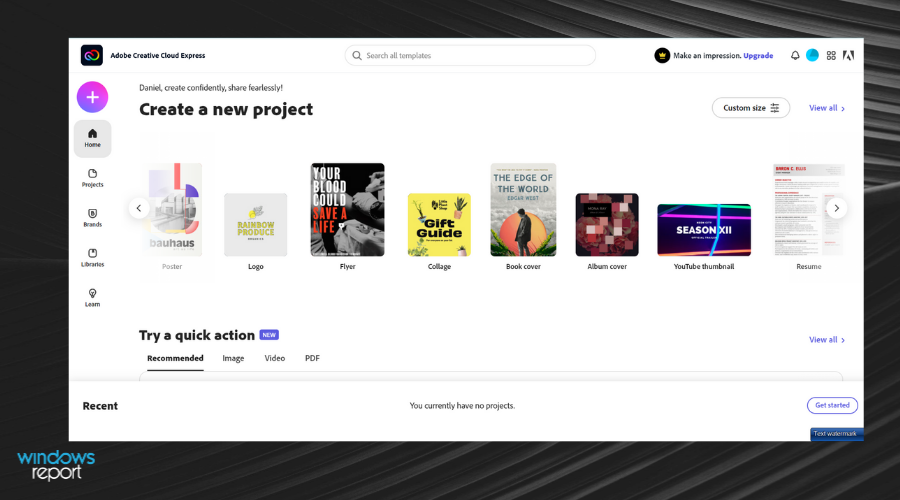
Adobe Creative Cloud Express is wonderful design software that allows you to transform your ideas into stunning visuals, fast. This applies to invitation making, of course, and you can simply pick a photo, add text, and apply design filters to instantly make your card stand out.

No matter the occasion, Adobe Creative Cloud Express Post will help your craft the perfect invite with just a couple of clicks thanks to its intuitive and easy-to-use tools and a generous selection of professionally designed templates to kick-start your composition for any event.

In addition, you should know the free designing platform can offer practical tools like dynamic colorful texts, graphic elements, backgrounds, images and icons, and so on.

Let’s quickly go through its key features:

  • Create invites in minutes (no design expertise needed)
  • Instant download, share and ready for printing
  • Inspiration gallery, and blog (to stimulate your creativity and trigger your inspiration)
  • An impressive selection of professionally designed templates
  • Multi-platform (available on the web and on mobile for more flexibility)

Adobe Creative Cloud Express

Never worry about not having inspiration for creating one-of-a-kind invitations by using this tool’s enormous image database.
Check price Visit website

CorelDRAW Graphics Suite 2021

CorelDRAW Graphics Suite 2020

CorelDRAW makes invitation crafting as easy as a breeze with its comprehensive suite of professional graphic design software combining cutting-edge typography, page layout, font management, and photo editing tools.

The integrated Corel PHOTO-PAINT provides the most versatile shaping and drawing tools that allow you to add all the creative effects you want to your vector-based artwork and enjoy flawless publishing once your invite is all set.

Let’s quickly go through its key features:

  • Color, fills and transparencies (patterns, gradients, and mesh fills to color your invite as guided by your imagination)
  • Non-destructive editing (Block Shadow tool, Symmetry Drawing mode, Impact tool, Add Perspective)
  • Styles and style sets (manage styles and style sets to apply consistent formatting across multiple objects)
  • Unparalleled object control (hide, rename, search for objects, and change their stacking order)
  • Extensive file compatibility (compatible with over 100 graphics, publishing and image file formats)
CorelDRAW Graphics Suite

CorelDRAW Graphics Suite

This powerful software offers you all the tools you need to create great invitations, no matter if it's a formal or casual event.
Check price Visit website

Edraw Max by Wondershare

Edraw Max is actually a diagramming tool that can serve all of your purposes, including invitations design.

Packed with many basic drawing shapes and backgrounds as well as numerous invitation card samples, this software will serve as a wonderful assistant to design invitation cards.

Let’s quickly go through its key features:

  • Drag and drop interface (create invitation cards fast and easy)
  • Great selection of backgrounds and clip art to choose from
  • Free downloads and free trial available
  • Vector output in various formats
  • Integration with various programs for better collaboration

⇒ Get Edraw Max

Canva

Canva inivitation maker

Creating invitation cards in Canva is simple and intuitive.

With hundreds of free templates to choose from and easy-to-use tools, you can craft an invite as unique as your story and customize it accordingly from the very core to the last details including background, fonts, and color scheme.

Let’s quickly go through its key features:

  • Stock library of over 1 million photographs, graphics, and illustrations
  • 130 fresh fonts to choose from
  • Canva Print (will take care of your invitation cards from start to finish)
  • Publish your design as JPEG or PNG images, ready for uploading or emailing
  • Extensive range of online invitation templates

⇒ Get Canva

Generic invitation cards are meant to be quickly forgotten. Make sure yours has charmed the audience before the event starts by using an invitation maker.

If the occasion is special enough to deserve an event, then it certainly calls for special invitations as well so why not add your personal touch to tell your story?

Blend in all the custom details that reflect your unique style and send out those print-perfect invites that are sure to dazzle. Do share the results with us in the comments section below.

Can Samsung data migration change source disk? [Migration]

Using Samsung Data Migration to change source disk doesn’t work all the time. Migrations will work only if the conditions are right because the Samsung data migration tool has some limitations.

Further, you can only use selected Samsung SSD drive models as the destination drive. These limitations make users consider alternative disk cloning solutions.

Quick tip:

If you’re encountering the Samsung Data Migration wrong source disk error message, then it is safe to assume that you tried to change the disk source inside the application.

In order to resolve this issue and use a different disk source, you have to use an alternative utility.

One such software that offers even better features than Samsung Data Migration (SDM), is the powerful and versatile Ashampoo Backup.

Because of the limitations of the SDM software, you might not be able to use it at all, but Ashampoo Backup will do the job without any issues.

Ashampoo Backup Pro

Ashampoo Backup Pro

This amazing software allows you to backup your hard drive and easily migrate it with just a few clicks of the mouse, so don't hesitate to try it out!
Free trial Visit website

Read on to find out more details about how to use Ashampoo Backup, and also to get the answer to the your question.

How can I change the source disk with Samsung Data Migration?

1. Use Ashampoo Backup

Create a system rescue disk

samsung-data-migration-change-source-disk-create-rescue-disk-step-one

  1. Launch Ashampoo Backup.
  2. Click on the Rescue System tab on the left-hand panel.
  3. Choose your rescue medium.
  4. Select the USB Stick option.
  5. Connect your USB drive and click on this option.
  6. Check the option and hit the Next button to continue.
  7. Click on Yes on the popup. (if you don’t have the Windows Assessment and Deployment Kit (ADK) on your system, the program will now install it).
  8. Click OK to confirm the installation.
  9. Hit Yes to continue.
  10. Follow the on-screen guide to install ADK.
  11. Accept the agreement.
  12. Close the window

On completion, a Success screen will appear for the installation of ADK. You have successfully created a rescue disk from which you can boot your computer if your hard disk fails.


Back up your data and create a backup plan

samsung-data-migration-change-source-disk-backup-step

  1. Click Create a Backup Plan in the Get Started screen.
  2. Select the option labeled Local drive or network drive.
  3. Click Next to proceed.
  4. Specify the connected USB storage.
  5. Click on the Next button.
  6. Rename your backup plan and hit Next.
  7. Click on the Entire drives option and click Next again.
  8. Choose the location that holds the data you wish to back up and the Hidden system partition.
  9. Set a password, customize the compression settings, and specify how long you want to store backups.
  10. Optionally configure a backup schedule and what happens to missed backups among other features.
  11. Click on Start Backup Now.

You should now see a green shield graphic with a white tick inside it. This screen confirms that the backup is complete and your data is secure.

At this point, you’ve successfully backed up your data and created a backup plan. The next step is to restore the data.


2. Fix Samsung Data Migration

Prepare your PC

  1. Power off the computer.
  2. Disconnect every device connected to it.
  3. Turn on the system, and immediately the screen lights up, start pressing the BIOS entry key repeatedly.
  4. Navigate to the option to select a boot device.
  5. Choose the USB Storage Device option and hit Enter.
  6. Select your backup storage device type. Select the Local drive or network drive option and hit Next.
  7. Find your connected drive on the list on the next page. If you can’t, click on Refresh to update the list. Choose your device and click Next.

Use the backup created in the previous step

  1. Select the backup you previously created from the list, and click Next.
  2. Click on the Complete hard disks option, and choose Next.
  3. Assign backups by dragging a backup from the left side into the destination drive on the right.
  4. Click Yes to begin the restoration process.
  5. Wait to see the Restoration successful message.
  6. Disconnect the rescue USB drive and reboot your system.

Note: Check this guide if you’re not sure how to enter BIOS.

The answer to the question about the ability to change source disk for Samsung Data Migration is, unfortunately, that it can’t be done.

However, Ashampoo Backup Pro is an excellent alternative to the Samsung software. Even if you experience the Samsung data migration wrong source disk issue, you can still perform the migration.

[wl_navigator]

Keep Getting Redirected to Other Websites? Safe Solutions

Unknowingly, we can get ourselves in all kinds of problems online. However, stories about the grandeur of the Internet malice are not true.

If you’re, say, experiencing frequent jumps to other websites while browsing the Internet, this hardly means that your computer is infected by a virus.

However, the spectrum of malicious software covers all kinds of applications and extensions which can stop your current session and redirect you to God knows where.

We made sure to provide a detailed explanation in order to help you protect against these threats.

Table of contents

  1. Keep your PC safe and avoid automatic redirecting with Opera
  2. How to block adware pop-ups and remove browser hijackers

What can I do if my browser redirects to other sites?

1. Keep your PC safe and avoid automatic redirecting with Opera


The problem with automatic redirecting is that it affects browsers with limited protection. That is hardly the case with Opera.

Opera has probably the best balance between intuitive design, bulletproof safety, and remarkable privacy protection.

Also in the safety department, we have to mention cryptocurrency mining protection and the free, complete, and unlimited VPN service. 

The built-in Ad Blocker will take care of any unwanted distractions and that, in turn, will speed up loading times.

For the unaware, the VPN protects your privacy and identity by redirecting all your traffic through other safe sites.

Don’t take our word for it, download Opera now for free and convince yourself.

Usually, you can close the window or just go back to a previous website, but there are various schemes they apply to avoid that.

Firstly, the suspicious website usually opens in a new window and sometimes you’re not even aware. Or they redirect you directly to a new website swarming with ads.

The other option is almost certainly a browser hijacker’s deed. Browser hijackers are a piece of malicious software that infiltrates your Internet browser and takes control of some of its features.

They tend to replace the home page with a website usually crowded with ads.

Also, they might add an extension, usually a search bar of a kind. It can also spy on you and hunt the banking credentials to get a hold of your funds.

Even though this is rare, we still suggest avoiding typing passwords if you recognize the presence of a browser hijacker.

But, don’t worry. If you don’t click anywhere, they’re just a harmless piece of adware. Close the browser and let it be until we remove all threats.

Opera

Switch your browser to Opera as the smartest choice for enhanced security and practical app integrations.

2. How to block adware pop-ups and remove browser hijackers


Let’s start with the essential actions. You’ll need an antivirus, whether that’s a third-party antivirus or Windows-native Windows Defender.

In addition, you’ll have better success with clearing PUPs (Potentially Unwanted Programs) with a dedicated application, like Malwarebytes.

Uninstalling all suspicious applications is a must also. And, finally, once you’ve dealt with that, we suggest installing a browser extension that prevents pop-ups while browsing.

Ad-blockers will do the job most of the time.

Here’s how to scan your computer for malicious presence with Windows Defender:

  1. Open Windows Defender from the taskbar notification area.
  2. Choose Virus & threat protection.virus & threat protection
  3. Choose Scan options.virus & threat protection - scan options
  4. Select Windows Defender Offline Scan.
  5. Click Scan now.
  6. Your PC will restart and the scanning process will commence.

And this is how to use Malwarebytes:

  1. Download Malwarebytes
  2. Run the tool and click Scan Now.
  3. Wait until the tool scans your system and click Clean & Repair.
  4. Restart your PC.

After that, the only thing left is to pay attention when online. If you visit a site full of ads, don’t click around and, if possible, use adblocker as much as possible.

Make sure to tell us whether this was an informative read in the comments section below.

Ubisoft’s Hyper Scape free-to-play battle royale comes to Xbox One consoles in August

One of the latest battle royale video games to hit the scene in recent times, Hyper Scape, is set to launch on Microsoft’s family of Xbox One consoles in just over a week’s time on August 11th.

Hyper Scape was first announced earlier this month and almost immediately launched in open beta on PC. While its first trailer (which you can watch below) was met with numerous Ready Player One jokes on social media due to the game’s plot being almost identical to that of the hit movie and book, the game still managed to garner a lot of buzz very quickly due to a large number of planned promotions with large and small streamers on Twitch and special integration with the streaming service itself that allows viewers and players to unlock content while streaming Hyper Scape or watching someone else play.

The open beta is set to end on August 2nd with the official PC launch also planned for August 11th alongside Sony’s PS4 console. Hyper Scape’s first season will also launch on August 11th on all platforms and cross-play will be enabled which will allow players to transfer progress between devices.

“Season 1, titled “The First Principle,” will introduce new limited-time game modes, a new weapon and hack, new features for Crowncast (Hyper Scape’s interactive Twitch extension), and provide insight into the lore and universe of Hyper Scape,” Ubisoft’s Youssef Maguid explains. “Season 1 adds a new gun, the Dragonfly, and new hack, Magnet, for a total of 11 weapons and 11 hacks, each of which can be fused up to four times into increasingly powerful versions. The First Principle will also introduce new limited-time game modes, a new in-game Melee event (which makes all melee attacks instantly lethal), and both a free and premium 100-tier Battle Pass.”

Hyper Scape isn’t available to pre-download on Xbox One consoles just yet but we’ll make sure to post about it when it is.

What do you think about Hyper Scape? Does it interest you or are you a bit tired of the battle royale genre? Share your thoughts with the community in the comments below and then follow us on Pinterest, Twitter, and Facebook for more gaming news.

Two Point Hospital, Disintegration, and Rocket Arena are free to play on Xbox One this weekend

The three Xbox One video games, Two Point Hospital, Disintegration, and Rocket Arena, will be completely free to play on Microsoft’s family of Xbox One consoles for all Xbox Live Gold subscribers from now until Monday as part of this week’s Free Play Days campaign.

As with previous Free Play games, all of these titles will be able to be played, Xbox Achievements can be unlocked, and all game progress will save to the cloud for continuing at a later date. Each game has also received discounts ranging from 40 to 80% for a limited time to help encourage gamers to buy them outright after getting a taste during this special period.

Here’s the game trailer for each video game along with the links to their pages on the online Microsoft Store storefront for initiating their download on your Xbox One console.

Are you going to play Two Point Hospital, Disintegration, or Rocket Arena this weekend? Let us know which title you’ll be playing first in the comments below and then follow us on Pinterest and Twitter for more Xbox gaming news.

Two Point Hospital™
Two Point Hospital™
Developer:
SEGA Europe Ltd
Price:
Free


Disintegration
Disintegration
Developer:
Private Division
Price:
$9.89


Rocket Arena
Rocket Arena
Developer:
Electronic Arts
Price:
Free


Rocket Arena Mythic Edition

Not sufficient privileges for this resource or its parent

Sometimes while browsing you might encounter You do not have sufficient privileges for this resource or its parent to perform this action error. But worry not, we have a few solutions for you, so let’s begin.

How do I fix resource or parent privilege issues

1. Try a different browser

Sometimes your browser might be the problem, and if that’s the case, you might want to switch to a new browser. Opera is a Chromium-based browser that focuses on the security and privacy of its users.

The browser will inform you about any suspicious downloads or websites, and since it blocks tracking cookies, you should be able to access any website without problems.

It is extremely lightweight, can be greatly customized visually, and comes with optimizations for viewing streamed content and watching videos on YouTube.

Opera

Browse the Internet without worrying about compatibility or permission issues with this lightweight and extremely effective tool.

2. Reinstall your VPN software

  1. Open Control Panel and go to Programs and Features.
    programs and features You do not have sufficient privileges to perform this action
  2. Locate your VPN software and double-click it to remove it.
  3. Now install your VPN again.

If you’re having problems with your VPN, and you’re looking for a fast and reliable VPN, make sure to get a premium VPN with large server coverage.

We advise you to look for a VPN service that receives constant updates to keep up with the latest security requirements. You need to make sure your data is always protected.

Plus, for high performance, it is recommended to get a VPN with many servers and many server locations across the world. Along with that, a VPN that hides your IP increases security and removes the risk of getting ISP restrictions.

3. Clear your memory cache

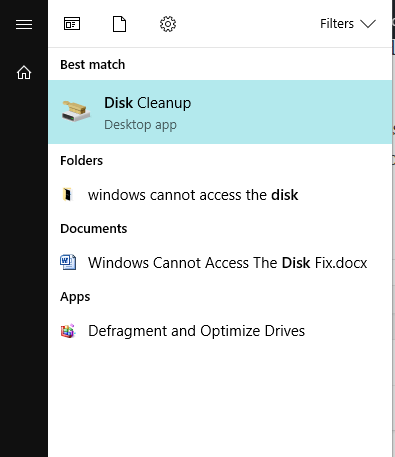
  1. From your Start Menu, look for Disk Cleanup and open it.
    disk cleanup You do not have sufficient privileges for this resource or its parent to perform this action
  2. Select the drive you wish to have cleaned up, and select OK.
  3. Under the Files to delete section, select the files you wish to remove.
  4. Select OK.

4. Clear your browser data

  1. From your computer, open Chrome.
  2. At the top right, click More.
  3. Click More tools then click Clear browsing data.
    clear browsing data You do not have sufficient privileges for this resource or its parent to perform this action
  4. Select a time range. All time is usually is the best choice.
  5. Select the type of information you want to remove.
  6. Click Clear data.
  7. You’re all set.

5. Register your DNS

  1. Type cmd in your Start Menu, in order to open Command Prompt.
  2. Type ipconfig /registerdns, and then press Enter.
    reregiser DNS You do not have sufficient privileges for this resource
  3. After the operation has been completed, type in exit in Command Prompt, and then restart your machine.

6. Update drivers

  1. Open Device Manager.
    device manager You do not have sufficient privileges for this resource or its parent to perform this action
  2. Now expand the category with the hardware you want to update.
  3. Right-click the device, and select Update Driver.
    update driver You do not have sufficient privileges
  4. Click the Search automatically for updated driver software.
    search automatically for driver software You do not have sufficient privileges for this resource

There you go, several solutions that should help you fix You do not have sufficient privileges for this resource or its parent to perform this action error on your PC.

Tumblr Mass Post Editor: How to Mass Edit or Delete Posts

Tumblr’s Mass Post Editor is a powerful tool that simplifies the process of managing and editing multiple posts on your blog.

Many aren’t familiar with this feature, so in today’s guide, we will take a closer look at it and show you how to use it to manage your Tumblr blog better.

Does Tumblr still have Mass Post Editor?

Yes, this feature is still here and has the same functionality. However, it has been moved, and it’s now located in a different location.

How do I edit multiple posts on Tumblr?

1. Open Mass Editor

  1. Open Tumblr.
  2. In the left pane, click on Account and then select your blog.
     
  3. Lastly, in the right pane click on Mass Post Editor.

2. Delete a post on Tumblr

  1. To display posts starting from a specified month, click the Month button.
  2. Select the multiple posts you need to delete by clicking on them (use the Unselect button to deselect all posts).
  3. Press the Delete button.Delete option mass post editor tumblr
  4. Click the OK button to confirm.

3. Remove Tumblr post tags

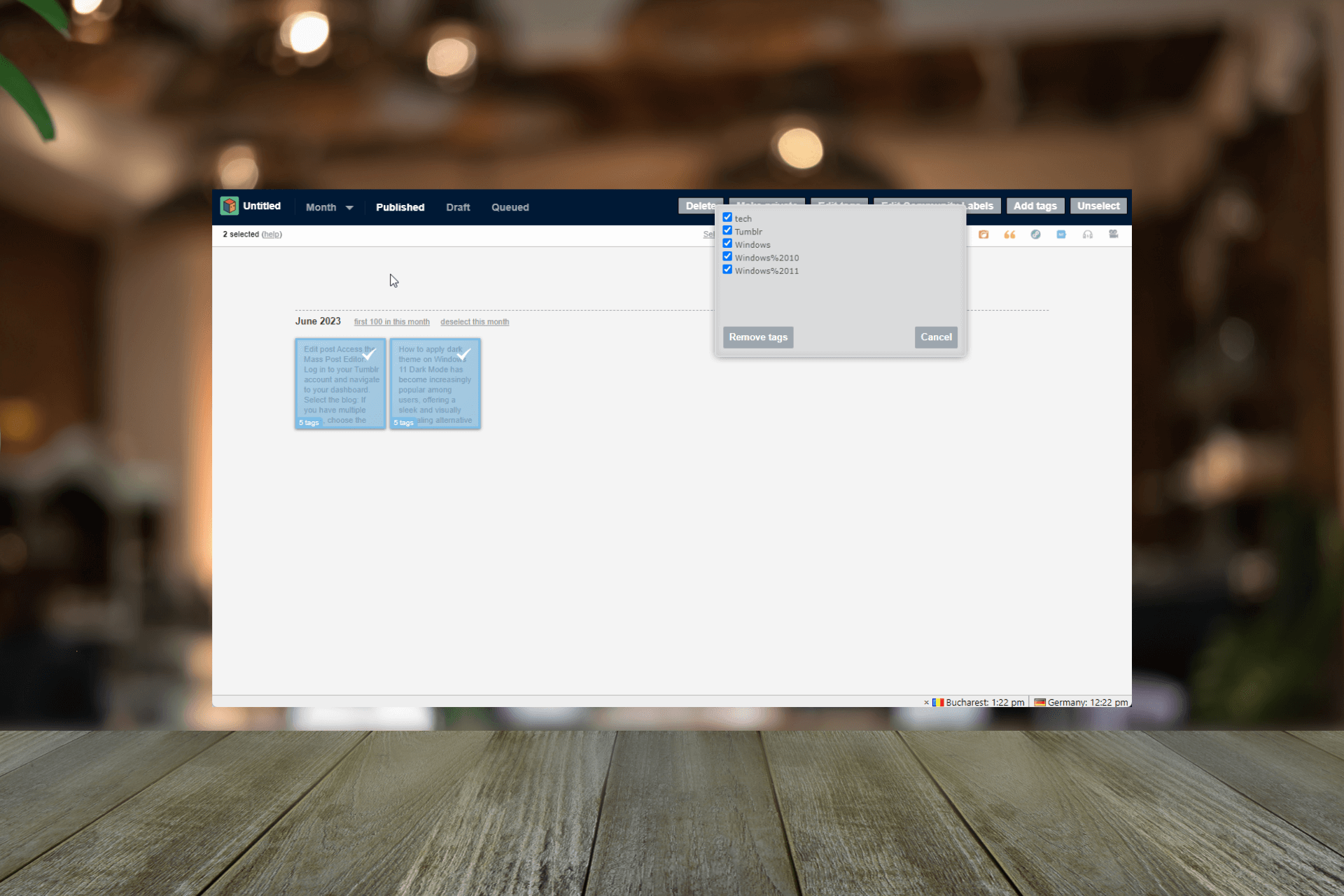
  1. Select the posts you need to remove the tags from. Click the Edit tags button to open a list of tags that the selected posts include.Edit tags -
  2. Select the checkboxes for the tags you want to delete and click Remove tags button.Remove tags option

The tags will be deleted from the selected posts.

4. Add tags to multiple Tumblr posts

  1. Select the posts that you need to add new tags to. Press the Add tags button in the Mass Post Editor.Select Add tags
  2. Enter the tag that you want to add to the post, make sure you press space after every tag. Add tags
  3. Click the Add tags button to insert the entered tags.

5. Add new filtering options to the Mass Post Editor with the XKit extension

  1. Go to the Installing Xkit page.
  2. From the details listed, locate the browser link to add the extension to your browser. For demonstration, we are mentioning the steps with Google Chrome.Installing Xkit 1 Mass post editor tumblr
  3. Click Add to Chrome to download.Add to chrome Installing Xkit 2
  4. Now click Add extension to add it.Installing Xkit  -= Add extension 3
  5. Open your Tumblr dashboard page. An XKit notification will appear indicating Installation of XKit is complete. Click the Refresh page and start using XKit button.Refresh the dashboard - installing Xkit 4
  6. Click the new XKit button on Tumblr.Xkit icon
  7. On the XKit window, switch the Get Extensions tab.Installing Mass+
  8. Locate Mass+ and click the Install button.
  9. Once installed, open the Mass Post Editor again to check the new toolbar with numerous additional filtering options for you to select.

Can you mass-delete old Tumblr posts?

Yes, this is possible with Mass Post Editor. You must open the editor, select all posts, and click the Delete button. We explained this process in Solution 2, so don’t forget to check it out.

In conclusion, the Tumblr Mass Post Editor is a powerful tool that allows you to manage and edit multiple posts on your Tumblr blog quickly and efficiently. However, for advanced options, adding the XKit extension can help you more.

Following these steps, you can make bulk edits, reblog or delete posts in batches, and save valuable time when organizing your content.

If you face issues like images not loading on Tumblr, we recommend you check out this informative guide to find easy and quick solutions.

To learn more about this service, our guides on how to turn off Safe Mode in Tumblr and how to disable Best Stuff First on Tumblr should be able to help you.

Please feel free to give us any information, tips, and your experience with the subject in the comments section below.

Ads pop up when I unlock my Android phone [Quick Fix]

If ads pop up each time you unlock your phone, it’s likely due to adware you might have installed unintentionally. These small apps are designed to display ads on your device.

Typically, they’re harmless when it comes to data safety and security, but they may drain your battery and lead to overheating. Not to mention they’re extremely annoying.

Here’s how to get rid of them:

How can I stop ads from popping up on Android?

1. Verify that the issue is from a third-party app

  1. Press the Power button until you get the power options.
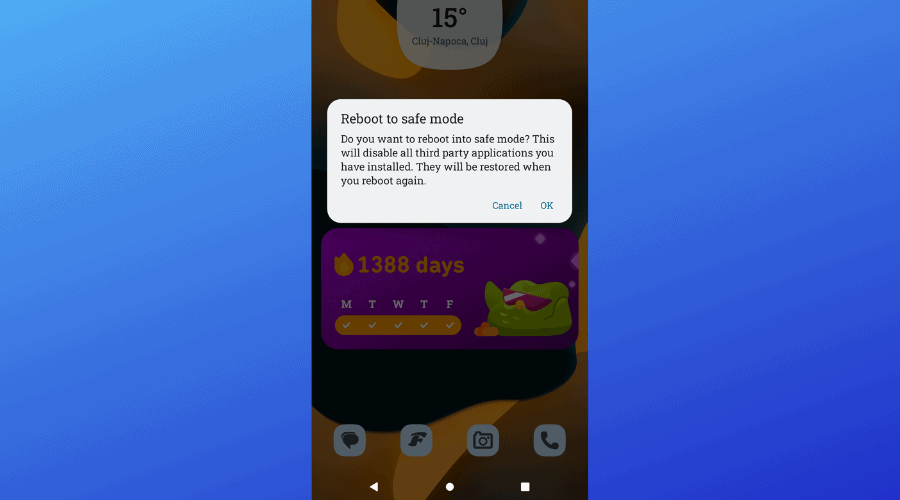
  2. Tap and hold the Restart option until you see a prompt asking if you want to reboot in safe mode.reboot android safe mode
  3. Confirm and restart your device.

At this point, your phone will reboot into the Android Safe Mode.

In Safe Mode, your phone boots with no third-party app. If you don’t see ad pop-ups on Android when you unlock your phone, it confirms that a downloaded app is serving the ads.

2. Uninstall the most recently downloaded app

Remember the moment the ad starts to pop up on Android when you unlock your phone? You probably downloaded a third-party app before that. If you do remember, then it’s easy to get rid of the ads.

Go to your home screen or the Settings page and uninstall the malicious app. Make sure you delete the app’s data off your phone after uninstalling it.

3. View recently used apps

  1. Close all the apps that are open on your phone.
  2. Lock and unlock the device and start using your phone as normal
  3. When the ad shows up, as usual, go to your recent apps.android recenet apps
  4. Note the app you see as a recent app.
  5. Uninstall the specific app.

4. Check the running services

  1. Go to the Settings app.
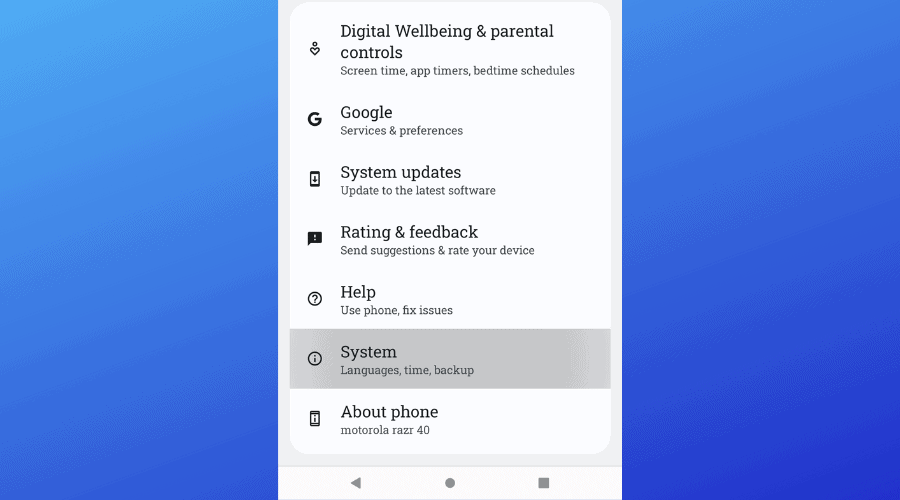
  2. Select System.
  3. Find the build and tap on it 7 times.
  4. Return to the System page.system settings android
  5. Tap on Developer options.
  6. Open Running services.
  7. Find any abnormal app.

On the Running services screen, you’ll view all the applications actively working on your phone, as well as their supporting services.

After determining the app that brought the adware, you must uninstall it. However, before you finally uninstall any suspected app, deactivate it to be sure.

You can avoid ads that pop up when you unlock your Android phone by only installing trusted apps from the Google Play Store and other trusted places.

iPhone is Not Sending Pictures: How to Fix it

iPhone is one of the most popular phone brands, but even great devices have certain issues. Speaking of which, many users reported that their iPhone is not sending pictures.

This isn’t the only issue, and many reported that they can’t access iPhone photos on PC, but that’s a topic for a different guide.

This can be a big problem, and in today’s article, we will show you how to fix this problem on your iPhone once and for all.

Why are pictures not sending on my iPhone?

  • SMS or MMS messaging might not be enabled properly on your device.
  • Glitches with your network settings can cause this issue to appear.
  • Issues with your network or provider can lead to problems such as this one.
  • In some rare cases, missing updates can cause this problem.

What can I do if my iPhone isn’t sending pictures?

1. Make sure that SMS and MMS messaging is enabled

  1. On your iPhone, go to the Settings.
  2. Now head over to the Messages section.
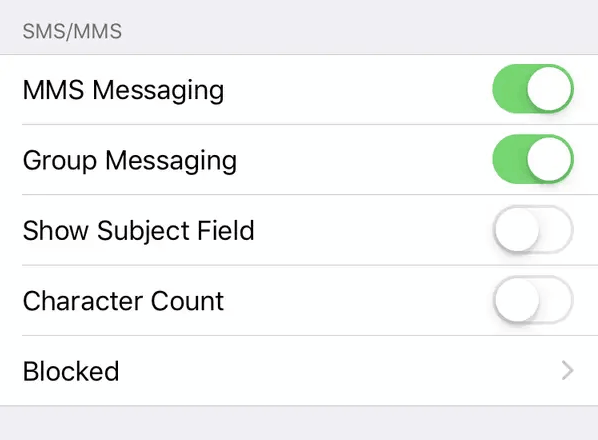
  3. Make sure that both Send as SMS and MMS Messaging options are enabled.
    MMS settings iphone not sending pictures

A few users suggest that turning off MMS Messaging somehow fixed this issue for them, so you might want to consider trying that out as well.

This method might be helpful if your iPhone isn’t sending pictures to Android, so be sure to try it out.

2. Reset network settings

  1. Go to Settings > General.
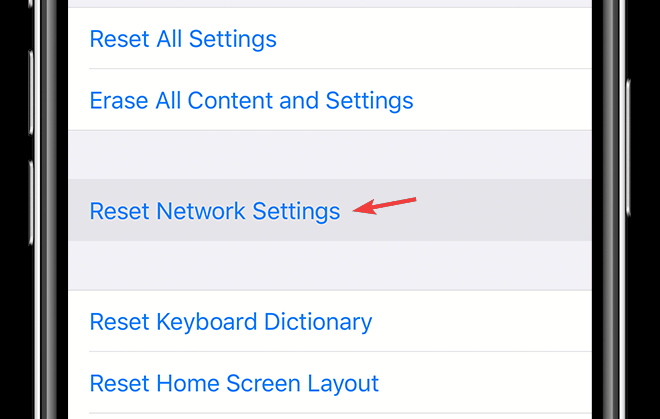
  2. Now select Reset > Reset Network Settings.
    reset network settings iphone not sending pictures
  3. After resetting network settings to the default, check if the problem is still there.

This is a pretty simple solution if iPhone is not sending pictures, so don’t hesitate to try it.

3. Make sure that your iOS is up to date

  1. Make sure that your device is connected to a power source and Wi-Fi.
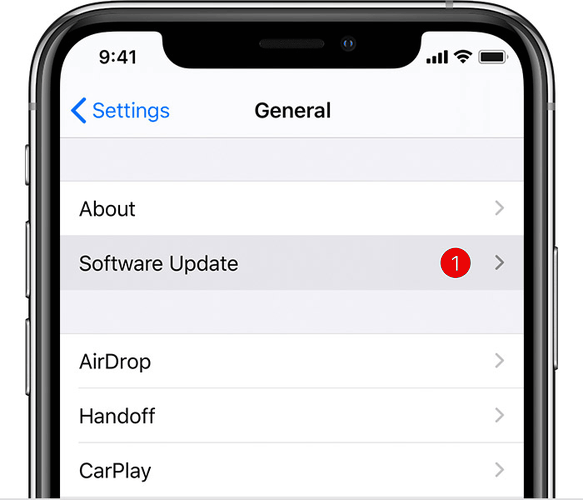
  2. Go to Settings > General.
  3. Select Software Update.
    software update iphone not sending pictures
  4. Now tap on Download and Install.
  5. Follow the instructions on the screen to complete the update.

4. Check your network and restart your phone

  1. Make sure that your signal strength is good. This applies to both Wi-Fi and cellular.
  2. If you’re using cellular data, make sure that the cellular option is enabled.
  3. Try uploading the image as URL to image hosting websites and sending the link instead.
  4. Restart your iPhone.

Your network connection can be why your iPhone is not sending pictures, so be sure to check it.

5. Contact your provider

  1. Contact your mobile provider.
  2. Make sure with the provider that the MMS service is enabled for your account.
  3. Wait while the provider looks into the issue.

Several users claim that their iPhone wasn’t sending pictures to Android because the mobile provider didn’t enable MMS, but after contacting the support, the issue was resolved.

If the iPhone is not sending pictures, it’s possible that your messaging settings aren’t correct, so be sure to check that first.

In some cases, you can circumvent this issue if you choose to transfer photos from iPhone to PC, so you might want to consider that.

Also, ensure that your iOS is up to date because this could be a software bug. Lastly, contact your mobile provider and make sure that the issue isn’t at their end.

5 best VPNs for jailbroken iPhone (3 are really free)

If you have a jailbroken iPhone, use a VPN to increase your mobile security, protect your online privacy, and visit websites that are normally locked.

However, if you head over to the App Store without doing your homework, you will be bombarded by numerous VPN and proxy apps that are questionable, to say the least.

Don’t make the mistake of downloading the most appealing VPN app that crosses your path, or you may risk compromising your entire data. That’s because there are many VPNs that leak your IP address.

To save you the trouble of installing the wrong VPN on your iOS device, we did the leg work, reviewed and tested numerous VPNs, and picked what we think are the 5 best VPNs for your jailbroken iPhone (3 of them are actually free).

What are the best VPNs for my jailbroken iPhone?

Private Internet Access

Private Internet Access is the best VPN for iPhone

Designed by Kape Technologies, Private Internet Access (PIA) is the top VPN for your jailbroken iPhone, thanks to a vast network of high-speed VPN servers and great security features, such as a kill switch.

After downloading PIA VPN on your iOS device, you can quickly connect to the nearest server or explore 48 countries that cover more than 3,300 VPN servers. All of them are optimized for torrenting and streaming.

You can use PIA to unblock Netflix US, Hulu, Prime Video, Disney+, and other must-have streaming services. The iPhone app also includes an ad and malware blocker for Safari called PIA MACE, together with 256-bit encryption.

What else you should know about PIA:

  • A strict no-logging policy
  • 24/7 live chat support
  • Protect up to 10 devices at once
  • 30-day money-back guarantee (no free trial)
Private Internet Access

Private Internet Access

Install this VPN on your jailbroken iPhone to protect your Internet traffic, download torrents, and unblock streaming services.
$2.85/mo. Buy it now

NordVPN

use NordVPN for iPhone

Produced by Tefincom & Co., NordVPN is one of the safest VPNs for jailbroken iPhone users, thanks to its robust security features for anyone interested in providing 100% iOS protection. It offers more than 5,100 VPN servers in 59 countries and supports 256-bit encryption.

You can connect to NordVPN’s obfuscated servers to avoid being detected by websites that block VPN traffic, making it ideal for China users who want to defeat government censorship. Plus, you can join the Tor anonymous network to amp-up your privacy by connecting to Onion-over-VPN servers.

The iOS app has a kill switch, an ad and malware blocker called CyberSec, and a SmartPlay feature that unlocks many streaming services like Netflix. Moreover, it integrates with Shortcuts, so that you can tell Siri to connect or disconnect from NordVPN if your hands are busy.

What else you should know about NordVPN:

  • No traffic or identifying logs
  • 24/7 live chat support
  • 6 simultaneous connections
  • 30-day money-back guarantee (no free trial)
NordVPN

NordVPN

Use this VPN app on your jailbroken iPhone to boost your online security and privacy.
$3.49/mo. Buy it now

Surfshark

use Surfshark for iPhone

Made by Surfshark LTD, Surfshark is the most affordable VPN for your jailbroken iPhone on this list, coupled with the fact that it can secure an unlimited number of devices through the same account. It has a growing network of more than 1,700 VPN servers in 63 countries.

The iOS app includes a kill switch, private DNS on each VPN server, a malware blocker for browsers called CleanWeb, and a special feature named NoBorders, which gives you the possibility to defeat censorship and access any blocked site.

Furthermore, you can turn on Camouflage mode to use obfuscated servers and bypass VPN blocks, use 256-bit encryption to download and upload torrents securely on any VPN server, as well as unlock the big streaming services like Netflix or Hulu.

What else you should know about Surfshark:

  • A strict no-logs policy
  • 24/7 live chat and email support
  • Unlimited connections at once
  • 30-day money-back guarantee
  • 7-day free trial for iOS and Android
Surfshark

Surfshark

Use a budget-friendly VPN for your jailbroken iPhone and protect an unlimited number of devices.
$1.99/mo. Buy it now

CyberGhost VPN

use CyberGhost VPN for iPhone

Also operated by Kape Technologies, CyberGhost VPN is the best free VPN for jailbroken iPhone. It’s a high-end virtual private network service that offers a limited free trial for iOS users, without having to use your credit card upfront.

CyberGhost VPN has a super-intuitive interface with some awesome features under its hood, such as the Best Location option that almost instantly connects you to the nearest VPN server to hide your IP and encrypt your traffic.

Plus, the tool has the most impressive network of VPN servers: over 6,500 in 89 countries. You can use a dedicated streaming profile to unblock all Netflix libraries without hampering your connection. It also includes a kill switch, malware blocker, Wi-Fi auto-protection, and 256-bit encryption.

What else you should know about CyberGhost VPN:

  • A zero-logging policy
  • 24/7 live customer support
  • 7 simultaneous connections
  • Up to 45-day money-back guarantee
  • 7-day free trial for iOS and Android
CyberGhost VPN

CyberGhost VPN

Use this VPN's dedicated streaming profile to comfortably watch any Netflix library on your jailbroken iPhone.
$2.75/mo. Buy it now

ExpressVPN

use ExpressVPN for iPhone

Developed by Express VPN International LTD, ExpressVPN is among the fastest VPNs for streaming and works on jailbroken iPhone devices, too. You can quickly connect to the nearest location and navigate more than 3,000 VPN servers in 160 locations across 94 countries.

Plus, ExpressVPN works in China. You can unblock a multitude of streaming platforms, including Netflix, watch your favorite movies and TV series without buffering, as well as use 256-bit encryption and IP leak protection.

Additionally, you can customize ExpressVPN by linking your frequently used apps and services. All its VPN servers support secure P2P, making ExpressVPN one of the safest VPNs for torrenting. It runs encrypted DNS on each server, thanks to zero-knowledge DNS.

What else you should know about ExpressVPN:

  • Zero logs
  • 24/7 live chat support
  • Use 5 devices simultaneously
  • 30-day money-back guarantee
  • 7-day free trial for iOS and Android
ExpressVPN

ExpressVPN

Use the fastest VPN for your jailbreak iOS for secure browsing, safe torrenting, and unlimited streaming.
$8.32/mo. Buy it now

In conclusion, you can use any of the 5 VPN apps above for your jailbroken iPhone to hide your IP address, encrypt all data traffic, enjoy unlimited streaming, and download torrents anonymously.

We know it’s tempting to use a free VPN, but you should steer away from them if you don’t want to risk compromising the security and privacy of your iPhone, especially when taking into account that it’s jailbroken. Simply put, free VPNs can’t be trusted.

Instead, you can use any of the VPNs above that offer a free trial without requiring your credit card information. Just keep in mind a premium VPN is worth the money on the long haul, particularly if you’re glued to your iPhone.

[wl_navigator]

How can VPN give free Internet? (4 foolproof hacks)

VPNs are easily one of the most impressive tools when it comes to privacy protection. People from all around the world use it every day and successfully avoid privacy issues, but also ISP-imposed restrictions and censorship.

VPNs can pretty much handle a lot of situations, ranging from bypassing geo-restrictions to decreasing your ping and improving packet loss. So it makes perfect sense that not only privacy-concerned customers can use their services.

However, the fact that VPNs can handle so many extra tasks gave people some wild ideas.

Most of them try to flush out the negatives of using a VPN, such as:

And so forth, you get the point. However, there are a select few that ponder upon more creative ways to use a VPN. One of the most popular mysteries is whether a VPN can give you free Internet or not. Well, we’re about to find out.

How does VPN work?

What a VPN does is carry your Internet traffic to destination through a secure tunnel, but not before encrypting it. So it’s an encryption-routing service, right? Well, kind of.

When you install a VPN client on your PC, it should automatically intercept your machine’s entire traffic and encrypt it. Keep in mind that the VPN client does the encryption.

Your traffic then gets pushed through a secure tunnel, which your ISP can’t access. And even if it could, all it could see was encrypted data. In other words, utter gibberish.

The data gets to the VPN server, where it is swiftly decrypted, then continues its path towards the destination. Upon receiving your request, the host (destination service) generates a response and sends it back to you.

However, the path is reversed, meaning that the response gets encrypted by the VPN server, and decrypted right before you see it, thanks to your VPN client.

So what does free Internet have anything to do with any of this?

Your ISP is no longer the middle man

Well, your ISP is usually the only way you can access the Internet. You connect to its infrastructure and gain access to the world wide web. When you’re using a VPN, things change a bit.

Meaning that your ISP can no longer see your Internet traffic (since it’s encrypted). But that’s as far as this goes. The ISP is no longer the middle man, but you still need its services to connect to the Internet.

How do you figure? Well, imagine this. You get a brand new computer and manage to install a VPN client on it. The PC has no ethernet cable plugged in and you pay no Internet subscription.

Do you think this will grant you Internet access? Hint: it won’t.

ISPs still provide you with Internet access

As the subtitle generously hints at, your ISP is still the only way you could access the Internet. What a VPN does is re-route your traffic so it’s no longer visible to your ISP.

However, for that traffic to exist in the first place, you need Internet access, which your VPN can’t possibly grant you. Well, there are some ways it could do so, but they’re not exactly legal.

Can a VPN give free Internet access?

Inventive PC users have figured out some ways to turn their VPN to the dark side in order to get free Internet access. We don’t condone using your VPN as an instrument for bad, so we’re merely going to mention them.

1. Using an ICMP exploit

ICMP, also known as Internet Control Message Protocol, or even simpler, ping, can be exploited to receive free Internet access.

Basically, if a computer doesn’t have Internet access but it can ping various hosts (such as public websites), it’s a sign that ICMP can be exploited to access the Internet.

2. Using a DNS exploit

Most networks are configured to allow free passage for UDP packets assigned to port 53. Since the DNS protocol uses port 53, the firewall will assume the UDP package is a DNS request, allowing it to pass.

This works on computers that don’t have an active Internet subscription or data plan but can still resolve hostnames.

3. Changing the default ports

Some ISPs used to leave a bunch of network ports open for various reasons. Troubleshooting seems to be the most obvious reason as to why an Internet provider could do that.

Anyway, this knowledge along with a competent VPN can be exploited to receive free Internet.

4. Using a host header exploit

Some ISPs might let you view some websites for free, even if you’re not one of their customers, or if your data plan expired. All you need is a direct connection to the ISP network, either via Ethernet or WiFi.

Well, as it turns out, certain TCP VPN connections allow you to use a custom HTTP header upon connection.

Thus, a malicious party could simply use fake headers to trick their ISPs into believing they actually connect to the free website, when in fact they browse other websites.

Free Internet access with a VPN might not be legal

Although VPNs could be used to grant you free Internet access, we suggest you treat the information presented above as strictly educational and not attempt to replicate any of the scenarios.

VPN providers sanction unlawful behavior, and you might even get in trouble with the local authorities if you’re caught on the wrong side of the law.

[wl_navigator]

Windows 10/11 Photos application acting up for some users

Windows 10 comes with several useful free apps out of the box, and Microsoft Photos is one of them.

The app’s utility has improved a lot with some of its major updates over the years, and it now comes in handy when you need to quickly view, organize, or even do some basic photo editing.

But lately, Photos has been misbehaving for some users, according to multiple reports on the Answers forum and Reddit.

Windows 10 Photos app crashes on startup

It appears that the Photos app crashes on startup for some Windows 10 users.

One of the affected users laments:

I have tried all the recommendations for fix the Photos app not working and it still crashes when I open it. I have uninstalled and install it a few times, reset and repaired it and still no dice.

Another reports that they’re unable to launch the application altogether.

On the Reddit forum, a frustrated user claims that the mobile version of the app works fine. But the desktop alternative keeps crashing on startup.

It’s odd.. that app seems to get updates like once a week. Also, it works on my phone perfectly fine but, like you, I deal with it on the desktop all the time crashing.

Most of the affected users believe that a recent Photos app update is behind their current predicament. However, it’s not yet clear whether Microsoft is aware of the issue.

Others link the problem to the Windows 10 May 2020 Update, which again, Microsoft hasn’t confirmed.

If you’re experiencing any of the aforementioned Windows 10 Photos problems, try resetting the app as recommended in this troubleshooting guide.

Alternatively, there are plenty of third-party tools that can do a great job on the photos you take with your phone or other digital cameras.

Have you encountered any Microsoft Photos bug lately? Please let us know by writing a note in the comments box below.

[wl_navigator]

Can’t find VPN icon? Here’s how you can solve it easily

VPNs are popular for their privacy-protection features. You install them on your computer, connect to a server of your choice, and you’re off the radar.

Your ISP, or government, or any other snoop can’t see your online activity any longer.

Not to mention that you get to benefit from several other perks, such as bypassing geoblocking, improving packet loss, and decreasing in-game ping.

Yeah, VPN can do all that by simply routing your entire traffic through a secure tunnel.

And maybe the best part about having a VPN on your PC is that you can afford to install it and forget about it. Most VPNs can and do run flawlessly from your system tray.

The only hint that you’re using a VPN is the occasional notification or the little icon that’s stuck to your tray during its runtime. However, some users report that they can’t see an icon, even though their VPN is running.

Can’t find VPN icon?

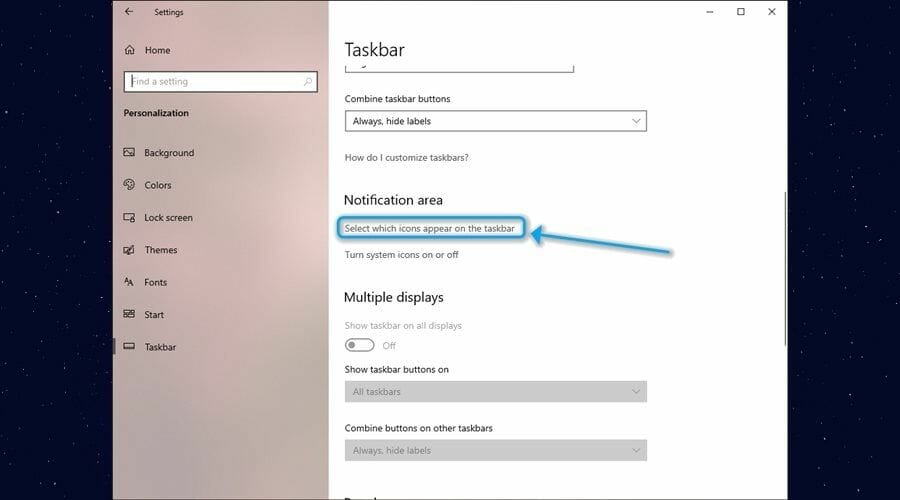
1. Check the taskbar settings

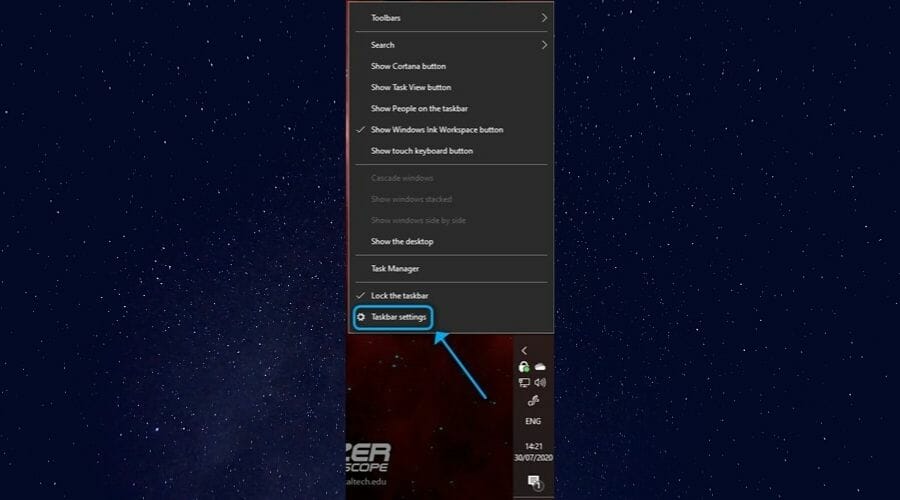
  1. Right-click your taskbar
  2. Select Taskbar settings from the context menuTaskbar settings menu
  3. Scroll down to the Notification area section
  4. Choose Select which icons appear on the taskbarOptions in the Notification area section
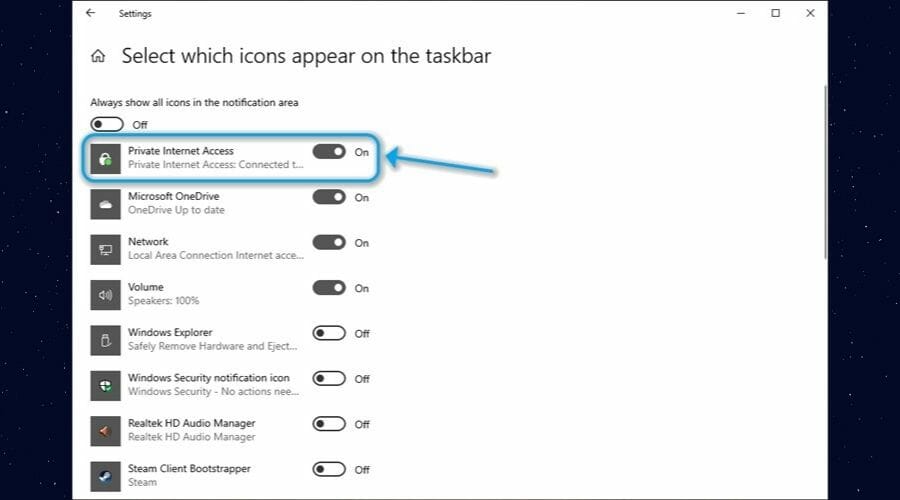
  5. Make sure the VPN icon’s visibility is toggled onVPN icon visibility enable

We’ve used Private Internet Access for our example, but if you’re using another VPN service, locate it in the list and make sure its icon’s visibility is enabled.

Private Internet Access

Private Internet Access

Can't find your VPN icon? PIA's icon is easy to find.
$2.85/mo. Buy it now

An easier way to tackle this issue is to enable the Always show all icons in the notification area option. However, if you have a lot of programs installed on your PC running in the background, your tray might get overcrowded.

2. Check the VPN settings

  1. Launch your VPN client
  2. Access its configuration menu
  3. Go to the General section
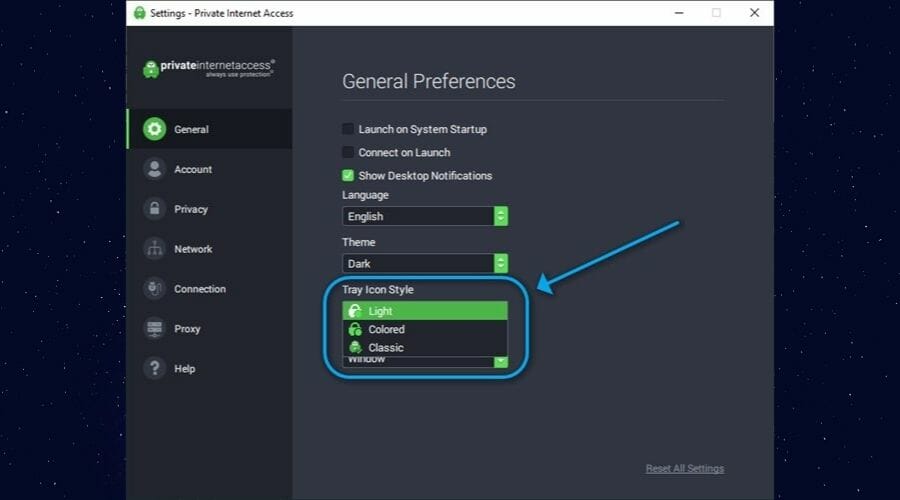
  4. Look for a tray icon option
  5. Try to change visibility settings

The reason why these steps aren’t quite specific is that each VPN has its own set of options. Some clients automatically close when you click their X button, but they also allow you to minimize them to tray instead of killing the app.

Change PIA icon style

Others also let you customize the way the icon shows up. You might want to choose a different style for the icon. There might be a problem on your system with the way tray icons are displayed, and changing the icon’s style might just fix it.

3. Check if the VPN is, in fact, running

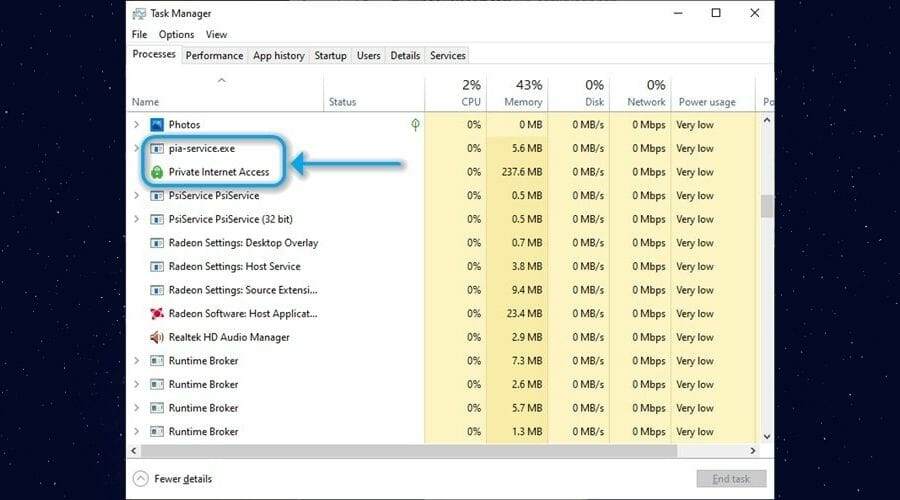
  1. Press the CTRL+SHIFT+ESC key combo on your keyboard
  2. Scroll all the way down until you find your VPN‘s processCheck if your VPN is running task manager

If you can’t seem to find any VPN-related process on your PC, your service might not even be running. In this case, you might want to reinstall it or check out our comprehensive VPN troubleshooting guide for a fix.

Your VPN icon can sometimes be invisible

All things considered, even if your VPN‘s icon seems to be invisible, that can usually be fixed without a hiccup. You can either solve the issue from Windows’ taskbar settings, or your VPN client.

However, sometimes there might be an underlying issue that would affect your VPN icon’s visibility: the VPN not working at all.

In which case, we’d suggest you try and reinstall the program or check out our VPN troubleshooting guide for directions.

[wl_navigator]

Can’t find VPN in Opera? Here’s what you can do about it

Opera is one of the greatest web browsers available on the market. It’s fast, smooth, has a lot of flashy features if you’re into that, and also packs a tool that’s vital for online privacy: a built-in VPN.

It also has integrated ad-blocking and tracking-prevention features. So you can enjoy a safer, faster, more private Internet browsing session, without a lot of ads that could ruin your experience.

If you’ve had enough of Chrome or Firefox and want to try something different for a change, you can download Opera without too much effort.

Opera has an integrated VPN

Although this product is a great standalone browser that grants you a lot of useful features, most users look it up for its VPN capabilities. Oh, and did we mention that Opera‘s VPN is completely free?

As in, you don’t have to pay to use it. Not a dime.

On the downside, it’s not the sharpest tool in the shed. For instance, it doesn’t have advanced protection mechanisms such as a kill switch, split tunneling, or multiple protocols you can choose from.

But hey, it’s free. You don’t even need to register an account. Just install Opera and the VPN should be bundled within the default setup package.

How to get Opera VPN?

1. Install Opera

  1. Download Opera from the official website
  2. Run the installation executable once the download is overHow to install Opera VPN
  3. Customize the setup details by clicking the Options button
  4. Click Install once you’re ready to proceed
  5. Wait for the installation to come to an endOpera during installation

2. Launch Opera

  1. Locate the Opera icon on your desktop or Quick Launch menu
  2. Click or double-click the Opera icon as needed
  3. In the browser’s main screen, check if it’s the latest versionOpera latest version

3. Enable the VPN

  1. In Opera‘s main screen, click the Easy Setup button
  2. Look somewhere at the bottom of the menu
  3. Locate the VPN option and click the Enable in Settings buttonEasy Setup menu of Opera
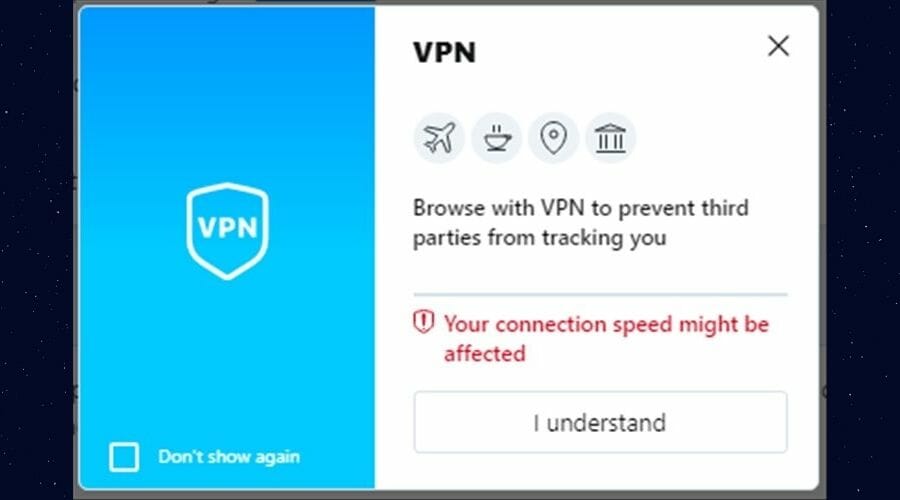
  4. Click the I understand button if you agree with the terms and conditionsTerms and conditions of Opera VPN
  5. Toggle the VPN on by flipping its switchOpera VPN flip switch
  6. Enable the Bypass VPN for default search engines option if needed

That’s it, if you followed our instructions closely, you should now have Opera and its built-in VPN available on your PC, ready to use.

Can’t find VPN in Opera?

If you can’t seem to find the VPN in Opera, make sure you’ve followed all of our steps above. Take a look at our screenshots if you can’t locate certain menus and options.

Once you’ve figured out how to enable the VPN and performed this task, you should be all set.

However, Opera‘s VPN has a bunch of extra settings that you can access.

After you enable the VPN, you should see a VPN button next to the address bar. This indicates that your VPN has been enabled and that you’re connected to its secure tunnel.

Using the Opera VPN menu

You can click the VPN button if you want to access an overview of your browsing activity while the VPN was on. If you click the Virtual location menu, you can change the server that the built-in VPN uses.

You can choose from Europe, the Americas, and Asia servers, and that’s as non-specific as it gets.

Opera has a free, but limited VPN

All things considered, if you’re planning to switch to Opera, you might be surprised by its various additional features, such as its built-in ad-blocker, tracker-remover, and VPN.

If you can’t find Opera VPN, just follow our steps carefully and it should work flawlessly.

While Opera‘s VPN is actually not half-bad (compared to other premium services, that is), you should know that it’s somewhat limited.

You don’t have a kill switch, there’s no way to switch protocols, and you can only choose from 4 servers, one of which is vaguely referred to as Optimal location.

Furthermore, you should know that Opera‘s VPN will ONLY work within Opera. This means that all of your other traffic, such as torrenting or media streaming, is still exposed to third-parties.

If you want to protect your browsing history from other PC users, you can always turn on Opera GX incognito mode to do so. You can even use Opera Incognito shortcut for quick and easy access.

On the bright side, Opera‘s VPN is entirely free to use and requires no registration.

Secure Boot-enabled Windows devices have a bootloader bug

Right now, hackers could take control of your Windows 10 device and execute malware by exploiting a boot loading vulnerability.

Eclypsium researchers published details of the bug, dubbed BootHole, which affects systems that utilize the GRUB2 bootloader.

However, Windows systems that don’t use GRUB2 aren’t safe from potential BootHole attacks either, even with Secure Boot enabled.

The BootHole bug affects Windows devices

The recently uncovered BootHole bug may enable attackers to install undetectable bootkits or malicious bootloaders on a Windows machine. Once a threat actor has installed such malware to tamper with the security of the boot process, they can take full control of the victim’s PC.

To make matters worse, we’re talking about attackers taking control of your machine, not just the OS.

Say, your PC got attacked this way and your  antimalware solution failed to fix the problem. You’d probably resort to uninstalling Windows and formatting your hard drive .

Sadly, the problem wouldn’t go away because reinstalling your OS wouldn’t fix the compromised firmware.

Here’s how Eclypsium describes the scope of the vulnerability:

The problem also extends to any Windows device that uses Secure Boot with the standard Microsoft Third Party UEFI Certificate Authority. Thus the majority of laptops, desktops, servers and workstations are affected, as well as network appliances and other special purpose equipment used in industrial, healthcare, financial and other industries.

The bug primarily affects Linux systems because of their reliance on the GRUB2 bootloader. And according to Eclypsium, a GRUB2 buffer overflow during the parsing of the grub.cfg file is the root of the vulnerability.

Also, in systems that have UEFI Secured Boot enabled, the bug lets the threat actor execute arbitrary code.

In the meantime, be on the lookout for BootHole bug fixes from Microsoft or theUEFI Security Response Team. Other vendors/developers of impacted systems should be rolling out a patch any time now.

Would you like to share your views or ask any questions about the Windows BootHole bug? Kindly drop us a note in the comments box below.

[wl_navigator]

How to stream from PC to Amazon Fire Stick [Easy Guide]

The Amazon Fire TV is a digital media player that comes with a Fire TV Stick. The Fire Stick enables users to stream media content, such as movies and videos on Windows PCs to TVs with media center software.

Users can also mirror their PC displays to TVs by connecting them with Amazon Fire Sticks. Mirroring isn’t technically the same as streaming, but it’s another way you can watch movies from your PC on a TV.

So, streaming and mirroring are similar as they enable you to view multimedia content on one device on another. This is how you can do both with an Amazon Fire Stick!

How can I connect a Fire TV Stick to my PC?

1. Stream movies from PC to Fire Stick with Plex

Sign up to and install Plex

  1. Sign Up on the Plex website.
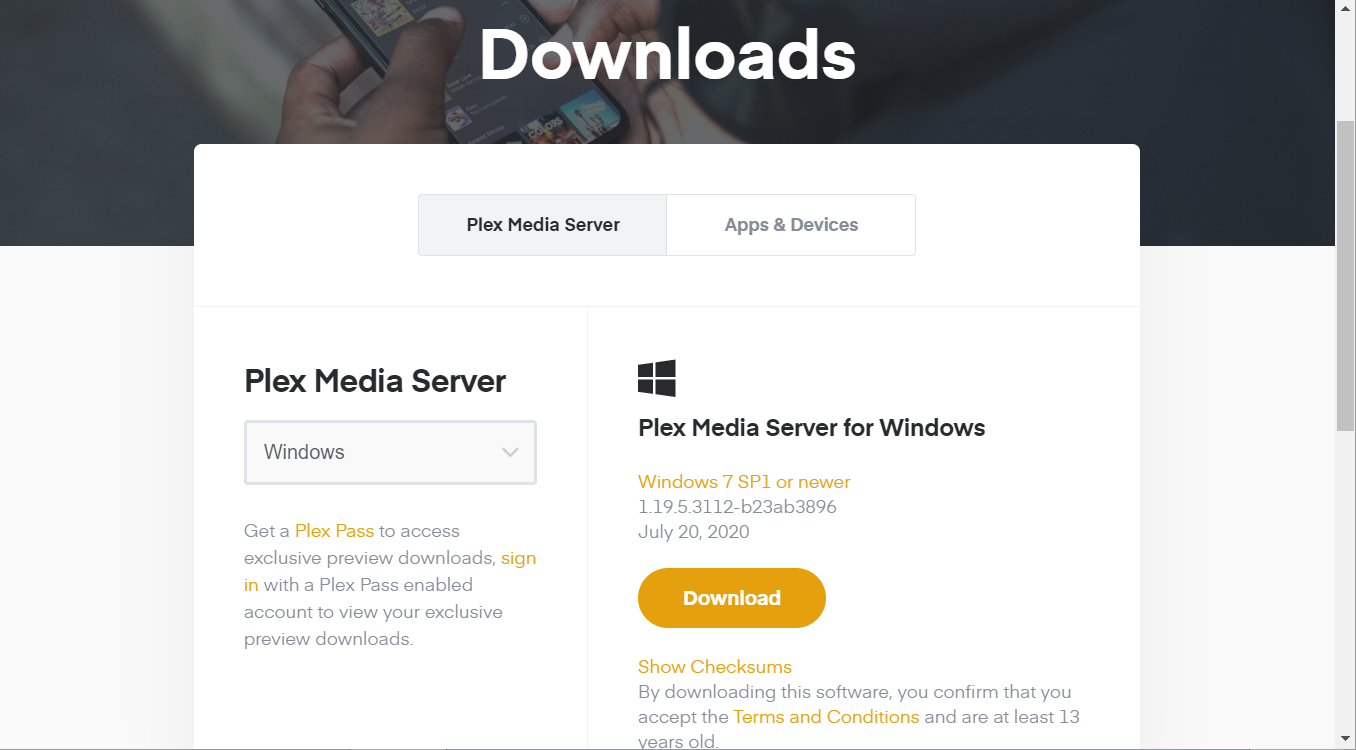
  2. Open the Plex Media Server download page.
  3. Select Windows on the platform drop-down menu.
  4. Click the Download button.
    Plex Media Server download page stream pc to firestick
  5. Install the software by following the on-screen instructions.

Note: In case you can’t install the Plex Media Server, check out this thorough guide.

Set up the media server

  1. Open Plex.
  2. Click Sign in to log in to a Plex account.
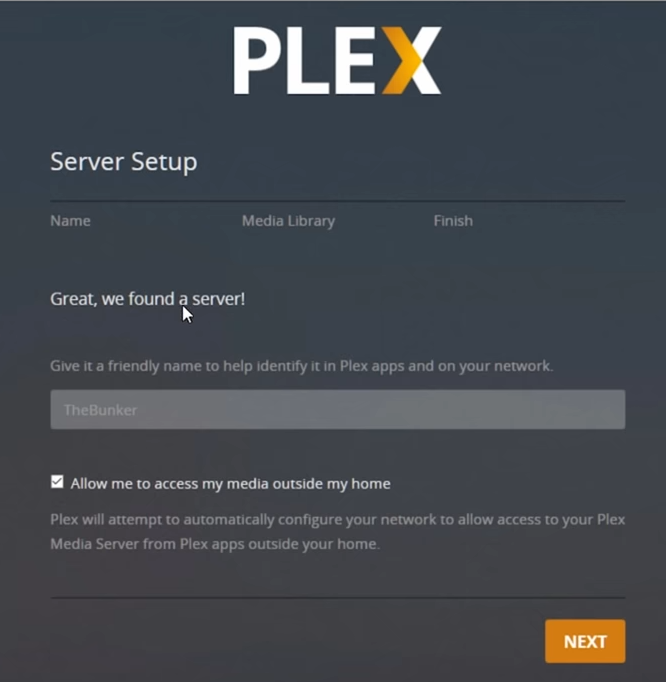
  3. Enter a server name for your PC.
    Plex Server Setup stream pc to firestick
  4. Select the Allow me to access my media option.
  5. Click Next to proceed.
    Add Library button stream pc to firestick
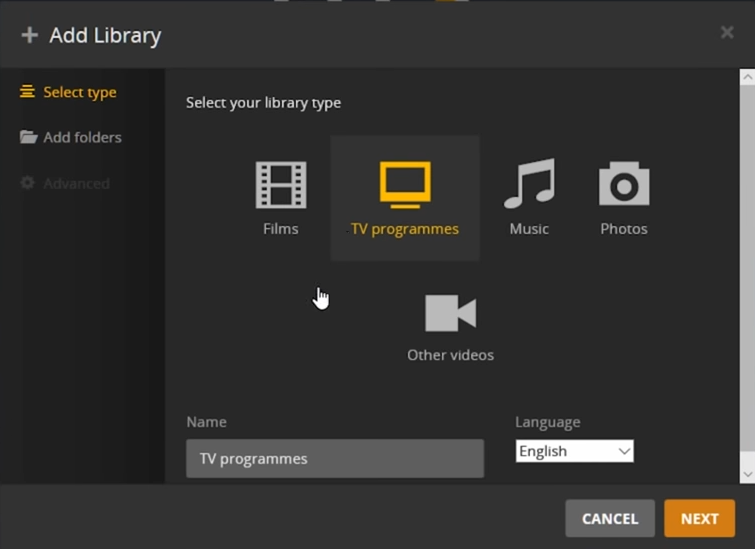
  6. Then click the Add Library button to open the window shown directly below.
    Add Library window stream pc to firestick
  7. First, select Films as the type of media to add.
  8. Click Browse For Media Folder on the Add folders tab.
  9. Then select a folder that includes films in it to stream, and click the Add option.
  10. Click the Add Library button.
  11. When you’ve finished adding media libraries, click the Next and Done buttons.

Set up the media client

  1. Insert your Amazon Fire Stick into the TV.
  2. Turn on your Amazon Fire TV device.
  3. Next, select Apps within the Amazon Fire UI.
  4. Select the Search option.
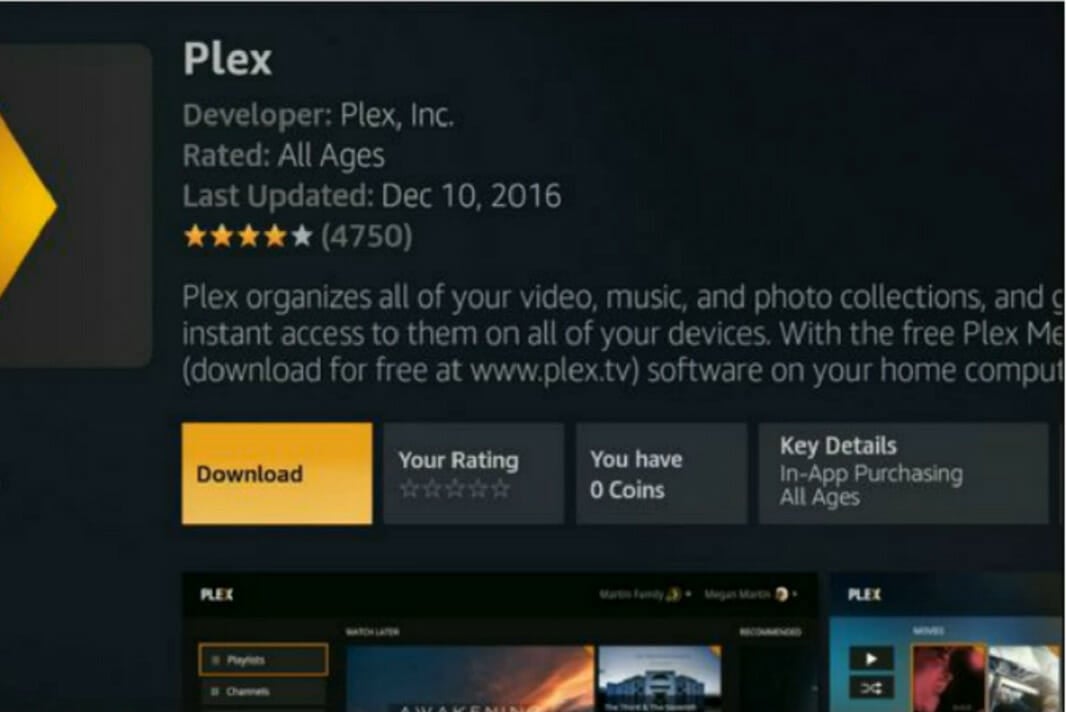
  5. Then search for the Plex app, and select it.
  6. Select the Download option to install the app.
    Plex Fire Stick app download page stream pc to firestick
  7. Open the Plex app.
  8. Click Sign in.

Note: Plex charges a one-time $4.99 fee for users to remove streaming playback restrictions from the app.


2. Stream to Fire Stick from PC with mirroring

  1. To mirror a PC‘s display, make sure your Fire Stick is plugged into a TV and that the devices are connected to the same network.
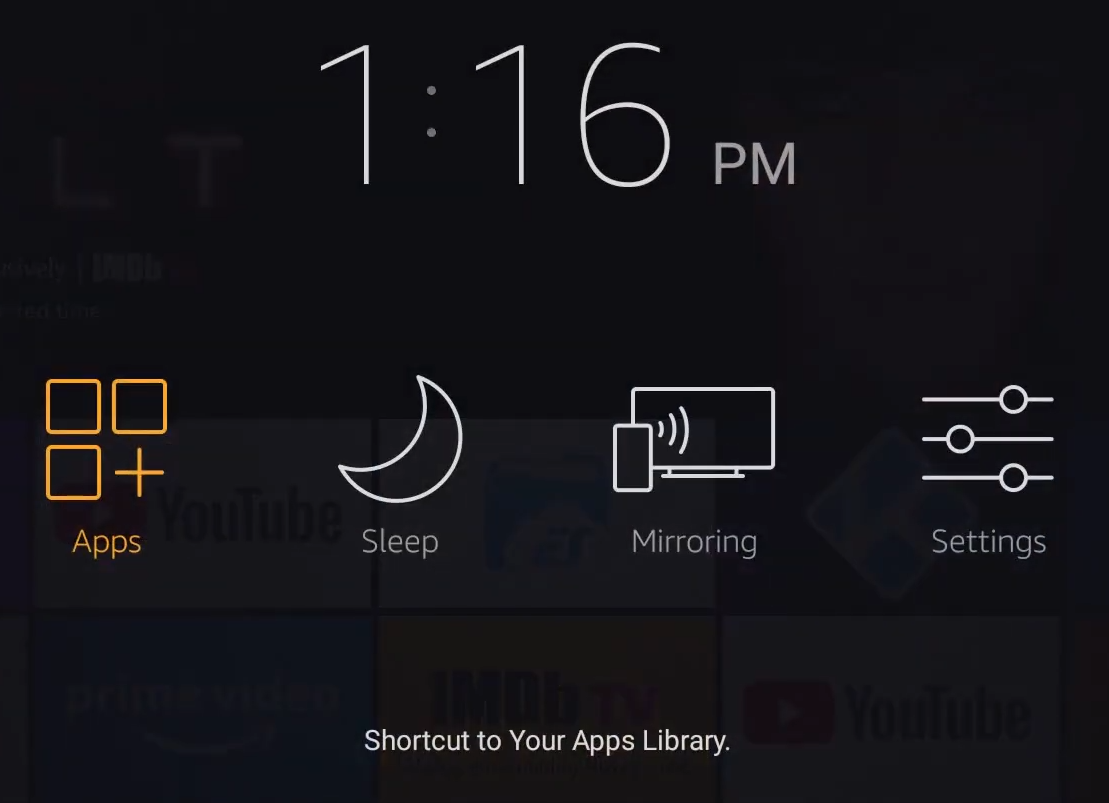
  2. Press Home on your Amazon remote to open menu options.
  3. Select the Mirroring option.
    Mirroring option stream pc to firestick
  4. Turn on your Windows PC.
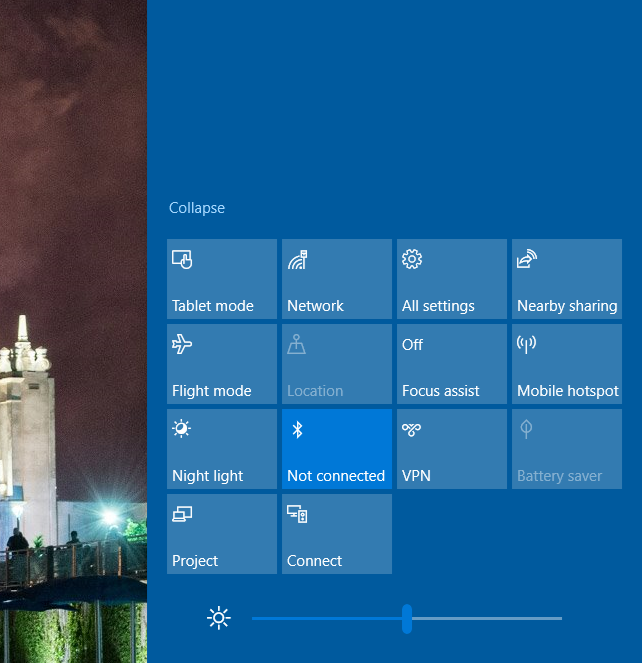
  5. Click the Notifications button on the far right of your taskbar.
    Connect option stream pc to firestick
  6. Click the Connect option.
  7. Select your Amazon Fire Stick device to connect it with PC.
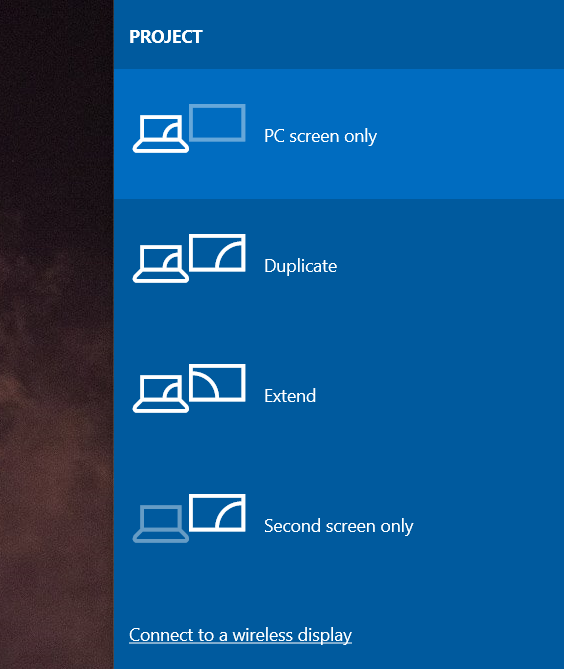
  8. You can click Change projection mode under the connected device displayed on the Action Center sidebar to open further projection options.
    Projection options stream pc to firestick
  9. Select either the Duplicate or Extend option there.

So, that’s how you can both stream and screen mirror your PC to a Fire TV.

As Plex has an activation charge, some users might prefer to watch PC multimedia content on a TV with mirroring.

[wl_navigator]

[SOLVED] This browser does not support desktop notifications

Some users have reported that they get an error message saying This browser does not support desktop notification, whenever they try to enable them for Google Chrome on Windows 10.

This issue can be extremely frustrating over-time, as you will not be able to see any notice of new notifications from your Gmail, Google Drive, or any other application.

Here’s how one user described the issue on Google Forums:

For some reason my desktop gmail notifications stopped working. I tried to re-active them through settings but at desktop notification it says that This browser does not support desktop notifications. To enable notifications, upgrade your browser to Google Chrome. I have Google Chrome but still it doesn’t work. How can I fix this problem?

For this reason, in this article, we will explore some of the best methods to solve this issue. Read on to find out more.


What can I do if the browser doesn’t support notifications?

1. Try an alternative browser

Having trouble with the default browser even for some minor actions can be extremely unpleasant, which is why perhaps you should try an alternative solution.

We suggest using a browser that gets constant updates and that comes with less to zero error notifications such as Opera One.

You can download Opera One using the button below (it only takes a couple of minutes). You can switch to Opera One from the previous browser similarly easy.

Namely, in the Settings area, you can find a Synchronization option that allows you to import bookmarks, pages, and other data from your default browser.

As for notifications, by default, Opera One asks you if you’d like a site to send them. You can choose to allow or deny notifications to be displayed. Opera One also comes with features, such as VPN, Ad Blocker and AI.

Opera One

Try it and customize how you want to be notified by the websites and apps you’re using.
Free Download Visit website

To manage desktop notifications in Opera One, do the following:

  1. Go to Settings and scroll down to Advanced. 
  2. Search for Privacy & security.
  3. Under Privacy and security, click Site settings.set opera site notifications
  4. Click Notifications.
  5. At the top, turn on or off Ask before sending (recommended).
  6. Click the Add button to set site-specific preferences.

2. Make sure your notification browser settings are set up properly

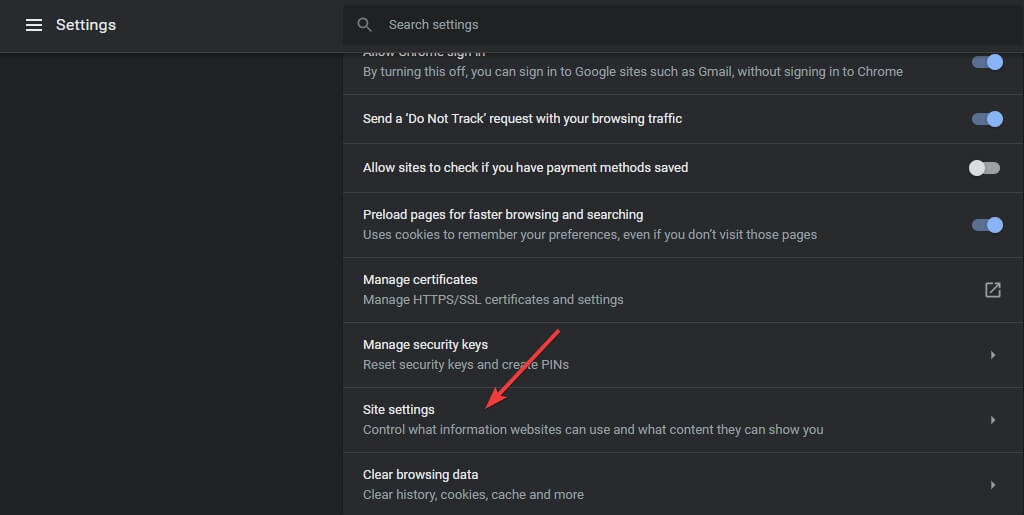
  1. Open Chrome -> select the three-dot menu at the top-right of your screen –> Settings.
  2. Select Advanced.
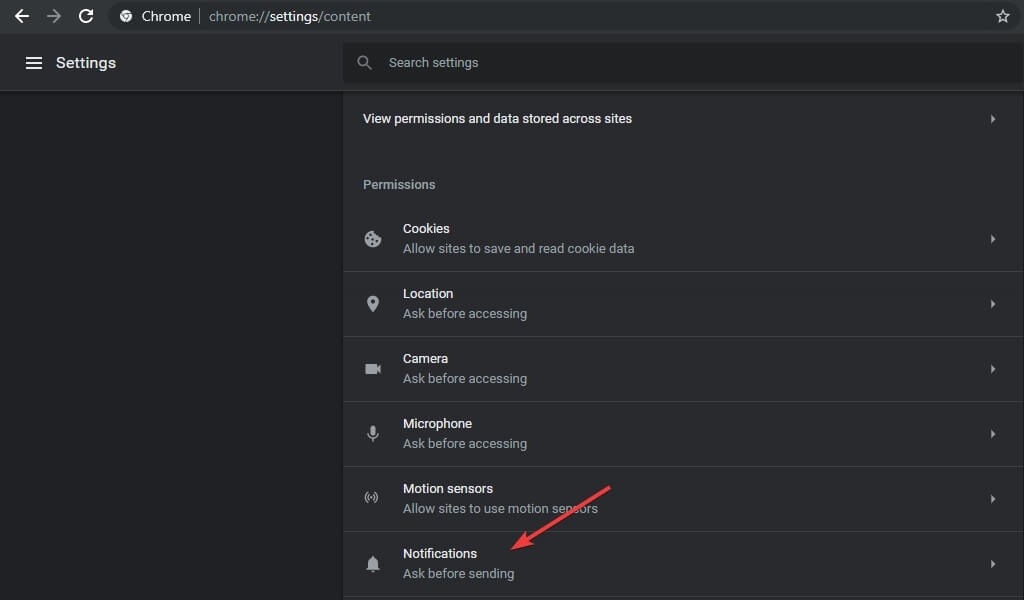
  3. In the Privacy and Security tab -> select Site settings.Site settings in Chrome settings - Browser doesn't support desktop notifications
  4. Click on Notifications.Notifications settings in Chrome settings - browser doesn't support desktop notifications
  5. Toggle the button to either Block (blocking all notifications), or Ask before sending notificationsNotifications toggle button - Browser doesn't support desktop notifications

3. Change notification settings

  1. Type Notification settings in the home screen search bar and hit Enter.
  2. Toggle on the option Get notifications from apps and other senders.
  3. Scroll down, and activate the notification button by toggling the buttons for each of the programs you want to allow notifications from.Notifications settings Windows 10 - Browser doesn't support desktop notifications

To conclude, in this guide, we explored the best way to solve the issue caused by an error message saying Your browser doesn’t support desktop notifications.

Please feel free to let us know if you have any other suggestions. We would also love to know if you found this guide helpful. Use the comment section found below to let us know.

How to automate browser actions on Windows 10

If you want to know how to automate browser actions on Windows 10, you found the right web-page.

Keeping up with a wide number of repetitive tasks while also covering all the other requirements for your job can be a hard endeavor.

Because everything today is based on efficiency and speed, it is becoming more critical than ever to be able to automate some (if not all) of the repetitive tasks you need to perform constantly.

These activities can include a variety of fields of work and a variety of situations. Maybe you need to fill a large number of forms, accept or deny a wide range of job applications, etc.

All of these tasks, if automated, give you the time to concentrate on the tasks that require your full attention. Read on to find out more.

How can I automate browser actions on Windows 10?

Selenium WebDriver for Opera One

automate opera browser

Selenium Webdriver is a framework meant for automating cross-browser testing to verify that apps perform as expected. It comes with four components – IDE, Webdriver, Grid, and RC – each with its own function.

The Selenium suite is compatible with all popular browsers, Opera One included, and works on Windows, Mac, and Linux.

The tool allows you to choose a programming language of your choice to create test scripts.  It supports C#, Python, Java, Ruby, or PHP.

One advantage of using Selenium is that you can write your Selenium code in any programming language, not necessarily that of the tested application.

To use Selenium with Opera One, you’ll need the Opera One Browser (which you can download using the button below), the OperaDriver, and the Selenium suite.

Opera One

Automate browser action through smart programing language.
Free Download Visit website

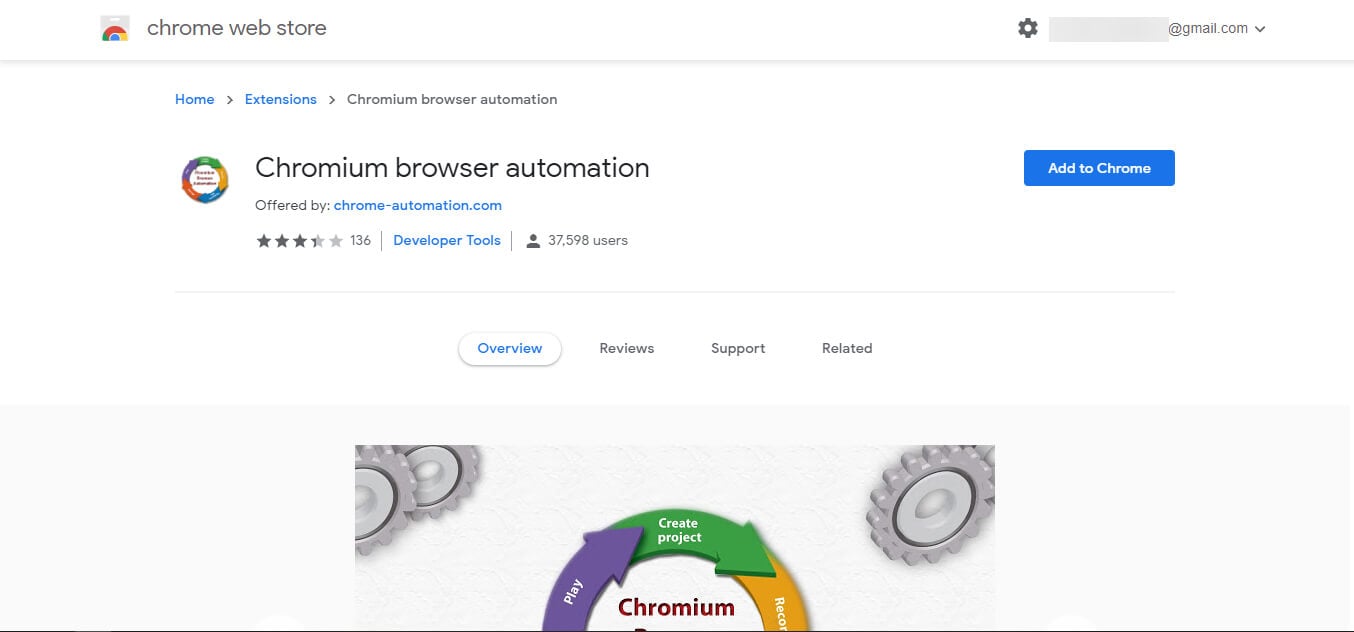
Chromium Browser Automation

Chromium browser automation - How to automate browser actions


The Chromium Browser Automation extension is a handy tool to use when trying to automate your browser actions.

This tiny extension gives you the capability to automatically fill forms, but can also perform complex activities by using its scripting and injection options.

Some of the best features of CBA:

  • Record – allows CBA to record all your interactions with a specific webpage
  • Play – gives you the power to replay the recording, and so re-do the entire set of repetitive actions
  • Injection – useful for debugging and app testing by developers, allows you to inject different scripts into webpages to see how the performance is affected

⇒ Download Chromium Browser Automation

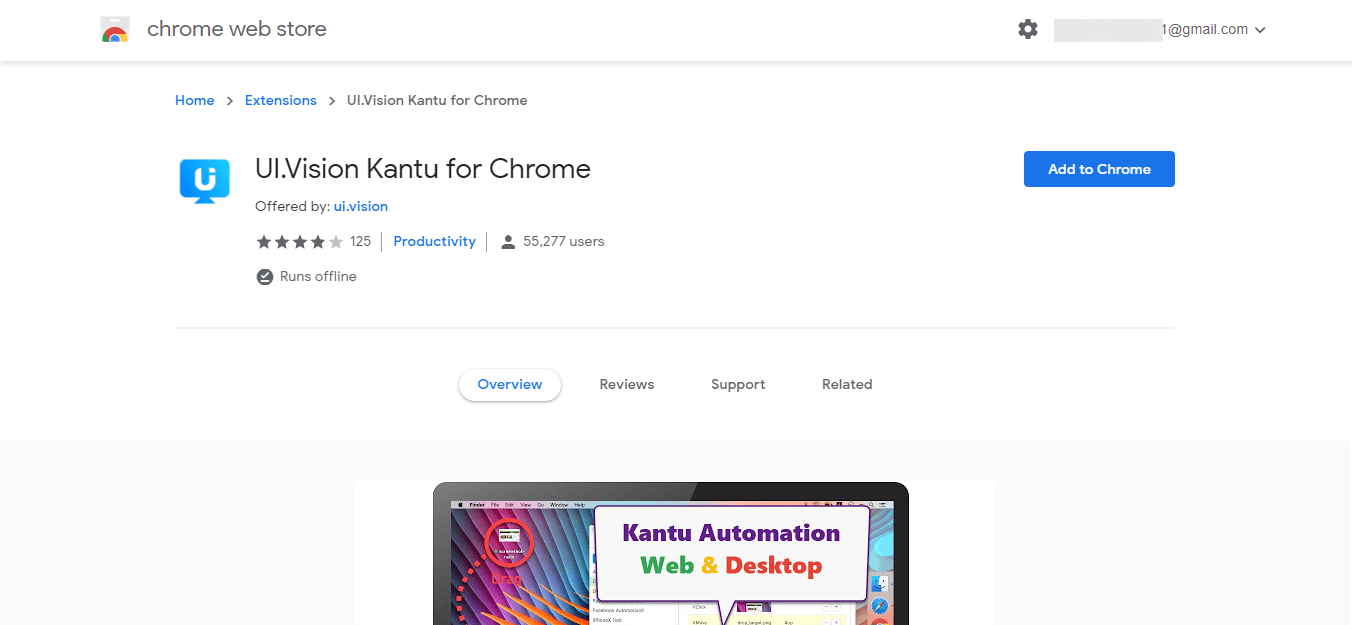
UI.Vision Kantu

UI.Vision Kantu - how to automate browser actions


This browser automation tool was designed with developers in mind, as it contains a variety of advanced options.

Here are some of its best features:

  • Supports AJAX, JavaScript, and Flash
  • Based on Chromium technology
  • Ability to complete Excel sheets and complex web forms from web pages
  • Play, record, pause or update macros
  • User-friendly interface

⇒ Download UI. Vision Kant for Chrome

⇒ Download UI. Vision Kantu for Firefox

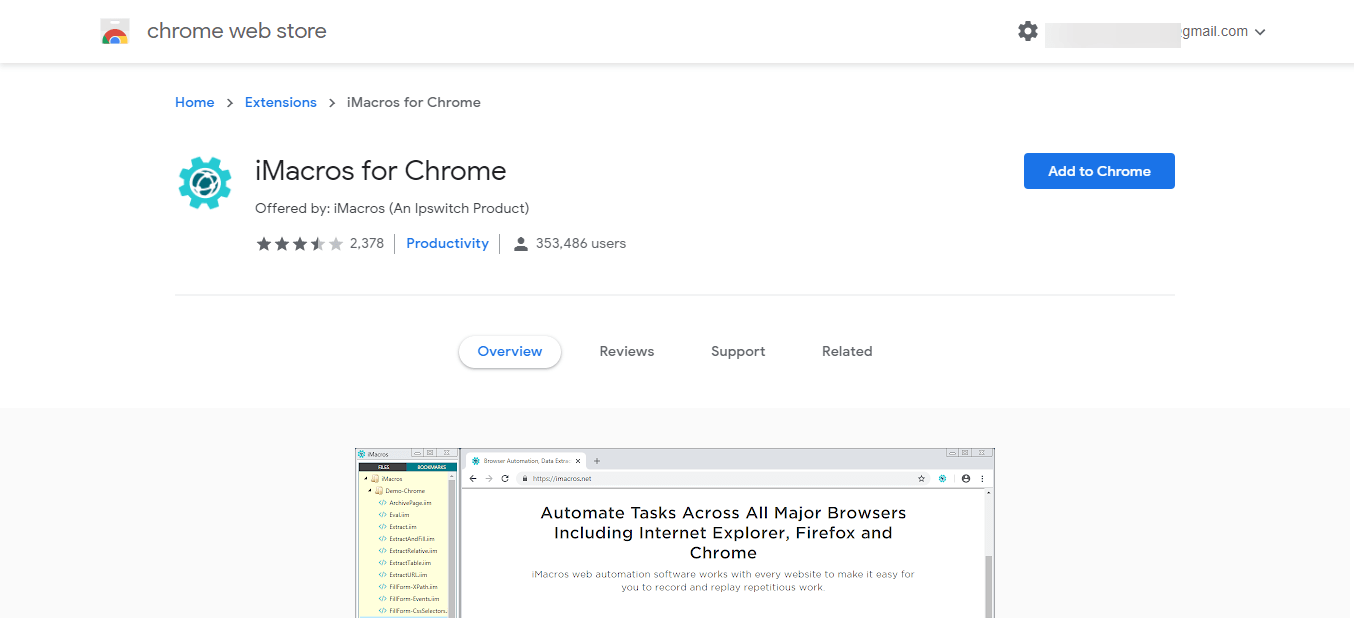
iMacros

iMacros - How to automate browser actions


iMacros is another incredibly powerful browser automation extension that matches the capability of the above-mentioned UI. Vision Kantu software.

Here are some of the best features added to the capabilities mentioned for Kantu:

  • Allows web scripting
  • Can perform data extraction
  • Web testing capabilities
  • Multi-page form filling
  • Compatible with MS Excel

⇒ Download iMacros for Chrome

⇒ Download iMacros for Firefox

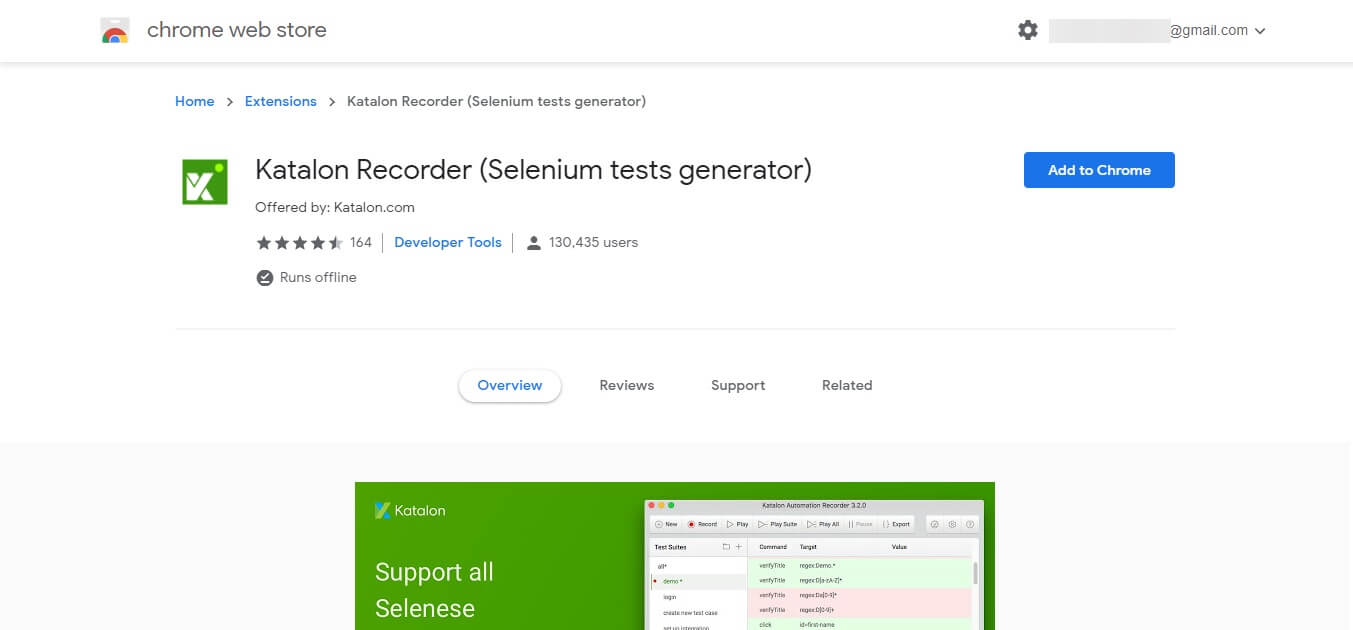
Katalon Recorder

Katalon recorder - How to automate browser actions


Katalon Recorder is an updated version of the Selenium IDE tool, and it is focused more on testing.

This tool is compatible with Java, C#, Ruby, Python, etc. It can both record and replay macros, but also allows you to use it for debugging and seeing test results for Chrome.

⇒ Download Katalon Recorder for Chrome

⇒ Download Katalon Recorder for Firefox

So in this article, we explored some of the best browser automation extensions available. These tools will allow you to easily complete forms online, and also to automate many other different tasks.

Please let us know which option you chose and why by using the comments section below.


How to manage meetings in Outlook

If you’re working from home, or now returning to the office, something has always been reoccurring over time is meetings. From discussing important topics, holding interviews, one to ones, and a whole lot more, part of any business or job involves meetings so everyone can get up to speed and stay on the same page.

The more meetings you have, though, the messier your calendar can become. Well, the Outlook app on Windows 10, as included in Microsoft 365, makes it easy to manage meetings. Here’s are our picks for how you can manage meetings in Outlook.

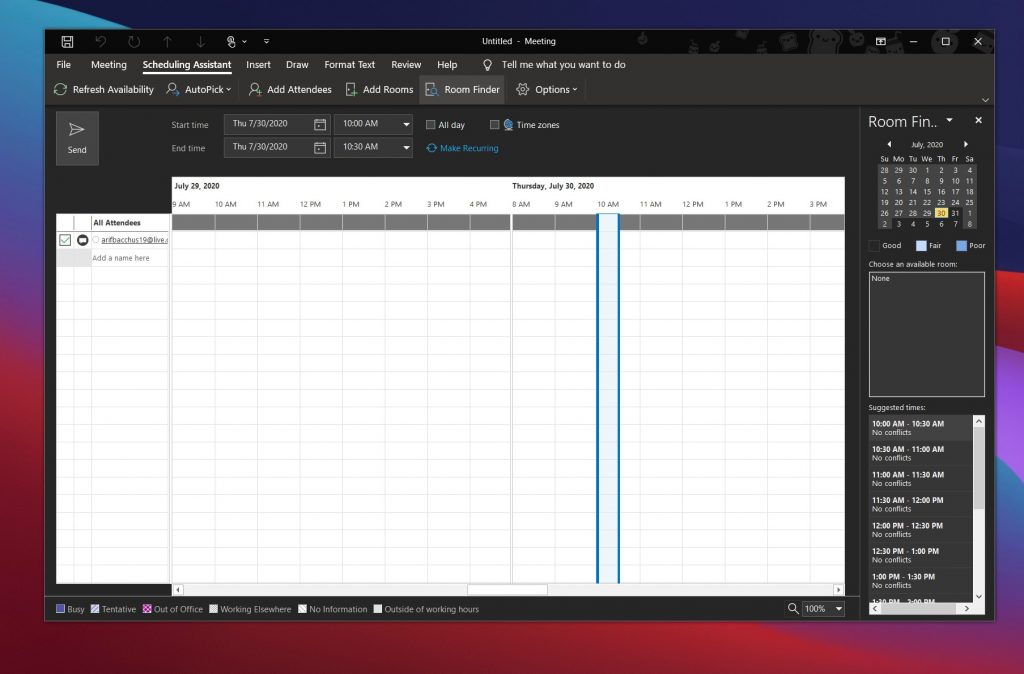
Use the Scheduling Assistant

Our number one pick for managing meetings in Outlook is to use the Scheduling Assistant. This built-in feature of Outlook can be found by clicking the Home tab, followed by clicking the down arrow next to New Email and then choosing Meeting. You should then see a tab appear up top for Scheduling Assistant. Click this.

Looking at Scheduling Assistant, a shaded area with vertical bars will show meeting times you want. You can drag the bars to adjust the time. A grid will also show when attendees are available, You’ll see that Outlook will also suggest times and the number of conflicts for that meeting if there are any.

Scheduling Assistant helps make sure that everyone in the meeting will be on the same page, and that there are no conflicts. It’ll block out times that your colleagues aren’t available, and will even let you see when meeting rooms are and aren’t available when making a meeting.

Quickly view your Calendar

Next up for managing meetings in Outlook is to use Outlook’s Calendar to your advantage. Before agreeing to join a meeting from an email, you can quickly view your calendar to see how your day or week is shaping up, Simply hover your mouse over the Calendar icon to view the monthly calendar. With the calendar quick view, you’ll be able to see your schedule without leaving your emails.

Once you hover over the icon, you’ll be able to see upcoming meetings and appointments for the week. You also can see which rooms they occur in, and at what times. If you want, you also can select the Dock the peek icon at the top right corner of the calendar (near the scroll bar) to dock out the peek and have it follow you as you read your emails.

Use the meeting requests feature to your advantage

Our final pick relates to the meeting requests feature in Outlook. With this one, you have full control of responding to meeting requests as you receive them, ensuring that you have the most up to date information in your calendar. It also helps clear up your inbox from invites, as well.

To use this feature, you’ll need to open the meeting request email. You should see Accept, Tentative, or Decline. Click one of those to let the meeting attendees know your status, and to add it to the calendar. If you accept, you can Edit the Response before Sending, Send the Response Now or Do Not Send a Response. These choices will help the meeting organizer have a better idea of who is planning on attending. If you don’t respond, the person who organized it will not know if you’re planning on attending or not.

Of course, you also can click the option to Propose New Time to propose an alternate time for the meeting. Or, once you accept, you can edit the meeting from your calendar, say to change the time, by right-clicking it.

Check out some other features, too

Although we’ve discussed the Outlook app on Windows, there are some additional ways to manage meetings, too. These cover Outlook for the web and Outlook mobile. As announced in July, Outlook on the web now gives users more control over meeting invites by displaying messages, meeting details, attendee’s responses, and more. Outlook on Android, meanwhile, shows the information you may find relevant, such as emails and files, in the event details on your calendar to help you better plan for meetings. There are definitely more ways than one to manage meetings in Outlook, so let us know how you manage your meetings by dropping us a comment below.

Xbox exec says Game Pass “not a big profit play” yet, but not to worry

While Microsoft has crafted a powerful gaming console in the Xbox Series X, it may be its digital subscription service that ultimately becomes the company’s secret weapon in an upcoming next-gen gaming competition.

Over the past handful of months Microsoft has trotted out its Xbox Series X console and a series of gaming footage to mixed reactions from the industry, but one clear take away from each event has been how sought after its Game Pass subscription service is among fans and critics alike.

Game Pass continues to grow in popularity for Microsoft for several different reasons but chief among them has been its seemingly loss-leading approach to providing value to gamers.

Xbox marketing chief Aaron Greenberg in an interview with What’s Good Games addresses the financial elephant in the room for Microsoft’s Game Pass and what its value proposition means for subscribers and the company.

As armchair accountants around the world crunch the numbers, the value that Game Pass offers in return for its monthly subscription doesn’t add up to a profit-driving business for the company. The apparent lopsided value versus profit enigma that is Game Pass in its current form has many concerned and waiting for another rational shoe to drop for a primarily profit-driven Microsoft.

“We always laugh [when we hear that]. Please don’t worry about us. Microsoft is going to be alright. We’re gonna make it–I think we’re gonna be OK.”

Fortunately for gamers, Microsoft is taking an approach to Game Pass the company has more recently publically shied away from, in which it’s willing to take a loss to “over-deliver on value.”

“When people feel like you’re over-delivering on value, they want to not only continue to use your service but they want to tell their friends about it.  The most powerful marketing is word-of-mouth marketing. We can’t create as many advertisements, as many assets as we want, but if both of you go tell one of your closest friends, ‘You have to get Game Pass!’ that’s way more effective than any marketing I can do. For us, we just want to keep adding more and more value [to Xbox Game Pass] so you feel really good about that and you feel like you want to go tell your friends about it. And ultimately, we think long-term that’s the right thing for the business and will have long-term benefits for us. In the short-term, yeah, [Xbox Game Pass] is not a big profit play. But we think long-term it works out good for everybody.”

While Greenberg’s words may resonate with passionate gamers, the more cold and calculated cynics have also chimed in with some rather reassuring analysis of Microsoft’s Game Pass longevity.


Without question, Microsoft CEO Satya Nadella has transformed the company’s financial trajectory over the past six years by “trimming the fat” from consumer-facing and seemingly fan-driven expenditures. In such time, fans of Nokia, Windows Phone, Groove, Mixer, the Microsoft Band, Microsoft’s physical retail spaces, Health Vault, and a smattering of other lower profiled products have had to watch anxiously as Greenberg’s proposed value to profit margins ultimately doomed the products.

Fortunately, Microsoft’s Xbox division seems to be shielded from Nadella’s profit carving knife, for the time being.

Turn Off and Disable Ad Blocker on Windows 10 [How to]

While AdBlock is useful it can often interfere with certain web pages, and this is why many users want to know how to turn off ad blocker on Windows 10.

In today’s guide, we’re going to show you how to disable AdBlock for all major browsers correctly, so make sure to keep on reading.

Does Windows 10 have an ad blocker?

  • No, Windows 10 doesn’t come with a built-in ad blocker.
  • Ad blocker is a browser add-on that is manually downloaded and enabled.

How do I disable Adblock on Windows 10?

1. Google Chrome

  1. Click the Menu button in the top right corner.
  2. Select Extensions and then navigate to Manage Extensions.
  3. Locate AdBlock on the list and click the little switch next to it.

If you’re having problems opening the extensions page, you can use these methods as well:

  • Click the Extensions icon and choose Manage extensions.
     
  • In the address bar, enter the following and press Enter: chrome://extensions/

After that, you should be able to find and disable the AdBlock extension.

2. Mozilla Firefox

  1. In the top right corner, click the Menu button.
  2. Select Add-ons and themes.
  3. Locate your adblocker and click the switch next to it to disable it.

You can also access the extensions page quickly by doing the following:

  • Use Ctrl + Shift + A keyboard shortcut.
  • In the address bar, enter the following and press the Enter key: about:addons

3. Microsoft Edge

  1. Click the Extensions button in the toolbar.
  2. Choose Manage extensions.
  3. Locate your adblocker and click the switch next to it to turn it off.

You can access the extensions page quickly by entering the following address in the address bar and pressing Enter: edge://extensions/

How do I completely remove ad blocker?

  1. Repeat the steps from above to open the extensions window.
  2. Locate your ad block extensions.
  3. Click Remove next to it.
  4. Confirm that you want to remove it.

As you can see, it’s pretty simple to turn off ad blocker on Windows 10, and the steps are the same for Windows 11.

While Adblock is useful, it has its share of issues, and many reported that Adblock is not blocking ads. Many websites can also detect Adblock, but there is a way to make Adblock undetectable.

If you don’t prefer using extensions, there are many browsers with Adblock, so you can try them instead. Do you use AdBlock, and what is your favorite one? Let us know in the comments.

Fix Google Chrome high memory usage [Easy Guide]

Google and Microsoft are currently working together to reduce the overall memory strain that Chrome puts on computers.

There is no doubt that Chrome is the favorite browser of many Internet users.  However, most of them don’t have any idea about the amount of processing power the browser chews up. 

Most importantly, users with low-end, old devices complain that the browser takes a few seconds to start. However, you don’t need to worry because this is about to change very soon.

How can I fix Google Chrome’s high memory usage?

Microsoft’s engineers managed to trace the cause behind the bug and suggested a fix.

The delay is triggered by the manner in which the browser uses ImagePreReader to pre-read its DLL files i.e Chrome.dll and chrome_child.dll. 

Microsoft suggests that Google needs to improve the DLL prefetcher for Chrome to avoid memory management issues.

The tech giant even made some changes to overcome memory and CPU usage issues.

However, it should be noted that Microsoft is currently working on the fix. The company may take some time to release it to the general public.

Until then, it is very common to find malicious extensions and shady themes that need to be removed. 

Instead of compromising on extensions and themes, a browser known to use the least amount of PC memory can save precious time and effort.

Quick Tip:

If you don’t want to wait until Microsoft and Google solve this problem for good, you can try an alternative browser. Based on your needs, we recommend Opera One this time.

Even when it comes to those media-rich sites that consume a good chunk of CPU and memory, Opera One doesn’t disappoint users. It also comes with a built-in AI and modular AI-ready design.

Opera One

Enjoy a smooth and fast browsing experience on your Windows computer.
Free Download Visit website

New Chrome features coming your way

Google is working very hard to introduce some brand new features to Chrome. Some of these features are tabs groups and warnings for malicious URLs.

It is interesting to see how both companies work together to come up with enhanced browsers versions.

The Redmond giant is currently surprising users with its Chromium-based Edge version too. First made available to Windows 10 Insiders, Chromium Edge was officially released.

Have you ever noticed a delay while starting your Chrome browser? Share your experience in the comments section below.

This isn’t the only issue and many encountered Chrome Helper Renderer high CPU usage problem, but we have an entire guide dedicated to this issue.

Also, do note that Opera One is a trustworthy alternative to all those looking for ways to deal with these issues:

  • Google Chrome memory usage fix – Chrome crashes caused by low memory are common these days. You can forget all about them when using Opera One.
  • Google Chrome high memory usage fix – When encountering this issue, you can enable GPU Acceleration, remove themes and malicious extensions, or start using a different browser all together.
  • Google Chrome memory issues – Poorly designed extensions and themes often cause the PC to become slow, freeze or even crash. Get rid of them with no hesitation or try out Opera One or UR Browser instead.

FIX: Edge doesn’t display search and website suggestions

Microsoft has successfully replaced Internet Explorer with the Edge Browser, which debuted with Windows 10. The browser has been subjected to a timely makeover and feature update.

However, a recent update to the Edge Browser seems to be exhibiting some peculiar problems.

One common problem to the users was about the search and website suggestions not being displayed in Edge’s address bar.

This is pretty annoying considering that you have already bookmarked the website and have to type it all over again.

If you are suffering from a similar problem on Windows 10, then let us have a look at the possible solution to the problem so you can again start using the Edge Browser without any glitches.

Windows update usually updates different files to their newer versions which are the most secure, and at times these files interrupt the working of the browser.

Let us try to troubleshoot the same with a host of different methods, which are as follows.

How can I get back website suggestions in Edge?

  1. Try out a different browser
  2. Run the Windows Apps Troubleshooter
  3. Run SFC Scan
  4. Run DISM Tool
  5. Clean Boot

1. Try out a different browser

Issues with subpar Microsoft Edge might be resolved by the introduction of Edge Chromium.

However, considering how long it took Microsoft to deal with the simplest of UI and performance optimization, we’re not really keen to believe it’ll be worth it at all.

Instead of Edge, why don’t you try a browser which is already great and tends to be even better?

Opera Browser brings all you need from the get-go. Even though you can install all Chrome extensions, it comes with so many built-in features so there’s really no particular need to do so.

It will help you avoid tracking and ad-targeting, it comes with a built-in VPN and ad-blocker, not to mention that it’s wrapped up in an intuitive UI design.

Opera

If Edge doesn’t display search and website suggestions, Opera steps in as a great alternative. Ready to try it out?

2. Run the Windows Apps Troubleshooter

  1. Go to Settings > Update & Security > Troubleshoot.
  2. Scroll all the way down and run the Windows Store App Troubleshooter which is designed to automatically check for issues and rectify the same.
windows app troubleshooter

3. Run SFC Scan

  1. Open Command Prompt as Administrator either from Start Menu or the Run dialogue box.
  2. Type SFC /scannow.sfc scannow
  3. Hit Enter
  4. The commands will initiate the scanner, and the scanner will start working right away without any prompt or confirmation from your side. The Scanner is automatic hence you are not going to get any status updates also.

4. Run DISM Tool

  1. Open Command Prompt as Administrator either from Start Menu or the Run dialogue box.
  2. Type the following commands:
    DISM.exe /Online /Cleanup-image /scan health
    DISM.exe /Online /Cleanup-image /restore healthDISM in CMD
  3. DISM might take time to finish the scan from a few minutes to a couple of hr depending on the hardware.

If DISM failed on Windows 10, this quick guide will help you out.

5. Clean Boot

perform a Clean Boot

Clean Boot is somewhat similar to the Safe Mode which just loads a definite number of drivers and programs which are essential to make the windows work without any problem.

This is expected to solve all types of software conflict if by any chance you would be suffering from one. Learn how to perform a Clean Boot here.

These are a few steps that you must perform to get rid of the search bar and website issue you were facing with the Edge browser.

These types of problems might be most likely to occur due to updates or clashes with other software installations.

That apart, the Microsoft Edge browser has improved by miles since it first came out, and users seem to love the slick user interface offered by the browser.

What about you? Let us know your opinion in the comments section below.

FIX: Message+ keeps stopping [Google Play]

Verizon’s Message+ is a quite popular text app among the career users. That said, some users have reported the Message+ keep stopping issues when trying to access the app.

The Message+ crash can be triggered due to temporary glitches, cache problems, or even software issues.

If you are also troubled by this issue, here are a couple of troubleshooting steps to help you fix Message+ crash issues.

Before trying the steps mentioned below, perform a restart of your device. At times, a simple restart can fix temporary issues. If the issue persists, continue reading.

Why does message+ keep stopping and how to fix it for good?

1. Clear cache and data

Message+ keeps stopping

  1. On your Android device, tap on Settings.
  2. Go to Apps. In some devices, you may have to tap on the Application Manager.
  3. Search and open Message+ from the list of installed apps.
  4. Tap on Storage.
  5. Tap on Clear cache. Then tap on Yes to confirm the action.
  6. Next, tap on Clear Data. Tap again on Clear Data to confirm the action.
  7. Go back to Apps and choose Google Play Store.
    Message+ keeps stopping
  8. Tap on Storage.
  9. Select Clear Cache and Clear Data.

Once the data is cleared, restart your Android device. You may have to enter your login credentials if required before using the app. Launch the Message+ app and check if the crashing issue is resolved.


2. Update the app and system software

Update Message+

Message+ keeps stopping

  1. Open Play Store.
  2. Search for Message+ or Verizon Messages.
  3. Open the app and then tap on Update.

Wait till the app is updated. Once done, relaunch the app and check for any improvements.

Update system software

Message+ keeps stopping

  1. Tap Settings on your Android phone.
  2. Scroll down and tap on About Phone.
  3. Select Software Update.
  4. Tap on Download and Install software updates.
  5. Let the device download and install all the pending firmware updates.

After the device reboots, relaunch the Message+ app and check for any improvements.

Reinstall Message+

Message+ crash issue

  1. Tap on Settings.
  2. Tap on Apps/ Application Manager.
  3. Search and open Message+.
  4. Tap on Uninstall. Tap Yes to confirm.
  5. Open Play Store.
  6. Search and install the Message+ app again.

This should help you fix any issue triggered due to a bug.


3. Wipe Cache Partition

Message+ keeps stopping

  1. Press and hold the Power button and turn off your device.
  2. Next, press and hold the Volume Up + Volume Down + Power buttons simultaneously to boot into Recovery Mode.
  3. For a Samsung device with a Bixby button press Volume Up + Bixby + Power button.
  4. Use the volume buttons to navigate the Recovery Mode menu.
  5. Highlight Wipe Cache Partition and press the power button to select it.
  6. Wait for the system cache partition to clear and you should see a success message.
  7. Once done, go to Reboot and press the Power key to restart the device.

After the device restarts, launch Message+ and check if the crashing issue is resolved.

Before proceeding with the next step, try to contact Verizon support and wait for a reply. The support can help you fix the problem if it is related to the app and not your device.


4. Factory reset your Android device

Note: A factory reset will erase all the data include apps, media, and messages from your internal storage. Create a backup before resetting your device.

Reset Settings only

Message+ crash issue

  1. Tap on Settings.
  2. Go to General Management.
  3. Tap on Reset.
  4. Select Reset Settings. Reset Setting will not delete any data but reset the device to its default setting.

Factory data reset

Message+ crash issue

  1. Tap on Settings.
  2. Select General Management.
  3. Tap on Reset.
  4. Select Factory data reset.
  5. Tap on Reset and then enter your password.
  6. Tap on Delete all.

The Message+ keeps stopping issue can occur due to several reasons. However, in most cases, clearing the app cache and data has resolved the crashing problem.

[wl_navigator]

How to Make Adblock Undetectable [Full Guide]

Adblock is an adblocking extension for Google Chrome (and other Chromium browsers) and Mozilla Firefox that can effectively speed up your browsing as it removes ads from website pages.

In the case of some websites, they use anti-adblocking scripts that detect Adblock (and other ad blockers). This doesn’t allow you to use the extension as it was intended.

Those websites will display messages requesting that you whitelist them to unblock their ads, and for this reason, it is very important to know how to make your ad blocker undetectable.

In today’s guide, we will explore the best options to use in this case, so ensure you’ll read through it.

How can I make Adblock undetectable?

1. Turn off JavaScript in Chrome and Firefox

Google Chrome

  1. To turn off JavaScript in Chrome, open the website that detects Adblock.
  2. Click the padlock icon on the left side of Chrome’s URL bar.
    Padlock button make adblock undetectable
  3. Next, click Site settings to open the options shown directly below.
    The content block options make adblock undetectable
  4. Then select Block on the drop-down menu for JavaScript.
    Block option for JavaScript make adblock undetectable
  5. Thereafter, restart your Chrome browser and open the website for which you just turned off JavaScript.

Mozilla Firefox

  1. Enter about:config in Firefox’s URL bar, and press the Return key.
  2. Click the Accept button.
  3. Type javascript.enabled in the search bar at the top of the about:config page.
    about:config page make adblock undetectable
  4. Next, double-click the javascript.enabled setting to change it to false.
  5. Then restart Mozilla Firefox, and try opening a page that detected Adblock.
Note icon NOTE
Disabling the javascript.enabled setting will turn off JavaScript for all websites.

2. Add Tampermonkey to your browser

  1. Open the Tapermonkey website.
  2. Select your browser’s tab on the Tampermonkey website.
    Tampermonkey website make adblock undetectable
  3. Click the Download button for the Tampermonkey stable.
  4. Install Tampermonkey by following the on-screen instructions.
  5. Open the Anti-Adblock Killer script page.
    The Anti-Adblock Killer script page make adblock undetectable
  6. Click the Install button there to install that script.
  7. Press the Subscribe button on the Anti-Adblock Killer page.
  8. Thereafter, you’ll see a message that asks if you want to add the filter list for your ad blocker extension. Click OK to confirm that you do.

Tapermonkey can also be used to make inspect element changes permanent.

3. Open the cached version of a website

  1. Open the Google search engine in the browser you utilize Adblock for.
  2. Enter the URL for the website that detects Adblock in the Google search box.
  3. Click the down arrow for the URL you see just above the top page listed in Google’s search results. That down arrow will open the small drop-down menu shown directly below.
    cached option make adblock undetectable
  4. Then click the Cached option there to open a cached version of the website instead.

4. Use a browser with privacy-oriented features

Switching to a browser with a suite of features designed to secure your privacy while you navigate online is another viable option.

Opera One is a browser that provides you with high levels of privacy and excellent speed scores to ensure the websites will load way faster, without ads or any pop-up messages related to them, as well as without any trackers or cookies that affect their loading speed.

⇒ Get Opera One

Those are some of the best methods for making Adblock and other ad-blocker extensions undetectable. These tips also come in handy when you want to play YouTube Music on your desktop ad-free. Then, you can bypass websites’ whitelist messages to open their pages without ads.

Yakuza Kiwami 2 video game launches on Xbox One, Windows 10, and Xbox Game Pass

Yakuza Kiwami 2 is now available to play on Microsoft’s family of Xbox One consoles and Windows 10 PCs.

The game is a remake of the original Yakuza 2 video game that came out back in 2006 and features improved visuals and gameplay plus additional story content. Yakuza Kiwami 2 can be purchased outright on Xbox One and Windows or played for free for those with an active Xbox Game Pass subscription.

Here’s the official game description:

One year after the 10 billion yen incident, Kazuma Kiryu begins to build a peaceful life with Haruka Sawamura. Tearing him away, an assassination threatens to erupt in an all-out war between the Tojo Clan and the Omi Alliance. Kiryu, the Dragon of Dojima, must travel to Sotenbori, Osaka in an attempt to broker peace between the rival clans, but Ryuji Goda, known as the Dragon of Kansai, will stop at nothing to get his war. In this world, there can only be one dragon.

Rebuilt from the ground up, Yakuza Kiwami 2 uses the Dragon Engine to update one of the series stand-out titles into a modern classic. Play fan favorite minigames including updated versions of the Cabaret Club simulator and Clan Creator, or check out all new additions like an arcade port of Virtual On, golf bingo, and Toylets. Also new to Kiwami 2 is the ‘Majima Saga’ which features Goro Majima in his own playable adventure revealing events that occur prior to the game.

A remake of the original Yakuza game, Yakuza Kiwami, was also released on Xbox One earlier this year. You can read more about that video game here.

Are you going to buy Yakuza Kiwami 2 or will you be playing with Xbox Game Pass? Let us know in the comments below and then follow us on Pinterest and Twitter for more Xbox gaming news.

Yakuza Kiwami 2
Yakuza Kiwami 2
Developer:
SEGA
Price:
Free


Yakuza Kiwami 2 for Windows 10
Developer:
SEGA
Price:
Free


PC Game Pass
PC Game Pass
Price:
$1.00

FIX: You do not have sufficient privileges for this resource

Some internet users reported encountering an issue when trying to access different links.

You do not have sufficient privileges for this resource or its parent to perform this action. Click your browser‘s Back button to continue

This is an error message that displays when trying to load a page, blocking access to the link.

This is a common issue that occurs when attempting to access forum threads.

In order to have a better understanding as to why this error occurs, we made a list with the root causes of this issue, along with solutions to help you avoid encountering the error.

How do I fix the privilege browser issue?

1. Try using a different browser


If you already have an account for the specific forum you want to access and you are sure that the thread still exists, try using a different browser.

There are plenty of internet browsers to choose from: Google Chrome, Mozilla Firefox or Edge. But the browser of our choice is none of those. It’s Opera One, another Chromium-based browser packed with plenty of tools and features.

This nifty piece of software, based on the Chromium platform certainly has a lot of things going for it.

Let’s start by saying that this Opera One is basically the privacy-oriented Chrome, with support for all extensions and features that Chrome uses, while keeping you anonymous and safe online.

If there’s a chance of geo-restriction causing the error at hand and preventing you from accessing a certain webpage, use the built-in VPN service, change your IP, and access it with ease. not only that but Opera One also comes with it’s own built-in AI.

Opera One

Check it out today and see the flexibility of the privileges it can provide.
Free Download Visit website

2. Create a forum account

Access restrictions could be set by forum moderators. Certain forums only allow their registered members to view threads on their platform.

Registered members also have the ability to post on the forum and send private messages to other users.

If you’re not able to access specific forum content, become a member of that forum by creating an account and logging in to access the forum privileges.

3. Manually search for the desired thread

Sometimes moderators change existing thread links for different reasons. If you have a thread link saved and you want to access it, the access will be denied, as your specific link doesn’t exist anymore.

In order for you to find the thread you wanted to open, you would have to perform a manual search.

Go to the main forum page and find the search box allowing you to find results within the forum. Type in specific keywords from the thread title and hit the Search button. If there are no search results, then the thread that you are looking for might have been removed.

4. Thread was removed

Getting forwarded to the error page might as well mean that the link is now missing. For different reasons, the forum mods sometimes delete threads, making the initial link nonexistent.
Therefore trying to access that specific link would be impossible. But, the webpage is still cached in the search engine, thus it appears like it’s there, while obviously, it isn’t.

We hope that you found useful our quick guide on fixing the browser restriction error. If you liked this article, leave a comment in the comments section below.

Your browser must have Userdata Persistence setting enabled [SOLVED]

Some users need to download device drivers, and other updates, from the Microsoft Update Catalog.

However, a few users have stated that a Your browser must have the user data persistence setting enabled error message appears in Internet Explorer when they try to open Microsoft Update Catalog. Consequently, they can’t download from that website.

What to do if you’re unable to access Microsoft Update Catalog via Internet Explorer due to Userdata Persistence error? Obviously, start by enabling the Userdata Persistence option. This, on its own, should deal with the problem. As an alternative, try disabling Protected Mode or re-registering MicrosoftUpdateCatalogWebControl.dll.

Look for the step-by-step explanations below.

Can’t access Microsoft Update Catalog with Internet Explorer

  1. Try opening the Microsoft Update Catalog with another browser
  2. Enable Userdata Persistence
  3. Deselect the Enable Protected Mode option
  4. Re-register MicrosoftUpdateCatalogWebControl.dll

1. Try opening the Microsoft Update Catalog with another browser

It used to the case that Microsoft Update Catalog relied on Internet Explorer ActiveX controls. However, users don’t need to utilize IE to download from Microsoft Update Catalog any longer.

Thus, users can download what they need from MUC with Chrome or Firefox and other browsers. So, try opening the Microsoft Update Catalog with an alternative browser.

Our alternative browser of choice, which slowly grew to be the daily driver, is Opera. This browser is as expedient and reliable as one would expect, with a variety of both practical and aesthetic features.

And it certainly does work with Microsoft Update Catalog.

Some points that distinguish Opera from the rest are built-in VPN and virus scanner, strict privacy modes that keep you anonymous online, a news curation to avoid fake news sources, and much more.

Opera

When having issues with IE, Opera is your best alternative call.

2. Enable Userdata Persistence

  1. Open Internet Explorer.
  2. Click Tools > Internet options to open the window in the image directly below.internet properties
  3. Click the Security tab.
  4. Press the Custom Level button to open the window shown directly below.
  5. Select Enable for the Userdata persistence option.enable userdata persistence
  6. Then click Ok to apply the new setting.

The error message tells users that Userdata Persistence needs to be enabled for Microsoft Update Catalog. Thus, enabling that option, if it’s off, usually resolves the issue.


3. Deselect the Enable Protected Mode option

  1. Click Tools in Internet Explorer to open the browser’s menu.
  2. Select Internet options to open the Internet Properties window.
  3. Then select the Security tab on that window.
  4. Deselect the Enable Protected Mode check box on that tab.security internet properties
  5. Press the Apply button, and click OK to close the window.
  6. Then restart Internet Explorer.

However, some users might find that the Userdata persistence option is already selected. If so, those users might also need to deselect an Enable Protected Mode option.


4. Re-register MicrosoftUpdateCatalogWebControl.dll

  1. To do that, press the Windows key + R keyboard shortcut.
  2. Enter cmd in Run’s Open text box.
  3. Press the Ctrl + Shift + Enter keyboard shortcut to open the Command Prompt as administrator.
  4. Then enter either cdWindowsSysWOW64 or cdWindowsSystem32 in the Command Prompt, and press the Return key.
  5. Enter regsvr32 MicrosoftUpdateCatalogWebControl.dll in the Prompt, and press the Return key.regsvr32 MicrosoftUpdateCatalogWebControl.dll cmd

Windows Server users have also confirmed they’ve resolved the Your browser must have the user data persistence setting enabled error by registering the MicrosoftUpdateCatalogWebControl.dll file in the SysWOW64 or System32 folder for 32-bit platforms.

Those are some of the resolutions that have fixed the Your browser must have the user data persistence setting enabled error for some users. Users who have fixed that error with other resolutions are welcome to share them below.


[wl_navigator]

Make colored signs in Minecraft – Windows 10/11 [Simple Codes]

Minecraft is a popular open-world game that has some of the most loyal user bases even after a decade of its release.

Some credit for its popularity has to go for the new things that the players can learn and do to customize their world. One of which is learning how to make colored signs in Minecraft.

Minecraft allows you to make signs out of woods, be it of any type. However, the default color for the sign text is always black.

Now if you are using a dark wood type, it would be difficult to read the sign.

In this article, we walk you through a step by step guide on how to make colored signs in Minecraft.

How to change the text color for sign in Minecraft

Color codes

Before we learn how to make colored text in Minecraft, let’s have a look at the colors and their respective codes that you can use to make a sign in Minecraft.

Color Code
Dark Red §4
Red §c
Gold §6
Yellow §e
Dark Green §2
Green §a
Aqua §b
Dark Aqua §3
Dark Blue §1
Blue §9
Light Purple §d
Dark Purple §5
White §f
Gray §7
Dark Gray §8
Black §0

To type the Section symbol (§), press Alt + 0167 on your keyboard.

Style code

Style Code
Bold §l
Strikethrough §m
Underline §n
Italic §o

How to make colored text in Minecraft

make colored signs Minecraft

  1. In Minecraft, create a new sign.
  2. Enter the text for your sign with the Section symbol and the color code.
  3. Let’s say you want to color the sign in Blue, then enter the following code:
    §9test sign
  4. If your sign overflows to the second line, then you have to enter the color code before the second line as well.
    §9this is a long §9test sign
  5. If you want to add both the color and style to your text, then enter the code as follows:
    §9§osign text
  6. The above code will give you purple sign text in Italic style.

Needless to say, you have to again add the color code if you decided to get creative with the sign name and it becomes a two-line poem.

Minecraft is a fun sandbox video game that allows you to create dirt home to fully-atomized metropolises in the virtual world.

With this guide, you can make colored signs in Minecraft in your favorite color with ease. Do let us know your favorite Minecraft sign-color codes in the comments below.

[wl_navigator]

Can Free VPN Be Trusted? Is it Safe to Use a Free VPN?

VPNs are great for protecting your connection’s security and online privacy. However, most reputable services require you to purchase monthly subscription plans so you can use them.

And it totally makes sense since running a VPN operation can be quite expensive. Just imagine the sheer power required to power servers, let alone purchasing them or hiring specialized personnel to operate and maintain them.

However, a pretty thick slice of the pie is owned by free VPNs.

Why do users prefer free VPNs?

As a new VPN user, you might not fully understand why you need to pay for a service that can keep your connection private, the way it’s supposed to be from the start.

Well, many fool themselves into thinking that their default connection is private. It’s widely known that if the need arises, your ISP could easily provide authorities with specific details on your online whereabouts.

Thus, they do not understand how things really are and how a VPN can improve their privacy, so they decide to try it. Only they’re not exactly ready to commit to purchasing a subscription plan.

So, many users stick to free VPN services, which are, most of the time, not exactly what they advertise themselves to be.

How does a VPN work?

A VPN essentially generates a secure, encrypted tunnel that passes your traffic. No matter the destination, a VPN will always encrypt your traffic and pass it through until it reaches the service you want to access.

However, it’s not as simple as it sounds. VPNs require a lot of power to be able to pull this kind of heist right under your ISP’s nose.

Usually, this kind of money comes from loyal subscribers. You pay for a secure, stable, and private service.

In turn, the VPN provider puts your money to good use, investing in server development, software improvement, patching things up, and even expanding the network of servers. Or that’s how it should be.

How is a free VPN different than a premium one?

For once, you may never find a free VPN that offers you the same level of privacy protection and security as a premium one. Most advanced features are limited, and you’re only given a taste of what the service can do.

For instance, you may be able to use advanced features but only connect to a bunch of non-premium servers.

You can find some premium VPNs that offer limited trials. These are either limited in functionality, or they have full functionality, but you can only use them for a short while.

Last but not least, you can find VPN services that are entirely free. These are generally the worst since they generate revenue from running ads while you use the service or collect and sell your data to whoever bids the most.

As we like to say, there’s no such thing as a free VPN; you don’t pay with money. It’s either your privacy or your security, and believe us, those two are far from being the same thing.

Can free VPN be trusted?

Look, we don’t say that ALL free VPNs are pure evil, but most of them are, and it’s easier to steer away from something that has a 50% chance of messing with your data.

Supposedly you decide to bite the bullet and get on board the free VPN bandwagon. Some things should tip you off right on the spot. Let’s call them red flags if you will.

1. The country the service is headquartered in

Generally speaking, if the VPN is based in a country popular for Internet freedom censorship, abuse, or heavy monitoring of its citizens, you should back away as soon as possible.

If you don’t know how to keep track of countries where you risk your data to be seized, you should look up 5, 9, 14 Eyes.

It might also be an eye-opener if you weren’t aware of intelligence-sharing alliances.

2. Poorly written Privacy Policy

We know, everyone wants just to skip the reading part and hope for the best. However, if you’re a responsible individual, you’ll take a few minutes and give the Terms of Use and Privacy Policy a thorough read.

If you spot contradictory claims, broken language (some non-English providers actually use Google Translate for their policies), or statements about private data collection, that’s your red flag right there.

A trusted and respected VPN will never monitor or log your online activity or record personally identifiable information from their customers. You can dodge this bullet easily by knowing your rights before using the program.

3. Data leaks while using the VPN

This might be tough if you’re not tech-savvy, but we’ll make it easy for you. Data leaks are a phenomenon that should never occur, lest the whole purpose of using a VPN is ruined.

Essentially, your VPN should be able to grab all your traffic and encrypt it. Air-tight. Absolutely no leaks.

Just for reference, since you’re using it to connect to the world wide web, your ISP is ever-listening to your connection. Even a second’s worth of leaking your real IP address, location, WebRTC, or DNS can jeopardize your privacy.

You’ll flare up like a Christmas tree, and show on your ISP’s metaphorical radar. The bad news is that you can’t ever know you’re leaking data without specialized tools.

The great news is that we’ve prepared a list of online services that could test your VPN‘s ability not to leak your data.

Running a simple test on either one of those services can easily assess if your VPN is safe enough and doesn’t leak important data. However, if you’ve decided to use a free VPN, we suggest testing it on multiple platforms.

It so happened that the same test came out negative on two of these services, but data leaks were picked up during our third test. Stay safe.

4. Poor customer support

Check out their customer support if you plan to use a free VPN service in the long run. It’s your right, after all, to know how customer support handles things when there’s an issue.

More so, don’t be afraid to ask tough questions, such as:

  • What’s your policy on collecting personally identifiable data? (especially if there’s little or no mention of it in the privacy policy)
  • Do you monitor online activities such as traffic, visited websites?
  • Under what circumstances will you share data you hold with third parties?
  • How do you handle DMCA takedown notices?
  • Do you allow torrenting?

You get the point. A competent customer support agent should be able to answer these questions on the fly, without checking with their superiors or beating it around the bush.

If you notice that the customer support stalls you or avoids the question, you may consider switching to another service.

What’s the best VPN without registration?

If you’ve decided to stick with a free VPN service but are in no mood for further investigation, you should do it right.

We’ve checked for the best VPNs you can use without registration, and the ones on our list should be good enough for your needs.

Note that these services won’t be as good as their premium counterparts.

However, they’re good enough if you need occasional VPN service. And if you’re not worried too much about having a vast selection of servers, you can choose from.

Plus, they won’t collect your data and run away with it.

Some free VPNs could be trusted

To sum it up, we’re not entirely sure using a free VPN is altogether safe. It definitely isn’t if you don’t perform thorough background checks before deciding to stick with a certain service.

However, we’ve given you some solid indicators for detecting whether a service is trustworthy. More so, we’ve included a list of curated free VPN services that you won’t be disappointed in. And if you happen to have an Arris router that supports VPN client mode, feel free to set up a VPN account so that all your household devices can take advantage of secure VPN connections.


Why Can’t I Connect to VPN From Home? Do I Need a Home VPN?

VPNs have a solid reputation as one of the most efficient ways to protect online privacy. Some of the best ones offer many security and privacy features, and, to top it all, they won’t even log or monitor your data.

Therefore, it makes sense that more and more people started to embrace this tool as part of their daily routines.

For instance, they enjoy streaming content from their favorite entertainment platforms, spending time on social media, or even shopping online. As for router VPNs, they let you use VPN traffic for all devices on your network.

All the abovementioned activities can be much safer and more convenient from behind a VPN.

Keep in mind that VPNs don’t only protect your online privacy. They can also be used to bypass ISP restrictions such as geoblocking or bandwidth throttling.

If you didn’t know, limiting the bandwidth can lead to packet loss and increased in-game ping.

Well, now you know that VPN can take care of those.

Do I need a VPN at home?

A popular misconception described VPNs as only useful to companies that want to protect their data or those with remote employees who need to share their resources with them.

But riddle us this:

  • Do you spend quite some time online from either one of your Internet-enabled devices?
  • Are you growing desperate with ads that seem to read your mind?
  • Is your ISP limiting your bandwidth and slowing down your connection speed?
  • Do you wish to find cheaper flight tickets?
  • Have you ever wanted to watch a show that’s only on the US version of Netflix?
  • Do you fear you’re being closely watched by your ISP?
  • Does your country’s government impose heavy censorship and restrict social media?
  • Do you wish your online whereabouts were private, as they should always be?

Well, if you answered yes to most of these, we’ve got some news for you. You might desperately need a VPN at home to make sure your privacy stays, well, private.

However, installing and using a VPN from home can sometimes be troublesome. You might encounter some errors, the service might refuse to connect, you know, the usual.

If you’re far from tech-savvy, troubleshooting these issues can be a hassle. So let’s see what we can do about them.

What can I do if the VPN doesn’t work as it should?

1. VPN not connecting from home

This is one of the most common situations when your VPN refuses to work from home. You can use it on public WiFi, from your workplace, and even from your friend’s house, but not from the comfort of your own home.

Since the only thing changing in this equation is your location and perhaps your ISP, you might want to check if your ISP is not actively blocking your VPN.


Having VPN connection issues on your PC? Check out our guide and see how you can fix them. 


Try using another VPN and see if the problem persists. Alternatively, you might want to restart your router/modem, and see if you can find any blacklist/whitelist rules on it.

2. VPN stopped working

Another common issue is when your VPN simply decides to give up. It may have worked flawlessly up until a few hours ago, but suddenly it refuses to load on your PC, or even connect to the server of your choice.

If you’ve recently performed some changes in your network/PC configuration, we suggest you revert them and see if your VPN situation has improved.

Your ISP might’ve blocked your VPN in the meantime, so checking up with them is also a good idea.

You should also try restarting your modem/router, and your PC. Last but not least, update the VPN client if possible, as some VPN providers render older versions of their service unusable after releasing an update.

3. VPN blocked on Windows 10?

It appears that Windows 10 has a mind of its own when it comes to VPN. Mostly because you might encounter Windows 10-specific VPN errors while you’re using this operating system. The good news is that you can most easily fix them.

It so happens that Windows 10 has a habit of occasionally blocking your VPN access. The unblocking process might have a lot of steps, but usually, you don’t have to go to the end of the list.

Most of the time, simply reinstalling the VPN client, installing Windows’ latest updates, or choosing a better VPN can easily solve the problem.

Make sure to check our guide above, and don’t give up if the first couple of suggestions don’t bring your VPN back to life. Windows 10 can be stubborn like that sometimes.

VPN not working at home can be easily fixed

More often than not, a VPN that doesn’t work at home can be tricked by restarting, reinstalling, or updating the VPN client. Restarting your computer and modem/router also yields great results.

However, it’s not the end of the world if your home VPN suddenly stops working. Ensure you try our suggested fixes mentioned above, and don’t give up if they don’t work right from the start.

And keep in mind that certain governments and organizations can restrict you from accessing VPNs from official websites, yet there are some tips that you can apply in such cases too.

Internet Explorer Crashes When Playing YouTube Videos [Fix]

There are plenty of Internet Explorer 11 related problems, and some of them include browser freezing issues, proxy and printing issues. Now, some users complain about video playback problems, including Youtube. Here’s what they have been saying:

IE freezes won’t play videos or do anything. I have to shut it off to close it ! Help ! I have a brand new HP 500-a60 A AMD A6-5200 Accelerted Processor 8GB DDR 3 System Memory 1TB Hard Drive It has HD 84oo Graphics A Windows 8 with 8.1 Added Windows 8.1 IE 11
Firefox 29.1 I have no idea what any of it does . I wrote it down it case you needed to know . Please Help ! Thank You !

At the moment, there hasn’t been provided an official fix by a Microsoft representative, but by the looks of it, this seems to be a problem related to the graphics card. However, here are some suggestions to fix this problem.

How do I solve YouTube video playback problems on IE 11?

  1. Use a better browser
  2. Check IE add-ons and settings
  3. Check your graphics driver
  4. Close multiple tabs
  5. Reset or reinstall IE 11

1. Use a better browser


We are not big fans of Internet Explorer. In fact, even Microsoft decided enough is enough.

They went back to the drawing board and released Microsoft Edge. But even Edge has problems with Youtube. So what can you do about it? Use a real browser: Opera One.

There are many things that we like about it. Having users in mind, Opera One is a browser that protects your privacy while offering numerous exciting functionalities.

Some of them are:

  • Free, unlimited proxy VPN
  • Integrated messengers right in the sidebar: Facebook Messenger and WhatsApp included
  • Video pop-up
  • Adblockers and crypto-mining blockers
  • Native AI and a modular AI-ready design

And that’s just scratching the surface. Find out more by hitting the Read more button below.

Opera One

The best alternative to Internet Explorer. Download now and benefit from a much-improved browsing experience.
Free Download Visit website

2. Check IE add-ons and settings


I would suggest to try out is to go ahead and check whether you might be using an add-on that is causing the problem. Simply put, disable all your add-ons and browser extensions that you may be using and check if the problem persists.

If you can play videos on IE 11 after having removed your add-ons and browser extensions, try to enable the respective tools one by one in order to identify the culprit. Also, you could try and reset the Internet Explorer settings, as well.

If the browser keeps crashing randomly then check this IE 11 Crashes guide.


3. Check your graphics driver

update graphics drivers


Of course, it goes without saying that you need to perform the graphics drivers check, as well. Don’t forget to update your graphics drivers using Device Manager. You can also download the latest GPU updates directly from your manufacturer’s website.


Most Windows 10 users have outdated drivers. Be a step ahead using this guide.


4. Close multiple tabs


As we can see, the affected user has quite a machine, so there can’t be talk of low-performance gear. But if you’re having too many tabs open, closing them might also be an idea, as well.


5. Reset or reinstall IE 11

If the issue persists, you can try to reset your browser. Here are the steps to follow:

  1. Go to the Tools menu > Internet Options
  2. Click on the Advanced tab > hit Reset > confirm your choice.
add on for the website failed to run


If nothing worked, you should try to completely reinstall IE 11. In this manner, you’ll install a fresh browser version which will hopefully fix this issue.

We know that some of you are stuck with this browser because of IT policy or because you need to visit certain websites or applications that only work with Internet Explorer. If that weren’t the case, switching browsers would have been the best choice altogether.

We hope that the rest of the solutions presented have been of assistance. Leave us a comment below about what worked out for you.

This Plugin is Vulnerable and Should be Updated

Microsoft, Google, and Mozilla have all been abandoning NPAPI plug-ins in their browsers.

Thus, plug-ins are increasingly becoming history on the web. Adobe Flash is one notable exception as Google Chrome and Firefox still actively support that plug-in. Consequently, plug-in-related error messages are also becoming rarer.

However, This plug-in is vulnerable and should be updated as a plug-in error message that might still appear on some pages open in the Firefox browser.

As you can see, dealing with these types of plug-in-related errors can be frustrating, so we compiled a list of steps that can help you fix the issue. 

How can I fix This plug-in is vulnerable and should be updated?

1. Use a different browser

If you’re inclined towards a seamless browsing experience without anything to bother you, consider switching to Opera One. The moment you start using it, we’re sure you’ll know to appreciate what it has to offer.

This privacy-oriented browser is, just like all the iterations of Chrome, built on the open-source Chromium platform with a lot of nifty built-in additions.

Once you install Opera One, the built-in VPN will ensure that your IP address is hidden and that all the files you download will be virus-free.

Another great thing about Opera One is that it comes with various built-in packages, enhanced resource consumption, and a modular AI-ready Design.

As for solving the plug-in error all you need to do is enable the Flash Player.

Opera One’s video pop-out functionality has enhanced users’ experience. If, let’s say you want to continue browsing but don’t want to close the video, it will simply remain on the ground while you access other sites.

Opera One

Opera One is an excellent web browser that offers a free VPN and fast ad blocker with high customizations available.
Free Download Visit website

2. Update the Flash Plug-in

  1. Open the Flash Player website page.
  2. Check if you need to install or update Flash.
  3. Go to the Flash Player download page.
  4. Deselect the optional offers checkboxes.
  5. Press the Install Now button.
  6. Save the Flash installer.
  7. Open the Adobe Installer.
  8. Press the Next button to update the plug-in.
update flash player preferences

3. Update Firefox

  1. Click the Open menu button at the top right of Firefox.
  2. Select Open Help Menu.
  3. Select About Firefox.firefox about
  4. Firefox will now check for updates.
  5. Press Restart Firefox to Update button.

4. Check the Flash Plug-in is enabled

  1. Press the Open menu.
  2. Click Add-ons to open the tab directly below.
  3. Next, click Plug-ins on the left of the tab.
shockwave player firefox

If Shockwave Flash is configured to Never Activate, click its drop-down menu and select Ask to Activate. Then the browser asks permission to activate Flash.

5. Allow Flash on Trusted Sites

If you’re still getting the This plug-in is vulnerable and should be updated error on pages, click the Activate Adobe Flash link just below it.

Then a pop-up menu opens at the top left of the browser with two options to select from.

Press the Allow and Remember button there to activate Flash on the website page every time you open it. Selecting Allow now will activate the plug-in only one time, but block it again the next time you visit the site.

6. Disable the extensions

  1. Enter about:config in the Firefox URL bar.
  2. Next, enter extensions.blocklist.enabled in the search box.
  3. Double-click extensions.blocklist.enabled.
  4. Switch it to false.extensions.blocklist.enabled firefox flags settings
  5. Restart Firefox browser.

Mozilla Firefox, like all other major browsers, removed third-party flash players as extensions, so they’re not a necessity in order to play the Flash and video content anymore.

They switched to a built-in flash player, while still supporting Adobe Flash Player until 2020.

Before you leave, find out how to fix the An error was encountered while trying to load this plugin message in BetterDiscord.

That’s about it. If you follow all the steps indicated above, you should have no problem-solving plug-in error. Let us know in the comments section below which one worked for you.