Here’s what students and teachers can get with Windows 11 SE on the Surface Laptop SE

For the past couple of weeks, I’ve been using a Surface Laptop SE from the “consumer” point of view. I purchased one out of curiosity to try out the Windows 11 SE operating system and came to some interesting findings from the Windows and Surface fan’s point of view.

But it’s important to note that this device is the first Surface specially made for K-8 students with some unique features just for education. That’s why Microsoft recently reached out to me and provided me with a sample tenant so I could review the Laptop SE from the student’s point of view.

With the sample tenant, I gained access to some features that I didn’t have access to before when using the Surface Laptop SE with a personal Microsoft account. So, here’s a look at what students and teachers can get with Windows 11 SE on the Surface Laptop SE.

Educators & teachers

I’ll start first with teachers and educators. This goes back to how my editor Kip dubbed the device as “no-frills.” The Surface Laptop SE is a device that’s meant to be distraction-free. It’s simple, only works with apps approved by IT admins (and Microsoft,) and is also safe, since it blocks student access to core system functions like Command Prompt.

The biggest point of the simplicity is the pre-installed learning applications built into each Surface Laptop SE system image. These include Minecraft, Flipgrid, full-blown Microsoft Office, as well as the Microsoft Edge browser. Microsoft even removed the Widgets experience in Windows 11 SE, to help remove distractions from students.

Note that full-blown Office is a huge deal in this case on the Surface Laptop SE. It’s not a user-based license, but rather a device-based license. So, if a device gets handed back to a school from a student, an IT admin can hand it back to someone else in fewer steps with the school’s Microsoft 365 licenses.

In providing me with a sample education tenant, I did get access to some additional apps on my Surface Laptop SE that I didn’t have when using it with a personal Microsoft account. Only IT admins can download and install apps directly to Windows 11 SE devices, but the sample tenant automatically installed these for me.

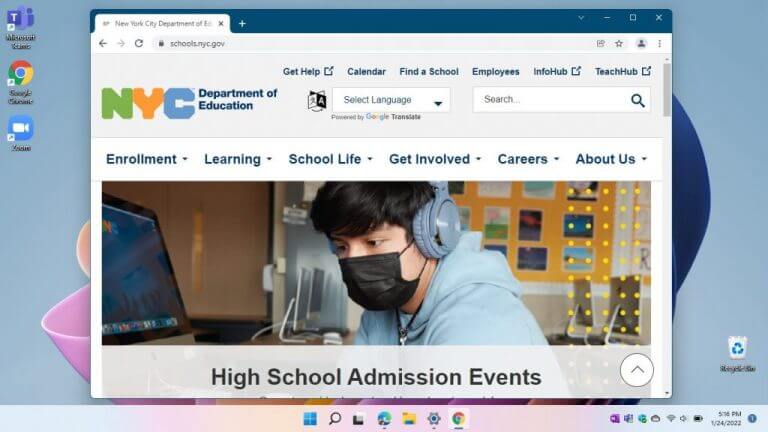
Google Chrome running on the Surface Laptop SE

Clearly, Microsoft wants to give schools and educators a choice with Surface Laptop SE and Windows 11 SE. I experienced this when both Zoom and Chrome loaded up and worked fine once my Laptop SE was configured with a sample education tenant.

Yet Windows 11 SE also delivers broad support for web-based and third-party apps, including the most common test-taking, accessibility, content filtering, and classroom orchestration apps. Windows 11 SE also offers up compatibility with Chrome extensions and other online tools.

Students

For students, there are three core things that make Surface Laptop SE great for education. This includes online and offline capabilities, keeping focus, and battery life.

I’ll start with online and offline capabilities. Students can begin a homework assignment in OneNote, PowerPoint, or Word at home, without internet access, and then have it sync to the cloud once the internet is available. Even when online, everything is saved to the cloud on Windows 11 SE. I tried this out by toggling my internet connection off, and typing in Word, only to have it sync up to my OneDrive later on.

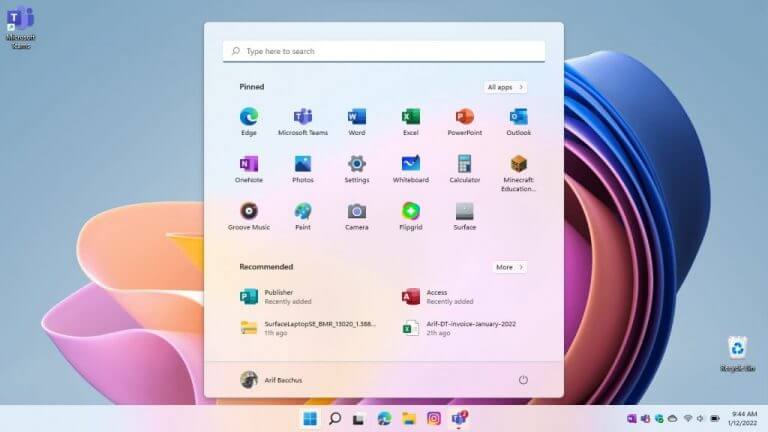
Now, for focus. These are some of the things I’ve already got to when talking about Windows 11 SE from a consumer’s point of view. In the Start Menu, students can see recommended files to quickly access documents and assignments. It’s different from regular Windows 11 in that it is limited to four options.

The Start Menu in Windows 11 SE

Another thing in this area is apps launching in full screen, for a distraction-free experience. That then fits in with the limit on Snap Layouts. There are only two apps that can be snapped at a time. This fits well with common apps like Edge and PowerPoint.

Finally, for battery life, Microsoft promises up to 16 hours based on typical Surface device usage. This is one of the greatest strengths of the Surface Laptop SE as 16 hours is more than enough for a student to make it through a school day, and then go home with a device. As I’ve said in my time with the Laptop SE, this is very much more than true.

Other education features

Windows 11 SE and Surface Laptop SE are just two ways that Microsoft has gone all-in on education. There are many other features that the company has which put students and educators first. This includes reading progress in Teams, which enables students to practice their skills in a secure, student-centric environment. There’s also Immersive Reader, which helps make content easier to read and understand for students. There’s even Microsoft Translator which is embedded in Teams, and Education insights, which provides educators real-time analytics on student engagement.

How to use OneDrive Personal Vault to password protect a file or folder

Microsoft OneDrive is a cloud storage solution that allows you to keep your files in sync on all your devices. You can also password protect any number of folders within your OneDrive account using the Personal Vault feature. This ensures that only those you choose to share the vault with have access to the files within.

OneDrive Personal Vault is a nifty security feature that provides an extra layer of protection for your files and folders. Since anyone with access to your computer can see everything in your Documents, Pictures, and Videos folders, it’s important to lock them down so only authorized people can see what’s inside.

Protecting a folder or file with a password is an easy way to keep people out of your stuff if you’re sharing files with someone who doesn’t need to see everything in the folder. If you are looking for the best way to password protect a file or folder using OneDrive Personal Vault, then this article will help you. Here’s how you do it:

How to best protect your files using OneDrive Personal Vault

  1. To set up Personal Vault, open the OneDrive desktop app and, under the File tab, select OneDrive. In the Personal Vault area, click Set up and follow the wizard.
  2. To access your OneDrive Personal Vault, first, click the OneDrive icon. Then open the OneDrive folder and select Personal Vault if prompted to enter your security code.
  3. To upload a file or folder to your Personal Vault: Right-click the Personal Vault and select Upload Files or Folder.
  4. To protect a file or folder using the Personal Vault, you must first upload the items to your OneDrive account. From there, you can use the OneDrive client to access them on other devices.

Encrypt your files

Password protection is a crucial security feature. It keeps your computer data safe from others who have physical access to it but also prevents your data from being accessed by hackers remotely.

Therefore, if you have confidential data on your computer, you may want to protect it with a password. This is not only for security purposes but also because of privacy laws.

When you upload a file or folder to OneDrive Personal Vault, it is encrypted and digitally signed with a key that only you have.

Furthermore, when you want to access the contents of the Personal Vault, you enter a password that unlocks your private key.

The key is then used to decrypt the file or folder in your browser. If you lose your password, you lose access to your vault. Personal Vault is your best bet, as it prevents people from snooping around.

We hope that the above steps were able to help you to password protect your files on OneDrive using Personal Vault. Let us know how it is working out for you in the comment section below.


How to create multiple folders at once on Windows 10 or Windows 11

Nothing is probably easier than creating new files and folders in Windows. Just right-click in the blank space, select New and choose whatever you want to create: a File, a Folder, or even a shortcut.

But what if you need to create multiple folders at a single go? How about, say, a hundred folders? What about a thousand? Thankfully, Windows doesn’t limit you here either, that is, by only allowing your folders to be created one at a time.

Instead, all you have to do is use either the free built-in tool provided by Microsoft or a third-party solution, and you’re good to go. So let’s quickly go over the methods and create our folders without any hassles.

1. Create multiple folders at once with Command line

The Command line, also called the Command interface or the Command prompt, is a text-based interface that allows you to view, manage, and manipulate your Windows files right from your keyboard.

It’s an alternative to Windows GUI, where you have to use your mouse for managing your files. Known for the control its gives to the power users, you can use it for creating multiple files at once as well. Here’s how:

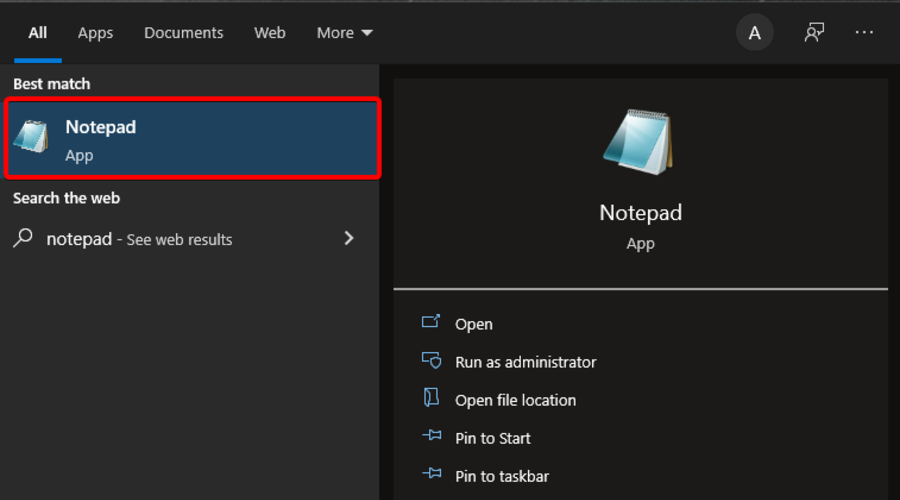
  • Go to the Start menu search bar, type in ‘Command prompt,’ and select the Best match.
  • Once you’ve launched the Command prompt, navigate to the place you’d like to create your folders at, and there, type in md and follow it with the name of your folders.

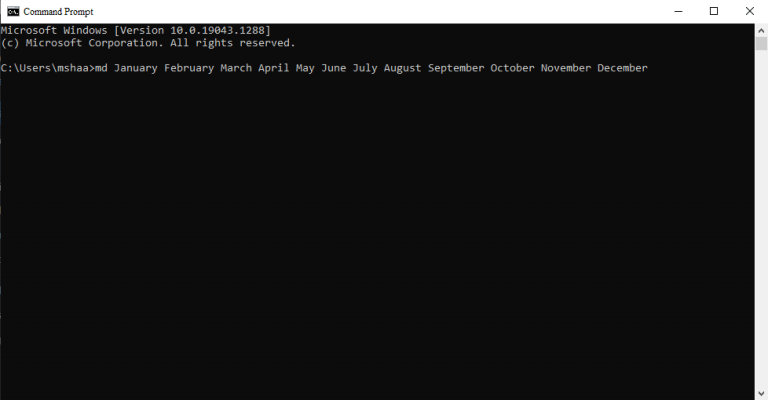
So, for example, let’s say you want to create folders for all the months of the year. In that case, your command will be the following:

md January February March April May June July August September October November December

Type the above command and hit Enter. You can verify the command by checking whether the folders have been created in your set location or not.

command prompt

Note: Check out our complete guide on changing directories in Windows if you’re not well versed with Command prompt, or perhaps just need a refresher.

2. Use a third-party app

We get it. Not everyone is a fan of the dry and boring CLI. For those of us who like to keep things simple, there are a plethora of apps out there that make our lives easier.

Unsurprisingly, there are a few apps that can help you create multiple folders at once, without getting your hands muddled in CLI land.

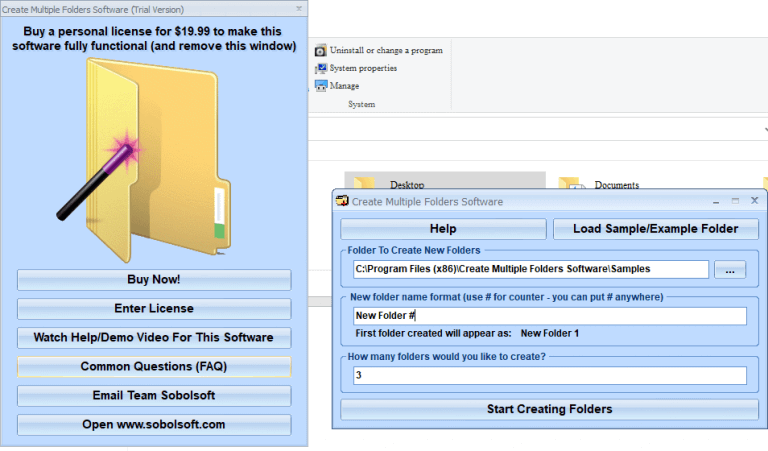
One such app is Soboloft. While the app is available in both free and paid versions, the free version does the jobs just as well (with some limitations, of course). To create multiple folders at once with the app, follow the steps below:

  1. First, go to Soboloft’s official website, download the .exe file and install the app.
  2. After you’re installation is finished, launch the app.
  3. On the app’s main menu, click on the folder destination, enter the number of folders you’d like to create, and set relevant names for your folders.

creating multiple folders with sobosolft

Finally, click on Start creating folders. Your folders will be created in a few seconds.

Creating multiple folder at once on Windows 10 or Windows 11

Creating multiple folders at a single go is a big time-saver, and it can especially come in handy when you have many folders to be created. Hopefully, this short piece helped you open your folders at once.

Windows news recap: Google Play Games beta launches, Audible points users to web app, and more

Welcome back to our Windows news recap, where we go over the top stories of the past week in the world of Microsoft’s flagship operating system.

Google Play Games beta launches on Windows PC in 3 regions

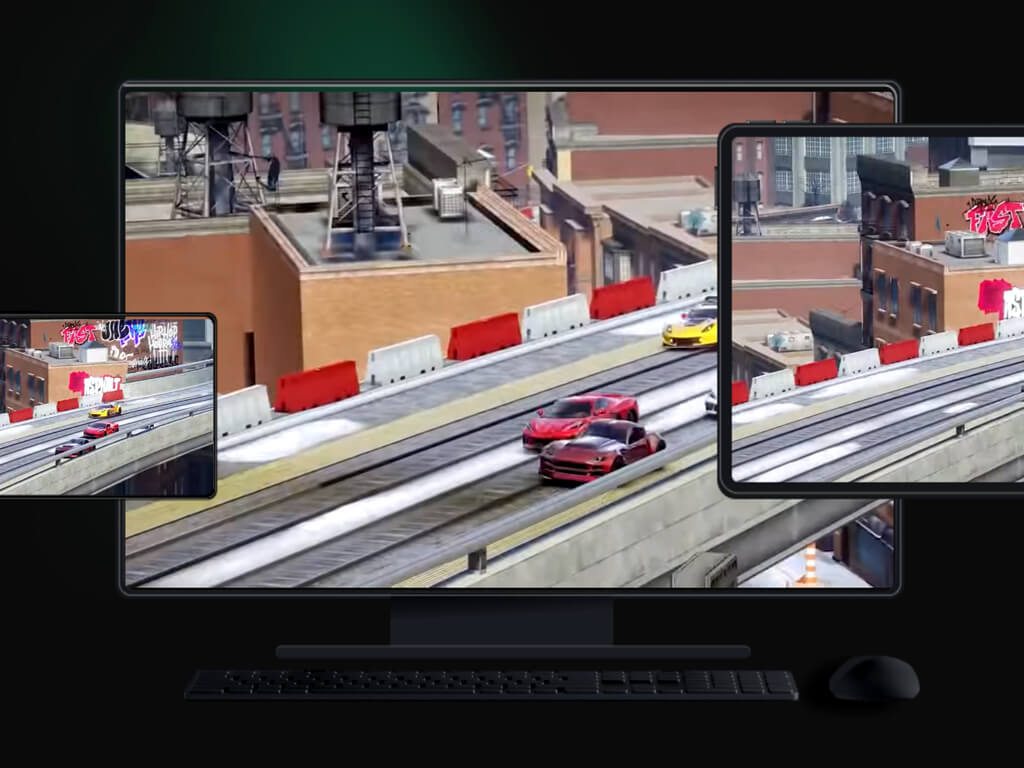
Google’s Google Play Games has launched on Windows PC’s in beta, across 3 regions. The service allows users to play video games designed for Android on their PCs, with the addition of full keyboard and mouse support.

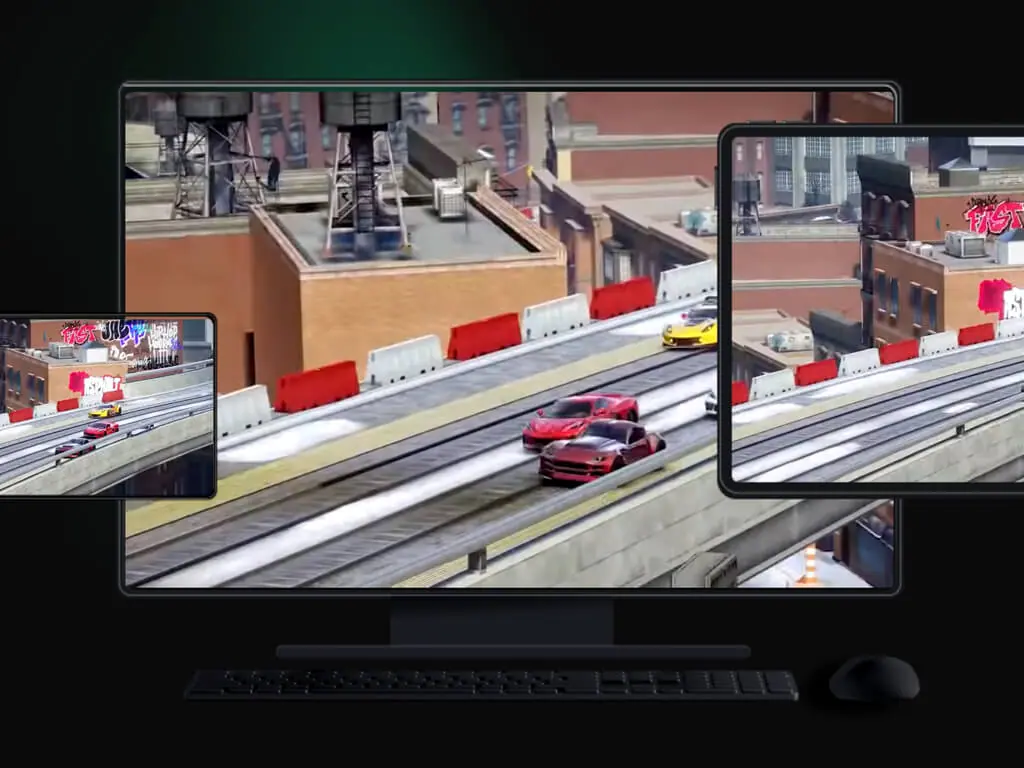
Google play games on windows and mobile

Audible points Windows 10 users to web app ahead of app removal

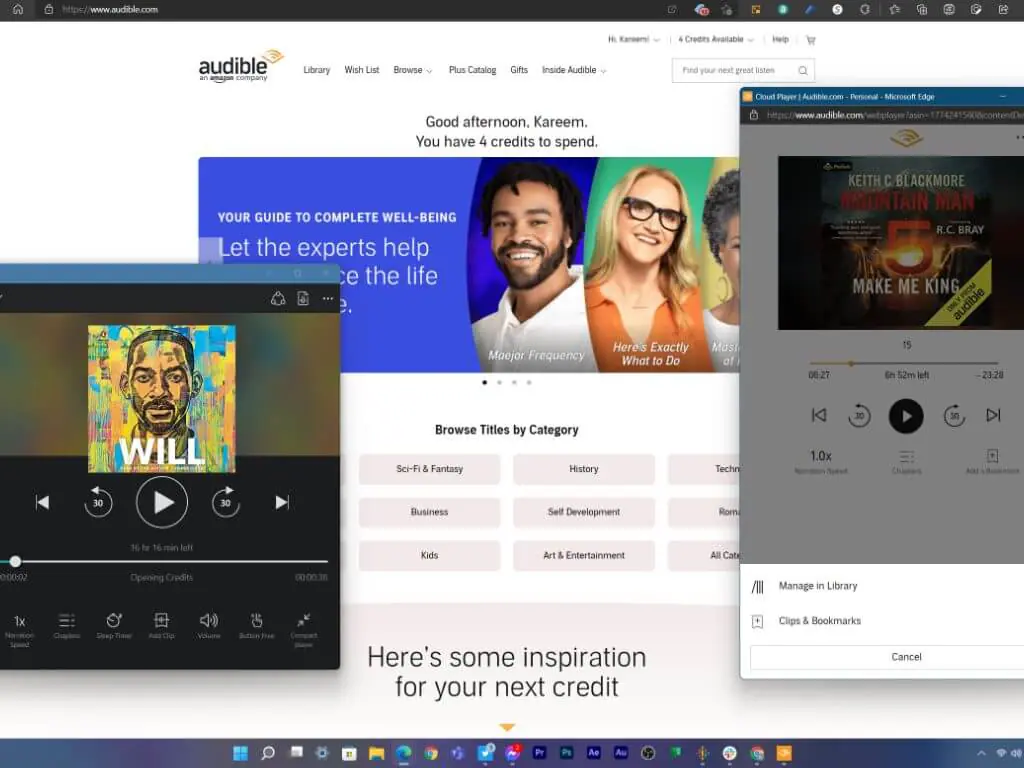
As Amazon prepares for the end of its dedicated Audible app on Windows 10, it has sent out emails to users to point them to the web app if they wish to continue accessing their Audible library.

Audible points windows 10 users to web app ahead of app removal - onmsft. Com - january 18, 2022

Windows 11 third-party widgets may be coming via the Microsoft Store

New reports suggest that Microsoft may soon address a complaint with the widget pane in Windows 11, with a possible announcement of supporting third-party widgets via the Microsoft Store, which would allow users to make use of this widget area based on their own needs, rather than for News and Weather.

That’s it for this week. We’ll be back next week with more Windows news.

FIX: PowerPoint file is corrupted and cannot be opened/saved

When you try to open a PowerPoint document and get an error message saying the file is corrupted and cannot be opened/saved, it is a sure indicator that the file you’re trying to open or change is damaged.

Some of the signs that come with a damaged presentation include an error message saying ‘this is not a PowerPoint presentation’, that the PowerPoint program cannot open the file type, or that a part of the file is missing.

Along with those error messages include other types such as invalid page fault, low system resources, general protection fault, and illegal instruction.

To determine whether the presentation is actually damaged or corrupted, try opening it on another computer and see if the unexpected behavior happens on that PC as well.

You can also create a new file in PowerPoint and see if the same behavior persists.

If you cannot open or save the newly created presentation, check for any updates in Office and install them then try the solutions listed below to resolve the problem.

How do I fix PowerPoint file is corrupted and cannot be opened/saved?

1. Try another presentation software (recommended)


PowerPoint can be a very powerful and effective tool if used to its full potential, but since you’re on this page, it means that your presentation has been corrupted and no longer works.

An alternative to going through this again is to use another professional presentation tool developed from the ground up to present information in an aesthetically pleasing manner.

Do you want to wow your Instagram followers with a cool post? How about Facebook? With these sorts of tools, you can create professional presentations, web pages, animated videos, and much more with just a few clicks.

Although all presentation software works in the same way, their target audiences are distinct. Bloggers and small businesses will benefit from some apps, while designers and entrepreneurs will benefit from others.

In such cases, feature releases will be based on the target audience’s needs, including pricing and sharing capabilities, among other things. If you’re looking for a quick way to complete your task, a PowerPoint alternative can be the best option.

Follow the next steps if you believe troubleshooting will help you better.

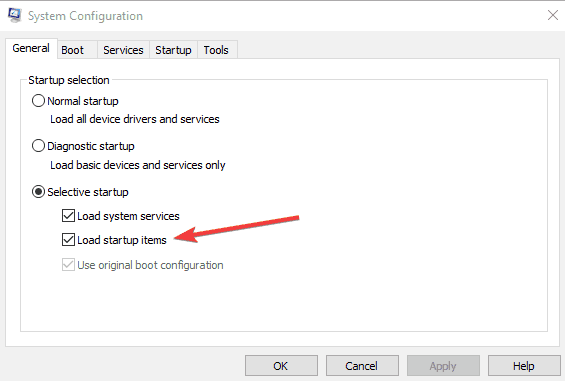
2. Perform a clean restart

  1. Log on using an account that has administrator rights.
  2. Click Start, and in the search box insert the code below and then press Enter: msconfig.exe 
  3. The System Configuration utility will open.
  4. Go to General tab.
  5. Click the Selective startup option.
  6. Click to clear the Load startup items checkbox. (The Use Original Boot.inicheck box is greyed out)
  7. Go to the Services tab.
  8. Click to select the Hide all Microsoft services checkbox.
  9. Click Disable all.
  10. Check Office performance and then resume the usual startup.

3. Repair PowerPoint

  1. Click Start and type Control Panel.
  2. Go to Programs and Features.
  3. Select your version of Microsoft Office.
  4. Right-click and then Select Change.
  5. Do a quick repair first, and an online repair later.

4. Drag the presentation to the PowerPoint program file icon

  1. Right-click Start and select Run, then type the following commands based on your MSI version of PowerPoint installed on your computer:
    • MSI version of PowerPoint 2013, type any of the codes below then press Enter: %ProgramFiles%Microsoft Officeoffice15 (PowerPoint 2013 64 bit) or %ProgramFiles(x86)%Microsoft Officeoffice15 (PowerPoint 2013 32 bit)
    • PowerPoint 2013 Click-to-Run, insert one of the codes below followed by Enter: C:Program FilesMicrosoft Office 15rootoffice15 (PowerPoint 2013 64 bit) or C:Program Files(x86)Microsoft Office 15rootoffice15 (PowerPoint 2013 32 bit)
    • MSI version of PowerPoint 2016, write the code recommended below then click Enter: C:Program Files(x86)Microsoft OfficerootOffice16
    • PowerPoint 2016, insert one of the codes below then press Enter: C:Program FilesMicrosoft OfficerootOffice16 (PowerPoint 64 bit) or C:Program Files (x86)Microsoft OfficerootOffice16 (PowerPoint 32 bit)
  2. Click OK.
  3. Go to Windows Explorer and locate exe icon.
  4. Drag the damaged presentation icon from one window to the Powerpnt.exe icon in the other window.

If you are still confronted with the file being corrupted and cannot be opened the PowerPoint issue, then try the next solution.


5. Insert damaged presentation as slides into a blank presentation

  1. Create a blank presentation.
  2. Insert the damaged presentation as slides by clicking Home tab, and select the arrow next to New slides in the Slides group.
  3. Click Reuse Slides.
  4. In the Reuse Slides task pane, click Browse.
  5. Click the damaged presentation.
  6. Click Open.
  7. Right-click one of the slides in the Reuse Slides task pane.
  8. Click Insert All, in order to insert all the slides from the damaged presentation, except the slide master, into the new presentation.
  9. Click Save (with a new name for the presentation).
  10. Type a new name for the presentation, and then click Save.

You can also apply the damaged presentation as a template if it doesn’t look as you expected it to, do this:

  1. Go to the File menu.
  2. Click Save as.
  3. Type a new name for the presentation, and then click Save to create a backup copy of the restored presentation.
  4. Under the Design tab, click More in the Themes group.
  5. Click Browse for Themes.
  6. Click the damaged presentation, and then click Apply. The slide master of the damaged presentation will replace the new slide master.

If you get unexpected behavior after this, the template may have damaged the presentation. In this case, use the backup copy to re-create the master slide.

 If the backup copy of the new presentation still is damaged like the original presentation, go to the next solution.

6. Open the temporary file version of the presentation

  1. Rename the file, and then try to open it in PowerPoint
  2. Right-click and select Rename.
  3. Change the old file-name extension from .tmp to .pptx so that the file name resembles the following filename:  PPT ####.pptx.
  4. Start PowerPoint, go to the Filemenu and click Open.
  5. Go to the folder with the renamed file.
  6. Try opening the file in PowerPoint.

When you edit a presentation, PowerPoint creates a temporary copy of the file named PPT ####.tmp. 

Where #### represents a random four-digit number, and this temporary file may be located in the same folder as the location to which the presentation is saved, or in the temporary file folder.

Note: More than one file may correspond to the temporary file that was created the last time that you saved the presentation so open each file to see whether one is the temporary copy of the presentation. 

If there is no such document or you see the same PowerPoint file that still won’t open, try the next solution.

7. Try to open the presentation in PowerPoint Viewer

  1. Open Internet Explorer or Microsoft Edge.
  2. Go to PowerPoint 2010 Viewer Microsoft website.
  3. Install PowerPoint Viewer by clicking Download and click Run.
  4. Click Download.
  5. Click Run.
  6. Click to select the Click here to accept the Microsoft Software License Terms checkbox, and then click Continue.
  7. Click OK.
  8. Open the damaged presentation in PowerPoint Viewer by clicking Start then All Apps and then Microsoft Office PowerPoint Viewer (2007/2010).
  9. Click Accept.
  10. Click the damaged presentation and select Open.

If it opens in PowerPoint Viewer, then the copy of PowerPoint 2013 or 2016 installed on your PC may be damaged. If you cannot open it, copy the file and paste it on a blank space.

If it cannot be copied, it is damaged or resides in a damaged part of the hard disk. If you can copy it, open the copy in PowerPoint 2013 or 2016.

8. Run Scandisk on the hard disk drive

  1. Open File Explorer.
  2. Right-click the hard disk drive that has the damaged presentation.
  3. Click Properties
  4. Click the Tools.
  5. In Error-checking, click Check Now.
  6. Select the Automatically fix file system errors checkbox.
  7. Select the Scan for and attempt recovery of bad sectors checkbox.
  8. Click Start.

Scandisk may verify that the presentation is cross-linked and may repair it but this doesn’t guarantee that PowerPoint 2013 or 2016 will read the presentation.

9. Uncheck all options under Protected View

  1. Open PowerPoint.
  2. Click on File then Options.
  3. Select Trust Center then Trust center settings.
  4. Select Protected view.
  5. Uncheck all the options under Protected View and click OK.
  6. Restart PowerPoint and try to open the presentation

10. Save the presentation as a Rich Text Format (RTF) file

  1. Open the presentation.
  2. On the File menu, click Save As.
  3. Select Other Formats.
  4. In the Save File As Type list, click Outline/RTF(*.rtf).
  5. In the File Name box, type the name that you want to use.
  6. Select a location in which to save the presentation, and then click Save.
  7. Close the presentation.

Note: Any graphics, tables, or other text in the original presentation will not be saved in the .rtf file.

Open the .rtf file by clicking File then Open then access Files of type list then All Outlines or All Files then click the RTF file saved and click Open. This will recreate the presentation based on the original outline view.

11. Manually set component security settings back to the default settings

  1. Click Start, in the search box and type: dcomcnfgin
  2. Click dcomcnfg in the Programs.
  3. In the navigation pane, expand Component Services.
  4. Expand Computers.
  5. Right-click My Computer, and then click Properties.
  6. Open the Default Properties tab, and then set the following values: Default Authentication Level: Connect, Default Impersonation Level: Identify.
  7. Click OK.

12. Use Open and Repair command

  1. Click File, then Open.
  2. Go to the location or folder where the presentation is stored.
  3. Click Open.
  4. Click the file you want, and then click the arrow next to Open, and click Open and Repair.

As you can see there are various solutions to solving the PowerPoint is corrupted and cannot open file error.

FNV settings not saving? Apply our fixes now

Despite its age, Fallout: New Vegas has endured the test of time and is still considered to be one of the best role-playing games available for the PC platform today.

However, it still encounters errors such as settings not saving, or the difficulty option resetting. Note that this guide will also apply for Fallout 76 and Fallout 4 as players reported the same errors in these editions as well.

Even in these conditions, many of the game’s technical components aren’t quite up to par with what most gamers would expect, and both the aesthetics and the fighting could use to be improved.

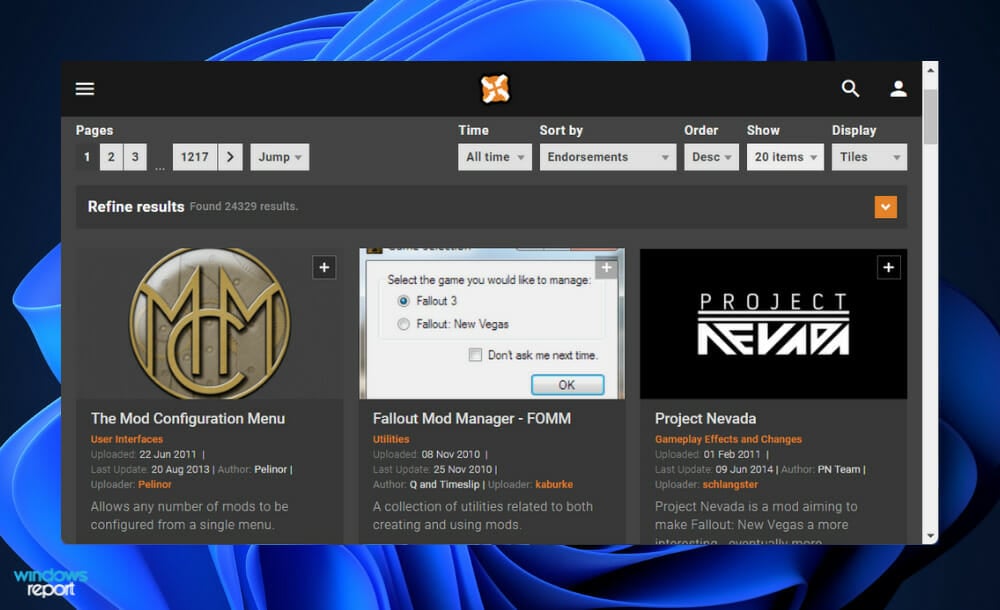
Fortunately, installing some of the fantastic mods created by the Fallout community will allow you to completely modify all of these aspects of your game. Check out our list of the greatest Fallout: New Vegas mods available for PC before seeing how to fix the settings issues.

What are the best Fallout: New Vegas mods?

In light of the fact that New Vegas is an aging game with less-than-ideal stability and performance, prepping it for modding is a little more difficult than preparing other Fallout and The Elder Scrolls titles. Fortunately, the process isn’t overly time-consuming or complex at this point.

New Vegas is infamous for crashing at least once or twice during every given play session, but you can avoid this by using a bug-fixing mod.

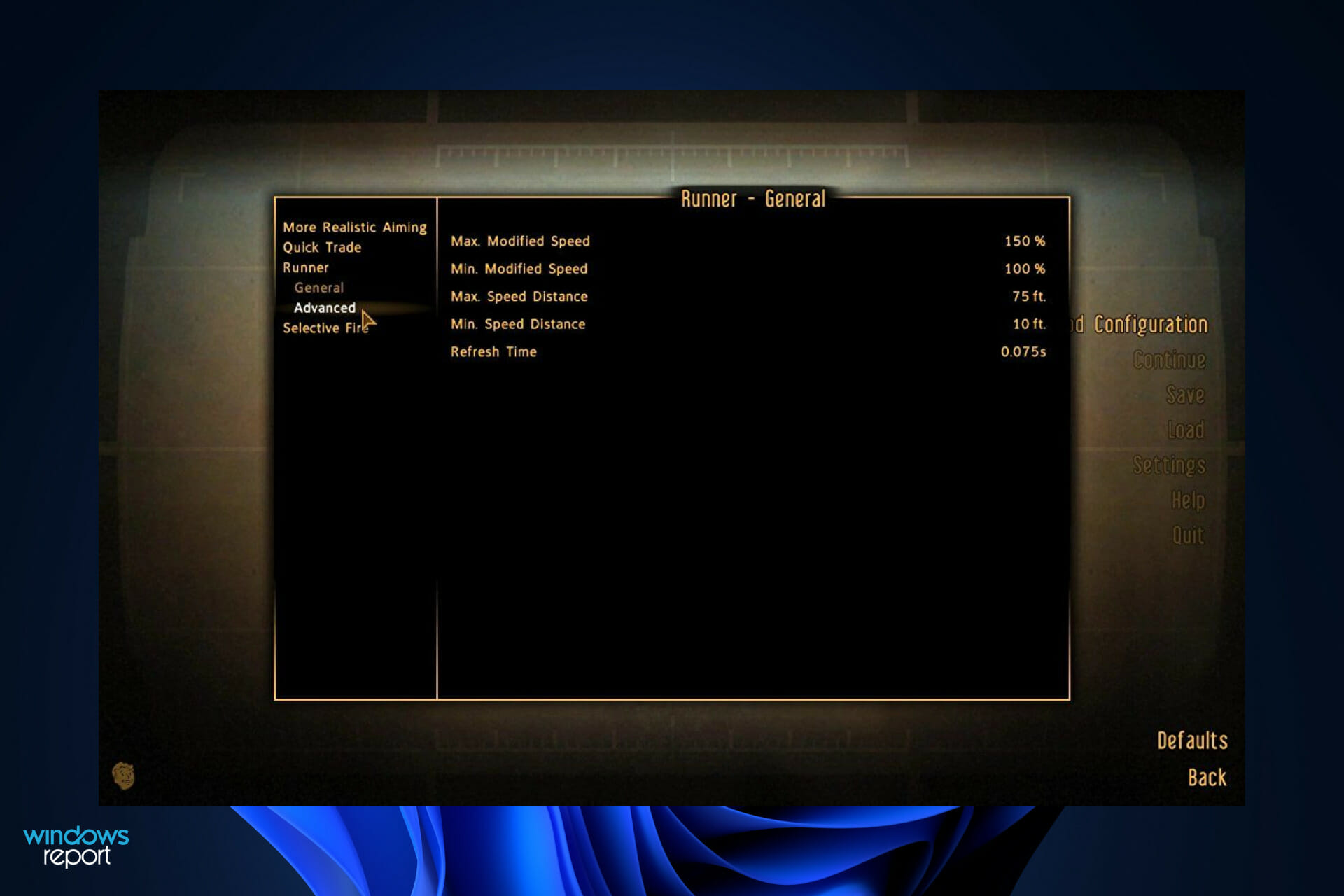
fnv mods fnv settings not saving

In addition to fixing hundreds of issues that were present in the base game and its DLCs, the NVAC mode also solves a slew of bugs that appeared in them. The flaws that have been squashed are primarily linked to gameplay, although this mod has also addressed a number of performance and stability concerns.

FNV Mod Limit Fix is recommended for individuals who have placed high load orders because it significantly improves New Vegas’ capacity to load and operate a large number of mods without experiencing any issues. Depending on how many mods you have loaded, it can also result in improved frame rates.

Rudy ENB is preset for the popular ENB injector software, which is used to change the lighting in video games. The lighting in New Vegas has been given a warm, reddish makeover by it, which complements the game’s Nevada location and looks significantly better than the original game.

What can I do if FNV settings aren’t saving?

1. Change Steam library location

  1. Navigate to Program Files by opening a new File Explorer window then clicking on This PC, followed by the Local Disc (C:).local-disc fnv settings not saving
  2. Now click on Program Files then search for the Steam folder, if you can’t find it go back and access Program Files (x86) and continue. Cut the folder by right-clicking on it and selecting the scissors icon, then paste it inside the C: Local Disk. That’s it!cut-steam fnv settings not saving

2. Reset the game

Note icon NOTE
When you reset the FNV game, all of the information that had been previously stored in the application will be gone as well. So before you begin the process of resetting your app, we strongly advise you to back up any vital data you may have on it first.
  1. Press the Windows key + I to open the Settings window and click on Apps followed by Apps & features.apps-features minecraft settings not saving
  2. Once you’re inside the Apps & features window, search for the Fallout: New Vegas game by typing it in the search bar and click on the three-dot menu, followed by Advanced options. If you want to reset the Fallout 4 or 76 versions, type their name in the search bar instead.
  3. Scroll down until you find the Reset section, then click on the Reset button.reset-app-default subnautica not saving settings

3. Update your drivers

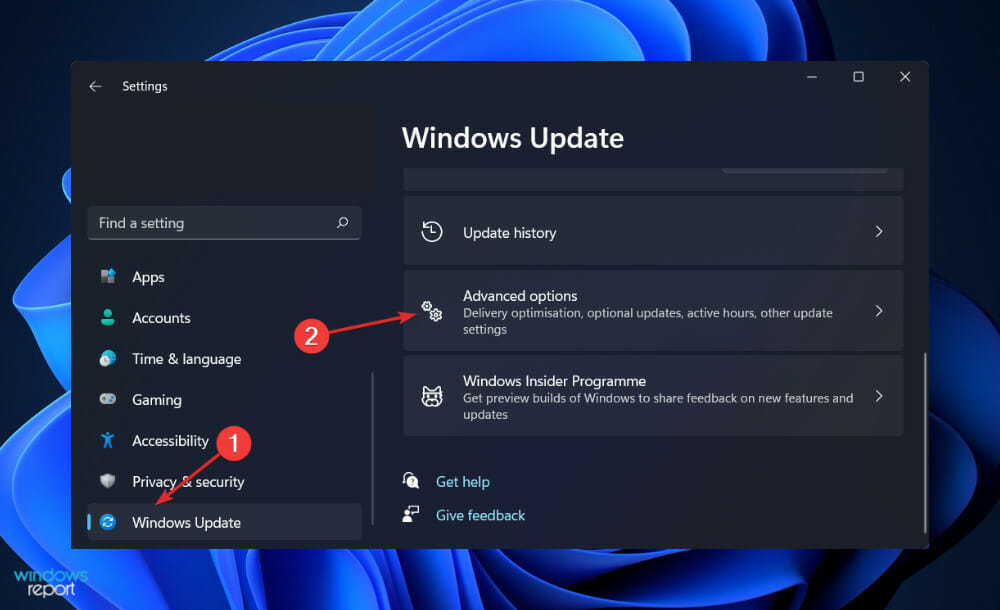
  1. Press the Windows key + I to open the Settings app, and click on Windows update from the left panel followed by Advanced options on the right side.update-advanced subnautica not saving settings
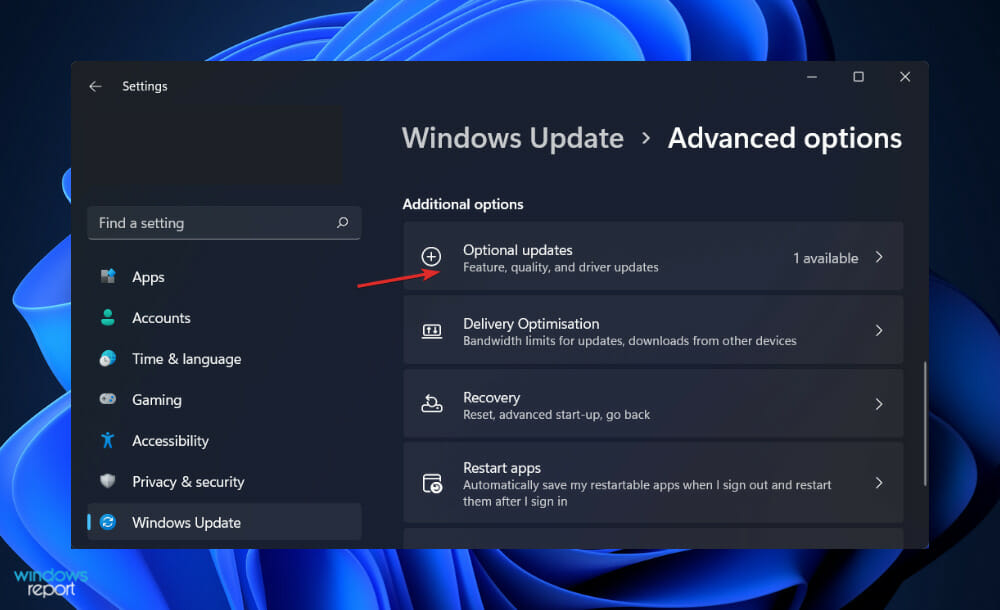
  2. Scroll down until you find the Additional options section then click on Optional updates.optional-update subnautica not saving settings
  3. Now click on the Driver Updates option then select all the driver updates you are presented and lastly click on the Download & install button.install-update subnautica not saving settings

Although Windows is often responsible for driver updates, if you are experiencing a problem, you can manually search for newer drivers. When it comes to automatic scanning for outdated drivers, a specialized tool such as Outbyte Driver Updater is strongly suggested.

Just like before, you can certainly try this solution as well for the other game versions, Fallout 4 and 76 respectively as the bug is similar and the games’ configurations are also similar.

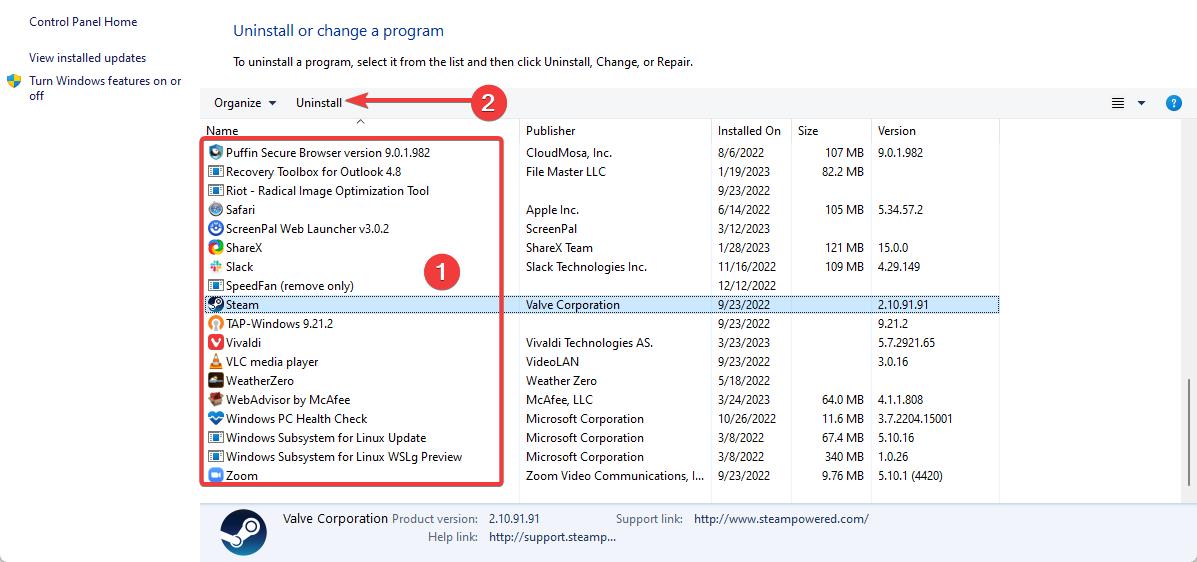
4. Uninstall and reinstall the game

  1. Press the Windows + S key to open the Search bar, then type Control panel, and click on the most relevant result.control-panel-searching minecraft settings not saving
  2. Once the menu opens up, click on Programs followed by Programs and features.programs-panel minecraft settings not saving
  3. The next step is to look for the problematic game and right-click on it to choose Uninstall.
  4. To reinstall it, head to Steam’s page for Fallout: New Vegas and follow the steps displayed in there.

The identical instructions apply for Fallout 76 and Fallout 4, except that instead of going to FNV, you should access the links to those games.

How can I optimize FNV?

The way your Windows installation is configured is almost as crucial as any in-game option you might choose. Slightly sub-optimal OS settings, as well as out-of-date drivers, are the root causes of many problems and performance issues in Fallout: New Vegas, most notably stuttering and crashes.

As a result, it is highly advised that you devote the necessary time to properly optimize your Windows system. At the very least, make sure that your graphics drivers are up to date with the most recent version available.

When your frame rate is too slow, your gaming gets choppy and sluggish, and your game becomes unplayable. Low FPS occurs when your computer is unable to support the game, and as a result, it becomes unresponsive.

mouse fnv settings not saving

It is a good thing that Windows updates are performed automatically because they frequently contain security fixes. However, downloading an update while participating in an online gaming session can consume a significant amount of bandwidth, thus disabling automatic updates is recommended.

This advice is less of an FPS booster and more of a sanity saver because no one wants to be distracted by messages when they’re in the midst of a game session. You should disable notifications and enable them once you are out of the game.

When you turn off the pointer precision function in Windows 11, your cursor will travel quicker depending on how quickly you move your mouse. However, turning off pointer precision will allow you to optimize Windows 11 for gaming.

Lowering the resolution of your game also allows your GPU to generate more frames per second. Because there are fewer pixels to worry about, your graphics card can concentrate on increasing your frame rate. You can find the resolution settings in the game’s options menu.

Since you are interested in performance optimization, you should check out our article on how to make Windows 11 faster and more responsive.

Alternatively, you may be intrigued by the idea of running older games on your OS, if this is the case you can take a look at our guide on how to run old games on Windows 11.

Even more, you can now install Android games and apps on Windows 11. Make sure to take a peek at the linked article in order to learn how you can do it as well.

Let us know in the comments section below which solution worked best for you as well as how often you play Fallout: New Vegas. Thanks for reading!


Dota 2 settings are not saving? Try these fixes

Despite the fact that the game is a lightweight game that can be played on a variety of different systems, it contains a number of bugs that can interfere with your experience such as Dota 2 settings not saving.

Dota 2 is a video game that is categorized as a multiplayer online battle arena (MOBA). It was created and released by Valve. It is played in matches between two teams of five players, with each team occupying and defending their own independent base on the map as they battle it out.

It made the switch to the Source 2 engine in 2015, which had a significant influence on reducing the number of issues that plagued the game. However, it also introduced new issues, which caused players to search for solutions all over the internet.

Follow along as we will walk you through a comprehensive list of solutions that you can try in order to fix the settings saving issue, right after we respond to one of your most asked questions.

Can I play Dota 2 without a graphics card?

Aside from the game’s content and features, note that Valve is constantly updating the game in order to improve its visual compatibility and accessibility. Data 2’s performance is totally dependent on the quality of a computer’s CPU, GPU, and memory.

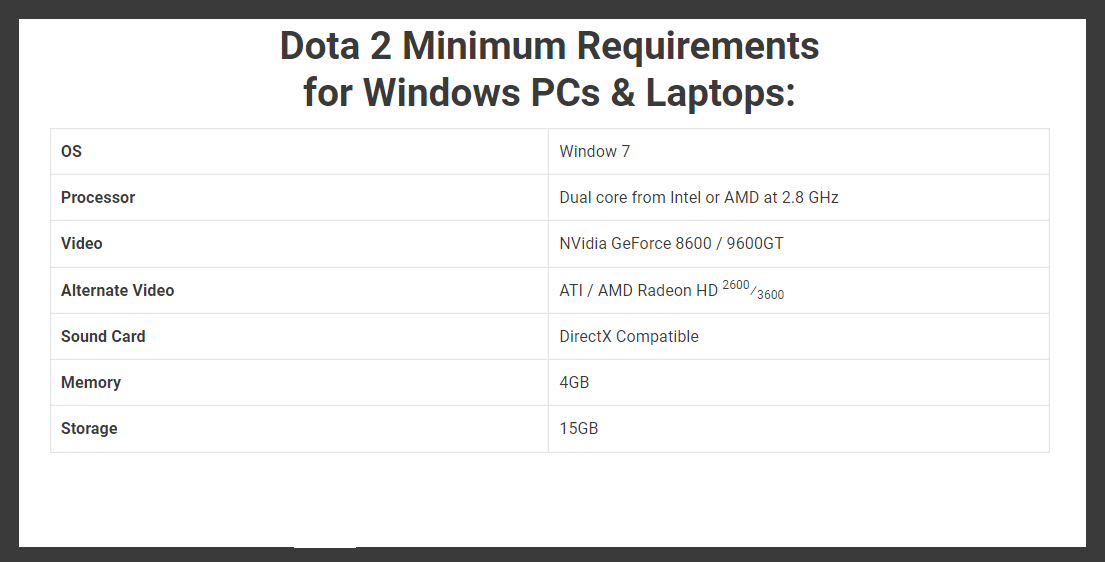
A system with the proper specs is required to play Dota 2. A high-end graphics card is necessary in order to play it at its peak performance.

system requirements dota 2 settings not saving
Dota 2 requirements (Source: Dota2Freaks)

Many Dota 2 players, on the other hand, do not have access to such a powerful graphics card. Nevertheless, every computer and laptop is equipped with an Intel or AMD processor.

Integrated chipsets are capable of providing an above-average gaming experience with a good frame rate despite the limitations of the hardware.

If you play custom maps in the arcade mode, the difficulty of the map may vary depending on its complexity. It makes little difference if you have the same specifications on your PC or your laptop; there is no significant difference between the two.

The primary difference between a laptop and a computer is that laptops with powerful graphics cards heat up far more quickly than PCs. Whilst the latter is equipped with a sophisticated cooling system, which can be further enhanced by the addition of extra cooling materials.

Furthermore, the processor in the PC is a little more powerful than the processor in a laptop of the same model. Any laptop that is capable of running Dota 2 is acceptable, and there are no hard and fast restrictions that state the game can only be played on a computer that is capable of running it.

What can I do if Dota 2 settings aren’t saving?

1. Change the Config file

  1. Open a new File Explorer window then type or paste in the following command in the search bar from the top side: C:\Steam\SteamApps\common\dota 2 beta\dota\cfg
  2. Now go to the Config file, right-click on it to choose Properties, then check the box next to the Mark as read only option.config-readonly dota 2 settings not saving

When you start Dota2, it appears as though the choices are re-downloaded from the cloud. Thus, by making the file a read-only one, it will not update every time your start the game.

2. Reset the game

  1. Press the Windows key + I to open the Settings window and click on Apps followed by Apps & features.apps-features minecraft settings not saving
  2. Once you’re inside the Apps & features window, search for the Dota 2 game by typing it in the search bar and click on the three-dot menu, followed by Advanced options.
  3. Scroll down until you find the Reset section, then click on the Reset button.reset-app-default subnautica not saving settings

When you reset the Dota 2 game, all of the data that was previously stored in the program will be lost. As a result, before you begin the process of resetting your device, we recommend that you make a backup of any important data.

3. Update your drivers

  1. Press the Windows key + I to open the Settings app, and click on Update & Security from the left panel followed by Advanced options on the right side.update-advanced subnautica not saving settings
  2. Scroll down until you find the Additional options section then click on Optional updates.optional-update subnautica not saving settings
  3. Now click on the Driver Updates option then select all the driver updates you are presented and lastly click on the Download & install button.install-update subnautica not saving settings

Although Windows is usually responsible for driver updates, if you have an issue, you can manually check for updates. A specialist program like Outbyte Driver Updater is highly recommended for automatic scanning of outdated drivers.

4. Uninstall and reinstall the game

  1. Press the Windows + S key to open the Search bar, then type Control panel, and click on the most relevant result.control-panel-searching minecraft settings not saving
  2. Once the menu opens up, click on Programs followed by Programs and features.programs-panel minecraft settings not saving
  3. Now look for the problematic game and right-click on it to choose Uninstall.
  4. To reinstall it, head to Steam’s page for Dota 2 and follow the steps displayed in there.

How can I increase FPS in Dota 2?

On the web, you can find several configuration files to replace yours and boost the fps. Honestly, we don’t like this approach because we want to know exactly what we are changing and so should you.

These adjustments are useful if you are struggling to reach an acceptable amount of fps as you are using a low-spec PC, but also if you have a monitor with a high refresh rate as you bought it to gain an edge in a competitive game such as Dota 2.

dota 2 logo dota 2 settings not saving

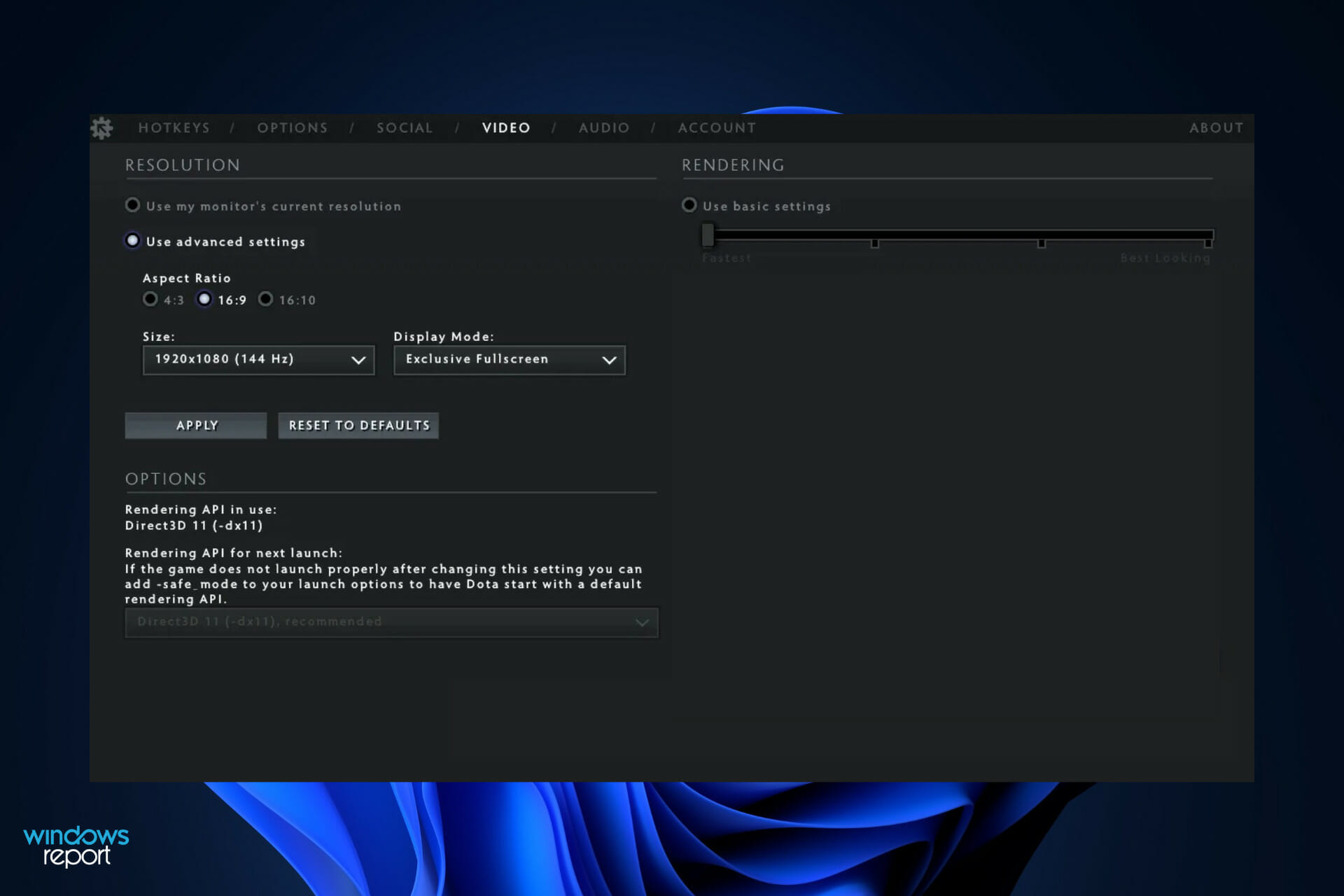
Since your native resolution is desirable for a better view, if you badly need a performance boost, decreasing the resolution will greatly improve your fps. 720p is usually a solid compromise between quality and performance.

Full Screen is the best choice performance-wise, but you might prefer a borderless window if you have a multi-monitor setup and you wish to move quickly on another display.

We suggest disabling all the lighting and bloom options as they generate visual effects on your screen that do not influence negatively only your performance, but also your gameplay.

Regarding the others, it mostly depends on what you are trying to achieve. If you aim to maximize the fps, just disable all the extra visual elements.

If you need more methods in which to tackle the settings not saving error, we recommend that you visit our article on how to fix Dota 2 problems in Windows 10/11.

Alternatively, users have been encountering a disk write error in Dota 2. In the event that you face the same error, check out the article linked.

And lastly, for the dark days when the game doesn’t want to start properly, we are here to help you with a comprehensive guide on what to do when Dota 2 fails to launch.

Let us know in the comments section below which solution worked best for you so we can optimize our future guidelines. Thanks for reading!


Microsoft starts pushing Windows 10 version 21H2 to users still on 20H2

Microsoft announced yesterday that it has started pushing Windows 10 version 21H2, also known as the November 2021 Update, to devices still on Windows 10 version 20H2 that are approaching end of servicing. The company is once again using machine learning models to determine which devices will have a “smooth update experience.”

“Windows 10, version 21H2 is available for users with select devices running Windows 10, versions 2004 and higher who manually seek to “Check for updates” via Windows Update. (…) We also started the first phase in our rollout for machine learning (ML) training, targeting devices on Windows 10, version 20H2 that are approaching end of servicing to update automatically to Windows 10, version 21H2,” the company explained on the Windows Health Dashboard.

As a reminder, Windows 10 version 21H2 is a minor update that only brings improvements for Wi-Fi security, Windows Hello for Business, and the Windows Subsystem for Linux. For users still on Windows 10 version 2004 or newer, the installation process should be pretty fast as Windows Update will just be downloading an enablement package to turn on the new features on Windows 10 PCs.

If Windows 11 is now getting most of the Windows team’s attention these days, there are probably many Windows 10 devices that won’t be eligible for a free Windows 11 upgrade. That’s why Microsoft is committed to supporting Windows 10 until the OS, though the OS will only receive new “major” updates once a year going forward.

Stereo Mix Not Working on Windows 11? Here’s What to do

The Stereo Mix has become an essential feature, of late, and it should work fine. However, users have been facing certain problems with it and reported that Stereo Mix is not working on Skype in Windows 11.

Stereo Mix allows you to record the audio output from the computer after combining all available channels. For those using it with Skype, the problem arises when they want others to listen to the audio output of their computer.

In the following sections, we will walk you through the most effective methods to get Stereo Mix working on Skype in Windows 11.

Why is the stereo mix not working on Skype in Windows?

The problems with Stereo Mix in Skype could arise due to several reasons, both pertaining to the connected audio device and software issues. We have listed them all below:

  • Problems with the audio device
  • Misconfigured settings
  • Outdated audio drivers

With a basic understanding of the underlying issues, you are now in a far better position to proceed to troubleshoot. Let’s now head to the methods to get Stereo Mix working in Skype in Windows 11.

What do I do if the stereo mix is not working on Skype?

1. Check the connected device

The very first thing you must check when Stereo Mix is not working on Skype is whether the connected devices are working properly.

To do this, disconnect both the microphone and speaker if you are using external ones. Now check for any damage to cables or the port they are plugged into. If none are found, reconnect and check if Stereo Mix starts working in Skype.

Also, you can connect the same set of peripherals to another system and check if Skype works perfectly there. If that’s the case, the problem lies with the app or misconfigured settings, and you can proceed to the other fixes listed below.

2. Run the built-in audio troubleshooter

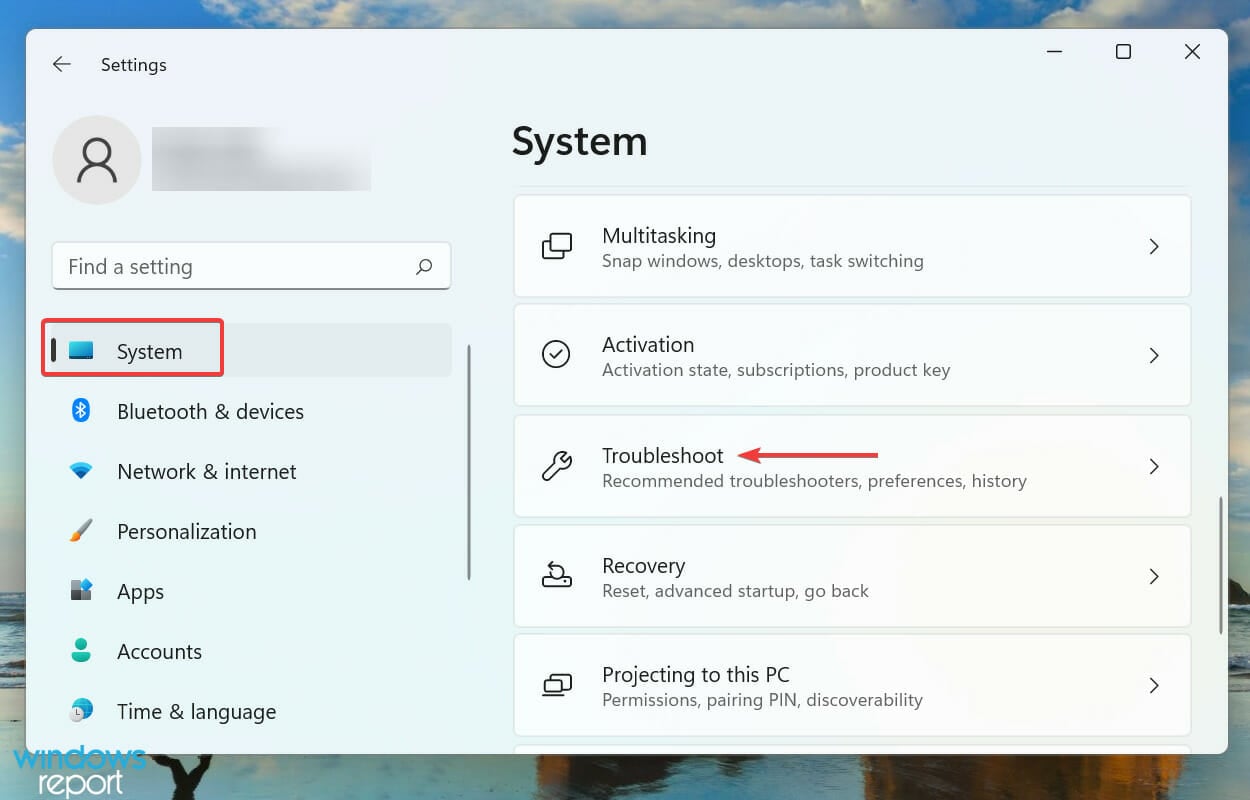
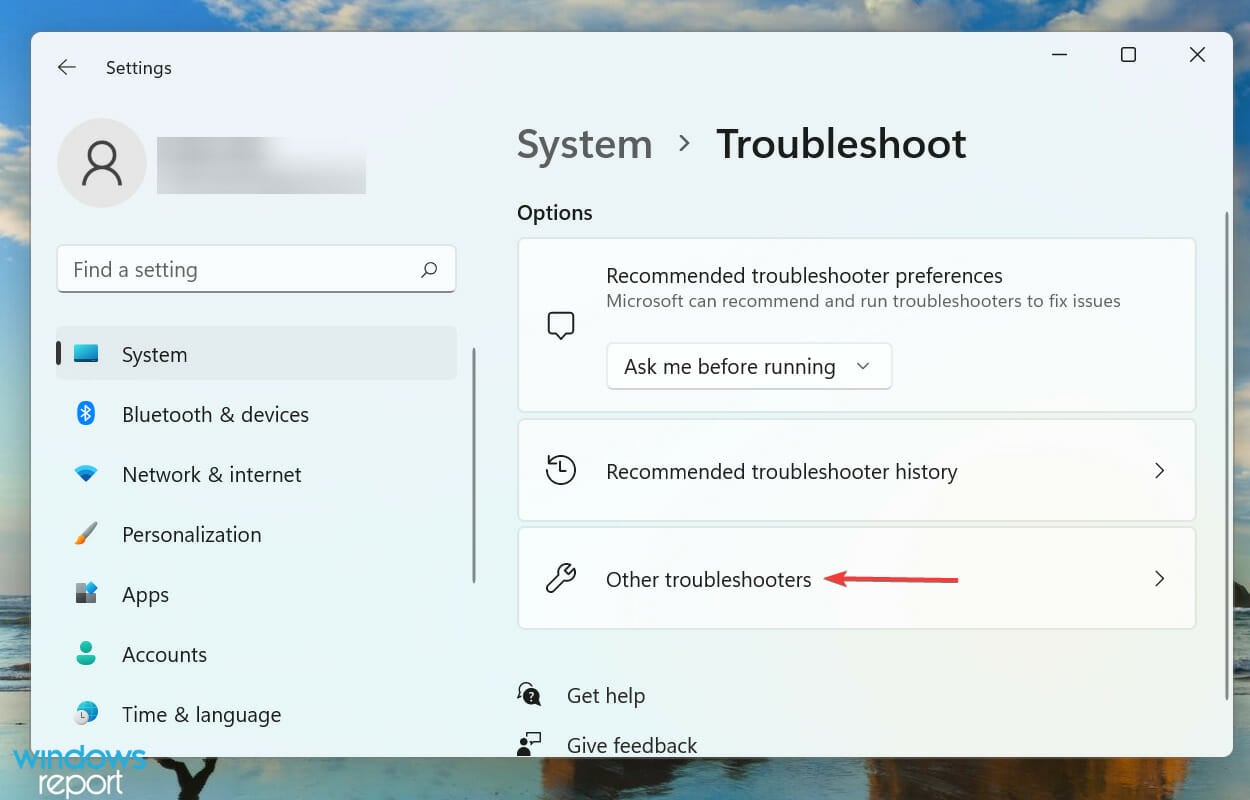
  1. Press Windows + I to launch the Settings app, and select Troubleshoot from the options listed on the right in the System tab.Troubleshoot to fix skype stereo mix not working
  2. Click on Other troubleshooters.Other troubleshooters
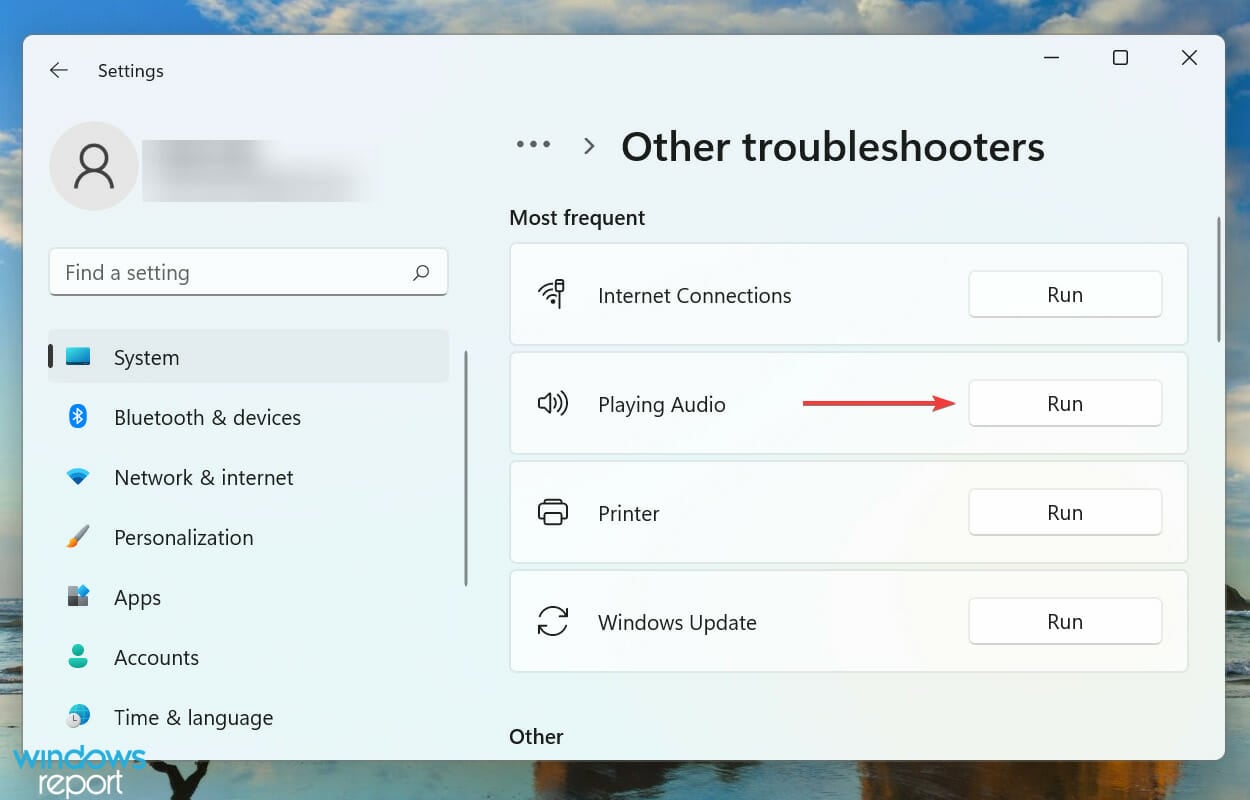
  3. Locate the Playing Audio troubleshooter and click on the Run button next to it.Run playing audio troubleshooter to fix skype stereo mix not working
  4. Choose the appropriate response, if and when prompted, and follow the on-screen instructions to complete the process.

Whenever you encounter an issue in Windows, your primary approach should be to look for a relevant built-in troubleshooter. Microsoft offers these to help users easily diagnose and eliminate problems affecting the performance.

3. Enable Stereo Mix

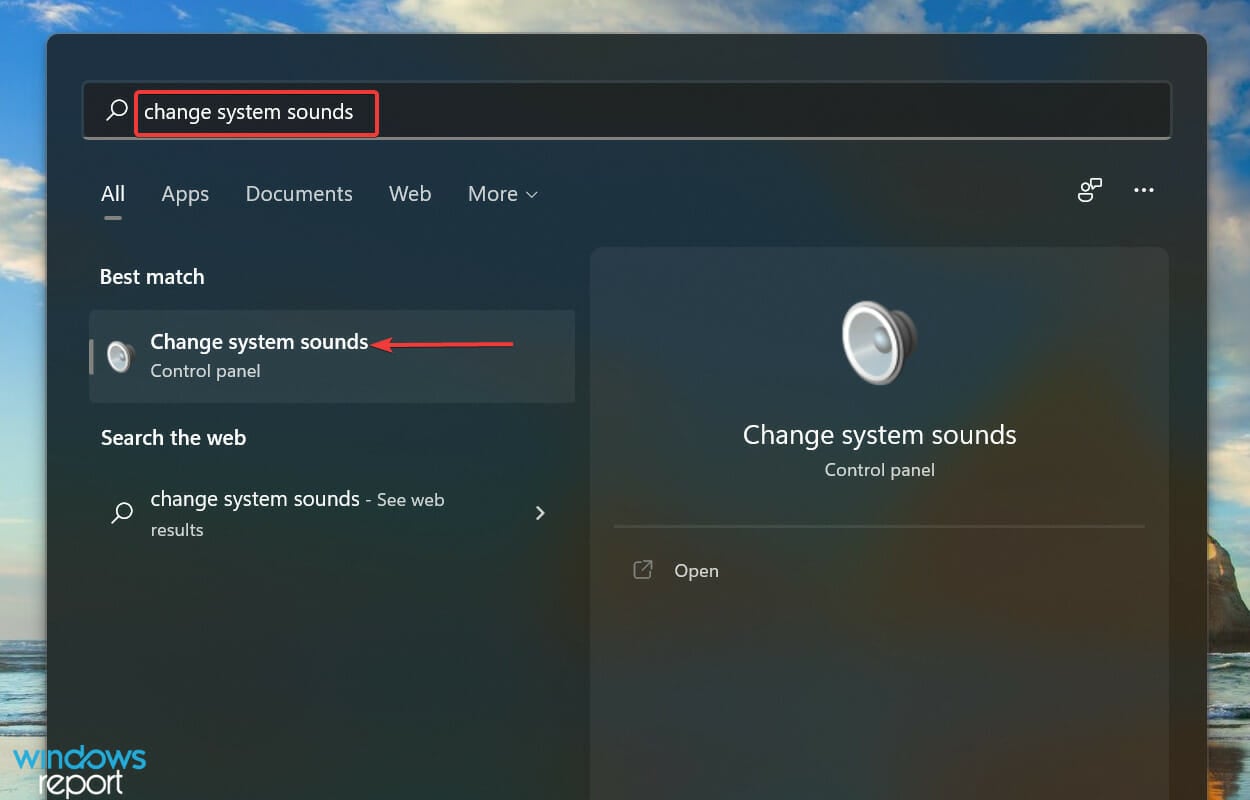
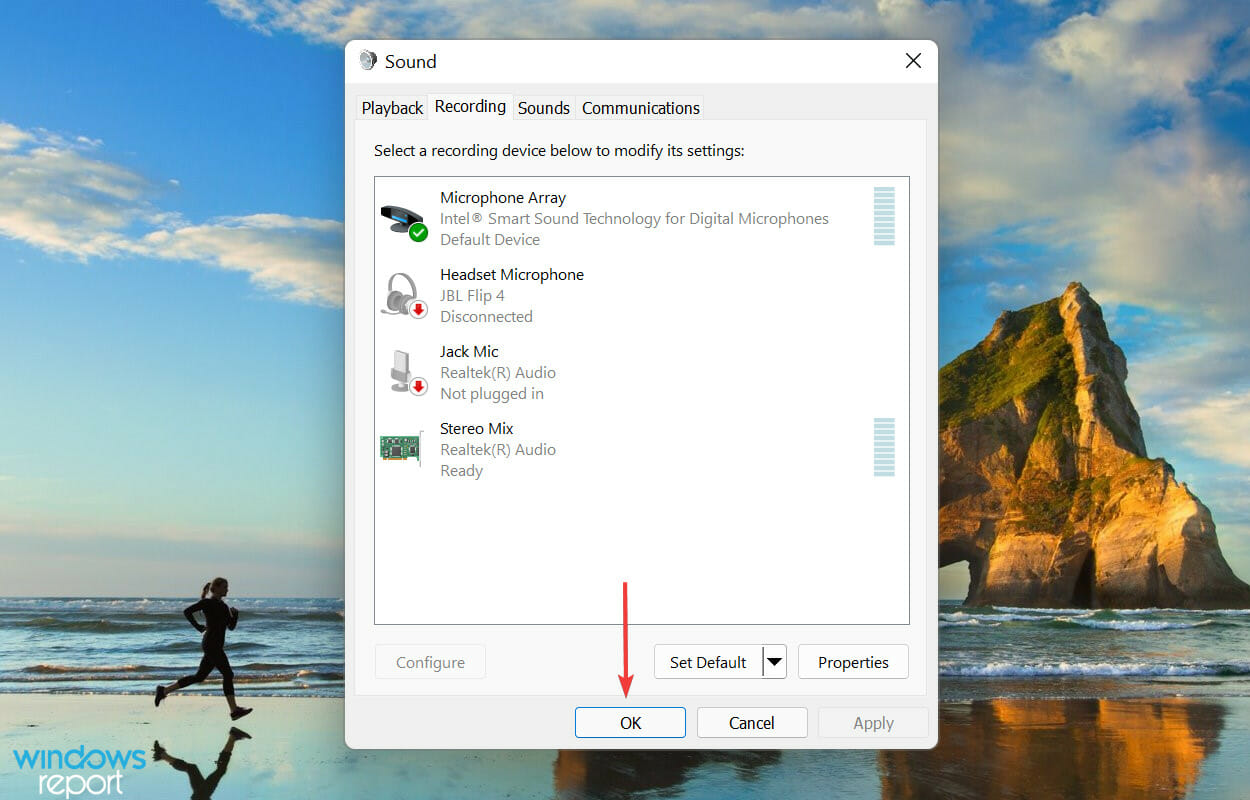
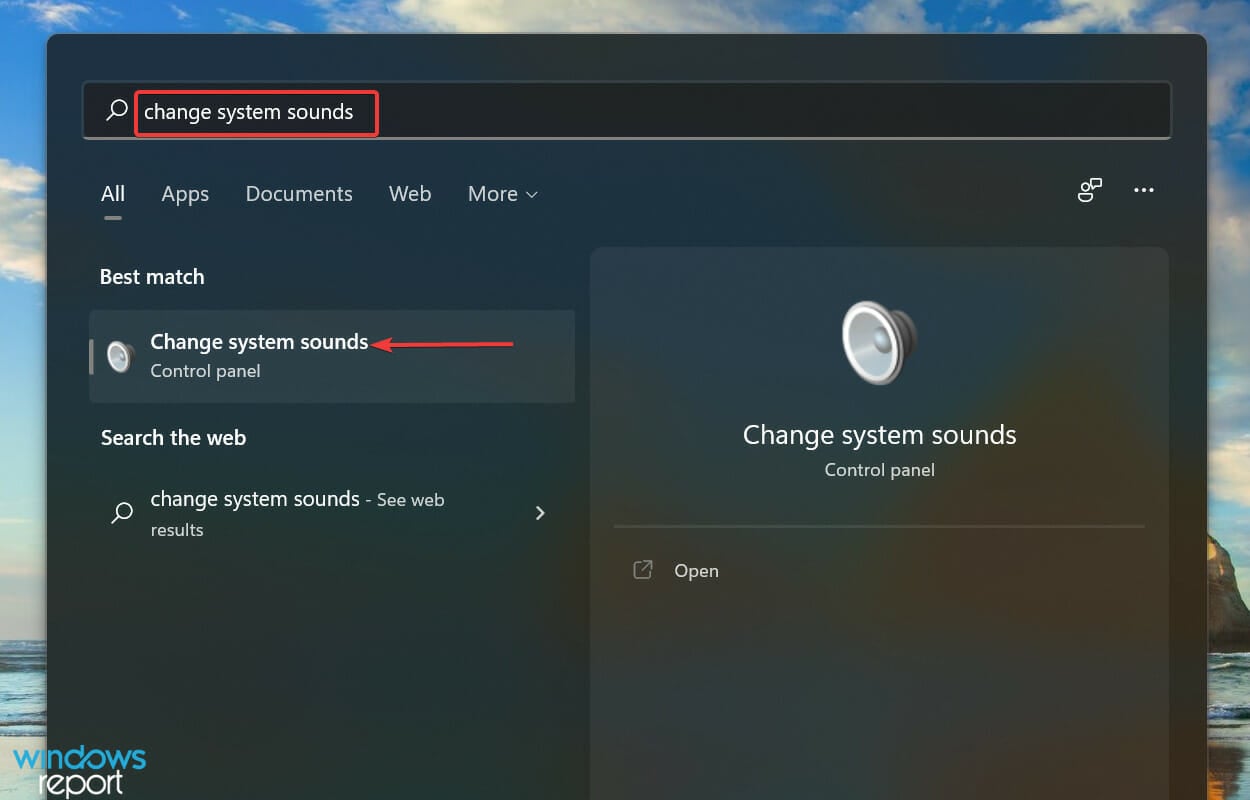
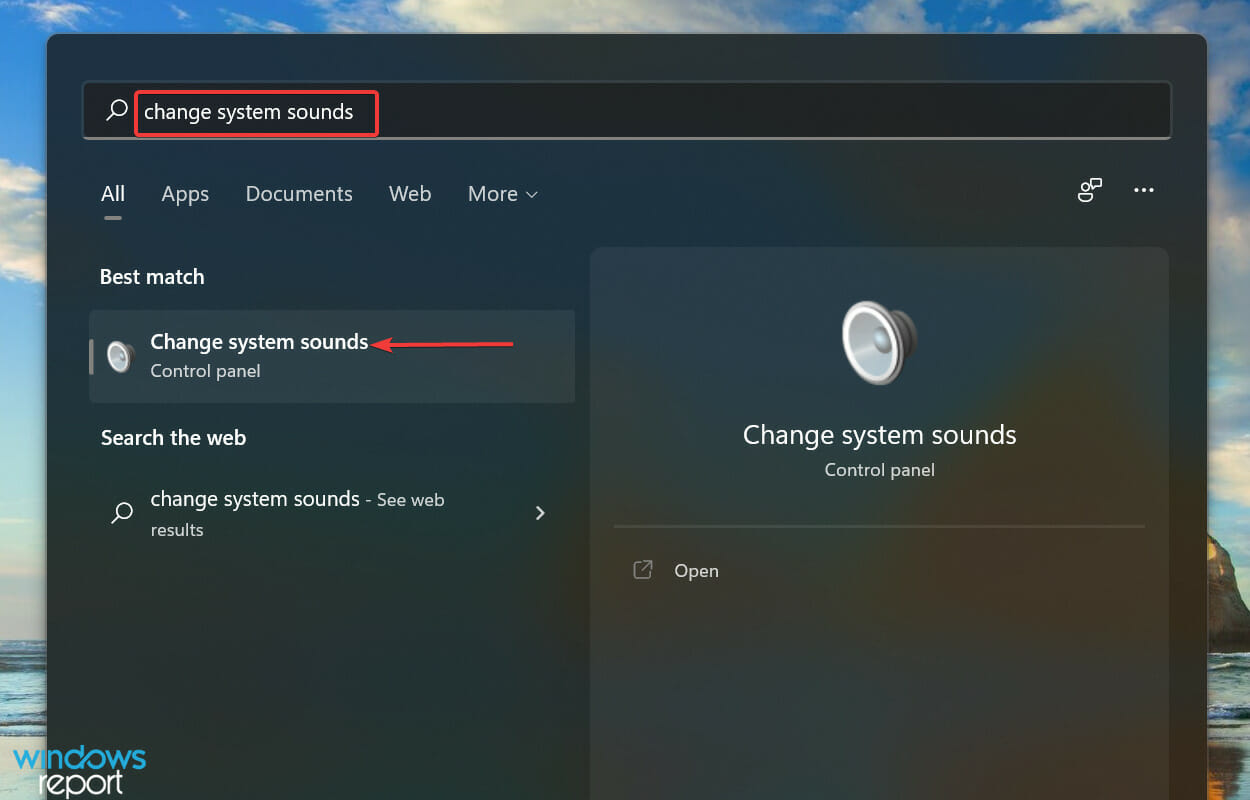
  1. Press Windows + S to launch the Search menu, enter Change system sounds in the text field at the top, and click on the relevant search result that appears.Change system sounds to fix skype stereo mix not working
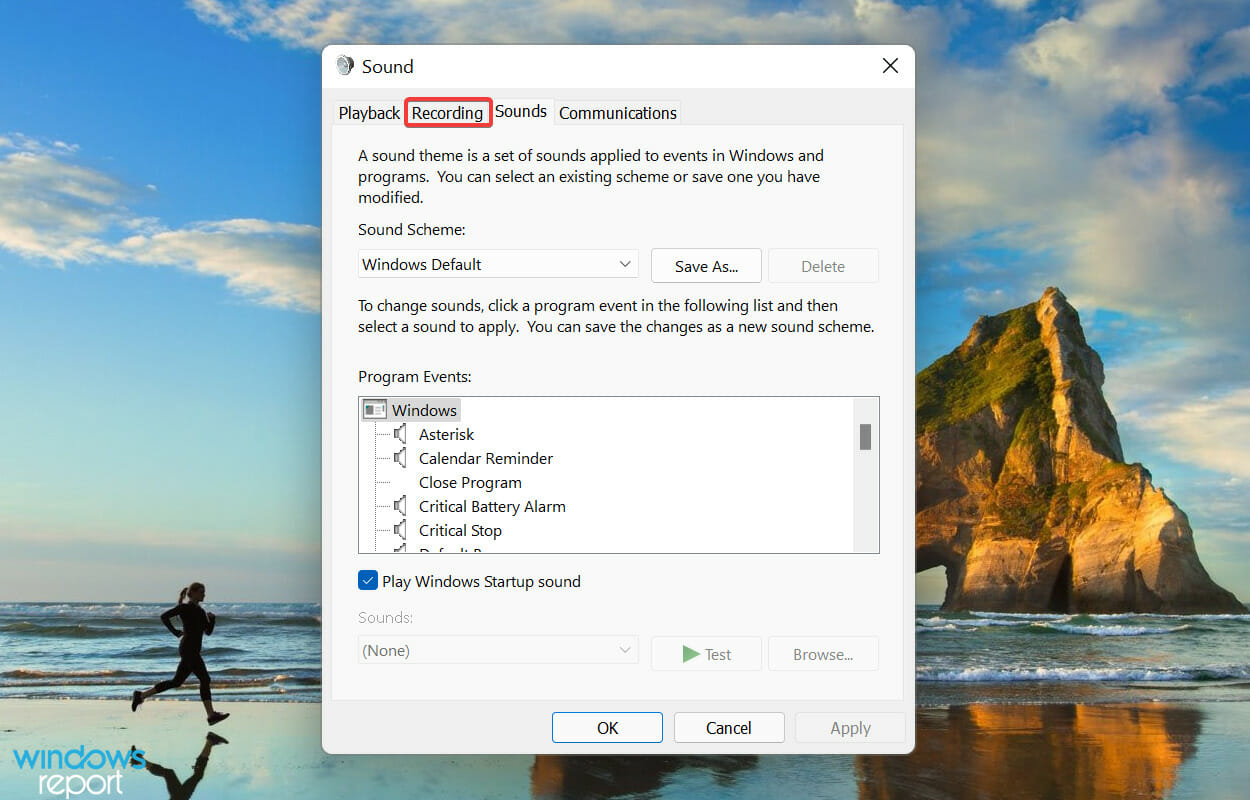
  2. Go to the Recording tab.Recording
  3. Next, right-click on the Stereo Mix entry and select Enable from the context menu.Enable Stereo Mix to fix skype stereo mix not working
  4. Click on OK to save the changes and close the window.Save changes
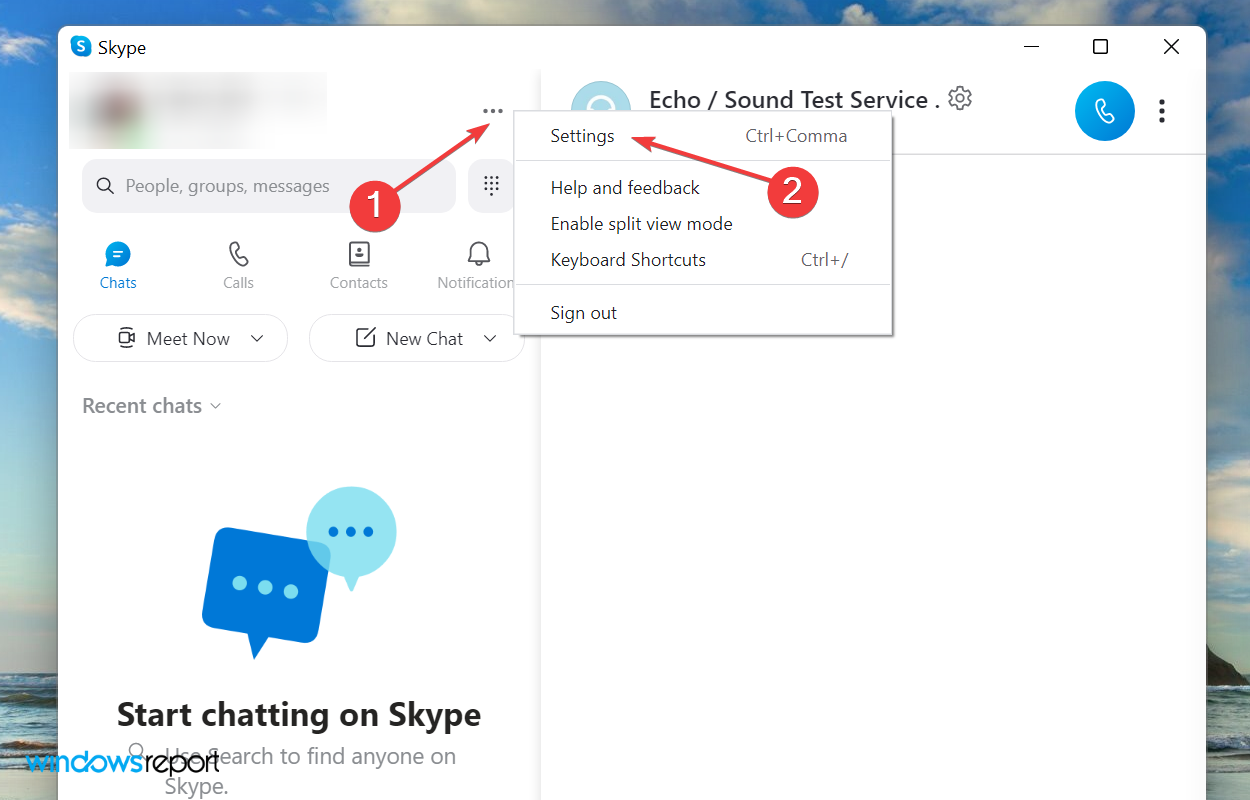
  5. Now, launch the Skype app, click on the ellipsis at the top, and select Settings from the context menu.Skype settings
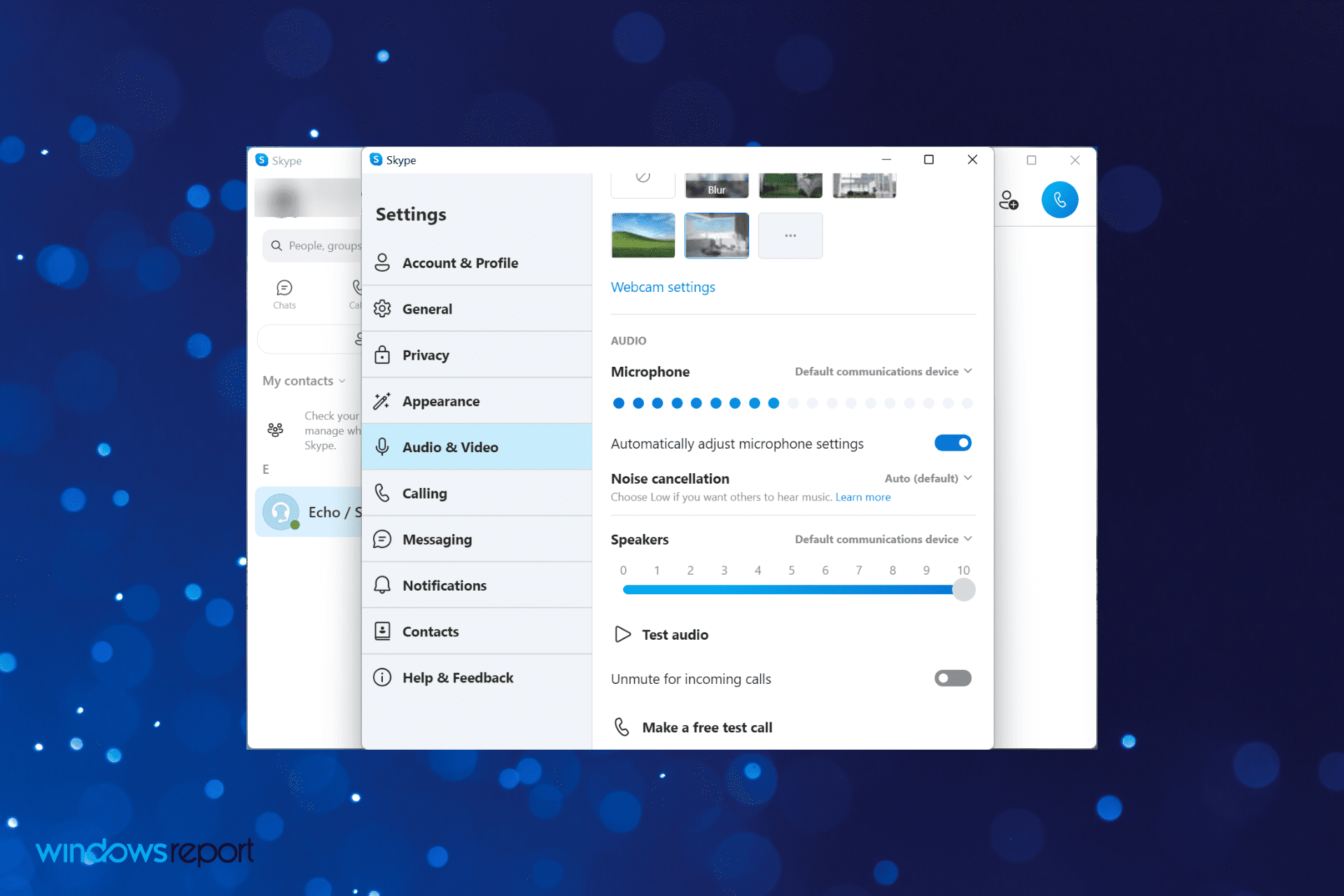
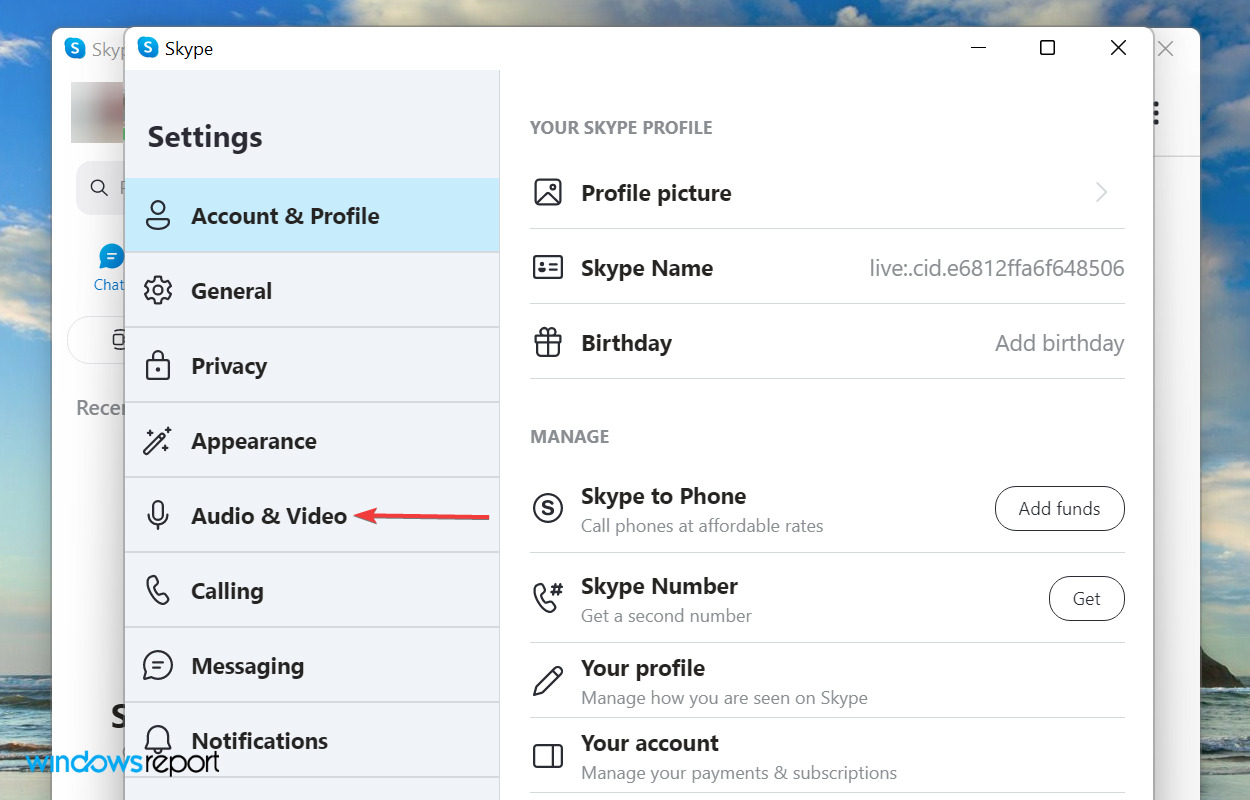
  6. Navigate to the Audio & Video tab from the navigation pane on the left.Audio & Video
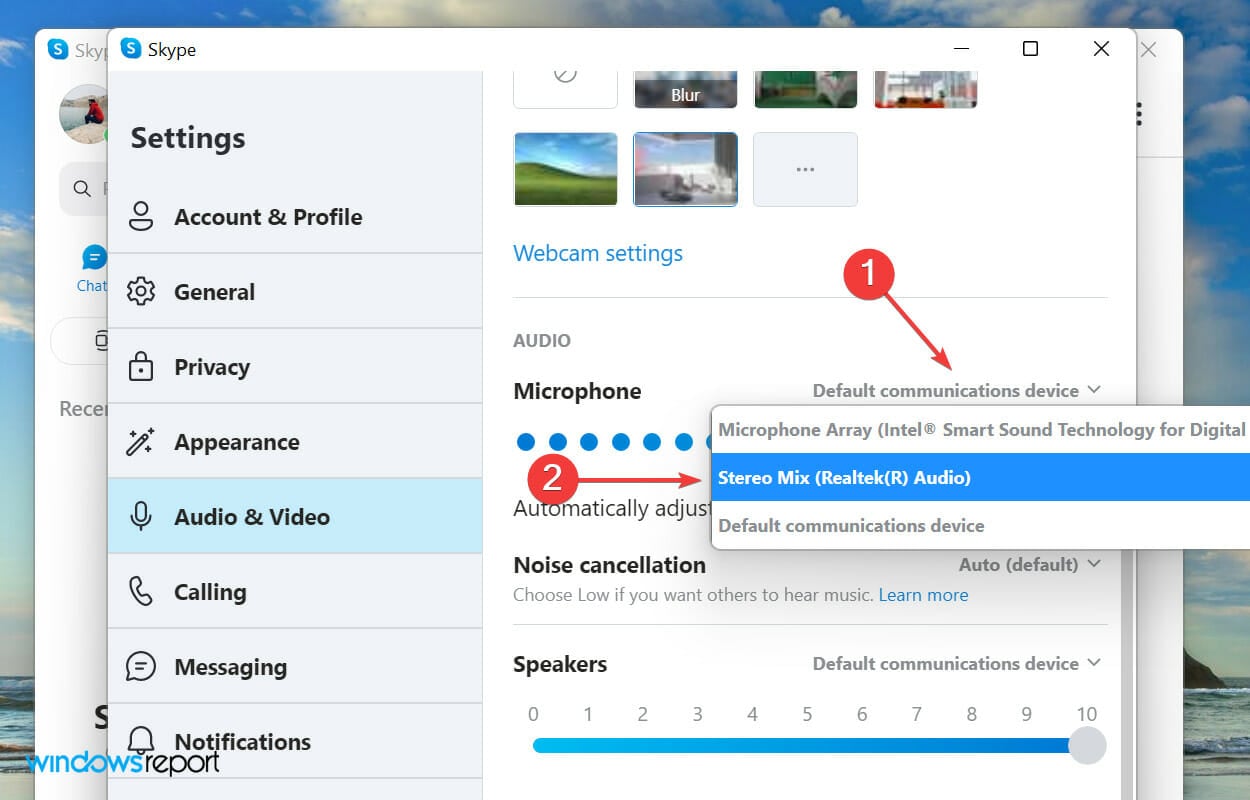
  7. Click on the dropdown menu next to Microphone and select Stereo Mix from the list of options.Select Stereo Mix to fix skype stereo mix not working

4. Update sound card driver

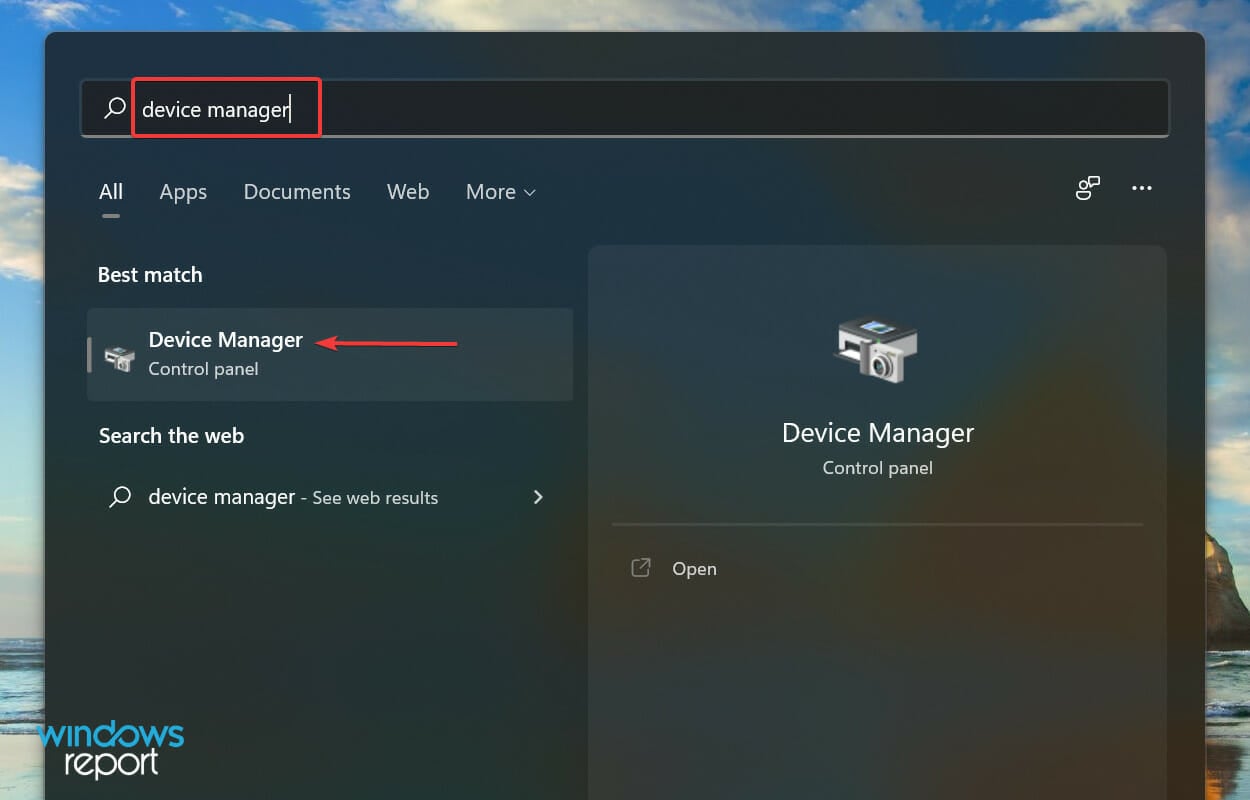
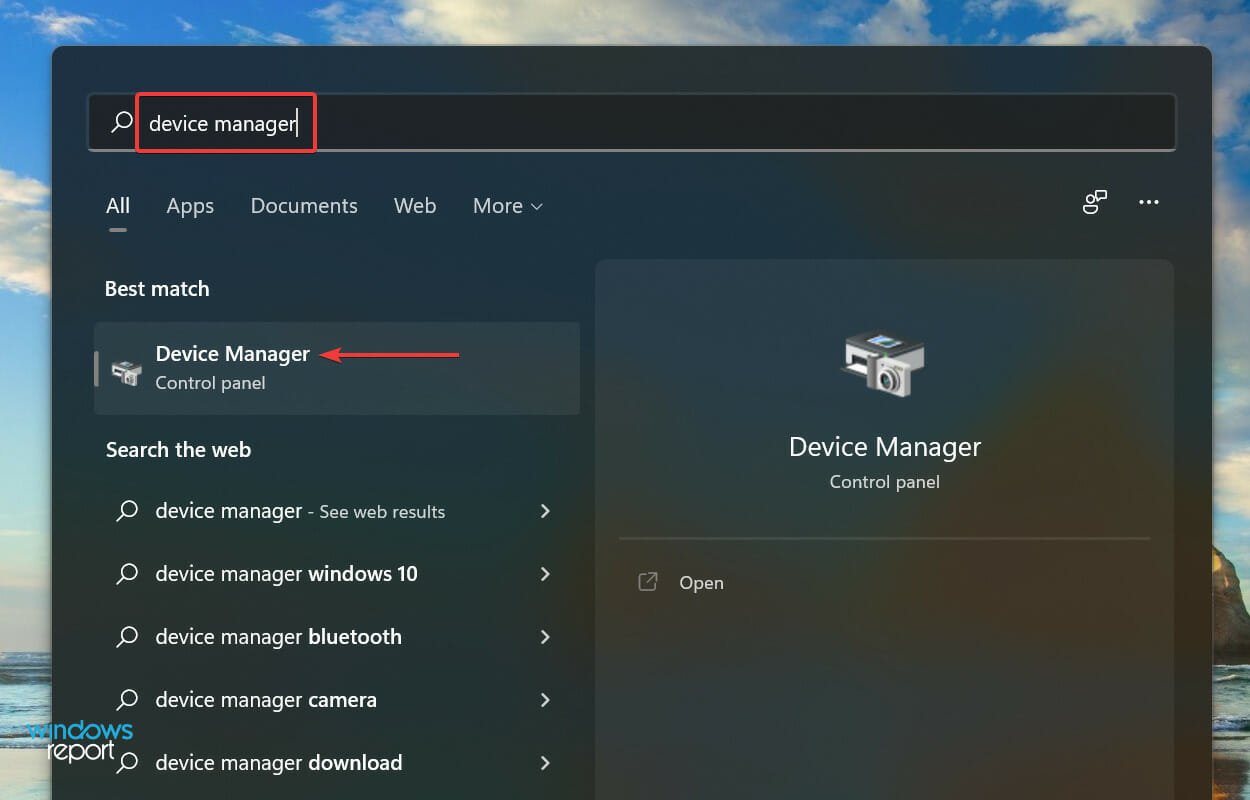
  1. Press Windows + S to launch the Search menu, enter Device Manager in the text field, and click on the relevant search result that appears.Launch Device Manager to fix skype stereo mix not working
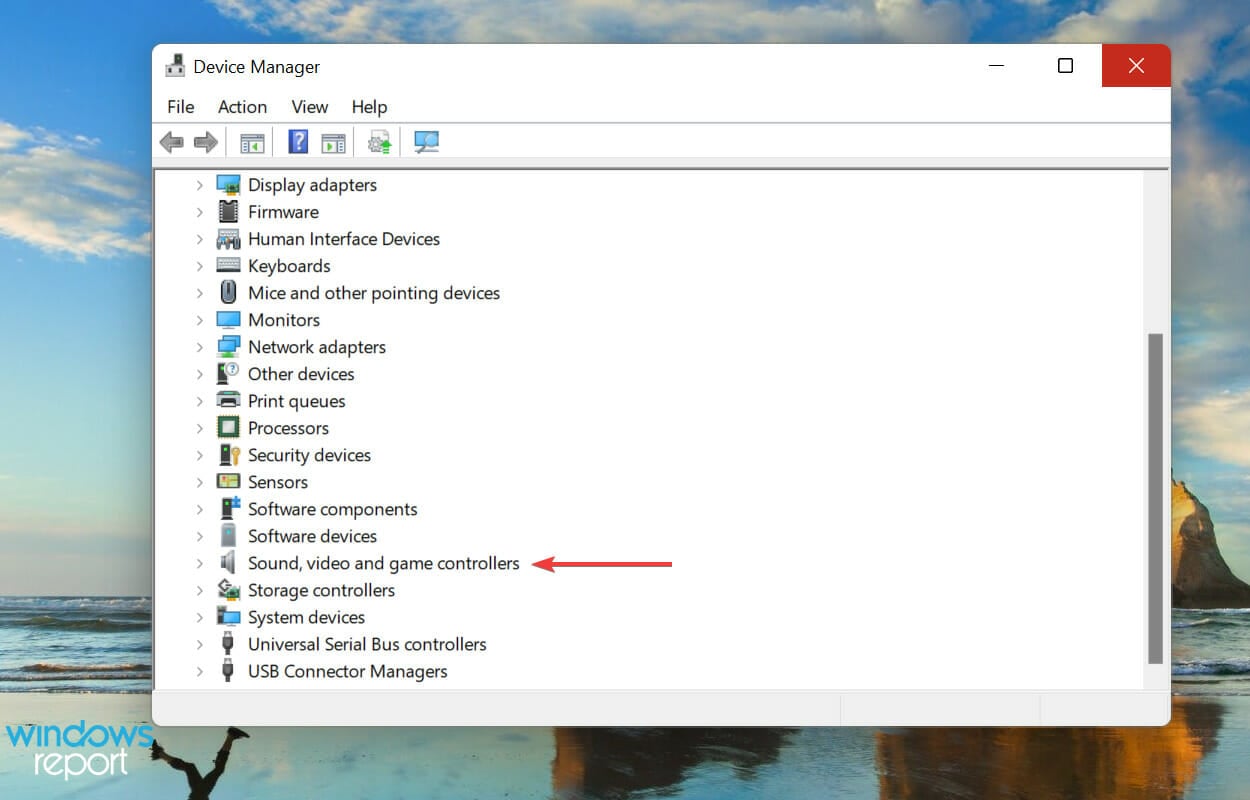
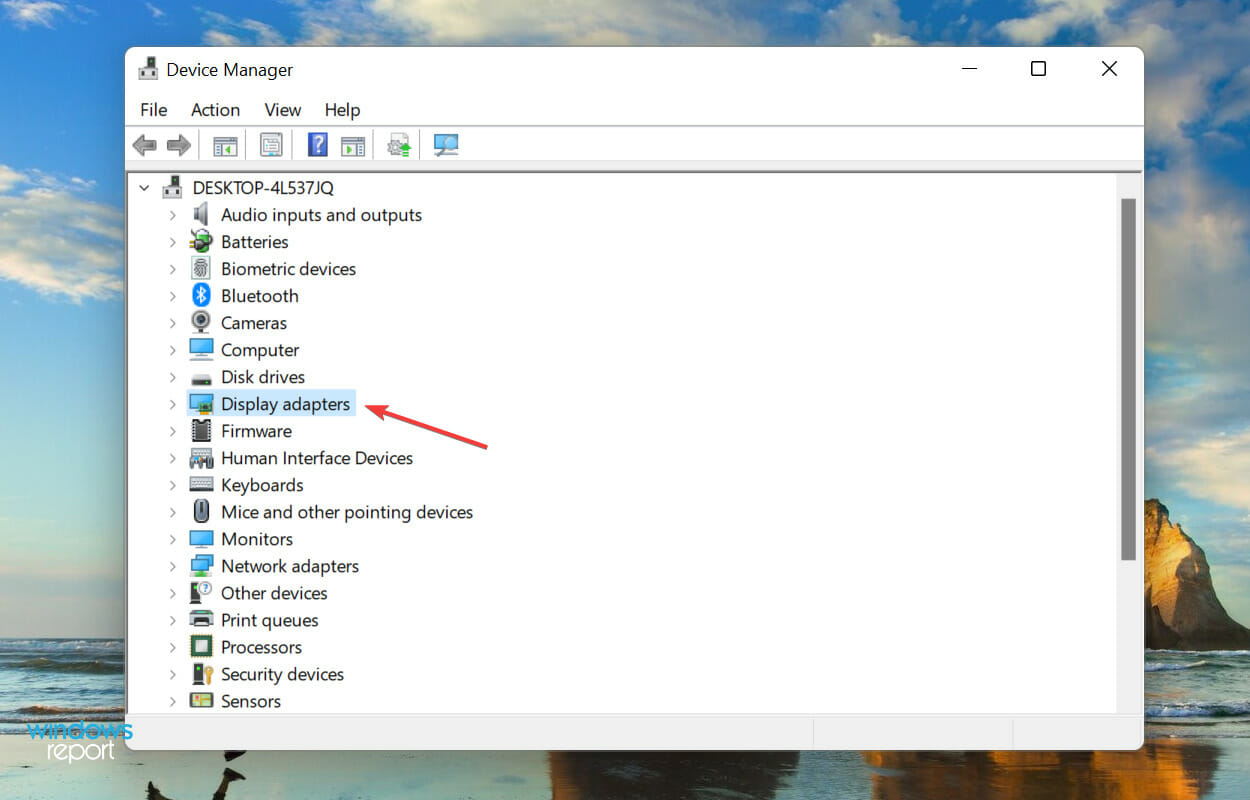
  2. Locate and double-click on Sounds, video and game controllers entry to expand and view the devices listed under it.Sound, video and game controllers
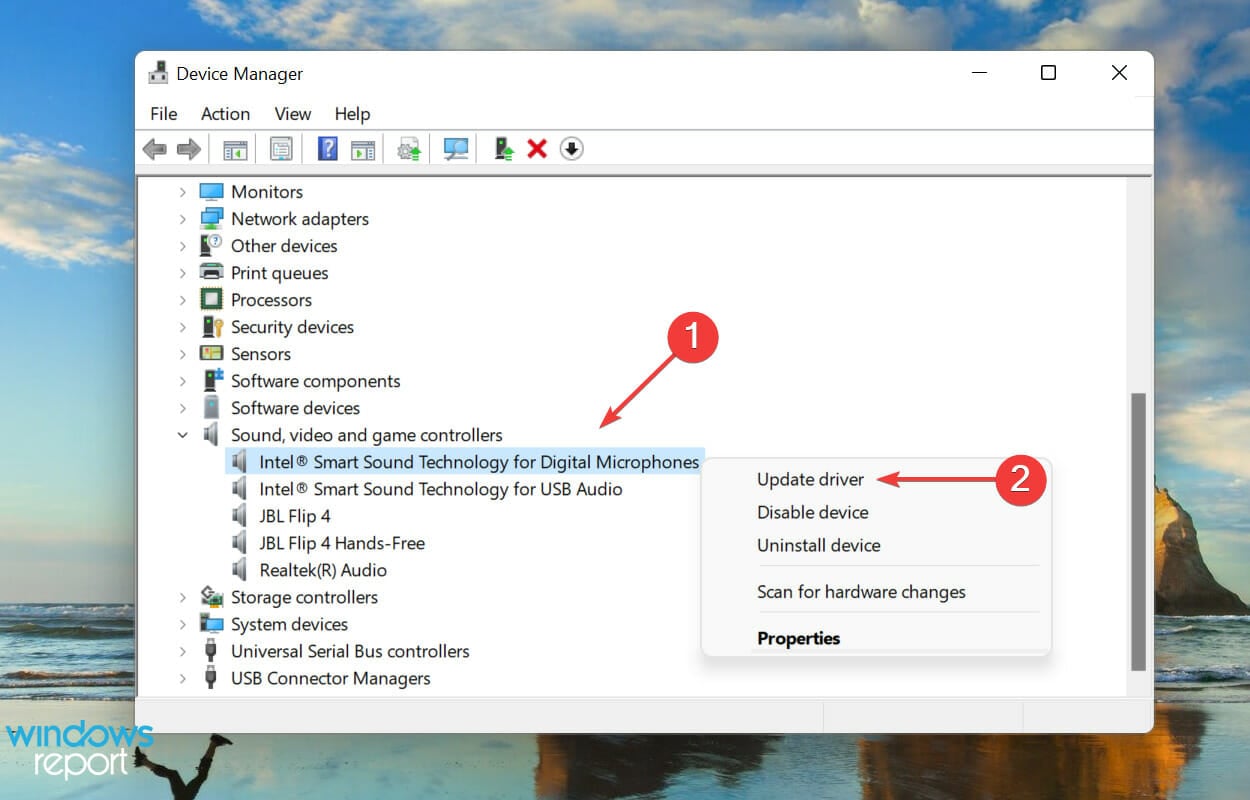
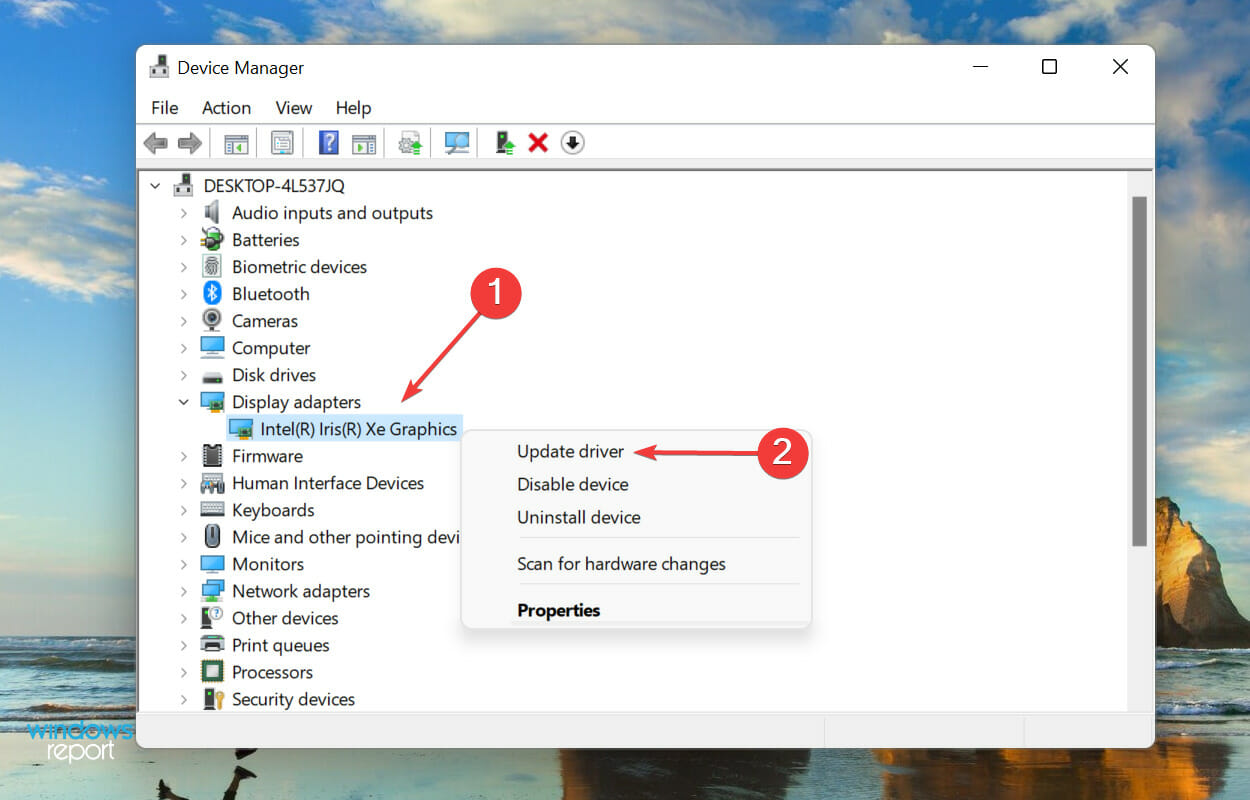
  3. Right-click on the audio device and select Update driver from the context menu.Update driver to fix skype stereo mix not working
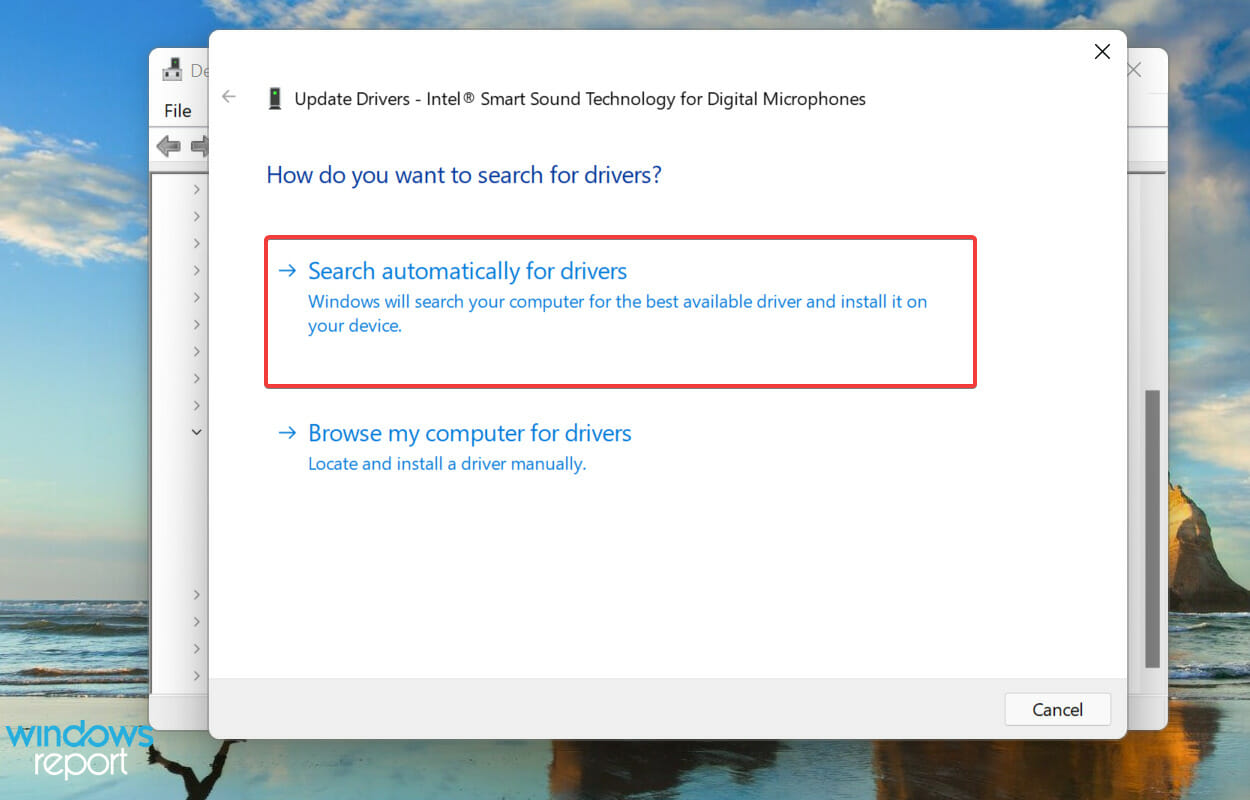
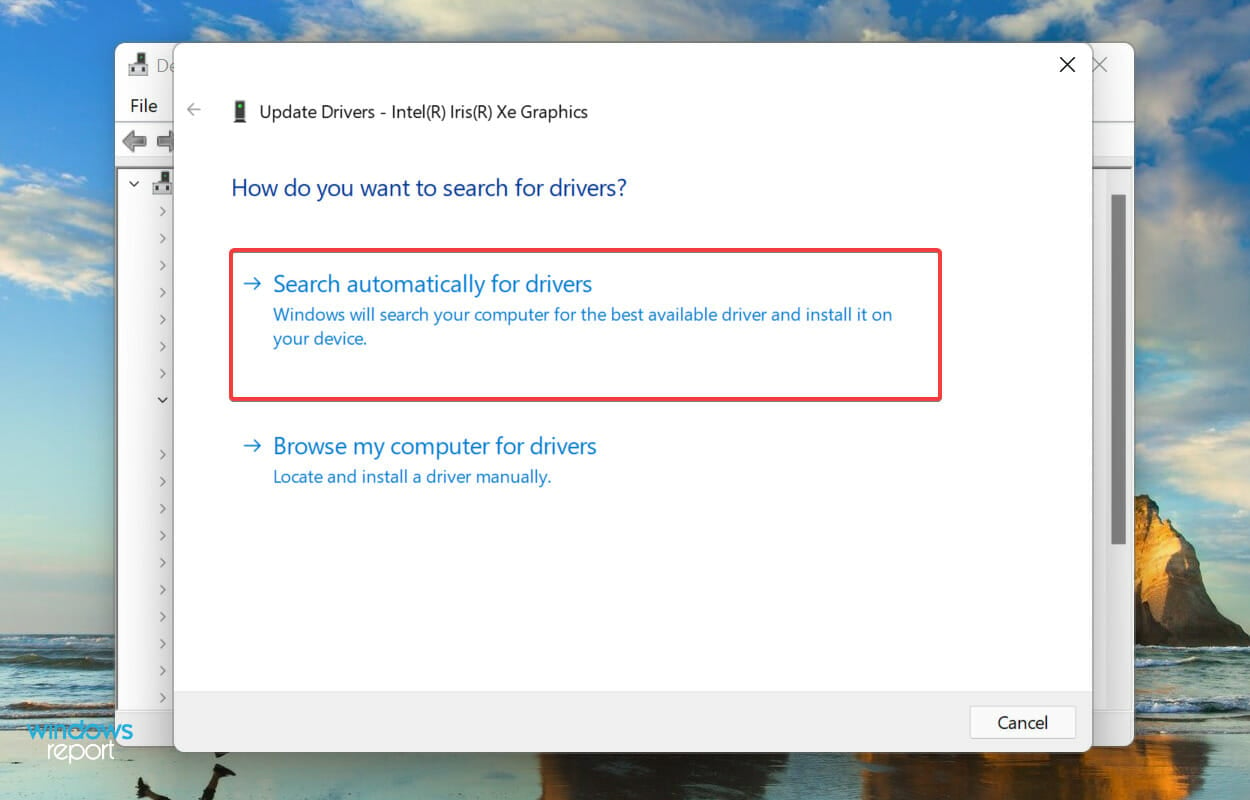
  4. Next, select Search automatically for drivers from the options listed in the Update Drivers window.Search automatically for drivers
  5. Wait for Windows to find the best available version on the system and install it.

Drivers help relay commands between the OS and the hardware. Updating the drivers ensures the best performance along with the introduction of new features added in the subsequent versions.

The Device Manager method listed above only scans the storage drive for the driver and not the web, thus acting as an offline update. This reduces the chance of finding a newer version.

If you are unable to get the latest version this way, try checking for driver updates in Windows Update or manually download and install it from the manufacturer’s website.

In case that feels like too much trouble, you can always use a reliable and effective third-party app for the job. We recommend using Outbyte Driver Updater, a dedicated tool that checks all available sources for the latest version and keeps the installed drivers up-to-date.

After updating the sound card driver, check if the Stereo Mix not working problem in Skype is fixed.

5. Set speakers as the default device

  1. Press Windows + S to launch the Search menu, enter Change system sounds in the text field, and click on the relevant search result.Change system sounds to fix skype stereo mix not working
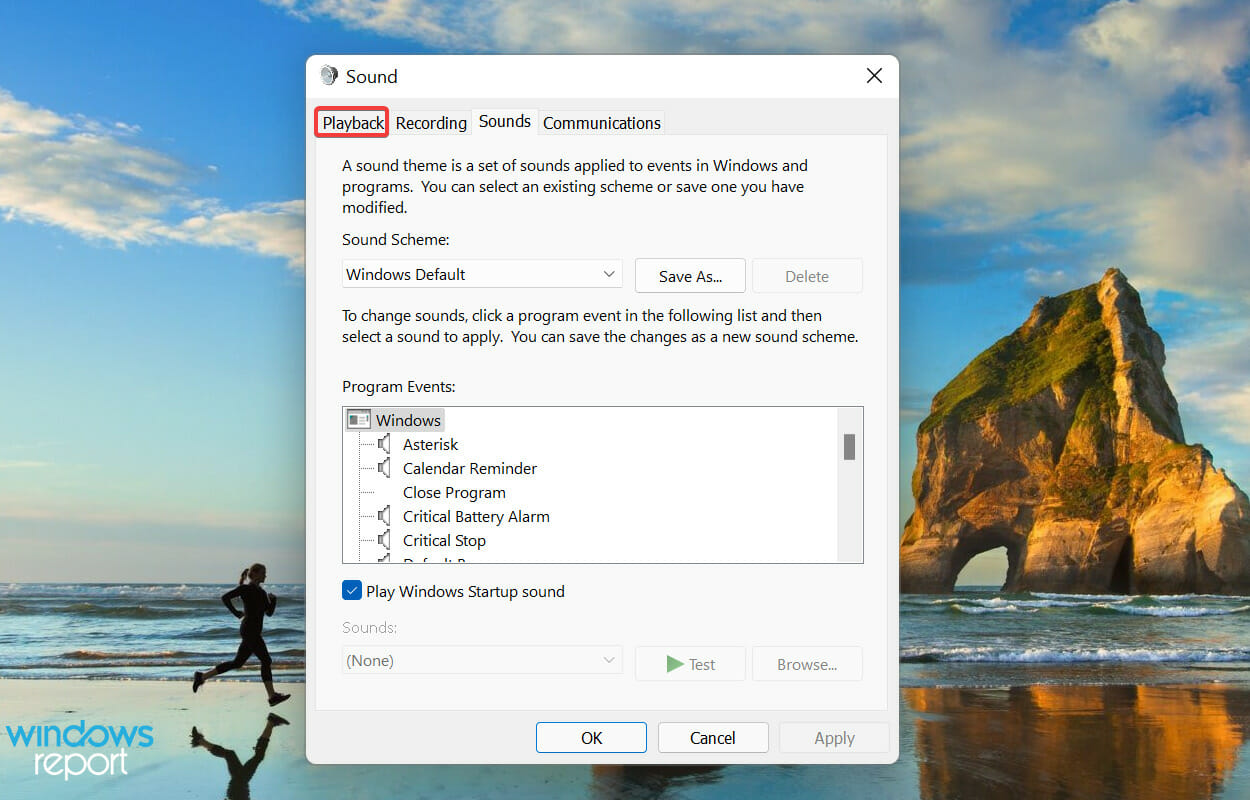
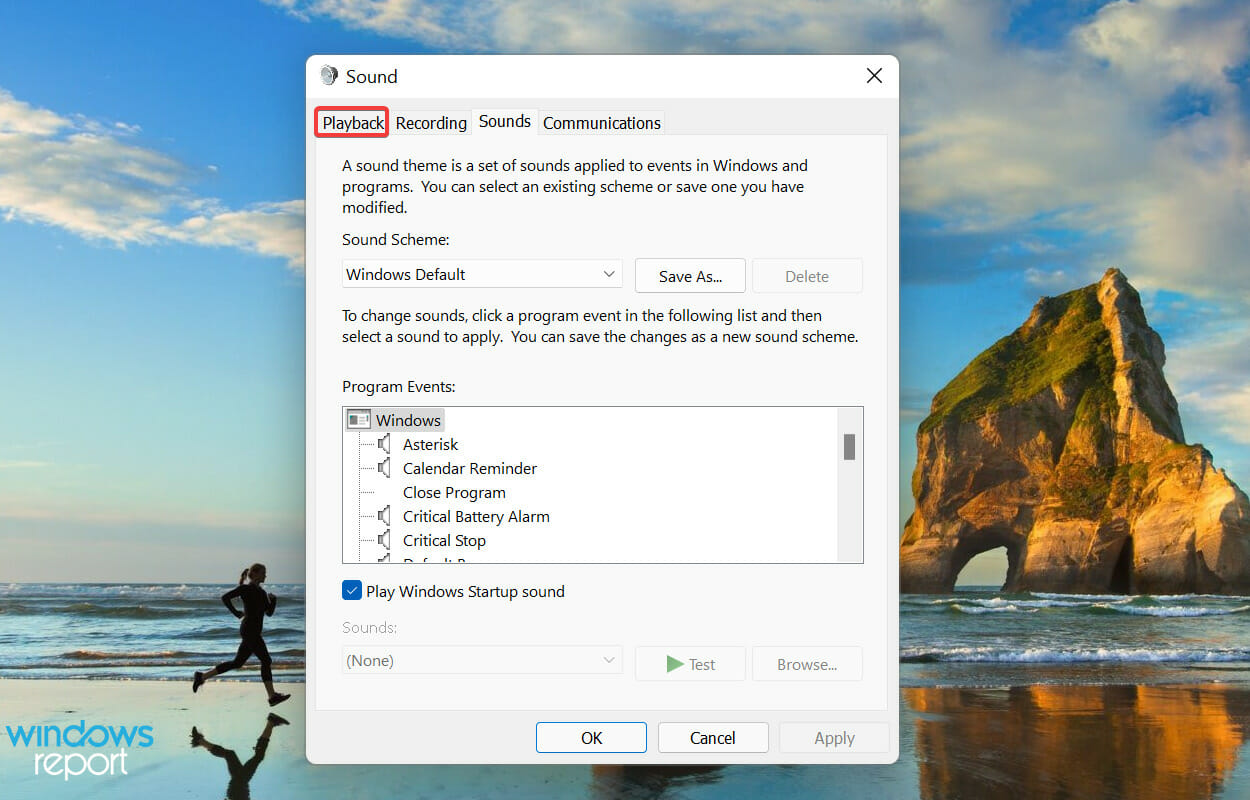
  2. Go to the Playback tab.Playback
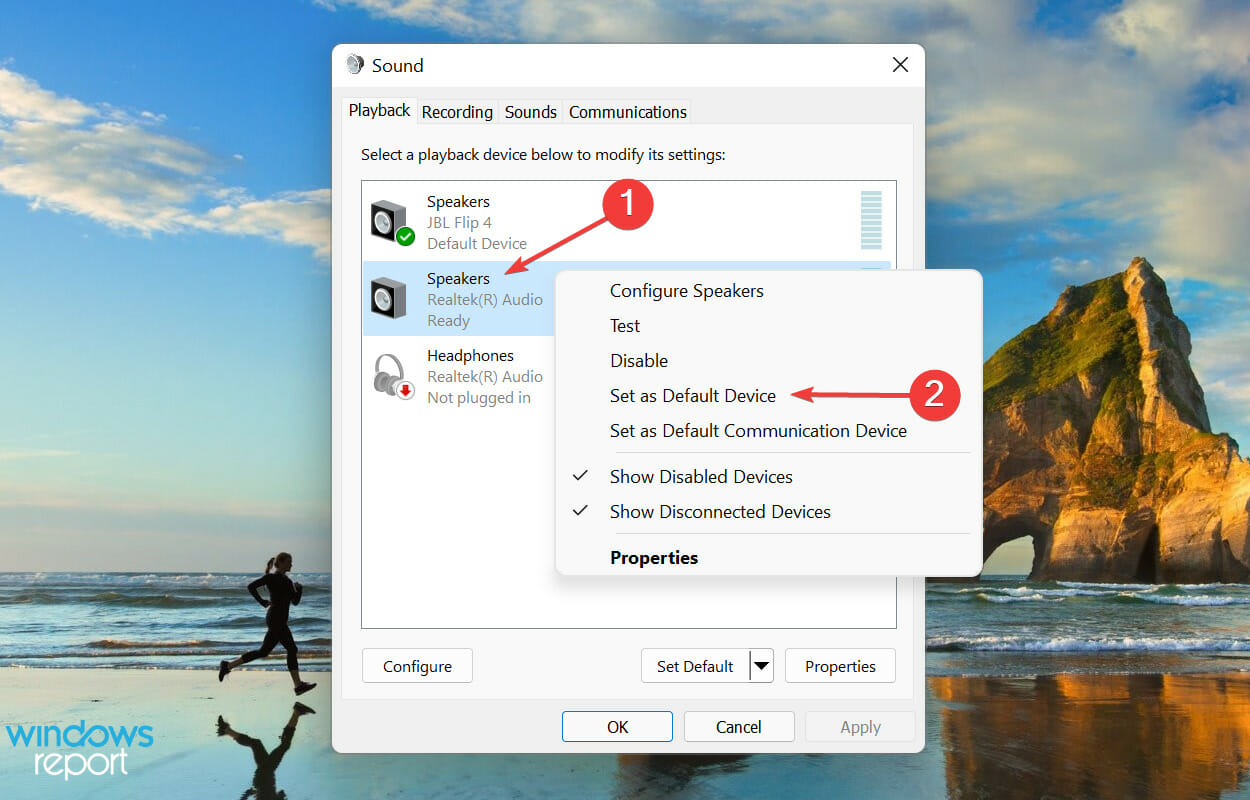
  3. Right-click on the desired speaker, and select Set as Default Device from the context menu.Change default device to fix skype stereo mix not working
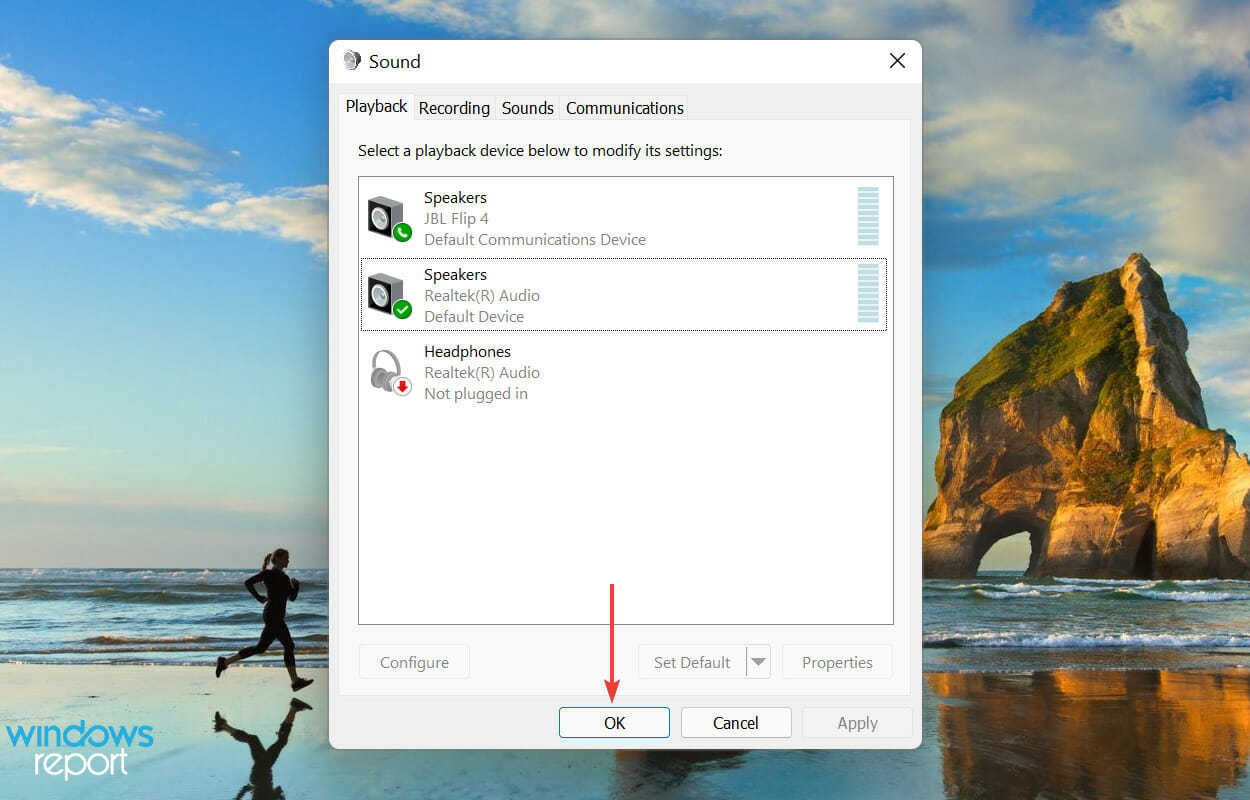
  4. Click on OK at the bottom to save the changes.Save changes

If the wrong speakers have been set as the default playback device, you are bound to encounter problems with the Stereo Mix in Skype. Therefore, make the necessary corrections and check if the issue is eliminated. If not head to the next fix.

6. Check if the audio device is muted

  1. Press Windows + S to launch the Search menu, enter Change system sounds in the text field at the top, and click on the relevant search result that appears.Search for Change system sounds to fix skype stereo mix not working
  2. Navigate to the Playback tab.Playback tab
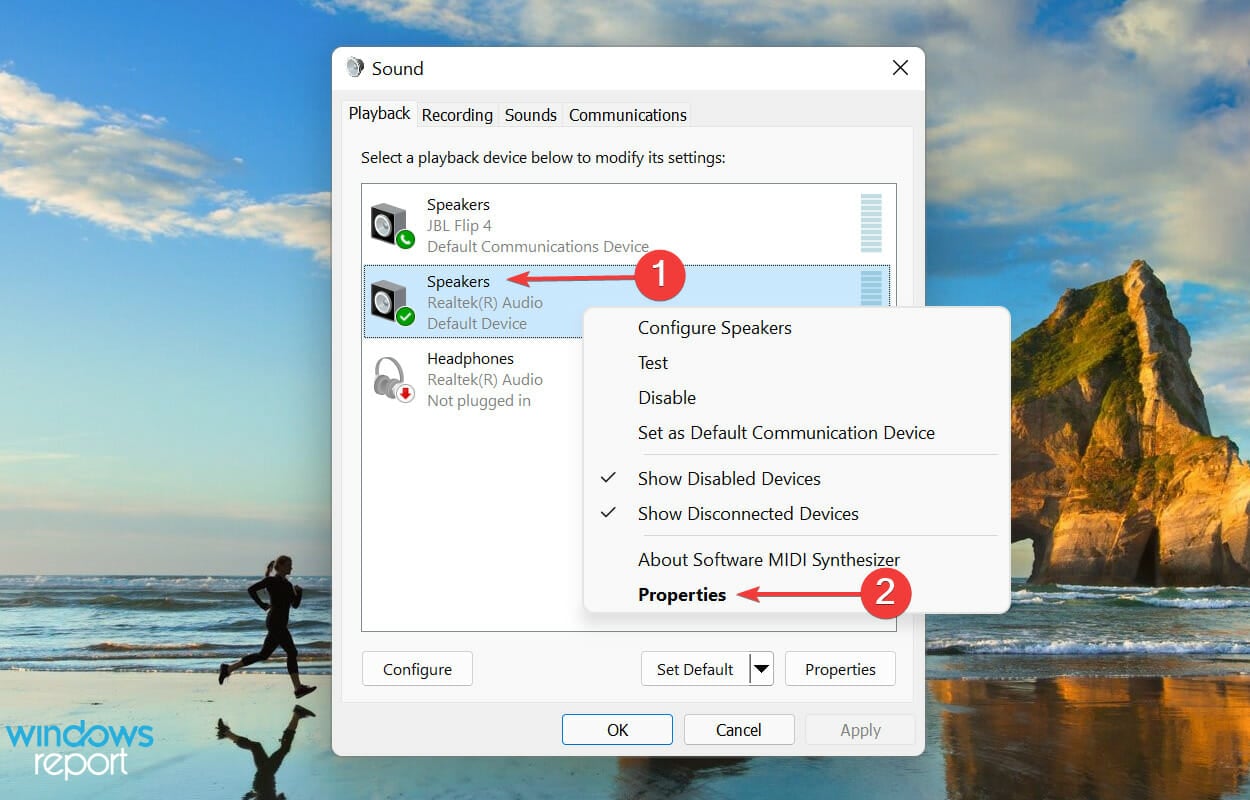
  3. Right-click on the default speaker and select Properties from the context menu.Speaker properties to fix skype stereo mix not working
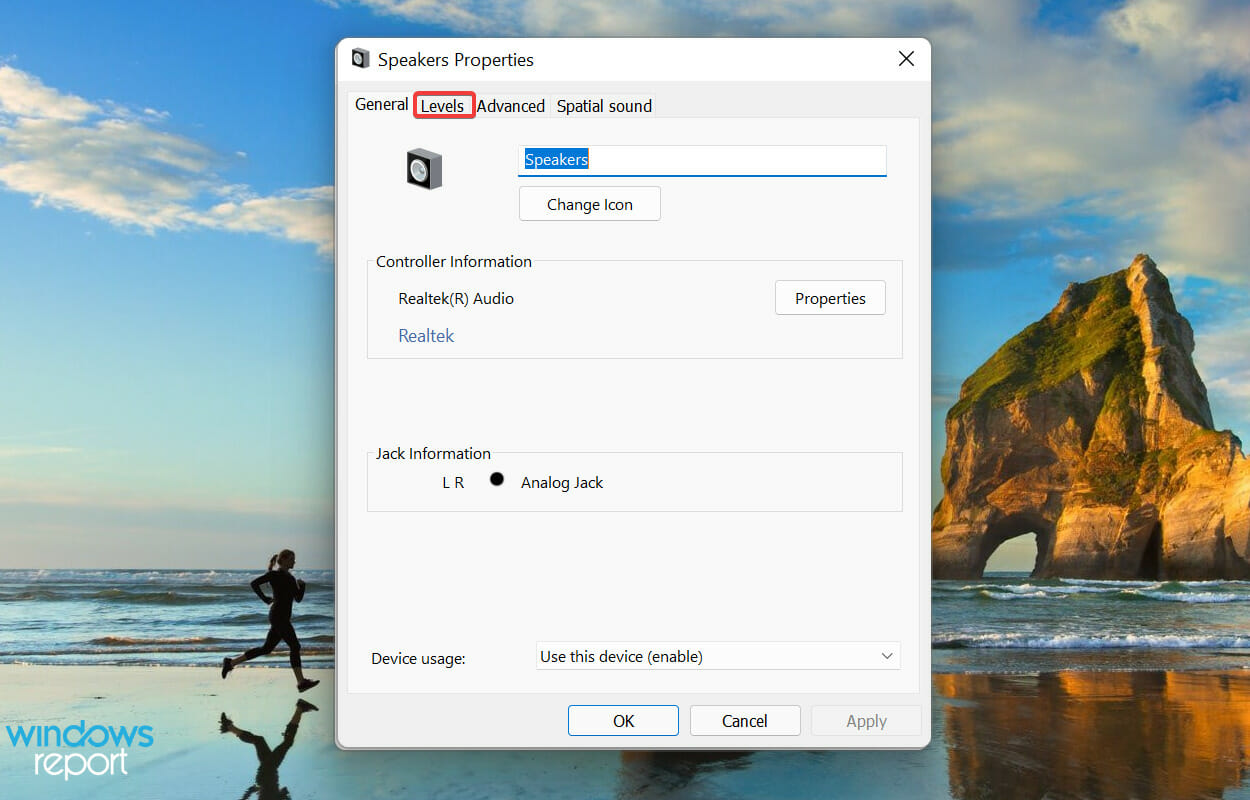
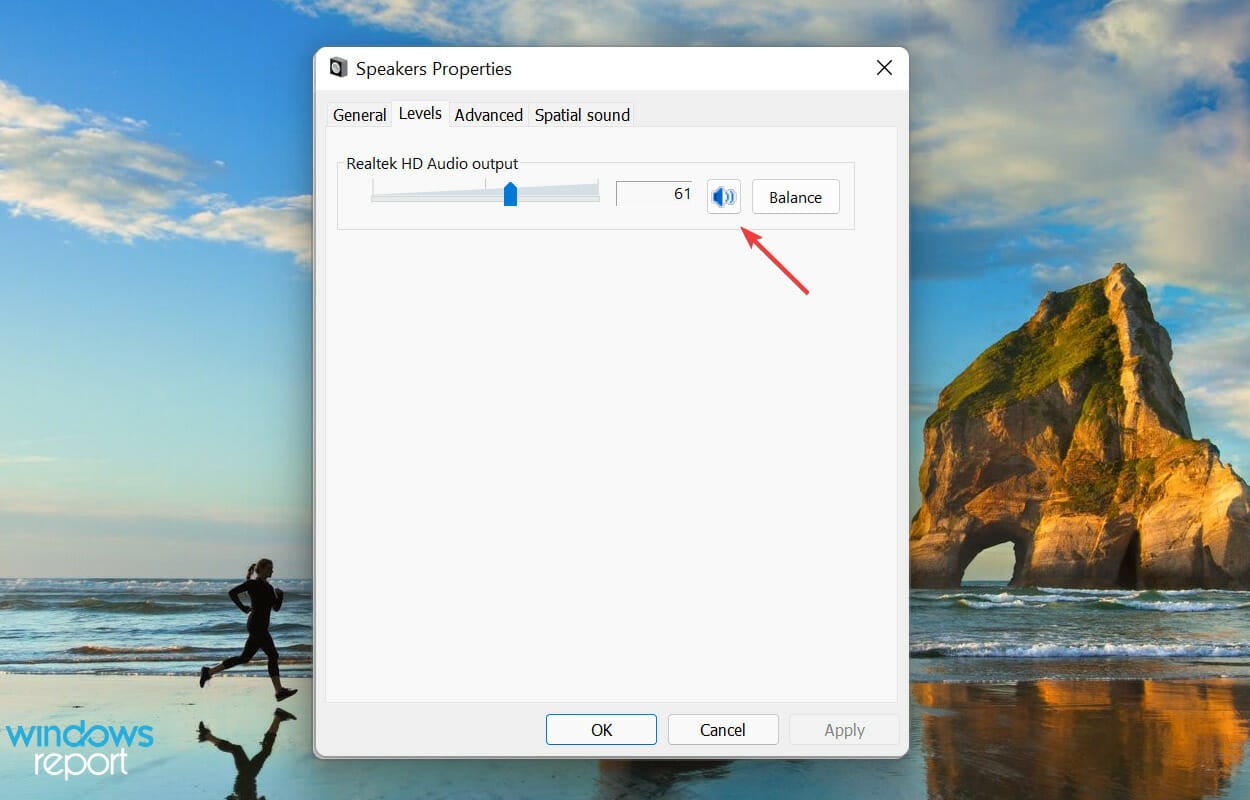
  4. Go to the Levels tab from the top.Levels
  5. Check if the output is muted, and click on the Mute icon to unmute it.Unmute audio to fix skype stereo mix not working
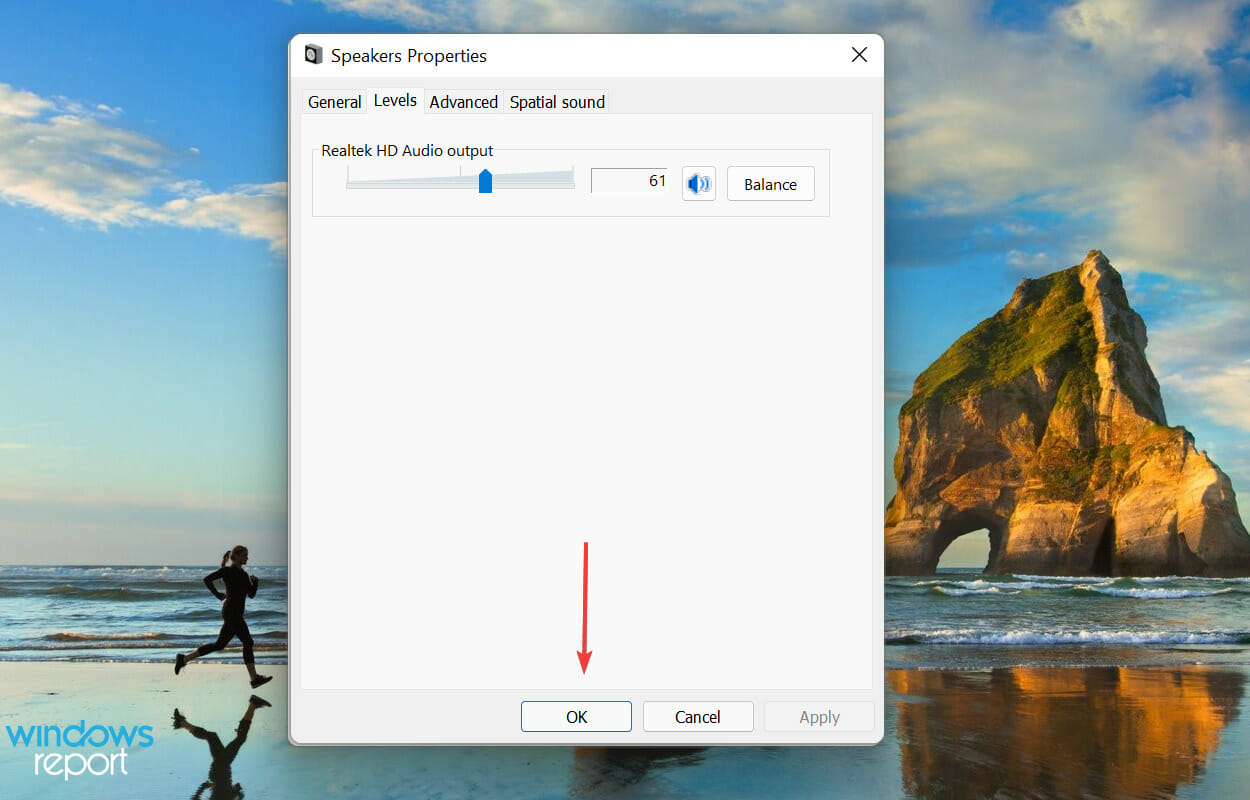
  6. Click OK at the bottom to save the changes.Save the changes

7. Repair/reset the Skype app

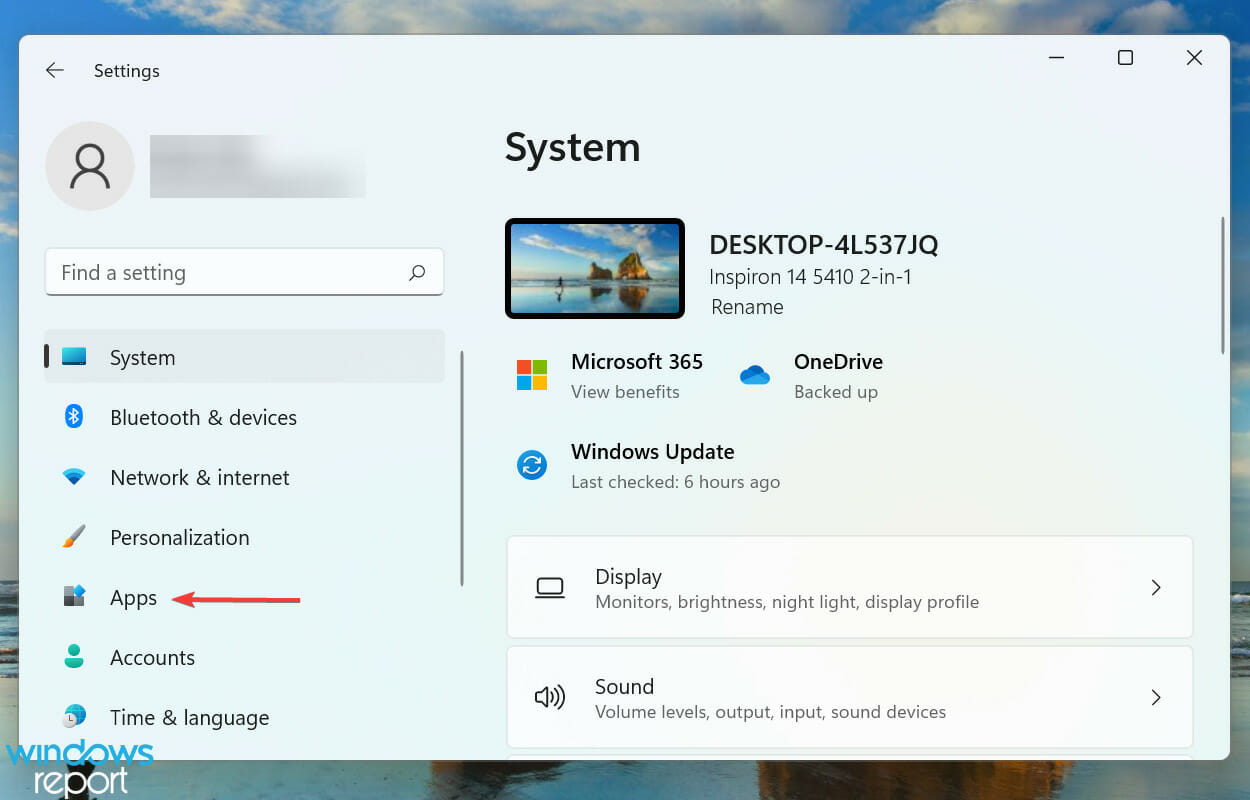
  1. Press Windows + I to launch the Settings app, and select Apps from the tabs listed in the navigation pane on the left.Apps
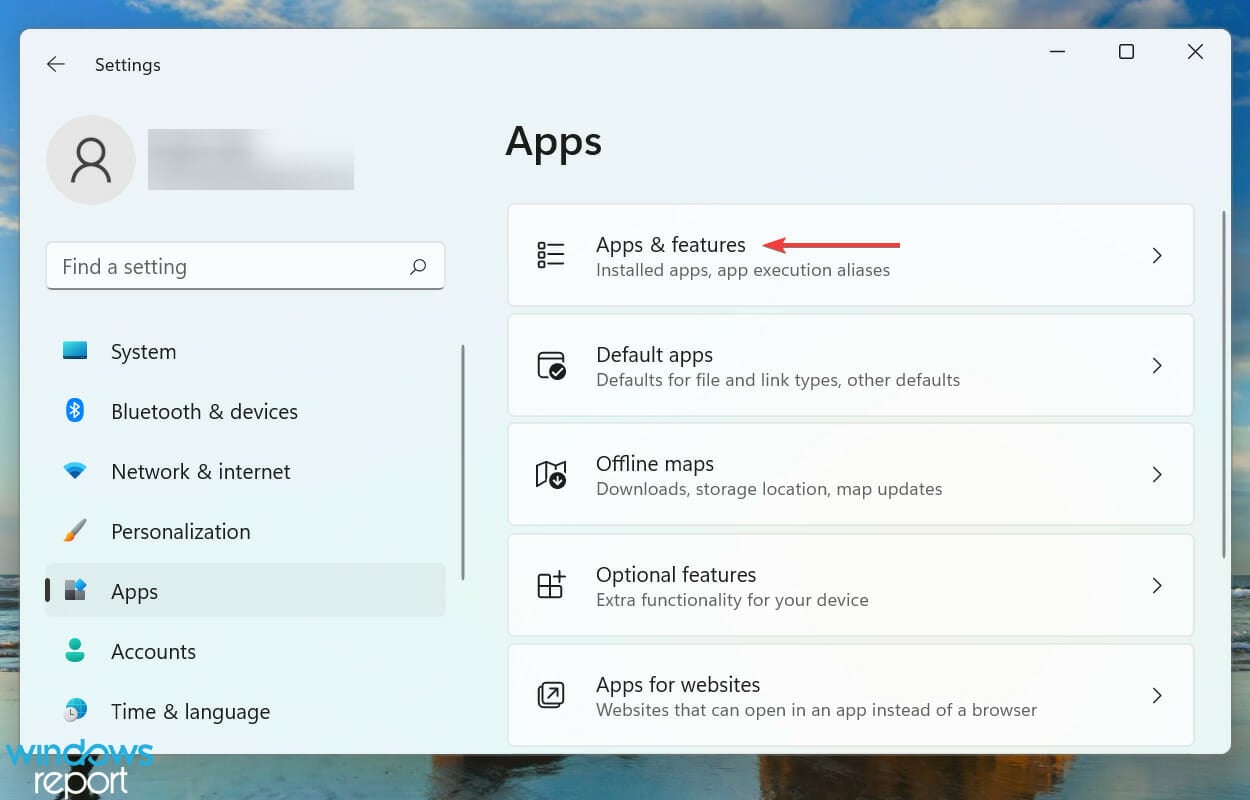
  2. Next, click on Apps & features on the right.Apps & features to fix skype stereo mix not working
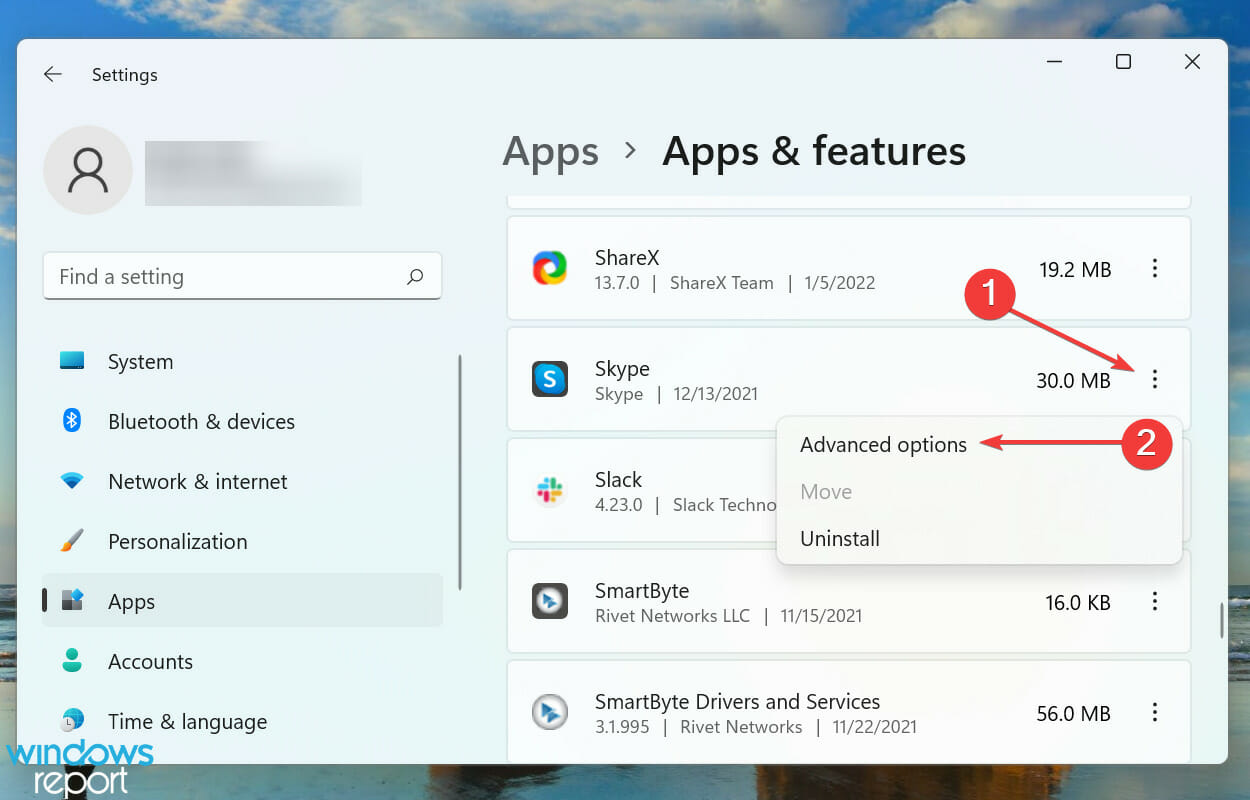
  3. Locate the Skype app, click on the ellipsis next to it, and select Advanced options from the menu.Advanced options
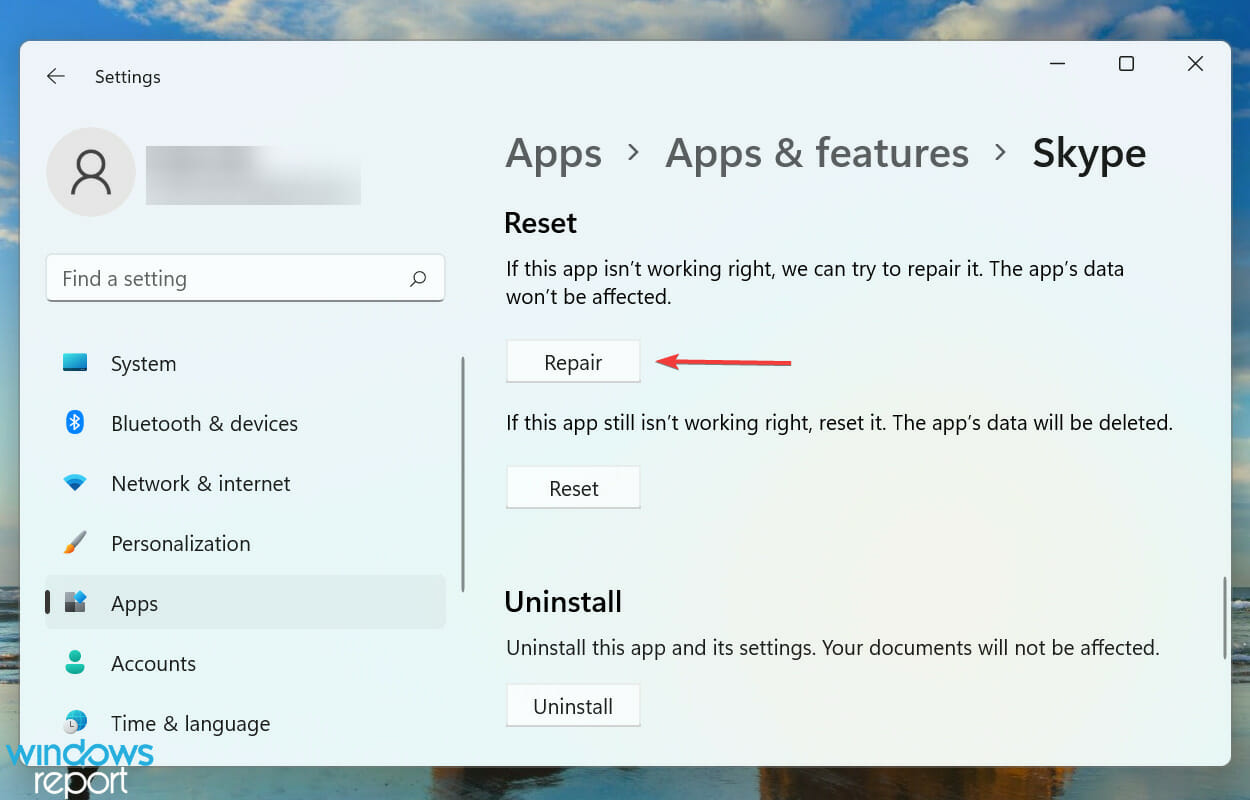
  4. Click on the Repair button and wait for the process to complete.Repair app to fix skype stereo mix not working
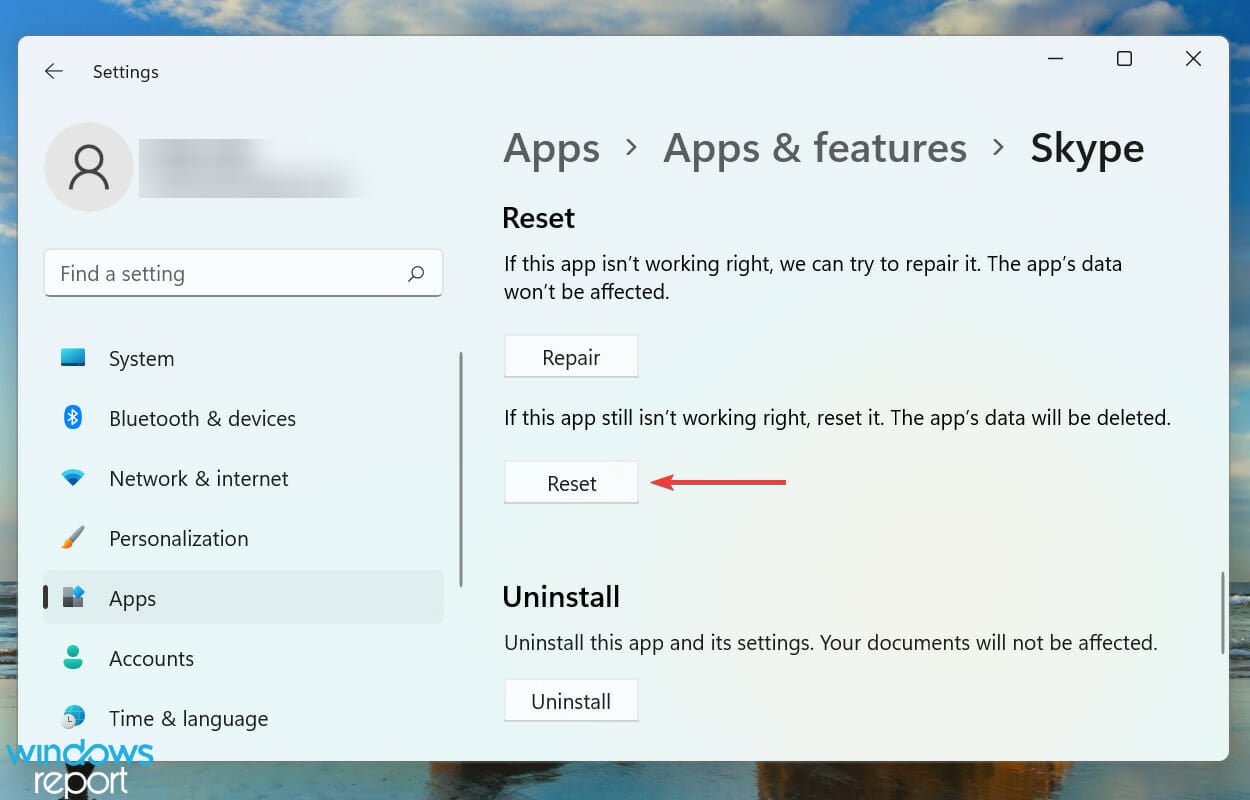
  5. Now check if the problem is fixed. If not, click on the Reset button.Reset app to fix skype stereo mix not working
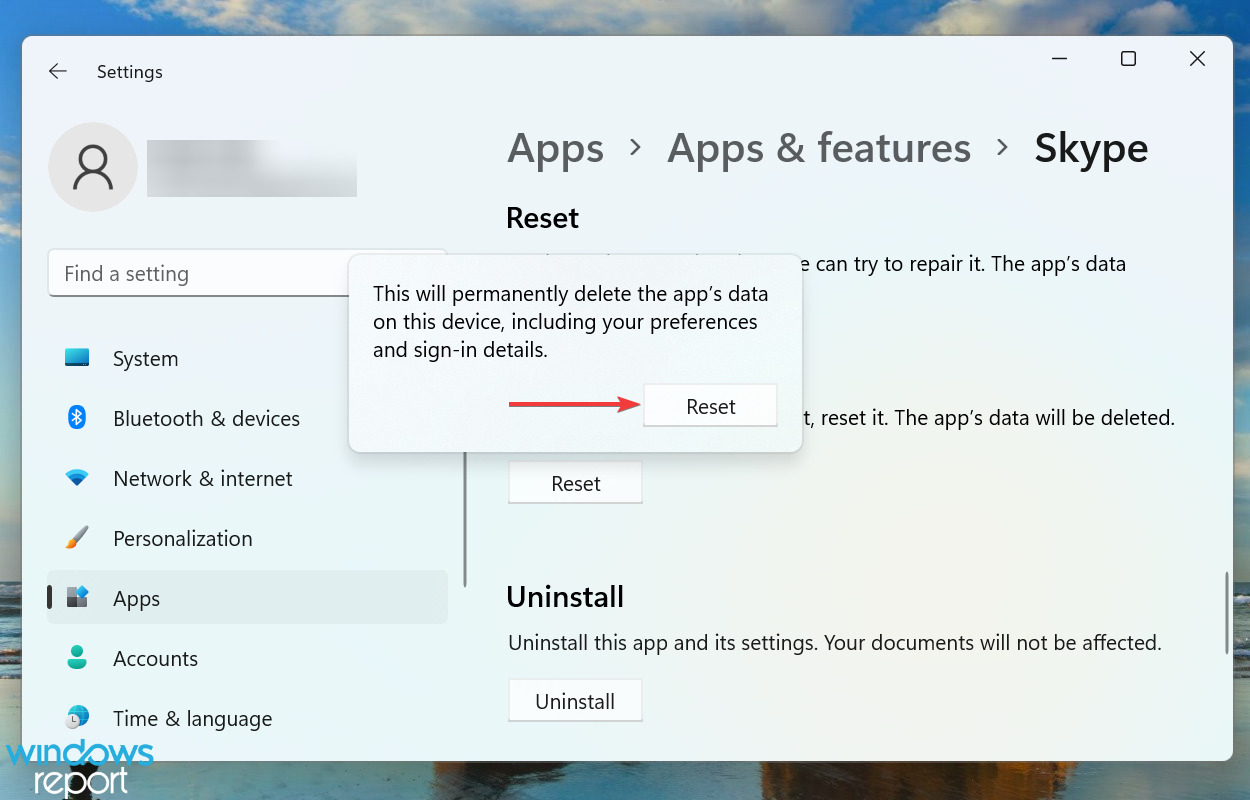
  6. Again, click on Reset in the prompt that appears.Confirm reset

If the above methods haven’t yet worked, it’s likely that the issue lies with the Skype app itself. In which case, it’s best that you first try to repair it, and if that doesn’t help, reset the app.

Repairing the app identifies problematic files and replaces them, verifies the Registry entries, and checks the installation files without affecting the cache or configured settings.

On the other hand, resetting the app will remove everything and will take it to a state similar to when you first installed it.

What are some good software tools for audio enhancement in Windows 11?

A simple Google search would show hundreds of different software, with each claiming to outperform the other. This often confuses users and they are unable to choose the right one.

If you are looking for surround sound software, check our curated list of the best ones in the market. In case you are just looking for audio enhancers, here are the ones you should grab right away. Users trying to find an audio recording software can check out this list.

By the time you reach this section of the article, the Stereo Mix should be working on Skype and you know a lot of software that could be used both for audio enhancement and recording.

In case there’s no sound output on your Windows 11 PC, learn how to fix the problem.

Tell us which fix worked for you in the comments section below.

Resident Evil 7 Fatal Application Exit: How to Fix it

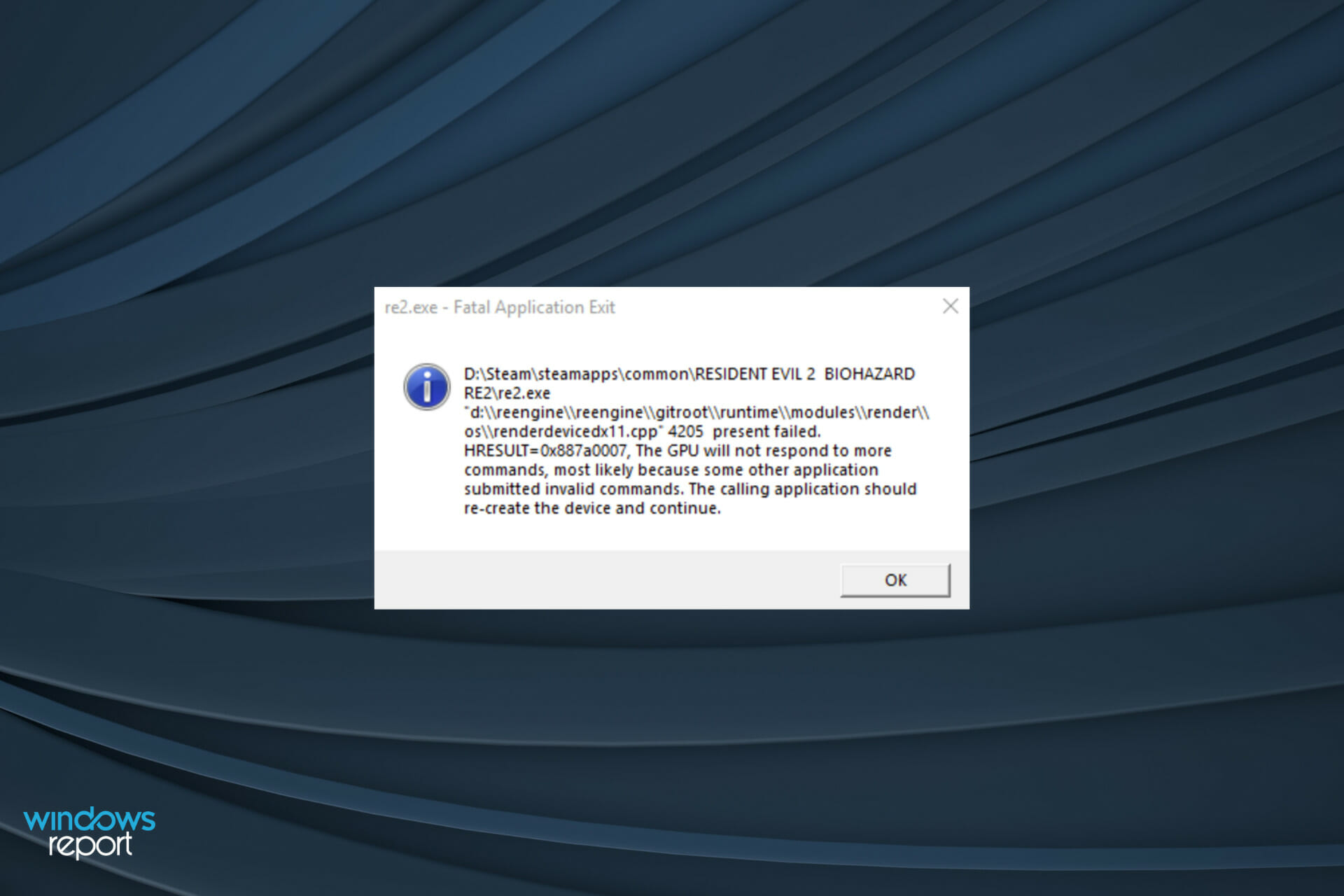
Encountering errors that cause the game to crash is a gamer’s worst nightmare. And, several users have been reported facing the Fatal Application Exit error when playing Resident Evil 7.

When you encounter it, the screen turns black with just the error box visible, and the progress is lost. Many also faced the issue when launching the game. This could be caused due to a plethora of issues, both pertaining to hardware and software.

In the following sections, we will discuss the underlying causes and walk you through the most effective methods to eliminate the Fatal Application Exit error in Resident Evil 7 in Windows 11.

Why do I encounter the Fatal Application Exit error in Resident Evil 7?

There is no single reason behind the Fatal Application Exit error in Resident Evil 7. It could be due to problems with the display adapter, an outdated graphics driver, or your antivirus might be conflicting with the functioning of the game.

Apart from that, overheating is also one of the known reasons behind crashes while playing games. If you identify overheating in your system, just head to the relevant fix below to eliminate the underlying problems.

But before you proceed, make sure your computer meets the minimum system requirements for Resident Evil 7. If that’s not the case, you know what the problem is, and we recommend upgrading to a compatible device.

How do I fix Fatal Application Exit error in Resident Evil 7?

1. Disable the display adapter

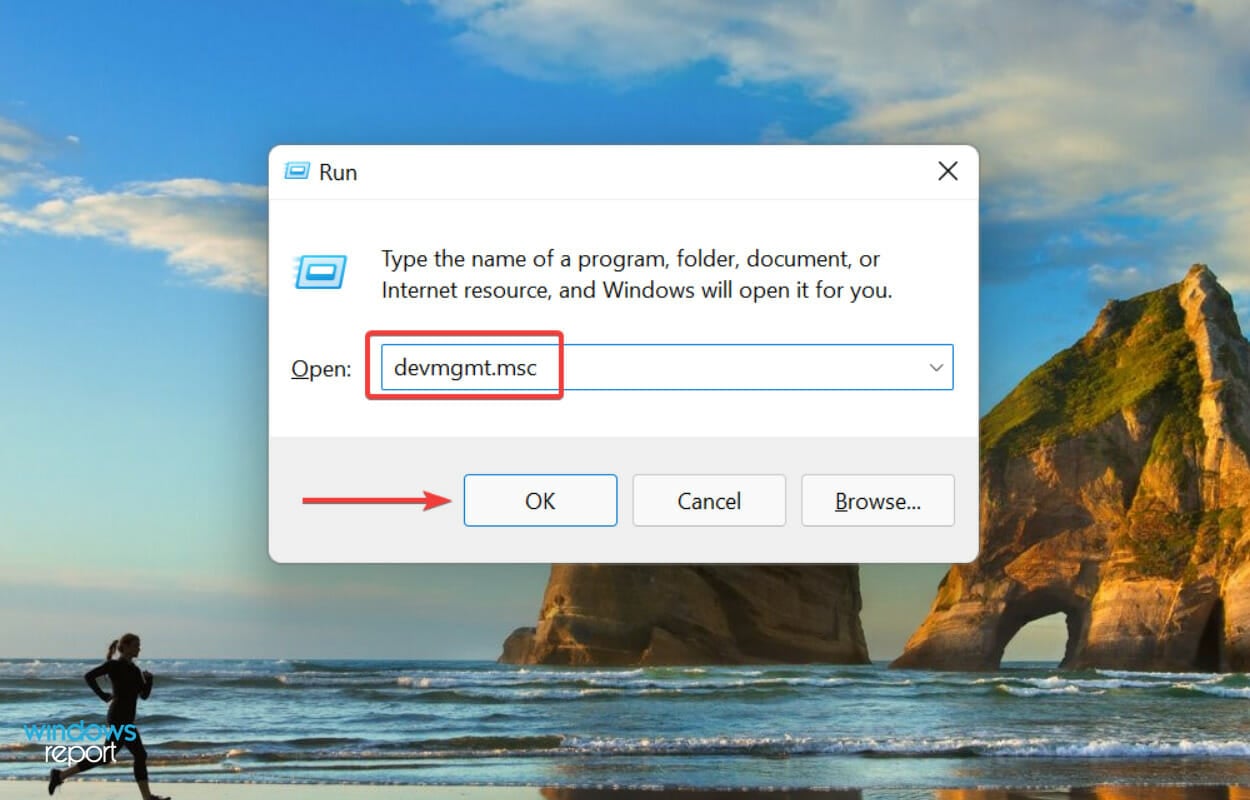
  1. Press Windows + R to launch the Run command, enter devmgmt.msc in the text field, and either click on OK or hit Enter to launch the Device Manager.Open device manager to fix resident evil 7 fatal application exit
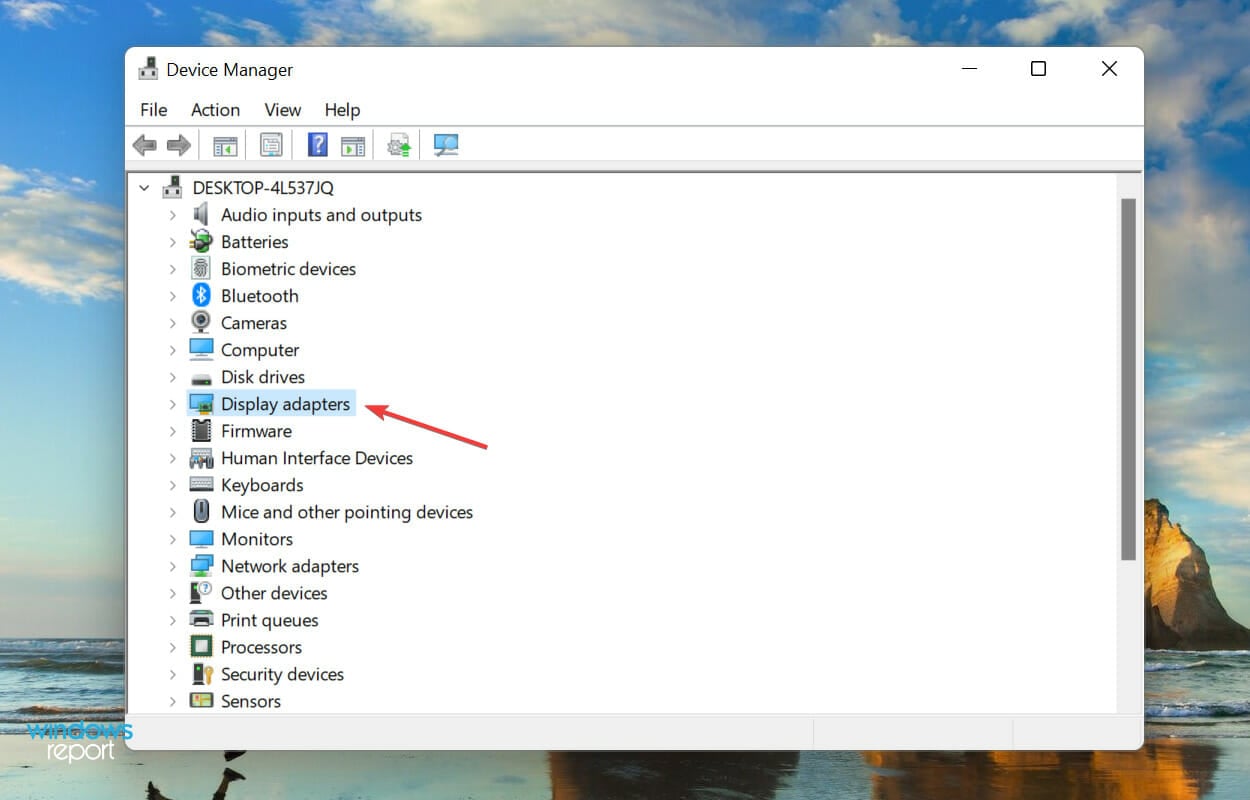
  2. Double-click on the Display adapters entry.Expand display adapters
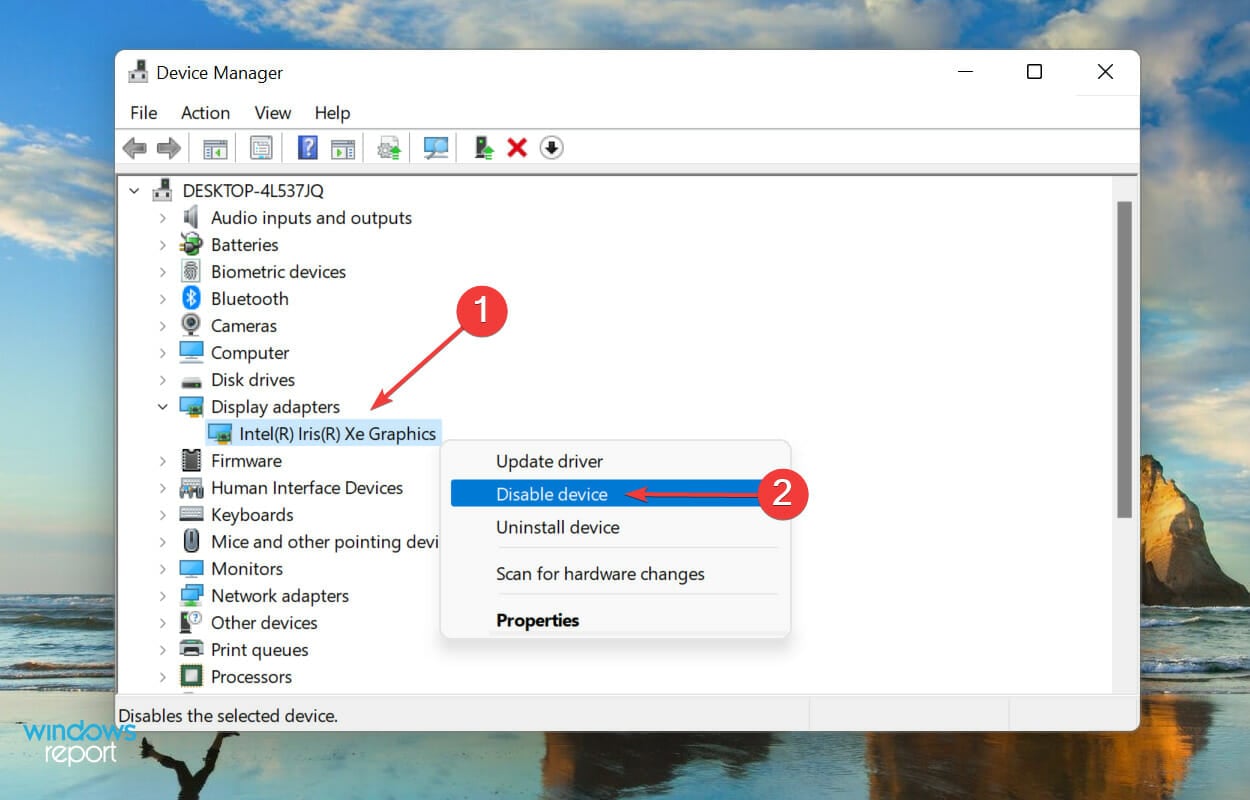
  3. Next, right-click on the graphics adapter, and select Disable device from the context menu.Disable display adapter to fix resident evil 7 fatal application exit

This method has proven to fix the error for several users, though it’s bound to affect the display. The graphics will lower a bit and the pictures wouldn’t appear as crisp, but it should eliminate the error for most.

After disabling the display adapter, check if the Fatal Application Exit error is fixed in Resident Evil 7. In case it persists, re-enable the adapter, and head to the next method.

2. Update the graphics driver

  1. Press Windows + S to launch the Search menu, enter Device Manager in the text field at the top, and click on the relevant search result.launch Device Manager to fix resident evil 7 fatal application exit
  2. Next, double-click on the Display adapters entry.Display adapters
  3. Right-click on the graphics adapter, and select Update driver from the context menu.Update graphics driver to fix resident evil 7 fatal application exit
  4. Now, select Search automatically for drivers from the two options that appear in the Update Drivers window.Search automatically for drivers

Drivers play a critical role in the functioning of the system by relaying commands between the hardware and the OS. With each driver update, certain enhancements and performance upgrades are introduced along with patches for previously known bugs.

Wait for Windows to identify the best available driver on the system and install it. The only drawback of this method is that it only checks for the drivers on the system, and if you haven’t downloaded the latest one previously, the update wouldn’t go through.

In which case we recommend checking for the latest version in Windows Update or manually downloading and installing it from the manufacturer’s website.

The whole processing of checking for driver updates may seem tiresome to many, which is where third-party apps come to your rescue. We recommend using Outbyte Driver Updater, a dedicated tool that will scan all available sources for updates and get the installed drivers up-to-date.

3. Disable the antivirus

Note icon NOTE
The steps listed below are to disable the built-in Windows Security in Windows 11. In case you are using another third-party antivirus, we recommend you head to their official website to identify the steps to disable it.
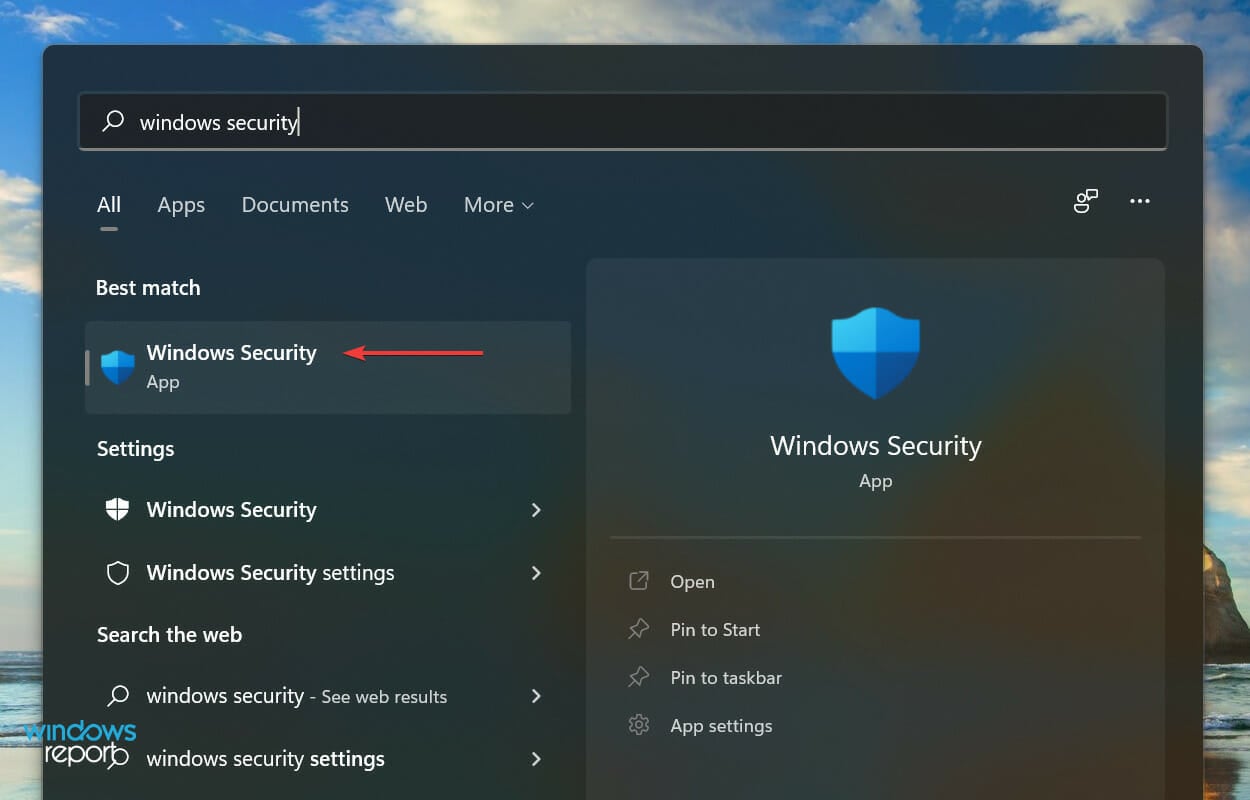
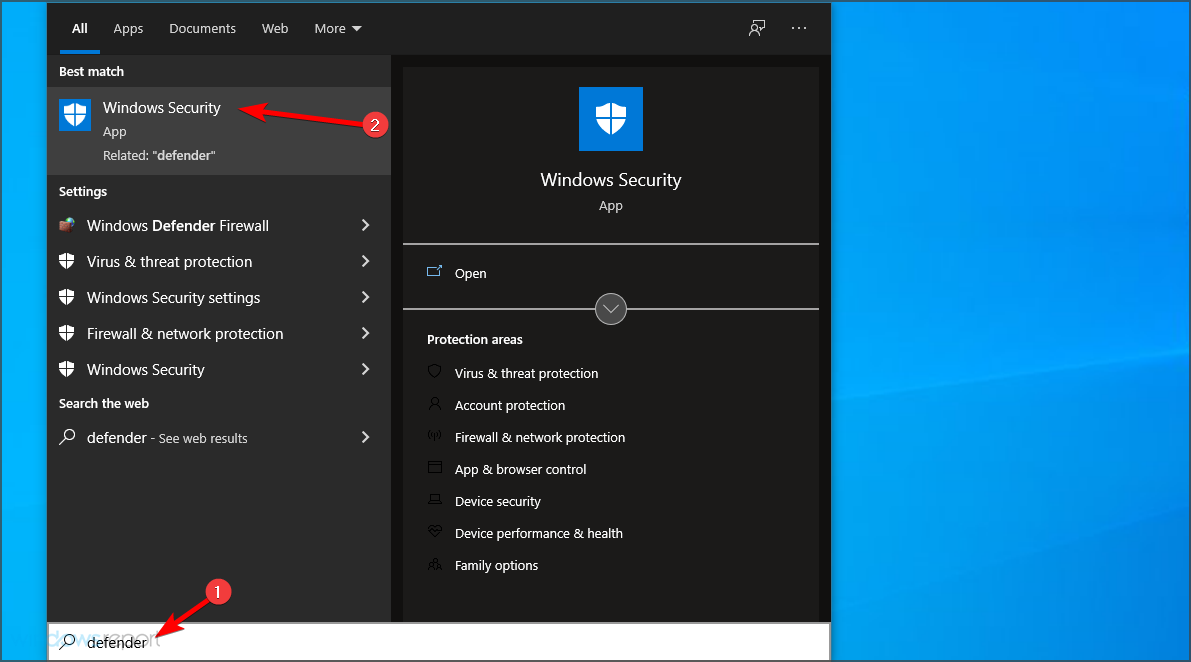
  1. Press Windows + S to launch the Search menu, enter Windows Security in the text field, and click on the relevant search result that appears.Launch Windows Security to fix resident evil 7 fatal application exit
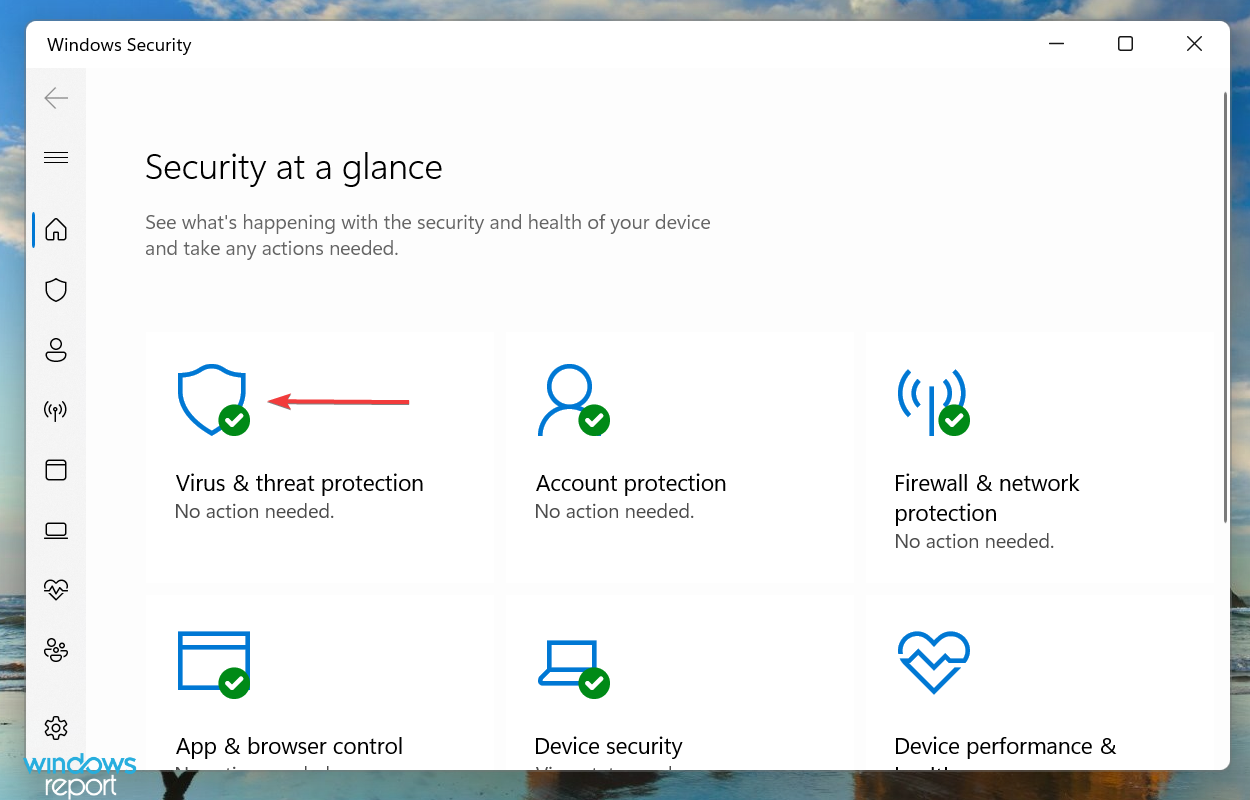
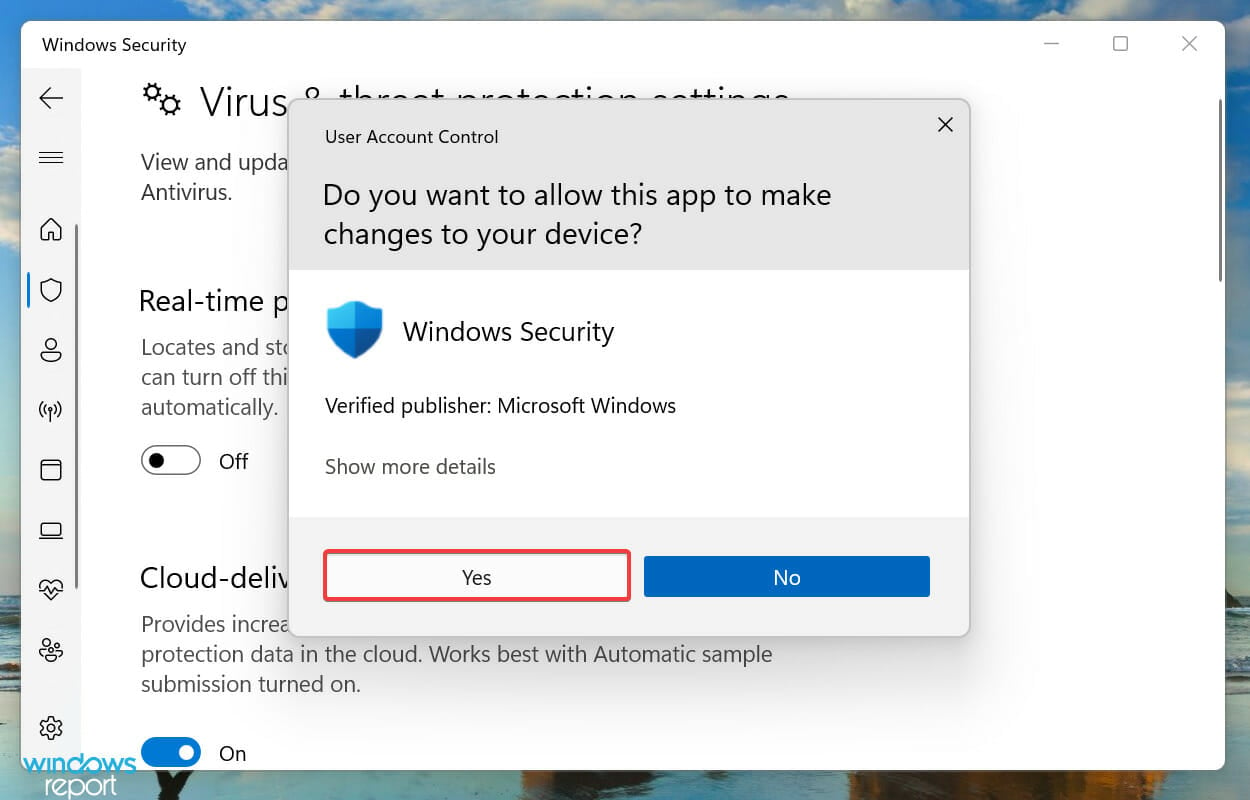
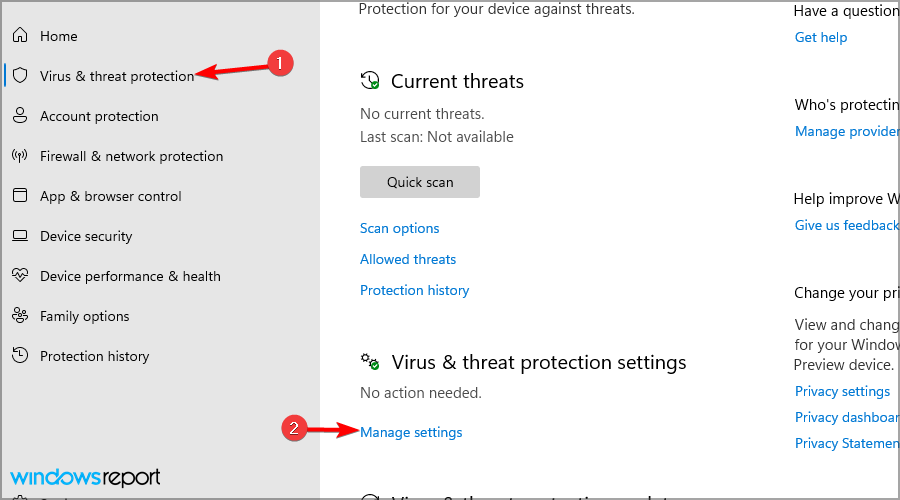
  2. Click on the Virus & threat protection option.Virus & threat protection
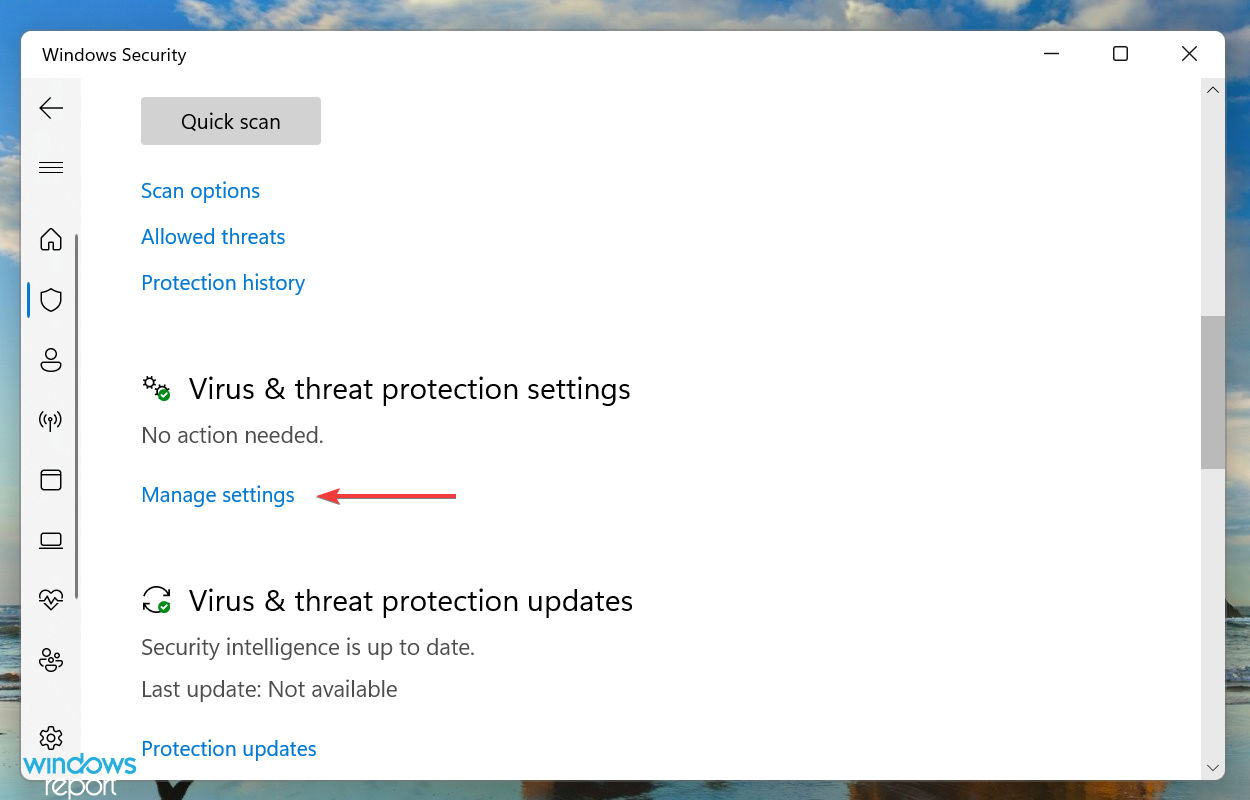
  3. Next, click on Manage settings under Virus & threat protection settings.Manage settings
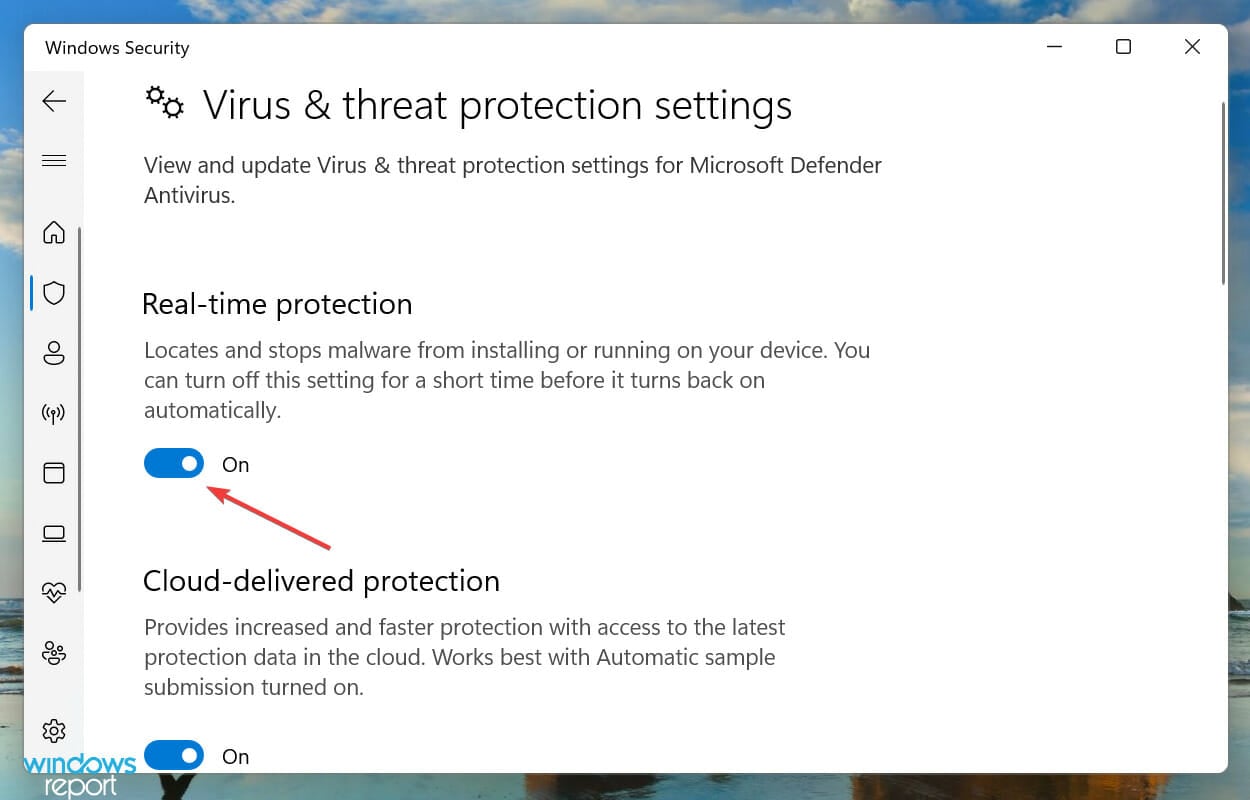
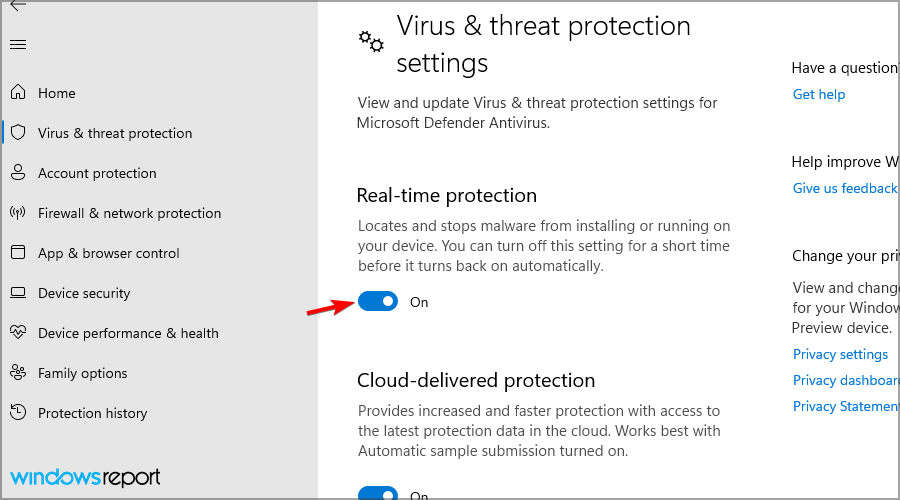
  4. Now, disable the toggle under Real-time protection.Disable Real-time protection to fix resident evil 7 fatal application exit
  5. Click Yes on the UAC (User Account Control) prompt that appears to confirm disabling the antivirus.click Yes

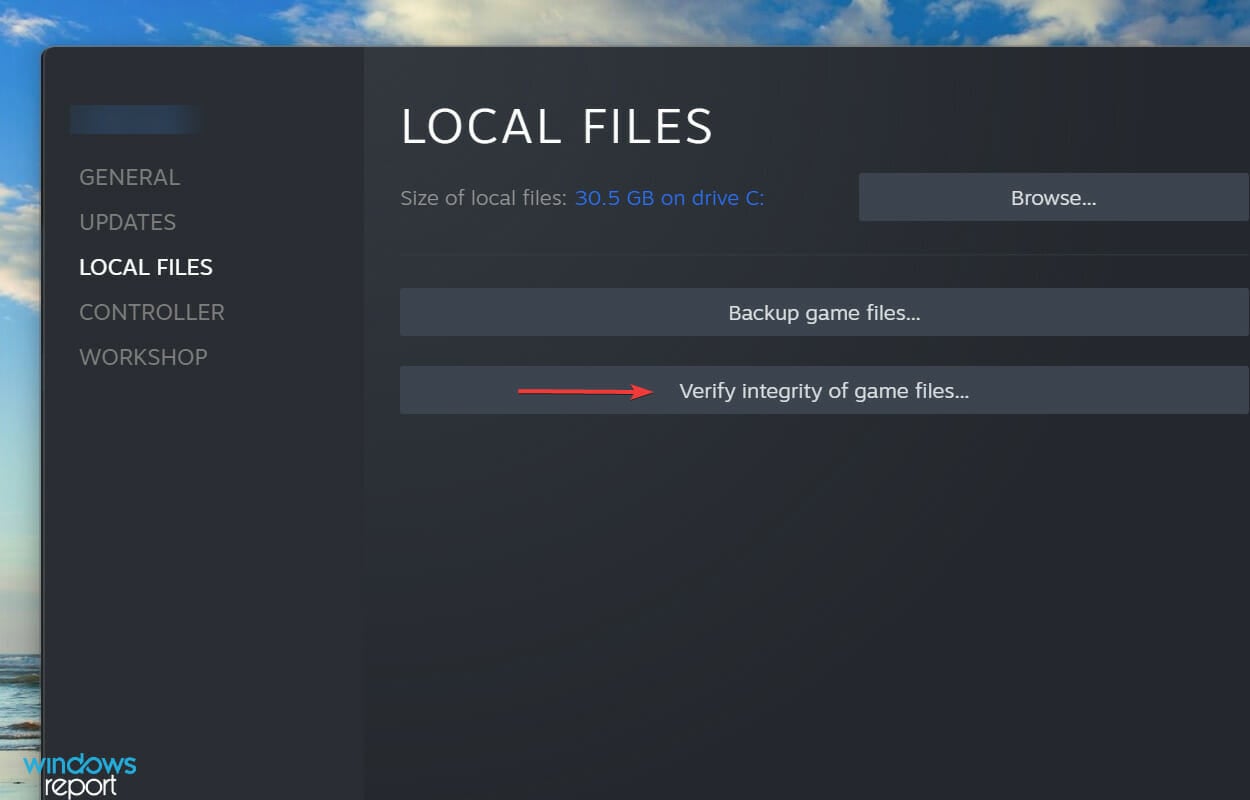
4. Verify integrity of game files using Steam

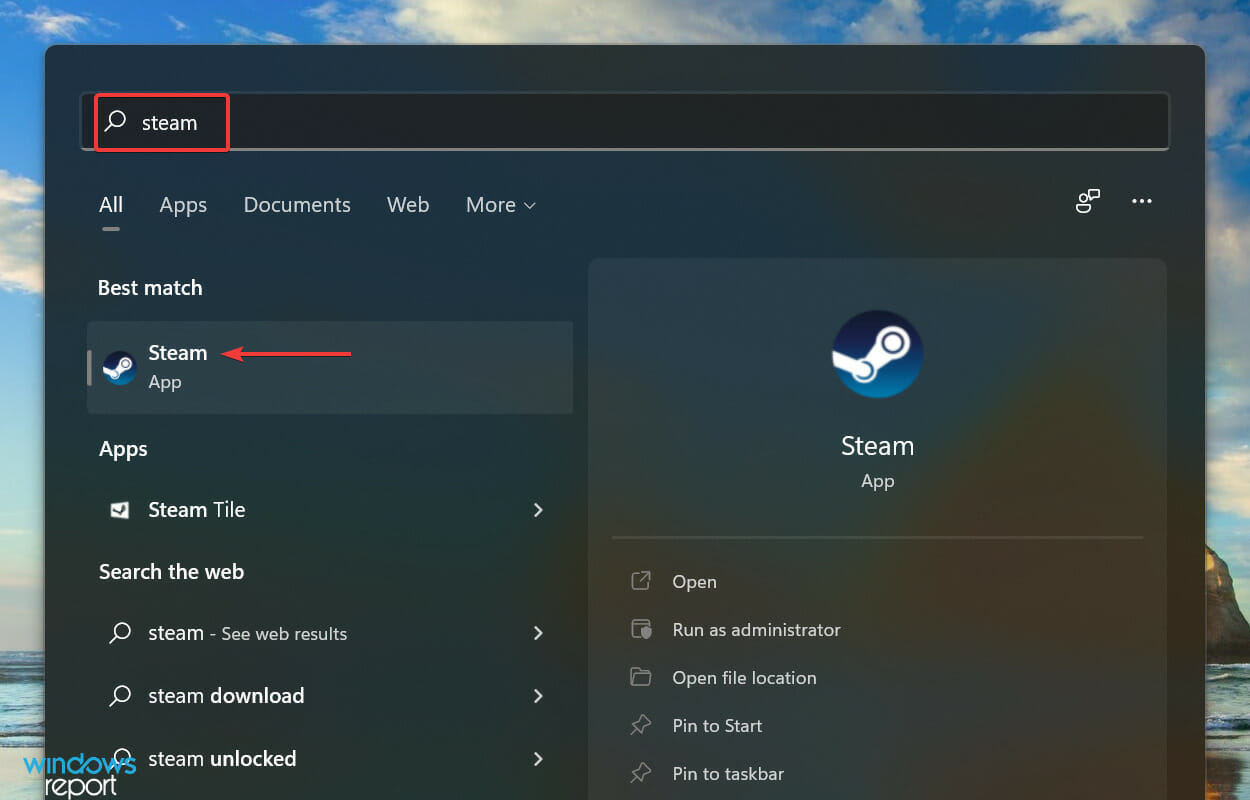
  1. Press Windows + S to launch the Search menu, enter Steam in the text field at the top, and click on the relevant search result that appears.Launch Steam app to fix resident evil 7 fatal application exit
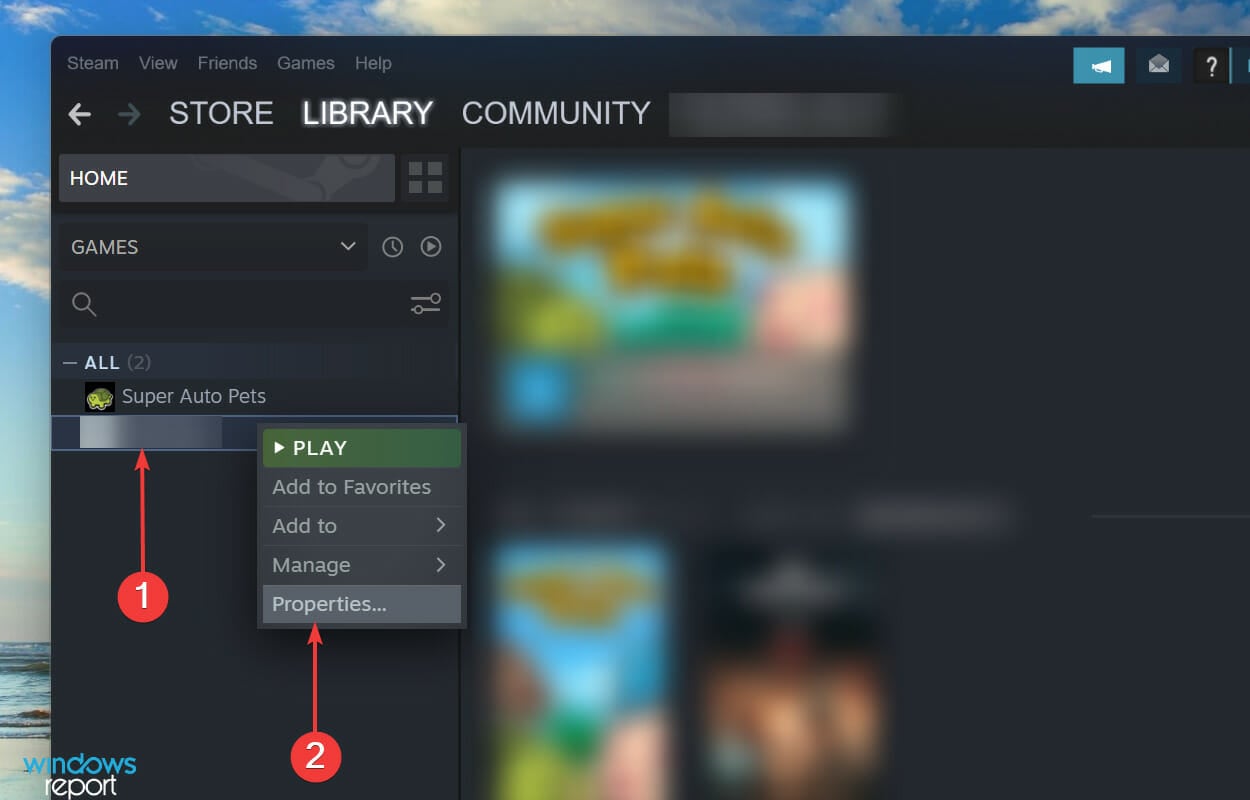
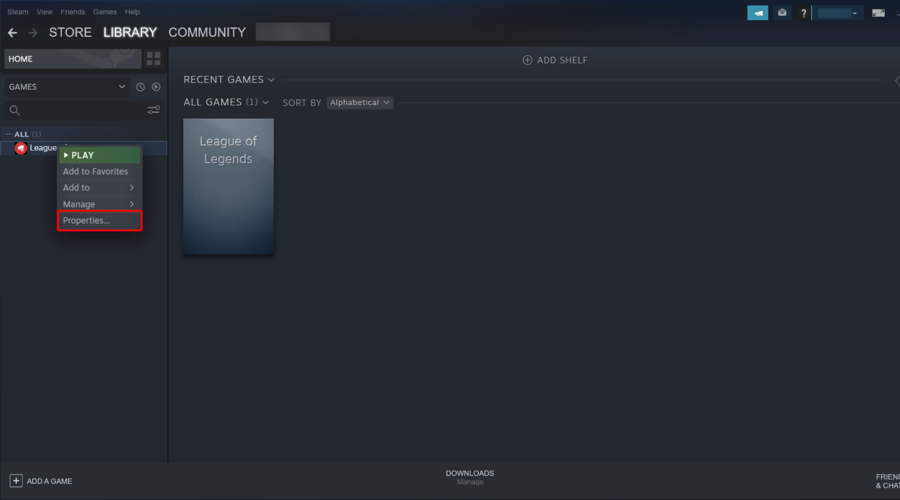
  2. Navigate to the LIBRARY, right-click on Resident Evil 7 listed on the left, and select Properties from the context menu.Resident Evil 7 properties
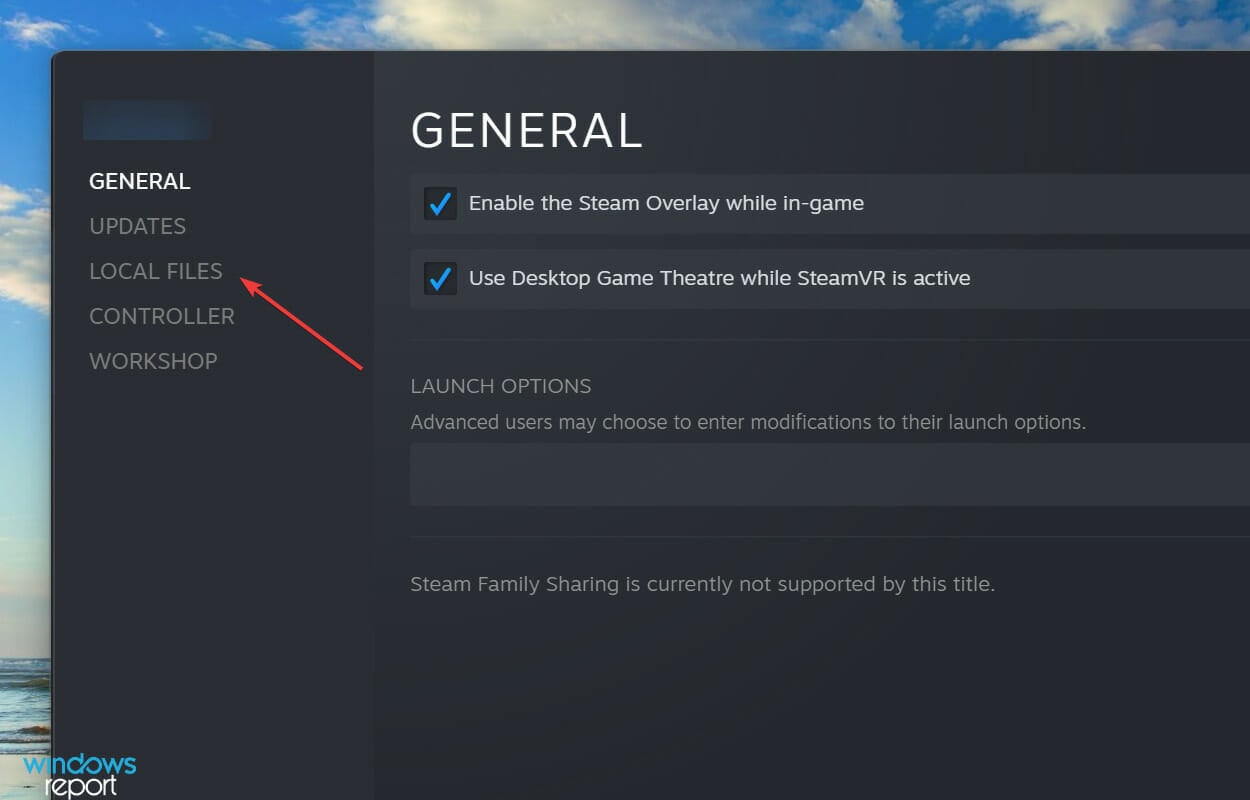
  3. Next, select the LOCAL FILES tab from the navigation pane on the left.Local Files
  4. Finally, click on Verify intergrity of game files and wait for the process to complete.Verify integrity of game files to fix resident evil 7 fatal application exit

If the above methods haven’t yet worked, you can try the Verify integrity of game files option in Steam. It will scan all the files associated with the game and identify any missing or corrupt ones.

In case any are found, they will be downloaded or replaced respectively. Once the process is complete, check if this Resident Evil 7 Fatal Application Exit dx11.cpp fix works.

5. Check for overheating

Overheating is responsible for a lot of problems and directly affects the functioning of the PC. After going through several forums, we discovered that it causes the Fatal Application Exit error in Resident Evil 7 as well.

CPU Fan

To fix overheating, check our guide that lists the most effective methods. Also, you can learn how to control the CPU fan, and run it at an optimal speed to ensure proper airflow and efficient removal of heat.

6. Check if graphics card is properly installed

Another common issue reported by users was the improper installation of the graphics card. In this case, we recommend removing the graphics card, wiping it gently with a clean piece of cloth, and then placing it back.

If you are not sure about the removal process, seek professional help. In no case, do not meddle with the hardware without a basic understanding of it, since it could dagame the fragile components.

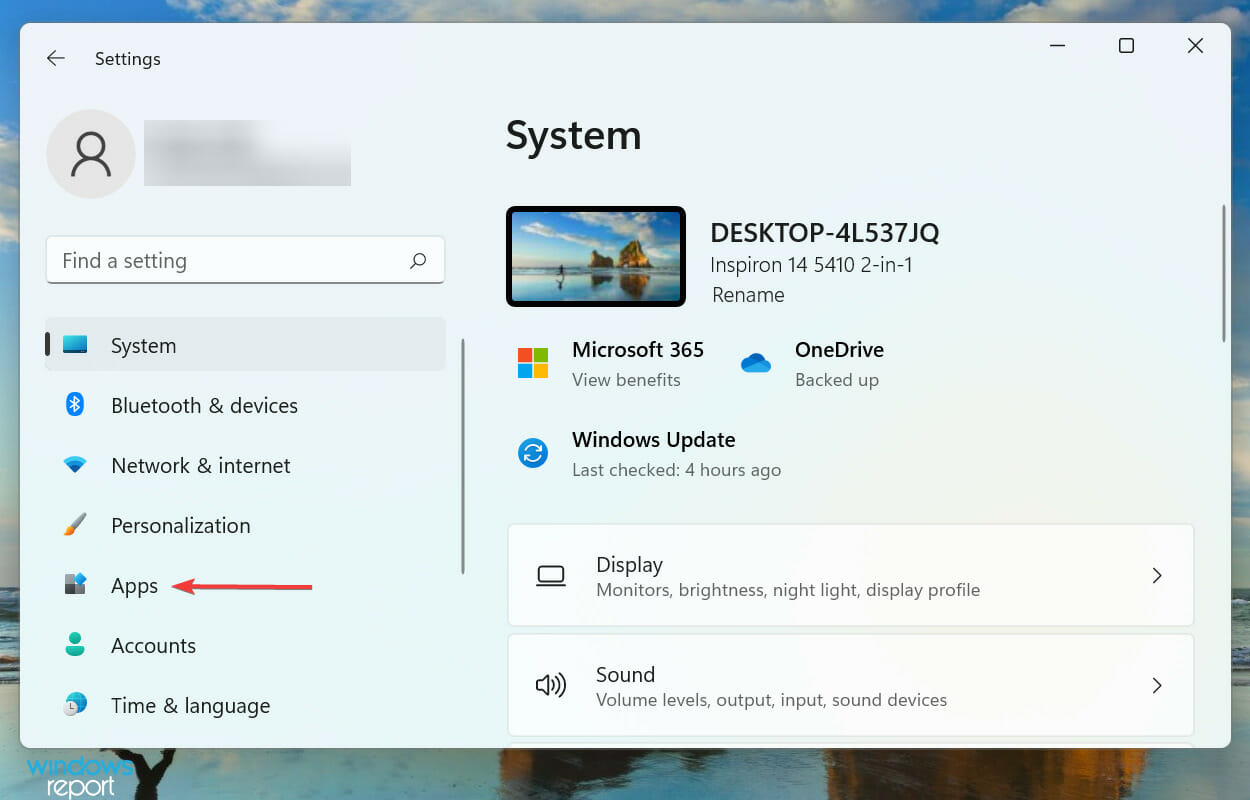
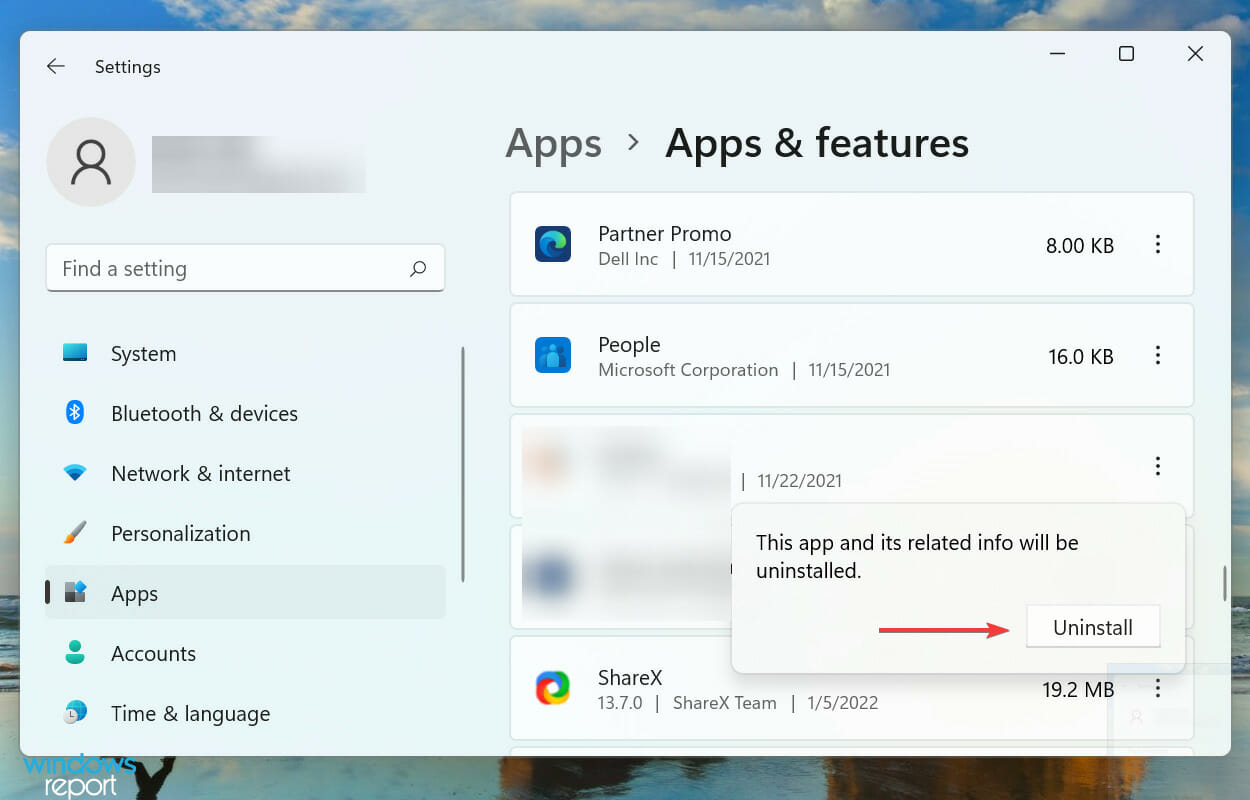
7. Reinstall Resident Evil 7

  1. Press Windows + I to launch the Settings app, and select Apps from the list of tabs listed in the navigation pane on the left.Apps tab to fix resident evil 7 fatal application exit
  2. Click on Apps & features on the right.Application & features
  3. Now, locate the Resident Evil 7 app, click on the ellipsis next to it, and select Uninstall from the menu.Uninstall app to fix resident evil 7 fatal application exit
  4. Finally, click Uninstall in the prompt that appears to confirm.Confirm Uninstall

If the problem lies with the game itself, and one that Steam couldn’t fix, the last option is to reinstall it. After uninstalling, go back to Steam, and again install Resident Evil 7.

Though after the reinstall, certain configured settings and other app data might be removed.

What do I do if Resident Evil 7 won’t launch on my system?

Apart from the Fatal Application Exit error in Resident Evil 7, several users have reported that the game won’t launch at all, no matter how many times they tried. As was the case earlier, this issue too could be due to several reasons.

Resident Evil 7 (Source: Steam)

In case you too are facing problems launching Resident Evil 7 in Windows, check our dedicated guide that lists out the most effective fixes for it.

That’s all there is to eliminating the Fatal Application Exit error in Resident Evil 7. By the time you reach this part of the article, the game should launch just fine without throwing any errors.

Also, check out how to fix issues that prevent the Steam version of Resident Evil 5 from launching.

Tell us which fix worked and your experience of Resident Evil 7, in the comments section below.

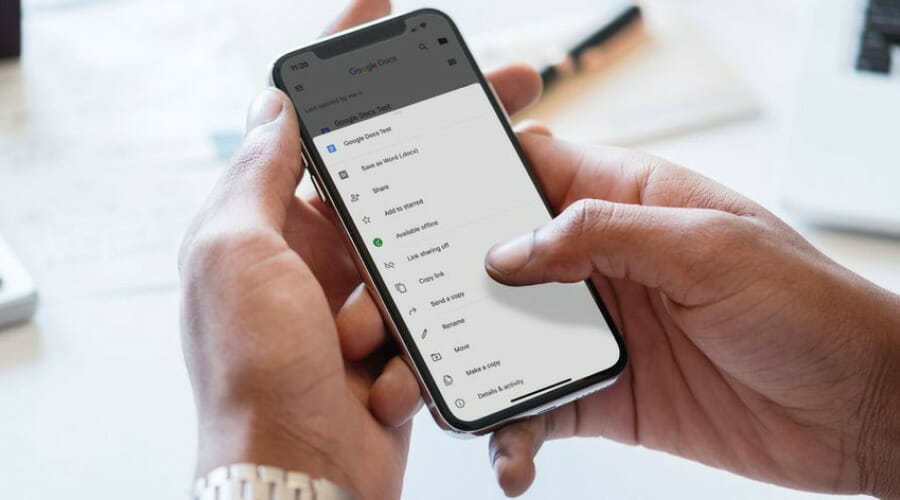
Google Docs users can add page breaks before paragraphs on mobile version

Google recently announced that the functionality which allows users to add page breaks before paragraphs in Google Docs is now available for the mobile version of the application.

This new addition comes after only last year, the same capability was announced for the web version. Seeing how it is now also available on mobile, users will be able to enjoy an enhanced Google Docs experience.

With the help of this latest update, users will be able to mark a paragraph to always begin on a new page with the Add page break before option in Google Docs.

The new feature will surely be helpful in case users want certain paragraph styles to always create a new page such as titles, subtitles, or headings.

Furthermore, we gain the ability users to import and export Microsoft Word and other third-party documents that have Page break before applied to paragraphs, and the app will maintain that formatting.

Needless to say, users won’t have to go through the unnecessary hassle of re-editing the text when dealing with various documents that come with headings, subtitles, and titles.

Keep in mind that the latest feature is available by default on both, Android and iOS, and for all Google Workspace customers along with G Suite Basic and Business users.

If you feel you need a bit more information, feel free to also visit the Help Center and familiarize yourself with Google’s latest patch notes.

Have you been waiting for this feature to become available on the mobile version of Google Docs? Share your thoughts with us in the comments section below.

Telegram Desktop app gets Windows 11 snap layout support in new update

The Telegram communications app got a Windows-specific update today that brought the app up to Version 3.4.8 and added support for animated reactions and Windows 11’s snap feature.

Here’s the full release notes:

New in version 3.4.8:

  • Beautifully animated reactions.
  • Support for snap layouts on Windows 11.
  • Bug fixes and two bowls of miso soup.

Today’s Telegram update comes on the tail of its previous one which rolled out just a week or so ago. You can read all about that app update here.

Need more news about Windows app updates in your life? Follow us on Twitter and Facebook.

Telegram Desktop
Telegram Desktop
Price:
Free

Hitman Games coming to Xbox Game Pass with a brand new game mode

It’s been a long time coming, but Hitman fans will be delighted to know that the hit stealth series is finally set to land on Xbox Game Pass with all three games in the series available for subscribers.

And that’s not all. IO Interactive has taken things one step further and has launched an all-new game mode, Elusive Target Arcade, that pits players against a series of tough-as-nails targets from the Hitman universe. 

Now, if you’ve never heard of the Hitman games before, or perhaps played them years ago, keep in mind that this remastered release does come with a new game mode called Escalation Mode. 

New game pass

The twist is that if you miss your first or second chance, then you won’t be able to take another shot at the contract for 12 hours. That means if you’ve put it off for a day or two and then try to jump back in, you’ll have to wait even longer.

There are exclusive rewards to earn from completing the Elusive Target Arcade mode. This mode is repeatable, so you can try over and over again to win rewards, unlike Elusive Contract mode.

After the 3.100 patch on 20 January 2022, HITMAN 3 will support VR on all PC platforms that the game is available. In short, it’s the game that allows you to play in VR, not the platform. Whether you play HITMAN 3 on Steam, Epic Games Store, or Windows PC (Microsoft Store), including PC Game Pass, HITMAN VR will be available to you on our supported hardware.

IO Interactive has announced that the Hitman: Absolution game will be available for Xbox Game Pass subscribers starting today. In addition, there are some new features and content coming to the game soon, including an all-new game mode, a new map called Rocky, and VR support on PC.

You can purchase the Hitman Trilogy from the Microsoft Store.

Will you be jumping on the Hitman Trilogy and check out the new game mode? Let us know in the comment section below.

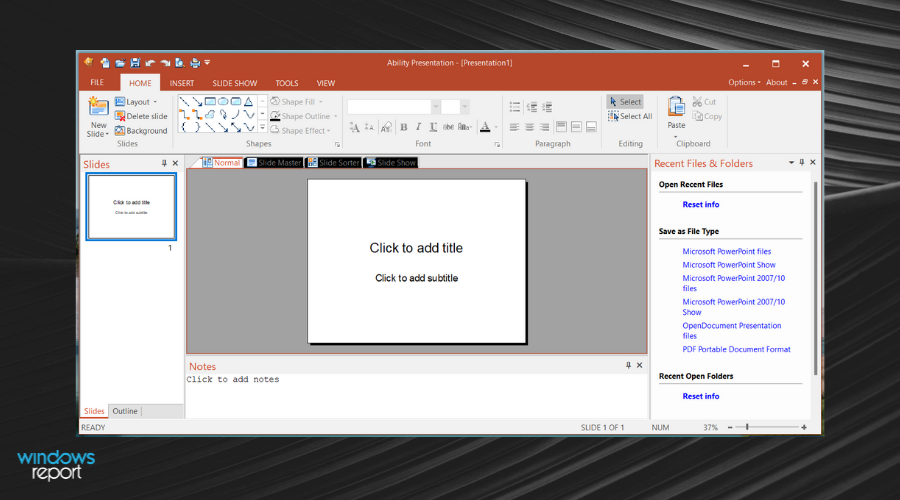
6 Best Professional Presentation Software [2026 Guide]

Presentation software solutions have been around for decades, and such packages usually consist of systems for creating and displaying professional-grade slides.

Presentation packages have become a standard in the business world, and they have evolved a lot.

Why do I need a professional presentation tool?

Currently, presentation software allows users to create, edit, and present some fantastic slideshows that are capable of mesmerizing the audience. There are already various presentation tools for all types of users, so you can find the best presentation software for students.

A high-quality presentation program provides you with all the necessary tools that you need to generate and manipulate graphics, and its primary target is helping you present your ideas as efficiently as possible to other people as well.

There are lots of presentation programs on the market, and we have gathered five of the best ones to make your choice easier.

What’s the best professional presentation software to get?

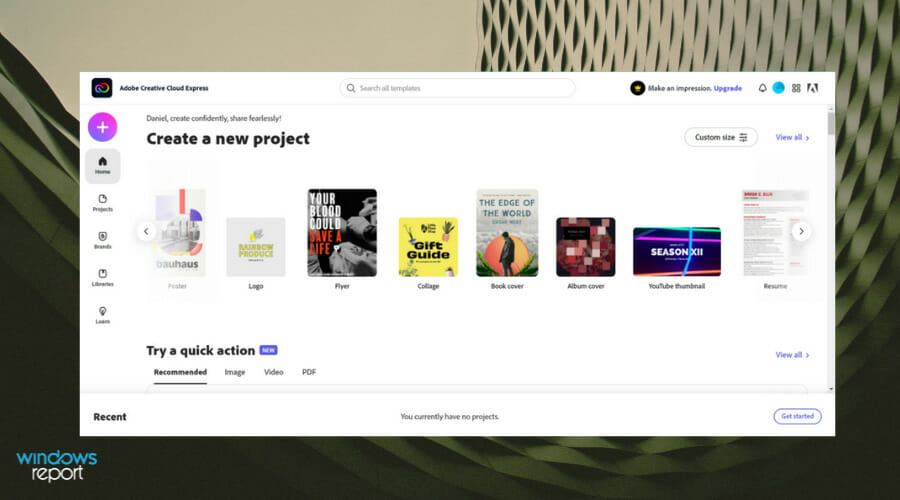
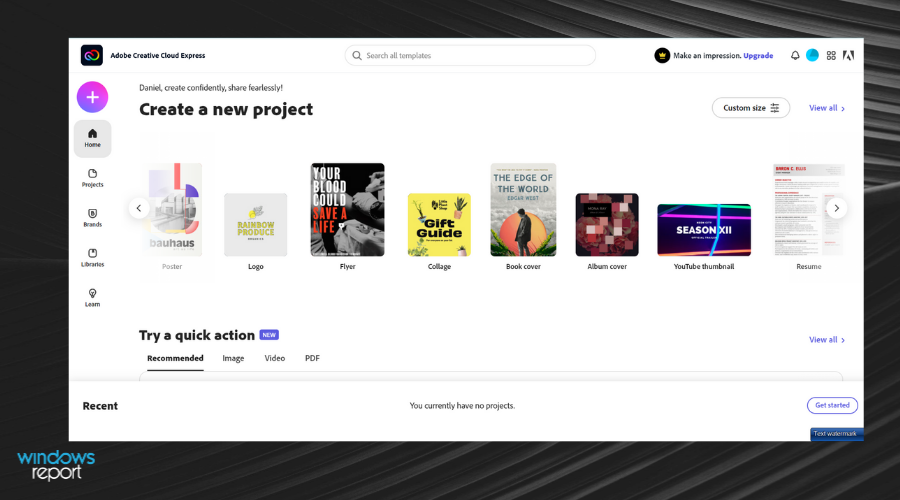
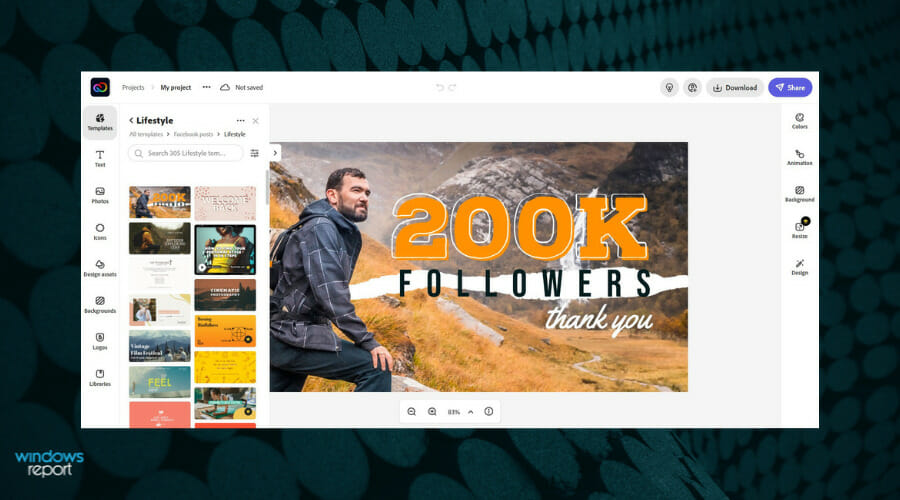
Adobe Creative Cloud Express (formerly Adobe Spark)

Adobe Creative Cloud Express is an incredibly powerful software tool that makes it incredibly easy to create visually stunning graphics stories.

People all over the world use it for generating similar social media graphics of varying sizes. They add photos, icons, decorative stickers, and even their own voice to their media projects.

Firstly, this tool offers an easy way to get started for newbies with the help of its exclusive ready-made premium templates.

Choose a design template that fits your style, add your photo, text, resize your creation, and surprise the audience, regardless of your design experience.

Presentations, book reports, newsletters, and so on – they’ll all look amazing!

Check out these key features that you will be able to enjoy:

  • Adobe Creative Cloud Express is available both as a standalone subscription and as part of a Creative Cloud plan.
  • Cinematic motion to help you create compelling video stories.
  • Professional-quality soundtracks
  • Your logo can be easily added to your social graphics, videos, and web pages.
  • Useful tips and engaging stories about others using Creative Cloud Express are all included so that your lack of inspiration will never slow you down.

Adobe Creative Cloud Express

Enjoy the advantages that come along with using this professional presentation software, so try it out now!
Check price Visit website

Canva

Canva is a free graphic design tool created to provide support for basically any task regarding designing or presentations.

This online editor has all-in-one functionality that allows the users to release their talent on the canvas, and build any presentation as a PowerPoint alternative.

You can amaze your audience with descriptive and easy-to-follow presentations, using slide templates, and personalize the pages how you need to.

Plus, you have thousands of presentation models included in various categories to match your subject. Otherwise, if you’re unsure about the template, start it from scratch with no problems.

With lots of layouts and graphic elements, you can start from zero and built comprehensive decks immediately.

In addition, you must as well know that using Canva Live it’s possible to add participants and present your pitch in real-time, have feedback, and freely engage with your team.

Canva

Have the most engaging presentations at work or for your final exams using this incredible editing tool
Check price Visit website

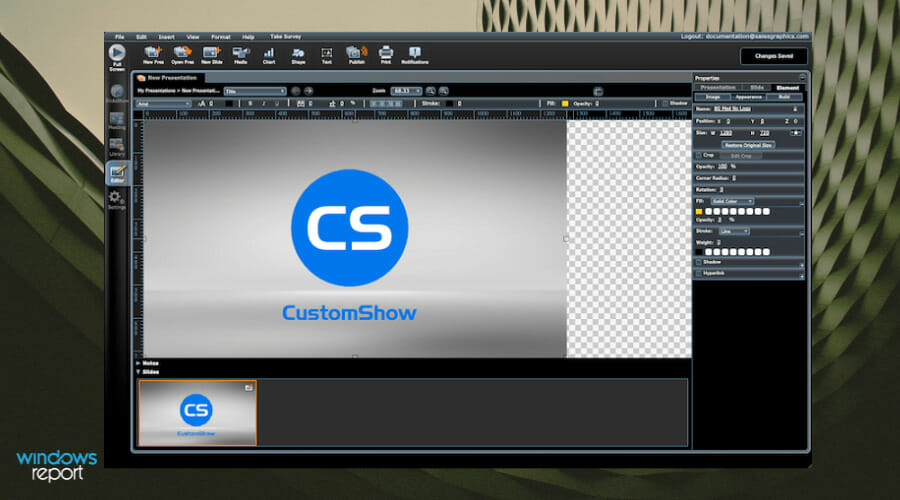
CustomShow

This presentation program is mainly used for businesses and companies with over 25 employees that need a reliable and robust presentation solution.

The presentation software company has more than 40 years of presentation history, and it was created out of the presentation design agency called Sales Graphics.

CustomShow also comes with integration with SalesForce. The platform is cloud-based, and this means that you will be able to access your presentation on smartphones, tablets, and computers from any location.

The program’s focus is on branding, and CustomShow is ideal for marketing and sales teams.

Take a look at the most important features packed in this software:

  • You can design and present customized and branded presentation
  • Your presentations will reflect your company and the products/services it offers
  • The software comes with a slide library and analytics that will make sure your presentations are successful
  • You also get the ability to import presentations into the software
  • The software will help you determine which slides are customizable and which fonts are on brand
  • You will be able to deliver presentations with or without an Internet connection
  • CustomShow makes sure that every file is in the right place and the appropriate format

⇒ Get CustomShow

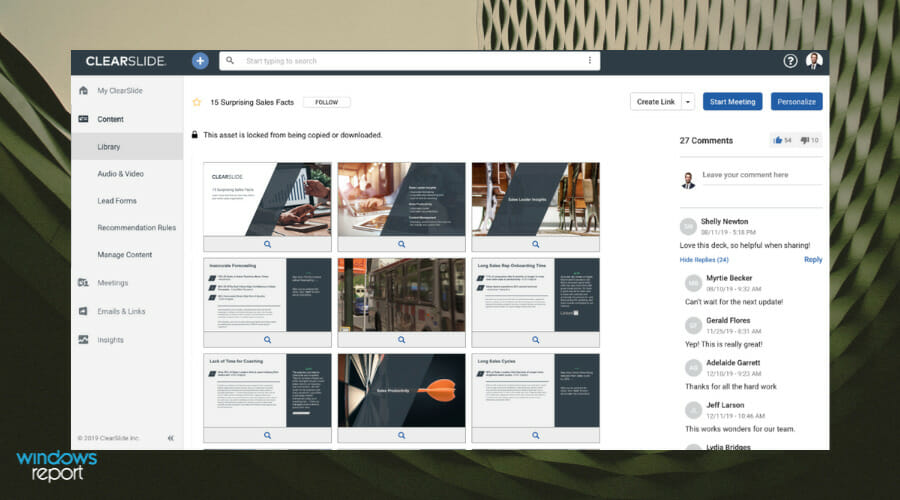
ClearSlide

ClearSlide provides users content, communications, and insights in order to make every interaction count and create exceptional customer experiences.

It allows you to organize recommended content and team collections to ensure discoverability. It makes it easy to assemble and personalize the content that will always be up to date.

ClearSlide is quite similar to CustomShow, and it has a niche focus for companies.

This platform is targeted at businesses that are looking to generate successful marketing campaigns especially by pushing their sales via presentations.

ClearSlide is best suited for high-volume sales and marketing organizations.

Here are its essential features:

  • You can upload a vast range of files including Excel, PDF, Keynote, and PowerPoint
  • The program provides more emphasis on sales and tracking rather than the presentation creation side
  • This software allows you to create customized content that will reflect your company and its message
  • It includes excellent metrics and analysis features
  • You can also sign up for a free trial before deciding to purchase the full package
  • The program helps you make every customer interaction matter no matter if it’s online, via email or mobile
  • ClearSlide provides all necessary insights for sales leaders and marketers to make the best decisions for their businesses

⇒ Get ClearSlide

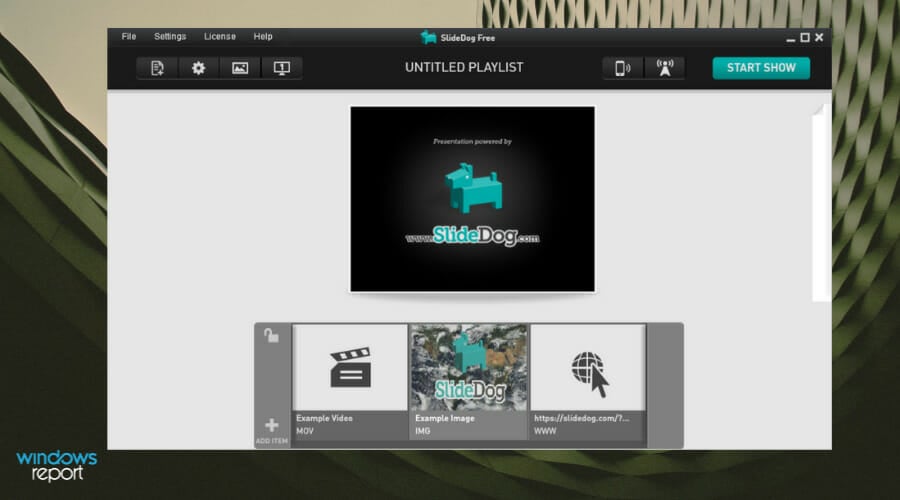
SlideDog

When you’re creating a presentation, the last thing you want is to make your audience fall asleep.

SlideDog will prevent this because it allows you to combine almost any type of media to be able to create a robust and rich presentation that will surely keep the viewer’s interest awake.

You can also try out the free version that allows you to test the program’s features for 5 minutes at a time.

The free version allows you to create playlists with any kind of presentation media and show them to your audience seamlessly.

On the other hand, SlideDog Pro gives you access to all Pro features and premium support.

Take a look at the most important features that are included in this software:

  • The program is marketed as a web-based multimedia presentation tool
  • SlideDog gives users the ability to combine PowerPoint presentations, graphics, Prezi presentations, PDF files, pictures, web pages, videos and movie clips
  • You will be able to drag all the elements listed above into custom playlists and display them effortlessly
  • SlideDog gives you the ability to control the presentations and playlists straight from your smartphone remotely, a secondary PC or the web
  • You can also share slides in real-time
  • Audience members can view the slides from their own devices by just clicking a link
  • The program is packed with handy features appropriate especially if you are going to create an immersive presentation for your audience

⇒ Get SlideDog

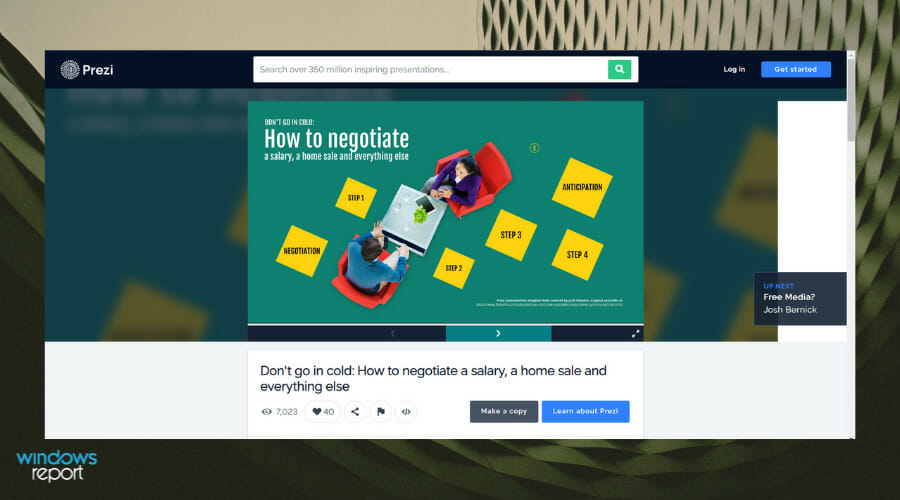
Prezi Business

Prezi is one of the most original presentation tools on the market. Instead of allowing you to present your graphics and text in a slide-to-slide format, it lets you create highly visual and interactive canvases.

Lots of companies already use this software, and this version is ideal for medium-sized enterprises that need limited customization by the sales team.

It is safe to say that no other presentation platform provides you with as much visual storytelling as this software does.

Prezi Business combines spatial dimension and motion to keep viewers engaged as you are guiding them through your stories and messages.

Take a look at the most impressive features that come with Prezi for the businesses version:

  • By downloading Prezi Business, you can create and edit presentations with your team in real-time
  • The program is ideal for companies that have teams all over the world
  • After you finished creating your presentation you can present it live in High Definition and send a direct link to your audience
  • With this tool, you can skip forward, explore a side topic and jump back to the review
  • It also comes with a few analysis tools that will show you who has accessed your presentation, for how long and which parts of it

⇒ Get Prezi Business

These are our top five picks for the best Professional presentation software for Windows.

Each of them comes with its own unique features, so you should have a look at all of them carefully before deciding which software is the most appropriate for your needs and your target audience.

Some of the tools listed above offer free templates for your presentations but many times that isn’t nearly enough.

That is why we also recommend Collidu, a service that provides thousands of free and paid pre-made, professionally looking templates for PowerPoint and Google Slides.

You will also find diagrams, charts, tables, and even maps, all ready for editing, so give it a try.

In addition, you can make your decks more appealing by using photo slideshow maker software that will give you extra credit.

There’s nothing worse than having to sit through a boring presentation, and these tools will definitely prevent such a result.

Forza Horizon 4 Online Not Working: 7 Easy Ways To Fix It

If you’re having trouble playing Forza Horizon 4 online, don’t worry. Common issues like poor internet connection, server problems, subscription limitations, or account errors could be the cause.

Regardless, if you follow the steps below, you should be able to fix it.

How can I fix Forza Horizon 4’s Multiplayer mode?

1. Reinstall the Teredo adapter

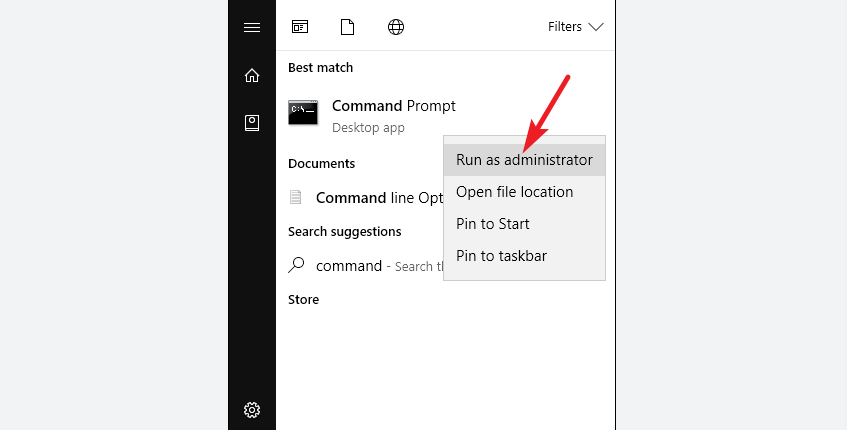
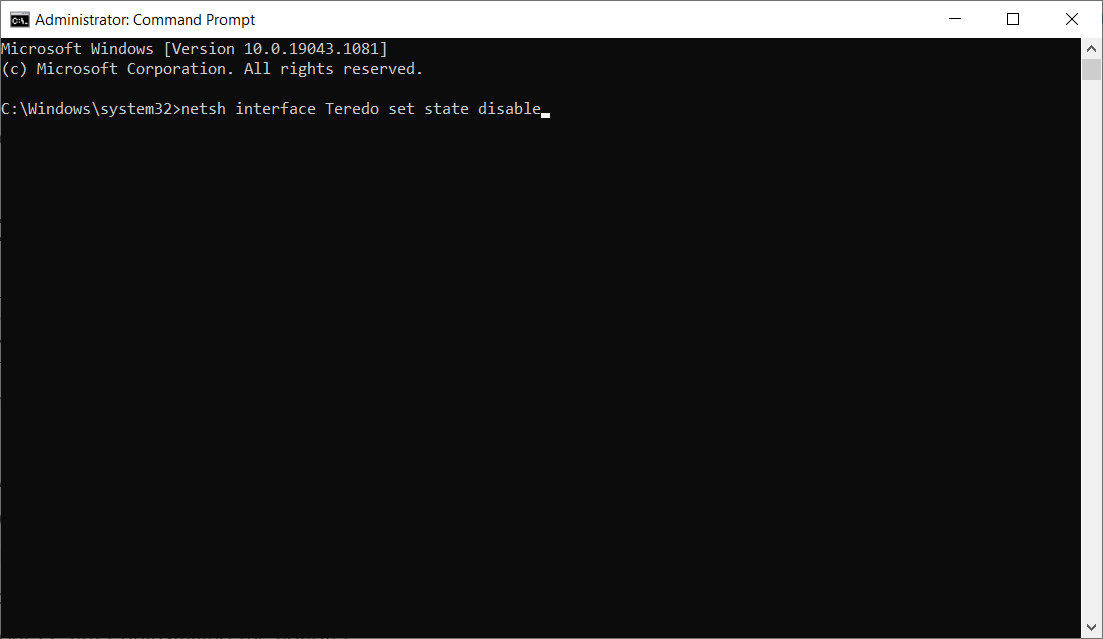
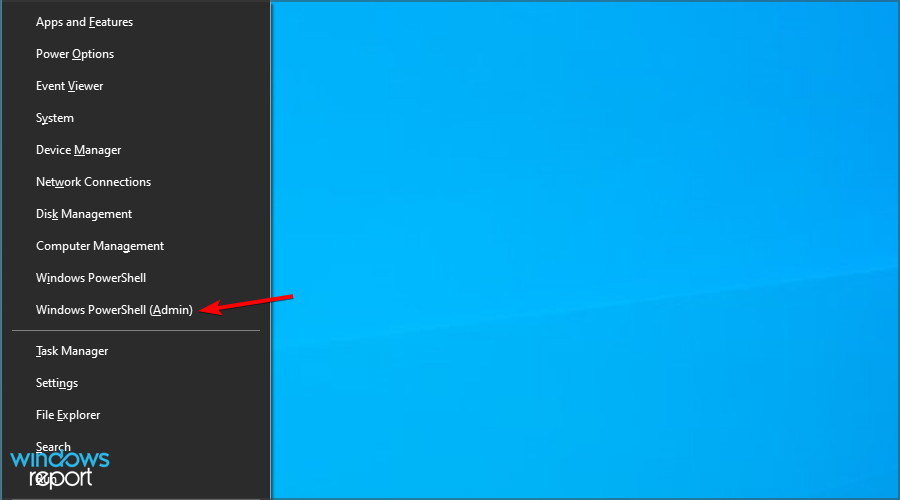
  1. Type command in Windows search and click on Run as administrator to start Command Prompt with full privileges.
  2. Type the following command and press Enter to run it:
    netsh interface Teredo set state disable
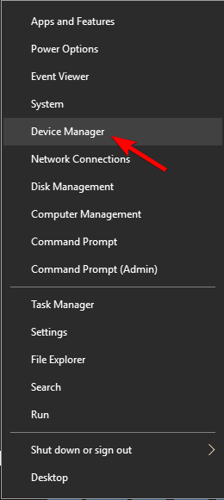
  3. Press your keyboard’s Windows key + X key combo and select Device Manager.
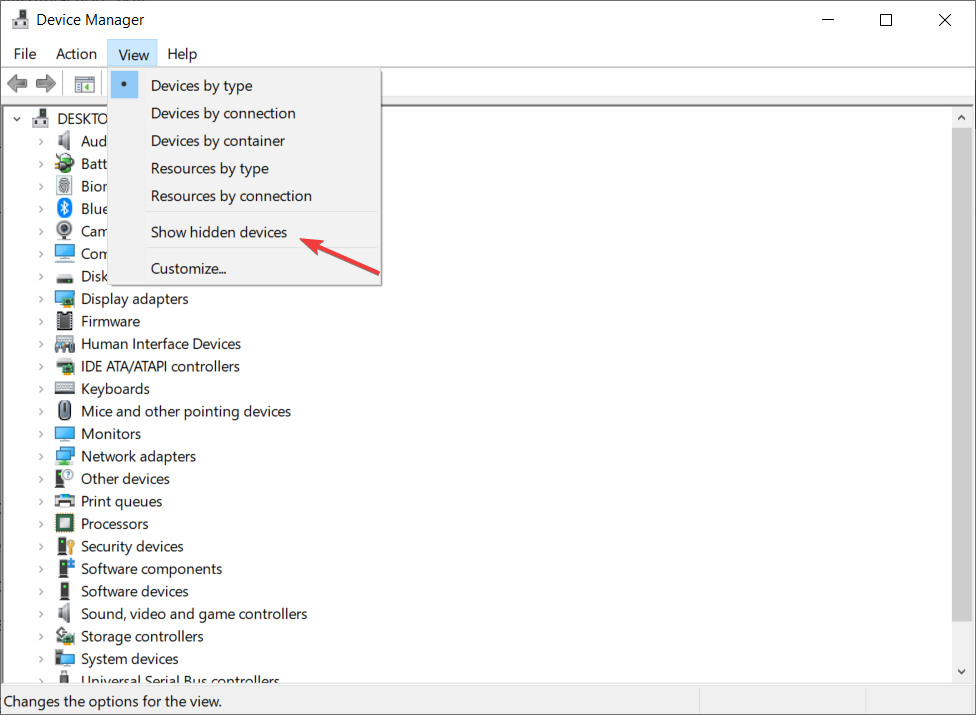
  4. Click View and select Show hidden devices.
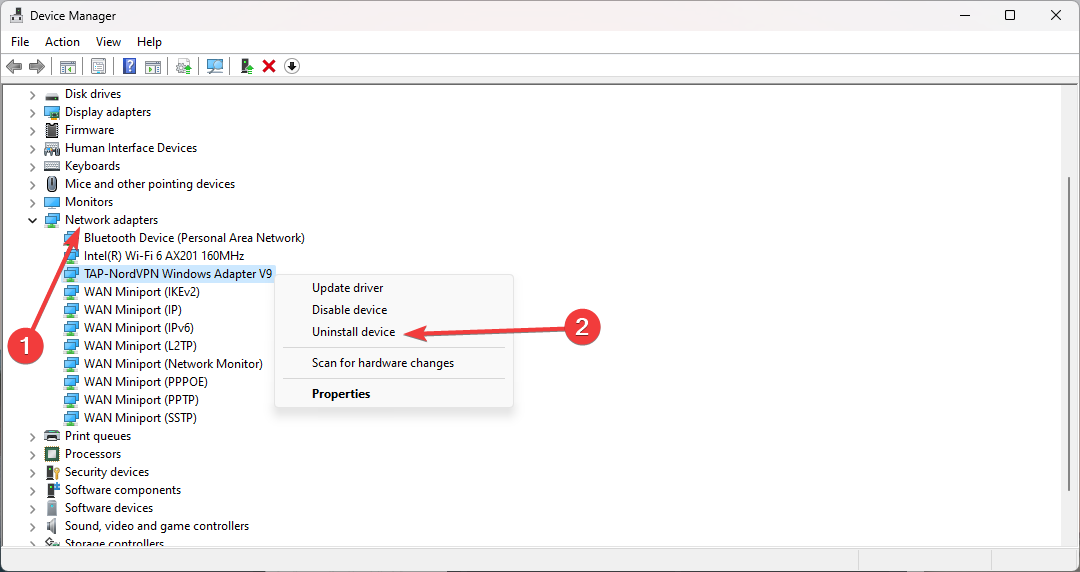
  5. Expand the Network adapters category, right-click any Teredo adapter and select Uninstall.
  6. Restart your PC after uninstalling the adapter.
  7. Open an elevated Command Prompt again.
  8. Type the following command and press Enter:
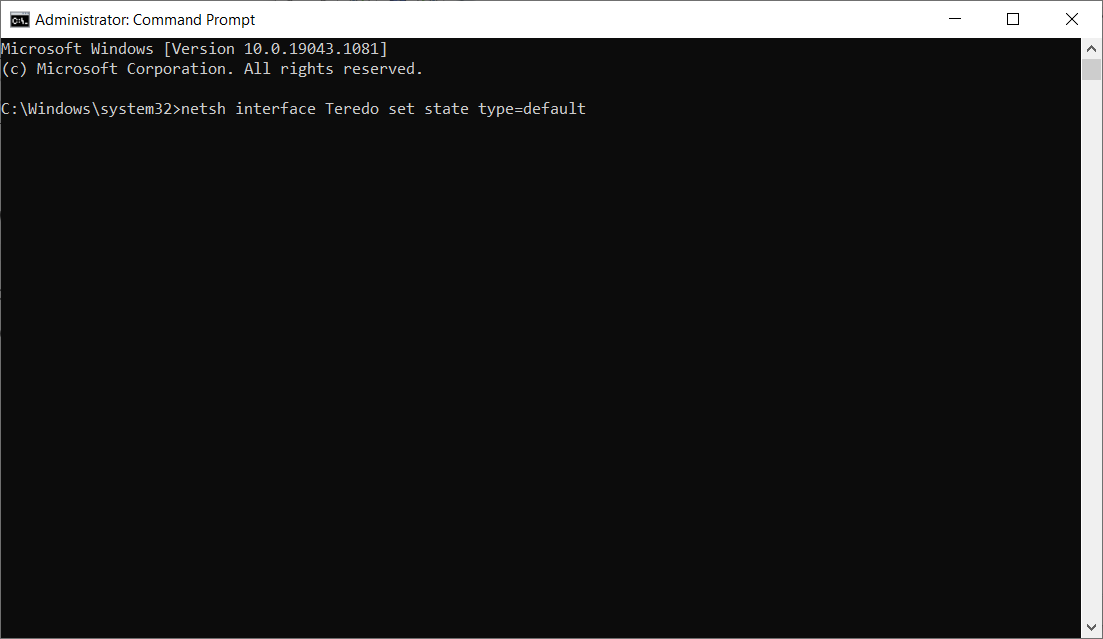
    netsh interface Teredo set state type=default

Reinstalling the Teredo adapter can be the key to solving this problem very quickly so perform the steps above to get it done.

2. Check your firewall

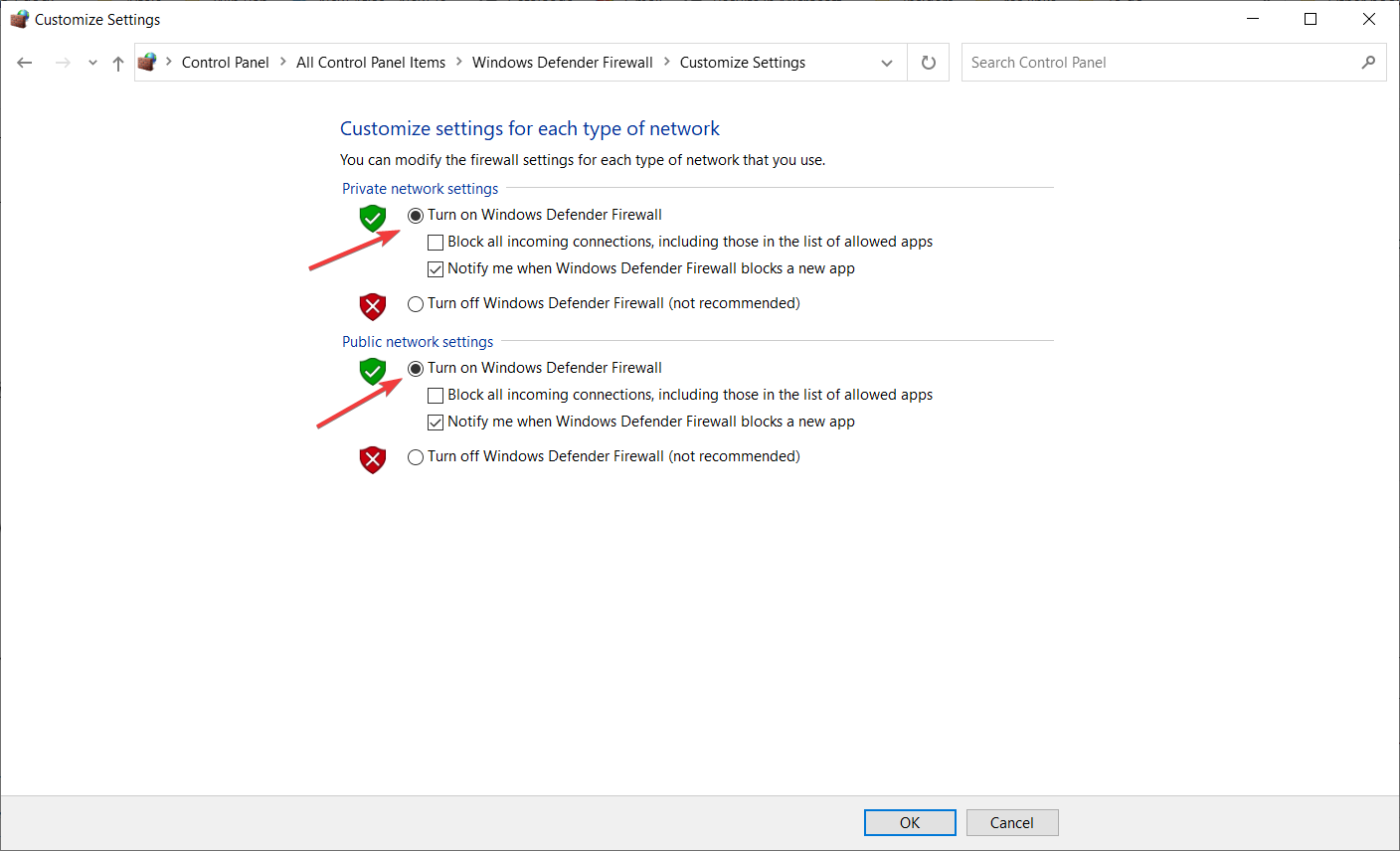
2.1 Turn on Windows Defender Firewall

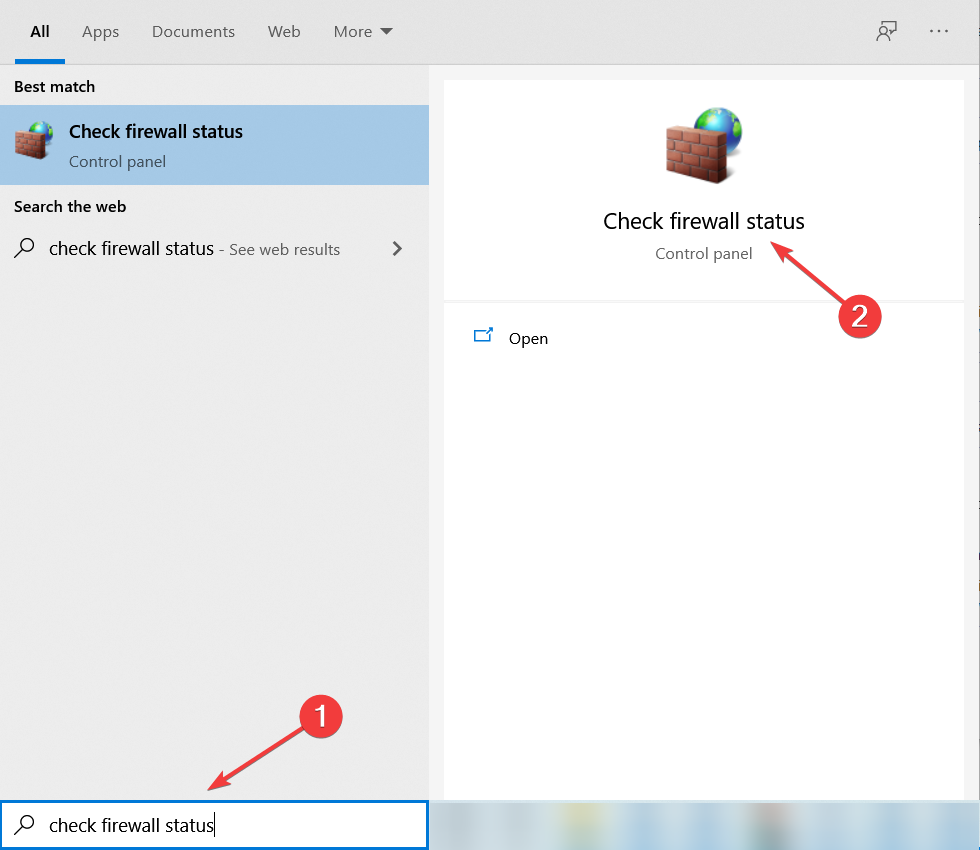
  1. Type check firewall status in Windows search and click on the app from the results.
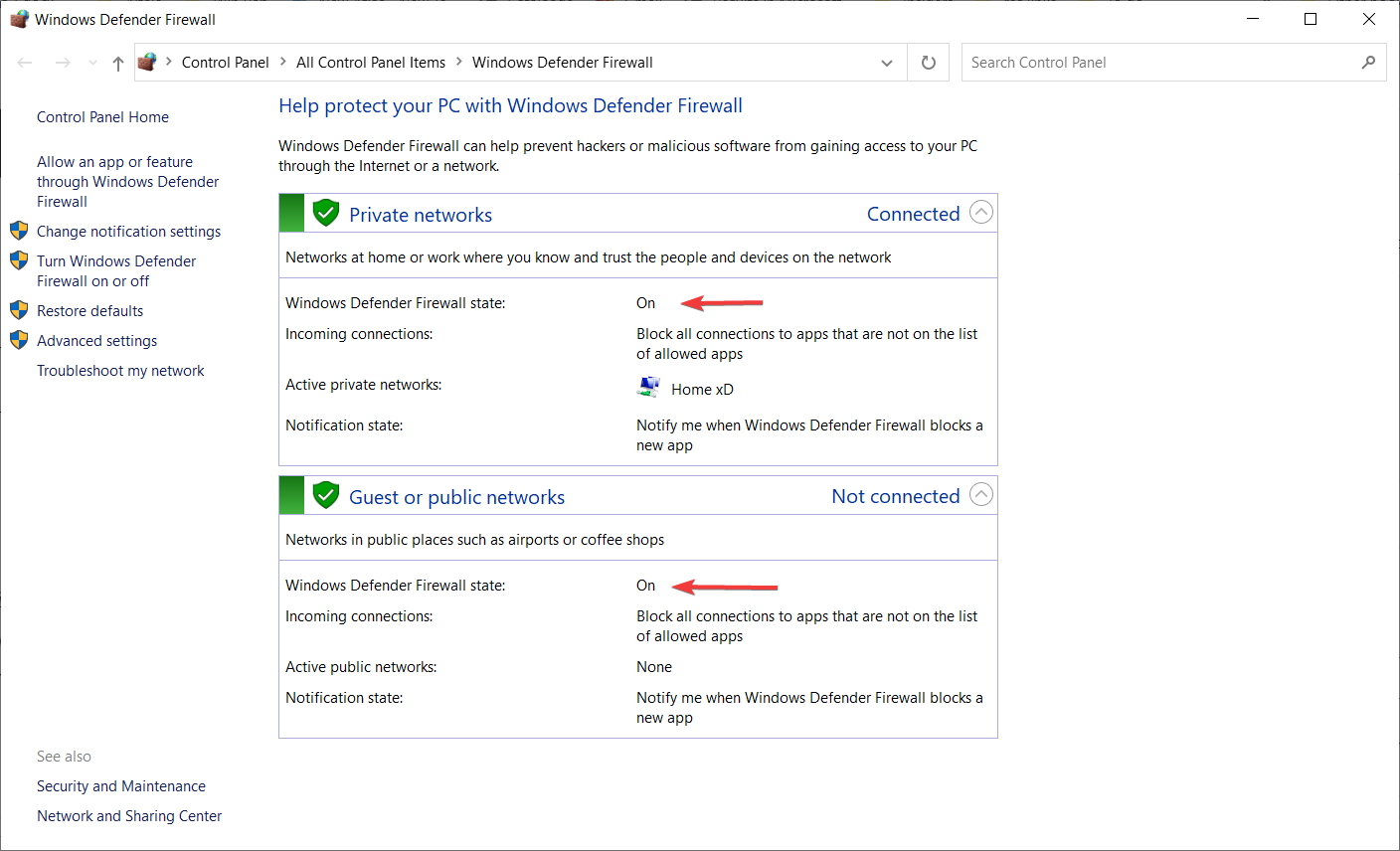
  2. In the new window, check if Windows Defender Firewall is turned on.
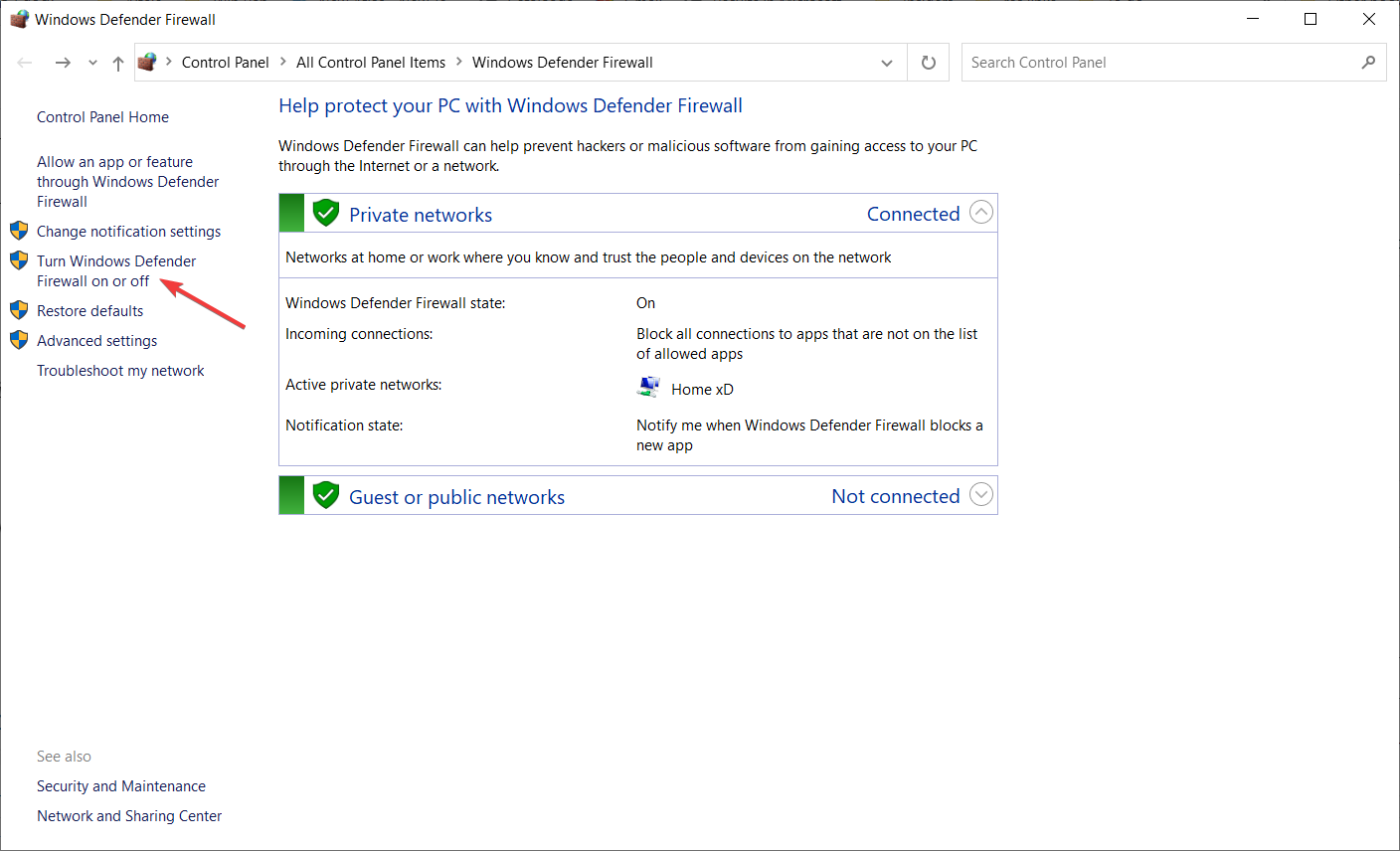
  3. If, for some reason, they aren’t, click on the Turn Windows Defender Firewall on or off option.
  4. In the next window, turn on the Windows Defender Firewall.
  5. Restart your Windows PC.

Windows Defender Firewall can sometimes interfere with multiplayer games. As a result, many players turn off the firewall so that it doesn’t affect or limit their gaming experience.

2.2 Reset the Windows Defender Firewall policy to default

  1. Type command in Windows search and click on Run as administrator to start Command Prompt with full privileges.
  2. Type the following command and press Enter:
    netsh advfirewall set currentprofile firewallpolicy blockinbound,allowoutbound
  3. Restart your PC.

Resetting your Windows Defender Firewall policy to default also seems to work, so follow the steps above to do it.

3. Fix networking settings

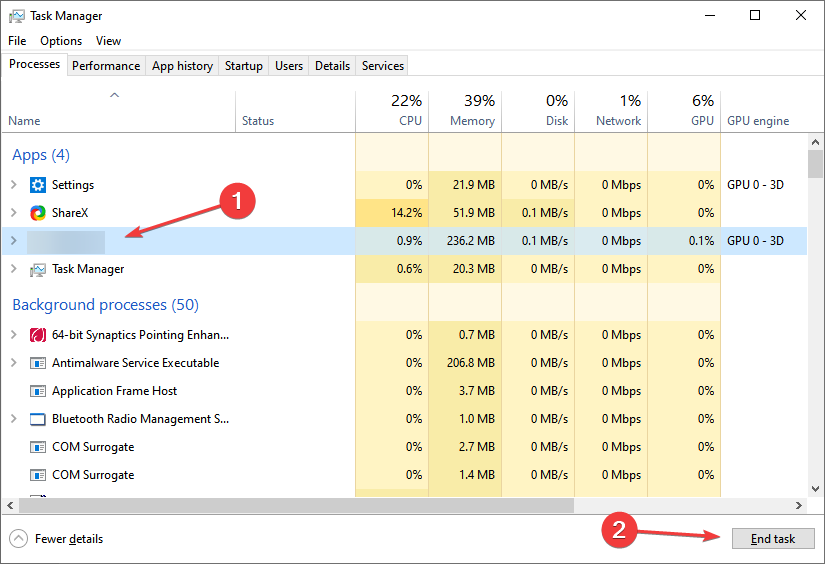
  1. Press Ctrl + Shift + Esc to open Task Manager, select the Forza Horizon 4 process, and click End task.end task to fix forza horizon 4 can't play online pc
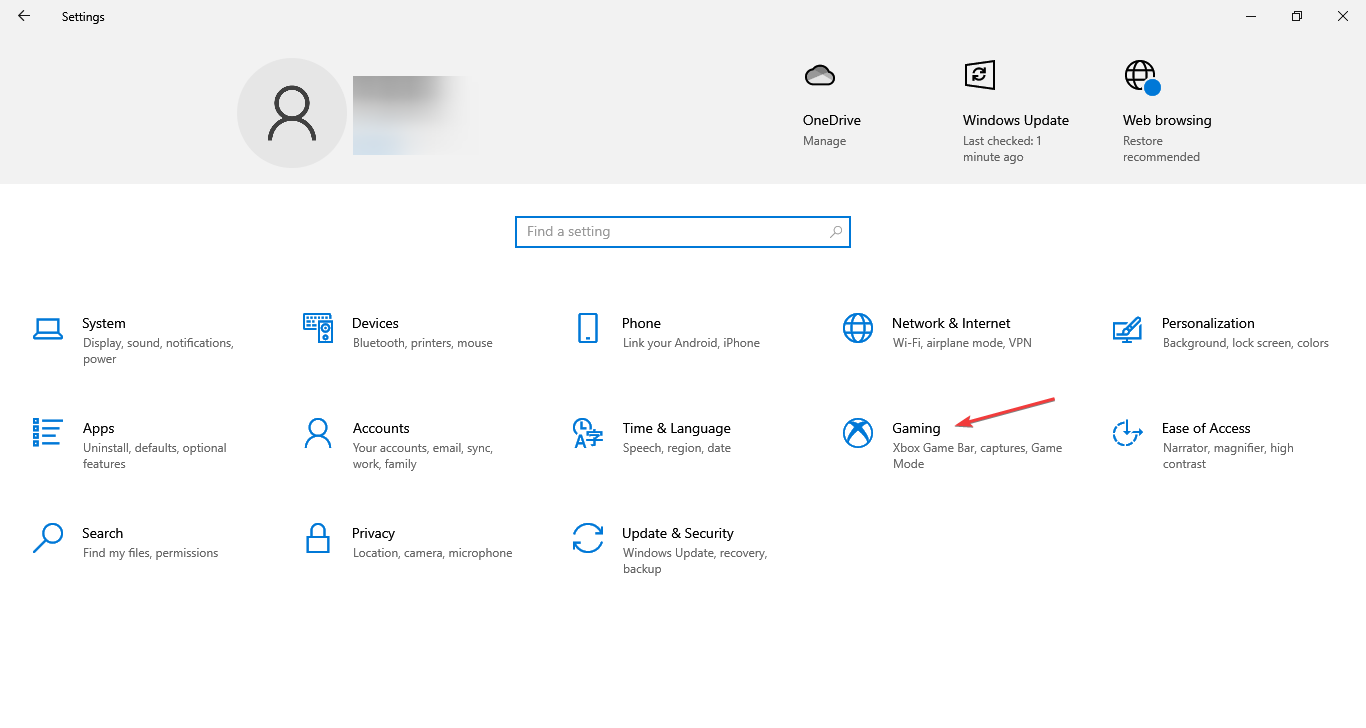
  2. Press Windows + I to open Settings, and choose Gaming.gaming to fix forza horizon 4 can't play online pc
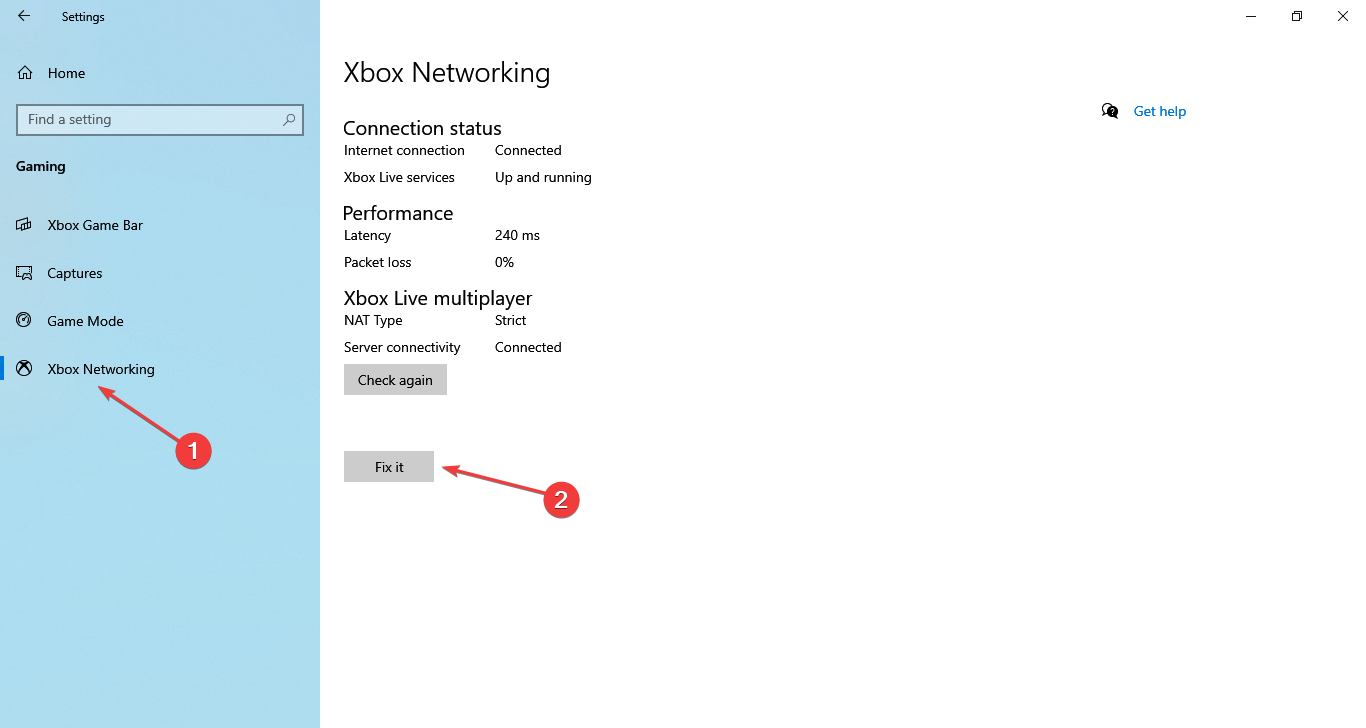
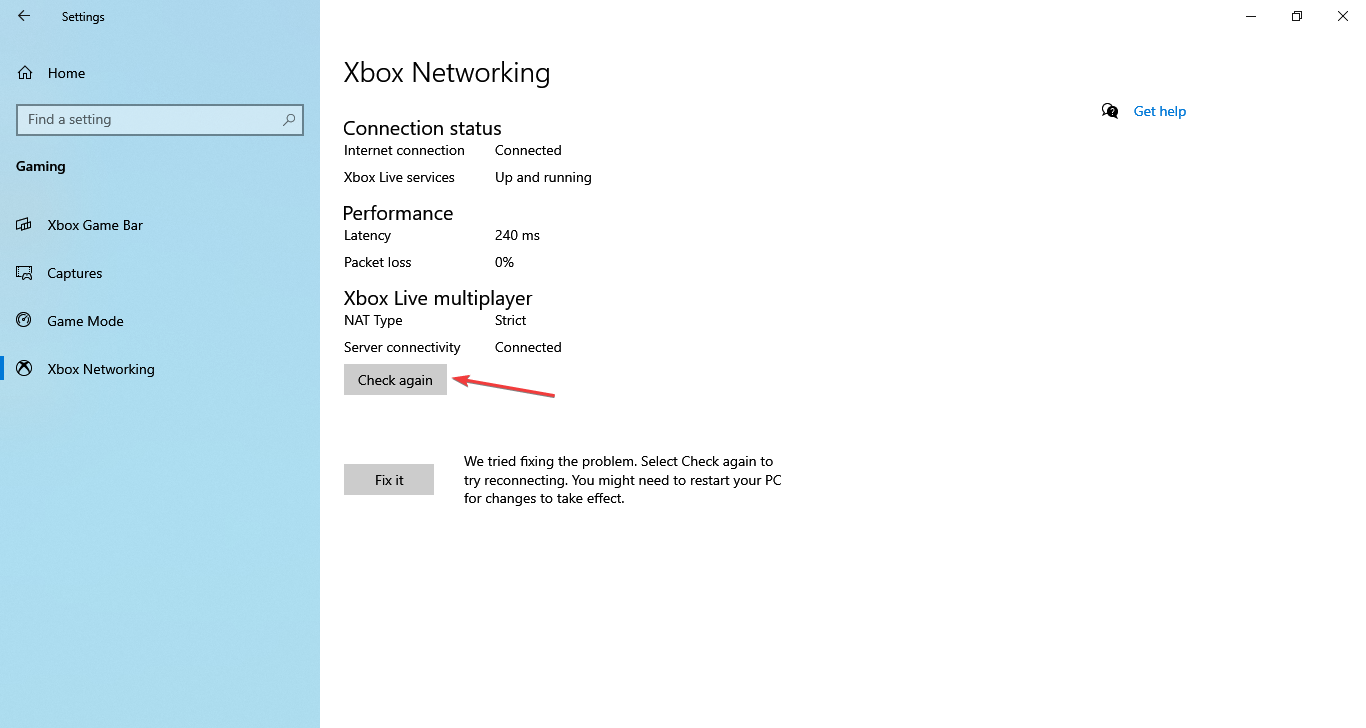
  3. Go to the Xbox Networking tab, and click on the Fix it button on the right.fix it forza horizon 4 can't play online pc
  4. Once done, click on Check again and verify whether Teredo and Xbox Live now read connected.check again to fix forza horizon 4 can't play online pc
  5. If that’s the case, launch Forza Horizon 4, and click on Sign out.
  6. Finally, restart the fame, re-sign into Forza Horizon 4, and it should run fine.

If Forza Horizon 4 online play doesn’t work, there’s a quick fix for it. All you have to do is run the Forza Horizon 4 network diagnostics on your PC, and things should be up and running quickly.

4. Perform a Clean Boot to disable the antivirus

  1. Press Windows + R on your keyboard to start the Run app.
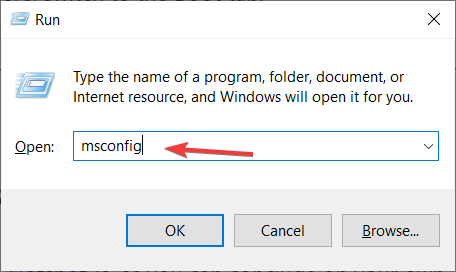
  2. Type msconfig and hit Enter.
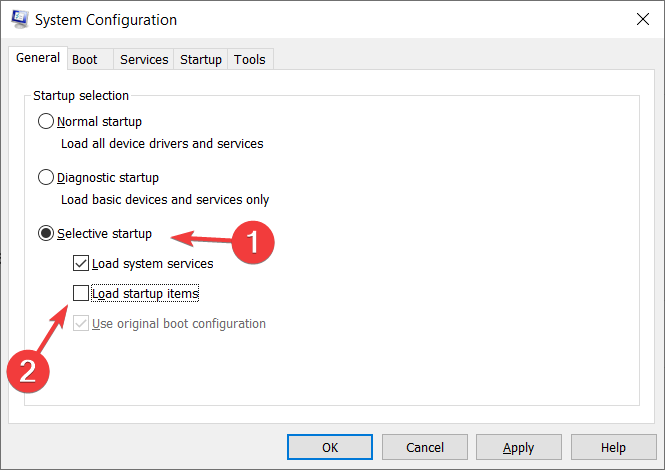
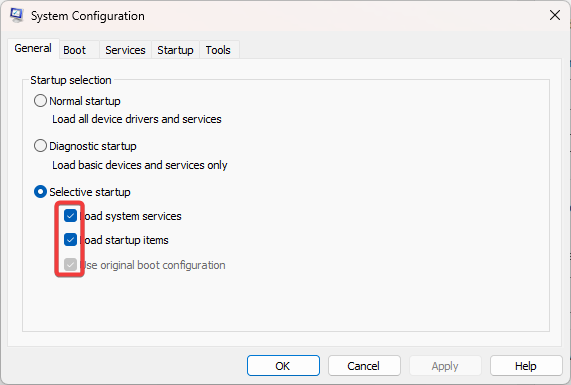
  3. Choose the Selective startup option in the General tab, and deselect the Load startup items check box.
  4. Also, select the Use original boot configuration and Load system services options.
    forza horizon 4 can't play online pc
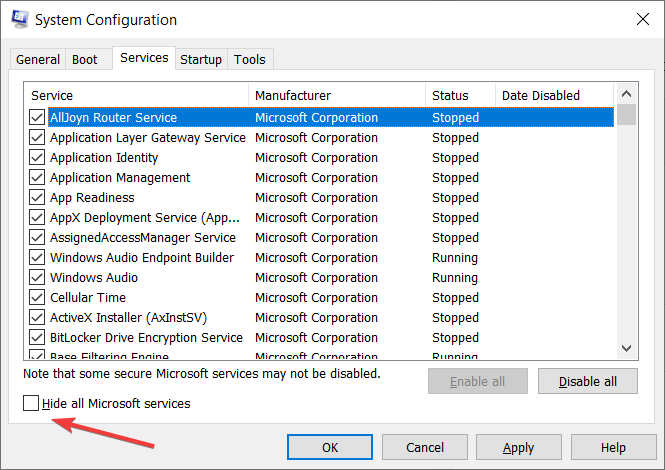
  5. Go to the Services tab and enable the Hide all Microsoft services setting.
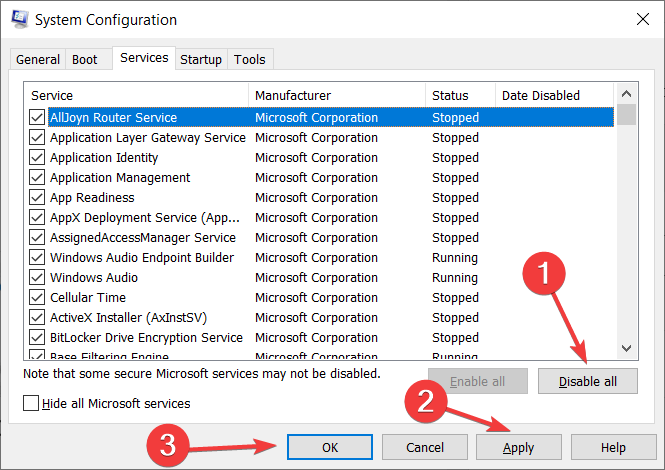
  6. Choose the Disable all option to disable third-party services, then press the Apply and OK buttons.
  7. Restart your Windows PC.

Third-party antivirus software can also affect Teredo IPsec’s connectivity, but it’s not a rule. To ensure this isn’t the case, temporarily disable third-party antivirus utilities.

You can do that by right-clicking your antivirus client’s system tray icon and selecting the appropriate option (e.g., turn off, disable).

Alternatively, by following the steps above, you could perform a clean boot of Windows to ensure that no antivirus package is running.

5. Disable or uninstall your VPN

  1. Press your keyboard’s Windows key + X key combo and select Device Manager.
  2. Choose the View tab and select Show hidden devices option.
  3. Double-click the Network adapters category.
  4. Right-click the VPN’s TAP adapter and select Uninstall.
  5. Restart your Windows 10 PC after uninstalling the adapter.

Connected VPNs may also play a big part in disabling Forza Horizon 4 multiplayer connections. Thus, you must ensure you disconnect VPN clients, at least enough to rule out their interference.

6. Enable the IP Helper Service

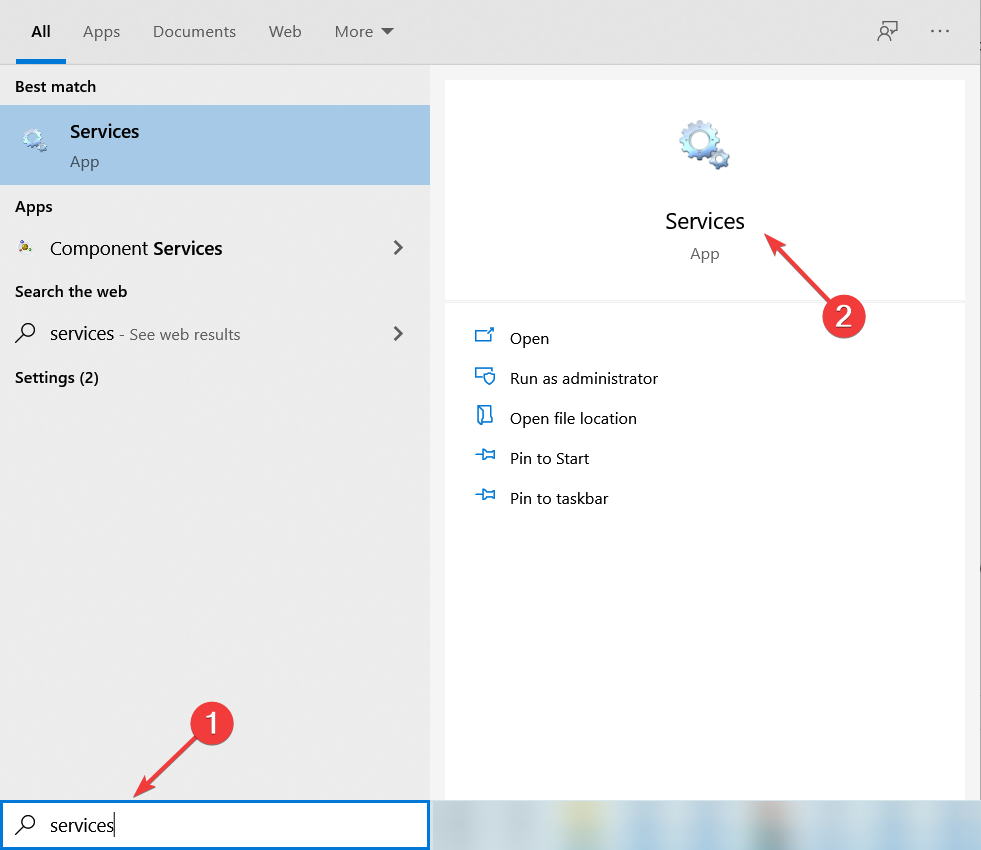
  1. Hit the Win key on your keyboard and type services, then select the Services app.
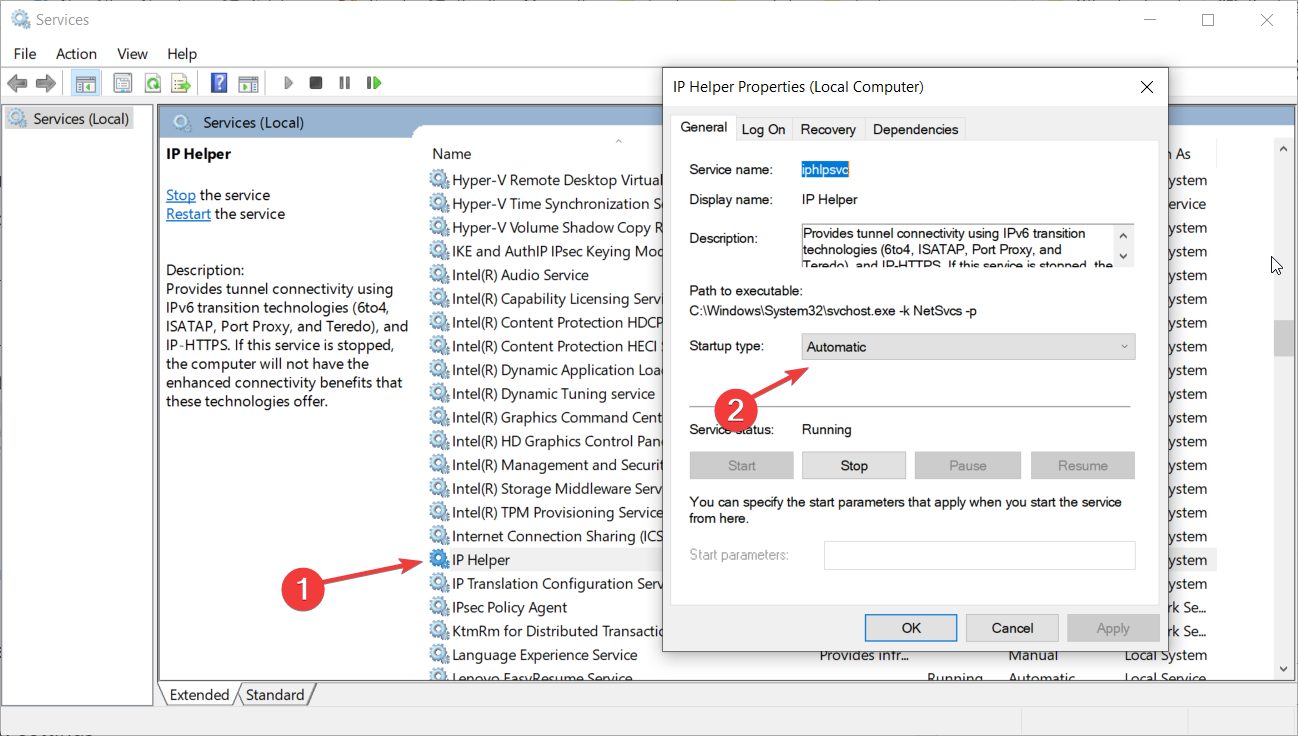
  2. Double-click the IP Helper service, and select Automatic from the Startup type drop-down menu.
  3. Click OK to close the window.

IP Helper is one of the services required for Xbox Live. Forza Horizon 4 multiplayer won’t work if the service isn’t enabled.

Following the steps above, you can quickly check if the IP Helper service is enabled.

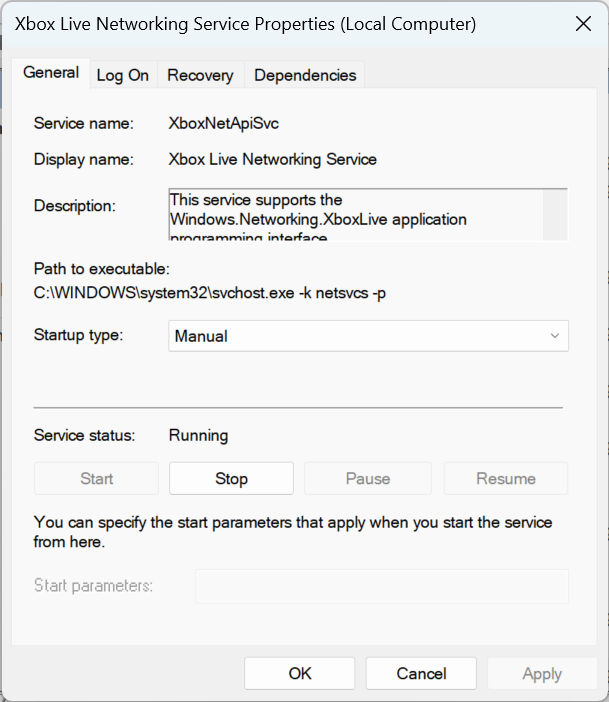
7. Enable Xbox Live Networking and Xbox Live Auth Manager services

If you can’t play Forza Horizon 4 online, Xbox Live Networking Service and Xbox Live Auth Manager are two other services that need to be enabled for Xbox Live.

You can enable those services as you did with IP Helper previously. However, you must select Manual startup for both services instead of Automatic.

It’s also important that your PC meets the minimum system requirements for the Forza version you are trying to play. If your PC doesn’t, it might lead to Forza Horizon 4 not launching.

Lastly, do not forget to let us know which solutions were most effective for you in the comments section.

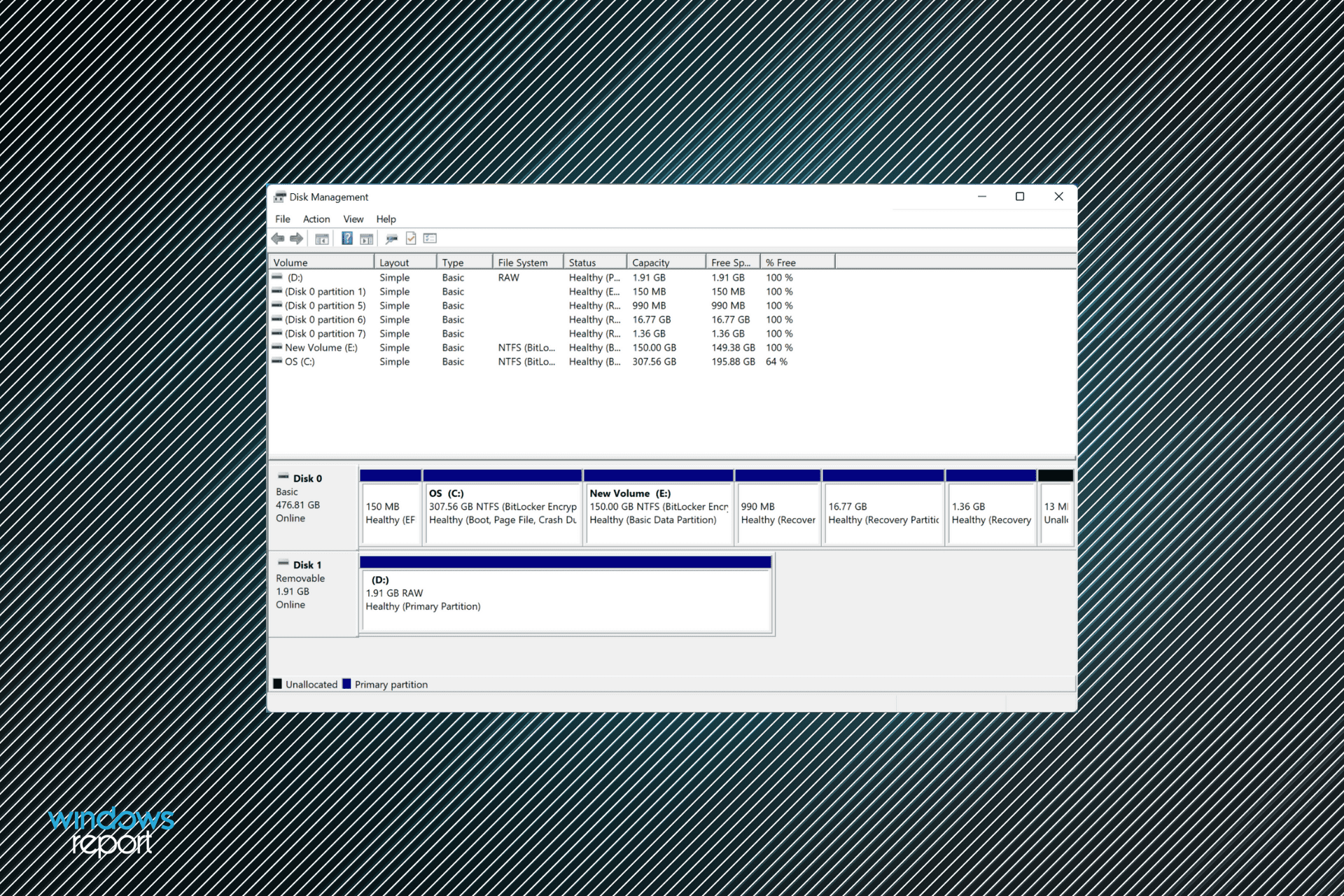
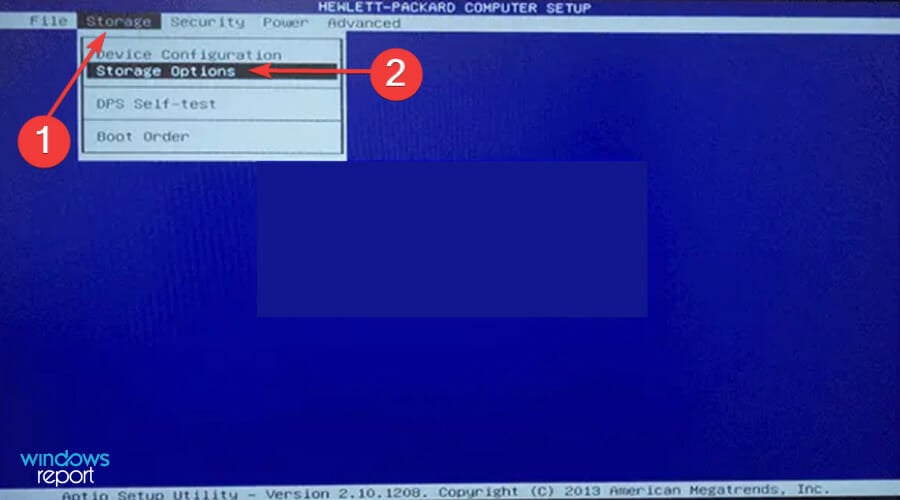
Can’t install Windows 11 on SSD? Get the Right Drivers

Ever since Windows 11 was released, people have been nothing but excited to get their hands on the latest iteration. But, several users reported that they can’t install Windows 11 on SSD.

This could be due to several reasons, ranging from incompatible drive format, or problems with the drive itself, amongst other issues.

In the following sections, we will help you understand what SSD is, and walk you through the most effective fixes to eliminate issues that prevent Windows 11 from installing on this medium.

What is a SSD (Solid State Drive)?

When it comes to drives, you have two options, either to go with the conventional HDD (Hard Disk Drives) or the new-age SSD (Solid State Drives). While the former relies on magnetism, the latter uses semiconductors for its core functioning.

SSDs are faster, more reliable, and consume lesser power when compared to HDDs. And as you would have thought, these are expensive as well but the price gap between the two is narrowing, owing to the technological advacements.

Solid State Drive (SSD)

Most new generation laptops use SSDs. It’s quicker to load files from these disks which in turn boosts the system performance. As is the case with HDDs, Solid State Drives are available both to be used internally and portable ones.

What do I do if I can’t install Windows 11 on SSD?

1. Check the connections

If you are using an external SSD to install Windows 11, make sure the connections are all proper. Remove the external disk, clean the port as well as the USB, and replug it.

For internal SSDs, check the connections only if you are aware of them since these would be concealed. Also, you would have to open the back panel in case of a laptop, which is a technical job.

In case you are unable to do that, execute the other methods listed below, and if nothing works, take your computer to a repair center to get the internal connections checked.

2. Set SATA to ACMI mode

Note icon NOTE
The steps and screenshots for making changes to the BIOS listed below are to provide you with an understanding. The interface may vary in the case of your computer, and we recommend you to check the manufacturer’s website for the exact steps.
  1. Resart the computer and as soon as the display lights up, hit the Del or F10 key to load the BIOS.
  2. Now, look for Storage and then click on the Storage options entry.Storage options to fix can't install windows 11 on ssd
  3. Set SATA Emulation to AHCI mode.Set SATA to AHCI mode to fix can't install windows 11 on ssd
  4. The next step is to enable Secure Boot from the BIOS. Once done, save the changes, exit the BIOS, and boot Windows.
  5. Now, press Windows + S to launch the Search menu, enter Windows Terminal in the text field at the top, right-click on the relevant search result, and select Run as administrator from the list of options.Launch elevated Windows Terminal to fix can't install windows 11 on ssd
  6. Click Yes in the UAC (User Account Control) prompt that pops up.Click YEs to fix can't install windows 11 on ssd
  7. Click on the downward-facing arrow at the top, and select Command Prompt from the options. Alternatively, you can hit Ctrl + Shift + 2 to launch the Command Prompt tab.Open Commnd Prompt to fix can't install windows 11 on ssd
  8. Next, type the following command and hit Enter.diskpartExecute Diskpart to fix can't install windows 11 on ssd
  9. Now, execute the following command to view all the connected disks.list diskEnter list disk
  10. Select the disk you are having trouble installing Windows 11 to using the following command. Make sure that the number at the end of the command matches that in the first column. We entered 1 since it’s Disk 1 in our case.select Disk 1select Disk to fix can't install windows 11 on ssd
  11. Finally, paste the following command and hit Enter to execute it.cleanclean to fix can't install windows 11 on ssd

Once done making these changes, check if you are able to install Windows 11 to the SSD.

3. Update disk driver

  1. Press Windows + S to launch the Search menu, enter Device Manager in the text field at the top, and click on the relevant search result that appears.Launch Device Manager to fix can't install windows 11 on ssd
  2. Double-click on Disk drives entry.Disk drives
  3. Now, right-click on the problematic disk and select Update driver from the context menu.Update driver to fix can't install windows 11 on ssd
  4. Select Search automatically for drivers from the two options that appear in the Update Drivers window.Search automatically for drivers
  5. Windows will now scan and install the best driver version available on the system.

The Device Manager method is the simplest of all and doesn’t require much effort from your end. However, on the downside, it only scans for newer versions that have already been downloaded. In case you haven’t, the chances of finding an update are bleak.

In which case, you can look for the latest driver version in Windows Update or manually download the setup from the manufacturer’s website and install it.

Many users find the task of manually updating the drivers monotonous, in which case you can use a reliable third-party app. We recommend using Outbyte Driver Updater, a third-party app that scans all available sources for the latest version and keeps the installed drivers up-to-date.

After updating the disk driver, check if you still can’t install Windows 11 on SSD. If that’s the case, go to the next method.

4. Change disk format

If the methods listed above have not worked, it could be a problem with the disk format. There are basically two formats for disks, MBR and GPT.

MBR (Master Boot Record) is the older format that can be used for disks up to 2 TB of storage, while the GPT (GUID Partition Table) format is recent and offers better performance and recovery options, in case the disk or a certain part of it gets corrupt.

If the SSD is currently in the MBR format, convert the disk to the GPT format, and check if you are able to now install Windows 11 on the SSD.

5. Update BIOS

Though it’s not recommended that you update the BIOS frequently, certain situations, such as this one, certainly are an exception. If it’s a problem with the BIOS that prevents you from installing Windows 11 on SSD, updating the it could help.

BIOS chip

You can update the BIOS from the BIOS itself, use a USB drive, or use a dedicated program offered by the manufacturer. Choose the relevant method from the linked guide and once done with the update, check if the problem is resolved.

6. Replace the SSD

If nothing else works, it could be a problem with the SSD itself. First, connect it to another computer and check if you are able to access it. In case it doesn’t work, try formatting the disk and verify.

Also, if you frequently encounter warnings that the SSD may be corrupt or failing, maybe it’s time you replace the disk. Check out our curated list of the best SSDs available in the market.

Replacing the SSD should solve the issue and you would now be able to install Windows 11 on SSD.

How can I install Windows 11 on my PC?

Once you are done eliminating the issues, the next step is to install Windows 11. There are a lot of ways you can install Windows 11, using the installation media, a bootable USB drive, or directly upgrading to it from Windows Update.

If you have received the update, it’s best that you download and install it. But the first two methods too seem to work fine for systems that haven’t got the update yet. Also, learn how to install Windows 11 without TPM, in case your device doesn’t have it.

These are all the ways you can fix issues that prevent Windows 11 from installing on SSD. By the time you reach this part of the article, the error should be long gone, and you can start the installation process.

Besides, if you are unable to install the OS at all due to the This PC can’t run Windows 11 error, check how to fix it. In case you see the Select the driver to install message, find out how to resolve it as well.

Tell us which fix worked for you in the comments section below.

EEPC Has Been Corrupted in Windows 11? Here’s What to do

According to McAfee, when you restart a customer system after upgrading the Endpoint Encryption for PC from a version earlier than 5.1.7 to 5.2.12, the EEPC has been corrupted error appears, and you may also experience other issues with the system.

McAfee offers all-in-one protection to safeguard your privacy and identity with award-winning antivirus and VPN so you can enjoy life online, however it has its hiccups just like any other software.

Don’t be alarmed if your Safe Boot has also been corrupted, as this can as well be resolved as we have shown below.

Follow along as we have put together a comprehensive guide on how you can fix the EEPC has been corrupted error, right after we see what causes the corruption of it.

What causes EEPC corruption?

Only 5.1.7 and later versions are supported for straight upgrading to 5.2.12. In this case, the intermittent nature of the problem is tied to the quantity of low memory (below 640K) that is available in the BIOS.

As well as whether or not the system has a BIOS that allows for the installation of additional disk extensions in low memory.

mcafee endpoint encryption eepc has been corrupted

Some of these extensions occupy the upper portion of low memory, just below the 640K threshold. Because the EEPC boot code loads into a little amount of memory, it has the potential to overwrite any BIOS disk extensions that are too large.

It is not possible to perform the upgrade with EEPC versions earlier than 5.1.7 because the boot code in versions older than it is too large for the sectors reserved by the SbClientManager.

Endpoint Encryption for PC interfaces that are older than 5.1.7 (including 5.2.11) should be upgraded before 5.2.11, according to McAfee, in order to avoid corruption of the interfaces.

If, on the other hand, you have already updated to an unsupported version, McAfee provides a straightforward remedy to the problem which is performing an emergency boot, before you take your computer to the shop.

How can I fix EEPC has been corrupted in Windows 11?

Perform an emergency boot

Note icon NOTE
Prerequisites include: A DETech boot disk created, Floppy drive or USB containing the Recovery Information File (.xml) and Daily Authorization or the Access code. Users with a valid support contract can obtain the Authorization Code from the ServicePortal or from Technical Support. 
  1. Restart your computer using the DETech (Standalone) boot disk. This action will load the McAfee DETech interface for you to use.
  2. Authorize with the daily Authorization code and confirm the status of it.authorize-detech  eepc has been corrupted
  3. Under the Actions section, click Enable USB, then click OK until you see the McAfee DETech dialog box with the USB enabled message.enable-usb  eepc has been corrupted
  4. Below Authentication, click File, and select the Recovery Information File (.xml). You can select a floppy disk or USB drive, and then click OK.file-auth  eepc has been corrupted
  5. Now under the Actions section, click Emergency Boot.emergency-boot  eepc has been corrupted

If the McAfee Agent is unable to establish a connection with the ePO Server, the system should be booted using the DETech Emergency Boot option until a connection with the server is successfully established.

The MBR can be changed as a result of the operations listed above. If a network connection to the ePO server is available when the system boots into Windows, the system synchronizes with the ePO server and completes a full self-repair.

To check the status, right-click on the McAfee Agent Tray and select Quick Settings and Drive Encryption status from the context menu. After you confirm the emergency boot, the EEPC has been corrupted error message will be gone.

Do I really need an antivirus?

Anyone who hears the phrase antivirus software usually appears to join in, claiming they don’t need one since they’re careful and that common sense is all you need. This is not correct. No matter how intelligent you believe yourself to be, you can still profit from using an antivirus on Windows.

An antivirus program serves as the final stage of defense. If a website takes advantage of a security hole in your browser or a plug-in to compromise your computer, it will almost always attempt to install malware on your computer, including keyloggers, Trojans, and rootkits.

Malware has become the realm of organized crime in recent years, with the goal of gathering financial information and using your computer to create botnets.

If a zero-day vulnerability in a piece of software you use does provide the bad guys with an opportunity to infect your system with malware, an antivirus program is your last line of defense.

However, while it should not be your only layer of security (browsing cautiously should always be done), it surely must be among your layers of protection. Furthermore, there is no compelling reason not to use an antivirus program on Windows.

Some individuals claim that antivirus software is resource-intensive and causes your computer to run more slowly. This is undoubtedly true in the case of some antivirus software.

More recent versions of antivirus software suites have been accused of degrading the performance of your computer even more than actual viruses.

In terms of security, an antivirus program is only one layer. As all antivirus testing has shown, no antivirus product is 100% effective at detecting and removing all malware at the same time, but you still must use one in order to be safe.

If you want to switch to another antivirus but you encounter difficulties with the uninstallation of McAfee, we have prepared for you a guide on how to uninstall McAfee when the removal tool doesn’t work.

Undecided on what antivirus to use? We recommend that you use a specialized and professional antivirus and antimalware software alternative. Just take a look at five of the best antivirus tools that are compatible with Windows 11.

Was this guide helpful for you? Let us know in the comments section below as well as which solution worked in particular.

How to delete chats in Microsoft Teams

Whether it’s a typo in your message, or you simply ended up texting in the wrong team, you can always take back your messages. Microsoft has made deleting your Teams chats a fairly simple process, be it for the mobile app or for the desktop one.

Important note: If you’re using Teams in a corporate setting, there may be data retention policies in place that prevent you from deleting chats. You can learn more from Microsoft, and ask your admin if you have questions.

In this article we’ve laid down the different ways you can delete a text in the Teams app. So let’s get started with the method for desktop text deletion.

How to delete chats in Microsoft Teams

Since the beginning of the pandemic, the Teams app has become the go-to app for many professionals.

Be it the seamless remote collaboration features, or the easy integrations with a host of other Microsoft products, Teams has much to offer to its users.

Among all the shiny features, Teams also offers a chat feature that lets you exchange text with other Teams users, either one-on-one or in a group meeting. Let’s go over different ways you can delete your chats on Teams.

Deleting single chat on Teams desktop app

To delete a specific message in a Teams chat, go to the specific channel from where you’d like to delete the chat from. Click on the three-dot icon on the message for More Options, and click on Delete.

Do this and your message will be deleted. Don’t worry, as the other individual won’t be able to see the deleted message; all they’ll see a message which says, “This message has been deleted.”


deleting a chat in Teams desktop app

Moreover, the deleted chat will be removed from all your devices, apart the one you’re using now.

Delete your chats on Teams mobile app

If you’re using the Teams app on your Android, the process will be only slightly different. Here’s how:

  • Open the app on your smartphone.
  • From the main menu, click on the Chat and a new window with all your messages will pop open.
  • Once you’re in, tap and hold the message you’d like to delete.
  • Tap “Delete.” If prompted, click on Delete again and your message will be deleted.

Follow the steps above, and your message will be successfully deleted. Alternatively, you can also Mute or Hide an entire conversation (though you can’t delete it in those cases).

Summing it up

And that’s all, folks. We’ve all said things that may not be suitable for the occasion; made typos that are plainly hideous. Whichever the situation you find yourself in, hopefully, through this article you were able to delete your Teams chats without any hassles.

DTS Audio Control: What It Is and How to Get It on Your PC

DTS Audio Control is software that allows you to configure the DTS sound settings on your PC. Many users reported this icon in the system tray, and they want to know exactly what it does.

This software is a component of certain audio drivers that come preinstalled on some PCs. In today’s guide, we’re going to take a closer look at this software and tell you everything you need to know.

What is DTS Audio Control?

Before we start, here’s a quick overview of DTS Audio Control:

  • Available on HP PCs – This software is usually preinstalled on HP computers or other brands that use DTS technology.
  • Audio customization – With this app, tweak the DTS audio controls on your PC and achieve a realistic and immersive surround experience. You can easily change treble, bass, or voice enhancements.
  • Available presets – For easy configuration, there are several presets, including Movies, Music, and Games.

How do I get DTS Audio Control on my PC?

1. Keep your drivers up to date

  1. Visit HP’s Drivers page.
  2. Select the type of PC that you use.
     
  3. Next, enter your serial number. It should be printed on your device. Alternatively, you can let the website automatically detect your device.
  4. Next, locate the audio driver and download it.
  5. Run the setup file and follow the instructions on the screen to install it.

To update all of your drivers automatically, you need to take the help of a professional tool, Outbyte Driver Updater. This negates the need to follow the above steps and manually update each driver on your PC. Instead, a single click would update all of your drivers without hassle.

⇒ Get Outbyte Driver Updater

2. Download the software manually

  1. Visit the DTS Unbound download page in the Microsoft Store.
  2. Click on the Get in Store app.
     
  3. Click on Get and wait for the application to download.

Once it’s downloaded, you’ll get access to DTS Audio Control. We also have a full guide on how to download DTS Sound Unbound on Windows 11, together with a few more useful tips.

3. Try using a professional audio enhancement app

With one goal in mind – to get the DTS sound Windows 10 back – you need to learn more about what this desktop app can do for you.

Boom 3D is your chance to experience total audio immersion, whether you want to watch scary movies with friends, listen to music and party, or spend crazy gaming afternoons for six weeks.

There are five usage modes to pick from – 3D Surround, Ambience, Fidelity, Night Mode, and Spatial, not to mention that Apps Volume Controller lets you manage individual audio levels and volumes.

Lastly, note that the 31-band equalizer assures precise audio tuning, even by experts.

How do I get rid of DTS Audio Control?

DTS Audio Control comes as a part of audio drivers, so the only way to remove it is to uninstall your drivers. However, Windows will install them automatically, and DTS Audio Control will appear again.

However, you can remove DTS Control Panel from the system tray by doing the following:

  1. Press Windows key + R and enter regedit. Now press Enter.
  2. Navigate to the following key: Computer\HKEY_CURRENT_USER\Software\Realtek\Audio\RtkNGUI64\General
  3. Double-click on ShowTrayIcon DWORD and change its Value data to 0.
  4. Restart your PC.

That’s everything you need to know about DTS Audio Control. To learn more about sound configuration software, visit our Realtek Audio Manager guide.

While using DTS Audio Control, you might face issues like DTS Audio Processing settings are unavailable; to learn the solutions to fix it, read this guide. We also have a guide on what to do if DTS:X Ultra is not working, so feel free to visit it for more information.

Have you ever used DTS software? Let us know in the comments section below.

How to Use Your PC as Chromecast [Easy Steps]

Chromecast is a fairly affordable solution to transform a standard television into a smart one. You can easily get more usage out of a monitor and a television set without having to purchase an additional cable setup box.

The earliest versions of the firmware contained a modest exploit that allowed developers to change and execute the firmware in such a way that a regular PC could be transformed into a Chromecast receiver, however, this attack was quickly patched.

It is no longer feasible to construct an app in this manner because Google swiftly patched the vulnerability. The good news is that, despite its best efforts, Google has created a program that allows you to transform your PC into a receiver.

Follow along as we will show you how to simply use your PC as a Chromecast right after we understand how the latter works behind the scenes.

How does a Chromecast work?

It is a device that is constructed on top of a proprietary protocol developed by Google called Cast. A smart speaker or a screen may be easily mirrored from a device such as your smartphone, which is aimed to make it easier to share material.

Google Cast was first announced in 2013 and has since been integrated into practically every major app and platform on the market. In the event that a Cast-enabled receiver is connected to the same Wi-Fi network as your phone or computer, the compatible app will display the Cast icon.

brave cast use pc as chromecast

Because the Chromecast itself is also connected to the internet, the URL of the content is shared between it and your phone. As a result, the process is almost instantaneous, and you will not experience any hiccups.

In conjunction with Google TV, it provides a more typical television experience. Instead of merely casting content from another device, you can now play content straight from the device itself using the feature. However, this is due more to the OS and the remote than it is to any hardware changes.

Since it is based on Wi-Fi, Google Cast can be used on any device regardless of its platform. As a result, if the developer decides to provide compatibility, the underlying platform will not be a problem.

For example, the Cast button on YouTube is accessible regardless of whether you’re reading the website on your computer using Google Chrome or using the YouTube app on your smartphone. Even possessing an Apple device will not put you at a disadvantage!

How can I use my PC as a Chromecast in Windows 11?

Use Google Chrome

  1. Because the Chromecast is a Google device, it may be easier to accomplish this through Google Chrome. But, you might look for an extension for Mozilla Firefox or another browser to accomplish this.cast-search use pc as chromecast
  2. If you are using Chrome, simply tap on the three-dot menu icon in the upper right-hand corner (it’s three vertical dots or an arrow icon depending on if the browser is updated), then right-click on Cast.cast-button use pc as chromecast
  3. Having your Cast icon ready to go is the first step in determining whether or not you have an active internet connection. For your PC or laptop to be able to pair with your Chromecast device, both devices must be connected to the same Wi-Fi network. wifi-connection use pc as chromecast
  4. Although this may appear to be a straightforward process, keep in mind that many routers have various bands, so make sure both devices are connected to either the 2.4GHz or the 5GHz band before proceeding.
  5. From your smartphone or tablet, open the Google Home App and tap on Settings followed by WiFi Network. Now you can connect it to the same Internet band you want to use.
  6. Using services such as Netflix and Spotify on a computer is similar to using them on a smartphone or tablet. Simply click on the Cast icon, which we discussed earlier.spotify-cast use pc as chromecast

And that’s it! Developers made it as simple as they could for people to use Chromecasting. Services such as Netflix or Spotify do support casting, but you might need to have the PRO, or paid, version of them before having the feature enabled.

What to do if your computer won’t connect?

If you have Wi-Fi and a computer that is at least a few years old, you should have no trouble connecting to your Chromecast from your computer. With just a few taps and clicks, you can instantly connect and stream between your PC or laptop and a casting device.

However, your Internet connection on either of the devices is most likely to blame if your Chromecast does not appear on your computer when you try to watch something on it.

no device use pc as chromecast

Simply check that both the Google Home App and the network icon on your computer are connected to the same Wi-Fi network by clicking on them. This typically resolves any difficulties ranging from the device not showing up to a pairing failed type of error.

However, if this does not occur, you will need to restart your router. Otherwise, push and hold the Power button for 10 seconds until it becomes unresponsive. Allow the router to complete a reset and reconnect.

In addition to your power connection, your Chromecast problems can be traced back to it. In most cases, this is easily detected because it would not turn on if there was no electricity.

Nonetheless, if your computer or laptop is having trouble locating your device, check the connected connections and make sure your Chromecast is powered on.

We have already prepared a guide for when the Chromecast isn’t connecting to Wi-Fi. Make sure to take a look at it if you encounter the same problem.

Alternatively, you will definitely want to find out how to use Chromecast from different web browsers besides Google Chrome. Luckily we got your back!

And lastly, check out five more screen mirroring software for Windows 11 to those who want a little diversity along the way.

Did you find the article helpful? Do let us know in the comments section below. Thanks for reading!

Sony expects Microsoft to not change Activision’s multi-platform games strategy

Sony has just reacted to Microsoft’s acquisition of Activision Blizzard, which pretty much took the video games industry by surprise on Monday. In a statement shared with The Wall Street Journal, a Sony spokesperson said that the Japanese company expects Microsoft to not change Activision’s current strategy to release its blockbuster games on multiple platforms including PlayStation consoles.

“We expect that Microsoft will abide by contractual agreements and continue to ensure Activision games are multiplatform,” the Sony spokesperson said. Phil Spencer, CEO of Microsoft Gaming also shared a reassuring statement on Monday, saying that “Activision Blizzard games are enjoyed on a variety of platforms and we plan to continue to support those communities moving forward.”

Activision Blizzard will continue to operate independently until Microsoft completes the acquisition of the company in its fiscal year 2023, so the relationships between Sony and Activision should remain business as usual until June 2023. However, Microsoft likely didn’t spend $68.7 billion to keep releasing future Activision games on PlayStation consoles forever.

Sony has enjoyed good relationships with Activision for years, with the company benefiting from a marketing deal for Call of Duty on PlayStation consoles. In recent years, PlayStation pretty much became the best platform to play Call of Duty games thanks to exclusive content and in-game bonuses. These advantages for PlayStation gamers may eventually go away, but it’s still hard to know if future Call of Duty games could skip PlayStation entirely.

Activision also owns several IPs deeply associated with the PlayStation brand such as Crash Bandicoot and Spyro, and the future of these franchises on PlayStation consoles is also unclear. Following its acquisition of Bethesda last year, Microsoft said that future games will be released on PlayStation “on a case-by-case basis,” but we already know that Bethesda’s much-anticipated Starfield game will be exclusive to Microsoft platforms.

.NET MAUI quality improvements in Preview 12

Microsoft just released Preview 12 of the .NET Multi-platform App UI otherwise known as .NET MAUI. For those living under a rock, this is a cross-platform framework for creating native mobile and desktop applications levering .NET and C#. This allows developers to build applications that work across pretty much any operating system under the sun with a single framework, programming language and shared codebase. In short, an evolution of .NET Xamarin.Forms.

With preview 12 come some exciting enhancements, let’s talk about a few of them.

Shell Navigation

Xamarin.Forms Shell simplifies mobile app development by offering the essential functionalities that most apps need. Developers can access Shell.Current to issue navigation commands from pretty much anywhere, listen to navigation events, and more. One of the biggest features brought forward is the ability to query parameters.

For example :

private Task NavigateToDetailCommandExecute()
{
    return Shell.Current.GoToAsync($"{nameof(ShowDetailPage)}?Id={Show.Id}");
}

Shell Dependency Injection

Another amazing enhancement is the ability to leverage dependency injection. Starting with Preview 12 developers can now define their dependencies in their main class and use it in their pages

public static class MauiProgram
    {
        public static MauiApp CreateMauiApp()
        {
            var builder = MauiApp.CreateBuilder();
            builder
                .UseMauiApp<App>();

            builder.Services
                .AddSingleton<MainViewModel>();

            return builder.Build();
        }
    }
public partial class MainPage
{
    readonly MainViewModel _viewModel;

    public MainPage(MainViewModel viewModel)
    {
        InitializeComponent();

        BindingContext = _viewModel = viewModel;
    }
}

Other improvements

Aside from improvements to Shell, there are quite a few important bug fixes being included with this release. To read more about these head over the the blog post from Microsoft’s David Ortinau.

Before getting started it might be a good idea to do the following…

Before installing Visual Studio 2022 Preview, we highly recommend starting from a clean slate by uninstalling all .NET 6 previews and Visual Studio 2022 previews.

Now, install Visual Studio 2022 Preview (17.1 Preview 3) and confirm .NET MAUI (preview) is checked under the “Mobile Development with .NET workload”.

– David Ortinau, .NET Multi-platform App UI

Overall .NET MAUI is shaping up to be a very exiting platform and an amazing follow up to Xamarin.Forms which was already a very formidable offering on its own. Have you been building your own .NET MAUI powered apps? What has been your experience?

Google Play Games beta launches on Windows PC in 3 regions

Google today announced the launch of a beta testing period for Google Play Games on Windows PC.

The Google Play Games essentially allows PC owners to play video games designed for Android smartphones and tablets on their Windows laptop and PC. The system lets users use the same Google account to transfer progress between devices and earn Google Play Points for making purchases within the Windows Google Play Games app.

While Microsoft’s Windows 11 operating systems is continuing to add support for Android apps throughout 2022, that functionality basically creates a small box on a PC’s screen that functions like an Android smartphone or tablet. Android video games featured in the Google Play Games service take this idea further by adding full keyboard and mouse control support for Windows devices. It’s kind of the inverse of Microsoft’s Xbox Cloud Gaming which adds touch controls for console and PC games when they’re played on mobile devices.

Curiously, the Google Play Games website lists the minimum required operating system as being Windows 10 which means that users won’t need the Android app compatibility feature that’s being added to Windows 11 systems.

Starting today, interested parties in Hong Kong, South Korea, and Taiwan can sign up to participate in the beta testing with more regions expected to be added in the following months.

Are you interested in playing Android games on your Windows device? Let us know in the comments below and then follow us on Pinterest, Twitter, and Facebook for more gaming news.

Check out Opera’s Cryptocurrency browser

If you are into crypto, Opera is set to make your activities simpler with the latest features introduced to the browser.

The first version of the Crypto Browser was built by the engineers at Opera earlier in the year, but now a team of five people is developing the browser, which is built on Chromium, Opera’s open-source web platform.

The Opera browser has long been known for its speed and compression capabilities. And now it’ll have yet another distinction: enabling users to interact with decentralized apps (dApps) built on top of blockchain technology.

Crypto-based browser

While there are many ways to access cryptocurrency and purchase digital collectibles (NFTs) in a decentralized manner, the Opera Crypto Browser aims to simplify this process.

The browser will provide cryptocurrency wallet capabilities and support for Ethereum-based ERC-721 non-fungible tokens (NFTs). Users will also be able to access decentralized exchanges such as ForkDelta and RadarRelay within the browser.

It’s not entirely clear what implications this move will have for Opera’s business model or if it will charge fees for using its crypto wallet service.

Opera

Better manage your NFTs and cryptocurrencies while still relying on the best browser out there.

The Opera Crypto Browser Project is about more than just surfing traditional websites through a one-size-fits-all solution.

It’s specifically designed to work with a variety of decentralized apps, or dApps, as well as provide deeper functionality than a traditional browser that has a basic web wallet add-on.

This is possible thanks to a wide array of built-in, Web3 focused features, as well as the inherent speed that Chromium already offers the suite of Opera browsers.

For starters, the Crypto Corner gives you access to the latest blockchain news, upcoming airdrops, an industry events calendar, NFTs, crypto communities, educational content, podcasts, and videos as well as crypto prices, gas fees, and market sentiment, all in one spot. 

Key features

The most notable feature is the wallet, which will be non-custodial and let you hold multiple cryptocurrencies from day one. 

Another interesting aspect of the wallet is the ability to swap one cryptocurrency for another directly in your wallet. This means you can swap ETH for BTC or vice versa without having to go through an exchange.

Security-wise, Opera offers a secure clipboard that ensures data copied outside of the app (for example if you copy the text in a cryptocurrency exchange) cannot be read by other apps. If a developer tries to read it, it will be encrypted in such a way that only Opera can make sense of it.

Opera’s move is a small but significant step in establishing cryptocurrencies as a force to be reckoned with alongside more established payment methods.

Opera claims a significant percentage of the desktop browser market worldwide, and its crypto-enabled browser will likely have an immediate impact on that figure. As the crypto space continues to grow, Opera’s approach will be closely watched by rivals like Mozilla, Apple, and Google.

How do I get started?

Yes, you can already download Crypto Browsers in beta for Android, Windows, and Mac, while the iOS version will become available in the near future.

When you start up your Crypto Browser on your computer, the browser is already set up with the most popular Web3 and Crypto websites.

In the sidebar, you will find Twitter, Telegram, and Whatsapp integrated, as well as Opera’s native Crypto Wallet. 

Also, you can search or access Crypto Twitter, Discord, Reddit, or DappRadar directly from the browser’s speed dial.

The Crypto Pinboard icon will lead you to a tutorial explaining the individual parts of the Crypto Browser Project and how to use them. 

What do you think this means for other browsers with the introduction of a Crypto-based browser? Let us know in the comment section below.

Twitch Something Went Wrong: 4 Ways to Deal With This Error

Twitch is a top-rated streaming service for gamers, but many reported that something went wrong on Twitch.

When this problem appears, you won’t be able to enjoy your favorite streams properly since you won’t be able to log in at all.

This issue affects both PCs and Xbox One, so today, we’ll show you how to fix this problem, so let’s get started.

Why does Twitch say Whoops something went wrong?

Whoops, something went wrong error message on Twitch is a generic error that can appear for various reasons. Here are a few likely triggers of this error:

  • Network connectivity issues – Twitch may encounter problems with its servers or network, causing the error message to appear.
  • High traffic volume – If many users simultaneously access Twitch, this can strain the servers and lead to errors.
  • Client-side issues – User issues like browser cache or cookies may cause the error message.
  • Server-side errors – There may be bugs or issues with Twitch’s software or infrastructure causing the error.
  • Maintenance or updates – Twitch may be undergoing updates that cause the error message to appear.

How can I fix Twitch Something went wrong error?

Before trying any of the solutions below, double-check if it is a problem with the Twitch service. This way, you may be sure if you should troubleshoot or wait it out. In addition, you can visit the Twitch Status page to ensure all services run correctly.

If there’s an issue with any of the services, your Twitch experience will be affected until the issue is resolved by Twitch staff.

1. Clear your Xbox and browser’s cache

1.1 Chrome

  1. Open Chrome.
  2. Use the following keyboard shortcut to open the Clear browsing data menu: Shift + Ctrl + Delete.
  3. Select All time as the time range. Ensure the first four options are checked, and click the Clear data button.

1.2 Firefox

  1. Start Firefox.
  2. Click the Menu icon in the top right corner and choose Settings.
  3. Navigate to Privacy & Security and click on Clear data.
  4. Now click on Clear to confirm.

2. Reinstall the Xbox Twitch App

  1. Press Windows + R, type appwiz.cpl, and hit Enter.
    twitch something went wrong
  2. Click the Twitch app from the app list and select Uninstall.
  3. Follow the wizard to complete the uninstallation.
  4. Visit the Twitch website and download a new copy of the app.
  5. Install the app and verify you no longer receive the error; Twitch, something went wrong.

3. Disable VPN

  1. Press Windows key + S and enter VPN. Select VPN settings from the list.
  2. Now select your VPN.
  3. Click on Disconnect.

If you’re having issues with your VPN, we suggest switching to a reliable VPN service, such as Private Internet Access.

4. Contact Twitch Support

  1. Visit the Twitch contact page.
  2. Now fill in the contact form and describe your issue.
  3. Hopefully, the Twitch staff will reach out to you with a solution.

Something went wrong error in Twitch can prevent you from enjoying your favorite content, but you should be able to fix it with our solutions.

If you’re having additional problems, visit our Twitch network error 2000 article to see how to fix them properly.

Did you find a solution to this problem on your own? Then, please share it with us in the comments section below.

7 Best Timeline Software in 2026 [Out of 15 Tested]

Creating timelines is an effective way to schematize events. It also helps students to better understand the evolution of events. Generating timelines using a digital tool lets you create interactive or animated timelines.

Digital tools also allow you to select different levels of knowledge and move from essential concepts to advanced content.

In this post, we’ll list some of the best tools available online to create interactive timelines. Enjoy!

What are the best timeline creation software for PCs?

Adobe Creative Cloud Express (recommended)

Adobe Creative Cloud Express is an open-source tool through which anyone can build interactive timelines rich in multimedia content.

It is possible to create stories in a simple and interactive way by using the professional timeline designs from Adobe Creative Cloud Express where you can add photos and icons.

This is a tool designed for users without any programming skills, so you can use ready-made templates to fasten the process of creation or you can customize your own work.

Adobe Creative Cloud Express offers a wide range of images, schemes, ideas of fonts, and different text layouts, so you can create outstanding timelines in no time. Moreover, you can visualize all the changes in real-time.

Besides creating stories in your timeline you have to know that Adobe Creative Cloud Express has a lot more catchy tools. So you can create a post for social media, and all you have to do is only to select a photo, a text and use a filter.

As well you can bring more creativity to your web page, as Creative Cloud Express created web stories to catch the attention of the readers.

It is possible to use this application wherever you are, so you can install the app on your mobile device as well.

It definitely convinced us that it is a great option for creating effortless, fast, and impactful works, especially when it comes to timeline designing.

Adobe Creative Cloud Express

Create presentations, timelines, and work-related projects with the industry-leading software, Adobe Creative Cloud Express
Check price Visit website

EdrawMax

EdrawMax is the ultimate solution for anyone who needs logical diagrams and timelines made efficiently in no time.

Using this practical software, you have all the tools to establish your action plan, visualize it, and then apply it to your projects.

You have 280 types of diagram templates included so it’s at hand to start your timeline project in order to grow and get the actual results.

The tool comes with innovative features that allow anyone, from any industry or major, to visualize their own timelines with ease. By choosing from 1500 built-in templates, you can’t fail your project scheme.

It’s worth mentioning that using this solution, you can share the hard-working projects with your teammates and get their input for reaching the results you want.

Hence, whether you need the timeline project for school or with detailed action plans at work, this tool has it all.

EdrawMax

Benefit from intuitive diagramming or flowchart instruments to create distinctive schemes for your big projects.
Check price Visit website

Asana

Asana is a project management platform that has the ability to help users create practical timelines with ease and efficiency.

This comprehensive solution will help you achieve stressful project deadlines by giving practical timeline tools to help you organize everything.

The software also promises to offer valuable timeline tools so you can stay in charge of your projects or business plans. More so, forget about spreadsheets and convert important projects into actionable plans in Asana.

If you wonder how to obtain the best results out of your project, this tool surely helps with the timeline plan that will structure your project into steps and small tasks.

Plus, you can adjust the workflow of your project according to new modifications and updates from your team.

Finally, when the assignment is done and you’re ready to implement, you can transmit the project with everyone right away.

⇒ Get Asana

Tiki-Toki

tiki-toki software

Tiki – Toki is web-based software for creating interactive timelines that you can share on the Internet.

Go to the Admin menu in the event line and you can edit the title, description, the start and end date, background images, and more.

After creating the timeline, you can add the events from the Stories menu. First, you put the title, the date, and, if you want, the link to another site.

From the Media menu, you can add one or more own photos or photos uploaded to Flickr or even Youtube videos. In the Extras menu, you can write a text as long as you want.

If you want to classify events, you will need to add new categories before associating them with specific events.

The final result is a beautiful web page with a sliding timeline with the mouse and a calendar at the bottom. You can share all the timelines via an email link, printed and saved in PDF format.

In class, students can use interactive Tiki-Toki timelines to identify patterns, the link between past and current historical events, collaborate on a timeline to show different perspectives of a topic, or tell their stories.

Multimedia is assured thanks to compatibility with most audio and video formats.

How much it cost? Once registered, you create a timeline, which you cannot embed on your site. There are then several paid packages; some of them are special for school / educational projects.

Who uses it: Tiki Toki today is one of the leading platforms for creating timelines. Journalists of major newspapers use it as well as freelancers and teachers.

Tiki-Toki key features include:

  • Track a visually appealing chronology.
  • Add video clips, images, audio, hyperlinks, and embed multimedia and text files within the timeline.
  • Customize the graphic appearance by changing the background image, layout, time duration, and color scheme via the Settings tab.

⇒ Get Tiki-Toki

Time Toast

Time Toast timeline

Time Toast helps users to create online timelines for teaching purposes.

After registering for free, simply enter the dates and information that interest you. You can add any written comments or images and then view the whole classic style timeline or chronological list.

Once you’ve finished, you can share the whole story via email or incorporate the timeline into your projects using an embed code.

You can easily switch from the timeline view to the event list where in addition to the miniature image, you will find the exact chronological indications and a description (more or less detailed).

We recommend this tool for those who prefer to stay more on the simple side of things.

⇒ Get Time Toast

Preceden

preceden software

Preceden is a creator of interactive timelines. You can sign up and create as many public timelines as you want.

The UI is very intuitive and is web-based. This means that you really don’t have to download any software on your computer. Simply create a user account and you can start creating your timelines directly in your browser.

There are many export options available allowing you to share your timelines with your friends or embed them into external projects.

Precedent is one of the fastest timeline-building tools out there. So, if you’re looking for a tool to generate timelines in under 5 minutes, this is the right solution for you.

⇒ Get Preceden

Frize Chrono

Frize Chrono is a tool that allows you to create timelines on ancient and contemporary history (manages AC and DC periods), on an hourly basis (with dates specified in hours and minutes) and for geological eras.

It also offers an event library with over 2000 items including historical events and birth and death dates of celebrities. You can also add those to your own customized timeline.

Just one thing before you decide to download it: the platform is in French. You can export the timelines in various formats and can be viewed and animated even in a 3D version.

⇒ Get Frize Chrono

Nowadays, you have the possibility to create very simple and beautiful timelines that can also be interactive.

Many software allows you to insert images, audio files, and videos into your timeline. This offers added value to your interdisciplinary projects. Did we miss any timeline software? Let us know in the comments below.

FIX: Knockout City not saving settings

Several Knockout City users took to Reddit and other platforms, to bring to light an important issue with the game. Reportedly, Knockout City isn’t saving settings on their Windows 11 system.

Not being able to save crucial graphics or input settings within the game could be pretty frustrating. Because it requires you to manually change or tweak the said settings every time you run the game.

While the reason and a permanent fix for this problem are still unknown, we have a list of solutions that would probably fix the problem of Knockout City not saving settings in Windows 11.

Deleting the game or not playing it until the issue is permanently fixed by the game developers is not an option. At least it is not an option for those who love the Knockout City game.

Follow this guide and try applying the list of solutions we have put together, right after we understand which are the settings that Knockout City is failing to save in Windows 11.

Which settings are not saved by Knockout City?

Knockout City is a multiplayer shooter game, where you team up with your friends to defeat the other team and win every game.

The main plot of Knockout City is that the players need to look around the map for dodgeballs to throw at the opponents in a 3v3 match setup.

There are standard as well as special dodgeballs, where the latter can eliminate enemies more quickly. It may sound pretty straightforward, but the gameplay is a bit intense and requires some practice before you can take on the enemies.

Knockout City not saving settings Windows 11

The game is highly popular among gamers, but Knockout City not saving important in-game settings is an issue that has been troubling users for quite some time.

Now comes the question, what all settings is the game not saving? Well, according to multiple reports, the game fails to save graphics and mouse sensitivity settings.

Whenever Knockout City players restart the game, the settings are back to default. They need to again make the appropriate changes, which are only valid till the current gameplay session.

The only good thing about this problem is that it doesn’t affect or revert control settings, sound settings, and display mode settings to default.

As far as progress in the resolution of this problem is concerned, there is only an official comment from the EA Community Manager that reads this issue will be addressed in an upcoming patch. Sadly, the patch hasn’t seen the light of the day, yet.

Thankfully, we have a list of solutions that you can implement to fix the Knockout City not saving settings issue on your Windows 11 PC.

What can I do if Knockout City is not saving graphics settings?

1. Adjust settings in main menu

Knockout City Game Menu

One solution that you can try is adjusting the graphics and mouse sensitivity settings in the game menu during gameplay rather than saving them in the main menu.

There is no guarantee that this solution will work for you because the reason behind this issue is still unknown. In such scenarios, trial and error is the best way forward.

After you have saved the settings, try reopening the game to check if the settings are still the same or if they have reverted to default.

2. Reset the game

  1. Press Windows + I keys together on your keyboard to open the Settings app. Now click on Apps and followed by Apps & features.apps and features
  2. Inside the Apps & features window, you need to search for Knockout City. You can do this by typing Knockout City in the search bar. Once found, click on the three-dot menu icon next to the game name and select Advanced options.
  3. On the new page, scroll down and click on the Reset button located under the Reset section.Reset Knockout City game

Do note that once you reset the Knockout City game, all your stored settings will vanish. So, we advise you to take a backup of all the important game data before resetting it.

3. Update installed drivers

  1. Press the Windows key + I to open the Settings app. You need to click on Windows Update located on the left side panel, then click on Advanced options on the right-side.Windows update
  2. Under the Additional options section, scroll down and select Optional updates.Optional update
  3. The Optional updates section lists down all the driver related updates, that you can install if you want. If a new driver update is available, simply hit the Download & install button.New driver update

Often, Windows keeps a check and updates the drivers installed on your Windows PC. But, we recommended that you manually check for updates.

To automate the driver checking process, we suggest you use a dedicated tool such as Outbyte Driver Updater.

4. Reinstall Knockout City

  1. Press the Windows + S keys on your keyboard to open the Search bar. Search for Control panel and open it.Control panel
  2. In the Control Panel window, select Programs and then Programs and features.Programs
  3. Look for the game in the list, right-click on it, and select Uninstall.
  4. To reinstall it, simply visit the Steam’s page for Knockout City and follow the steps mentioned for installation.

How can I Fix Knockout City PC performance issues?

Although Knockout City comes with cartoonish graphics, it is a graphics-intensive game. Some users have experienced performance lag or frame rate drops while playing the game.

There could be a bunch of reasons behind it, but we are more focused on how you can fix the performance of the Knockout City game on your Windows 11 PC.

To get the most optimal performance on your PC, make sure to set the display mode to fullscreen. Besides, Knockout City developers advise users to use a GeForce GTX 970 graphics card or better.

Knockout City graphics settings

If you come across frame rate drops during gameplay, then you can lower the Resolution screen settings to about 25%. Trial and error is the best method that you can apply here.

Furthermore, if you are using a low-end PC, then you should enable the Dynamic Resolution Scale. Shadow Quality can be set to medium if you have a low-end PC.

Only high-end PC users should enable settings such as Anti-Aliasing, Depth of Field, and VSync. You can cap the FPS to 60Hz to get more stable performance from the game.

Additionally, you can keep your PC clean of temporary files, set the CPU usage on high priority for Knockout City, and play around with Nvidia or AMD graphics settings to get the best output.

Viruses and malware also often interfere with gaming performance. So, we have a list of ten of the best antivirus software with low CPU usage. These antivirus software options will help you eliminate viruses and also any lag issues while playing games.

Let us know in the comments section below which solution worked for you in fixing the issue with Knockout City.

4 Quick Ways to Disable Steam Auto Updates for Good

Are you looking for the best ways to disable Steam Auto Updates for good? Make sure you read this guide completely because it was made especially for you.

Can you stop Steam from auto-updating? Steam auto-updates the games in the background whenever there is a network connection available but you can change its update schedule to fit your away time.

How can I disable Steam Auto Updates?

1. Change the update schedule

  1. Hit the Windows key, type Steam, then open the first result.
  2. From the upper-left corner of the window, click on Steam.
  3. Now, navigate to Settings.
  4. In the left side-panel click on the Downloads tab.
  5. From the right section, under Download Restrictions, check the Only auto-update games between option.
  6. Now, insert a time frame that fits your needs the best.
  7. Click on OK to save the changes.

To avoid future problems with updates, you can set certain update schedules outside your working hours. A good time will be late at night when you don’t use your Windows 10 PC for anything.

We have to mention that this solution applies to future updates only. If a game is already scheduled with an update, then you won’t be able to play it until you’ll update it.

Additionally, you can also limit the bandwidth for downloading updates just in the case sometimes the background update is running while you use your Windows 10 computer.

To do that, just follow the steps above, and right next to Download Restrictions you will see a Limit bandwidth to the drop-down menu. Choose the lowest amount possible (usually 16kb/s).

2. Stop the Auto update on a single game

  1. Press on the Windows key, type Steam, then open the app.
  2. Go to Library.
  3. Right-click a certain game that you’re interested in and select Properties.
  4. A new window will appear. There, click on Updates tab.
  5. Under the Automatic updates click the drop-down menu
  6. Now you have 3 options: Always keep this game up-to date, Only update this game when I launch it, High Priority: Always auto-update this game before others. Select the Only update this game when I launch it option.
  7. Remember to disable your Internet connection every time before starting the respective game.

If you want to stop Steam from updating Skyrim or any other game, this is the way to go. It has been confirmed by many users and it is very effective.

If your internet connection is disabled, Steam won’t be able to connect to the servers and the auto-update process won’t start. You will be able to play the game without any interruptions.

Although the solution works like a charm, it will be a bit tedious if you have a lot of games in the Library. If you want to disable auto updates for all games on Steam, you’ll have to repeat these steps for all items on your list.

3. Disable Steam’s startup process

  1. Hit the Windows key, type Stream, then open it.
  2. From the upper-left corner of the window, click on Steam.
  3. Navigate to Settings.
  4. In the left side-panel, choose Interface.
  5. Uncheck Run Steam when my computer starts.
  6. Look in the bottom of the Interface window, then click on OK.

By default, Steam processes start in the background when the Windows 10 PC starts. In this way, Steam is making sure that the auto-update runs all the time in the background and keeps your games up-to-date.

Now, Steam won’t automatically open when you start Windows 10 and the update process will only take place when you decide to open the app or a Steam game.

This is a useful method if Steam performs auto update immediately, so be sure to try it.

4. Disable automatic updates for the Steam Client

1. Add start attributes to the Steam shortcut

  1. Right-click on your Steam desktop icon, then select Properties.
  2. Go to the Target field.
  3. Add the following startup arguments after then path: -noverifyfiles -nobootstrapupdate -skipinitialbootstrap -norepairfiles -overridepackageurl

2. Block the Steam client from updating

  1. Use the Windows key on your keyboard, then search for Notepad, and open it.
  2. Write down the following line: BootStrapperInhibitAll=Enable
  3. Save the file in the Steam installation folder as Steam.cfg.

If you ever wondered how to turn off Steam automatic updates, this is one way to do it. Whilst there are ways of prohibiting the Steam client from updating, you should know that this is highly discouraged.

By not updating your client to the latest version you are putting yourself at risk.

However, this might be something you need to do temporarily, for instance, if you are downloading a huge game and your download will take several days, you can’t shut down your system as the downloaded files will be lost.

Hibernation will keep the current state of your system and your download will resume.

Can you schedule Steam Updates?

Yes, you can schedule game updates on Steam. To do that, simply navigate to Settings and in Download section you should see the scheduling option. We covered the exact steps in solution 1, so be sure to check it out.

Unfortunately, you can’t disable Steam client auto update, or schedule it, and you’ll be forced to update the client as soon as you start it.

Automatic updates on Steam can be annoying, but we hope that this guide helped you solve this issue on your PC.

That being said, there are better ways of going about downloading large games, and we wrote what to do if Steam download is slow.

What’s your all-time favorite Steam game? Leave the answer in the comments section below along with any other questions you may have.

5 Best Antivirus for Laptops Without a CD dDrive to Grab Now

Our younger audience may find this topic peculiar, to begin with. But here’s the thing. Not so long ago, laptops with a CD drive were the norm and that is how we used to install pretty much anything and everything from operating systems to software.

An ODD, or Optical Disc Drive is basically a piece of hardware that intermediates the interaction between your device and a disc, be it a CD, DVD, or Blu-ray. Needless to say, technological progress and digitalization have made disc drives obsolete.

There are now countless options that allow us to download and stream media no further than a click away. You can use dedicated software to rip a disk or to burn a DVD easily. For old-school nostalgics, there are even external disc drives for laptops that cost no more than a few bucks.

But what brought this change? You might say that society’s obsession with ever-smaller gadgets drove ODDs to extinction.

By eliminating this now outdated item from laptops’ design, manufacturers were able to produce slimmer, lighter, more portable devices that are better equipped to comfortably meet modern users’ needs for increased mobility and remote work.

Between online storage services and social media, everything is easier to find, share and conveniently store without having to ransack huge piles of discs, and antiviruses have not failed to follow this trend and comply with today’s requirements.

Can antiviruses be installed online?

Antiviruses are no different than other software or programs that you install on your device.

Simply download your preferred antivirus from an official source, run the executable file and pay attention to the prompts on the screen in order to finish the setup.

Don’t worry, we will have a closer look at this later on, but for now, all you need to remember is that owning a CD is not compulsory. So, how to install antivirus without CD? You just need to go online.

Tip icon Tip
Here’s what you need to be on the lookout for when searching for the best antivirus for laptops without a CD drive:

➡ Streamlined installation process with clear instructions and preferably an installation wizard to guide you along the way
➡ Intuitive commands and easy deployment with no hidden engagements or deceitful adware
➡ End-to-end user-focused functionality (friendly and airy interface with clearly organized menus and visible options, centralized controls, and easy to manage settings + notifications)
➡ Flexible customization options (from defining default actions to building custom reports and tweakable scanning features)
➡ Automatic updates and regular virus signature releases to patch potential vulnerabilities
➡ Close to 100% virus detection rates with instant reaction capacity for quarantine and infection neutralization
➡ Small system footprint with low impact on resources and further performance optimization tools
➡ Multiple layers of defense to tackle diverse nuisance and act proactively as well

Which antivirus is best for laptops without optical drive?

TotalAV

  • Downloads and installs in minutes, no disc needed
  • Real-time malware and ransomware protection
  • WebShield blocks phishing and malicious sites
  • Tune-up tools clear junk files
  • Covers Windows, Mac, Android and iOS
  • The free version covers scanning only.

TotalAV is a simple, lightweight antivirus with real-time protection, WebShield browsing protection and built-in clean-up tools. One licence covers Windows, Mac, Android and iOS.


Bitdefender Internet Security

  • Mic & webcam monitor + social media protection
  • Built-in password manager & file shredder
  • Network Threat Prevention system + Privacy firewall
  • Advanced Threat Defense + Vulnerability scanner
  • Anti-ransomware, anti-phishing, and anti-fraud modules
  • VPN usage is capped at 200 MB per day/ per device.

As a worldwide cherished security product that we all know and trust for good reasons, Bitdefender hardly requires any introduction.

Its unbeatable defense has a long record of successfully repelling all Internet threats from malware, to adware and spyware across all major operating systems.

With a constant presence among top-rated security products, Bitdefender Internet Security drops multi-layer, real-world, and real-time data protection against both common viruses, trojans, and rootkits and emergent threats such as treacherous ransomware attacks, or dreaded zero-day exploits.
And it does so with the utmost respect for your system’s resources and your routine and habits.

With patented technologies that perfectly adjust to your configuration in order to save computing resources, dedicated Work, Movie, and Game modes and a built-in battery saver, you will never have to sacrifice performance for better security.

It’s simply a compromise that Bitdefender Internet Security is unwilling to make.

Here’s what you can expect from this supreme antivirus for laptops without a CD drive in terms of privacy.
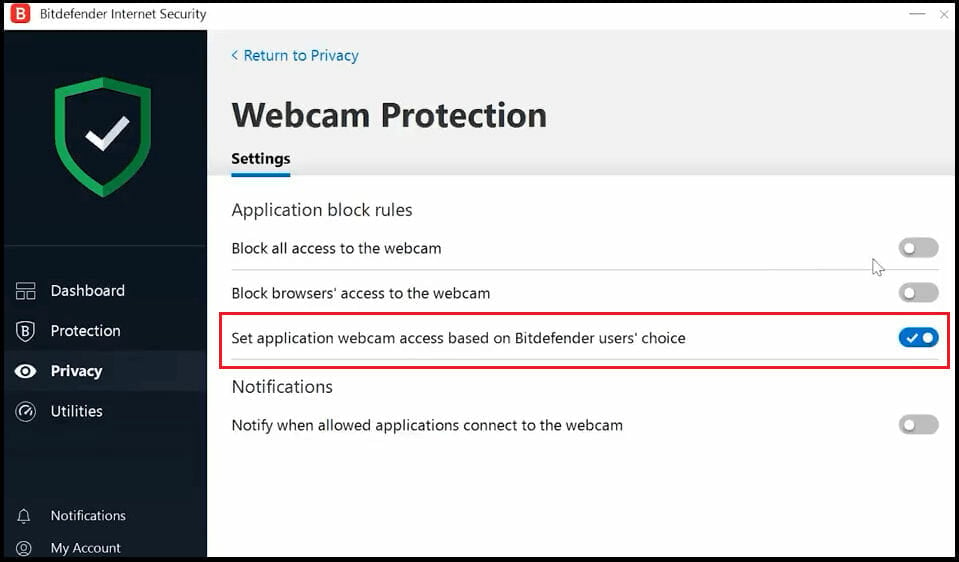
Audio and video protection are guaranteed along with a built-in social media monitor that carefully supervises your data and keeps it safe from phishing, ransomware, and other fraudulent attempts.

A secure VPN with anti-tracking capabilities then comes into play to anonymize your browsing and a privacy firewall with web attack prevention features blocks exploits at the network level while filtering traffic and blocking intrusions.


AVG Internet Security

  • Automatic updates to patch all vulnerabilities
  • Turboscan to cut down on scanning time and reduce pressure off your resources
  • Silent mode to avoid interruptions and help you maintain focus
  • Wifi Guard to monitor your network and block unsecure connections
  • There is no traffic encryption module available.

AVG Internet Security delivers a comprehensive security suite that caters to agile users who rely on their PC for work, communication, entertainment, and more.

You wanted to know: Can I install antivirus on my own? You surely can and you don’t even have to provide any payment credentials while you take AVG for a spin.

It comes with a full 30-day free trial that allows you to test its features to the limits and even beyond. We know we dit and we loved it!

From the moment you download it on your laptop, you cannot help being seduced by its intuitive interface that cleverly separates features into easy to apprehend modules focused on Computer, Web & Email, Hacker Attacks, Privacy, and Payments Protection.
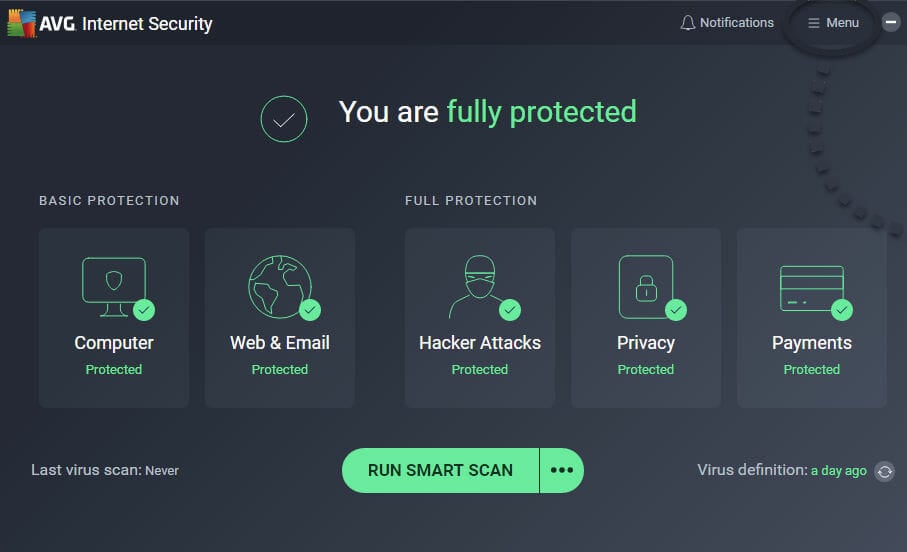
We took our time to inspect every single module, and we are happy to share the insights with you. Let’s start with the Device Protection module, shall we?

This best antivirus for laptops without a CD drive combines an advanced engine with heuristics, AI, and other innovative techniques to repel the entire spectrum of nastiness known to Internet users, from viruses to spyware and other sophisticated types of malware.

There is even a PUA scanner ready to detect any hidden programs that may have managed to slip in without your knowledge and help you remove bloatware and adware in a heartbeat.

Let’s move on to the Web & Email module. The Web Shield will make sure everything you download on your PC is malware-free while the Email Shield will automatically block harmful email attachments to prevent phishing attempts.

A dedicated link scanner and fake website shield further scan items and redirect you from fake or suspicious webpages while the built-in toolbar remover will make sure no malicious extensions can ever get to you.
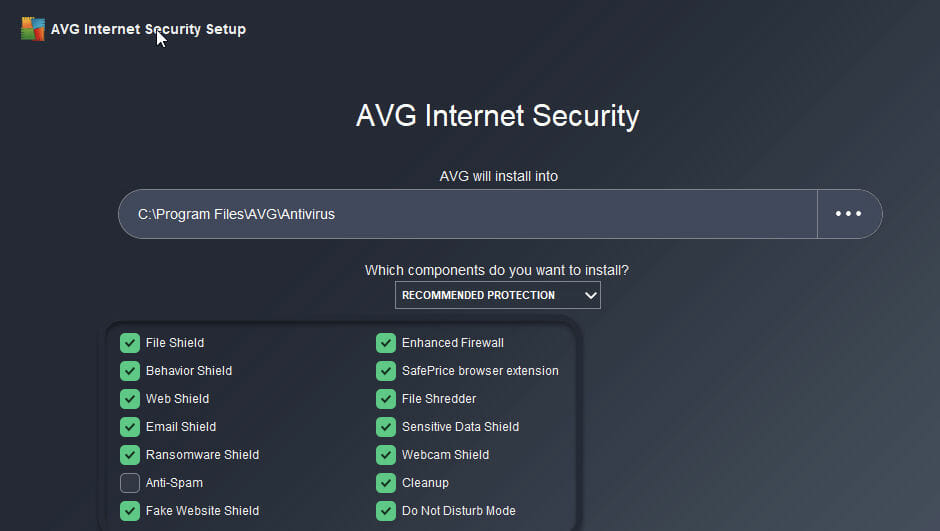
Home networks are commonly targeted by hackers looking to make a quick buck. That’s why AVG deploys an enhanced firewall to prevent hackers from stealing valuable assets such as passwords and other personal files that can be encrypted until a ransom is paid.

The anti-hacking module works closely with the embedded privacy tools such as the webcam protection and custom-built data shredder to prevent intimacy violations.

Finally, the Payment Protection module steps in to provide a secure environment for you to shop, make payments and freely store your financial data without the hassle.


Avira Prime

  • Unlimited VPN to encrypt network traffic
  • Safe browsing (no trackers, no adware, no harmful websites)
  • PC cleaner and software updater
  • Built-in password management system
  • There is no free trial available (money-back guarantee only).

Avira Prime delivers nothing more and certainly nothing less than complete online protection for everything that matters to you.

Similar to AVG, it separates its options into distinct categories, making it easy for you to compartmentalize and access its different modules according to your specific needs.

This best antivirus for laptops without a CD drive relies on 3 main pillars to serve and protect with utmost implication: device security, device performance, and of course, privacy.

Since privacy is more and more of a concern among intimacy-conscious Internet users, let’s see how Avira Prime can make your life better in this regard.

Built-in VPNs are no longer a rarity when it comes to security suites, but did you know that most products cap their data usage on a daily or monthly basis? You won’t be seeing that with Avira.

Instead, you will get a secure and unlimited VPN that anonymizes and encrypts your traffic as well as your Web surfing.

Privacy is intimately linked to the activity we deploy via our browsers. Hence, you will be pleased to know that you can rely on a password management system to generate and safely store your confidential credentials for each website.

Furthermore, the custom-built secure module blocks anything and everything from harmful pages and links, invasive adware, or browser trackers.

You can even use Avira to optimize privacy settings at the system level with no more than a couple of clicks.

Now, security and performance are (or they should be) a match made in heaven and we cannot tackle them separately simply because we believe that a good antivirus should not disrupt your flows or affect your hardware capabilities in any way.

So here goes! Avira Prime’s cross-platform security can cover multiple devices across multiple platforms with just one subscription.

Regardless of the plan you choose, you can expect unbeaten real-time defense against malware and other online threats for all your devices.

The smart scan feature requires no more than a single click to start verifying your entire system for outdated software, weak passwords, signs of infections, and network vulnerabilities.

Needless to say, by keeping your apps as well as your drivers up to date, you enhance your system’s overall performance. And it does not stop there!

Avira will also clean your PC, remove clutter and eliminate junk files to speed up boot time and reduce lags. What’s not to like?


Kaspersky Standard

  • Advanced anti-hacking tools
  • Reliable network security controls
  • Complex threat detection system
  • Fake websites shield and custom-hardened browser
  • 3-layer defense engine with anti-ransomware capacities
  • VPN-secured traffic is capped at 300 MB per day.

We said it more than once and we’re not afraid to say it again: Kaspersky rocks prevention in cybersecurity and there are not many vendors that can rival them when it comes to proactive defense.

High-tech anti-hacking modules also contribute enormously to shaping this robust security solution that still manages to surprise us after all this time.

Just as people, senior programs are often threatened by newer, sharper tools that are better equipped to deal with today’s challenges. But that’s not the case with good old Kaspersky.
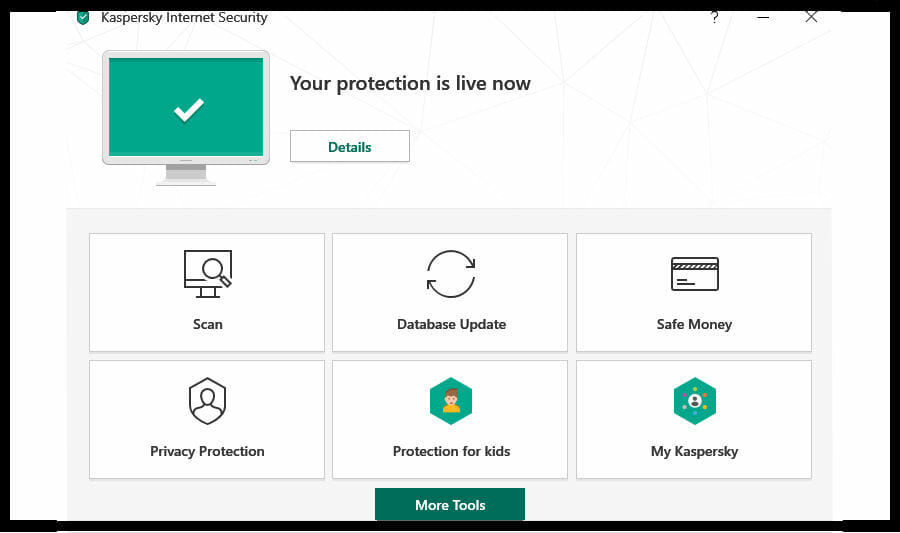
This provider found a way to remain forever fresh by constantly reinventing, self-actualizing, and of course, by stepping up their game in order to stay ahead of the competition.

We were immensely impressed with its proactive detection modules that can sniff cyber threats as well as internal vulnerabilities long before they take hold or act out, depending on the situation.

With its full-scale, three-layer, real-time defense, this best antivirus for laptops without a CD drive can anticipate, detect, and instantly neutralize anything from worms and trojans to sophisticated botnets and rogues, crypto lockers, adware, spear phishing, rootkits, and man-in-the-middle attacks.
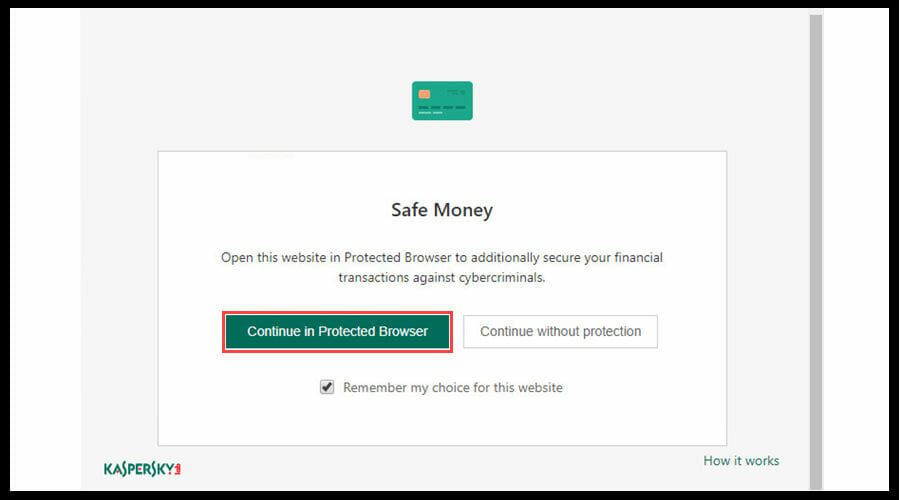
Hackers evolve constantly and they always seem to come up with new ways to deceive unsuspecting users with inadequately secured devices.

Kaspersky understands this shift in the cybersecurity landscape better than anyone and they retaliate with unrivaled prowess.

The anti-hacking module further strengthens your defense lines with a malicious link detector, a custom hardened browser, and dedicated app controls to prevent suspicious programs from accessing your personal data as well as critical system processes.


Bottom runners

Besides the products that made the list after our rigorous testing process, there have been other antiviruses that proved their capabilities.

Even though they will most likely not with an award for the best antivirus for laptops without a CD drive anytime soon, they could still make good options to consider.

➡ Panda Dome Essential

Panda not only passed the Real-World Protection Test but also aced it with impressive virus detection rates that are still hard to match.

From secure browsing to firewall capabilities and even VPN-protected traffic, there is a bit of everything for everyone, whether you’re looking to enhance your security on Mac, Windows, iOS, or Android systems.

Here’s another feature we particularly enjoyed. Panda’s protection also covers removable media as potential sources of infection. We can gladly affirm that it’s one of the best antiviruses for external hard drives (and CD drives) on the market.

➡ VIPRE Antivirus Plus

From the fresh Win 11 all the way down to Windows 7, VIPRE provides fine-tuned, award-winning protection to all Windows users out there.

And we do not exaggerate in the slightest since this best antivirus for laptops without a CD drive comes with a plethora of customization options that allow you to tweak scans, define the manner in which patches apply, and much more.

Whatever the Internet may throw your way, from common viruses to the newest malware and ransomware threats, VIPRE has a defensive mechanism in place to block it.

➡ TotalAV Antivirus Pro

To put it in their own words, your security is in good hands with TotalAV. This antivirus takes on everything and anything from ransomware, spyware, hackers, network exploits, phishing attacks, and much more.

As you’re about to discover, many antiviruses prompt you to install additional software which can cause more harm than good. TotalAV deploys numerous mechanisms and techniques to make sure you will not become a victim of deceitful behavior.

Thus you can rely on a built-in browser cleaner, PUA protection modules, and even tune-up and optimization tools to further strengthen your system’s performance along with its defense lines.

How can I install antivirus on my laptop without an optical drive?

  1. Before installing new antivirus software, you should check that no other similar tool is configured or running since parallel usage can cause interferences, software conflicts, or misconfigurations. Feel free to use specialized uninstaller tools in order to remove all leftovers or hanging registry keys and set the premises for a clean install.
  2. With clinging reminiscences out of the way, download your favorite antivirus for laptops without a CD drive from an official, trustworthy source.
  3. Proceed with the installation by double-clicking the executable file (.EXE). At this point, you should see a pop-up window announcing that an application wants to make changes to your system. It’s normal, simply press Accept and stick to the prompts displayed on the screen.
  4. Now, here comes the part where you need to be extra cautious. Some antiviruses (usually free versions, but not exclusively) come with bloatware, additional tools, PUA and such. While some of these features may enhance your protection, others can be quite treacherous and trigger unwanted changes at the system or display level or divulge your data to third-party entities in exchange for profit. We advise you to untick these additional boxes during installation and be on the lookout for toolbars for your browser, presumably secure browsers, and so on.
  5. Once the installation is complete, close the window and restart your PC in order to allow the new settings to properly take effect.
  6. Most antiviruses come with automatic updates enabled by default. However, one can never be too cautious. We strongly advise you to update your security program in order to benefit from the latest patches and virus signatures.
  7. Finally, don’t be shy and run a full system scan with your newly installed antivirus for laptops without a CD drive in order to sanitize your system and eliminate any potential infections already nesting in your system.

As you can see, you can easily install an antivirus even if your laptop lacks a CD drive. So why leave any room for exploits?

Unable to Connect to EA Servers: Here’s what you can do

Many EA fans reported There was a problem connecting to EA servers while trying to run certain games on both Windows 10 and 11. Usually, this issue appears if there’s an issue with a server. This is especially true if the game was released recently and the servers are overloaded by the number of users.

If that’s not the issue, there may be a problem with your antivirus, firewall, or even network settings.

What can I do if I’m unable to connect to EA servers on Windows 10 & 11?

1. Restart the game

Closing and then restarting games often solves a plethora of malfunctions including the There was a problem connecting to EA servers error.

Do this before attempting any other solution. This is the simplest tip and it often works, so it’s worth checking out.

2. Restart your PC

  1. Click the Start button.
  2. Now click the Power icon and choose Restart.
  3. Wait for your PC to restart.

3. Change your Internet connection

If you keep getting There was a problem connecting to EA servers try switching to the wired connection. In case you’re playing via Wi-Fi, connect your device to a router and see if the server connection is restored.

If you only have a wireless connection, try changing to the strongest wireless channel as it’s likely to be more stable. In case you’re having Wi-Fi problems, check our Wi-Fi connection drops guide for more solutions.

4. Restart your router

Note icon NOTE
If you own both a modem and a router, repeat these steps for both devices.
  1. Power down the router by pressing the Power button on it.
  2. Now unplug it.
  3. Wait for about a minute and then plug it back into its power source.
  4. Power it back on and see if the connection is stabilized.

5. Repair your network

  1. Press Windows key + S and enter troubleshoot. Now select Troubleshoot settings.
  2. Click on Additional troubleshooters.
  3. Select Internet Connections and click on Run the troubleshooter.
  4. If the problem is still there, you can run Incoming Connections and Network Adapter, troubleshooter.

If you’re still stuck, do the following:

  1. Press Windows key + X and select Windows PowerShell (Admin).
  2. Run these commands:
    netsh winsock resetnetsh int ip reset
    ipconfig /release
    ipconfig /renew
    ipconfig /flushdns

Restart the PC at the end of it all and verify if you have successfully recovered your connection to EA servers.

6. Disable your firewall/antivirus

Note icon NOTE
Disabling your antivirus and firewall isn’t recommended, so be sure to turn them back on and try to pinpoint the setting that is causing the problem.
  1. Press Windows key + S and type firewall. Select Windows Defender Firewall.
  2. Now select Turn Windows Defender Firewall on or off.
  3. Select Turn off Windows Firewall for both Private and Public connections and click on OK.

To disable the built-in antivirus, do the following:

  1. Press Windows key + S and type defender. Select Windows Security.
  2. Navigate to Virus & threat protection and click on Manage settings.
  3. Now disable Real-time protection.
  4. Optional: You can disable additional options that are available.

This method works only for the default firewall and antivirus, but if you’re using a third-party solution, the process will differ significantly.

7. Other tips

  • Check the games release date: Also confirm the release date for the EA game you wish to play. You see, EA servers are hyper-busy during the launch days for their games as users rush online to get a glimpse of what the game brings.

The increased number of connections overwhelms the servers resulting in this error message when you try to play online.

So wait for some hours then retry.

  • Is your game supported? – Additionally, some games especially the older ones are not supported for online play by EA so check the status of your game on the EA’s website.
  • Run the game as an administrator – Some games need certain Windows permissions, so running them as an administrator may help. Right-click the games shortcut on the desktop and choose Run as administrator.

What to do if you’re unable to connect to EA servers on Windows 11?

Check your date and time

  1. Right-click the date and time in the Taskbar. Now select Adjust date and time.
  2. Disable Set time automatically.
  3. Wait for a few moments and enable it again.
  4. Now check if the problem is resolved.

What to do if my antivirus/firewall is blocking access to EA servers?
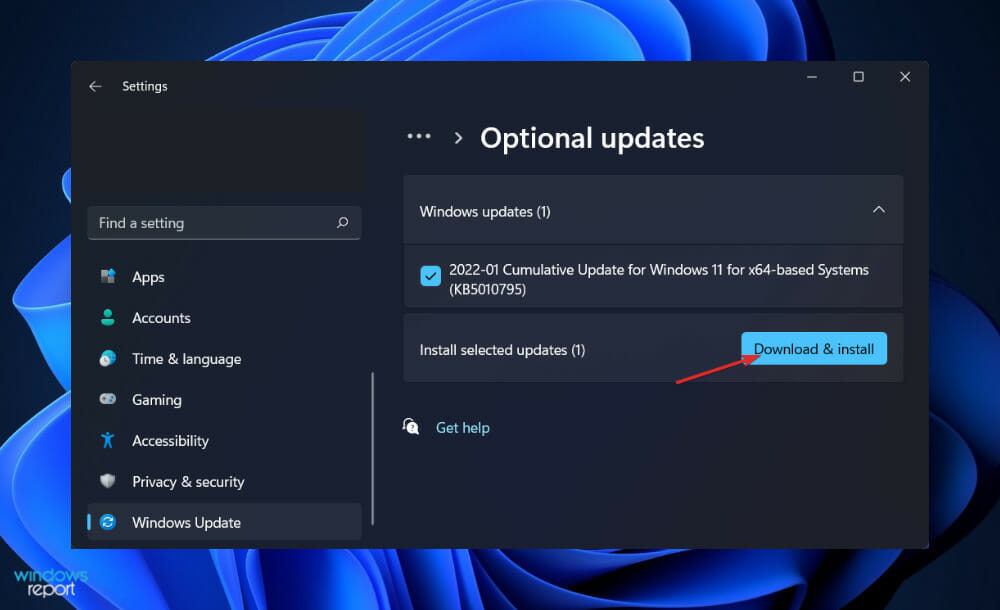
To make sure that your security software is the problem, temporarily disable it and check if that helps. If that helps, turn the antivirus back on again and try to find the setting that is causing the issue.

Using your PC without antivirus and firewall is a major security concern, so don’t keep them disabled, even while gaming.

What do I do if I still can’t connect to EA servers?

If you’re still unable to access the EA servers, it’s rather likely that the issue is caused by the server side, and the only thing you can do is wait for EA to fix the issue.

Alternatively, you can contact EA on social media or support forums and let them know about the issue you’re having.

There you go, these are some solutions that can help you fix There was a problem connecting to EA servers on your Windows 10 or Windows 11 PC.

If you’re having additional issues, be sure to check our An unexpected error has occurred in Origin article for more solutions.

Did you find a way to fix this problem on your own? If you did, let us know in the comments below.

6 Best Infographic Makers [Online & Desktop Software]

Why you can trust Windows Report ✅ Every product & service is tested in real-world conditions, by real people, for real people. Find out more about how we test, review & rate.

Whether you’re a marketer, educator, presenter, or simply someone looking to create visually engaging content, having access to the right infographic maker software can make a significant difference in the quality and impact of your designs.

In this article, we will explore the best infographic makers available, both as online tools and desktop software.

So, let’s dive in and discover the perfect tool to bring your ideas to life and captivate your audience with compelling infographics.

What to consider when choosing an infographics maker tool?

Infographics can help capture the viewer’s attention better than using text alone, push traffic to your site, help users create visually interesting stories, or to understand things in a simpler way.

Choosing the right infographics maker to do all that can be tricky. Here are some important factors to consider:

  • Ease of use – It should be easy to navigate, with drag-and-drop functionality and pre-designed templates that simplify the design process.
  • Customization options – Allows you to customize colors, fonts, layouts, and other design elements to match your brand or style preferences.
  • Library of visual elements – Offers a wide range of graphics, icons, charts, and other design elements that suit your specific needs.
  • Collaboration and sharing – Should have real-time editing, commenting, and sharing options that facilitate teamwork and feedback.
  • Export and sharing options – Allows you to download designs as high-resolution image files or PDFs, with the ability to share directly on social media platforms or embed them on websites or blogs.

Once you have checked these factors, take a look at this list of the best infographics software tools to use on your computer.

What is the best infographics software to use on a PC?

Adobe Creative Cloud Express – Best for professionals

Adobe Creative Cloud Express is a great infographic maker for creating modern, eye-catching infographics with maximum impact for your audience and target readers.

Nowadays, nobody has enough patience to read large chunks of text. People want straight-to-the-point, fast-delivered information.

Since information presented as diagrams, images, and illustrations have higher chances of drawing people’s attention and remaining engraved in their memory, using the right infographics tool becomes paramount.

Adobe Creative Cloud Express comes with a very intuitive UI and plenty of graphics options. You can add your text and images and then edit and move them as you see fit.

If you’re in a hurry, you can select a ready-made template, fill in the empty boxes with data, select the font type and size, insert some impactful images, and you’re done in no time.

This Adobe tool’s built-in data visualization features (indicators, pie charts, line charts, bar charts, and pictograms) help users simplify complex ideas and make data more digestible.

Let’s quickly look at its key features:

  • Multiple-device syncing
  • Ready-made themes
  • Multiple fonts
  • Social media sharing

Adobe Creative Cloud Express

Create stunning infographics and instantly share your informative artwork with the world!
Check price Visit Website

Adobe Illustrator – Best for creating vector graphics

Did you know that you can use Adobe Illustrator for infographic design? This tool is another best infographic maker from Adobe.

This versatile tool can be used to design and create logos, icons, illustrations, special typography models, as well as infographics to convert large amounts of data into a digestible form.

If you’re tired of the basic pie and bar charts and you’re looking to step up your game, Adobe Illustrator is the right tool for you.

Use it to introduce data points and mesmerizing visual content to convey information easier to your target audience.

The Charts tool lets you design your own charts, while the Data Merge feature helps you keep data up to date without creating a new infographic presentation from scratch.

This feature is particularly useful if you want to highlight data evolution over time.

You can also design your own unique icons to draw your audience’s attention. The Shape Builder feature lets you design impressive and unique shapes that pop.

Let’s quickly look at its key features:

  • Ready-made templates and presets
  • Color synchronization
  • Custom design support
  • Real-time drawing
  • Enhanced free distortion to modify shapes freely
  • Auto spell-check
  • Background save and export
  • Onboarding resources and tutorials to get you started

Adobe Illustrator

Match your creativity with the best design software to create sophisticated infographics.
Free trial Visit Website

Canva –  Preloaded stock photos, fonts, and icons

Canva helps you create excellent graphics easily. It is suitable for every type of user’s needs.

This powerful tool is adequate for creating any graphic element. Canva has an extensive library of icons, images, and sources.

Regarding infographics, this resourceful design software includes thousands of templates you can use and handcraft your informational product in minutes.

Let’s quickly look at its key features:

  • It’s free and full of free items and sources.
  • It allows you to present relationships between two or more elements in an easy way. If you want to compare different data, Canva is an interesting solution.
  • It offers thousands of graphics for social and infographics.
  • It allows you to create infographics of different sizes suitable for each type of website.

Canva

Finding an all-in-one online infographic tool might take some time. That’s why this creative solution gives you complete design features now.
Check price Visit Website

CorelDRAW – Powerful set of drawing & editing tools

CorelDraw

If you’re looking for the right tool to help you build an infographic, then the world’s most powerful graphic design software is the way to go. CorelDRAW stands out as a great infographics software.

CorelDRAW has powerful features that allow you to easily design stunning infographics to emphasize the data you want to showcase.

Whatever information you’re trying to convey, CorelDRAW makes it easy to create graphical elements that pop.

With text, arrows, and connectors combined with a plethora of vector-based design features, you can be sure to mesmerize your audience with eye-catching infographics.

Let’s quickly look at its key features:

  • Vector illustration and the bitmap to vector tracing to create fully scalable, crisp-looking infographics
  • Versatile shaping and drawing toolkit
  • Stunning typography and a complex array of text tools
  • Object management and object selection tools
  • Powerful photo editing tools to adjust color, apply effects, remove imperfections, and more
  • Supports a variety of file formats for import and export
  • Library of professionally designed templates to kick-start your work

CorelDRAW

Experience AI-powered bitmap-to-vector trace technology and achieve fully scalable impressive infographics!
Free trial Visit Website

EDraw Max – Best for creating flowcharts & mindmaps

Edraw MAX - electrical system management

EDraw Max is one of the best tools for creating infographics. It’s a platform to create infographics on Windows and Mac that allows you to create fully customizable graphs and interactive maps.

This infographic software allows you to share and publish infographics to the following used file formats, such as .png, .jpg, .html, .svg, .pdf, .word, .ppt, etc.

Let’s quickly look at its key features:

  • You can use all 10000+ infographics icons and hundreds of premium templates with only a one-time payment
  • It’s an offline infographic software; you can use it regardless of internet connection, so it’s far faster, more stable, and more powerful
  • You can get access to libraries of infographic elements like charts, education, people
  • You have at your disposal a variety of free templates to perfectly match the look and feel of your topics

EDraw Max

Create great infographics with the easiest all-in-one diagramming tool that serves all your purposes.
Free trial Visit Website

Visme – Intuitive interface with customizable layouts

Visme is one of the most powerful and user-friendly infographic online platforms, offering a plethora of impressive features that make it a go-to choice for creating captivating and informative visual content.

It comes with a vast collection of professionally designed infographic templates catering to various industries, topics, and styles.

With its drag-and-drop editor, designing infographics is a breeze. You can easily add, resize, and arrange elements such as text, images, icons, charts, and shapes with simple clicks.

This infographics maker offers robust data visualization tools, enabling users to create interactive charts, graphs, and data-driven visualizations.

It allows you to bring infographics to life with eye-catching animations, transitions, and effects, making their content more engaging and memorable.

Let’s quickly look at its key features:

  • Enables you to upload custom fonts, apply brand colors, and add logos
  • Has a vast library of professionally designed templates, images, icons, charts, etc
  • Powerful accessibility features such as alt text, screen reader compatibility, and more
  • Allows integration of multimedia elements such as videos, audio, and animated GIFs
  • Robust collaboration features allow team members to work together in real-time

Visme

Create presentations, infographics, reports, social media graphics, videos, and more without design expertise.
Free trial Visit Website

Infographics tools are a very useful means of communicating different types of content, allowing you to involve and engage the public on rather difficult topics.

In this guide, we explored some of the best infographics software and platforms that you can use on your computer.

Looking for infographic design software specifically for Windows, check out this guide to explore the list.

If you already tried any of them, tell us more about your experience so that we can make this article even better.

How to open PPS files: Best PPS file opener software for PC

In case you are wondering how to open a PPS file on your PC, read on, this post is meant for you. A PPS file is an acronym for PowerPoint Slide Show, which is a slideshow created by Microsoft PowerPoint.

Meanwhile, Microsoft PowerPoint is a renowned program included with Microsoft Office for creating presentations.

However, when PPS files are saved, they are not editable, unlike PPT (PowerPoint Presentation) files which are editable.

Hence, PPS files can be viewed after being saved as a completed slideshow by PowerPoint Viewer or PowerPoint. In addition, when you open the PPS file in PowerPoint, it opens up in the presentation mode.

If you intend to open PPS files in Windows 10, there are a few programs that can make that possible. Windows Report has compiled this list of software to open PPS files on Windows 10 PC.

Which is the best software to open PPS files in Windows 10?

Adobe Creative Cloud Express

Adobe Creative Cloud Express is an excellent tool for creating presentations within minutes. Even if you haven’t used this tool before, its friendly and intuitive UI will help you to quickly get the hang of what each button does.

Creative Cloud Express includes a series of built-in tools that help you create truly memorable presentations. You can use the tool library of graphics templates or add video content with the help of Spark Video.

Plus, you’re able to choose from hundreds of presentation templates and start it from scratch or work with a predesigned template.

But did you know that you can move your PowerPoint presentation to Adobe Creative Cloud Express? 
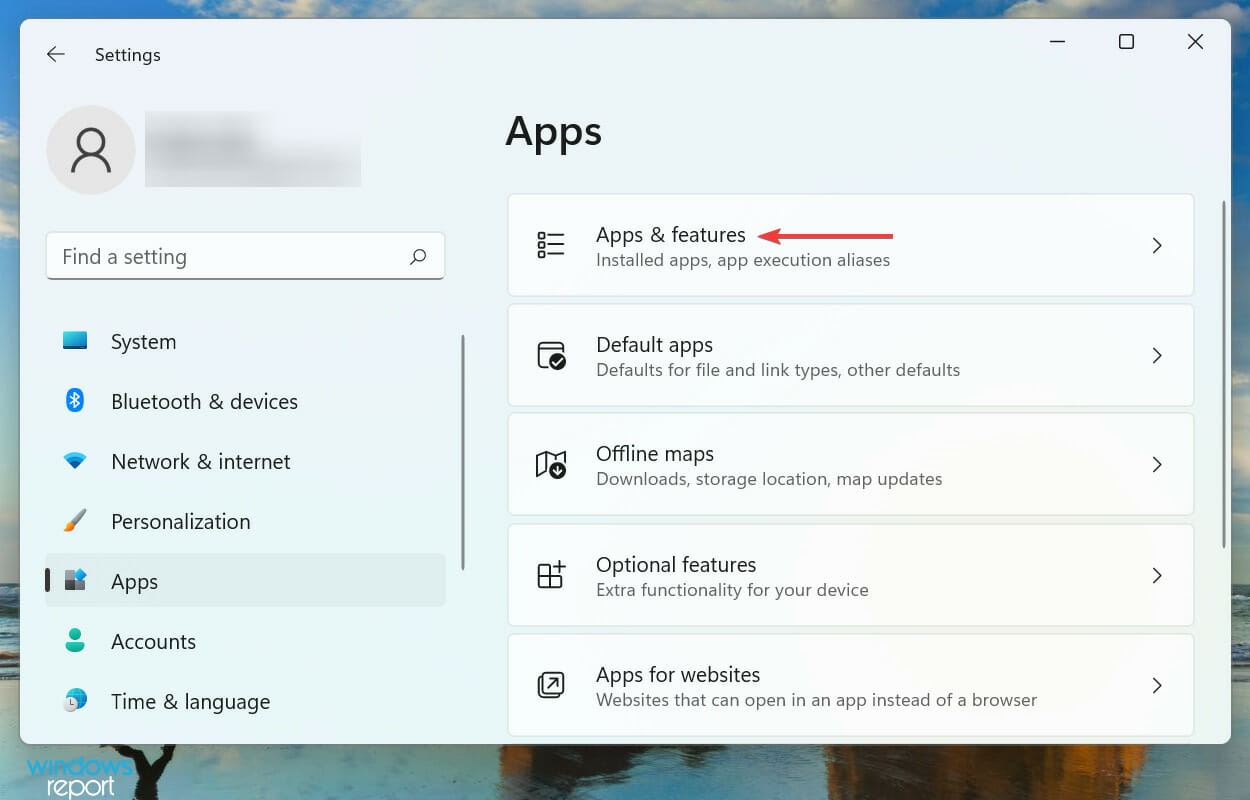
You can do that to add visual enhancements that are not available in PowerPoint. After all, PowerPoint presentations are predictable and users’ options in terms of formats are quite limited.

If you want to take your presentations to the next level, import your PowerPoint presentation into Creative Cloud Express and play with the design and layout options available.

Adobe Creative Cloud Express

Create professional presentations with the help of a versatile tool with tons of features.
Free trial Visit website

File Viewer Plus 4

If you’re wondering how to open a .tbl file on Windows 10, you can always use third-party solutions, like File Viewer Plus 4.

We recommend this universal file viewer for Windows that can open and display over 300 different file types, including different types of presentations like .pps files.

In some rare cases, if FileViewer cannot display the native view of the file, you can use the Text and Hex views to inspect the file contents.

These views let you see inside the file, providing valuable information, especially for unknown file types. You can even search for content stored in the file.

File Viewer Plus 4

Make your work easier with this great file management tool that can handle hundreds of files.
Check price Visit website

Microsoft PowerPoint

If you intend to open the files on Windows 10 PC, then you should use PowerPoint. Microsoft PowerPoint is the industry-standard program for creating slide shows and project presentations.

This tool makes for a great PPS file viewer and it is primarily used in educational institutions and businesses to present articulate information to an audience.

The software has tools that allow you to include drawings, images, audio, text, and images in your presentation slides. You can edit the size, color and put transitions to rotate between slides.

PowerPoint supports popular presentation formats such as PPTX, OOXML, PPT, and most especially PPS formats. You can open your PPS files using this program, with tools to edit, modify your files.

However, PowerPoint comes as a total package with other Microsoft tools in the Microsoft office package.

⇒ Get Microsoft Powerpoint

WPS Office

This software is a lightweight solution for managing files of any kind like writing, presentation, or spreadsheets documents.

You can rely on this Office software in order to handle multiple file types at once, creating your PPS files efficiently for any audience.

WPS Office presents high-value features for more types of users, from students, teachers, or business people. You can select from +100.000 templates to help you pitch your presentation.

Moreover, you can customize your professional documents with different designs and improve their appearance to stand out with your slide-show presentations.

Lastly, you should know that with this software you will be able to collaborate with your teams and get valuable insights about your deck in real-time.

⇒ Get WPS Office

Ability Office

Ability Office is an open office suite with similar features to the popular Microsoft Office and is available on Windows 10 Operating System.

Ability Office suite includes Write which is a word processor, Spreadsheet which is similar to Excel, and Presentation which is a program used to create slides and presentations.

The presentation program can be used to open PPS files in Windows 10. Also, it has features that help you edit modify, and save PPS files. This tool also opens other common formats such as DOCX, PPTX, and XLSX files.

Furthermore, Ability office gives a good alternative to Microsoft Office with its array of features and cheap price. Hence, it makes an excellent choice in opening PPS files in Windows 10.

⇒ Get Ability Office

In conclusion, the programs we mentioned above are the most when it comes to how to open PPS a file on Windows 10. Most of them are easy-to-use and also Windows 10 compatible.

However, while some of the programs are free, the others are not but you get the value for security with premium quality security.

Hence, you can use any of the tools we recommend in this article to open PPS files in Windows 10. Feel free to comment below.

5 Best YouTube channel art maker software

YouTube needs no introduction. Both businesses and individuals use it to share content with the world, so your channel should better look professional.

Are you looking for the very best YouTube channel art maker software tools? Believe it or not, some applications are completely free while graphic designers aren’t.
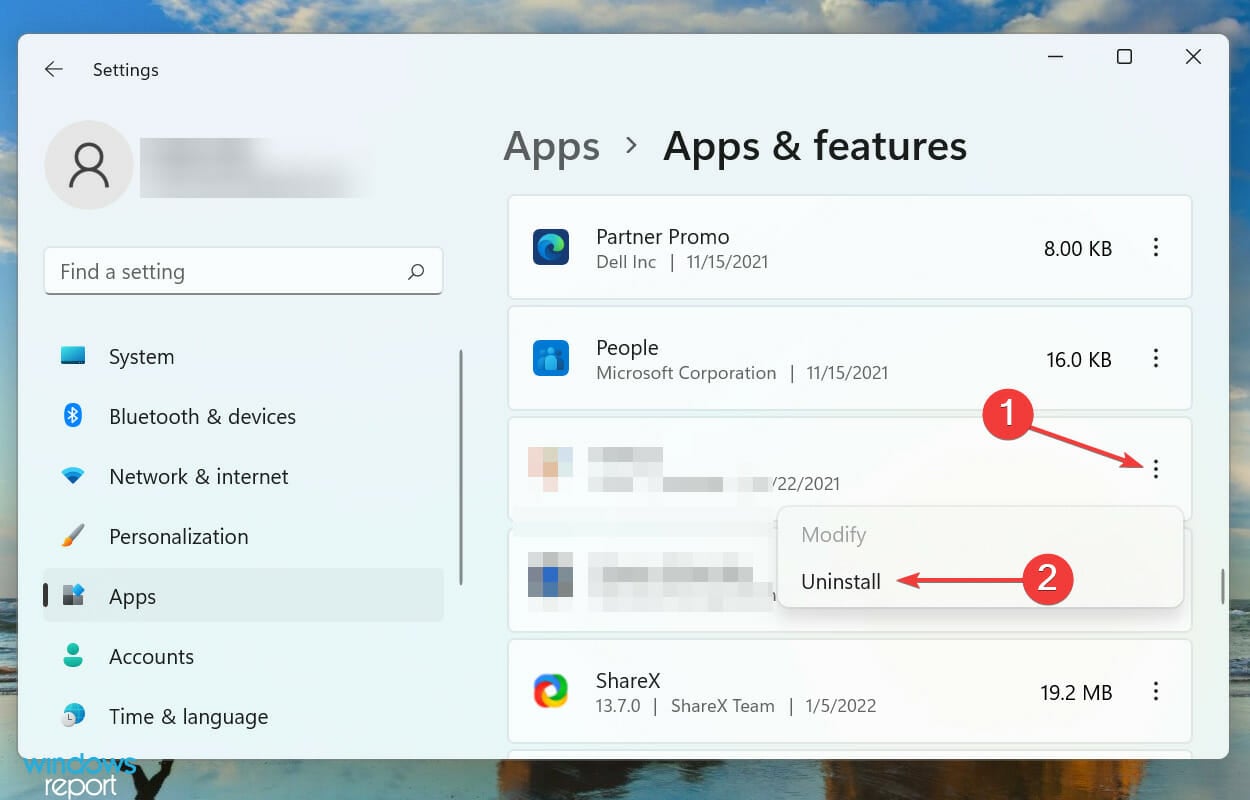
Not even our professional-grade software choice below can empty your pocket. Things get easily confusing when having a wide range of options to look at.

Therefore, let us make your choice a bit easier. Here you’ll find some of the greatest YouTube channel art maker apps out there.

What’s the best YouTube channel art maker software to get?

Adobe Photoshop

With a clean and tidy interface and a lot of features and controls, Adobe Photoshop is the definite YouTube channel art maker software of the moment.

Unleash your creative potential and don’t let anything stop you from playing with color and effects, various filters and textures, or stock resources and illustrations.

Since you can easily create your own unique projects, be sure that your YouTube channel page will look stunning, no matter what device users are viewing it on. This will help you gain new subscribers in a blink of an eye.

Some key features to expect from Adobe Photoshop:

  • Included Camera RAW to easily edit all popular RAW file formats and, along with TIFFs and JPEGs support
  • Various image layers may be used to create complex combinations from two or more images
  • Easy customization of designs
  • Work is automatically saved to the cloud
  • New features/fixes for customer-reported issues and security issues are rolling out regularly

Adobe Photoshop

Give your YouTube channel the unique personal touch and convince with your artwork using Photoshop!
Check price Visit website

Adobe Creative Cloud Express

Adobe Creative Cloud Express is a very powerful program used by many professional editors and beginners alike.

Yes, you can create outstanding presentations, social media images, single-page websites, and graphics even if you lack design experience.

Creating art for your YouTube channel is enjoyable when you have premium templates and over 200 fonts in Adobe Creative Cloud Express at your disposal.

You can as well improve your channel aspect with thousands of templates and graphics, thumbnails, or social media stories elements.

Plus, access the royalty-free photo collection from Adobe Stock for high-quality pictures on your YoutTube page.

Moreover, it’s easy to invite others to work on your branded projects. Creative Cloud Express will make sure you’re all being challenged and having lots of fun.

Some key features to expect from Adobe Creative Cloud Express:

  • Text animation and GIFs to add motion and keep everyone’s interest alive
  • Exclusive Adobe Fonts to help you stand out from the crowd
  • Surprisingly easy to navigate
  • Intuitive sharing capabilities
  • Adobe Creative Cloud Express community to help you deal with lack of inspiration

Adobe Creative Cloud Express

This solution from Adobe is exactly what’s needed to manage your social media accounts, easily creating impressive visuals.
Check price Visit website

Canva

Many of you know Canva as a premium stock image library and a source of amazing photo editing tools.

However, this online image editor is also a great recommendation to all those who plan to design social media posts and YouTube channel art.

Moreover, working as part of a team can be challenging. Features such as team sharing, built-in commenting, and sharing edit access to designs with people outside of your team through a design link are there to help you out.

Some key features to expect from Canva:

  • Amazing templates, logos, fonts, and graphics
  • Create designs with custom dimensions and quick expert options in multiple formats – PDF, JPG, PNG, to name a few
  • Intuitive built-in social sharing and presentation mode
  • Two-factor authentication (2FA) for enhanced security
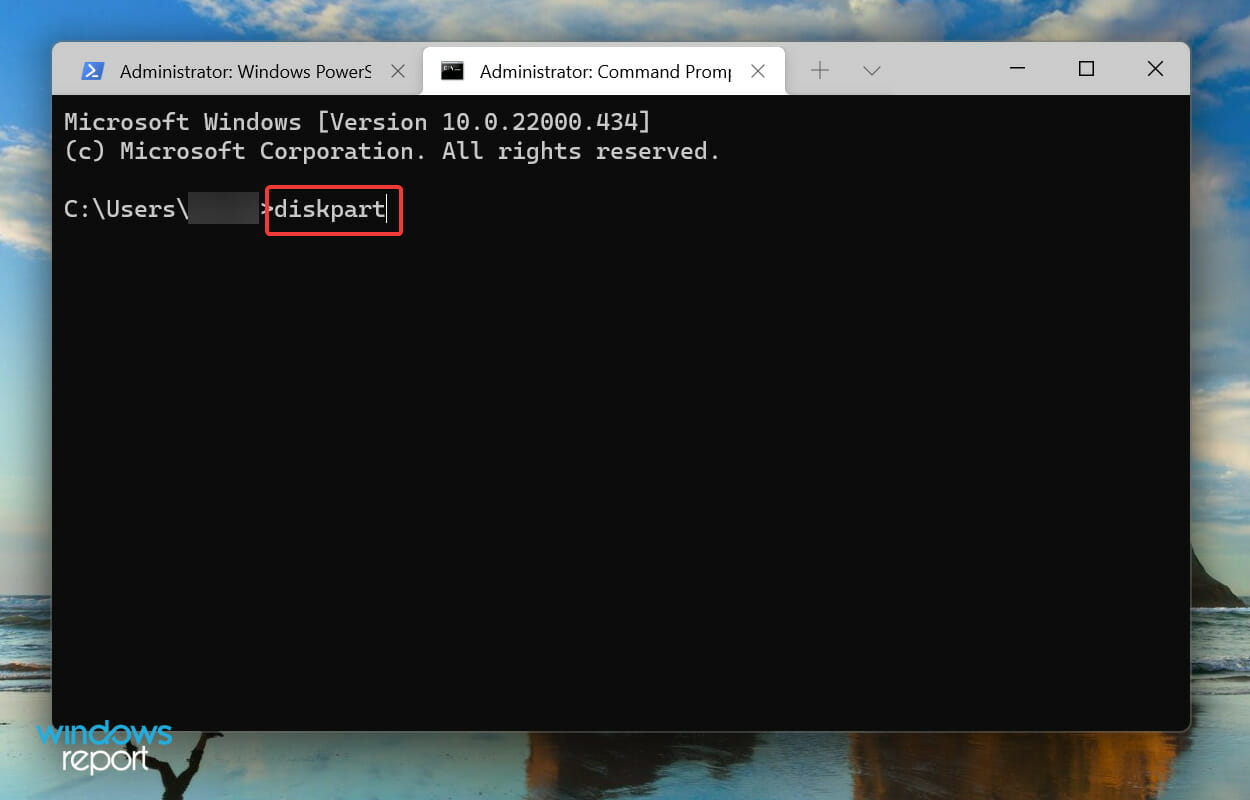
Canva

Use this software design solution made for everyone and assure your place in the YouTube community with amazing art designs.
Check price Visit website

Fotor

Unlike competitors, Fotor is mostly known as one of the best online photo editors. In spite of that, it may be easily used as a decent YouTube channel art maker.

High-end features are conspicuously missing, as you may basically choose a preset design and insert new text or add multiple layers to your images.

Video editing professionals may want more control over their YouTube projects than this software can give, that’s true. However, precisely its ease of use makes it a great choice for casual users.

Some key features to expect from Fotor:

  • Extremely intuitive interface
  • Extensive photo retouching kit to make yourself look amazing
  • Various sliders for brightness, contrast, exposure, vignette and plenty of other options to pick from
  • Stunning collage projects with just a few clicks
  • Short video tutorials for extra help

Fotor

Benefit from this free online photo editor and handcraft your designs, or edit social media photos with ease.
Check price Visit website

Crello

grab Crello

Crello has a lot of tools you may immediately use to create completely original pieces of art for your YouTube channel.

Feel free to upload your very own fonts and images or choose one of the pre-designed options and let your imagination run wild.

If you choose the Pro version of this creative design maker, then get ready for premium templates as well, not to mention that turning static designs into animations will be just a couple of clicks away.

Some key features to expect from Crello:

  • Countless YouTube channel art templates
  • Access to 140 million stock images
  • Rich font library
  • Premium features for all members of your team

⇒ Get Crello

The five YouTube channel art maker software tools above make your goal easier than ever. Gaining more subscribers won’t take up too much of your energy, so make sure you choose wisely and let the fun begin.

Creating eye-catching work art with only a little time and effort should be your goal, so don’t stop here. The Graphic & Design Hub is waiting for you.

In case of having any questions, just let us know by using the comments area below.

Sony’s stock value takes a big hit following news of Microsoft/Activision deal

It seems the knock-on effect of Microsoft indirectly challenging PlayStation gaming supremacy with its Activision/Blizzard acquisition is a direct hit to Sony’s stock value.

After news broke about Microsoft’s mega acquisition price tag of $68B for game publisher Activision, investors and stock analysts began shorting Sony’s stock the tune of almost $20B.

The single day loss represents a 13 percent drop to Sony shares that has only been matched in the company’s history when it had to recall 100,000 laptops because of fire hazard concerns back in 2008.

Presumably, the hit to Sony’s evaluation is a momentary knee-jerk reaction from investors who may be fearing a shortsighted future where Microsoft removes access to high profile titles such as CoD, Warcraft, Diablo, Overwatch, Hearthstone and even Candy Crush from the PlayStation platform.

There is no doubt that this deal weakens Sony position in the market,” Piers Harding-Rolls, games research director at Ampere Analysis, said in a note published Wednesday.

Whether or not Activision Blizzard’s content is progressively made exclusive to Xbox platforms and services, inclusion of new releases into Xbox Game Pass for several major game’s franchises, including Call of Duty, will undermine Sony’s third-party business. Sony has benefitted from the ability to negotiate timed exclusive content for Call of Duty but this is now under threat.

A few hours removed from the mania, some analysts have already pointed to a potential overreaction to the, yet, still developing news of Microsoft’s acquisition.

Sony continues to invest in first party titles, as well having a war chest of its own to strategically acquire its own stable of developers to compete with.

However, Microsoft isn’t spending $68B to allow Sony to maintain its current dominant position in gaming.

As Harding-Rolls mentions, timed exclusives may be in danger for Sony going forward but losing $20B on the notion seems a tad excessive for the company right now.

Roblox settings not saving? Apply these fixes

If you are a gamer, you are probably familiar with this one, which provides a diverse selection of microgames for those who enjoy playing them. Although it sometimes crashes or encounters errors such as Roblox settings not saving, users are still loving it.

Roblox is a fantastic and entertaining online platform because of the small games created by different developers. It essentially aids you in the creation of a gorgeous virtual environment filled with games and adventure.

It is possible to download Roblox from the Windows Store, and once installed, you will be able to join the millions of other gamers from all around the world that use the service.

Follow along as we will walk you through a comprehensive list of solutions that you can implement to fix the saving issues, right after we see why the game crashes.

Why does Roblox crash?

Roblox Player application may be crashing or encountering errors such as settings not saving, due to a variety of factors, including third-party antivirus applications, Roblox’s cache, and other factors such as network connectivity.

In order to better comprehend this and assist you in identifying the source of the problem, let us first go over the list of possible causes that could result in the issue in question being triggered.

roblox page roblox settings not saving

➡ Cache – Cache files are essentially temporary files that save certain information about the app on your computer in order to improve the overall experience. In some situations, when these files become corrupted, the application may be forced to shut down completely.

➡ Overlay – As it turns out, the Discord overlay is one of the factors contributing to Roblox’s inability to function properly. This can occur occasionally as a result of some compatibility difficulties, in which case you will simply need to disable the Discord overlay.

➡ Third-Party Applications – Typically, this is caused by a third-party antivirus program, and in this instance, you will need to disable your antivirus software, or install a better antivirus software solution.

What can I do if Roblox isn’t saving settings?

1. Create a new English account

Users have been advised to create a new account with the English region selected and the language set to English as well, and several gamers have suggested that you do this too since it worked for them.

Although it is currently unknown why this strategy is beneficial, it appears to be effective for some people at this moment. This step should not be skipped because it may be the best solution for you.

If you don’t feel comfortable with English in the later stages of the game, you can switch to another language at your discretion.

2. Update your drivers

  1. Press the Windows key + I to open the Settings app, and click on Update & Security from the left panel followed by Advanced options on the right side.update-advanced subnautica not saving settings
  2. Scroll down until you find the Additional options section then click on Optional updates.optional-update subnautica not saving settings
  3. Now click on the Driver Updates option then select all the driver updates you are presented and lastly click on the Download & install button.install-update subnautica not saving settings

Despite the fact that Windows is generally in charge of driver updates, if you are experiencing an issue, you can perform a manual search for updates. We strongly advocate using a specialist driver updating program to do automatic scans for out-of-date drivers.

3. Delete cache

  1. Depending on your browser, navigate to the Settings section.settings-chrome roblox settings not saving
  2. Then look for the Clear browsing data or Delete Cache data. Once you access it, choose to delete it in order to allow Roblox to save the settings.clear-cache roblox settings not saving

Some of our users have reported that deleting their Roblox cache data has enabled them to finally save their preferences. If it is still not working for you, it is possible that you need to change your browser.

How can I improve the performance of Roblox?

Sluggish performance is provided by the default setting of 60 frames per second, known as FPS. It will also provide low graphic quality, which can be frustrating for the user to deal with. You should download and install Roblox FPS Unlocker to increase the overall performance.

unlocker roblox settings not saving

Roblox advises that you use a graphics card such as the AMD Radeon R7 240 with 2GB GPU or an equal or higher-end graphics card for best results. So, if you have an old graphics card, consider upgrading it right now so that you may enjoy lag-free gaming.

The game cannot be played on a computer with a processor that is older than 2005. A chip with a clock speed of 1.6 GHz or higher is recommended for gaming. As a result, if you have a processor that is below this range, you should consider upgrading it to avoid lag.

Roblox also recommended that you have at least 1 GB of RAM in order to have a smooth gaming session. If you don’t have enough RAM on your computer, you should upgrade now. And again changing your antivirus software will definitely have an impact on your gaming experience.

Alternatively, users have mentioned they can’t seem to update Roblox on their computer, to which we have responded with the guide linked. Make sure to check it out.

If the above solutions proved to be insufficient, we have already prepared another guide on how to fix various issues with Roblox in Windows 10/11.

Lastly, you might want to read about the four best browsers to play Roblox in 2022. Don’t miss out on it!

Was this guide helpful for you? Don’t hesitate to let us know in the comments section below. Thanks for reading!


Move Windows 11 Taskbar to The Top [How to]

Many users want to move their Taskbar to the top on Windows 11, but unfortunately, this isn’t simple since the latest version offers limited customization options.

Luckily, there are a few ways to change your Taskbar’s location, so keep reading to find out more.

Can you move the Taskbar in Windows 11?

No, unlike in other versions of Windows, you can’t change the position of the Taskbar without third-party tools.

How do I move my Taskbar to the top in Windows 11?

Use ExplorerPatcher

  1. Visit the ExplorerPatcher Github page and download the software.
     
  2. Next, run the setup file. If you can’t start the installation, click on More info.
  3. After that, choose Run anyway.
  4. Once the installation is finished, right-click the Taskbar and choose Properties.
  5. Set Primary taskbar location on the screen to Top and click on Restart File Explorer.

While this method works, we noticed some issues with the Start menu, but that can be fixed by adjusting the Start menu settings or waiting for the developer to address the issue.

Note icon NOTE
This is a third-party software, and since it modifies File Explorer, you might experience potential issues while using it.

How do I change the Taskbar back in Windows 11?

You can get the old Taskbar back with OpenShell and other Start Menu replacement tools. Some of these tools also can change the position of the Taskbar, so you might want to try them.

Unfortunately, Windows 11 can’t move the Taskbar to the top, and Microsoft has removed all workarounds that allow users to do that.

The only option includes third-party solutions, but you might experience bugs or issues while using them. If you want to customize your OS further, we have a great guide on how to make the Windows 11 Taskbar transparent.

You can also set up a vertical Taskbar on Windows 11, and we have a guide that shows you how to do it, so don’t miss it. For more customization options, check our guide on how to expand Taskbar to 2 rows.

We hope you managed to fix the problem with this guide. Share your thoughts with us in the comments section below.