Headphones Don’t Work in Windows 8, 10 for Some Users

Some users have been recently reporting in the Microsoft Community support forums that they have been noticing problems with their headphones in Windows 8. We go a little deeper

A while ago we were reporting that some Linux users have been detecting problems with their headphones in Windows 8. Now, some new forum postings suggest that the problem is also expanding to Windows 8 users, as well. If you happen to own Parrot Zik headphones, stay calm as they will work in Windows 8 and Windows 8.1 since Parrot has made available compatible drivers. Here’s what three users have been saying:

When playing any type of audio, sound will come out perfectly fine from the speakers, but when i plug in the headphones the sound will keep coming out from the speakers. How do i change the settings so that i can use my headphones?

i just got a toshiba laptop with windows 8 on it, it went fine until i want to use my headphones and somehow the sound is not the usual one. it still have sound, but its like it doesnt have the bass, or more clearly if you didnt put your headphones on something throughly. i tried, like when people said to check the disabled on playback and the headphones will appear, but in my case it wont. so how to make my headphone work like its usual sound?

I recently updated my Inspiron 15R to Windows 8.1 and since then, the headphone/audio out jack does not seem to function. When headphones are plugged in, it does stop using the speakers but no audio comes out of the headphones. They are a known working pair and the problem does not happen when I boot into Ubuntu, so it is definitely a software issue specific to Win8. I’ve installed the IDT drivers, re-installed them, deleted everything from the device manager and restarted so it would reset, and nothing seems to change.

Maybe a simple solution could fix the headphones problem

As we can see, the problem isn’t limited only to a single OEM, as more have been reporting problems with the headphones in Windows 8 and Windows 8.1. If you are experiencing similar problems, try reinstalling the headphone driver, if it isn’t USB-based. Or you can try the follow fix suggested by a Dell user:

  1. Make sure you run as admin
  2. In the start screen, type “Computer”
  3. Right click on “This PC” and click on “Properties”
  4. On the left hand side click on “Device Manager”
  5. Scroll down until you see “Sound, video and game controllers” and click on the drop-down arrow
  6. Right click on “Realtek High Definition Audio” and click on “Disable”
  7. Right click on it again, but this time click on “Enable”

Read Also: Realtek Card Reader Drivers Still not Updated for Windows 8.1

I know it might sound dumb and very basic for some, but this might actually work for those of you who are looking for a workaround. I’ve tried looking for other solutions, but didn’t find. If you happen to know a working fix, do let us know by leaving your comment.

Other headphones issues in Windows 10 and their fixes

This isn’t by far the only issue that could appear while using headphones in Windows 10, 8.1 or 8. There is also the simple no-sound ‘phenomenon’ and it’s quite annoying when it appears. But you can easily get rid of this by following the steps from this guide.

Windows can also give you the ‘won’t recognize headphones’ error. In this case, you should disable front panel jack detection (only if Realtek software installed). If it’s not the case, you can follow up with the rest of solutions from this article. The last big problem that you might encounter is ‘no speaker or headphones are plugged in‘.

Let us know in the comments if you solved your headphones malfunctions in Windows and don’t forget to mention which solution worked for you.

Download Project Spark on Windows 10/11 to create your games

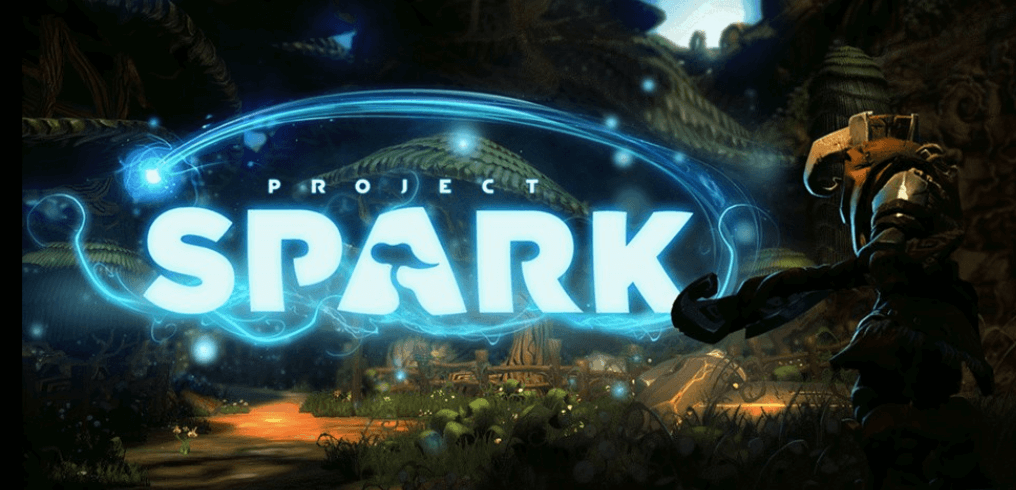
Project Spark is an exciting upcoming game by Microsoft Studios that lets you create actual games from it. Now, it seems that the app is already available in the Windows Store, as it has leaked.

There’s been a lot of fuzz around Project Spark, a “game maker” video game for the Xbox One, Xbox 360, Windows 10, 8 and Windows 8.1. Microsoft initially announced the game during the E3 2013 press event which Redmond attended after quite an absence.

project spark app windows 10

Create your own games with Project Spark

Basically, Project Spark is a “digital canvas which can be used to make games, movies and other experiences”. But now, thanks to leak, it seems that the app has already been included in the Windows Store. Here’s a part of the description:

The ultimate interactive playground for gamers of all ages, delivered as a free digital download with many options for enhancing your creative experience, it’s a place where you can walk in the world’s collective imagination and start playing. See how a creator did what they did, and when you’re ready, become a creator yourself. Project Spark is a powerful, yet simple way to build and play your own worlds, stories, and games. Share all of your creations to a dynamic community, and play what the community makes. Project Spark brings creation to life and presents endless opportunities for play.
Discover the world’s next best game…or create it yourself! Project Spark is a powerful yet, simple way to build and play your own content, stories and games. Even better, it’s completely free!
PLAY HUNDREDS OF THOUSANDS OF GAMES!
• A multitude of games are at your fingertips – everything from epic questing in Celestial Quest to racing galactic superstars in X-Zero. Hundreds of genres, new games and play mechanics are available for immediate and unlimited free access. Play them right now!
• Stun the world with your very own game! Thought you could make it better? Had an idea you’ve never seen before? Quickly and easily turn your idea into a game with Create and Start from Scratch.
• Have you ever wanted to change something about a game as you play it? Now you can with Crossroads! Change the whole game as you play, or just choose your own missions and objective and then take down the bad guys to save the day. Easily mix things up to make the adventure different every time!
• Project Spark is completely free! No in-game purchases! No Marketplace! No ads! All content is available right out of the box to play and create with. With over 2,000 assets to use, what will you create?

However, the recommended specs aren’t that entry-level:

  • Core i7 CPU
  • Nvidia GT640M or AMD HD8850M or better
  • 8GB RAM
  • 2GB hard drive space
  • Minimum:
  • Core i5 CPU
  • Intel HD4000 video card
  • 4GB RAM

— RELATED: 10 best game making software for PC users

The link to the app in the Windows Store can be found below. It initially pointed to a page for users from Kazakhstan, albeit the description was in English. Meanwhile, Microsoft fixed the problem and released the app to all users. Should you encounter any download issues, try changing your country. Also, you will need an invitation code that you can get from the official page of Project Spark.

Here are some of Project Spark’s key features

  • Play virtually unlimited games with direct access to tens of thousands of games created by a global community.
  • Remix games you download from the community to add your own touch or to use it as a foundation for your own creation!
  • Access to Champions Quest: Void Storm, a popular game created within Project Spark itself!
  • Pre-made “brains” make it easy to put behavior on virtually any object.
  • Create anything you can imagine with simple tools and a powerful, yet simple, visual programming language.
  • Project Spark is available for Windows 10, 8 and Xbox One, and the games created and played on one platform are available on the other.
  • Project Spark requires a connection to Xbox Live for initial login.
  • Compatible with Xbox 360 and Xbox One controller.
  • Supports mouse, keyboard and touch controls.

RELATED STORIES TO CHECK OUT:


Need a Moon phase app? Download Lunar Phases on Windows 10/11

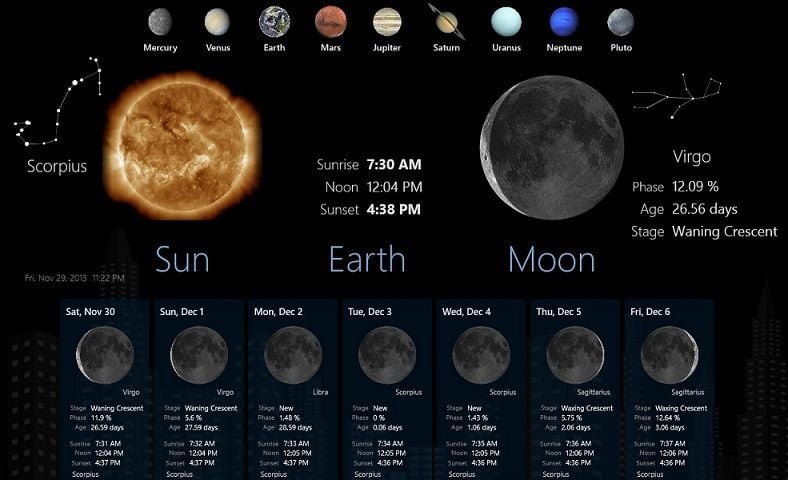
Astronomers that own a Windows 10, 8 tablet or just sky lovers definitely need to download this awesome Windows 10, 8 moon phase app. Lunar Phases is an interesting Windows 10, 8 visual tool that you can use to view the phase, age, and stage of the Moon. Below are more details.

We at WindowsReport looooooove to discover new, original Windows 10, 8 and Windows 8.1 apps and one such app is Lunar Phases. The title of the app explains what Lunar Phase is all about – you get to view the phase, age, and stage of the Moon. Even more, you can watch the surface of the Sun change with a near real time image, which looks quite cool on a Windows 10, 8 tablet.

windows 8 moon phase app

Use the astrological view of the solar system and constellations to see how the Earth & Moon align with it all. Ever wonder where the planets or moon were in relation to the earth at your birth? Or where they were during some event? Or maybe where they might be in the future? Well now you can know the answer to them all.

Explore the Moon and see its phase with Lunar Phases

The Windows 10, 8 Lunar Phases app comes with constellation alignments, different moon phases. Albeit it is targeted at analyzing the moon with your Windows 10, 8 tablet, there’s also the ability of seeing the sunrise and sunset and also the position of planets. This Windows 10, 8 Moon Phase app has been updated quite a lot in the Windows Store, which shows that the developers look after the users. Here are the updates it has received:

  • Refresh Button
  • Small error with Pluto has been fixed
  • Tile Updates are now enabled when “Remove Ads” is purchased
  • Cstom coordinates, 24 hour clock, and constellation chart time of day layer

The app has excellent graphics and offers lots of information in a clean manner suitable for both beginners and experienced astronomers.

— RELATED: Top 100 free Windows 10 store apps to download

You can further discover the sky with the awesome SkyMap Free app for Windows 10, 8 and Star Chart. Follow the link from below to download and install Lunar Phases on your Windows 10, 8 device.

Speaking of the Moon, there is also another sky app that might interest you. The SunAndMoon app calculates local times for sunrises, sunsets, moon rises, moon sets, dusk and dawn times. You can either use your computer’s location services to accurately pinpoint your location or manually select it using Bing maps.

RELATED STORIES TO CHECK OUT:


Zillow App for Windows 10: Availability and Other Info

Zillow is an online real estate database used by millions in the United States. Now, the company has finally decided to release an official Windows 10 app in the Windows Store. We go through its features in the article below.

Buying, selling, or renting a place from your Windows 10 tablet becomes a breeze with the official Zillow app.

Without a doubt, one of the most known names in the real estate business, Zillow, now wants to attract those of you who own a Windows 10 device, as well, with the launch of their official app in the Windows Store.

Is Zillow a software?

Yes, Zillow is a web-based real estate platform that offers a variety of features related to buying, selling, renting, and financing properties. While Zillow offers software applications for Android and iOS devices, its primary offering is its website.

Some key features of Zillow include the following:

  • Property search – Zillow allows users to search for properties based on multiple criteria, such as location, price range, number of bedrooms/bathrooms, and property type.
  • Home value estimates – Zillow provides estimated home values for properties based on a proprietary algorithm known as the Zestimate. This feature is intended to estimate a home’s value but should not be relied upon as a substitute for a professional appraisal.
  • Real estate listings – Zillow offers a wide range of real estate listings, including homes for sale, apartments for rent, and new construction properties.
  • Mortgage Calculator – The service offers a mortgage calculator that can help users estimate their monthly mortgage payments based on the purchase price of a property, down payment amount, and other relevant factors.
  • Neighborhood information – Zillow provides neighborhood information, including schools, crime rates, and local amenities.
  • Zillow Offers – This feature allows homeowners to request an offer on their property from Zillow, eliminating the need to list the property on the market.

Can I get the Zillow app for Windows 10?

Yes, you can get the Zillow app on Windows 10. However, you may have to run it using an Android emulator.

Please note that the Zillow app is designed for mobile devices, so it may not provide the optimal user experience on a Windows 10 device. 

However, if you prefer to use Zillow on your Windows 10 device, you can access the Zillow website through your web browser. The Zillow website is optimized for desktop and mobile devices so you can use it seamlessly on your Windows 10 device.

To access the Zillow website, open your browser and go to www.zillow.com. You can search for properties, view listings, and use all the other Zillow features.

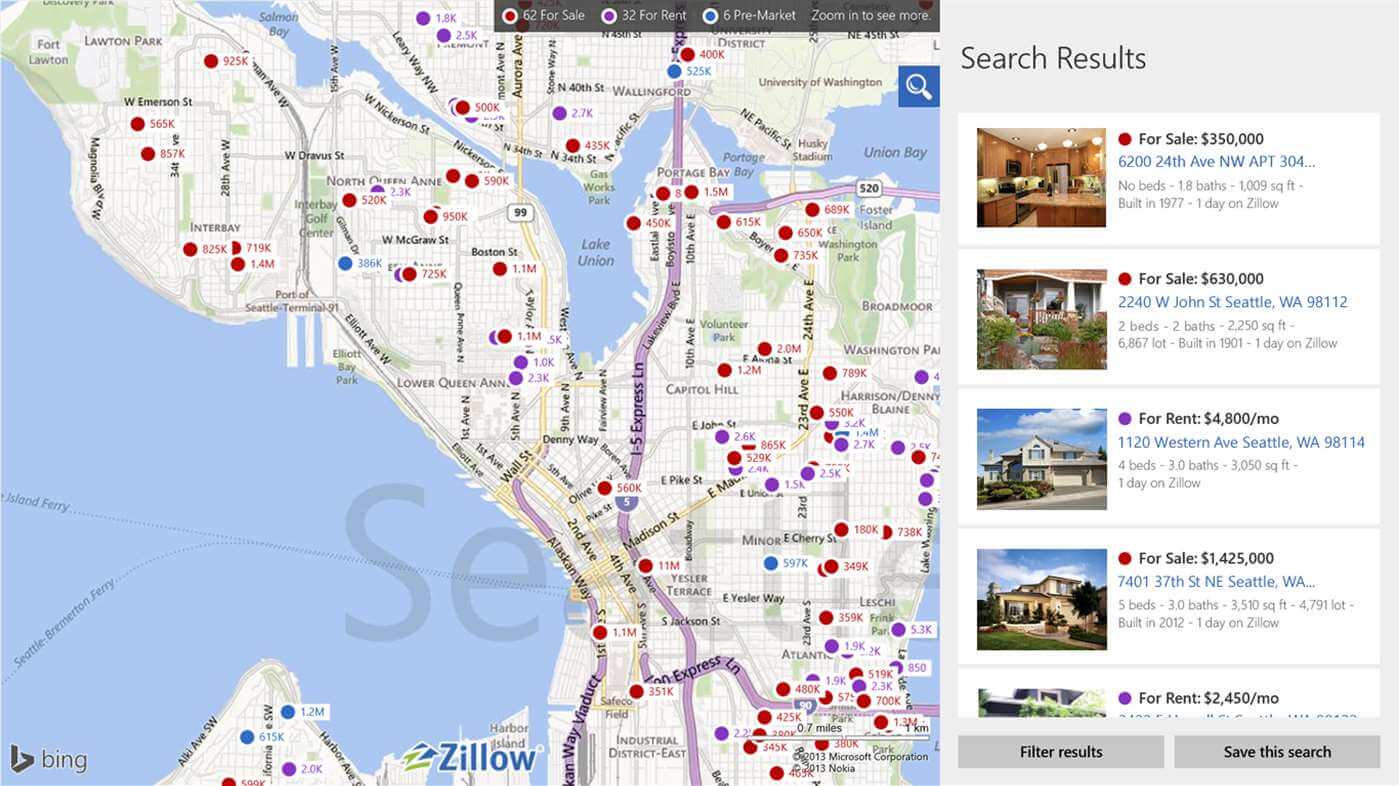
Zillow real estate windows 10 app

How to run a Zillow app on my desktop?

  1. Download and install an Android emulator on your desktop. BlueStacks and NoxPlayer are popular choices.
  2. Once you have installed the emulator, open it and sign in with your Google account.
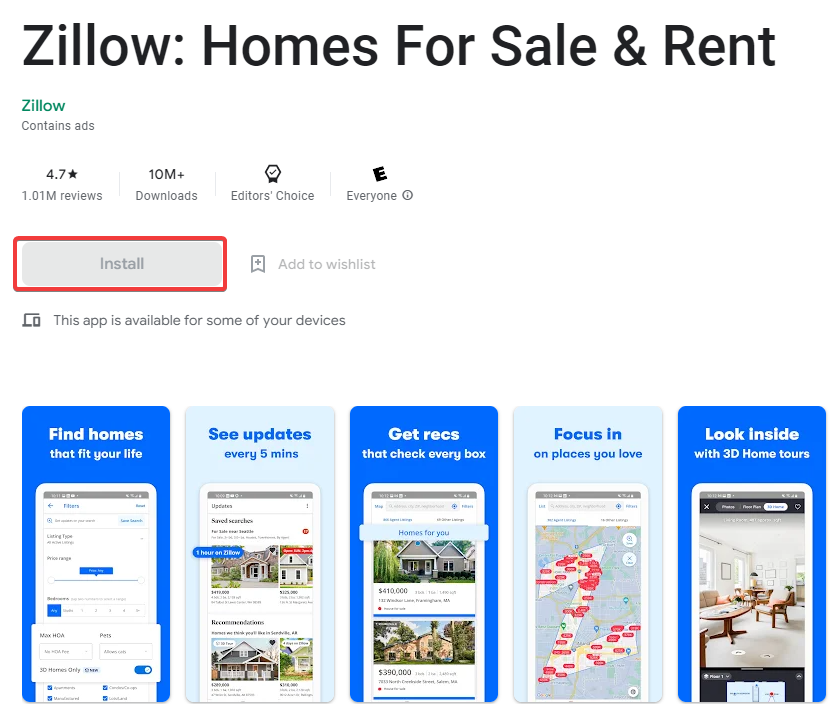
  3. Open the Google Play Store app and search for Zillow in the emulator.
    zillow app for windows 10
  4. Click on the Zillow app and then click on the Install button to download and install the app.
    zillow app for windows 10
  5. After installation, you can open it and use it just like on a mobile device.

Is there a Zillow app for Windows?

For desktop devices, unfortunately, there is no app. However, you may enjoy it on your PC using an emulator, as described in the section above.

And that will be as much as we will discuss in this guide.

Besides the downside for PC users who cannot directly benefit from a desktop application, the service is fantastic and has helped many people in the USA.

So, Let us know your thoughts below in the comments section.

FIX: Can’t update spyware protection on Windows 10/11/7

Having everything up-to-date is paramount. One could justify moving from Windows 7 to Windows 8 or Windows 10 by up-to-date protection updates which subdue virus and spyware threats. However, even the most distinctive advantage sometimes fall short. Namely, a moderate number of users wasn’t receiving any Windows Defender update on Windows 10 or Windows 8/8.1, respectively.

In order to address this, we provided the list of the most viable solutions. If you’re not seeing any definition updates for Windows Defender, move gradually through the list.

What to do if Windows 10 won’t update virus and spyware protection?

  1. Check for updates
  2. Make sure there’s no a third-party antivirus installed
  3. Restart services
  4. Run SFC
  5. Use CMD to enforce the updates
  6. Check Group Policy
  7. Download updates manually
  8. Reset PC to factory values

1. Check for updates

All chances are that you already tried this. As you already know, the Defender’s updates for virus and spyware protection come via Windows Update. However, as we already saw so many times before, these updates tend to misbehave. In order to surpass the automatic distribution (which is obviously failing in this case), you can navigate to Windows Defender Security Center and check for updates by hand.

Follow these steps to update Windows Defender via Security Center:

  1. Open Windows Defender Security Center from the Notification area.
  2. Choose Virus & threat protection.fix update spyware protection windows 10/8, 8.1
  3. Open Virus & threat protection updates.fix update spyware protection windows 10/8, 8.1
  4. Click on the Check for updates button.fix update spyware protection windows 10/8, 8.1

If the error is persistent, follow the additional steps we provided below.


2. Make sure there’s no a third-party antivirus installed

Now, you already know that there’s no place for two antimalware solutions on Windows 10. Or any Windows iteration, for that matter. If you decide to place your trust in a third-party antivirus, Windows Defender will be disabled automatically. Now, if you, in the meantime, decide to use Windows Defender instead, it’s really important to delete all traces of the third-party antivirus which preceded it.

So, a thorough clean up is necessary in order for Windows Defender to work without any issues. You can navigate around and clean the associated files on your own, or use a third-party tool which will do it for you. There’s a huge list of available Uninstallers and Cleaners, so we recommend checking our list of the best available tools.

These tools will clear all remaining files and, after a restart, Windows Defender should work fine. However, if that’s not the case, there are a few more things you can do.


3. Restart services

Restarting the dedicated service for Security Center might help, as well. If Windows Defender is active, this service should automatically start with the system. However, due to a minor bug, certain system services tend to stop. Also, by restarting the service at hand, you’ll restart the system application, and this just might get Windows Defender going.

Here’s where to find the service and how to restart it:

  1. Type services in the Windows Search bar, and open Services from the list of results.fix update spyware protection windows 10/8, 8.1
  2. Navigate to “Security Center” service and make sure it’s running.fix update spyware protection windows 10/8, 8.1
  3. If it isn’t running, right-click on it and click Start.

4. Run SFC

When the built-in system resources start failing, the troubleshooting steps we commonly use on third-party applications are out of the reach. What we can do instead is employing the built-in tools. One commonly-used tool for addressing system errors is System File Checker also known as SFC. This tool runs through a command line and it verifies the integrity of system files.

Here’s how to run SFC in Windows 10:

  1. In the Windows Search bar, type cmd, right-click on the Command Prompt and run it as admin.
  2. In the command-line, type sfc/scannow and press Enter.fix update spyware protection windows 10/8, 8.1
  3. Wait until the procedure ends and restart your PC.
  4. Try updating Windows Defender‘s virus and spyware definition again.

5. Use CMD to enforce the updates

Command Prompt comes into play in the scenarios when you need to take complete control of your system. Clearing updates with caused stuck and restarting the update process can be easily done with a few commands. Once you’ve done it, the update cycle should continue working as intended — without errors and on time.

Follow these steps to enforce Windows Defender updates with Command Prompt:

  1. In the Windows Search bar, type cmd, right-click on the Command Prompt and run it as admin.
  2. In the command-line, copy-paste the following lines and press Enter:
    • cd %ProgramFiles%Windows Defender
      MpCmdRun.exe -removedefinitions -dynamicsignatures
      MpCmdRun.exe -SignatureUpdatefix update spyware protection windows 10/8, 8.1
  3. After that, press Enter again to update signatures and restart your PC.

6. Check Group Policy

As we already said, when you install a third-party antivirus, Windows Defender automatically disables. The system will see to it. However, if you’ve changed your mind, getting back to Windows Defender can, for some users, be quite a chore. Namely, in order to re-establish Windows Defender, you’ll need to confirm that the feature is enabled in the Group Policy Editor.

Here’s what you’ll need to do:

  1. Type group policy in Windows Search, and open “Edit group policy“.fix update spyware protection windows 10/8, 8.1
  2. Navigate to: Computer Configuration/Administrative Templates/Windows Components/Windows Defender Antivirus.fix update spyware protection windows 10/8, 8.1
  3. Make sure the “Turn off Windows Defender Antivirus” is disabled or not configured.fix update spyware protection windows 10/8, 8.1

If you can’t access the GPE, there’s still a way to re-enable Windows Defender. You can navigate to Registry Editor and make some needed changes. However, please do be careful, as these are the risky grounds and a misuse can lead to critical system damage.

Follow these steps to tweak Defender-related Registry settings:

  1. Type regedit in Windows Search, right-click on Regedit and open it as an administrator.
  2. Navigate to: HKEY_LOCAL_MACHINESOFTWAREPoliciesMicrosoftWindows Defender.
  3. If there’s an entry DisableAntiSpyware, right-click on it and open Properties.
  4. Change its value to 0 (zero) and exit Registry Editor.

7. Download updates manually

If the issue is persistent and Windows just won’t comply, you can try to update the virus and spyware database manually. Namely, all latest definitions are stored online, on a dedicated website. You can navigate there and download fitting definition updates, depending on your OS version (Windows 10 or Windows 8/8.1) and the system architecture.

Follow these steps to install updates for Windows Defender manually:

  1. Navigate to the official site with definition updates, here.fix update spyware protection windows 10/8, 8.1
  2. Scroll down and download the proper version suiting your system’s version and architecture.
  3. Install it like any other application and restart your PC.

8. Reset PC to factory values

Finally, if you’re still unable to resolve the issue at hand after all previous steps, we suggest restoring Windows to its default values. This is much better than the reinstallation, as you get to keep your files. This is more of a refresh for the system and it’s a viable last resort if system features are giving you a hard time.

Follow these steps to reset your PC to factory settings:

  1. Press Windows key + I to open Settings.
  2. Choose Update & Security.fix update spyware protection windows 10/8, 8.1
  3. Select Recovery.
  4. Click ”Get started” under Reset this PC.fix update spyware protection windows 10/8, 8.1
  5. Choose to keep the files and continue with the resetting procedure.fix update spyware protection windows 10/8, 8.1

That’s it. We hope this was an informative read and that you’re now able to update Windows Defender without issues. You need that definition up-to-date at all the times, so it’s quite dangerous to neglect it.

Also, don’t forget to speak your mind about this issue and provide alternative solutions. The comments section is just below.

RELATED STORIES YOU SHOULD CHECK OUT:

Windows 8, 10 App Check: SkyMap Free

If you’ve got yourself a nice Windows 8 or Windows 8.1 tablet and you also happen to be in love with the night sky, then, obviously, what you need to download is a great SkyMap application
windows 8 skymap
SkyMap is a very popular Windows Phone application, which has been downloaded by more than half of million users. Now, the developer has brought the app for Windows 8, Windows RT and Windows 8.1 users. The SkyMap Free app for Windows 8 displays the sky in 3D, showcasing a collection of over 110,000 stars that you get to explore.

SkyMap Free is an amazing planetarium for your device. It enables you to point your device at the sky and see what stars, constellations, planets or deep space objects are out there in real time. It’s very easy to use for any viewpoint, time and location on Earth: it determines your location automatically, supports pinch to zoom for more details and provides a highly customizable map. SkyMap Free has a full set of features in order to help both casual stargazers and amateur astronomers to explore and locate the objects in the sky.

The first time you will open the SkyMap Free app for Windows 8, you will be require to input your location that it needs to determine where you are in order to “fetch” you the stars that are just above you. But you can move anywhere you want, and there is also pinch to zoom which allows you to see even more stars as the SkyMap is customizable. You can also have a look at the Star Chart app for Windows 8, which is basically an astronomer’s guide to the universe.

Here are some features that make it stand apart:

  • Interactive zoom
  • Night mode
  • Realistic Milky Way image and horizon
  • Constellations with beautiful Johannes Hevelius’s artwork
  • Fast loading and initialization
  • Point to sky mode
  • Improved sky map graphics: planet images, star colors, diffraction spikes
  • alt/az grid

Read Also: The Windows 8 Periodic Table App Helps to Learn Chemistry

When using the SkyMap Free app you will see that the stars actually twinkle. Also, thanks to Wikipedia integration, you can get information on any constellation, star, deep space object, planet, on the Sun and the Moon. Compass and accelerometer sensors are required for the “point to sky” mode. There is also a paid SkyMap app that comes free of advertising.

Update: SkyMap has been closed actually, and even if its download page might be available on Google Play, you will see from the comments that it’s not working anymore. Many star-discovers and explorers can switch to another great app: Star Chart. This app works perfectly fine in Windows 10, 8.1 and 8 versions so you won’t have any problems while using it. Though it is a paid app, you can try it for free as it has a 1-day trial period. I know, it is not so much, but don’t throw rocks at me – at least you can try it.

Download Star Chart for Windows 8, 8.1 and 10

Download Windows 10/11, 8 Nes Emulator App Nesbox

nesbox windows 8 app

The Nesbox app is one of the best apps from the Windows Store that you can use to play your favorite NES, Super Nintendo and Sega Genesis games on any device working running Windows 10, Windows 8.1 or Windows RT. And now it has received a fresh new update.
UPDATE: Unfortunately, Microsoft decided to block game emulators in the Store, banning developers from submitting game system emulators to Windows PCs, tablets, phones, Hololens, or the Xbox One console. For this reason, the Nexbox app is no longer available for download in the Microsoft Store. However, you can still run the browser version of the Nexbox Emulator or install one of these NES emulators for Windows 10.

You can read the original report below.

The Windows 8 Nesbox app has been featured in our list with the best Windows 8 apps from the past week in the Windows Store. A true Windows 8 Nes Emulator tool, Nesbox read NES (.nes), Sega (.gen) and Super Nintendo (.smc) game types, letting your relive the nostalgia of those times when these games seemed awesome.

Nesbox is a video console emulators’ hub. You can play your favorite NES, Super Nintendo and Sega Genesis games on any computer working under Windows 8.1/RT. Nesbox brings you to the magic world of games of the XX century.

Who doesn’t long for a game of Mario in Windows or even Pacman? I know I do. The Windows 8.1 Nesbox app has received an update that I’ve spotted in the Windows Store. Although a release note hasn’t been yet made public, I’ve noticed that the app loads quicker now and it’s safe to assume that a lot of bug fixes has been put in place as well as performance improvements.

Inside the Nesbox app for Windows 8 you can also search for games online and add them in your library. There’s also screen gamepad and keyboard support. Get one of the best NES emulator tools for your Windows 8 tablet and computer by following the link from below.

⇒ Download Nesbox for Windows 8

FIX: DNS server issues after Windows 10/11 update

There have been reported quite a lot of DNS server issues with the Windows 10, 8.1 updates, as the DNS server is not responding. The problem has been also reported by some Windows 8 users. Below are some more details.

These days, a lot of issues are plaguing Windows 10, 8 and Windows 8.1 users. One of them is represented by DNS server problems reported by a good number of affected Microsoft customers. Here’s what one of them is saying:

I updated this morning and cannot connect wirelessly to the Internet any more. My VPN connects fine, no issues. Error message says the problem is my DNS. I have some tech from India trying to solve this but no luck. He is trying network drivers now. Has anyone else run into this. I am extremely frustrated and will hesitate to ever do an update until all the kinks are worked out. Anyone else have this and how did you solve it?

If you need to change the DNS settings in Windows 10, 8, then you need to know how to properly do it. Also, if you want to use the Google DNS settings, find the full instructions here.

dns server issues in windows 8.1

How to fix DNS server after Windows update

1. Update your drivers and router firmware

Of course, it goes without saying that you need to update all of your drivers, especially the motherboard drivers, to be sure they aren’t the culprits. Also, since it involves your connectivity, do check your router firmware, as well.

2. Run the Network Troubleshooter

Try going to Control Panel > Network and Sharing Center > Troubleshoot Problems and see whether this workaround helps you fix the problem.

If you’re running Windows 10, then go to Start > type ‘troubleshoot’ in the search box and double click on the first result to launch the Troubleshooting page. Now, select Internet Connections and run the troubleshooter.

fix dns server bugs windows update

3. Scan your system for malware infections

There is a chance that you could have a DNS changing malware, so try running a full scan. If you haven’t installed a full fledged antivirus software on your machine, check out this list of the best antivirus solutions that you can use on Windows 10. You can also install a dedicated anti-malware program that’s compatible with your antivirus of choice.

4. Disable IPv6

Thanks to a reader of ours, we managed to find another fix, so here are the steps that you need to take:

  1. Go to Network and Sharing Center
  2. Click on Change Adapter settings
  3. Right click on your WIFI adapter and click Properties
  4. Uncheck the IPv6 option and click OK

5. Clear your DNS cache

  1. Launch Command Prompt as administrator > enter the following commands and hit Enter after each one:
    • ipconfig /flushdns
    • ipconfig /registerdns
    • ipconfig /release
    • ipconfig /renew
  2. Test your internet connection. If the error persists, try restarting your modem/ router.

If your Internet connection is still unavailable, check out these troubleshooting guides for additional solutions:

Time is Wrong or Not Updating on Surface Pro [Fix]

The Surface Pro series has some of the most advanced and user-friendly laptops designed to deliver a seamless experience. But it, too, is plagued with error. And many reported that the Microsoft Surface Pro’s time is wrong and not updating.

For those wondering why the Surface Pro is showing the wrong time, the problem seems to be caused by the Windows Time Service, which needs to be set to Automatic. Keep reading to find out the solutions!

What can I do if Surface Pro shows the wrong time?

Before we start making changes, try these quick solutions:

  • Restart the computer.
  • Install the latest Windows updates.
  • If the battery is no longer working properly, you may encounter time and date issues. Head to the BIOS and check the time to identify whether the problem lies with the battery.

In case none work, head to the fixes listed next.

1. Set Windows Time Service to Automatic

  1. Press Windows + R, type services.msc, and hit Enter.
  2. Locate Windows Time, right-click on it, and select Restart.restart windows time
  3. Now, double-click the Windows Time service.
  4. Change the Startup type to Automatic in the General tab. windows time service automatic startup
  5. Click on the Start button to run the service, and then OK to save the changes.

If the Surface Pro 3 clock won’t keep the correct time, running the Windows Time service should get things up and running!

2. Change Internet Time server settings

  1. Launch Control Panel, go to Clock, Language and Region, and click on Date and Time.date time control panel
  2. Navigate to the Internet Time tab, and click on Change settings.change internet time settings
  3. In the Server section, select time.nist.gov instead of time.windows.com, and click on Update now followed by OK to save the changes.enable time.nist.gov
  4. Check if the problem persists.

If your Internet Time Server settings are incorrect, this may explain why your Surface Pro 2 clock is not updating or showing the wrong time. And this should fix the problem for good!

Before you leave, find out how to speed up a Windows PC and make it run faster than ever.

If this has solved your problems, let us know by leaving your comment.

Fix: Fifa Manager 12 Doesn’t work in Windows 10/11

Some Fifa Manager 12 players have been reporting that they are unable to start the game in Windows 10 or Windows 8.1. For others, the game starts, but it crashes right when you obviously don’t want that to happen
fifa manager 12 windows 8
I love soccer, or football, as those residing in USA and Canada like to call it, and that’s why I play a lot of soccer games on my PlayStation and on my Windows 8 computer. Now, I’ve stumbled upon multiple reports that Fifa Manager 12 doesn’t work in Windows 8 and Windows 8.1. And believe me, I know what that means!

Multiple forum postings online on EA forums and on Microsoft show that there are obvious problems with the Fifa Manager in Windows 8 and Windows 8.1. Here’s one of the complaints:

I bought Fifa Manager 12 and after installing it I can’t play the freaking game. It crashes at the begining and it’s quite frustating not been able to play the game you spend good money on it. Fifa Manager 11 works fine, but FM12 won’t. I tried to uninstall FM11 and install 12 but it just won’t work. Please, can you tell me what’s wrong?

But the fix to this annoying problem is very simple, since Fifa Manager 12 is obviously compatible with Windows 8 and Windows 8.1. Just Right click your FIFA manager 12 shortcut icon from your desktop and select ‘Troubleshoot Compatibility’. After that, select ‘troubleshoot program’ and then select Windows 7 then test the program and it should run. Now, how simple was that!

FIFA problems fixed in Windows 10

Besides FIFA Manager 12 there are also lots of issues with FIFA 2016, 2017 and 2018 (in case you also play one of them and have some problems). While many users struggle with some errors, lags, and glitches while playing, others are simply following our fix guides and enjoy the game. Here are the articles which helped lots of users:

Posted in Fix

Microsoft Bing News App Crashes in Windows 8.1, 10

Like it or not, we’ve got yet another crashing report for Windows 8.1, 10 users. This time, it’s about the built-in News App that seems to be causing problems for a few users. Below are more details.

A short while ago we were reporting that the Bing news app has received an update in Windows 8.1 which should have taken care of certain bugs. But, it seems that some of these bugs are still living and affecting users, provided that they have the latest version of the Windows 8.1 News app. One of them is saying this:

So I updated to Windows 8.1 Pro from Windows 8 Pro several weeks ago with no problems.  Now all of a sudden, the Microsoft News Metro App crashes on start.  No error messages, just opens to the splash screen and returns me to the desktop.  The app appears to still be running in the sidebar, but when I click on that, it briefly brings me to the news splash screen and then back to the desktop again.  I have already tried uninstalling and reinstalling the News app, a system refresh AND a full reinstall of the computer from scratch.  The app started working again after the system reinstall, only to have it start crashing after about an hour.

I’ve seen other folks complaining about this issue as well, but thank God it doesn’t happen for me. I will keep a sharp eye in the Windows Store in the event of a future update that might fix this annoying problem. If you happen to know any workarounds for this Windows 8.1 issue, do let us know by leaving your input in the comments box from below.

Bing app in Windows 10, 8.1 and 8

Besides Bing News, Bing Finance had problems as well. Many users reported issues with Bing Finance features after upgrading the OS. The most annoying problem was creating specific watchlists. Fortunately, we found some solutions on different specialized forums and you can try to fix this problem by following the guide from this article.

Once more issues have been reported, Bing improved the app and released an update. Now bing app has a better functionality, especially Bing Maps which moves faster. If you want to know more, you can read about all the important update details here.

READ ALSO: Microsoft working to fix Bing maps and Windows Map App delays

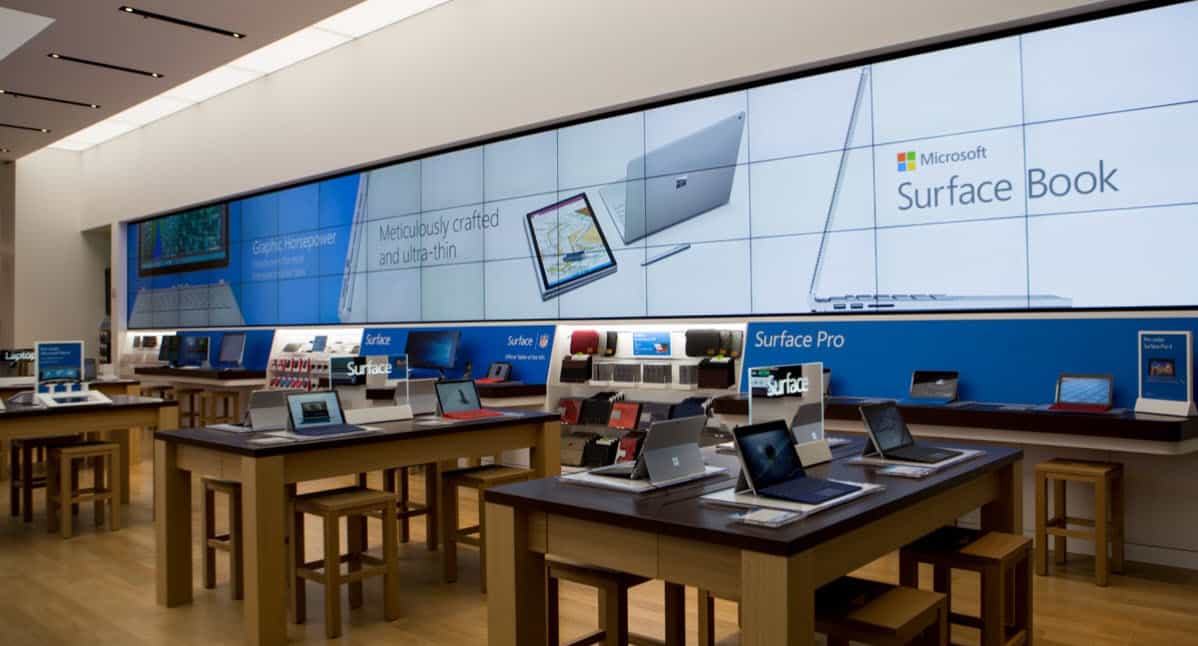
Give dad the gift of Surface, Xbox, and Windows 10 PCs with these Father’s day deals

Father’s Day is coming up, and Microsoft is highlighting some ways you can save if you’re looking to give the gift of tech. There are some savings on Surface, Xbox, Windows 10 PCs, and more at the Microsoft Store and beyond. Here’s a look at some of the big deals.

Microsoft Store Deals:

Other Deals:

Microsoft also offered up similar savings for Mother’s Day, so if you missed out on those initial sales, now is your chance to get in on the action. Feel free to drop us a comment in the section below and let us know if you’ve picked up anything part of this sale.

VGA not Working After Windows 10/11 Update for Some

Windows 8.1 problems are not done with and as I research more, more woes appear on the horizon. This time, somebody is complaining that his VGA display adapter is not working after he updated to Windows 8.1.

Troubles and problems with the VGA port have been reported in Windows 8 and I’ve seen quite a lot of them, but I was hoping that Windows 8.1 would fix them. Alas, this hasn’t happened and more Display Adapter woes for those using VGA continue. Here is the input from one user who has this problem:

My Asus UL30VT with windows 8 is working properly before updating to 8.1. After update, the Display Adapter have a problem : NVidia GeForce G210M : This device is not working properly because Windows cannot load the drivers required for this device. (Code 31) Insufficient system resources exist to complete the API.

Mobile Intel(R) 4 Series Express Chipset Family (Microsoft Corporation – WDDM 1.1) : Windows cannot load the device driver for this hardware. The driver may be corrupted or missing. (Code 39) {Unable to Load Device Driver} %hs device driver could not be loaded. Error Status was 0x%x

Read Also: Windows 7 vs. Windows 8 Comparison: Old Meets New

This seems like a case where the owner forgets to download and install the latest Intel VGA drivers for his specific laptop model. I don’t think it has anything to do with NVidia’s drivers, so my suggestion is for him to get the latest VGA drivers straight from Intel’s website. Have you experienced a similar problem with your Windows 8.1 computers?

Various VGA problems in Windows 10

You might experience more VGA-related problems on your PC. Error codes, drivers not working (one of the major issues that cause ‘VGA not working’), no sound and other errors will give you lots of troubles while using your PC. Here are the fix-guides of the most common VGA-related issues:

Before starting following the steps from a specific guide be sure that you detected the exact issue and let us know in the comments section if you have fixed it.

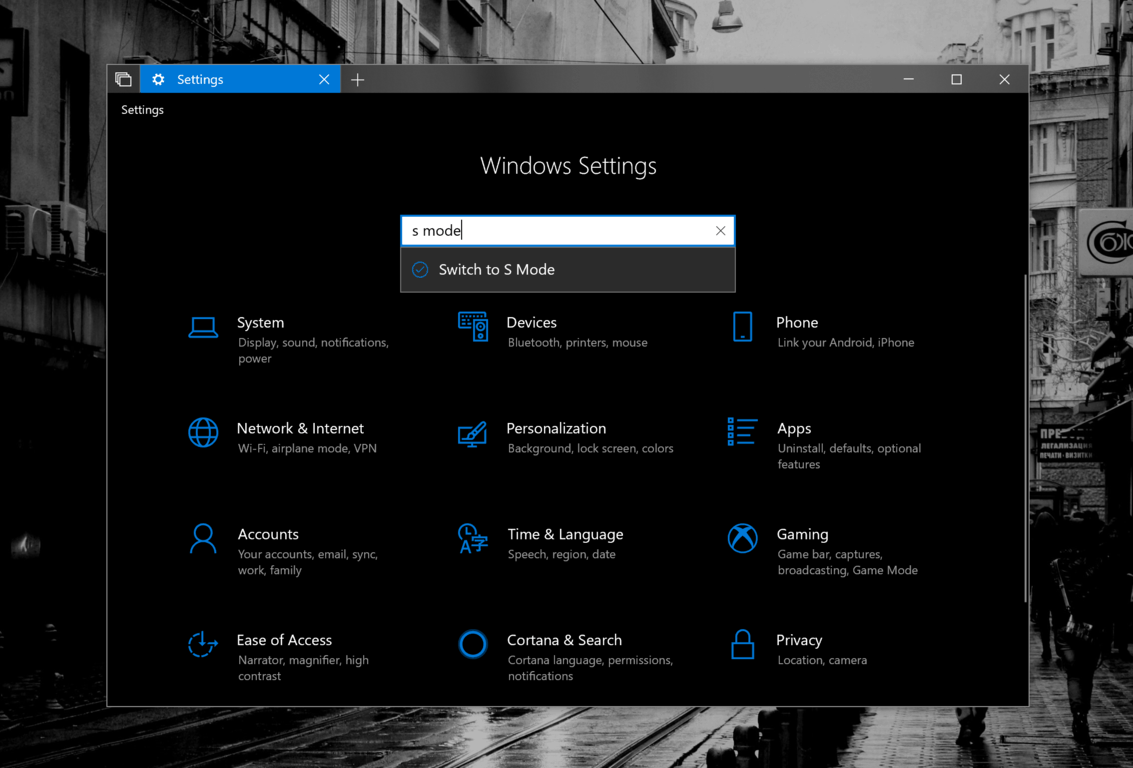
Traces of “Switch to S Mode” option appear in Windows 10 Insider build 17686

Contrary to what Microsoft previously said, it seems that it may soon be possible to switch “S mode” for Windows 10 on and off in the near future. Indeed, after installing the latest Insider build 17686, you’ll see that a new “Switch to S mode” option pops up when you search for S mode in the Settings app (via Thurrott.com).

Clicking on this option just redirects you to the Activation page, but you won’t have any “Switch to S mode” for now. It’s not clear yet if the option to enable S mode could actually be a thing, but it does make sense to bring this mode to more Windows 10 users.

Earlier this year, Microsoft said that Windows 10 in S mode would replace the pre-existing Windows 10 S SKU, and that it would be up to PC manufacturers to configure it on new PCs. Windows 10 in S mode is actually a renamed Windows 10 S, a more secure and battery efficient configuration of Windows 10 that can only run Microsoft Store apps.

Disabling S Mode is free for consumers regardless of Windows 10 edition , but as of today you can’t go back to S mode after switching out of it in the Microsoft Store. This may be a missed opportunity for Microsoft, as despite its shortcomings (you can’t use any other browser than Microsoft Edge or install new drivers, as an example), S Mode definitely has its merits.

As Microsoft explained, the purpose of S mode is to provide consumers, schools and enterprise users a streamlined version of Windows 10 that won’t get bogged down by desktop apps and other bloatware in the long run. This is really something that some consumers may want to turn on older machines, or PCs that are just being used for some light web browsing and other basic things. However, it would be interesting to know what would happen to your desktop apps once you turn on S Mode, as losing some important data would not be a great experience.

Anyway, when there’s smoke there’s fire, as the adage says, and the fact that this “Switch to S mode” option appears in the Settings app suggests that this is something that Microsoft may be considering. Do you think it makes sense to make S Mode something that all Windows 10 users can turn on and off at will? Let us know below.


Windows 8.1, 10 Refresh Problems Caused by Missing Files

Some users have been reporting that they can’t use the refresh/reset system in Windows 8.1 because of some “missing files“. We report their problems and give you more details about the issue below

Nope, we are not done yet – there are a bunch of other Windows 8.1 problems and issues that need to be brought upon the surface so that more folks could know about it. A good number of Windows 8 and Windows 8.1 users have been reporting that they have problems with the refresh/reset system and apparently they are “missing some files“. Here’s what one of them is saying:

Having some issues in windows 8.1 and would like to refresh/reset system, but it says that some files are missing and asks me to put in recovery media. I created a recovery media in the system but when i try to run it, it says that it is not the right one.  Ie, right now, I cannot refresh or reset my system.  My only system restore backups go back to November 10th–so not past installation of win 8.1.  Ps, the issue is that indexing service takes over my computer until it overheats and shuts off.  And there appears to be 80 gb unspoken for on my computer used by something.

A solution for his problem would be to create a USB (Universal Serial Bus) recovery drive and then use it to refresh the Windows 8.1 system. You can follow Microsoft’s own tips on this article. Another user is saying the following, even after creating a recovery media.

So I’ve been having a graphics driver / display related issue which has not been solved by uninstalling my drivers and doing a complete driver sweeper run. Thus I figured maybe it was time to do a full refresh hoping that would get all traces of the drivers from my system and registry. Trying this and using a burnt copy of the ISO that I initially installed Windows 8 on his system (I upgraded via the windows store), this failed with the refreshed system complaining about the media i supplied when asked.

I figured the recovery media was for 8 and my system was 8.1 and that was the issue. Searching i found a MS page describing how to create 8.1 media for this purpose. Following this failed too, as for some reason it refused to accept my product key. I have no idea why. My system was normally activated. I began to wonder if 8.1 product keys were different from 8. And using the belarc advisor I can see that my 8.1 system is activated using a 8 product key. At this point I’m all pretty terribly confused and wondering if i can ever use refresh or reset.

At the moment we don’t know exactly what is causing the problem, but we know that it is causing the following errors (quite a lot of them):

  • C:Windowsdiagerr.xml – error opening
  • C:Windowsdiagwrn.xml – error opening
  • C:WindowsMEMORY.DMP – error opening
  • C:WindowsInstaller4c66aad.msi » MSI » required.cab » CAB – error reading archive
  • C:WindowsLogsCBSCBS.log – error opening
  • C:WindowsLogsDPXsetupact.log – error opening
  • C:WindowsLogsDPXsetuperr.log – error opening
  • C:WindowsMicrosoft.NETFrameworkv3.0Windows Communication FoundationSMSvcHost.exe.config – error opening
  • C:WindowsMicrosoft.NETFramework64v3.0Windows Communication FoundationSMSvcHost.exe.config – error opening
  • C:WindowsPanthersqmSetup00.sqm – error opening
  • C:WindowsPantherUnattendGCsetupact.log – error opening
  • C:WindowsPantherUnattendGCsetuperr.log – error opening
  • C:WindowsPLASystemSystem Diagnostics.xml – error opening
  • C:WindowsPLASystemSystem Performance.xml – error opening
  • C:Windowssecuritydatabasesecedit.sdb – error opening
  • C:WindowsSoftwareDistributionDataStoreDataStore.edb – error opening
  • C:WindowsSoftwareDistributionDataStoreLogsedb.log – error opening
  • C:WindowsTasksAdobe Flash Player Updater.job – error opening
  • C:WindowsTasksGoogleUpdateTaskMachineCore1cec43c80df64d.job – error opening
  • C:WindowsTasksGoogleUpdateTaskMachineUA.job – error opening
  • C:WindowsWinSxSamd64_microsoft-windows-c..rformance-perftrack_31bf3856ad364e35_6.3.9600.16384_none_4c9196811ed79b13traceanonconfig.xml – error opening
  • C:WindowsWinSxSamd64_microsoft-windows-n..n_service_datastore_31bf3856ad364e35_6.3.9600.16384_none_c1ecf0b709f6bdc7dnary.xsd – error opening

Read Also: Driver Booster Discovers Windows 8 and Windows 8.1 Outdated Drivers

Do you have any idea on how this Windows 8.1 problem could be overcome?

Other ‘missing files’ related issues

There are many specific files missing and related issues. For example, if your Windows keeps refreshing and does not stop, there is actually a great fix guide written by us in order to help you.

Sometimes your system might make some files and folders disappear. That problem might occur on all Windows versions, and can be the result of an important update that has some errors. In that case, you can restore your files and folders and fix this problem by following the steps from this article.

Xbox One’s E3 video game sale is now live

Microsoft’s massive E3 sale is now live. A huge number of Xbox One video games and some Xbox 360 titles have had their prices slashed by up to 75% with a good mix of major and independent games being included.

Of note on the Xbox One is ABZU (50% off), Assassin’s Creed Origins (50%), Battlefield 4 Premium Edition (80%), Dark Souls III Deluxe Edition (67%), DmC Devil May Cry: Definitive Edition (67%), Farming Simulator 17 (75%), For Honor (75%), Injustice 2 (pictured, 40%), Life is Strange Complete Season (80%), Marvel: Ultimate Alliance Bundle (75%), Rise of the Tomb Raider: 20 Year Celebration (70%), Star Wars Battlefront II (67%), and Titanfall 2: Ultimate Edition (85%).

Xbox 360 video game discounts to look out for are Alan Wake’s American Nightmare (75% off), Beyond Good & Evil HD (67%), Blue Dragon (75%), Fable Trilogy (75%), Just Cause 2 (90%), Mass Effect (75%), Saints Row IV (75%), and Watch Dogs (67%).

You can view a full list of all of the discounted games here or by browsing the Store tab on your Xbox One console.

The next week will be a big one for Microsoft’s Xbox One console with several major announcements expected to be made at the 2018 E3 conference. We’ll be sure to cover all of the big Xbox news here so make sure to like us on Facebook, follow us on Pinterest, and follow us on Twitter to stay up-to-date on all the breaking news.

Sex and the City turns 20, all eps discounted in Windows 10’s Microsoft Store

The Sex and the City television series turned 20 years old today (feel old yet?) and to celebrate this milestone, all six seasons have been discounted in the Microsoft Store giving fans savings from five to 10 dollars per season.

Films and series bought in the Microsoft Store can be viewed within the Movies & TV app (also called Films & TV in some regions) on Windows 10 PCs and tablets, Windows phones, Xbox One consoles, and other Windows-powered devices such as HoloLens.

The Sex and the City sale will run for six more days after which the prices will return to normal. Were you a fan of Sex and the City and are you going to buy these episodes? Let us know in the comments below and don’t forget to follow us on Twitter for more Windows 10 news.

Donald Glover’s Lando comes to Star Wars Battlefront II on Xbox One

Details on the second half of Star Wars Battlefront II’s Han Solo Season of content have been officially announced and all of it will launch in just a few days on June 12th.

In addition to a variety of small bug fixes and balancing changes, this update to the game will add two new skins for Han Solo, two new skins for Lando, and one for Chewbacca. All five of these new skins are based on the appearances of the characters in the recently released film, Solo: A Star Wars Story. While Chewbacca’s new look isn’t too different from his current skins in-game, the new Han and Lando skins are completely different due to being based on the actors who play them in the new film, Alden Ehrenreich and Donald Glover.

Other new content being added with this update includes the new location, the Coaxium Mines of Kessel (also from Solo: A Star Wars Story), a new game mode called Extraction, a new version of the Millennium Falcon piloted by Lando and L3-37, and a visual redesign of the game’s menu system.

All of this new content is technically free for all owners of Star Wars Battlefront II however the skins will need to be purchased either by in-game currency (Credits) which can be earned by playing or by purchasing Crystals with real-world money. The Millennium Falcon will also need to be purchased with Credits.

More news regarding future Star Wars Battlefront II content is expected to be announced this weekend during the special EA Play event. The game has also currently been heavily discounted on Xbox One and is now 67% cheaper than usual.

Are you excited for fresh Battlefront II content? Let us know which bit of the Han Solo Season you like the most in the comments below and make sure to follow us on Pinterest for more Xbox video game news.

Windows 10 is now installed on more than 700 millions devices

Windows 10 launched in 2015, and since then the platform’s user base has steadily increased. Microsoft had laid down a lofty target for Win 10 to be installed on one billion devices by 2018. While Windows 10 has fallen a little short of that mark, the software giant has confirmed that Windows 10‘s user base eclipses the 700 million mark at recent Insider Dev Tour.

The departing Microsoft chief Mr. Myerson previously stated at a May 2018 Build developer conference that Win 10 was approaching a 700 million user base mark. At the conference, Mr. Myerson stated:

Today, we are now approaching 700 million active Windows 10 users, commercial usage is growing 84% year over year, Xbox One is running a Windows 10 core, Surface is leading PC innovation, HoloLens is bringing breakthroughs to computer vision, our universal Microsoft store enables Xbox GamePass, Azure reserved instances, and Office distribution, and the OEM ecosystem is revitalized with profitable growth.

However, Microsoft has confirmed at a more recent June Insider Dev Tour that Windows 10 is now installed on 700 million active devices. Thus, the platform’s user base has increased that much more to take it over the 700 million milestone. The figures provided at the Insider Dev Tour also highlight that the platform has an 84% growth rate and that there are more than 150 million users utilizing Cortana.

windows 10 market share 2018

So, Microsoft can rightly proclaim Windows 10 a big hit even if the platform has still fallen a little short of the company’s initial targets. StatCounter data also highlights that Win 10 has now overtaken Windows 7 as the foremost desktop operating system in 2018. The latest figures show that Windows 10 has 47.21% market share compared with 7’s 39.44% share.

However, it’s not all great news for Windows 10. Even though Win 10 has strengthened Microsoft’s grip of the desktop OS market, it has been an entirely different story for mobile devices. Windows 10 Mobile had little impact on phones and tablets. As such, Microsoft has discontinued support for Win 10 on mobile devices. The demise of Windows 10 Mobile is perhaps one of the main factors behind the platform falling short of the billion device mark.

Nevertheless, Windows 10 goes from strength to strength on desktops and laptops with every big update. The April 2018 Update has further enhanced the OS with Timeline, Focus Assist, Nearby Sharing, new settings, a redesigned Game bar and a revamped Edge browser; and the Redstone 5 update will deliver even more in 2018. So Windows 10 continues to sustain considerable momentum.

RELATED STORIES TO CHECK OUT:

This torrent contains files that may harm your computer

Downloading files with torrent clients and thanks to a peer-2-peer networking is there for ages. However, besides the obvious advantages (not referring to free-of-charge pirated software and media), there were concerns about the safety. For that reason, most if not all torrent clients will inform you about the possible dangers the moment you try to access the file.

How important is this message and what does it mean? We made sure to explain below.

Dangerous file prompt in a torrent client? Here’s what to do

One of the obvious downsides of pirated software is the danger of system intrusion. Sure, a lot of those files will trigger a false alarm, as the security applications detect cracks as malware. However, there’s a good reasoning behind that. All of them are executable files and every ‘exe’ file from an untrusted source is a potential danger for your system. Whether it’s a potential keylogger, virus, or even hijacker – it’s not safe for work and not to be trusted blindly.

For that reason, even before the system protecting services scan new files, the torrent client will inform you about possible dangers. This mostly applies to installations, but the “This torrent contains files that may harm your computer” rarely appears with the multimedia files.

Now, we don’t endorse torrenting and piracy, but this is sometimes a bit over the top. The issues won’t start when you open the containing folder. They can, potentially, start when you run the executable file. And even if the downloaded files try to infiltrate or damage your system on their own, the antivirus will prevent them immediately.

What you’ll need to do is don’t open the file. Firstly, scan the containing folder. Do not unpack archived files, just perform a scan and after that, you can do whatever you want with the file. If it indeed carries some kind of malware – you should remove it; or if it doesn’t –install it or use it, depending on its purpose.

In order to scan a particular directory, just right-click on it and choose to scan with Windows Defender. This option in the contextual menu applies to all third-party antivirus solutions, as well. Once the scan ends, you can use files without the need to worry.

That’s it. In case you have additional questions concerning the subject, feel free to ask us in the comments section below. We’ll be glad to shed some light if need be.

RELATED STORIES YOU SHOULD CHECK OUT:

Windows Store Error 0x8004005: Solved For Good

The Windows Store (also known as Microsoft Store) is filled with problems and issues for many users. One of them says he is received a Windows Store error 0x8004005 and that the app doesn’t open at all anymore.

We have talked about similar errors before, but this is the first time we are talking about a specific error code.

Previously, we explained how to fix the Windows 8 Store so that it could open. Also, we’ve explained how to activate and display all Windows Store apps and how to see featured apps in the Windows Store.

This time we bump across a specific Windows Store error that gives the following code – 0x8004005 & HERESULT : 0x80073CFE. Here’s what the user who first spotted it is saying (excuse his poor English):

hi, upgrade windows 8.1 pro from windows 8. it was work fine for few days. but since last week my windows store not work. i am getting error of “something happened and windows store is no longer working might need to refresh windows on your pc” when i try to refresh its saying ” Insert Medial some files are missing” i don’t have any media as i upgrade windows 8.1 from windows stores and it was upgrade without any Error.
Even after upgrade it was running fine for few days. my all other apps working fine only i get trouble to start windows store.

i deed many research and development to solve this problem, even i uninstall my “Kasper Sky internet Security” also try “Wsreset.exe” also try “powershell….command given on micro soft solution & support sites but till i get problem. when i rub powershell command i got “Err : Add -Appxpackage : Deployment failed with HRESULT: 0x80073CFE, The package repository is corrupted.

Error -550:  windows can not process a deployment operation because the package repository database encounter an ESENT error.use the reset your pc feature to recover your pc. i don’t want to re-install windows 8.1 pro. also i don’t have any ISO file of windiws 8.1 pro. please give me solution of this error.

Other Windows store issues reported

Windows Store has tons of problems and the biggest might be when the Store is not working in Windows. Windows 10 users reported this issue and fortunately, we have found necessary fixes and wrote a guide on them.

In case your Store is working but it’s not opening, you can try out the steps from this how-to article.

Epson Printer Memory Card Readers Not Accessible in Windows 8, 10

Finally, we have somebody complaining about Windows 8 and not Windows 8.1 – a new problem has been spotted and it points to several Epson printer memory card readers not being accessible from Windows 8
epson printer memory card windows 8
A fresh new problem related to Epson printers has been spotted in the Microsoft Community support forums. This time, the problem isn’t related to Windows 8.1 but to Windows 8. Apparently, the Epson printer memory card readers are not accessible from Windows 8 for a user of a Epson Stylus Photo PX730WD model. Here is what he said:

My Epson Stylus Photo PX730WD is able to read and use memory cards inserted in its reader.  But I cannot view these readers in Windows 8.  I get unable to access all network ports om boot up.  Any suggestions?

Read Also: Windows 8.1 WiFi Problems Reported with Ralink Cards

Just like somebody is suggesting to him, I am saying the same thing – use the Map Network Drive tool in Explorer in order to assign a drive so it doesn’t interfere with existing drives. After that, you need to choose Reconnect at Boot option. Now, your problem should be solved. If it persists, I further hint that you could try and clear the dust from the tray as this has proved to be a big problem in my case.

We have previously written about other issues related with card readers in Windows 8.1 and here they are – Realtek Card Reader Drivers Still not Updated for Windows 8.1, SD Card Reader not Working in Windows 8.1 for some Lenovo Users. If you have been experiencing similar issues, head over there and see what the community is saying.

Fix various Epson Printer issues in Windows 10, 8.1 and 8

These are not the only problems with Epson printers. Users have reported various problems while using them, and we have managed to search and compile all the fixes we found on the internet and put them into ‘how-to’ fix guides. Here are some of the most annoying problems and their possible fixes:

You can also try to search for a specific fix on our site using the ‘search bar’. In case you fixed your issue let us know in the comments section so we can recommend that specific fix to other users.

Best Windows 8, 10 Alphabet Apps for Your Kids

Are you having difficulties in teaching your children the alphabet? Or maybe you just want to learn new words easily or to translate foreign sentences without using a classic dictionary? If so, then don’t hesitate and check the list from below where I tried to review the best Windows 8 Alphabet apps that are available on Windows Store.
windows 8 alphabet
During the present review, you will basically find alphabet apps that received four, or above, stars of ratings from Windows 8 and Windows 8.1 users. All the tools described can be downloaded from Windows Store and installed on any Windows 8 based tablet, laptop or desktop. Furthermore, all these alphabet apps are featuring intuitive user interfaces, which mean that anyone can use the tools, even if we are talking about a newbie or a child (be careful though as some software are age rating). Also, have a look at some of the best Windows 8 education and school apps and games for kids, as well.

Do note that on Windows Store you can find many other alphabet apps, in different languages, the list from below being my own top of Windows 8 Alphabet apps. In case you are looking for the best Windows 8 dictionary apps, you can anytime check our dedicated review (just click on the mentioned link).

Best Windows 10/8 alphabet apps in the Microsoft Store

Palmer’s Alphabet

Palmer's AlphabetPalmer’s Alphabet is a Windows 8, 10 alphabet software that comes to teach the English alphabet in an easy and interactive way. Kids will love learning the alphabet with Palmer, a golden retriever who’s always up for a new adventure. The dog will explain the alphabet by using fun methods and educative games, songs or tasks. Palmer’s Alphabet is priced $1.49 on Windows Store, and there is a trial version available to download for free.


Easy Alphabet

https://apps.microsoft.com/windows/en-us/app/05f9e072-2fdd-4285-9927-1674b5b04e68A five star rated and highly appreciated alphabet app from Windows Store is Easy Alphabet. As the name suggests, this tool is featuring an easy to use UI along with fun and happy methods that can be used for learning the English alphabet.

The tool is perfect for children as they can sing the alphabet or learn how to properly say words or phrases in English. Easy Alphabet is free on Windows Store and can be installed on any Windows 8 and Windows 8.1 device.

[UPDATE] This app has no longer received support in Microsoft Store.


Toddler Writing

Toddler WritingBy using this Windows 8 alphabet app you can learn how to write the English alphabet faster. You can practice your skills and you can hear the proper pronunciation of words, English sounds, and different sentences. Toddler Writing is easy to use, it’s fun and can be now downloaded for free from Windows Store.

[UPDATE] The app has received support, so you can enjoy more of this interactive and straightforward learning app.

Read also: What is the best software for learning how to sing?


English Alphabet Teacher

English Alphabet TeacherAnother easy to use Windows 8 and Windows 8.1 alphabet app is English Alphabet Teacher. This app is mainly developed for kids and features different options that can be used for learning the English alphabet with fun. English Alphabet Teacher is available for free on Windows Store and received five-star ratings from the users who have tried it.


3Mb – Alphabet Flashcards

3Mb - Alphabet FlashcardsThis app is developed as a game for kids but is not a classic Windows 8 alphabet. The tool can be used to increase vocabulary, concentration and cognition skills of children and not only. You can create words, sentences, practice your vocabulary and alphabet skills and also you need to remember sounds or words in order to resolve different puzzles.

Using 3Mb – Alphabet Flashcards is fun, the app is recommended for kids or for foreign users who want to practice English. You can anytime test this app as it is free distributed on Windows Store.

I can read! App for Windows 10

[UPDATE] We had difficulties in downloading the app at the moment, it might be temporary and we hope the developers will fix that. Another interesting app from the same brand, 3Mb-solutions, is I can read!  This will help your little learner to read in a fun way.


Click Master Phonetic Alphabet Match

Click Master Phonetic Alphabet MatchIf you want to learn or practice the phonetic alphabet on your own Windows 8 and Windows 8.1 device, then you definitely need to use Click Master Phonetic Alphabet Match. The app is actually a matching game where you need to match the letter to its corresponding phonetic word to clear it from the board. The game is timed, so you can track your progress. This tool is also available for free on Windows Store.

[UPDATE] Unfortunately, this app has no longer received support in Microsoft Store.


These are the best Windows 8, 10 Alphabet apps that can be anytime downloaded and used on your tablet, laptop or desktop. As I have mentioned before, these are only some of the alphabet tools which are currently available on Windows Store, so you can anytime expend the list from above by adding your own favorite Windows 8, 10 apps.

RELATED ARTICLES TO CHECK OUT:

User Reports Problems with Keyboard Behavior in Windows 8.1, 10

This is a first – a user is reporting on the Microsoft community support forums that he is seeing problems with his keyboard behavior in Windows 8.1. Below are more details

A new problem has appeared for Windows 8.1 users and it is related to the keyboard behavior. The user details that certain keys don’t perform as they should, for example, “if pressed the 1 key the start screen would open. If he pressed the q key it would open notepad”. Now, after the Windows 8.1 update, there seem to be issued with this. He details:

The first thing I looked for was a stuck Windows key but it worked normally. I checked such things as Accessibility options for sticky keys etc. but I couldn’t find anything enabled that would cause this issue. There was nothing running at startup the looked like it might affect the system in such a manner. I uninstalled and reinstalled the keyboard driver.

Then I discovered that if I pressed the shift key it allowed me to type normally. Furthermore, if I pressed capslock and shift together I could type in upper case. I was now able to launch msconfig using Windows search. (I know I could have browsed to the system32 folder and launched it with the mouse.) I rebooted into safe mode and the keyboard worked as normal.  The system responded as expected from the keyboard so I booted back into Windows normally and I could still type normally. It seemed like the problem had gone away all by itself.

Even spookier, I woke my own (self built) Windows 8.1 system from sleep this afternoon and my system behaved in a similar fashion. Except it would not allow me to type even with the shift key pressed. I also rebooted into safe mode and my system seemed to repair itself just like my customer’s laptop. And  I could also type normally again once I rebooted back into normal mode.

Have you observed a similar problem in Windows 8 or Windows 8.1? And if so, what was the fix or solution that you have tried to apply? I’ve also opened a similar forum thread and am looking to see whether somebody will be able to proved a solution. Leave your comment if you have one, as it will definitely help the community.

Keyboard issues in Windows 8, 8.1 and 10 fixes

There are various keyboard-related issues but fortunately, there is also a fix for any problem. We did notice these issues and wrote many fix guides and articles that will surely help you to get rid of them. Here are some of the most visited fixes:

You can find more specific guides in our site’s ‘search’ bar. Let us know in the comments how you fixed the problem.

Lenovo Miix 2 vs Acer W4: The 8-inch Windows 8.1 Battle

Both the Lenovo Miix 2 and the Acer Iconia W4 are some great Windows 8.1 tablets, at a very accessible price. But how do they fare when confronted? We go through their specs to decided who is the winner of this battle.
lenovo miix 2 vs acer iconia w4
The Lenovo Miix 2 is one of my favorite Windows 8.1 tablets and it is already on my shortlist for what should I buy this holiday season. But, a friend of mine has asked me about Acer’s Iconia W4 Windows 8 tablet, so I’ve decided to compare this to in a head-to-head battle of specs. Previously, I have compared the Lenovo Miix 2 with the Toshiba Encore and the Dell Venue 8 Pro.

Lenovo Miix 2 vs Acer Iconia W4: battle of specs

  • Price – both the Lenovo Miix 2 and the Acer Iconia W4 are affordable Windows 8.1 tablets, but the Lenovo Miix 2 is cheaper by $30, being available for $299, whereas the Acer Iconia W4 can be yours for 329.
  • Display – the Miix 2 has a HD 16:9 widescreen with IPS technology and a 1280 x 800 with 10-finger multi-touch support while the Acer Iconia W4 comes with an Active Matrix TFT Color LCD WXGA screen at a 1280 x 800 resolution. My guess is that Lenovo’s display is slightly better here.
  • Processor – here it gets interesting: while the Lenovo Miix 2 comes with the Z3740D Intel Bay Trail Dual Core of 1.80 GHz the Acer Iconia W4 has a quad-core Z3740 Intel processor, clocked at 1.33 GHz. From what I’ve seen, the performance of these two is pretty similar.
  • Memory – the Lenovo Miix 2 comes with a 2 GB LPDDR2 while Acer Iconia W4 comes with a 2 GB LPDDR3 one. Acer’s Windows 8.1 tablet is a tad better (like 1-3%), but this is really negligible. acer iconia w4 vs lenovo miix 2
  • Storage – no differences here as there is a 32 GB SSD internal storage for both tablets. To extend that storage, the Miix 2 comes with a Micro SD reader while Acer Iconia W4supplements that with an SDXC version.
  • Audio and Video – the Lenovo Miix 2 comes with integrated audio and intel HD graphics while Acer’s Iconia W4 comes with just about the same specs
  • Ports – the Lenovo Miix 2 has a small advantage as it has Micro USB 2.0, Micro HDMI and Headphone output while Acer Iconia W4 has the same features but the USB 2.0 port.
  • Battery – both Windows 8.1 tablets have a 2-cell lithium-ion battery and what I’ve seen from the reviews is that both of them average somewhere around 7+ hours. But, the specs sheet says that the Lenovo Miix 2′s can be alive for up to 7 hours while Acer Iconia W4 promises 8 hours.
  • Camera – the Lenovo Miix 2 has a 2 MP front camera sensor and a 5 MP in the rear and Acer’s Iconia W4 comes with the exact configuration.
  • Dimensions – Now it’s time to compare the sizes of these Windows 8.1 eight inchers. Lenovo Miix2 comes with the following dimensions – 8.46 x 5.19 x 0.31 in (214.88 x 131.82 x 7.87 mm) while the Aces Iconia W4 has these Height 0.4″, Width 5.3″, Depth 8.6″. We can see that the Lenovo Miix 2 is a tad thinner, by around 1mm.
  • Weight – the Lenovo Miix 2 wins the weight battle, as well, weighing only 0.77 lbs (349.26 g) versus Acer’s Iconia W4  15.17 oz (400 grams).

I don’t know about you but for me, the Lenovo Miix2 is the winner here. It is thinner, lighter, comes with just the same performance like the Iconia W4, but it is also cheaper by $30. What do you think?

Lenovo Miix2 versus other top tablets [update]

First of all, Lenovo Miix 2 has received an important update regarding its battery life. Now, all Lenovo Miix2 users with Windows 8.1 can install the KB2913236 Windows 8.1 update to put an end to battery problems.

After this update, Miix2 has increased its positions against other tablets, especially against Dell Venue 8 Pro and Toshiba Encore. If you are curious about who can be the winner against Lenovo’s tablet, here are the reviews:

You will find all specs comparisons and even prices, so do not hesitate to let us know in the comments which tablet you like the most.

READ ALSO: Best Windows 10 Tablets to Buy in 2018

Best 7 Windows 8, 10 Apps This Week

It’s that time of the week when we recount the best new Windows 8 and Windows 8.1 apps that have been published in the Windows Store. This time, we have a collection of top 7 and here they are.

At the moment of writing this article, there were around 129 thousand total apps in the Windows Store, which is an increase of almost 2000 apps from our roundup of the best new 8 Windows 8 apps from the last week. You will find a lot of interesting Windows 8 apps in the past week’s top, so do give it a read before proceeding to this new one.

Best 7 new Windows 8 apps this week

The Lone Ranger

lone ranger windows 8No, we are not talking about the movie, but rather a Windows 8 game made by Disney that follows the story of the latest Johnny Depp movie.

Become a legend of justice in the new game inspired by The Lone Ranger movie! Saddle up and take the reigns as one of the greatest Texas Rangers in the Wild West. Embark on a thrilling adventure as you protect the town of Colby, face-off in epic showdowns, and bring infamous outlaws to justice. Fight against greed and corruption in this 3d, role-playing adventure!

The best part about the The Lone Ranger Windows 8 game is that it is completely free! Go on and conquer the wild west!

Riptide GP2

windows 8 riptide gp2Riptide GP2 is the sequel to the popular Windows 8 game Riptide GP and it comes with a lot of improvements that are bound to keep you glued to your Windows 8 tablet.

Riptide GP™2 kicks everything into overdrive, with intense dynamic water racing, upgradeable hydro jets and riders, improved graphics, an all-new career mode, and a whole new stunt system with dozens of new tricks! Featuring rocket-powered hydro jets racing around futuristic tracks across a dynamic and interactive water surface, Riptide GP2 delivers a fast, fun, and visually stunning racing experience. From Vector Unit, developers of acclaimed racing games Riptide GP and Hydro Thunder Hurricane.

You get to compete in over 50 Race, Hot Lap, Elimination, and Freestyle events where you will unlock and master 25 outrageous new stunts.

ilomilo plus

ilomilo windows 8The ilomilo plus game for Windows 8 comes with a lot of fun levels, xciting new chapters and three new challenging cubes from the original game. Ilomilo for Windows 8 and Windows RT is a puzzle game where the player controls two fellows named ilo and milo. Here’s how the app description goes on:

The two friends always seem to get separated from each other in the surrealistic and ever changing world they inhabit, and the goal of each level is to reunite them. ilomilo presents puzzles where the player will have to use a great deal of three dimensional thinking to succeed. The world of ilomilo is made of cubes, and ilo and milo can walk any side of the cubes, as well as move cubes around. The player controls both ilo and milo, and will have to make them cooperate to unite them. ilomilo also allows players to control one character each, and play through the game cooperatively

Chimpact

chimpact windows 8 gameNot quite new, but Chimpact is one of the best Windows 8 games currently available in the Windows Store. At five dollars, it is not the cheapest game around, but you can try the game to see if you like it before buying.

Luscious environments with a variety of delightful characters make Chimpact top of its class. Collect gems, medallions and bananas by chucking your chimp through stunning jungle landscapes. Use bananas to add abilities to your chimp and complete all levels perfectly.

RSS Reader Live

rss reader live windows 8If you were looking for a free and reliable Windows RSS Reader, then you have found it in the form of RSS Reader Live Windows 8 app. It comes with Live Tiles and Toast notification and lets you rename feeds  and has a Reader mode and a Webview mode. The app has lockscreen notification and you also have the option of hiding feeds column for more space.

My Server 2012 R2

my server 2012 r2 windows 8The Windows 8 My Server 2012 R2 app is made available so that you can manage users, devices, alerts, and access shared files in Windows Server 2012 R2 Essentials straight from your Windows 8 tablet. You can also share local resources to server or save server resources locally.

Nesbox

nesbox windows 8 appThe Windows 8 Nesbox app works like a video console emulator hub. You get to play your favorite NES, Super Nintendo and Sega Genesis games if you run Windows 8.1 or Windows RT. It will read the following file types – NES (.nes), Sega (.gen), Super Nintendo (.smc). Even more, you can search games over Internet, see a library of added games. There is also keyboard support and a screen gamepad.

Bonus Apps for Windows 8, 10 users

As there are more interesting apps appearing daily, we are trying to be sure that this article is up-to-date. Here you will find a list of great apps that are very useful:

Windows 8.1, 10 App Fotor Receives Important Update

Fotor is one of the best all-in-one photo editing application to be used with your Windows 8 or Windows RT tablet and now it has received an update that brings some much-awaited features. Read below to find more about it.
fotor windows 8.1 photo editing
Like we have said in a previous review of the Windows 8 Fotor app, it is an app that takes photo editing at its best. I’ve been using the app for quite a while and can recommend it to everybody who is looking to do some basic photo editing. So, I’ve been glad to discover that it has received an update in the Windows Store that brings a lot of awaited features.

Perfectly combine the windows 8 user experience with cutting-edge tools including Basic Editing Tools, Brilliant Visual Effects, Frames, 1-Tap Enhance, Collage, Text, Tilt Shift and Raw Converter, all bundled together in one powerful package!

There are quite a few new features for Fotor in Windows 8.1, so here they are:

  • Improved EXIF data for the processed photo
  • New Resize feature
  • Size adjustments and quality options at point of saving processed photo
  • Keyboard Control
  • Dragging the arrow up or down controls the feature panel on the right
  • 6 different FX Effect categories including Favorites
  • Text Feature Improvement
  • Bigger size for the default Text user input and limited the maximum amount of words to prevent crashes or other bugs

So, follow the link from below to download the latest version of Fotor and start editing.

Download Fotor for Windows 8.1

Fotor for Windows 10 [+ download link]

Fotor has received important updates after Windows 10 launched, and it also works on this version of the famous OS. New features were added in order to keep up with other photo editing software for Windows 10 users. You can find more information about all that has been added by its developers in this review.

You can now use this app for specific image manipulations like:

Download here Fotor for Windows 10 from Microsoft Store

Discounted Windows 8, Windows 8.1 and 10 Apps & Games This Week

Microsoft has kickstarted the Red Stripe Deals on apps and games from the Windows Store just like it does it for Windows Phone. Here are the discounted Windows 8 apps and games for this week.
discounted windows 8 apps games
The Red Stripe Deals on Windows 8, Windows 8.1 and Windows RT apps and games from the Windows Store is now available for users and Microsoft will be publishing each week usually three of them – one Xbox game, one indie game, and one top-rated app.

But we’re also reaching out to Windows 8 developers to contact us and inform them of their discounts, if some. This way, we will have more discounted games and apps to choose from the Windows Store

Reckless Racing Ultimate

Original Price: $4.99. Sale price: $2.49
reckless racing ultimate discounted windows 8 app
There seems to be a problem with this discount because a lot of people still see the previous five dollars price and I can confirm this, as well. Guys, do fix it as soon as possible, because Reckless Racing Ultimate is one Windows 8 racing game we don’t want to miss!

Einstein Brain Trainer HD

einstein brain trainer hd discounted windows 8 appsOriginal price: $5.99. Sale price: $2.99

Brain training apps on Windows 8 are pretty awesome as you get to keep your memory and logic fit. Einstein Brain Trainer HD comes with 30 levels to stimulate your brain’s activity, from the most easy to hard levels.

Joining Hands 2

joining hands 2 discounted windows 8 appsOriginal price: $3.49. Sale price: $1.49

Joining Hands 2 sequel builds on the success of the first version and comes with more than 140 fun and challenging levels where you will play with 8 kinds of adorable Peablin characters.

Read Also: Asphalt 8: Airborne Game Launched in the Windows 8 Store

Let’s hope that future Red Stripe Deals will include free apps and games from the Windows Store, as well. For now, I am sure that there are developers who have discounted their apps, so feel free to reach out.

Other discounted Microsoft Store apps and games [Update]

Since this article was written, many other offers for interesting apps and games appeared. Every week there are different promotions on Microsoft Store but some games remain ‘appealing’ even if they’re not discounted this week. Here’s are some lists of games and apps that can be found on Microsoft Store and work on :

Let us know which games you found and played at the best price in the comments section.

Dell and AlienWare introduce new Inspiron Gaming Desktop, Alienware accessories and gaming programs ahead of E3

Dell and its gaming subsidiary Alienware are getting ready for E3 2018 with a couple of interesting announcements today. First of all, Dell has updated its Inspiron Gaming desktop with 2nd Gen AMD Ryzen™ processors (up to 8 core, 16-thread), a USB Type-C 3.1 port, up to six USB 3.0 ports and a high-capacity hard drive, all within a nice chassis with Polar Blue LED lighting. The new gaming desktop will start at $849 USD with optional dual-drive and SSD, and Dell says it will be available in US, Australia, New Zealand, China and South Korea mid-June.

Dell also announced some new Alienware accessories today, including the first Alienware Wireless Gaming Headset that will be available in the US on June 11. The premium gaming headset will be priced at $229, and for this price you’ll get a noise-cancelling microphone, support 7.1 Virtual Surround Sound and a “durable yet lightweight” design.

Also new is the next-gen Alienware Elite Gaming Mouse that will feature two interchangeable side wings, 11 programmable buttons and five configurable DPI levels. The new $89.99 gaming mouse will be available in the US starting July 31.

Last but not least, Dell also announced the Alienware Academy online training platform today, which will provide lessons to aspiring esports pros. Created in partnership with Tobii and Team Liquid, the training portal will be available as a closed beta later this month with a first series of online lessons focused on the popular shooter Counter Strike: Global Offensive.

Additionally, Alienware is transforming its Arewa Rewards Program with a new mobile app that will allow gamers to earn Arena Rewards Points and Dell Advantage Rewards though games and challenges. The Alienware Arena app will launch on the Google Play Store on June 12, and you’ll have to sign up for both Arena and Dell Advantage to join the fun

Microsoft Solitaire is now optimized for Windows 10/11

The Microsoft Solitaire Collection app from the Windows Store hasn’t been updated to Windows 8.1 right after Microsoft made available the update to Windows 8. Now, the Solitaire app has been officially made compatible with Windows 8.1

The Solitaire addiction will never disappear!
The good old Microsoft games that many of you know, such as Solitaire, Mahjong (which is now TapTiles), FreeCell or Spider have been given a serious revamp in Windows 8.1. That’s why all of them look so great on your Windows 8 tablets. Now, the beloved Microsoft Solitaire Collection has finally been optimized for Windows 8.1 in the latest update.

The release note for the Microsoft Solitaire Collection Windows Store app say that it is now optimized for Windows 8.1 and that general bug fixes and optimizations have been put in place. Also, the ability to reset the game statistics has been added. But what I know is that the release note don’t cover what the users are saying.

Read Also: Windows 8 App Dominoes Gets Full Support for Windows 8.1

So, looking through the reviews I’ve seen that many of the sound problems with Microsoft Solitaire Collection after the upgrade to Windows 8.1 have disappeared, as well as other crashing problems. The Microsoft Solitaire Collection should come built-in with your Windows 8.1 system, but if it is not, for a certain reason, then follow the link from below to download it.

Download Microsoft Solitaire Collection for Windows 8

Microsoft Solitaire Collection after optimization for Windows 10, 8.1 [Update]

microsoft solitaire collection update windows 10 daily challenge windowAfter this optimization that continued Microsoft’s old games revamping processes, Redmond giant has released iOS and Android versions for Microsoft Solitaire Collection. Apparently, there are many users that still like these games and want them functional on other devices.

However, after this optimization many issues still occurred, for example, display issues: driver errors caused by Pyramid and Tri Peaks for Intel Graphics based users or blank board appearing in daily challenges window. But do not worry, Microsoft fixed these glitches and now you can play Solitaire collection without any problem.

READ MORE: Solitaire Collection for Windows 10 gets Events in new update

Windows 10 Insider build 17686 brings new Region page in Settings, Privacy and Windows Mixed Reality improvements

The Windows 10 Insider build 17686 is now available to download for Fast and Skip Ahead Insiders, and this new release is a pretty minor one. The most important addition is the new Region page in the Windows 10 Settings app, which will make it easier for Windows 10 users to change default regional format settings and download Local Experience Packs from the Microsoft Store. You’ll also find new pop up notifications when apps require access to your microphone (only if your privacy settings blocked access to it).

The release notes also mention a couple of improvements for Windows Mixed Reality, such as the ability to access the portal without having a monitor connected to your PC. You can find more details about what’s new below:

Improved Local Experience

We have introduced a new Region page that allows overrides to default regional format settings such as Calendar, First day of the week, Dates, Times, and Currency. Please go to Settings App – Time & Language – Region and give it a try.

Region Page in Settings app.

Local Experience Packs are Microsoft Store apps that deliver Windows display language quality improvements. You can now access them easily via the Settings App. Please go to Settings App – Time & Language – Language. Once here click on Add a Windows display language with Local Experience Packs link to download a Local Experience Pack from the Microsoft Store and start enjoying Windows in your preferred language.

Acquire Local Experience Packs from Settings app’s Language page.

Privacy Improvements

We wanted to let you know that if access to the microphone has been disabled in your privacy settings, we’ll now pop a notification the first time an attempt to use the microphone is blocked so you can review the settings if desired.

Notification showing “Your privacy settings blocked access to the microphone. Review these privacy settings”.

Windows Mixed Reality Improvements

This build includes several improvements for Windows Mixed Reality users:

  • This build no longer requires a physical monitor to be connected while running Mixed Reality in cases such as backpack PCs. Setting up WMR for the first time in Mixed Reality Portal and unlocking the PC on the sign in screen still, require a monitor to be connected initially. However, you can configure auto login to prevent needing to sign in for subsequent usage here. Using Windows Mixed Reality while standing requires setting up a room boundary.
  • Apps running in Windows Mixed Reality can now make use of the Camera Capture UI API to capture images of the mixed reality world using the system capture experience. Try running Mail in the Cliff House and inserting an image from your camera in a new message to share an image of the scenic view.
  • We’ve also made some adjustments to the mixed reality video capture experience in this build to make it easier to stop videos from the Start menu.

As usual, this build also comes with a couple of bug fixes and improvements, including a more polished black theme for the Windows 10 File Explorer. You can download this latest build right now from Windows Update, let us know in the comments if you encounter any issues after proceeding.

Microsoft wants more women to return to the company after taking leave

Microsoft’s track record with women and inherent business division policies have been in long-standing contention that has been recently highlighted by several reports of bullying, harassment, and discrimination all culminated in a potential class-action lawsuit for the company.

Perhaps, in an attempt to combat the negative impact of its recent gender oriented turmoil, Microsoft is in the midst of expanding its efforts to hire women looking to rejoin the workforce after taking personal leave for various reasons.

According to Reuters, Microsoft will be boosting its “returnship” programs which make up a portion of its LEAP diversity initiative to focus on reintegrate women into workspaces through trainee and contract work.

“Not only do we want to empower women’s come back but also tap into non-traditional talent pools,” said Microsoft Human Resources Manager Belen Welch in a May 31 LinkedIn post promoting the program, which is the second iteration of a program first established in 2017.

According to the job posting by Microsoft, the current crop of returnship trainees will be shipped to Vancouver, Canada as part of a two-division team focused on virtual and augmented reality and the other as part of a video game studio.

Despite the mounting complaints from current and former female Microsoft employees, the company maintains a 26 percent female workforce across its worldwide presence and 19 percent in its leadership positions within the business according to the company’s own self-published diversity figures.

The returnship program is yet another small initiative by Microsoft to address past and present discriminatory practices that are embedded within the company and have put its employees in uncomfortable working environments or flat out caused them to leave the company.

The issue of gender discrimination isn’t unique to Microsoft, but the way the company chooses to address it is. Thus far, 20 employees associated with the 84 complaints of gender discrimination have been fired, but Microsoft has a long way to go judging by the 238 internal complaints filed by employees.

Microsoft announces Windows 10 IoT Core Services at Computex, promises 10 years of updates for OEMs

In addition to announcing a new product category called Windows Collaboration Displays at Computex yesterday, Microsoft also unveiled a new service offering for OEMs creating commercial IoT devices running Windows 10 IoT. Called Windows 10 IoT Core Services, the paid offering will provide Microsoft’s IoT partners 10 years of support for their devices, as well as the ability to manage updates and check their health.

“This new service offering enables partners to commercialize a secure Internet of Things (IoT)-device backed by industry-leading support, explained Rushmi Malaviarachchi, Partner Group Program Manager, Windows 10 IoT. “It provides device makers the ability to manage updates for the OS, apps, settings and OEM-specific files, and is backed by 10 years of support.”

Microsoft announced back in February that the next releases of Windows 10 IoT Core and Windows 10 IoT Enterprise would offer 10 years of support, but Windows 10 IoT Core Services is aiming commercial IoT devices that “need to be supported and in service for far longer than their consumer counterparts,” the company said today. The new paid offering is currently in limited preview and it will be generally available later this year.

Full Fix: System Restore error 0x80070091 on Windows 10, 7

Windows 10 is a reliable OS, but this doesn’t mean that it’s never affected by any issues. Sometimes, due to severe issues, users are left with no option but to perform a system restore. In this manner, the PC is taken back to an earlier point in time, called a system restore point when the OS worked perfectly fine.

Many Windows 10 users have recently reported that the system restore process fails to complete. More specifically, the process launches, but then suddenly freezes and an error message appears on the screen.

Many first thought that this error was caused by the latest Patch Tuesday updates, but this is not the case. The first wave of reports arrived in February.

System Restore error 0x80070091

Here’s how one user describes the issue:

 I tried SysRes from two points, both with same failure.

System Restore did not complete successfully. Your computer’s system files and
settings were not changed.

Details:
System Restore failed while restoring the directory from the restore point.
Source: AppxStaging
Destination: %ProgramFiles%WindowsApps
An unspecified error occurred during System Restore. (0x80070091)
The two attempts were from: choose a different restore point>show more restore points type Backup.  I really need this function to work.  Any solutions out there?

The good news is that Microsoft has recently acknowledged this issue. The company promised it would roll out a hotfix as soon as possible.
At the same time, it has also offered a temporary workaround that advanced users can use to fix error 0x80070091.

System Restore Error 0x80070091 can prevent you from fixing certain issues on your PC. Speaking of this error, here are some similar issues that users reported:

  • Windows 10 System Restore did not complete successfully – This message usually appears if there’s an issue with System Restore. However, you should be able to fix this problem with one of our solutions.
  • 0x80070091 Windows 7 – This error can appear on older versions of Windows as well. Even if you don’t use Windows 10, you should know that almost all of our solutions can be applied to Windows 7 and 8 alike.
  • System Restore encountered error, unexpected error, unknown error – Sometimes you might encounter certain errors while trying to perform System Restore. In most cases these issues are caused by corrupted system files, so be sure to check for file corruption.
  • System Restore failed due to antivirus – In some cases, this issue can appear due to your antivirus. Antivirus can interfere with your operating system and cause this issue to appear, so be sure to disable it and check if that solves the problem.

1. Rename the WindowsApp folder from Safe Mode

  1. Boot into Safe Mode.
  2. Right click on Start and click on Command Prompt (Admin).
    0x80070091 Windows 7
  3.  Type these commands below one by one:
    • cd C:Program Files
    • takeown /f WindowsApps /r /d Y
    • icacls WindowsApps /grant “%USERDOMAIN%%USERNAME%”:(F) /t
    • attrib WindowsApps -h
    • rename WindowsApps WindowsApps.old
  4. Reboot back into Windows.
  5. Run System Restore.

2. Check your antivirus

Using an antivirus is rather important if you want to protect your PC from online threats, however, sometimes your antivirus can interfere with your system and cause this error to occur.

If you’re having error 0x80070091 on your PC, you might want to try disabling certain antivirus features. Sometimes your antivirus can block other applications from accessing certain directories, and that can lead to this issue.

If the problem is still present, you might have to completely disable your antivirus. In the worst-case scenario, you might even have to uninstall your antivirus. Once your antivirus is removed, check if the problem is resolved.

If your antivirus was the issue, it might be a good time to consider switching to different antivirus software. There are many great antivirus tools on the market, but the best is Bitdefender, so feel free to try it.

You can as well choose from a multitude of compatible antivirus programs that will not interfere with other services and cause System Restore errors.

3. Remove problematic applications

Sometimes this problem can occur due to certain applications. If you installed any new applications recently, it might be a good idea to remove them and check if that solves the problem.

There are many ways to uninstall an application, but the best way is to use uninstaller software. These applications are specially designed to remove all files and registry entries associated with the application you want to remove, so be sure to try them out.

Hence, in order to entirely delete problematic software or junk files, you can perform the task using a famous cleanup software like CCleaner.

4. Use Linux Live CD

If you’re having problems with System Restore and error 0x80070091, you might be able to fix the problem using Linux Live CD. To do that, simply download any version of Linux and create bootable media.

Once you boot from the bootable media, choose the option to Try Linux without installing. Now go to C:Program Files and rename WindowsApps directory to WindowsApps.old.

After doing that, restart your PC and boot to Windows. Take ownership of WindowsApps.old directory and try to perform System Restore again.

5. Run chkdsk scan

According to users, sometimes file corruption can cause error 0x80070091 to appear while performing System Restore. To fix the problem, you need to perform chkdsk scan. This is rather simple and you can do it by following these steps:

  1. Open Command Prompt as administrator.
  2. Now enter chkdsk /f X: command. Be sure to replace X with your system drive. In most cases that would be C. Now press Enter to run the command.
    Windows 10 System Restore did not complete successfully
  3. You’ll be asked to schedule a disk scan at the next reboot. Enter Y and press Enter to confirm.
  4. Restart your PC.

Chkdsk scan will now start. The scan can take about 15 minutes or more depending on the size of your system drive. Once the scan is finished, check if the problem still appears.

6. Keep your system up to date

According to users, this issue can appear if your system is out of date. However, you can easily solve this issue by updating your operating system. In most cases, Windows automatically installs the missing updates, but sometimes you might miss an update or two due to certain issues.

However, you can always check for missing updates manually. To do that, just follow these steps:

  1. Press Windows Key + I to open the Settings app.
  2. Now go to Update & Security section.
    System Restore encountered error
  3. Click Check for updates button.
    System Restore failed due to antivirus

Windows will now check for available updates. If any updates are available, they will be downloaded in the background. Once the updates are downloaded, you just need to restart your PC to install them. After updating your PC to the latest version, check if the issue is resolved.

7. Use third-party tools

According to users, a 0x80070091 error can appear due to problems with your WindowsApps folder. However, you might be able to solve the issue by using a third-party tool such as Unlocker. To fix the issue, you need to do the following:

  1. Download and install Unlocker.
  2. Now navigate to C:Program Files. Right-click WindowsApps folder and choose Unlocker from the menu.
  3. Select Rename from the dropdown menu and change the name of the directory to WindowsApps.old. Click OK to save changes.
  4. If you get a message asking you to rename the object at boot, choose Yes.

After doing that, you should be able to perform System Restore without any problems. As you can see, this solution is rather simple, and if you’re not too fond of the command line, you might want to try this solution out.

8. Remove problematic updates

If this issue started appearing recently, it’s rather likely that an update caused it. Windows 10 installs updates automatically, and sometimes certain updates can lead to issues such as this one. If you suspect that an update caused this issue, we recommend removing problematic updates.

Removing installed updates is rather simple, and you can do it by following these steps:

  1. Open the Settings app and navigate to Update & Security section.
  2. Now select View installed update history.
    ystem Restore unexpected error
  3. Now you should see the names of recent updates. Memorize their names or write them down. Select Uninstall updates.
    Windows 10 System Restore did not complete successfully
  4. A list of updates will now appear. Double-click the update you want to remove and follow the instructions on the screen.
    0x80070091 Windows 7

Once you remove the update, the problem should be resolved. Keep in mind that Windows 10 automatically installs the missing updates, so the update will be installed again and cause the issue to reappear.

To prevent that from happening, we advise you to block automatic Windows updates. By doing that, you’ll stop this update from installing and the issue won’t appear anymore.

And this should help you to get rid of the error 0x80070091.

Sharp & Avocor to make Windows Collaboration Displays, a Surface Hub alternative

Today at Computex 2018 in Taipei, Microsoft revealed the Windows Collaboration Displays, a new category of devices designed targeted at businesses.

“These large, interactive displays will let people experience Microsoft 365 collaboration tools: Office, Teams and Whiteboard at room scale, and include built-in sensors that can connect to Azure IoT spatial intelligence capabilities,” Microsoft’s Nick Parker said in an official blog post. “This incredible technology will allow facility managers to utilize environmental data to make real-time decisions.”

Sharp and Avocor are confirmed to be making Windows Collaboration Displays for release later in 2018. No details specifications on models have been revealed yet however the Windows Collaboration Displays made by Sharp (see above image) is confirmed to be 70″ in size.

Windows Collaboration Displays appear to be an alternative hardware solution to Microsoft’s recently revealed, and very impressive, Surface Hub 2 product.

Are you interested in these Windows Collaboration Displays and do you think they can compete with the Surface Hub 2? Let us know in the comments below and don’t forget to like us on Facebook for more Microsoft news.

Far Cry 5 Snowshoe Error: How to Fix it

Far Cry is a popular series, however, many reported that they cannot play the game due to Far Cry 5 Snowshoe error.

This is one of many Far Cry 5 issues you can encounter, and in today’s guide, we’re going to show you the best fixes you can use to fix this issue.

But before we start, let’s see what causes this issue.

What is the error code snowshoe?

Far Cry 5 error Snowshoe-110d8569 can be caused by the following:

  • Network issues – Network connection can cause this error to appear, so check your network and ensure it’s working properly.
  • Corrupted game files – File corruption can lead to this error, so check your games for file corruption. In some cases, you might have to reinstall the game to fix this issue.
  • Antivirus settings – Ensure that antivirus software isn’t blocking your game in any way.

How can I fix the Far Cry 5 Snowshoe error?

1. Troubleshoot the connection

  1. Switch to a wired connection. Avoid using wireless while gaming at all costs as it’s unstable, and the latency spikes are quite common.

  2. Restart your modem.
  3. Flash DNS.
    • Press Windows key + R to summon the Run elevated command line.
    • In the command line, type the following and press Enter: ipconfig /flushdnsfar cry 5 error snowshoe
  4. Restart Steam or uPlay.
  5. Check the server status. Maybe others are suffering from the same network lag.
  6. Check your PING on different servers.
  7. Update router/modem firmware.
  8. Consider Port Forwarding and UPnP on the router.

2. Verify game files integrity

  1. Open the uPlay client in Online mode.
  2. Choose Games.
  3. Right-click on Far Cry 5 and choose Verify files.far cry 5 error snowshoe

And this is how the procedure looks on Steam:

  1. Open the Steam client.
  2. Select Library.
  3. Right-click on Far Cry 5 and open Properties.far cry 5 error snowshoe
  4. Click on the Local files tab.
  5. Click on the Verify integrity of game files….far cry 5 error snowshoe

The procedure is almost the same on Steam, so it shouldn’t be an issue to find it in the Settings.

3. Delete Saved games and change the save location

  1. Close the uPlay client. Shut it down completely in Task Manager.
  2. Back up the save games from the following directory: C:\Program Files (x86)\Ubisoft\Ubisoft Game Launcher
  3. Navigate to Documents and locate the CPY.ini file.
  4. Open the .ini file with Notepad. Run it as administrator if editing requires administrative permission.
  5. Find Save location and change it. You can set any other destination for the saves — even on a different partition.
  6. Save the changes and restart your PC.
  7. Run the game through uPlay and look for changes.

After changing the save game location, check if Far Cry 5 error Snowshoe-3fa3981e is gone.

4. Add antivirus exception for Far Cry 5

  1. Open Windows Defender from the notification area.
  2. Select Virus & threat protection.far cry 5 error snowshoe
  3. Open Virus & threat protection settings.far cry 5 error snowshoe
  4. Scroll down and, under Exclusions, click Add or remove exclusions.far cry 5 error snowshoe
  5. Select a folder from the drop-down menu and choose Ubisoft folder in the Program Files.far cry 5 error snowshoe

The procedure is similar for third-party antivirus solutions, as well. Also, checking the Firewall permission might help if the issue is persistent. Even though the game should be free to communicate to Public networks by default after the installation.

5. Update uPlay and run as admin

  1. Right-click on the uPlay shortcut and open Properties.
  2. In the Compatibility tab, check the Run this program as an administrator box and confirm changes.far cry 5 error snowshoe
  3. Open uPlay and click on the hamburger menu.
  4. Click Go offline.far cry 5 error snowshoe
  5. Try starting the game.

6. Reinstall Far Cry 5

  1. Type control in the Windows Search bar and open Control Panel.
  2. Click Uninstall a program.
  3. Remove Far Cry 5.
  4. Delete the remaining files from App Data and Program Files folders.
  5. Restart your PC.
  6. Use Steam or uPlay and install the game again.

That’s it. If the Snowshoe error (or any of its variations) still troubles you, sending a ticket to Ubisoft’s support team might be useful.

If you’re having further issues, we suggest reading our Far Cry 5 FPS drops guide for more useful solutions.

Feel free to share your thoughts on the subject, post questions or suggestions. You can do that in the comments section below.