If you’re using Windows Live Mail, you might come across the Your server has unexpectedly terminated the connection error, amongst other issues with Live Mail.
If you, too, are struggling with this error, this article will provide you with the necessary steps to eliminate the problem.
Why does the server terminate the connection in Live Mail?
Windows users usually attribute errors with Live Mail to network connection problems; this might be true, but the error Your server has unexpectedly terminated the connection can be caused by several other reasons.
The following are some of the reasons why you may be experiencing this error:
Server problems – If bandwidth throttling is enabled on the exchange server, you run into the Your server has unexpectedly terminated the connection error.
Network connectivity –If your system has a poor Internet connection, you’ll be unable to connect to the Internet. A PC with unstable Internet would likely prevent you from accessing live mail.
Firewall blockade – Firewalls are known to restrict the functionalities of programs and features. If live mail isn’t configured to operate through the firewall, you might run into operational errors.
Insufficient bandwidth – If bandwidth throttling is enabled and there are a lot of background apps using the bandwidth, you might experience the Your server has unexpectedly terminated the connection error.
Antivirus –Antivirus software is quite strict on mail server connections. If the software determines that the connection to Live Mail is not secured, the antivirus will block the connection.
Since we have identified the potential causes, let’s explore the possible solutions.
What can I do if the server unexpectedly terminates the connection in Live Mail?
Consider performing these preliminary checks:
Ensure you have a stable Internet connection.
Terminate unnecessary background applications.
Restart the Windows Live Mail application.
If the above checks didn’t resolve the error, try the following solutions.
1. Temporarily disable Firewall protection
Press Windows + I to open the Settings app and select Update & Security.
Select Windows Security from the navigation pane, and click on Firewall & network protection.
Then, select a network type.
Finally, turn off the toggle for Windows Defender Firewall.
Click Yes in the UAC prompt to confirm the change.
Turning off firewall protection should be temporary. Ensure you re-enable it immediately after you’ve tested the Live Mail app. Alternatively, you can reconfigure firewall activation rules to enable the live mail function properly.
If you are using a third-party tool and disabling it works, check out the best firewalls for Windows and get rid of such errors forever.
2. Disable Bandwidth Throttling on Exchange Server
Login to the exchange server as the administrator and open a new Exchange Management Shell window.
Using command prompt, type in the following and press Enter: New-ThrottlingPolicy NewUserPolicy
Now, paste the following command to set the throttling policy and hit Enter: Set-ThrottlingPolicy itsmdaily -RCAMaxConcurrency $null -RCAPercentTimeInAD $null -RCAPercentTimeInCAS $null -RCAPercentTimeInMailboxRPC $null -EWSMaxConcurrency $null -EWSPercentTimeInAD $null -EWSPercentTimeInCAS $null -EWSPercentTimeInMailboxRPC $null -EWSMaxSubscriptions $null – EWSFastSearchTimeoutInSeconds $null -EWSFindCountLimit $null
Open the Live Mail app, go to the Accounts tab, and select Email.
Enter your email address and password, check the Manually Configure server settings option, and click Next.
Choose IMAP as the server type. Then, enter the Server address as imap.mail.com, port 993 as your port selection, tick the checkbox for Requires a secure connection, and click on Next.
Choose the appropriate response and complete the process.
The Windows Live Mail app is usually flawless, and you can easily fix things when getting the Your server has unexpectedly terminated the connection error.
While the winter arrives with the joy of Christmas, it also brings the freezing weather along. Of course, there’s the fireplace to warm you up, but there could be no better alternative to a nice and warm sweater.
So, with the shopping season in full spree, what about gifting a snug yet funky sweater to loved ones? Christmas sweaters with lights and music are a thing and are fast replacing the classic and chic jumpers.
These trending oversized sweaters look more like they are handwoven, yet they are fun with lights and music attached. With the no style theme this season, you will be the highlight of the Christmas sweater party.
We found a few really cool Christmas sweaters with lights and music to boost the holiday spirit with some really whacky weaves. Here’s a quick rundown.
What are the best Christmas sweaters with lights and music?
This one’s plain and unique as the sweater dazzles up with an animated fireplace using the phone’s app. Yes, it’s simply amazing to see how the classic, festive design comes to life with a phone app.
The smartphone must be held in the sweater pouch, and the app can be played via the sweater hole. Doesn’t that sound super exciting? The animated fireplace makes you the chief attraction of the Christmas party in a jiffy.
Cayenne Light-up Gingerbread Man is for the chic women who don’t shy away from trying something new. This gingerbread man sweater is perfect for both the Christmas party and for all winter.
What’s more? The tiny led bulbs on the sweater make it attractive wear. Best of all, the lights can be removed for convenience. For those looking for Christmas sweaters with lights and music for their loved ones, this cat sweater is a great deal.
This Ugly Christmas Sweater is in fact, a pretty looking colorful light-up jumper. It not just keeps you warm during the cold winter evenings but also features a whacky Christmas design that lights up.
With a ribbed trim, this fun sweater is available in all Small, Large, and XL and is a perfect Christmas gift. It’s a soft, and solid sweater, that offers some really bright light for the Christmas party.
For those who love to flaunt the Christmas tree during the holidays, this one’s a perfect take. This bright sweater with the Christmas tree graphic on the front makes for the perfect Christmas party wear. The 4 LED lights that starts blinking with movement.
The beautiful design with a graphic tree and a mix of different colors further enhance your presence. Available in two colors, Cayenne and Evergreen, it sports striped long sleeves, ribbed trim along the neck, cuffs, and the hem.
Perfect for men, this Light Up Ugly Christmas sweater makes them stand out in the winter parties. This pullover sports ribbed collars, cuffs, and hem in contrast colors along with Santa in the front. The 4 LED bulbs start flashing with movement making the wearer the center of attention.
Available in two different shades, Blue Onyx and Emerald, these Christmas sweaters with lights and music is just what you want as a gift this season.
Choosing the right Christmas Gift for the loved ones can be stressful, especially with so many options around. If Christmas sweaters that light up and play music are on your mind, this list will help you find the right one.
Perk up the Christmas evenings for the loved ones with these funky yet snug sweaters this season.
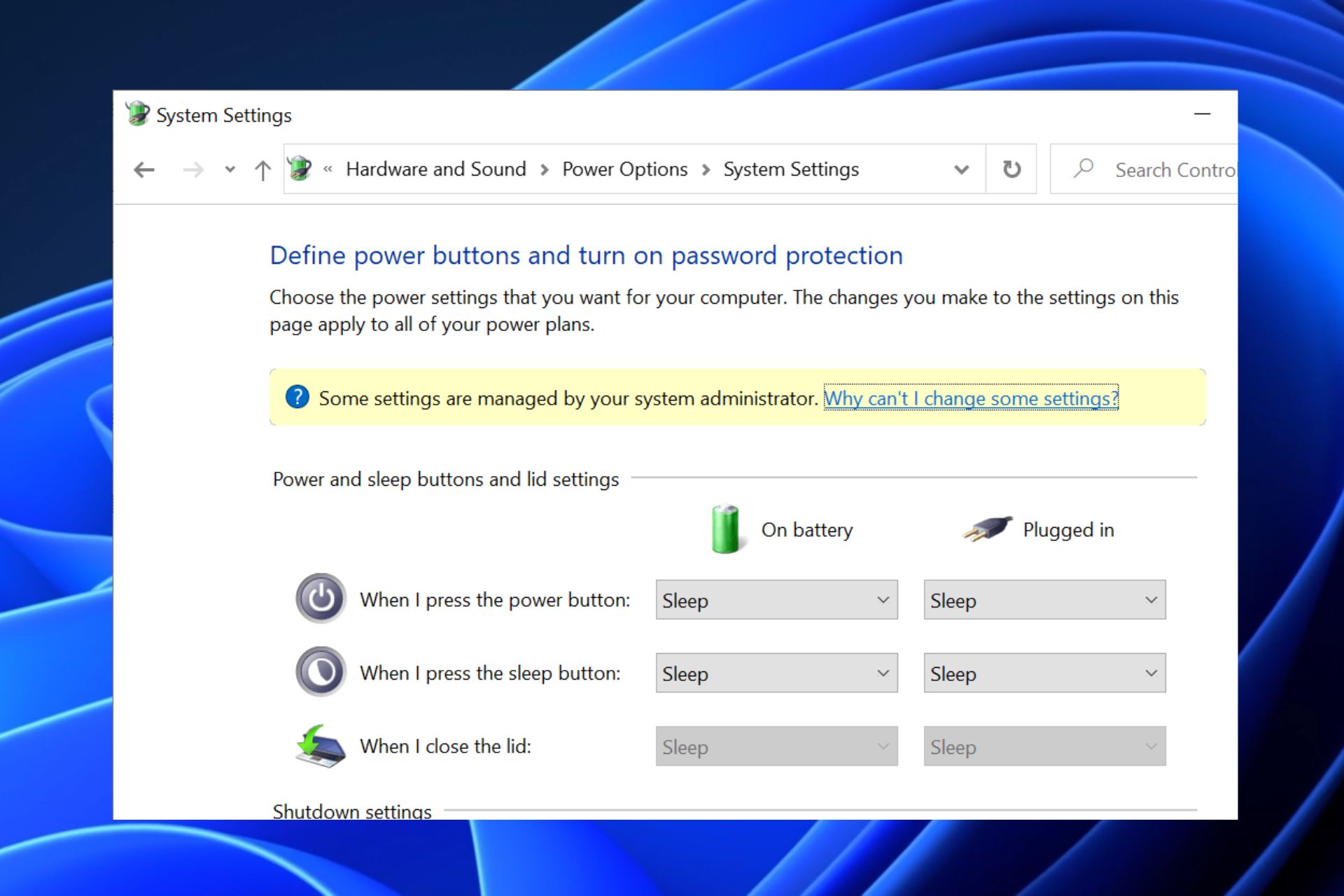
However, you might often find the Windows Power Options overridden or greyed out across multiple operating systems. Hence, we’ll explore the causes and possible solutions here.
Why are the Windows Power Options greyed out?
The grayed-out Windows Power Options aren’t a widespread error in the Windows community. We’re more used to minor errors like the power plan keeps changing. However, here are a couple of reasons why Windows Power Options were greyed out:
Corrupt system files – If Windows system files are corrupt, it will lead to a chain of problems, including display issues which can cause the Windows Power Options icon to be greyed out.
Third-party app – Several third-party tools for battery management come with peculiar settings and configurations; one of these tools may be the reason behind the greyed-out Power Options icon.
Outdated or incompatible drivers – Batteries have specific drivers released and maintained by Microsoft. If you install a driver not built for your PC, you might encounter incompatibility issues.
Recent hardware changes – The effect could grey out your Windows Power Options if you’ve recently changed any system hardware.
Of course, you also need to keep in mind that the Power Options are mainly used in portable systems that use a battery, not desktop PCs.
Now that we know why this might happen, let’s go through the solutions to fix the problem.
How do I fix Windows Power Options greyed out?
Before we proceed to advanced troubleshooting, ensure the following checks are applied:
Ensure your device is fully charged.
Close all third-party power management tools.
Restart your PC.
If the issue persists after these, try the solutions below.
1. Scan for hardware changes
Press the Windows button, type Device Manager, and launch it.
Click on theActiontab at the top of the Device Manager and select Scan for Hardware Changes.
Expand the Batteries section and ensure that the Microsoft AC Adapter and the Microsoft ACPI-Compliant Control Method Battery are displayed.
Check to see if the Windows Power Options is still greyed out.
Press the Windows button, type device manager, and launch it.
Select Batteries to open the drop-down menu, right-click on any of the two options, and select Update driver.
Select Search automatically for drivers and restart your PC.
If you can’t update your driver with the steps above, follow our detailed guide on installing drivers on Windows 11, or just use an automated driver updater tool.
3. Remove third-party power management apps
In the search box, type control panel and select it from the results.
Select Programs.
Under Programs and Features and click on Uninstall a program.
Then choose the program you wish to remove and click on Uninstall/Change.
Restart your computer
If you uninstall your third-party power management tool, all the settings and configurations previously used by your computer will be ineffective.
Third-party power management apps can interfere with your device’s battery configurations. Disabling them will ensure that windows Power Options remain visible.
Enter your exact serial number or your computer model, and click Submit.
Select your OS and OS version, then click Submit.
Then, expand the All Drivers tab, click on the BIOS tab, and select the download button.
Press Windows + E to open Windows Explorer and go to the Downloads folder. By default, all downloaded files should be in this folder.
Install the .exe file that you just downloaded and follow the installation instructions.
Restart your PC to apply the update.
Updating your BIOS will help restructure your PC’s hardware configurations and enable the motherboard to identify hardware, e.g., battery, more efficiently.
After an announcement and public beta in September WindowBlinds 11 has now been publicly released. WindowBlinds 11 is an app that allows you to customize the look and feel of your Windows 10 and Windows 11 interfaces. You can customize window frames, task bars, start menu, and more.
These customizations are made through skins. Window Blinds 11 ships with dozens included, and thousands more are available at wincustomize.com.
“This app is a cornerstone in our suite of desktop enhancements,” said Brad Sams, Vice
President of Stardock Software. “Windows 11 introduced a new design language for the OS, but
we know it’s not for everyone. With WindowBlinds 11, you can enjoy the benefits of a modern
OS, but also the flexibility to customize the interface to fit your own personal theme.”
Several skins have been updated for the release, and a new theme called Luna is available that will make your Windows 11 interface look like Windows XP. You can make your skins unique by customizing colors, fonts, and transparency. WindowBlinds 11 ships with two highly requested updates, an automatic dark mode, and a higher DPI for some skins. The in-app browser has been refreshed as well making it easier to find and customize new skins.
This version of WindowBlinds 11 is designed to work with all announced versions of Windows 11 including support for widgets on the taskbar and tabs in File Explorer. WindowBlinds 11 is now available for Windows 10 and Windows 11 users as part of Stardock’s Object Desktop Suite or individually for $19.99. An upgrade option is available for WindowBlinds 10 owners for $9.99. You can learn more about WindowBlinds 11 and purchase your copy from the Stardock website.
Microsoft has released another ugly sweater in time for the Christmas season. This time around Xbox Game Pass gets the ugly sweater treatment, complete with ABXY buttons across the torso and a snowman with an Xbox Game Pass logo for a head. This fun item would be the perfect gift for the Xbox gamer.
The previously released ugly Clippy sweater was apparently a hot commodity as it has sold out, and Microsoft says they don’t plan to restock them.
The Clippy sweater.
The Xbox Game Pass Holiday knitted sweater can be purchased for $74.99 and is available in green. Available sizes are from SM up to 3XL. Will you be snagging one of these for that Xbox gamer in your life? Let us know about it in the comments.
The holiday euphoria is starting to heat up. During the whole month of December, all we think about are our families and upcoming holidays. We think about presents, dress in ugly sweaters and Santa Claus costumes, and spread the holiday spirit.
Whether we want to admit it or not, computers are essential to our everyday lives. So, it’s also natural to enhance our workstations with Christmas cheer. We already showed you how to ‘decorate’ your Desktops for Christmas, but that’s not all.
We now present you with a list of the best Christmas-related apps for Windows 10. All these apps were made to fulfill the holiday excitement and even make Christmas better and more exciting.
Some apps are made for children, but it’s absolutely okay if you forget about your age for a moment and let yourself enjoy.
What’s Christmas without a table full of delicious food? Of course, you’ll look for granny’s old recipe when preparing traditional food. But, if you need more ideas to make your Christmas feast even more prosperous, there’s an app called Christmas Kitchen.
Although this app was initially developed for Windows 8.1, it works exceptionally well on Windows 10. Christmas Kitchen features many Christmas recipes for absolutely any dish of the day.
You’ll find the best Christmas recipes for breakfast, dinner, dessert, and lunch. The app also has some cocktail recipes, in case you don’t want to celebrate Christmas the traditional way.
And even if you don’t find what you’re looking for in Christmas Kitchen, you can always try some other recipe apps, like Yummly, Allrecipes, iFood, and more. We’re sure all these apps will prepare some tasty Christmas-themed recipes for you.
Christmas Kitchen
Christmas Kitchen will bring all the delicious recipes to your table so that you really get the Christmas spirit.
If you’re, like Santa Clause, looking for your little elf assistant, this app might be perfect. Called Christmas, this assistant features everything you need from a Christmas-themed app. Here’s the complete list of features:
Countdown in days, hours, minutes, and seconds
One click share the countdown with your friends on Facebook, Twitter, by email, etc.
Pre-set 25+ SMS
25+ Wallpapers
Create gift list
So, Christmas is like five Christmas-themed apps combined. If you’re impatient, you can always check how much is left until Christmas. If you’re too busy during Christmas, you can send automatic SMS messages to your loved ones. You can customize your Desktop with Christmas wallpapers. And you can also create your own gift list.
So, if you don’t want to mess with multiple apps this Christmas, this app is perfect.
Christmas
The Christmas app will cover all your needs, including countdown, gift list making, and desktop wallpapers.
And finally, one of the best things to keep your mind on Christmas during the whole month of December is the advent calendar! You probably owned one when you were younger and cheered daily because it was a new gift.
Well, instead of sweets and candies, Santa’s Advent Calendar offers you virtual gifts to make the Christmas countdown more interesting.
The app has 24 hidden surprises, which are revealed daily until Christmas. SPOILER ALERT: here’s the list of all of them:
Sing-a-long to traditional Christmas favorites: Jingle Bells and Away in a Manger
Test your memory with the 12 Days of Christmas musical game
Interactive 3D Puzzles and Sliders with stunning festive graphics
Festive games: Christmas Pairs, Find Rudolph, Elf Escape and much more
Too cold to play outside, why not dress the snowman from the warmth of your home or draw on our frosted window
A collection of Christmas Jokes, Poems, and Riddles to keep you smiling all season – Ho Ho Ho!
Santa’s Advent Calendar
Everybody loves advent calendars as they bring plenty of surprises and Christmas joy for the whole family.
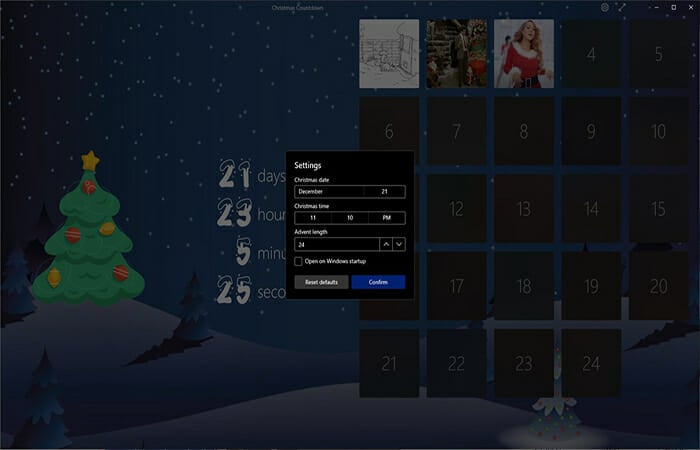
This app lets you know how many days, hours, minutes, seconds, and even milliseconds are left until Christmas. So, if you’re looking for a Christmas countdown app, this is the most accurate tool that you can get.
At midnight on Christmas Eve, time will freeze while Santa delivers gifts throughout the world. At midnight on Christmas Day, the app resets, and you’ll see how many days, hours, minutes, seconds, and milliseconds are left until Christmas next year.
Are you counting the days until Christmas? You don’t need to because this app will remind you exactly how many nights are left and will update your live tile automatically!
Rudolph, the red-nose reindeer, will actually count how many times you need to sleep before Santa eats the Christmas cookies you prepared for him.
The app is entirely free, so enjoy it!
Sleeps Until Christmas
Let Rudolph, the red-nose reindeer remind you how long you must wait until Christmas!
Nothing gets you better into the Christmas spirit than singing along the most wonderful carols. And if you are in the mood, your phone should be in the mood, too. Spread some cheer and enrich your ringtones collection with the best Christmas ringtones for free.
The Christmas Songs and Music app will let you choose the ringtone you like best. All the Christmas ringtones are fun and will spread the magic before the holidays.
Did you know that you can now actually call Santa at the North Pole? Well, between us and you, it’s not really Santa but one of his helpers, but it’s an AI app you can converse with.
We called and had a nice long audio conversation with him. He asked us what presents we wanted and where do we want to spend our Christmas.
The AI tool was crafted pretty well, and the talk seemed extremely natural, so you might get your kid to talk to him as well and have a few background giggles.
Our list of top 7 Christmas apps for Windows 10 is now complete. We hope you’ll enjoy using these apps as much as you’ll enjoy spending the holidays with your loved ones.
So, what more can we say than Merry Christmas and Happy New Year?
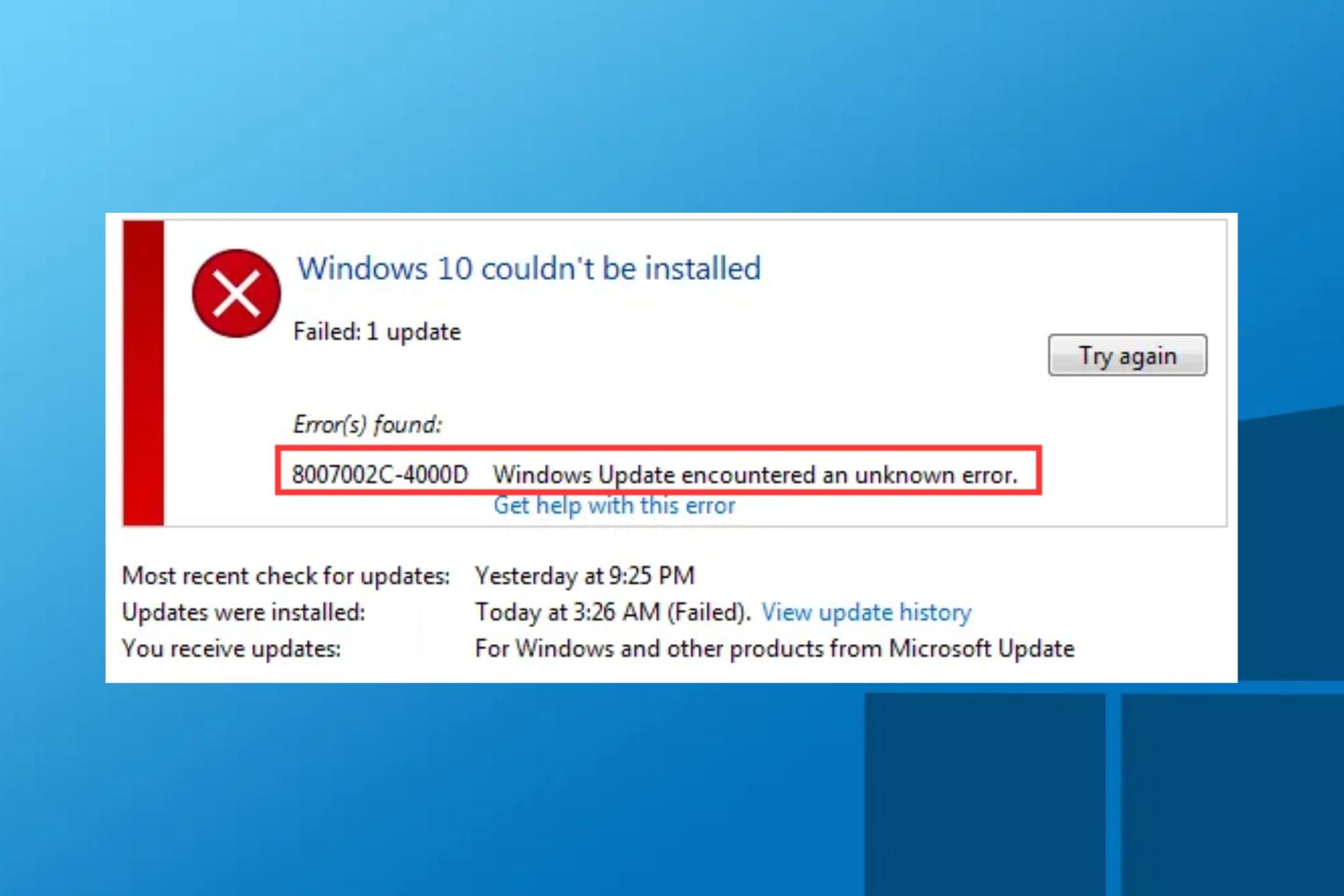
The error states Windows 10 couldn’t be installed, featuring the 8007002c-4000d error code. In this article, we’ll provide you with several troubleshooting methods you can use to resolve this error.
What is Windows 10 install error 8007002c-4000d?
The error 8007002c-4000d occurs when you try to upgrade your Windows 10 OS to the latest version releases provided by Microsoft.
The error doesn’t just plague Windows 10 users; Windows 7 and 8.1 operating systems are known to experience this error while upgrading the OS to Windows 10.
When this error occurs, the installation or upgrading process will be halted; you won’t be able to upgrade your OS provided this error persists.
However, other significant problems can cause trigger this installation error. Some of them include the following:
Antivirus Software – Sometimes, even the best antivirus for Windows 10 conflicts with necessary operations for Windows updates. Antivirus software may block Windows updates and trigger the installation error – 8007002c-400d.
Corrupted Windows files – If the file used in upgrading Windows 10 is corrupted, you’ll likely experience installation errors like the 8007002c-400d.
Unstable Internet connection – For computers that experience network errors like limited connectivity and Internet access, you’re likely to experience installation errors when upgrading to Windows 10.
Startup programs – Most startup programs are harmless, serving their necessary purposes. However, if the wrong application has startup privilege, it might prevent Windows 10 from installing.
Now that we know what can cause this issue, let’s go to the actual solutions to fix it.
How do I fix Windows 10 install error 8007002c-4000d?
Before we proceed to advanced troubleshooting, ensure the following preliminary checks are followed:
Fix network congestion on your computer by halting the processes that use your Internet connection.
Some of these issues are best solved automatically by specialized repair tools because they can find and repair most of the errors on your computer with ease.
4. Disable startup programs and third-party services
Left-click the Start button, type msconfig in the search box, and press Enter.
Switch to the Services section, check the Hide all Microsoft services option, and cress the Disable all button.
Switch to the Startup tab, then click Open Task Manager.
Select all the apps that may interfere with Windows 10 and click Disable.
Close the Task Manager and restart your PC.
A clean boot will reduce the number of programs fighting for your system’s resources and affecting the installation process.
Microsoft has identified another issue affecting the Windows 11 2022 Update. The company made the announcement via the Windows 11 Health Dashboard and stated that the Task Manager might display odd-looking colors for users that have installed the latest Windows 11 optional update, KB5020044 to their devices.
The issue should however not affect the functionality of the tool, but visibility in some parts of the user interface might be poor. If you have Choose your mode set to Custom, in the Personalization > colors section of Settings, you are more likely to encounter this problem. On the other hand, if you’re using Dark or Light for the Choose your mode setting, this issue should not affect you.
As Microsoft continues to work on a fix for this issue, it has provided a workaround that should help you bypass this problem. All you need to do is set the Choose your mode setting to either Dark or Light until this issue is resolved.
Despite the odd-looking colors in the Task Manager, this update came with a fix for the issue that was causing some apps to be unresponsive for some users whenever they tried to use keyboard shortcuts to turn on/off or change IME (Input Method Editor) input modes. This is on top of the array of features the update added.
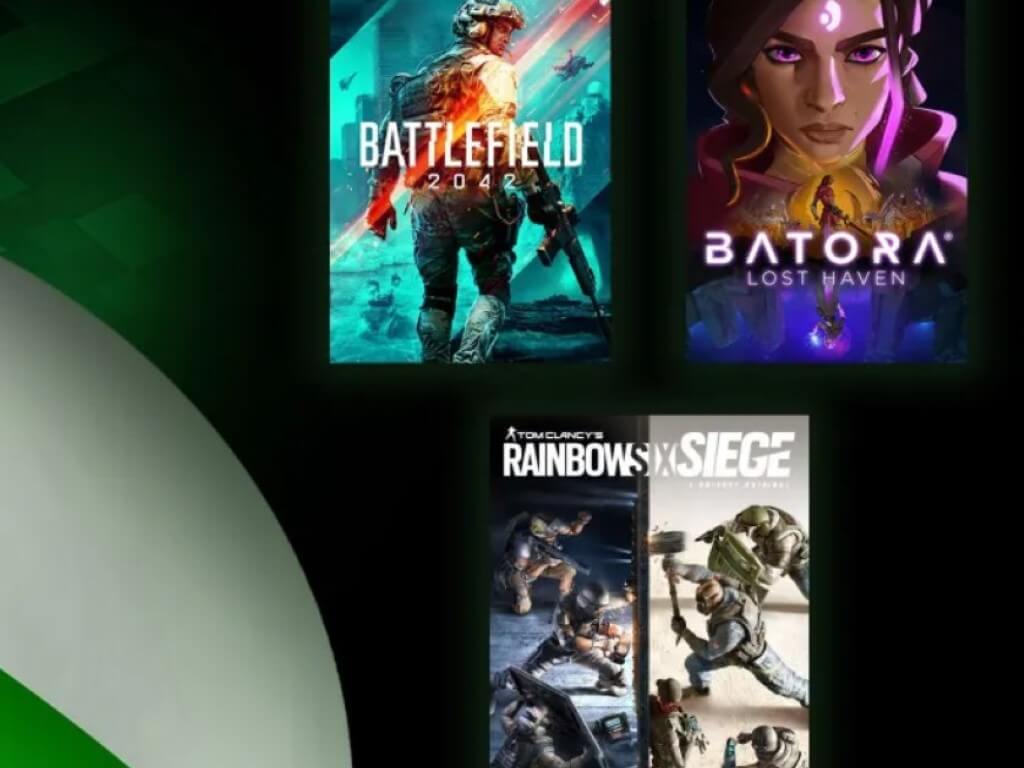
Xbox Free Play Days is back for the first weekend of December with three more games. These games are available for subscribers of Xbox Live Gold and Xbox Free Play Days to play from Thursday, December 1st through Sunday, December 4th. Let’s go ahead and check out the lineup for this week’s Xbox Free Play Days event.
Battlefield™ 2042 is a first-person shooter that marks the return to the iconic all-out warfare of the franchise. In a near-future world transformed by disorder, adapt and overcome dynamically-changing battlegrounds with the help of your squad and a cutting-edge arsenal.
Batora: Lost Haven® is an interplanetary action RPG adventure with a rich, choice-driven story.
Avril never thought she’d have to step up and be a hero but after a mysterious and devastating event, her world was flipped upside down. With her homeworld on the brink of destruction, Avril has been gifted extraordinary powers and will have to journey across the universe to uncover ancient secrets and reckon with a series of life-changing decisions.
Squad up and breach in to explosive 5v5 PVP action. Tom Clancy’s Rainbow Six® Siege features a huge roster of specialized operators, each with game-changing gadgets to help you lead your team to victory. Command an arsenal of gadgets to secure the win: Set traps, fly drones, track footsteps, see through walls, and more! Lead your teammates to victory in intense, fast-paced PVP matches across a wide variety of destructible arenas. Join a massive online community of over 45 million players as you fight for supremacy. An ever-expanding universe of Operators, gadgets, items, and events – updated all year long.
Which of these games are you going to try out this weekend? Tell us in the comments. If you want to learn more you can head on over to the Xbox Free Play Days FAQ page.
In a bid to increase employability, Microsoft has teamed up with the Project Management Institute (PMI) to announce the Power Platform University Hub. The institution will act as a hub where university students get to equip themselves with skills that will help them solve a wide range of business problems with low-code.
Technology plays a crucial role in our day-to-day lives and is ever-evolving, thus the increased demand for employees who are well versed in the sector that will not only be able to add value to an organization but also innovate to help solve today’s business problems.
Current trends have established that the number of developers available doesn’t match the actual number that is needed in organizations to build solutions. “Low-code platforms mean that organizations no longer need to be dependent on professional developer skills for all of their solutions. Gartner® forecasts that by 2025, 70 percent of new enterprise applications will use low-code technologies,” says Microsoft.
Hence the need to bring on more professionals that will help bridge this gap. The new Power Platform University Hub is in place to provide university students with an integrated curriculum that mainly focuses on the power of using low-code platforms to enhance digital transformation. Once enrolled in the program, students will be able to access dozens of course materials that revolve around low-code development and analytics tools.
Dr. Noel Carroll, Associate Head of Learning and Founder of the Citizen Developer Lab at the University of Galway stated that:
I am extremely passionate about building student confidence in using digital technology and empower them to question, create, experiment, develop, and learn. In this digital world, we need to ensure we are creating an inclusive society and learning environment. Diversity of opinions and experiences are a critical part of digital innovation and therefore empowering students through education is an important enabler for them to play a role in digital transformation across society and business. The Power Platform University Hub supports us to achieve this.
Upon completing the course successfully, you’ll get two certifications, that is, a PMI Citizen Developer™ Practitioner Micro-Credential and a PL-100 Microsoft Power Platform App Maker certification ascertaining that you went through training.
According to Microsoft:
The Power Platform University Hub helps educational institutions prepare their students to enter the workforce and make their students more attractive to potential employers by offering a self-guided learning journey across both the managerial aspect of accelerating and managing adoption of low-code solutions with best practices in mind, as well as the technical knowledge needed to build apps, data visualizations, chat bots, websites, and automation with low-code efficiently and effectively.
If you are interested in becoming a certified low-code professional, you will need to sign up for the program by having a faculty member complete the onboarding form. You’ll then get access to the Power Platform University Hub once your application is processed.
Malwarebytes is a reliable anti-malware for devices, and it has many features. However, several users report that the Malwarebytes website blocked keeps popping up.
Why does the blocked Malwarebytes website keep popping up?
A common cause of the problem is malware infection on your computer. Malware infections can affect apps installed on your PC and cause them to misbehave. So, Malwarebytes can frequently flag websites as threats.
Likewise, other factors can cause the Malwarebytes website blocked to keep popping up. Some are:
Accessing a malicious website – The message can keep popping up if you’re trying to access a malicious website. The Malwarebytes website security can detect malware and alerts you about it.
Outdated Malwarebytes client on your PC – An outdated Malwarebytes client on your computer updated can cause it to malfunction. So, the website-blocked message can keep appearing if Malwarebytes is obsolete.
Malwarebytes notification is enabled – You can experience issues with Malwarebytes pop-ups if you allow it to send in notifications on your device. It is common for Malwarebytes to send pop-ups for app update, upgrade, and blocked websites.
There are no definite reasons you may experience Malwarebytes website blocked popping up constantly on your PC.
What can I do if the blocked Malwarebytes website keeps popping up?
Before proceeding with any fixes, try the following:
Disable other antivirus and malware security on your PC.
Restart Windows. Do not hesitate to apply some quick steps if the PC fails to restart.
If the Malwarebytes blocked website keeps popping up, proceed with the solutions provided below:
1. Restart Malwarebytes in Safe Mode
Left-click the Start button and click on the power icon.
Hold the Shift key while clicking on Restart to launch the Advanced boot options menu.
Click on Troubleshoot and select the Advanced options.
Click on Startup Settings.
Press 4 to Enable Safe Mode and select Restart.
Then double-click Malwarebytes to launch it.
Restarting Windows in Safe Mode can fix issues with startup programs and system activities that are interfering with the Malwarebytes program.
2. End the task for your browser and close all tabs
Close your browser, right-click on the Taskbar, and select Task manager.
Select CPU and Memory, then click on the browser application on your PC.
Click on the End task option from the drop-down and restart your PC.
Ending tasks for your browser can completely close the website causing Malwarebytes to prompt the website blocked error. You can check the best Task Manager software for Windows 11.
If this guide has been helpful, you can tell us which solution worked best for you. Also, if you have more questions or suggestions, kindly drop them in the comments section below.
Bubble Dock can be classified as one of the most annoying programs you can find on your PC because of its activities interrupting your browser. Hence, users are finding ways to uninstall the Bubble Dock program for their PC.
Bubble Dock is a program that claims to help users access videos, RSS feeds, YouTube, and other online information. The program can install on your computer without your consent through hijacked web browsers, creating a vulnerable point on it.
Furthermore, it is a potentially unwanted program that intrudes on users’ privacy by installing freeware downloads on the PC without consent.
Bubble Dock prompts sponsored picture ads and banners that interrupt users’ online activities. Also, it can redirect users to unwanted sites without consent.
Why do I need to uninstall it?
You need to uninstall the Bubble Dock program on your PC for many reasons. The most dominant reason is that it is always detected as possible malware by many antivirus software, making it malicious. It means that the program is liable to be a tactic to infiltrate your PC or corrupt your device.
Likewise, other reasons for recommending that you should uninstall the Bubble Dock on your PC are:
Interruption on your PC –Browsing through the internet can be a pain in the neck if Bubble Dock constantly displays notifications as it does. It’ll break your activities, resulting in a long time to complete your tasks.
Hijacks all browsers –The Bubble Dock program can install on all the browsers on your computer if it can get in through a single browser. So, it hijacks your browser and can be dangerous.
It modifies and redirects your browsing activities – Bubble Dock can modify your browsing by altering your start page, default search engines, etc. Also, it annoyingly redirects you to an unwanted website while you’re busy on the browser.
These are just a few of the multitude of reasons why you should uninstall Bubble Dock. However, you must be careful when uninstalling the program so as not to affect your PC.
How do I uninstall bubble Dock to get rid of ads and banners?
Before proceeding with any steps for uninstalling the program, go through the following preliminary checks:
After the steps above, use the following solutions to uninstall Bubble Dock:
1. Uninstall Bubble Dock via the Windows Settings app
Press Windows + I key to launch the Windows Settings app.
Click on Apps and select Installed apps.
Click on the options icon beside the Bubble Dock app, then click Uninstall.
Select Remove on Bubble Dock’s uninstall wizard prompt, then click Next to continue.
Click Yes and restart your PC to check if the process is successful.
Using Settings will remove the programs from your system and help get t rid of ads & banners popping up on your screen. Check what to do in our guide for users whose Windows Settings app is missing.
2. Use a professional antivirus
This kind of extension can be pretty annoying to the point where the ads are disrupting your whole experience.
Using a professional antivirus to remove these kinds of apps is recommended since they can be easily categorized as PUP (Potentially Unwanted Program) and the antivirus will know exactly what to do.
TotalAV is our recommendation for this issue since we know how it works with PUPs and how fast they can be removed.
TotalAV has a complete set of advanced features that will protect you against PUPs as well as any other types of viruses with no sweat.
TotalAV
Keep your computer safe and your experience unaffected.
Launch the Chrome browser, click the Menu button, then select More Tools and click Extensions.
Then click the Remove button to uninstall the malicious extension.
Click the Menu button and select Settings.
Go to Privacy and security, and select Clear browsing data.
Check the box for Browsing history, Cookies, and other site data, as well as Cached images and files, then click Clear data.
NOTE
This fix is applicable to all chromium browsers, with slight differences in steps.
This solution will remove Bubble Dock from your browser and also clear its residues from your browser. However, if it doesn’t work, try the next solution. You can download the Chrome cleanup tool to tidy up your browser.
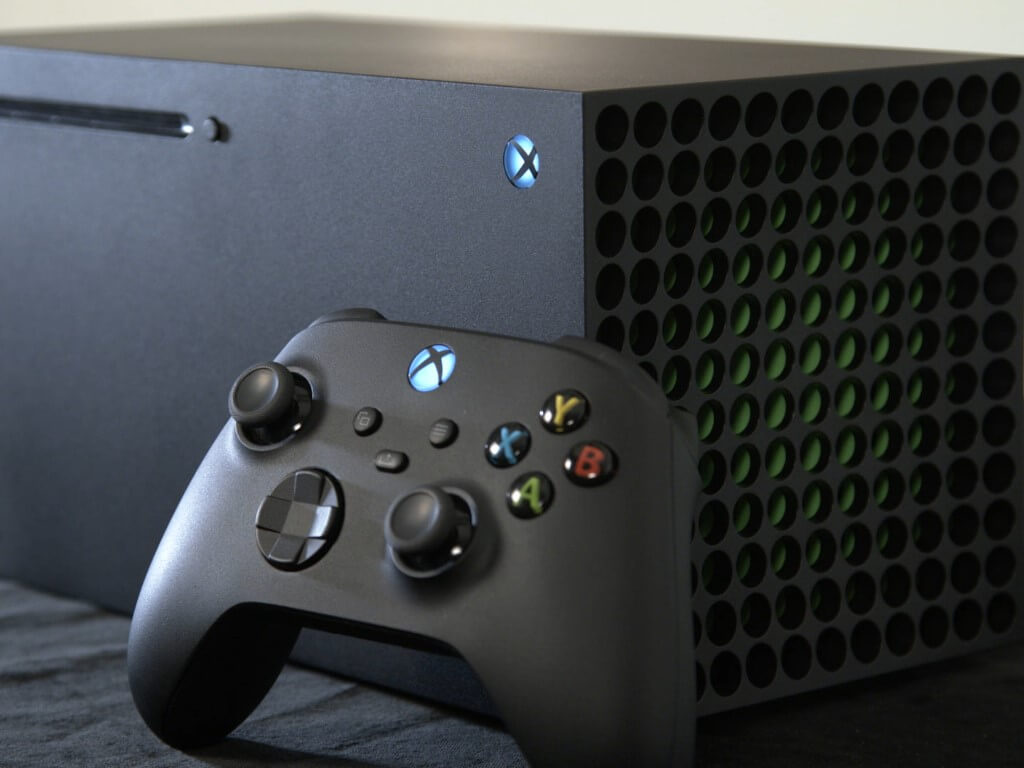
With Black Friday and Cyber Monday in the rear view, Adobe is taking stock of the hot-ticket items from the holiday shopping weekend and it looks like the Xbox Series X was among the top five “hot products” sold.
While the methodology for defining what a “hot product” consists of isn’t made clear from Adobe’s report, the company did mention last year that it analyzes data from over 1 trillion retail visits to sites as well surveying over 1,000 retailers regarding their most sought-after products to determine top selling items during Black Friday.
This year, Microsoft’s Xbox Series X joined the ranks of items related to Disney’s Plus’ Bluey show, drones, Call of Duty: Modern Warfare II, and MacBook’s, while last year, the Series S topped Adobe’s list.
Interestingly enough, it seemed Microsoft was geared to sell more of the Series S this holiday shopping weekend after reading its own financial telemetry as it discounted the console by a minimum of $50 across the board in the US and £60 in the UK. Meanwhile, the Series X remained relatively unchanged in price with a few vendors offering gaming bundles and accessory discounts to offset the unmoved price of the console.
Anecdotally, I replaced my aging Xbox One with a Series S over the weekend because it was both readily available and at an easier to ingest price point.
It’ll be interesting to see how this holiday season fares for Microsoft’s Xbox hardware revenue despite the lack of exclusive content and in the face of its cloud gaming pursuits.
Some of our readers discovered that the auto hide taskbar feature is not working in Windows 7. This is an efficient way to add a little space to get the most from your screen.
So, this article will give you quick fixes to troubleshoot the problem. However, another way to get the most out of your screen in Windows is to go full screen.
Why is the auto-hide taskbar not working?
The auto-hide feature is much more reliable on Windows 10 and 11 but is tricky on Windows 7. Here are a couple of reasons why the auto-hide taskbar isn’t working:
Background applications – Often, you run multiple applications simultaneously. Such background applications can conflict with the auto-hide configurations of your OS. Check out the ways to turn off background apps here.
Notifications – When your computer receives important notifications, e.g., Microsoft help or Windows Defender, the taskbar will be prevented from hiding to ensure that you don’t miss the message.
Third-Party apps influence – The chances of this happening are slim, but it’s possible that old applications can keep sending messages to your Windows, thereby preventing the taskbar from hiding.
Now that we figured out why this happens, let’s get to actually solving this annoying issue.
How do I fix the auto-hide taskbar not working in Windows 7?
Before we go to the advanced fixes, here are a few preliminary checks you should do:
Right-click on the taskbar at the bottom of your screen.
From the popup menu, locate the Lock the taskbar option.
If there is a tick behind it, click on Lock the taskbar.
The auto-hide feature will be rendered powerless when the taskbar is locked. The taskbar might be locked if your PC’s taskbar isn’t auto-hiding. This will unlock the taskbar and re-enable your auto-hide feature.
It’s essential to clear your notifications bar to keep the taskbar hidden. Notifications are typically located at the bottom right end of the screen.
It’s essential to clear these notifications; priority notifications, e.g., Microsoft, usually prevent the taskbar from hiding. Clearing up your notifications bar might stop the problem from persisting.
4. Remove third-party software
From the Start menu, select the Control Panel.
From the Programs category, select Programs and Features.
Choose the antivirus program you want to remove, and then select Uninstall/Change.
When prompted, restart your computer.
You should only uninstall applications you suspect are interfering with your taskbar settings.
Hiding the taskbar is one of the best ways to maximize your PC screen. If your PC’s taskbar has refused to remain hidden, you can apply any of the steps above.
If you’ve been experiencing problems with your Razer Naga, specifically, the mouse stops moving randomly, follow through with this article.
Razer Naga is one of casual and pro gamers’ most popular and best-selling gaming mice. However, this exquisite gaming mouse has its flaws. We’ll provide the necessary steps to solve this problem and avoid it in the future.
Why does Razer Naga stop moving randomly?
Gamers who experience occasional mouse freezes with the Razer Naga are usually folks with the chroma versions,’ but other versions aren’t exempted. Here are a couple of reasons causing it:
Faulty USB Port – If your PC is a bit old or damaged due to a power surge, the USB ports could develop faults. A faulty USB port will cause occasional free.
Surface Calibration – If the surface calibration of your mouse needs to be better calibrated, the mouse will track adequately, leading to occasional freezes in movement.
Dirty Sensors – As simple as it seems, a mouse with a dirty sensor would find it hard to operate functionally. If the mouse sensor is blocked by dirt or any other solid material, it might occasionally freeze.
Since we have identified the causes, let’s explore the possible solutions below.
What can I do if Razer naga stops moving randomly?
Problems with Razer Naga are usually easy to fix. Apply the following checks before moving on to more advanced solutions:
Clean the surface of your mouse sensor.
Rotate the ports used in plugging your Razer Naga.
Another great alternative is to let an automated driver updater tool do the job for you.
3. Reset the mouse surface calibration
Plug the mouse into your computer.
Place the mouse on your standard mousepad.
Press and hold the left-click and right-clickbuttons and mouse wheel simultaneously for seven seconds to reset the calibration.
After resetting the mouse surface calibration, ensure that you use only one mouse pad afterward because the mouse is already calibrated to the previous touchpad.
Unplug the mouse from the computer. Clean the sensor using a Q-Tip or cotton swab coated with alcohol. Let the sensor dry for at least five minutes, and plug in the mouse.
You may repeat this step until you’re satisfied that the cause of this problem isn’t dirt on the sensors.
5. Switch over to different USB ports
Unplug your Razer Naga from your PC’s USB port and plug it into any of the available ports on the computer.
Fixing problems with Razer Naga is pretty straightforward. Most times, updating the software or switching USB ports might be all you need to resolve it.
We hope this article was informative and provided the necessary steps to help you help fix your Razer Naga when it stops moving randomly.
VR headsets now go for as low as $25 to a mid-range $500 or more. This article looks at some of the best virtual reality gifts up for grabs this season of sales.
The products below are perfect, especially if you are looking for the following:
Virtual reality gifts
Gifts for VR gamers
Oculus Christmas 2020
What are the best virtual reality gift ideas for VR enthusiasts?
The Oculus Quest headset is one of the coolest tech gifts or VR headset for PC to share this season with deals on Christmas.
It offers an immersive VR room-level experience with some of the advanced features one can dream of in a VR headset today.
The key value lies in the two well-positioned sensors light-house boxes) with sweeping lasers for accuracy, plus the two hand-handled controllers that allow for easy navigation for a pleasurable gaming session.
Bundle includes PlayStation VR headset, PlayStation camera, PlayStation VR Move controllers, Demo Disc 3.0 Disc, Blood & truth disc and everybody’s golf VR game voucher
Battle through the crime-ridden London underworld as elite soldier Ryan
Step on to the course like never before in the most immersive everybody’s golf experience yet
The games included seem too unrelated to be a gift for a single person
Bundles are always great when you want to cheer someone up, especially now that it is Christmas and it’s the season of giving.
With this package deal, not only will you get a fantastic VR headset, but you’ll also get controllers and games so that you can start entertaining yourself immediately.
All in all, if you like action-packed games couples with the occasional moment of relaxation playing things like Golf, this bundle is for you.
This gaming kit delivers everything you can expect and more.
With improved optics to really brighten the colors, insight tracking to emulate your movements with accuracy, and touch controllers to help you replicate your gesture with precision, you can immerse into the gameplay and get a true taste of what virtual reality has to offer.
And there’s more to come. The Oculus Rift Gaming Headset is more than pretty colors and realistic movement, it’s about comfort as well.
This is where the ergonomic design comes into play.
Here’s a bonus too: the headset grants you access to hundreds of exclusive games from the Oculus store.
The VR Cover for Valve Index is made to boost your gaming experience simply by improving your comfort.
This cotton cover will keep your headset sweat-free and clean at all times by protecting the original foam.
Besides its obvious hygiene advantages, the set is meant to improve your conform through its soft cotton fabric that has a pleasant, non-irritating feel.
If you’re worried about spending a lot of time cleaning this cover, you will be pleased to know that it has a no-fuss cleaning routine and you can easily put it in the washing machine just as you do with other fabric items.
Between uses, you can simply use hygienic wipes (which are included in the package) and of course, you have a second cover to replace the one that needs washing.
When seeking a valuable entry point virtual reality headset to gift out this season then the Sony PlayStation VR tech gift comes handy.
It provides room for the decent amount of gaming and software on the PS VR platform with games like Star Wars, Resident Evil 7, etc. and more applicable for PS4 users that for PC gaming.
With nine tracking light points using the PS camera and single sensor users can still enjoy room level virtual reality.
Although Windows 7 Xbox One controller driver download may seem like an old request, it is still relevant for users. However, they claim the challenge is how to download the drivers for Windows 7. Let us check out the guide to learn how to work through the download.
Does Windows 7 have controller support?
You cannot use Xbox One controllers on Windows 7 through Bluetooth connection because Windows 7 only supports the controller when connected via USB cord or the Xbox Wireless.
Microsoft released a wireless controller that can be used with PCs running Windows 7 and Windows 8 to make that move as seamless as possible.
The Xbox One controller is made to make it simple for users to pick up and start playing games without having to get too familiar with many new controls.
However, you must re-sync the Xbox Wireless Controller to the console to use it with the console after using it with a PC. Use a USB cord or the wireless sync button to accomplish this.
Try a different micro-USB cable if the controller is unresponsive. You can check for Xbox One controller driver errors if your controller remains unsupported.
In the next section, we will discuss how to run the Windows 7 Xbox One controller driver download.
How do I download Xbox One controller drivers for Windows 7?
1. Update your controller through your Device Manager
Connect your Xbox One controller to your PC via a USB cord.
Press the Windows + X keys and choose Device Manager from the list.
Locate your Xbox controller in the list, right-click on it and choose Update driver software.
Next, click on Search automatically for updated drivers. Clicking on this option automatically searches for drivers.
Your system will seek out the latest drivers, and if any are found, Windows begin to download the appropriate driver for your Xbox One controller.
Restart your PC.
To configure Device Manager to search for drivers for your computer automatically, you must first connect your controller via USB to your PC.
One of the simplest ways to download/update your Xbox One wired controller driver on Windows 7 is to follow the above instructions to search for new drivers via the Device Manager.
Some of these steps can seem complicated for someone who isn’t used to computers, so another good solution is to let an automated software find all outdated drivers and automatically install their updates.
3. Use a driver CD/DVD
Insert the Xbox One controller driver CD/DVD into your computer’s CD drive.
Open My Computer on your Windows 7 PC.
To launch the new CD drive for installation, double-click on it or double-click the .exe extension file from the CD directory if it doesn’t launch.
Follow the on-screen instructions to complete the installation of the Xbox One controller driver.
The Xbox One controller driver for Windows 7 can sometimes be downloaded and installed through this old-fashioned technique, despite its antiquity.
You can use the above steps to install the Xbox One controller driver if you have the driver CD or DVD. In case you have DVD driver issues, you can fix them by checking our detailed guide.
Then, type Xbox controller driver in the search box and click on the Search button.
You should now see a list of the available Xbox controller updates.
Next, click on the Download button next to the Windows 7 Xbox controller update you want to download.
Follow the on-screen instructions to complete the installation process of the Windows 7 Xbox One controller driver download.
It’s easy to find and download Xbox One controller drivers for Windows 7 from the Microsoft Update Catalog website. In case your Xbox One wireless controller is not working, use this guide to troubleshoot it.
If you have any questions or suggestions, there’s the comments section below, do not hesitate to use it.
If you can’t wait for Christmas to finally be here, you can bring its spirit closer with countdown apps to know at least how much more to wait until the big holiday finally starts.
We found some of the best Christmas countdown apps that are decorated with beautiful holiday motifs. Check them out.
What are the best Christmas countdown apps for Holiday?
This app is simple, it doesn’t contain any advertising, despite the fact that it is free. You can count down the days, hours, minutes, and seconds until Christmas. There are 3 different styles of live tile and 6 different background colors.
When Christmas will finally be here, the live tile will display a Merry Christmas! message on Christmas day. You can also track Santa from your Windows 8 tablet with the acclaimed official NORAD application.
This interesting app lets you know exactly how many days, hours, minutes, seconds, and milliseconds are left until Christmas.
At midnight on Christmas Eve, the countdown stops while Santa delivers gifts throughout the world. At midnight on Christmas Day, the app resets and displays how many days are left until Christmas next year.
If you’re looking for an online Christmas countdown tool, you can use YourChristmasCountdown. The website has a user-friendly interface that allows you to customize the countdown.
You can see how many days, months, weeks, hours, minutes, and seconds there are left until Christmas.
If you’re looking for a nice Christmas gift for CoD fans, you’ve come to the right place. In this quick buying guide, we’re going to list four cool gift ideas that you can get for your friends this year.
Getting a Call of Duty-themed present will definitely make your friends very happy. One quick note though: since they’re fans of the game, make sure they don’t already own the respective item(s).
Let’s dive right in and check out some interesting Call of Duty gift ideas.
What are the best Christmas gifts for Call of Duty fans?
Gift them a CoD version they don’t own yet
These are many Call of Duty versions and installments available on the market. One nice gift idea is to offer your friend a game version that he/she hasn’t played yet.
Well, if your friend is indeed one of the biggest fans of the game, then this might actually be a difficult task. Do give it a try and ask him/her what CoD versions he/she has played so far and if there’s a particular game installment he/she is curious to try out.
Here are some of the most popular versions of the game that you can get:
There are plenty CoD-themed sweaters, jumpers, socks and other clothes items that you can buy for your friends this Christmas. Make sure the respective items fit them perfectly and choose the color that looks good on them.
Most importantly, this gift idea is a very affordable one and won’t break the bank.
Here are some cool CoD-themed clothes that you can buy from Amazon:
Another gift idea for CoD fans is a really nice backpack that has the game logo printed on it. Of course, a Call of Duty backpack is a gift suitable for kids and teenagers.
Here are some nice gift ideas to get this Christmas:
If your friend is also a coffee lover, we’re sure this Call of Duty-themed travel coffee mug will make him/her very happy. This accessory is perfect for the daily commute, for long office hours or for keeping their coffee hot when hiking.
Getting the perfect gift for FIFA fans is actually an easy job. Basically, you can get them anything related to their favorite game and you’ll make them happy.
So, if you need some great FIFA Christmas presents, read on to learn what are the best FIFA-related products that you can buy right now.
Big FIFA fan? There can be no better gift to make to yourself or to friends who are actually passionate about this game than the latest edition, FIFA 23.
This beloved game never ceases to reinvent itself and the 23 version has more ways to play than ever before, with different and exciting backgrounds ranging from the stadium to the streets.
That’s why this FIFA 23 G2A offer is worthy of your full attention. In fact, there are 3 editions available for you to choose from and these are the Standard, Champions, and of course, the Ultimate Edition.
Want to hear some more exciting news? The latest FIFA 23 will also be playable on the highly debated and long-awaited PS5 and Xbox Series X.
FIFA 23
FIFA 23 is the perfect gift for FIFA lovers ready to feel a new level of gameplay realism that rewards their creativity and control!
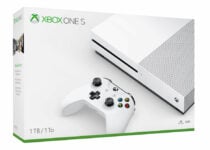
This Xbox bundle delivers everything you could wish for and more. The package comes fully geared with controllers and cables (besides the console itself, of course), so all you need to do is unwrap it and start to enjoy it.
The Xbox Game Pass Ultimate, which includes over 100 high-quality games on console, PC, and Android mobile devices, will sound like music to your ears.
But you can do so much more with this versatile all-in-one entertainment device – use it for streaming and 4K Ultra HD Blu-ray videos on Netflix or Amazon. Do note that you can even enjoy premium audio on Spotify.
Every gamer needs a good pair of headsets in order to immerse himself/herself in the action completely. If you are after comfort, get ready for 100% memory foam on the headband and leatherette cushions.
Even more, rest assured that Virtual 7.1 surround sound provides you with an upgraded level of audio precision that will give you a competitive edge.
This HyperX gaming headset will definitely make your friend very happy, or it could turn into your very own choice for this Christmas.
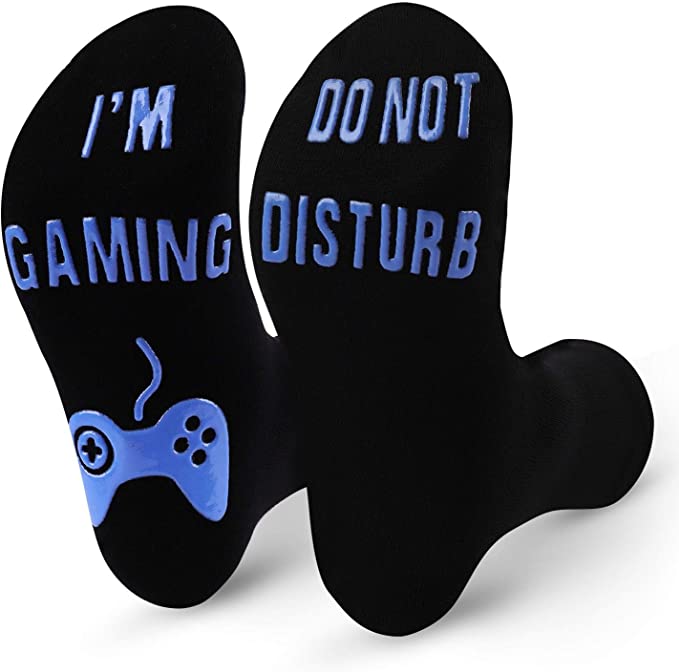
These socks are perfect for FIFA fanatics. They’re made of quality cotton, and the blue letters on the sole are non-slippery. The unique size is also worth noting.
That’s basically why they are an ideal gift for boyfriends, husbands, dads, uncles, sons, and pretty much all FIFA fans.
Any soccer or FIFA player should have a certified FIFA ball at home, especially if it’s an excellent quality one made by adidas.
The graphics and textures on the ball are inspired by the ones from FIFA’s Qatar 2022 edition.
It’s not the identical ball they played with in the competition, but it will still look great on a shelf near the PC or console.
We’ll end our list here. Once again, if you’ve got friends who are obsessed with playing FIFA, then offering them a FIFA-themed gift is a very good idea.
What’s your favorite? Do share your choice with us via the comments section below.
This article provides information about how to fix Windows 7 the user profile service failed the logon error message.
Several users have recently reported that they encounter this problem while trying to log into Windows 7 7, so let’s see how to fix this problem.
Why did the user profile service fail the logon on to Windows 7?
There can be several reasons why the Windows 7 user profile service failed the logon, ranging from Windows Update, virus infection, and user profile creation to other unknown causes. Below are some of the potential reasons for this error message:
Corrupt registry files – Your computer’s registry files are its brain. They include all details regarding installed hardware and software as well as your system’s configuration settings. They can occasionally become corrupted as a result of malware infection or other issues.
Hard drive error – It might also happen if your hard drive or memory is having problems, such as when there are bad sectors on the disk or memory errors like memory leaks and memory fragmentation.
Virus infection – If your computer has a virus, there’s a chance that the virus has corrupted your computer’s settings. This can sometimes result in problems like this one.
Hardware drivers are damaged, or incompatible – Incompatible hardware drivers can lead to user profile service failing the logon. Outdated or defective hardware drivers frequently bring on these issues.
Having considered some of the causes of this error message, let’s proceed to how you can fix it.
How do I fix the user profile service failed logon on Windows 7?
Perform the following preparatory checks to ensure that the error is not a result of basic issues which may require only subtle tweaks:
Confirm if your username and password are correctly entered.
Having confirmed the above and other checks you may have in mind and the issue persists; you can explore the advanced solutions provided below.
1. Create a new user account
Select the Windows Start menu button and click the Control Panel.
Select User Accounts and choose Manage another account.
Click on Create a new account.
Then input the name for the new account in the space box available and click on Create Account.
The new user now appears in the Choose the account you would like to change option.
After creating a new account, try logging in to Windows 7 with your new user account. If everything works right, consider moving your files from your previous account and using the newly created account as your main one.
2. Modify your registry
Restart your PC in the Windows Safe Mode option.
Press Windows + R to open the Run window, type Regedit, and click OK to open the Registry Editor.
Navigate through the following path and click Enter: HKEY_LOCAL_MACHINESOFTWAREMicrosoftWindows NTCurrentVersionProfileList
Click on each of the S-1-5 folders and double-click on the ProfileImagePath entry to find the user account with the problem.
After locating the problematic profile entry without the .bak extension, double-click the RefCount and change the value data to 0.
Double-click State and set the value data to 0.
Close Regedit and restart the PC.
To fix Windows 7 the user profile service failed the logon problem, you can check our detailed guide on how to use the Registry Editor.
These kinds of errors can also be produced by corrupted system files or other issues that you might not know about. Using a specialized tool can show some errors you didn’t know about.
4. Perform a system restore
Press F8 while your computer is restarting to get the Advanced Boot Menu and select the Safe Modewith Networking option.
Once you have successfully logged in, click the Start button, type system restore, and then hit Enter.
Check Show More Restore Points when the application has loaded, then click Next.
You need to select a restore point when the computer is working properly and select Next.
Click Next and then Finish.
After rebooting, log in to your computer normally.
It is possible that the user profile service in Windows 7 failed because it prevents you from using your user account to access Windows 7.
The logon error can be very frustrating; however, we hope that after using one of the solutions provided in this article, you were able to resolve this issue.
Kindly drop your suggestions in the comments section if you have any.
USB-powered Christmas trees offer a convenient, eco-friendly alternative to traditional trees. Easy to set up and store, they’re perfect for those looking for hassle-free decor.
Here’s a list of the best USB Christmas trees for home or office use.
What are the best USB Christmas trees that I can buy?
This USB-rechargeable birch tree lamp offers warm, festive lighting with long-lasting LEDs and flexible branches. Its rustic design fits various occasions, while the timer function adds ease of use.
If you’re looking to bring a little bit of Christmas spirit to your office or home desk, then the Gikfun 3D Xmas Tree might be the thing for you. It is basically made of a system board circuitry that is welded and stuck together to look like a Christmas tree.
Despite how that may sound, it does manage to look like a convincing Christmas tree, especially when the lights are turned off and all the LED lights go on randomly.
The Honesty Christmas tree is a steel tree-shaped structure adorned with a 40 LED cold-light string. It’s firm, durable, and safe for children as there are no sharp parts.
You’ll find that there’s a smaller version and a larger version of this model, 10-inch and 17-inch high, respectively.
The 40 LED string of lights glow brightly (maybe too bright for some) and lasts for 4 hours. You can recharge them using a USB power source or a classic wall plug.
This 20″ mini LED Christmas tree offers 18 color options, 7 lighting modes, and adjustable branches to create your perfect holiday atmosphere.
With multicolor LED lights and decorative ornaments, it’s a versatile and easy-to-assemble tabletop tree, ideal for smaller spaces or as a festive accent.
Not everyone can afford a real Christmas tree, and cutting them down every year is bad for the environment anyway. That’s why alternatives are being found every year.
USB Christmas trees are great for those with limited funds and space since they will be enough to bring out the feeling of Christmas in your household.
After all, Christmas is more about how you feel and not what you have.
Having a nice Christmas tree in your house helps you to bring the winter holiday mood to your home. You can also bring this mood to your office by using a USB Christmas tree. This is a USB decoration that you can connect to your computer to light up your desk.
The good news is that these Christmas USB decorations come is many shapes and sizes and they’re quite cheap — usually under $20.
In this quick buying guide, we’ll list some of the most interesting USB Christmas trees that you can get this year.
These entries are great, especially if you’re looking for the following:
The magic of Christmas can always be felt with the first snow, but if you decorate your house with some amazing Christmas lights like the ones from Milexing, the magic is complete.
The lights are easy to install and use, and because of their high-quality build, they make for great outdoor decorations as well.
Simply plug in the lights and enjoy 8 different light settings that will lighten the mood of any home.
One of the most fun activities to try during winter is building a snowman, and now you can have that magic inside your home as well with the Correare Christmas lights.
Fill your house with snowmen that glow in a warm yellow light and keep them on for as long as you like, since they don’t burn out or even warm up.
More so, the material is pretty durable, so you can keep them outside as well if you don’t have a blizzard going on.
Christmas is the perfect occasion to try out some new cookie and sweets recipes, and the perfect time to munch on some candy canes.
However, if your conscious about your waistline and prefer just watching the candy canes, then the Impress Life Candy cane-themed Christmas lights are just what you need.
This 10ft wire comes with 20 bulbs that illuminate the area in a warm and sweet manner.
When the entire world is covered in white, filling your house with lots of colors is only natural, and if you love the color green, then the Zuzzee Christmas String Lights are just what you need.
Featuring 8 different lighting modes and 2 power options, this USB Christmas light is more than enough to make your room a welcoming one.
Fill your house with the warm light of several small illuminating Christmas trees, and enjoy the holiday season.
Many Windows 11 users who have updated to the latest version, 22H2, have been experiencing a drop in gaming performance since updating. The culprit, according to Microsoft, is that “Affected games and apps are inadvertently enabling GPU performance debugging features not meant to be used by consumers.”
Microsoft had previously blocked the update for systems with affected games, but now it seems to have implemented a full fix, which is available in the preview of the latest monthly update (see here for the full release notes). Check Windows Update for the KB5020044update preview which you can install to get the game performance fix if any of your games have been affected by the 22H2 gaming issues.
Some Windows 10 users have experienced a rather strange error where they are unable to log into their computer as normal. A window appears asking them for their Startup Password.
Entering your computer password works just like before so there’s no problem there, but it can be pretty doing this every time you login info instead of your PIN. This guide will help you fix this.
What causes this password error to appear?
It’s not really understood why this error occurs. Looking through Microsoft’s Community page, it’s quite rare. However, there are a few theories to consider:
Your computer is infected with malware: This is by far the most common theory. As such, it’s important you get some anti-malware software to save your computer.
Files are corrupted: This is usually the result of a virus messing with your computer even if you got rid of it. Windows 10 has a way to get rid of these problematic files via the System File Checker scan.
Windows 10 settings may be getting in the way: Your computer’s configurations could be interrupting other functions.
How can I fix Windows 10 password problems?
The best way to fix this error message is to get rid of the malware as soon as you sign in. Once you do, you’ll have to change the settings on your Windows 10 machine to make sure this doesn’t happen again.
Aside from the more complex solutions, we have a few simple ones that you should try out:
Trying restarting your computer. This tried and true method has been shown to be the most common for any password-related problem. If your PC fails to restart, take immediate action.
If you’re using a Windows laptop, completely drain the battery. Once it’s out of power, recharge the device and turn it back on. The error should be gone.
Remove the CMOS (complementary metal-oxide semiconductor) battery from your laptop and then drain the main battery.
1. Disable the Startup password
Click the Windows icon to bring up the Start menu and click the Settings icon.
In Settings, select Accounts.
Select the Sign-in options tab on the left.
Toggle off the switch under Require Windows Hello sign-in for Microsoft accounts.
Now right-click the Windows icon in the lower left-hand corner and select Run.
In the Run command, type in the following and hit Enteron your keyboard: control userpasswords2
Uncheck the box next to Users must enter a user name and password to use this computer.
If it’s already off, place a checkmark and then check it off again.
Click the Apply button at the bottom. Enter your login information in the new window that appears.
Click OK to finish and close the window.
Restart your computer to see if the problem has been fixed.
2. Adjusting Registry files
Click the Windows Start menu icon and search for the Registry Editor.
A User Account Control window may ask if you want to make changes. Select Yes.
Expand HKEY_LOCAL_MACHINE and then click SOFTWARE.
Select Microsoft. Now go to Windows NT and CurrentVersion right after.
Scroll down to PasswordLess. Then expand Device.
Right-clickDevicePasswordLessBuiltVersion and select Modify in the context menu that appears.
Set the Value Data to 0. Click the OK button to finish. You could technically delete the registry, but we don’t recommend it.
Now open up the Run command as seen in the previous solution.
Uncheck the box next to User must enter a user name and password to use this computer.
Click the Apply button. You’ll have to enter your user password again before activating the changes.
This particular solution is helpful if you want to automate all of the user accounts on your computer at once. The previous fix only works for one account.
3. Use an antivirus
One other solution is to use an antivirus to keep all your files safe so no data can be accessed or leaked by any online threats.
This kind of pop-up can even be created by a type of virus, so to make sure that you don’t encounter this again we recommend using TotalAV since it has some of the most advanced security.
TotalAV is a top-notch antivirus that excels in malware prevention and removal, as well as providing some very advanced security features.
TotalAV
Remove all types of viruses and protect your computer in real-time.
How else can I better protect my Windows 10 computer?
The best way to protect your Windows 10 machine is to learn about other errors. People keep finding these holes and it’s important to stay up to date about them.
One such error is Event ID 7000 which affects the Service Control Manager. This can cause software, be it Microsoft’s own or third party, to stop working. You may have to restore the system to its previous state.
Feel free to comment below if you have questions about other Windows 10 problems. And please tell us if there’s a specific guide for any Windows operating system you’d like to see.
Komodo is a game software developer/publisher and gaming product logistics company founded in 2021.
We're happy to announce that Steam Decks will start shipping in Japan, South Korea, Hong Kong, and Taiwan on December 17th via Komodo, our official Steam Deck distributor in these regions.
The pricing breakdown for the basic Steam Deck model is as follows.
59,800 yen in Japan (roughly $431)
HK$ 3,288 in Hong Kong
KRW 589,000 in Korea
NT$ 13,380 in Taiwan
The Steam Deck docking station will also be made available in these regions. Here is the pricing breakdown.
14,800 yen in Japan
HK$ 828 in Hong Kong
KRW 149,000 in Korea
NT$ 3,280 in Taiwan
It’ll be interesting to see how Valve’s handheld gaming PC performs in those markets. The Steam Deck released in North America and Europe back in February this year, and thus far has sold over 1 million units.
Several of our readers report getting the following error while installing software: An error occurred during the installation of assembly Microsoft.vc80.crt.
This error frequently occurs on all Windows versions when users try to install third-party apps, programs, and games. This article will provide you with simplified fixes, so you don’t have to worry.
What is Microsoft.vc80.crt?
Microsoft.vc.80.crt is a component of the Visual C++ Redistributable, which is in turn required by a lot of other software to function properly.
The majority of Windows 7, Windows 8.1, and Windows 10 are affected by this problem, according to affected individuals.
It has been reported that this same error happens when installing Microsoft SQL Server for the first time as well as with iTunes, inLab, WIDCOMM Bluetooth, and in iTunes.
A similar error related to the one caused by this component is Error 1935.
What causes an error to occur during the installation assembly Microsoft vc80?
Some users claim the error occurs occasionally, and the cure can be simple for some people. Some of the factors responsible for Microsoft. VC80.crt errors are:
The Microsoft Visual C++ Redistributable package is damaged or missing –As we stressed above, if the software needing the Visual C++ package can’t find the Microsoft.vc80.crt component, you receive this error.
The newest version of iTunes won’t run on the video card since it’s too old –The VC80.CRT error also occurs because the latest iTunes version cannot be installed on older dedicated GPU models.
Pending Windows Updates –If the Windows Updates is not working, the problem could arise during the installation of particular applications. After installing every pending security update, our readers reported that the problem has been fixed.
Outdated/missingsound drivers –Some users have reported that they were able to fix the error by installing missing sound drivers. Try these ways to update drivers on your Windows PC.
Now that you know some of the potential reasons why an error occurred during the installation of assembly Microsoft.vc80.crt, let’s proceed to how you can fix this problem.
How do I fix an error occurred during the installation of assembly?
1. Reinstall Microsoft Visual C++ Redistributables
Bring up the Run dialog box by pressing the Windows key + R, type appwiz.cpl in the text field and press Enter to launch Programs and Features.
Right-click on each Visual C++ 2005 Redistributable and Visual C++ 2010 Redistributable and choose Uninstall.
Then follow the on-screen prompts to remove it from your system and restart your PC.
Navigate to the Windows Updatessection and click on the Check for updates button.
If there are new updates, they will be downloaded in the background automatically and installed as soon as you restart your PC. Now, check if the error is fixed.
3. Perform SFC and DISM scans
Press the Windows key and enter cmd, and click Run as an administrator.
When Command Prompt starts, run this command and press Enter: sfc /scannow
The SFC scan will start and wait for a successful prompt.
Then, run the following and press Enter: DISM /Online /Cleanup-Image /RestoreHealth
DISM scan will start and take about 20 minutes or more to complete.
Once the DISM scan is complete, check if the problem is fixed. If it’s not, you can repeat the SFC scan.
Yet again, Microsoft has identified a bug that is affecting users that have installed the Windows 11 2022 Update. The company has stated that if you use keyboard shortcuts to turn on/off or change IME (Input Method Editor) input modes, some apps may become unresponsive.
If you aren’t familiar with the IME, it is a tool that allows users to input text in a language that is difficult to represent on a standard QWERTY keyboard. Microsoft has further provided instances that can cause this issue to occur:
For Japanese:
Using the Hankaku/Zenkaku (半角 / 全角) key on a Japanese keyboard
Using the default keyboard shortcut: holding down the Alt key and pressing ~ (tilde)
For Chinese:
Using the default keyboard shortcut: holding down the Control key and pressing Space
For Korean:
Using the default keyboard shortcut: pressing down the right Alt key
Microsoft has indicated that the issue can occur silently, even without displaying any error message. It has narrowed down the issue to apps that load certain components of the Text Services Framework (TSF). However, not all apps will encounter this issue, especially those that don’t load these components.
As a workaround, Microsoft recommends changing the input mode by clicking the IME mode icon in the taskbar rather than using keyboard shortcuts. However, the issue has since been resolved through an update. “This issue was resolved in updates released November 29, 2022 ( KB5020044) and later. We recommend you install the latest security update for your device,” stated Microsoft via the Windows 11 Health Dashboard.
Has any of your apps become unresponsive after using keyboard shortcuts to turn on or change IME? Did installing the latest security update help you resolve the issue? Let us know in the comment section.
Now is the perfect time to decorate your Windows 10/11 desktop with beautiful Christmas wallpaper for your computer.
Many PC users have already set their favorite Christmas wallpapers on their computers, and we’ve also prepared a list with the best Christmas wallpaper resources you can use to decorate your desktop.
What are the best Christmas wallpapers for your Windows PC?
If you prefer to download this year’s Christmas wallpapers from the Microsoft Store, the free Microsoft Christmas wallpaper collection is your best pick.
You can install these wallpapers on PC, HoloLens, and smartphones. There is a wide variety of wallpapers that you can choose from, from Christmas ornament wallpapers to beautiful winter scenery images.
Look no further if you happen to have in mind the idea of a huge collection of Christmas wallpapers in HD quality from GetWallpapers.
There are tons of Christmas Love wallpapers to choose from, and you can save them to an SD card for later use.
If you don’t like to keep things for yourself, feel free to share all images with others or set them as a Lock Screen and enjoy them as much as possible.
Another interesting wallpaper repository is The Holiday Spot. This website offers tens of Christmas wallpapers that you can customize to your screen size.
Whether you own a widescreen, laptop, tablet, or other Windows 10 device, you’ll find the right wallpaper for it. Just browse the available wallpapers and download the ones that you like.
If you want to add crystal-clear Christmas wallpapers on your Windows 10 PC screen, we recommend going for the best 4K wallpapers. Follow this guide to set up wallpapers on Windows 11, if you have already upgraded to the new version.
These cheerful wallpapers will put a smile on your face and they’ll look really nice on your desktop. Browse through the collection of wallpapers and download a few of them or even all on your PC.
This website is perhaps the most generous Christmas wallpaper resource currently available. There are more than 2500 Christmas wallpapers you can choose from to embellish your desktop.
As a result, choosing a single wallpaper is a very difficult task. All the included Christmas desktop backgrounds for Windows 10 and Windows 11 are extremely beautiful and creative.
Actually, the best solution is to use a different image every day. If you don’t believe us, it’s time to see that for yourself.
Counting down the days until Christmas is in itself a Winter tradition. You can now participate in it directly from your Windows PC.
You will be able to set the timer as a wallpaper or screensaver. It counts the days, hours, minutes, and seconds that are left until Christmas day. You will always have a real-time reminder
The app is very lightweight and will surely put you in the Christmas spirit. You can choose between several countdown templates, and you can also find several wallpapers that are specific to the winter holidays.
Christmas Countdown Wallpaper is completely free and it also provides tons of beautiful Christmas images as background.
This package offers a nice set of holiday wallpapers that you can use to create your own personalized Christmas theme. It includes this beautiful Christmas tree setting that perfectly conveys the warmth these holidays bring to the cold season.
The set also contains winter scenery wallpapers, Christmas cookies and gifts pictures, Santa Claus wallpapers, and many more.
To create your own Christmas theme, you just have to download the package and select which pictures you want to use from the Windows customization settings.
This is a great, classic choice that fits perfectly with any setting. It is professional enough to use it on your work computer, but it can also be a good background for your personal device.
It offers hundreds of Christmas and winter-related backgrounds that you can use to customize your PC exactly the way you want it.
You can build a color-themed slideshow where you only use backgrounds that are predominately blue. This will create a lovely and cohesive winter theme that will most likely set the mood for the holidays.
This is the perfect combination of elegant and minimalistic. The wallpaper puts you in the holiday spirit with its glowy tones, while still being very clean.
The collection has magical snow landscapes as well as cheerful backgrounds of magical Christmas creatures and characters.
It is another good resource that you can use to mix and match multiple wallpapers and create a charming personalized slideshow.
If you want to get a background image of the highest quality, Unsplash is one of your best bets. It may not have as many options as other resources on the list, but it only provides the finest backgrounds so you won’t have to scroll endlessly to find your favorite.
The Christmas wallpaper gallery is curated to provide only the best pictures available. You will see that each image in this collection is of the highest standard both in terms of composition and resolution.
This is another good resource both for mobile and PC. The wallpapers fit various holiday sub-themes such as Christmas in family, Christmas decoration macros, Christmas trees, and more.
Moving on to a bolder choice that screams ’tis the season, this 1000×750 Wallpaperhouse background doesn’t hold back. You get the full package: a decorated Christmas tree in a snow-covered fairy tale land.
This is another curated collection of holiday backgrounds for your desktop. The wallpapers that you can find here match a more classic Christmas aesthetic, with very vibrant, colorful, and sparkling images.
The images in this gallery are of two primary categories: cozy Christmas indoor pictures and breathtaking winter sceneries. In terms of style, you will find both realistic wallpapers as well as some background that lean more on the traditional painting style.
Here’s another good example that encompasses how the holiday spirit brings people together and inspires them to offer warmth to one another in the midst of the freezing winter.
In the Wallpapercave gallery, you can also find an all-inclusive collection of different styles of backgrounds, from extremely bold and colorful images to more minimalistic Christmas backgrounds.
The website has other holiday-related collections as well and you can also use the built-in search feature to find a more specific background using keywords.
A setting that will put anyone, of any age into the Christmas spirit is that of a warm and welcoming holiday-decorated home.
Colorful fairy lights and the view of beautifully packed gifts waiting to be opened can instantly take you back to your childhood.
This is a timeless type of image that fits perfectly as a holiday season background. It is classic and complex and can be a good choice if you keep your desktop organized and don’t have too many icons. Otherwise, it may be a little too much.
Walppaperflare offers another large collection of high-quality Christmas backgrounds. Along with the above-mentioned scene, you will also find various Santa backgrounds and winter landscapes.
If you are a Disney fan, you will most certainly love the Mickey Mouse Christmas wallpapers available for free on Wallpaper Mania.
The magical Disney castle surrounded by angels, elves, snowmen will certainly put you in a nostalgic holiday mood. There are several similar backgrounds available in the Wallpaper Mania gallery.
In this gallery, you will be able to find even more iconic characters living the Christmas spirit. Most of the images available convey a colorful and playful atmosphere.
The jingle bell is probably one of the most iconic and recognizable instruments that will automatically make you think of Christmas.
This minimalistic background with its cozy red and golden tones will remind you of your favorite Christmas songs and carols. It is yet another great choice for those of you that want to keep it simple
Wallpaperbat has a wide range of 4K and HD Christmas wallpapers of various sizes. Make sure to check the description of each image and see if it fits your screen.
Peanuts is another beloved show that gave us one of the greatest duos of all time: Snoopy and Charlie Brown. Put these two into the Christmas spirit and you get an adorable background for children of all ages.
Wallpaper dog has a large gallery of Christmas wallpapers for PC. They have backgrounds of various styles and sizes that you can use to dress your desktop for the holiday season.
You can find other variations of Peanuts Christmas backgrounds, as well as other cartoon and fairy tale characters. If you have the time to browse around, you should certainly give it a try.
There you go, we’re sure these wallpaper resources will make your Christmas even more cheerful. Tell us in the comments section below which Christmas wallpaper for PC you selected.
Microsoft Office is and always will be the go-to office suite for the majority of Microsoft users. It’s reliable and the interface used in the Office defined how text processors and spreadsheet editors look today.
However, even the most sturdy native applications have had certain issues in the Windows platform. One of the most peculiar concerns is high CPU usage in Excel.
We made sure to enlist some applicable solutions below and help you address this as soon as possible.
? Why is Excel using so much CPU?
High CPU usage in Excel doesn’t have a single cause and can occur in different actions.
Generally, an app uses more resources if it’s out of date or it has been in use for a very long time. Consider updating Excel and restarting your device.
Some users complain that Excel is not responding when it has high CPU usage, others noticed high CPU usage when copying or saving, or even when Excel is idle.
So you depending on what exactly you’re experiencing, you may have to tackle the issue differently, but we got plenty of options for you.
⛔How do I limit CPU usage in Excel?
The app seems to respond badly and to use a higher CPU on certain tasks, so you can consider limiting the simultaneous tasks and disabling unnecessary add-ons.
If you’re encountering high CPU usage on a specific Excel file, but others work fine, it’s possible that it’s corrupted.
Learn below how to fix it, plus other nifty methods that will help you fix Excel’s high CPU usage when idle or working.
How can I Fix the high CPU usage caused by Microsoft Excel?
1. Update Office
Open Settings.
Choose Update & Security.
Select Windows Update.
Check for updates.
Let’s start by updating the Office suite. As you probably know, all updates for Office come via Windows Updates.
Most of them are security patches and minor fixes, but Microsoft usually addresses a major issue when it occurs. And this high CPU usage caused by Excel is certainly a widespread problem.
Also, try running the application as admin. Here’s how to grant administrative permissions to Excel:
Right-click on the Excel shortcut and open Properties.
Choose the Compatibility tab.
Check the Run this program as an administrator box and confirm changes.
2. Try using Excel in Safe mode and disable Add-ins
➡️ Here’s how to run Safe mode in Excel:
Press and hold the CTRL and double-click on the Excel shortcut to run it in Safe mode.
If there are performance improvements, remove Add-ins to fix the error.
Also, try removing recent formulas.
Another way to troubleshoot high CPU usage caused by Excel is to run it in Safe mode. With that, you’ll learn about the possible impact certain add-in or COM has on the application execution.
If the CPU usage drops while in Safe mode, we suggest disabling Add-ins one by one with the system of elimination until you find out which one is causing the issue.
3. Delete local files
Make sure Excel is fully closed.
Navigate to
C:UsersYour UsernameAppDataRoamingMicrosoftExcel.
Open the Excel folder and copy the whole content of the folder. Paste it somewhere else to back it up.
Delete everything from the Excel folder.
Restart your PC and try using Excel again.
Besides the repair, which should resolve the high CPU usage in Excel on its own, a manual approach might be a better choice.
If there’s a problem with Excel formulas or configuration, deleting configuration files might plummet the high CPU usage. After you delete them, everything should return to normal.
4. Repair damaged Excel file
A high CPU usage might tell you that there are certain errors that will eventually lead to a damaged or corrupt spreadsheet.
A symptom of this issue is that the Excel sheet freezes and the task has high CPU usage.
This means that eventually, you will not be able to open the file and read the contents anymore. Luckily, there are 3rd party utilities to assist with the repair process.
Tip
A clean, un-damaged file shouldn’t cause high CPU usage. What’s our recommendation?Stellar Repair for Excel.
This highly praised tool works with all versions of Windows starting from the latest version of Windows 10 and up until the very old Windows XP.
It is also compatible with Microsoft Excel 2019, 2016, and all the way down to Excel 2000 version. If it’s compatible it means it can perform the necessary operations to repair one or more files and fix Excel causing high CPU usage.
All you need to do is close all Excel files and quit the app. Start the Stellar program, select the file that is causing you trouble, and hit the Repair button.
When the process is finished, a summary screen will be shown, and also a preview of the content will be available. You will then be able to choose where to save the new, repaired file.
Proceed to open this new file with Excel and check if the CPU problem is gone.
5. Repair Excel
In the Windows Search bar, type Control and open Control Panel.
Open Uninstall a program under the Programs section.
Locate Office, right-click on it, and choose Repair.
Wait until the installation is repaired and restart your PC.
Another viable solution in case the Excel installation got corrupt is to repair it. This precedes the reinstallation since you at least get to do it with the system resources.
After you repair the installation, the problem should be resolved. Have in mind that this isn’t as successful as the clean reinstall is, but it’s still worth a try.
The steps that show you how to repair Excel are shown above.
If this wasn’t helpful, we suggest moving onwards with the steps below.
6. Disable third-party applications
In the Windows Search bar, type msconfig and open System Configuration.
Under the Services tab, check the Hide all Microsoft services box.
Click Disable all to disable all active third-party services.
Now, select theStartup tab and go toTask Manager.
Prevent all programs from starting with the system and confirm changes.
Restart your PC.
Another possible reason for this kind of unusual behavior might be found in the background activity of certain third-party apps.
Some of them won’t affect the execution of Excel, while others can. The most common issues occur due to a third-party antivirus, but there are some other third-party apps that might slow down Excel.
Finally, if none of the solutions worked for you, a clean reinstall should address this. Of course, there are some other things that might affect this, but they’re out of our grasp. In addition, we suggest a clean reinstallation which includes deleting all Excel-associated locally-stored files.
Go to the start menu, and type Control panel in the search bar
Click on Control Panel and go to Programs
A list with all of your apps will be displayed
Right Click on Excel and press Uninstall
Restart the PC
Go to the official Microsoft Office website and install Excel once again.
With that said, we can conclude this article. Hopefully, it was an informative read and we helped you resolve high-CPU issues in Excel. And, just in case you have some questions or suggestions, feel free to tell us in the comments section below.
Windows 11 Christmas desktop themes are a great way to bring a pinch of the holiday spirit to your PC. To cut your time in half, we scoured the web and found the best options.
Find below everything you need, even animated Christmas themes for Windows 10/11. Check them out.
As you can guess, The Christmas Countdown will show you a countdown clock to Christmas, to help you keep track of all days remaining until the big day that you have in mind.
This app is perfect for adults and kids alike. To make things more dynamic, make sure to switch between all those amazing Christmas background themes.
The best part is that all settings are automatically applied across all your devices. Moreover, get ready to enjoy a funny, heartwarming video every day! That’s a unique way to celebrate these special days, right?
Fireworks is a joyful desktop theme for your PC that offers the most amazing fireworks landscapes captured in impressive cities.
With this festive pack theme, you can set the mood perfectly for the New Year’s celebration right from your cozy home. You have crystal-clear fireworks background images that can be switched at a given time, showing spectacular sky lighting.
If you’re already excited for the year’s passage and love to see the magic moment when the sky is full of colors, then such a Windows theme really hits home.
Hence, to completely get into the holiday spirit and enjoy colorful HD pictures, you should simply install this wonderful desktop theme available on Windows 11, 10, 8, or 7.
Another beautiful Windows 10/11 theme with season-specific images is given by Ninja Cat Holiday Escape.
With this animated theme, you follow the Ninja Cat on different adventures related to the holiday of course. You sure need to escape sometimes from everyday life, and a festive background that brings back childhood fits perfectly.
You can have personalized Christmas images that create the holiday mood, with various scenes including the Ninja Cat in a dogsled or just wandering in a candy and gingerbread universe.
The main idea is the imagination you have as a child transposed in a holiday setting, and with this 14-set of images, you can enjoy creative, meaningful desktop themes anytime.
If you want to transform the whole interface of your computer and you like the idea of a Windows 11 Christmas desktop theme is for you. This custom-made theme completely changes the system’s user interface.
Start Menu, File Explorer, dialog boxes, and more are included. The theme even changes some icons. Even more, ReGe uses a combination of red and green colors.
These colors are typical for the Christmas tree and Santa’s helper elves. So, if you want to feel like Santa’s apprentice, you should definitely try this theme.
It is entirely compatible with Windows 11, so all you need to do is download and install it as soon as possible.
This Windows holiday theme is a creative drawing set of images that illustrates the Christmas and winter season just right.
There is no better way to celebrate the holiday season than decorative lights, trees, globes, or other Christmas elements. Still, an important touch is your desktop theme.
Using it every day, you can see imaginative art illustrating happy children in the snow, snowflakes, decorated trees, Santa Claus, and even more.
This desktop theme is also great for people who don’t have the chance to see snow in real life, as it portrays little flakes in every image to set the mood.
In addition, such wallpapers are free, and it give you the perfect chance to celebrate the winter holidays especially. Then, you only have to install it and personalize your desktop as you prefer.
The theme presented as Holiday Lights respects its name due to the colorful Christmas lights and other decorative elements you see in December.
If you want to personalize your desktop with various wallpapers, each with holiday vibes, it is ideal to use this festive theme.
Honestly, it’s hard to miss Christmas-related photos with this theme. You have backgrounds that showcase sparkling trees on the side, white snow on trees, illuminated globes, candles, fireplaces, and anything else you can think of.
Thus, it couldn’t be easier to choose a celebration desktop that brings the spirits in your family and sets the mood for this Christmas.
A perfect winter desktop theme like Snowy Night is the final touch to get ready to share gifts, stay with loved ones, or drink hot chocolate beside the tree.
Using such magical-looking photos, you get astonishing holiday landscapes that express the most heartwarming feelings.
Plus, you have available 13 images pack and one custom color to benefit from, also don’t have to worry about mouse cursor or sound changes in your PC.
It is most likely to stay amazed all month by the magic of these images, giving lively energy for the best time of the year.
Therefore, it’s the perfect moment to feel the joy of the winter holidays and set up your surroundings with colorful lights and warm decorations.
The Panoramic Snow Theme is undoubtedly for you if you’re a fan of panoramic images with snow mountains or winter landscapes.
With such a photo-rich 23-image theme, you will never get tired of impressive snowy qualitative images on your own desktop. The panoramic view for every photo of the snowy mountains adds extra value.
More so, this theme offers the simplicity of winter panoramic views without too much clutter that fills the frame. Even though you don’t have Christmas elements, you can feel the season and holiday coming at your door.
Then, if you enjoy pure winter imagery that sets the mood for ski vacations, you’re good to go with this panoramic view theme.
This particular Windows theme is created by professional photographer Hayley Elizabeth, showing its artwork about winter and holidays.
The 8-set image included in this artistic theme shows the real nature of winter, with its crystal-clear snow and ice and a calm stillness that can bring you peace.
Like other themes, Winter Garden focuses especially on the small details of winter and tries to express the magic of this season as naturally as possible.
You will not have conventional holiday photos, yet this special theme includes detailed nature frames covered in crystal snow. So, if you prefer simplicity, go for this one, trustfully.
This desktop theme goes without saying from the title and brings the most essential symbol of Christmas, namely the tree.
Everybody loves this holiday because partly, they can decorate the tree and put colorful lights with the star at its peak. So every year you can cherish the season with the tree in your home, and on the home desktop as well.
The tree is recognized by the entire world as the symbol of Christmas together with Santa. You should thus get in the holiday spirit with this 16 HD wallpapers theme on your Windows screen.
In addition, this last touch to get ready for upcoming holidays can be displayed on Windows 11, 8, and 7. So regardless of the Windows version, you can run this free theme.
Same as Christmas Desktop Theme Pack, this Christmas Tree Theme Pack is a collection of beautiful Christmas trees for your desktop.
It actually consists of 16 images of beautiful, well-decorated Christmas trees for your desktop. So, if you want one of the biggest symbols of this holiday on your desktop, download this wallpaper pack.
The Christmas Tree Theme Pack is available for free, so don’t hesitate to enjoy it as well.
Christmas Desktop Theme is a collection of 16 HD Christmas-themed wallpapers. Although this wallpaper pack doesn’t change the looks of your interface, it contains some beautiful images for your desktop.
So, if you don’t want to bother with finding a perfect Christmas wallpaper for your desktop, you can download this pack, and have the theme pack do the job for you.
The Christmas Desktop Theme Pack is available for free, so you can easily grab it right away.
Of course, if you don’t want to download any third-party theme on your computer, there is an easy thing to do.
Go to Microsoft’s Holiday & Seasons theme list mentioned above, and some attractive Windows 11 Christmasthemes free download options will be waiting for you.
There are plenty of Windows 10/11 holiday themes to choose from, such as Snowy Night, Sugar and Spice, Twinkle Wish, and more.
FAQs
What are Christmas desktop themes?
Christmas desktop themes are visual enhancements for your computer, featuring holiday-themed wallpapers, icons, and sounds to create a festive atmosphere on your desktop.
How can I apply a Christmas theme to my Windows desktop?
You can apply a Christmas theme by downloading it from the Windows Store or a trusted website, then going to Settings > Personalization > Themes, and selecting the theme you want.
Are there free Christmas desktop themes available?
Yes, many websites and the Microsoft Store offer free downloadable Christmas themes that include wallpapers, icons, and system sounds.
Can I create my own Christmas desktop theme?
Yes, you can create your custom theme by choosing a Christmas wallpaper, changing icons, and adjusting system sounds, then saving it as a theme in Settings > Personalization > Themes.
There you go! We hope these themes will help you to bring the holiday spirit to your computer. What do you think of our choices for this Christmas? Let us know in the comments area below.
Christmas is just around the corner, and so is winter. If you want to personalize your computer to accommodate the festive season, then you need to download these new Windows themes for winter.
Now, if you’ve installed all of the above apps, then it’s time to talk about some awesome, free winter themes for your Windows 10, and Windows 11 customization.
You will also find quite a few in our previous collection of more than 150 free Windows 10 themes and wallpapers. Follow the links below to download awesome winter themes for your PC.
These panoramic images showcase the pristine beauty of snow-covered landscapes from around the world. This free theme for Windows 10 is designed to span dual monitors for twice the majesty.
These beautiful images capture the many ways that snow can transform a landscape, from the hushed grandeur of the forest to the beckoning warmth of a cozy cottage and the magic of snow-covered city streets. Welcome winter with this snowy night theme for Windows 10
Giving your PC a complete winter look isn’t possible if you just change the theme and the wallpaper. If you want to give your PC a total wintery overhaul, you should try Stardock’s Object Desktop.
It will provide you with themes, live wallpapers, screensavers, new UI options, and even customized sound packs, allowing you to give your Windows 10 desktop a truly unique feel.
Object Desktop
Give your desktop a complete makeover with the help of this fantastic customization suite!
Explore the landmarks, coastline, and serene natural beauty of the Isle of Man in this free Windows theme featuring images from photographer Mark Wallace.
This winter theme features 8 snowmen images that will bring back childhood memories. Install this theme on your Windows 10 computer, and when the first snow falls, you’ll definitely want to go outside and build your own snowman.
Your Christmas and Winter wishes will come true with the help of this Windows 10 theme. This is another beautifully designed winter theme for Windows PCs that will bring you back to childhood.
Who doesn’t love Christmas cookies? How about setting Christmas cookie pictures as your wallpaper? If you like this idea, then all you need to do is download this theme.
Looking for a cool Christmas-themed game to enter the holiday spirit? You’re in the right place. We’ll show you some of the best games to play these holidays.
We also picked a few options that aren’t exactly Christmasy but are a sure way to keep boredom away during the Holidays.
Well, Roman’s Christmas is about to change all that, thanks to the fact, and take you on a journey of mystery and crime solving.
The art style is amazing, the puzzles are intriguing, the dialogue is funny, and the system requirements are low, all 4 being perfect ingredients for a game that will surely keep you glued to your chair during the Christmas Holidays.
Hidden Object Games (HOGs) are second place after puzzles when it comes to game genres that delivers a lot of entertainment with minimal programming and design.
Wrap all those intriguing puzzles in a Christmas theme and you have the recipe for a fantastic title like Hidden Objects Magical Christmas Wonderland.
Explore enchanted homes decked out with Christmas decorations, and celebrate with Santa in his humble home full of festive Christmas trees, ornaments, toys, and more
If you haven’t heard of Christmas Wonderland, go to Microsoft Store and get the game.
This is a must-have game in the Holiday season. We played it and we really liked the Mini Puzzles. They’re really addictive and fun to play. The best part is that Christmas Wonderland 6 is suitable for players of all ages.
As a player, some of your tasks include finding presents, getting rewards, flying with Santa on Christmas Eve and more.
Grab a cup of cocoa, put on your favorite Yuletide music, and play Holly: A Christmas Tale, a wonderful new hidden object game guaranteed to fill you with the spirit of the season!
If you’re the type of person that likes to feel a bit of adventure while sitting at home during Christmas, playing as Agent 47 will surely make you happy.
Hitman 2 Gold Edition is available to play, and with it you’ll have another chance at saving the world and eliminating your opponents.
Use stealth, skill, or raw firepower to overthrow your enemies and turn your Christmas holiday into a mission of International proportions.
Skyring is definitely the snowiest game of the franchise. Add to that an enormous world for exploring, and you get perfect winter fun for all you wanderers out there.
You can associate Minecraftwith, well, just about anything. This sandbox building game allows you to build anything that comes to your mind using blocks. So, why not build your own Christmas tree, or if you have more time during the holiday days, the whole winter wonderland?
As Minecraft also has a multiplayer mode, you can team up with your friends to design your own Christmas-themed world. Since Microsoft took over, it made the game cross-platform compatible.
So, all you need is an idea, and you can start building amazing holiday-inspired creations right away. Whether working in a team or all by yourself, fun is guaranteed.
Featuring breathtaking visuals and amazing character customization, Baldur’s Gate 3 is a true testament to the Dungeons & Dragons games, allowing players to participate in an amazing story spanning several chapters where they can interact with a large roster of champions.
With so much content at your disposal, your Christmas holiday will feel incredibly fulfilling, so try Baldur’s gate!
Sports simulation games are a fantastic way to enjoy the holidays with friends and family. Titles like FIFA and NBA 2K offer fun, competitive gameplay perfect for bonding during visits.
Feeling nostalgic? Dive into older editions from major franchises like FIFA, NFL, and PES to relive past seasons.
Most modern sports games include multiplayer modes, allowing you to challenge loved ones or play online.
FIFA 23 stands out with its updated graphics, expanded teams, and cross-platform play, making it an exciting choice for holiday gaming fun.
Online multiplayer games, like MOBAs and MMOs, often receive festive updates during the holiday season, introducing Christmas-themed content, updated interfaces, and special features.
These updates bring a sense of seasonal cheer to the virtual world, making gameplay more engaging and fun.
For those already immersed in these games, the anticipation of holiday additions is hard to resist.
Playing online multiplayer games also provides an opportunity to connect with friends, even during winter breaks, combining the joy of gaming with the festive spirit of the season.
The Long Dark earns its spot on this list alongside Skyrim for its immersive winter adventure. This open-world survival game places you in a frozen wilderness where the only goal is survival.
Unlike Skyrim, there are no magical creatures—nature is your sole adversary. You’ll scavenge for tools, hunt for resources, and craft to endure the harsh environment.
With three game modes, you can adjust the challenge, including facing aggressive wildlife like wolves. It’s a must-play for fans of snowy survival adventures.
PlayerUnknown’s Battlegrounds, also known by all gamers as PUBG is not the latest game you could play but it’s still one of the most popular games out there.
If you haven’t played it already, take advantage of the Christmas offer and grab this awesome game.
Have you got what it takes to survive the harsh environment that this game throws you in? The motto to guide your actions is survival of the fittest — kill or be killed
Every year, Gear on War has Christmas-themed game content to players’ delight. Gearsmas lets players enjoy fierce snowball fights and equip their favorite characters with some merry Christmas-theme shotguns.
We still don’t know what the Gearmas will bring, but we’ll keep an eye on TC’s official website, and we’ll update this guide as soon as new information is available.
Our list is now completed. We hope you now have a better idea of what you’re going to play these holidays. Be it a Christmas-related game with Santa and elves, or the game that just feels right to play around Christmas. We’ll leave the choice to you.
It’s Christmas, you can play whatever you like, we just gave you a couple of suggestions. Speaking of that, do you agree with our list, or you feel we should have put some other games here? Let us know in the comments below.
If you’re tired of managing your lights manually, we’ve prepared a list of the best app-controlled Christmas lights to make your holidays brighter and more convenient.
These smart options let you adjust colors, modes, and schedules effortlessly from your phone, ensuring a festive setup with minimal hassle.
What are the best computer-controlled Christmas tree lights?
Twinkly TWS600STP are one of the best app-controlled Christmas tree lights.
It can be managed from a free mobile app for iOS and Android devices. The app is designed to let you fully manage the multicolor lights. Furthermore, you can create effects, apply timer, and switch the strings on or off.
Twinkly TWS600STP features the newest RGB 4.3mm diffused lens. LEDs are designed with a flat head to intensify light effects. You can also download great free effects from the online gallery.
ELlight Outdoor String Lights are another great option to buy if you are looking for computer-controlled lights.
This one can be used outdoor if you have a tree in your yard, but also inside. It comes with a waterproof cord, power supply, and controller box, making it perfect even for outdoor use.
You can have more modes to switch to by using the app instead of the traditional remote. Thus, using the app LED Hue, you can choose an option from up to 120 dynamic color modes and various static solid colors.
DreamColor String Lights are an ideal device that offers you multiple ways to control the lights.
It works with both Bluetooth and Wi-Fi so it can be controlled in several ways. You can manage the modes traditionally, with the 40-keys IR remote. From the 3-button controller box, you can change static, dynamic, and MIC modes.
Additionally, with the Bluetooth POPOTAN app installed on your smartphone, you can control what the led lights can do. You can turn them on or off, set a timer, choose a scene, or change color and brightness.
The Indoor String Lights from POPOTAN are an excellent option for cheap smart Christmas lights with many features.
It is a small string of only 33 feet long that features multiple control methods. It works with Alexa Echo and Google Assistant, allowing you to manage the lights simply using your voice. Moreover, you can use the POPOTAN or Smart Life app.
In addition, it has a built-in high-sensitivity microphone, LED light bar beating with ambient sound. Whether you want to use it for a party or computer games, you can sync the lights to the beat of any song.
If you like to control your lights from Alexa or Google Home, Brizled Pro Smart Christmas Lights is the best choice for smart Christmas tree lights.
You’ve got a 66 feet long string with no less than 200 LEDs to play with and that can cover even the tallest Christmas tree that can fit in a house.
You can safely use it indoors or outdoors, as you wish.
Bring some automation to your home by buying these perfect computer-controlled Christmas lights. The lights are the best part of the holidays; manage them comfortably from your phone or tablet.
You know the famous Santa controversy, right? How can he deliver the presents so fast?! Well, we uncovered one possible way: he has a big sling and he is jettisoning them right down the chimneys with pinpoint accuracy.
That will be your exact job in this first-person VR game called Santa Sling. You will be doing the most wonderful and rewarding job ever, delivering presents to the nice kids directly from Santa’s sleigh in a Christmas-themed town.
Don’t worry because the slingshot is also magical so your targeting will also be helped in a certain amount, but be aware, you need to finish the job before Christmas Eve ends!
Batman Arkham Origins is the only Arkham game, and one of just a few major titles that take place during Christmas Eve. The whole city of Gotham is covered in snow and decorated with Christmas lights and ornaments.
At the end of the day, Batman Arkham Origins is not as bad as some people label it. It even has a few recognizable Batman moments.
So, it’s worth considering this game as a pick for this Christmas, especially if you haven’t played any game from the franchise yet.
Contrary to the majority of Christmas-related games, Santa’s Sweatshop doesn’t show Santa Claus as such a delightful creature.
If you’re familiar with the original game, you know it’s one of the best prison break simulators. Well, you do the same thing in Santa’s Sweatshop, only playing as elves trying to escape cruel Santa’s workshop.
As this is a DLC, all the elements from the standalone game stay. You’ll still have to find your way out crafting various tools and finding security holes in Santa’s factory.
Santa’s Sweatshop is available for free on Steam, but to play it, you need to own the original game.
Castaway Paradise is a delightful life simulation game perfect for the holidays, catering to a variety of tastes.
Set on a tropical island, it offers an escape from winter’s chill, letting players enjoy sunny, vibrant gameplay. Prefer snowy adventures? No problem—there’s a DLC that transforms the island into a magical winter wonderland, complete with Christmas vibes.
The game lets you build structures, craft items, and interact with quirky villagers, offering more activities than a real tropical getaway.
If you’re a fan of Candy Crush Saga, then you’re going to love Christmas Puzzle. As a player, your task is to collect Santa’s coins and prepare your house for Christmas with beautiful ornaments and illuminations.
When the situation gets complicated, you can use incredible power-ups to blast through the puzzles.
The game’s soundtrack is seasonal and relaxing, and collecting the coins to decorate your house is really fun. If you’re looking to get into the Christmas spirit, grab this game and hit the play button.
Christmas Adventure: Candy Storm is a funny hidden object game with puzzles and a series of mini-games.
Lisa’s grandfather, Santa Claus, has asked for her help delivering Christmas presents to a remote town. Trying to shorten her way, she drives through an old forest when suddenly her car turns into candies!!
Moreover, everything around is scattered with candies and covered with other sweets! Help Lisa investigate what’s happened and help fix her car so she can make it to town in time to save Christmas!
Santa’s Workshop – As a player, your task is to help Santa by finding the right presents and packing them to the right sledge.
Our list of the best Christmas games you can find on Steam is now finished. We hope it helped you to choose the right game to play during these holidays. What’s your favorite
What’s your favorite game to play during Christmas? Is it on the list? Let us know in the comments below.
You must have received the notification that the app didn’t start in time. This affects some apps that you need to launch. Let us tell you all about this problem.
Apps are an integral part of Windows 10, and we all use many apps on our PCs. This error is not specific to any app, and even though they may be triggered more with some apps, they cut across the board.
This sounds like a significant problem, but fortunately, there are solutions. But first, let us consider some common triggers of this error.
Why does The app didn’t start in the required time message appear?
From user experience, we gather that there are a few triggers, and at the top of this list are the following:
Outdated programs – If you are trying to run an outdated app, it may take too long to launch and may trigger this error.
Permissions issues – Most of the time, the error will be triggered if necessary file permissions for running an app are omitted.
OS update issues – If you have pending updates on Windows, they may affect how applications are launched.
Let us now explore the most powerful solutions for the error The app didn’t start in the required time.
How do I fix The app didn’t start in the required time error message?
It’s worth mentioning that The app didn’t start in the required time error message can affect almost any application, so make sure that all of your applications are up to date.
2. Allow the app through the firewall
Press Windows + R, type control panel, and hit Enter.
Select System & Security.
Click Allow and app through Windows Firewall.
Select the Change settings button to adjust the options.
Click the Allow another app button and select the app you need to let through.
Try rerunning the app to see if the problem is restored. If you get an error message the app didn’t start in the required time, move to a different solution.
3. Make sure your internet settings are correct
Press Windows Key + S, type Network and Sharing, then choose View network connections from the results list.
Double-click your connection and select Properties.
Select Internet Protocol Version 4 (TCP/IPv4) from the list and click the Properties button.
Tick Use the following DNS server addresses checkbox and enter 8.8.8.8 as a Preferred DNS server and 8.8.8.4 as an Alternate DNS server.
Click OK to save changes.
After changing your DNS, the issues with The app didn’t start in the required time error should be resolved.
4. Change your file permissions
Open File Explorer using Windows + E, and navigate to the C partition.
Right-click on Windows and choose Properties.
Navigate to the Security tab. In Group or user names section, select ALL APPLICATION PACKAGES. Check the permissions for the selected group. Read & execute, List folder contents, and Read should be enabled by default.
Click the Advanced button and then click the Change permissions button.
When the Advanced Security Settings for Windows window opens, you need to check the Owner. By default, it should be TrustedInstaller. If the owner is set to TrustedInstaller, you’ll have to change it. If the owner isn’t set to TrustedInstaller, navigate to Step 10.
Click the Change link next to the owner’s name, and select the Advanced button.
Click the Find now button. A list of users should appear. If you’re using an administrator account, select Administrators from the list and click OK.
Now, click OK again to add the Administrators group.
Click Apply and OK to change the owner. After you’ve changed the owner, you’ll need to repeat Step 3.
Select Add.
Click on Select a principal.
In the Enter the object name to select section, enter ALL APPLICATION PACKAGES and click Check Names and OK.
Set Type to Allow. Set the Applies to value to This folder, subfolders and files. Tick Read & execute, List folder contents, andRead in the Basic permissions section, and finally click OK.
Tick Replace all child object permission entries and click Apply and OK.
Lastly, repeat all these steps for Users, Program Files, and Program Files (x86) folders.
Check if the issue of the app didn’t start in the required time is fixed.
5. Change registry permissions
Press Windows Key + R, type regedit, and hit Enter.
Once Registry Editor starts, locate HKEY_USERS, right-click it and choose Permissions.
Select ALL APPLICATION PACKAGES from the list and ensure that permission to Read is set to Allow.
Repeat the same process for the HKEY_CLASSES_ROOT key.
Navigate to the HKEY_LOCAL_MACHINE key and check HARDWARE, SAM, SOFTWARE, and SYSTEM permissions, just like in Step 3.
After doing that, check if The app didn’t start in the required time error is still there.
6. Install the latest OS and Windows Store updates
Press Windows + I to open the Settings app.
Navigate to Update & Security.
Click Windows Update, and select the Check for updates button.
7. Run the Windows Store Apps Troubleshooter
Press Windows + I to open the Settings app.
Navigate to Update & Security.
Select Troubleshoot, scroll down, and select Windows Store Apps.
Launch the troubleshooter and wait until it completes the scan.
The app didn’t start in the required time error message can be somewhat inconvenient, but fortunately, this issue can be quickly resolved by using one of our solutions.
Note that we have not written these in any particular order. Instead, we recommend using what seems the most appropriate for you.