VR is a great way to experience content but it can be frustrating if it doesn’t work. If you’ve tried to use VR in Firefox and it isn’t working, you are not alone.
In most cases, it is because your computer does not meet the system requirements for the browser version you’re using. The first thing you need to do is make sure that your computer is compatible with Virtual Reality.
Most computers are able to handle Virtual Reality, but if yours isn’t, you may have some trouble getting the headset to work. That is why you should go check whether your PC is ready for Virtual Reality.
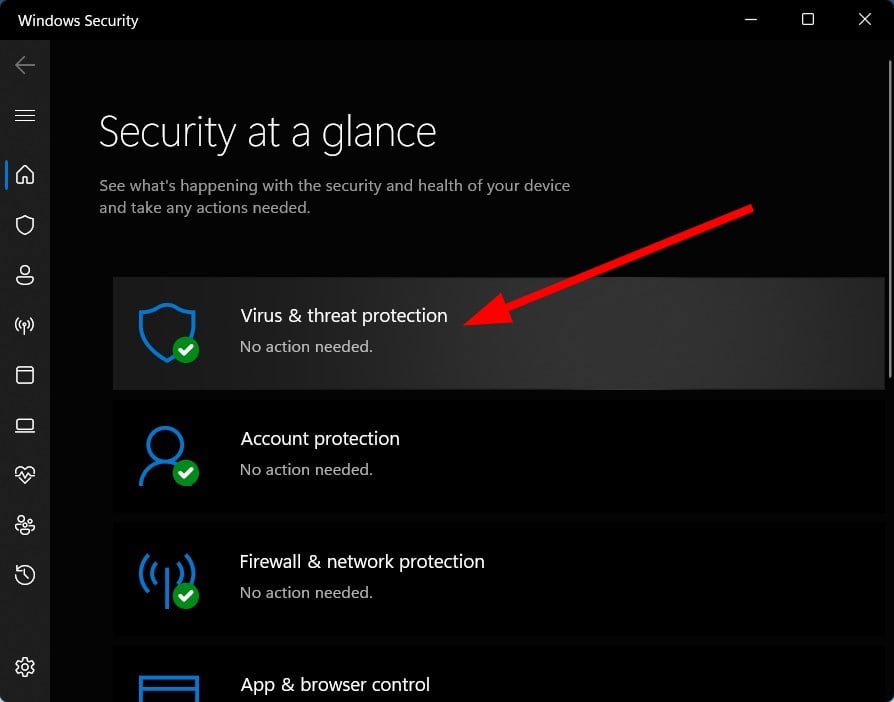
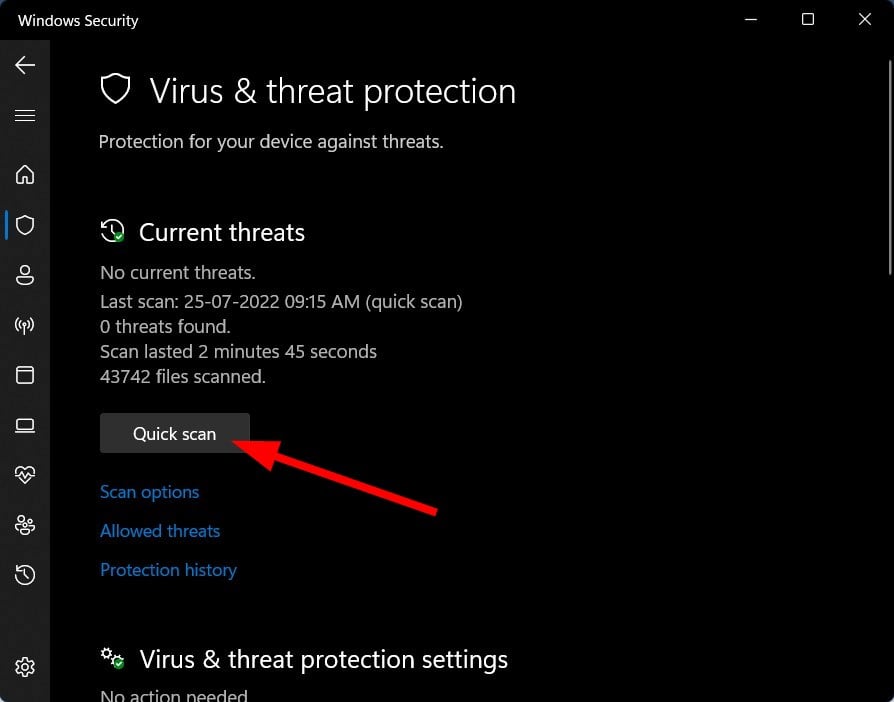
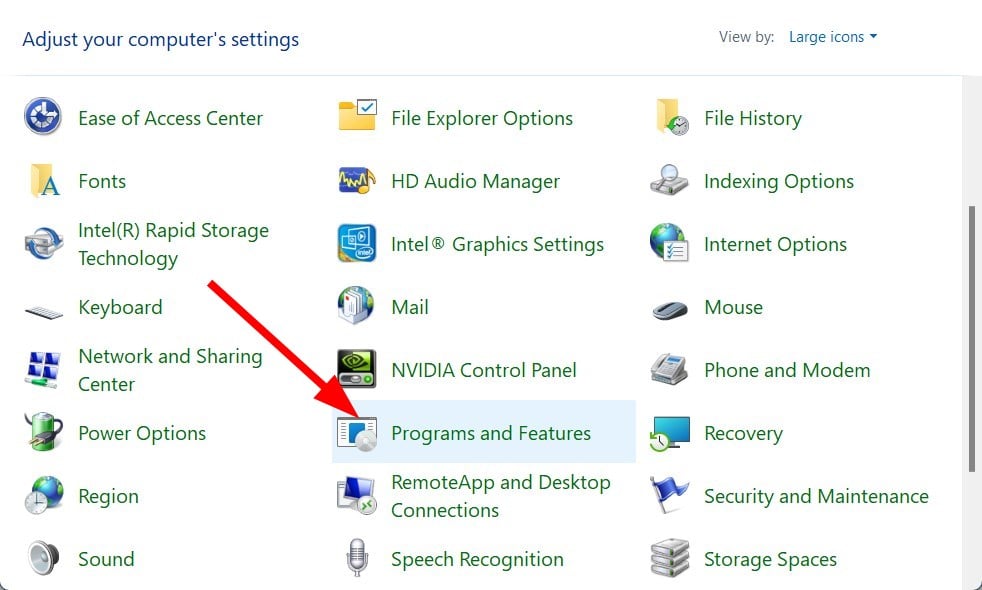
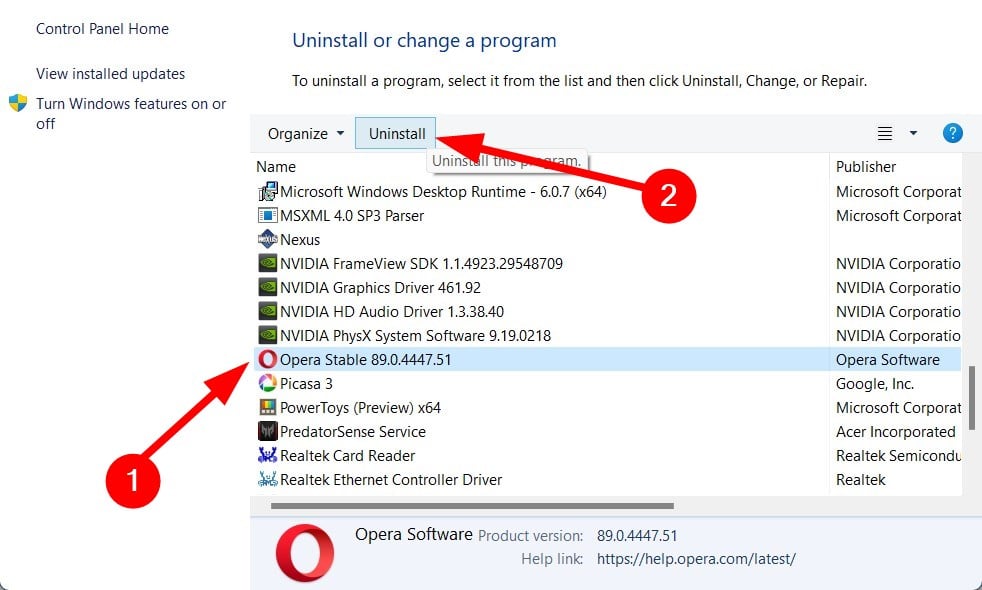
In addition, if your computer has been infected with a virus, malware, or adware, it may cause problems with your VR. To fix this issue, you will need to scan your computer for viruses and remove any unwanted programs that may be causing the problem.
How do I enable VR on my browser?
To get started with VR on your browser, you need to have a VR headset and a compatible computer.
For the best experience, it is recommended to use a browser that supports WebVR so the first thing you’ll want to do is make sure your browser supports WebVR.
What happened to Firefox VR?
Mozilla announced that it was killing off its Firefox-based virtual reality (VR) browser, Firefox Reality. The decision came as a surprise to many in the VR community because Mozilla has been a key player in the development of WebVR, a standard for building VR experiences on the web.
Although Firefox had a dedicated browser for Virtual Reality, it has since closed shop but users can still get to experience Virtual Reality from the Wolvic browser which is just as equally good as it is based on its source code.
Quick Tip:
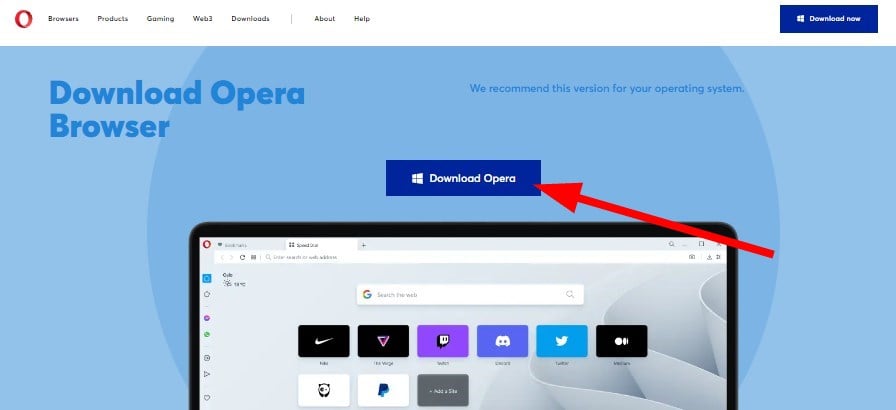
Access VR content from another browser. A great alternative to Firefox is Opera One, it has dedicated support for VR 360 videos.
It automatically detects if you have a VR system installed on your machine and displays a Watch in VR pop-up button whenever you access a 360 video.
Opera One
Have a go with this futuristic browser with error-free VR support.
Press the Windows + I keys simultaneously to open Settings.
Navigate to Windows Updates and go to Update history.
Click on Uninstall updates.
Select the most recent update then click Uninstall.
If you are still experiencing problems even after tweaking your Firefox VR settings and trying out these methods, perhaps it’s time to switch to an alternative browser for Virtual Reality.
You may also encounter other Virtual Reality problems but we have extensively covered quick solutions to help you resolve any issues that may crop up in our guide.
Aside from browsers, you may also benefit from Virtual Reality software that will further enhance your experience by making it more powerful.
Let us know of any other solution that may have worked for you in the comment section below.
Discord is a popular chat platform used by gamers, but it’s also been the target of hackers who want to get their hands on users’ data. Now, hackers are taking a new approach in their efforts to steal your personal information.
They are using a technique called Discord name and shame and it’s something you need to be aware of. Shaming has a way of making you let your guard down especially when done publicly.
The goal of this action is to make the victim feel embarrassed and ashamed in order to get them to stop their behavior.
In this day of advanced technology where you can install security software, there are loads of people who are still victims of online scams. Scammers are also constantly upping their game and techniques so if you are not vigilant, you could end up compromised.
What is Discord name and shame?
The Discord Name and Shame is a way of publicly shaming people by outing their misdeeds. It is a scam that manifests itself in the form of public shaming for wrongdoing.
When someone has been posting inappropriate content or links on your server (or any other server), then naming and shaming them can make sure that other people with similar interests won’t give them another chance in the future.
How does the Discord name and shame scam work?
Someone on your friend list will send you a message as they believe you to be guilty of some sort of wrongdoing on one of the Discord servers.
Since the message is coming from your friends, you are more likely to trust it as seldom do we expect our friends to be the ones scamming us.
The message will indicate your mistakes and inform you that your friend will no longer interact with you unless you right your wrongs. They will then invite you to a group where you will supposedly redeem yourself but that is where the trap is.
When you click on the invite link, you will be asked to verify your details but this is where the scammers get a hold of your details and take over your account and the cycle continues.
The idea behind this phenomenon is that if you can get enough people to start calling out these people for their behavior, then they will be less likely to do it again in the future.
Quick Tip:
Every day we are exposed to online thieves and scams unknowingly. One of the precautions we can take is to use a security system that will secure out browsing.
TotalAV uses tools to protect us against phishing software and links, with privacy and banking protection so no virus will be able to access any of our personal data.
TotalAV
Surf the web risk-free with this smart security system.
How do I protect myself against Discord name and shame scam?
1. Don’t click on links in messages
Phishing links is one of the oldest and most effective tricks in the book of scammers. Once you click on a link, they find a loophole to access your details and take over your account.
Double-check on any links sent before clicking to ensure it’s not actually the scammer’s link. Scammers will often use fake URLs that look like official sites but hide malicious code behind them.
2. Do not scan any codes
This scam works by tricking users into scanning a QR code with an app that looks like the Discord app but actually has malware designed to steal your information. The best way to avoid this scam is not to scan any QR code that you do not trust.
If you fall victim, you need to immediately change all your passwords and unlink other social accounts to avoid getting them compromised too.
This is a feature that requires you to enter an additional code when logging into the platform, preventing someone else from hijacking your account even if they have your password.
If someone is sending you an unsolicited message, you need to report it. Reporting suspicious activity will help the Discord team take action against scams and take steps to protect other users.
You can navigate to the Discord report page and fill in the form with as much detail as possible to aid in the investigations.
What other Discord scams should I know about?
The name and shame is not the only Discord scam you may run into. Below are some other common scams:
Free gift cards/giveaways – Scammers trick people into giving them their passwords by using fake giveaways or contests in order to gain access to accounts by taking advantage of people’s eagerness to win prizes or save money on things like games.
Phishing scams – These are emails or messages that appear to come from Discord, but actually, lead you to a phishing website. The website might try to trick you into giving up your password or other personal information.
Spoofed websites – Some scammers create fake versions of real websites that look really similar — they even have similar addresses. But they’ll change one letter in the URL so it looks like the real thing.
You may also encounter the Google voice scam but we have covered ways to spot and prevent them early enough.
As always we love hearing your feedback so be sure to drop us a comment down below.
Trying to download & install the Phoenix browser for Windows XP but have no idea how to do that. In this post, we will guide you through the process, so read to know more.
Specially designed for Infinix smartphones, the Phoenix browser can be installed on any phone from the Google Play Store.
One of the most popular apps in the Play Store, the browser is known for its speed, rich features, and the ability to save data.
So, if you want to download & install the Phoenix browser for PC, read on to know more.
What is the Phoenix browser used for?
Phoenix browser is a free browser specially intended for mobile phones and tablets. However, you can also download and install the browser on a Windows desktop.
It’s a compact and lightweight app, that not just helps you with the known for its amazing features like:
Fast web page loading and quick downloads
Detect downloadable videos on a web page with a smart video download
Block annoying ad pop-ups with the built-in ad-blocker
It uses up less data
Disable images with no image mode
Watch videos right within the browser using the integrated video player
Delete browsing history with privacy mode
Access to the latest headlines
Day and night mode/QR code scanner/multi-tab manager
Supports all major browsers, and also cross-device browsing
Quick Tip:
While Phoenix is a great browser, for the Windows version Opera One offers far more features, among which it has social app integration with WhatsApp or Messenger, meaning you don’t need to have additional tabs open to stay connected.
It also comes with a mobile phone version called Opera Mini. For smartphones, it offers options like mobile data saver, which can reduce data consumption by up to 90%, a native ad blocker, and speed optimization.
Opera One
Fast and reliable, gathering all the features and add-ons in one app.
Now, open the APK and click on the Google Play Store shortcut to launch the app.
Sign in with your Google credentials.
Now, search for the Phoenix browser and click on the result.
Next, click on Install.
Once downloaded, click on Open.
Now that you have successfully downloaded and installed the Phoenix browser PC exe on your Windows XP platform, you can start browsing and enjoy its features.
Can the Phoenix browser download movies?
Yes, you can stream movies and download files while saving data on any website.
Once you have downloaded the APK and installed the Phoenix browser through the Play Store, here’s how you can download movies:
Launch the browser and go to your favorite movie website.
Here, search for the movie and next to it, you can now see a download icon in blue on the bottom right corner.
Click on it to open the Media Detector. Here, click on the blue download icon next to the movie file.
Once downloaded, you can now watch the movies offline on your Phoenix browser and save data.
Therefore, if you are a fan of the Phoenix browser and want to install it on your PC running on Windows XP, you can follow our above solution to enjoy its benefits.
Browser fingerprinting is a unique way of finding all the details about the user’s data. It collects all the data, including the browser information like browser version, plugins installed, etc., more accurately than cookies.
Cookies are text files sent by the website server to track the user’s online activity, whereas browser fingerprinting captures everything the user does online with their browser.
Yes, browser fingerprinting is very much possible these days. However, not many people are aware of it. Some of them haven’t even heard about it.
Who uses browser fingerprinting?
Well, the companies, websites, and hackers. But, yes, even hackers use browser fingerprinting for hacking purposes.
Quick Tip:
Every virus has a remedy, and the same is for tracking via browser fingerprinting. Specifically, Opera has created its own set of antitracking tools to conceal your IP address and safeguard your connection.
This browser filters intrusive ads natively and prevents internet cookies from copying your activity, freeing you to navigate with no digital fingerprints. Clean browsing, safe environment.
Opera
The built-in VPN and native ad-blocker are the key elements to stopping virtual fingerprinting.
What is browser fingerprinting & how does it track you?
The latest method of tracking any online activity is called Canvas fingerprinting. This is very useful for tracking if the user is a unique or a returning user, which helps to improve their website.
Canvas fingerprinting, which is the newest way of browser fingerprinting, makes use of the HTML5 code snippet that is inserted in the webpage code.
This code, in turn, runs on the browser when users visit the website. This helps the websites track more than a million users. Then, they use this data to display the correct advertisements, yielding more ad revenue.
It can track you using three methods: canvas fingerprinting, audio fingerprinting, and media fingerprinting.
What is the difference between cookies and browser fingerprinting?
The main difference between cookies and browser fingerprinting is the tracking method.
Cookies: The website server sends the text files loaded on the system and tracks all the information about the user and his online activity on the website.
Browser Fingerprinting: the JavaScript and HTML5 code snippets run on the system when users visit their websites. This creates a canvas that tracks all the user’s online activity even if the user browses other websites and does all kinds of stuff.
No, the VPN does not prevent browser fingerprinting because the VPN only hides the IP address and location settings, whereas browser fingerprinting tracks the user activity without the use of the IP address or the operating system.
Browser fingerprinting is used by most websites nowadays. It not only tracks how many times you have visited their websites but also gathers information about which other websites you visit, which accounts you are logged in with, etc.
This seems scary, right? Yes, it should be because this is how most hackers take your data, manipulate it, and sweep the accounts.
Whereas the banks also use browser fingerprinting to identify any hackers logging in from another system to access your account for the first time.
If you found this article informative, please let us know by commenting below.
Rocket League is a fantastic, vehicle-based football game that people of all ages like. It can be played on platforms like PC, Xbox, or PlayStation. Also, this is a multiplayer game that is played online.
Once a gamer starts playing, it is almost impossible to make him stop. It is becoming so addictive these days.
What is Rocket League Error 68?
Many Rocket League gamers have noticed an error while trying to launch this game on their PC, Xbox, or PlayStation system. It prevents them from playing the game by throwing an error 68 in the error window.
No matter how often the gamers try to launch the game, the error persists, and they cannot play the Rocket League game on their device.
Temporary ban – The Rocket League servers keep track of all the players in the game. They also notice if any player is harsh and breaking the rules or behaves badly towards the game and other fellow players. In that case, the servers impose a 15-minute temporary ban from playing the game.
Rocket League’sServer down – This might happen rarely, but it is still possible. The Rocket League servers may go down temporarily due to a large number of users playing the game at the same time. This overloads the request on the server, and it goes down for some time.
Game files – Most of the time, the game files are stored properly organized in their respective folder on the system. But while updating or after it is updated, these game files can be disorganized, which might cause error 68.
If you found this error 68 while launching the Rocket League on your device, don’t panic. Follow these quick solutions below.
How do you fix Rocket League Error 68?
1. Verify the Game Files
Open the Epic Games Launcher app on your system by pressing the Windows key and typing Epic Games launcher.
Select Epic Games Launcher app from the results.
After the Epic Games Launcher is open, click the Library option on the left panel.
Next, click the ellipsis icon of the Rocket League game on the right side.
Click Manage from its menu.
You need to click Verify button on the top to verify the game files.
After it is finished verifying, try to launch the game and see if this worked.
2. Check if the Rocket League server is down
Since the Rocket League game is becoming so popular, the number of players also increases daily. Because too many are playing this vehicle-based soccer game on their PC, Xbox, or PlayStation at a time, the load on the server is also high.
This causes the server to shut down for some time. Therefore, you can check if the Rocket League server is down. If the server is down, we suggest our users wait for an hour or so and then check again. This also applies when faced with Rocket League Error 0.
3. Wait 15 minutes if you are banned temporarily
This happens to those gamers who are rash while playing the Rocket League game. Since this game is a multiplayer online platform, Rocket League’s server monitors all the players.
If the server finds that the player has bad behavior while playing, that player will be banned temporarily for around 15 minutes.
So, in this case, the players are requested to wait for at least 15 minutes and then try to open the Epic Games Launcher app to play the Rocket League game.
Can’t connect to EPIC Server’s Rocket League?
Some players have reported facing an issue that says they Can’t connect to the EPIC server’s Rocket League. This is a communication error when the player loses the online server connection to the game despite having a strong internet connection.
An outdated Epic Games launcher app, outdated Rocket League game, proxy server settings, or firewall/antivirus might cause this.
It is a standard practice to update all the apps and games regularly. Also, try to disable the firewall and antivirus on the system and check if this resolved the communication error.
If you got this error 68 fixed by any of the above methods, please comment below to let us know!
This first-person shooter game lets users choose among a variety of weapons and vehicles, to fight against the enemy Banished.
Since the game is widely popular, users’ coming across errors while playing the game is quite common.
One of the common errors that both PC and Xbox players of Halo Infinite is the packet loss issue. This problem makes it impossible to play the game.
Packet loss occurs in Halo Infinite because of a choppy internet connection or some technical issues with Halo’s official server.
If you are also experiencing the Halo Infinite packet loss on your PC or Xbox, then you are in the right place, because we will list some of the effective solutions for both machines that will help you resolve the problem. Let us take a look at the guide.
Why is Halo Infinite so laggy?
To play the Halo Infinite multiplayer game, you need to connect online. And in the process of connecting the game to its servers, you will often see considerable lag.
Due to botched servers, you will see everything laggy inside the game. For instance, your bullet will travel late, the graphics will take time to appear, and your weapon may not cause any damage to your enemy.
There are multiple reasons why Halo Infinite may feel so laggy.
There are a lot of applications running in the background
Your internet connection is not stable
The system requirements aren’t met
The graphics driver is outdated
Problematic in-game settings
You are running an outdated version of the game
Now that you know what common reasons could trigger the glitch within the Halo Infinite game, let us take a look at the solutions that will help you fix the Halo Infinite packet loss issue on PC and Xbox.
Can packet loss cause FPS drop?
Packet loss does not cause an FPS drop. When you are experiencing packet loss and simultaneously come across an FPS drop, then that would be because of your PC or the console.
Moreover, experiencing high ping doesn’t necessarily mean you will face an FPS drop within the game.
But do note that FPS drops could also happen because of the server you are connected to, the location from where you are playing the game, or if the internet speed is botchy.
Select a server that is closer to you (for a faster connection).
Launch Halo Infinite again.
See if you still have packet loss issues.
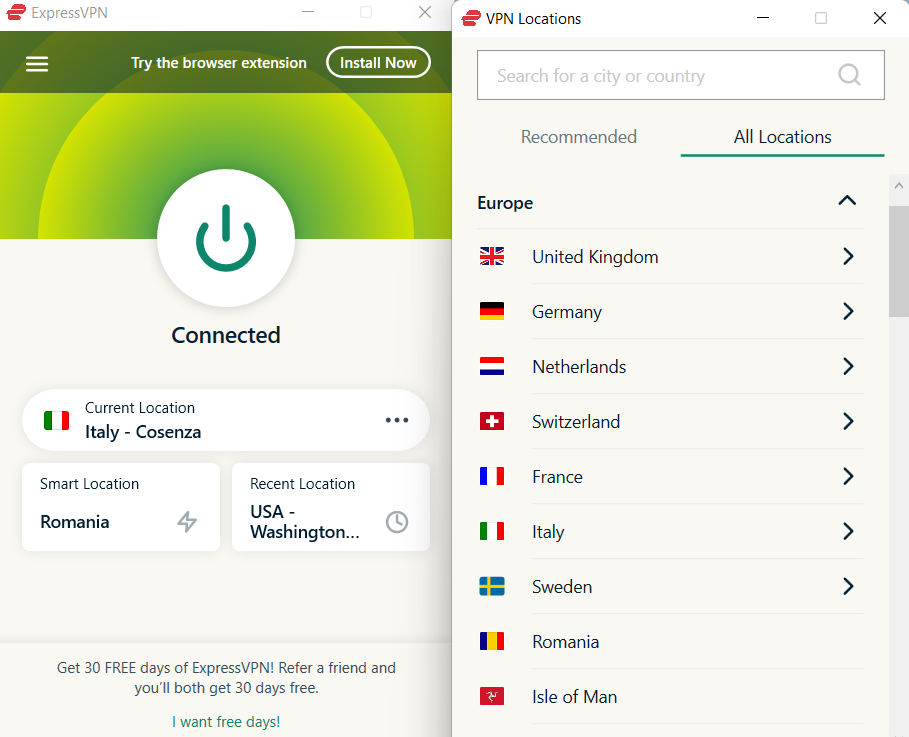
Using ExpressVPN while gaming is completely safe, it can even bring you some features such as improved ping, access to content from other countries, and servers to connect to if your home country’s servers are down.
ExpressVPN has multiple uses, from gaming to safe online browsing. It allows you to enjoy what the internet has to offer by protecting you against any threats that might show up by guarding your privacy.
ExpressVPN
A gaming companion to maintain the best gaming experience.
While using Wi-Fi for internet connectivity is the most convenient option, it isn’t as stable as an Ethernet or wired internet connection.
If you are experiencing Halo Packet loss, then we would suggest you switch over to an ethernet connection.
All you need to do is remove the LAN cable from the router and plug it into the LAN port on your laptop or PC. After connection, check if this fixes the Halo Infinite packet loss issue or not.
3. Flush DNS
Open the Start menu.
Search for command prompt, and open it as an administrator.
Type the below command and press Enter: ipconfig /flushdns
Restart your computer and check if it resolves your problem.
You can make use of websites such as Fast.com and Speedtest.com to check if you are receiving optimal internet speeds or not. If not, then you can contact your ISP and check in with them to resolve your internet issue.
Moreover, it could also be because of the server outage from the Halo Infinite game. There are chances that when you are connecting to play the game, the official server is loaded and overcrowded. You can visit the Downdetector website and check if the official server is facing any issues or not.
For Xbox
1. Restart your router
Restarting the router is one of the most effective solutions that you can apply to fix the Halo Infinite packet loss issue on Xbox.
While it may sound pretty simple, there are chances that the router is facing some technical issues and a restart could reset it and bring its functioning back to normal.
2. Power cycle your Xbox
Turn off your Xbox console by holding the Xbox button at the front for about 10 seconds.
Wait for about 30 seconds.
Turn on the console by pressing the Xbox button. You should see the green boot-up animation when the console restarts. If not then, you can repeat the steps.
3. Switch to a wired connection
Just like the PC, you can connect the Ethernet cable to your Xbox console, and check if the issue is because of the Wi-Fi internet connection or not.
Often the Wi-Fi, due to some technical difficulties trigger network-related issues, which can be easily solved by using the wired connection.
Connect the cable directly to your Xbox router and not only you will experience better internet speeds but also it might resolve the problem.
How do I improve my Halo Infinite connection?
Below are some of the tips that you can apply and get better internet connection with the Halo Infinite game.
Fix your internet connection by checking in with your ISP. If needed, switch to a high-speed connection.
Close all the background running apps when playing Halo Infinite.
If your home server is jam-packed and you are not able to connect to it, you can try using a VPN and play Halo Infinite.
Switch over to a different DNS server. You can follow this guide to fix DNS related issues.
Reinstall the game and check if this resolves the issue or not.
That is it from us in this guide. We hope that the above solutions helped you fix the Halo Infinite packet loss issue on your PC and Xbox. Do let us know down in the comments below which one of the methods helped you fix the problem.
Microsoft is holding a digital event today starting 9:00 AM through to 10:30 AM Pacific Time (UTC-7). The digital event is focused on helping organizations learn how to combat ransomware from compromising their systems. Charlie Bell, whose mandate at Microsoft is to assist with revamping their approach to cyber security, hosting both threats and paid solutions will be part of the digital event as a speaker alongside Vasu Jakkal and Lou Manousos. Bell, erstwhile Amazon Web Services veteran joined Microsoft as a Corporate Vice President back in February.
Microsoft also provided a rundown of what to expect during the digital event as highlighted below:
Hear key insights from Microsoft’s leadership including a fireside conversation between Charlie Bell, Executive Vice President of Microsoft Security and Vasu Jakkal, Corporate Vice President of Microsoft Security, Compliance, Identity, and Privacy Business.
Learn about two new security solutions: Microsoft Defender Threat Intelligence and Microsoft Defender External Attack Surface Management.
See threat intelligence in action and learn how to use it to prevent and remove threats like ransomware.
Get your questions answered by threat protection experts during a live Q&A chat.
You can register for the event to participate and learn more about Microsoft Security and how to deal with malicious attacks. In other news, Microsoft will be running Microsoft Ignite from October 22-24, this will be the first in-person event to be held post the COVID-19 pandemic, though space will be limited.
Netflix is a subscription-based streaming service that allows users to watch TV shows and movies without interruptions. You can also download these shows and movies on any device and enjoy them without an internet connection.
You can stream on Netflix using any internet-connected device, including smart TVs, gaming consoles, smartphones, and tablets. Different plans determine the number of devices that can stream simultaneously using the same account.
Each Netflix account can have a maximum of five profiles, each with its settings and customizations. While you create your profile, Netflix assigns a default profile picture that you can further change among some approved avatars. However, it doesn’t allow the selection of a custom profile picture.
Keep reading this post to learn how to set a custom profile picture for Netflix.
Can I have a custom profile picture for Netflix on my phone?
It is possible to set a custom profile picture for your Netflix profile. However, as we know, Netflix doesn’t allow customization; you can still do it using a browser extension.
Using these extensions, you can change your Netflix account profile picture to any image you want. It also allows you to set your profile picture according to your watching history.
Do note that these profile pictures are not synchronized among devices. This means the extension will only change the profile picture of the device it is installed on. Due to this, you cannot use it on Smart TVs or smartphones.
How do I get more profile icons on Netflix?
There are more than 100 profile icons to choose from on Netflix. These profile icons allow users to customize their user accounts.
Here is how you can change your profile icon on Netflix:
Open Netflix and navigate over the Account icon at the top right corner.
Click on Manage Profiles.
Now select your user profile.
Click on the Edit icon on your avatar or profile image.
Choose among the images you want to be your profile image.
Click on Let’s do it on the next page.
Now click on Save to save the changes.
How to create and set a custom profile picture for Netflix?
Once done, you will be automatically redirected to your Netflix account profile page in a new tab.
If this doesn’t happen, sign into your account.
Now click on the extension in the top right corner of the Google Chrome tab.
Now click on the Select Image option. You will then be redirected to your device’s storage.
Select the image you want to use as your profile picture. Make sure to check if the image size is smaller than 5 MB.
Once you have uploaded the image, check the image alignment.
You have now successfully created a custom profile picture for Netflix.
On Firefox
This extension is only available for Google Chrome and not for any other browser. There isn’t any way to set a custom profile picture for Netflix Firefox.
On Smart TV
You cannot set a custom profile picture for Netflix on TV. To do so, you will have to install Google Chrome on your Smart TV, log into Netflix, and perform the abovementioned steps to set a custom profile picture for Netflix Chrome.
On Smartphones
There isn’t any way to set a custom profile picture for Netflix on the phone.
What can I do if my Netflix profile picture changes automatically?
Your Netflix profile picture can change automatically due to various reasons:
Netflix is testing you
The show whose profile picture you have selected has been removed from Netflix
Someone with access to your account is doing so
These three reasons could be why your Netflix profile picture changes automatically. There isn’t much you can do about the first two, but you can add a profile PIN for the third one.
Open Netflix and go to the Account page.
Navigate to Profile and Parental controls and click on Change beside Profile Lock.
Now enter your account password and click on Continue.
Check the option Require a PIN to access Window’s Report profile (here, Windows Report is the profile name).
Enter the PIN you want to set for your profile and click on Save.
This was how you could set a custom profile picture for Netflix. We hope that the steps mentioned above able to help you.
If you still have any issues, feel free to comment below.
Microsoft’s gaming division has had quite an uphill battle to overcome as it pitches xCloud, GamePass and its latest Xbox Series S/X consoles this generation, and a recent investigation shows just how high the hill has been.
As Microsoft seeks approval on its $68B Activision acquisition with CADE, Brazil’s national competition authority, the inquisition into the deal continues to be unearth discrete Xbox gaming related news, including how much Sony’s PlayStation 4 outsold the Xbox One.
Back in 2016 when it was becoming clear that Sony’s PlayStation 4 was becoming a runaway hit, Microsoft tweaked its gaming report to highlight game play, software and services revenue and achievements to arguably obfuscate actual console sales.
After seven years of coded success and or failure, Brazil’s CADE looks to have forced Microsoft’s hand in detailing how badly the PlayStation 4 outsold the Xbox One last console generation, by a magnitude of “more than twice as many.”
According to the court papers filed by Microsoft to the CADE, “Sony has surpassed Microsoft in terms of console sales and install base, having sold more than twice as many [than] Xbox in the last generation.” The Xbox One revelation comes via a Portuguese translator over at Game Luster who’s accessed the Word docs provided by Microsoft to the CADE.
By admitting that the PlayStation 4 outsold the Xbox One by more than 2x but less than 3x, tacitly implies that at 117.2 million, when last reported by Sony, the PS4 left around 58.5 million Xbox One’s to be sold to customers.
Taken in a vacuum, Microsoft’s sale of 58.5 million Xbox One’s against Sony’s 117.2 million PS4s is a poor showing, but becomes staggering when rolling in Nintendo’s 111.08 million Switch sales, as the latter entered the market almost two years behind the Xbox One.
Fortunately, much of that is in the past for Microsoft, however, the 2x hole the Xbox One put the company in has left its mark on the success ceiling for the Xbox Series S/X.
With over 2x as many people owning a PS4, Xbox gamers are contending with friends who find it much easier and accessible to play online with PS4’s and or 5’s with seven years of time and equity invested.
However, Microsoft’s xCloud and GamePass plays in this current gaming generation may become the ultimate equalizer for the company as they attempt to mitigate hardware lock in.
This guide is going to be different than you may be used because instead of teaching you how to do something, we’re going to teach you how to avoid something.
There’s been a particularly bad scam affecting people on the Facebook Marketplace that some have been calling the Zelle Facebook Scam. To be 100 percent clear, Zelle itself is not a scam, but rather how the bad actors are using the app.
Zelle, for those who don’t know, is a financial service that lets people transfer money between bank accounts and to other people. Some use it to pay for products like Venmo and PayPal.
The scam involves tricking people into transferring money to the scammers themselves.
Here’s how the scam works. Say you list an expensive item worth $300 on Facebook Marketplace when suddenly someone purchases said item with a Zelle business account.
There’s no such thing as a Zelle business account. Small businesses can Zelle for transactions, but a subscription fee or special service is not available. The app is free for everyone.
As the seller, you’ll get an email stating that the buyer had to send more money than necessary because they had to pay for the Zelle business account and you have to pay for the service.
If you pay for the Zelle business account, you’ll get the initial payment and more. After the payment for the account, the seller will then ask you to refund the extra money that they sent.
You pay the amount they’re asking and they’re gone. And you learn that the scammer never bought the Marketplace item in the first place.
The Better Business Bureau lists several pieces of advice on how to avoid scams on Facebook Marketplace. We’ll cover those plus some others.
How can I avoid getting scammed on Zelle?
1. Overpayment
The Better Business Bureau cautions people to be suspicious of people willing to exceed the payment you listed unless the item is rare. If someone is quick and eager to send money, it means they’re trying to entice you into paying.
They’re trying to bait you in.
2. Suspicious email
Be sure to check the email being used in the scam. According to the Better Business Bureau, a scam victim revealed one of the email addresses that the scammers used which is [email protected].
A seemingly official-looking email can trick people into thinking it’s from a legitimate place. You should also be wary of emails that have AOL or GMAIL in the sender’s address. Those are definitely scams.
You should also pay attention to the grammar in those emails. Scammers, for whatever reason, typically write emails that have terrible grammar.
3. Learn about Zelle policies
It’s strongly recommended that you read up on Zelle’s policies and how it conducts business. The service has a How It Works page on its website that takes you through its operation.
There’s also a Frequently Asked Questions page where Zella tells you what to do regarding payments with someone you don’t know. We also recommend contacting Zelle’s customer service if you still have questions and don’t know what to do.
On Facebook, click Marketplace on the left-hand side.
In Marketplace, click Selling on the left-hand side.
In Selling, click the Messenger bubble in the bottom right corner to bring up the discussion with the scammer.
Click the Chat Settings at the top of the Messenger window.
Scroll down in the new context menu and select Report.
In the Report window that appears, click Scam.
A message will appear telling you that the conversation has been reported successfully and you get suggestions on what else you can do.
Is it safe to accept Zelle from strangers?
Not from strangers, no. Zelle is totally safe so long as you know the other person and you trust them. The app does not have any sort of fraud protection for authorized transactions and is as safe as your bank.
If you have any issues, it would be best to contact your bank for help. Zelle was built by the major banks and is great at protecting people from hackers getting access to your data.
That’s why Zelle has never really had a massive hacking scandal. But that doesn’t people can’t be tricked into coughing up those details or money.
Meta Pay vs Zelle
Meta Pay, formally known as Facebook Pay, is the social media platform’s own open payment service. For Facebook Marketplace, it’s safer to use Meta Pay instead.
Meta Pay is covered by the platform Purchase Protection Policies. You can file a claim to Facebook, let me know what happened, and see if the company is willing to reimburse you. The protection does skew towards the customer more, but it never hurts to ask.
Otherwise, stick with something more secure like Meta Pay or even Venmo.
Feel free to leave a comment below if you have any questions on other apps or if you have some that you recommend. Also, feel free to leave comments about guides you’d like to see or information on other web browsers.
You might be using Microsoft Excel every day for common things like invoices, but did you know that Microsoft Excel is an esport title just like CS:Go and Rocket League are? Well, spotted by Windows Central, ESPN recently broadcasted a Microsoft Excel competition dubbed “All-Star Battle,” as part of their “The Ocho” programming, which highlights a series of niche sports.
ESPN aired the Excel competition on August 5, but it originally took place in May and you can watch it above. Apparently backed by Microsoft, this Excel competition is actually quite unique. It saw players create slot machines using emojis and points, a six-level platformer in Excel, and other tasks based on pre-set data tables.
Prize money was also involved, and there’s even an organization, Financial Modeling World Cup, that oversees it. If you’re up for it you even can download the data that were used in the competition and try to solve it yourself. Just be aware, that the file won’t have the solution, but just the right answers, and there could be many ways to solve it.
Battlefield 2042 is a very popular first-person shooting game from the house of Electronics Arts. However, some of our readers have reported facing the Battlefield 2042 packet loss issue.
Do note that Battlefield 2042 is available only as a multiplayer game, and there is no single-player campaign mode. It does come with cross-platform play.
If you are a fan of Battlefield 2042 but are facing a packet loss issue, then we have solutions for you that will help you resolve the error. Let us take a look at the solutions that will help you resolve the Battlefield 2042 packet loss problem.
Why is my connection so bad in Battlefield 2042?
Because of lag, the game will stutter, and you won’t be able to enjoy the game as much as you would have liked.
After some research, we found out that there are multiple reasons that could make the Battlefield 2042 game feel laggy:
Your system does not meet the minimum requirements
The drivers on your PC are outdated
The in-game settings aren’t optimal as per your hardware
There are too many background applications running in the background
Network issues can also cause the game to perform poorly
V-Sync also induces unnecessary input lag
The above are some of the common reasons why the Battlefield 2042 game may feel laggy. You can tweak them to resolve the issue. Now let us take a look at how you can fix the Battlefield 2042 packet loss issue.
Open ExpressVPN, then chose a server close to your location (faster connection speed).
Open Battlefield 2042 one more time.
Check if the packet loss issue is resolved.
Changing the server location is not the only feature that ExpressVPN brings for gaming. Choosing the right server might even boost your ping, gain access to country-restricted content and ever provide a backup in case the servers are down, you can try connecting to another region’s server.
Gaming is not the only use for ExpressVPN, as you can use it online. While browsing, you can enjoy protection from any threats as well as maintaining your anonymity.
ExpressVPN
A trusted VPN to provide you with the best features.
Search for the command prompt and click on Run as an administrator.
Type the below command and press Enter: ipconfig /flushdns
Restart your computer and check if it resolves your problem.
Often, cached data can hamper the gameplay experience and can trigger all sorts of connectivity issues. By flushing the DNS, you are basically deleting the cached data.
After you have flushed the DNS, you can now launch the Battlefield 2042 game and check if this fixed the Battlefield 2042 packet loss issue or not.
2. Turn off Crossplay in Battlefield 2042
Launch the game.
Head to the in-game options.
Go to the General tab.
Locate the Crossplay button.
Set it to off.
Restart the game, and check if this fixes the issue or not.
A lot of users have reportedly fixed the Battlefield 2042 packet loss problem by turning off the crossplay option.
When you turn off the crossplay option within the Battlefield 2042 game, you are restricting yourself to playing against players on different consoles.
In order to play Battlefield 2042 with your friends, you need to connect with them over the internet. If your internet connection is experiencing some issues, then you will face network-related issues.
You can make use of websites such as Fast.com or Speedtest.com and check if you are getting the optimal internet speeds as per your data plan or not. If not, then you can contact your ISP and get the problem fixed.
Also, the error could be because the official servers of the game are down or facing some issues. You can use websites such as Downdetector to check if the official servers of Battlefield 2042 are facing any problems or not.
You can also check in with the official Twitter handle or support forums to know more about server-related issues.
If the problem is because of the official server, then there is nothing much that you can do apart from waiting till the issues are resolved.
How can I make my Battlefield 2042 run better?
Here are some tips that would help you to make Battlefield 2042 run better:
Lightning Quality: Low
Anti-aliasing Quality: High
Terrain Quality: Medium
Effects Quality: Low
Undergrowth Quality: Low
Ray tracing: Off
DLSS: On
Dynamic Resolution Scaling: On
GstRender.ShadowQuality: Set to zero
Fullscreen mode: Fullscreen
Fullscreen Resolution: Native resolution
Refresh rate: High
Field of view: 90
ADS Field of View: 70
HDR: Off
Motion Blur: Off
Chromatic Aberration: Off
Film Grain: Off
Vignette: Off
Ambient Occlusion: Off
What graphics card do you need for Battlefield 2042?
MINIMUM PC REQUIREMENTS:
OS: 64-bit Windows 10
Processor (AMD): AMD Ryzen 5 1600
Processor (Intel): Core i5 6600K
Memory: 8GB
Video Memory: 4GB
Graphics card (NVIDIA): Nvidia GeForce GTX 1050 Ti
Graphics card (AMD): AMD Radeon RX 560
DirectX: 12
Online Connection Requirements: 512 KBPS or faster Internet connection
Hard-drive space: 100GB
RECOMMENDED PC REQUIREMENTS:
OS: 64-bit Windows 10
Processor (AMD): AMD Ryzen 7 2700X
Processor (Intel): Intel Core i7 4790
Memory: 16GB
Video Memory: 8GB
Graphics card (NVIDIA): Nvidia GeForce RTX 3060
Graphics card (AMD): AMD Radeon RX 6600 XT
DirectX: 12
Online Connection Requirements: 512 KBPS or faster Internet connection
Hard-drive space: 100GB SSD
As you can see, the minimum graphics card requirement to play Battlefield 2042 is Nvidia GeForce GTX 1050 Ti or AMD Radeon RX 560.
But to play the game to its full potential, you need to match up the recommended graphics card requirement of Nvidia GeForce RTX 3060 or AMD Radeon RX 6600 XT.
If you use a Windows operating system, chances are that you have run into problems once in a while. When that happens, you usually try to find a solution to fix the issues you are facing. Doing this might have forced you to look at repair tools, depending on the kind of problem that you are facing.
There are multiple repair tools that you can use, with one of the most common ones being the MSN Explorer Repair Tool. This has led to most people asking questions about the MSN Explorer Repair Tool download.
Before discussing how to download this tool, you need to note that there are many repair tools on the internet.
However, you have to be careful when using other repair tools to make sure that you are not installing corrupt software on your computer. Always download your software applications from legitimate websites.
What is MSN Explorer Repair Tool?
The MSN Explorer Repair Tool is a software program developed by Microsoft for the users of the Windows operating system. There have been several releases of this software, but reports indicate that over 98% of its users use the 1.0.0049.0 release.
When using the program, a scheduled task is usually added to the Windows Task Scheduler to launch MSN Explorer Repair Tool at different scheduled times. The scheduling is different depending on the version of the program that you use.
When running the MSN Explorer Repair Tool, you will have three files installed on your computer. These include clearcookies.exe, cleariecache.exe, and msnrt.exe. Most users of this tool are running either Windows 7 or 10.
What is the latest version of the MSN Explorer Repair Tool?
There are different versions of the MSN Explorer Repair Tool, with some of the most common versions including 11.7, 11.6, 11.5, and 1.0. The latest version to look for when downloading the MSN Explorer Repair tool is version 11.7 released in late 2020.
Quick Tip:
Issues show up when we don’t expect them and they affect our computer performance. Many tools will help you clear all of them.
Repair multi-tools that specialize in solving more errors, also optimize registries, restore any DLL files that are missing, and many other features.
How do I download & install the MSN Explorer Repair Tool?
Navigate to your downloads folder and run the MSN Explorer installation file.
Follow the on-screen instructions to install the application.
You will also set up how you want to connect MSN Explorer to the internet.
Go ahead and add a user to MSN Explorer. You can sign in as a guest or add a new user.
How do I run MSN Explorer Repair Tool?
Running the MSN Explorer repair tool requires you to first launch the MSN Explorer. On the homepage of the MSN Explorer application, you will see Help and Settings.
Choosing Help and Settings takes you to a new window with Status and Support. You will be able to run MSN Explorer Repair Tool from here.
What is MSN Premium?
MSN Premium is built for users with a high-speed internet connection that can support the benefits of this application.
Some of these benefits include increased storage space of 10GB, a higher daily sending limit, the ability to send larger attachments, and a higher number of recipients on mail, among others.
MSN Explorer is a good tool for those who are looking for an application that combines a web browser – the Internet Explorer – with other services that as instant messaging and email services. It also comes with a repair tool, the MSN Explorer Repair Tool, that you can use in case of any problems.
JPEG 2000, also known as JP2, is the successor to the regular JPEG which gives higher quality images and improved compression performance. Here are our picks for the best browsers that support JPEG 2000 ranked by compatibility.
Do all browsers support JPEG 2000?
No, most browsers do not support JPEG 2000. The image format debuted in the year 2000, hence the name, and was solely supported by Safari. Today not much has changed and most browsers still do not support JPEG 2000.
While JPEG 2000 offers a more flexible code stream, it requires a more complex and demanding code and thus needs more resources. This is the main reason why it is not adopted across other browsers.
Major browsers like Google Chrome and Mozilla Firefox do not support JPEG 2000, but a comparable alternative is the WebP format. WebKit supports JPEG 2000, so Webkit-based browsers might be compatible with the format.
How do I open a JPEG 2000?
JPEG 2000 files are compatible with most image editing programs, such as Adobe Photoshop. To open a JPEG 2000 file, simply open up your image editing program and select your file to view.
To open JPEG 2000 files in a browser other than Safari, you’ll first need to convert it to another format like PNG or regular JPEG.
What are the best browsers that support JPEG 2000?
It may come as a surprise to some, but Safari provides the most support and compatibility for JPEG 2000. Safari provides support for the high-quality image format since Version 5 and has maintained compatibility up to the latest version of the browser.
Because JPEG 2000 is natively supported on mac OS, it is also compatible with Safari for iOS mobile devices. However, if you have Safari installed on your Windows, you may not be able to use JPEG 2000 files.
Safari claims to be the fastest browser on the market and offers top-notch security with advanced tracking protection and sandboxing.
GNOME Web browser (also known as Epiphany) is a popular WebKit browser for Elementary OS and Linux devices. The browser has a built-in ad blocker and offers tracking protection so users can browse securely. Because it’s based on Apple’s WebKit engine, it has a clean and simple interface, similar to Safari.
GNOME Web browser performs well with its lightweight design and simplicity. There are no widgets or extensions to bog down the browser. For more information on how to download GNOME Web (Epiphany) Browser to your PC, we have a guide for that.
Dolphin Browser is a web available for Android and iOS devices. This mobile browser offers tab management and the ability to install add-ons for a more customized browsing experience. Dolphin has unique features like social app integration and Sonar, a smart voice search function.
Dolphin is a WebKit-based browser and may be compatible with JPEG 2000 files. However, it’s unclear if the image format will work on Dolphin installed on Android devices and may only be supported on Dolphin on iOS.
Konqueror is another well-known browser for Linux devices that is based on the WebKit engine. The browser was developed by KDE and includes a file manager.
Konqueror uses KHTML rendering and is compatible with the latest version of CSS and JavaScript. It also supports tabbed browsing and web shortcuts. If you want to know how to download and install Konqueror on Windows 10 or 11, we have a guide for that.
Falkon (formerly QupZilla) is another KDE web browser based on QT WebEngine. Although Falkon uses QT WebEngine rendering, it supports WebKit and thus may be compatible with JPEG 2000 files.
The alternative browser is known to be light on PC resources and includes a speed dial homepage and the ability to take screenshots from within the browser. Falkon has a sleek and simple interface making it user-friendly.
While JPEG 2000 provides and maintains high-quality images and real-time video footage, it’s not as compatible as PNG. PNG files are compatible with most if not all browsers and are far more efficient to transfer files online.
JPEG 2000 offers both lossy and lossless compression which is why it’s able to maintain a higher quality, whereas PNG only offers lossless compression. However, JPEG 2000 requires a complex codec and probably won’t be compatible across browsers anytime soon.
We hope you enjoyed our picks for the best browsers for JPEG 2000 support. Overall, Safari is by far the best choice when it comes to JPEG 2000 files. Let us know in the comments if you use JPEG 2000.
There are Several new-age browsers with many features. AOL browser was released in 2005 and has been through numerous updates. Its features include a customizable tab manager and fast browsing speed. However, there are various issues that you can encounter with the AOL browser.
One of these issues is the cookies and caches problem. Hence, you should know how to go about the AOL browser and clear cache.
It helps you to load websites quickly and smoothly. However, this data can become corrupt and old, and it can cause difficulties with the browser’s performance.
For instance, it can slow down the browser’s speed and cause browser security difficulties. Also, the cache storage can become filled and cause difficulties with some browser components.
Is it good to clear the browser cache?
Yes, it is good to clear your browser cache. It will help you flush out corrupt caches and cookies and prevent the old ones from causing browser difficulties. Likewise, it frees more space for the browser to save new browsing information to help it load sites faster and smoothly.
Moreover, keeping caches on your browser for a long time can cause severe harm to the browser and can prevent it from functioning properly.
Quick Tip:
If manually clearing cache isn’t your thing, we recommend using an automated safe tool. The CCleaner tool’s default cleaning state identifies the caches that need cleaning in the AOL browser.
Simply choose the data types you wish to erase, press the Analyze button, and review the data CCleaner will erase. CCleaner will remember your preferences for the next time you open it.
CCleaner
Erase cache from AOL browser automatically, with premade settings to ease the process.
Select theSettings button and go to Essential Dialogue.
Select the Internet Options.
Click on the General tab and select the Delete Temporary files option.
Ensure that you tick theDelete Cookies box, then click on OK.
Restart your device and your browser after the process is complete. This is one of the most effective ways to clear the cache on the AOL browser.
Nonetheless, we recommend that users don’t keep their browser cookies for a long time as it can cause some problems. However, you can learn several other things about the AOL browser. Hence, you can read through our article about AOL explorer and why you should use it.
Furthermore, there are many other browsers you can download and install on your device for better and more reliable internet experiences. Hence, check our page for recommendations on the best 20 browsers with high support for HTML.
The Avant browser was initially developed by a Chinese programmer called Anderson Che in 2004. This browser is an open-source project. This was developed using two engines, called the Gecko layout engine and the Trident layout engine.
They released two versions of the browsers. The Lite version was developed using only the Trident layout engine, and the Ultimate version was developed using the Trident and Gecko layout engines.
The Gecko layout engine is also used by Mozilla Firefox for their browsers. Avant browsers typically run on all the windows operating systems that are above Windows 2000 version.
The latest version of the Avant browser is build 3, 3.17.2020, which is a stable version. There have been no releases for this browser since then.
This version also includes the WebKit layout engine and Chrome rendering engine, along with the other two engines (Trident and Gecko). This makes the Avant browser still more powerful.
If you are looking forward to having the Avant browser on your Windows system, this article will guide you on how to download and install it.
Is Avant compatible with Windows 11?
The Avant browser is undoubtedly a great browser choice, which is not only the fastest but the most powerful one. It is compatible with Windows 11, the latest version of Windows. It is also compatible with versions above Windows 2000.
Quick Tip:
Stability is a key aspect of the Opera One browser, and we did a comparison test between Avant and Opera One. The key distinctions were in terms of security, HTML5 and CSS3 compliance, and customization.
Avant was able to keep up with Opera One’s performance, but at an average level. This browser also offers features such as built in VPN, Ad Blocker and AI.
Opera One
Stable, always up to date, and highly customizable, making it a great pair for Windows 10 & 11.
How do I download and install the Avant browser on Windows 10 and 11?
Open the Downloads page in the web browser on your system.
Select the version that should be downloaded, whether it is Lite or Ultimate (recommended).
On clicking the Download Avant browser, it starts downloading its setup file.
After the downloading is finished, the setup file will be stored in the Downloads folder on the system.
Go to the Downloads folder by typing the below line in the Run box (Win + R) and then pressing Enter key:
C:\Users\%username%\Downloads\
In the Downloads folder, double-click on the asetup.exe file.
This throws a UAC prompt on the screen. The user needs to accept it by clicking Yes to continue.
Now choose the installation type by clicking on the Standard radio button and clicking Install.
This starts the installation process on the system and please wait till it finishes.
Once it finishes installing the Avant browser on the system, just click Finish.
This closes the installation window and launches the Avant browser app on the system.
Is Avant still supported?
Yes, the Avant browser is still supported and runs on the Windows system. The latest version of this browser was released in 2020.
Avant browsers are very widely used by users across the world and this has some system requirements to be met by the users in order to run them smoothly. The system should have at least 300 MHz or higher processor, as well as 128MB RAM or more.
If you found this article to be informative, please leave us a comment below. We’d love to hear from you!
Mozilla Firefox is a name in the browser market that is well known and is used mostly by power users who want more from their browsers.
However, in the last few years, even though Google Chrome does not offer many out-of-the-box features, it has been the go-to browser for millions across the globe, making it the most used web browser.
But the base of Firefox is secure and based on it, you will find multiple new browsers. One of which is the Pale Moon browser.
The Pale Moon browser is meant for Microsoft and Linux, and it is an open-source browser. It focuses on providing an efficient browsing experience without hogging the resources.
It also emphasizes privacy and notes that it never tracks or sells your data. The Pale Moon browser has an active community that helps bring new features to the browser.
While the Pale Moon browser has ended support for Windows XP 32/64 bit, if you are still running an old PC with Windows XP and want to know how you can install the Pale Moon browser on it, then this guide is for you.
Here, we will show you the steps and the links that will let you download the most appropriate version of the Pale Moon browser for Windows XP. Let us get right into it.
Does Pale Moon work on Windows XP?
Yes. The Pale Moon browser works on Windows XP, but not the latest version. Pale Moon stopped supporting Windows XP and you won’t be able to install the latest version of the browser.
The last supported version of the Pale Moon browser for Windows XP is Pale Moon 26. Notably, Pale Moon version 26 was released back in 2016, and it misses out on multiple new features that it has to offer in the latest version.
Some of the features that you will find in the latest available versions are:
Supports Microsoft Silverlight, Unity Web Player, Adobe Flash, etc. plugins
Comes with an add-on store
Encrypted sync service
Offers permissions manager
Receives regular security updates
Speedy script processing
The Pale Moon 26 version misses out on the above and more features but is still capable and good enough for a Windows XP PC.
Let us take a look at how you can download the Pale Moon browser on your Windows XP machine.
Quick Tip:
In case you need a more efficient browser compatible with Windows XP, the most suitable one is Opera One. The version for Windows XP is at the bottom of the download page because it’s an older version.
This alternative browser delivers practical integrations with social media apps, enhanced security with a free VPN, and plenty of navigation tools.
Opera One
Switch to this modern browser that has customizable tools and flexible navigation.
Do note that this is not the official website from where you can download the Pale Moon 26 version. The official archived version only lets you download the language pack, which in our case is not apt.
Make sure that you have the necessary antivirus tools turned on before visiting a third-party website, and scan the downloaded file before installing it on your PC.
You will be asked to select between Standard and Custom installation.
Standard: It will install the Pale Moon browser will common and default options.
Custom: It will let you select individual options such as installation directory, etc.
Once your selection is done, click Next,
Follow the on-screen prompts and the installation will begin.
After the installation is complete, you can now enjoy the Pale Moon browser on your Windows XP PC.
What are the features of the Pale Moon 26 browser for Windows XP?
Here are some of the key highlights of this old Pale Moon v26 browser which is the last version that is supported for Windows XP:
Optimized for modern processors
Optimized layout and rendering engine (Goanna)
Regularly updated with the latest security patches
Additional security features and security-aware development
Privacy-aware: zero ads; no telemetry, spyware, or data gathering
Fully customizable interface
Support for full themes
Speedy page and script processing
Support for plugins like Silverlight, Flash, and Java
Support for a growing number of Pale Moon exclusive extensions
Is Pale Moon better than Firefox?
While the Pale Moon browser is similar to Firefox in many ways. Some of which are mentioned below:
Both are open-source browsers
Available across multiple platforms
Both browsers are privacy focussed
Support extensions
Now comes the million-dollar question is the Pale Moon browser better than Firefox? The short answer to this is no.
While both have their own merits and demerits, Firefox is actively updated and comes with a plethora of features that Pale Moon has a long way to catch up to.
Moreover, Firefox is more modern and offers plenty of user-oriented features, whereas, Pale Moon looks dated and offers more privacy-centered features.
If you are looking for other options, then you should definitely check out our list of the best browsers that will provide you with the best possible browsing experience.
Let us know in the comments below if you were successful in installing the Pale Moon 26 browser on your Windows XP PC or not by following the above-mentioned methods.
Lite Hash Rate (LHR) are graphics cards developed by NVIDIA that detect and reduce cryptocurrency mining while gaming. This is one of NVIDIA’s methods of deterring cryptocurrency mining. Keep reading to learn about the main differences between LHR and non-LHR GPU.
Powerful gaming graphics cards are most appealing to crypto miners because they work faster and thus earn more coins. However, if you’re looking to get started in crypto mining, check out our recommendations for the best PCs for cryptocurrency mining for beginners.
What does LHR mean for GPU?
Because LHRs detect any cryptocurrency mining and halve the hash rate, GPUs are less desirable for mining. Hackers are less likely to target users with LHR GPUs because of this significant reduction in crypto mining.
In cryptocurrency, the hash rate determines mining speed, meaning the higher the hash rate, the higher the profit for miners. LHR cards lower the hash rate making the GPU unappealing to miners.
Quick Tip:
While mining crypto sure takes up a lot of video memory, gamers need to make sure that the RAM and CPU are in order. They all know how high demanding some games can be.
Opera GX is a browser that comes with a RAM and CPU limiter, also an integrated Discord and WhatsApp app to maintain you connected throughout the gaming session.
Opera GX
Don’t lose any performance and set new limits for your gameplays.
LHR does matter for GPU. It makes the graphics card less appealing for crypto mining and thus helps prevent the cost of graphics cards from going up.
Because of the crypto mining gold rush, miners needed GPUs and thus the demand for them went up, leading to sky-high prices and stock shortages. Having an LHR card makes GPU less desirable for miners and may regulate the market.
What are the differences between LHR and non-LHR GPU?
1. Performance
There are tons of side-by-side comparisons of LHR vs. non-LHR GPU that can be found online. The LHR is strictly designed to limit hash rates and thus has no impact on gaming speed or performance. So if you’re a gamer, there is no difference performance-wise between LHR and non-LHR cards.
However, if you’re a crypto miner, then the LHR is far more likely to limit mining speeds and performance as intended. There is speculation that miners may eventually be able to bypass the restrictions, but until then it’s best for miners to avoid LHR GPUs.
As far as price goes, NVIDIA wanted to make LHR cards more accessible and affordable for gamers by reducing their appeal to crypto miners. However, for crypto miners, NVIDIA released Cmp HX, a dedicated crypto mining GPU.
The main reason for the LHR card is to prevent crypto miners from inflating prices by making it less desirable for them, resulting in lowering the prices for gamers.
Are non-LHR cards better for gaming?
LHR cards do not affect gaming and GPU performance and only impact crypto mining. Users have run many independent tests on both LHR and non-LHR GPU and the performance is not affected.
No, LHR GPU is not good for mining. The purpose of LHR is to lower the hash rate and make your GPU less appealing to crypto miners. The LHR GPU is meant to stabilize the prices for graphics cards since the effects of the cryptocurrency gold rush.
Overall, the only major difference between LHR and non-LHR GPU is the hash rate and limitations for crypto miners. With the demand for GPU increasing and resulting in price inflation, NVIDIA created LHR cards to stabilize the market. Let us know in the comments which GPU you prefer to use.
If you’re looking for current accounts and money transfer services as an alternative to traditional banks, then Monese is a service you should consider. However, in many aspects, Monese is very similar to other financial services, such as Revolut, PayPal, or Payoneer.
Unfortunately, Monese and all the other mentioned services have one thing in common: they are electronic payment systems. This means they run using computers, servers, and, of course, the Internet.
This is what a Monese user usually sees before not being able to access the account:
We’ve made some improvements to our app that you’ll need to continue using your account. Our latest terms and conditions can be viewed in the updated app
Like any service that runs electronically, Monese is bound to experience the occasional downtimes, so let’s explore some of the most common reasons.
Quick Tip:
All transactions that can be done from the mobile app can be done from Monese’s website as well. Because of this, you can try on Opera One, we managed to make transactions successfully here.
This powerful browser allows you various useful features, like a built-in VPN, adblocker and integrated virtual wallet. Transactions within Opera One are secured, thanks to these built-in functions.
Opera One
Test the connectivity with Monese in this browser, and see if you can fix the problem there.
As you can see from the image presented above, there are some issues with the Incoming Transfers.
Whenever you have any issues with Monese, you can open up this article and check the official website.
Is Monese free?
Monese offers both free and paid services for its customers. The free version has no monthly fee and allows you to withdraw from ATMs, top up your card with cash, etc.
Even though the free subscription has some limitations, it still provides an excellent overall service. But, of course, if you want to surpass those limits, you can always choose the Classic or Premium subscriptions.
Now that we understand what type of issues the app users have faced in the last 24 hours, let’s also cover some of the most common reasons for which the Monese card might not work:
The card details were incorrect
Funds were not sufficient when you tried topping up
Usually, Monese accounts get blocked to limit or stop unauthorized use of the account or card.
To re-activate the locked account, feel free to contact the company’s support team and confirm that it was you who accessed the account.
Another situation that might end up with you having your account blocked is if you have been using the service in a fraudulent manner or for any illegal activities.
To protect the security and privacy of all users, Monese ensures that no suspicious transactions will pass through without in-depth scrutiny from the company.
That being said, there are many variations to these issues on Monese. Here are some of them:
Monese something went wrong
Monese location verification failed
Monese not working
Monese not responding
In other cases, the Monese account ends up being suspended because of using inaccurate or incomplete information when applying for the service itself.
Now let’s see how we can tackle and solve this problem once and for all.
What can I do if the Monese app is not working?
1. Check your internet connection
Even though the number of variables when dealing with this issue can be large, most commonly, when users experience problems with the Monese app, it is caused by a faulty or unstable internet connection.
To ensure that this element is not getting your way, try out other apps and websites that require an internet connection and check if everything works well.
If it does, move to the next solution.
If your internet connection disconnects constantly or isn’t strong enough, it would be best to contact your Internet Service Provider (ISP) and ask for help.
2. Restart your device
Rebooting your device, whether you’re using a PC, mobile, or virtual machine to access the Monese services, will ensure that all connections are reset.
In some cases, this will automatically solve your issue, and you will get back to using Monese as quickly as before.
Click the Windows logo from the taskbar.
Choose the Power button.
Click on Restart.
Accept any UAC pop-ups and choose Restart anyway if required.
Portability is one of Monese’s selling points; that is why many users use it in conjunction with the mobile app.
As such, some issues may come from the app itself:
Your mobile phone doesn’t have the latest version of the app installed
Your phone is not connected to the Internet
You have a faulty Monese app Installation
4. Test your browser and virtual card
If you’re having problems with Monese and think that your browser is to blame, consider doing one of the following:
Clearing your current browser‘s cache and cookies
Changing your browser altogether
If you notice that Monese still doesn’t work even after checking all the variables mentioned above and below, you might consider closing it and switching to the best browser that supports Monese transactions. As mentioned before, Opera had the best results in our tests.
If you don’t want to give up your virtual credit card provider, switching to another one may get you out of this jam for the time being. The advantage of using a virtual credit card number is that you can do it independently for each subscriber.
If one of your virtual card numbers is compromised due to a data breach, or if a single payee fails to cancel anything you did not want to auto-renew, you can disable that virtual number only.
Choosing another service, even if only temporarily, will help you complete your transactions and save you time while the Monese issue is rectified.
Here you can see all of their listed services and their operational status.
These include:
If any of these systems have anything besides Operational written next to them, you can do anything with Monese except that.
Additionally, you can use the same website to see a log of past issues to check whether there were problems in the past that may have affected you as well.
To get your money back from Monese, you will need to wait for 5 to 10 working days. The exact period to wait will depend on the respective’s merchant’s refund policies.
Are you also having problems with the Monese service? Please share your experiences with us in the comments section below.
Browsers are of different kinds. The differences are based on the service they offer. However, the Avant browser is one of the fastest browsers in the market. It was designed by a Chinese programmer known as Anderson Che. So, we’ll discuss how to download the Avant browser for Windows XP.
The browser was built mainly on Windows and offered users several features. Hence, the browser is available for Windows XP and other Windows OS.
Furthermore, the Avant browser has many features that users can enjoy when downloading and installing. Some parts are fast browser speed that allows users to surf the internet quickly and smoothly.
Likewise, it is a robust browser that can run multiple browsing windows simultaneously without affecting the loading speed. Also, the browser features a user-friendly interface that gives you a good browsing experience.
The Avant browser uses the tri-core rendering engine that allows it multifunction without freezing or slowing down. Also, it comes with inbuilt tools like the Ads blocker and password manager that helps take proper care of your browser sessions and security. Users can enjoy a customizable browser interface that allows them to adjust the display to their taste.
Nonetheless, the Avant browser is unavailable on most of our operating systems. However, it is available on Windows and other platforms like Windows XP and Vista.
Most of the computers that still run on these Windows subsidiaries are old and can be slow. Hence, downloading and installing the Avant browser will help you surf the internet at an ultra-fast speed regardless of the computer speed.
What is the latest version of the Avant browser?
Avant Browser is a reliable browser that has been around for years. It has gone through several updates. However, the latest version of the Avant browser is the 2020 build 3. It was released on the 17th of March 2020 with many features that make it one of the best in the market.
Furthermore, the latest version features a more reliable page zoom and customization. Likewise, the Chrome: 80.0.3987.132 update for the Avant browser was included.
Is Avant still supported?
The Avant browser can still work on Windows devices. However, not all Windows devices still support the Avant browser, but there are ways to get around it. For instance, if you want to use the Avant browser on Windows XP, you can’t run the latest build because they aren’t compatible.
So, to download and install the browser on Windows, you need to download 2017 build 5 because it is the last version that supports Windows XP. Likewise, you can download versions that are below the 2017 build.
Quick Tip:
If you want a reliable and fast browser, you can also install Opera on your Windows XP. We recommend it because it’s light and capable to work fine even on older, slower PCs.
You won’t have to go through much trouble because the supported Opera version (Opera 36) for Windows XP is available for download on the browser’s official page, so you know it’s safe and legit.
Opera
Easily download and install Opera to your Windows XP for fast and secure web surfing!
Furthermore, several other browsers are as reliable as the Avant browser can easily download and install them on your computer. Hence, we recommend you read through our article about the 20 best browsers with the highest support for HTML.
Are you seeing VLC is unable to open the MRL error wherever you are trying to play a video on the VLC Player?
If so, then you are not alone. It is one of the common errors of the VLC media player that pops up when you want to stream videos on VLC from a different source.
Notably, this error is triggered when you try to play videos from YouTube or other online sources and the VLC player is not able to find the target file.
This means you will come across the VLC is unable to open the MRL error when you try to open a file or stream a video that is not physically located on the local computer.
Thankfully, in this guide, we will give you three effective solutions that have been tested and tried to fix the VLC is unable to open the MRL error and help you get back to content watching. Let us get right into it.
What is VLC MRL?
MRL stands for Media Source Locator. It helps the VLC media player locate the multimedia resource. MRL is used by Xine media players as well as the Java Media Framework, in addition to VLC.
A media resource locator (MRL) is known as a string of characters used to identify a multimedia resource or part of a multimedia resource. An MRL is often used to identify inputs or outputs to the VLC media player.
You will come across the VLC is unable to open the MRL error when you try to open a media file that is located on external storage, online, or on another server. If VLC is unable to locate the file, then you will be shown this error.
Quick Tip:
If VLC is unable to open a certain video file format, you can try another media player. CyberLink Power DVD is a software decoder that allows you to watch high-quality MPEG-1 and MPEG-2 videos.
PowerDVD requires only a DVD drive on your PC to play DVDs, VCDs, SVCDs, and mini DVDs, as well as other video and audio files.
CyberLink Power DVD
Try to play your movie in this app and see if you get the same error.
Right-click on the file on which you are getting the error.
Select Properties from the drop-down list.
Switch to the Security tab.
Click on Advanced.
Click on the Change button for the Owner.
In the new window that opens, type the below in the Enter the Object Name to select box. Administrator
Click OK.
Check the Replace All Child Object Permission Entries With Inheritable Permission Entries From This Object box.
Click on Apply and check if this fixes the issue or not.
This issue, as already mentioned, happens when you try to run a video from an external drive. In such a case, you should ensure that you have proper rights to run the video.
Following the above steps, you can claim ownership of the file and try running it on the VLC media player to check if this fixes the issue or not.
There are chances that the video you are trying to stream on VLC itself has a problem, which is why you are coming across the VLC unable to open the MRL issue.
In such a case, we would suggest you copy the URL and try running it on another player. You can also take the help of some of the online streaming players.
If the video is not working on another player, then the problem isn’t with the VLC player, but with the source of the video instead.
How do I allow VLC through the Firewall?
Open the Start menu.
Search for Windows Defender Firewall and open it.
Click on the Allow an app or feature through Windows Defender Firewall on or off.
Click on Change settings.
Scroll down and locate VLC Media Player. If it is not there, then click Add at the bottom and add VLC from its installation directory.
Tick the box next to VLC Media Player.
Select both the Public and Private network boxes for it.
Click OK to confirm your settings.
Chances are that the Windows Defender Firewall isn’t allowing the VLC player to stream video from a website for security reasons, which could be a false alarm.
In such a case, simply allow the VLC media player software through your Windows Defender Firewall and check if this fixes the issue or not.
Copy the file to the Iua folder where you have installed the VLC Media Player, which should be the below: C:\Program Files (x86)\VideoLAN\VLC\lua\playlist
Within the Iua folder, open the playlist folder.
Paste the youtube.Iuac file inside the playlist folder.
Open the VLC player and check if the player is streaming the YouTube video or not.
In case the above doesn’t help, you can check out our guide on the best universal video players that you can install on your Windows OS PC and enjoy video watching.
That is it from us in this guide. Let us know in the comments below if this guide helped you fix the VLC is unable to open the MRL error or not. You can also share any other method that helped you resolve the problem.
We will give you effective fixes to put an end to this. Let’s jump right in.
How do I fix Opera GX if the CPU limiter is not working?
1. Check CPU Limiter settings
Launch Opera GX.
From the sidebar, click on the cogwheel icon to open Settings.
Select GX from the left menu.
Scroll down and ensure the toggle for Keep limiters enabled after browser restart is turned ON.
2. Enable GPU Limiter from GX Control
Open opera GX.
Hit the GX Control icon in the Opera GX sidebar.
Scroll down to CPU Limiter, and make sure to toggle-on the button to enable it.
3. Disable conflicting extensions
In Opera GX, click the Opera icon to open the Menu.
Select Extensions> Extensions.
Toggle off the buttons and disable all extensions.
Check if the CPU limiter is now working. If it does, re-enable each extension one by one. When the CPU limiter stops working again once you activate a specific extension, you’ll find your culprit. Keep it disabled when you need the limiter to work.
4. Create a new user profile
Type opera://settings/side-profiles-settings in the Opera address bar to find profile settings.
Hit the Create profile button.
Enter the profile’s name, pick a color, a configuration, then hit the Add new profile button.
5. Scan the PC for viruses
Open the Start menu.
Search and open Windows Security.
Click on Virus & threat protection.
Select the Quick scan button.
Let the scan finish, and remove unwanted programs or viruses from your PC.
We used Windows Security as an example, but the same applies if you use a third-party antivirus. And if you don’t have any security utility, please install one.
Even if you think you only access safe sites and apps, you can never be too sure. Enable Windows security or use a reliable third-party antivirus for Windows 11.
6. Reinstall Opera
Open Control Panel.
Click on the Programs and Features options.
Select OperaGX from the list of apps.
Hit the Uninstall button at the top.
After Opera is successfully uninstalled, restart your PC to remove all remaining files.
There are chances that some important files went missing during the installation. Reinstalling might help fix the problem.
Does Opera GX use a lot of CPU?
Yes, a lot of users have reported with proof, that the Opera GX indeed uses a lot of CPU and RAM – somewhere between 30% and 70%. In this case, you can make use of the Opera GX Control and limit the CPU and RAM for the browser.
How do I make Opera use less CPU?
You can limit the resource access of the Opera GX browser using the built-in CPU and RAM limiter that is located under the Opera GX Control.
Launch the Opera GX browser.
Click on the Speed dial/GX Control in the left column. This will open the Opera GX Control.
First, you will see the RAM limiter toggle.
Simply turn ON the RAM limiter option.
Select the amount of RAM you would like the browser to use, using the slider.
Scroll down a bit and you will see CPU usage control.
Select how much CPU you would like the browser to use. Do note that Opera GX does not let you allocate the number of cores to the browser.
Does Opera GX boost your FPS?
In a bunch of tests, it has been found that despite being a browser for gamers, Opera GX isn’t that good.
While the hardware acceleration does get better RAM and CPU management in Opera GX, the browser does not boost your FPS in any way.
Besides, you will get better results with Google Chrome having hardware acceleration turned off. In case, you want some better alternatives, you can check out our guide that lists some of the best browsers for your PC.
That is it from us in this guide. Let us know in the comments below if this guide helped you fix the Opera GX CPU Limiter not working issue.
With the help of Zendesk browser support, you may communicate with customers utilizing this customer support platform.
Zendesk unifies all your customer interactions into one simple-to-use platform, whether your customers prefer to connect by phone, chat, email, social media, or any other channel.
This makes it simple to manage all your support requests, respond to inquiries quickly, and assess the efficiency of your customer service agents.
Before using ZenDesk, you must confirm that the computer meets ZenDesk system requirements and that JavaScript, Cookies, and local storage are enabled in the browser.
Let’s move on to the list of some of the safest browsers with ZenDesk browser compatibility.
Is Zendesk browser based?
Zendesk Support is a web-based SaaS (software as a service) program accessed through a web browser. In other words, yes, it is web-based, and the software requires a browser to run.
According to the official website, Chrome, Safari, Edge, and Firefox are the most supported browsers. The software will, however, function on most chromium-based browsers.
What browsers does Zendesk support?
Opera One – Offers speed, privacy, and user experience
Although Zendesk developers have not officially listed Opera One as a supported browser, you can use Opera One to access the Zendesk tool.
Opera One is incredibly fast and allows for good multitasking, making handling tasks like customer service or ticket handling easy.
There is no need to utilize a third-party ad blocker because Opera One has an integrated ad blocker. Aside from this, it is secure, and cutting-edge security procedures will stop any data leaking.
Additional features:
Social Media Side Bar
Built-in AI
Ad Blockers and VPN
Opera One
Go with this highly secure and private browser that ensures Zendesk access.
Google Chrome and Zendesk are easily connected, and Chrome is compatible with most of the tool integrations. For example, you may set up a ticketing system, control users, or even make chat groups.
You can also download the ZenDesk Chrome extension to have the software within the browser for easy accessibility.
In addition, you can set up the Chrome Developer Tools to assist with analyzing, manipulating, and debugging tools.
This means that in addition to using ZenDesk, you may also use the development version of the browser to fix any flaws or problems with the software.
Mozilla Firefox – One of the earliest browsers to support APNG
Another browser that ZenDesk officially supports is Firefox.
When you use Firefox on a host-mapped domain, Zendesk can detect this and request you to provide permission for Zendesk to utilize cookies.
Zendesk developers are currently updating the service to function seamlessly with Firefox. Consequently, following browser iterations will also support the service.
Apple Safari’s most recent updates have incorporated a security feature that could affect Zendesk compatibility.
This security feature was called Apple’s Intelligent Tracking Prevention (ITP).
Still, thanks to the active Zendesk developers, a new flow was built that detects when a Safari browser is being used on a host-mapped domain and asks you to grant Zendesk permission to utilize cookies.
Because of this, Safari has full compatibility with the software, and you can use the browser to work with the service.
Microsoft Edge is one of the browsers the service officially supports, and the software has been enhanced to function appropriately with the browser.
In addition to performing as well as other web browsers, Microsoft Edge also uses less RAM. As a result, it is simple to install on business computers and can be used to improve customer service.
Additionally, it supports extensions that provide any missing functionality from the browser.
Zendesk does make use of the cloud. Zendesk’s cloud-based CRM provides all the advantages of cloud computing in a few simple-to-implement solutions.
While using Zendesk, you will quickly notice how the cloud can change your business.
Zendesk strives to improve customer engagement for support, sales, and customer success teams. As a result, you may spend less on equipment and retain all your consumer information in one location.
You can utilize the capabilities of this management software using a suitable browser, which will help you improve the customer service for your company.
Chrome is the best browser for Zendesk browser support, but other browsers mentioned above are also good at working with the software.
In the comment section below, let us know which browser you chose and why.
We all use the internet daily for professional, domestic, and recreational purposes. However, there are several browsers that you can download on your device.
Likewise, browsers can differ based on operating systems, like Windows, Linux, and macOS. Hence, we’ll discuss how to go about Maxthon download for Windows 10 and 11.
It depends on the Chromium code. Likewise, there is a version of the browser for mobile devices. Maxthon is not a widely known browser, but it offers the best features compared to many other browsers.
Furthermore, the Maxthon browser has many features that are not available on other browsers. Apart from being a browser that supports blockchain apps, the Maxthon browser provides technical support for web apps.
Also, it is one of the browsers with the strongest security and privacy system. This feature is essential for users’ data protection because internet fraud is a common issue.
Moreover, the Maxthon browser is best for online anonymity. It allows you to browse the internet without being noticed or detected. Hence, it allows you to access army websites that aren’t available on some other browsers.
Likewise, the browser comes with inbuilt tools like an Ad blocker and incognito mode that helps you browse the internet without being interrupted by ads. The incognito mode is reliable for users who want to visit some websites but don’t want to save their browsing data.
Another advanced feature of the Maxthon is cross-device sync. The syncing feature helps users synchronize browser settings and data across different devices for easy access. However, it has the best safety ratings because of its intolerance for malware and viruses.
What is the latest version of the Maxthon browser?
The latest version of the Maxthon browser is Maxthon 6.1.3.3000. This new version is embedded with sophisticated features like HTML 5 support which is unique to only a few browsers.
Also, it comes with an inbuilt Offline installer for Pc that allows you to send files among different devices. Unlike the previous versions of the Maxthon browser, it is faster and more efficient.
Furthermore, it features a dual-core display design that helps users load web pages quickly and smoothly. Likewise, the new version has more customizable features that allow you to configure your tab settings and browser interface.
Nevertheless, the Maxthon browser has a portable version that requires less space than the full version. It is considerable for those who need a short time browser with a small size.
Is the Maxthon browser free?
The Maxthon browser is a free web browser app. It is a reliable and fast browser that houses several features. Unlike some browsers, Maxthon offers many advanced services to users freely, without having to pay anything. However, the browser is free for every operating system.
Quick Tip:
If you want a reliable browser that is secure and offers dedicated support for all popular operating systems, we recommend trying Opera One.
Just like Maxthon, it’s very customizable, with a wide range of installable extensions, tons of integrations, and useful tools to create your own workspace. Also it comes with native AI and a modular AI-ready design.
Opera One
Enjoy fast browsing and create your own workspace with Opera One!
On the homepage, navigate to the right side of the screen and select PC Download (32/64-bit).
Click on the downloaded file and choose the installation directory.
Follow the Wizard installer and the onscreen prompts.
Click on Install.
Now, wait for the installation to finish.
After the setup is finished, click on Sign in with a guest account.
After the installation is complete, you can set up your browser and sign in with the necessary data. However, the free download for Windows 10/11 64-bit / 32-bit is available on the official website.
Wait for the download and unzip the compressed MaxthonPortable to the desired location.
Locate it and run the Maxthon.exe file.
How do I update my Maxthon browser?
Launch the Maxthon browser.
Click on the Menu button.
Scroll down and select Check for updates.
It will automatically check for updates and install them if any are available. After the update is complete, restart your browser and enjoy the new features.
PlayStation 4 doesn’t have native support for VPN. That means that you can’t go to the PlayStation Store to find, download, and install a VPN client like on Android or iOS.
However, you can still add VPN functionality to your PlayStation 4 in other ways.
Besides, A PS4 VPN comes in handy for several reasons, such as:
Our guide below shows the exact steps to help you use VPN for PS4 by sharing a Windows 10 VPN connection (Wi-Fi and wired), configuring DNS servers on PS4, and installing a VPN at the router level.
But you can’t start before getting equipped with a reliable VPN. Discover the 5 best VPNs for PS4, which we rated by security and speed, as well as gaming and streaming features.
Can you put a VPN on a PS4?
Yes, you can install a VPN on your PS4. Despite Playstation not offering a native VPN, you can install a third-party client to secure your connection.
Keep in mind that some PS4 and PS5 games block VPN usage. That is generally for security reasons or to avoid in-game cheating.
For this reason, it’s advised you use a premium VPN that is capable to encrypt your traffic and make it appear as if you browse on local traffic.
Make sure to enable double VPN or obfuscation mode if your VPN client offers them.
Connect Windows 10 and PS4 using an Ethernet cable.
Right-click the Start button and go to Network Connections.
Click Change adapter options.
Right-click the PIA connection and go to Properties.
Switch to the Sharing tab.
Enable Allow other network users to connect through this computer’s Internet connection.
Set Home networking connection to your Ethernet connection.
On the PS4 home menu, select Settings.
Go to Network > Set Up Internet Connection.
Select Use LAN Cable > Easy.
Sharing your Windows 10 VPN connection with your PS4 through an Ethernet cable is the best option. You can easily switch VPN servers from the desktop client and control various gaming features, such as native port forwarding, DNS servers, VPN protocol, encryption mode, and proxy server.
The only downside is that you must keep your Windows 10 PC turned on while you play on PS4 through VPN, as well as keep it as close as the LAN cable allows it.
2.1. Set up Windows 10 VPN with PS4 (wireless)
Run Command Prompt as admin*.
Paste this to create a hosted network**:netsh wlan set hostednetwork mode=allow ssid=ConnectionName key=Password
Replace ConnectionName and Password with what you want.
Paste this to start the hosted network***:netsh wlan start hostednetwork
The wireless option is preferred when you don’t have the possibility to plug an Ethernet cable into your Windows 10 PC and PS4. Plus, you don’t have to keep the gaming console and desktop close together, as long as the router is nearby.
However, your Windows 10 PC must support hosted networks in order for this to work. If your Wi-Fi card is too old, you have to buy a new Wi-Fi adapter.
On top of that, Wi-Fi connections aren’t as stable as Ethernet connections, which is a huge requirement for PS4 online gaming.
Log in to your CyberGhost VPN account in the web browser.
Add your IP address to the Smart DNS whitelist.
Copy the primary and secondary DNS server addresses.
On the PS4 home menu, go to Settings > Network > Set Up Internet Connection.
Select Wi-Fi or LAN cable, depending on how the PS4 goes online.
Choose Custom mode.
Set IP Address Settings to Automatic.
Set DHCP Host Name to Do Not Specify.
At DNS Settings, select Manual.
Enter the primary and secondary DNS servers from CyberGhost VPN.
Setting up the exclusive DNS servers provided by the VPN client on the PS4 is an excellent way for avoiding geo-blocks and accessing restricted content on the web browser. You can unblock Netflix catalogs from other regions, watch Hulu or BBC iPlayer if it’s not available to your country, and so on.
Plus, the streaming quality and connection speed should be better because this method doesn’t use encryption. On the downside, it can’t protect you from DDoS attacks, so you have to rely on the security features of your router.
Find the VPN client area on your router’s firmware.
Specify the PIA account credentials.
On the PS4 home menu, go to Settings.
Go to Network > Set Up Internet Connection.
Choose Use Wi-Fi > Easy.
Select your home Wi-Fi network.
Installing the VPN client at the router level is a great way to protect the devices of the entire household. It redirects network traffic through VPN servers for all connected devices.
That means that anyone connected to your Wi-Fi can hide their IP address and geo-location, unblock streaming services, defeat censorship, reduce their ping while gaming, and so on.
However, your router must support VPN client mode in order for this to work (VPN server mode is something entirely different).
Otherwise, you have to install new firmware on your router that allows VPN client connections, but only if your router lets you set up custom firmware, such as DD-WRT, Tomato or OpenWRT (free and open-source).
Another solution is to buy a pre-flashed router with a VPN client ready to go, but this could turn into an expensive ordeal. Check out the best VPN routers for gaming.
Created by Kape Technologies, Private Internet Access (PIA) is the top VPN for your PlayStation 4. It has a huge network of VPN servers: more than 3,300 in 48 countries. You can use it to lower your ping in online games.
Furthermore, PIA supports OpenVPN and WireGuard protocols with up to 256-bit encryption. It also comes with port forwarding, split tunneling, a kill switch, as well as static and dynamic IP addresses.
The tool permits 10 simultaneous device connections. Or, you can easily set up the VPN client on your router using OpenVPN, since the router connection counts as only one. Also, PIA is the best VPN for Windows 10 laptops.
What else you must know about PIA:
A strict no-logging policy
No IP or DNS leaks
24/7 live chat support
30-day money-back guarantee (no free trial)
Private Internet Access
Use this fast and secure VPN to improve your PS4 gaming experience.<br>
Made by Tefincom & Co., NordVPN is one of the most secure virtual private network solutions in the industry, and ideal for PS4 users. It covers more than 5,100 servers spread across 59 different countries.
NordVPN uses OpenVPN for data protection and puts emphasis on security. In addition to regular VPN servers, it has Double VPN, Onion-over-VPN, obfuscated, and P2P servers, along with Dedicated IP servers.
Plus, this VPN can protect your from viruses thanks to a malware blocker for web browsers called CyberSec. NordVPN is compatible with all major devices and can protect up to 6 devices at the same time. You can also set it up on your router or configure its Smart DNS servers on your PlayStation 4.
What else you must know about NordVPN:
No identifying logs
No IP or DNS leaks
24/7 live chat support
30-day money-back guarantee (no free trial)
NordVPN
Protect your PS4 from hackers by turning to this ultra-secure VPN.
Developed by Surfshark LTD, Surfshark is a popular choice among users who prefer a budget-friendly app that delivers the best VPN protection for PS4. It has more than 1,700 VPN servers in over 63 countries, each protected by private DNS.
You can use Surfshark to protect any number of household devices, so you don’t have to set it up on your router for more simultaneous connections. But you can still install the OpenVPN profile to share the VPN connection with your PS4.
Surfshark features OpenVPN and WireGuard, obfuscated and multi-hop VPN servers, split-tunneling mode, and a kill switch. You can also configure its Smart DNS servers on your PlayStation 4.
What else you must know about Surfshark:
No tracking logs
No IP or DNS leaks
24/7 live chat and email support
30-day money-back guarantee
7-day free trial for Android and iOS
Surfshark
Set up this affordable VPN on your PlayStation 4 for secure and high-speed connections.
Owned by Kape Technologies, CyberGhost VPN is the best free VPN for PS4 because it offers a free trial for Windows and Mac. It has the most extensive server coverage on this list: more than 6,500 in 89 countries.
You can use CyberGhost VPN to secure your Internet connection with 256-bit encryption OpenVPN. Or, if you want to skip the encryption part, you can set up its Smart DNS servers on your PlayStation 4 to access geoblocked content effortlessly.
CyberGhost VPN has DNS leak protection, split-tunneling mode, trusted Wi-Fi networks, and a kill switch. It supports 7 simultaneous devices and can also be installed on routers.
What else you must know about CyberGhost VPN:
A zero-logging privacy policy
No IP or DNS leaks
24/7 live chat support
Up to 45-day money-back guarantee
1-day free trial for Windows and macOS
7-day free trial for Android and iOS
CyberGhost
Set up this VPN on your PS4 to enjoy unlimited streaming and better gaming.
ExpressVPN – best VPN protocol for high speed and security
Made by Express VPN International LTD, ExpressVPN is one of the fastest VPNs for streaming, and you can use it to share your VPN connection with PS4. It’s also possible to configure ExpressVPN Smart DNS settings on PlayStation 4, as well as to install the VPN client at the router level.
The service covers more than 3,000 VPN servers in 160 locations and 94 countries. It uses OpenVPN to encrypt your traffic and also comes with a kill switch and split-tunneling feature. Plus, ExpressVPN works in China.
What else you must know about ExpressVPN:
No-logging policy
No IP or DNS leaks
24/7 live chat support
30-day money-back guarantee
7-day free trial for Android and iOS
ExpressVPN
Set up this powerful VPN on your PlayStation 4 to reduce your ping in online games.
In conclusion, you can still set up a VPN on PS4, even if the gaming console doesn’t have native VPN support.
It all comes down to picking the best scenario: sharing your Windows 10 VPN connection in wired or wireless mode, configuring Smart DNS settings on PlayStation 4 without encryption, or installing the VPN at the router level.
Using one of the 5 best VPNs for PS4 that we described above, you will significantly improve your gaming experience by adding more security, removing lag, and accessing exclusive game deals available to other regions.
Like many other Windows 10 users, you may need to disable a driver update for a specific device. We explore this and show you all you need to achieve this successfully.
Before we go into it, you should note that drivers are often essential software, so you should disable them only if necessary.
Driver updates are automatic on Windows 10, but they may be optional. The standard process happens through Windows Update, but you can turn this off.
You may manually update drivers using the Device Manager utility when Windows Update is turned off. With this tool, you can randomly select what driver will or will not be installed.
You should note that choosing to update drivers optionally gives you more control but exposes you to a higher risk of security breaches.
How can I disable driver update for specific device in Windows 10?
1. Use the Group Policy Editor
The first method involves manually tweaking the Group Policy Editor. All you need to do is access it and change some values to restrict updates installation on a specific drive of your choosing.
1. Right-click onStart, then chooseDevice Manager.
2. Find the drive you want to block updates on and right click on it.
3. Select Properties from the list of options.
4. Go to theDetailstab.
5. In thePropertydrop-down menu, click onHardware Id.
6. Select allIds, thencopy + paste the data in any text editor.
7. Press the Windows + X keys on your keyboard and type gpedit.msc. Select Run As Administrator.
8. Then follow this path: Computer ConfigurationAdministrative TemplatesSystemDevice InstallationDevice Installation Restrictions
9. Select Prevent installation of devices that match any of these device IDs.
10. In thePolicywindow, clickEnable,and thenShow.
11. Copy Ids one by one from the saved document and paste them in separate Volume columns.
12. Savechanges andexit Group Policy Editor.
13. At the next update, you should be prompted with an error. That is the confirmation that the tweaks were successful and the selected drivers won’t install anymore.
This complex solution won’t work on the Home edition of Windows 10. You’ll need the Professional, Enterprise, or Educational version to access Group Policy Editor.
Keep in mind that updating your drivers is an advanced procedure. If you’re not careful, you can cause permanent damage to your system by downloading the wrong driver versions.
We strongly recommenda dedicated tool to download all the outdated drivers on your PC on a schedule, not necessarily daily, to avoid certain conflicts.
Outbyte Driver Updater
Let your PC performance peak by optimizing and updating all your drivers.
2. Prevent auto-updating on a metered Wi-Fi connection
Press Windows + I to open Settings.
Go to Network & Internet.
Choose Wi-Fi on the left side panel and click Manage Known Networks.
Select your Wi-Fi network, click Properties, and enable Set as a metered connection.
If you are using more wireless networks, you’ll have to set them up individually.
Since Microsoft forgot to implement standard selection, we must use tricks. This is a simple workaround that will prevent Windows 10 from updating.
Windows automatically sets limited connections to metered, but you can do it with Wi-Fi.
3. Block auto-updating on a metered Ethernet connection
Press Windows + R, type regedit, and hit Enter.
Navigate to the path below: Computer\HKEY_LOCAL_MACHINE\SOFTWARE\Microsoft\Windows NT\CurrentVersion\NetworkList\DefaultMediaCost
Right-click on DefaultMediaCost, and choose Permissions.
Select Advanced, and click Change at the top.
Type your Microsoft account e-mail address in the Enter the object name box, then click Check name and confirm.
In the Permissions for the DefaultMediaCost window, select the Users group, then check the Full Control box, and confirm.
Right-click Ethernet and choose Modify, and in the Value Data box, type 2 instead of 1.
Save the settings.
Regarding the Ethernet connection, Microsoft thinks that all Ethernet connections have unlimited data; we know that is false.
You’ll have to use a registry edit to tweak the wired connection. Remember that Registry Editor misuse can cause all kinds of trouble, so use it carefully.
Click on the download and let the tool scan for the available updates.
If there are available updates, you can choose whether you want to hide them or not.
Click on an update to hide.
When the next update occurs, selected updates will be skipped.
Since even Microsoft is aware of possible driver malfunctions that may occur after updates, they prepared a downloadable tool. You can’t block updates with built-in software, so this solution is viable.
Microsoft presents this tool as a temporary solution, but we think you can use it as long as you want.
Having your taskbar backed up in Windows 10 can help you out whenever you want to reinstall your Windows operating system or perhaps upgrade to a newer version of Windows.
This backup of your taskbar will allow you to restore the apps you had in the previous version of Windows or in the previous copy, just by following a few easy steps.
So, before you go and reinstall your operating system, we would suggest you follow the tutorial listed below and create a backup copy of your taskbar to use later when you need it.
Note: When you place the backup of the taskbar to a new Windows operating system, be sure to have all the apps you had in the previous version that were pinned to the taskbar.
You can backup your taskbar by editing the Registry. The Registry Editor allows you to save backups of your pinned taskbar apps for later use.
1. Press and hold the buttonWindowsand the buttonR on your keyboard.
2. A run window should appear where you will have to type in thereregedit.
3. HitEnteron the keyboard.
4. The Registry Editor window should pop up on the screen.
5. On the left side in that window, you will need to left-click on theHKEY_CURRENT_USER folder.
6. Now, you need to left-click onSoftware.
7. In theSoftwarefolder, selectMicrosoft.
8. Navigate to theWindowsfolder.
9. While there, left-click on the CurrentVersion folder.
10. Go to theExplorerfolder.
11. From there, open theTaskbarfolder.
12. Right-click on theTaskbarfolder you have on the left.
13. From the menu presented,left-clickon theExportfeature.
14. Now you will need to name the backup file as you like.
15. Save the .reg file to an external USB stick or an external hard drive for backup because you will need it later.
16. After you saved the export of the taskbar to your desktop, you will need to press and hold again the buttonWindowsand the buttonR.
17. When the Run window pops up, you need to type in there the next command: %AppData%MicrosoftInternet ExplorerQuick LaunchUser PinnedTaskBar
18. Press theEnter button on the keyboard to run the command.
19. You will now have in front of you the folder taskbar with all the apps you had pinned to it.
This is only the first part of our tutorial on how to backup your Windows 10 Taskbar. The steps to follow in the second part are listed below.
2. Restore the copied taskbar shortcuts from an external drive
Press and hold the Windows key + R to open the Run window.
In the Run window type the command posted here: %AppData%MicrosoftInternet ExplorerQuick LaunchUser PinnedTaskBar
In the folder that opened up, you will need to copy the backup shortcuts you made a couple of steps above.
Press and hold the Windows key + R shortcut once more.
Write regedit in the Run window.
Press Enter on the keyboard.
After the Registry Editor is opened, leave it there and move on to the following steps.
Right-click in the taskbar on an open space.
Select from there Task Manager by left-clicking on it.
Under the Processes tab, close the explorer.exe by left-clicking on it. Then, left-click on the End Process button you have in the lower right side of the Task Manager window.
Select the Registry Editor window and left-click on the File menu presented on the upper left side.
Select from the File menu the option to Import.
Now you will need to go and import the .reg file you made a couple of steps above from the USB stick or the external hard drive.
After you import it, you can go again to the Task Manager window and left-click on the File feature.
Left-click on Run new task next.
Write in the run box explorer.
Press the Enter button on the keyboard. Note: This will open your explorer.exe, the process you ended in the steps above.
Now comes the most important part of this tutorial where you will need to copy all of the shortcuts from the folder above to an external drive.
In this manner, whenever you reinstall Windows 10, you can restore this backup taskbar to the new system.
After following all these steps, we can only hope you managed to make a backup copy of your taskbar and install it in your new Windows operating system.
For a pleasant PC experience, feel free to take a closer look at our Windows 10 Tips section.
You don’t need to be a pro. Our mission is to make your job a lot easier, so bookmark this Tech Tutorials Hub for further reference.
If you have any questions on this subject, you can write to us below in the comments section. We’ll help you as soon as possible.
The No AMD graphics driver is installed error arises on Windows 11 PCs with AMD GPUs. It is an error that occurs for some users when they select the AMD Radeon Settings context menu option. Instead of AMD Radeon Settings opening, this error message pops up:
No AMD graphics driver is installed, or the AMD driver is not functioning properly. Please install the AMD driver appropriate for your AMD hardware.
That error message highlights an issue with the AMD graphics driver. It often means a PC has an outdated, incompatible, or corrupted AMD driver, leading to more issues. For example, updating the AMD graphics driver is critical when it comes to solving Display driver amdwddmg stopped responding errors in no time.
How can I fix the No AMD graphics driver is installed error?
1. Update Windows 11
To open Settings, click the pinned shortcut for that app on the Start menu.
Select Windows Update to view the update options.
Press the Check for updates button there, and select to download and install available updates found.
If any optional updates are available, click the Download and install buttons for them.
2. Update your AMD graphics card driver
In some cases, updating the AMD graphics card driver solved the issue for users. To do so, you need to download and install the newest driver that matches your GPU’s specifications from the AMD official website.
1. Press the Windows + Skeys simultaneously.
2. Input dxdiag in the search box.
3. Select DirectX Diagnostic Tool from the list of results.
4. Click the Display tab, and note down the graphics card model and driver version details written there.
7. Choose your graphics card model on the submenus, then press the Submit button.
8. Select Windows 11 64-bit on the Drivers and Software page.
9. Click on Release Notesto check if the driver package’s version matches your GPU’s current driver.
10. Press theDownload button to save the driver package.
11. ClickFile Explorer on the taskbar to open the File manager.
12. Open the folder to which you downloaded the AMD driver package.
13. Right-click the AMD driver package to select Run as administrator.
14. ClickInstallto extract the driver package.
15. Finally, install the AMD driver by following the setup wizard’s instructions.
You can also update AMD graphics drivers with Fortect Driver Updater and other driver updater software. It provides a quicker and more straightforward way to update GPU drivers in just a few clicks. It scans your PC, tells you what devices need new drivers, and includes an option to update them.
If you already have the latest AMD graphics card driver, try reinstalling it instead. Right-click the Start menu’s button and select the Device Manager shortcut.
Double-click Display adapters to view the devices for that category.
Right-click your AMD graphics card driver to select Uninstalldevice.
Then select the Delete the driver for this device checkbox on the confirmation window.
Click Uninstall to confirm your chosen options.
Open the Start menu, and click its Power button. Then select to restart Windows.
Windows might automatically reinstall the AMD driver after the restart. If it doesn’t, manually download and install the latest AMD driver package as outlined in the previous resolution.
NOTE
You can thoroughly uninstall the AMD drivers with the AMD Cleanup Utility, which might be a better option than Device Manager.
4. Reinstall Microsoft Visual C++ 2005
Press the Windows + R keys on your keyboard at the same time.
Input this Run command for opening Programs and Features and click OK: appwiz.cpl
Select any current Visual C++ 2005 Redistributable pack installed, and select the Uninstall option.
Reinstall the AMD Software using the downloaded installer.
Third-party software uninstallers, such as IObit Uninstaller, are generally better alternatives to the Programs and Features applet. Windows 11’s default uninstaller lacks IObit Uninstaller’s options for erasing leftover residual files and registry keys from uninstalled software.
There aren’t many confirmed potential fixes for the No AMD graphics driver is installed error. However, the resolutions above will likely resolve that AMD driver error for most users. The second resolution for updating drivers is especially widely confirmed to fix the issue.
Which one worked for you? Do not hesitate to let us know in the comments area below.
In this piece, we’ll show you how to deal with the 10-0x000001f4 Rainbow Six Siege error. This is among the common connection errors of the game. It’s usually linked to connection issues or corrupt game files. Here’s how to fix it:
How can I fix the 10-0x000001f4 error in Rainbow Six Siege?
First, check if R6 servers are up and running. If there’s an outage, you’ll need to wait it out. If the servers are fine, here’s what to do if the issue is on your end:
1. Restart your console
Press the PlayStation button on the controller.
Select the Power icon.
Lastly, pick Restart PS5.
Wait for your console to restart.
Alternatively, you can use the Turn Off PS5 option if the previous method doesn’t work.
2. Verify the integrity of the game files
Steam
Launch Steam.
Go to your Librabry and find Rainbow Six Siege.
Click on it and select Properties> Local Files.
Hit Verify integrity of the game files.
Ubisoft Connect
LaunchUbisoft Connect.
Go to your game library, select Rainbow Six Siege, and click on Properties.
Choose Verify Files and let the process complete.
3. Install the latest updates
Select Rainbow Six Siege from the menu.
Press the Options button.
Now choose Check for updates.
Once the game is updated, the problem should be gone.
4. Update system software
Navigate to Settings.
Next, select System.
Select System Software Update and Settings.
Now choose Update System Software.
Select Update Using Internet.
Lastly, click on Update.
After updating your system, check if the problem is resolved.
Now select Settings and then Set up Internet Connection.
Select your network.
Now choose Advanced Settings.
Pick DNS Settings and change it to Manual.
Now enter 8.8.4.4 as Primary DNS and 8.8.8.8 as Secondary DNS.
Save changes.
Changing DNS can improve the browsing speed and can also help you fix error code 4-0xFFF0BE25; read this guide to learn more.
Why can’t I connect to Siege servers?
If this happens, there’s likely a cache issue, so restarting your console might help. Updating the game and operating system and fixing DNS issues as shown above should also help. Ultimately, it’s possible that there’s a server problem on the game’s end, in which case you’ll have to wait.
What is error code 3-0x0001000b?
This is another Rainbow Six Siege error, and it appears on the PC. The error occurs when you access the browser. The issue is caused by JavaScript, so make sure that it’s enabled if you want to avoid the problem.
Conclusion
Fixing the 10-0x000001f4 Rainbow Six Siege error is pretty simple and in most cases, the issue is caused by missing updates.
In some instances, it might be necessary for you to adjust your DNS to fix this issue, so be sure to try that as well.
Although GIF files are still one of the most popular image formats out there, they can use more space than you expected on your Windows 10 device.
If you are looking to gain more free space on your PC or if you want to safely store or transfer your personal data, compressing your GIF files is the way to go.
There are plenty of compression tools available on the market, and choosing the right one is important for keeping intact the quality of the compressed file.
In this article, we will show you some easy tips on how you can compress all your files, especially GIFs, without losing quality.
5 methods to compress GIFs without losing quality
1. Use a third-party tool
If you are looking for a way to compress your GIFs without losing quality, then we recommend using dedicated software, such as WinZip.
It offers great features, such as editing, sharing, or moving the files stored on your PC or cloud services.
Moreover, WinZip is more than just a simple compression tool as it also allows you to share, manage, protect, and even backup your files.
Once you download WinZip, all you need to do is to right-click on the gif file and choose Zip from the menu. Next, you need to save your Zip file in the desired location.
WinZip supports the following compression formats: Zip, Zipx, RAR, 7z, TAR, GZIP, VHD, XZ, and more.
Now, let’s have a quick look at its key features:
Extracts multiple files.
Option to repair ZIP files.
Powerful compression tools.
Password protection for your ZIP files.
Archiving tools.
Integrated File Manager and File Splitter.
Data back-up and sharing options.
Connects with Dropbox, Google Drive, OneDrive etc.
WinZip
The best-compressed file manager, so you won’t lose the quality of your GIFs when packing them.
You can also zip GIFs using the built-in compression feature in File Explorer. The files will retain their quality and only change their size.
1. Press the Windows + E keys on your keyboard to open File Explorer.
2. Go to theSharetab.
3. Right-click on the gif files you want to compress.
4. Next, selectZip.
5. A compressed folder will be automatically created in the same location with the same name as thefile/folder you zipped.
6. You can add new files or folders to the zipped folder at any time by drag & dropping the data you want to be compressed.
Note: You use drag & drop to add new files and folders at any time.
3. Reduce the number of colors
If you are using bright or intense colors in your GIF, they do take up more space. Using 2-3 colors would significantly reduce its size.
We know that reducing the number of colors to only a few can have an impact on the overall composition of the image.
One trick you might want to try could be finding a balance between the fewest number of colors and the best-looking image.
Don’t forget to experiment with the three color-reduction palettes: perceptual, selective, and adaptive. They will help you figure out which one is the best-looking image at the smallest size.
If possible, we would definitely recommend you use illustrations any time you can, instead of photographs.
Creating the same effect and impression from simple shapes and colors can be a challenge but it’s worth trying.
You can use Adobe Creative Cloud to create amazing illustrations without wasting too much time with complex steps.
5. Use an online GIF compressor
If you have already created your GIf and don’t want to modify its elements, there is another easy way that could help you reduce its size.
You can use an online GIF compressor, that will reduce the size while retaining the quality.
Make sure to check if there are any size restrictions or limitations before deciding which online tool to use. Also, as this will simply download the GIF, make sure that your antivirus is active.
You can never be too sure or protected when it comes to downloading files over the Internet.
As you can see compressing a GIF file is pretty simple and can be done with just a few easy steps.
You can either create your GIF keeping in mind some simple steps or you can use a dedicated tool that can make all the work for you. You can also copy and paste your faves!
Privacy is a sensitive topic nowadays since you don’t know where your personal info may end up.
This is an issue that some users encountered:
I was cleaning up with WinDirStat when I found […] a lot of images and videos from years ago, the funny thing is these images and videos are from an old computer which doesn’t exist for a year, somehow these files were synced up to my account back then and now to my new laptop.
Apparently, users are highly concerned that their personal information may be synced with plenty of computers they no longer use.
However, further research revealed that the images and videos the user was using were, in fact, part of the Outlook cache:
[…]OP is seeing the cache related to the Mail app, and any emails and such that synced in regards with that.
What does this sync do?
In theory, this sync allows users to have access to their private files on pretty much every PC they log in with their account.
Unfortunately, this also means that those using public PCs are in danger of having their personal information made public.
As such, this article was devised to help you completely delete your Outlook cache step-by-step.
How can I delete synced files from other PCs?
1. Delete the Outlook Cache on a certain PC
You can remove synced files from another computer to your main one by deleting the Outlook cache. If you remove the Outlook cache, it won’t delete emails, contacts, or other useful information. Therefore, this method is perfectly safe to use.
1. CloseOutlook if it is opened on your PC.
2. PressWindows+R to bring up the Run dialog.
3. In the Run dialog box, enter%localappdata%MicrosoftOutlookand hit Enter.
4. Enter theRoamCachefolder to view the cache files.
5. This would be a good time to make aback-upof the cache files so that you can restore them if something goes wrong.
6. Select all of the files you want to remove, then pressDelete, or right-click the highlighted files and selectDelete.
7. Outlook will automatically make new cache files when you open Outlook.
8. Keep note that if you want complete privacy, you have to repeat this process on any new PC you want to log in with your Outlook Mail.
2. Completely turn off Indexing on your PC
1. Press Windows + R 2. Type in control.exe 3. Change view (top right) to Small Icons 4. Click on Administrative Tools 5. Click on Services 6. Scroll down till you find either Indexing Service or Windows Search 7. Double-click on Windows Search and click the Stop button 8. Change the Startup Type to Disabled 9. Restart your PC
If you want to feel even more secure, you can try out some of the best email privacy software that is out there.
We hope that our article helped you. Let us know how you feel about it and whether you have any questions in the comments section below.
With Windows 11 released on October 5, 2021, many of us are thrilled at the tech and again have fallen in love with this Microsoft creation, all its quirks, and features.
Well, while you get sucked in, let us take an early exploration of the yet-to-be-released Windows 12, going through what may be and what you might expect.
Before diving into it, if you are yet to get a grip of Windows 11, you should check out some top Windows 11 explainer books.
When will Windows 12 be released?
We can not answer this on good authority at the moment, but many sources seem to believe 2024 will be the year, let us give you a history of the roadmap for Microsoft’s OS releases.
A three-year upgrade cycle is nothing new for Microsoft. Microsoft continued to use this update schedule following the 2006 introduction of Vista.
Windows 7 and 8 were launched in 2009 and 2012, respectively, respecting the three-year delay, and three years later, in 2015, Microsoft released Windows 10.
However, Microsoft abandoned its regular three-year upgrade schedule with Windows 11, which was rolled out in 2021.
Will they stick to 6 years or revert to the three-year pattern? Your guess is as good as ours.
What can we expect from Windows 12?
Configuration and system requirements
It may be too early to be sure of anything, but we feel we may get a Windows 12 release date for 2024. But more importantly, what system requirements can we expect with the release?
Let us look at some of the requirements for older Windows operating systems to speculate on what may be in Windows 12.
Windows 8
Windows 10
Windows 11
Windows 12
Processor
1 GHz or faster processor
1 GHz or faster processor or SoC
1 GHz with 2 or more cores on a suitable 64-bit CPU or SoC
?
RAM
2 GB for 64-bit or 1 GB for 32-bit
2 gigabytes for 64-bit or 1 gigabyte for 32-bit
4 gigabyte
?
Storage
20 GB for 64-bit or 16 GB for 32-bit
20 gigabytes for a 64-bit or 16 gigabytes for a 32-bit
64 GB or larger storage device
?
System firmware
Secured Boot requiring a new UEFI BIOS
UEFI, Secure Boot capable
UEFI, Secure Boot capable
?
Graphics card
DirectX 9 compatibility with WDDM 1.0 driver
DirectX 9 compatibility with a WDDM 1.0 driver
DirectX 12 compatibility with WDDM 2.0 driver
?
Taking the above table into account, we can speculate about some elements. But, of course, our speculation is not based on any actual data.
As soon as Microsoft sets out to share the details of their newly-released OS, we will have accurate data to work with. Until then, here are our projections for the new Windows 12 OS.
Processor
The 8 and 10 OS versions supported 1GHz 32 and 64-bit processors. However, we saw changes in Windows 11’s system requirements, with minimum support for dual-core 1GHz 64-bit CPUs.
So what will Windows 12 offer? Your guess is as good as ours, but we can expect they carry on supporting only 64-bit processors.
Since Microsoft still supports 32-bit applications, we may expect that this support will not end even after the rollout of Windows 12.
RAM
In the current Windows, there was a step up in RAM requirements. Note that some significant consequences exist if you install Windows 11 with limited RAM.
Will this remain the same, or will Windows 12 require at least 6 GB of RAM? An upgraded RAM requirement may be in play since we expect a much more capable OS, and RAM is a massive element.
Storage
32-bit storage has been in every Windows version since Vista. However, since this was excluded in the current version, we expect this to be consistent in the new OS.
This tech shift is essential because 64-bit storage has better software performance, better computer performance, increased memory support and enhanced security features.
System firmware is in charge of delivering necessary runtime and boot functions to the system.
Secured Boot requiring a UEFI has been the standard for a few years. However, Microsoft could string a fast one on us, but we can expect that the consistency will be carried over to the next OS version.
Graphics
Since DirectX 12 compatibility has only been introduced in the current Windows OS, and we’ve all seen how simple it is to download DirectX 12 in Windows 11, we expect the next version to carry on with these graphics cards.
So, if you are changing computers, you may want to keep this in mind so that they remain relevant whenever Windows 12 is released.
Will the new OS be a free upgrade?
Microsoft focuses on making many of its services free and easily accessible.
In the current OS, for example, you could do a free upgrade from Windows 10 to 11 Home edition, as long as the PC meets the minimum system requirement. However, you will need to buy a product key to upgrade to the Pro version of the OS.
In older versions like 7 and 8, you usually would have to pay for the keys. Will Microsoft revert to making all Windows 12 editions paid, or will there be a free Home version and a paid Pro version?
We can speculate that they are more likely to stick with the release pattern for the latest OS, retaining a free for all edition and a paid version with some security features. So you may as well prepare a budget if you like the extra features of a Pro version.
Also, note that there are several methods to switch to a new OS, and the most popular ones include an upgrade and clean install. Don’t hesitate to understand the difference and the advantages of each method.
Windows 12 possible features
We don’t know what new features the OS will provide, and Microsoft probably has no clue either at this point.
Let’s have a look at what Microsoft has in the plan for Windows 11. Then maybe we can speculate on the situation for Windows 12.
While using the wonderful visual creations of Addy Visuals, here is what we would love to see:
An enhanced file explorer with advanced features like the Finder on Mac
Microsoft does not release these renditions, so there will more likely be using different designs and concepts.
Knowing what to expect from a new Windows OS release is excellent.
Will Windows 11 gradually evolve into Windows 12 by using updates?
According to rumors, the Sun Valley 2 version will be the last update added to Windows 11. This will usually be done before switching to a new operating system.
The Sun Valley 2 version of Windows 11 is called 22H2 and is the first significant update to Windows 11. Microsoft has announced that it is expected to be released sometime in the third quarter of 2022.
The Windows 11 22H2 Sun Valley 2 will be a free update for all users.
Sun Valley 2 is just an internal code name for the release, so that the last name could be different.
The update for Windows 11 will include some adorable aesthetic updates, and also some significant ones, and some new elements:
New interface for the Alt+Tab shortcut key
As one of Windows’s most helpful keyboard shortcuts, the tab switching feature will get a complete revamp, allowing for a more streamlined and intuitive experience.
Microsoft is trying to reduce the amount of blurriness appearing on the screen when using the Alt+Tab feature and plans to make it slimmer and faster.
Support for taskbar drag-and-drop
Dressing an item on and from the taskbar easily is an essential element that enables users to streamline their Windows experience in a second.
Tabs in Windows Explorer
Using tabs in Windows Explorer, like in the case of browser software, helps users better organize their space and easily access any account they need.
New security feature added: Smart App Control
The Smart App Control feature found in the soon-to-be-released Windows 11 22H2 will protect your system from any unwanted intrusions.
This app is set to also stop any files from automatically being downloaded or installed, thus reducing the exposure to viruses and phishing attempts.
Could Windows 12 be designed entirely from scratch?
As with the 10X edition, we can see the steps Microsoft has taken to consolidate the position of Windows 11 with the new 22H2 edition.
After a close analysis, we can assume it will be the same for Microsoft’s Windows 12 release. It will be released as a stand-alone edition OS.
This radical approach creates the prospect of a whole new design, albeit, given the size of the operating system’s user base, we think the likelihood of drastic change is low.
Whichever of the two outcomes becomes the case will be a huge determiner of what features we may expect.
Are we going to be forced to upgrade to Windows 12?
No is the most probable answer to this question, even though we can expect surprises at any point.
Microsoft’s efforts to coerce people into installing newer versions of Windows have been significantly reduced.
For example, users of Windows 10 may still elect to upgrade to Windows 11; this policy will probably remain in place for foreseeable future versions.
If your version of Windows is getting close to the end of its support term, upgrading to new versions may be required.
For instance, if you use the Pro or Home version of Windows, the first rollout of Windows 11 will be maintained for 24 months.
Therefore, even though Windows 11 version 22H2 is optional, it will likely be automatically installed in 2023, so you may continue receiving security updates.
Though it is yet unknown how the support periods will operate, the same reasoning will presumably hold for Windows 12.
This article has dissected the trends following Microsoft OS releases from the beginning. But this guide should have prepared you for what you may expect.
Let us know your thoughts. Do you agree with our recommendations, and what do you think the new OS will be like? Please share with us in the comments below.
Windows 10 is optimized for touchscreen monitors, but just like with any new operating system, some incompatibilities between various OS settings are possible.
For example, users have reported that they cannot calibrate their touchscreen. So in this article, we’re guiding you to fix this issue.
Obviously, you’d want to start by putting the native Windows tools to good use. As such, one of the first things you’d need to try is running the built-in troubleshooter.
Here’s how to do that:
Type troubleshoot in the home screen search bar.
Select Troubleshoot from the left-hand screen.
Go to Hardware and Devices.
Click Run.
Follow the instructions and allow the process to finish.
1. How to calibrate the touchscreen by updating the touchscreen drivers
Open Device Manager and expand the Human Interface Devices section.
Find your touchscreen. (It’s probably called HID-compliant touchscreen or something similar.)
Right-click on Enable.
If the option isn’t available, click Update Driver Software.
Now, choose Browse my computer for driver software.
Select the C: drive and check the Include subfolders option.
If this doesn’t work, repeat the process and choose Search automatically for updated driver software.
Although this is the classic way to update drivers, it might fail at times, since it involves you choosing the right driver.
This is why we recommend using Outbyte Driver Updater – a third-party dedicated tool that will help you with quickly updating all drivers, not just the touchscreen one.
You only need to install the tool, launch it, and run a full system scan. Outbyte Driver Updater will find outdated software and recommend fresh ones from a massive online database.
From this point onward, you can choose whether you want to update all drivers at once, or each one, in turn.
Outbyte Driver Updater
Save time by updating all drivers with ease with this innovative and reliable tool.
Office 365 is one of the most used services worldwide. Users rely on it for simple tasks like writing a Word document, or for more complex presentations in PowerPoint.
Needless to say, they count on Office to deliver the same experience every time.
But sometimes, you can encounter all sorts of issues and bugs with it, despite the continuous development done by the Redmond giant.
If you deactivate the licenses for any of the Office services, you may bump into unexpected problems.
For example, a yellow warning bar may appear above an Office application that contains the following message:
ACCOUNT NOTICE. We’ve run into a problem with your Microsoft 365 subscription and need your help to fix it.
How can I fix Office Error we’ve run into a problem?
We have prepared a step-by-step guide for you with possible solutions to the Microsoft 365 subscription error.
By following every solution, you should be able to fix the error in just a few minutes.
We’ve run into a problem with your Microsoft 365 subscription is an error that can have multiple causes.
The most likely reason why you are getting this error is that there is an issue with your subscription Payment.
How to fix: We’ve run into a problem with your Microsoft 365 subscription
In order to fix the error, you can check your Microsoft license, update your payment information, run the Support and Recovery Assistant or reinstall Office.
1. Check if you have a valid license
Firstly you need to verify if you are logged in. If not, log in with your private, school or work account.
Navigate to the browser header, go toSettings, and then toMy Application Settings.
Select Microsoft 365.
When you get to theMy Accountpage, selectSubscriptions.
You can see there the latest version ofOffice, OneDrive for Business,SharePointOnline, or Exchange Online.
If you do not see the latest Office desktop version, your administrator probably has not assigned you any. For your private account, you have to get a valid Office license.
2. Update your Payment information
Close all Office apps and go to your Payment optionspage.
Sign in with yourMicrosoft 365 subscription e-mail and password.
You have to seeYou’re all set! Office is installed nowwhen you are done.
Microsoft Office 365 is a great way to access Microsoft’s suite of office tools on a subscription basis, just make sure you’re up to date so everything works normally.
Here’s one more thing that’s worth mentioning. You might have noticed that we used both Office 365 and Microsoft 365 to refer to this great service as well as to the error addressed in today’s guide.
We did so in order to make things easier for you. Microsoft actually rebranded Office 365 back in 2020 and changed its name to Microsoft 365.
By adding a few cool and interesting features and updating the pricing plans to make them even more competitive, a new product was born and we simply cannot get enough of it.
You can download and install Microsoft 365 from our secure page and give it a try to see for yourself. If you have any more questions or suggestions, feel free to leave them in the comments section below.
VPNs are largely useful when it comes to securing your digital presence, regarding both security and privacy. However, these VPNs are also becoming less and less comfortable for whoever wants them out of the picture.
As a result, some ISPs got more creative so as to block VPN access in more effective ways, and the major players in the VPN industry retaliated.
Take torrenting, for instance. This type of activity, along with P2P file sharing, is somewhat frowned upon, even when the context is right. That’s definitely one of the reasons torrenting (even legally) is heavily regulated by ISPs, and oftentimes even throttled or blocked.
As a response to this situation, VPNs started to implement port forwarding capabilities within their services. If you need a VPN with open ports, make sure you don’t miss this article. We’ll try to keep it short and informative.
Why would you need a VPN with open ports?
Open ports are quite an invitation even for low-level hackers. Just to paint a pretty picture, know that your Windows PC has a total of 65,535 TCP ports and the same number of UDP ports. Long story short, there are a lot of them.
Naturally, you’d want these ports to be closed, as many of them as possible. However, running a tight ship might also mean that certain services will be affected, so you’ll need to reach a compromise.
Using a VPN that allows port forwarding seems to be the safest way to go about that. Here are the top reasons you may need to open ports:
Optimizing P2P downloads and uploads
Access personal devices such as your PC or router from anywhere
Host game servers that your friends can connect to
As you can see, there’s plenty enough reason for you to need a port-forwarding capable VPN in your daily routine.
How to open ports on VPN
Opening ports on your VPN, also referred to as port forwarding, may sound pompous but it’s not really hard to achieve. We’ll show you how to enable port forwarding on Private Internet Access.
It’s a premium service, but it’s very worth it and offers great privacy features, as opposed to free VPN clients.
Get a PIA subscription. We recommend it for its strong encryption and unlimited bandwidth.
Download and install PIA on your Windows PC
Launch the PIA VPN client, but don’t connect to any server yet
Click the More button (it looks like three dots stacked vertically)
Access the Settings window
Head over to the Network category
Make sure to enable Request Port Forwarding
Close the Settings window.
Connect to the server of your choice.
Note that enabling the port forwarding feature might make some servers unavailable. PIA, for instance, has port forwarding compatible with most of its non-US servers.
As a side-note, servers that don’t support port forwarding will be greyed-out, and thus not accessible to you.
PIA, short for Private Internet Access, is a great VPN service offered by Kape Technologies. It lets you use port forwarding, but also provides you with a huge variety of security/privacy features and helps you circumvent geoblocking.
It has approximately 12,000 servers in 96 locations in 75 countries. Additionally, note that PIA uses bare-metal servers, all of which support the popular WireGuard protocol.
Here’s a list of PIA’s main features:
Helps you encrypt traffic on public Wi-Fi networks
Supports P2P and torrenting activities
Comes with OpenVPN, WireGuard, PPTP, and L2TP/IPsec support
Lets you connect up to 10 devices on the same account
Has embedded protection against ads, malware, and trackers (PIA MACE)
Zero-logging policy
Comes with several VPN gateways
Includes SOCKS5 proxy
Private Internet Access
Keep your internet activity private by using the multitude of servers PIA has to offer.
Perimeter 81 VPN is a great VPN if you are interested in a security solution for your business.
This VPN delivers its security protocols over the cloud, that way you can deliver protection on all the devices used by your employees or your network. The port forwarding is easily set up from the settings menu of the application.
Perimeter 81 VPN meets all the required compliances and it also offers product integration with some of the most used platforms in business, such as Microsoft Azure, Amazon AWS, Salesforce and more.
Main features of Perimeter 81 VPN:
Multi-factor authentication
Automatic Wi-Fi protection
Identity management
Zero thrust access across multiple platforms
Site to site interconnectivity
Split tunnelling
Perimeter 81 VPN
Keep your browsing safe with this cloud-delivered VPN solution.
ExpressVPN is among the biggest names in the VPN market.
As opposed to other mentions on this list, ExpressVPN doesn’t let you set up port forwarding from within the app, but it works on routers.
If you install the VPN client to your router, you can easily enable and disable port forwarding. You can find extensive guides and tutorials on how to set up the VPN on your router and how to enable port forwarding directly on the ExpressVPN website.
Other key features of ExpressVPN include:
Thousands of servers all around the globe
Among the fastest VPN port forwarding services
AES-256 bit encryption
Support for all major platforms and operating systems
Split tunneling
Secure killswitch
7-day free trial for mobile users
ExpressVPN
Configure ExpressVPN on your router and enable port forwarding for fast and secure downloads!
PureVPN is a VPN service owned by GZ Systems Ltd, a Hong Kong-based company that was founded in 2007. This VPN lets you open ports that are normally not available on your Windows computer or router, a feature that can conveniently be used in other places, as well.
Additionally, you can choose from various categories of servers to connect to, including Internet Freedom, Stream, File Sharing, Dedicated IP, and Security/Privacy.
To enable the Port Forwarding feature on PureVPN, just head to its Preferences section, navigate to the Port Forwarding category, and flick the switch to the On position.
PrivateVPN – easy configuration for port forwarding
PrivateVPN makes our list of the best VPN services for port forwarding as the feature is enabled by default.
In order to benefit from this VPN’s open ports feature, just click the Advanced button to expand the app, then look after the Port forwarding section in the Dashboard category.
Write down that port, and you can use it to clear the way on your connection, whether you’re using it for gaming purposes, or want to optimize your torrenting download/upload speed values.
PrivateVPN’s main features:
Strong encryption protocols that can keep you secure and anonymous
Zero-logging policies to ensure even greater privacy
Proton VPN is a software created by a Swiss company and hence protected by Swiss privacy laws.
Port forwarding is supported by Proton VPN and it’s very easy to do so due to its hassle-free and intuitive interface. This is also a multi-platform application and most of the more important features are included in the free version of the app.
The Proton VPN team is also very adamant about their strict no-logs policy, which should create extra trust around this VPN.
Additional features of Proton VPN:
Strict no logs policy
Tor over VPN support
Open source
VPN accelerator
Adblocker (NetShield)
Proton VPN
Enjoy the strict no-logs policy, protected by Swiss privacy laws with ProtonVPN.
Port forwarding surely has its benefits. It can speed up download speed when using torrents.
Many advise against using port forwarding because your connection becomes vulnerable to attackers. That is true if your network is not safe, to begin with.
This means, you already have vulnerabilities within your network and port forwarding can make you easier to hack. That being said, with a strong firewall and antivirus there’s not much to be worried about.
Should I disable port forwarding?
You can disable it when you do not need it. If you use a modern VPN, you can easily enable/disable port forwarding in just a few clicks. The risks of leaving it open are however minimal.
The VPNs we recommend above all encrypt your data and keep no activity logs, so the risk of a hacker being able to actually get information about you is very low.
To wrap it up, whether you need a VPN with open ports for gaming, torrenting, or accessing devices back home remotely, some services offer port forwarding, and it’s quite easy to set up, as well.
Although port forwarding is a quite popular operation among gamers, please note that opening ports on your devices might subject you to a broad variety of risks. Naturally, using a VPN while forwarding ports will significantly reduce these risks.
There are various file formats you can save images with, and TIFF (Tag Image File Format) is one of them. In case you’re not familiar with it, we can’t blame you.
JPEG is a much more prevalent format for images on the web, but TIFF is still widely utilized in the publishing and graphics industries.
The main concern when using this format is the size, and many reported that their output is larger than they initially expected. This can be a problem, especially if you’re planning to send the file to someone else.
Luckily, there are a couple of methods that you can use to make a TIFF file smaller, and in this guide, we’re going to show you the best ones.
Why are my TIFF files so large?
TIFF files are somewhat larger than alternatives because this is a non-compressed image format. Unlike JPEGs, this file type is not compressed, which makes it great if you want to preserve picture quality.
Thus, TIFF images typically have somewhat larger file sizes than other popular image formats.
Can you compress a TIFF file?
Yes, you can compress TIFF files with various software and web app compression tools. By doing so, you’ll save some precious space on your PC.
Moreover, compression will come in handy if you want to share files with others over the Web since it might take you a while to send an uncompressed picture.
You can easily reduce the size of a TIFF file by modifying it in Paint. The tool has a built-in Resize option that lets you resize any file you open with it.
1. PressWindows Key+S.
2. Type paintand select Paintfrom the list of results.
3. Next, click the File tab and select Open.
4. Then select a TIFF file from your computer that you want to compress, and click theOpenbutton.
5. Click theResize option on Paint’s Home tab.
6. Select thePixels radio button.
7. Input a lower pixel value in the Horizontal box for resizing images.
8. Ensure that the Maintain aspect ratio checkbox is ticked.
9. The Vertical pixel value will be automatically changed as well.
10. When you’ve reduced the resolution, click the File tab again.
11. Select Save as and then choose Other formats.
12. Next, set TIFF in the Save as type drop-down menu and input a file title in the text box.
13. Finally, click theSavebutton. Your file is now compressed.
14. You will be able to find the save file in the previously chosen location.
Tip
2. Crop a TIFF file
Press Windows Key + S, type paint, and select Paint from the list of results.
Click File and select Open in Paint.
Choose a TIFF to edit, and click Open.
Then click the Select button on the Home tab.
Next, press and hold the left mouse button and drag the mouse to select an area of the image to crop. Everything outside that area is cropped from the image.
Press the Crop button to apply the cropping, which will erase the area left outside the selected part of the photo.
Click on File, select Save as and Other formats. Then you’ll need to select the TIFF format on the Save as type drop-down menu and enter a title for the file.
NOTE
A crop tool is for cutting out superfluous picture areas. This method is recommended if your image includes some areas that aren’t essential to retain. If you don’t want to delete any areas of your picture, try the other methods for reducing TIFF file sizes instead.
Click the Add Files button within the Compress TIFF app.
Next, click Select From Local Disk to open a TIFF file saved on your PC’s hard drive.
Then select a TIFF file to compress, and press the Open button.
Drag the Output File Size bar slider to the left to choose an output file size for your TIFF image. The further left you drag that bar’s slider, the more the image will be compressed.
Click the Compress drop-down menu to choose a compression method. Lossy is the best compression method, but that option will also degrade picture quality more than the LZW lossless alternative.
Press the Compress Now button.
Thereafter, click the Download button to save your compressed TIFF image.
How do I reduce the file size of a TIFF without losing quality?
Click the TIFF to EPS converter’s Choose File button.
Choose a TIFF image to convert, and press the Open button.
Press the Convert button.
Then click the blue Download button to save the EPC vector file to your hard drive.
NOTE
EPS is one of the four vector file formats based on mathematical grid points. The other vector formats are SVG, PDF, and AI. Vector images are more file-size efficient than pixel raster alternatives.
So, that’s how you can make a TIFF file smaller by compressing, cropping, and reducing its resolution. Alternatively, you can convert a TIFF image to a vector file one to reduce a photo’s overall file size.
We hope that you found this guide helpful. If you found another way to reduce the size of TIFF files, feel free to share it with us in the comments section.

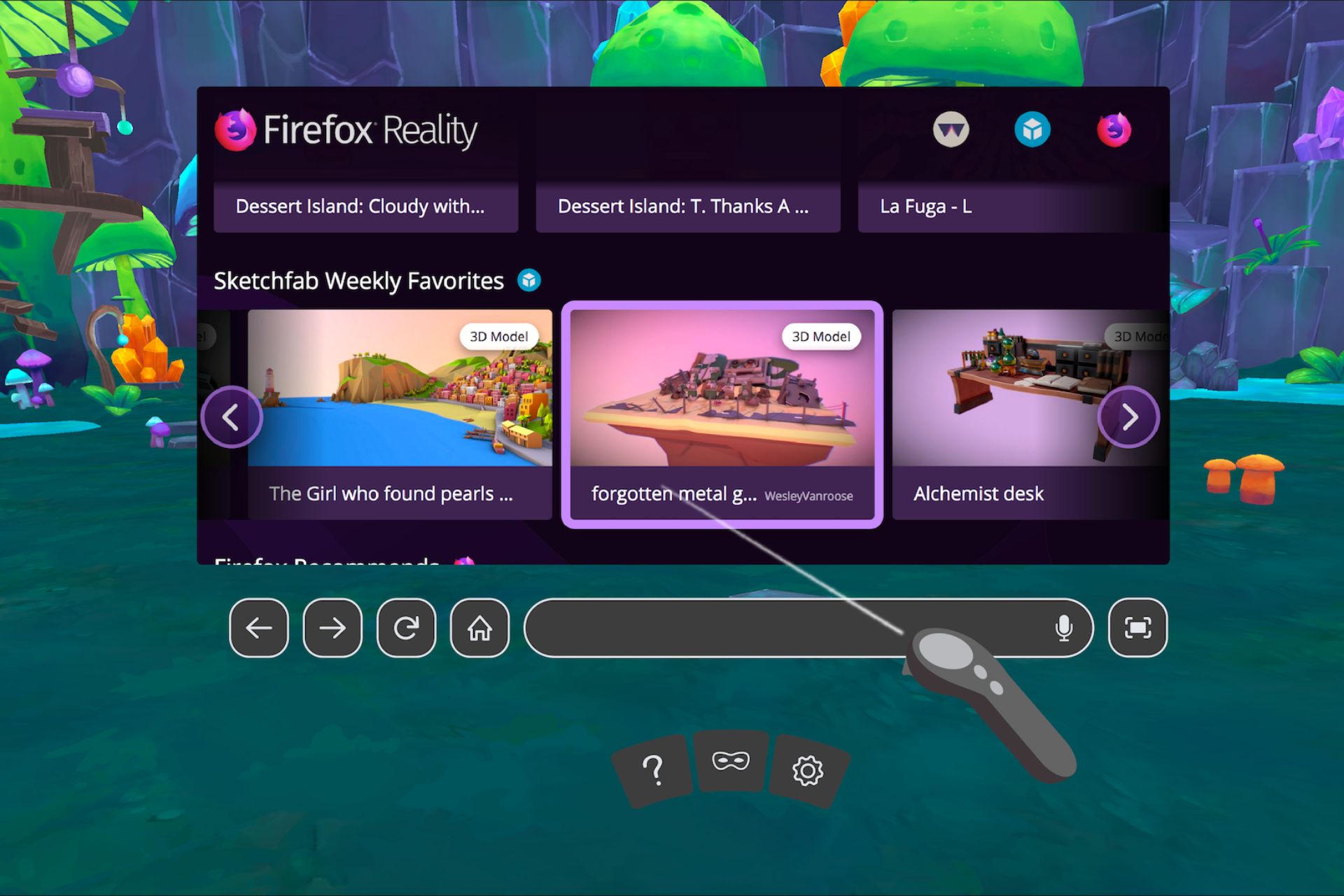

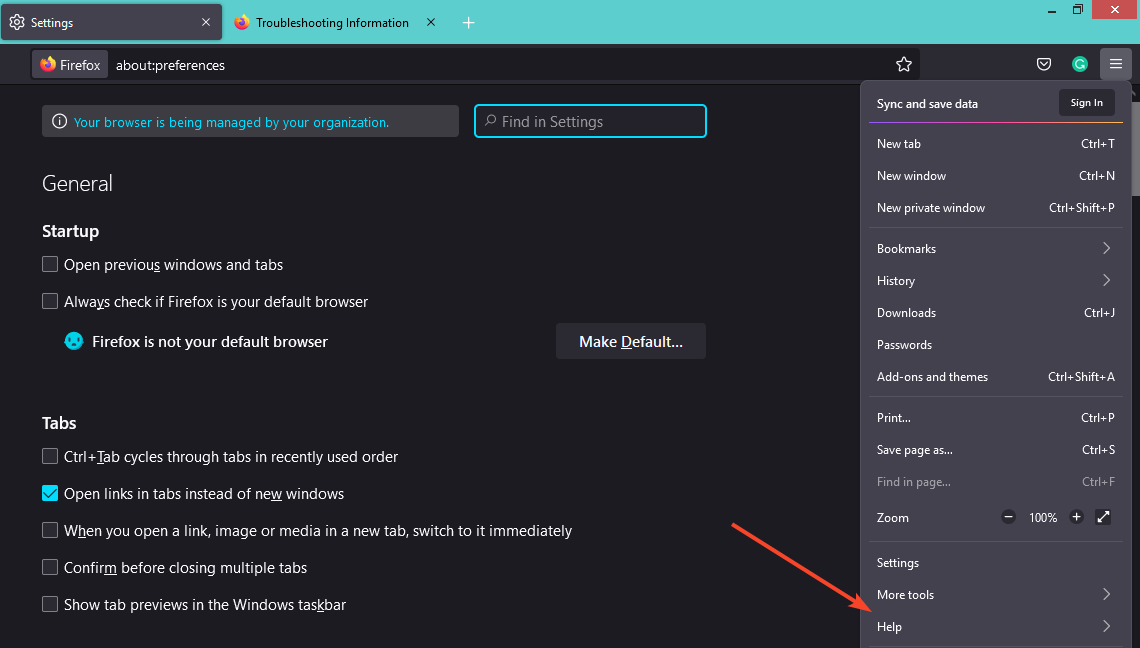


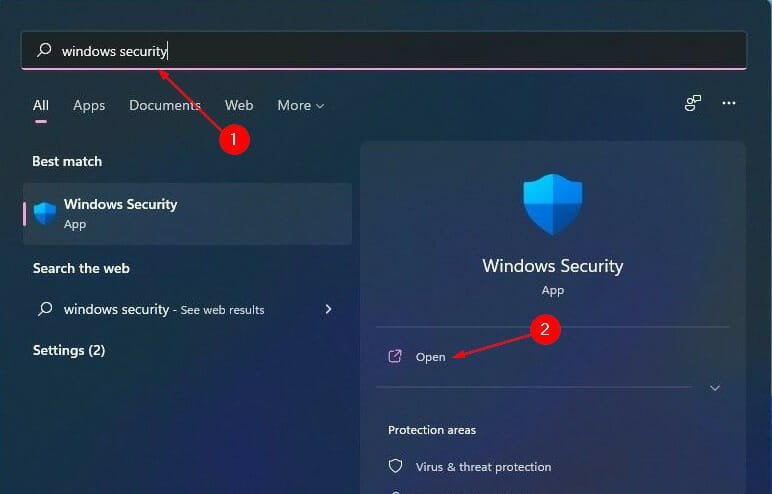
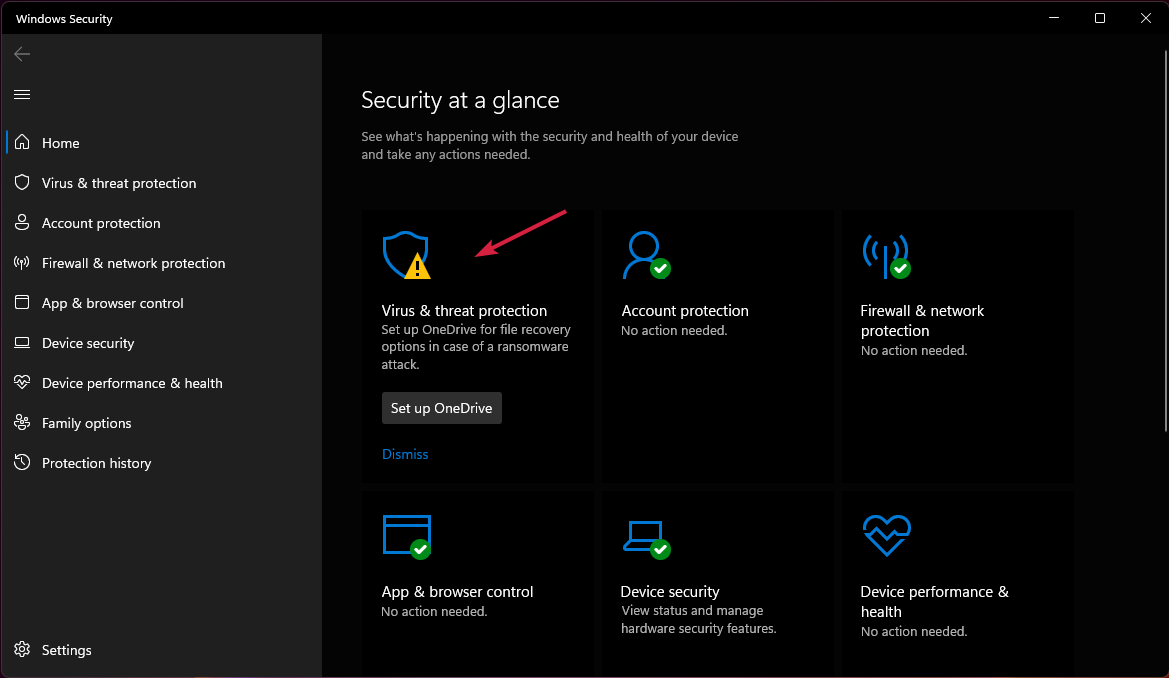
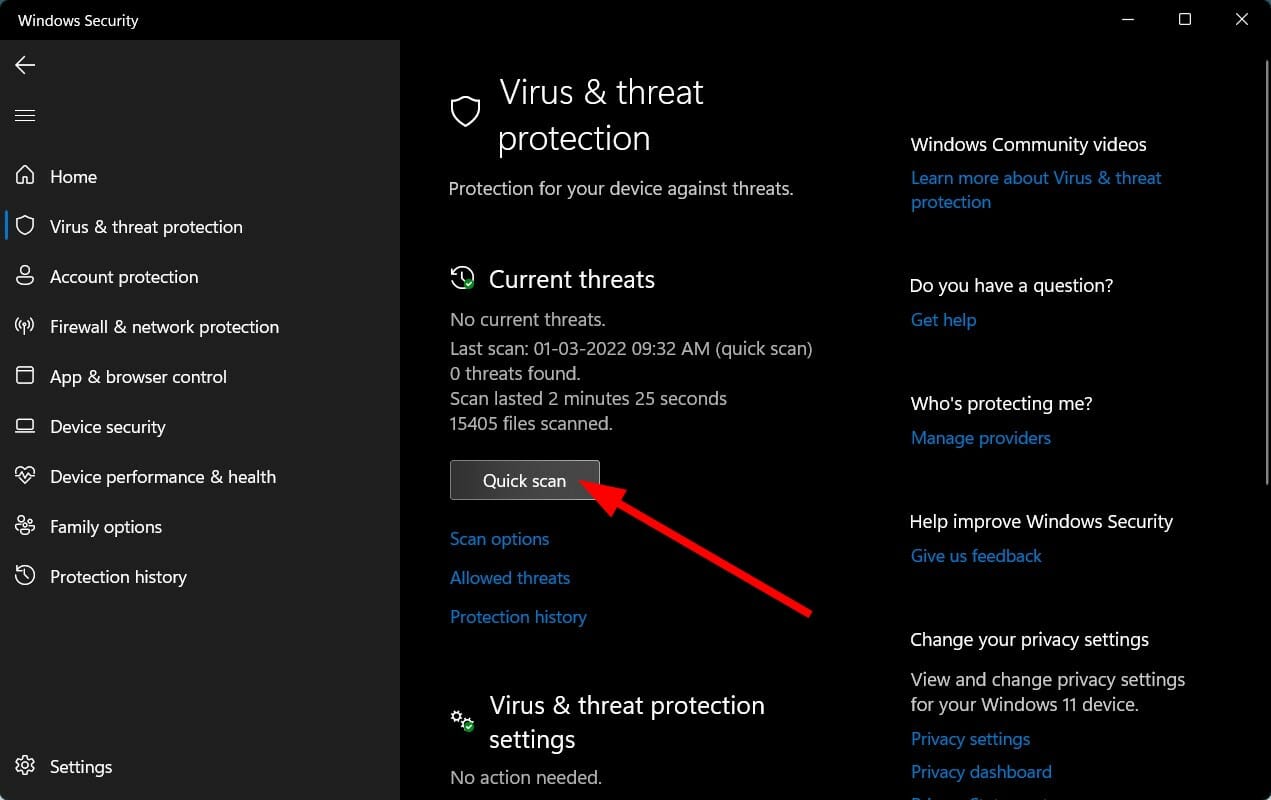
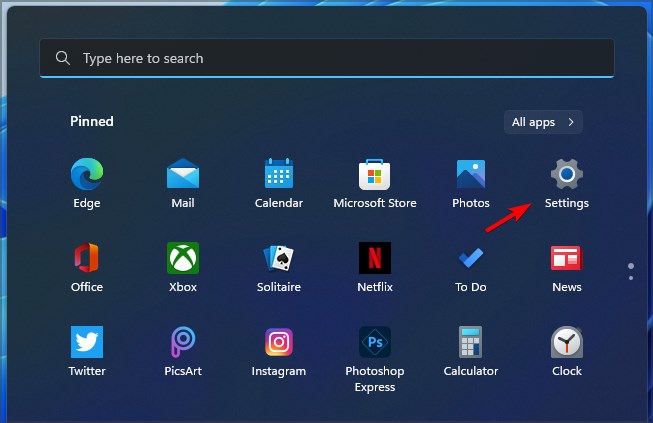



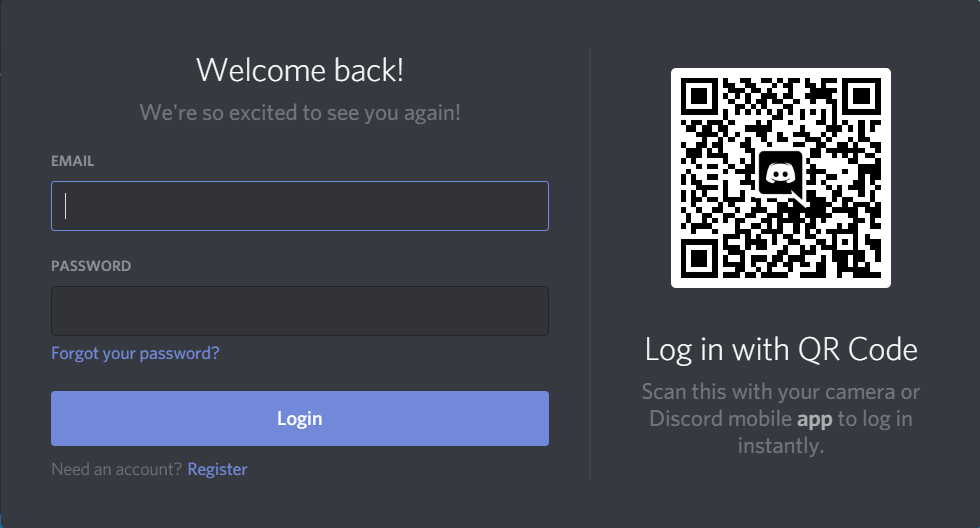

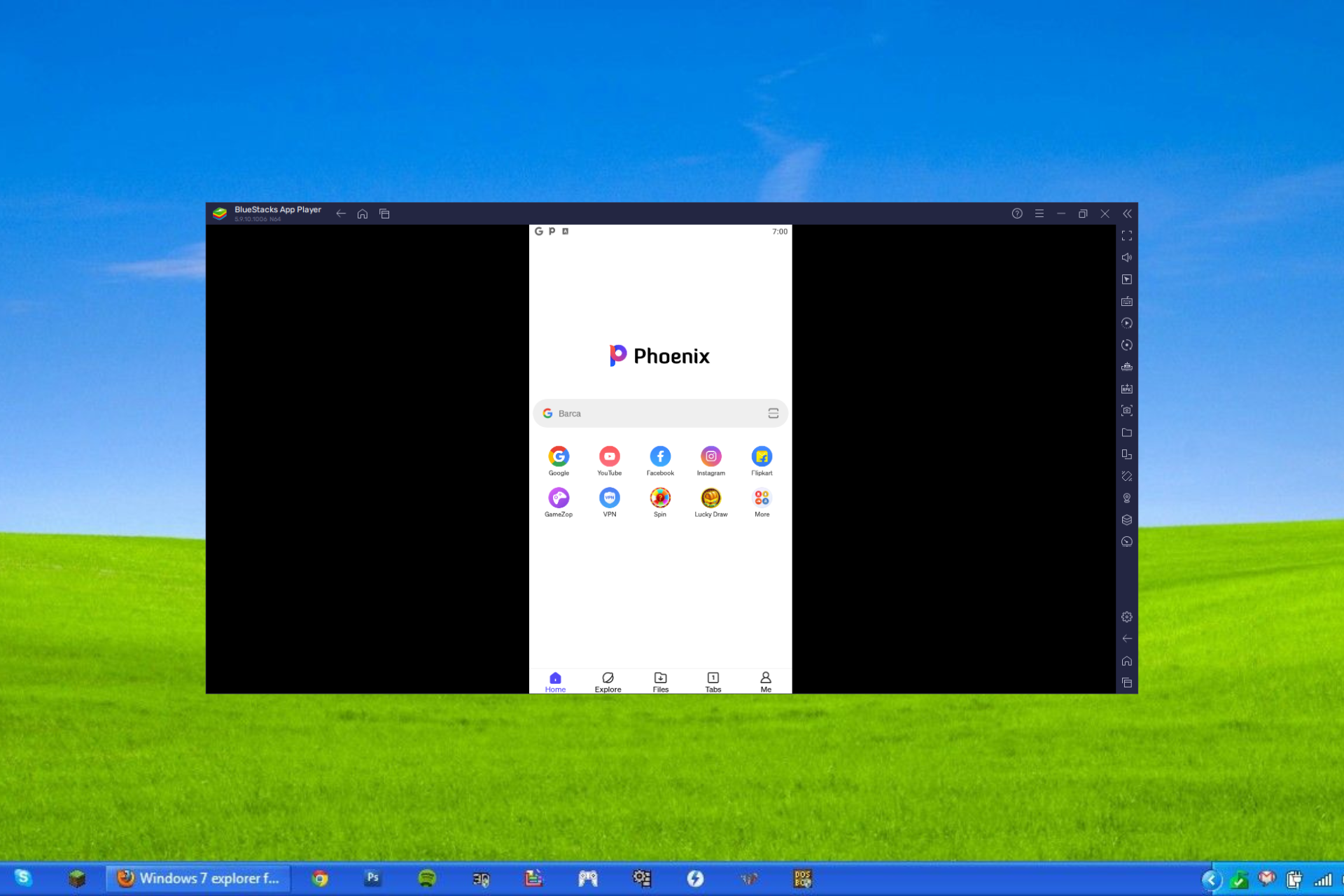






![3 Quick Ways to Fix Error 68 in Rocket League [Server Error]](https://windowsreport.com/wp-content/uploads/2022/08/rocket-league-featured-image.png)




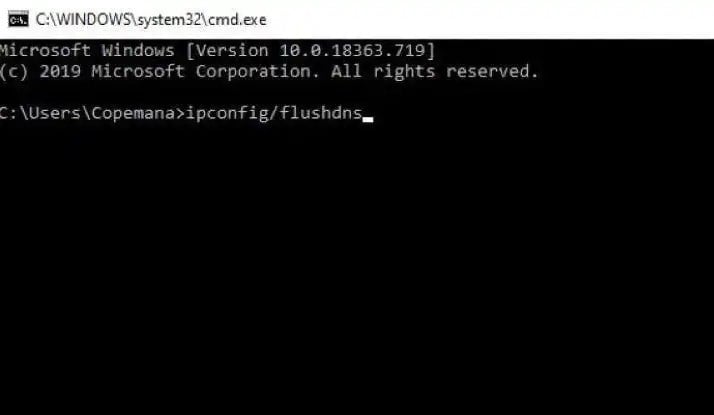
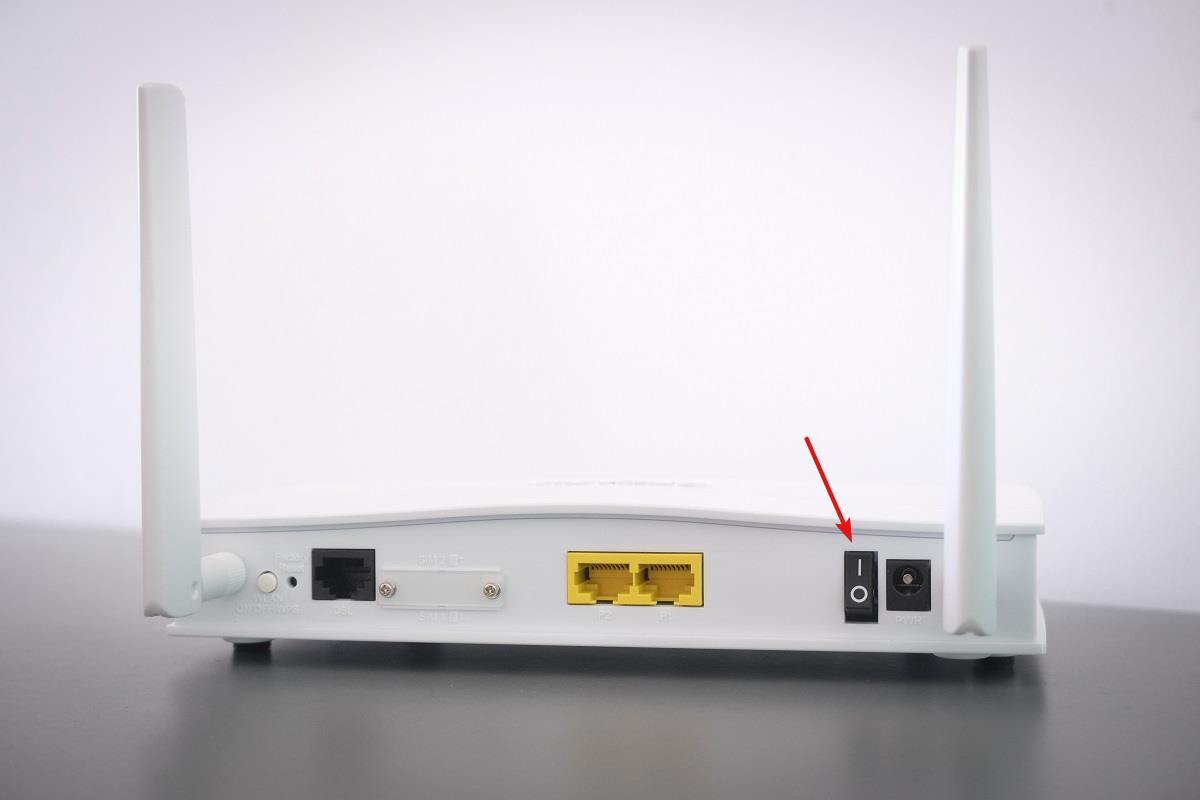
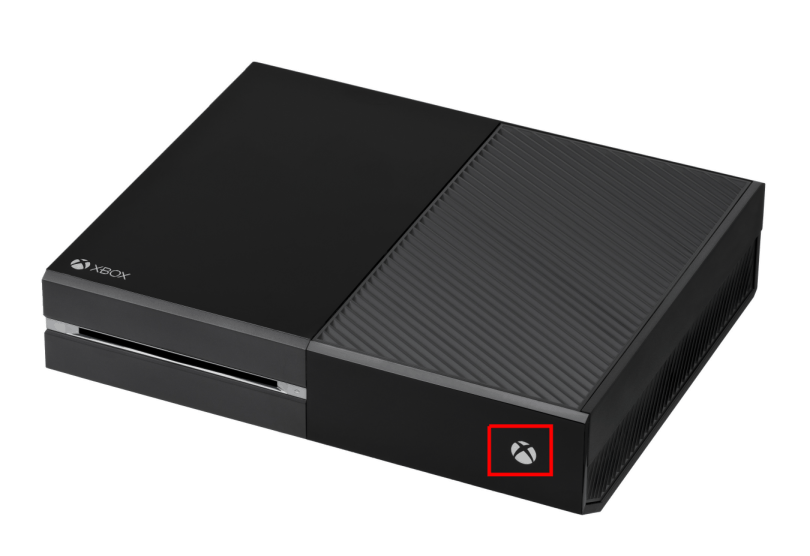

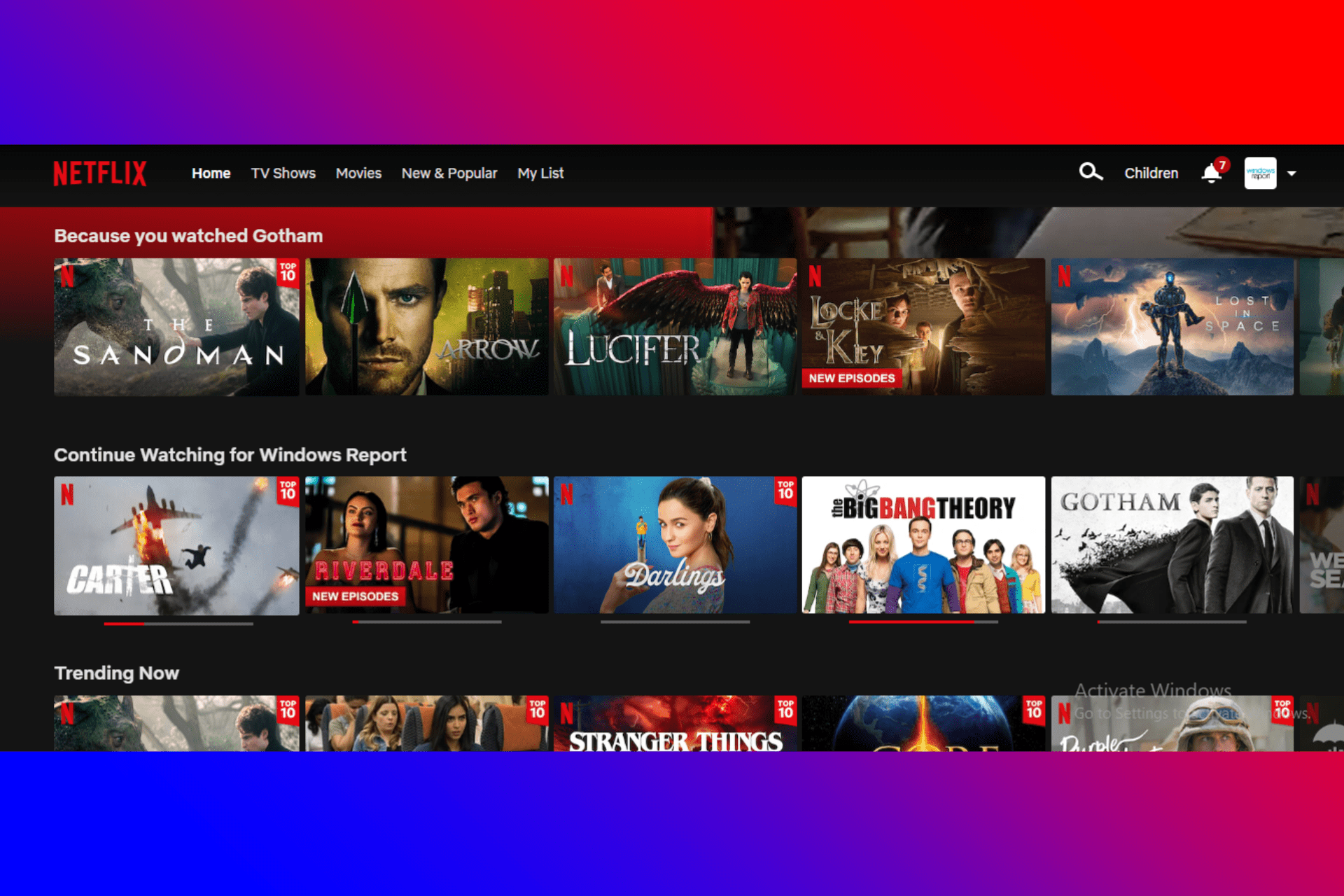




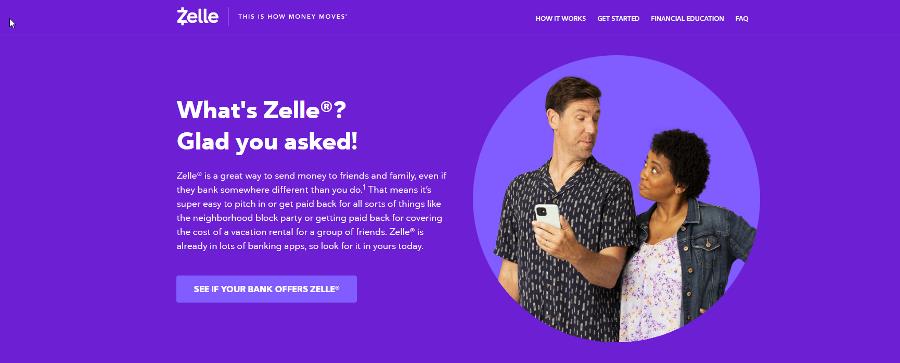
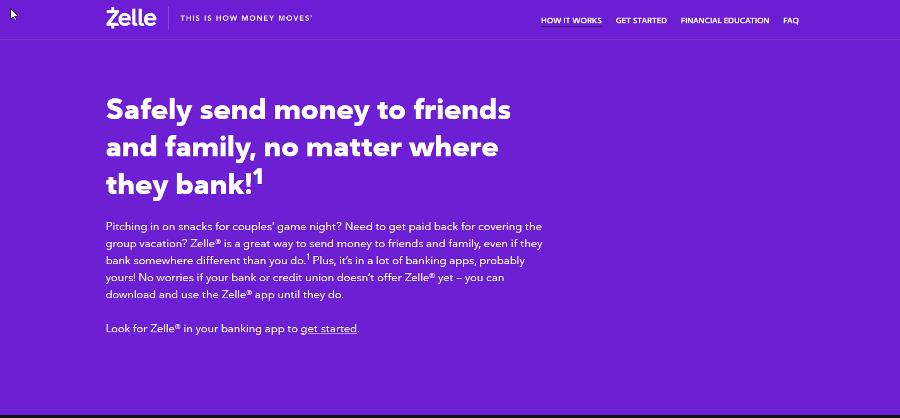
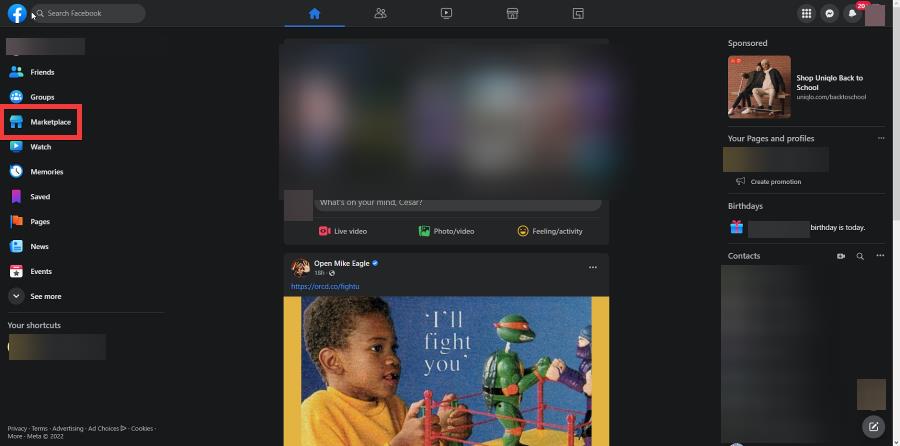
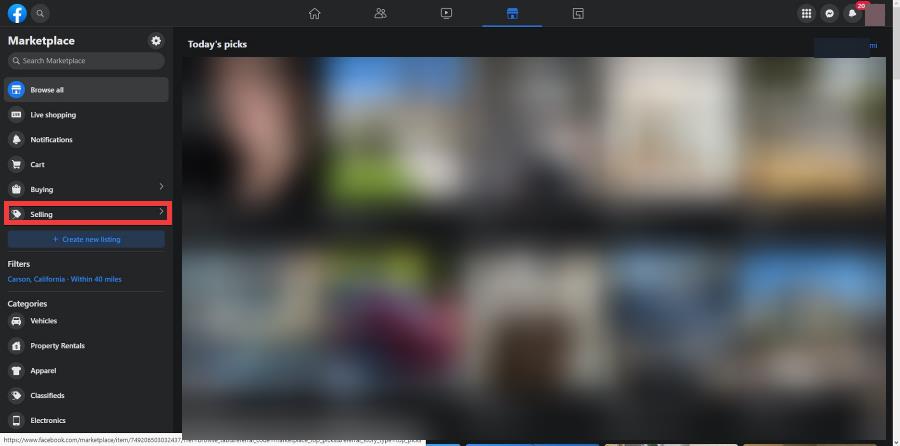
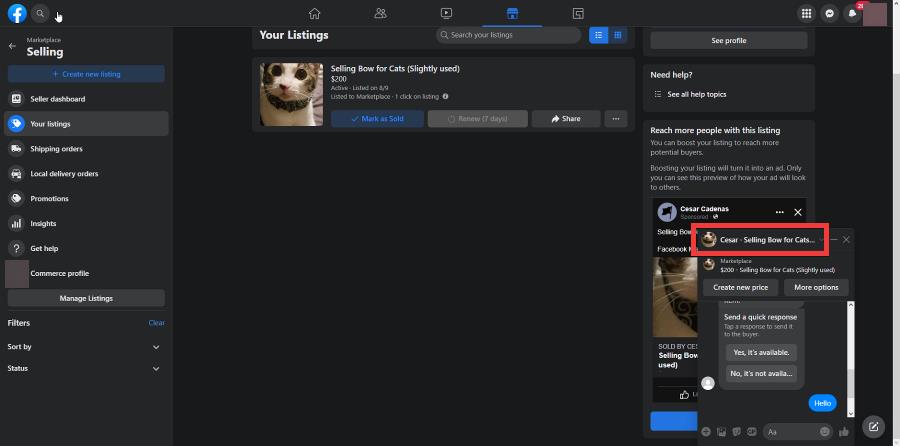
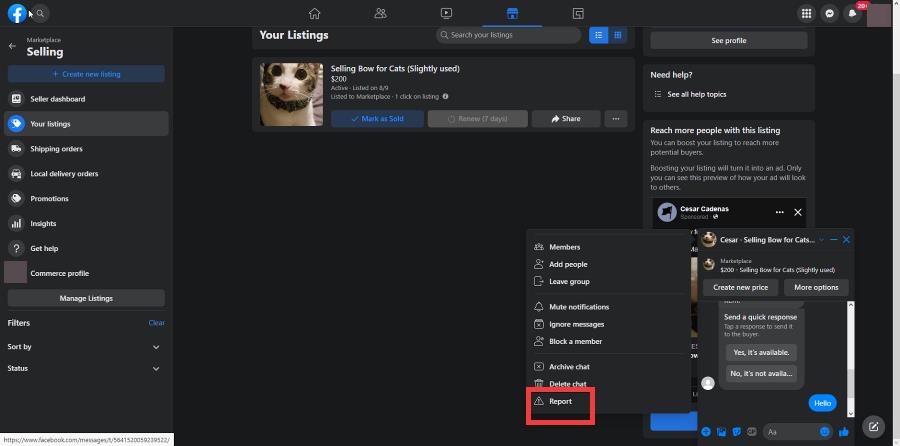
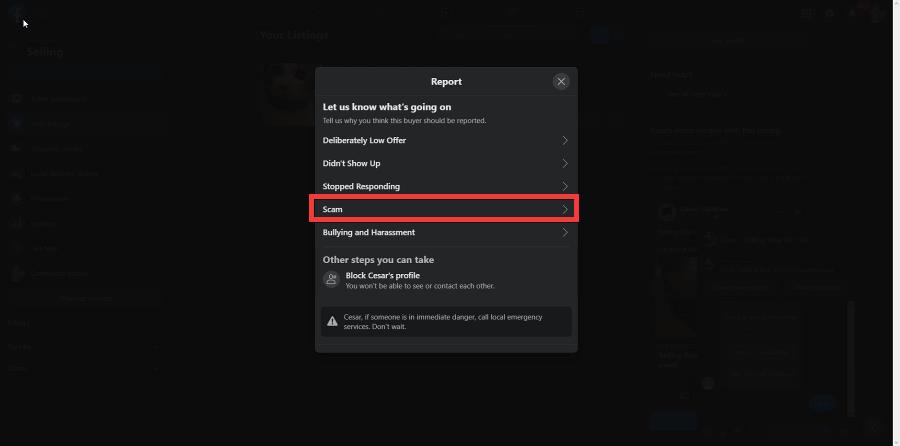
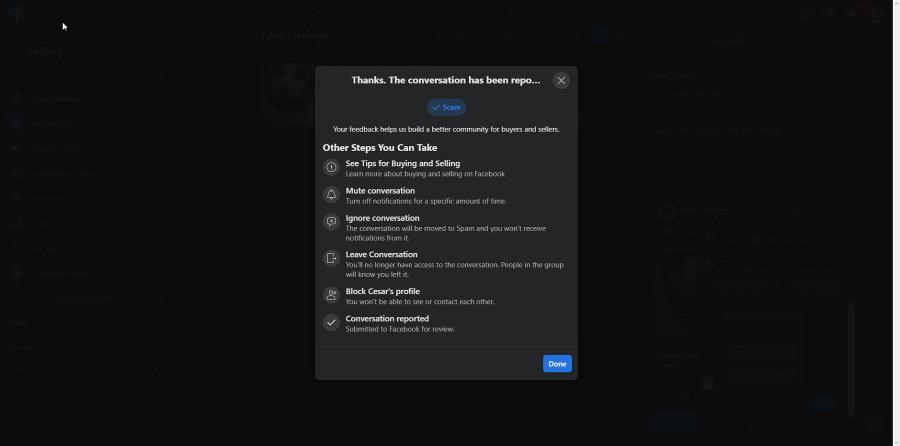

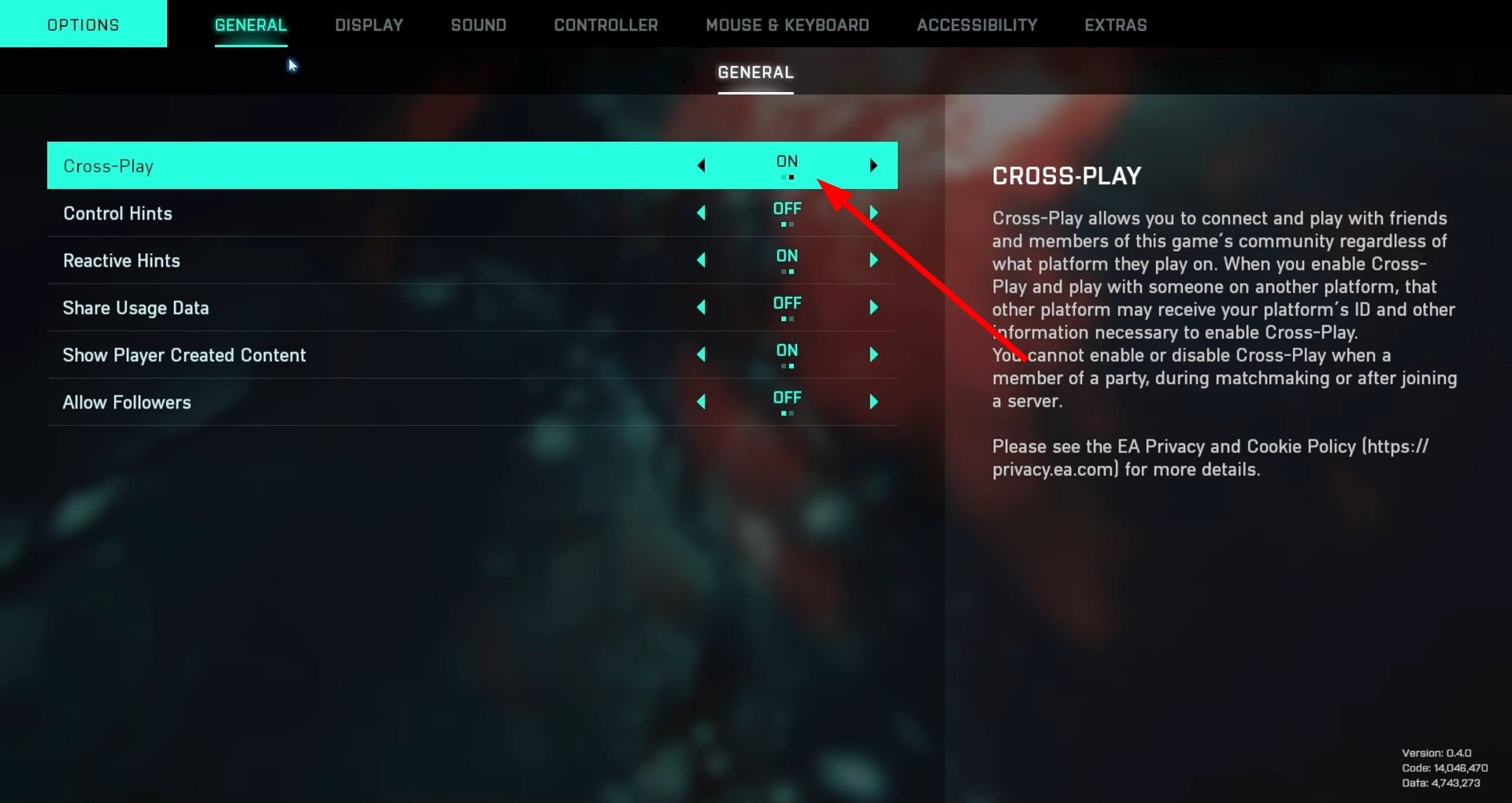
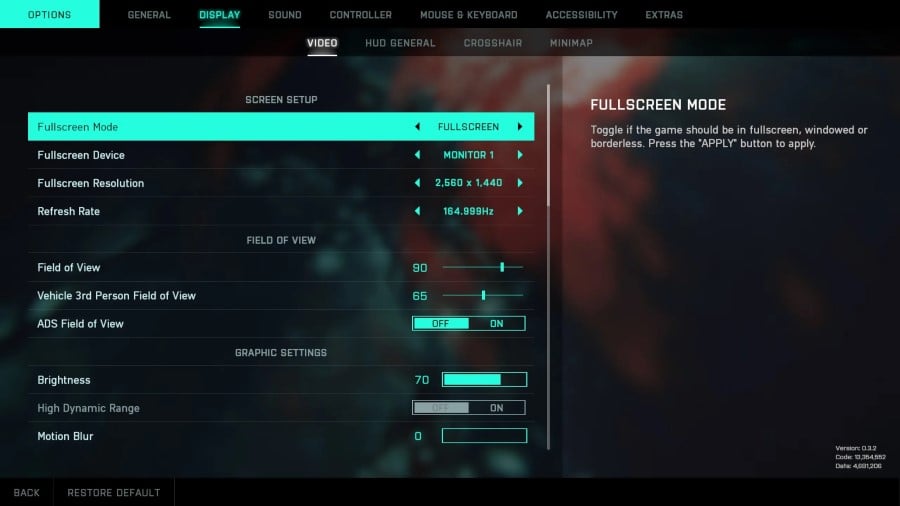


![5 Best Browsers that Support JPEG 2000 [Ranked by Compatibilty]](https://windowsreport.com/wp-content/uploads/2022/08/feature-image-browser-support-jpeg-2000.jpg)


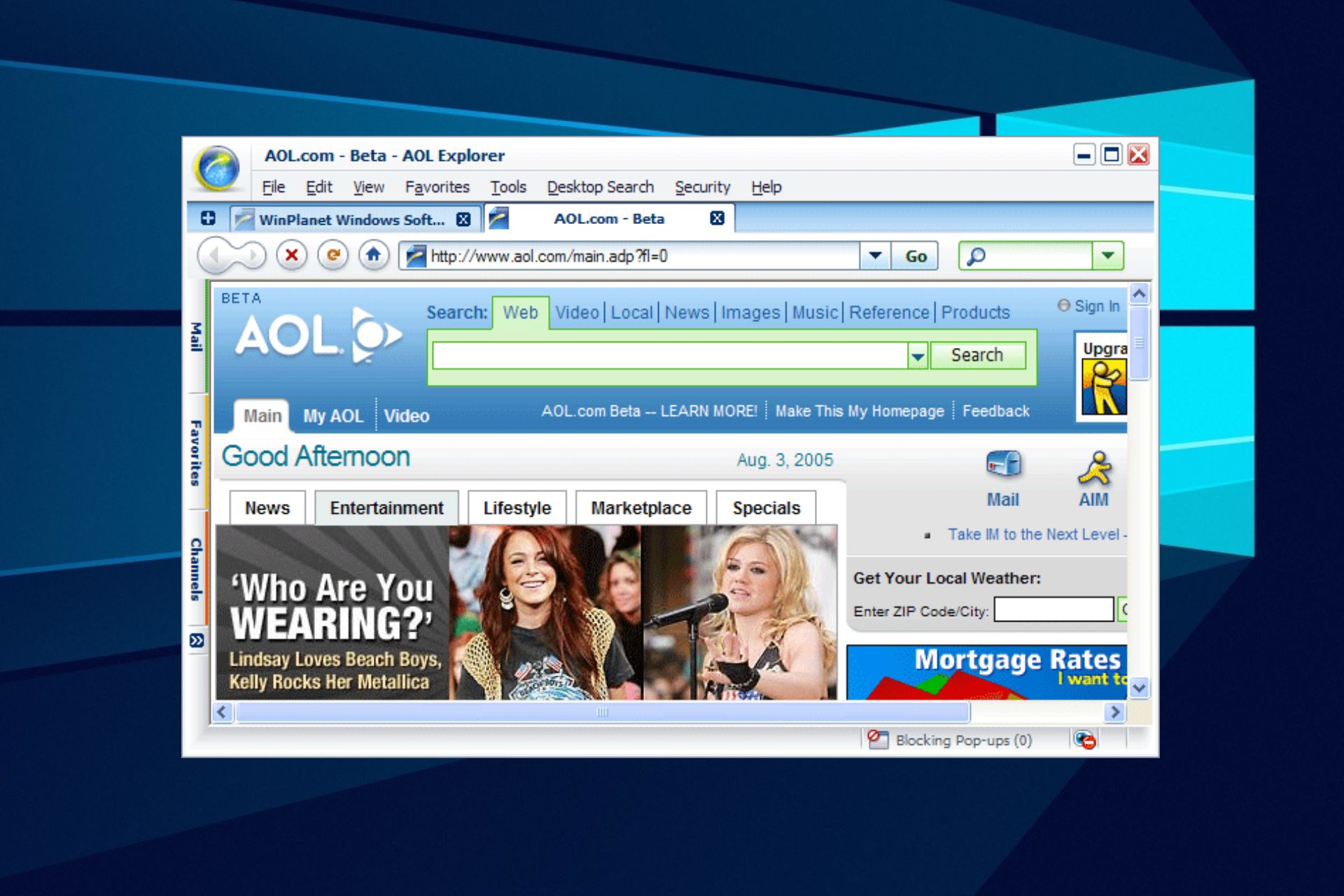


![Download Avant Browser for Windows 10 & 11 [32/64 bit]](https://windowsreport.com/wp-content/uploads/2022/08/avant-browser.png)


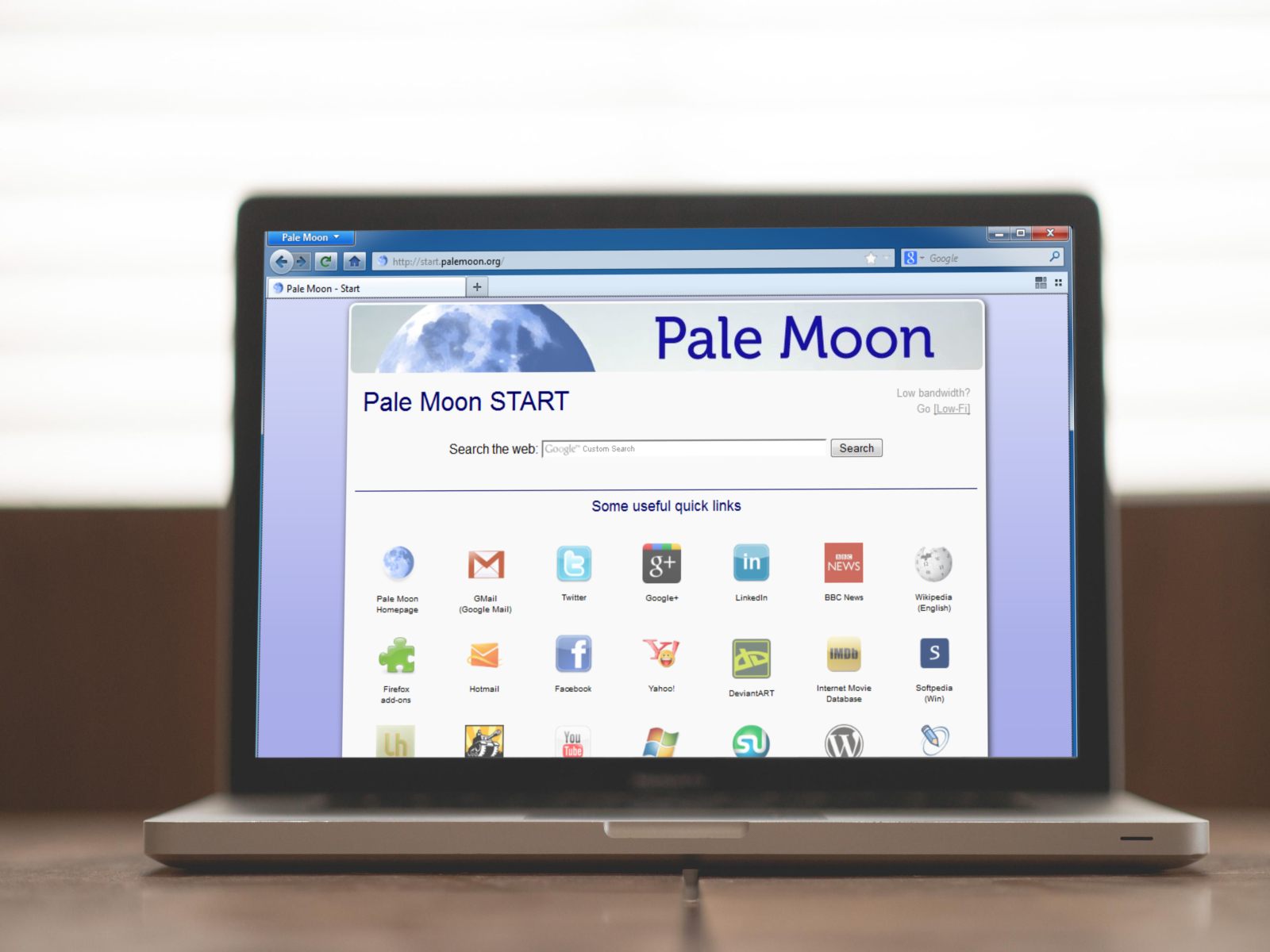
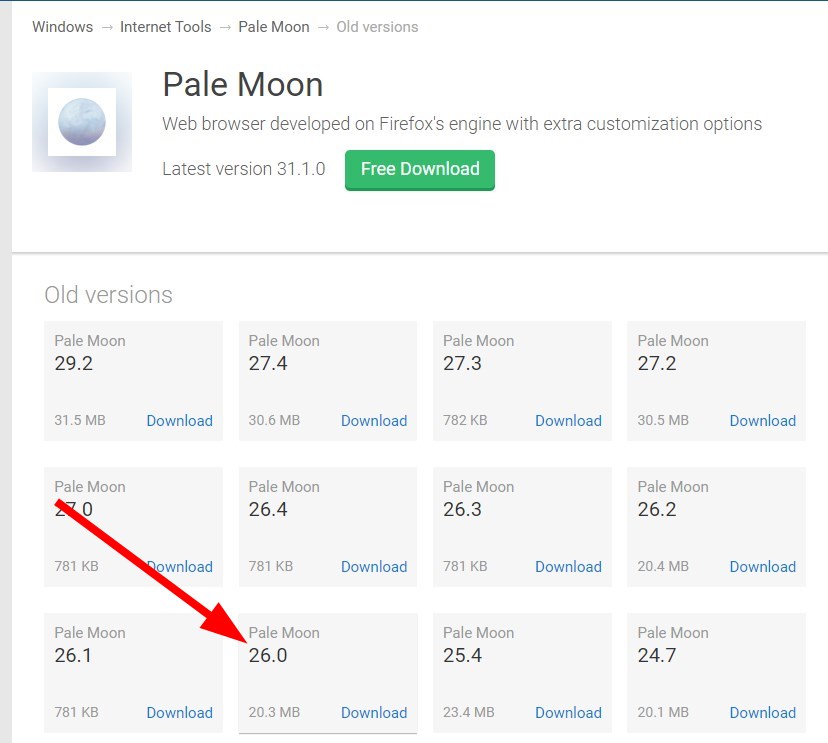

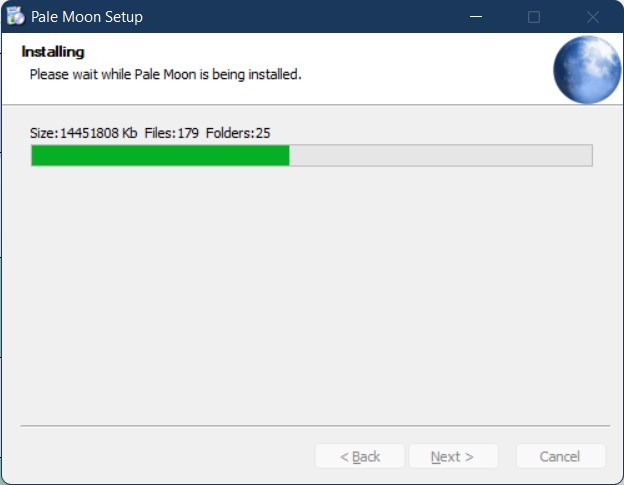
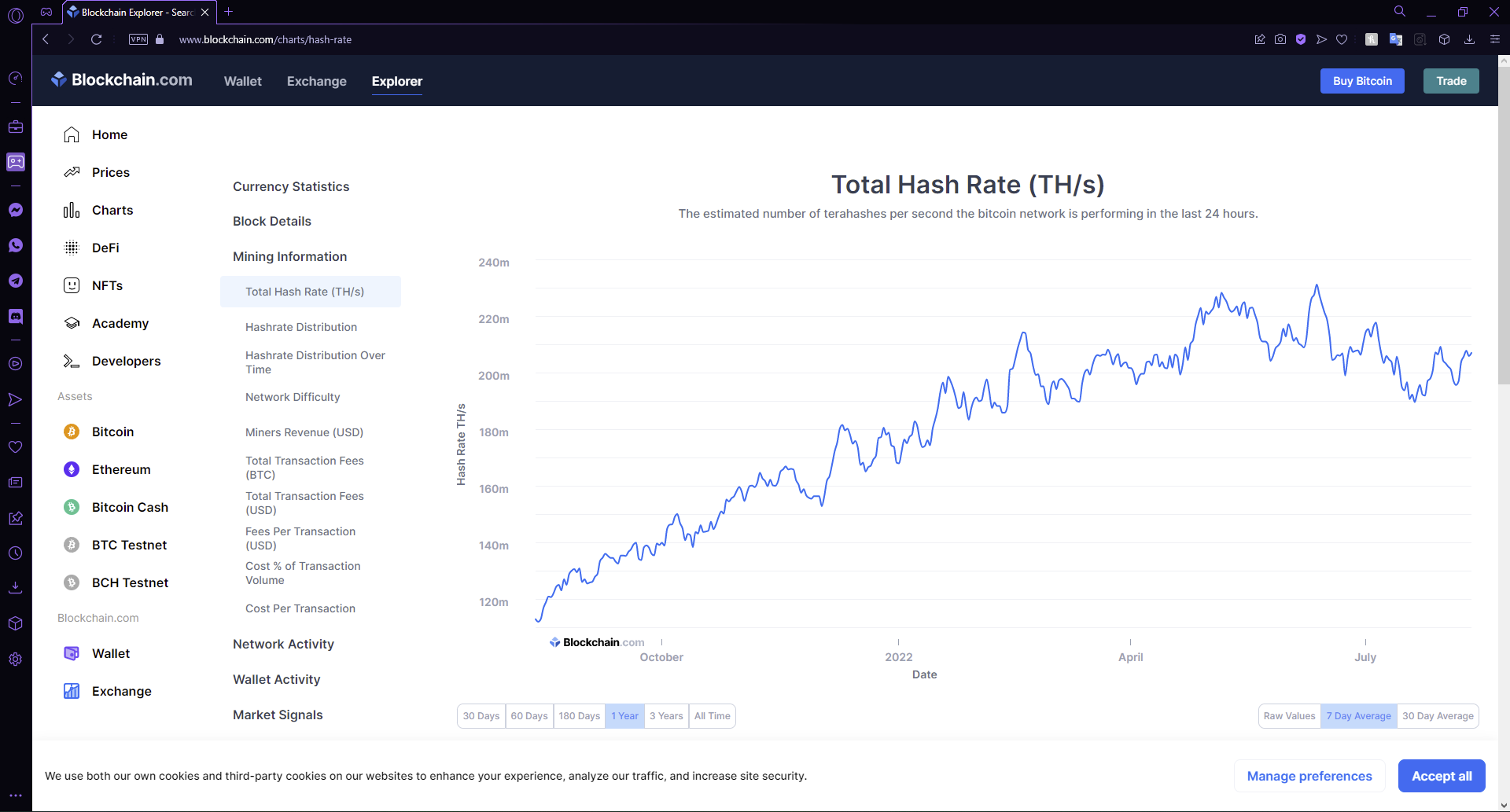

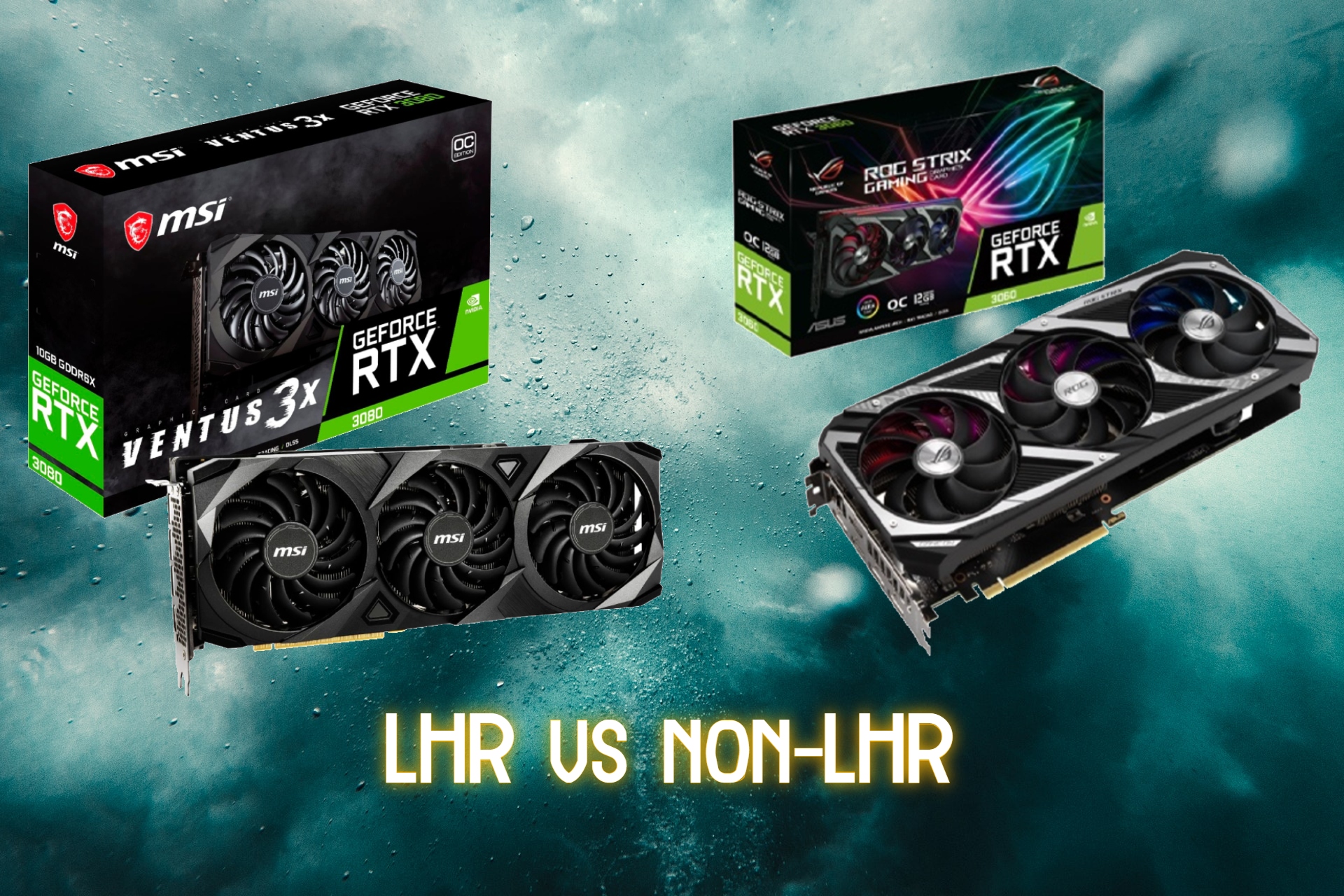
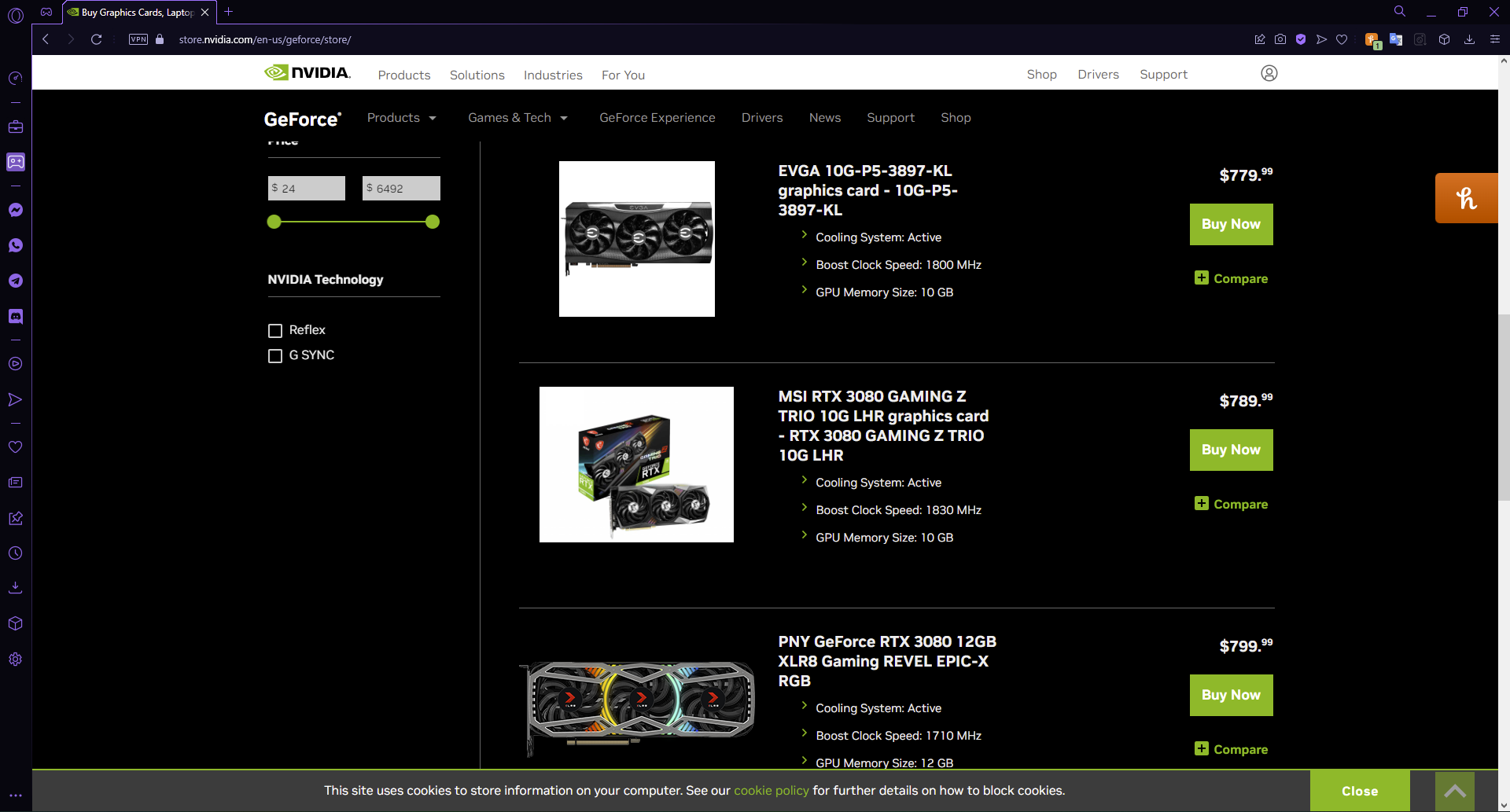



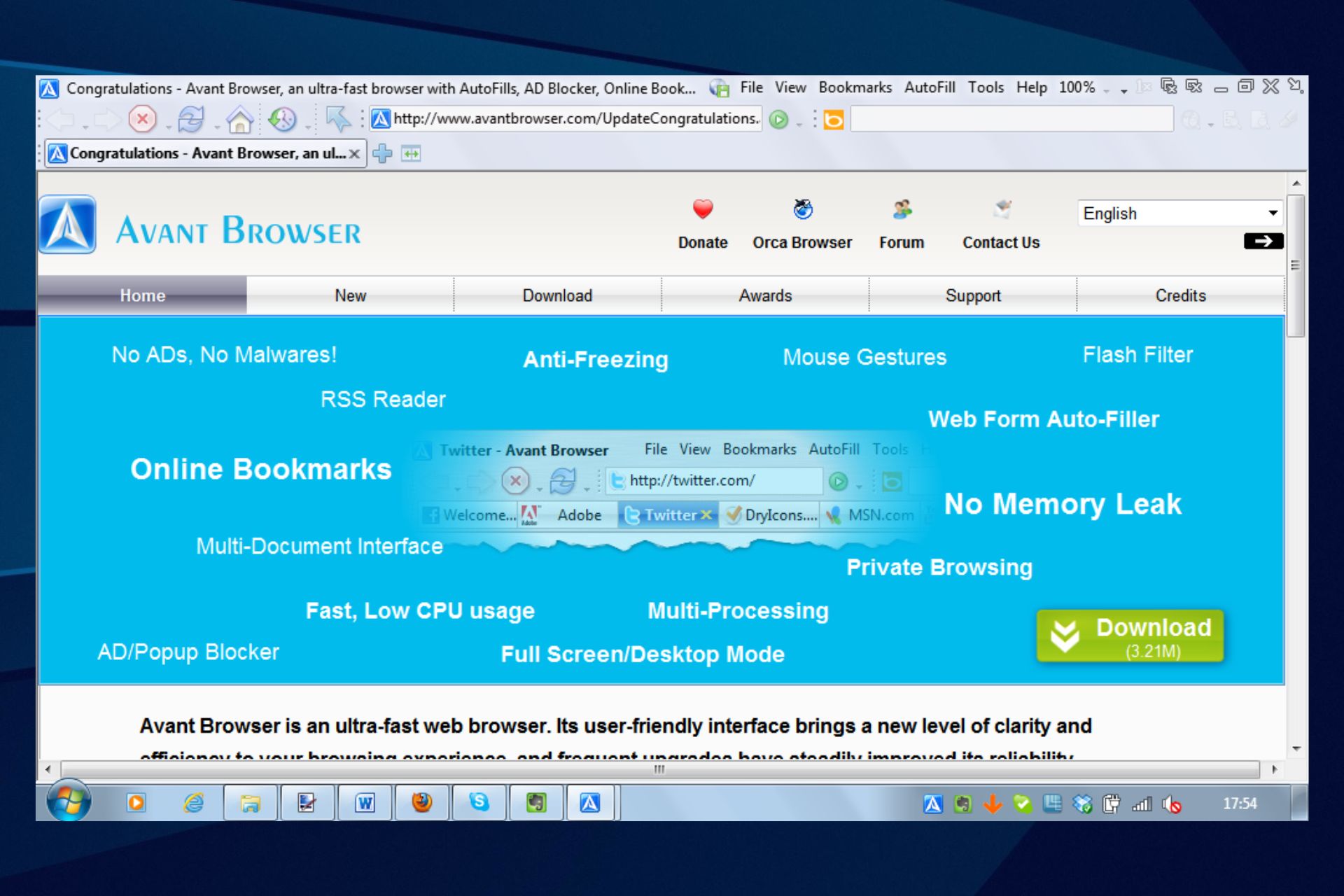



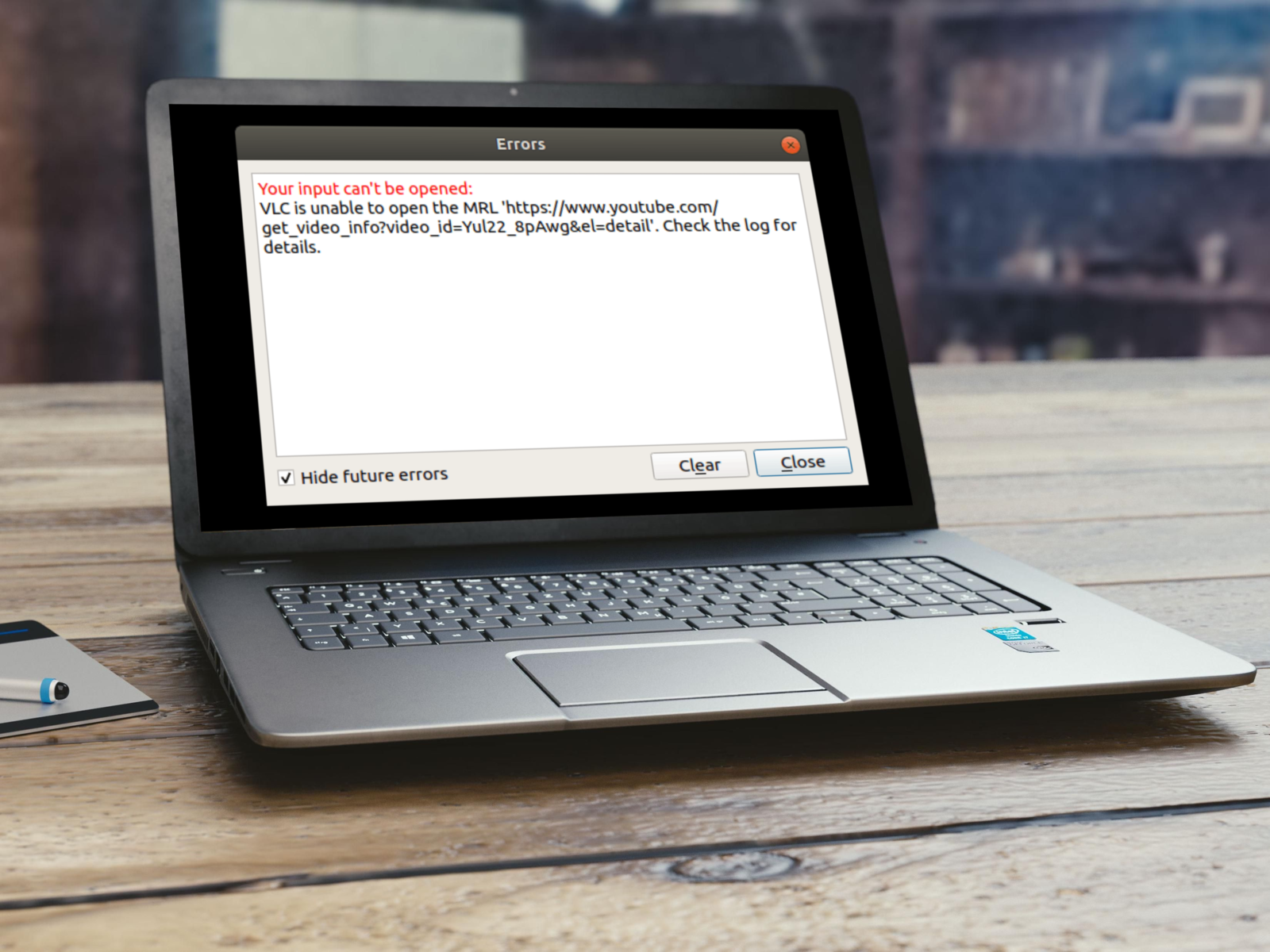


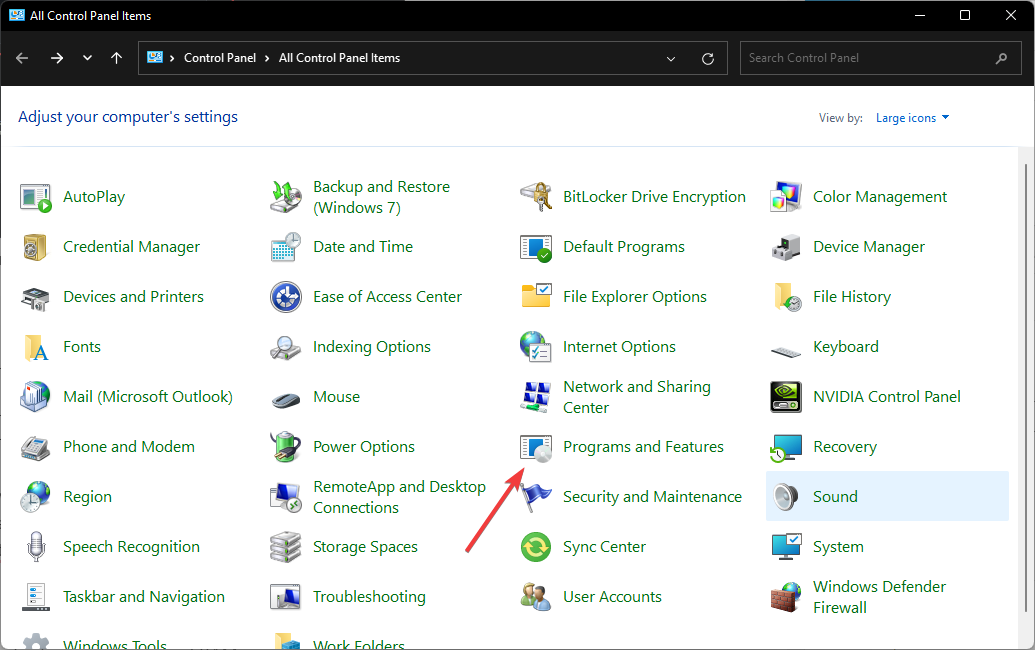


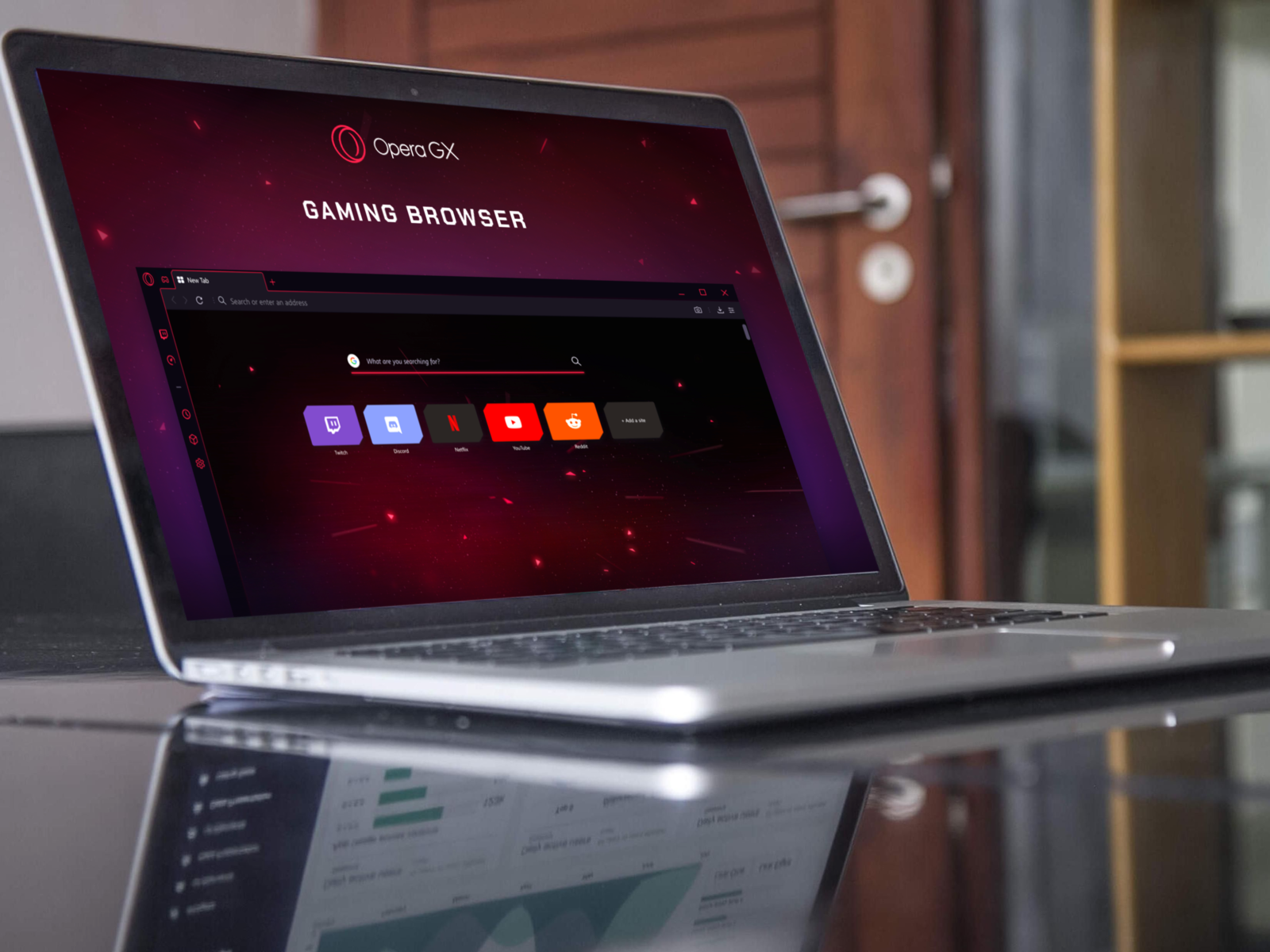


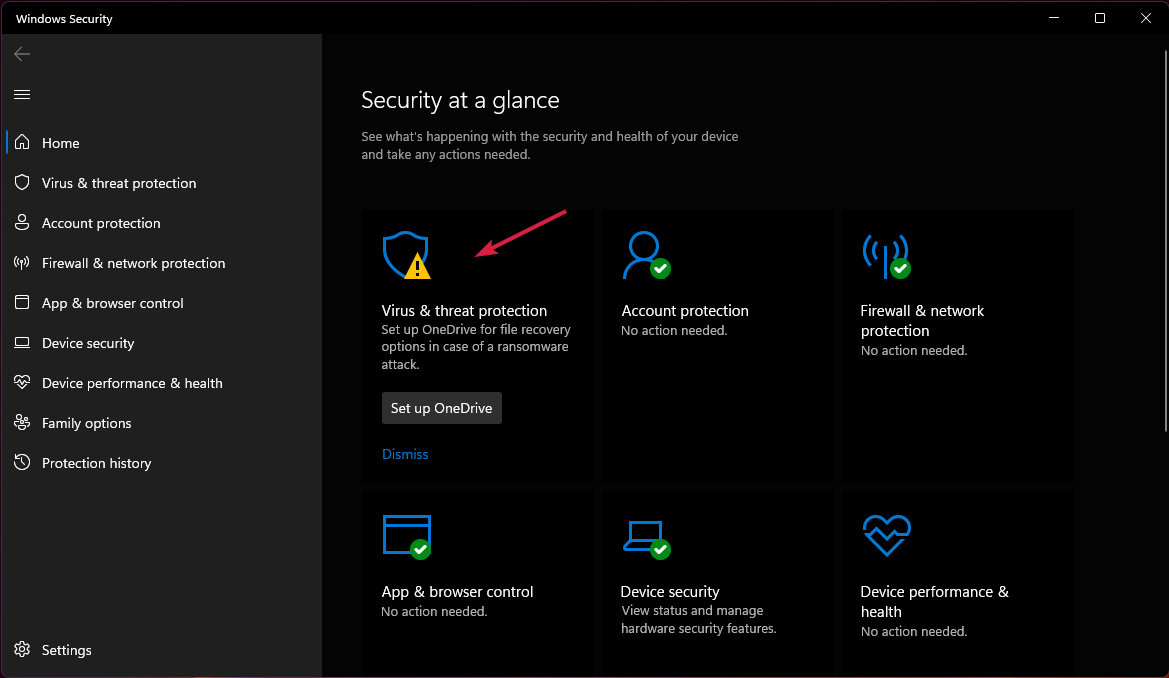
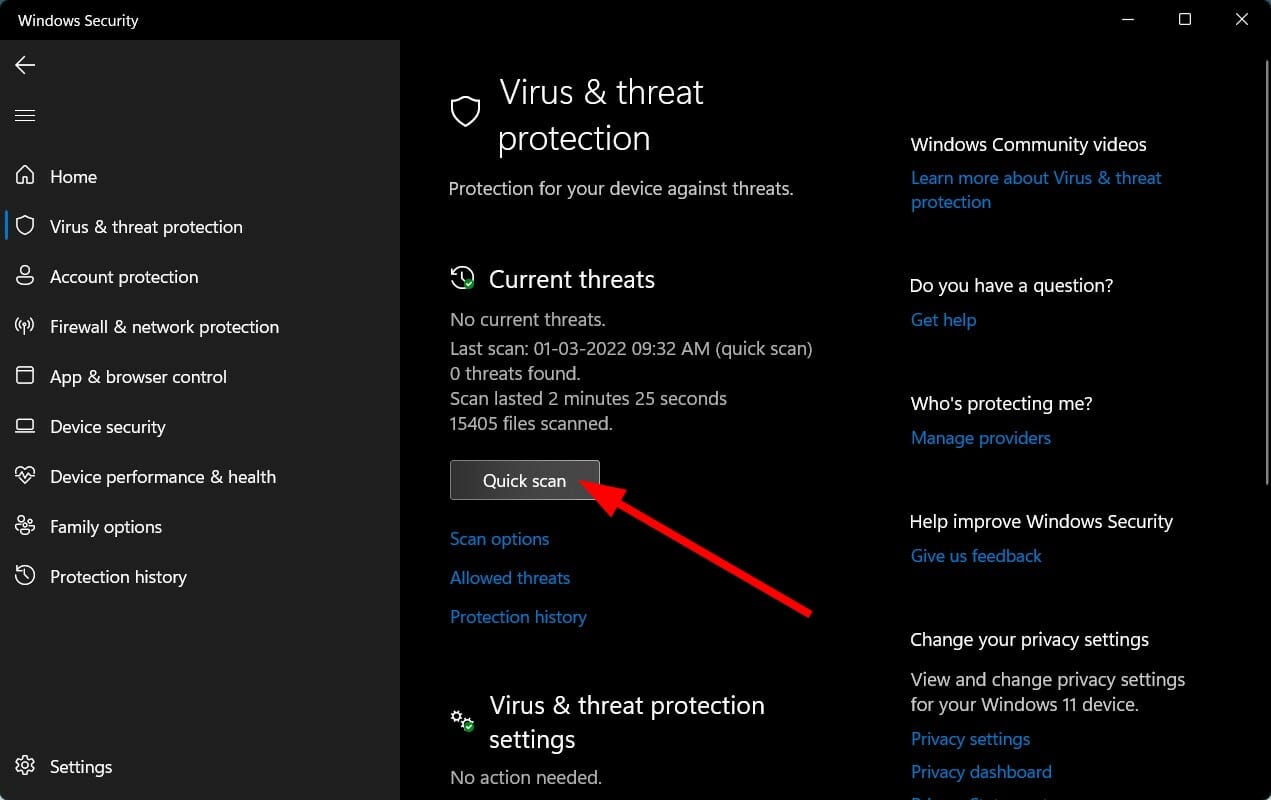


![5 Best Browsers that Support Zendesk [Ranked by Integrations]](https://windowsreport.com/wp-content/uploads/2022/08/Google-Chrome-Featured.jpg)


![Download Maxthon Browser for Windows 10 & 11 [32/64 bit]](https://windowsreport.com/wp-content/uploads/2022/08/best-browser-for-google-workspace-65.jpg)



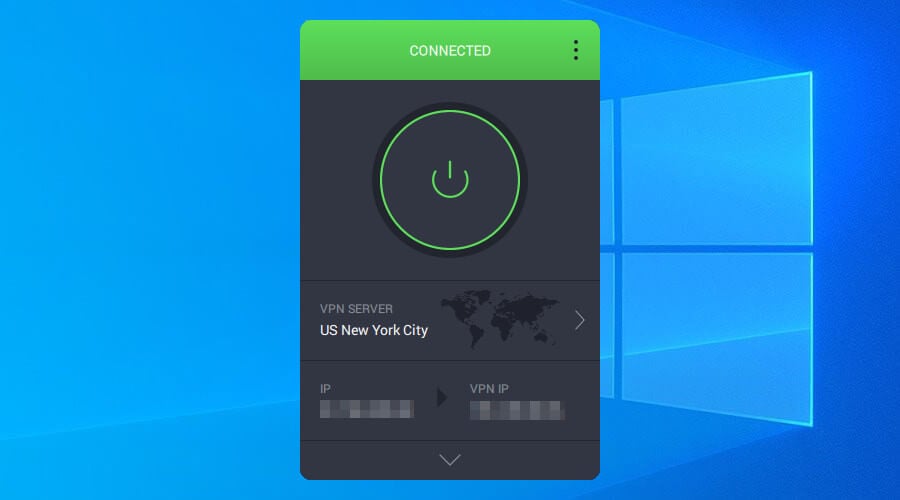
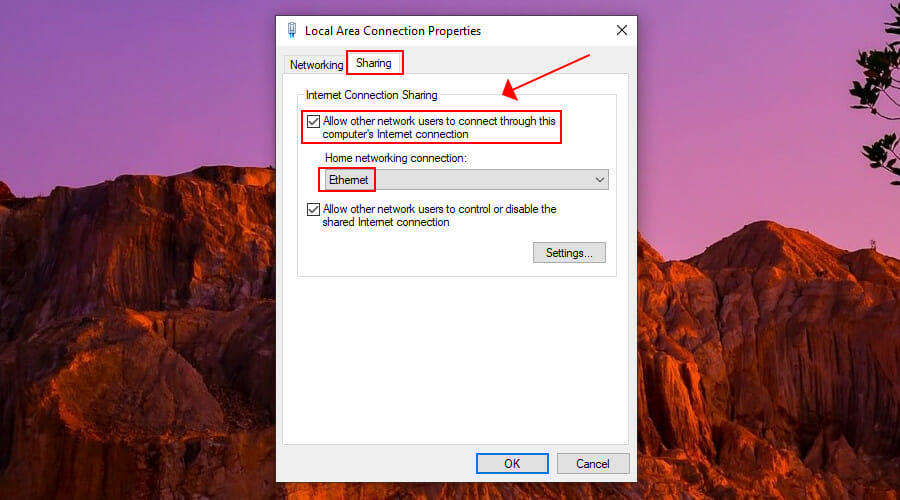

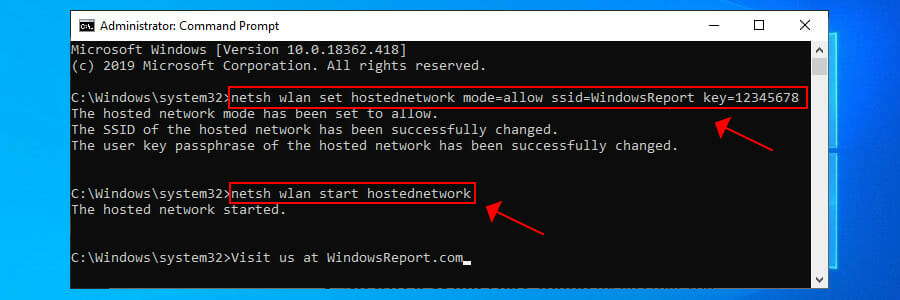
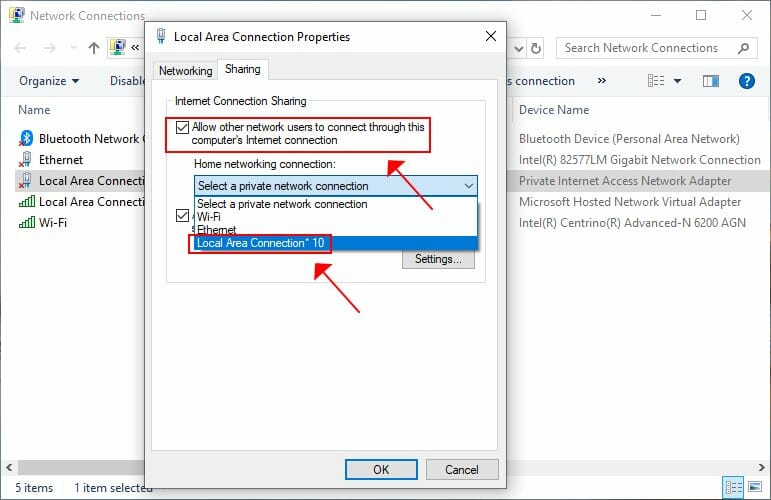


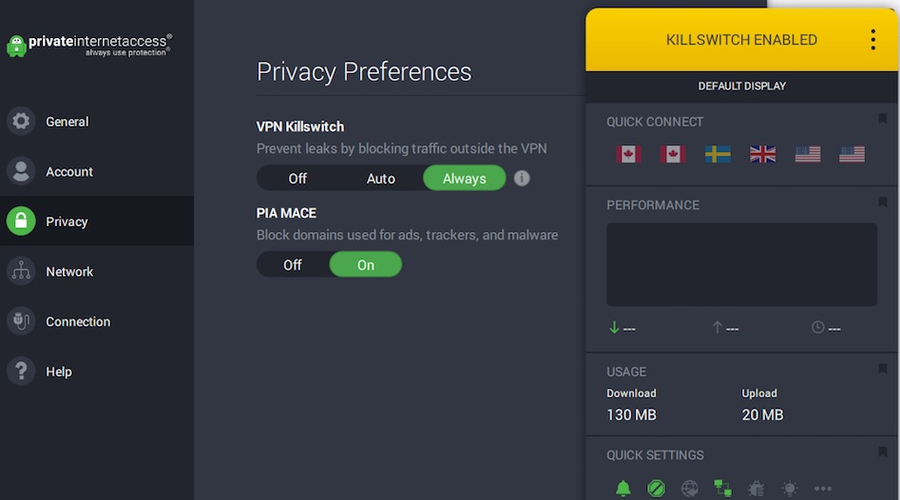

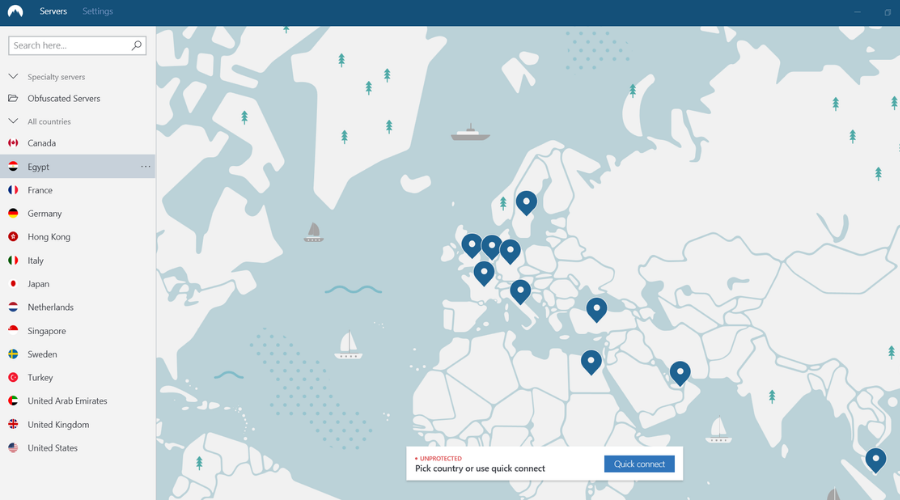

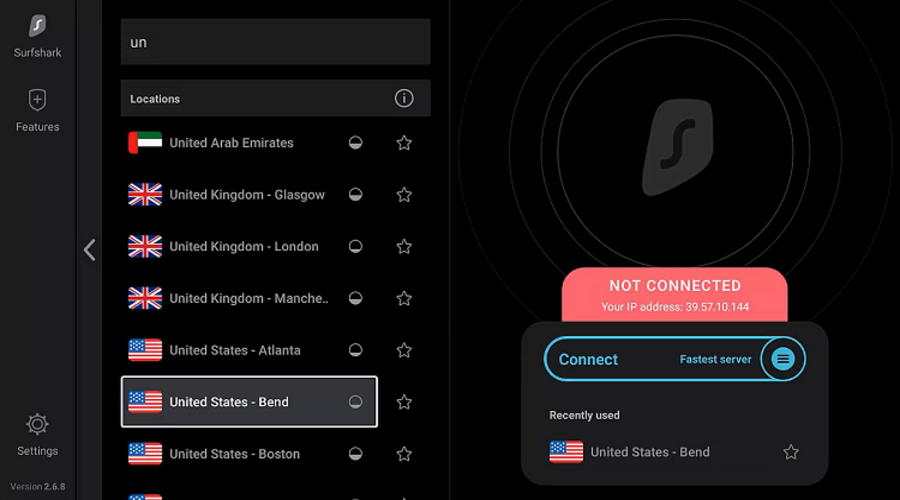


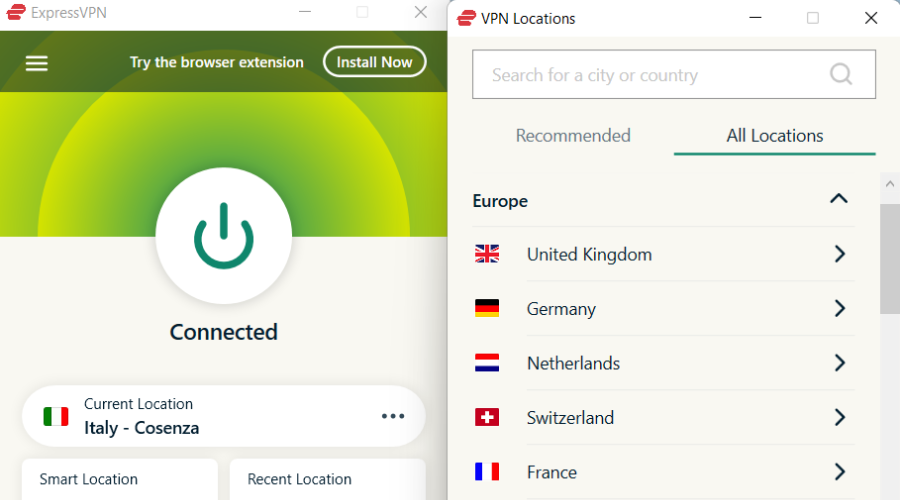


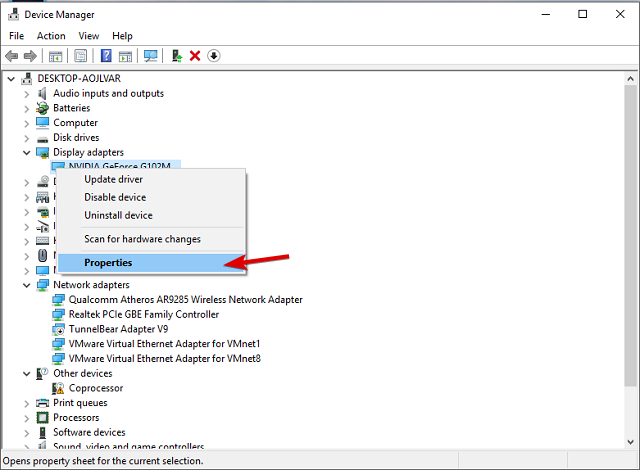
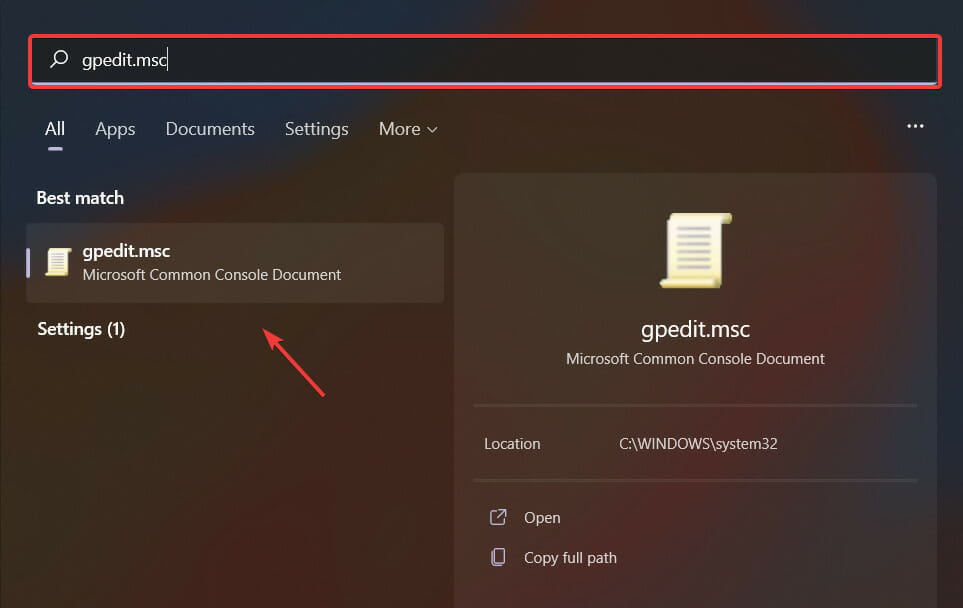

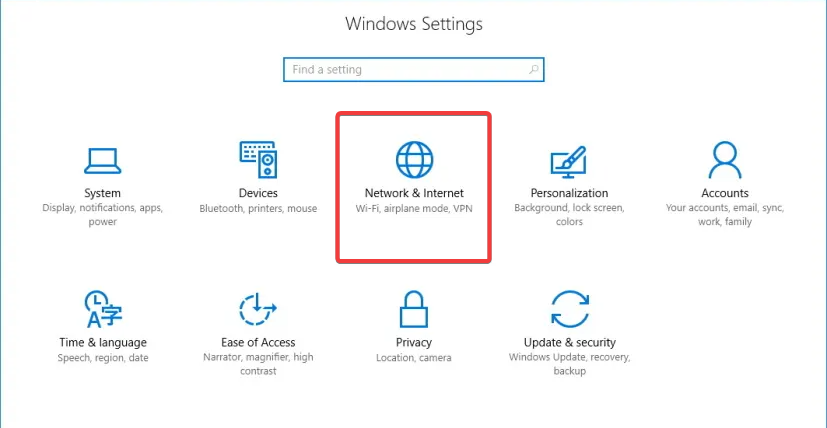
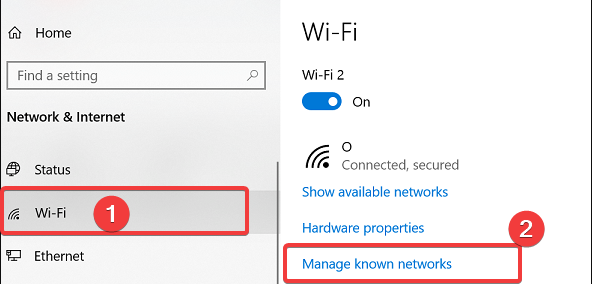
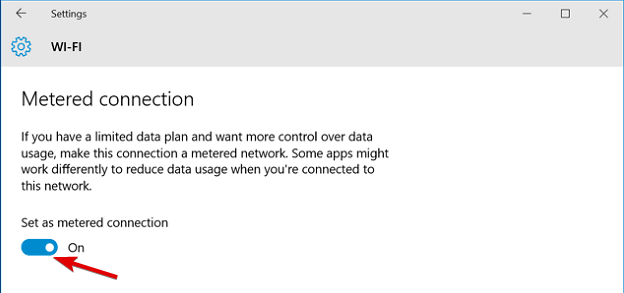
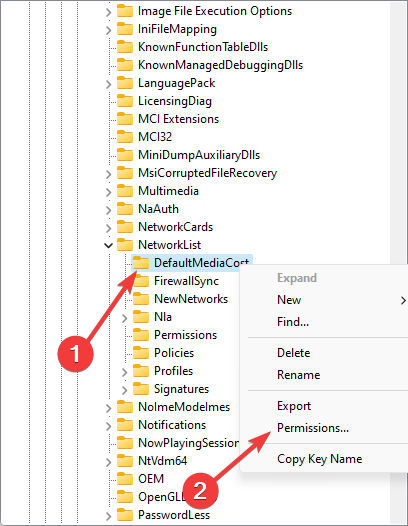
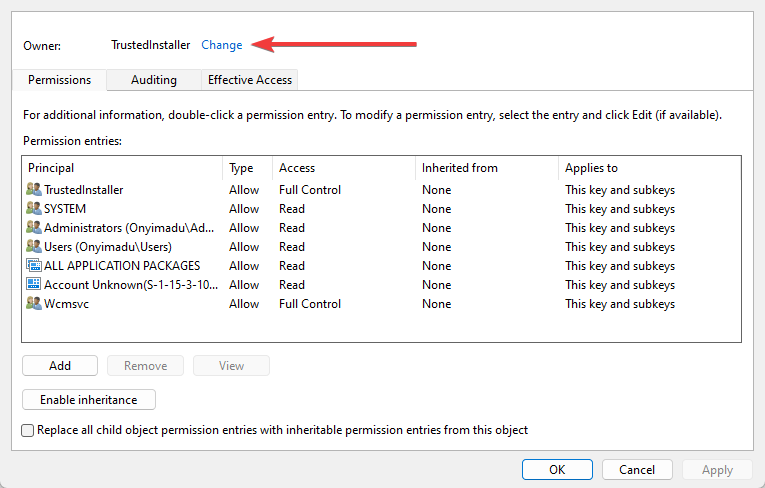
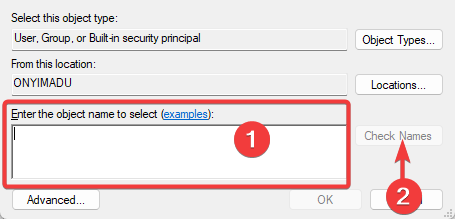
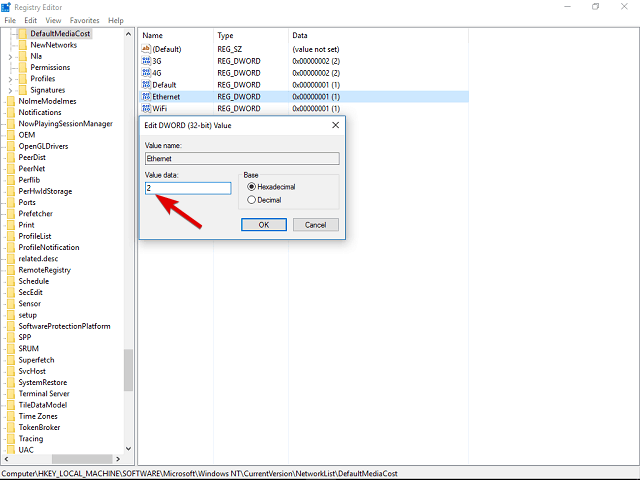

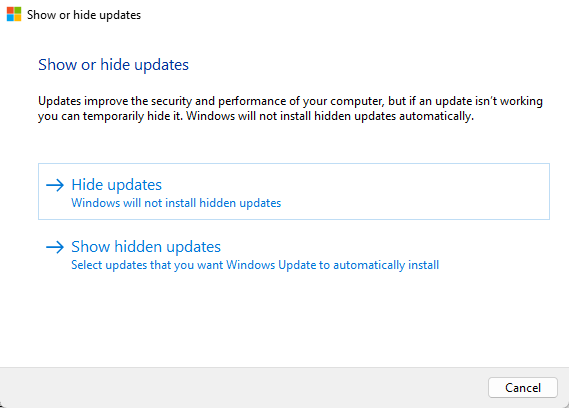
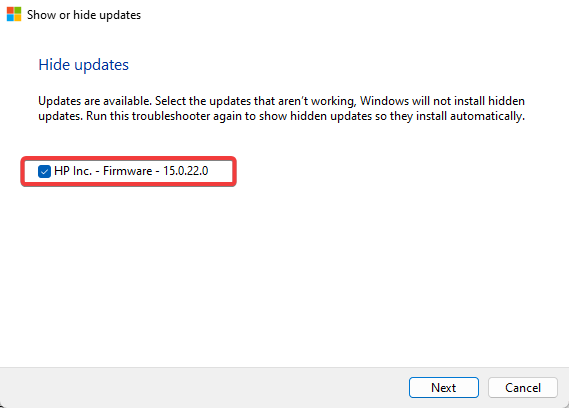
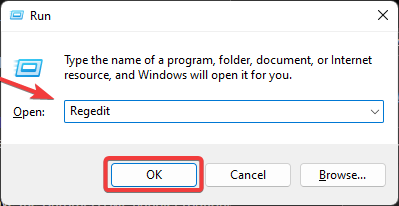


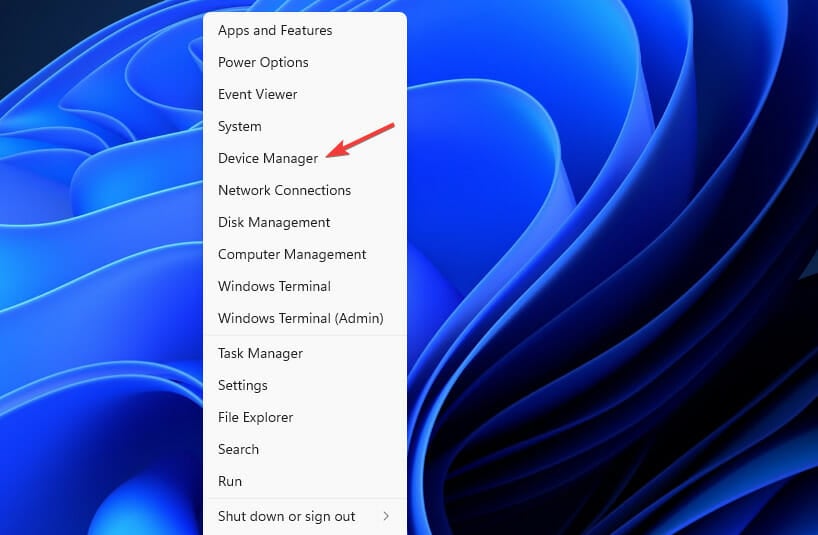


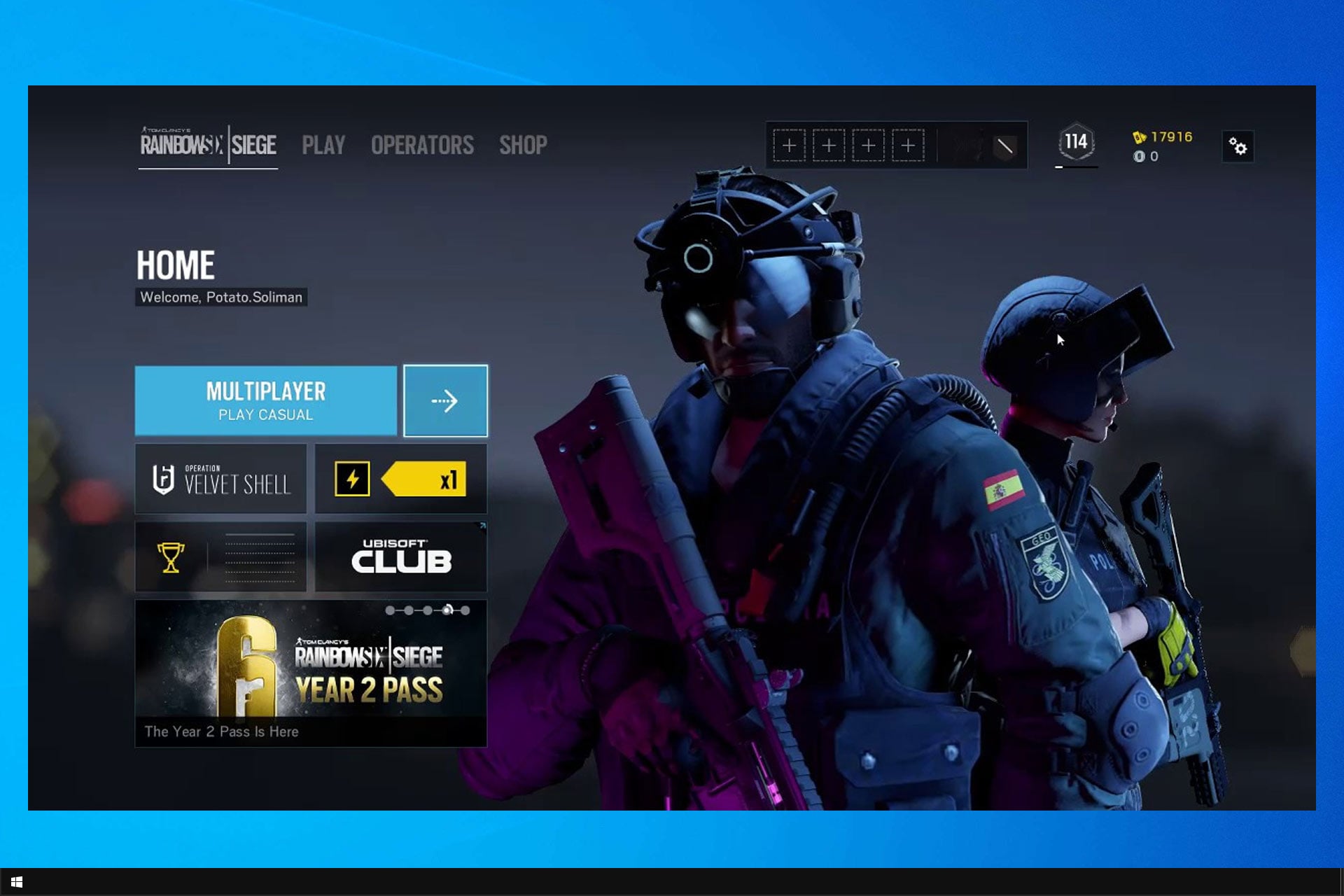

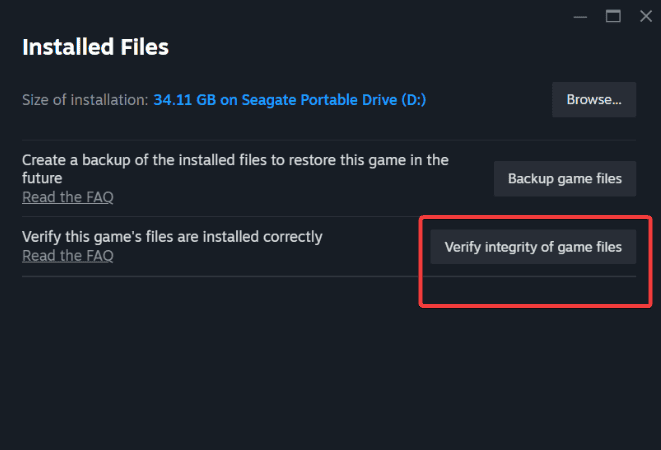


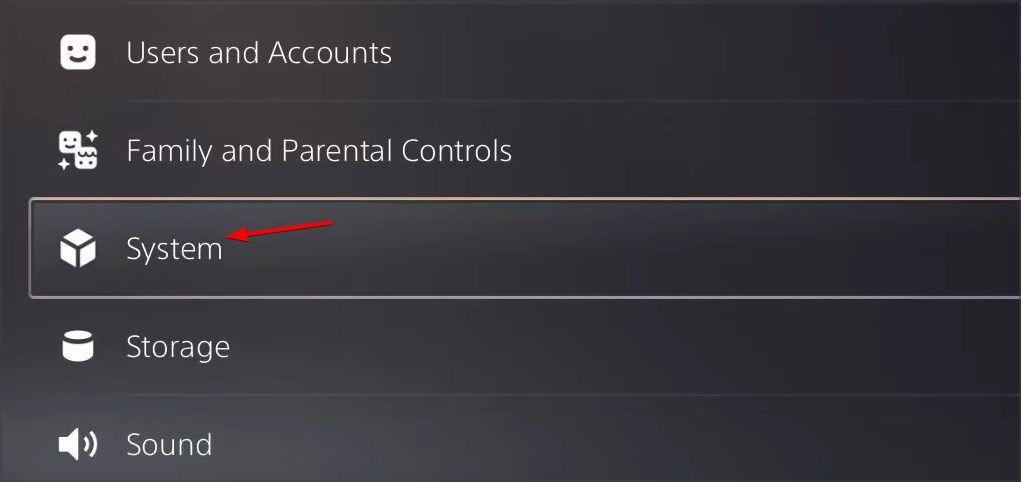

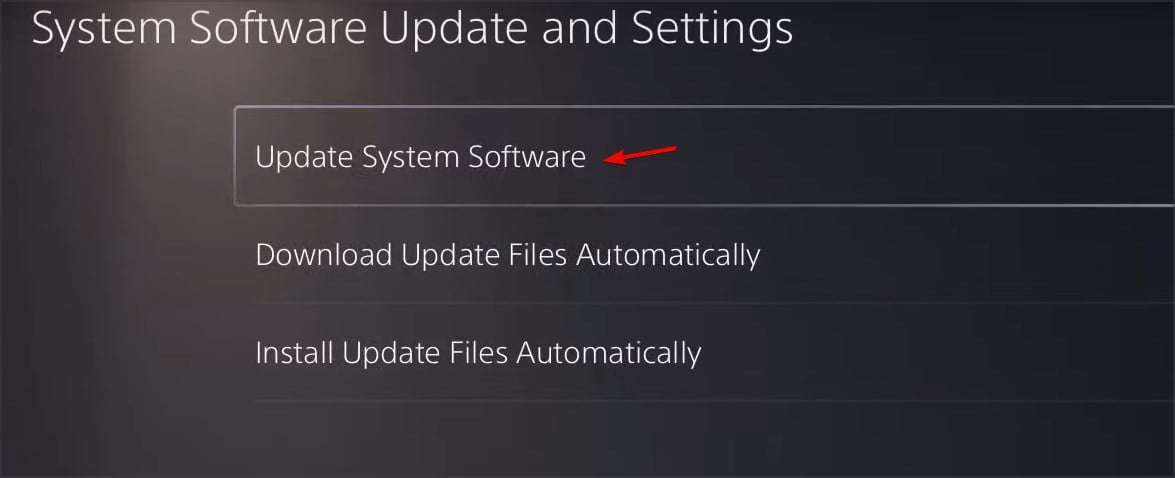

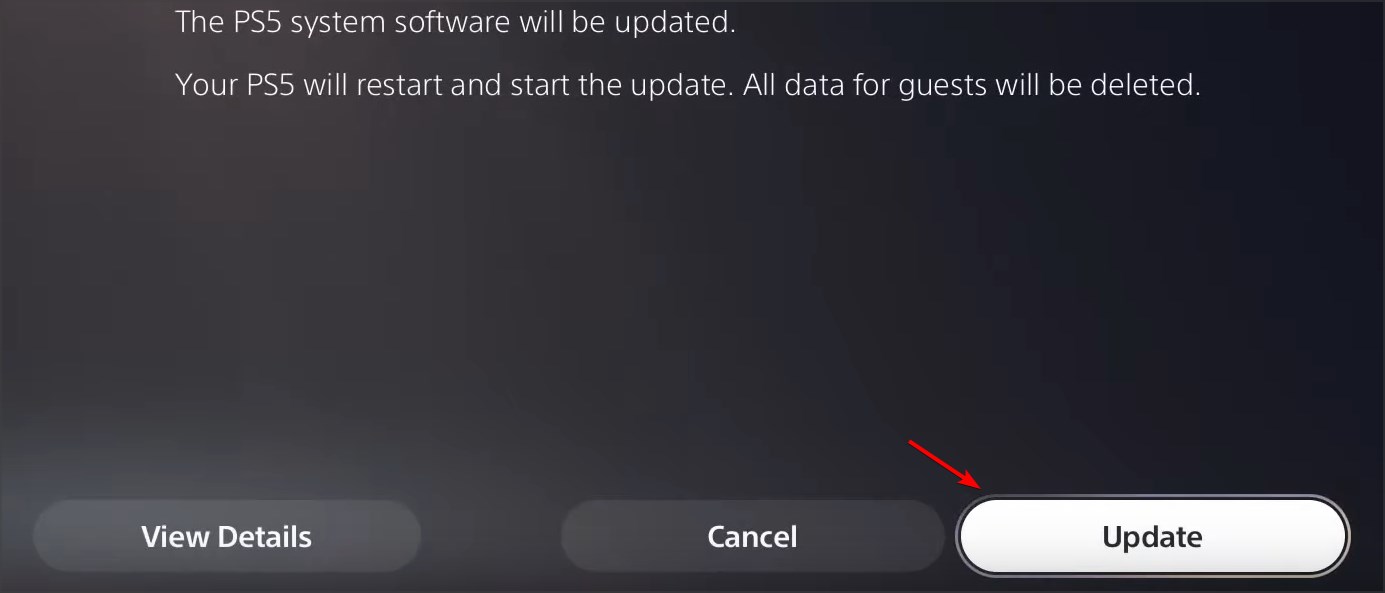



![How to Delete Sync Files in Outlook [2 easy ways]](https://windowsreport.com/wp-content/uploads/2019/10/38254-new_folder-3.jpg)
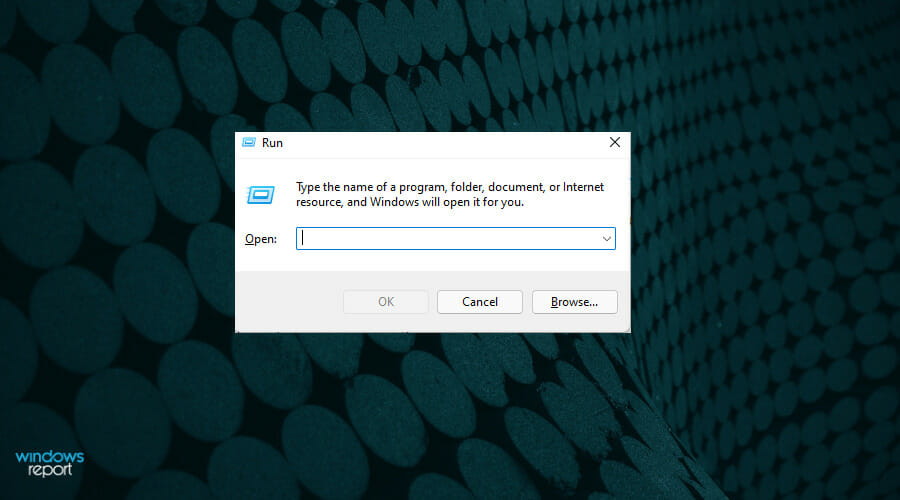
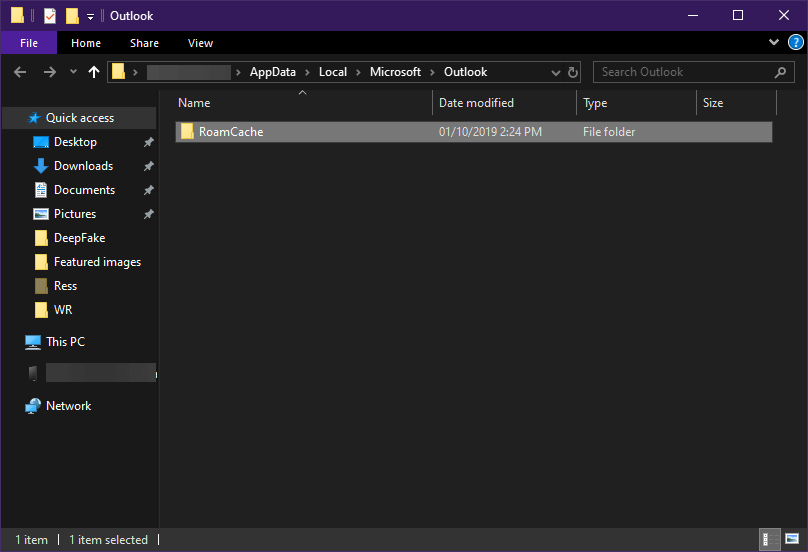
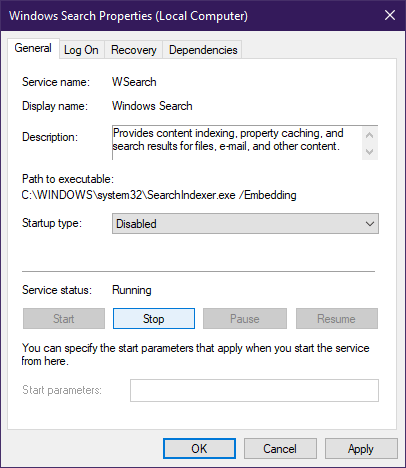

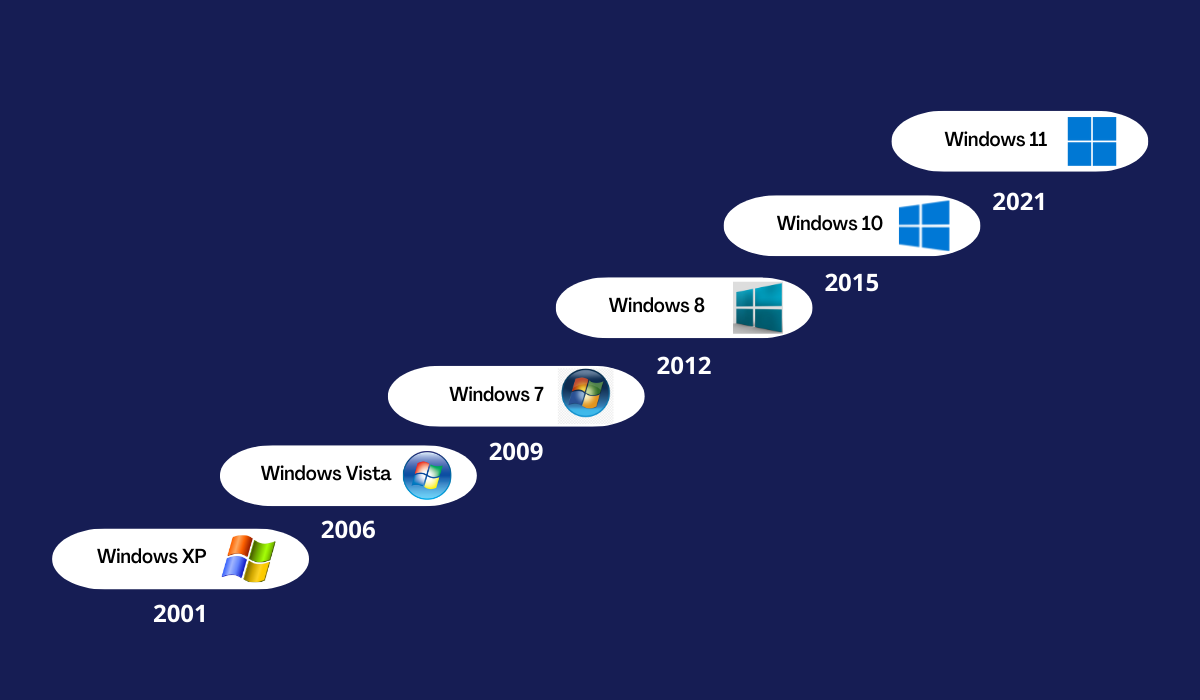


![Windows 10 Calibrate Touchscreen Missing [Fix]](https://windowsreport.com/wp-content/uploads/2015/09/touchscreen-windowss-10.jpg)