Microsoft Store users should now be able to view and read all of the user reviews posted for each Windows app, Xbox video game, movie, and TV episode after a bug, which limited the viewable reviews to 2,000, was squashed this week.
Microsoft Store reviews
“An old technical limitation prevented the #MicrosoftStore from displaying more than 2,000 reviews per product in the past,” the Microsoft Store’s principal architect lead, Rudy Huyn, announced on Twitter. “This is something we had to fix and we are now very glad to announce that this limitation is finally gone!”
An old technical limitation prevented the #MicrosoftStore from displaying more than 2,000 reviews per product in the past, this is something we had to fix and we are now very glad to announce that this limitation is finally gone! pic.twitter.com/tjJT5lCl9w
While most apps and video games don’t have anywhere near 2,000 reviews written by users, there are some mega-successful titles such as Minecraft and Roblox that have well over that number.
TNT is a popular satellite television channel run by Turner Broadcasting System. This is a subsidiary of Time Warner.
Moreover, TNT is popular for broadcasting NBA games and has a series of programs that make it highly viewed in the US.
If you are away from the US, you are not able to view TNT online as it is only accessible to USA residents.
Hence, you’ll need a VPN (Virtual Private Network) to give you the chance to access TNT programs from any location worldwide.
VPNs hide your location and make TNT servers believe you are accessing content from the US. That’s how you can easily bypass geo-restrictions.
Windows Report team has compiled this list of the best VPN software for TNT streaming.
How do I use VPN to watch TNT?
If you are a fan of TNT channel movies, you most probably need to watch them anywhere and from multiple devices.
Well, using a VPN will help you watch TNT online from any location. Discover how following the next steps:
Install a high-speed VPN on your PC. (PIA is your best call)
Open the VPN and login into your registered account.
Connect to a server location where TNT is available
Press the Connect button and you’re all done.
Start watching TNT productions online.
How can I watch TNT outside the US?
Simply put, you just need to follow the same steps as shown above in order to connect to US servers from another regions.
In case you’re living on different continents or you are traveling and still need to watch TNT, you can choose any servers in the US where this channel is available.
Private Internet Access is the very best VPN tool for TNT with unlimited bandwidth and consistent speed.
As the name suggests, this Kape Technologies VPN service gives you total privacy services at a surprisingly affordable price.
With over 3200 VPN servers located strategically in 46 countries, you have enough options to access the TNT website from pretty much any location you desire.
In addition, this VPN gives you access to their ultra-speed servers; hence, you don’t have to worry about connection lags any longer.
Private Internet Access also has a handy kill switch ready to prevent traffic from leaking onto the network if your connection ever drops.
These are some key features that you’ll most likely enjoy:
Intuitive interface that makes it a breeze to set up and start TNT streaming
Fast connection speeds
Total privacy is a priority as this VPN keeps no logs of personal data
Unblocks Netflix, HBO Go, Hulu, and other streaming services
You may connect up to ten devices at a time on a single account
30-day reimbursement guarantee
Private Internet Access
Private Internet Access easily lets you watch TNT online. Claim the best deal with no hesitation!
NordVPN is one of the reputable VPN tools available as they offer reliable and quality services. You have access to over 5400 servers which are located in strategic positions around the world.
You also get safe and secure access to servers based in the USA. With NordVPN, you can easily bypass the geo-block checks by TNT and gain full access to content.
Comprehensive security measures are provided with your connections routed through their servers which are encrypted with 256-bit encryption.
This ensures your connection is kept safe from your ISP detection and government trackers.
In addition, this Tefincom & Co., S.A. service also makes your IP address undetected by TNT systems with its stealth mode which enables you to browse completely anonymously.
However, NordVPN’s plan starts at $3.49 per month which is billed annually and you can also pay in bitcoin for extra security.
NordVPN
Live TNT streaming has never been easier! Get the best NordVPN deal right away!
Surfshark is an award-winning VPN solution with all the security tools needed to safeguard your online activity.
This VPN can offer valuable features designed to hide your digital presence and give you access to unlimited content on your favorite streaming or VoD platforms, such as the TNT service.
No matter of location you can access your favorite content and avoid government regulations that may restrict this platform.
Choosing from over 2000 servers from around the world, you will certainly find one that will hide your IP address and unblock your content.
More so, the NoBorder mode will ensure secured access to uncensored internet, so you can relish that breath-taking TV series you’ve been waiting for.
That being said, if you need privacy support to watch your TNT shows regardless of your country, go ahead with Surfshark.
Surfshark
Disguise your online footprints and enjoy qualitative content now with Surfshark.
ExpressVPN has a large number of high-speed servers. It is optimized to surpass potential anti-VPN restrictions.
If you decide to use it, you will be able to access TNT with no hassle, regardless of where you are geographically located.
You will get the best possible speed as the software automatically finds the best servers for your network.
In terms of security, you’re all set. The software runs its own private DNS with AES-256 encryption. It doesn’t collect any traffic data, or DNS queries, you’re completely anonymous.
When it comes to devices, ExpressVPN is compatible with most of them and has specific apps for each device and OS. On top of that, one account can be used on 5 different devices at the same time.
ExpressVPN is accessed via a wide range of subscription plans and can be tried for free for 30 days.
CyberGhost is a popular VPN for TNT which offers comprehensive features. Users have access to numerous servers in 80+ countries.
Since TNT is an American-based service, CyberGhost enables you to select the best server for the job.
You don’t need to worry about connection reliability as they own their servers (this clearly increases performance).
Also, CyberGhost takes your security very seriously as your connections are secured by military standard encryption and DNS leak protection.
CyberGhost servers keep no logs, so they don’t track your activity over the Internet. Also, it is user-friendly software and with just one click, you become totally anonymous.
Furthermore, CyberGhost offers a 30-day money-back guarantee with their basic plan starting at a great price.
CyberGhost
Check out CyberGhost if you want to watch TNT online with no interruptions.
VyprVPN has a reputation for offering secured services; they are one of the most secured VPN tools for TNT.
If you’re focused on being anonymous, this Golden Frog GmbH service is the ideal VPN service for you.
Although they offer fewer servers than other services on this list, they are located in regions where the TNT website is accessible.
Security is one of these VPNs ‘ strengths. To be more precise, VyprVPN adheres to a strict no-logs policy, not to mention that connections are secured with military-grade encryptions.
In addition, the DNS leak protection feature also prevents your IP address from leaking to TNT servers.
This means you can watch full content on TNT without any fear of being blocked.
VyprVPN
Trying to watch TNT online but geoblocking stops you? Try VyprVPN for a change
Developed by StackPath, LLC, IPVanish is a popular VPN service used by millions worldwide to access TNT.
You can get access to 1400+ servers; this enables more options as they are not placed in a few countries.
In addition, their servers are known for their speed; this is achieved by the service rerouting your connections through their servers.
This gives you fast speeds and connection performance which is important for streaming programs from the TNT website.
Your browsing is completely secured by the latest kill switch technology which enables your IP address and location information to be hidden from your ISP.
You also get cross-platform versions for the VPN with as many as five simultaneous connections enabled.
IPVanish comes with a great 30-day money-back guarantee and reliable 24/7 customer support.
IPVanish
Need a VPN that will unblock TNT online streaming for you? Check out IPVanish.
Steam has some strict rules against using a VPN, but that doesn’t stop users from trying anyway. It’s only problematic when you get banned or when Steam doesn’t work with your VPN, no matter what you try.
Don’t worry since we’re here to point on the right path. But first, let’s clear the air on Steam’s policy against VPN and proxy usage.
Can you get banned for using a VPN on Steam?
Yes, under certain conditions. Let’s take a closer look:
”You agree that you will not use IP proxying or other methods to disguise the place of your residence, whether to circumvent geographical restrictions on game content, to purchase at pricing not applicable to your geography, or for any other purpose. If you do this, Valve may terminate your access to your Account.”
What we can draw from this is that:
You can’t use a VPN on Steam to bypass geo-blocks and access games early
Similarly, you can’t use a VPN to buy games cheaper
The third part mentions that you can’t use a VPN for any other purpose. However, when a Reddit user contacted Steam support to ask for clarification on this issue, they got the following message:
Playing games or operating Steam while using a VPN is not strictly prohibited.
However, it may affect gameplay and the Steam client itself.
A Steam account will only be restricted for actions that violate the Steam Subscriber Agreement or Steam Online Conduct Rules, so please keep in mind that purchasing games while your VPN is active is a violation of our Terms of Service.
This should tell you that it’s OK to use a VPN to stay secure and protect your privacy when using a VPN.
Does VPN work on Steam?
You can use a VPN indeed to hide your actual location and gain complete privacy on the Steam client.
Moreover, it’s advised to utilize trustful VPN software in order to improve game speeds or reduce lag on your affected games on Steam.
What can I do if VPN is not working on Steam?
1. Change your Steam store country
Connect to a VPN server in the country you wish to reach on Steam
Hit the Windows key, type Steam, then open the app.
From the top-left cornre of the window, click on your profile account name, then navigate to Account details.
Click on Update store country, then set the new country.
Some users have reported that Steam doesn’t work with their VPN when trying to connect to another country.
However, the problem isn’t caused by the VPN. It’s still necessary to manually update your store location in Steam, even after already connecting to a VPN server from another region.
2. Use a specialized tool to bypass Steam VPN detection
After the installation, launch the software on your PC and log in.
Then, connect to high-speed servers to bypass Steam detection.
Enjoy your games on Steam.
Although it’s incredibly tempting, we have to consider whether or not a free VPN can be trusted to always keep you safe when navigating online.
They have few VPN servers and rarely work properly. Plus, most free VPNs log your VPN traffic.
It’s essential to turn to a premium VPN service that’s continuously maintained by a team of professionals. A market-leading VPN like PIA has more than 3,300 VPN servers in 48 countries.
This VPN also supports modern and secure VPN protocols: OpenVPN and WireGuard. It’s one of the best VPNs for reducing ping.
And, if you encounter any connectivity issues with Steam, you can get in touch with the PIA support team using 24/7 live chat.
Private Internet Access
Looking for a VPN that will always work with Steam? Make sure you try PIA.
Some VPN services can negatively affect Steam’s performance. But it’s possible that your VPN isn’t wired to work on Steam.
For example, if you have VPN split tunneling enabled on your PC, make sure that you haven’t accidentally excluded Steam from the secure tunnel.
To summarize, if your VPN isn’t working on Steam, you can fix this problem by changing your store location and allowing Steam traffic on the secure tunnel.
But we also recommend avoiding free VPNs and resorting to a premium VPN service instead, such as Private Internet Access.
There are various ways that Steam service can use to detect your VPN. For instance, their algorithms may detect blacklisted IP addresses used by VPNs or inspect data packets from your Internet traffic.
If you receive the Steam please disconnect from VPNs or proxies and try again error message on Steam means that your IP address is not recognized.
However, you don’t have to worry about Steam banning your account unless you make restricted purchases from other countries.
So, these are the best options to try if it seems like Steam is not working on a VPN.
For any other additional questions related to this subject, do not hesitate to leave a comment in the section below.
If you’re wondering how to make Windows 10 automatically connect to a VPN, we’ve got you covered.
You have to create a simple BAT file with your VPN connection details and add it to the Windows autostart sequence.
This way, the VPN connection you created using the Windows 10 built-in VPN provider will autostart every time you switch on your computer, just like Skype, Steam, or an antivirus.
However, if you have a VPN desktop client installed, things become significantly easier since you have to find and activate the autostart and auto-connect options in the UI.
Follow our easy instructions below to find out how to make Windows 10 automatically connect to a VPN using a manual VPN connection and a VPN desktop client.
We’re also showing you how to stop your VPN from auto-connecting if you need to temporarily or permanently off this feature.
How do I keep the VPN on all the time in Windows 10?
There are a few ways to do this, depending on your VPN type. If you use the built-in option, you will have to add the VPN BAT file to the Windows 10 autostart file.
If you use a third-party VPN client, chances are that their dedicated app already has an option to connect to a VPN at startup.
If not, you can also do the same BAT file trick to your third-party VPN app.
How do I make Windows 10 automatically connect to VPN?
1. Create a VPN connection
Right-click the Start button and go to Network Connections.
Select VPN and press Add a VPN connection.
Add the required VPN connection details.
Copy the Connection name, User name, and Password.
Click Save.
You can also use a third-party VPN client. Paid VPNs offer a more extensive server network, many of which come with built-in auto-connect features, so you won’t have to go through much trouble.
Enable Launch on System Startup and Connect on Launch.
Restart your PC.
After making these changes, PIA will auto-launch every time you turn your PC and connect to the last used VPN server.
Furthermore, it’s easier to change VPN servers in PIA for Windows 10 to automatically connect to the new VPN server instead of editing the VPN connection info in the OS and manually updating the BAT file every time you do this.
Windows 10 has limited native support for VPN protocols, some considered obsolete (PPTP, L2TP).
On the other hand, PIA supports OpenVPN and WireGuard, which are safer and more versatile protocols.
Moreover, PIA comes with a bunch of security features that Windows 10 lacks, including a kill switch that cuts off Internet access in case the VPN connection drops, to protect you from IP leaks.
Private Internet Access
Make Windows 10/11 automatically connect to PIA’s VPN servers fast and easily.
Right-click on an empty space on your desktop and select New, then Shortcut.
Now, paste the following path and click on Next (make sure to replace ConnectionName with the actual data, as shown in our screenshot): C:\windows\system32\rasdial.exe ConnectionName
Enter a name for your connection and click on Finish.
Double-clicking the new shortcut will automatically start your VPN connection.
Before this, you must configure the connection with your credentials just like in Solution 1.
3. Create a BAT file
Configure a BAT file for your VPN
Open the Windows 10 Notepad (press Ctrl + R, type notepad, press Enter).
Paste the following code:C:\windows\system32\rasdial.exe YourConnectionName YourUsername YourPassword
Replace the connection details with what you copied in the previous stage.
Save the Notepad file and exit.
Change the file extension of the Notepad file from TXT to BAT.
Press Ctrl + R, type shell:startup, and press Enter.
Copy the BAT file to this location.
Restart your PC.
From this point on, Windows 10 will automatically connect to the VPN at every system startup. Command Prompt briefly opens a console window and shows how it verifies the username and password, registers your PC over the network, and connects to the VPN.
If you need to switch VPN servers, you only have to edit the VPN connection details in Windows 10. The changes will get automatically picked up by the BAT file.
However, if you also modify the VPN connection name, username, or password, then you will need to manually update the BAT file, too. Otherwise, Windows 10 won’t be able to automatically connect to the VPN.
How do I stop my VPN from automatically connecting?
Right-click the Windows taskbar and go to Task Manager.
Go to the Startup tab.
Right-click the VPN connection’s BAT file and click Disable.
If you change your mind and want to re-enable Windows 10 to automatically connect to the VPN, follow the same steps as above and click Enable on the disabled entry.
To make a permanent change, head over to the startup folder using Ctrl+R and shell:startup to delete the BAT file.
If you used a VPN desktop client like PIA, simply find and disable the autostart and auto-connect options in the user interface.
You can also use Task Manager to prevent PIA from autostarting at every Windows startup (same steps as disabling the BAT file).
In conclusion, it’s a good idea to make Windows 10 automatically connect to a VPN as soon as you turn on your PC.
This way, you can immediately connect to another computer over the Internet, like accessing your work PC from home.
However, using a premium VPN solution like PIA is significantly easier and unlocks more possibilities. For example, you can use PIA to access blocked websites, defeat government censorship, host game servers for you and your friends, and unlock Netflix catalogs.
If you are unable to connect to the Steam servers, can’t play your favorite games, or the in-game progress is missing, it’s likely that the platform is undergoing regular maintenance.
So, let’s find out all about the Steam maintenance Tuesday and what changes, if any, you can expect after it.
What is Steam maintenance Tuesday?
For any platform to run efficiently without encountering any glitches, it’s necessary to have everything in order. It can only be achieved through regular maintenance, and this is what happens during the Steam maintenance Tuesday.
The platform deploys its team to introduce patches for bugs, eliminate any security threats, and release features. And while all this is being done, the servers would be down. So, if you are playing a multiplayer game, it might automatically disconnect.
But, remember not all downtimes or server failures fall under Steam maintenance Tuesday. Some of these are rather unplanned and stem from hardware failure or problems with the network. So, it’s imperative to find out when Steam schedules the maintenance.
When is Steam maintenance Tuesday?
Steam’s Tuesday maintenance typically starts at 1:00 PM Pacific Time (PT) and lasts 30 minutes to an hour. The timing varies globally due to time zones, impacting Steam-dependent games more.
It doesn’t happen all at once for all games and time zones. Typically, games like World of Warcraft get maintenance at 7 AM PT while League of Legends gets it at 3 AM PT.
How long does Steam maintenance last?
Steam maintenance may last anywhere between 10 minutes to a few hours, depending on the changes being introduced. If the platform has to add a couple of features, introduce patches, and other performance enhancements, the maintenance time would be longer.
Steam pointed out in an official post that downtime during maintenance would generally be under an hour in most cases. In case Steam plans an extended downtime, it will be scheduled late in the evening.
Besides, the time for maintenance is chosen considering the number of users active during that particular part of the day, so that minimum players are affected. Yet, some users will always have to face issues unless Steam decides to do away with the whole regular maintenance thing.
How do I check Steam’s server status?
Often there are reports that users in certain parts or across the globe are facing issues connecting to the Steam server. And, there’s a way you can check the number of players currently online and the ones who are playing a game on Steam.
Just head to SteamDB, an unofficial but highly reliable platform that offers a live report of how the Steam servers are performing. Or you could try other online tools like Downdetector to check if other users are facing issues with Steam.
How can I find out if there’s a Steam maintenance scheduled?
Actually, there’s no way to find out when the Steam maintenance is scheduled, but you already know that it’s done on Tuesday and sometime between 3 AM to 7 PM Pacific Time.
Just make sure to not try any critical missions and if possible avoid using the platform for a while. Anyway, the Steam maintenance schedule for Tuesday generally doesn’t last more than 10 minutes, so you should have no real trouble.
What should I expect during Steam’s maintenance?
Many times, it’s just a few changes, and these wouldn’t be visible to users. But they are as critical as any since they help Steam run efficiently.
On other occasions, you may see new features added to Steam after a maintenance Tuesday downtime. All you have to do is remain patient and wait to find out what Steam has in store for you!
How do I fix the Could not connect to the Steam network error?
This error is often encountered by users when launching Steam, and if it doesn’t disappear on its own in a while, there are a bunch of fixes you can try.
1. Switch to TCP
Right-click on the Steam shortcut, and select Properties from the context menu.
In the Target field, enter -tcp at the end, click on Apply, and then on OK at the bottom.
Now, check if Steam starts working on your computer and the Could not connect to the Steam network error is fixed.
2. Update the network drivers
Press Windows + S to launch the Search menu, type Device Manager, and open it.
Now, double-click on the Network adapters entry.
Right-click on the Wi-Fi or Ethernet adapter depending on the one you use, and select Update driver from the context menu.
Select Search automatically for drivers in the Update Drivers window.
An outdated driver can cause issues with the network connectivity and lead to this error. Updating the network driver would do the trick here.
3. Disable Windows Firewall
Press Windows + R to launch the Run command, enter control panel, and click OK.
Click on System and Security.
Next, click on Windows Defender Firewall.
Select Turn Windows Defender Firewall on or off from the options on the left.
Now, tick the Turn off Windows Defender Firewall (not recommended) option under both Private network settings and Public network settings, and click on OK to save the changes.
That’s all there’s to Steam maintenance Tuesday, along with the relevant troubleshooting methods. So, the next time Steam is not working on a Tuesday, you know the reason and how long it would take to get things up and running.
Learn how to download and install DuckDuckGo on your PC in just a few steps. Whether you want the privacy-focused browser or simply want to add DuckDuckGo as your main search engine, this guide has you covered.
UNO is a popular card game, but the game is also available online. This is great if you want to practice your UNO skills or play online with others.
Speaking of which, we’ll show you how to play UNO games in your web browser today, so let’s get started.
What is the best browser to play UNO games?
If you’re a gamer and tend to play online games, you should consider getting a gaming browser such as Opera GX.
This browser is light on your system resources, thus ensuring that all your games will run smoothly in the browser.
Since online games like UNO usually come with ads, you’ll be pleased to hear that Opera GX has its ad-blocker.
One feature that separates this browser from the rest is GX Control. Thanks to it, you can set resource limitations on your browser, thus ensuring that other processes run smoothly.
The browser has a built-in messenger that might be handy during gaming sessions. Also, there’s a built-in Discord integration so you can keep an eye on the news and challenge your friends with UNO games.
Regarding privacy, the browser has its native VPN with unlimited bandwidth that will be useful as an additional layer of protection.
The Opera GX browser is under continuous development. The company is closely listening to user feedback and implementing new features suggested by the community.
Opera GX
A browser fit for playing a multitude of games, including UNO.
You can play the well-known card game UNO for free on your computer browser with UNO Online. Similar to other card games in the Crazy Eights genre, the object of UNO is to be the first player without any cards.
UNO is a multiplayer game that supports 2 to 6 players. First, input your name and the room’s name to get started. Then, watch as gamers from around the globe fill your room, and you start having fun.
UNO is one of the most popular card games, and if you want to play it on your own or with friends, you should be able to do it from your browser after reading this article.
Metamask is a popular crypto browser wallet on Chrome, brave, Microsoft Edge, Opera, and Firefox. However, since Chrome is favored, most users do not know how to use MetaMask on Firefox. Hence, we will discuss that in this article.
This cryptocurrency wallet helps to store tokens, NFTs, and other cryptocurrency valuables. By default, it is connected to the Ethereum blockchain network. However, it can connect networks like the Binance Smart Chain, Arbitrum, and others.
Users can easily store Ethereum and other cryptocurrencies or enable them to transact with any Ethereum address. In addition, users can easily connect MetaMask to Ethereum-based apps to spend their coins in games and other activities that transact in cryptocurrencies.
Also, the MetaMask can connect to crypto games like Axie Infinity, Cryptoblades, and others. Ensure the proper network chain is actively used on Firefox’s Metamask extension.
While there are app versions, most users prefer the accessibility of the web versions. Hence, this article will detail how to install MetaMask on Firefox, set it up, and use it.
How do I access MetaMask in my browser?
Since Metamask is a browser extension or add-on, you can access it through the shortcut section for the add-on on your browser. This is located at the upper right-hand corner of the screen with a puzzle piece logo. Click on the Metamask logo (Foxface), and the extension will load.
How do I get the MetaMask browser extension for Firefox?
Launch your Firefox browser and search for Metamask.
Click the official download site for Metamask, click the Firefox tab, and select Install Metamask for Firefox.
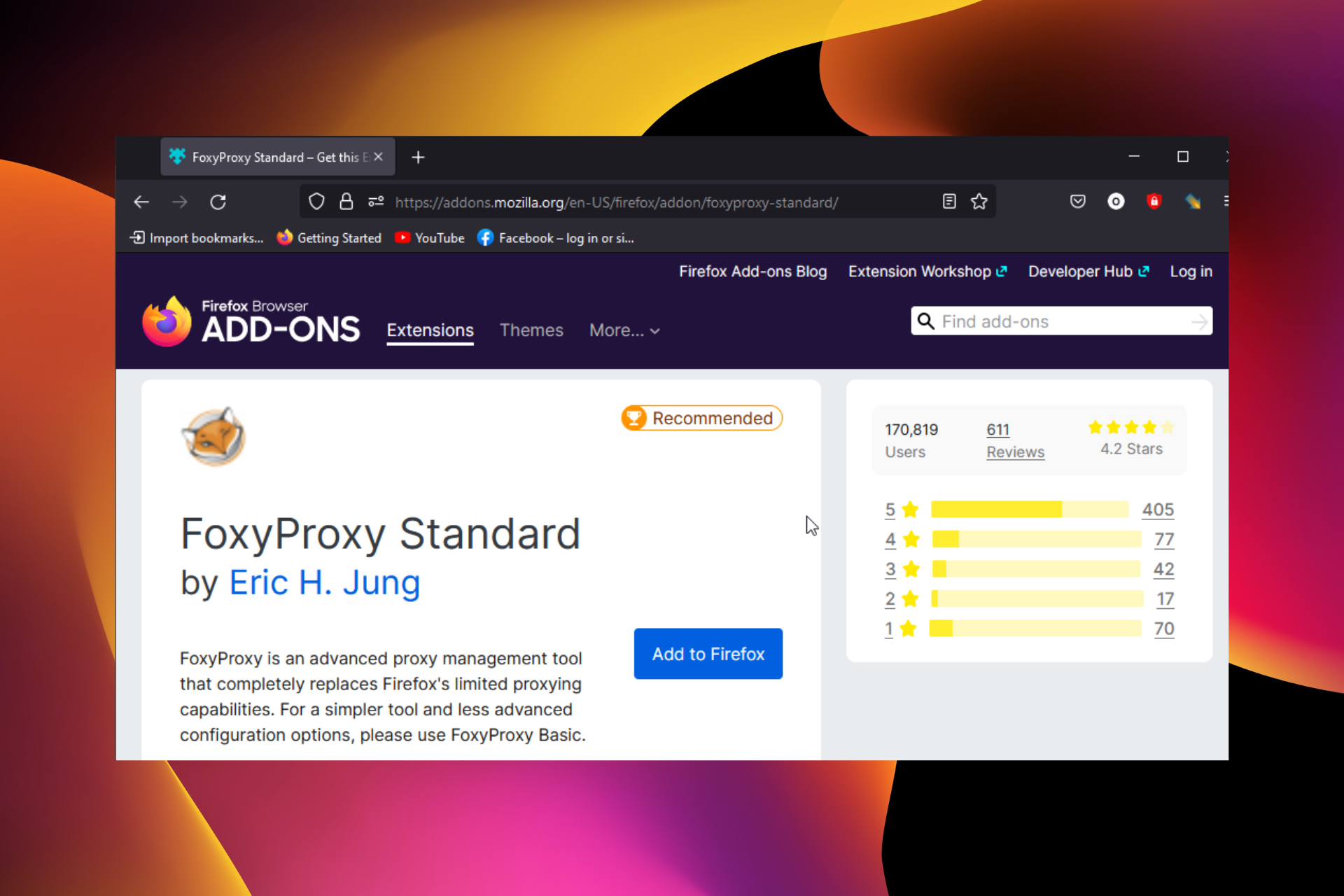
On the Firefox add-ons page, click Add to Firefox, and wait for the installation to be completed.
Click Add to permit installation. (You can also help it to work in the private tabs)
Alternatively, you can go directly to the Firefox add-on store and search for the MetaMask. Once the installation is complete, click on the Fox head logo to launch your MetaMask.
How do I use MetaMask in Firefox?
-Setup MetaMask
Open your Firefox browser and launch the MetaMask extension by clicking on the Fox head logo.
On the Welcome page, click Get started to continue.
Select Create a wallet if you are just getting started or import Wallet if you have one.
Click I Agree after reading the disclaimer pop-up message.
Create a password, check the agree to the Terms of Use box, and click Create.
Watch the video on Securing your wallet with the secret recovery phrase and click Next.
Unlock your secret recovery phrases and write them down in a secure place. (These phrases, in the particular order, will help recover your account if you forget your password)
You will get the congratulatory message, then click All done.
-Use MetaMask Directly
Click the Ethereum Mainnet to display the available Networks.
Choose either Buy, Send, or Swap to kick-start a transaction.
Select Assets to check your various coins, tokens, and NFTs, while the activity stores your transaction details.
-Connect MetaMask to Sites
Click the menu button (three dots), and select Connected sites.
Choose MetaMask to connect to the site manually.
Select an account and click next.
Then press the connect button.
These are the ways to get started with using MetaMask without hassles. First, ensure the sites connected share the same network as the active network on your MetaMask wallet.
In web extension management, Chrome is the best bet for using MetaMask. Although promising, most other browsers share its features but are not as perfect as Chrome.
However, with the integration of the dedicated Opera browser, it might be better to use it. Opera also directly integrates with Telegram and Discord, giving it a crypto-native solid feel.
These are the various tips we could develop about MetaMask on Firefox and how to use it. Of course, the essential part is setting it up. Once done, connection and integration to crypto sites become easy.
GameStop is a US-based retailer that specializes in consumer electronics, gaming merchandise, and game-themed clothing.
It offers numerous daily deals at awesome prices, trade-ins, and redeemable rewards based on your purchases.
Unfortunately, GameStop is only available in select countries, offering personalized content for each region. It shouldn’t come as a surprise that the American version strives when it comes to variety.
GameStop operates retail stores in the United States, Canada, Australia, New Zealand, and some parts of Europe.
Even so, you might find it impossible to access the website if you’re outside of the US. In that case, you will receive the following error in your web browser:
Access Denied You don’t have permission to access https://www.gamestop.com/ on this server.
What does it mean when access is denied?
Access denied or similar messages indicate that there is something wrong from your side or the service provider’s side. If you see this error on GameStop, it means any of the followings:
Your browser’s cache and cookies are corrupted
GameStop is preventing you from accessing its portal
Your ISP doesn’t allow you to access this service
GameStop is not accessible due to security settings
Whatever the reasons or whatever the access denied message represents, is not a matter. You can always fix the GameStop Access Denied error code 16. For this, check out our solutions below.
Go to the following location using the address bar: opera://settings/privacy
Scroll down and click on Advanced.
Enable VPN.
Click on the VPN icon and set the VPN server location to Americas.
Try to access GameStop again.
If you’re looking for a completely free VPN service, you can’t go wrong with Opera VPN. Besides delivering excellent page loading speed, Opera has an integrated VPN tool that you can use at no cost.
Plus, it’s one of the fastest and most secure web browsers on the market. However, it’s not as reliable as a premium VPN service like PIA because it uses free IP addresses that can be detected and blocked by GameStop.
Sometimes, you may notice that the GameStop access denied error is appearing on Chrome, Firefox, or Safari only. In this case, a different and better browser like Opera can be the ultimate solution.
Nevertheless, it’s worth trying. And, if Opera VPN doesn’t work, make sure to check out our quick-fix guide.
All being said, consider this modern web browser with a lot of features, including a VPN that can fix the GameStop error.
2. Use a premium VPN to bypass geo-blocking
Sign up for a VPN subscription plan (we suggest PIA).
Download and set up the VPN on your device.
Launch the app and log in using your credentials.
Connect to a US VPN server.
Try to access GameStop again.
With the aid of a virtual private network (VPN) service, you can change your IP address and geo-location to bypass the GameStop Access Denied error and unblock the gaming retailer outside the USA.
The reason we recommended Private Internet Access (PIA) above is that it’s the best VPN for accessing blocked websites, including GameStop.
Created by Kape Technologies, PIA is used by more than 15 million users worldwide, which is proof that its performance and features are simply top-notch.
This VPN can be used on all major operating systems, including Windows, macOS, Linux, Android, and iOS. It is also available as a browser extension for Chrome, Firefox, and Opera.
In addition, you can configure it on your router as well. This way, all of your devices connected to the router can also use the VPN to benefit from its great features.
PIA has no equal among other VPN competitors in terms of the number of servers available, which are distributed across multiple locations all over the world.
Moreover, it has servers in 16 US locations, so you have where to choose if you want to access GameStop from outside the USA.
In addition to helping you bypass geo-blocking, namely, get around the GameStop Access Denied error when visiting the website, Private Internet Access will also take care of your online privacy and security.
So you can surf the web without worrying about surveillance, spying, or hackers. The VPN service also protects your DNS queries using private DNS servers.
PIA ensures your privacy and security by routing all of your traffic via a secure VPN tunnel, which is realized via AES-128 or AES-256 military-grade encryption and the fast and reliable OpenVPN and WireGuard VPN protocols.
It also comes bundled with the following features: VPN Killswitch, PIA MACE (ads and malware blocker), Split Tunnel, Port forwarding, Connection Automation, Dedicated IP, P2P, torrenting support, and unlimited bandwidth.
Other features of PIA:
32,000+ servers in 101 locations across 78 countries
No traffic or request logs
Up to 10 simultaneous connections
Risk-free 30-day money-back guarantee
24/7 live chat customer support
In conclusion, Private Internet Access is a very powerful VPN service that will effectively allow you to bypass geo-blocks and will also help you surf the web privately and securely.
Because of that, if you want to fix the Access Denied error and access GameStop no matter where you’re located, you should confidently try it out to see whether it’s worth your money.
Private Internet Access
Quickly and easily fix the GameStop Access Denied error by turning to this reliable VPN.
You can easily configure your device to use a smart DNS service by accessing and changing the settings of your operating system, as shown in the example below with Windows 10 and 11.
Before proceeding with the steps, you should make sure to get a smart DNS free or premium subscription to configure your device to use it.
For example, you can use a smart DNS Proxy – which is shown in the picture above – since it offers a generous 14-day free trial to test it or any other service of your choice for that matter.
Press Win + I on the keyboard to open Windows Settings.
Go to Network & Internet.
Click on Ethernet or WiFi, depending on the connection you are using.
Click on the Edit next to the DNS server assignment.
Type your smart DNS server addresses.
Click on Save.
A smart DNS service is a proven solution that is very effective at circumventing geo-blocking, so many use it especially to unblock popular streaming services.
It is also a very suitable solution if the GameStop access denied error occurs on consoles like PS5 or Xbox Series X.
As a result, you should have no problems accessing GameStop from outside the USA if you configure your device to use a smart DNS server in the US.
However, a smart DNS will not mask your IP address as a proxy or VPN does, nor will it encrypt your traffic as a VPN does.
What a smart DNS does is it replaces your ISP-assigned DNS address – which can reveal your real location – with the address of a new dedicated smart DNS server.
Therefore, when you connect to that server, all of your traffic will be routed through it.
Smart DNS servers can be located in many locations worldwide, so you should use one in a country – the USA in our case – where the content you want to access is available.
If you cannot access your GameStop account, you can reset the password. You can do it by clicking on Forgot password while signing in.
If the account seems to be blocked or locked by the GameStop authority, you should contact their support. They will assist you in getting your account back.
This article has explained how you can fix GameStop access denied problem. If you know any better solution, feel free to let us know in the comment box.
The best browsers sometimes encounter problems, as there is no perfect app. One of the quick ways to fix most of these issues is to refresh your browser.
While refreshing a browser is incredibly simple, you still need the right information to do it across different browsers.
This guide will show you the simple methods to apply on all major browsers across different devices. We all also have extra bits added to help spice things up.
Quick Tip:
Opera One is built on the Chromium engine, so it’s quite similar in terms of functionality, and it can also work with Chrome extensions, so you won’t miss the features you love.
As for the actual refreshing, you just need to hold the Ctrl key and click the Refresh button on the toolbar. That’s how easy it is!
Opera One
Install Opera One, and rest assured that refreshing it is incredibly simple!
Refreshing pages on your browsers mean that you want to load the most recent version of the page. This is a standard function in most modern browsers and is pretty easy to do.
You can also refresh your browser’s content by clearing the cache and cookies. With this, you can remove corrupt browser data and allow it to load new information.
How do I refresh my browser and clear my cache?
1. Refresh the Chrome browser
Click the Reload icon in the toolbar.
Wait for the page to refresh.
This is a bit different from how to refresh the Chrome browser on mobile, as you will need to tap the menu button before you can find the refresh icon.
1.1 Hard browser refresh
Hold Shift and click the Reload icon to perform a hard refresh.
Wait for the page to load again.
By performing a hard refresh, the cache for that page will be removed and created again.
1.2 Refresh browser keyboard shortcut
In Chrome, there are two shortcuts for refreshing:
Ctrl + Rfor normal refresh
Ctrl + Shift + R for hard refresh
1.3 Browser auto-refresh You’ll need to rely on extensions to refresh pages in Google Chrome automatically. The two most popular extensions for this are Easy Auto Refresh and Super Auto Refresh Plus.
1.4 Refresh browser cache on Chrome
Click the Menu icon in the top-right.
Select More tools.
Choose the Clear browsing data option.
Click the dropdown next to Time range and select All time.
Check the boxes for Cookies and other site data and Cached images and files.
Now, click the Clear data button.
Remember to restart Chrome after clearing the cache to sync the changes made.
2. Refresh the Firefox browser
Locate the Refresh icon and click it.
Wait for the page to load again.
With the steps above, you can refresh Firefox and get the updated version of the page you are loading.
2.1 Hard refresh Firefox
Press and hold the Shift key.
Without releasing the key, click the Reload icon.
Wait for the page to load.
2.2 Refresh browser shortcut
Firefox browser shortcuts are the following:
F5 to refresh the page
Ctrl + F5 orCtrl + Shift + Rfor hard refresh
2.3 Auto refresh in Firefox
To auto-refresh Firefox, you need to rely on extensions. You can download Tab Auto Refresh, Auto Reload Tab, and Tab Reloader from the Mozilla Addons Store.
2.4 Refresh cache on Firefox
Click the menu button and select Settings.
Click on Privacy & Security in the left pane.
Scroll down and click the Clear Data… button in the Cookies and Site Data section.
Now click the Clear button to confirm.
Make sure you restart your browser before loading any page to sync the changes.
The refresh process is almost identical if you use the Firefox or Chrome browser on your Mac laptop. On Safari, the refresh process is a bit different. So, we’ll focus on it in this section.
3.1. Refresh Safari
To refresh your Safari browser, you just need to click the Refresh icon on the toolbar.
3.2. Hard browser refresh on Safari
Press and hold the Shift.
Without releasing the key, click the Refresh icon.
3.2 Refresh shortcuts in Safari
Command + R for the normal refresh
Command + Option + Rfor hard refresh
3.3 Auto-refresh in Safari
Just like Chrome and Firefox, to auto-refresh pages in Safari, you need to use extensions such as Auto Refresh.
3.4 Refresh browser cache in Safari
Refreshing cache in Safari is simple. You need to use Command + Option + E shortcut.
Refreshing your browser and pages is quite simple. We have shown the different ways you can complete the task on other browsers in this guide. You now have everything you need to take control of your favorite browser refresh process.
If you need the list of best cookie cleaner software on PC to make the data clearing process faster, check our detailed guide for the top options to install today.
Feel free to let us know if you have any problem refreshing your browser in the comments below.
Recently, some users reported that Steam failed to load a web page. This error also may come with error codes like 118 or 310. When this happens, you’re still allowed access to your Library but cannot browse the Steam website for a while.
After doing some deep analysis, we have found that this issue is mostly due to Steam server problems or glitches with the app itself, including a corrupt cache. There might be also problems with your internet connection or firewall.
What can I do if I face the Steam error: Failed to load a web page?
1. Restart your Steam client
Press CTRL + ALT + Del on the keyboard and click on Task Manager on the newly appeared screen.
Go to the Processes section.
Click on the Steam process and then click on End.
Re-open your Steam client and check if the issue persists.
To fix Failed to load web page error on Steam, it’s advised to close Steam entirely and then restart it.
2. Clear your cache
Hit the Windows key, search for Steam, then open the app.
From the upper-left corner of the opened window, click on Steam, and go to Settings.
From the left window pane, select Downloads, then click on Clear Download Cache.
You’re all set.
Your cache folder stores temporary files associated with games or programs in your Library. However, if these files are corrupted, you might get Failed to load web pageerror in Steam.
3. Disable Compatibility Mode
First, end any Steam process that may be running through Task Manager.
Now right-click on any Steam shortcut or executable file and select Properties.
Go to the Compatibility tab, and uncheck all options.
Click Apply and try to open Steam again.
The Compatibility Mode does exactly what it says, but it’s primarily useful for running older programs. Therefore, if you’re getting Failed to load a web page in Steam, try disabling Compatibility Mode for it.
4. Repair Steam
Exit any instance of Steam.
Press Win + E to open File Explorer.
Go to the following location: C:\Program Files (x86)\Steam\bin
Launch the SteamService.exe.
In some cases, an issue with a Steam client can lead to Failed to load web page error.
5. Disable extensions
5.1 For Google Chrome
Open Google Chrome.
Click on the Menu icon (3-dots menu) at the top right of the browser window.
Now choose More tools and select Extensions.
Toggle Off the button located next to the extension you want to disable.
Restart Chrome.
5.2 For Mozilla Firefox
Hit the Windows key, type Firefox, then go to the browser.
Use the following keyboard shortcut to open the Firefox extensions page: Ctrl + Shift + A.
Select the add-on you wish to disable.
Toggle the button next to it on Off (or Remove if you wish to discard the extension permanently).
Click Restart now if it pops up. Your information will be saved and restored after the restart.
Click on the search bar in the bottom-left corner of your Windows Taskbar.
Type Control Panel, then open the first result.
Then click on Windows Defender Firewall.
Now, click on Allow an app or feature through Windows Firewall.
Click on the Change Settings button.
Make sure that Private and Public options are checked for Steam. If Steam isn’t on the list, be sure to add it.
Click OK to save your new settings.
You can temporarily disable your Windows Firewall if it’s causing Failed to load web page error in Steam.
7. Reinstall Steam
Press the Windows key, search for Control Panel, then navigate to the first result.
Click on the Uninstall a program option.
In the opened list, search for Steam.
Click on the app, then choose to Uninstall it.
Now, navigate to the Steam official page.
From the top-right corner of the page, choose to Install Steam (green button).
Follow the on-screen instructions to reinstall the app.
After completing the process, check if you managed to eliminate today’s annoying issue.
When everything else fails, the best bet is to uninstall your Steam client and reinstall it using the official Steam website.
What errors can I fix with the solutions listed above?
Keep in mind that the solutions listed above will also help you if you encounter the following issues:
Steam error code 118 failed to load the web page – This indicates something is preventing the Steam services from connecting to the server. One of the most common causes is the Windows Firewall, which does not allow the Steam client to communicate through the firewall.
Error code 7 Steam – In general terms, an error 7 code is related to incorrect or failed installation or uninstallation of software that may have left invalid entries in system elements.
Steam error code 310 – Last but not least, this one occurs when trying to browse the Steam website either via a third-party browser. Most of the time, the problem disappears on its own, but if yours persists, it may be caused by a corrupted browser cache. However, there’s more to discover about it.
If you follow the above steps, you will reinstall the app without any issue. However, there is another workaround that won’t consume that much time.
In these terms, keep in mind that you can choose to uninstall Steam automatically by using a specialized tool.
CCleaneris the software you should consider. It makes it easy to remove programs and clean their leftovers thoroughly. Plus, it aims to give you a cleaner PC and a securer online surfing experience.
To offer you a secure experience, CCleaner automatically removes malicious and advertising plug-ins for safe Internet browsing.
So, what stops you from giving it a try right now?
What browser can I use to never face Steam error: Failed to load a web page?
If you don’t have the time to go through the troubleshooting solutions listed above, you can switch to another browser and test if the issue persists.
Many gamers confirmed they had enjoyed smoother Steam gaming sessions since switching to Opera GX.
This browser is the world’s first and best browser dedicated to gamers, having all the tools needed to make your gaming session smoother.
Opera GX automatically blocks ads and third-party trackers; thus, the browser supports faster navigation speeds.
It has clever Steam integrations, allowing you to get the latest news and deals on your homepage without visiting the Steam website.
Plus, it offers a powerful built-in VPN that will let you unblock any secure site on the Internet.
Opera GX is easy to use and has a user-friendly interface, so do not worry if you’re a beginner.
Check out the best features of Opera GX:
Automatically blocks online threats
Built-in VPN
Easy to use and user-friendly interface
Opera GX
Looking for a browser that will allow you to run Steam without problems? Try Opera GX.
The Steam client is an application where all types of games can be easily found, downloaded, and installed on any Windows device.
This platform allows passionate gamers to play even the most vintage games. Some of these games are free, and you might need to pay money for some games.
Several Steam client users have complained lately that they received an error while logging into the Steam client app.
The error that they are facing is verifying login information. Some users reported that they could not log in without any errors displayed on the Steam client app.
Internet connection – If the internet connection on the system is unstable, this can lead to such errors. The Steam client app needs a stable internet connection to connect and download games.
Downloads cache – This type of error occurs on the Steam app when there are corrupted files in the Downloads cache.
Background programs – Sometimes, there are chances of third-party applications running in the background, which can create such errors.
Firewall and antivirus software – Firewall and antivirus interrupt the Steam app for logging, etc. to ensure extra security and safety from the internet. So, disable them and try if the problem still exists.
Steam server – Just like any other website server that goes down during the maintenance period, the same applies to the Steam client app server. So try logging in after a few hours.
This article explains three quick and easy ways to resolve this error on the Steam app and continue using it without any issues.
How do I Fix the Steam Verifying Login Information Error?
1. Clear the Downloads Cache in the Steam client app
First of all, launch the Steam app on your Windows system.
Click Steam on the top menu bar and select Settings from the dropdown list.
In the Settings window, click the Downloads option on the left panel.
On the right side of the Settings window, click Clear DownloadCache.
This clears the download cache of the Steam app.
When done, close the Steam app once and relaunch it again on the system.
2. Check the Internet connection
When the internet connection on the system is fluctuating or unstable, all the applications that need the internet to run will throw some errors. This includes the Chivalry 2 login error. Here’s what to do:
You need first to check the internet connection, and if it is unstable, disconnect the Wi-Fi connection, restart your Wi-Fi router once, and then reconnect the Wi-Fi connection.
If you use a cable internet connection via ethernet, please disable the ethernet connection.
Then unplug the internet cable from the system and wait for some time.
Later, plug the internet cable again into the system.
Still, if you are facing issues with the internet connection, contact your service provider and get a stable connection.
Download the latest version by clicking Install Steam.
Go to the Downloads folder on the system and double-click the SteamSetup.exe file.
Perform onscreen instructions to install the Steam app carefully on the system.
After installing, launch the Steam app, and you can log in to the app without any issues.
Does uninstalling Steam delete games?
After downloading and installing the games, they will be stored in the folder called steamapps, in the location given below.
For a 64-bit system:
C:\Program Files (x86)\Steam
For a 32-bit system:
C:\Program Files\Steam
When you uninstall the Steam app from your system using the Programs and Features wizard, it will delete all the games downloaded and installed on the system via Steam.
If you do not want all your games to get deleted, you can move all the contents of the Steamapps folder into some other folder before uninstalling the Steam app. The Steam application can also be accessed through the web.
Did you find this article informative and help you in resolving this issue? If yes, please leave us a comment below.
Epic is one of the best free browsers based on Chromium and is focused on security and user privacy. Its main goal is to create a safe environment and eliminate all online tracking.
However, many users reported Assertion failed messages in Epic Privacy Browser. Here’s how one user described this issue on the Epic Browser forum:
Team, hoping all is well. I had installed Epic, but some days ago I got this pop-up saying: Assertion (Assert) failed! Program C:\Users\Cecil\AppData\Local\Epic Privacy Browser\InstallerEpicUpdate.exe\Version: 1.3.27.13 I prefet to reinstall it. Now, I got the same pop-up. When I click “Ignore”, it continues and finished the installation, but nothing happens.
This guide will show you how to fix the problem easily.
Also, it keeps you safe online, offering protection from threats like spyware and malware. Overall, it is one of the safest browsers you can use.
What is the Epic Privacy Browser installer?
The Epic Privacy Browser installer is the file you download on the official website to install the app. This installer exists for all major websites for installation.
The good thing about the Epic Privacy Browser installer is that it installs in a few minutes.
Quick Tip:
Opera One is a secure browser focused on user privacy, with all the functionalities on your homepage. You have useful privacy offered by a free VPN when having connection issues with other browsers.
In terms of utility, Opera One offers you workspaces and tab islands for your organizational needs. Also you’ll get built-in Ad blocker, tracker blocker and AI.
Opera One
A great alternative for Epic browser in terms of privacy and organized workflow.
How can I fix Epic Privacy Browser assertion failed errors?
1. Change the Read-only attribute
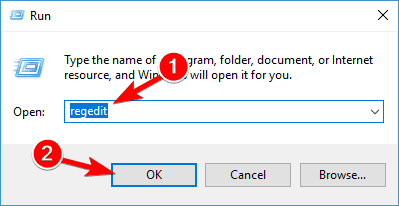
In the Windows search bar, type regedit, and click on the first result. It should be Registry Editor.
In Registry Editor, navigate to HKEY_CURRENT_USER\Software\Microsoft\Windows\CurrentVersion\Run
Right-click on Run and select the Permissions… option.
If the Permissions are set to Read, change them to Full Control.
Click Apply and then OK.
After this, try to install the Epic browser and see if it works. We recommend proceeding with caution: modifying registry keys can lead to system errors, so if you’re unsure, best follow the next steps.
2. Update your Windows 10
Go to Start and select Settings.
Now click on Update & Security.
In the left side panel, ensure that Windows Update is selected, and then click on Check for updates in the right section.
If there are any new updates, install them and then check the Epic Privacy Browser.
In the Windows search box, type Control Panel and hit Enter.
Select System and Security followed by Windows Defender Firewall.
In the left side-panel select Turn Windows Defender Firewall on or off.
Now click on the checkmark before Turn off Windows Firewall (not recommended).
Click OK.
Is Epic Privacy Browser a VPN?
The Epic Privacy Browser is not a VPN. It is a standard browser that is focused on privacy and security.
However, it has an encrypted proxy extension in the Epic Extension Store that works as a VPN for the browser.
That’s it. You have all the right information to solve the assertion problem with the Epic browser. All you need to do is follow the steps carefully, and the issue should be history.
If you’re aware of another method to fix the issue or if you have any more questions, share them in the comments section below, and we’ll certainly take a look.
Microsoft’s Visual Studio 2022 just released its latest update 2022 17.3 which delivers .NET MAUI GA tooling, Azure Container Apps and a few other new features.
According to the Visual Studio blog, the new 17.3 update is generally available for download and among its features lists is .NET Multi-Platform App UI moving from the Preview channel to the Release Channel for developers.
Developers will now have full access to the stable version of .NET MAUI to build Android, iOS, macOS and Windows apps more efficiently from a single codebase.
Visual Studio is also extending its Teams Toolkit to help communications developers create broader experiences for Microsoft’s enterprise chat app. Specifically, developers can take advantage of tools to build apps “that can post a notification to a chat or channel from an ASP.NET web API or Azure Function trigger,” all by making use of the Teams App templates.
There were also C++ improvements that came to Visual Studio through the 17.3 update as the team addressing known issues, comments or feedback. Addressing the feedback by the Visual Studio community also led to a new static analysis check on std::optional to help refine undefined behaviors with subsequent releases.
Users may also notice that Visual Studio can now index and colorize C++ code faster, and C++ using Unreal Engine 5 solutions may see up to 2x boost in speed performance on this build.
Another big feature coming with the 17.3 update are Azure Container Apps which will now enable developers to run microservices and containerized applications on a serverless platform.
With Container Apps, you enjoy the benefits of running containers while leaving behind the concerns of manually configuring cloud infrastructure and complex container orchestrators.
Smaller quality of life improvements that also come with today’s update include Live Unit Testing which now scales better for larger solutions, an easier way to see what’s been included in each update with an improved What’s New section, Git Line-staging, arranging tabs in multiple rows, filtering and theming in IEnumerable Visualizer, and keyboard shortcuts for reopening closed documents.
To check all the details on the new features and improvements in build 17.3 as well as download it for use, visit the Visual Studio blog here or grab the download from here.
Are you getting Minecraft Realms internal server error messages and looking for solutions?
If so, then you are in the right place. Because in this guide, we will give you 3 ways via which you will be able to get rid of the frustrating Minecraft Realms internal server error.
Minecraft allows its players to either create their own realms or create their own servers, via which they can organize their own multiplayer servers. This would let them play with other players across the globe. Furthermore, you can also join servers that are official or managed by others.
When this error pops up, you will be shown an error message Connecting to the realm…Internal Server Error – 500. This error has been troubling users for quite some time, and you are not the only one getting this error.
Users who want to play Minecraft in different realms have reported facing this error. There could be multiple reasons behind this error, which we will discuss in this guide, along with the 3 effective solutions that will help you fix it. Let us get right into it.
Why do I keep getting internal server error in Minecraft?
You will come across the Minecraft realms internal server error when you are trying to log into a realm or a private server.
There will be multiple private servers that are liked by many gamers, but it is not perfect or contains errors.
After thorough research, we have deduced a list of the common reasons behind this issue, which you can find below:
Due to poor internet connection
Due to Minecraft server outages
You are running an old version of Minecraft
The MOD that you have installed for Minecraft is either corrupt or conflicting with the game
The installation might be corrupt
There is an issue with the temporary data
Some additional plugins are causing the problem
Now that you know what the most common reasons that would trigger the Minecraft realm internal server error are, let us take a look at the solutions that will help you fix it.
Quick Tip:
Try opening Minecraft from a browser. There’s probably a no better option than Opera GX because it’s built with gaming in mind. It’s light, responsive, and fast, capable to support uninterrupted gaming.
What’s more is that Opera GX lets you select how much RAM and CPU each tab is using, for even better performance. Plus, you can follow the latest gaming news and download games from the GX Corner.
Opera GX
Access Minecraft from this browser to avoid error messages and focus on lag-free gaming!
Go to your server files and open the world folder.
Open the players folder.
Here you need to delete the person’s user name and UUID for who you are getting the error message.
Restart your PC.
Try connecting to the server and check if this fixes the issue or not.
This solution is pretty effective and has been reportedly able to fix the problem for many users for whom Minecraft was working fine and all of a sudden started showing Minecraft realm internal server error.
Deleting the UUID folder could also help in the situation where only a specific user wasn’t able to connect to the server, while others did with no issues.
2. Remove MODS and Plugins
If you are not enjoying the normal gameplay, you can install MODs and plugins to make the game interesting and fun.
Moreover, MODs also give the user more control over how they look and add new features. However, some MODs can interfere with game play and cause errors such as Minecraft realm internal server error.
Additionally, Minecraft gives the user the ability to install plugins to change the gameplay or modify the feature list. You can install Plugins very simply by dragging and dropping.
However, if you have installed an incompatible MOD or plugin, then you will come across multiple errors. In such a scenario, you can simply disable all MODs and plugins, restart the game, and check if this fixes the problem or not.
3. Update or Reinstall Minecraft
Update Minecraft Realm
Launch the Minecraft app.
Navigate to the installation tab and click on New Installation.
Under Version, select Latest Release.
Click on the Create button to create the installation.
This will download the latest version of the game.
Reinstall
Open the Start menu.
Search for Control Panel and open it.
Click on Programs and Features.
Select Minecraft and hit the Uninstallbutton at the top.
Click on the 3-dot icon on the right to the Minecraft version and select Edit.
Select More options.
From the drop-down locate JVM ARGUMENTS. Here you will see Xmx1G -XX:+UnlockExperimentalVMOptions.
In the Xmx2G, the 2 stands for the amount of RAM allocated to the Minecraft launcher.
Change it to your desired amount.
Tap Save to confirm your changes.
CurseForge Minecraft launcher
Launch the app.
Click on Settings in the lower left corner of your screen.
Under the Game Specific section, select Minecraft.
Scroll down, under Java Settings, you will see Allocate Memory with a slider.
Drag the slider and allocate as much memory as you want to Minecraft.
Changes will be saved automatically.
Minecraft lets you launch the game from different launchers. We have discussed teh steps for the default launcher and the CurseForge launcher to give you an idea of how you can allocate RAM to the game.
Let us know in the comments section, if this guide helped you fix the Minecraft realms internal server error or not.
We’re not really sure if everyone remembers, but back in June 2021, Microsoft actually announced ARM64EC for its new Windows 11 operating system.
The Redmond tech giant described ARM64EC as a new way to bring your existing x64 applications up to speed with the native performance you would expect on ARM.
Keep in mind that Microsoft specified that this would be possible even if you utilize plugins and dependencies that don’t support the architecture yet.
Now, a little over a year after the initial announcement, ARM64EC is now fully supported by the latest Microsoft-designed operating system, which is Windows 11.
And, since we’re talking about Windows 11 emulation, know that there were a lot of gaming and other improvements coming with Parallels Desktop 18.
Arm64EC brings full Windows 11 ARM support
Justin case you might be unaware of the abbreviation’s meaning, the EC in the name is actually for Emulation Compatible, which is really self-explanatory.
As Microsoft said, the general idea here is to offer an application binary interface (ABI) that allows developers to build applications using both x64 and ARM code.
Getting a bit deeper into the subject, this means that ARM code will run natively on Windows 11 on ARM devices while x64-specific code will run via emulation.
It goes without saying that this is actually a major milestone for Windows 11 on ARM since it is the only supported Microsoft OS to feature x64 emulation, which is the backbone of ARM64EC.
The ARM64EC ABI differs slightly from the existing ARM64 ABI in ways that make it binary compatible with x64 code.
Specifically, the ARM64EC ABI follows x64 software conventions including calling convention, stack usage, and data alignment, making ARM64EC and x64 interoperable. Apps built as ARM64EC may contain x64 code but do not have to, since ARM64EC is its own complete, first-class ABI for Windows.
Following all the work that has been put into this project, the tech giant now believes that the ABI is stable enough to transition from its experimental phase and on to general release.
Furthermore, ARM64EC also comes with some major benefits for developers, where instead of making sure that their entire codebase is ARM-compatible, they can now update their code and have both x64 and ARM functionalities running simultaneously.
On a Windows on ARM device, the latter will have better performance, which means you have to actually continuously update the codebase to improve native ARM performance without losing any functionalities in the process.
Prerequisites
You didn’t think that this would just work without any conditions, did you? Yes, there are some prerequisites for this to actually function, and here they are:
The latest Windows 11 SDK build. If using the Windows 11 SDK version 22000, the updated version on July 29, 2022 includes key fixes for building Arm64EC apps.
Visual Studio 2022 version 17.3 or later.
Arm64EC tools installed with the Visual Studio Installer.
Happy with the latest improvements brought to Windows 11 for ARM? Share your opinions with us in the comments section below.
It goes without saying that Pacman is definitely one of the most played and beloved games in the world and the love for this arcade game has spread to more modern operating systems, such as Windows 10 and 11.
Also, one of the highest-grossing video games of all time, Pacman or Pac-man was actually released back in 1980 as an arcade game, same as Pinball, by Japanese company Namco.
As we said, you can play this popular title on your Windows PC as well, but you can’t really know which of the hundreds of versions out there are the best, so we will help you with that by featuring six of the best Pacman apps and games you can play right now.
Of course, you can install the traditional desktop Pacman games on Windows 10 and 11, but we are not focusing on that, but on Pacman games that can also potentially be used on the touchscreen interface.
Can you get Pac-Man on PC?
Yes, as a matter of fact, you can! And that’s what we are about to get into in the continuation of this article, so make sure to read it all.
There are quite a few Pac-Man games out there for your Windows 10 and Windows 11 PC, and we’re about to go through the best ones right now.
How do I install Pac-Man on Windows 10?
First of all, as you would have imagined, you need to decide which of the Pac-Man game variants out there you want to play.
After that, simply click the links we provided, which will take you to the specific website, where you need to download the game.
Once downloaded, you will either be prompted to install the vintage title, or you can start the installation process yourself by double clicking on the executable you downloaded. That’s all there is to it.
As we’ve said before, there are many Pacman games that you can find, but most of them are of very low quality, despite the fact that they are paid. What you will see below are games that you can trust and come from reliable sources.
What are the best Pac-Man games for Windows 10 & 11?
Yes, this is not a cheap game, as ten dollars is considered a big amount these days, especially when we’re talking about such a casual game as Pacman.
However, the developer of this game is Namco itself, so this explains a lot! Also, the fact that the game can also be played on Xbox adds to its functionality.
PAC-MAN Championship Edition DX+for Windows 10 is actually the sequel to the original PAC-MAN game. Being compatible with Windows RT devices, as well, this is a game for loyal Pacman players.
The Pac-Man 80′ game from the Windows Store is a loyal reproduction of Namco’s best-selling edition of the Pac-Man game.
As the developer says, it perfectly matches the arcade game from the 80′, and those of you that are old enough to remember those times will definitely appreciate this specific game.
Just like the above-mentioned Pacman game, this one also takes the shape of the classic game version from 1980.
However, this game comes with a nice graphical background and with slight improvements in the visual aspect. We can see that the fences that separate the Pacman look much better.
For me, this is one of the best Pacman games to play in Windows 10, mainly becomes it keeps the old format but slightly improves it.
EVAC is not a Pacman game per se, but is a Pacman-styled game, which is definitely more fun if you think the old game was too boring.
There are 32 levels that will keep you glued to the screen of your Windows 10 device. For increased gaming, you can also connect your Xbox 360 Controller.
“Be creative – play stealthily to avoid encounters, prepare traps for your enemies, or just rush as fast as you can right in front of their eyes. Figure out how to beat the system and destroy your captors in 32 action-packed levels. Steal from your dark adversary and leave his world in ruins!”
Just like EVAC, 3D Ladybird is another Windows 10 Pacman-styled game, which will definitely appeal to the little ones, so you can add it to your collection of best Windows 10 games for kids.
This is a very light PacMan-like game, the download measuring only 8 megabytes. The description of this Pacman game goes like this, and I couldn’t say it better myself:
Flick the ladybug around the maze, collecting flowers and strawberries. Collect letters to form the word ‘EXTRA’ and win a life. Grab the honey from bees’ nest to score big. Use turnstiles strategically to cut predator bees’ path!
This is really a free demo, it doesn’t have any paid in-app purchases. There is also a global leaderboard, so you can test your skills against other Pacman players all around the world.
This game brings the original Pacman game to the Microsoft Store and is one of the most popular Pacman games among Windows 10 users.
The gameplay follows the classic Pacman rules: as you eat fruit and run away from Ghosts, you get rewarded.
Dodge all the ghosts, and you can earn high scores. If you’re tired of running away from ghosts, grab a Power Pellet and destroy the Ghosts before they get you.
Yes, most Pac-Man games for your Windows device are free. There are, however, also paid versions, but it all comes down to you choosing one.
If you decide to go for the Pac-Man Classic on the Microsoft Store, know that the 40 first levels can be played for free.
If you want different levels you can buy two level packs: the Master Pack that contains 60 hard levels, and the Elite Pack that contains 60 very difficult levels.
We all go through phases where we want to relive our youth or try something vintage, which is why people still play the Pac-Man game today.
There are also some PAC-MAN multiplayer versions out there, and all you need to do is find a reliable Pac-Man download source for your PC.
If you’re planning to download this game on a tablet, keep in mind that it doesn’t support touch input.
Did we miss any Pacman games? Let us know in the comments below.
You just got the error message that reads VPN is temporarily unavailable. Opera is resolving the problem? You’re not alone. Let us tell you all you need to know.
Opera One’s built-in VPN doesn’t always connect. That might happen because of slow or bad internet connections, down network servers, or faulty network settings. Regardless, here’s how to fix it.
How do I fix Opera One VPN is temporarily unavailable?
1. Toggle VPN Off/On
Launch the Opera One browser.
Click on the VPN icon beside the Address bar, then click the power icon to toggle it on.
Toggle it off and on again.
Some Opera users have stated that they’ve got the browser’s VPN working by toggling it off and then back on again.
If you want to stop worrying about the VPN, you can permanently abandon Opera’s VPN and opt for a full-featured third-party VPN service.
2. Clear Opera One’s cache
Launch the Opera One browser.
Press the hotkeys Crtl + Shift + Delete.
Select a Time range, select all the checkboxes on the Clear browsing data window, then click the Clear data button.
Restart the Opera One browser.
Try the VPN again and check if the error message VPN is temporarily unavailable Opera One is resolving the problem has disappeared.
3. Disable Opera One Extensions
Launch the Opera One browser.
Press the Menu button at the top left of Opera One’s window, select Extensions, then Extensions to open the extensions window.
Toggle off the switches for the different extensions to disable them.
Opera One extensions might undermine the VPN connection. To ensure that isn’t the case, turn off all the extensions. You can turn them back on individually to ascertain which one is triggering the error.
4. Add Opera One to antivirus utilities’ exceptions lists
Click the Start menu, type windows security, and click on the Windows Security app.
Click on Allow an app through the firewall.
Scroll down and click any options for opera.exe, then click OK.
Try the VPN again and check if the error message VPN is temporarily unavailable Opera One is resolving the problem has disappeared.
Instead of switching antivirus software off before opening Opera One, add the Opera VPN to your antivirus utility’s exceptions list.
Most antivirus packages include exception (or exclusions) lists that you can add software and URLs to exclude them from the antivirus shields.
How you add the Opera One VPN to alternative antivirus utilities’ exception lists varies, but in some cases, you can find Exclusions tabs on their settings pages.
5. Switch off your antivirus software
Click the Start menu, type windows security, and click on the Windows Security app.
Click on the Manage settings option.
Toggle off the switch for Real-time protection.
Try again and check if the error message VPN is temporarily unavailable Opera One is resolving the problem has disappeared.
This process will differ for third-party antivirus software. And when you get the error message VPN is temporarily unavailable, Opera One is resolving the problem compatibility issues, especially with third-party antivirus, which may be the cause.
Sometimes, you can temporarily disable most antivirus software by right-clicking the system tray icons and selecting a disabled or turn-off option.
You should always enable your antivirus after you are done using your VPN; if not, you will increase the chances of your computer being compromised.
Click on the Start menu, type Windows Defender firewall, and then click on the Windows Defender Firewall app.
Click Turn Windows Defender on or off.
Select the Turn off Windows Defender Firewall options, and press the OK button.
The Windows Defender Firewall might also block Opera One’s VPN connection, and switching Windows Defender off might be another fix for Opera One’s VPN.
7. Switch Opera One to an Optimal location
Launch the Opera One browser.
Click on the VPN icon by the Address bar, and select Optimal location.
Verify the VPN works correctly.
Wrapping up
One or more of these resolutions will probably kick-start Opera’s VPN. Note that a few VPN extensions for Opera One, such as ZenMate VPN, provide an alternative to the built-in option.
Firefox is one of the best browsers for protecting your privacy. You don’t need to use an incognito mode to prevent tracking because the browser’s stealth mode is already turned on.
It is a great browser for all browsing requirements, and Firefox offers a YouTube dislike extension. Although the lack of tabs could be annoying, it is still a fantastic browser app.
Recently, YouTube has disabled the dislike feature. Unfortunately, this has left users clueless that an essay better contains good or wrong information. Due to this, fake news and missed information is being spread.
However, using some extensions, you can get this feature back on Firefox. Keep reading this post to learn how to do it.
Why did YouTube stop showing dislikes?
No matter what device you are using, you won’t be able to see dislikes on YouTube. However, the like count is still tracked in the backend; you won’t be able to see how many other people have disliked a particular video.
According to YouTube, the main reason behind this was increased creators who were unfairly targeted by dislikes.
Can I get the dislike button back on Firefox?
Yes, it’s possible to get the dislike button back on YouTube. You can do so by installing YouTube dislike extension on Firefox.
These extensions crowdsource the dislike data by making the hidden data visible. Further, it estimates dislikes for known devices via machine learning.
Quick Tip:
If you want to watch YouTube ad-free and without buffering, try using Opera instead. The browser includes a built-in adblocker and is very lightweight and fast.
Plus, its add-on shop has an easy-to-install YouTube Like-Dislike extension that should fix your issue in no time. Also, thanks to the built-in VPN, you can access geo-restricted videos on YouTube.
Opera
Watch unlimited YouTube videos with Opera’s dedicated support!
There are a variety of Firefox extensions available to enable YouTube dislikes. Below is a list of some of the best extensions:
Return YouTube Dislike – This add-on will enable you to see dislike statistics on YouTube. But it isn’t monitored actively for security by Mozilla, so make sure before you install it.
YouTube Dislike Viewer – It is an extension that permits users to view dislikes on any YouTube video for nothing. It also allows customizing your YouTube experience.
YouTube Dislike Button count – This extension allows users to visit their dislike out and enhance their youtube experience. However, it will access browser activity and data during navigation.
This was how you could get the YouTube dislike extension for Firefox. We hope that the steps mentioned above helped you.
If you still have any issues, feel free to comment below. We will be eager to hear from you.
You found this article because while using Gmail; you got hit with the error message, oops the system encountered a problem #001. So let us tell you all you should know about this error.
Gmail is one of the most popular email clients, helped in no small way by the massive popularity of its parent, search monolith Google. But the Mail User Agent (MUA) is not without issues.
Some users have had to battle one pesky issue: the system encountered a problem error.
There are several possible causes for this error. But essentially, the error prevents you from enjoying the conveniences you have come to expect from your email client.
Why does my email say oops, something went wrong?
For some people, the issue crops up somewhat infrequently; it works well for a stretch, and then the oops message comes back out of the blue.
However, for others, it happens so frequently that they lose access to their email. This is not good and may mean you miss important correspondence with severe implications for your work.
Different users have observed this error get triggered when performing the following functions:
Opening messages
Deleting old emails
Moving emails to folders
Just as there are many possible causes for this error, there are several fixes. First, we will go through the usual and sneakier suspects, which aren’t as easy to isolate.
You will want to consider and check off each one until the problem is fixed.
Before you try the fixes, we will consider whether you access your email through your browser or a desktop application. Therefore, you may want to check if it is still correctly configured and if the case is the latter.
You could even uninstall it and reinstall a more up-to-date version.
The following are the different iterations to this error you may encounter:
Oops… the system encountered a problem (#001) Gmail
Gmail oops, the system encountered a problem #2007
Oops… the system encountered a problem (#001) Gmail Firefox
Gmail, oops the system encountered a problem in 2009
Oops… the system encountered a problem (#2014) Gmail
Oops, the system encountered a problem (#2005)
Please note that the fixes discussed in this article should fix most Gmail oops errors regardless of the error message.
Quick Tip:
If clearing cookies and cache data from your browser do not resolve the problem, the next best option may be to switch browsers.
One great browser that you should try is Opera One. It is fast and robust, thanks to the Chromium engine. But it has none of its well-known limitations, such as high resource demand.
Opera One
Eliminate errors by using this modern and performance-oriented browser!
How do I fix the system encountered a problem error?
1. Clear your browser’s caches and cookies
Launch your browser.
Click on the menu, select More tools, and Clear browser data.
Select a Time range, tick the options for Browsing history, Cookies and other site data, and Cached images and files, then click the Clear data button.
Both cache and cookies improve your browsing experience, but both can sometimes hurt it.
Caches are files that store information on the individual pages you visit, so the browser won’t have to make database calls and load page objects the next time you visit the same page.
But cache data takes disk space and may include info from unimportant pages or malware. So it would help if you cleared them regularly.
On the other hand, cookies are applications websites use to store browsing information every time you visit. They can then use this information to personalize your browsing experience, including the ads you see.
Both cookies and cache can get corrupted and end up causing this oops the system encountered a problem error.
Clearing cookies and caches will also help solve other Chrome issues like the page not responding error.
Clearing cache and cookies data from your browser will hopefully eliminate all the corrupted data that could be causing the oops the system has encountered a problem error.
2. Check your Internet connection
Some Gmail features struggle to load if your internet connection is prolonged. If there is something you can do to improve your internet speed, try that first.
Or you could try switching to an Ethernet, wireless, or Wi-Fi connection, depending on what you use currently, to see if this is the source of your problem.
But in most cases, this is rarely the issue. When it is, you can tell by the slow speed at which the Gmail application itself loads on your PC. If this is true for you, consider this next fix.
Gmail is a feature-rich program that takes a while to load completely. On the other hand, the HTML version is lighter, often loads quicker, and requires fewer system resources than the standard version since it mainly contains plain text.
The HTML version was created for older, unsupported browsers and sluggish internet connections.
There is a drawback to utilizing this watered-down version of Gmail, however. If you choose it, you will be without features like Chat, Rich Formatting, Keyboard Shortcuts, Spell-Checker, and others.
4. Disable browser extensions and add-ons
Launch your browser.
Click the menu, select More tools, then Extensions.
Toggle off the switches for each extension.
If you’re thinking about switching browsers, you may first want to ensure that the issue isn’t being brought on by an extension you just installed.
On occasion, third-party software, such as browser add-ons and extensions, might conflict with other programs and settings on your computer.
Occasionally, a patch or update on outdated compatible software might introduce bugs like this oops the system has encountered a problem error that wasn’t there previously.
Make a record of all the extensions you installed when this issue first appeared. Then, disable them one at a time till you figure out the faulty one.
Go to the previous extensions you have had. There’s a possibility that a recent update to one of them is what’s causing your Gmail issue.
5. Temporarily disable antivirus and other Internet security programs
Click on the Start menu, type Windows security, and then click on the Windows Security app.
On the left pane, click on Manage Settings.
Turn off Real-time protection.
Some people who have faced the oops the system encountered a problem in Gmail have reported the problem going away after disabling their internet security software, like your anti-malware and antivirus tools.
Like you have done with your extensions, the good thing is you won’t have to disable your internet security software permanently. Instead, disable them once and check if the error still recurs.
Some users have reported the Avast antivirus software to cause this problem, so you may not have to disable it.
There is no specific fix for the oops the system encountered problem #001 in Gmail; the aim is to find the cause of the issue and find a way of isolating it or disabling it.
In extreme cases, you may consider browser resets, but please note that this may lead to data loss.
Before Google can develop a more permanent solution, the best option is to try all different solutions that have worked for others, as discussed here.
Chromium is Google’s open-source web browser, initially released in 2008. But it’s still in use today, thanks to its speed and minimalistic interface.
Also, the Chromium code is accessible and frequently used by other developers to create various browsers. Sometimes, the developers of those browsers use them as a platform for malicious content.
This leads to many security risks for your Windows computers. If you can’t uninstall Chromium, chances are you’ve downloaded Chromium from other places than Google’s official website.
The pretend Chromium installs a toolbar at the top of your screen, corrupting the built-in uninstaller so that you cannot remove it.
We have some solutions for you on how to remove Chromium. But for a more lasting effect, we advise the use of good antivirus software to clean any infected files after you’re done uninstalling Chromium.
Why can I not Uninstall Chromium?
In most cases, uninstalling software should be easy, but when you can not, there may be a few typical suspects. In the case of the Chromium browser, uninstallation problems may be caused by the following:
Malware within the computer
Viruses built into a dubious version of Chromium
Ongoing third-party processes.
Ongoing uninstallation or installations.
Is Chromium malware?
While Chromium is a trustworthy browser, it may become a virus. This is because malware authors who use the name Chromium and utilize Chromium to spread harmful programs on Windows machines may abuse its open-source functionality.
They may thus inject it with vulnerabilities and malicious scripts to propagate infections while disguising it as the official Chromium browser.
Quick Tip:
When it comes to browsers that do not slow down your computer or utilize too much memory, Opera One is the option to consider.
One of Opera One’s outstanding features is Speed Dial, which, as the name indicates, makes it easier and quicker than ever to access your favorite sites. Plus, you have built-in Ad blocker, free VPN and AI.
Opera One
If you want a reliable and error-free browser, this should be your best choice!
Before trying any of the steps listed below, you can install a dedicated tool that automatically removes Chromium from your computer.
Uninstaller software is afull-featured utility that can remove any stubborn or malicious software from your PC. They are very user-friendly; you must select the app you want to remove.
Moreover, many uninstaller software integrate some optimization features that keep your PC clean and well-performing
2. Remove Chromium using Control Panel
Click on the Start menu, type control panel, and select the Uninstall a program option.
Select Chromium from the list of programs, then click on the Uninstall option.
Follow the wizard to complete the uninstallation.
Then go to your AppData folder by navigating the path below and deleting the Chromium folder. (Please replace afamo with your user name in the path below). C:\Users\afamo\AppData\Local
Empty your Recycle Bin to ensure all Chromium files and folders have been completely removed.
Restart your computer.
3. Using the Task Manager
Right-click on the Start menu and select Task Manager.
Right-click on the Chromium process and select Open file location.
Select all the files and press Shift + Delete to delete them permanently.
Once more, open the Task Manager, right-click on Chromium and select End task.
If you are wondering how to uninstall Chromium when it is not showing in the control panel, you should try this Task Manager method.
Google Inc. is the company that created and oversees Chrome, a project built on Chromium. Even though it uses the Chromium source code, it has a few more features.
Although Chrome is a free browser, you cannot alter its source code to create new software from it.
However, Chromium is distinct in that you can modify its source code and create new apps using it, and the Chromium Project is in charge of the open-source, free Chromium web browser.
With that in mind, you can utilize both on your computer, depending on your requirements.
Irrespective of the browser solution you choose on your computer, keep in mind that hackers often use browser extensions or add-ons to steal information from your computer or gain control over it.
As a result, locate all recently-installed suspicious browser add-ons, select those that look suspicious, and uninstall them. Of course, prevention is better than cure, so uninstalling extensions that seem unsafe is always best.
If you are wondering how to uninstall Chromium on Windows 7, 10, or 11, you will find the fixes in the guide helpful. Also, users searching for how to uninstall Chromium on Raspberry Pi, Ubuntu, Linux, or Mac may attempt manually deleting the Chromium files.
Finally, we recommend using an excellent antivirus to protect your computer against malicious software like a disguised Chromium browser.
Have the above procedures made any difference? Let us know by using the comments area below.
Yes, we actually already know that many of you are waiting for the Patch Tuesday monthly batch of security updates and we’re here to make it a bit easier for you to find what you’re looking for.
You should know that Microsoft isn’t the only company that has such a rollout on a monthly basis. So, in this article, we’re going to talk about Adobe and some of the patches for their products.
As we’re pretty sure you know by now, we will also include links to the download source, so you don’t have to scour the internet to find them.
Adobe releases updates for 25 CVEs
Before we get into it, let’s also take a look at what happened in July 2022, when Adobe released 27 CVEs in four patches for Acrobat and Reader, Photoshop, RoboHelp, and Adobe Character Animator.
The highlight of last month’s release was definitely the Acrobat and Reader update which addressed a combination of 22 different Critical- and Important-rated bugs.
It goes without saying that the most severe of these could allow code execution if an attacker convinces a target to open a specially crafted PDF document.
Now, let’s get back to the present and explore what the company has prepared for its users as a part of the August batch of patches.
Acrobat Reader
Just as last month, we will kick off this list with the update for Acrobat and Reader, which addresses three Critical-rated and four Important-rated bugs.
These above-mentioned critical vulnerabilities could allow code execution if an attacker could convince a user to open a specially crafted file.
Affected versions
Product
Track
Affected Versions
Platform
Acrobat DC
Continuous
22.001.20169 and earlier versions
Windows & macOS
Acrobat Reader DC
Continuous
22.001.20169 and earlier versions
Windows & macOS
Acrobat 2020
Classic 2020
20.005.30362 and earlier versions
Windows & macOS
Acrobat Reader 2020
Classic 2020
20.005.30362 and earlier versions
Windows & macOS
Acrobat 2017
Classic 2017
17.012.30249 and earlier versions
Windows & macOS
Acrobat Reader 2017
Classic 2017
17.012.30249 and earlier versions
Windows & macOS
Commerce
Next, let’s take a look at the seven fixes that were released for the Commerce app, which actually includes four Critical-rated bugs.
You should know that two of these could allow code execution and two could indeed lead to a privilege escalation.
Needless to say, the XML injection bug fixed by this has the highest CVSS of Adobe’s release at 9.1.
Affected versions
Product
Version
Platform
Adobe Commerce
2.4.3-p2 and earlier versions
All
2.3.7-p3 and earlier versions
All
Adobe Commerce
2.4.4 and earlier versions
All
Magento Open Source
2.4.3-p2 and earlier versions
All
2.3.7-p3 and earlier versions
All
Magento Open Source
2.4.4 and earlier versions
All
Illustrator
You surely want to also hear about the patch that was issued for Illustrator, one that contains two Critical and two Important fixes for some nasty bugs submitted.
The most severe out of these above-mentioned application bugs could lead to code execution and memory leak. when opening a specially crafted file.
Affected versions
Product
Version
Platform
Illustrator 2022
26.3.1 and earlier versions
Windows and macOS
Illustrator 2021
25.4.6 and earlier versions
Windows and macOS
FrameMaker
Even though we haven’t seen this adobe software in the Patch Tuesday bulletin for quite some time, know that there are also six FrameMaker bugs, five of which could lead to code execution.
This update addresses multiple critical and important vulnerabilities, which means a fix update was mandatory and Adobe has acknowledged and delivered.
Affected versions
Product
Version
Platform
Adobe FrameMaker
2019 Release Update 8 and earlier
Windows
Adobe FrameMaker
2020 Release Update 4 and earlier
Windows
Premiere Elements
We are going to conclude this list by saying that there’s only a single Critical-rated CVE in the Premier Elements patch, which is resulting from an uncontrolled search path element.
The company wants us to know that successful exploitation could lead to privilege escalation in the context of the current user.
Affected versions
Product
Version
Platform
Adobe Premiere Elements
2022 (Version 20.0)
Windows and macOS
Please keep in mind that none of the bugs fixed by Adobe this month are listed as publicly known or under active attack at the time of release.
Adobe actively categorizes the majority of these updates as a deployment priority rating of 3, with the Acrobat patch being the lone exception at 2.
This is what you are looking at in terms of Patch Tuesday releases for Adobe for the month of August 2022, so hurry up and get the software.
What’s your take on this month’s release? Share your thoughts with us in the comments section below.
Google has had a bit of trouble with earbuds, and I’m sure you know why at this point. That’s left great chances for Microsoft, Samsung, and other companies to make great products like Surface Earbuds, Galaxy Buds, and even the Nothing Ear 1 earbuds.
A lot of Google’s problems were due to hardware issues, but in mid-2022, Google returned with Pixel Buds Pro to try and redeem itself. These new earbuds take a lot of what’s great from the second-generation Pixel Buds, and for Microsoft fans like myself, perform a bit like Surface Earbuds. Here’s my take on Google’s Pixel Buds Pro when used across Android, Windows, and iPhone.
Specs & Price
You can buy the Pixel Buds Pro for $200 from Google or other major retailers. Pixel Buds Pro pairs with any Bluetooth 4.0 device, including Android, iOS, tablets, and laptops. The earbuds are sweat and water-resistant, with the earbuds being IPX4 rated, and the case IPX2 rated. Each earbud measures 0.88 x 0.87 x 0.93 inches, and the charging case is 0.98 x 1.97 x 2.49 inches.
Each earbud has an 11 mm dynamic speaker driver, and three microphones on board. Battery life is rated at 7 hours with ANC on, and 11 hours with ANC off and you can get up to 31 hours of listening time with the charging case. More specs and features are below.
Active Noise Cancellation
Transparency Mode
Volume EQ
Active in-ear pressure relief
Voice accellerormeter
Mesh covers to block wind
Tap and swipe sensors
Note that Google doesn’t give you a USB-C cable to charge Pixel Buds Pro in the box, you’ll need to provide your own, or use a wireless charger. You can also buy the Pixel Buds Pro in Charcoal, Fog, Lemongrass, or Coral. All three are the same price. Google even includes 3 types of ear tips for you to try out. Small, medium, and large. I tested with the small.
Case, Design, and fit.
If you’ve ever seen the Pixel Buds A-Series, or the second-gen Pixel Buds, then the case of the Pixel Buds Pro should feel familiar. It’s designed to look and feel like a pebble when you pick it up and hold it in your hands. It has a matte finish, and the lid is angular. There’s also a nice weight to the case when you grip it in your hands. That definitely sets it apart from the AirPods case which has a smoother glossy finish, or even the Surface Earbuds case which are much wider and longer.
I do think the case is also durable. I took my Pixel Buds Pro on a trip to visit Fenway Park in Boston, and the security at the stadium accidentally dropped the case on the ground when she opened my bag for inspection. I picked it back up and noticed no visual damage.
As far as the design of the actual earbuds, Google is going for something different. When you put these in your ears, they might look like an original Pixel Buds or Pixel Buds A-series to the casual observer, but don’t be fooled. Google has dropped out the signature wingtips on the Pixel Buds Pro, so it is now more of a fit, shape, and feel similar to Samsung’s Galaxy Buds Pro. And yes, this is less crazy of a design than the Surface Earbuds, which have a giant awkward touchpad on the outside.
After wearing Pixel Buds Pro for four hours on an Amtrak ride from NYC to Boston, I think this design choice helps the Pixel Buds Pro feels natural. Putting in these earbuds is a bit similar to Surface Earbuds. Rest it in your ear, and then twist it in to secure it. Once in, you’ll barely feel that you have earbuds on.
The fact that the Pixel Buds Pro has no stem adds to the comfort, as it means the earbuds don’t slide off when walking, jumping, or exercising. I tried all of these things in the lead-up to my trip, and the Pixel Buds Pro always stayed secure in my ear no matter what, even during a heatwave where I was sweating. The only exception was when I got a case of common cold, and my ear canals closed up, the Pixel Buds Pro struggled to stay in my ear.
This is one of the comfiest earbuds I’ve ever tried, even more than my AirPods Pro which tends to slip out of my ear and feel uncomfortable after an hour (even with foam tips.) Google actually uses sensors and vents to keep the fit feeling natural and secure. Those sensors measure the ear pressure in your ears, and the earbuds are able to relieve it and stay comfy.
Pairing, software
Pixel Buds Pro is best used with Android, as you get access to Pixel Buds software to let you customize your experience a bit. The software isn’t yet cross-platform and won’t work on iOS or Windows, though, unlike the Surface app for managing Surface Earbuds. Without an Android phone, you can’t customize the Pixel Buds Pro as much.
Anyway, pairing Pixel Buds Pro with Android is easy. Open the lid, and you can pair it automatically thanks to Google’s Fast Pair technology. On Windows, you pair by holding down the button on the case and selecting it manually through Bluetooth settings. The same goes for iOS or an iPhone.
I mentioned pairing because Pixel Buds Pro supports audio-switching with signed-in Android devices. In my example, I was listening to Spotify on Android, and Teams rang on my Chromebook, and the Pixel Buds Pro switched over to Chromebook automatically. Other than that, the Pixel Buds can remember two devices with Multipoint, so you can worry less about repairing constantly between PC and Android, or Android and iOS. With this, when you play media the earbuds can switch to calls on previously connected devices. Again, in my test, I did this with Teams ringing on Windows. I stopped media on my phone and selected my Pixel Buds as the output on my PC. It was pretty seamless.
As for the Pixel Buds app on Android, it has a couple of things to know about. The first is a fit test, which will let you know if you’ve chosen the right ear tip. I used the small one because my ears are weird like that. Other than the ear tip, the app is also used for a few other tasks. This includes setting up Google Assistant settings, ringing the earbuds if lost, boosting the volume EQ at lower levels, managing noise cancellation, and transparency, and managing firmware updates. It’s great to sell all these controls up front, but I wish Google could port these controls to iOS and Windows, too.
Touch sensors
The best feature of Pixel Buds Pro is the touch sensors. These aren’t that customizable, but they still work great on Android, iOS, and Windows, as there’s a touch control for everything you need for music. These are really fun to use, unlike the tap or press and hold controls on AirPod Pros. It’s very reminiscent of the touch pads on Surface Earbuds.
You can swipe forward on any earbuds to raise the volume, and swipe backward to lower the volume. A single tap plays or pauses music, and a double tap will take you to the next track or reject a call. A triple tap will take you to the previous track. Finally, pressing and holding will toggle between active noise cancellation and transparency mode. Only this control can be customized so that either the right or left earbud can be configured for a long press to activate Google Assistant. (Google Assistant only works on Android, and this touch control can’t be mapped to Siri or Cortana.)
In my four-hour Amtrak journey to Boston, touch controls proved crucial. I was falling asleep at one point, and my head was braced up against the train’s window. Feeling comfy, I didn’t want to take my Pixel 6 Pro out of my pocket, so I instead depended on the touch controls to change volume, switch songs, and talk to my Google Assistant to respond to messages.
Audio Performance
Just as I said when I reviewed Surface Earbuds, I am not an audio expert, so I can’t comment very specifically on the full details of audio performance. For my basics, though, I feel like the audio on Pixel Buds Pro is a mix between Surface Earbuds and AirPods Pro. There’s definitely not a lot of bass on these buds, but most of your music should sound great at medium to high levels like I listened to in my tests.
I noticed the lack of bass when listening to a playlist on Spotify which remixed hit songs (like Ava Max’s Sweet but Psycho) from the past decade. Lyrics, guitars, and voices, though still sound rich and deep, especially on a rock song like Dear Maria, Count me in by All Time Low. Even a classic song like Frank Sinatra’s New York, New York, sounded pleasing. Sinatra’s voice sounded quite deep, as the trumpet and piano riffs during the signature portion of the song.
Note that the EQ feature was turned on in all my music tests. It’s supposed to enhance bass and treble at a lower volume, but I don’t think it made much of a difference in loud scenarios like my Amtrak train ride. At home, I think it made more of a difference when listening to music in quiet places like my home office.
The noise cancellation, though is amazing and is almost exactly like what Apple has done on AirPods Pro. In my tests during a four-hour train ride, the noises you typically expect from trains were muted for me. I heard nothing but my music during my entire ride. Even the chatter from fellow passengers and the Amtrak crew was muted. When I did want to hear announcements about the next stops, though, a tap on the buds enabled the transparency mode, which instantly let me hear the voices around me.
As someone who uses AirPods Pro on my iPhone, these definitely feel like the Android version, but just with a lack of bass and spatial audio (Google is adding spatial audio later.) It’s also sad to see that Google is only using the HD Audio AAC codec, aptX is next-gen, and I hope these can be added in the future through software. Most people though, should not notice the difference, as most audio is AAC.
On latency and connection issues, I’ll say these problems from the original Google Pixel Buds are gone. I had none of these issues with Pixel Buds Pro, and leaving my phone at my seat, then going to the rest room which was about 10 feet away, music still keep playing.
Microphone performance
To test the microphones on the Pixel Buds Pro, I put my SIM card in my Pixel 6 Pro and daily driver the phone for a few hours. On phone calls that I made when sitting on my Amtrak train, people on the other end of the call said I sounded very well, and when I told them I was using my Pixel Buds Pro, they were surprised. Outside, though, in a loud stadium, the performance wasn’t the best, and my dad said he had trouble hearing me when I answered his call when at Fenway Park. I think that’s due to noise cancellation kicking in.
Back home when I used the Pixel Buds Pro on Teams calls, the experience was great. I used the transparency mode to hear my voice and had my earbuds to around 40% volume. I clearly heard my colleagues, as well as myself. It’s a great experience that I liked a lot with Surface Earbuds, which let you hear yourself speak while you present.
Battery Life
Best way to test the Pixel Buds Pro are to wear it on a weekend trip! 4 hour train ride to Boston and 4 hour trip back. Let's see how these go. So far, really good at noise cancelation! I can't hear anything but my music. pic.twitter.com/Cwsuku5HOF
Depending on how you use your Pixel Buds Pro, battery life will vary for you. Google advertises 31 hours total listening time with the charging case when active noise cancellation is off, with 11 hours of earbuds listening time. Active noise cancellation being on drops that to 7 hours or earbuds listening time and 20 hours of total listening time with charging. And about the case, you can get 1 hour of listening time with a 5-minute change with active noise cancellation.
I used active noise cancellation a lot in my time with the Pixel Buds Pro, and my average battery life was around 18 hours. That accounts for my entire trip to Boston, which lasted me about 12 hours (8 hours of music listening in between and 1 hour of calls), and the rest is the time I spent playing with the earbuds at home.
I didn’t have to connect my Pixel Buds Pro case to a battery pack or power outlet to recharge. I did, though, notice some uneven drain between the left and right earbuds, but Google continues to hold that this is normal, as the earbuds do the processing.
Your mileage might vary, obviously as battery tests with earbuds are different for everyone. Just keep in mind that, unlike Pixel Phones, these earbuds don’t have a fast charge so you might want to ensure you fully charge it to 100% before going on a long trip like I did.
Great earbuds
There’s no doubt that there are a ton of different headphones and earbuds that you can buy right now. All are not created equal, but if you’re well-invested in Android and Windows, then the Google Pixel Buds Pro is a great buy. These are true AirPod Pro competitors that work great with Windows. with a comfy fit, and decent sound performance, great touch controls, you’ll enjoy the Google Pixel Buds Pro.
Torrenting is a type of peer-to-peer file sharing based on the BitTorrent protocol. It enables the distribution of media content with torrent files users can download from websites.
Alas, torrenting has become ridden with copyright legal disputes in recent years.
Such disputes have led to the blocking of torrent websites in various countries, but you can still download torrents from blocked sources with VPN software installed.
To open torrented files, you’ll need BitTorrent client software. The uTorrent software is among the best BitTorrent client packages.
How can I remove ads from uTorrent?
As you already know, there’s a freeware uTorrent version that includes ads. There’s also an ad-free version of uTorrent that’s retailing at $4.95 per year.
However, there is also a way to remove the ads from the freeware uTorrent. And this is what we will explore in today’s guide.
We will show you how to download and install the app, then how to remove the ads from it using the settings. Here we go!
Click Download uTorrent Web to save the setup wizard.
Open uTorrent’s Install Wizard, and click the Next buttons.
Click the Agree button.
Select the Decline options to turn down additional software offers.
Select the Create Desktopicons and Start menu checkboxes to set up some shortcuts for uTorrent.
Press the Next button.
Additional configuration options will open. Select the Add an exception for uTorrent in Windows Firewall option.
Select all the File Types checkboxes.
Press the Next button to install.
Thereafter, click the Finish button.
2. Remove ads from uTorrent
There is a way to remove ads on uTorrent without having to pay for the ad-free premium version. What you have to do is manually modify Advanced options to configure the app to no longer show ads.
1. Open uTorrent.
2. Click theOptions button in the upper-left corner of the screen.
3. Select Preferences from the options.
4. Click Advanced to open a list of flag options for uTorrent.
5. Next, you’ll need to find each of the following flags by entering them separately in the Filter search box:
offers.left_rail_offer_enabled
offers.sponsored_torrent_offer_enabled
gui.show_plus_upsell
bt.enable_pulse
gui.show_notorrents_node
offers.content_offer_autoexec
6. Select theFalseoptions for each of the above flag settings.
7. Select theApplyoption.
8. Click theOKbutton to exit the Preferences window.
9. Click theXbutton at the top right of the uTorrent window to close it.
10. Right-click the system tray icon for uTorrent and selectExit.
11. Click theYesbutton to confirm.
12. Thereafter, restart theuTorrent app. Now uTorrent will no longer include any ads.
As you can see, you don’t need to upgrade to the paid version to remove uTorrent ads.
However, the premium version also comes with premium support and streamlined torrenting that you don’t get in the freeware alternative.
Overall, the premium version delivers just want it advertises, a premium experience and if that’s what you envision, you might want to reconsider your budget and go ahead and give it a try.
To upgrade to the ad-free version, click Options > Get uTorrent in uTorrent and select the Upgrade to Ad-free option.
Let us know if you found this guide helpful by using the comment section below.
If background music not working in Opera GX, you won’t able to enjoy in full browser customization, but there are ways to fix this issue.
Issues with Opera configuration files can cause this problem, as well as hardware acceleration. Your audio and background music settings can also affect this feature.
How do I get background music to work on Opera GX?
Before we start, search your PC for Opera GX Installer folders and remove them. Disabling extensions, such as Bitwarden, can also fix the problem.
1. Remove Opera configuration files
Close Opera GX completely.
Press Windows key + R and type %appdata% and click OK.
Next, navigate to the following directories: Opera Software\Opera GX Stable
Locate and delete theme and theme backup folders.
Start Opera GX again.
2. Select the correct audio output device
Press the Win + R keys together on your PC to open the Run console.
In the search field, type mmsys.cpl and hit Enter.
In the Sound dialogue, under the Playback tab right-click on the correct output device and select Set as default.
Press Apply and then OK to save the changes and exit.
3. Turn off hardware acceleration
Click the Menu button and choose Settings.
Scroll all the way down and click on Advanced.
Next, locate Use graphics acceleration when available and disable it.
Restart your browser.
In some instances, you just need to disable this feature and enable it back again to fix the problem.
4. Enable background music in Opera settings
Open the Opera GXbrowser and click on Settings on the sidebar.
In the Opera settings window, type background music in the search bar.
Next, click on Background music below.
Now, go to Background music and turn it on.
Lastly, check for the volume slider and move it to the right to turn up the volume.
You must already be aware, but we have to remind everyone that Microsoft also releases security updates for some of the obsolete operating systems, during Patch Tuesday.
That means that not only Windows 10 and 11 users will receive new software. We’re also looking at Windows 7, Windows 8, and various Server versions as well.
Also, we’ve provided download links to the security updates that Adobe released for its suite of products during the same event.
However, now, let’s take a closer look at what Windows 7 and Windows 8 users were given to work with on the August 2022 Patch Tuesday.
What does the August 2022 Patch Tuesday bring?
The Redmond-based tech colossus has just released Patch Tuesday updates for Windows 8.1, in the form of KB5016681, and Windows 7, in the form of KB5016676.
Needless to say, they each come with a whole host of improvements and known issues with some pretty neat workarounds.
Addresses an issue in which Speech and Network troubleshooters will not start.
Addresses an issue that might cause the Local Security Authority Server Service (LSASS) to leak tokens. This issue affects devices that have installed Windows updates dated June 14, 2022 or later. This issue occurs when the device performs a specific form of service for user (S4U) in a non-Trusted Computing Base (TCB) Windows service that runs as Network Service.
Enforces a hardening change that requires printers and scanners that use smart cards for authentication to have firmware that complies with section 3.2.1 of RFC 4556. If they do not comply, Active Directory domain controllers will not authenticate them. Mitigations that allowed non-compliant devices to authenticate will not exist after August 9, 2022. For more information about this change, see KB5005408.
Known issues
After installing this update and restarting your device, you might receive the error, “Failure to configure Windows updates. Reverting Changes. Do not turn off your computer”, and the update might show as Failed in Update History.
Addresses an issue in which Speech and Network troubleshooters will not start.
Addresses an issue that might cause the Local Security Authority Server Service (LSASS) to leak tokens. This issue affects devices that have installed Windows updates dated June 14, 2022 or later. This issue occurs when the device performs a specific form of service for user (S4U) in a non-Trusted Computing Base (TCB) Windows service that runs as Network Service.
Enforces a hardening change that requires printers and scanners that use smart cards for authentication to have firmware that complies with section 3.2.1 of RFC 4556. If they do not comply, Active Directory domain controllers will not authenticate them. Mitigations that allowed non-compliant devices to authenticate will not exist after August 9, 2022. For more information about this change, see KB5005408.
Known issues
There are currently no known issues reported by Microsoft.
If you are feeling a tad uncomfortable, it’s because we’re already in August and the temperatures are starting to slowly build up in our offices.
Windows users, however, are looking towards Microsoft in hopes that some of the flaws they’ve been struggling with will finally get fixed.
We’ve already provided the direct download links for the cumulative updates released today for Windows 10 and 11, but now it’s time to talk about Critical Vulnerabilities and Exposures again.
This month, the Redmond tech giant released 121 new patches, which is a lot more than some people were expecting right after Easter.
These software updates address CVEs in:
Microsoft Windows and Windows Components
Azure Batch Node Agent
Real Time Operating System
Site Recovery, and Sphere
Microsoft Dynamics
Microsoft Edge (Chromium-based)
Exchange Server
Office and Office Components
PPTP
SSTP
Remote Access Service PPTP
Hyper-V
System Center Operations Manager
Windows Internet Information Services
Print Spooler Components
Windows Defender Credential Guard
All of this is beside the 17 CVEs patched in Edge (Chromium-based) and three patches related to secure boot from CERT/CC, which actually brings the total number of CVEs to 141
Microsoft provides fixes for 121 flaws in August 2022
It’s pretty much safe to say that this wasn’t either the busiest or the lightest month for Redmond-based security experts.
You might like to know that, out of the 121 new CVEs released, 17 are rated Critical, 102 are rated Important, one is rated Moderate, and one is rated Low in severity.
Please keep in mind that two of these bugs are listed as publicly known, and one is listed as under active attack at the time of release.
Chromium: CVE-2022-2624 Heap buffer overflow in PDF
Medium
N/A
No
No
RCE
You should know that the month of August brings no less than 34 updates just for the Azure Site Recovery component.
This brings the tally up to 66 updates for this component in July and August, which is a pretty big number even by Microsoft standards.
For August 2022, there are two RCE bugs, one DoS, and 31 EoP vulnerabilities being fixed, just to clarify the situation.
All of the above-mentioned bugs involve the VMWare-to-Azure scenario. That being said, if you use Azure Site Recovery, you will need to update to 9.50 to be protected.
Also, there are nine other code execution bugs fixed through this month’s Patch Tuesday rollout, including another bug in MSDT that is not under active attack for the time being.
We’re also looking at two bugs in the Windows Defender Credential Guard, both of which could allow an attacker to access Kerberos-protected data.
Before we conclude, let’s also state the fact that seven different Denial-of-Service (DoS) vulnerabilities received fixes this month, including the above-mentioned Outlook and Azure Site Recovery bugs.
You can track all of the CVEs addressed this month from the list above, and be aware of everything that is happening.
Looking forward, the next Patch Tuesday security update rollout will be on the 13th of September, which is a bit sooner than some expected it.
Have you found any other issues after installing this month’s security updates? Share your opinion in the comments section below.
Tower defense browser games, unlike some other browser games, are pretty enjoyable and creative. They are built with stunning graphics and pack in impressive gameplay, usually found in sophisticating games.
What’s more, they do not require the best gaming laptops to get maximum value from them. They are online games designed to deliver a superb gaming experience.
However, not all tower defense browser games are worth your time. That’s why we have gathered a list of some of the best for you to choose from.
What is a TD game?
A TD or Tower Defense game is basically one where players have to defend their territory against opponents/enemies by setting up structures and obstructing the path, thereby making it harder for others to attack them.
These are a subgenre of strategy games where structures could be used to defend the territory, impede the attack, lower its impact, or attack the enemy forces. Tower Defense games have been extremely popular amongst the community and have a huge fanbase.
The Cursed Treasure 2, one of the best Tower Defense online HTML5 games, is the improved version of the already stunning Cursed Treasure game. It is a game for intelligent minds, as it requires you to build your towers strategically to defend against attacks from enemies and bosses.
The graphics are amazing, and it also boasts a whopping 24 levels that can get you addicted quickly. Lastly, you only need your trackpad and the left mouse to carry out all its activities.
This is an inverted tower-defense-style game where you have to command the snowman’s army and lead them to victory. Your work’s cut out, as the critters have already taken over the territory.
You need to plan carefully and place the troops strategically to regain the lost territories from the enemies. To make things more interesting, the game generates the levels randomly. Hence, if you fail, the elements will differ when you start again.
Clone 2048 is a game that takes you on a journey into the future. It is a merge game sprinkled with some action to keep it lively and interesting.
It is centered on a doctor investigating a planet infected by an unknown virus and littered with zombies in 2048. Your task is to aid this investigation and protect the world from zombies by strategically positioning the doctor’s clone soldiers.
Army Warfare – Ideal if you love fast-paced battles
The Army Warfare game is for you if you love fast-paced battles. It is a superb battle arena game that provides you decks of cards to take down your enemy’s towers at pace.
Things get more interesting the deeper you go. You get to unlock new cards and skills to defend your tower and attack your enemy at the same time.
The controls are pretty easy to master. It requires just the mouse left-click, mouse scroll, and the arrow keys.
Tower Swap is a tactical game that combines match-3 mechanics with clever tower defense. Your task is to protect your castle against dragons by building towers through creative tile machines.
Aside from defending, you also get to build attacking weapons by combining three pieces of the same resources. The controls are pretty straightforward as you only need to click and drag your mouse.
Battle Gear 2 – Plan each mission in different formats
If you have ever-watched war movies and felt fully immersed in them, this is a game for you. It simply puts you in the role of a Commander in a great war of nations. Your task will be to develop strategies to lead your troops to victory.
Battle Gear 2 offers so much flexibility, as you can plan each mission in different formats. Your success and failure solely depend on how strategic you are.
If you were looking for free Tower Defense games for PC, this is a relentless game that requires you to defend your castle nonstop. The enemies here are waves of aggressive chickens that mount a continuous assault against your home.
To progress, you need to protect the wall and, at the same time, upgrade your weapons through merging. However, you don’t have time to sort things, as the waves of chickens keep coming.
Thankfully, the control is pretty easy as you only need your mouse to play the game.
If you are an action game lover, you would surely find this game enticing. It is built around two characters (Pedro and Juana) surrounded by zombies. You need to ensure you kill waves of zombies in each level to have the chance of continuing.
You can use different weapons such as pistols and shotguns for your defense. To make things more interesting, you can unlock some sophisticated weapons as you progress.
Bug War 2 – Improves your logic and planning skills
Bug War 2 is a multi-faceted desktop Tower Defense game where you need to occupy as many enemies’ towers as possible. Your task is to destroy your enemies’ colony.
You lead your insects into battle to attack and capture the enemy’s castle while also defending yours. With this game, you can effectively improve your logic and planning skills, as any mistake results in defeat.
This game is a tower defense game created on the template of the well-known Minecraft. It features a tactical game that takes you through multiple stages to stay alive.
Foremost, you need to make your path to your desired destination and create a home there. This same path will lead dangerous creatures such as zombies and wolves to you. Your task is to ensure these creatures never reach your home.
There are several excellent gaming platforms to play online games for free. These offer both single-player and multi-player options to users. Miniclip is, by far, the most popular platform, but there’s no dearth of these for game lovers.
Check out the best gaming platforms offering free titles, and choose the one where the gameplay and user interface suit you.
While there are a series of games you can play on your browser, the tower defense games sharpen your creativity. The above list contains some juicy options that are hard to overlook
As you already know, the seventh round of the monthly Patch Tuesday updates of 2022 have arrived, and they bring an entire array of changes for both Windows 10 and Windows 11, regardless of whether it is a newer or an older version.
The August 2022 Patch Tuesday updates are expected to fix some of the issues that were still pending, and in the article below we will be looking to see exactly what we get.
We’ve included detailed changelogs for each cumulative update, and we will also be providing you with direct download links from Microsoft’s Windows Update Catalog, so you know that they are secure.
Alternatively, you can always use other methods to get the latest updates, including:
The Windows Update menu on your OS
The WSUS (Windows Server Update Service)
Group Policies set up by your admins if you’re part of a larger network.
Changes included in the May Patch Tuesday Updates
Windows 11
As most of you know by now, Microsoft released its latest operating system, Windows 11, on the 5th of October, 2021.
Five months after the general rollout, the new OS seems to become increasingly stable and far less buggy than we’ve gotten used to.
You might also like to know that the 22H2 version of Windows 11, the operating system’s first major update, has already been declared feature complete.
It will, most likely, come in the first half of the year, so we might just get it until the summer. Of course, there is a possibility that the Redmond tech giant could postpone to the third, or fourth quarter.
Addresses an issue in UIAutomation() that causes an application to stop working.
Addresses an issue that prevents the Startup Task API from working as expected for certain apps.
Improves the reliability of a push-button reset after an OS upgrade.
Addresses an issue that makes the tenant restrictions event logging channel inaccessible if you remove the EN-US language pack.
Addresses an issue that causes certificate-based machine account authentication to fail in some circumstances after you install the May 10, 2022 security updates on domain controllers.
Addresses an issue that affects the Arm64EC code you build using the Windows 11 software development kit (SDK).
Updates the Remove-Item cmdlet to properly interact with Microsoft OneDrive folders.
Addresses an issue that prevents certain troubleshooting tools from opening.
Addresses an issue that causes port mapping conflicts for containers.
Addresses an issue that causes Code Integrity to continue trusting a file after the file has been modified.
Addresses an issue that might cause Windows to stop working when you enable Windows Defender Application Control with the Intelligent Security Graph feature turned on.
Deploys search highlights to devices. To access the policy for search highlights (on a device that has installed the June 2022 Cumulative Update Preview or July 2022 monthly quality update), go to C:\Windows\PolicyDefinitions and locate Search.admx. For your convenience, we will be publishing an updated version of the Administrative Templates (.admx) for Windows 11, version 21H2 to the Microsoft Download Center soon.
Addresses an issue that causes explorer.exe to stop working when you use the play and pause keyboard buttons on certain devices.
Addresses an issue that causes explorer.exe to stop working when you use the Start menu’s context menu (Win+X) and an external monitor is connected to your device.
Addresses an issue that displays a blank window that you cannot close when you hover over the search icon on the taskbar.
Reduces the overhead of resource contention in high input/output operations per second (IOPS) scenarios that have many threads contending on a single file.
Addresses an issue that causes the Windows profile service to fail sporadically. The failure might occur when signing in. The error message is, gpsvc service failed to sign in. Access denied.
Addresses a known issue that might prevent some of you from opening the Start menu. On the affected devices, clicking or tapping the Start button or using the Windows keyboard shortcut might have no effect.
Known issues
After installing this update, IE mode tabs in Microsoft Edge might stop responding when a site displays a modal dialog box. A modal dialog box is a form or dialog box that requires the user to respond before continuing or interacting with other portions of the webpage or app.
After installing this update, XPS Viewer might be unable to open XML Paper Specification (XPS) documents in some non-English languages, including some Japanese and Chinese character encodings. This issue affects both XML Paper Specification (XPS) and Open XML Paper Specification (OXPS) files. When encountering this issue, you may receive an error, “This page cannot be displayed” within XPS Viewer or it might stop responding and have high CPU usage with continually increasing memory usage. When the error is encountered, if XPS Viewer is not closed it might reach up to 2.5GB of memory usage before closing unexpectedly.
Windows 10 v21H2 is the latest major version of Windows 10, and as such has the most experimental features on it.
Fortunately, most bugs that were first present when it was first made available have been weeded out, and this version of Windows 10 is far more stable.
Addresses an issue that might cause the Local Security Authority Server Service (LSASS) to leak tokens. This issue affects devices that have installed Windows updates dated June 14, 2022 or later. This issue occurs when the device performs a specific form of service for user (S4U) in a non-Trusted Computing Base (TCB) Windows service that runs as Network Service.
Addresses an issue that creates a duplicate print queue. This causes the original print queue to lose functionality.
Addresses a known issue that might prevent the Input Indicator and Language Bar from displaying in the notification area. This issue affects devices that have more than one language installed.
Known issues
Devices with Windows installations created from custom offline media or custom ISO image might have Microsoft Edge Legacy removed by this update, but not automatically replaced by the new Microsoft Edge. This issue is only encountered when custom offline media or ISO images are created by slipstreaming this update into the image without having first installed the standalone servicing stack update (SSU) released March 29, 2021 or later.
After installing this update, IE mode tabs in Microsoft Edge might stop responding when a site displays a modal dialog box. A modal dialog box is a form or dialog box that requires the user to respond before continuing or interacting with other portions of the webpage or app.
Microsoft has received reports of issues affecting some printing devices following installation of this update. Symptoms observed may include duplicate copies of printers installed on a device (commonly with a similar name and the suffix “Copy1”), and applications which refer to the printer by a specific name cannot print.
After installing this update, XPS Viewer might be unable to open XML Paper Specification (XPS) documents in some non-English languages, including some Japanese and Chinese character encodings. This issue affects both XML Paper Specification (XPS) and Open XML Paper Specification (OXPS) files. When encountering this issue, you may receive an error, “This page cannot be displayed” within XPS Viewer or it might stop responding and have high CPU usage with continually increasing memory usage. When the error is encountered, if XPS Viewer is not closed it might reach up to 2.5GB of memory usage before closing unexpectedly.
This version of the OS is outdated and will no longer receive any updates from the tech company. Users that are still running this old version on their devices are strongly advised to choose a more recent one to update to.
If you still want to use Windows 10 and are not willing to upgrade to 11, you don’t have to do so right away. After all, Microsoft announced that the support for Windows 10 will go on until 2025.
Addresses an issue that might cause the Local Security Authority Server Service (LSASS) to leak tokens. This issue affects devices that have installed Windows updates dated June 14, 2022 or later. This issue occurs when the device performs a specific form of service for user (S4U) in a non-Trusted Computing Base (TCB) Windows service that runs as Network Service.
Known Issues:
After installing KB4493509, devices with some Asian language packs installed may receive the error, “0x800f0982 – PSFX_E_MATCHING_COMPONENT_NOT_FOUND.”
After installing KB5001342 or later, the Cluster Service might fail to start because a Cluster Network Driver is not found.
Windows 10, version 1607 has reached the end of service for all of its available editions. Update to the latest version of Windows 10 in order to keep your system protected.
Addresses an issue that causes searchindexer.exe to stop responding during a dismount operation in the Remote Desktop setup environment.
Addresses an issue that redirects the PowerShell command output so that transcript logs do not contain any content. Transcript logs might contain decrypted passwords if you turn PowerShell logging on. Consequently, the transcript logs lose the decrypted passwords.
Addresses a known issue that might prevent you from using the Wi-Fi hotspot feature. When attempting to use the hotspot feature, the host device might lose the connection to the internet after a client device connects.
Addresses an issue that prevents the use of Encrypted File System (EFS) files over a Web-based Distributed Authoring and Versioning (WebDAV) connection.
Addresses an issue that causes Microsoft NTLM authentication using an external trust to fail. This issue occurs when a domain controller that contains the January 11, 2022 or later Windows update services the authentication request, is not in a root domain, and does not hold the Global Catalog role. The affected operations might log the following errors:
The security database has not been started.
The domain was in the wrong state to perform the security operation.
0xc00000dd (STATUS_INVALID_DOMAIN_STATE).
Addresses an issue that causes the primary domain controller (PDC) of the root domain to generate warning and error events in the System log. This issue occurs when the PDC incorrectly tries to scan outgoing-only trusts.
Addresses an issue that might damage BitLocker virtual machine-based (VM) system files if you expand the BitLocker partition while the VM is offline.
Addresses a known issue that prevents Windows servers that use the Routing and Remote Access Service (RRAS) from correctly directing internet traffic. Devices that connect to the server might not connect to the internet, and servers might lose connection to the internet after a client device connects to them.
Have you noticed any issues after downloading and installing these security updates for your version of the Windows operating system? Let us know in the comments section below.
Mozilla Firefox has a ton of built-in features, including developer tools like the console. However, users have reported that their console.log is not showing anything when they run it. Keep reading to find a solution to fix console.log if it’s not working in Firefox.
What does the console do?
The console in a browser is a sandbox that allows users to test code in JavaScript. The purpose of the log is to display and keep track of any code. Typically for browsers, the console is used for debugging things. If users want to write messages to the console, the prefix is console.log.
Most if not all browsers provide users access to the console. The workings of the console may vary from browser to browser but it’s typically very similar. If you encounter issues with Chrome and need to enable JavaScript, we have solutions for that as well.
Quick Tip:
If you have frequent problems with Firefox, try Opera GX instead. It offers quick and easy developer tools, including a built-in feature that lets you check your page’s script.
On top of that, the browser is very light and you can actually manage how much RAM, CPU and bandwidth goes into each tab to avoid any errors or freezes while working.
Opera GX
Use Opera GX’s built-in console and benefit from secure and fast browsing!
How do I fix console.log if not working in Firefox?
1. Enable logging
Enter the full console by right-clicking the page and selecting Inspect (or press Ctrl + Shift + K).
Click on the Console tab.
Ensure that Logs is highlighted in grey to make sure it’s enabled.
Click on the gear in the top right corner.
Check Persist logs.
If the console isn’t showing anything, it may be because the logs are disabled. Try enabling them and then checking persist logs to remember that setting for each page load. This will keep your console content including logs.
You can also inspect how your scripts load by generating a HAR file, which captures page activity and helps you diagnose errors that do not appear in the console.
Open the Firefox menu by clicking on the three lines in the top left corner and selecting Add-ons and themes.
Under Manage Your Extensions, disable each add-on by clicking on the switch.
Restart Firefox.
Users have reported encountering issues with the console and the lead cause being a faulty add-on. Try disabling all your extensions and then running console.log again to see if the problem persists.
If it doesn’t, you can determine which add-on is the faulty one by enabling each one individually and seeing which causes issues. Many users reported encountering this issue with the Firebug extension.
We hope one of the solutions on the guide helped you fix console.logs if it’s not working Firefox. If you’re having issues with the border radius not working in Firefox, we have a guide for that as well.
If you want to disable Edge on Windows 11, this article is for you.
Microsoft Edge is the default browser on Windows 11, but many users don’t like it. Even though it went through a major overhaul, some are still determined not to switch to it. If that’s you, keep reading.
How can I disable Microsoft Edge in Windows 11?
1. Change file associations
Click Start and select Settings from the menu.
Navigate to Apps in the left pane. In the right pane, select Default apps.
Select Microsoft Edge from the list of apps.
Select the first file type.
You’ll get a message asking you not to switch. Choose Switch anyway.
Select the desired browser and click OK.
Now select the next file type on the list, and choose your desired browser.
Repeat this step until you’ve replaced all instances of Microsoft Edge.
Wait for the process to complete and restart your PC.
Using Powershell will completely remove the app from your computer. However, you might have to keep it in check.
Since Edge is a Microsoft application, Windows updates or other system processes might reinstall it.
Why does Edge make it hard to change your default browser?
Microsoft made changing the default applications in Windows 11 a bit different. When you start a new browser, you’ll have an option to make it a default one.
If you ignore this message, you’ll have to manually assign each file type to work with the desired browser. This is a lengthy process, and it can take a couple of minutes to complete.
In previous versions of Windows, you just had to change the default web browser, and the file associations would be changed automatically.
This isn’t the case anymore, and we don’t know why did Microsoft make this change, but we feel that this is a step in the wrong direction.
Can Microsoft Edge work with Chrome extensions?
Microsoft Edge is built on a Chromium engine, and it fully supports most Chrome extensions. This feature isn’t enabled by default, but you can enable it by doing as described below and keep using this browser if this was your main concern:
Open Microsoft Edge.
Click the Menu icon in the top right corner and choose Extensions.
Now select Allow extensions from other stores.
A confirmation dialog will appear. Click on Allow.
Microsoft Edge can sometimes be persistent, but we hope that you managed to disable it by following the instructions above.
How to disable the Microsoft Edge update?
Press Win + E to open File Explorer.
Go to the following location: C:\Program Files (x86)\Microsoft\EdgeUpdate
Right-click on MicrosoftEdgeUpdate and click on Rename icon.
Give it a name something like disabledMicrosoftEdgeUpdate or something else.
In this way, you can disable auto-update for Microsoft Edge. Now, even if you open Edge and go to its update section, it will not work. To get back the auto-update feature, undo the changes.
However, if you aren’t sure that this should be your next move, also check out our guide on how to fix Microsoft Edge problems on Windows 11. Maybe you’ll find it suitable for you after all.
Windows Sandbox is available since the release of Windows 10 v1903 update and allows you to test untrusted applications without affecting your device. In a very short time, Sandbox became one of the most popular Windows tools. The reason for that is pretty simple: it is a lightweight virtual environment where you can safely run applications.
For example, if you want to open an untrustworthy executable file and you don’t want to infect your PC, you can run it risk-free in Sandbox.
Many users are asking how to install Sandbox on Windows 10 Home Edition. In this guide, you will find out that the installation process is quite easy.
What are the system requirements to run Sandbox on Windows 10?
The system requirements for running Windows Sandbox are somewhat accessible. The feature needs an AMD64 architecture (64-bit), at least 4GB of RAM, at least 1 GB of free disk space (SSD recommended), at least 2 CPU cores, and virtualization capabilities enabled in BIOS.
How to enable Sandbox in Windows 10
If you checked your system requirements and can run Sandbox on your device, you can turn it on from Windows Features. You can toggle the Sandbox mode on and off with just a click.
1. Go to Start and type turn windows features on or off.
2. Select the first result to open the Turn Windows features on or off menu.
3. Now, locate the Windows Sandbox option.
4. Check the Windows Sandbox box to enable the feature.
5. Hit OK and restart your computer to apply the changes.
6. After the computer restarts, you can launch Windows Sandbox from the Start Menu.
Related articles
Have you tried the new Sandbox feature for Windows 10 Home Edition? Let us know in the comment section below.
Click on the 日本語 symbol that means Japanese and select English from the drop-down menu.
The page will reload and you will be able to hit the New Game button to play.
What is the best browser for Granblue Fantasy?
If you want to play Granblue Fantasy and enjoy it to the maximum, Opera GX is the way to go, as it is a dedicated browser for gaming.
The browser has a GX Control feature that lets you allocate your resources. By using it, you’ll make sure that your browser and other applications are running smoothly.
It supports Chrome extensions, and it also has a built-in ad blocker. For extra privacy, there’s a free VPN with unlimited bandwidth available.
So trust us when we say that a combination of Granblue Fantasy and Opera GX is what you want.
Opera GX
Get the best gaming browser focused on speed, control, and personalization!
What can I do if Granblue Fantasy is not loading in Chrome?
As the game creators specified on Twitter, this might have to do with the fact that the Chrome App for Granblue Fantasy was shut down because Google removed support from Chrome Apps for every platform except ChromeOS.
We hope we answered all your questions about playing Granblue Fantasy on PC, and you can try your luck with other browser games like Granblue Fantasy.
Granblue is a great RPG, and if you want to play it in your browser, be sure to follow the instructions from this guide.
If you are a person who wants to make sure that nothing bad will happen while being connected to an unsecured network, then you’ve most likely heard of VPN.
VPN stands for virtual private network and can help protect your Internet connection by tunneling the connection between the two endpoints and encrypting all sent or received data.
Also, an additional layer of security is included as you will need to authenticate in order to access data.
There are many companies offering VPN servers, but one of the most secure and popular is Cisco.
How can I install and enable the Cisco VPN client on Windows 10?
Here are the requirements for running the Cisco VPN client:
Requirements:
A PC that runs on Windows 10
Cisco VPN Client v5.0.07.0440 (check with your network administrator)
Without further ado, let’s see how to go about the process and deploy the Cisco VPN client easily.
How to install Cisco VPN client on Windows 10 using Registry Editor
Should you meet the requirements for the Cisco VPN client (see the list above), you can easily install it on your Windows 10 PC using the Registry Editor.
If you have a previously installed version of Cisco VPN client, you will need to uninstall it before installing the new one to ensure a clean installation.
1. Uninstall the previous version of Cisco VPN that you have on your PC, then reboot the node.
2. After that, install theCitrix DNE Update software. Choose the version that matches your computer’s architecture (32-bit or 64-bit).
Keep in mind that from time to time, you might notice that Windows 10 is flagging the application as unsupported and disabling the service.
We also have a speedy solution for these situations. So make sure you don’t miss out!
You can fix this by launching the Services.msc.
Now, find the service entry named Cisco Systems, Inc. VPN Service.
Right-click on it and select Start.
If the latest Windows updates prevent the app from working as it should, Cisco recommends using their AnyConnect Mobility client, which offers a VPN client and other solutions in one package.
Let us know in the comments section if you have any questions about this subject. We hope that our solution helped you install and configure the Cisco VPN client without too much hassle.
Firefox is one of the best cross-platform browsers used on most modern devices. One of its endearing features is the availability of many extensions to extend its functionality further.
Among the safe extensions to use on Firefox is FoxyProxy. This extension simplifies the process of configuring your browser to access proxy servers.
However, users are starting to complain that FoxyProxy is not working on Firefox, especially the Nightly version. This guide will show you to fix the issue easily without breaking a sweat.
Why is FoxyProxy not working?
The major reason FoxyProxy is not working on Firefox is incompatibility with your browser. The earlier versions of the extension were not compatible with some Firefox releases like Nightly.
This leads to all forms of issues while using the extension.
Quick Tip:
If you keep having problems, try another browser. We recommend Opera One browser because it has a free, built-in VPN that can help you hide your IP and change virtual location. It gives you access to several locations around the world, and the traffic data is unlimited.
The Opera One browser has a lot to offer in unique features. In Opera One you’ll find, already built-in, features like Ad blocker, Ai, social media and messaging apps.
Opera One
Use Opera’s VPN as an up-to-date and unlimited alternative to FoxyProxy!
The compatibility issues that are the chief cause of the FoxyProxy not working on Firefox have been fixed in the latest version of the extension. So, updating it should solve the problem.
How do I fix the proxy server error in Firefox?
Click the menu button on Firefox and select Settings.
Select General in the left pane.
Click the Settings… button under the Network Settings section.
Select the No proxy option.
Click on the OK button and restart Firefox.
If you want to configure your proxy, select the Manual proxy configuration option instead to set it up.
With the steps above, you should be able to reset your proxy on Firefox and fix all related issues.
The FoxyProxy not working on the Firefox issue takes away the ease of use with the extension. But with the solution in this guide, you should be able to solve the problem easily.
Don’t know what to play on Game Pass? With literally hundreds of titles available on the service spanning just about every genre out there, it can be tough to know where to start. Thankfully, we’ve got you covered with these Game Pass recommendations for those seeking games that have the perfect blend of action, adventure and roleplaying elements.
That is no ordinary feat, but here we have gathered a few of those special games that manage to pull it off. The best thing about the following games is that they each have something that should appeal to just about any gamer.
This highly acclaimed roguelike is arguably the perfection of procedural narrative storytelling, something developer Supergiant has explored in past titles such as Pyre and Bastion.
Hades has been universally lauded for its story, characters, art, music, and gameplay. It was the winner of several game of the year awards and was the first-ever video game to win a Hugo award. It also won a Nebula Award for its writing. Hades is a commercial success as well with over 1 million copies sold. It is considered a modern classic, and one Game Pass subscribers would be remiss to overlook.
Lost in Random
An action-adventure game with light roleplaying elements and a gorgeous “dark storybook” visual style, Lost in Random also features semi-tactical combat that takes place on game board-like arenas. The game was developed by Zoink, the studio behind another Game Pass adventure game, Fe.
Lost in Random is set in the Kingdom of Random, where the fate of all individuals is decided by a cursed black die when they reach the age of 12.
Selected by GameSpot, Joystiq, and GiantBomb as their 2014 Game of the Year, Middle-Earth: Shadow of Mordor is based on a story from Tolkien’s legendarium.
The game features its touted Nemesis System in which the game tracks enemy AI when an Uruk manages to kill the player or survive an encounter with the player. That Uruk will be promoted to a captain in Sauron’s army, and when the player encounters them again, they will drop a rune upon defeat which the player can equip to a weapon for a special new buff.
It makes for something new, and sets this game apart. Fans of the Lord of the Rings franchise with Game Pass should definitely check it out.
The dungeon-crawling spinoff to the best-selling video game of all time, Minecraft Dungeons benefitted from a stellar development pedigree with British developer Double Eleven working alongside Mojang Studios on this one. Double Eleven’s resume includes Rust, Crackdown 3, Goat Simulator, PixelJunk Shooter, Little Big Planet, and Limbo.
That’s a pretty impressive roster, and it’s no surprise that Minecraft Dungeons turned out to be the great procedurally-generated hack and slash game that it is. Unlike Minecraft, this game eschews the open world and crafting/building aspects in favor of a more focused experience that emphasizes combat and loot collecting, and exploring the dungeons either alone or with up to four players locally or online.
Record of Lodoss War: Deedlit in Wonder Labyrinth
That title is quite a mouthful. A quintessential Metroidvania, Record of Lodoss War: Deedlit in Wonder Labyrinth may initially draw comparisons to Symphony of the Night, and that is quite a compliment if anything.
The game is based on the series of fantasy novels dating back to the late 1980s by Ryo Mizuno, which have also been adapted into manga and anime. You don’t need to be familiar with the source material to enjoy the game, though: it covers the origin story of the protagonist, the high elf Deedlit.
Game creator Andrew Shouldice spent years designing, programming, developing and writing a game about secrets. The result is Tunic, an Xbox console exclusive till later this year and a day one Game Pass title.
An isometric action-RPG featuring a tiny fox in a big world, Tunic borrows a bit from the Legend of Zelda franchise, with a touch of Souls thrown in for good measure. Hey, if you’re going to borrow, borrow from the best. The game has been well-received, with one reviewer declaring it a “celebration of long-forgotten design practices,” hearkening back to the classic games of the past.
Wrap up
So were there any personal favorites of yours featured on this list? Let us know about your experiences with these games in the comments section. Games like these prove that Game Pass is the best gaming service out there right now.
If you don’t already have a subscription, you can sign up here, and right now you can get your first month for only $1. Learn more about Game Pass over on its FAQ page. And don’t forget to check out our other “What to play on Game Pass” posts for other Game Pass recommendations.

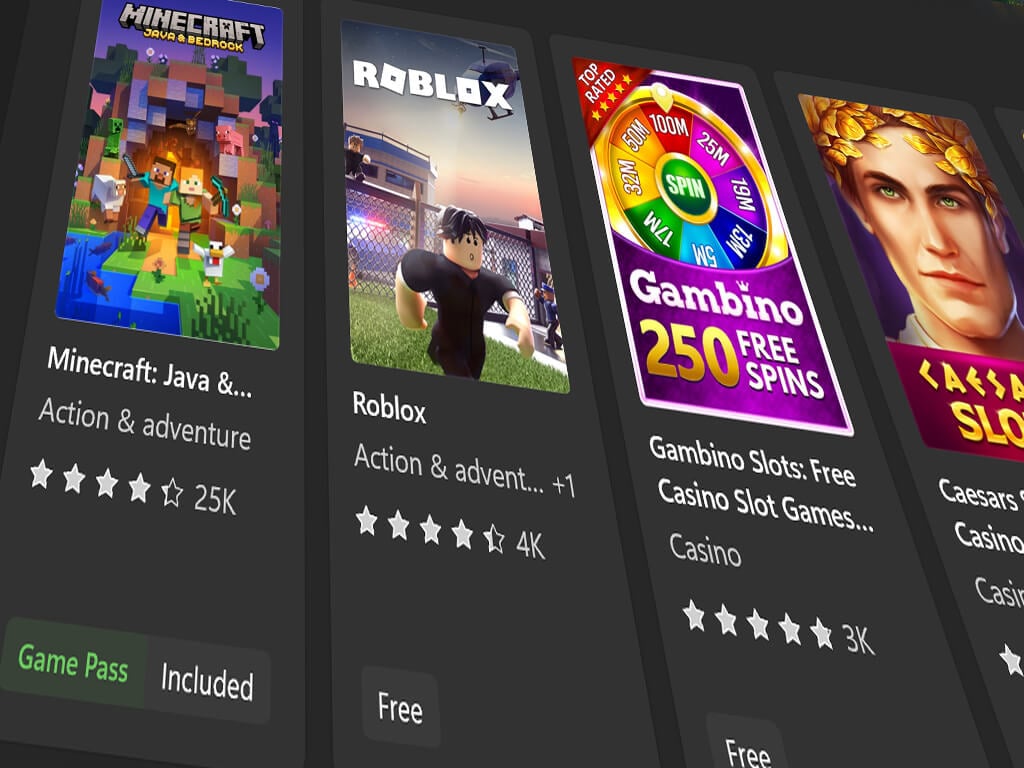
![7 Best VPNs To Watch TNT Online [Tested Outside US]](https://windowsreport.com/wp-content/uploads/2020/05/tnt-logo.jpg)
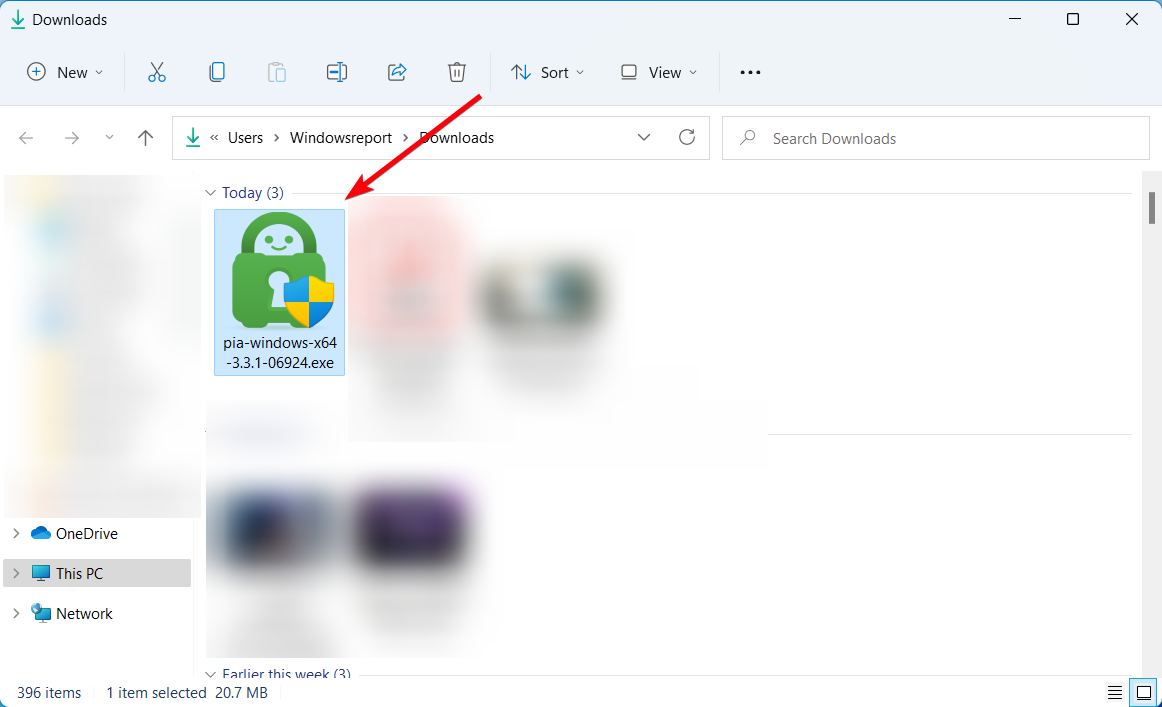
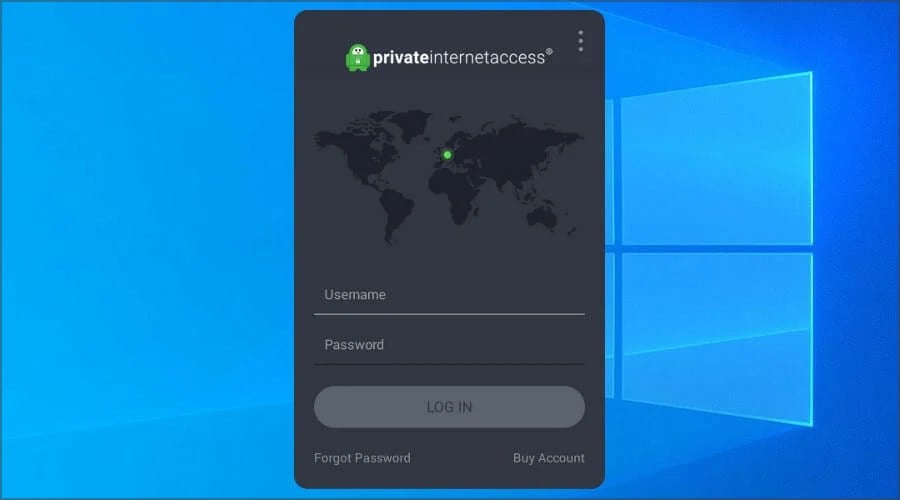
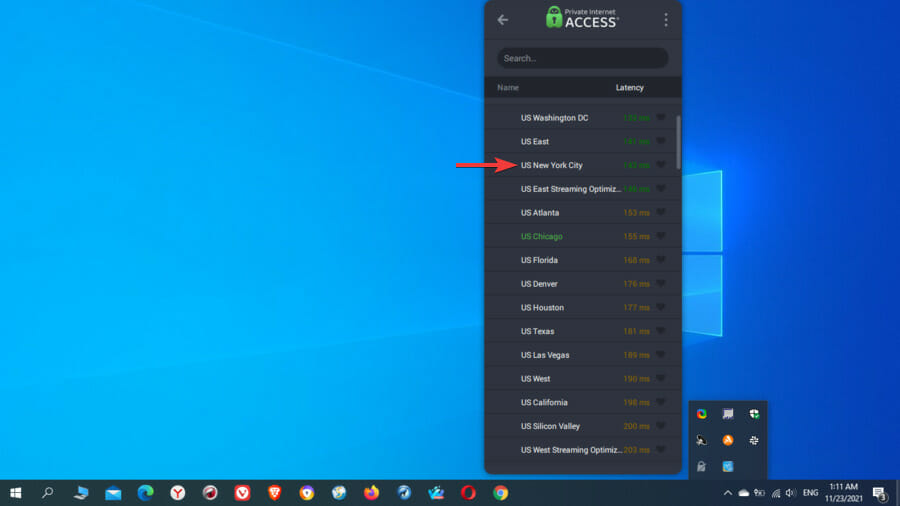
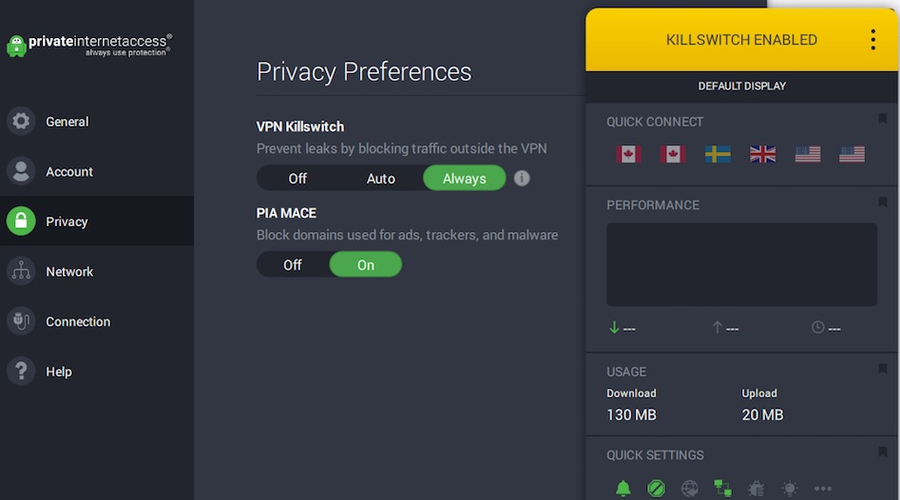

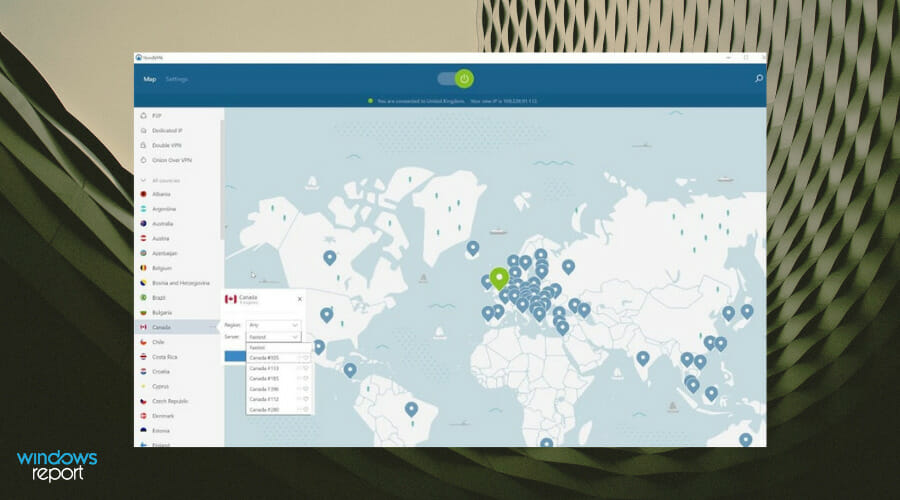



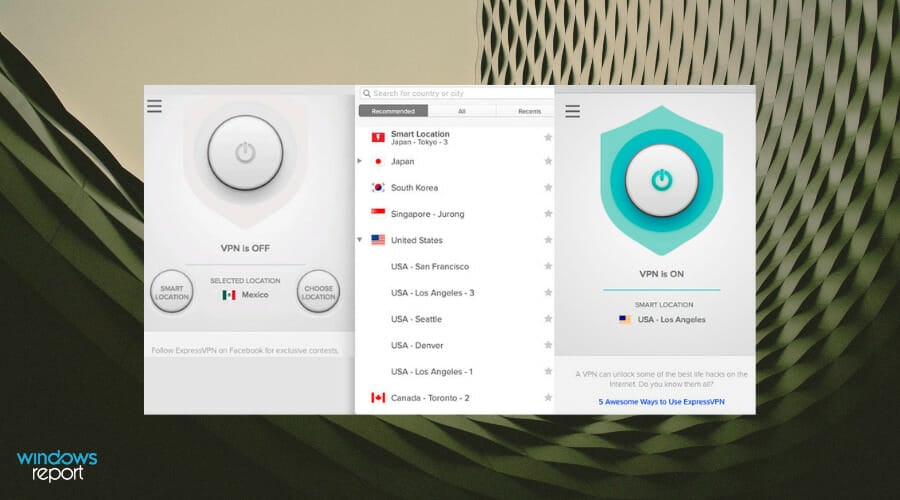

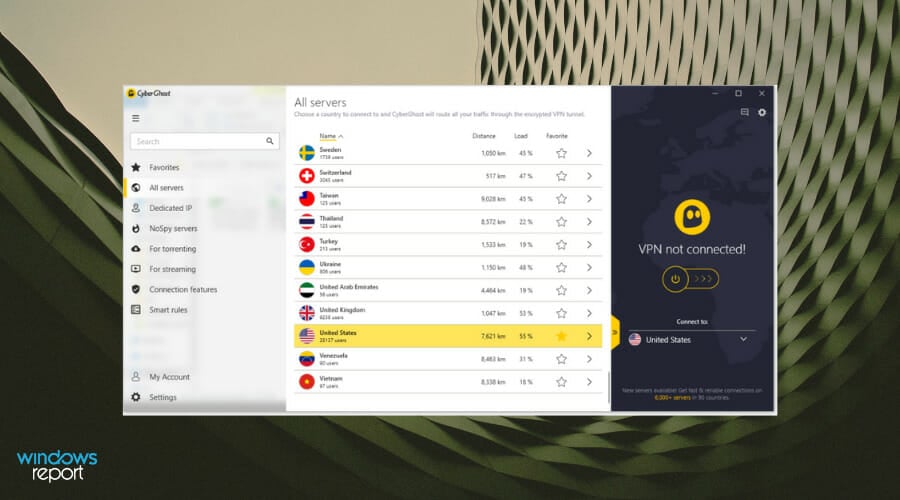

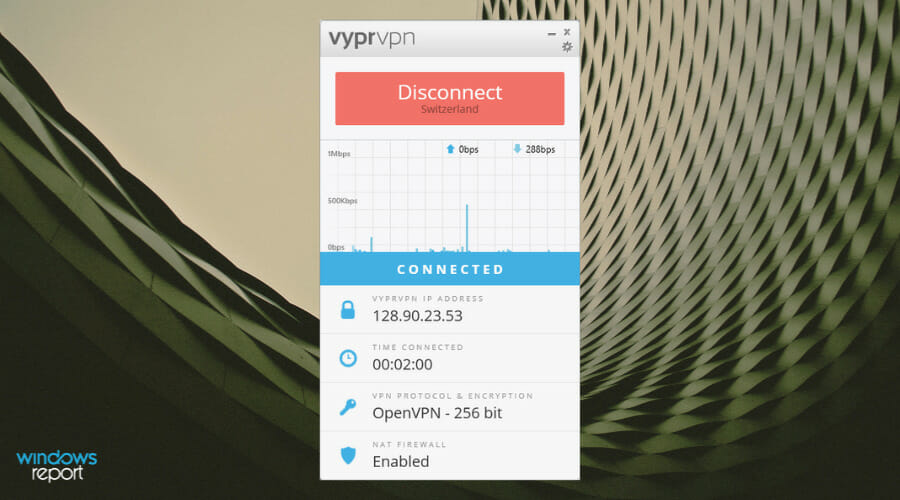

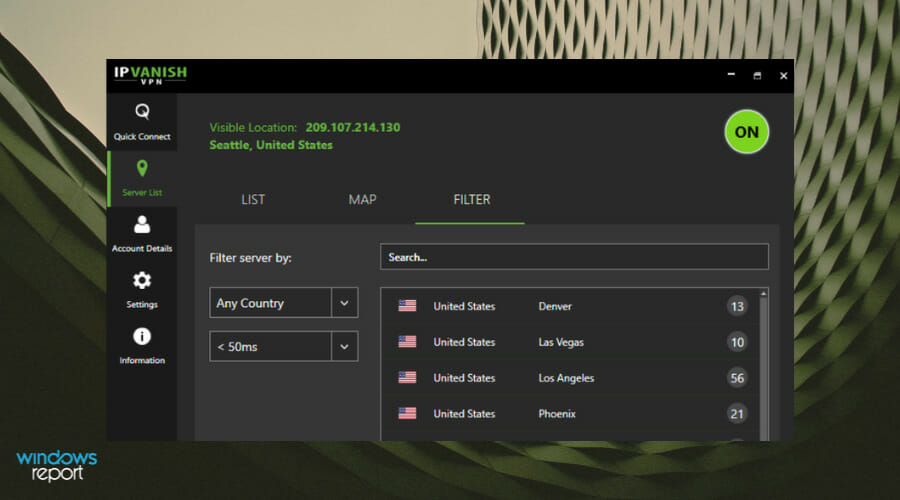

![Please Disconnect From VPNs or Proxies and Try Again [Steam Fix]](https://windowsreport.com/wp-content/uploads/2018/03/VPN-not-working-on-Steam.jpg)
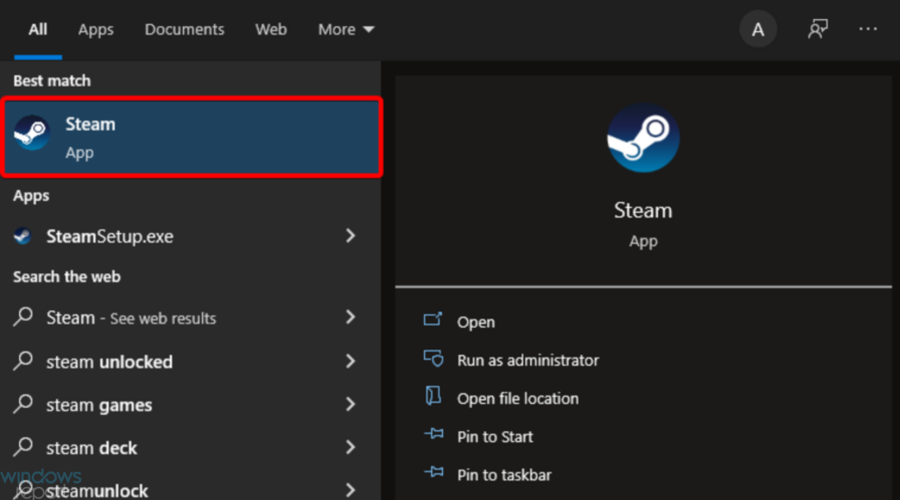
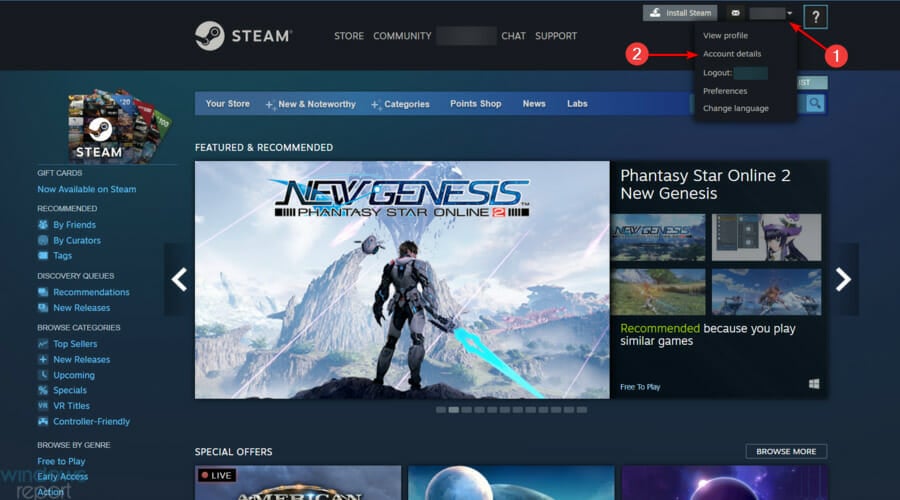
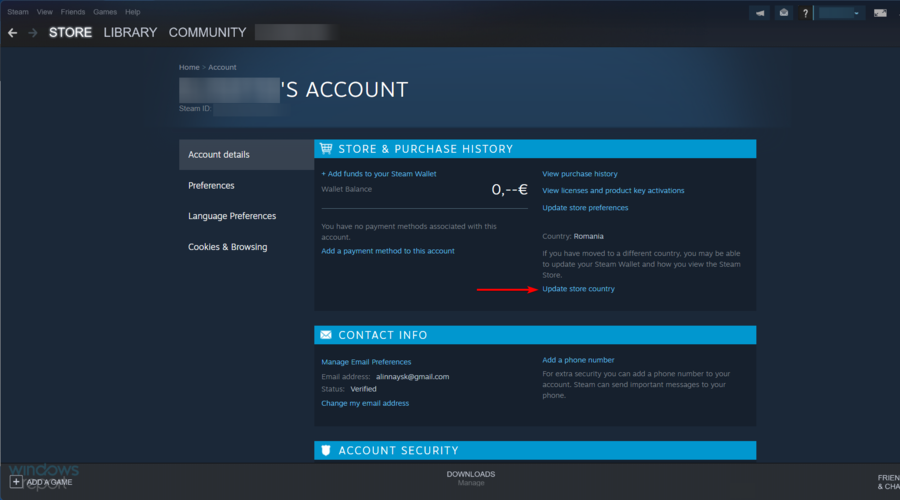
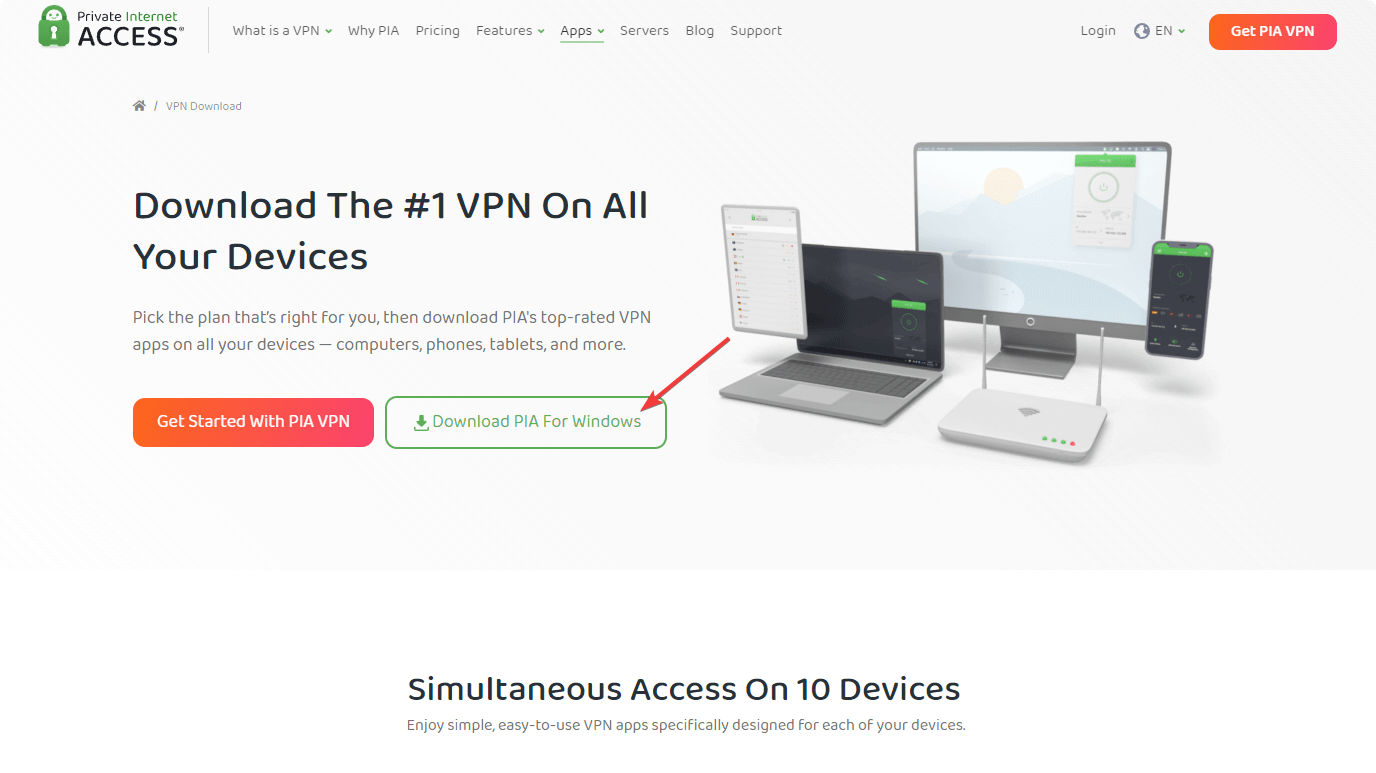
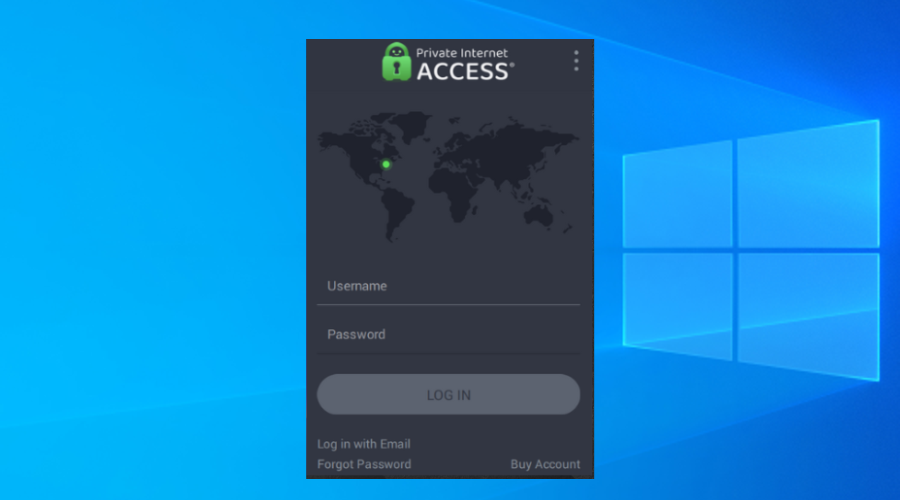
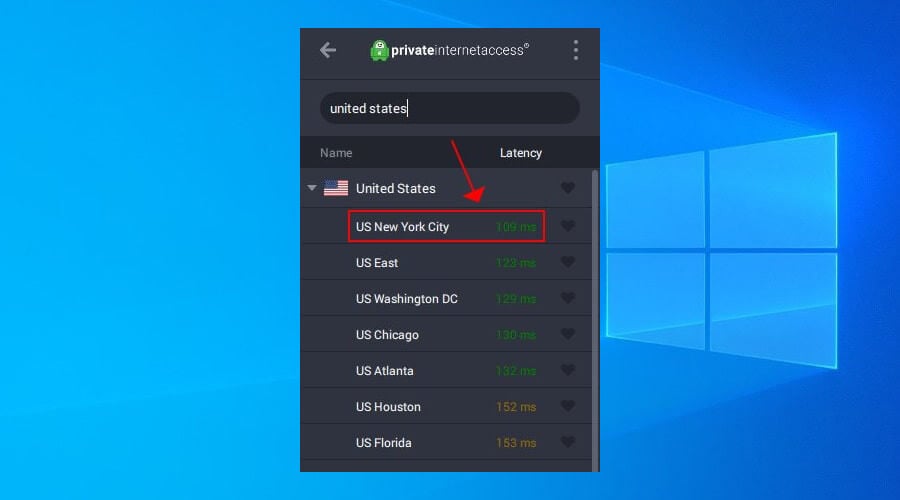

![Here Are 3 Easy Methods to Auto Connect VPN [Windows 10/11]](https://windowsreport.com/wp-content/uploads/2020/07/Windows-10-automatically-connect-to-VPN.jpg)
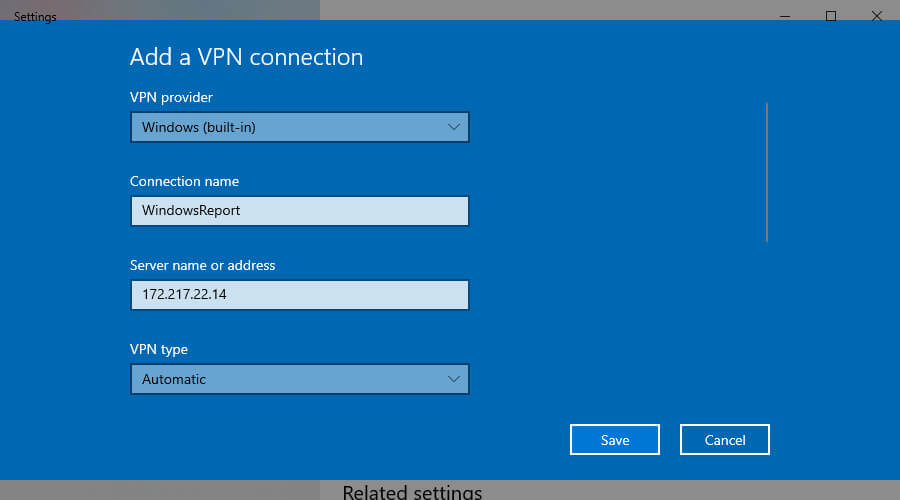


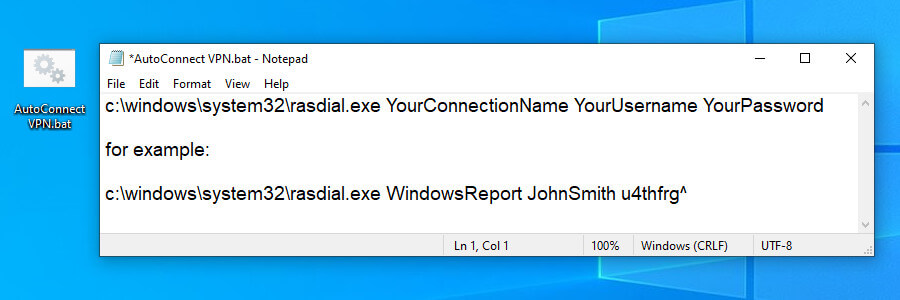




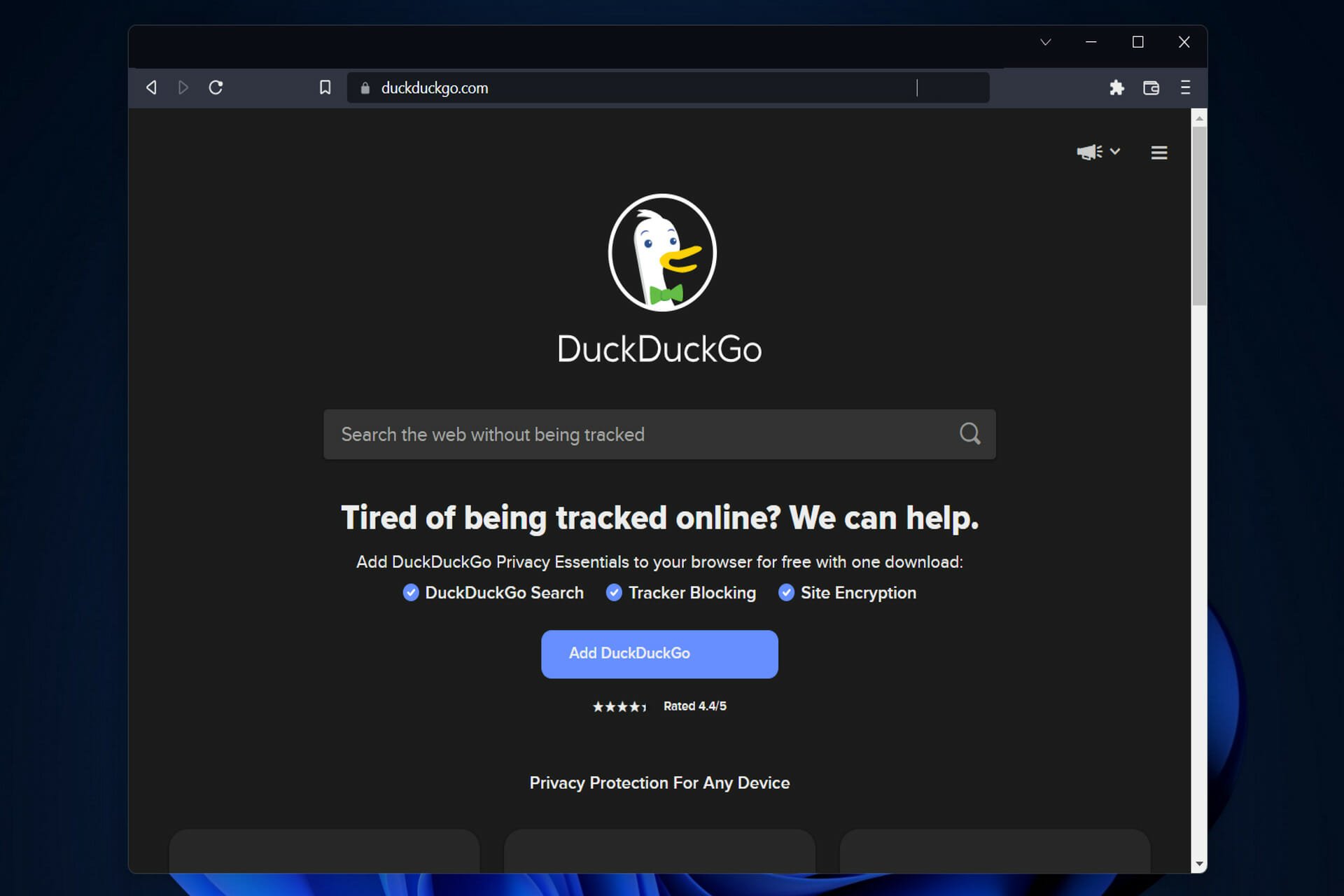





![3 Tips on How to Add & Use MetaMask in Firefox [Beginners Guide]](https://windowsreport.com/wp-content/uploads/2022/08/3-Tips-on-How-to-Add-Use-MetaMask-in-Firefox.jpg)





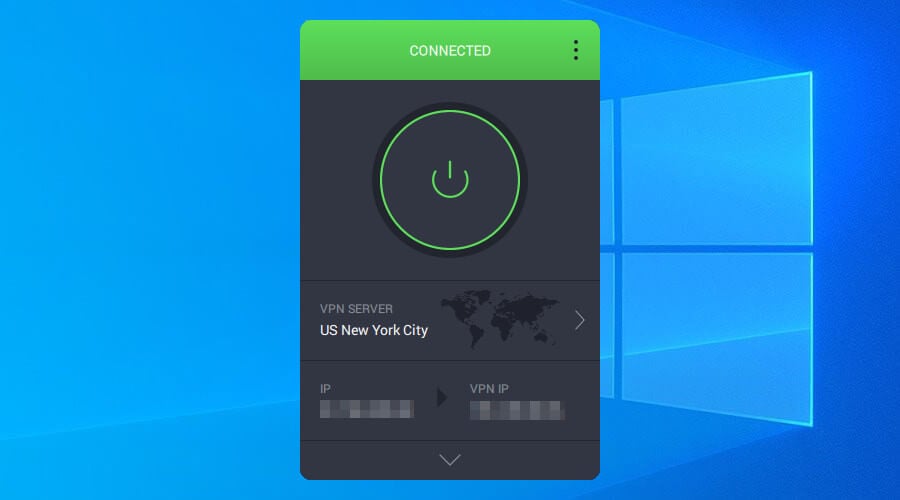
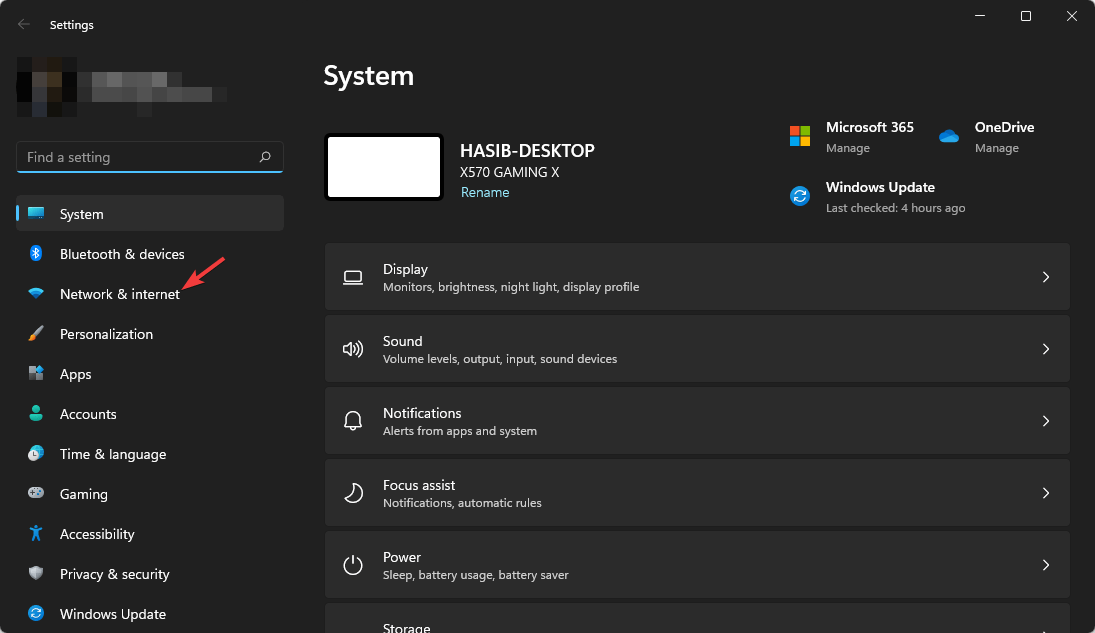
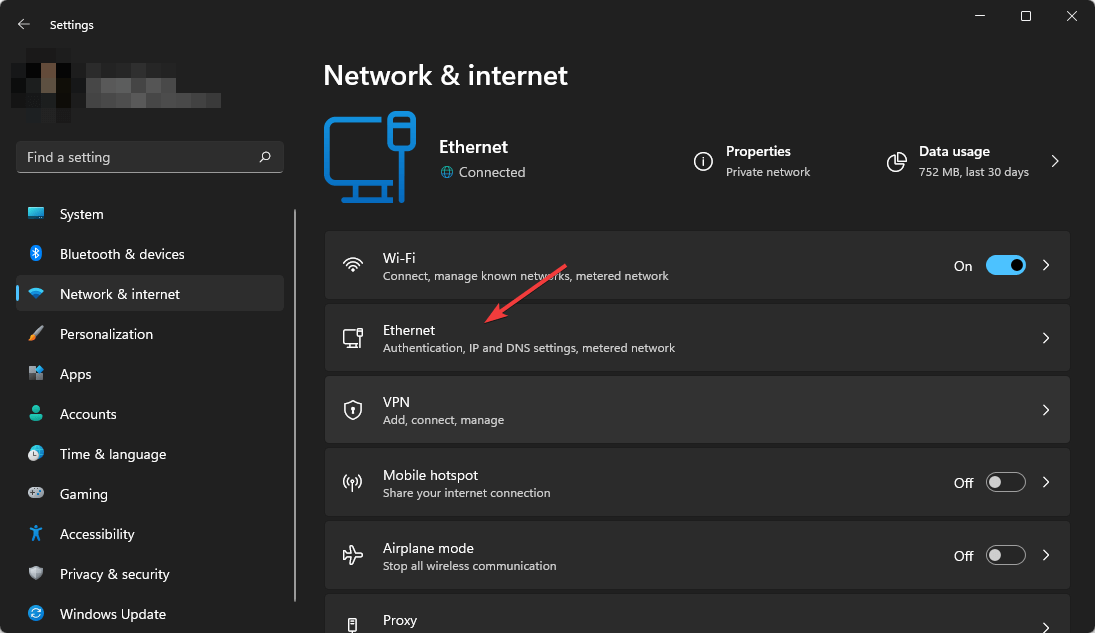
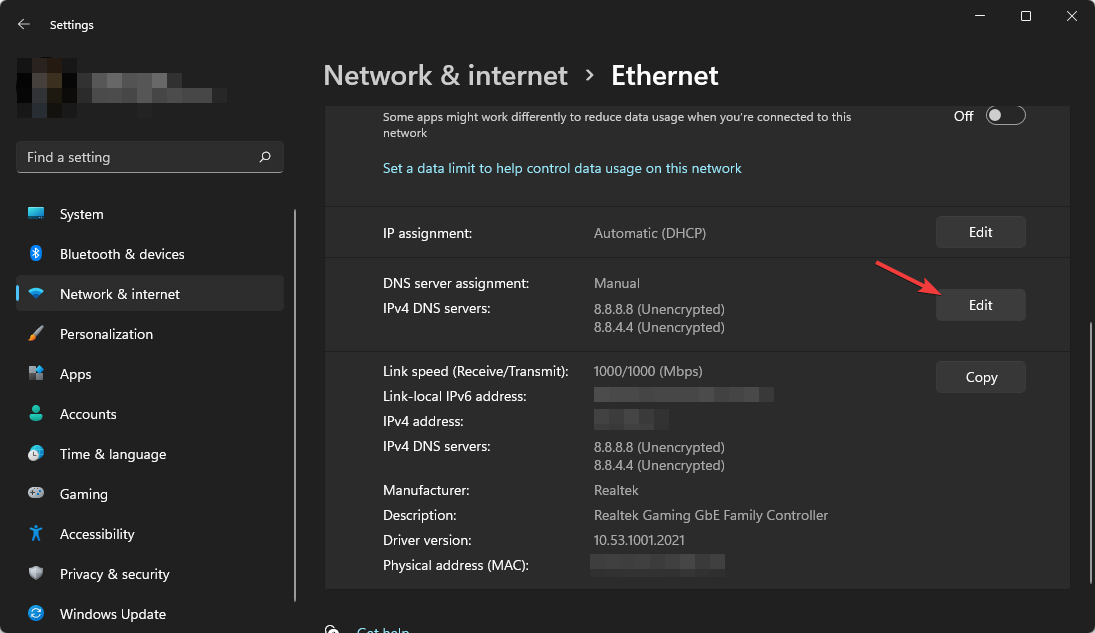





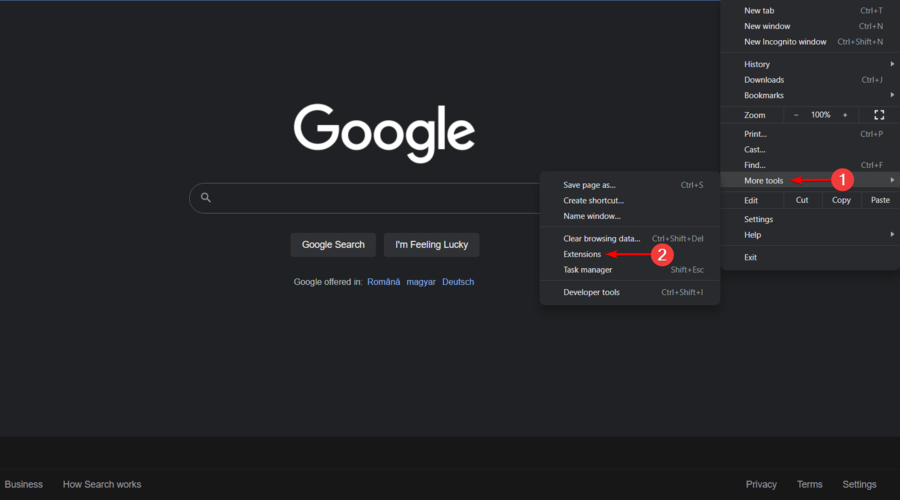


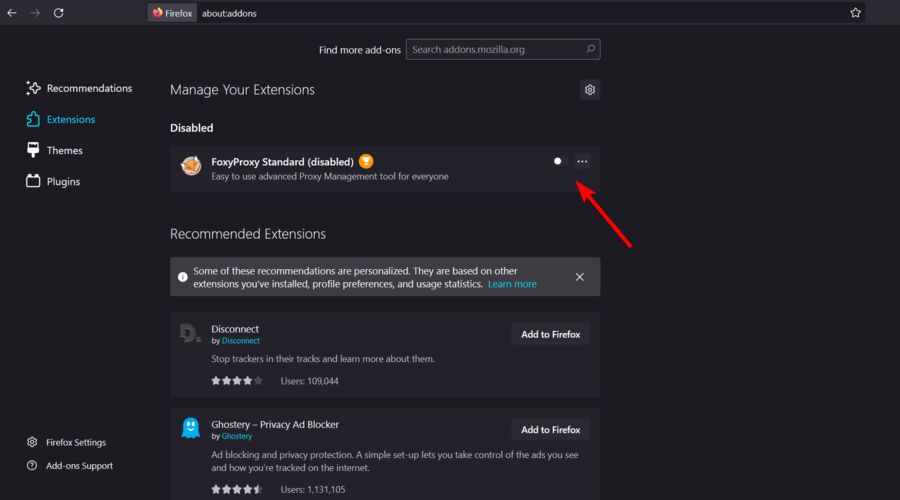
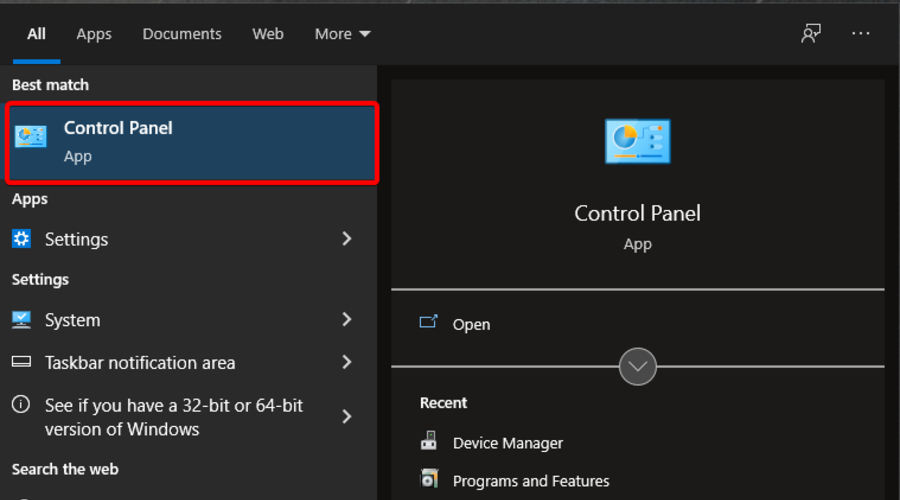
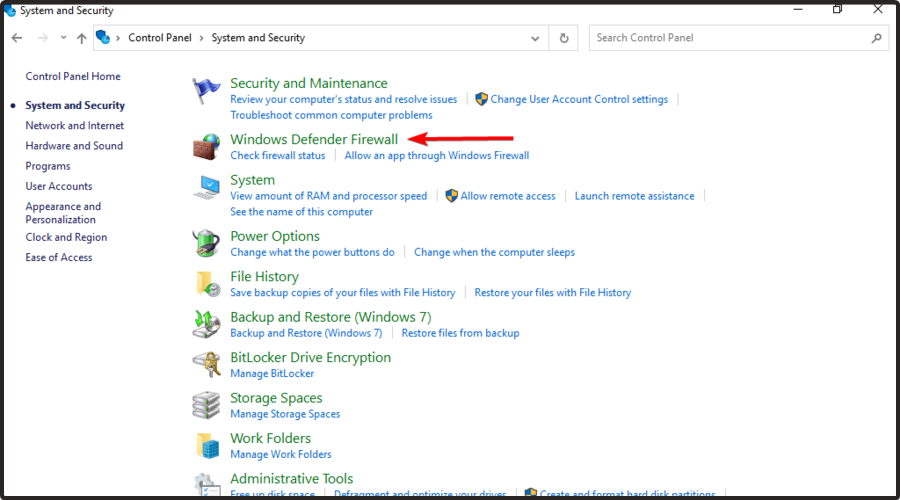

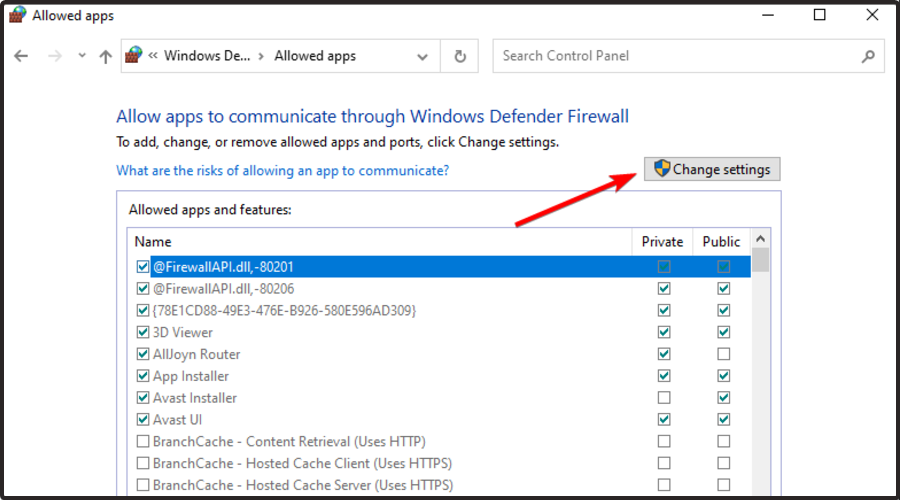
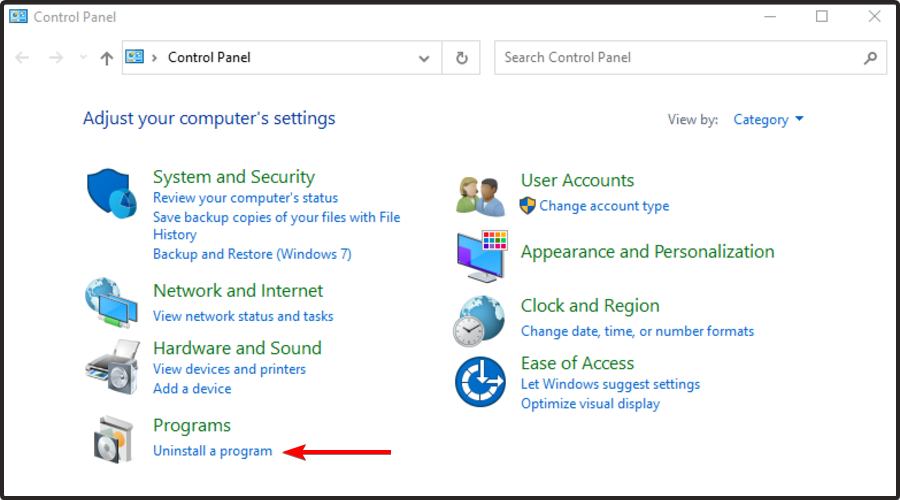
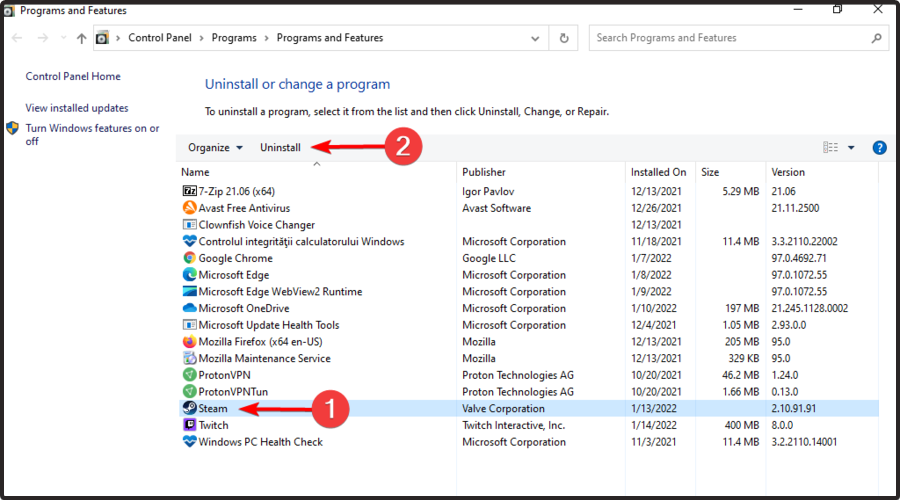
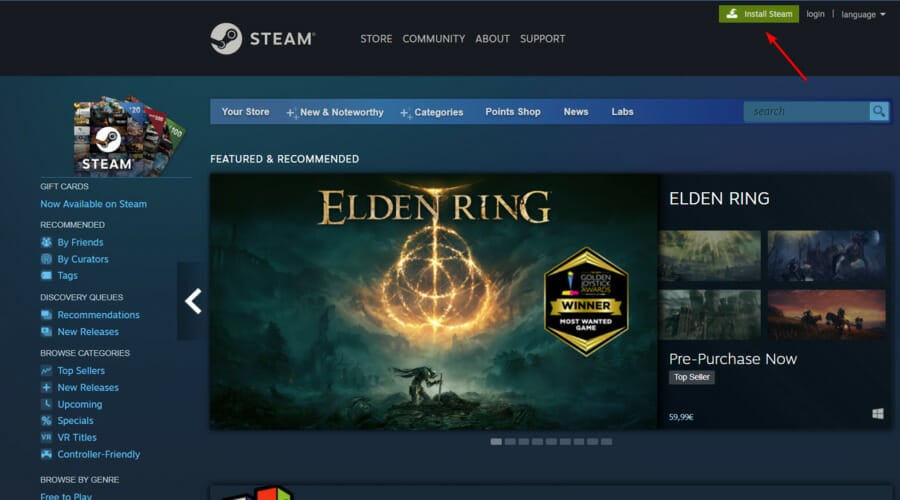
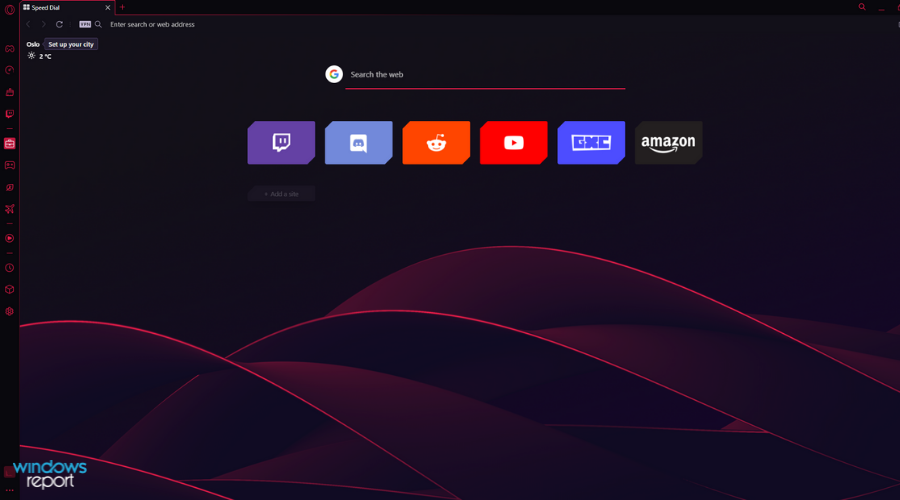

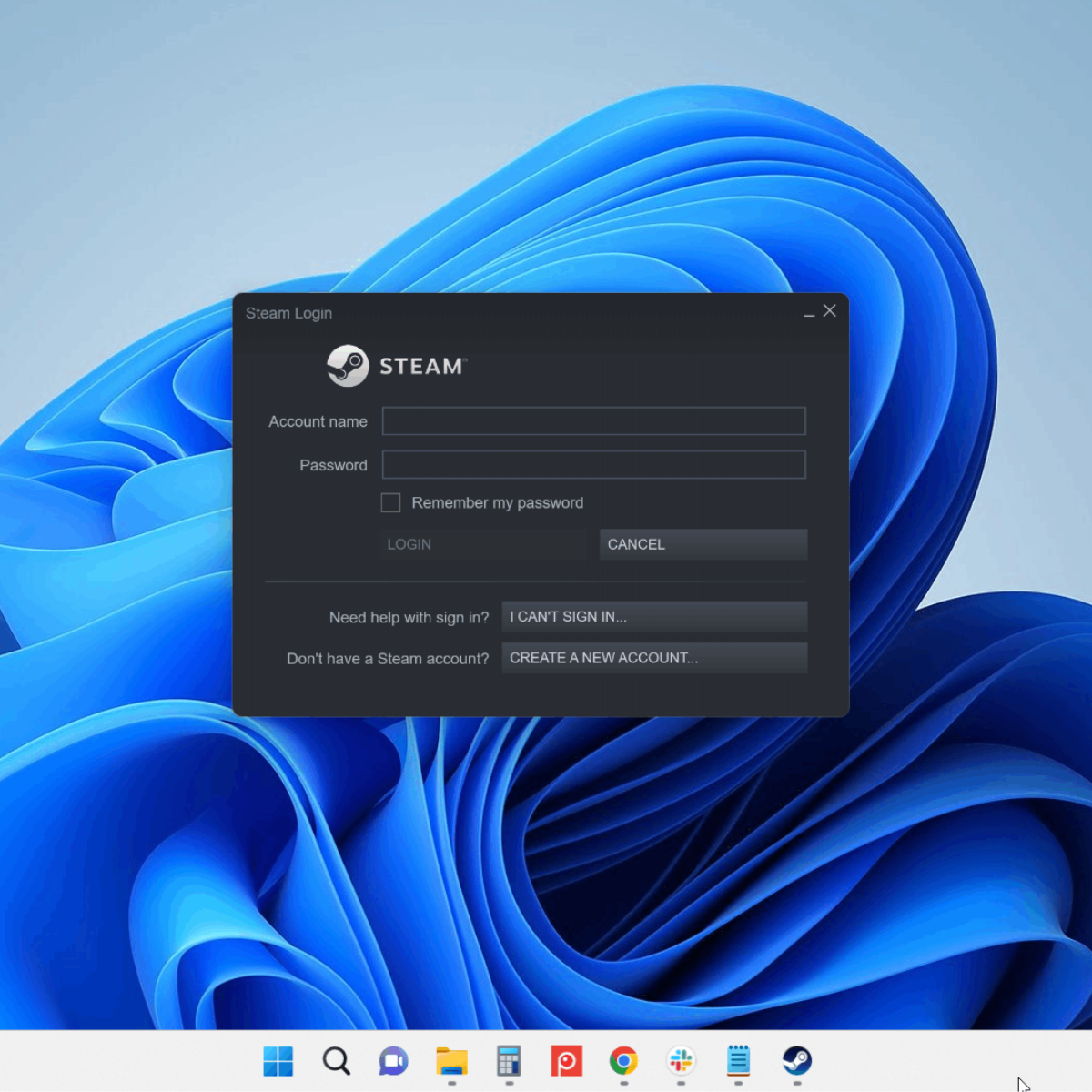


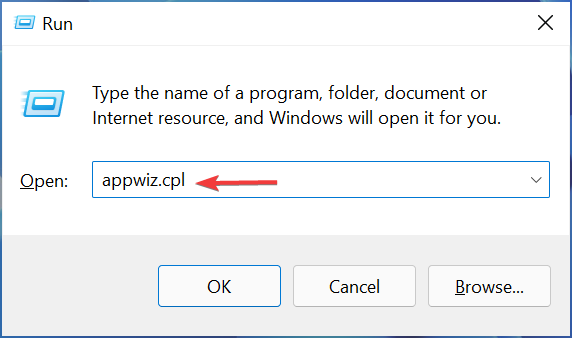


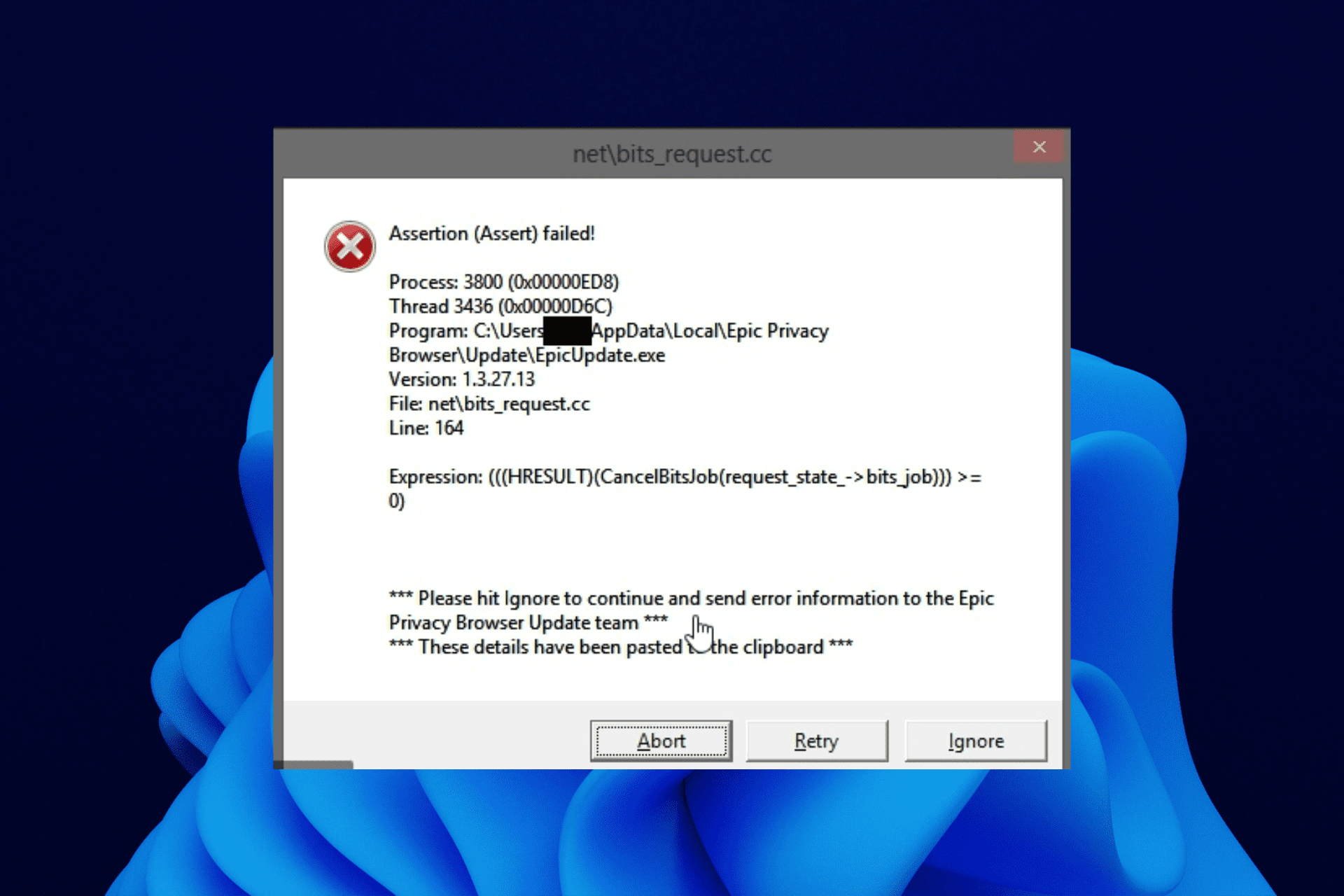


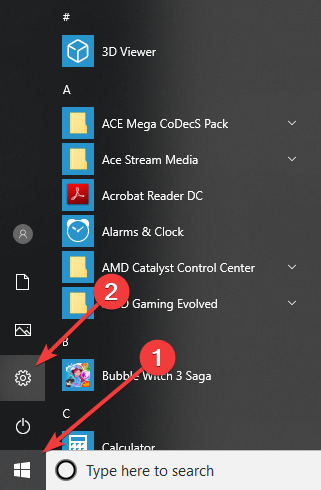
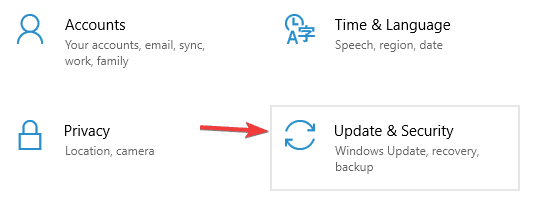


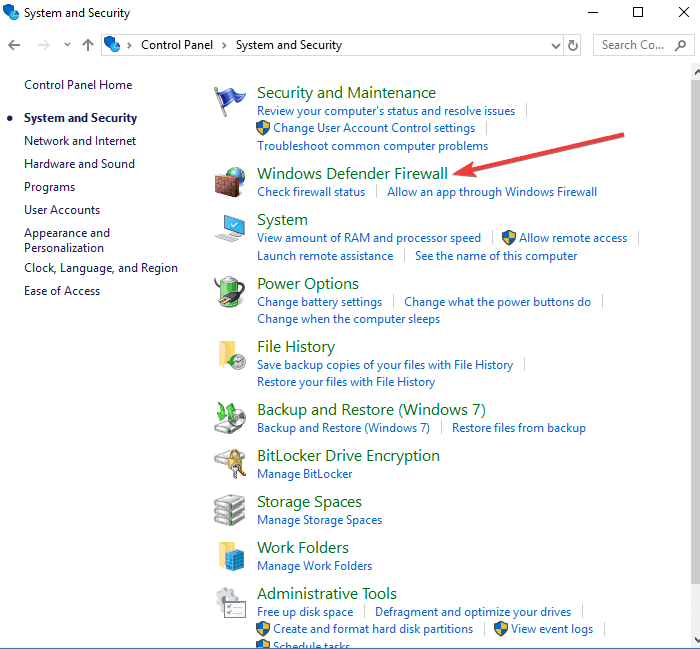
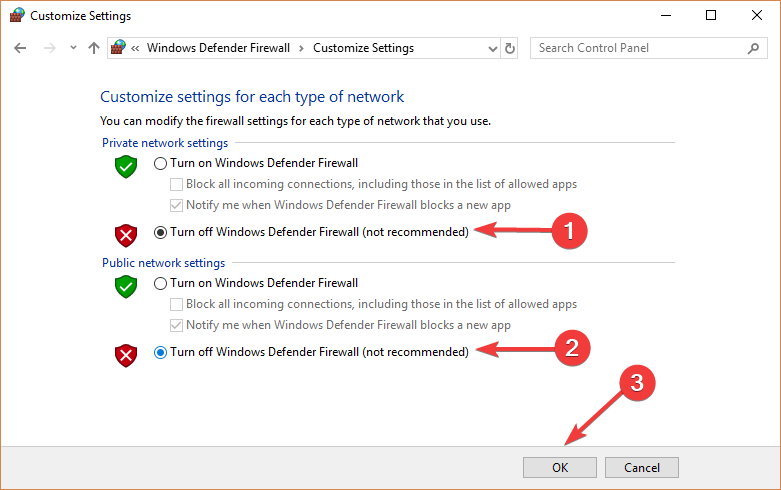

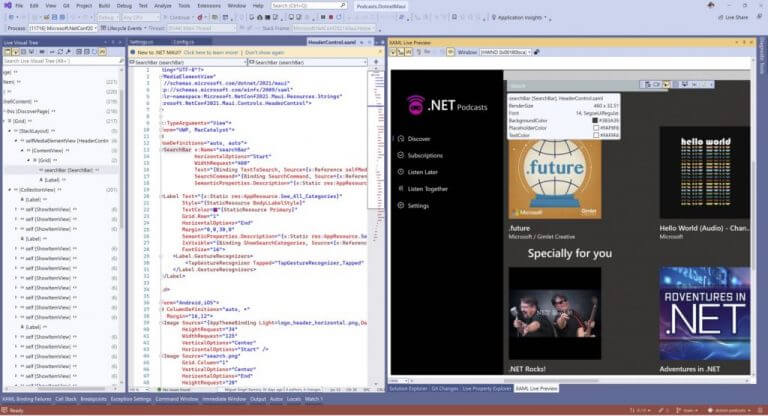
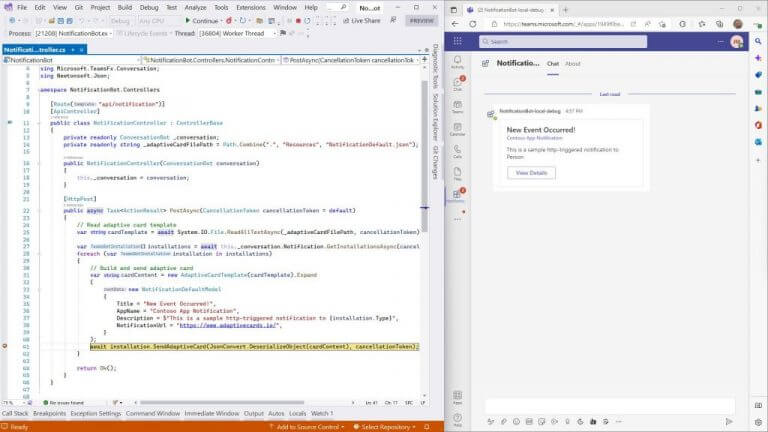
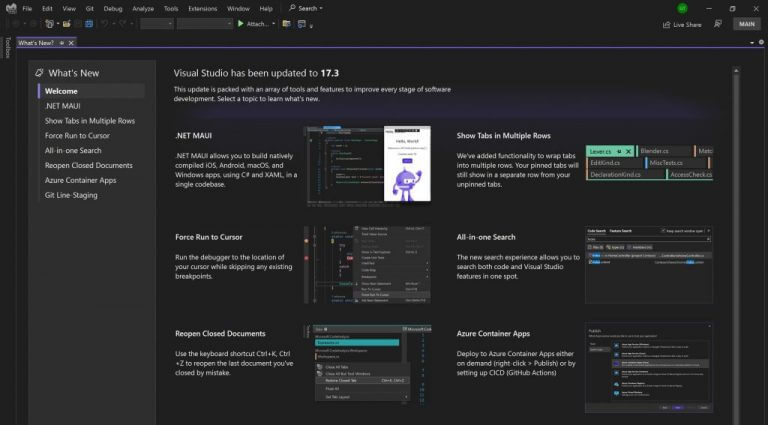
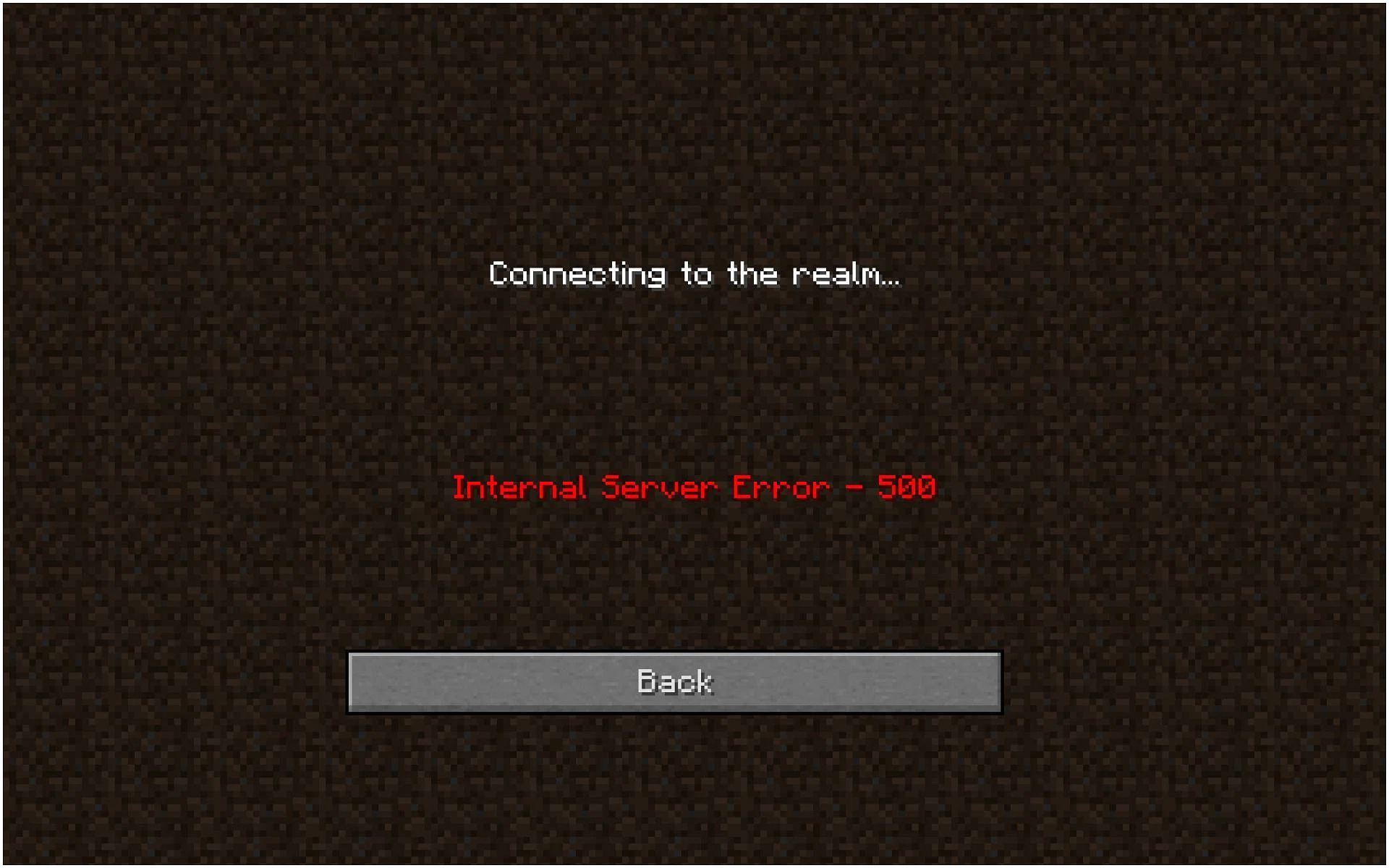







![VPN Is Temporarily Unavailable. Opera Is Resolving the Problem [Fixed]](https://windowsreport.com/wp-content/uploads/2022/08/opera-VPN.png)



















![Here’s How to Enjoy uTorrent Ad Free [uTorrent Remove Ads]](https://windowsreport.com/wp-content/uploads/2020/05/utorrent-remove-ads.jpg)


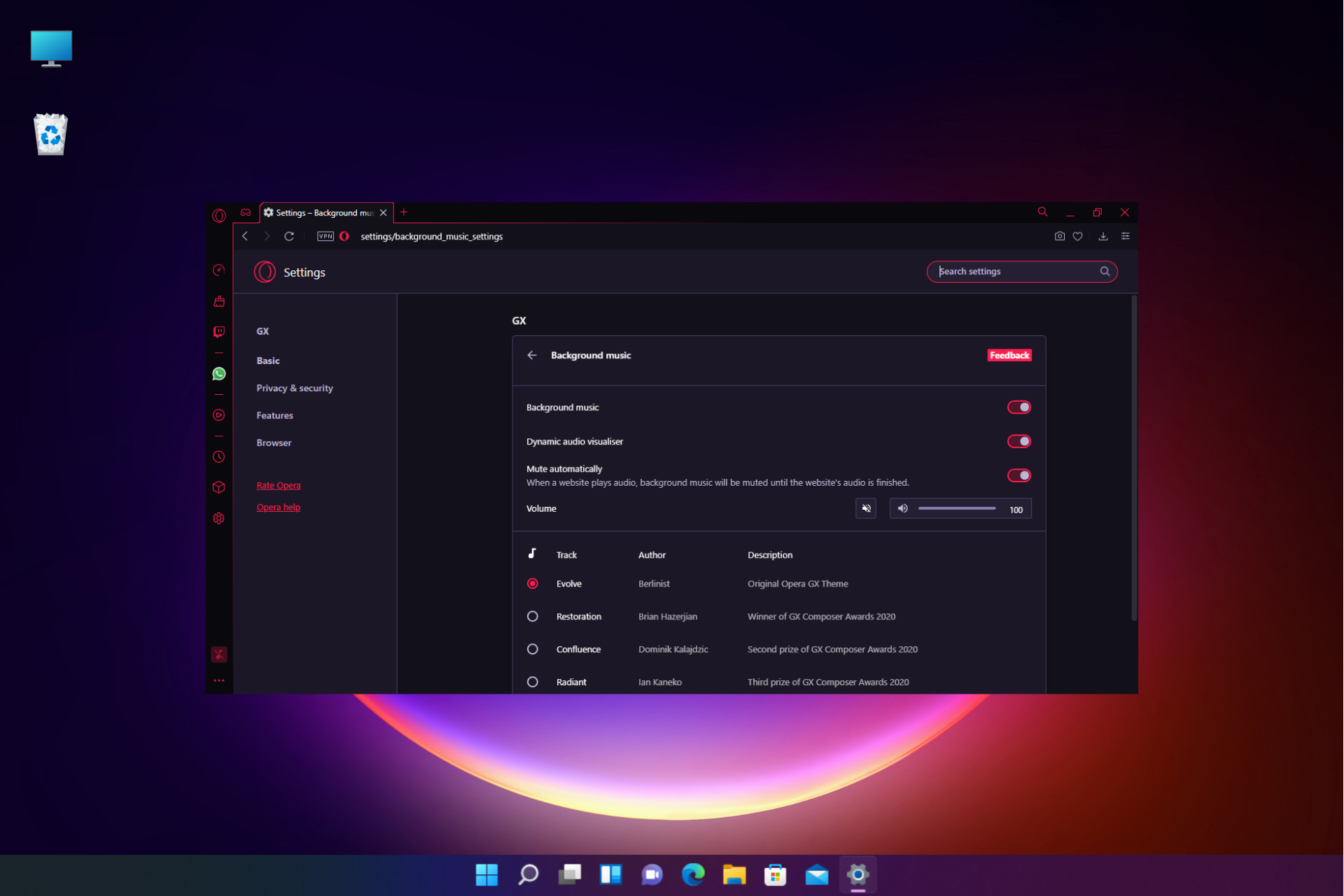
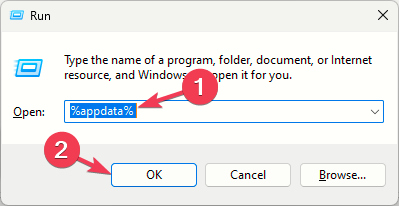
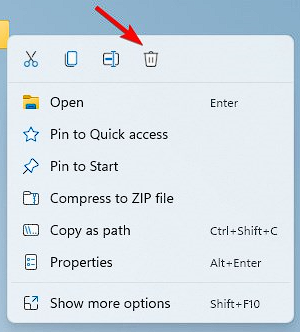








![Windows 10 & Windows 11 Patch Tuesday [DIRECT DOWNLOAD LINKS]](https://windowsreport.com/wp-content/uploads/2020/08/Windows-10.jpg)


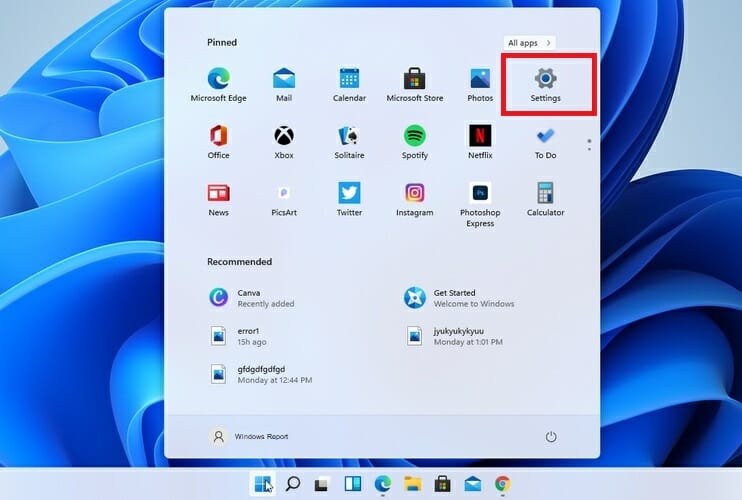
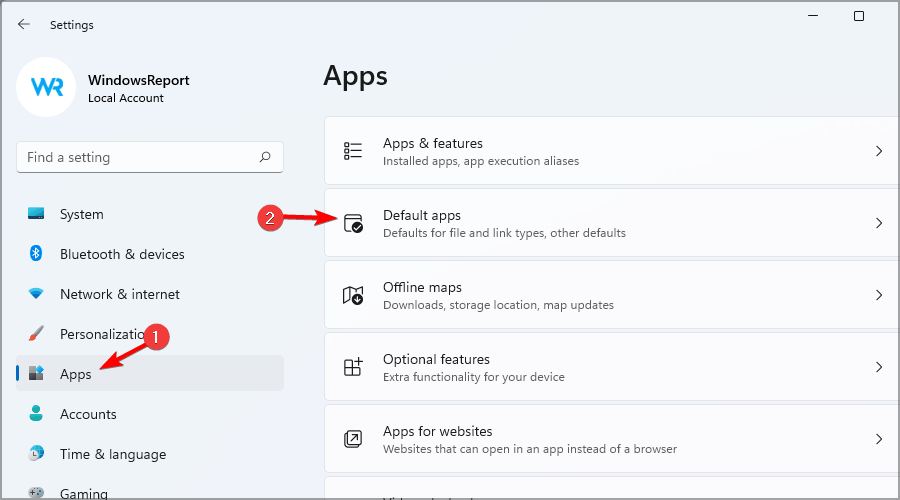
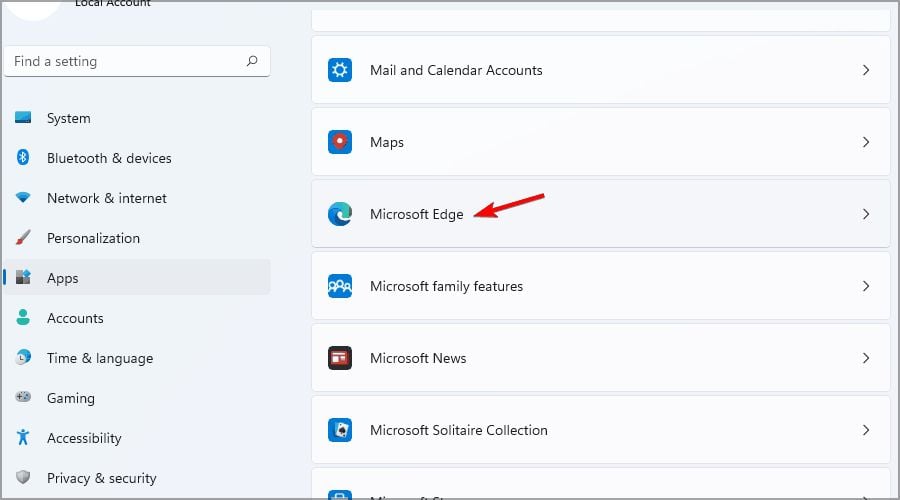
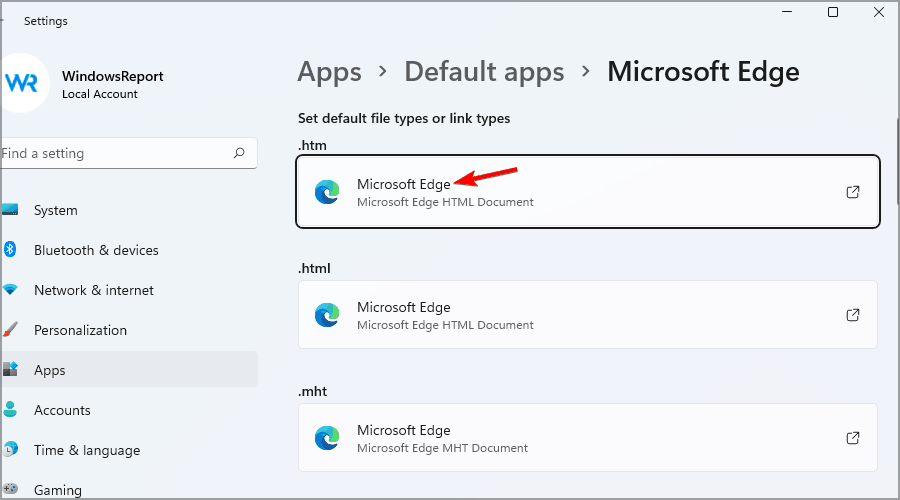
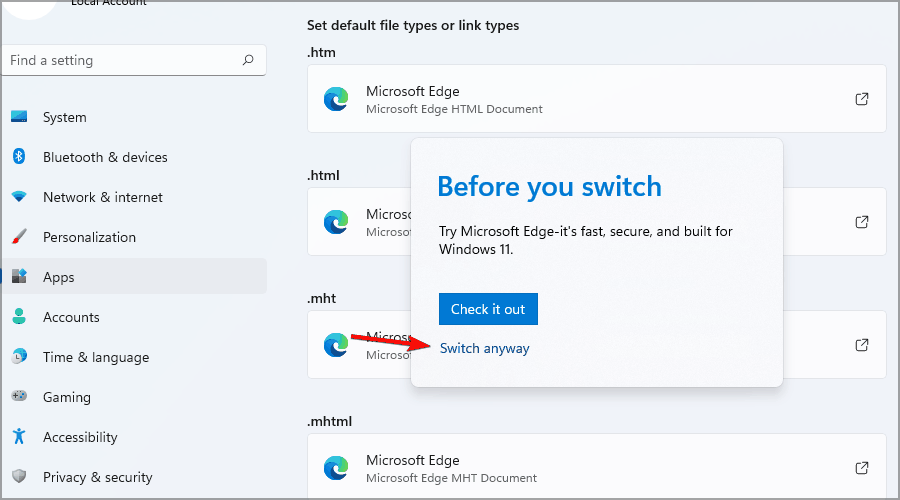
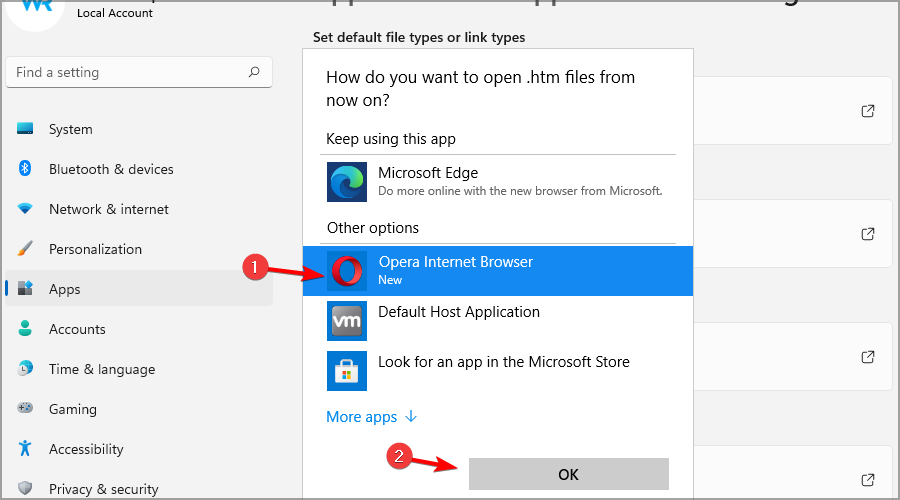
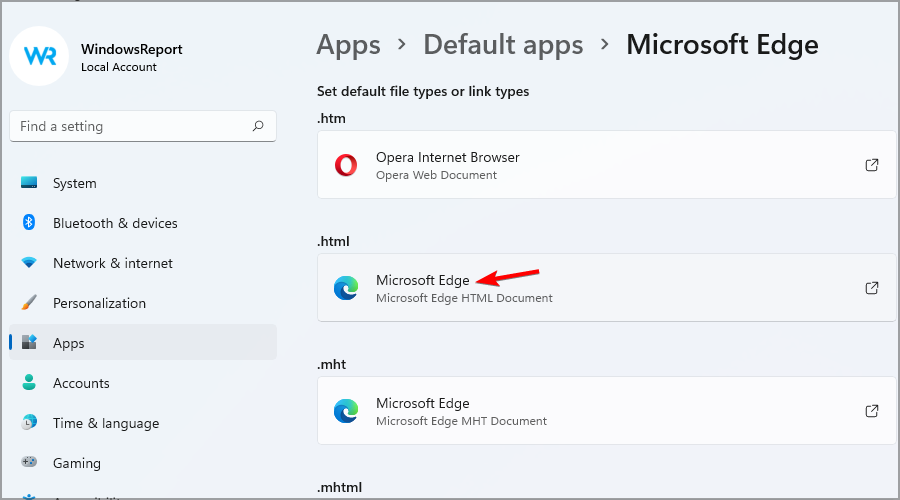
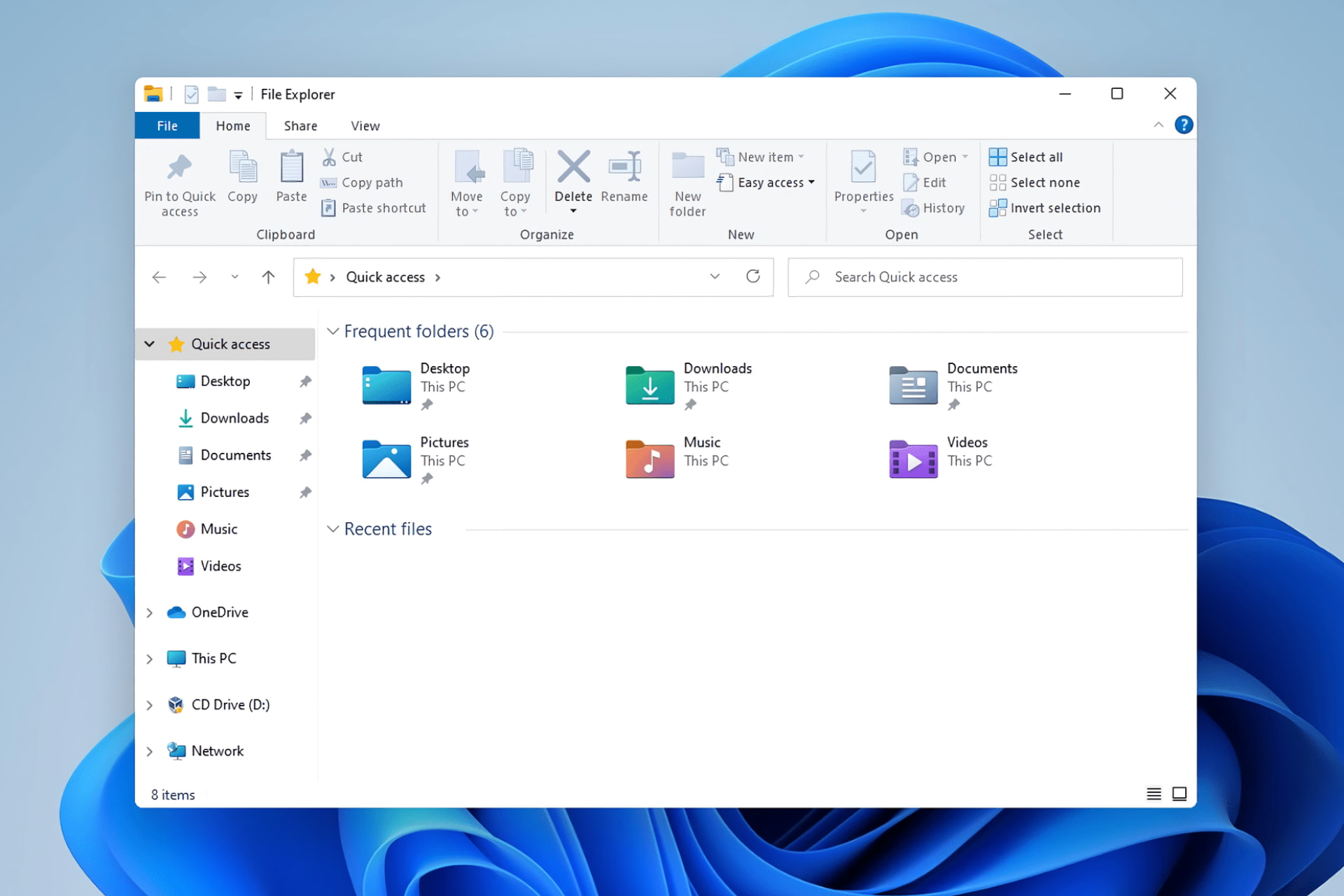
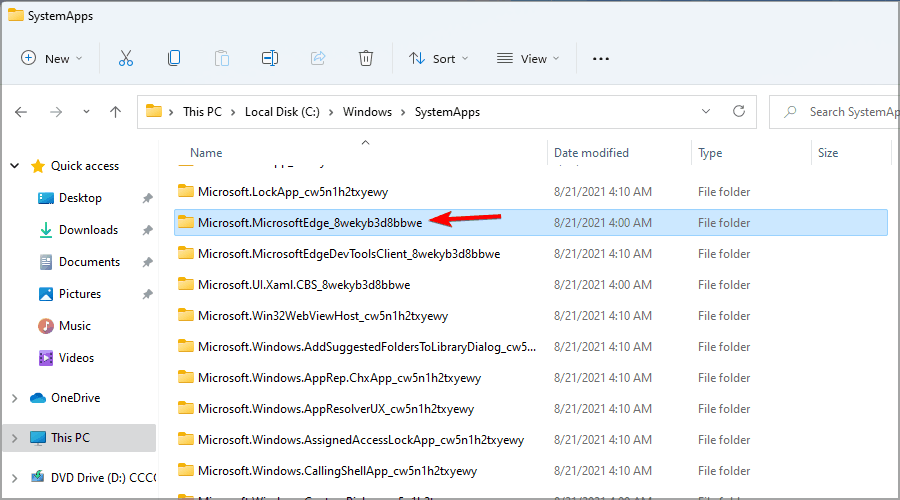
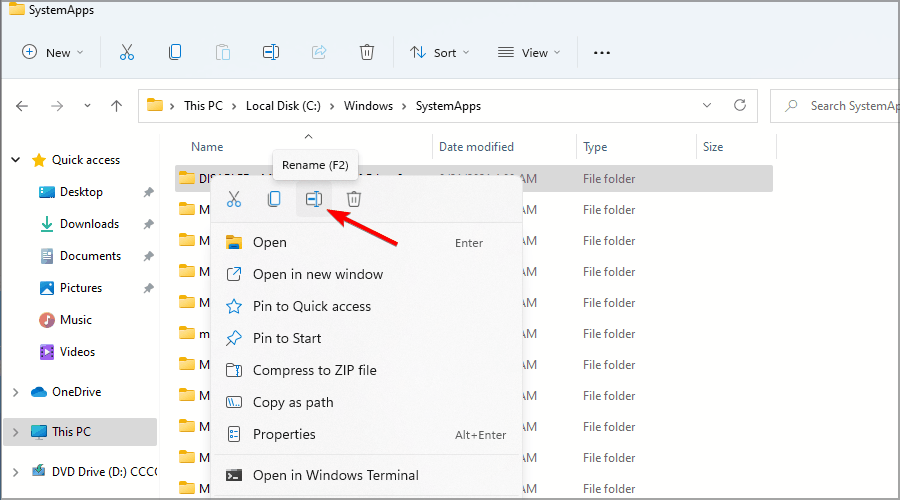
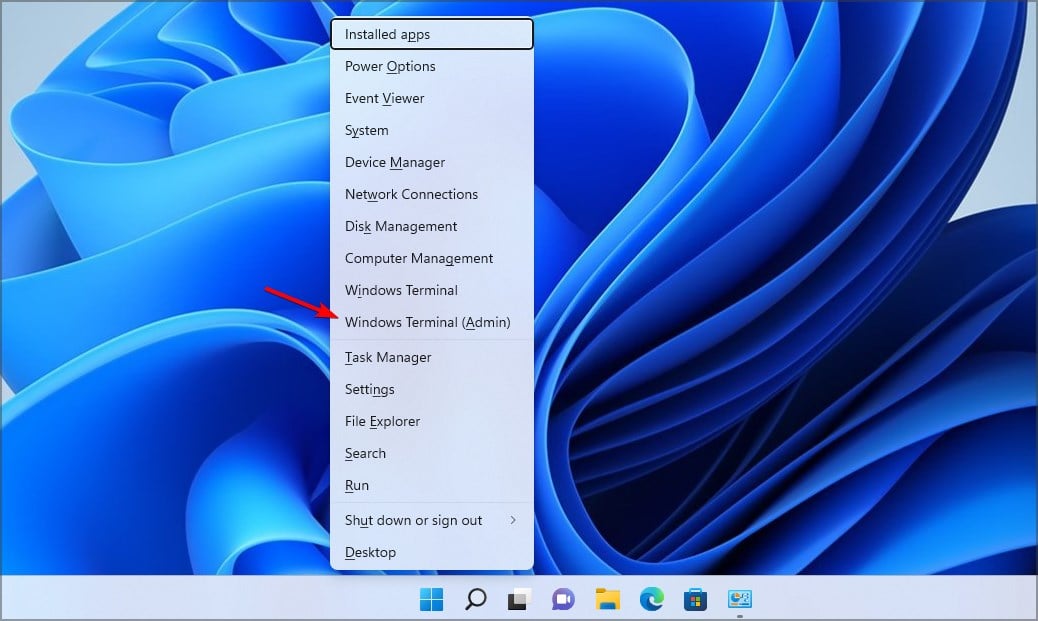
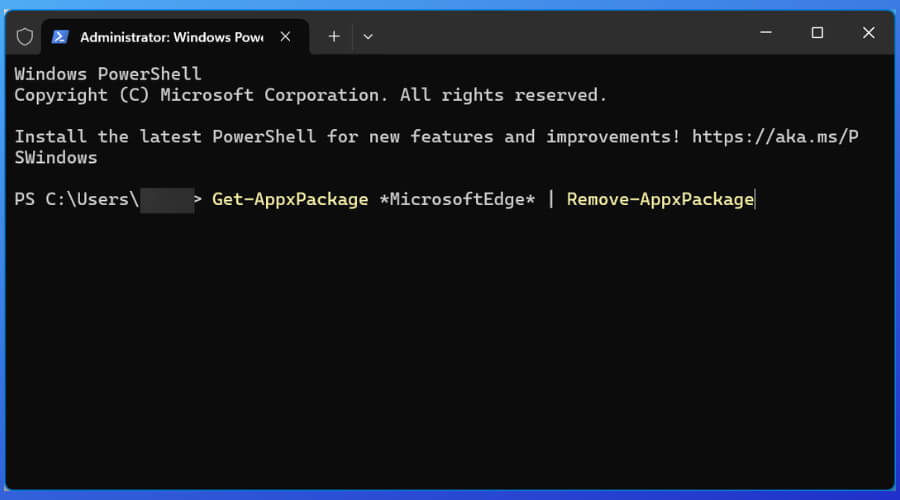
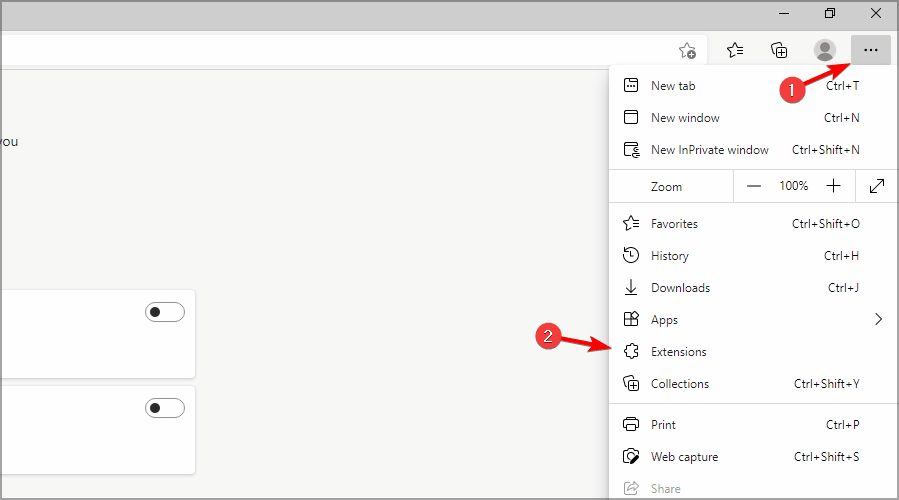
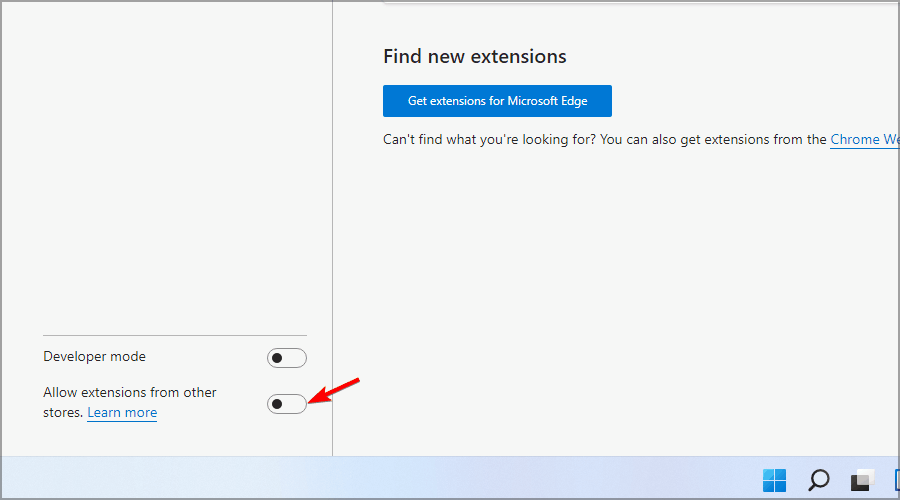
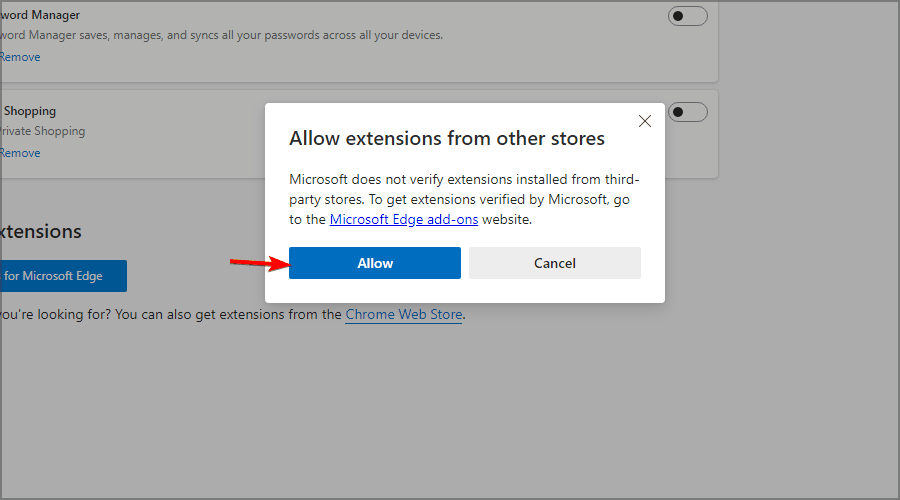
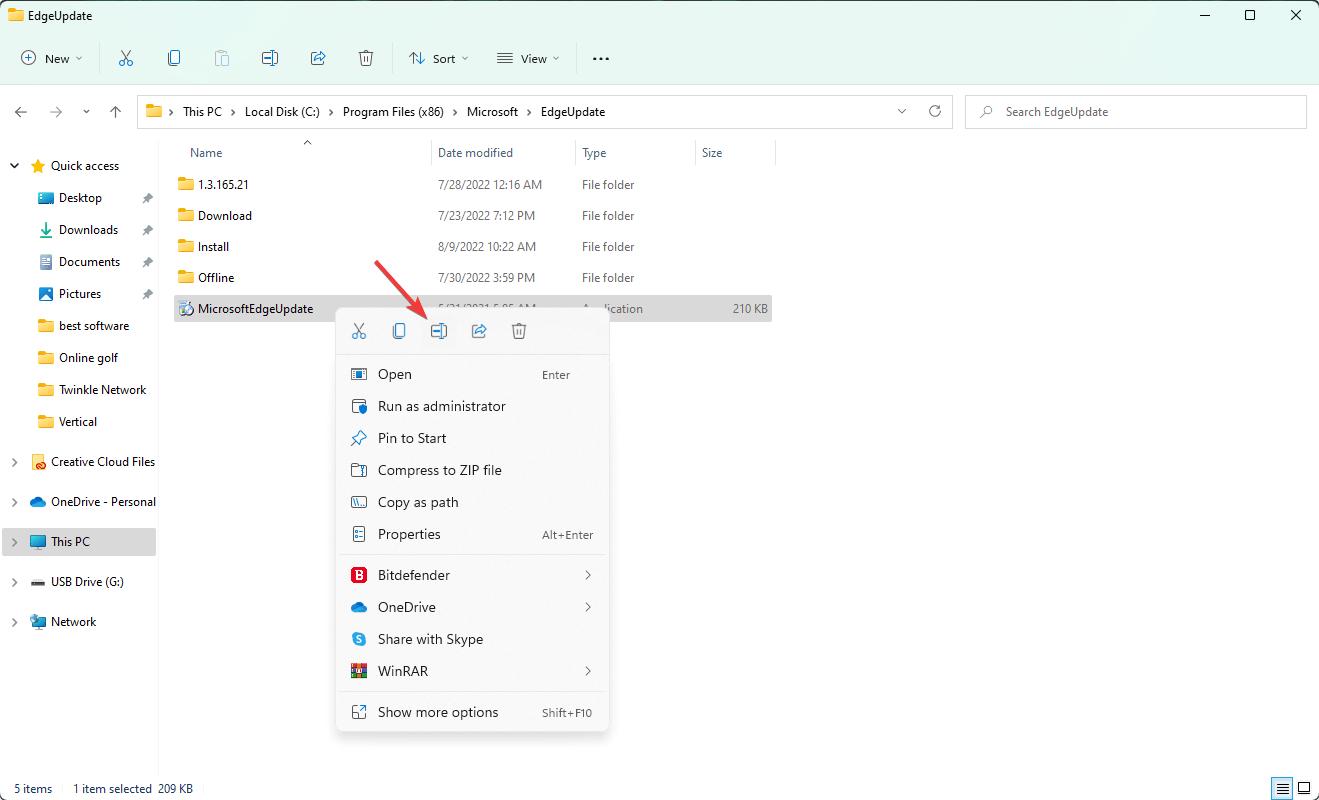
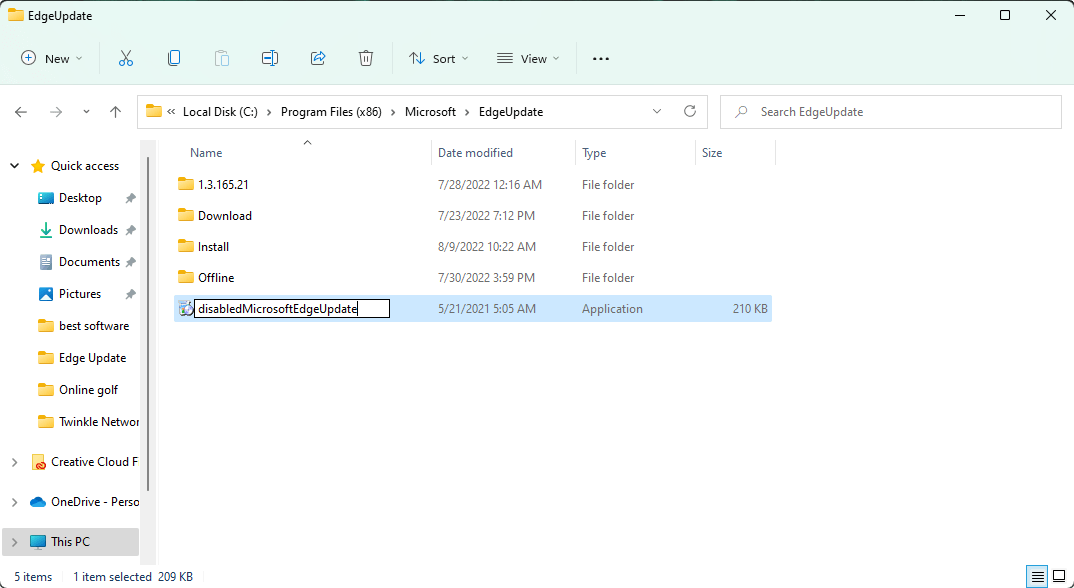

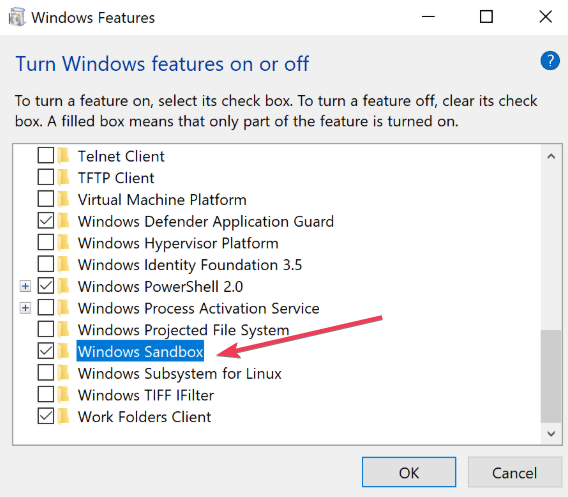




![How To Install Cisco VPN Client on Windows 10 [Full Guide]](https://windowsreport.com/wp-content/uploads/2020/05/cisco-vpn-client-windows-10.jpg)