Here’s how Microsoft Teams optimized device power consumption by up to 50%

Have you felt in recent times that Microsoft Teams is using less battery on your laptop during your video calls? Well, you’re not mistaken, as Microsoft has steadily improved on Teams’ battery usage over the years. In a recent tech community post, the company described just the reasons why, and how it has reduced power consumption in meetings by up to 50%.

On the technical side, Microsoft says it accomplished this by first creating a test framework to measure power consumption during video calls and screen sharing. After getting results, Microsoft focused on camera optimizations to reduce demands on the CPU during video meetings as well as power draw from the camera itself. These include reducing code complexity for auto-exposure, auto-white balance, auto-aliasing.

In addition, Microsoft also worked to focus on video rendering, It says that Teams now combs video strands and composes them into a single video, which is consolidating operations in video rending and reducing power requirements for each device. Other optimizations include focusing on using the native resources of operating systems to improve how image fragments are transferred during the rendering.

Per Microsoft, there were a couple of factors in helping reduce Team’s energy consumption. At the front is lowering the strain on IT admins to buy hardware. Another is also ensuring that both folks with low-end hardware and those with high-end hardware have the same great Teams experience.

Heading into the future, more optimizations are on the way. Microsoft noted it’s planning to work with CPU and GPU vendors to ensure that next-gen chips are optimized for Teams and video conferencing. We’ve already seen the first of that with Snapdragon 8cX Gen 3 ARM-based chips, which includes improved camera start-up time (15% faster), support for autofocus, auto white balance, and auto exposure, as well as noise cancellation all on the SoC.

Telnet on Windows 11: How to Download, Install & Enable it

Telnet is the short form of ‘Terminal Network’. It is a protocol that a user can use to connect one computer to a local computer.

Here, the local computer means the device that starts the connection, whereas the computer that is connected to the local computer is called a remote computer.

Telnet operates on a client/server principal, and although it is outdated, it is still used by many people in 2022 as well. Many people have already shifted over to the Windows 11 OS, the latest OS offering from Microsoft.

The good thing is that Windows 11 comes with Telnet in it. However, it is disabled by default. That is, you must enable it manually.

The same principle applies in the case of Windows 10, even though there are some differences when it comes to the steps required to activate the service.

This is where this guide comes into the picture. Because in this post, we will share with you all the information that you need to install and enable Telnet on your Windows 11 PC.

So, without any further ado, let us take a look at our guide on how to install and enable Telnet on Windows 11.

What is Telnet?

Telnet, as already mentioned, uses a client/server protocol to access remote servers. You can use Telnet to check connectivity to a remote server.

Moreover, you can make use of Telnet to run commands on a remote server. The output of this will be returned to the Telnet client.

It uses the Transmission Control Protocol/Internet Protocol (TCP/IP) networking protocol to create remote sessions. When connected to a remote system, users can log in to the remote computer by entering their username and password.

Since Telnet doesn’t offer a secure medium of communication with remote servers, you can use it if strong authentication and encryption over the network aren’t critical.

Telnet can be used for a variety of tasks. This includes carrying out activities on a server, including editing files, running various programs on a remote computer, or even checking mail, if you wish.

Notably, even though Telnet isn’t a secure medium of communication anymore, the Telnet client is still available on Windows 11 and Windows Server 2022. You need to, however, enable it manually.

Let us now take a look at how to enable Telnet in Windows 11.

How can I install and enable the Telnet client on Windows 11?

1. Use Control Panel

  1. Press the Start menu and search for Control Panel.Control Panel Windows 11 Telnet
  2. Click on Programs (If you weren’t able to find Programs option, then change the View by option to Category).Programs telnet windows 11
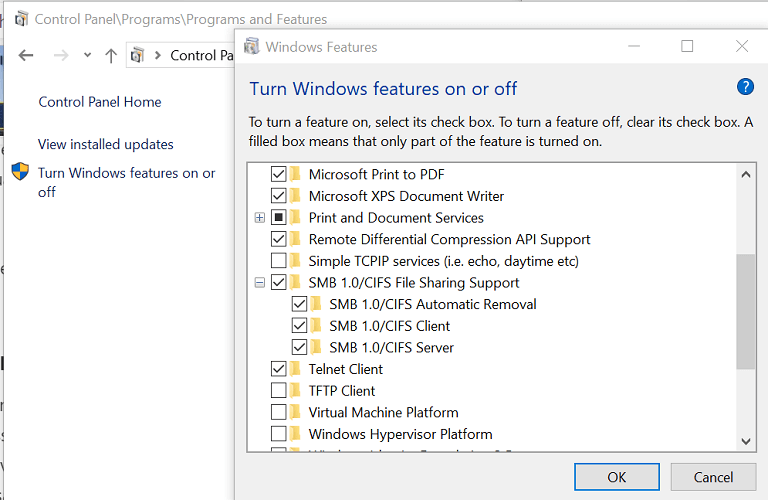
  3. Under Programs and features section, click on Turn Windows features on or off.Windows features telnet windows 11
  4. Check the box beside the Telnet client, and hit OK to begin installation.Telnet client

Your system will look for resources and install the Telnet client on your Windows 11 PC. To access Telnet, follow the simple steps below.

  1. Search for command prompt in the Start menu and open it as an administrator.Command prompt
  2. Type in the following command and press Enter: telnetcmd telnet windows 11

2. Use Command Prompt

  1. Open the Start menu and search for Command Prompt. Run it as an administrator.Command prompt
  2. In the newly opened command prompt window, type in the below command and press Enter:
    dism /online /Enable-Feature /FeatureName:TelnetClienttelnet install cmd

3. Use Windows PowerShell

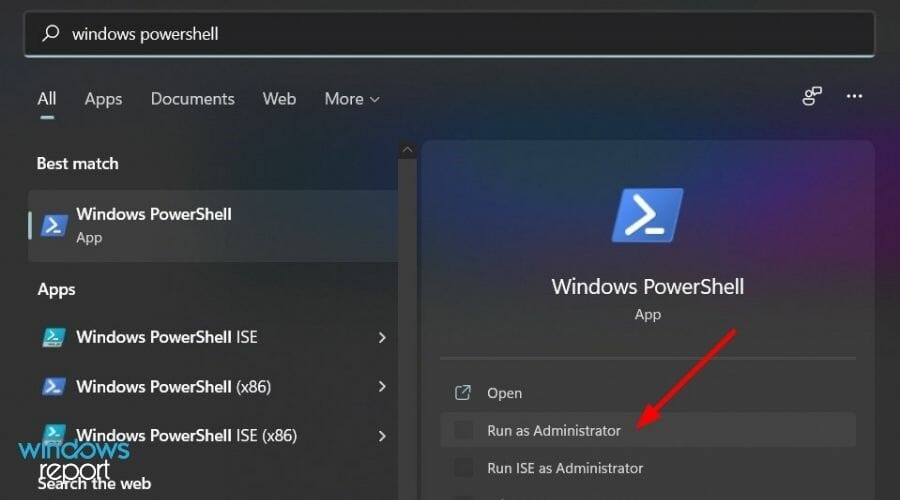
  1. Open the Start menu and search for Windows PowerShell. Open it as an administrator.Windows 11 powershell
  2. In the newly opened Powershell window, type in the below command and hit the Enter button:
    Enable-WindowsOptionalFeature -Online -FeatureName TelnetClientWindows Powershell Telnet

Your PC will scan for required changes and will remove the Telnet client from your Windows 11 PC. To be on the safe side, you can reboot your PC for the changes to take effect.

What are the safety concerns with using the Telnet client?

The main reason why Telnet was replaced by the SSH protocol in most modern systems is the security flaws of the Terminal Network.

We will try to explain the safety concerns of using Telnet clients in simple words. All your data and information travels over an unencrypted network.

This gives easy access to hackers and spies to access important information such as usernames and passwords. This is the reason why SSH (Secure Shell) came into existence, which is kind of an encrypted Telnet.

The SSH protocol encrypts your data before sending it over the network and also authenticates the remote computer. In return, the SSH protocol requires some extra resources to run smoothly. In simple terms, a network that makes use of the SSH protocol should have powerful machines.

Moreover, the Telnet protocol is text-based. This limits the use case scenarios of this protocol. Telnet uses port 23, which is designed for local area networks. On the other hand, the SSH protocol uses port 22.

We hope that this guide helped you with all the information related to Telnet and how to install the Telnet client on your Windows 11 PC.

If you still run Windows 10 on your PC and want to know how you can use Telnet in Windows 10, then you can check out our guide on What is Telnet and how to use it in Windows 10.

You can share your doubts regarding this topic in the comments section below.

Twitch full-screen not working: Fix it now

If you noticed that your Twitch full-screen doesn’t work, you can rest assured that you’re not the only one experiencing this issue.

A large number of users have stormed the online forums asking for a fix for this issue. Unfortunately, the developers at Twitch didn’t release an official solution.

It is only a matter of time until this happens, and until then, you will be able to use the workarounds found in this article.

Read on to find out what you can to do temporarily bypass the issue, and get back to watching your favorite streams in full-screen mode.

Why is Twitch full-screen not working?

The problem seems to be caused by the BTTV extension. Even though this tool is very useful when managing emotes, having it installed will impair your ability to watch streams on full screen.

However, this is not the only cause that can lead to our today’s problem. It can also appear due to some random and temporary glitches or because of browser-related problems.

In the first place, we suggest logging out of Twitch, restarting your PC, then logging back in.

You’re going to discover how to perform all of the necessary processes to easily solve this annoying error, so make sure you read this article completely.

How to fix full-screen issue on Twitch?

1. Log out and log back in

  1. To log out from your Twitch Desktop App, hit the Windows key, search for Twitch, then click on it.
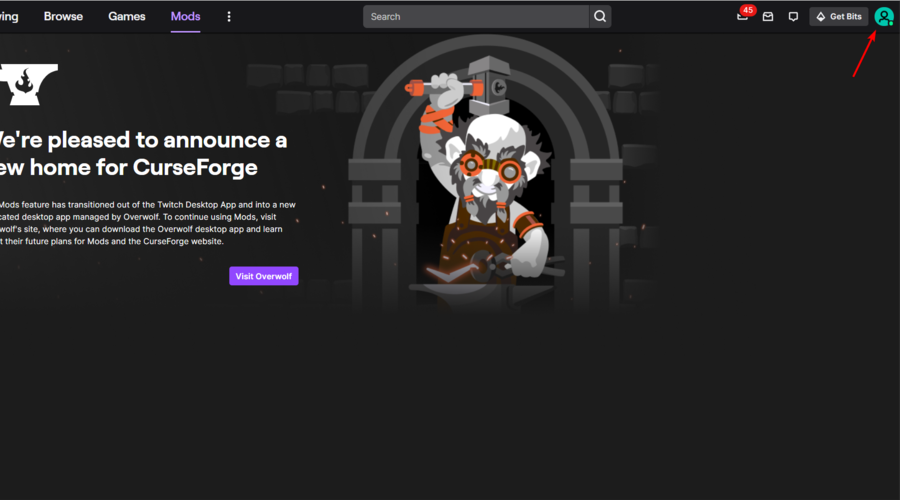
  2. If you’re already logged in, look at the upper-right corner of the page, then click on your avatar.
  3. Select Log Out, then close the app.
  4. We also recommend logging out of the Twitch web version.
  5. Look at the same top-right corner of the window, click on your profile image, then select Log Out.
  6. Now, restart your PC, by using this keyboard shortcut: Alt + F4.
  7. From the drop-down menu, choose Restart.
  8. Wait until your PC is restarted, then open again Twitch.
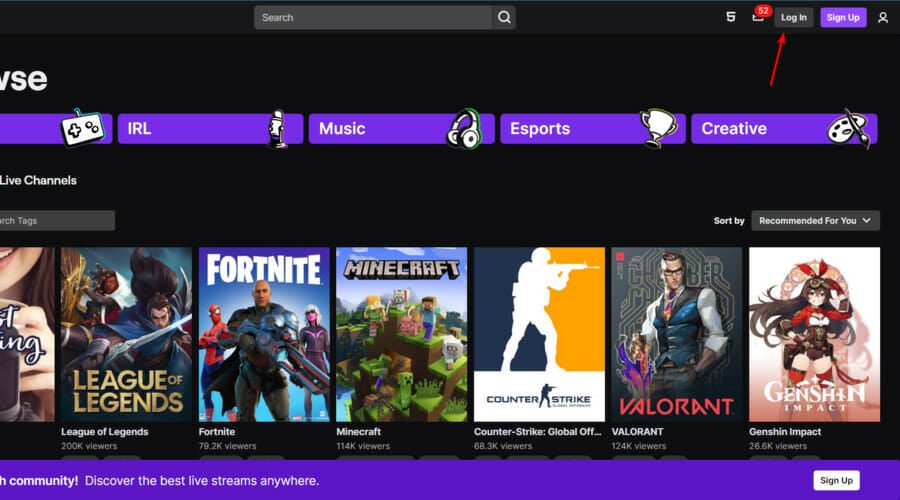
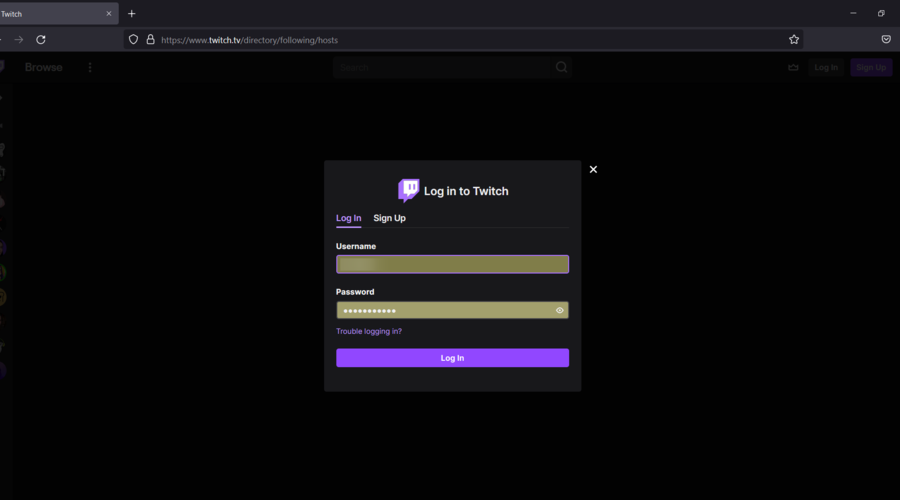
  9. From the top-right corner of the window, click on Log In.
  10. Enter your Twitch credentials, then click on Log In.
  11. Access a live stream, then try going full screen.

2. Try a different browser

If the full screen isn’t working in Twitch, your browser may be the issue. To check that, you need to switch to a different browser, such as the one recommended below.

Opera GX is built on the Chromium engine, so it’s quite similar to Chrome. In fact, all your Chrome extensions will continue working in this tool as well.

Unlike Chrome, this one focuses highly on user privacy and security, and it comes with tracking and malware protection. In addition, the browser has a built-in VPN, for an extra layer of security.

Take a look at more amazing features of Opera GX:

  • Built-in AdBlocker
  • Low resources consuming
  • User-friendly interface

If you’re not convinced by the power of Opera GX, we also recommend checking the best browsers for Twitch. There, you’ll definitely find a perfect option for your needs.

Opera GX

Watch Twitch in full screen with no interruptions with this performant gaming-oriented browser.

3. Disable the BTTV extension

  1. To open the desktop app, hit the Windows key, type Twitch, then open the first result.
  2. Click on the Extension Manager tab.
  3. Find the BTTV extension in the Installed extensions panel.
  4. Select it and click Uninstall.
  5. Check to see if the full-screen mode is working properly.
Note icon NOTE
This method is useful if you don’t want to keep the BTTV extension installed. In the case that you want to keep the extension, please try the next solution.

4. Use the theatre mode workaround

  1. Hit the Windows key, search for Twitch, then open the first result.
  2. Navigate to your favorite streamers.
  3. Once there, open any stream.
  4. Inside the video player, press on the Theatre Mode button.
  5. Double-click the screen to make it go into full-screen mode.
  6. Repeat these steps every time you see this problem appear.


If you are convinced that you want to keep the BTTV extension, you can try this workaround. Even though it is not an official fix, it proved effective in the case of most of the users encountering this issue.

In today’s article, we explored the best ways of dealing with the Twitch app not allowing you to watch your favorite streams in full-screen mode.

Even though the methods presented in this list are not official fixes for this issue, you will be able to work around it by trying out these ideas.

Some users also claimed that Twitch is giving a black screen in Chrome. If it’s ever happening to you as well, make sure you check some useful solutions to solve it in a few minutes.

Please feel free to let us know if you have any suggestions, and if you found this guide helpful.

You can do so by using the comment section found below this article.

Microsoft lays out new open App Store principles

Perhaps attempting to soften the blow with regulators over concerns about Microsoft’s announced acquisition of Activision, President Brad Smith took to the Microsoft on the Issues blog today to lay out a new set of open guidelines for Microsoft’s app stores.

Federal approval of the acquisition isn’t a slam dunk, and the company is already working to position itself as one of the good guys, with Smith saying “(w)e want regulators and the public to know that as a company, Microsoft is committed to adapting to these new laws, and with these principles, we’re moving to do so,” noting that Microsoft has been adapting to regulations for two decades after its antitrust issues, and that “we believe it’s possible to adapt to new rules and innovate successfully. And we believe it’s possible for governments to adopt new tech regulation that promotes competition while also protecting fundamental values like privacy and national and cyber security”

Smith then goes on to say that there’s currently too much friction between creators and gamers, and perhaps takes a bit of a shot at Apple: “app store policies and practices on mobile devices restrict what and how creators can offer games and what and how gamers can play them.”

To help to ease that friction (and to butter up government regulators), Smith announced  a set of Open App Store Principles for “Microsoft Store on Windows and to the next-generation marketplaces we will build for games,”  in four main areas:

Quality, Safety, Security & Privacy

We will enable all developers to access our app store as long as they meet reasonable and transparent standards for quality and safety.
We will continue to protect the consumers and gamers who use our app store, ensuring that developers meet our standards for security.
We will continue to respect the privacy of consumers in our app stores, giving them controls to manage their data and how it is used.

Accountability

We will hold our own apps to the same standards we hold competing apps.
We will not use any non-public information or data from our app store to compete with developers’ apps.

Fairness and Transparency

We will treat apps equally in our app store without unreasonable preferencing or ranking of our apps or our business partners’ apps over others.
We will be transparent about rules for promotion and marketing in our app store and apply these consistently and objectively.

Developer Choice

We will not require developers in our app store to use our payment system to process in-app payments.
We will not require developers in our app store to provide more favorable terms in our app store than in other app stores.
We will not disadvantage developers if they choose to use a payment processing system other than ours or if they offer different terms and conditions in other app stores.
We will not prevent developers from communicating directly with their customers through their apps for legitimate business purposes, such as pricing terms and product or service offerings.

In addition, Microsoft is making a further and broader set of commitments:

  • We will continue to enable developers to choose whether they want to deliver their apps for Windows though our app store, from someone else’s store, or “sideloaded” directly from the internet.
  • We will continue to give developers timely access to
  • We will enable Windows users to use alternative app stores and third-party apps, including by changing default settings in appropriate categories.

Finally, Smith addresses a couple of questions regulators and consumers may have about the Activision acquisition. First, he commits to making “Call of Duty and other popular Activision Blizzard titles” available on Playstation not only through Sony’s current agreements with Activision, but “beyond the existing agreement and into the future so that Sony fans can continue to enjoy the games they love,” and says they are working to support Nintendo in the same way.

He then notes that these open app store policies, while they apply specifically to mobile app stores, will at least in part apply to the store on the Xbox console, as well: “beginning today, we will move forward to apply Principles 1 through 7 to the store on the Xbox console. We’re committed to closing the gap on the remaining principles over time. ”

Microsoft appears to know full well it’s facing a tough challenge to get the Activision acquisition approved by regulators, and is already pushing to plead its case. Whether it will be enough to appease those regulators remains to be seen.


How to create PowerShell scripts on Windows 10 and Windows 11 with Visual Studio Code

Did you know that you can create PowerShell scripts on Windows 10 and Windows 11? Now that you installed PowerShell on Windows, you might want to know what you can do with it on your PC. In this guide, we will show you how to create a simple script file using Visual Studio Code and run the script file in PowerShell on Windows 10 and Windows 11.

First, you need to learn how to create a basic PowerShell script. Once you learn that, you will be able to create and run PowerShell scripts on Windows 10 and Windows 11 to make your workflow more efficient thus making you more productive.

How to create PowerShell scripts on Windows 10 and Windows 11

Previously, you could create scripts using almost any text editor. However, Microsoft’s preferred option moving forward is to use the Visual Studio Code editor with the PowerShell extension.

Visual Studio Code (VS Code) is a powerful, but lightweight source code editor that runs on your desktop and is available on Windows, macOS, and Linux.

VS Code comes with built-in support for JavaScript, TypeScript and Node.js. As an added benefit, you get a rich ecosystem of extensions for other development languages, including C++, C#, Java, Python, PHP, Go, as well as and runtimes, such as .NET and Unity.

In this guide, we will concentrate on what to do to prepare your PC to create PowerShell scripts on Windows 10.

Install VS Code

1. Download the VS Code installer on Windows
2. Once downloaded, run the installer (VSCodeUserSetup-{version}.exe) to install VS Code

Alternatively, you can also download a Zip archive, extract it, and run the VS Code installer from there.

Once VS Code is installed, the PowerShell extension needs to be installed to allow for PowerShell scripts to be created.

Install PowerShell extension on VS Code

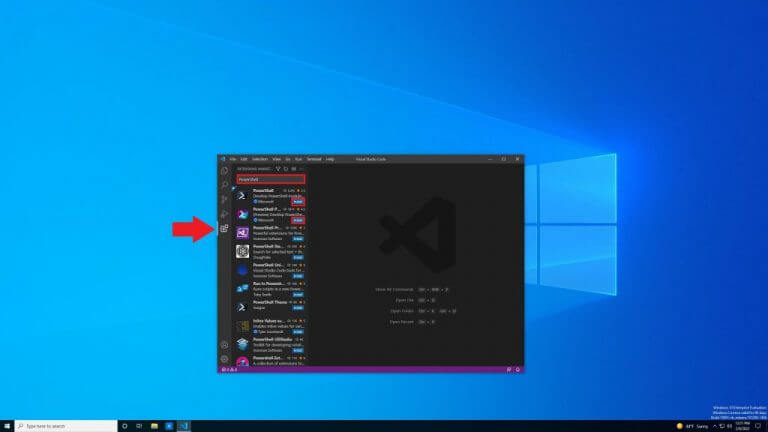
Here’s how to open VS Code and install the PowerShell extension

powershell scripts on windows 10 and windows 11

1. Open VS Code
2. Click Extensions from the left pane (arrow indicator)
3. Search for and select “PowerShell”
4. Click Install button to install the PowerShell (or PowerShell Preview) extension on VS Code

After you complete the steps, you can start creating PowerShell scripts on Windows 10 with VS Code.

If you want to install other extensions in the future, use the keyboard shortcut Ctrl + Shift + X to be taken directly to the VS Code extensions. If you have the time, you can familiarize with other keyboard shortcuts available by using “Showing All Commands” in VS Code, Ctrl + Shift + P keyboard shortcut.

Create PowerShell scripts with VS Code

Here’s what to do to create a script:

powershell scripts on windows 10 and windows 11

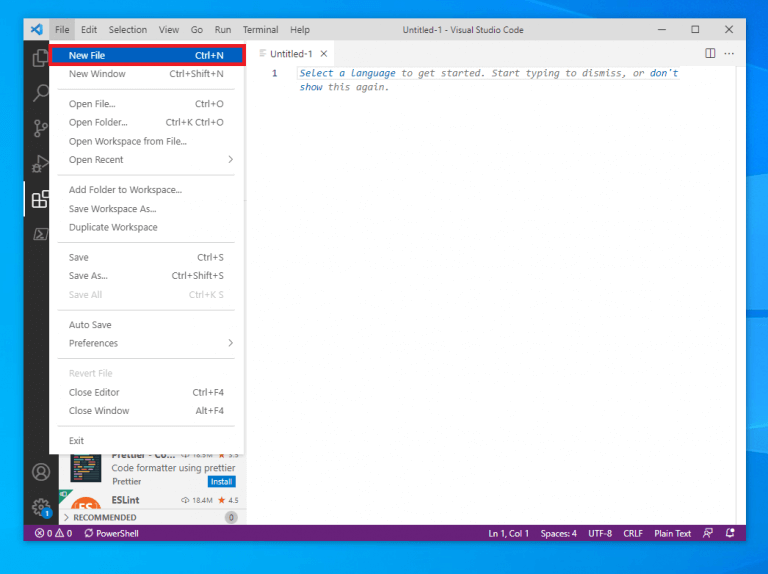
1. Open VS Code
2. Click the File menu and select the New File option. Alternatively,
use the Ctrl + N keyboard shortcut

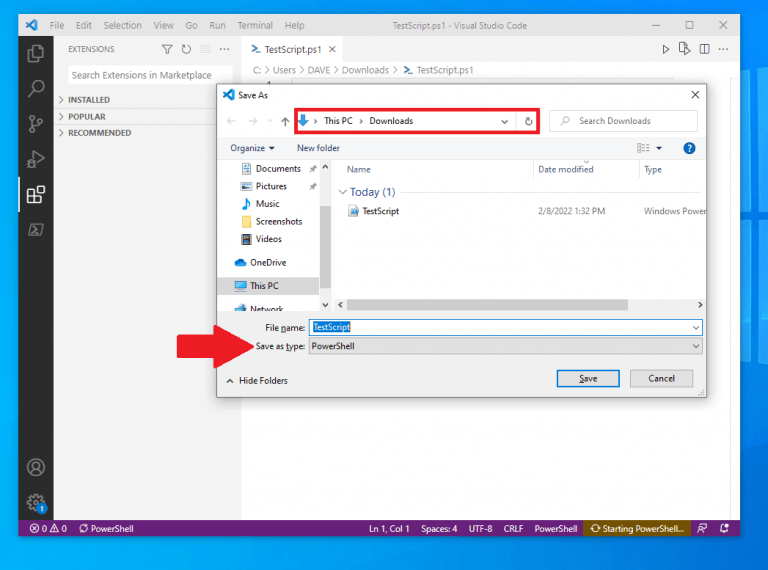
3. From here, you can go to File menu again, then select Save As to change the file type. Alternatively, use the keyboard shortcut Ctrl + Shift + S
4. Change the File name and location as you wish on your PC. Change the “Save as type” to PowerShell as shown

5. Click Save to save the file

You can also explore ways to package your script for easier distribution by reading how to convert PowerShell to EXE, which can be useful once your file is ready.

Now that a PowerShell script file is created, it should appear in your files as a Windows Powershell file, with a .ps1 file extension. With the newly created “TestScript” PowerShell file, we can add a command for the file to run in PowerShell. Here’s what to do.

powershell scripts on windows 10 and windows 11

1. Open the file you created in VS Code
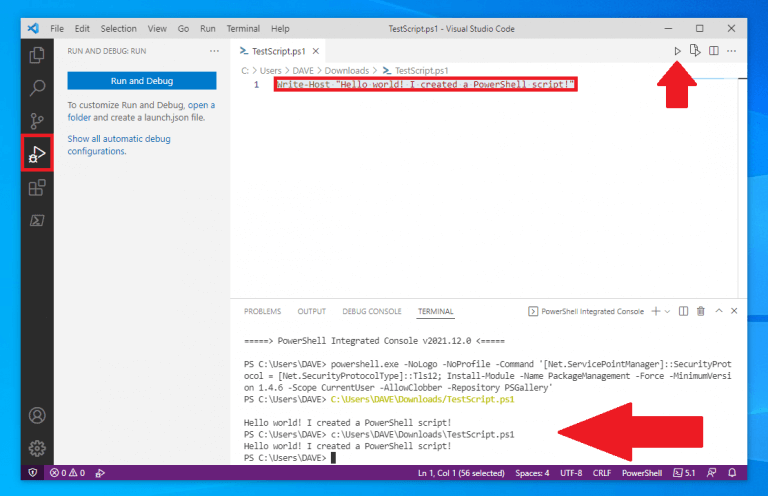
2. Write a new or paste a script that you want to run:
Write-Host "Hello world! I created a PowerShell script!"
The script above will output the phrase: “Hello world! I created a PowerShell script!”
3. (Optional) You can use the Run in the upper right or press F5 to run the script in an integrated PowerShell window and see the output below as shown

4. Click the File menu and click Save when you are finished to save the file

Change the Windows execution policy in PowerShell

Once you complete the steps using VS Code, the PowerShell script will be ready to run. But before you run your script file, you need to change the execution policy on Windows 10. By default, scripts are not authorized to run in PowerShell.

Here’s how to change that.

powershell scripts on windows 10 and windows 11

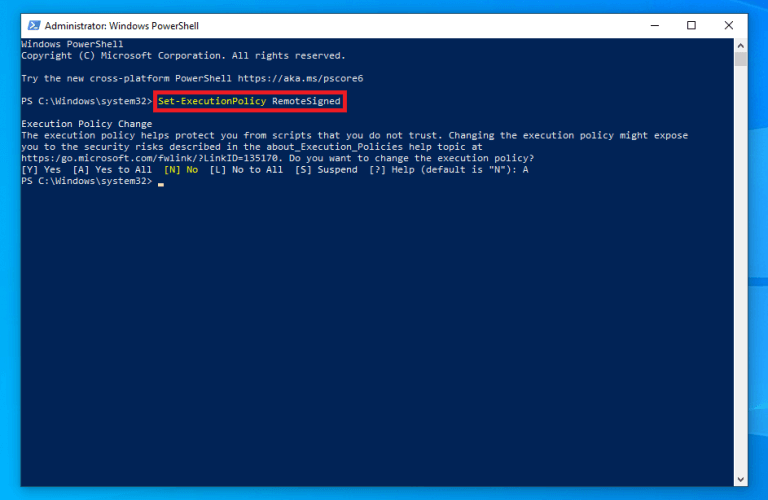
1. Open PowerShell and Run as Administrator
2. Copy and paste the following command to run PowerShell scripts:
Set-ExecutionPolicy RemoteSigned
3. Press Enter to run the command
4. Type A and Press Enter

Now that the Windows 10 execution policy has been changed in PowerShell, it’s time to run the PowerShell script.
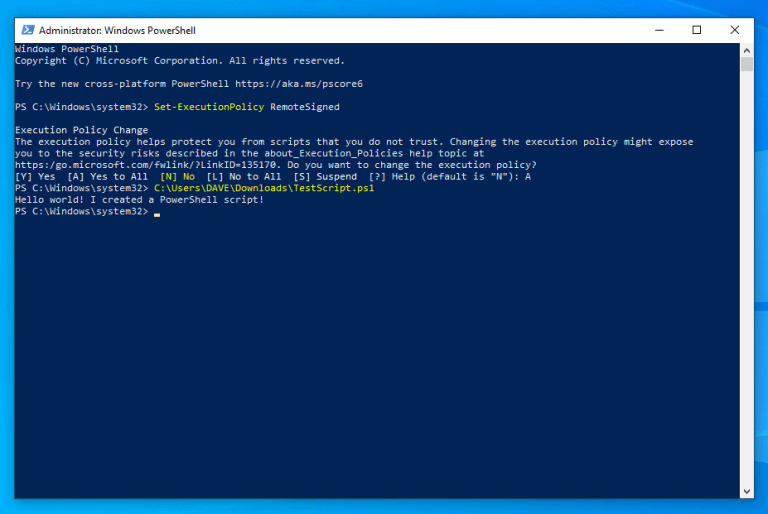
1. Open PowerShell and Run as Administrator
2. Paste the file path to the PowerShell script file that was created
C:\Users\DAVE\Downloads\TestScript.ps1
3. Press Enter to run the script

powershell on windows 10

After you complete the steps, the PowerShell script will run. If the script was written correctly, you should see its output in PowerShell.

More Windows 10 and Windows 11 resources

For more helpful articles, coverage, and answers to frequent questions about Windows 10, visit the OnMSFT resources available below.

Windows 10 on OnMSFT – All you need to know

Windows 11 on OnMSFT – All you need to know

OnPodcast: the OnMSFT Podcast on YouTube

Have any suggestions for Windows 10 and Windows 11 tips and tricks? Let us know in the comments!

5 Ways to Record Gameplay on Windows 11 [Quick Guide]

Who doesn’t love playing video games? They are the favorite past time of millions of people across the globe. Some of them have turned their favorite past-time into their primary source of income.

How did they do that? Well, they followed the trend of creating videos online on various streaming platforms such as YouTube and Twitch.

If you’re still using an older version of the OS, you can always check out the best screen recorder for Windows 10.

If you are also interested, then the first thing you should know is how to record gameplay on Windows 11. Since Windows 11 is the latest operating system, many users who have installed it would like to know how you can record your gameplay on it.

Once you are done recording your gameplay, you can simply edit it or live-stream it onto different platforms and grow your subscriber base.

You can improve your recordings by editing them before uploading, and the guide at how to edit Xbox clips on PC shows you the steps you need.

Not everyone will make it big in this league, but it is worth giving a shot. And if you are intrigued by it, then you have landed in the right place.

In this guide, we will show you how you can record gameplay on Windows 11 using the in-built tool and third-party apps.

How is Windows 11 better for gaming than Windows 10?

Microsoft is one of the big names in the gaming space. Along with games for their desktops, Microsoft also has a lineup of Xbox consoles for those who want dedicated beasts for gaming.

Since we are focused here on Windows 11, some of you would like to know if Windows 11 is better than the previous version of the OS, i.e. Windows 10.

It all started with Windows 8, where Microsoft included the Xbox companion. This tool came with features such as access to the live Xbox community, remote control, second screen, and more.

Then, with Windows 10, Microsoft added some more features to the Xbox companion, including a Game Bar, screen capturing, broadcasting, and even a dedicated settings page for the game you are running on your PC.

With the new Windows 11, Microsoft has added a bunch of cool features that will take your gaming experience to a new level.

Windows 11 gets the Auto HDR feature. This will enhance your gaming experience by converting the SDR content into HDR using machine learning available in Windows 11.

Moreover, the new OS also gets the Direct Storage option. This enables the API to allow the GPU (Graphics Processing Unit) to directly load the data from the SSD. Previously, this process also involved CPU processing, which is now not needed, as a result, saving a lot of power.

Though these are not groundbreaking changes, they are good enough to make Windows 11 a better OS than Windows 10 for gaming and coupled with a great gaming laptop, you’re ready to explore some of the latest titles.

How to record your screen with audio on Windows 11

    Record your screen with Xbox Game Bar

    Before you jump into record your screen while gaming, make sure that you have all settings in place as this will help you improve the overall experience of your recording. Here’s what you need to do:

  1. 1. Open the Gaming Settings page.

    Press the Windows + I buttons together on your keyboard to open the Settings page. Under the Settings page, select Gaming from the left side panel.

    Gaming settings how to record gameplay in Windows 11
  2. 2. Click on Captures

    Inside the Gaming page, you need to click on Captures.

    Captures how to record gameplay in Windows 11
  3. 3. Set up your desired recording settings

    You will see under the  Captures settings page, there are several options that you can change and tweak for recording videos. Here is a quick glance at what options you can tweak from the Captures settings page:

    • You can change the location where you wish to save your recorded videos
    • Enable or disable the option to press Win + Alt+ G key to record your gameplay
    • You can limit the maximum record length
    • Option to record video with or without audio
    • Select the video recording framerate
    • Select video quality

  4. 4. Open the Start menu and type in Xbox Game Bar

    After you finish setting everything up, in order to record gameplay video, all you need to do is open the Start menu. Then search for the Xbox Game Bar. Alternatively, if you have enabled the toggle next to Record what happened simply press Windows + Alt + G. This will show you the Xbox console.

  5. 5. Open Xbox Game Bar and start recording

    You can either hit the record button available on the console or use the below shortcuts:

    • To start recording a video: Windows + Alt + R
    • To turn on your mic: Windows + Alt + M

Your recorded video will be stored at the selected location. As mentioned, there are a bunch of options to explore inside the Xbox Game Bar. Feel free to use them.

Do keep in mind that sometimes Windows Alt R won’t work, but that can be easily fixed, and we have a special guide that addresses that.

Use third-party apps

Well, you don’t need to rely on the in-built screen recording tool to record your gameplay on your Windows 11 PC. There are a plethora of options to choose from.

However, do note that you might get confused with which app to opt for or which would be the best app that you should download to record your gameplay.

We have already compiled a list of some of the best screen recorder software for Windows 10. You can check out the list and download the app as per your preference.

To demonstrate how you can use a third-party app to record your gameplay, we will make use of the Bandicam screen recording app.

It is one of the best and most popular names when it comes to screen recording and editing. The interface is nice and clean. You get the option to save the recorded file in MP4, AVI, or even image files.

Let us take a look at how you can use Bandicam to screen record on Windows 11 with audio.

  1. First, you need to download Bandicam from its official website and install it on your Windows 11 PC.
  2. Now, launch the screen recording app on your PC.
  3. You will be greeted with the Bandicam interface. Here, you will see different options such as Rectangle area, Fullscreen, Around mouse, and more.Bandicam Interface best screen recording Windows 11
  4. If you want to record a certain section of your screen, then you can opt for the Rectangle area option. Otherwise, you can go for the Fullscreen mode.
  5. Once you have selected your preferred recording choice, simply press the red REC button at the top of the menu bar or press teh F12 shortcut key. Bandicam start recording
  6. That’s it! The screen recording of your screen will start. You can proceed to begin recording your gameplay. You can find your recordings under the Videos tab.Saved videos Bandicam

Use other options

We have just given an example of the Bandicam video recording app, but several other apps may even provide you with more advanced options.

Besides, you need to unlock the Bandicam app to unlock all of its features. In such a case, you can make use of the free video recording app available for download from the Microsoft Store. It is called the Free Screen Recorder.

It is a pretty straightforward screen recording app. Some of the features of this software include no watermark, unlimited screen recording, a simple interface, a browser recorder, and more.

How to take screenshots of your gameplay?

While video recording is a nice way to stream your gameplay online or store it for uploading at a later stage, you may require a thumbnail for the video or you may want to highlight a special moment during your gameplay.

In such cases, screenshots can come in handy. Screenshots simply mean a still image of what’s happening on your Windows 11 home screen.

You can opt for different software to take a screenshot, but for such a simple task, we would advise you to make use of the PrtSc or Print Screen key on your keyboard.

When you press this key, your PC immediately takes a screenshot of the home screen. But once you press the PrtSc button, you immediately need to paste it into an image editing app or drawing app such as Paint It. Only then you will be able to save it.

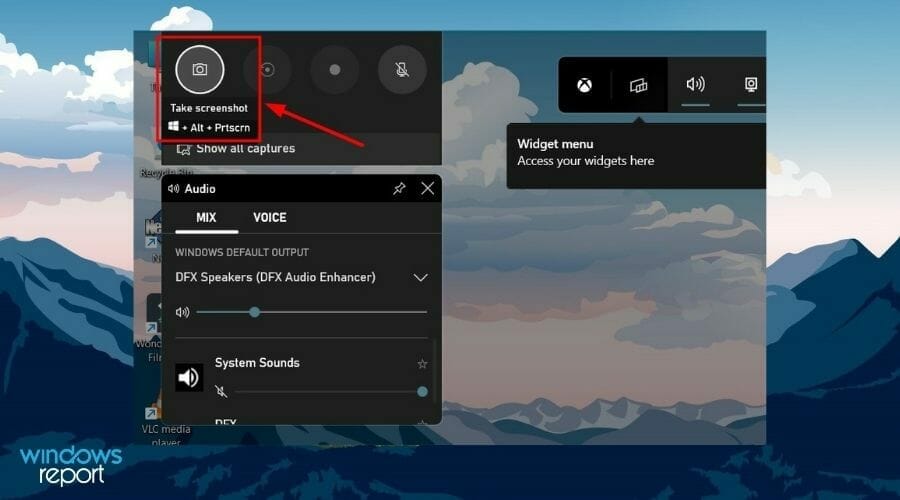
Otherwise, if you are using Xbox Game Bar, then there is a screenshot icon on the top-left menu bar. You can either press it or use the shortcut Windows + Alt + PrtScr to capture the screenshot. Here, you will be able to locate your captured screenshots inside the Videos>Captures folder.

You can check out our guide where we have compiled a list of all the different ways which you can use to take screenshots on your Windows 11 PC.

Let us know in the comments section below which option mentioned in this post is used by you to record your gameplay videos on Windows 11.

How to Remove File Association in Windows 11

There are times when you install a new program more suited for a particular file type. Maybe, you install a photo editor and want to open all .jpg or .png files with it for editing. Under the current system settings, these formats will be opened using the default file associations.

This is why it’s imperative that you understand how to change, remove, or reset file association in Windows 11. In the following guide, we will tell you how to do that.

How do I remove file associations in Windows 11?

1. Via Settings

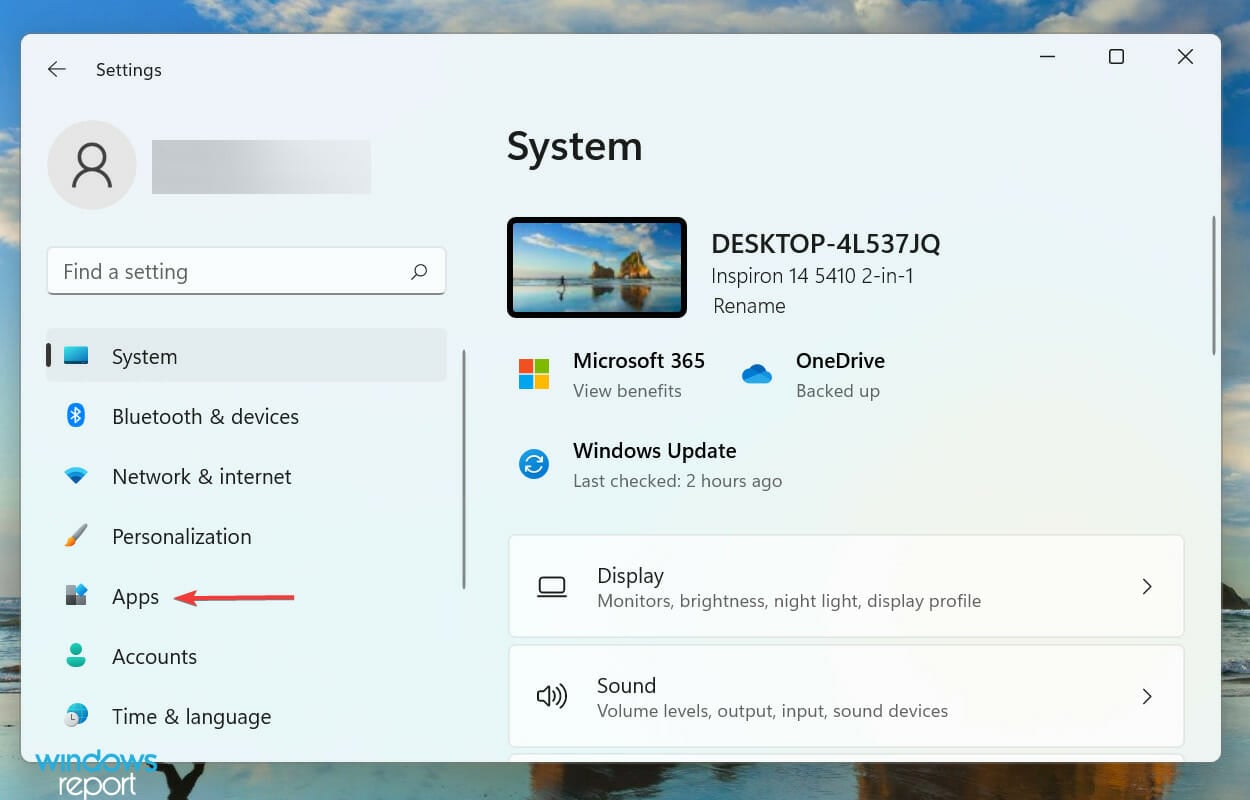
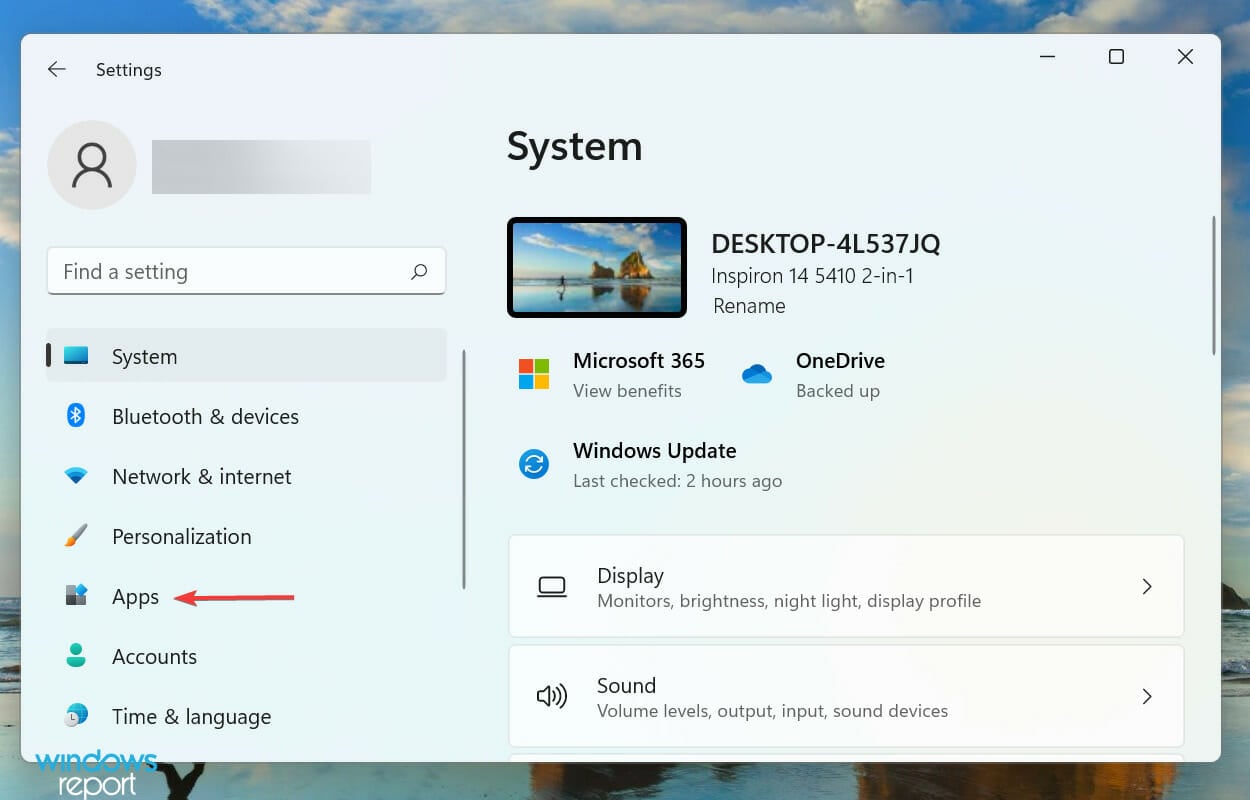
  1. Press Windows + I to launch the Settings, and select Apps from the list of tabs in the navigation pane on the left.Apps to remove windows 11 remove file association
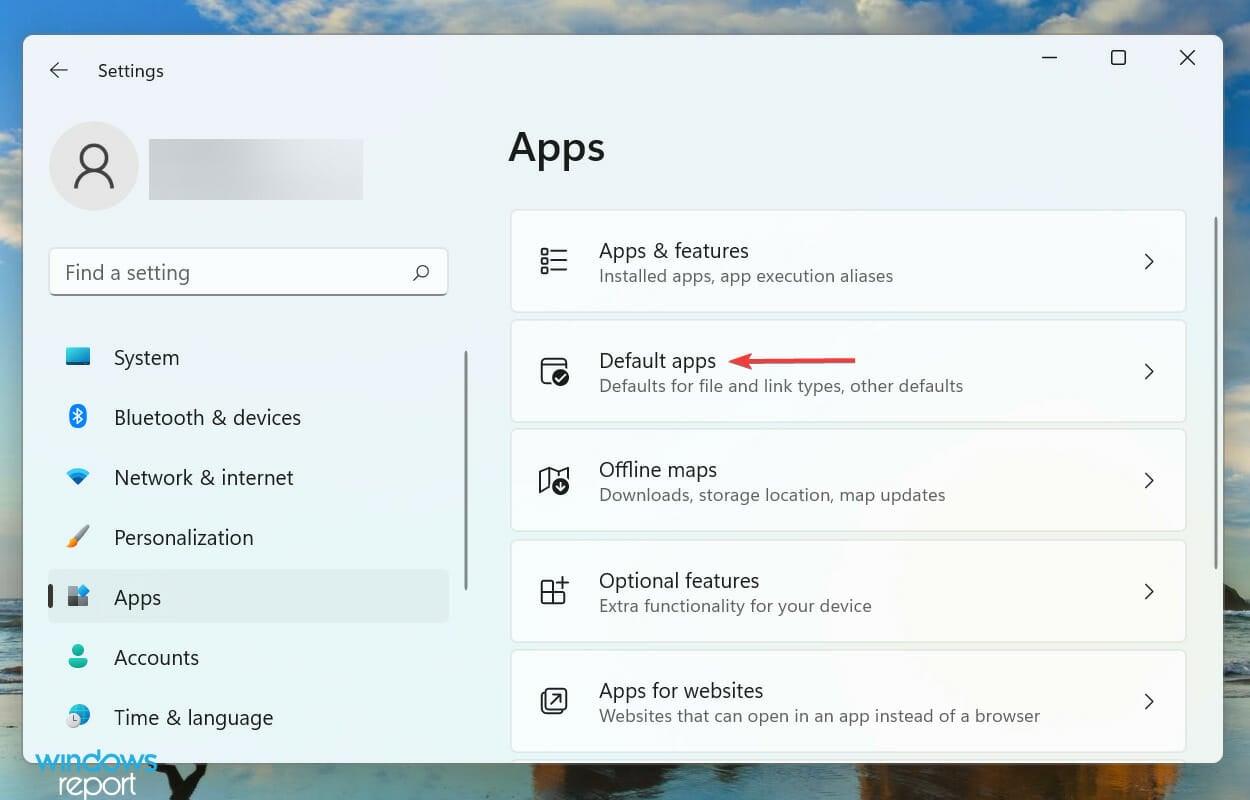
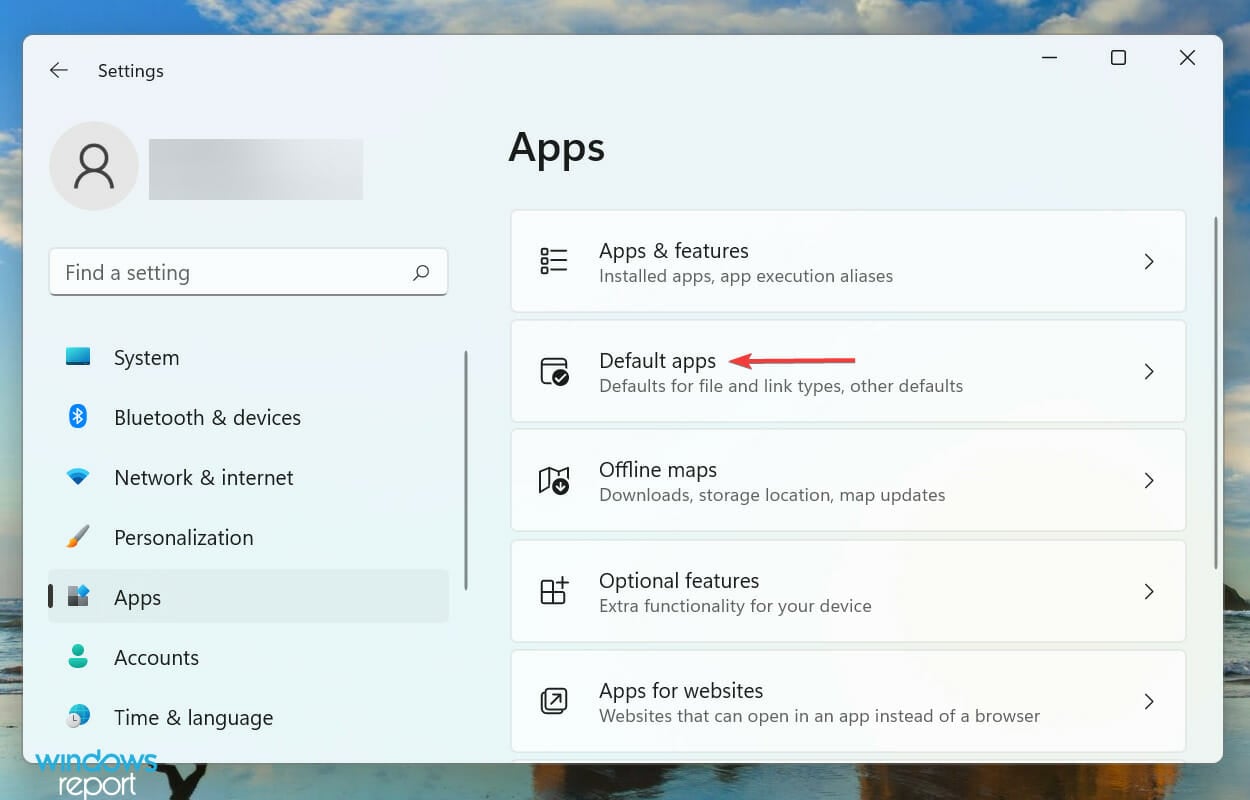
  2. Next, click on Default apps on the right.Default apps
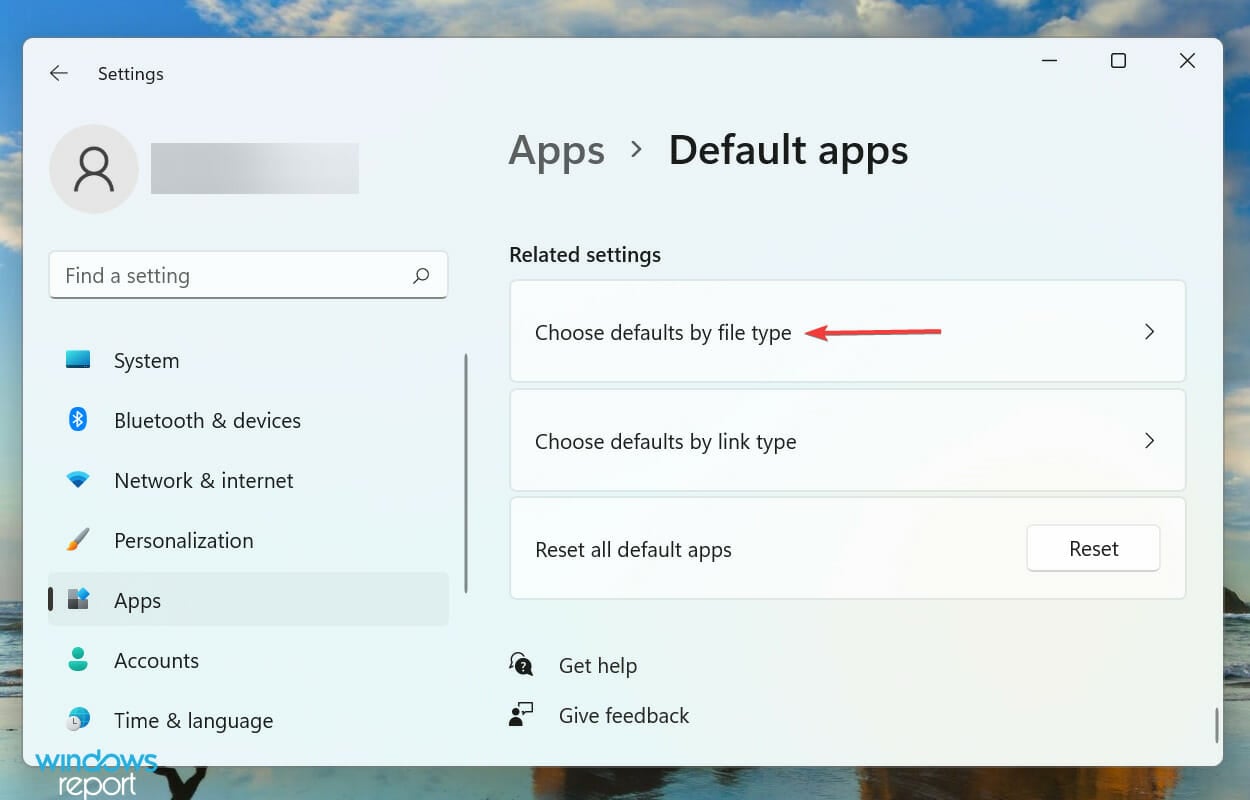
  3. Scroll down to the bottom and select Choose defaults by file type under Related settings.Choose defaults by file type to windows 11 remove file association
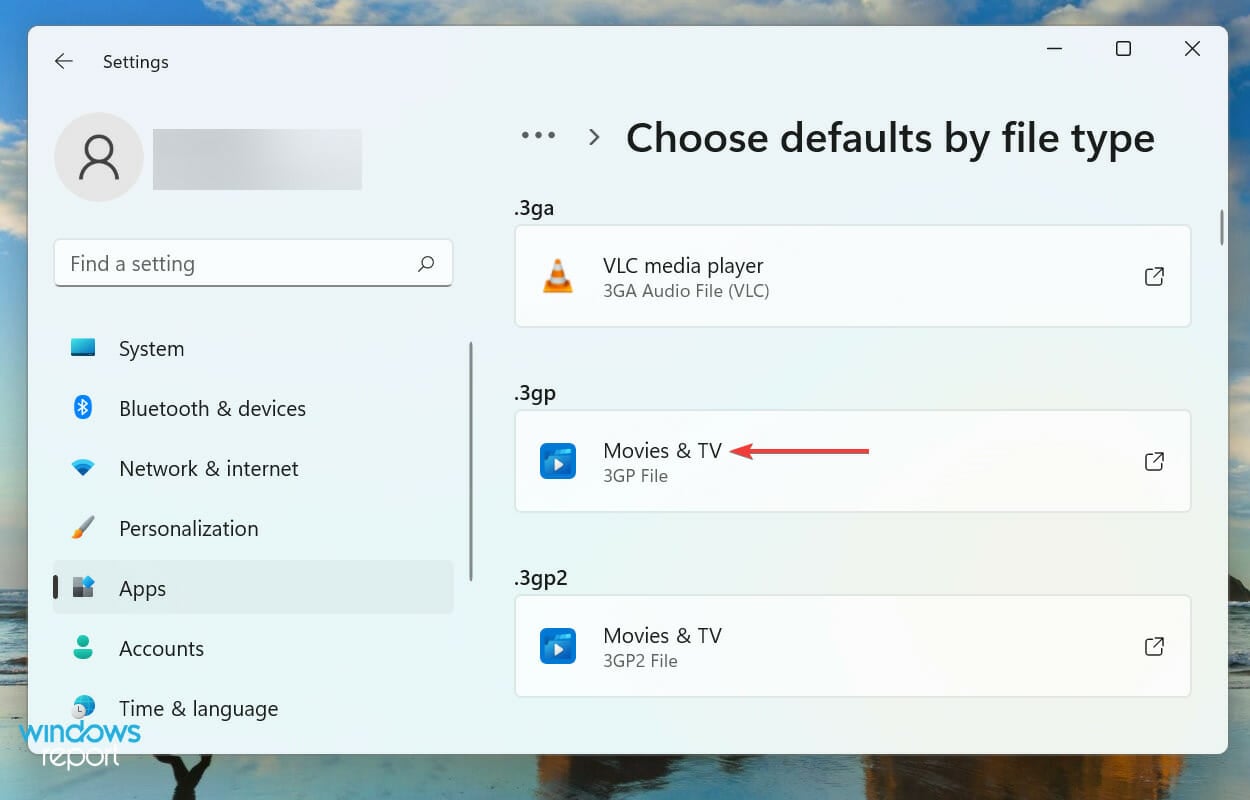
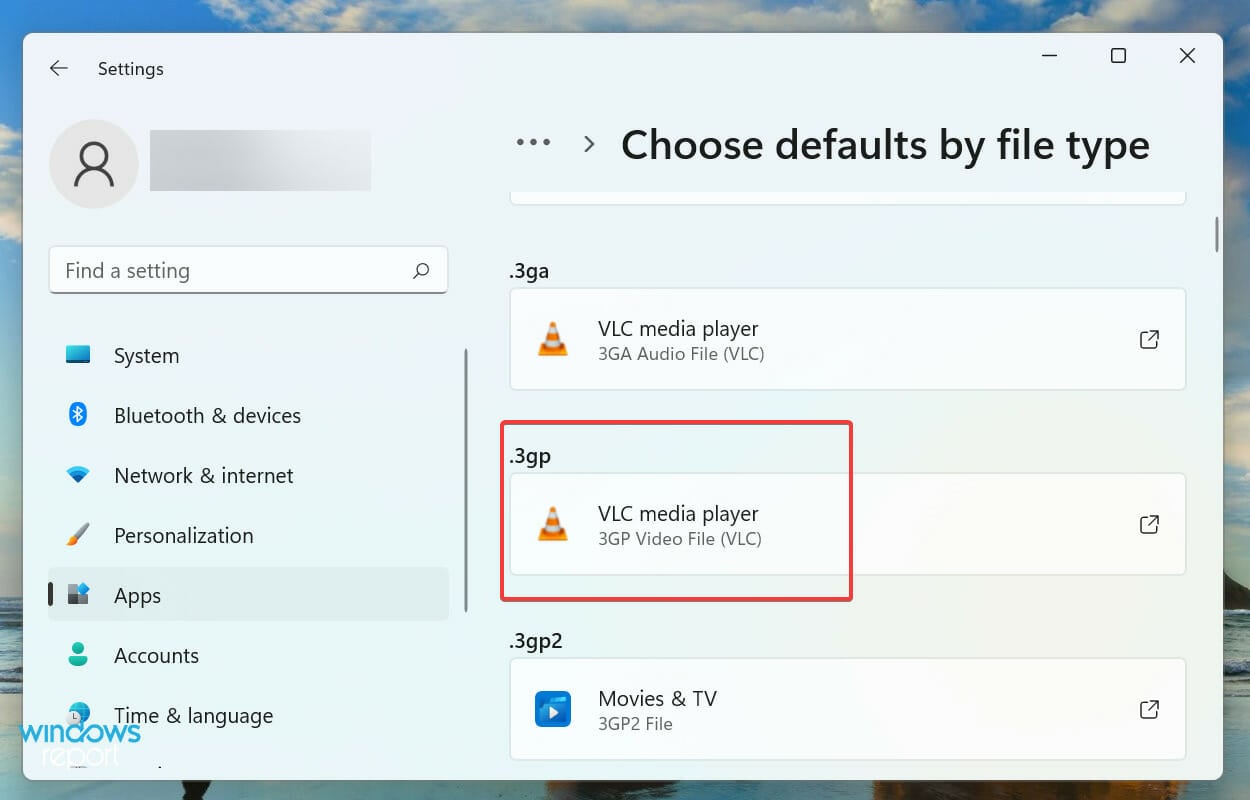
  4. Now, select a file type to remove the present and create new file associations in Windows 11.Click file type to windows 11 remove file association
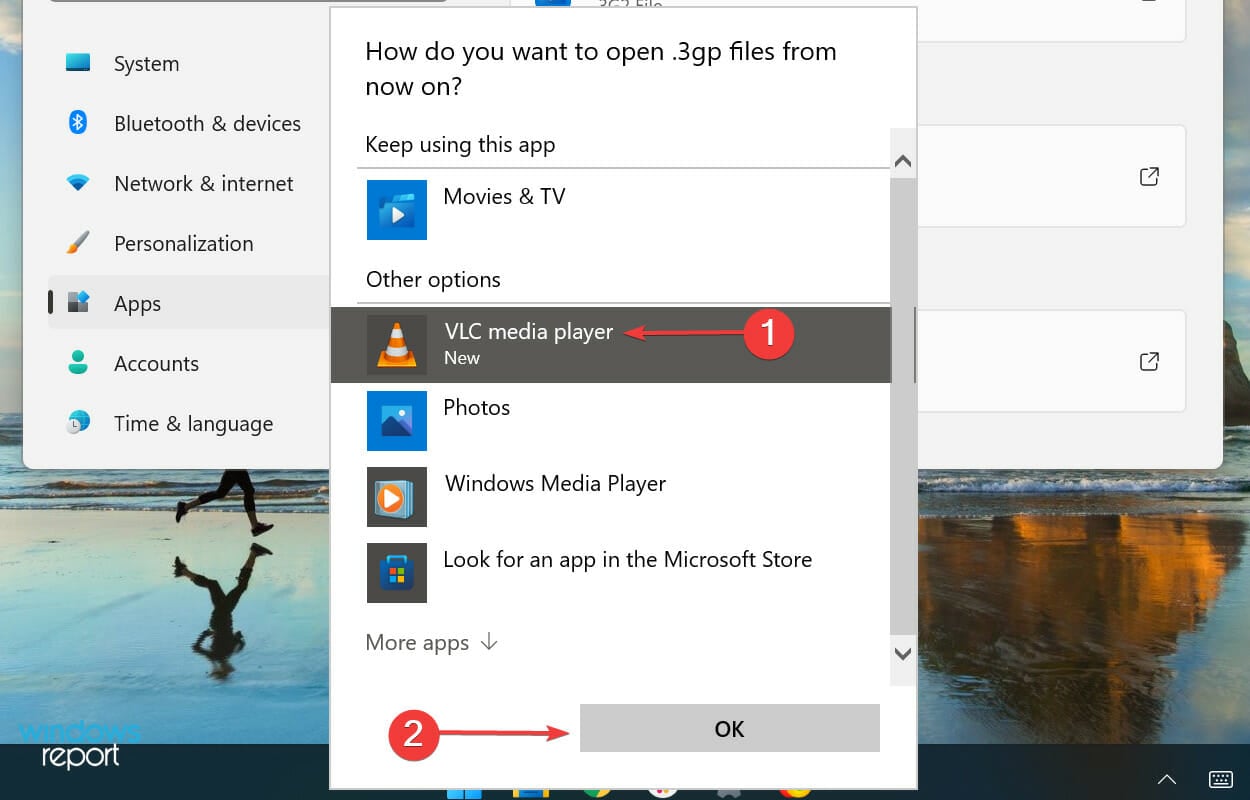
  5. Select the desired app that you want to use to open this particular file type from now on and click on OK.Select a different app to windows 11 remove file association
  6. The changes should reflect right away.windows 11 remove file association

Using Settings is probably one of the easiest ways to remove and create new file associations in Windows 11. But, it’s certainly not the only one. We have listed the other ways in the following sections, go through them all and use the one that suits you best.

2. Via Control Panel

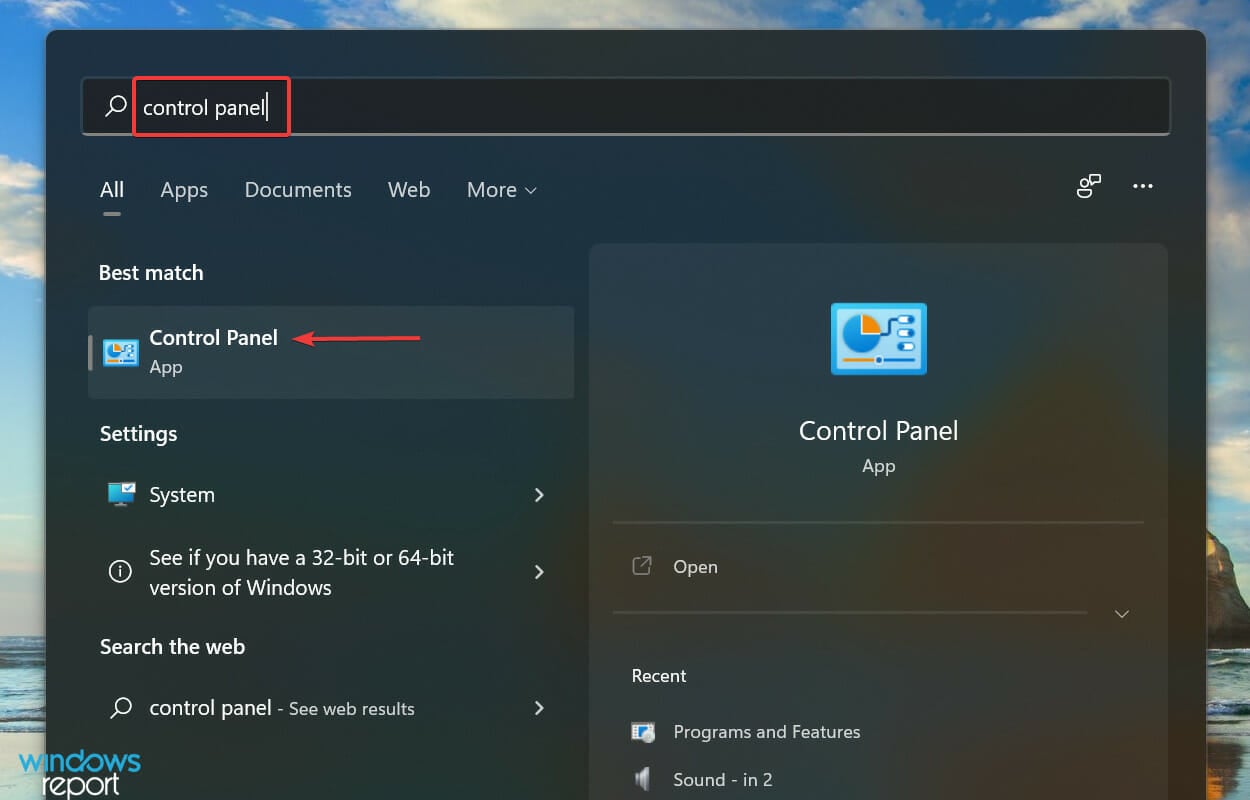
  1. Press Windows + S to launch the Search menu, enter Control Panel in the text field at the top, and click on the relevant search result that appears.Launch Control panel
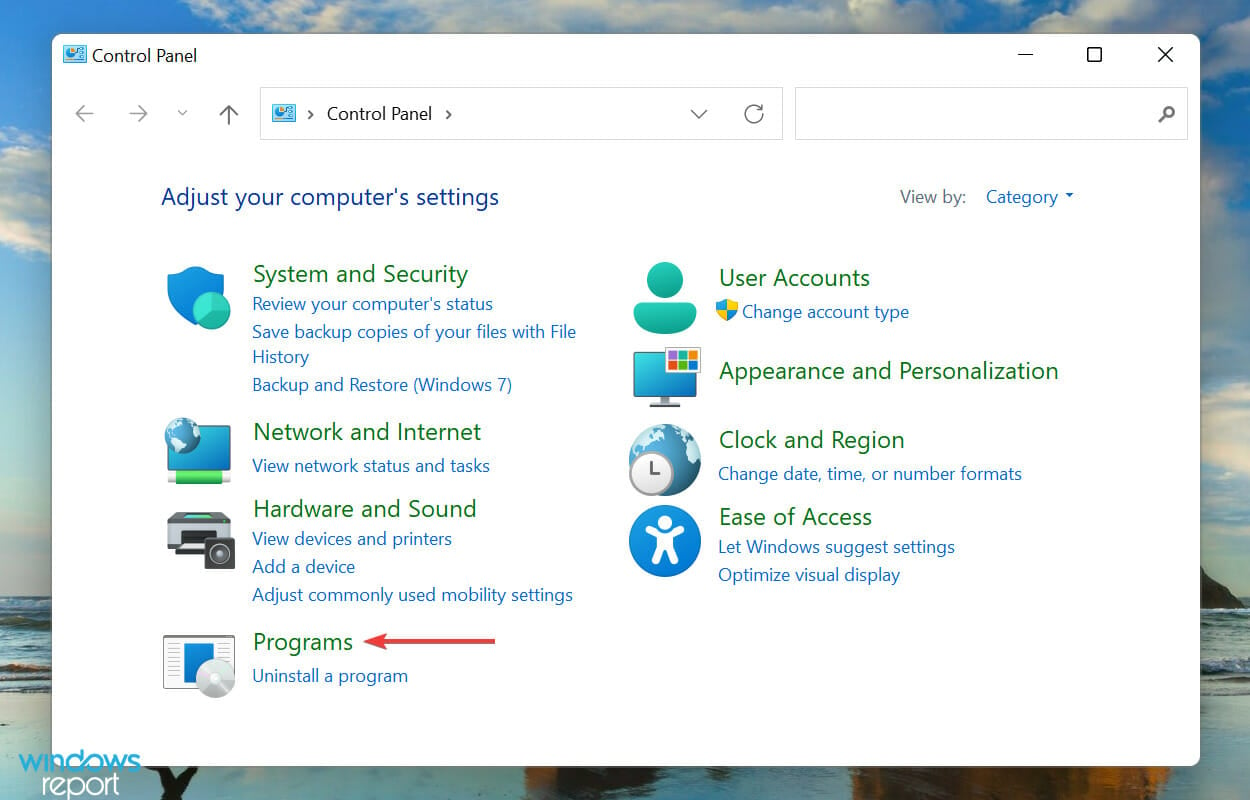
  2. Select Programs from the list of options here.Click programs to windows 11 remove file association
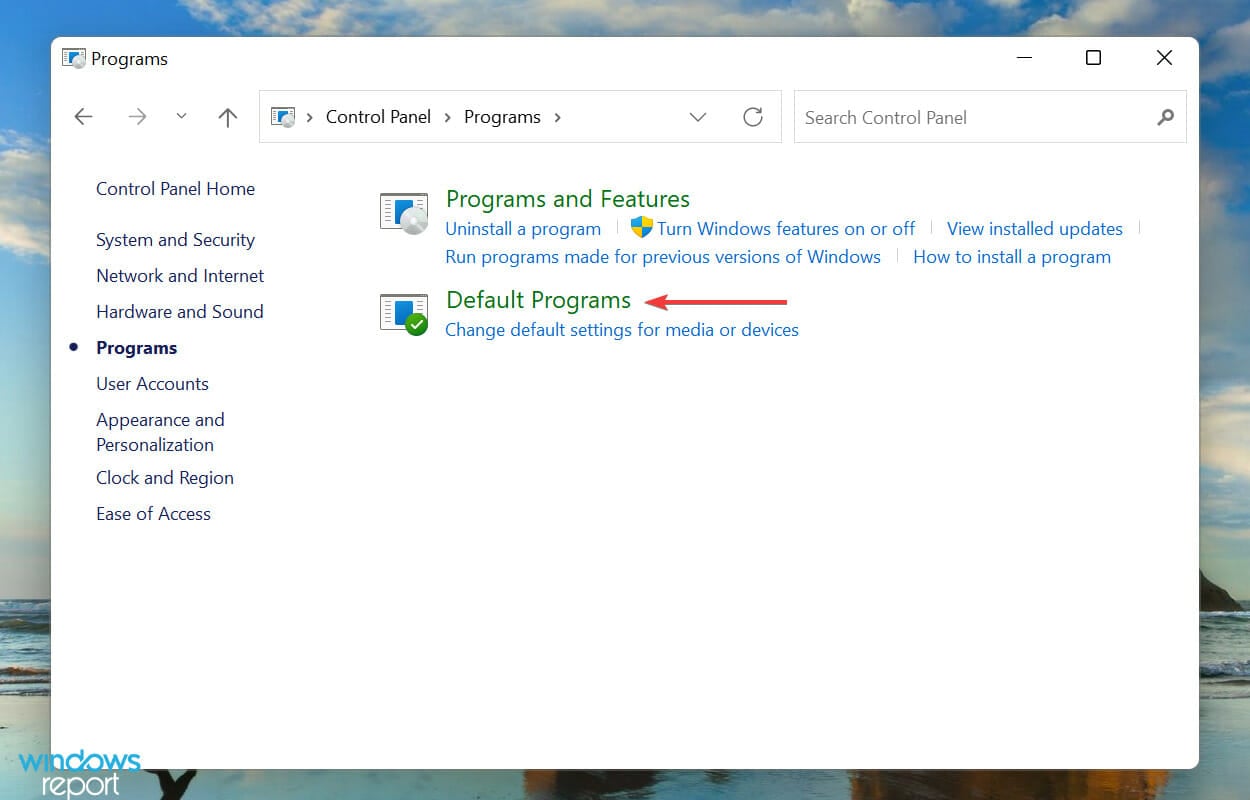
  3. Next, click on Default Programs.Default programs
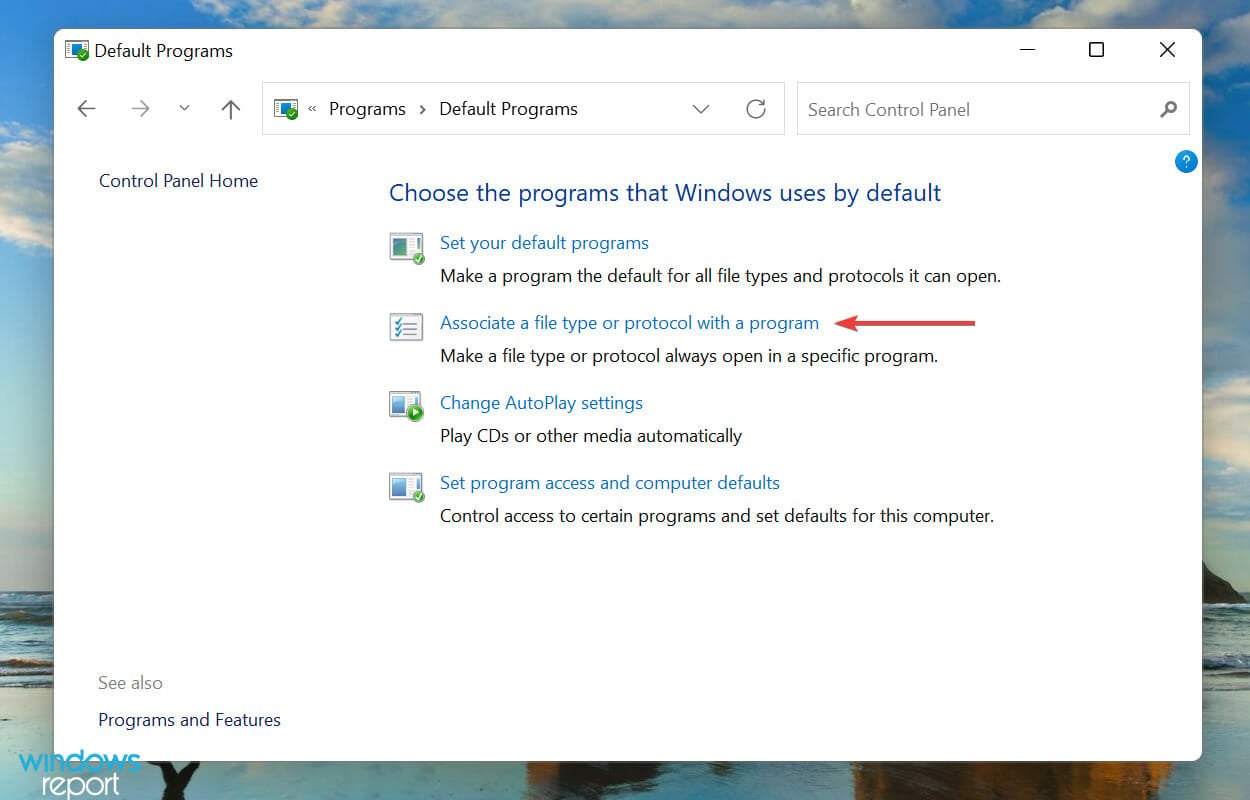
  4. Now, click on the Associate a file type or protocol with a program option.Associate a file type or protocol with a program to windows 11 remove file association

You will now be redirected to the Settings window and can follow the steps listed in the previous method to remove file associations in Windows 11.

The Control Panel previously had a built-in option to remove file associations but it’s been removed and you are now redirected to Settings.

3. Via Registry

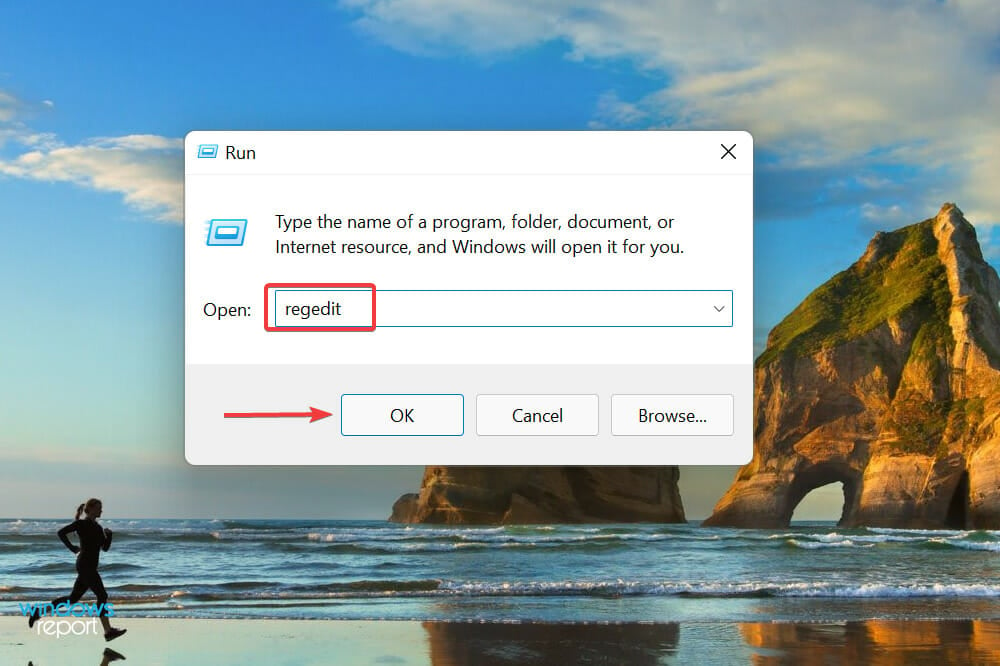
  1. Press Windows + R to launch the Run command, enter regedit in the text field, and either click on OK or hit Enter to launch the Registry Editor.Launch Registry Editor
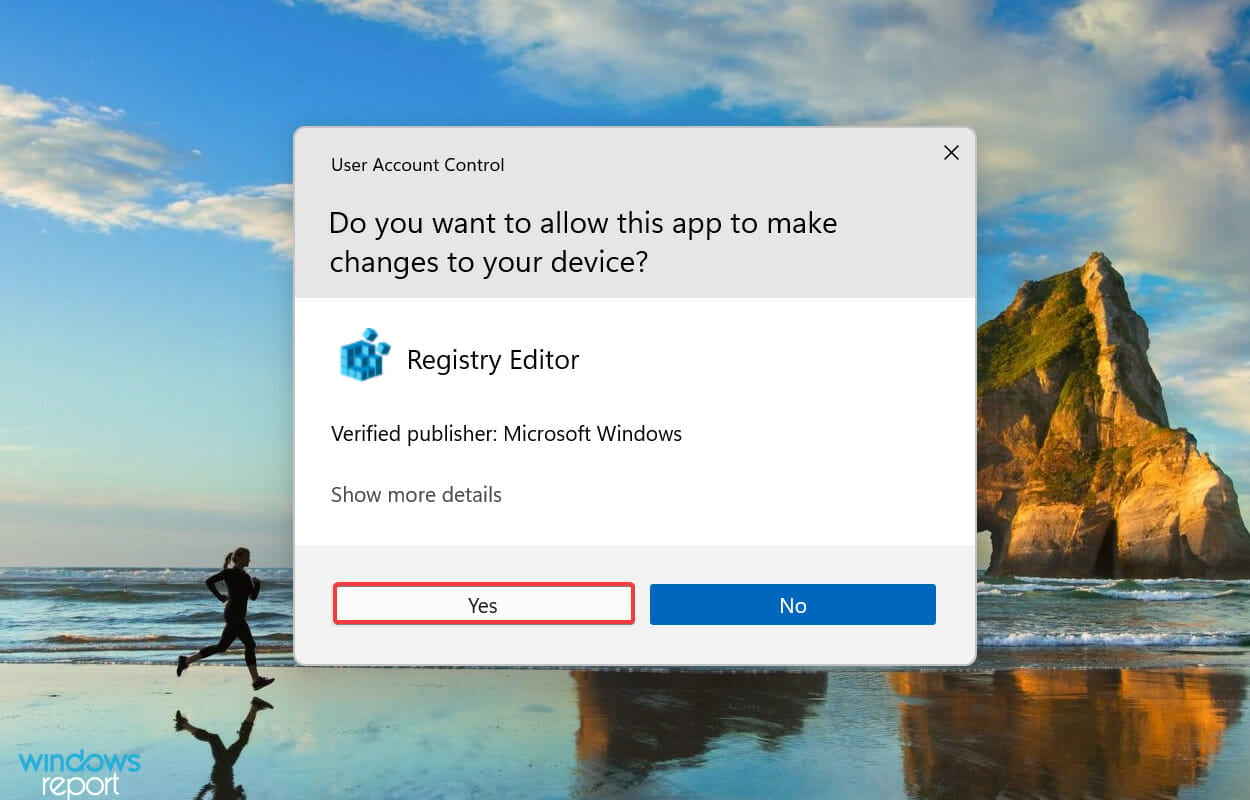
  2. Click Yes on the UAC (User Account Control) prompt that pops up.Click Yes
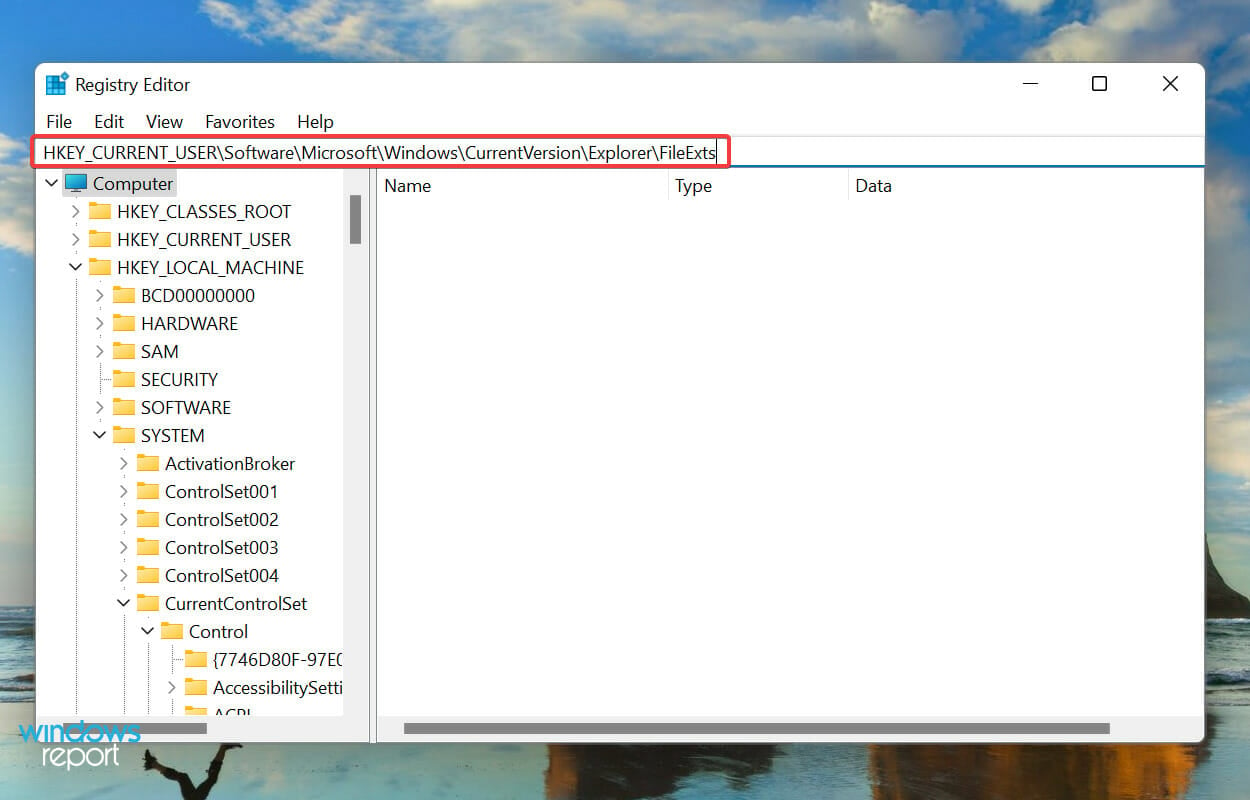
  3. Paste the following path in the address bar at the top, and hit Enter. Alternatively, you can navigate your way to it using the navigation pane on the left.HKEY_CURRENT_USER\Software\Microsoft\Windows\CurrentVersion\Explorer\FileExtsNavigate path to windows 11 remove file association
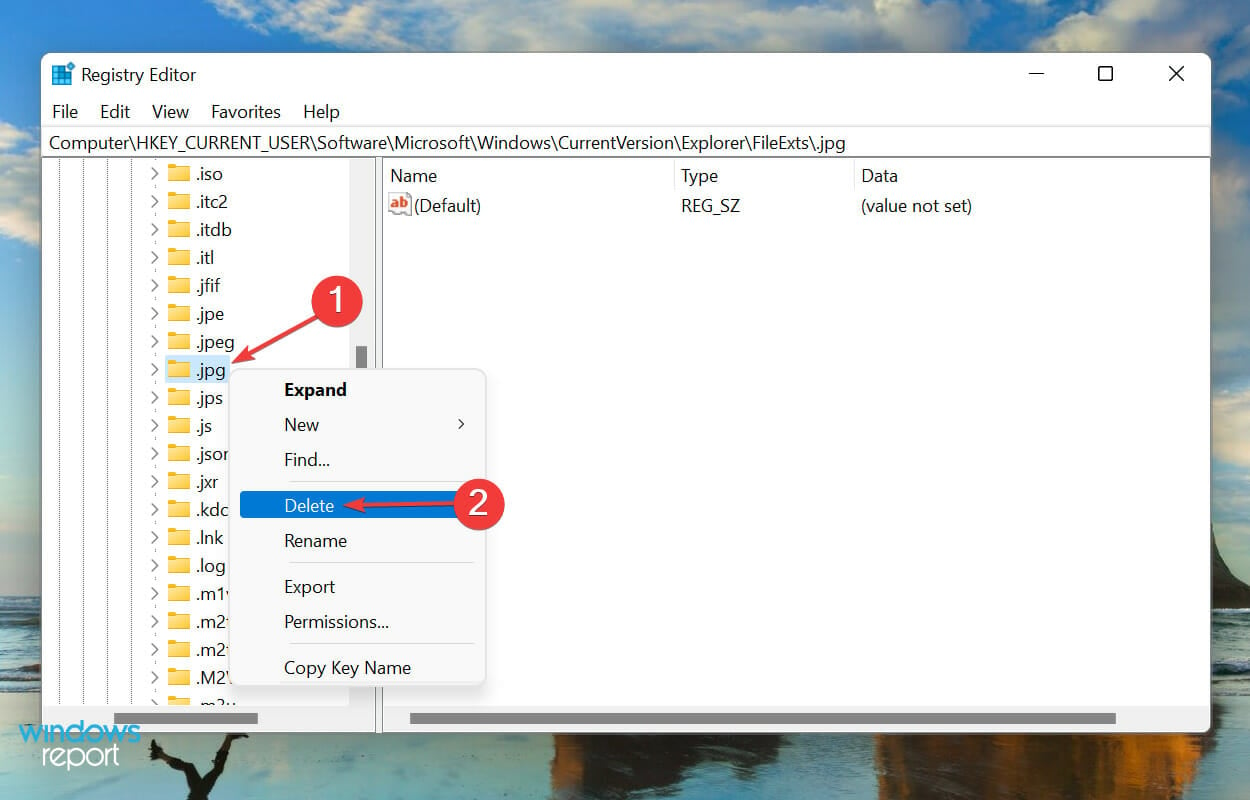
  4. All the file types will be listed in the navigation pane. Select the one for which you want to remove the file association, right-click on it, and select Delete from the context menu.Delete key to windows 11 remove file association
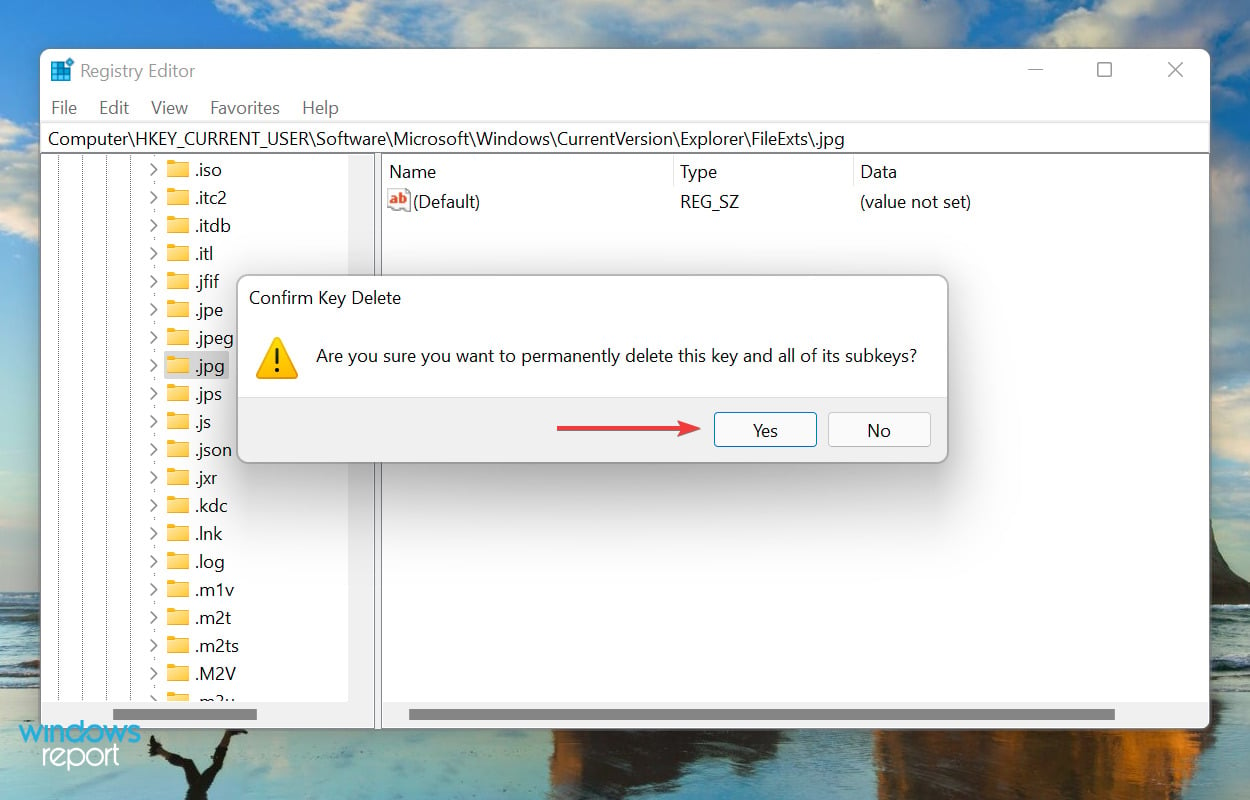
  5. Click Yes on the confirmation prompt to delete the key. Confirm deletion
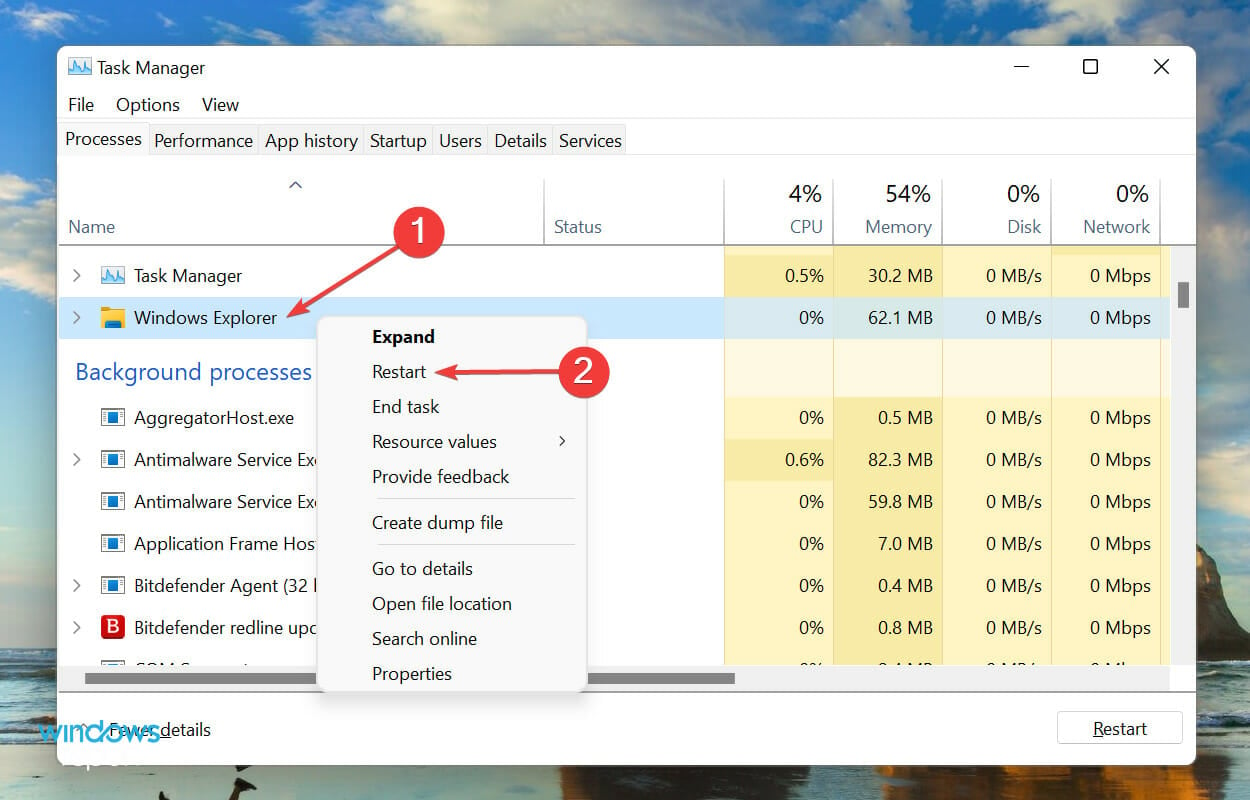
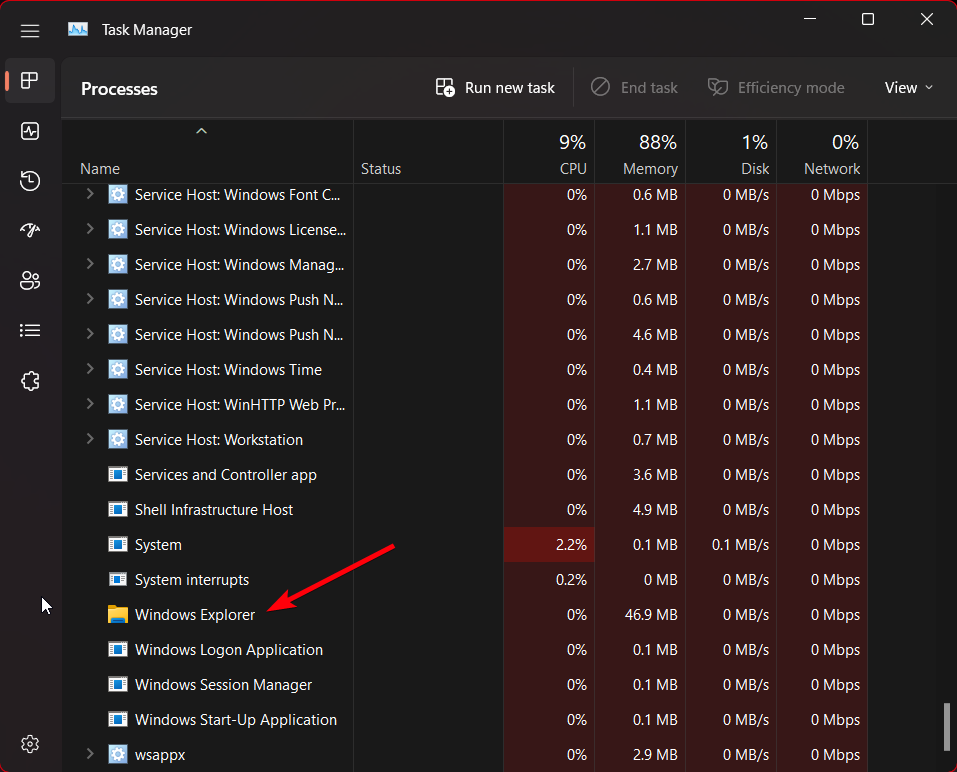
  6. Now, press Ctrl + Shift + Esc to launch the Task Manager, locate the Windows Explorer (explorer.exe) process, right-click on it and select Restart.Restart Windows Explorer

Once done, the changes will start to reflect and the file associations will revert to the default configurations. If you want to change the file association for that particular format in the future, follow the steps listed in the first method.

How can I reset file associations in Windows 11?

  1. Press Windows + I to launch Settings, and select the Apps tab from the navigation pane on the left.Apps
  2. Click on the Default apps option on the right.Default apps
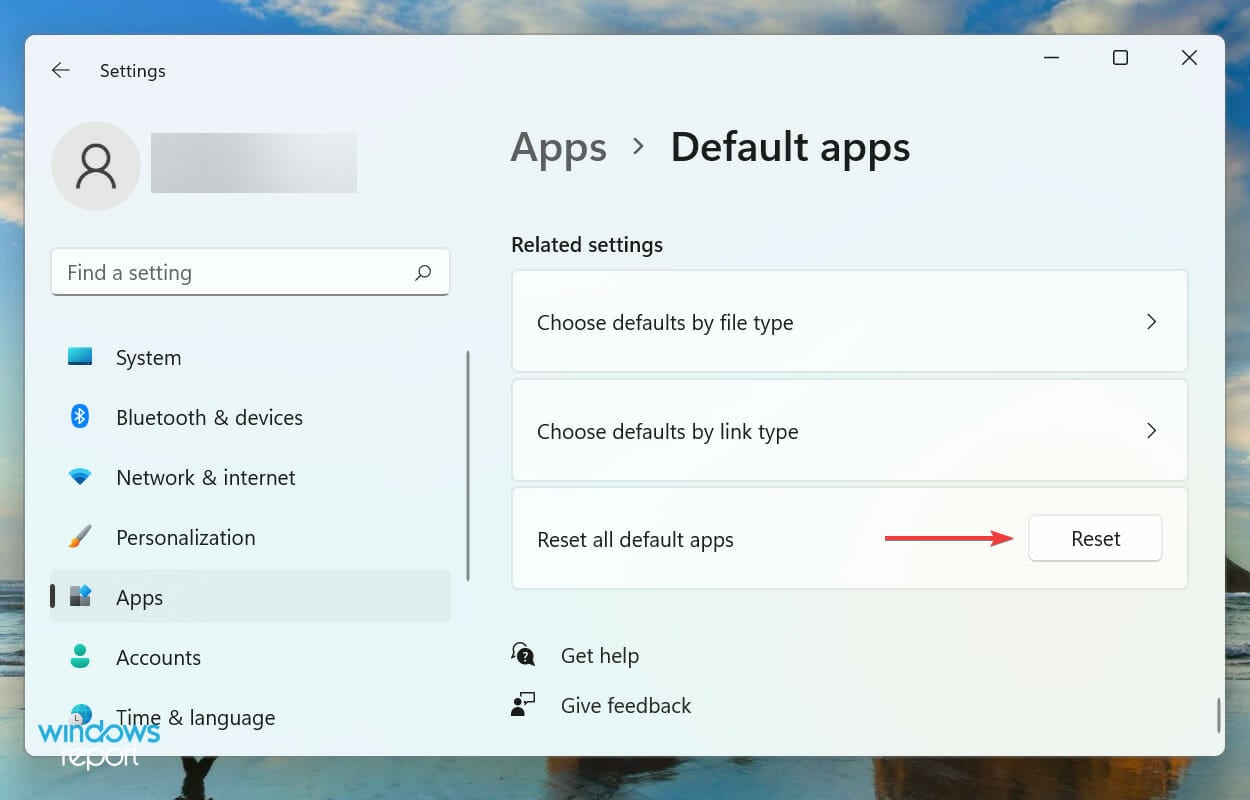
  3. Next, click on the Reset button next to the Reset all default apps option.Reset all default apps to windows 11 remove file association
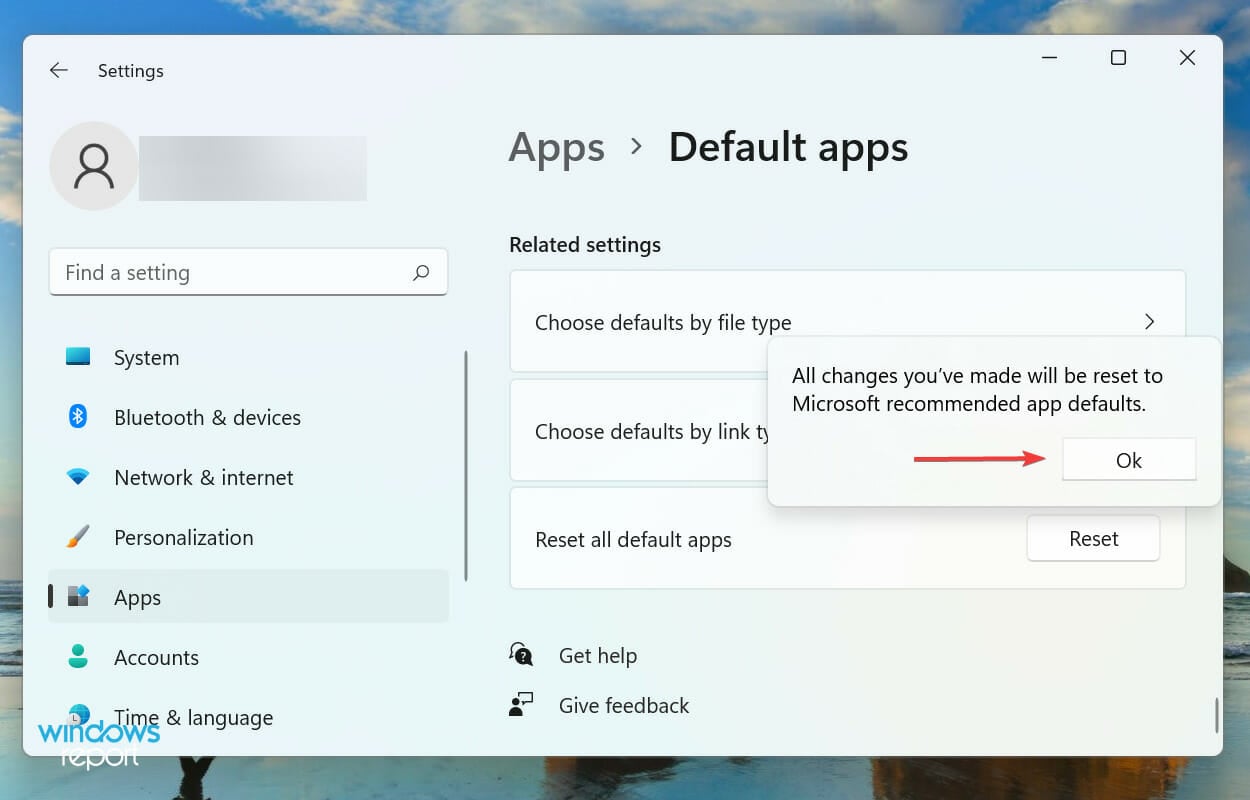
  4. Click on OK in the confirmation prompt that pops up.Confirm reset

After you have reset file associations in Windows 11, they will revert to the apps recommended by Microsoft. If you want to change the file association for a particular format, we recommend changing it individually, rather than resetting the whole lot.

These were all the ways you can remove file associations in Windows 11, along with resetting them in case they are misconfigured.

Also, check how to set the default applications on your Windows 11 system. Besides, if you find the File Association Helper software on your computer, learn all about it and the process to uninstall it.

Do not hesitate to tell us which of these methods you prefer to remove file associations in the comments section below.

Microsoft looks to help IT admins cut down their response time to inappropiate Teams messages

When an employee breaks company policies on services like Teams or Yammer, an IT admin usually has to step in and take charge. That process is usually a lengthy one, but Microsoft is now making moves to help admins cut down their response time to said issues (via TechRadar.)

According to a listing on the Microsoft 365 roadmap, with some incoming changes to the compliance center, the detection and investigation time of said compliance issues will soon be reduced from 24 hours to 1 hour. It’s not clear what the specific changes are, but Microsoft hopes it can help admins “respond to communication compliance alerts promptly.” A separate document from Microsoft looks into the risks of these issues, like scanning emails, and potential messages that might pose human resources issues.

This isn’t the first move Microsoft has taken to help with compliance issues, especially in Teams. Previously, Microsoft worked on a feature to let chat supervisors delete irrelevant and inappropriate chat messages in Teams channels.

Epson setup cannot find the printer? Here’s what to do

Some users fail to register the Epson printer setup correctly when installing Epson printers on their systems. This makes them not have the best user experience. 

Whether it’s a wired or wireless printer not connecting to your Windows PC, the problem can be due to technical issues during the setup. 

Additionally, you can experience this inconvenience while setting up a connection, and some users might wonder why they can’t use it on Windows 11. Luckily, there are several ways you can resolve the issue.

Why does the Epson printer setup cannot find the printer on Windows 11?

The reasons why your printer setup is not connecting to the printer can range from technical to network issues and here we are to show you how to fix them. Here are some of them:

➡ The Epson printer is not connected

Perhaps it’s a simple solution that we always ignore. Your printer might be turned off, or it’s not correctly connected to the power source. 

The best way to know if the printer is connected is a green light that it illuminates, or if it’s locally shared, you will see the connection icon on your Windows 11’s taskbar. 

➡ Outdated or corrupted software

The print software is a communication conduit between your printer and the computer. Note that it tells the printer which documents to print. This software can be a problem, especially for network printers. 

Without the printer software driver, you can’t send document data for printing. Therefore, it is crucial to check the printer driver and see if it’s updated. If you recently updated your OS, you must also update the printer driver.

➡ Disabled File and printer sharing option

The File and printer sharing option is disabled on Windows 11. So, you need to enable it to allow Epson printer setup to detect the printer – there is no way a computer can access the printer if this option is disabled. 

To turn on File and printer sharing option, use the following steps:

  1. Click on the Search box, then type Control panel and press Enter.
  1. On the left side of the window, you will see View by. Just choose Category from the drop-down menu.
  2. Select Network and Internet.
  3. Double click on the Network and Sharing Center, then Change Advanced Sharing Settings.
  4. On this page, navigate to Private.
  5. Under the private option, click on the File and printer sharing to enable it. 

Do not enable File and printer sharing for the public network. This will expose your computer data to other users on the same shared network, inviting malicious attacks and data theft. 

➡ Not connected to the local network

Maybe the reason why your Epson printer setup cannot find a printer is disconnected WiFi or cables. Ensure all cables are correctly connected, your Wi-Fi is on, and that your password hasn’t changed. 

What can I do if the Epson printer setup cannot find the printer?

1. Uninstall and reinstall your printer

  1. Click on the Start button and select Settings.
  2. Choose Bluetooth and Devices on the Settings window.
  3. On the left side, select Printers & Scanners. 
  4. Select your printer on the Printers and Scanners window and click on Remove device. 

To reinstall your wireless printer on Windows 11 PC:

  1. Click on the Start button. Select  Settings and then choose Bluetooth and Devices.
  2. Select Printers & Scanners on the left side of your screen. 
  1. Select Add a printer or scanner. Wait for your PC to find available printers. Choose the one you want and click on Add device. 

Your Windows 11 PC should find all the printers that are turned on and connected to your network. The available printers on your network include wireless printers, Bluetooth printers, or those connected to a computer on the shared network.

However, you might need permission to install some printers on the network connection. 

Make sure your computer is connected to the same network as the printer, especially if you use wireless access points, multiple wireless routers, or extenders with different SSIDs. To test if your printer is working, you can print a test page to ensure it’s working correctly. 

To reinstall your local printer on Windows 11 PC:

  1. Click on the Start button. Select  Settings and then choose Bluetooth and Devices.
  2. Select Printers & Scanners on the left side of your screen. 
  3. Select Add a printer or scanner. Wait for your PC to find available printers. Choose the one you want and click on Add device. 

2. Clear and reset the print spooler

  1. Type Services on the search box. Select Services on the search results.
  2. Click on the Standards tab, then double-click on the Print spooler on the list. 
  3. Click Stop and then choose OK.
  4. Enter the following in the search and then select the correct result: %WINDIR%\system32\spool\printers
  5. Type Services on the search box. Select Services on the search results.
  6. Click on the Standards tab, then double-click on the Print spooler on the list.
  7. Click Start and select Automatic in the Startup type dialog box. Click OK.

Find out more about the Epson printer setup on Windows 11

As we mentioned earlier, some users have had problems with the Epson printer setup because they didn’t install the software correctly. Here is the best way to correct that:

  1. Ensure the Epson printer is connected to the Wi-Fi or Ethernet before proceeding with this setup. 
  2. Press the power button on your printer to switch it on, then open the official Epson website to download the Epson printer setup utility. 
  3. Once the file is downloaded, open and run it. The End-User Licence Agreement will show up— check the box against I accept the terms in the License Agreement button. Click Next to continue. 
  4. Click Install, then Finish. Once the installation is over, open the program. 
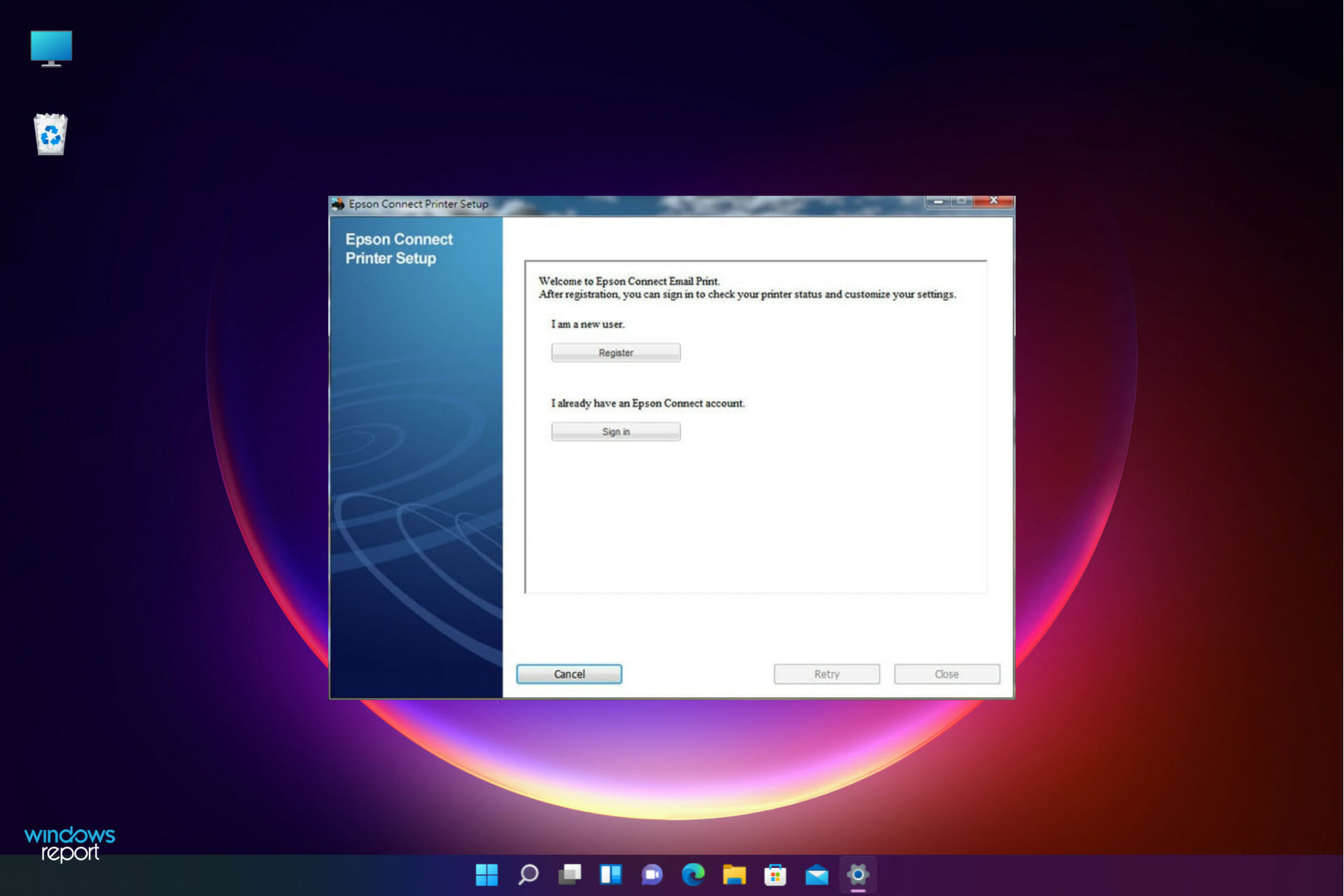
  5. On the setup window, choose Epson product from Select a Printer.
  6. Click Next and then Printer Registration on the new window. Click Next.
  7. Accept the License agreement and privacy statement by clicking Agree. Hit on Next.
  8. Follow the onscreen direction by clicking Next and Finish.
  9. Epson Connect setup will search for all available printers on your network. Click on your preferred printer from the list then Next to connect and start printing.

You may also be interested in knowing why your printer is not working on Windows 11 or what to do if the printer is not responding. 

We hope the solutions in this article solved your problem. We would love to hear from you so don’t hesitate to use the comments section below. 

Samsung’s rumored “Second Screen” app for Windows to help you use Galaxy tablets as an external display

You already can use any Windows PC as a secondary display for a primary computer, but Samsung is looking to take that to another step. According to the notable leaker Aggiornamenti Lumia, the smartphone giant is possibly working on a new app for Windows known as “Second Screen” that can help you use Galaxy tablets on PCs as an external display (via Neowin.)

Naturally, details on said app are scarce at the moment, as the leaker only shared a list of devices that it would work with. On the Android side, the list ranges from the Galaxy Tab S7, FE, and Plus, to the Galaxy Tab S8, Plus, and Ultra. Over on Windows, you’ll need a Galaxy Book that’s running Windows 10 version 2004 or higher. This means that the experience will likely be locked in to Galaxy owners only despite the app being on Windows.

It is worth noting that Samsung already has an experience that lets you mirror your computer’s screen to a Galaxy tablet. This can be done on select Android devices by choosing the Second Screen icon from the Quick Settings panel and then connecting to it as a wireless display from the Windows Connect menu. It is unknown how different this new app for Windows will be, but with Galaxy Unpacked coming up, it won’t be too long before we find out.

WhatsApp Beta on Windows 10 and 11 gets a clean dark mode

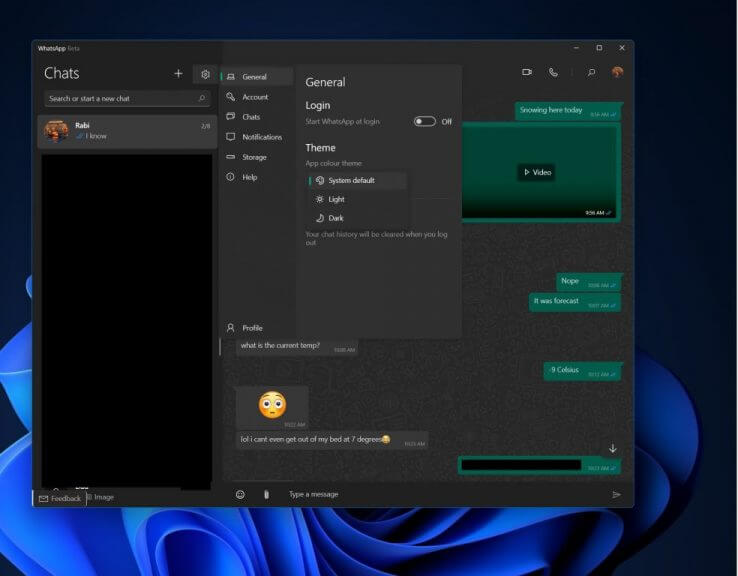
Earlier on, we got the chance to have a look at the Whatsapp Beta app when it made its way to Microsoft Store. In an update, Whatsapp Beta version 2.2205.2.0 received a clean dark mode for Windows 11 and Windows 10. (via Windows Central)

All you need to do to switch to the dark mode is to find the General option, which will then provide you with an array of options to choose from Light, Dark, or System default.

Note: If your system is already configured to dark mode settings, you can switch to dark mode by either selecting Dark or System Default.

Besides, the application also allows its users to link multiple devices (up to 4 devices). Additionally, you now get to access WhatsApp regardless of whether your phone is offline. The new WhatsApp Beta UWP has an additional mode of communication, inking. Users can draw images on the inking pad and send them over to family and friends. As opposed to the conventional regular chat messages and pictures from the gallery.

Download WhatsApp Beta here:

WhatsApp Beta
WhatsApp Beta
Developer:
WhatsApp Inc.
Price:
Free


5+ best Valentine’s Day apps to install on Windows devices

Valentine’s Day is coming, reminding people how important is it to love and be loved. In this article, we’re going to list the best Valentine’s Day apps available in the Microsoft Store.

These apps will offer you some interesting gift ideas, beautiful romantic messages that you can send to your significant one, while others will bring your beautiful Valentine’s Day wallpapers to install on your desktop.

Are there any Valentine’s Day apps available for free?

Of course, there are a lot of free Valentine’s Day apps and we make sure we’ve included the best of them in our selection.

Check our list and you will discover a lot of lovely ways to surprise your loved one, from greeting cards to messages and picture frames to the best recipes for Valentine’s Day meals and sweets.

What are te best Valentine’s Day apps for Windows?

Valentine

Valentine is one of the most popular Valentine’s Day apps in the Microsoft Store and it’s free so you should definitely check it out.

It offers a countdown in days, hours, minutes, and seconds to Valentine’s Day. If you don’t have any poetic inspiration, you can use one of the 40 pre-set SMS to express your love.

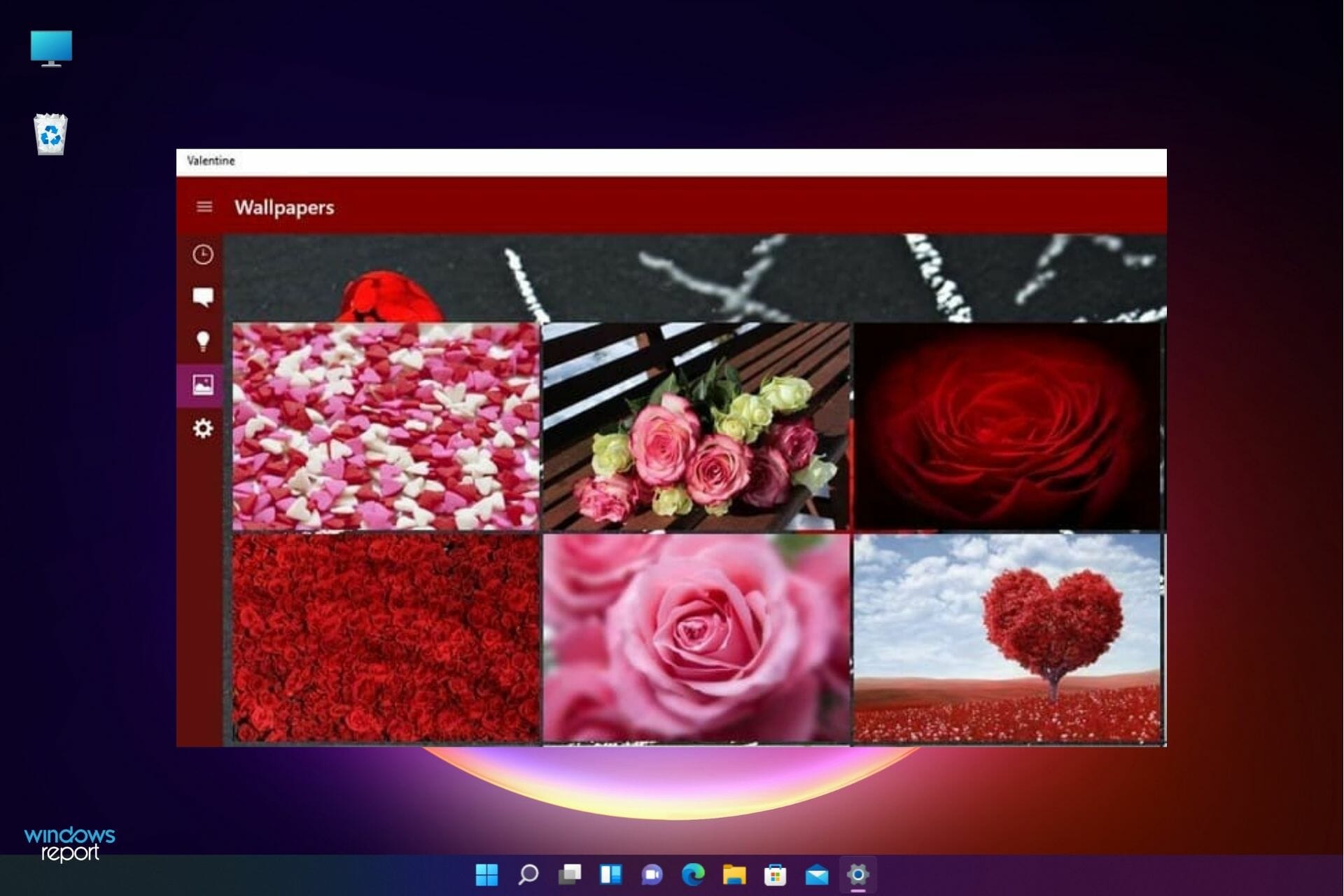
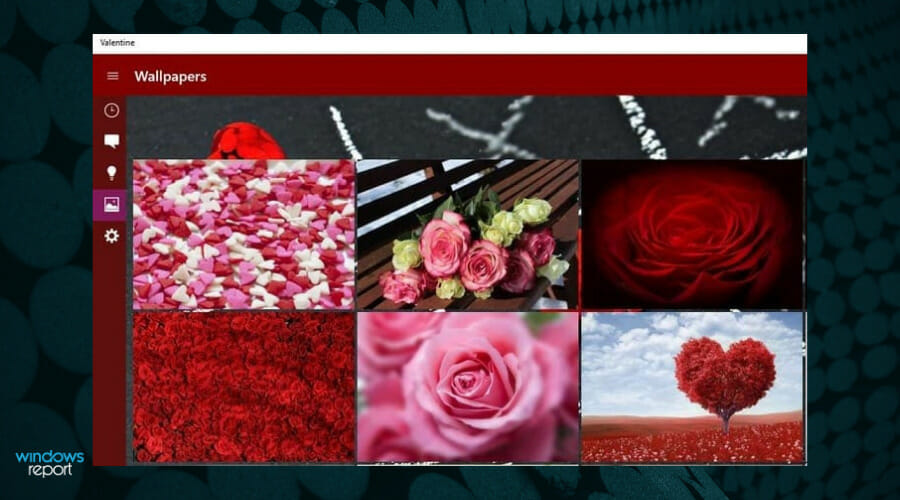
The app also offers you over 30 romantic wallpapers to set on your Windows PC or phone, as well as over 30 romantic ideas to make this Valentine’s Day unforgettable.

Last but not least, if you’ve run out of ideas and you don’t know what present to buy, launch the Valentine’s app and browse through the list of gift suggestions.

⇒ Get Valentine

Love & Valentine Cards

This app allows you to send personalized love cards on Valentine’s Day and let your significant other know how much he/ she means to you.

Well, this is the perfect tool to bring a smile to your beloved’s face. You can choose from various love messages templates or add your own custom message.

Love & Valentine Cards offers various designed frames, on which you can add your photo through your photo album, internal camera, and gallery.

Social media support is also available, as you can save and share your creations through Facebook and Twitter.

⇒ Get Love & Valentine Cards

Valentine’s Day Messages

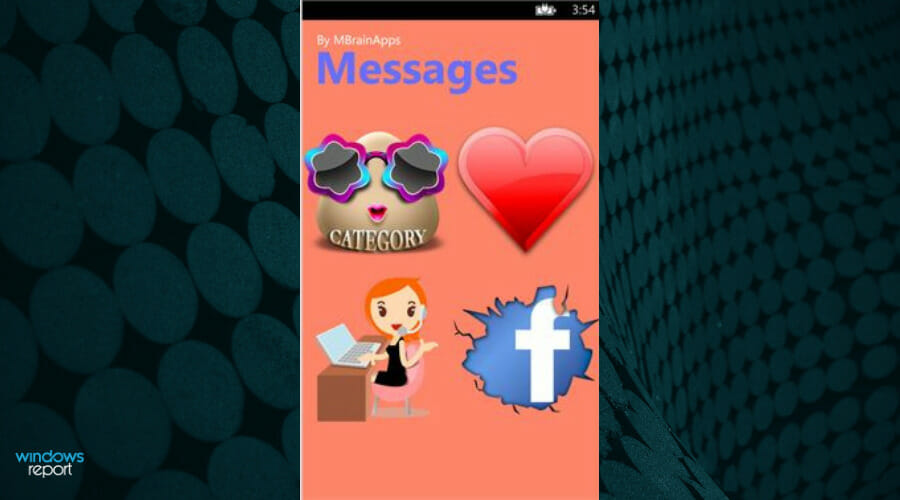
This is a Valentine’s Day SMS app that allows you to send beautiful messages from your Windows-powered mobile device.

The program is free and it includes a large collection of beautiful SMS with share options or you can copy the messages and paste them into other applications.

It’s important to know that this app doesn’t only contain messages for Valentine’s Day but also for different other occasions like anniversaries, birthdays, and even exams.

Sign your name at the end of the message to let your loved ones know it’s really you. You can send the messages as SMS, directly through Facebook, or copy them to your favorite communication app.

The app is available only on Windows Mobile so, unfortunately, you won’t be able to use it on your PC or laptop.

⇒ Get Valentine’s Day Messages

Love Tests Calculator

Love Tests Calculator checks the level of love compatibility in your couple. If you’re in a relationship, this app will tell you if you and your partner are indeed compatible.

If you’re single, the app can check who your perfect love match is so you can look for that significant other.

Enter the name, birthday, height, eye color, and hair color of the girl or boy you like and launch the love test. The love meter will calculate your level of love compatibility. You can share the results by email or through Facebook.

The app is available only on Windows Mobile and it’s as close as it can get to Valentine’s Day dating apps category.

⇒ Get Love Tests Calculator

Valentines Day Recipes

Is there a better way to say I love you than baking a delicious batch of cupcakes for your better half?

Then this Valentine’s Day Recipes Cupcake app is just what you were looking for to surprise your partner with some cunning baking skills.

You can learn lots of things about how to make very tasty cupcakes, cakes, cake rolls, and other recipes even for kids on this occasion.

There are lots of ideas and tips inside on what to cook and how to decorate your desserts with style and that makes it a great contender for the happy Valentine’s Day apps genre.

You will get insights on the most common food served for this occasion and their recipes, dinner ideas, and even surprises for vegans.

⇒ Get Valentines Day Recipes

Romantic Photo Frames

This app lets you create a variety of beautiful photo frames for Valentine’s Day. You can create HQ photo collages and then set them up as your wallpaper.

There are plenty of photo effects and filters that you can choose from. You can rotate, scale, zoom in, zoom out or drag images to create funky pictures.

Next, you can choose from various picture frames for baby photos, love, birthday, cartoons for kids, and many more!

This app also allows you to save your beautiful selfies and beautify them with natural picture frames or wedding photo frames of your liking.

And when you’re done, use the Social share button to enjoy the pics with your best friends instantly via Facebook, Twitter, or Instagram.

⇒ Get Romantic Photo Frames

We hope that our selection of the best Valentine’s Day apps downloads offered a lot of alternatives on how to impress your loved one.

You can also check out our Windows 10 apps for Valentine’s Day to create romantic memories and add another romantic chapter to your life.

Have you tested out other Valentine’s Day apps? Share your thoughts and suggestions in the comments section below.

Scalebound video game devs want to finish it for Microsoft’s Xbox consoles

While development on Scalebound has been dead ever since the title was canned way back in 2017, there still seems to be a lot of interest in the title both from gamers who were excited for it back when it was first announced and the creatives involved in its development.

In a conversation with IGN Japan, PlatinumGames’ president, Atsushi Inaba, flat-out states that the studio is legitimately interested in picking the title back up again if Microsoft gives them the go-ahead.

“Often in an interview you might hear a developer politely saying, ‘Yes, if we had the opportunity we’d love to work on that again’, but we don’t mean it that way,” Inaba says. “Both Kamiya and I are serious – we really would love to work on Scalebound again. I’d like to discuss it with Microsoft properly.”

The Kamiya he mentions is Hideki Kamiya, the director of Scalebound. Kamiya was also present during the conversation with IGN Japan and echoed what Inaba said.

“I’d like to appeal to Phil Spencer directly! Let’s do it, Phil!” Kamiya enthused. “Development had progressed a fair way, and it seems pointless for Microsoft to just hold on to that and not do anything with it.”

Scalebound’s development began for the Xbox One console and Windows in 2013 and was announced to the public in 2014. The title was an action roleplaying game set in a world that was a mix of fantasy and Sci-Fi. It had garnered a lot of interest from gamers and the media though was eventually cancelled in 2017.

If development were to continue, it’d likely be for a release on Microsoft’s newer Xbox Series X generation of Xbox consoles in addition to Windows PCs.

Would you like to see work on Scalebound continue? Let us know in the comments below and then follow us on Twitter and Facebook for more Xbox gaming news.

Microsoft’s Xbox Gear Shop adds Valentine’s Day gaming merch

In the spirit of Valentine’s Day (Which is just around the corner. Don’t forget!) Microsoft has added a massive number of new romance-themed items to their online Xbox Gear Shop storefront.

Among the fresh merch available from this week are new mugs, T-shirts, hoodies, stickers, and cushions boasting a stylised heart design with an Xbox logo, a collection of colorful heart candies with romance and gaming phrases, a red Xbox Series X design with the phrase “We Belong Together,” an Xbox controller with a red rose and the phrase “mi amor,” and a pink design with Halo’s Master Chief and the words “Be Kind.”

Xbox Gear Shop Valentine's Day products
Xbox Gear Shop Valentine’s Day products

In addition to the above Valentine’s Day items, the Xbox Gear Shop has also recently added a number of Halo novels. This is likely do to an expected increase in Halo popularity with the looming debut of the new live-action Halo TV series.

The Xbox Gear Shop is an official store run by Microsoft that’s designed to distribute high quality products based on the Xbox consoles and the various Xbox gaming properties. The store ships to most major regions around the globe and updates on a very regular basis with new products.

After more Xbox news? Follow us on Pinterest, Twitter, and Facebook.

Microsoft to block VBA macros by default

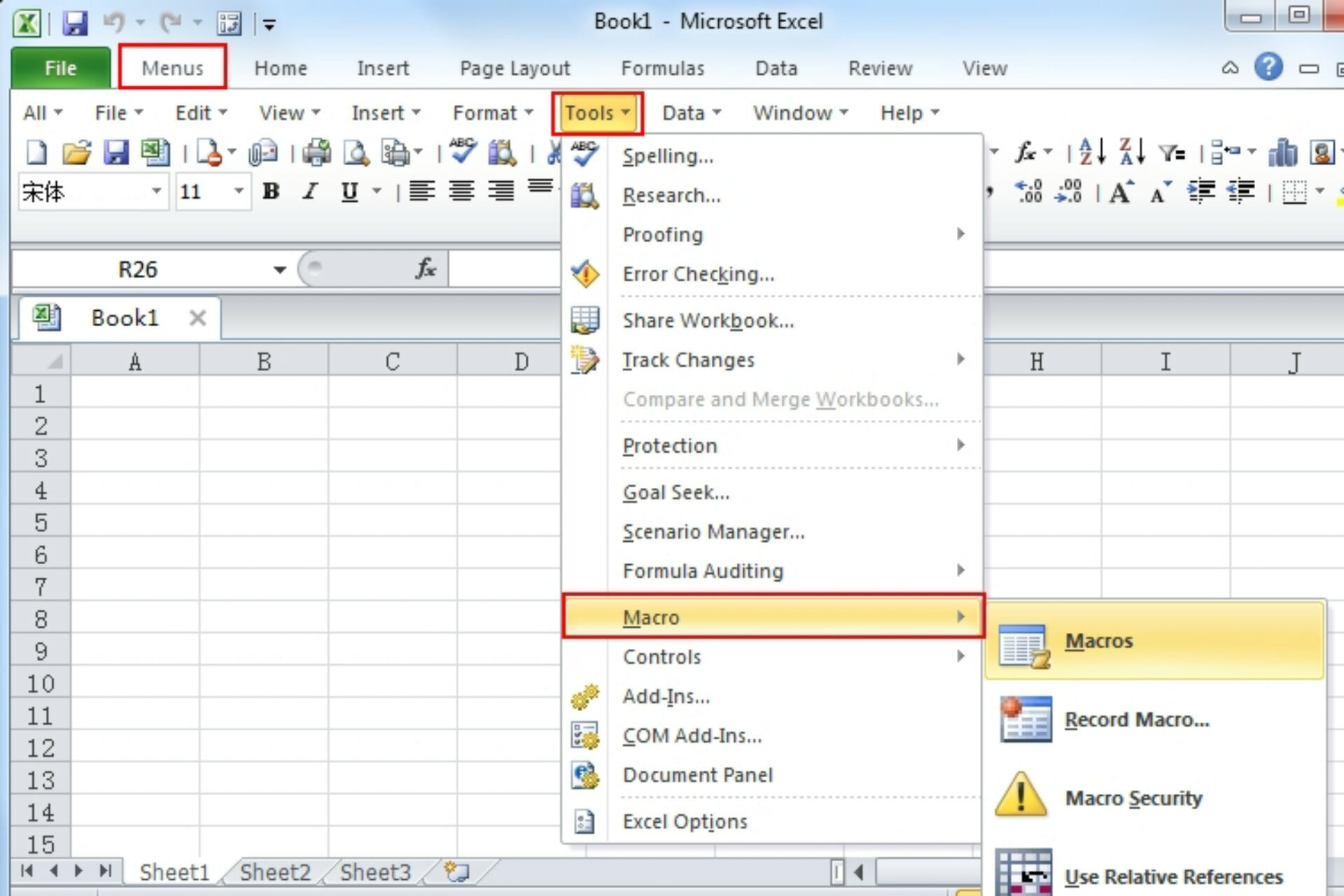
Microsoft is planning to disable macros by default in Office, which should help protect users from malicious attacks. The ability to run macros has been a staple of Microsoft’s Office suite for a long time, but it has also been a way for attackers to execute malicious code on computers. 

Macros allow people to automate common tasks by having scripts run when a document is opened, and they are often used by businesses to speed up the execution of repetitive jobs.

In macro security, Microsoft explains how and why it will be changing its policy on how macros are handled in Office. The reason for the move is the widespread exploitation of VBA macros by bad actors to spread malware.

Once you enable macros and run them, malicious code can access your system and start downloading malware. It’s a simple technique that can be very effective if it reaches enough people.

Macros security risk

The recent increase in the numbers of people working remotely and the general reliance on the cloud makes companies more vulnerable than ever to security problems resulting from macros.

Microsoft warns that the prevalence of remote work and the cloud exacerbates the problem of macros as a security threat. Previously, Office files included active content such as macros that users could choose to enable or disable. 

Malicious actors now send end users Office files containing macros enabled by default; users with malicious payloads are delivered and the impact can be severe including malware, compromised identity, data loss, and remote access.

Security boost

The default setting for VBA macros obtained from the internet is now disabled. A message bar will appear for users notifying them of this change. 

This is expected to help keep more Microsoft users safer, including home users and information workers at managed organizations.

The update will first be available for users running Windows home and enterprise editions and then it will make its way to other channels.

This is where the new security measure comes in. As Microsoft explains in a blog post, Office VBA macros will now be disabled by default. A user who wants to run them will have to enable them manually from within the application’s settings.

Good news

The news has been received perfectly well by the security community who according to them macros have been a cyber security threat for quite some time.

The small number of users who must run macros will still have to do so as a legitimate business function. 

However, the default behavior will change so that other people won’t be affected. This change is expected to greatly reduce the chances of harmful malware being delivered via phishing emails.

Microsoft plans to make the same change to its other Office products, though it has not yet announced a timeline for implementation.

What do you think about this plan by Microsoft disabling macros in office by default? Share your thoughts in the comment section.

A total of 51 CVEs were addressed by Microsoft this month

It’s that time of the month again, and everyone is looking towards Microsoft, in hopes that some of the flaws they’ve been struggling with will finally get fixed.

We’ve already provided the direct download links for the cumulative updates released today for Windows 10, but now it’s time to talk about Critical Vulnerabilities and Exposures again.

In terms of heft, this month’s release coincides with February releases from previous years, which are usually around 50 CVEs.

Let’s dive right into it and see what vulnerabilities are completely gone from our lives, now that these patches are live.

There were no Critical CVEs to fix for February 2022

The silver lining for the month of February 2022, is the complete lack of Critical-rated patches. Out of the ones released today, 50 are rated as Important and one is rated as Moderate in severity.

So, the 51 new patches that became available today address CVEs in:

  • Microsoft Windows and Windows Components
  • Azure Data Explorer
  • Kestrel Web Server
  • Microsoft Edge (Chromium-based)
  • Windows Codecs Library
  • Microsoft Dynamics
  • Microsoft Dynamics GP
  • Microsoft Office and Office Components
  • Windows Hyper-V Server
  • SQL Server
  • Visual Studio Code
  • Microsoft Teams

Some more good news is that none of the bugs that were addressed this month are listed as being under active exploit, except for one, which is listed as publicly known at the time of release.

We know you’re curious and would like to explore each and every single one of the patches, so we are going to present them to you.

CVE TitleSeverityCVSSPublicExploitedType
CVE-2022-21989Windows Kernel Elevation of Privilege VulnerabilityImportant7.8YesNoEoP
CVE-2022-21984Windows DNS Server Remote Code Execution VulnerabilityImportant8.8NoNoRCE
CVE-2022-23280Microsoft Outlook for Mac Security Feature Bypass VulnerabilityImportant5.3NoNoSFB
CVE-2022-21995Windows Hyper-V Remote Code Execution VulnerabilityImportant7.9NoNoRCE
CVE-2022-22005Microsoft SharePoint Server Remote Code Execution VulnerabilityImportant8.8NoNoRCE
CVE-2022-21986.NET Denial of Service VulnerabilityImportant7.5NoNoDoS
CVE-2022-23256Azure Data Explorer Spoofing VulnerabilityImportant8.1NoNoSpoofing
CVE-2022-21844HEVC Video Extensions Remote Code Execution VulnerabilityImportant7.8NoNoRCE
CVE-2022-21926HEVC Video Extensions Remote Code Execution VulnerabilityImportant7.8NoNoRCE
CVE-2022-21927HEVC Video Extensions Remote Code Execution VulnerabilityImportant7.8NoNoRCE
CVE-2022-21957Microsoft Dynamics 365 (on-premises) Remote Code Execution VulnerabilityImportant7.2NoNoRCE
CVE-2022-23271Microsoft Dynamics GP Elevation Of Privilege VulnerabilityImportant6.5NoNoEoP
CVE-2022-23272Microsoft Dynamics GP Elevation Of Privilege VulnerabilityImportant8.1NoNoEoP
CVE-2022-23273Microsoft Dynamics GP Elevation Of Privilege VulnerabilityImportant7.1NoNoEoP
CVE-2022-23274Microsoft Dynamics GP Remote Code Execution VulnerabilityImportant8.3NoNoRCE
CVE-2022-23269Microsoft Dynamics GP Spoofing VulnerabilityImportant6.9NoNoSpoofing
CVE-2022-23262Microsoft Edge (Chromium-based) Elevation of Privilege VulnerabilityImportant6.3NoNoEoP
CVE-2022-23263Microsoft Edge (Chromium-based) Elevation of Privilege VulnerabilityImportant7.7NoNoEoP
CVE-2022-22716Microsoft Excel Information Disclosure VulnerabilityImportant5.5NoNoInfo
CVE-2022-22004Microsoft Office ClickToRun Remote Code Execution VulnerabilityImportant7.8NoNoRCE
CVE-2022-22003Microsoft Office Graphics Remote Code Execution VulnerabilityImportant7.8NoNoRCE
CVE-2022-23252Microsoft Office Information Disclosure VulnerabilityImportant5.5NoNoInfo
CVE-2022-21988Microsoft Office Visio Remote Code Execution VulnerabilityImportant7.8NoNoRCE
CVE-2022-23255Microsoft OneDrive for Android Security Feature Bypass VulnerabilityImportant5.9NoNoSFB
CVE-2022-23254Microsoft Power BI Elevation of Privilege VulnerabilityImportant4.9NoNoEoP
CVE-2022-21968Microsoft SharePoint Server Security Feature BypassVulnerabilityImportant4.3NoNoSFB
CVE-2022-21987Microsoft SharePoint Server Spoofing VulnerabilityImportant8NoNoSpoofing
CVE-2022-21965Microsoft Teams Denial of Service VulnerabilityImportant7.5NoNoDoS
CVE-2022-22715Named Pipe File System Elevation of Privilege VulnerabilityImportant7.8NoNoEoP
CVE-2022-21974Roaming Security Rights Management Services Remote Code Execution VulnerabilityImportant7.8NoNoRCE
CVE-2022-23276SQL Server for Linux Containers Elevation of Privilege VulnerabilityImportant7.8NoNoEoP
CVE-2022-21991Visual Studio Code Remote Development Extension Remote Code Execution VulnerabilityImportant8.1NoNoRCE
CVE-2022-22709VP9 Video Extensions Remote Code Execution VulnerabilityImportant7.8NoNoRCE
CVE-2022-21996Win32k Elevation of Privilege VulnerabilityImportant7.8NoNoEoP
CVE-2022-22710Windows Common Log File System Driver Denial of Service VulnerabilityImportant5.5NoNoDoS
CVE-2022-21981Windows Common Log File System Driver Elevation of Privilege VulnerabilityImportant7.8NoNoEoP
CVE-2022-22000Windows Common Log File System Driver Elevation of Privilege VulnerabilityImportant7.8NoNoEoP
CVE-2022-21998Windows Common Log File System Driver Information Disclosure VulnerabilityImportant5.5NoNoInfo
CVE-2022-21994Windows DWM Core Library Elevation of Privilege VulnerabilityImportant7.8NoNoEoP
CVE-2022-22712Windows Hyper-V Denial of Service VulnerabilityImportant5.6NoNoDoS
CVE-2022-21992Windows Mobile Device Management Remote Code Execution VulnerabilityImportant7.8NoNoRCE
CVE-2022-21997Windows Print Spooler Elevation of Privilege VulnerabilityImportant7.1NoNoEoP
CVE-2022-21999Windows Print Spooler Elevation of Privilege VulnerabilityImportant7.8NoNoEoP
CVE-2022-22717Windows Print Spooler Elevation of Privilege VulnerabilityImportant7NoNoEoP
CVE-2022-22718Windows Print Spooler Elevation of Privilege VulnerabilityImportant7.8NoNoEoP
CVE-2022-22001Windows Remote Access Connection Manager Elevation of Privilege VulnerabilityImportant7.8NoNoEoP
CVE-2022-21985Windows Remote Access Connection Manager Information Disclosure VulnerabilityImportant5.5NoNoInfo
CVE-2022-21971Windows Runtime Remote Code Execution VulnerabilityImportant7.8NoNoRCE
CVE-2022-21993Windows Services for NFS ONCRPC XDR Driver Information Disclosure VulnerabilityImportant7.5NoNoInfo
CVE-2022-22002Windows User Account Profile Picture Denial of Service VulnerabilityImportant5.5NoNoDoS
CVE-2022-23261Microsoft Edge (Chromium-based) Tampering VulnerabilityModerate5.3NoNoTampering
CVE-2022-0452Chromium: CVE-2022-0452 Use after free in Safe BrowsingHighN/ANoNoN/A
CVE-2022-0453 Chromium: CVE-2022-0453 Use after free in Reader ModeHighN/ANoNoN/A
CVE-2022-0454Chromium: CVE-2022-0454 Heap buffer overflow in ANGLEHighN/ANoNoN/A
CVE-2022-0455Chromium: CVE-2022-0455 Inappropriate implementation in Full Screen ModeHighN/ANoNoN/A
CVE-2022-0456Chromium: CVE-2022-0456 Use after free in Web SearchHighN/ANoNoN/A
CVE-2022-0457Chromium: CVE-2022-0457 Type Confusion in V8HighN/ANoNoN/A
CVE-2022-0458Chromium: CVE-2022-0458 Use after free in Thumbnail Tab StripHighN/ANoNoN/A
CVE-2022-0459Chromium: CVE-2022-0459 Use after free in Screen CaptureHighN/ANoNoN/A
CVE-2022-0460Chromium: CVE-2022-0460 Use after free in Window DialogMediumN/ANoNoN/A
CVE-2022-0461Chromium: CVE-2022-0461 Policy bypass in COOPMediumN/ANoNoN/A
CVE-2022-0462Chromium: CVE-2022-0462 Inappropriate implementation in ScrollMediumN/ANoNoN/A
CVE-2022-0463Chromium: CVE-2022-0463 Use after free in AccessibilityMediumN/ANoNoN/A
CVE-2022-0464Chromium: CVE-2022-0464 Use after free in AccessibilityMediumN/ANoNoN/A
CVE-2022-0465Chromium: CVE-2022-0465 Use after free in ExtensionsMediumN/ANoNoN/A
CVE-2022-0466Chromium: CVE-2022-0466 Inappropriate implementation in Extensions PlatformMediumN/ANoNoN/A
CVE-2022-0467Chromium: CVE-2022-0467 Inappropriate implementation in Pointer LockMediumN/ANoNoN/A
CVE-2022-0468Chromium: CVE-2022-0468 Use after free in PaymentsMediumN/ANoNoN/A
CVE-2022-0469Chromium: CVE-2022-0469 Use after free in CastMediumN/ANoNoN/A
CVE-2022-0470Chromium: CVE-2022-0470 Out of bounds memory access in V8LowN/ANoNoN/A

These are all the CVEs addressed with this month’s Patch Tuesday release. Overall, this was a pretty light and secure month, compared to previous situations.

The next Patch Tuesday batch of software will come on March 8 and we’re all curious to see what Microsoft comes up with until then.

Let’s all hope that we won’t have to deal with critical problems, and that’s it will only be smooth sailing from now on.

Was this article helpful to you? Share your opinion in the comments section below.

Another important feature is coming to Microsoft Teams

It looks like Microsoft is working on some important updates for its Teams collaboration service. The Redmond giant is planning to release a new LinkedIn integration for one-on-one chats in Microsoft Teams that should make it easier for users to learn more about their coworkers, according to sources familiar with the company’s plans.

When Microsoft launched Teams, the company hoped that it would be used for more than just conversations. The company wanted to make it easy for people to do their work in Teams as well. 

Now, Microsoft continues to expand with each passing day. The collaboration app is now more than just a workspace. With more tools and features it is no doubt it is scaling new heights. 

New LinkedIn tab

Microsoft is continuing to add new features to its Teams collaboration platform. The company made sure to beef up security to ensure safe browsing and now the latest addition will allow you to quickly pull up the contact information of people stored in LinkedIn.

It seems that Microsoft is planning to bring LinkedIn integration to its collaboration platform, as the company is testing a new LinkedIn tab for 1:1 chat in the desktop app.

It’s a relatively minor feature, but it could be helpful for keeping track of who you work with and where they came from.

At this point, we don’t know when exactly the new feature will start rolling out, but it’s possible that the first builds of Microsoft Teams with the new LinkedIn integration are currently being tested internally at Microsoft.

Coming soon

According to the roadmap, the feature will be here sooner than expected as the rollout will be by March 2022. The new integration aims to improve the collaboration experience for remote teams by showing information about team members directly within the app. 

The report indicates that the LinkedIn integration will allow users to view information like work history, employment details, technical expertise, and background information of the team member directly within Microsoft Teams.

Your Teams on OneDrive now

Another important feature is coming to Microsoft Teams is the ability to quickly find your shared files from OneDrive.

The introduction of this new feature suggests that Microsoft wants to make it easier for its Office 365 customers to access their shared Teams files according to the Microsoft 365 roadmap. Currently, if you want to access these files, you have to go to your OneDrive on a browser and then click on the ‘Shared with me section.

These are not the only updates as the tech giant also has new features on the horizon so stay put as it is likely to be a packed year.

What do you think of the LinkedIn integration to Teams? Share your thoughts in the comment section below.

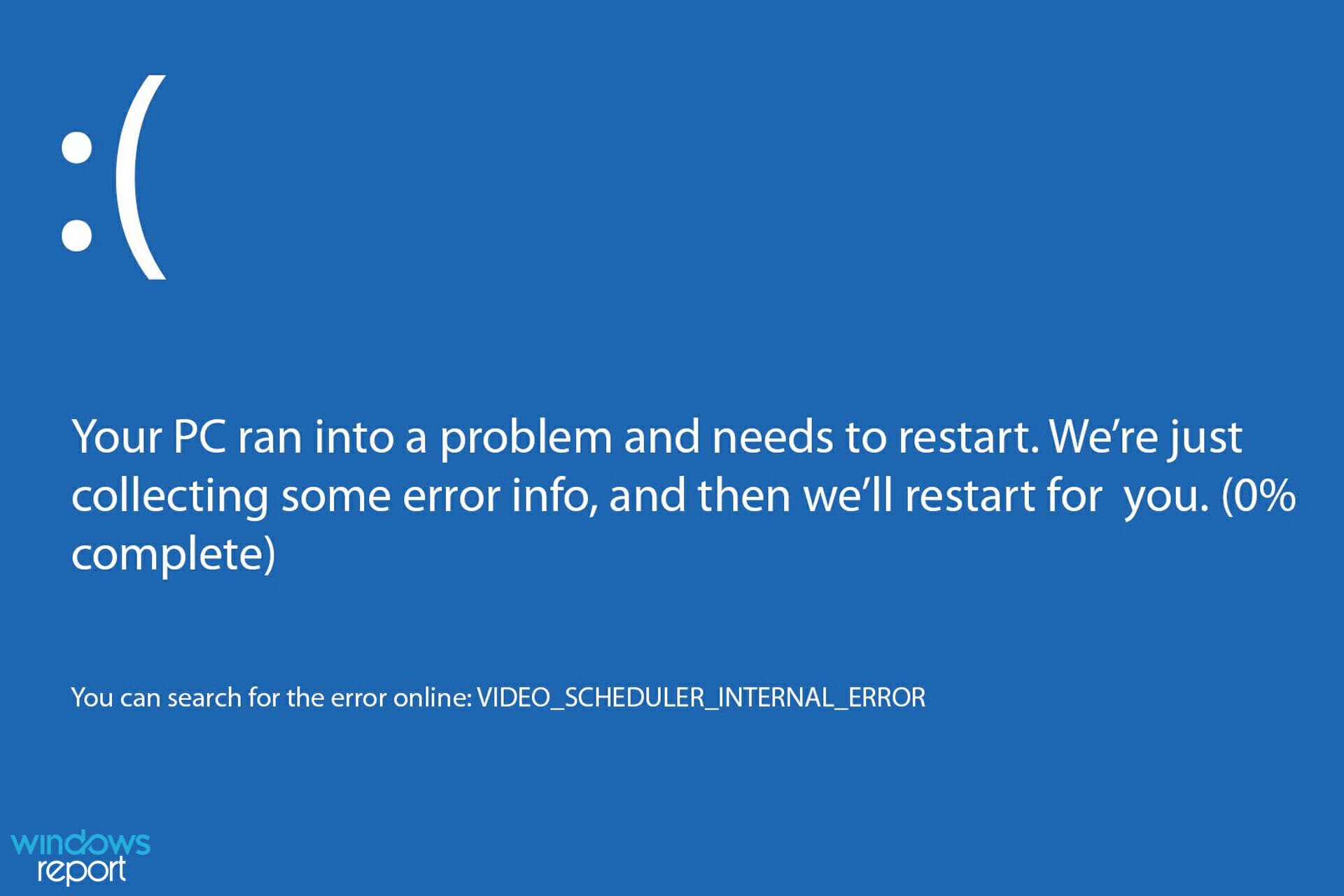
Fix: Video Scheduler Internal Error BSoD on Windows 10

Blue Screen of Death errors are the most serious ones that you can encounter. These errors will crash your PC and cause you to lose your data.

Therefore, it is crucial that you know how to fix issues such as the Nvidia Video Scheduler Internal Error error.

This can cause many problems on your computer, including crashes and loss of data, but there are ways to fix it, and today we’re going to show you the best ways to do it.

Why does Video Scheduler Internal Error appear?

In most cases, this error can appear if you have issues with your drivers. You can usually fix that by installing the latest graphics card drivers.

Your BIOS and graphics card settings can also cause this problem, so make sure that they are properly set.

What are other Video Scheduler Internal Error issues that used reported?

  • Video Scheduler Internal Error Nvidia, Ryzen – The most common cause for this error is your graphics card and both Nvidia and AMD users reported this problem.
  • Video Scheduler Internal Error overclock – This error can also appear after overclocking your device. If you overclocked your device recently, be sure to remove overclock settings and check if that fixes the problem.
  • Video Scheduler Internal Error while gaming – Many users reported this problem only while gaming. If you have the same problem, there’s probably an issue with your graphics card.
  • Video Scheduler Internal Error graphics card – Your graphics card can cause this error to appear, and if you’re having this issue, you might want to try updating your graphics card driver and check if that helps.
  • Video Scheduler Internal Error after sleep – In some cases, this error can appear after your PC wakes up from sleep. If this happens, be sure to check your computer settings.
  • Video Scheduler Internal Error Surface Pro – This error can occur on every Windows device, and Surface Pro is no exception. If you’re having this error on your Surface Pro, be sure to try some of our solutions.
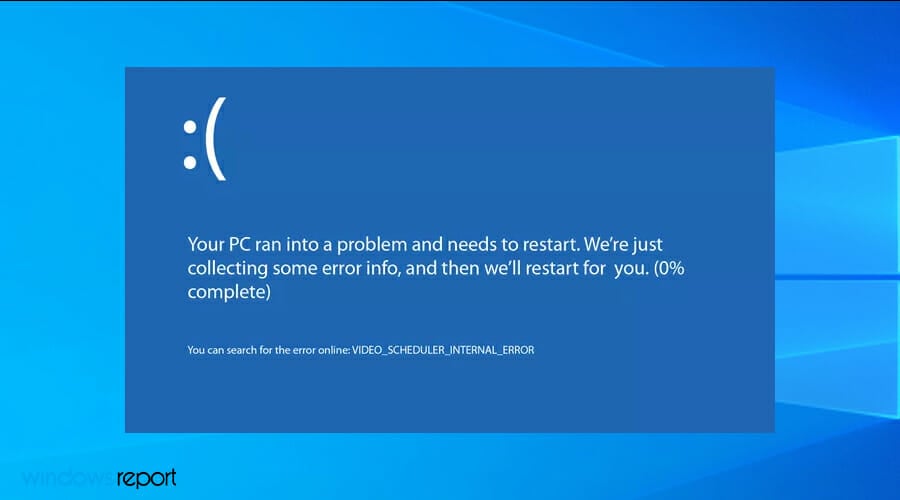
  • Blue Screen of Death Video Scheduler Internal Error – This error always comes with a Blue Screen of Death message that will cause your PC to restart. To fix the issue, you might have to check your hardware.
  • Video scheduler internal error Chrome – Several users reported this issue in Google Chrome. However, you can fix this problem simply by disabling hardware acceleration in Chrome.

How can I fix Video Scheduler Internal Error BSoD?

  1. Download the latest Windows 10 updates
  2. Download the latest drivers
  3. Install the older version of AMD drivers
  4. Change your graphics card settings
  5. Disable hardware acceleration in Chrome
  6. Change the size of graphics memory in BIOS
  7. Reset Windows 10
  8. Check for faulty hardware

1. Download the latest Windows 10 updates

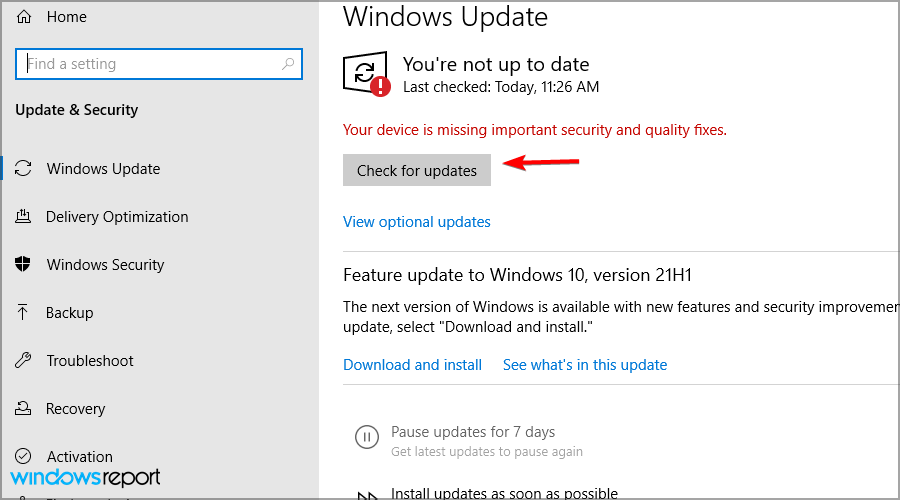
  1. Press Windows key + I to open the Settings app.
  2. When Settings app opens, go to Update & security section.
  3. Now click on Check for updates button.

If you can’t open the Setting app, visit our Settings app won’t open guide to see how to fix this issue.

2. Download the latest drivers

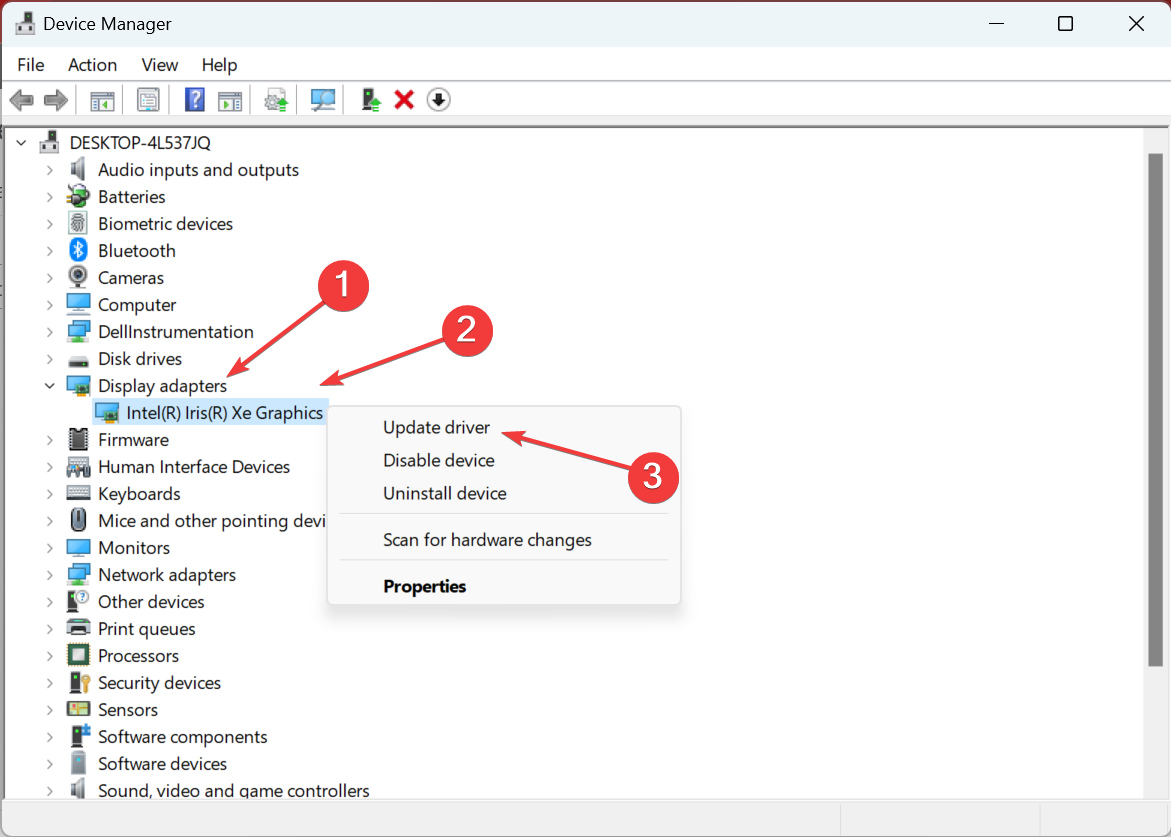
  1. Type device in the Search bar and select Device Manger from the list of results.
  2. Search for the device you want updated and right-click on it.
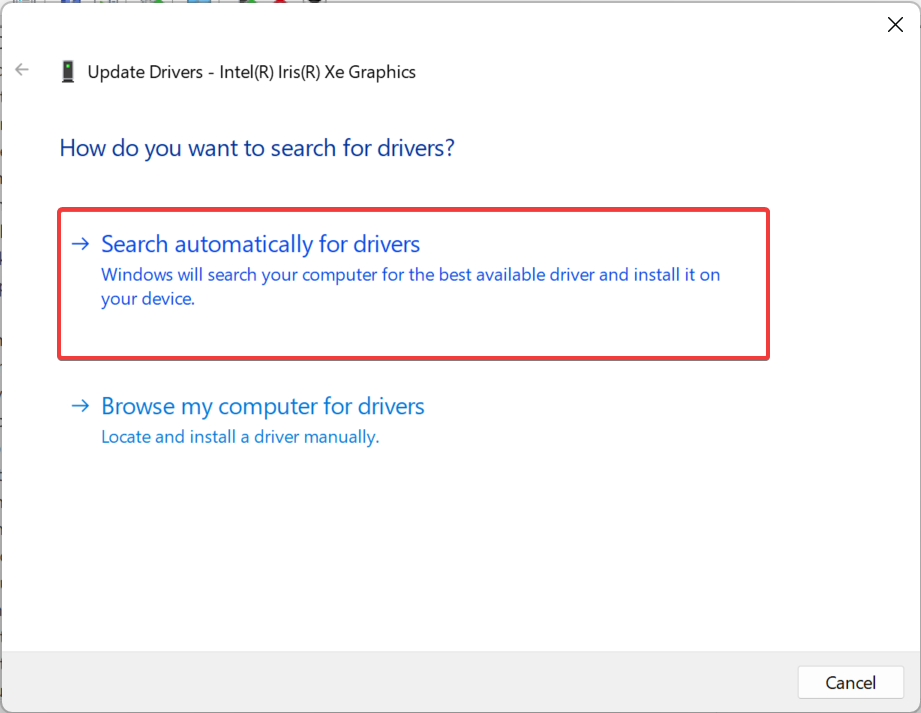
  3. Select Update driver and let windows download the drivers.
  4. Repeat for all the devices you want to update.

Updating drivers manually can be a tedious task, and if a driver is causing the Video Scheduler Internal Error, especially after overclock, it might be better to use a specialized driver updater software such as DriverFix to quickly update all your drivers.

3. Install the older version of AMD drivers

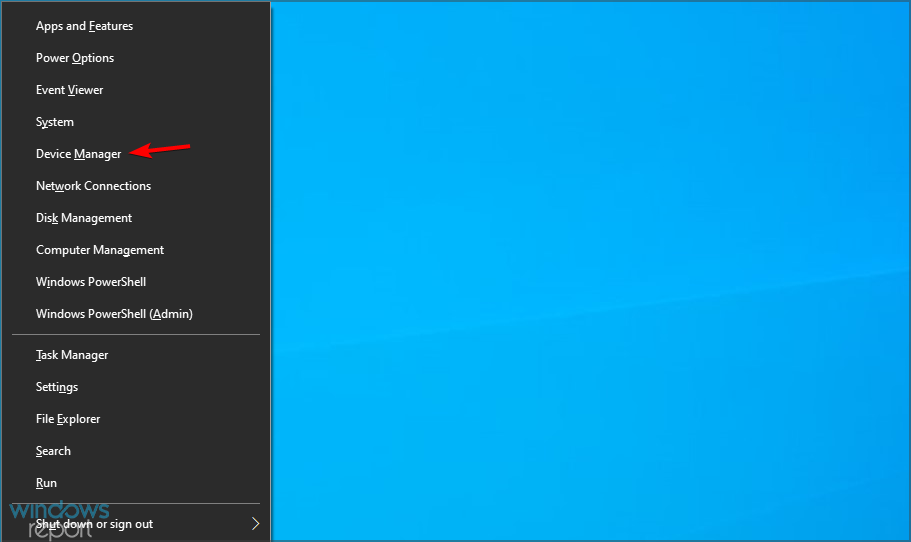
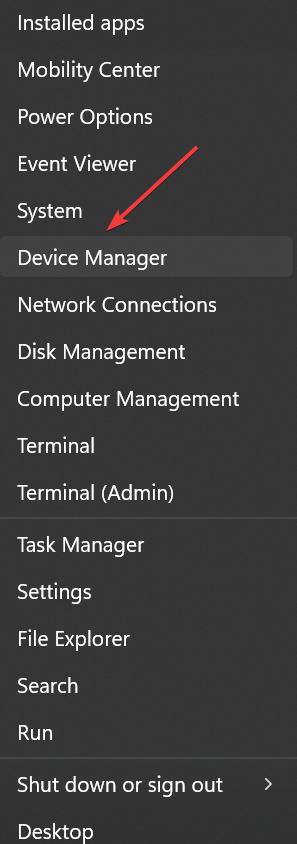
  1. Press the Windows key + X and choose Device Manager from the list.
  2. Right-click the driver that you want to remove and select Uninstall device.
  3. Check Delete the driver software for this device and click on Uninstall.
  4. Your Windows will automatically install the default driver for that device.

If installing the older driver fixes the problem, you should block Windows 10 from automatically updating drivers and prevent the system from installing it again.

You can also use uninstaller software to make sure that the driver software and all its files and entries are completely removed.

4. Change your graphics card settings

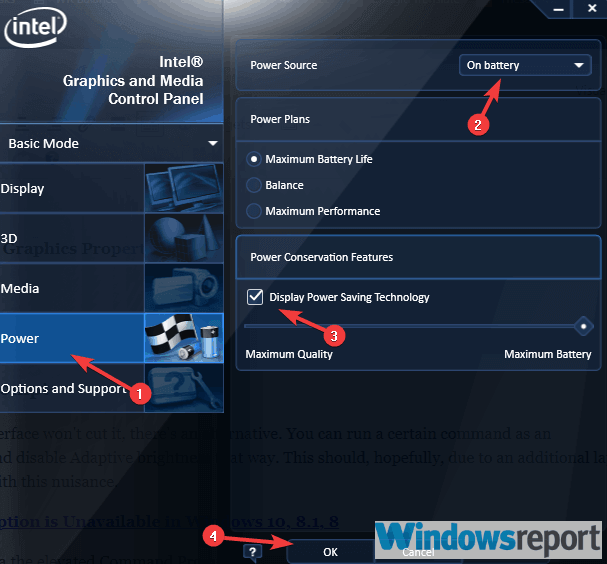
  1. Open Intel Control Panel or Nvidia Control Panel.
  2. If you’re using Nvidia graphics, locate Physx and set it to Default.
  3. You should also set the the settings to Performance instead of quality. This applies to both Nvidia and Intel Control Panel.

This is a simple solution, and it will surely help you if you’re getting Video Scheduler Internal Error on Windows 10 when using Nvidia graphics.

Similar options are available in the AMD software, so be sure to check it as well. If you have problems with it, visit our Catalyst Control Center won’t open guide.

5. Disable hardware acceleration in Chrome

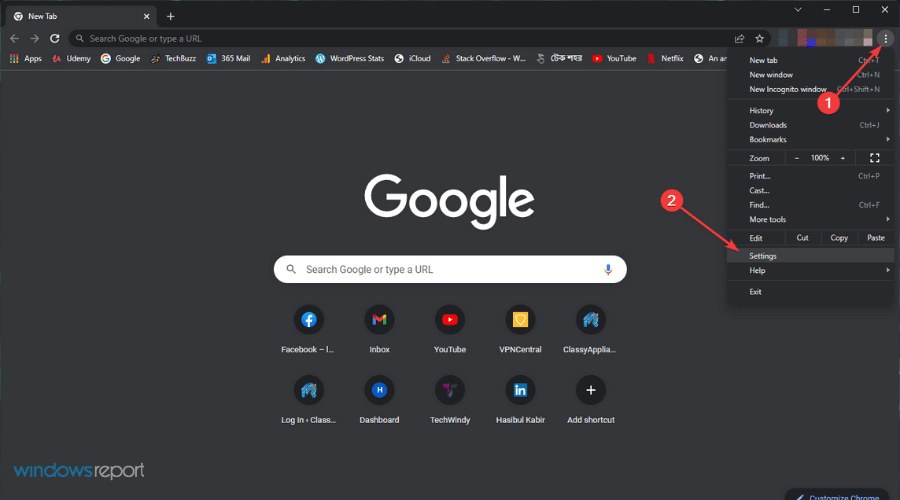
  1. Click the Menu button in Chrome and choose Settings.
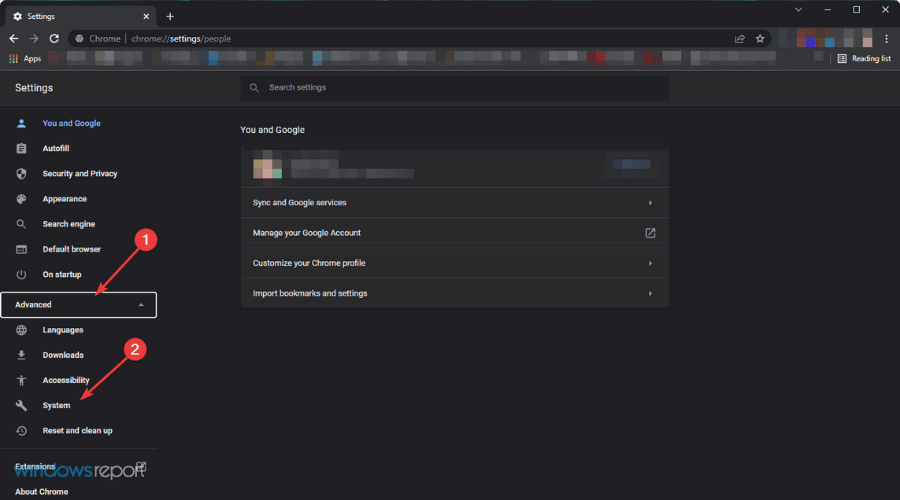
  2. Click on Advanced and choose System.
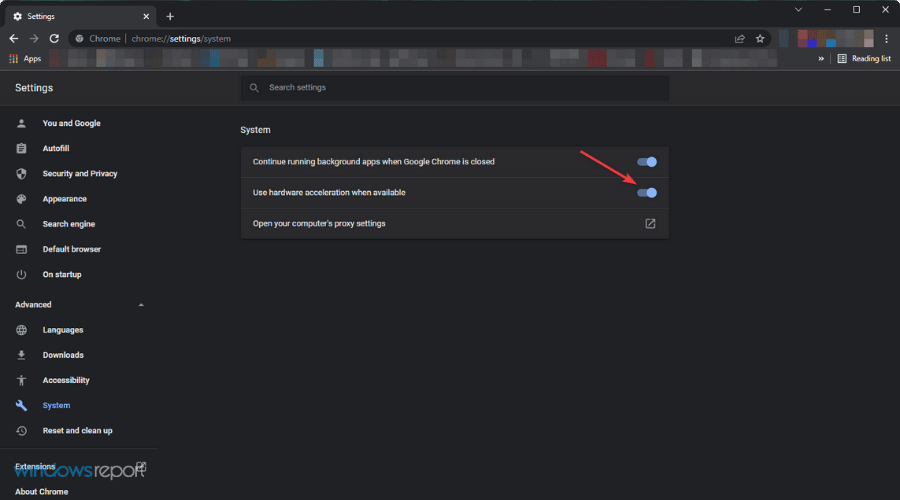
  3. Navigate to System section and uncheck Use hardware acceleration when available.
  4. Restart Chrome to apply changes.

Chrome can cause issues on your PC, and if you’re having more problems, we suggest visiting our Chrome is causing BSOD errors guide for more solutions.

6. Change the size of graphics memory in BIOS

  1. Restart your PC and keep pressing F2 during to boot.
  2. Now locate your integrated graphics settings.
  3. Adjust the size of the virtual memory. Usually the more is better.
  4. Save changes.

Users reported that setting the graphics memory to 128MB for Intel graphics fixed the problem, so be sure to try this solution, even if you don’t have integrated Intel graphics.

This solution is also useful if the Video Scheduler Internal Error appears while using the Ryzen APUs, so we encourage you to try it.

If you weren’t able to follow our instructions, you should read our guide on how to access BIOS for detailed instructions.

7. Reset Windows 10

Note icon NOTE
During this procedure, you might also need a bootable USB flash drive with Windows 10, so be sure to create one.
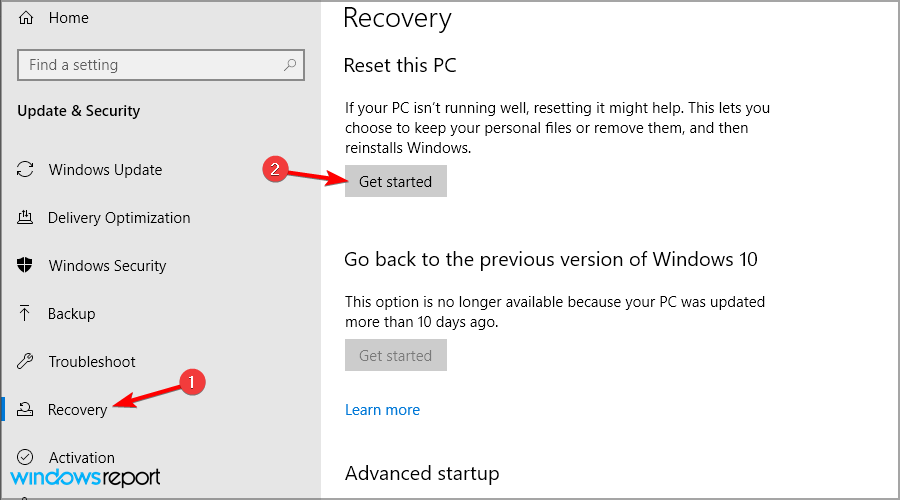
  1. Go to your Settings.
  2. Select Update & security.
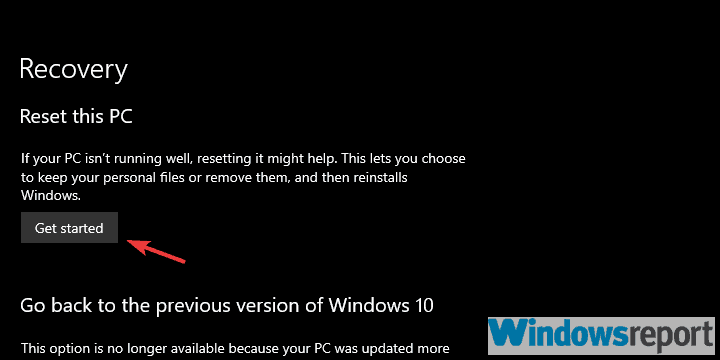
  3. Go to Recovery, then select Get started in the Recovery section.
  4. Now, choose if you want to Keep your files or Remove everything.
  5. Let Windows run its course.

We have to warn you that this procedure is similar to clean install and it will delete all files from your C partition, so be sure to back them up.

8. Check for faulty hardware

Your hardware can often cause these types of errors to occur, therefore you need to find and replace the faulty device. Few users reported that a faulty graphic card caused this error, and replacing the card fixed the problem.

It’s not uncommon to get Video Scheduler Internal Error while using Nicehash, and if that happens, it’s possible that there are issues with it.

Bear in mind that sometimes certain hardware isn’t compatible with your current configuration, or with Windows 10, and that can cause this and many other errors to appear.

Few users reported issues with old TV cards, and according to them, removing the TV card fixed the error permanently.

Is Video Scheduler Internal Error error serious?

This depends on the cause of the error. If the issue is caused by a bad driver, it can be fixed easily, but you need to know which driver version to use.

In case the problem is hardware-related, it’s advised to remove any overclock settings and check your graphics card.

How does Video Scheduler Internal Error affect my PC?

Since this is a BSOD error, your PC will crash whenever you encounter it. This means that you’ll lose any unsaved work on your PC.

Since these crashes are random, you’ll encounter a loss of productivity. If your graphics card is faulty, you’ll need to replace it as soon as possible because it will eventually stop working and you won’t be able to boot your PC at all.

The Video Scheduler Internal Error BSoD error is usually related to your graphic card, but you can easily fix it by using one of our solutions.

In case the problem is still there and it’s not caused by hardware, you might want to try using the BSOD repair software.

If you have any other suggestions or questions, don’t hesitate to leave them in the comments section below and we’ll be sure to take a look.

8 Best Note-Taking Apps For Windows 11

Whether we’re jotting down a random thought or having a long-standing piece filled with important passwords and log-in information, note-taking apps are vital in today’s busy world.

There are two main types of note-taking apps: cloud and offline. Cloud apps, also known as web-based apps, store your notes on the company’s server, which is what Google does. This makes accessing your notes very easy as you can use different devices to access them, plus they enable good collaboration.

However, these services tend to have privacy issues. On the other hand, offline apps are way more secure, as notes are stored on the device. However, you lose out on easy access. Third-party sharing services like Dropbox do exist that solve this issue.

What are the best note-taking apps?

Todoist – Best note-taking app

Todoist is another note-taking app for the creatively minded. It sees frequent support from its developer as the team frequently rolls out updates that add new features for both the free and paid versions. With an easy-to-use interface, Todoist is an attractive app.

One of the more recent additions is the Boards feature, which creates a board view of all the notes you created. It’s the same Kanban style that Notion incorporates in its service, although this one is optional.

A major feature for Todoist is Karma, which incorporates a type of video game into note-taking. You add tasks to the app’s scheduling tool, and Karma encourages you to meet those goals and achieve streaks. In addition, Karma rewards you for using more advanced features like reminders and labels.

The reward isn’t super crazy. It’s the self-satisfaction that you’re achieving your goals and working hard towards success. The free version of Todoist is enough for most users as a personal app, but if you want more, the paid version unlocks additional features.

Todoist

Enjoy the process of taking notes and take advantage of useful features by trying out this app today.
Check price Visit Website

Notion – Unique approach

Notion takes a unique approach to note-taking, incorporating the design and some features from Kanban development frameworks and company wikis. Its philosophy is to replace apps and centralize everything on one app.

For one to do the job of many. Other apps have sought to do this, too, but Notion achieves it. It has a stand-alone app and a browser version if you prefer a different method. The app comes with boilerplate templates that you can use to create blocks in Notion.

These blocks can include text, images, tables, or a video, and from there, string other blocks together to create a unique ecosystem for your business. Notion can integrate with other work-related apps like Slack and GitHub, plus important files in various formats. This includes a plaintext file or an Excel sheet.

There is a free version meant for personal use, but Notion truly shines when used in teams rather than individual users. In addition to the Free version, the Team and Enterprise versions must be bought.

Aside from the occasional errors like Notion 502 error, it’s a pretty solid app.

⇒ Get Notion

Evernote – Complex handwritten notes app Windows

Evernote is a note-taking app that takes its service to the next level. It accepts various formats and has a pretty complex organization method.

In addition to taking notes, Evernote can accept different kinds of files that can be attached to said notes, like URLs, PDFs, and images. And those attachments can then be searched for in the app. To make everything even easier, notes can be organized with specific tags.

The app has an advanced AI too as it can identify 28 typed and 11 handwritten languages. You can scan and digitize documents to create notes that store contact information. Evernote can sync on any Windows, Mac, Android, and iOS device you can access offline.

Other features include audio support and different kinds of formatting tools like the ability to add tables. Evernote is truly remarkable. These extra features are locked behind subscription plans, but you can try out a free trial before purchase.

⇒ Get Evernote

OneNote – Cross-platform app

OneNote is a free cross-platform note app from Microsoft. It can be used on practically every device on the market, from PCs to smartphones and even Mircosoft’s HoloLens, the company’s own VR headset.

You can draw on it, write, jot down quick notes, and more in a variety of different colors. The background can be changed to fit your desires, including a ruled notebook style. Admittedly, the user interface can be a bit of a mess and a bit disorganized.

As popular as it is, OneNote can get out of control pretty quickly. For example, the app utilizes notebooks and dividers to help you organize, but these features are all over the place. The notebook feature appears on the left as a separate menu, dividers on the top, and the regular note page on the right.

But its ubiquity is still something to be commended. You can add images, source links, videos, and even audio recordings. Then, it syncs to the cloud, where you can share with friends and family who have access.

⇒ Get OneNote

Google Keep – Simple note app

The main benefit is that since it isn’t a standalone app but part of a browser, you have access to it all the time without having to sacrifice storage on your device. This service works a lot like Post-It notes: You type in whatever short you want and have it posted for all to see.

It’s a pretty barebones app, but that simplicity is what makes it so good. If you don’t want all the bells and whistles that some of the other apps have, Google Keep is the right choice for you. It’s light on features and organizing.

In addition to writing notes, you can sketch your ideas there to share with others. You can add images, color-code the notes, and set timed reminders. It even syncs with Google Docs, so you can easily move between there and Keep.

Remember that Keep isn’t the most private of note-taking apps. There’s no way to make private notes, and everyone can see them. Plus, there’s no way to reformat the notes. What’s there is there.

⇒ Get Google Keep

Simplenote – Lightweight option

Simplenote truly lives up to its name. It’s a lightweight note-taking app with a clean and simple user interface that works on multiple platforms. There’s a mobile version for Android and iOS and desktop apps for Windows, Mac, and Linux.

Notes taken on this app are automatically saved and synced across all other devices that share the same account, so you never have to worry about retyping notes. Simplenote writes and posts in the Markdown format, which is just plain text. Think of Notepad on Windows computers.

Like other apps, you can invite people into your account to collaborate on notes and lists on Simplenote. Desktop users will enjoy Focus Mode, which enables a distraction-free experience so you can stick to writing. It hides all the sidebars and makes the app full-width, so all you see is the white screen and a few other tools.

Some people may not like Simplenote’s simplicity and bare-bones nature. After all, the app only has two separate themes at the time of this writing. But if you don’t want anything crazy, Simplenote is the way to go.

⇒ Get Simplenote

Milanote – Nice-looking interface

On the opposite side of the spectrum is Milanote, a note-taking app focused on creatives. The app’s Milanote Web Clipper feature allows users to combine files and web pages they find on the Internet under one roof.

You can snip out different pieces and pin them on Milanote. In that sense, Milanote is less of a note-taking app and more of a digital pinboard you can mess around with. You can add text, images, videos, and other digital elements and organize them. Plus, it supports common file types like PDFs and JPGs.

As such, Milanote has a nice-looking user interface that conforms to the person’s creativity. It becomes your own very quickly. You have the opportunity to keep your notes private or public with a team.

If Milanote has any downsides, it’s that the font size or color can’t be changed, which is strange for a creatively minded app. The free version allows you to create up to 100 separate noteboards, while the paid version offers an unlimited amount.

⇒ Get Milanote

Scrble – Easy to use

Last but certainly not least is Scrble, the premiere note-taking app for Windows tablets. It’s simple and easy to use, with a freehand writing feature. You can use a stylus or just your finger to write notes, and you can use those fingers to enlarge the screen or move the page around.

Scrble’s storage limit is however much room you have on your tablet. It has unlimited “paper” which can scroll endlessly for uninterrupted writing. The app can be configured to best fit your writing style. There are two versions of the app: Scrble Lite and Scrble Ink.

Scrble Lite is the free version of the service that adds creative features like a drawing sheet and the ability to recognize languages. Scrble Ink is the version that you’ll have to pay for and add on new exclusive features.

These features include changing the style of “paper” in the app, custom colors and shapes, and the ability to import and export PDFs. All in all, a great app for the creatively minded to use on Windows tablets.

⇒ Get Scrble

What should I look for in a note-taking app?

Well, the first thing that you should ask yourself is what kind of app you want: a cloud-based one or an offline one. Is privacy more important to you or is having as much access as possible what you’re looking for?

Some come built-in like the Teams note-taker. Once you answer that question, you can then decide what kind of features you want.

Many note-taking apps do more than just handle text. You need to look for one that has a good text editor so you can properly format your notes with different colors and fonts, plus support for images, tables, and hyperlinks.

Some apps even have a web clipper that takes down text, images, and videos from the internet and saves it. It’s great at making sure context stays in the notes. Or perhaps all you want is a simple note-taking app; nothing fancy.

This guide will show you different kinds of note-taking apps, all of which are different from one another with unique features. Read through them and decide which one suits your lifestyle the best.

Many of them share compatibility with Windows 10, which goes to show how well made they are if little has been changed.

Are there other apps and services I should try on Windows 11?

Antivirus software is a must-have for any computer and it’s recently come out that Microsoft Defender is one of the best anti-malware software. German IT security research institute AV-TEST ran an assessment one 20 different programs to see who stood out on the app.

Microsoft Defender won the crown, followed by BullGuard and Norton 360. Staying with Microsoft apps, the company has announced it is offering online courses in Azure, Office 365, and other Windows apps.

You may also be interested to know that the latest Windows 11 update came out recently on the Dev Channel.

The update adds two new voice options for voice narrations, simply known as Jenny and Aria. In addition to the voice, Microsoft added some fixes and changes, like making sure the Task Manager doesn’t suddenly close when switching to the performance tab.

Feel free to leave a comment below if you have any questions about other Windows 11 apps. Also, leave comments about guides that you’d like to see, information on other Windows 11 features, or list guides like this.

How to Install & Run Windows 11 Natively on Your POCO F1

Since the introduction of Windows 11, we’ve pretty much talked about it behaving in any sort of way, bugging, lagging, glitching, and crashing.

However, the experience is a lot smoother after four months of existence. We’ve also seen the new OS installed and working on all sorts of devices.

Now, users have even managed to install Microsoft’s latest operating system on a POCO F1 smartphone, which means that Windows 11 is a lot more versatile than you thought.

POCO smartphones are Windows 11 compatible

Although we’re pretty sure most of you have heard about it already, POCO, formerly known as POCO by Xiaomi and Pocophone, is a Chinese smartphone company.

Fellow Redditors were absolutely shocked when they saw this latest post depicting Windows 11 actually installed and running on the above-mentioned smartphone.

Sure, we’ve seen the OS function on other smartphones as well, but nobody was expecting it to work on the Chinese manufacturer’s device.

Reddit user Similar-Director-483 mentioned that achieving this feat was pretty challenging, but it was possible with the priceless help of The Renegade Project.

Why is this such an impressive feat, you ask? Well, because even though it might seem pretty easy to the naked eye, installing the OS on such a device isn’t like installing it on your laptop.

Firstly, due to the fact that whoever did this had to create new drivers for OS, allowing it to use features like audio, WiFi, and others.

Not to mention that, for calling, creators had to make and package custom software that is able to perform the task.

So, if you also have one of these smartphones and you would like to experiment with Microsoft’s new operating system, you can find all the information you need on the GitHub link above.

What other interesting gadgets have you managed to install and run Windows 11? Share your experience with us in the comments section below.

Windows 11 Error Sound: 9 Most Common You Should Know About

Windows 11 is a great improvement from the previous version, and it comes with some massive changes, most notably in terms of the user interface.

However, that’s not the only change, and besides a fresh new look, we got an array of sounds that make the user experience different.

There are many new sounds, but in today’s guide, we’re going to show you the most important Windows 11 error sounds and explain to you what they mean.

What are these Windows 11 system sounds used for?

System sounds have been present since the first versions of Windows, and they are used to provide an audio signal that certain even has occurred.

There’s a wide array of available sound events, but in most cases, they will play when a certain notification appears or if you encounter an error or a warning.

Where are system sounds located?

To locate system sounds, you need to visit the following directory: C:\Windows\Sounds

In there, you should be able to see all the sounds that Windows uses. And yes, you can move files to this directory, but you’ll need administrative privileges.

What Windows 11 error sounds should I know about?

1. Asterisk

Asterisk is probably the most common error sound that you’ll hear on your PC. This appears whenever an alert window is displayed on your screen.

This can be a dialog window that requires your confirmation or an error message stating which problem has occurred.

2. Critical Stop

Problems on your PC and bound to happen, and some problems may cause your applications to crash. If this happens, you’ll hear the Critical Stop sound.

This sound is followed by a dialog box stating which error occur and why, and you can use that information to troubleshoot the issue further.

3. Default Beep

Default Beep sound isn’t necessarily an error, but it’s often mistaken for one. If you have a window open and it creates a dialog box, you might hear this sound if you try to click the original window.

This is because the dialog window requires action, and you can’t go back to the application until you close it. So, if you hear this sound, don’t worry, because most likely you have a dialog box open in the background.

4. Device Disconnect

We all have all sorts of USB devices connected to our PCs, such as printers, gamepads, flash drives, phones, and more.

The disconnect sound is a normal occurrence, and it will appear when you disconnect your device from the PC. However, the sound can appear randomly at times.

If this happens, you might have an issue with your device, such as a broken cable or a driver problem that causes it to randomly disconnect.

5. Device Failed to Connect

In some cases, your devices won’t work at all with your PC. This can happen because the device is damaged or because the computer can’t recognize it.

If this happens, you’ll hear a sound indicating that the device wasn’t able to connect to your PC properly. In case you’re having problems with this, we have a guide that will help you fix USB devices that aren’t recognized in Windows 11.

6. Exclamation

This sound appears when you try to perform an action that isn’t allowed. For example, you can hear this sound when you want to perform an action that you don’t have permission to do.

If this happens, you’ll be stopped, get a warning and you’ll hear the Exclamation sound. In addition, this sound can appear in certain applications, most notably Outlook when deleting emails.

7. Notification

Windows 11 uses notifications to display important information to you, and while this sound isn’t associated with errors, sometimes it can be.

For example, when your VPN client suddenly disconnects, you might get a notification stating what happen, and this is when the sound will be played.

Even though it’s not always error-related, you should keep your eyes open for any notifications since they may give you information about potential errors.

If you don’t want to deal with notifications, you should read our guide on how to disable notifications on Windows 11 completely.

8. System Notification

Similar to the notification sound, there’s a special sound for system notifications. These notifications can be harmless and not associated with any error, but that’s not always the case.

For example, you can get a system notification if there are any issues with your Microsoft account or if you’re having issues while activating Windows.

9. Windows User Account Control

In case you’re not familiar, Windows User Account Control allows you to control privileges that users on your PC have.

For example, if you don’t have administrative privileges and you try to perform a certain action, you’ll get a warning window followed by this sound.

This usually isn’t an error, but it will prevent you from accessing certain locations and files on your PC.

How can I change specific system sounds?

  1. Press Windows key + S and type sounds. Now select Change system sounds.
  2. The Sound window will now appear.
  3. Select the sound that you want to change and pick one from the dropdown list. Alternatively, you can use the Browse button to select any sound from your PC.

Keep in mind that only .wav format is supported, so if you’re using audio editing software, be sure to save files in the correct format.

Alternatively, you can always convert any format to .wav with a proper tool. To learn more, visit our audio converter software guide for more information.

Can I turn off the system sounds on Windows 11?

  1. Open Search and type sounds. Select Change system sounds.
  2. Set the Sound scheme to No sounds. Click Apply and OK to save changes.
  3. All system sounds will be turned off at this point.

These are some of the most common Windows 11 error sounds that you should know about. Although not all of these sounds are associated with errors, it’s always good to know what they represent.

System sounds are a big part of the new version of Windows, but in case you’re having any issues with it, you should read our article on what to do if there’s no sound on Windows 11.

We hope you found this guide useful, and if you have any additional questions, feel free to ask them in the comments section below.

Desktop Window Manager High Memory Usage: 4 Tested Fixes

Many have complained regarding Desktop Window Manager and high memory usage, and since this is a core Windows process, this can be a problem. However, the solution is simpler than you think.

Why is Desktop Window Manager using so much memory?

Bugs with File Explorer or driver issues can cause this problem. Certain performance settings can also cause this problem.

How do I fix the Desktop Windows Manager high memory usage?

Before trying anything else, restart your PC. You can also try keeping your system up to date. In some cases, a malware scan can also help with this problem.

1. Restart File Explorer from Task Manager

  1. 1. Right-click on a free space from your taskbar, and select Task Manager.

    desktop-window-manager-high-memory
  2. 2. Locate the Windows Explorer process and click on the Restart button from the lower right part of your screen.

    desktop-window-manager-high-memory
  3. 3. Now check for Desktop Window Manager’s high memory.

2. Update the Intel graphics driver

  1. Press Windows + X to open the Power User menu, and select Device Manager.device manager
  2. Expand Display adapters, right-click on the graphics driver, and select Update driver from the menu.update driver to fix Desktop Window Manager high memory
  3. Select Search automatically for drivers and wait for Windows to install the best one.search automatically for drivers

Though Windows is more than capable of keeping the drivers up-to-date, you may have to manually install the driver in cases like these. Also, the problem has been acknowledged by Intel, and the recommended solution is to update the graphics driver.

To avoid any driver issues, we recommend you use an automated driver updater utility, such as Fortect Driver Updater. This lightweight tool uses a frequently updated driver database to find the perfect version for your hardware.

It is easy to use, and you can set it up and let it run in the background. It can update, install, and fix corrupt drivers individually and in bulk.

⇒ Get Fortect Driver Updater

3. Change the performance options

  1. Press Windows + S, type Adjust the appearance and performance of Windows, and click on the relevant search result.performance and appearance
  2. Now, either choose Adjust for best performance or Custom, and then click OK to save the changes. If you go with the latter, make sure to select the features that you want, though try to keep it minimal.adjust for best performance Desktop Window Manager high memory

4. Disable Fast Startup

  1. Press Windows + R to open Run, type control panel, and hit Enter.control panel
  2. Click on System and Security.system and security
  3. Now, click on Change what the power buttons do under Power Options.change what the power buttons do to fix Desktop Window Manager high memory
  4. Choose the Change settings that are currently unavailable option.change settings that are currently unavailable
  5. Untick the checkbox for Turn on fast startup (recommended), and click on Save changes.disable fast startup to fix Desktop Window Manager high memory

What is the purpose of DWM?

The (DWM) Desktop Window Manager handles desktop composition. DWM makes visual effects and capabilities like glass window frames, Windows Flip and Windows Flip3D, 3-D window transition animations, and high-resolution support available on the desktop through desktop composition.

That’s it! By now, you should have fixed high memory usage or memory leak for Desktop Windows Manager and would have things up and running.

Problems with this process can appear on any version of Windows, and we covered DWM.exe crashes on Windows 11, as well as DWM.exe crashes on Windows 10.

A few users also reported that Desktop Window Manager stopped working, but we have a guide for that as well. It’s worth mentioning that this service can also use other resources, and many have encountered Desktop Window Manager high GPU usage.

Once done with it, we recommend you check some easy ways to improve the performance of Windows 10.

Leave them in the comments section for other viable solutions, so everybody can benefit from that knowledge.

Windows 11 makes gains with gamers account to latest Steam report

We finally get to know the hardware and software at the top of the list, that is, the most used by PC gamers, thanks to Steam’s annual survey. Based on January’s 2022 results, Windows 11 rose by 3.41% to 13.56% total usage. Windows 10, meanwhile, experienced a 3.92% drop to 77.82% usage on Steam, and Windows 7 rose by 0.49% leading it to take up 3.73% of share on Steam.

On the other hand, Intel has since lost its 69.27% CPU share, which saw it drop down to 68.93%. AMD managed to take up 31.07%. NVIDIA also experienced a slight drop from last year’s 76.83% to 75.4% GPU control.

VR Headset

Oculus Quest 2 remains at the top of the chain taking up 46.02% of Steam’s population headset hardware share, on the other hand, Windows Mixed Reality has dropped since December’s report from 5.69% to 4.99%. Oculus Rift S takes up 13.1% and Valve Index HMD takes 14.36% of the pool.

Meta is deeply rooted in winning a huge chunk of the share, which will allow for the establishment of a Metaverse. In that regard, its Oculus Quest 2 is expected to take up even more of Steam’s population headset hardware pool.

What are your thoughts concerning the released report? Let us know in the comment section below.

29 year Microsoft and Xbox veteran Shannon Loftis to retire

In a post on the Age of Empires blog (via Neowin), Shannon Loftis, VP at World’s Edge Studio, the home of Age of Empires, has announced her retirement. Loftis spent almost her entire career at Microsoft in gaming, working on racing games and then Kinect before becoming the General Manager of Global Games Publishing, and leading the revival of Age of Empires.

Loftis says in the blog post that she planned to leave Microsoft only at a high point, “and there has been no higher point than this,” with the successful launch of Age of Empires IV last October.

Loftis announced that Michael Mann, executive producer of Age of Empires IV, will be taking over as acting head of World’s Edge Studio, and that she will “be around for some time” to assist in the transition.

Loftis also noted that there’s more to come for Age of Empires, with the first major update to Age of Empires IV coming in the spring, with “features that will enhance the Age of Empires IV experience as well as creating new ways to play,” and more work on earlier versions of Age of Empires:

The teams working on Age of Empires II: Definitive Edition and Age of Empires III: Definitive Edition are also hard at work on expanding those titles, with exciting plans they’ll be sharing in the coming months. With Age of Empires’ 25th anniversary this year, the future is bright for the franchise and history is being made!

Are you an Age of Empires player? let us know in the comments below.

Windows Telegram app updates with new video sticker feature

The official Telegram app updated on several platforms today including Windows 10 and Windows 11.

This latest app update adds support for video stickers which anyone can now create from their own video files.

In addition to video stickers, Telegram also made some adjustments to reactions with this update. Going forward, reaction animations will play in real-time which means that the recipient will see the animation when they load the message. Reactions will also now include a read status to inform the sender of when their emoji reaction has been seen.

Here’s the full release notes for the Telegram app update:

VIDEO STICKERS

  • Use a new type of detailed stickers with smooth animations.
  • Create new sets by sending .webm videos to @stickers.
  • Bring your custom animated stickers from other apps.

BETTER REACTIONS

  • See smaller, compact animations when reacting to messages.
  • See real-time animations in chat when a user reacts to your message.
  • React with additional emoji expressing love, appreciation, anger or surprise.

READ STATUS FOR REACTIONS

  • Tap the new button in chats to jump to your messages that have unseen reactions.
  • Watch the animations for unseen reactions play when you hit the button.

AND MORE

  • The app will warn you before closing if you are uploading photos or files to a chat.
  • Enjoy better screencast quality in video chats

Telegram is a popular free communications service that supports text, voice, and video conversations in addition to a number of additional features such as file transfers.

Need more Windows app news? Follow us on Facebook and Twitter.

Telegram Desktop
Telegram Desktop
Price:
Free

Companies should embrace multi-factor authentication

Microsoft is calling on more organizations to add multi-factor authentication (MFA) to Windows 11 in the wake of a series of high-profile account breaches.

Microsoft has warned that strong authentication is a must-have if businesses want to safeguard against the increasing number of cyberattacks, but figures from Microsoft’s own security platform reveal that only a few customers have implemented these measures. 

Multi-factor authentication

Microsoft recommends that organizations use multifactor authentication (MFA) to reduce the threat of account compromise from cyber attacks, advanced persistent threats, and remote phishing tactics.

Do you know if your Office 365 accounts are protected with multi-factor authentication? Find out which of your users are protected, and how to enable MFA for your own account.

Microsoft says if you don’t want to use MFA, plan to disable basic authentication at least a year before Microsoft disables it because the company will not honor requests to turn off basic authentication after they disable it. 

Onslaught on accounts identity

Microsoft blocked tens of billions of phishing attempts, automated password-guessing attacks and similar credential-stealing assaults on its accounts last year, research has revealed. 

The company also analyzed the scale of security attacks on its corporate network outside of the consumer.

Microsoft is focusing its efforts on identifying and targeting attacks that bypass strong account-based security through identity deception.

A Microsoft  report offers a snapshot of these threats in 2021 as well some context to what threat actors are employing these attack techniques. As the report notes, “ransomware thrives on default or compromised credentials”.

Ransomware is one of the most commonly employed attack techniques today, that’s why Microsoft recommends enabling MFA on all end-user accounts.

Have you employed multi-factor authentication in your organization? If not what could be the problem, share in the comments section below.

Fix: Projecting to this PC options are greyed out

If the projecting to this PC feature is greyed out, you won’t be able to use wireless displays with your computer. However, this can be easily fixed by following these steps.

How come Windows 10’s Projecting to this PC options are greyed out on my PC?

If you get this message, it means that the Wireless Display feature isn’t installed. An outdated wireless adapter driver can also cause this problem. Devices that don’t support Miracast can also experience this issue.

How can I fix the greyed-out Projecting to this PC options?

Before trying anything else, ensure that your system is up to date.

1. Install the Wireless Display features

  1. Click the Start taskbar button.
  2. Then select Settings on your Start menu.
  3. Click Apps to bring up the Settings tab shown directly below.
     Apps & features tab projecting to this pc greyed out
  4. Then click Optional features to open the window in the screenshot directly below.
    The Add a feature button projecting to this pc greyed out
  5. Press the + Add a feature button on that window.
  6. Type the keyword Wireless Display within the search box that opens as in the snapshot directly below.
     Add an optional feature search projecting to this pc greyed out
  7. Select the Wireless Display checkbox there.
  8. Click Install to add Wireless Display to Windows 10.
  9. Thereafter, wait for the new feature to install. When installed, check that the Installed features list includes Wireless Display.

2. Update your PC’s wireless network adapter driver

  1. Right-click Start to select Device Manager on the Win + X menu.
  2. Double-click the Network adapters category within the Device Manager window.
     Device Manager window projecting to this pc greyed out
  3. Right-click your Wi-Fi network adapter there and select an Update driver option for it.
    The Update Drivers tool projecting to this pc greyed out
  4. Now select the Search automatically for drivers option within the Update Drivers window that opens.

A quick scan with a driver updater utility will tell you if your Wi-Fi network adapter’s driver is faulty or outdated.

Fortect Driver Updater can scan your system and check if your drivers need to be updated. Then you can select to download and install a new network adapter driver with the driver updater utility.

⇒ Fortect Driver Updater

Note: Also, make sure your PC’s wireless network adapter is enabled before trying to update its driver. To do so, right-click the Wi-Fi adapter and select an Enable option on the context menu if it’s disabled. 

3. Reinstall the wireless network adapter’s driver

  1. Open the Device Manager as covered within the first two steps of the previous resolution.
  2. Then expand the Network adapters category.
  3. Right-click your wireless network adapter listed there to select Uninstall device.
  4. Then select the Delete the driver for this device checkbox on the confirmation window that pops up.
  5. Press the Uninstall button.
     Uninstall Device window projecting to this pc greyed out
  6. Thereafter, click Power and choose Restart on the Start menu.
Note icon NOTE
Alternatively, you can click Action > Scan for hardware changes to reinstall the wireless network adapter’s driver.

How to check if your PC’s Wi-Fi supports Miracast

  1. Click the search box on the taskbar (or press the Windows key and S at the same time).
  2. Next, type cmd in the search utility’s text box to find Command Prompt.
  3. Then select the Command Prompt utility within the search results to open it.
  4. Type the following command into the Prompt’s window: netsh wlan show drivers
  5. Press the Enter key to execute the command.
    The netsh wlan command projecting to this pc greyed out
  6. Then look for the Wireless Display Supported detail near the bottom the Command Prompt’s window. The Wireless Display Supported detail will say There’s no wireless interface on the system if this device doesn’t support Miracast.

However, that doesn’t mean there’s no way you can utilize Windows 10’s Wireless Display feature on your PC.

You’ll need to purchase a new USB Wi-Fi adapter that supports Miracast, and then insert it in a USB slot on your PC. Check out our best Wi-Fi adapters guide to choose one.

This isn’t the only problem you can encounter, many reported that projecting to this PC is always off as well as a Your PC can’t project to another screen message.

We also have a guide on what to do if projecting to this PC keeps disconnecting, so don’t miss it for more information.

Windows Failed Fast Startup With Error 0xc00000d4 [Fix]

Windows failed Fast Startup with error status 0xc00000d4 is one that users have complained about recently.

When the issue arises, the Fast Startup mode fails, and the Events Viewer logs the issue with a 0xc00000d4 error code.

You can prevent this if you disable Fast Startup, or you can use other solutions from this guide.

What causes Windows failed fast startup with error status 0xc00000d4?

The error status 0xc00000d4 typically indicates a problem with the hibernation file or the Fast Startup feature in Windows.

Here are some of the likely triggers of the error:

  • Corrupt hibernation file – A PC with a corrupted hibernation file will be likely exposed to failure in Fast Startup mode. Elements like conflicting software or power cuts are often responsible for this.
  • Driver issues – These are a common cause of computer failure and have also been known to trigger errors in fast Startup.
  • Hardware issues – This is the most major factor, sometimes requiring a change in hardware units such as your motherboard.
  • Virus or malware infections – Viruses have a well-documented history of ruining computer processes and are an easy cause of the errors you may encounter in Fast Startup.

Now we know some possible causes, let us explore a few of the best solutions.

How can I fix Windows failed fast startup with error status 0xc00000d4?

Before going into these solutions, disconnect any attached devices, like hard disks or flash drives.

1. Run a system file scan

  1. Press Windows + R, type cmd, and hit Ctrl + Shift + Enter.
  2. Now input the command below and press Enter:
    DISM.exe /Online /Cleanup-image /Restorehealth
  3. Then type in this System File Checker command below and hit Enter:
    sfc /scannow
    sfc scan windows failed fast startup with error status 0xc00000d4
  4. Wait for the scan’s verification to reach 100 percent complete. Then you can read the scan’s outcome in the Command Prompt.

Alternatively, you can use a dedicated repair tool. It will scan your PC and automatically repair any error associated with broken registry files, missing DLLs, or malware.

2. Run the Startup Repair Tool

  1. Hold down Shift and restart your computer.
  2. Select Troubleshoot, then Advanced options.
    windows failed fast startup with error status 0xc00000d4
  3. Press the Startup Repair button.
    windows failed fast startup with error status 0xc00000d4
  4. Next, select a user account for which to utilize the Startup Repair tool.
  5. Then input the account password, and click Next to proceed.

3. Roll Windows back to a restore point

  1. Press Windows + R, type Rstrui, and hit Enter.
    windows failed fast startup with error status 0xc00000d4
  2. Select the Choose a different restore point option, and click Next to continue.
  3. Then click the Show more restore points checkbox if available, pick a convenient restore point, then click Next.
  4. Press the Finish button to confirm the chosen restore point.

Restoring Windows 10 to a previous time will remove software installed on your PC after the system restores the point’s date. Thus, you might need to reinstall the software after rolling back Windows 10. To check what software a restore point removes, click Scan for affected programs in System Restore.

It’s important to mention that Failed fast startup with error status 0xC00000D4 can appear on Windows 11, and the same solutions can be used on it as well.

For more solutions like this, we suggest reading out OccidentAcrident.dll startup error guide.

We hope you have found some success using these solutions. Let us know in the comments section below.

Facing the Decentraland not loading issue? Try these fixes

Is Decentraland not loading or responding? This article will give you the exact solutions that will work.

Virtual world games are creating a lot of hype lately. Decentraland is one of the most popular ones. For being browser-based, it has gained a lot of attraction. But, your experience with this metaverse platform may go down if it does not load in your browser.

As it is free to play, anyone can try it without investing anything in it from anywhere worldwide. If someone wants, they can buy various NFTs like plots of land on this platform using MANA cryptocurrency. It has been a fantastic profitable investment in recent years.

As a result, a lot of users are coming into this world. But, many of them are already noticing Decentraland not loading on their device’s browser. If you are one of them, how can you get rid of it?

Screenshot: Decentraland not loading in the login page

What causes Decentraland not responding?

Numerous things may hinder Decentraland from loading on your device. As it is browser-based, the problem lies in the browser itself in most cases.

The first problem may be the system requirements. Suppose you don’t have a Core i3 2nd gen or better processor or a recommended 8 GB RAM and a 2 GB NVIDIA GT 730 or better graphics card. In that case, you will most likely to face problems running this virtual world game on your computer.

But, If you encounter the Decentraland not responding or loading problem even after having better specification, it may be something else. It includes the following one.

  • Your computer doesn’t have enough available dedicated graphics memory.
  • The browser is outdated.
  • The browser engine is not compatible.
  • Your browser is taking a lot of system resources.
  • Internet connection is not stable.
  • Problematic browser extensions.
  • Improper Crypto wallet extension settings.

These are the most common things that can cause this Decentraland problem. But, you can easily get rid of the issue if you follow the proper steps.

How can I fix Decentraland not loading?

1. Use a chromium-based browser or Firefox

Not all browsers are properly compatible with Decentraland. So, If you face a problem with this game in a browser, for example, Safari on macOS, try anything else.

Decentraland officially supports any chromium-based browser and Mozilla Firefox. So, We suggest you try Google Chrome, Firefox, Microsoft Edge, Brave, etc., to run this virtual world game.

2. Enable hardware acceleration

  1. Open the chromium-based browser.
  2. Click on three vertical dots on the top right corner of the browser and click on Settings.going settings chrome
  3. Click on Advanced to expand it and then click on System.going system chrome
  4. Toggle the correct switch to enable Use hardware acceleration when available.enable hardware acceleration chrome
  5. Restart the browser.

The hardware acceleration should be enabled by default in the latest chromium-based browsers. If somehow it is disabled, Decentraland not loading issue may appear. In this case, the above steps will help.

3. Set graphics preferences to high performance

  1. Press Win + I to open Windows Settings.
  2. Go to Display.going display in win 11 settings
  3. Scroll down and click on Graphics.going graphics in win 11 settings
  4. Find and click on the browser that you use to run Decentraland.
  5. Click on Options.going graphics option chrome win11 settings
  6. Check High Performance and click on Save.set high performance and save graphic preferences chrome win11

4. Update browser

4.1 Update Chromium-based browsers

  1. Go to your browser settings page as shown in method 2.
  2. Go to the about page.going about chrome
  3. It will automatically check and update the chromium-based browser.
  4. Click on Relaunch after the update.relaunch chrome after update

4.2 Update Firefox

  1. Click on three vertical lines and then on Help.going help firefox
  2. Click on About Firefox.going about firefox
  3. It will open the about page and automatically update Firefox if any new version is available.firefox checking update

5. Disable Adblocker

You may use Adblockers to avoid unwanted, annoying ads. However, any heavy web apps that may require a lot of resources to load, like Decentraland, may have some problems with Adblockers.

In general, this type of extension scans every request on any website, leading to unwanted difficulties for your browser to load some pages.

So, if you see Decentraland is not loading or responding properly, disable Adblocker and try again. It should fix the problem.

6. Disable memory-hungry extensions

Decentraland recommends users have 8GB RAM on their device. However, if your browser has a lot of extensions that use a heavy amount of RAM, it may cause a problem for this virtual world NFT game to run correctly even if you have more RAM.

So, to avoid any errors, particularly not loading issues, disable all of the resource-hungry extensions on your browser.

7. Clear cache and temporary files

  1. Open your browser, particularly Google Chrome.
  2. Press CTRL + Shift + Del on your keyboard to open the appropriate settings page. For Mac, it is Command + Shift + Del.
  3. Set All time for the time range.choosing clear data time range chrome all time
  4. Check Cache images and files and then click on Clear data.clearing cached images chrome

8. Change site access preference for Metamask

  1. Right-click on the Metamask extension icon on your browser and then click on Manage extension.going manage extension metamask chrome
  2. Change site access preference to On all sites.allowing extension all site chrome

A large number of users use the Metamask wallet to login into Decentraland. Many of them have already experienced Decentraland not loading problem. 

However, changing the site access preference of this extension has fixed their problem. So, it also should work if you are in the same situation.

9. Make sure the internet connection is stable

The problem may be a result of your internet connection’s instability. For any reason, if your internet connection is not suitable for Decentraland, you may face not loading problem.

In this case, you should take steps to improve the connection speed and instability. Decentraland recommends having at least 10 Mbps internet speed.

However, if you have a better connection but face this problem, you may try the Private Internet Access (PIA) VPN. If poor internet routing is the reason behind your situation, using the PIA can help.

Else, PIA can help you to unlock various geo-restricted contents and ensure better privacy on the internet. When you do things related to cryptocurrency, privacy and security matter most. In this type of case, this VPN can give you an extra layer of security.

10. Use a dedicated GPU

Decentraland requires 2 GB of available graphics memory to give you the best experience. Though processors like AMD Ryzen 5600g, 5700g, and Intel 12 Generations have decent built-in graphics capability, you still may require a dedicated GPU to run this 3D Metaverse game.

This is not the case for all users. So, you should verify GPU requirements by yourself. For this, you can try to run this virtual world on a computer that has similar specifications and a GPU.

Can you run Decentraland using Metamask without investing anything?

Yes, you can. There is no need to worry about it. Anyone can start exploring the Decentraland as a guest or with a wallet like Metamask.

Players won’t have to invest anything to start with Metamask in the world of Decentraland. As it is also a play-to-earn game, you can earn NFTs and sell them for profit. So, starting with a wallet is a good idea.

However, If you want to explore things and want to learn about Decentraland, the guest mode is sufficient.

How you play this virtual world game is up to you. However, if you face the problem, the methods mentioned above are sufficient to fix Decentraland not loading issue.

If you know any other methods that can help to resolve this problem, you are most welcome to input them in the comment box.

FIX: Adaptive Brightness won’t turn off in Windows 10/11

Adaptive brightness is a power-saving feature available on some machines and it either uses the ambient sensor or the background content to dim or increase the display brightness. However, many users don’t want this option changing erratically the brightness level.

Of course, in theory, you can disable it with no more than a few clicks. However, in practice, numerous users weren’t able to turn off Adaptive brightness on Windows 10.

Because of the problem’s gravity, we enlisted some advanced solutions for the problem below. If you’re unable to turn off adaptive brightness on your Windows 10 PC or laptop, make sure to check them out.

How to turn off Adaptive brightness in Windows 10?

  1. Check the Power settings
  2. Disable related options in GPU settings
  3. Use a command prompt
  4. Update GPU drivers
  5. Disable Adaptive brightness in the Registry
  6. Run Power troubleshooter
  7. Reset your PC to factory settings

Check the Power settings

If you’re having this issue for some time, you’ve probably tried disabling Adaptive brightness in Advanced power settings. However, just for the sake of troubleshooting, let’s check this section again. An update might have changed your settings to default values. If you’re sure that it’s disabled, move to additional steps.

On the other hand, if you’re unsure, here’s how to confirm the Adaptive brightness feature is disabled:

  1. Right-click on the Battery icon in the notification area and open Power Options.
  2. Under your current plan, click Change plan settings.adaptive brightness windows 10 won't turn off
  3. Expand the Display.
  4. Expand Enable adaptive brightness.
  5. Turn the setting off.

Disable related options in GPU settings

If native options won’t allow you to turn off the Adaptive brightness feature, there are some options you can turn off in GPU settings. This applies to all GPUs, especially Intel’s Display Power Saving Technology and AMD’s Vari-Bright. Both features seemingly enforce the Adaptive brightness based on the background in order to preserve the battery power.

Here’s where to look and what to disable:

AMD

  1. Right-click on the desktop and open AMD Radeon settings.
  2. Open Preferences.
  3. Choose Radeon Additional settings.
  4. Expand the Power section.
  5. Select Power Play.
  6. Uncheck the “Enable Vari-Bright” box.

Intel

  1. Right-click on the desktop and open Graphics Properties.
  2. Select the Basic mode.
  3. Choose Power.
  4. Select “On battery“.
  5. Uncheck the “Display Power Saving Technology” box and confirm changes.adaptive brightness windows 10 won't turn off

Use a command prompt

If the standard way through the Users Interface won’t cut it, there’s an alternative. You can run a certain command as an administrator in the Command Prompt and disable Adaptive brightness that way. This should, hopefully, due to an additional layer of administrative access, allow you to deal with this nuisance.

Here’s how to turn Adaptive Brightness via the elevated Command Prompt:

  1. Right-click on Start and open Command Prompt (Admin).
  2. In the command line, copy and paste the following line and press enter:
    • powercfg -restoredefaultschemes
  3. Close Command Prompt and follow the instructions from the first step to disable Adaptive brightness.

Update GPU drivers

Some users have found the resolution in updating GPU drivers. Outdated or generic drivers provided by Windows Update are prone to invoking all kinds of issues. We recommend you use a dedicated updater such as Outbyte Driver Updater because it will safely and automatically update and repair your drivers.

You can also download drivers manually from an official source. You need to look up your model on the official OEM’s website and get them from there. Once you’ve installed them, the issue with the Adaptive brightness should be dealt with for good.

Here’s where to find up-to-date drivers for your GPU:

In addition, consider updating your BIOS as well. Lots of older machines are manufactured and optimized to work with Windows 7, so some features won’t work as intended on Windows 10. For that reason, make sure to flash your BIOS/UEFI and update it with the most recent update. We explained the whole procedure, here.

    Disable Adaptive brightness in the Registry

    Tweaking the Registry can be dangerous but the benefits of a knowledgeable approach are great. Whenever a certain system function won’t comply in a standard manner, disabling it in the Registry should do the job. This should be a permanent solution for your issue and a definite way to disable Adaptive brightness. Follow these instructions to disable Adaptive brightness in Registry:

    • Press Windows key + R to open the Run command line.
    • Type regedit and press Enter.
    • Go to HKEY_LOCAL_MACHINE\Software\Intel\Display\igfxcui\profiles\media\Brighten Movie.
    • Right-click on the ProcAmpBrightness input and choose Modify.
    • Change the value to 0 (zero) and confirm changes.
    adaptive brightness windows 10 won't turn off
    • Now, navigate to HKEY_LOCAL_MACHINE\Software\Intel\Display\igfxcui\profiles\media\Darken Movie and do the same for ProcAmpBrightness there (set its value to zero).
    • Exit the Registry Editor and restart your PC.

Run Power troubleshooter

This solution is a long shot, but while we’re at it, let’s give it a try. Windows 10 introduced a dedicated troubleshooting menu, covering all kinds of possible system issues. In there, you can find the Power troubleshooter which, as the name itself says, deals with all kinds of power-related issues, including the power-modes like Adaptive brightness.

Here’s how to run the Power troubleshooter:

  1. Right-click Start and open Settings.
  2. Choose Update & Security.adaptive brightness windows 10 won't turn off
  3. Select Troubleshoot from the left pane.
  4. Expand the Power troubleshooter and click Run the troubleshooter.adaptive brightness windows 10 won't turn off

Reset your PC to factory settings

Finally, if the aforementioned steps haven’t helped you turn off Adaptive brightness, we suggest resetting your PC to factory settings. This is a recovery option available in Windows 10, and it allows users to keep their data while restoring the system state to default values. If that doesn’t help, we can only suggest clean reinstallation. Of which you can learn in detail, here.

This is how to reset your PC to factory settings:

  1. Press Windows key + I to open the Settings app.
  2. Choose Update & Security section.
  3. Select the Recovery from the left pane.
  4. Under the “Reset this PC” option, click Get started.adaptive brightness windows 10 won't turn off

That’s it. Don’t forget to share your thought and post questions in the comments section below. We look forward to hearing from you.

Best Antivirus for PlayStation 4 & 5 [2026 Reviewed]

If it runs code, it can just as well run malicious code. It’s not a question of what goes up must come down, but rather a matter of connecting to the Internet.

Experience taught us that whatever goes online can go down and get hacked, infected, or otherwise compromised. Here’s the number one reason for you to get an antivirus for PlayStation 4/5.

You might be skeptical and there is nothing wrong with a healthy dose of parsimony. Here, at Windows Report we also like hard facts and tend to filter every piece of information instead of taking it for granted.

If you’re anything like us, we’re pretty sure you’ll want to find out exactly how your gaming sessions would benefit from deploying an antivirus for PS4 or PS5. And you should.

After all, don’t consoles come with default security measures in place? Do PlayStations get viruses at all? These are just some of the questions we shall try to answer, so keep reading.

Can my PS4 be hacked? / Can PS5 get hacked?

Note icon NOTE
It happened once, it’s only a matter of time before it happens again.

Hypothesis works with our imagination, history works with verifiable facts. What better way to show a PS4 (or a PS5, for that matter) can be hacked than by invoking an event that has already occurred?

A few years ago, a viral PSN notification bricked PS4 consoles on a large scale. Around the same time, a homoglyph attack was launched, causing PS4s to simply crash.

This simple deception technique that exploits similarities between characters in the console’s code obliged users to factory reset their PS4s and this was possible without them ever having opened the contaminated message.

So, can a PS4 get hacked? That’s solid proof that it can and it already was. Who’s to guarantee it will not happen again?

1. Sony’s built-in security

Proactive Sony designed the PS4 OS with as few potential virus entry points as possible. For instance, it does not allow you to transfer corrupted data from a compromised USB flash drive.

What’s more, you cannot land on counterfeit apps or games through pirated disks as Sony strictly controls downloads in an effort to only host legitimate, verified, and authentic sources from its store.

And let’s not forget the limited input devices that prevent viruses from penetrating your console’s system via peripherals.

You’re probably thinking everything’s covered, right? And why wouldn’t you? In theory, your console is unhackable.

But theory and practice don’t always meet eye to eye. While it may not be a computer (not in the conventional way at least), your PS4 or PS5 still has hardware components, performs memory-based tasks, and supports input devices.

And this means it can be just as exposed to viruses like any other machine. It may not allow infected USBs to spread havoc, but what about the controllers?

Does PS5 have antivirus? & Does PS4 have antivirus?

And here’s another interesting fact. Your PlayStation has native support for antivirus features, not to mention the fact that Sony itself recommends using antivirus for PlayStation 4/5 to strengthen your security.

2. The PS4/5 browser, Achilles’ heel

As regulated as software downloads may be, there are still loopholes to exploit and the PlayStation browser is one of them.

It’s generally acknowledged that PCs are prone to widespread virus infections, but we often neglect the fact that these are not the only devices that can go online.

Can a PS4 get a virus from the Internet? Without any doubt. Consoles are just as vulnerable – even though they are less susceptible to be targeted (for now)- simply because they provide online services.

Note icon NOTE
2 major takeaways:

➡ Unlike Sony (which focuses on hardware), Microsoft leverages security.
➡ Unlike the PlayStation, Xbox One has never been hacked to this day.

Even so, Microsoft’s console can still fall prey to Man-in-the-middle attacks, phishing and social engineering-based techniques, catfishing schemes, and so on.

If deploying an antivirus for your Xbox One is important, running antivirus software for PS4 or PS5 is nothing less than crucial.

Now, here’s another concern users typically have when it comes to the PS4/5 browser. Is the PS4 Internet browser safe?

It’s only as safe as you make it. As always, untrustworthy sites, sketchy links, browser-pushed suspicious notifications, and friend requests from strange or fake social media accounts are to be avoided.

If you’re part of an online gaming community, be aware of bots and be extra careful when downloading or streaming gaming content as it can link to infected servers.

3. Hijacking DNS servers

Speaking about servers, you’re (possibly) in for another big surprise. And by surprise we actually mean deception.

Hackers can intercept traffic between your console and your unsecured DNS server and alter its path to get access to your system’s updates.

It’s no more than a (worst case) scenario for now, but you can imagine the appalling implications of such a nefarious event.

4. Elitist viruses and insufficient incentivization

Profitability, specific coding, and a closed platform – here are the 3 main factors that dictate the likeliness of a widespread PlayStation virus infection and also the sentinels that allegedly keep your PS4 or PS5 from being targeted.

Let’s discuss them one by one, shall we?

– Specific coding

Like every other gaming console, PlayStations run their specific OS. While creating custom FreeBSD code is challenging, it’s also not impossible. All it takes is the right combination of technical prowess, time, and motivation.

But it does not always have to be specific OS coding. Many voices claim that viruses are elitists and PS4, respectively PS5 consoles are by default protected just because of that.

Here’s the thing: cross-platform viruses already exist and they are designed to run across multiple operating systems without too much hassle. Who’s to say a determined hacker will not concoct such a vermin to also target FreeBSD-based Orbis OS?

– Profitability

Above anything else, hackers are seasoned entrepreneurs with a keen eye for good business. Targeting devices with a greater potential to generate profit makes sense for these ROI-driven informatics villains.

While gaming consoles are not yet as profitable as broad-spectrum computers, there is still the prospect of a good payoff from compromising PlayStations.

As gaming devices grow more popular, they also attract unwanted attention. With more lucrative perspectives on the horizon and increasing outreach, PS4 and PS5 consoles are on their way to becoming high-profile targets for hackers looking to maximize their profits.

– Closed environment

Another reason for which gaming consoles are theoretically less prone to be hacked is the closed environment they run. Unlike PCs, they are not designed to perform a great array of tasks, hence they provide fewer programming capabilities.

While their rigid ecosystem makes it harder for external software developers to barge in, this does not make the consoles immune to malware, viruses, or hacking.

As shown above, the right incentives will always be enough to lure cybercriminals into uncharted territories.

Is there an antivirus for PlayStation 4?

Since unhackable devices or 100% virus-proof operating systems are no more than utopian concepts, your best bet is to deploy an antivirus for PlayStation 4/5.

If you’re wondering about third-party alternatives that can secure your precious Sony console against all things nasty, you’ve come to the right place.

Our selection includes only thoroughly tested antiviruses that will keep you safe from malware, ransomware attacks, rogues and network-targeted bots, fraud attempts, and more for a full PS4/5 virus scan.

Here’s a quick recap of the things you should hold on to before we dig in:

research trust icon
Can a PS5 get a virus?YES
research trust icon
Can a PS5 get malware?YES
research trust icon
Does PS4 need antivirus?YES
research trust icon
Can the PS4 browser get viruses?YES

TotalAV

  • Real-time protection on the PC and phone you use with your console
  • WebShield blocks phishing and scam sites
  • Ransomware protection for your files and game clips
  • Tune-up tools keep your PC quick
  • Covers Windows, Mac, Android and iOS
  • No dedicated game mode.

TotalAV is a simple, lightweight antivirus with real-time protection, WebShield browsing protection and built-in clean-up tools. One licence covers Windows, Mac, Android and iOS.


Bitdefender Total Security

  • Social network, anti-phishing and anti-ransomware defense
  • Secure browser with anti-tracking capabilities
  • Mic and webcam defense
  • Small system footprint + performance optimizer
  • Dedicated Work, Movie, and Game modes
  • VPN traffic is capped at 200 MB daily usage.

Bitdefender is a giant and we dare say, its popularity is well-deserved. Unlike other security programs, this one has been around for a long time, steadily gaining our trust, and its constant self-actualization along with the innovative technologies they permanently welcome on board proves it’s here to stay.

Now, if we are to search for antivirus software for PS4 (and we are), it’s simply impossible to neglect Bitdefender Total Security’s gaming-oriented features. And there is plenty to look forward to!

Bitdefender has the best detection rates in the industry and there is no secret there. But what does that mean in terms of performance?
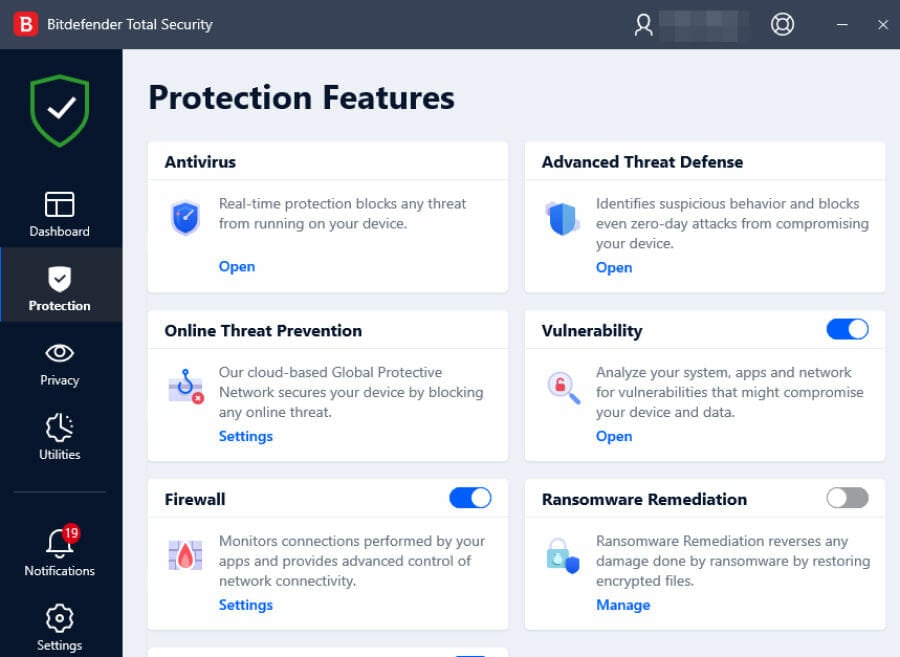
You will be pleased to know that it not only delivers top-notch, impenetrable defense but also the lowest impact on your system even in full scan mode.

Having a hard time taking this statement for granted? So did we! That’s why we checked for ourselves and we can gladly confirm this tool’s small system footprint and overall discreet presence do not monopolize your resources.

Our breezy ASUS SonicMaster with 8.00 GB of RAM and 500 GB HDD (out of which 118 GB worth of files are already occupied) is your reliable witness.
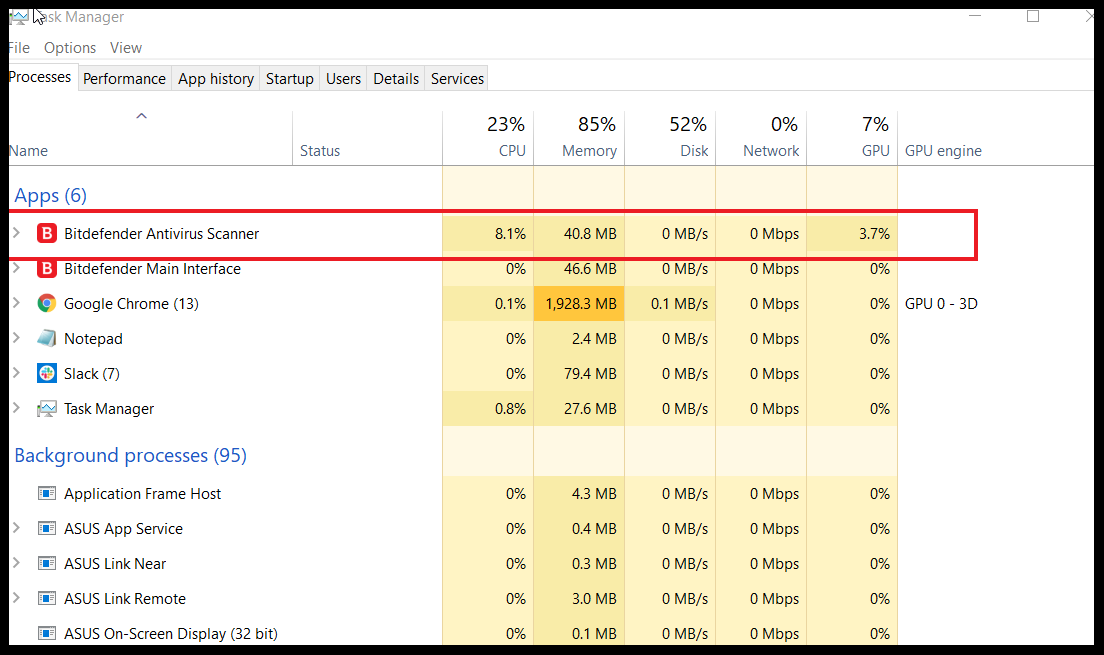
Here are more features you’d probably enjoy, starting with the dedicated profiles that perfectly adapt to your needs. The big trio in our lives gets specialized modes for Game, Movie, and Work.
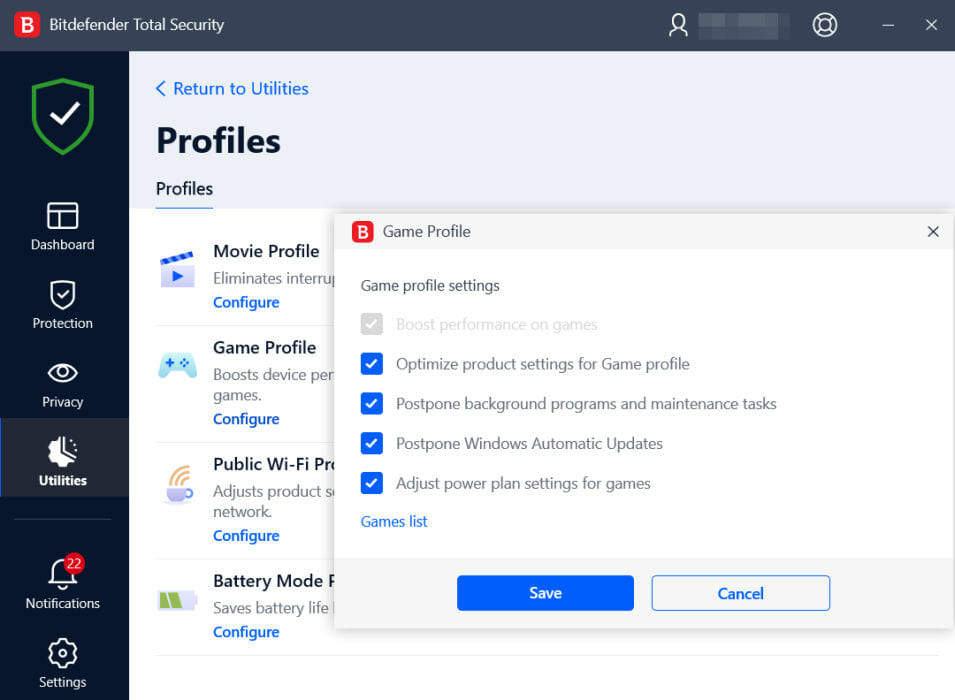
In fact, whenever you use an app on full screen, the silence mode automatically kicks in to halt notifications, tweak visual settings and postpone unessential operations in order to allow you to make the most of your rig uninterrupted.

The smart Battery Mode then comes into play and further adjusts your configuration to save on battery life and allow you to stay unplugged longer. Finally, the OneClick Optimizer will speed up your device and improve its overall performance.
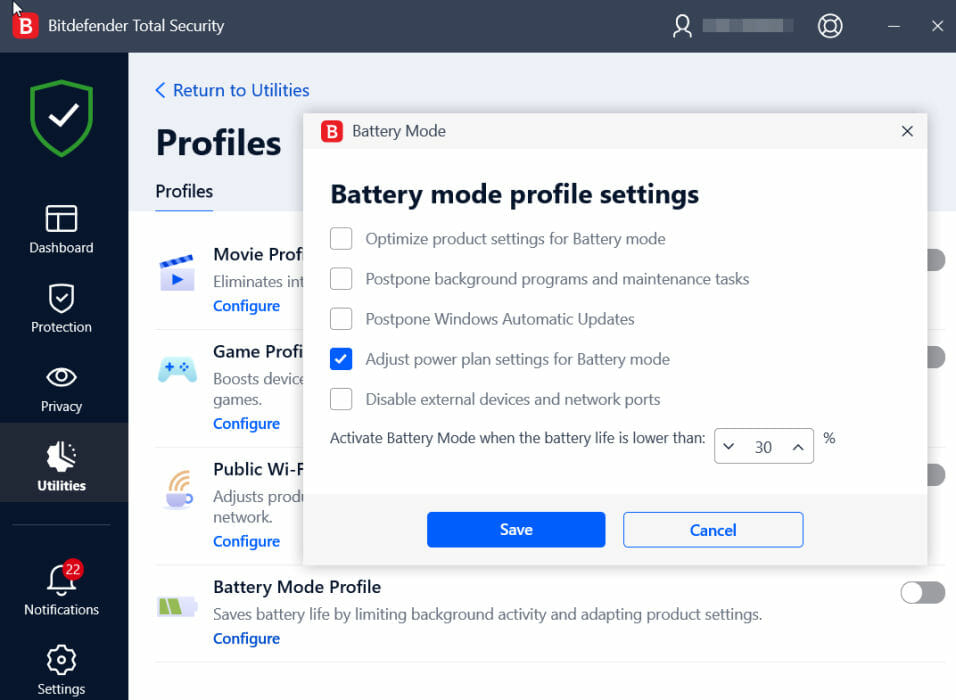
 

Privacy and anti-fraud protection are quintessential to gamers since these are the 2 most vulnerable and most frequently exploited channels, closely followed by network-targeted attacks.

Bitdefender Total Security couldn’t have been the best antivirus for PlayStation 4/5 if it weren’t for some serious privacy-focused features such as video and audio protection, a VPN with anti-tracking capabilities, not to mention the proprietary file shredder and password management systems.
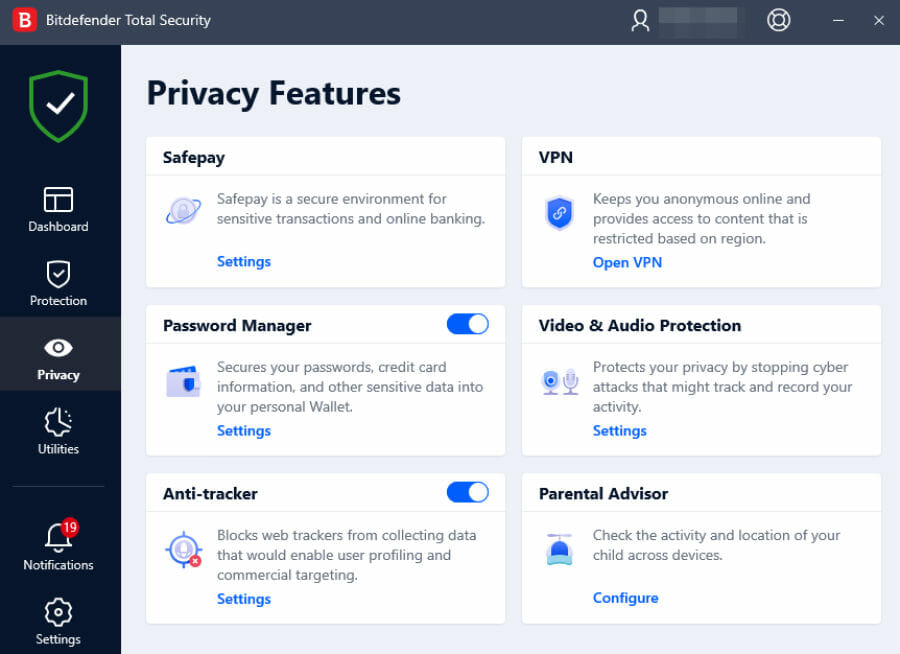
The smart Privacy Firewall filters your network traffic and the Wi-Fi Security Advisor makes sure you won’t ever land on an unsecured connection.

To top it all, you also get a secure browser to deploy financial operations, social network defense, and advanced anti-phishing protection to block out scammers, posers, spoofed websites, and more.


Norton 360 for Gamers

  • Advanced intrusion detection system
  • Multi-layered defense against gaming-related threats
  • Sophisticated protection against gaming-targeted exploits
  • Built-in VPN and firewall for complete privacy
  • Features such as Norton Optimizer, Cloud Backup, and SafeCam are only available on Windows.

Whether you’re looking for an antivirus for PS4, Xbox One, gaming PC, or a security program for Oculus Quest, you simply cannot go wrong with Norton 360 for Gamers.

It’s hard to beat an app that was designed by gamers for gamers and Norton caters exclusively to this special breed of users with very particular protection needs.

Of course, multi-faceted defense is well-represented, but it’s the fine-tuned features that perfectly wrap around gamers’ needs that we’re after.

And we believe Norton’s tailored protection will not only convince you it’s worth a shot but captivate you altogether.

Its specific mechanisms are designed to secure your gaming information, including anything and everything from accounts, devices, tags, and assets.
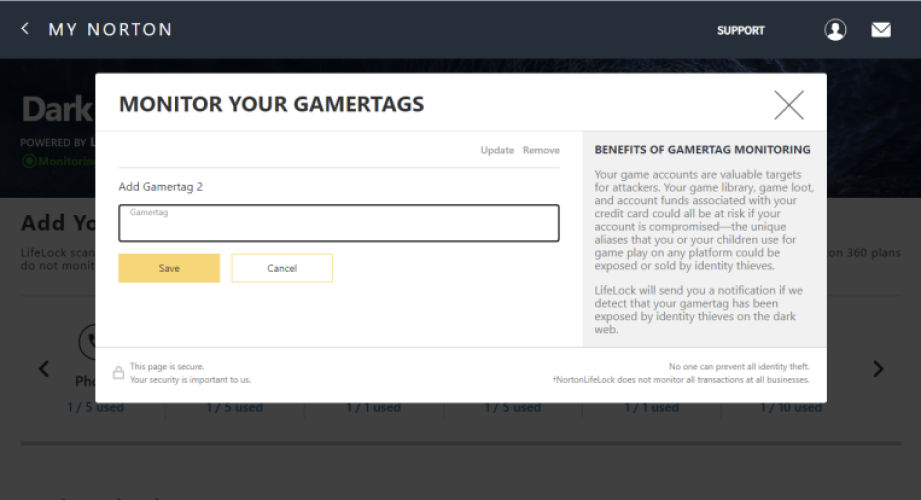
There is no shortage of antiviruses with gaming modes and boosters on the market and obviously, Norton does not fall short in this department.

But that’s just the beginning of the saga as Norton does more than minimize distractions while you’re gaming or using an app in a full-screen layout.

Here is the truly game-changing part: it adjusts its entire configuration to pump juice into your gameplay.

From optimizing resource-intensive processes and tasks to free up capacity to enhancing your CPU, Norton does it all.
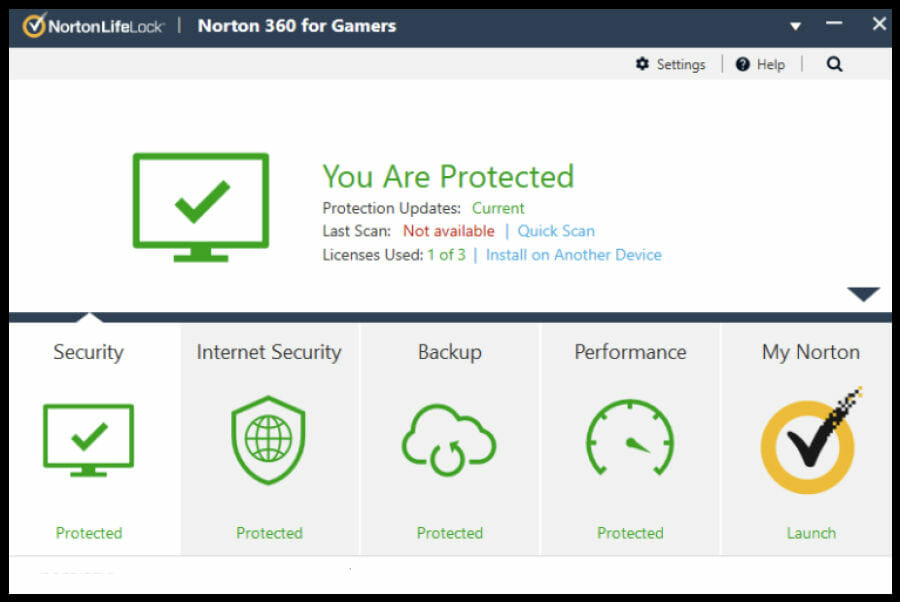
Smooth graphics, boosted speed and top-notch FPS are guaranteed to propel you straight to victory and the awesome part is that you won’t have to sacrifice security or privacy on the shrine of performance.

The Dark Web Monitoring feature will keep an eye on your personal information as well as gamer tags, usernames, and email addresses associated with your gaming accounts.

More privacy-focused tools come to the rescue including a no-log VPN that repels DDoS attacks, webcam defense for safe streaming, anti-phishing, and proactive exploit protection to block fraudulent websites and zero-day attacks.

At this point, it’s only safe to say that Norton 360 for Gamers is up for the challenge and we could not be more impressed with its airtight defense designed to leverage the in-depth comprehension of gamers’ needs.


Avira Prime

  • Advanced privacy-focused suite
  • Unlimited VPN, secure browser and anti-tracker
  • Password management and device cleaner
  • Software, drivers, and privacy options updater
  • Streaming and broadcasting optimizations
  • Money-back guarantee only

Avira Prime may not be designed exclusively for gamers, but it has what it takes to secure your gaming device and allow you to make the most out of it without fussing over performance befalls.

This is one truly cross-platform program that you can use on all your devices. Not impressed yet?

You should know that you can cover up to 25 different gadgets running on different platforms with just one subscription – how about now?

Needless to say, this is a great antivirus for PS4/5 and its smart capabilities will show you exactly why. Here’s a bit of intel on Avira in a nutshell.

Let’s start with the elephant in the room, shall we? Let’s talk performance.

With a dedicated device cleaner, Avira will help you remove clutter to free up both space and memory for your games.

But removing junk also has deeper implications that will be beneficial to your gameplay such as speeding up boot time and cutting down on lag. One goes up, another one must go down, right?

Avira will take it even further to automate your device optimizations and keep both software and drivers up to date.

By optimizing user and system processes, this best antivirus for PlayStation 4/5 will enhance your gameplay and allow you to get more out of your CPU.

Similar to Norton 360 for Gamers, this nifty program will check to see if your sensitive data such as passwords or account information have been leaked online or involved in a security breach.

Speaking about passwords, you’re in for a big treat thanks to the built-in password management system that allows you to generate unhackable codes for your gaming accounts.

It’s true that privacy is often related to confidential credentials, but there is more at stake. Avira gets it all too well and throws in extra privacy-focused tools to guarantee your end-to-end confidentiality.

Here’s what to expect: a truly unlimited VPN (which is a bit of a rare jewel with security bundles), a safe browser with anti-tracking and anti-adware capabilities, dedicated privacy settings optimizer, mic, and webcam shields, and more.


AVG Internet Security

  • Webcam protection and data shredder
  • Fake website shield + safe browsing
  • Advanced anti-hacking tools
  • Dedicated Do Not Disturb and Silent modes
  • Multi-device coverage and cross-platform compatibility
  • VPN feature is only available in the premium (Ultimate) edition.

AVG Internet Security boasts numerous security features designed to appease gamers’ concerns. What’s in it for you specifically?

Here’s a preview: robust ransomware protection, anti-hacking, and privacy-focused tools such as passwords and webcam defense, a customizable firewall, secure payments, and much more.

In fact, the Hacker Attacks Protection and Privacy Protection modules are 2 of the 5 major pillars on which AVG focuses in order to secure your digital experience.
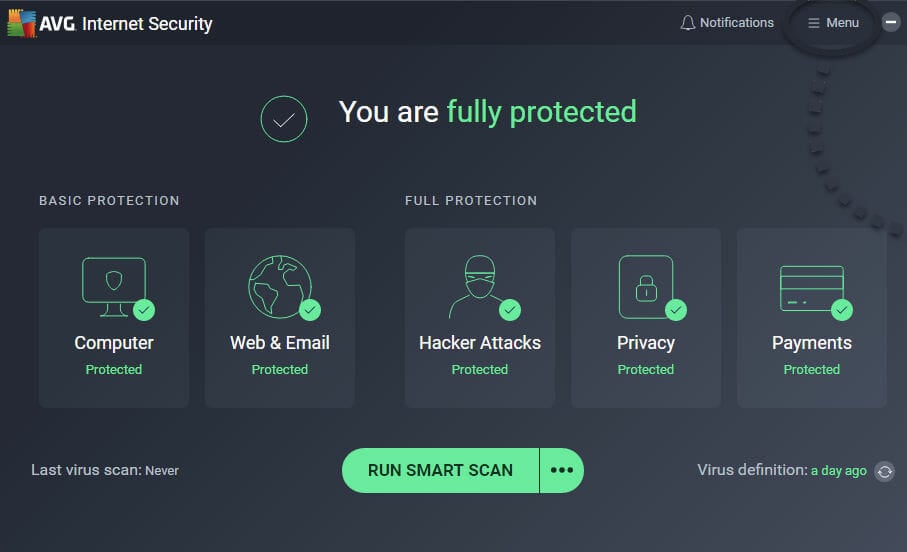
Propelled by a powerful blend of heuristics and AI, this best PlayStation antivirus grants special attention to performance and this reflects throughout its entire infrastructure, all the way to scanning options.

You can trust the dedicated PUA scanner to identify potentially unwanted apps that may hide in gaming software packages while the Turbo Scan feature will skip files already vetted as safe to reduce the impact on your resources.

In some more handy tools to eradicate any distractions and allow you to enjoy your gaming sessions without interruptions.

We’re talking about the specialized Do Not Disturb and Silent modes that postpone notifications, pop-ups, scans, and updates while you engage in immersive gameplay.
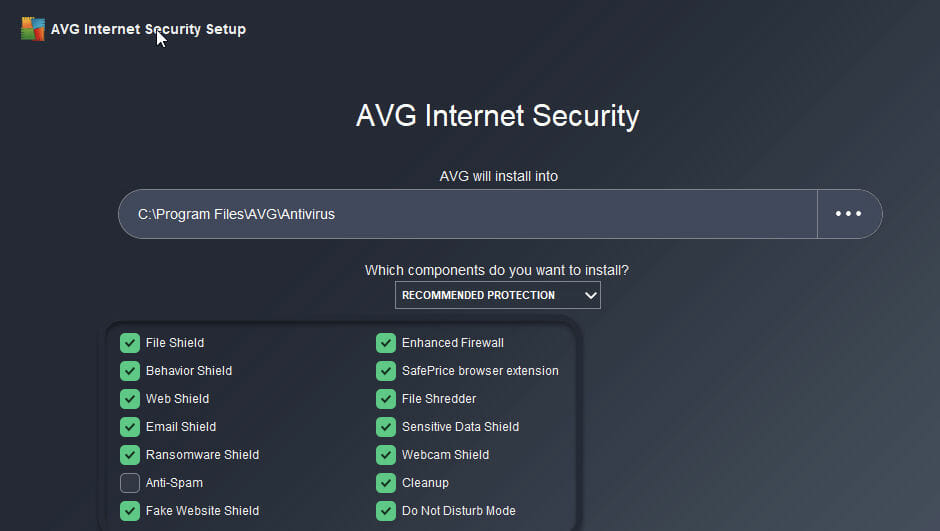
The built-in web shield and link scanner further refine your experience by steering you away from all things suspicious, harmful, or untrustworthy. And here’s the great thing.

These tools only make up for the introductory part of the extensive anti-hacking suite that follows.

An enhanced, highly customizable firewall will stop hackers from accessing your network while the password and anti-ransomware shields safeguard your confidential data from theft, abusive encryption, and more.

Not useful anymore? Don’t let it linger around to tempt intruders. Rely on the native data shredder to permanently remove data you no longer need and prevent unauthorized access for good.


Did you find your antivirus for PlayStation 4/5 in here? We sure hope so. Don’t be shy to share your thoughts on this topic with us. We’re eager to know your point of view.

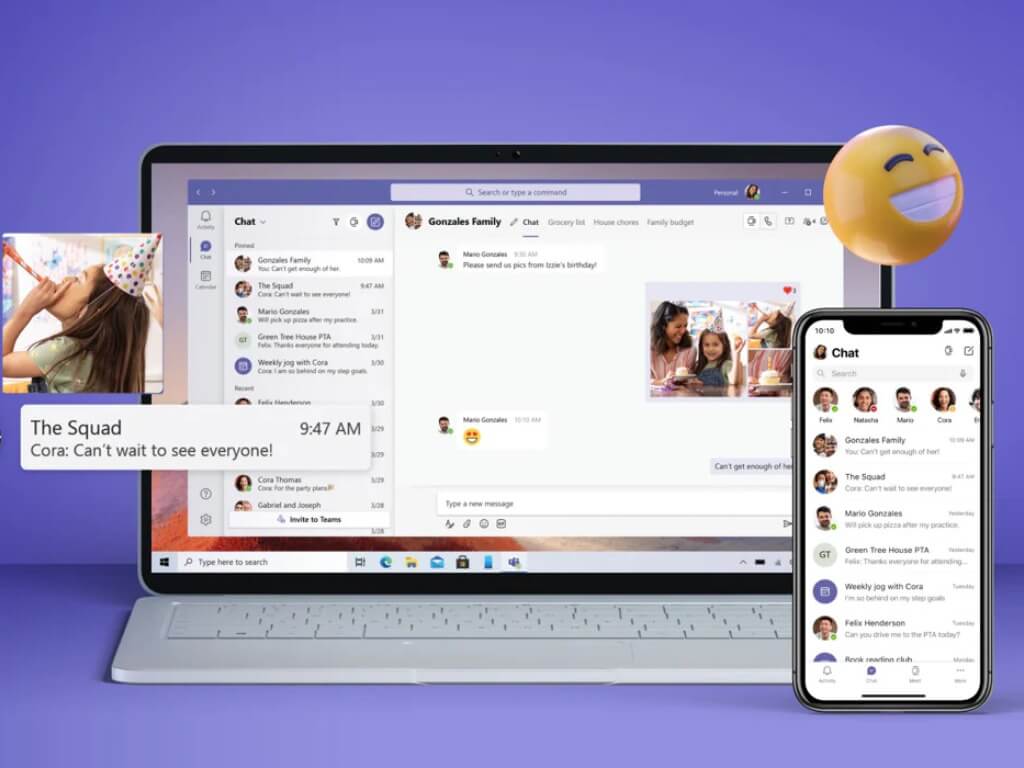
Fix: Error Occurred While Attempting to Join the Domain

While working on a domain server, you may encounter the following error occurred attempting to join the domain error. It is a network error and occurs when the user tries to join a computer’s domain.

This message is quite related to the specified domain does not exist error, but we covered that one in a separate guide.

If you are also troubled by this error, here are a couple of troubleshooting tips to help you resolve the following error that occurred attempting to join the domain in Windows.

How do I fix The following error occurred attempting to join the domain?

1.  Enable SMB1 Support

error occurred attempting to join the domain
  1. Press Windows Key + R to open Run.
  2. Type control and click OK to open Control Panel.
  3. In Control Panel, go to Programs > Programs and Features.
  4. From the left pane click on Turn Windows Features on or off link.
  5. In the Windows Features window, scroll down to SMB 1.0/ CIFS File Sharing Support.
  6. Check the SMB 1.0/ CIFS File Sharing Support option and all the options in the sub-menu.
  7. Click OK to save the changes.
  8. Close Control Panel and check if the error the following error occurred attempting to join the domain is resolved.

A general network error occurred while joining domain often occurs if SMB (Server Message Block) 1 support is disabled on the client’s machine. 

It is a standard protocol used by the Windows system. Reportedly, enabling the feature has helped several users fix the error.

2. Check third-party antivirus

  1. Third-party antivirus is known to cause the aforementioned error.
  2. Your antivirus may be blocking any attempt to establish a connection resulting in the error.
  3. If you have a third-party antivirus installed, try disabling it temporarily.
  4. Once disabled, try to establish a connection and check for any improvements.
  5. If the error is resolved after disabling the antivirus, you may have to uninstall the antivirus to prevent the program from creating issues in the future.

Uninstall third-party antivirus

  1. Press Windows Key + R to open Run.
  2. Type control and click OK.
  3. Go to Programs > Programs and Features.
  4. Select and uninstall the antivirus.

Note: If your antivirus comes with a built-in firewall, you can disable the firewall from the settings menu.

We recommend this only as a temporary solution. You should install another Windows 10 compatible antivirus software that doesn’t interfere with your system and ensures complete real-time protection.

3. Use System Restore point

error occurred attempting to join the domain
  1. Type system restore in the search bar.
  2. Click on Create a Restore Point option.
  3. In the System Properties window, open System Protection.
  4. Click the System Restore button.
  5. Click Next.
  6. Check the “Show more restore points” box. This will list all the available restore points.
  7. Select the most recent restore point and click Next.
  8. In the Confirm your restore point window, click the Finish button.
  9. It may take a few minutes to restore the PC to an earlier point, so wait till the process is complete.

Using the System Restore Point feature can help you fix the domain server issue that occurred after making a major change to your system. The restore points will revert the computer to a previous point in time, thus undoing any changes that resulted in the error.

The following error occurred when attempting to join the domain error, as discussed, occurs if the SMB1 support is disabled or if there is an issue with the security programs.

We covered similar errors before, such as an error occured while attempting to create a directory when installing programs or an account with the same name exists in Active Directory, so we encourage you to check it out for more information.

Follow all the steps in this article and let us know which method helped you resolve the issue in the comments.

Computer stuck on CTRL+ALT+DELETE screen [FIX]

Are you getting stuck on the login or CTRL+ALT+DEL screen when using your Windows 10 computer?

If so, have you tried unplugging any devices connected to the computer? Or maybe you’ve tried to restart your computer and nothing happens?

At this point, you could try clicking on Ease of Access on the lower-left corner of the login screen if your mouse is working.

Select Type without the keyboard (on-screen keyboard) and use the mouse to press the CTRL+ALT+DEL keyboard shortcut.

Sometimes the issue is with your keyboard, which could be dead or has come loose so you can check the keyboard’s connection to the PC.

If it’s a wireless keyboard, check the batteries. If you don’t get any lights coming on when pressing Caps Lock, or Num Lock, then your keyboard is most likely shot.

Should none of these quick fixes work, you can go ahead and try the suggested solutions here.

What can I do if my PC is stuck on the CTRL+ALT+DEL screen?

  1. Roll back graphics/video card driver
  2. Perform a hard reset
  3. Perform a startup repair
  4. Disable fast boot/startup

1. Roll back graphics/video card driver

  1. Right-click Start.Computer Stuck On Ctrl Alt Delete Screen
  2. Select Device Manager.Computer Stuck On Ctrl Alt Delete Screen
  3. Select Display Adapters and click to expand the list then choose the card.Computer Stuck On Ctrl Alt Delete Screen
  4. Right-click the on the card, and then select Properties.Computer Stuck On Ctrl Alt Delete Screen
  5. In Properties, select the Driver tab.Computer Stuck On Ctrl Alt Delete Screen
  6. Select Roll Back Driver, then follow the prompts.Computer Stuck On Ctrl Alt Delete Screen

Your PC doesn’t natively know how to take advantage of all video card features. It needs a driver to do that and not just any driver – an updated one.

When applying the above procedure, if the button is unavailable, that means there’s no driver to roll back to.

If Windows can’t find a new driver for your graphics/video card, you can visit your computer manufacturer’s website to download the latest driver.

However, there’s an even better option to take into consideration. Instead of wasting time scattering between countless graphics/video card versions, install Outbyte Driver Updater and let it handle this task.

Besides solving the CTRL+ALT+DELETE issue by updating your graphics/video card, this lightweight tool will keep all your drivers updated for your PC to work properly.

And if you’re not a big fan of tech changes, keep in mind that the interface is kept relatively simple, so you’ll get used to it in no time.

2. Perform a hard reset

  1. Remove the battery from its compartment, and then press and hold the Power button on your computer for about 15 seconds to drain any residual electrical charge from its capacitors.
  2. Insert the battery and power adapter back to the computer but don’t connect any other devices just yet.
  3. Press the Power button to turn on your computer. You’ll see the startup menu opening, so use the arrow keys to select Start Windows Normally and press Enter.
  4. You can now reconnect the devices one at a time, and you’re good to go. Remember to run Windows Update and update all device drivers.

This will be different depending on whether your computer has a removable battery or a sealed (non-removable) battery.
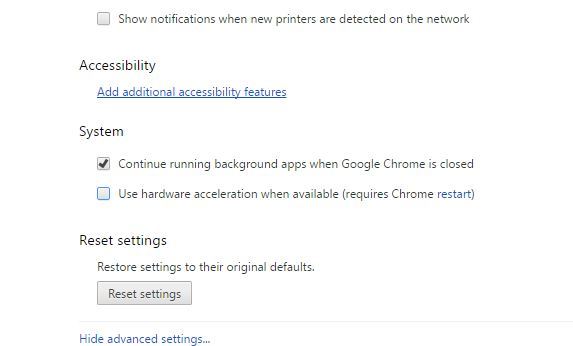
For a removable battery computer, switch off the computer and remove any plugged devices, disconnect all externally connected peripherals, and then unplug the power adapter from the computer.

For a computer with a sealed or non-removable battery, don’t try to remove it as this can void your warranty. Do the following instead:

  1. Turn off the computer and remove any plugged devices or peripherals, and unplug the power adapter from the computer.
  2. Most laptops can be reset by pressing and holding the Power button for 15 seconds. So do this, then plug back the power adapter but not any other devices.
  3. Press the Power button and start your computer, then select Start Windows Normally and press Enter.
  4. Reconnect other devices and peripherals, one at a time, and run Windows Update as well as updating all device drivers after the reset.

3. Perform a startup repair

  1. Start your computer from the installation media by inserting the disk or USB drive stick. If you get a message asking you to press any key to boot from DVD, press any key on your laptop or computer’s keyboard. If you don’t see such a message, change the boot order in your BIOS settings so that it starts from the disk or USB.
  2. When you see the Install Windows page, click Repair your computer to start the Windows Recovery (WinRE) environment
  3. Go to Choose an option screen.Computer Stuck On Ctrl Alt Delete Screen
  4. Click Troubleshoot.Computer Stuck On Ctrl Alt Delete Screen
  5. Select Advanced Options.
  6. Click Startup Settings and then click Restart.Computer Stuck On Ctrl Alt Delete Screen
  7. Once this is done, complete the repair and check if you can start your computer again.

You can do this by first downloading the Windows 10 ISO and creating a media creation tool, then performing a startup repair.

Once you have the installation media, do as described above.

4. Disable Fast Boot

  1. Right-click Start.
  2. Select Control Panel.Computer Stuck On Ctrl Alt Delete Screen
  3. Click Hardware and Sound.Computer Stuck On Ctrl Alt Delete Screen
  4. Click Power Options.Computer Stuck On Ctrl Alt Delete Screen
  5. Click Choose what the power buttons do.Computer Stuck On Ctrl Alt Delete Screen
  6. Click Change settings that are currently unavailable.Computer Stuck On Ctrl Alt Delete Screen
  7. Scroll down to Shutdown settings.Computer Stuck On Ctrl Alt Delete Screen
  8. Uncheck Turn on fast startup.Computer Stuck On Ctrl Alt Delete Screen
  9. Click Save changes.

Some users have raised concerns over the Fast Boot setting in BIOS that hinders the booting and fast loading of the desktop, creating many problems in Windows 10.

You could try and disable this in your computer’s BIOS and see if it fixes the problem.

Did any of these solutions help you fix the ‘computer stuck on CTRL+ALT+DELETE screen problem? Let us know by leaving a comment in the section below.

[wl_navigator]

How to fix corrupted Microsoft Access databases

Access is one of the industry’s foremost database applications that’s included within the Microsoft Office suite.

Microsoft Access databases might be essential files for some users as they retain records, so it’s a good idea to keep a database backup as a precaution for file corruption.

Yet, there are probably some users who don’t back up their database files; and they’ll need to repair corrupted Access MDB or ACCDB files.

If your Access database is corrupted, and you don’t have a handy backup, check out some troubleshooting tips below.

How can I solve Microsoft Access database corruption issues?

  1. Use a professional tool – Stellar Repair for Access
  2. Select the Compact and Repair Database tool in Access
  3. Open the Jet Compact utility
  4. Fix Access Database files at OfficeRecovery.com
  5. Fix corrupted access database with Hetman Office Recovery

1. Use a professional tool – Stellar Repair for Access

Developed by the experts at Stellar, Repair for Access is the best choice when it comes to repairing a corrupt Access database and recovering the objects in a new database.

As a potential user, do note from the start that it comes with an exceptionally polished interface that makes both newbies and experienced users feel comfortable while using it.

Moreover, it packs the best-in-class database scanning technology to recover deleted tables, attachment data, and even non-English language details from database tables.

Stellar Repair for Access

Stellar Repair for Access

Looking for a way to fix corrupted Microsoft Access databases? Stellar’s tool is up for the task!
Free trial Visit website

2. Select the Compact and Repair Database tool in Access

  1. Open the Access application.
  2. Select the Database Tools tab.
  3. Then click the Compact and Repair Database option on the tab.Compact and Repair Database
  4. A Database to Compact From window will then open from which you can select a database file to repair.
  5. Press the Compact button.
  6. Next, enter a new file title in the Compact Database Into dialog box that opens; and select a folder to save it to.
  7. Click the Save button. Thereafter, you will have a fresh database that you can open in Access.

First, check out the Compact and Repair Database tool included within Access. That tool can repair corrupted Access database files. Use the above steps to fix databases with the Compact and Repair Database tool.

3. Open the Jet Compact utility

  1. You can click Download JETCOMP.EXE now on the official JetComp page to save the utility to a folder.
  2. Click JetCU40.exe in the folder you saved it to open the window shown directly below.
  3. Click the Browse button to select a folder to extract Jet Comp to, and click the OK button.
  4. Open the folder that includes the extracted utility, and click JetComp.exe to open the Database Compact Utility 4.0 window.
  5. Click the … button for the Database to Compact From box to select a corrupted database.
  6. Then click the … button for the Database to Compact Into box to choose a path to save the newly compacted database. Add a file title for the database to the end of the path if required.
  7. Press the Compact button.

There’s also a separate Microsoft Jet Compact utility (Jetcomp) that Access users can repair corrupted databases with.

Jetcomp is pretty similar to the built-in Compact and Repair tool in Access as it compacts databases.

However, Jetcomp is certainly worth noting if the Compact and Repair Database utility in Access doesn’t repair your MDB or ACCDB file.

4. Fix Access Database files at OfficeRecovery.com

OfficeRecovery.com includes a few web tools that MS Office users can fix files with. You can fix MDB and ACCDB files with the Repair Access Database ONLINE utility at OfficeRecovery.com.

Open the Repair Access Database in your browser. Then press the Choose file button to select a corrupted database, and click the Secure Upload and Repair button to fix it.

5. Fix corrupted access database with Hetman Office Recovery

You can fix corrupted Access files with third-party database repair software such as Hetman Office Recovery. This tool provides native file support for Microsoft’s popular formats and more.

In fact, versatility is a quintessential characteristic of  Hetman Office Recovery and it does justice to its reputation by seamlessly working with all types of platforms, devices, storage media including all SSD, HDD, USB pen drives, NAS, and all versions of FAT and NTFS.

Moreover, not even damaged devices can stand a chance against this powerful recovery tool.

Through sophisticated disk analysis algorithms, Hetman Office Recovery will help you retrieve and access database files (and others) from formatted, repartitioned, corrupted, inaccessible, worn, and physically unstable disks and partitions.

⇒ Get Hetman Office Recovery

So that’s how you can fix corrupted MS Access database files. Check out the built-in repair option and gradually move on or go directly for a third-party tool such as Stellar and skip the troubleshooting process.

If you managed to fix this problem, be sure to check our guide and learn how to convert ACCDB to PDF and take your Access knowledge to a new level.

Whatever is your method of choice, it’s guaranteed to work. Let us know how it went by reaching for the comments section below.

System error 67 has occured? Fix it in 5 easy steps

System error 67 is a Windows Server issue that can occur when users try to map a network drive. The error message states: System error 67 has occurred.

The network name cannot be found. Consequently, users can’t map their network drives when Command Prompt displays that error message.

If you need to fix that issue, check out some of these potential resolutions.

How can I fix the System error 67 on Windows 10?

1. Update the network adapter driver for the domain controller

Updating the network adapter driver on the domain controller server might fix the System error 67 that you are dealing with. That’s why this is our first recommendation for you today.

You can update your drivers by accessing the Device Manager panel from the taskbar. Find the network adapter in the list of hardware, right-click on the driver and select update.

Alternatively, in order to quickly update the network adapter driver for the domain controller, don’t hesitate to use Outbyte Driver Updater.

This tool will literally solve the problem for you by scanning the computer for missing and outdated device drivers.

Once they are identified, choose only the adapter driver to update or download and install all of your out-of-date device drivers at once.

It’s convenient that you can always see the download progress of each of your files, not to mention that you can easily schedule driver scans.

Outbyte Driver Updater

When dealing with the System error 67, chances are to find that it’s driver-related. Use Outbyte Driver Updater right away!
Free Trial Download now

2. Check the command’s syntax

net map command System Error 67

System error 67 can often be due to a syntax error within the net map command. So, double-check you’ve entered the net map command right.

Check whether you’ve entered the slashes for the command right. The basic syntax for the net map command is: net use * *IP Address*sharename.

So, there should be backslashes, not forward slashes, around the command’s IP address.

3. Disable the Network Address Translator

  1. Microsoft’s official fix for System error 67 is to disable the Network Address Translator, so right-click the Start button and select Device Manager to open the window shown directly below.Device Manager System Error 67
  2. Click the View menu.
  3. Select the Show hidden devices option.
    Device Manager window System error 67
  4. Double-click the Non-Plug and Play Drivers category in Device Manager.
  5. Right-click IP Network Address Translator to select the Disable option for it.

4. Turn on Desktop Experience

  1. First of all, click the Start button.
  2. Click Administrative Tools on the Start menu.
    Server Manager option System Error 67
  3. Select the Server Manager option to open that utility.
    Server Manager window System Error 67
  4. Click Features on the left of the Server Manager.
  5. Click Add Features under Features Summary, which opens the window directly below.
    Desktop Experience option System Error 67
  6. Then select the Desktop Experience option.
  7. Click the Add Required Features button.
  8. Click Next to continue.
  9. Press the Install button.

Some users have also confirmed they’ve fixed System error 67 by enabling Desktop Experience in Windows Server. You may try the same by applying the above steps. 

5. Turn off the Hardened UNC Paths policy

  1. Some users might need to turn off the Hardened UNC Paths policy. Press the Windows + R hotkeys.
  2. Input gpedit.msc in Run and click OK to open Group Policy Editor.
    The Group Policy Editor System Error 67
  3. Click Computer Configuration, Administrative Templates, Network, and Network Provider on the left of Group Policy Editor.
  4. Double-click Hardened UNC Paths on the right of Group Policy Editor.
  5. Select the Disabled radio button.
  6. Select the Apply option.
  7. Thereafter, restart Windows.

The resolutions above will probably fix System error 67 for most users. With that issue fixed, users can then map network drives and run Network Discover scans as required.

Here’s How to Fix Status Invalid Image Hash on Chrome

The status invalid image format error can appear in Chrome while trying to run certain applications. As a result, you won’t be able to run the desired programs.

The error mostly affects video games such as Arma 3 and is usually generated by missing components such as DirectX, .NET Framework, and Visual C++ Redistributables.

Besides, it’s often reported that some G-suite modules, such as Word or Excel, won’t run because of this issue. So, in this article, we’ll try to shed some light on the matter and offer a few solutions.

How can I fix the status invalid image format error?

1. Make sure that your drivers are up to date

Sometimes the Status invalid image format message can appear when running certain games, especially if your drivers aren’t up to date.

So update all your important drivers, such as the chipset, sound, network, graphics, etc. Visit your device manufacturer’s website for each component and download the latest drivers.

However, updating drivers manually can be a bit tedious, especially since you need to know the model of each component you’re trying to update. You can use a third-party tool that will help you update all your drivers with the newest versions.

⇒ Get Fortect Driver Updater

2. Make sure that the application isn’t trying to load a 32-bit DLLs

Although a rare occurrence, the Status invalid image format message can appear when the application you’re trying to run tries to load a 32-bit to a 64-bit process.

Users suggest using Dependency Walker in profile mode to determine which DLL is causing the problem.

What you need to do is to download this tool to open the application that displays this error.

This way, you’ll be able to see which DLL file is causing the issue.

Keep in mind that this is an advanced solution, so if you’re a basic user that isn’t familiar with Dependency Walker, perhaps you should skip this solution.

3. Perform an SFC or DISM scan

  1. Start Command Prompt as administrator by pressing  Windows Key + X.
    Status invalid image format cmd
  2. Enter sfc /scannow and press Enter to run it.
    Status invalid image format sfc
  3. The scanning process will now start. The scan can take about 15 minutes or more, so don’t interrupt it.

After the scan is finished, check if the error message still appears.

If the sfc/scannow stops out of the blue, see these easy solutions to fix the issue.

If the issue remains unresolved, or if you couldn’t run SFC scan, be sure to use DISM scan instead.

  1. Run Command Prompt as an administrator.
  2. Enter the following command and press Enter DISM /Online /Cleanup-Image /RestoreHealth
    Status invalid image format dism
  3. DISM scan will now start. This scan can take about 20 minutes or even more, so don’t interrupt it.

After the scan is finished, check if the error message is still there. If you were unable to run the SFC scan before, try running it again and check if the problem is still there.

4. Check your antivirus

Your antivirus can sometimes interfere with certain applications and cause the mentioned error.

To fix this problem, it’s important to ensure your antivirus isn’t blocking the application you’re trying to run. More specifically, add the application to the exclusions list.

If that doesn’t help, you may disable certain antivirus features or disable your antivirus altogether.

Another thing to try is to uninstall your antivirus, in which case you’ll be protected on Windows 10 by Windows Defender.

On the other hand, we strongly recommend switching to an antivirus that doesn’t interfere with other processes.

You can find Windows 10 compatible antivirus software that offers top-level protection without causing any errors.

5. Update or reinstall DirectX

According to users, sometimes your DirectX installation can cause the mentioned error .

This usually happens when you try to run certain games on your PC. To fix the problem, it’s advised to update DirectX to the latest version.

If DirectX is already up to date, you might want to try reinstalling it and check if that solves your problem.

6. Download/update .NET Framework and Visual C++ Redistributables

Sometimes the Status invalid image format error appears if you don’t have the necessary components installed.

Namely, certain applications rely on .NET Framework and Visual C++ Redistributables in order to work properly, and if you don’t have them installed, you might encounter various issues.

So just download or update both from Microsoft’s official sources and you’re good to go.

After you update/install .NET Framework and Visual C++, the problem should be completely resolved.

7. Verify the integrity of game cache

  1. Open your game library, and locate the game that displays the error.
  2. Right-click it and choose Properties from the menu.
    integrity Status invalid image format
  3. Head over to the Local files tab and click Verify integrity of game files button.
    integrity game files Status invalid image format
  4. Steam will now verify the integrity of your game cache. (This process can take about 15 minutes, sometimes more depending on the size of the game).

Once the process is finished, check if the error message still appears.

8. Reinstall the application

If Status invalid image format message appears while trying to run a certain application, the issue might be related to that application itself, which might have gotten corrupted.

Reinstalling the application could help. There are several methods that you can use to reinstall the application.

At the same time, it’s very important to also completely uninstall the initial app using a dedicated tool such as IOBit Uninstaller.

If you aren’t familiar with it, uninstaller software will remove the selected application and all associated files and registry entries.

Doing so will prevent any leftover files from interfering with your system, and it will be as if the application had never been installed.

To conclude, the Status invalid image format message can prevent you from running specific applications on your PC. However, we hope you managed to fix this problem using one of our solutions.

If you have other suggestions on this topic, feel free to reach us in the comments below.