Here’s what’s in store for IT pros in the next Windows 10 update

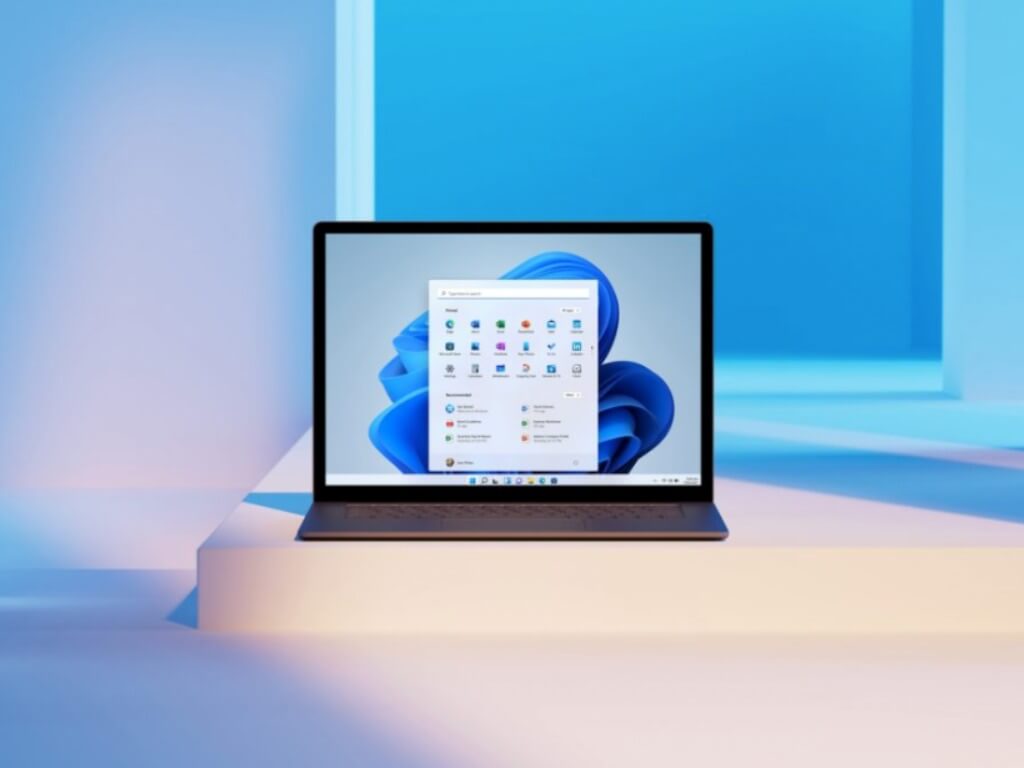
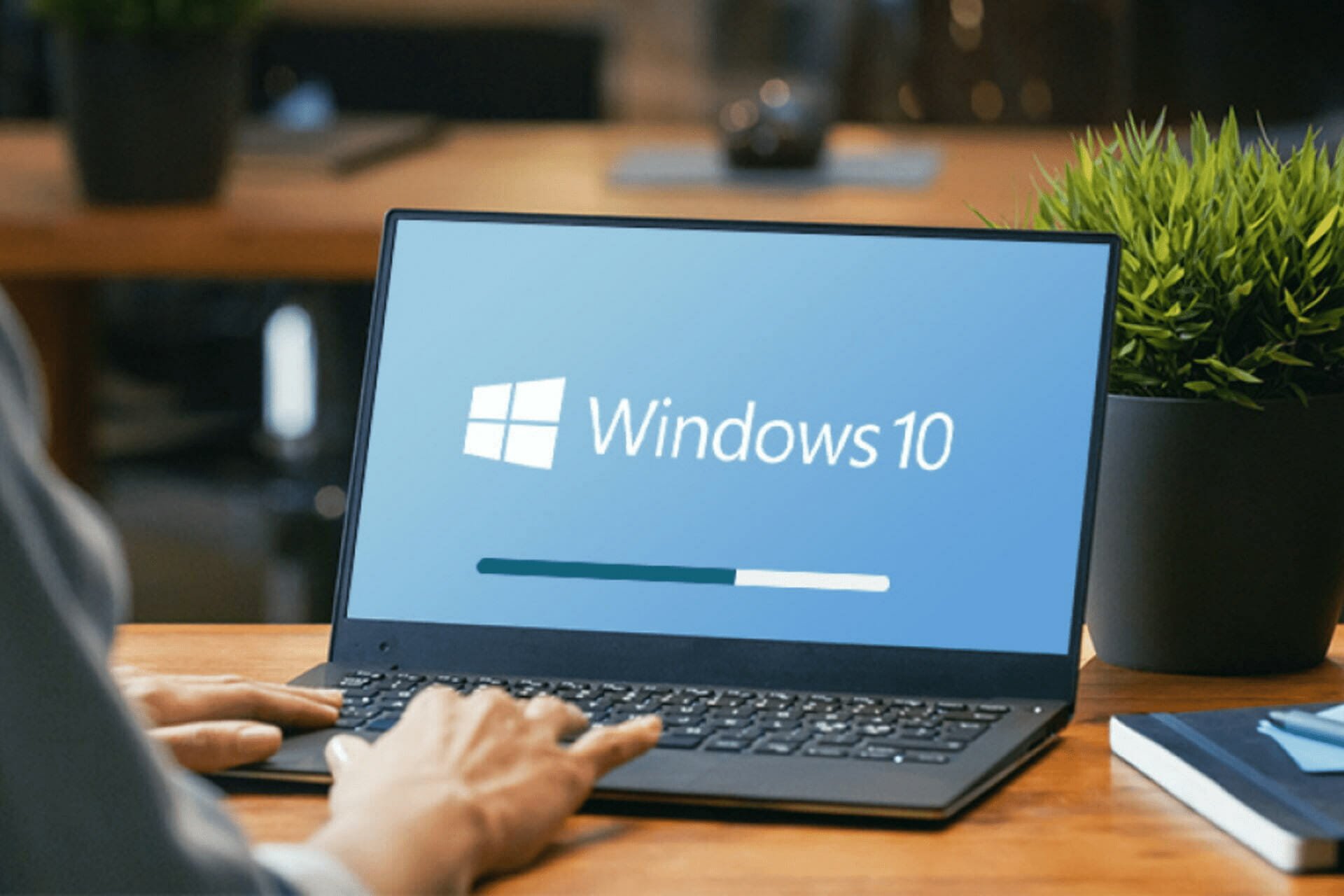
The Windows 10 November 2021 Update has been released and will be the last feature updates. Windows 10 will now be getting updates annually just like Windows 11.

From the release, it is clear that IT pros will have no choice but to move to Windows 11 sooner rather than later.

What’s new

Wi-Fi 6 support is coming to Windows 10. This means the bandwidth has not improved but the Wi-Fi Protected Access 3 H2E that protects it from Dragonblood attacks on WPA3 encodes passwords for its SAE.

Whereas enterprise Wi-Fi networks are a bit safer, when people are on personal wireless networks in coffee shops or other areas, side channel attacks could have a window of opportunity to steal Wi-Fi passwords and other credentials. 

Essentially, if you have Wi-Fi 6 hardware in your PC, H2E would be a more secure option and also efficient.

What you will not be happy about is that USB 4 support will not be coming after all. USB 4 ports are only exclusive on new Surface devices and new PCs that are also available with Windows 10.

Unfortunately, the WSLg feature on Windows 11 will also not be coming to Windows 10. However, in the November 2021 update, if you are using WSL 2 for machine learning or other applications, you can use GPU compute.

Frameworks such as PyTorch and TensorFlow will come in handy in WSL2. Also, any GPU with DirectX 12 drivers will give you DirectML support. If this does not work, your driver may need an update especially if it is an NVidia card to work with TensorFlow in WSL 2.

The cloud trust model will also be coming to Windows 10 that allows you to go without a password.

The feature will be available in 2022 for Windows Hello for Business. Originally, organizations have to go through a tedious process of deploying Azure AD Connect and sync with their AD with writeback. This process could take hours.

Although the cloud trust will still require Azure AD, it will let you run a PowerShell script and establish trust between AAD and AD.

Users can use biometrics such as fingerprint sensors and get authenticated through Azure AD which means less work for the IT team.

How to update

If you have Windows 10 version 2004 or later, you will be able to see the November 2021 Update on their PCs. However, if you are on a 2004 version, you should consider upgrading as of Dec 2021, it will no longer receive updates.

IT pros will have to guide their users on any existing company policies as the update will not roll out to every user immediately. This could be because of a difference in devices so nothing to worry about.

Organizations can already download the update through the Windows Server Update Service, Visual Studio Subscriptions, Windows Update for Business, or the Software Download Center. Do not look for it on the Microsoft Update Catalog.

The update will appear in the WSUS once you configure products and Classifications to Windows 10. It will also be officially named feature Update to Windows 10, version 21H2.

The update is an enablement package since the core OS is similar to that of Windows 10 version 2004. Therefore, if you are running version 2004, the patch Tuesday updates are already included with the new code.

Other earlier versions such as the 1909 Enterprise version will have to download the full package even though it’s still supported. 

The 21H2 builds are available in 32- and 64-bit ISOs in the Microsoft Evaluation Center, in 11 different languages, for 90-day tests. Those on Windows 365 Enterprise, can create Cloud PCs  using Windows 10 21H2 and will be available for Windows 365 Business soon. 

The good news is that the new release is also supported on Azure Virtual Desktop.

New store coming

A new store from Windows 11 is also coming to Windows 10 and should be released by the end of the year. The update will be extended to every Windows 10 version from 2004 upwards. The Windows Subsystem for Android will remain on Windows 11.

Microsoft is tight-lipped on whether the monthly Windows Update packages on Windows 10 will get smaller but so far, users should not expect the  EcoQoS feature responsible for improving battery life on newer CPUs on Windows 10. It also follows that 64-bit emulation is not an option and will also be off the table.

“The Pro X is our line in the sand; we’re moving this form factor, this device specifically forward to only be available with Windows 11.”

A bit of confusion

The November 2021 update is very clear on the new roadmap that WIndows 10 will take henceforth. What is a bit foggy is the annual feature updates that do not align with the current lifecycle.

Another update is currently in the works and is expected in the second half of 2022. This could alter the final cutoff date for the OS; October 2025. It is possible the Enterprise version will be supported for a longer time but we’ll see when the time comes.

With the Windows 10 updates, do you feel that this is an incentive for you to remain on the OS or do you want to upgrade to Windows 11? Share your thoughts in the comment section.


Xbox and Windows Spotify apps add song lyrics for free and Premium users

Spotify today announced the launch of a new lyrics feature for both its Windows desktop and Xbox console app in addition to the official mobile, smart TV, and PlayStation apps.

The lyrics feature, as you may have guessed, displays song lyrics while a song is playing. Surprisingly, Spotify is making lyrics available to all of its users, both free and paid, in all regions.

The feature appears to be rolling out to users gradually rather than all at once though as, as of the time of this writing, some users still don’t appear to have it on their Windows device or Xbox console.

New Spotify lyrics feature in Windows 11 Spotify app.

To check if you have the new lyrics functionality, simply select the microphone icon on the Windows Spotify app or the Lyrics icon on the Xbox Spotify app while a song is playing. Those using an Android or Apple device can swipe up on the screen while listening to a song to see the lyrics.

After more tech news? Follow us on Twitter and Facebook.

Full Fix: Nslookup works but ping fails on Windows 10/11

In this article, we’re going to discuss instances when the nslookup command works on Windows 10, but ping fails.

In case you’re not familiar, these are two commands that advanced users might use to obtain a domain name or IP address details, and today we’re going to show you how to fix this issue.

Similar problems reported by users are:

  • Nslookup resolves IP but ping does not – might be caused by your antivirus or firewall;
  • Nslookup works traceroute fails – might be related to certain services and restarting them might fix the problem;
  • Nslookup can’t resolve ping works.

How do I fix ping failures on Windows 10?

  1. Check your antivirus
  2. Use Command Prompt
  3. Update your drivers
  4. Restart the DNS Client service
  5. Add a dot after the searched domain
  6. Restart the DNS Cache service
  7. Change the IPv4 settings
  8. Switch to Google DNS
  9. Check your hosts file
  10. Disable IPv6

1. Check your antivirus

According to users, if nslookup works but ping fails, the problem might be related to your antivirus.

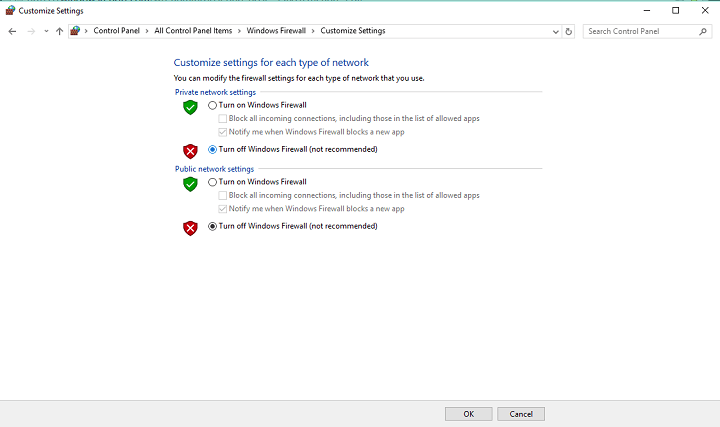
Several users reported issues with Kaspersky and its firewall feature. The solution would be to disable this tool and check if that solves the issue.

Of course, the problem doesn’t have to be related only to Kaspersky, but to other antivirus tools as well.

Additionally, in some instances, the only way to fix this problem might be to remove your antivirus.

If the issue doesn’t appear afterward, perhaps you should consider switching to a different antivirus solution best suited to work in silent mode.

Various leading antivirus systems now integrate a game mode that suspends notifications and scans when in full-screen mode.

The most practical solution is to keep your system secure while enabling the antivirus’s routine actions to perform as usual, but you need it to function silently.

2. Use Command Prompt

  1. Press Windows Key + X to open Win + X menu.
  2. Choose Command Prompt (Admin) (or PowerShell (Admin) for older OS).
    Win + X menu nslookup works
  3. Run the following commands:
    • netsh winsock reset catalog
    • netsh int ip reset reset.log
    • ipconfig /flushdns
    • ipconfig /registerdns
    • route /f

After running these commands, check if the problem is resolved.

3. Update your drivers

Another possibility is that the issue is related to your drivers, which might be outdated.

Of course, you can fix the issue simply by downloading the latest drivers and installing them.

To do that, you just need to visit your network adapter’s website and download the latest drivers for your model. After you download and install the latest drivers, the problem should be resolved.

Outbyte Driver Updater automatically update drivers

If this method seems a bit complicated to you, perhaps you should consider using third-party tools such as Outbyte Driver Updater and update your drivers with just a single click.

The tool will scan your system as soon as you launch it, and then offer a list of all vulnerable drivers that need updating, plus recommended software.

You can safely pick from the respective list, as the tools are compatible with your device.

4. Restart the DNS Client service

  1. Press Windows Key + R to open the Run dialog.
  2. Enter services.msc and press Enter or click OK.
    Run window nslookup works but ping fails
  3. Locate DNS Client, right-click it, and choose Stop.
  4. Wait for a couple of moments, right-click the DNS Client again and choose Start from the menu.
    Services window nslookup works but ping fails

If you can’t stop the service, the problem is the dependent services. DNS Client service depends on certain services, and until those services are stopped, you won’t be able to stop the DNS Client service.

To find out on which services DNS Client depends on, do the following:

  1. In the Services window, locate DNS Client and double-click it to open its properties.
  2. Head over to the Dependencies tab, where you should be able to see the services that DNS Client depends on.
    Dependant services nslookup works
  3. Stop these services and then you should be able to stop DNS Client as well.
  4. Once you restart the DNS Client service, be sure to restart the services that DNS client depends on.

This might be a bit complicated solution, especially if you need to disable depending services, but as long as you carefully follow the instructions, you should be able to manage.


5. Add a dot after the searched domain

add a dot after the searched domain

This is an unusual workaround, but it worked for some users. If nslookup works but ping fails, perhaps you can fix the problem simply by adding a dot after the domain.

For example, if you previously used ping windowsreport command, try using ping windowsreport. command and check if that works.


6. Restart the DNS Cache service

As we previously mentioned, sometimes these kinds of issues can occur due to certain services. Most likely, the DNS Cache service is the culprit, and in order to fix it, you just need to restart it.

To do this quickly, just follow these steps:

  1. Start Command Prompt as administrator.
  2. Run the following commands:
    • net stop dnscache
    • net start dnscachenet stop dnscache

After running these two commands, the DNS Cache service will restart and the problem should be resolved.


7. Change the IPv4 settings

  1. Click the network icon on your Taskbar and choose your network from the menu.
    network icon nslookup doesn't work
  2. Click Change adapter options in the right pane.
  3. A list of all network connections will now appear. Right-click your network connection and choose Properties from the menu.
  4. Select Internet Protocol Version 4 (TCP/IPv4) from the list and click the Properties button.

    IPv4 nslookup not working
  5. Now click the Advanced button.
  6. Go to the DNS tab and select Append these DNS suffixes (in order). Now click the Add button.
    Domain suffix nslookup doesn't work
  7. When the new window appears, enter . as the Domain suffix and click Add. Save changes.
    suffix add nslookung not working

After doing that, the problem should be resolved and everything will start working again.


8. Switch to Google DNS

  1. Repeat steps 1 – 4 from the previous solution.
  2. Then, select Use the following DNS server addresses.
  3. Enter 8.8.8.8 as the Preferred and 8.8.4.4 as the Alternate DNS server. Click OK to save changes.
    network icon nslookup doesn't work DNS change

After doing that, check if the problem is still there. Bear in mind that switching to the Google DNS might slow down your Internet connection a bit.

9. Check your hosts file

Check your hosts file

If the problem is still there, the issue can be your hosts’ file. If nslookup works but ping fails, it’s possible that the hosts’ file was edited by malware or another application, and that can cause this and similar problems to appear.

To fix the problem, it’s advised to check this file and make sure that everything is in order. Basically, if you see the website you’re trying to ping on the list, it means that the hosts’ files were modified.

Simply remove the entries pointing to the website you’re trying to ping and you’re good to go. If you don’t know how to do that, you can always reset the hosts’ file and that should fix the problem.

10. Disable IPv6

In case you’re not familiar, there are two types of IP addresses, IPv4 and IPv6. The latter is the newer standard, but if you aren’t specifically using IPv6, perhaps you can disable this feature.

As it turns out, several users reported that the ping issues were related to IPv6. So let’s disable it and check if that helps.

  1. Follow steps 1-3 from Solution 7.
  2. Locate Internet Protocol Version 6 (TCP/IPv6) on the list and uncheck it. Now click Apply and OK to save changes.
    IPv6 ping fails

After disabling IPv6, check if the problem is still there.

Not being able to ping a certain device or an IP address can be a problem, but we hope that you solved the issue using one of our solutions.

Additionally, we also covered the impossibility of ping other computers on Windows 10, so you might want to check out that article as well.

If you have further suggestions on this topic, feel free to share them in the comment below.

EXE Files Deleting Themselves in Windows: How to Fix It

EXE files deleting themselves in Windows is often tied to aggressive antivirus actions, SmartScreen filters, faulty updates, or corrupted file associations. It typically affects third-party installers, cracked software, or portable apps.

If you’re encountering this issue repeatedly, especially after downloads or extractions, your system may be auto-quarantining or blocking executables in real time. This guide outlines the core causes and offers precise solutions to stop Windows from silently removing EXE files.


What can I do if the Exe files keep deleting themselves?


1. Check your antivirus

If you’re having this problem, be sure to scan your PC for malware. Sometimes malware can infect your PC and start removing exe files on its own.

To be sure that your PC is not infected, perform a full system scan.

If your PC isn’t infected, the problem might be your antivirus settings. If your antivirus keeps removing certain exe files, add that file to the list of exceptions and check if that helps.

Alternatively, you can try disabling certain antivirus features or even disable your antivirus altogether.

If that doesn’t work, perhaps you should uninstall your third-party antivirus. Even if you choose to do so, you’ll still be protected by Windows Defender, so there’s no need to worry about your safety.

Users reported problems with Norton and Malwarebytes, but bear in mind that other antivirus tools can cause this problem to appear as well.

If removing the antivirus solves the problem, perhaps you should consider switching to a different antivirus solution.

There are many great antivirus tools on the market, but if you’re looking for a reliable security tool that won’t interfere with your system, we recommend that you try an antivirus software with low CPU usage.

Modern antivirus are configured to keep you protected in real-time while allowing your PC to work optimally so you can carry out your daily tasks with no issue.

2. Try using Safe Mode

  1. Open the Settings app by using the Windows Key + I shortcut.
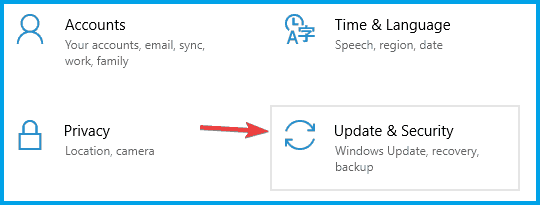
  2. Head over to the Update & Security section.

  3. Select Recovery from the left pane and click the Restart now button from the right pane.
    Windows 10 deletes exe files
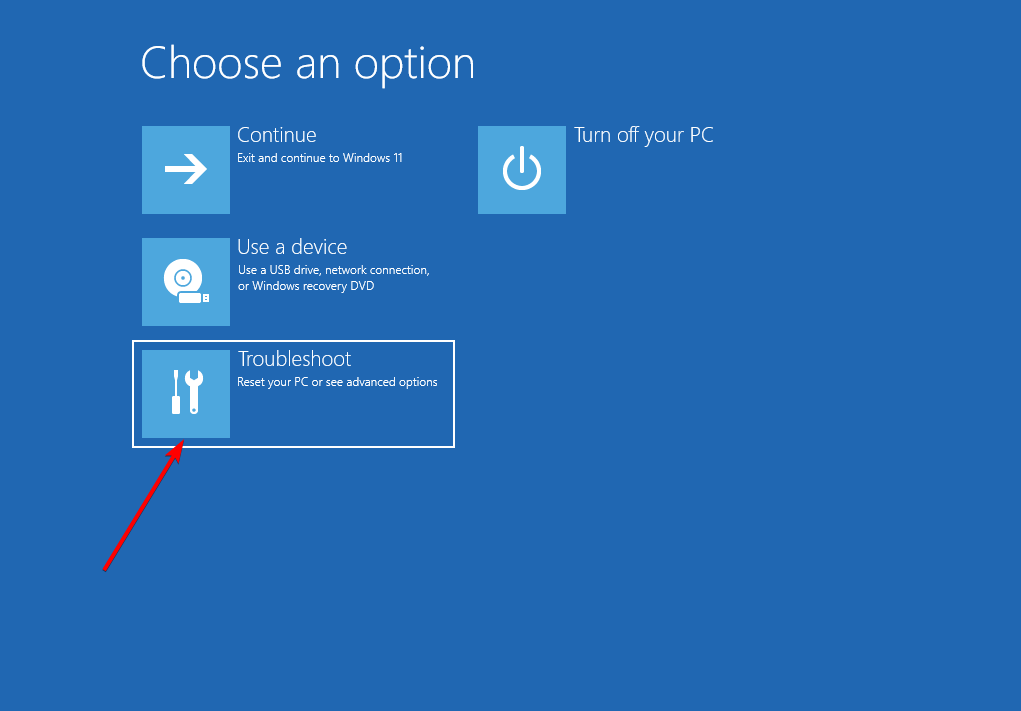
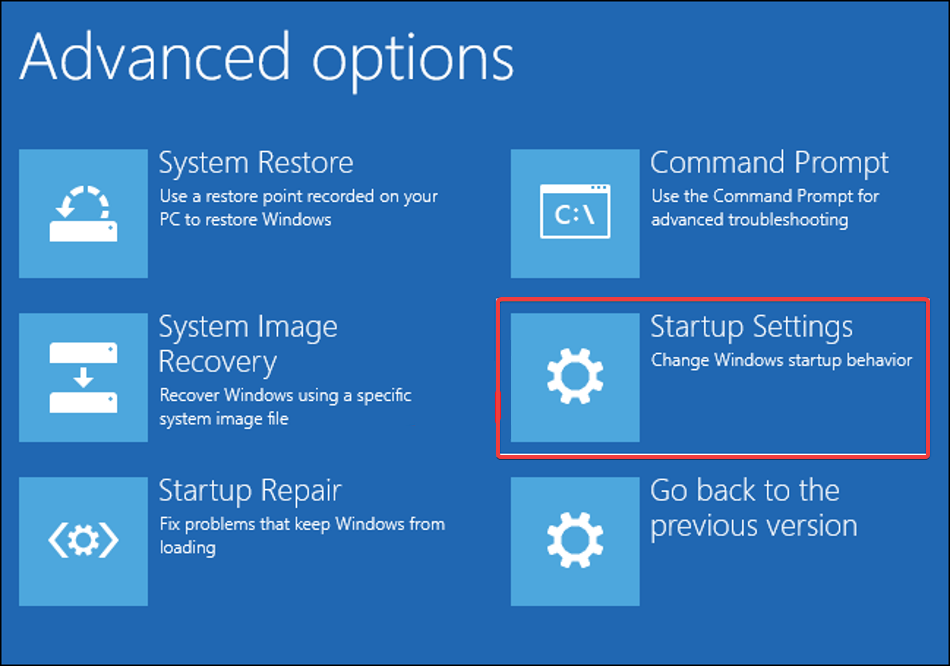
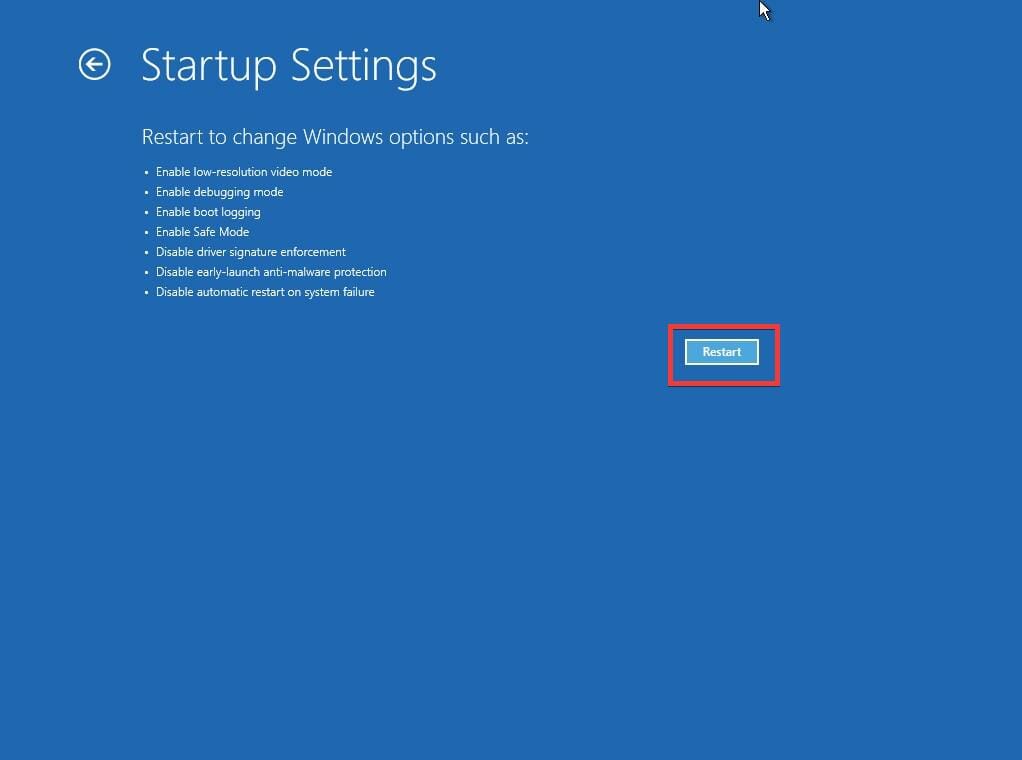
  4. Select Troubleshoot, then Advanced options and Startup Settings. Now click the Restart button.
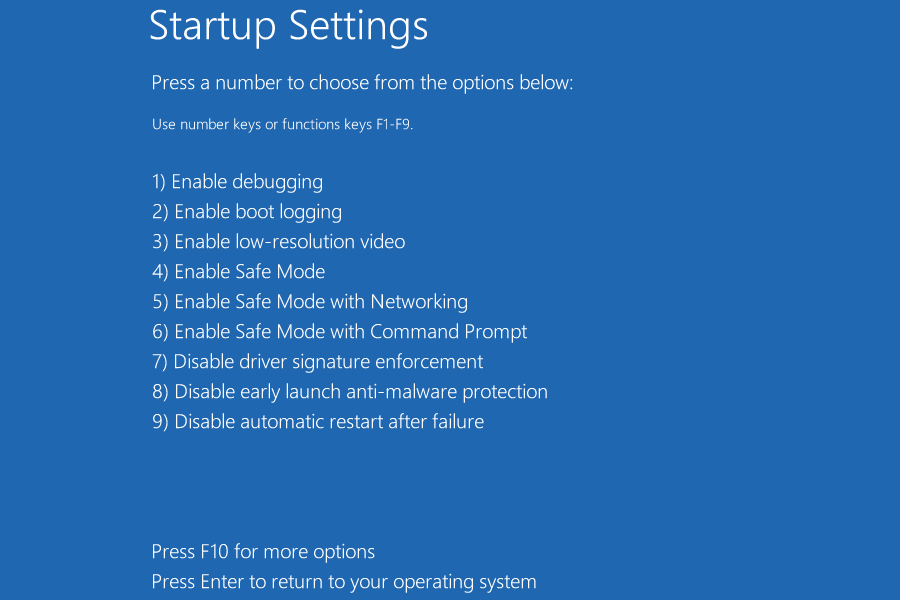
  5. You should now see a list of options. Select the version of Safe Mode you want to use by pressing the corresponding keyboard key.

Note: If the issue doesn’t appear, you can start troubleshooting it. Some users are suggesting to copy or extract the file while you’re in Safe Mode, so you can do that as well.

3. Try running the application as an administrator

  1. Locate the problematic application.
  2. Right-click the exe file and choose Run as administrator from the menu.

Note: If this solves your problem, you’ll need to repeat this process every time you want to run that exe file.

Force the application to run with administrative privileges

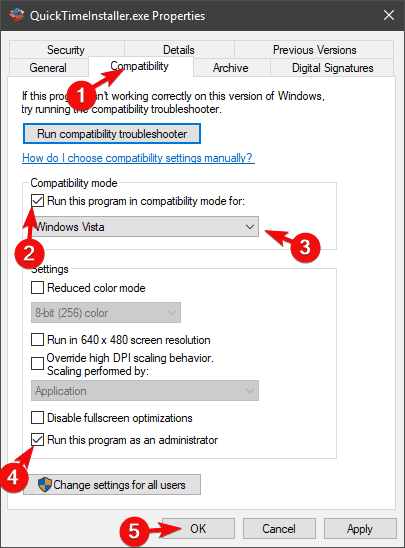
  1. Right-click the problematic exe file and choose Properties from the menu.
    Exe file disappears after double clicking
  2. Head over to the Compatibility tab and check Run this program as an administrator option. Click Apply and OK to save the changes.
    Exe file disappears after double clicking

4. Create a new user account

  1. Open the Settings app and navigate to the Accounts section.
  2. Select Family & other people from the left pane and choose Add someone else to this PC from the right pane.
    Exe files being deleted
  3. Select I don’t have this person’s sign-in information, then Add a user without a Microsoft account.
  4. Enter the username for the new account and click Next.
  5. Switch to the new account and check if the problem is resolved.

Note: If the issue isn’t present on the new account, move your personal files to it and start using it instead of your old account.

5. Use a different file archiver

Some users reported that exe files are deleting themselves when you extract them from a zip archive.

This problem usually appears when using a built-in archiver tool in Windows, and in order to avoid it, users are recommending to switch to a third-party archiver such as WinZip.

This is probably one of the most popular tools on the planet so you probably know a lot of things about it. It features a long list of different archive types and it’s the quickest archiver you can find.

But few probably know that WinZip also protects your data with high-level encryption and it has a lot of other advanced options.

This awesome software has direct integration with your cloud storage accounts on Dropbox, Google Drive, MediaFire, OneDrive, and others so you can send large files quickly.

⇒ Get Winzip

6. Install the missing updates

  1. Open the Settings app and navigate to the Update & Security section.
  2. Click the Check for updates button.

7. Perform a Clean Boot

  1. Press the Windows Key + R combination, type msconfig, and press Enter.
    Exe file disappears after double clicking
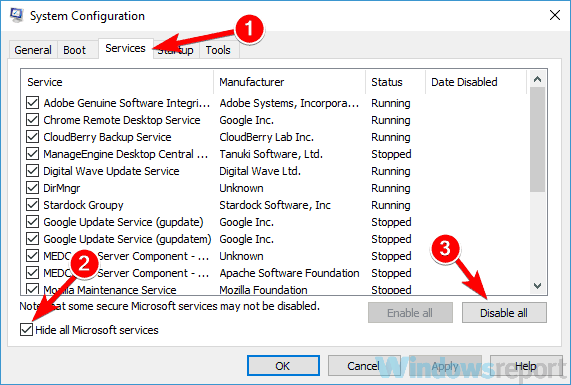
  2. Navigate to the Services tab and check the Hide all Microsoft services box. Click the Disable all button to disable all available services.
    Exe files automatically disappearing
  3. Navigate to the Startup tab and click Open Task Manager.
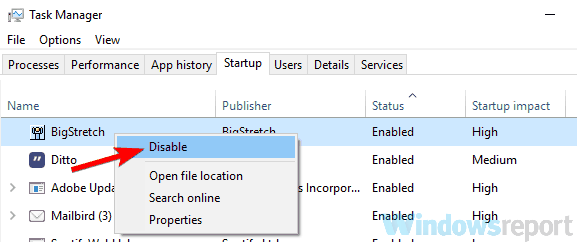
  4. Right-click the first application on the list and pick Disable from the menu. Do this for all applications on the list.
    Windows 10 deletes exe files
  5. Once you disable all startup applications, go back to the System Configuration window.
  6. Click Apply, OK, and restart your PC.

Note: If the problem is fixed, it’s certain that one of the disabled applications or services was causing the issue. To find the root cause, enable disabled services and applications one by one or in groups.

Keep in mind that you’ll need to restart your PC after enabling an application or service in order to apply changes.

8. Perform an in-place upgrade

  1. Download and run the Media Creation Tool.
  2. Select Upgrade this PC now and click Next.
  3. Choose Download and install updates and click Next.
  4. Follow the instructions on the screen. Once you reach Ready to install screen select Change what to keep.
  5. Select Keep personal files and apps option and click Next.
  6. Follow the instructions on the screen to complete the upgrade.

Note: After you complete the upgrade, you’ll have a fresh installation of Windows installed, and all your files and applications should remain intact. If the problem is still there, your next step would be to perform a Windows 10 reset.

Exe files that keep deleting themselves can be a problem, but we hope that you managed to fix this problem with one of our solutions.

[wl_navigator]

League of Legends RADS error on Windows 10/11, 7 [FULL FIX]

RADS errors are some of the most common errors affecting League of Legends. They prevent gamers from actually connecting to LoL‘s servers.

The complete error message is usually the following:

Could not connect to the HTTP Server. Please check that your internet connection is enabled and that your firewall is not blocking access.

If you currently can’t connect to LoL due to RADS errors, you’ve come to the right place. In this article, we’re going to list a series of workarounds that will help you to fix these errors.

Types of League of Legends RADS errors

Many League of Legends players reported that they can’t start the game due to RADS errors. Speaking of this error, here are some similar issues that users reported:

  • League of Legends RADS error Windows 10, 8.1, 7 – This error can appear on almost any version of Windows and prevent you from running the game.
  • Could not connect to the http server League of Legends – Sometimes you might get this error message while trying to start League of Legends.
  • League of Legends RADS error unspecified error occurred, connection lost to http server, game crash – These are some variations of the original error RADS error.

How can I fix the League of Legends RADS errors?

1. Check your antivirus

A common cause for League of Legends RADS error can be your antivirus or firewall.

If you can’t start the game due to this error, it’s rather likely that a third-party antivirus is interfering with your game.

To fix the problem, it’s advised to check your antivirus settings and try disabling certain features such as your firewall. If that doesn’t work, you might have to completely disable your antivirus and check if that helps.

In the worst-case scenario, you may have to uninstall your antivirus entirely. If removing the antivirus resolves the problem, your antivirus was most likely not designed for multiplayer gaming and streaming.

When you switch to a specific gaming antivirus solution, you get a quicker network connection, better monitoring, and you can activate the game mode setting.

The gaming mode enables the antivirus to run discreetly, ensuring that pop-ups, updates, and other distracting messages do not interfere with your games. You may switch to standard monitoring anytime you want.

We understand how sluggish League of Legends may be in the thick of a battle, thus we highly recommend choosing the best solution for the gamer in you.

Furthermore, an antivirus with a built-in gaming mode and an anti-tracker, allows you to surf discreetly on streaming platforms and load screenplays quicker in order to play your favorite game.

2. Run the LoL Patcher as an administrator

Could not connect to the http server League of Legends
  1. Navigate to League of Legend’s installation directory.
  2. Locate LoL Patcher, and right-click it.
  3. Choose Run as administrator from the context menu.

After doing that LoL Patcher should start and the problem will be resolved. This might not be a permanent solution, but if the RADS error ever appears again, be sure to repeat these steps.

3. Add LoL to your exceptions list

  1. Go to Search, and type Windows Firewall.
  2. Select Allow an app or feature trough Windows Firewall.
  3. Add  lol.launcher.exe to your firewall’s exceptions list.
  4. Launch the game again.

Sometimes RADS error can appear due to issues with the firewall. League of Legends might be blocked from accessing the Internet by your firewall, and that can cause this issue to appear.

4. Reinstall the game

If the RADS error still appears, your only option might be to reinstall the game. There are several ways to remove League of Legends, but the best method might be to use uninstaller software.

In case you’re not familiar, uninstaller software is a special application that can completely remove any application from your PC. These applications are great if you want to completely uninstall a certain program from your PC.

If you’re seeking decent uninstaller software, we recommend browsing this list of professional uninstaller tools that can assist you in removing junk and files that remain after removal.

Once you remove the game using a dedicated tool, reinstall it and the problem should be resolved.

5. Change your DNS

  1. Press the Windows key + I, and select Network and Internet.
  2. Go to Network and Sharing Center, and select Change adapter settings.
  3. Right-click on your Wi-Fi/ Ethernet connection, and choose Properties.
  4. Select Internet Protocol Version 4 (TCP/IPv4), and go to Properties.
  5. Choose the Use the following DNS server addresses option.
  6. Enter the following values: on Preferred DNS server: 8.8.8.8, and on Alternative DNS server: 8.8.4.4.
    Could not connect to the http server League of Legends
  7. Click OK, close everything, and open League of Legends again.

If you get the same error again, follow the same steps, but select the Obtain DNS server address automatically option.

Your DNS settings can sometimes cause RADS errors to appear in League of Legends. However, many users reported that they fixed the problem simply by switching to Google’s DNS, if you are unable to connect to the authentication center, which is mainly caused by DNS issues, make sure to read this guide.

6. Tweak file hosts

  1. Go to: C:Windows/System32/drivers/etc>
  2. Locate the hosts file, and open it with Notepad.
  3. Add this line to bottom: 67.69.196.42 l3cdn.riotgames.com, and save it.
  4. Launch the game again.

Sometimes your hosts file can cause League of Legends RADS error to appear. To fix the problem, it’s required that you manually make changes to your host’s file.

We have to mention that this is a system file, so it’s protected by your PC.

7. Change system.cfg file

  1. Go to: C:Riot Games/League of Legends/RADS system
  2. Locate the system.cfg file, right-click it.
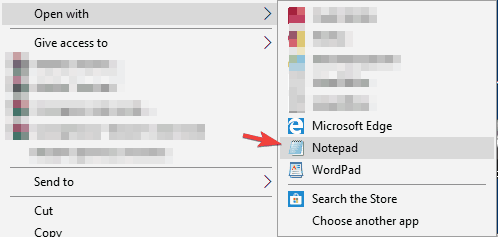
  3. Choose Open with, and select Notepad.
    League of Legends RADS error Windows 10
  4. Remove everything and paste the following lines: DownloadPath = /releases/live DownloadURL = l3cdn.riotgames.com Region = EUW
  5. Save changes in Notepad.

According to users, you might be able to fix the League of Legends RADS error simply by making a few adjustments to the system.cfg file.

After doing that, try running Patcher again and the issue should be resolved.

8. Restart your modem

According to users, this problem can sometimes appear due to problems with your network connection. The easiest way to fix that is to restart your modem. This is quite simple, and you can do it by following these steps:

  1. Press the power button on your modem to turn it off.
  2. Wait for about 30 seconds.
  3. Press the power button again to turn on your modem.

Once your modem is turned off, the network settings will restart and the problem should be resolved.

If you don’t want to turn off your modem, you can try using ipconfig /flushdns command.

League of Legends RADS error Windows 8.1
  1. In the Cortana search field, type in Command Prompt.
  2. Right-click the top result, and select Run as Administrator.
  3. Run the ipconfig /flushdns command.

After running this command, check if the problem is resolved. Keep in mind that you might have to repeat this solution whenever the RADS error appears.

9. Stop all RADS processes

  1. Press Ctrl + Shift + Esc to start Task Manager.
  2. Go to the Processes tab, and locate any rads process.
  3. Right-click it, and choose End task.
  4. Try to start the game again.

Sometimes you might encounter League of Legends RADS error due to RADS processes running in the background. To fix the issue, you need to manually stop all RADS processes.

We hope that one of these solutions helped you to get rid of the RADS errors and launch LoL.

If you’ve come across other solutions to fix this issue, you can list the troubleshooting steps in the comments section below.

How to Recover Old Hotmail Emails from Outlook [Answer]

We’re sad to inform you that, well, you probably won’t be able to restore emails you’ve lost due to a transition from Hotmail to Outlook.

A lot, and we mean a lot of users, have experienced this problem, losing years-old items and emails in the process.

The process is seemingly irreversible, and all server-stored items were wiped clean after Outlook replaced Hotmail as a go-to email client.

It’s fair to say affected users are furious about what happened with their emails but can they do something to restore at least some emails?

Use a different email client

If you switched to Outlook email from Hotmail and all the emails are gone, we are very sorry. In case you were using a local email client, it might still have them stored locally, and you can retrieve them from your computer. 

If not, it’s a good time to think about using one. We recommend you look into the best Windows 10 email clients and pick your best bet.

The main benefit of a local email client is that it allows you to connect to multiple email addresses from just one Window.

On top of that, many of them include advanced search functions that will help you find any email by entering a few keywords. You can also find them based on images due to the implementations of OCR.

Worthwhile email clients provide really good security and data protection features, including end-to-end encryption and built-in anti-malware tools. Some of them even come with backup features.

Can I get back my old Hotmail emails?

Now, even though Microsoft support has a legal high ground with the license terms and agreements where they dismiss responsibility, users should have been more thoroughly informed about the negative outcome before the transition has been made. The license terms point we mentioned is:

“6. Services disruptions and backup
We strive to keep the Services up and running; however, all online services suffer occasional disruptions and outages, and Microsoft isn’t liable for any disruption or loss you may suffer as a result. You should regularly backup the Content that you store on the Services. Having a regular backup plan and following it can help you prevent loss of your Content. We make an effort to provide detailed service status on the Service status website (https://status.live.com).”

Now that the damage is done and there’s nothing we can do about that. Or almost nothing, as there might be something left in the Deleted items or Archive but that’s a long shot.

Also, you can restore even some items or emails which were deleted from the Deleted items folder, but those are preserved up to 30 days after the deletion.

You can also try contacting Outlook support but we would not hold high hopes. That’s just the way it is. We don’t like being the bearers of the bad news, but our educated guess is that retrieving your emails is not a possibility.

To ensure this doesn’t happen, be sure to visit our guide on how to migrate from Hotmail to Outlook without data loss.

And, on that note, we can wrap it up. What are your thoughts on this? Have you found a way to get your emails back? Tell us in the comments section below.

FIX: The file is open by another program error on OneDrive

Due to the fact it’s a solution by Microsoft, OneDrive tends to be the most used cloud solution for Office users. However, some OneDrive users reported a certain error that says that The file is open by another program and can’t be synced. This is a major issue and we’ll show you how to fix it with the steps below.

The file is open by another program and can’t be synced on OneDrive

1. Close other applications

  1. In order to reduce the chance that the file is opened in any other program, we suggest closing all applications running in the background.
  2. To do so, just right-click on the Taskbar and open Task Manager.
  3. Once there, kill the processes that might be related to the file at hand. Also, stop the OneDrive and open it again.
  4. In the Startup tab, disable all applications that start with the system and reboot your PC.
    onedrive the file is open by another program

2. Unlink and link OneDrive account again

  1. Right-click on the OneDrive icon in the notification area and open Settings.
  2. Select the Account tab.
  3. Unlink OneDrive and close the application.
    onedrive the file is open by another program
  4. Select the Account tab again.
  5. Select the location of the OneDrive folder.
  6. Sign in with your credentials and you should be good to go.

3. Reinstall OneDrive

  1. In the Windows Search, type Add and open Add or remove programs.
  2. Under the Apps & features, search for OneDrive.
  3. Highlight the app and Uninstall it.
    onedrive the file is open by another program
  4. Now, follow this path:
    • C:\Users\:Your Username:\AppData\Local\Microsoft\OneDrive\Update
  5. Double-click the OneDriveSetup.exe file and run the installer.
  6. After the installation completes, log in and look for changes.

4. Try the web-based version

Finally, you can navigate to the web-based OneDrive client and try accessing files there. You can also delete the file that’s allegedly opened by another program and upload it again there. This usually fixes issues with file corruption.

We recommend you use an up-to-date and safe browser to access OneDrive. Even if you have a good antivirus tool, additional protection and security provided by your browser are never a bad idea.

Opera One is a reliable and easy-to-use browser that has a built-in VPN which comes in handy when you want to protect your identity and keep your online activity private. Plus, it also comes with a native AI.

It is lightweight and has good speed rates. On top of that, it integrates all popular social media apps into the browser, and you have the option to install tons of add-ons to easily access your favorite apps and websites in just a few clicks.

⇒ Get Opera One

FIX: Printer Spooler error 0x800706b9 on Windows 10/11

Many users use printers almost every day, but some users reported Print Spooler error 0x800706b9 on their PC. As expected, this issue prevents you from printing.

The full  error message reads:

Error 0x800706b9: Not enough resources are available to complete this operation

On some occasions, the system warns that it can’t start, or that it doesn’t have enough resources.

Variations of the same error state Print Spooler not enough storage is available to complete this operation.

For all of these instances, we’ve compiled a list of solutions that you can try, and hopefully, the issue will be fixed in no time.

How can I fix Print Spooler error 0x800706b9?

  1. Update your printer drivers
  2. Check your system for malware
  3. Create a new user account
  4. Modify your registry
  5. Reset winsock
  6. Run the Printer troubleshooter
  7. Stop the Print Spooler service
  8. Perform a System Restore

1.  Update your printer drivers

It’s common that Print Spooler error 0x800706b9 appear if your drivers are out of date.

As known, your system drivers are a crucial component, and if your printer drivers are out of date or corrupted, you might encounter various errors.

The easy fix is to update your drivers. To do that, you just need to find your printer model, visit the manufacturer’s website, and download the latest drivers for your printer.

Once you download and install the latest driver, the issue should be completely resolved and your printer will start working.

Bear in mind that downloading drivers manually can sometimes be a tedious task, and many users tend to use third-party tools such as Outbyte Driver Updater.

This way, you can save some precious time when searching for the right software.

Outbyte Driver Updater will recommend only compatible software for each outdated driver. Although you might be unsure which one to choose, any option will be a safe choice.

2. Check your system for malware

Several users reported that Print Spooler error 0x800706b9 was caused by malware infection. To fix this problem, it’s advised that you perform a full system scan and remove all malware from your PC.

You can use any antivirus to scan your PC, but bear in mind that not all antivirus tools are equally effective.

Therefore you make a wise decision in order to protect your system, with a superior antivirus solution might help. Plus, if you need strong malware security you will find many options out there.

So start to protect your digital activity using the best antivirus for Windows 10 PC, and remove multiple threats and system errors in minutes.

Once you scan and remove the malware, the issue should be resolved.

3. Create a new user account

  1. Open the Settings app and go to the Accounts section.
    Windows 10 Print Spooler won't start not enough resources
  2. Now choose Family & other people from the left pane.
  3. Click Add someone else to this PC button in the right pane.
    Print Spooler not enough storage is available to complete this operation
  4. Choose I don’t have this person’s sign-in information.
    Error 0x800706b9: not enough resources are available to complete this operation
  5. Select Add a user without a Microsoft account.
    Windows 10 Print Spooler won't start not enough resources
  6. Type the desired user name and password and click Next.

After creating a new user account, switch to it. If the issue doesn’t appear on the new account, you need to move your personal files to the new account and start using it instead of your old one.

4. Modify your registry

  1. Press Windows Key + R and enter regedit.
    Print Spooler not enough storage is available to complete this operation
  2. Navigate to the following key in the left pane (if you want, you can export this key and use it as a backup in case anything goes wrong after modifying the registry):HKEY_LOCAL_MACHINESYSTEMCurrentControlSetServicesSpooler
  3. In the right pane, double-click the DependOnService.
    Error 0x800706b9: not enough resources are available to complete this operation
  4. Now delete http from the Value data field and click OK.
    Windows 10 Print Spooler won't start not enough resources

After making these changes, restart your PC and check if the problem is still there.

Several users reported that this method worked for them, so you might want to try it out. Just be cautious while modifying the registry and create a backup just in case.

5. Reset winsock

  1. Press Windows Key + X and choose Command Prompt (Admin) from the menu.
    Windows 10 Print Spooler won't start not enough resources
  2. Type the following command and hit Enter: netsh winsock reset
  3. Then restart your PC.

After your PC restarts, check if the problem is still there. A couple of users fixed this issue by performing running this command, so be sure to try it out.

6. Run the Printer troubleshooter

  1. Open the Settings app and go to the Update & Security section.
  2. Select Troubleshoot from the menu on the left.
  3. Go to Printer and click Run the troubleshooter button.
    Error 0x800706b9: not enough resources are available to complete this operation
  4. The troubleshooting process will now start. Follow the instructions on the screen to complete it.

After the troubleshooting is finished, check if the problem with your printer is resolved. A troubleshooter might not be the most effective solution, but if you have some minor glitch in your system, you can fix it using this solution.

7. Stop the Print Spooler service

  1. Press Windows Key + R and enter services.msc.
    Error 0x800706b9: not enough resources are available to complete this operation
  2. Locate Print Spooler service on the list, right-click it, and choose Stop from the menu.
    Windows 10 Print Spooler won't start not enough resources
  3. Minimize the Services window.
  4. Now open File Explorer and paste the following in the address bar: C:Windowssystem32spoolPRINTERS
  5. When the confirmation message appears, click Continue.
    Print Spooler not enough storage is available to complete this operation
  6. Once you enter the PRINTERS folder, delete all files from it and close File Explorer.
  7. Go back to the Services window, right-click Print Spooler service, and choose Start from the menu.

After doing that, the problem should be resolved and you’ll be able to print again without any issues.

8. Perform a System Restore

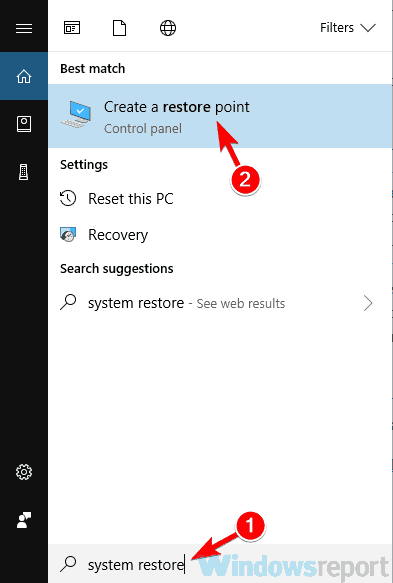
  1. Type system restore in the search field.
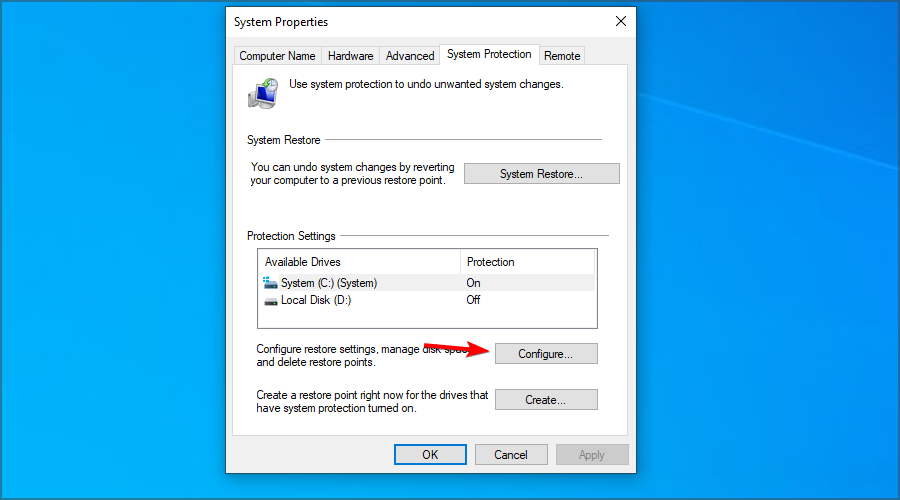
  2. Now choose to Create a restore point from the list.
    Print Spooler not enough storage is available to complete this operation
  3. Click the System Restore button.
    Error 0x800706b9: not enough resources are available to complete this operation
  4. Hit the Next button to continue.
    Windows 10 Print Spooler won't start not enough resources
  5. A list of available restore points will appear. If available, check to Show more restore points option. Select the desired restore point and click Next.
    Print Spooler not enough storage is available to complete this operation
  6. Follow the instructions on the screen to finish the restoration process.

After performing System Restore, your problem should be completely resolved and the printer will start working again.

Whatever the cause of the issue was, we hope that you managed to solve the printing error by using one of our solutions. Your feedback is welcome, and you can contact us using the comments section below.

[wl_navigator]

FIX: Skype camera not working in Windows 10/11

Skype is messaging software you can use your laptop’s or desktop’s webcam with. With their webcams, users can make video calls in Skype.

However, some might not always be able to get a working video stream with their Skype cameras.

So if your Skype camera doesn’t have effective video calls, these are a few ways to fix it in Windows 10.

First, note that Skype video calls only work with desktop and laptop webcams. They can either be built-in or external USB webcams.

However, that does not include mobile cameras, which you can’t use for Skype video calls. Also, make sure that an external USB webcam is correctly connected to the desktop.

How can I fix Skype camera issues on my PC?

1. Re-install Skype

Have you switched off automatic updates in Skype? If so, you might need to update the Skype app to the latest version.

That doesn’t necessarily mean you need to re-install the software, but that will guarantee you’re using the most updated version with the latest patches installed.

Open this web page and click Get Skype for Windows to get the updated version. Alternatively, you could also select Help > Check for Updates in your Skype app.

In rare cases, you may not be able to re-install Skype on your machine. In order to fix this technical glitch, follow our step-by-step guide that helps you fix the Skype won’t install on Windows 10 error.

2. Check the webcam is configured correctly

  1. Next, check the webcam is configured for Skype. Open the Skype app and select Tools > Options to open further settings.
  2. Then click Video settings to check the webcam configuration. If Video settings states Skype couldn’t find a webcam, then Skype hasn’t recognized your camera.
  3. If that’s the case, you should open your webcam software and switch the camera on with that. Alternatively, switch it on with a hardware switch if you can.
  4. Then restart your Skype app.
  5. Click Tools > Options and Video settings once again to check the camera configuration. Now you should see an image of yourself there.
  6. If the video image is very dark, then you should select Webcam settings.set up skype webcam settings
  7. Select the Camera Control tab on the Video Capture Filter Properties window.
  8. Then you can select a Low Light Compensation option that will lighten the video image.
  9. Press Apply and OK to confirm the selected option.

One of the most common issues on Skype is the annoying black screen camera problem.

This issue often occurs due to incorrect settings. Here’s a tested troubleshooting guide on how to fix black screen webcam issues for good.

3. Update your webcam drivers

  1. Press the Win key + X and select Device Manager from the menu.
  2. Now click Imaging devices where you should find your webcam listed.
  3. Next, right-click the webcam and select the Update Driver Software option from the context menu.
  4. An Update Driver Software window opens from which you can select Search automatically for updated driver software.
  5. Or you could select Uninstall and restart Windows. Windows will automatically install the latest webcam drivers.

Update drivers automatically (suggested)

After you have uninstalled your drivers, we recommend reinstalling/updating them automatically.

Downloading and installing drivers manually is a process that carries the risk of getting the wrong driver installed, which may lead to serious malfunctions of your system.

The safer and easier way to update drivers on a Windows computer is by using an automatic tool.

We recommend you try Outbyte Driver Updater. The software is lightweight, so it can function properly on any device. It scans and fixes outdated or damaged drivers with no issue.

Outbyte Driver Updater is very easy to use. The download and installation take just a few minutes. After that, you just have to launch the software and let it scan your PC.

It generates a report of all drivers that have issues and what can be done about them. You can select specific drivers to get fixed or fix them all in bulk. 

It includes a free trial, so if you are not sure about it, you can test it out before committing to a purchase.

4. Check other programs

Another thing to note is that other background software integrated with the webcam might be capturing the video stream.

So that might be why the camera isn’t working in Skype. You can check this by right-clicking the taskbar and selecting Task Manager.

Then select third-party software packages, especially instant messaging or web applications, listed under Background processes and press their End task buttons. Thereafter, restart the Skype app.

5. Fix the webcam freezing in Skype

  1. You can open the registry by pressing the Win key + R. Then enter ‘regedit’ into the Run text box and press OK.
  2. Then you should browse to HKEY_LOCAL_MACHINESOFTWAREWOW6432NodeMicrosoftWindows Media FoundationPlatform in the registry.
  3. Next, right-click an empty space on the right of the registry window and select New > DWORD (32-bit) Value from the context menu.
  4. You should enter EnterFrameServerMode as the new key title.
  5. Double-click EnterFrameServerMode to open the Edit DWORD (32-bit) Value window below.
  6. Input 0 in the window’s Value data text box if that’s not already the default value.
  7. Press the OK button, and then you should also restart Windows.
  8. Now open Skype to make that USB webcam video call.

6. Run the Device Troubleshooter

  1. Type ‘troubleshooter‘ into the Cortana search box and select to open the Troubleshooting Control Panel tab.
  2. Click Hardware and Sound on the Troubleshooting tab.
  3. Next, select Hardware and Devices from the listed troubleshooters.
  4. Press the Next button to scan with the Hardware and Devices troubleshooter. Then it might provide a fix for the webcam.
  5. Restart Windows if the troubleshooter detects and fixes anything.

7. Check if your webcam is Skype compatible

Not every desktop or laptop camera is compatible with Skype. If your webcam is more outdated, it might not be Skype compatible.

This page includes a list of both compatible and incompatible Skype webcams. Scroll through the non-working camera list to see if it includes your camera.

With those fixes maybe now Skype will display video! Note that you’ll also need at least DirectX version 9.0 for Skype video calls to work.

If you need general information about this kind of issue, check our comprehensive webcam problems on Windows 10 article. It is a rundown of the most common issues users experience and how to fix them.

Got CTF Loader issues on Windows 10/11? Fix them now

Like other operating systems from Microsoft, Windows 10 runs myriad processes and supporting apps.

One of the Windows 10 background processes that often shows up each time you check the Task Manager tool is the CTF Loader.

However, the CTF Loader (ctfmon.exe) program is not well known leading to some users mistaking it for malware or bloatware.

But Is CTF Loader a virus? And what’s its role? Should you disable it? Stay with me to get the answers to this and more questions about this file.

Here’s what you need to know about CTF Loader

What is the CTF Loader?

CTF (Collaborative Translation Framework) Loader is an authentication service that delivers text support for alternative user input applications such as keyboard translation, speech recognition, and handwriting.

Besides initializing the Alternative User Text Input Processor (TIP), the CTF platform also activates the Microsoft Office’s Language Bar – a feature that enables you to seamlessly switch between different input languages when loaded.


Where can I find the CTF Loader?

This process is related to the ctfmon.exe file, typically found in the following locations:

  • C:WindowsSystem32
  • C:WindowsSysWOW64

As previously mentioned, the program runs behind the scenes and will usually start immediately once you commence working on an alternate input device(or any other task) that needs it.

It may also start up automatically at boot and it may remain running in your system tray until you close Microsoft Office, or another app that is using it.


Is the CTF Loader a virus?

While it’s true that the service runs on a .exe file, the CTF Loader is a legitimate Windows file and there is no evidence connecting it to any malware or spyware.

However, creators of malware apps sometimes give their malware names identical to those of common .exe files as part of camouflaging.


Exe files not opening on your PC? Here’s quick fix for that!


What is the role of the CTF Loader?

The system software monitors user-related functions including keyboard input, speech recognition, speech-to-text translation, handwriting recognition, and such language-related roles in Microsoft Word.

What are the common issues associated with CTF Loader?

Some users have reported receiving various CTF Loader errors. Here is a list of the typical ones:

  • Exe (CTF Loader) crashes: Some have complained that the file itself fails (CTF Loader has encountered a problem…. Sorry for the inconvenience) in addition to causing other applications to stop.
  • The computer becomes sluggish: CTF Loader has also been blamed for completely slowing down PCs because of high RAM usage.

What are the causes of CTF Loader errors?

Most problems seemingly arise frequently after a system update, and in some instances, they can significantly affect your performance.

This is not entirely unexpected as some Windows update files are known to conflict with the CTF Loader.

Another historical cause of CTF Loader issues are errors in inputs/language packs.

For example, if you try to change the Windows display language in your machine, you may receive the warning that a language pack isn’t available (depending on the language you are selecting).

Finally, there is a possibility of the CTF Loader refusing to work because of hidden malware.

In an effort to impair your operating system, an infectious program could target and destroy CTFMON.exe, thus generating various CTF Loader problems.


How do I fix CTF Loader high memory usage and other issues?

  1. Scan your Computer for Malware
  2. Disable CTFMON.EXE (CTF Loader) in Windows 10
  3. Update your PC
  4. Restore your PC
  5. Delete the ctfmon.exe files
  6. Control the CTF Loader startup using the Task Scheduler

1. Scan your Computer for Malware

Scanning your computer for Viruses may help get rid of these types of errors, especially if they are brought about by the actions of a disguised worm (or malicious app).

Malware infections can be very damaging to your PC, so be careful to pick a good protection tool.

You need a tool with an extensive and constantly updated malware database, integrated AI technologies that can detect potential new and unknown threats, and a good privacy policy.


Some of the best antimalware software for Windows 10 come with full-feature free trials, so if you are not sure, you can try a few before getting a license.

Once you install your antivirus of choice, run a scan and wait for the process to finish. You will get a results prompt and possibly the option to remove or quarantine your threats.

Most antivirus options offer additional information letting you know which course of action is best for your specific situation.

After restarting, your PC will continue the cleaning process and in the end, your system will become clean like after a fresh Windows 10 installation.

2. Disable CTFMON.EXE (CTF Loader) in Windows 10

  1. Press Windows+R.
  2. Type services.msc, then click OK.
    CTF Loader services window
  3. Locate the Touch Keyboard and Handwriting Panel Service and right-click on it.
    touch keyboard and handwriting panel CTF Loader
  4. Click on Properties and then choose Disabled.
  5. Click Stop then OK.

Is your computer acting slow? Don’t worry, there’s a fix for that!


Note: Usually, we don’t recommend disabling the CTF Loader as it may destabilize certain procedures in Microsoft Office or cause them to malfunction.

That’s because shutting down this framework effectively halts the CTFMon.exe process that normally controls all the functions that are dependent on it. If you encounter any problems, just enable this service by following the same steps.


3. Update your PC

  1. Click on the Start and select Settings.
  2. Choose Update & Security.
    update and security ctf loader
  3. Select Windows Update.
  4. Click Check for updates.
  5. Wait for the latest updates to download and install.
  6. Restart your PC.

4. Restore your PC

  1. Type control panel in Windows search.
  2. Select Control Panel.
  3. Type recovery in the Control Panel’s search box.
  4. Click on Recovery then select Open System Restore.
  5. Click Next in the Restore system files and settings dialog box.
  6. Select the recommended restore point or click on the Choose a different restore point checkbox to access additional restore points.
  7. Click Scan for affected programs.CTF Loader scanning for affected programs
  8. Select Close then Next and finally Finish once the process is completed.

Do you want to create a System Restore Point on your PC? This simple guide will help you


5. Delete the ctfmon.exe files

1. Navigate to

  • C:WindowsSysWOW64 (for 64-bit systems)
  • C:WindowsSystem32 (for 32-bit systems)

2. Find all occurrences of the genuine ctfmon.exe files and delete them.


6. Control the CTF Loader startup using the Task Scheduler

  1. Press Windows Key +R.
  2. The Run window opens. Type taskschd.msc then click OK.
  3. The Windows 10 Task Schedule Library starts. Double click on it.
  4. Click on Microsoft, then on Windows.
    ctf loader issue task scheduler
  5. Click on TextServicesFramework.
  6. Click on the MSCTFMonitor option, then choose Disable.
    CTF Loader MsCtfMonitor task scheduler

If you found our article helpful, let us know in the comments section below.

[wl_navigator]

Remove watermark from video with MarkGo watermark remover

The watermarks in videos can be pretty annoying, especially if they overlap with important graphics or text that can’t be visualized.

However, before thinking about removing the watermark from the video, you also need to consider the fact that it was placed there to protect the ownership of the video.

You are allowed to remove the watermark only if you own the video or to use it for personal viewing, otherwise, you may get into legal issues.

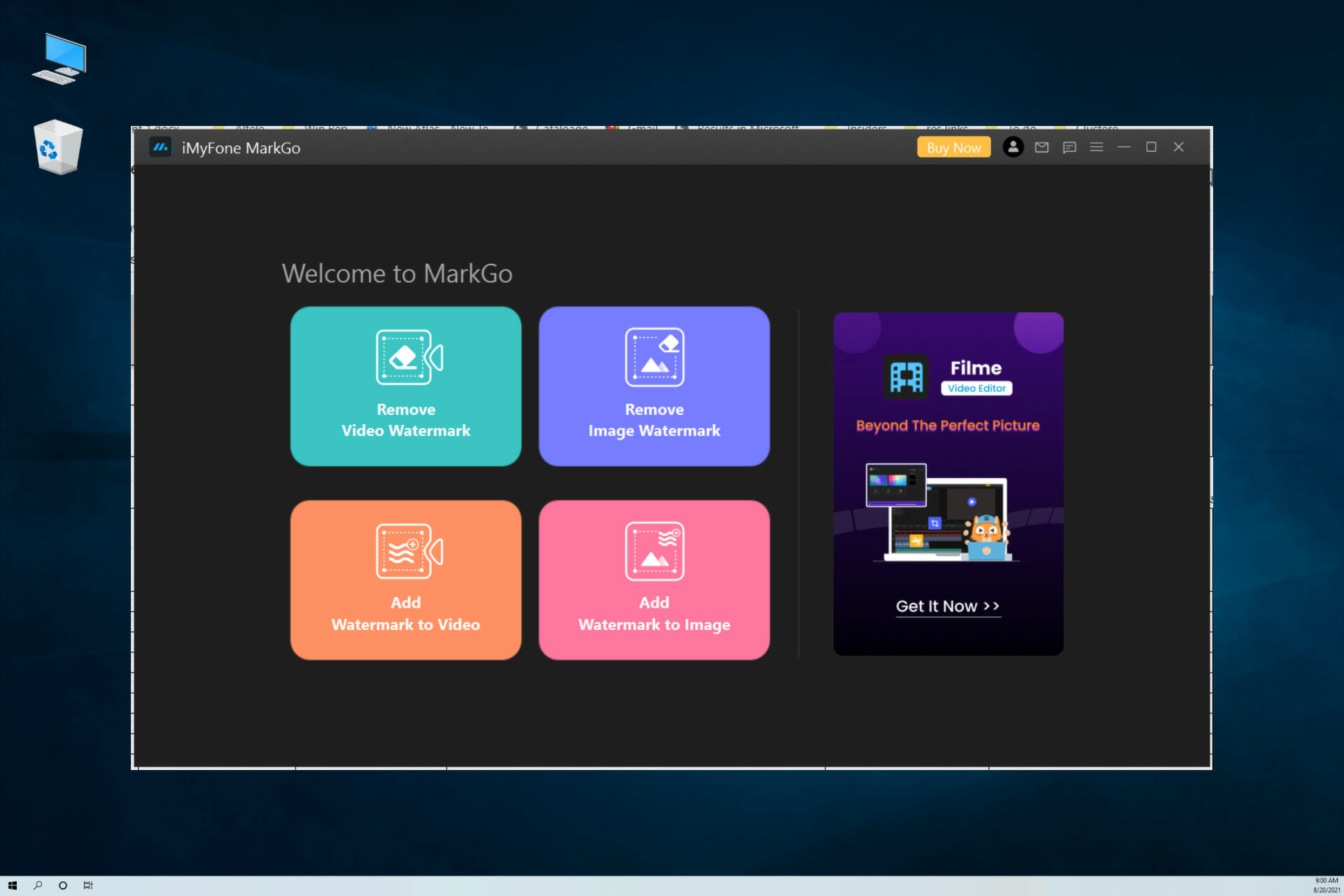
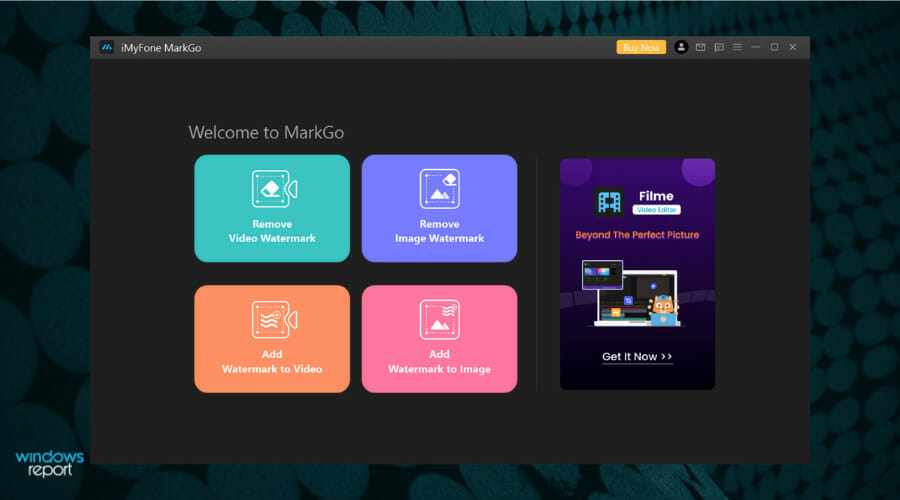
Anyway, if you want to go through with it, there’s an excellent tool called iMyFone MarkGo that can help you remove the watermark from videos and photos within seconds.

What is iMyFone MarkGo watermark remover and how can it help?

As its name suggests, iMyFone MarkGo watermark remover is a dedicated tool for removing watermarks from videos and photos.

Usually, the watermark removal procedure is tricky and it’s pretty hard to even think of performing it manually.

Imagine that every single frame in the video has a sticker with graphics that you need to peel off. It’s not a task for humans.

However, this tool comes with a great algorithm that detects and removes the watermark within your selection without affecting the graphics behind it.

Let’s see how you can get this nifty tool and remove the watermark from a video in just a couple of simple steps.

How can I remove a logo from video with iMyFone MarkGo?

  1. Go to the iMyFone MarkGo website and hit the Free Download button.
  2. Run the installer, read the license agreement and check the box to agree, then select the Install button.
  3. After the installation, click the Start Now button to launch the app.
  4. When the software starts, choose the Remove Video Watermark button.
  5. Now you can either click the Add Video button or simply drag and drop the video with watermark in the dedicated section.
  6. Next, you have to create a selection on the video where the watermark is present. You can create more such sections by clicking the Create Section button.
  7. It’s now only a matter to us ethe Selection Tool and create a simple rectangle where the logo is.
  8. This will remove the watermark completely, but you can check that clicking the Play button and watching the section for confirmation.
  9. The only thing left to do is to hit the Export button to save your video without the watermark.

As you can clearly see, it’s extremely simple to use iMyFone MarkGo watermark remover to get rid of the watermark from your video.

And we assure you that it’s even easier to remove a watermark from a photo although the principle is exactly the same.

Other interesting features of iMyFone MarkGo

Of course, this ingenious tool has other features. For instance, it can be also used to add watermarks to photos and videos but that’s not all.

You can remove objects from videos and photos, blur the desired area or fill it with color, and, of course, remove watermarks in batches.

The software also functions as an effective video converter for a lot of formats like mp4, mkv, flv, mov, wmv, webm, 3gp, rmvb, avi, asf, m4v, mpeg, mpg, ts, and mts.

You should know that the software comes with a free trial which comes with limited features. The full version will unleash removing multiple watermarks in batch, exporting videos and photos, and more.

We hope that our short guide helped you remove the watermark from your video and that now you enjoy it as it was meant to be.

If you’re interested in creating and editing your own footage, feel free to try the iMyFone Filme app from the same publisher to enhance it to a professional level.

After you test it, you can describe your experience by using the comments section below.

Hamachi service stopped on Windows 10/11 [Complete Guide]

Hamachi is a popular app that allows you to create a VPN.

Especially popular among gamers, it facilitates network gaming and file sharing. It also simulates a fully encrypted and secure local network, protecting your online privacy.

Unfortunately, many users reported a Hamachi service stopped message while using it. Adding to this, similar versions of the same error only inflate the users’ disapproval with the service’s performance:

  • Hamachi service stops in Windows 10 – Make sure that the WMI service is running before starting Hamachi.
  • Hamachi tunnel problem – This problem can appear due to your antivirus, so disable it temporarily.
  • Hamachi service can’t start/ keeps stopping/ not found – Tweak the services’ settings as explained below

How can I fix the Hamachi service on Windows 10?

  1. Check your antivirus
  2. Try an alternative VPN
  3. Make sure that the WMI service is running
  4. Create a script to automatically restart the Hamachi service
  5. Check the Hamachi and the security settings
  6. Change the Hamachi settings
  7. Reinstall Hamachi
  8. Perform a Clean boot
  9. Perform a System Restore

1. Check your antivirus

Sometimes the Hamachi service stopped message can appear if your antivirus is blocking Hamachi or interfers with it.

So make sure to add Hamachi on your exceptions list in your antivirus’ firewall. Additionally, temporarily disabling the antivirus can also work.

However, we don’t advise for the latter workaround, but rather for using a program that does not interfere with other processes.

There are many third-party antivirus tools that will guard your PC against all threats including malware, ransomware, or spyware. Up-to-date tools aim to protect you without interfering with other apps.

The best antivirus software for gaming include built-in game modes that deactivate unnecessary processes to allow you to use more resources for your game.

They also temporarily deactivate intrusive notifications so you are not interrupted. However, real-time protection is always active so you don’t compromise on security.

If you get an antivirus that is configured to improve your gaming experience, chances are that all your issues with Himachi will be solved.

2. Try an alternative VPN

switch from hamachi to speedify

Hamachi can be a good freeware service up to a point, but functionality issues compromise its reliability. Nowadays, with all the VPN alternatives on the market, it would be a shame not to try something else.

On this note, we recommend Speedify – a VPN that detects, protects, and prioritizes video and audio streams, thus being perfect for gamers, and photo or video content creators.

What Speedify excelles at is adjusting to your network conditions to enhance streaming traffic. It connects to super-fast VPN servers across the globe, ensuring the most reliable Internet connection wherever you are.

Speedify also monitors incoming traffic to report on connection usage, latency, and packet loss. This way you can see how to better manage your network settings.

⇒ Get Speedify

3. Reinstall Hamachi

Sometimes, certain registries in the installation files might have been corrupted which also causes the program to perform poorly.

In order to fix the problem, it’s advised that you uninstall, then reinstall Hamachi.

You can uninstall Hamachi directly from the Add or remove programs panel in Windows settings. Then you can re-download it and install it and see how it goes.

Unfortunately, manual uninstalls are often incomplete. This means that some files related to a specific software you try to remove are still somewhere in your PC taking up space and preventing you from properly reinstalling that software.

For this type of situation, we recommend you use one of the best uninstaller software available. These are dedicated tools that scan your whole PC for leftover files, and they can also force remove stubborn files.

The process is completely safe. The uninstaller will not interfere in any way with functional apps and it will not remove any important files in your system.

4. Make sure that the WMI service is running

  1. Press Windows Key + R and enter services.msc. Then click OK.
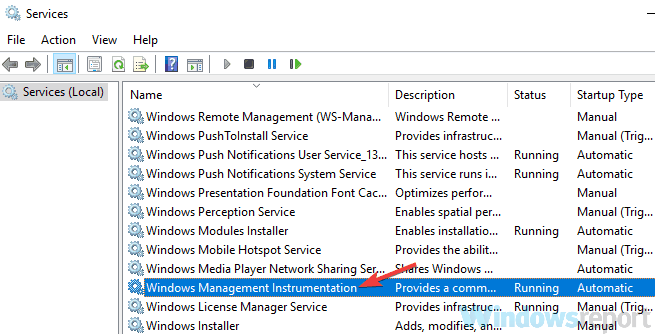
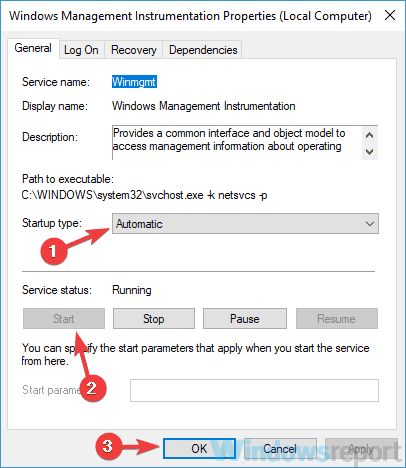
  2. Locate and double-click the Windows Management Instrumentation service in order to open its properties.
    Hamachi tunnel problem
  3. Set the Startup type to Automatic. If the service isn’t running, click the Start button to start it. Now click Apply and OK to save changes.
    Hamachi service status stopped Win 10

Once you start this service, try running Hamachi and check if the problem is still there.

WMI is one of the required services that Hamachi needs in order to run properly, so you should not skip this step.

5. Create a script to automatically restart Hamachi

This is a more advanced solution, and if you’re not familiar with Task Scheduler perhaps you should skip it.

What you need to do is to create a script that will restart the Hamachi service and then restart the application.

  1. Start Notepad as administrator.
  2. Enter the following:
    • net stop Hamachi2Svc
    • net start Hamachi2Svc
    • start "C:Program Files (x86)LogMeIn Hamachihamachi-2-ui.exe"
    • exit
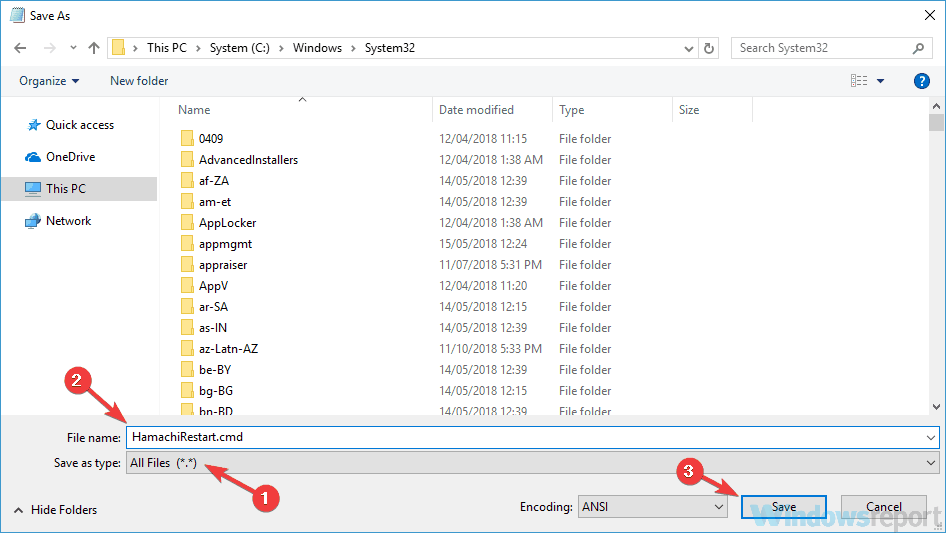
  3. Go to File / Save as.
  4. Set Save as type to All Files and enter HamachiRestart.cmd as the File name. Choose C:WindowsSystem32 as the save location and click the Save button.
    Hamachi service stopped keeps stopping

After creating this file, you can run it manually to restart the services, or you can create an event in Task Scheduler and set this script to repeat itself every couple of hours.

This is just a workaround, and a bit complicated, so if you’re not familiar with Task Scheduler or scripts, perhaps this solution is not for you.

In order for this workaround to work, it’s crucial that you use the correct path to hamachi-2-ui.exe in your script, so be sure to double-check it.


6. Check the Hamachi and the security settings

  1. Open the Services window, locate LogMeIn Hamachi Tunneling service, and set Startup type to Automatic.
  2. Go to the Log On tab and choose Local System account.
  3. Check Allow service to interact with desktop. Click Apply and OK to save changes.

After doing that, you need to change the security settings for Hamachi.

  1. Go to the C:Program Files (x86)LogMeIn Hamachi directory.
  2. Right-click the hamachi-2.exe and choose Properties.
  3. Go to the Security tab and click Edit.
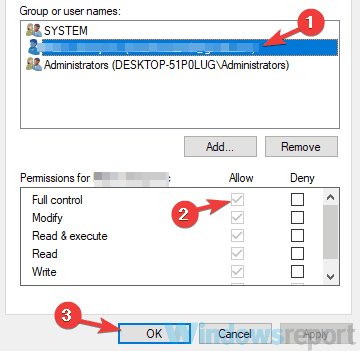
  4. Select your user account and make sure that the Full control option is checked in the Allow column. (You might have to add Users group to the list and give them Full Control privileges for Hamachi as well.)
    Hamachi service status stopped Win 10

After making these changes, check for the problem reoccurrence.


7. Change the Hamachi settings

  1. Open the Services window and double-click LogMeIn Hamachi Tunneling Engine service.
  2. When the Properties window opens, click the Start button to start the service.
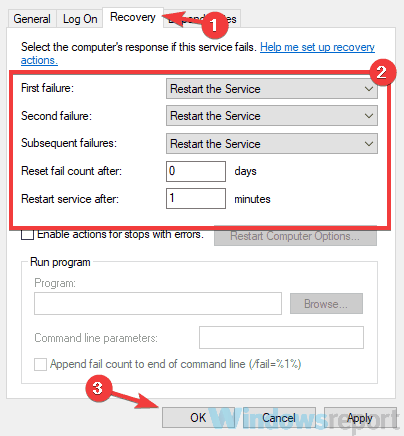
  3. Go to the Recovery tab and set First failure, Second failure, and Subsequent failures to Restart the Service. Set Reset fail count after to 0 days and Restart service after 1 minutes. After making these changes, click Apply and OK.
    Hamachi tunnel problem

Once you change the properties of this service, check if the problem is still there.


8. Perform a Clean boot

  1. Press Windows Key + R. Type msconfig and click OK or press Enter.
  2. Go to the Services tab and check the Hide all Microsoft services checkbox. Now click the Disable all button.
    Hamachi service stopped can't start
  3. Go to the Startup tab and click Open Task Manager.
  4. Right-click the first application on the list and choose Disable from the menu. Do this for all applications on the list.
    Hamachi service status stopped Win 10
  5. Navigate back to the System Configuration window. Click Apply and OK and restart your PC.

With this step, you make sure that no other app interferes with Hamachi.

Once your PC restarts, check if the problem is still there. If the issue doesn’t appear, try enabling the disabled applications and services one by one until you find the cause of the problem.

Once you find the problematic application, keep it disabled, or uninstall it.


Looking to disable some Windows services while gaming to improve performance? Here’s a list.


9. Perform a System Restore

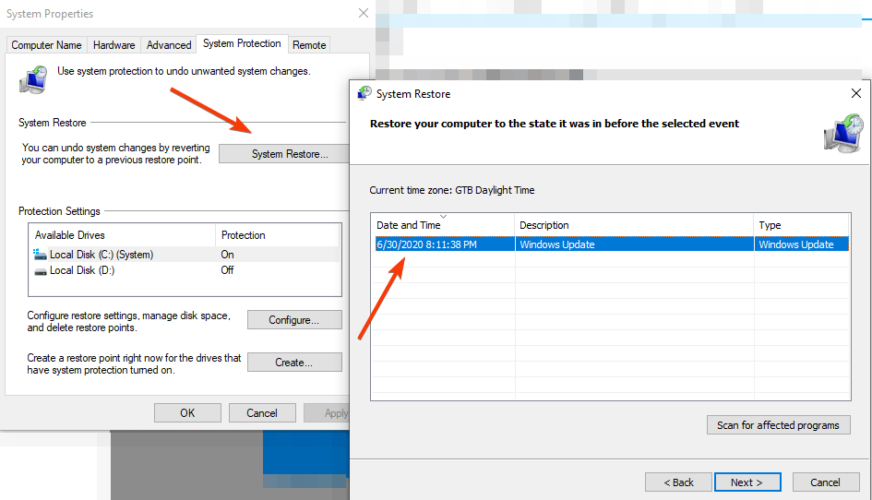
  1. Press Windows Key + S and enter system restore. Select Create a restore point from the list of results.
  2. Click the System Restore button, select a point in time then click Next to proceed.select a restore point
  3. Alternatively, enable Show more restore points option if available. Select the desired restore point and click Next.
  4. Follow the instructions on the screen to complete the process.

After you restore your system successfully, check if the problem reoccurs.

The Hamachi service stopped error usually occurs if there’s a problem with one of your services, but you should be able to fix this error using the solutions from this article.

Tell us if these solutions were helpful – use the comments section to get in touch with us.

[wl_navigator]

FIX: Outlook Crashes When Opening Email With Attachment

Many users use Outlook 2016 as their default email client, but sometimes Outlook 2016 crashes when opening an email with an attachment.

This can be a big problem for some users, so let’s see how to fix this email issue.

Outlook crashes can be problematic, and speaking of crashes, here are some common problems that users reported:

  • Outlook 2016 crashes when opening PDF attachments – This issue usually occurs due to PDF add-in in Outlook. To fix the issue, simply disable this add-in and check if that solves your problem.
  • Outlook 2016 crashes when attaching files, saving attachments, adding an attachment, opening attachments, sending an email with attachment, viewing an email with attachment – There are many attachment-related issues that can occur in Outlook 2016, but you should be able to fix them using one of our solutions.
  • Outlook 2016 crashes when opening email – Sometimes Outlook might crash as soon as you open an email. This is a big problem, but you might be able to fix it by starting Outlook in Safe Mode.

How can I fix Outlook if it crashes when opening mails?

  1. Check your antivirus
  2. Use a different email client
  3. Share the attachment from a different program
  4. Install the latest updates
  5. Remove the problematic updates
  6. Disable Outlook add-ins
  7. Start Outlook in Safe Mode
  8. Reinstall Outlook
  9. Use System Restore

1. Check your antivirus

Having a good antivirus is important, but sometimes your antivirus can interfere with your system and cause Outlook 2016 crashes, especially when viewing attachments.

This can be an annoying problem, and in order to fix it, be sure to check your antivirus and disable Email security features. If that doesn’t work, you might have to disable your antivirus altogether.

In the worst-case scenario, you might have to uninstall your antivirus in order to fix this issue. If removing the antivirus solves the issue, you might want to consider switching to a different antivirus solution.

There are many options on the market. The best antivirus option in 2021 should provide real-time protection against all known and emerging threats without having an impact on other apps on your PC.

2. Use a different email client

Sometimes you just lack the time to fix certain issues, and if that’s the case, and Outlook 2016 is still crashing when working with attachments, perhaps you should try using another email client.

This is just a workaround, but you can use it until you find a permanent solution to your problem. And chances are that you will be able to find an alternative that provides the same or similar features without crashing.

Many modern email clients have very straightforward and convenient attachment features and good storage space, plus built-in solutions to help you send large files.

There are many Windows 10 email client apps that are very stable and have a low error rate while providing top-level features that help you manage multiple email addresses from just one window.

Just make sure to pick an alternative with good security and encryption, good search and contact management features, and additional time-saving tools like calendars and app integrations.

3. Share the attachment from a different program

According to users, Outlook 2016 crashes when trying to add an attachment to your emails. This can be a big problem, but several users reported a useful workaround.

Supposedly, they had issues while attaching Word documents, but they solved the problem with a simple workaround.

According to them, they avoided the problem simply by opening the document they were trying to attach in Word.

After doing that, they just had to choose to share the document as an attachment in Outlook.

This started Outlook with the document attached and the problem was permanently resolved. This sounds like a strange solution, but several users reported that it works, so you might want to try it out.

4. Install the latest updates

  1. Open Outlook 2016.
  2. Head over to File > Office Account > Office updates > Update now.

If Outlook 2016 crashes when working with mail with an attachment, you might be able to fix the problem simply by installing the latest updates.

Outlook usually installs the missing updates automatically, but you can always check for updates on your own.

Outlook 2016 will now check for available updates and download them in the background. Once the latest updates are installed, check if the problem is still there.

5. Remove the problematic updates

  1. Use Windows Key + I shortcut to open the Settings app. When the Settings app opens, go to the Update & Security section.
    Outlook 2016 crashes when opening email
  2. Now select View update history from the left pane.
    Outlook 2016 crashes when adding attachment
  3. You should now see a list of all recent updates. Memorize a couple of recent updates and click Uninstall updates.
    Outlook 2016 crashes when opening PDF attachments
  4. Now you just have to double-click the update you want to uninstall. Follow the instructions on the screen to remove the update.
    Outlook 2016 crashes when opening email

In some cases, problems with attachments and Outlook 2016 can occur due to a problematic update. If this issue started occurring after an update, it’s possible that this update is causing the issue.

However, you can fix the problem simply by finding and removing the problematic update from your PC. This is quite simple to do, and you can do it by following the above steps.

After you remove the problematic update, check if Outlook is working properly.

We have to mention that Windows tends to install the missing updates automatically so be sure to block Windows from installing the automatic updates, as described in this quick guide.

6. Disable Outlook add-ins

  1. Go to File > Options > Add-ins.
  2. Look for the Manage section, now click the Go button.
  3. When the dialog box appears, disable all add-ins and click the OK button.

If Outlook 2016 crashes while working with mail with an attachment, it’s rather likely that one of your add-ins is the problem.

Add-ins provide extra functionality, and they allow you to connect Outlook with other applications in order to exchange information.

Although add-ins can be useful, some add-ins can cause issues such as this tone to appear. To fix the problem, it’s advised to disable the add-ins, as described above.

After doing that, check if the problem is still there. If the problem doesn’t appear anymore, you need to enable add-ins one by one until you manage to recreate the problem.

Once you find the problematic add-in, keep it disabled or remove it and the problem should be permanently resolved.

Several users reported that Skype for Business plugin caused the issue, but other plug-ins can cause this problem as well, so be sure to disable them all.

7. Start Outlook in Safe Mode

  1. Press Windows Key + R shortcut to open the Run dialog.
  2. Enter Outlook /safe and click the OK button.
    Outlook 2016 crashes when saving attachments
  3. Choose Profiles window will now appear. Click OK to start Outlook.

Some users reported that they can’t start Outlook 2016 at all, and if that happens, you need to start Outlook in Safe Mode.

Outlook Safe Mode uses the default settings and it keeps all the add-ins disabled, so if the problem is related to your add-ins or settings, the Safe Mode should help you with that.

If Outlook manages to start in Safe Mode, it’s almost certain that one of your settings or add-ins is causing the issue.

Keep in mind that starting Outlook in Safe Mode won’t fix your problem, but it’s a good way to troubleshoot the issue.

8. Reinstall Outlook

If Outlook 2016 crashes while trying to open an email with attachments, it’s possible that your Outlook installation is corrupted.

This can be a problem, but you can easily fix it by reinstalling Outlook. There are several methods to do that, but if you want to completely remove Outlook, we suggest using uninstaller software.

In case you don’t know, uninstaller software such as Revo Uninstaller will completely remove Outlook and all files and registry entries associated with it.

By doing so, there won’t be any leftover files on your PC, and it will be as if Outlook was never installed. Once you remove Outlook, install it again and check if the problem reappears.

9. Use System Restore

  1. Press Windows Key + S and type system restore.
  2. Select Create a restore point from the list of results.
    Outlook 2016 crashes when opening PDF attachments
  3. System Properties window will appear. Click the System Restore button.
    Outlook 2016 crashes when attaching files
  4. When System Restore window opens, click Next to proceed.
    Outlook 2016 crashes when opening email
  5. Check Show more restore points option, if available.
  6. Now you just have to pick the desired restore point and click Next.
    Outlook 2016 crashes when opening PDF attachments
  7. Follow the instructions on the screen to complete the restoration process.

If the problem with Outlook 2016 crashes is still there, you might be able to fix the issue simply by using the System Restore feature.

System Restore allows you to revert changes on your PC and fix various issues, and to use System Restore, you just need to do as detailed above.

After restoring your PC, check if the problem is still there.

Outlook 2016 crashes can be quite problematic and prevent you from working with attachments. However, we hope that you managed to fix the issue using one of our solutions.

Let us know in the comments area below.

[wl_navigator]

How to edit a video faster using HitPaw Video Editor

Editing even a small video for your social media or the footage you just recorded from a trip can be a painstaking job if you don’t have the right tool.

Plus, some advanced apps have a lot of menus and tools and you risk losing yourself into details pretty quickly.

If you don’t have too much knowledge and skills about video editors, you need a tool with only the features you have in mind and a friendly interface that will take you to an excellent-looking final result quickly.

That’s where HitPaw Video Editor comes into play, a simple software with intuitive usage that will get help you edit your clips very easily.

What are HitPaw Video Editor’s most important features?

1. Easy to install and use

First of all, HitPaw Video Editor has a small footprint on your system so it’s not like other complex software that will hog half of your drive with their resources.

It’s simple to install and run and the interface is so intuitively made that even if you have no experience in editing videos, you will still handle it pretty well.

For instance, you just add photos and videos with a quick drag-and-drop motion from your drive to start the project.

Then, all the menus and tools are placed on the left and right of the preview screen so that you can access them easily.

2. Great tool set

In the top left corner, you will see the menu with the tools set and there’s a great selection of sounds and sound effects to add to your clip.

Of course, you can add text wherever you want, embellish it with lots of stickers grouped on various themes, and then use some stylish transition effects to get a professional-looking video.

At last, there is a whole library of effects that will change and adapt your video to any mood or situation.

3. Precise timeline management

After adding your media to your files cabinet, it’s simply a matter of dragging them to your timeline and ordering them with your mouse.

So, then on, cutting, splitting, and previewing can be handled to the second for any of the videos thanks to the zooming feature from the timeline.

Now that we’ve reviewed some of HitPaw Video Editor’s best features, let’s see how to edit a video really quickly.

How can I edit a video using HitPaw Video editor?

  1. Go to the HitPaw Video Editor website and click the TRY IT FREE button.
  2. You will get an installer file and after you run it select the Install button.
  3. The app will start after the installation and you will be informed that you are using the Free Version. That means that the finished video will have a watermark on it. You have the options to click on Continue Trial or just hit the Buy Now button and redirected to the purchasing procedure.
  4. The first thing you need to do is to drag and drop the media files into the dedicated area or just click on it to indicate the location of your files on your drive.
  5. If you want to add them one by one, just click the plus sign from the Media window.
  6. Then, drag the files to your timeline, one by one. The tracks will appear automatically for each media you add.
  7. Now, it depends what you want to do with the videos. You can simply leave them like that and export the video, but we will also add a transition between the clips. To do that, place the timeline bar with your mouse between the clips, hit the Transition button, then select an effect from the list. You will preview its effect immediately on the player to see its result.
  8. Adding text is also a child’s play. Select the Text button, drag the text style to your timeline and edit the content from the right pane. You can change the font, color, size, place it anywhere on the screen, etc.
  9. Of course, all the elements you add in the timeline can be expended by simply dragging their right edge. That’s how you determine how long the text or sticker or anything else will show up on the screen.
  10. To apply a filter, click the Filters button and simply drag the one you like on the timeline, just like all the other elements.
  11. In the Timeline window below, you have all sorts of additional tools for splitting a video, cropping the frame or setting a different speed for it.
  12. And with the zooming tool from the right you can perform all the timeline actions at split second intervals if you need that.
  13. In the right pane, you will find a lot of advanced features to set up the brightness and opacity of the video, to zoom or rotate it, sound settings and more options that we’re sure you will happily explore.
  14. The last thing you need to do is to click the Export button from the top right corner of the window, change the video name, save location (if you want), format and resolution (3840×2160 maximum), then hit the OK button.

As you clearly see, you can create a video in just a few minutes with HitPaw Video Editor that otherwise, on more complex software, would take hours without proper training.

We remind you that this is the free version, and the resulting video will have a watermark. To remove it, you will need to buy the full version.

HitPaw Video editor has a lot of other nifty tricks under its sleeve and a great library of objects and options that you will have to discover yourself.

However, for joining some media, you will find out that the app is extremely easy to use just with a few clicks of your mouse.

If you need more inspiration, check our list including the best video editors to help you create a great movie.

HitPaw has some great Black Friday offers right now so if you’re also interested in other tools, just visit their website.

If you’ve already tried HitPaw Video Editor leave us a note in the comments about your experience with the product.

Too many failed attempts to your Mojan account? Try this

Minecraft is a popular sandbox video game developed by Mojang. To play the game, you must log in to your Mojang account. However, some users have reported getting the error Too many failed attempts when trying to log in.

This usually occurs if you have attempted to log in with an incorrect password multiple times. Interestingly, for some users, this is shown when trying to sign in to their accounts. 

This problem may be related to several reasons, and we have listed a few troubleshooting steps to help you solve it in no time.

How do I fix Mojang’s Too many failed attempts error?

1. Check for too many login attempts and incorrect password 

In most cases, the Too many failed attempts error is triggered if the user has tried signing in with an incorrect password. If you think you have used the wrong password and triggered this error, you have no option but to wait until the cooling period is over.

After seeing the error, wait for three hours before you attempt to log in again. Mojang automatically locks accounts after a few failed login attempts to protect the account from potential hacking attempts. 

Tip icon Tip
Another quick troubleshooting tip is to restart your computer. Several users have reported that the error was fixed after restarting their system. So, perform a quick restart and check if that helps.

Even more, learn what to do if Windows 10 is not restarting. You may need to run the Power troubleshooter or disable Intel Management Engine to correct the issue right away.

2. Check for hacking attempts and change your password 

  1. On your web browser, open the Minecraft reset password page.
  2. On the Forgot Password page, enter your email address and click on Request Password Reset. If you have entered the correct email address, Mojang will send you the instructions to change your password.
  3. Open the link received on your registered email address and follow on-screen instructions to reset your password.

If you see the error even after entering the correct credentials, check for hacking attempts. In such instances, it is recommended to change your Mojang password to safeguard your account. 

After doing so, try to log in with the new credentials. Then, check if the error is resolved. If you don’t have access to the email address associated with your account, contact Mojang support for recovery instructions.

3. Perform a full scan with an antivirus tool 

  1. Click on Start and choose Settings.
  2. Go to Update & Security.
  3. Open the Windows Security tab, then open the Virus and Threat Protection option.
  4. Click on Scan options.
    Mojang too many failed attempts
  5. Select Microsoft Defender Offline scan and click the Scan now button. The offline scan will help find and remove hidden malware using up-to-date threat definitions.

Perform a complete scan using your third-party antivirus if you have one installed on your computer. Keep in mind that Microsoft may disable Windows Defender if you have a third-party antivirus. You can manually enable it from the Threat protection settings.

If you suspect the error to have triggered after installing software from an unknown source or due to a hacking attempt, perform a complete scan.

This may take some time, but you can find and remove hidden Trojan or malware from your system. Do not hesitate to use the best Windows 10 antivirus software in that regard.

4. Use Minecraft in the browser 

Not sure what to do with those three hours? You can play the classic version of the popular game in the browser. You can access it from the Classic Minecraft page. 

Furthermore, you can invite friends to join you with the given URL. Pick a username for your profile and click Start. If you have played the classic Minecraft, the online version will be no stranger.

⇒ Play Minecraft Online

Does Mojang blacklist login attempts from specific IP addresses?

Mojang has a specific system to protect against logging into cracked accounts. If you fail to log in to several accounts, chances are your IP will be blocked.

This may last from 30 minutes to three hours, then the accounts you tried logging into are flagged. They will be reviewed and you’ll most likely receive a new reset password to the original email.

Do not hesitate to use an HTTP Proxy for the actual login of the accounts or even a VPN to bypass this restriction.

Can’t log in to Minecraft with VPN either? Try some easy fixes and forget all about the annoying issue that’s preventing you from enjoying your favorite game.

Even more, take a look at this guide on what to do if Minecraft login is not working. You may need to check for server issues or try a different browser. One of these lightweight browsers for Windows PCs will most likely do the trick.

The Mojang Too many failed login attempts error when signing in to your Minecraft account usually occurs due to repeated failed attempts.

In this citation, wait before you try to log in again. If not, follow other steps in the article to diagnose the problem and fix it quickly. Don’t hesitate to let us know which solution worked for you.

Microsoft announces Xbox Series S Fortnite and Rocket League bundle with free goodies

Microsoft has announced today a new Xbox Series S – Fortnite and Rocket League bundle which comes with the Midnight Drive Pack, including accessories, V-bucks, and more. While Fortnite and Rocket League are both free-to-play games, adding free 1,000 Fortnite V-Bucks, 1,000 Rocket League credits, and cosmetic items to the mix may be a very interesting proposition for young gamers.

“With the Midnight Drive Pack for Fortnite, you can customize your looks with the Dark Skully outfit, Dark Skully Satchel Back Bling, Dark Splitter pickaxe, and 1,000 V-Bucks to spend on cosmetic items or to get the latest Battle Pass. For Rocket League add-on content, you get the standout Purple Masamune Car, Purple Virtual Wave Boost, Purple Zefram Wheels, and 1,000 Rocket League Credits that can be used to build Blueprints, upgrade to Rocket Pass Premium, or purchase most-wanted content from the Rocket League Item Shop,” the Xbox team explained.

This new Xbox Series S Fortnite and Rocket League Bundle is launching today in North America, with other markets to follow in December. Consumers can either pay $299 for the bundle or use Xbox All Access to get the bundle plus 24 months of Xbox Game Pass Ultimate for $24.99 per month for 24 months.

Both Fortnite and Rocket League support framerates up to 120fps on the Series S, and these free-to-play games no longer require an Xbox Live Gold subscription. With its entry-level price, the Xbox Series S is the perfect console for kids and teenagers, and it should sell well during the holiday season. According to new data from Ampere Analytics, the Xbox Series S has sold better than the flagship Series X in “several key markets.”

Microsoft Edge is getting a new price tracking feature

Microsoft’s new Edge browser is will soon help users keep track of price changes on products they’ve recently viewed while browsing the web. The company detailed the upcoming price tracking feature today, and it follows the announcement of a new “Buy now, pay later” option that came earlier this week.

“This feature is coming soon and will be built into the browser, so you just need to browse as you normally would, and Microsoft Edge will let you know if any of the items you’ve recently looked at have changed in price. This eliminates having to check back on each product yourself, especially during the holidays when your online shopping list is probably very long,” explained
Liat Ben-Zur, Corporate Vice President at Microsoft.

User interface for shopping in Microsoft Edge

Shopping use cases seem to be a big focus for the Edge team these days, and Microsoft’s web browser already offers several built-in tools for comparing prices and auto-filling coupons. These shopping features are entirely optional, but Microsoft is committed to making shopping good for the environment, too. Coming soon, for every 10 purchases made in Microsoft Edge at eligible retailers, we will make a donation to the Eden Reforestation Project for planting trees,” announced Ben-Zur.

Now that Microsoft Edge is on a 4-week release cycle, a new major update should land in the Stable Channel next week, and the new price tracking feature announced today should be there, right in time for the holiday season. Last month, Microsoft Edge 95 also introduced a new Efficiency mode to manage resources more carefully and save battery life on laptops.

ByteFence vs Malwarebytes: Which is more secure?

Malwarebytes is one of the most popular virus removal software available on both Windows and macOS platforms. You can even get it for Android and iOS running devices. However, there are quite a few security features launched with tall claims and we are convinced that you want to know more. 

ByteFence is a relatively new antivirus solution available for the Windows platform only. However, there are times when some Mac users may find the tool installed as a bundle with other freeware. 

So, is ByteFence good enough as a security solution, or should you consider Malwarebytes instead? We answer all the questions in this detailed ByteFence vs Malwarebytes comparison.

ByteFence vs Malwarebytes: Which is a better antivirus?

ByteFence

ByteFence is a security program that offers scanning and removal of Trojans, worms, spyware, crapware, and other potential threats to your computer. 

It is developed by Byte Technologies and comes in a free basic and pro version. Unfortunately, ByteFence is only available on Windows PCs. 

Features of ByteFence 

ByteFence is available in free trial and Pro version. The free version only offers scanning features. So, you can scan for crapware, malware, and more in real-time. However, to remove the malware, a subscription to the Pro version is required. 

ByteFence offers a straightforward user interface. You may access the Scan, Browsers, Settings, and Status tab from the home screen. There are three scan options – Full Scan, Quick Scan, and manual Folder and Files scan. 

Moving on, in the Browsers tab, you can check and clean Internet Explorer, Google Chrome, Mozilla Firefox browser. All the security-related features are tucked in the Settings. 

Do not hesitate to enable real-time protection, create scanning schedules, add and remove URLs from the whitelist, and check the files moved to the Quarantine tab. 

Furthermore, there is a Gamer Mode. Enabling it will automatically disable various features to free up system resources and allocate them to your game. 

The tuneup tab features some system cleaning tool that is supposed to fix system issues by cleaning junk files and other leftover data.

Malwarebytes

Malwarebytes probably needs no introduction. It’s one of the most popular and highly reliable security solutions known for deep scanning and removing malicious programs without impacting your system performance.

Malwarebytes is available on all the major desktop and mobile platforms. You can run the same tool on your desktop as well as handheld devices. It comes in multiple versions, including a basic free version. 

Features of Malwarebytes 

During installation, Malwarebytes offers to install its Browser Guard, an extension for the browser. You can skip or install it along with the virus removal tool. 

It features real-time protection that helps you find and remove malware, viruses, and other threats from your computer and smartphone.

Furthermore, it can also protect you from online scams and suspicious websites with its Web Protection feature. It looks for malicious links and blocks phishing scams to protect your personal and financial details.

Real-time protection also consists of ransomware protection and exploit protection features. Ransomware protection blocks malware that locks you out of your device or files.

Exploit Protection blocks malware that takes advantage of bugs and vulnerabilities in a system.

All the protection layers are enabled by default. However, you can disable them individually if you want. The real-time dashboard shows malware stats of your computer.

Malwarebytes VPN is a built-in feature available for premium users that protects your privacy, secures your Wi-Fi connection, and offers better speed than other VPNs.

It is also extremely gentle on your system hardware. It works in the background without hogging your system resources or spams you with offers and notifications. 

If you are bored with the default theme, it comes with a Light and Dark theme. You can access it from the Display tab in Settings.

The service is known to sometimes cause high memory problems that affect your computer. However, if that’s your case too, learn how to solve Malwarebytes memory issues in no time.

ByteDefence vs Malwarebytes update definition 

ByteDefence, by default, downloads and installs the latest virus definition. This helps in keeping your PC safe with up-to-date threat monitoring. 

Application update for Malwarebytes is also enabled by default. If you don’t want to install automatic updates, you can disable them from the Settings tab. Of course, if you want, you can check for updates manually.

Feel free to customize how often Malwarebytes checks for threat intelligence updates. With both tools, you don’t have to worry about the latest updates, as the software will download and install the latest updates. 

Compatibility with antivirus programs

ByteFence claims to work with third-party programs without any issues. Microsoft Windows 10 automatically disables some Windows Defender features when a third-party antivirus program is installed.

Malwarebytes’ free version works with third-party antivirus programs. However, the premium version with additional features may require some tweaks to make it work without conflict.

Different between free and premium versions

Malwarebytes offers a free version with a functional trial useful for checking out the premium features. ByteFence, on the other hand, has a very basic free version but a functional trial of 14 days.

Malwarebytes free vs premium version 

FeaturesMalwarebytes FreeMalwarebytes Premium
On-demand scan and malware removalYesYes
Real-time malware detectionNoYes
Ransomware protectionNoYes
Web protectionNoYes
Exploit protectionNoYes
Game modeNoYes
Scan schedulingNoYes

ByteFence Free vs Pro version

FeaturesByteFence FreeByteFence Pro
Scans for MalwareYesYes
Real-time scans for MalwareNoYes
Removes MalwareNoYes
TuneupNoYes
WhitelistNoYes

Conclusion 

Malwarebytes 

Malwarebytes is an exceptional antivirus solution available on all the major consumer platforms. The free version is pretty basic but works well.

The Premium version comes with advanced features such as web protection, real-time malware detection, ransomware protection, and more. 

Pros
Intuitive user interface
Effective on all types of malware and viruses
Cross platform support
Cons
Free version limited by features

ByteFence 

ByteFence is not a household name when it comes to virus removal utility. With the free version, you can scan for potential threats.

However, to remove malware and viruses, a Pro version subscription is required, defeating the purpose of using an antivirus.

Pros
Game Mode
Tuneup utility to improve system performance
Advanced settings
Cons
Pretty unusable free version
Premium version has limited features
Tip icon Tip
To summarize, if you have to choose between Malwarebytes and ByteFence, Malwarebytes should be your choice by default. It offers a free version that can scan for potential threats and remove them from your computer.

ByteFence not only has an ineffectual free version, but the paid version is also nothing exciting. Even more, the marketing practices of the company are not the best.

Reportedly, it gets installed as bundled software with other freeware and changes system settings such as browser default search engine and more. 

Since your want increased protection for your PC, also check out this Microsoft Security Essentials vs. third-party antivirus tools guide. You’ll see the most important differences between these top antivirus programs and the default platform in order to make an informed choice.

And if any of the antivirus tools you chose is blocking the camera, don’t worry as there are a few solutions that can correct this inconvenience in no time.

Do you have any experience with these tools? Share your thoughts with us in the comments section.

Xbox’s Phil Spencer expresses his support for game preservation via emulation

In recent years, we’ve seen Microsoft make several initiatives to make the video games industry a better place, pushing developers to make their games more accessible and other platforms to embrace cross-play multiplayer. In a recent interview with Axios, Spencer said that the industry as a whole needs to do more to support game preservation so that games from previous generations will remain playable on future hardware.

In recent years, Microsoft’s Xbox team has made some big efforts to support games from previous console generations, with the company’s latest Xbox Series X|S being capable of improving OG Xbox and Xbox 360 games in various new ways. Earlier this week, Microsoft announced a final list of over 70 new backwards compatible games on Xbox consoles, adding that it had now “reached the limit of our ability to bring new games to the catalog from the past due to licensing, legal and technical constraints.”

Microsoft has built its own emulator on Xbox One and Xbox Series X|S consoles to play select backwards compatible games with the authorization from game publishers, but what about other games? While it’s possible to install third-party emulators on Xbox consoles, this isn’t exactly easy to do and it’s actually illegal to emulate games you didn’t purchase.

“My hope (and I think I have to present it that way as of now) is as an industry we’d work on legal emulation that allowed modern hardware to run any (within reason) older executable allowing someone to play any game,” Spencer wrote in a direct message sent to Axios. It might be wishful thinking to imagine platforms holders ever agreeing on supporting game emulation on competing devices, but Spencer remains an optimist.

“I think in the end, if we said, ‘Hey, anybody should be able to buy any game, or own any game and continue to play,’ that seems like a great North Star for us as an industry,” the exec said. Do you think the video games industry will ever take the necessary steps to ensure that games from the past remain easily playable on newer platforms? Let us know what you think in the comments below.

Internet Association lobbying efforts take a hit as Microsoft and Uber leave group

As the political climate surrounding the tech industry and legislative infinitives to curb harmful or privacy violating actions continue to heat up, Microsoft and Uber have decided to leave the Internet Association.

According to a report from Axios, Microsoft and Uber are “leaving the Internet Association (IA)” which represents a lobbying consortium that operates on behalf of internet companies and tech firms within Washington DC.

The move comes after a number of large tech firms initially paused campaign donations following the January 6th attack on the US Captial. Lobbying efforts were slow to return and tech firms have since re-evaluated their broad donation policies often opting for more concerted and self-interested ones that can be at odds with members of the IA.

A trade association can only do what its members tell it to do, one person familiar with IA’s work told Axios. Facebook begging to be regulated puts the smaller companies in a bad position. It makes it hard for any organization that contains those two constituencies to be effective.

In addition to tech firms in-fighting, the IA also faces organizational issues that include with top lobbyists and VPs leaving the firm as well as less money to throw around in Washington.

As more IA members leave the group, members fees revenue has sunk, only generating a 1/7 the amount of money ($9M in 2019) that related firms such as NCTA which raked in $63 million during the same year.

As the heat gets turned up on legislation talks in Congress regarding tech firms and regulation, IA has been relegated to a relatively toothless intermediary as most CEO’s and VPs speak directly with state and local officials in an attempt to assuage concerns.

In the ten years since its inception, the tech industry’s relationship with consumers, users, governments and international bodies has drastically shifted and it seems firms are leveraging more direct relationships with law makers instead of calling upon IA.

IA still has roughly 40 members and small to mid-sized tech firms such as Discord, NewsBreak and others remain committed to the group.

Microsoft’s latest re-org focuses on Azure and new cloud businesses

Word began filtering out yesterday of yet another Microsoft re-org, and as usual Mary Jo Foley at All About Microsoft has the details. The big news is that the company is creating a new team, called Strategic Missions and Technologies (SMT), led by the current Executive Vice President of Azure, Jason Zander. In the new role, Zander will report directly to CEO Satya Nadella, and SMT will group together four major businesses: The US Federal (government cloud) business, Azure Space & Mission Engineering, Azure for Operators (tele-communications), and Azure Quantum.

According to an internal email from Zander, reported by Foley, the “common bond shared by the teams in this new division is next generation opportunity — opportunity that is so profound in potential impact that each area deserves dedicated focus to grow.”

Zander won’t be replaced as EVP of Azure, instead, Scott Guthrie will lead up a newly shuffled Azure org. The Azure Core Team will grow to include Azure Dedicated and Azure Global Infrastructure. A new Cloud for Industry and Global Expansion, let by Corey Sanders, will oversee Microsoft’s vertical cloud platforms, and report to Guthrie.

Still more moves will move more deck chairs within Azure, according to Foley:

Guthrie will get some other new direct reports, as well, as part of the moves announced today. Rani Borkar, the head of Azure Hardware Systems & Infrastructure, will move to Guthrie’s leadership team. Billy Anders, who heads the Azure CXP team, will also join Guthrie’s leadership team. The Azure Edge + Platform Team will be headed by Doug Phillips. Phillips will join Guthrie’s leadership team and report directly to him.

Technical Fellow Mark Russinovich will continue to lead the Azure Office of the CTO team and will join Guthrie’s leadership team and report to him directly. And Technical Fellow Henry Sanders will continue as CTO of the Azure Edge + Platform team, reporting to Guthrie and joining Guthrie’s leadership team.

The changes take effect immediately and signal Microsoft’s plans to further expand its industry verticals, its government, space, and telecommunications businesses, and Azure Quantum.

How to repair corrupted files after recovery [Best Tools]

Although, a computer file is designed in a way that enables programs to open, read, and modify it. However, the aftermath of a strong virus infection renders computer files invisible, disorganized, and unreadable. On the other hand, this means that the file is damaged or corrupted.

After recovery, the corrupted file may be damaged and unreadable; therefore, it is necessary to fix the corrupt files after recovery. In order to do this, you need to use automated tools to streamline the process.

Files got corrupted after recovery? Here are some solutions

Stellar Toolkit for File Repair

This is a very good repair tool designed with MS Office in mind and utilized in repairing different file types that you can use to fix corrupt files after recovery.

Meanwhile, the Stellar File Repair Toolkit is a combination of four tools in resolving MS Office file corruption problems. This toolkit helps you to repair corrupted MS Word, MS PowerPoint, MS Excel, and ZIP files.

In addition, this tool is compatible with MS Word 2013, 2010, 2007, 2003, 2002, and 2000 on several Windows OS such as Windows 10, 8, 7, Vista, 2003, XP, 2000, and NT.

With Stellar File Repair Toolkit, you can effectively fix corrupt MS Excel spreadsheets and restore them to a new Excel file. Also, it has a standard explorer-style user interface that can fix corrupt files after recovery.

Furthermore, Stellar File Repair Toolkit can fix several corrupt files such as PowerPoint presentations, Excel spreadsheets, ZIP archives, and Word documents.

Stellar Toolkit for File Repair

If you need a tool that will recover any type of file without loss, then Stellar Toolkit for File Repair is here for you.
Check price Visit website

Wondershare Video Repair

If your video files are the ones that got affected by corruption, then you will need a dedicated video recovery tool, and few are as good as Wondershare Video Repair.

The tool is incredibly easy-to-use, as all you need to do is scan the media for any video files, and then choose the ones to repair.

More so, it can handle files of any size, from short 5 MB AVI files to Bluray videos that take up 60+ GB.

Wondershare Video Repair

With Wondershare Video Repair, your videos will be back the way they were the day you first shot them with your camera!
Free trial Visit website

Hetman File Repair

Hetman File Repair can fix corrupt files after recovery most especially broken image files.

It is compatible with the Windows OS and can completely repair JPEG, TIFF, BMP, and PNG files without losing the image quality or decompressing image data.

In addition, Hetman File Repair is a very unique tool for fixing corrupt files after recovery.

Besides, it offers a comprehensive analysis of information still available in a corrupted file. This tool can be used in the office and also for personal use at home.

Although, Hetman File Repair does not have any specific requirements; however, it is very compatible with major Windows OS versions such as Windows Vista, Windows XP, Windows 7, and Windows 8 in 32-bit and 64-bit editions.

Also, it uses read-only access in the process of repairing files in order to ensure the safety of the files.

Nevertheless, this efficient tool requires a license to fix corrupt files after recovery. Hetman File Repair is not completely free, there are restrictions attached to the demo version of each utility.

Hetman File Repair

This universal file repair tool can finish the job that typical file recovery tools cannot, bringing your files back to their original state!
Check price Visit website

Repair Toolbox

The Repair Toolbox is very good for fixing corrupted files. It is not a single application, it contains 22 single-purpose utilities. Each of these single-purpose utilities can repair different files.

Meanwhile, the bundled utility applications work in the same way. Therefore, this tool can fix corrupt files after recovery. Besides, the process of file repair is very easy.

Users can indicate the corrupt file within the applicable utility’s environment and then name the resulting repaired file before proceeding with the repair process.

In addition, Repair Toolbox is compatible with Windows Operating System and also supports several file formats such as Excel, Word, PowerPoint, OneNote, PDF, Outlook, ZIP, PDF, RAR, Photoshop, Illustrator, etc.

⇒ Get Repair Toolbox

In conclusion, we recommend that whenever you notice your file has been corrupted after recovery from a virus infection, you should try any of the repair tools listed above.

These tools are Windows compatible and effective for users to fix corrupt files after recovery.

If you do have any questions regarding any of the tools we mentioned above or you know f any tool which did not make our list, feel free to comment below.

How to open .cue files in Windows 10

A cue file is a disc image format that stores all the information and contents of a CD or DVD as a file image. It is a metadata file that describes how the tracks of a CD or DVD are organized. Since most modern-day laptops lack CD and DVD drives, disc images have become very useful.

If your computer doesn’t have a disc drive, you don’t have to cut yourself from performing certain functions or listening to your old Audio CDS.

Just create ISO files or other types of disc images and mounting then will let you access the virtual discs just as you would access the physical discs inserted in your computer.

These disc files contain a complete representation of a disc. But how do you open these files? Before we get to that, let us first touch on the most common file formats for disk images.

Common file formats for disk images

  • ISO – The term ISO is an abbreviation for “ISO-9660 file system image”, and is currently the most common disc image file format. It is good for data files and video content. However, it is not the best for Audio CDs.
  • BIN & CUE – These are disk images split into different files. The formats were developed to fix the Audio CDs archiving problem with ISO. BIN is a binary file that contains the actual data burned to discs while .cue is a metadata file that describes how CD tracks are set up.
  • IMG file – The .img file is a sector-by-sector binary copy of the source optical disk or hard drive. It relates to binary files that contain raw information. These files store all the track information as well as error correction information and control headers.
  • MDS – MDS is commonly used for storing copy-protected DVDs. BIN/CUE and ISOs do not have the feature to store copy-protected information within the image file.

The modern versions of Windows, i.e. Windows 10, Windows 8.1, and Windows 8 have the built-in ability to mount both ISO and .IMG image files without the need for third-party software. However, Windows doesn’t have inbuilt support for other file formats such as BIN/CUE, MDS, CCD, and others. You will need third-party applications such as Roxio Toast to open BIN/CUE files.

How to mount an ISO image file in Windows 10

If the disk image is in the ISO file format, you won’t need to install a third-party application. Simply follow the steps below to mount it.

Step 1: Double-click the ISO file to mount it. Ensure that the ISO file is not associated with any program in your system.

NB: If the ISO file is associated with any program in your system, mounting will not work.

Step 2: Right-click the ISO file and select the ‘mount’ option. Once you have mounted the disk file, it will appear as a new drive under ‘this PC’

Step 3: To unmount the disk file, right-click the drive and select ‘Eject’.

If you are using Windows 7, Vista, or any other older version of Windows, then you will need to install a third-party application to mount.

If you require a specialized program but you don’t know where to find it, we recommend the most popular file image mounting software namely PowerISO

How to open BIN / CUE files with PowerISO

Step 1: Download and install the PowerISO application. Once installed, click to launch the application.

Step 2: Click the File button in the tools bar and choose open. Select the BIN or CUE file you want to open. The program will automatically list the CUE files for you.

Step 3: Click open. PowerISO will automatically list all the files within them.

Step 4: To extract the BIN file, locate and click on the ‘Extract’ button on the tools bar. This will open an extract dialogue box.

Step 5: Choose the destination directory for extraction.

Step 6: Select ‘All files’ if you want to extract them all and click okay to start the extraction process.

⇒ Get Roxio

Was the information helpful? Feel free to comment and share.

[wl_navigator]

Netflix in Not Working on the Projector: 5 Tested Fixes

Some users have reported that Netflix is not working on their projector from the computer and other devices. Usually, Netflix won’t play on the projector due to incorrect settings configuration and audio/video format incompatibility. This issue may also be caused by trying to display DRM protected content. In this case, using a browser to view Netflix will fix the problem instantly.

What can I do if Netflix is not working on the projector?

1. Setup the projector to work with Netflix

  1. Make sure you have followed the steps given below correctly to connect your Projector to PC and to play Netflix.
  2. Plug the projector’s video connection into the video port of the computer and turn on the Projector.
  3. Click on Start and select Settings.
  4. Select System and then click on Display.
  5. Click on Connect to a Wireless Display.
    connect to wireless display projector won't play netflix
  6. From the right pane, select your Projector.
    select the projector projector won't play netflix
  7. That’s it. Make any changes to the display size as per your requirement and play Netflix on Chrome / Edge browser.
  8. This should allow you to play Netflix on a projector without any issues.

If you are using the Windows 10 Netflix app, you may not project some content due to protected content settings. It is advised that you use an open-source web browser like Chrome / Edge to play Netflix content from the web.

You might also be interested in our complete guide on how to connect your projector to Windows 11.

2. Check the Source Device and Projector are connected correctly

  1. If the issue persists, check that the cables and adapters are firmly plugged in.
  2. Also, check that you are using the proper cable or adapter to connect your source device to the projector.
  3. In case your projector comes with USB-C port to display content, make sure it is connected to a USB-C video port and not USB-C charge port.
  4. If you are connecting to the projector via VGA port, check that you are using a VGA to HDMI converter and it is working correctly.

3. Update the browser

  1. If you are using the Google Chrome web browser to play Netflix on the computer, check if it is up to date.
  2. Launch Google Chrome and click on the Menu button.
    about google chrome projector won't play netflix
  3. Go to Help and select About Google Chrome.
    update page google chrome projector won't play netflix
  4. Check if any update is pending for the browser and install it.
  5. Relaunch the browser and launch Netflix. Try to play any content and check if the Projector is playing it.

4. Try a different browser

If the previous solution didn’t help, you might want to try using a different browser. There are many great browsers on the market, but you may need to choose one based on your online activities.

Netflix does not work the same way in all browsers since they all work differently.

If you choose one of its free rivals, you will almost certainly get considerably superior image quality. An interesting fact about Chrome is that it only supports Netflix in 720p quality, but other browsers can stream Netflix in 4K resolution.

If you’re looking for a better browser to stream Netflix, we recommend checking out our alternatives for browsers other than Chrome.

5. Update Display Driver

  1. Press Windows key + R to open Run.
  2. Type devmgmt.msc and press OK to open the Device Manager.
  3. In the device manager, expand Display Adapter.
  4. Right-click on your display Adapter and select Update Driver.
  5. Select Search automatically for drivers.
  6. Wait for the Windows to download any pending update and install it.
  7. Restart the system and check for any improvements.

We also have a dedicated guide on how to install the projector driver on Windows.

Make sure you’re using the latest versions of your drivers. There are third-party apps that can automatically do that for you, to save time and avoid any failed driver updates or installation.

With Outbyte Driver Updater all you need is a few clicks and the software will scan your PC’s display drivers for possible driver updates. It’s compatible with all versions of Windows and makes updating drivers really easy.

This handy tool can be scheduled to automatically find outdated drivers.

⇒ Get Outbyte Driver Updater

There you go! Quite simple and efficient, let us know in the comment section below if these steps helped.

FIX: Not enough storage available to complete this operation

The error message Not enough storage is available to complete this operation usually occurs when users try to install the latest updates on their computers.

This error is often accompanied by the 0x8007000e error code. In other words, the complete error code often looks like this: ERROR_OUTOFMEMORY (0x8007000e).

This error also occurs when users run a client app or a script by using WMI in the .NET Framework 2.0.

Although the ERROR_OUTOFMEMORY is prevalent for Windows 7, where it mainly occurs when users try to install a new Service Pack or a Language Pack, there are situations when it occurs in Windows 10 also.

Windows 10 systems are also affected by this error, particularly when users try to open Windows-specific features, such as services.msc, disk management, event viewer, the group policy, etc.

In this article, we’re going to show you how to fix ERROR_OUTOFMEMORY (0x8007000e) in these three situations.

How can I fix the error message ERROR_OUTOFMEMORY?

1. Fix ERROR_OUTOFMEMORY on NET Framework 2.0

Driver error Code 32 fix

Error 0x8007000E occurs when an app or a script running in Windows Management Instrumentation (WMI) in the .NET Framework 2.0. stops working.

Microsoft explains that this error occurs because the Mscoree.dll module does not free the heaps that it creates.

The good news is that Microsoft already rolled out a hotfix for this problem. All you need to do is go to this Microsoft Support page and check if the hotfix is available for download.

There should be a “Hotfix download available” section at the top of support page. The hotfix is available only for particular languages.

If you do not see your language, this means that the hotfix is not available for that language. In this case, you need to contact Microsoft’s Customer Service and Support.


2. Fix ERROR_OUTOFMEMORY on Windows 7

1.Repair your registry

You can use the Windows System File Checker to scan for broken or out-of-date registry entries.

This is a simple and safe Windows utility that can restore or reinstall any broken system files and registry entries it detects.

To run the System File checker:
1. Go to Start and type cmd;
2. Right-click on Command Prompt and select Run as Administrator;
3. Type the sfc /scannow command and press enter;
4. Once the process is finished, you will get the results of the scan in the command prompt.
5. Restart your computer and see if the problem is fixed.

2.  Run a full system scan

Malware may cause various issues on your computer, including errors. Perform a full system scan in order to detect any malware running on your computer.

We suggest you use a third-party antivirus solution compatible with Windows that is fast and reliable antivirus. There are many options available that can help you keep your system fully protected without slowing down your PC.

Some of the best antivirus software of 2021 include extensive free trials so you can try them out before buying a license and see if you are satisfied.

A good antivirus should come with multiple shields of protection against all threats and a good privacy policy that will let you browse securely and anonymously.

3. Run the Windows Update troubleshooter

Download the troubleshooter from Microsoft, launch it, and follow the on-screen indications.

Once the process is completed, restart your computer and then try to install the latest updates again.


4.Uninstall unused language packs

  1. Go to Start and type Uninstall display language in the search box.
  2. Click Install or uninstall display languages and select Uninstall display languages.
  3. Select the language that you want to uninstall and click Next.
  4. Follow the on-screen instructions to complete the process.

5. Check for programs causing memory leaks

  1. launch Task Manager and select the Processes column.
  2. Select the respective process, click the End task button to disable it, .

6. Repair your disk

  1. Launch Command Prompt as an administrator.
  2. Type the following command and hit enter: chkdsk c: /r
  3. Wait for the scan process to complete.
  4. Restart your computer and install the updates again.

7. Go to Microsoft’s Update Catalog

If you’re trying to download a particular update, you can also use Microsoft’s Update Catalog website.

Simply write the number of the KB that you’re trying to install in the search box, select the update version, and hit the download button.


8. Reset the content of the Catroot2 folder

  1. Launch Command Prompt.
  2. Type the following commands and hit Enter:
    net stop cryptsvc
    md %systemroot%system32catroot2.old
    xcopy %systemroot%system32catroot2 %systemroot%system32catroot2.old /s
  3. Delete the content of the catroot2 folder, but keep the folder itself. You should find it here: C:Windowssystem32CatRoot2.
  4. Type the following command and hit Enter:net start cryptsvc
  5. Exit the Command Prompt window.

  1.  

9. Run the System Update Readiness tool (CheckSur.exe)

  1. Download the System Update Readiness tool from Microsoft for the 32-bit Windows 7 version, or for the 64-bit Windows 7 OS.
  2. Install and run the tool.
  3. In the Windows Update Standalone Installer dialog box, click Yes.System Update Readiness tool windows 74. Wait for about 15 minutes for the tool to install. When the installation is complete, click Close.
    5. Try to install the latest Windows 7 updates again.

10. Temporarily disable your antivirus/ firewall

If you still can’t install the latest updates on your computer, try disabling your antivirus and firewall.

Turn off these tools temporarily, while downloading and install the updates. As soon as the updates have been installed, enable your security solutions again.


3. Fix ERROR_OUTOFMEMORY on Windows 10

1. Repair your registry

Ashampoo Win Optimizer is the best tool you can use in order to repair your device registry. It’s easy to use and the interface is extremely intuitive.

This tool will scan your device and eliminate all junk files that make your device run slower.

From the Dashboard, you will get an analysis of the current state of the device so that you’ll always be up to date. Here you’ll also see all the available features.

With this tool, you will fix useless Registry entries in no time and your system resources will be used in the right places.

You can also fix registry issues manually from Windows settings, as shown in the first step of the second solution above.

⇒ Get Ashampoo Win Optimizer

2. Run a full system scan

Malware may cause various issues on your computer, including errors. Perform a full system scan in order to detect any malware running on your computer.

You can use Windows’ built-in antivirus, Windows Defender, or third-party antivirus solutions.


3. Remove the language packs that you don’t use

Keeping extra language packs on your computer may cause out of memory errors.

As a result, uninstall all the language packs that you no longer use and then try to install the updates/ access the Windows-specific feature again.


4. Run the chkdsk command

  1. Launch Command Prompt as Administrator.
  2. Enter the following command and hit Enter: chkdsk /f X:
  3. Replace X with the appropriate letter of your partition and hit Enter.

5. Clean your temporary files and folders

  1. Go to Start and type Disk Cleanup.
  2. Select the disk that you want to clean.
  3. Select Clean up system files.

6. Remove recently installed software

If this error occurs after you installed new software on your computer, try uninstalling it.

Then restart your computer, and try running that executable file again. Sometimes, various apps may cause incompatibility issues and prevent you from completing particular operations.

This error also prevents users from installing the latest updates on their PCs. The troubleshooting methods listed in that article may also help you to fix the ERROR_OUTOFMEMORY error message.

As always, if you’ve come across other solutions to fix this problem, you can help the Windows community by listing the troubleshooting steps in the comments below.

[wl_navigator]

Windows Media Player doesn’t show video? Try these solutions

Windows Media Player is the default media player on Windows, however, many users reported that Windows Media Player doesn’t show video only audio. According to users, they can only hear audio, and today we’re going to show you how to fix this problem.

What do I do if Windows Media Player doesn’t show video?

  1. Use a third-party media player
  2. Enable Now Playing window
  3. Reinstall Windows Media Player

1. Use a third-party media player

Sometimes the best and fastest way to fix a faulty program that is giving you headaches is to simply replace it with a better alternative, and that is the main reasoning behind this solution.

If you’re still having problems with Windows Media Player, perhaps it would be a good idea to switch to a different media player. Third-party media players usually come with more features than built-in ones.

The best media player software out there come with great library management features that include advanced search tools, good filtering and tagging options, and more.

On top of that, they are specially configured to support multiple formats of media files, so chances are that you will be able to open pretty much any video material if you use good software.

2. Enable Now Playing window

Sometimes Windows Media Player doesn’t show video only audio if the Now Playing window is hidden. However, you can easily fix that.

There is an option located at the lower right of the Media Player named Switch to now playing. By playing a video and clicking on this option you will reveal the Now Playing window.

Windows Media Player doesn't show video only audio now playing

If after doing this, the problem still persists you will need to run the Windows Media Player troubleshooter in order to fix this problem.


3. Reinstall Windows Media Player

  1. To uninstall the Windows Media Player type in the search field Windows features. Select Turn Windows features on or off.
    turn windows features on or off Windows Media Player no video
  2. Scroll to the Media Features and remove the check mark next to Windows Media Player.
    windows features Windows Media Player doesn't show video only audio
  3. Click OK and reboot the computer.

After your PC restarts, you need to install Windows Media Player once again.

  1. Open Windows Features window as we showed you above.
  2. Scroll to the Media Features and check Windows Media Player.
  3. Click OK to save changes and restart your PC.

If Windows Media Player doesn’t show video only audio, perhaps there’s a glitch with the application. Several users reported that they fixed the issue simply by reinstalling the Windows Media Player.

After doing that, you should have Windows Media Player reinstalled and ready to use.


If Windows Media Player doesn’t show video only audio on your PC, be sure to try all of our solutions and let us know if any of our solutions helped you fix this problem.


[wl_navigator]

FIX: QuickTime install error in Windows 10/11 [Quick Guide]

There are a lot of redundant applications that, over the years, found their end on the software scrap yard. One of those is QuickTime.

That’s Apple’s multimedia framework and player for once scarce and nowadays common video formats.

If you’re not using old Adobe’s applications, there’s a chance that you don’t need it at all, especially since it’s discontinued and doesn’t support Windows 10.

On the other hand, the fact that there are still interested users and the installation on Windows 10 ends with an error, we decided to find alternative ways to obtain and utilize QuickTime on your Windows 10 PC.

If you are really keen to use it, we advise you to follow the steps below.

How can I install Apple’s QuickTime in Windows 10?

  1. Run the installer in the compatibility mode
  2. Try installing an older version
  3. Use a reliable QuickTime alternative

1. Run the installer in the compatibility mode

  1. Download the QuickTime installer and save it.
  2. Navigate to the download location.
  3. Right-click on the QuickTime installer and open Properties.
  4. Select the Compatibility tab.
  5. Check the Run this program in compatibility mode for box.
  6. Select Windows Vista from the drop-down menu.
  7. Check the Run this program as an administrator box.windows 10 quicktime install error
  8. Confirm changes and close Properties.
  9. Run the QuickTime installer.

As we already have said, QuickTime for Windows support is discontinued and it’s not advised to stick with this application furthermore.

However, if you’re eternally bound to this nifty player, we’ll help you use it in the safest possible way.

There are various ways to approach the incompatibility of QuickTime with the latest Windows iteration.

The first one is to try and run the installer in the compatibility mode for Windows Vista and move from there.

If you’re not certain how to run the QuickTime installer in the compatibility mode, make sure to follow the above instructions.

2. Try installing an older version

older version
  1. Navigate to Apple’s support website and choose an older version of QuickTime.
  2. Download the QuickTime installer and run it in the compatibility mode for Vista and with the administrative permission.
  3. Wait until the installation is finished and check if the issue is solved.

Even though this is quite uncommon, some of the latest versions could be the ones with issues on Windows 10.

However, for some peculiar reason, users were able to install an older iteration of QuickTime and update it later on. This, of course, requires, some effort and meddling with untrusted sources.

It’s strange for the once widely acknowledged application to completely vanish from the official sites. Even though there are still formats that are related to Apple’s legacy player.

Also, due to improvements in applications once dependent on QuickTime, you won’t need it to play videos in a browser or to use Adobe’s suits.

Finally, we sometimes just need to let go, as there are probably good reasons why QuickTime for Windows is primarily neglected and then discontinued.

[wl_navigator]

3. Use a reliable QuickTime alternative

If you’re in need of QuickTime but can’t get it to work, the next thing you should do is to turn to an alternative.

Long story short, Cyberlink PowerDVD should be able to replace it just fine. It’s small and well-designed and, proverbially, there’s no current video format that can’t be played with Cyberlink PowerDVD.

Besides getting the highest quality media playback available these days, this tool is about to turn into your personal media collection that gathers all your photos, music, and video files.

They are all organized and literally one click away from being enjoyed at any hour!

⇒ Get Cyberlink PowerDVD

In case you have a better or more reliable way to install QuickTime in Windows 10, make sure to share it with us and our readers in the comments section below.

FIX: Your account settings are out of date in Windows 10/11

Email is the key to communication in this age, and when it comes to sending emails some users prefer to use the Universal Mail App that comes with Windows 10.

Sadly, it seems that there are some issues with the Mail App and some users are getting the error message Your account settings are out of date.

Before trying to fix this error make sure that your Windows 10 is up to date.

When it comes to these types of issues, Microsoft usually fixes them with a Windows update, so if you’re experiencing this problem, check for updates, update your Windows 10 and see if the issue still persists.

If the issue persists, try one of the following solutions.


How can I fix the out of date account in Windows 10 Mail?

  1. Use another email client
  2. Reinstall the app and rename its folder
  3. Temporarily disable your antivirus and firewall
  4. Switch to a local account
  5. Uncheck the option Sync with an Internet time
  6. Run SFC
  7. Run the Windows 10 Troubleshooter

1. Use another email client

Before trying any of the mentioned solutions, maybe you should consider switching to a third-party email client.

Windows mail is an overall good app, but if you experience frequent errors, you can try to switch to a third-party email client.

There are several good alternatives that support multiple email accounts from all major email providers.

On top of that, third-party email clients usually include more advanced features that help you stay organized and easily keep up with your inbox.

You can find productivity email clients that include advanced filtering options and a full set of sorting features that help you easily navigate from one inbox to another, all in just one window.

2. Reinstall the app and rename its folder

  1. Type PowerShell into the search bar.
  2. Right-click the PowerShell icon and choose Run as administrator.
  3. Enter the following command:
    • Get-AppxPackage | Where-Object -Property Name -eq 'microsoft.windowscommunicationsapps' | Remove-AppxPackageYour Account Settings Are Out of Date in Windows 10 Universal Mail App
  4. Restart your computer.
  5. Next, find %LOCALAPPDATA%Comms and rename it.
  6. Now visit the Microsoft Store.
  7. Next, reinstall the Mail application.

3. Temporarily disable your antivirus and firewall

Sometimes, your security solutions may block some of your programs. Most antivirus or firewalls can interfere with your email app and turning them off could solve the problem. Don’t forget to re-enable your security tools once you’ve solved the problem.

Thankfully, there are several antivirus alternatives that don’t cause this issue. Good antivirus software shouldn’t interfere with other functionalities of your PC.

The best antivirus software for your PC should include a good threat database, real-time protection solutions, and also additional privacy features such as built-in VPNs.

4. Switch to a local account

  1. Go to Settings and choose Accounts.
  2. Next, select sign in with a Local Account instead.Account Settings Are Out of Date in Windows 10 Universal Mail App
  3. Log in with your local account and start the Mail App.
  4. In Mail App go to Settings and choose Accounts.
  5. Find your email account and click Delete Account.Settings Are Out of Date in Windows 10 Universal Mail App
  6. Switch back to the Microsoft account.
  7. Go to Settings and select Accounts.
  8. Next, log in with your Microsoft Account.

Note: After you’ve logged in with your Microsoft account your email account should be added to Mail app automatically and work without any problems.


5. Uncheck the option Sync with an Internet time server

  1. Go to Start and type control panel.
  2. Next, double click on the first result to open Control Panel.
  3. Go to Clock, Language & Region and select Data & Time.set date time computer
  4. On the Internet time tab select Change settings.set date time computer
  5. Uncheck the option Sync with an Internet time server.
  6. Click OK.
disable internet time server

6. Run SFC scan

  1. Go to Start and type cmd.
  2. Next, right-click on Command Prompt.
  3. Select Run as administrator.
  4. Now type the sfc /scannow command.
  5. Restart your computer. All corrupted files will be replaced on reboot.

Note: Don’t forget to first backup your Registry in case anything goes wrong. In this manner, you’ll be able to restore a working version of Windows.


7. Run the Windows 10 Troubleshooter

  1. Go to Settings and select Update & Security.
  2. Next, on Troubleshoot select the Windows Store Apps option.
fix windows 10 mail app out-of-date sync

We hope that the solutions listed above helped you fix this problem. If you’ve got additional suggestions on how to fix this error message in Windows 10, let us know in the comments below.


[wl_navigator]

Windows 10 Zero-Day vulnerability to be fixed by third-party micropatch

Microsoft has yet to fully fix a zero-day vulnerability in Windows 10 that gives escalated privileges to successful attackers. However, 0Patch developed an unofficial micropatch that aims to solve the problem.

This bug is known by the tech giant under its alias CVE-2021-34484. Microsoft already issued a fix during August Patch Tuesday earlier this year. According to the company, the flaw is an arbitrary directory-deletion problem.

0Patch is going to fix this Windows vulnerability

Redmond officials deemed this a low priority because a threat actor would need to have local access to exploit a system. Even so, with that access, the attacker would only be able to delete folders.

However, security researcher Abdelhamid Naceri later found that the flaw could also be a gateway to privilege escalation.

This would actually give the threat actor access to system resources, servers, and other parts of a network, although, they would still need local access to start the chain.

He also found that Microsoft’s fix didn’t really work because attackers can bypass it, and 0Patch confirmed this in one of their blog posts.

The vulnerability lies in the User Profile Service, specifically in the code responsible for creating a temporary user profile folder in case the user’s original profile folder is damaged or locked for some reason.

Abdelhamid discovered that the process (executed as Local System) of copying folders and files from the user’s original profile folder to the temporary one can be attacked with symbolic links.

By doing so, malicious third parties would create attacker-writable folders in a system location from which a subsequently launched system process would load and execute the attacker’s DLL.

0Patch wrote its own micropatch to cover Microsoft’s tracks and close the vulnerability. The company says the patch protects all affected Windows versions, including 20H2, 2004,1909, and Windows Server 2019.

The Redmond tech giant has not said when it will roll out an official patch, considering it still sees this as a low priority issue because of the local access.

This means that a plausible ETA could be the December Patch Tuesday software rollout.

What’s your take on the entire situation? Share your opinion with us in the comments section below.

FIX: Outlook error 0x80042108 in Windows 10

The Outlook error 0x80042108 is one that occurs when checking or sending emails in MS Outlook. When Outlook users try to open emails, the software occasionally returns an error message stating:

Receiving reported error (0x80042108) : Outlook cannot connect to your incoming (POP3) e-mail server. if you continue to receive this message, contact your server administrator or internet service provider (isp).

Consequently, they can’t send or receive SMTP emails. The error message highlights that the (POP3) mail server isn’t working correctly.

Error 0x80042108 can be due to corrupted PST files, third-party anti-virus or firewall software, Outlook‘s configuration settings, or incomplete installation of MS Office. Here are a few potential fixes for the 0x80042108 error in Outlook.

How do I fix Outlook error 0x80042108 in Windows 10?

1. Switch off your antivirus software

Many third-party anti-virus utilities, such as Norton, have integrated email scanners and firewalls that can undermine Outlook‘s server connection. Thus, error 0x80042108 could be due to your antivirus software.

You can temporarily disable most anti-virus software by right-clicking their system tray icons and selecting a disable context menu setting. Select to temporarily deactivate the antivirus utility before opening Outlook.

Additionally, you can switch to a better antivirus tool that will not interfere with your email apps or any other programs for that matter.

2. Reinstall Outlook

Reinstalling Outlook will give it a fresh configuration. It might also fix issues with the original Outlook installation. Uninstall the application with a third-party utility that will also erase leftover registry entries.

You can uninstall it manually from Windows settings. Just type remove into your taskbar, open Add or remove programs, find Outlook in the list and select Uninstall.

Alternatively, we recommend you use third-party uninstaller software.

This type of utility is able to completely remove stubborn programs that can’t be uninstalled from Windows settings.

They can help remove residual files like installers and other unwanted files that just take up space for no reason.

On top of that, if an app is not completely removed from your system, reinstalling it may be difficult or impossible.

3. Check the Internet connection

First, check your internet connection is working. Of course, you can’t send or receive emails when the net connection is down. If your internet connection is down, try resetting the router.

Alternatively, the Internet Connections troubleshooter in Windows might also help fix the web connection. You can open that by entering ‘troubleshoot’ in Cortana’s search box, clicking Troubleshoot, and then selecting the Internet Connections troubleshooter.

For more information on what to do if your Internet connection is down, follow the troubleshooting steps listed in this article.

4. Run Outlook in Safe Mode

Outlook has its own Safe Mode that starts the software without add-ins and additional customization files. Open Outlook in Safe Mode when there’s something up with the application.

To open Outlook in Safe Mode, press the Win key + R hotkey and enter Outlook /safe in Run’s text box. Outlook will open in Safe Mode when you press OK.

If you’re having trouble opening Outlook, this troubleshooting guide will help you fix the problem.

5. Switch off Windows Firewall

    This solution it’s extremely convenient as you can fix the 0x80042108 Outlook issue by changing the Windows Firewall.

  1. 1. Click Windows Firewall to open the Control Panel tab shown directly below.

    fix-outlook-error-0x80042108
  2. 2. Click Turn Windows Firewall on or off to open further settings.


    fix-outlook-error-0x80042108
  3. 3. Select both the Turn off Windows Firewall options and click OK to switch the firewall off.

    fix-outlook-error-0x80042108
  4. 4. If that fixes error 0x80042108, click Allow an app or feature through on the Windows Firewall tab to open the window shown directly below.

  5. 5. Press the Change settings button.

  6. 6. Scroll through the list of apps until you get to Outlook. Select both Outlook‘s check boxes if they’re not selected, and press OK to apply the new settings.

  7. 7. Switch the Windows Firewall back on.

The Windows Firewall can also interfere with Outlook‘s server connection. You can switch the firewall off by pressing the Cortana button and entering the firewall in the search box.

6. Check the Windows Update service is on

  1. Another thing to check is that Windows Update is on.
  2. To check Windows Update’s configuration, enter service in the Cortana search box.
  3. Select Services to open the window shown below. fix Outlook error 0x80042108
  4. Scroll down to the Windows Update service.
  5. Double-click Windows Update to open the window in the shot directly below.
  6. Select Automatic from the Startup type drop-down menu.
  7. Press the Apply > OK buttons to close the window.
  8. Restart Windows and then open the Outlook application.

7. Fix the PST file with the Inbox Repair tool

  1. First, close Outlook before opening the Inbox Repair Tool.
  2. Next, enter scanpst.exe in the Cortana search box; and press the Enter key.
  3. The Inbox Repair Tool might start a repair process automatically. If it doesn’t, press the Browse button and select a PST file to scan.
  4. Press the Start button to initiate a scan.
  5. If a PST file repair is required, a new window opens stating as such. Press the Repair button on that window.

Error 0x80042108 is often due to a corrupted PST (Personal Storage Table) file. Consequently, Outlook has an Inbox Repair Tool that fixes corrupted PST files.

Those resolutions will probably fix the 0x80042108 error so that you can open and send emails with Outlook. Deleting temporary files, anti-virus scans and the System Restore tool in Windows might also help resolve the issue.

If you encounter Outlook cannot synchronize subscribed folders 0x800ccc0e error, make sure to check out our dedicated guide on it.

You can also fix Outlook issues with the Microsoft Support and Recovery Assistant software.

Was this guide useful to you? Let us know in the comments section below. Thanks for reading!

Microsoft will only release annual updates for Windows 10

Microsoft just made a subtle yet significant shift in its Windows configuration that’s meant to minimize the frustration that customers sometimes experience with updates.

The company said it will release just one annual update for Windows 10 instead of forcing consumers to update twice a year as has been the practice until now.

Windows 11 is also on an annual schedule as well, which means both operating systems will receive new software around the same time.

Windows 10 and Windows 11 will only receive annual updates

Microsoft is releasing the Windows 10 November 2021 update, and the next major update after that will be available later in 2022.

This update cadence matches the same used by Windows 11, which will also introduce new features on an annual basis.

We could see two or maybe three feature updates to Windows 10 until its end of support date in 2025, but they’re not likely to be significant ones anymore.

For example, Microsoft has already started rolling out the new Microsoft Store to Windows 10 devices earlier this month.

The November update we mentioned above is a minor one, with the only standout feature for users being GPU compute support in the Windows Subsystem for Linux.

By halving the number of updates, the Redmond-based tech company is falling in line with what’s become the industry standard.

Their main competitor, Apple, issues a new version of macOS once a year, and its Apple’s iOS received just one annual update, as does Google’s Android operating system.

And since we also mentioned Windows 11, know that Microsoft is also accelerating its rollout of Windows 11 today.

Based on the positive rollout update experience and user feedback we have seen to date, we are advancing the pace of the rollout faster than we previously anticipated, and now making the Windows 11 upgrade more broadly available to eligible Windows 10 devices.

We are sure that this is good news for all of us, as constantly updating your system could sometimes become tedious.

How do you feel about these changes? Share your thoughts with us in the comments section below.

CCleaner taking forever to scan? Here’s how to fix this

Keeping your PC at optimal performance is important, and you can do that manually or with specialized tools.

One of these applications is CCleaner, and this software will scan the computer and remove any unnecessary files in order to speed it up.

However, many users reported that the tool is taking forever to scan, and this can be a major problem if you want to speed up your PC.

Luckily, this isn’t a serious issue, and in today’s guide, we’re going to show you the best ways to fix it once and for all.

How does CCleaner work?

CCleaner is a reliable optimization software tool that will scan your system for junk, temporary files and remove them. Keep in mind that it finds files associated with both Windows and third-party apps.

You can also use it to clean your registry, hard drive, startup items, browser plugins, and all sorts of other content.

Why is CCleaner so slow?

The most common causes are your settings, and if you scan your PC for every type of temporary file, the scan will last longer, especially if you have a larger storage drive.

If you don’t clean the computer frequently, this could lead to more work for the software, thus making it slower.

What do I do if CCleaner is taking forever to scan?

1. Select fewer file categories

  1. Open CCleaner and go to Custom Clean.
  2. Now look in both Windows and Applications tabs and uncheck the items that you don’t want to scan for.
  3. When you’re ready to start, click on Run Cleaner button.
Note icon NOTE
Keep in mind that Temporary Internet Files can slow down CCleaner scans considerably, so deselect that check box with no hesitation.

2. Configure the Secure Deletion

  1. Navigate to Options and select Settings.
  2. Locate Secure Deletion section.
  3. Ser it to Normal file deletion (Faster) and save changes.

3. Keep more cookies

  1. Select Options and navigate to Cookies.
  2. Hold the Ctrl key and select all cookies on the left column.
  3. Then press the blue right arrow button to move the cookies to the Cookies to Keep column.

4. Reduce temporary web file space

  1. Press Windows key + S and enter internet options. Select Internet Options from the list of results.
  2. Then press the Settings button.
  3. Set Disk space to use to any value between 50 and 250. Press OK to save the changes.

5. Reduce restore point storage space

  1. Enter restore in the Search field, and select Create a restore point.
  2. Press the Configure button.
  3. Now drag the Max Usage all the way to the left. Click on Apply and OK to save changes.

6. Run CCleaner in Safe Mode

  1. Press and hold the Shift key and click Restart to open the troubleshooting options.
  2. Then select Troubleshoot from the menu.
    troubleshoot exception on invalid file windows 11
  3. Select Advanced options and Windows Startup Settings.
    startup settings whea_uncorrectable_error windows 11
  4. Next, press the Restart button.
  5. Now select Safe Mode from Advanced Boot Options.
    Enable Safe Mode with Networking
  6. Then you can open CCleaner in Safe Mode as you would usually.

Is CCleaner free?

Yes, the software is free to use for personal use, and you can enjoy it on as many PCs as you like. There is a paid version, which offers similar features when it comes to file cleaning.

This version also has a couple of unique features such as driver update, health check, privacy protection, real-time monitoring of junk files, and several more.

Is CCleaner safe?

Yes, the software is perfectly safe to use. Note that it was indeed hacked a few years ago, and a malicious 32-bit version of the software was distributed to the users.

The vulnerability has been patched, and the affected version was removed, and the software has been free from any viruses for years now.

So those are a few ways you can turbocharge CCleaner. Now the software will scan and delete at least a little faster than before.

As an alternative, there are other efficient memory cleaner tools that will deliver great PC advancements using automated scanning features.

If you have any additional issues, we have a special CCleaner common issues guide that you might find useful, so be sure to visit it.

Do you have any tips on how to speed up CCleaner? Feel free to share them with us in the comments section below.

Windows 11 Insider build 22504 is out on the Dev Channel with UI and emoji improvements

Microsoft has just announced the release of the Windows 11 preview build 22504, which will likely be the last flight of the month for the Dev Channel due to the US Thanksgiving holiday coming next week. Starting with this build, select Insiders will be able to apply the 13 themes for the touch keyboard to other input experiences, including IMEs, the emoji panel, and voice typing.

The new theme engine also lets Insiders create their own theme with a custom background image, in addition to the existing 13 themes. These new customization options are available under the new “Text Input” section under Settings > Personalization.

We have expanded the 13 themes for the touch keyboard to more input methods, including the IME, emoji panel, and voice input.

Microsoft is also testing with select Insiders the ability for personalized combinations of emoji based on face and skin tones of family members, couples with heart, kissing, and people holding hands. These different combinations are available in the emoji panel (WIN + . ), and the Windows Insider team will be listening to feedback before rolling out these emoji improvements to more testers.

We have added the ability for personalized combinations of emoji based on face and skin tones of family members, couples with heart, kissing, and people holding hands.

Today’s Windows 11 build 22504 also brings other minor changes, bug fixes, and known issues, and you can check out the full list below:

Changes and improvements

  • You can now use the WIN + Alt + K keyboard shortcut to toggle the new mute icon in the Taskbar when it’s showing.
  • Based on feedback, we’re making emoji search in Portuguese and Polish a little more flexible with keywords containing diacritics.
  • Introducing .NET Framework 4.8.1 our latest .NET Framework that will bring native ARM64 support for the .NET Framework runtime.
  • As Settings > System > Sound in Windows 11 shows a warning when microphone access has been restricted in your privacy settings, we’re removing the notification to alert you about this.
  • Added support for the cancellation of daylight savings time for the Republic of Fiji for 2021.
  • We’re making a change so that going forward on new installs the touch indicator option will now be turned off by default under Settings > Accessibility > Mouse pointer and touch. As part of this change, we’ve added a link to this Settings page from Settings > Bluetooth & Devices > Touch and made it so that the press and hold visual is now always displayed regardless of the setting state.
  • Apps will now launch maximized by default when in the tablet posture on small devices (11-inch screens diagonal and under).

Fixes

[Start]

  • Fixed an issue believed to be the root cause of icons not displaying correctly in the Recommended section of Start (showing the wrong or a generic icon) sometimes.
  • If you open Start and immediate press Shift + F10 or the context menu key, the context menu should be aligned with the search box now.

[Taskbar]

  • Fixed an issue leading to an explorer.exe crash in recent builds if there were issues loading the battery icon in the Taskbar.
  • Made some changes to help the clock in the Taskbar update more reliably, including addressing a recent issue where it wasn’t updating at all over Remote Desktop.
  • Mitigated a positioning issue that could cause the date and time to get clipped off the end of the Taskbar.
  • If you’ve updated the critical and low battery level notification definitions, the battery icon in the Taskbar will now align with that, rather than using the default values to show a warning.
  • Right clicking the date and time in the Taskbar will now dismiss the Notification Center if it’s open, so that you can see the context menu options.

[Input]

  • Keyboard lights (for example, for caps lock) should work properly again now with this build.
  • We’ve made a few more tweaks to our emoji search keywords based on feedback, including improving results for day, night, and face with raised eyebrow. Please continue sharing feedback with us about this under Input and Language > Emoji Panel in the Feedback Hub.
  • Fixed an issue that was causing the kaomoji list in WIN + . to be blank when accessed while using a Chinese IME.
  • Fixed an issue with the emoji panel search results that could lead to a single gif being displayed repeatedly with certain queries.
  • Mitigated an issue resulting in IMEs not working with certain games.
  • Addressed an issue where the options under Settings > Personalization > Typing to change the settings “Show text suggestions & add a spacebar after I choose a text suggestions” for the touch keyboard might unexpectedly not display.
  • If you make a long pause while using voice typing (WIN + H), it should be able to resume listening more reliability now.
  • Fixed some inconsistencies between actual listening status and the microphone visual in voice typing.
  • Text should no longer be unexpectedly duplicated if the caret is moved while using voice typing.

[Windowing]

  • Selecting snap layout options should no longer randomly put windows on your other monitor sometimes.

[Settings]

  • The brightness and volume sliders in Quick Settings should no longer randomly become invisible.
  • Fixed an issue preventing Adjusting active hours from being set to manually.
  • Addressed an issue which could result in the touch keyboard occluding the password entry field when connecting to a network in Quick Settings.

[Other]

  • Fixed a scaling issue that was causing the update prompt dialog (and other dialogs of that style) to get cut off and not draw correctly after the DPI changed.
  • Improved the positioning of the context menu when right clicking the bottom corner of the desktop.
  • Mitigated an issue related to TCPIP which could result in bug checks when waking a device.
  • Fixed an issue where high priority notifications (such as an alarm) would sometimes unexpectedly dismiss without you engaging with it, leading to it randomly reappearing the next time a normal priority notification came in.

NOTE: Some fixes noted here in Insider Preview builds from the active development branch may make their way into the servicing updates for the released version of Windows 11 that became generally available on October 5th.

Known issues

[General]

  • Users updating from Builds 22000.xxx, or earlier, to newer Dev Channel builds using the latest Dev Channel ISO, may receive the following warning message: The build you are trying to install is Flight Signed. To continue installing, enable flight signing. If you receive this message, press the Enable button, reboot the PC, and retry the update.
  • We’re investigating an issue where some PCs are unable to install new builds, or other updates. The PC may report an error code 0x80070002. If you are experiencing this issue, please reboot your PC and try again.
  • Some devices may bugcheck with error code 0xc1900101-0x4001c when installing this build. If you hit this, after the device rolls back to the previous build, you may want to pause updates until we release a fix.

[Start]

  • In some cases, you might be unable to enter text when using Search from Start or the Taskbar. If you experience the issue, press WIN + R on the keyboard to launch the Run dialog box, then close it.

[Taskbar]

  • The Taskbar will sometimes flicker when switching input methods.

[Windowing]

  • Hovering your mouse back and forth between different desktops in Task View will result in the displayed thumbnails and content area unexpectedly shrinking.

[Search]

  • After clicking the Search icon on the Taskbar, the Search panel may not open. If this occurs, restart the “Windows Explorer” process, and open the search panel again.

For developers

You can download the latest Windows Insider SDK at aka.ms/windowsinsidersdk.

SDK NuGet packages are now also flighting at NuGet Gallery | WindowsSDK which include:

These NuGet packages provide more granular access to the SDK and better integrate in CI/CD pipelines.

Starting today, the Windows Insider team is also starting to roll out a redesigned Your Phone app to all Windows 11 Insiders on the Dev Channel. The new app has adopted the Windows 11 design language with rounded corners, and it also brings a new feed with real-time notifications from your most-used Android apps. You can learn more about this new Your Phone app in our separate post.

Microsoft’s Xbox Series S has reportedly outsold the Series X in “several key markets”

Microsoft’s entry-level Xbox Series S has reportedly sold better than the flagship Series X in “several key markets,” according to new data from Ampere Analytics. According to the market research company, the ongoing chips shortage has made the Series X harder to find, and the fact that Microsoft has an alternative with the Series S has been benefiting the company in some way.

“Microsoft’s two-tier product strategy was a bold move at launch of the Series generation and the lesser-powered Series S has come into its own against a backdrop of component shortages and Xbox Series X supply constraints,” explained Ampere Analytics analyst Piers Harding-Rolls. In a separate report, GamesIndutry.biz claims to have “seen figures that show S and X are at least 50/50 in terms of install base in major territories.”

Even though Microsoft’s Xbox Series S is doing well in several key markets, the Xbox Series family continues to remain smaller than the PlayStation 5 install base. According to Ampere Analysis, that’s 6.7 million Xbox Series X|S consoles sold at the end of September 2021 versus 12.8 million PlayStation 5 units.

As a digital-only product, the strong adoption of Series S is having an outweighed impact on digital games sales to Xbox Series consoles when compared to PlayStation 5. Sony continues to take a more conservative approach to its digital-only PS5 console mix, with the disc-based version of the console taking a dominant position in the market.

A year ago, Xbox head Phil Spencer predicted that the Xbox Series S may eventually sell better than the Series X over the course of this new console generation. “Over the long run, in most cases, price wins out. If you just go back and look at previous generations and when console generations hit the real sweet spot of sales, which is one of the reasons we like having that, that’s the Series S at its price point,” Spencer said.

Are you looking for an Xbox Series S or Series X? Check out How to buy an Xbox Series X or Series S this holiday season!

Elden Ring classes breakdown: which one is right for you?

The Elden Ring Closed Network Test offered us a glimpse into the game’s future and as you can read in our first-impressions article, we are pretty optimistic about its chances as a serious contender for Game of the Year 2022. While there most people were focussing on beating all of the bosses and discovering all of the hidden secrets, we spent most of our time trying out the different classes.

Most of the FromSoftware soulslikes have around ten classes to choose from at the start of the game, each with its own strengths and weaknesses. While the beta only had five of them available, we’ll do a deep dive into what makes them tick and hopefully help you make the correct choice when the game launches on February 25th.

Warrior

VIGOR12MIND10
ENDURANCE13STRENGTH11
DEXTERITY15INTELLIGENCE9
FAITH7ARCANE10

The Warrior is the class with the most Dexterity of them all. You’re starting equipment is two scimitars, making it the only dual-wielding starting class, capable of quick hits in rapid succession. In melee fights, the Warrior prefers multiple quick attacks for low damage over slow but powerful blows.

Because of your light armor and lack of a shield, you’re going to want to dodge roll as often as possible or keep enough distance between yourself and the enemies. Your DPS is high, but you’re also more vulnerable.

Despite the melee loadout, you’re going to want to find a bow as quickly as possible because Dexterity builds like this one are ideal for it. More Dexterity means bigger damage from your ranged weaponry so that will also be the main attribute to invest your points in.

Recommended for: Veteran soulslike players who can easily master the timing on dodges


Enchanted Knight

VIGOR10MIND13
ENDURANCE11STRENGTH15
DEXTERITY12INTELLIGENCE16
FAITH5ARCANE5

The Enchanted Knight is the class with the highest Intelligence and despite the appearance, it is the closest thing to a mage you can pick. It comes equipped with a staff and the default magic attack is homing spells that can hit enemies from a large distance.

Because of its high strength, you can also equip rather heavy armor and it even had the best shield in the network test, making it a great build for tanking some damage.

It seems similar to my first ever Dark Souls character build in that it could deal a lot of magic damage from afar but if needed could also use that magic to enchant physical weapons in case you come across a boss with high magic resistance.

This is the perfect build for players who don’t have the fastest reflexes and love to cheese enemies with long-distance spells as they get stuck in the scenery. Out on the open, it’s also one of the easiest classes to use on horseback as the spells zoom in on their targets while you stay far away from any danger yourself.

If you level up, be sure to spend points on Strength and Intelligence first and foremost.

Recommended for: Starting players who like to keep a distance from enemies. But this class can still take some damage as well thanks to the shield.

Image Credit: Fextralife

Prophet

VIGOR9MIND16
ENDURANCE10STRENGTH12
DEXTERITY9INTELLIGENCE8
FAITH16ARCANE7

The Prophet is kind of the monk character class you may know from other games. Instead of Sorcery & Intelligence, this build has most of its skill points distributed among Faith & Mind and uses a different kind of spell: incantations. Instead of using straight-up damaging spells, you can expect things like buffs and debuffs.

That’s not to say it can’t deal a lot of magical damage as the Beast Claw attack it has available will do medium-range damage to multiple enemies and is perfect for taking on groups of them. Because of its high Mind stat, you also have a larger FP bar which means you get to cast more spells, in fact, you’ll pretty much be relying on them constantly, so make sure you have enough Cerulean Flasks on you to refill that bar.

When you level up, you’ll probably end up investing most of the slots into Faith, but I’d also recommend upgrading the vigor a bit so you offput the lower defense by having more HP.

Now, this doesn’t impact the gameplay all that much, but I personally wasn’t a big fan of how their gear looks, so if you care about aesthetics at all, that may also be a consideration to keep into account. FromSoftware titles typically don’t have any transmog options so whatever your equipment looks like: it will keep looking like that.

Recommended for: Players that like to buff themselves or other players and who also like to do a lot of damage to large groups of enemies.

Image credit: Fextralife

Champion

VIGOR13MIND9
ENDURANCE12STRENGTH14
DEXTERITY8INTELLIGENCE5
FAITH15ARCANE11

The Champion is similar to the Prophet in a few ways: it also uses incantations and even has one of the most effective ones from the beta in the Dragon Breath attack. It’s similar to Beast Claws, but trades damage output for additional spread and rage. (it also looks really impressive)

It takes a bit longer to charge though, but if you wanted you could keep on casting it by holding down the attack button and it will just empty your FP bar and trade it for damage. This is also the main reason I would recommend investing points into Mind when leveling up.

Where I had a remark on the Prophet’s look, I have one on the sound here. Repeatedly using the Dragon Breath attack is going to be your main offensive option, and while it looks and sounds cool, the sound effect will get annoying FAST.

Visually, you look more like a barbarian as well and you come equipped with an axe that has significant damage output, so when you do empty your FP bar, you can still go on the physical offensive.

Recommended for: Players who want to look like a badass who breathes fire. It’s perfect for dealing with groups of enemies and because of its range, you can also cheese a fair amount of bosses with it.

Image credit: Fextralife

Bloody Wolf

VIGOR14MIND11
ENDURANCE12STRENGTH16
DEXTERITY12INTELLIGENCE7
FAITH9ARCANE6

The Bloody Wolf is about the most all-around physical character you can pick in Elden Ring and feels like a classic Dark Souls knight, despite its cool new name. This is the class with the highest Strength and Vigor stats, making it perfect for surviving enemy attacks, blocking them with your shield, and countering with heavy damage output.

Because of how many groups of enemies you’re facing in Elden Ring, the progression with this class will feel significantly slower than if you’re using any of the classes with AoE attacks. You’ll need to take it slow but steady, but at the same time, combat also feels more rewarding.

You can somewhat counteract the lack of magic spells by enchanting your sword with Ashes of War, particularly the Thunderbolt one to give you a medium-ranged spell against smaller enemies or the Glint one to grow your weapon to even larger proportions and thwack even bosses for large chunks of their health bar.

When leveling up, keep spending most of your points into Strength to increase your damage output, but it also comes with the added bonus of letting you equip heavy armor without sacrificing mobility.

Lastly, and this is very much a personal opinion, it also looks really awesome.

Recommended for: Players who are seeking the classic Dark Souls experience with blocking, dodge rolling and up-close sword-wielding. Best for somewhat experienced players.


We hope this character class overlook has given you some extra insights into Elden Ring and will make the choice easier when the game launches in February or when FromSoftware and Bandai Namco decided to do an open beta before then.

Elden Ring is truly a game worth looking out for and will keep players entertained for many, many hours as the different character classes offer a lot of replayability to the game.

Want to read more? Be sure to check our hands-on preview article as well! Whether you’re new to co-op or a returning Tarnished, our in-depth Nightreign multiplayer troubleshooting article walks you through everything from basic to advanced fixes.

How to buy an Xbox Series X or Series S this holiday season

This holiday season there’s a chance you or someone you know wants to know how to buy an Xbox Series X or Xbox Series S. Unfortunately, these game consoles are hard to find, and even Microsoft expects next-gen consoles to remain supply-constrained until next year. That doesn’t mean you can’t find one for yourself, though. With a little patience, you can end up coming home with a new Xbox.

(We do hope our guide helps, but OnMSFT can’t 100% guarantee you end up with a new console and we can’t be held liable for your frustrations.)

Option 1: Check Stock Informer 

how to buy xbox

Most people might bookmark retail listings for the Xbox Series X and Series S and hope to catch a restock at the right time. This isn’t always guaranteed to work, though. That’s why we suggest using a website like Stock Informer to help. Stock Informer constantly checks for console stock across the major retailers and lets you know when there’s some available. You also can input your email for email alerts when console online stock is found.

If Stock Informer isn’t working for you, then there’s also an alternative. You can also use nowinstock.net. Just click the Microsoft Xbox Series X and Microsoft Xbox Series S console logos and check through the stock history. You can see when and at what times the retailer restocked, so you’ll know when to visit that website, log in and check out.

Other places worth checking out for Xbox stock updates include PopFindr, which checks physical retail stores like Walmart for in-person stock. There’s also CheapAssGamer and Reddit which are forums where people talk about console availability.

Based on what we’re seeing, it seems as though retailers release console stock at midnight ET on certain days. Sometimes, it’s also 7 AM ET or 12PM midday around lunchtime. Times vary by retailers, but it’s worth mentioning, nonetheless.

Option 2: Use Social Media

Twitter is quite a powerful platform if you’re looking to buy an Xbox Series X or Series S. There are accounts dedicated to console availability. These accounts work just like Stock Informer and Nowinstock.net and the folks behind the accounts have sources who know when there’s stock available or if there’s a deal. You can enable tweet notifications for these accounts by first following the account, and then clicking the bell icon next to the following button. This ensures you don’t miss a tweet about availability!

We do have a warning though. DO NOT reply to ANYONE on Twitter who offers you an Xbox Series X or Series S. These are more than likely scammers, who will never send you a console and leave you without anything in your hands after you send them money. Stick to the accounts we’re mentioning below.

We suggest following Wario64. The account has over 1 million followers and is known to tweet out console availability. Another good account to follow is GYXdeals. This account is similar to Wario64 and constantly tweets out stock updates on consoles. Finally, we suggest following Matt Swider on Twitter. He is the founder and editor in chief of TheShortcut.com, and usually sends out availability tweets about consoles and other hard-to-find tech items. There have been many success stories from Matt’s Twitter, so be sure to check it out!

Option 3: Consider buying console bundles or use Xbox All Access

Xbox All Access

The standalone versions of Xbox Series X and S consoles might be hard to find, but it’s also worth checking out retailers that might be offering bundles with games and controllers included. One of these is the Halo Infinite bundle.

Other than bundles, you might want to consider buying an Xbox Series X or S through Microsoft’s Xbox All Access Program. This lets you pay for an Xbox from Microsoft or select retailers starting at $24.99/mo. for 24 months. It even includes 24 months of Xbox Game Pass Ultimate. The Xbox Series S version is $25 a month for 24 months, and the Xbox Series X version is $35 a month for 24 months.

Option 4: Check wholesale retailers

To end, we’ll mention that you probably might have a high chance of buying an Xbox Series X or S through wholesale retailers like Costco, Sam’s Club, or BJ’s. We say this because these retailers mandate you to pay a subscription fee to enter the stores or shop online. This can increase the chances of finding a console as not everyone is a member. Of course, be sure to follow social distancing guidelines in physical stores, and wear a mask at all times to keep yourself and everyone else safe.

Other tips

The Xbox Series S and Series X are Microsoft’s latest consoles, but if you’re having trouble finding these systems, don’t fret. The last generation Xbox, the Xbox One X, or the Xbox One S are still powerful consoles. You might not be getting the best possible and latest features, but it’s still a great system.

Not to forget, Microsoft is testing project native xCloud game streaming on Xbox One. You can currently stream next-gen games through the internet via the Edge web browser with Game Pass Ultimate. And, native integration is on the way soon, without the need for Edge.

We also want to mention that you should NEVER pay scalpers for a console. These are the reasons that the systems are hard to find. Scalpers buy up the Xbox Series X and Series S in bulk and try to profit by selling it for up to $200-$300 more than retail. You’ll find these all over eBay, so be careful when you buy!