Microsoft starts testing Xbox Party Chat Speech transcription and Synthesis with Xbox Insiders

Xbox Party Chat, the default communication platform that Xbox gamers use for voice and text chat will soon support transcribing speech into text and synthesis of speech from text. The accessibility features are currently being tested with Xbox Insiders, and they also support multiple languages.

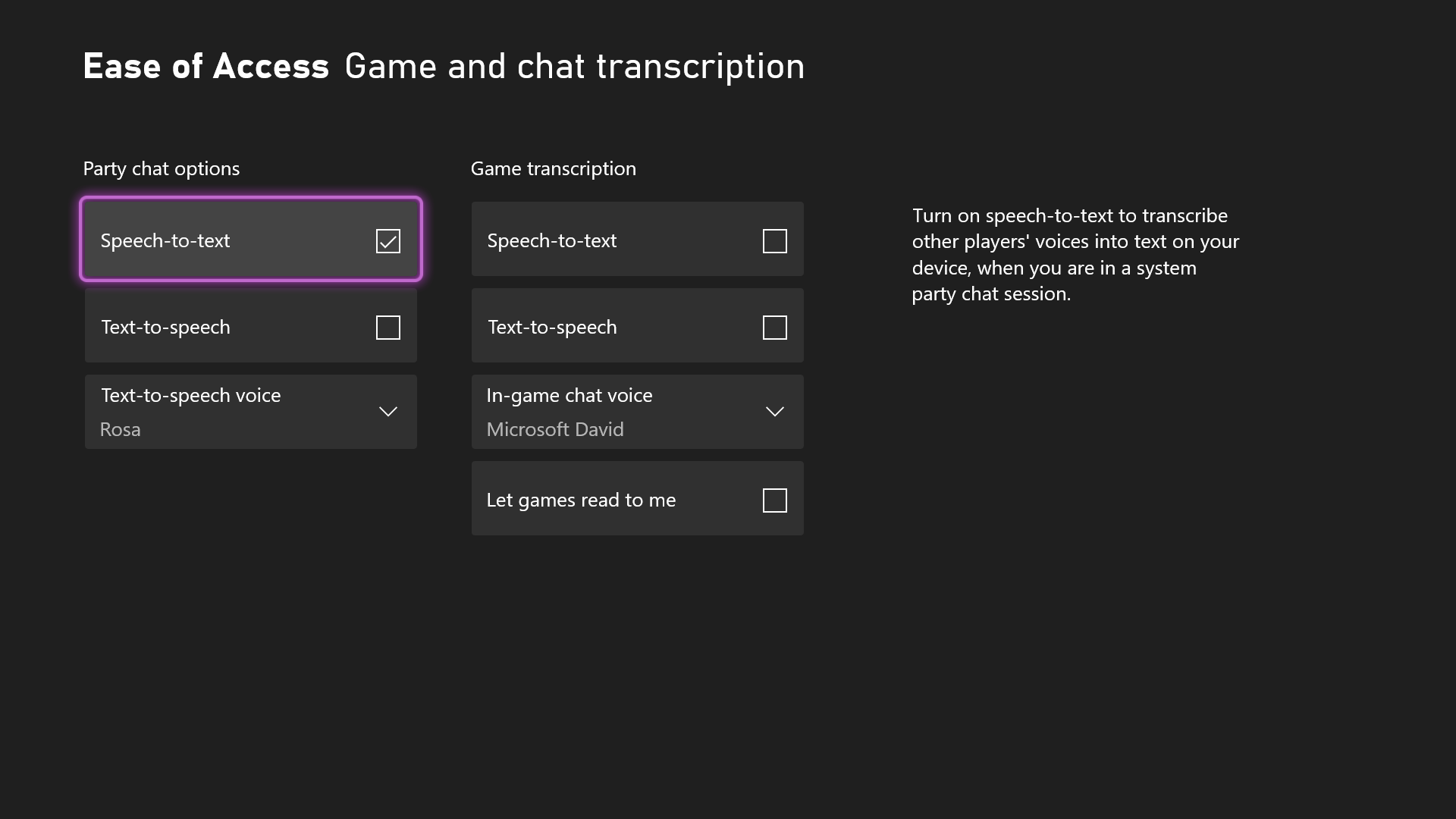
With the new Speech Transcript feature, Xbox consoles will transcribe other player’s voices into text when gamers are in a party chat session. With text-to-speech synthesis, gamers will be able to type into Party chat and have the text ready by a synthetic voice to other players in the party.

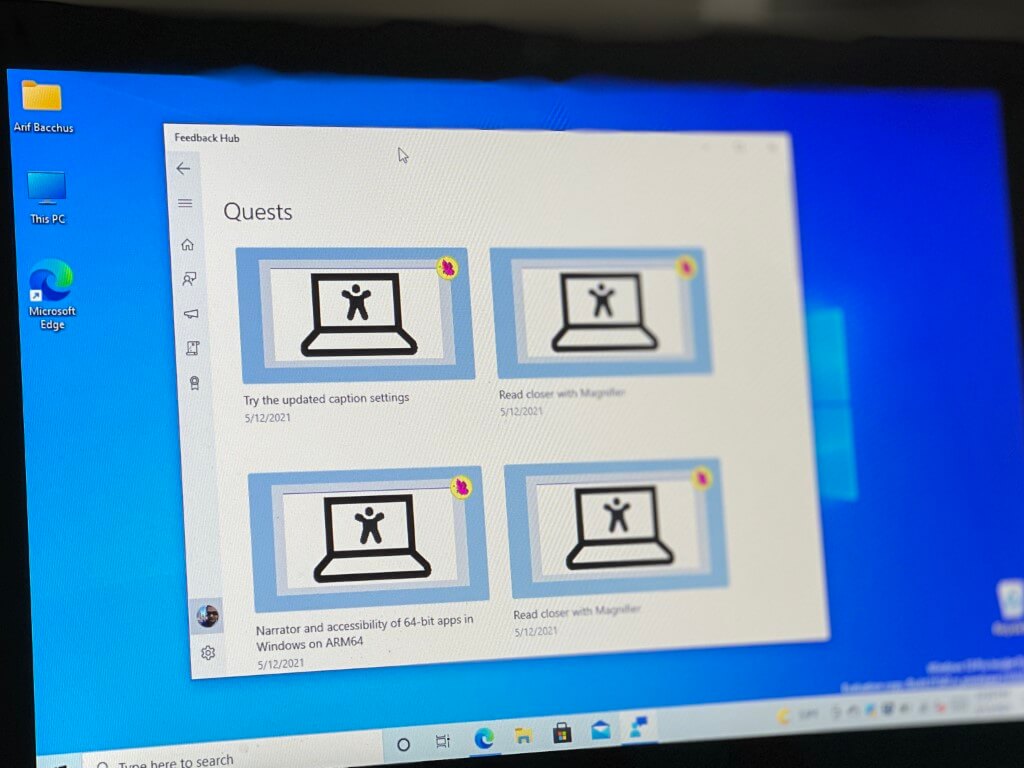
For Xbox Insiders interested in trying these new accessibility features, they can be found in Settings under Ease of Access > Game and chat transcription.

Graphical user interface Description automatically generated


Microsoft hopes that Party Chat Speech Transcript and Synthesis will help gamers who are deaf or hard of hearing and/or cannot or choose not to speak to participate in Xbox Party Chat. After Microsoft dropped the Xbox Live Gold requirement for Xbox Party chat last month, the company said today that “tens of millions of gamers” now use Xbox Party Chat for voice & text chat.

Top 5 cross-platform cloud backup services to keep your data safe

Cloud backup, which is otherwise known as online backup, has become a necessity for computer users today.

Due to the spate of file/data theft, loss, damage, and corruption — backing up files on hard drives is not reliable. Hence, a reliable solution ultimately entails cloud storage and backup.

A typical cloud backup program provides an automatic backup system for all files on your computer or smartphone. It consistently (or in predesigned intervals) copies all your files to its cloud-hosted backup storage.

Generally, a cloud backup service offers more storage space than a typical cloud syncing solution.

Today, most of the available cloud backup programs are either substandard or non-flexible (for multiple platforms).

Therefore, to bridge this gap, we have compiled a list of five best cross-platform cloud backup, any of which can be deployed on two or more operating platforms (desktop and/or mobile).

5 best cross-platform cloud backup tools for your PC and phone

iDrive

iDrive best cross platform cloud backup

iDrive is an industry class cloud backup solution, and it is widely regarded as the best cross-platform cloud backup program. The software is flexibly compatible with all notable operating systems, including Windows, macOS, Linux, Android, and iOS.

iDrive hosts a highly intuitive interface, which is packed with a powerful set of backup, storage, and recovery features. It is a versatile tool, which is specially designed for users with multiple devices (desktop and smartphones alike).

With iDrive, you can backup all essential files on your PC, Macbook, and smartphone with a single iDrive account.

Notable features of iDrive include file sharing, centralized dashboard, activity reports, remote installation and management, customizable settings, 5 TB storage, snapshots, data security and protection, file sync, disk image backup, true archiving, data retrieval, web interface, video guide and more.

iDrive offers flexible pricing options adjusted to the number of users and computers.  There’s also a free trial that lets you evaluate its services and determine if its capabilities match your needs.

iDrive

iDrive

Protect, organize, and share your files on any device with this versatile cloud backup software!
Get it nowVisit website

Carbonite Safe

Carbonite Safe best cross platform cloud backup

Carbonite is a simple cloud backup and data protection program, which hosts a relatively easy-to-navigate interface. The software is flexibly designed to run on single or multiple computers and servers. And it hosts cross-platform support for both Windows and macOS computers.

Carbonite Safe’s simple UI is packed with a versatile set of advanced data protection, management, backup, and storage features.

Carbonite provides you pricing plans that have different features, depending on your needs. It also allows you to try its services during a free trial period.

Carbonite

Carbonite

Keep your data safe and organized with Carbonite, an effective cloud backup solution!
Get it nowVisit website

Zoolz

Zoolz best cross platform cloud backup

Zoolz is one of the most popular cloud backup service providers, with a huge client base (positive reviews) across the globe. The program hosts cross-platform support for macOS and Windows computers.

There is also a pseudo-support for mobile platforms (iOS and Android), which can be employed to access and view backed up files.

Zoolz is uniquely built to serve personal or home users, as its features are relatively simple, and not sophisticated enough for enterprise usage.

Basically, the program offers 1 TB of cloud storage, which should be enough to back up one or two PCs or Macbooks, but may be insufficient to back up huge office files across multiple computers.

Other key features of Zoolz cross-platform cloud backup include: 500 GB Vault storage + 500 GB Cold Storage (1 TB), mobile viewer, dual support (for two users), data encryption (256-bit), file sharing, simple data restore, free trial and many more.

Zoolz has a flexible and inclusive pricing structure, with packages that contain features tailored to the needs of various customers. You can try its features for free during the trial period.

Zoolz

Zoolz

Access and manage personal files with ease using Zoolz, a popular and safe cloud backup service!
Get it nowVisit website

SpiderOak One

SpiderOak One is another popular cloud backup & storage solution, which stands out as one of the best cross-platform cloud backup service providers available.

This program, just like iDrive, supports multiple platforms, notably iOS and Android mobile OS, as well as Mac, Linux, and Windows desktop operating systems.

SpiderOak One affords you the opportunity of synchronizing cloud backup across multiple devices, with a single account. Its intuitive yet powerful user interface makes it ideal for all classes of users, irrespective of technical proficiency.

In plain words, anyone can easily back up, store and share photos, audio, documents and/or videos within a few clicks of buttons.

Key features of SpiderOak One include Data Encryption (end-to-end), Share Room, Point in time recovery, Privacy protection, File Sync, Online Support, 5 TB Storage (maximum), Unlimited Devices Support and more.

SpiderOak One is offered on the basis of storage capacity. The lowest plan goes for $6.00 per month (with up to 150 GB). Other plans include the “400 GB” plan ($11.00 per month), the “2 TB” plan ($14.00 per month), and the “5 TB” plan ($29.00 per month).

All plans are subject to an initial trial period of 21 days (for free).

⇒ Get SpiderOak One Now

Backblaze

Backblaze best cross platform cloud backup

Backblaze is versatile cloud storage & backup program. It is one of the most widely used backup services, with a track record of 750+ PB of data backup and over 30 billion file retrieval.

It hosts cross-platform support for macOS and Windows desktop OS, as well as iOS and Android mobile operating systems.

However, it is important to note that while Backblaze supports iOS and Android, the mobile app can only access backed up files, and cannot run mobile back up. Aptly put, Backblaze cannot back up files on Android and iOS smartphones (and tablets).

Furthermore, Backblaze offers an exclusive cloud storage support i.e. “B2 Cloud Storage”, which is offered at a relatively affordable price. With this, you are able to back up a huge volume of files on the cloud, with unimaginable ease.

Some of the key features of Backblaze cross platform cloud backup include unlimited backup, simple user interface, mail restore, web download, centralized management and administration, ransomware protection, billing alert, data encryption,  and more.

Backblaze offers two basic backup plans: Personal Backup and Business Backup. Both packages go for $6 per month (per computer) and $60 per year (per computer) respectively. There is also a free trial (for 15 days) on offer, prior to full purchase.

⇒ Get Backblaze Now

Conclusion

Outlined above are the top 5 cross-platform cloud backup solutions. The key selection and ranking criteria here include, but are not limited to, cross compatibility, ease of usage, feature set, storage capacity, and affordability.

They come in handy especially in cases where you want to restore changes but get hit with the no previous versions are available error.

Therefore, if you are looking for a reliable cross-platform cloud backup, the above-listed tools are the best you can get.

5+ handy tools to reduce computer related eye strain

The migration from analog to digital brought along so many challenges in the 21st century. Whether it’s on desktops, laptops, or in mobile devices, our eyes remain glued to the screen for more than 10 hours a day. The internet has caused people to become slaves to the screens. Our desire to be connected to the digital world has grown out of hand such that nowadays people are being diagnosed with strange diseases like nomophobia—a fear of being without a mobile phone.

But social commentary is just a fraction of the imminent danger that screen obsession poses. Recent studies show screen obsession causes eyes strain, which includes a cocktail of symptoms (lack of sleep, headaches, blur vision) and potential long-term damage to your vision. For instance, the blue light emitted from these screens reduces melatonin levels required for natural sleep.

Doctors often recommend taking regular breaks to prevent eye strain but we all know how hard this can be especially when you have some serious games to play or a deadline to beat. So today, we will introduce you to the 7 apps that will help reduce eye strain from your monitor without fuss.

Related: Monitors that help reduce eye fatigue and headache from long computer exposure


Best software to help reduce eye strain

F.lux

f.lux_eye_strain_software

F.lux is a free software that adapts colors of your screen’s display to the time of the day; not just brightness, but tint as well. For example, it will activate in the evening and gradually turn the glow to a tint of orange or golden hue as night falls. You can also customize it manually by adjusting the color intensity, which determines how strong the effect will be. This way, it controls the amount of blue light emitted from your screen. F.lux is easy to install and available across multiple platforms.

Download F.lux 


Eye Pro

Eye_pro_eye_strain_software

Eye Pro is a Windows app specifically designed to help reduce eye strain but also does a stellar job at keeping your eyes properly moisturized. Developed under the guidance of imminent eye specialists, Eye Pro is one of the best software for reducing eye strain. Since research shows that our eyes blink rate reduces drastically when we use a computer, developers of Eye Pro designed the app to help you blink more. It has an automatic adaptability mode that adjusts its setting based on your current eye status. It gives break alerts at custom intervals. There are two kinds of breaks; short break and long breaks with eye exercises at preset time intervals.

Download Eye Pro 


Calise

Calise_eye_strain_software

Calise is a free and open source program that uses your computer’s webcam to calculate the ambient light intensity and adjusts your screen’s brightness accordingly. Its execution has four cycles: dawn, day, sunset, and night. In each period, it adjusts the backlight of your display accordingly, keeping you safe at all times day or night. Calise has an interactive and customizable GUI, giving you the option to manually adjust the backlight level if not satisfied with the system generated results.

Download  Calise 

Read also: 6 best laptop EMF radiation and heat shields


EyeLeo

eye_strain_software_eyeleo

EyeLeo is a handy application for PC that regularly reminds you to take breaks from your PC screen. It has a mascot who will notify you of any incoming breaks and shows you simple eye exercises to prevent you from working during break hours. You can enable the strict mode to prevent you from skipping any break. Following EyeLeo’s regulations will help reduce eye strain which results in less physical fatigue and an overall healthy working condition.

Download EyeLeo 


Pangobright

pangobright_eye_strain_software

Pangobright is a screen dimming software for adjusting the brightness of your monitor as well as external monitors. After installation, it sits in the system tray enabling you to adjust your screen’s brightness with a single click. The free app for Windows can be very useful in a multi-monitor setup since it gives you control over multiple monitors. You can adjust the brightness level of each monitor independently according to your preferences.

Download Pangobright  


Protect Your Vision

reduce eye strain software

Just as the name implies, Protect Your Vision keeps your eyes safe by reminding you to take short breaks on a regular basis. It has three modes to select from namely 20-20-20, custom, and 60-5 mode. The 20-20-20 mode requires the user to gaze at an object 20 feet away for 20 seconds after spending 20 minutes on the computer. The 60-5 mode requires the user to take a five minutes break after every hour spent on the computer, while the custom mode allows the user to define the frequency of the breaks.

Download Protect your Vision


Awareness

eye_strain_software_awareness

If you are a workaholic and spend most of your time on the computer, then you need a software that will remind you to take breaks without being annoying. The software uses the gentle tone of a Tibetan singing bowl to notify you that it’s time for a break. And if you choose to ignore it, the app will not nag you. It will wait till another hour passes, then it will chime twice and so on. In addition, the software will show you the amount of time you have spent on the computer without a break. It takes a muted and more subtle approach so as not to interrupt you from your busy schedule.


Conclusion

Everyone who spends more than 4 hours per day looking at a display needs a software to reduce eye strain. Getting an eye strain software is the first step towards protecting yourself from eye strain and its related problems such as computer vision syndrome. And since most of these software programs are available as freeware, it will cost you nothing to try one. So why don’t you give it a try and let us hear your experiences in the comments section below.

What email clients can I use with BT Internet?

Have you even wondered if there is any way to use your BT Internet with other email clients?  If the answer is yes, then you are in luck. In this article, we will explore exactly this idea.

The reasons for which you would like to use your preferred email client to use the BT Internet address are varied. You could just have gotten bored with the limited features on offer, maybe you want an UI that’s more user friendly or you might do it just out of practicality.

It is far more efficient to use a downloadable email client because of the advantages that this type of software presents, such as:

  • You can back up your emails to a local storage
  • You can access the email information from a PC that is not connected to the Internet
  • Better looking user interface with easily understandable options
  • Faster processing speeds
  • Quick-view features that offer easy access
  • You can assign different keyboard shortcuts, labels, and color codes to any email

Let’s explore some of the best software options available on the market that allow you to use BT Internet account with your preferred email software.

Top 4 email clients to use with BT Internet

Mailbird

MailBird - email clients for BT internet

Mailbird is a great email client software for Windows that has a very good looking and easy to understand user interface, filled with a great range of useful features, all packed into one small install package.

By using the dashboard found in Mailbird, you get easy access to all of the features easily, while you can also modify the way the main screen looks and reacts to your actions. This app works with a wide range of email providers, and it is also compatible with the email from BT Internet.

Because of the introduction of POP3 support on Mailbird, you can connect a wide range of compatible email providers to it, some of them are : O2, AT&T, BT Connect, BT Openworld, and BT Internet.

You can find more information regarding how POP3 email account works with Mailbird, you can visit this page.

— RELATED: Best Windows 10 Email Clients and Apps to Use

In order to streamline the process of sorting through a large number of emails daily, you can use Mailspring to customize the keyboard controls. These controls will surely help you reduce the time spent on repetitive tasks, and it even allows you to drag and drop elements.

By just touching a few keys on your keyboard, you have the power to manage every aspect of your email client, from creating emails to sorting them, and getting comprehensive delivery reports.

One of the best features of this email client is the fact that you can easily read, reply, and sort through a large number of emails by simply using the pup-up features of Mailspring.

Every time you want to access the information from an email you received, you can use the amazingly useful pop-up feature that gives you quick access to the information, without having to open separate tabs.

Editor's choice
mailbird mail client app logo
  • Social Media Integration
  • Friendly User Interface
  • Free Version Available

Microsoft Outlook

MS Outlook - email client for BT Internet

MS Outlook is another great email app that is fully compatible with BT internet accounts. You can easily integrate it with many types of email accounts. It also offers you great spam filtering services, large inbox storage, and social media integration.

Even though Outlook is known for being part of the Microsoft Office suite, they have a free email option available as well.

One of the best features of this software is the fact that it supports incredibly large attachments, and also offers you 1TB of inbox storage. This can help you in many situations in which you need to share a big file with somebody and don’t want to use any other third party software.

Another useful feature of Outlook is the fact that it allows you to import contact information from your social media accounts with ease. This feature saves you time because you don’t have to manually copy them.

Instead of signing into one email at a time, you can use Outlook to import a wide range of email addresses and have access to them directly from one screen.

As in the case of the software options we presented you above, Outlook also allows you to organize your emails by the use of coloured tags and names, and then easily search through them based on any features.

In case you don’t know how to add a BT Internet account to your Outlook software, you can visit this step by step guide.

Download Microsoft Outlook

Mozilla Thunderbird

Mozzila Thunderbird - email client for small business/ for BT internet

Thunderbird is another great email client software that was designed to look and work in the same way the Mozilla Firefox internet explorer does. You can use tabs for quick access to any information, and can be used with an unlimited number of email accounts – BT Internet, Yahoo, Gmail, etc.

By using this software you get the option of customizing the user interface to show you only the information you need, and you can also choose from a wide range of plug-ins available for free download on the Mozilla store.

Because it is a downloadable email client, Thunderbird allows you to back up your entire email database, address book, calendar and customer information on your PC or local storage option of your choice.

This allows you to access all emails even without an internet connection, and also ensures that you are never at risk of losing your important email information.

This ensures that you can never lose work by having a faulty hardware piece or losing your connection to the internet.

If you are not sure how to set up Thunderbird to work with BT internet, you can follow the guide on this webpage.

Download Mozzila Thunderbird

Mailspring

Mailspring - lightweight email clients/ email client for BT internet

Mailspring is a great lightweight email software that helps you sort, manage, send and also customize the way you use email on your PC, fast.

In order to use this software you will need to create a Mailspring account, but after you are done, you can attach any of your favorite email providers like Gmail, Yahoo, etc.

This software also works brilliantly well with the email service provided by BT. By using this feature, you can send emails, read email, and customize the way you react to them.

Using a desktop application instead of an online hub provides you with better speeds, and at the same time, you have to option to back up important emails directly to your hard drive or the external storage device of your choice.

Under it’s good looking user interface, Mailspring offers you support for multiple email accounts (IMAP and Office 365), can be used on touch screen devices, and gives you access to a powerful and fast search tool. You can search through your contacts, message contents, by folders, etc.

One of the best features found in Mailspring is its ability to set up custom keyboard shortcuts for different actions. This feature helps you streamline the process of browsing or reading through a large number of emails, and makes it easier for you to reply quickly and efficiently.

Another greatly useful feature that needs to be mentioned is Mailspring’s ability to automatically translate the text found in your email to and also from a wide range of languages – Spanish, Russian, Chinese, German, etc.

This feature also applies to when you are using the incorporated spell-check features without needing to modify any settings manually.

If you need a step by step guide regarding how to set up Mailspring to connect with BT services, you can check out this official link.

Download Maispring

Conclusion

In this article, we explored some of the best software email clients that you can use on Windows in 2019, which also have the ability to connect to BT internet accounts and email platform.

The features covered by these 4 software options will surely cover all your needs when it comes to this type of software. You can easily manage a big database of emails coming from one or more email providers and set custom keyboard shortcuts to make the process of responding faster. You can also create templates that help you not waste any time when doing repetitive work.

We would love to find out what software option you chose and how did it work for you. Please feel free to let us know in the comment section below.

WiFi Troubleshooting Software: 6 Best to use in 2026

Windows don’t do the best job of providing Wi-Fi tools. The operating system does allow you to search and connect to the networks nearby, but this is about the most it can do.

If you want to obtain in-depth information about every Wi-Fi network nearby, troubleshoot your own network, turn your computer into a portable Wi-Fi hotspot or keep your computer safe on public Wi-Fi, then  Wi-Fi quality software will come in handy.

This is why we have rounded up five of the best tool to provide higher quality network features to make your choice much more comfortable because the market is filled with this kind of tools. Take a look at their sets of features and see which one seems to be what you need.

Enhance the quality of Windows 10 Wi-Fi with these tools

InSSIDer

MetaGeek’s InSSIDer is a useful program for finding Wi-Fi networks within the range of your computer and gathering all the necessary information about each and every one of them. You can also use this helpful tool for troubleshooting all kinds of issues that may affect your Wi-Fi network.

Take a look at more interesting features that you will be able to enjoy if you decide to use InSSIDer:

  • For every network that this tool finds nearby, it will show you in-depth information about it such as the router’s manufacturer, the channel used by the router, the service set identifier, the public name of that specific network, the kind of security that it’s using, its speed and more data.
  • What’s even cooler, it’s the fact that it displays the current signal strength of the network and the signal strength over time.
  • To use this software in order to troubleshoot your Wi-Fi network, you don’t have to be a rocket scientist because it’s effortless.
  • If you see that your Wi-Fi is using the same channels as the nearby networks with stronger signals, you will have to change the channel that your network transmits over and this will cut down on potential conflicts.
  • The software is also able to detect dead zones that don’t receive a strong Wi-Fi connection.
  • Walk around your office or home, and you may see some spots where the signal drops; avoid using the computer there. You can also try to reposition the wireless router just to see if this will help with better coverage.

Using InSSIDer, you can solve the most common issues such as interference from neighboring networks, inadequate coverage, poor router placement, faulty network configurations, dropped connections and more.

Check out more features that are included in this software and head over to the InSSIDer’s official website to see how you can maintain a reliable Wi-Fi network.

Acrylic Wi-Fi Professional

Acrylic Wi-Fi Professional is another handy tool that you can use to diagnose and evaluate your Wi-Fi’s quality. The software monitors all available Wi-Fi networks that are located nearby, and it allows you to select an access point to see all the various parameters that are affecting the Wi-Fi quality. This tool also allows you to see the network’s security-related aspects.

Check out more features that are packed in this useful tool:

  • Acrylic Wi-Fi Professional is an excellent solution for assisting WLAN specialists in their daily work and more.
  • It enables you to monitor and analyze the available access points, and it also makes sure to track the transferred data packets.
  • The software’s user interface is pretty straightforward, and it’s approachable by inexperienced users as well.
  • You will have a lot of tabs at your disposal for multiple functions, and you won’t have to struggle with a hard time figuring out what they do.
  • This program is able to determine the existing Wi-Fi stations and their current state.
  • You will also be able to carefully analyze the Packet Tree and the Hexadecimal View of the data that is transmitted.
  • This utility can also determine the geographical coordinates of the Wi-Fi network if there’s a compatible GPS device connected.
  • Acrylic Wi-Fi Professional comes with Scripting features that will let you write, open, compile and also test scripts.

Overall, Acrylic Wi-Fi Professional is quite a useful and sophisticated tool that will successfully assist users in tracking and inventorying Wi-Fi access points.

Download Acrylic Wi-Fi Professional from the official website and give it a try.

Xirrus Wi-Fi Inspector

Xirrus Wi-Fi Inspector is another program that is able to sniff all nearby Wi-Fi networks, and after that, it will share relevant data about them. The information that you’ll be able to get includes how far or close the networks are among other details.

Check out more essential functionalities of this tool:

  • Xirrus Wi-Fi Inspector shows all nearby hot spots on a display that is similar to a radar.
  • There’s also a separate pane that provides detailed information on every hot spot that it is able to find.
  • The data displayed includes the signal strength, the kind of network that the program finds, the router vendor, the channel used by the network to transmit and whether the network is an access point or just an ad hoc network.
  • Xirrus Wi-Fi Inspector also shows you more in-depth data about the network that you are currently connected to: external IP address, internal IP address, DNS and gateway information.

The software boasts a clean and straightforward user interface, and this will make it really easy to see the information about all hot spots nearby. This tool will also show the distance between you and each hot spot.

As you can see, Xirrus Wi-Fi Inspector is a great bet so head over to its official website and get it to give it a go.

WeFi

WeFi is a similar tool to InSSIDer and Xirrus Wi-Fi Inspector. This program is useful for finding the hotspots that are currently in the range of your laptop and displaying information about them as well as about your own Wi-Fi connection.

One exciting feature of this tool is that it also lets you find hotspots in other locations. For instance, let’s say that you will be visiting a city tomorrow and you need to know the hot spots in a specific location. WeFi is the ideal choice.

Take a look at more features that it comes with:

  • It is able to find your current location, and it will show you nearby hot spots.
  • WeFi will also help you manage the connections to the hot spots that it finds.
  • You will be able to automatically connect only to your favorite hot spots or just to the hot spots that have been discovered by other WeFi members until now.
  • You have to options: you can get the basic version of WeFi for free, and the WeFi Premium version is paid.

What’s different about WeFi Premium is that it allows you to find and connect to paid hot spots. Anyway, you can find out more details about this tool be heading over to WeFi’s official website.

NetSpot

netspot wifi quality software

Another great application that can help you optimize your Wi-Fi connection is NetSpot. The tool will scan all available Wi-Fi networks and show you the information in an interactive table. By using this tool, you can see AP details including channel info, transmit rate, vendor, security type, brand, and other useful information.

All information is displayed in real-time charts, so you can easily monitor the signal strength. As for supported networks, NetSpot works with both 2.4GHz and 5GHz bands. The application also supports augments surveys allowing you to find Wi-Fi issues in specific areas with ease.

It’s worth mentioning that each Wi-Fi has its own color-coded bar, so you can easily compare access points. Of course, file export is supported, and you can export all data in CSV format for later review.

Another great feature is the color-coded heat maps allowing you to easily outline Wi-Fi data on the map. The application also allows you to create multi-level zones in order to best analyze the Wi-Fi coverage and potential issues. Of course, you can create snapshots within each zone in order to quickly compare Wi-Fi configurations.

Overall, NetSpot is a great tool if you want to analyze the quality of the Wi-Fi signal and troubleshoot Wi-Fi issues. As for availability, this application is available on Windows, MacOS X, and Android.

Overview:

  • Ability to see important AP information
  • Real-time charts
  • Works with 2.4GHz and 5GHz networks
  • Ability to export details in CSV format
  • Color-coded heatmaps
  • Ability to create multi-level zones
  • Available on Windows, MacOS, and Android

Download NetSpot now

Plug and Browse

This is another interesting tool that helps you to easily have a high-quality connection to the Internet whenever you switch between different network settings. It does this by allowing you to create multiple network profiles.

Check out more exciting functionalities that you will be able to enjoy while you are using Plug and Browse:

  • Whenever you switch your network whether it’s wireless or broadband, you have to change the setting of your adapter, but this tool will help you avoid the hassle.
  • Plug and Browse is a solution that helps you to easily switch between network profiles without losing time to manually configure your adapter in order to be compatible with every connection.
  • Using this tool, you will be able to enjoy high-quality connections on each network.
  • Every network can be saved under a different profile with its settings.
  • You can also set this program to automatically switch to another network profile when it detects it.

Plug and Browse will save the setting that it detects to a network profile, and you will have the opportunity to choose which network options it can save. You will be able to protect current setting by creating a password that will be prompted every time you use the app.

This tool provides you the chance to skip the hassle of manually connecting to a network because it automatically switched it for you and you can enjoy a high-quality connection every time because the profile settings are saved.

You can take a look at more exciting features that are packed in this program and head over to the official website of Plug and Browse where you can download a 30-day trial just to try out this program.

These are some of the best tools for sniffing, monitoring, managing and troubleshooting Wi-Fi connections that you can currently find on the market, they all come with their unique sets of features so make sure to check them out to see which one works best for you.

FIX: File record segment is unreadable on Windows 10/11

Computer problems can appear once in a while, and while some problems are just annoying, others are more serious. Users reported File record segment is an unreadable error on Windows 10.

This error usually appears if your hard drive is failing, but there are a few solutions that you can try in order to save your files.

What to do if the file record segment is unreadable

Solution 1 – Clone your hard drive to a new drive

If you’re getting File record segment is an unreadable error, it means that your hard drive is failing. In order to salvage your files, it’s advised that you clone your current hard drive. To do that, you’ll need a new hard drive and hard drive cloning software.

Using specialized disk cloning software is the best option for this job, as it has more features, including cloning to a smaller-capacity disk by excluding files if there’s not enough space.

After cloning the problematic drive, use the new drive and check if your files are still available. Users reported that all their files and applications are available after cloning the drive, so be sure to try this solution.

We have to mention that some of your files might be permanently lost due to the damage to your hard drive. This isn’t a universal solution, but it should help you salvage your files from the problematic hard drive.

Solution 2 – Perform chkdsk scan from Safe Mode

Safe Mode is a special part of Windows that works only with default programs and drivers, therefore it’s perfect for troubleshooting. According to some users, you can fix the File record segment as an unreadable error simply by entering Safe Mode and performing a chkdsk scan.

To enter Safe Mode, you need to do the following:

  1. Start Windows normally.
  2. Once Windows starts, open the Start Menu.
  3. Click the Power button. Hold the Shift key on your keyboard and choose Restart from the menu.
  4. Your PC will now restart. Once the PC boots, choose Troubleshoot > Advanced options > Startup Settings. Click the Restart button.
  5. After your PC restarts again, you’ll see a list of options. Select any version of Safe Mode by pressing the appropriate button.

If you can’t boot to Windows 10 at all, you can also enter Safe Mode by restarting your PC a few times during the boot process.

After the Safe Mode starts, you need to start Command Prompt in order to run chkdsk. This is rather simple, and you can do it by following these steps:

  1. Press Windows Key + X to open Win + X menu. Choose Command Prompt (Admin) from the menu.
  2. When Command Prompt starts, enter chkdsk C: /R and press Enter to run it. Since you’re currently using your C drive, you’ll be asked if you want to restart your PC in order to perform the scan. Press Y and restart your PC. Wait for the chkdsk to finish and don’t interrupt it.

After chkdsk finishes the scan, you should be able to access Windows 10 and back up your files. If the problem still persists, you can download GParted Live, create a bootable USB drive and boot your PC from it.

Now you need to use the tool to create an image of your drive for backup. After that, you can try fixing the drive by using Low Level Format tool such as Arconis True Image or HDD Low Level Format Tool.

Solution 3 – Connect the hard drive to a different PC

File record segment is unreadable error usually appears if the surface of hard drive is scratched. Unfortunately, there’s no way to fix physical damage on your hard drive. However, this doesn’t mean that your files are lost.

You can still salvage some of your files by connecting your hard drive to a working PC. You can do that by connecting the hard drive internally or by using a hard drive enclosure.

After connecting the drive, you should be able to access it and copy all your important files. After making a backup, you’ll need to get a new hard drive and install Windows 10 on it. Now you can move your files to a new hard drive and continue where you left off.

Some users are also suggesting to purchase a new hard drive and add it to your PC. Now you need to install Windows 10 on a new hard drive. After doing that, simply copy all important files from the failing drive to the new drive.

Solution 4 – Use a Data Recovery tool

If you have problems with File record segment is unreadable error, you might be able to salvage your files by using Data Recovery software.

These dedicated tools for data recovery are most useful to recover lost data due to damaged hard drive, software crash, formatted or virus infection and other unknown reasons.

After recovering the files using these tools, simply reformat your drive and you should be able to use it again. We have to mention that this is just a temporary solution. If the error is caused by physical damage on your hard drive, you’ll encounter this error again or your hard drive will fail completely.

To prevent that from happening, we strongly advise that you replace your failing hard drive with a new one.

File record segment is unreadable error usually occurs if your hard drive is damaged or failing. Since there’s no way to fix the physical damage on your hard drive, we strongly advise you to back up all important files and to replace the problematic drive.

3D Printing Apps for PC: 5 Best We Tested in 2026

Finding the best 3D printing software for every stage of your workflow whether you are a beginner or a more advanced enthusiast is not always the easiest thing to do.

This is why we gathered the best 3D printing tools that are compatible with your PC in order to make your choice less challenging.

One of the best things about all these programs is that they are all free of charge for students, educators and also open source projects. Check out their sets of features and decide which one is the best for you.

3D printing tools for Windows PCs

Fusion 360 (recommended)

Fusion 360 is the best choice for intermediate users who want to design 3D models for 3D printing. This is a professional 3D CAD software that was created by 3D software pioneers at Autodesk. This tool is different from other professional, robust body 3D modeling tools.

Check out the best features it comes with:

  • The software is incredibly reliable in usability.
  • It covers the whole process of planning, testing and also executing 3D design.
  • It comes with compelling parametric tools that are ideal for most challenges that involve industrial design.
  • The program is able to simulate the construction of the designed components but also the stresses that they’ll have to face after they are manufactured.
  • This program supports cloud-based file sharing version control and import/export of common CAD file types.

Fusion 360 comes with amazing support for 3D printing CAD files can be directly imported into the Autodesk Printing Studio. The software is a free CAD program for students and educators.

Check out Fusion 360 on its official website to learn more details about its functionalities.

    –  Get it now from the official website

Sculptris

Sculptris is a virtual sculpting tool that comes with the primary focus on the concept of modeling clay. This is a fantastic 3D printing software especially if your main target is to create statues and figurines.

Take a look at the essential features that are packed in this software below:

  • This 3D printing program is ideal for when you are creating a bust of your favorite character from comic books or video games.
  • This tool is also free, and you can efficiently use it on your PC.
  • Sculptris is placed by enthusiasts at the gateway to the more advanced and sophisticated tools.
  • The software provides users a fun and engaging way to start off your digital sculpting journey.
  • This program is useful if you are new in the world in digital sculpting because it’s effortless to learn how to use it.
  • Sculptris uses an award-winning software called the Zbrush that was released more than ten years ago.
  • The software became famous for bringing ground-breaking innovations in the world of digital art.

You will easily be able to create base models that can then be refined in other apps. Using this software you can take art and 3D printing to the next level.

Just take a look at the complete set of features on the Sculptris official website.

3D Slash

3D Slash is a 3D printing program that is effortless to use, and it’s quite unique as well. With the help of 3D Slash, you will be able to design 3D models using a simple building-block concept.

Take a look at the most exciting features that are included in this tool:

  • The software is especially targeted at beginners who want to design 3D print models.
  • You can either start with a massive block and remove small cubes from it by using various tools, or you can begin by emptying your workspace and build your model by adding cubes and multiple shapes.
  • The tools include a hammer and a drill, and they act as virtual stone-cutters.
  • You will also be able to add colors and use images as templates.
  • Another exciting feature that you will find included in this tool is a logo and a 3D text maker.
  • The logo maker is able to import images, and it will create a 3D model.
  • The text maker will allow you to enter and format a specific text and then turn it into 3D text.

3D Slash comes with a unique interface that is as fun as a building game. The advanced features that are included in this software will help you work precisely.

Check out 3D Slash on its official website and start printing right away.

Blender

Blender is a popular computer-aided design program with a steep learning curve. This is probably not the best choice if you are a newbie, but it is ideal for professional users who want to design 3D models for 3D printing.

It will turn out to be the perfect choice when your skills have totally developed, and you are in need of a more sophisticated 3D modeling-3D printing software.

Check out the best of its features:

  • This is one of the most powerful 3D printing software tools that you can use.
  • It features a helpful community and a massive amount of tutorials.
  • The program is open source, and this means that people are writing extensions for it in order to enhance its capabilities and features.
  • With Blender, you will be able to create jaw-dropping renders thanks to Cycles, the high-end production path tracer.
  • Blender is currently used for award-winning shorts and feature films as well.
  • This tool comes with a Video Editor that offers a vast range of fundamental but efficient tools.

Blender features an extensive Python API, and every tool is available for sculpting and customization. Thanks to its custom architecture, Blender’s UI, the shortcuts and its window layout are fully customizable.

Check out Blender’s extensive set of features on the official website and download it to start marking some fine art.

OctoPrint

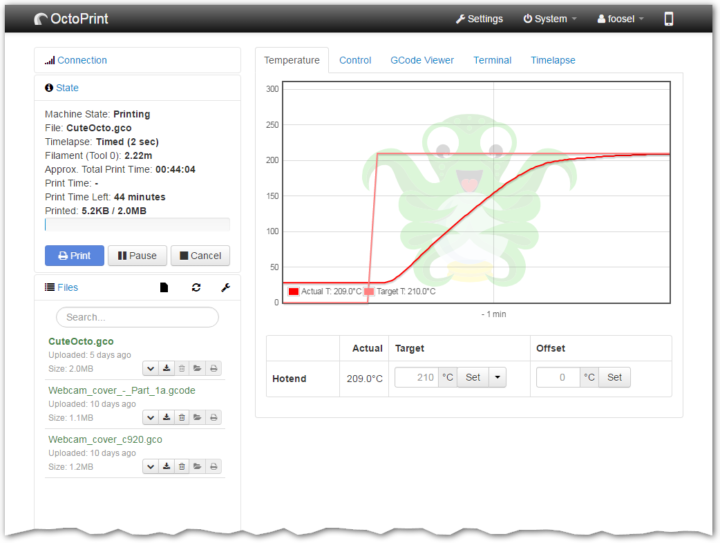
OctoPrint is another software targeted at professional users who want to control their 3D printer wirelessly. This is a 3D printer host software that will allow you to start, pause and also interrupt 3D printing jobs.

If you combine this software with a Wi-Fi enabled device, it will turn out perfect for monitoring the 3D printing process remotely through an Internet connection.

Check out more impressive features that are included in OctoPrint:

  • OctoPrint accepts G-code from any printer slicer software.
  • It incorporates the gCodeVisualizer that will allow you to visualize G-code files before and also during 3D printing.
  • If you want to banish the 3D printer from your desktop and instead control it wirelessly, this will turn out to be one of the best 3D printing solutions that you will currently find.

OctoPrint’s powerful plugin system allows you to extend its functionalities with amazing plugins from the community.

You can check out more features of OctoPrint and download the software from its official website.

These are five of the best 3D printing tools that you’ll be able to find out there, and they’re entirely free of charge. You can download them from their official websites, and they are all compatible with PCs.

We recommend that you head to their websites and check out in detail their full set of features before deciding which 3D printing program is the best one for your own needs.

Beginners and more advanced enthusiasts of 3D models and printing will find something appropriate for their experience and needs among these tools.

You can now pre-download Mass Effect Legendary Edition on Xbox consoles ahead of launch

Those who have purchased Mass Effect Legendary Edition can now pre-download it on their Xbox One or Xbox Series X (or S) console ahead of its launch in a few hour’s time.

Interestingly, the official Mass Effect Twitter account stated earlier today that Microsoft’s Smart Delivery system has allowed for a smaller initial download size for Xbox owners compared to other platforms. “For Xbox players, Smart Delivery allows for a smaller preload,” the tweet reads. “With ME2 & ME3 able to be downloaded from the launcher at release.”

Mass Effect Legendary Edition is a remaster of all three of the original Mass Effect video games which originally came out on the Xbox 360. All of the post-launch DLC is included with this release and there’s also been a number of additional improvements as well such as more nuanced character creation and improved controls in addition to the obvious visual upgrades.

Are you hyped for Mass Effect Legendary Edition? Let us know which platform you’re playing it on in the comments below and then follow us on Pinterest and Twitter for more Xbox content.

What’s Windows Defender summary and how to disable it?

The number of users who pledged their trust to Windows Defender is enormous. We’ve been using Windows Defender and for almost 2 years, it got better and better gradually.

For a regular user, Windows Defender should be good enough protection with scheduled background scans and real-time protection.

However, notifications are, true to be told, quite intrusive. Especially if we have in mind that the recent Windows Defender summary notification isn’t as important.

We wrote this piece about the Windows Defender summary notifications and how to disable them. Make sure to check it out if you want to get rid of impertinent notifications below.

Quick Tip:

Windows Defender is not the greatest security system, even if it’s constantly being improved by Microsoft, and its part of your Windows OS.

We suggest switching to a popular antivirus software that is specialized in everything security-related, and that uses advanced AI and other protection tools to keep you and your data safe.

TotalAV

This antivirus provides ultimate protection against viruses, malware, adware, and other harmful software that is trying to infect your device.
Check Price Visit Website

What is the Windows Defender summary?

Windows 10‘s native security tool is Windows Defender. We all know that. And the sole presence of it is a good thing for all end-users.

With it, based on the analysis, you won’t need a bloated free third-party antivirus for standard protection. Although we suggest some paid solutions over Windows Defender for advanced users.

Now, the best thing about it is that it’s the part of the Windows ecosystem, part of the Windows Security. And therefore it has a better coverage on all kind of possible liabilities.

However, it seems that Microsoft was a tad more overzealous with the notifications. Because the Windows Defender summary and all associated tasks just won’t go away.

The Windows Defender summary shows you the results of all scheduled fast scans the tool has done in the background.

And what would be better is to just show the number of threats found. If you’re working on something important, the last thing you want to see is the pop-up with no importance.

How do I disable the Windows Defender summary?

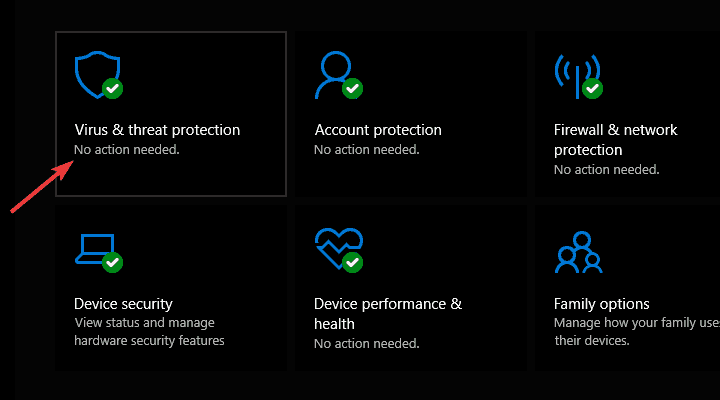
  1. Open Windows Security Center from the notification area.
  2. Choose Virus & threat protection.windows defender summary
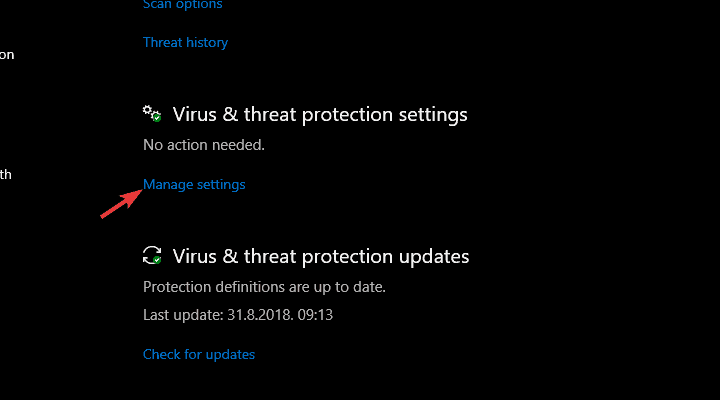
  3. Under the Virus & threat protection settings, click Manage settings.windows defender summary
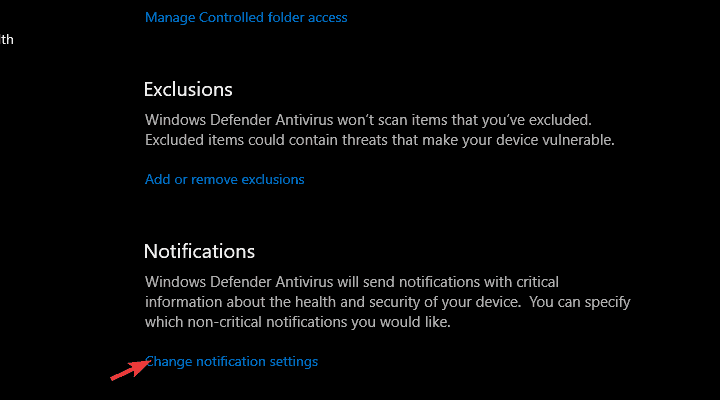
  4. Scroll to the bottom and, under the Notifications section, click Change notification settings.windows defender summary
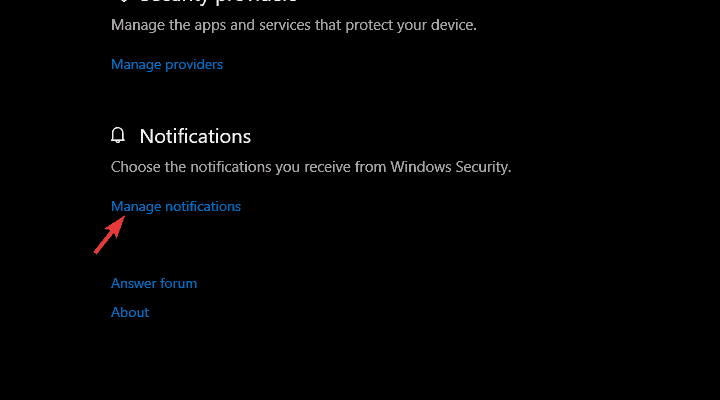
  5. Under Notifications, click Manage notifications.windows defender summary
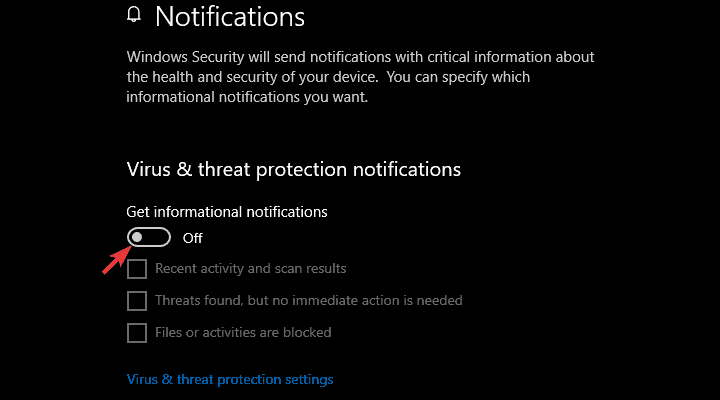
  6. Bellow the Virus & threat protection notifications section, toggle off the Get informal notifications option.windows defender summary
  7. Or you can disable only the Recent activity and scan results by unchecking the box.

It’s rather simple. You can even curate the notifications and choose what kinds of information you deem important, what’s a plain waste of time, and allow something with more substance and ditch the summary.

That’s it. After that, you won’t be seeing any Windows Defender summaries. You can, of course, navigate to the Security Center > Virus & threat protection and see all the details you need.

If you are doubting software’s capabilities, take a closer look at this thorough guide dedicated to Windows Defender’s usefulness.

On that note, we can wrap it up. How do you rank Windows Defender in comparison to other free antivirus solutions? Tell us in the comments section below.

4 Best Emulators To Play Knives Out On Windows 10/11

If you have played PUBG for mobile, you would have also love Kines Out. It is a Battle Royal-style game that is set in Tokyo and allows you to compete online against other players for survival.

The game starts with 100 players at any point in time, and only 1 of them can survive and get out. You can team up with other players, explore islands, snow-capped mountains, train tunnels, other unique locations, and more.

Players are pitted against each other in a 6400m x 6400m area. You can search the buildings for weapons and other items, fight other players and of course come out alive to claim victory.

Players can choose from the vast collection of weapons, medical supplies, and vehicles to roam around the city. You can go alone or team up with others to take the dinner home.

Knives Out is available for smartphones running on Android as well as iOS. It is also available for Windows PC. However, if your PC doesn’t meet the requirement to run Knives Out, you probably looking for a workaround.

One way to play any Android game on PC is to use the Android emulators. This software allows you to install and run all kinds of mobile applications on your PC.

Android emulators also come in handy if you don’t have a PC but Mac or Linux computer, the platforms still not supported by Knives Out developers.

In this article, we take a look at the best emulators to run Knives Out on PC, Mac and Linux powered machines.

Which are the best Android emulators for Knives Out?

LDPlayer

change the emulator to ld player

LD Player is the newest kid in the block. This emulator is being promoted as the perfect Android emulator to play mobile games on PC.

The features list on LD Player is not as big as other popular emulator mentioned earlier, but it gets the job done.

LD player comes with Google Play Store installed, but also comes with LD Store. So, you can install games from any of the two apps stores in the emulator. If not, you can install the games using apk files in case the app is not available in the Play Store.

LD Player is based on Android OS and supports 60 FPS gameplay in max 4K resolution.

Other features in LD Player include the ability to lock the mouse within the LD Player window to avoid accidental mouse clicks, a video recorder that allows you to record the gameplay and share it on social media, and multi-lingual support for non-English speaking users.

You can play multiple games using multiple accounts simultaneously but depends on how capable your PC hardware is to handle multiple instances of gaming.

LD Player is a new emulator, but the developers are consistently pushing new updates to add new features as well as fixing minor bugs and glitches during gameplay.

⇒ Get LDPlayer

BlueStacks

The latest version of the popular Android emulator is BlueStacks 4, and it now comes with a completely new user interface, better resource management and improved performance.

BlueStacks allows you to play Knives Out on PC as well as Mac. It is a multi-platform software but unfortunately not available for Linux users. Although, you can run BlueStacks using Virtual Box in Linux.

There are two ways to install any apps on BlueStacks. You can use the built-in Google Play Store app and download any game from the app store. Or you can download an apk for the app or game and move it to BlueStacks screen to install the app.

BlueStacks brings distraction free mobile gaming to your PC with lower memory and CPU usage along with improved gaming performance with moderate impact on your system performance.

For better gaming control, BlueStacks supports both Keypad and mouse combo as well as external Gamepad out of the box. You can tweak the controls based on your preference.

If you want to play multiple games at a time or login to multiple instances of the same game using multiple accounts, the Multi-Instance feature allows you to achieve just that.

Just be aware of the sponsored ads which can be annoying at times. Other than that, BlueStacks is an excellent Android emulator that you should give a try.

⇒ Get BlueStacks + Knives Out Free

Nox Player

Nox Player supports all the mobile battle royal games. It allows you to play games like Knives out on PC using keyboard and mouse combo or a Gamepad.

Nox Player is a free android emulator and one of the best as well. Unlike BlueStacks, Nox Player doesn’t show you any sponsored ads offering much cleaner user experience.

After downloading the emulator, you can tweak the settings as per your preference. In the Advanced Settings, you can customize performance settings, startup settings, Graphics rendering mode from OpenGL and DirectX and Frame setting with up to 60 FPS on offer.

You can further tweak the setting of the game you want to play. Depending on your PCs configuration, you can tweak Music, Graphics, Mic and character and object sensitivity options.

To install Knives Out, you can use the Google Play Store or simply download the APK and drag-and-drop it to the emulator screen. Nox Player is based on Android 4.4.2 and 5.1.1 version and is compatible with AMD and Intel chips.

The performance is highly dependent on your PCs hardware configuration. And for a battle royale game, do read the minimum configuration on the official website.

Apart from using a keyboard and gamepad for game control, Nox Player also comes with Multi-instance feature which as we already discussed with other emulators enables you to run multiple instances of the same game with different accounts or multiple games simultaneously.

⇒ Get Nox Player

Memu Play

Memu Play is one of those Android emulators that has been developed keeping Android gamers in mind. It comes with all the essential features required to give you an upper hand in competitive mobile RPG games.

Memu Play makes use of your PCs hardware resource to make the gaming experience better.

To install Knives Out, you can use the built-in Google Play Store app in the emulator or download the apk from a third-party site and proceed with the installation.

Memu Play is based on Android 5.1 Lollipop, which supports all the Android games and apps in the Play Store as of now. Select the Direct X+ graphics mode in the emulator to get the highest possible performance from Knives Out.

Just like BlueStacks, Memu Play also comes with Multiple Instances mode that allows you to play multiple games on the same account or even a single game with multiple accounts.

It also comes with support for keyboard and mouse operated controls and even gamepad controls if you prefer Joysticks. The new key mapping panel allows using of a powerful Macro function.

Memu Play is a simple, stable and fast emulator. You can use it to run Android games, mobile apps and even for testing purposes.

⇒ Get Memu Play 

Let’s Match!

Battle Royal games are the new trend and can be addictive. Games like Fortnite and Knives Out have made battle royal games much more popular by bringing it to the mobile platform.

Knives Out developers also offer Rules of Survival, another battle royal game but with distinct features.

While Android emulators allow you to play mobiles games on PC, it is important to understand that massive online battle royal games are large in size and have a significant impact on your system performance.

The performance of these Android emulators are entirely dependent on your PCs configuration.

The top 3 emulators in the list are primarily focused on the mobile gaming experience and offer adequate features to back up the claims. LD Player, on the other hand, is new. While it works, it still in the early stages and requires some polishing.

So, what’s your pick among these top five android emulators? Do let us know in the comments below.

2 of the best automated reasoning software for simplified logic

Automated reasoning is a budding concept that’s still in its nascent stage. It’s a branch of computer science and mathematical logic that’s devoted to interpreting different facets of reasoning.

So, how does automated reasoning or automated reasoning software help?

Automated reasoning is used to develop computer programs that enable the machines to reason automatically either entirely, or almost entirely.

Irrespective of it being contemplated as an alternate domain of artificial intelligence, it’s related to both philosophy and theoretical computer science.

Automated theorem proving and automated proof checking is the majorly evolved sub-fields of automated reasoning.

While the automated theorem proving is less automated, yet it’s a more efficient subarea of the interactive theorem proving. Uncertain and non-monotonic reasoning are among the other topics in the field.

Argumentation forms a significant part of the uncertainty field that includes additional limitations of minimality and consistency.

These limitations are implemented in addition to the more regular automated deduction, for instance, John Pollock’s OSCAR method.

Bayesian inference, fuzzy logic, traditional logic, calculi, etc. are tools and methods of automated reasoning.

History of automated reasoning

Before the development of artificial intelligence, formal logic was a major contributor in the automated reasoning field. In fact, formal logic led to the development of artificial intelligence.

A testimony where all of the logical reasoning has been evaluated with the basic axioms of mathematics is called the formal proof.

Here, while all the logical points are furnished with no exception, no plea is made either to the instinct. This is although the process of translation from instinct to logic is usual.

This proves that regular proof is not much responsive and is less prone to logical mistakes.

Birth of automated reasoning

Some believe that automated reasoning originated from the famous Cornell Summer convention in 1957. Others believe that it originated either in 1955 through the Logic Theorist program of Newell.

Application of automated reasoning

The automated deduction has been primarily used to prepare automated theorem provers. However, theorem provers usually work as proof assistants since they demand some human guidance to be effective. F

or instance, Logic Theorist has introduced methods to prove a theorem. It did so by generating a testimony for one of the theorems in Principia Mathematica that was more effective. It demanded fewer steps as opposed to the proof provided by Whitehead and Russell.

Which is the best automated reasoning software?

Bandera

Automated Deduction Software

The Bandera project is designed to take care of one of the significant obstructions in the way of practical finite-state software verification. SMV and SPIN are the tools that get a picture of a finite-state transition structure as input.

It fills the semantic gap between an infinite-state software system articulated as source code. The tool fill-in languages need the implementation of refined program study, abstraction, and transformation methods.

This automated software aims to sync the current programming language processing methods with newly created techniques. These techniques offer automated support for the removal of safe, small, finite-state prototypes that are perfect for authentication from Java source code.

The toolset offered by the software provides an open framework where different investigation and transformation units can be added.

⇒ Get Bandera

MathSAT 5

Automated Deduction Software

A descendant of the MathSAT 4, MathSAT 5 is an effective automated reasoning software that works as a solver for SMT (Satisfiability Modulo Theories).

It supports an extended variety of theories that includes equality and unexplained features, linear arithmetic, etc., and services that include removal of unfulfilled cores, the formation of proofs and models, and more.

⇒ Get MathSAT 5

Whether you are from software engineering field or from the field of quality and security software systems, automated reasoning software is the perfect tool to decode applied math.

So, simplify your life and logical processes by implementing these programs today.

FIX: GTA 4/GTA 5 lag problems in Windows 10/11

Some users are complaining about lag in GTA IV and GTA V on Windows 10. We have to mention that both of these games are quite demanding on the hardware power, so make sure that you can run them first, by checking the system requirements.

If these games run perfectly on your previous operating system, then the lagging is related to Windows 10 and driver optimization.

If the developers are aware of any bugs and incompatibilities, they are probably going to fix them with an official update. But until the official update comes, you can try the following steps.

How do I fix GTA 4/GTA 5 lag in Windows 10?

1. Try alt-tabbing your game a few times

If you are looking for a GTA IV & V lag fix for Windows 10, try pressing Alt+Tab and going back and forth between your game and your desktop. It’s not the best solution, but sometimes it helps.

In addition, try running your game in fullscreen instead of windowed mode to get the maximum performance. Usually, running the game in Windowed mode is more demanding on your PC.

Your desktop apps and other tabs that you have open will run in the background at the same time as the game, causing performance problems.

2. Update your display drivers

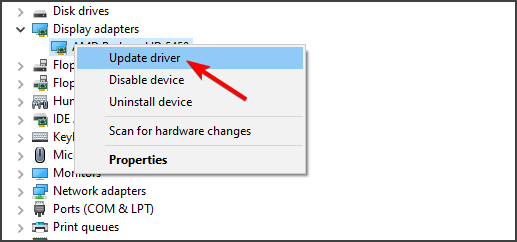
  1. Press the Windows Key + S and type Device Manager, then click on it.
  2. Expand the Display Adapter and locate your GPU.
  3. Right-click on it, then select Update driver.
  4. Wait for your Windows to finish updating the driver and restart your device

Update your drivers automatically

You can always update your display drivers from Device Manager or by using a dedicated uninstaller, that allows you to thoroughly remove the driver from your PC.

When it comes to reinstalling the display drivers, we suggest you use a professional tool that will automatically download all the missing and outdated drivers on your PC safe and fast.

3. Disable background processes

  1. In the Windows Search bar, type msconfig and open System Configuration.
  2. Under the Services tab, check the Hide all Microsoft services box.
  3. Click Disable all to disable all active third-party services.
  4. Now, select the Startup tab and go to Task Manager.
  5. Prevent all programs from starting with the system and confirm changes.
  6. Restart your PC.

Another possible reason for GTA 5 running slow on Windows 10 might be due to some of the background processes. Thus, we suggest disabling them.

We’re aware that some of them you might use to communicate with your friends while playing online, but some apps will slow down the system while others, the network-dependent ones, will affect the bandwidth.

4. Reinstall Windows 10

If you have upgraded to Windows 10 from Windows 8 or Windows 7, sometimes it’s good to perform a clean install of Windows 10 in order to get rid of any software incompatibilities.

Just download the ISO file from Microsoft’s website, burn it to a DVD or create an installation USB and reinstall Windows 10 from scratch.

Note icon NOTE
If none of these solutions are helpful to you, you’ll just have to wait for an official patch from Microsoft or Rockstar Games. In addition, if you have any concerns, you can ask the developers on Microsoft’s or Rockstar Games forums.

This concludes our article. We included 4 important solutions that should fix your FPS problems while playing GTA IV or GTA V.

Feel free to give us any feedback regarding the solutions, and share with us any other tips you have in the comment section below.

Microsoft announces shutdown of its Azure Blockchain Service

Microsoft this week announced the shuttering of its relatively new Azure Blockchain Service. As of this past Monday, no new member creations or deployments are being accepted though existing projects will continue to be supported until September 10th when the entire platform is set to shut down.

The tech giant is strongly encouraging all users to migrate their projects to other blockchain platforms such as Quorum Blockchain Service which is mentioned by name in some new support documentation that was just published.

The Quorum Blockchain Service is currently owned by ConsenSys who purchased it from JP Morgan in late-2020 for an undisclosed amount. This US-based company focuses primarily on the Ethereum blockchain and is involved in a variety of blockchain and cryptocurrency projects such as Metamask, a popular Ethereum wallet web browser extension.

While the shutdown of Azure Blockchain Service may be disappointing for some blockchain enthusiasts, it’s unlikely that this is a sign of Microsoft withdrawing interest from the technology completely. Interest in blockchain in general is on the rise in a number of industries and Microsoft has already shown interest in blockchain and cryptocurrency for other projects such as its ION decentralised ID project which launched on the Bitcoin mainnet just last month.

Are you sad to see Azure Blockchain Service go? How do you see Microsoft using blockchain tech going forward? Share your thoughts with us in the comments below and then follow us on Facebook and Twitter for more Microsoft news.

FIX: Mail, People, Calendar apps don’t work in Windows 10/11

Problems with Mail, Calendar, and People apps is a well-known issue and Microsoft is aware of it. But until Microsoft fixes all the bugs, we have an alternative solution for this problem.

How do I fix the Mail and Calendar apps on Windows 10?

  1. Use PowerShell
  2. Reinstall the apps
  3. Reset Mail and Calendar
  4. Run the Windows Store App troubleshooter

1. Use PowerShell

You’ll need to do a couple of things in the Command Prompt, just follow these instructions:

  1. Press the Windows key, type cmd, and open Command Prompt (As Administrator)
  2. When the Command Prompt window opens type powershell and press Enter
    • You’ll notice that the window will stay the same, but the command line will begin with PS
  3. To remove the non-working Mail, Calendar, and People apps, paste the following command line and press Enter: Get-appxprovisionedpackage –online | where-object {$_.packagename –like “*windowscommunicationsapps*”} | remove-appxprovisionedpackage –online
  4. Wait until you receive a confirming message that the operation has been completed and restart your computer.

2. Reinstall the apps

  1. Go to Start Menu and open the green tile of the Store App in All Apps section.
    • Don’t open Windows Store with the grey tile, because it’s a beta version and it probably won’t help you).
  2. Sign in to Windows Store with your Microsoft Account.reinstall mail calendar app windows 10
  3. In the Store, search for Mail.
    • You should find a result for Mail, Calendar, and People apps.
  4. Select the search result and install the apps.
  5. Wait for the confirmation message and you’re done.
    • You may be prompted to add a payment account during the installation, but this isn’t necessary, so you can skip that part.

Alternatively, we recommend using a third-party uninstaller for this process, to ensure all the files left behind are removed and they won’t clog your system over time. This type of tool can be a great apps management solution, as it allows you to organize your programs once you reinstall them, according to various factors, such as the name, size, or installation date.

3. Reset Mail and Calendar

If the steps above didn’t work for you, you can reset the Mail and Calendar apps by following these instructions:

  1. Open Settings.
  2. Click Apps.
  3. Click Apps & feature.Mail and Calendar apps reset
  4. Locate Mail and Calendar, then click Advanced options.
  5. Click Reset.
reset mail calendar app

4. Run the Windows Store App troubleshooter

  1. Go to Settings
  2. Select Update & Security
  3. Click on Troubleshooter
  4. Select Additional troubleshooters
  5. Click on Windows Store Apps and select Run the troubleshooter

Since the Mail and Calendar App is a Microsoft Store app, you can also use Windows 10’s built-in troubleshooter to fix the problem.

That should be all, the Mail, Calendar, and People apps should now be installed and visible in your Start menu.

If you have any additional questions or comments, please write them down in the comments section below, we would love to provide you further assistance.

FIX: Dragon Naturally Speaking 13 doesn’t work [Windows 10/11]

Voice recognition has been seeing again in popularity over the recent years, mostly because the software has come a long way since it was first introduced.

Dragon Naturally Speaking 13 is a Windows dictation software that will eliminate the stress of typing and ease your life as a Windows 10 PC user.

Thanks to this awesome program you can use simple voice command to control your device, especially when typing. This means that you can open Microso Word and dictate words and punctuation.

Additionally, the program allows you to modify text and use all Word’s features locally. It is up to three times faster than typing.

Dragon Naturally Speaking is perfect for those users who prefer using voice recognition software. However, it has been reported that the program isn’t working properly for some people.

According to users the Dragon Speaking Naturally is running, and its process is available in Task Manager, but the main screen doesn’t appear.

As you can see, this makes this software unusable on Windows 10, but there are few solutions that might help you fix this issue.

Before we start, make sure that you update your Dragon Speaking Naturally to the latest version as well as your Windows 10.

This will help you to deal with most incompatibility issues that you might have. If updating doesn’t help, try some of these solutions.

How to Solve Dragon Naturally Speaking 13 Problems in Windows 10

1. Turn off Compatibility mode

  1. Locate the Dragon Naturally Speaking shortcut and right-click on it.
  2. Choose Properties from the list.
  3. Navigate to the Compatibility tab, locate the Run this program in compatibility mode for section, and uncheck it.
  4. Click OK to save the changes and try running the application again.

Users report that the latest version of Dragon Naturally Speaking on Windows 10 doesn’t require Compatibility mode in order to run correctly. You can disable compatibility mode with the steps above.

If you don’t have Compatibility mode turned on you might want to try running the application or installing it using the Compatibility mode.

Note icon NOTE
If you still have the key/ license of the program and you can’t fix the issue, we strongly recommend you to go on the official website and get in touch with the team. You can check which version/price plan you have on this page. Don’t reinstall another version until you are sure it will work with your key/license.

2. Don’t run natspesk.exe as administrator

  1. Locate natspesk.exe. It should be located in your Dragon Naturally Speaking installation directory.
  2. Right-click natspesk.exe and choose Properties.
  3. Go to the Compatibility tab and uncheck Run as administrator.
  4. Click Apply then OK to save the changes.
  5. Restart your computer and try running the application again.

If turning off the compatibility mode didn’t solve the problem, you can try NOT running natspesk.exe as administrator. If you’re not sure how to disable it, just follow our steps.

It is not unusual for a program to malfunction randomly when you’re trying to start it with administrator privileges. Make sure that’s taken care of.

3. Use USB headphones

Headphones with Audio Jacks are quite outdated, and are slowly being replaced by the USB versions that are more compabitle, and don’t need separate jacks for the microphone and the headphones.

Some users report using USB headphones to fix the issues with Dragon Speaking Naturally software, so maybe you want to try using USB headphones to see if it fixes the problem.

We suspect that the software is having problems with the Audio Jack, and switching to USB will surely fix the issue, since USB-ports are very versatile.

That would be it for this article. You should be able to solve the Dragon NaturallySpeaking problem on your Windows 10 device in no time.

If you’re still not pleased with the app, take a closer look at this awesome list of the best dictation software and choose a better one.

Feel free to give us any feedback regarding the subject and your experience with the solutions above in the comment section below.

5+ best Windows web hosting providers for freelancers

There are two popular kinds of hosting offered by web hosting providers: Linux and Windows hosting.

The differences are not as many, as they deliver the same proficiency levels, but if you’re looking for the best Windows hosting provider, it is important to understand how it works prior to considering your options.

Windows hosting providers basically let you host your personal and/or business website via a Windows server/servers, using in technologies such as Microsoft SQL Server, ASP, Microsoft Access, and .NET.

This, however, doesn’t necessarily mean that if your computer runs on Windows OS, you have to use Windows hosting as the hosting you choose is not dependent on the OS itself.

It depends on the technologies needed for your website. Windows hosting servers work with any type of hosting from VPS, dedicated, shared, and even cloud.

It can also handle any content management system so you still have a best friend in Windows when it comes to hosting.

Some of the reasons people choose to use Windows hosting include compatibility for .NET frameworks, Active Server Pages or ASP, Visual Basic, C#, SharePoint, and much more.

Windows hosting also comes with a bag of benefits such as:

  • Simplicity and ease of use
  • Easy to manage
  • Easy to update
  • Seamless integration of Microsoft products to your site
  • Supports ASP, .NET, Visual Basic and C# scripting languages
  • It is stable and reliable as it is produced by Microsoft
  • Ensures full security and safety of your site from rogue elements like hackers
  • You can use it even if you’re not as experienced with hosting

Finding the best Windows server hosting provider can be a difficult and daunting task, but we’ve simplified everything, and here are the best Windows hosting providers you can use for your site.

What are the best Windows hosting providers for freelancers?

A2 Hosting

best Windows hosting provider

This comes highly recommended among users as the best Windows hosting provider, with its blazing fast features, and fine-tuned servers.

If you want your content delivered in a high-performance environment, then A2 Hosting’s Swift Servers that comes with the Turbo Servers option is your best bet.

The Turbo servers deliver up to 20 times faster performance as compared to other competing Windows hosting provider options.

Nobody wants his or her website running on snail speed. In fact, these days, even 3 seconds is considered slow in terms of lag time because it can make or break your business.

Customers today have shorter attention (patience) span, so anything over 2 or 3 seconds more is too slow and they move to the next fastest site.

This is why you need the best Windows hosting provider that can offer and deliver blazing-fast performance, reliability, and can integrate simply with other web building tools in Windows such as the .NET framework, or ASP.

With A2 Hosting, you are assured of fast speeds, 24/7 Guru Crew support so you know you’ve got experts standing by, plus a wide variety of tools to get your Windows hosting up and running, blazing fast!

A2 Hosting also prides itself on being the best Windows hosting provider and experts in the industry.

This hosting provider also offers a risk-free experience with their Anytime Money-Back Guarantee and carefully planned products that cater to your Windows hosting needs.

Get all the Windows hosting integration elements you need in one hosting provider including MSSQL, ASP, .NET framework, C#, and Visual Basic.

This is one of the benefits why A2 hosting users go for their services, as well as their scalability, ease of use, ease of updating, and Plesk control panel – a complete range of tools to ensure and enable you to succeed.

Let’s check out A2 Hosting’s main features:

  • Fast speeds
  • 24/7 Guru Crew support
  • A wide variety of tools
  • Optimized processes determine faster loading times
  • MSSQL, ASP, .NET framework, C#, and Visual Basic integration
A2 Hosting

A2 Hosting

A2 Hosting has everything you need to run a Windows Server smoothly without professionally, even as a freelancer.
Check priceVisit website

SmarterASP.NET

best Windows hosting provider

As its name suggests, this is not just one of the best Windows hosting provider, but also smarter at that.

It offers world-class quality Windows hosting services both for individuals and businesses, with a shared hosting package that is renowned for its speed and reliability.

With over 18 years of experience, having set up in 1999, SmarterASP.NET provides superior hosting services, with features such as a one-click installer and technical support team to optimize your experience.

Additionally, it has a built-in CloudFlare content delivery network that makes your website 4 times faster, and 99.9% uptime guarantee.

With this hosting provider, you get different features based on the option you pick from either Windows 2012 hosting, MSSQL database, or the MySQL database.

The free trial comes with a free temporary domain name to try out the service, so you need not buy one or transfer yours.

You also get instant hosting setup and upgrades with the free trial, and you can upgrade once the trial ends to a paid package from the control panel without experiencing any downtime.

Unlike other providers, this one guarantees the same quality of service and offerings for free trial users and paid users alike so you can have your cake and eat it!

The provider’s best features include:

  • Windows 2012, MSSQL database, or MySQL database hosting
  • Free trial
  • Instant hosting setup
  • Built-in CloudFlare content delivery network
  • Shared hosting package available
SmarterASP.NET

SmarterASP.NET

SmarterASP.NET provides top-notch server hosting quality for your business, giving you all the tools you need to succeed with your business.
Free trialVisit website

Hostwinds

best Windows hosting provider

If you’re looking for unrivaled support – because we all need the best Windows hosting provider who can be there all the time – and state of the art hardware, then Hostwinds is your friend.

Its offerings include a fully managed, instant hosting setup with nightly backups, plus you can get solid state drives (which is the future structure of the Internet), and 24/7 technical support.

This is a robust and secure hosting provider that will meet, and exceed your expectations in terms of security protocol, besides giving you full control over your site.

You also get a guarantee that their servers cannot be oversold, so you know they got your back. Run your own copy of Windows, on a 100% network uptime SLA, with multiple carriers and a 100 Gbps+ global network.

When it comes to monitoring and tech support because, HostWindws will be there for you every single minute of every day, with 5-minute guaranteed incident response, and one-hour hardware replacement time.

Windows hosting clients also get to upgrade their server specifications anytime meaning you get instant scalability, plus full management of your servers.

The Hostwinds team will help you any day, any time. If you’re going with Windows hosting, then Hostwinds gives you the option of using either Windows server 2008, 2012, or 2016 as your OS.

HostWind’s main features include the following:

  • Stability provided by redundant network
  • HostWindws Cloud Portal to upgrade your server with ease anytime
  • Real-time monitoring service
  • Nightly backups of your data
HostWindws

HostWindws

Customer’s well-being is always the priority for HostWindws. Be sure that they will provide excellent web hosting servies.
Check priceVisit website

TMD hosting

best Windows hosting provider

TMD Hosting also promises blazing fast Windows hosting, because at the end of the day, speed, security and scalability are a priority.

You get to enjoy exceptionally fast speeds and superior performance, in an environment that supports the latest ASP .NET framework, Windows Server 2012 R2, and MSSQL server.

You can select from three different hosting plans: Starter for starting a website, Business for enriching multiple websites and growing traffic, and Enterprise for more complex sites and heavy traffic.

Its features include dedicated technical support, daily automatic and constant backups of your site’s database and files with free restoration.

Benefit from up to 20 times faster load time thanks to the use of SSDs on all servers, unlimited email accounts, and free Let’s Encrypt SSL certificate installation in one click on your Plesk panel.

If you’re setting up a new website TMD gives you immediate activation, free installations, free domain registration, 24/7 support all year round, and step by step tutorials to guide you.

For an existing website, you get free file and database transfers, zero downtime, unused months compensation, and 24/7 support all year round.

Get fully managed on the cloud as the servers are managed by experts, there is a high level of security updated daily with a web-based firewall to ensure your site is guarded from online threats.

The security system has 99% uptime, anti-spam protection, and a dedicated yet isolated VPN for better monitoring, connectivity and speed.

Some of its core features include:

  • Free daily backup and restoration
  • Best support response time
  • Free domain name forever
  • 99% uptime for the security system
  • Stable and fast connection
TMD Hosting

TMD Hosting

This web hosting provider has demonstrated countless times that stability, speed, and quality are its priority.
Check priceVisit website

Miles Web

best Windows hosting provider

This is a hosting provider based in India, which provides superfast ASP.NET hosting service for as little as $1.67 monthly – so affordable.

If you’re looking for the best Windows hosting provider that offers all the features at a comfortable price, then this is your guy.

Ideally, Windows hosting integrates Microsoft apps such as ASP, .NET, Visual Basic, Access, FrontPage, and/or MSSQL, so this hosting provider gives you just that.

Its features include the Plesk Control panel, multiple domain hosting and databases, unlimited emails, 24/7 uninterrupted support, unbeatable reliability, and 99.95% uptime needed to run your website at any point in time.

You also get a free domain name (or transfer yours for free), SSD drive for faster loading time and performance, one-click installer for WordPress, Joomla.

Moreover, you will benefit from shopping carts and other apps, secure email, programming features as mentioned, free website transfers at no added cost, and daily automated backups for optimal security.

Set up your account instantly with Miles Web and enjoy affordable rates at superfast speeds and the best uptime.

Here are the main features:

  • 24/7 and 365 day support
  • Free migration from another server
  • SSL certificate for secure connection
  • Automated backups
  • SSD powered
  • Plesk Control Panel
Miles Web

Miles Web

This is an SSD-powered web hosting service with awesome customer support, daily backups, and more.
Check priceVisit website

AccuWebHosting

AccuWebHosting is an excellent web hosting provider that has been around and kicking since 2003. It has a huge range of plans, services, and more.

You’ll find VPS hosting, shared hosting, and WordPress hosting as well, giving you one of the best values for the money you pay.

When it comes to accessibility, AccuWebHosting doesn’t restrict you to Windows. Thankfully, the services also apply for Linux users.

It’s worth mentioning that these providers have fully-powered SSD storage options for your server’s data, which will ensure everything runs fast and smooth.

You won’t have to worry about breaches either, since they are well equipped with strong security methods that will stop any of your sensible data from being stolen.

When it comes to pricing, we were pleased to see that they are very affordable, and vary in range, depending on the plans you choose.

Let’s have a look at its core features:

  • Shared hosting with multiple storage choices
  • 100% hardware uptime
  • Fast and responsible customer support
  • Daily backups
  • 24/7 monitoring
  • Free site migration
AccuWebHosting

AccuWebHosting

AccuWebHosting is the ideal web hosting service, being known for its unbeatable security, speed, and customization.
Check priceVisit website

HostDime

best Windows hosting provider

If you want your website hosted in a state of the art data center, HostDime is the best Windows hosting provider you can choose.

Features include a pure SSD and 10 Gbps fiber network so you are assured of fast read or write speeds, private IPs dedicated to your accounts only so you can customize your DNS records and have a private mail server for increased mail reputation, enterprise virtualization for increased scalability, reliability, and customizability, plus site reliability.

Its business platform is pre-secured and fully managed, so your site is protected against any operating system and/or kernel vulnerabilities.

You also get industry-leading software, and value-added services such as client management software, billing merchant accounts, and other add-on services to run your business and have stellar customer service online.

HostDime comes with the following core features:

  • High-availability for crucial applications
  • Handles enterprise traffic
  • Pay as you use
  • Bare metal servers
  • Colocation
  • Cloud storage
HostDime

HostDime

HostDime consists of purpose-build next-generation data centers, offering products from managed servers to enterprise level colocation.
Check priceVisit website

HostGator

best Windows hosting provider

It is not possible to talk about hosting and miss out HostGator in the list of the best Windows hosting provider.

If it’s not at the top, it’s one of the top 10 hosting providers, so you know it is consistent in its service provision and performance.

HostGator makes Windows hosting simple and easy for you to use. Its features include the Plesk Control Panel so you can control your hosting account easily (like you would using a WordPress back end).

Additionally, site building tools and more than 4000 free website templates, MSSQL Server 2008 R2, MySQL, Access Databases, FTP accounts, and email addresses, administrative tools, one-click installs, and programming features including ASP and ASP.NET.

HostGator is known for its award winning technical support and highly extensible Windows Server 2012 R2, and its hosting plans let you draw as much as you can from the hosting accounts at the lowest cost possible.

Other features include 99.9% uptime guarantee, unlimited sub domains, Safe Harbor Certified, and you get free stuff with each hosting plan including a free website builder from HostGator.

You will also get 4500 free templates, free website transfer, domain transfer, MySQL transfer, and script transfer, plus 38 free scripts can be installed on your account instantly.

HostGator benefit from the following main features:

  • 99.9% uptime
  • 4500 free templates
  • Free website transfer, domain, and MySQL transfer
  • Administrative tools
  • One-click installs
  • Plesk Control Panel

⇒ Get HostGator

IONOS by 1&1

best Windows hosting provider

At 1&1, you get all the opportunities you need for Windows hosting so as to present your web content successfully.

Its features include programming elements such as ASP, ASP.NET, MVC, AJAX, and includes the NetObjects Fusion in all its hosting plans which complete obligatory code blocks and show syntax errors in your code.

It comes with a website builder to create functional websites by yourself in four simple steps, so you don’t need programming expertise.

You can also choose your hosting plan based on personal needs of volume and speed performance, and enjoy using different software with your package of choice.

Other features include domain extensions such as .com, .org, or .net, high standards of cooling, security and power supply of data centers, as well as daily backup of all your data.

You are assured of reliability and stability with 1&1’s geo-redundancy feature that keeps performance stable, and the SiteLock feature for comprehensive data protection.

Phishing and anti-spam security is also included, plus 24/7 year round support with Windows hosting.

⇒ Get Windows hosting on IONOS by 1&1

Host1Plus

best Windows hosting provider

This hosting provider is touted as the best Windows hosting provider offering full scalability and 24/7 support, as well as a 14-day money-back guarantee if you’re not happy with their service.

Its features include direct access to your web control panel, advanced networking features, KVM virtualization, clever service delivery, quick deployment of your virtual machine in just seconds.

The pre-configured templates like the cPanel to manage your site easily, simplified management and control which is great when dealing with lots of domains.

You can also create your domain zones, edit records directly, schedule automatic backups or make manual ones, save time spent on getting support through a simplified rDNS control system.

The rescue mode allows you to work in a safe environment in case of file system corruption, and track your use of resources live with alerts to avoid overusing your CPU, memory or network.

Other features include advanced networking on a high speed network built on high end hardware, as well as cloud server locations in multiple premium data centers for better reach and higher connectivity.

⇒ Get Windows hosting on Host1Plus

What to consider when choosing the best Windows hosting provider

Here are the factors to consider when shopping for the best Windows hosting provider for your website:

  • Features: This is important because you want a hosting provider that has all the features you’re looking for based on the needs of your website, and exceeds or goes over to offer much more. Windows hosting plans usually come with many unique features, so depending on what you have in mind, check carefully what features the host is providing. For example, if you want programming features such as ASP.NET, yet the hosting provider only has ASP, then you may not be satisfied with their offer. Shop around and find the one that has everything you need and some.
  • Security: this is very important for any website. A hosting provider should be able to provide security for your website, and the strongest level at that. Since Windows is a target for hackers and cyber crooks, then you need to check if the host provides special, top-level security features that will not compromise your website.
  • Responsiveness is another key feature more than price or features because when there is a problem, you need immediate attention. Therefore, you need to look for a trusted, consistent, hosting provider with a high level of support than the rest, preferably 24/7 365 responsiveness. Check for contact channels such as phone, email addresses, live chats, toll-free numbers, and even social media contact pages.
  • Technical support and Service reliability: this goes together with service reliability because you need to know your provider has your back. The best Windows hosting provider will not slack on service reliability or tech support because they know that keeps you with them, far beyond their prices or amazing features.
  • Hardware and Performance: your Windows hosting provider should have high-end hardware to host your website because this will affect your site’s overall performance. Choose the best Windows hosting provider with the latest and advanced processors and SSD storage.
  • Clear hosting plans and terms of engagement
  • Multiple and reliable backup layers
  • Unlimited availability of resources such as RAM, bandwidth, storage, and CPU power
  • Easy to use and simple control panel
  • Simple data recovery and restoration process

If you are interested in making your Website more appealing to your viewers, check this useful list of the best landing page software that will bring creativity to your domains.

Now that you know the best Windows web hosting providers in the market, let us know your favorite pick, or share with us the one you use in the comments section below.

Form Filling Software: 8 Best to Use in 2026

Form filler tools allow users to automatically fill forms with the click of a button. They can be part of a larger program, such as a password manager or an enterprise single-on solution.

Given nowadays’ digitization, filling forms online is part of our daily lives when checking out our purchase on an online store, signing up for the online store, adding new info to the online store, logging into our accounts, and more.

Come to think of it, form fillers are the opposite of screen scrapers which are used to extract data from a particular form.

Do I need a form filling software?

It really depends on your daily activity But using such software definitely quickens the process of connecting to several sites at a time or placing online orders.

Safari, Chrome, or Opera have taken the approach of identifying high-value form fields and providing a way to manage what exactly the browser will autofill in those particular fields.

For instance, Opera offers autofill for credit cards and addresses. Chrome, Safari, and Opera are different regarding which fields they provide autofill for, but the basic fields needed to complete a checkout process are supported.

On the other hand, Microsoft Edge and Firefox will store certain values submitted along with the value of the name attribute, in order to autofill any field.

In case the browser sees a field in the future with a matching name attribute, it will immediately provide autofill options.

This approach involves some concerns regarding security and privacy issues and the autocomplete-off value has been long supported to prevent the browser from storing and auto-filling crucial data for this reason.

Yet, the user submits a form in order for the browser to store values to use later with autofill. The browser will not save your answers without form submission, and you should know this.

This is why developers prefer this method instead of pre-determining what fields to auto-complete.

So let’s take a look at some form filling software that will ease this tedious task with every online operation.

What is the best online form filling software?

RoboForm – Feature-rich password manager

Roboform password manager software

Form-filling software is here to save you time, and in an age where speed is a priority, time is a most precious commodity, and RoboForm is here to save you a lot of it.

Down to its very core, RoboForm is a feature-rich password manager and form-filler that allows you to log into any website you have an account on with just one click.

This makes logging in faster, and easier, and spares you the trouble of having to remember anything, other than the RoboForm account.

Thanks to the AutoFill function, RoboForm will not only remember your username and password but also billing information, which everyone knows takes the most time to find and fill out.

The program is available on almost all major operating systems, making it great for those of you that frequently fill out forms, either on your PC or on the go.

If you want to benefit from Roboform completely, you can as well consider a subscription that gives you access to useful features like sync for all devices or data backup.

RoboForm

Fill in your information easier and faster with RoboForm’s affordable plans.
Check Price Visit Website

Adobe Fill & Sign – Browser integrations

Unlike the rest of the programs in our list, Adobe Fill & Sign is not a program in itself per se, but a feature that is included both in Adobe Acrobat and Adobe Reader.

As you may know, whenever you install any of these two programs, you will also be prompted to install certain browser integrations as well. This helps with managing PDF files through your browser without actually having to download them first.

That is precisely where the Adobe Fill & Sign feature shines best, as it can also handle any PDF files that can be signed as well. From this point forward, the product acts like any other signature-saving program, acting as both a signature saver and a password manager as well.

Here are some of the perks of using the Adobe Fill & Sign feature in Adobe Acrobat or Adobe Reader:

  • Intuitive form completion
  • Integrates with all major browsers
  • Create for storing digital signatures
  • Allows you to create and tweak your signatures
  • Doesn’t slow down your browser

Adobe Fill & Sign

Add this feature to your device with one click and ease form filling and signing on any visited page.
Free trial Visit Website

Soda PDF – Highly customizable forms

Soda PDF is available both as a web-based and desktop app. Its nine-themed innovative modules were designed to boost productivity and fulfill the needs of PDF users.

You can use the Forms Module to create HTML forms in a PDF file and customize them in real-time. The software’s numerous capabilities allow you to create something simple like a text field form, or something more complex, like adding a push button that can perform various functions.

Its modular design and email integration enable users to submit the form directly from the document. Plus, you can import and export data into the forms, while the Secure & Sign feature makes it possible to add a digital signature.

Stored data can be protected with 256-bit AES passwords and control permission levels that determine who can access your files.

Here are some other advantages of using Soda PDF:

  • Highly customizable forms without needing any coding knowledge.
  • Adding list boxes, radio buttons, checkboxes, and more.
  • Combining the answers from multiple forms into a single CSV file.
  • Strong Security Module that protects your files against unauthorized access.
  • The possibility to work with batches of PDFs.

Soda PDF

Quickly fill in a PDF form in just a few seconds with Soda PDF.
Check price Visit Website

Forms on Fire – Intuitive user interface

You can now replace paper forms with tablets and phones using cloud software, and you don’t even have to have any programming experience.

You can use the software to capture info on the go, and this is great because we all know that paper forms are extremely slow and tiring and by going mobile it will all be easier. You can also get photos, GPS, and more!

The app works both online and offline and this way, you’ll be able to take everything with you, tasks, forms, and all the data you need, even when you are offline. All you need to do is drag and drop and use a bit of Word and Excel; you don’t have to know any coding.

You can connect to more than 750 systems and also to a custom API. The workflow is pre-defined, rules-driven, or user-defined. All the maps, the data lists, and the details from your device will help your work get smarter and smarter.

According to users’ experiences, the app features a great intuitive user interface, and it’s perfect for collecting and analyzing research data.

Forms on Fire

Try Forms on Fire and collect and analyze data fast and easily, either online or offline.
Free trial Visit Website

ProntoForms – Drag-and-drop form builder

This software can transform processes with form automation, improves efficiency and productivity, and track, and optimize business performance as well.

Using it, you can create a form with the drag-and-drop form builder, and you can also dispatch partially filled forms to your workers in the field and avoid wasted trips back to your office.

You can also add photos inside your forms, and you can sketch on top of them to provide visuals of site-related activities and greater reports on job site issues.

You can also use the software for offline work, as forms can be filled out with or without connectivity and they are auto-sent once the network is restored.

The tool can successfully capture and collect signatures and barcodes right on the device using the touchscreen. You can scan QR and barcodes from the device, and you can integrate them straight into the forms.

You can quickly confirm the location of job sites, time of arrival, customer visits, and also the work performed.

⇒ Get ProntoForms

Repsly – Real-time feedback

You can forget pen and paper from now on because Repsly’s mobile forms will let you quickly gather consistent, clean, and real-time data.

In case you haven’t known, mobile forms are the key to having clean and consistent data. Whether you are trying to keep track of your product on a shelf or if you are only looking to take notes at every visit, the software will give you a way to create a customized and consistent data collection tool.

The information that you collect in the field will offer feedback in real-time allowing managers to make business decisions without having tons of paperwork or without waiting for weekly recap emails.

You can see trends over time, or you can simply get a quick snapshot of that day’s performance; whatever you are looking for this particular software with mobile forms will have you covered.

Even if this program is quite robust, it is not also complicated, and the developers promise that you and your team will benefit a lot from using their product. Repsly’s mobile sales app is both simple and powerful, and its goal is to increase efficiency and productivity.

⇒ Get Repsly

Integrify – Process activity tracking

You can use it to build business forms with customized workflow automation quickly. You can now dramatically improve business performance in the field or the office with some powerful automation forms.

Integrify is the most powerful and also easy workflow automation software available. You can start managing and improving your workflow system right now by using the software.

You will be able to build unique forms and processes for single, group, and multi-tiered approval (sequential or parallel). You can now automatically route forms based on the data that your users are providing.

You will be able to build form processing flows faster with the visual interface of the program so you can deploy in days instead of weeks. Activate the app in just a few minutes or install Integrify OnPremise in less than an hour.

With the software, you will be able to enjoy rapid user adoption. The simply configured user interfaces will provide users with a straightforward interface for submitting requests, completing tasks, and for tracking process activity.

You will be able to deliver positive ROI in less than three months, and the program’s workflow software will reduce direct process and workflow costs by more than 30 percent.

The solutions offered by this software will not require any programming and the intuitive workflow management software with process design and forms creation will not need any coding.

This is a robust and flexible software, and the service-oriented architecture is built around REST web services and AJAX technology. The app will provide a widget export feature to place Integrify Widgets on any Intranet page or on any website.

⇒ Get Integrify

PerfectForms – Easy to use

You can use this to build online forms and workflow apps with ease. All you have to do is drag and drop objects on a canvas to create powerful HTML forms and workflow apps as well.

You will not require any technical skills to get your form or your app into production. You can deploy your work in just a few minutes without having to rely on IT.

You will be able to use the program to build great reports for monitoring your performance and to get the visibility that you need to drive improvements.

You will also be able to pull data from directory services or send/receive data from some third-party systems through web services or API without the need to code at all.

All in all, you can create any type of online form or workflow app without knowing a single line of code, and you just have to simply drag and drop to design a pixel-perfect UI, mark the workflow, integrate it with other systems, and build reports. You can do all these and more with this online form builder software.

⇒ Get PerfectForms

We encourage you to download and try any of this software and see how it helps with your day-to-day activities.

If you have already used such a tool with considerable benefits, share it with us in the comments below.

OnlyOffice: The only office for your company [Review]

Working remotely is something that has become the new norm, and cloud computing is replacing local storage more and more, and these two trends are visible in the corporate world as well.

Collaboration tools have evolved more and more the past year, allowing users from all over the globe to work together as if they were sharing the same office space, one great example being OnlyOffice, a complete cloud office suite for companies everywhere.

Today’s article will be a complete overview of what OnlyOffice is, what it can do, and how it can greatly improve the workflow of your company if you use it right, so continue reading below to learn more.

What is OnlyOffice?

OnlyOffice is a cloud-based office productivity software that companies can use to do just about anything they need to get projects done in a fast and efficient manner.

It provides subscribers with the several useful features, including:

  • Document sharing and editing – Text, spreadsheets, and presentations
  • Project overviews, time tracking, and efficiency reports
  • Contact and client management features – Invoices, tasks, reports, etc
  • A built-in email client with full capabilities
  • An integrated instant messenger
  • A calendar for scheduling tasks, and more…

It is available in multiple subscription plans, and it also comes with a 30-day trial for anyone to try out, with very few limitations.

What are OnlyOffice’s features?

Since OnlyOffice is primarily an office cloud, it is based entirely on the web, so accessing can be done via web browser, and an Internet connection is a must.

This type of service means that PCs will not be burdened by bulky software, no registries will be damaged due to software installations, and there will be fewer errors due to local reading and writing errors.

Besides, web apps such as OnlyOffice have the advantage of always being updated as soon as a new version becomes available, so there is no need to download new updates or patches.

A complete document editing suite

No office can run with the creation, editing and distribution of text documents, spreadsheets, and the occasional presentation, and while there’s always the option of going for the traditional Microsoft Office Suite, OnlyOffice offers you their own version of Word, Excel, and PowerPoint at only a fracture of the price.

All of these tools look almost like their Microsoft counterparts, so getting used to the interface will not be a problem.

More so, since everything is stored in the cloud, you don’t have to worry about freak errors that result in progress lost, or even the loss of entire documents.

Keep track of all of your project

A company grows little by little with each new project it manages to accomplish, and OnlyOffice gives you the tools to complete these projects fast, and with better results as well.

Simply create a project, and then set all the associated parameters that you want, such as milestones, associated tasks, progress charts, discussion boards, and more, all so that you know exactly where you are with a project every step of the way.

Another cool feature is the ability to create project templates, so future projects will be easier to create and set up, especially when they are similar to older ones.

Keep track of your clients and their needs

Companies live off of money, and money comes from projects that have been ordered by clients, so keeping track of your clients, and their appropriate documentation is a core aspect that OnlyOffice provides you wish.

Create contact lists, create associated tasks (appointments, meetings, etc), keep track of sales opportunities, create invoices, and check out your company’s progress from a single unified menu called the CRM.

Keep in touch with colleagues and clients at all times

The key to running a successful business is communication, and OnlyOffice makes sure everyone keeps in touch with everyone via its built-in email client which comes full equipped with everything you might expect to find.

Send and receive emails, save drafts, create templates, and there are even a few features that allow you to use the email client for personal projects, not just job-related ones.

Your colleagues have never felt closer

Just like many other collaboration tools, you can create groups of contacts with whom you share common interests or with whom you with to discuss particular topics.

This feature is more of an extension of the IM and e-mail client, allowing easier message sending to multiple users at once.

If e-mails don’t cut it, try instant messaging

Emails are great when talking to your superiors, clients, or with your peers about official business, but one cannot deny the need for an instant messaging tool, especially when discussing time-sensitive projects.

OnlyOffice’s built-in instant messenger offers all of the traditional tools you’d expect to find, including choice of status, history archiving, file transfer, multi-user chat support, and more.

More so, you can set up the notifications to always keep you updated with everything that is happening, or when someone needs to speak to you.

Never lose track of what needs to be done

Projects need to be done, but profits are bigger when projects are done faster, or when you can squeeze in more projects in the same amount of time to optimize work hours, so the built-in calendar is a much-welcomed addition.

Schedule meetings, keep track of events that are participating in or the ones you were invited to, never forget a colleague’s birthday, and more, all from a very clean and minimalist interface.

Fast and responsive

As mentioned earlier, OnlyOffice is available as a web app, and because of this, it is designed to be as lightweight and as fast as possible, and this is something that our tests have revealed as well.

Pretty much all tools of this service worked impeccably, and the only times we ever had issues with it during tests were during Internet down times.

However, if bad Internet connectivity is the least of your problems, then performance issues with OnlyOffice are the last thing that you should worry about in OnlyOffice.

One of the best cloud office solutions at a very special price

Technically speaking, OnlyOffice comes in several price plans, but regardless of which ones you choose, the price-to-features ratio is extremely advantageous for the user.

OnlyOffice is currently available in the following subscription plans:

  • OnlyOffice Docs
    • Enterprise Edition
    • Developer Edition
  • OnlyOffice Workspace

Besides, there’s no pressure into buying anything, since OnlyOffice can also be tested for free over a trial period of 30 days, although certain limitations do apply.

OnlyOffice

OnlyOffice

Try out one of the world’s best office cloud tools on the market! Try out OnlyOffice!
Free trialVisit website

Closing thoughts on OnlyOffice

Pros
Offers all the tools needed to make collaboration efficient
Great documents, sheet, and presentation editors
Fast and efficient cloud service
Built-in IM and e-mail client
Offers a free 30-day Trial
Customizable Interface
Fast and responsive
Cons
There may be compatibility issues with newer document versions

Our tests revealed that as far as performance was concerned, any Pc that can run a browser can run OnlyOffice, so you don’t have to worry about hardware upgrades when using this tool.

As for the actual toolset, OnlyOffice has pretty much all the grounds covered in terms of what a company would need, and it’s hard to figure out what other third-party tool you should have at your disposal to enrich it even further.

All in all, regardless of whether you are a small company or an enterprise with thousands of employees, we recommend that you at least give OnlyOffice a shot, because it may just be one of the best investments that your company has ever made productivity-wise.

Here’s Where Windows Camera Saves Videos and Pictures

A few days ago, we shared with you the steps that you can take in order to fix various problems with the camera app in Windows 10.

Now, I’ve realized that some of you who are new to Windows 10 don’t even know where does it store the pictures you take.

If your Windows 10 laptop or maybe your tablet comes with a really good webcam, then most likely you rely on it more often than others.

Your webcam, or integrated camera, as some might refer to it, does two basic jobs – it takes pictures or videos.

It then saves them to a folder that you are probably wondering where exactly is located.

The camera app is quite basic, and there are only 3 other settings inside the app:

  • The Camera Roll which lets you see the pictures and videos
  • The Timer where you can set a timer before it starts shooting
  • The Exposure where you can change exposure levels.

Where does the Windows 10 camera save pictures?

As I’ve said, the pictures and videos are saved to the Camera Roll folder, and now we’re going to quickly explain where you can find it.

You just need to go File Explorer and from there, you need to go to the Pictures folder, just like in the screenshot from below.

windows 8.1 camera app picture location

Now just double-click on it and you will see the Camera roll folder.

where does camera app store pictures


If you have enabled synchronization, then your camera roll will also appear on your OneDrive account, which means your photos and videos will automatically be uploaded.

If you would like this feature to be turned off, learn how to change the OneDrive sync settings by following the link below.

Some users may not see the Camera Roll folder at all. In that case, learn how to restore it easily by following this quick Camera Roll fix guide.

You might also want to reorganize or clean up these picture directories, and a helpful guide that explains how to remove Camera Roll and Saved Pictures folders can assist with that.

How can I change the Camera App save location?

Now that you know where your Camera App saves your pictures and videos, it is worth mentioning that you can also change the save location.

So, if you don’t like the fact that the app saves your pics in the Camera Roll folder, here are the steps to follow the change it:

  1. Open Settings > go to System  Storage.
  2. Click on the Change where new content is saved option.
    change where new content is saved windows 10
  3. Use the drop-down menu to expand the New photos and videos will save to section > select the drive where you want Windows 10 to save your new pictures and videos.

Once you’ve confirmed your choice, your PC will copy the entire Camera Roll directory path in the preferred partition or external drive.

For more information on how to change the save location of new pictures, check out this detailed guide.

If you have any other suggestions or questions, don’t hesitate to leave them in the comments section below.

Automatic Item Generation Software: 5 Best to use

The typical item generation process for quizzes is done by a content specialist who lists one item at a time. This process is extremely time-consuming, and this type of item generation can cause serious issues because of human errors.

Continuous supply of new items is very important when it comes to the quality of the tests you produce. As a result, automatic item generation (AIG) allows you to list items with the help of computer software.

With AIG software, items can be generated automatically, or based on specific characteristics, depending on your personal needs.

Let’s explore some of the best automated item generation software options on the market.

Which are the best 5 automated item generation software?

Talent LMS

Talent LMS - item generation

Talent LMS is another great tools that provides you with a wide range of features that allow you to easily generate items, create online tests, user testing, teaching and training, and can even be used for e-commerce (small and medium sized businesses and schools).

You can easily embedd content like video, audio, SCORM (Sharable Content Object Reference Model) , xAPI and flash elements, and you can also use the search features to find and embed videos from Youtube, SlideShare, Wikipedia articles, etc.

All the lessons and tests produced with Talent LMS can be presented on desktops, tables, or smartphones. You can use two types of testing – fixed and randomized, each offering you different questions for your test-takers.

Key features of Talent LMS include:

  • Re-use presentations and videos in new courses
  • It offers support for different types of questions and a variety of test types
  • Advanced reporting features on test results
  • Surveys engine – collect and analyze survey responses
  • Learning paths – administer the way courses can be completed or viewed
  • Files repository – organize, use and re-share files with users
  • Gamification – add badges, points, levels, rewards, etc.
  • Video-conference support
  • E-commerce – can sell your courses via PayPal or Stripe
  • White-labeling – allows you to customize your own domain and logo, emails
  • Can add own CSS or JavaScript on visual themes

There are 5 versions of the tool available for download.

Talent LMS Free

  • Up to 5 users
  • Up to 10 courses

Talent LMS Small

  • Up to 25 users
  • Unlimited courses

Talent LMS Basic

  • 100 users
  • Unlimited courses
  • Single sign-on support

Talent LMS Plus :

  • Up to 500 users
  • Unlimited courses
  • Single Sign-On support
  • Custom reports
  • Automations
  • Success Manager
  • SSL for your custom domain

Talent LMS Premium – contains every feature  from Talent LMS Plus, and adds the ability to be used by up to 1000 users.

Talent LMS

Talent LMS

All the features you need to get up and running fast.
Check priceVisit website

Yardstick Itematic

Yarstick Itematic - item generation

This application is a great automated item and question generation tool that allows you to build multiple questions tests with ease. This software works by analyzing a question by splitting the content into segments, based on grammatical structure, models defined by the user, or a list of components like procedures, symptoms, client characteristics, etc.

Features of Yardstick:

  • Web-based application – can be accessed from anywhere at anytime
  • User-friendly
  • Create question templates
  • Ability to set valid questions stems
  • Can create easily understandable lists of question options
  • Can present you with various combination and permutations
  • Denote ‘friend’ and ‘enemy’ options
  • Ability to generate multiple questions based on one stem

⇒ Get Yardstick Itematic

Easy LMS

Easy LMS - item generation

Easy LMS (learning management system) is a user-friendly application that allows you to streamline the item generation process. Using this software permits you to collect data, organize it, create quizzes and apply the data you collected to your company’s business.

Key features of Easy LMS include:

  • Build lessons and courses – can combine text, video, images, exams, etc.
  • Create exams
  • Create assessments – single or multiple axis assessments
  • Create quizzes
  • White label LMS and branding – can remove labels from this LMS and embed it into your own site
  • Advanced user management
  • Can automatically send invites to users
  • Self-registration
  • Certification options
  • Single sign-on – easy and secure access
  • Academy portal – can assign groups of students to specific content
  • Can track progress of your students and their results, and offer stats.

Easy LMS was released in 5 different versions, each of them containing specific features designed for different users/businesses.

Tiny Owl – Free

  • Unlimited courses
  • 100 tests per month
  • Question types: multiple choice, free text, fill in the blank
  • Use text, images and video
  • No support
  • Mobile friendly

Smart Owl-Professional suitable for individuals and educators. It has all the features of the Free version, and adds:

  • Unlimited questions
  • 1,000 tests taken per month
  • Use text, images and video
  • Question types: multiple choice, image, free text, fill in the blank
  • View & Export results
  • View & Export statistics
  • Mobile friendly
  • Great support
  • Cancel plan anytime

Business Owl  which is perfect for small and medium business. The tool includes all the features of Smart Owl Professional and adds:

  • 25,000 tests per month
  • Ask additional player information
  • Advanced user management
  • Invite only
  • White label
  • Automatic certification
  • Optional: Academy add-on (extra monthly fee)

Corporate Owl for professional and large organisations. It has all the features of Business Owl and adds :

  • 50,000 tests per month
  • Custom certification
  • Custom CSS
  • Integrate with Mailchimp
  • Webhook integration
  • API
  • Connect with Hubspot
  • Use POST/GET parameters to receive data from 3rd party tool
  • Multi-admin (2 included, option to purchase more)

Enterprise Owl for people who need an Enterprise solution. This version supports all the features of Corporate Owl and also adds:

  • 100,000 tests per month
  • Academy
  • Single Sign On (+ setup fee)
  • Dedicated consultant
  • Priority support

⇒ Get EasyLMS

ExamSoft E.I

ExamSoft E.I - item generation

ExamSoft is a great tool that allows you to manage all your online assessments in the cloud. You can use this tools to manage accounts, create exams and apply different functionality features to your test creation process.

Some of the most notable features include:

  • Secure assessment – shortens the time of creation of exam data
  • Ability to import and bank questions – tag learning outcomes for easy access
  • Can host exams offline and create assessments on any device
  • Instantly grades exams while offering real-time student performance data
  • Create detailed reports about performances obtained
  • Locks student devices in an offline testing application with wide range of security processes
  • Gives students instant feedback

⇒ Get ExamSoft E.I

ProProfs Quiz Maker

ProProfs Quiz Maker - item generator

ProProfs Quiz Maker is anothe great software option that can stream-line the quiz creation process.

ProProfs can be accessed at any time no matter where you are, with a stable internet connection, you can email/print quizzes, add notes and explanations to them, share your quizzes on Facebook, create private and branded quizzes, and also offers support on all platforms available.

This software can also help you easily embed quizzes on your website/blog, allows you to find out who took your quiz, and also offers support in more than 70 languages.

Notable features of ProProfs include:

  • Can create quizzes automatically by the use of 100k+ question banks
  • Add videos, images & media to your quizzes for a better look
  • Ability to randomize questions and answers for cheating prevention
  • Easily create timed quizzes
  • Can collect feedback and generate leads
  • Smart configurations
  • Instant grading & download results
  • Evaluate learner’s knowledge and easily track progress
  • Advanced reporting and analytics
  • Automated grading & certificates
  • Supports 10+ question types
  • Create customized quiz certificates
  • 300k+ free quiz templates

ProProfs Quiz Maker was released in different versions, each with it’s own features list, categorized by the size of your business:

ProProfs Free – for public quizzes

  • Public quizzes
  • Sell quizzes
  • Can create reports

ProProfs Basic includes all the features from Free edition and adds:

  • 100 quiz takers
  • 1 instructor
  • Unlimited quizzes, questions and leads
  • No ads
  • Report and tracking
  • Quiz stats and analytics
  • Question banks
  • Sharing options
  • Leads, offer and social media
  • Web quality certificates
  • 1 GB storage
  • Email support

ProProfs Team which is suitable for medium sized groups with multiple teams  and quiz taker management. It has all features from the Basic version, and adds:

  • 200 quiz takers
  • 5 GB storage
  • Survey Maker Professional
  • Online classroom and learner dashboard
  • Access to forums and learner communities
  • Advanced progress reports
  • Save and resume options
  • 5 groups
  • Phone support
  • Basic integrations

ProProfs Business for use by a single instructor in a business environment. It supports all the features of Team version and adds:

  • 300 quiz takers
  • Print quality
  • Unlimited storage
  • Survey Maker Business
  • Can create up to 20 groups
  • Offline Authoring
  • White Label
  • Self Registration
  • Reminders & Announcement
  • Premium support
  • Advanced integrations

ProProfs Enterprise for larger groups that need multiple instructors, admins, roles or team reporting. It supports all the features of Business edition and also adds:

  • Unlimited number of quiz takers
  • Unlimited number of instructors
  • Survey Maker Enterprise
  • Unlimited number of groups and supports sub groups
  • Compliance
  • API & Single-Sign On
  • SAML & LDAP
  • SCORM, TinCan & LRS
  • Roles & Permissions administration tools
  • Unlimited number of group admins
  • Custom licence, enterprise security and ownership
  • 100 pages of training manuals and documents
  • Onboarding and success manager
  • Premium integrations

⇒ Get ProProfs Quiz Maker 

In this article, we explored some of the best automated item generation software solutions available on the market. The features encompassed in these 5 software options cover all the aspects of quiz generation, from the start to the finishing touches of the project.

Depending on your company’s or school’s needs, in order to get an idea about how the software works, you can start by trying the free versions presented in this list, and then choose the best fit of software depending on the details of the features you need to use.

We would love to know what software option you chose from this list and why. Let us know in the comment section below.

4 Android data recovery software for PC to avoid surprises

In this article, we are going to be looking at some of the best Android data recovery software Windows 10 i.e. Android recovery tools that are supported on Windows 10.

Android is, without doubt, the most widely used set of smartphones across the globe. This is primarily a function of its flexibility, ease of use and relative affordability (compared to iOS).

However, like most digital devices, data loss on Android smartphones has become a rampaging menace, which needs to be curbed. And while this can easily be done via regular file backup, most people tend to overlook it. Hence, recovery becomes the ultimate solution.

Although there are several local data recovery programs for Android smartphones, they are usually ineffective. As such, the most ideal set of Android recovery programs are those that are specially designed to run on desktops/laptops. This facilitates the recovery process and ensures all lost data are aptly (and fully) recovered.

There are countless Android recovery programs today; however, most of these programs are substandard. So, for clarity, we will be looking into five of the most durable Android data recovery software Windows 10 programs.

Best Android data recovery software for Windows 10 PCs

dr.fone – Data Recovery (Android)

dr. fone – Data Recovery is another top-rated recovery app, and it makes our list of best Android data recovery software Windows 10. It is compatible with all standard Windows PC, from Windows 10 to Windows XP.

Also, the software supports all Android platforms no later than Android 7.0 (Nougat).

This software can recover every form of lost or deleted file, irrespective of the original source, be it SIM card, internal storage or external storage.

Recovered files typically include messages, emails, audio, video, contacts, image documents and many more. Furthermore, it is built to support multiple brands of Android tablets and phones, most notably Samsung, Sony, Google, Xiaomi, Huawei, and HTC among others.

iSkysoft is ideal for recovering files, regardless of the loss scenario. So, whether you accidentally deleted a contact or your SD card got corrupted, the program would easily recover everything within a few minutes.

Other notable attributes of this tool include: 3-step recovery process, 95% recovery rate, flexible system compatibility (compatible with virtually all Windows versions, including support for all Android OS), WhatsApp restore, one-week money-back guarantee and more.

iSkysoft Toolbox – Recover (Android) is available in two license variants – 1 Year License and Lifetime License respectively, the pricing model is exclusive to Windows users.

⇒ Get dr. fone – Data Recovery (Android)

AndroidSoft – Android Data Recovery

android data recovery software windows 10

AndroidSoft is a popular Windows 10-compatible Android recovery program, with over 10,000,000 users across the globe. The software is designed to run various levels of file recovery, ranging from internal storage recovery to external storage recovery.

It is supported on, not only Windows 10, but also on older versions like Windows 8, Windows 7, Windows Vista and Windows XP.

AndroidSoft is flexibly built to support over 100 different brands of Android tablets and smartphones, with support for all versions between Android Oreo – 8.1 and the old Android 3.2.

Furthermore, the software can recover up to 17 different kinds of files, including MP3, MP4, DOCX, XLS, PPT, SMS, Email and so on. In fact, it is capable of restoring lost or deleted WhatsApp history.

Notable features of AndroidSoft include: User-friendly interface, File preview (before recovery), Multi-format file export, Multiplatform mobile support (6000+), 3-step recovery (launch, scan and recover), WhatsApp restore, lock screen password removal/recovery and many more.

AndroidSoft is offered at a special price for Windows users, with a 30-day money back guarantee on every purchase.

⇒ Get AndroidSoft Android Data Recovery

FoneDog Toolkit – Android Data Recovery

android data recovery software windows 10

FoneDog Toolkit offers some of the best obtainable Android data recovery functions for Windows users. It is compatible with Windows 10 and older versions, and also houses support for MacOS computers.

This software can recover lost or deleted files on all Android devices, from Android 2.3 upwards (to Oreo 8.1). And virtually all Android phone brands are supported.

Furthermore, FoneDog Toolkit is equipped to run recovery on multiple file types and formats, notably audio (MP3), video (3GP, MP4, FLV, MKV and the likes), documents (DOCX, XLS, PPT), messages (SMS), WhatsApp chats and so on.

Like other notable data recovery programs, FoneDog Toolkit uses the 3-step process (Scan – Preview – Recover) to run file recovery. H

owever, unlike some of its contemporaries, it packs an advanced set of performance-optimizing functions. Some of these functions include: 100% recovery rate, call log recovery, multiple restore options, and more.

FoneDog Toolkit – Android Data Recovery is available with a 30-day money back guarantee on every purchase. Also, there is a trial version that can be download for free.

⇒ Get FoneDog 

U.Fone Android Data Recovery

android data recovery software windows 10

U.Fone is an advanced computer program, widely used for recovering lost/deleted Android data/file. Hence, it rounds up our list of Best five Android data recovery software Windows 10. It is supported on all Windows 10/8.1/8/7/Vista/XP versions (64-bit & 34-bit alike).

This tool is optimized to run recovery on all Android platforms, from the latest Android Pie (Android 9) to the old Android 2.3.

Also, U.Fone Android recovery can recover data from SIM cards, internal memory and external storage. Basically, call logs, SMS, documents audio files, videos and so on are aptly recovered by U.Fone Android recovery.

Some of the key features of this tool include: Android repair, multiple language support, 4-step recovery (connect – scan – select – preview & recover), standard scan (quick scan), advanced scan (deep scan), data backup, data extraction and more.

⇒ Get U.Fone Android Data Recovery

Conclusion

Above are some of the best obtainable Windows 10-compatible Android data recovery software.

So, if, at any time, you lose an essential file (on your Android phone or tablet) that needs to be fully recovered in quick time, simply choose one of the above-recommended tools to run the recovery process.

While many of these solutions are effective in restoring lost or deleted Android data, you can easily avoid data loss by backing up all essential files on an external drive or on your PC. This way, you won’t be needing a recovery solution.

Script Writing Apps for PC: 12 Best to Use in 2026

There are many great text editors and Office tools that users use for writing every day. However, if you’re a professional writer and you’re writing a script, you might want to use a more sophisticated tool. There are many useful tools that can help you write a script, and today we’re going to show you the best script writing software for Windows 10.

What is the best script writing software for Windows 10?

Celtx

Celtx is simple and free script writing software that offers basic features in the Free version. The Free version allows you to import scripts in variety of formats, and there’s also support for mobile devices so you can edit the script even if you’re on the go.

The Free version offers only the basic features, but other versions support index cards, auto-formatting and ability to share scripts. The Premium versions also support script revisions, script insights, storyboards, script breakdown, scheduling, etc.

Celtx is a solid script writing tool, but in the Free version it offers only the most basic features. We have to mention that Free version is limited to only 3 projects, which is a major limitation in our opinion. As for other versions, they offer more advanced features, but they all come with annually or monthly fee.

Final Draft

If you want a professional script writing software, you should consider Final Draft. This is one of the best-selling screenwriting applications in the world, and it works on both Windows and Mac platform.

The application allows you to collaborate with another writer in real-time making the writing process faster than before. There’s also a Story Map feature that allows you to outline acts and scenes. Speaking of new features, there’s also a Beat Board and Alternate Dialogue feature as well.

We also have to mention that Final Draft comes with 100 different templates you can use for your projects. The application automatically formats and paginates your projects allowing you to focus entirely on writing. There’s also a Formatting Assistant feature that inspects your formatting for any errors.

Final Draft also allows you to easily import scripts from other word-processing applications, and thanks to the automatic file backup you won’t lose any unsaved data. The application has a built-in navigator so you can navigate to a specific character or scene with ease. Of course, there’s a scene view and index card feature available as well.

To make the writing process faster, there’s a Smart Type feature that will automatically add character names or locations as you type. The application also has a powerful find and replace feature as well as Character Highlighting allowing you to see characters’ dialogues in different colors.

Final Draft is an amazing script writing software and it offers a wide array of features for professional screenwriters. The application is available for a free trial, but if you want to continue using it, you’ll need to purchase a license.

Trelby

If you’re looking for a free script writing software, you should seriously consider Trelby. This software is released under GPL license, and it’s available for both Windows and Linux. The application forces the correct script format and pagination, but it also offers auto-completion and spell checking making the writing process more straightforward.

Trelby also has several writing views including draft view, WYSIWYG and fullscreen mode. There’s also a built-in name database that has more than 200 000 names from various countries. Another great feature is the ability to compare scripts, so you can easily see changes between two different versions.

Trelby supports importing and you can import scripts from Final Draft, Celtx, Fountain, Adobe Story, and Fade In Pro. Of course, several export formats are available so you can easily export your script.

Trelby is a great script writing software and it offers solid features to its users. Even though the application doesn’t offer some advanced features like other entries on our list, it’s completely free, so be sure to try it out.

WriterDuet

Many applications offer cloud support, and if you’re looking for script writing software with cloud integration, you might want to consider this tool. The application offers industry-standard formatting, page-locking and revision drafts. WriterDuet supports file import so you can easily import files from other script writing applications such as Final Draft, Celtx and Fountain. It’s also worth mentioning that you can import PDF files directly to WriterDuet.

Thanks to the cloud support, the application offers collaboration, and you can have any number of writers working on a script at any time. It’s worth mentioning that the application supports index cards as well as revisions, so you can easily revert any change.

WriterDuet is a solid application, but the Free version has some limitations. Most notable is the lack of dedicated desktop application, meaning that you can’t edit your script offline with the Free version. This version can also save up to three scripts, which is also a major limitation for some users. On the other hand, The Pro version removes these limitations and it offers both desktop and mobile applications. We also have to mention that the Pro version supports PDF watermarks, auto-save feature as well as Dropbox and Google Drive backups.

WriterDuet is a solid application, but if you want to get access to all of its features, you’ll need to purchase the Pro version.

Fade In

Another professional script writing software is Fade In. The application offers great user interface along with cross-platform compatibility, so it will work on all major desktop platforms. In addition to desktop, the application is also available for iOS and Android devices. The application offers extensive formfitting capabilities and it comes with wide range of built-in styles to choose from.

To make the writing faster, there’s a built-in autocomplete feature that provides suggestions as you type. The application works with characters and locations, scene intros, scene times and other values. If needed, you can also change the character names automatically from this tool.

We have to mention that Fade In supports collaboration, so you can easily work with multiple writers on a single script. In addition to collaboration, the application allows you to insert images to your scripts with ease. There’s also a powerful navigation feature, and you can easily color code certain segments in order to differentiate them more easily. To make the navigation even faster, there are bookmark and linking features allowing you to navigate easily through your script. The application also has no distractions mode that runs the application in fullscreen mode allowing you to focus entirely on your work.

As for file compatibility, the application supports Final Draft, Fountain, Scrivener, Adobe Story, and Celtx files. The application fully supports revisions, and you can compare two versions side by side with ease.

Fade In is a great script writing application, and it’s perfect for all professional screenwriters. The free demo is available for download, but if you want to continue using the application, you need to purchase the full version.

Amazon Storywriter

If you need a free script writing software, you might want to consider Amazon Storywriter. Since this is a web application, you can easily share your drafts with trusted readers on any device. The application supports auto-formatting allowing you to fully focus on writing.

Even though this is a web service, there’s a Chrome app available that allows you to edit your scripts offline. After connecting to the Internet, your script will be synced automatically with the cloud. Thanks to the cloud support you can access your script with ease on any device. As for file support, the application works with FDX, Fountain, PDF, and RTF format, allowing you to both import and export these types of files.

Amazon Storywriter is a solid script writing web application, and with the availability of Google Chrome extension you should be able to use it both offline and online. The application is completely free, so be sure to try it out.

Contour

Another script writing software that we want to show you is Contour. The application comes from Mariner Software, and it’s available for both Mac and PC. Unlike other script writing apps, Contour allows you to achieve a perfect balance between plot-driven and character-driven storytelling.

Thanks to the fill-in-the blanks feature you should be able to easily overcome writer’s blocks with this tool. The application offers several screenplays to choose from, and you can examine them more closely from the application.

Contour offers a simple user-interface, and it works a bit different than other entries on our list. The application is simple to use, but the user interface is slightly outdated and that can be a problem for some users. Despite these minor flaws, this is a unique script writing tool, and it’s available for a free 30-day trial.

Movie Outline

If you’re looking for a simple script writing software, you should consider Movie Outline. The application is optimized for writing so you won’t have to deal with formatting manually. To speed up the writing process, the application has an auto-complete feature that will suggest character names, scenes and transitions as you write.

The application has index cards and thanks to the drag and drop feature you can easily organize your storyline. There’s also a Character Profile Wizard that allows you to design your characters in great detail. In order to create believable characters, the application allows you to focus on character’s dialogue with Dialogue Spotlight feature. Thanks to this feature, you can easily isolate character’s dialogue and focus on it.

The application also has an integrated structuring tools that allow you to color code different acts, chapters or characters in order to differentiate them more easily. The application also offers famous movie breakdowns allowing you to easily analyze them.

Movie Outline is a solid script writing application and it’s available for Windows and Mac OS. The application is available for a free trial, but if you want to continue using it, you’ll need to purchase a license.

Movie Magic Screenwriter 6

Another great script writing software that we want to mention is Movie Magic Screenwriter 6. According to the developers, the application is rather simple to use, so you won’t have any issues with it even if you’re a first-time user. The application offers over 100 templates to choose from and you can use them as an outline or for inspiration.

Other features include spell check dictionaries for several major languages as well as Import Text Feature that allows you to import scripts written in Microsoft Word or any other application. Of course, the application supports exporting and you can easily export your script to PDF or other formats. In addition, there’s an Auto Backup feature as well as online collaboration tool built-in.

The application allows you to easily navigate through your script using the NaviDock feature. Thanks to this feature, you can navigate using outlines, scenes, notes or bookmarks. Movie Magic Screenwriter also supports outlining and you can create multi-depth outlines by combining different fonts and colors. In addition, the application supports notes and different note categories allowing you to easily organize them. There’s also support for importing allowing you to import scripts from PDF files and other word processing programs. We also have to mention that the application is fully compatible with tools such as Dramatica Pro and Outline 4D.

Movie Magic Screenwriter 6 is a great script writing software and it’s available on both Mac and PC platform. The free demo is available for download, but if you want to continue using it, you’ll need to obtain a license.

Scrivener

Another great script writing software that we want to show you is Scrivener. This tool is optimized for researching so you can easily structure your ideas and take notes as you write your script. The application will organize all your notes and research materials, and you can navigate through them with ease. It’s worth mentioning that Scrivener allows you to break your document into smaller segments so you can stay organized and focused.

The application also supports “Scrivenings” feature allowing you to work on multiple sections of your document. It’s worth mentioning that the application supports all standard text processing elements including tables, images, lists, etc. Scrivener also supports formatting and you can format your text as you type, or format it as a whole after you’re done. The application supports index cards and you can easily organize them while writing your script.

As for exporting, the application supports Word, RTF, PDF and HTML formats and there’s also support for self-publish formats such as ePub or Kindle. Scrivener offers great scriptwriting features, and the application fully supports revisions in terms of snapshots. Of course, there’s also a full-screen mode that allows you to write without distractions.

Scrivener is a solid script writing software, and it offers wide array of features. In addition to script writing, you can use this tool as a standard text editor with focus on research. The application is available for a free trial for both Mac and PC, so feel free to try it out.

Story Touch

If you’re looking for a powerful script writing software with extensive features, you should check out Story Touch. The application offers graphs and color pallets that allow you to analyze your script with ease. Thanks to this feature you can follow your characters through entire story and see the emotion of the overall story on a graph. In addition, you can also create obstacles and goals for each character.

There’s also a scenes window that allows you to navigate through acts and sequences of your script with ease. In addition, you can easily navigate to a specific time or page and follow the rhythm of the story.

Story Touch is a unique tool that allows you to analyze your script in great detail. Even though this can be rather useful, some users might find it a bit overwhelming. There are two versions available, Basic and Top, and while Basic version is completely free it comes with certain limitations in terms of features. Nevertheless, this is a unique script writing software and you should definitely try it out. As for availability, the application is available for both Mac and PC platform.

DramaQueen

Another solid script writing software that we want to mention is DramaQueen. This tool allows you to seamlessly switch between three different text levels. Thanks to this feature you can easily switch between the script, synopsis and the concept. It’s worth mentioning that the application has a dedicated idea panel so you can easily organize your thoughts or write notes.

DramaQueen also offers outline panel allowing you to easily see story steps and scenes of a specific storyline. In addition, you can have multiple storylines opened in different panels and compare them easily. The application fully supports script formatting standards, but you can also customize your script format. Thanks to the auto-formatting feature, you can focus entirely on writing and leave the formatting to the application. It’s worth mentioning that the application has a character-panel that allows you to enter all character traits and information. Thanks to this feature you can keep a close eye on your characters and never forget important information about them.

DramaQueen also has an Outline panel that allows you to divide the story into acts, chapters or sequences in order to organize it better. As for file import, the application allows importing from PDF, Word, Final Draft, TXT and RTF files. In terms of file export, the application supports Word, PDF, EPUB, Final Draft and RTF format.

DramaQueen is a solid script writing software and it comes in several different versions. There’s a Free version available, but it comes with limited features. If you want to unlock all features, you should consider purchasing Plus or Pro version.

Writing a script isn’t always easy, but you can simplify this process by using the appropriate tool. There are many great script writing applications, both free and paid, so feel free to try any of these applications from our list.


Netwtw08.sys Blue Screen Error: 6 Solutions That can Help

The netwtw08.sys blue screen error is a common issue many computer users face, especially those using Intel wireless network cards.

The error can lead to frequent system crashes and can be frustrating to deal with.

We will explore some effective solutions to fix the netwtw08.sys blue screen error, helping you get your computer back to its optimal working condition.

What causes netwtw08.sys error?

The netwtw08.sys error is associated with the wireless network adapter driver for Intel wireless network cards. A few possible causes of this error include:

  • Outdated or corrupted driver – An outdated or corrupted driver can cause the “netwtw08.sys” error. This can happen if the driver needs to be updated or installed correctly.
  • Malware or virus infection – Malware or virus infection on your computer can cause the “netwtw08.sys” error.
  • Conflicts with other software – Conflicts with other software, such as antivirus or firewall software, can cause the “netwtw08.sys” error.
  • Hardware issues – Hardware issues, such as a faulty network adapter or memory issues, can also cause the “netwtw08.sys” error.

With an understanding of possible triggers, let us explain some of the best solutions.

How can I fix netwtw08.sys error?

1. Run a system repair utility scan

There are a wide variety of third-party system repair utilities for Windows 10. The best third-party system repair software can fix various BSOD error messages.

System repair software will scan your PC and enable you to fix detected issues at the click of a button.

2. Run the Blue Screen troubleshooter

  1. To open the search tool in Windows 10, click the Type here to search Taskbar button.
  2. Enter blue screen in the search box.
  3. Click the Find and fix bluescreen problems troubleshooter in the search results.
    netwtw08.sys
  4. Next, click Advanced on the Blue Screen window, then select the Apply repairs automatically checkbox.
  5. Press the Next button to fix BSOD issues with the troubleshooter.

If you don’t want to use BSOD repair software, running a built-in troubleshooter can sometimes help with netwtw08.sys BSOD error, so make sure you try it out.

3. Roll back recent Wi-Fi driver updates

  1. First, right-click the Start menu to select Device Manager.
    device manager
  2. Double-click Network adapters to expand that category.
  3. Next, right-click a Wi-Fi network adapter device for which you have recently updated a driver and select Properties.
  4. Select the Driver tab shown directly below.
  5. Press the Roll Back Driver button.
  6. Then select a radio button option for why you’re rolling back. Click Yes to confirm.
  7. Restart Windows after rolling the driver back.

Many users reported that this solution worked for them on Lenovo devices with AC 8260 WLAN, but even if you don’t use the same model, try it.

4. Scan system files

  1. Open Windows 10’s search tool.
  2. Input Command Prompt in Windows 10’s search text box, and click Run as administrator for the Control Panel search result.
  3. Run a Deployment Image Servicing scan first by inputting this command and pressing Enter: DISM.exe /Online /Cleanup-image /Restorehealth
  4. To run a System File Checker scan, type the following command and hit Enter: sfc /scannow
    sfc /scannow command netwtw08.sys
  5. Then wait for the scan to reach 100 percent complete.
  6. Restart Windows if the scan outcome says Windows Resource Protection repaired files.

Corrupted files can cause netwtw08.sys BSOD error, so checking your files is always a good idea. Want to know what else causes BSOD errors? Be sure to check our guide on the most common BSOD causes.

5. Update network device drivers

  1. First, right-click the Start menu to select Device Manager.
    device manager
  2. Locate your network adapter, right-click it, and choose Update driver.
  3. Select Search automatically for updated driver software.
  4. Follow the instructions on the screen to complete the process.

A third-party driver updater utility such as Outbyte Driver Updater offers a better way to update device drivers automatically, so be sure to try it.

6. Roll Windows 10 back to a restore point

  1. To open Run, press the Windows key and R simultaneously.
  2. Then you can open System Restore by typing this command in Run and clicking OK: rstrui
    rstrui
  3. Click System Restore.
    netwtw08.sys
  4. If a Recommended restore point option is selected, click the Choose a different restore point radio button.
    netwtw08.sys
  5. Press Next to proceed to your PC’s restore point list.

  6. Click the Show more restore points checkbox option (if one is available).
  7. Choose a restore point that will roll Windows 10 back to a time that predates the netwtw08.sys BSOD error on your desktop or laptop then hit Next.
    netwtw08.sys
  8. Click Finish to start the system restoration process.

7. Reset Windows 10

  1. Press Windows + I to open Settings on Windows 10’s Start menu.
  2. Select Update & Security within Settings to open a Windows Update tab.
  3. Click Recovery in Settings.
  4. Press the Get started button for Reset this PC utility.
  5. Click the Keep my files option within the Reset this PC window.
  6. Select the Next option, and click Reset to restore Windows 10 to its original configuration (factory settings).

So, there are quite a few ways you can feasibly fix netwtw08.sys blue screen errors. The Microsoft Troubleshoot blue screen errors page might also be useful for users needing more potential fixes for netwtw08.sys BSOD error messages.

Did you manage to fix this issue on your own? Share your solutions with us in the comments section below.

iPhone 7 won’t connect to Windows 10/11? Here’s what to do

Windows is just like any other operating system and has its own quirks. The driver issues raise their ugly heads every now and then on Windows-powered machines but lately, with Windows 10, Microsoft has sorted out most of these issues.

However, it is quite likely that one rough day you might be surprised to see that your Windows machine is not recognizing your phone. Well, a majority of Apple iPhone 7 users are apparently facing this problem, their device is not being detected by iTunes.

In such a scenario iPhone 7 doesn’t appear in MyComputers/Windows Explorer. This happens despite the users selecting the “Trust” button on the device. This issue can be tackled in multiple ways, however, before attempting to do so let’s perform some preliminary checks.

Ensure that your Windows is updated to the latest version. You can check for updates by heading over to Control Panel > System and Security and Windows Update. In the meanwhile, if you are prompted with a “Trust This Computer” on your smartphone, select “Enter”.

Also, make sure that the device is turned on and has sufficient charge. Also, update your iTunes to the latest version.

Update Apple Mobile Device USB Driver Manually

This method is particularly suitable if you see an “exclamation” mark or a “question” mark next to the Apple Mobile Device USB Driver in the Device Manager. Ensure that the iTunes app is closed.

  • Go to Device Manager
  • Select Universal Serial Bus Controllers, Double click on the Apple Mobile Device USB Driver.
  • In the pop-out windows select “Browse my computer for driver software.
  • In the next step choose “Let me pick from a list of device drivers on my computer.”
  • Click on Have Disk button
  • Click on Browse
  • Now copy paste/navigate to the following address- C:Program FilesCommon FilesApple Mobile Device SupportDrivers.
  • Double click on the file named “usbaapl” (usbaapl64 for 64-bit versions)
  • Now you will be redirected to the “Install from Disk Window” option, Click OK and Next.

At this juncture, Windows will automatically install the driver and just press Continue in case of any prompts that say “the Software that you are installing has not passed Windows Logo testing.”

As a final step unplug your iPhone and then reconnect it via the USB drive. Open iTunes and see if the iPhone 7 is detected this time.

Uninstall and Reinstall the latest iTunes version

It is quite possible that the version of your iTunes is conflicting with other software or damages. In order to rule out this possibility, it’s always better to uninstall the current copy of iTunes and reinstall the same. I would personally advise you to clear the temporary files before reinstalling them. For more information on how to install iTunes on your Windows 10 PC, check our guide.

If everything else fails, it’s time to call up the Apple service care. They would be able to pinpoint between an electric failure or any other issues with the hardware.

In case you have an AppleCare+ plan, it’s well and good if not compare the cost of repairing vs the cost of buying a new device. Also, request the Apple Care executive to clear the dust/lint from the ports.

Editor’s recommendation: In case you still cannot do the transfer after following the steps from this solution, we recommend you try dedicated software. IOTransfer 2 PRO (free download) is one of the most used software for transferring data between iPhone and PC and it does not have any sync problems. If this tool gets the job done for you, let us know in the comments.

For other transfer tools, you should check our dedicated article. You will find 6 of the most used transfer tools at the moment as well as their most important transfer features.

Something Went Wrong in Squarespace: 3 Ways to Fix it

A great number of Squarespace users have reported encountering the error Something went wrong. The error will prevent you from using the service, so it’s important to fix it.

Join us while we take a closer look at this error message and show you the best methods to fix it.

How can I fix Something went wrong error on Squarespace?

1. Check antivirus software on your PC

  1. Double-click the antivirus icon found near your Windows clock to open it.
  2. Access the Protection panel.
  3. Inside the Settings tab and click on Whitelist.
  4. Inside the newly opened window click Add. After that copy the link of Squarespace.com and add it to the list.
  5. Click Save and close the window.
  6. Check to see if the issue persists.

In case you’re still having problems, you might want to consider switching to free antivirus software.

2. Disable all installed extensions from your browser

Google Chrome:

  1. Click on the 3 dots button found at the top-right of your browser window.
  2. Hover your mouse over the More tools option and select Extensions.
  3. Inside the Extensions window and toggle all the buttons off to deactivate every add-on.Chrome extensions - Something went wrong Squarespace
  4. Re-start your browser, try to access Squarespace again, and check to see if the issue is resolved.

Mozilla Firefox:

  1. Click the 3 stripes button and select Add-ons and Themes.

  2. Click Disable for each of the add-ons in the list.
  3. Restart your browser and check to see if the issue is resolved.

After doing that, check if the problem is resolved.

3. Delete cache and cookies for the browser you’re having issues with

  1. Press Ctrl + Shift + Delete in the browser.
  2. Choose the time range and site data.
  3. Click on the Clear now button.

Follow the steps above to delete cache and cookies from the browser you are using. Some have additional steps, but the overall process is easy and intuitive.

We recommend trying a third-party browser that shields your browsing and has built-in tools that allow you to navigate faster. A compact interface is always preferred, as it helps you manage and organize everything from one place.

⇒ Get Opera One

Why is Squarespace not working?

  • Antivirus configuration can sometimes block or prevent Squarespace from starting.
  • Third-party extensions in your browser can potentially cause conflicts.
  • In some instances, the corrupted cache will prevent the service from running properly.

This article explored some of the best methods to deal with the Something went wrong error on Squarespace.

Please let us know if this guide helped you by using the comment section below.

Xbox Console Companion app not working [Fixed]

Xbox Console Companion is a popular Windows PC application that shows messages, activities, recently played games and more.

However, several users have reported that the Xbox Console Companion app is not working when signing into the app.

The app shows the error – we can’t sign you in right now – try again later, and the Xbox overlay shows – we can’t show your friends right now – try again in a bit.

This error can occur due to a glitch in the Xbox Console Companion app. However, the reasons can vary. Follow the steps in the article below to troubleshoot this error on Windows 10 PC.

How do I fix the Xbox Console Companion app not working?

1. Run Windows apps troubleshooter 

  1. Press the Windows key + I to open Settings.
  2. Go to Update & Security.
    Xbox Console Companion app not working
  3. Open the Troubleshoot tab from the left pane.
  4. If you don’t see any troubleshooting options, click the Additional Troubleshooters link.
  5. Scroll down and click on Windows Store Apps.
    Xbox Console Companion app not working
  6. Click the Run the Troubleshooter button. The troubleshooter will show some troubleshooting steps to fix the issue. Follow-on screen instructions.
  7. If the issue persists, click Next and follow on-screen instructions.
  8. Once the fixes are applied, close the troubleshooter, open the Xbox Console Companion app, and check if it works again.

This is a simple solution, but it might come in handy if Xbox Console Companion is not working.

2. Reset Xbox Console Companion

  1. Press the Windows key + I to open Settings.
  2. Go to Apps.
  3. In the Apps and Features tab, locate the Xbox Console Companion.
  4. Click on the app and choose Advanced Options.
  5. Scroll down and click the Reset button. Confirm the action by clicking on Reset again.
  6. Once done, relaunch the app and check for any improvements.

Check Xbox Gold subscription status 

Make sure you have an active Xbox subscription, and it is not expired. You can check the remaining subscription on your account by signing in to your profile. Next, open the Services & subscription tab.

If the Xbox Console Companion is not working, resetting the app is one of the easiest ways to fix that.

3. Re-register the Xbox Console Companion app

  1. Press the Windows key + X.
  2. Select Windows PowerShell (Admin) from the list of options.
  3. In the PowerShell window, enter the following command and hit enter to execute:
    Get-AppXPackage -AllUsers | Foreach {Add-AppxPackage -DisableDevelopmentMode -Register "$($_.InstallLocation)\AppXManifest.xml"}
  4. Wait for the command to execute, and then restart your PC.
  5. After the restart, launch the Xbox Console Companion app and check for any improvements.

Re-registering the Microsoft apps can fix corrupted cache and other glitches. However, if reregistering didn’t work, try reinstalling the Xbox app.

4. Reinstall the Xbox app

  1. Press the Windows key + X.
  2. Click on the Windows PowerShell (admin) option. This will open PowerShell with administrative privileges.
  3. In the PowerShell window, type the following command to uninstall the Xbox app:
    Xbox app: Get-AppxPackage *xboxapp*| Remove-AppxPackage 
  4. After the app is uninstalled, close the PowerShell window.
  5. Open Microsoft Store from your desktop.
  6. Search for the Xbox app and click on Install. Once installed, launch the app and check if the Xbox Console Companion app not working issue is resolved.

Reinstalling the Xbox app in most cases should fix issues with the Xbox Console Companion app. If the issue persists, check for third-party software conflict that is preventing the app from working.

5. Perform Clean Boot to eliminate third-party software conflict 

  1. Press the Windows key + R to open Run.
    Xbox Console Companion app not working
  2. Type msconfig.msc and click OK to open System Configuration.
  3. Open the Services tab in the System Configuration window.
    Xbox Console Companion app not working
  4. Check the Hide all Microsoft services box.
  5. Once you have disabled all the Microsoft services, click the Disable All button. This will disable all the non-essential third-party services.
  6. Open the Startup tab and click on Open Task Manager.
  7. In Task Manager, open the Startup tab.
  8. Disable all the startup apps that are enabled.
  9. Go back to the System Configuration window, and then click on Apply and OK to save the changes.
  10.  Click on Restart now when the pop-up appears. 

In Clean Boot mode, Windows starts with only essential services and disables all third-party programs and services. This will help you determine if an issue is triggered due to a third-party software conflict.

After the restart, launch Xbox Console Companion and check if it is working in Clean Boot mode. If it does, you may have third-party software that is preventing the app from functioning correctly.

Open the Control Panel and uninstall any app that you may have installed recently. Also, check your antivirus if it is blocking the connection to the app.

If the Xbox Console Companion app is not working in Windows 10 that can prevent the user from messaging and performing other activities.

To resolve the issue, run the apps troubleshooter, re-register or uninstall the app or check for third-party software conflict. Did you find a different solution? Share it with us in the comments section.

Windows Defender Application Guard [Download & Install guide]

Users had been expecting Windows Defender Advanced Threat Protection (ATP) for Windows 7 PCs ever since its announcement.

Those who are using Windows 10 operating system versions currently have access to the unified endpoint security platform.

Some of the Microsoft users (both individual and enterprise) are still sticking to Windows 7. Hence, the feature was high in demand from the users of Windows 7 Service Pack 1

Why download Windows Defender Advanced Threat Protection on Windows 7?

According to Microsoft, the company aimed to help its users to ensure top-notch security possible as they planned to upgrade their PCs before the end of support for Windows 7.

Currently, if you have Windows 7 Service Pack 1 or Windows 7 SP1 Pro you can get the Windows Defender Advanced Threat Protection for your PC.

There is a difference in terms of the features offered by Windows Defender ATP and the current version of Windows Defender. 

Windows Defender ATP is comprised of a complete suite of tools, including Defender Device Guard, Defender Application Guard, and Defender Antivirus.

The release will provide a bunch of benefits to the Windows users who are currently using the older versions of the OS. It allows users to detect threats, investigate breaches, and offer suggested responses.

They will now additionally have reporting features, exploit, and malware-infection prevention. 

Just like for Windows 10 users, uniform security management and administration tools will be available for the enterprises that are running legacy computer systems.

Enterprises can also track endpoint activities such as file, registry, memory, processes and network changes.

How to install Windows Defender ATP for Windows 7?

  1. First, you need to configure and update System Center Endpoint Protection clients and then you have to install and configure Microsoft Monitoring Agent (MMA).
  2. You will also need a Windows 10 E5 license assigned to you when running Windows Defender ATP on Windows 7 just as you do when running it on Windows 10.
  3. Next, you will have to login to your Windows Defender Security Center account and then, open the settings.
  4. Now, browse to Machine Management and select Onboarding.
  5. Select Windows 7 SP1 and 8.1 in the first drop-down menu. Down below, on the same page, you will also find your Workspace ID and Workspace keys needed during the MMA installation. Copy them for later.
  6. Download the MMA and start the installation.
  7. Check the box to Connect the agent to Azure Log Analytics (OMS).
  8. Next, paste the Workspace ID and Workspace keys that you got before.

All the Windows 7 users have to perform the tasks above to get access to Windows Defender ATP. 

The Windows Defender ATP download and installation will enable the systems to report sensor data to Windows Defender ATP.

Although Microsoft has launched Windows Defender Advanced Threat Protection (ATP) to support the older version of Windows, users should upgrade their Windows 7 systems.

We hope that our guide helped you with the Microsoft Defender ATP download and your client is now protected.

The ATP software is not free, and it has limited protection power so you should also consider getting one of the best antiviruses for Windows 7 that you can get right now.

If you have any questions or suggestions, feel free to drop us a line in a comment by filling the form below.

What to do if Windows was unable to locate boot.wim

Although not too common, there have been some instances of a few users getting the Windows was unable to locate boot.wim error message.

This error usually appears when upgrading from one version of Windows to another, so today we’ll try to fix it.

How can I fix Windows was unable to locate boot.wim error?

  1. Temporarily disable antivirus
  2. Create a bootable media
  3. Make modifications in the Registry

1. Temporarily disable antivirus

If you have any anti-virus applications running on your PC, that might be the cause for Windows was unable to locate boot.wim error.

virus and threat protection Windows was unable to locate boot wim

So the best solution here would be to disable the virus protection while downloading and installing the desired software.

To disable the virus protection, launch the anti-virus application and follow instructions for the same, or you can do the same from the Windows Security Center as well.

Be sure to restore the protection after the installation is complete to prevent malware infections later on.

If your antivirus software was causing this issue, you might be able to fix the problem by switching to a different antivirus solution.

To accomplish this correctly, you should pick the most effective antivirus solutions that won’t interfere with other services or apps from your PC.

With such strong protection, you can have mind peace whenever installing a program or navigating online, preventing all types of malware.

2. Create a bootable media

media creation tool can't locate boot wim

If you’re getting Windows was unable to locate boot.wim error while upgrading to a new version of Windows, you might be able to fix the problem by using Windows 10 media to install Windows 10 on your device.

To do that, you’ll need to download Media Creation Tool and create bootable media. The process would vary depending on the installation media (USB flash drive or DVD) you wish to create.

Follow instructions on the screen to complete the process. Once you create bootable media, use it to install the latest version of Windows 10.

3. Make modifications in the Registry

Another way to fix Windows was unable to locate boot.wim error is to modify your registry. To do that, follow these steps:

  1. Press Windows + R buttons on your keyboard.
  2. Type regedit and press enter. This will launch Registry Editor.
    regedit
  3. Alternately, you can also type regedit on the Cortana search box. Right-click on the search result shown and select Run as administrator.
  4. In the Registry Editor window, locate HKEY_LOCAL_MACHINESOFTWARE
    MicrosoftWindowsCurrentVersion
    WindowsUpdateOSUpgrade
    on options in the left.
    windowsupdate registry Windows was unable to locate boot wim
  5. Create a new DWORD (32-bit) Value with Name = AllowOSUpgrade, and set the Value = 0x00000001. You can create a new DWORD value by right-clicking on the blank portion on the right and hovering over New. Select DWORD (32-bit) Value
  6. Launch Control Panel again and navigate to Windows Update.
  7. You should get to see a button Getting Started. Click on it to launch the Windows 10 installation process. Follow on-screen instructions that show up.

In case the folder or key, OSUpgrade is not there in Step 4, you will have to create it. Here are the steps.

  1. Right-click on the blank portion on the right. There is only one option that you get to see – New. Hover on it and from the sub-menu that appears, click on Key. A new folder appears under WindowsUpdate. Name it OSUpgrade and press Enter.
  2. Double-click on the newly created key OSUpgrade to open it.
  3. Check if the value AllowOSUpgrade is present, and make sure its value data is set to 0x00000001. If yes, that’s fine. If not, there is something more you need to do.
  4. If the value AllowOSUpgrade is not present, right-click again as before and select DWORD (32-bit) Value and name it AllowOSUpgrade.
  5. With the value created, double-click on it to set it at 0x00000001. Do the same if the value is set to something else.
  6. Reboot your PC for the new changes to take effect.

A word of caution. It is always recommended to back up your registry before making any changes to it. Here is how you do that.

  1. Click on File in the menu bar at the top and select Export.
    export registry Windows was unable to locate boot wim
  2. In the Export Registry File window that opens, set the location where you wish to save the settings in the Save in box. Also, give it a name as well and click Save.

That’s it.

If you sense something wrong with your PC immediately after you have tinkered with the registry, simply navigate to the backed-up file and double click on it. Follow on-screen instructions and restart your PC when prompted. You should be back to where you started from.

There you go, these are some solutions that might help you fix Windows was unable to locate boot.wim error, so is sure to try them all.

FIX: Skype Error 0xc00007b on Windows 10/11

How do I fix 0xc00007b Skype error (Application unable to start correctly) on my Windows 10 PC?

  1. Run Quick Fixes
  2. Run SFC Scan/DISM
  3. Use CCleaner
  4. Run Skype as an administrator
  5. Reinstall Microsoft .NET Framework
  6. Update System Drivers
  7. Reinstall Skype
  8. Run Windows Update

Did you get  Skype error 0xc00007b whenever you want to launch Skype? Do not worry about this issue.

Several Skype users complained that after launching Skype app, the encounter the error prompt which says The application was unable to start correctly (0xc000007b). Click OK to close the application.

Usually, this error normally takes place after a recent upgrade or after new installation in some cases. The reason for this Skype error is due to glitches emanating from system files, components, or certain programs.

However, WR team has enlisted effective solutions to eliminate Skype error 0xc00007b without stress.

SOLVED: Skype error 0xc00007b

Solution 1: Run Quick Fixes

Here are some quick fixes you should try out to fix ‘Skype error 0xc00007b’ issue:

  • Restart your PC and then Skype
  • Temporarily disable your antivirus
  • Launch few programs at a time
  • End Skype process in ‘Task Manager’ and then launch Skype again

Meanwhile, if any of the quick fixes did not solve the Skype problem, you can proceed to other technical fixes enlisted below.

Solution 2: Run SFC Scan/DISM

Firstly, you need to run SFC scan to resolve the Skype error 0xc00007b issue. Sometimes, the reason for the error problem is due to missing, modified, or corrupted system files. System File Checker utility program on the other hand, checks for system files errors and repairs them technically.

Here’s how to run an SFC scan on Windows 10:

  1. Go to Start > type cmd > right-click Command Prompt > select Run as Administrator.
  2. Now, type the sfc /scannow command.skype error 0xc00007b
  3. Wait for the scanning process to complete and then restart your computer. All corrupted files will be replaced on reboot.

Sometimes, some system file errors are not detected by SFC scan, therefore you need Deployment Image Servicing and Management (DISM); this tool can also be utilized in checking for system files errors and fixing them as well.

Here’s how to run DISM in Windows:

  • Press Windows key + X and run Command Prompt (Admin).
  • Copy and paste the following command on the command line:
skype error 0xc00007b

exe /Online /Cleanup-image /Restorehealth

  • In case the DISM can’t obtain files online, try using your installation USB or DVD. Insert media and type following command:

DISM.exe /Online /Cleanup-Image /RestoreHealth /Source:C:RepairSourceWindows /LimitAccess

  • Be sure to replace “C:RepairSourceWindows” path of your DVD or USB.

Note: Ensure that you replaced repair source path with your own.

Solution 3: Use CCleaner

Some Windows users reported success in utilizing CCleaner to fix Skype error 0xc00007b. This tool developed and maintained by Piriform Ltd is renowned for fixing several system issues. The software repairs PC registry, fixes missing DLLs and invalid Windows registry keys.

Therefore, CCleaner is efficient in resolving the ‘Skype error 0xc00007b’ problem because it repairs the damaged Skype program file which may be corrupted.

Here’s how to download, install, and use CCleaner:

  • Download CCleaner free version or Download CCleaner Pro version.
  • Install and follow the prompts to complete the installation.
  • After installation, launch CCleaner, and then click on “Analyze” option.
  • After CCleaner has finished scanning, click on “Run Cleaner”. Follow the prompts to enable CCleaner fix the Windows registry.

You can also use other third-party registry cleaners to fix Skype error 0xc00007b. We have a dedicated post on the best registry cleaners for your Windows PC.

Solution 4: Run Skype as an administrator

Another workaround which can also fix the ‘Skype error 0xc00007b’ is to run Skype as an administrator. Therefore, follow these instructions to run Skype as administrator:

  • Navigate to the installation folder of Skype program.
  • Locate the .exe file, right-click and open Properties.
  • In the Compatibility tab, check the box beside the “Run as Administrator” box.
  • Click OK.

Solution 5: Reinstall Microsoft .NET Framework

Microsoft .NET framework is an essential component to run Skype efficiently without errors. Sometimes, this component can give Skype users issues such as the ‘Skype error 0xc00007b’.

This is because they are either using an older Microsoft .NET framework or an incompatible .NET framework version. Therefore, they experience the “…. Skype was unable to start correctly (0xc000007b). Click OK to close the application.” error prompt.

Nevertheless, installing the latest .NET framework version seems to resolve the ‘Skype error 0xc00007b’ glitch. However, there are several .NET framework versions out there; therefore, you may have to try any of them out to see which version works. Also, for this purpose, you can check out our guide on ‘How to download and install .NET Framework on Windows 10, 8?.

Solution 6: Update system drivers

TweakBit Driver Updater

As we stated earlier, some outdated system components such as .NET Framework, redistributables, DirectX or certain system drivers may cause the ‘Skype error 0xc00007b’ issue.

Meanwhile, it is tasking to manually identify outdated components or system drivers, also if care is not taken, installing the wrong driver versions may damage your PC. Therefore, you need to make use of an automated tool to update system drivers.

On the other hand, you can manually update your system drivers in ‘Device Manager’. Also, we’ve a post on how to manually update system drivers.

However, TweakBit’s Driver Updater is our recommended automated tool which would scan your PC and give you the best driver versions that you should install. This is because it is approved by Microsoft and Norton for automatic driver updates on Windows PC.

Disclaimer: Some features of this tool are not free.

Solution 7: Reinstall Skype

Reinstalling Skype is another method of resolving ‘Skype error 0xc00007b’ error. All you have to do is uninstall Skype, and then install Skype afresh from its official website.

Here’s how to reinstall Skype:

  • Go to Start > Programs and Feature. In the list of installed programs, search “Skype”.
  • Click on Skype afterwards.
  • Now, Click Uninstall button which appears at the top of the program list and follow the instructions to uninstall Skype app.
  • After uninstalling Skype program, close all active programs on “Task Manager” except for Windows Explorer.
  • Restart your PC.
  • Go to the official Skype website to download Skype.
  • Double-click on the downloaded executable file, and then follow the prompts to complete new installation.

Alternatively, check out 5 ways you can uninstall Skype from your Windows PC.

Solution 8: Run Windows Update

Frequent updates released by Microsoft Windows contain patches which addresses myriads of Windows OS issues such as the ‘Skype error 0xc00007b’ problem.

In addition, it improves system performance and stability; therefore, you should run Windows update in a bid to fix ‘Skype error 0xc00007b’ problem.

Finally, updating your Windows OS can fix ‘Skype error 0xc00007b’ problem. Here’s how to update your Windows OS:

  • Go to Start>type “update” in the search box and then click on “Windows Update” to proceed.
  • In the Windows Update window, check for updates and install the available updates.skype error 0xc00007b
  • After the update process is complete, restart your Windows PC.

Conclusively, any of the solutions we listed above can fix ‘Skype error 0xc00007b’ problem. If you have any questions regarding any of the solutions we mentioned above, kindly leave us a comment below and we will respond to you.

For more Windows 10 workarounds, and additional info, make sure to check our How-To hub.

3 Best Automated Guided Vehicle Software

With the advancement of technology in hardware and software department AGVs (Automated Guided Vehicle) has become the most promising future for the industrial sector. AGVs are currently being used in health care facilities, warehouses and even by the military for logistic purposes.

AGVs are offering more than just speed. In automation, machines can reduce human error resulting in better efficiency, reduce labour costs not only in the form of salaries but other benefits such as medical care, vocation, increment and also work tirelessly to meet the demand. AGVs are also capable of performing tasks that are otherwise considered dangerous for humans thus giving an edge over humans or keeping them safe.

AGVs being machines use a combination of hardware and software to automate tasks and navigation. AGVs are controlled using an automated guided vehicle software usually provided by the AGV manufacturer. However, if your warehouse has AGVs from different manufacturers, having software to manage all the AGVs irrespective of their manufacturer from a single dashboard offer great versatility and control.

In this article, we take a look at the best automated guided vehicle software compatible with Windows 10 computers to manage, monitor, track and control your full fleet of AGVs from a single dashboard.

Best automated guided vehicle software to reduce human error

AutoGuide’s AVINU

AutoGuide’s AVINU

AVINU (Advanced Vehicle Programming System) from AutoGuide is an AGV traffic control software to manage, monitor, track and control a full fleet of AGVs irrespective of whether the AGVs were manufactured by AutoGuide or not.

AVINU is a highly intuitive traffic control system for AGVs and can be operated by support staff without regressive training sessions. The system is capable of adding new vehicles automatically. In addition, you can set up travel paths, speeds, pickups and deliveries function using the simple drag-&-drop functionality.

Each vehicle is individually connected by an ethernet radio frequency wireless interface and offers graphical status of traffic management and current status of AGVs. The traffic controls are mapped to the facilities floor plan.

AVINU works independently without the need of any other third-party software. The functionalities of the software can be extended with additional plug-ins as needed. For précised traffic control of your AGVs, the software can be integrated with PLC (programmable logic control) systems compatible with manufacturers such as Mitsubishi, Omron, Siemens and more.

The operator can further monitor every aspect of the AGV system with multiple dashboard systems for better visibility to check the vehicle status and locations, adjust cycle time monitoring periods, machines failure report and more.

Check AutoGuide’s AVINU 

OpenTCS

OpenTCS

The Open Transportation Control System is a vendor-independent traffic control system for AGVs. Apart from AGVs, OpenTCS also works with other non-continuous conveyors like the electric monorail and mobile assembly platforms.

OpenTCS is an open source system which means the users can use this system for free to control their fleet of Automated Guided Vehicles using a computer. It is a Java-based solution; as a result, can be used with any system with Java Runtime Environment capabilities including MS Windows, Linux and other operating systems.

The software is accessible to both the plant operators and vehicle vendors. For plant operators, it offers customisation of communication protocols, user interfaces for evolving operational procedures and host interfaces to attach other system used in the plant.

For vehicle vendors, OpenTCS helps in the implementation of a transport system without having to develop their own in-house software saving a considerable amount of time and money. Using OpenTCS, the vendors can take an existing system and make systematic changes to the software to develop their own version of AGV traffic controller.

The project is currently being maintained and developed by the Fraunhofer Institute for Material Flow and Logistics in Dortmund Germany. More information about the source code, software structure, documentation and license can be obtained from the official website.

Download OpenTCS

BA System’s AGV Manager

BS System AGV Manager

BA System’s AGV Manager can manage a fleet of automated guided vehicles and can be implemented into all industrial, production and logistics area.

By managing the fleet of AGVs in real time, AGV manager acts like an instructor guiding the vehicles to perform various tasks, helps in navigation and alerts if any attention is required.

AGV Manager is capable of managing all the task at your production site including managing AGVs for lifting, stacking cells, packing and automated or manual storage. It can even be used for automated shipment loading.

Using this traffic management system, you can supervise your business, optimize resources, make changes to the navigations, trace AGVs in real time and analyse the operation.

Check BA System’s AVG Manager 

Conclusion

Understanding the feasibility of using AGVs for your business depends on a lot of factors including initial investment cost, ROI and flexibility of tasks in hand.

However, it is an undeniable fact that today’s AGVs with state of the art sensors and software combination can increase the workflow and productivity while keeping the cost low.

All the automated guided vehicle software in this list are capable of managing your fleet of AGVs irrespective of the whether the AGVs are manufactured by the same company or a third-party.

These software give complete control over the working of AGVs providing real-time data about the status, location while offering the necessary tools to modify the functioning and operation of the AGVs depending on the requirement.

These 3 versions of Windows 10 will no longer receive support

The latest changes brought by Microsoft, through Patch Tuesday, also include some end-of-the-line warnings for some of the previous versions used by Windows 10.

Looks like the tech giant is clearly focusing on bigger, brighter things for the near future, so dealing with these loose ends is necessary in order to advance.

No more support for Windows 10 v1909, 1809, and 1803

As of this second Tuesday of the month, Windows 10 version 1803 has received its final cumulative update. No further support will be available for any users, meaning it’s time to move on to newer, more complete versions of the os.

Version 1809, added in October 2018 is still receiving support for the Long-Term Servicing Channel (LTSC). Along with v1909, to which support is still available for Enterprise, Education, IoT Enterprise, will continue to receive updates until May 2022.

Also important to take note of is that the Windows 10 versions 2004 and 20H2 will still benefit from support with cumulative updates, since version 20H2 was just an activation package for some of the new features that were unavailable with 2004.

Windows 10 21H1 is just around the corner

When Windows 10 version 21H1 (May 2021 Update), is finally released, all three supported versions will receive the same patches.

For Windows 10 Home, Pro, Pro Education, and Pro for Workstations, running on v1909, today was the final update that they will ever apply for.

Good things come to those who wait so, its safe to say that all these improvements that Microsoft brings to the table will do nothing more but make this beloved operating system even more reliable than it already is.

We are always keeping an eye out for the latest tweaks so you can stay up to date on what’s new and exciting. Tell us which version of Windows 10 you are running in the comments section below.

Auto Repair Invoice Software: 5 Best to Use in 2026

Running an automotive repair shop has its fair share of problems as you will spend most of your time establishing a reliable relationship with your clients that would lead to consistent revenue. Knowing that you may have also to deal with not only customers but also employees some of whom are new and inexperienced and require guidance to become a better mechanics, things can get complicated real soon

When you are done managing all the above task, you have to deal with billing and invoice process as well. One aspect of running a successful auto repair business‘s is the implementation of the right billing and invoicing software that offers invoice templates, tax and stock management options and preferably accounts management features as well.

From creating simple estimates, taking work orders to tracking VIN & Reg numbers and generating professional looking invoices, an automotive repair invoice software can certainly make the functioning of the business simpler and smoother.

Today, in this article, we will walk you through the best automotive repair invoice software tailor-made for Auto repair businesses that can help you automate the papering process and make your staff more productive and efficient.

Best invoice software for your auto repair business

AutoRepair Bill

AutoReapir Bill
  • Price – Free demo / $ 7.99-month basic plan

AutoRepair Bill is a cloud-based automotive invoicing solution with additional features that are ideal for small auto repair shops and business looking for an affordable auto repair invoice solution. It can help the owners and staff with service requests, managing quotes and booking, managing orders and creating invoices.

There are three plans, and the basic plan starts at $7.99 a month which offers up to 25 invoices a month along with unlimited estimates and repair orders. The unlimited plan costs $24.99 a month and offers everything unlimited and fast customer support.

PayPal acts a payment processing service for online payments via credit card or PayPal account. The software also supports QuickBooks and Google Calendar integration for record keeping and managing accounts and to update your calendar with bookings.

The billing dashboard offered by Auto Bill Repair provides information about the pending orders, service assignments and workflow. The owners can also get a detailed sales overview and charts.

It also comes with a time logging feature that allows you to see full-time logs and job history. With the VIN Decoder powered by CarFax, you can easily lookup vehicle spec, service guides, service history reports and more.

You can send estimates and quotes by email along with regular service reminders to the clients. AutoRepair Bill claims to keep your data and invoices saved and accessible even if you cancel the subscription or after expiry.

Get AutoRepair Bill

AutoFluent

AutoFluent
  • Price – Free trial / Subscription and Terminal based / Starts at $95 a month

AutoFluent is a multi-purpose auto repair and servicing and invoicing software and is one of the highly recommended invoice tools among the automotive repair business owners. Apart from invoicing, AutoFluent also offers software solution for sales of tires, wholesale sales, QuickBook, Sage 50 US and Sage 50 Canada integration and more.

The software requires installation on your computer. The company offers a live demo and free consultation and quote, although the price starts at $95 a month.

It is suitable for single and multi-store vendors offering automotive repair and sales of spare parts. The owners can keep a tab on stock and sales, manage employees, customers, and suppliers.

AutoFluent dashboard offers an accurate view of all the aspects of your business including accounting and invoicing options for purchase orders, accounts payable, receivable billing and check printing option. The account total can be integrated into QuickBooks, Peachtree and Simply Accounting.

The Sales Management feature helps you to manage sales, leads, contacts management, sales entry, work order management and sales status reporting. You can also access the sales and service reports which can be used to analyze market trends to increase sales and margins.

AutoFlunet also offers Customer Tracking and Inventory management feature. Customer tracking allows you to report all customer activity, sales, repairs, parts, etc.

Inventory Management comes with tracking capabilities. You can view and track inventory items, while AutoFluent can create new inventory items imported directly from vendor catalogs.

Other features of AutoFluent include WorkForce Management to manage employees with time clocking and task assignment and Multi-Location features to track sales at multiple warehouses including customers, vehicles, inventory and vendors reports separately.

Download AutoFluent

Elorus

Elorus automotive repair invoicing software
  • Price – Free limited plan/starts at $7 a month

If you need a super simple software to simplify your automotive repair invoicing process, Elorus can do the job. Above all, it is free to get started with up to 5 clients and unlimited invoice while the premium plans starts at $7 a month.

Elorus allows you to create a simple yet professional looking invoice with your business’s logo and other details including payment information. Even beginners can use the software without any experience of invoicing software.

Advanced custom reporting gives you essential inputs to manage your revenue, cash flow, and expenses to keep your business moving forward.

You can send estimates/quotes to your customer directly via email. If the customer accepts the offer, you can convert the estimate into an invoice with a single click.

Elorus reporting page offers quick details about your sales timeline, paid / unpaid amounts, net value per supplier, outstanding value per supplier, Total amount, Net value and details on Vat.

Apart from sending estimates via Email, you can also use the service for email marketing with new offers and to send service reminders with email delivery acknowledgment. The client management system can help you to organize your client and supplier list along with customer contacts details and track pending dues.

Elurus’s Payment reminder allows you to track due invoices and send automated reminders to the client with few clicks. With Bank note management you can record and manage incoming and outgoing cheques and be reminded whenever a cheque is nearing expiry.

The collaboration feature allows you to give access to your accountants and partners to monitor financial data without your assistant. The cash flow management feature lets you keep a tab on receipts and payments and offers reports on cash flow operations.

With Time Tracking feature you can charge based on the working hours and also generate invoices for the same. The timesheets can be shared with clients before invoicing via the dedicated client portal.

Get Elorus

RepairShopr

RepairShopr
  • Price – Free limited plan / Starts at $49.99 month

RapirShopr is a CRM software (customer relationship management software) that allows you to create invoices, manage ticketing, CRM, marketing and POS for automotive repair shops. It is not restricted to automotive repair shops and can be used by any repair shop including computer repair, watch repair, electronic repair, etc.

RepairShopr offers a free hobbyist plan with 25 invoice creation, one location, and one user account facility. It also includes field jobs, report, estimates and customer portal.

Additional features like automated marketing and integrated payments require a premium plan that starts at $49.99 and offers up to 75 invoices and ticket generation per month.

Being a CRM software, RepairShopr offers all the essential features of a CRM include customer contact details, estimates, invoices and tickets, email and SMS integration for reminder and communication, referral source tracking for managing commission process and smart billing statements all under one roof.

Other notable feature offered RepairShopr include barcode labels auto-print, customer credit tracking, contact history of marketing, store credit and call tracking.

The customer web portal allows your customers to access the details such as check status, see invoice history, view and approve/reject estimates sent via an email link. Customers can view invoice history and download invoices and ticket PDFs as well.

Customer Map features in RepairShopr can map customer location on Google Maps providing better insight into your customer geographic location. You can manage tickets by creating a list for easy job management with multiple fields to add customer details and repair description.

For large repair shops, the heads-up in-shop ticketing display feature allows you to show ticket status for the customer to provide better transparency.

RepairShopr also offers complete invoicing modeling, ability to create custom intake form, digital signature option, estimate linking to tickets and a robust inventory system.

Automated Marketing system allows you to send automated customer follow-ups, enable weekly or monthly follow-ups, build custom campaigns and promotional offers and integration with social media accounts.

RepairShopr is also compatible with third-party software solutions including QuickBooks, RepairTech, Google Calendar, Google Cloud Stripe, PayPal and Authorize.net.

Get RepairShopr

Shop Boss Pro

Shop Boss automotive repair invoice software
  • Price – Free trial / Starts at $99.00 a month

Shop Boss is a could-based automotive repair shop solution. The software comes with a free 30 days trial, and the premium plan starts at $99 per month.

Shop Boss offers all the essential features of an automotive repair shop solution including invoice creation and stock management. It also offers advanced features like Digital Vehicle Inspection (DVI) functionality. The DVI feature allows the repair shops to send vehicle-related information such as photographs, videos, and inputs from technician to the customers.

The starter silver plan offers unlimited invoices, estimates, repair order every month which is affordable for medium and large size shops. For transfer of payments and invoices, it offers QB integration.

For marketing and communication, Shop Boss offers unlimited text and Email updates to the customers. The customer can check details and status of the estimate and repair on the customer portal using the link sent by the shop.

If you like to go green, Shop Boss supports Electronic Signatures that can be attached to the invoice and documents.

Shop Boss offers two more plans, Platinum and Gold. The Gold package offers integrated motor labor times, parts ordering, DVI and credit card processing. For a bit more, you can opt for a Platinum plan that comes with full motor repair guide with labor times, TSB’s, repair procedures with images and diagrams and more.

Third-party app integration includes support for Mechanicnet, KUKUI, CARFAX,Authorize.net, TPMS, and QuickBooks, etc.

Shop Boss is a robust invoicing tool but does more than just creating invoice and estimates. The 30 days free trial should help you decide if this tool is the right choice for your business.

Get Shop Boss 

Conclusion

Whether you are a small automotive repair business or deal with 100s of customers daily, having an automotive repair invoicing software can help you reduce the paperwork and allow you and your staff to focus more on the business than run after payments, reminder, payment dues or marketing.

We have tested and found these invoicing and CRM software to be the best in the business based on their price tag and features on offer. Do let us know your favorite software in the comments below.

5+ Best Windows hosting with Crystal Report [2021 Guide]

Crystal Reports is a well-known Windows-based report generation program that allows programmers to create all kinds of reports from various data sources and use a minimum written code.

There are a lot of Windows hosting services that include the Crystal Reports app, and they come with their own set of features more or less extended.

We compiled a list of five of the best Windows hosting services with Crystal Reports, so we can help you narrow your search.

These hosting services will allow you to design and also deliver meaningful detailed reports based on data from all kinds of sources.

Which is the best Windows hosting with Crystal Report?

AccuWebHosting

Accuweb Hosting provides Windows Shared Hosting services, and they offer SAP Crystal Reports runtime engine for .NET Framework.

At the clients’ request, the team from Accuweb is able to install the SAP Crystal Reports runtime engine, and the client will only need to provide the exact version of Crystal Reports and the download link as well.

The service provides premium shared ASP.NET hosting with blazing fast servers, Windows 2012, and the latest ASP.NET tools.

If you’re concerned about your data, this service takes security very seriously, and the team has created a privacy policy to set out the way that they handle information.

Check out more features of the hosting services provided by Accuweb:

  • Windows Hosting comes with various plans that are appropriate for extended user needs.
  • Accuweb Hosting has data centers in the USA, Canada, France, Australia, Singapore, India, and Amsterdam.
  • Accuweb Hosting provides free hosting for students.
  • You will benefit from 99.9% guaranteed uptime.

You can check out more impressive features packed in this extensive Accuweb Hosting service on the official website.

AccuWebHosting

AccuWebHosting

Get the best web hosting offer with 1Gbps connectivity speed and 99.9% uptime with this amazing service. Get the best deal now!
Check priceVisit website

Navicosoft Crystal Reports Hosting

Navicosoft provides Crystal Reports hosting with the standard Windows hosting packages. Crystal Reports web Hosting if offered with the Latest Plesk Control Panel included in every Windows hosting package. With Crystal Reports hosting services your Plesk account will be hosted so that your Crystal Reports runs smoothly without having any problems.

Check out the best features included in this service:

  • You will get an affordable Crystal Reports Hosting service that supports the latest version of Crystal Reports.
  • You will also benefit from cheap add-ons including Static IP and SSL with unlimited hosting packages.
  • The servers used by this service are based in the USA, and they provide unlimited bandwidth.
  • You will get unlimited disk space on the Windows server.
  • You will also be able to enjoy unlimited Smartermail email accounts and unlimited bandwidth on the Microsoft Windows server.
  • The service does not bother clients with ads.

Navicosoft Crystal Reports Hosting’s support team is speedy and can help clients get the most out of the MySQL databases. The support team is available 24/7 via chat, phone, and tickets. You can benefit from free Crystal Reports hosting experts who are available to help you with various issues.

Check out more features of this service on Navicosoft Crystal Reports Hosting official website.

Navicosoft Crystal Reports

Navicosoft Crystal Reports

Get an affordable Crystal Reports Hosting service and unlimited disk space on the Windows server with this amazing service.
Check price Get it now

HosterPK ASP Hosting

With HosterPK’s ASP.NET web hosting packages you will be able to experience some of the best web hosting support. HosterPK ASP Hosting easy website management features include File Manager, Plesk Onyx Panel, FTA Accounts, Webmail, remote management studio connectivity for MS SQL Server, database restore and backup and many more.

Check out more of the most exciting features included in this service:

  • The support team is available 24/7 to help clients via chat, phone, and email.
  • There are more plans from which you can choose the one that is the most appropriate for your needs.
  • ASP Hosting on Windows Hosting supports Crystal Reports among others.
  • The servers are based in the USA with 99.9% uptime.
  • You will get free domain registration, and there are no hidden charges.
  • The service is in this business since 2009, and it has over 6000 sites.
  • Email features include mailboxes, email forwarding, web-based email, spam and virus protection, email groups, email lists and more.
  • You will also be able to benefit from FTA accounts, domain aliases, Cron jobs and scheduled tasks and more.
  • Datacenters specs include redundant fiber carriers and automatic failover between the fiber pairs.
  • The service provides 24/7 network monitoring and also nightly security updates.

⇒ Get it now

WebHostForASP

webhostforasp windows hosting crystal report

Another solid hosting service that supports Crystal Report is WebHostForASP. The basic plan offers 4GB of storage and 50GB of bandwidth. As for the number of websites, you can have a single website on a basic plan.

This hosting service offers MS SQL 2008 or 2012, but in the basic plan, you’re limited to only one database. As for the size limit, this database is limited to 100Mb. Of course, MS SQL backups are available. It’s worth mentioning that MySQL database is available as well, but you’re limited to a single database in the basic plan.

As for hosting features, there’s support for ASP.NET, C#, VB.NET, and Silverlight. Of course, Crystal Report 2008 is available. PHP 5 support is also available as well PhpMyAdmin, cURL Library and other PHP hosting features.

Regarding the hardware, the server runs on Windows 2008 / ISS 7.0 and it’s powered by Dell PowerEdge Intel Pentium D or Dual Core CPU and 16GB of RAM. As you can see, the most basic plan is quite affordable and useful if you want to run a single website.

If you need more space or if you want to host more websites, you should consider getting Premier or Professional plan. Overall, if you’re looking for hosting with Crystal Report, feel free to try WebHostForASP.

Overview:

  • 4GB of storage (in the basic plan)
  • 50GB bandwidth (in the basic plan)
  • Number of websites: 1 (in the basic plan), unlimited (in other plans).
  • MS SQL support, a 1x100Mb database in the basic plan
  • MySQL support
  • NET, C#, VB.NET, Silverlight
  • Crystal Report 2008

⇒Get it now

ASPHostPortal

ASPHostPortal is Microsoft’s number one recommended Windows and ASP.NET Spotlight Hosting partner in the US. Microsoft offered this award to ASPHostPortal for the service’s ability to support the newest Microsoft and ASP.NET technology including WebDeploy, WebMatrix, Visual Studio 2015, .NET and more.

Check out the most impressive features that are packed in ASPHostPortal:

  • ASPHostPortal Windows hosting is compatible with the Crystal Reports 2013, and the service offers the Crystal Reports 2013 based hosting plan for only $5 a month.
  • Crystal Reports 2013 is a business intelligence tool that is packed with loads of features, and it has been around for more than 20 years.
  • You will be able to develop reports against any database or structured file format from Oracle and Microsoft SQL to flat file to text file to spreadsheets.
  • The Crystal Reports 2013 Hosting service runs on Microsoft Windows servers and this provides clients 100% compatibility and enhanced performance.
  • You will be able to produce high volumes of reports really quickly.
  • You can minimize the use of valuable tech resources.
  • You can be sure that your services and sites will be online 24/7.

ASPHostPortal provides the technology to drive business performance with advanced report generation capabilities.

⇒ Get it now

SeekDotNet

SeekDotNet is a professional Crystal Report hosting solutions provider that offers cheap Crystal Report Hosting. The service is able to present data with stunning visualizations.

Check out the best features of SeekDotNet:

  • The service provides a cloud hosting plan that supports Crystal Report.
  • Crystal Report 2008 is a dynamic and powerful reporting solution that will help you design, explore, visualize and deliver reports using the web or via enterprise apps.
  • You will be able to conduct on-report business modeling and also execute decisions instantly from the report itself.
  • Using this service, you can reduce the dependency on IT and developers as well.
  • You will get a clearer view of your business performance with this report designer solution.
  • Crystal Report 2008 empowers end users to explore reports interactively and to develop compelling data mashups.
  • You will be able to save valuable report design time, and you will enjoy comprehensive report deployment options and also an enhanced report designer.

The Crystal Report experts offer 24/7 tech and email support. You will also be able to enjoy managed backup and recovery of customer data because the company backs up all data daily and it makes it available for full recovery whenever you need this.

⇒ Get it now

These are five of the best Windows hosting with Crystal Report services, and it’s best to check out their complete set of features before you decide which one is the best for your needs.

Microsoft announces new Windows Insider Bug Bash for the first time in ages

It’s been quite a while since Microsoft last hosted a Bug Bash for Windows Insiders, but we’re finally seeing the return of a new one. Indeed, now through May 17, you can earn a cool new spring-themed badge for completing certain quests in the Windows 10 Feedback Hub.

Available here, there are currently a subset of quests that you need to complete to earn the badge. You can try updated caption settings, use the magnifier, check your storage disk in disk management, make text bigger, or free up disk space. There are a total of 18 quests to complete, and Microsoft says that new ones will continue to be added daily.

Since Windows Insider builds are now smaller in scope, we really do like these quests. It helps to increase engagement and gives Insiders an incentive to download the latest builds and go through the various places in Windows 10 to try out the various features.

Microsoft wasn’t clear which Windows Insider channel this applies to, but we’re assuming you’ll be able to try it out as long as you’re an Insider with the latest build in your respected branch. A lot of the quests aren’t tied to specific features in the various Insider branches.

Check it out now, Windows Insiders! And be sure to log your feedback to help make Windows 10 great for everyone.

PSA: You can earn up to 10,000 Microsoft Rewards points for your Xbox Gamerscore this month

If you’re hoping to earn some easy Microsoft Rewards points this month, team Xbox has you covered. Back for the month of May is the Gamerscore challenge, where you can earn up to 10,000 Microsoft Rewards points for your new achievements.

Lasting from May 11 until May 31, this challenge nets you an equal number of Microsoft Rewards points for any new Gamerscore earned during the period. As an example, an achievement worth 10 Gamerscore gets you 10 points and one worth 40 gets you 40 points.

Of course, you’ll need to activate this first via the Microsoft Rewards app on Xbox consoles. Click to activate the punch card there, and then start earning. Note that only new Gamerscore count towards this, so you’ll likely have to check out some new games, or finish existing games in your library first to score the most points.

We suggest subscribing to Xbox Game Pass to get the most points, as games like Donut County, Hotshot Racing, or the Little Acre are quick to play through and can net you up to 3,000 Gamerscore in just a few hours. Let us know if you have any other suggestions on how to max out your points this month by dropping us a comment below.

GameSir X2 Bluetooth Mobile Gaming Controller Review: Turn your phone into a true Xbox Cloud Gaming machine

If you’re into cloud gaming — either Stadia, Amazon Luna, or Microsoft’s own Xbox Cloud Gaming, then a comfortable controller is a must. You also don’t want to be carrying around a bulky Xbox gamepad for prolonged periods of gameplay or for playing when out and about.

That’s where official third-party accessories like the Razer Kishi Mobile Game Controller might come into play. But what if you’re playing across multiple devices, say on an iPhone, as well as an Android? Or what if you don’t want to spend over $100 on a mobile controller?

See the GameSir X2 Bluetooth Mobile Gaming Controller as a solution. This $60 controller promises an outstanding cloud gaming experience for everyone, via Bluetooth connectivity instead of the traditional USB-C.

We were sent a review unit, and after trying it out for a month, we put it through some tests to see if it has what it takes to turn your phone into a true Xbox Cloud Gaming machine.

Design

Gamesir X2 Box Carry Case

After DHL delivered me the GameSir X2 Bluetooth Mobile Gaming Controller, I was pleased with the unboxing experience and overall design. There’s even a carrying case included so you can take your controller on the go!

I do want to note, though, that the way your phone slots into the GameSir X2 Bluetooth Mobile Gaming Controller might be inconvenient if you’re planning on using headphones or charging your phone when playing. This a Bluetooth controller with no physical connections, but you’ll loose access to both your charging port, as well as your headphone jack. It’s not like a traditional Xbox One controller mount, where you have full access to the phone on the top of your controller.

That is the point of the product, though, as it is intended to be used across multiple devices, without worry about a physical connection. Basically, it is to mimic the look of the Nintendo Switch, where you have the guts (in this case your phone) in the middle and controllers to the side. Just keep in mind, this doesn’t work as a Nintendo Switch, it’s just a controller that looks like one.

The controller slides apart from the left or right and you “slot” your phone in, so these ports become inaccessible. And there’s no way to plug in a USB-C cable into the controller and your phone either, for pass-through charging. You’ll have to make sure that your device is fully charged and that you’re using Bluetooth headphones with this controller.

Mlb The Show 21 On Gamesir Xbox Controller

Anyway, the design elements here have gamers in mind. On the back, soft rubber grips provide an ergonomic feeling when playing. The trigger buttons also have a micro-mechanical switch inside, which makes it pleasing to press when in games that depend on triggers like Forza. These switches are rated for a service life of 3 million presses.

For longer gameplay sessions, the portions of the controller which hold your phone in place have a gap in it. This is to ensure air circulation, keeping the connected device quite cool.

But of course, for this price, the controller is made of lightweight plastic. Once you add your phone, though, there is some heft to it, but not as much as the weight of a full-on Xbox controller. Everything also stays snug, and my phone never fell out during gameplay. It definitely is a lot easier to use than constantly having to snap a phone in and out of an Xbox controller grip.

Other nice touches in the design of this controller include the joysticks. Gamers who have a Nintendo Switch might find the look and feel of these quite familiar. It is not too tight, or not too loose. GameSir even color-coded the sticks, mimicking what Nintendo did with the Switch’s Joy Con colors.

There are some joystick grips included in the box, too, if you want to improve your gameplay experience. For some people, the sticks might be too small (as my colleague Dave pointed out,) but the added grips would help improve usability a bit for people with big fingers.

Since this is an unofficial (non-Xbox licensed) controller, you won’t find any Xbox branding here. The “G” button on the top left functions as the Options button, and the “S” button on the top right functions as Start. On Android, the screenshot button on the lower left will quickly take screen snips for you, too. Though, I didn’t get this working on my iPhone. There is no Xbox button, unfortunately, so for Xbox Cloud Gaming, I needed to tap the screen to quit games.

Compatibility

Gmesir X2 Controller With Nintendo Switch

As I touched on to start this review, the thing that sets the GameSir X2 Bluetooth Mobile Gaming Controller apart from the competition is the way in which it works across different devices. It is compatible with iOS, and Android, and works with Apple Arcade, and all the major cloud gaming services. GameSir also notes that it supports all the Made for iPhone games you see in the App Store.

That means titles like Fortnite, Asphalt 9 Legends, Call of Duty Mobile, all work with this controller, and you’re not just limited to using it with Cloud Gaming. GameSir says that if your title isn’t working, you can try to remap and tune the controller for games with the GameSir App, a free download on iOS or Android. On Android, the app also works with games that don’t support the gamepad.

This multi-device compatibility works quite easily through Bluetooth. There’s no need to pair and repair the controller with different devices. To pair the controller with an iPhone, just hit the B and power button on the bottom left front together, and choose Xbox Wireless Controller. To pair with an Android, hit A and the Power Button and choose GameSir X2. I switched between using the controller with my iPhone and Android with Xbox Cloud Gaming with ease. You know which device you’re paired to because the LED light on the controller will be purple for Xbox, and Blue for GameSir mode.

Because of the design, where you just pull to open and then slot your phone in the controller, you also can use any size device with it. Phones up to 173mm in length would work. Both my iPhone 12 Pro Max, as well as my Pixel 3XL slot into the controller just fine. Both worked with cases, too.

Gameplay experience buttons & battery life

Gamsir X2 Buttons And Gameplay With Nintendo Switch Alt Angle

In my time with the controller, I played multiple games. I spent the most time on Xbox Cloud Gaming playing MLB 21 The Show, as well as on Stadia playing Watch Dogs: Legion. For both these games, where input is key to success, I didn’t have any issues with latency across either iOS or Android.

My presses on the trigger buttons and sticks always were timed right in the game, especially with pitching in MLB The Show. And, because the controller is made of light plastic, I didn’t feel any discomfort. The brushed plastic feel of the controller is similar to what I get on my Switch’s Joy Cons, and so is the overall feel of the ABXY buttons, too. I just wish the buttons were a bit more readable and a bit more clicky, as they are on a traditional Xbox controller.

I do want to note that the button layout is the same as you get on Xbox. So, for Xbox Cloud Gaming, everything should feel natural. You can always remap the controller as you see fit.

Finally, there’s the battery life. With no rumble options, the in-built 500 milliamp battery goes quite the distance. In my two and a half weeks of using the controller, I only needed to charge it twice, for prolonged gaming sessions of 2-3 hours every 2-3 days. Even so, you can still not worry, as charging happens via USB-C, which is the one port you’ll find everywhere these days.

A solid controller

As a budget controller, the GameSir X2 is pretty good. It might not have pass-through charging or the heft of more premium controllers, but it gets the job done right for Xbox Cloud Gaming and beyond. So much so, that it mimics the feel of what Nintendo has done with the Switch. This controller is super comfy, works great across iOS and Android, and lasts long with little headaches for setup. You can buy it now from GameSir here, or via AliExpress.