This site can’t be reached: all browsers [Complete guide]

If you’re seeing the Site can’t be reached error while trying to browse the internet, you must know that this is a very common occurrence.

Here is how the full error message looks like, noting that there is a large variety of formats in this case:

This site can’t be reached. The connection was reset.

Read on to explore this subject further.

Why do I keep getting this site can’t be reached?

The most common situations in which this error message occurs is if your Internet Provider has blocked the website you’re trying to visit, if some Windows settings are not set correctly, or if your internet connection is not set up properly.

It is worth noting that the exact error message you get will vary depending on the exact circumstances you find yourself in, but the troubleshooting steps required to fix them are the same.

Here are some errors that fit into the same category of fixes:

  • The webpage might be temporarily down
  • Err_connection_aborted
  • This site can’t be reached 
  • Err_connection_reset
  • Err_connection_refused
  • Hm we can’t reach this page

The errors mentioned above apply to all browsers: Google Chrome, Microsoft Edge, Opera, and Safari.

Here is a list of some of the most common searches regarding this subject:

  • Plex this site can’t be reached
  • Netflix this site can’t be reached
  • Opera This site can’t be reached
  • Facebook this site can’t be reached
  • This site can’t be reached Windows 10
  • This site cannot be reached Microsoft Edge
  • This site can’t be reached localhost refused to connect
  • This site can’t be reached err_connection_timed_out
  • This site can’t be reached unexpectedly closed the connection
  • This site can’t be reached server IP address could not be found
  • This site can’t be reached the connection was reset. err_connection_reset
  • This site can’t be reached Mac / Xfinity site says this site can’t be reached on Mac
  • This site can’t be reached unexpectedly closed the connection. err_connection_closed
  • Gmail this site can’t be reached / this site can’t be reached mail.google.com is currently unreachable
  • This site can’t be reached Chrome/Can’t get onto sites with Chrome/This site can’t be reached unexpectedly closed

What does the This site can’t be reached error mean?

This annoying error message can appear for a variety of reasons, including an issue with your internet provider, a problem with your WiFi configuration, an issue with the web-server itself, a problem with your hardware, or even a wrong setting on your PC.

Because of the variety of reasons for getting this error message, it might be hard to identify the right fit for your situation, but the next section should help you with this task.


How can I fix This site can’t be reached?

Google Chrome: This site can’t be reached

Some users have encountered this error on Google Chrome, in which case the message will also contain the ERR_CONNECTION_RESET added to the text (in some cases).

Even though the base of the issue is the same, the resolution for it will be different, so make sure to check out how to fix this error on Chrome.

Also, sometimes this pesky issue can appear with another format in the same browser, which is the Err_connection_aborted error.

This site cannot be reached Microsoft Edge

In the case of this error appearing on Microsoft Edge, the message reads Hmm, we can’t reach this page.

This site can’t be reached Windows 10 error

For others, the error message appears randomly, even when no specific browser is used at the time, which has left a large number of people with a lot more questions than in the case of a specific software occurrence.

We explored this specific subject further (while also mentioning the possible software that’s causing it), in our thorough ERR_CONNECTION_RESET error on Windows 10 guide, so make sure to explore it to find the solution.

As mentioned previously, to make the situation even more confusing, sometimes even the text of the error message appears differently.

You will find more details about this issue while exploring our detailed Webpage might be temporarily down error guide.


We hope this guide has managed to clear up any questions you might have had about this annoying error. Make sure to explore the recommended links to resolve this issue effectively.

This issue can affect various websites, and many reported that Target website isn’t working for them, but we have a guide that tackles this issue.

If you have any suggestions or want to share your experience with us, make sure to use the comment section below.

How to direct message on Instagram from PC [Easy Guide]

Wondering how you can send Instagram direct messages on Chrome/PC? When it comes to the Instagram app, you can send direct messages right from the user’s profile.

Unfortunately, on a desktop PC, you can’t post content, and there’s no direct messages button available.

Because Instagram was built to be used on smartphones, the ability to send messages from PC has not been implemented. The company has yet to change this, but there are a few tricks that will enable you to do so.

You can either use a Google Chrome trick, or you can make the Instagram servers identify your PC as a smartphone by using an Android emulator.

In today’s guide we will discuss both these options, so make sure to read through the entirety of this guide.

How can I send Instagram direct messages from my PC?

1. Using the Inspect Element on Chrome

  1. Open your Chrome web browser.
  2. Right-click on the page and select Inspect.inspect-instagram-direct-message-chrome-pc
  3. Click on the Toggle Device Toolbar on the top left-hand corner of the Inspect window.
  4. Continue clicking the Toggle Device Toolbar until the screen displays like a smartphone.
  5. Visit the Instagram website.
  6. Close the Inspect window by clicking the X at the top right corner.
  7. Visit the page of the user you want to contact and click the DM button as you normally would while using the Android app.

2. Emulate an Android smartphone

  1. Download and install LDPlayer Android emulator.
  2. Run and complete the installation on your PC.
  3. Open the LDPlayer emulator.
  4. Click on System Apps folder and select Play Store. 
  5. Go to the Apps section and type Instagram in the search bar.
  6. Click on the Install button to proceed.
  7. Get the Instagram app on your emulator and then open it to send DM messages.

Another method of sending Instagram direct messages on your PC is by making use of an Android emulator. These tools allow you to run Android apps on your computer.

With an Android emulator, you can install any Android app via the Play Store or its APK file and run the app as you would on a smartphone.

To explore this subject further, check out our best Android emulators list and how to use them.

To send Instagram direct messages on PC (Chrome), you don’t need a complex tweak.

All you have to do is emulate a smartphone. You can emulate the device either using the Toggle Device Toolbar in the Inspect window or by using an Android emulator.

FIX: Instagram account already connected to a Facebook page

This Instagram account is already connected to a Facebook page error that shows up when your Instagram and Facebook accounts aren’t properly linked.

The error message also shows up on accounts that are not linked to any Instagrams.

If you’re experiencing this problem, you won’t be able to share posts across Instagram and Facebook.

Follow the troubleshooting steps in the section that follows.

How do I fix the Instagram already connected to Facebook error?

1. Log out of Instagram and Facebook

log-out-of-facebook-this-instagram-account-is-already-connected-to-a-facebook-page
The first thing to do when troubleshooting the this Instagram is already connected to a Facebook page error is to log out of both Facebook and Instagram.

For the best result, begin by logging out of Facebook. After logging out of Facebook, link both accounts again now using the Instagram app.

If logging out of Facebook doesn’t resolve the issue, then log out of Instagram and retry.


2. Unlink both accounts from Instagram

this-instagram-account-is-already-connected-to-a-facebook-page-unlink-accounts

  1. Launch the Instagram app on your device.
  2. Go to your profile.
  3. Tap the hamburger menu icon at the top right-hand corner.
  4. Go to Settings at the bottom of the screen.
  5. Tap on Accounts.
  6. Select Linked Accounts.
  7. Choose Facebook.
  8. Find your Facebook account and hit the Unlink button.

3. Change your Facebook password

this-instagram-account-is-already-connected-to-a-facebook-page-change-facebook-password

  1. Open Facebook.
  2. Tap on the hamburger menu icon on the top right.
  3. Select Settings & Privacy.
  4. Go to Settings.
  5. Tap Security & Login.
  6. Under Login, tap Change password.

You should change your Facebook password, in case the account was compromised and linked to a strange Instagram page.


4. Check admin rights

this-instagram-account-is-already-connected-to-a-facebook-page-check-admin-rights

  1. Log in to Facebook.
  2. Open your Facebook page.
  3. Go to Settings.
  4. Select Page roles.

Ensure that your username is listed among the Current People as an Admin.

You may be experiencing This Instagram account is already connected to a Facebook page error message if you lack sufficient privileges for the Facebook page.

Only Facebook page administrators can link or unlink the page to an Instagram account.


5. Change your Instagram to a Personal account

this-instagram-account-is-already-connected-to-a-facebook-page-use-personal-instagram

  1. Launch the Instagram app.
  2. Go to your profile page.
  3. Tap on the hamburger menu icon and select Settings.
  4. Tap on Account.
  5. At the bottom of the screen, select Switch to Personal Account.
  6. Go back and link your Facebook to the personal account.
  7. Change your Instagram back to a business account.

Some users have also fixed the This Instagram account is already connected to a Facebook page issue by removing special characters from the name of their Instagram or Facebook page.

If you follow the above methods, you will successfully get rid of the message and be able to connect your Instagram and Facebook pages.

If all solutions fail, your account may be compromised. Read about this popular Instagram hack to find out more about this subject.

[wl_navigator]

FIX: Internet connected but browser isn’t working

We all use the Internet on a daily basis, but many users reported that the Internet is connected, but the browser is not working.

This is a strange issue, but in today’s article, we’re going to show you how to fix this problem on Windows 10.

What can I do if the Internet is connected but the browser is not working on Windows 10?

1. Check your antivirus/firewall

  1. Disable your third-party antivirus/firewall.
  2. Check if the problem is still there.
  3. If not, you’ll have to manually check your firewall/antivirus settings and find the source of the problem.

Users reported this problem with Bitdefender and Avast, but any other antivirus can cause this issue to appear.

If your current antivirus is the problem, you can always switch to a different antivirus with a higher detection rate and fewer false positives.

We recommend you look for an antivirus with a generous and constantly updated threat database. Being able to block and detect threats as soon as possible is essential.

Another important asset that many modern-day antiviruses share is multi-layered protection. This type of shield will protect your system on all fronts, leaving no weak points for intruders.

Depending on your exact needs, there are other antivirus features to look for. If you enjoy gaming or streaming services, you will be able to find multiple options that include gaming and do-not-disturb modes that will pause intrusive notifications.

Many premium-level antiviruses also include VPN services or another type of online privacy features to keep your identity and online activity anonymous.

2. Try using a different browser

If you keep having this problem, you might want to consider using a different web browser such as Opera One for example.

Opera One is built on the Chromium engine, so it’s quite similar to Chrome. In fact, it can even run Chrome extensions. The browser also has a couple of unique features as well.

First off, there’s tracking protection and a built-in ad blocker, so you won’t have to deal with ads. For an extra layer of security, there’s a free VPN with unlimited bandwidth.

The browser also has a built-in social media, messaging apps and a native AI. Plus it features a modular AI-ready design for other AI integration.

Opera One is fast, reliable, secure, and it has a few unique features, so you might want to try it out.

⇒ Get Opera One

3. Check your VPN

  1. Temporarily disable your VPN.
  2. If the issue is still there, uninstall your VPN software.

In some instances, your VPN software can be the problem, so you might want to try disabling it temporarily or uninstalling it.

If you want to achieve greater results, without the need to constantly change your VPN software, we recommend that you pick one of the best VPN services for Windows 10.

First and foremost, make sure that the VPN service of your choice has a good and transparent privacy policy and won’t use any type of private data.

We also recommend looking for a VPN that has a good number of servers across the whole world. This ensures faster browsing, gaming, and also allows you to surpass geo-restrictions and access any type of content you want.

4. Use the command line

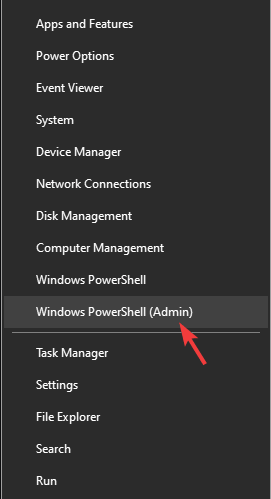
  1. Press Windows Key + X and select PowerShell (Admin) or Command Prompt (Admin).
    powershell internet connected but browser not working windows 10
  2. Now run the following commands:
    • netsh winsock reset
    • netsh int ip reset
    • ipconfig / release
    • ipconfig / renew
    • ipconfig / flushdns

After running these commands, check if the problem with your browser is resolved.

If your browser isn’t working but the Internet is connected, the issue is probably related to your network configuration or your antivirus. However, you should be able to fix that using our solutions.

Showbox not working: Can I fix it? [Streaming Guide]

Showbox is a popular TV show and movie streaming app available on the Android platform. Due to the nature of the content offered by the app, it wasn’t available on the Play Store.

As a result, one had to install it from its website as an APK.

That said, the app seems to have stopped working for many. If you had used the app excessively to catch up with your favorite TV shows or new movie releases, you might have received an update about the shutdown of the service.

While one can still download and install the app from a third-party app website, the service itself is not accessible.

Is Showbox Working Now?

Showbox not working

According to loyal Showbox users, the app has not been accessible since November 2019. Before Showbox’s twitter account was suspended, the company had tweeted acknowledging the problems faced by the users.

In a post on Twitter, Showbox wrote:

Sorry, we do see comments saying the app is not working. We think this is dependent on location, but we should have our servers up everywhere soon! Within the next days!! We apologize our stability is low recently we hope you stay with us.

In another tweet, the company wrote:

Our servers are still down, this set back hit harder than the dev team expected and we just want to let you know they are still working hard to get it fixed for you! Also thanks for the support recently we have been getting thousands of new supporters from our of nowhere.

Since the Twitter account of Showbox is suspended, there’s still no news of it and when the app can make a comeback.

Is Showbox safe to use?

Showbox logo

Showbox is an ad-supported platform but was completely safe to use. However, since the developers did not have an official website and Play Store wouldn’t host the app, the safety of the can be of concern.

Many users have reported their phone’s being overwhelmed by malware after installing the app.

If you still want to use the app, make sure to download it from trusted .apk websites like APKpure and APKmirror.


The Showbox not working issue is due to the app being taken down for copyright infringement. While there is no official announcement on when the app will be accessible again, we will make sure to update the article as we have other news.

[wl_navigator]

How to Open & Use Word in Your Browser [Online & Offline]

To create Word documents, you don’t have to use Microsoft Office. You can easily create Word documents in your web browser.

Microsoft offers a web version of most Office apps for enhanced accessibility, and accessing these is incredibly simple.

In today’s article, we will show you how to access Word in a browser.

How can I access Word documents offline?

You can’t access the web version of Office or Microsoft Word offline because it’s not developed to be accessed without an Internet connection. The files here are synced to OneDrive and are automatically updated.

Download Word files from OneDrive

Need to recover an unsaved document from an ASD backup? Follow this guide: How to open an ASD file in Word.

You can download a document from the Word Online Editor and use the Microsoft Word app installed on the computer to access and edit the documents. However, the online version is best, especially when editing and you need to accept changes.

Accessing files from the OneDrive folder

Also, with the right settings in place, your One Drive files can be accessed from the dedicated folder on the computer even when not connected to the Internet. Any changes you make will be automatically updated once an Internet connection is established.

Is Word in browser free?

Yes, the Microsoft Word in browser, or all the Office applications for that matter, are free. You can simply log in to the Office365 website, and use these.

Also, since these are all web applications, they would work just as well on any web browser or operating system. But we would recommend using Opera One for the best performance.

How do I get Word on my browser?

1. Use Word Online

  1. Go to the Word Online website.
  2. Log in with your Microsoft account.
    sign in word browser
  3. Select New blank document.
    new black document word browser
  4. Now you can create your document just like in regular Word.Word in browser

Bear in mind that there are certain differences between Word Online and the desktop version of Word, but basic users most likely won’t even notice them.

2. Use Word Online extension

Note icon NOTE
The steps here are to install the Office Extension in Chrome. But, the Office extension for Edge is also available, and you can easily download it from the Edge Add-ons store.
  1. Go to the Office extension page, and click on the Add to Chrome button.Add to Chrome for word in browser
  2. Click on Add extension to confirm.Add extension
  3. After the extension is installed, click on it, select Sign in, and complete the process.Sign in
  4. Once done, select Office from the Extensions menu.office
  5. Now, click on Word to open its online version.word in browser

That’s how you open Word in a browser using the extension. Though it does exactly the same thing, using the extension streamlines the whole process.

How do I turn Word into dark mode?

  1. Open the Word processor in browser, and click on the View menu.View
  2. Now, click on the Dark Mode button to enable it.Dark Mode
  3. The online editor also allows changing the background, and can use the Switch Background button for that.Switch background
  4. To revert back to normal mode, again click on the Dark Mode button.Disable

Using Word in a browser is incredibly simple. You just need to use the dedicated extension or go to the Word Online website.

Also, find out what to do if the online Word editor is not working or responding. In case you want to add a code block on Microsoft Word, read this guide for detailed steps.

Google Docs is also another word processor available online but here’s all the gist comparing Word and Google Docs.

Do share your experience and thoughts on using the online Word editor in the comments section below.

Windows 10 build 20H2 gets new Start menu and more features

Microsoft released Windows 10 20H2 Build 19042.421 to the Beta Channel.

Remember the new Start menu with theme-aware tiles that came with build 20161 in the Dev Channel? The feature (along with Alt + Tab transition between apps and sites in Edge, programmable Taskbar, and more) has now moved to the next Windows 10 beta testing phase.

New Windows 10 20H2 build 19042.421 features

1. New Windows 10 Start menu

The new Windows 10 20H2 build 19042.421 introduces new features like theme-aware tiles in the Start menu.  The redesigned interface creates a perfect home for Fluent Design icons for Microsoft Office applications and Edge.

2. Programmable Taskbar

The personalized Taskbar that came with build 20161 is now available to insiders in the Beta Channel.

3. Pinned sites in Edge

Interestingly, this build includes an update for Edge that makes it easier to access multiple tabs for your Taskbar-pinned sites.

At the time of writing this, the pinned site update is also available to Dev Channel insiders, courtesy of build 20175. It doesn’t come as a surprise since the three Windows code testing channels are no longer about what gets where first.

Instead, the distinction is in the quality and stability of the code right now. So you may expect Beta Channel testers to have a smoother experience than their Dev Channel counterparts with any of these Windows 10 changes.

4. Device management

There’s a change in the modern device management (MDM) policy affecting Local Users and Groups. As a system admin, you can now make granular modifications to a local group.

6. Multi-tab transition in Edge with Alt + Tab

In addition, build 19042.421 brings the ability to quickly transition between apps and multiple open tabs in Edge by pressing Alt + Tab keys.

5. Other updates

Other Windows 10 feature updates currently live in the Beta Channel involve notification toasts, Settings page, and 2-in-1 tablet experiences. You can read all about them in our build 20161 article.

As always, feel free to write your feedback on the latest Windows 10 updates in the comments section below.

[wl_navigator]

Samsung data migration error occurred during defragmentation

Samsung offers its proprietary clone and data migration software known as Samsung Magician for its SSD users.

However, when trying to clone the hard drive to the new Samsung SSD, some users have reported having encountered the data migration error that occurred during the defragmentation error.

The error can show different messages depending on the user’s case. Some of the common Samsung SSD error you can encounter are:

  • an error occurred during defragmentation Samsung data migration 301400
  • an error occurred during defragmentation Samsung data migration 303250 04a092
  • Samsung data migration cloning failed an error occurred during defragmentation 303250 04a092
  • an error occurred during defragmentation of Samsung’s migration. 308401[04b4b1]

In this article, we have listed a couple of troubleshooting steps to help you resolve the Samsung data migration error occurred during drive cloning.

How can I fix the Samsung data migration error occurred during defragmentation?

1. Change GBT to MBR in Disk Manager

data migration error occurred
  1. Close the Samsung Magician software completely from the system tray.
  2. Disconnect your computer from the Internet.
  3. Disable your antivirus temporarily.
  4. Also, disable the Windows Firewall (scroll down for the steps).
  5. Press Windows key + R.
  6. Type diskmgmt.msc and click OK.
  7. When the Disk Manager opens, you will be prompted to initialize the disk.
  8. Select MBR instead of GBT.
  9. Click Finish.
  10. Run the Samsung Magician software as admin.

Disable Windows Firewall

data migration error occurred
  1. Click on Start > Settings.
  2. Go to Update & Security.
  3. Select Windows Security.
  4. Click on Firewall and Network Protection
  5. Click on your active network.
  6. Toggle the switch to turn off the Windows Firewall.

If changing the partition table did not resolve the issue, follow the next set of steps.

2. Disable Page File

data migration error occurred
  1. Open File Explorer.
  2. Right-click on This PC and select Properties.
  3. In Control Panel, click on Advanced System Settings from the right panel.
  4. Open the Advanced tab.
  5. Click Settings under Performance.
    data migration error occurred
  6. Open the Advanced tab in the Performance Options window.
  7. Click the Change button under Virtual Memory section.
    data migration error occurred
  8. Uncheck ‘Automatically manage paging file size for all drivers’ box.
  9. Select No paging file.
  10. Click OK to save the changes.

Once disabled, run the program again and check for any improvements.

3. Use a specialized third-party tool

 data migration error 301400
  1. Download and install the Minitool Partition Wizard.
  2. Connect the Samsung SSD to your computer and make sure it is detected.
  3. Launch the Partition Wizard tool.
  4. Choose the hard drive that you want to clone.
  5. Click on Copy Disk on the left side under Convert Disk.
  6. Select your new empty Samsung drive as the Target Disk.
     data migration error 301400
  7. Click Next to continue the process.
  8. You can choose to copy with or without creating a partition.
     data migration error 301400
  9. Select Copy partition without resizing if you don’t want to create a partition.
  10. Click Next and then Finish.
  11. Click the Apply button (top left corner) to finish.

Once the drive is successfully cloned, you can shut down your computer and swap the hard drive with cloned Samsung SSD.

Make sure to change the boot priority in the BIOS and set it to your new drive.

⇒ Get Minitool Partition Wizard

4. Disable Windows Restore Points

data migration error occurred
  1. Press the Windows key; type restore point.
  2. Click on Create a restore point.
  3. In the System Properties window, select your C: drive.
  4. Click on the Configure button.
  5. Select Disable system protection.
  6. Click Apply and OK to save the changes.

Disable hibernation files

an error occurred during defragmentation samsung data migration 303250 04a092
  1. Press Windows key + R to open Run.
  2. Type control and click OK.
  3. In Control Panel, go to System and Security > Power Options.
  4. Select Choose what closing the lid does.
  5. Click Change settings that are currently unavailable.
  6. Uncheck Hibernation.
  7. Click Apply > OK to save the changes.

Once the system protection is disabled, restart the PC and rerun the cloning tool to see if the error is resolved.

That’s it. If you have followed all the steps in the article one by one, you should be able to resolve the Samsung SSD error and clone your drive successfully.

[Solved] Error code 21001 online banking

While trying to log into your online banking account, you may run into an error that reads: We are unable to access your online banking account. Please contact us at [Banks Phone Number] (error code: 21001).

This error code isn’t restricted to accessing online banking on your computer. You may see it on your cellphone, gaming console, or any other device that can connect to the Internet.

The cause (and solution) is virtually the same on all devices. Learn about it in the guide.

The 21001 error code is generally caused by port issues or misconfigured Internet settings – particularly DNS settings. The remedy to this error may be as simple as changing your browser or as complicated as reconfiguring your Internet connectivity settings.

We’ll walk you through everything in this guide.

How can I solve an online banking 21001 error code?

1. Ensure that you have a stable Internet connection

  1. Open the Run dialog (Win + R).
  2. Type in CMD.
  3. Press Ctrl+Shift+Enter on your keyboard.
  4. Click on the Yes button on the UAC prompt.
  5. Type ping www.google.com and press Enter.
    cmd-ping-error-code-21001-internet-assessment

It may seem pretty obvious but we often overlook the simplest solutions when we troubleshoot. It’s quite possible that you’re either not connected to the Internet or your connection is slow.

If you’re getting ping responses above 150 ms, then your Internet connection is painfully slow.

If it gives you a message that reads: Ping request could not find host www.google.com. Please check the name and try again, then you’re not connected to the Internet at all and this is the root cause of the online banking 21001 error code.

If the request times out, then you have a very choppy connection. Either way, make sure to check your router, cables, and any other devices that you use to connect to the Internet. If the problem persists, you’ll need to get in touch with your ISP.

2. Use a different browser

Browsers such as Internet Explorer have stringent security rules. Despite Internet Explorer being slow, it’s one of the safest browsers to use on the Internet.

However, this safety can come at a cost.

We know antivirus can detect false negatives. So can Internet Explorer.

Simply put, your browser may be Interfering with your access to your online banking.  If you decided not to use Opera One to ensure your online safety, try downloading another browser.

For this reason, the safest bet is for you to change your browser to Opera One.

This super-speedy browser ensures that you will never have your data stolen or used by other third parties, as it contains an incredible array of security features. Plus, it comes with a native AI.

However, if you’re in a situation where you’re stuck with Internet Explorer or the browser you’re using, you can try changing its security settings.

⇒ Get Opera One

Change Internet Explorers security settings

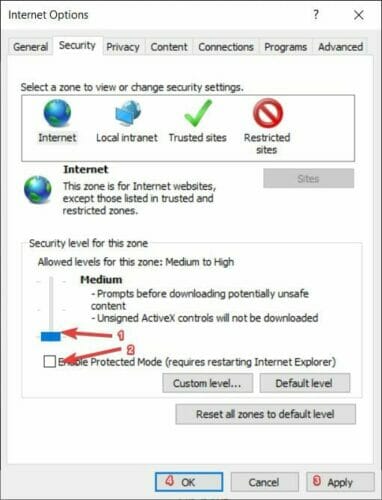
  1. Click on the cog icon near the top left corner.
    change-internet-explorer-settings
  2. Select Internet options from the context menu.
  3. Click on the Security tab.
  4. In the Security level for this zone section set the slider to Medium.
  5. Untick the box labeled Enable Protected Mode (if it’s ticked).
  6. Click on Apply and then OK.
    internet-explorer-security-settings-error-21001-online-banking
  7. Restart Internet Explorer and check if you can access your Internet banking account.

3. Flush your DNS cache

  1. Run Command Prompt with Administrator Privileges (see solution 1: steps 1 – 3).
  2. Type ipconfig /flushdns into the console window and hit enter

After clearing the DNS cache, you’ll see a message that reads: Successfully flushed the DNS Resolver Cache.

If your bank recently changed the IP address or domain that connects you to their Online Banking, then your computer may be working with some outdated information. Flushing the DNS cache should resolve the error code 21001 online banking problem.

If it doesn’t, we still have a few more suggestions left in this guide.

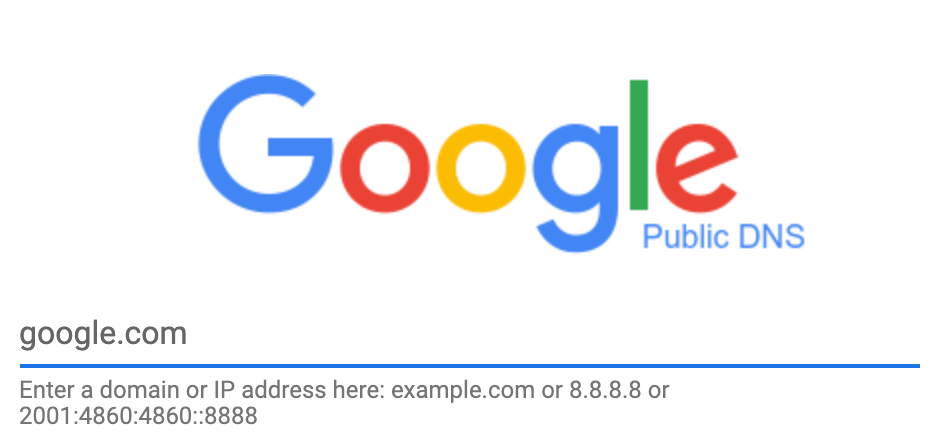
4. Use Google Public DNS IP addresses

Open Properties

  1. Open the Windows Run Dialog.
  2. Type Control Panel into the open field and hit enter.
  3. Click on Network and Sharing Center.
  4. On the left side panel, click on Change Adapter Settings.
  5. Right-click on the connection you use to connect to the Internet.
  6. Select Properties from the context menu.

Edit Properties

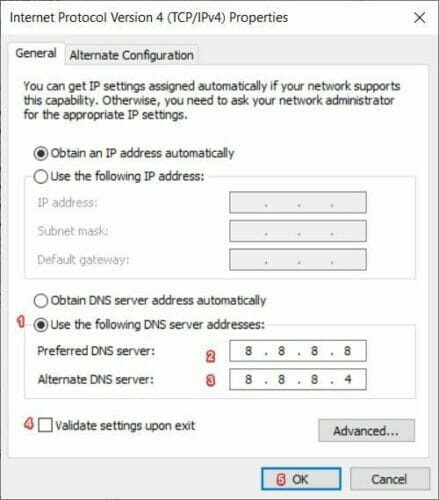
  1. Find and click on Internet Protocol Version 4 (TCP/IPv4). Do not untick it.
  2. Click on Properties.
  3. Find the radio button that reads: Obtain DNS server address automatically and click on the radio button beneath it (Use the following DNS server address).
  4. Type 8.8.8.8 into the Preferred DNS server field.
  5. Type 8.8.8.4 into the Alternate DNS server field.
  6. Untick Validate settings upon exit.
  7. Click on the OK button to save changes and close the Properties window.
    ipv4-google-public-dns-error-code-21001-fix
  8. Click on Close. 
  9. Try to log into your Internet banking.

With the above steps, we change the domain name servers that your ISP assigns to ones that Google assigns (Google Public DNS). This solution should solve the online banking 21001 error code.

However, if this solution fails, we suggest you change the settings back to the default.

Furthermore, if none of these solutions worked for you, this may indicate that there’s a problem with your online banking provider.

You can either wait for the situation to resolve itself or call your bank to find further assistance. If you bank with TD, check our dedicated guide for TD EasyWeb not working to fix service-specific issues.

Either way, we hope that you’ve found this article to be helpful. Please leave a comment down below. We’d love to hear from you. As always, thank you for reading.

Alexa Won’t Connect to WiFi: 3 Ways to Force it

Alexa can be useful, but many reported that Alexa won’t connect to WiFi. This can be a big problem since Alexa is almost completely useless without Internet access.

This isn’t the only issue you can encounter, and many reported that the Alexa app is stuck in setup, but we covered this in a different guide.

In today’s article, we’re focusing on the Wi-Fi issue, so without further ado, let’s get started.

Why is my Alexa not connecting to the Wi-Fi?

  • You’re having issues with your network connection.
  • Interference on your Wi-Fi network can cause this issue to appear.
  • Temporary glitches on Alexa can prevent you from using the network.

What can I do if Alexa won’t connect to WiFi?

1. Check your Internet connection

  1. Try opening a web browser on your smartphone or PC to see if the internet connection is working.
  2. You can also use an Internet speed testing tool to test if the connection is stable.
  3. If that’s okay, the problem could be with your hardware.

Recheck the Wi-Fi password

  1. Ensure the password you use to connect to your Wi-Fi network is correct.
  2. Find another device, and try connecting it to the same Wi-Fi network using the password.
  3. If the issue isn’t related to your router, move to the next section.

Check for interference

  1. Ensure that your router isn’t too far from Alexa.
  2. Make sure that other wireless devices aren’t interfering with it.
  3. Try to place Alexa in a spot that doesn’t have many physical obstacles.
  4. Consider investing in Wi-Fi extender.

If your Alexa still struggles to connect even after adjusting the Wi-Fi setup, you may also run into issues with connected smart devices. For example, check out this guide on how to fix Sengled not working with Alexa for more tips on resolving smart home connection problems.

2. Perform a device restart

Perform a network restart

  1. Make sure the modem or Wi-Fi router is turned on.
  2. Unplug both the router & modem from the power socket.
  3. Unplug the Ethernet cable, if any.
  4. Leave the devices idle for a few minutes.
  5. Plug the router and the modem back in.
  6. Wait till all the lights stop blinking.
  7. Test to see if your Alexa device can connect to Wi-Fi.

Restart the Alexa device

  1. Power off your Alexa-enabled device like Echo.
  2. Turn it back on.
  3. Try connecting to Wi-Fi again to see if it is working.
  4. If not, manually power off the Alexa device and leave it idle for a few minutes.
  5. Power it on and try again to see if the issue is resolved.

After doing that, the issue should be gone.

3. Reset your Alexa device

  1. Make sure the Alexa device is on.
  2. Launch the Alexa app on your iPhone or Android.
  3. Tap on Devices.
  4. Tap on Echo & Alexa.
  5. Choose the device that you want to reset.
    Alexa won't connect Wi-Fi
  6. Scroll down and tap on Factory Reset.
  7. Confirm the action by tapping on Reset.
  8. The reset process may take a few minutes.

Once complete, set up your Alexa device like you did first. If Alexa won’t connect to WiFi, resetting the network device or Alexa is usually the best solution.

This isn’t the only issue, and many reported that Alexa won’t play music, can’t download the Alexa app for Windows 11 or randomly stops but we covered these problems in separate guides.

What solution worked for you? Let us know in the comments below.

How to install a browser on H.265 media player for TV

H.265 is the latest video compassion standard, and there are media players for TV that fully support it. In today’s article, we’re going to show you how to install web browsers on H.256 media players for TV.

How do I install a web browser on an H.265 media player for TV?

1. Use your PC

  1. Find the application that you want to install on your TV on Google Play Store.
  2. Now click the Install button.
    install google play store h.265 media player browser for tv
  3. Select your TV from the list of devices and click on Install.
    select device h.265 media player browser for tv

This is the simplest method, and it should work for most Android H.256 media players.


2. Sideload the app

  1. Download the APK file that you wish to install.
  2. Copy the file to a flash drive.
  3. Install File Explorer File Manager on your media player.
  4. Go to Settings. Locate Unknown sources option and make sure that the device is allowed to install files from unknown sources.
  5. Insert the flash drive to your media player.
  6. Open File Explorer File Manager.
  7. Locate the APK file and select it to install it.
  8. Follow the instructions on the screen.

Now that you know how to install a web browser, the question remains which browser to install. If you’re looking for a reliable and secure browser, Opera One might be the right choice for you.

Opera One comes with a built-in ad blocker that will make your web pages load faster than before. The browser will bring personalized news right to your home tab depending on the content you read.

Opera One has a powerful download manager that allows you to easily download files in the background or sort, delete or share your downloads. It also features a native AI.

The browser also has the ability to zoom on every page, and there’s even a built-in crypto wallet available. Opera One is available on all desktop and mobile platforms, so be sure to try it out.

Opera One

Opera One will give you complete control over your online privacy and a fantastic online experience.
Free Download Visit website

Installing web browsers on your H.265 media player for TV is simple and you should be able to do it easily with the instructions from this guide.

Robinhood app not working / loading [Full Fix]

Robinhood is a trading app for Android and iOS mobiles that provides users with commission-free trading tools for analyzing markets and investing in shares.

However, the Robinhood app doesn’t always work as expected for some users. If you can’t open and utilize the Robinhood app, check out the resolutions below.

What can I do if the Robinhood app is not working or loading?

Update the app

Android

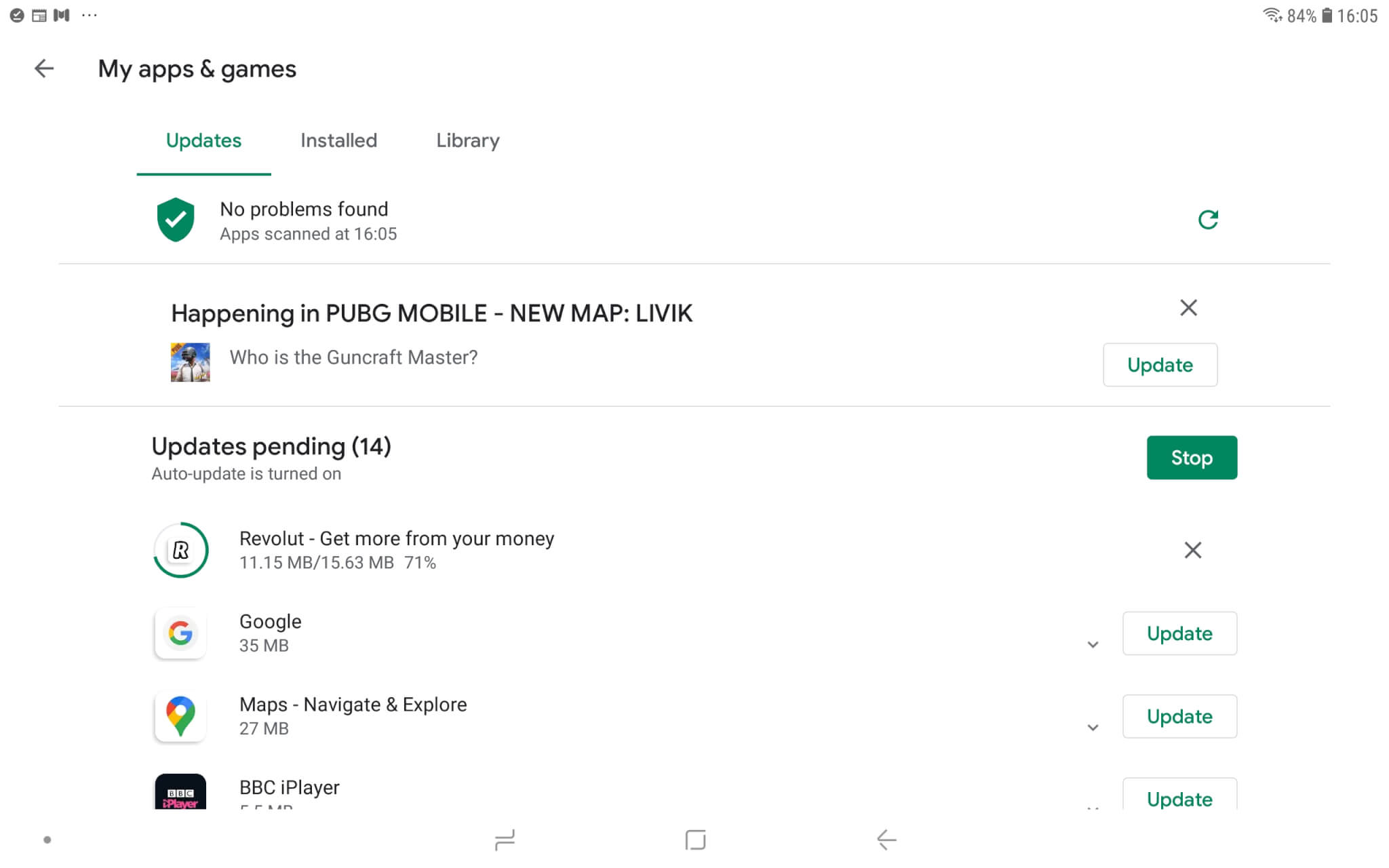
  1. Open Google Play on your mobile device.
  2. Then tap the menu button in Google Play.
  3. Select the My apps and games option.
    Google Play's Updates tab robinhood app not working
  4. Tap the Update all button. Alternatively, you can tap the Update option more specifically for Robinhood.

Apple iOS

  1. To update Robinhood on Apple mobiles, open the App Store.
  2. Next, tap your profile icon at the top right of the app.
  3. Tap the Update option for the Robinhood app.

Clear the app’s cache data

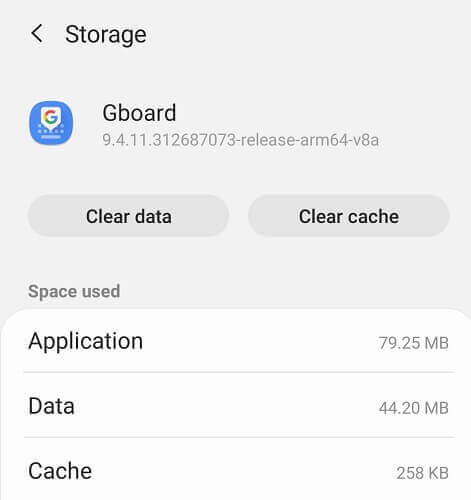
  1. Tap Settings.
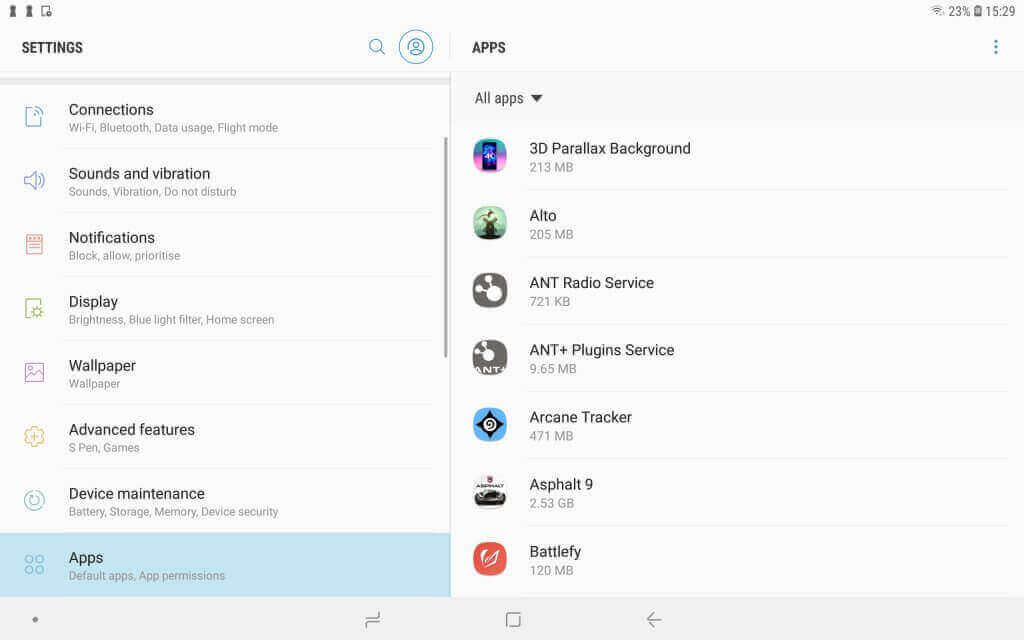
  2. Next, tap Apps in Settings.
  3. Select the listed Robinhood app.
  4. Then press the Storage button to open data options.
  5. Tap the Clear cache button for Robinhood.
    Clear cache button robinhood app not working
  6. Restart your mobile device.

My app seems frozen (reinstall Robinhood)

Android

  1. Tap Settings.
  2. Select Apps in Settings to open your app list.
    Apps in Settings robinhood app not working
  3. Next, select your Robinhood app; and tap the Uninstall option for it.
  4. To reinstall Robinhood, open its Google Play page. Then you can select the Install option there.

Apple iOS

  1. On iOS 13 iPhones, you’ll need to tap and hold the Robinhood app until it starts to shake (or jiggle).
  2. Select the Edit Home Screen option.
  3. Next, select Robinhood’s X option to erase that app.
  4. Press the Home button, and open the Apple App Store.
  5. Open Robinhood’s app page, and select the Get option.

Robinhood website not working

The Robinhood web app has a history of outages. In March 2020, there was a system-wide Robinhood outage that impacted both the web and mobile apps.

So, you shouldn’t be entirely surprised if the Robinhood website isn’t working because of a server issue of some kind.

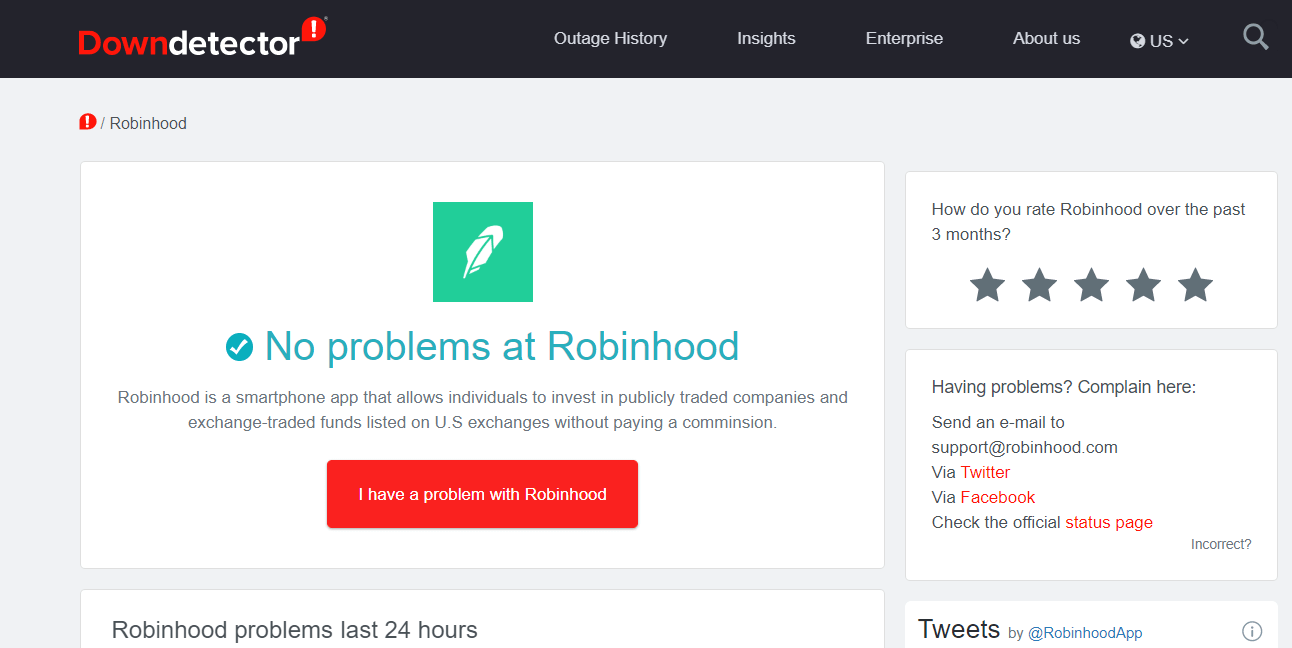
To check if Robinhood is down, open the Downdetector page for it. That tells you if there are any confirmed issues (outages) for Robinhood for your selected country. If there’s an outage, you’ll just have to wait for that to get fixed.

Downdetector website robinhood app not working

In addition to that, try opening the Robinhood website in an alternative browser. Open Robinhood in Google Chrome, Firefox, or Microsoft Edge if you’re utilizing an alternative browser. Those are the three supported browsers for Robinhood.

So, the best thing to do when Robinhood isn’t working is to update the app, clear its cached data, and reinstall it.

If that’s not enough, however, you could also try utilizing Robinhood on your desktop or laptop with an Android emulator.

Feel free to share your experience with us by using the comment section below.


[wl_navigator]

5 best email clients that support multiple accounts

If you ever had to go through thousands of emails in order to find the information you were looking for, you understand the importance of having a stable and capable email client installed.

Whether it is for personal use, or for commercial use, owning the right email client can make a big difference. In both cases, it can save you precious time, make you more productive, and help you with all aspects of email organization and answering.

If you use multiple email accounts, it can get even harder to deal with a wide range of tasks.

In this article, we will explore some of the best email client software options for Windows that offer great features like scheduling email sending, or custom signature options.

Speaking of email signatures, do check out this list of the best email signature software to help you stand out in the crowd.

How do I manage multiple email accounts? [Top 5 email clients]

Mailbird

Mailbird – the winner of Most popular mail alternatives of the year,  is an incredibly useful and powerful email client that works brilliantly on Windows PCs.

It allows you to use multiple email accounts and offers a wide range of other useful features.

Covered by a user-friendly interface, this app has a wide range of features that cover all aspects of managing your email for yourself or your company. You can easily customize almost all aspects of the look of your interface.

Mailbird integrates perfectly with other applications used by other departments of your company, or other email clients that you used personally before.

This allows you to transfer emails, contacts, and other important data, easily Mailbird.

You can also customize the way you use this software by setting up custom keyboard keys. Using this technique will streamline the way you manage, respond to, and sort your email database.

One of the best features found in Mailbird is the fact that you can use the quick preview features found inside, to have access to the information without opening up a new tab or explorer window.

Everything is done in a pop-up-style window that encompasses all the options available. This feature also gives you the power to edit/delete/mark as spam, a large number of emails with one click of the mouse.

Because knowing which email is coming from whom, and how important the information stored inside is, Mailbird gives you the possibility of classifying your email database by attaching name and color tags with ease.

This software comes in two versions:

  • Mailbird Lite – this version of the app allows you to control multiple accounts from one dashboard, has a contact manager, app integrations with the most known email apps, and is licenced for personal use only.
  • Mailbird Pro – this version contains all the features found in the Lite version, allows you to use it for commercial purposes, an unlimited number of email accounts, the ability to snooze emails, priority support, and also adds the Mailbird essential options (Super focus mode with business features). You have the option to choose from a yearly paid subscription, or a lifetime deal.
Mailbird

Mailbird

There's no better email client thatt can bring all of your email addresses in one place that is better than Mailbird.
Free trial Visit website

eM Client

eM Client is a great software option that can help you deal with your email sorting, answering, and general management of all aspects of your company’s email address, or for personal use.

The free version can be used with 2 email accounts, and the paid version allows you an unlimited number of accounts.

Because this app was designed to work perfectly with other email clients like Gmail, Outlook, and Exchange. This allows you to easily transfer data from the previously used email clients, transfer calendars, and contacts.

eM Client can automatically translate emails, set up a schedule for sending specific emails, incredibly powerful encryption to assure your safety online, and other great additions.

It is worth mentioning that all these options can be easily deactivated if you choose to do so.

eM Client Professional edition contains all the features found in the free version and also allows you access to VIP support, and commercial licensing.

eM Client

eM Client

If you need an email client taht can support multiple email accounts, then few will help you in the way eM Client can.
Free trial Visit website

Thunderbird

Thunderbird is a great email client software that was created by the people at Mozilla.

This software is built to be easy to use and offers you quick access to all the required tools, and it allows you to use an unlimited number of email accounts on it.

You can also modify the way Thunderbird looks and works, by choosing one or more of the plug-ins available in the Mozzila online store, and also can be customized from the built-in settings.

After everything is set up, you can use Thunderbird to backup your emails automatically to a local storage device – for increased security, reminds you of upcoming meetings, is compatible with a wide range of calendar formats, and also offers you a great RSS reader.

By using this feature, you can make the process of sorting through important emails easier, by checking out the automated headline.

After you chose which emails you want to open, you can simply preview them by opening them in different tabs. This gives you the power to quickly switch from one tab to the other and modify every aspect of your email.

After you’re done working in Thunderbird, when you close it, it will automatically save the opened tabs. This gives you peace of mind, totally eliminating the possibility of losing important work because your internet was down, or because of your PC crashing.

⇒ Get Mozilla Thunderbird

The Bat!

This email software is another great option that gives you the power to access an unlimited number of email accounts via IMAP, POP and MAPI protocols.

It was designed specifically to work with multiple emails, and has great built-in features that enable you to achieve that easily.

One of the best features of The Bat! is the level of protection it has to offer. This software uses multiple encryption streams and gives you the option to back up all your data on your personal PC or external storage, for safekeeping.

Besides allowing you to not worry about losing your files, using this option also allows you to not worry about your information getting hacked and used by third parties.

Here are some of the best features found in this software:

  • Full support for PGP, GnuPG and S/MIME
  • A great filtering system – these filters can be easily customized to automatically detect spam mails and unwanted commercial emails, and clasify them accordingly
  • Internal HTML viewer – allows you to view the entire page in a HTML format
  • Wide range of built-in templates – give you guidance regarding how to write in the proper manner, and can be used to create new templates for streamlining repetitive email responses
  • RSS feed subscriptions
  • Can customize every aspect of the main window – account and folder tree, the toolbar, etc.

The Home Edition of The Bat! can be used for non-commercial purposes, and you also have the option of choosing the Professional Edition if you want to use this software in a commercial setting.

⇒ Get The Bat!

Inky

Inky is another powerful Windows 10 email app that was designed with simplicity in mind. Because of that, the experience of using Inky is very similar to the one you get in Mailbird.

This software has a wide range of useful features, but the most important one is the fact that Inky is able to extract the data from a number of other email applications that you previously used.

All you need to do is connect those accounts to Inky, and this software will do the rest. You can connect accounts and extract data from Gmail, Outlook, Google Apps, and also Yahoo.

Inky allows you to connect as many accounts as you like to. The tool also lets you easily manage all of them from a unified inbox that collects all the data from the connected email accounts and displays it in an easy to understand and use way.

You can also choose to customize the appearance of the app in any way you see fit, by using some or all the customization options available.

After the initial setup is done, and you connected your favorite email clients to Inky, this software can automatically color code the emails that come into your inbox.

It does that by using the stored information and preferences from the emails already inside your inbox. Teaching Inky how to handle that information comes down to the setup that you chose.

This feature can help out immensely when dealing with thousands of emails, and give you a proper overview of customer engagement, scheduled appointments, etc.

⇒ Get Inky

In this article, we explored some of the best email client software options on the market that offer you an easier way to deal with managing a wide range of accounts from one dashboard.

The features found in these software options will surely cover all your email managing needs, no matter if you try the free versions for personal use or the professional versions for commercial use.

We would love to know what your opinion is about the software options we presented in this Top 5.

Feel free to let us know what you think, and make any recommendations, by using the comments section below.

Fix: Alexa App Stuck in Setup [Full Guide]

Have you got a new Alex device, but the Alexa app is stuck in the setup? It can be frustrating, but you are not alone. Several users have reported having trouble setting up the Alexa app on their Alexa device in the Amazon Forum.

According to user reports, the Alexa setup process issue can occur due to compatibility issues, incorrect configuration, VPNs, ad guards, and an outdated OS.

This article explores some troubleshooting tips and provides a detailed step-by-step guide to help you resolve the Alexa app stuck-in setup issue.

How can I fix the Amazon Alexa app getting stuck at preparing your screen error?

1. Perform a restart and check for device compatibility

Restart your device

Alexa app stuck in setup

At times, a quick restart can resolve temporary issues with the device. Press and hold the power button on your phone and select Restart. Make sure to turn off and turn on your Alexa device as well.

If restarting the device did not work, check for device compatibility. Alexa device requires you to have installed the latest version of Android OS and iOS to work.

Check device compatibility

Alexa app stuck setup
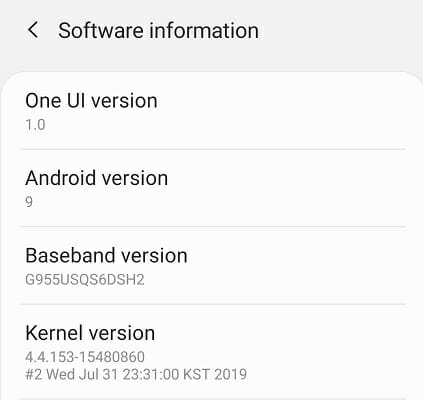
  1. On your Android phone, tap on Settings.
  2. Go to About Phone.
  3. Tap on Software Information.
  4. Check the Android version installed.

The Alexa app is compatible with Android 4.4 or higher and iOS 8.0 or higher. If your device meets the requirements, proceed with the following steps below.

Turn on Location

Alexa app stuck setup
  1. On your Android phone, tap on Settings.
  2. Tap on Location.
  3. Toggle the switch to turn it on.
  4. Tap on Mode.
  5. Select the High accuracy or Battery saving mode.
  6. Close Settings and launch the Alexa app.

Proceed with the setup process and check for any improvements.

2. Check date and time

Android

Alexa app stuck setup
  1. Tap on Settings.
  2. Go to General Management.
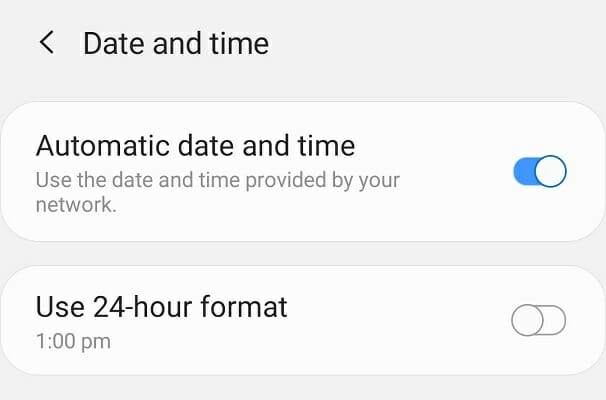
  3. Tap on Date and Time.
  4. Make sure the Automatic date and time feature is enabled.

iOS

Alexa app stuck setup
  1. Tap on Settings.
  2. Scroll down and tap on Date and Time.
  3. Next, tap on Automatic Date and Time to turn it on.

Once the correct date and time are set, close and relaunch the Alexa app. Initiate the setup to see if the issue is resolved.

3. Disable Smart Network switch

Alexa app gets stuck at preparing your screen
  1. On your Samsung device, tap on Settings.
  2. Open Connections.
  3. Tap on WiFi.
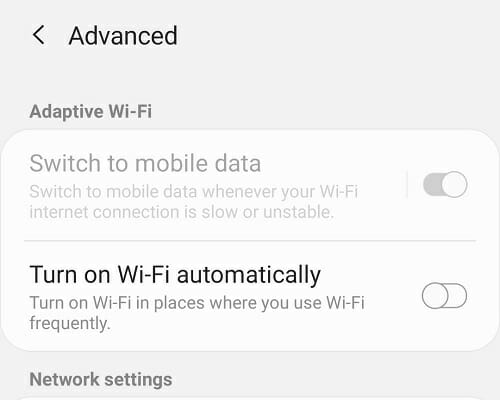
  4. Tap on Advanced option from the top right corner.
  5. Disable Adaptive Wi-Fi by toggling the switch for Switch to Mobile data.
  6. Relaunch the Alexa app and check for any improvements.

The Smart Network switch feature helps Android users switch between Wi-Fi and cellular networks depending on signal strength. However, it can also cause issues during the Alexa app setup. You can re-enable the option once the setup process is complete.

Disable ad guards and VPNs

Alexa app gets stuck at preparing your screen

If you are using a VPN or ad guard, it can create conflict with the Alexa app setup. Try disabling your device’s VPNs and ad guard app before launching the Alexa app to see if that resolves the error.

4. Check for app and system update

App update

Alexa app gets stuck at preparing your screen
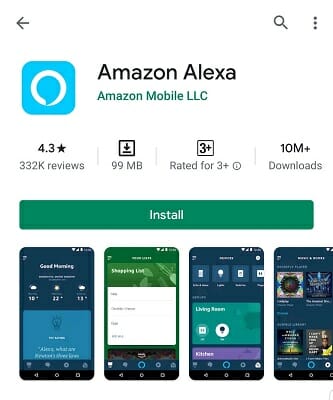
  1. Open Google PlayStore.
  2. Search for the Alexa app and open it.
  3. Tap on Update to install the pending update.
  4. Once installed, open the app and check for any improvements.

Update system

Alexa app gets stuck at preparing your screen
  1. Tap on Settings on your Android phone.
  2. Go to Software update.
  3. Tap on Download and Install.
  4. Android will scan for pending updates and recommend the available update.
  5. Tap on Update to download and install the updates.

5. Reinstall Alexa app

Alexa app gets stuck at preparing your screen
  1. Tap on Settings.
  2. Open Apps.
  3. Search for the Alexa app and select it.
  4. Tap on Uninstall.
  5. Tap OK to uninstall the app.
  6. Once uninstalled, open PlayStore.
  7. Search for the Alexa app.
  8. Tap on Install.

Once installed, open the app and try to set up your Alexa device using the Alexa app.

6. Set up Alexa using the web app

Alexa app stuck in setup
  1. Open the Alexa.
  2. Log in using your Amazon username and password.
  3. Click on Setting.
  4. Select Setup a Device.
  5. Follow on-screen instructions to complete the setup process.

If you complete all the steps successfully, your Alexa setup should be complete without issues.

You can also install the Amazon Alexa app for PC to handle setup and basic management from Windows when the mobile client keeps getting stuck during the process.

If you experience the Alexa app being stuck on a setup problem, check your device for compatibility issues and make sure the device and the app are up to date. Next, look for configuration errors and third-party app conflicts.

And if you’re looking for confirmed methods to fix Alexa which keeps stopping, check for updates, switch to a faster network band, or choose other tips presented in our dedicated guide.

Feel free to let us know in the comments which method helped you resolve the issue.

iPhone Photos Not Showing up on PC [Windows 10/11 & Mac]

If you are running out of storage on your iPhone, you can move it to your computer. Moving photos to your Mac or Windows 10 PC is as easy as connecting and moving the photos. However, at times iPhone photos may stop showing up on PC.

Your PC or Mac may stop detecting the photo due to several reasons. It can happen due to authorization issues as well as bad connections.

If you are also troubled by this error, here are a couple of troubleshooting steps to help you resolve the iPhone photo folder not showing on the PC problem for good.

How can I fix the iPhone photos not showing up on Windows and Mac?

1. Perform these common troubleshooting steps

  1. Restart your Windows PC/Mac. Also, restart your iPhone. A quick restart can fix temporary issues with the device.
  2. When connecting, make sure the iPhone is not locked. Unlock your device and try connecting again.
  3. If the issue persists, try connecting to a different USB port on your PC.

Enable Windows AutoPlay

iPhone photos not showing
  1. Press Windows key + I to open Settings.
  2. Click on Devices.
  3. Click on AutoPlay.
  4. Under AutoPlay, toggle the switch for ‘Use AutoPlay for all media devices’ to turn it on.
  5. Close the Settings window.
  6. Reconnect your iPhone and check for any improvements.

If it is already enabled, toggle the switch to turn it off. Then, toggle the switch again to turn it on. Once done, reconnect the device to see if the iPhone photos are showing up on your PC.

You can also set AutoPlay defaults for a removable drive, memory card, and your iPhone under Choose AutoPlay defaults.

2. Authorize your computer in iTunes

Mac/Windows iPhone photo not showing
  1. Launch iTunes.
  2. Go to Menu.
  3. Click on Account.
  4. Select Authorization.
  5. Select Authorize this computer.
  6. Enter a username and password.
  7. Open File Explorer.
  8. Next, open the DCIM folder and check if the photos are showing up.
  9. If not, disconnect the device and reconnect it to see if that helps you resolve the issue.

iTunes’s authorization feature can prevent your PC from reading photos from the iPhone. Try authorizing your computer to see the photos on your PC.

3. Check your iCloud settings

Mac/Windows iPhone photo not showing
  1. On your iPhone, tap on Settings.
  2. Go to Photos & Camera.
  3. Tap on Optimize iPhone Storage.
  4. Check if Optimize iPhone Storage is enabled.

When the Optimize iPhone Storage option is enabled, the iPhone will automatically upload your full-resolution photos to iCloud to save space on your iPhone storage.

That said, simply turning off Optimize iPhone Storage doesn’t bring back the missing photos. Since the photos are uploaded to your iCloud account, you need to re-download them using iTunes to your PC.

iPhone photos not showing
  1. Go to iCloud.com.
  2. Log in with your iCloud username and password.
  3. Click on Photos.
  4. You should see all the photos from your last backup.
  5. Select all the photos that you want and click on Download.
  6. If you are using the Firefox browser, make sure to use the ‘Save setting for all of this kind’ option to avoid getting a download notification for each photo.

4. Use Xilisoft iPhone Photo Transfer

iPhone photos not showing
  1. Download and install Xilisoft iPhone Photo Transfer.
  2. Launch the Xilisoft iPhone Photo Transfer app.
  3. Connect your iPhone to your PC using the USB cable.
  4. Wait till your phone is detected.
  5. From the left pane, expand your iPhone.
  6. Click on Photos.
  7. You should see all the photos from your iPhone in the file explorer of the photo transfer app.

Xilisoft iPhone Photo Transfer is a photo transfer tool for iOS devices. Using the tool, you can copy and move your photos from your PC to iPhone and vice versa.

It also comes with some additional features that allow photo sharing, file management, and support for multiple devices.

If you want to save all your photos in your iPhone, disable the Optimize iPhone Storage feature in the settings.

The iPhone not showing on PC issue usually occur due to authorization issues on iTunes. However, at times it can also happen due to incorrect iCloud configuration. Follow the steps in the article one by one to resolve the issue.

[wl_navigator]

Fix VPN error 720 using 7 safe solutions

Using a virtual private network is a great way to gain remote access to another machine through the Internet, become parts of its LAN, and use shared resources.

But you can also use a reliable VPN tool to protect your privacy and security online. Unfortunately, it’s impossible to do this when getting a VPN error code.

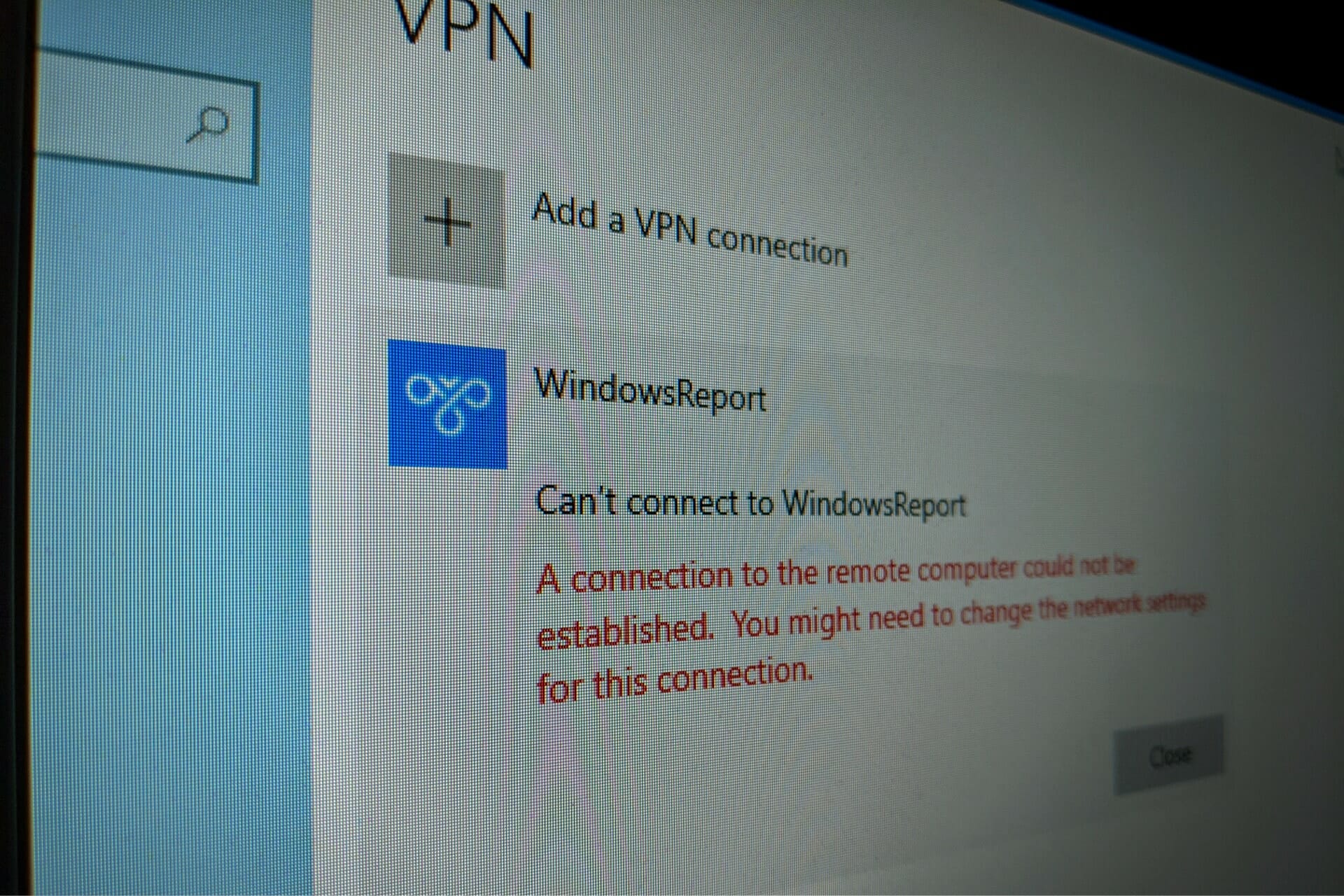
If you received the VPN error 720 on Windows 10, it says A connection to the remote computer could not be established. You might need to change the network settings for this connection.

Try the following solutions to get rid of the error code and establish the VPN connection without any issues.

How do I fix VPN error 720 on Windows 10?

Check if your username and password are correct

edit VPN connection details in Windows 10

  • Right-click the Start button and go to Network Connections.
  • Select VPN.
  • Pick your VPN connection and click Advanced Options.
  • Click Edit.
  • Also check the Server address.
  • Click Save when you’re done.

Find out how to correctly use the Windows 10 VPN provider.

Check the Windows 10 firewall for opened ports

check the Windows 10 firewall

  • Press the Start button, type firewall, select Firewall & network protection.
  • Click Advanced settings and Yes if prompted by UAC (User Account Control).
  • Go to Outbound Rules* and check the Remote Port status (depending on your preferred VPN protocol):
    • PPTP – port 1723 over TCP and port 47 over GRE**.
    • L2TP/IPsec – port 1701 over UDP (L2TP***) and ports 500 and 4500 over UDP (IPsec).
    • SSTP – port 443 over TCP.
    • IKEv2 – ports 500 and 4500 over UDP.

*The Outbound Rules must be configured on the client PC (the one that’s trying to connect to the VPN server). If you’re trying to remotely access another PC using a VPN, you should also check the Inbound Rules > Local Port status on the server PC (the one you’re trying to connect to).

**The default rules are called Routing and Remote Access (PPTP-Out) and Routing and Remote Access (GRE-Out), respectively.

***The default rule is called Routing and Remote Access (L2TP-Out).

If the ports associated with your preferred VPN protocol are closed, then you need to open the firewall ports associated wit your VPN protocol.

Reinstall the WAN Miniport network adapters

uninstall WAN Miniport network adapters

  • Right-click the Windows 10 Start button and go to Device Manager.
  • Expand the Network adapters menu.
  • Right-click any entry that contains WAN Miniport.
  • Press Uninstall device.
  • Click Uninstall to confirm.
  • Do this for all WAN Miniport entries.

The WAN Miniport network adapters will be automatically reinstalled by the operating system, as you can notice by right-clicking an entry in Device Manager and selecting Scan for hardware changes. Hopefully, this should fix VPN error 720 on Windows 10.

Update your device drivers

update drives from Device Manager in Windows 10

You can manually update your device drivers in Windows 10, particularly the network adapters, if you’re looking for a free solution to do this. However, if you’re in a hurry, it’s much easier to use driver update tools, which detect your outdated drives and upgrade them to the newer versions automatically.

Reset Winsock and flush DNS

flush DNS servers in Windows 10

  • Launch Command Prompt as admin.
  • Paste the lines (press Enter between each line)
    • ipconfig /flushdns
      ipconfig /registerdns
      ipconfig /release
      ipconfig /renew
      NETSH winsock reset catalog
      NETSH int ipv4 reset reset.log
      NETSH int ipv6 reset reset.log
      exit
  • Restart your computer.

This is a great method for quickly repairing networking issues that might interfere with your VPN connection. It might be enough to resolve error 720 on Windows 10 PC.

Find out more about fixing DNS issues in Windows 10.

Set your router’s IP address

copy default gateway in Command Prompt

  • Use the PC configured to accept incoming VPN connections.
  • Press Win + R, type cmd, press Enter.
  • Type ipconfig and Enter.
  • Select the IP address next to Default Gateway.
  • Press Enter to copy it.
  • Right-click the Start button and go to Network Connections.
  • Click Change adapter options.
  • Right-click Incoming Connections and go to Properties.
  • Switch to the Networking tab.
  • Double-click Internet Protocol Version 4 (TCP/IPv4).
  • Select Use the following IP address and paste the gateway.

This solution forces the VPN server to use your router’s IP address, which should help fix VPN error 720 on Windows 10.

Use a premium VPN client

Private Internet Access helps you unblock Netflix

  • Sign up for a PIA subscription plan.
  • Download and install PIA.
  • Launch the app and click its icon in the systray.
  • Press the big power button to connect to the nearest VPN server.

If you buy a trustworthy VPN application like Private Internet Access, you don’t have to worry about VPN error codes on Windows PC anymore since the client auto-resolves those issues.

We used PIA in our example because it’s the best VPN for Windows 10 PC. It’s a product owned by Kape Technologies, which can be installed on a wide range of devices, including Mac, Linux, Android, and iOS.

PIA supports OpenVPN and WireGuard protocols with strong encryption. You can set it up on 10 devices at once as well as contact the 24/7 live chat support if you encounter any problems.

More about PIA:

  • +3,300 VPN servers in 48 countries
  • Exclusive DNS servers
  • Port forwarding, split tunneling, kill switch
  • No logs or leaks
  • 30-days money-back guarantee (no free trial)
Private Internet Access

Private Internet Access

Connect to PIA's fast and safe servers to avoid any VPN error codes and enjoy a smooth browsing experience.
$2.85/mo. Buy it now

In conclusion, you can try the solutions above to fix VPN error 720 on Windows 10. However, if everything else fails, consider upgrading to a premium subscription plan.

We can’t think of a better VPN service than PIA. It’s also the best VPN for the Yandex browser.

[wl_navigator]

Can’t delete VPN connection? Here’s how to fix it quickly

We can all agree and acknowledge that a VPN can save you from a lot of hassle. From a connection’s privacy and security standpoint, of course.

It’s really easy to use a VPN, too. Granted you picked the right tool for the job, securing your connection is a matter of clicking once or twice. You just launch get your VPN client into view and select a server.

The VPN client should handle every other step so that you can enjoy a clean, secure, and private browsing experience without putting too much time and effort into it.

But things might not be so great all the time, since VPN, like any other software, is prone to occasional errors. Not errors per se, but issues.

Either way, sometimes certain VPN events might hinder your ability to enjoy this type of service as you should.

For instance, you might discover that you can’t delete a VPN connection from your PC.

Note that this is not the same as not being able to disconnect from your VPN, which we previously covered. Turns out there are a few steps you can take if you discover you’re suddenly unable to pull the plug on your connection.

However, not being able to remove a VPN connection profile from your computer has some different implications. And naturally, it can be solved in a different manner.

How to delete a VPN connection?

1. Uninstall the VPN app

  1. Hit the Win key on your keyboard
  2. Type Add or remove
  3. Select the Add or remove programs option
  4. Locate the VPN app you wish to remove from your PC
  5. Select the VPN app
  6. Click the Uninstall button once it becomes visibleRemove VPN client
  7. Follow the on-screen instructions to proceed with the removal

Once the uninstall process comes to an end, you shouldn’t be able to see a VPN profile any longer.

Reliable VPNs such as Private Internet Access treat privacy seriously and keep a clean shop, whether it’s installation or removal we’re talking about.

More so, you won’t get bombarded with offers, ads, and surveys upon your decision to remove the program.

2. Remove the VPN connection manually

  1. On Windows 10, open the Settings app
  2. Head to the Network & Internet section
  3. Click the Change adapter options buttonThe change adapter options button
  4. Locate your VPN connection profile
  5. Right-click the VPN connection
  6. Select Delete from the context menuDelete VPN connection manually

That should’ve removed any old connection profile that still lingered after you’ve uninstalled the client. Note that attempting to delete an active connection won’t work.

Thus, make sure you’ve uninstalled the app before you attempt to delete the VPN connection profile. If a connection is active, or the VPN client still installed/service still running, the Delete option will be greyed-out.

3. Delete old, outdated TAP drivers

  1. On Windows 10, hit the Win key on your keyboard
  2. Type Device on your keyboard
  3. Select Device Manager from the Start MenuHow to access device manager
  4. Expand the Network adapters section in the manager
  5. Right-click any unwanted, old TAP Driver adapter
  6. Select Uninstall from the combo menuHow to uninstall TAP driver
  7. Confirm its removal

That’s it, you’ve managed to delete a VPN connection from your computer entirely. Not only have you removed the client, but also made sure that there’s no residual connection profile or TAP driver associated with the VPN on your computer.

Sometimes it’s necessary to perform these seemingly useless operations, as many VPN providers intentionally leave these files behind.

The reason why they do this is that if you change your mind one day and reinstall their service, the process will be less complicated.

However, multiple TAP drivers and/or connection profiles that are no longer used or working might impede another VPN‘s ability to run as intended. This type of situation creates conflicts between VPN software and should be avoided.

Deleting a VPN connection is not a complicated task

All things considered, removing a VPN connection from your computer entirely is not exactly rocket science.

Yes, it involves doing more than double-clicking, but that doesn’t mean it’s any more complicated than, say, configuring subtitles for your movie.

The bottom line is that some VPN clients will intentionally leave some residual files behind. The reason why they resort to this is that you might want to reinstall their service later on, and if you do, the service can simply pick up where it left.

However, if you’re pondering on removing your VPN to replace it with another service, it would be a wise thing to perform the steps we’ve described above.

Keeping old configuration files, connection profiles and TAP drivers can seriously affect your new VPN‘s ability to perform as intended.

To Do becomes the glue between all Microsoft 365 apps

Microsoft To Do is a task management app that helps you keep organized and manage your day to day tasks. In fact, Microsoft had a lot bolder plans for it.

Of course, you can still use it as a conveniently as a grocery list for when you go to the market but the ultimate goal for Microsoft is to integrate it with all Microsoft 365 suite of applications.

That means that after making it available on all platforms, including Android, now they are making it available in key user workflows , especially for enterprise use.

How is Microsoft integrating To Do in Microsoft 365?

Last year, Microsoft integrated To Do in Outlook, and they announced the Tasks feature in Teams that will roll out to users this August.

Now, Microsoft announced that To Do is now available in Microsoft Teams.

To Do is already integrated with Planner – tasks assigned to you in Planner boards show up in the Assigned to you list. To Do is also available in Microsoft Launcher and any task added via Cortana gets added to To Do.

By Q121, we will support @mentions in Excel, Word, and PowerPoint, which means that whenever someone @mentions you, the tasks you’re mentioned in will automatically appear in your Assigned to you smart list.

We’re also working on adding your reading lists from Edge as tasks. More integrations are on the way to make To Do the place for all your tasks.

clipboard_image_0.png

So, it seems that To Do will collect and connect tasks across the Microsoft 365 suite of applications.

As with all the enterprise apps that you’re bringing into your company to use, the first question that you will raise is the security aspect.

Microsoft specifies on the release post that To Do is built on the Microsoft Exchange platform, and it meets all security and privacy standards by design like your Outlook inbox.

And there are also advanced options for control. As an Administrator, you can give or take users access to To Do.

The Microsoft To Do integration will certainly help organize things inside any enterprise or group.

Do you use Microsoft To Do at work? Leave us your thoughts in the Comments section below.

[wl_navigator]

Windows 10 repair mode install may fix KB4565503 update bug

The recently released July Patch Tuesday updates did some great things for Windows 10 users. Specifically, KB4565503 introduced fixes for a broad array of issues, including visual distortion in games and PowerShell-related complications.

But kb4565503 is also gaining a significant level of notoriety for failing to install on some PCs and generating error messages instead.

Microsoft acknowledges the Windows 10 KB4565503 issue

On the Microsoft Answers forum, several users complaining about the failure of update KB4565503 to install on their Windows 10 PCs.

By the look of things, these users are stuck in an endless loop where KB4565503 installs 100% before uninstalling. It immediately downloads afresh and starts reinstalling before rolling back yet again.

One of the affected users describes the problem as follows:

I am on Windows 10 Pro Version 2004 (build 19041.329) and have been unable to successfully install update KB4565503. As per usual, the update automatically downloads and partially installs followed by a prompt to restart. Upon restarting Windows, completion of the installation fails with the error: “We couldn’t complete the updates. Undoing changes.

In addition, this user encountered the 0x800f0922 error code in the update history.

But the KB4565503 update bug affects multiple users and it has a DIY solution, according to Microsoft employee or support agent JennyFeng.

The agent suggests troubleshooting your PC first if you encounter this bug. Some of the affected users, however, have tried DISM and SFC diagnostics to no avail.

Also, JennyFeng recommends reinstalling your OS in repair mode (in-place upgrade) before attempting to update. This option is more plausible when resetting Windows updates and other similar options fail to work.

Seemingly, users that manually download and update Windows 10 from any build between 19041.329 and 19041.388 don’t experience the problem. You may want to try this solution too if you’re ready to switch to a new OS build.

If you’re experiencing Windows 10 update complications that won’t go away, let us know via the comments section below.

[wl_navigator]

Microsoft 365 lets you control your Windows diagnostic data

Microsoft 365 users are getting the ability to manipulate or manage their Windows 10 diagnostic data in specific ways. You can sign up for the feature, which is currently live in preview.

In essence, activating this option gives you the legal status of a data controller.

Windows diagnostic data control for Microsoft 365

As you might already know, Windows 10 diagnostics have a noble objective: to help secure your system and improve your experience. But there are data privacy ramifications too, which, raise compliance issues.

That’s to be expected because, while Windows tracks user interactions with devices, apps, and the OS itself, it’s also accessing and processing personal data.

Previously, Microsoft was the sole controller of the diagnostic data. As such, it bore the full legal responsibility for determining the objectives and the methods of processing system diagnostics.

You still could have turned off Windows diagnostics if you didn’t want any party looking into potentially private data.

But now, as a Microsoft 365 user, you get the option to control your Windows 10 diagnostic data.

In the meantime, Microsoft continues being the data processor, and the outcome of the process remains the same. So, the change doesn’t compromise the quality of your Windows 10 experiences or the safety of your system data.

Microsoft explains:

Now, customers will have a third option that allows them to be the controller for their Windows 10 diagnostic data, while still benefiting from the purposes that this data serves, such as quality of updates and device drivers. Under this approach, Microsoft will act as a data processor, processing Windows diagnostic data on behalf of the controller.

If you take up the role of a Windows diagnostic data controller, you’ll get the ability to move, delete, or manage the data in line with your compliance obligations.

Regulations such as the General Data Protection Regulation (GDPR) hold enterprises and their cloud or IT service providers responsible for the safety of the personal data they handle.

In the comments section below, tell us what you think about the Windows diagnostic data control update for Microsoft 365 users.

[wl_navigator]

How to Turn off VPN on iPhone [3 Ways]

Having a VPN on your personal computer is awesome, as it can prevent unwanted snooping on your connection. A VPN pulls an encryption cloak over your connection so that your ISP (or other third-parties) can’t see what you’re up to.

Privacy is quite a fragile thing nowadays, as even something as small as a seemingly innocent ad can expose your personal data online and use it to target you with ads.

But has it ever occurred to you that your PC isn’t the only Internet-enabled device you’re using? Your phone, for instance, probably houses a lot more sensitive data on you than your computer does.

And there’s no good reason not to take care of your phone‘s privacy at least as effective as you do for your PC. Our point is, you should use a VPN regardless of the device you’re using to access the Internet.

However, in the grand scheme of things, phone VPNs are still kinda new and experimental. So, you might experience a few issues that PC users don’t. Take the iPhone, for instance.

Some iPhone VPN users report that they can’t remove VPN configuration profiles from their devices. As it turns out, most of them don’t actually know-how, but that’s okay since we’ve sorted it all out.

Turning off the VPN on your iPhone is apparently another frequent issue, so we’re going to demystify that right away.

How can I turn off VPN on my iPhone?

1. Try using the VPN feature

  1. Unlock your iPhone
  2. Access the Settings app on your device
  3. Locate the VPN option
  4. Tap it to switch the VPN off

This is the most simple way to turn off the VPN on your iPhone and requires minimum interaction. Many users deploy a VPN but don’t know exactly where it went and how to turn it off.

If the service isn’t faulty, simply flipping the VPN switch off should take care of things. Long story short, you should be disconnected from your VPN in no time if everything is alright.

2. Disable Connect On Demand VPN setting

  1. Unlock your iPhone
  2. Open the Settings app on your device
  3. Scroll all the way down to General settings
  4. Open the General section
  5. Locate the VPN option and select it
  6. Identify the active VPN connection (has a blue checkmark)
  7. Click the active VPN connection’s circled i button
  8. If Connect On Demand is activated, turn it off
  9. Head back to the VPN menu by tapping the back button
  10. Flip the Status switch to Off to disconnect from the VPN

Now everything should be good. Instead of your iPhone reconnecting to your VPN automatically, you’ll have to connect manually every time. However, that should fix your device’s inability to disconnect from a VPN for good.

Tip: before disabling the Connect On Demand option, you can see whether your connection has this option enabled. It will be visible just below the Status button as an informative note.

3. Remove your VPN app

  1. Unlock your iPhone
  2. Locate the VPN app icon (if it exists)
  3. Press and hold your finger on it until it jiggles
  4. Tap the x button on the upper-left side of the icon
  5. Confirm that you want to remove the VPN app from your iPhone
  6. Type in your device password if prompted

Sometimes, being rational about it and trying to outsmart the VPN will not end well. In this case, there might be something wrong with the app, so you can try removing it and see if it works.

Furthermore, note that some apps will leave residual VPN configuration profiles on your device. You might want to remove them, as well. Check out our guide on how to remove VPN profiles from your iPhone.

Usually, VPN can be turned off easily on iPhones

If you’ve been using a VPN on your iPhone and are trying to find a way to turn it off, just try the steps above. Chances are that one of our suggested fixes will sort things out nicely for you.

It’s worth mentioning that using a trusted, renowned VPN such as Private Internet Access on your iPhone might decrease the odds of such issues ever occurring.

How to recover deleted files from OneDrive [Quick Guide]

Microsoft’s OneDrive is one of the most popular cloud storage services out there.

A lot of Windows users are storing their most valuable files, like family photos, important business documentation, etc. on the cloud.

But what if you accidentally delete some essential files from OneDrive? Don’t worry, your file is not lost forever, and there’s a way to restore it to your OneDrive again.

Just like all operating systems, and all other cloud storage services, OneDrive also has its Recycle Bin, where all deleted files go.

So, to bring your deleted files back to OneDrive, you just have to restore them from the Recycle Bin.

How to restore files from OneDrive to PC?

1. Restore Recycle Bin data

  1. Go to the OneDrive website and login with your info.
  2. Go to Recycle Bin.
  3. Select all the files you want to restore.
  4. Just click on Restore, and all your selected files will be restored to the location from where they were deleted.
onedrive restore

There’s also a way to restore your files if you deleted them from the OneDrive folder in Windows 10.

Just go to the Recycle Bin in Windows 10, select the file you want to restore, right-click on it, and choose Restore.

Of course, you have to make sure that you didn’t empty your Recycle Bin in OneDrive because once you empty the Recycle Bin, there’s no way to return your files ever again.

So, our advice to you is to empty your Recycle Bin only if you’re sure that you won’t need files in it ever again.

2. Use third-party data recovery tools

There’s a chance to recover deleted files from OneDrive without using a professional data recovery tool, yet that’s also an option to consider when the previous solution made no difference.

Data loss can happen to anyone now and then, but you can protect the most significant data by recovering lost files with the best data recovery tools.

In case you accidentally erased important data, this tool will restore all kinds of virtual files from the cloud or even your PC hard drive.

With deep scan capabilities over your system, all the deleted information will be restored in minutes to its initial state. Hence, you can rescue OneDrive files and benefit from all your intel.

As you can see, restoring your deleted files in OneDrive is simple and easy, so don’t lose your head if you accidentally delete one, because you can restore it right away.

If you have any comments or questions, just reach out to the comment section below.

[Solved] Samsung Data Migration Cloning failed 00001

Some users utilize the Samsung Data Migration utility to clone their hard drives to Samsung SSD storage. However, numerous users have posted on support forums about a Samsung Data Migration Cloning failed 00001 error, or similar issues with alternative codes.

Consequently, users can’t clone their hard drives to SDD storage when those Samsung Data Migration errors arise.

How can I fix the Samsung Data Migration Cloning failed error?

1. Decrypt BitLocker

  1. Log into a Windows admin account.
  2. Next, open Run by pressing the Windows key + R hotkey.
  3. Type Control Panel in the Open box, and click the OK button.
    Control Panel samsung data migration cloning failed 00001
  4. Click System and Security in the Control Panel.
  5. Select the BitLocker Drive Encryption to open further options.
  6. Click the Turn off BitLocker option.
  7. Press the Turn off BitLocker button.

2. Defrag the hard drive

  1. Open the search utility with the Windows key + S keyboard shortcut.
  2. Input disk defrag in the search box.
  3. Click Defragment and Optimize Drives to open the window in the screenshot directly below.
    Optimize Drives window samsung data migration cloning failed 00001
  4. Select a drive, and click the Optimize button. Then wait for the drive defragging to finish.

3. Run CHKDSK to fix the Samsung Data Migration Cloning Failed error for bad sectors

  1. Click Windows 10’s Type here to search button on the taskbar.
  2. Next, enter the Command Prompt in the search box.
  3. Right-click Command Prompt and select Run as administrator on the context menu.
  4. Input this command: chkdsk /f C:
    CHKDSK command samsung data migration cloning failed 00001
  5. Thereafter, press Enter to initiate the scan.

4. Turn off automatic page filing

  1. Press the Windows key + E keyboard shortcut.
  2. Next, right-click This PC on the left of File Explorer to select Properties.
    System window samsung data migration cloning failed 00001
  3. Click Advanced system settings to open the window in the snapshot directly below.
    Advanced tab samsung data migration cloning failed 00001
  4. Click the Settings button in the Performance box.
  5. Next, select the Advanced tab on the Performance Options window.
    Performance Options window samsung data migration cloning failed 00001
  6. Press the Change button.
    Virtual Memory window samsung data migration cloning failed 00001
  7. Deselect the Automatically manage paging file size for all drives option.
  8. Finally, select the No paging filing option.
  9. Click OK on the window.
  10. Select the Apply option, and click OK to exit.

5. Disable Hibernation mode

  1. Press Win+R keys to start the Run dialog.
  2. Type cmd in Run’s text box, and click the OK option.
    powercfg command samsung data migration cloning failed 00001
  3. Next, input powercfg /hibernate off in the Command Prompt; and press the Enter key.

6. Use backup software

First, remember that there is numerous alternative software to Samsung Data Migration you can clone hard drives to SDD storage with. Ashampoo Backup Pro 14 is among the more comprehensive backup/disk-cloning software utilities for Windows with which you can set up an HDD image.

The latest version of Ashampoo Backup has an overhauled backup engine, new automatic backup verification, and enhanced cloud support. So, maybe you don’t need to fix the cloning error for Samsung Data Migration!

The above resolutions might fix the Samsung Data Migration Cloning Failed 00001 error for some users.

If you still need to fix the issue, however, you might as well check out some of the alternative cloning software.

Don’t hesitate to let us know if this guide was helpful by using the comment section found below this guide.

Windows 10’s Fluent Design is a complete overhaul

Today, a Microsoft Edge insider posted a comment on Reddit that created more than a stir for Edge and Windows 10 users alike.

He complained about the design of Microsoft Edge and posted a mockup of what it would look like with an acrylic Title bar and round corners.

The discussion fired up as more users contributed with other arguments about the same issue.

What is the Microsoft Fluent Design hurdles?

We all hold our breath when we see new design additions or design promises that sometimes never come to fruition, but things are not that simple as they seem.

An allegedly Microsoft employee that describes himself as a person with insight at Microsoft replied with a very long post describing the inherited problems with Windows design:

Technically, Windows 8 and 10 are using WDDM that was used for Vista and 7. Xp didn’t have such a thing. In 8, they modified the aesthetic to fit the sharp corners of tiles and all, but ultimately it was just Aero lite underneath sans glassy effects.

Then came 10. And oh boy are we still dealing with this issue. 10 had some further changes done with WDDM under the hood and some more stuff removed and replaced.

But came the dev bridges for apps and figuring out how to hodge podge Win8 apps that were full screen intended to be multi-windowed but still accommodate the Charms calls in a new UI form.

The technical issues, unfortunately, don’t stop there but continued with Accommodating Island wood iOS app ports and Centennial legacy Win32 apps:

This is something we’re fixating the most on at the moment (really quite sad tbr but here we are). There are issues getting the display rendering of UI controls of those apps to be homogeneous with Win32 styled programs. Even the damn window UI is inconsistent.

What’s the situation with Fluent design right now?

CokeRobot user, who is potentially a Microsoft graphics team member, continues in his Reddit post to describe the Fluent Design which seems to be a complete overhaul:

Fluent design has been a challenge because of the restraints of the modern UI that was made in Windows 8 that restricted how far down apps could go down into the operating system.

WDDM is a very low level process and tapping into that to stay within bounds of modern UI programming is a challenge.

This is why seemingly trivial things like the Settings app take builds to see changes because it’s a weird mix between modern programming but also taps down into low level system calls. Henceforth, it requires an OS feature upgrade to change.

Fluent is also a fully different design language no one has done so it’s also challenging in of itself. We’re trying to design a UI across touch, mouse, and holograms, AND mobile devices from Google and Apple.

Getting things to look right and be understood by the average end user takes soooooooo much God damn time. Seeing some mock up concepts that get posted here, they’re nice to see but put that in front of an office worker and see how well it works. Sometimes it will sometimes it won’t.

The user ends his post by saying that they are working on this constantly on our glacial pace.

Of course, we are very eager to get all new and shiny things tomorrow, but all these are done by humans, office workers, people like us.

What are your thoughts about this? Let us know in the Comments section below.

The article Windows 10’s Fluent design is a complete overhaul appeared first on WindowsReport.com.

[wl_navigator]

Side-by-side configuration is incorrect error [Fixed]

A lot of users have posted on support forums about a side-by-side configuration is incorrect error that arises when they try to open (or install) software.

Users have reported that issues arising for Steam games, Avast Antivirus, MSI Afterburner, NVIDIA Control Panel, Google Chrome, and other Windows software. The full error message states:

This application has failed to start because its side-by-side configuration is incorrect. Please see the application event log or use the command-line sxstrace.exe tool for more detail.

As a consequence, users can’t open the software that the issue arises for. Nevertheless, users have fixed that issue with various resolutions. This is how users have fixed that error for specific software.

How can I fix the error Failed to start because its side-by-side configuration is incorrect?

1. Steam application has failed to start because its side-by-side configuration is incorrect

  1. Click the Update now button on the Windows 10 download page to save the WUA.
  2. Open the downloaded Windows Update Assistant.
  3. Click the Update Now button.
    The Windows 10 Update Assistant The Application Has Failed to Start Because Its Side-By-Side Configuration Is Incorrect Error
  4. Press the Next button.
  5. When the update is ready, press the Restart Now button.

2. Avast application has failed to start because its side-by-side configuration is incorrect

  1. Launch Run with the Windows key + R hotkey.
  2. Next, enter appwiz.cpl in Run and click OK to open the uninstaller window.
  3. Select Avast Antivirus (or other software the issue arises for) in Programs and Features.
    Repair option The Application Has Failed to Start Because Its Side-By-Side Configuration Is Incorrect Erro
  4. Click the Repair option for the selected software if it has one.

3. MSI Afterburner application has failed to start side-by-side configuration is incorrect

Some MSI Afterburner users have been able to fix the issue by installing missing C++ redistributable packages.

You can download C++ redistributable packages from the website pages listed below. When you’ve downloaded the required C++ redistributables, open their executable files and follow the on-screen instructions to install them.


4. NVIDIA Control Panel failed to start because its side-by-side configuration is incorrect

  1. If the failure to start error arises for software that usually comes with Windows, such as the NVIDIA Control Panel, try restoring the platform to an earlier date. To do that, open Run.
  2. Next, input rstrui in the Run box, and click the OK option.
  3. Click Next to go to the restore point list.
  4. The System Restore window may, or may not, include a Show more restore points option. If it does, select that option to expand the restore point list.
    System Restore window The Application Has Failed to Start Because Its Side-By-Side Configuration Is Incorrect Erro
  5. Choose a restore point that will roll Windows back to a time that predates the error message.
  6. Click Scan for affected programs to check what software gets deleted for a specific restore point.
    System Restore program list The Application Has Failed to Start Because Its Side-By-Side Configuration Is Incorrect Erro
  7. Click the Next and Finish buttons.

5. Google Chrome application failed to start because its side by side configuration is incorrect

  1. Launch the Run accessory.
  2. Type appwiz.cpl into Run and click OK to open the uninstaller utility.
    Programs and Features window The Application Has Failed to Start Because Its Side-By-Side Configuration Is Incorrect Erro
  3. Select the listed Google Chrome browser.
  4. Click Uninstall and Yes to remove the software.
  5. Restart Windows before reinstalling any software.
  6. Then click Download Chrome on that browser’s website.
  7. Install the browser with its setup wizard.

The above resolutions are confirmed fixes for the failure to start error. Although they’re listed for specific programs, those resolutions can fix the failed to start error for a variety of software.


[wl_navigator]

Fix: PS4 error CE-37813-2, WS-37431-8

The PS4 errors CE-37813-2 and WS-37431-8 are two network connectivity issues. These errors arise when users try to connect to the PlayStation Network.

The PlayStation 4 displays An error occurred a message that includes those error codes. Consequently, players can’t play PlayStation games online, which can cause a lot of anger to appear.

But have no worries; the methods described in this guide will surely help you resolve these issues and get back to your online gaming sessions.

How can I fix the CE-37813-2 and WS-37431-8 errors?

1. Reboot or reset your router/modem

A router ps4 error ce-37813-2, ws-37431-8
  1. Power off the router, and then unplug it.
  2. Wait for about five minutes before plugging the router back in.
  3. Then power on the router back on again.

Routers also include small Reset buttons you can press with paper clips. You can reset routers with those buttons. However, bear in mind that it will completely erase all their current settings.

2. Rebuild the database

  1. Hold the PS4’s power button for 5-10 seconds until the console beeps twice.
  2. Next, connect a DualShock 4 control pad to the PS4 with USB cable so you can navigate Safe Mode.
  3. Press the PS button that’s on your DualShock 4 gamepad.
    The Rebuild Database option ps4 error ce-37813-2, ws-37431-8
  4. Select Rebuild Database on the PS4’s Safe Mode menu.

3. Change your MTU setting

  1. Open the PlayStation 4’s Settings menu.
    The Settings menu ps4 error ce-37813-2, ws-37431-8
  2. Select the Network option.
  3. Select Set up Internet Connection and the Use Wi-Fi option.
  4. Select to configure your network connection with the Custom option.
  5. Next, select the required Wi-Fi connection to utilize.
  6. Select the Automatic IP address option.
  7. Choose Do Not Specify for the DHCP.
  8. Select Automatic for DNS settings.
  9. Next, select the Manual MTU option.
    MTU Settings ps4 error ce-37813-2, ws-37431-8
  10. Input 1473 as the MTU number, and select Next to continue.
  11. Finally, select the Do not use proxy server option.

4. Change DNS settings

  1. Open the Settings menu on the PS4.
  2. Select Network to open further networking options.
    The Network menu ps4 error ce-37813-2, ws-37431-8
  3. Go to Set Up Internet Connection, and select the Wi-Fi or LAN Cable option depending on how you connect.
  4. Select the Custom option.
  5. Select a Wi-Fi network to utilize if required, and enter the password for it.
  6. Choose the Automatic option for IP address settings.
  7. Select the Do Not Specify DHCP setting.
  8. Choose the Manual DNS setting.
    DNS Settings ps4 error ce-37813-2, ws-37431-8
  9. Type 8.8.8.8 as the primary DNS.
  10. Input 8.8.4.4 for the secondary DNS.
    Primary and Secondary DNS settings ps4 error ce-37813-2, ws-37431-8
  11. Select the Next > Automatic > Do Not Use options to finish.

Changing the DNS will also help when Spotify is not working on PS4. Should you come across other network-related errors like nw-31291-6, feel free to check out our fix articles.

The above resolutions could fix the CE-37813-2 and WS-37431-8 errors for some users. There might be other fixes, however, and users who have fixed the same issues with alternative resolutions are welcome to share them below.

FIX: OneDrive The file is locked for shared use by… error

The file is locked for shared use by... is an error message that some OneDrive users have seen pop up on their OneDrive pages.

Consequently, they can’t open or delete a locked file. The error message occurs for users sharing files on networks.

These are a few resolutions that might fix the file locking OneDrive error.

How can I solve The file is locked for shared use by… error?

  1. Turn Off the Require Check Out option
  2. Adjust the Permissions Level Settings
  3. Wait a few hours
  4. Check that the file isn’t alreay open
  5. Try out a different storage provider

1. Turn Off the Require Check Out option

  1. Check that the Check Out setting isn’t enabled in OneDrive. To do that, open OneDrive for Business in a browser.
  2. Click the gear (Settings) button to select Site Settings.
  3. Then click Site administration > Site libraries and lists > Customize documents and Versioning settings.
  4. Select the No radio button for the Require documents to be checked out before they can be edited option.
  5. Then press the OK button.

2. Adjust the Permissions Level Settings

  1. Some users have confirmed that they’ve fixed the error The file is locked for shared use by adjusting the permission level settings. First, log in to Office 365 and open OneDrive for Business from there.
  2. Click the Settings (gear) button to select Site Settings.
  3. Select Site Permissions to open the Permissions tab.
  4. Then click Permissions Levels on the Permissions tab, and select the Edit option.
  5. Click the Select All checkbox to select all permissions.
  6. Scroll down to and press the Submit button.

3. Wait a few hours

It might just be the case that another user is indeed editing the document. Thus, wait a few hours, or till the next day, before returning to open the required file.

However, check out some of the other fixes below if you’re sure that another user is not editing the file.

4. Check That the File isn’t Already Open

  1. Right-click the Windows 10 Start button to open a menu that includes Task Manager.
  2. Click Task Manager to open the window shown directly below.
  3. Select all Office apps listed on the Task Manager’s Processes tab, such as Winword.exe, and press the End Task button to close them.
  4. Thereafter, open your browser again, log in to OneDrive for Business (via Office 365 portal), and check if the file is still locked.

You might have already opened the locked file within your browser or other Office software.

To make sure that isn’t the case, close all your browser tabs and then the browser. Then check there are no Office apps or processes listed in Task Manager as described above.

5. Try out a different cloud storage provider

If bypassing this OneDrive error seems like too much trouble for you, then it’s a sign that it’s time to take a look at a different cloud storage provider.

When a cloud solution connectivity fails, it opens the door to finding much higher-rated cloud services. Of course, OneDrive is a reliable and dependable service, but it isn’t the only one.

In a nutshell, if you want to take a shortcut, at least for the time being, go directly to another cloud provider. Furthermore, you may need extra capacity in the near future, so pre-checking for another backup cloud storage solution is a smart move to get the best deals.

A premium cloud storage solution that is designed for both regular and business users, is always a good idea to try, even if just as a workaround. User rights and permissions can still be easily set to manage access and benefit end-to-end encryption.

If you are not exactly sure which option works best for you, some cloud service providers offer free trials and demo versions.

One of those resolutions that might fix The file is locked error message so that you can open or delete the required file in OneDrive for Business.

If you have another resolution for fixing locked files in OneDrive, feel free to share it below.

PS4 error CE-36329-3, CE-30002-5 [Full Fix]

The PS4 CE-36329-3 and CE-30002-5 errors are two similar issues. Those are messages that can arise when users try to start PS4 games or when playing them.

The console displays An error has occurred error messages that include the CE-36329-3 or CE-30002-5 codes. To fix these errors, check out the potential resolutions below.

How can I fix the PS4 update errors CE-36329-3, CE-30002-5?

1. Update System Software

  1. Start the PS4 in Safe Mode by pressing and holding the console’s power button for about seven seconds until you hear two bleeps.
  2. Thereafter, connect the DualShock 4 gamepad to the PS4 with the USB cable.
  3. Press the DualShock 4’s PS button.
  4. On the Safe Mode menu, select the Update System Software option.
    Update System Software option PS4 error CE-36329-3, CE-30002-5
  5. Select the Update using Internet setting.
  6. Follow the console’s guidelines to install the update.

Note: Some users might need to save the latest PS4 firmware to a USB stick to update the console in Safe Mode. You can download the firmware from the PS4 System Software Update page.

2. Select the Rebuild Database option

Rebuild Database option ps4 error ce-36329-3, ce-30002-5
  1. Start the PlayStation 4 in Safe Mode exactly as covered for the first fix.
  2. Select the Rebuild Database option on the Safe Mode menu.
  3. Follow the on-screen instructions to complete the process.

3. Reinstall the game the error arises for

  1. Select Settings in your PS4 to open the menu in the shot directly below
    The Settings menu ps4 error ce-36329-3, ce-30002-5
  2. Select the Applications Save Data Management and the Saved Data in System Storage option to back up your data.
  3. Select Storage on the Settings menu to uninstall the game.
  4. Select Applications to open a list of apps and games.
    The Applications menu ps4 error ce-36329-3, ce-30002-5
  5. Select the game to uninstall, and press the Options button on your gamepad.
  6. Thereafter, select the Delete option.

4. Initialize the PlayStation 4

  1. Back up your datafirst.
  2. Then turn on the PS4, and select Settings.
  3. Select the Back Up and Restore and Back Up PS4 options.
  4. Select the data to back up.
  5. Select Next to continue.
  6. Select the Back Up option, and press X on your control pad.
  7. Turn off your PlayStation 4, and remove the USB drive.
  8. Next, restart the PS4 in Safe Mode.
  9. Select the sixth Initialize PS4 option.
    Initialize PS4 option ps4 error ce-36329-3, ce-30002-5
  10. After initializing the console, you’ll need to sign in to your PlayStation Network account again.

5. Format your external hard drive for PlayStation 4

  1. Select Settings on the PS4’s Dashboard (specifically for error CE-30002-5 and users with external PS4 hard drives).
  2. Select Devices on the Settings menu.
  3. Select USB Storage Devices and then the external drive to format.
  4. Next, select the Format as Extended Storage option and Next to continue.
    The Format as Extended Storage option ps4 error ce-36329-3, ce-30002-5
  5. Select Format and Yes to confirm.
  6. Select OK when the drive has been formatted.
  7. Move the games from the system storage onto the extended storage.
  8. Note that formatting an external hard drive will also delete its data. So, some users might want to back up their external hard drives first.

These are some of the more probable fixes for the CE-36329-3 and CE-30002-5 PS4 errors. If you have more problems, don’t forget to check our guide on fixing the CE-34335-8 PS4 startup error.

If you need to, you can ask a support agent for further resolutions via live chat on the PlayStation 4 support site.

SOLVED: Files already exist in this folder on OneDrive

OneDrive is certainly quite a useful piece of Windows 10. It comes pre-installed so users can start backing up data to the cloud immediately after the system installation is done.

However, even though it’s implemented from the get-go, OneDrive for Windows 10 has lots of small but annoying issues going against it.

One of the common error messages is concerning the already-existent files or folders in OneDrive when users try to upload a completely new folder or file.

Luckily, this inconvenience is solvable, and we have just the right steps to help you out.

What can I do if files already exist in this folder on OneDrive?

  1. Sign out and sign in again
  2. Rename files
  3. Upload files via the app or in the web-based client
  4. Change the local folder location
  5. Try out a full-featured cloud storage alternative

1. Sign out and sign in again

Let’s start with the basic step. OneDrive sync halts are not uncommon. This might be a temporary issue or a bug brought in with the latest update.

Or the problem might be on your side, in case the syncing procedure is interrupted. One way or another, we always suggest login out and then signing in again.

Just make sure to sign out of all clients and use the desktop OneDrive exclusively. This seemingly helped some users, but don’t hold your hopes high. If the problem is persistent, continue to the next step.

2. Rename the files

Now, even if the files have a different name, the bug might prevent merging and you’ll be welcomed by the error.

Also, due to the sync problem, even the deleted files might still be cached. Thus, the client will inform you that they’re still there even if you’ve deleted them from your local folder.

For that reason, we suggest renaming the blocked files you’re trying to upload. Even the minimal change should resolve the problem and you should be able to move on.

3. Upload the files via the app or in the web-based client

  1. Navigate to Microsoft OneDrive for Web.
  2. Sign in with your credentials.files already exist in this folder onedrive
  3. Drag the files you want to upload from the desktop and place them in OneDrive in a browser.

Another way to fix this error is to simply avoid the standard local folder and stick with either the UWP app or the web client.

This is a good method to circumvent possible issues with the desktop client.  Also, what are the chances that every OneDrive option is broken at the moment?

Either way, use the above steps to upload your files to OneDrive over the web client.

And here are the instructions on how to do it over the Store app:

  1. Navigate to this OneDrive Store app and click Get. It should open the Microsoft Store where you can install OneDrive.
  2. After installation ends, sign in with your credentials and do the same drag-and-drop procedure.files already exist in this folder onedrive
  3. Wait until all updates are finished.

4. Change the local folder location

  1. Navigate to Control Panel > Uninstall a program, and uninstall OneDrive.
  2. Go to OneDrove official site and download the desktop client installation.
  3. Install OneDrive and log in with your credentials.
  4. Choose another location for the folder where the local files are stored.
  5. Choose whether you want to download all files from the cloud or not. We don’t suggest downloading files.
  6. Move wanted files to the folder and wait until they upload.files already exist in this folder onedrive

Finally, if none of the previous steps worked out for you, we suggest changing the location of the OneDrive’s local folder.

With that little trick, you should be able to update your files without any problems whatsoever. Of course, you can skip downloading all your files locally from the cloud storage.

In addition, while we’re there, you can reinstall the OneDrive desktop client and start with the clean slate.

5. Try out a full-featured cloud storage alternative

You can enjoy a cloud storage provider for both personal and professional use. Most of them offer military-grade encryption and automated backup service.

So, if OneDrive persists to give this issue, you can always rely on other efficient cloud storage apps on Windows 10.

With that said, we can wrap this up. In case you have any alternative solutions or questions regarding the OneDrive error we covered today, feel free to tell us in the comments section below.

Posted in Fix

What to do if Fire Stick TV keeps restarting? [Full Guide]

AmazonForum is full of Fire Tick TV users complaining about the Fire Stick keeps restarting issue. The restarting issue seems to be caused due to power supply problems.

In other cases, the restarting problem can occur due to faulty USB cable, a software glitch , or in rare cases a faulty Fire Stick TV.

If you are also troubled by this issue, here is a detailed guide to troubleshooting Fire Stick TV keeps restarting issue.

What can I do if Amazon Fire Stick TV keeps rebooting?

1. Use the official Fire TV Stick accessories

Fire Stick TV keeps restarting

Your Fire Stick comes with essentials accessories such as the USB cable in the box. While using the device, make sure you are using the official accessories provided in the box.

This also applies to the power brick that comes in the box. If you use your smartphone or another spare USB cable to connect the device with a random USB adapter, it may fail to supply adequate power resulting in frequent restarts.

So, make sure you are using the official accessories to connect and power your Fire TV Stick.


Amazon Fire TV Stick remote not working? Try this!


2.  Check and replace the USB cable

Fire Stick TV keeps restarting

The micro USB cable that connects your device to the power adapter can get damaged due to wear and tear. Unplug the USB cable and check both the ends of the cable for any tear.

Try to use the USB cable to charge your smartphone or any other device that uses a micro USB port.

If the cable is faulty, consider replacing it. You can find a replacement USB cable on Amazon. In the meantime, use a spare USB cable that you may have at your place. to power the device.

Connect your USB cable directly to the power outlet

Many users connect the USB cable directly to their TV to supply power. However, this may result in an inconsistent stream of electricity to your Fire Stick TV.

Make sure the USB cable is connected to the power brick which is connected to the wall socket.

If you are using a USB hub, make sure to directly plug the USB adapter. USB hubs may not be able to provide adequate power to the device.

Check the adapter

Note: This can damage your device. Proceed at your own risk.

Several users have reported that using a higher-powered USB adapter has fixed the restart issues. While Amazon Fire Stick TV comes with a 1 Amp power adapter, using a 2 Amp adapter, seem to have resolved the restarting issue for many users.


3.  Disable HDMI CEC Device Control

Fire Stick TV keeps restarting

  1. From the Fire Stick TV home screen, open Settings.
  2. Open Display and Sound.
  3. Tap on HDMI CEC Device Control.
  4. Disable HDMI CEC Device Control by turning it off.
  5. Once disabled, restart Fire Stick TV and check for any improvements.

The HDMI CEC feature helps you to control your TV with your Fire TV Stick remote. While it is a useful feature, due to the limited implementation of the technology, it may cause issues with your Fire Stick TV.

Several users have reported that disabling the feature has helped them resolve the Fire TV restarting problem.


4. Remove all the HDMI devices connected to your device

Fire Stick TV keeps restarting

If your TV has more than one HDMI port, you may have connected multiple HDMI devices to the TV. Try removing all the connected HDMI devices. Once removed, connected your Fire TV Stick, but not the other device. Check if the problem occurs when only one device is connected to the TV.

At times, having multiple HDMI devices connected to your TV can create issues with other devices.

Check the HDMI cable.

A faulty HDMI cable can also cause the streaming device to restart. Try replacing the HDMI cable to see if that resolves the issue.


5. Check for software update

Fire Stick TV keeps restarting

  1. From the home screen, open Settings.
  2. Select My Fire TV.
  3. Press Check for a System update.
  4. Download and install the pending update.
  5. Reboot your Fire Stick TV and check for any improvements.

6. Reset your Fire Stick TV

Fire Stick TV keeps restarting

  1. Open Settings.
  2. Select My Fire TV.
  3. Select Reset to Factory Defaults.
  4. Confirm the action.
  5. Wait for the Fire TV Stick to reset.

The device will reboot automatically once the reset is complete.

If the issue persists, check the Fire Stick TV for hardware issues. Electronic devices can fail due to many reasons. Try connecting your Fire Stick TV to a different device to see if it is working.

If not, contact support to get your device replaced if under warranty.

The Fire Stick TV restarting issue is mainly caused because of a faulty USB or HDMI cable. Make sure to follow the steps in the article one by one to fix the problem. Do let us know which method helped you resolved the issue in the comments.

[wl_navigator]

Posted in Fix

Tell Me Why, the latest video game by the creators of Life is Strange, is now up for pre-order on Xbox One

One of the games that made the biggest impression last night during Microsoft’s Xbox Games Showcase was Tell Me Why, a narrative adventure title by the makers of the hit Life is Strange franchise.

Much like Life is Strange, Tell Me Why features a strong emphasis on story, characters, and mysterious powers that double as a plot device and a game mechanic to help unlock secrets.

Here’s the full game description and trailer:

Tell Me Why is the latest narrative adventure game from DONTNOD Entertainment, the studio behind the beloved franchise, Life is Strange. In this intimate mystery, reunited twins Tyler and Alyson Ronan use their supernatural bond to unravel the mysteries of their loving but troubled childhood. Set in beautiful small-town Alaska, Tell Me Why features true-to-life characters, mature themes and gripping choices.

As you conjure up memories of the past, your choices will affect the twins’ relationship, determine the strength of their bond, and shape the course of their lives.

Tell Me Why will be released in three parts with the first launching on Xbox One and Windows on August 27th. The second and third parts are set to launch on September 3rd and 10th respectively. All three chapters will be available to play for free for Xbox Game Pass subscribers.

Are you interested in Tell Me Why? Can you read the title without singing that Backstreet Boys song? Let us know in the comments below and then follow us on Pinterest and Twitter for more Xbox gaming news.

Tell Me Why: Chapters 1-3


Xbox Game Pass Ultimate

How to get OneDrive to stop popping up on Windows 10 [Fixed]

OneDrive is Microsoft’s cloud storage service that’s integrated with Windows. Thus, there’s already a OneDrive folder in the File Explorer and the cloud storage is enabled by default for some users.

Consequently, a Setup OneDrive dialog window might keep popping up for some Windows users even if they don’t require cloud storage.

How do I get OneDrive to stop popping up?

1. Try a different storage platform

If OneDrive keeps acting erratically, consider switching to a different cloud-based storage platform that allows you to store, sync, share, and access your files from just about anywhere.

There are many cloud-based services available that are just as reliable and secure as Onedrive.

Some of the best cloud storage apps for Windows offer free plans or at least free trials, so you can try out a few if you are not sure which one will be the best replacement.

The good news is that these apps are generally pretty easy to use and you won’t need much time to adjust to a new system, they are similar to each other when it comes to user interface and controls.

Just make sure that the service you decide to use offers enough storage space for you and that it has good security and encryption features.

If you plan to use your cloud-based platform for work, look for a service that has built-in collaboration features.

2. Remove OneDrive from Windows startup

First, check if the Windows startup includes OneDrive. If so, you can disable it from there, which will probably ensure the Setup OneDrive window doesn’t pop up again.

You can remove Microsoft OneDrive from the Windows startup software as follows.

  • First, you should right-click the taskbar and select Task Manager to open the window in the snapshot below.
  • Select the Start-up tab on that window to open a list of startup entries. That might include Microsoft OneDrive, which will have an Enabled status.
  • Select Microsoft OneDrive and press the Disable button to remove it from the startup programs.
  • If you can’t find OneDrive listed in Task Manager, it might be listed on MSConfig’s Services tab. Open Run by pressing the Win key + R hotkeys, and then you can type msconfig in the text box to open the window in the snapshot directly below.
  • Click the Services tab, which includes a list of services. Browse through the services to find Microsoft OneDrive.
  • If it’s listed there, deselect OneDrive’s checkbox and press the Apply button.
  • Next, click OK and press the Restart button to reboot Windows.

3. Uninstall OneDrive in Windows 8 and earlier (but not 10)

If OneDrive isn’t listed on the Start-up or Services tabs, you can remove it from Windows directly. However, you can’t uninstall OneDrive via the Programs and Features window.

Instead, you can switch off OneDrive via the registry as follows. Note that this registry edit doesn’t work in Windows 10.

  • First, open the Registry Editor by opening Run with the Win key + R hotkey and entering regedit. Then press the OK button to open the Registry Editor window below.
  • Now open this key in the Registry Editor: HKEY_LOCAL_MACHINESOFTWAREPoliciesMicrosoftWindows.
  • Next, you should right-click Windows and select New > Key from the context menu shown in the snapshot below. You can skip this step if there’s already an OneDrive key there.
  • Enter OneDrive as the title of the new key.
  • Next, you should right-click the new OneDrive registry key and select New > DWORD (32-bit) Value.
  • Enter DisableFileSyncNGSC as the title for the new DWORD.
  • Now double-click DisableFileSyncNGSC to open the Edit DWORD (32-bit) Value window and enter 1 in the Value data box.
  • Close the Registry Editor window and restart Windows.

4. Uninstall OneDrive in Windows 10

  • Windows 10 users can uninstall OneDrive with the Command Prompt. Press the Win + X hotkey and select Command Prompt (Admin) from the menu to open it.
  • First, input taskkill /f /im OneDrive.exe and press Enter to ensure that OneDrive isn’t running.
  • Next, enter %SystemRoot%SysWOW64OneDriveSetup.exe/ uninstall and press Return if you have a 64-bit Windows system.
  • For 32-bit Windows, input %SystemRoot%System32OneDriveSetup.exe /uninstall in the Command Prompt instead.

Now that you’ve effectively removed OneDrive from the startup programs or Windows, the cloud storage’s dialog window will not pop up again.

Remember that it might not be that easy to restore OneDrive in Windows, so only remove it with Command Prompt if you’re sure you’ll never need it.

There you go, these are a few tested fixes to help prevent the OneDrive dialog window from popping up. Do you know of any other workarounds?

Feel free to share your experience with us by reaching for the comments section below.

Can’t disconnect from your VPN? Here’s what you can do

VPNs are without a doubt lifesavers when it comes to preserving your online privacy. You can use them in a wide variety of environments and they can tackle a lot of issues without any special configuration. They’re awesome like that.

Besides keeping your online activities on the hush, VPNs are also good at letting you access restricted content. How many times has it happened for you to try to access a service, only to find it’s not available in your region?

Having a VPN in that situation might’ve saved you the headaches, just so you know.

But even that’s not all. If you’re unfortunate enough to sign with an abusive ISP, your bandwidth might be throttled just for the sake of cutting costs. A VPN can easily improve packet loss and decrease in-game ping caused by this throttling.

Your ISP might even snoop around your traffic if they’re motivated enough. So why not make it infinitely harder for them to pick up on your traffic? And why not circumvent geoblocking and ISP throttling, when it’s so easy to do so?

Well, enough with the praising, as we’re sure you’ve heard it before. VPNs are great, but for some users, the way they work remains a mystery. Thus, a wide range of issues might occur whenever one’s using this type of service.

For instance, has it happened to you not to be able to disconnect from your VPN? If you find yourself in this situation, here’s how you can tackle the issue.

How to disconnect from VPN?

1. Use the VPN client

  1. Download Private Internet Access
  2. Install it on your computer
  3. Launch it and log into your account
  4. Connect to a server (to protect your privacy)
  5. Once you’re done, click the big power button to disconnect
  6. Right-click the app’s icon in your System Tray
  7. Select Quit from the context menu

Private Internet Access

Private Internet Access

Looking for a safe, stable VPN? PIA might be just the one.
$2.85/mo. Buy it now

That’s it, you’ve managed to connect to your favorite VPN server and improve your privacy and disconnect from the VPN server once you didn’t need the protection any longer. Quite easy, right?

2. Use the Windows built-in features

  1. Locate your connection icon in the bottom-right corner of your screen
  2. Left-click the connection icon
  3. See if there’s any VPN connection aside from your default one
  4. If it is, select it and click the Disconnect button

You can also go ahead and remove it altogether if you no longer need it. Some VPNs leave their connections on your PC, even after you uninstall them.

This can help them reestablish a connection and restore configuration settings easier if you decide to reinstall the VPN.

3. Make sure the kill switch is not active

Some VPNs have this kill switch feature that cuts your Internet connection if you’re not connected to a secure VPN server. This in turn would make disconnecting from your VPN impossible if it means that your default connection no longer works.

For that reason, it would be a great idea to look after this kill switch and make sure to disable it before you attempt to kill the VPN connection. Otherwise, you won’t be able to access the Internet without a VPN until you do.

4. Make sure your DHCP is enabled

  1. Click the Start button
  2. Select the Settings app
  3. Go to the Network & Internet sectionChoose Network & Internet
  4. (Ethernet) Select Ethernet and click the network you’re connected toSelect Wi-Fi or Ethernet
  5. (WiFi) Click on Wi-Fi, select Manage known networksManage known networks on WiFi
    1. Choose the network you’re connected to
    2. Click the Properties buttonConnection properties WiFi
  6. Click the Edit button under IP assignmentClick the IP assignment Edit button
  7. Choose Automatic (DHCP) under Edit IP settings

Some VPNs will turn off DHCP to avoid leaks. If you normally use manual IP assignment, do not modify any of the settings, just leave them as they are.

However, if you know for a fact that your router normally handles IP assignment, it means that your VPN probably disabled DHCP and it’s safe to re-enable it.

Another thing worth mentioning is that you’ll want to disable the VPN kill switch while you modify DHCP settings.

VPNs connections can be closed with ease

All things considered, it’s safe to say that there’s also a way to fix issues, even when the problem is not being able to disconnect from your VPN. Although some of the steps we’ve described above are somewhat technical, they’re still quite easy to follow.

If, at any step, you become unsure of what you have to do, take a step back and check our instructions/screenshots once more. Also, make sure you have another Internet-enabled device you could use as a backup if your configuration fails.

How to monitor a Windows 10 VPN connection in 5 ways

A VPN is a must-have tool for anyone concerned about online security and privacy. It can change your IP address and geo-location, encrypt all data, access blocked sites, and bypass censorship.

Virtual private network solutions also help employees remotely access the workplace and use the company’s internal resources by connecting two networks.

However, if the VPN connection is faulty, those security features won’t matter anymore. That’s why it’s a good idea to track the VPN connection on your PC.

We listed 5 very different ways to monitor a Windows 10 VPN connection, depending on the type of information that interests you.

Make sure you’re connected to the VPN before proceeding.

How do I monitor my Windows 10 VPN connection?

View the VPN connection properties

view Windows 10 connection status
  • Right-click the Windows 10 Start button.
  • Go to Network Connections.
  • Click Change adapter options.
  • Double-click the VPN connection.

It might seem like a rudimentary method to monitor your Windows 10 VPN connection, but you can view the total sent and received bytes this way.

Enable debugging and inspect logs

view Private Internet Access debug logs
  • Sign up for a PIA subscription plan.
  • Download and install PIA.
  • Connect to a VPN server.
  • Right-lick PIA’s icon in the systray.
  • Go to Settings > Help.
  • Check Enable Debug Logging.
  • Click Submit Debug Logs.
  • Click Open next to a log file to open its location in Windows Explorer.

This method gives you complete, raw data about the VPN connection. We chose Private Internet Access in this example because it’s the best VPN for Windows 10. It’s a fast and secure VPN service operated by Kape Technologies.

Private Internet Access

Private Internet Access

Enable debug logging in PIA to find out exactly what happens with your VPN connection.
$2.85/mo. Buy it now

Use pathping

use Windows 10 pathping
  • Launch Command Prompt as admin.
  • Type pathping and the IP address or hostname of the remote PC.
  • You can also use arguments, as detailed in our pathping guide.

Pathping is a combination of ping and traceroute, which checks the route between your PC and a remote server. It sends the ping command every hop of the way, making it an excellent tool to monitor your Windows 10 VPN connection and check for packet loss.

Use NetworkTrafficView

use NetworkTrafficView
  • Download NetworkTrafficView and unpack the ZIP file.
  • Run the tool as admin.
  • Set the VPN connection as your network adapter.
  • Click the start button.

NetworkTrafficView is a free-to-use packet sniffer that lets you choose the network adapter to keep track of all Internet-enabled processes. You can use it to monitor your VPN connection in Windows 10 and view detailed information, such as data speed, last packet time, and latency.

Check out other free tools like Performance Monitor (built into Windows 10) or Microsoft Network Monitor.

Use PRTG Network Monitor

use PRTG Network Monitor for VPN
  • Download PRTG Network Monitor.
  • Install and launch the application.
  • Log in to the web interface with the default credentials.
  • Open the Sensors menu and click Add Sensor.
  • Select Add sensor to a device and click Probe Device.
  • Click Continue.
  • In the search box, type VPN.
  • Click on the preferred sensor type.
  • Set a Sensor Name and click Create.
  • Click the sensor to view VPN-related data.

PRTG Network Monitor is a network traffic inspection tool for corporations that want to monitor VPN connections on Windows 10 and Windows Server. It can be used to keep track of the activity of remote connections.

You can detect VPN connection issues and suspicious traffic, get notified on critical events, generate reports, and more. Currently, PRTG Network Monitor supports SNMP Cisco ASA VPN connections, traffic and users, together with SNMP SonicWall VPN traffic.

In conclusion, these 5 solutions can help you monitor your VPN connections on Windows 10 computers. As you can see, they show various information, from simple data like total sent and received data packets to more elaborate details like currently connected employees.

If you’re dealing with a specific VPN error, make sure to visit our VPN Troubleshooting Hub.

Can’t delete VPN profile on iPhone? Here’s how to do it

If you’ve been around, you probably know and appreciate that VPNs are superheroes when it comes to online privacy protection. Throughout the years, technology has evolved to the point where tiny, handheld devices have more power than desktop computers. Almost.

Our point is that you can perform a lot of operations on your phone, including browsing the Internet. And truth be told, there’s probably more personal data on your phone than on your desktop PC.

For this reason, specialists have thought of developing VPNs that work on your phone seamlessly. You just install them as you would any other app, log into your account, and connect to a server.

Your phone might ask you if it’s okay to create a configuration profile for the VPN, and you’re all set.

However, as with many other mobile services, VPNs might trigger some inconveniences. For instance, you might be (apparently) stuck with unwanted VPN configuration profiles on your iPhone.

And that kinda takes away the fun from your pristine operating system and puts a dent in the flawlessness of your device. Although it won’t impair your iPhone‘s functionality too much, that unwanted configuration profile can be quite annoying.

So let’s take a closer look and see how we can fix it.

How to remove unwanted VPN from your iPhone?

  1. Unlock your iPhone
  2. Locate the VPN app you want to remove
  3. Touch and hold the app’s icon until it starts jiggling
  4. Tap the x button in the upper-left corner of the icon
  5. If prompted, confirm your action by hitting the Delete button

Note that most of the time, removing an app will also remove any data that’s associated with it. So, basically, removing a VPN should also delete the configuration profiles that it might’ve created.

How to delete VPN configuration profiles on your iPhone?

  1. Unlock your iPhone
  2. Go to the Settings app
  3. Access the General category
  4. Select the Profiles* option (also called Profiles & Device Management)
  5. Tap the VPN configuration profile
  6. Select the Delete Profile option
  7. Type your device’s password if your iPhone asks for it
  8. Select Delete once more
  9. Restart your device

* – the Profiles option is visible only if your VPN uses configuration profiles and you have them set on your iPhone

This fix is intended to be used whenever residual data remains after deleting the VPN apps. Sometimes, removing the app isn’t enough to make the configuration profile disappear as well.

Although there’there’s little it can do to affect your iPhone‘s functionality, attempting to create a configuration profile with the same name might not work.

For instance, if you’re trying to reinstall the app and the old configuration profile is there, you might have a difficult time making it work.

What’s the best VPN for iPhone?

We’ve agreed that PIA is among the best all-round VPN services you could install on either one of your devices, including the iPhone. It’s brought to you by Kape Technologies and provides you with 24/7 customer support.

Private Internet Access

Private Internet Access

Looking for an iPhone-compatible VPN? PIA might be what you need.
$2.85/mo. Buy it now

However, if you’re not convinced or just need to browse some more options, check out our best VPNs for iPhone recommendations.

VPN configuration profiles on your iPhone are easy to remove

All in all, we hope that you encountered absolutely zero issues during the removal of VPN profiles on your iPhone. Usually removing the VPN app does the trick.

However, certain VPN apps are either poorly designed, intentionally programmed to be hard to remove or even set to preserve some settings in case you decide to install them again later.

How to Watch 4K Netflix on Mac/Linux [Non-Windows OS]

If you are currently using Microsoft Edge, then you’re lucky to get 1080p and 4K playback for Netflix videos on your Windows 10 machine. For users with another operating system or web browser, however, 720p is the maximum playback resolution.

To stream media on Netflix in 1080p and 4K on non-Windows 10 devices, you can use a virtual machine image of Microsoft’s latest operating system, which lets you use Edge or the Netflix app for Windows 10 to run the service.

Alternatively, you can use a dedicated app that lets your run Windows apps on your other device.

How do I watch 4K Netflix on my Mac/Linux?

1. Use Parallels Desktop for Mac

watch netflix on mac

Parallels Desktop for Mac is probably your best option if you want to watch Netflix in 1080p and 4K on non-Windows devices.

The app runs a virtual machine powered by Windows 10 on your device so that you can enjoy the full features of a Windows system.

Parallels works with OS X, Windows 10, 8.1, and 7, Linux and Unix, and macOS Server, helping you to run Windows programs that don’t have Mac version. Besides, the subscription also allows you to remotely access your Mac from any iOS, or Android device, or browser with Parallels Access.

Installation is extremely easy, and once Parallels is installed, you can directly launch and access Windows apps right from the Mac Dock. Further on, you can use Windows side-by-side with macOS without rebooting or switching between devices. 

Parallels Desktop

Parallels Desktop

Enjoy the ultimate Netflix 4K experience on your Mac with this powerful app.
Check price Visit website

2. Use VMware Fusion workstation

use wmvare to watch netflix on mac

Yet another classic approach is to install a virtual machine on your Mac, as mentioned in the introduction.

In this respect, our recommendation would be to get VMware Fusion, a very easy-to-use tool that gives you the possibility to set up and use a virtual machine of the Windows OS on your Intel-based Mac.

The process is pretty simple, you only have to download the software on your Mac and configure it to your needs. Using VMware for the first time might not come as easy as expected, however, you’ll surely get the hang of it.

Besides, you can find a lot of documentation on using this virtual machine on VMware’s official website.

This being said, you can give VMware a try for 30 days, before settling for a full year subscription.

VMware Fusion

VMware Fusion

Install the VMware virtual machine on your Mac quick and easy, and stream Netflix 4K content right away.
Buy now Visit website

3. Use Boot Camp

If you decide to go for Parallels, as suggested above, you should know that you can reuse your existing Boot Camp installation. You can convert a virtual machine from Boot Camp using the installation assistant at startup and set Parallels Desktop to run Windows from that partition.

By using Parallels Desktop, you can run Mac OS X and your Boot Camp Windows installation simultaneously.

If you want to go for the classic approach, you’ll have to install windows on Mac using the Boot Camp Assistant that comes with your macOS.

Just make sure that you have at least 30GB of free space on your hard drive and a Windows 10 ISO prepared. Then, see our recommendations on how to complete the Windows installation on your Mac and you’ll be good to go.

So, once you’ve decided on how you want to watch Netflix on Mac, just open the app in the web browser, sign in to your account, and configure Netflix to play HD content.

To view bitrates, press Ctrl-Shift-Alt-S. You may notice stutters or some artifacts on the screen: these are hardware-related and you can’t do anything about them.

Alternatively, use the Netflix app for Windows 10. Go to the Windows Store if you don’t have it yet and search for Netflix. You must first sign in to your Microsoft account to be able to download the app, however.

Open the Netflix app, sign in, and begin playback. You can also override the default bitrate using the Ctrl-Shift-Alt-S shortcut. This helps increase or decrease the quality of the stream.

The Netflix app also allows you to download Netflix shows and movies to the local system, too, with the advantage of improved playback without the need for a strong Internet connection.

We hope this recommendation was helpful to allow you to watch today’s most popular video content on your device. Your feedback is important to us, and for this, you can use the comments section below.