If you are constantly sending out emails rife with spelling and grammatical errors while using Outlook applications and can’t seem to get over it, then Microsoft has something in store for you. The Microsoft Editor extension is now widely available across all Outlook apps, that is, Outlook for Windows, Mac, Web, iOS, and Android with a supported account type.
However, the tool is not available for users using Outlook in a mobile browser or the Mail App for Windows. You can use the tool and all the features it encompasses for all accounts with a consumer, education, business, or enterprise Microsoft 365 subscription.
Microsoft Editor spell checking, and basic grammar checking are available for Outlook.com accounts. Microsoft Editor is not supported for all other account types.
For all the Outlook for Microsoft 365 subscribers, the tool is enabled automatically for those using a default system language that is already supported by Microsoft Editor. This will in return help you to avoid making any grammatical errors while sending emails out using Outlook. Microsoft has also indicated they will be unpacking more Editor enhancements in Outlook in the future.
NVIDIA produces many of the best graphics cards the industry has seen. For years, it has continuously provided GPUs to PC gamers, animators, graphic designers, video editors, and other GPU-intensive professions.
However, you must use a compatible NVIDIA driver on your operating system.
While Windows 11 is adaptable, not all drivers you may have used on other operating systems will work.
Here, we will share the best NVIDIA graphics driver compatible with Windows 11 PCs.
Throughout the history of NVIDIA, they’ve released dedicated drivers for every new Windows OS. The release guarantees that users get the best performance and access to the most recent features on Windows.
Windows 11 is no exception; drivers like NVIDIA Studio and Game Ready continue the trend and provide support for the OS.
What graphics card supports Windows 11?
There is an extensive range of graphic cards that support Windows 11. We love to recommend GeForce RTX 3090 and GeForce RT 3080 Ti.
For Fall Guy: Free for All, GeForce Game Ready gives the best day-zero gameplay experience.
Additionally, it supports the most recent upgrades and releases, such as the inclusion of NVIDIA Reflex to ICARUS and the addition of beam tracking to JW Evolution 2, Resident Evil 2, 3, and 7.
Even though the OEM (original equipment manufacturer) provides approved drivers for individual notebooks, NVIDIA Studio Drivers and Game Ready Drivers can be loaded on compatible notebook GPUs.
Finally, NVIDIA suggests that you verify with your laptop manufacturer for needed software upgrades.
While operating using creative applications, NVIDIA Studio Drivers give creators, artists, and 3D developers the highest dependability and performance.
Studio Drivers are rigorously tested against multi-application creator processes and numerous industry-leading creative programs. So, from Autodesk to Adobe and beyond, you get the most significant degree of reliability.
Also, NVIDIA Studio Driver supports Topaz Labs Gigapixel AI v6.1, Adobe Substance Modeler Beta, Marmoset Toolbag 4.04, DaVinci Resolve 18, and Reallusion iClone 8.
Lastly, the Omniverse Machinima, Omniverse Audio2Face, Omniverse spanning Omniverse Cloud, and the Omniverse XR App beta are all supported by this NVIDIA Studio Driver.
The NVIDIA RTX Driver’s newest Production Branch release is 515. This new driver outperforms the prior branch in API interoperability, application performance, and power management.
Production Branch drivers are built and trusted to offer protracted availability and stability. As a result, they are perfect for enterprise clients and users who require ISV and OEM hardware and application certification.
Additionally, driver component changes and Bug fixes have been included in this release to boost performance, and it also works with the Windows 11 22H2 OS.
Obduction, NVIDIA VR Funhouse, Raw Data, Everest VR, and The Assembly, the five new Virtual Reality titles debuting for the HTC Vive and Oculus Rift, are optimized for the latest Game Ready 368.81 WHQL VR drivers.
Patches for Oculus Rift GPU Boost problems and HTC Vive DisplayPort incompatible that have been reported by some customers are also included. Next, open GeForce Experience and select the Drivers option to install.
This driver is evaluated in the cited Game Ready titles, and the findings are disclosed to developers so that they can improve their games and send client-side updates to address any issues discovered.
April’s NVIDIA Studio Driver offers the best compatibility for the most recent creative apps, such as Chaos Vantage, Cinema4D, and Unreal Engine 5.
Also, the new Omniverse Connectors for Redshift and Blender are supported by this Studio Driver.
The GeForce RTX 30 Series (Notebooks), GeForce 10 Series (Notebooks), GeForce GTX 16 Series (Notebooks), and GeForce RTX 20 Series (Notebooks) are all supported by this driver as well.
This set of drivers will give you and other creators the highest level of VR application dependability and performance. And finally, it has been tried and tested in various multi-app creation workflows.
Click on the DRIVERS menu and select ALL NVIDIA DRIVERS.
Scroll down to the Beta, Older Drivers, and More section and select the Beta and Older Drivers option.
Fill out the form to select the driver you want and click the Search button.
Click on any of the drivers from the search result.
Next, click the download button to get the driver and install it on your computer.
In all circumstances, keep in mind that downloading and installing NVIDIA drivers may cause the computer monitor to flash erratically or go dark. This is common because the graphics card is trying out new drivers, which might occasionally produce visual problems.
There you have it; our list of the best Windows 11 NVIDIA drivers.
With the latest graphics driver, you will get patches that increase your graphic card’s functionality and critical updates to previously reported malfunctions.
Note that some users have complained that NVIDIA keeps crashing on Windows 11, but you will be able to fix it and continue to have a great experience in a few clicks.
Lastly, do not forget that if you are downloading or installing older drivers, they may not work on Windows 11. In this case, you will have to use them with an earlier Windows edition.
Bookmarks in Google Chrome are simple to organize and quick to retrieve from inside the browser. Whenever necessary, you may quickly add, remove, and rename bookmarks with only a few mouse clicks. You can also find them inside the chrome bookmarks’ location folder.
On the other hand, if you want to move your bookmarks to a different browser without losing them, you will need to locate the file that contains your bookmarks and copy them by hand unless you use the export option to generate a new file.
Follow along as we will show you how to find the location where Chrome saves your bookmarks on Windows 10, 11, and Mac. Keep on reading!
Are my bookmarks saved in Google Chrome?
Chrome maintains each user’s bookmarks in a single location. Therefore, if you are unable to locate the bookmark file, it is possible that you have the incorrect folder open or that you are in the wrong user path.
You may find it in the same folder every time on every machine. However, depending on the operating system (OS) that is being used, such as Windows 10, 11, or macOS, the folder can be located in a different place.
Quick Tip:
The Opera One browser allows you to mark a link as a favorite and add it to your bookmark list to return to later. The page URL is added to the bookmarks with a single click on the heart icon in the URL bar.
On the Opera One browser, you can manage bookmarks in many ways. Beside bookmarks, the browser, comes with a lot of organizational features, such as workspaces, tab islands and a native AI.
Opera One
It’s so easy to manage bookmarks here since it’s one of the best functions in Opera.
Where do I find my Google Chrome bookmarks folder?
1. In Windows 10
Open a new File Explorer window by typing file explorer inside the Windows search function.
Enter the following path inside the top search bar to find Chrome bookmarks’ location on PC: C:Users\AppData\Local\Google\Chrome\UserData\Default\Bookmarks
There you will find all the bookmarks that you have saved on your Chrome browser. If you delete them, the bookmarks will also disappear inside Chrome.
For Windows 11, start by opening the Windows Search function and typing File Explorer.
Once you open a new File Explorer tab, go to the following location by copy-pasting it inside the search bar: C:Users\AppData\Local\Google\Chrome\UserData\Default\Bookmarks
That’s it! Here, you will find all the bookmarks that you have previously saved. You will lose your data inside the browser by deleting the Bookmarks file or the Bookmarks.bak file.
Open Finder and navigate to the following location: ~/Library/Application Support/Google/Chrome/Default/Bookmarks
There you will find the bookmarks saved on your current user folder. If you wish to discover different bookmarks for different profiles, change the username after the Users folder and before the Library ones.
Your time spent perusing the web is simplified tremendously when you have a collection of bookmarks that has been meticulously organized.
As of now, you can’t change your Chrome bookmarks’ location since it would throw off the entire system and result in an error. However, you may opt to export them to other browses by following the steps below.
When you export your bookmarks, an HTML file is generated. This HTML file may then be imported into various browsers, and all of your bookmarks will be carried across.
You can move them from one Chrome browser to another or even to an entirely new browser if Chrome Sync is not to your liking.
We will walk you through the process of exporting your bookmarks from Google Chrome so that you may import them into another browser of your choice and immediately feel more at home.
Begin by opening Google Chrome on your Windows or Mac and click on the three-dot menu icon in the top-right corner.
Hover over the Bookmarks option and choose Bookmark Manager.
Next, click on the three-dot menu icon in the top bar and choose Export Bookmarks.
Performing this action will result in the creation of an HTML file that stores all of your bookmarks. You now have the option to select the location in which the file will be saved. After choosing a location, you will have the option to rename the file before clicking the Save button.
Windows includes networking features that enable users to share folders between their PCs via local networks. As a result, sharing a folder on one Windows PC with another can be very convenient.
You can set up shared folders, which can be accessed with different credentials, with Map Network Drive.
What is a mapped network drive?
A mapped network drive points to a shared folder on a user’s local network. Those are drives you can assign letters to that include shared network resources.
You can share a folder between two PCs on a mapped network drive with File Explorer’s Map Network Drive wizard.
Why can’t I access a shared folder with different credentials?
The default Map Network Drive wizard settings configure Windows to connect with shared folders using the PC’s local user account and password.
You can’t access a shared folder with different credentials unless you select Map Network Drive’s Connect using different settings option.
Even with that setting enabled, Windows saves entered credentials for users who select the Remember my credentials option.
Credential Manager saves the shared folder’s login credentials in a vault. Users need to erase saved credentials to access shared folders with different credentials.
How can I access a shared folder with different credentials?
1. Use the Map Network Drive option
Right-click Windows 10’s Start menu button to select File Explorer.
Click This PC on the left side of File Explorer.
Press the Map Network Drive button on the Computer tab to open the window in the snapshot directly below.
Click the Browse button.
Choose a folder you want to share on the Browse for Folder window, and press the OK button.
Then select the Connect using different credentials checkbox.
Press the Finish button. After that, the Windows Security window directly below will open.
Enter the required credentials in the login text boxes. Don’t select the Remember my credentials checkbox if you’ll need to access the shared folder with different credentials at other times.
Press the OK button.
2. Remove saved credentials for the shared folder
To remove saved credentials for a shared folder, bring up the search tool by pressing the Windows and S keys simultaneously.
Type Control Panel within the search box.
Click Control Panel to open that window.
Select the Small icons option on the Control Panel’s View by menu.
Click Credential Manager to open the applet shown directly below.
Then select Windows Credentials to view the saved, shared folder credentials.
Click the Remove from vault option for the saved credentials you need to delete.
You can now enter different shared folder credentials in the Windows Security window.
Click the search button or box on Windows 10’s taskbar.
Type cmd within the search tool to locate the Command Prompt.
Select Command Prompt to open its window.
Input this command within the Prompt’s window: net use * /delete /yes
Press the Enter key to clear the credential’s cache, and wait a few minutes.
Note: This method is for clearing temporarily cached credentials for shared folders. It will save you from restarting Windows to access a shared folder with alternative credentials.
Why can’t I set up a shared folder with Map Network Drive?
If you can’t select a folder to share with Map Network Drive, network discovery is probably disabled. So first, make sure network discovery is enabled in Windows 10. You can enable that feature as follows.
Press the Windows key + I key combination.
Click Network & Internet to open the Status tab.
Then select the Network and Sharing Center shortcut to open the Control Panel applet shown directly below.
Click Change advanced sharing settings on the left side of the applet.
Select both the private and guest Turn on network discovery options.
Press the Save changes button.
So, just make sure you select the Connect using different credentials option when mapping a drive if you need to access a shared drive with different user credentials.
Then you can access the shared folder with different credentials so long as you don’t select the Remember my credentials option.
Users can access a shared folder with different credentials without restarting by clearing temporarily cached user credentials via the Command Prompt.
Issues with connectivity and WiFi can be very frustrating and significantly reduce productivity.
Computers use the Network Time Protocol (NTP) for clock synchronization. In most cases, if not all, your laptop uses NTP to track the time.
If you get a server lost contact with an NTP time server error message, read this article to the end to find out how to fix it.
What happens when a router has been set to an incorrect time?
A router’s performance is usually not affected by incorrect time settings, so your connection may not be affected.
However, some issues can occur. These include:
Incorrect time for all gadgets that use the router as a local time server.
The timestamps in the router’s log data will be wrong.
If features are disabled at certain times of the day because of restriction times, these settings will be out of sync with real-time.
How do I change the date and time on my router?
Each router has a web-based interface that you can access on a browser. After logging in with the correct details, you can input the IP address or domain name of your preferred NTP server to obtain the current internet time and effect the time change.
You may also choose to set the time and date manually.
Quick Tip:
In case you’re not exactly that person who’s tech-savvy or you just need a faster method, there are virtual router tools that may help.
A good choice is Connectify Hotspot software because it can transform your PC into a router that shares Hotspot Wi-fi with all the devices in your house.
Type in the following command: ping time.windows.com. Then press enter.
You will get the request timed out message if the time server is down. In this case, you’ll have to switch the server. A recommended alternative custom server is the time.nist.gov time server. For more detailed steps on this, check out this article.
Thanks for reading! Please let us know what you think in the section below.
Windows 11 regional settings are features that permit users to customize the apps and operating systems of their computer-based on their geo-location.
When correctly updated, you can get accurate real-time weather forecasts and other geo-location-synchronized apps running smoothly on your PC.
Does region matter in Windows 11?
Windows 11 regional settings do not significantly affect how the operating system functions. However, features and services that depend on cultural relevance or location awareness will benefit from correctly using the right Windows 11 regional settings.
Where can I find regional settings?
Click on WIN+R.
Type control into the dialog box and select ok.
Click on clock and region.
In the new window, select region.
How do I know what region my computer is in?
After you have accessed the regional settings on your computer by following the above steps, click on a region to see what region your computer is currently set to.
How do I change regional settings in Windows 11?
1. From Settings
Go to settings by pressing WIN + I.
Click on time and language.
On the left side of the screen, select region.
When the region settings open, select the new location from the region or country list.
Open the start menu and search for the control panel.
Open Clock and Region.
Click on region to open regional settings.
3. Changing the default date
Go to the region settings page.
Select formats.
Choose a format from the options, click on apply and OK to save changes.
4. Changing default time
Open the region settings and select format.
Choose your preferred time format from the options.
Click on Apply and OK to save changes.
5. Changing administrative language settings
Go to settings by pressing WIN+I.
Click on time and language.
Select language.
Select administrative language settings.
Click on change system language.
How do I change decimal separators in Windows 11?
Other than the regional settings, there are also some optional settings that you might wish to enable on Windows.
Click on WIN+R.
Type control into the dialog box and select ok.
Select clock and region.
Click on region.
Select additional settings.
Change the decimal symbol column and the list separator columns as required.
Click Apply to save the changes.
We hope this article has provided helpful information in helping you change your Windows 11 regional settings and correct any errors you have been experiencing. Please share your comments and thoughts in the section below.
Is the Coinbase wallet not updating the balance? This article will show you the way to fix this problem.
Coinbase is a cryptocurrency exchange platform where you can conveniently buy, sell, transfer, and store cryptos and NFTs. Its wallet service has become very popular nowadays.
However, sometimes, users may face problems with this wallet. Not updating the balance is one of the most common ones. In the past, we have shown how you can fix MetaMask not showing balance correctly error.
But now, you will know about the solutions for Coinbase wallet. Nonetheless, before that, let’s go through some essential things.
How long does Coinbase refresh take?
Usually, Coinbase updates the balance within 60 seconds. If not, it may take a few seconds more. In some cases, the wallet may take 10-15 minutes too. Depending on the transaction’s nature and type, Coinbase may take even more time to refresh the balance.
Why is Coinbase delaying my transaction?
Coinbase may delay cryptocurrency transactions to protect your account. The transactions that seem suspicious to the Coinbase will undergo extra verification. In this case, the Coinbase balance not updating issue may occur.
How do I speed up my Coinbase wallet?
If you need to speed up the wallet app or extension performance, update the browser, app, and extension. Disable unnecessary services from the browser.
?️Quick Tip:
Opera is the first major browser to include a built-in cryptocurrency wallet. The Ethereum-based wallet allows Opera to explore Web 3.0 while also allowing you to make cryptocurrency transactions and manage tokens and collectibles.
Your wallet’s keys and backup phrase never leave your phone and are kept safe by on-device storage.
Type the following address in the address bar and hit enter.chrome://extensions/
Turn on developer mode by toggling the switch and clicking on Update.
2.2 Update Firefox add-ons
Open Mozilla Firefox browser.
Type the following address in the address bar and press enter.about:add-ons
Find and click on the gear icon and select Check for updates, as shown in the screenshot.
3. Wait
We have already mentioned that some transections require time to finish. In that case, you will need to wait for Coinbase to complete the transaction correctly.
These are the ways to fix the Coinbase wallet, not updating the balance problem. However, if none of the methods mentioned in this article work, you will need to contact the Coinbase wallet support. The support team may help you to resolve any technical issues.
A terminal emulator allows you to imitate the function of the standard computer terminals. With it, you can perform data transfers and access another computer remotely.
The creative possibilities with these tools are endless when combined with a high-level operating system like Windows 11. However, there are so many third-party terminal emulators available.
So, it is hard to pick the right one. But, as we did with the must-have Windows 11 apps, we have selected the best terminals you can use and improve your productivity.
How do we choose the best Windows 11 terminal emulator?
Before selecting the tools on this list, our team of experts tested their compatibility with Windows 11 first. We also checked their interface for ease of use features like multi-tab management.
Other features checked are compatibility with different servers and shells, speed, customization, and mode of communication with hosts. Be assured that all the tools on this list do their jobs well.
What to consider when choosing your Windows 11 terminal emulator
Depending on the use case, there are numerous features to consider in a Windows 11 terminal emulator. If you care more about the interface, you should consider a fully customizable tool with a simple design.
If you are all about multi-tasking and running multiple sessions simultaneously, you should go for a tool with a multi-tab feature. So, there is no general rule to it.
What are the best Windows 11 terminal emulators to use?
Cmder – Terminal with a portable version
The Cmder is a stunning Windows 11 terminal emulator in C++ and Powershell. This free and open-source software is built on the well-known ConEmu emulator.
It gives a Windows PC a Unix capability that makes it compatible with PowerShell, myysgit, and MinTTY. Finally, it has a portable version that programmers can use on a USB drive.
This is a tabbed console emulator built explicitly for Windows PC. It has immense customization features like hotkeys, auto-hide mode, and custom colors.
Furthermore, it is compatible with many other shells like Cmder and PowerShell. Lastly, it supports GUI applications and also has a built-in screenshot option.
This is an all-in-one software that makes remote computing effortless. It has a free and paid version called home and professional editions.
One endearing feature of MobaXterm generally is the integration of different server clients like SSH, RDB, and VNC. Lastly, it offers Unix commands like bash and rsync.
PuTTY is the most popular SSH client and is written in C language. In addition, it is considered one of the best Windows 11 terminal emulators, thanks to its reliability and the availability of the source code.
Programmers can make changes to suit the various tasks with the whole code available. Moreover, PuTTY is very secure thanks to its incorporation of public-key authentication.
If you are looking for a high-level Windows 11 terminal emulator that allows you to run various tasks, you might have just come across the perfect tool in FireCMD.
It offers multi-tab support and allows users to carry out several tasks simultaneously.
FireCMD also allows you to run various console apps like CMD, Bash, and Cygwin simultaneously.
Mintty is a unique, open-source software perfect for programmers that majorly use Cygwin for Windows Shell. It has been the default terminal for Cygwin since 2011 and has come leaps and bounds since.
It has a clean display that supports graphics, images, and emojis. In addition, Minty is one of the best Windows 11 terminal emulators due to its support for many Windows applications.
Lastly, it performs superbly on even old operating systems like Windows XP.
KiTTY is software adapted from the much-heralded PuTTY terminal emulator. They share the same interface and user experience, making it easy to switch between them.
However, it offers some features that are not available on PuTTY. For example, KiTTY is designed for Windows but can access Linux and Unix apps.
Moreover, it has multiple added features like an SSH handler, alternative command-line options, and WinSCP integration.
Xshell is a powerful Windows 11 terminal emulator that effectively copies a host system. It essentially imitates the presence of a virtual console and allows your system to work as a terminal.
This makes accessing data on a mainframe effortless for programmers. In addition, Xshell is built for Windows PC but can access Linux servers easily.
Finally, it is well-known and considered one of the best terminals for its transparency and security. So, there is no risk of data loss.
This is one of the most professional and high-level terminal emulators used on Windows 11. It boasts a modern interface with tabbed features for handling various tasks simultaneously.
This multi-protocol and multi-host software work on all versions of the Windows OS, including the old ones like XP and Vista. Furthermore, it is easy to use and integrates features needed to communicate with hosts on SSL protocols.
Hyper is another special software that works on different operating systems. It is mainly used to create a dial-up connection to another system.
This tool can effortlessly connect to several systems using the SSH and dial-up modem. It can also be fully customized, allowing you to change features such as fonts, colors, shapes, and more.
Other features:
It can be used to transfer data between networks like hosts and servers.
Zoc – Terminal with Unlimited access to Unix accounts
This is the ideal terminal emulator if you need unlimited access to Unix accounts data from Windows 11. It is a paid tool that gives professionals great value.
Zoc supports many connection types like SSH, Telnet, and ISDN. All the commands you need to run the tool are available in the help guide to make things easy.
While this might not be the fully-packed emulator like the third-party tools on this list, it is no slouch.
The Windows built-in emulator combines WSL, Git Bash, Command-Line, Azure Cloud Shell, and PowerShell in one tool. It has come a long way since the hard-to-use tool can not easily copy and paste commands.
The Git Bash is a tool that allows you to run Git in the BASH emulator. And with the wide usage of Git and GitHub in many projects, programmers have found this tool very useful.
It packs in various stunning features that make your task easy. Also, it is one of the few terminals that were first available for Windows 11. So you don’t need to worry about compatibility.
The best Windows 11 terminal emulators should offer a combination of ease of use, high compatibility, and security. In addition, we have gathered free and paid products that help you efficiently access remote devices.
Video popout is a great way to watch videos while doing other work. There are various ways you can use the video pop out feature in Google Chrome, be it through the built-in Picture in Picture mode, or with a dedicated extension.
The interface for the two would be exactly the same. The extension, developed by Google, is made available for users who can’t access or use the built-in method.
So, check both out and choose the desired video pop out method in Google Chrome.
Does Chrome have a popout video player?
Yes, Google Chrome offers both built-in popout video players and an extension for it. The best part about these players is that they can both the repositioned and resized.
So, you can always watch your favorite videos while working on other tabs in Chrome or using a completely different app, with the pop out video feature in Google Chrome. Let’s now walk you through the two ways you can do that.
How do I make videos pop out in Chrome?
1. Use the Picture in Picture mode
NOTE
To use the feature, make sure you have the latest version of Chrome installed on the computer or at least Version 70 or later. Also, remember that the feature will not be available on all platforms, but it works seamlessly on major ones like YouTube.
Open the video that you want to view in popout player, right-click on it, and select Picture in Picture. Some users might have to right-click twice to see the option.
Once the popout player opens, you can hold and move to reposition or drag the borders to resize it.
You will also find a Picture-in-Picture icon on the tab that’s using this mode, and hover the cursor over it for more information.
As already discussed, this Picture in Picture mode for video pop out in Google Chrome has several limitations.
It doesn’t work on every website, the functioning isn’t very smooth, and various controls such as changing the volume are missing, but it’s the best we have at the moment. To access these controls, you will have to visit the page where the video was initially being played.
If you are unable to access the Picture in Picture mode through the context menu, as is the case with Chromebook, there’s a dedicated extension for it as well. Let’s find out how you can get it.
Now, type Picture in Picture in the search field, and hit Enter.
Click on the Picture in Picture (by Google) search result.
Click on the Add to Chrome button.
Next, click on Add extension in the confirmation prompt.
Now, whenever you want to play a video in popout video player, just hit Alt + P.
This extension will help everyone launch a pop out video player when on Google Chrome. The interface will be the same as the Picture in Picture mode but the extension helps ensure that the feature reaches maximum Chrome users.
These are all the ways you can open the video pop out feature in Chrome, using the built-in method or an extension. If you don’t want to use this feature, we have a guide on how to disable picture in picture on Windows 11, so be sure to try it.
We’ll guide you through downloading and installing the projector drivers. There are a few ways to do this, but they require a bit of know-how. From going to the manufacturer’s site to using built-in Windows tools, we laid it all down below:
How do I install projector drivers in Windows 10/11?
1. Use Windows Device Manager
Connect the projector to your Windows computer.
Press the Windows Button + X combination or right-click the start menu button.
From the list, select Device Manager.
You can see all the hardware devices connected to your computer from the device manager.
Click on the dropdown button of your projector and then right-click on the driver option. Select update driver.
Select Search automatically for drivers to search online, download, and install the projector driver. You can choose the Search my computer for drivers option if you have the driver downloaded.
2. Use a Driver Updater Software
A specialized driver updating app can help you save a lot of time when looking for the right driver. It can also allow you to schedule regular updates so that your devices never run into driver issues.
3. Download the Projector Driver from the manufacturer’s website
Identify the manufacturer of your projector manufacturer and the projector’s model number.
For example, let us search for Epson EH-TW7100 drivers. We start by visiting the manufacturer’s website for the exact projector.
Click Downloads at the bottom of the page.
Select the operating system you are using.
Click the Download button to start downloading the driver.
Navigate to your downloads folder to install the projector driver.
Follow the on-screen prompts to complete the installation of the projector driver.
If you want your projector to work properly, you have to install proper drivers and keep them up to date. They ensure smooth communication between your OS and your hardware so you can use your device hitch-free.
Corrupt, outdated, or missing projector drivers can lead to projector errors. If you have not used your projector before with your computer, you will get an error with your projector due to missing drivers.
Fortunately, you can update your drivers to ensure your projector functions well without any problems. This can be done successfully by following any of the methods discussed above.
The Device Manager can be defined as an extension of the management console provided by Microsoft.
It offers users a centralized and organized view of the hardware devices attached to a computer. Accessing the device manager is easy, but how can you connect to a remote device manager?
What are remote devices?
Before remotely connecting to the device manager, do you know what remote devices are? A remote device can be defined as any device you do not have physical access to but can access the device remotely through a network link or using remote control software.
What are some remote access examples?
There are many devices that you can access remotely. Let us assume that you work in an open office. The office has one printer shared between all the employees. From your table, you can remotely access the printer.
Other remote access examples include accessing a computer remotely, industrial IoT systems, building management systems, intelligent home systems, and smart cars, among others. These devices need a network connection for remote access to work.
How do you access Device Manager remotely?
Open the Task Manager by pressing Ctrl + Shift + Esc.
Click the File tab on the top-left corner.
Select Run new task.
Type compmgmt.msc in the search box and then press OK.
Click Action at the top menu and select Connect to another computer, as shown below.
Type the name of the computer you want to access on another computer text box and then click okay.
In the step above, you can also click browser and find the name of the computer that you want to connect to. On both occasions, ensure you know the exact computer you connect to.
After a successful connection, you will see the computer’s name next to the Computer Management label parenthesis on the upper left. You can now connect to the device manager and update all drivers.
Can I get errors when connecting to the device manager remotely?
Yes, you can get Windows remote access service errors. One of the most common errors occurs when you cannot access the computer you are connecting to.
You can also get an error when there is a problem with your network connection. In both cases, you will get an Access is denied error.
As Windows 11 has brought a plethora of changes when it comes to both efficiency and design, the new OS has impressed a large number of people.
The versatility of the Windows 11 OS means that it can be used without any issues both on desktop PCs, laptops, tablets, and possibly even phones.
Even though at this moment in time Windows 11 doesn’t come pre-installed on any type of device mentioned above, there are plenty of options that will support this OS as soon as it is released in its full form.
From the looks of it, Windows 11 will also be far more user-friendly with touch-enabled devices like tablets, so in today’s guide, we will discuss this topic further.
Speaking of laptops, there are many great Windows 11-ready laptops to choose from, and we covered them in a separate guide.
We’ve made a selection of some of the best deals on Windows 11 tablets on the market, and then tested and compared each of them.
How we choose the best Windows 11 tablets?
Our team of expert testers has used the 15 years combined experience to first analyze the market for the best possible tablets that are capable of running Windows 11 without issues, and then performed analysis and tests on each of the devices individually.
As a top 5 list for any device wouldn’t be completed without comparing devices amongst themselves, the second stage of the analysis process included exactly that.
The full results of these tests will be presented to you in this guide, so make sure to read it entirely to make an informed decision about investing in a Windows 11 capable tablet.
Tip
Editorial tip:
To simplify things even further, it would help to know what elements were considered by our team of experts while making the choices you will see in the list below.
Here are some of the most important aspects that were considered:
➡ Processor capability ➡ TPM chip ➡ Amount of RAM ➡ Display quality ➡ Graphics processing unit power ➡ Hard-drive storage ➡ Design
Considering all the aspects mentioned above will ensure that all of the tablets chosen for this list will offer you a great experience, even though some will be better than others overall.
What to consider when choosing the best Windows 11 tablets
Processor capability
Because nobody wants to barely run Windows 11 on their device, the processor is one of the most important elements to consider when choosing a PC in general, no matter if it’s a desktop, laptop, or tablet device.
The list of products that we created offers you CPU options situated on the entire range of the price spectrum, but we also ensured that the cheapest options are also capable of smooth operations without lagging.
As this is the most important aspect of a new PC capable of running Windows 11, we started our list by presenting the products that use the best tablet CPU on the market at this point, then we explore the medium-range options, and finishing with some state of the art devices when it comes to design.
TPM chip
TPM module PC
The TPM chip capability of your tablet is another incredibly important element, as Microsoft doesn’t allow any devices without this chip to run their new OS.
Even though that might seem to be a curious decision, they chose to enforce this rule as TPM offers your device an unprecedented amount of safety when it comes to Windows-based devices.
No matter what your opinion about this decision is, or how radical it seems, we can all agree that boosting Windows 11 capability to deal with threats is an element that we’ve been waiting for since the previous versions of the OS.
That being said, all the devices presented in this list have been tried and tested to ensure that the TPM chip works optimally, and has absolutely no issue in offering improved system security.
Amount of RAM
The amount of RAM might not be as important as the first two elements described here, but for your device to run Windows 11 optimally, you will need to have at least 4GB available.
Of course, having more RAM will not negatively impact your experience. It will actually improve your system’s capability to run a big number of applications simultaneously.
When it comes to this component, the phrase the more the better applies perfectly, but devices with much more RAM tend to be more expensive, so choosing the right option for you is important.
Display quality
Even though this might seem obvious, the quality of the display on your tablet is another important factor to consider when choosing a good tablet.
Quality doesn’t only mean the crispness of the image (even though that is important as well), but also the
Graphics processing unit power
No matter if you plan on playing games on your tablet or running image processing software, a good GPU is always a good investment.
A good GPU also comes in extremely handy if you want to create art on your tablet, want to edit video footage, or create music from the comfort of your own home.
Even though Windows 11 doesn’t require a specific GPU type or processing power, this component is worth noting especially when investing in a new device, as the investment would be far better suited to be used for the next couple of years.
Hard-drive storage
As in the case of any PC, no matter if it’s the latest gaming PC, a work laptop, or simply a tablet that you use for exploring the web and instant messaging, having a good amount of hard drive space can make a huge difference.
Windows 11 doesn’t require much space to be installed, so the HDD or SSD space will not be affected that much, but it will affect your capability to store information in the long term.
Boot speed comparison SSD/HDD
As you can see from the graph presented above, it is preferable to have an SSD installed instead of an HDD, as the latter is more than 2 times slower when it comes to OS booting times. The same speed rapport applies in other important areas as well, including data processing and data transfer.
Even though user’s needs vary greatly in this department, it is always better to have more space than you require.
Another valid option would be to invest in a tablet without that much amount of HDD or SSD space and then buy an external SSD to store your files. That being said, this option doesn’t prove very functional considering that you’re investing in a tablet, so it is an element worth considering.
Design
Even though the design of your Windows 11 tablet doesn’t come into play when it comes to its capability to run Windows 11, it is still an important element.
As the market has lately seen a wide variety of designs for tablets and other PCs alike, choosing one that fits your needs and also provides the type of functionality you need is your choice to make.
Even though most tablets consist of a touch-enabled screen without any keyboard, as you will see, some laptops that can be used as a tablet, keyboards that can be attached, and even folding touchscreen tablets without any keyboard.
We compiled this list to include most of the variations, thus allowing you to choose the right fit for you, no matter if you want to try the latest design or want a simple tablet.
Tip
Buyer’s tips:
➡ If you want to finish the choosing process fast, and with incredible results, choosing the Lenovo ThinkPad X12 will surely fit your needs.
➡ In case you want full processing capabilities with a great display, and don’t mind a smaller SSD, then the Surface Pro 8 from Microsoft is one of the best choices you can make.
➡ For those of you who want a powerful CPU, great RAM, and a powerful gaming GPU, the ASUS ROG Flow Z13 has everything you need.
➡ The Microsoft Surface Pro X, even though it has a less capable CPU, is perfect for everyday tasks, but it might not be a great choice for gaming.
➡ The Lenovo ThinkPad X1 Fold is for those that want to try out a revolutionary folding-screen device, and don’t mind the weight, while also not making too many compromises in terms of capabilities.
Now that we understand the principles of making the choices for this guide, we’re ready to explore the actual list of products.
The ThinkPad X12 Detachable from Lenovo is our top pick for the best Windows tablet with pen.
The 12-inch display provides you with enough space to navigate, use, and explore the new OS, while also allowing you to use the great Lenovo Digital Pen to write or draw.
This device is a detachable tablet, meaning that you can connect it with the provided keyboard to gain all the functionality of a normal laptop, but can also be used as a standalone tablet without influencing its processing capabilities in any way.
The ThinkPad X12 lightweight tablet is powered by an 11th Generation Intel Core i7-1160G7 processor which works at 2.10 GHz, with an upper limit of 4.4 GHz with Turbo Boost. It is built with 4 cores, 8 threads. and a 12 MB cache, thus providing you with all the power you need to run Windows 11 seamlessly.
The X12 from Lenovo has 16 GB LPDDR4x RAM, which provides more than enough to run Windows 11 and allow you to run a multitude of application at the same time without lagging or stuttering.
The 12.3 inches FHD+ display has a resolution of 1920 x 1280, uses an IPS technology for crystal clear images, is anti-reflective and anti-smudge, and also has touchscreen capabilities with 400 nits.
When it comes to Graphics, the tablet sports integrated Intel Iris Xe Graphics, which allows you to play games and also to experience the full range of effects in an image or video processing software.
To ensure that you have enough storage space to store all your music, photos, and other personal files, the X12 offers a 512 GB PCIe SSD.
The tablet also provides you with access to two cameras, one with 5MP, and another that has 8MP, thus enabling you to make calls and take photos and videos of your surroundings without any problems.
This tablet comes with a 13-inch 2880 x 1920 touchscreen, built-in stand, and detachable keyboard, so you can use it as a laptop or tablet. This model is built on the Intel Evo platform and it comes with a 4.2GHz Intel Core i5 CPU.
As for the memory, there’s 8GB LPDDR4 RAM and 128GB SSD for storage. The device comes with a Surface Slim Pen 2 allowing you to easily take notes on your device.
Overall, Microsoft Surface Pro 8 is an incredible device, and it’s optimized for Windows 11, so if you’re looking for a new tablet, this is without a doubt the best Windows 11 tablet for drawing.
This is a gaming tablet, and as such, it comes with some impressive hardware such as 12th Gen Intel Core i7-12700H 4.7GHz processor. The display is 13.4 inches, and it uses 1920×1200 resolution and 120Hz refresh rate.
Regarding the GPU, it comes with GeForce RTX 3050 4GB GDDR6 that should deliver incredible performance. As for the memory, there’s 16GB LPDDR5 which should be enough for multitasking and gaming.
The storage uses 512GB PCIe SSD, and that should be enough for basic needs and gaming, but some users might not like this limitation. If you’re looking for the best Windows 11 tablet for gaming, then you can’t go wrong with this model.
If you’re looking for a 13-inch tablet with 2880 x 1920 resolution, then Surface Pro X might be just what you need. The device comes with Microsoft SQ1 Adreno 685 processor, allowing you to perform all sorts of tasks.
With 8GB of LPDDR4 RAM, you’ll be able to handle multitasking without too many problems. Regarding the storage, there are 256GB available which should be enough for basic needs.
The built-in battery lasts about 13 hours, so it should be enough for most users. Overall, this is a great tablet, so be sure to consider it.
The Lenovo ThinkPad X1 Fold is a revolutionary tablet that uses the new foldable screen design, which not only looks amazing, for offers a lot of practicality as well.
Not only you can use this device like a laptop by only partially folding the tablet and tapping on the bottom screen to type, but you can unfold it entirely and take advantage of the big screen like you would with a normal tablet.
The design also allows you to carry the X1 Fold more easily with you no matter where you’re going, as folded it only occupies half of the space.
When it comes to processing, it doesn’t match the models we discussed previously in this list, but it still offers enough power to run almost any app with the i5-L16G7 CPU model. The CPU clocks in at about 1.4Ghz, and uses a 5 core build.
The X1 Fold has 8 GB of RAM installed, which provides more than enough power to run Windows 11, and ensures that you can run multiple simultaneous applications without any stuttering or lag.
The 13.3 inches OLED display, besides the fact that it folds to create a much smaller device, has a screen resolution of 2048 x 1536px and offers great image quality overall.
The Intel UHD GPU is not the best on the market, but considering the incredible design of this tablet, something had to give. That being said, the GPU performs well enough to tackle low to medium-range tasks without problems.
When it comes to storage, the X1 Fold has a 256GB SSD which is more than enough to store your files and folders, which makes it a perfect Lenovo Windows tablet.
This is a budget device, and as such, it didn’t reach our top 5 list. It comes with Gemini-Lake N4120 CPU 2.6GHz quad-core CPU and 9th Gen Intel Graphics 600.
The device has 6GB RAM which is enough for most basic tasks, and eMMc 128GB storage is barely enough for most basic tasks. However, the storage space can be expanded with a microSD card.
Overall, it’s a decent device and probably the best budget Windows 11 tablet under $300 on the market.
Surface Book 3 comes with an Intel Core i5 processor, a 13.3-inch display, 3000 x 2000 resolution, and 8GB RAM, so it’s more than capable of handling everyday tasks.
As for the storage, it comes with 256 GB which will be enough for most tasks. The device fully supports Windows 11, so you can easily upgrade to it.
As you have seen, our list contains a variety of tablet choices, each with its own pluses and minuses, and with a variety of designs and bundle options.
Choosing the right tablet for yourself will come down to identifying which of their characteristics fit your desires, wants, and needs, so all we can do is suggest some of the options that we saw as being the best.
As you might expect, every last product in this list comes with a TPM chip and contains all the requirements for running Windows 11 without problems.
If a tablet isn’t what you’re looking for, then consider getting one of these Windows 11 budget laptops instead.
Some of them even allow gaming at a desktop level, so make sure to read our expert tester’s comparisons with attention, and you will surely be satisfied with your choice.
The System Reserved Partition fat32 or NTFS is a Windows 7, 8, 10, and 11 system partition. It is created during a clean install of the respective operating systems. Computers use the Fat32 and NTFS to store files.
The NTFS file system can store individual files of different sizes. However, the system reserved partition for Fat32 cannot store more than 4GB of individual file sizes.
What format is Microsoft Reserved Partition?
The Microsoft System Reserved Partition uses the NTFS format. Its primary purpose is to hold the Boot Configuration Database, Boot Manager Code, and Windows Recovery Environment. It also keeps space for startup files such as the BitLocker Drive Encryption.
Does the EFI partition have to be FAT32?
Computers adhering to UEFI (Unified Extensible Firmware Interface) use the EFI system partition. Most of the time, its capacity is approximately 100MB to 500MB. It contains system utility programs, device driver files, boot loaders, and other data files.
The operating system loads these files at boot time when Windows starts. Therefore, you must format the EFI partition to FAT32. Always remember this when creating the EFI partition. If not, you might get an NTFS error. An example is Windows detected that the EFI system partition was formatted as NTFS when installing Windows OS.
Do you format system reserved partition?
You do not need to format a system reserved partition. As discussed above, these partitions play a crucial role when booting the Windows operating system or even during recovery. If you format the partitions, you will not be able to boot your operating system.
However, if they contain no boot components, you can use Windows disk management tools such as EaseUS Partition Master to format or even delete them.
Which is better, NTFS or FAT?
The most straightforward file system between the two is FAT. However, NTFS comes with increased security and multiple enhancements. So, for system reserved partition, FAT32 or NTFS?
Security: NTFS allows users to set their permissions. FAT comes with only shared permission, creating a FAT security vulnerability.
Fault tolerance: FAT will keep different copies of the files in case of file damage. NTFS repairs the damaged files automatically. This makes NTSA better for System Reserve Partition.
Compression: You can compress your folders and files with NTFS. However, you cannot do the same with the FAT file system.
Compatibility: The FAT file system is compatible with most versions of the Windows OS. The NTFS file system is compatible with Windows XP and later versions of the OS.
Facebook is a popular social media platform that has been for a long time now that allows you to connect with family and friends through messages, photos, and videos. As a way for people to connect more efficiently, the Facebook Messenger web browser came to light.
Facebook Messenger is a messaging platform by Facebook. In 2008, it was deployed for different operating systems like APK, iOS, windows, and the like. Over time, updates are to make it better and fit several devices.
The most recent development on Facebook Messenger is creating a web app for it. You can now access Messenger from your browser without downloading any apps.
Can you use Facebook Messenger in a browser?
A web version of Facebook Messenger allows you to chat from your browser without downloading any applications. Hence, you can access your chats with friends on the web version from your browsers.
However, not all browsers work well with the Facebook Messenger web version.
The experience of Using a Facebook Messenger in a browser is different from the app. Notable differences in the Facebook Messenger web and app are:
Using Messenger in a browser is fast is incomparable to the app. Also, it is ads-free, making it more enjoyable to use.
Facebook Messenger in a browser is easy to navigate through. In addition, the user can adjust the display layout as he desires.
Facebook Messenger web version allows you to focus on your chat without interruptions. There are no news feeds, pop-ups, notifications about friends’ activities, and so on.
Many other unique features differentiate the Messenger web from the app that you will discover.
Quick Tip:
Because Facebook Messenger is embedded into Opera One’s web browser for PCs, you don’t need to download any other apps or plugins.
This also means you can chat on Facebook Messenger while browsing without having to move between programs all the time.
Opera One
To open and exit Facebook Messenger, simply click its icon in the sidebar of your homepage.
You can sign in to your Facebook Messenger using the Opera One browser without downloading the app or being forced to. This is another alternative to accessing your messages on Facebook.
All you have to do is select the Messenger app on the sidebar and connect to your account in less than 5 minutes.
4. Use a PC
Since the messenger app is not a compulsory option for PC users, you can leverage this to access your messages faster and also communicate with your friends.
One of the common questions about Facebook Messenger is how do I log into Messenger on my browser? Follow the steps above to go to the login page and input your credentials to access your messages.
Another frequent question is can I log into Messenger without the app? The simple answer to this is yes. You can delete the Messenger app from your device and still be able to log in on your browsers. Follow the steps below to do so:
On the login page, input your credentials and click the login button.
Can I use all of Messenger’s features in browsers?
Using Messenger for browsers is very easy and resourceful. Most of Messenger’s features are available on the web and accessible.
However, some features are not available for the browser version. So, you cannot use all the Messenger features in browsers.
Can you video call on Messenger Web?
Yes, you can make a video call on Messenger web. Facebook Messenger launched a web app that allows making video calls on your phones and PC. In addition, the Facebook Messenger video call web browser feature works with some browsers.
Which browser works best with Facebook?
➡ Opera One browser – considered the most effective browser to access Facebook without being forced to download the messenger app. You can easily access your messenger without the hassles involved with the other browsers.
➡ Google Chrome – the second-best option for Facebook generally. It is because Chrome has many advanced features and modern web technologies like extensions.
These features make it compatible with the kind of traffic from a platform like Facebook. Its speed and security make it fitter for it. It allows your messages and activities to sync well and fast.
➡ Mozilla Firefox – Like Chrome, Firefox has high security and speed that helps Facebook Messenger work better. It has a sound security system like the DNS that prevents sites from selling your data. It is strong, and its speed makes it perfect for a Facebook web messenger.
➡ Safari – Safari is a fast and secure browser available only for Apple devices. Using it prevents your Facebook Messenger account from being hijacked.
It has inbuilt security for passwords; this will keep your messenger’s password safe from hijackers. iPhone is fast and spacious; it helps to run apps and internet apps faster.
➡ Microsoft Edge – Edge is a browser application by Microsoft. Edge is the default browser for Windows and is productive. It works well for other android and iOS. Furthermore, it is swift and allows you to browse safely, protecting you from web thefts and hijackers.
➡ Aloha browser – Aloha has an ads-blocker, which ensures that you have a smooth browsing experience without interruptions. Using inbuilt VPN protection, Aloha protects your browsing data and information. Aloha browser is simple to use, and it is speedy when it comes to loading requests.
One thing to consider when choosing a browser to use for Facebook Messenger is security and speed. This platform with lots of engagement and needs a browser capable enough to run it.
In addition to the conventional web browser, there are a number of other entry points onto the Internet. The vast majority of consumers choose either a brand that they are familiar with or the one that is pre-installed on their own computer.
The most well-known browsers are Google Chrome, Mozilla Firefox, Internet Explorer, and Opera. However, there is a wide variety of other software to choose from.
Avast SafeZone was developed by Avast’s developer team due to their concern with the safety of all the aspects of digital life.
It is a fully functional browser for those of us who wish to guarantee that our personal information and privacy are protected to the highest possible degree.
SafeZone comes with the browser app for Avast Password pre-installed, allowing us to effortlessly manage all of your passwords across a variety of websites, including social networks and online financial services. SafeZone also has an integrated ad blocker, which enables ad-free browsing.
Why is my Avast browser not uninstalling?
If you attempted to remove the Avast browser but it continued to be there on your computer despite your efforts, this indicates that there are some remaining files from the program.
In case you want to get rid of it entirely, you will need to use Task Manager and terminate any Avast browser processes that are still running after you have done so.
Having said that, let’s have a look at how you may permanently remove the Avast SafeZone browser from your device. Continue to read the book!
Quick Tip:
To save you some time and hassle, you can use a dedicated tool like CCleaner to help you. Use the built-in Uninstaller feature to remove the Avast browser in just a few clicks.
Then employ the Registry scanner and find if there are any leftover Avast browser leftover entries. Select them and delete them. That’s all you have to do to make sure the app is completely uninstalled.
Hold Windows + I to open Settings then go to Apps.
Here, type Avast SafeZone in order to find it then click on it and choose Uninstall.
Lastly, right-click on your Taskbar in order to open Task Manager. Navigate to the Details tab and select any Avast browser processes left in order to choose End task. This is how to uninstall the Avast secure browser.
By ending any leftover processes from running, you will make sure Avast SafeZone is removed completely. If you wish to reinstall it on your computer, simply head to their website and hit the Download button.
2. On Windows 11
Press Windows + I in order to open Settings then go to Apps followed by Apps & features.
Here, search for Avast’s browser inside the search bar then click on the three-dot menu and choose Uninstall.
Next, head to Task Manager by holding CTRL + SHIFT + ESC together and navigate to the Details tab in order to find any Avast SafeZone browser processes ongoing. Select them followed by the End task button. That’s it! This is how to uninstall the Avast SafeZone browser.
3. On Mac
Locate Avast SafeZone in Finder. The majority of your apps can be found in your Applications folder, which you can open by selecting Applications from the sidebar of any Finder window.
Drag the Avast SafeZone browser to the Bin, or select the app and choose File followed by Move to Bin.
In the event that you are prompted for a user name and password, supply the user name and password associated with an administrator account on your Mac. It is likely that you log in to your Mac using this user name and password.
To permanently delete the app, choose Finder followed by Empty Bin.
How to uninstall Avast on Windows 10/11?
Head to the Settings app by holding Windows + I then navigate to Apps followed by Apps & features.
Here, type Avast inside the search bar, then click on the three-dot menu to choose Uninstall. For Windows 10, click on Avast itself and choose Uninstall.
How to uninstall Avast on Mac?
Look for Avast inside Finder. Your apps are located under the Applications folder, which you can open by clicking on Applications from the sidebar of a Finder window.
Drag and drop the Avast app to the Bin, or alternatively select the app and select File followed by Move to Bin.
If prompted for a user name and password, provide the user name and password for your Mac’s administrator account. This is most likely the user name and password you use to access your Mac.
To delete the antivirus, select Finder followed by Empty Bin.
Back in 2020, Microsoft seemingly gave lip service to the notion of responsible and regulated facial recognition usage when it publicly pushed for a “common regulatory” framework while internal communications surfaced showing the company pestering the DEA to use its platforms.
Two years later, Microsoft is starting to make good on its continued effort to be more responsible with its facial recognition platforms and announced a new limited Access policy, removing AI classifiers of sensitive attributes and bolstering its investments in fairness and transparency as part of its updates to its Responsible AI Standard.
Effective today, new customers need to apply for access to use facial recognition operations in Azure Face API, Computer Vision, and Video Indexer. Existing customers have one year to apply and receive approval for continued access to the facial recognition services based on their provided use cases.
By introducing Limited Access, we add an additional layer of scrutiny to the use and deployment of facial recognition to ensure use of these services aligns with Microsoft’s Responsible AI Standard and contributes to high-value end-user and societal benefit. This includes introducing use case and customer eligibility requirements to gain access to these services.
In addition, starting June 30, 2022, existing customers will lose access to facial recognition capabilities if their applications are not approved within the year. Businesses looking to continue their access to Microsoft’s facial recognition platforms and services will need to reapply here.
Microsoft will also be retiring facial analysis functions that infer “emotional states and identity attributes such as gender, age, smile, facial hair, hair, and makeup.”
While Microsoft will no longer be feeding the needs of individual companies’ broad access to potentially detrimental facial recognition attributes and functionality, the company does support the broader use for people with disabilities and for use in applications such as Seeing AI.
Microsoft will be providing new tools to help guide companies currently using their buffet of facial recognition features to the more dieted version of resources in the coming months.
The Registry Editor is a powerful tool that allows you to make changes to your Windows registry. You can use it to add, remove, or change registry keys and values.
However, if you try to import a .reg file that contains invalid data, you may receive an error message. Luckily, there are a few ways you can fix this problem, and this is what I’ll be tackling today.
What causes registry errors?
There are three leading causes of Registry Editor’s cannot import error.
Over time, as you install and uninstall programs, your registry can become cluttered with old entries and broken settings. This can lead to stability and performance problems on your PC.
Bad drivers or other software can corrupt the registry and cause these errors.
Viruses or other malware can also cause this error.
How to fix cannot import error in Registry Editor
1. Use the Windows Registry Editor
Press Windows+ R and type Regedit in the Search box.
Press Enter. The Registry Editor will now open.
In the Registry Editor, go to File, then select Import.
Browse to the location of the.REG file that you want to import. Select the file and click Open, then choose Yes when prompted.
Close the Registry Editor and restart your computer.
If you are still getting the Cannot Import Error in Registry Editor, try using a different one.REG file. Ensure that the file is from a trusted source and compatible with your current version of Windows.
3. Use the Command Prompt
Click Start, type cmd in the Search box, and press Enter.
In the Command Prompt, type the following command and press Enter: reg import filename.reg
Replace filename.reg with the name of the .REG file that you want to import.
Close the Command Prompt and restart your computer.
Remember, you need to have new .REG file ready for these methods to work. You can download them from the Windows Registry files pages.
These are three ways to fix the Cannot Import Error in Registry Editor. If you are still having issues, then get in touch with Microsoft. For more Registry Editor error messages, check out our website.
Finding the Windows Mobility Center can sometimes be challenging on specific versions of Windows. There are many reasons for this, which I’ll be tackling today.
Therefore, if you’ve been having difficulty locating this vital tool, read this to the end to figure that out.
Why can’t I find Windows Mobility Center?
There are a few possible causes for this.
Your computer may not be equipped with Mobility Center.
The computer’s display settings may be set to a lower resolution. This can make it challenging to find specific features.
You can also access Mobility Center by pressing the Windows + X keys on your keyboard and selecting it from the menu.
Below, you can see how the menu appears on a Windows 11 PC.
So, If you still can’t find the Windows Mobility Center, there may be an issue with your computer’s hardware or software. Check with your computer’s manufacturer for more troubleshooting tips.
How do I open Mobility Center in Windows 11?
There are a few different ways to open Mobility Center, even if it’s not showing up in your list of notifications. The easiest one is via the command as detailed below:
Press Win + R to open a command dialog box.
Type mblctr, then press Enter.
Moreover, If that doesn’t work, you can use many other options like opening it from the Control Panel, the Quick Access Menu, via the Start Menu Search, and Task Manager, to mention a few.
You still can’t find Mobility Center? It might be because it’s not enabled on your computer. You can check our website for more information on completing that within minutes.
If you face MetaMask not connecting to the Opensea, this article will help you solve this problem.
One of the great crypto wallets, MetaMask, is known for its seamless connectivity with many relevant services and devices. However, sometimes, things can be different in your experience. If necessary, you can see this solution: How to fix MetaMask not working.
Sometimes, users may even face incorrect balance problems with this wallet. In addition, some even experience connectivity problems between MetaMask and other services.
Many users have already been talking about a problem: they cannot connect MetaMask with OpenSea.
The OpenSea is like Amazon or eBay for NFTs. That sentence describes how popular it is to NFT lovers. However, if you purely rely on MetaMask, you may get into some trouble to make transection in this marketplace.
Why may MetaMask not be able to connect with Opensea?
The problem may happen if there is an issue on either MetaMask or Opensea server. If that happens, that is beyond your range to troubleshoot.
But, many other reasons may cause a bad experience with these two services. We have listed the most significant ones that cause this integration issue. These are:
Server issue on any of these two services
Problematic browser extensions that may create conflict
MetaMask extension is outdated
Corrupted cookies and other temporary browsing data
Incompatible version of browser
Internet connection issue
You can overcome these reasons and get rid of this MetaMask problem quickly. We have featured the best methods you should try in the next part of this article.
Quick Tip:
Opera One is the first major browser to provide a built-in cryptocurrency wallet. The Ethereum-based wallet enables you to explore Web 3.0.
The keys, valuables, and tokens in your Opera Crypto Wallet are viewable in both the Opera One for PCs and the Opera Touch browsers.
Opera One
Your wallet’s keys and backup phrases never leave your phone and are kept safe via on-device storage.
Type the following address in the address bar, and press enter to go to the extensions page.chrome://extensions/
Turn on the developer mode and click on the Update.
1.2 Update Firefox add-ons
Open Mozilla Firefox.
Type the following address in the address bar and hit enter to go to the add-ons page. about: add-ons
Click on the gear icon and then choose to Check for updates.
Updating the extensions should fix any connectivity issue between MetaMask and OpenSea. If not, go through the following methods.
2. Disable other extensions
2.1 Disable in Chrome
Go to the extensions page as shown in method 1.1.
Toggle the switch off for the extensions you want to disable.
2.2 Disable in Firefox
Go to the Firefox add-ons page as shown in the method 1.2.
Click on Extensions and then toggle the switch off for the items you want to disable.
3. Clear browsing data, including cookies
Open your browser.
Press CTRL + Shift+ Del on your keyboard to open the appropriate window.
Choose All time as the time range.
Tick Cache images and files and then click on Clear data.
Clearing all caches and data will clean all temporary files of the MetaMask wallet extension and OpenSea cookies. You may need to log in again to these services. But, it may resolve the MetaMask not connecting to the OpenSea problem.
4. Grant MetaMask the required permission
Right-click on the MetaMask extension icon on your browser.
Hover your cursor on This can read and change site data to expand more options and choose On all sites.
5. Update the browser
5.1 Update Chrome
Open the Google Chrome.
Click on three vertical dots on the top right corner and Settings.
Click on About Chrome.
Chrome will check and install any available update automatically.
Relaunch Chrome.
5.2 Update Firefox
Click on three vertical lines and go to help.
Go to About Firefox.
It will update the browser automatically.
6. Reset the browser
6.1 Reset Chrome
Go to Chrome Settings.
Expand Advanced, click on Reset, clean up, and then Restore settings to their original defaults.
Click on Reset Settings.
6.2 Reset Firefox
Click on three vertical lines in the top right corner.
Click on Help and then on More troubleshooting information.
Next, click on Refresh Firefox.
If some unwanted changes have been made in your browser that are causing the problem, resetting will fix MetaMask not connecting to the OpenSea error.
If you find that any of the services are down, you should wait for the service availability.
8. Reset Metamask account
Go to the MetaMask settings.
Click on Advanced.
Find and click on Reset Account.
Restart your browser.
9. Try a different browser
If your current web browser has some issues, you won’t be able to fix MetaMask not connecting to the OpenSea problem unless you use a different browser. In this case, we recommend using the Opera One desktop web browser.
This browser is very secure and works great when you make crypto-transections and use wallets like MetaMask, Coinbase, etc.
10. Use a VPN
The problem we have been discussing may result from your internet connection issue. For example, there may be an issue between your device and the OpenSea or MetaMask server for various reasons. A VPN can help you in this type of situation.
For this, we prefer Private Internet Access (PIA). This VPN service has a vast global network of 35000+ servers that will help you get better stability while using certain online services.
What should I do to avoid MetaMask and Opensea not connecting issues in the future?
You can maintain a few things to avoid MetaMask not connecting to the OpenSea problem. These are:
Always keep the browser up to date.
Use the recommended web browser like Opera One.
Third, avoid installing and using unnecessary and unknown extensions.
Finally, use a stable internet connection rather than a high-speed one.
By maintaining these things, you can reduce your chance to re-encounter the problem in the future.
This article has shown you how to fix MetaMask not connecting to OpenSea. If you know any other ways that may help others, feel free to let us know in the comment box.
A six-part documentary series on YouTube titled Power On: The Story of Xboxreleased in December 2021, as part of Xbox’s 20th anniversary celebrations. The docuseries covered a variety of topics ranging from the beginnings of Microsoft’s plans to enter the console games industry to the Xbox 360’s “red ring of death” to the Xbox One’s lackluster launch, and more.
According to the doc’s official description, “Xbox almost didn’t happen. Find out why in this behind-the-scenes, six-part series that takes you back to the scrappy beginnings of Microsoft’s video game console. It’s the untold story of the people behind the box, glitches and all.”
It looks like the series has made a lasting impression, as it has won a Daytime Emmy Award (for Outstanding Single Camera Editing). This in addition to having won People’s Voice at the Webby Awards earlier this year. The prestigious Daytime Emmy was awarded during the 49th edition of the event, in which Power On: The Story of Xbox was also nominated in the “Best program on arts and popular culture” category.
This recognition is no doubt a great satisfaction for the many Xbox fans who found enjoyment in learning about the “people behind the box.” The documentary has been released on a variety of platforms including YouTube, Redbox, IMDbTV, The Roku Channel, Microsoft, and more. Or you can simply watch the series below.
Power On: The Story of Xbox | Chapter 1: The Renegades
Power On: The Story of Xbox | Chapter 2: The Valentine’s Day Massacre
Power On: The Story of Xbox | Chapter 3: And It Didn’t Turn On
Power On: The Story of Xbox | Chapter 4: Cool…Now What?
Power On: The Story of Xbox | Chapter 5: The Red Ring of Death
Power On: The Story of Xbox | Chapter 6: TV…Or Not TV
Internet Explorer 11 features include optimization for touch screens, more powerful security features, improved performance, reading view mode, and more new designs.
We should also mention that Internet Explorer 11 supports HTML5 and CSS3 and is compatible with many of the websites that were designed for use with earlier versions of IE.
Internet Explorer 11 download for Windows Vista 32 bit or Internet Explorer 11 download for Windows Vista 64 bit is not possible as Windows Vista does not support IE11.
Although you cannot install IE11 on Windows Vista, this article will tell you the possible Windows versions that you can download and install Internet Explorer 11 on.
What version of Internet Explorer works with Windows Vista?
Windows Vista was first released in 2006. At that time, the most current version of Internet Explorer, which was compatible with Windows Vista, was IE7.
Microsoft has continued to release new versions of Internet Explorer since then, with the latest version being IE11. And now, there are more available versions of IE for Windows Vista.
You can use all Internet Explorer versions until IE9 for your Windows Vista, and only the last version of IE isn’t compatible with Windows Vista.
So, if you ask, can I download Internet Explorer 11 for Windows Vista? we should say that, unfortunately, you are not able to download and install IE11 on Windows Vista. However, you can download and install Internet Explorer 9.
To get Internet Explorer 11, you’ll need to upgrade your Windows version. You need a computer with Windows 7, Windows 8, Windows 8.1, or Windows 10.
How do I download and install Internet Explorer 9 on Windows Vista?
You must first determine if your Windows Vista is 64-bit or 32-bit before downloading and installing Internet Explorer 9.
So, if your operating system is Windows Vista 32-bit, make sure to download the 64-bit version, and if your operating system is Windows Vista 32-bit, make sure to download IE9 32-bit.
Start the process after downloading the right installation file. Follow all the steps and complete the process.
If you are running Internet Explorer 9 on your Windows Vista computer, you will not be able to update to a more recent version of this browser.
It is worth mentioning that if you need to visit sites that no longer support IE9, you must use Firefox or Opera. You might also be able to download and install Chrome.
IE7 is the most compatible version, available for Windows Vista, Windows Server 2008, Windows XP Service Pack 2 and later, and Windows Server 2003 Service Pack 1 and later.
If you are currently looking for an Xbox controller, but haven’t had any luck with that, it is because they are running out of stock. As spotted by VGC, it may be difficult for gamers to find a new controller across stores in the UK, France, Germany, the Netherlands, Australia, and the US.
Microsoft indicated that “We know it may be hard finding Xbox Wireless Controllers right now due to supply disruptions” a Microsoft spokesperson told VGC, “We’re working as fast as possible with our manufacturing and retail partners to improve this. Please check with your local retailer for availability.”
This means that the demand for the controllers will outweigh the supply. Till Microsoft gets hold of this situation, you are better off being extra careful with your Xbox controller, although you can still preorder custom-made controllers from Xbox Design Lab.
You stumbled upon our article because you need to know the best browser for avoiding viruses.
We understand the importance of staying connected to the internet and the integral role that a web browser plays. Hence, online protection is essential, and your browser may often be the virus’s gateway.
To avoid a virus attack, you must connect to the internet with the most secure browser.
In this article, we give you our educated recommendations for the best browsers for avoiding viruses on the internet.
What is an online virus?
An internet virus is a sort of malware (malicious software) that travels across computer devices, causing software and data damage. They intend to create severe operational challenges, system disruptions, data leakage, and loss.
Can you get a virus from websites?
The simple answer is yes. Hence, we recommend you only visit websites you are sure of and use a good antivirus.
If you require virus protection, Opera One is the most acceptable option.
Its Malware and Fraud Protection feature, turned on by default, informs you about dubious web pages. Also, it examines requested web pages against multiple denylist databases of suspected malware and phishing websites.
Additionally, Opera’s VPN, built-in ad blocker, and tracker blocker are the most critical privacy features that lower the risk of being hacked.
Finally, its ad blocker detects and blocks ad scripts, protecting your computer from unwanted ad attacks.
Hence, it makes our list of the best browser for avoiding viruses.
Additional features:
Pinboards
Search in tabs
Messaging integration
Opera One
Browse safely with dedicated anti-malware features and protect your privacy with the anti-tracking and VPN tools.
AVG browser is the most suitable choice for those who need smooth navigation and virus protection all at once.
You have a privacy-oriented UI that is quite straightforward, plus you can access any website in a secure way. Due to its HTTPS feature, unsecured websites are a thing of the past.
In terms of capabilities, this choice comes with anti-tracking tools, an automatic ad-blocker, or a privacy cleaner to erase browsing data instantly.
Hence, you are entirely secured against malware due to AVG antivirus integration and VPN protection against personal data theft.
Additional features:
Malware threats shield
Adware guard
Anti-phishing tools
Passwords protection
AVG Secure Browser
Confidently pick this simple browser to avoid any cyber threats online.
Does google chrome protect against viruses? Chrome is secure and reliable, safeguarding you against malicious and misleading websites that can capture your passwords or corrupt your machine.
Sandboxing, site isolation, and anticipatory phishing defenses are advanced technologies that protect you and your data.
The browser notifies you if any of your Chrome passwords are compromised, assists you in keeping your security measures up to date, and warns you about harmful extensions.
Lastly, you can also personalize your Chrome use with synchronization and Chrome’s privacy options, including restricting website permissions such as a microphone, camera, and location access.
Does Firefox protect against viruses? Well, it lists the best browser for avoiding viruses with good reason.
Firefox has several security capabilities, including malware prevention and security indicators. In addition, it provides an incredibly secure browsing experience thanks to its strong security measures.
Furthermore, the browser’s HTTPS sign will display if the site uses a secure connection. Look out for this emblem when inputting sensitive information such as your birth date or credit card info.
Lastly, like the other browsers mentioned, Firefox enables private surfing, which allows you to surf the internet without storing cookies and recording your history.
Vivaldi provides the essentials, such as extension compatibility from the Chrome library and Google Safe Browsing.
You can also choose to allow or disallow JavaScript for individual websites.
Furthermore, you can access its site settings by clicking the padlock icon in the address locator. You’ll find an extensive selection of service authorization controls, including your camera, location, payment handlers, microphone, etc.
Finally, Vivaldi is notable for being very customizable. It has enough capabilities to make extensions redundant and can be customized to meet your specific requirements.
There you have it; our list of the best browser for avoiding viruses.
If you need the most secure browser in 2022, the browsers discussed in this guide will be great options.
Remember that the browser does not do it all to protect you from viruses; you must take personal precautions such as not opening links you are unsure of.
If you are in Russia and have recently tried to download either Windows 10 or Windows 11, then you might have encountered some issues. As spotted by Tass News Agency, they have been blocked from making these downloads. Yet no reason has been provided for this action.
TASS is reporting that Russians can't download Windows 10 and Windows 11 anymore from Microsoft servers.
Using a VPN server located in Russia, BleepingComputer has confirmed that attempting to download the Windows 10 Update Assistant, the Windows 10 Media Creation Tool, and the Windows 11 Installation Assistant, Russian users are shown a message stating, “404 – File or Directory not found.”
When attempting to download Windows 10 and Windows 11 ISOs, users are shown an error stating, “There was a problem with your request,” as shown below
However, users can still get to download the Windows 11 Media Creation Tool. The issue arises when you try running it, as you will encounter a 0x80072F8F-0x20000 error that states. “For some unknown reason, this tool failed to run on your computer”.
Therefore, to get to download Windows Media you have to connect to a VPN server that is outside the country. Back in March, Microsoft had suspended sales from being made in the country because of the Russia-Ukraine war. They had also suspended the developer’s GitHub accounts. We will keep a close eye on this story as we wait for Microsoft’s comment on the matter.
June has already been a big month for Xbox Game Pass, with all the reveals that came out of the Xbox & Bethesda Game Showcase back on June 12. And while the showcase gave fans a lot to be excited about over the next 12 months in gaming, what about the here and now? Well, subscribers will be happy to know that the best service in gaming isn’t done giving in the month of June with these games coming to Game Pass in June 2022. Starting today, in fact.
Coming to Game Pass today!
Shadowrun Trilogy (Cloud and Console)
Just as the name implies, this bundle includes three games from the tactical RPG series that blends cyberpunk and high fantasy aesthetics to create a universe that is distinct and original.
The latest edition of EA’s soccer sim is coming to Game Pass in June 2022 on both console and PC, and Game Pass Ultimate subscribers get all the benefits of EA Play such as seasonal XP boosts, and more.
Naraka: Bladepoint (Cloud, Console, and PC) – June 23
Also landing on Game Pass on June 23 is Naraka: Bladepoint, an up-to-60-person battle royale style action game set in a mythologized version of the ancient far east.
Far Cry 5 (Cloud, Console, and PC) – July 1
First-person shooter fans who have yet to visit Hope County, Montana will be delighted with the announcement of Far Cry 5 coming to Game Pass in July.
With all the games coming to Game Pass in June 2022, it’ll be hard to know where to start! This June has surely been one of the service’s best months in recent memory.
And if you haven’t tried PC Game Pass or Game Pass Ultimate, there has never been a better time than right now. With the latest promotion you can get your first three months for $1! Read the terms here if you are interested.
To use this application and service, you must visit the Xfinity stream portal and create an account in the mentioned app.
What channels do you get with Xfinity Stream?
By paying $69.99 per month, you can get the XI package of Xfinity streaming service, which will provide you with over 140 TV channels, some of which you can see below:
ABC
CBS
Court TV
Cozi TV
C-SPAN
The CW
Discovery Channel
Family Entertainment Television (FETV)
FOX
Univision
According to user reviews, the channel lineup in the other package, which costs $49.99 per month and is advertised as having 10+ channels, had close to 140 channels.
It is worth mentioning that these solutions can fix the Xfinity stream not working on Windows 10/11 and even previous Windows versions.
Why is my Xfinity Stream app not working?
1. Check System Requirements (PC)
Visit the official website to see the System Requirements of the Xfinity Stream app. The minimum hardware requirements are as follows:
3 GHz Intel Pentium 4, AMD Athlon 3400, or a faster processor
128 MB RAM
Video card with 64 MB memory
Supported Operating Systems are Windows 7, Windows 8, and Windows 10
The application might still work fine on a PC with Windows 11 operating system.
2. Clear Chrome cache
At the top right, click the three dots icon, then in the drop-down menu click More tools, and then select Clear browsing data.
To delete everything, select Alltime.
Next to Cookies and other site data and Cached images and files, check the boxes and then select Clear Cache.
3. Update Chrome
At the top right, click the three dots icon.
Click Help and then About Google Chrome.
Click Update Google Chrome. If you can’t find this button, you’re on the latest version.
Click Relaunch.
If you’re seeking an answer to how to fix the Xfinity stream on browsers (when Xfinity stream is not working on Chrome), this approach can help.
Select Power. If you do not see a Power submenu, skip to the next step.
Select System restart.
6. Reinstall the Xfinity app on TV
Use the TV’s remote to navigate and uninstall the Xfinity Stream Beta App.
Reinstall the application using the TV app store or the official website.
7. Update TV firmware
On your TV’s home screen, go to the Settings app.
Scroll and select the Support option.
Select the Software Update option.
Tap on Update Now.
Wait while the updates are completed.
This fix can also solve issues with the Xfinity app on Fire TV.
8. Compatibility issue on FireStick
Check the list of supported devices and make sure your device is supported and capable of running Xfinity app for smart tv.
If not, you should use a different fire device like Fire HD 10, Fire Phone, Fire HD 8, etc.
9. Check the Ethernet cable
Make sure that your Ethernet cable is connected or is working properly.
Use a different method of connection if your device has Wi-Fi.
Fixing the connections, especially the coax cable, also helps with the XRE-03059 Xfinity error.
10. Sign out and Sign in again
Tap the main navigation menu icon in the top-left corner of the app.
Scroll down until you see the Gear icon at the bottom of the navigation. Tap this to open your Settings.
Tap Sign Out at the bottom.
Sign in again using your email (Xfinity ID) and password.
By following the steps above you will also get the answer to how do I get to my Xfinity settings? But the solutions may differ slightly if you’re looking for a way to fix the Xfinity stream not working on Chromebook and Xfinity stream not working on Mac.
How can I fix the Your system isn’t compatible with Xfinity stream error?
If you are facing Your system isn’t compatible with Xfinity stream error, make sure the device you’re watching it on meets the minimum system requirements.
Many users have also reported Xfinity stream location issues that require you to enable the app’s location services; however, this appears to be a bug in the app and should be fixed in future updates.
As with any other application, ensure that the app fully supports your device before installing it. Also, if you get an RDK-03013 error during setup, it’s usually the connect or splitters to blame.
This seemingly minor but important step can save a lot of time and prevent unnecessary interruptions such as the Xfinity error 500 from occurring.
Even though Xfinity supports the majority of new-generation TVs and other streaming devices, some models have issues working with this service.
Let us know in the comments section below if you were able to fix this issue.
Chinese brand Xiaomi is getting into the Windows on ARM space. The company just announced the launch of the Xiaomi Book S.
The new Windows 11-powered 2-in-1 is the latest Windows device from Xiaomi and it looks to be a nice competitor to the Surface Pro X (via Neowin.) Priced at €699, the device is one that Xiaomi claims should “elevate your mobile work experience.”
It sports a 12.4-inch 2560 x 1600 resolution touch screen, tuned to the 16:10 aspect ratio with 500 nits total brightness. As for the CPU, it’s the last-gen Snapdragon 8cx Gen 2, which still offers good performance, but not as much as the new 8xc Gen 3 found in the ThinkPad X13s.
Other features onboard include dual 2-watt speakers, and 13-megapixel rear and 5-megapixel front cameras. There’s even support for the Xiaomi Smart Pen, and a magnetically attachable keyboard, with the keyboard not being included in the price. Do note, though, that, unlike the Surface Pro X, this is a Wi-Fi-only device, and there are no cellular options, likely as a cost-cutting measure.
Interconnectivity among devices and platforms has only improved through the years.
It has improved the quality of our work and online activities, but it has also exposed us to a greater likelihood of data breaches and theft.
Since browsers and search engines are one of the primary mediums by which we communicate with the internet, it has become increasingly important to stick with the ones that offer the most security and privacy protection.
Therefore, we bring you our expert picks as we share our recommendations for the best browser and search engine for privacy.
Your data and personal information should be confidential.
Hence, private search engines are important because they offer non-tracked use and will not share your history or search patterns. Unfortunately, this means that the only parties that understand your user habit or have access to your data are those you willingly share it with.
Is there a genuinely private browser?
There may not be a concept like complete privacy, but search engines are increasingly embracing privacy and improving at it.
What search engine is untraceable?
A few search engines make it extremely hard to trace; we will be sharing some of them in this article, but one that quickly makes the list is MetaGer.
Let’s now discuss the best browser and search engine for privacy.
Opera One offers the best choice if you need to block out third parties and maintain data privacy.
The tracker blocker, built-in ad blocker, and VPN are the key privacy-friendly characteristics of the browser.
Its ad blocker identifies and stops ad scripts, resulting in faster page loading times. Furthermore, the program safeguards your PC by preventing unwanted ad attacks.
Additional features:
Messaging and social integration
Native AI and modular AI-ready design
Built-in VPN and Ad blocker
Tab islands and workspaces
Opera One
Perform all your online tasks using a browser with leading privacy ability.
Tor Browser – Best with HTTPS-Everywhere integration
Tor is primarily concerned with anonymity and includes HTTPS-Everywhere and NoScript. The browser is built on a reworked Firefox ESR.
Tor keeps users’ browsing messages, location, history, and other online personal information safe from individuals or bots who analyze network traffic.
You don’t have to be concerned about saved passwords, browser history, or auto-completion data when using Tor.
UR Browser was designed by AdaptiveBee for privacy and security and is an excellent option for keeping your data safe.
Anti-fingerprinting, a built-in VPN, an ad and third-party cookies blocker, and an anonymous Ninja Mode are just a few of UR Browser’s security features.
It redirects HTTPS to protect your data, which is a very security-conscious approach. Also worth mentioning is that UR hosts databases on its servers.
It also guarantees private website and content publishing using Onion services.
DuckDuckGo privacy browser – Best for mobile devices
Unlike many browsers discussed, this one works on your mobile devices and remains a great way to secure your online privacy.
Its easy data clearing and management options, Smarter Encryption technology encryption upgrades, and built-in tracking protection make it an easy pick for mobile privacy.
For mobile options, it is the most secure browser in 2022.
While this browser focuses on privacy and security, its lack of telemetry is pronounced, a massive contrast from Firefox. However, this missing feature means that you can expect much faster speeds.
For privacy, sponsored tiles, startup profiling, data collection, and tracking are omitted.
The search engine allows you to conduct untraceable, private searches that generate no trail.
MetaGer includes a proxy server, allowing you to anonymously open any URL from the search engine result pages while hiding your IP from the target server. Additionally, it does not keep track of the keywords used.
This prevents third-party advertisers from targeting you and reduces the chances of malicious attacks. Also, note that the default language of the engine is German, but it can be changed.
Mojeek – Best for Independent and unbiased results
Mojeek permits you to search without compromising your privacy. It provides you with unbiased and objective search results using modern search technology.
Additionally, the search engine indexes countless pages from multiple sources on every possible topic. Furthermore, your queries are never traced, and Mojeek stores no information about your search history, IP address, or other personal data.
Swisscows was first released in 2014 and professes not to keep user data. Instead, the search engine employs semantic data identification to provide faster replies to inquiries.
It maintains a rigorous zero-tracking philosophy, so it will not keep track of your search history or habits.
Swisscows is also family-friendly and will not display explicit content. Furthermore, all of Swisscow’s searches rely on their indexing and are unbiased.
The DuckDuckGo search engine is about the most secure options, and it is never tracking your queries yet enhancing your user experiences.
The most significant feature of DuckDuckGo is the Privacy Essentials browser plugin.
This search engine is designed specifically for people who value their privacy, and it provides rapid search results without the use of targeted adverts on search engine result pages.
We recommend using a private browser and search engine. A combination of any on this list will suffice. Also, it would help if you always used any of the best VPNs when connecting to the internet.
This list of private search engines and private browsers will set you well on the way to internet data security. Also, note that the article serves as excellent education before making a privacy browser or search engine choice.
Lastly, we have included a few unfiltered search engines to help you make better internet searches.
Twitch has many users around the globe, and it records countless numbers of streams daily. As a result, using Twitch alongside other platforms has become more common. Unfortunately, it results in errors like the error source code 0 on Twitch.
Using Twitch with other casting platforms like Chromecast can be annoying sometimes because of the errors.
Nonetheless, this error is prominent, but it is not unsolvable. It can be possible by finding where the issue is from and tackling it. As we go into this article, we shall give answers to the question How can I fix the twitch error source code?
What is error source code 0?
This error indicates that Twitch Chromecast is not working. Generally, you can get this error when you try to cast a stream from Twitch.
Different things can be responsible for this error, source code 0. It can be a server problem, network problem, or something else.
Why is Twitch Chromecast not working?
Your Chrome version is not up-to-date – If your Chrome version is old, it can prevent it from working. However, new updates and patches are usually available to help you experience smoothness and quality. Also, an essential feature may be missing in the old version.
Using a separate network for Chromecast and other devices – Chromecast and the other devices you need for casting are to connect to the same WiFi network. However, this isn’t necessary if you are on Guest mode. It is a common mistake people make
Poor internet connection – The router might cause the issue
To have a better Twitch experience, try accessing it from a specifically optimized browser. Opera GX is configured to reduce RAM usage & offer maximum performance when streaming Twitch.
It has a pre-installed Twitch integration. You just have to enable it and connect to your account. You get quick access from the sidebar and get real-time notifications about your subscribed channels’ activity.
Opera GX
Meet a fully optimized gaming browser and watch your favorite streams on Twitch without any errors.
Whenever you want to stream content from Twitch on Chromecast, use Chrome as the best option. It will help you cast smoothly without encountering errors.
This browser will ensure that no compatibility issues can be the cause for encountering this problem. Please follow the next methods if the solution doesn’t fix the issue.
2. Update the Chrome browser
Launch Chrome on your PC and click the more button.
Go to Settings and click About Chrome.
Click Update Google Chrome.
If there’s an update available, install it and relaunch the app.
3. Connect Chromecast and your devices to the same network
Open Network & Internet settings from the lower right side of the Taskbar and connect to the WiFi.
Connect your Chromecast, open the Google Home app and click the settings icon.
Select WiFi network and connect to the same WiFi.
Connecting Chromecast to the same network as your devices will help it cast better.
4. Restart the Chromecast device
You can do this by unplugging your Chromecast device from its power source and plugging it in after a while.
Using a browser like Chrome that Chromecast supports is important. They are both by Google and work better together than any other browser.
Finding the best browser for Acer laptop can make a noticeable difference in how fast pages load, how secure you feel online, and how smoothly your device runs. Whether you use your Acer for work, study, or entertainment, the right browser will match your performance needs and personal preferences. Below, we review the top options and explain why they’re a great fit for Acer laptops and tablets.
Built-in AI tools, ad blocker, free VPN, modular sidebar apps
Why It Works Well on Acer
Adaptive resource management ensures smooth performance, even on older laptops
The Opera One browser is the fastest and most efficient available browser. It uses the Chromium engine and provides fast performance without consuming a lot of system memory.
Despite not being as prevalent as Google Chrome, Opera One uses less RAM, is just as customizable, and includes a built-in VPN.
Opera One also has built-in messengers you can use to communicate with your friends and associates. This integration means it’s no longer necessary to switch across tabs to accomplish this.
All your devices that use the Opera One browser can be synchronized. The sync includes extensions, bookmarks, and customizations.
If that wasn’t enough to persuade you, Opera One also comes with an integrated adblocker to keep those pesky advertisements at bay.
Additional features:
Fast loading speeds
Improved battery optimization
Sync option
Opera One
The most-wanted browser for Acer laptops with battery saver, speed dial, and lots of integrations.
Massive extension support, Google account sync, fast performance on modern hardware
Why It Works Well on Acer
Runs best on laptops with good RAM and SSD storage, delivering top-tier web app speed
To begin, Google Chrome does not require any special introduction. It is the undisputed market leader in web browsers, which speaks for itself.
The benefits of utilizing Google Chrome on an Acer device are also evident.
Chrome’s multiplatform design makes it an excellent alternative for individuals who want to have their browser up to date across multiple devices. In addition, switching devices is a breeze with just one Google Account.
While it’s a terrific alternative for everyday browsing on your devices, tracking and profiling are topics that get a lot of attention, and rightfully so, since they expose Google’s rules.
Optimized for low memory usage, allowing smooth multitasking on mid-range laptops
Firefox’s stability is essential, and its customization capabilities guarantee that it feels like it’s made just for you.
Firefox uses fewer resources than Chrome, Safari, and Edge, allowing you to run more applications simultaneously. In addition, because each opened tab isn’t treated as a separate running process, it maintains a more resource-efficient system.
Concerning add-ons, Firefox has dozens of alternatives, ranging from feature enhancements to performance benefits.
Having so many customizing choices might be beneficial, and with the incredible capacities of many modern Acer laptops, you can accomplish a lot.
Quick startup, smooth scrolling, Collections, vertical tabs, Microsoft 365 support
Why It Works Well on Acer
Native to Windows 10, offering peak battery life and performance
Finally, we must include Microsoft Edge, which comes preinstalled on any Windows-based Acer PC.
By replacing the clunky IE browser with a sleek Edge, Microsoft has kept up with the competition of established browsers.
The fact that the Edge browser will now have access to Chrome’s library of extensions is enough for optimism.
Furthermore, there will always be benefits to operating a first-party program on a device because it integrates better with all the system’s capabilities.
Hence, it makes our list of the best browser for an Acer laptop & tablet.
Aggressive blocking reduces CPU and memory usage, great for lower-spec laptops
Brave is an open-source browser built on the Chromium Engine.
It’s a privacy-focused browser that blocks online advertisements and other monitoring measures. In addition, the browser is unique and lets you use Tor, the world’s most private and secure search engine, from within its tabs.
It is also more memory effective than several browsers on this list, utilizing fewer resources than Chrome.
Because it requires less energy and fewer resources, it is an excellent resource-saving alternative for Acer devices.
What is the safest Internet browser for laptops and tablets?
With features like the integrated VPN, anti-tracking, anti-phishing, and a host of customization options, the Opera One browser is the safest internet browser.
It adds more features than security, making it one of our top-recommended options.
Any of these browsers on the list of the best browser for Acer laptops & tablets would be a great choice. However, we must note that they will also be great choices among several other devices and makes.
Digital pre-orders have now opened for the LEGO Brawls video game on both Xbox One and Xbox Series X console families ahead of its September 2nd launch.
LEGO Brawls is a fighting game in the vein of Nintendo’s Smash Bros franchise and boasts a massive variety of family-friendly LEGO minifigs to play as and against due to the ability to customize and create your own character.
The game will support online matches with up to eight players playing simultaneously and will feature cross-play with other platforms.
Here’s the official game description and trailer:
Dream up the ultimate Minifigure brawlers and bash your way through all of your favorite LEGO® themes in the first team action brawler set in the LEGO universe. Play with friends at home or around the world and see how you stack up against the competition.
BUILD THE ULTIMATE BRAWLER
Design your ultimate LEGO Minifigure hero with unique style, strategy and personality. A cactus with an attitude? A scrappy janitor ninja who happens to have fighting chickens? A sledgehammer-swinging clown with a few scores to settle? Sure! Build the ultimate brawler and level them up with unlockable content!
BATTLE THROUGH EPIC LEGO THEMES
From the swashbuckling shores of Barracuda Bay, to the waterlogged caverns of Ninjago® Seabound, to a dusty wild west saloon and the mythical Monkie Kid jungle, all of your favorite LEGO themes are brawlable! Collect unlockable minifigures, power-ups, and emotes along the way.
CROSS-PLAY WITH FRIENDS ACROSS PLATFORMS
Team up and brawl 4v4, party with friends, or play a battle royale-style game mode where it’s “every-player-for-themself”. With multiple game modes, levels have unique challenges and win conditions.
BATTLE AND BUILD YOUR WAY TO THE TOP OF GLOBAL LEADERBOARDS
How tough are you? Battle to the top and track your rank against everyone else in the world! Do you have what it takes to be the best?
Roblox is known to be one of the dominant platforms for online virtual gaming. However, it is plagued by the issue of Roblox verification not working.
Also, over 63 million users access it monthly across different devices. Hence, Roblox has become one of the most sought-after in the virtual gaming world.
However, users are facing many problems while using the platform, like the issue of Roblox verification not working.
Why is Roblox verification taking so long?
This bug is associated with the inability to verify a user’s account during the sign-in phase.
This process can be annoying because it can lead to an endless loop of Captcha verification, so the Roblox human verification is not working.
Other times it will just take forever, without any hope of passing the verification process.
Hence, this article will provide some effective troubleshooting fixes to solve the verification problem on Roblox. For optimal results, follow the instructions carefully.
Quick Tip: If you are stuck on an endless loop when logging in, try accessing the website from a reputable browser like Opera GX. Make sure to enable cookies, Roblox needs them in order to function properly.
Opera GX is optimized for gaming. It has a CPU limiter feature, customized themes, a Discord integration, and other nifty features that boost your gaming experience.
Go to the official site of Roblox and sign in to your account through the web since it requires no captcha verification.
Also, you can download the app via the official site rather than through third-party sites.
Sometimes, the captcha interface gets stuck and doesn’t allow you to go further. This is beyond your control. Hence, leaving you helpless in the captcha loop.
The Wacom drawing tablets stand out for their unique quality, but even Wacom tablet pen nibs can get worn out after a while.
Although there are several types of nibs to choose from, a bib pack is advised, as it contains different nibs for different purposes. The different kinds of nibs vary depending on the type or version of the Wacom tablet.
Some types of pen nibs for Wacom tablets include the standard nibs, felt nibs, stroke nibs, and flex nibs.
Do all Wacom pens use the same nibs?
If your Wacom tablet pen nibs need changing, you should know a few things about compatibility first.
Some pen nibs are cross-compatible, while others are not. When buying pen nibs for your Wacom, you should consider the following points:
Wacom pen nibs are forward-compatible and not backward-compatible. This means that pen nibs can be used for generations higher than they are but not lower.
New pen nib models are cross-compatible with Wacom tablets across their generation but not across other generations
A pro pen nib can work with other pro devices, and certain non-pro nibs cannot be used with other devices except the ones they’re made for.
For example, WACOM CTL-472, CTH-480, and CTL-672 pen nibs are similar, but others might not work well with these models.
When should I replace my Wacom pen nib?
Knowing when to replace your Wacom pen nib is as important as finding the right nib for your Wacom pen. Although you won’t need to replace your Wacom bib often, knowing when a change is due is very important
It’s best to replace your Wacom pen nib once it becomes too short or measures about 1 mm in length. Also, when your pen nib has a sharp edge, it is due for replacement.
How long does a Wacom pen nib last?
A Wacom pen nib can last as long as 2 or 3 years. However, it depends on how well you take care of your pen nib or how much you use them.
Pen nibs that are often used tend to wear out faster than those that don’t get frequent use. Either way, they have a long lifespan.
In case you’re looking for high-quality nibs, you might want to consider these models. This pack comes with 10 pieces, so it’s perfect if you’re a heavy stylus user.
Replacing the nibs is easy thanks to the included tool that allows you to quickly and easily remove or insert the new nib.
Regarding compatibility, these nibs are compatible with the following models: Wacom Bamboo Stylus Pen, Intuos Cintiq 13HD/22HD, Touch 27QHD, Touch Pro, and others.
If you’re looking for Wacom Bamboo stylus nibs, then this might be the right model for you.
This package comes with 10 standard nibs that you can easily replace. Regarding compatibility, these nibs are intended for Wacom Pro Pen 2 and Wacom Pro Pen 3D.
Of course, these aren’t the only models that can work with these nibs, and you can also use them with Cintiq pens, Intuos Pro, and Pro Pen models.
Overall, these are great Wacom Intuos Pro Pen nibs, and they are easily replaceable, so you should consider them if you own a Wacom device.
In case you use your stylus regularly, then this model might be just what you need because it comes with 20 nibs, allowing you to easily change them.
According to the manufacturer, this is the best replacement for the standard Bamboo black nib. Regarding compatibility, this model is compatible with Bamboo, Intuos, CTL, CTH, CTE, and MTE series.
As for the length, these nibs are 2.7cm, so if you need a Wacom pen nib replacement, these models are just what you need.
In case you need something a bit different, you might want to consider these nibs from Wacom. They are made from carbon fiber, and they can be easily attached to any pen.
Regarding compatibility, they work with 3rd Generation Bamboo Solo and Duo Stylus. Since they are durable, you won’t have any issues with them even after hours of use.
Overall, these are great nibs, and if you own compatible pens, be sure to consider them.
How do I change the nib on my Wacom pen?
Remove the pen nib using the bib removal tool to expose a hole in your pen case.
Insert the replacement nib into the barrel through the exposed hole.
Slowly push the nib in until you feel resistance and your Wacom pen is ready for use.
Pay attention to the model and specs of your Wacom tablet so that you can get the right replacement nibs for them. Most Wacom pens come with replacement nibs, so you have an idea of what kind of replacement nibs to get when you have to shop for one.
How long your pen nibs last depends on how you use them and how well you care for them. Things like a rough tablet surface will also wear your nibs out quickly.
Hopefully, this article has answered all your questions about the Wacom pen nibs, their replacements, and how to replace them properly. Now that you know all this, you might want to check the best drawing software for Wacom tablets.
MSI Afterburner is a trusted software that allows you to control your PC hardware. It helps optimize your gaming PC by controlling your GPU core features.
Despite its effectiveness, it is not free from an error like every other software. One widespread problem is the MSI Afterburner is stuck on installation.
This issue is sometimes due to problems with the installer or glitches on your PC. But it is easy to fix, as we will show in the subsequent sections of this article.
Is MSI Afterburner worth installing?
MSI Afterburner is a reliable free tool. It is currently the most-used graphics card software, thanks to its efficiency.
It allows you to control and monitor your PC hardware in real-time. Also, it works on just about any graphics card, even those not from MSI.
How do I get the latest version of MSI Afterburner?
To get the latest version of the MSI Afterburner, you need to check the official website. Note that there are fake versions of the app from dangerous websites online.
Hence, you must be careful and download the app from official sources.
What can I do if MSI Afterburner is stuck on Install?
1. Restart PC
The first fix if the MSI Afterburner is stuck on install is to kill the installer and check if some components are saved on your PC. If the icon is on your desktop, try opening it and see if it works.
If you can’t find it, restart your PC and install it again. This should clear all glitches or conflicting programs that could prevent it from installing.
Click Windows Update on the left pane and wait for it to check for updates automatically.
Finally, click the Install now button and wait for the installation to complete.
Sometimes, MSI Afterburner might be stuck on installation because of compatibility issues with your current version of the operating system. In this case, you need to update your OS and restart your PC afterward to solve the problem.
Does running MSI Afterburner affect performance?
MSI performance doesn’t have any negative impact on performance. It takes up little space and uses fewer system resources which are not noticeable.
It can only positively affect your performance, like enhancing your GPU, among other benefits.
The problem is not usually far-fetched if the MSI Afterburner is stuck on install. However, the fixes are generally simple and sometimes only require a few tweaks.
Brave is a fast web browser that offers privacy protection and blocks ads, trackers, and malware. The browser is open source, and it’s based on Chromium. Brave has its own built-in ad blocker and anti-tracking technology that helps to protect you from malicious websites.
However, like any other web browser, Brave can affect battery life if it’s not configured correctly. One of the more prominent issues users have reported is that Brave appears to be draining their PC’s battery life.
A good web browser can help conserve precious battery power by limiting the number of times your device needs to refresh or reload pages and other background processes that could drain power when you’re not using them.
Your battery health could be at risk if you don’t address the issue. You must regularly check your PC’s battery health to avoid your PC suddenly dying on you.
Does the Brave browser consume a lot of battery?
Brave is designed to block third-party ads and trackers when browsing the web. In addition, it has some unique features that common browsers lack, making it one of the top contenders for browsing activities.
Whereas users may enjoy the built-in VPN, ad-blockers, and in-built playlists, all these come at a cost – your battery life. If your processor is old, you may want to do away with the Brave browser because it can consume your system resources and cause lag.
The general rule of thumb is that the more you use your browser, the more battery it will consume. However, some tips you can apply will help you squeeze the most juice out of your battery.
You may find yourself wondering: What browser drains the least battery? There are many factors in play here — your hardware, your operating system, and your browser itself all have a role to play.
Using minimal battery power without compromising on performance is where the Operabrowser excels. The battery saver prioritizes active tabs, stops animations, pauses unnecessary plug-ins, and more, allowing you to browse freely without plugging in for hours.
Opera
Save power without compromising on vital features and surf the web freely with the battery-saving mode in Opera!
If you are using Brave as your default browser, then you should disable any unnecessary background services so that it doesn’t drain too much battery power when running in the background.
Although the tracker feature may be useful, you certainly don’t need it if you will be using the in-built VPN since it will mask your online identity and make it hard for trackers to locate you.
2. Uninstall third-party extensions
Brave is an open-source browser with many extensions available for download on its website. If you recently installed a third-party extension, then it could be causing your PC to run slower and even drain your battery life.
Navigate to your extensions page and disable any that may be the culprit. While you are at it, you might as well disable any that you have not used in a long time.
3. Disable hardware acceleration
Brave uses hardware acceleration by default, which means it uses your computer’s graphics processor (GPU) to speed up specific tasks in the browser.
Disabling hardware acceleration will help save on battery life and improve performance in other applications that use GPU acceleration.
And that’s how you can stop your Brave browser from eating into your battery. We also have tips to help you control your UC browser from draining your battery, so be sure to check that out too.
Let us know whether our recommendations have been resourceful in the comments section below.
Pale Moon is said to be one of the most privacy-oriented browsers, thus making it a favorite amongst users. Though several of them reported that Pale Moon is not responding, and this happens frequently.
Over the last few years, problems with Pale Moon have been on a rise with several users switching to other available options. But, you don’t have to do it just yet!
Go through the following sections to understand why Pale Moon is not responding, and find out the solutions for it.
Why is Pale Moon not responding?
This could be due to various reasons. For many users, it was the problematic extensions that caused the problem, while for some, it was their profile.
Corrupt cache too sometimes causes Pale Moon to stop responding, but that’s generally rare. Also, many tech-savvy users pointed out that the error had something to do with javascript, and there ain’t much you can do here except update the browser or not use the conflicting website for a while.
So, now that you have a basic understanding of the problem, let’s head to the solutions for it.
Quick Tip:
But before digging into the solution let’s have a look at Opera One, another great privacy-focused and fast browser. It makes use of add-ons such as the VPN and built-in ad-blocker.
These elements, together with streamlined shortcuts and a variety of other features, can help you navigate the internet faster, as well as native AI and modular-AI ready design.
Opera One
Opera One makes your browsing safer and more secure without sacrificing speed.
Launch Pale Moon, and press Ctrl + Shift + A to launch the Add-ons Manager.
Now, click the Remove button next to the problematic extension.
Click on Restart now for the changes to come into effect.
If you started encountering the problem after installing an extension in Pale Moon, there’s a good chance that it’s conflicting with certain or all websites. So, it’s best that you remove it and check if Pale Moon now starts responding.
That’s it! These are all the ways you can fix things if Pale Moon is not responding on your PC. In case the problem persists, you may switch to other secure browsers that don’t save history and personal data.
If you have any other queries or know of a method that’s not listed here, drop a comment below.



![Best Nvidia driver to Download & Install [Top 5 Picks]](https://windowsreport.com/wp-content/uploads/2023/02/Best-Nvidia-Driver-to-Download-Install-Top-5-Picks.png)
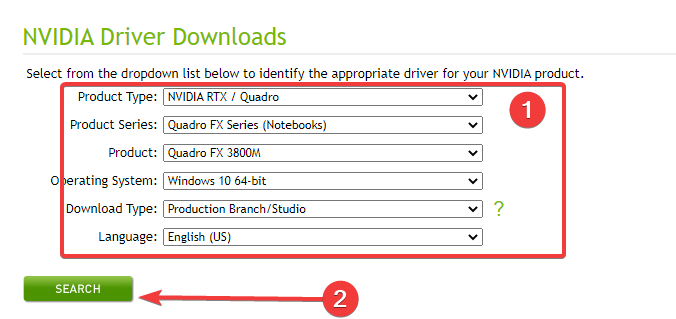
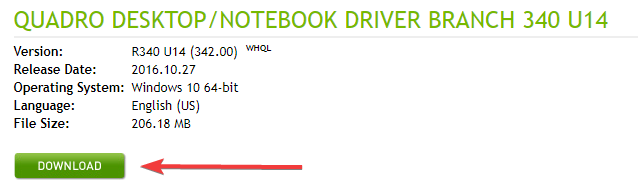
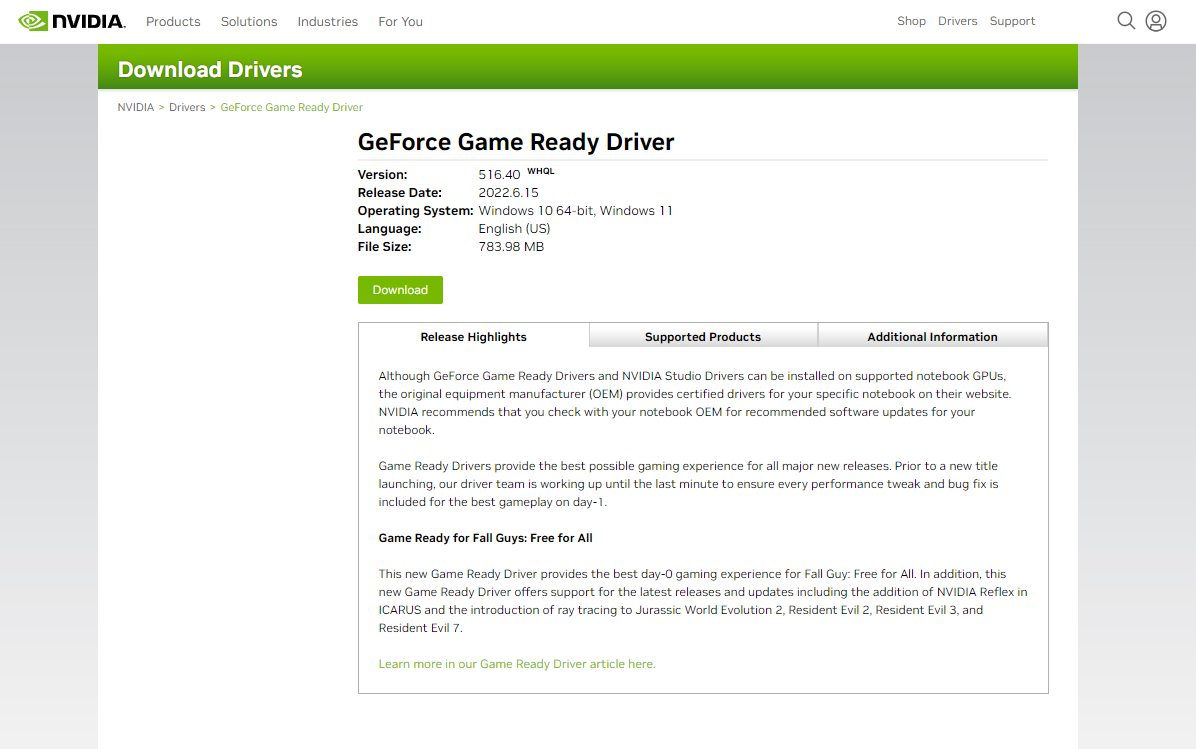
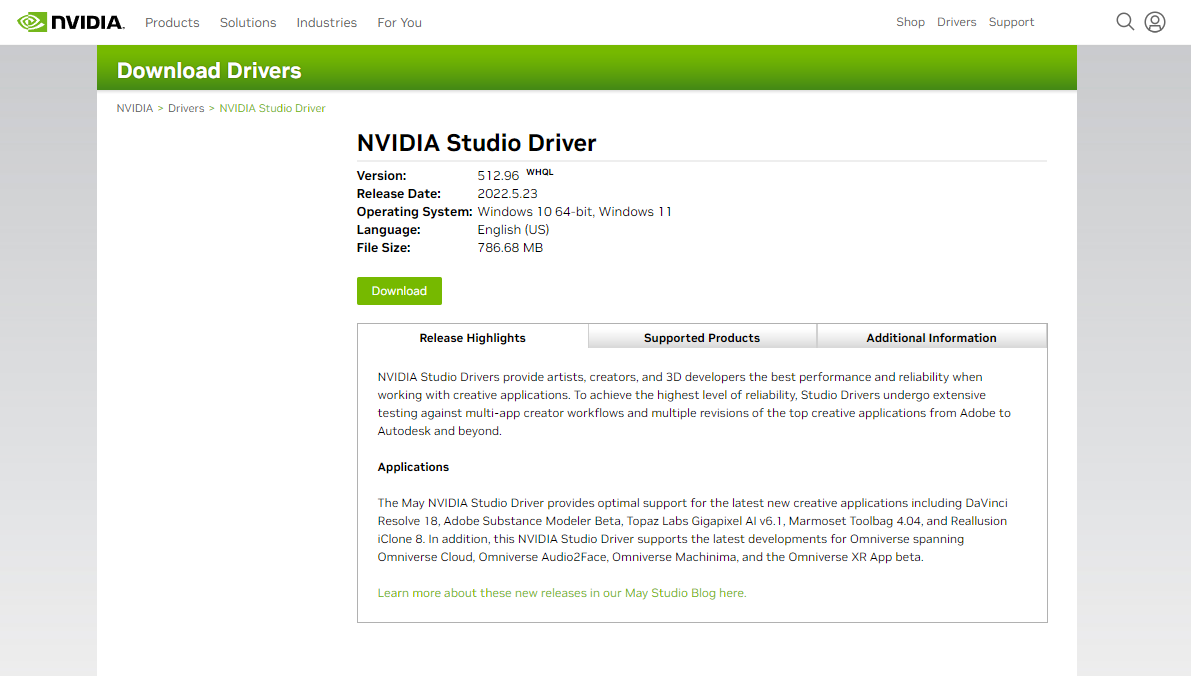
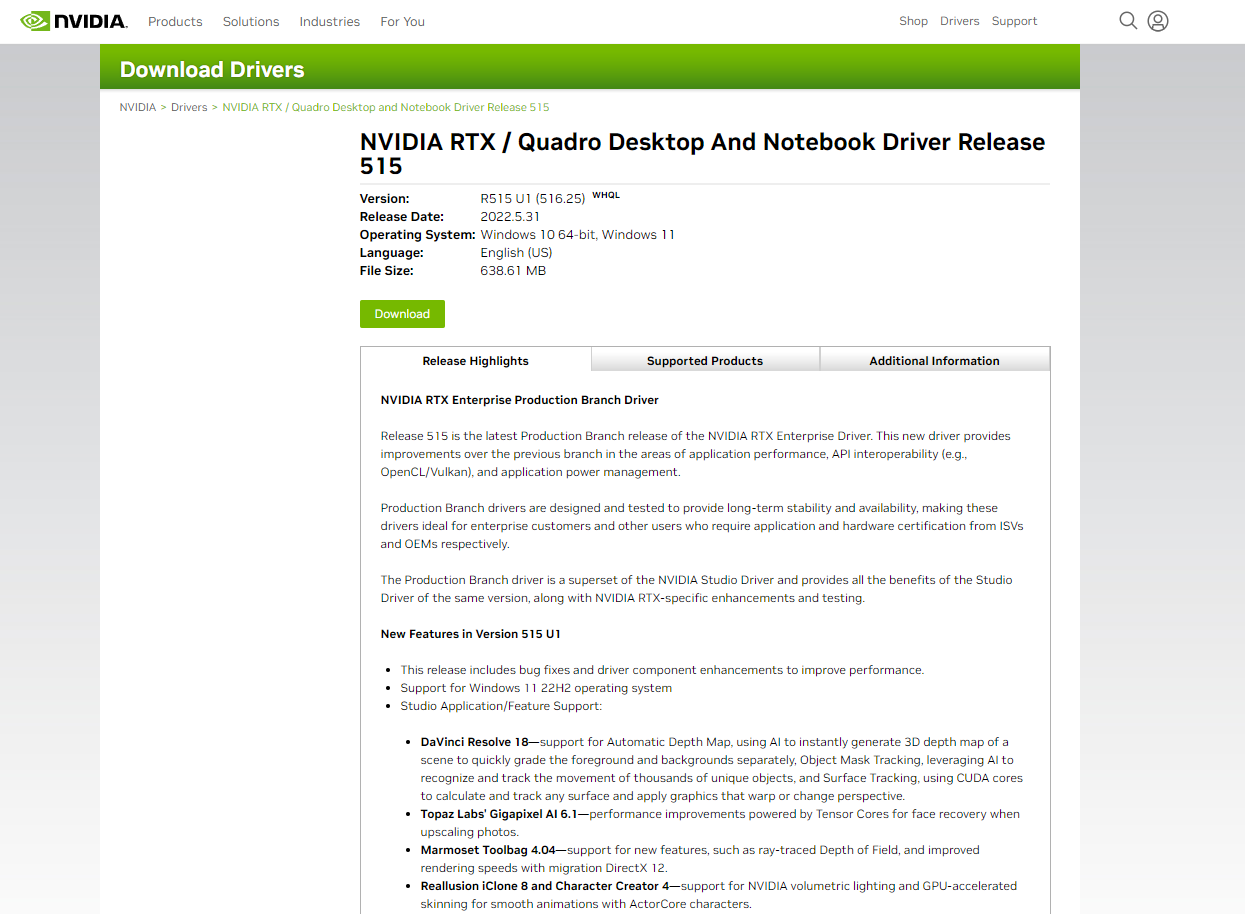
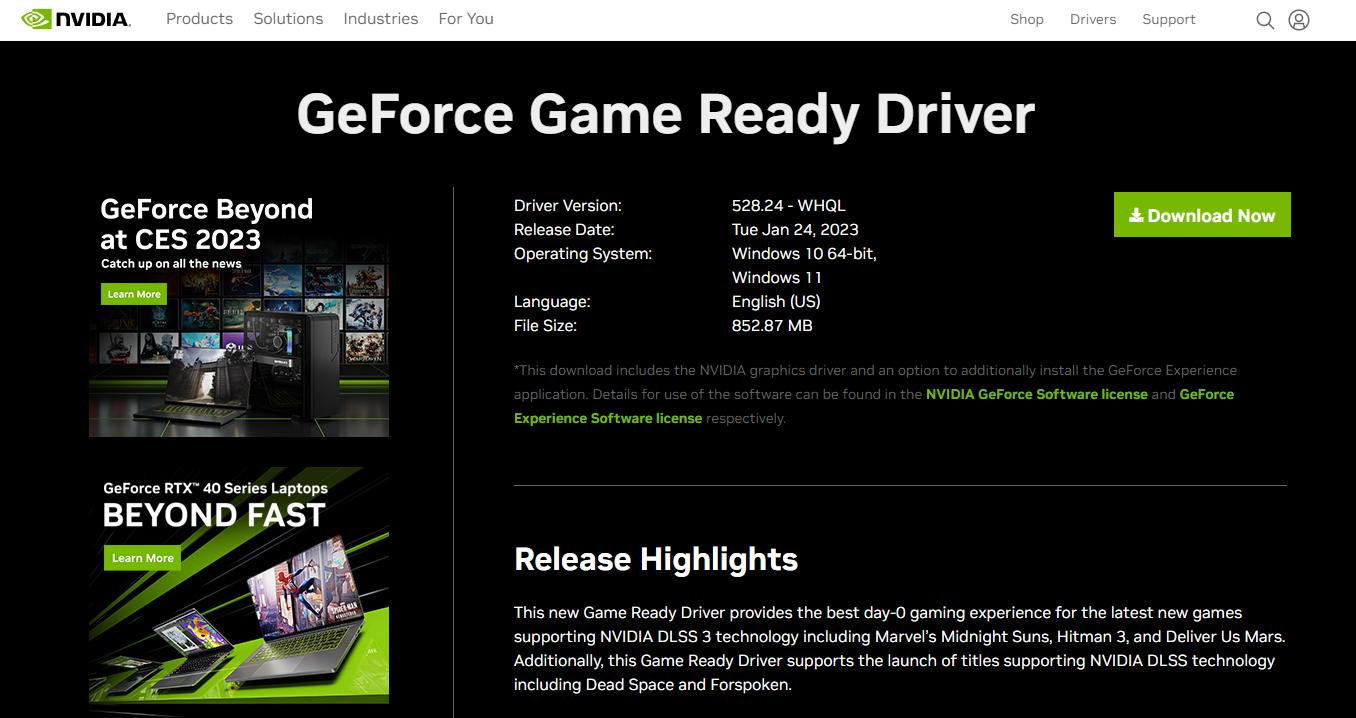
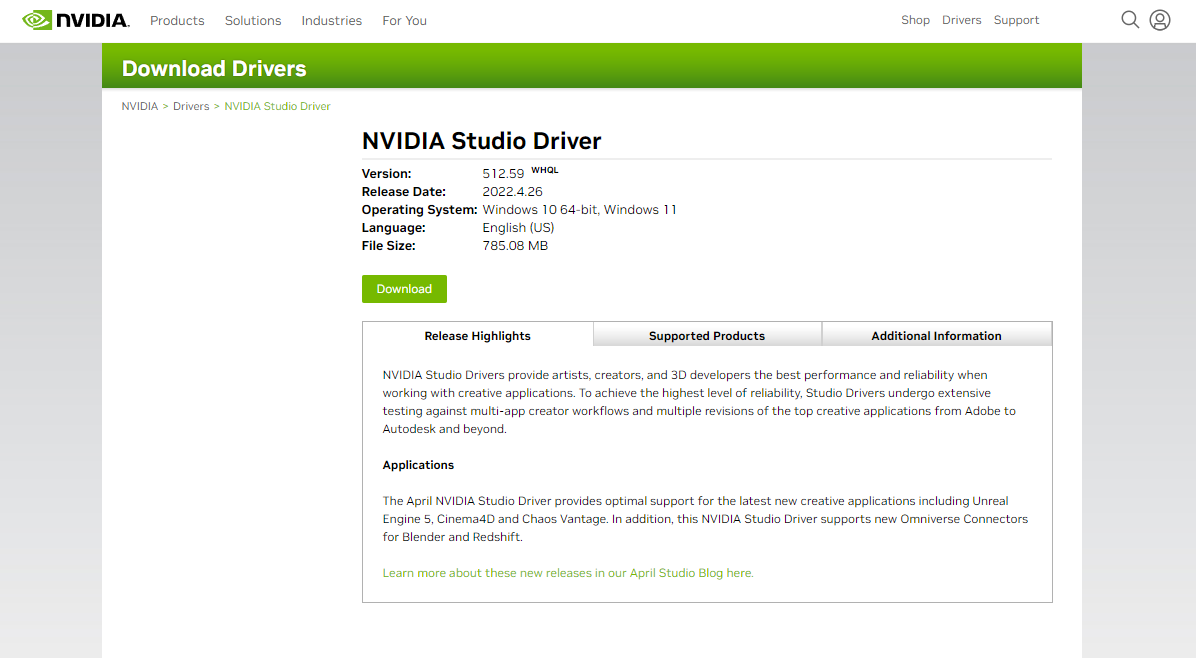
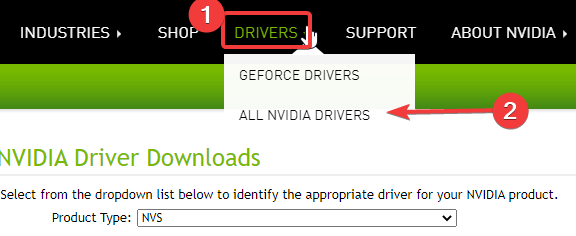
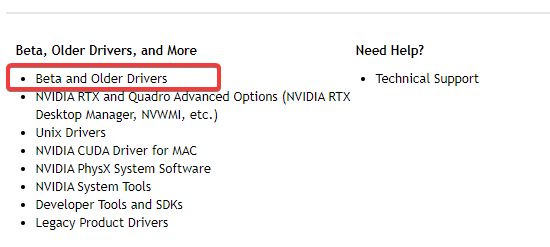
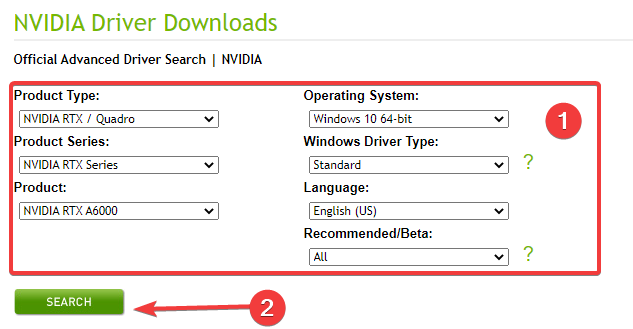
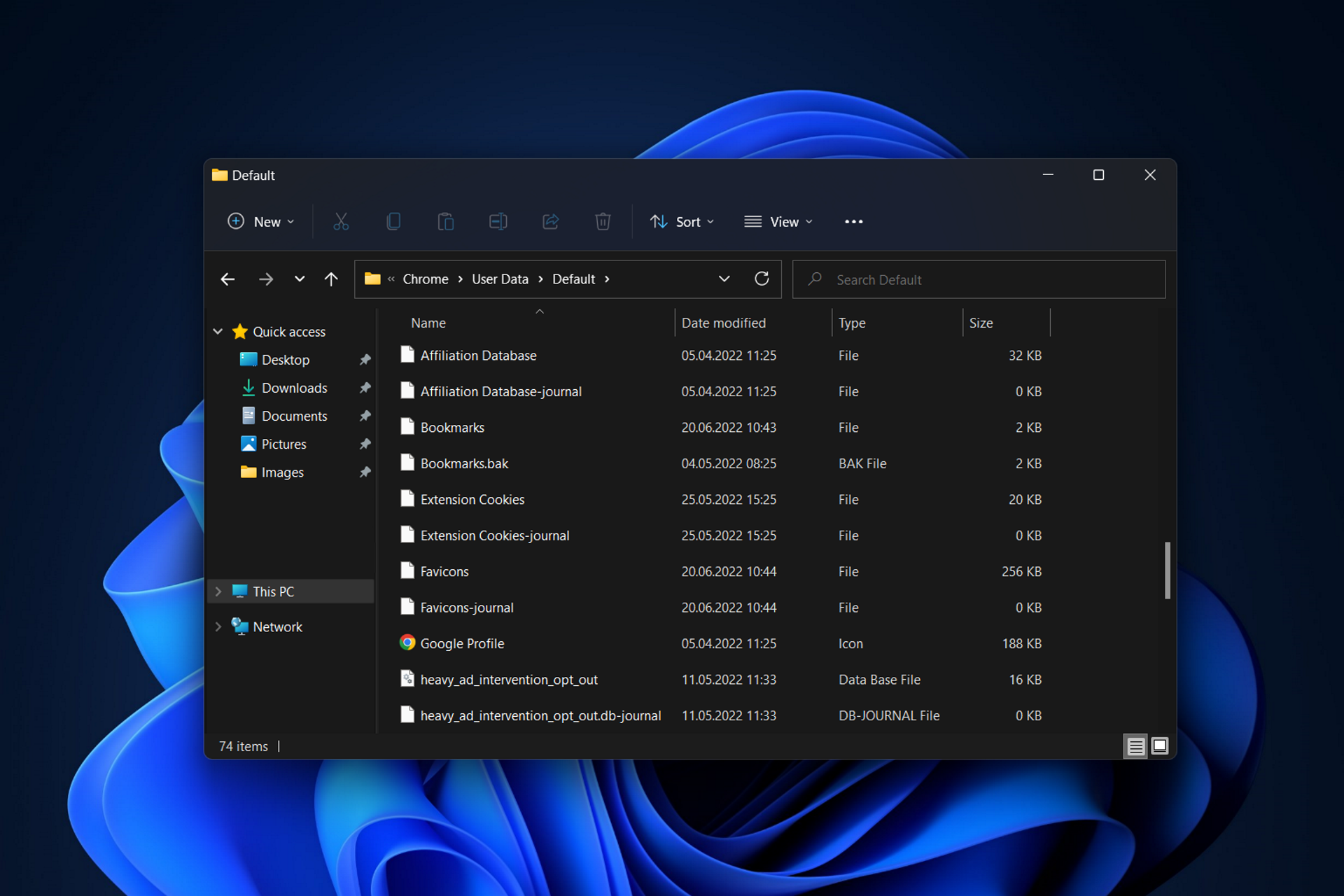


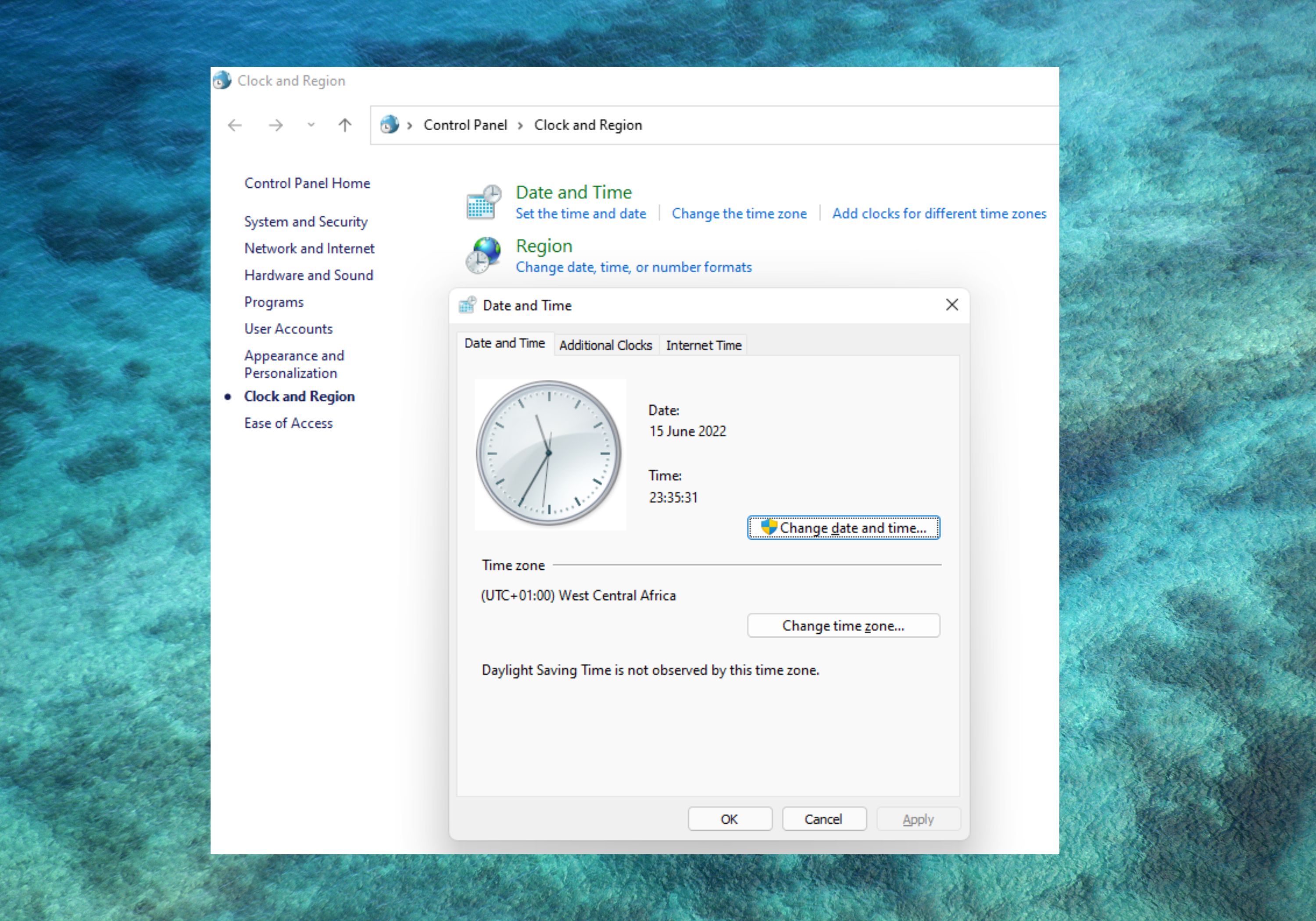


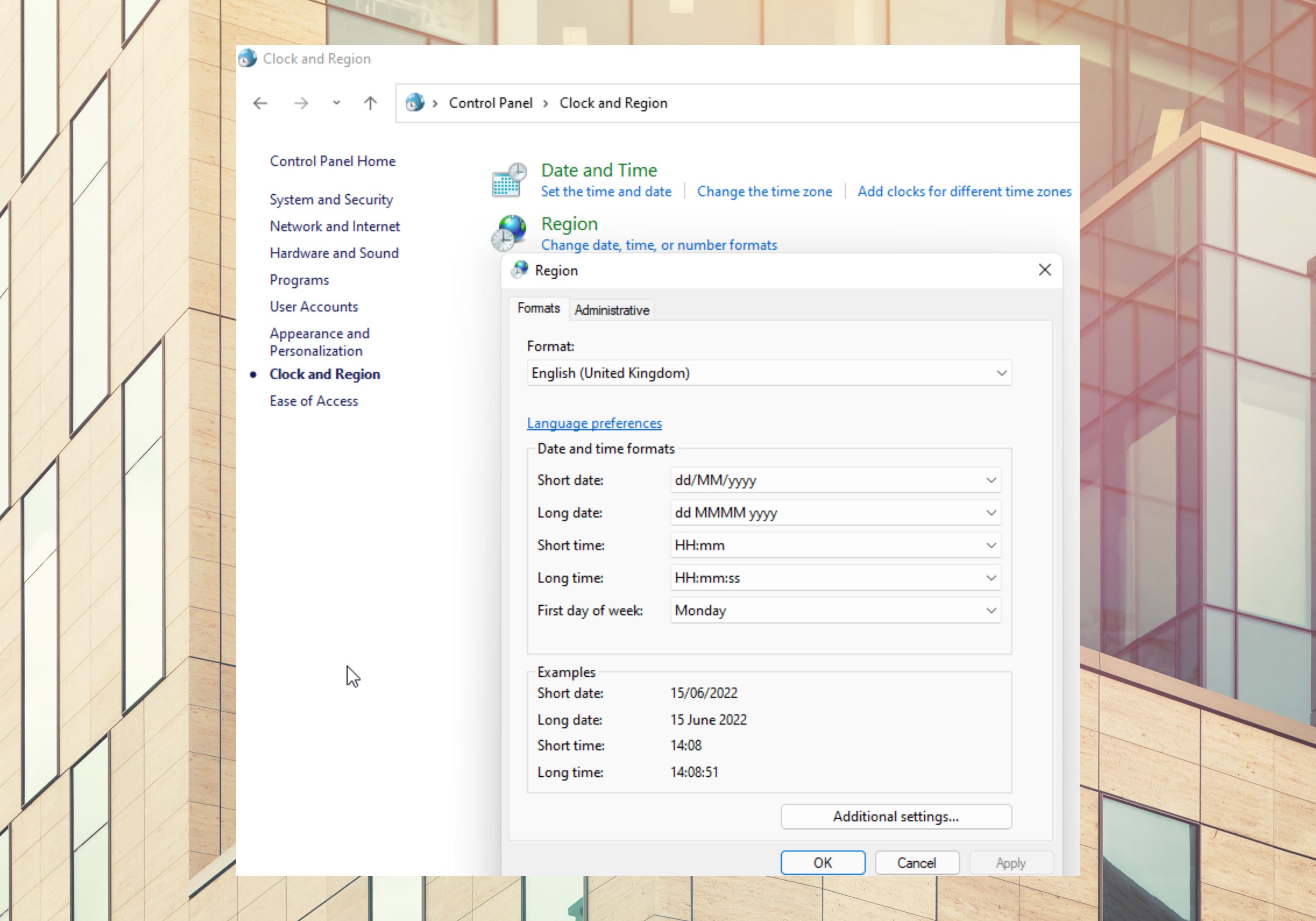
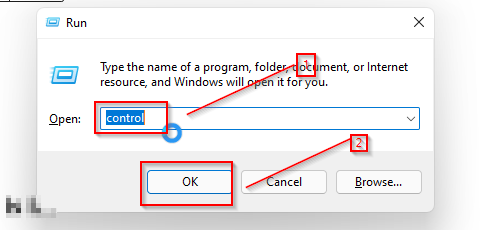
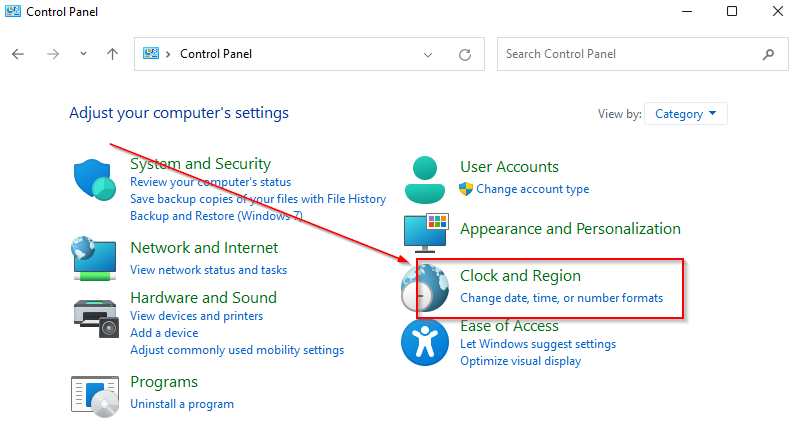
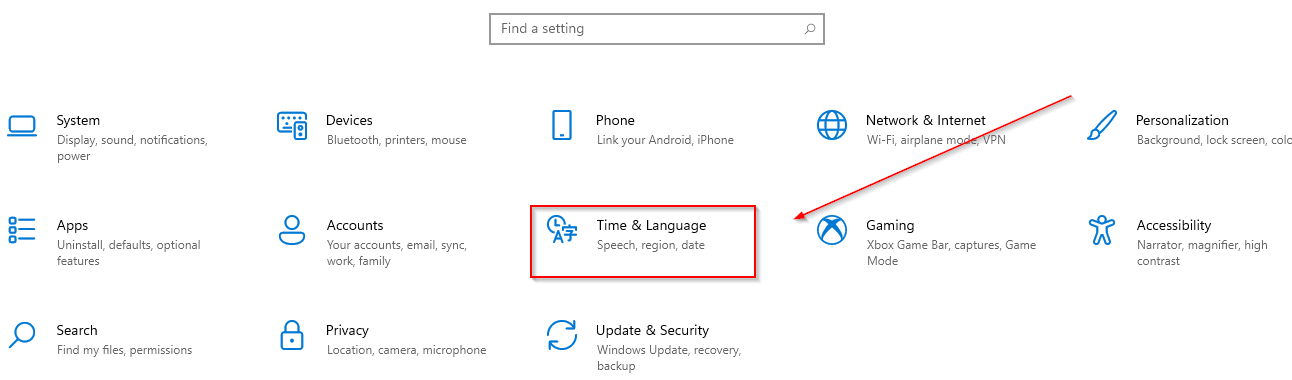
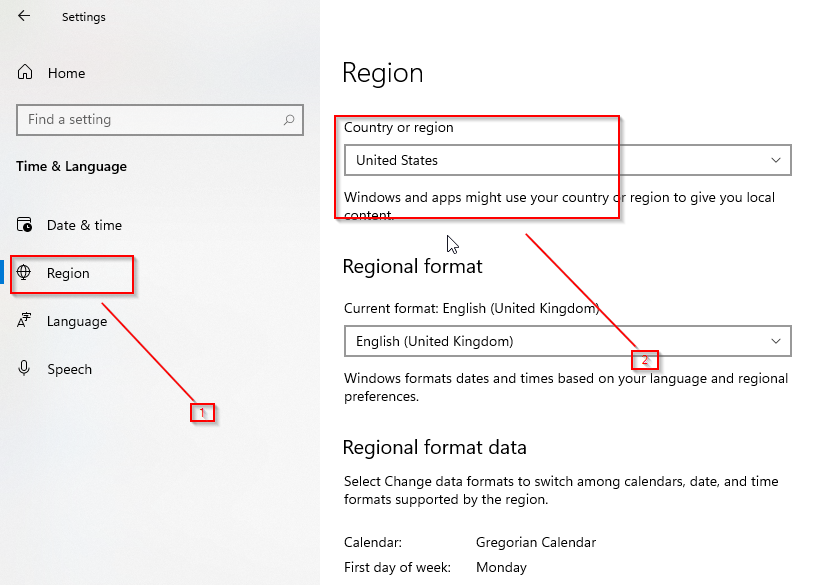
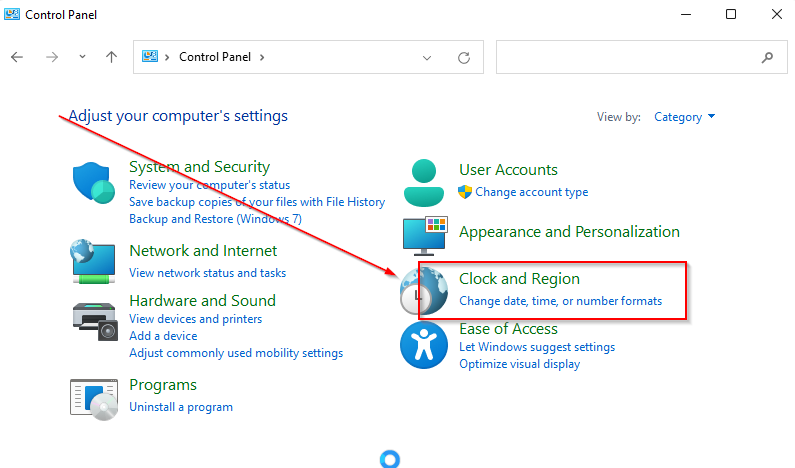
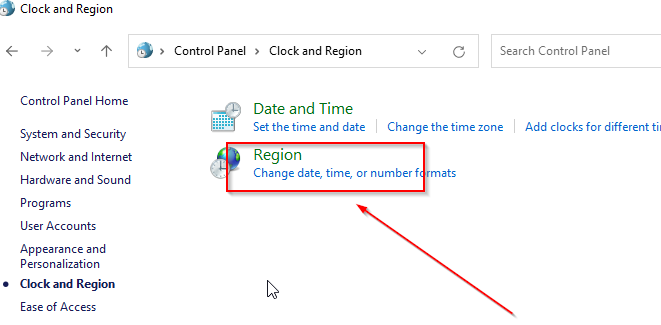
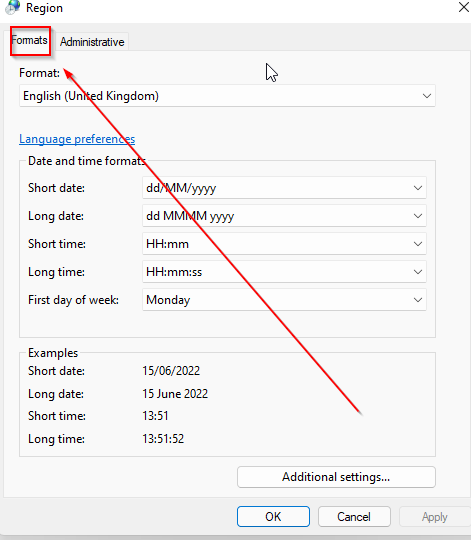
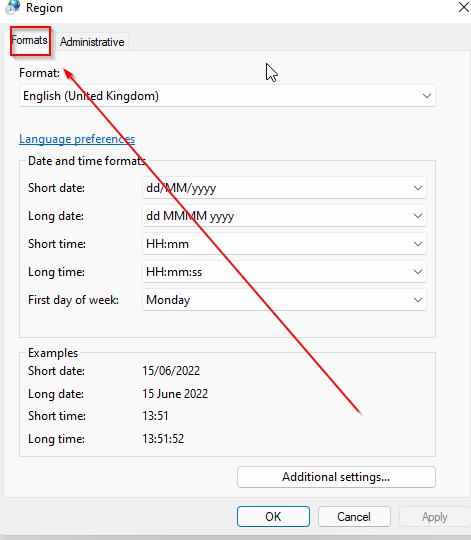
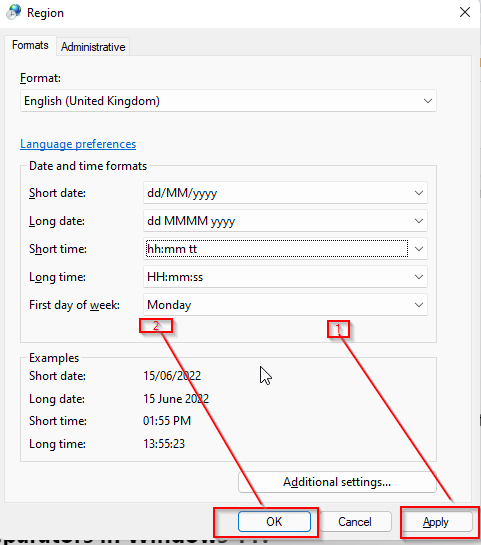
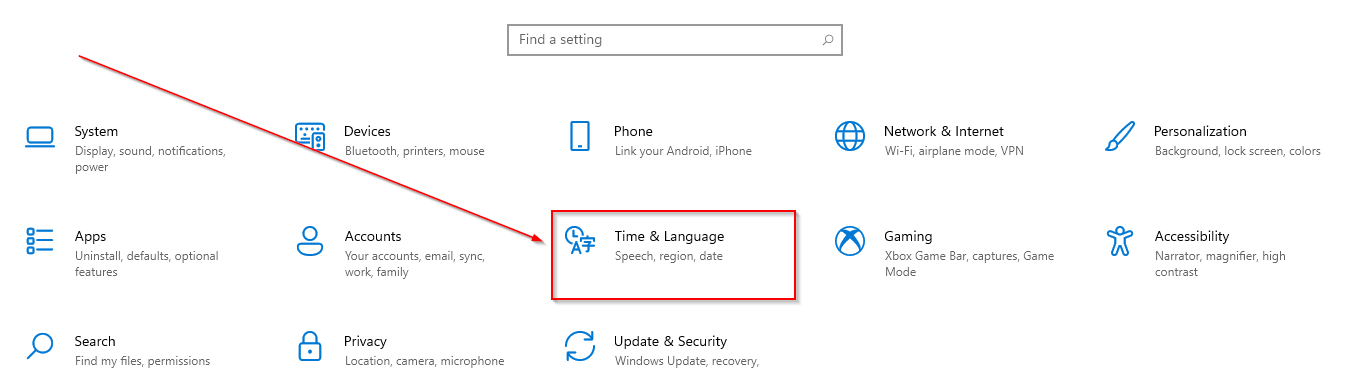
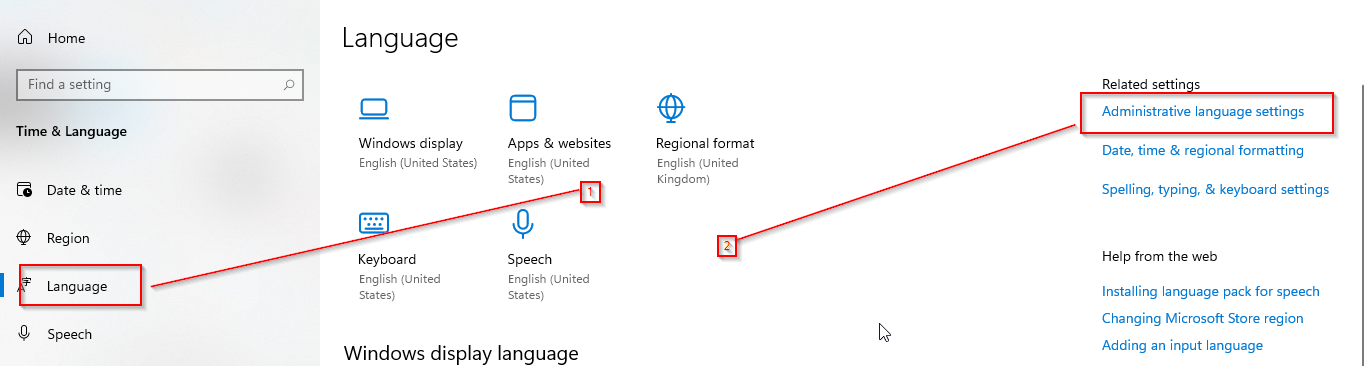
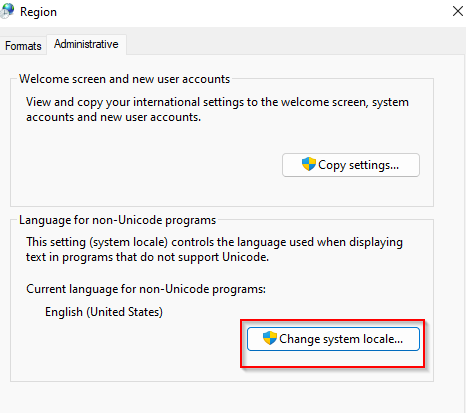
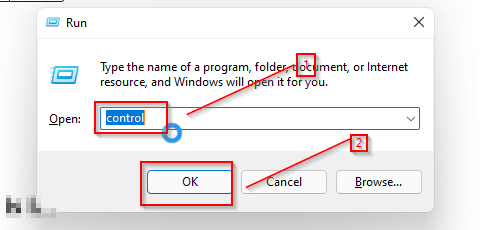
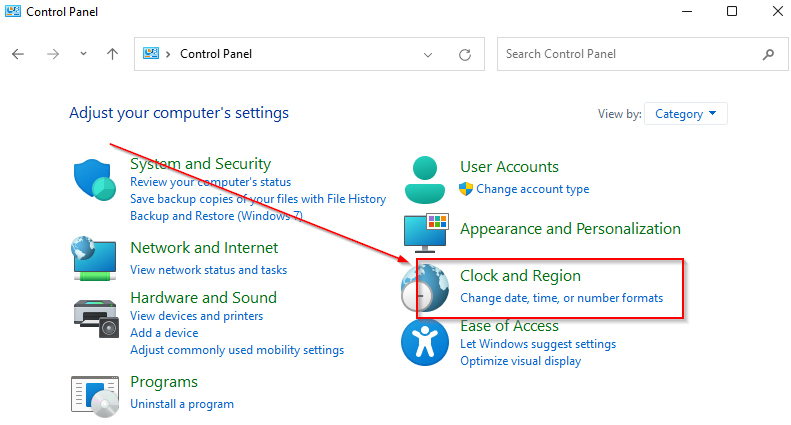
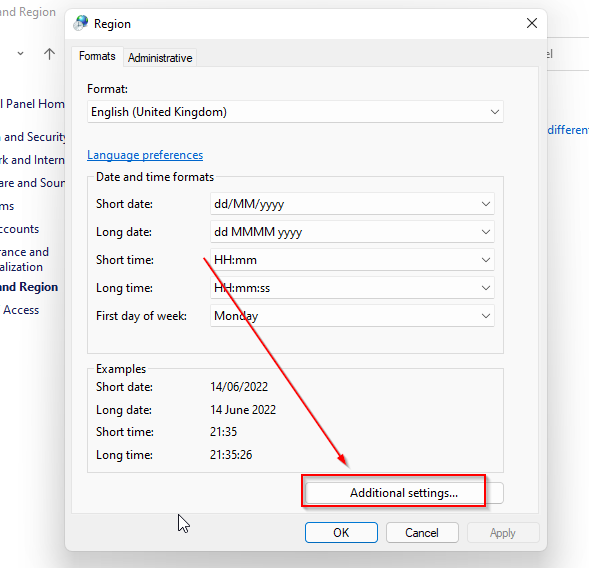
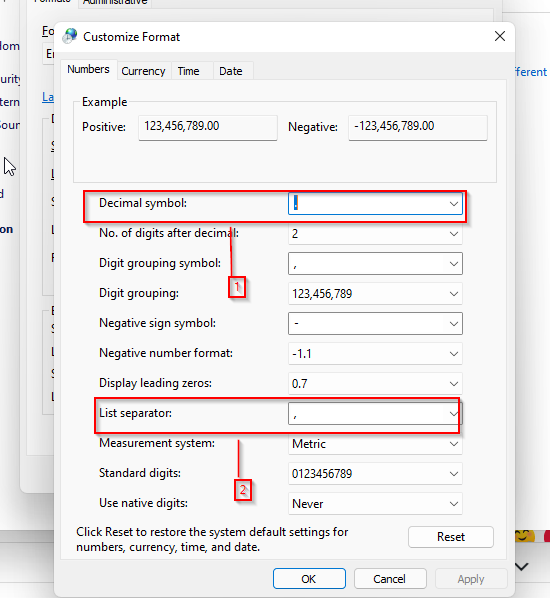



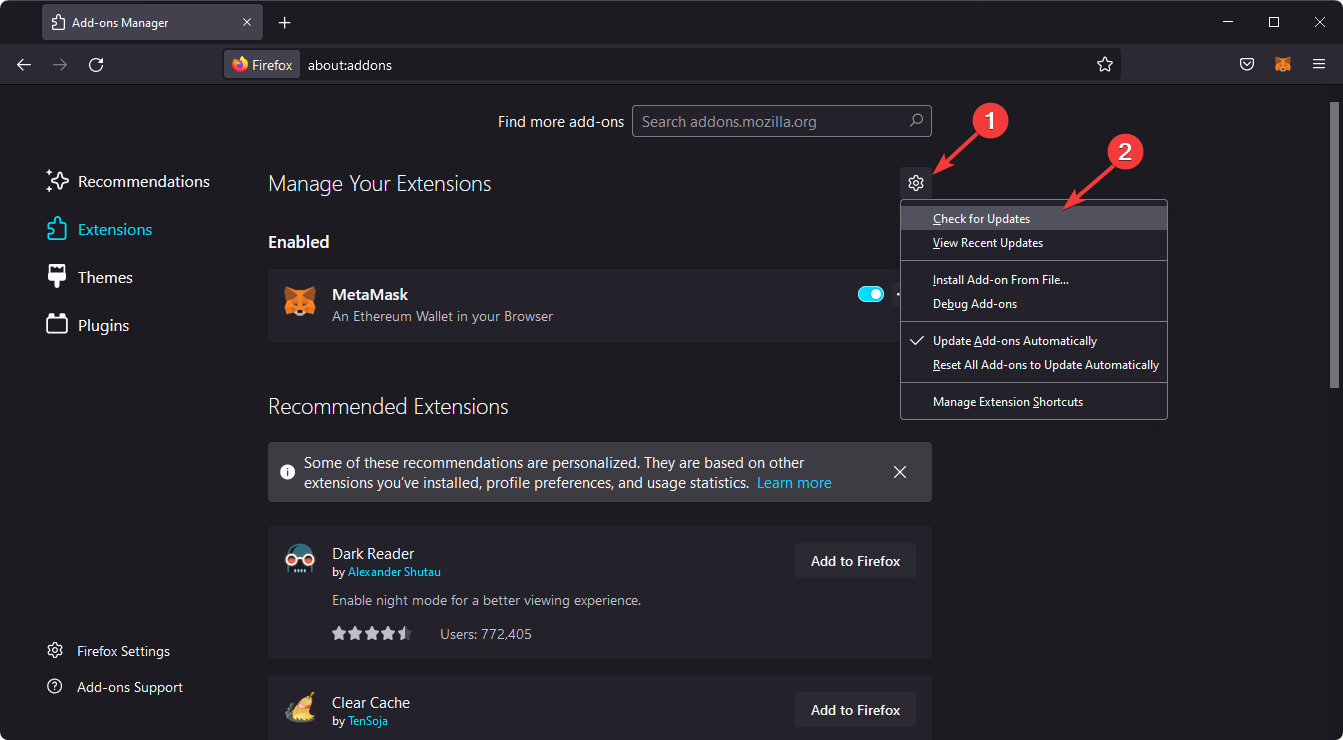
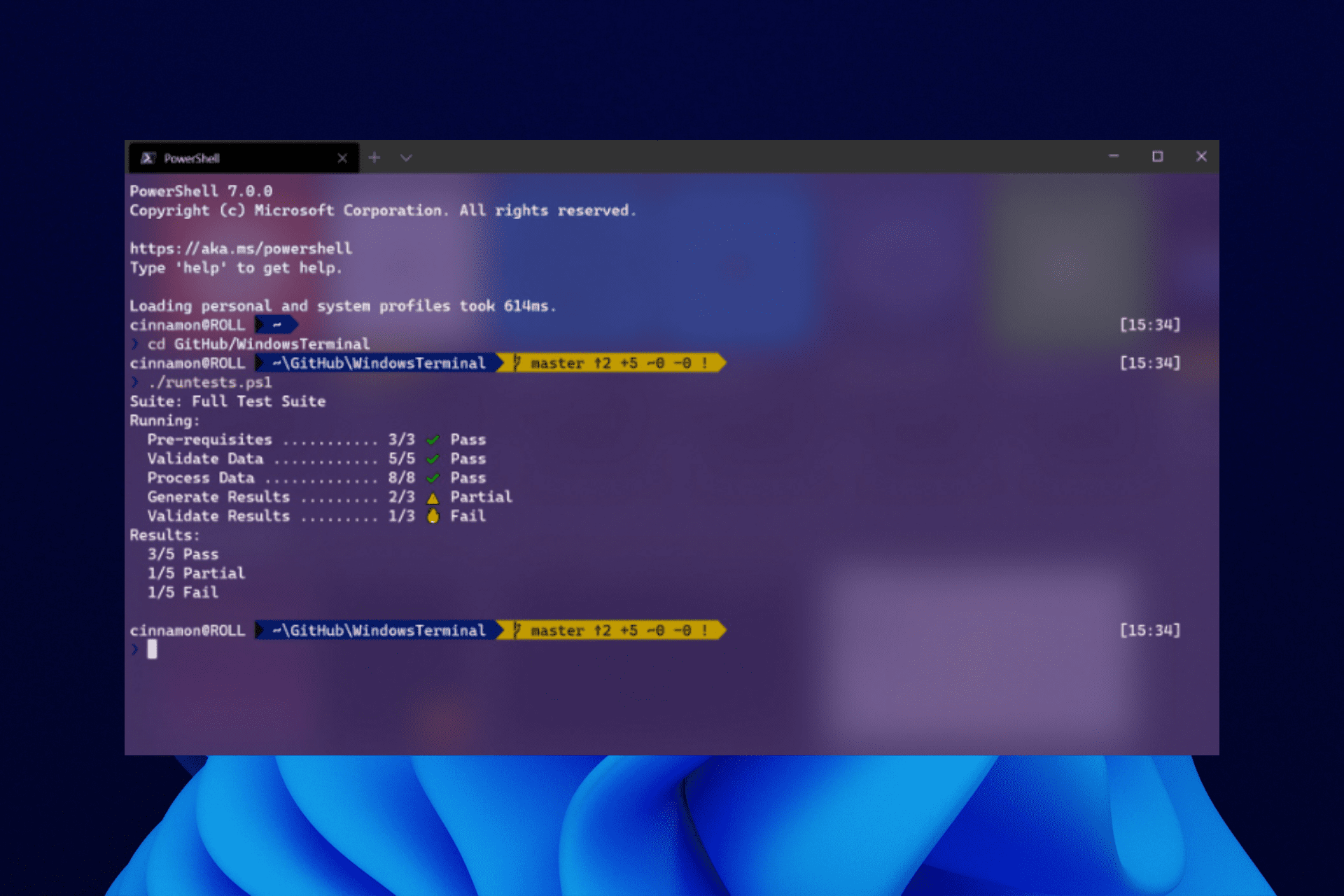


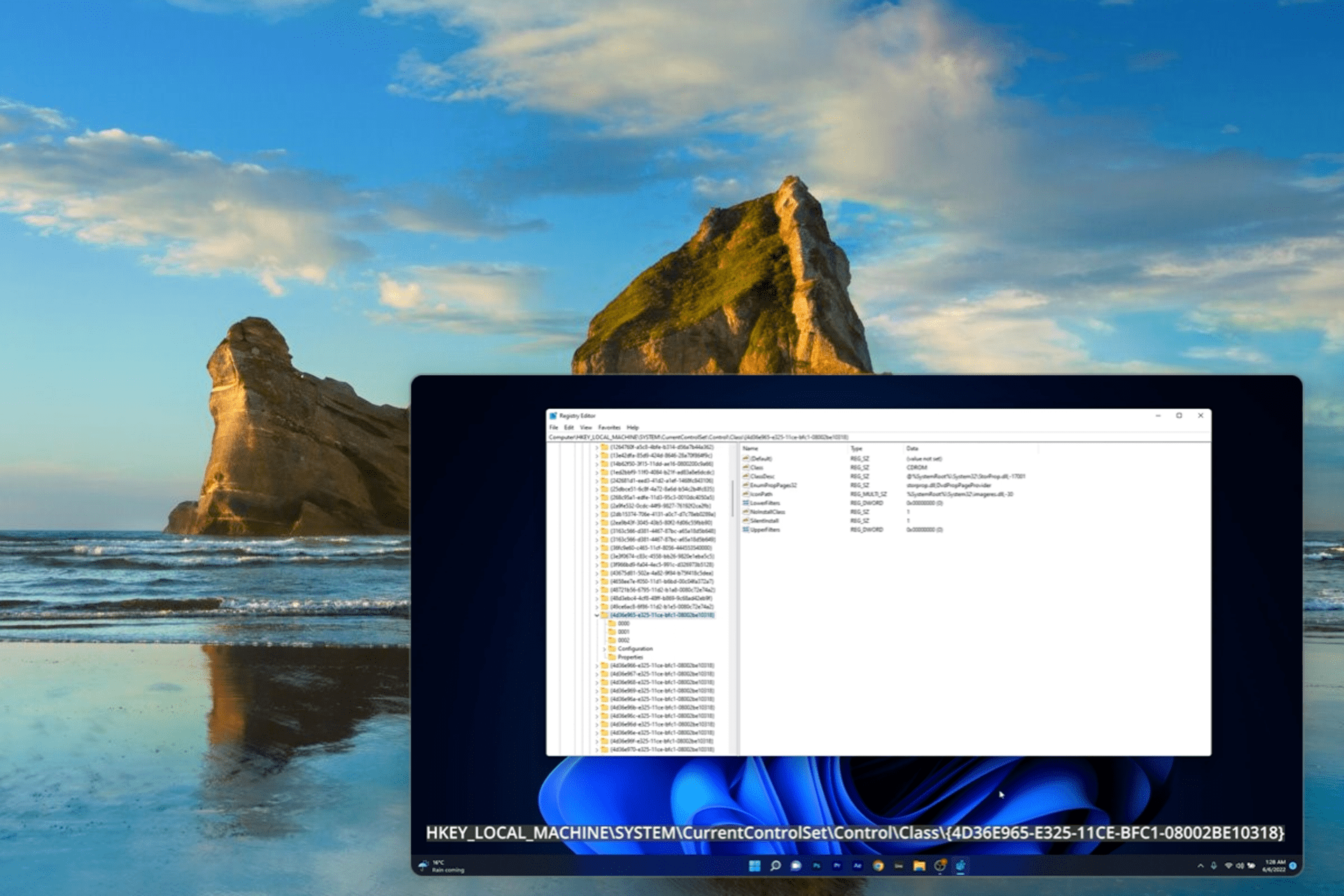


![How to Install Projector Driver in Windows 10/11 [3 Ways]](https://windowsreport.com/wp-content/uploads/2022/06/install-projector-drivers.png)


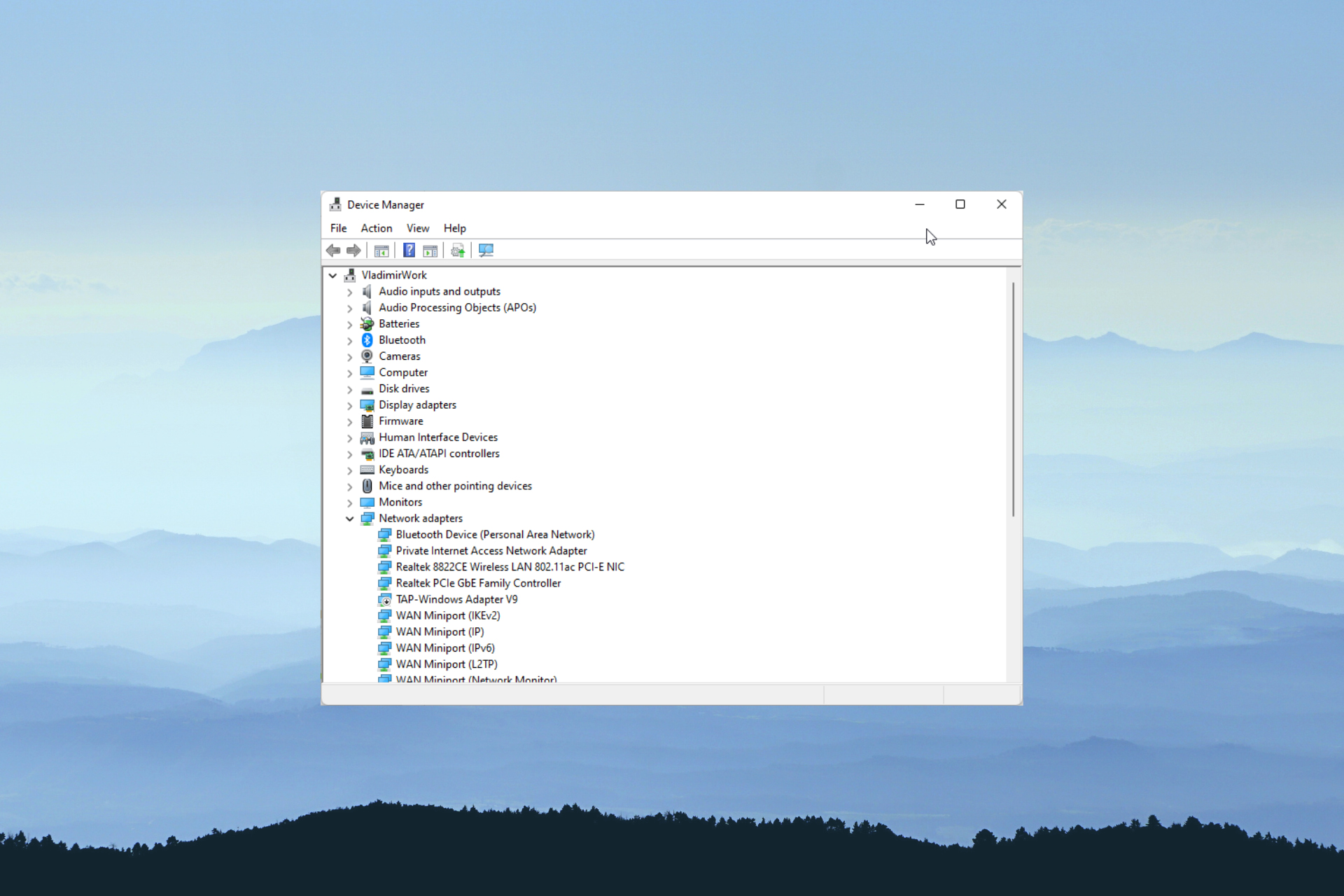


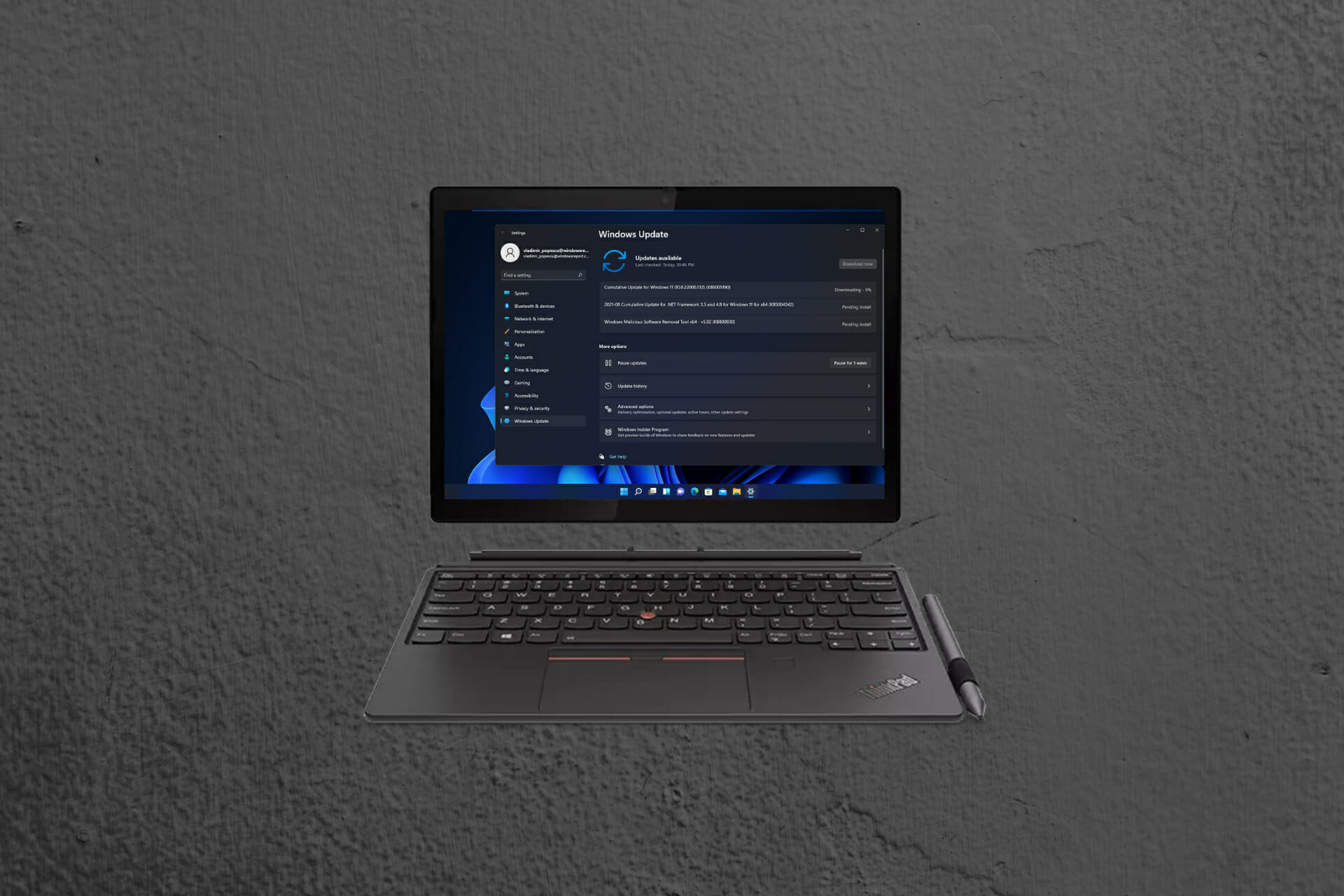

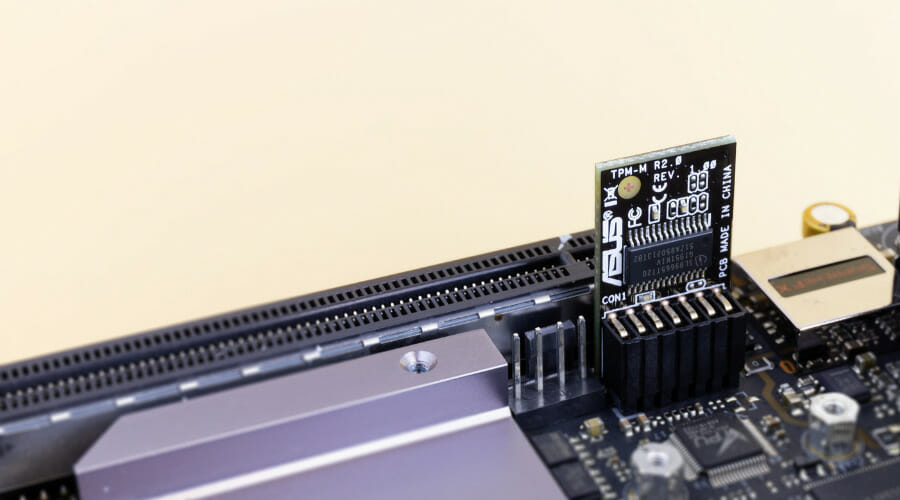



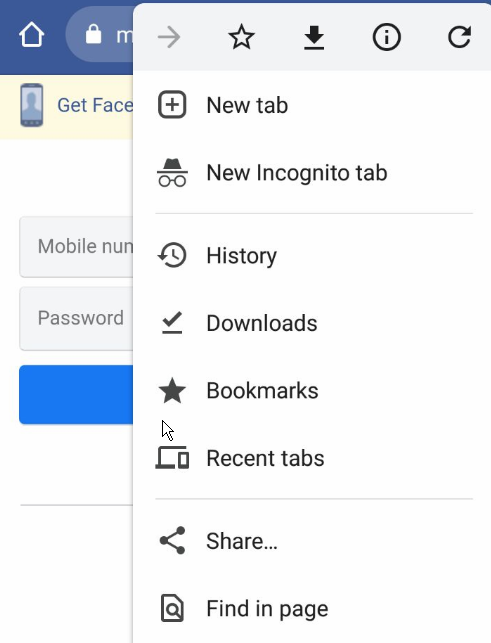
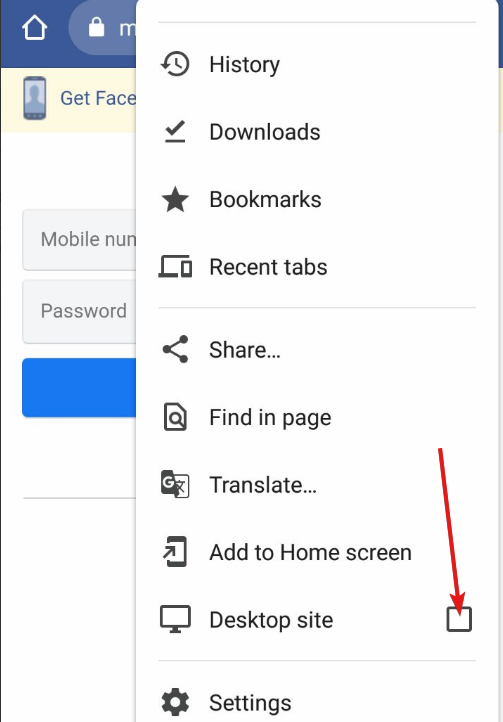
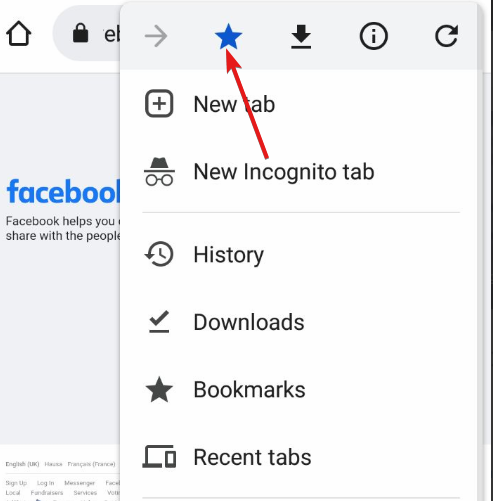

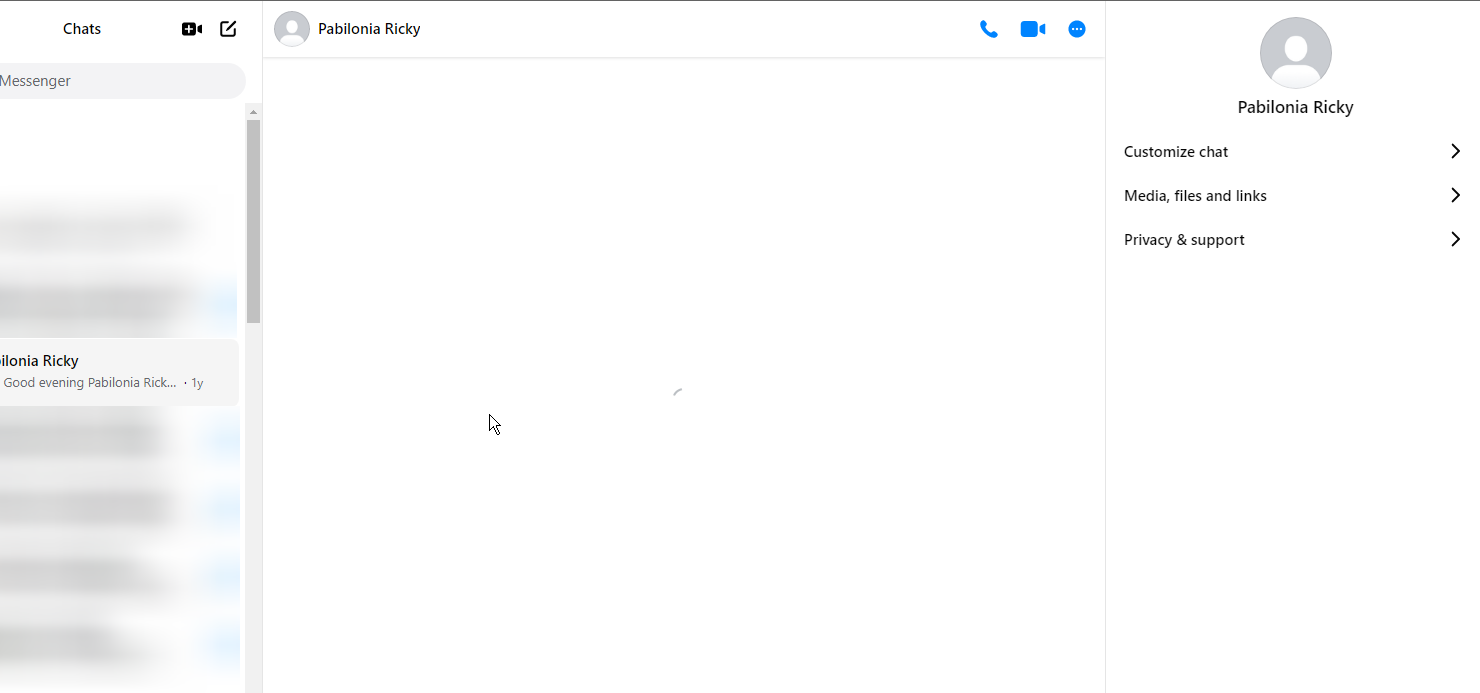
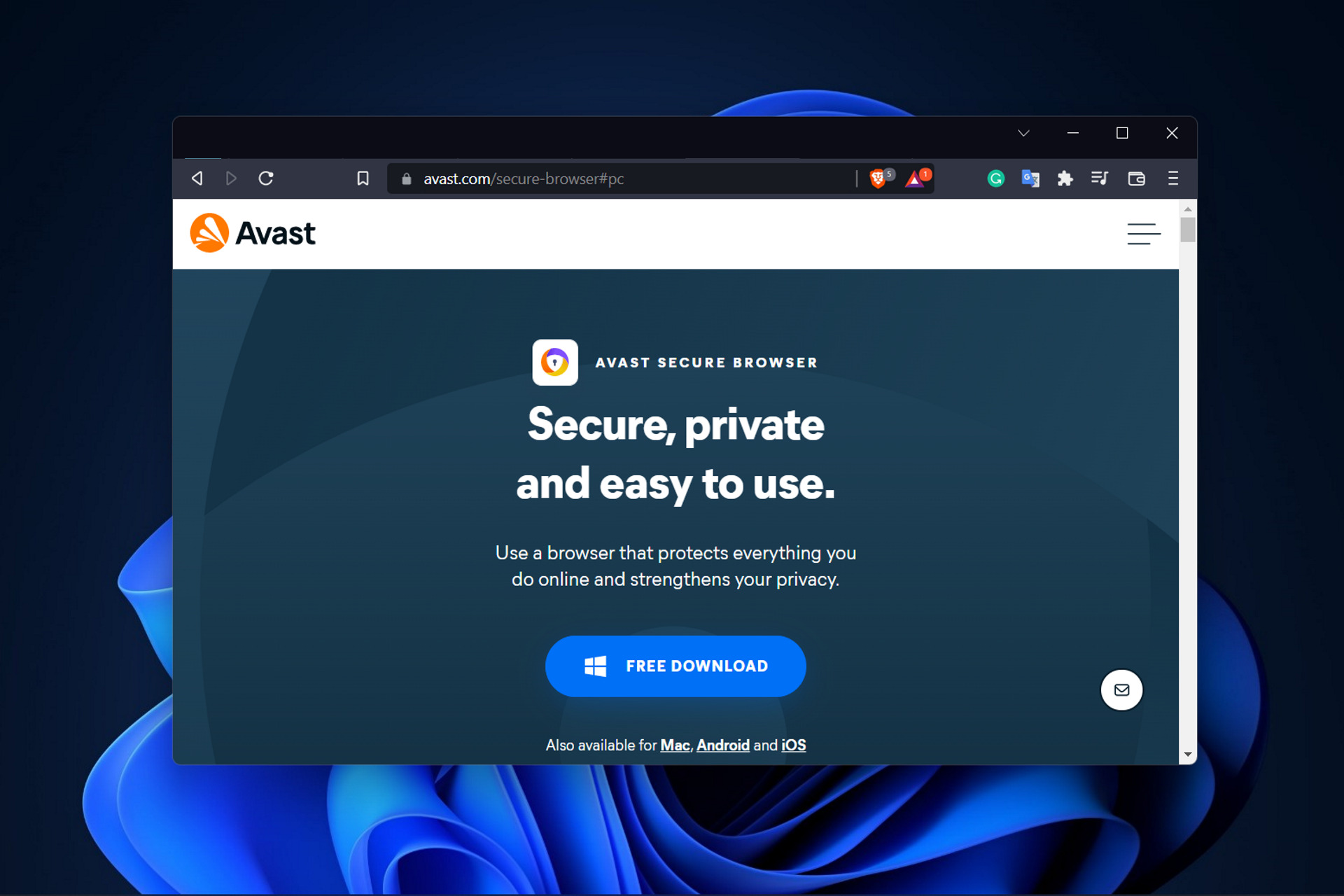
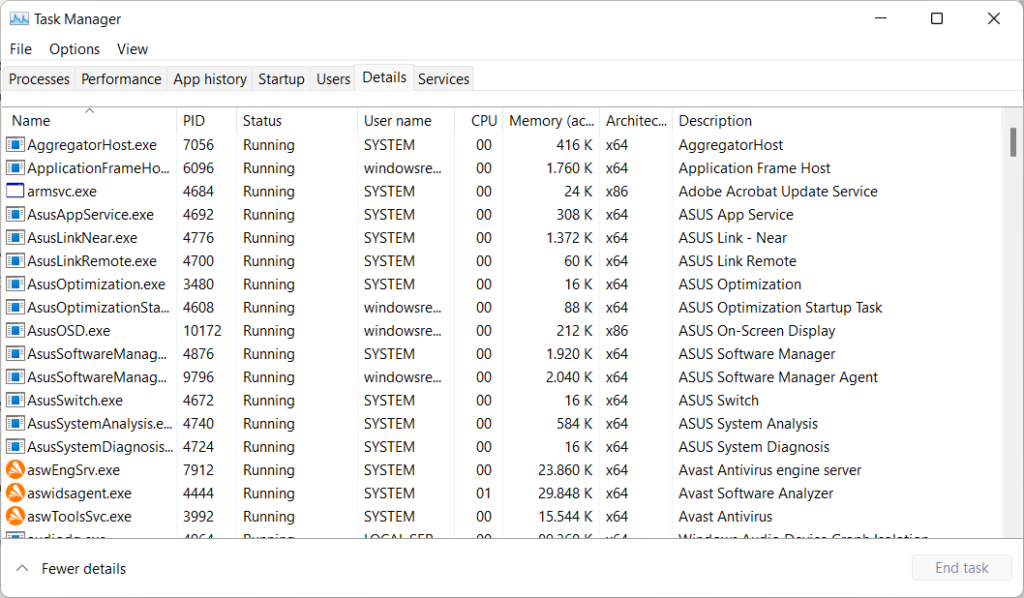
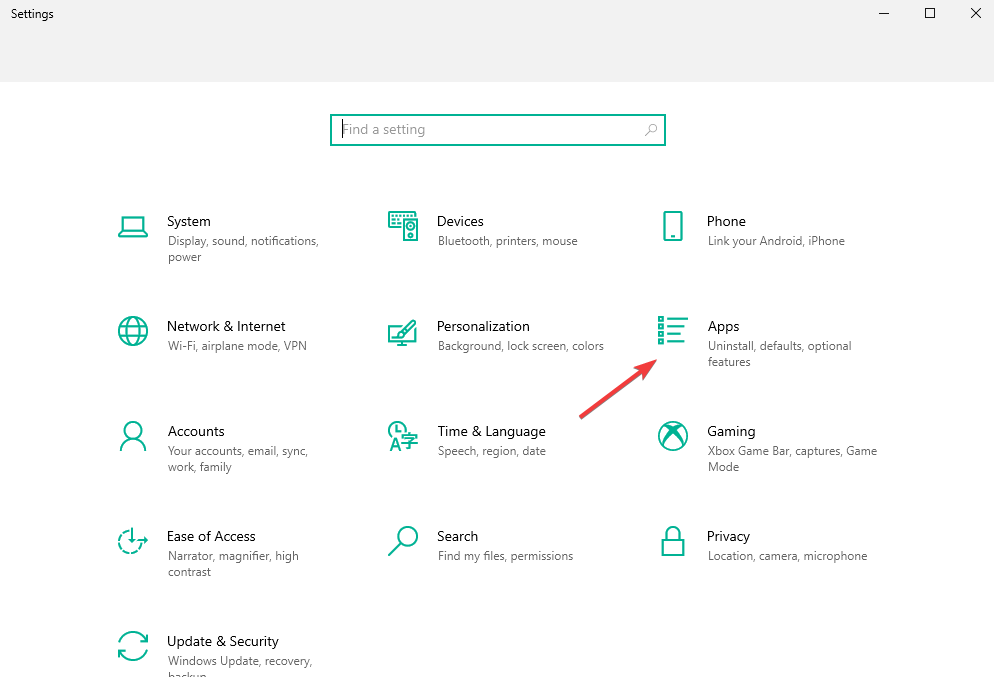
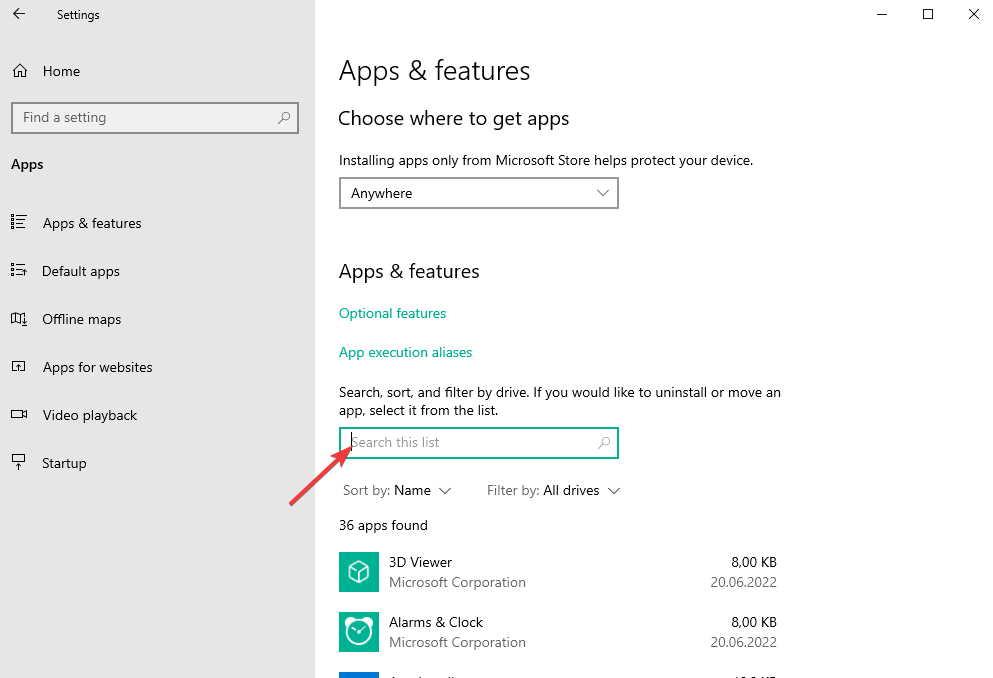

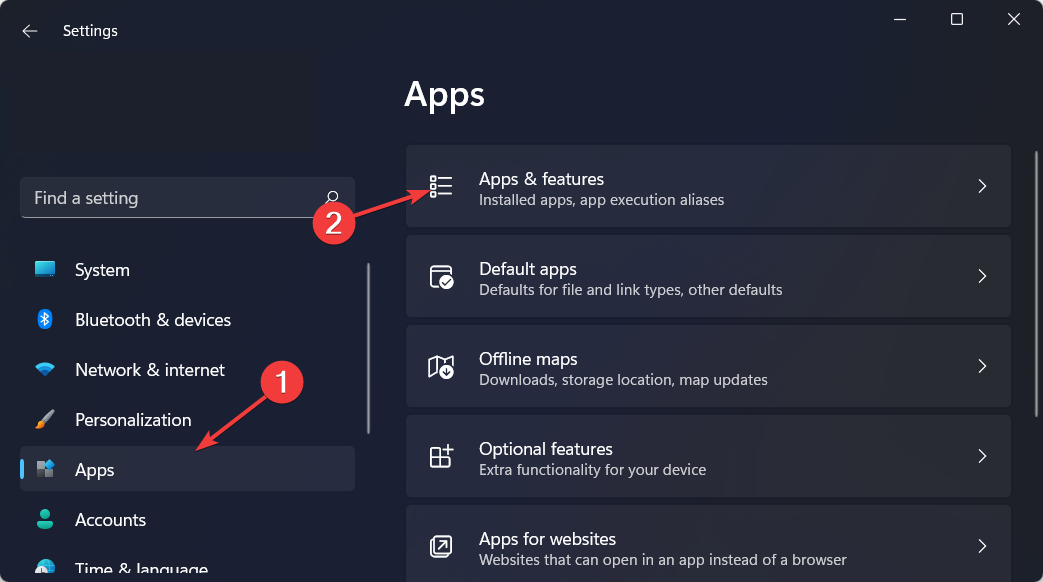
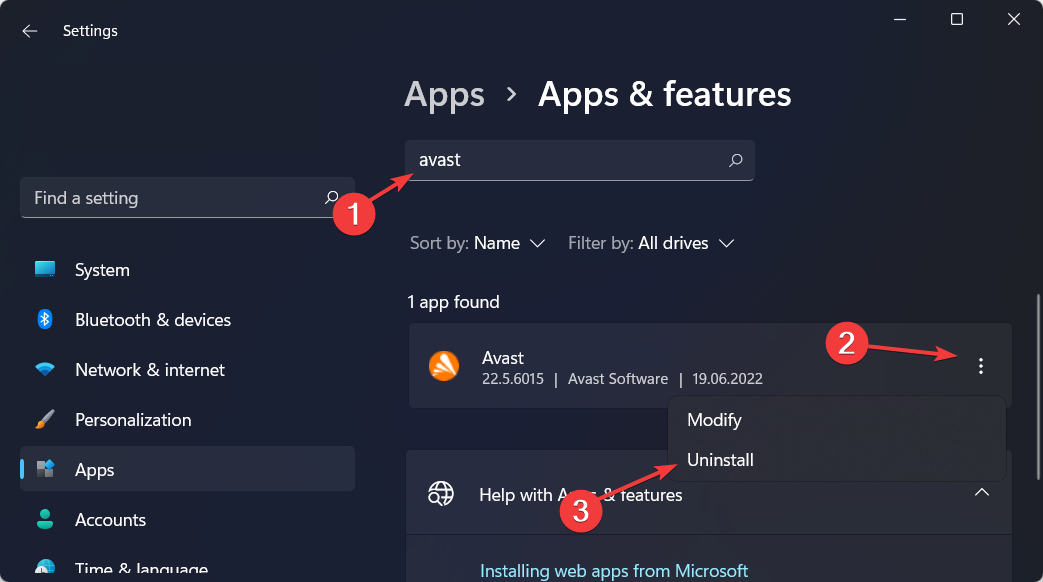
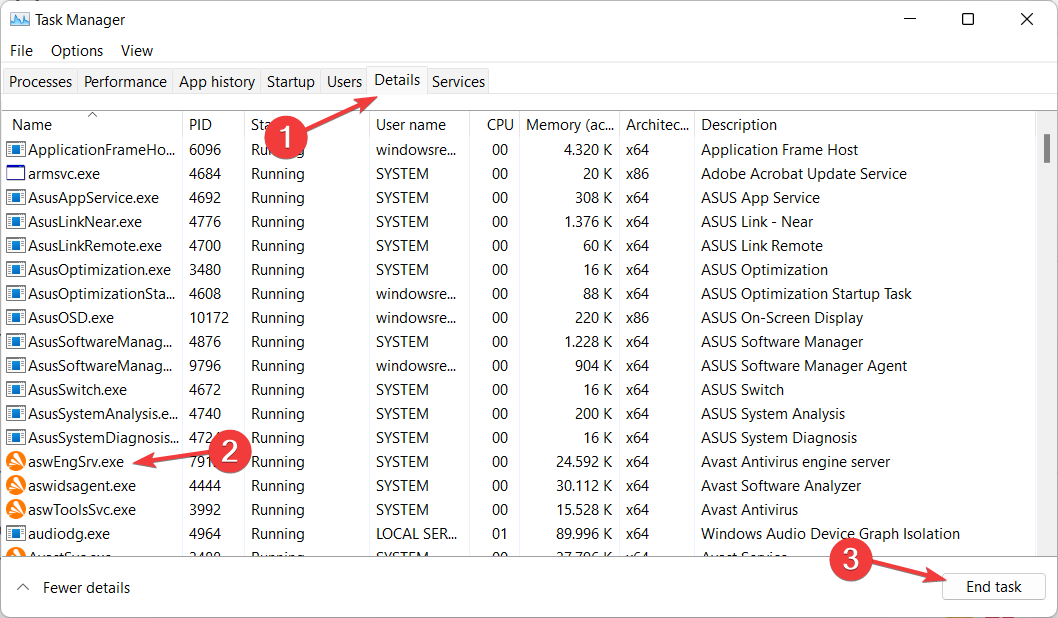
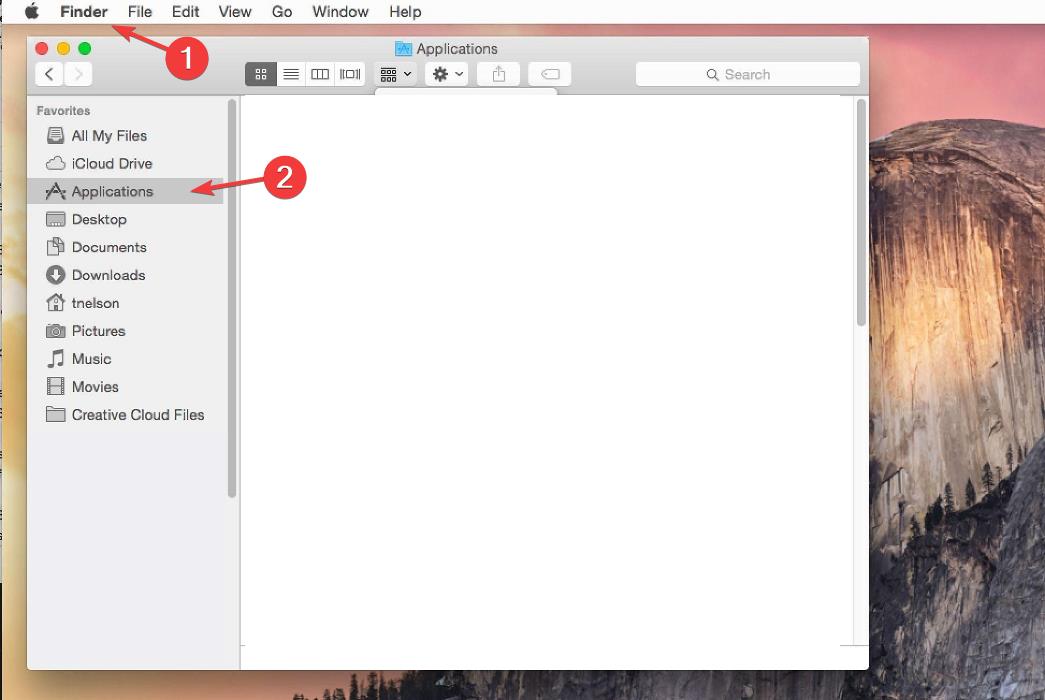
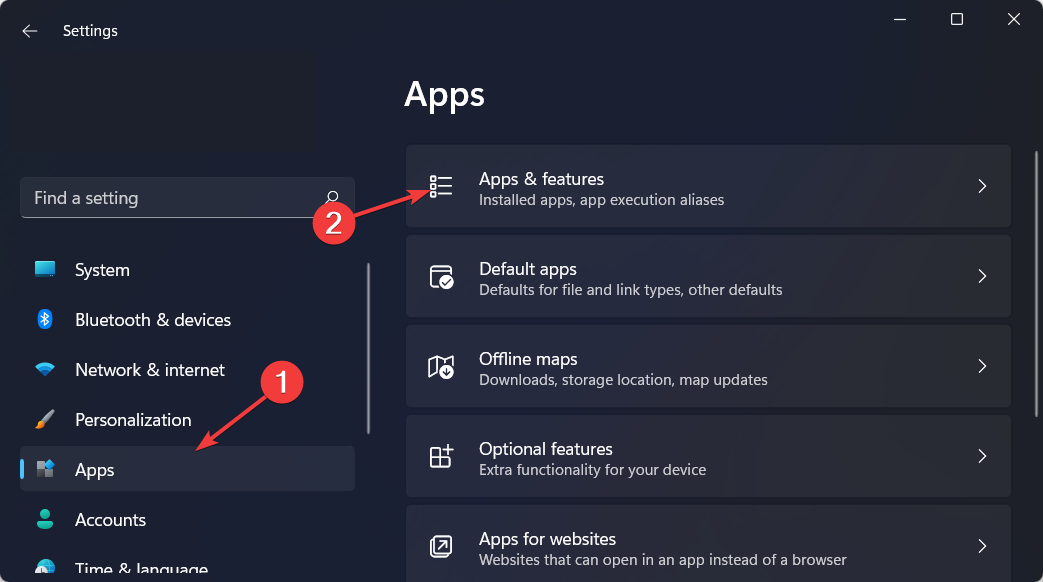
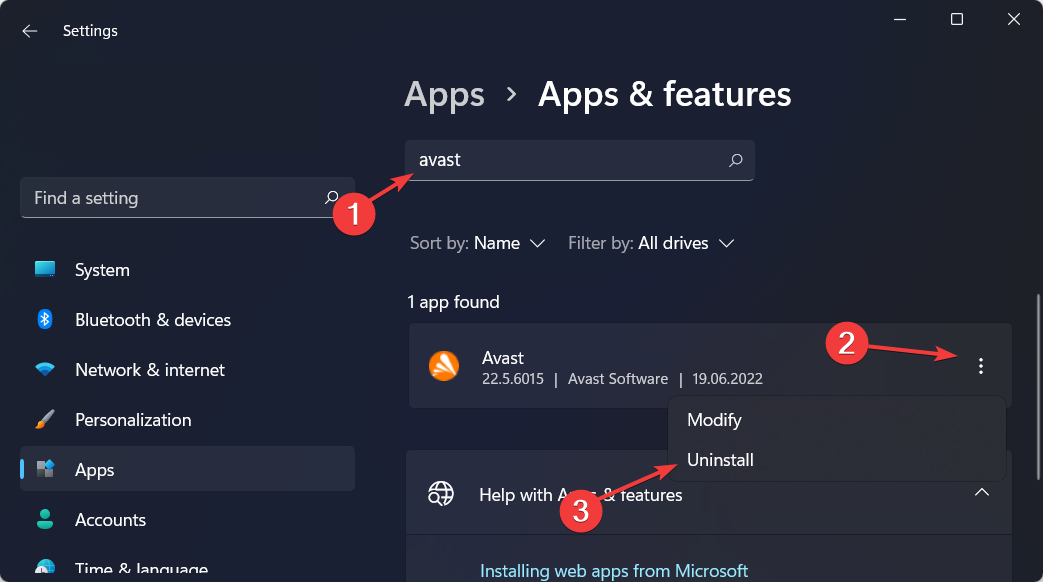
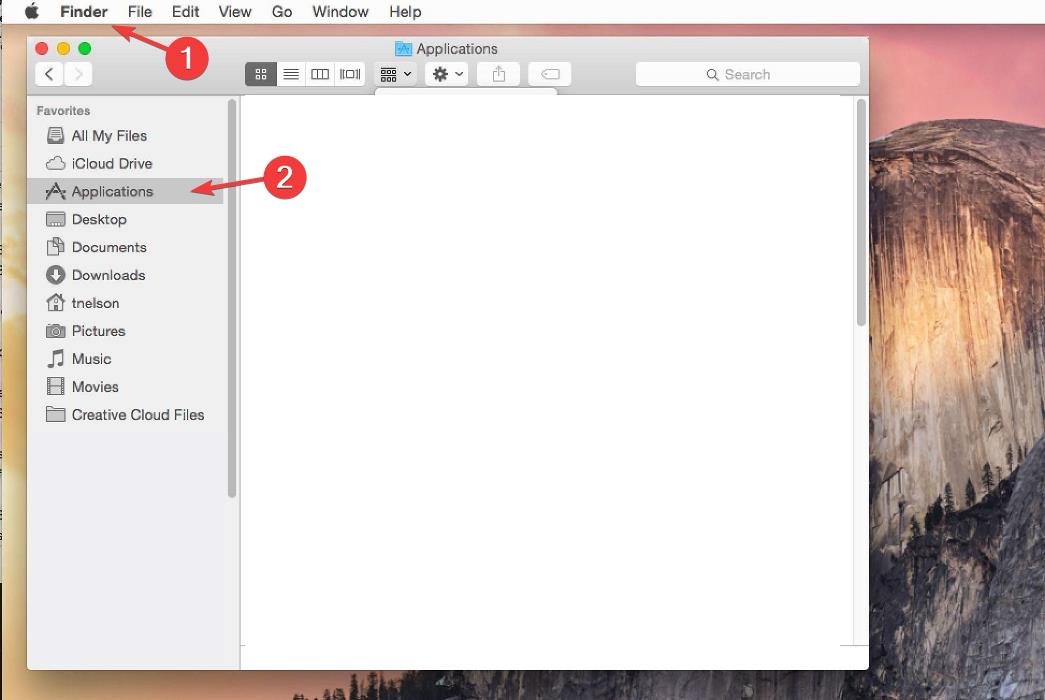

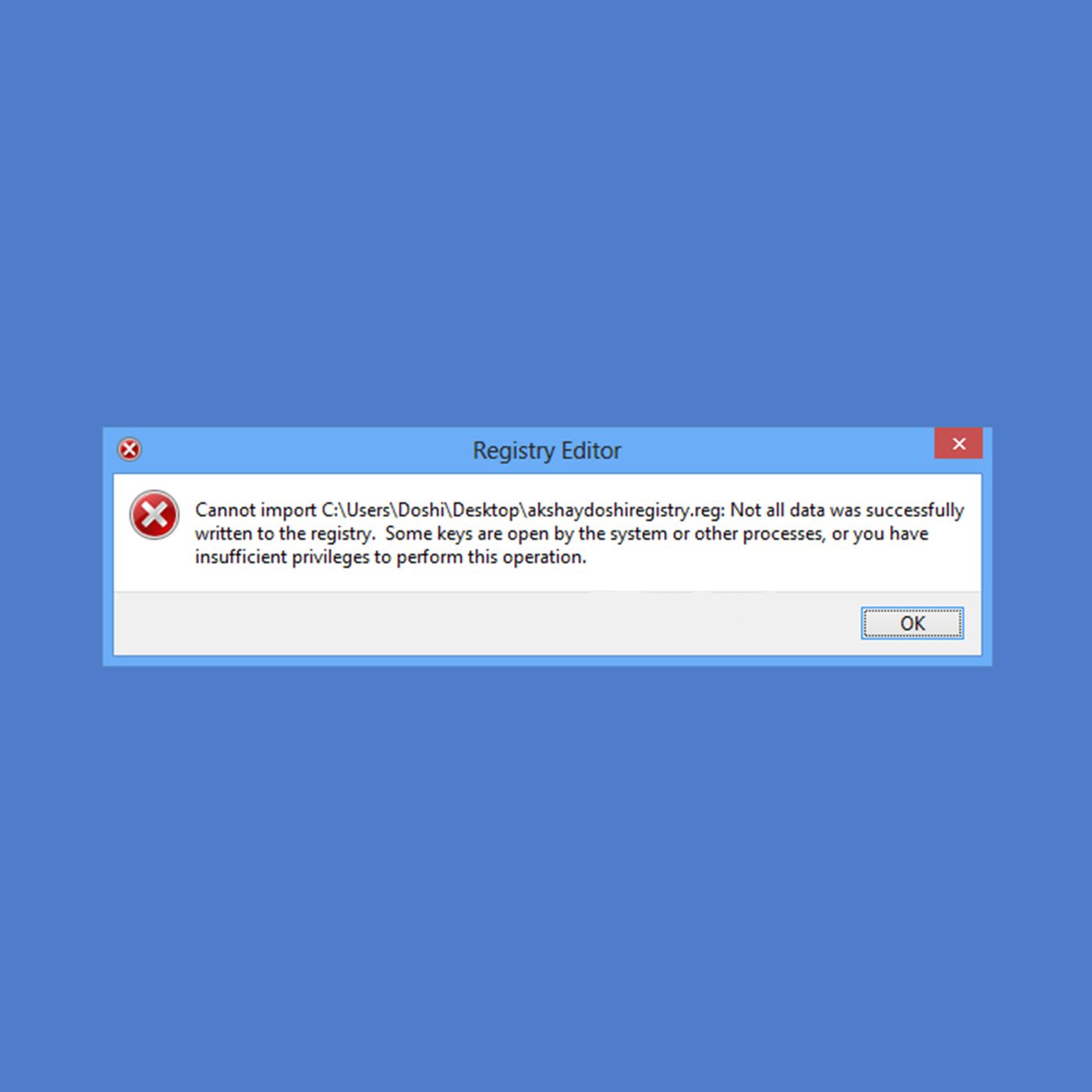


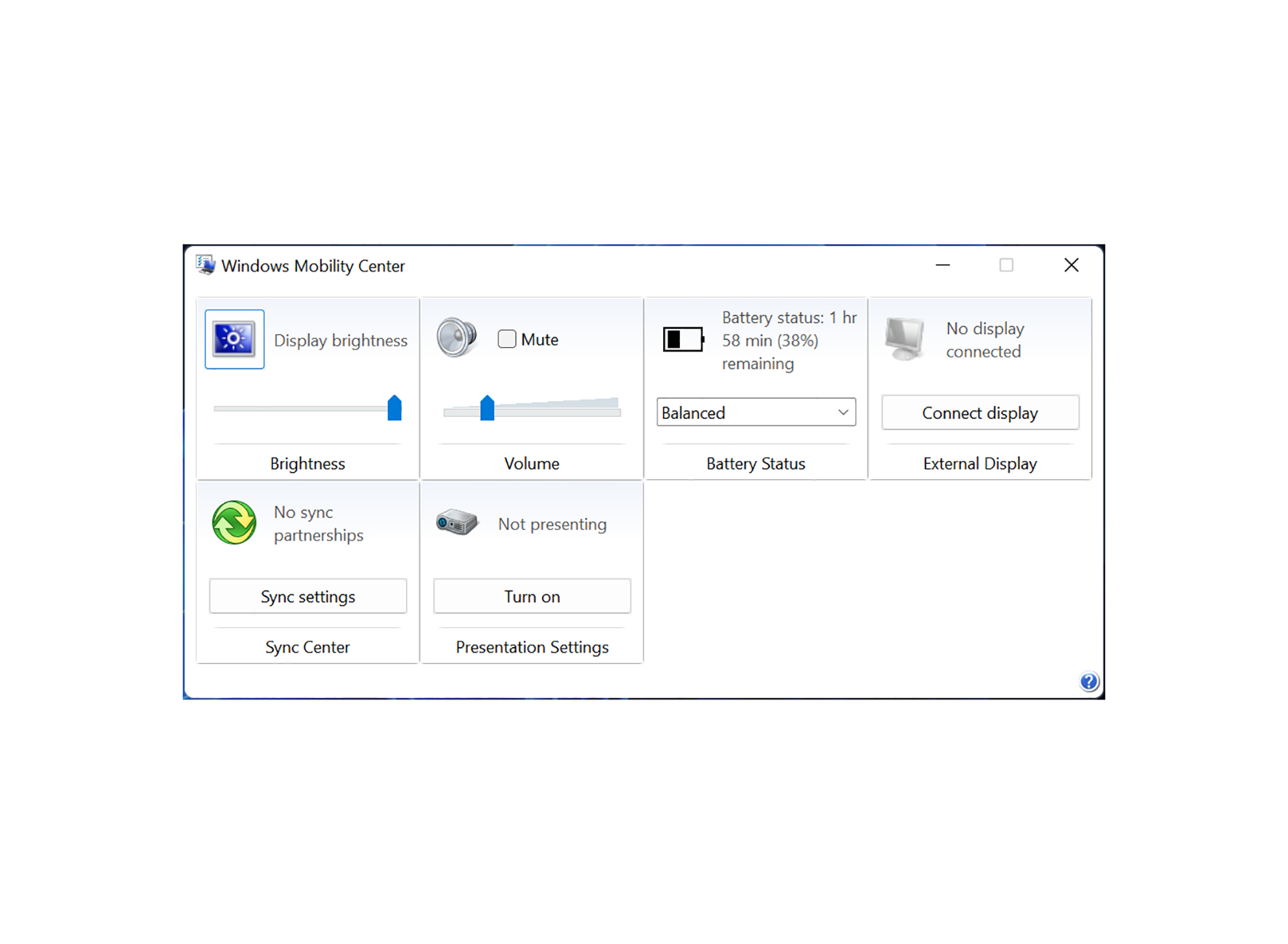




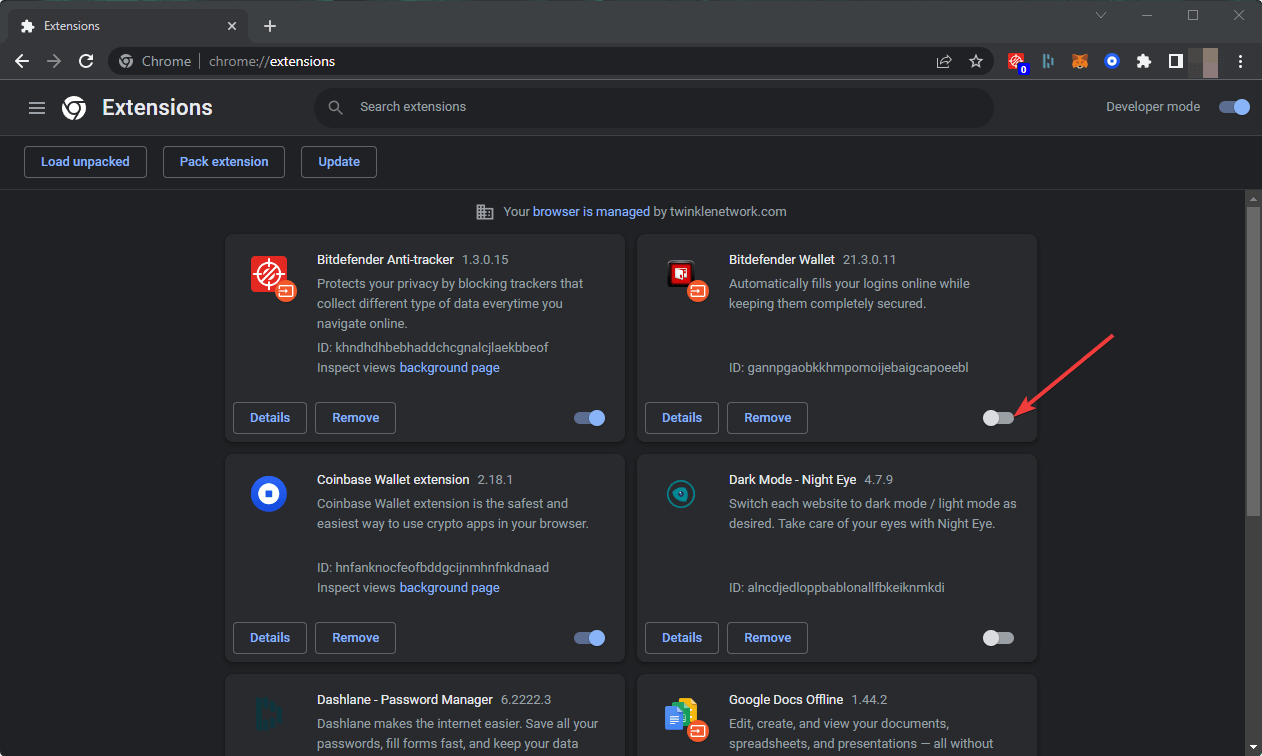
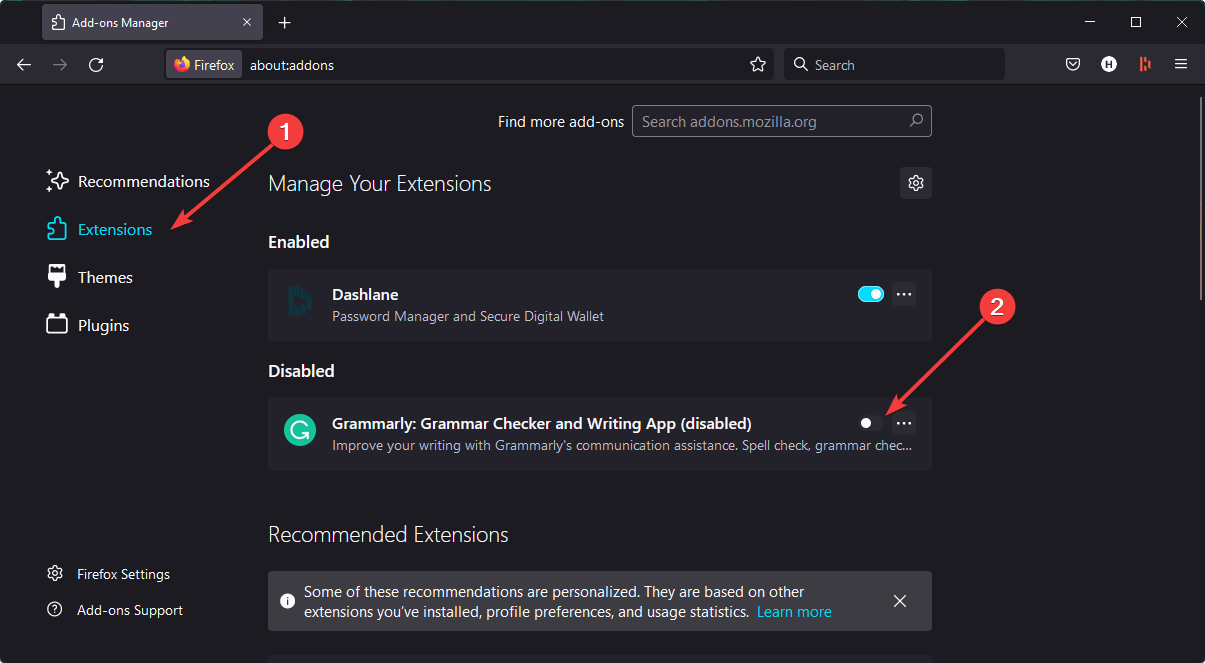
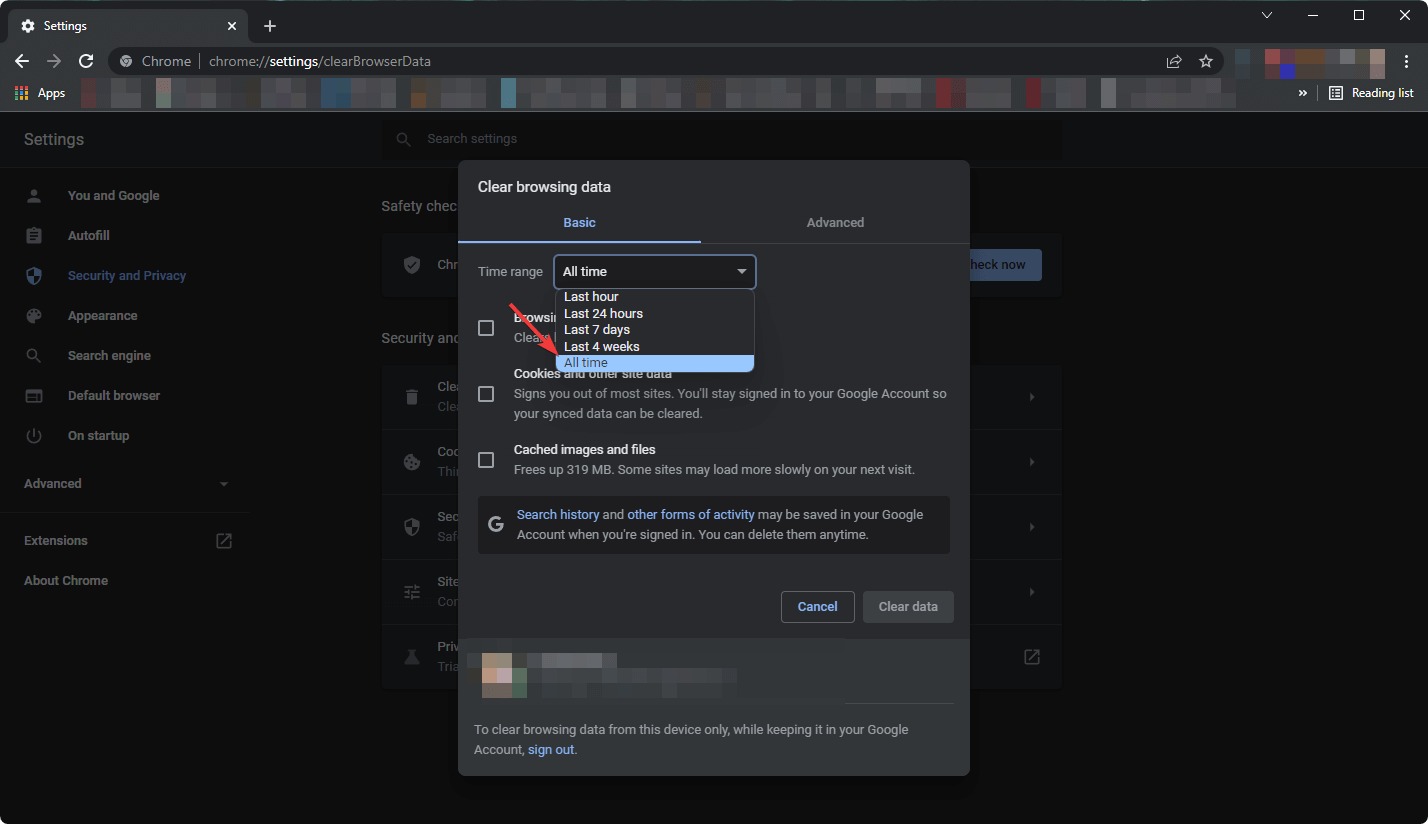


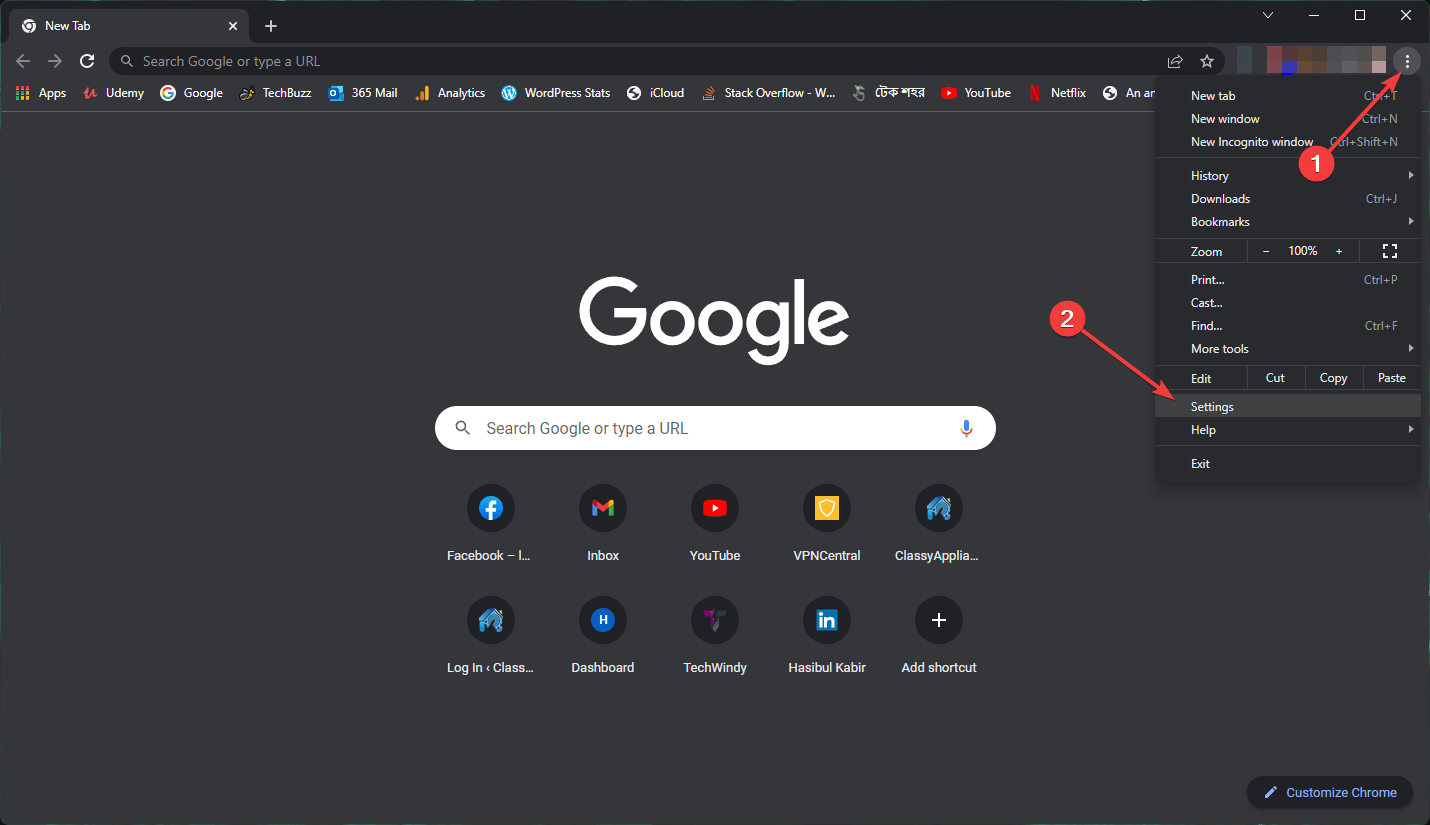
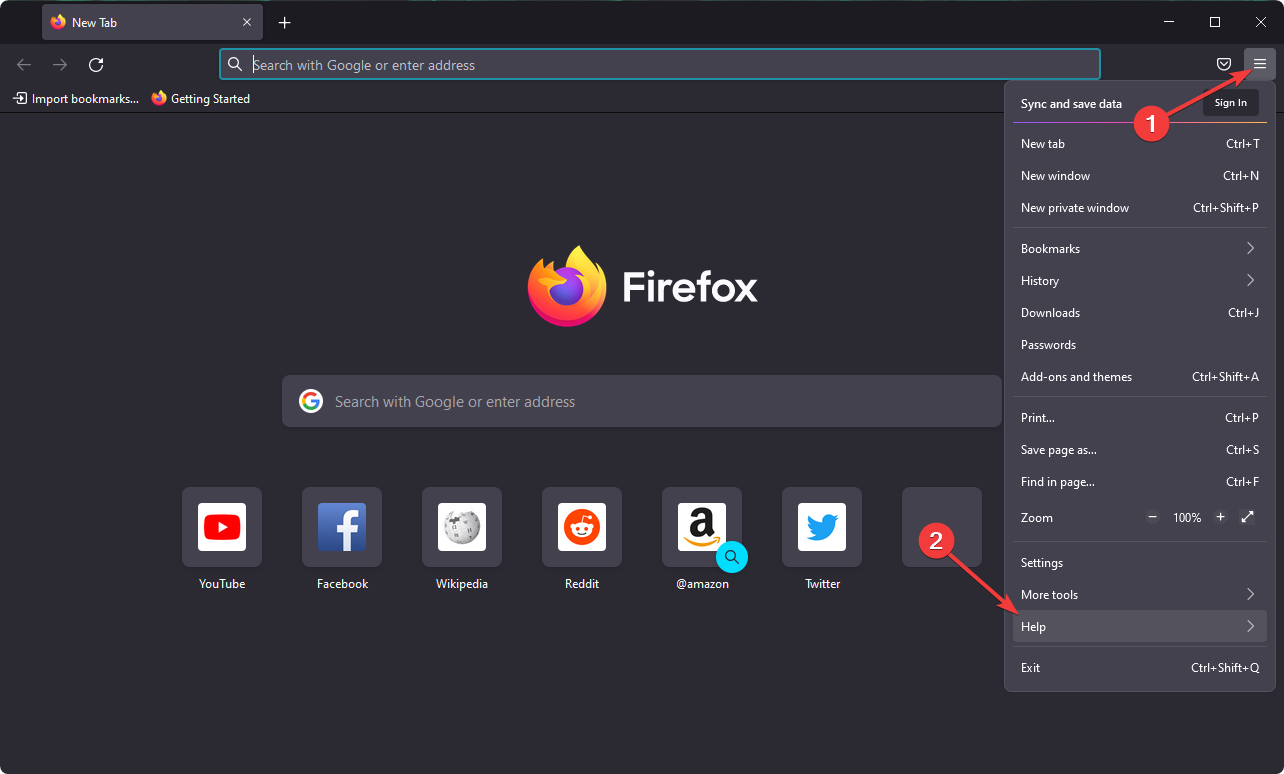
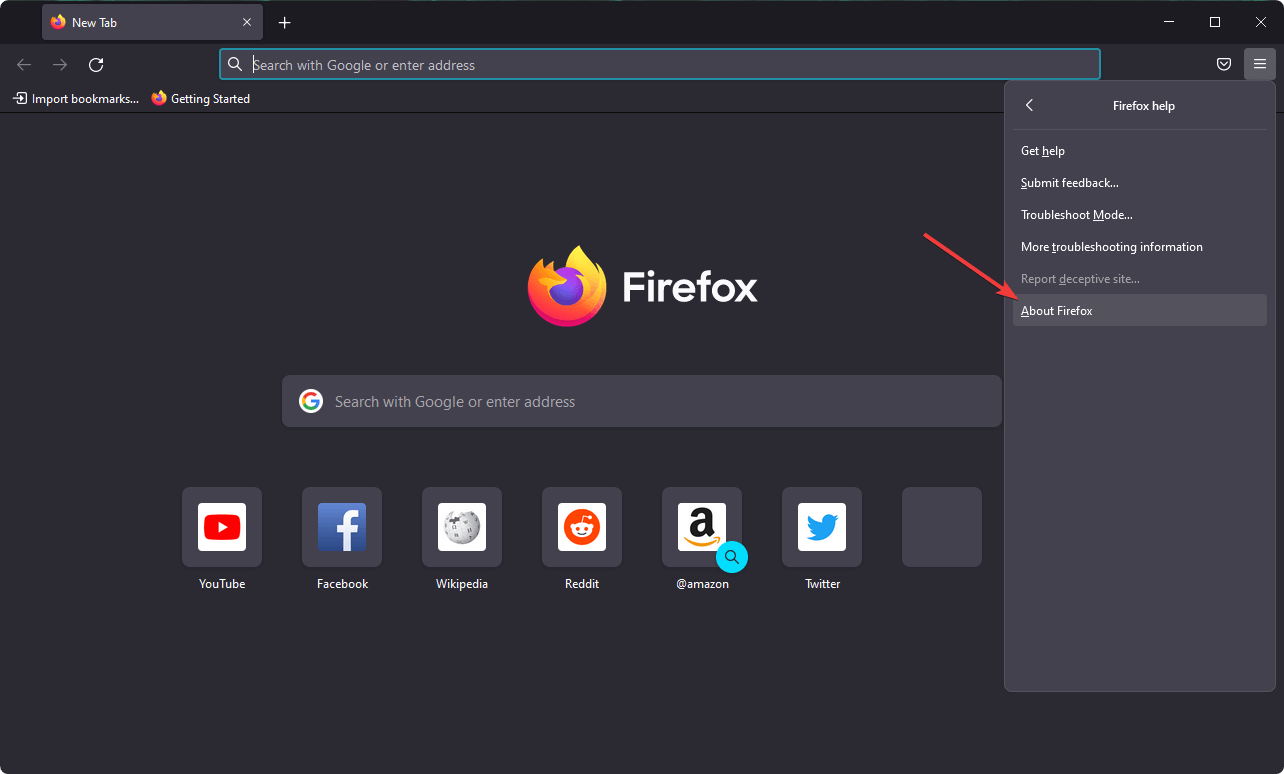
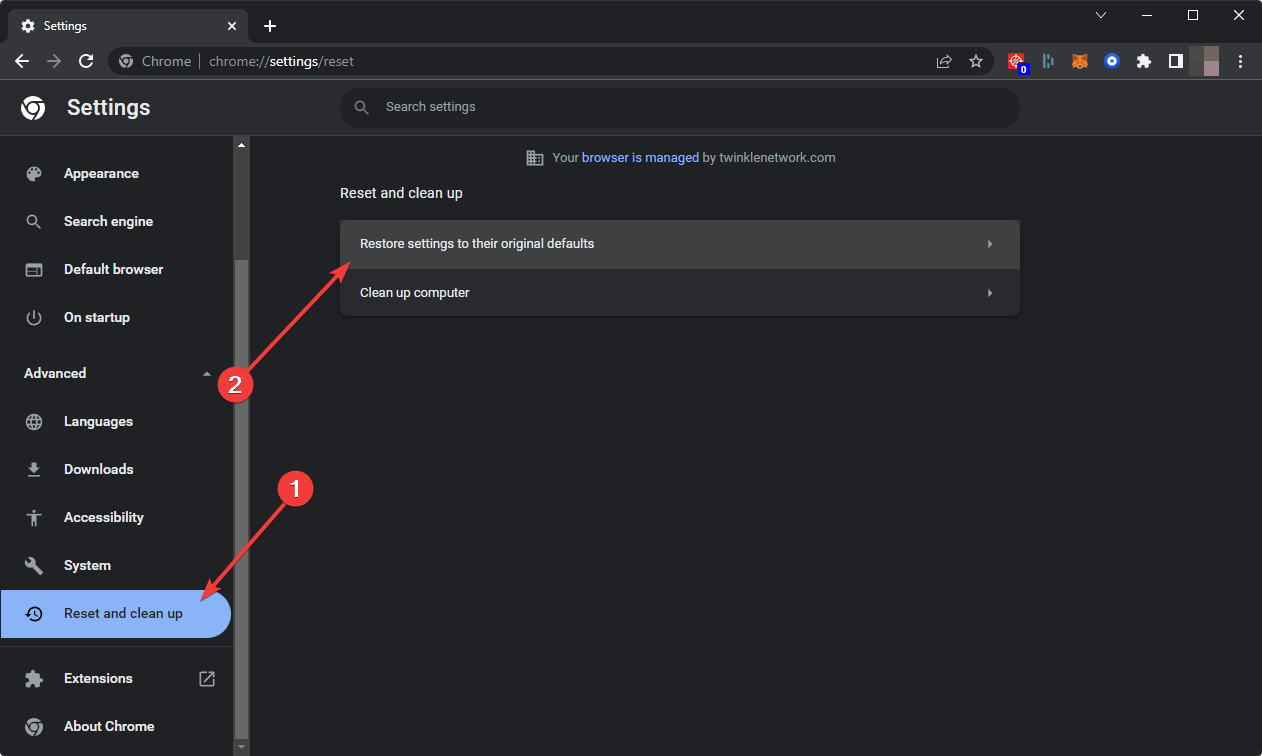
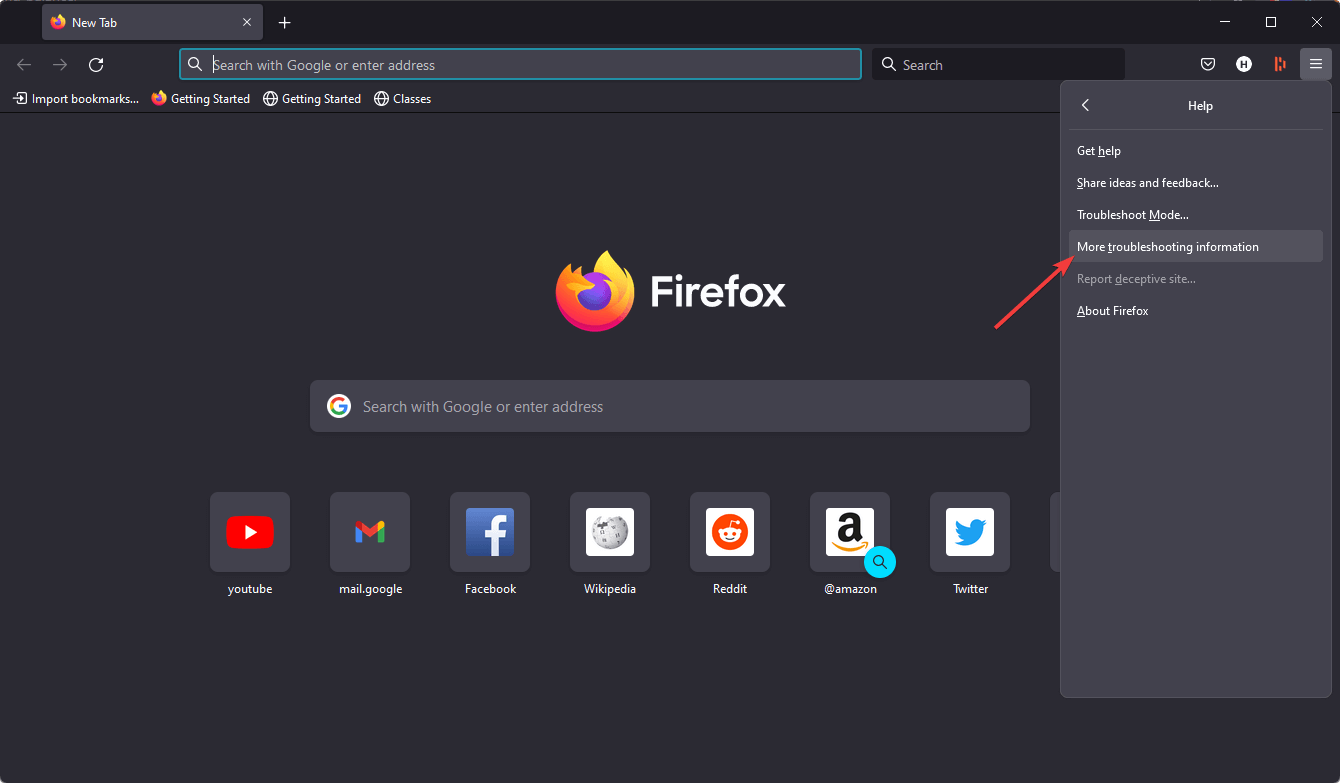
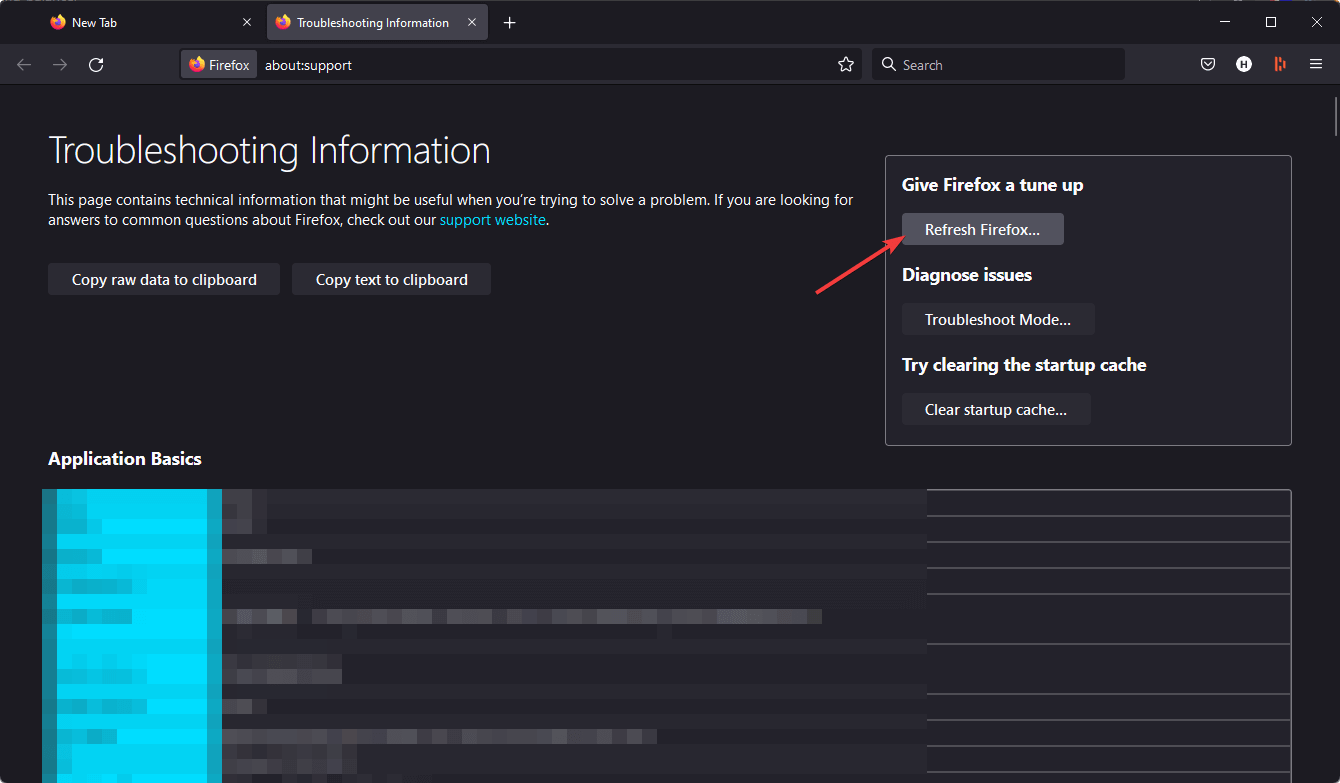

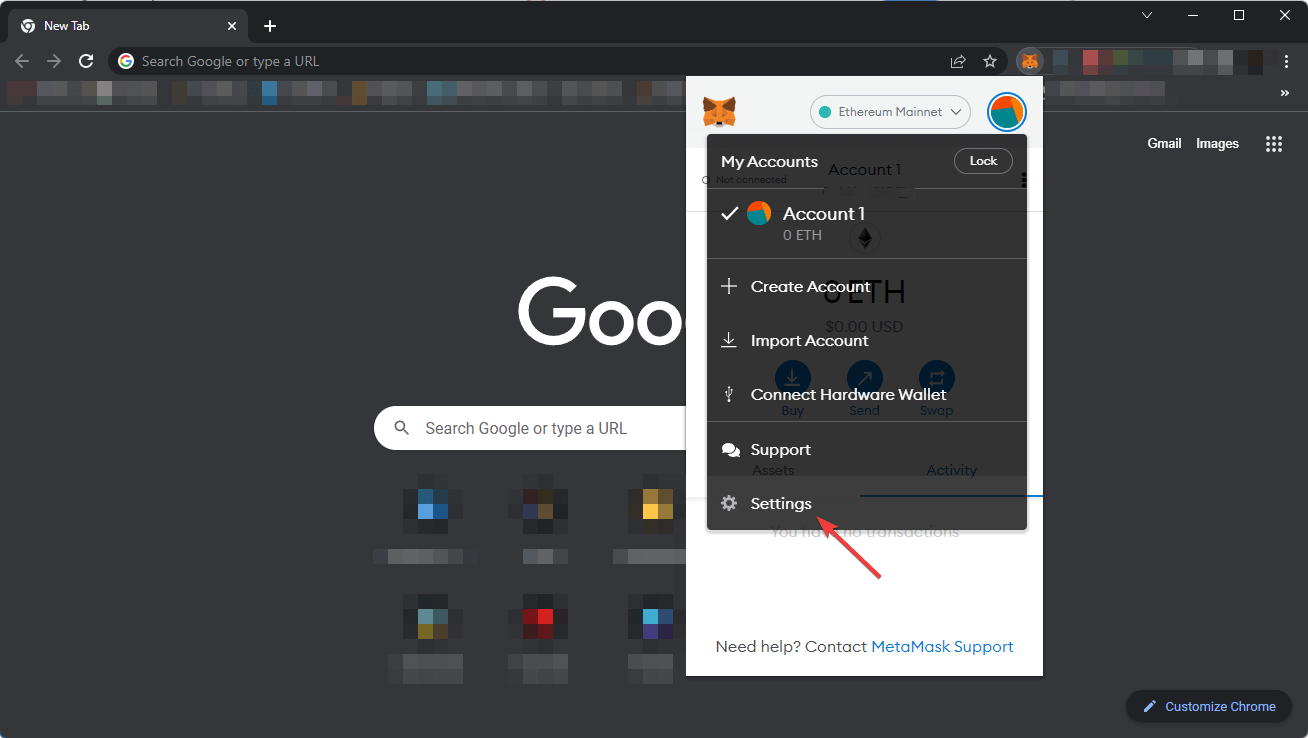
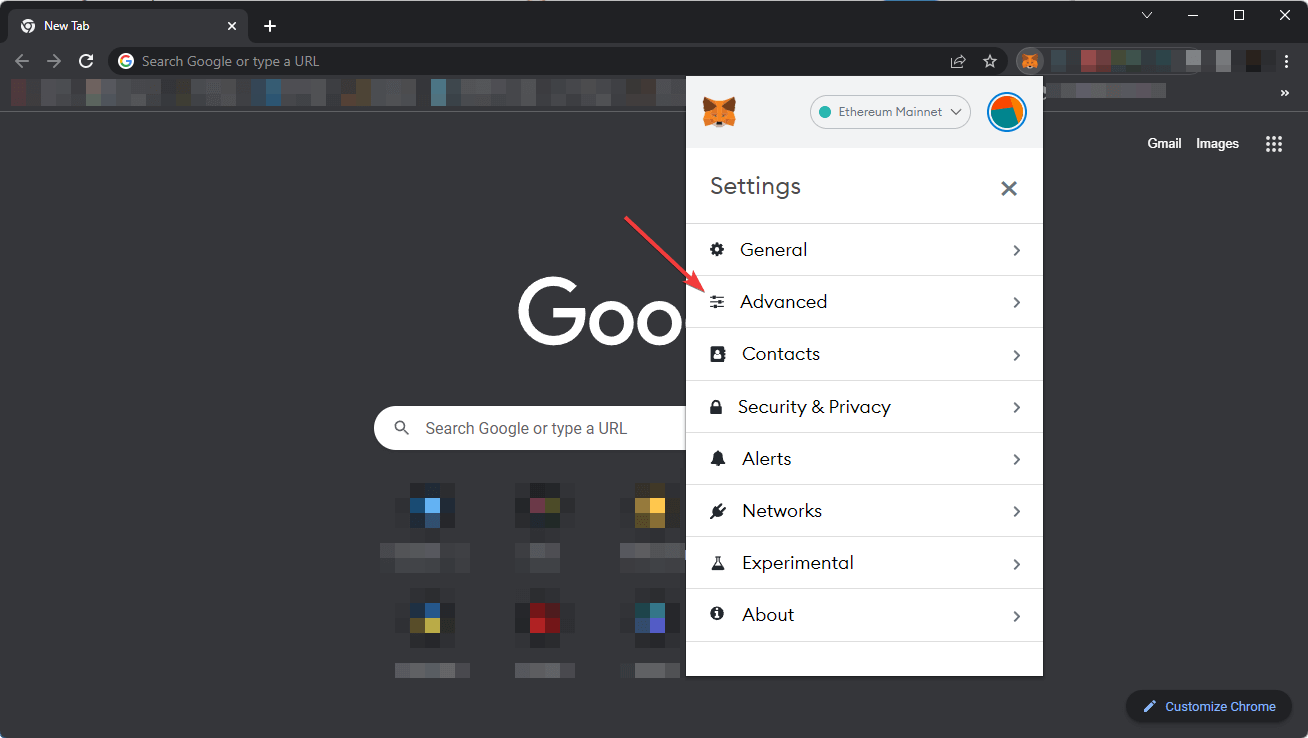
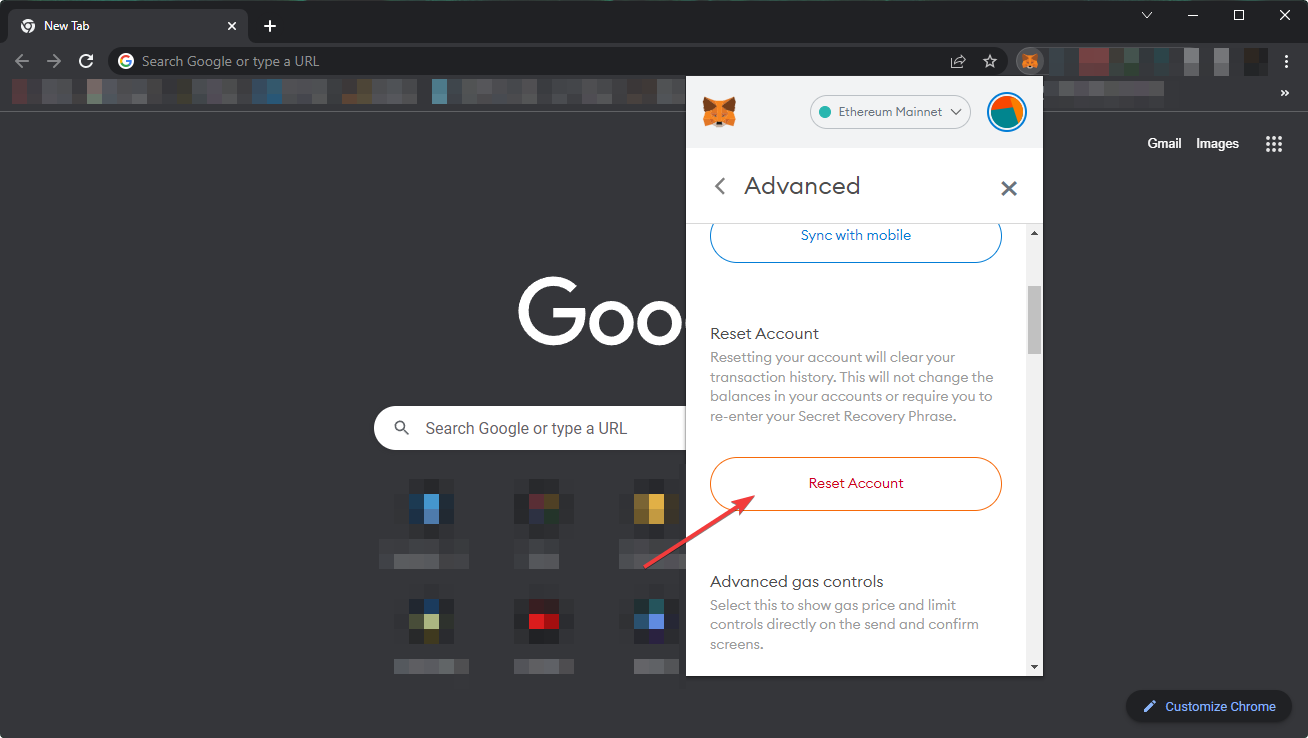



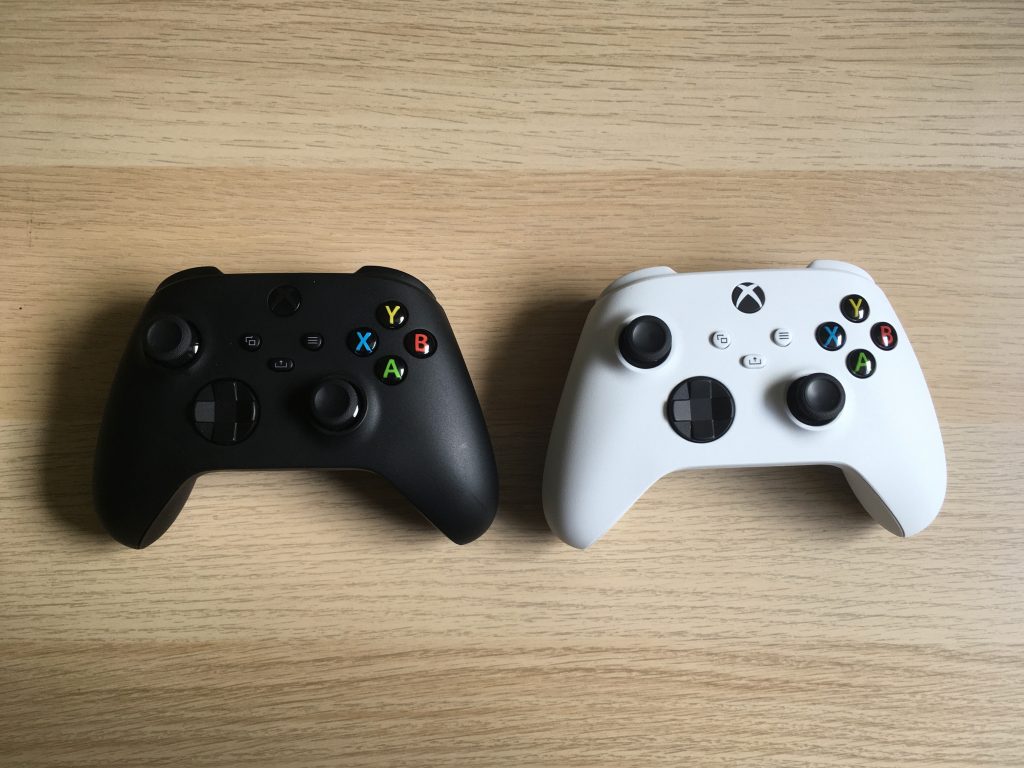
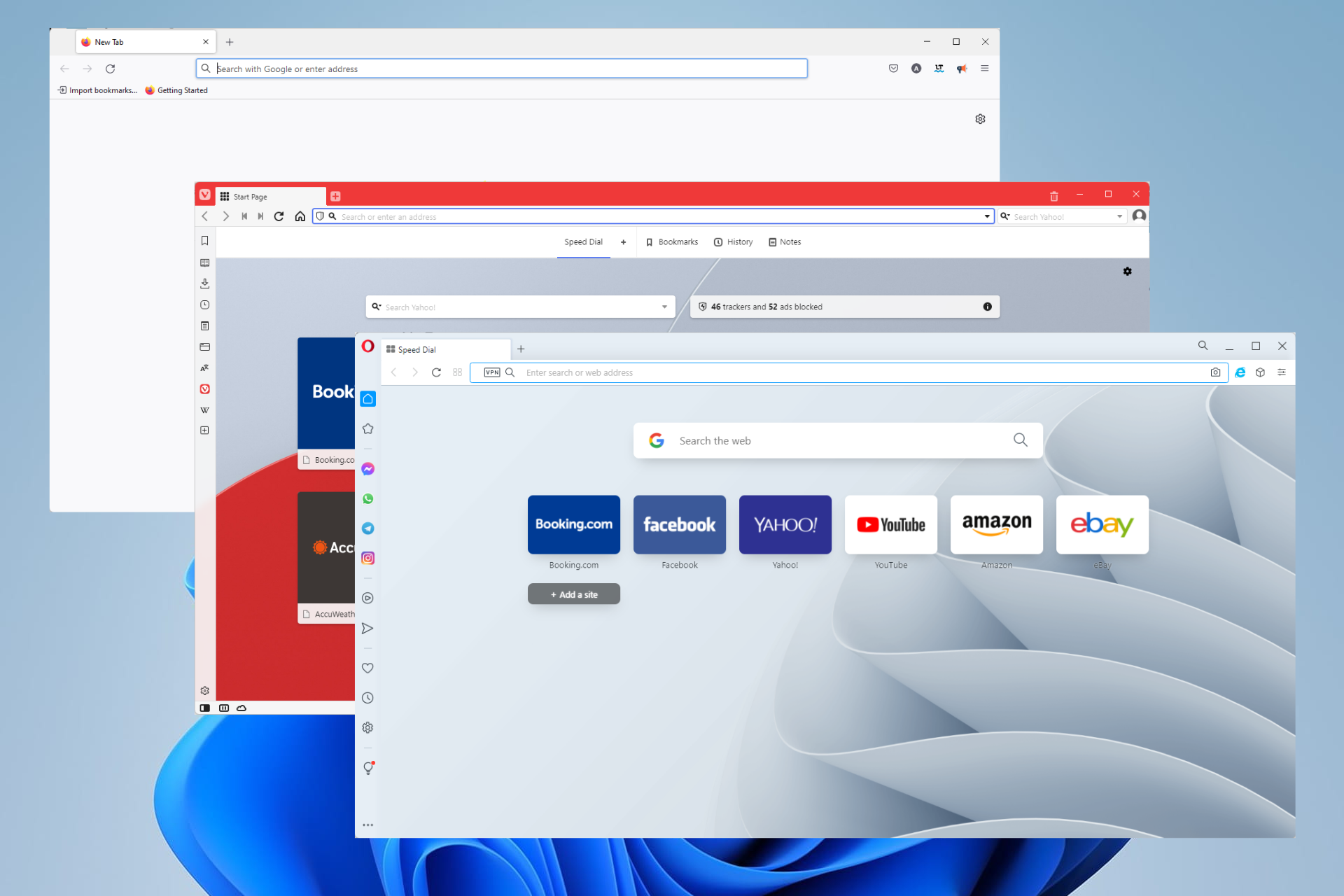





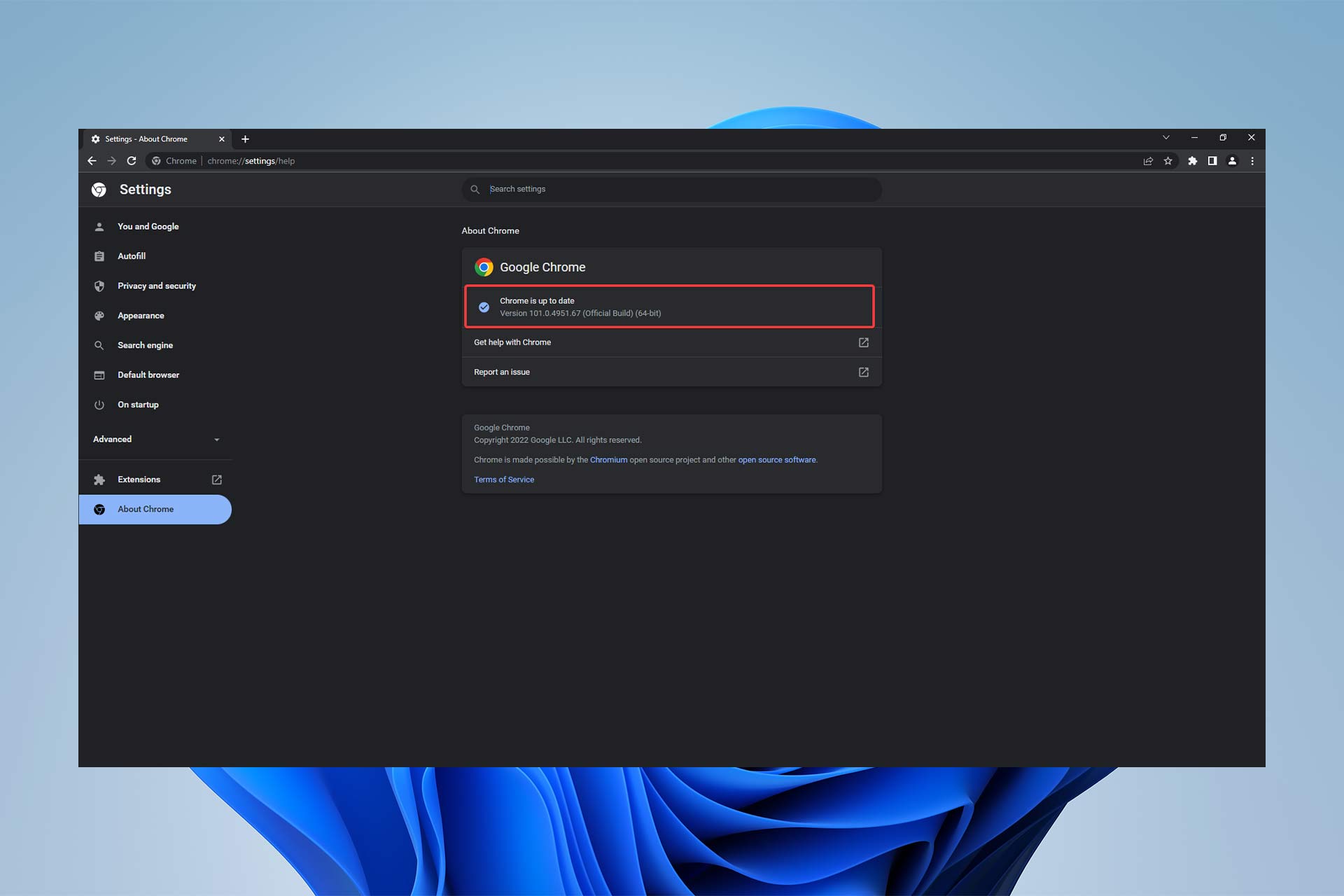


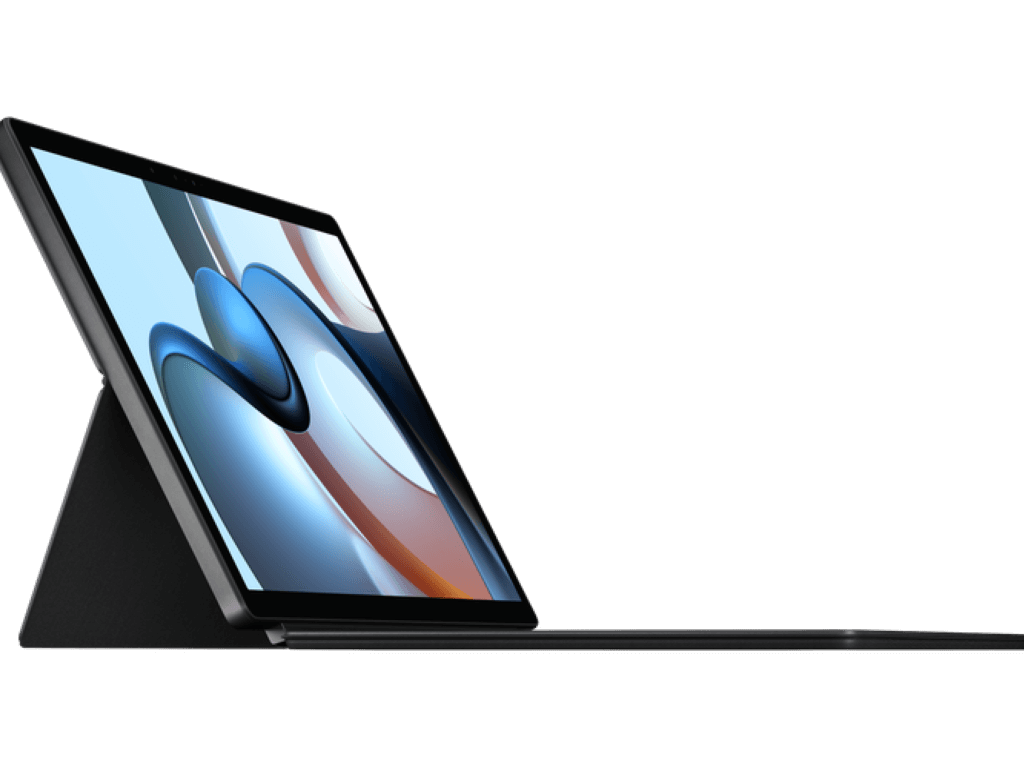
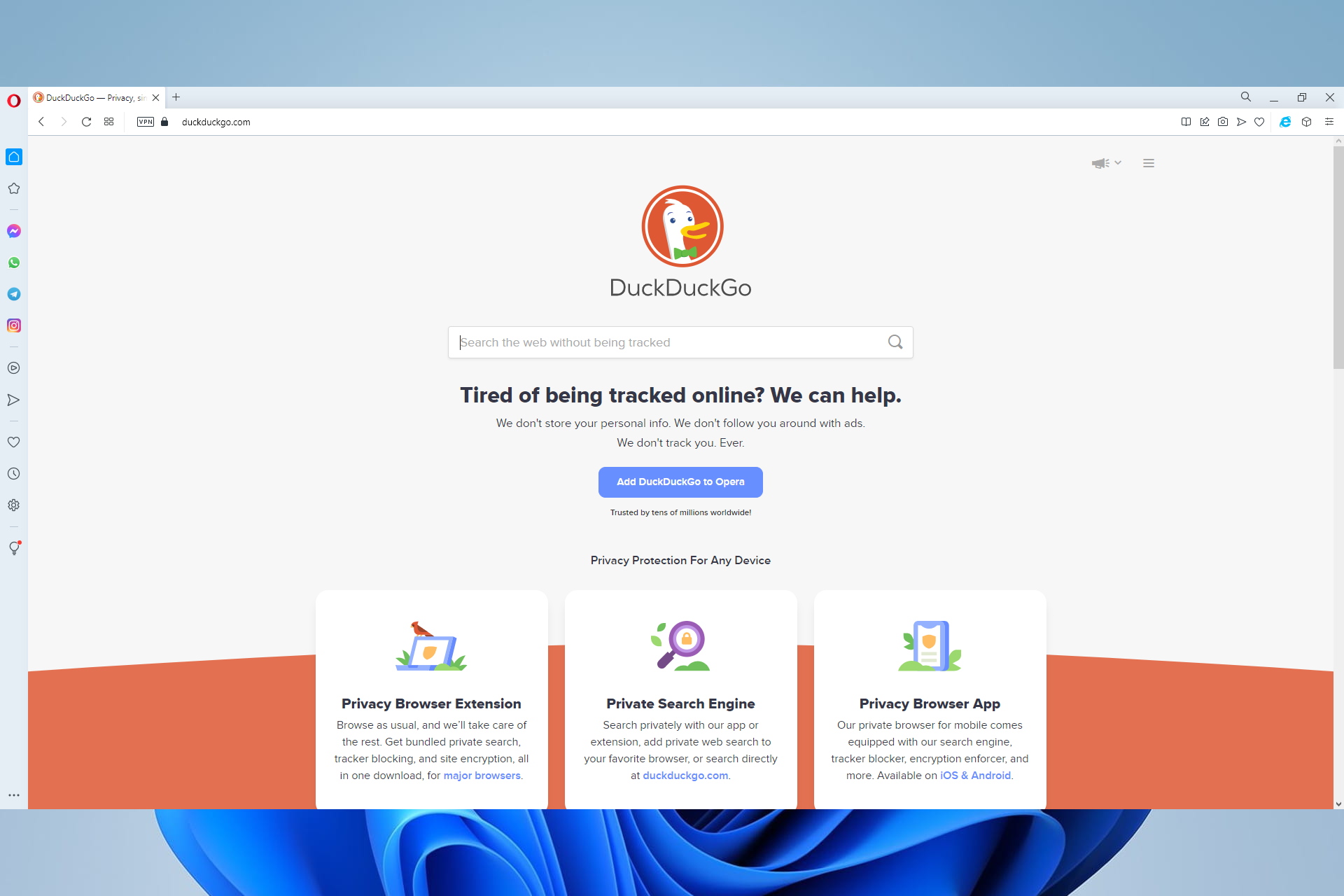


![How to Fix Error Source Code 0 on Twitch [Broadcasting Fixes]](https://windowsreport.com/wp-content/uploads/2022/06/Untitled-design-32.jpg)



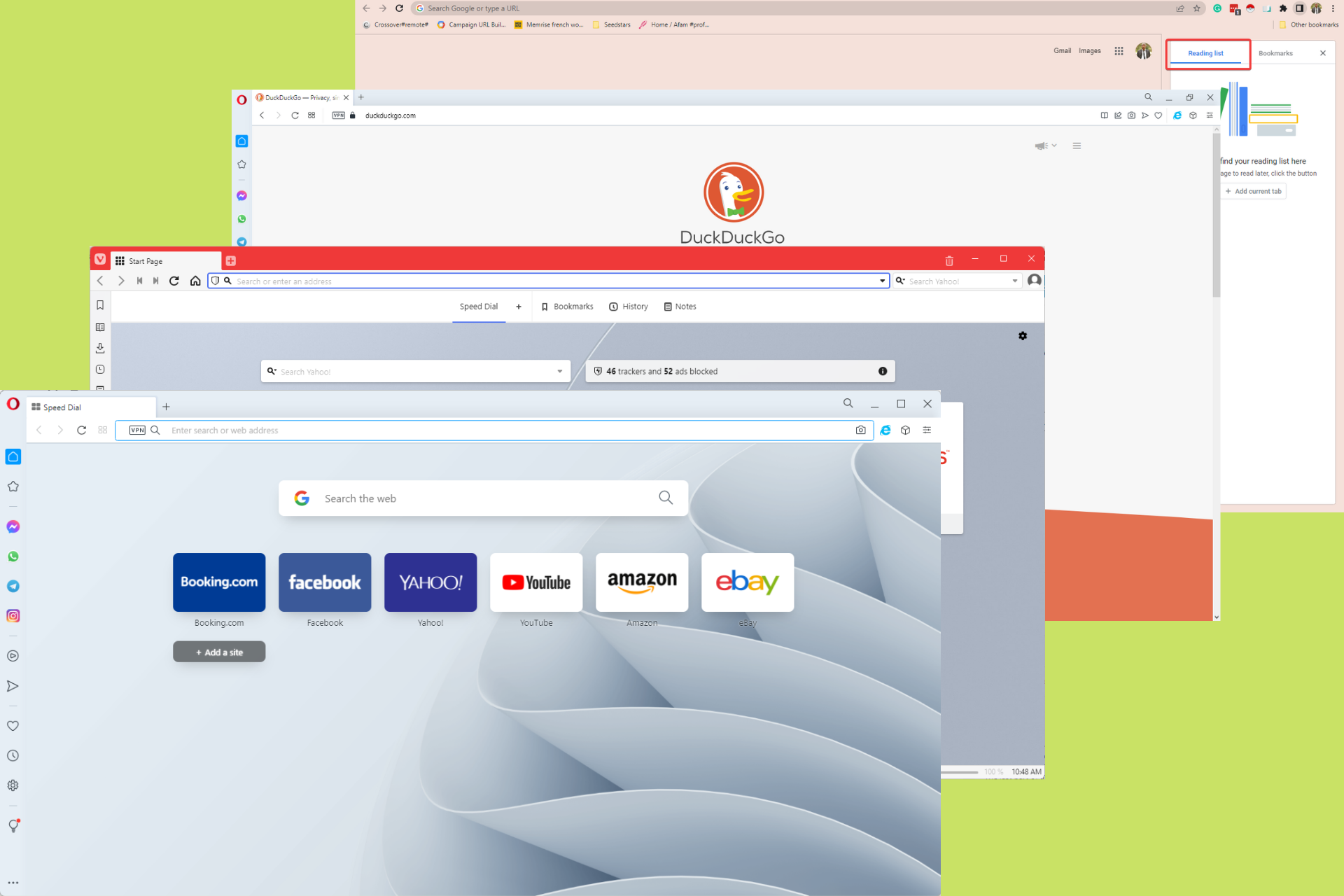






![[Solved] Roblox Verification Not Working – Roblox Guides](https://windowsreport.com/wp-content/uploads/2022/05/Untitled-design-38-1.jpg)