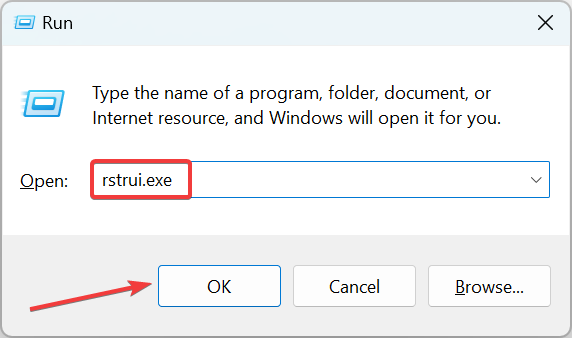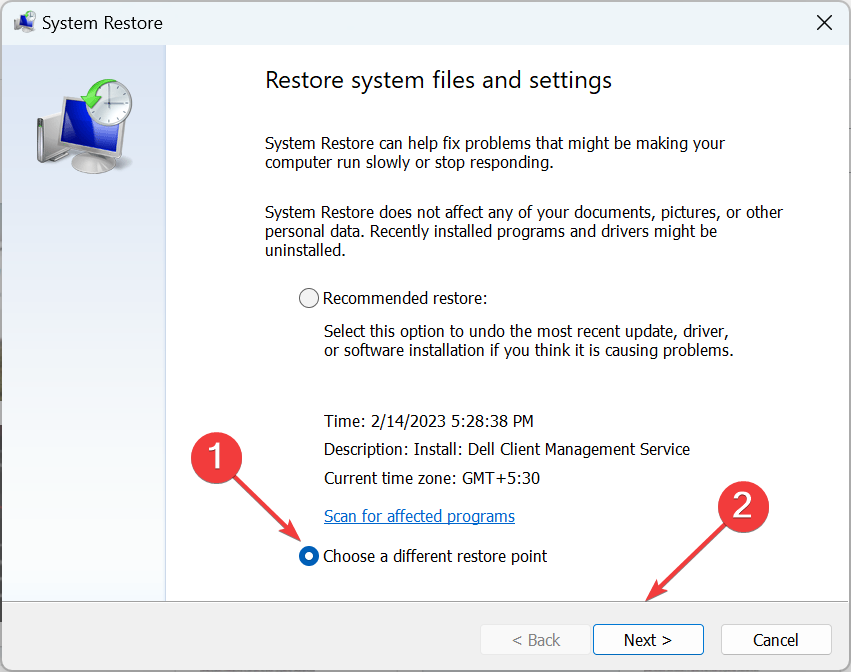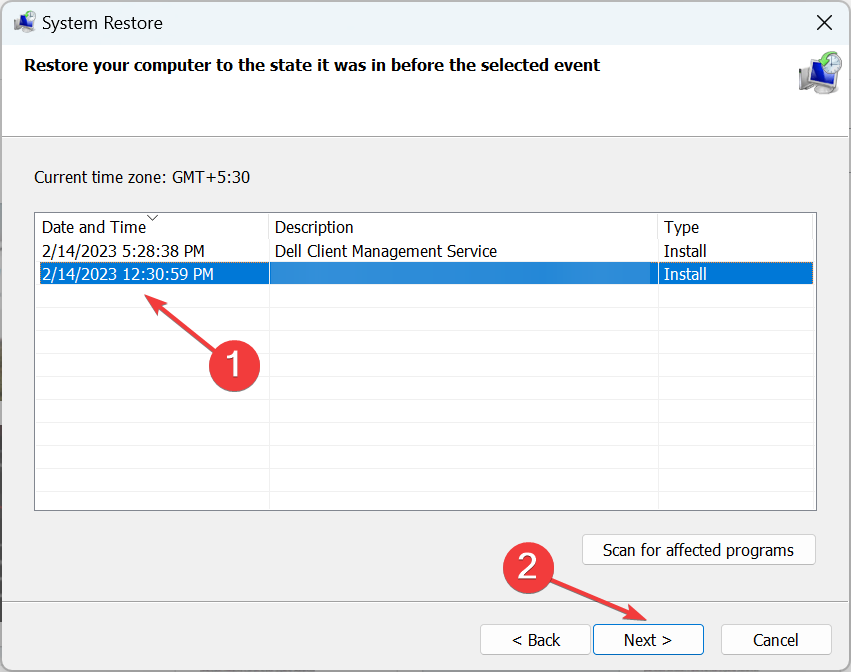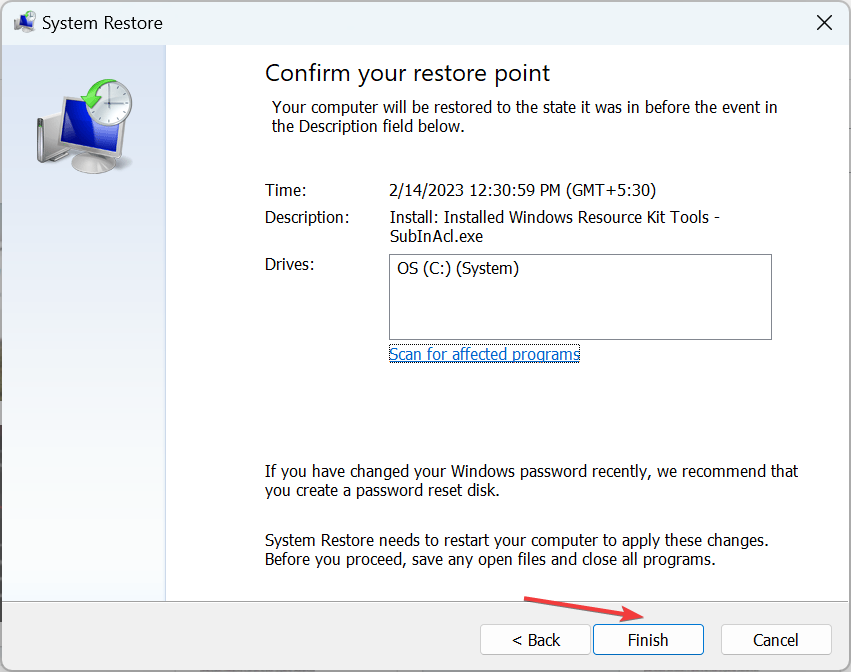
Dxgmms2.sys on Windows 11: What is it & How to fix it

Windows 11 is a fantastic operating system, but it is not without flaws, and you will encounter a bug or two sooner or later. Users have reported that the dxgmms2.sys file is causing a blue screen of death on their computers.

This might be a significant problem because your computer will restart every time you see this error, however, you can resolve this issue by using one of our solutions.

Similar to the dxgmms2.sys error, the dxgmms.sys error in Windows 11 might occur as a result of a hardware failure. In this case, your graphic driver is more responsible for the problem.

We’ve put up a list of steps you may take to resolve the problem, as well as an explanation of what’s going on.

What caused the dxgmms2.sys error?

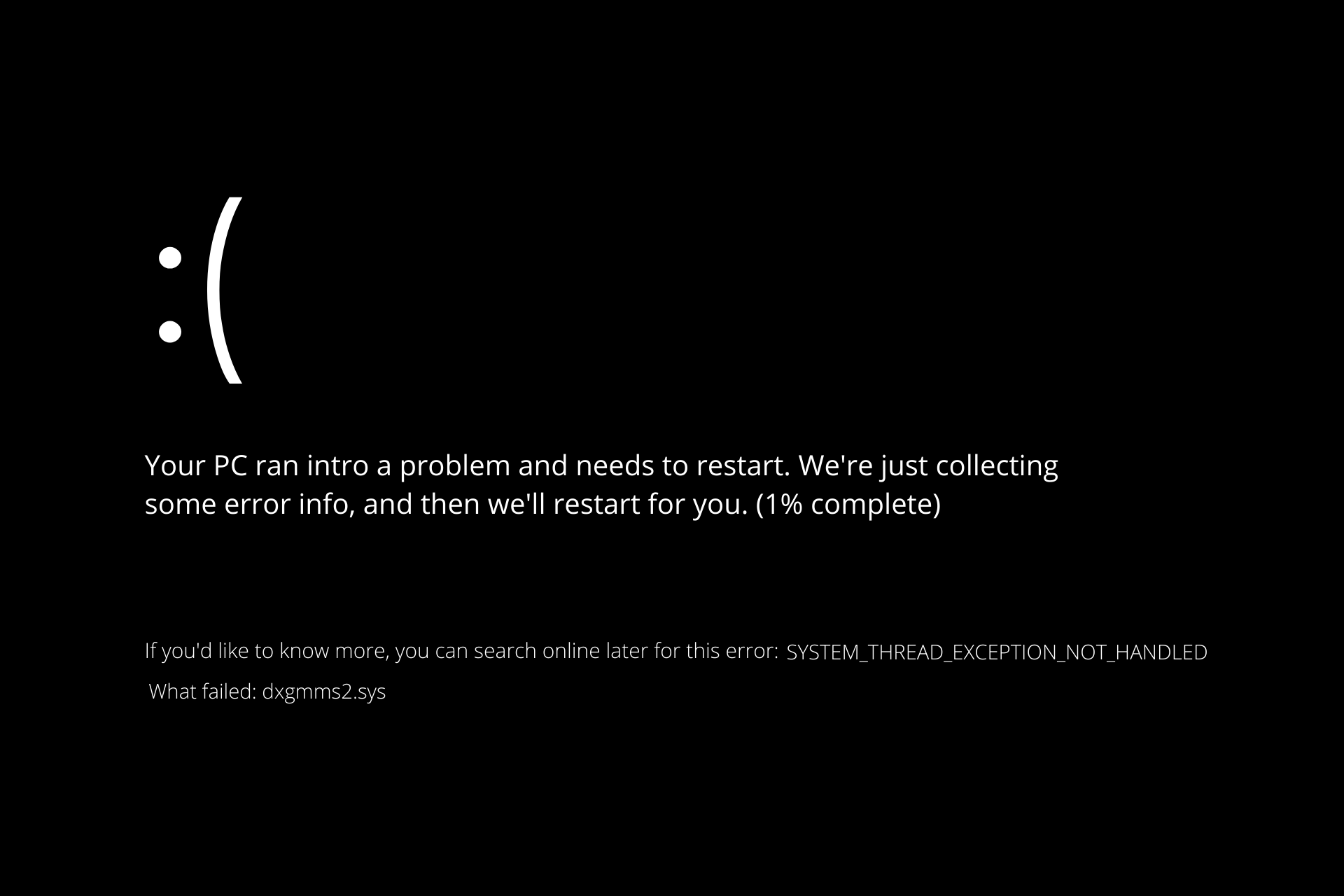
Your computer’s graphics rendering capabilities are dependent on the presence of the dxgmms2.sys file, which is a vital Windows file. If it is unable to manage the rendering process, an error screen with the message SYSTEM THREAD EXCEPTION NOT HANDLED will appear, along with the file name.
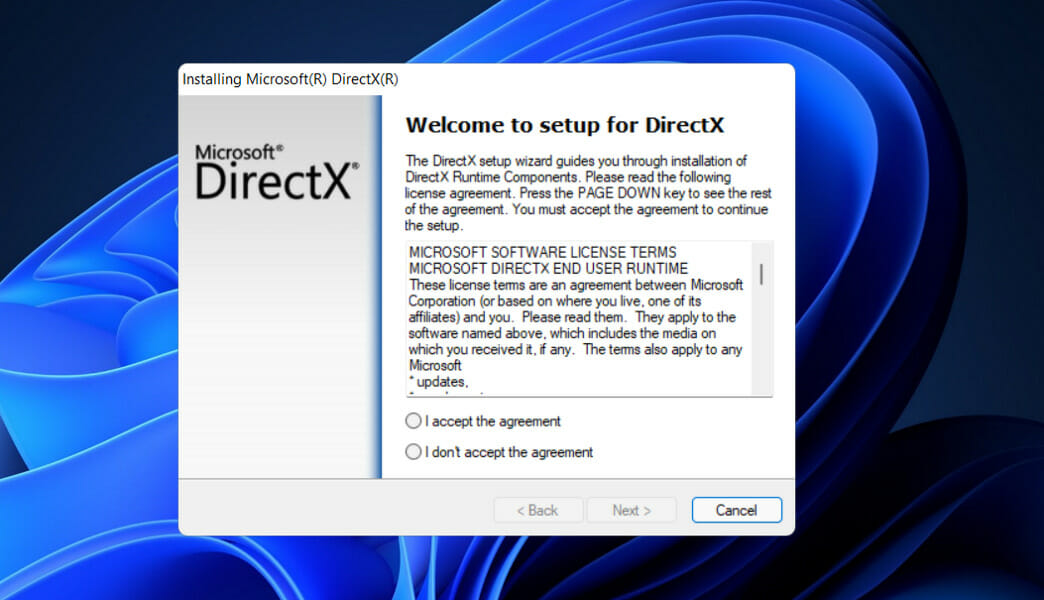
directx dxgmms2.sys windows 11

The dxgmms2.sys blue screen of death (BSoD) error occurs when the DirectX Graphics MMS system file in Windows 11 crashes as a result of outdated, buggy, or defective graphics card drivers.

However, generic file corruption and memory-related problems can also play a role in the occurrence on rare occasions.

Other possible causes could be:

➡ The driver software for your graphics card has been corrupted or out of date
➡ It could be caused by a corrupted BIOS or by erroneous settings
➡ RAM or hard disk that is not working properly
➡ An issue with hardware acceleration has been identified
➡ The TDR delay time has been decreased

How can I fix the dxgmms2.sys error in Windows 11?

1. Update your BIOS

To get started, go to the motherboard manufacturer’s website, such as Dell’s official page, and look for the Downloads or Support page for the board model you want.

Alternatively, for our users that reported getting the dxgmms2.sys error and use HP computers, you should visit HP’s official website.

Respectively, for our Lenovo users, check our Lenovo’s official page with drivers and updates.

You should see a list of the current BIOS versions, along with any improvements or bug fixes that have been made to each version, as well as the dates on which they were released.

Download the latest version of the software you wish to update. Unless you have a specific need for an older version, you should always use the most recent version available.

Almost certainly, your download will be in the form of an archive, such as a ZIP file. It is necessary to extract the contents of the file.

The BIOS-flashing tool you select will be determined by your motherboard’s features. These utilities come in a variety of shapes and sizes. The readme file included with the BIOS upgrade should assist you in deciding which option is appropriate for your hardware.

Copy the papers to a USB device and restart your computer after you’ve unzipped the file. After that, go to the BIOS menu and select the BIOS update option.

Finally, pick the file you saved to the USB drive, and the update will be applied automatically. See our article on how to simply upgrade your BIOS for further information and methods.

2. Change the HDMI/VGA port

You will receive the SYSTEM THREAD EXCEPTION NOT HANDLED blue screen problem whenever Windows 11 is launched.

Change the HDMI port on your computer to temporarily resolve this issue. The HDMI/VGA cable must be removed from the Graphics Card port and inserted into the HDMI/VGA port on the motherboard.

3. Use a stable version of Windows 11

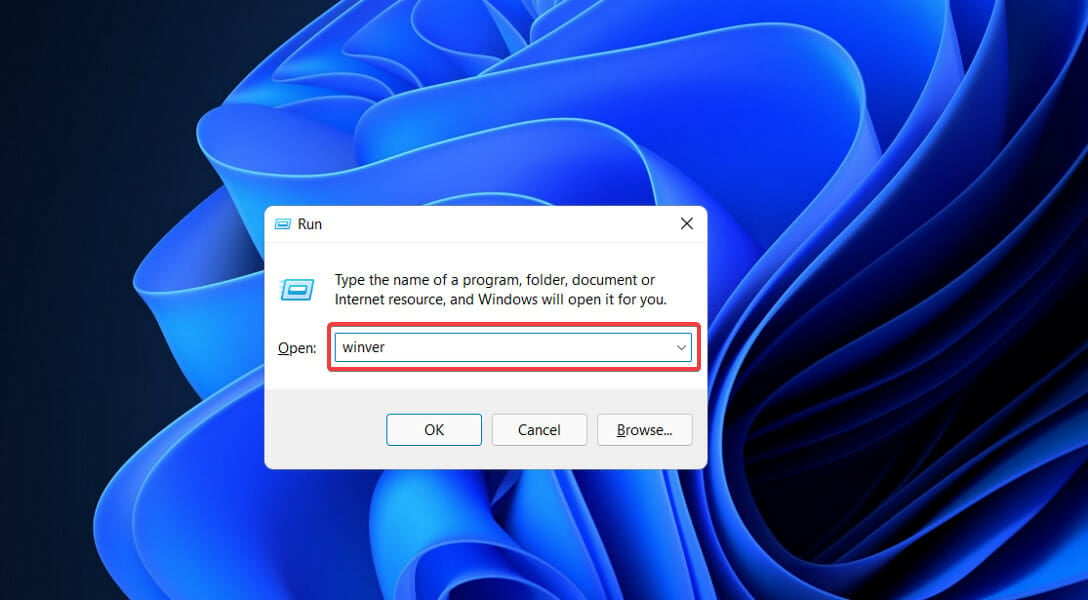
  1. Press the Windows key + R to open the run window and type or paste in winver then press Enter.
    winver-run dxgmms2.sys windows 11
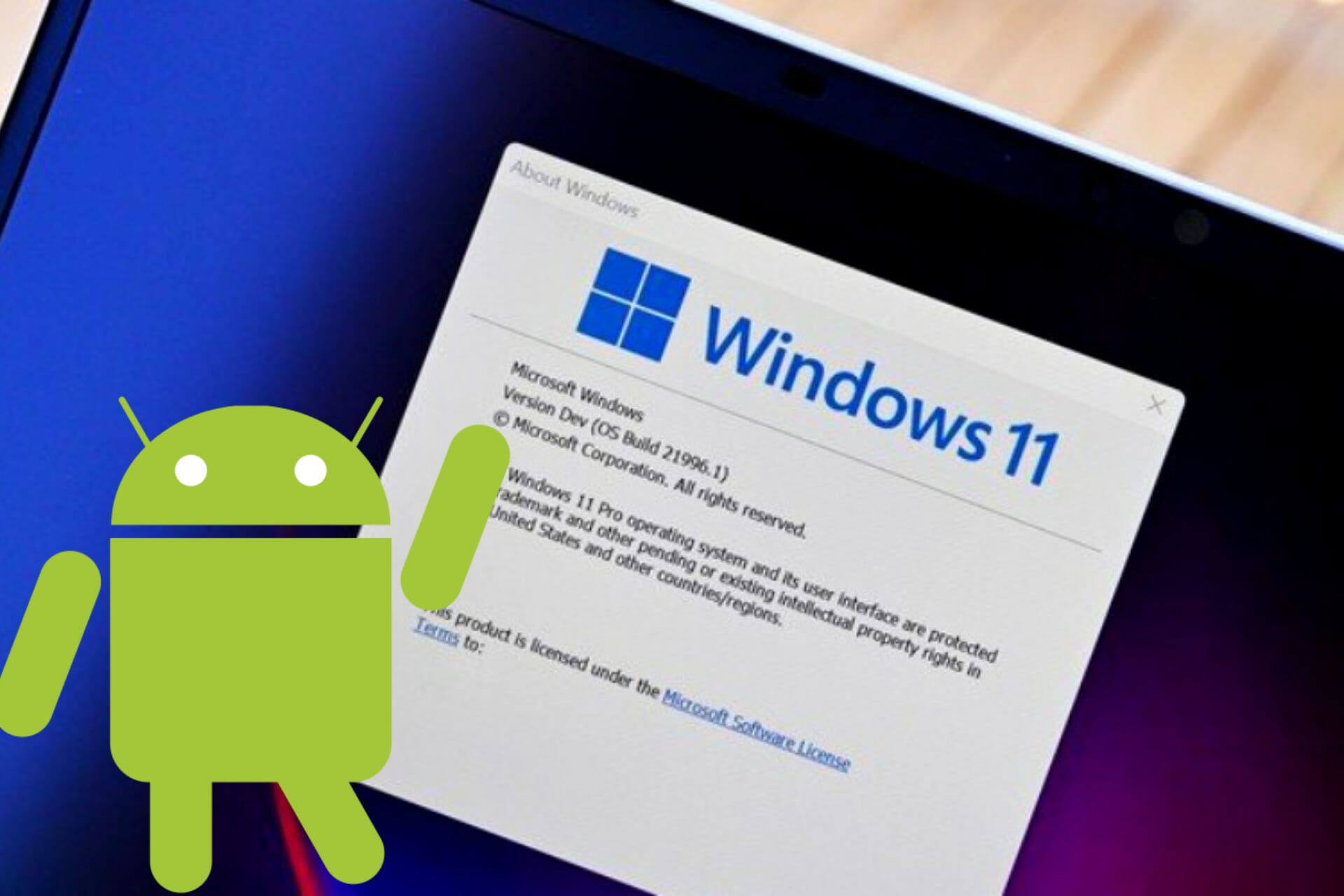
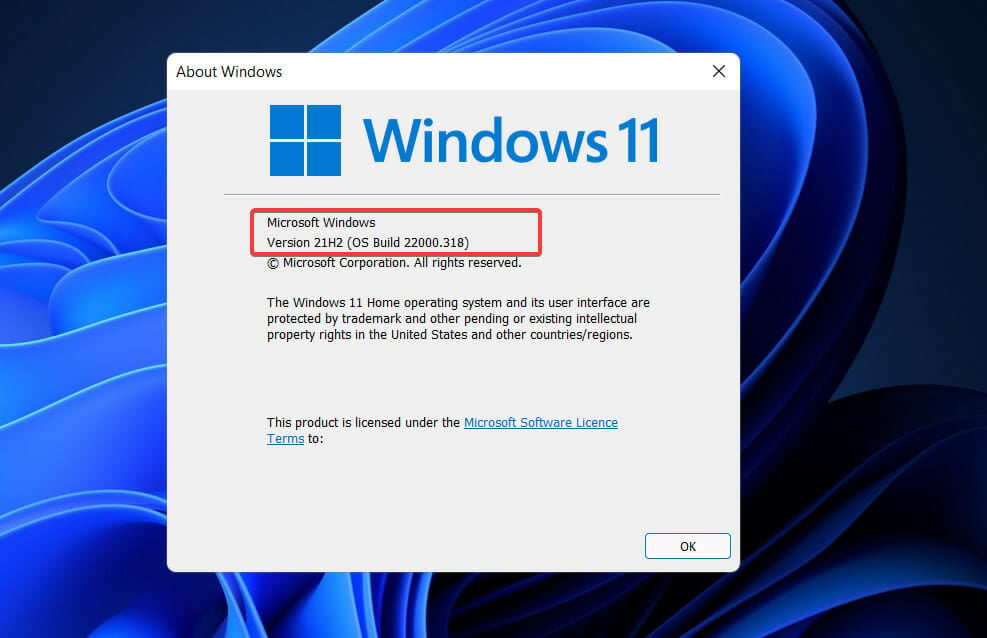
  2. Next, you will see an About Windows window inside which you can find the Windows version and OS build information.
    microsoft-version dxgmms2.sys windows 11
  3. Search on the internet the OS Build Number to find out whether you are using a beta, dev, or stable build.

If you’ve installed the Windows 11 Insider dev build on your PC, it’s possible that this is the root cause. When using Windows 11 developer builds, they are extremely unstable and can cause software incompatibility difficulties.

4. Use the DirectX diagnostic tool

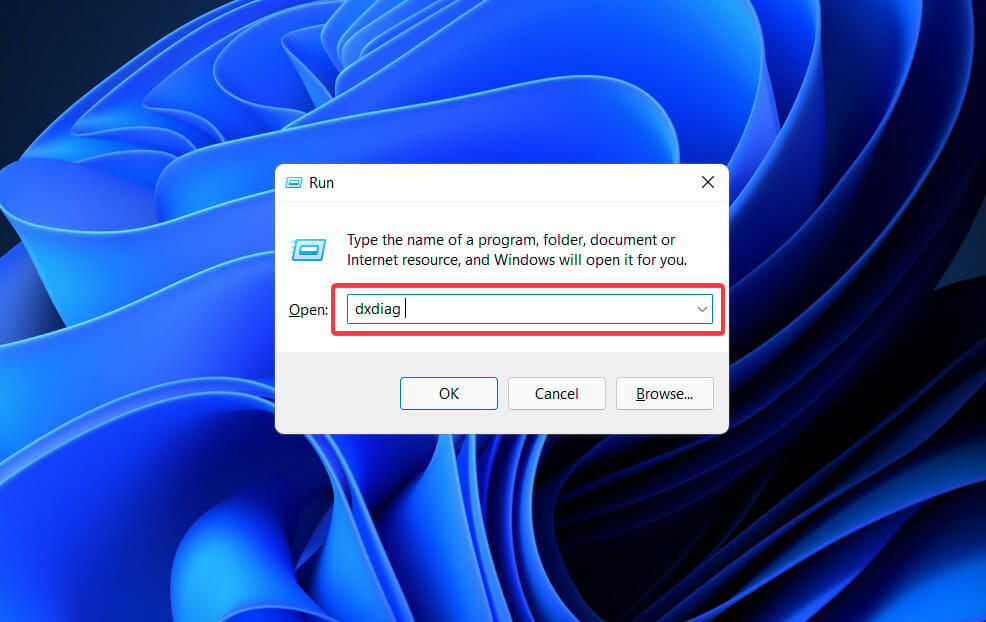
  1. Press the Windows key + R to open the run window and type or paste in dxdiag then press Enter.
    dxdiag dxgmms2.sys windows 11
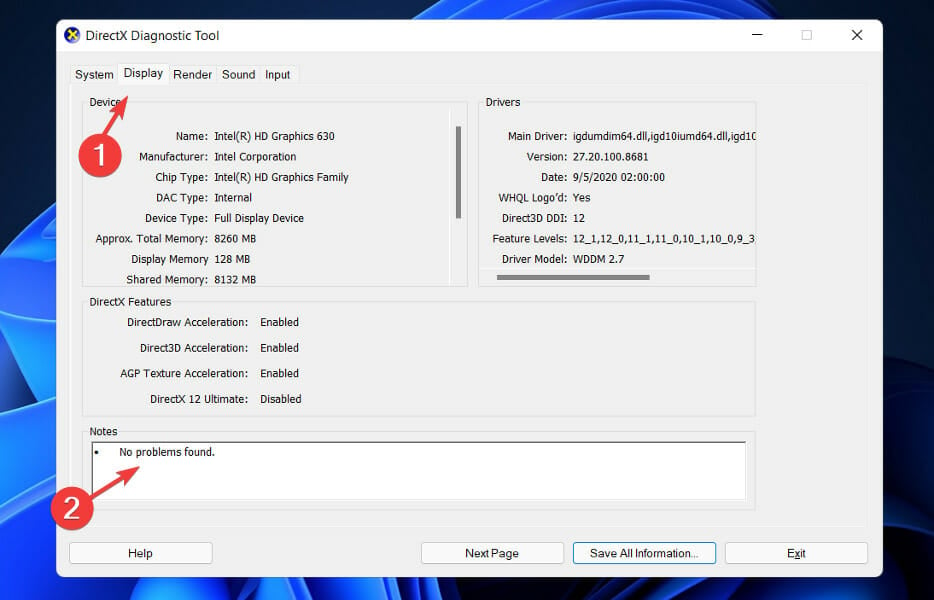
  2. Once the DirectX Diagnostic Tool gets open, click on the Display tab to see if there is anything written in the notes section. If it’s empty, it means everything’s clear.
    disaply-directx-no-pb dxgmms2.sys windows 11

5. Reinstall the graphics card driver

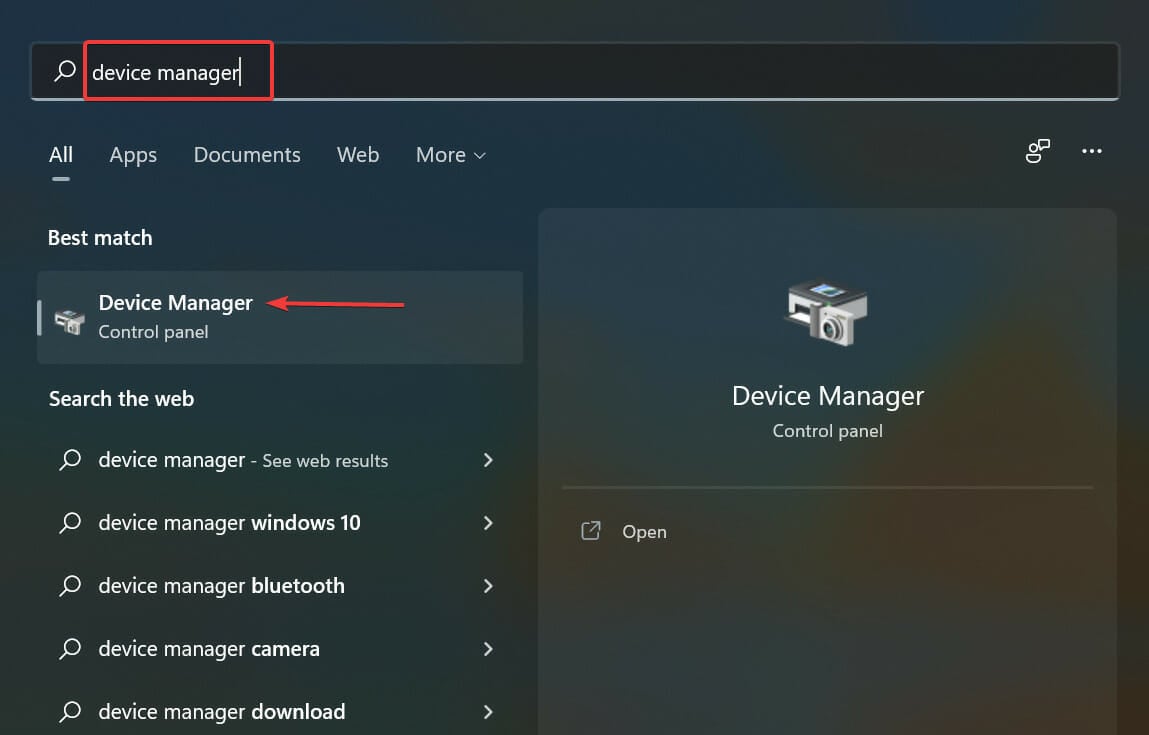
  1. Press the Windows key + X on your keyboard, then select Device Manager from the list of options.
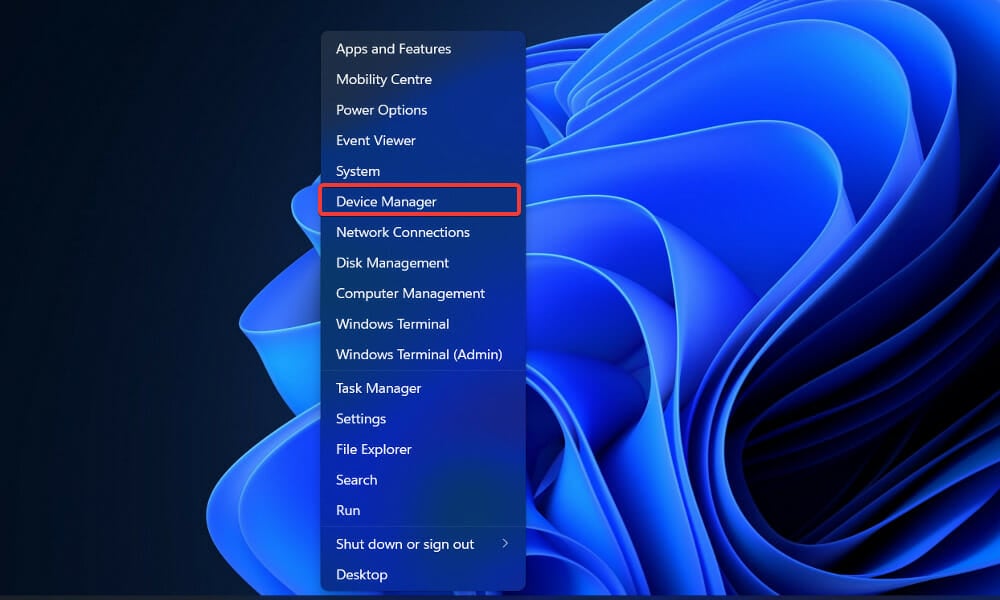
    device-manager video_dxgkrnl_fatal_error windows 11
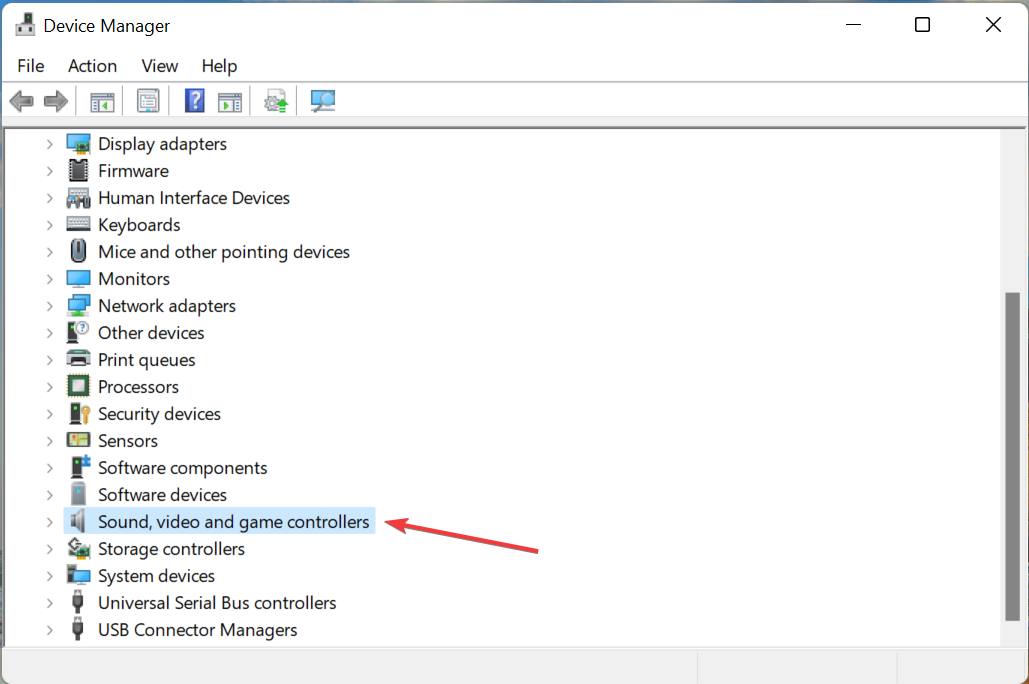
  2. Once the Device Manager window opens, locate the Display adapters option, click on it, then right-click on the graphics driver and choose Uninstall.
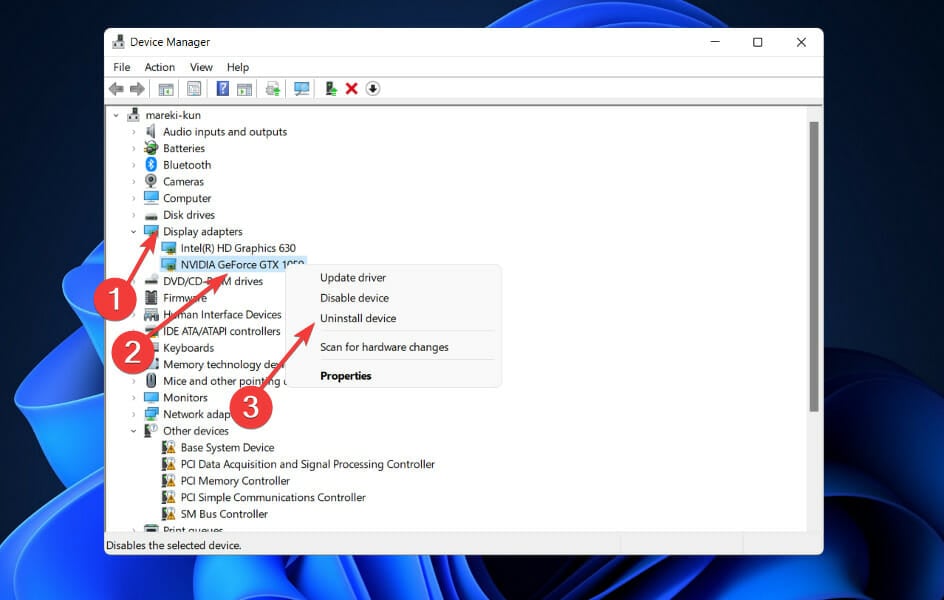
    uninstall nvidia video_dxgkrnl_fatal_error windows 11

After you have uninstalled the Intel graphics driver, make sure to reinstall it from the Intel website’s official download page. We strongly recommend using a dedicated tool to automatically update your drivers such as Outbyte Driver Updater.

6. Update Windows

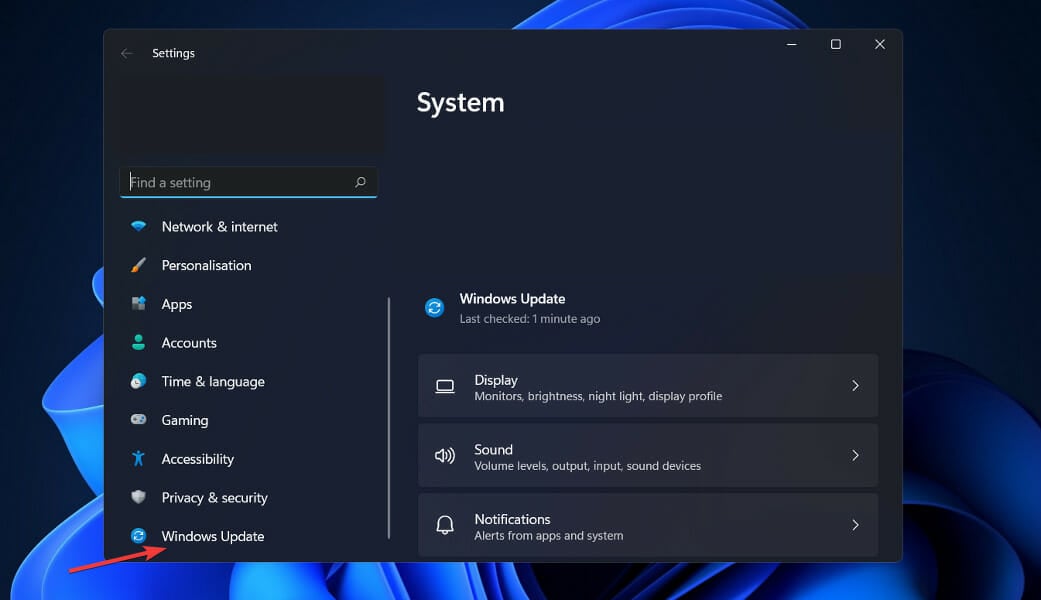
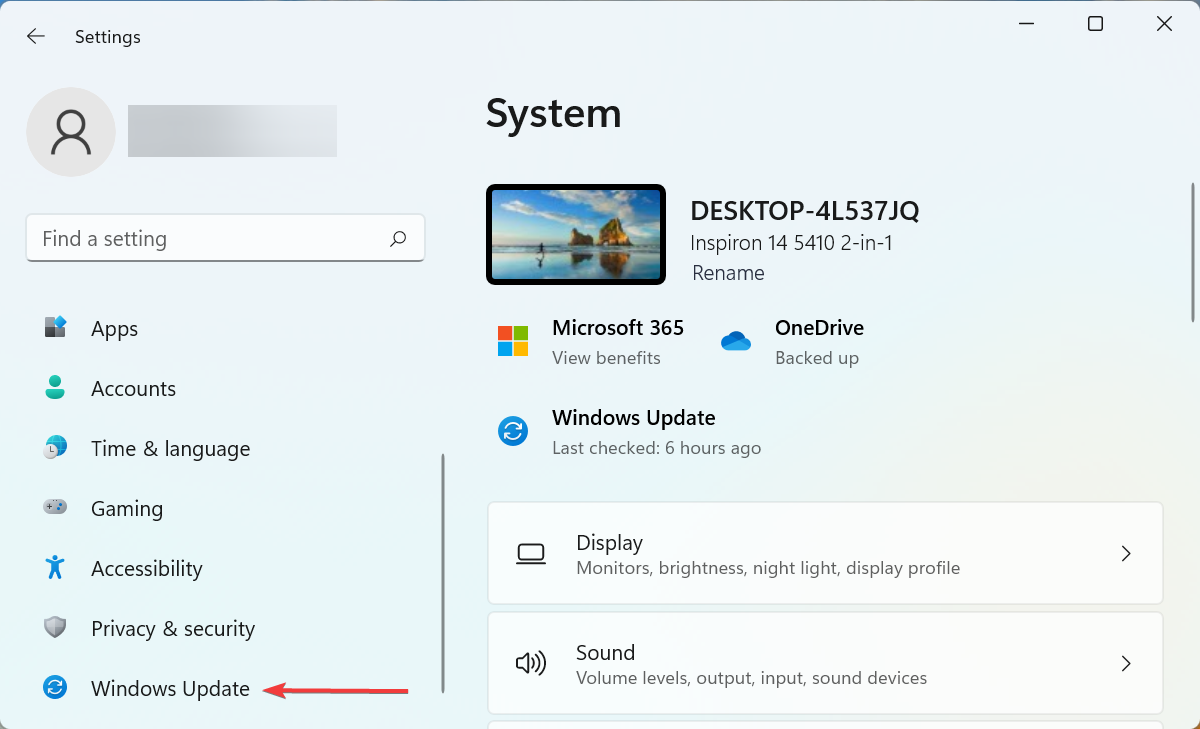
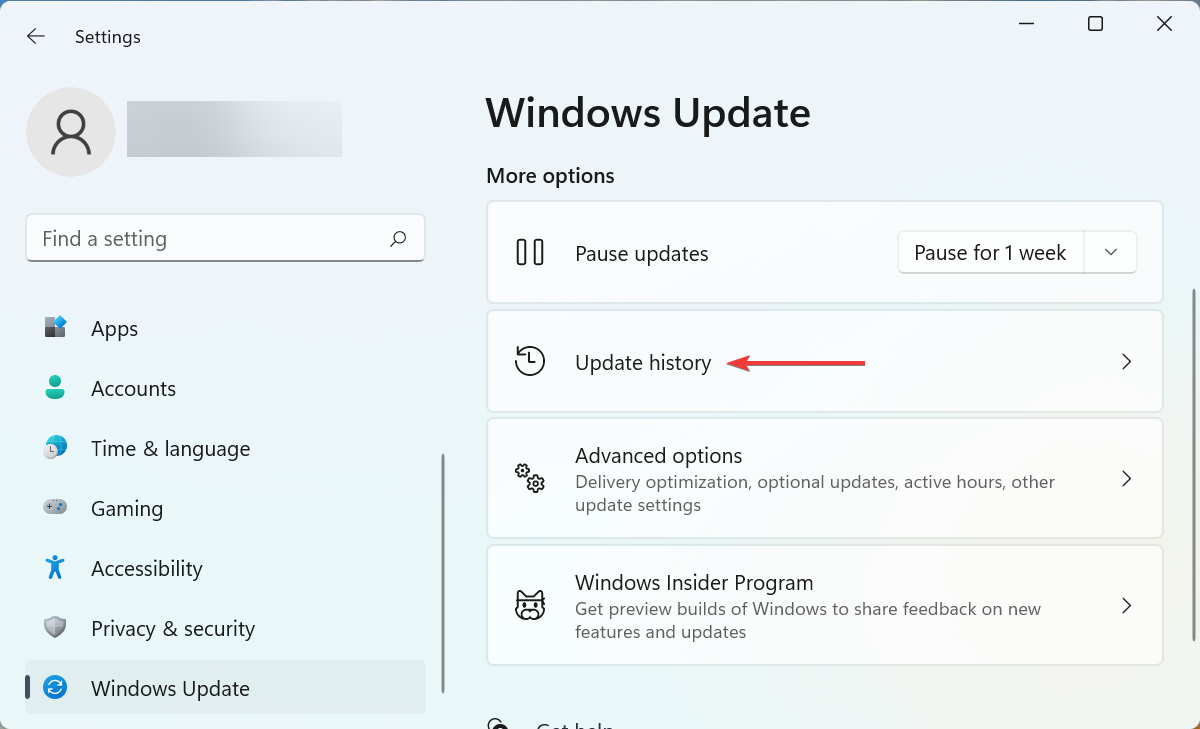
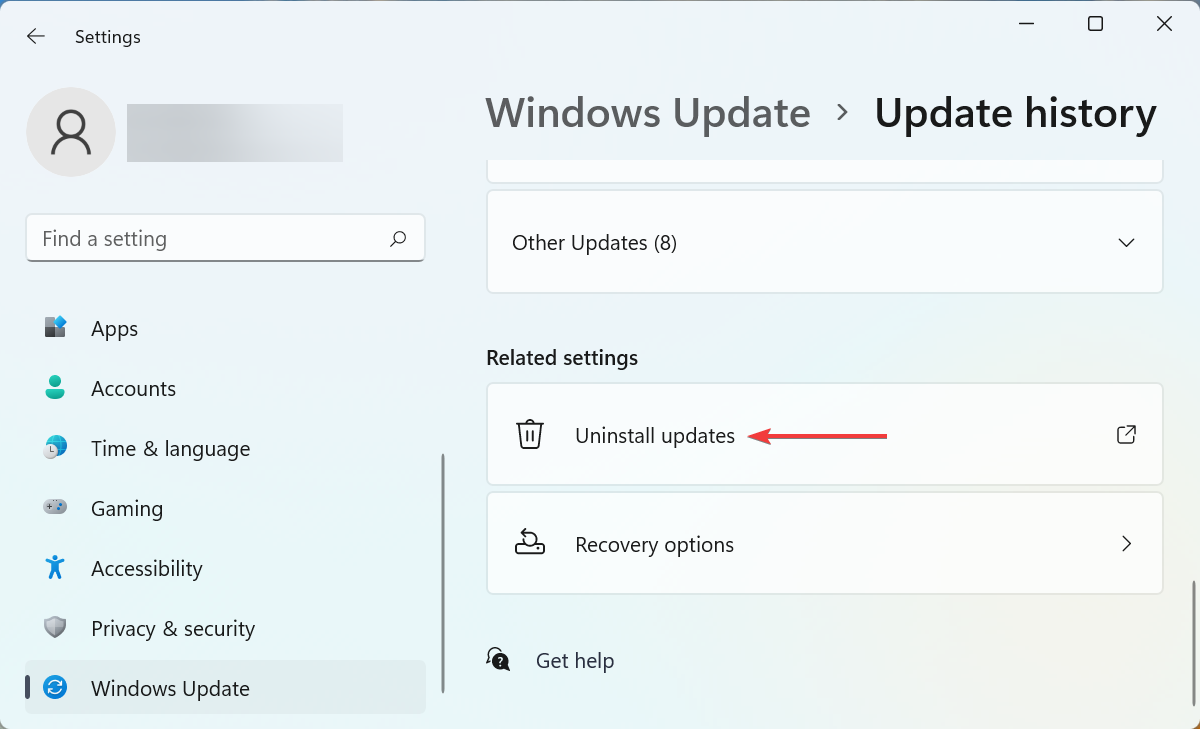
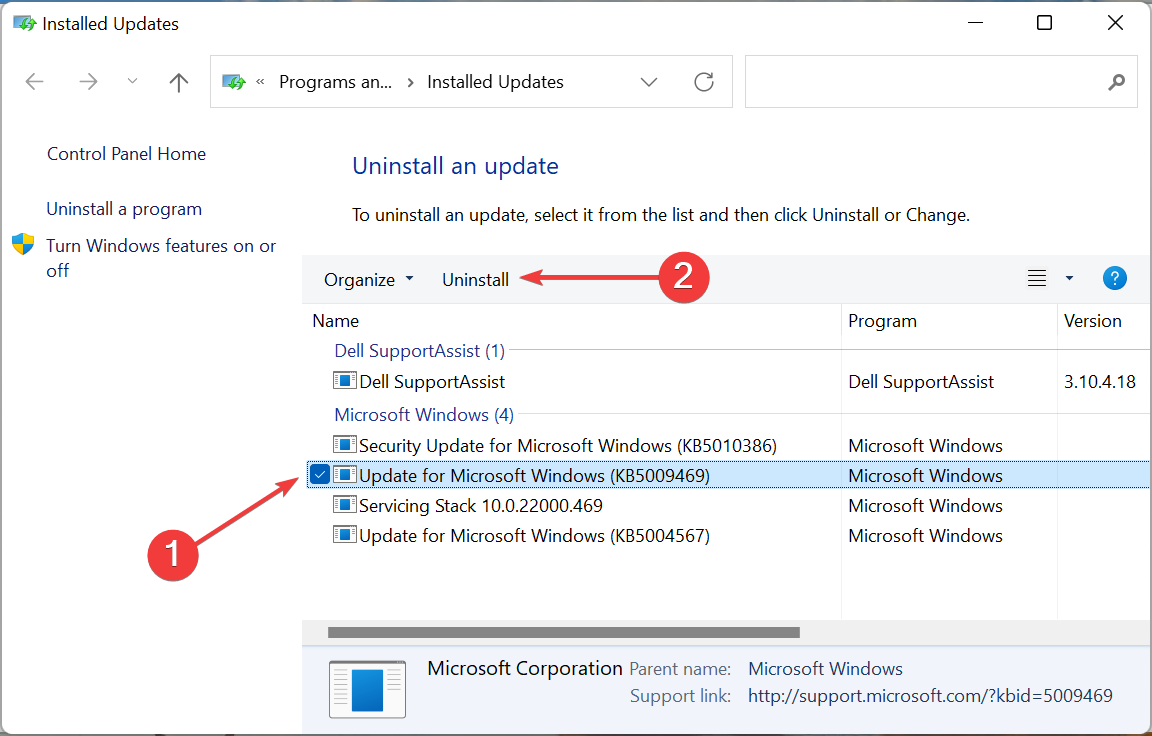
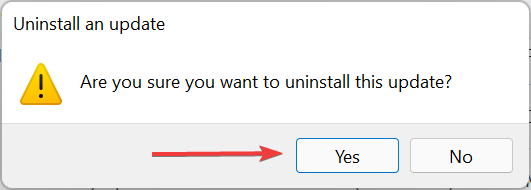
  1. Press the Windows key + I to open the Settings app, then click on the Windows Update option.windows-update-settings kernel security check failure windows 11
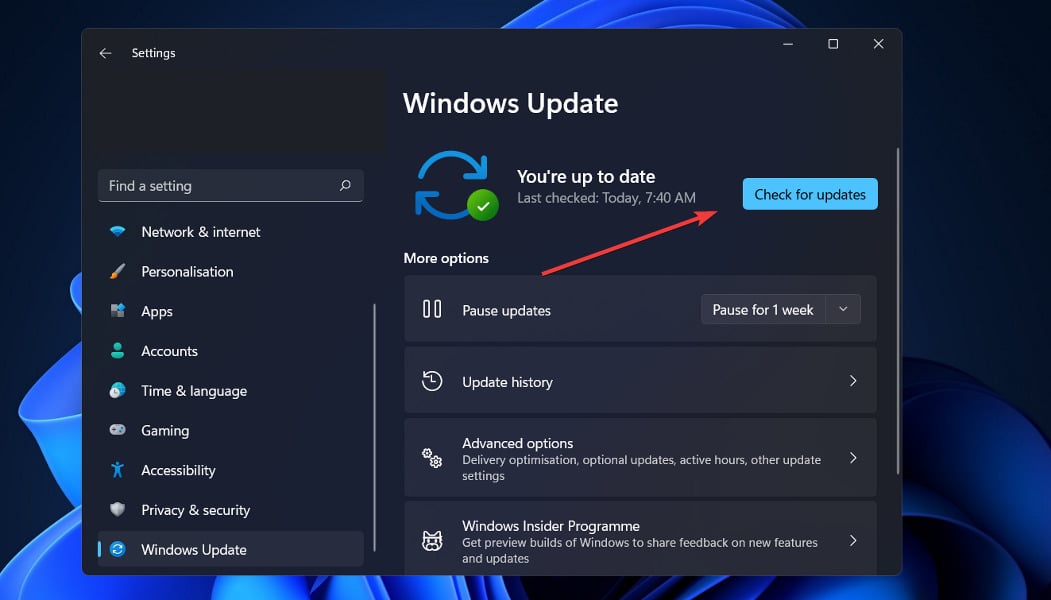
  2. If you have any new updates to download, click on the Install now button, otherwise click on the Check for updates button.checl-for-updates kernel security check failure windows 11

If you are using an older version of Windows, this may be a cause of the error, which may be resolved by updating the operating system. Almost certainly, the error will be resolved in a subsequent software release.

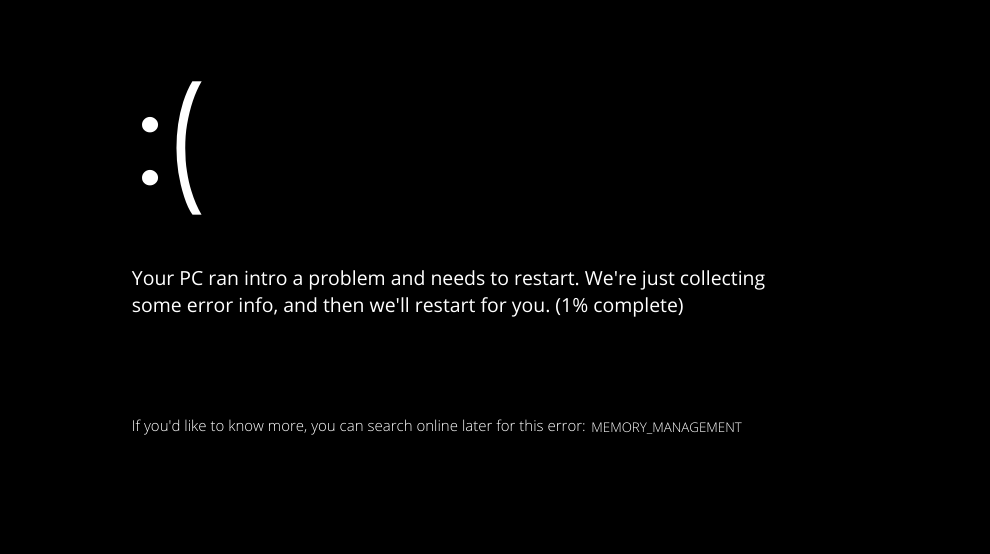
What causes Memory Management BSoD errors?

In a word, memory management refers to the process of controlling the amount of memory available to your computer.
memory-management-bsod dxgmms2.sys windows 11

It maintains track of every byte of available memory in your computer, as well as if any of it is free or being used by other programs. It determines how much memory should be allocated to specific processes and when that memory should be allocated to them.

Furthermore, when you close an application, it marks the memory as being accessible to be used by another program, thereby freeing up space.

However, it is possible for it to crash at any point, just like any other process operating on your computer. And when it happens, you’ll very certainly get the MEMORY MANAGEMENT problem warning shortly afterward.

In accordance with Microsoft, the Memory Management blue screen of death error displays when there has been a significant memory management error.

Doesn’t that sound terrifying to you? But don’t be concerned – it is not life-threatening.

There are multiple tools out there that can assist you in determining what is triggering the dreaded blue screen of death on your computer. However, the likelihood is that it will be one of the following:

  • Conflicts between software and hardware
  • Virus infestation
  • Bad video drivers
  • Memory disk failures
  • Corrupted system files

For extra information, you can also refer to our page on how to resolve dxgmms2.sys errors in Windows 10. The tips may be used in Windows 11 too.

If you are having trouble with your graphics card, take a look at our article on Nvidia drivers not installing in Windows 11 as an alternative.

Even more, there are different reasons for blue screens. You can find out more about this by reading our guide which includes the most prevalent causes of BSoD.

Comment below and tell us which solution worked best for you as well as which graphics card you prefer to use the most.

You can now add folders in Windows 11’s pinned apps section

It’s the Beta Channel Insiders turn to sit on the sidelines and watch as the opposing team receives the new ball this week, after receiving an update only a few days ago.

Thus, after two weeks with no Dev channel releases whatsoever, the Redmond-based tech company has finally unveiled build 22557.

You might want to know that this Dev channel release is now moving to the NI_RELEASE or Nickel branch in preparation for the major feature update to Windows 11 later this year.

And there are loads of new stuff here, with features such as revamped Task Manager, Focus, and new Snap layouts, among others.

However, before we get into it and discover together what Microsoft changed via this latest software patch, we’re going to take a look at the TLDR section:

  • Windows Insiders will notice that the name of the branch we are releasing builds from has changed to NI_RELEASE. The branch in which we release builds from to Insiders in the Dev Channel is irrelevant to the features and improvements included within them. Going forward we will no longer be noting when these branch changes occur. For more on our approach to how we release things to the Dev Channel, please read this blog post here.
  • This build will not be offered to ARM64 PCs. We hope to be able to offer a new build for Insiders on ARM64 PCs soon.
  • This build includes a handful of new features for Insiders to try including folders in the pinned apps area of Start, live captions, a new Focus experience, Quick Access improvements in File Explorer, new touch gestures, and a lot more.
  • This build also includes a lot of general improvements and refinements to Windows 11 too.
  • We do have some new known issues for some of the new features and improvements being introduced with this build so be sure to read through the known issues below before submitting feedback.
  • We’re making it quicker to get to your recent Android apps on your phone from the Your Phone app. Details below.
  • Join us on Tuesday, February 22nd at 10am PST / 6pm UTC for our next Windows Insider webcast! We’ll discuss “Filing Feedback on the Difficult Bugs”, we’ll talk about logs that can be helpful, and sharing content links you can reference. Mark your calendar and tune in!

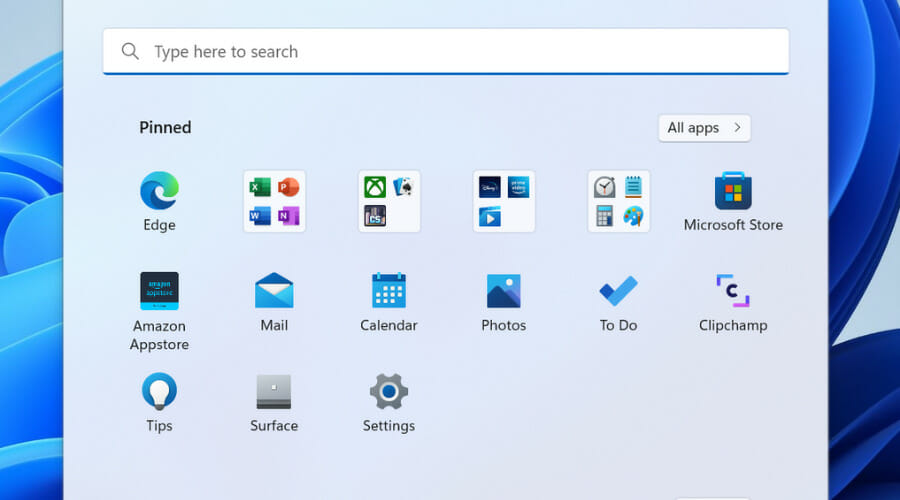
You can create and manage folders in the pinned apps section

The tech giant said it went based on user feedback for this feature, therefore it was added to the new Dev Channel build for Windows 11.

We’ve heard from many of you that you’d like to customize your pins in Start by organizing them into folders, so we’re introducing the first version of folders in this build.

All you have to do is drag an app on top of another to create a folder. You can add more apps to a folder, rearrange apps within a folder, and remove apps from a folder.

Microsoft also said it reimagined focus experiences on Windows, with DND and Focus. And while do not disturb makes it easy to silence notifications, Focus is a new experience that enables everyone to stay in the moment.

To help you stay on track, Focus integrates with the Clock app for other focus tools, such as a focus timer and calming music.

Also added with this build are Live captions, which will help everyone, including people who are deaf or hard of hearing, better understand audio by viewing captions of spoken content.

Captions are automatically generated on-device from any content with audio and can be displayed at the top or bottom of the screen, or in a floating window.

The tech giant is rolling out an update to File Explorer’s Quick Access view. First, Pin to Quick Access support has been extended from only supporting Folders to now also supporting Files.

What you might also want to keep in mind is that pinned files are shown in a new section above Recent files in Quick Access.

To help you have control over storage consumption and ensure your files are syncing, we’ve added OneDrive integration into File Explorer.

When browsing your OneDrive folders, you can now see your sync status and quota usage without having to leave File Explorer.

And, for those of you who use the new OS on tablets or phones, this build includes 5 new touch gestures to make it easier and quicker to navigate Windows 11 on a PC with touch.

Among the other additions are improved Snap Layouts, more sustainable power settings and recommendations, Task Manager Redesign & Efficiency Mode, and more improvements to browsing the web in Microsoft Edge with Narrator.

You can read more about all the changes and improvements introduced, as well as known issues, on the official Microsoft blog post.
Happy with the new changes coming to Windows 11 in the near future? Share your thoughts with us in the comments section below.

IMAP Backup Tool for Email Accounts: 6 Best to Use

IMAP stands for Internet Message Access Protocol, and they are a sub-type of email, alongside POP emails.

What makes IMAP emails stand out as far as utility goes is that the emails are stored on a  server, and that means that you can access your email messages wherever you are.

However, IMAP emails are still subject to loss and corruption, if something happens to the server that hosts them.

That being the case, we’ve compiled this list of the best backup tools that you can use in order to make sure that your emails are safe.

The entries are ranked based on a number of criteria, including price, how easy they are to use, and how efficient they are at recovering IMAP emails.

What is the best software to backup IMAP email servers?

Acronis Cyber Protect Home Office – Most complete cyberattacks

This solution is a resounding name in the backup software department. Acronis Cyber Protect Home Office, previously known as Acronis True Image, works in two different ways to help you with your IMAP emails:

  • You can use Acronis Cyber Protect Home Office to back up the IMAP emails per se
  • You can use Acronis Cyber Protect Home Office to back up the entire server that is hosting the IMAP emails

Whichever option you choose, rest assured that your emails will be stored safely and that you will be the only one to have access to them.

This tool has always boasted a simplistic UI, and it follows the principle that everyone should be able to easily use it without too much headache.

Here are some of the perks of using Acronis Cyber Protection Home Office:

  • Gets updated frequently
  • Extremely easy-to-use
  • Fast backup process
  • You can test it before you buy it

Acronis Cyber Protect Home Office

Back up all of your emails, including the IMAP ones, with the help of this A-class backup tool.
Check price Visit website

Mailbird – The most popular email alternative

When it comes to backing up emails in general, few tools are as good as Mailbird.

Whether we are talking about IMAP or POP emails, you should know that they are in very good hands.

Of course, this is just one of the many tools that you gain access to once you subscribe to Mailbird. Besides the backup feature, this tool is also one of the best email management tools in the world.

For example, you can manage all your emails and contacts from multiple accounts easily in one Inbox.

Additionally, this tool is highly customizable thanks to built-in apps like Facebook, Twitter, Whatsapp, Dropbox, Google Calendar, Asana, Todoist, etc.

Here are some of the perks of using Mailbird:

  • Great IMAP email recovery tool
  • Advanced email management
  • Now available at a discount price
  • You can test it before you buy it
  • Extremely easy to integrate into your daily activities

Mailbird

Secure your IMAP emails with the help of this dedicated backup tool, now available at a discount price for a limited time only
Free trial Visit Website

AOMEI Backupper Pro – Files and disk backup

AOMEI Backupper is a dedicated IMAP email backup application that can protect your essential email data from loss or cyber theft.

To back up your emails with AOMEI Backupper, you need to add your email account and password and select the IMAP server and port.

This software can automatically backup your IMAP emails from popular email clients such as Gmail, Yahoo, or Hotmail.

Plus, you can benefit from automatic technology to choose the backup location and migrate email backups to different locations on your PC.

Here are some of the perks of AOMEI:

  • Schedule sessions for backups
  • Local backup solutions
  • Server backup technology
  • Partition and system backup tools

AOMEI Backupper

Ensure your email data safety with IMAP backup technology instantly.
Check price Visit website

SysTools Email Backup Recovery Toolkit – Back up Office 365 data

systools gmail backup screenshot

As the name implies, SysTools Email Backup Recovery Toolkit is specially designed to handle all manner of email backup processes, including IMAP.

The catch is that this is not just one software tool, it is a bundle of multiple tools from SysTools that can work together to manage emails better.

Besides the aforementioned backup tool, you also get a recovery tool to deal with the emails that were damaged before a backup could be made in the first place.

Take advantage of this limited-time offer, since you can end up saving up to 40% on your purchase.

Here are some of the perks of using SysTools Email Backup Recovery Toolkit:

  • Now available at a massive discount
  • Can both backup and recover IMAP emails
  • Easy-to-use
  • Active customer support system

SysTools Email Backup Recovery Toolkit

Make sure your emails stay safe with the help of this complete email backup and recovery software kit.
Check price Visit website

Handy Backup – Import and migration

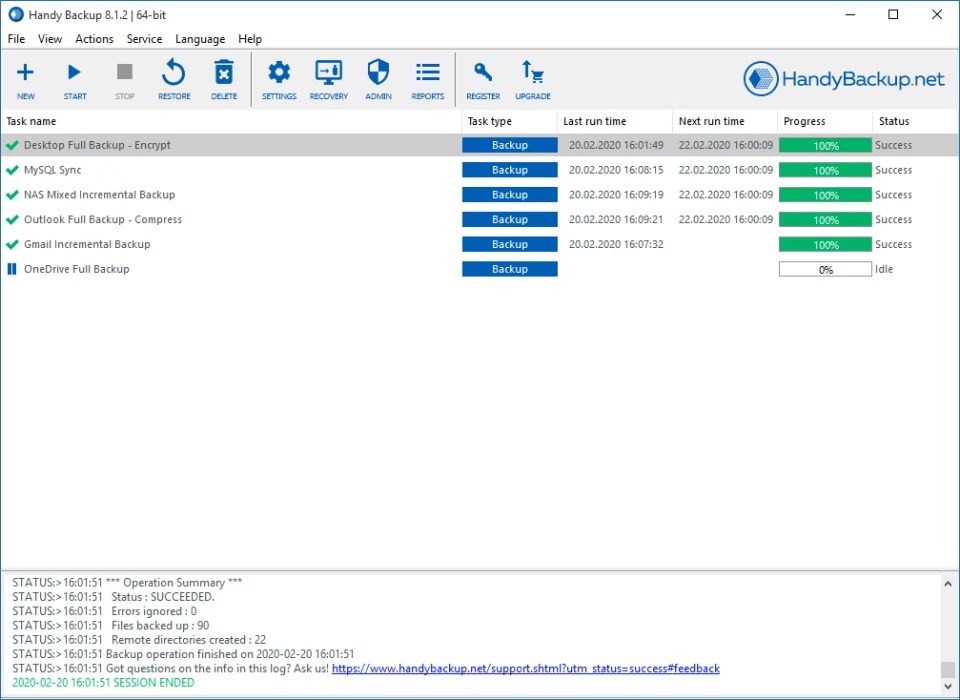
The next entry on our list is yet another reliable tool used for IMAP email backups since it mainly focuses on the backup of the IMAP server itself.

This means that not only is this service efficient at backing up your IMAP emails, but it will also back up pretty much anything else that is on that server as well.

Another neat feature about Handy Backup is the backup scheduling feature which will come in handy for those with limited time to spare.

In addition, this IMAP mail backup tool can deliver recovering features to guarantee email data safety with its retrieving technology.

Perks of using Handy Backup:

  • Makes perfect backups of your IMAP emails
  • Can schedule backups
  • Greate backup fidelity
  • Easy-to-use
  • Frequently updated

Handy Backup

Backup your IMAP email servers fast and efficiently with the help of this handy backup tool.
Check price Visit website

Stellar Mail Backup – Outlook files repairing

Stellar Mail Backup is not just your average backup software. It is a complete utility to take backups of all your emails, contacts, tasks, notes, calendar entries, journals, and more.

This particular software tool is also specialized in handling Outlook Express, MS Outlook, and Windows Mail but it works on other clients as well.

As far as a backup location is concerned, this tool supports Incremental as well as Differential backup on Logical, External, or Network drives

However, don’t let the tech talk scare you, the program is extremely easy-to-use.

Perks of using Stellar Mail Backup:

  • Supports MS Outlook 2013, 2010, 2007, and 2003
  • Easy-to-use
  • Quick backup speeds
  • Efficient email restoration features

Stellar Mail Backup

Make sure your IMAP emails never get corrupted or lost with the help of this great email backup and recovery kit.
Check price Visit Website

Is IMAP stored locally?

No, IMAP format is not saved locally on your PC. This email type is stored on the cloud to keep all your important emails secure on the server.

Therefore, if you need to keep your confidential information and have reliable backup storage, this format is the way to go.

That pretty much wraps up our list of the best tools that you can use for IMAP email backups. We hope that among these entries you will find one that will suit your tastes and needs.

If you want more information on the matter, do not hesitate to leave us a message in the comments section below.

How to fix msedgewebview2.exe high CPU usage

When the CPU consumption is high, it starts to affect the functioning of the system, and you will notice lagging and likely overheating of the Windows 11 PC. One such process that consumes a high CPU is msedgewebview2.exe.

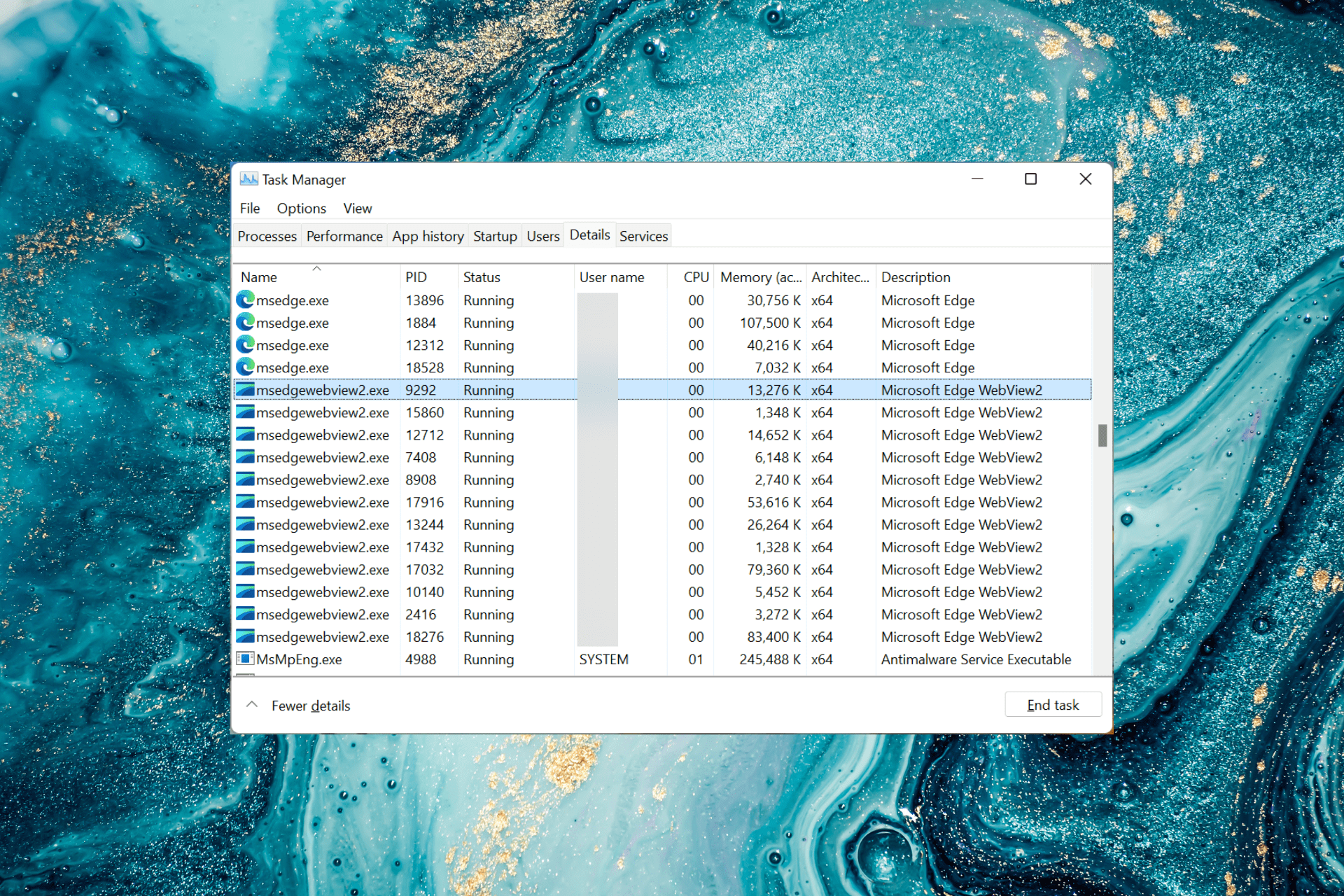
The process is listed in the Details tab of the Task Manager along with various other ones running in the background. And since the details there are a little vague, users have a hard time identifying and eliminating the problem.

In the following sections, we will help you understand the role of the process and the most effective solutions to reduce the msedgewebview2.exe high CPU usage.

What does the msedgewebview2.exe process do?

The msedgewebview2.exe (Microsoft Edge WebView2) is an application that helps embed web-based technology in the native applications. There are various apps on your system that rely on it, such as Microsoft Teams, and Widgets.

As an example, the various real-time data and news available in the Widgets are due to this particular process. The Room Finder feature in Outlook also uses the msedgewebview2.exe process.

Widgets in Windows 11

But if you don’t use any of these native applications, the process would be consuming a large share of the CPU with no real benefit.

Thus, it becomes imperative that you fix the msedgewebview2.exe application error, terminate the relevant process, along with ensuring that the other applications don’t further trigger it.

How can I fix the msedgewebview2.exe high CPU usage?

1. Change display language to English

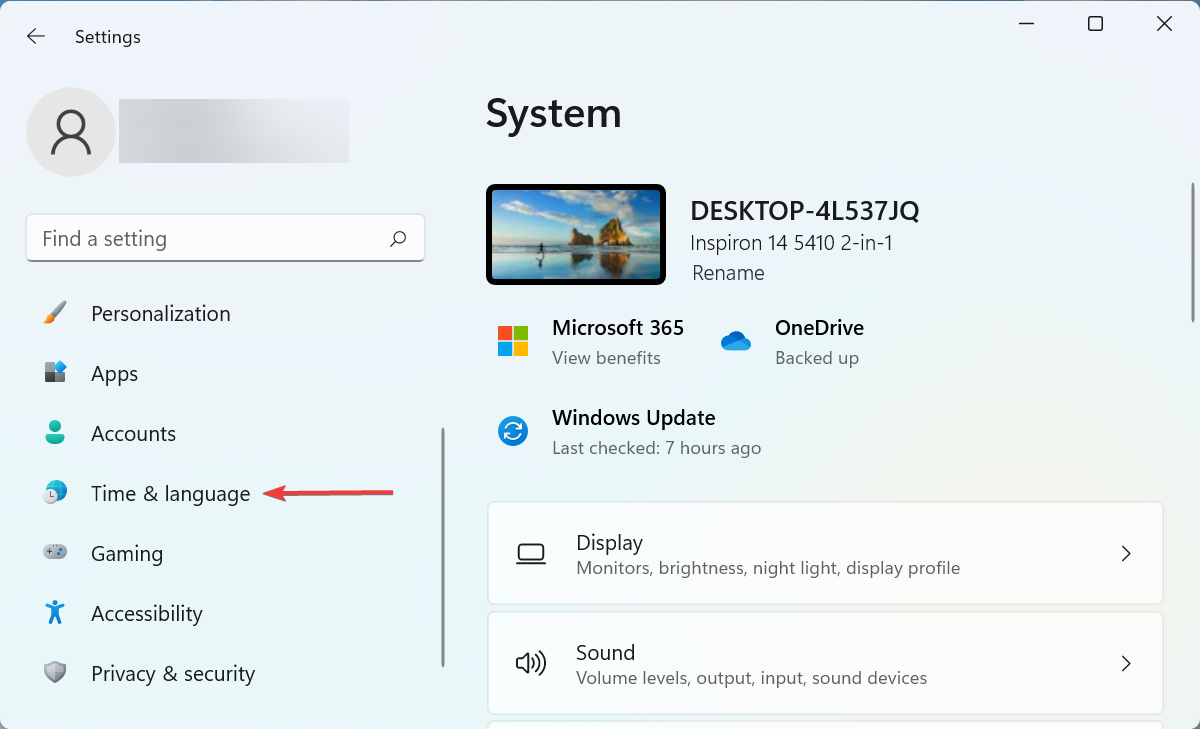
  1. Press Windows + I to launch the Settings app, and then select Time & language from the tabs listed in the navigation pane on the left.Time & language to fix msedgewebview2.exe high cpu
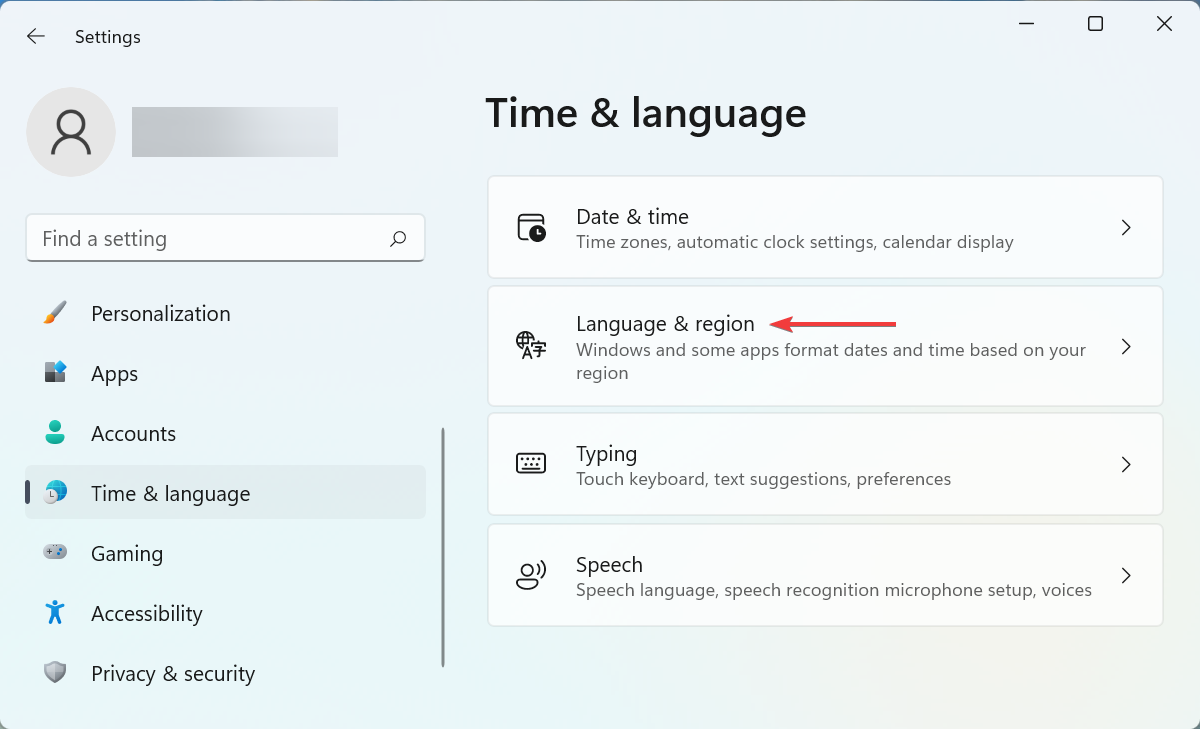
  2. Click on Language & region on the right.language & region
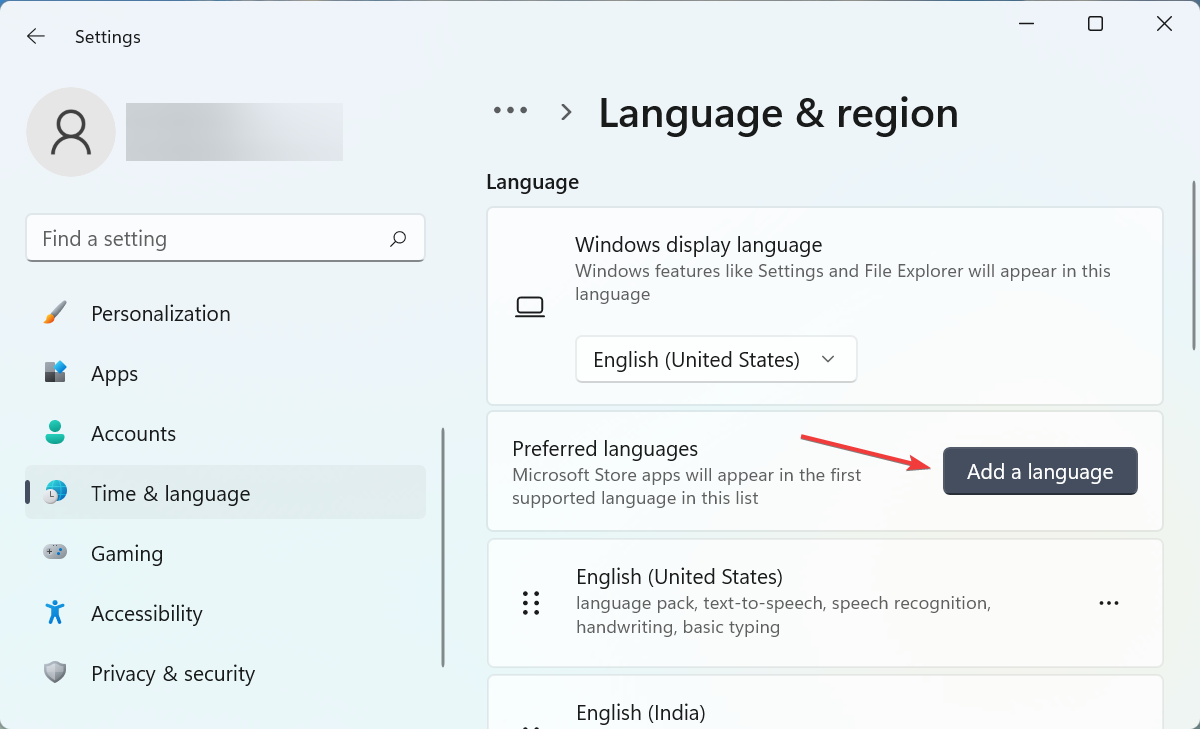
  3. Next, click on the Add a language button next to Preferred languages.Add language to fix msedgewebview2.exe high cpu
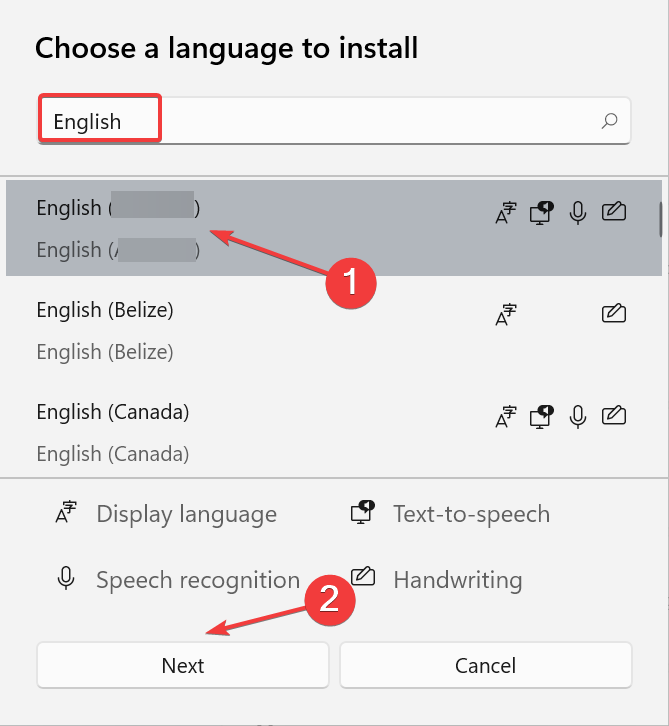
  4. Enter English in the text field at the top, select the relevant search result, and click on Next at the bottom.Search for English
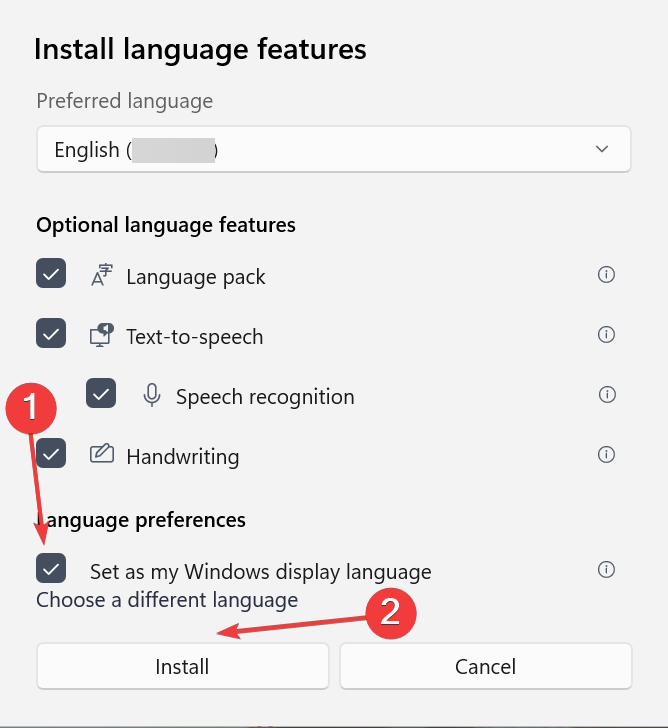
  5. Tick the checkbox for Set as my Windows display langauge and the other options, and click on Install.Install to fix msedgewebview2.exe high cpu
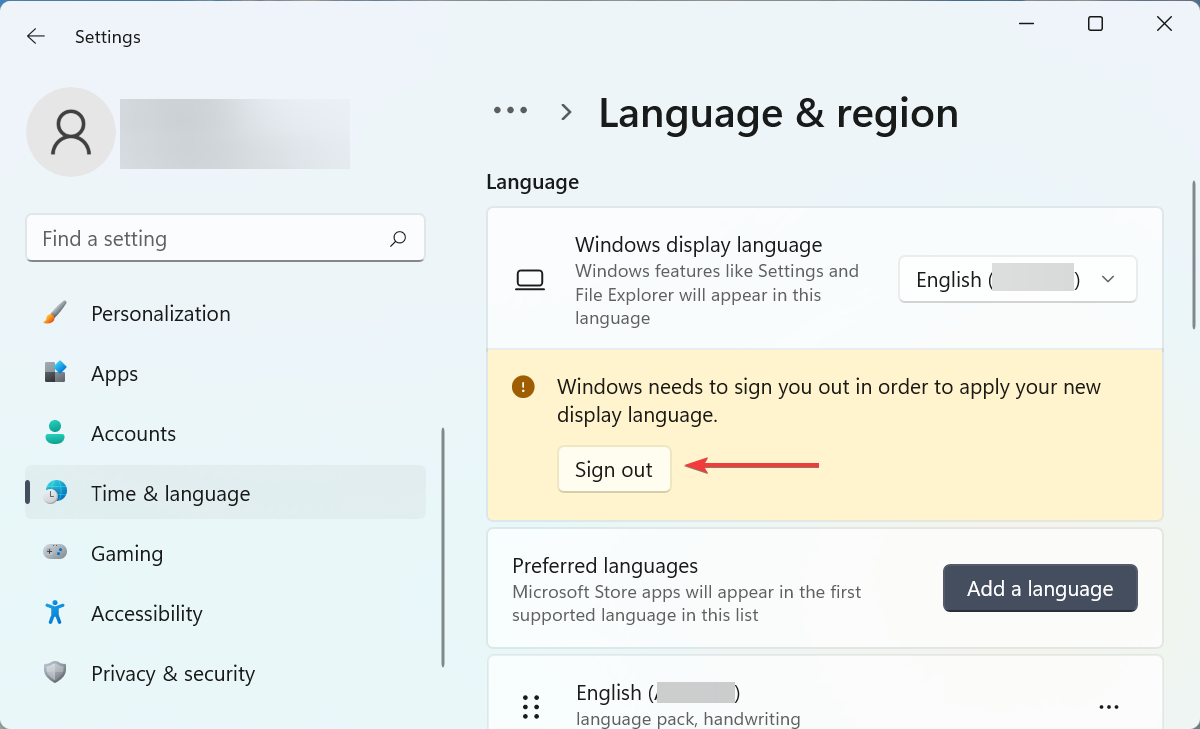
  6. After it’s installed, click on Sign out option and then re-login to the Windows 11 system.Sign out

This method has worked for a lot of Windows 11 users. When you change the language, it reduces the msedgewebview2.exe high CPU usage, brings the temperature under control, and also fixes issues preventing Widgets from working.

After selecting English as the display language, the problem should most likely be eliminated. In case it persists, head to the next method.

2. Terminate relevant processes

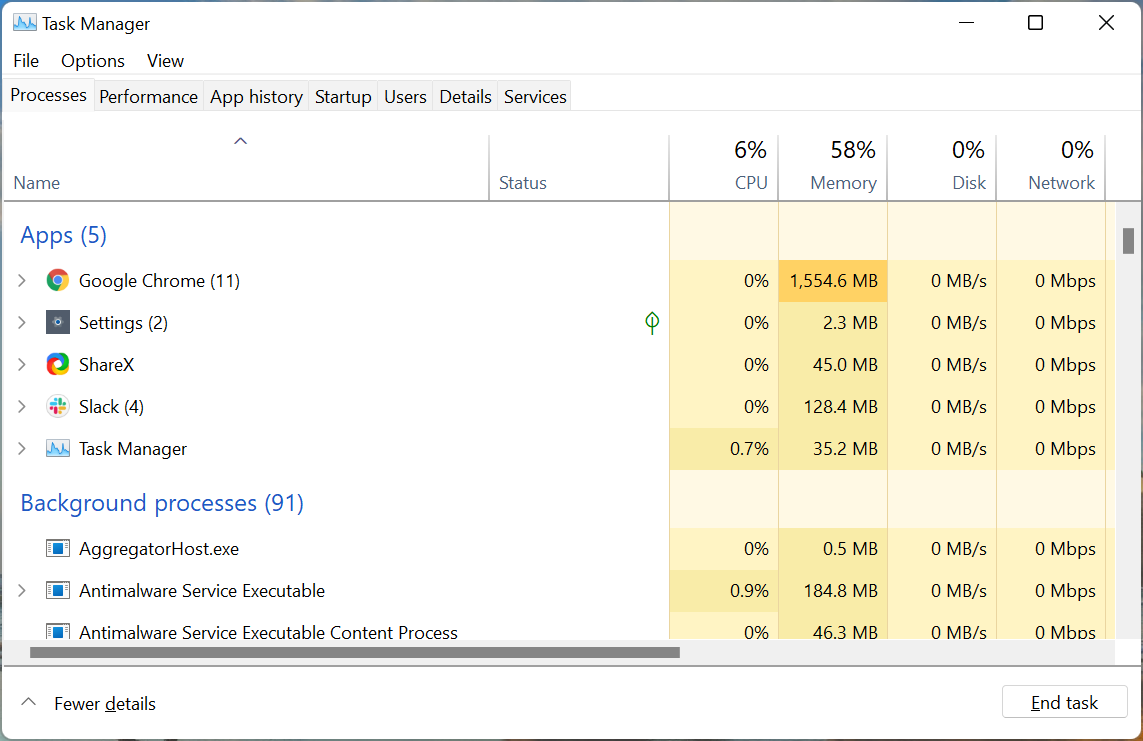
  1. Press Ctrl + Shift + Esc to launch the Task Manager.Launch Task Manager
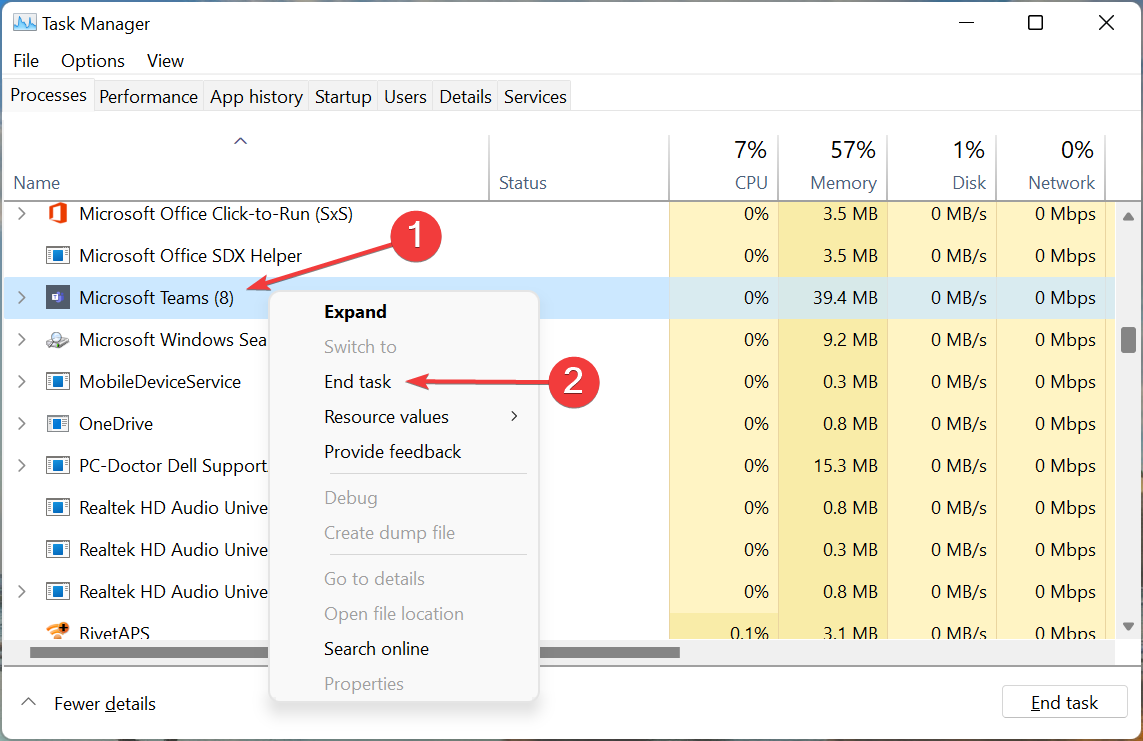
  2. Locate Microsoft Teams and Windows Widgets, choose each individually, right-click on the process and then select End task from the context menu.Terminate task to fix msedgewebview2.exe high cpu
  3. After you have terminated both the processes, the CPU usage should now reduce.

3. Disable startup apps

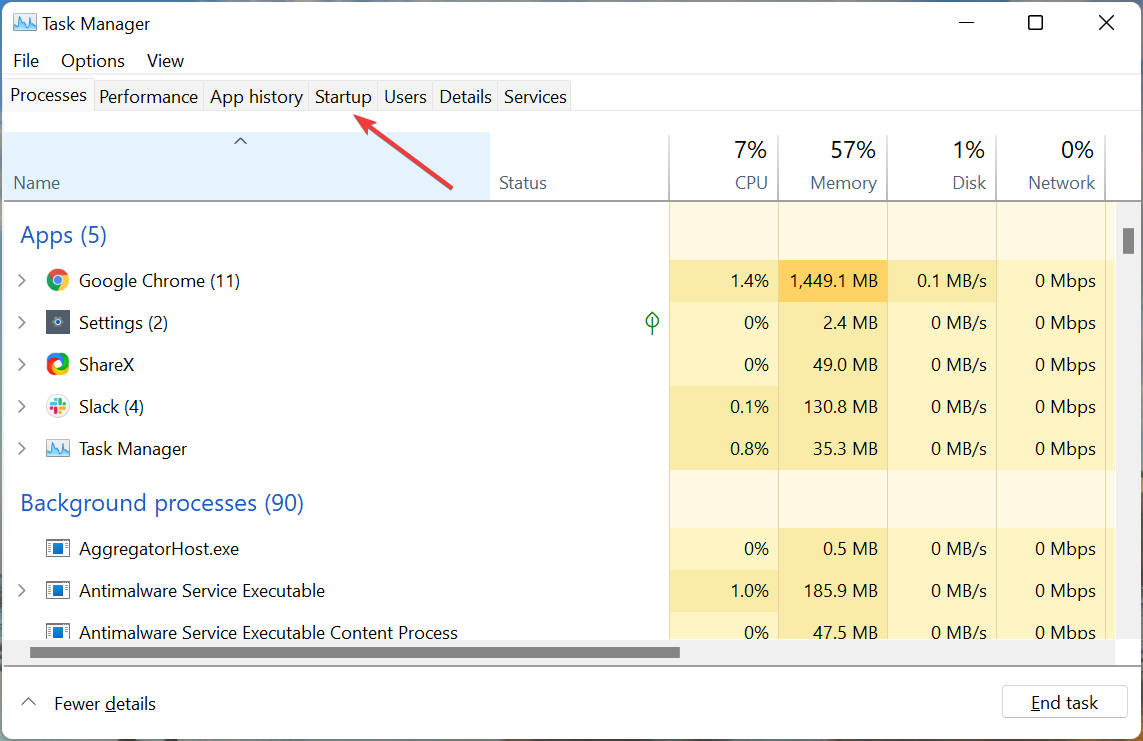
  1. Press Ctrl + Shift + Esc to launch the Task Manager and navigate to the Startup tab from the top.Startup tab
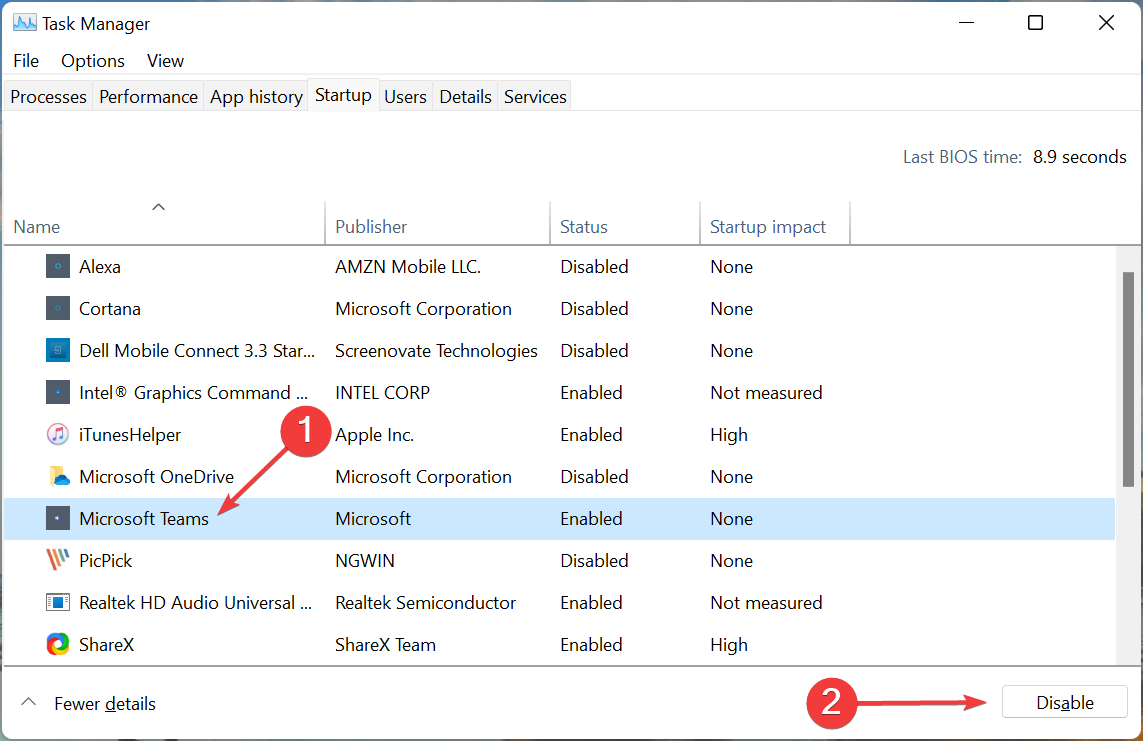
  2. Next, locate and select the Microsoft Teams entry, and then click on Disable at the bottom.Disable to fix msedgewebview2.exe high cpu

Microsoft Teams is, by default, set to load at startup, which may trigger the msedgewebview2.exe process to run. Now, even if you don’t use Teams, the msedgewebview2.exe running in background could still lead to a high CPU consumption.

So, it’s best that you disable Microsoft Teams from loading at startup to fix the problem.

4. Run DISM, SFC, and Check Disk scans

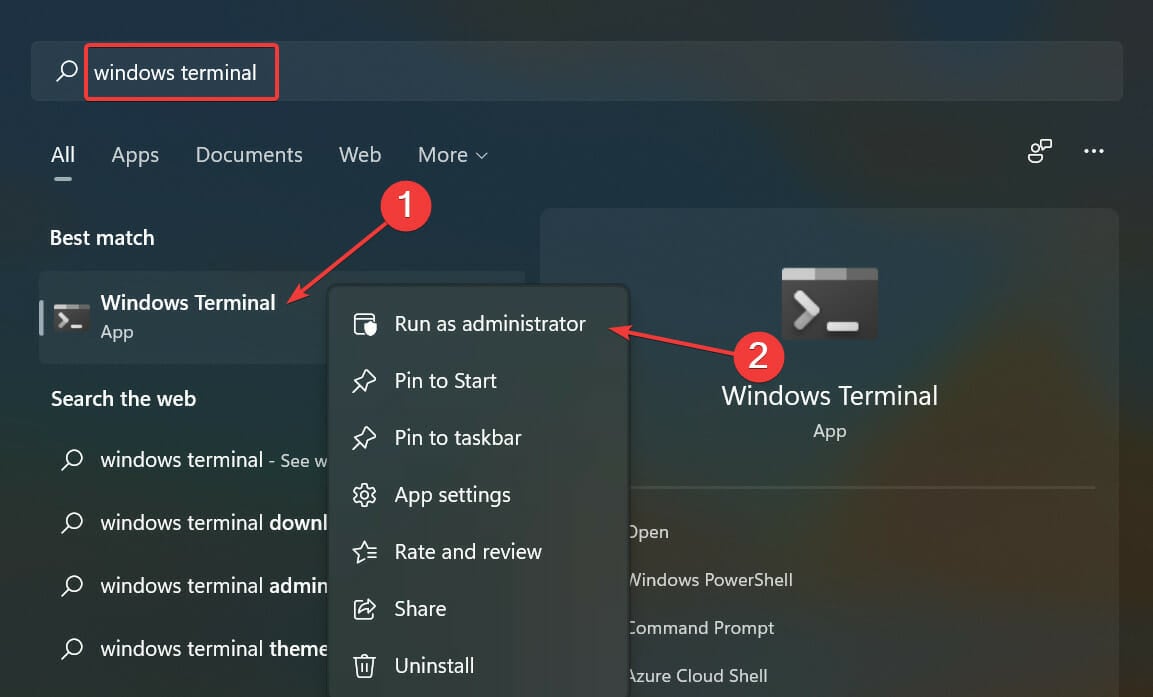
  1. Press Windows + S to launch the Search menu, enter Windows Terminal in the text field at the top, right-click on the relevant search result, and select Run as administrator from the context menu.Windows Terminal to fix msedgewebview2.exe high cpu
  2. Click Yes on the UAC (User Account Control) prompt that pops up.Click Yes
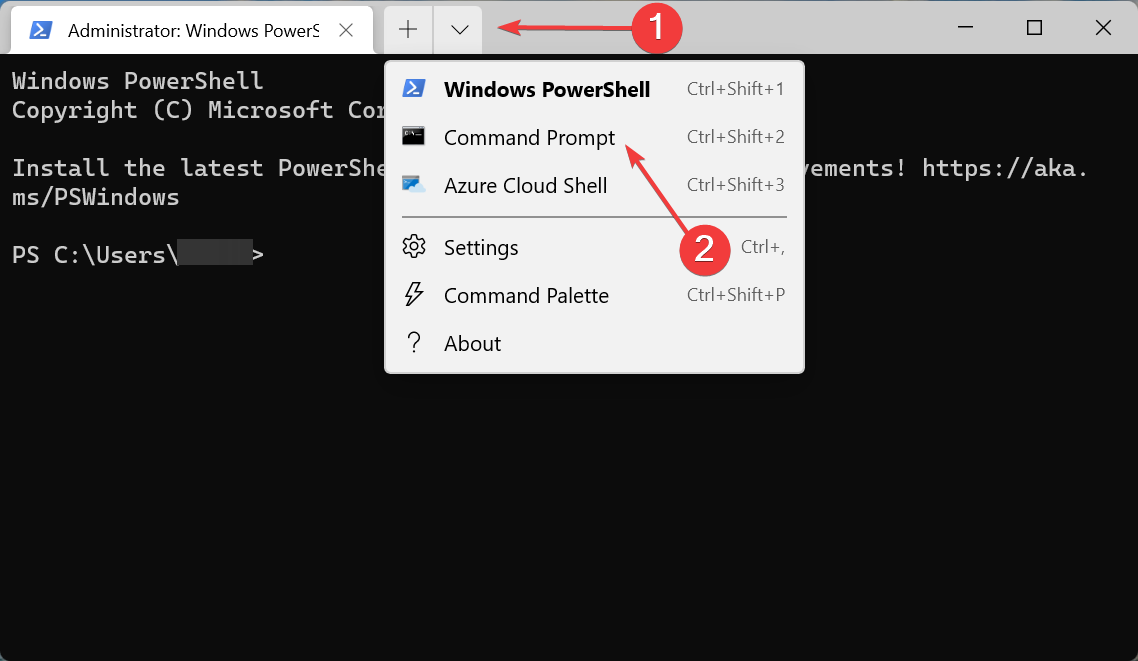
  3. Next, click on the downward-facing arrow at the top, and select Command Prompt from the list of options. Alternatively, you can hit Ctrl + Shift + 2 to launch Command Prompt in a new tab.Open Command Prompt
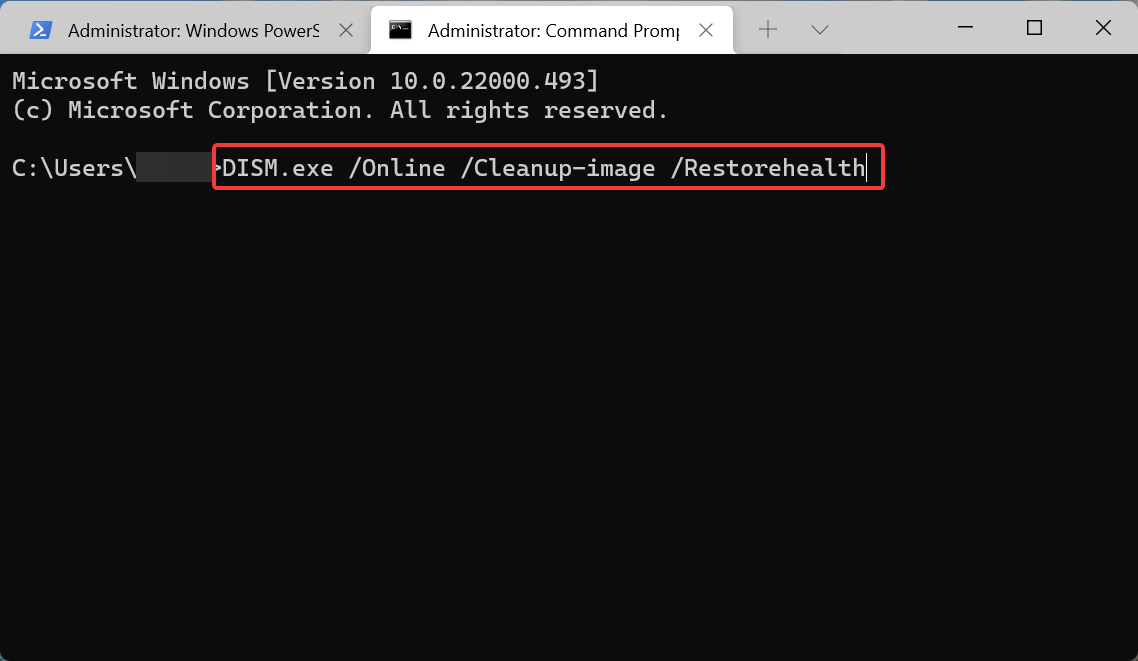
  4. Now, paste the following command and then hit Enter to run the DISM tool:DISM.exe /Online /Cleanup-image /RestorehealthRun DISM tool to fix msedgewebview2.exe high cpu
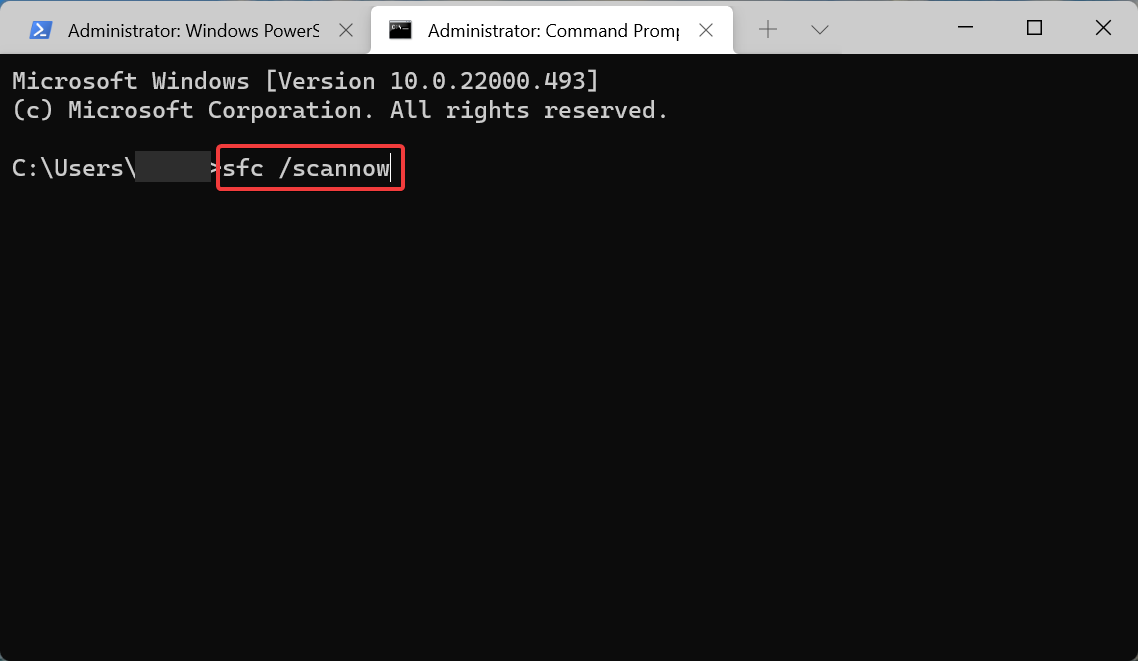
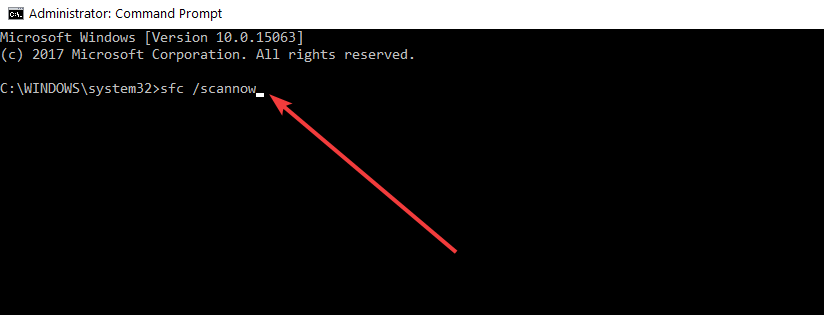
  5. Once the tool is done running, execute the following command to run the SFC scan:sfc /scannowRun SFC scan to fix msedgewebview2.exe high cpu
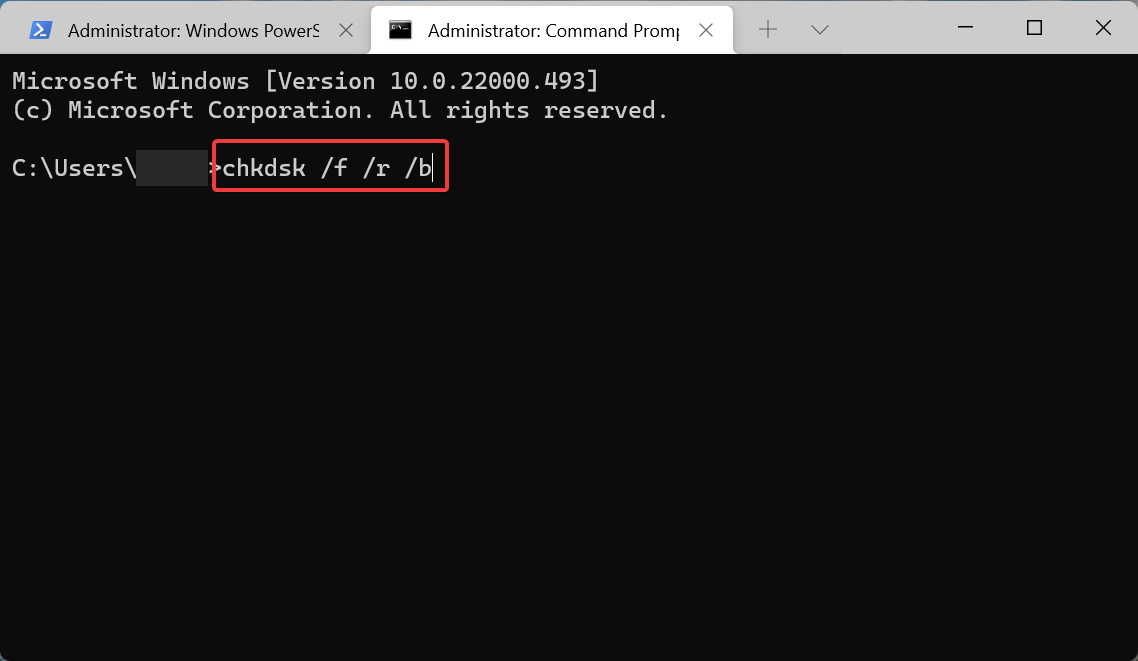
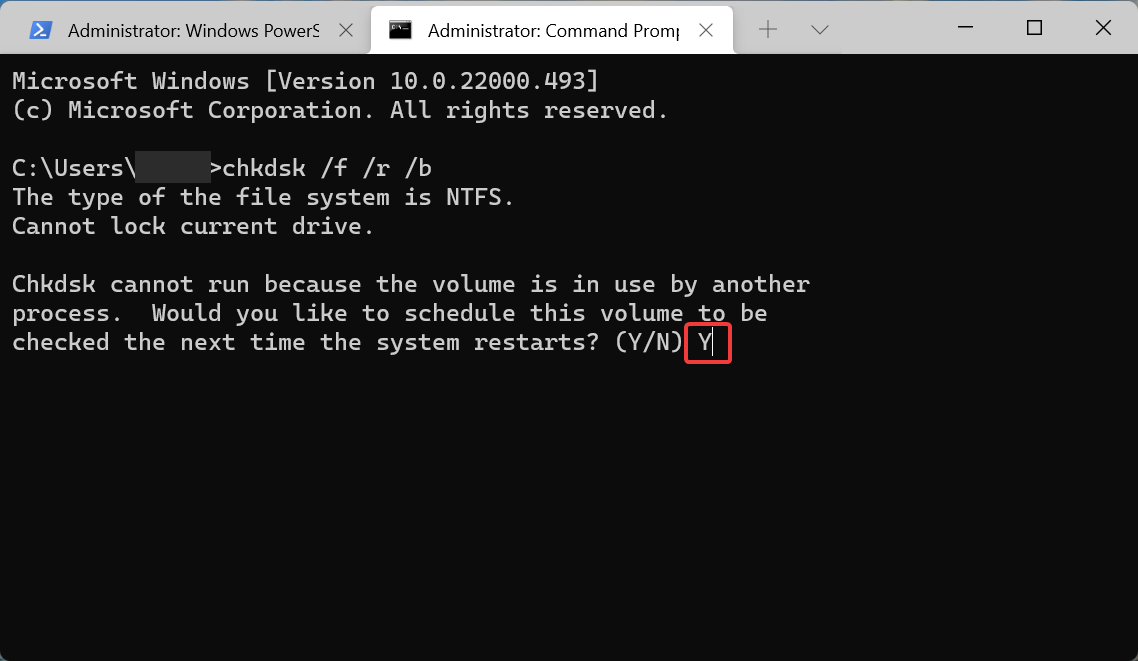
  6. After the SFC scan is complete, execute this command to run the Check Disk utility:chkdsk /f /r /bRun Check Disk utility to fix msedgewebview2.exe high cpu
  7. Press Y and hit Enter to schedule the scan the next time you restart the computer.Confirm run at startup
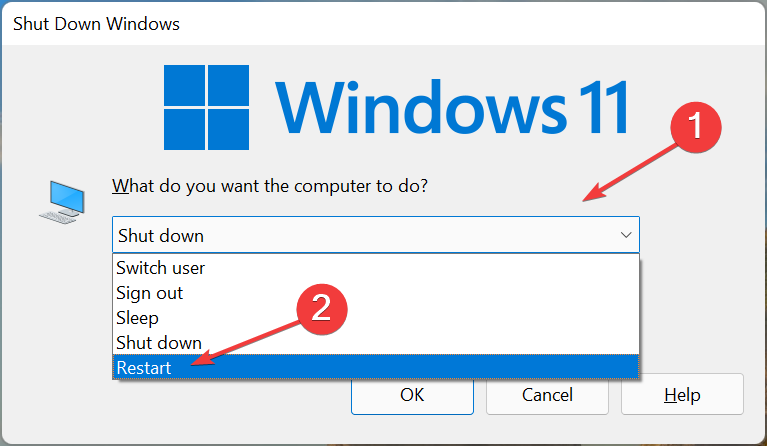
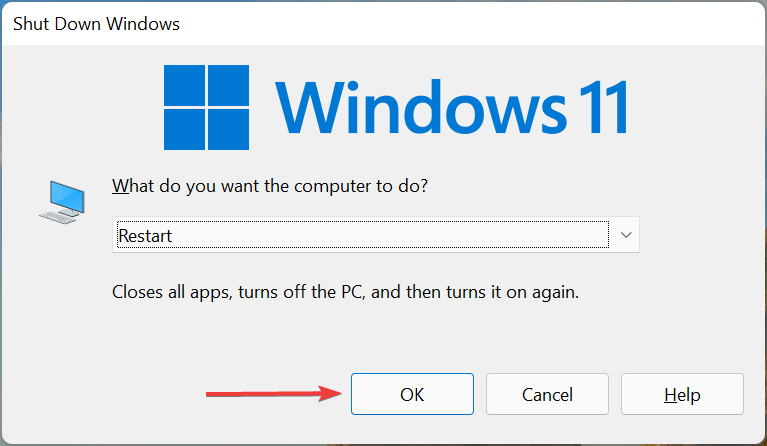
  8. Now, navigate to the desktop, hit Alt + F4 to launch the Shut Down Windows box, and select Restart from the dropdown menu.Restart the computer
  9. Finally, click on OK at the bottom to restart the computer.Confirm Restart

These three scans that we run earlier have the potential to solve a plethora of errors in Windows, and should work in case of msedgewebview2.exe unknown hard error as well.

The DISM (Deployment Image Servicing and Management) is a tool used to diagnose and eliminate problems with the OS that affect its functioning. Apart from that, the tool can repair the Windows image or modify the Windows installation media.

The SFC (System File Checker) scan identifies corrupt system files, and if any are found, replaces them with their cached copy stored on the computer.

Check Disk (CHKDSK) on the other hand, checks for problems with the hard drive and automatically repairs them. It will also mark the hard bad sector, so that no further data is stored on them, thus preventing data loss in the long run.

5. Disable widgets

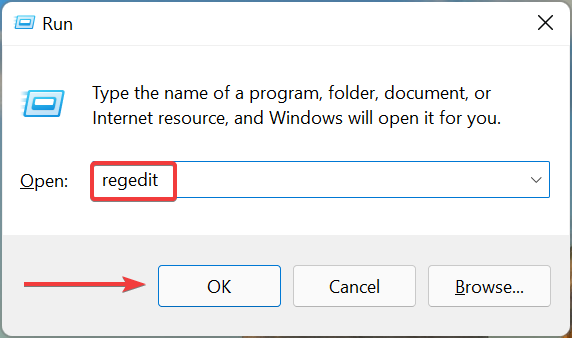
  1. Press Windows + R to launch the Run command, type regedit in the text field, and either click on OK or hit Enter to launch the Registry Editor.Launch Registry Editor to fix msedgewebview2.exe high cpu
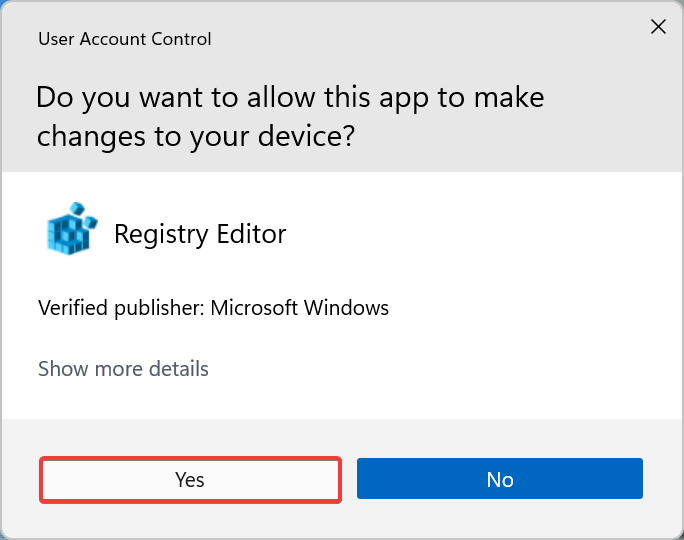
  2. Click Yes on the UAC (User Account Control) prompt that appears.Yes
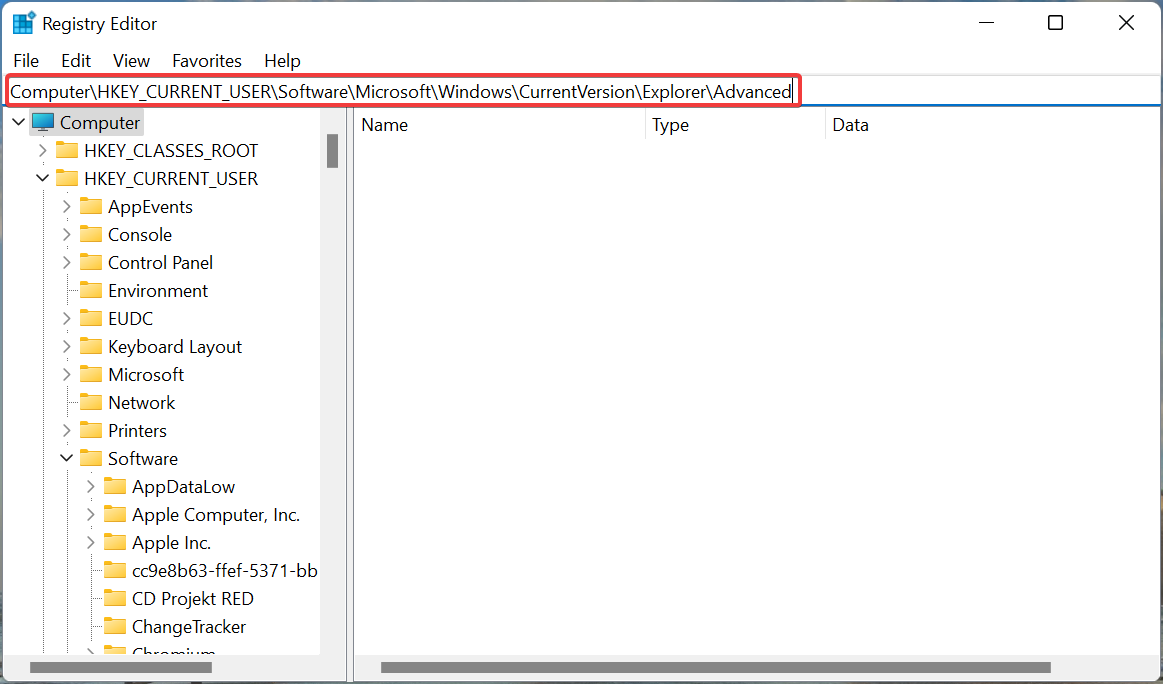
  3. Now, paste the following path in the address bar at the top, and hit Enter:Computer\HKEY_CURRENT_USER\Software\Microsoft\Windows\CurrentVersion\Explorer\AdvancedNavigate address
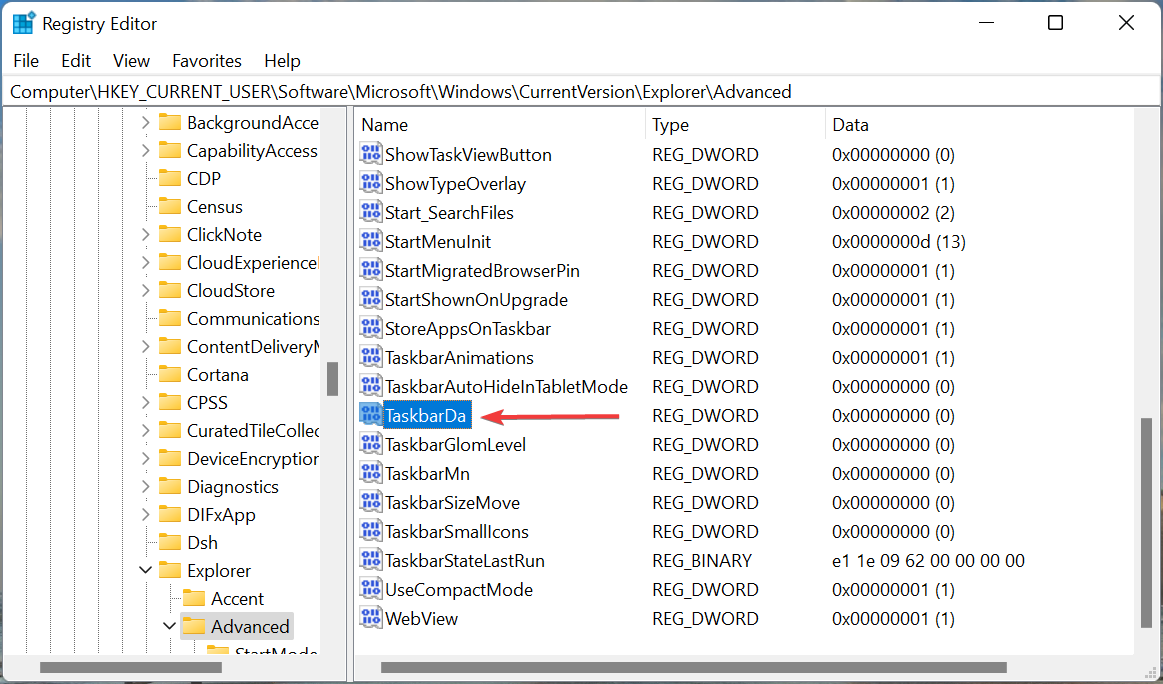
  4. Locate and double-click on the TaskbarDa entry on the right.TaskbarDa to fix msedgewebview2.exe high cpu
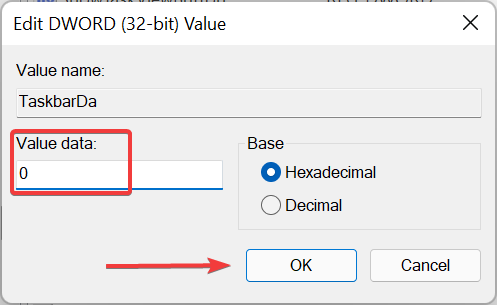
  5. Now, enter 0 under Value data and then click on OK to save the changes.Change value data to 0

After making the changes, restart the computer for these to come into effect, and verify if the msedgewebview2.exe high CPU usage issue is fixed. If not, head to the last method. Also, check out the other ways to disable widgets in Windows 11.

6. Uninstall third-party antivirus

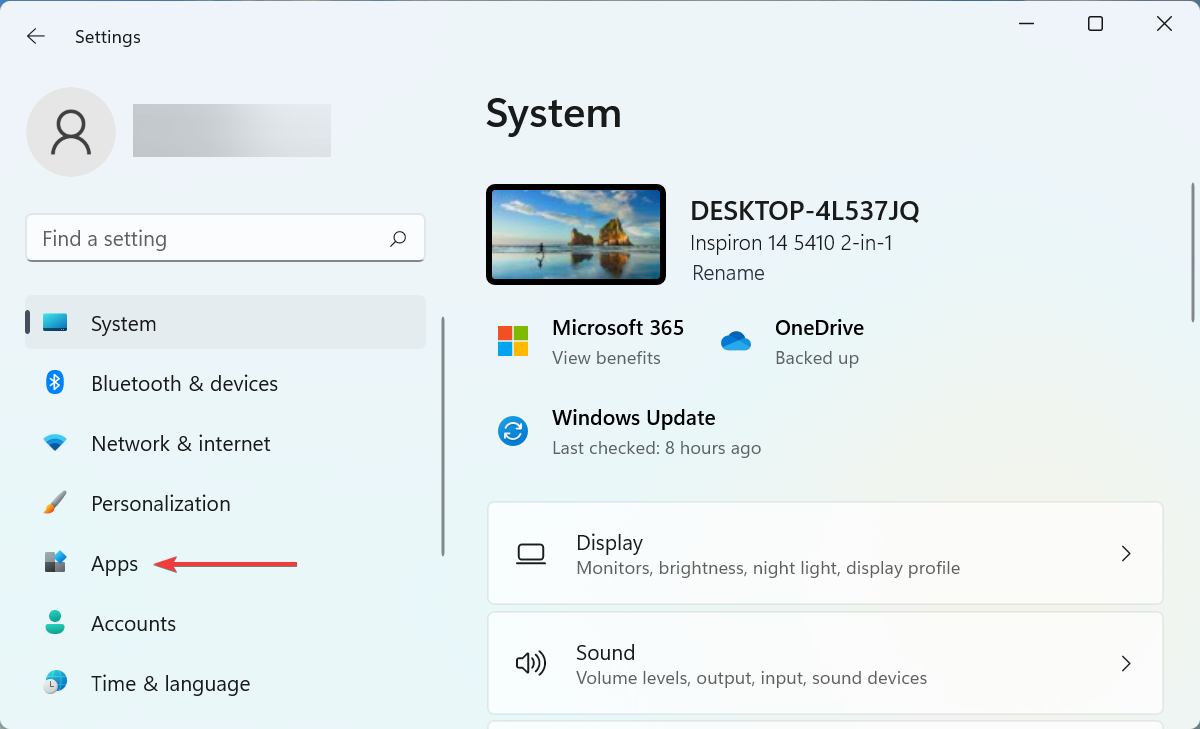
  1. Press Windows + I to launch Settings, and select Apps from the list of tabs in the navigation pane.Apps
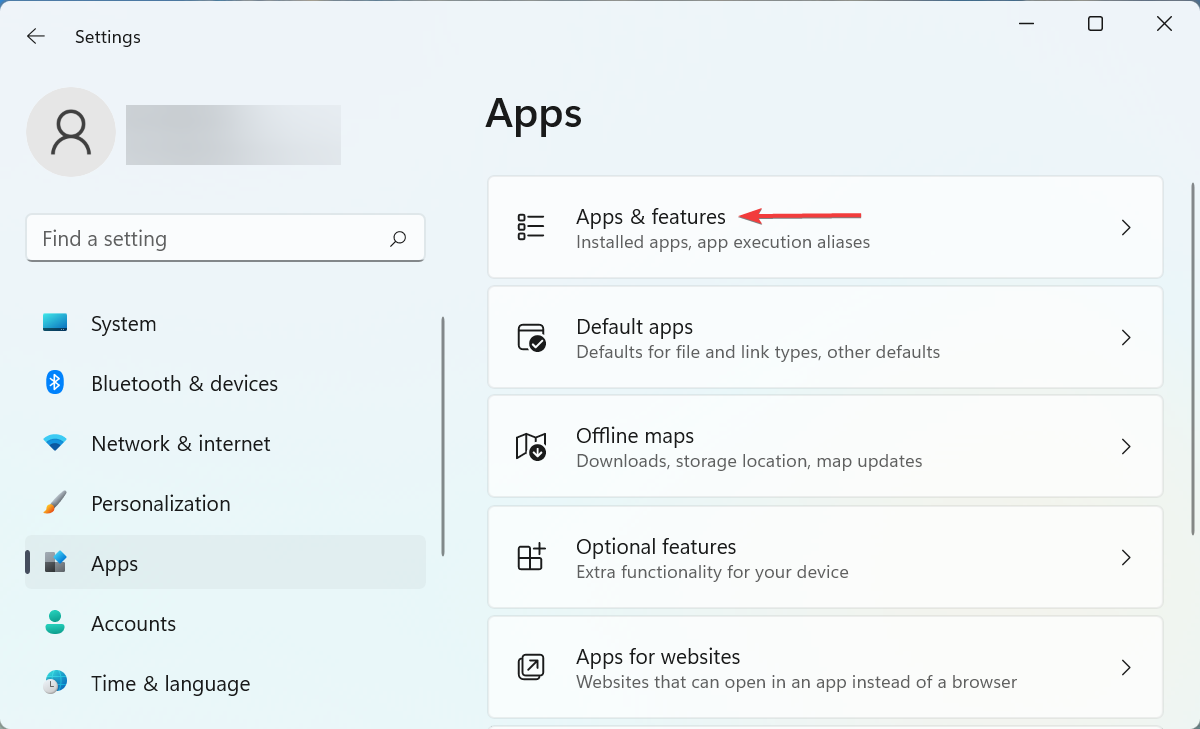
  2. Next, click on Apps & features on the right.Apps & features
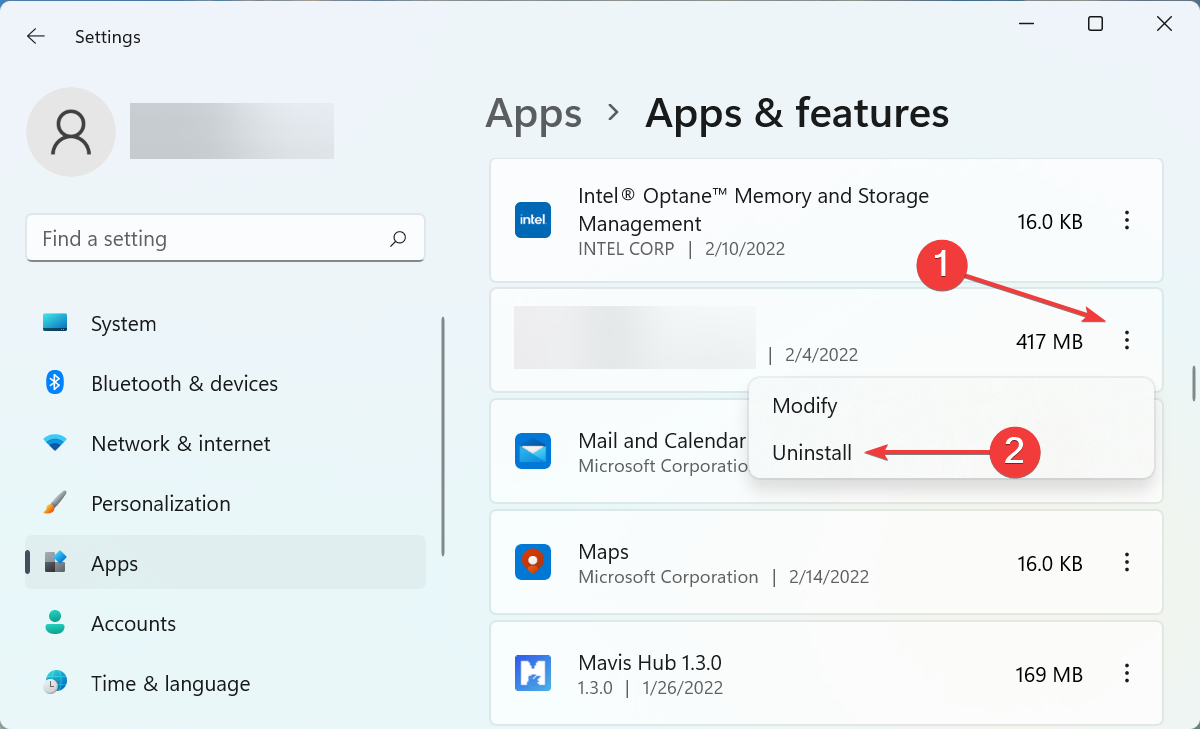
  3. Now, locate the third-party antivirus, click on the ellipsis next to it, and then select Uninstall from the menu.Uninstall app to fix msedgewebview2.exe high cpu
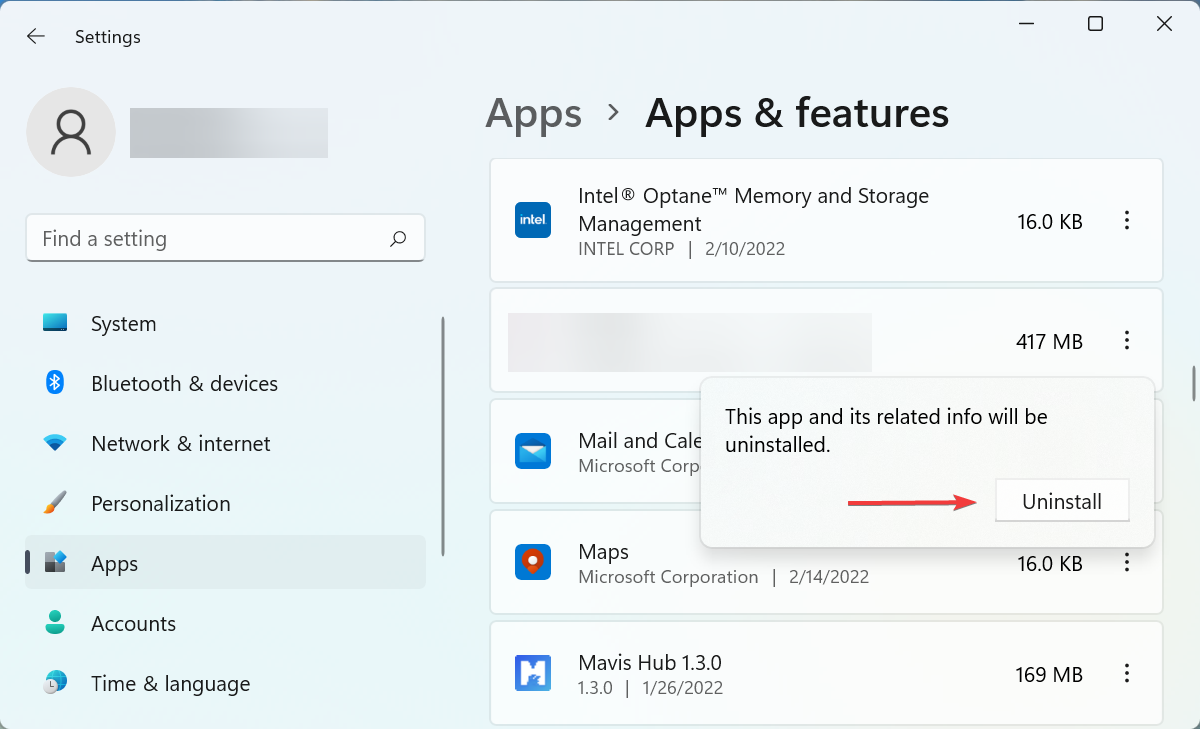
  4. Again, click on Uninstall in the confirmation prompt that pops up.Confirm uninstall

Certain third-party antiviruses are known to conflict with the functioning of Windows 11 and cause the msedgewebview2.exe high CPU consumption error.

Also, certain antiviruses come with their own uninstall tool, which would most likely pop up as soon as you click on uninstall in the last step. In case it doesn’t, check their official website for the exact steps to completely uninstall the antivirus.

Remember that your PC will not be at risk after uninstalling the third-party antivirus, since Microsoft already offers the built-in Windows Defender, which is more than capable of identifying and eliminating risks that could harm the system.

How can I reduce the high RAM and CPU usage?

Both, high RAM (Memory) and CPU usage can affect the performance of your PC, which makes it all the more important to keep these two under check. You can easily check the two parameters in the Task Manager.

In case you are wondering how to reduce the RAM usage in Windows 11, check this article. For those facing the high CPU usage problem, learn how to fix it.

In the case of CPU, there’s isn’t much you can do other than try the troubleshooting methods. But for RAM, you can go ahead and upgrade it. But remember to check the maximum RAM your PC can support.

That’s all there is to solving the msedgewebview2.exe high CPU usage error along with keeping the RAM and CPU consumption in check in Windows 11.

Besides, if you find out that Windows 11 is not using all available RAM, try the methods listed in this article.

To familiarize yourself with this component, we have a whole guide explaining what is Microsoft Edge WebView2 Runtime, so don’t miss it.

Tell us which fix worked for you in the comments section below.

This weekend’s Xbox Free Play days include NASCAR 21: Ignition, NBA 2K22

This weekend marks the Daytona 500, the start of the NASCAR season, and if you’re looking to celebrate, or just have some downtime while waiting for the big race, team Xbox wants to help out.

As part of the latest Free Play Days, you can play NASCAR 21: Ignition, or NBA 2K22 for free with your Xbox Live Gold and Xbox Game Pass Ultimate membership from Thursday, February 17 at 12:01 a.m. PST until Sunday, February 20 at 11:59 p.m. PST. If you like the games, you also can buy them at discounted prices, seen below.

For those who aren’t stock car fans, NASCAR 21: Ignition is the latest NASCAR video game. It sports all the official drivers, teams, and tracks from the 2021 season. And, it has enhanced graphics and broadcast-quality cutscenes. As for NBA 2K22, it’s a great game for basketball fans as it lets you jump in and play as your favorite teams, without even having to go outdoors.

To enjoy these games for free, all you need to do is find and install the games through Xbox.com with our links above. You’ll then be sent to the Microsoft Store, where you can sign in to install with your membership. On a console, you can click on the Subscriptions tab in the Xbox Store, and then enter the Gold member area and look for the Free Play Days collection.

Microsoft is testing ability to sync your PWAs in Microsoft Edge Canary

You already can sync your history, bookmarks, collections, and other items across different devices with Microsoft Edge, but Microsoft is now adding one more thing to the list (via Neowin.)

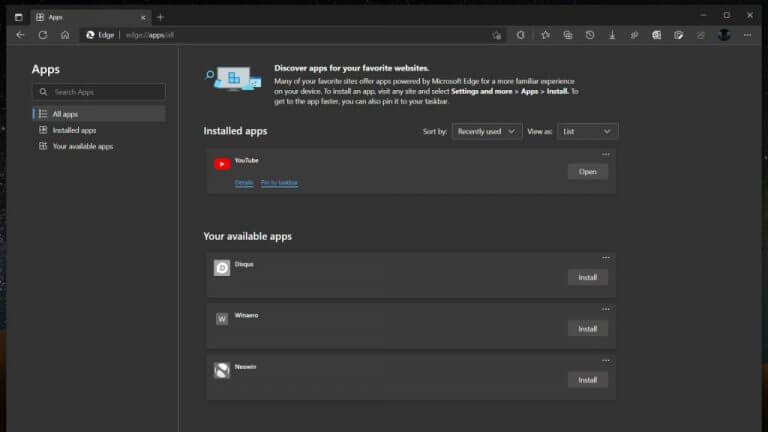
Spotted by a Redditor, now in testing with Canary Channel Edge Insiders is the ability to sync your favorite PWAs across different devices. This Edge Canary user installed three sites as PWAs on one of his devices and opened Edge Canary on another device, and then found the same apps as installable in the All Apps section of the browser. Of course, the apps are grayed out, with the option to Install manually.

At the moment, this seems to be a controlled feature, as we’re not seeing it on our end. However, for folks who own multiple PCs, Macs, or Linux devices, this is sure to be useful as it makes getting up to speed with the browser easier. Once rolled out to everyone, you’ll no longer have to go diving through menus and set each app as a PWA in each install of Edge. You’ll rather just have to depend on Edge syncing and doing all the heavy lifting for you.

How to Disable Antimalware Service Executable on Windows 10

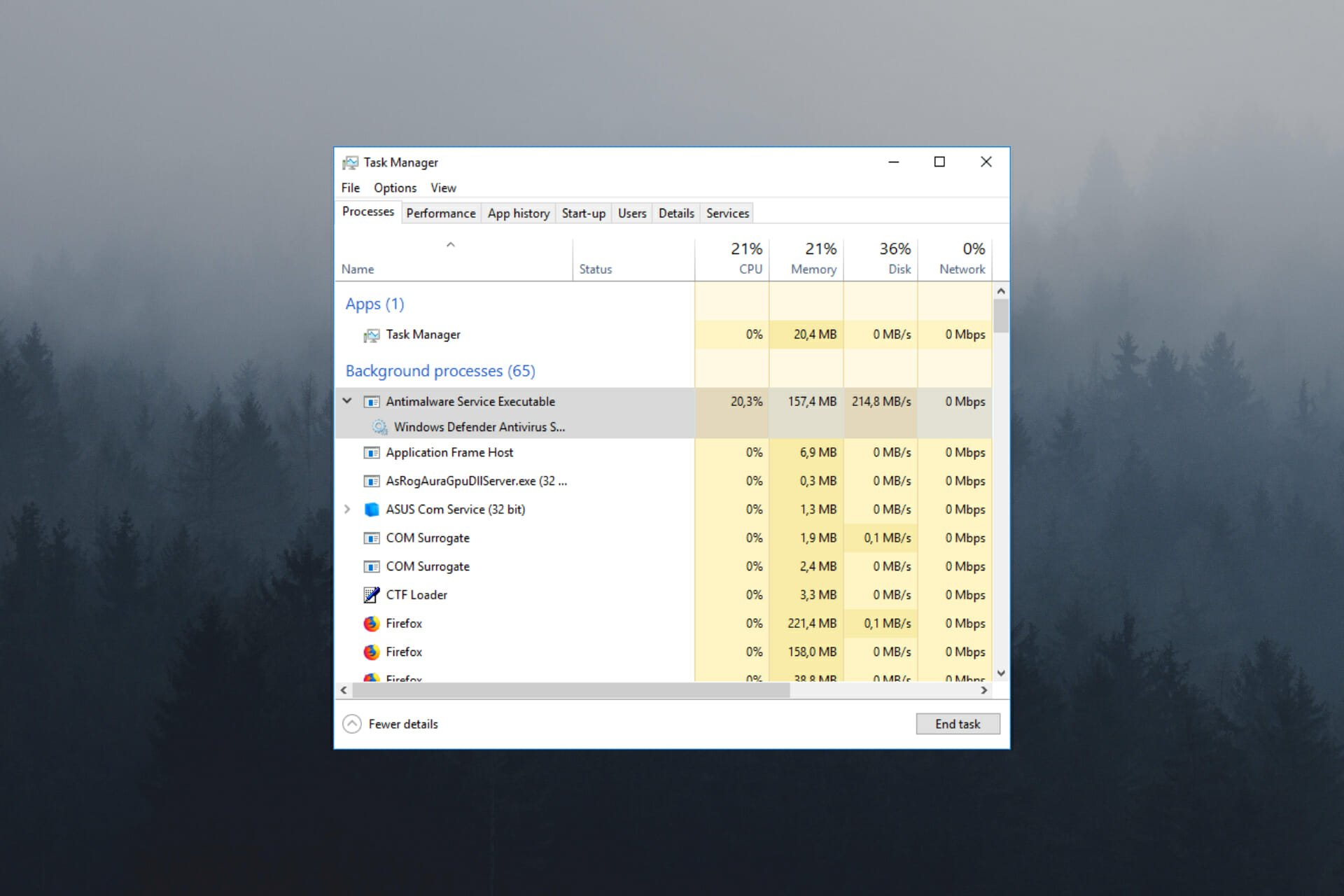
Want to disable the Antimalware Service Executable? Understandable. The service uses a lot of CPU, often making your PC act up. Luckily, you can disable it and find alternative security tools that take way fewer resources. Keep reading, and we’ll show you how to disable MsMpeng.exe permanently.

How do I permanently disable Antimalware Service Executable?

1. Get AdvancedRun software

Note icon NOTE
This isn’t a solution, it is a prerequisite software needed to complete most solutions, so be sure to have it downloaded and started when the instructions tell you to run it.
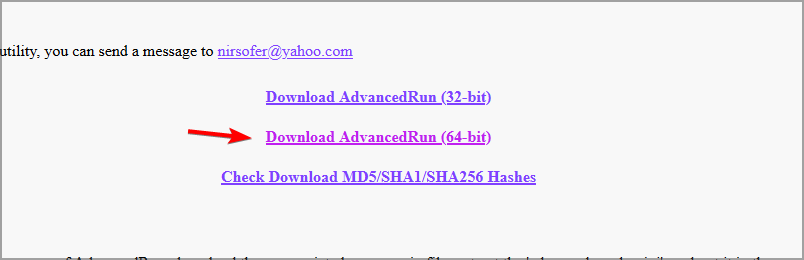
  1. Visit the Advanced Run download page.
  2. Next, download the software.
  3. Once the software is downloaded, extract it to a directory for quick and easy access.

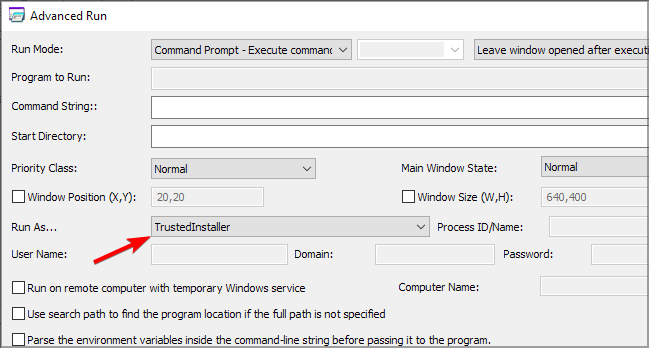
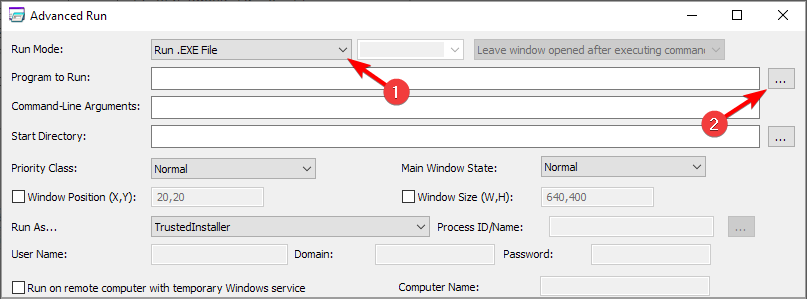
Whenever the solution requires you to use Advanced Run, always do the following:

  1. Start the Advanced Run software by double-clicking it.
  2. Crucial: Always set Run as a TrustedInstaller.
  3. Follow further instructions from the solution.

2. Add exclusions to Windows Defender

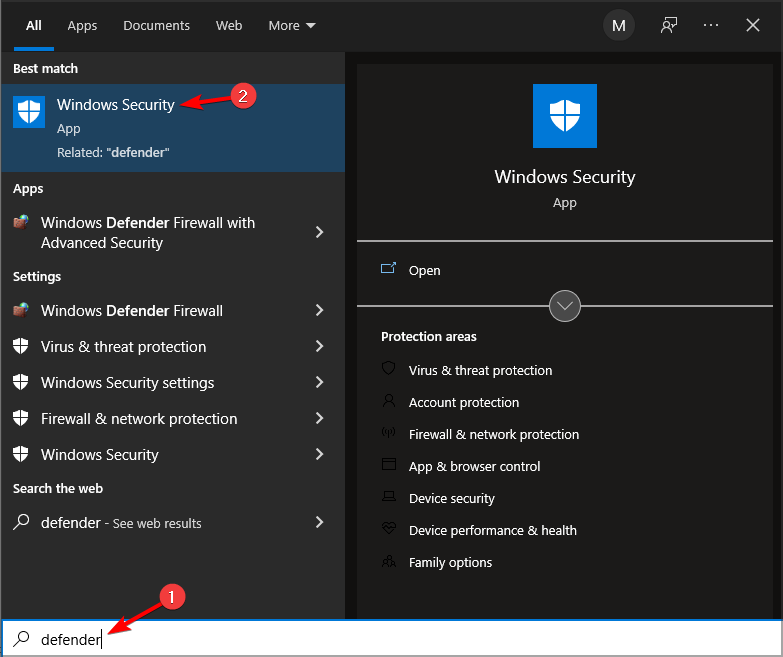
  1. Press Windows key + S and type defender. Choose Windows Defender from the list of results.
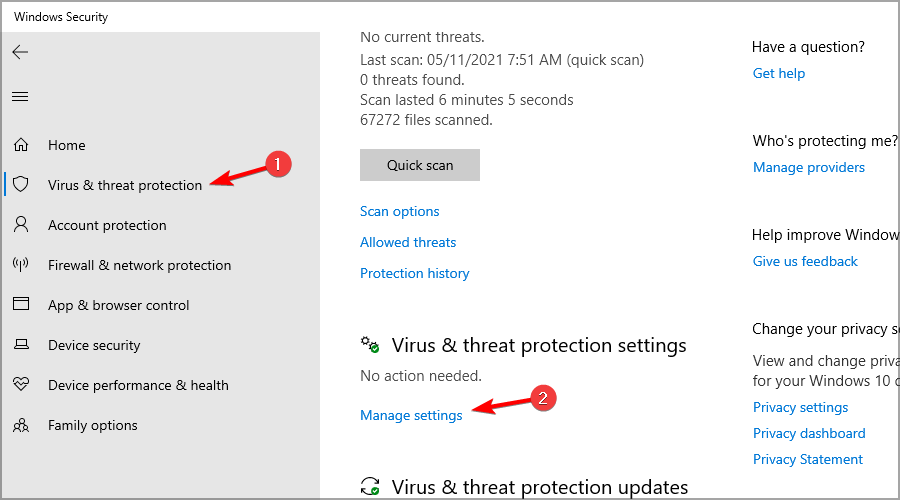
  2. Click on Virus & threat protection. Next, click on Manage settings.
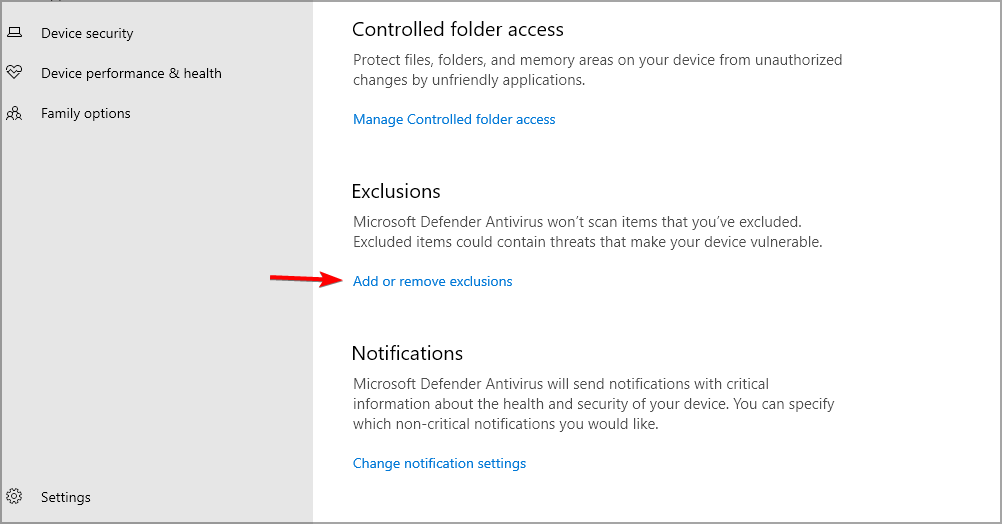
  3. After that, click on Add or remove exclusions in the Exclusions section.
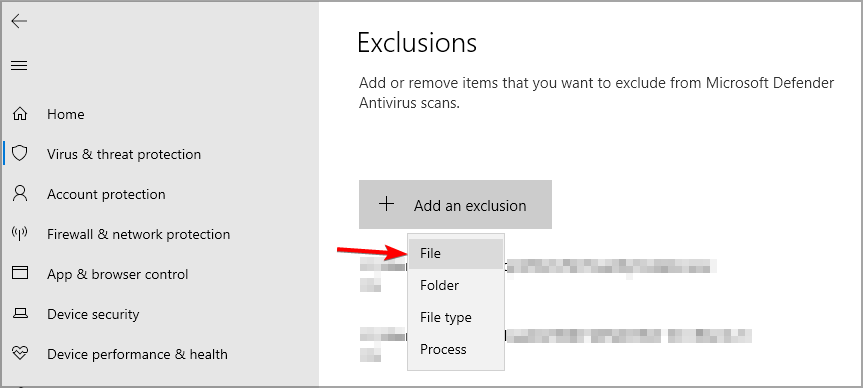
  4. Click on the Add an exclusion button and select File.
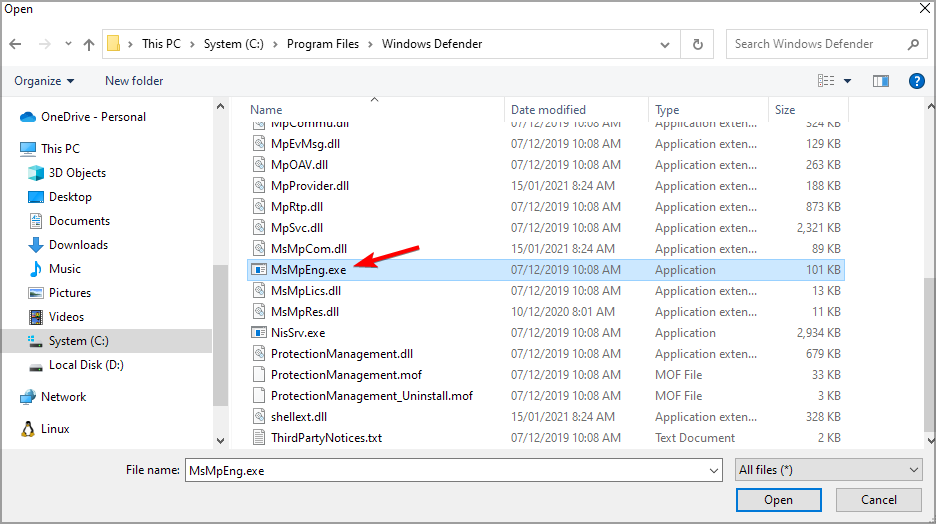
  5. Go to the following directory and select MsMpEnd.exe in the following directory: C:\Program Files\Windows Defender

3. Create a batch script

Note icon NOTE
This solution will make system changes to your PC. Back up your files and create a System Restore point. We’re not responsible for any damage that might occur after using this solution.
  1. Open Notepad.
  2. Now paste the following code:
    @echo off
    ::Windows Defender
    reg add "HKLM\SYSTEM\ControlSet001\Services\MsSecFlt" /v "Start" /t REG_DWORD /d "4" /f
    reg add "HKLM\SYSTEM\ControlSet001\Services\SecurityHealthService" /v "Start" /t REG_DWORD /d "4" /f
    reg add "HKLM\SYSTEM\ControlSet001\Services\Sense" /v "Start" /t REG_DWORD /d "4" /f
    reg add "HKLM\SYSTEM\ControlSet001\Services\WdBoot" /v "Start" /t REG_DWORD /d "4" /f
    reg add "HKLM\SYSTEM\ControlSet001\Services\WdFilter" /v "Start" /t REG_DWORD /d "4" /f
    reg add "HKLM\SYSTEM\ControlSet001\Services\WdNisDrv" /v "Start" /t REG_DWORD /d "4" /f
    reg add "HKLM\SYSTEM\ControlSet001\Services\WdNisSvc" /v "Start" /t REG_DWORD /d "4" /f
    reg add "HKLM\SYSTEM\ControlSet001\Services\WinDefend" /v "Start" /t REG_DWORD /d "4" /f
    ::WindowsSystemTray
    reg delete "HKLM\SOFTWARE\Microsoft\Windows\CurrentVersion\Run" /v "SecurityHealth" /f
    ::System Guard
    reg add "HKLM\SYSTEM\ControlSet001\Services\SgrmAgent" /v "Start" /t REG_DWORD /d "4" /f
    reg add "HKLM\SYSTEM\ControlSet001\Services\SgrmBroker" /v "Start" /t REG_DWORD /d "4" /f
    ::WebThreatDefSvc
    reg add "HKLM\SYSTEM\ControlSet001\Services\webthreatdefsvc" /v "Start" /t REG_DWORD /d "4" /f
    reg add "HKLM\SYSTEM\ControlSet001\Services\webthreatdefusersvc" /v "Start" /t REG_DWORD /d "4" /f
    for /f %%i in ('reg query "HKLM\SYSTEM\ControlSet001\Services" /s /k "webthreatdefusersvc" /f 2^>nul ^| find /i "webthreatdefusersvc" ') do (
    reg add "%%i" /v "Start" /t REG_DWORD /d "4" /f
    )
    ::
    reg add "HKLM\SOFTWARE\Microsoft\Windows NT\CurrentVersion\Image File Execution Options\smartscreen.exe" /v "Debugger" /t REG_SZ /d "%%windir%%\System32\taskkill.exe" /f
    reg add "HKCU\Software\Microsoft\Windows\CurrentVersion\Policies\Associations" /v "DefaultFileTypeRisk" /t REG_DWORD /d "1808" /f
    reg add "HKCU\Software\Microsoft\Windows\CurrentVersion\Policies\Attachments" /v "SaveZoneInformation" /t REG_DWORD /d "1" /f
    reg add "HKCU\Software\Microsoft\Windows\CurrentVersion\Policies\Associations" /v "LowRiskFileTypes" /t REG_SZ /d ".avi;.bat;.com;.cmd;.exe;.htm;.html;.lnk;.mpg;.mpeg;.mov;.mp3;.msi;.m3u;.rar;.reg;.txt;.vbs;.wav;.zip;" /f
    reg add "HKCU\Software\Microsoft\Windows\CurrentVersion\Policies\Associations" /v "ModRiskFileTypes" /t REG_SZ /d ".bat;.exe;.reg;.vbs;.chm;.msi;.js;.cmd" /f
    reg add "HKLM\Software\Policies\Microsoft\Windows Defender\SmartScreen" /v "ConfigureAppInstallControlEnabled" /t REG_DWORD /d "0" /f
    reg add "HKLM\Software\Policies\Microsoft\Windows Defender\SmartScreen" /v "ConfigureAppInstallControl" /t REG_DWORD /d "0" /f
    reg add "HKLM\Software\Policies\Microsoft\Windows Defender\SmartScreen" /v "EnableSmartScreen" /t REG_DWORD /d "0" /f
    reg add "HKCU\Software\Policies\Microsoft\MicrosoftEdge\PhishingFilter" /v "EnabledV9" /t REG_DWORD /d "0" /f
    reg add "HKLM\Software\Policies\Microsoft\MicrosoftEdge\PhishingFilter" /v "EnabledV9" /t REG_DWORD /d "0" /f
    goto :EOF
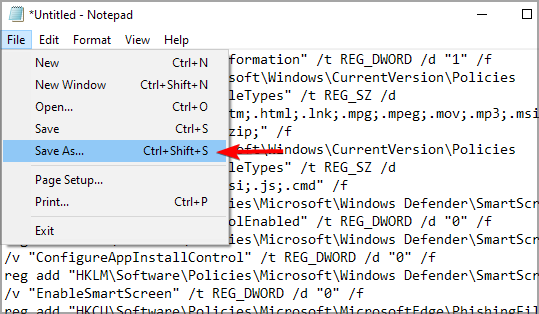
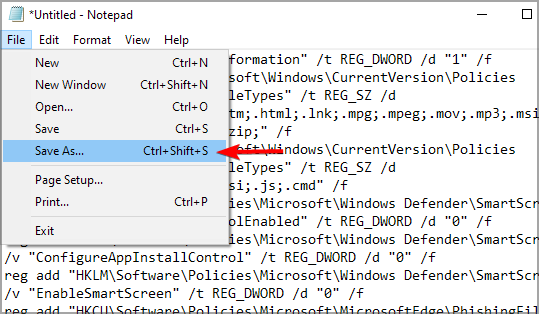
  3. Click on File and choose Save as.
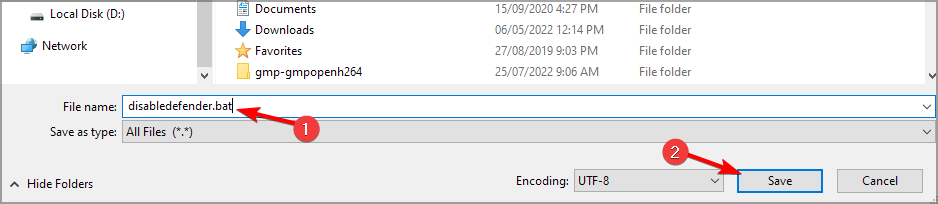
  4. Choose a save location. Set Save as type as All Files. Enter the save name as disabledefender.bat and save it.
  5. Start Advanced Run and configure it to run the file as TrustedInstaller.
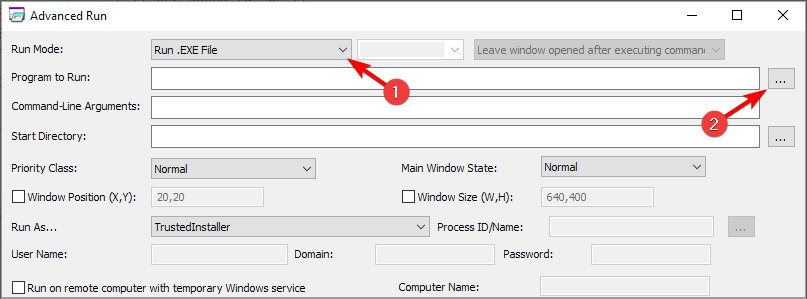
  6. Set Run mode to Run .EXE File. Click three dots next to the Program to Run field.

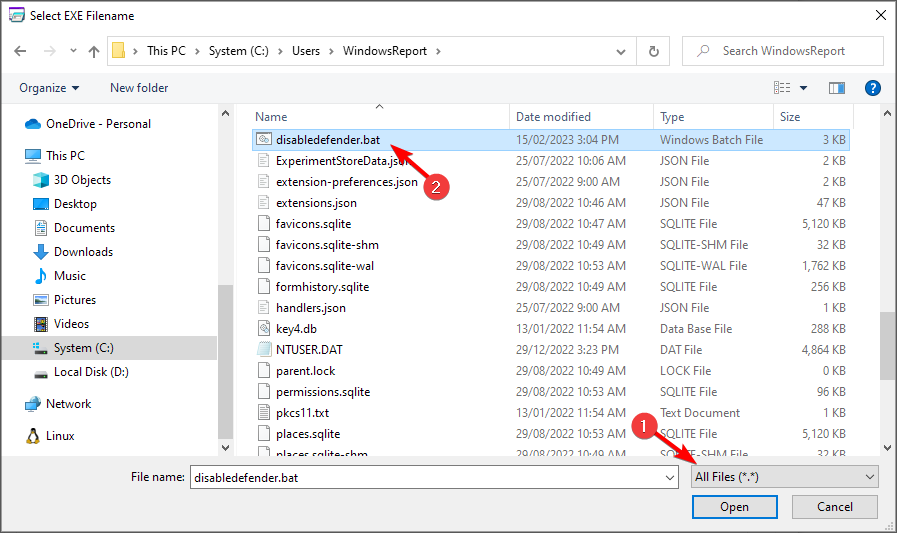
  7. Select All files and choose disabledefender.bat file that you just created.
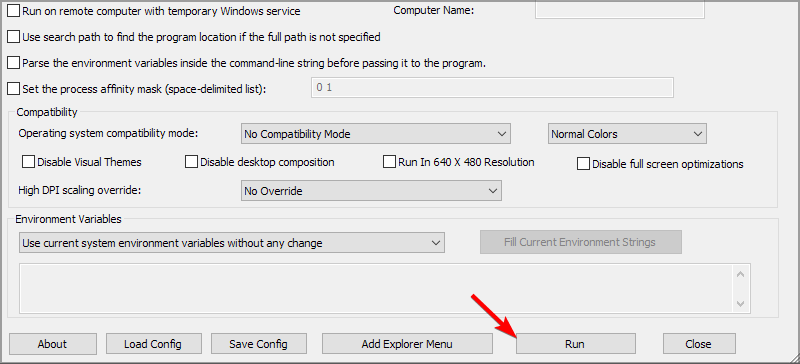
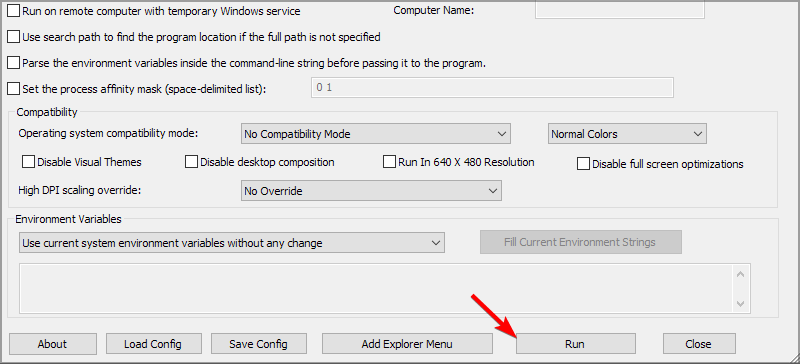
  8. Click the Run button and wait for the process to finish.

You can restore Windows Defender by creating a new script like this:

  1. Start Notepad and paste the following code:
    @echo off
    ::Windows Defender
    reg add "HKLM\SYSTEM\ControlSet001\Services\MsSecFlt" /v "Start" /t REG_DWORD /d "0" /f
    reg add "HKLM\SYSTEM\ControlSet001\Services\SecurityHealthService" /v "Start" /t REG_DWORD /d "3" /f
    reg add "HKLM\SYSTEM\ControlSet001\Services\Sense" /v "Start" /t REG_DWORD /d "3" /f
    reg add "HKLM\SYSTEM\ControlSet001\Services\WdBoot" /v "Start" /t REG_DWORD /d "0" /f
    reg add "HKLM\SYSTEM\ControlSet001\Services\WdFilter" /v "Start" /t REG_DWORD /d "0" /f
    reg add "HKLM\SYSTEM\ControlSet001\Services\WdNisDrv" /v "Start" /t REG_DWORD /d "3" /f
    reg add "HKLM\SYSTEM\ControlSet001\Services\WdNisSvc" /v "Start" /t REG_DWORD /d "3" /f
    reg add "HKLM\SYSTEM\ControlSet001\Services\WinDefend" /v "Start" /t REG_DWORD /d "2" /f
    ::WindowsSystemTray
    reg add "HKLM\SOFTWARE\Microsoft\Windows\CurrentVersion\Run" /v "SecurityHealth" /t REG_EXPAND_SZ /d "%systemroot%\system32\SecurityHealthSystray.exe" /f
    ::SystemGuard
    reg add "HKLM\SYSTEM\ControlSet001\Services\SgrmAgent" /v "Start" /t REG_DWORD /d "0" /f
    reg add "HKLM\SYSTEM\ControlSet001\Services\SgrmBroker" /v "Start" /t REG_DWORD /d "2" /f
    ::WebThreatDefSvc
    reg add "HKLM\SYSTEM\ControlSet001\Services\webthreatdefsvc" /v "Start" /t REG_DWORD /d "3" /f
    reg add "HKLM\SYSTEM\ControlSet001\Services\webthreatdefusersvc" /v "Start" /t REG_DWORD /d "2" /f
    for /f %%i in ('reg query "HKLM\SYSTEM\ControlSet001\Services" /s /k "webthreatdefusersvc" /f 2^>nul ^| find /i "webthreatdefusersvc" ') do (
    reg add "%%i" /v "Start" /t REG_DWORD /d "2" /f
    )
    ::
    reg delete "HKLM\Software\Microsoft\Windows NT\CurrentVersion\Image File Execution Options\smartscreen.exe" /f
    reg delete "HKCU\Software\Microsoft\Windows\CurrentVersion\Policies\Associations" /f
    reg delete "HKLM\Software\Policies\Microsoft\Windows Defender\SmartScreen" /f
    reg delete "HKLM\Software\Policies\Microsoft\Windows Defender\Signature Updates" /f
    goto :EOF
  2. Click File and choose Save as.
  3. Set Save as type to All files. Name the file restoredefender.bat and save it.
  4. Start Advanced Run and run restoredefender.bat as TrustedInstaller.

4. Use the GitHub script

Note icon NOTE
Running any batch script comes with security risks, and we’re not responsible for any potential damages. You’re advised to create a backup before proceeding.
  1. Visit Tairiku’s GitHub page.
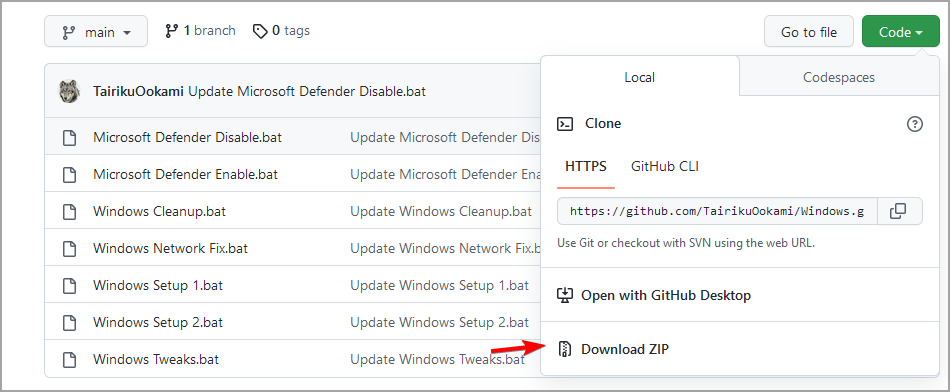
  2. Click on Code and select Download ZIP.
  3. Once the file is downloaded, extract it to a location that you can quickly access.
  4. Next, start Advanced Run and make sure you run it as TrustedInstaller.
  5. Set Run Mode to Run .EXE File and click three dots next to the Program to Run field.
     
  6. Select All files and choose the Microsoft Defender Disable.bat file that you downloaded.
  7. Lastly, click the Run button to run the script.

To revert the changes, repeat the steps but use the Microsoft Defender Enable.bat script instead.

5. Use Command Prompt

  1. Start Advanced Run and set it to run as TrustedInstaller.
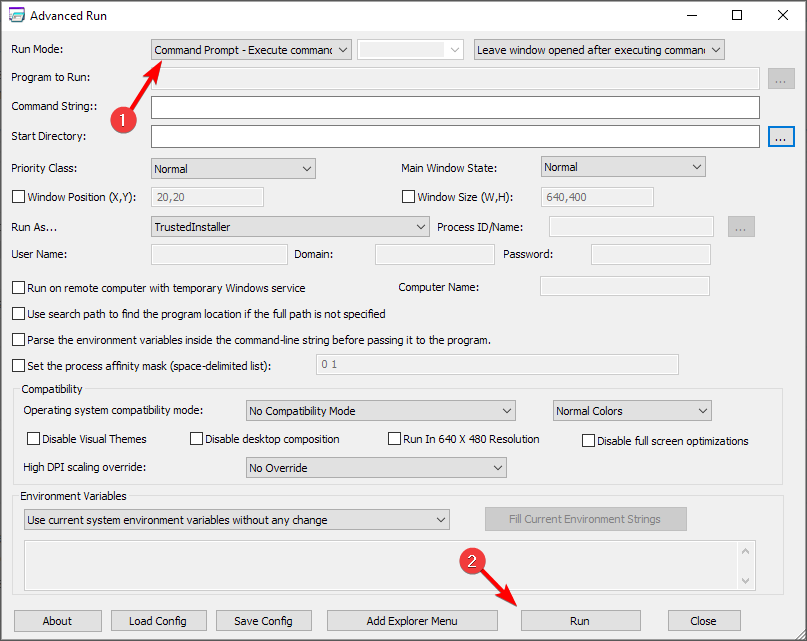
  2. Set Run Mode to Command Prompt and click Run.
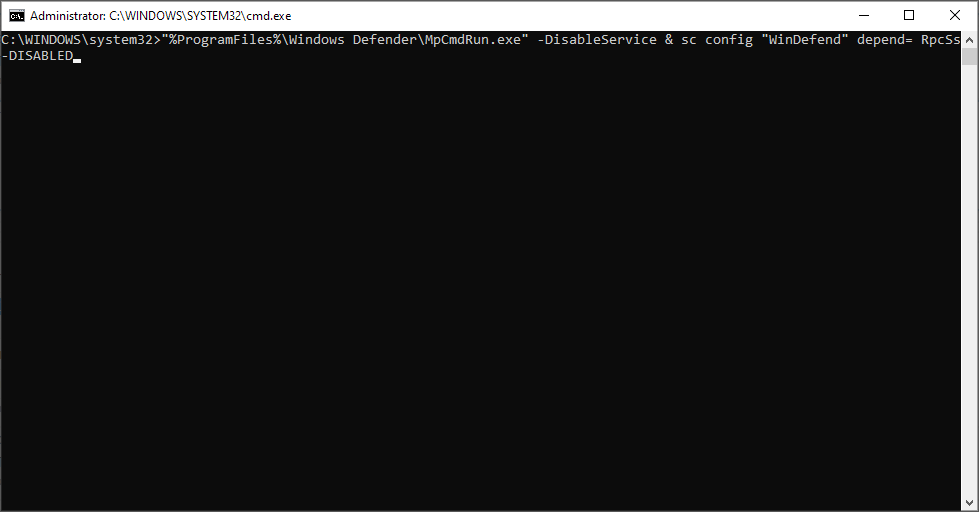
  3. Run the following command: "%ProgramFiles%\Windows Defender\MpCmdRun.exe" -DisableService & sc config "WinDefend" depend= RpcSs-DISABLED
  4. Restart your PC.
  5. Optional: To revert the changes, use this command: sc config "WinDefend" depend= RpcSs & "%ProgramFiles%\Windows Defender\MpCmdRun.exe" -EnableService

If the previous commands didn’t work, use these commands instead:

  • To disable Windows Defender: REG ADD "HKEY_LOCAL_MACHINE\SYSTEM\CurrentControlSet\Services\WinDefend" /v "DependOnService" /t REG_MULTI_SZ /d "RpcSs-DISABLED" /f
  • To enable Windows Defender: REG ADD "HKEY_LOCAL_MACHINE\SYSTEM\CurrentControlSet\Services\WinDefend" /v "DependOnService" /t REG_MULTI_SZ /d "RpcSs" /f

6. Install a third-party antivirus

Antimalware Service Executable is a process closely related to Microsoft Defender.

However, Microsoft Defender won’t run side by side with a third-party antivirus, so if you’re having problems with Antimalware Service Executable, you might want to install a third-party antivirus.

After fixing the issue with the Defender process, you can safely use TotalAV software to provide high-end protection against online cyberattacks. Not only that, this valuable tool comes with the best low-resource usage.

You can also secure your Windows PC against new emerging malware, ransomware attacks, or financial-related threats while performing sensitive activities such as banking operations.

After you install a third-party antivirus, Microsoft Defender will automatically turn itself off, and your problem should be resolved.

TotalAV

Forget about the issues caused by Microsoft Defender and install this top-notch light antivirus.
Free Trial Visit Website

Can I turn off Antimalware Service Executable? Is It Safe?

If you don’t install any additional antivirus software, Windows Defender is the only thing that will protect your computer from malicious software. So, you should disable the service if it is causing you trouble, but purchase or install additional antivirus protection.

Wrapping up

We hope our solutions helped you learn how to stop the Antimalware Service Executable and fix this problem for good.

Disabling this service is one of the necessary steps to fix the can’t turn off real-time protection on Windows 11 issue.

Even if you turn off Antimalware Service Executable, don’t leave your system unprotected. You can use any antivirus software option from the best antivirus with an unlimited license list.
Before you go, don’t miss our guide on Msmpeng.exe high memory usage since it covers a similar subject. Other related issues you might encounter with Windows security processes include Antimalware Service Executable using high CPU or needing to disable it entirely in Windows 11 to improve performance.
For more suggestions or questions, don’t hesitate to leave them in the comments section below, and we’ll be sure to check them out.

How to Combine Two Internet Connections on Windows 10

Some PC users are interested in finding out how to combine two Internet connections on Windows 10. Some want to combine two WiFi connections, whereas others want to combine Ethernet ones.

This can be a great solution if your connection disconnects randomly for a few seconds or if you’re having other issues.

This is possible, and to learn more about the benefits of combining two or more connections, be sure to keep reading.

Can you combine two Internet connections?

Yes, you can combine two Internet connections into one. This comes with several benefits:

  • Faster connection – Remember that download speeds won’t combine when using single stream connections. However, you will notice speed increase with multi-stream connections, such as with torrent clients.
  • More reliable connection – By combining two connections, you’ll get a more stable connection because if one is having issues, the other can continue working as a backup.

How do I combine two Internet connections on Windows 10?

1. Use built-in resources

1.1 Tweak TCP/IP Settings

  1. In the Windows search bar, type control, and open Control Panel from the results.
  2. Choose Network and Internet.
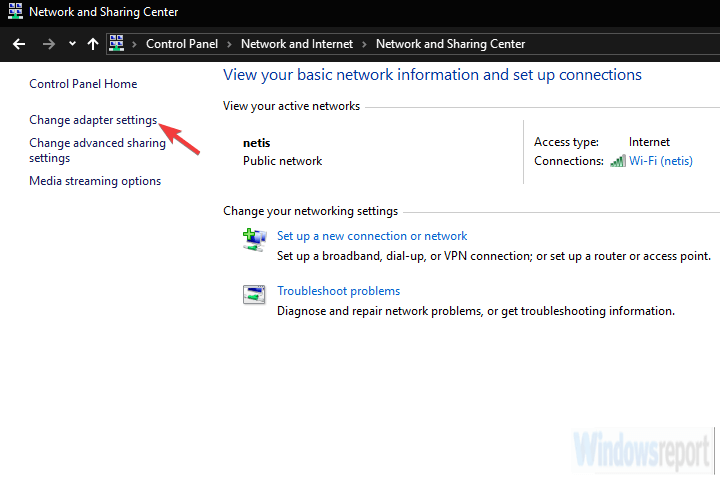
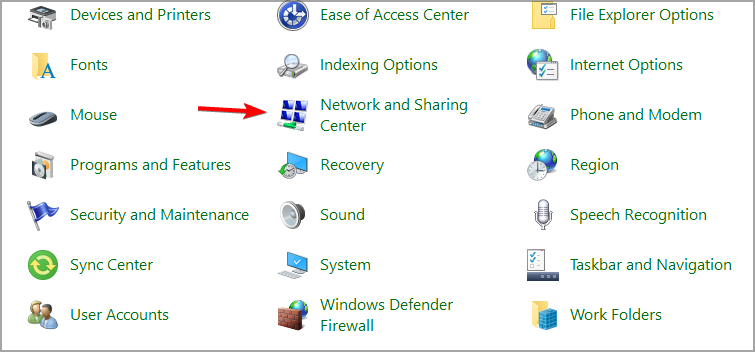
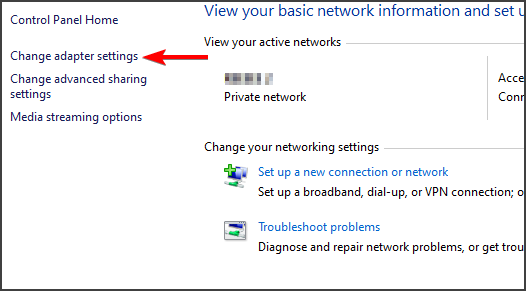
  3. Open Network and Sharing Center and select Change adapter settings.
    change adapter settings
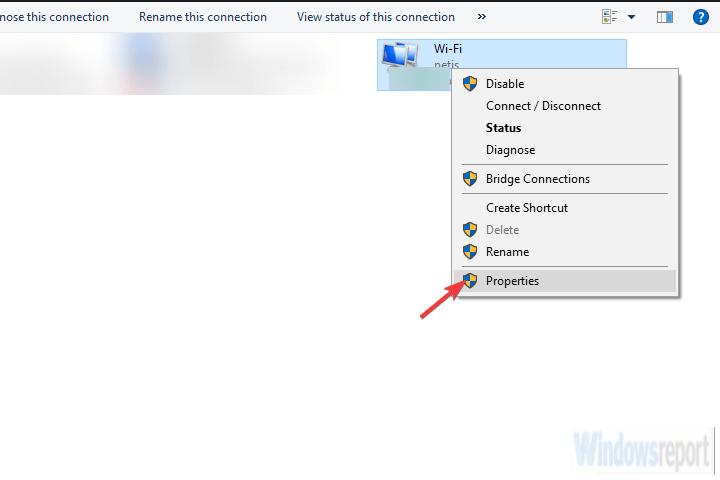
  4. Right-click on your active internet connection and open Properties.
    network adapter properties
  5. Highlight Internet Protocol TCP/IP Version 4 and click Properties.
  6. Click Advanced.
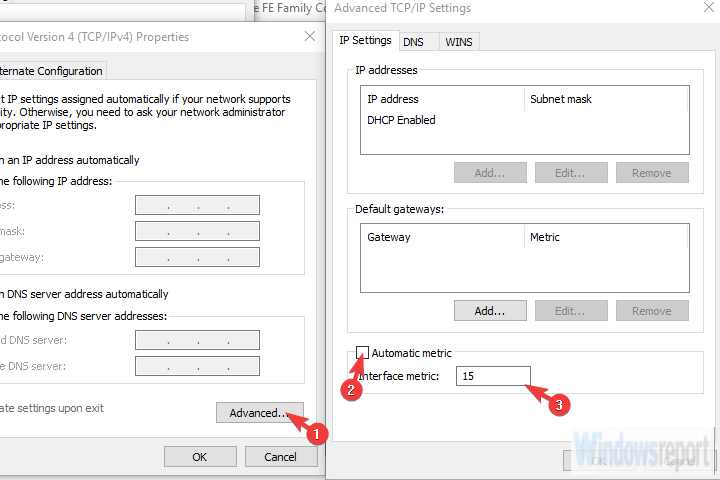
  7. Uncheck the Automatic metric box and enter 15 in the Interface metric field.
    disable automatic metric
  8. Confirm the changes and repeat this for all connections.
  9. Disconnect both connections and reboot your PC.
  10. Connect both connections and look for improvements.

1.2 Bridge two Internet connections

  1. Navigate to Control Panel, and click on Network and Sharing Center.
  2. Select Change adapter settings.
  3. Press and hold CTRL and click both connections to highlight them.
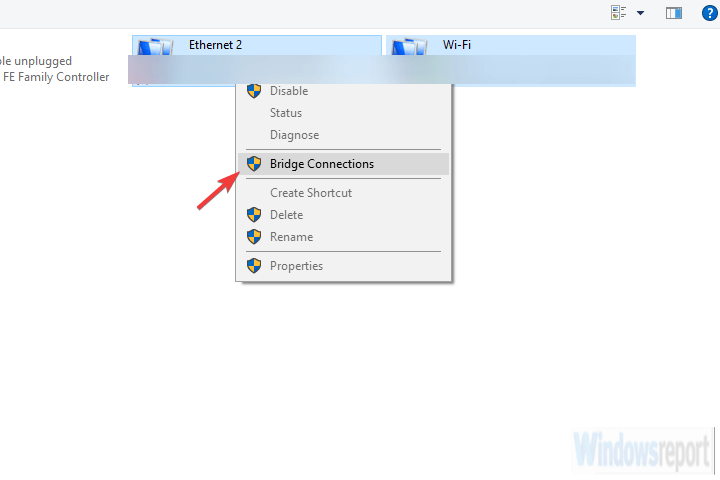
  4. Right-click on one of the connections and choose Bridge Connections.
    bridge connections

You can also read this guide on how to create a network bridge in Windows to learn more about linking two network adapters for shared connectivity.

2. Use a dedicated program

Software such as Speedify allows you to combine several Internet connections to improve your online performance.

The software dynamically spreads packages among the connections for improved performance. With this software, you can get improvements on single connections as well.

This is achieved by making 8 simultaneous connections to Speedify servers. Priority levels are available, so you can fine-tune your connection for the best performance.

The software ensures 100% stability thanks to the fallover feature. The service is optimized for streaming, and you can test your connection anytime and view real-time statistics.

Of course, all your connections use AES 256 encryption, and the company keeps no logs, so your browsing sessions will remain completely private.

⇒ Get Speedify

3. Try a load-balancing router

Finally, if your workflow requires a reliable and stable connection, the most secure way to combine two (or even several) connections is with a Load Balancing Router.

These come in all shapes and forms, some even offered by various ISPs. The TP-link-ones are the most affordable, but you can go with Cisco or UTT. It depends on your needs and budget.

Once you’ve acquired a load-balancing router, the procedure is rather simple. Just use WAN/LAN to merge multiple connections.

There might be a few minor things to do, configuration-wise, but you should be good to go in a matter of minutes.

The important thing to remember is that IP addresses can’t be the same for the router and the Internet connections you’re merging.

With that said, we can conclude this article, and we hope that our solutions helped you use two internet connections simultaneously on Windows 10 without issues.

If you want to know how to use WiFi and Ethernet simultaneously, check out our dedicated article.

You might also be interested in the best load balancer solutions that will provide you with stable network traffic for your devices.

In case you have any questions or suggestions on how to combine two internet connections on Windows 10, feel free to tell us in the comments section below. We look forward to hearing from you.

Best Network Inspection Tools for 2026 [Top 8 Picks]

Network-monitoring software is primarily designed for the business domain and network admins. It provides network report details and enables users to fix any network faults, compliance issues, or bottlenecks that might emerge.

Network monitoring, otherwise, traffic analysis, is an important aspect of these software tools. There’s an extensive range of software solutions that enable you to inspect network traffic.

Aside from monitoring the network and its processes, some users might need reliable network simulation tools for imitating network models.

What are the best tools to inspect your network traffic with?

Site24x7

If you need to monitor traffic, you should go for a SNMP-based tool and Site24x7 is just what you’re looking for.

For instance, you will get really good friends with the Heath Dashboard because that’s where you’ll be able to monitor all the top devices based on response time and packet loss.

And that’s not all! You also get data for the top interfaces based on traffic, bandwidth utilization, errors, and discards.

This SNMP-based solution uses over 60 performance metrics to collect the data from all the devices within a specified IP range or with the help of CIDR technology.

How about monitoring the Microsoft applications’ performance? Site24x7 can also do that for a long list of software including IIS, SQL, Exchange, Office 365, and more.

The IT manager doesn’t have to be at his/her desk all the time because the could based command center can be accessed from anywhere, even from a mobile device.

Committing to this kind of solution takes time and analysis but you can test Site24x7 because it offers a free trial version just for that.

Site24x7 best features:

  • Easy SNMP traffic monitoring with over 60 performance metrics
  • Control everything from a single cloud-based dashboard
  • Professional support and free trial available
  • Secure management of customer accounts and endpoints
  • Easy implementation and intuitive interface

Site24x7

Keep track of all the traffic of your entire network with this advanced management tool.
Free trial Visit website

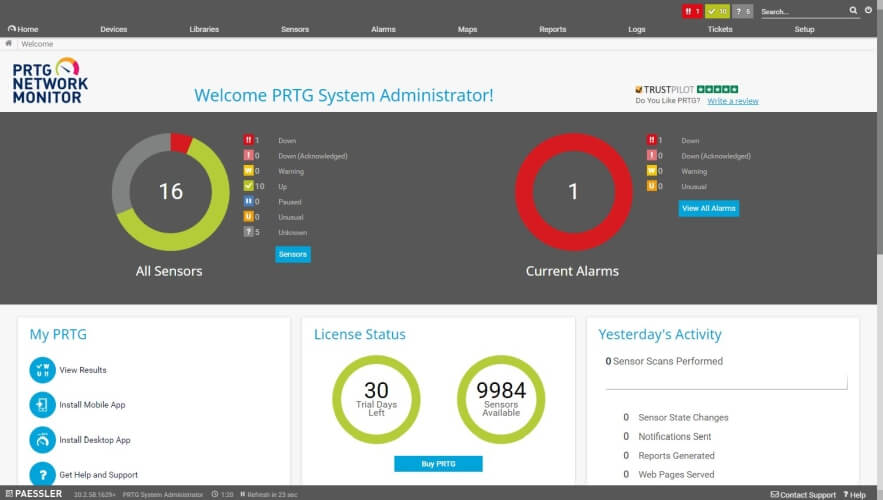
PRTG Network Monitor

This tool is developed by one of the biggest network security companies in the world. It will let you verify the traffic that comes into your network and check if it is safe or not.

Basically, it is your best friend when you want to see if some of the traffic on your Wi-Fi network is dangerous for your devices or not.

PRTG will monitor your firewalls and all that they let through. Its SNMP and NetFlow sensors will immediately let you know if your firewall has a breach.

All the unusual traffic is located through the program’s Packet Sniffing Sensor. Once something odd is sniffed, PRTG notifies you and proposes some actions to take as soon as possible.

In case there are security holes in the network because of the Windows Updates, PRTG lets the administrator know and helps him find solutions so none of the network’s data remains exposed.

PRTG is also a great Wi-Fi scanner and monitoring tool that you could use while overwatching your network’s traffic.

Try this program for 30 days and go on the free (but limited) version after that, or you can continue by upgrading to a Pro plan.

PRTG Network Monitor best features:

  • Network breach detection
  • Wi-Fi scanner and monitoring tool
  • Suitable for businesses of all sizes
  • Centrally monitor and manage all your cloud computing services
  • SNMP functionality
PRTG Network Monitor

PRTG Network Monitor

Manage the way your PC uses your bandwidth with one of the best network monitoring tools on the market today!
Free trial Visit website

Wireshark

Wireshark is an open-source IP traffic-monitoring tool for Windows platforms, Mac OS X, and Linux that has had rave reviews.

This is software primarily designed for a more advanced user base that provides detailed traffic info and statistics.

Note that you might also need WinPcap installed for Wireshark to work.

Wireshark is a network-monitoring tool that can inspect a multitude of protocols. It includes an interface list from which you can select which interface to inspect traffic.

The software captures traffic in real-time and enables you to set up filters to inspect more specific traffic and connections. Its display filters are among the best in the industry.

Another great thing about Wireshark is its color-coding that highlights different types of traffic. For example, green highlights TCP traffic and blue DNS traffic.

Users can also create their own custom color code sets for data packets. In addition, the program also generates a variety of reports for things such as protocol hierarchy.

Wireshark best features:

  • Color-based traffic differentiations
  • Works on Windows, Mac OS X, and Linux
  • Open source free software
  • Inspects a multitude of protocols
  • Captures traffic in real-time

⇒ Get Wireshark

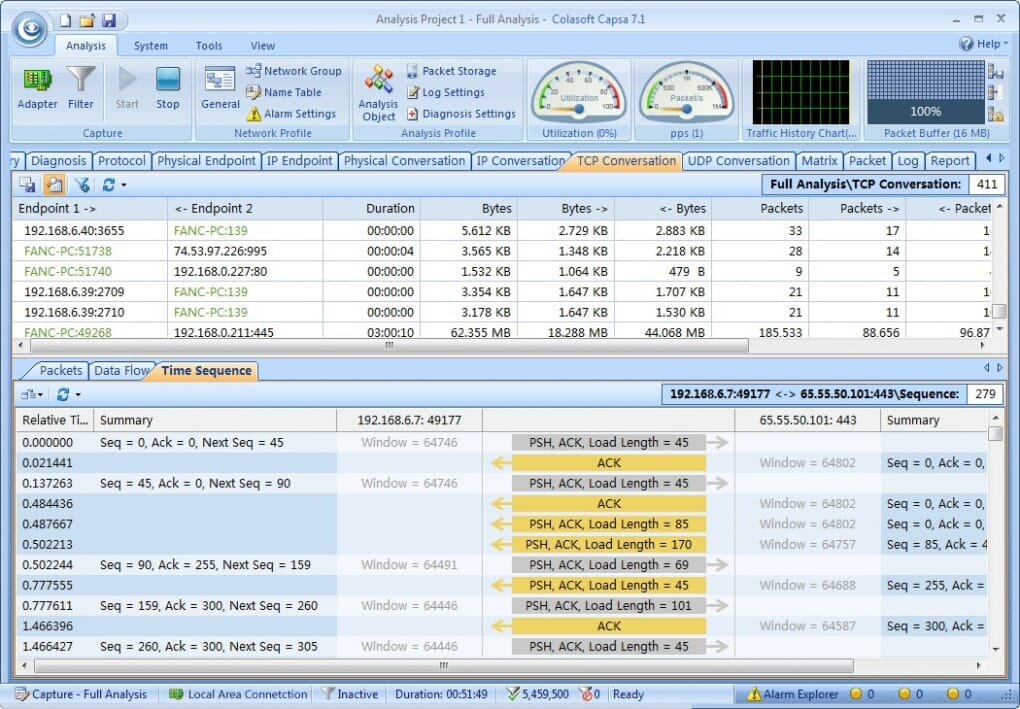
Capsa

Capsa is a network analyzer for Windows that you can inspect Ethernet traffic with. It has freeware, Professional, and Enterprise editions.

The freeware version alone has plenty of handy options, and Enterprise boasts an even wider range of advanced features.

Capsa monitors more than 300 protocols and provides traffic and bandwidth statistics in both numerical and graph formats within an intuitive dashboard UI.

The software gives users detailed and customizable summary reports for each type of analysis that includes total traffic, DNS queries and responses, data link, packet size distribution details, and more besides.

The Enterprise edition has a variety of diagnostic tools to help fix networks and a matrix view that includes the top 100 node connections in a network.

In addition to this, you can also schedule tasks, set up alarm notifiers, configure decoder, and export packets with Capsa.

Capsa best features:

  • Monitors over 300 protocols
  • Schedule tasks, set up alarm notifiers, configure decoder, and export packets
  • Detailed and customizable summary reports
  • Reports include total traffic, DNS queries and responses, data link, packet size distribution details, and more
  • Very easy to use

⇒ Get Capsa

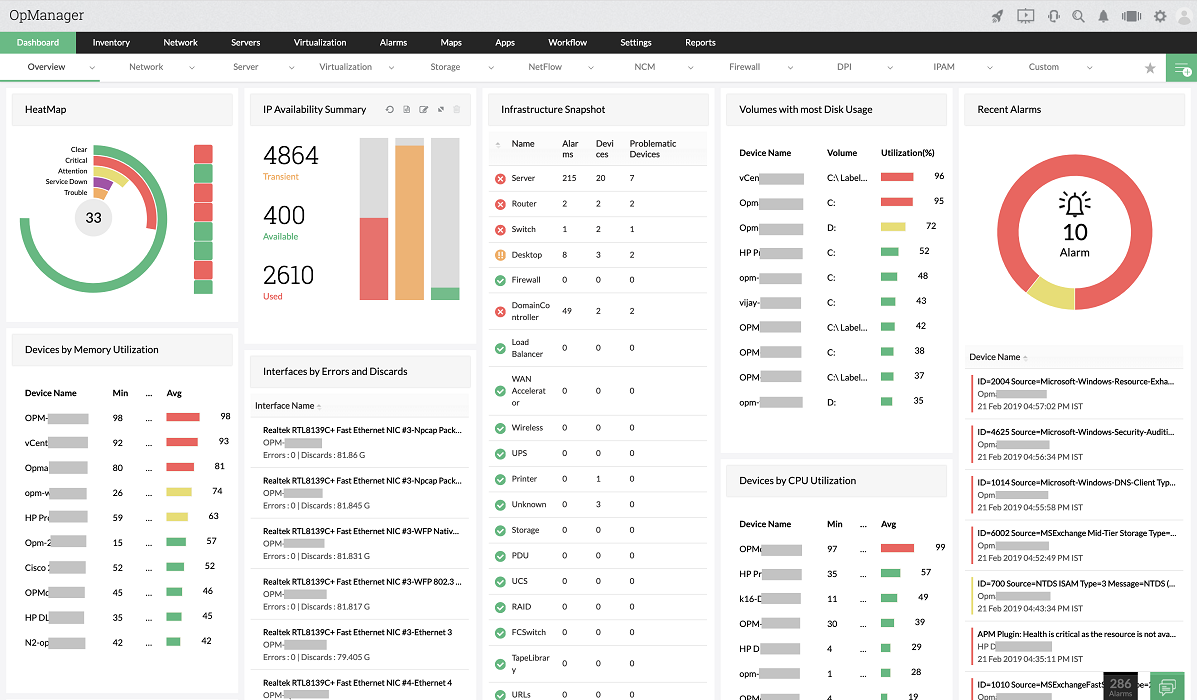
ManageEngine OpManager

ManageEngine OpManager is comprehensive monitoring software that provides network traffic analysis for Windows servers.

The software has Essential, OpManager Plus, and Enterprise edition for more than 500 network devices.

It has tools for network monitoring, bandwidth analysis, configuration management, IP address management, and firewall log management.

The software’s netflow monitoring module is ideal for inspecting network traffic. That provides real-time bandwidth monitoring and detailed traffic reports and graphs for end users.

With that, you can then discover the apps and protocols that are hogging the most network bandwidth.

OpManager also comes with a wide range of reporting profiles, and users can also set up their own custom reports. So, this is an invaluable tool for isolating and eliminating bandwidth hogs.

ManageEngine OpManager best features:

  • Network monitoring, bandwidth analysis, configuration management, IP address management, and firewall log management
  • Professional-level advanced features for network management
  • Customizable and comprehensive reports
  • Very well structured interface
  • Centralized console management

ManageEngine OpManager

Monitor your network with detailed real-time reports from this professional software.
Free Trial Visit Website

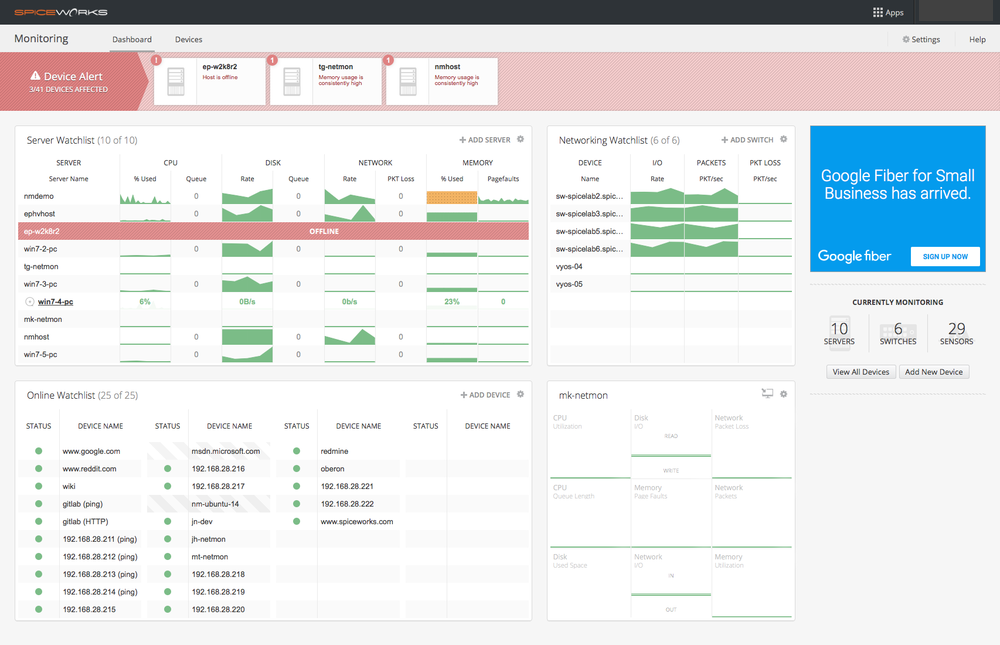
Spiceworks Network Monitor

Spiceworks Network Monitor is freeware for Windows servers that has no device limit. This program has a decent set of options to inspect network traffic with.

The software has a quick setup, and you don’t need to be a network engineer to implement it, although it offers some interesting, advanced features.

It has a dynamic and easy-to-use dashboard interface. With the software, users can inspect bandwidth usage at the port level.

This can help reduce network saturation and traffic congestion and check for packet loss. The software also gives you historical data to spot trends, to determine if a network needs more bandwidth or not.

Spiceworks Network Monitor is a handy networking-monitoring tool that offers terrific value, so we encourage you to test it.

Spiceworks Network Monitor best features:

  • Quick setup and implementation
  • Freeware version available
  • Inspects bandwidth usage at the port level
  • Easy-to-use dashboard interface

⇒ Get Spiceworks Network Monitor

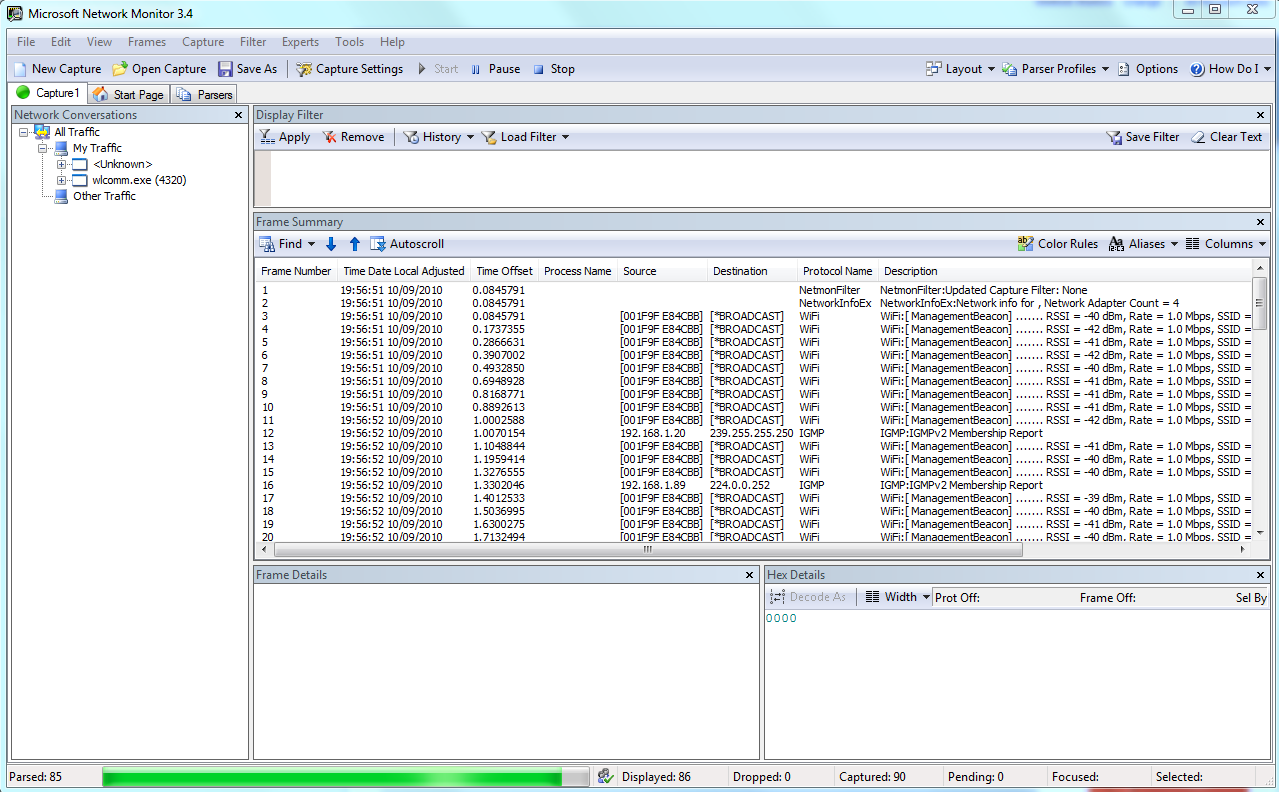
Microsoft Network Monitor

Microsoft Network Monitor provides detailed traffic capture and analysis for networks and is fairly straightforward to use compared with other alternatives.

It captures data packets sent over a network and provides graphical displays of network stats.

The Microsoft Network Monitor utility supports an extensive number of data protocols. It includes numerous filtering options so that users can filter out more specific details from captured data packets.

Furthermore, you can also create your own customized filters either entirely from scratch or from an existing one. The software also presents the traffic data details clearly within its UI.

In addition, MNM includes a Wireless Monitor Mode and simultaneous capture sessions options. So even if it isn’t the most updated network monitor, it’s still a handy utility for network administration.

Microsoft Network Monitor best features:

  • Available for free
  • Designed especially for Windows
  • Customized filters creation
  • Reports with detailed traffic data

⇒ Get Microsoft Network Monitor

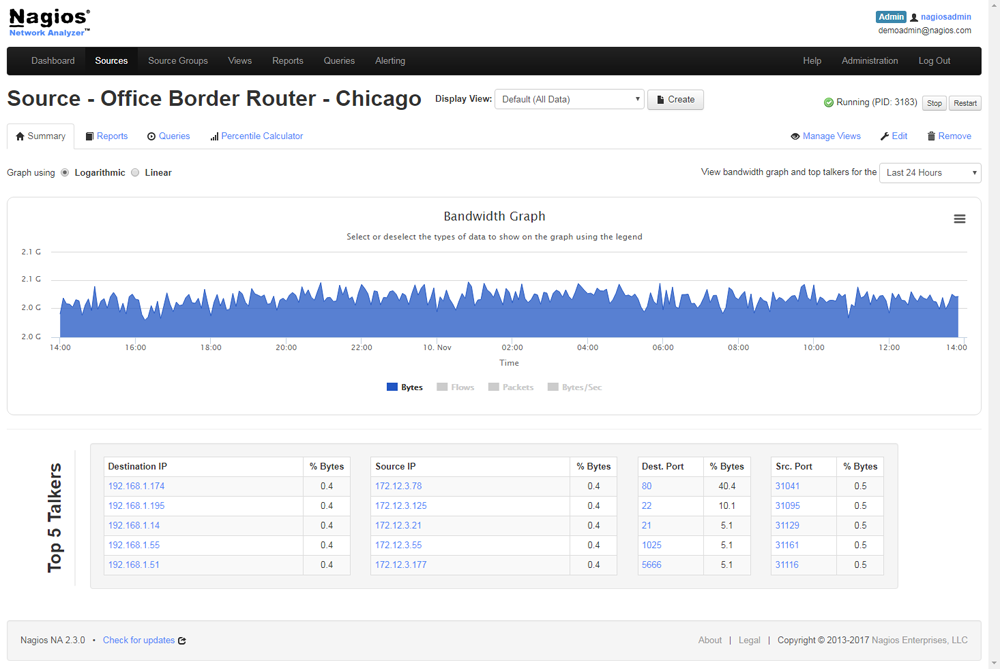
Nagios Network Analyzer

Nagios is another utility that provides detailed traffic analysis for both smaller and larger networks. With this software, it’s possible to monitor various network services such as HTTP, POP3, SMTP, and ICMP.

The Nagios Network Analyzer is available as an evaluation copy to try out for a 60-day evaluation. Note that Nagios Core is an open-source alternative with network monitoring options.

The app gives you a central view of network traffic for both smaller and larger networks with its comprehensive home dashboard.

It can provide details for specific IPs, disk usage, destination, or source ports; and the software also includes advanced visualizations that illustrate network traffic data in graphical format.

With the utility’s custom application monitoring you can inspect traffic for more specific applications.

The Nagios bandwidth utilization calculator is another handy tool that enables users to set up reports highlighting bandwidth usage for a source or IP.

With that, it’s easy to inspect which IPs are hogging the most bandwidth and fix the situation quickly.

Nagios Network Analyzer best features:

  • Monitors network services such as HTTP, POP3, SMTP, and ICMP
  • 60-days trial evaluation version
  • Centralized dashboard
  • Offers details for specific IPs, disk usage, destination, or source ports
  • Network traffic data reports in graphical format

⇒ Get Nagios Network Analyzer

So those are the best software tools for both business and home networks. They’ll give you a detailed overview of network traffic so that you can analyze and manage networks more efficiently.

And while we’re on the subject, take a look at our selection of the best network performance management tools because you might get more ideas.

FAQs

What is network monitoring software used for?

Network monitoring software tracks traffic across devices, detects bottlenecks, and provides reports to help admins resolve faults, compliance issues, or bandwidth problems.

What is the best free network traffic analyzer?

Wireshark and Microsoft Network Monitor are among the best free options. They capture packets in real time, support multiple protocols, and provide detailed analysis.

Can network monitoring tools detect security issues?

Yes. Tools like PRTG, OpManager, and Capsa include breach detection, firewall monitoring, and traffic analysis to identify unusual or malicious network activity.

Is network monitoring only for businesses?

No. While designed for admins, free tools like Spiceworks or Wireshark are also useful for home users who want to check bandwidth usage, packet loss, or Wi-Fi performance.

Have you tried any of the recommended solutions? If so, let us know more about your experience in the comments section below.

Microsoft’s Soundscape technology helps power Sony’s latest set of earbuds

Microsoft and Sony appear to be competing at the upper echelon of the wireless headphone category with the Surface Headphones 2 and the Sony WH-100XM4’s going head-to-head, but the two found time to partner at the lower end with the new Sony LinkBuds experience.

According to Microsoft Research, the new Sony LinkBuds integrate Microsoft Soundscape into its audio experience.

Microsoft Soundscape is a product from Microsoft Research that explores the use of innovative audio-based technology to enable people to build a richer awareness of their surroundings, thus becoming more confident and empowered to get around. Unlike step-by-step navigation apps, Soundscape uses 3D audio cues to enrich ambient awareness and provide a new way to relate to the environment. It allows you to build a mental map and make personal route choices while being more comfortable within unfamiliar spaces. Soundscape is designed to be used by everyone and live in the background; therefore, feel free to use it in conjunction with other apps such as podcasts, audio books, email and even GPS navigation!

As mentioned by Microsoft Research, Soundscape is best for ambient sound profiles but it can also be used to set a homing beacon that can leverage spatial sound to help guide users, or it can help with familiarizing Soundscape callouts among other things.

Specifically, Soundscape creates an audio profile using synthesized binaural audio and 3D sound. When paired, apps and services that utilize area and location based environmental mapping via the sensors in a smartphone or tablet, users can follow the ambient beacons for hands and sight free navigation.

Apple iPhone SE, 6S and later make use of Soundscape technology as well as most wired and Bluetooth enabled devices.

For anyone interested, Microsoft Research is offering a free download of Soundscape to test out from its blog.

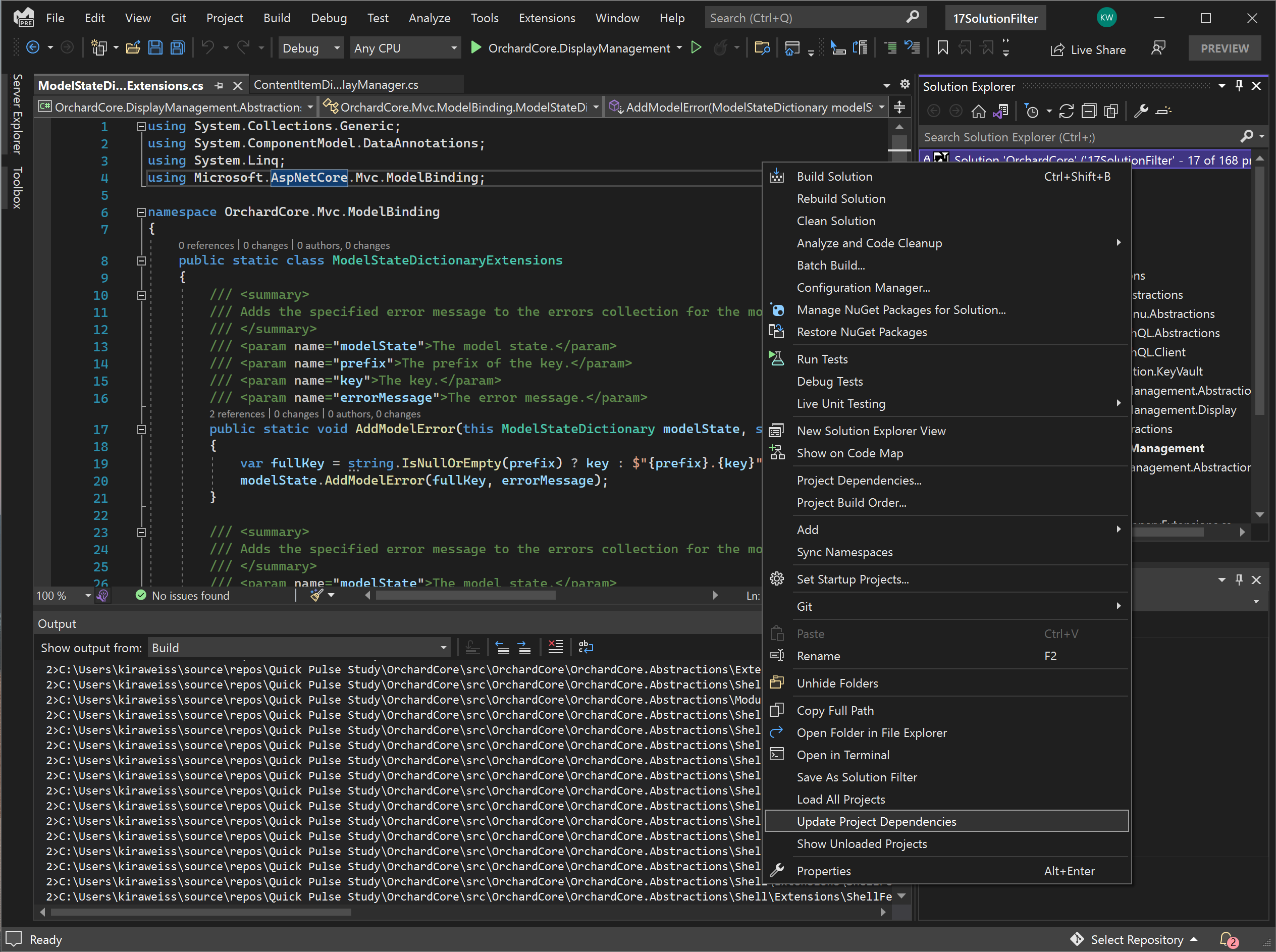
The New Visual Studio 2023 17.1 Experience Is Now Available

As we’re sure most of us remember, the Visual Studio 2022 17.1 Preview became available for users that wanted to test the integrated development environment (IDE) before the release.

You might be pleased to find out that this version of the software was released to the general public earlier today and you can download and install it as you please.

Also noteworthy is the fact that most of the features that were available in the preview have made it over to the GA version and Microsoft has also incorporated feedback gathered from end-users.

Microsoft just released the new version of Visual Studio

One of the features that are now enabled by default is indexed Find in Files, which leads to a faster searching experience.

Of course, you can also disable this functionality if you choose so, by navigating to the options menu and unchecking the Enable indexing for faster find experience box.

The tech giant also gave users the ability to enable a new feature that attempts to save every document in the IDE such as project and solution each time your IDE window loses focus.

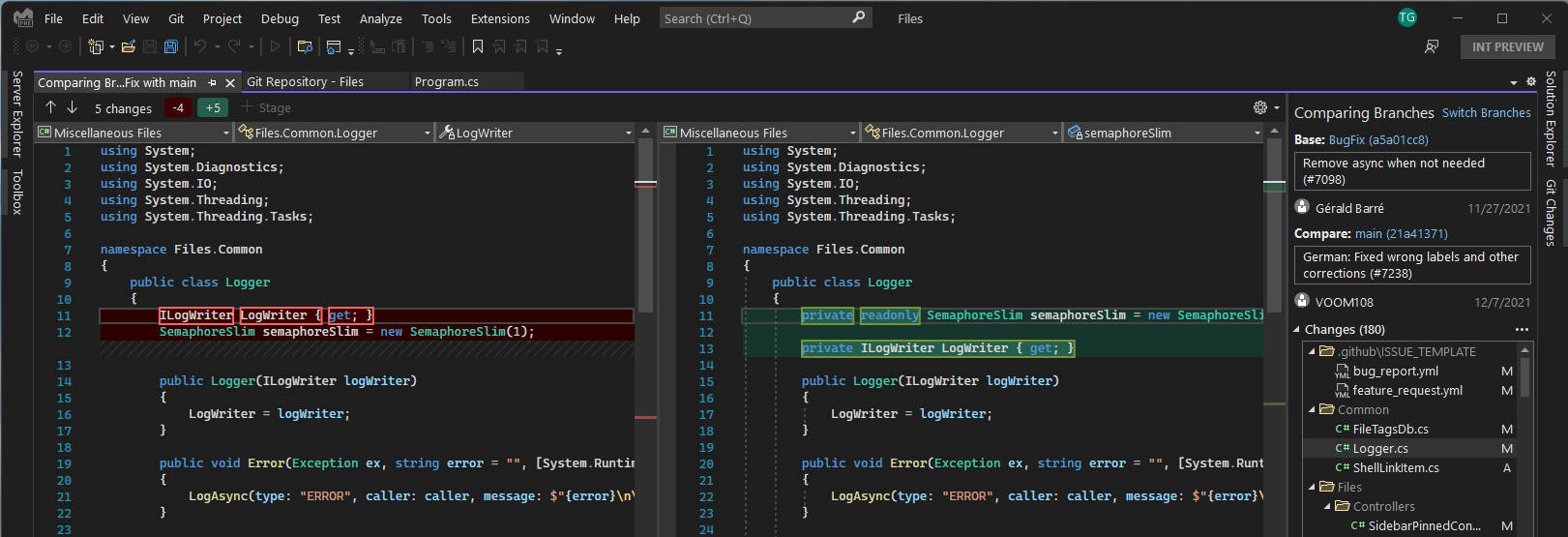
Not to mention that there are some Git enhancements also included, among which the ability to compare branches, check out a commit, review pull requests and many others.

Developers will also find some visualizations for available registers and their mapped memory locations when using RTOS Objects.

Solution Filters allow you to choose what projects to load so you can avoid loading massive solutions every time. You have the choice to load individual projects or a project with its entire dependency tree.

What’s also worth mentioning is that Visual Studio 2022 version 17.1 added an easier way to load the entire dependency tree for all the projects in the solution filter.

Needless to say, this will pull in any new dependencies that were added to ensure you have all the projects you need.

The Redmond company noted that with Visual Studio 2022 17.1 now available, professional and enterprise customers should start looking into how they can start leveraging from the new features.

Microsoft especially mentioned those users that are still on the 17.0 Long Term Servicing Channel (LTSC).

And, if you were already wondering about Visual Studio 2022 17.2, you might like to know that it is now available in preview.

It currently packs some more Git enhancements, bug fixes for MAUI development, support for new C# 11 refactorings, and improvements when dealing with data locally.

What other features do you feel should have been included in this version, or maybe a future one? Share your thoughts with us in the comments section below.

Microsoft makes moves to clean up AltspaceVR and make it a safer space

Ever since Microsoft acquired AltspaceVR, a social platform for mixed reality back in 2017, the world has changed a lot and it has become one of the big building blocks for the Metaverse at Microsoft. Accordingly, Microsoft announced several changes for the service, all designed to help make it a safer place for everyone.

Rolling out today, AltspaceVR’s hosted social hubs including the Campfire, News and Entertainment Commons will all be removed. In addition, a Safety bubble will also now be turned on by default, and new attendees joining events will automatically be muted. Perhaps the biggest change, though, is requiring all users to log in to AltspaceVR using a Microsoft Account in the coming weeks.

This move will help integrate with the Microsoft Family Safety service, for those using AltspaceVR who might be age 13 and who might download from the Microsoft Store.  “As platforms like AltspaceVR evolve, it is important that we look at existing experiences and evaluate whether they’re adequately serving the needs of customers today and in the future,” explained Alex Kipman.

Xbox teams up with NY Liberty, Brooklyn Nets to launch Jnr.Ballers

As Nintendo had famously done with its industry-changing NES back in the 80s, Microsoft launched its fledgling Xbox in The Big Apple with the notion that “if you can make it in New York City, you can make it anywhere.” Just over 20 years have passed since that exciting day at a Times Square Toys “R” Us. And now, Xbox is returning to New York, this time to give back in the place where it all started.

It will be teaming up with New York Liberty and The Brooklyn Nets to create a digital content series it is calling Jnr.Ballers. Pepper Persley, a 10 year old sports journalist from NYC, will be the host of the series, which follows 6 boys and girls participating in the NYPD Community Center who have been selected to work with Sabrina Ionescu of the WNBA’s New York Liberty and Cam Thomas of the NBA’s Brooklyn Nets as they plot out a road map toward finding and realizing their dreams.

The collaboration is not only an intersection of sports and video gaming, but also is a nice example of giving back to the community (not to mention a good PR endeavor for all parties involved). There is also a sweepstakes that fans can enter for a chance to win one of an array of prizes including VIP seats to a home Liberty or Nets game as well as a custom basketball-themed Series S console.

Rumor: could Microsoft be buying Capcom next?

This rumor comes from a tweet that was posted on Capcom’s official Twitter account on Valentine’s Day. The rather ominous post features a countdown clock against a stark black background, seems to allude to a major impending announcement.

While many seem to think that the announcement in question – which seems to be set to happen around February 20th – will actually pertain to a Resident Evil 4 remake and/or Street Fighter 6, after a few hours leaks (thus far unsubstantiated) began to circulate that Capcom would be coming under new ownership, specifically Microsoft’s. This “info” comes thanks to the efforts of hackers who got into the countdown sites‘ Javascript.

One twitter account in particular (@chinnerdomain) gave an example of the “evidence.”

Whether any of this can be taken seriously though, is another matter. All of this information could be fake, for all we know. And this doesn’t seem to be the first time rumors of Microsoft buying Capcom have surfaced, as a Destructoid post from around 15 years ago shows. It’s not even clear whether or not such an acquisition would be legally permitted under Japanese law. At any rate, we will have to wait until Sunday to see if there is anything to the rumor or it’s just fluff.


Microsoft is retiring Xbox Live services on Windows Phone on May 16, 2022

Microsoft is letting gamers know that Xbox Live services on Windows Phone will be shut down on May 16, 2022. The message was posted in the Xbox app on Android and iOS devices and means many online features of Windows Phone games that connect with Xbox Live will no longer work come that day (via Windows Central.)

According to Microsoft’s message, Xbox features like earning achievements will stop working after this date. Some games may still be playable, but progress will not be recorded to your Xbox profile. The full message can be seen below.

Starting May 16, 2022, Xbox features will no longer be supported on Windows Phone devices. As part of this change, earning achievements will be retired on Windows Phone devices. Some games may still be playable on your phone, but progress will not be recorded to your Xbox profile.

This move should not be surprising, as Microsoft ended support for Windows 10 Mobile back in 2020. Ending support for Xbox Live on Windows Phones also enables Microsoft to focus its server power on more modern services, like Xbox Game Streaming, and the Xbox Game Pass App.

Of course, if you do have a Windows Phone, and are currently enjoying Xbox Live Services for any remaining games, it’s best to try and 100% those achievements as soon as you can. Because come May 22, there’s no going back.

Microsoft Teams update loses call support

Microsoft Teams was updated recently and its most notable feature, for at least some users, is not being able to send or receive calls.

A user on the Microsoft Tech Community board wrote that they now get a message saying ‘this action has been blocked’ whenever they try making a call using the app. The user added that this had been a problem since the last update, with the ability to make calls being blocked for unknown reasons.

The issue was first reported in the answers forum but has popped up in other locations as well. The problem appears to be related to the calling functionality on the app and it affects both Windows 11 Mobile and Windows 11 PCs.

Unfortunately, there’s not much that can be done about the issue, though it’s only temporary as a fix is expected in the next update which should arrive soon according to Microsoft.

It’s unclear what exactly caused the bug, but given that this affects both outbound and inbound calls, it seems like users are completely unable to use Teams for telephony at all. It’s also unclear if this issue affects both Android and iOS devices or just one of them.

This is perhaps less than ideal given that Teams is intended as a collaboration and meetings tool. It may also be a concern for those who use Teams for personal reasons, such as staying in touch with friends and family.

Users reports

A number of users are reporting that they can no longer make calls on the Microsoft Teams desktop app. It appears that the latest update broke the ability of the app to access device speakers and microphones.

Several users of the Teams desktop app have reported that the app does not work after an update installation. The error it reports is vague, and Teams cannot access a device’s speakers or microphone.

The problem seems to be limited to a specific subset of Teams users, but it’s unclear how widespread the issue is.

The advice is to use Teams via a web browser because rolling back to a functioning version will be undone by a subsequent Auto Update. The issue has popped up in the Microsoft questions forum.

Microsoft didn’t immediately respond to a request to confirm that it was aware something was wrong. But complaints began appearing on its support site early today.

The fact that there is not more of an outcry about the bug suggests it affects only a small portion of Teams’ monthly users.

Teams growth

Teams is a workplace messaging app that lets professionals communicate, share files, collaborate on documents and spreadsheets, and hold video conferences.

 It is available for Windows, Mac, iOS, Android, and Linux as well as in the cloud; it’s also offered as part of Microsoft 365. On its recent earnings call, it was noted that many organizations use Teams to handle business workflow.

Like the rival apps Slack, Zoom, and Google Meet, Teams has grown significantly during the COVID pandemic.

In the last two years, usage of third-party applications and custom-built solutions has grown tenfold, with new and updated apps released this quarter by Atlassian, Monday.com, SAP, and Workday, said Nadella, Microsoft CEO.

Added update

After reports of problems sending and receiving calls, Microsoft sent a statement later acknowledging the problem.  

The statement said Microsoft Teams is running normally and the issue that may have prevented a very limited number of users from making or receiving calls in the desktop app had been resolved.

Was your Teams app also affected by the update to Microsoft Teams? Is the problem solved on your side? Please share your views in the comments section.

FIX: YouTube full screen not working in your browser

YouTube is maybe the most popular online video channel used by worldwide users on a portable, touch-based or desktop devices regardless of the operating system we might think of.

Thus, when having issues with Youtube it is important to address the problems as soon as possible or else you won’t be able to properly access and check your favorite movies, video clips, music and so on.


Similar with the Youtube green screen issue, another annoying problem reported by Windows 10, 8 and Windows 8.1 users is related to the fullscreen mode which isn’t working properly while using a certain web browser client.

So, if you noticed that you cannot watch Youtube clips in fullscreen mode on your Windows 10/8 based tablet, laptop or desktop, don’t hesitate and read the guidelines from below where we will try to address your issues in order to fix and improve your YouTube experience.

How to solve Youtube full-screen problem on Windows 10, 8

  1. Use a different browser
  2. Check content settings in Chrome
  3. Close background apps and programs
  4. Turn off hardware acceleration
  5. Reinstall your browser
  6. Disable browser extensions/ add-ons
  7. Update your browser

1. Use a different browser

First of all, it is important to notice when you are dealing with the mentioned problem. For example, you should test to see if the YouTube fullscreen problem is caused only by one web browser client or by any other similar platform.

The first thing to do will be to use Google Chrome, Internet Explorer, Mozilla Firefox or other web browser apps – probably Youtube will smoothly run when using a different program than the current one.

Several users reported problems with Youtube when using Google Chrome – it seems that the web browser app received a new update which is causing this issue. If you are using Google Chrome, the best will be to temporarily switch to another platform.

We recommend you try Opera One because it is very stable, secure, and has good speed rates. It is an up-to-standard browser that is very easy to use, it has a built-in VPN and AI, it is very customizable and you can integrate tons of add-ons.

⇒ Get Opera One

2. Check content settings in Chrome

First, let’s make sure you have the correct content settings, else you might experience YouTube fullscreen problem.
Here is what you need to do:

  • type: “chrome://settings/content” in your browser URL bar and press Enter;
  • then select Protected Content;
  • there are two options here and both of them have to be turned on.
How to fix YouTube fullscreen not working in Chrome

If you are using an older version of Google Chrome might have two flash players installed instead of one. You can perform a quick check by typing “chrome://plugins” in the URL bar and hit Enter.

In case you have two flash players you need to disable one. First, locate the entry of the player including “pepflashplayer.dll” and then click on Disable.

Finally, restart your Chrome and check if the issue is solved.

Also, it will be important to use Flash Player as the HTML 5 player is kind of buggy.

3. Close background apps and programs

Another thing you might try is to close all the processes that are related to your web browser activity and to Youtube each time you are experiencing the fullscreen problem – just access Windows Task Manager and close the mentioned processes.

4. Turn off hardware acceleration

Furthermore, within your web browser settings, disable hardware acceleration and set history to “Never remember”. Many users confirmed this quick solution worked for them, so it’s worth giving it a try.

Need more details on this solution? Check now how to disable hardware acceleration.

5. Reinstall your browser

You can also choose to reinstall your web browser client and to try again, as a clean install might easily resolve your issues.

6. Disable browser extensions/ add-ons

Sometimes, browser extensions may prevent you from watching YouTube videos in full-screen mode. As a workaround, temporarily disable all your extensions to identify the culprit of this YouTube fullscreen glitch.

Once identified, you’ll know which extension to turn off when you want to play YouTube videos on full screen.

7. Update your browser

Make sure that you’re running the latest browser version on your computer. All the major browsers available on the market regularly receive updates that improve the overall browsing experience and fix the bugs reported by users.

If the YouTube fullscreen problem is caused by a known issue, perhaps the issue has been fixed in the latest browser version, so do check for updates. The same is valid for Windows OS updates, so don’t forget to go to Windows Update and check for updates.

That’s how you can deal with your Youtube full-screen problems on Windows 10, 8, or Windows 8.1.

In case you know other troubleshooting solutions, don’t hesitate and share the same with us (use the comments field from below in that matter) and we will update this tutorial accordingly.

How to Recover Deleted Emails from Windows Live Mail

Emails from your Windows Live Account can disappear due to several reasons, including the user deleting the email intentionally/unintentionally or the latest Windows update messing up the files and folders again.

Fortunately, there are several ways to restore deleted emails from the Windows Live Mail account as long as the files are in a recoverable state. In this article, we show you how to recover deleted emails from a Windows Live Mail account.

How I can restore deleted emails in Windows Live Mail?

1. Restore the previous version

recover deleted emails from Windows Live Mail
  1. Open File Explorer and navigate to the following location:
    C:\Users\username\AppData\Local\Microsoft
  2. In the above command, replace username with the account name.
  3. Scroll down and locate the Windows Live Mail folder.
  4. Right-click on the Windows Live Mail folder and select Restore Previous Version. This will Windows Live Mail properties window.
  5. In the Previous Versions tab, click the Restore button.
  6. Windows will scan the system and start the recovery process.
  7. The recovery process may take several minutes to find and restore deleted emails from the Windows Live Mail account.
  8. Make sure you live the computer idle during the process.
  9. Once the recovery is complete, follow the on-screen instructions and restart the system when done.
  10. Launch Windows Live Mail and check if your deleted emails are restored.

2. Use specialized email recovery software

Email data recovery software are specialized utilities that will let you access deleted or lost emails without causing any harm to your system.

They are often a safer solution, especially for users who are not very experienced because attempting to manually recover data can result in more damage than good.

We recommend you to try Recoverit from Wondershare. It is a lightweight utility that can recover hundreds of file formats that got lost due to accidental deletion, formatting, device corruption, virus attacks, and more.

⇒ Get Wondershare Recoverit

3. Restore folders using Compact View

recover deleted emails from Windows Live Mail
  1. Start the Windows Live Mail client.
  2. Click on View in the taskbar.
  3. Select Compact View. This will collapse all the Windows Live Mail folders listed, and a green sign in the shape of a plus will appear under them.
  4. Click on the green plus icon. This will open a new window, and you should see all of the Windows Live Mail folders including the deleted ones.
  5. Check the folders you want to restore and click on OK.
  6. Once the folders have been imported, click on View.
  7. Select the Compact View option again.
  8. Now you should see all the recovered email folders.
  9. Check your email account to see if the emails are restored.

4. Use the Import feature

recover deleted emails from Windows Live Mail
  1. Press Windows Key + R to open Run.
  2. Type %appdata%  and click OK. This will open the Local Data folder.
  3. Once there, navigate to the following location:
    AppDataLocalMicrosoftWindows Live Mail
    AppDataRoamingMicrosoftWindows Live Mail
  4. Your Live Mail account folder should be in one of these directories.
  5. Copy everything and create a new folder on Desktop. Rename the new folder as Back-Up Live Mail.
  6. Open Windows Live Mail.
  7. Click File and select Import Messages.
  8. Select Windows Live Mail option and click Next.
  9. Click on Browse and navigate to the folder in which your backup is stored.
  10. Click the backup file and click Next.
  11. Click on Next again.
  12. Windows Live Mail will show a success message if the emails are successfully restored.
  13. Click on Finish and restart Windows Live Mail.
  14. Check if the deleted emails recovered.

Depending on what actions you have taken after deleting the emails, you can try to recover deleted emails from the Windows Live Mail client using the steps listed in this article.

The recovery process should be relatively simple if you lost the email after the Windows update. Check out the links below that can help you to keep your emails and email account safe.

If you have any other questions or suggestions, don’t hesitate to leave them in the comments section below and we’ll surely check them out.

Can’t put your laptop to sleep? Here are a few solutions

Sleep mode helps you turn off your computer’s system, or parts of it, at least until the time you don’t need them.

For laptops, it helps save the battery, but for both PC and laptop, you can prevent burn-in for the monitor screen.

With the Windows operating system, there are several options you can use to conserve power when you’re not using your laptop or computer, like Sleep, Hibernate, and/or Hybrid Sleep.

However, sometimes you can’t put the laptop to sleep, and this can be annoying because you may have other things you want to attend.

Another option would be to want to keep it off such that others won’t access your documents, yet you don’t really want to shut it down completely.

Sleep is usually controlled by your display driver, so if this happens, there could be something preventing your laptop from going to sleep, so try the troubleshooting fixes below to resolve the issue.

What to do if my laptop won’t go to sleep?

  1. Scan for malware
  2. Change Windows Update Services setting
  3. Install version 9 or 10 of the Intel Management Engine Interface (MEI) driver
  4. Run the Windows 10 Show or Hide Updates troubleshooter package
  5. Reset the Update Services setting
  6. Change the power settings in Windows
  7. Disable Hybrid sleep
  8. Generate Power Report
  9. Easily fix the System Required Request error

1. Scan for malware

Malware applications can cause sleep issues. That’s why you should scan your laptop for malware in order to resolve the issue. As always, you can use Windows Defender or your own antivirus program.

However, if you want better security, we recommend you use a third-party antivirus as well. Many good security utilities have very high detection rates and are equipped with a complete set of features that ensure real-time protection against all threats.

If you do not know where to start, you can try out a few options, because most worthy antivirus software have free trial versions.

2. Change Windows Update Services setting

  1. Click Start and select Control Panel.
  2. Select View by and set to Small icons.
  3. Click Administrative Tools.
  4. Open Services.
  5. Double-click Windows Update to open Properties.
  6. Click Stop to stop the service from running.
  7. Select Manual on the Startup Type drop-down menu
  8. Click OK.

3. Install version 9 or 10 of the Intel Management Engine Interface (MEI) driver

  1. Ensure you have the correct version of the MEI driver installed.
  2. Go to your laptop’s manufacturer website.
  3. Type the computer model number and select your model number from the list.
  4. On the Software and driver results page, select Microsoft Windows 8.1 on the Version drop-down menu, and then click Change.
  5. Download the MEI driver version 9 or 10 from the Driver-Chipset
  6. If an MEI driver version 9 or 10 is not listed, download and install the appropriate driver from  Version 9.5.24.1790 1.5M works for most models
  7. Install the MEI driver. If you receive a dialog warning about replacing a newer version of the software, accept it.

You do not need to uninstall version 11 before installing version 9 or 10. An existing version of the driver must be installed in order to install version 9 or 10.

4. Run the Windows 10 Show or Hide Updates troubleshooter package

Another option to consider is running the troubleshooter package. All you need to do is to hide updates to the MEI driver.

This will block your system from automatically reinstalling or showing updates for version 11 of the MEI driver.

5. Reset the Update Services setting

You can also try to change the Windows Update Services setting from Manual back to Automatic (Delayed Start).

After doing that, do not hesitate to restart your computer in order to complete the process.

6. Change the power settings in Windows

  1. Click Start and select Control panel.
  2. Click View by and set to Small icons.
  3. Click Power Options.
  4. Click Change plan settings next to the plan you want to change.
  5. On the Change settings for the plan window, choose the display, sleep, and brightness settings you want to use.
  6. To change more power settings, click Change advanced power settings.
  7. On the Advanced settings tab, select the power plan from the drop-down menu
  8. Expand the category you want to customize
  9. Expand each setting you want to change, and select the values you want to use.
  10. Click OK, and then click Save changes.
  11. Restart the computer.

7. Disable Hybrid sleep

  1. Click Start and open Control Panel.
  2. Click View by and set to Category.
  3. Click Hardware and Sound.
  4. Click Power Options.
  5. Click Change plan settings for the power plan that is selected.
  6. Click Change advanced power settings.
  7. Expand Sleep.
  8. Expand Allow hybrid sleep.
  9. Select Off from the On battery drop-down menu
  10. Select Off from the Plugged in drop-down menu.
  11. Click OK.

Hybrid sleep may cause your laptop not to go into sleep mode, but you can change the advanced power settings to disable this setting. use the above steps in that regard.

8. Generate Power Report

  1. Type CMD in the search box then right-click Command Prompt and select Run as Administrator.
  2. In the administrative command prompt, type in the following command: exe /energy.
  3. Look at the errors section.
  4. To view the report, go to C: Windows/System32 and open the energy-report.html file in your browser. Copy the report to your desktop then open from there.

The power report can reveal why you can’t put your laptop to sleep. To run it, do as described above.

9. Easily fix the System Required Request error

  1. Remove yourself from the Windows HomeGroup if you are joined to one as it can get corrupted or misconfigured causing the laptop to think there’s an active remote request, thus it won’t sleep. Open Control Panel > HomeGroup > Leave the homegroup.
  2. Turn off media streaming. This feature turns your computer to a local media server for access to media files. To turn it off, go to Control Panel > Network & Sharing Center > Change Advanced Sharing Settings > Media streaming > Choose media streaming options > Block All > OK. Restart your computer once this is done.
  3. Check the SRVNET driver as it is related to your network. Update your network card driver, or download it from the manufacturer’s site.
  4. Override SRVNET in your operating system such that even remote connections will be overridden so that your laptop can sleep. To do this, click Start > type CMD in search box > right-click Command Prompt > select Run as Administrator and type powercfg /requestsoverride DRIVER srvnet System. Your laptop should go to sleep after this. You can undo this command by typing powercfg /requestsoverride DRIVER srvnet.

One of the errors that cause your laptop not to sleep is the System Required Request: The device or driver has made a request to prevent the system from automatically entering sleep. Driver Name FileSystemsrvnet

The SRVNET error is the most common culprit when you can’t put a laptop to sleep. To resolve it, consider applying the above tips.

Did any of these solutions help? Let us know in the comments section below.

Latest leak shows Surface 5 models will have Ryzen 6000 Rembrandt

We know that Surface users and fans weren’t too thrilled when Microsoft announced that the Surface 4 would come packaged with Ryzen 4000 instead of the latest Ryzen 5000 processors.

And it seems like the company learned a valuable lesson there, as that could be changing this time around. A recently leaked spec document of the next-gen Surface Laptop 5 sheds a bit more light on the matter.

Apparently, this upcoming device will not only feature the latest Intel 12th Gen Alder Lake chips, but also the newest AMD Ryzen 6000 Rembrandt mobile APUs.

Microsoft won’t repeat the same mistake again with Surface 5

So, while the above-mentioned users were recuperating from the previous launch of the Surface Laptop 4, the Redmond-based tech giant took it upon itself to surprise everyone.

As we can see from the document leaked by WindowsPrime, the tech specs of the upcoming Surface Laptop 5 and the users are definitely in for a treat.

Judging from the leaked specs, it actually looks like Microsoft will be using custom Ryzen Rembrandt variants in the form of the 8C/16T Ryzen 7 6980U and the 6C/12T Ryzen 5 6680U.

However, we’re sure that many of you will also be excited about the upgrade to the GPU, seeing how RDNA 2 will finally replace Vega integrated graphics.

Ryzen 6000 also packs AV1 decode support as well as LPDDR5 support though it seems like Surface Laptop 5 will only feature LPDDR4X, at least according to this leaked document.

And if we are talking about the Intel SKUs, Surface Laptop 5 is allegedly getting the 14C/20T Core i7-1280P and the 12C/16T i5-1240P.

We’re hoping users will be happy with Microsoft’s latest decisions and find a Surface device that will suit their every need.

Excited about the new Surface devices that are coming soon? Share your thoughts with us in the comments section below.

Microsoft Store We Encountered An Error [Solved]

Microsoft Store is an essential part of Windows 10. Even though Microsoft is slightly forcing users to acknowledge it as a remarkable novelty, it still hasn’t reached its full potential.

Especially if you’re unable to sign in and access all apps that the Store offers. It’s not uncommon for users to experience a pop-up notification that informs them that We encountered an error please try signing in again later.

Some users entered credentials and had to wait for quite some time just to be informed that there was an error at hand. The Microsoft Store We encountered an error issue can be very bothersome.

For that purpose, we provided a few workarounds that should help you resolve issues that bother you. In case you can’t log in after more than a few tries, make sure to check the steps below.

Alternatively, here are some more error messages that basically mean the same:

  • Sorry there’s a problem with the server so we can’t sign you in right now
  • We encountered an error while trying to connect
  • We encountered an error connecting your accounts please try again later

How do I fix Microsoft Store We Encountered An Error?

1. Run the Store troubleshooter

  1. Open the Settings app and go to the Update & Security section.
  2. Select Troubleshoot from the menu on the left.
  3. Select MicrosoftStore Apps from the right pane and click Run the troubleshooter.
  4. Follow the instructions on the screen to complete the troubleshooting.

2. Check your antivirus

Some third-party antivirus programs and Windows 10 system components don’t actually get along well. Because of that, it’s quite possible that your antivirus is the one that blocks the Store. To determine whether that’s indeed the case, turn off the antivirus for a couple of minutes, and try to access the Store again.

If this solves the problem that you had, the next step is to change your antivirus. Choose TotalAV if you are looking for an antivirus that is:

  • easy to use, with a nice interface
  • very good at detecting malware and protecting the computer
  • low on resource consumption

3. Clear the Store cache

Just like any other application, the Store app accumulates cache after some time. Sometimes, the stored cache can cause various issues with installed apps and the Store itself. Moreover, it can prevent you from login-in. It’s safe to say that the optimization of the Store in Windows 10 isn’t exactly flawless. However, there’s a simple way to address Store-related issues by resetting it.

If you’re unsure how to reset Microsoft Store, follow these instructions:

  1. Right-click on the Start menu and open Run.
  2. In the run command line, type wsreset.exe and press Enter.
  3. Now try to sign-in again.

If this wasn’t enough to resolve the problem and your still sadly staring at your monitor, you can check the MicrosoftStore troubleshooter. This tool can be found here. After you download it, just run it and it should resolve all Store-related corruption.

4. Disable Proxy or VPN

Another reason for sign-in issues can be inflicted by a Proxy or VPN that may block the outgoing connection with the Store servers.

So, make sure to disable these before you try to log-in and connect to the Store. Of course, you must have a stable connection primarily, before we move to additional steps.

If your connection is flawless, but the problem is persistent, it’s a valid solution to disable Proxy and VPN.

If you’re unsure how to disable Proxy, follow the steps below:

  1. Right-click the Start menu and open Control Panel.
  2. Click Internet Options.
  3. Open the Connections tab.
  4. Click on LAN settings.
  5. Uncheck the box beside Use a proxy server for your LAN.
  6. Confirm changes and try to log-in again.

That should address some connectivity issues caused by Proxy server or VPN.

Still using a Proxy? It’s really time to change that. A VPN is much better in terms of security, privacy and speed than a Proxy. It’s a much more modern solution. One of the highly-rated VPNs is the Private Internet Access VPN.

It is focused on speed and simplicity with a really light VPN client. One of the safest VPNs that will not interfere with other system components such as the Microsoft Store.

Private Internet Access VPN

Private Internet Access VPN

Fast, privacy-focused VPN with flexible
$2.85/mo. Try and buy

5. Switch to Microsoft account from Local

As you already know, you can sign in with multiple accounts to access most of the Windows 10 features. Except you can’t use them all. In order to utilize the Microsoft Store, you’ll need to use exclusively the Microsoft Account connected to your copy of Windows 10. This is probably implemented for security measures, but it’s not completely acknowledged by Microsoft.  If you’re unsure how to do it, these steps should make it simple for you:

  1. Press Windows + I to open the Settings app.
  2. Open Accounts.
  3. Click Email & App accounts.
  4. Under Accounts used by other apps, select Add a Microsoft account.
  5. Once you log-in, just log off from Windows.
  6. Next time you try to access Microsoft Store, you should be able to access the Store.

That should resolve log-in problems and get you rid of the Microsoft Store we encountered an error issue. However, if the problem is more complex, and you’re unable to log in even with the Microsoft Account, we have 2 more steps you should take into consideration.

6. Re-register the Store App

Unlike some other apps, the Microsoft Store, as an essential Windows part, can’t be uninstalled. That means, for more several issues with the Store, you have to turn to alternatives. Even though you can’t reinstall the Store app, you can at least re-register it, which is kind of analogous.

These are the steps you should follow in order to re-register the Store App and, hopefully, resolve log-in problems:

  1. Right-click the Start Menu and open PowerShell (Admin).
  2. In the command line, copy-paste the following command and press Enter:
    • Get-AppXPackage -AllUsers | Foreach {Add-AppxPackage -DisableDevelopmentMode -Register “$($_.InstallLocation)AppXManifest.xml”}
  3. Restart your PC and try to log-in again.

7. Rename the Microsoft Store cache folder

Temporary files are a need since everything would be much slower without them. We already explained how to reset the Microsoft Store cache, but there’s a chance that some of them are still hidden in the folder. This calls for a manual approach since you have to navigate to the folder and rename it.

Follow the instructions below to locate and get rid of the Cache folder:

  1. Click on the Start button, type users and click on the Users folder from the results.
  2. Type windowsstore in the Search tab and double-click the folder.
  3. Now, double-click on the LocalState folder.
  4. If you find a folder inside named cache, right click on it and rename it to cache.old, then, create another folder named cache.

8. Reinstall a problematic app

Some users also report that a broken app can also cause various Store problems. If that’s indeed the case, your best bet is to simply uninstall the problematic app.

But you probably don’t know which app exactly causes the problem. And since uninstalling each app individually is a lengthy and painful job, check out this article for more additional tips on uninstalling Windows 10 apps.

9. Check your region settings

If your region settings are wrong, the Store won’t function properly. So, make sure you got this one right:

  1. Open the Settings app and go to Time & language section.
  2. Select Region & language tab and change your country or region.We encountered an error connecting your accounts please try again later

You can also change your region by doing the following:

  1. Open Control Panel and select Region from the list.
  2. When the Region window opens go to the Location tab and change the Home location. After you’re done click Apply and OK to save changes.
  3. Restart your computer and check if the issue is fixed.

10. Install the latest updates

Microsoft Store is a part of Windows 10, so installing Windows updates may affect it. Therefore, if this is a widespread problem, there’s a good chance Microsoft will eventually release a fixing patch.

To make sure you receive all the necessary patches, keep your Windows 10 up to date. Even though Windows installs updates automatically, you can always check by yourself by going to Settings > Windows Update.

11. Create a new User account

Some users also suggest that creating a new User Account and accessing the Store from it can be helpful.

So, if none of the previous solutions resolved the problem, try creating a new User Account and access the Store from it. Here’s how to do that:

  1. Open the Settings app and navigate to Accounts.
  2. Now in the left pane go to Family & other people. In the right pane, click Add someone else to this PC.
  3. Select I don’t have this person’s sign-in information.
  4. Now click Add a user without a Microsoft account.
  5. Enter the desired username and click Next to proceed.

12. Check your Privacy settings

And finally, there’s also a chance your privacy settings are blocking the Store. To eliminate this possibility, go and check your privacy settings:

  1. Open the Settings app and go to Privacy section.
  2. When Privacy window opens, turn on all options.

That should be enough to help you address log-in issues in Microsoft Store and we hope that now it’s working properly.

We hope you managed to fix the Microsoft Store we encountered an error issue. If you have any questions or suggestions, we’ll be glad to hear them in the comments section below.

Disk Cleanup not working/crashing on Windows 10 [Fixed]

Using disk cleanup on Windows 10 should be a monthly job for you in order to free more space on your hard drive and keep your operating system clean of unnecessary files that you won’t use.

fix disk cleanup issues windows 10

However, there are some issues with disk cleanup on Windows 10especially when it freezes up at certain points in the cleaning process.

Most likely it will freeze at the update stage in which it cannot delete the temporary files. So, we will see what we can do to fix the issues you’re having while using the Windows 10 disk cleanup process.

What can I do if Disk cleanup won’t run?

  1. Run an SFC scan
  2. Delete Temp Files
  3. Run the Windows Update Troubleshooter
  4. Use an alternative Disk Cleanup software

1. Run an SFC scan

  1. Press and hold the Windows logo key and X button on the keyboard.
  2. From the menu that pops up click (left click) on Command Prompt (Admin)
  3. In the window that appeared type sfc /scannow
  4. SFC scan
  5. Next, you will need to follow the instructions that appear on the screen to finish the scan.
  6. Reboot the computer after the SFC scan finished.
  7. Try to run Disk cleanup for Windows 10 again.

2. Delete Temp Files

Manually deleting temporary files may help you fix the problem. Here are the steps to follow:

  1. Go to Start and type  %temp% in the search menu > Hit Enter
  2. Right-click on the temp files > select Delete
  3. Restart your computer and run Disk Cleanup again to check if this solved the problem.

3. Run the Windows Update Troubleshooter

Here’s how to run the Windows Update Troubleshooter on Windows 8.1:

  1. Press and hold the Windows logo key and the W key.
  2. Lets type Troubleshooting in the search box that appeared.
  3. Press Enter on the keyboard.
  4. Click (left click) on View all situated on the left side of the window you opened.
  5. Find in the list that appeared in the window Windows update and click (left click) on it.
  6. Click (left click) on Advanced situated in the lower side of the window.
  7. Click (left click) on Run as Administrator.
  8. Click (left click) on Next situated in the lower side of the window.
  9. Follow the instructions that appear to complete the process.
  10. After doing these steps Reboot the computer and try the disk cleanup process again.

Here’s how to run the Windows Update Troubleshooter on Windows 10

Launching the Update Troubleshooter on Windows 10 is much easier compared to Windows 8.1. All you need to do is go to Settings > Update & Security > Troubleshooter > select and run the troubleshooter.

windows 10 update troubleshooter

4. Use an alternative Disk Cleanup software

Our last solution is also the most straightforward one: if Disk cleanup won’t open, consider going for alternative software such as Ashampoo WinOptimizer to clean and optimize your disk.

This is an ultra-powerful, next-generation complete tuneup and cleaning suite that comes packed with 37 modules covering everything you need to keep your PC in pristine condition from security, maintenance, privacy, deep scans to repair tools.

The utility is very easy to use and you can set it up to regularly clean your PC in the background, without interrupting other tasks.

It also integrates a game booster feature that will pause unnecessary apps while you are playing. This way, more resources can be allocated to your game, ensuring a seamless experience.

Needless to say that if you accidentally deleted files or if you want to permanently get rid of others, this system optimization software is your trusted partner.

Let’s quickly look at its key features:

  • System optimization, in-depth cleaning, and diagnosis
  • Remove junk data and broken shortcuts,  fix Registry entries, and disable unnecessary services
  • Next-get SSD-ready Defrag tool to merge free space, automate drive analysis while enjoying uninterrupted use of your PC
  • Comprehensive dashboards to provide an extensive look of your system
  • Designed for Windows and set to evolve with it (includes fixing issues introduced through Windows updates)
  • Privacy Control and Antispy features

⇒ Get Ashampoo WinOptimizer

These are the four ways you can fix disk cleanup on Windows 10.

For any thoughts on the matter or possible workarounds, you’d like to suggest, feel free to reach out for the comments section below.

AOL Mail Won’t Open PDF Attachments: How to Fix

If you can’t open a PDF file in AOL mail, probably the most frustrating issue is when you receive an attachment but AOL PDFs are not opening.

The error could originate from your PC, the sender’s computer, or AOL. AOL PDFs often fail to open due to misconfiguration in the mail-handling environment.

No matter the exact cause, here’s how to fix it:

How do I fix AOL Mail not opening PDF files?

Tip icon Tip
The most popular PDF reader is Adobe Acrobat Reader, so we will troubleshoot AOL mail attachment problems using Adobe Acrobat Reader as our PDF reader.

1. Install a PDF reader

PDF readers enable your browser to open PDF attachments directly or with the reader. To resolve AOL PDF attachment issues, install a compatible PDF reader like Adobe Acrobat Reader on your PC.

Adobe Acrobat Reader is the most popular PDF reader and editor globally. It is frequently updated with new features and bug fixes, resolving most errors in subsequent updates.

⇒ Get Adobe Acrobat Reader

1.1 Check PDF compatibility

If the PDF originates from an Apple computer, attempting to view it from a Windows system may cause AOL attachment problems. Let the sender know that you use a Windows PC.

Additionally, AOL mail attachment problems can arise from your web browser and hardware configuration. Ensure these meet the minimum specifications to handle AOL mail to avoid issues.

2. Disable antivirus temporarily

Sometimes, antiviruses flag AOL mail attachments as risky and block these files. This leads to AOL mail attachment problems as well as AOL email not sending reminders. If your PDF reader works correctly but AOL PDF not opening still, disable your antivirus program now and retry.

3. Repair PDF reader Installation

repairing pdf reader can fix aol pdf not opening

Navigate to the following location on Windows Explorer:

C:Program FilesCommon FilesAdobeAcrobatActiveX

In the ActiveX folder, look for the following files: AcroPDF.dll, pdfshell.dll, and AcroIEHelper.dll. The absence of any of these files can cause AOL mail attachment problems.

To get back the files, fix Acrobat Reader by reinstalling the software. Alternatively, you can repair your installation by clicking the Help menu and selecting Repair installation from the dropdown.

4. Perform an AOL Quick Restore

  1. To perform a Quick Restore, search for AOL system information from the Start menu and launch the utility.
  2. Next, navigate to the left-hand side of the screen and click on the AOL Software tab.
  3. Hit Quick Restore, and on the next screen, click OK.
  4. Wait for the Quick Restore to complete, and then close the window.
  5. Restart your AOL application.

Note that the Quick Restore function is available only on the AOL desktop software.

5. Configure AOL attachments to open in Acrobat Reader or another PDF reader

if aol pdfs won't open set pdf to open with adobe reader
  1. Launch Adobe Acrobat Reader, but close your browser first.
  2. Click the Edit menu and choose Preferences.
  3. From the list to the left, click on Internet.
  4. Next, uncheck Display PDF in Browser and then hit OK.
  5. Finally, restart your browser.

6. Choose a different email client

If you notice that the PDF issue does not originate from your PC and it is just AOL-related, then the next obvious solution is to replace AOL.

Many alternative email clients include similar features such as virus and spam protection, large attachment size, unlimited mailbox size, integrated spell checker, and more.

You can also find email clients with productivity features such as calendars, task management, advanced categorization and tags, up-to-date search function, and more.

Most email clients provide a similar user experience, so if you keep experiencing issues with AOL, don’t hesitate to look for a different option.

Summary

AOL PDF not opening is a frustrating problem, but these solutions are proven to resolve this issue without you losing any emails or attachments.

You only need a compatible PDF reader configured to handle AOL PDF attachments, and if that fails, simply perform a Quick Restore.

Windows 10 Mail sent items not showing

Live Mail is a free email application provided by Microsoft. It has been discontinued and no upgrades will ever be made to it, yet you can still use it if you can keep up with the encountered errors.

One of the most common ones encountered is Windows Live Mail emails are no longer appearing in Sent Items. Your sent email messages are not showing up in your Windows Live Mail Sent Items folder, but they aren’t gone for good.

Therefore, in the following section, we are going to discuss a few methods to show you how to make Windows Live Mail emails reappear in the folder they belong to.

What can I do if I can’t find sent emails in Windows Live Mail?

1. Uninstall/reinstall Windows Essentials

remove Windows Essentials
  1. Click the Start icon.
  2. Then, click Control Panel.
  3. Under Programs, click Uninstall a program.
  4. While in the Uninstall or change program list, click Windows Live Essentials.
  5. Click Uninstall/Change.
  6. After removing Windows Live programs, also delete the following folders:
    C:Program FilesWindows Live
    C:Program FilesCommon FilesWindows Live
  7. Double click on Program Files x86 if there are more program files folders upon opening C drive.
  8. Up next, reinstall Windows Essentials.

You can’t open Control Panel? Take a look at this step-by-step guide to find a solution.

Well, you can always turn to a reinstallation when all other fixes made no difference. This is one of the best-suited remedies for various Windows Live Mail issues, so apply the steps to force synchronization and update the Inbox folder.

You can also make use of professional third-party uninstaller software for quicker and more effective results.

Not only are they easy-to-use, but they will remove all traces of Live Mail from your PC, including the residual files that would otherwise be left behind.

To get started, install and open your uninstaller. Choose Live Mail as the software you want to uninstall, confirm, and wait for the process to complete.

With all of the files deleted, it will be as if Live Mail was never on your PC, so a fresh reinstall will be guaranteed to go without any unfortunate surprises.

2. Switch off conversations

how to switch off conversations

Try clicking Conversations on the View tab and selecting Off. Switching off conversations fixed the problem for most Windows Live Mail users, so this should be your first stop.

3. Make sure Inbox was set as the Root folder path

Experienced users further recommend checking if no folder was set as the Root folder path. Take a closer look under Properties > IMAP.

Enter the appropriate Root folder (Inbox) and you are likely to get the emails back in the correct subfolder.

4. Check Windows Live Mail sent email settings

Windows Live Mail settings

Alternately, go to File > Tools > Options which should pop up a window with different tabs. Click on the Send tab. Here you would see the option to Save copy of sent messages in the Sent Items folder.

If it’s unchecked, tick the box and click Save. If it is ticked already, then uncheck the box and save the changes. Once done, go back to the same window and recheck the box.

5. Remove the affected email and restart

If Windows Live Mail is not saving sent messages even with the option above checked, you have reasons to believe that the Sent Items folder file is corrupted. In this case, remove the affected email and restart.

6. Change the view to apply to All Messages

You could also try to open the Views tab on top of Live Mail. While there, click the Views icon and select Modify view in the dropdown.

Change the view to apply to All Messages and set the rule to Show. You have accidentally modified the view to hide messages, but correcting this is as easy as described.

7. Try an alternative email software

Live Mail is pretty updated, and many users have migrated from it because of that, and you should do the same, choosing Mailbird as an alternative.

This program is not only modern, it spearheaded the email client market with its revolutionary features and tools.

More so, you can migrate all of your email addresses with this client, since it supports pretty much all email providers.

⇒ Get Mailbird

To avoid a long and annoying process of looking for solutions over forums, we provide you with this list of the best fixes. Even as a very non-techy user, take them into consideration and you should be able to resolve the error.

Windows 10 is Not Showing Disk Drive: 6 Fixes that Really Work

Whenever you encounter an issue such as Windows 10 not showing disk drive, or you cannot find or see it under File Explorer, there are several telltale errors that accompany it.

The Windows 10 not showing disk drive issue may come up after you upgrade Windows, uninstall Microsoft Digital Image, or install or uninstall CD or DVD recording programs.

At the same time, under Device Manager, the disk drive is also marked with a yellow exclamation point right next to it.

You’ll also get some of the errors listed in the Device Status section including:

  • Windows cannot start this device because its configuration information is incomplete or damaged
  • The device is not working properly because Windows cannot load drivers required for this device
  • A driver for this device has been disabled.
  • Windows cannot load the device driver for this hardware. The driver may be corrupted or missing
  • Windows successfully loaded the device driver for this hardware but cannot find the device

If Windows 10 doesn’t show your disk drive or detect it, try some of the solutions in this article and see whether it helps display your disk drive again.

What to do if Windows 10 won’t display disk drive?

  1. Run Hardware and Devices troubleshooter
  2. Check BIOS settings and chipset drivers
  3. Update or reinstall drivers
  4. Remove and re-install IDE/ATAPI drivers
  5. Fix corrupted registry entries
  6. Create registry subkey

1. Run Hardware and Devices troubleshooter

If Windows 10 is not showing disk drive, then run the Hardware and Devices troubleshooter to resolve the issue. This checks for commonly occurring issues and ensures any new device or hardware is correctly installed on your computer.

Here’s how to go about it:

  1. Right click Start
  2. Select Control Panel
  3. Go to View by option on the top right corner
  4. Click the drop down arrow and select Large icons
  5. Click Troubleshooting
  6. Click Hardware and Sound
  7. Click Configure a Device
  8. Click Next to run the troubleshooter

Follow the instructions to run the Hardware and Devices troubleshooter.  The troubleshooter will begin detecting any issues that may be causing the Windows 10 not to show disk drive problems.

Are you able to see the disk drive again? If not, try the next solution.

2. Check BIOS settings and chipset drivers

Confirm that the drive is activated in the BIOS settings. If you don’t know how to do this, check with the device’s manufacturer.

Also check with the manufacturer whether the drive came with the device, or if it was separately purchased. Ask the driver’s manufacturer if the chipset drivers are current.

3. Update or reinstall drivers

There are three ways to update the drivers:

  1. Check Windows Updates for latest driver updates and install them
  2. Install drivers from manufacturer website
  3. Install drivers from Device Manager

Check Windows Updates for the latest driver updates and install them

If you check Windows Updates and find that driver updates are available, install them and check if it helps fix the problem.

Follow these steps to do this:

  1. Click Start
  2. Go to the search field box
  3. Typed Updates
  4. Click Windows Update Settings
  5. In the Windows Update settings window, click Check for Updates, and install all updates listed.check for updates

Windows will immediately detect your system’s configuration and download appropriate drivers for it.

Important drivers you need to download after installing or upgrading to Windows 10 include chipset, video, audio, and network (Ethernet/wireless) drivers.

For laptops specifically, download also the latest Touchpad drivers.

Install drivers from the manufacturer’s website

You can also find drivers from the manufacturer’s website’s support section for your laptop type. Go to the Software and Drivers sub-section (depending on the laptop brand this name can change), or search for drivers using Google so you can get a direct link to your device’s manufacturer website.

Once you’re on the website, find and download, then install the appropriate drivers missing from your laptop that can cause Windows 10 not to show disk drive.

Install drivers from Device Manager

In case of Windows Update didn’t detect your driver, or you couldn’t get it from the manufacturer website, you can try using Device Manager on your laptop and manually install the driver using the steps below:

  1. Right click Start
  2. Select Device Manager
  3. Select DVD/CD-ROM drives to expand the list
  4. Right click on it
    device manager
  5. Select Update Driver Software
  6. The update driver wizard will launch. Select either Search automatically for updated driver software, or Browse my computer for driver software.

To reinstall the drivers, here’s what you need to do:

  1. Right click Start
  2. Select Device Manager
  3. Select DVD/CD-ROM drives to expand the list
  4. Right click on it
  5. Select Uninstall
  6. Select OK to confirm removal of the device
  7. Restart your computer

Once you restart, the drivers will be automatically re-installed.

Install drivers automatically with dedicated software

Another option is to use dedicated software. It is the safest and most time-saving since it will eliminate most of the above-mentioned steps.

Driver updaters such as Outbyte Driver Updater will scan your device and identify out-of-date, damaged, or missing drivers. They will install the best version available for your specific hardware.

You can set it up to do regular scans and updates so you won’t have to worry about driver issues again. The UI is very simple and easy to use, you can get started in just a few minutes.

⇒ Get Outbyte Driver Updater

4. Remove and re-install IDE/ATAPI drivers

IDE/ATAPI are software development tools used to write and test programs or software. Some users said the IDE/ATAPI interface is obsolete today because newer motherboards don’t have it anymore. The interface has been replaced with Serial ATA, found on most desktops and laptops.

However, in order to remove and reinstall the IDE/ATAPI drivers on your computer, take these steps:

  1. Right click Start
  2. Click on Device Manager
  3. Click View on the menu
  4. Select Show Hidden Devices
  5. Click on the arrow next to IDE/ATAPI controllers to expand the list
  6. Select and right click ATA Channel 0, and click Uninstall. Do the same for the other entries on the list
  7. Restart your device or computer
  8. Your drivers will be installed automatically once your device or computer restarts

If you still get the Windows 10 not showing disk drive even after doing this, use the next solution.

5. Fix corrupted registry entries

The reason the Windows 10 not showing disk drive issue occurs may be that there are two Windows registry entries that have been corrupted.

Follow these steps to use your computer’s Registry Editor to remove and delete the corrupted entries:

  1. Right click Start button
  2. Click Run
  3. Type regedit in the Run box
  4. Click OK or press Enter
  5. If a password or administrator permission is required, click Yes or Allow
  6. Find and select this registry subkey: HKEY_LOCAL_MACHINESYSTEMCurrentControlSetControlClass{4D36E965-E325-11CE-BFC1-08002BE10318}
    Windows 10 not showing disk drive
  7. On the right pane, choose Upper Filters (if you see bak, don’t remove it)
  8. Click Upper Filters (you can also remove Lower Filters if Upper Filters doesn’t show)
  9. On the Edit menu, select Delete
  10. Select Yes if prompted to confirm deletion
  11. Select Lower Filters in the right pane

Note: if Lower Filters doesn’t show under registry entry, use these steps:

  1. On Edit menu, select Delete
  2. Confirm deletion by selecting Yes
  3. Exit Registry Editor
  4. Reboot your computer

In order to use this method, you need to have logged into Windows as an administrator.

If you want to verify that you are logged in as administrator, do the following:

  1. Right click on Start
  2. Click Control Panel
  3. Select User Accounts
  4. Select Manage User Accounts

Note: The steps outlined above for Registry Editor must be followed carefully because any incorrect modifications to the registry may cause serious damage to your computer.

Before making any changes, back up the registry for restoration in case of any problems.

Sometimes, this method may cause CD/DVD recording software to have bugs or not work correctly. In case this happens, try to uninstall and reinstall the affected app, and check with its creator for an updated version.

If this method still didn’t work to resolve the Windows 10 not showing disk drive issue, use the next solution.

6. Create registry subkey

In order to create a registry subkey, take the following steps:

  1. Right click Start button
  2. Click Run
  3. Type regedit in the Run box
  4. Click OK or press Enter
  5. If a password or administrator permission is required, click Yes or Allow
  6. Find and select this registry subkey: HKEY_LOCAL_MACHINESYSTEMCurrentControlSetServicesatapi
  7. Right click ATAPI then point on New and select Key
  8. Type Controller0
  9. Press Enter
  10. Right click Controller0 then point New and select DWORD(32-bit) Value
  11. Type EnumDevice1
  12. Press Enter
  13. Right click EnumDevice1
  14. Select Modify…
  15. Type 1 in Value data box
  16. Click OK
  17. Exit Registry Editor
  18. Reboot your computer

In order to use this method, you need to have logged into Windows as an administrator.

If you want to verify that you are logged in as administrator, do the following:

  1. Right click on Start
  2. Click Control Panel
  3. Select User Accounts
  4. Select Manage User Accounts

Use this method on Windows 7, 8/8.1, or Windows 10 (version 1507). These issues are not found in Windows 10 version 1511 or later versions.

Note icon NOTE
The steps outlined above for Registry Editor must be followed carefully because any incorrect modifications to the registry may cause serious damage to your computer. Before making any changes, back up the registry for restoration in case of any problems.

You might also be interested in reading our guide on what to do if the D drive is missing in Windows 11.

Did any of these six solutions help resolve the Windows 10 not showing disk drive issue? Let us know in the comments section below.

How to fix corrupted CSV files in Windows 10

A CSV file, otherwise known as a comma-separated values file is a format that stores alphanumeric tabular structure data but in plain text format.

Such files have data records, each of which is a collection of at least two (or more) fields separated by commas. These can be imported or exported from software programs such as Excel or Open Office Calc, which store data in the row-column structure.

Among the causes of a corrupted CSV file are:

  • ASCII control characters at the end of line that cannot be printed
  • Separator characters in the text of the CSV files
  • Line breaks in the fields that have no double quotes enclosing them
  • Using invalid characters such as -, (), .,:, * and others
  • Blank lines at the end of the corrupted CSV file that have a separator
  • Long numbers that have leading zeros
  • An invalid CSV file format
  • CSV file not using UTS (8 encoding)
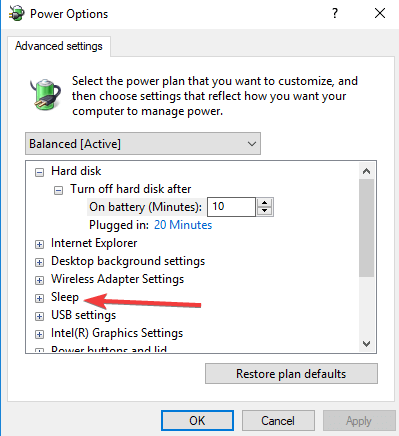
To fix a corrupted CSV file, we’ve listed below some solutions to help you recover your document back in a usable format.

How can I recover corrupted CSV files?

  1. Use another software to open the CSV file or Import and repair in Excel
  2. Use a third-party tool
  3. Use Unicode UTF-8 encoding
  4. Specific solutions
  5. Use Notepad or Excel to create a CSV file and repair it
  6. Recover using Autorecover feature
  7. Recover using TMP file
  8. Recover the corrupted CSV file from a previous version

1. Use another software to open the CSV file or Import and repair in Excel

  1. Open Excel – new workbook.
  2. Click Data tab.
  3. Select From Text under the Get External Data section.get external data excel
  4. Browse the corrupted CSV file.
  5. Click Import.
  6. Choose Delimiter and Next.
  7. Select Comma and click Next.
  8. Click the column with the numbers and click Text.
  9. Repeat the steps for all the columns with numbers and click OK.

Note: Do the above each time the file is opened in Excel.

If you need to open .csv files (or other Spreadsheet files) on Windows 10 and you can’t do this, you can always use third-party solutions.
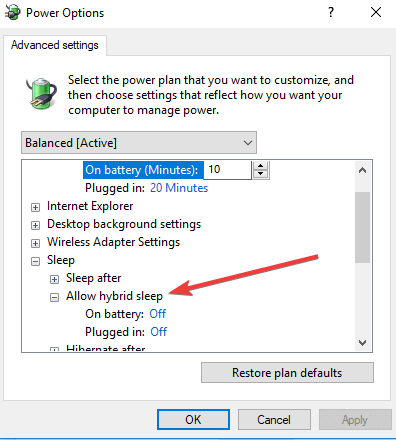
We recommend File Viewer Plus, a universal file viewer for Windows that can open over 300 different file types, CSV included. Other file types are documents, photos, videos, archives, or source code files.

Not only do you view the desired documents, but you can also edit, convert to other formats or print them.

2. Use a third-party tool

Before jumping to solutions, we might as well suggest that you use a third-party recovery tool that will do the job for you. It might be less time-consuming, especially if you’re less of a tech geek.

On this note, Stellar Data Recovery is an excellent option. In order to discover more about this tool, just check out our awesome Stellar Data Recovery review.

That’s your chance to recover for free up to 1 GB of lost or deleted documents, email data files, videos, photos, including data from a corrupt or malware-infected drive.

You can use it for both your Windows 10 PC and an external hard drive and it is compatible with hundreds of file formats, CSV. included.

3. Use Unicode UTF-8 encoding

  1. Open the CSV file.
  2. Click File, then Save As.
  3. Enter the file name.
  4. Select Save as File Type CSV from the drop-down menu.
  5. Click Tools and go to Web options.
  6. Go to Encoding under Save this document as.
  7. Select Unicode (UTF-8)

4. Specific solutions

Foreign characters corrupted or missing: use Google sheets, or Open Office, Libre Office, Notepad++ advance apps to repair the corrupted CSV file.

Error message Line 1 has too many columns…: create a new CSV file with data in 14 columns using Excel, Notepad++ or other apps to recover the CSV data.

Corrupt CSV because of ASCII control, special or extra delimiter characters:

  1. Delete the spaces at the end of the file
  2. Fix the extra commas from the corrupted CSV file by deleting extra delimiter characters that separate the handler fields and retrieve the file data

5. Use Notepad or Excel to create a CSV file and repair it

Using Notepad

  1. Enter the text data in a file with each of the fields separated by a comma.
  2. Separate each row using a new line.
  3. Save the file using a .csv extension.

Use Excel Spreadsheet

  1. Enter the data in an Excel spreadsheet.
  2. Click File.
  3. Select Save As.
  4. Choose Save as Type.
  5. Select CSV (comma delimited).

6. Recover using Autorecover feature

This feature can be found in Excel. Open a spreadsheet and look for the Autorecover window (usually on the left pane of the window). The screen has a list from where you can select the CSV file. It works with unsaved files.

7. Recover using TMP file

  1. Go to where the Temp file folder is located: C:UsersAppDataLocalMicrosoftOfficeUnsavedFilesmicrosoft office unsaved files
  2. Search the Excel files with .TMP extension.
  3. Select the right one by verifying the data.
  4. Copy and paste or save it to a different destination using .CSV extension.

8. Recover the corrupted CSV file from a previous version

  1. Go to the corrupted CSV file and right-click on it.
  2. Select Properties.
  3. Click Previous Versions.
  4. Select the last version before saving/replacing.
  5. Click Restore (ensure restore points are enabled).

So, were you able to find a solution among the ones listed here? If the file is still corrupted, your only option would be to find the original source and then convert Excel to CSV file.

Let us know which one worked for you by leaving a comment in the section below.

Epic Games OS Unsupported [Fortnite]: How to Fix

Today, we will show you how to run Fortnite on an unsupported OS. This is a popular Windows PC game by Epic Games.

Fortnite is the living, action-building survival game where you and your friends lead a group of Heroes to reclaim and rebuild a homeland left empty by a mysterious darkness called “The Storm”.

It is about crafting weapons, building fortified structures, exploring, scavenging items, and fighting massive monsters. It’s a milder version of PlayerUnknown’s Battleground if you like.

However, Fortnite’s system requirements are as shown below.

Fortnite recommended system requirements:

  • Nvidia GTX 660 or AMD Radeon HD 7870 equivalent DX11 GPU
  • 2 GB VRAM
  • Core i5 2.8 Ghz
  • 8 GB RAM
  • Windows 7/8/10 64-bit

Fortnite minimum system requirements:

  • Intel HD 4000
  • Core i3 2.4 Ghz
  • 4 GB RAM
  • Windows 7/8/10 64-bit

Hence, the game can only be installed on a 64-bit processor. However, in order to install and play the game on an unsupported OS, Windows Report has compiled applicable fixes listed in this post.

How can I run Fortnite on unsupported OS?

  1. Update your PC hardware
  2. Buy a 64-bit PC
  3. Use PC emulator
  4. Install 64-bit partition on your drive

1. Update your PC hardware

First, you may need to consider meeting Fortnite system requirements by updating your PC. Hence, replacing your PC’s RAM with 64-bit RAM may be all you need, or changing your hard drive and then reinstalling Windows OS.

However, before updating your PC’s hardware, you should carefully backup all your important files and restore them after updating your Windows PC. You can easily get this done with the help of a computer engineer/technician around you.

2. Use a 64-bit PC

Sometimes, having a dedicated gaming PC with a 64-bit partition is not a bad idea. Some PCs are not built to handle heavy-duty games such as Fortnite.

Hence, if you want to play Fortnite and other games with similar resource requirements, we recommend you do so on a 64-bit PC.

There are some impressive listings of 64-bit partition Windows 10 OS PCs available on Amazon. This is a good place to start if you want to upgrade your equipment; you will find all the necessary information, plus a real-time review from users who have already tried the device.

3. Use a PC emulator

Some Windows users reported getting Fortnite to play simply by using a PC emulator to run the game.

However, some emulators might not work with your PC depending on the configuration settings, but the following emulators are known to be able to work with Fortnite:

Meanwhile, you may proceed to the next step if this solution does not get Fortnite to run.

4. Install a 64-bit partition on your drive

Lastly, another way of getting Fortnite to run is by installing a 64-bit partition on your Windows 10 PC. Windows 10 64-bit version gives you much more advanced productivity giving you more options like a PC user.

However, this method is limited because the upgrade path allows moving a qualifying version to its similar edition on the software.

So, the best way to upgrade is to wipe clean the installation and reconfigure the settings by installing the new 64-bit version. Follow these steps to install a 64-bit partition on your drive:

4.1 Check your PC compatibility

Verify if your PC is compatible to install Windows 10 64-bit.

Windows 64-bit can only work on a PC with a 64-bit processor. The first thing to do is verify if your PC has a 64-bit processor. This can be easily checked from the system settings tab

  • Use the keyboard shortcut Windows Key + I to open the Setting Menu.
  • Click on System > then click on About.
  • This will open a tab where you would see two distinct information.
windows 10 system info

If it displays a 32-bit operating system, and x64-based processor, this shows your PC is compatible with Windows 10(64-bit). But if it says 32-bit operating system, x86-based processor, then your PC is not compatible with Windows 10 (64-bit)

4.2 Check if your drivers are compatible with the x64 processor

It is vital to check if other components of your PC are 64-bit compatible, as 32-bit drivers will not work with 64-bit Windows 10.

This is not usually a problem for new PCs, but if you are using an older PC, be sure to check the Manufacturer’s website to update your drivers to the 64-bit version.

Alternatively, to eliminate any risk of error, you can use dedicated driver management software to do this task automatically. It will scan your driver and, if necessary, automatically fix any mismatch issue.

⇒ Get Outbyte Driver Updater

4.3 Backup your PC

In addition, you need to back up your system anytime you make a significant change to your computer.

Ensure you back up your personal files on an external storage device or online storage websites, as they could be deleted during the upgrading process.

4.4 Install a Fresh Copy of Windows 10

Microsoft does not permit a direct path from a 32-bit to a 64-bit version of Windows 10; the only way to upgrade is to install a fresh copy of Windows 10.

You have to create an installation media. This can be done by following these steps:

  • Connect a USB flash drive with at least 8GB of free space.
  • Go to Microsoft’s Windows 10 download page and download the Media. Creation Tool on your desktop.
  • Double-click on MediaCreationTool.exe file.
  • Check the license terms and conditions and click Accept.
  • Choose the Create installation media for another PC option.
  • Click on Next
  • Uncheck the box with Use the recommended options for this PC option
  • In the menu, select your language, edition, and, most notably, the architecture, which is 64-bit (x64).
  • Click Next.
  • Choose the USB flash drive option in the menu.
  • Select the removable drive from the drop list.
  • Click Next.
  • After the installation media is created, exit the Media Creation Tool.

5. Install the Fresh Copy 64-bit version of Windows 10

  • Restart your PC with the installation flash media connected and begin the installation of Windows 10.
  • On the Windows Setup Menu, click “Next”.
  • Click on Install now.
  • If you previously have an activated version of Windows 10, you can skip this option if you’re prompted to enter a product key.
  • Click on the licensing agreement and click Next.
  • Click the Custom: Install Windows only (advanced) option.
  • Choose and delete system partitions: Drive 0 Partition 1 and Drive 0 Partition 2.
  • Click “Next” and follow the screen directions to complete the installation.
  • After installation, ensure you go to Settings > Update & security > Windows Update to download the latest updates and drivers.
  • If some drivers are unavailable through the Windows Update,   check your computer’s manufacturer’s website to download and install the 64-bit version of the drivers needed.
  • Install any previous app and restore your files from your backup.
Note icon NOTE
The significant advantage of 64-bit Windows is that it fixes the 3.5GB of RAM limitation in the 32-bit version of the operating system. A PC with at least 4GB RAM can run more applications simultaneously. You’ll be able to run more memory-intensive applications, such as Photoshop and, most significantly, Fortnite.

Unfortunately, as new updates for Fortnite are released, you may experience issues such as Chapter 5 crashing because of compatibility issues.

We hope that this was helpful. Feel free to share your experience with us in the comments section below. You can also leave any other questions you may have there.

Full Fix: Frequent Tom Clancy’s Ghost Recon: Wildlands bugs

Tom Clancy’s Ghost Recon: Wildlands is now available on both the Xbox One and Windows PCs and while the game went through a beta testing period prior to launching, it appears that some of the technical issues detected in beta are still present in the final version of the game. Unfortunately, the number of fixes available is really limited.

As always, if you’re planning to buy Tom Clancy’s Ghost Recon: Wildlands, don’t forget to check the system requirements first in order to avoid potentially severe technical issues.

Fix: Tom Clancy’s Ghost Recon: Wildlands common bugs

Speaking of Tom Clancy’s Ghost Recon: Wildlands issues, here are some common problems that users reported:

  • Ghost Recon Wildlands services are not available at this time – This issue can occur if you have any problems with your network connection. If everything is in order, it’s possible that the game server has some issues.
  • Ghost Recon Wildlands connection issues PC – There are various issues that can occur and cause network problems with the game. To fix the problem, forward the required ports, reset the hosts file and restart your router.
  • Tom Clancy’s Ghost Recon Wildlands low fps – Low fps can be a big problem, but in most cases you can fix it by changing your graphics card settings.
  • Tom Clancy’s Ghost Recon Wildlands crash – If the game crashes frequently, the issue might be Uplay overlay, so be sure to disable it.

1. Install the latest updates

If you’re having problems with Tom Clancy’s Ghost Recon: Wildlands on your PC, it’s advised that you keep your system up to date. An outdated system can have certain bugs that can affect your games and other applications.

Luckily, Windows 10 installs the missing updates automatically, but you can always check for updates manually by doing the following:

  1. Open the Settings app. You can do that by pressing Windows Key + I shortcut.
  2. Navigate to Update & Security section.
    Tom Clancy's Ghost Recon Wildlands low fps
  3. Now click Check for updates button.
    Ghost Recon Wildlands services are not available at this time

If any updates are available, they will be downloaded in the background and installed as soon as you restart your PC. Once the latest updates are installed, check if the problem is still there.

2. Restart your router

According to users, if you’re having Tom Clancy’s Ghost Recon: Wildlands issues, especially network-related issues, the problem might be your router/modem. To fix the problem, you just need to restart your modem/router.

To do that, press the power button on the modem or router and wait for 30 seconds. Now press the power button again and wait while the modem boots. Once your Internet connection starts working, try to start the game and check if the issues are resolved.

If your connection drops with specific error codes like Tarija 00019 or 00014, follow this guide to fix Ghost Recon Wildlands error Tarija 00019 and 00014.

3. Check your antivirus

According to users, sometimes Tom Clancy’s Ghost Recon: Wildlands issues can occur due to your antivirus. To fix that, it’s advised to add the game to the exceptions list in your antivirus and firewall. If that doesn’t work, you can try disabling certain antivirus features or disable your antivirus entirely.

In some cases, in order to fix the problem, you might even have to remove your antivirus. If removing the antivirus solves the problem, this might be a good time to consider switching to a new antivirus. Many antivirus applications have a Gaming Mode feature, and thanks to this feature, your antivirus won’t interfere with your games in any way.

If you’re looking for a good antivirus that won’t interfere with your games, we strongly suggest that you consider TotalAV.

It has a gamer mode feature that prioritizes gaming by temporarily disabling unnecessary processes. It also stops intrusive notifications both from the AV itself and other applications while you are in game. 

4. Forward the required ports

If you’re having network issues in Tom Clancy’s Ghost Recon: Wildlands, the cause might be your ports. The game requires certain ports to be forwarded in order to work properly. As for the required ports, you need to forward these ports:

Uplay PC:
TCP: 443, 14000

Game Ports:
UDP: 3074 to 3083, 6000, 6180, 7000

To see how to forward these ports, be sure to check your router’s manual for detailed instructions.

5. Reset the hosts file to the default

According to users, many network issues can occur in Tom Clancy’s Ghost Recon: Wildlands due to your hosts file. If the hosts file is altered, you might not be able to connect to the game server.

To fix this problem, it’s required that you reset your hosts file. Keep in mind that sometimes you might encounter Access denied message while editing hosts file, but there’s a way to fix this problem.

Once you reset the hosts file, the issue should be resolved.

6. Flush your DNS cache

DNS cache can also lead to various Tom Clancy’s Ghost Recon: Wildlands issues, and in order to fix them, it’s advised to remove DNS cache. This is quite simple to do, and you can do it by following these steps:

  1. Press Windows Key + X to open Win + X menu. Select Command Prompt (Admin) or PowerShell (Admin) from the list of results.
    Ghost Recon Wildlands services are not available at this time
  2. Type in the command ipconfig /flushdns and press Enter.
    Ghost Recon Wildlands connection issues PC

After clearing the cache, check if the problem is still there.

7. Change GRW.ini file

Several users reported that their game launches on the secondary screen. This can be an annoying problem, but you can fix it by doing the following.

  1. Go to Ghost Recon Wildlands’s folder > copy the GRW.ini file.
  2. Open it in Notepad.
  3. Find the Output Monitor line > change its value to 0, 1 or 2 until the game launches on the right monitor
  4. Save the file and hit the play button.

Once you make the changes, the game should start on your main screen.

8. Delete the problematic files

There are various Tom Clancy’s Ghost Recon: Wildlands issues that can appear, but one common problem is the Outdated error message. This issue is caused by problematic files, and in order to fix the issue, it’s advised to delete certain files. To do that, follow these steps:

  1. Go to the game’s installation folder
  2. Locate the following files: Events.xml, Uyuni.grw, VersionDescription.ini, and NvGsa.x64.dll.
  3. Delete them > launch the game again.

9. Delete save files

Many users reported hidden characters during the character creation. This can be a big problem, but you can fix the issue by deleting certain files. To do that, follow these steps:

  1. Disconnect from the Internet.
  2. Go to the following directory: C:Program Files (x86)UbisoftUbisoft Game Launchersavegamesa8f05897-544b-4f39-a5ef-81914e20cf123559. Bear in mind that the string of numbers may be different for you, and you should go to the last numbered directory.
  3. There, you’ll find a list of save files, such as 1.save, 2.save, and so on > delete all those files.
  4. Start the game with the Internet still disconnected.
  5. Create your character > exit the game to desktop > reconnect to the Internet.
  6. Restart the game > the launcher is going to display a “Saved game file out of sync” message > chose Local File (the save file you created while offline).
  7. Once in the game, chose either Continue campaign or select Campaign save.

10. Adjust your settings for maximum performance

According to users, one of the most annoying Tom Clancy’s Ghost Recon: Wildlands issues is FPS lag. This issue can drastically impact your performance and gameplay, but there are a few tips that can help you improve your frame rate:

  1. Turn off CPU multithreading in BIOS.
  2. Turn off “vegetation realism”, the NVIDIA turf effect for grass shadows. You can find the option in Settings.
  3. Use DSR instead of AntiAliasing.
  4. Install the game on SSD.

11. Disable overlays

If Tom Clancy’s Ghost Recon: Wildlands is crashing on your PC, the issue might be due to your overlay. However, you can fix this issue simply by disabling overlay in Uplay. To do that, just follow these steps:

  1. Start Uplay Launcher.
  2. Navigate to Settings > General.
  3. Now uncheck Enable in-game overlay for supported games option.

After doing that, try to start the game and check if the issue is still there.

We hope the ideas listed above help you to fix some of the most common bugs affecting Tom Clancy’s Ghost Recon: Wildlands. For more solutions, don’t miss our guide on what to do if Ghost Recon Wildlands is not launching.

If you’ve got any other tips and tricks to share, list them in the comment section below.

Is Cyberpunk 2077 update about to launch on Xbox Game Pass?

CD Projekt Red studios, the creators behind Cyberpunk 2077 hosted a digital event February 15, 2022 at 4 p.m. CET to cover the release of the next big update to the game.

A lot can be said about the initial release of Cyberpunk 2077 which saw critics pan the futuristic open world RPG, for bugs, fidelity issues, multiplayer connectivity frustrations and delayed updates. The list of issues with Cyberpunk back in late 2020 and early 2021 grew so long that both Sony and Microsoft were forced to issue apologies to customers regarding refunds due to its incomplete status as a game.

With some of those issues in CDPR Cyberpunk 2077 addressed, the studio is introducing a next-gun update/upgrade to the game that targets Series X|S and PlayStation 5 consoles and is kicking off the announcement over on its Twitch channel.

CDPR will be offering a 5-hour free trial of the game to Series X|S via Game Pass until March 5th, with any progress carried over if you decide to buy the game.

Regardless of the free trial, Cyberpunk 2077 gamers are destined for a massive next generation patch dubbed Patch 1.5 that will include improvements to local ray tracing support for shadows at 30fps, faster load times, true 4K 60fps resolution support and dynamic scaling.

Next Gen Exclusives

  • Added ray-traced local light shadows.
    Implemented native achievement support on next-gen consoles. Note that as the next-gen version has a different SKU, PlayStation trophies obtained in backward compatibility will not be transferred. Xbox achievements will automatically appear on the new version using the
  • Smart Delivery feature.
  • Introduced two graphics modes on PlayStation®5 and Xbox Series X:
    Ensures smooth gameplay at 60fps with dynamic 4K scaling.

For PlayStation 5 gamers, Patch 1.5 will update support for the console’s adaptive triggers, haptic feedback and on the audio DualSense controller.

Across the gaming divide, Xbox Series owners will be capped at 30fps at 1440p.

Aside from the additional spec support, the in-game experience has also been tweaked to include improvements for NPCs, perk trees, throwing knife and combat mechanics, overall animations, LEDs on vehicles, vehicle mechanics, rebalancing of in-game economics for greater cash payouts after events, and new weapons.

Part of the 50GB update will also include improvements to mid-game character editing, new home base location with additional theme options. CDPR promises more untold features to come with the massive Cyberpunk 2077 update.

CDPR promised an update like Patch 1.5 back in January of 2021 as reviews poured in complaining about the myriad of Day One issues, a full year has passed and it looks as though the company finally delivering on its overdue promise.

If you have Cyberpunk 2077 already, you should be able to upgrade to Patch 1.5 now. If not, it’s on sale from Xbox for $30:

Cyberpunk 2077
Cyberpunk 2077
Developer:
CD PROJEKT RED
Price:
$29.99

Fix: Disk Defragmenter Was Scheduled Using Another Program

Defragmentation is a critical process that optimally rearranges the data on the drive so that the information for a specific file is stored together. But when initiating the operation, many get the Disk Defragmenter was scheduled using another program message.

Disk defragmentation helps improve the PC’s performance by reducing the time spent accessing files. So, if another app has gained access to it and scheduled defragmentation, let’s find out all there’s to know.

Why does Disk Defragmenter was scheduled using another program message appear?

Here are a few reasons you might be getting the error:

  • Another app is performing defragmentation: One of the common reasons you get the error is when another app, usually an antivirus or a PC tuner, has taken up the task of defragmentation.
  • Malware on the PC: A PC infected with malware can also throw the error.
  • Corrupt system files: When the system files are corrupt, certain built-in tools, tasks, and processes malfunction.

How do I fix Disk Defragmenter was scheduled using another program error?

Before we head to the slightly complex solutions, try these quick ones:

  • When you see the error prompt, click on Remove settings.
  • Restart the computer.
  • Disable any third-party antivirus, especially Norton and Avast, or PC tuner apps like CCleaner, since these schedule defragmentation and run it in the background.
  • Update to the latest version of Windows.

If these don’t work, move to the solutions listed next.

1. Terminate all non-critical processes

  1. Press Ctrl + Shift + Esc to open Task Manager.task manager
  2. Now, right-click on the process you believe could be triggering the error, and select End task.end task to fix disk defragmenter was scheduled using another program
  3. Check whether you can now initiate defragmentation. If not, similarly, terminate the other processes and verify after each.

An easy solution when you get the Disk defragmenter was scheduled using another program error is to terminate the process triggering it. Though it doesn’t work all the time, there’s no harm in trying.

2. Scan the disk for errors

  1. Press Windows + E to open File Explorer, go to This PC, right-click on the drive you are unable to defragment, and choose Properties.properties
  2. Now, navigate to the Tools tab, and click on Check under Error checking.check
  3. Choose the Scan drive option.scan drive to fix disk defragmenter was scheduled using another program
  4. Wait for the scan to run, and then try manually defragmenting the drive.

3. Enable defrag in Task Scheduler

  1. Press Windows + R to open Run, type taskschd.msc in the text field, and hit Enter.task scheduler
  2. Now, expand Task Scheduler Library on the left, double-click on Microsoft, and then choose Windows.task scheduler library
  3. Now, select Defrag from the navigation pane, right-click on ScheduledDefrag, and choose Enable.enable to fix disk defragmenter was scheduled using another program

If you keep noticing that disk defrag was scheduled using another program, there’s a possibility that ScheduledDefrag is disabled. Enable it, and you are good to go! In case it was already enabled, head to the next solution.

4. Manually configure the defragmentation schedule

  1. Press Windows + S to open Search, type Task Scheduler in the text field, and click on the relevant search result.task scheduler
  2. Locate the ScheduledDefrag task as explained earlier, and double-click on it.task
  3. Navigate to the Triggers tab, and click New.trigger
  4. Select On a schedule from the Begin the task dropdown menu, set the frequency, and then click on OK.set frequency to fix disk defragmenter was scheduled using another program
  5. Click OK on all previous windows to save the changes, and then restart the computer.

Once done, now try defragmenting the drive and verify whether you still get the Disk defragmenter was scheduled using another program error. If yes, head to the last solution.

5. Perform a system restore

  1. Press Windows + R to open Run, type rstrui.exe, and click OK.rstrui.exe
  2. Select the Choose a different restore point option, and click on Next to proceed.next
  3. Select a restore point from the list and click Next.system restore to fix disk defragmenter was scheduled using another program
  4. Finally, verify the details and click Finish to start the restore process.start process

If you recently started seeing the Storage optimization is currently using customized setting prompt, it might be recent changes to the system that triggered it. And a system restore is the best way to get things up and running.

By now, you should have fixed the Disk defragmenter was scheduled using another program error, and can manually defragment the drive at will. In case the problem persists, the last option is to create a bootable drive and reinstall Windows through it.

And since we are on the topic, find out how to make Windows faster and enjoy a superior experience.

Tell us which fix worked for you in the comments section below.

Cortana Not Working in Windows 11? Fix it With These Steps

There is an equal and opposite reaction to every action, and it appears that for every new feature in Windows 11, there is a feature from Windows 10 that has been deprecated or removed.

However, Cortana is still with us, but you will no longer have it activated right away after you install the operating system.

It is no surprise that Windows 11 has some bugs and issues here and there. Cortana is not an exception either as users reported it is not working properly. We have prepared below a list of actions you can take to solve your current inconveniences. Follow along!

Does Windows 11 really have Cortana?

Cortana is a voice assistant that is still part of Windows 11. Microsoft, on the other hand, has altered the way it operates.
cortana search cortana not working windows 11

The service is no longer included in the basic installation or boot experience of Microsoft Windows 11. You won’t hear Cortana introduce itself as you begin to install Windows, and you won’t see it on the Windows taskbar after you have completed the installation of the operating system.

The feature can only be activated by speaking the activation phrase Hey Cortana, which requires you to sign in to the Cortana application first.

Immediately after signing in to Windows, Cortana will respond by appearing in a small pop-up window that will be displayed to your right of the taskbar.

If necessary, it may also launch other applications, such as the Microsoft Edge web browser or the Microsoft Office suite of applications.

On the other hand, the service is no longer integrated with the Windows Search experience, even if you have signed into the Cortana app after doing so. It will not react to any queries entered into the Windows Search box.

Instead, you’ll need to open the Cortana app and type your question into the chat window that appears in the app.

How do I fix Cortana issues in Windows 11?

1. Change your region

  1. Open the Settings app by pressing the Windows key + I, then navigate to the Time & language section, and select the Language & region option.
    time-language-region cortana not working windows 11
  2. Now set your Country or region to the United States, under the Region section.
    region-us cortana not working windows 11

Using this simple approach, you may restore regular operation to your Cortana.

2. Check your firewall

  1. Press the Windows + S keys to open the search bar and type in allow an app through Windows firewall, then click on the most relevant result.
    allow-an-app-firewall cortana not working windows 11
  2. Inside the Allowed apps and features window, go to Change settings.
    change settings firewall cortana not working windows 11
  3. Next, check all the Cortana features and press the OK button.
    cortana-allow-firewall cortana not working windows 11

3. Run the SFC scan

  1. Press the Windows + S keys, then search for Command Prompt by typing in cmd. Now right click on the top result and run it as an administrator.cmd-search-admin cortana not working windows 11
  2. Type or paste in the command below and press Enter to run the scan of your PC’s files:sfc /scannowsfc-scan-windows-11 cortana not working windows 11

Wait for the completion of the process. After you’ve finished, restart your computer and launch the Cortana app to test if everything is working properly.

4. Perform the DISM scan

  1. Tap on the Windows + S keys, then search for cmd. Now right-click on the most relevant result to open it as an administrator in a new window.cmd-search-admin cortana not working windows 11
  2. Type or even paste in the window the following command, don’t forget to press Enter:Dism /Online /Cleanup-Image /RestoreHealthdimns command cortana not working windows 11

The DISM scan will now begin. Don’t interrupt this procedure because it can take up to 20 minutes. Check to see whether the problem persists after it has been resolved.

Corrupted files are a common source of problems, and if Cortana won’t work, SFC and DISM scan might be the best ways to fix it.

Alternatively, you can use a specialized repair tool and perform a deep scan efficiently. Thus, you will restore potentially damaged files automatically and fix this issue in a few steps.

5. Run the CHKDSK scan

  1. Press the Windows key + S to open the search bar, then look for Command Prompt by typing in cmd. Finally right-click on the most relevant result and tap on Run as administrator.cmd-search-admin cortana not working windows 11
  2. After the Command Prompt launches, type in the following command and press Enter:chkdsk C: /f /r /xchkdsk  cortana not working windows 11

6. Install the latest updates

  1. Press the Windows key + I to open the Settings app, then click on Windows Update in the left panel.windows-update-settings cortana not working windows 11
  2. If you have any new updates to download, click on the Install now button and wait for the process to complete. However if the button isn’t displayed for you, click on the Check for updates button.check for updates cortana not working windows 11

7. Check your antivirus

Sometimes, third-party antivirus software can cause issues with Cortana, which may be resolved by uninstalling the software. It is recommended that you disable specific antivirus functions or totally disable your antivirus in order to resolve the problem.

It was claimed by some users that the only way to resolve this issue was to totally uninstall their antivirus software.

If deleting your antivirus software resolves your Cortana problems, it may be a good opportunity to explore switching to a new antivirus software package in the future.

Check out our article with the best antiviruses for Windows 11 that you can install after you get rid of your current one.

How do I uninstall Cortana?

It’s not like Cortana takes up a lot of space on a computer’s hard drive or bothers users with its behavior. Nonetheless, some may wish to clean the All Apps list in the Start menu and uninstall any apps that are no longer needed.

On top of that, disabling the service will help you regain some privacy by prohibiting it from transmitting information about our personal computer activities back to Microsoft.

Due to Microsoft’s ongoing efforts to make its digital assistant less and less prevalent on devices, it is quite straightforward to turn it off.
cortana-advanced-options cortana not working windows 11

The question of whether or not they’ll cede territory to Alexa, Google Assistant, and possibly Siri will have to wait for another day. In the meantime, we’ve got step-by-step instructions on how to uninstall Cortana to your liking.

Open the Settings app by pressing the Windows key and I simultaneously. Next, you need to select the Apps option from the left sidebar, followed by Apps and Features from the right menu. Scroll down to Cortana and click the three dots icon to select the Advanced options.

Once you’re inside the Advanced options panel, flip the Run at login toggle to the off position. That’s it, you’ve successfully closed Cortana and eliminated its presence.

In addition to Cortana, Windows 11 has lost a number of additional previously-native functions. Check out our article on the apps that were removed from Windows 11 to view a complete list of the services that were eliminated.

It is no longer a surprise that the latest Microsoft OS comes up with impressive features, which create a brand new environment. If you want to improve your user experience, take a look at our guide on how to make Windows 11 faster and more responsive.

From what we found, it seems like there are plenty of users who are wondering how to take advantage of Windows 11’s Voice Typing Tool. We got your back as we have already put together a comprehensive guide on how to use the tool.

Speaking of changes, Microsoft has altered how you assign the default applications in this version. The process is similar to the one from the older editions, with one minor drawback. To fully comprehend the subject at hand, check out our guide on how to set default apps in Windows 11.

If Cortana still doesn’t work after these fixes, and you also use Google Assistant, check our guide on Hey Google not working to troubleshoot issues with voice commands across devices.

Let us know which solution worked best for you in the comments below, as well as how often you use the Cortana feature.

Here’s what’s new and coming to Xbox Game Pass – Madden NFL 22, more

If you are big on gaming, then there’s plenty in store for you because there are many entries coming to Xbox Game Pass as we approach the end of the month, especially after surpassing 25 million subscribers.

Up first is Mass Effect Legendary Edition (Cloud) EA Play, which is already available for play with Xbox Cloud Gaming, via EA Play. The Legendary Edition includes “single-player base content and over 40 DLC from the highly acclaimed Mass Effect, Mass Effect 2, and Mass Effect 3 games, including promo weapons, armors, and packs.”

Gamers can also take part in Battlefield: Bad Company 2 (PC) EA Play and Peggle Nights (PC) EA Play which are also available for play.

Here are some entries expected to be released during this month:

  • Lawn Mowing Simulator (Xbox One) ID@Xbox – February 17-The entry is available for all PC and Xbox Series X|S gamers. However, it is expected to make its way to Xbox One sometime soon.
  • Madden NFL 22 (Console and PC) EA Play – February 17-Gamers should expect this entry to come to PC Game Pass and Ultimate via EA Play. Moreover, gamers now have the option to enjoy their gaming experience on any platform they want.
  • Total War: Warhammer III (PC) – February 17
  • Sea of Thieves: Shrouded Islands – February 17-which is actually more of an update as the game progresses with new adventures to explore as the storyline progresses.
  • Roboquest (Game Preview) (PC) ID@Xbox – February 22
  • Galactic Civilizations III (PC) ID@Xbox – February 24
  • Super Mega Baseball 3 (Console) EA Play – February 24
  • Alice: Madness Returns (PC) EA Play – February 28

On top of the new releases, there are more advantages that you stand to enjoy, dubbed the Xbox Game Pass Ultimate Perks. Users can take full advantage of these perks by navigating to the Perk Gallery on the Xbox console, Windows PC, or Xbox Game Pass mobile app.

The main perks include access to Hulu without any advertisement interruptions for 2 months, “customizable multiplayer arsenal with the exclusive “Pass Tense” BR75 Battle Rifle Coating, four 2XP Boosts, and four Challenge Swaps for Halo Infinite on Cloud, Console, and PC.”

Moreover, Ultimate Game Pass members have access to the Xbox Touch Control feature which can actually be used by gamers in over 100 games with cloud gaming. Among the many titles are Lake, Firewatcher, and Dreamscaper.

Gamers are also anticipating the new update that is set to come to Grounded especially after hitting 10 million active players earlier this month. We have to wait for the thrills and adventures in store.

On February 28, a couple of titles will be exiting the Game Pass Library, that is, Killer Queen Black, Stealth Inc 2, and, Hypnospace Outlaw among others. However, gamers can take advantage of their membership to get a discount and even retain the titles in their libraries.

Fix: Windows 11 Sound Distorted or Headphones Sound Weird

Crisp and clear sound is something critical for all users, but it becomes non-negotiable for those in the field of recording or editing. But several users have reported the Windows 11 sound distorted problem.

This issue could affect speakers and headsets alike, both built-in and external. And since Windows 11 is relatively new, the chances of encountering the issue are even higher.

We went through several such forums where users have shared their problems but couldn’t find many effective solutions. Therefore, we have dedicated this guide to walk you through the Windows 11 sound distorted issue, and the fixes for it.

Why am I facing the distored sound problem in Windows 11?

This is one of the issues where the list of underlying causes is endless, which makes troubleshooting even more difficult. Improper connections are still one of the most common causes for Windows 11 USB audio not working problem.

Apart from that, if you started facing the problem right after upgrading to Windows 11, it could be that the current set of audio drivers is not compatible with the latest iteration. In which case, updating them seems like the ideal solution.

Misconfigured settings too are known to lead to Windows 11 bad audio quality. The problem is generally faced by those who keep reconfiguring the settings in order to get the optimal output and end up messing things.

Sound settings in Windows 11

Several users have also reported that the issue started as soon as they updated Windows 11 which points to a bug in the current version of the OS.

This basically covers the most common underlying causes for distorted sound in Windows 11. Let’s now head to the most effective fixes for it.

How do I fix Windows 11’s audio crackling and sound distortion?

1. Check connections (for external speakers)

If you are using an external set of speakers or headsets, your primary approach should be to check for issues with the connection itself. Many users proceed with making changes to the settings, only to later realize that the connection was improper.

Disconnect the speakers or headsets, clean the jack or USB, blow light air into the port, and then reconnect it. Now, check if the sound is still distorted in Windows 11. In case it is, connect the peripheral to another system and verify the same.

If it works fine on the other computer, reconnect the speaker or headset to the first system, and execute the fixes listed below to eliminate the error.

However, if the problem persists, it’s most likely that the headsets or speakers are malfunctioning and you have to get them replaced. But before you do that, we do recommend giving a shot at the methods listed below.

In case you are using wireless speakers or headphones, learn how to fix problems with a Bluetooth connection.

2. Run the Playing Audio troubleshooter

  1. Press Windows + I to launch the Settings app, and click on Troubleshoot on the right in the System tab.Troubleshoot
  2. Click on Other troubleshooters on the right.Other troubleshooters
  3. Next, locate the Playing Audio troubleshooter and click on the Run button next to it.Run playing audio troubleshooter to fix windows 11 sound distorted
  4. Follow the on-screen instructions, and choose the appropriate response when prompted.

The built-in troubleshooters offered by Microsoft are more than capable of identifying and fixing a plethora of errors, both with the Windows device and connected peripherals.

After running the Playing Audio troubleshooter, check if the Windows 11 sound distorted problem is eliminated.

3. Update the sound drivers

  1. Press Windows + S to launch the Search menu, enter Device Manager in the text field at the top, and click on the relevant search result that appears.Device manager to fix windows 11 sound distorted
  2. Double-click on the Sound, video and game controllers entry to view the devices under it.Sound, video and game controllers
  3. Right-click on the speakers or headsets producing crackled or distorted sounds, and select Update driver from the context menu.Update driver to fix windows 11 sound distorted
  4. Next, select Search automatically for drivers in the Update Drivers window.Search automatically for drivers
  5. Windows will now scan for the best available driver on the system and install it for the problematic device.

Drivers play a critical role in the effective functioning of every piece of hardware by relaying commands between it and the OS. And hence, it’s recommended that you keep them updated.

If the Device Manager is unable to find an updated version for the peripheral, you can check for the latest driver version in Windows Update or download the setup from the manufacturer’s website and install it on the computer.

Or, you can use a dedicated third-party tool, to automatically keep the installed drivers up-to-date.

Updating the relevant driver should eliminate the Windows 11 distorted sound problem. In case the audio playback does not improve, try the next method.

4. Modify sound settings

Note icon NOTE
We will be making a couple of changes to the playback device here. If certain options or tabs are missing in the case of your device, simply skip that step and move to the next one.
  1. Press Windows + I to launch the Settings app, and click on Sound on the right.Sound to fix windows 11 sound distorted
  2. Scroll down to the bottom and click on More sound settings.More sound settings
  3. Now right-click on the speakers producing bad quality audio, and select Properties from the context menu.Playback device properties
  4. Go the Levels tab and drag the volume slider completely to the right.Change level to fix windows 11 sound distorted
  5. Next, navigate to the Enhancements tab and tick the checkbox for Disable all enhancements.Disable all enhancements to fix windows 11 sound distorted
  6. Now, go to the Advanced tab, click on the Default Format dropdown menu, select a different format from the list of options, and check if the distorted sound problem in Windows 11 is fixed. Be sure to check the various options listed here.Change format
  7. Untick the checkbox for Allow applications to take exclusive control of the device.Disable option to fix windows 11 sound distorted
  8. Finally, click on OK at the bottom to save the changes.Save changes

Even though you may not have manually modified the properties, making certain changes here could get things up and running like before. After saving the changes, check if Windows 11 bad audio quality problem is fixed.

5. Reconfigure audio services

  1. Press Windows + R to launch the Run command, enter services.msc in the text field, and either hit Enter or click on OK to launch the Services app.Launch services
  2. Now, scroll down to locate the Windows Audio service, right-click on it, and select Properties from the context menu. Windows Audio properties to fix windows 11 sound distorted
  3. Click on the Startup type dropdown menu, and select Automatic from the list of options.Set startup type to automatic to fix windows 11 sound distorted
  4. Now, if the service is not running, click on the Start button under Service status to run it.Run service
  5. After making the changes, click on OK at the bottom to save these and close the window.Save changes
  6. Similarly, make these changes to two other critical services responsible for the audio output in Windows 11.
    • Remote Procedure Call
    • Windows Audio Endpoint Builder
  7. Once done, restart the computer for the changes to come into effect.

6. Uninstall recent Windows 11 updates

  1. Press Windows + I to launch the Settings, and select Windows Update from list of tabs in the navigation pane on the left.Windows Update to fix windows 11 sound distorted
  2. Next, click on Update history on the right.Update history
  3. Scroll down to the bottom and click on Uninstall updates.Uninstall update to fix windows 11 sound distorted
  4. Locate and select the problematic update, and click on Uninstall.select update
  5. Click Yes on the confirmation prompt that pops up.Confirm uninstall

If you started encountering distorted or bad quality sound in Windows 11 after updating it, uninstalling that particular update could help, since it could be a bug in the update itself.

But, do thorough research to identify whether the update is indeed causing the error. If that’s the case, other users too should be facing the problem and you would find them posting about it on several dedicated forums.

7. Restore or reset Windows 11

If none of the fixes listed above have worked, you are left with no option but to perform a system restore in Windows 11.

The idea here is to take your computer back in time to a point when the error did not exist. This is achieved by making certain modifications to the system, namely removing apps and reconfiguring the settings, according to the restore point.

System restore in Windows 11

The restore process will not affect the files stored on the drive. Also, find out how to undo a system restore, in case it’s unable to fix the Windows 11 sound crackling error.

If the system restore too fails to work, most likely because no restore points exist or they were created after you first encountered the error, you can always reset Windows 11 to its factory settings.

Remember that reset will wipe all the data on the system, be it apps or settings, and the computer will be as good as new once the process is complete.

What are the best earphones, headphones, and speakers for high-quality audio output?

The methods listed above would, in all certainty, eliminate problems causing crackling or distorted sound in Windows 11. But, you may still want to upgrade the headset or speaker for high-quality audio output.

So, check out the best earbuds and headphones available in the market, and choose the one that suits your requirement and fits your budget.

For those of you planning to get a new set of speakers, take a look at our curated list including the best ones. Some of these may even be available at discounted rates, so make sure to check them out.

With the bad audio quality and distorted sound problem in Windows 11 fixed, you can resume playing videos or games, and enjoy the audio output the way it’s meant to be. In case you encounter distorted sound in Windows 10, check this guide.

Also, find out what to do if there’s no sound in Windows 11. Besides, if no audio output devices are found, learn how to solve the problem.

Do not hesitate to tell us which fix worked for you in the comments section below.

Microsoft launches Surface Laptop Studio in India

Microsoft India today announced the availability of the new Surface Laptop Studio in the country starting next month. While the pre-orders via authorized retail and online partners will commence today, February 15th, the device will be available via both commercial authorized resellers and retail and online partners next month from March 8.

It’s been a good start to the year for Surface enthusiasts in India. In January, Microsoft India announced the launch of the Surface Pro 8 in the market (in fact, it will be available in India starting today, along with the Surface Pro 7+).

The most powerful device in the Surface portfolio as yet, the Surface Laptop Studio is a Windows 11 convertible laptop aimed at developers, creative professionals, and gamers. Surface Laptop Studio is also the first of its kind from Microsoft (an aberration from the Surface Book line-up) and features an ultra-durable Dynamic Woven Hinge allowing it to transition from one mode – Laptop, Stage, Studio – to another seamlessly.

Surface Laptop Studio

It features a 14.4-inch PixelSense Flow touchscreen, a vibrant 120Hz display, and Quad Omnisonic speakers with immersive Dolby Atmos. With 11th Gen Intel Core H35 processors, DirectX 12 Ultimate, and NVIDIA GeForce RTX GPUs, the Laptop Studio also packs in a punch.

Surface Laptop Studio will be generally available from March 8 in India starting at ₹1,56,999 ($2075) for the entry-level Core i5/16GB RAM/256GB SSD configuration. The top-of-the-line variant will set you back by a whopping ₹3,43,499 ($4541) though. Customers booking during the pre-order period (February 15-March 7, 2022) will be eligible for a free Slim Pen 2 worth ₹11,399.

Run Windows 11 on your Android 13 right now

Google’s app ecosystem has always been an interesting topic. A lot of companies have developed apps for Android, but getting them onto the platform has sometimes been hard. Some companies have succeeded; others haven’t.

As a result, we’ve seen some fragmentation between devices with different versions of the OS.

Why would Google do this? It turns out you can get a lot more computing power from much less code. And virtualized systems tend to be better in many ways.

Android 13 on top of it

Android 13 is designed to address that fragmentation. You’ll start seeing it in your apps soon enough: Apps using Android 13 will run on any device with an OS 13 or later version installed.

Virtual machines are incredibly useful, but they’re also surprisingly brittle. They require hypervisor software, which is both complex and not very well documented.

It’s not exactly like Windows 11, but it is pretty close. You can boot into Windows and install things pretty much like you would on Windows 11.

There are many tweaks necessary to get it working perfectly, but once you have all of these things in place, you can run Windows 11 right on your Google Pixel 6 without any other software.

To make the virtual machine running on the Pixel 6, Google is using a similar system to their Chromebooks. It’s based on the same “pKVM” technology that has its roots in mainstream virtualization projects like Xen, KVM and VMWare.

Security will be an issue

Google has not yet revealed whether it is giving virtual machines full access to Android devices, but the threat of malware and other third-party apps that target Google’s operating system is a concern for many.

This brings us back to the bigger issue of security. The fact that you are running Windows 11 on an Android phone may not be the most secure solution, but there are ways to make it more secure.

Google’s microdroid is a curious thing. It’s really a stripped-down version of Android, but it isn’t supposed to be used in apps that aren’t compiled on the phone itself. And Google doesn’t say what components of the operating system will be given microdroid treatment.

One of the things the ChromeOS operating system does very well is boot. It’s a good piece of software, and it works well on Chromebooks. Google’s next step could be to allow running Windows in some basic way on Chromebooks, even if it can’t run full-blown Windows itself.

As of now, the details are still a bit vague but it looks promising so far.

Would you try Windows 11 on an Android device once available? Let us know in the comment section below.

Microsoft is bringing Your Teams to OneDrive

Microsoft Teams is set to get a new integration with OneDrive, according to a new report.

According to a report, Microsoft is working on a Your Teams section of OneDrive, so you can get to your favorite Teams files faster.

Microsoft has also been working on an integration between Teams and Outlook that would allow users to create a meeting in Outlook and then add it to a channel in teams. The feature was spotted recently, but it should be rolling out soon for all users.

Microsoft has been making it easier for users to collaborate between its services. Microsoft Office apps have already integrated with Teams, allowing users to easily create word documents and excel spreadsheets within the platform.

How it works

According to Microsoft, users can find and work with all their files in Teams via a More Places section on the web. 

This change is being made from the current version of OneDrive on the web, where users can find a Microsoft Teams Chat Files and Microsoft Teams Data section in My Files.

The OneDrive integration will also allow you to search for shared files from within the app itself, as well as use Microsoft’s Fluent Design System-inspired Acrylic material design elements. 

Additionally, users that have been given permissions will also be able to restore deleted items from the Recycle Bin directly from the new Your Teams section on OneDrive.

Listed features

Microsoft announced the new Your Teams section in OneDrive at its recent meeting of the Windows 365 Roadmap and aims to release it to select people soon. 

The company may have to wait a few months after that for general availability, so don’t expect it immediately. 

The team organizer will get a new preview panel that can show different files on different devices. You’ll also be able to see which files have been shared with other users and assign permissions so that only specific users can access them.

Microsoft app integration

The company is building integrations into its Office apps to make them more useful and convenient on the desktop, and it’s making Teams available on more platforms.

 As part of the Microsoft 365 family, it’s also opening up the software to more hardware manufacturers.

The latest round of updates includes a Teams app for Chrome, bringing that service to the world’s second-most-used browser. It also includes a new Teams integration with OneDrive, so you can access files right from your desktop.

With Teams, you’ll be able to define your own workspace from within the app itself. Furthermore, you’ll be able to add users from your Outlook or Windows accounts, letting you use your favorite apps right from within Teams rather than having them tethered to Skype.

Microsoft is also looking at letting users control their Teams calls with Bluetooth headsets, which would go beyond the current functionality by letting you switch between devices while a call is going on.

What is your take on the formation of Your Team section in OneDrive? Share your thoughts in the comments section below and don’t hesitate to learn all about optimizing Microsoft 365 file management with OneDrive in Teams.