How to create a fake blue screen of death

Do you know you can make fun of your colleagues or even your boss in a funny way? This will work only if everybody at your workplace has Windows 8 or Windows 10, otherwise, they might not get the joke.

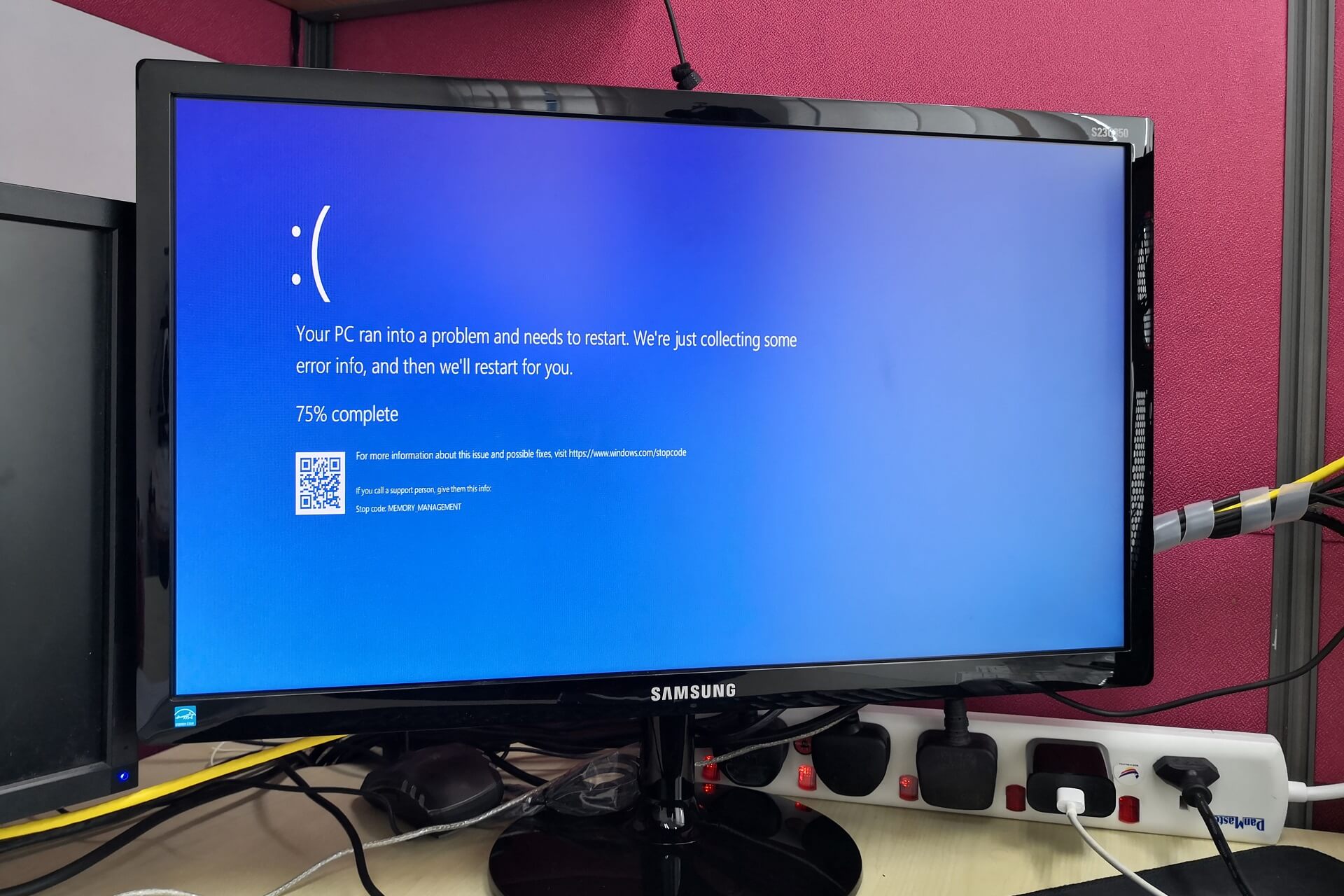
If you’ve encountered Blue Screen already on your Windows 10 or Windows 8 device, you know that it’s much nicer and friendlier than in previous versions.

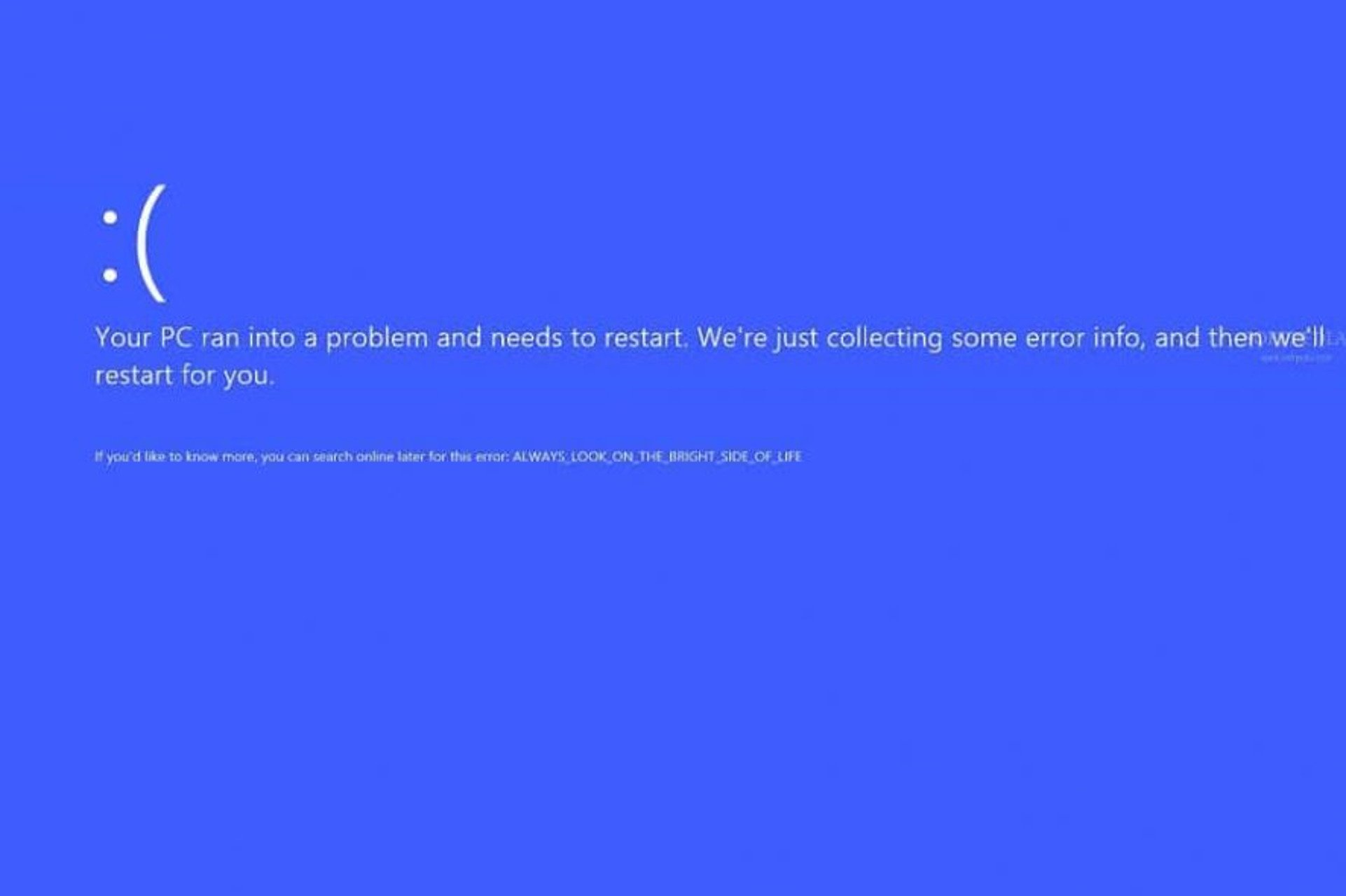
And Windows used to even have an app to help you make pranks with this type of error. Unless someone read the full error message on the screen, they wouldn’t realize it was a joke. Because it read ALWAYS_LOOK_ON_THE_BRIGHT_SIDE_OF_LIFE.

Now Microsoft has discontinued that app, but there are other ways to still try the joke, even with real-life scarier messages. As you’ll see below, most of them imply a print screen or an HTML full-screen page only.

How can I do a blue screen of death Windows 10 prank?

Fakebsod.com

bsod prank dpc watchdog

The idea is pretty simple: you only have to access the page + press F11 to get the display into full screen and wait for your colleague to return to the computer.

Unless the full-screen mode is exited, they might not realize it’s a prank. You can try this joke on older systems such as Windows XP or 7, as well as on Windows 8 or 10.

The error message is based on a real BSoD error DPC_WATCHDOG_VIOLATION caused by hardware components or outdated drivers.


Screenprank

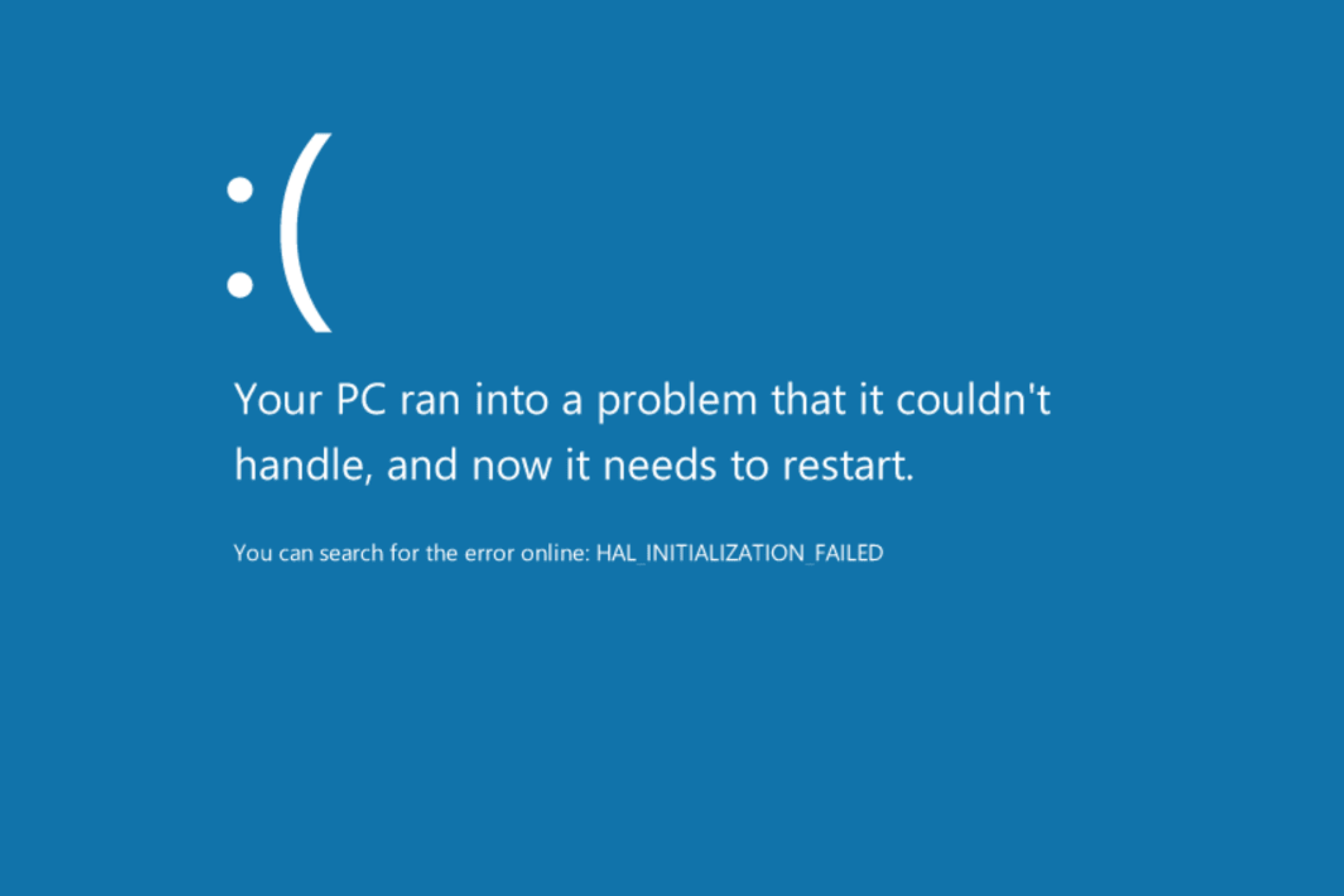
bsod prank hail initialization

This, in fact, is a whole website with similar pranks. You just have to access it, scroll down to the blue screen joke, open it and press F11.

Just as in the previous case, the HAL_INITIALIZATION_FAILED message points toward a real BSoD error with not-so-funny consequences.


Geekprank.com

bsod prank geekprank

This one is a bit different as it will keep the screen on the Installing updates message forever. It takes a long time for the fake process to get to 100%, but then it will only continue, so your friend my figure out the joke.

One nice aspect about this source is that it includes similar pranks for a whole range of instances such as iOS, Windows 7, BIOS, or virus infection.


BSOD alternative

In some cases, the pranked can be seriously affected by the joke. The thing is that when people see BSOD‘s, they instantly think about all the files they have lost. If you are not sure about the reaction that the pranked will have, try another easy prank:

  • Go to desktop and press PrintScreen.
  • Open Paint and paste it (Ctrl+V) and save the image somewhere.
  • Open it, do a right-click and set it as Desktop Background.
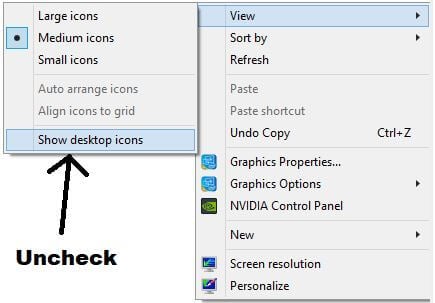
  • Now go to the desktop and uncheck Desktop icons: Right-Click > View > Show Desktop Icons.
  • Sit back and enjoy the reaction.

We hope you enjoyed these recommendations. Now go ahead and try them to see which one would work on your friends or colleagues.

FIX: KERNEL_APC_PENDING_DURING_EXIT [BSoD error]

The KERNEL_APC_PENDING_DURING_EXIT is a relatively common BSOD error that can arise in Windows 10.

In one Microsoft forum post, a user said: 

My computer always shows BSOD every time I shut down.

So, this can be a recurring BSOD that users really need to fix. Since this error will crash your PC, it is quite hard to point out the exact cause of it.

Thankfully, we performed some tests and we came out with lots of helpful solutions that should make the kernel_apc_pending_during_exit error a thing of the past.

How can I fix KERNEL_APC_PENDING_DURING_EXIT error?

1. Use a third-party system restoration tool

The best and safest way to rid your PC of major errors and crashes such as Blue Screens of Death is by installing a third-party app.

The software keeps your PC safe and sheltered from malware adware or other harmful software, and automatically scans and repairs any damaged system files.

Additionally, when it comes to BSoD errors on Windows PCs, an ideal method to resolve them is represented by dedicated tools that can detect corrupted files and replace them with new functional ones.

You should therefore use dedicated software to safely repair system errors like this one and revive your PC.

2. Run an SFC scan

  1. Open Run by pressing the Windows key + R.
  2. Type cmd in the blank box and choose to open Command Prompt as admin.
  3. Next, type this command in the Prompt and press Enter: DISM.exe/Online/Cleanup-image/Restorehealth
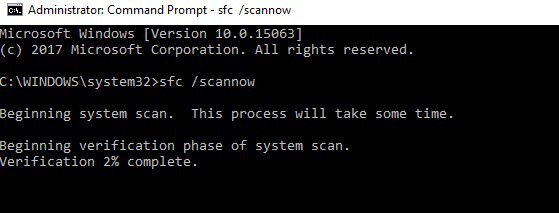
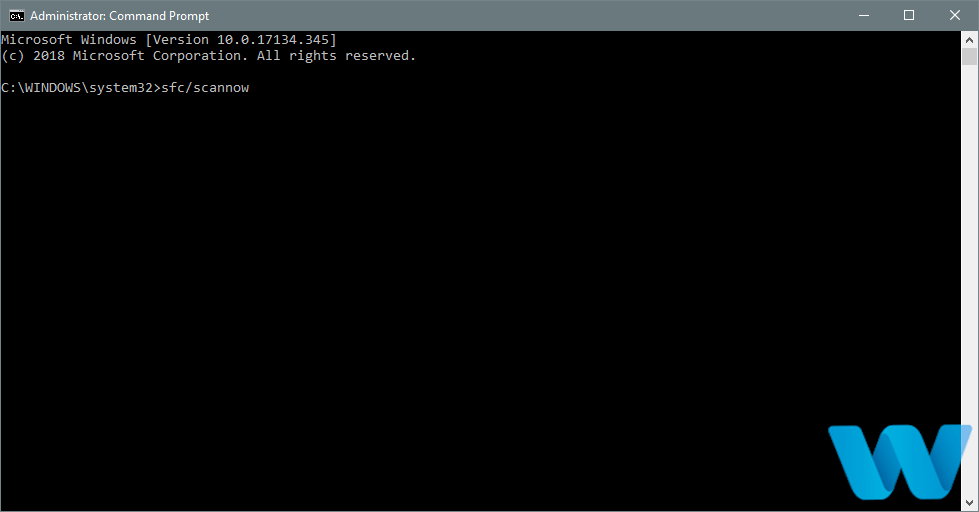
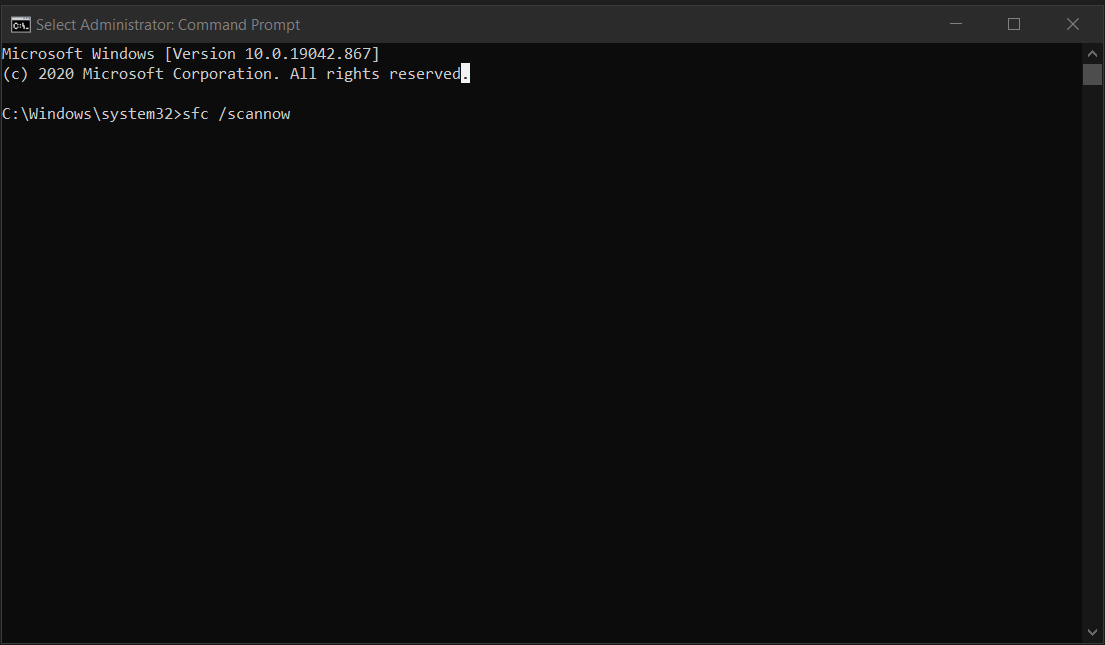
  4. After that, type and press Enter: sfc/scannow
    SFC command kernel apc pending during exit
  5. When the SFC scan is complete, a Windows Resource Protection message will tell you if it repaired files or not.
    • If so, restart your desktop or laptop.

3. Run a Check Disk scan

  1. Open the Command Prompt as outlined for the first resolution.
  2. Then input this command: chkdsk C: /f /r /x
    Check Disk command kernel apc pending during exit
  3. Press the Enter key to initiate the Check Disk scan.
  4. Allow the process to finish and see if the issue is solved.

4. Scan your device drivers

  1. Press the Windows Key + S.
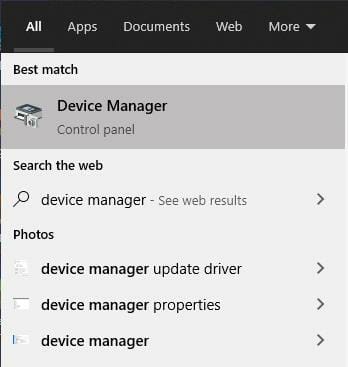
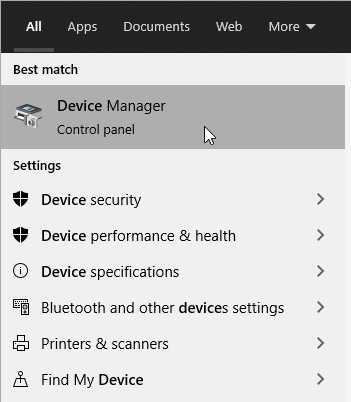
  2. Search for Device Manager and open it.
  3. Search for the device you want to update.
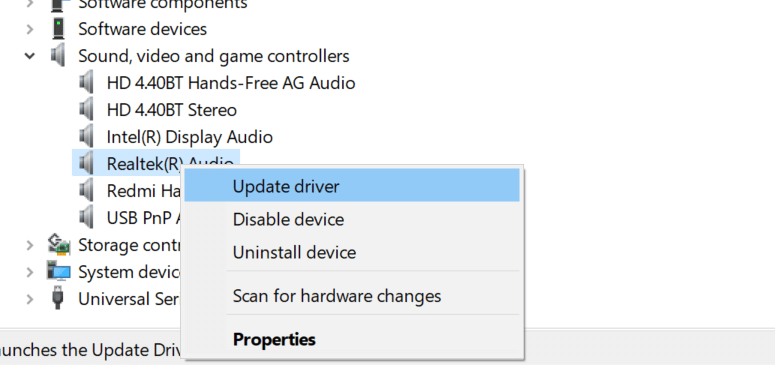
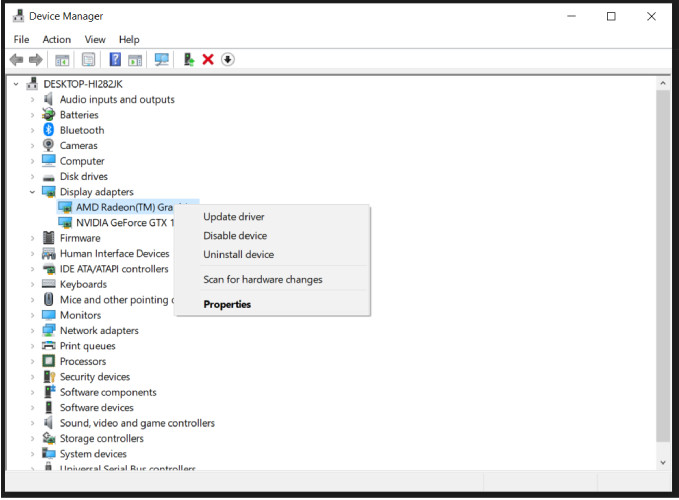
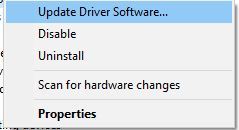
  4. Right-click on it and select Update Driver.
    0x00000002 DEVICE_QUEUE_NOT_BUSY
  5. Repeat for all the devices.

Scan device drivers automatically

You can scan your device drivers automatically to check for corrupted or outdated ones with a specialized third-party tool.

Simply download the software, and it will scan your PC by itself periodically. In addition, it will also install the newest drivers and keep them updated constantly.

⇒ Get Outbyte Driver Updater

5. Test your RAM

  1. Press the Windows Key + S.
  2. Type Windows Memory Diagnostic.
  3. Select Restart now and check for problems.
  4. Let Windows run the scan.

The KERNEL_APC_PENDING_DURING_EXIT BSOD error might also be due to a RAM issue.

You can utilize the Windows Memory Diagnostic tool to check for and fix RAM issues.

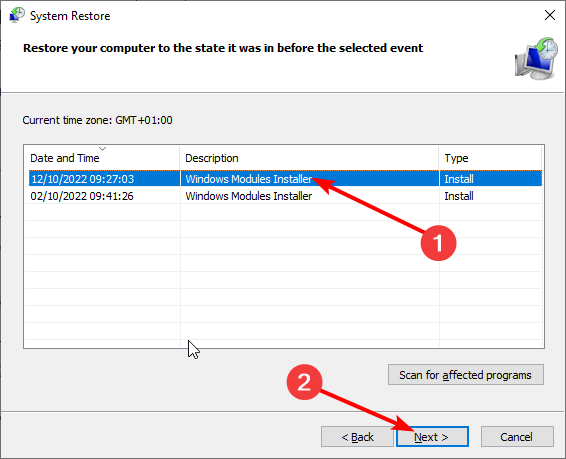
6. Roll Windows 10 back to a restore point

  1. First, press the Windows key + R at the same time to launch run.
  2. Enter rstrui in the accessory’s text box to open System Restore.
    System Restore kernel apc pending during exit
  3. Select the Choose a different restore point radio button if that option is available, and click the Next button.
  4. Next, click Show more restore points to fully expand the list of available restore dates.
    Show more restore points check box kernel apc pending during exit
  5. Choose a restore point that will restore Windows to a date that predates the KERNEL_APC_PENDING_DURING_EXIT error on the desktop or laptop.
    • If you’re not sure, select the earliest restore point, which will remove the most installed software.
  6. Click Next to continue.
  7. Click Finish to roll back Windows 10.

The above resolutions are among the more likely fixes for the KERNEL_APC_PENDING_DURING_EXIT error.

As a last resort, try clean installing Windows 10 with installation media. Learn how to get a clean Windows to install using our dedicated guide.

We hope that this article was helpful. If you happen to know another useful method to correct the BSoD error described here, share it with us in the comments.

HDMI Is Not Working on Your Laptop? Fix It with These Steps

As we all know, using Windows 10 can be quite frustrating, especially if you updated recently and you didn’t get used to the new interface, with the new features, and of course with the new bugs.

In that matter, many users have reported HDMI not working problems after updating from Windows 7 (or from any other version of Windows) to Windows 10.

So, because of that, we have decided to help you out. How? Well, by showing you how to easily resolve your HDMI problem on your laptop.

As you will see, fixing this Windows 10 issue is quite easy as you only have to apply a few steps.

Of course, we will detail more methods, so that anyone can find a compatible troubleshooting solution within this step-by-step guide.

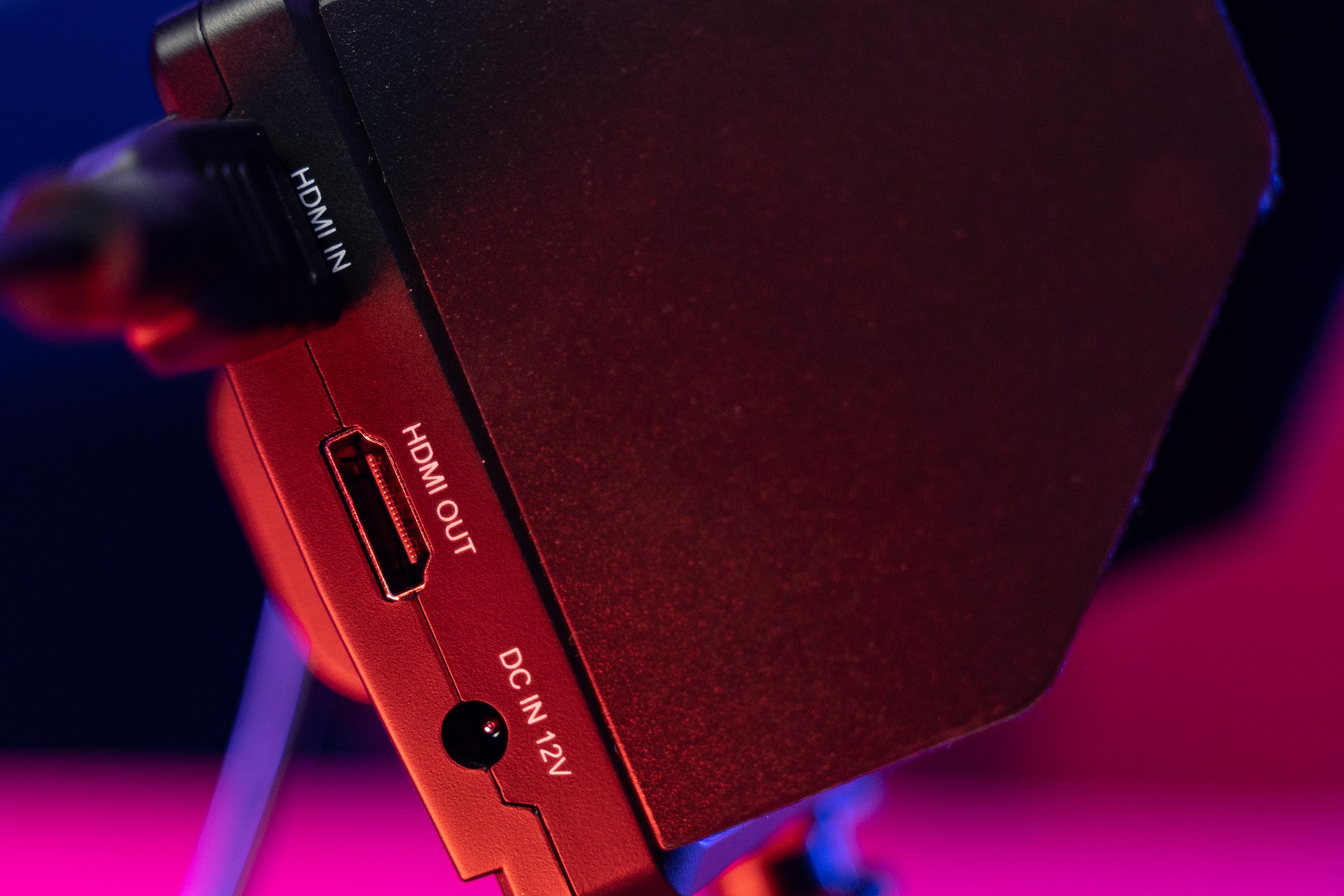
The HDMI port is used for connecting your Windows 10-based device with other gadgets such as a monitor, TV, Home Theatre, and so on.

If your HDMI port worked perfectly on your previous Windows version but after applying the Windows 10 update you can’t connect your device through the HDMI port, use the guidelines below.

How to fix Windows 10 HDMI not working?

1. Uninstall your Graphic Card drivers

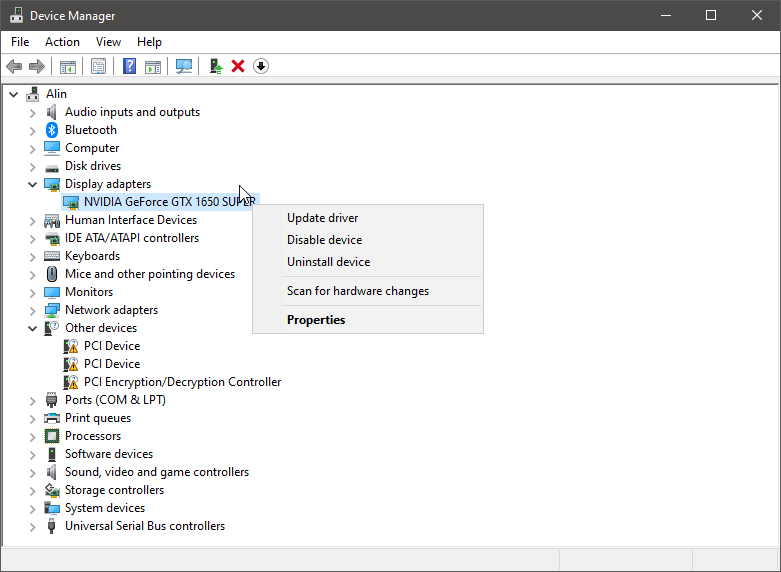
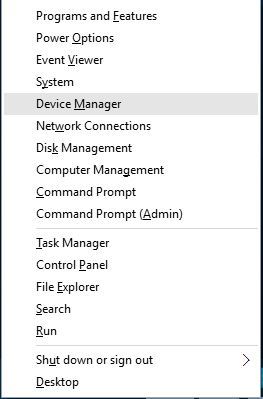
  1. Right-click the Start button and select Device Manager.
  2. Click on the Display Adapters section to expand it.
  3. Right-click the adapter and select Uninstall device.

The first thing to do when dealing with such problems is to uninstall the graphic drivers from your Windows 10 device. Follow the steps above to get it done.

Once you restart your PC, the system will automatically install a default driver.

2. Install the graphics card manually

The default driver is not the ideal way of using your graphics. So, after uninstalling the driver, go to your manufacturer’s official website and don’t download the driver from the graphic card maker’s website.

So once on the manufacturer website, search for your graphic card for the version of Windows you’re running and install the same on your computer in compatibility mode. 

3. Install the drivers automatically

  1. Start Device Manager by right-clicking the Start button and selecting the app from the list.
  2. Expand the Display adapters category.
  3. Right-click the display adapter and select Update driver.
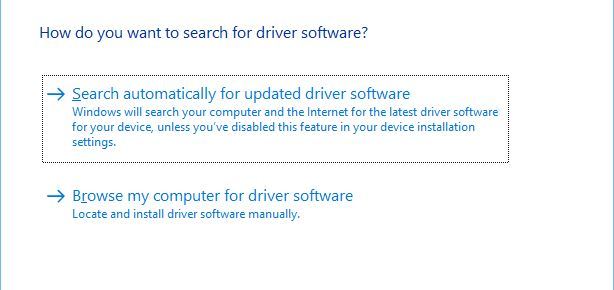
  4. Click on the first option, to search automatically for drivers.

By doing so, the system will automatically look for the correct drivers online for your graphics adapter.

Updating drivers can be very annoying, so we recommend you use a dedicated tool to prevent file loss and even permanent damage to your computer.

4. Restart and reconnect your devices

  1. Disconnect the cable from your HDMI port.
  2. Shut down the laptop and the HDMI device.
  3. Unplug the power cable from the laptop and if possible, remove the battery from the laptop.
  4. Leave them like that for at least 5 minutes.
  5. Put the laptop battery back and plug in the power cables.
  6. Reconnect the HDMI cable to your laptop and device.
  7. Power on the laptop and the HDMI device.

Sometimes, the simple procedure of restarting and reconnecting your device can get your HDMI port working again.

Now see if you can use your HDMI port and if the external HDMI device was identified by your laptop.

5. Configure your computer’s display settings

  1. Press the Windows key + P to start the PROJECT menu.
  2. You will see 4 possible Display settings:
    1. PC Screen Only – This option is when you want to display the image only on the screen of your laptop. If this is set, like in our example above, your HDMI video device was not detected.
    2. Duplicate – Try to use this option to duplicate the screen on your external HDMI device.
    3. Extended – You can also try this option to extend your screen to the external HDMI device.
    4. Second Screen Only – This option will force the image to be displayed only on the external device
  3. Choose one of the options with the exception of the first one.

If the display settings of your laptop are not set properly, you won’t be able to display the content from your screen to an external HDMI device.

If you still have problems with the HDMI connection, you should also consult our comprehensive article about how to fix the HDMI port problems on your computer or monitor. As for our guide on fixing Samsung monitor HDMI connection problems, rest assured that it won’t disappoint you either.

These are our solutions to fix the problem the HDMI is not working on your laptop. If you have any other solutions, don’t hesitate to leave them in a comment below.

Yakuza 6 video game launches on Windows 10, Xbox One, Xbox Series X, and Game Pass

The highly-anticipated entry in the Yakuza franchise, Yakuza 6: The Song of Life, is now finally available on the Xbox One and Xbox Series X console families and Windows 10 PCs via the Microsoft Store. The game originally launched on Sony’s PS4 console in Japan way back in 2016 and eventually launched internationally on the PS4 two years later in 2018. That’s a bit of a wait for Xbox and PC gamers but it’s still a release that’s been getting a lot of hype.

While the Yakuza 6 video game doesn’t support cross-buy between Xbox consoles and Windows 10 like some other titles do, the Xbox One and Xbox Series X version is supported completely between console generations so the same version you buy for an Xbox One console will work on an Xbox Series X (or S) and vice versa.

Both the Xbox and Windows 10 versions of Yakuza 6: The Song of Life are also available to play for free with an active Xbox Game Pass subscription.

Here’s the official game description and original trailer:

In Yakuza 6, Kazuma Kiryu will find out exactly how much people are willing to sacrifice for family – be those ties through blood or bond – when he investigates a series of shadowy events that involve the ones he holds closest to his heart. Fresh out of a three-year prison sentence, an older and weathered Kiryu comes to find out that his surrogate daughter, Haruka, has gone missing from the orphanage he looks after. The trail leads him to his old stomping grounds in Kamurocho, where he discovers that she has been struck by a car and now lies in a coma. To make matters worse, Kiryu learns that Haruka now has a son that he must look after. With baby in hand, Kiryu journeys to the seaside town of Onomichi, Hiroshima to unravel the truth about Haruka, her son, and a sinister secret that the Hiroshima yakuza are harboring.

From the unparalleled realism of the new setting of Onomichi, a beautiful, sleepy port town in Hiroshima Prefecture, to the latest evolution of Kamurocho, the biggest red-light district in Tokyo, Yakuza 6 is the ultimate iteration the game’s blend of gritty crime story, hyper-explosive combat, and all the vices and distractions those locales have to offer.

Are you a fan of the Yakuza video games? Let us know why or why not in the comments below and then follow us on Twitter and Pinterest for more Xbox gaming news.


FIX: Power BI Memory error allocation failure

Power BI is a fantastic tool from Microsoft, and while it may not be the stablest software tool of its kind, it’s admittedly still new and under active development.

The memory allocation failure error in Power BI usually occurs if the system does not have enough memory to process the task at hand.

You can try to close some apps, allocate more memory or make edits to the original table to fix this error as reported by the users in the Power BI Community.

Hi
I have created a pbix file in 64bit machine. File Size: 22 MB. Rows: 5.5 Million Approx.
Data is fetched from MYSQL Database.
While I try to open the same file in a 32-bit machine, an error message pops up
“Failed to save Modification to the server. Error returned: Memory Error : Allocation Faliure. If you are using 32 bit version of the product,consider upgrading to the 64 bit version or increasing the amount of memory available on the machine”.

Follow the troubleshooting tips in this article to fix Power BI allocation failure error.

Quick Tip:

You may adjust your browser to control how much of your PC’s resources are consumed while streaming, playing games, or downloading files.

Opera GX is one such browser that provides the GX Control Panel, which allows you to set limits on network bandwidth, RAM, and CPU use while navigating on it.

Opera GX

Control the resources used by your browser, and save battery life for laptops and mobile devices.

Not enough memory error in Power BI

1. Increase the memory available on the Machine

power bi memory error allocation failure
  1. If you are using the service on a Virtual Machine, check if the allocated memory is enough for the operations.
  2. Since you are getting this error, try to allocate more memory to the machine.
  3. You can also try to better utilize the available memory by optimizing your data model.
    • You can check the Internet for guides on optimizing your data model.

2. Enable Windows page file

  1. The error can also occur if your system has Windows Page File disabled.
  2. Login with the Administrator account to your system.
  3. Press Windows Key + R to open Run.
  4. Type control and click OK to open the Control Panel.
  5. Click on System and Security.
  6. Click on System.
  7. From the left pane of the System window, click on Advanced System Settings.
  8. By default, you should be in the Advanced tab.
    power bi memory error allocation failure
  9. From the Advanced tab, click on the Settings button under the Performance section.
  10. Open the Advanced tab in the Performance Options window.
    power bi memory error allocation failure
  11. Click the Change button under Virtual Memory section.
    power bi memory error allocation failure
  12. Make sure Automatically manage paging file size for all drives option is checked.
  13. Click OK to save the changes.
  14. Restart the computer and check if the memory allocation failure error.

3. Other solutions to try

power bi memory error allocation failure
  1. Try to remove any unnecessary column in Edit Queries before importing in the data model.
    • While Power BI supports 2bn rows and 16,000 columns, it can be limited by the machine performance.
  2. Try to allocate more memory in the Data Load tab. From Power BI dashboard, open Option > Data Load.
    • Now increase the maximum allowed memory.
  3. If you using 32-bit Excel app, I would recommend you to use 64-bit Excel which should overcome any memory limitation issues.
  4. Memory issues can also be caused by too many columns and bad cells, but thankfully enough these can be fixed.

This concludes our article covering the temporary memory allocation in PowerBI. Let us know if there is any other method you know of that we may have skipped, and we’ll update the article accordingly.

FIX: 0x0000000C MAXIMUM_WAIT_OBJECTS_EXCEEDED

The 0x0000000C MAXIMUM_WAIT_OBJECTS_EXCEEDED error is another Windows Blue Screen of Death (BSOD) issue some users might encounter.

This issue can arise after users install new hardware device drivers or software. The error can be due to a corrupted or deleted subroutine (program instruction sequence).

This is how you can fix the 0x0000000C Stop error in Windows.


How do I fix the 0x0000000C BSoD error?

1. Use an efficient system solution

Prevent the 0x0000000C MAXIMUM_WAIT_OBJECTS_EXCEEDED from affecting your computer with dedicated repair software.

Perfect for removing malware threats and detecting any dangerous website, these tools will optimize your computer and restore its performance.


2. Run a system file scan

  1. Right-click the Start button in Windows 10 and select Run.
  2. Enter cmd in Run’s Open box, and press the Ctrl + Shift + Enter hotkey.
  3. Type this command in the Prompt’s window, and then press the Enter key: DISM.exe /Online /Cleanup-image /Restorehealth
  4. Then initiate the SFC scan by entering sfc /scannow
  5. Press Enter and wait for the SFC scan to do its stuff.
    SFC scan 0x0000000C MAXIMUM WAIT OBJECTS EXCEEDED
  6. Restart Windows if the scan repairs files.

BSOD errors can be due to corrupted system files, which the System File Scanner can fix.


3. Run a CHKDSK scan

  1. Open the Command Prompt as administrator as outlined within the first resolution.
  2. In the Prompt’s window input the following command: chkdsk c: /f
  3. Press the Enter key.
Chkdsk scan 0x0000000C MAXIMUM WAIT OBJECTS EXCEEDED

Some users might need to run a CHKDSK (Check Disk) scan to fix the 0x0000000C error.


4. Update device drivers

BSOD errors often pertain to newly installed third-party hardware device drivers. So, updating device drivers with driver updater software are among the more likely fixes for the 0x0000000C error.

For that, download a powerful software that performs an efficient driver management, and have your problems solved in no time. When you get this complete solution for your drivers up and running, it will start a scan automatically.

That scan will show a list of devices with outdated, missing, faulty, or even drivers that are missing entirely. Afterward, the program will automatically download the latest compatible version, and then update, fix, or replace the ones you already have.

⇒ Get Outbyte Driver Updater


5. Check for Windows 10 updates

  1. Press the Windows key + S keyboard shortcut for the search utility.
  2. Input updates as the search keyword.
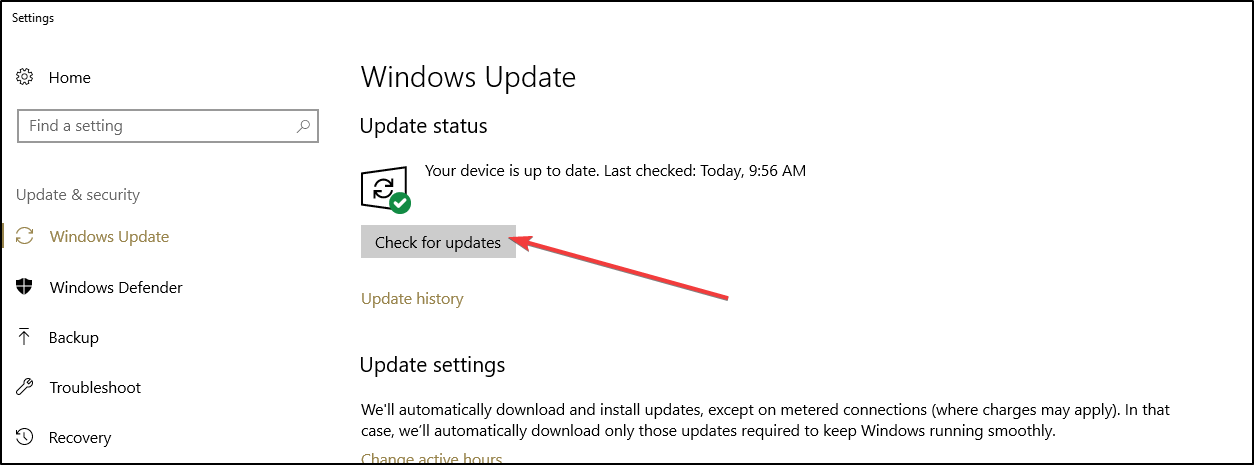
  3. Click Check for updates to open the Settings tab shown directly below.
    The Check for updates button 0x0000000C MAXIMUM WAIT OBJECTS EXCEEDED
  4. Press the Check for updates button to download available updates.

As updates extend Windows 10’s driver database, make sure your platform is fully updated.


6. Turn off Remote Desktop connections

  1. Open the Run accessory by pressing the Windows key and R at the same time.
  2. Type SystemPropertiesRemote.exe in the Open box, and click the OK button.
  3. Go to the Remote tab on the System Properties window will open.
    Remote tab 0x0000000C MAXIMUM WAIT OBJECTS EXCEEDED
  4. Select the Don’t allow remote connections to this computer option.
  5. Select the Apply option to confirm the settings.
  6. Click OK to exit the System Properties window.

This 0x0000000C MAXIMUM WAIT OBJECTS EXCEEDED error fix is more specifically for the Windows Sever 2008 and 2012 platforms.


7. Remove recently installed drivers and software with System Restore

  1. To do that, open Run.
  2. Next, type rstrui in the Open box. That will open System Restore when you click OK.System Restore utility 0x0000000C MAXIMUM WAIT OBJECTS EXCEEDED
  3. Select the Choose a different restore point option if it’s on the System Restore window.
  4. Click Show more restore points to select from a full list of restore points.
    Show more restore points option 0x0000000C MAXIMUM WAIT OBJECTS EXCEEDED
  5. Choose a restore point that will roll Windows back to a date that predates the 0x0000000C error on your desktop or laptop.
  6. Click the Next option.
  7. Then press the Finish button.

Restoring Windows to a restore point will uninstall recently installed programs and drivers that might have triggered the 0x0000000C error.


8. Clean Install Windows 10

If the above resolutions aren’t enough, a clean install of Windows might be your best bet.

You’ll lose all installed third-party software (and your own files that aren’t backed up) when you reinstall Windows with a clean install.

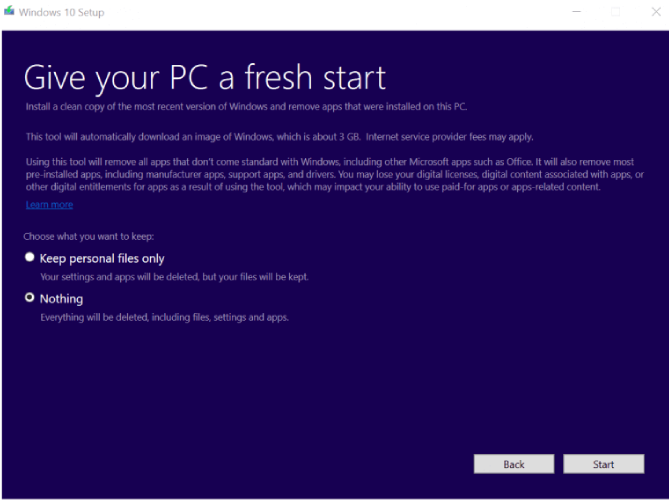
However, that’s why a clean install can likely resolve the 0x0000000C issue. To reinstall Windows 10 with the Refresh Tool, check out our clean install of Windows 10 guide.


These fixes will probably solve the MAXIMUM_WAIT_OBJECTS_EXCEEDED error.

The resolutions provided by Microsoft’s Stop error troubleshooter might also come in handy for fixing the 0x0000000C.

Windows 10 2004 black screen bug bothers some users to date

Since Windows 10 2004 came out on May 27, 2020, it has had multiple issues, some of which were resolved by Microsoft over some time. On the other hand, the new OS brought certain bugs that are as stubborn as they’re weird.

The black screen problem is a perfect case in point. It’s not your typical Windows 10 bugcheck, and as such, it has no error code.

However, these are a few typical scenarios when such a black screen would occur: before or right after logging into Windows, or after installing Windows 10 updates.

On the Windows 10 Subreddit, a user posted a screenshot of a dark Windows Update page with blank lines and no text in some sections.

Some users have installed the Windows 2004 update and a black screen appeared, strangely related to their graphics card. In addition, the bug is so unpredictable that it can affect any app on Windows 10 2004, sometimes at random.

One user arrived at that conclusion after experiencing the problem on the Windows Mixed Reality (WMR) platform.

This user noticed that the black screen appeared on their Acer OJO 500 headset’s display, sometimes every 30 minutes when playing a game.

The black screen only happen in the display headset but the preview on the desktop will show correctly.

The black screen is intermittent. Some time 30 minutes after playing a game.

The black screen can happen even when the headset is placed on the table with no input.

The black screen can also happen during the calibration (moving headset side to side and look down) part.

This user replaced their WMR headset, but the black screen glitch didn’t go away. However, dual booting with Windows 10 v1903 solved the problem.

The majority of Windows 10 2004 users are agonizing over the fact that, without an official point of reference, troubleshooting the bug starts out as a wild goose chase. Yet, there are at least three solutions that anyone can try in this case.

How do I fix Windows 10 2004 black screen issues?

1. Use a debugging software

This is the easiest thing to do, actually, especially since you can’t really pinpoint the cause of the black screen. A debugging software will scan your system and fix any issues or recommend the appropriate actions to take. You might have to run this tool in Safe Mode.

2. Roll back to your previous OS version

  1. Open Settings and choose Update and Security.
  2. Scroll down to the Recovery option.
  3. There, choose Go back to the previous version of Windows 10.

The system will allow you to restore one of the previously saved OS versions. Whenever certain updates cause system issues. Microsoft recommends uninstalling the respective feature or or roll back to a previous version of Windows 10:

So these are all easy-to-use troubleshooting solutions in case the Windows 10 2004 update causes a black screen. We’ve extensively tackled this subject when other details were specified as well:

3. Install the latest graphics card drivers

Normally, Windows updates drivers automatically. But, for various reasons, the process might fail and lead to BSoD issues such as this one.

You can update drivers manually by opening Device Manager, right-clicking on your graphics driver and choosing to update.

But in many cases, the process will say that the driver doesn’t need an update. So again we recommend using dedicated software such as Outbyte Driver Updater for a more in-depth analysis of your system components.

Outbyte Driver Updater will scan your device and show all drivers that need updating. The tool will also suggest viable driver options suitable for your device brand and version.

Additionally, Outbyte Driver Updater doesn’t have to be a one-time tool. You can use it for subsequent updates of all your device drivers since this is a best practice when it comes to your device’s health.

⇒ Download Outbyte Driver Updater

We hope that you found a solution for your black screen event in one of these articles. We’d be happy to hear which step helped so don’t hesitate to drop us a line in the comments.

FIX: Solarwinds VSS error 0x8004231f

Solarwinds is one of the most trusted and reliable monitoring and management tool that helps IT professionals stay on top of their game when it comes to their network health.

Unfortunately, the tool does come with its share of errors, and users report getting the Solarwinds VSS error 0x8004231f when trying to use it.

The error is caused by insufficient storage space or it can just as well be caused by defining shadow associations with a size smaller than necessary.

In this article we will explore the exact steps you need to make in order to fix the Solarwinds vss error 0x8004231f, so make sure to keep on reading.

How can I fix the Solarwinds VSS error 0x8004231f?

1. Use a specialized software

downgrade your bios

One small error can have a huge impact on the overall network if left undetected or unsolved for larger periods of time.

This is why, using a tool that is error free and is reliable, is one of the best choice. In this matter we would recommend PRTG Network Monitor as a tool that will not let you down.

The incorporated features, customizable interface, notification system and alerts are some of the most important selling points of this software.

PRTG Network Monitor

PRTG Network Monitor

Keep an eye on your network and monitor the devices with one of the world’s best monitoring tool.
Free trialVisit website

2. Verify the available free space

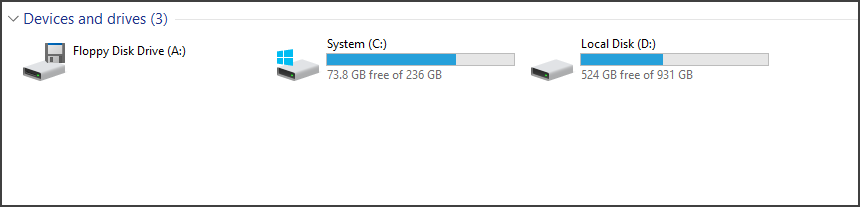
  1. Press the Windows key + E to open File Explorer.
  2. Next, click on This PC and go to the Devices and drives section.
  3. For each storage device, you can see the free space available under the status bar.

If your storage space is low, try freeing it up and that will hopefully fix Solarwinds VSS error 0x8004231f.


3. Delete Shadows using vssadmin

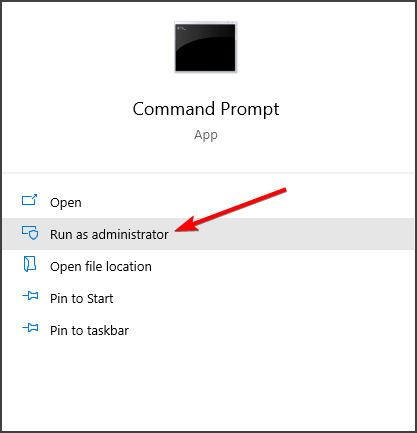
  1. Type cmd in the Search box, to open Command Prompt.
  2. Next, select Run as administrator.

  3. Type in the following command and press enter: vssadmin delete shadows /all
  4. Wait for the process to finish and restart your device.

We hope that one of the above solutions will help you solve the Solarwinds vss error 0x8004231f once and for all.

Please let us know in the comments section below which one worked best for you and if you have additional recommendations or suggestions.

Getting the BSoD error 0x000000f7? Fix it in 4 simple steps

Windows BSoD( Blue Screen of Deaths) issue 0x000000F7 can occur due to multiple reasons and often shows different error messages.

Some of the error 0x000000F7 messages include RIVER_OVERRAN_STACK_BUFFER, KMODE_EXCEPTION_NOT_HANDLED, or UNEXPECTED_KERNAL_MODE_TRAP.

The BSoD error with the stop code 0x000000f7 can be related to the ntkrnlmp.exe, which is an executable file associated with Windows Operating Systems.

This error can occur due to a bad RAM module, incompatible drivers, glitch in any of the recently installed Windows updates, or hardware issues as reported by the users in the Microsoft community forum.

I keep getting a blue screen and the: “DRIVER_OVERRAN_STACK_BUFFER” Message!! when playing game. This can happen 10-30 mins in the game.
I use Advanced SystemCare 10.2 Pro to fix but nothing works. i also update all driver with Driver Booster 4.2 Pro. HELP!!!

In this article, we explore a few common solutions to fix the BSoD error 0x000000f7 in Windows computers.

How do I fix the BSoD error 0x000000f7?

1. Update your computer drivers

Many BSoD errors are related to hardware issues or outdated drivers. Thus, make sure to have all your drivers up to date. You can do this manually from Device Manager.

Searching for computer drivers on your own can be time-consuming. So, we advise you to use a tool that will do this for you automatically.

It works with all versions of Windows and makes upgrading drivers a breeze. Outbyte Driver Updater may be set to find outdated drivers automatically.

Outbyte Driver Updater can assist you in automatically updating drivers and preventing PC harm caused by installing the incorrect driver version. It keeps up with the latest modifications, preventing the system from experiencing latency, system failures, and BSoD faults.

Outbyte Driver Updater is an excellent choice for this task. It has a clean interface and is simple to use, even for computer rookies.

2.  Run System File Checker

  1. Press the Windows key and type cmd.
  2. Click on Run as Administrator for Command Prompt.
  3. In the Command Prompt, enter the following command and hit Enter:
    sfc /scannow
  4. Wait for the system file checker tool to scan and validate the system files.
  5. The tool will fix missing or corrupted files in the system if required.
  6. Once the scan is 100% complete, reboot the computer and check if the error is resolved.

The SFC scan is a command-line tool that will scan your system for potential errors and resolve them on the way. So, it can also fix the BSoD with stop code 0x000000f7.

If you have any problems while running SFC, it stops or does not work at all on Windows 10, take a look at our dedicated guide in order to fix the issue.

3. Check for memory issues

One of the reasons for the error 0x000000f7 is a bad memory. If your system has a removable RAM module, try changing them.

Restart the device to see if the error is resolved. If you have a custom-built PC, you should be able to remove all the RAM modules. Remove all but one stick and boot the PC to see if the error is resolved.

Try these will all the RAM modules to see which memory kit is causing the error. In some cases, it could be the RAM slot that is causing the error, so avoid using the faulty RAM slot.

4. Use system restore point

  1. Press the Windows key and type system restore.breakpoint has been reached restore
  2. Click on Create a Restore Point option.
  3. Click the System Restore button in the System Properties window.system restore
  4. Select Next to proceed.
  5. Select the most recently created restore point.Session has valid pool on exit
  6. Click on Scan for affected programs. This will show if Windows will uninstall any existing programs on your system.
  7. Click Next to continue with the restore process.
  8. Read the description and then click on Finish.

The system restore process may take some time depending on the size of the restore point. The PC will restart once the restore process is complete and show a success message.

If you encounter any other BSoD errors and are curious why they happen, take a look at our guide including the most common causes for blue screens.

Don’t hesitate to let us know if this guide was useful in your situation. You can do so by simply leaving a comment in the section found below this article.

Session has valid pool on exit [BSoD error fixed]

You may encounter a Blue Screen of Death error with the stop code SESSION_HAS_VALID_POOL_ON_EXIT on the terminal server when trying to log off from a Remote Desktop Services session.

The error stops the remote desktop session to the remote desktop server from responding followed by an abrupt disconnect.

According to Microsoft, the error occurs because some objects that the Win32k.sys driver allocates from the session pool are not freed before the session ends.

Another similar error generated by the random user logoff you can see is the 0x000000AB SESSION_HAS_VALID_POOL_ON_EXIT in ntoskrnl.exe. 

If you encounter this problem, we recommend you follow the steps in this article to know how to fix the error with your Windows 10 system.


How do I fix the SESSION_HAS_VALID_POOL_ON_EXIT error? 

1. Use a dedicated tool for BSoD issues

Troubleshooting blue screen errors can be hard for most of us. There are multiple causes and various methods to fix them. Fortunately, there are specialized tools that help us to diagnose and solve any BSoD problem.


2. Install all Windows updates

  1. Click on Start and select Settings.
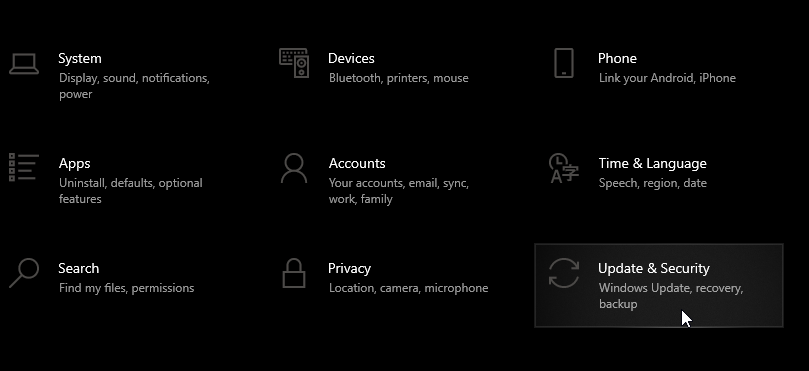
  2. Go to Update & Security.
  3. Open Windows Update from the left pane.
  4. Click on the Check for updates button and install all the pending updates.

Windows updates often fix compatibility issues and security flaws, so it’s a good practice to download and install them frequently. Many of these updates address both hardware and software issues.


Windows Update not working in Windows 10? Take a look at our dedicated guide and solve this problem with ease.


3. Restore to an earlier point

  1. Press the Windows key and type system restore.breakpoint has been reached restore
  2. Click on Create a Restore Point option.
  3. Click the System Restore button in the System Properties window.system restore
  4. Select Next to proceed.
  5. Select the most recently created restore point.Session has valid pool on exit
  6. Click on Scan for affected programs. This will show if Windows will uninstall any existing programs on your system.
  7. Click Next to continue with the restore process.
  8. Read the description and then click on Finish.

Windows will now restore your computer to the state it was in before the event shown in the description. The process may restart your system a few times to apply the changes.

If System Restore is not working in Windows 10 and you are not being able to follow this solution, we recommend you check our dedicated guide in order to fix the problem.


4. Check for Windows OS compatibility

If the session has a valid pool on exit error is occurring after or when using a peripheral device like a printer, make sure the printer driver is compatible with your Windows version.

You can check for different drivers on the manufacturer’s website. You can try to install the newest one, but if the issue is not solved, you can also use an older version of the driver.

Searching for drivers on your own can be time-consuming. So, we advise you to use a tool that will do this for you automatically.

Using an automatic driver updater will certainly save you from the hassle of downloading drivers manually, and it will always keep your system up to date with the latest drivers.

⇒ Get Outbyte Driver Updater


The blue screen error SESSION_HAS_VALID_POOL_ON_EXIT usually occurs if you have a bad patch of Windows installed. However, you can easily solve it with the above solutions.

If you encounter other types of blue screen problems, you can try to solve them by using any of these dedicated software that fixes BSoD errors.

Do let us know which method helped you resolve the issue, or if you have any other suggestions for us, in the comments section below.

Edge Startup boost feature is now temporarily disabled

Microsoft has decided to disable the newly added Startup boost feature after users complained of loop browser relaunch.

Released a few months ago along with Edge 88, Startup boost promised a faster browser launching process. Certain browser features are running in the background once you boot your device, so the browser opens even faster whether launched from the taskbar, desktop, or other hyperlinks.

The feature was still rolling out to the general public, but it was withdrawn. due to the numerous complaints.


You can still run a buggy version of Startup boost

startup booster loop

While until a few days ago the feature came enabled by default in Edge, currently the users can still use it, but they have to enable it manually.

Note that using Startup boost may lead to higher CPU values or game lagging, as one user puts it:

I haven’t noticed any difference in performance when this feature was enabled/disabled. Only that it took an impact on my CPU which caused my games to lag horribly. It may very well work for others but, I have to disable it for now.

And indeed, some users have been satisfied with the feature and noticed some improvements. While others mentioned that Edge would launch promptly on newer devices, given the fact that the system is less worn out.

On the other hand, the background-ready processes could make Edge restart unnecessarily, while also opening multiple processes in Task Manager.

I just had to disable this on all my Windows 10 PCs as it was causing Edge to immediately restart every time it was closed. I am guessing this is not the expected behaviour. 

Given the feedback, a few days ago Microsoft decided to temporarily halt automatically enabling this feature with their Edge browser.

Our team is working on fixing a couple of issues where some customers are seeing the browser reopen immediately after exiting and/or a message about reopening tabs when startup boost is enabled. 

edge startup boost button

Users can still enable the feature if they go to Edge > Setting > System and toggle the Startup boost button. Additionally, Microsoft encourages users to keep submitting feedback on this feature, which helps them improve it.

One user noted that the feature was missing on his Edge version and Microsoft support promptly helped with this issue.

It’s likely that Microsoft will promote Startup boost again once the option is more stable. Meanwhile, if you’re keen to try out the option, go ahead and activate it.

Also, we’d like to hear whether it made any improvement on your browsing experience at all, so feel free to use the comments section for that.

Windows 10 Insider build 21343 is out with redesigned File Explorer icons

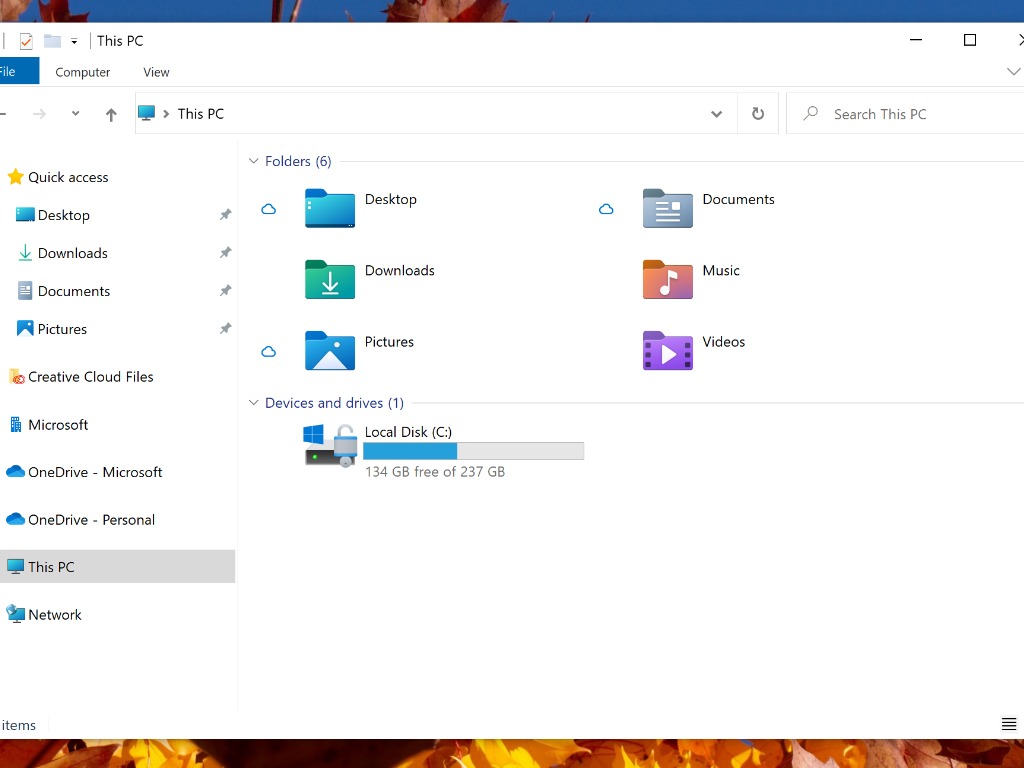
Microsoft is introducing a couple of redesigned File Explorer icons in the Windows 10 Insider build 21343, which is now available to download for Dev Channel Insiders. The company gave a fresh coat of paint to top-level user folders in File Explorer such as Desktop, Documents, Downloads, and Pictures, and even the Recycle Bin icon has also been refreshed in this build.

“We first began updating the icons in Windows 10 last year starting with the built-in apps. Since then, we have continued updating icons throughout Windows 10 including the icon for Windows Security, the Narrator icon, and most recently the icon for Notepad. Now we’re taking the next step by updating many of the system icons used throughout File Explorer,” the Windows Insider team explained today.

A lot of Windows 10 icons are still waiting for an update, but what we’re seeing so far looks pretty good. “Several changes, such as the orientation of the folder icons and the default file type icons, have been made for greater consistency across Microsoft products that show files,” the team said today.

Before and after of Photos folder icons.

Please note that after upgrading to this build, any custom folders you’ve pinned to Quick Access will disappear. Before the team can fix this issue, insiders should either skip this build or make note of any custom folders before installing it.

This new build also brings minor improvements to Windows Sandbox and Microsoft Defender Application Guard, while News and Interests in the task bar will start rolling out to Insiders in China. You can also find below the list of other changes, bug fixes, and known issues for the build 21343:

Changes and Improvements

  • We’re changing the name of the Windows Administrative Tools folder in Start to Windows Tools. We are working to better organize all the admin and system tools in Windows 10.
  • [News and interests] Update on the rollout: following our last update on languages and markets, this week we’re also introducing the experience to China! We continue to roll out news and interests to Windows Insiders, so it isn’t available to everyone in the Dev Channel just yet.
  • We are now rolling out the new IME candidate window design to all Windows Insiders in the Dev Channel using Simplified Chinese IMEs.
  • We’re updating the “Get Help” link in the touch keyboard to now say “Learn more”.
  • We’re updating File Explorer when renaming files to now support using CTRL + Left / Right arrow to move your cursor between words in the file name, as well as CTRL + Delete and CTRL + Backspace to delete words at a time, like other places in Windows.
  • We’ve made some updates to the network related surfaces in Windows so that the displayed symbols use the updated system icons we recently added in the Dev Channel.
  • Based on feedback, if the Shared Experiences page identifies an issue with your account connection, it will now send the notifications directly into the Action Center rather than repeated notification toasts that need to be dismissed.

Fixes

  • We fixed an issue where devices with certain NVMe drives were experiencing disk resets or WHEA_UNCORRECTABLE_ERROR bugchecks.
  • We fixed an issue where some devices were receiving DPC_WATCHDOG_ERROR bugchecks.
  • We fixed an issue where some devices with Realtek network adapters running driver version 1.0.0.4 were experiencing intermittent loss of network connectivity.
  • [News and interests] Fixed an issue where on some occasions the news and interests button text was using the wrong high contrast color.
  • [News and interests] Fixed an issue where news and interests may not be available when signing into Windows without internet access but returns when online.
  • [News and interests] We’ve made multiple fixes to help improve performance and reliability for explorer.exe.
  • We fixed an issue resulting in explorer.exe crashing with Event ID 1002.
  • We fixed a memory leak when interacting with the Recycle Bin.
  • We fixed a deadlock in recent Dev Channel builds related to the Indexer, which could result in not being able to launch Start menu or other apps on first boot after an upgrade.
  • We fixed an issue where on some high-refresh-rate monitors, games would only run at 60Hz. This issue may have also resulted in tearing in variable-refresh-rate monitor scenarios.
  • We fixed an underlying issue resulting in some apps crashing during install and potentially other activities recently.
  • We fixed an underlying issue resulting in some apps unexpectedly displaying a message saying, “You must restart your computer before the new settings will take effect.” recently.
  • We fixed in issue resulting in blurry text on secondary monitors in recent Dev Channel build when the monitor was set to portrait orientation.
  • We fixed an issue impacting the reliability of WIN + Shift + Left / Right Arrow in recent builds.
  • We fixed an issue where the size information for large capacity drives could be truncated in File Explorer’s properties dialog.
  • We fixed an issue that could result in the header at the top of Settings having truncated text in some languages.
  • We made a fix to help address an issue where the user profile picture in the Settings header would flicker when resizing the window. Please let us know if you’re still noticing this after upgrading.
  • We fixed an issue where after changing audio end points the volume controls in Sound Settings might stop working.
  • We fixed an issue where the Properties and Data Usage options were missing in Network Status settings page recently.
  • We fixed an issue where if you searched for “Advanced touchpad gesture configuration” and clicked the result, it would just launch Settings, and not that specific Settings page.
  • We fixed an issue resulting in Settings crashing for some Insiders after launching it by double clicking on the Windows Update icon in the taskbar.
  • We fixed an issue that was blocking Azure Data Studio from updating to a newer version on ARM64.
  • We fixed issues that were causing Ngen.exe to fail to precompile .NET Framework binaries on ARM64.
  • We fixed an issue that could result in some of the touch keyboard’s child keys being cut off.
  • We fixed an issue where a flick up on the top row of the touch keyboard wouldn’t insert the corresponding number when using the small touch keyboard layout, unlike the other layouts.
  • We fixed an issue that could result in display issues with the IME candidate windows after switching between light and dark theme.
  • We fixed an issue where after typing a very long string of text the Japanese IME could become disabled.
  • We fixed an issue where it wasn’t possible to use SHIFT + Space in Excel when typing with the Japanese IME.
  • We fixed an issue with the Japanese IME where it wasn’t possible to enter a sentence that began with “を” when typing in Kana input mode.

Known issues

  • [Gaming] There is an issue in this build where certain games may crash, will not sync save data when a game is played on a different device, or will not save when a new game is installed. We are working on a fix, but if you believe this may impact you, to avoid any potential data corruption, we recommend you pause updates until we release a new build with the fix.
  • [File Explorer] After installing this build, all folders pinned to Quick Access in File Explorer will disappear. Please make sure to take note of what is pinned prior to upgrading, so you can find those folders again.
  • [File Explorer] Some Insiders may experience that the entire folders section of Quick Access is missing. If you encounter this, deleting this string %appdata%\Microsoft\Windows\Recent\AutomaticDestinations\f01b4d95cf55d32a.automaticDestinations-ms will bring back the section, however it will not bring back the items that became unpinned. We are working on a fix for this and appreciate your patience.
  • We’re looking into reports of the update process hanging for extended periods of time when attempting to install a new build.
  • We’re working on enabling the new taskbar experience for existing pinned sites. In the meantime, you can unpin the site from the taskbar, remove it from the edge://apps page, and then re-pin the site.
  • [News and interests] Pressing ESC key to dismiss an opened context menu in the flyout dismisses the whole flyout instead.
  • [News and interests] Sometimes the news and interests flyout cannot be dismissed with pen.
  • [ARM64] Insiders who installed the preview version of the Qualcomm Adreno graphics driver on the Surface Pro X may experience reduced brightness of the display. This issue is fixed with an updated version of the preview graphics driver at https://aka.ms/x64previewdriverprox. If you are experiencing this issue, please see the feedback collection for more information.
  • The network flyout on the login screen doesn’t open on this build, which will prevent you from connecting to a new network before logging in. If your account is in a state that requires internet to log in, you can work around the issue by plugging in Ethernet, getting the device in range of a previously configured Wi-Fi network, or logging in with any other available account first.
  • The Handwriting Input Panel will not work for pen input on ARM64 PCs running this build.
  • There is an issue in this build that may result in Search crashing on launch for some Insiders. We are working on a fix.

Microsoft rumored to be working on a big design update for Windows 10 coming later this year with the “21H2” update, and we hope that these new File Explorer icons are a good taste of things to come. Microsoft’s Chief Hardware Officer Panos Panay recently said that 2021 would be “a massive year” for Windows, and we’re really looking forward to see more design updates in upcoming Dev Channel builds.


FIX: BSOD after CorsairVBusDriver.sys failure on Windows 10

After running an optional Windows update to get the latest Corsair driver, a lot of users have faced a Blue Screen of Death pointing towards a CorsairVBusDriver.sys failure.

Corsair driver updates are usually optional and ensure the correct functioning of the Corsair peripherals or hardware.

System failures after Corsair driver updates are not a novelty, but BSOD is one of the most common issues. This is how it’s described by one user:

After running optional system update for Corsair devices, my ASUS RoG G771 laptop is completely unusable.  It’s stuck in a BSOD reboot loop and not one recovery method is working.[…] Safe mode doesn’t work, either.

The error message might also read: SYSTEM_THREAD_EXCEPTION_NOT_HANDLED

Corsair has responded to recent BSOD issues, mentioning that an old CorsairVBusDriver is conflicting with the new one. Their recommendation is to perform a system restore to get rid of the faulty update.

However, they’re forgetting that the users can’t even log into their systems because of this error.

In this article, we’ll explain how to fix the CorsairVBusDriver.sys failure and get your device up and running again.

How do I fix a CorsairVBusDriver.sys blue screen?

1. Run a BSoD debugging tool

This is a preferable solution that doesn’t require too much technical knowledge and it doesn’t imply you losing your apps and files.

With a BSoD fixer for Windows, you have all the support to fix this type of errors and repair the damaged system files occured.

2. Use advanced repair

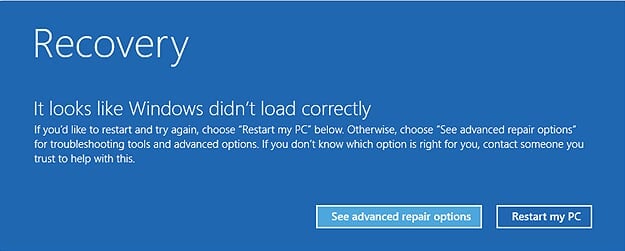
  1. Start the PC, and then hold the Shift key and hit F8 frequently. This should take you to the advanced recovery options. Fix Corsair bus driver.sys issue
  2. Click on Troubleshoot.
  3. Select Advanced Options, then Command Prompt. 
  4. Run the following command: diskpart
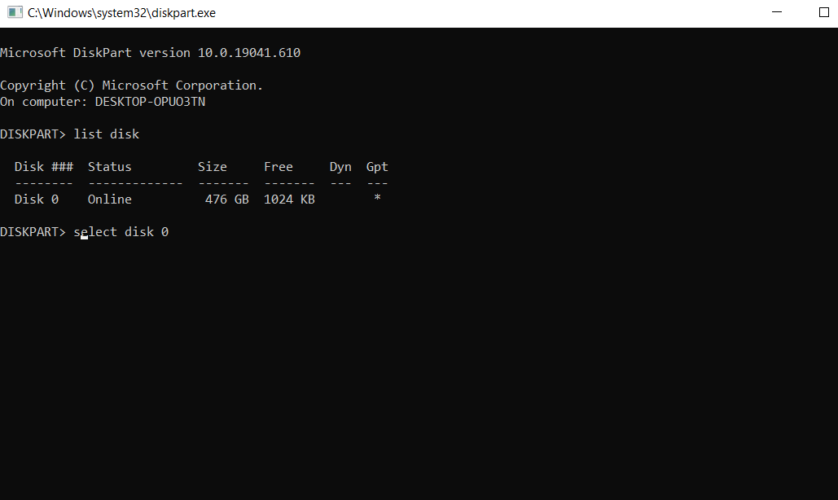
  5. Run the next command to see all your disks. usually, your drive should be  Drive 0: list disk
  6. Then, type this command, replacing the drive number/letter with your actual system drive: select  disk 0 diskpart
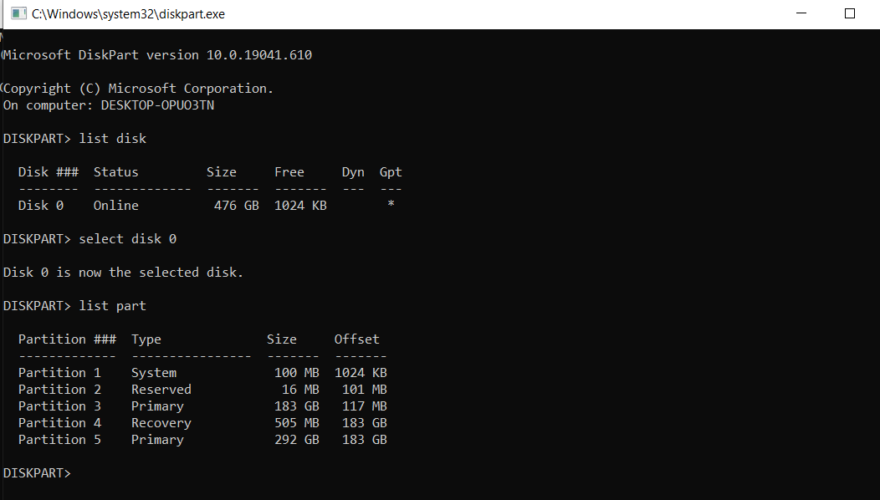
  7. Then, you need to see all partitions, so type: list partlist part in diskpart command prompt
  8. Select your primary partition (#3 in this example, but can be something else for you): select part 3
  9. Assign your primary partition a drive letter: assign letter=X
  10. Exit diskpart.
  11. Still in Command Prompt, type the following to get a list of installed drivers (replace X with your driver letter): dism /Image:X: /Get-Drivers | more 
  12. You should get a notepad list with drivers; look for the driver mapped to CorsairVBusDriver.sys (should be oemx.inf, x = a number)
  13. Run the following to get rid of the faulty driver (once again, replacing X): dism /Image:X: /Remove-Driver /Driver: oemx.inf
  14. Exit Command prompt and reboot.

Note: If you already know your system partition, you can skip steps 4-8, straight to step 9. 

3. Use installation disk

If you’re lucky enough to have a Windows 10 OS on a disk or mounted on an SSD or USB stick, you can clean install Windows.

Just insert the disk or attach the external drive to your device, reboot and follow the on-screen instructions.

Note that some users complained that even with a clean install, upon automatic update, the faulty Corsair driver would get back into the system.

We hope that this guide has helped you restore your device back to normal. In case you’ve got something to add to the steps above to improve the process, feel free to use the comments section.

How to easily add Yammer to the Microsoft Teams app to engage with your coworkers

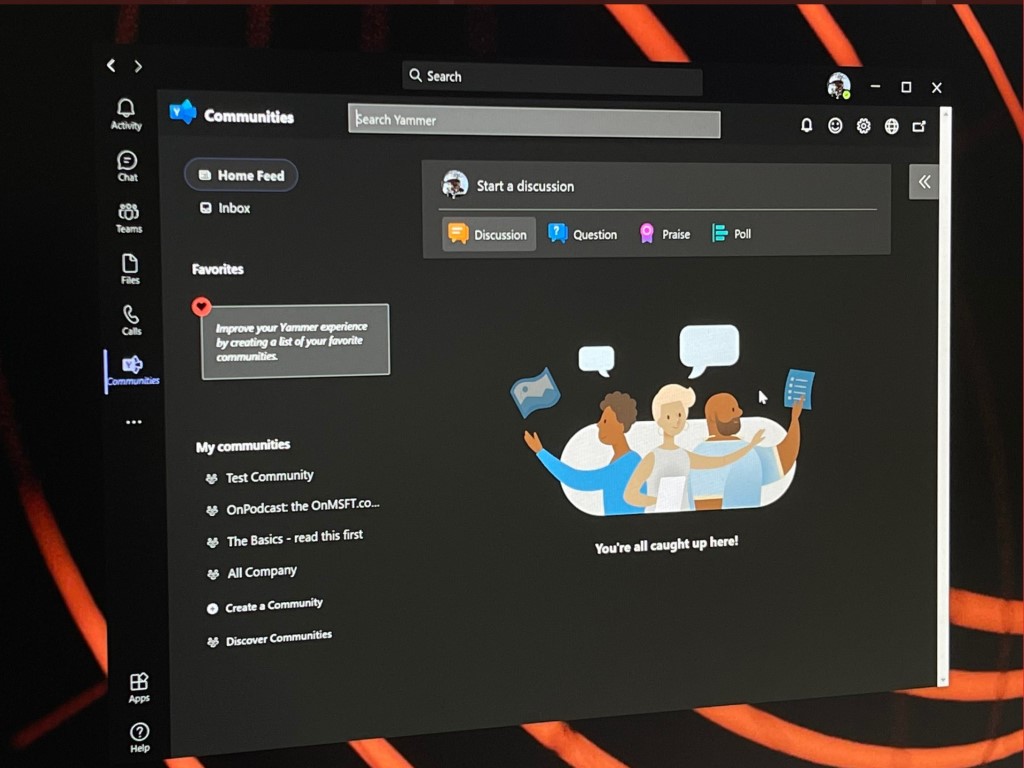
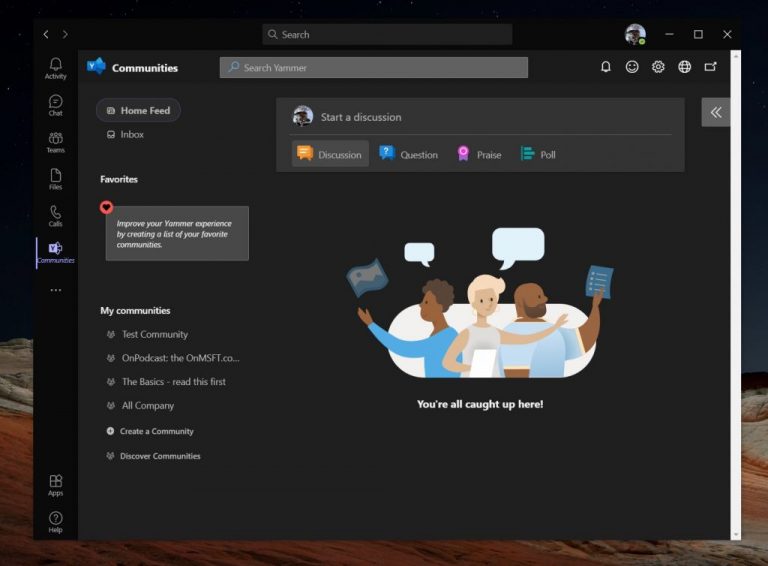
The Microsoft Teams app is a great collaboration hub where you can engage and chat with your coworkers, but did you know Microsoft also has something called Yammer? It’s an internal social networking tool to help you and your coworkers openly connect and engage around a central community. Yammer has its own Microsoft 365 app which we previously explored, but it also plays nicely with Teams, too. So, here’s how you can add Yammer to Teams!

Why add Yammer to the Microsoft Teams app?

Before diving into the process, it’s worth mentioning why you might want to add Yammer to Teams to begin with. The reason has to do with collaborating with a Yammer post or topic while you’re working in Teams. You can stay in your workflow and add a tab for Yammer inside Teams, add it as an app, and have your Team members participate in the Yammer conversation directly in Teams, before going into a wider Yammer community.

Basically, this will help you skip out the need to manually open Yammer inside of a web browser. And, anyone can do it, too. Team members must also be enabled to add tabs, too. If you can’t add tabs, then speak to your IT admin.

Steps to add the Yammer Communities app to the Microsoft Teams app

Microsoft Teams App Yammer

There are two things we’ll be discussing today. We’ll talk about how you can add the Yammer Communities app to Teams, and how you can add a Yammer tab to Teams. The Yammer app is the full-on Yammer experience, whereas the Yammer tab will just be a specific Yammer page. Depending on your needs, you might need to add one, or the other. Here’s how to add the Yammer app first.

To install Yammer as an app in Teams click the Apps icon in the bottom left sidebar. Then, search for Communities. From there, click on the Communities app and then click Add. Yammer will then be added to all of your Teams apps, including mobile. If you’re having trouble finding the Yammer app for Teams, try clicking this link here to add it.

If you still can’t add Yammer, then the experience might have been disabled by your IT admin. Anyway, once the Yammer app is open, you can choose to Pin it. Simply right-click on the icon, and then choose “Pin” so you’ll have quicker access later on.

Steps to add a Yammer Page to a Microsoft Teams channel

Microsoft Teams App Communites

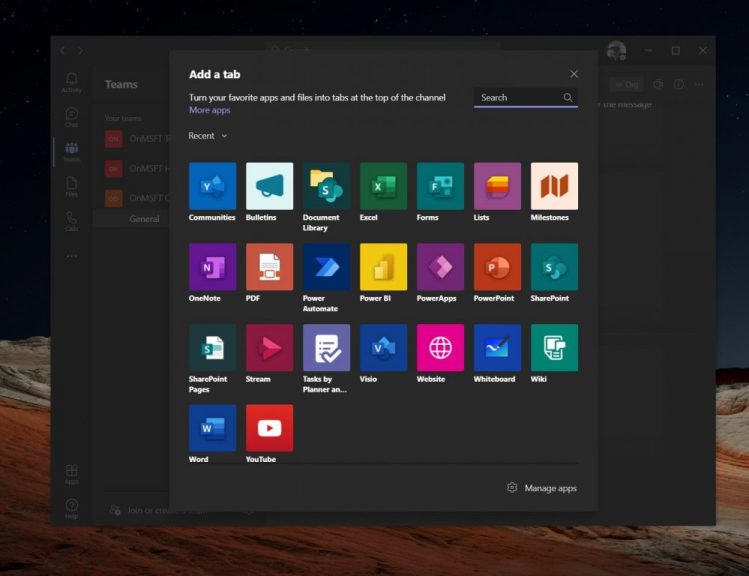
Now, for part two — adding a Yammer page to a Microsoft Teams channel. This is a little bit easier. In the Teams channel that you want to add a Yammer page to, simply click the “+” on the tab bar. Then, from there, select the Communities tab. You can then select the content type. If you pick a Yammer Group, all messages will be visible in the community. If you choose Yammer Topic, all messages visible will be visible to the user with the select topic hashtag.

Using the search box, you can also type a community name or topic you want to include, and select the community or the topic of the list. When ready, you can click Save, and the new Yammer tab will show up in the tab bar for all members.

Check our guide for more on Yammer!

Now that you’ve added Yammer to Teams, we invite you to check out our guide to Yammer for more. Yammer is quite a useful tool, and it is a great way to connect with coworkers and share professional resources. It’s also a great tool to host how-to guides, community information, and more. Explore Yammer today, and let us know how it is working for you by dropping us a comment below.

0x0000009f Driver Power State Failure: 4 Methods to Fix It

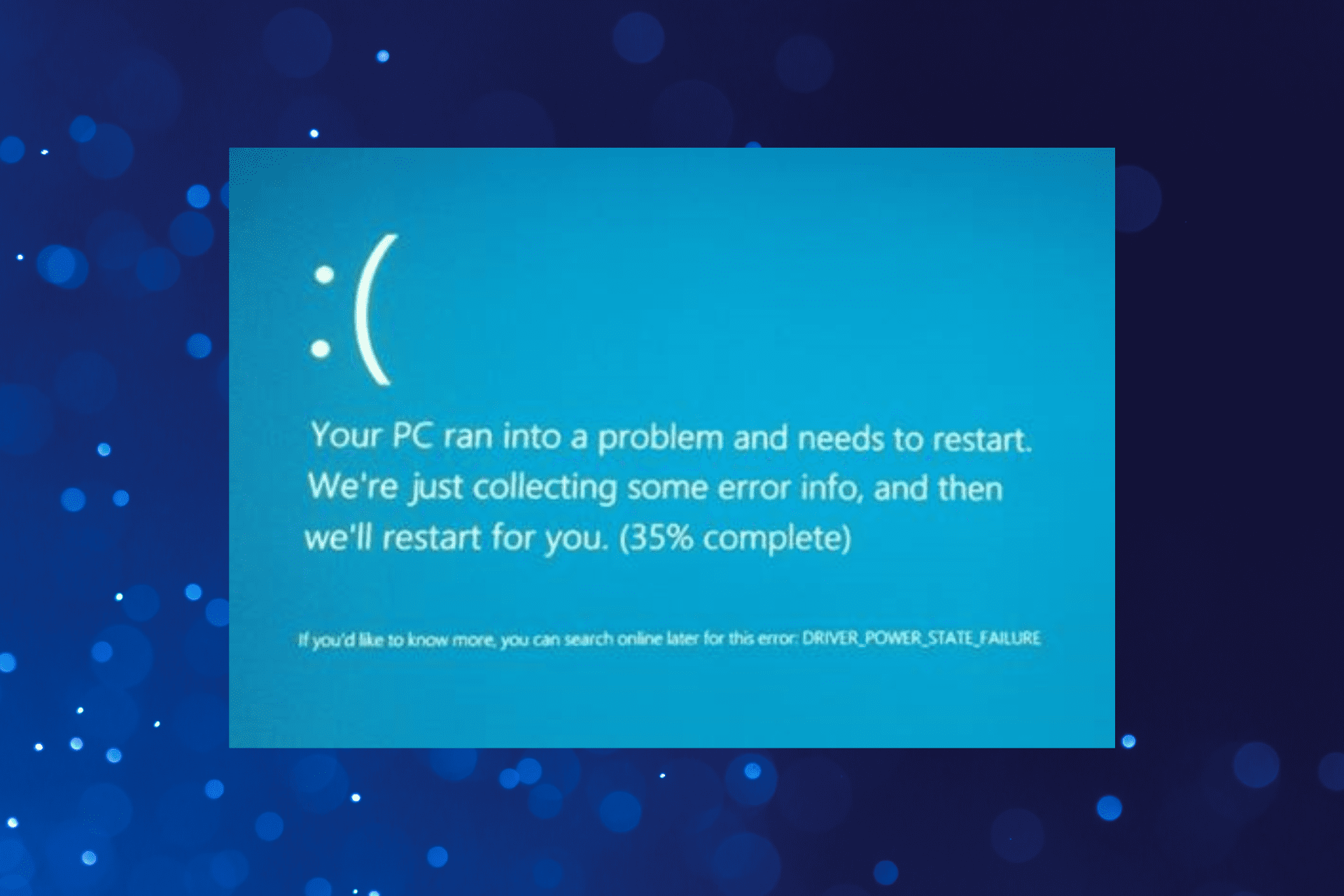
There are several Blue Screen of Death errors that plague Windows, and most take time and effort to troubleshoot. One such is the DRIVER_POWER_STATE_FAILURE 0x0000009F blue screen error.

The error has long been present in Windows and continues to affect users on the latest iteration as well. So, let’s find out all about it!

What is 0x0000009F blue screen error?

As the name suggests, the DRIVER_POWER_STATE_FAILURE BSOD error has to do with the power or the driver. But there are other issues as well that can trigger it. Given below are a few primary ones:

  • Issues with the installed drivers: More often than not, it’s the incompatible, corrupt, or outdated drivers to blame when you get stop: 0x0000009F.
  • Malfunctioning or incompatible peripheral: A connected peripheral can often lead to issues with the PC and can lead to a BSOD.
  • Third-party apps triggering conflicts: A security software, or other performance optimization apps, too, are just as likely to cause the DRIVER_POWER_STATE_FAILURE error.

How can I fix the 0x0000009f error?

Here are a few quick tricks and checks to perform first:

  • Unplug any non-critical peripherals from the PC, especially the ones that were added around the same time the error first appeared.
  • Check for any pending Windows updates and install them.
  • Make sure all the connections are in order, i.e., the graphics card, RAM modules,fFan, and other similar components.
  • Shut down your computer at the end of each session instead of putting it in sleep or hibernate mode.
  • Check the current version and update the BIOS. Remember, this is a complex process, so proceed with caution.

If none work, move to the solutions listed next.

1. Reconfigure the device’s power settings

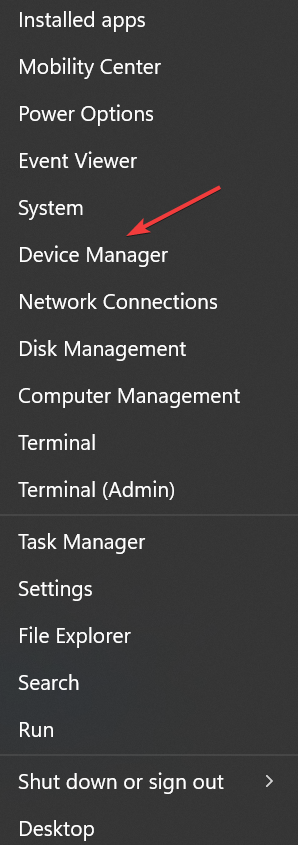
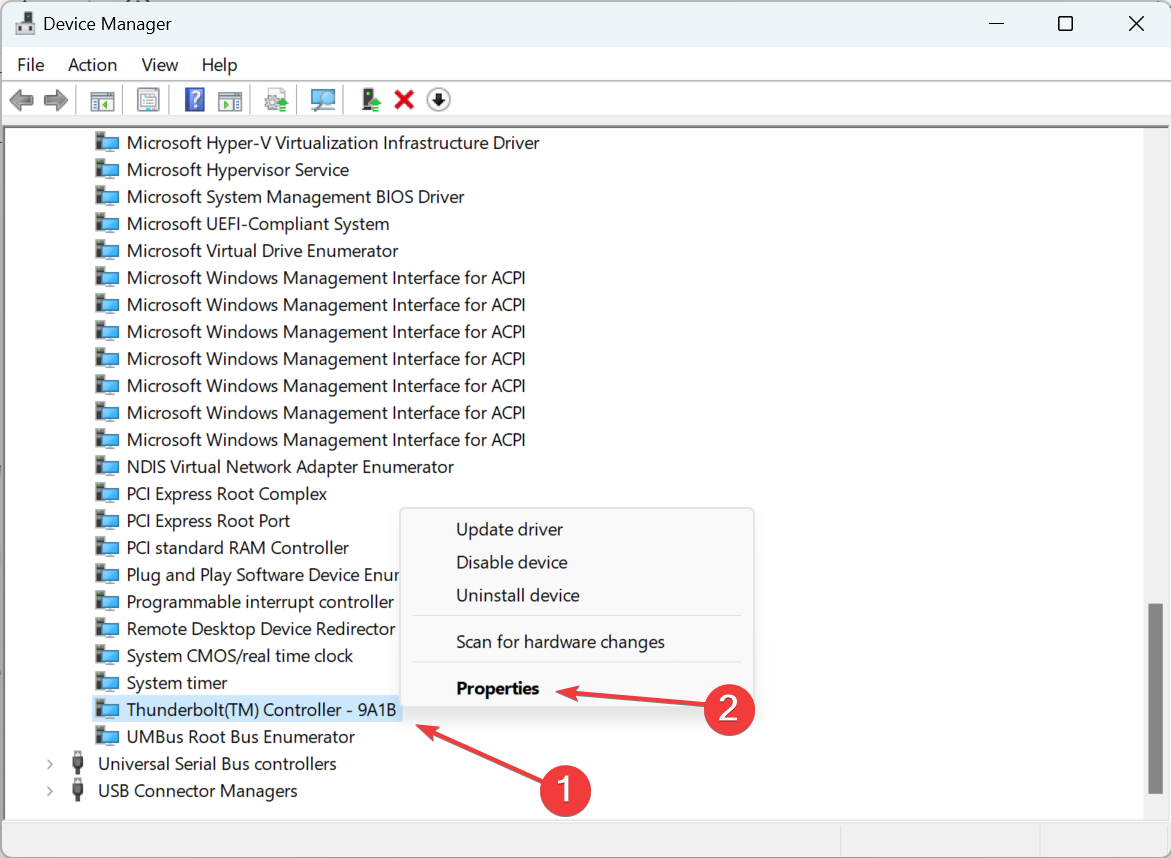
  1. Press Windows + X to open the Power User menu, and select Device Manager.device manager
  2. Locate the device you think might be causing the trouble, right-click on it, and select Properties.properties
  3. Now, go to the Power Management tab, untick the checkbox for Allow the computer to turn off this device to save power, and click OK.change settings to fix 0x0000009f
  4. Check the other devices and make similar changes to those as well.

In many cases, the OS turns off the device, which triggers the 0x0000009f error after sleep in Windows 10. Here, it’s best to reconfigure the Power Management settings to get things running.

2. Set to max performance in NVIDIA Control Panel

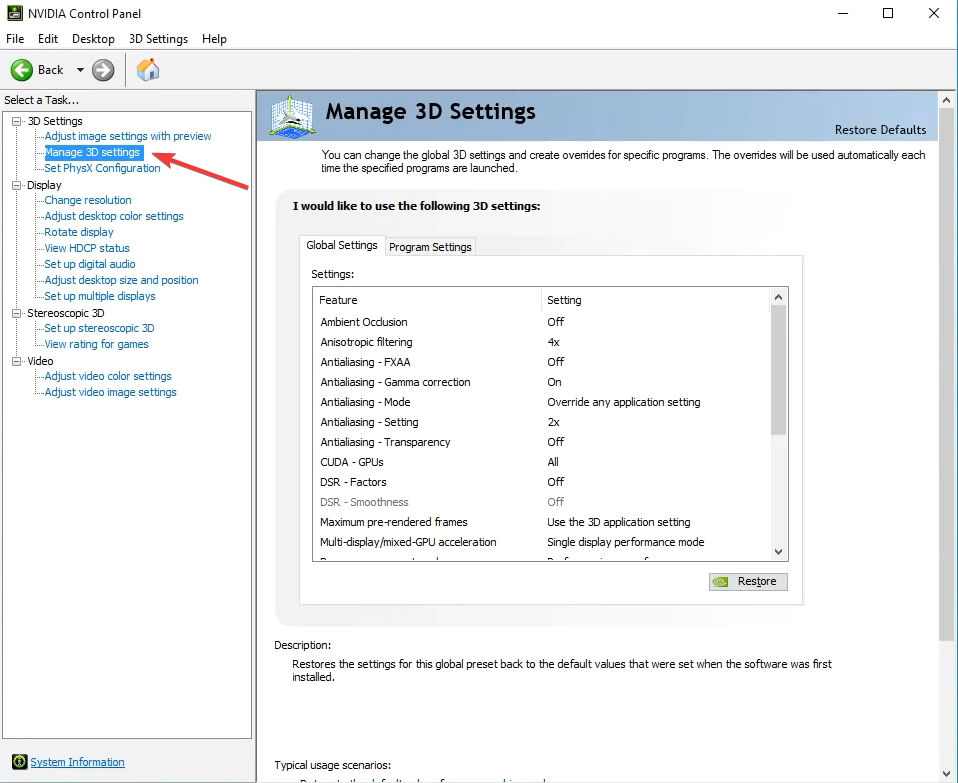
  1. Launch the NVIDIA Control Panel, and go to Manage 3D Settings from the navigation pane.manage 3d settings
  2. Now, click on the Restore button on the right.restore to fix 0x0000009f
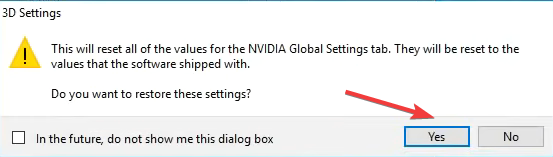
  3. Click Yes in the confirmation prompt.reset
  4. Next, select Prefer maximum performance from the Power management mode dropdown menu, and click on Apply to save the changes.change power management mode
  5. Once done, restart the computer for the changes to come into effect.

3. Update the device driver

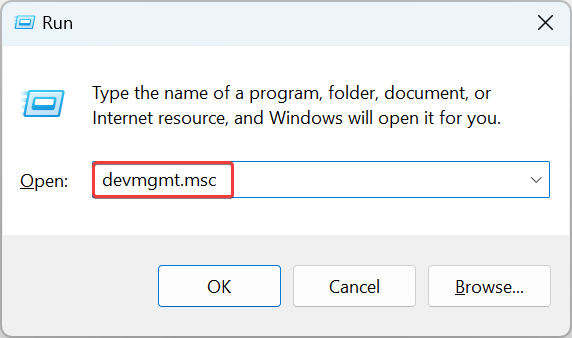
  1. Press Windows + R to open Run, type devmgmt.msc, and then hit Enter.device manager
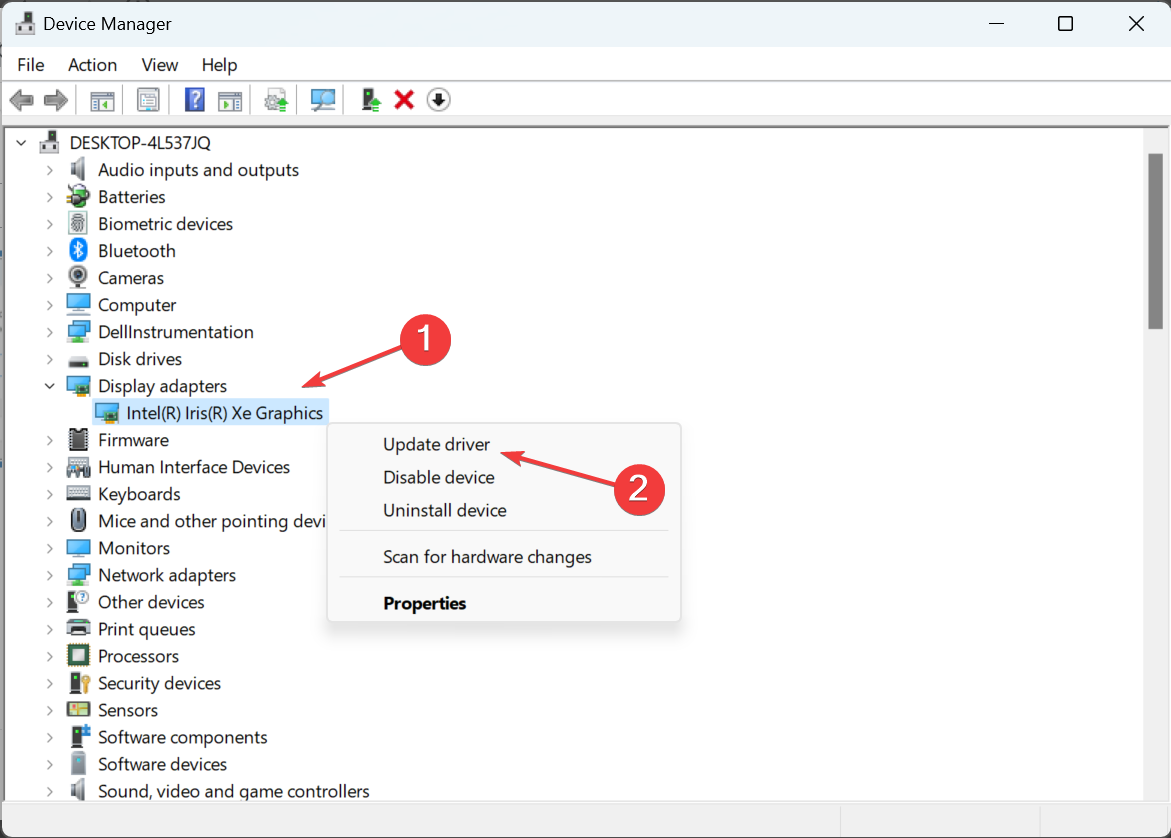
  2. Locate the problematic device, right-click on it, and choose Update driver. Since we are following the hit-and-trial approach, let’s start with the graphics driver, the most likely reason behind the BSOD.update driver to fix 0x0000009f
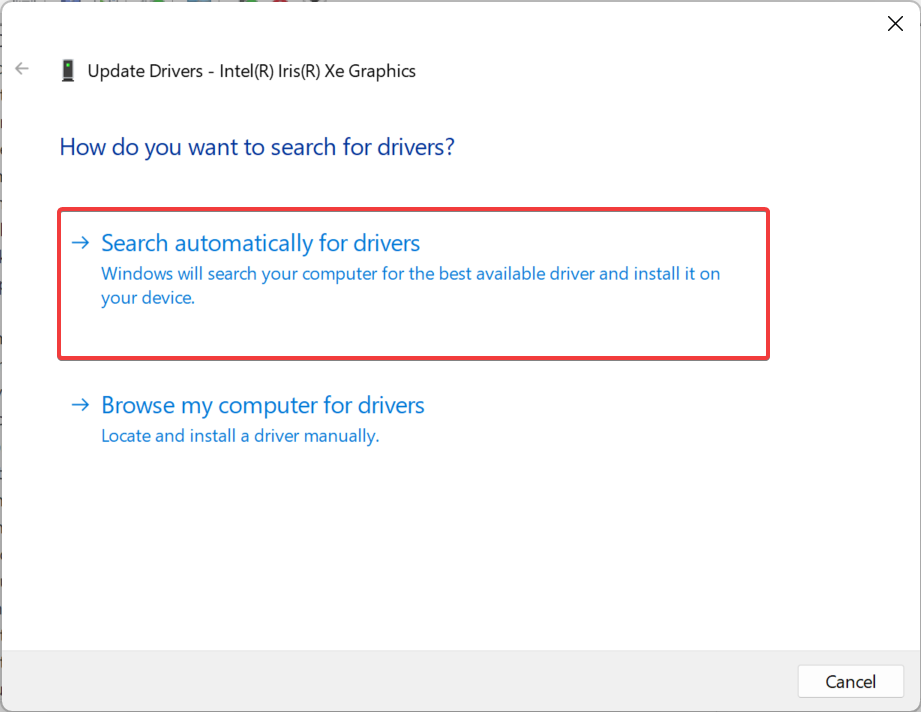
  3. Select Search automatically for drivers and wait for Windows to find and install the best version.search automatically for drivers
  4. Restart the computer for the changes to come into effect.

Updating the drivers is also vital and helps fix a wide range of errors in Windows. Besides, when the automatic methods don’t work, you can always manually install the drivers in Windows. After the graphics driver, start with the network drivers and those for connected devices.

The search results may show that no new drivers were found for your device. This is why we recommend using dedicated third-party software for a more accurate result.

Outbyte Driver Updater will scan your PC, find all the outdated drivers, and update them in just a few clicks.

It is simple, light, and safe to use. You can set it up to regularly check and update your drivers so you won’t have to worry about them anymore.

⇒ Get Outbyte Driver Updater

4. Uninstall the antivirus

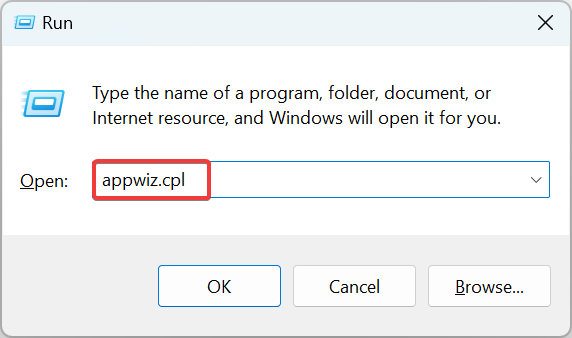
  1. Press Windows + R to open Run, type appwiz.cpl, and click OK.appwiz.cpl
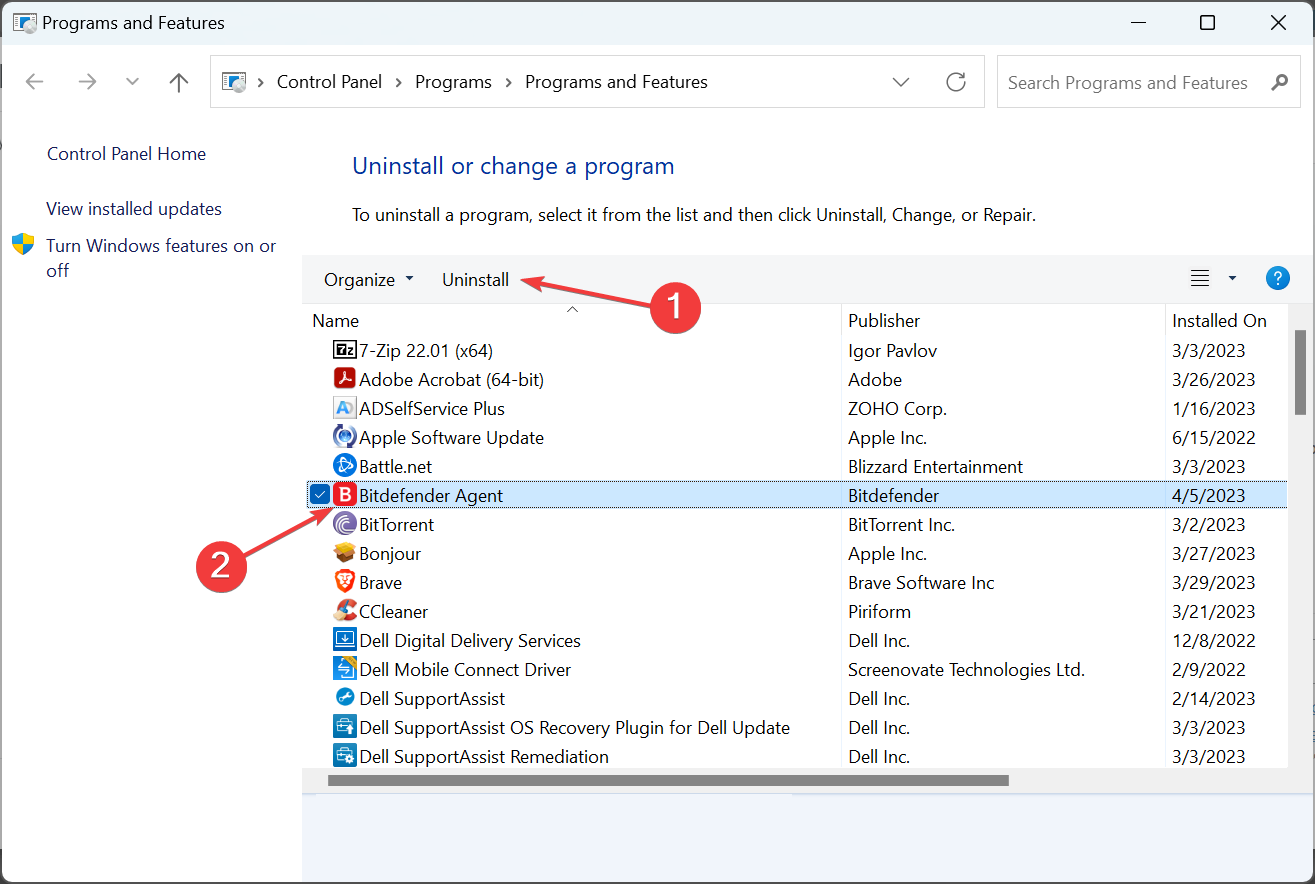
  2. Select the antivirus on the PC, and click Uninstall.uninstall to fix 0x0000009f
  3. Follow the on-screen instructions to complete the process.

To avoid errors, we recommend using the built-in Windows Security, a more-than-effective antivirus capable of handling even the trickiest problems and threats. Besides, it’s more Windows-friendly than any other, so there won’t be any software conflicts.

By now, you should have fixed error 0x0000009F in Windows 10 or the other iterations. In case nothing works, we recommend you take your PC to a repair shop and get the hardware inspected.

And if you are looking for a simpler way to fix things, check the best BSOD repair tools in Windows to get rid of blue screen errors automatically.

For any queries or to share what worked for you, drop a comment below.

FIX: DRIVER_VERIFIER_IOMANAGER_VIOLATION error

Blue Screen of Death errors can appear on any version of Windows. As expected, Windows 10 is no exception.

Errors such as DRIVER_VERIFIER_IOMANAGER_VIOLATION can create many problems, but fortunately, there is a way to fix this error.

How do I fix DRIVER_VERIFIER_IOMANAGER_VIOLATION error?

1. Use a third-party system restoration app

Getting constant errors and Blue Screens of Death is quite annoying and puts you at the risk of losing your work and project data.

Thankfully, you can download a specialized system repair tool that will scan your PC for faulty files and remove them or restore them to their original state.

2. Remove the problematic software

Third-party applications can often cause Blue Screen of Death errors, therefore you need to find problematic applications and remove them.

Users reported that PeerBlock, Gpass, and Logitech Gaming Software can cause these types of errors, so if you’re using one of those applications be sure to remove them or reinstall them.

Another common cause for the driver verifier iomanager Blue Screen can be your antivirus software.

Users reported issues with ZoneAlarm, so if you’re using this tool, we advise you to remove it.

We have to mention that almost any antivirus program can cause this error to appear, therefore we advise you to remove all antivirus programs from your PC.

If you want to completely remove certain antivirus we advise you to use a dedicated removal tool. Many security companies offer these tools for their software, so make sure that you download and use one.

3. Update your drivers and Windows 10

  1. Press the Windows Key + S and search Settings.
  2. Click on Update & Security.
  3. Then, select Windows Update, and click Check for updates.
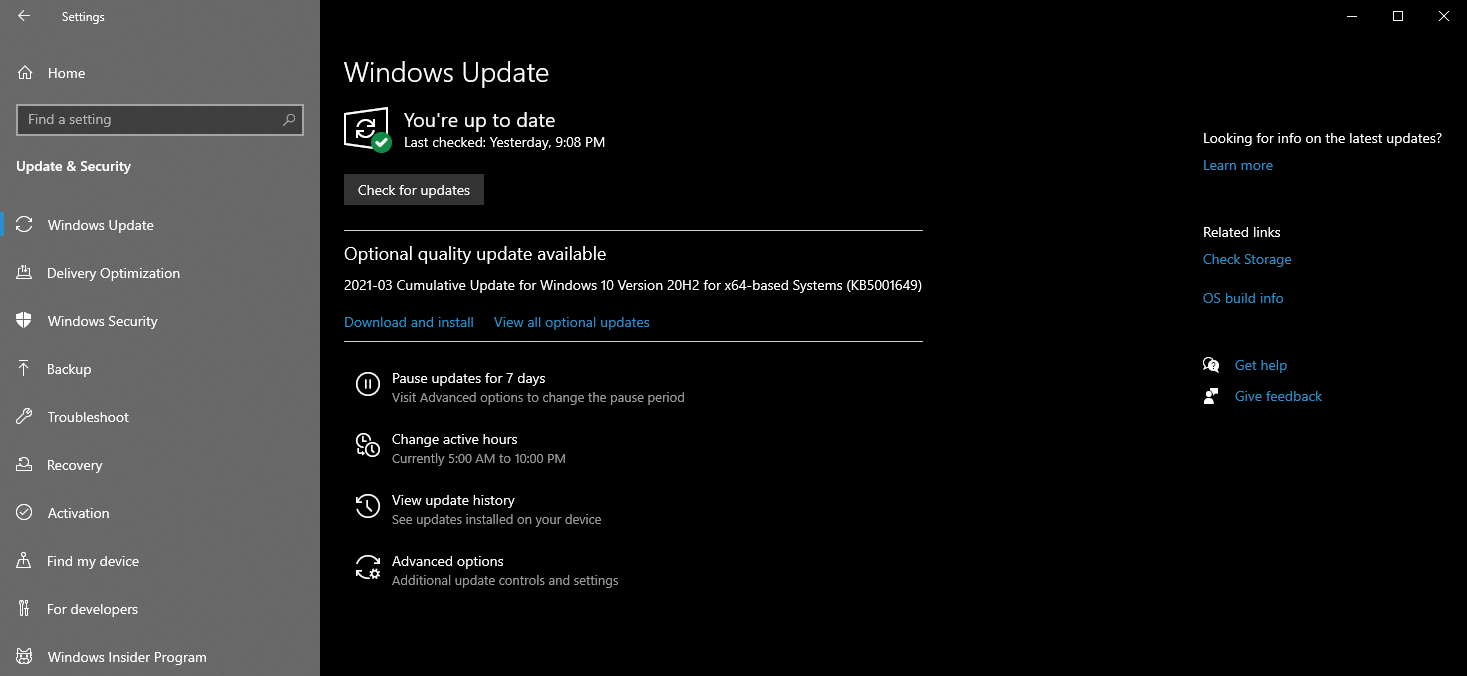
  4. Allow Windows to install all the necessary updates.

Blue Screen of Death errors can be caused by hardware or software issues, and in order to avoid these types of problems, it’s highly recommended that you update Windows 10.

Microsoft is frequently releasing new patches and you can download them all through Windows Update.

Most of these patches fix security issues, but there are also various bug fixes related to both hardware and software.

By installing these patches you’ll ensure that your system is safe and stable, so we urge you to download them as often as you can.

Install the latest drivers

Although Windows updates are important for your system, it’s also important that you download the latest drivers for your computer.

Windows 10 relies heavily on drivers in order to work with your hardware, and if a certain driver is out of date, you won’t be able to use your hardware.

You could even get this annoying DRIVER_VERIFIER_IOMANAGER_VIOLATION error. To fix these errors it’s recommended to update all your drivers.

In order to do that you just need to visit your hardware manufacturer’s website and download the latest drivers for your device.

Several users reported that this error was caused by Logitech drivers, so if you’re using any Logitech software or devices, be sure to update their drivers.

Update drivers automatically

If this method doesn’t work or you do not have the necessary computer skills to update or fix the drivers manually, there’s another thing you can do.

Well, we strongly suggest doing it automatically, by using a specialized tool. It is lightweight and intuitive, not to mention that it’s the quickest way to access a huge database of drivers.

⇒ Get Outbyte Driver Updater

4. Perform DISM and SFC scans

  1. Press Windows Key + X to open Power User Menu.
  2. Select Command Prompt (Admin) from the menu.
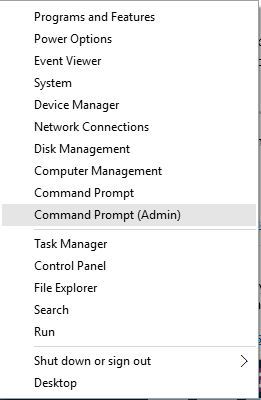
    driver-verifier-iomanager-violation-admin
  3. When Command Prompt starts enter the following lines and press Enter after each line: dism/online/cleanup-image/scanhealth dism/online/cleanup-image/checkhealth dism/online/cleanup-image/restorehealth 
  4. After the DSIM scan is complete enter the following command: sfc /scannow
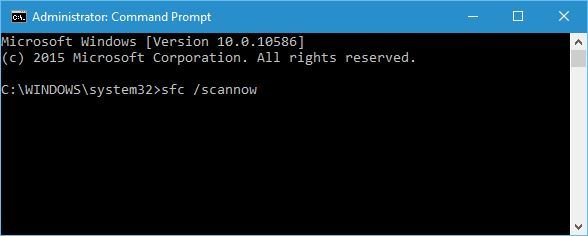
    driver-verifier-iomanager-violation-windows-10-sfc

A few users claim that they managed to fix this issue by performing a DISM scan and using the SFC tool. To do so, follow the above steps.

If you cannot enter Windows 10 normally, you can perform this scan from Safe Mode. To enter Safe Mode follow this procedure:

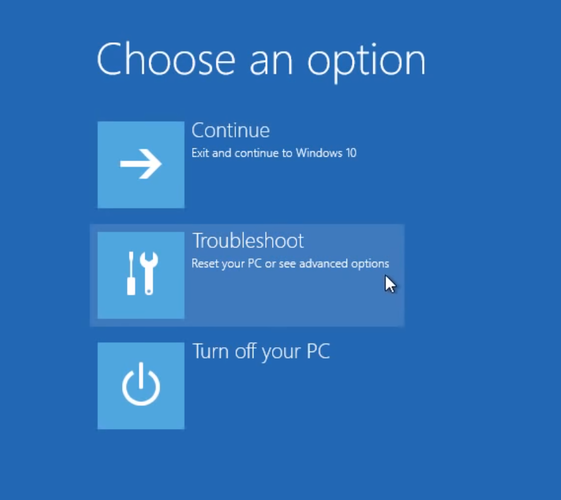
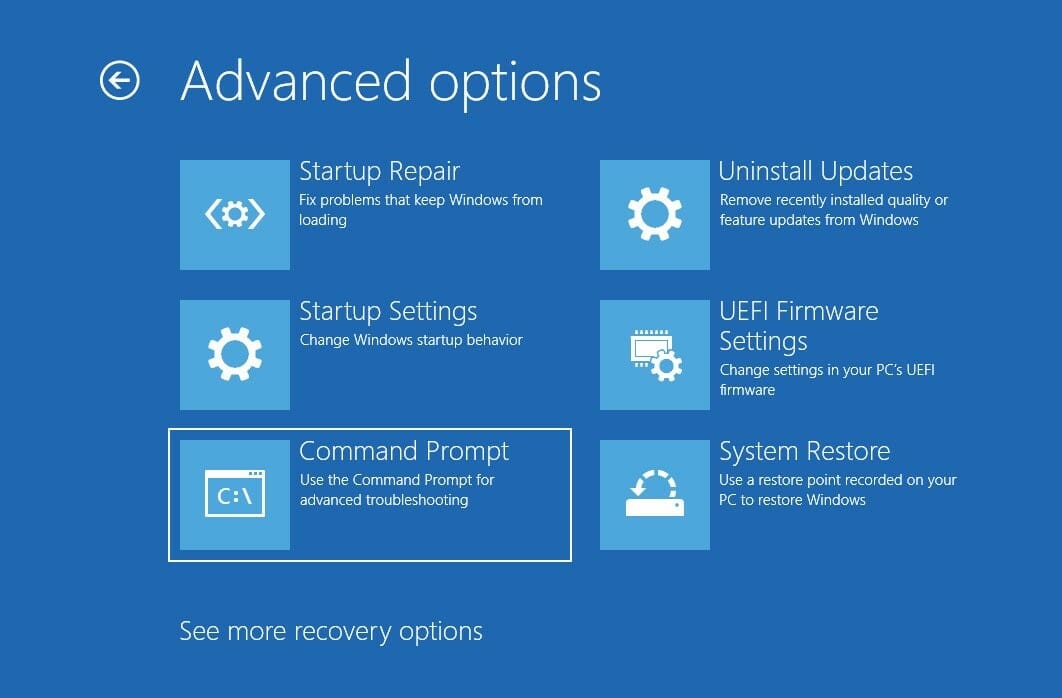
  1. Restart your computer while it boots. Repeat this step a few times until you start Automatic Repair.
  2. Choose Troubleshoot > Advanced options > Startup Settings and click the Restart button.
  3. Once your PC restarts you’ll see a list of options. Select Safe Mode with Networking by pressing 5 or F5.

Once you enter Safe Mode, you should be able to perform a DISM scan by following the steps above. Then, also use the System File Checker utility.

Safe mode is not working? Don’t panic, this dedicated guide will help you get past the booting problems.

5. Update the BIOS

Updating BIOS unlocks new features of your motherboard and fixes certain hardware-related compatibility issues.

Some users claim that updating BIOS fixed the DRIVER_VERIFIER_IOMANAGER_VIOLATION error for them, so you might want to try that.

Before you start, we have to mention that BIOS update is an advanced procedure, and if you’re not careful you can cause permanent damage to your PC,.

So, be extra careful if you decide to update BIOS, and be sure to check your motherboard manual for detailed instructions.

6. Perform a Windows 10 reset

  1. Restart your computer a few times during the boot in order to start the Automatic Repair.
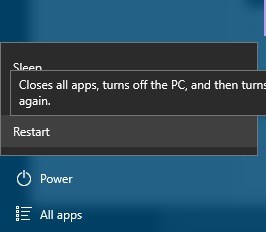
  2. Choose Troubleshoot > Reset this PC > Remove everything and insert Windows 10 installation media if necessary.
  3. Select Only the drive where Windows is installed > Just remove my files and click the Reset button.
  4. Follow the instructions to complete the Windows 10 reset.

If the DRIVER_VERIFIER_IOMANAGER_VIOLATION Blue Screen of Death error is caused by software, you can easily fix it by performing a Windows 10 reset.

This procedure is similar to a clean install, so we urge you to back up all important files before you decide to perform Windows 10 reset.

You might also need a Windows 10 installation media in order to complete this step, so be sure to create one. To perform Windows 10 reset you need to do as described above.

7. Scan your computer for malware

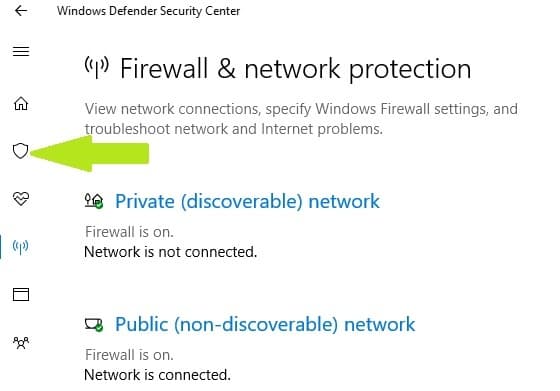
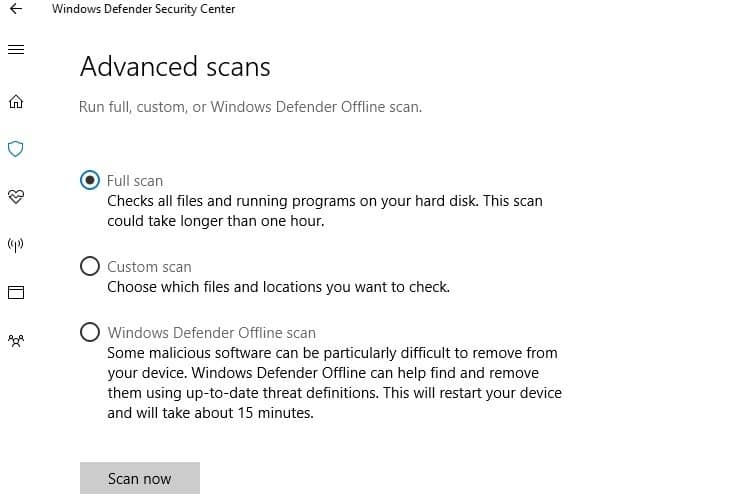
  1. Go to Start > type defender > double click Windows Defender to launch the tool.
  2. In the left-hand pane, select the shield icon.fix DRIVER_VERIFIER_IOMANAGER_VIOLATION
  3. In the new window, click the Advanced scan option.
  4. Check the full scan option to launch a full system malware scan.

If you don’t want to resort to complex solutions, such as resetting your computer yet, you can launch a malware scan.

Malware may cause various issues on your computer, including the DRIVER_VERIFIER_IOMANAGER_VIOLATION error.

You can detect and remove malware using Windows’ built-in antivirus, Windows Defender, or third-party antivirus solutions.

Run a thorough system scan to make sure that you have eliminated this possible cause.

8. Remove recently installed hardware

If Windows 10 reset didn’t fix the problem, it’s most likely that this issue is caused by faulty or incompatible hardware, so be sure to remove any recently installed hardware.

In addition, we advise you to perform a detailed inspection of your hardware in order to find the faulty component.

Open up your device and check each component, switch them with the older ones and check if the problem persists. Some BSoD error happen due to compatibility issues.

Make sure that your motherboard is compatible with your RAM and CPU. You should also make sure that its current BIOS version is supported by the GPU.

Take this chance and clean your PC as well. Dust can gather up and cause overheating which will also crash your PC or cause permanent damage to your components.

9. Clean boot your computer

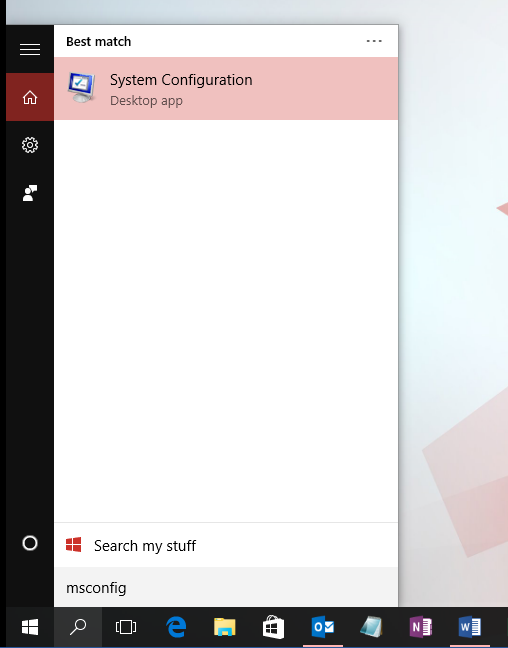
  1. Press the Windows Key + S and search msconfig.
  2. Select System Configuration.

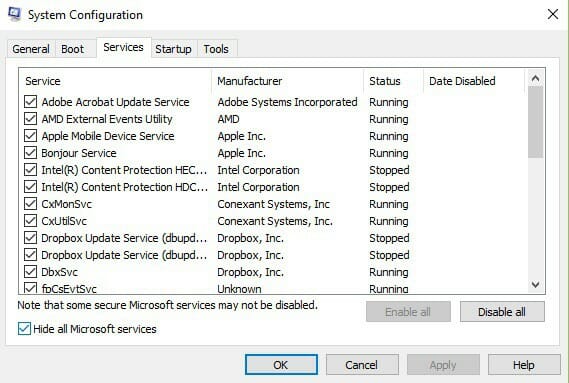
  3. Go to the Services tab deselect Hide all Microsoft Services.
  4. Now, click Disable all.
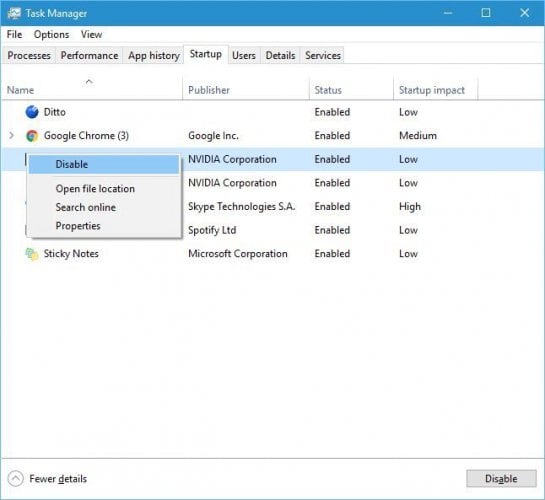
  5. Select the Startup tab, and disable all startup programs.
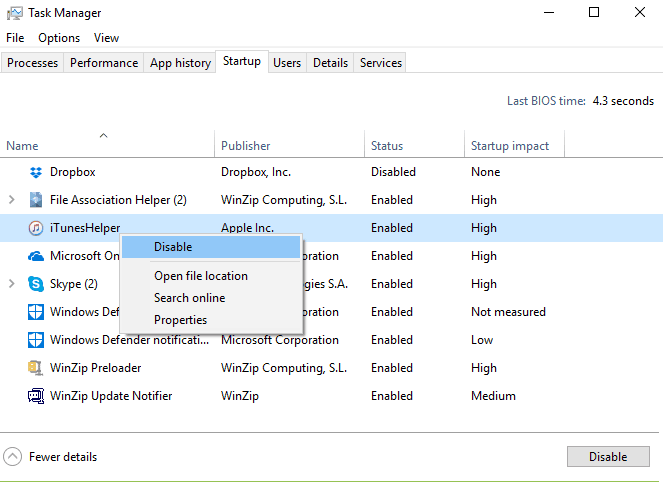
  6. Select Ok, then close the Task Manager.
  7. Restart your computer and see if the issue persists.

A clean boot starts Windows by using a minimal set of drivers and startup programs to eliminate software conflicts that may occur when you install a program or an update or when you simply launch a program.

If you’re having trouble opening Task Manager, you can easily fix it by reading this detailed article.

Some Windows 10 users confirmed that this action helped them fix the DRIVER_VERIFIER_IOMANAGER_VIOLATION error, so give it a try. 

DRIVER_VERIFIER_IOMANAGER_VIOLATION error can be easily fixed by updating your drivers or BIOS, but if those solutions don’t work, feel free to try any other solution from this article.

Make sure you tell us which solution worked for you, and give us any other tips regarding the subject in the comment section below.

Hunting Simulator 2 video game gets a new 4K 60FPS version for Microsoft’s Xbox Series X console

The Hunting Simulator 2 video game may have launched on the Xbox One family of consoles in mid-2020 but it’s now gotten a brand new separate release for Microsoft’s newer Xbox Series X and S consoles with improved visuals and a higher framerate.

While the Xbox One version of Hunting Simulator 2 can be played on both the Xbox Series X and Xbox Series S consoles, this particular version, called Hunting Simulator 2 Xbox Series X|S in the Microsoft Store digital storefront, boasts 4K visuals when played on a Series X, 1440p on the Series S, and 60 FPS on both.

For those who own an Xbox Series X or S, or are planning to buy one in the future, this newer version of Hunting Simulator 2 is clearly the preferred choice. Especially since its price is exactly the same as the Xbox One version. Of course, for those who are planning on hanging onto their Xbox One console for a bit longer, the Xbox One version is really the only option.

Here’s the official trailer for Hunting Simulator 2 Xbox Series X|S:

Are you a fan of the Hunting Simulator series? Which version of Hunting Simulator 2 will you buy? Share your thoughts with the community in the comments below and then follow us on Twitter and Facebook for more Xbox gaming news.

Hunting Simulator 2 Xbox Series X|S
Developer:
Nacon
Price:
$49.99


Hunting Simulator 2 Xbox One
Developer:
Nacon
Price:
$49.99

Got the BSoD error 0x00000109? Try these 7 simple methods

The Bluescreen of Death errors are no stranger to the Windows OS and can occur due to multiple reasons. However, with the use of an error code, you can diagnose and fix the issue.

Several users have reported the BSoD error 0x00000109 when booting or working on their Windows computers.

Some users claimed that they weren’t even on their PC when they noticed that the screen displayed an error message that said that their device had recovered from a bug check.

If you are also troubled by this error, here are a couple of troubleshooting tips to help you resolve the BSoD error 0x00000109 error in Windows.

How do I fix the BSoD error 0x00000109?

1. Repair your PC with advanced software

One of the best solutions for fixing the unknown disk error 0x00000109 is to restore your PC to a healthier state using a professional tool.

We recommend software that can repair damaged files on your device and remove any remaining bugs from previous virus infections.

This is only one of the many reasons why you should keep your registry clean and healthy, removing any obsolete, damaged, or unnecessary entries.

The best part is that you won’t have to seek a needle in a haystack; all this and more can be done with an automated solution.

These malware removal tools for Windows systems are incredible repair programs that maintain your PC in the best condition with only a few clicks.

2. Restart your PC in Safe Boot mode

BSOD error 0x00000109
  1. Press Windows Key +R to open Run.
  2. Type msconfig and click OK.
  3. In the System Configuration window, open the Boot tab.
  4. Under Boot options, check Safe Boot and click Apply and OK.
  5. System Configuration will ask you to restart the computer.
  6. Click Restart.

In Safe Boot mode Windows loads the computer with minimal drivers and functionalities. This will allow you to analyze if the error is caused by third-party software or hardware.

If the BSoD error 0x00000109 does not occur in Safe Boot mode, you may have a third-party app creating conflict with the system.

We highly recommend you find out what program is causing the Blue Screen of Death in order to do that you will need to locate and read the BSoD log file.

3. Remove peripheral devices

  1. If the BSoD error started to occur after installing a new USB device, try disconnecting the devices.
  2. In case you haven’t installed any new devices, unplug all the peripheral devices and restart the computer.
  3. If the BSoD does not occur, try connecting all the devices one by one to find if a specific device is causing the error.
  4. If found, open Device Manager and try updating the device driver.

When you get the unknown disk error: 0x00000109 among the first things you should do is check your hardware settings, start off by disconnecting your devices and then follow the steps we presented above.

If you want to be up to date with the main factors that generate the Blue Screen of Death errors, we advise you to take a look at this great article that explores the main causes of the BSoD problem.

4. Scan your system for malware

Certain bugs on your PC can be a main cause for the error code Windows 10 0x00000109, so in order to fix the issue, it’s required you scan your device with high-quality malware removal.

With the help of a high-quality antimalware tool, you can remove a variety of cyber threats such as adware, or malware and in addition, it also offers multiple layers of security, including real-time protection.

You are aware that the internet is a conduit for malware, and if the operating system is left unsecured, the malware will attack the OS’s stability.

You should always secure the operating system while also safeguarding all files and folders. Protect your operating system with a high-quality malware security fence.

One of the best things about malware removal software is that it warns any time you visit a site that contains malicious or fraudulent data such as tech support scams and ads.

5. Remove third-party apps

  1. If the BSoD started after installing a new application, try uninstalling the app.
  2. Press Windows Key + R.
  3. Type control and click OK.
  4. Go to Programs > Programs and Features.
  5. Select the recently installed app and check for any improvements.

Your PC may have installed some apps that are interfering with the optimum functioning of your device that’s you need to remove the problematic software as shown in the steps above.

6. Check for Windows updates

Windows BSOD error
  1. Click on Start and select Settings.
  2. Go to Update and Security.
  3. Click on Windows Updates.
  4. Check for any pending updates. Click on Download to install the updates.
  5. Once the updates are installed, reboot the system and check for any improvements.

Missing updates can often cause Blue Screen of Death errors, that’s why you should never forget to download the latest patches for your device.

7. Use System Restore Point

  1. Press the Windows key and type system restore.
  2. Click on Create a Restore Point option.
  3. Click the System Restore button.
  4. Check the Show all the restore points option if available.
  5. Select the most recent restore point and click Next.
  6. Make sure you read the description and click on Finish.
  7. The restore process can take a few minutes to complete. Windows will restart and show a success message when the process completes.

The Restore Point does not delete any personal files in the process. However, it may uninstall any updates or applications installed after the restore point was created.

If the issue persists, check for BIOS updates. You can download the required update for BIOS from the motherboard manufacturer’s website or from the computer manufacturer in the case of laptops.

The BSOD error 0x00000109 can occur due to various reasons including driver issues as well as malware. Follow all the steps in this article to resolve the error.

It is also good to be up to date with the main factors that generate the Blue Screen of Death errors, that’s why we advise you to take a look at this great article that explores the main causes for the BSoD problem.

If you want more info on the Blue Screen of Death error we recommend you check out this excellent guide on the best quick fixes for Black Screen of Death on Windows 10.

Which solution from this guide worked for you? Tell us more on this subject by leaving a comment in the dedicated section below.

How to fix Windows errors 0x00000010, 0x00000011, 0x00000012

Windows errors are coded in a common format so that anyone trying to figure it out can easily identify the problem and the best solution.

In this article, we are going to elaborate on Windows errors 0x00000010, 0x00000011, and 0x00000012.

In most cases, the operating system crashes due to missing configuration files, damaged or corrupted registry files, and poor system maintenance.

How to fix error 0x00000010 (SPIN_LOCK_NOT_OWNED)?

1. Run a System Restoresystem restore to fix 0x00000010

  1. In the search box type Create a restore point > Open.
  2. In the System Protection tab > click the System Restore button.
  3. Click Next.
  4. Select the Restore point (the most recent point in time when the system was working properly) > Next.
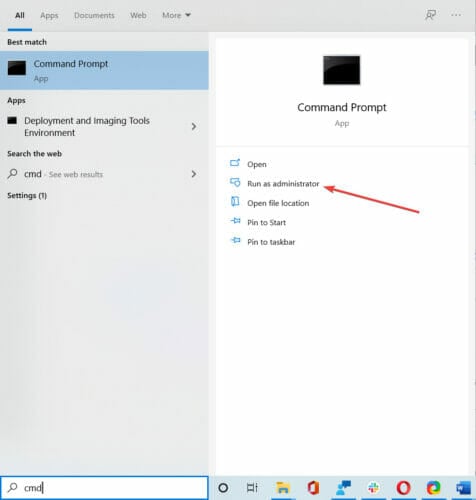
  5. Click Finish when the process is done and reboot your device.

2. Uninstall recently added filesuninstall files to fix 0x00000010

To uninstall recent files, open the Start menu > look for the most recent apps at the top of the menu > right-click on one > Uninstall.

This should delete all files, corrupted ones included if any that came with the respective app.

3. Unplug or uninstall external hardware

  1. If error 0x00000010 appears after you added another device, unplugging it should help you get back to your desktop.
  2. If you know that the device is in good condition, update your operating system by running Windows Update or update your device drivers.solution for error 0x00000010
  3. Uninstalling and reinstalling the device driver may also work: type Device Manager in the search bar > Open > find the device in the available list > right-click on in > Uninstall > reboot your computer.

4. Check for Windows/driver updateswhat to do to fix error 0x00000010

  1. Type Update in the search box.
  2. Select Check for Updates.
  3. Wait for the process to finish and reboot your computer.

5. Start fresh with a clean installation

  1. Gather your installation CD, product key, and anything necessary for a re-installation of the OS.
  2. Type Windows Security in the search bar > Open.can i fix error 0x00000010
  3. Go to Device performance& health.
  4. Scroll to Fresh Start > Additional info.
  5. Click on the Fresh Start button and follow the process. Reboot the device after the process is finished.

6. Uninstall recent updates

  1. First, reboot in Safe Mode: Hold the Shift key + click the Power button > Restart.
  2. Go to Troubleshoot > Advanced Options.
  3. Find Startup Settings.
  4. Click Enable Safe Mode > Restart.
  5. After Windows 10 restarts, choose which boot option you want to be enabled.
  6. Go to Windows Update and uninstall the recent updates.

How to fix error 0x00000011 (THREAD_NOT_MUTEX_OWNER)?

1. Run the sfc/scannow commandone way to fix 0x00000011

  1. In the search bar, type cmd from the keyboard.
  2. Launch it as administrator.
  3. In the command prompt window, type in sfc /scannow and press Enter.

This process may take several minutes. Similar to the previous step, this one should also clear and repair the system of any damaged files.

2. Check the hard disk for errorssolution to fix 0x00000011

  1. In the search bar, type cmd from the keyboard.
  2. Launch it as administrator.
  3. In the command prompt window type chkdsk c: /f and press Enter (use the letter of the drive where your OS is installed).

Wait until the process is over and restart your computer. This will check the disk for file system errors and bad sectors and fix any issues.

3. Check the system for viruses

The error can be caused by computer viruses that infected your system, so if you’re using an antivirus program, run a full system scan.

 If you’re not using antivirus and you’re not sure what to choose, take a look at our recommendations in this article.

Some fixes are similar for several errors, so if the problem persists, you might want to try whichever solution is more at hand than the ones suggested for the previous error.

How to fix error 0x00000012 (TRAP_CAUSE_UNKNOWN)?

This error is usually caused by corrupted registry files or missing configuration files. It falls under the same category of BSOD errors as the ones discussed before.

Therefore, troubleshooting solutions are similar. We recommend that you use any method that we’ve already listed and it will surely solve the problem.

Troubleshooting Windows BSOD errors is never fun, but we hope that you found this article helpful. Comments are welcomed in the section below.

FIX: Minecraft remote connect not working

Minecraft, one of the most popular games out there, can be played online with friends and family.

Unfortunately, many users complained about An existing connection was forcibly closed in Minecraft although they are using the correct credentials.

We will explore in this article what is the easiest way to solve this issue, so make sure to keep on reading.

How can I fix the Minecraft remote connect not working?

1. Make sure no one else is using the account

How to fix the PANIC STACK SWITCH error in Windows 10

If Minecraft remote connect option is not working, the account that you are trying to use in order to connect to Minecraft, is already being used by someone else.

You can fix this issue by manually checking all the other accounts that may be using your account and log out.

Once you performed this action, you will have to try to connect again to Minecraft and see if it works now.


2. Delete your saved file

This step has been proven to solve the Minecraft log in issue, so if the above step did not work, make sure to delete all the saved files.

After you have deleted all the saved files, make sure to log out from your account and try to connect again.


3. Use the Microsoft sign-in codes

In your Microsoft account, go to the Code access page and write down the codes displayed there.

Open the Microsoft website from another device and make sure to enter these codes in order to get access to Microsoft and visit the Minecraft store.


We hope that one of the presented solutions in this article will help you solve the Minecraft remote connect not working issue.

Please let us know in the comments section below which solution has worked best for you, we would love to hear it.

FIX: Black Screen issues in Windows 10 [Simple Guide]

Many users have recently reported that there are some problems with the installation process of Windows 10.

As we all know even though these platforms are stable and great in both performances and built features, there are a few annoying and stressful issues.

Maybe the biggest problem is related to the black screen bug that occurs when you are trying to install or update your Windows 10 OS.

So, if you are dealing with black screen problems, don’t panic and read the guidelines below as we will try to easily fix this Windows 10 issue.

Now, since Microsoft noticed so many complaints, the company decided to provide a few instructions to apply in order to fix the blank black screen received on the installation process of Windows 10.

Therefore, by using the steps from below you will learn how to fix the black screen issue by applying Microsoft’s own solution.

Now, use the steps below and try to repair your Windows 10 system. Also, check our own tips if the method presented below isn’t working as expected.

How do I fix Black Screen issue in Windows 10?

  1. Official method provided by Microsoft
  2. Update your graphics drivers
  3. Disable your antivirus software

1. The official method provided by Microsoft

  1. You need to have your bootable Windows disk.
  2. Insert the DVD on your device and restart the handset.
    • In case you need to change the boot order just press F9 key from your keyboard.
    • Pay attention as you will have to press any key in order to boot from CD / DVD – do that.
  3. Now the install sequence will begin; wait while all the Windows files are being loaded.
  4. The default Microsoft installer windows will be then displayed.
  5. From there click on next.
  6. Up next tap on Troubleshoot option placed on the lower-left corner of the Windows installer screen.
  7. From the next window choose Troubleshoot Refresh or reset your PC, or use advanced tools and then head towards Advanced options.
  8. Open a command prompt window within the installation process by selecting Command Prompt option.
  9. In the cmd window that will be then displayed type C: and press Enter.
  10. Then, type the following command and hit Enter: bootrec /fixmbr
  11. You should notice that The operation completed successfully message displayed on your device.
  12. In cmd type exit and press enter.
  13. Reject the Windows 10 installation DVD and select turn off your PC.
  14. Wait while your device is being powered off, reboot and that’s it.
  15. Now, that is how you can fix the black screen on Windows.

2. Update your graphics drivers

  1. Press the Windows Key + S and type Device Manager.
  2. In the Device Manager window, expand the Display Adapters.
  3. Select your GPU from the list.
  4. Right-click on it, and select Update driver.
  5. Follow the instruction and install the driver.

Basically, this issue is caused by driver incompatibility issues. So, if the steps above aren’t working for you, you can also try to install the latest graphic drivers in safe mode.

You can also install your GPU drivers by checking your GPU model, visiting your manufacturer’s website and downloading the drivers from there.

Updating your GPU manually can be tedious, since you need to search for the right driver, and Device Manager is not the most reliable driver updater you can find.

If you want to learn more about updating your drivers using the Device Manager, we’ve got a useful article that will help you out.

2.1 Use a third-party driver updater

Get rid of all the time wasted searching for the right drivers by installing a third-party app such as Outbyte Driver Updater that scans and installs them automatically for you.

The program will find the latest compatible drivers for your hardware and software and update them accordingly so you won’t have to worry about finding them by yourself.

3. Disable your antivirus software

Another common cause for black screen issues after installing the latest Windows OS version might be your antivirus software.

As a matter of fact, many users who installed a new Windows 10 update experienced black screen issues during the upgrade.

After they temporarily disabled their security solutions, they were able to install the new OS version. Do not worry, since Windows Defender will still protect your PC.

If you are looking for new antivirus software, we strongly recommend checking out this detailed list containing the best ones on the market.

So, try these steps and see if you can resolve the black screen from your Windows 10 system. We hope they will help you get rid of the black screen issue.

Also, use the comments field from below for sharing your experience with us and for pointing out any other solution that might work and help other Microsoft users.

[Full Fix] Steam invite not working for Factorio

As the name suggests, Factorio is a game in which players can build and maintain factories.

With your imagination you can decide how to design factories, and create amazing structures and protect it from other creatures.

Although this is a great game some users report that when playing Factoria they can’t invite friends to join the game.

The game does allow for up to 500 game players in a single game and inviting friends to join Factorio shouldn’t be an issue.

How do I invite friends to Factorio?

Inviting friends to Factorio is quite simple and if you both have unique Factorio accounts you should be able to connect through the multiplayer portal.

We will explore in this article how you can fix the Steam invite not working in Factorio, so make sure to keep on reading.

How can I fix Steam invite not working for Factorio?

1. Change the profile settings

  1. From your Steam Profile, click the Edit Profile link.
  2. Click the My Privacy Settings tab.
  3. Select your privacy state and click on the Public or Friend option.
  4. Click the Save button.

After making these changes, check if Factorio Steam invite is still not working.


2. Reduce multiplayer lag

If you can’t invite a friend to Factorio, the cause of the problem might be lag. Lag issues in Factorio aren’t uncommon, but there’s a way to fix them.

One of the easiest ways of solving this issue is by using a VPN that will help reduce the ping, such as Private Internet Access.

A VPN is perfect for gaming as well, not only for encrypting internet traffic. You can improve packet loss and optimize the network connection when gaming, with a VPN.

This VPN supports up to 10 devices, stores no traffic logs, it’s easy to both use and to set up. As for the number of servers, there are more than 34000 servers available in 77 different countries.

Private Internet Access

Use Private Internet Access for private browsing and a lag-free gaming experience.
Check price Visit Website

3. Set up the multiplayer game correctly

  1. To start playing a multiplayer game click on the Multiplayer button in the Play menu.
  2. Choose New or Load or Scenarios to host and play.
  3. Choose Browse or Play on LAN to connect to an already-running game.

In case you can’t join friend in Factorio, make sure that everything is properly configured.

Note: Factorio servers use port 34197. Factorio uses UDP only. The hard limit for the number of players is 65,535


We hope that one of the presented solutions will help you fix the Factorio Steam invites not working.

Please let us know in the comments section below if you have additional suggestions or recommendations.

You can now turn Microsoft Word documents into PowerPoint presentations

Microsoft has just announced a new AI-based feature for Word on the web that allows users to convert text documents into PowerPoint presentations. The new Transform feature, which was previously limited to Office Insiders, is now generally available in Word for the web for all Microsoft 365 subscribers.

“This feature uses artificial intelligence (AI) capabilities to save you time and provide you with slide suggestions powered by Designer in PowerPoint. The slides are derived from your section headers in the document, so make sure to organize your Word document accordingly for optimal suggestions. Based on key words in your document, Designer in PowerPoint will suggest imagery, icons, videos, themes and fonts to arrange your content,” the company explained in the blog post.

thumbnail image 1 captioned Export to PowerPoint presentation right from Word for the web

To get started, open the Word document and head to File >> Export > Export to PowerPoint presentation. Choose a design theme to apply to your presentation, and then click the “Export” button. Microsoft Word will instantly begin the transformation process, and the presentation will be automatically saved to the OneDrive root folder. Finally, review the results in PowerPoint for the web to make any changes.

For now, the feature only works with English language documents, and it is incompatible with select browsers, including Safari and Internet Explorer. Furthermore, it is currently limited to text-based documents and doesn’t support other media content such as images. The Redmond giant recommends that users should insert them manually into the presentation.

Overall, it’s a welcome addition for those students and remote workers that rely heavily on PowerPoint presentations for collaboration during the pandemic. It should help them save some time and effort by quickly summarizing large Word documents into professional-looking presentations. In case you missed it, Microsoft’s PowerPoint Presenter Coach feature is now generally available across all platforms.

How to fix 0x0000000D error [Complete Guide]

The operation failed with error 0x0000000d occurs if there are incorrectly configured system settings or irregular entries in the Windows registry.

This error can occur on Windows 7 as well as Windows 10 machines as reported in the Microsoft community forum.

Working on a Dell Latitude E5580 laptop with Windows 7 Professional installed.
The computer and printer are both on a network domain. The end-user attempted to connect the printer, and got the above error message. I attempted as well on the Administrator login – got the same error. Any other computer on the network can connect to this printer except this one. 

If you are also troubled by this problem, here are a couple of troubleshooting tips to help you resolve The operation failed with error 0x0000000d issue in Windows computers.

If you are experiencing a similar error with a device other than your printer, refer to the last solution in the article below.

How do I fix the operation failed with error 0x0000000d?

1. Run the printer troubleshooter

  1. Click Start and select Settings.
  2. Go to Update & Security.
  3. Select Troubleshoot from the left pane.
  4. Click the Printer option and then click on Run the Troubleshooter.operation failed with Printer error
  5. The troubleshooter will scan the system for printer-related issues and recommend fixes accordingly.
  6. Apply the fixes and check if you can connect to the network/shared printer without triggering the error.

The Windows 10 built-in troubleshooter is a troubleshooting tool that can help you resolve various issues, including BSoD, and hardware problems.

2. Update via Device Manager 

  1. Click on Start and type Device Manager.
  2. Open Device Manager from the options.
  3. Expand the Print queues category.
  4. Right-click on your printer device and select Update Driver.0x0000000d error
  5. Select Search automatically for updated driver software option.0x0000000d error
  6. Windows will download and install any pending driver updates.
  7. Reboot the computer and check for any improvements.

Device Manager is the place where you can find all the drivers installed on your computer. From here you can manually delete, disable and update each of them.

3. Restore the Windows Firewall to default3

  1. Click on Start and select Settings.
  2. Go to Update and Security.
  3. Open Windows Security.
  4. Click on Firewall and Network Protection.
  5. Open your currently active network and turn off Firewall.
  6. Do this for Public, Private, and Domain Network if required.
  7. After disabling the firewall, try connecting to the network.
  8. If the printer works without any error, restore firewalls to default.
  9. Go back to Firewall and Network Protection.
  10. Scroll down and click Restore firewall to default link.
  11. Click the Restore Defaults button to reset the firewall settings.

Windows Defender Firewall is a built-in security feature from Windows 10. If you have no other antivirus software installed, make sure to have Windows Defender active.

If you are unable to activate Windows Firewall, make sure to check our dedicated guide to easily fix this issue.

4. Update your drivers

Many errors occur due to faulty or outdated drivers. So, make sure to have the latest drivers on your computer. To update them, you can go to Device Manager.

However, searching and updating drivers manually can be time-consuming. However, there is a tool that will automatically perform these tasks for you.

⇒ Get Outbyte Driver Updater

5. Add your device as legacy hardware

  1. Press Windows Key + R to open Run.
  2. Type devmgmt.msc and click OK to open Device Manager.devmgmt.msc
  3. Select your computer name in Device Manager.
  4. Click on Actions.
  5. Select Add legacy hardware.
  6. Click Next.
  7. Select Install the hardware that I manually select from a list (Advanced).
  8. Select your device category from the list and click Next.
  9. Choose your manufacturer’s model and click Next.
  10. Install the device and close Device Manager.

If you have downloaded the printer driver from the manufacturer’s website, you can add it into Device Manager following the above steps.

The operation failed with error 0x0000000d error is usually triggered by an incompatible or missing printer driver. Follow the steps in this article to diagnose and fix the error with your network printer.

Do let us know which method helped you resolve the issue, or if you have any other suggestions for us, in the comments section.

How to best sync files in Microsoft Teams to your device using OneDrive

Microsoft Teams is a great way to communicate with people at work. Recently, Teams has added a number of great functionalities, including the ability to respond to specific messages starting next month.

When using Teams on Windows 10, you may assume that your files are automatically synced up wherever you have Microsoft Teams installed. The fact is, you need to complete one extra step to make sure your files are synced on Microsoft Teams on all of your devices. When it comes to having files at the ready using Teams, you have to make sure that you have your files backed up using OneDrive. Here’s what you need to do.

First, make sure that you have OneDrive installed on all the devices you want to sync. If you have a free Microsoft account or a Microsoft 365 account, you will already have access to OneDrive. OneDrive is a SharePoint site and Microsoft Teams stores all of your files in dedicated SharePoint sites.

In order to sync your files in Microsoft Teams, here’s what you need to do:

1. Go to the Files tab and select Sync.Microsoft Teams Files Sync
2. From here, a OneDrive dialog box will pop up as Teams connects to OneDrive to sync your files. If you have already set up OneDrive, you don’t have to do anything. If not, you will need to set up your OneDrive account.
Onedrive Sync Microsoft Teams
3. If your OneDrive is not set up, you will be prompted to set it up. Again, you can use your Microsoft 365 account or your own personal Microsoft account to backup the Teams files.Setuponedrive
Please note that if you set up two-factor authentication on your Microsoft 365 account or your organization did, you will need to approve the sign-in using either the Microsoft Authenticator app or a SMS text code.
4. Once you enter your Microsoft 365 or Microsoft account username and password, your OneDrive account folder will be automatically be set up. By default, your OneDrive folder name will be the following:
Users\[username]\[organization name]\[Team – Channel]
If you want to change the folder location, pick Change Location and choose a different folder location.
Your OneDrive Folder
5. Once your account is set up, OneDrive will explain the basics of OneDrive to you and you will have the option of having OneDrive sent to your mobile device now or later and you will be all set. Pick Open my OneDrive folder and your OneDrive folder will open on your device.
Microsoft Teams OneDrive Folder

Now, any changes you make on your device to any files in the Microsoft Teams folder will be automatically synced back to the files in Teams. Additionally, anyone in your Teams channel that makes changes to the files will also be synced to your device.

Whenever you are working offline, the Teams files will be synced when you get back online. Keep in mind syncing your files in Teams only works with one channel at a time, so if you want to sync files from a different Teams channel, you will have to run this process again.

It is also important to point out that if you delete any synced files from OneDrive on your device, those files will be deleted from Teams too. In case you want to avoid accidentally deleting Teams files or if you no longer need to have access to those files on your device, you need to stop syncing the OneDrive folder on your device.

All you need to do is go to OneDrive settings on your device by right-clicking the OneDrive icon in your system tray, going to Help and Settings and then Settings as shown.

OneDrive Settings

In the Account section, find the Teams channel that you are syncing and select Stop sync and select OK. A OneDrive confirmation window will pop up to confirm that you want to stop syncing the files.

Onedriveconfirm Settings

Once you are sure you want to stop syncing, select Stop sync and the files will no longer sync with the files located in Microsoft Teams. From now on, any changes you make to the files will not be reflected online in Microsoft Teams. You can now delete the folder from your device and you will not have to worry about deleting any files from Microsoft Teams.

How to Fix a Bitlocker Fatal Error During Startup

Are you a Windows user experiencing Bitlocker fatal error with code 0x00000120? This (Blue Screen of Death) BSoD error pops up resulting in automatic shutdown and/or system restart.
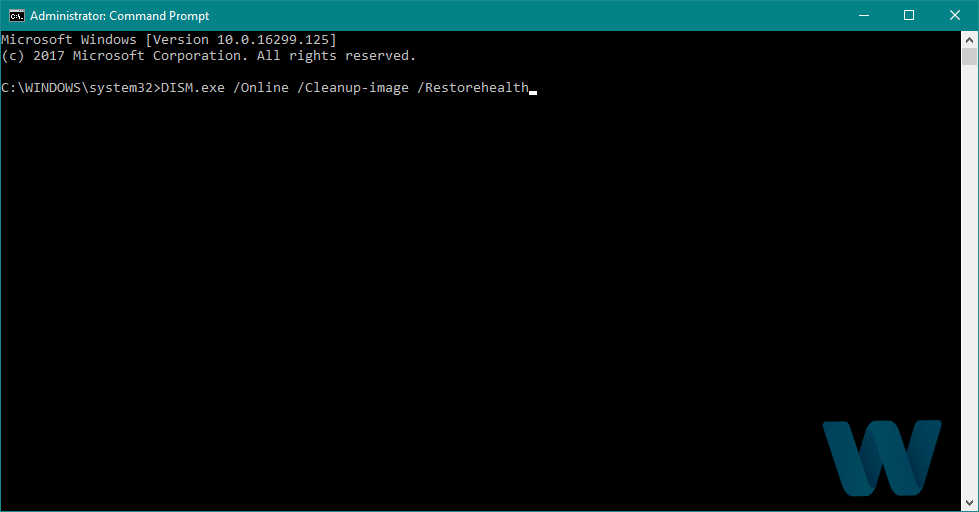
BitLocker is a full-disk encryption feature that protects data by providing encryption; hence, it is a Windows security feature.

It uses the AES encryption algorithm in cipher block chaining (CBC) or XTS mode with a 128-bit or 256-bit key.

Meanwhile, BitLocker is not available on Windows XP, Windows 2000, or Windows 2003 OS but in subsequent OS versions.

However, the Bitlocker fatal error BSoD appears during the boot process in Windows OS, and today, we will show you how to solve this error problem.

The reasons for this error include corrupted system files, corrupted Bitlocker program files, incomplete Windows installation and/or upgrade or corruption in the Bitlocker drive encryption.

Other reasons may imply the addition/removal of drives, missing Dynamic Link Libraries(DLL) or even changes in the BIOS boot order.

Meanwhile, Windows Report Team has provided solutions that are applicable in fixing the Bitlocker fatal error with stop code 0x00000120.

How can I fix the Bitlocker fatal error on Windows PC?

1. Use a dedicated tool for BSoD

BSoD errors are hard to troubleshoot and diagnose. There are plenty of reasons for them, from hardware to software issues. Fortunately, there are tools to help you out.

Namely, you can use a system repair tool and clean your computer like a pro. If your PC doesn’t work great anymore, these tools will free up hard drive space and optimize your PC’s performance.

We suggest you use one of these effective utilities that can fix corrupt system files, remove obsolete system files, and repair your PC registry.

Moreover, they can be used to delete the browsing history and trackers to keep browsing private, update software to close security holes, and monitor your system info.

2. Disconnect your USB devices

According to some Windows users, USB devices such as Wi-Fi adapters, keyboards, mice, and Bluetooth or can cause this problem to occur.

During boot, the system may attempt to boot from any of these devices resulting in the Bitlocker fatal error display.

However, you can fix this issue, by disconnecting all attached USB devices and booting your system afterward.

In addition, check your PC if there is any CD, DVD, or any other secondary storage devices and eject them before you boot up your PC. If this method does not work, you can proceed to the next method.

3. Use the Disk Cleanup tool

  1. Go to Start and type Disk Cleanup then hit Enter.
  2. Select the first two options then click on the Clean up system files button.
  3. Wait for Disk Cleanup to scan your drive(s).Disk cleanup - Error 0xc190012e
  4. After the scanning, check the file boxes, and then click on OK to delete.
  5. Select Delete files to proceed.bitlocker fatal error disk cleanup permanently delete files

You can also fix the error problem by running disk cleanup on your Windows PC. Disk Cleanup is a Windows utility program that reduces the number of unnecessary files on your hard disk to free up disk space.

4. Repair the computer registry

  1. Open the Windows search bar and type cmd and open Command Prompt as administrator.
  2. Now, type sfc /scannow and hit the Enter key.bitlocker fatal error sfc /scannow cmd
  3. Finally, restart your Windows PC and try launching the application again

Another way by which you can fix Bitlocker’s fatal error problem is to use System File Checker. SFC can be used to scan, check for system file integrity, and fix corrupt system files.

If you encounter errors while running SFC, it stops or does not work at all on Windows 10, take a look at our dedicated guide in order to fix the issue.

5. Reset BIOS settings

  1. Restart your computer.
  2. Hit the F2 key repeatedly until a System Setup screen window appears. (The BIOS function key varies; you may have to check during boot which Function key to use so as to access the BIOS settings).
  3. Now, Hit on the Right Arrow on your keyboard and wait until Exit menu is highlighted.
  4. Next, hit on the Down Arrow on your keyboard and select Load Optimized Defaults option.
  5. Finally, hit the Enter button.

BIOS consists of system settings that determine the order and how your PC boots up. However, resetting BIOS settings to the default state can fix the Bitlocker fatal error problem.

Before you proceed with these steps, ensure you disconnect connected external drives (as indicated in Method 1). 

6. Update your Windows OS

  1. Go to Start and selected Settings from the left pane.
  2. Go to Update & Security.
  3. In the Windows Update window, check for updates and install the available updates.
  4. After the update is complete, restart your Windows PC.

Microsoft constantly releases Windows updates to improve system stability, PC performance, and fix various issues and errors such as the Bitlocker fatal error.

7. Disable the Bitlocker

However, if you are unable to fix the BitLocker fatal error using the methods listed above, then you may have to disable the Bitlocker from your computer. 

After you disable Bitlocker, we do recommend that you use any of the best 256-bit encryption software to protect your files. In addition, you may also consider file and folder locker tools and software for Windows PC.

If you don’t know how to disable the Bitlocker on your computer, we recommend you use our dedicated guide on how to perform this action.

If you have wondered how to fix this Bitlocker problem, you can try out any of the methods we discussed in any order. If you have any suggestions, feel free to let us know in the comment section below.

FIX: 0x00000003 stop error

Your Windows system may crash with the 0x00000003 stop error due to hardware failure or driver issues. This blue screen of death can occur when playing games or browsing the web.

Several users have reported this error in the Microsoft community forum.

Hello.   I’ve been having trouble with a Blue Screen Error past few days.   The code is as follows:
STOP 0X00000F4  0X00000003   0XFFFFFA800A502370   0XFFFFFA800A502650     0XFF80000338E460
Memory Dump Failure 0xC0000010

To fix the issue, try restarting your system. If the issue persists, check out the troubleshooting tips in the article below to resolve the 0x00000003 stop error in Windows.

How do I fix the 0x00000003 stop error?

1. Restart in Safe Mode

0x00000003 stop error
  1. Press Windows key + R to open Run.
  2. Type msconfig.msc and click OK.
  3. In the System Configuration window, open the Boot tab.
  4. Check the Safe Mode box under Boot options.
  5. Click Apply and OK to save the changes.
  6. Click Yes when prompted to restart the system in safe mode.

Alternatively, you can also boot into Safe Mode from the Advanced Options.

0x00000003 stop error
  1. Press Windows Key + I.
  2. Go to Update & Security.
  3. Open the Recovery tab.
  4. Scroll down to Advanced Startup
  5. Click the Restart now button.
  6. Go to Troubleshoot > Advanced Options > Startup Options.
  7. Click the Restart button.
  8. After the Restart, you will see the Startup Settings menu.
  9. Press the F4 key to start Windows in Safe Mode.

Once booted into Safe Mode, check if the 0x00000003 stop error occurs again. If the error does not occur, you may have third-party software or hardware triggering the error.

Try to uninstall the most recently installed programs to see if that helps you resolve the error. Restart the PC to get out of Safe Mode.


2. Run a BSoD troubleshooter

A BSoD troubleshooter is the easiest way to deal with such situations, especially if you’re unsure of the cause. Such a tool will safely scan your system and fix all the bugs. No action is necessary on your side.

You might have to do this while also in Safe Mode.


3. Rollback device driver

0x00000003 stop error
  1. Press Windows + Key + R.
  2. Type devmgmt.msc and click OK to open Device Manager.
  3. In Device Manager, expand the category of the device that you want to roll back the driver for.
  4. Right-click on the device and select Properties.
  5. Open the Driver tab.
  6. Click the Roll Back Driver button. Click Yes to confirm.
  7. Windows will now roll back the driver for the selected device and install the previously available driver.

Rolling back the device driver can help you fix the issue if the error is triggered by a newly installed device driver. Try disconnecting and reconnecting all the external devices connected to your computer to find the peripheral causing the error.


4. Install Windows updates

Window BSOD error
  1. Click on Start and select Settings.
  2. Go to Update and Security.
  3. Click on Check for updates now button.
  4. Download and install all the pending Windows updates.

Installing the latest version of Windows can help you resolve the blue screen of death issues. The newer releases come with updated Windows as well as third-party drivers.


5.  Perform a full virus scan

Window BSOD error
  1. Click Start and open Settings.
  2. Go to Update and Security.
  3. Click on Windows Security.
  4. Click on the Virus and Threat Protection option.
  5. Select the Scan Options.
  6. Choose Full Scan and then click on Scan now.
  7. Windows Defender will now scan the system for virus and other malicious software that may be triggering the error.

You can also use third-party antivirus solutions to perform a deep scan and remove malware and adware from your system.


6. Use System Restore Point

0x00000003 stop error
  1. Press the Windows key and type Restore Point.
  2. Click on Create a Restore Point option.
  3. In the System Properties window, click on System Restore.
  4. Check the “Show more restore points” box.
  5. Select the most recently created restore point and click Next.
  6. Read the description and click on Finish.

The restoration process may take some time. If successful, your computer will be restored to the state it was in before the event in the description.


7. Update the SSD firmware

how do I fix the 0x00000003 stop error
  1. If you are using an SSD for storage, check the manufacturer website for any updates.
  2. You may also want to clean your system for dust and reinsert the SSD drives, RAM stick, and GPU.
  3. Also, make sure you have the latest version of BIOS installed.

The 0x00000003 stop error is just another blue screen of death error in Windows 10 and can occur due to various reasons. We have listed the most common solutions to fix this error on your computer.

FIX: IO1 Initialization Failed error in Windows 10

Computer errors are a common occurrence, and while some issues are relatively harmless, certain ones such as Blue Screen of Death errors can be more severe.

For example,  IO1_INITIALIZATION_FAILED, will crash Windows 10 and restart your PC.

Therefore it’s crucial to fix these problems as soon as you can, considering the fact that no issue is always resolved with the easiest troubleshooting step.

Use the solutions in this article to fix this issue.

How can I fix a Windows 10 io1_initialization_failed issue?

  1. Update your drivers and Windows 10
  2. Run the BSOD Troubleshooter
  3. Run the SFC scan
  4. Run DISM
  5. Change Disk Controller mode from RAID or AHCI to SATA/ATA
  6. Disable or remove the problematic software
  7. Use Command Prompt
  8. Change Disk Controller mode from RAID or AHCI to SATA/ATA
  9. Check your hardware

1. Update your drivers and Window 10

Drivers are an integral part of every operating system since they allow your PC to utilize your hardware.

In case a certain driver isn’t working properly or it has compatibility issues with Windows 10, you’ll have to update it in order to avoid getting BSoD errors.

To update a driver, you just need to visit your hardware manufacturer’s website and download the latest drivers for your device.

It’s important to update as many drivers as you can, so be sure to download drivers for your motherboard, chipset, and every other major component.

Alternatively, you can also use Device Manager to download all the necessary drivers, but it’s usually better to download the drivers manually directly from the manufacturer.

Downloading drivers is important, but it’s more important to keep Windows 10 up-to-date with the latest updates.

Many updates bring new features and security improvements, but most importantly, these updates fix many bugs and compatibility issues with certain hardware and software.

Since hardware and software compatibility is the common cause for BSoD errors such as IO1_INITIALIZATION_FAILED, you can see why it’s important that you update Windows 10 on a regular basis.

Update drivers automatically

Searching for drivers on your own can be time-consuming. So, we advise you to use a tool that will do this for you automatically.

Using an automatic driver updater will certainly save you from the hassle of searching for drivers manually, and it will always keep your system up-to-date with the latest drivers.

⇒ Get Outbyte Driver Updater

2. Run the BSoD Troubleshooter

  1. Open the Settings app and go to Update & Security section.
  2. Select Troubleshoot from the menu on the left.
  3. Select BSoD from the right pane and click Run the troubleshooter.
  4. Follow the instructions on the screen to complete the troubleshooter.

Note: If you are running on update version 1809 or later you will need to access the BSoD troubleshooter on the Microsoft website, go to the bottom of the page and answer the questions available there for possible fixes.

Does the troubleshooter fail to load with an error? Follow this useful guide and fix it in just a couple of simple steps.

3. Run the SFC scan

  1. Go to Search, type cmd, and open Command Prompt as Administrator.
  2. Enter the following line and press Enter: sfc/scannow
  3. Wait until the process finishes.
  4. If the tool finds a corrupt system file, it will automatically repair it.
  5. Now, close the Command Prompt and restart your computer.

The System file checker is a command-line tool that basically scans through your system searching for potential issues. If a corrupted system file is a problem, this tool will automatically repair it, and the problem will be resolved.

If you’re having trouble accessing Command Prompt as an admin, then you better take a closer look at this guide.

4. Run DISM

  • The standard way
  1. Right-click Start and open Command Prompt (Admin).
  2. Paste the following command and press Enter:
    • DISM /Online /Cleanup-Image /RestoreHealth
  3. Wait until the scan is finished.
  4. Restart your computer and try updating again.

The DISM tool re-deploys the system image and resolves potential issues along the way. So, it’s possible that running DISM will also resolve the IO1_INITIALIZATION_FAILED error.

Does it seem that everything is lost when DISM fails on Windows? Check out this quick guide and get rid of the worries.

  • With the Windows installation media
  1. Insert your Windows installation media.
  2. Right-click the Start menu and, from the menu, choose the Command Prompt (Admin).
  3. In the command line, type the following commands and press Enter after each:
    • dism /online /cleanup-image /scanhealth
    • dism /online /cleanup-image /restorehealth
  4. Now, type the following command and press Enter:
    • DISM /Online /Cleanup-Image /RestoreHealth /source:WIM:X:SourcesInstall.wim:1 /LimitAccess
  5. Make sure to change an X value with the letter of the mounted drive with Windows 10 installation.
  6. After the procedure is finished, restart your computer.

5. Check the hard drive

  1. Enter the Advanced Startup (Restart your computer while holding the Shift key).
  2. Choose Troubleshoot > Advanced Options.
  3. Select Command Prompt from the list of options.
  4. When Command Prompt appears, enter the following lines and press Enter after each line in order to run it:
    • bootrec.exe /rebuildbcd
    • bootrec.exe /fixmbr
    • bootrec.exe /fixboot
  5. Some users are also suggesting that you need to run additional chkdsk commands as well. To perform these commands, you need to know drive letters for all your hard drive partitions. In Command Prompt you should enter the following (but remember to use the letters that match your hard drive partitions on your PC):
    • chkdsk /r c:
    • chkdsk /r d:

      This is just our example, so keep in mind that you have to perform chkdsk command for every hard drive partition that you have.

  6. Restart your computer and check if the issue is resolved.

If your hard drive is damaged, BSoD issues are more than possible. To eliminate the doubt, you should run the chkdsk, which scans all your partitions and resolves potential problems (if possible). So if the culprit of the IO1_INITIALIZATION_FAILED is a corrupt hard drive, this tool will likely resolve the problem.

6. Disable or remove the problematic software

  1. Press Windows Key + R and enter msconfig. Press Enter or Click OK.
    msconfig
  2. System Configuration window will open. Select Selective startup and uncheck Load startup items.
    system-configuration
  3. Navigate to Services tab. Check Hide all Microsoft services and click the Disable all button.
    system-configuration-services
  4. Click Apply and OK to save changes.
  5. Press Ctrl + Shift + Esc to start Task Manager.
  6. When Task Manager opens, navigate to Startup tab. Right-click each entry on the list and choose Disable from the menu.
    Task-manager-disable
  7. Restart your computer.

Once your computer boots, check if your PC is working properly. If there are no BSoD errors, your problem is probably caused by one of the disabled applications. Now you need to repeat the same steps and enable applications one by one until you find the one that is causing this error.

Certain software might have issues with Windows 10 and that can be a common cause for BSoD error. In order to fix this error, it’s important to find and remove the problematic software.

Sometimes problems can be caused by a recently installed or updated program, therefore you need to locate the problematic software and remove it.

It’s worth mentioning that antivirus software is the common cause for all sorts of BSoD errors, including IO1_INITIALIZATION_FAILED, therefore it’s advised to remove any third-party antivirus programs.

Uninstalling the antivirus software might not fix the problem since antivirus programs tend to leave certain files and registry entries once you remove them. To completely remove a certain antivirus you need to download a dedicated uninstaller.

Many antivirus companies have these tools on their websites, so be sure to download one for your antivirus program.

Can’t open Task Manager? Don’t worry, we’ve got the right solution for you.

7. Use Command Prompt

  1. Restart your computer while it boots. Repeat this step until Automatic Repair process starts. Alternatively, you can just hold Shift on your keyboard and click the Restart button.
    restart
  2. Choose Troubleshoot > Advanced options > Command Prompt.
  3. Once the Command Prompt opens, enter the following lines and press Enter after each line:
    • cd /d c:windowssystem32config
    • del default
    • del sam
    • del security
    • del software
    • del system
    • copy c:windowsrepairdefault
    • copy c:windowsrepairsam
    • copy c:windowsrepairsecurity
    • copy c:windowsrepairsoftware
    • copy c:windowsrepairsystem
    • exit

Now restart your computer and check if the issue is resolved. If you get stuck on the Automatic repair loop, don’t worry. We’ll throw you this amazing lifeline.

8. Change Disk Controller mode from RAID or AHCI to SATA/ATA

If you set your Disk Controller mode to RAID or AHCI, but you don’t have the necessary drivers for it, you might get an IO1_INITIALIZATION_FAILED error. To fix this problem you need to set the Disk Controller mode to SATA/ATA.

To do this, you’ll need to enter BIOS and change the necessary settings. For detailed instructions be sure to check your motherboard manual.

Accessing BIOS seems too big of a task? Let us make things easier for you with the help of this amazing guide.

9. Check your hardware

If the problem persists, it might be due to faulty or recently installed hardware. If you installed any new hardware recently, be sure to remove it or replace it. In addition, check if your hardware is working properly.

These types of errors are often caused by RAM or motherboard issues, so be sure to check those components first. To find the cause of the problem be sure to perform a detailed examination of your hardware.

IO1_INITIALIZATION_FAILED error can cause you problems, but just like many other BSoD errors, this one is most likely caused by faulty hardware. Before you replace your hardware, be sure to try other solutions from this article.

Don’t hesitate to reach in the comments section below for any other questions or suggestions that you may have.

Critical_structure_corruption on Windows 11 [BSoD Fix]

Many users have encountered the CRITICAL_STRUCTURE_CORRUPTION, a BSoD error in Windows 11, while launching a problem, restarting their PC, browsing the internet, or even when the system is idle. It appears when the kernel detects that critical kernel code or data has been corrupted.

In this guide, we will discuss expert-recommended solutions with step-by-step instructions to eliminate the stop error code so that you can use your device without any hassle.

What causes the critical_structure_corruption blue screen in Windows 11?

  • Damaged or corrupted system files might hinder the normal functioning of your computer, causing such issues.
  • Outdated or faulty drivers.
  • Hardware failure or incorrect configuration.
  • Malware infection.
  • Faulty RAM modules.

How do I fix critical_structure_corruption in Windows 11?

Before proceeding with any detailed steps, go through the following preliminary checks:

  • Disconnect all the external peripherals except the keyboard and mouse.
  • Restart your computer in clean boot & ensure you have no incompatible devices.
  • If you are using a desktop computer, open the CPU panel and check it to ensure all the components are properly seated.
  • Ensure there are no pending Windows updates, and check the Event Viewer to learn more about the error.
  • Uninstall any new or problematic software on your computer.

1. Run a malware scan

  1. Press the Windows key, type windows security, and click Open.Windows Security open -Critical_structure_corruption on Windows 11
  2. Go to Virus & threat protection from the left pane.
  3. Click Scan options.V& T Scan options
  4. Now select Full scan and click Scan now. Full scan - scan now

Wait for the scan to complete. If it flags any suspicious files, delete them from your computer.

2. Run SFC and DISM scans

  1. Press the Windows key, type cmd, and click Run as administrator.CMD elevated Critical_structure_corruption on Windows 11
  2. Type the following command to repair the corrupted system files using cached copies and hit Enter: sfc /scannowSFCSCANNOW CMD
  3. To check & fix the component store corruption using Windows Update and restore the image to a good known state, copy & paste the following command and press Enter: Dism /Online /Cleanup-Image /RestoreHealthRestore health
  4. Once executed, restart your computer to confirm the changes.

These system scans can also fix similar BSoD errors like Critical Process Died on Windows 11; to learn more about it, read this detailed guide. Furthermore, you can use a BSoD repair tool if the manual steps seem like a hassle.

3. Update your device drivers

  1. Press Windows + R to open the Run dialog box.
  2. Type devmgmt.msc and click OK to open the Device Manager app.
  3. Go to each section and check if you see a yellow triangle next to any of the listed items. If it is present, right-click the driver and select Update driver.Graphics Driver update
  4. Click Search automatically for drivers.Update driver 2
  5. Follow the on-screen instructions to complete the process.

Keep repeating steps 3 and 4 until all the drivers listed are updated. Once done, reboot your PC. This method works as a BSoD fixer for all the blue screen errors caused by the driver issues.

4. Check the hard drive

  1. Press Windows + E to open the Windows Explorer. Go to This PC, right-click your system drive (most likely C:), and select Properties.Properties Scan Critical_structure_corruption on Windows 11
  2. Switch to the Tools tab, locate Error checking, and click the Check button.Check
  3. Next, select Scan drive. The tool will scan your hard drive to identify and potentially repair bad sectors on it.scan drive
  4. Wait for the process to finish, then restart your computer.

5. Run the Driver Verifier Manager

Driver Verifier Manager is a preinstalled Windows tool that puts the drivers through a verification process and is designed for advanced users and developers.

It can detect misbehaving drivers that can cause system crashes, freezes, or other issues to enhance system stability.

  1. Press Windows + E to open the Windows File Explorer.Go to the address bar and type verifier - Critical_structure_corruption on Windows 11
  2. Go to the address bar and type verifier. Click Yes on the UAC prompt.
  3. Once the Driver Verifier Manager wizard pops up, choose Create custom settings (for code developers) and click Next.Create custom settings (for code developers)
  4. For Select individual settings from this full list, select all except Randomized low resources simulation and DDI compliance checking and click Next. Select individual settings from this full list
  5. Next, place a checkmark next to the Select driver names from a list option. Select driver names from a list o
  6. Now select all the drivers that appear unofficial and click Finish.verifiergui_7Finish

Now to manage and review the configuration of the tool on your Windows, follow these steps:

  1. Press the Windows key, type cmd, and click Run as administrator.CMD elevated -Critical_structure_corruption on Windows 11
  2. Copy & paste the following command to check the current settings of the tool and press Enter:verifier /querysettingscmd_gk3wpVwGS9
  3. Type the following command to reset and disable the configuration of the tool and hit Enter: verifier /resetcmd_oZEDfhS9JB -
  4. Now reboot your computer.

6. Run the Windows Memory Diagnostic tool

  1. Press the Windows key, type memory diagnostic, and click Run as administrator.Memory diagnostic tool - Critical_structure_corruption on Windows 11
  2. On the Windows Memory Diagnostic window, select Restart now and check for problems.Restart now and check for problems.
  3. Your computer will restart, and the tool will start scanning your RAM for potential issues.memory-diag-tool
  4. Once complete, your computer will reboot, and you will be greeted with a login screen.

As you log in, you will see the scan results; if the results come back fine, then proceed to the next method.

However, if it indicates issues, then remove the RAM module, clean the dust & debris, reseat it, and run the scan again. If you see the errors again, you might have to replace the RAM.

7. Reinstall Windows (the last resort)

First, take a backup of your important data, plug in a USB flash drive with 8 GB free space on a different computer, and follow these steps to create a USB Windows installation media:

  1. Visit the Microsoft official website and click Download now.Download now
  2. Follow the instructions to complete the download, and double-click the file to run the Windows 11 Setup wizard.
  3. On the next window, accept the license terms and agreements, then for the Choose which media to use option, select USB flash drive, and click Next.Create installation media (USB flash drive, DVD, or ISO file) for another PC
  4. Select a language, edition, and architecture (64-bit or 32-bit), and click Next.NExt-Setup-Windows-11-step-2
  5. Select the USB flash drive from the list and click Next.
  6. Follow the onscreen prompts to complete, click Finish, and remove the flash drive.Finish

Now follow these steps to reinstall:

  1. Plug the thumb drive into the affected computer and press Windows + E to open the File Explorer.
  2. Click the drive with installation media, locate and double-click setup.exe, and click Yes on the UAC prompt.
  3. Ensure the Keep personal files and apps option is selected. However, if you want to change it to Keep personal files only or Keep nothing, click Change what to keep.Keep personal files and apps option is selected. However, if you want to change it to Keep personal files only or Keep nothing  - Critical_structure_corruption on Windows 11
  4. Next, click Install.

Your PC will restart several times, so be patient. Once the installation is complete, you will be greeted with the login screen.

Tips to prevent BSoD errors on Windows 11

  • Always install the latest security updates and patches to address the stability and vulnerabilities issues of a system.
  • Ensure all the device drivers are compatible and up to date.
  • Run a deep scan using a reliable antivirus tool once a month.
  • Regularly optimize your computer by removing temp files, unused apps, and unwanted files.
  • Make sure your hardware components are clean, the vents get a proper airflow, and monitor the temperature and disk health to avoid overheating.

To conclude, if you ever face blue screen errors, first restart your computer in the clean boot or safe mode and check the Event Viewer to understand the nature of the error, whether it is due to hardware failure or software conflict. Once confirmed, perform the mentioned steps to fix it.

To know about the BSoD causes to ensure you steer clear of these annoying error codes, read this guide.

Did we miss a method that worked for you to fix the CRITICAL_STRUCTURE_CORRUPTION on Windows 11? Don’t hesitate to mention it in the comments section below. We will happily add it to the list.

FIX: 0x00000002 DEVICE_QUEUE_NOT_BUSY

The 0x00000002 DEVICE_QUEUE_NOT_BUSY error in Windows can occur when you restart your PC. It is a blue screen of death error and can occur due to several reasons.

This error can occur if your computer’s hard drive is running out of space, because of incompatible BIOS version, or system file corruption.

If you are also troubled by this error, here are a couple of troubleshooting tips to help you fix the 0x00000002 DEVICE_QUEUE_NOT_BUSY error in Windows.

How do I fix the 0x00000002 DEVICE_QUEUE_NOT_BUSY?

1. Boot into Safe Mode

1.1 Boot using System Configuration 

  1. Press Windows Key + R to open Run. 0x00000002 DEVICE_QUEUE_NOT_BUSY error
  2. Type msconfig.msc and click OK to open System Configuration.
  3. Open the Boot tab.
  4. Under Boot options, check the Safe Boot box.Fix  0x00000002 DEVICE_QUEUE_NOT_BUSY error
  5. Click Apply and OK to save the changes.
  6. When prompted, click Yes to restart the PC in Safe Mode.

1.2 From System Settings

  1. Press Windows Key + I.BSOD error  0x00000002 DEVICE_QUEUE_NOT_BUSY
  2. Go to Update & Security.
  3. Open the Recovery tab.
  4. Scroll down to the Advanced startup section. 0x00000002 DEVICE_QUEUE_NOT_BUSY Windows error
  5. Click the Restart now button.
  6. Click on Troubleshooter.
  7. Go to Advanced Options > Startup Settings.
  8. Press the shown function key on your keyboard to Enable Safe Mode.
  9. Click Restart.

Once you are booted into Safe Mode, you can uninstall a third-party software that is creating conflict with the system or hardware.

  1. Press Windows Key + R to open Run.
  2. Type control and click OK.0x00000002 DEVICE_QUEUE_NOT_BUSY error
  3. Go to Programs > Programs and Features.
  4. From the list of installed apps, select the most recently installed app and uninstall it.
  5. Reboot the computer and check for any improvements.

In Safe Mode, Windows only loads essential Microsoft services to run the system. It allows you to diagnose the system for a third-party software conflict and remove it.

2. Update your new hardware driver

  1. Press Windows Key + R to open Run.
  2. Type devmgmt.msc and click OK.0x00000002 DEVICE_QUEUE_NOT_BUSY Windows 10 error
  3. In Device Manager, expand the hardware category.
  4. Right-click on the newly installed device and select Update Driver.0x00000002 DEVICE_QUEUE_NOT_BUSY
  5. Select the Search for updated driver software automatically option.
  6. Windows will scan and install any pending drivers for the device.
    • This will require an active internet connection.

If the error is occurring after installing a new piece of hardware to your computer, try updating the driver. If the Windows crashes and can’t get past the login screen, then remove the connected hardware device and restart the computer.

Next, open the hardware manufacturer’s website and download the latest drivers available for your device. Install the driver then try connecting the device to your computer.

We recommend a smart strategy for your computer drivers: use software to improve your computer performance. It will perform efficient driver management using its daily updated extensive database.

You must download this program, install it, and let it scan your operating system. It will find any outdated, missing or damaged drivers and fix them right away.

After you have updated your drivers, that will solve the error 0x00000002 DEVICE_QUEUE_NOT_BUSY, and it will allow your computer to function at its optimum performance.

We must also note that this tool can regularly update your drivers so you won’t face this issue ever again. Just pick a time that works for you and let it run in the background.

⇒ Get Outbyte Driver Updater

3. Run System File Checker tool

  1. Press the Windows key and type cmd.
  2. Select the Run as Administrator option.Windows error 0x00000002 DEVICE_QUEUE_NOT_BUSY
  3. In the Command Prompt window, type the following and hit Enter:
    • sfc /scannow 
  4. The System File Checker will scan the system for missing or corrupted files.
  5. Once the verification is 100% complete, it will show if any files found are corrupt and repaired during the process.0x00000002 DEVICE_QUEUE_NOT_BUSY
  6. Close the Command Prompt and check for any improvements.

4. Run Check Disk utility

BSOD error Windows 10
  1. Open Command Prompt as administrator.
  2. In the Command Prompt, type the following command and hit enter:
    • chkdsk c: /f
  3. The Check Disk utility will scan the C:/ drive for issues and repair them.
  4. Once the process is complete, restart the computer.

5. Install Windows updates

  1. Press Windows key + I.
  2. Go to Updates & Security.0x00000002 DEVICE_QUEUE_NOT_BUSY
  3. Check for any pending Windows updates.
  4. Download and install all the pending updates.

The 0x00000002 DEVICE_QUEUE_NOT_BUSY blue screen of death error in Windows can occur due to both software and hardware issues. Follow the solutions in this article to diagnose and fix the issues with ease.

FIX: 0x0000000E blue screen error

The dreaded 0x0000000E NO_USER_MODE_CONTEXT blue screen of death (BSOD) is the problem we will treat in this guide. It’s not a common error in Windows and the BSoD hints at some troubleshooting steps.

This Windows 10 boot error 0x0000000e problem generally points to a corrupt boot configuration data (BCD) file. Sometimes, it says windows 10 update your pc needs to be repaired 0x0000000e.

To fix the Windows 10 boot error 0x0000000e, you will need a bootable disk for your Windows version. If you don’t have one and are not sure how to do this, please read this guide first.

How do I fix error 0x0000000E in Windows 10?

1. Use a third-party troubleshooter

An easy and safe way out in this case would be to use a third-party troubleshooter mainly because it can look into all your systems’ bugs. You might have to work in Safe Mode for this.

A PC repair tool can provide helpful support for this kind of BSoD error. Using automated technology, it can detect damaged software files and replace them with usable ones to fix the issue.

With a comprehensive repository of functional system files, you can fix defective software and recover your PC automatically.

Therefore, using such a practical third-party troubleshooter means you can efficiently resolve this screen error and avoid system freeze or crashes using automated support.

2. Disconnect external drives

A drive connected to your PC while booting can cause it to bring up a BSOD (blue screen of death) with the error code 0x0000000E.

Windows boots in an order (boot order), which you can change, and you normally want the drive with your operating system to be the top priority. Now, your BIOS or UEFI is configured to prioritize any connected drive.

If you have a USB stick, hard drive, or other external storage connected and the PC boots from it, you may get the 0x0000000E BSOD screen.

So, the first thing you should do in troubleshooting this type of BSOD is to remove any connected drives before booting the computer. The next solution shows you how to fix error 0x0000000e especially when you install an SSD drive after migration.

3. Repair Windows startup to 0x0000000E stop error

  1. Go to the Startup Repair screen.
    • With a Windows installation media
      1. If you have a Windows 10 installation media (USB or disk), insert it and power on your computer.
      2. Hit Next, and on the Windows Setup screen, select the Repair your computer link at the bottom of the page.
      3. On the Advanced Startup environment, select Troubleshoot.
      4. Next, click on Advanced options.
      5. Finally, on the Advanced options page, select Startup Repair.open-startup-repair-0x0000000E-bsod
    • Without a Windows installation media
      1. If you don’t have the Windows installation media, simply power on the computer and follow the steps below.
      2. Wait for the Windows logo to appear on your PC screen. Immediately it shows, press your computer Power button.
      3. Next, turn on the computer again and repeat step 2. Do this two more times.
      4. On the third try, the system will boot into the Advanced Startup screen.
      5. Finally, click on Startup Repair.
  2. In Startup Repair, choose an account.
  3. Next, enter your password and hit Continue.

At this point, if the 0x0000000E issue is not a problem from your booting, Windows will tell you that Start Repair couldn’t repair your PC.

If you get that message, then continue with this solution. Otherwise, reboot your computer to see if the 0x0000000E problem is solved.

4. Rebuild the BCD file

  1. Insert a bootable disk into your computer and power it on.
  2. On the Windows Setup screen, select the right parameters and click on the Next button.
  3. After this, click on the Repair your computer link on the next page.
  4. Select Troubleshoot.
  5. Next, go to Advanced options and then select Command Prompt on the screen that follows.
  6. Now, select your account and enter its password if you have one.
  7. Click Continue to launch Command Prompt.
  8. In Command Prompt, input the following command and hit Enter:bootrec /rebuildbcd
  9. On pressing Enter, you will be asked if you want to add installation to boot list. Press the Y key to authorize it.
  10. Wait for the process to complete, and then type in these commands.
    bootrec /fixmbr
    bootrec /fixboot
    fix-bcd-in-command-prompt-0x0000000E-bsod
    Remember to press Enter after typing in each of these commands.
  11. Restart the machine to check if the 0x0000000E error.

5. Mark your drive as online

  1. Insert your bootable disk and power on your machine.
  2. On the first screen, click on Next.
  3. Select the Repair your computer link.
  4. Next, go to Troubleshoot and select Advanced options.
  5. Here, click on Command Prompt.
  6. Choose a user account, enter the password, and click Continue.
  7. In Control Panel, type diskpart and hit Enter to run the Diskpart utility.
  8. Next, type select disk to bring up a list of connected drives.
    • You could also use the select volume or list disk commands.
    • Press Enter to run either.
      diskpart-utility-0x0000000E-bsod
      In these commands, replace * with the number for the disk on which Windows is installed.
      • For example, select disk 0.
  9. After selecting the relevant volume, use either the online disk or online volume commands to mark your drive as online.
  10. Finally, quit the Diskpart utility by typing Exit and pressing Enter.
  11. Finally, close Command Prompt and restart your PC.

6. Reinstall Windows

reinstall-windows-0x0000000E-bsod

Unfortunately, if none of the preferred solutions gets you past the 0x0000000E BSOD, then the last resort would be to reinstall Windows.

Note that although reinstalling Windows should resolve the challenge, you risk losing all the data saved on your computer. Read this guide for a detailed, step-by-step tutorial on how to reinstall Windows 10.

That’s it! You now know the causes and how to fix the error 0x0000000e in Windows. By following the solutions in this guide, you should be able to get your computer back running without the 0x0000000E BSOD screen.

FIX: ACPI_DRIVER_INTERNAL error in Windows 10

ACPI_DRIVER_INTERNAL is a Blue Screen of Death error, and just like many other BSoD errors, this one will crash Windows 10 and restart your PC in order to prevent damage.

These types of errors can be somewhat serious, therefore today we’re going to show you how to fix ACPI_DRIVER_INTERNAL error.

How can I fix ACPI_DRIVER_INTERNAL BSoD error?

1. Update your drivers

1.1. Update drivers manually

  1. Press Windows Key + X to open Power User Menu. Select Device Manager from the list.
    device-manager
  2. Once the Device Manager opens, find the device you wish to update, right-click it and choose Update Driver Software.
    update-driver-software
  3. Select Search automatically for updated driver software. By choosing this option Windows 10 will automatically search and install the best driver for your device.
    browse-my-for-driver-software
  4. Repeat these steps for all devices that you want to update.

Drivers allow Windows 10 to recognize and use certain hardware, and if your drivers are outdated or corrupted, Windows won’t be able to use certain hardware and you’ll get a Blue Screen of Death error.

Updating drivers through Device Manager is fairly simple, but users claim that Device Manager doesn’t always download the latest drivers for certain devices.

If you want to install the latest drivers, we strongly suggest that you download them directly from your hardware manufacturer’s website.

Simply visit your hardware manufacturer’s website, find your device, and download the latest drivers for it. It’s worth mentioning that you’ll have to update drivers for all major hardware components in order to fix this error.

1.2. Update drivers automatically

Searching for drivers on your own can be time-consuming. So, we advise you to use an advanced tool that will do this for you automatically.

One of the most impressive characteristics of such a tool is that it can scan your device for missing patches and provide you with an accurate report of what programs are out of date.

On top of that, dedicated software can detect whether your PC has any damaged or missing drivers and fix the issue right away.

Outbyte Driver Updater is a driver updater with a very small footprint that you can set up to regularly scan your drivers and keep them in check as you work on more important tasks.

⇒ Get Outbyte Driver Updater

2. Run the Hardware Troubleshooter 

  1. Open the Settings app and go to Update & Security section.
  2. Select Troubleshoot from the menu on the left.
  3. Select BSOD from the right pane and click Run the troubleshooter.
  4. Follow the instructions on the screen to complete the troubleshooter.

If updating drivers and the system didn’t get the job done, we’re going to try with the troubleshooting tools. The first such tool we’ll use is Windows 10’s built-in troubleshooter.

This tool can deal with various issues within the system, including the BSOD issues and it’s possible it will resolve the ACPI_DRIVER_INTERNAL error on Windows 10, as well.

3. Run the SFC scan

  1. Right-click on the Start Menu button, and open Command Prompt (Admin).
  2. Enter the following line and press Enter: sfc/scannow
  3. Wait until the process is done (it may take a while).
  4. If the solution is found, it will automatically be applied.
  5. Now, close the Command Prompt and restart your computer.

The next troubleshooter we’re going to try is the SFC scan. This command-line tool scans your system, in search of potential issues, and resolves them along the way (if possible).

4. Run DISM

4.1. Standard way

  1. Right-click Start and open Command Prompt (Admin).
  2. Paste the following command and press Enter:
    • DISM /Online /Cleanup-Image /RestoreHealth
  3. Wait until the scan is finished.
  4. Restart your computer and try updating again.

The final troubleshooting tool we’re going to try is DISM. As its name says, Deployment Image Servicing and Management (DISM) reloads the system image.

This process can resolve some system issues, including the ACPI_DRIVER_INTERNAL Blue Screen of Death error, so just follow the steps described above.

4.2. With the Windows installation media

  1. Insert your Windows installation media.
  2. Right-click the Start menu and, from the menu, choose the Command Prompt (Admin).
  3. In the command line, type the following commands and press Enter after each:
    • dism /online /cleanup-image /scanhealth
    • dism /online /cleanup-image /restorehealth
  4. Now, type the following command and press Enter:
    • DISM /Online /Cleanup-Image /RestoreHealth /source:WIM:X:SourcesInstall.wim:1 /LimitAccess
  5. Make sure to change an X value with the letter of the mounted drive with Windows 10 installation.
  6. After the procedure is finished, restart your computer.

5. Disable problematic applications

  1. Press Windows Key + R and enter msconfig. Press Enter or click OK.
    msconfig
  2. When System Configuration window opens, select Selective Startup and uncheck Load startup items.
    system-configuration
  3. Go to Services tab and check Hide all Microsoft services. Click the Disable all button.
    system-configuration-services
  4. Click Apply and OK to save changes.
  5. Press Ctrl + Shift + Esc in order to start Task Manager.
  6. Go to Startup tab and right-click any item on the list and choose Disable from the menu. Repeat this step until you’ve disabled all startup applications.
    Task-manager-disable
  7. Close Task Manager and restart your PC.

When your PC restarts, check if the problem is resolved. If BSoD error doesn’t appear, it means that one of the disabled applications or services was causing it.

Now you need to repeat the same steps and enable applications and services one by one until you find the one that is causing this error.

Certain applications can cause ACPI_DRIVER_INTERNAL error to appear, therefore if you installed any new application recently, be sure that you remove it in order to fix this error.

It’s worth mentioning that your antivirus can often cause these types of errors, therefore we strongly advise you to remove any third-party antivirus programs from your PC.

To completely remove a certain antivirus, you should use dedicated removal tool since antivirus programs are prone to leaving certain files behind even after you uninstall them.

Many security companies have dedicated removal tools for their software, so be sure to download one.

Another way to find problematic applications is to disable all startup applications and services. To do that, you just need to follow the instructions above.

You can find out exactly what program is interfering with the Windows 10 system and causing the Blue Screen of Death errors, by accessing the BSoD log file.

6. Perform System Restore or Windows 10 reset

  1. Start Automatic Repair by restarting your computer a few times during the boot sequence. Alternatively, you can just hold the Shift key on your keyboard and click the Restart button.
    restart
  2. Choose Troubleshoot > Advanced options > System Restore.
  3. Select your username, enter your password and select the Choose a different restore point option. Click Next.
  4. Select a restore point you wish to return to and click Next.
  5. Wait for the restore process to complete.

If the ACPI_DRIVER_INTERNAL error is caused by certain software, you can easily fix that by performing System Restore. You can perform System Restore by following the steps above.

If System Restore doesn’t fix the issue, you can try performing Windows 10 reset.

We have to warn you that the reset process is similar to clean install, therefore we highly advise that you back up all important files from your C partition.

  1. Start Automatic Repair by using the instructions above.
  2. Choose Troubleshoot > Reset this PC > Remove everything. During this step you might get asked to insert Windows 10 installation media, so be sure to do so.
  3. Select Only the drive where Windows is installed > Just remove my files and click the Reset button.
  4. Wait for the process to complete.

In order to perform Windows 10 reset, you might need Windows 10 installation media, and you can easily create one by using an empty USB flash drive and Media Creation Tool.

If the ACPI_DRIVER_INTERNAL error appears again, it’s most likely that the cause of this error is faulty or incompatible hardware.

Find out all the main factors that generate the Blue Screen of Death problems, by taking a look at this ultimate guide that explores the most common causes for the BSoD errors.

7. Check your hardware

Several users reported that ACPI_DRIVER_INTERNAL error is caused by incompatibility between certain hardware components and RAM.

This can be due to the fact that some motherboards don’t work with certain memory modules, and the same goes for certain processors.

According to users, some processors don’t support more than 8GB of RAM, so be sure to perform a detailed inspection of your hardware and check for any incompatibility issues.

If there are no incompatibilities, check if all your hardware components are working properly.

ACPI_DRIVER_INTERNAL BSoD error can be problematic, but we hope that you managed to fix this problem by using one of our solutions.

This isn’t the only ACPI error you can encounter, and we already wrote about ACPI BIOS ERROR in one of our previous guides, so don’t miss it.

We’d like to know which one of the solutions presented in this article worked for you, so drop us a comment in the dedicated section below.

Attempted Write to Readonly Memory: Causes & How to Fix

Blue Screen of Death errors such as ATTEMPTED_WRITE_TO_READONLY_MEMORY can cause you a lot of problems on Windows 10 since they will frequently restart your PC in order to prevent damage.

Occasionally, users have reported an error variations saying attempted_write_to_readonly_memory dxgmms2 sys or attempted_write_to_readonly_memory unisafe sys.

These errors can cause system instability and data loss, therefore today we’re going to show you how to fix this error.

What steps do I take to fix a 0x000000BE attempted_write_to_readonly_memory stop message?

  1. Update your drivers and Windows 10
  2. Run the Hardware Troubleshooter
  3. Run the SFC scan
  4. Run DISM
  5. Remove problematic applications
  6. Reset BIOS to default
  7. Use System Restore or Windows 10 reset
  8. Check your hardware

1. Update your drivers and Windows 10

Blue Screen of Death errors are often caused by outdated or incompatible drivers, therefore it’s important that you update them as often as you can.

Windows 10 relies heavily on drivers in order to recognize and use certain hardware.

And if your drivers are corrupted, or simply not compatible with Windows 10, that will cause an ATTEMPTED_WRITE_TO_READONLY_MEMORY or any other BSoD error to appear.

In order to fix this error it’s highly recommended that you update your drivers.

Updating drivers in Windows 10 is fairly simple, and you can do that right from the Device Manager by following these steps:

  1. Press Windows Key + X to open Power User Menu and select Device Manager.
    device-manager
  2. Once Device Manager opens, locate the device you want to update, right-click it and select Update Driver Software from the menu.
    update-driver-software
  3. Select Search automatically for updated driver software and wait for Windows 10 to install the appropriate driver for your device.
    browse-my-for-driver-software
  4. Repeat the steps for all devices that you want to update.

Using Device Manager to update your drivers is pretty straightforward, but some users claim that Device Manager doesn’t always download the latest drivers for your device.

To download the latest drivers, it’s always better to visit your hardware manufacturer’s website and download the necessary drivers manually. Bear in mind that you’ll have to update as many drivers as you can in order to fix this issue.

Updating your drivers with a professional solution is a realistic choice for resolving the BSoD problem ATTEMPTED WRITE TO READONLY MEMORY in Windows 10. Take advantage of the technology that is easy, quick, and safe, all wrapped up in one performant program that will also optimize your computer hardware.

This solution has a large daily-updated driver database, so it will propose the most recent drivers available after scanning your system. You will also receive a comprehensive report outlining the precise state of your Windows 10’s missing, damaged, or obsolete drivers.

Update drivers automatically

Searching for drivers on your own can be time-consuming. So, we advise you to use a tool that will do this for you automatically.

Using an automatic driver updater will certainly save you from the hassle of searching for drivers manually, and it will always keep your system up to date with the latest drivers.

Outbyte Driver Updater can assist you in automatically updating drivers and preventing PC harm caused by installing the incorrect driver version. It keeps up with the latest modifications, preventing the system from experiencing latency, system failures, and BSoD concerns.

⇒ Get Outbyte Driver Updater

2. Run the Hardware Troubleshooter 

  1. Open the Settings app and go to Update & Security section.
  2. Select Troubleshoot from the menu on the left.
  3. Select BSOD from the right pane and click Run the troubleshooter.Troubleshooting BSoD
  4. Follow the instructions on the screen to complete the troubleshooter.

3. Run the SFC scan

  1. Right-click on the Start Menu button, and open Command Prompt (Admin).
  2. Enter the following line and press Enter: sfc/scannow
  3. Wait until the process is done (it may take a while).
  4. If the solution is found, it will automatically be applied.
  5. Now, close the Command Prompt and restart your computer.

4. Run DISM

  • The standard way
  1. Right-click Start and open Command Prompt (Admin).
  2. Paste the following command and press Enter:
    • DISM /Online /Cleanup-Image /RestoreHealth
  3. Wait until the scan is finished.
  4. Restart your computer and try updating again.
  • With the Windows installation media
  1. Insert your Windows installation media.
  2. Right-click the Start menu and, from the menu, choose the Command Prompt (Admin).
  3. In the command line, type the following commands and press Enter after each:
    • dism /online /cleanup-image /scanhealth
    • dism /online /cleanup-image /restorehealth
  4. Now, type the following command and press Enter:
    • DISM /Online /Cleanup-Image /RestoreHealth /source:WIM:X:SourcesInstall.wim:1 /LimitAccess
  5. Make sure to change an X value with the letter of the mounted drive with Windows 10 installation.
  6. After the procedure is finished, restart your computer.

5. Remove problematic applications

Errors such as ATTEMPTED_WRITE_TO_READONLY_MEMORY can be caused by certain applications, therefore it’s necessary that you find and remove them.

Users reported that Gigabyte On/Off software is the common cause for this error, so if you have this software installed, be sure that you remove it.

Another common cause of BSoD errors can be your antivirus software.

Users reported that tools such as NoVirusThanks can cause these types of errors, and according to them, the issue was fixed after removing this tool.

We have to mention that almost any antivirus program can cause this error, and if you want to fix this problem, you’ll have to remove all third-party antivirus programs from your PC.

To completely remove an antivirus program, we strongly suggest that you use a dedicated removal tool.

Many antivirus companies have dedicated removal tools available for their software, so be sure to download one for your antivirus program.

If uninstalling the antivirus fixes the issue, you might want to download the latest version of the same antivirus program that you were using before, or you can switch to any other antivirus software.

6. Reset BIOS to default

ATTEMPTED_WRITE_TO_READONLY_MEMORY Windows 10 error

Few users reported that they managed to fix this error by resetting BIOS to default, and you can do that easily.

To see how to access and reset BIOS, be sure to check your motherboard manual for detailed instructions.

Before you reset BIOS, we advise you to check your SATA Controller and see what mode you are currently using.

Controller mode will be set to IDE, AHCI, or RAID, so be sure to set the SATA controller mode to the same value after you reset BIOS.

7. Use System Restore or Windows 10 reset

  1. Hold the Shift key on your keyboard and click the Restart button. Alternatively, you can restart your computer a few times during the boot sequence to start Automatic Repair.
    restart
  2. Select Troubleshoot > Advanced options > System Restore.
  3. Select your username and enter your password if you have one.
  4. Select Choose a different restore point and click Next.
  5. Choose the restore point you wish to return to and click Next. Wait for the process to finish.

If System Restore didn’t fix the issue, you’ll have to perform a Windows 10 reset.

To complete Windows 10 reset you might need Windows 10 installation media, and you can easily create one by using Media Creation Tool and an empty USB flash drive.

We have to warn you that the reset process is similar to clean install, so make sure that you back up important files from your C partition before you start this procedure. To perform Windows 10 reset, follow these steps:

  1. Start Automatic Repair process and choose Troubleshoot > Reset this PC > Remove everything. Be prepared to insert Windows 10 installation media if you’re asked to.
  2. Select Only the drive where Windows is installed > Just remove my files and click the Reset button.
  3. Follow the instructions to complete the reset process.

If the BSoD error appears even after Windows 10 reset, the error is most likely caused by faulty hardware.

8. Check your hardware

ATTEMPTED_WRITE_TO_READONLY_MEMORY error can be caused by your hardware, so we urge you to check if your RAM is working properly.

The easiest way to do that is to test your RAM modules one by one, but you can also use tools such as MemTest86+ to perform a detailed scan of your RAM.

If your RAM is not the problem, you should check all other major hardware components.

Blue Screen of Death errors such as ATTEMPTED_WRITE_TO_READONLY_MEMORY can be sometimes hard to fix, but we hope that you managed to fix this error by using one of our solutions.

FIX: Windows 10/11 error applying security

When you get a Windows 10 apply security error, the issue is usually caused by incorrect settings, or, when you are not the owner of the content you’re trying to access.

The error, which reads as Failed to enumerate objects in the container. Access is denied is usually resolved by changing permission settings and can also be brought about by file encryption.

Another variation of the same error comes with the following message: An error occurred while applying security information to Windows 10.

In order to check whether the problem is with the file encryption, right-click on the folder, then select Properties, and go to Advanced settings.

The same error pops up when you try to save or create a new file on your main drive directly, which essentially is saying you have no permission to create or edit your files even if you’re an admin in Windows 10.

Admin accounts are heavily limited as to what you can do even if your User Account Control settings are on the lowest level possible.

This article looks at the various other solutions so you can try and see which one helps.

How can I fix the applying security error in Windows 10?

  1. Create a new user account
  2. Change security settings to open the folder
  3. Change Permissions
  4. Allow permission to Full Control
  5. Use UAC setting to change privileges

1. Create a new user account

1.1 Create another user account

  1. Click Start.
  2. Select Settings.
  3. Select Accounts.
  4. Click Family and Other people.
  5. Under Other people, click Add someone else to this PC.
  6. Fill in the form with the user name and password. Your new user account will be created.
  7. Click on Change account type.
  8. Click the drop-down arrow and choose Administrator to set the account to administrator level.
  9. Restart your computer.
  10. Login to the new account you just created.

If the issue is resolved in the new profile, then it may mean your other user profile is corrupted, you need to fix the profile.

1.2 Fix your profile

  1. On your new account, use it to downgrade your usual account.
  2. Click Apply or OK.
  3. Raise back your old account to its default admin level.
  4. Rinse and repeat a few times as this will help to remove any corruption.
  5. Leave your account on as Administrator.

Some Windows operating system files are usually under the ownership of the system by default as these are the core files needed for the smooth running of the OS.

Other files and folders like pictures, videos among others, are under the owner’s name (the current person logged in as user or admin).

If the problem disappears, then you can either fix the old user account or migrate to the new account.


2. Change security settings to open the folder

change security chip settings in bios
  1. Right-click the Main Folder.
  2. Go to Properties.
  3. Select Security Tab.
  4. Click Advanced.
  5. Check the box Replace all child object permission entries with inheritable permission entries from this object
  6. Click OK or press Enter.

This will change all the permissions for the child accounts and will prevent the security error from Windows.

If the security settings block you from downloading a file from the Internet, check out this expert article that will help you fix the problem quickly.


3. Change Permissions

  1. Press Windows key + E to start File Explorer.
  2. Click on This PC from the left pane.
  3. Right-click on the external hard disk drive (or drive C:) and select Properties.
  4. Select the Security tab.
  5. Click Advanced.
  6. The popup window should show the current owner, so click Change.
  7. The Select User or Group pop-up box appears.
  8. In the text box, type in your current username if you’re the administrator.
  9. Click the Check Names button. Your name will be replaced with the official system name (preceded by the computer name and back slash symbol).
  10. Click OK or press Enter.
  11. The box disappears, sending you back to the Advanced Security Settings window.
  12. A new tick box appears below owner, with the text: Replace owner on subcontainers and objects. Select this tick box.
  13. Select the tick box Replace all child object permission entries with inheritable permission entries from this object.
  14. Make sure that everyone appears on the Permission entries window, if not, click Add.
  15. Type everyone, click Check Names, and then OK.
  16. Click Apply.

Did you accidentally deleted the Admin account? Here’s a great guide that will help you fix that.


4. Allow permission to Full Control

4.1 Manually change permissions to Full Control

  1. Right-click on the file.
  2. Select Properties.
  3. Select Security tab.
  4. Click Advanced.
  5. The popup window should show the current owner, so click Change.
  6. Change the Owner to your user name; you need to have admin access to change this. Close the window once this is done.
  7. Right-click on the file again.
  8. Select Properties.
  9. Select Security tab and click on Advanced.
  10. Click Disable Inheritance and select Convert inherited permissions into explicit permissions on this object.
  11. Remove any permissions entries which you don’t want. Make sure Everyone and your user has Allow permission to Full Control.
  12. Click OK. Now you should be able to open the file.

4.2 Use Command Prompt to take ownership

  1. Type cmd in Windows search and click on Run as administrator to run Command Prompt with full privileges.
  2. Type the following command and press Enter: takeown /f <foldername> /r /d y
  3. Type the following command and press Enter (replace <foldername> with the path of the folder): icacls <foldername> /grant administrators:F /T

The above process lets you take ownership of the folder and then assigns the Admin group Full Control of the Permissions folder.

If you can’t run Command Prompt as administrator, here’s a helpful guide that will help you solve the problem right away.


5. Use UAC setting to change privileges

  1. Right-click Start and select Run.
  2. Type secpol.msc to load Local Security Policy with admin privileges.
  3. Go to the left pane and navigate to Security Settings.
  4. Select Local Policies.
  5. Select Security Options.
  6. Scroll down on the right-hand list to find the User Account Control setting: Run all administrators in Admin Approval Mode
  7. Double click it or right-click and select Properties.
  8. Change the setting from Enabled to Disabled.
  9. Click Apply.
  10. Click OK or press Enter.

A notification will pop up saying You must restart your computer to off User Account Control.

Restart your computer, and you’re good to go! You can now add, change or edit your files without receiving Windows 10 error applying security, or other permission errors.

However, you need to note that if the UAC is turned off, some potentially bad programs can run without your permission, but these can be thwarted if your security software is up to date.


Did any of these solutions help you fix the Error applying security. Access is denied? Let us know in the comments section below.

Surface Pro Blue Screen: 8 Easy Methods to Stop Crashes

The Surface Pro blue screen usually appears when installing the update. This dreaded BSOD is sometimes accompanied by a step code that reads Error – 0x800f0203.

This error can be pretty frustrating, but it can be easily fixed by following the steps in this dedicated guide.

Why is my Surface Pro just a blue screen?

Below are some of the factors that can cause the Surface Pro blue screen issue:

  • Faulty drivers: Sometimes, the Microsoft Surface Pro 1 or 7 blue screen of death issues is usually down to driver problems. The solution to this is to reinstall or update your driver.
  • Outdated PC: If you have not updated your PC for some time, you are likely to get the blue screen of death. Hence, you need to update your operating system to solve the problem.
  • Changes made to your PC: In some cases, you might be getting a BSOD on Surface Pro because you made some changes to your PC. What you need to do is to perform a system restore.

How can I fix the Surface Pro’s blue screen?

1. Update your PC

  1. Press the Windows key + I to open the Settings app and select Update & Security.
    update and surface pro blue screen
  2. Click the Check for updates button.
    check for
  3. Now, wait for the scan to complete and install all available updates.
  4. Finally, restart your PC.

One of the leading causes of the blue screen on Surface Pro is an outdated operating system. However, following the steps above, you should be able to update your PC and restore normalcy. If the issue persists, you might need to consider a full factory reset of your Surface Pro as an additional fix.

2. Use Command Prompt

  1. Press the Windows key + E and go to this file path: c:/windows/INFinf
  2. Open the setupapi.dev.log logfile located within.
  3. Find the error Failed to install device instance.
  4. Above this error, it will say which inf file caused the issue (example: oem90.inf).
  5. Press the Windows key, type cmd, and select Run as administrator under Command Prompt.
    cmd admin
  6. Now, run the following command (replace oem90.inf with the file you found): pnputil -d oem90.infcmd surface pro blue screen
  7. Finally, close Command Prompt and try to update your PC, as shown in the first solution.

According to Surface Go, Pro 3, and Pro 4 users, if you’re getting a blue screen after the Surface firmware update, you might be able to fix the problem simply by examining the log file and running a couple of commands in Command Prompt.

After doing that, the problem should be resolved, and you’ll be able to install the update without any issues.

3. Use a third-party BSoD fixer

Another easy way to fix BSOD issues is installing a third-party app that restores crucial system files and keeps your computer data safe.

The app will scan your computer for damaged, corrupted, or missing files and replace or restore them according to the case, thus making sure your PC runs smoothly.

4. Enter Safe Mode

  1. Restart your PC and shut it down forcibly when the manufacturer logo appears. Repeat this twice to bring up the Advanced startup page.
  2. Now, select Troubleshoot > Advanced options.
    advanced options
  3. Choose Startup Settings.
    startup settings
  4. Next, click the Restart button.
    restart
  5. After your PC restarts, you’ll see a list of options. First, select the version of Safe Mode that you want to use by pressing the appropriate keyboard key.

If you’re getting a Surface Pro blue screen after restarting your PC, you need to boot into Safe Mode to troubleshoot the potential cause of the problem.

Safe Mode is a segment of Windows that runs with default settings and drivers, so it’s perfect for troubleshooting.

5. Remove the DisplayLink driver

If you’re getting a Blue Screen of Death after the Surface Pro firmware update, your DisplayLink drivers may be causing the issue.

It seems that DisplayLink drivers aren’t fully compatible with Intel drivers, causing the problem to appear. To fix this, be sure to remove DisplayLink drivers from your PC.

6. Update your video card drivers

  1. Press the Windows key + X and select Device Manager.
    device manager surface pro blue screen
  2. Click the arrow next to the Display adapters section to expand it, and right-click your GPU device.
  3. Next, select Update driver.
    update driver surface pro blue screen
  4. Finally, click the Search automatically for drivers option.
    search auto surface pro blue screen

Users say your drivers can sometimes cause the Surface Pro blue screen issue with your GPU or keyboard. To fix it, it’s advised that you update your drivers.

To do that, visit your graphics card manufacturer and download the latest drivers for your model, or use the Device Manager.

However, you can easily update them using third-party software such as Outbyte Driver Updater. This tool will automatically update all your drivers, so if you don’t want to search for drivers manually, try this tool.

Thanks to this tool, you won’t have to worry about installing the wrong drivers again. So be sure to use it since it gets constantly updated with newer driver versions.

7. Perform a System Restore

  1. Press the Windows key + R, type rstrui.exe, and click the OK button.
    rstrui  Surface Pro blue screen
  2. Click the Next button on the next page.
    next
  3. Now, select a restore point and click Next.
    restore point Surface Pro blue screen
  4. Lastly, click the Finish button and follow the onscreen instructions to complete the process.
    finish button

Sometimes, the blue screen you get on your Surface Pro is due to a change you made to your PC.

System Restore will revert any recent changes and fix various issues. After your PC is restored, check if the problem is still there.

8. Disable Windows Hello

  1. Open the Settings app and select Accounts.
    accounts
  2. Select the Sign-in options from the menu on the left.
    sign-in options
  3. Now, locate Windows Hello in the right pane and click the Remove button.

Windows Hello is a security feature that allows you to sign in to your PC using your fingerprint or facial recognition. This is a great security feature, but sometimes this feature can cause issues.

So, you need to disable it and use other sign-in options to fix the issue.

With this, we can conclude this guide on the Surface Pro blue screen issue. Hopefully, you can solve the problem before exhausting the solutions on our list.

Similarly, if you are experiencing a blue screen loop on your Windows 10 PC, check our detailed guide to fix it.

Feel free to let us know the solution that helped you solve the problem in the comments below.

VirtualBox Uninstall this app now [Full fix]

Certain older applications might not be fully compatible with Windows 10, but many users reported VirtualBox uninstall this app now message while trying to update to a new version of Windows 10.

This is an unusual problem, but it can be fixed in a matter of minutes, and in this guide, we’re going to show you how to properly fix this problem.

Before we start, it’s a good idea to check this short guide on What needs your attention error for more useful solutions.

What do I do if VirtualBox uninstall this app now message appears?

1. Search for the problematic file manually

  1. Press Windows Key + R and enter the following line: C:$WINDOWS.~BTSourcesPanther
     
  2. Press Enter.
  3. Now locate the file that ends with _APPRAISER_HumanReadable.xml. The format should be <array of symbols> _APPRAISER_HumanReadable.xml.
  4. Open the file with Notepad.
  5. Press Ctrl + F and search for the following values: <Property Name="DT_ANY_FMC_BlockingApplication" Value="TRUE"
  6. Go few rows up to the Property-List Type Inventory section.
  7. There you should find LowerCaseLongPathUnexpanded property followed by a Value to a certain file path.
  8. Open that file path in File Explorer and move or remove virtualbox.exe.

After doing that, check if the Uninstall this app now because it isn’t compatible with Windows 10 message is gone. This is a complicated solution, so be sure to follow the instructions carefully.

2. Remove VirtualBox with specialized software

Removing the application manually doesn’t always fix the problem because there are many leftover files and registry entries, and this is why it’s recommended to use uninstaller software.

The software will keep an eye on any newly installed applications, and if needed, it can completely uninstall any application from your PC, along with all of its files.

Once you download this software, remove VirtualBox with it and the VirtualBox uninstall this app now message should be gone.

⇒ Get CCleaner

3. Use Microsoft’s script

microsoft script virtualbox uninstall this app now
  1. Download Microsoft’s script.
  2. Extract the contents of the AppRPS directory.
  3. Now run the appraiser.bat file.

After running this file, you should see the paths to the files that are causing this error. Now simply move those files and check if that fixes the What needs your attention Windows 10 error.

These are just a couple of quick and easy solutions that you can use to fix the VirtualBox uninstall this app now error. If a different solution worked for you, feel free to share it with us in the comments below.