Microsoft released PowerPoint way back in 1990 to become one of the most used applications in the world. This is no surprise since it comes with many features to create presentations.
If you are a fan of using PowerPoint to create awesome presentations, now you have a new tool. The new Zoom feature will allow you to create interactive, non-linear presentations easily.
According to Microsoft, using Zoom during a presentation will allow you to go from any point in your presentation to any other in any order you want.
The Slide Zoom option will make the presentation more dynamic, meaning you can navigate without any problems between slides in any order you like.
On the other hand, Section Zoom will give you the freedom to go back to the sections you want to focus on.
How do I use Zoom in PowerPoint?
1. Create a Slide Zoom
Open a PowerPoint presentation.
Go to Insert and select Zoom.
Choose Slide Zoom.
The Slide Zoom dialog box opens
Choose the slides you want to use in your Slide Zoom.
Once you select all the slides you want to use, selectInsert.
Your Slide Zoom is created.
2. Create a Section Zoom
Open a PowerPoint presentation.
Go to Insert and select Zoom.
Choose Section Zoom.
Choose the section you want to use in your Section Zoom.
Once you are done selecting the section, selectInsert.
3. Use an alternative tool for these types of procedures
If you want to use Zoom in PowerPoint to create awesome presentations, why not go a step forward and choose a product that makes fabulous presentations by default?
Adobe Creative Cloud Express is a suite of programs that allows you to design visual content that can be used for businesses, education, and social media. Creating a presentation should come as second nature for this program.
The UI is extremely simplistic, and the library of already-present templates is extensive, allowing you to create fantastic projects with minimum effort.
By following these steps, you should be able to create better-looking presentations by using the Zoom feature in PowerPoint.
In the digital communication age, animated GIFs have emerged as captivating visual assets. These creative graphics can add life, humor, and emotion to our interactions, making them perfect for business and personal use.
In this post, we will discuss some of the best GIF creators that can help you provide a canvas for your imagination and create engaging animations.
What are the best features of a GIF creator?
A GIF creator should be simple to use and must have some customization options to create animations; here are some other essential features to look for:
Import options – It should be able to import various media types, including videos, images, and existing GIFs.
Frame control – Should have an option to control individual frames and adjust timing as it is important for fine-tuning animations.
Editing options – Powerful tools allowing you to crop, trim, resize, and add effects to refine your animated content.
Preview – Real-time previews to visualize the GIFs as you develop them to ensure the final output matches your vision.
Transitions and effects – Options to add transition effects, overlays, and animation presets to enhance the visual appeal.
To create an excellent GIF image in Photoshop, all you need to do is follow the steps mentioned below, and you’ll have a cool animation in no time.
Upload your photo series, go to Timeline, then choose Create Frame Animation. Each frame should have its own layer. Next, go to the Layer menu and select Make Frames From Layers.
Choose how long each frame should appear and how many times the frames should loop. Once you have customized the graphic, preview it. If satisfied, save it or export it to use as you want.
Adobe Photoshop is one of the most versatile graphics and image editors on the market, which can also edit existing GIFs.
Each GIF’s frame will be in a separate layer; you can modify, add, remove, or adjust layers to change the animation & save the changes.
More features of Adobe Photoshop:
Comes with various tools, including selection tools, brushes, clone stamp, and more.
Offers a range of text tools for adding & formatting text in your images
A vast collection of filters and effects
Allows you to adjust colors, including levels, curves, hue/saturation, & color balance
Adobe Photoshop
Rely on this high-quality image editor with advanced features that can help you create amazing visuals!
This application is a video editor, but it can also create GIF images from videos. The application offers a modern user interface and comes with a free trial, so it’s perfect for all users.
To create GIFs using video, import the videos, drag & drop the video clip, or trim the video clip, and right-click the video to select Add to GIF Maker. Now, customize the start & end points, adjust the frame rate, set the dimensions, and then save it.
To create a GIF using the image, import the photos in sequential order, adjust the duration of each image, add transitions or effects, and then click the Create GIF button.
A frame-by-frame preview is available, and you can adjust colors or apply various effects to your videos before saving or exporting.
The application has support for advanced text editing, & screen recording, and it also comes with an audio mixer.
Some key features of Wondershare Filmora:
Works with AVI, MPEG, WAV, DAT, EVO, MKV, MP4, WMV and other formats
Allows you to crop, rotate, speed up, or slow down your GIF
Lets you apply color correction to your GIF or add text and other effects
Enables you to play two or more clips simultaneously
If you’re looking for a simple application to create GIFs, ScreenToGif can be perfect for you. The application works as a screen recorder, so you can record any part of the screen and convert it to an animated GIF.
This is especially useful for creating tutorials or converting videos to GIFs. You can use the Screen Recording feature or a webcam to capture video.
With the Sketchboard feature, record your sketches in real-time and share the GIFs or videos of the creation on social media.
The tool allows you to resize the window and move it over a desired screen section to record it. Once the screen is captured, you can edit the images or video, add transitions, and more.
It also has options to select the number of frames from 1fps to 60fps, but remember that increasing the frame rate will create a larger file.
A snap-to-window feature allows you to select a window you want to record simply by dragging and dropping.
More important features of ScreenToGif:
Use the built-in icons or F7 and F8 keyboard shortcuts to start/stop recording
Comes with a built-in editor to check and remove the unnecessary frames in your GIF
Reverse the playback or use the Yoyo effects
Allows to add text, captions, and even text for keystrokes
Boost customer engagement and spice up your brand image by customizing the easy-to-edit GIF templates by Visme online GIF Maker. From icons, & illustrations to design elements, you can animate everything to give your design an edge.
The GIF editor can help you create high-quality GIFs, adjust the animation speed, and add photos, brand color & font to personalize it according to your needs.
This powerful GIF maker allows you to use stock photos with color overlays and adjust the animation settings for an element in a GIF.
Easy drag-and-drop design tools make it easier to animate and personalize your graphics, use them as calls-to-action for leads, and share them on social media & email newsletters to engage your audience.
The process is simple: choose a template, select fonts, colors, and illustrated icons that match your brand, choose animations for each element, & download the image as GIF.
Some of the key features of Visme GIF Maker:
Hundreds of templates and stock images to choose from
Allows to share on social media or embed on a website
Lets you download the GIF into MP4, PDF, PNG, JPG, HTML5 or PPTx
If you’re looking for a simplistic GIF tool, consider LICEcap. The application has a simple interface that allows you to record any part of your screen and turn it into an animated GIF.
To do that, simply move the LICEcap window over the part of the screen that you want to record and resize the window to the desired size.
You can set the fixed size or number of max frames per second if needed. After that, you need to click the record button, and you’re good to go.
As for saving options, you can add a title frame or elapsed time to your GIFs. In addition, you can also show mouse button clicks, which can be somewhat helpful for tutorials.
You can use keyboard shortcuts to pause the recording or set your GIF to repeat. You can also set the recording to stop after a specified number of seconds.
Some key features of LICEcap:
Supports two output formats, GIF and LCF
Records mouse clicks.
Pause & restart recording, with optional inserted text messages
Press Shift+Space to toggle pausing while recording
Another tool that can create GIF animations is GifCam. This application works as a screen recorder, so you can easily record any part of the screen simply by moving the application window.
As for recording, three modes are available: 10FPS, 16FPS, and 33FPS. You can customize the general frame rate options if needed and choose options like show the cursor & record a full screen.
This GIF editor can detect if the previous frame is the same as the new one and add delays instead of new frames. By doing so, the application creates GIF files that are smaller in size.
The application adds transparent pixels after comparing frames to reduce the size of the GIFs. After that, it analyzes the frames and adds only different pixels to the animated GIF.
Thanks to this method, the size of the output file is much smaller, which is rather important when creating GIFs for the web.
The application has a simple editor; you can quickly delete frames, add text, and resize or crop your frames. In addition, you can also adjust hue and saturation or add a green screen for every frame.
As for saving, you can preview the animated graphics you create and save your GIF using six different presets. In addition to GIFs, you can also export your animation to AVI format.
If you’re looking for a powerful image editor that can also create GIFs, you should consider using GIMP. This is a cross-platform image editor, and it’s available for Windows, Linux, and macOS.
The application is free, so that you can download and use it without any restrictions.
GIMP is perfect for graphic designers and comes with all options that a photo editor needs. You can easily edit your images, change their color, hue, saturation, or brightness, and add special effects.
In addition, you can create unique creations thanks to the built-in layer system. It’s worth mentioning that the application also supports programming algorithms, so you can easily edit your images using scripts.
Another great feature of GIMP is the ability to enhance it with various plug-ins. Speaking of plug-ins, you can easily create animated GIFs from videos by using the GIMP Animation Package plug-in.
After you download the plug-in, you’ll be able to create GIFs from videos with ease. This app is one of the best animated GIF software and is perfect for everyone who needs an image editing tool to create GIFs, so feel free to try it out.
Another simple application that can create GIFs is AnimateGIF. The application is relatively simple and doesn’t support screen capture or videos.
To create a GIF, you must manually insert your picture to use them as frames. After that, you need to set the frame delay and the quality of your GIF.
You can also enable the loop option to repeat your animation if needed. AnimateGIF doesn’t have much to offer, so there are no options for editing or screen capture.
However, if you already have images or frames exported from a video, you can easily combine them and create a GIF image with this tool.
Even though this application is simple to use, it can create the most basic GIF images, which is its biggest flaw.
You might have to use a different tool if you need to create GIFs from videos or capture your screen. If you’re still interested in AnimateGIF, you can download it and use it for free.
QGifer is another tool to create GIFs from video files, including AVI, MP4, and MPG files.
Once you open a video, playback controls are available to quickly find the section you want to use for a GIF image. There’s also another slider that allows you to choose your GIF’s start and endpoints.
The application has a toolbox in the left pane; you can use it to adjust FPS, zoom level, & looping options.
QGifer also supports margins as well as various filters. If needed, you can also change your GIF image’s hue, saturation, or brightness.
As for output options, you can choose the starting frame and the ending frame. If needed, you can also adjust the width and height of your image and change the palette size.
The application allows you to add images and text to your GIF images. Also, you can position text and photos any way you like and choose the frames they will appear.
After that, you need to extract your animation as a GIF file. Once the animation is rendered, you can preview it, append a reversed copy, or save it to your PC.
Another application that can help you create animated GIFs is Giffing Tool. This application allows you to record any part of your screen and convert it into a GIF file.
After you record a video, you can preview it, cut, paste, and copy specific frames. In addition, you can change the size of your GIF, quality, and frame rate.
As for editing, you can add captions and apply grayscale or luminance effects. You can also crop an image or import new files. You can also re-record the same area or choose a different one to record.
After editing, you can save your GIF image locally, upload it online, and share it with others.
Using this tool, you can also convert video files, including AVI, MP4, and .web, to GIF images.
The application also has a few preset sizes that you can use to convert videos from popular video streaming websites such as YouTube, Vimeo, or Twitch.
Gyazo is a simple tool that allows you to take screenshots and convert them to GIFs easily. To capture a screenshot or record a video, go to Taskbar, select Gyazo, and choose the relevant option.
After selecting the desired area, the screenshot will be uploaded online, and you’ll get a direct link.
All your screenshots are saved on Gyazo servers, and you can effortlessly search them by app name, web address, or date.
In addition to images, you can also create animated GIFs with the Gyazo GIF application. This application allows you to create GIF animations up to 7 seconds in length, and it will automatically upload saved images online.
Just like with regular screenshots, you can select the screen section that you want to record. Unfortunately, no editing options exist, so you can’t edit or preview your GIF file.
Gyazo is completely free, but it comes with certain limitations. If you want to remove these limitations and create one-minute GIF animations, you might want to consider purchasing the Gyazo Pro monthly package.
Another great tool that can help you create animated GIFs is GIF Animator. This application is simple to use, so you can easily create animated banners, buttons, and other GIFs.
Using this tool, you can view all animation frames in the left pane, crop, resize, delete, or rotate your frames, and preview your GIF image anytime.
To create a GIF, you must add all images you want to use as frames. The application supports various formats, such as JPEG, PNG, TIFF, GIF, BMP, PSD, ICO, etc.
You can also convert a local video to a GIF image or edit existing GIF files. The application has a batch mode that uses the command line interface and can generate HTML code so you can easily insert GIF images into your projects.
The application is available for free trial, but if you want to continue using it, you need to purchase a license.
Instagiffer is another simple application that allows you to create animated GIFs on your PC and comes with a wide range of features.
The application allows you to easily convert local videos, YouTube URLs, and online videos to GIFs.
You can also capture specific parts of a screen and turn them into a GIF. To do that, select the desired area, set the desired length of the video, and click the Start button.
As for video extraction, after you load the video, you need to set the start time using the built-in slider. You can also set the exact time in minutes, seconds, and milliseconds to make precise selections.
After selecting the start position, you need to set the desired length and smoothness. In addition, you can also change other options, such as frame size, quality, brightness, and playback rate.
If needed, you can also add captions or various effects and filters. As for text, you can add it as a caption, change its color, font, or size, and assign animations to it. In addition, you can also choose the start and end frames for your text.
As for effects, there are about 10 visual effects available to choose from, and you can also add your background sound.
The preview is always available; you can use it to crop your GIF image easily. The application also can edit other GIF files and allows you to import, export, or delete specific frames.
An intuitive app, Free GIF Maker by DVDVideoSoft, can convert video files to GIFs. The application has a simple interface allowing you to preview your video and select the section you want to turn to GIF.
You can use playback controls to easily select desired sections or navigate frame by frame for accurate selections. Streamline this by using keyboard shortcuts for playback or frame-by-frame navigation.
After you select the desired segment, you need to choose some output options. For example, you can set your animation to loop or change its speed, colors, and size.
As for supported formats, the application works with AVI, MPG, MP4, MKV, FLV, 3GP, WEBM, WMV, and other file types. Free GIF Maker is a free application, but some options aren’t available in the free version.
Even though this application is simple to use, it doesn’t offer advanced options such as frame-by-frame editing or screen capture.
If you need to create GIFs from your screen recordings, you can easily use the Animated Gif Editor. To create a GIF, launch the portable app, select the part of the screen you wish to record, and click the Record button.
In addition, you can also use this application to edit other GIF files. After you load the desired GIF, you can see all available frames and preview, edit, or remove them.
As for editing, the application doesn’t have a built-in editor, so you have to rely on third-party applications.
You can change the frame delay, reorganize your frames, and add a subtitle to your frames right from the application.
The tool lets you set the animation to repeat or change the subtitle style by editing its CSS code. Speaking of coding, you can also export HTML code for your image and add it to other projects.
In addition, you can also export the entire animation to GIF or only the selected frames. If needed, you can also export GIF to AVI or resize your GIF.
Another GIF creator, Amazing Video to GIF Converter, has a simple-to-use interface to convert video files to GIFs easily.
To convert a video to GIF, choose the desired file from your hard drive. After adding the video, select the segment you wish to convert to GIF.
If needed, you can also crop your image before the conversion. As for additional options, you can change the output file size, frame rate, and GIF speed or even set your GIF to loop.
You can also add text or a logo to your GIF but remember that the text support is limited, so unfortunately, you can’t choose in which frames the text will appear.
The application is free but adds a watermark to all your GIFs, so you’ll need to purchase the full version to remove it.
Express Animate is animation software, but you can also use it to create GIFs from videos. The application allows you to add objects and various effects to your videos.
It allows you to create smooth animations using the keyframe feature and add other video and image files to your video.
You can quickly move, resize, or rotate them, add various effects, and change the clips’ brightness, contrast, etc. Moreover, you can add text and animate it the way you want.
This application supports vector masks as well as blending modes, and by combining them, you can create some impressive results.
To make the editing process simpler, you can group your objects in order to organize them better. Each object is available on the timeline, so you can easily access it or set in which frames it will appear.
Express Animate is a video animation software that lets you save animations to Flash, GIF, or HTML5 format.
PhotoScape is an image editing software that can create animated GIFs with multiple photos.
However, the GIF animation feature of the tool is rather basic, requiring you to insert your frames to create an animation.
You can choose different transition effects, set delays for each frame, and even resize your image to a specific size or preview the animation at any time.
The editor allows you to resize, crop, adjust brightness & color, white balance, correct backlight, change frames, add text, & filters, and remove red eye.
It also has advanced editing tools such as paint brush, clone stamp tool, and effect brush.
The Batch editor and Batch rename lets you work on multiple photos simultaneously, and with the Combine feature, you can attach multiple photos on a page frame to create a single photo.
The application also has a screen capture tool, so you can easily create screenshots, and it comes with a RAW converter, which lets you convert an image to JPG.
Another application that can help you create animated GIFs is GIF Movie Gear. The application has a simple user interface that allows you to see all available frames & comes with a 30-day trial.
If needed, you can select multiple frames to edit them and quickly set the delay for each frame. You can easily move, crop, rotate, or flip your frames or crop an entire animation.
In addition, there’s a LiveEdit feature that allows you to edit a single frame or entire animation in a third-party image editor.
The application also has a palette reduction feature so you can easily optimize the size of your GIF image. Speaking of image optimization, there’s an inter-frame feature to help you minimize the image size.
With the preview window, you can easily preview your animation with a single click. The application also has infinite undo steps, so you can easily correct any mistakes.
GIF Movie Gear works with various formats, and you can even import a video and convert it to GIF. In addition to image formats and AVI videos, the application also works with Photoshop files.
As for additional features, you can easily edit the transparency or generate the HTML code and import your GIF to any website.
If you want to create your GIF images from scratch, you can use Falco GIF Animator. As for supported formats, you can work with BMP, GIF, PNG, JPG, ICO, CUR and ANI files.
The application supports unlimited undo and redo steps, so you can quickly correct any mistake.
It comes with basic image editing tools, so you can easily create simple shapes. If needed, you can also rotate, flip, or change the contrast or brightness of your image.
It’s worth mentioning that this application has about 25 different visual effects to choose from. In addition to effects, you can also use one of 13 different image improvements.
The application also has a built-in wizard that you can use to create animated GIFs or banners. Falco GIF Animator is a decent tool, but it has a slightly outdated interface, so it might be confusing.
Another application that can create animated GIFs is KickMyGraphics. It even allows you to create animated GIFs from local images.
In addition, you can also paste images from your clipboard directly to the application. The application also supports video files, but you need to convert the video before you can edit it.
The application offers a live preview to see your animation’s appearance anytime. You can also see all available frames and remove unnecessary frames with ease.
As for editing, you can’t add your text or adjust the brightness of your frames, but you can change their width, height, and zoom level.
You can also enable Loopback or Reverse mode and set delay, step frames, and number of repeats. You can also configure output quality right from the application. The screen recorder feature is available, but we couldn’t start it.
KickMyGraphics is a simple application that doesn’t offer advanced features. Even though you can convert videos to GIFs, the process could be faster and more complicated than in other applications.
However, if you still want to use this tool to convert a video to GIF, we recommend you use shorter videos.
Giphy is a famous GIF hosting website, but in addition to hosting GIF files, this website comes with a useful web app that can create GIFs.
Choose images, stickers, a backdrop, or any URL from GIPHY, YouTube, or Vimeo to create a GIF.
After choosing your video, you need to set your GIF’s start time and duration. You can also add a caption and position it anywhere you want.
As for the caption, you can choose between 8 different colors and three different styles. A preview section is available that allows you to see your changes.
The preview is slow, making it harder to select the desired segment. After you create your GIF, you can copy its link, download it, or view its embed code.
Giphy also allows you to combine images or GIFs to create animated GIF slideshows. In addition, you can add captions and animated text to your GIFs.
It also has a GIF Editor available, which allows you to add stickers and filters to your GIFs.
Another popular GIF hosting website is Gfycat, which is entirely free to use and allows you to create your GIFs from web videos.
The service works with YouTube, Facebook, and other video-hosting websites. In addition, you can also upload video files from your hard drive and turn them into GIFs.
After you select your video, you need to choose the segment you want to use for your GIF. Gfycat has a 15-second limitation for GIFs, which is more than enough for most users.
You can also add various captions to your GIFs, but you can’t move them freely or change their appearance.
We must mention that you can add multiple captions and choose how long a certain caption will be visible on the screen.
The service doesn’t offer many editing options, and that’s its only flaw. Despite this flaw, Gfycat is still a solid service, and you should try it out.
If you’re looking for a powerful web app that can easily convert online videos to GIFs, we recommend the Gifs tool. You can also drag & drop or select a file to start with.
The platform allows you to add padding, crop your GIF, and change hue or saturation. You can also invert color, blur the selected portion, or flip your GIF. In addition, you can also add various captions and stickers to your GIFs.
You can freely move your captions and stickers and even choose a specific time to show or hide effects and captions.
After creating a GIF, you can share it via social networks. If you want, you can also copy its link or the embed code.
Another famous image hosting service that can help you create GIFs with ease is Imgur. To create a GIF, paste the video URL and wait for the web app to process it.
After doing that, you need to set your GIF’s start time and duration. It’s worth mentioning that Imgur can create GIFs that are up to 15 seconds in length, which is more than enough for most users.
In addition, you can also add captions to your GIFs, but you can’t customize them in any way. This means you can’t change the appearance or move the captions freely.
Imgur offers a solid GIF creation service, but we must admit that some advanced options still need to be included. On the other hand, the service is simple perfect for first-time users who want to create a GIF from a web video.
A great number of users have encountered an issue when they wanted to use their version of Adobe Audition. The error message says: Adobe Audition could not find a supported audio deviceon Windows 10.
Alternatively, the displayed message is the following:
The currently installed sound card driver does not support DirectSound input
Adobe Audition does not support DirectSound input.
This issue can cause a lot of people to lose their temper, as normally, Audition would automatically select the default input mode for a new installation. For some reason, this doesn’t happen in some cases.
From the research our team did on this issue, it seems that the common issue that causes this error to appear is an incompatibility between your sound card drivers and the drivers that run on Adobe Audition.
In order to achieve good results, finding a compatible driver that works both for your computer’s input and output is essential.
In this article, we will explore some of the best-proven troubleshooting methods to solve this issue. Please make sure to follow the steps presented in this article closely, in order to avoid any other issues. Read on to find out how to do it.
What can I do if Audition does not support DirectSound input?
1. Update your computer’s audio drivers
Press Win + X keys on your keyboard -> select Device Manager.
Inside the Device Manager window, select ‘Sound, video and game controllers’.
Right-click on ‘High definition audio device’ -> select ‘Update driver’.
Wait for the process to complete, and then try to see if the issue is solved.
2. Update your Windows version
Press Win + X keys on your keyboard -> select Settings.
Click on Update and Security.
Click on the Check for updates button.
Wait for the process to complete and install any updates, and then try to see if this issue persists.
3. Add ASIO4ALL driver to your computer’s hard-drive
Install it by following the on-screen instructions.
Open Adobe Audition andclick on Edit.
Go to Audio Hardware Setup andclick on drop down-menu.
Select the newly installed ASIO4ALL driver for Edit View, Sound recorder, and Multi-track view.
Apply settings and try to see if this fixes your issue.
ASIO drivers should provide a low-latency and high fidelity interface between Audition and your computer’s sound card, and so the error should not reappear.
4. Download the latest Adobe Audition version
Before going through any of the troubleshooting steps mentioned below, make sure that the root of the problem isn’t just an old Adobe Audition installation.
That being said, always remember to keep your program updated, especially if you are still using a version from the pre-CC era.
Adobe Audition is fourteen years old and was designed to function correctly on any operating system that was available at the time.
By getting the latest version, you will benefit from all of the latest features and updates, along with all the fixes that were implemented in the meantime.
It’s almost surprising that it works at all on much newer ones, and its compatibility with Windows 10 is, to say the least, sketchy. It works great on some systems but refuses to run correctly on others, but not always for obvious reasons. Even so, having the most recent version can improve your chances of resolving the issue.
In this article, we explored a quick way to select a different input and output device for your Adobe Audition software. Following these steps closely will surely help you move past this annoying error, and will allow you to start using Audition at its full capability.
Please feel free to let us know if this guide helped you solve your problem by using the comment section found below.
All the photo viewer apps offer printing functionality. However, some users have reported Microsoft Office Picture Manager not printing issues on their computers.
Three days ago Office Picture Manager stopped printing pictures (HP laptop/HP C4450 Photosmart printer/Windows7). I can still download and edit the pictures. I CAN print the pictures in Picasa.
This error can occur due to incorrect printer setting configuration or outdated printer drivers. Some users have also searched for the following error message:
Print pictures error windows can’t find this picture
In this article, we discuss a couple of troubleshooting tips to help you resolve the Microsoft Office Picture Manager is not printing error in Windows 10.
How can I fix Microsoft Office Picture Manager?
1. Use photo editing software
There’s no doubt that you usually see Microsoft Office Picture Manager as a flexible way to manage your pictures. However, there are better tools out there that may handle all your picture printing tasks with ease.
Adobe Photoshop is a great example. You can do so much more than you’re used to from Picture Manager with any of them.
Besides directly printing photos, do note that those easy-to-use tools available in Photoshop are suitable for web and mobile too.
As for the intuitive Adobe Sensei machine learning, it always recognizes people and themes, so that creating an organized album is a matter of mere minutes.
2. Change the default printer
Press Windows Key + R to open Run.
Type control and click OK to open Control Panel.
Click on Hardware and Sound.
Click on Device and Printers.
Right-click on the printer and select Set as default printer.
Open Microsoft Office Picture Manager.
Proceed to print the image you want to print.
Make sure you select your default printer in the Print to option.
Click on Print and check for any improvements.
If the issue persists, open Device and Printers again and set Microsoft XPS as the default printer. Try to print again and check for any improvement.
3. Update printer drivers
Press Windows Key + R to open Run.
Type devmgmt.msc and click OK to open the Device Manager.
On the Device Manager, expand the Print Queues option.
Right-click on the printer you are having issues with and select Update Driver.
Select Search automatically for updated driver software option.
Windows will now scan the internet for any pending update and download and install the update if found.
Close the Device Manager and reboot the computer.
After the restart, open Microsoft Office Picture Manager and try to print the document.
Windows can’t automatically find and download new drivers? Don’t worry, we’ve got the right guide for you.
4. Check your antivirus program
If you have a third-party antivirus installed, check if it has the Application and Device Control option enabled.
If enabled, the antivirus program can block and disable the functionalities of your printer and other devices.
Open your antivirus program and check the Device Control logs.
If any file is blocked by the application, a file like dllhost.exe, remove it from the list.
Open Microsoft Office Picture Manager and check if you can print now.
Depending on the antivirus you are using, the settings to access the Application and Device Control option may vary.
As the feature can block certain apps from running in a certain location, disabling the feature or removing the file from the blocked app list can help.
5. Use a Restore Point
Click on Start and type create a restore in the search bar.
In the System Properties window, click on the System Restore button.
Click Next.
Check the box Show more restore points. This will show all the available restore points.
Select the most recently created Restore Point and click Next.
Confirm the action and click Finish.
System Restore will now restore your PC to an earlier point where it was working fine.
Once the PC is restored, open the Picture Manager and check for any improvements.
If System Restore isn’t working, don’t panic. Check this useful guide and set things right once again.
This option is particularly helpful if the Picture Manager stopped printing after a power outrage or completing the installation of a new program.
Note that, while the Restore Point does not affect your personal files and data, it will remove any programs installed after the restore point was created.
Are you looking for ways to create and annotate PDF files in Windows 10 ? You have quite a few options, namely dedicated programs that you can use to do just that.
Most come with a free trial period or as a freeware version, with just a few functions. So you might want to try all of them, to see which one suits your needs.
No matter the program you choose, they are all great tools for engineers, construction workers, architects, students, teachers, travelers, and just anybody that needs to mark up a PDF document.
Some users have also searched for the following:
drawboard pdf merge documents
drawboard pdf portable
So let’s dig in and see our recommendations and what each one has to offer.
How can I create, annotate, and manage PDF files?
1. Use Adobe Acrobat to annotate PDF files
Start by downloading Adobe Acrobat.
Install it.
Open a PDF file in Acrobat.
Then, select the Comment tool.
Choose Add PDF annotations to your file. Highlight text, strikethrough content, add text boxes, or sticky notes – these are all convenient options to choose from for the best results.
After making the desired changes, don’t forget to save your file.
While on the run, <span id=”urn:local-text-annotation-2e7szmy3b9j96ytxgorjn0yrxwfrf9nt” class=”textannotation disambiguated wl-thing wl-link” itemid=”https://data.windowsreport.com/windowsreport/softwareapplication/download_adobe_acrobat_reader_dc_for_windows_7_ keeps the workflow going across multiple platforms. Use it on desktop, while at work, or on the mobile, to make sure your long commute isn’t a waste of time.
Creating, annotating, and managing PDF files will all be like a walk in the park thanks to all the advanced tools included and that user-friendly interface.
You may even take advantage of that Share With Others option to send the file to your coworkers. However, do note that only select annotations are supported.
Adobe Acrobat Reader
Annotating or creating PDF files has never been easier. Download Adobe Acrobat and see for yourself.
Once you’ve opened a new file, the rest of the pocess is self-explainatory.
Do what you wish with the given tools.
Icecream PDF Editor is a notable software alternative to Adobe’s Reader to manage PDF documents. It is intuitive, lightweight, and it offers just what you need to edit your files.
The tool has 4 major PDF editing modes: Edit, Annotate, Manage pages, and Fill in forms to help your stick with the needed action. All of these do not necessarily need a step-by-step guide.
The software is pretty self-explanatory, so trust us when we say that you don’t need any external guidance. Additionally, you can also edit objects, password-protect files, and even add custom stamps.
What do you think of the three tools that we’ve told you about? How do you find creating and annotating PDF files while using them?
In case you need a different tool, you might want to try the Kami Chrome extension instead. For live on-screen markup over PDFs during lessons and demos, try the Epic Pen tool to draw directly on any window without changing the file.
Let us know how it all worked out. Give us some feedback in the comment section below.
A CBR file, or a comic book file, is like an archive of several images put together back to back. If you open such a file with a dedicated CBR reader, you will be able to read and control it as if it were a comic book.
You could also open a CBR file with an archiving tool such as WinRAR. However, if you do this the images will just be extracted, and not be paired in any particular way.
Since comic books are reaching the digital age, comic book readers are appearing and evolving as well.
There are many such programs out there, so choosing the right one can be confusing. That is why we’ve compiled a list of the best programs that can open CBR files efficiently.
One of the best programs to view Comic books is for sure Adobe Acrobat Reader. The software is a popular tool to view PDF files , used by millions of people, being part of the Adobe suite.
Since Comic books are usually PDF formats, you will effortlessly open them with Adobe Acrobat Reader.
Check out some of Adobe’s key features:
Convert Word/PPT/JPG to PDF.
The software is cross-platform.
It comes with a free trial.
It is connected to the Adobe cloud.
Allows for digital signatures.
Can customize PDF, zoom, add bookmarks, and many others.
Adobe Acrobat Reader
View your favourite Comic books and witness epic adventures effortlessly with Adobe Acrobat Reader!
When it comes to reading comic books in a simple manner, nothing beats Icecream Ebook Reader. The program is extremely lightweight, so you can enjoy reading your favorite vintage comic on your not-so-favorite vintage PC.
Additionally, it memorizes where you left off when reading a comic, so you don’t waste time backtracking to see where you left off.
Check out some of its core features:
Clean and customizable UI
More lightweight than other similar programs
Tracks your reading history, so getting back at a comic is easy
Soda PDF is a well-established developer when it comes to readers. While their comic book reader is capable of opening CBR and CBZ files without a problem, the 3D page-flipping effect is what makes it shine.
Every time you finish reading a page, just click the corner of the page and it will flip right in front of your eyes, and if you are using a touchscreen device, this will feel even more realistic.
Take a look at its main features:
Comes with a free version
Great-looking built-in 3D page-flipping technology
CDisplay Ex is a light, efficient CBR Reader, and it is also one of the most popular comic book readers. It is able to read all comic book formats and even Manga files
It loads fast, it allows you to view the pages in single or double-page mode, it features color correction technology that makes it great for low-quality scanned comic books and more.
The main feature of Comixology is not that it is a comic book reader, but it is an entire comic book distribution platform, the way Steam is to video games.
You can use this platform to get all the comic books you may ever need, and the simplistic comic book reader it also provides is great as well.
Additionally, the program is available on all platforms, including mobile ones, allowing you to read your favorite series wherever you go.
Let’s see some of Comixology’s main features:
The platform is great for getting any comic
They have occasional sales
They sometimes even offer freebies to subscribers
Their comic book reader is available for all platforms
Comic books are viewed by many as a work of art. They tell stories new and old in a way that appeals to both younger and more mature audiences, and they don’t seem to be losing any popularity any time soon.
That is why comic book reading programs exist so that these works of art can reach even those that prefer the digital version as opposed to the physical one.
BIOS is one of the critical parts of the computer and is responsible for the most important task, turning on the PC and booting the OS. But most of us often overlook its importance or don’t have the slightest clue about what BIOS is.
You can easily access the BIOS when turning on the computer using the dedicated keyboard shortcut or through the Recovery Mode in Windows. Users who can’t boot Windows choose the former option. Let’s now find out the role played by BIOS.
What does BIOS stand for?
BIOS stands for Basic Input/Output System, and is the first thing that loads when you hit the power button on the computer. Here are the primary functions of BIOS:
Checks for issues: When you turn on the PC, the BIOS first runs POST (Power On Self Test), checking whether the connected hardware works fine and wouldn’t impede the startup process.
Loads the hardware: After POST, the next course of action on the part of the BIOS is to load the critical hardware and its drivers.
Boots the OS: Most importantly, the BIOS is responsible for identifying and booting the installed version of Windows.
Remember, while older computers came with BIOS, the new-generation ones offer UEFI (Unified Extensible Firmware Interface), basically a newer and advanced version that helps either bypass or eliminate the limitations of the former. And in most cases, having either of the two works just fine.
Why is BIOS needed?
BIOS is much more than it’s perceived to be. While most are unaware of this aspect, BIOS can also be used to enhance security by adding a password. Once the protection is enabled, no BIOS activity will occur unless the password is entered.
Besides, it can also relay commands between the OS and the device where accuracy and timing are vital, especially with the graphics adapter.
Where is BIOS stored?
BIOS is stored on flash memory or EEPROM (Electronically Erasable and Programmable Read Only Memory) to allow quick changes to it to upgrade the BIOS and introduce new features or settings.
Remember, this wasn’t the case earlier, and the BIOS was originally stored on a read-only chip in the computer’s motherboard because back then, there were no frequent updates or upgrades.
Is BIOS hardware or software?
BIOS is a software component that kicks in when the computer is powered on. Also, you can get into the BIOS to configure several critical settings on the PC or even change the boot order.
Though a software, the BIOS is responsible for effectively functioning the connected hardware and critical components.
Like any other software on the PC, the BIOS, too, receives periodic updates. The updates are meant to enhance its functionality, add new features, and introduce patches for any previously known bugs, though that’s extremely rare.
Updating the BIOS can often be tricky because the process is completely manual, and even the slightest of mistakes can render the PC unusable, at least for the time being, until a fresh BIOS is loaded. So, we recommend you check the manufacturer’s website for the exact steps and follow them as it is.
What is BIOS flashback?
BIOS flashback, as the name suggests, is a quick way to update the BIOS without the need to enter it or access the operating system, generally Windows.
The process involves connecting a USB drive holding the updated BIOS to the relevant port on the motherboard and then pressing the dedicated flashback button for 5 seconds. You should then see a light blink as an indication of when the process starts and finally completes.
Even for the BIOS flashback, we recommend checking the manufacturer’s website or contacting a professional because the process is way more intricate than it initially appears.
Can a PC run without BIOS?
A computer can very well run without the BIOS. But here’s the catch, it can’t boot the OS without one.
While the BIOS is stored on the motherboard, the operating stored is stored on the drive. And for the OS to load, the drive has to be active or enabled, which is the core function of the BIOS, as discussed earlier.
But you can always remove the BIOS chip after the computer has been turned on and Windows (or another operating system) has taken over.
Can BIOS be repaired?
Since the BIOS plays such a vital role on the PC, there’s always a chance that it might corrupt or run into other errors, which leads to a situation where users need to repair the BIOS.
There are plenty of ways to go about it, starting from resetting the BIOS, going for a flashback, removing the motherboard battery, or using a dedicated tool.
That’s all there’s to the subject, and by now, you should have a fair understanding of what BIOS is.
The official app for the Australian streaming service, Stan, updated for Windows 10 devices this week.
The app update was a rather small one but it added support for the new Stan Sport content which launched this month. Unlike the various TV shows and films, access to the Stan Sport content will set users back an additional $10 on top of whatever subscription plan they’re currently on. A free 30-day trial of Stan Sport is available for those who want to try it before they buy.
Currently Rugby, Wimbledon, and Roland-Garros matches and content is included with Stan Sport though more is expected to be added over time.
Stan is a popular Australian streaming service that features a combination of both local and international films, series, and now, sports.
There are many reasons for which you might have to get a detailed description of both the hardware and software components of your Windows 10 PC.
If you have the appropriate experience, you could check the computer components on your own by taking off your PC’s case. Even in this situation, you would need to do specific research on all specifications for each part of your computer.
This type of software is called a system information tool, and it is built to allow you to get detailed information about the monitor, how your system is running, and temperatures, and helps you find any possible issues with your hardware.
This type of tool can help to see if the specifications of a game match your PC‘s capabilities, or if you want to buy new hardware, and need to know details about the architecture of the previously used parts.
In this article, we will explore some of the best software options on the market that can help you gather all the information you need about your system.
What are the best tools to check the Windows 10 PC specifications?
Speccy is one of the best system information tools found on the market. This software has a great-looking and intuitive user interface.
You can easily check on the details of your computer’s hardware by just simply running the program and waiting for the results to come in.
Once you start this software up, it will automatically start scanning your PC for hardware specifications.
The information in the reports of Speccy includes the type and version of the operating system, CPU, RAM, motherboard brand and model, and the type and processing speed of your graphics card.
The tool also offers information about optical drives, audio hardware, network connection, and storage devices (both internal and external drives).
One added benefit of using Speccy is the easy way to navigate the components tree.
This allows you to have a quick overview of the state of your system, and it can also give you reports about the temperature of your CPU, motherboard, and hard drives.
Belarc Advisor comes in very close to the previous software option we discussed in this article.
Even though Belarc isn’t as detailed as the other options we presented in this top, it still gives you a good range of reports regarding hardware configuration and other important information.
Belarc also can show you detailed reports about software installed on your PC, local network details, and any hard drives available (both internal and external).
One of the best features of Belarc is its ability to show you all the product keys of the software you bought a license for. (Windows activation key, Microsoft Office, etc.)
You can also use Belarc Advisor to get a list of all the security updates your Windows version doesn’t already have.
Beyond this, this software can also show you all the installed hotfixes, the frequency of usage for specific programs, and version details for Microsoft products.
After the scan is completed, Belarc Advisor will automatically open up a new web browser page (using your default internet browser), on which you will get a full list of all the details produced from the scan.
HWiNFO is another great software option that lets you find out any information about the hardware and software installed on your PC.
This software can show you detailed information about your computer’s CPU, motherboard, monitor, audio setup, network, etc.
This software also allows you to monitor both the average and current rates/speeds of your memory, HDD, and CPU. It also can run a benchmark to test these items.
All the features found in HWiNFO can also be extended by using the official plugins available on the official site, and you can also have a look at the HWiNFO forum.
As the name suggests, this software is completely free to use and offers you the possibility to easily find out what software and hardware your PC is running.
You can see detailed information about your computer’s motherboard, memory, and printers, shows you the Windows product key and ID, a list of installed software, the processes your computer is running at that time, etc.
After the report is generated, you can export it into a simple text file so you can have the information available to you whenever you need it.
This software’s small size also allows you to copy it on a USB drive and use it for a portable system specification audit on any PC.
Everest Home Edition is another useful free tool that lets you get detailed information about your system, works quickly, and automatically sorts the results in 9 categories.
This allows you to move around the software quickly and check the scan’s details easily. This tool scans the motherboard, network, storage devices, and display, and after the scan is completed, it can generate an HTML report.
Even though this tool can offer you some information, it is on the low end of the spectrum compared to the other software options we presented in this article.
In this article, we explored some of the best software options that allow you to stay informed about the status of your hardware, model names, and versions and have an overview of the entire architecture of your PC.
Tony Hawk’s Pro Skater 1 + 2, a modern rebuild of the two classic video games, came out on Microsoft’s family of Xbox One consoles in 2020 and now a newer version of this new version has been announced for the Xbox Series S and X consoles.
Unlike other Xbox One titles which unlock improved visuals and other features for free when played on the newer Xbox Series S or Xbox Series X consoles, Tony Hawk’s Pro Skater 1 + 2 is actually getting a separate release which will be sold separately.
Current owners of the Xbox One version will be able to pay $10 USD to unlock the Xbox Series X version in their Microsoft/Xbox account while newer players can buy the new Cross-Gen Deluxe Bundle which went up for pre-order today and contains both versions. Buying this new bundle will also unlock the secret skater Ripper, retro gear for Create-A-Skater, and retro skins for Tony Hawk, Steve Caballero, and Rodney Mullen.
The next gen version appears to be basically the same game as the Xbox One version though it will get a significant performance boost with support for 120 FPS at 1080P and 60 FPS in native 4K. When played on an Xbox Series S, the game will play at 1440P with an upscaled 4K resolution. Improved dynamic shadows, reflections, lens flare, and textures are also promised.
The Tony Hawk’s Pro Skater 1 + 2 Cross-Gen Deluxe Bundle is set for release on March 26th though buying it now will immediately unlock the Xbox One version.
Flowcharts are essential for system designers and programmers. System analysts and programmers design IT systems and software with data flow diagrams and algorithm flowcharts.
A flowchart is a diagram that portrays a system, process, or computer algorithm that is used in various domains to research, enhance, and communicate usually complex information in easy-to-understand diagrams.
You can layout basic flowcharts, presentations, and even word processor software; but dedicated flowchart applications have more extensive diagram options and tools.
Certain diagram software or flowchart maker can merge with other design tools and can offer collective platforms so multiple users can edit diagram files simultaneously.
These are a few of the best flowchart applications for Windows with various advanced features that can help you perform tasks effortlessly.
What are the best Diagram and flowchart tools for Windows?
Edraw Max is an all-in-one diagram application that has one of the most extensive collections of shapes and symbols for flowcharts and other diagrams you’ll likely find in any software.
With more than nine million downloads, Edraw is the diagram software of choice for many. This is multiplatform software compatible with Windows 10/8/7/Vista, Linux (Ubuntu, Debian, and Fedora), and Mac OS X platforms.
Edraw’s publisher boasts that you can set up more than 260 diagram types with this software. When Edraw users first open the application, they can select from a wide variety of template categories.
The software is perfect for business, flowchart, engineering, organizational, network, database, software, presentation, and wireframe diagrams.
The software includes more specific flowchart templates for data flow, audit, highlight, SDL, cross-function, and basic flowchart diagrams.
Edraw users can select more than 12,000 vector symbols and add infographics to flowcharts with URL hyperlinks, document attachments, and annotations.
If that isn’t enough, it also provides a presentation mode and PDF and HTML export options for sharing diagrams.
Edraw Max
Create flowcharts and enjoy specific flowchart templates and over 12,000 vector symbols.
Canva Diagram Maker is a great application that lets you create and design diagrams of all shapes and sizes to help you show the overall picture.
Whether it is a personal or professional project, you can design any diagram and show structures, ranks, relationships, processes, and complex information.
It has more than 20 professional types of graphs from which you can choose, plus a data vizualisation that makes it uncomplicated to learn.
You can insert your diagrams in your presentations, reports, and many others with professionally-designed templates which makes it easy to accelerate your workflow.
Moreover, with Canva Diagram Maker, you can accomplish any data visualization project with easy drag-and-drop tools alongside thousands of shapes and illustrations.
You can also make diagrams with your colleagues by sending a link to an editable version of your project so that each one can provide information, review, and oversee the design.
Canva Diagram Maker
Create fun or professional diagrams with ease for your marketing campaigns, reports, and more.
Lucidchart is an intelligent diagramming program that helps you create diagrams with professionally-looking templates.
You can visualize your team’s processes, systems, and organizational structure and offer an overall presentation of complex ideas faster and clearer.
Lucidchart helps you increase collaboration and communication by offering a common visual space to brainstorm with your teammates.
Furthermore, it is integrated with applications like Google Workspace, Microsoft, Slack, and many more to maintain teamwork and increase interaction.
It has intuitive drag-and-drop features to map out your business processes and pinpoint inefficiencies so you can improve your work.
You can organize your teams by skill sets, location, and key capabilities for the business strategy and assign each one where it will make a great impact.
Lucidchart
Create diagrams with professionally-designed templates without any effort.
Adobe Illustrator is one of the best flowchart and diagram software alternatives, as it includes the most powerful vector-based features.
This software is part of Creative Suite apps, and you can add it to Windows (XP to 10) together with other graphic tools like Adobe Photoshop, Adobe Indesign, and other apps.
The program is also compatible with iPad platforms, so you can design diagrams and flowcharts with touch or Apple Pencil if you feel this way is easier for you.
Your work will be saved to the cloud, so your team will be able to access it no matter where they are.
Adobe Illustrator users can draw out flowcharts and many other types of diagrams with the software. UML, network, circuit, and assorted diagrams are a few of the diagrams you can draw out in Adobe.
This is also a good choice for database designers as it includes objects for entity-relationship diagrams.
The most attractive thing is the fact that all the changes made to your work will be seen in real-time and your workflow will be improved considerably as you will use complex vector graphics.
In order to add more creativity to the flowchart, you can use, as well, typography designs by adding powerful effects and font styles.
Adobe Illustrator has an interactive interface for a beginner as for a graphic specialist, so you can easily edit diagrams in multiple tabs. The program also enables you to add alternative layers to diagrams.
Furthermore, the software supports the most notable diagram file formats as .ai, .eps, .ait, .svgz, and .svg.
Adobe Illustrator
If you are a system designer, Adobe Illustrator is the best software for designing flowcharts.
Microsoft Visio for Windows 10/8.1/7 is an intuitive software that you can utilize to set up flowcharts and many other types of diagrams.
Visio Standard 2016 is retailing at $299.99, and there’s also a Visio Professional that’s available at $589.99. Ok, $299.99 might not sound like especially great value.
But this application packs in an extensive toolkit for diagrams and has a lot of exclusive features you won’t get in most freeware alternatives.
Visio Professional also includes data linking and more sharing and collaboration options than the standard version. Few other flowchart applications can match Visio’s rich set of design tools.
Visio 2016 enables its users to set up the full gamut of diagrams, such as basic and cross-function flowcharts, UML, wireframe, network, Venn, and technical engineering diagrams.
You can also utilize the software to set up Gantt charts, calendars, and organizational charts. The software includes 70 diagram templates and starter diagrams.
Visio also provides real-time collaboration so that multiple users can edit a diagram, a presentation mode, HTML and PDF export tools, and a clipart gallery including shapes, symbols, and other décors for flowcharts.
The purpose of diagrams is to simplify and oversimplify the teaching and learning process of a particular topic. As such, you are taking a complex set of information and turning it into something more understandable.
So, a program that is made to create diagrams should be just as simple to use. That would be the case with ClickCharts (NCH), an incredibly easy-to-use diagram creation tool that will get you set up in minutes.
The UI is incredibly simple and uncluttered with unnecessary tools, and the only limit to how fast you can create diagrams with it is your own knowledge of the subject at hand.
There are plenty of things that you can use ClickCharts for, including visualizing complex processes and organizations, creating value stream and data flow diagrams, identifying bottlenecks, and finding opportunities to optimize processes.
As for the diagrams themselves, they can be customized in whatever manner you see fit, from the style of the diagram (Venn, Pie chart, etc) to the colors, placements, number positioning within the page, you name it.
All in all, it is an extremely good tool for anyone that relies on diagrams for teaching, learning, studying, and doing research, allowing better optimization of a system’s flow through better visual understanding.
The yEd Graph Editor is Java-enabled software compatible with the Windows, Linux, and Mac OS X platforms. Thus, you also need Java JRE installed to run this flowchart application.
This is a freeware program that includes plenty of tools for flowchart creation, and you can download it from this website page.
The yEd Graph Editor application provides an extensive palette of shape nodes, edge types, flowchart symbols, group nodes, entity-relationship symbols, BPMN symbols, and other diagram elements.
You can design a wide variety of diagrams or charts with those elements. The software has plenty of annotation options so that you can add an icon, multi-line text, or HTML labels to them along with tooltips and URLs.
The automatic layout feature is a great addition to the software that automatically arranges flowchart diagram parts for end-users.
This application also supports lots of import and export file formats, such as XML, GraphML, PDF, HTML, GIF, JPG, SVG, PNG, BMP, and more besides. Check out this gallery to see some yED Graph Editor diagram output.
Diagram Designer is a straightforward and lightweight vector-based flowchart application for Windows.
This isn’t really a match for the likes of Visio and Edraw, but it still provides a decent selection of tools for drawing flowcharts. This is also open-source software that’s compatible with all the more recent Windows platforms.
Diagram Designer users can utilize this application to draw a flowchart, UML design, GUI design (for UI storyboards), and electronic circuit diagrams.
It includes standard drawing tools for rectangles, lines, arrows, ellipses, curves, and arrows, and enables its users to add shapes to alternative layers so they can edit them without changing any of the shapes on other layers.
Diagram Designer users can save their own template palettes or download them from the software‘s website. In addition, this application packs in a graph plotter, slideshow viewer, and pocket calculator for equations.
Those were some flowchart applications that are worth noting. Edraw Max and Visio are the heavyweights, but Diagram Designer, yEd Graph Editor, and Dia are decent freeware and open-source alternatives.
Note that you can also design flowcharts with web apps such as Lucidchart and Gliffy. Feel free to give us any feedback regarding the subject in the comment section below.
Windowserrors will appear sooner or later, and one that users reported is The offer is not available right now error code: 100.
This error can be problematic, but you should be able to fix it by following the solutions from this guide.
How do I fix The offer is not available right now error code 100?
1. Starting SQL Server service
On the Windows Search bar, type Services.
From the right pane, below the Services, click on Run as administrator.
Right-click on SQL/MSSQLServer service and select Start.
Close the Services window and check to see if the issue is solved.
If the required services aren’t running, you may encounter The offer is not available right now error code: 100, so be sure to enable them by following the steps from above.
2. Check the default access permissions
Press Windows and R keys at the same time, to open the Run window.
Type dcomcnfg and press Enter. The Component Services window has opened.
Click the arrow in front of Component Services and Computers, then right-click on MyComputer and select Properties.
Go to COM Security tab and click on Edit Default.
If System and Interactive are not listed in the Default Security box, add them by clicking the Add button.
After adding them, for both System and Interactive, check the box below Allow for Local Access.
Click OK to close the windows.
Reboot the computer and log in again.
Solving Windowssystem errors can be complicated and tricky because the error code message is not always very clear. The steps above will help you to fix The offer is not available right now error code: 100.
If the problems still persist, you can try to take a look in Event Viewer and see exactly what application is generating this issue. Here you can also check when the issue occurred.
Knowing the time might give you an idea about what computer activity caused the problem.
The Raspberry Pi is a miniature computer that can do simple things at a low cost, but sadly, some users reported that Raspberry Pi relay is not working.
This can be a big problem in your projects, and today we’re going to show you how can you easily fix this problem for good.
How do I fix my relay not working on Raspberry Pi?
1. Reconnect your relay
Connect the 5V Pi pin to the Vcc pin on the relay board.
Then connect the ground pin of the Pi to the ground pin of the relay board.
Connect GPIO pin to the input of the transistor circuit above and the output to IN1 pin of the relay board.
If you have other relays repeat the process for each of them
Note: Each relay requires a separate transistor circuit, drawing approximately 72mA from the Pi when activated, given that the Pi itself required 500mA.
Make sure the Pi’s power supply can power all of them. A 1.5 Amp power supply would be the safest choice.
Your issue might come from a relay that is not connected properly to your Raspberry Pi. Sometimes a misplaced pin will not allow the circuit to function and you will be left wondering why it doesn’t work.
The steps above will help you if your Raspberry Pi relay is not working.
2. Check the power supply
The power supply can cause a series of problems to your Raspberry Pi. If it doesn’t have the right voltage, your relays will not be powered, and in some cases, the Pi itself will fail to boot.
Make sure you have a stable PSU that is compatible with your model of Raspberry Pi. Many people use smartphone chargers to power their Raspberry Pis, although they are not reliable.
You should make sure you use a dedicated, suitable PSU instead.
3. Check the operating system
Your Raspberry Pi needs an operating system to work. Even if you successfully connected your relay, you still need to program it using scripts.
Make sure that your Raspberry Pi has one of the many available OS installed on it. If you do have an OS installed, check for corrupted files that might alter its functionality.
Install an OS
Download the required software and files on another device.
Get your SD Card and Card Reader.
Go to My Computer and find the mounted SD Card.
Format your SD Card.
Write the Operating System you downloaded on the card.
Insert it into your Raspberry Pi and install your OS.
Installing a new Operating System on your Raspberry Pi is pretty simple. You just need to download the OS you chose on another device and copy it on an SD card compatible with your Pi.
There are a lot of great OS choices out there, including Windows, Linux, and Ubuntu.
After checking your OS, be sure to check if your Raspberry Pi relay is still not working.
4. Check the condition of your relay
If the other solutions didn’t fix your problem, make sure your relay is in pristine condition. In other words, your device might be physically damaged and not working at all. Check for any visible dents or missing parts.
This is not a universal solution, but it might help if Raspberry Pi relay is not working properly.
If you wanted to play around with your Raspberry Pi and control the devices in your house using a relay, but you couldn’t get it to work, the aforementioned steps will provide you with all the information needed to fix your issue.
We hope that our article helped you with your problem. If you’d like to add anything else to the article, feel free to do so in the comment section below.
Since you’re here, you’re probably one of the many players that are annoyed with the many bugs Valheim seems to have. After game lag, low FPS or missing characters, gamers reported that they can’t seem to control their camera as it keeps spinning.
As soon as I enter the world, the camera rotates to face the sky and just keeps spinning slowly. I can fight it with the mouse, but can’t get it to stop if I let go.
Just like the other game issues, this one too has been acknowledged by the developers, with a promise for a patch. In this case, they also provided a fast fix.
How can I fix camera bugs in Valheim?
Open your game settings.
In the Controls tab.
Make sure that the Gamepad Enabled option is disabled.
Click OK.
Players also mentioned that they resolved the camera spinning issue by simply unplugging their joystick. However, in this case, you’ll have to find another way of continuing the game.
Additionally, you can also change your controller support settings.
Quit the game.
Open the Steam launcher.
From the top left corner, select Steam, then Settings.
Scroll down to the Controller option.
Click on General Controller Settings.
Here, check the controller support you want to use.
Luckily, the game is only in early access, so players are somewhat permissive with all these bugs as they discover them. Make sure you have the latest Valheim version download on your PC.
Valheim
Get your official copy of Valheim and forget about spinning camera or any other issues. Just play!
Internet Explorer has been around for ages and many users reported that Internet Explorer 11 will start with and end with error.
This can be a frustrating issue, but in this guide we’re going to show you how to fix this problem once and for all.
Quick tip:
Internet Explorer is a decent web browser, but it’s not being updated, therefore it’s prone to all sorts of issues. If you’re having issues with Internet Explorer, why not switch to a new, more reliable and secure browser?
Opera is a Chromium browser, and it’s designed to be safe, reliable, and lightweight. The browser works with Chrome extensions, and thanks to the built-in VPN and ad-block, you’ll enjoy an ad-free and private browsing experience.
Opera
Having issues with your web browser? Switch to Opera and enjoy in error-free browsing.
How do I fix Internet Explorer if it starts and ends with error?
1. Run the Internet Explorer troubleshooter
Go to Start Menu and click Settings.
Select Access & Security, then Troubleshoot from the left panel.
Pick the troubleshooter you want then select Run the troubleshooter.
This is a simple workaround, but it might help if Internet Explorer 11 starts with and ends with error.
2. Check the processor speed to spot if an add-on is causing the issue
Access the Start Menu, click Settings, go to System then select About.
Look under Device Specification and see System Type.
Depending your processor speed (64 bytes or 32 bytes) copy/paste one of the codes into the Search box on the toolbar: For 32-bit: C:\Program Files (x86)\Internet Explorer\iexplore.exe -extoff For 64-bit: C:\Program Files\Internet Explorer\iexplore.exe -extoff
Internet Explorer will open and you’ll see which add-on was causing the problem.
3. Run the browser without add-ons
Open the Internet Explorer window and go to the Tools button and click Manage add-ons.
Click All add-ons under the Show tab, pick the add-ons you want to turn off or the ones you want to delete.
Select Disable or Remove, then Close.
4. Reset Internet Explorer
Access Internet Explorer click Tools go to Internet Options
Click the Advanced tab.
From the Reset Internet Explorer Settings dialog box pick Reset
Select Reset in the dialog box that says Are you sure you want to reset all Internet Explorer settings?
After Internet Explorer finishes applying the default settings, click Close then OK.
Restart your PC in order for the changes to take place.
As we’ve demonstrated there are multiple solutions to fixing the Internet Explorer errors and in this article we brought you all the information you need to troubleshoot any type of problems by yourself.
If Internet Explorer 11 starts with and ends with error, be sure to try all of our solutions.
Tell us which method suited you the best and what recommendations you may have by accessing the comment section below.
Although there’s a lot of hype around Valheim presently, the game has a lot of unaddressed bugs. Among others, players say that after prolonged gameplay, their character goes missing.
After a crash, when I started the game up again my main character was gone after over 60 hours of gameplay on it.
And another report:
I logged back in after I got home to play this game and my character was replaced with a default character named STRANGER
While still in early access, game developers are gathering feedback and are promptly responding to such issues, though not with prompt solutions but with a there’s no solution for this right now reply.
Game developers also mention that this could also be related to how the game is closed. Namely, using ALT+F4 + shutting down the computer without properly closing the game will likely affect file integrity.
So it’s basically up to the players to find some workarounds until a final patch. And here’s what they’ve done.
How can I recover a missing character after a crash?
Press the Windows key and type %appdata% to get to AppData. (Normally, this can also be opened via File Explorer, provided that you can see hidden files.)
Go to LocalLow > IronGate > Valheim.
You should see 2 files named CharacterName.fch and CharacterName.fch.old. The former is the corrupted one, while the latter is an older version of your character.
Rename the remaining file by deleting the .old. It should say only CharacterName.fch.
What should happen is that the game replaces your character with its slightly older version, but functioning one.
Those who have tried this approach experienced two outcomes:
They got their character back, only a version dating some tens of minutes before the game crash, but at least with most of the acquired features.
They only saw a stranger.
The latter situation might happen because some players continue to play with a corrupted character for longer and the game automatically backs up a glitchy version.
The same method should work in case you experience a corrupted world. In case you notice that you’ve got also some items missing (like chests, weapons, food), the steps are different.
Additionally, it’s recommended to have a separate folder with backups on your desktop, and store in it good character and world files.
Should you ever need to have a fresh, full-featured copy of your game, download it from this source below.
Valheim
Get your official copy of Valheim and start your survival adventure in its awesome and dangerous realm.
The mup_file_system is also known as Error Code 0x103 which usually means that mup has encountered invalid or unexpected data.
This error will result in a completely blue screen, as all BSODerrors do, and it happens instantly without any warning.
Nevertheless, this does not mean that the issue cannot be solved. In fact, thanks to the code the error provides is easier to identify which part of the device caused the failure.
There are a few simple steps you need to follow in order to fix the mup_file_system BSOD and we will explore them in this article.
How can I fix the mup_file_system BSOD in Windows 10?
1. Use a dedicated software
When the mup_file_system error appears due to faulty hardware or software corruption the best thing to do first is to use dedicated software to try and fix the faulty file.
These kinds of tools are reliable and can repair faulty system files, remove malware, detect malicious websites, and even replace damaged Windows files.
2. Check for Windows update
Type Device Manager on the Search box.
Check for updates for the driver that is causing the issue by right-clicking it and choosing Update.
When the process has finished, restart your computer to complete the update process.
3. Update your drivers
Since the mup_file_system Error Code 0x103 can appear due to a faulty or outdated driver as well, the easiest thing to do is to locate it and fix it.
You can do this manually but we recommend that you use the automatic update using a dedicated tool since this will avoid installing a different version of the driver and causing even more issues.
In that matter, driver updater software is the go-to software, thanks to its impressive built-in library that will ensure your drivers are updated correctly.
Check and see if there are is any new hardware connected to your device and unplug it. This error can just as well be caused by a newly installed hardware that was not installed properly.
Removing the hardware is essential in order to see if this will solve the issue. Make sure to restart your device once the hardware has been removed.
5. Uninstall recently installed software
Type Control Panel on the search box.
In the opened window, click Uninstall a program.
In the Programs and Features window is the list of all installed programs. Locate the ones that are installed just before you received the BSOD warning.
Now, right-click the software and select Uninstall.
Follow the direction to uninstall and then restart your device once the process is completed.
Solving the mup_file_system error can be solved quickly if you follow the exact steps we have indicated in this article.
Please let us know in the comments section below which solution worked best for you, we would love to know.
Almost surprisingly, the .tbl file extension is fairly common. A large variety of programs use it. Despite its general ubiquity, you may still be curious about what information a TBL file contains.
As you might have guessed, TBL is a shortened version of the word table, and thus what we can say that it contains tabular data for programs to use.
What is a .tbl file?
This may confuse you a bit. Why would a program use a .tbl file instead of a database or database file?
TBL files can be more flexible and easier to work with than databases, especially if you’re working with a small set of data. They’re particularly great for handling and archiving directory list data.
While software like Adobe InDesign, Creo, FX AccuCharts, Chem3D Ultra, and AutoCAD Civil 3D can be used to create and access .tbl files, you can create and modify your own using Microsoft Excel.
All you need to do is create a table using Excel then save it as a .csv file. You need to make sure every entry of the table is separated by a comma (comma-delimited) before saving the file.
Once the file is saved to your computer you can then convert it into a .tbl file by changing the extension. In gaming, .tbl files are used for creating mods.
Computer games usually save information in the form of XML and TBL files. These can be accessed and changed using a text editor or Excel.
How do I open a .tbl file on my computer?
1. Use Microsoft Excel
Run Microsoft Excel. Any version post-2010 should do.
Click on Open from the left pane.
Select This PC or Browse.
Use the Open dialog to navigate to your .tbl file and open it. But make sure that All Files (.) is selected from the file-type menu.
This will then open the Text Import Wizard. On the first screen of the wizard, make sure that the radio button marked Delimited is selected. You can leave everything as is and then click on next.
The next screen allows you to select which delimiters separate the data in the .tbl file. In most cases, a comma or semi-colon acts as the delimiter. You can check the Data Preview to see what separates the data.
Once you’re certain, you can set the list of delimiters by ticking the right checkboxes. Alternatively, you can tick all the boxes, except the one marked others.
Also, make sure you tick the Treat consecutive delimiters as one checkbox. Check that the data preview looks right and then click on Next.
On the next screen, you review the data as well as format it. If you’re unsure, leave everything as is and click on the Finish button.
2. Use third-party programs
Use Adobe InDesign
Adobe InDesign is a professional layout program for print and digital content. Many of you have heard of it before as the ideal tool to create multicolumn pages with rich graphics, images, and tables.
However, it does much more than help you accomplish your professional or individual layout and page design needs.
The authority of Adobe InDesign is being constantly challenged and it’s pretty much up for every single task, as difficult as it may seem.
If you are new to this program, then let us tell you that opening documents and template files requires minimum effort, .tbl files included.
You may do it the very same way you do in other programs and even better, feel free to use the File > Open command any time your wish is to open files from earlier versions of InDesign.
This also applies to InDesign Markup (.idml) files, InDesign Interchange (.inx) files, and even QuarkXPress Passport 4.1 files.
Windows should assign Autodesk Civil 3D as the default file-opener for .tbl file-types.
After setting up Autodesk Civil 3D, you should be able to open the .tbl file by simply double-clicking on it.
You may have noticed that a long list of CAD (computer-aided design) programs use .tbl files. An especially popular one is Autodesk Civil 3D.
If you can’t use Autodesk to open the file, then a good alternative is Microsoft Excel. If neither Autodesk Civil 3D nor Excel can open the file, then you can try using a text editor to open the text.
Be careful not to modify or change anything in your file, as this may stop some programs from working.
If you have any other questions or suggestions, leave them in the comments section below and we’ll be sure to check them out.
Audio production is one of the most important parts of media creation as it allows the listener to be fully immersed into the complexity of a project/creation.
We, as listeners, should be aware that behind every recording there are thousands of elements that require careful changes and alterations in order for the finished piece to be pleasant to listen to.
Production and audio experts spend hundreds of hours making sure that every sound wave that ends up hitting your ear-drum is perfectly tuned and calibrated.
Knowing what are the best tools to reach the required results is critical. If a particular audio part doesn’t sound right, you can quickly isolate it using a timestamp.
This article covers both sides of the spectrum. We’ll show you what are some of the best low-end home user audio recordingtools with timestamp support as well as advanced professional tools.
Of course, the first category is compatible with low-end PCs and the second one can run perfectly find on high-end machines.
What are the best timestamp audio recording software tools?
Adobe Audition CC is a professional and very powerful audio workstation that offers many features that allow you to record audio, synchronize it, restore/repair audio files, and more.
The variety of effects Audition has to offer makes it one of the most complex audio/video editing tools.
Its features allow you to easily apply effects one-at-a-time by selecting them in the effects menu or as a batch (list of effects) from the effects rack. You can use as many timestamps as you want to navigate the recording with ease.
Using the latter option allows you to try multiple combinations of audio effects without applying them to the file you’re trying to edit.
One of the best features of Audition is the fact that it offers the possibility to choose from a long list of presets with very detailed controls allowing modification of any aspect of the audio/video file.
Key features include:
Multi-track or waveform views for easy editing
Sound effects design allows you to customize any aspect of the audio files
Automated sound clean-u options
Audio restoration/repair
Batch processing allows you to apply/edit effects on multiple files at the same time
Spectral frequency display that allows you to visually remove beeps, hisses and other noises
Adobe offers a variety of tutorials regarding using their software
Timestamp processing
Adobe Audition CC
You can use Adobe Audition CC for precision editing down to the millisecond, so give it a try!
Audacityis one of the most popular open-source software when it comes to audio recorders/editors. Of course, timestamp capabilities are also included.
Even though it was created in 1999 by two students, it quickly managed to attract attention because of its light-weight, user-friendly interface that packs a lot of power under the seemingly simple hood.
Audacity is used across the globe for a variety of different tasks including recording/playback of sounds, multi-track mixing, audio spectrum analysis, editing, etc.
It offers a large array of digital effects and plug-ins with the option to create your own effects from scratch.
The tool also includes a time shift-feature for automated off-hours recording. This program can display the time that a particular position in a recording was recorded, on the basis of the timestamp tag.
Key features include:
Captures audio/video played either by your computer or as a streamed online video or audio
Ability to schedule a recording, internet broadcast or online television in order for you to listen/watch them whenever you want to
Records sounds through a microphone or other external devices such as tape players, portable music players, etc.
Offers you the ability to process digital audio using different add-ons – equalizer, noise cancellation, audio cleaning, etc.
Easily convert different audio and video formats – AVI, WMV , FLV, 3GP and uncompressed MP3, WAV, FLAC without any loss of quality
Wavosaur is another light-weight alternative that can help you reach your audio-editing goals while having the option to use timestamps for the effective processing of audio files.
Comparing it to Audacity, Wavosaur gives you the power to edit multiple projects at once by using tabs the same way you would use them in Google Chrome.
Even though it is having a simple-looking interface, it offers a few very important advanced features – auto-trim, silence remover, crossfade looping, exportation of audio regions, etc. The tool supports VST plugins as well.
One of its best features is its portability. It is a bit harder to master than Audacity, but it’s worth the effort considering the increase in productivity that the tab feature allows.
On the official download page you can find useful items like: manuals, audio tools, tutorials, and also skin editors to make your Wavosaur your own.
The software options presented in this article are some of the best audio recording software with timestamp capabilities. Some of them are free, others are paid.
They’re all compatible with a variety of computer configurations, starting from low-end Windows 10 PCs to high-end professional platforms.
Having these tools at your disposal will surely help you reach your goals regarding audio recording and editing. With these programs, you can quickly finish your audio projects in the most efficient and practical way possible.
There is nothing worse than getting an error message when trying to open your Ableton Live set.
All the hard work you put in seems lost. Your files got corrupted and you can no longer access them. In this case, you need to find out what the issue is.
To avoid these keep your PC clean and up to date. There might be situations in which files can become corrupted due to unexpected events such as a computer crash, power cut, or software bugs.
It’s also recommended to create back-ups of your files regularly. Using cloud-based backup software allows you to access your files remotely and keeps them safe from any hardware failure.
If your Ableton Live files got corrupted, you will see this error message: The document […] is corrupt.
This message is followed by a more specific reason for the file corruption issue, such as: First automation event has invalid time, Track grouping corrupt or Unknown Compound Stream Type.
Other reasons you can meet are: Non-unique list IDs, Invalid Pointee ID, Not well-formed (invalid token), Unexpected node Default Color or Member Track Device of Class PreHearTrackDeviceChain is missing.
How do I fix Ableton Live corrupt files?
1. Re-trigger the file recovery process
Go to the following location, which is normally a hidden folder – C:Users[Username]AppDataRoamingAbletonLive x.x.xPreferencesCrash
In the Crash folder, the files and folders will have the date and time of the crash in their names:
2018_12_12__16_02_35_BaseFiles (this is a folder)
2018_12_12__16_02_35_Crash.als
2018_12_12__16_02_35_CrashRecoveryInfo.cfg
2018_12_12__16_02_35_Undo (this is a folder)
Remove the dates from the file names. After doing so, they will look like this :
Basefiles
Undo
CrashRecoveryInfo.cfg
Drag the 3 files mentioned above into the source Preferences folder and replace the correspondent files.
Now you can start Ableton Live. The file recovery process should be reactivated.
Note:Crash.als does not need to be renamed and can be left in the same folder
In some cases, it might be possible to restore a temporary copy of the Project file in one of Ableton Live’s crash report folders. The temporary file is usually an older version of your set that was successfully saved.
If you want to recover your corrupted files, the recovery must be done with the same version of Ableton Live which created the save, and also the same Windows platform.
2. Ask Ableton for support
If the first solution presented in this article doesn’t work, it is recommended that you ask for help from Ableton. The Ableton team will try and fix your Live Set.
You can send the corrupted .als file to Ableton Support. This option doesn’t guarantee a fix but they will try to help you recover your corrupted file as best as possible.
Ableton corrupted files can cause you to lose your precious audio projects, and after working so hard on them, it is a very frustrating problem.
3. Switch to Adobe Audition
If you’ve stuck with Ableton for some time now but the thing keeps crashes and makes you lose your work then, maybe it’s time to consider a switch?
It is a cross-compatible audio editing and recording software, offering a non-destructive mix environment, and other tools for accelerating video production and polishing the audio sounds.
Here are the key features of Adobe Audition:
Adaptive Recording inputs
Essential sound and categorizing audio in multi-track mode
An excellent choice for making podcasts or radio shows
Part of the Adobe family means great integration with Premiere Pro and a familiar interface from other programs
In other words, using Audition you have uninterrupted professional audio services that help anyone produce studio soundtracks or effects.
The Surface Pro 7+ is not the flashiest upgrade from Microsoft, but it is a device that checks a lot of boxes fans have been clamoring for from Microsoft’s flagship computer.
While retaining an arguably dated chassis, the Surface Pro 7+ adds LTE, improved graphics support, and a swappable SSD configuration. Adding to the list of pluses for the Surface Pro 7+, Microsoft is now officially offering an SSD kit for replacing the storage on its 2021 flagship tablet computer.
SSD kits consist of a single certified refurbished SSD —plus SSD screw. All volume sizes are available: 128GB, 256GB ,512GB or 1TB. After the initial US rollout, we plan to gradually roll out the kits to all Surface regions.
Dubbed the Microsoft Surface rSSDs, the company will be offering the kit through regional resellers or Surface specialists in the US, to begin with.
The company is offering this SSD kit as a solution for enterprise-level IT Admins to swap out the SSD on a Surace Pro 7+. Belaboring the point further of how intricate the replacement process can be, Microsoft jumps through hoops to advise against casual replacements.
Does installation require a trained technician?
We recommend only a skilled IT technician perform the SSD replacement and while following Microsoft instructions in the Surface Pro 7+ removable SSD guide available on the Microsoft Download Center.
Can I upgrade Surface Pro 7+ devices by installing larger SSDs, or do I have to replace them with the same size SSD that is removed?
While technically possible, Microsoft strongly discourages users from installing an SSD that has not been tested for your device configuration. Microsoft takes measures to ensure product quality and tests the hardware configurations offered for sale. Installing a non-Microsoft or a Microsoft SSD of a different volume than the one provided originally may lead to reduced performance and unsupported configurations.
Other tidbits Microsoft offers to help with replacements is using the Surface Data Eraser tool to wipe content off the SDD that’s being erased as well as confirming that users need to use BitLocker recovery to image the replacement SSD.
Replacement kits will come in 128GB, 256GB, 512GB and 1TB storage capacities. Microsoft does mention that “we plan to gradually roll out the kits to all Surface regions,” despite only launching in the US for now.
When you are stressed out or distracted, an ambient sound could help you relax and stay focused.
However, not just any ordinary noise/sound generator, you need to utilize some of the best nature sound generator software. The nature of sound – is what we generally miss experiencing while in a workplace.
But, with the help of sound generator tools, you can get to experience it when needed. You may find a lot of sound generators out there.
Although encountering the sound generators with nature sounds in it, could be a difficult task. It is because most of the popular sound generators (back then) are no longer in active development.
You will either find them at the software repositories or on a couple of malicious websites. In this article, we have filtered out the best nature sound generator software.
You know that when you use an Adobe product you are talking about top-of-the-line products and outcomes, and that also seems to be the case with Adobe Audition.
Down to its very core, this program is a digital audio workstation that features both a multi-track, non-destructive mix and edit environment and a destructive-approach waveform editing view.
Of course this already rich library can be further enhanced with even more sound effects that you can download from both Adobe and users.
Once you have all the sounds you are interested in, you can use Audition’s tool set to mix and arrange them naturally, so that a handful of generic nature noises will sound like actually recording a typical day in the wilderness.
More so, Adobe Audition is so popular that finding tutorials on how to use it will be easy.
Here are some of the best features for Adobe Audition:
A great audio digital workstation
Comes with an extensive library of stock sounds
Its library can be enriched with even more Adobe-provided sounds
Tutorials for this program are easy to come by
Can be tested out for free during a 7-day trial period
Adobe Audition
Adobe Audition is an excellent choice thanks to the extensive library of sounds that it comes with, so give it a try!
Atmosphere Deluxe is unquestionably one of the best nature sound generator software. It comes packed with a lot of preset nature sounds. Also, being a premium sound generator, it offers high-quality sound files.
The UI is decent enough with a bunch of helpful options to make the most out of it. You can create a custom background music with the help of preloaded sound files.
It lets you pick a schedule, set the alarm to stop, record the music and also change the theme color with a couple of other options.
You can download it for free and utilize it for the trial period of 21-days. After the trial period ends, you can choose to purchase the license key.
In either case, you can opt for Atmosphere Lite, which is completely free with limited sounds, no scheduling ability and a scaled down user interface.
If you need access to a large repository of nature sounds, Ambiance should be a perfect pick as one of the nature sound generator software. You can utilize it for a trial period of 14-days.
After the trial period ends, you could think of purchasing it. It lets you set a timer and pick a cycle to change the sound as well.
Ambiance features a simple user interface with few options on board. You can either choose to play the sounds already available in your Library (offline) or simply select a sound from the store to download it.
White Noise is one of the best sound generator software available on the Windows Store. Unlike others, it does not offer you the ability to create custom background sound.
You will observe a similar approach to Groove Music app regarding its UI (not that good!). Also, you do get the ability to set a timer.
It is a free nature sound generator software with an optional in-app purchase offered. So, if you upgrade it to the pro version, you can get rid of the in-app advertisements, unlock stereo audio, and the privilege for unlimited market imports.
Noizio.net is a pretty simple nature sound generator software which is completely free. You can find it listed on Sourceforge with the latest update to the software on 2016.
When you launch the software, it sits on your tray for quick access. You can click on it again to launch the application window in order to tweak the intensity of the nature sounds and then finally clicking on the play button to get started.
You will not get the ability to set the alarm or set a timer for the sound to stop. So, you will have to again click on the icon in the tray to access the application window and halt the playback.
Sound Valley is yet another freeware which isn’t in active development but still works as expected. It is one of the best nature sound generator software with limited options.
You can set a sleep timer, enable visualizations, and enable shuffling of the sounds. However, you cannot create a custom background music.
Listening to nature sounds would boost your productivity and keep you relaxed. According to a variety of researchers, nature sounds also help you improve concentration.
All things considered, you definitely need to utilize the best nature sound generator to get the benefits.
If you want the best quality experience along with the access to a lot of nature sounds, then Atmosphere Deluxe and Ambiance would be your best pick.
If you do not want to spend a lot for a sound generator software, get the White Noise app from the Windows Store.â
Fret not, if you do not want to spend a penny to get a nature sound generator software, Noizio.net, and Sound Valley would be the best bet.
Do you happen to know of a better nature sound generator software? Let us know in the comments below.
This is especially used with elementary, high and middle schools, as well as colleges. However, with the advent of social media, the use of yearbooks has decreased.
There are digital yearbooks as well which hold memories of a specific time or moment, with a particular group of people in a school year or particular school – in digital form.
Digital yearbooks have the advantage of incorporating different interactive media forms like audio and video, compared to the old, hard copy type of yearbooks.
These type of digital yearbooks can also be stored on CD-ROM or DVD, or in e-book format.
If you’re looking for the best yearbook software to get you started and save your best memories in a format that can be preserved for future use, here are our favorites.
Since yearbooks are special and will be there for years to come for you to admire, designing them in a perfect way is a must.
Of course, you can’t just use any crummy software tool, so shifting your focus to the truly professional ones becomes a requirement.
Adobe InDesign is the perfect example of one such tool, allowing you to create posters, flyers, brochures, magazines, newspapers, presentations, books, and e-books as if they were nothing.
Given the capabilities, creating yearbooks should be and actually is second nature for this program, as you can easily use a wide variety of templates to create the perfect memory book.
Here are some of the benefits of Adobe InDesign:
Great for creating any type of publishing material
A large library or resources and templates that make designing much easier.
Not hard to master, especially for avid Adobe fans
Compatible with other Adobe products
You can test it for free for 7 days
Adobe InDesign
Adobe InDesign helps you create the perfect yearbook that you and your classmates will enjoy for years to come.
Canva is the best yearbook software that is also popular among designers, whether amateur or professional what with its simple templates and easy-to-use tools and interface.
With Canva, you can design brilliant yearbooks using online templates and the drag and drop editor to capture memories in an amazing yearbook.
You can also chronicle a whole academic year using this tool’s yearbook maker. Simply drag and drop photos, move around design elements and customize each page to perfection.
Let Canva do the heavy lifting in designing your yearbook, so you can go back and create more memories.
You can also change images from a stock library of more than 1 million images and illustrations, fonts (over 130 fresh fonts to use), backgrounds, and colors for extra flair.
Other features include pre-set filters like Epic, Retro or Cali, which you can apply for consistency in your design.
You can edit your image down to details using sliders to control lighting and contrast or tint, plus use effects like blur, vignette, and x-process.
Add quotes and captions using the add text tool and customize using the fresh fonts and hues on the color wheel to make it look extra cool.
The tool works on the cloud, so your teammates can also access the design anytime from any laptop or device and chip in their edits.
This yearbook software lets you encompass everything your school does in a book that mirrors its diversity and style.
It comes with hundreds of templates, unique designs, and simplistic features, and is entirely customizable.
Fusion makes creating stunning high school yearbooks so easy, anyone can do it, as it gives you all the tools you need to create high school yearbooks just as special as the people inside.
You get to create beautiful yearbook cover designs, by using stunning and professionally designed layouts, and an arsenal of design tools at the tip of your cursor to create phenomenal pages.
You can also add clip art or custom-designed graphic elements and get the most of your one-of-a-kind yearbook.
Your designs are also easily accessible from any PC, so the school community can deliver content and collaborate as students and also with faculty to create the best yearbook ever.
There are free images from which you can pick out layouts, shapes, icons, frames, and more, or pay $1 for each premium image. And when you’re done, generate a PDF to check and approve for print.
This isn’t a literal machine, but a digital powerhouse that lets you create and print beautiful yearbooks for groups, which you can create together online.
It does the heavy lifting from what was a time-consuming and stressful job, what with the fast online content collection, automated page layout, and design.
Plus, you can manage printing, quality control, and delivery for a hassle-free experience. Build your yearbook anywhere and at any time with this powerful and best yearbook software.
It’s simply done in a few clicks, using the MagicFlow page layout tool which makes your content and fits it automatically into elegant professional page designs.
Everything else is covered, and you can pay online via PayPal or credit card, if you need help, you can enjoy free unlimited support by phone or email.
Whether it’s a primary or secondary school, university, or corporate, military, and another group, Yearbook Machine will create magical yearbooks for you.
Creating a yearbook is no little job, but with this best yearbook software, it can be more about collaboration and creativity, than stress and deadlines.
Pictavo is great for use by elementary and high schools. For high schools, you can create events, assign tasks, and keep staff on task using the dashboard.
With the Ladder view, you can see the yearbook at a glance, assign pages, and color-code your book’s sections for better organization.
It comes with an art library with stunning collections that have your yearbook design in mind what with its sophisticated templates, snippets, and style guides developed for high school yearbooks.
For elementary and middle schools, you can see the entire project via Ladder view and color code sections plus tap into Pictavo’s extensive online help.
You can plan, stay organized and be confident regardless of whether it’s your first yearbook design or not.
Other features include interchangeable and coordinating backgrounds, templates, accents, and snippets, so you can create impressive books with little or no experience and effort on your part.
This tool lets anyone create yearbooks filled with personal photos and memories that the whole school will remember, using personalized and printed pages with each student’s memories and photos.
It is customizable as you can add photos from anywhere like your device or social media or a file, and capture memories throughout the year like songs or where you traveled to.
You can create pages and add photos and memories to one-of-a-kind pages, and finally get a uniquely printed copy of the yearbook.
The advantages of using TreeRing include personalized pages, its strong commitment to the environment, and affordable prices.
It’s easy software without the stress and time consumption, premium quality when it comes to printing, plus it is collaborative as teams can work on it.
See your favorite yearbook software on the list. If not, let us know which one you use, or which one you’ll check out from this list, by leaving your comment below.
The eBook is the shortened tag for electronic bookCan, which indicates readable online/digital books.
It is a recent technological invention that is fast gaining steam, as we move away from the clumsiness of handling tons of paper books.
With ebooks, you can enjoy unimaginable convenience, as thousands of pages of books can be compressed into a few kilobytes, and every page can be accessed with a single or few clicks of buttons.
A typical eBook, however, is uniquely designed, such that its contents can be accessed (and read) by only a set of special software known as eBook readers.
Some of these tools are designed to run on only a single – specific – platform, which gives little room for flexibility.
To bypass this inadequacy, we have outlined seven of the best cross-platform eBook readers for you. Read on!
What are the best cross-platform eBook readers to get?
Nothing beats modern approaches, regardless of what domain you are talking about, and the same applies to software.
Assuming that you have a large collection of ebooks and want to enjoy spending time reading them, Icecream Ebook Reader is a top-notch choice.
Unlike other similar programs, use it to easily mark the page from which you’d like to get back to reading, so you don’t have to waste your time looking for it.
Moreover, you may alter the text to better suit your needs, allowing you to read the text in blocks of any preferred size.
Here are some major benefits of using Icecream Ebook Reader:
Opens PDF, MOBI, DJVU, and other popular book formats
Copy, Translate, and Search functions
Intuitive scrollbar for quick navigation
Resume reading feature
Export Library features to easily transfer your ebook collection
Icecream Ebook Reader
Icecream Ebook Reader is the best cross-platform eBook reader that you can find today. Ready to try it out?
Adobe Acrobat Reader is probably best known for its ability to open, edit, and handle PDF files, but few know that it can also double as an eBook reader.
Pretty much everyone that ever had a PC knows how the interface looks, and you can all agree that the UI is extremely simplistic.
As for reading eBooks, all you need to do is simply have the program installed on your PC, and designate it as your default tool for opening eBook files.
Here are some of the mainbenefits of using Adobe Acrobat Reader:
Can easily manipulate PDF files
Simple design
You can even edit your eBooks
Can be tested out for free
A familiar interface for Adobe fans
Adobe Acrobat Reader
Get one of the best software for PDFs management that you can also use as a eBook reader.
Favorite Book Reader, which is colloquially termed FBReader, is one of the most widely used eBook readers today.
It is a cross-platform software, flexibly designed to run on Windows, macOS, Linux, iOS, and Android among other notable operating systems.
FBReader’s cross-platform support makes it highly flexible, as it can easily be used on a desk (on laptop or desktop) or on the go (on a mobile device).
This ensures you have unrestrained access to your eBooks, anytime and anywhere.
Furthermore, FBReader supports virtually all known eBook formats, notably ePUB, RTF, Mobi, TXT, HTML, FB2, and more.
It also hosts a unique synchronization feature, which allows you to sync your eBook collections across multiple platforms/devices.
Other notable features of FBReader include cloud storage (with Google Drive), online management (of the library), bookmarking, customizable interface.
You also get dictionary support (ColorDict, Fora, etc.), ease of access (to online libraries), web support (from any browser), multilingual support (up to 29 languages), PDF plugin, and lots more.
FBReader is available in two basic license variants: Free and Premium. The latter goes for as low as $4.99.
Kindle, from Amazon, is one of the most popular cross-platform eBook readers ever developed.
It is a versatile app, which is designed to, not only provide readable access to eBooks but also offer several interactive functions, to facilitate convenience of usage.
Kindle hosts cross-platform support for all notable OS platforms, including Windows, Mac, Android, and iOS.
In light of this, it conveniently stands out as one to the best cross-platform eBook readers available.
And with a mammoth global user base, the assertion is not far-fetched. In addition, Kindle supports virtually all notable eBook formats, including PDF, ePub, Mobi, and AWZ3 among others.
Furthermore, you are afforded the opportunity of access (and reading) Kindle’s products like newspapers and magazines.
However, one notable downside of Kindle is its inflexibility, in terms of eBook download and purchase.
The app allows you to download/purchase eBooks from only the Amazon library (Kindle Store), which is its proprietary storage.
Other features of the Kindle eBook app include Book synching, Bookmarking, Text highlighting, Intuitive & customizable UI, Audiobooks support, Text-to-speech, and more.
Kindle cross-platform app is available for free, across all platforms.
Kitaboo is one of the most popular cross-platform eBook readers in the market, with a sizable client base across the globe.
The software is a cloud-based tool, which hosts cross-platform support for Windows PC, Macbook, Android, and iOS smartphones and tablets.
Kitaboo, as an interactive and user-friendly eBook reader, allows you to download eBooks (in varying formats), take notes, bookmark pages, and access (read) them with unparalleled ease.
Aptly put, you can customize your eBook as you see fit, and access them anytime you want from any platform, be it Windows PC or Android/iOS mobile smartphone.
Other noteworthy features of Kitaboo cross-platform eBook reader include online/offline reading, multi-format support, video/audio/image input, eBook autoplay.
You also get text highlighting, automatic ePub conversion, secure B2B sharing, free updates, zero set up time, eBook stores, data analytics, video guide, online resources, and more.
Kitaboo is offered on a function-specific basis. And its eBook reader can be downloaded for free.
Freda, from Turnipsoft, is a versatile eBookreader, which is widely regarded as the perfect alternative to Amazon’s Kindle.
It hosts cross-platform support for Windows (PC and mobile) and Android (smartphone and tablet).
This eBookreader, like its contemporaries, supports all notable eBook file formats, including ePub, HTML, TXT, FB2, MOBI, and more.
Also, it hosts a highly customizable UI, which allows you to gain control over the app’s outlook and functionality.
The most striking feature/function of Freda is probably its seamless integration with Gutenberg, which is a hub of tens of thousands of ebooks.
You can also integrate with other notable online books (eBook) hubs like Smashwords and Feedbooks.
With this function, you are provided access to an unlimited number of eBooks, from various publishers across the globe.
Other features of Freda include page bookmarking, annotation, text-to-speech, automatic scrolling, text highlighting, Dropbox & OneDrive integration, device syncing, online support (manual and forum), and more.
Freda’s development is being funded by advert placements. As such, it is available for download at absolutely no cost.
Android users can download the app from Google Play Store, while Windows users can get it from Microsoft Store.
Bluefire Reader is another popular eBook reader, and it rounds up our list of best cross-platform eBook readers.
The app is cross-compatible with iOS and Android mobile operating systems, as well as Windows desktop OS.
Bluefire Reader is specially designed to launch Adobe eBooks, with exclusive support for PDF and ePub file formats.
It hosts notable industry-standard features like text highlighting, book searching and sharing, white labeling, bookmarking, annotations, and so on.
Also, Bluefire Reader allows you to read Adobe DRM eBooks (secure and free).
Furthermore, the app hosts a customizable UX design, as well as a host of development functions, which can be employed to customize the app, in line with your needs and desires.
Other features of Bluefire Reader include Page Synching, Online analytics & reporting, Easy integrations, Email support, Simple user interface, Dictionary support, Note-taking, and more.
Bluefire Reader is available for free download. To know more about the premium packages on offer, kindly reach out to their technical/sales team (by email) at [email protected].
In this article, we have outlined a few great eBook readers. Do note that these applications support e-books in the ePUB file format.
So, they are, by many standards, some of the best ePUB reader cross-platform choices at the moment.
Looking to pair your reader with fresh content? Explore these Libgen alternatives for free ebooks and academic materials.
In clearer terms, the apps outlined herein have been selected (and rated) based on their relative affordability, feature set, durability, popularity, and more significantly, cross-platform compatibility.
Microsoft is adding a new feature in Teams that will enable users to copy and share a Meet Now without starting the meeting first. According to the Teams roadmap, this update will begin rolling out to the Microsoft Teams Mac and Windows desktop clients and the Web app in late February.
Currently, the organizers have to go through quite a long process to get the meeting link for an ad-hoc “Meet Now” meeting. First, they need to click the “New Meeting” button in the calendar tab to schedule it. The next step is to fill out all the details, including the title, date, time, meeting info sections, and more in order to share the meeting invites.
However, this is not a smooth workflow for people who want to quickly jump on a video meeting by sharing meeting links with their colleagues. Thanks to this update, Microsoft is finally making the process a lot simpler for Teams users. The company is adding a new flyout panel to the Meet button in the Teams calendar tab, which will offer quick access to options like copy and share the meeting link or instantly start the session from their desktop.
This is a minor addition, though, but it can significantly impact the usability of the platform. Such quick-join options for meetings are already in place for Skype and Google Meet users, and this basic functionality should have been there from the beginning. It’s good to see Microsoft Teams finally catching up.
Reading eBooks is getting more popular every day. A lot of people choose rather download an eBook and read it on their device, instead of buying an actual book.
While old-fashioned readers don’t like the new way, modern generations tend to use this method of reading even more and more.
We prepared a list of the best Windows apps for reading and buying eBooks completely legally for all you modern-readers, as we hope that it will help you to find the best reading tool for yourself.
Icecream reader is very attractive in terms of its UI design. It features a full-screen mode, anight mode, the ability to add bookmarks – things that are essential to aneBookreader for your Windows PC.
It helps you manage the process of reading, searching books, adding comments, and highlight ideas.
It has an interactive and intuitive interface, as it provides a well-designed digital book library. Icecream Reader supports all known formats, including EPUB, MOBI, FB2, PDF, and other popular formats.
Among its special features, we will find a fullscreen mode, bookmarks that allow you to revisit the most memorable parts of your book, night mode that enables lecture in low light or no lighting at all.
Icecream Ebook Reader
Transform your screen into a top-notch Ebook reader with one of the best software that support all popular formats.
Although Adobe Digital Editions is not as valued as other Adobe products, it was one of the first adopters of the ePub format which now is one the most utilized formats along with PDF and Kindle.
You can use it on your Mac, PC, or mobile with the advantage of syncing the books across all devices, the best part being that Digital Editions are completely free and that is highly likely to stay for a while.
The app has a simple display panel that can display two views: Library and Reading. On the left dashboard, you can see if the book was borrowed, bought, or read along with the option to add notes.
You can also group or filter books by author, publisher, or your custom criteria.
Adobe Digital Editions
Get one of the best Ebook readers from Adobe, that can be used on any type of device.
Soda PDF is rapidly gaining momentum thanks to its fully-equipped platform and innovative functions.
What makes it an amazing eBook reader is the fact that it gives you complete freedom to adjust every element according to your needs.
Regardless of screen size or the device you’re using, you can customize the layout and font size, zoom in without losing quality, or change the orientation of the eBook.
Plus, you won’t have to worry about straining your eyes, as Soda PDF uses the eInk technology and lets you set the optimal screen brightness.
Another feature that stands out is the Read Out Loud option. This premium tool works based on the Text-to-Speech system and it can turn your eBook into an audiobook! While the software narrates the text, a marker runs along with the words, helping you improve your pronunciation and fluency.
Other top features of the software include:
• Bookmarking, highlighting, and annotations options.
• Integrated Optical Character Recognition (OCR) system.
• 3D page-flipping effect.
• Page jumping.
• Advanced import options, such as images, links, or e-signatures.
• Varied file support, including EPUB, CBR, and CBZ.
Soda PDF supports all the cloud storage services, including Dropbox and Evernote. It’s extremely easy to transfer the files you want and organize them to enhance your reading experience.
Soda PDF
Get the only eBook reader with a 3D View mode that can be used on any type of device.
Amazon’s Kindle is probably the best-known eBook reader in the market, but that fact didn’t prevent it from being second on our list.
Kindle has some great features and it’s worth mentioning. When you open the Windows app, you’ll get the grid list of your eBook library, which can be categorized alphabetically or chronologically.
Switching between the content on your device and the content from your storage is also very easy.
If Nook beat Kindle in design, Amazon‘s app is definitely a winner when it comes to a reading experience. Kindle offers some nice features including note highlights and quick dictionary look-ups.
Navigation through the pages is also very easy and comfortable, but I’m sure that Amazon could do an even better job in the further versions of the app.
One of the world’s leading book retailers, Barnes & Noble, has made an outstanding app for reading eBooks, called Nook.
This app is probably your best choice for buying and reading not just books, but also various collections of other media, like magazines and comics, which is different than Kindle.
We put Nook ahead of Amazon‘s Kindle for a couple of reasons, and one of them is app‘s bright design and UI, which is a real refreshment compared to Kindle’s dark and monotonous user interface.
After opening, Nook offers you your Daily Shelf, a five-item collection of the content you’ve already read.
Nook’s start screen is divided into two sections, showing you content you already own, and Barnes and Noble’s recommendations for you.
The app has beautiful page slide animations, but some users reported that these animations distracted them after long reading time, but if you’re really concentrated, this shouldn’t be an issue.
The only possible con of Nook is the fact that columns couldn’t be adjusted manually because the app automatically selects a number of columns based on a text size.
Kobo is definitely a smaller and less-known eBook reader than Nook or Kindle, but it still provides a great selection of content. Kobo has some elements of both Kindle and Nook.
A simple, Kindle-reminding design of the app, combined with similar store integration as Nook, makes Kobo a very decent app that definitely deserves to be on our list.
Navigation between sections is a little bit rough, as the developer decided to put the navigation bar inside the settings panel, but the reading experience is very satisfying.
Navigation and transition between the pages is different than Kindle and Nook as you’re only allowed to tap on the screen, and not to swipe.
And now something different for all you manga fans out there. If you’re looking for a good manga reader, Manga Tree will make you stop searching.
Manga Tree allows you to browse for your favorite manga through categories like a harem, Shonen, slice of life, and so on. Instead of downloading pages locally, it pulls them on demand,
Navigation through the app is smooth and responsive, but some users said that they had certain problems with swiping to another page.
This problem is probably caused because Manga Tree doesn’t cache the mangas and loads them dynamically.
Perfect PDF Reader is a free app that allows us to read and print many ebook file formats, such as PDF, XPS, OXPS, EPUB, MOBI, and FB2 eBooks.
You can use this tool across all Microsoft platforms. Thanks to the multiview user interface you can display multiple files or even multiple eBooks in individual windows).
There are also many customization options available that allow you to change contrast, enable night-mode, and so on.
There are also professional versions of the tool which are suitable for your business needs, such as Perfect PDF Ultimate, Perfect PDF Professional, or other editions.
We hope that you have found the best Ebook reader for you, in the above list. Most of them are free, compatible with multiple platforms and very easy to use.
If you have any suggestions or think we should add another Ebook reader to our guide, please feel free to leave us a comment.
Epson printer errors are quite specific. For instance, when your printer shows a Cartridge not recognized message and then points towards cartridges 288/288XL, you know for sure that the error is about those specific cartridges.
It is true, though, that on some Epson printers you will have to scroll through using the arrows to see what cartridge the error is about.
On the other hand, an error like the one mentioned could mean just about anything – from an incorrect position of the cartridge to it being empty. So you might have to perform several steps to clear the error.
And in this article, we’re trying to cover all the possibilities.
What can I do if the Epson ink cartridge is not recognized?
1. Perform a power cycle
Sometimes, errors can occur due to power failures or similar instances.
In these cases, turning your printer on/off (waiting for a few seconds in between) and also unplugging it for a few seconds often helps.
If the error is still there, move on to the next step.
2. Check the position of the cartridges
Ensure that each ink cartridge is firmly set into its place. It might sound silly, but if you’ve recently tinkered with some of the cartridges, something might not be in order there.
And, while you’re at it, also make sure that you are using the correct cartridges. Namely, the numbers indicated for your particular Epson model. In this particular case, make sure that in the 288/288XL slot you did not insert some alternative models.
Also, at this point, see that all the slots are correctly filed with the adequate numbered cartridges.
3. See which cartridge is the faulty one
Remove all of the ink cartridges.
If you have older cartridges that used to be functional, place those instead, and see if the error changes (the printer should tell you that some cartridges are empty).
Start by replacing cartridges one by one, checking for the error each time.
This process might take a bit longer, but it will tell you exactly which cartridge is the faulty one.
If you’ve got this far, you should know which cartridge is trouble.
So remove it and inspect the chip on the bottom of the cartridge. The chip should be mounted firmly, and you should see no cuts or gashes on the micro-chip surface as this may render the cartridge unusable.
Inspect for ink residue on the surface of the microchip; if necessary, clean with a lint-free towel and alcohol.
If you still get the error message after all of these steps, but you know which one doesn’t work, we recommend that you replace it.
As mentioned before, make sure to use only cartridges that are compatible with your Epson printer model.
And that’s about it. We’re sure that at least one solution was helpful. And if so, your feedback is welcome in the comments section below.
Microsoft Ignite 2021 is less than a week away, which means that the session category for the annual developer and IT professional event is now live. There’s a lot of sessions for the all virtual conference once again this year, with topics including Edge, Teams, Mixed Reality, and a lot more.
As a reminder, you can sign up to attend Microsoft Ignite this year, and build a session schedule and watch from the comfort of your own home. Things are set to pick off with an opening keynote from Satya Nadella Keynote, featuring Alex Kipman on Tuesday, March 2, from 8:30 AM to 9:45 AM PT. There are then separate breakout sessions, throughout the days following.
Microsoft appears to be going in on Mixed Reality, with a session on March 2nd at 11:00 AM-11:30 AM about the “future of mixed reality.” There are a total of 10 different sessions about this topic. In addition, there are also 16 sessions that relate to Windows. Microsoft is holding a special fireside chat featuring Panos Panay and “recent Windows innovations for commercial customers.” on March 2 at 10:32 AM-1:46 AM ET.
Of course, it’s not surprising that Teams, Viva, and Edge are present at Ignite, 2021, too. We counted a total of 86 sessions about Microsoft Teams, three about Edge, and 7 different sessions for Viva, Microsoft’s new Employee Experience Platform.
We’ll be watching Ignite right alongside you and will update you throughout the week. Be sure to stay tuned to OnMSFT all of Ignite, and follow us on Twitter so you won’t miss a single minute of news.
Relatively few organizations on the planet can profess to be as profoundly associated with both gaming and AI as Microsoft, which has whole groups committed to each. Uniting a huge load of visitor speakers and analysts, Microsoft is facilitating a virtual examination on gaming and AI toward the month’s end. At the culmination, members will find out about a wide exhibit of subjects including gaming and AI, and get with a huge load of speakers that Microsoft has united.
Microsoft is hosting a virtual research summit starting today, from February 23rd until February 24th 2021. Even though it’s not an gaming showcase, there will be a lot of conversations around the technology and tooling that turns ideas to reality.
Two notable names that you have likely heard before include Phil Spencer, Executive Vice President, Gaming, and Kareem Choudhry, Corporate Vice President, Gaming Cloud, Microsoft will both be taking the stage.
According to the landing page, the event is focused on four themes:
AI Agents for gameplay and game testing
Responsible Gaming, including ethics, safety, and inclusivity
Computational creativity and content generation
Understanding Players, player engagement, and analytics
For game developers and academics who are looking to explore the data and technology created by Microsoft’s gaming and research divisions, this event will provide the perfect intersection. Even though it is not a typical consumer gaming conference, if you care about how the magic and secret sauce is made, you will want to tune into the event.
Those who have registered to reserve your virtual seat from February 12th to February 19th would be able to watch the 2 day virtual event.
Learn more about the AI and Gaming Research Summit here. Tell us what you think about the event and Microsoft’s AI and Gaming Research Summit below.
Microsoft has announced that its Microsoft Translator service now supports nine additional languages for text translation. The latest additions are Albanian, Myanmar, Azerbaijani, Amharic, Nepali, Khmer, Tigrinya, Lao, and Armenian.
“This announcement comes on the heels of International Mother Language Day, held annually on February 21st by the United Nations Educational, Scientific and Cultural Organization (UNESCO) to promote linguistic and cultural diversity and multilingualism,” the company noted on the Microsoft Translator Blog.
The company noted that the nine new text translation languages are currently available in all Translator apps and other products, including Microsoft Office and Bing Translator, as well as the Azure Cognitive Services Speech for developers. The addition of new languages brings the total number of supported Microsoft Translator languages up to 83.
It is important to note that the latest additions are currently spoken by around 170 million people worldwide. With the recent announcement, Microsoft says that the translation tool will enable users to interact effectively with people residing in different regions of the world.
You can learn more about Microsoft Translator on the official website and check out the full list of supported languages on this page. If you haven’t done yet, you can check out the Windows 10 app and different mobile apps with the download links below.
If you’re a designer or just trying to customize your PC, you probably have a set of custom icons. However, certain icons and file types might not be compatible with your project, meaning that you’ll need to convert those icons.
This is rather simple with some of the best tools to convert icons in Windows 10.
What are the best tools to convert icons on Windows 10?
Adobe Illustrator is a great tool you can use to create unique custom-made icons. One of its main advantages is that it comes as vector-based design software.
Thanks to this fact, you can quickly convert your icons into a smaller format for smartphone screens or scale them up for desktop screens or billboards, for example.
Adobe Illustrator allows you to quickly and easily convert your images into vectors that you can then turn into icons. First, you need to pick an image to convert to a vector. For the best results, select a single object image with a white background.
Then, you need to use the Image Trace tool and the ready-made presets to simplify the initial image and reduce the number of pixels.
Use the Low Fidelity option to launch image tracing and start vectorizing the image. You can then further fine-tune your vectorized image or icon.
Adobe Illustrator
The go-to software for any graphics project you might have and the best icon converter you can get.
If you’re looking for an application that can create and convert icons, you might want to consider IcoFX. The application allows you to create icons for Windows and macOS and supports images up to 1024×1024 in size.
In addition, the application allows you to convert macOS icons to Windows icons and vice versa. Apart from icons, you can also create cursors with this tool.
The tool works with BMP, PNG, JPG, JPG2000, TIF and GIF files and can also extract icons from files. The application also has an advanced editor to easily edit your icons. The tool supports blend modes as well as 40 different effects.
IcoFX supports batch processing, allowing you to convert or extract multiple icons simultaneously. In addition, the application allows you to capture part of your screen and use it to create an icon.
The software also supports image objects and you can make completely new icons by combining image objects. IcoFX offers a wide range of tools including brushes, gradients, and masks.
In addition, you can also change hue, brightness, balance, levels, opacity, shadows and perform other image adjustments. The application also supports layers thus allowing you to easily create complex icons.Ad
IcoFX is a powerful tool that you can use to create or convert icons. The application isn’t free and in order to use it, you need to purchase one of three available licenses.
One simple software that can convert icons on Windows 10 is iConvert Icons. In addition to Windows, the application is also available for macOS or as a web app. It supports various formats including PNG, ICO, ICNS and SVG and while iConvert Icons isn’t free, the web application is so you.
The application can automatically detect icons or even extract them from apps or folders. In addition, you can create multiple sets of icons in different sizes. iConvert Icons works with the SVG format, so you don’t have to rely on vector graphics software anymore in order to export icons from SVG files.
Just like most applications, iConvert Icons supports the drag and drop method so you can easily add multiple icons with ease.
The application offers advanced options and supports 32-bit, 8-bit, 4-bit, and 1-bit icons. The software also supports color calibration so you don’t have to deal with color profiles.
iConvert Icons allows you to create icons for both iOS and Android, too. The application will even name your icons properly so you can easily add them to your project.
In addition to converting images, the application can also convert icons to images. The desktop version offers the most features, but if you don’t want to purchase it, you can use the free web version with limited features instead.
If you’re a developer or a designer, you might be familiar with icon fonts. Iconion allows you to convert icon fonts to standard icons that you can use in any of your projects.
The application allows you to choose icons from Font Awesome, Entypo, Linecons, Typeicons and similar services and save them in PNG, JPEG, BMP and ICO formats.
The application allows you to select an icon size and the selected size your icon will always look sharp. Iconion allows you to add different styles to your icons in order to customize them.
You can add color, shadow, gradient, and stroke to your icons. If needed, you can also add background colors and gradients, background shadows and borders. In addition, you can also use one of many available templates.
Iconion is a great tool, but it doesn’t allow you to convert already existing icons from your PC. Instead, you can use this tool to convert icon fonts and create some amazing icons from scratch.
The application is available for macOS and Windows and if you want to create icons, we recommend you check this application out.
If you’re looking for a free and portable icon converter, you might want to consider Ultimate Icon Converter.
This is a simple application that doesn’t offer any advanced options. To create an icon, simply select the desired image and check the sizes you want to use. If needed, you can use one of the three available resampling methods.
Ultimate Icon Converter can also convert icon files into images. This feature supports PNG, BMP, TIF and JPG formats, which should be enough for most users.
This app is perfect for all first-time users. The application is completely free and portable, so be sure to try it out.
XnConvert is made for image conversion and supports more than 500 different formats. The application also supports ICO files, so you can easily convert images to icons. If needed, you can also convert ICO files to any popular image format.
The application supports metadata and various image adjustments. Using this tool you can rotate, crop, and resize your images, control brightness, contrast, and saturation, and also add various filters and effects to your images.
The application is completely free and available for Windows, macOS, and Linux, not to mention a portable version.
Converting icons is rather simple and in order to do so, you need the proper software. We covered some of the best tools for icon conversion, so feel free to try any tool from our list.
If you are attempting to install Windows updates but are unable to do so, it is conceivable that the updating process is failing with the error code 0xc8000222 as a result of a problem with your computer.
The problem might be caused by a variety of difficulties, including faulty Windows update files, a cache issue, a virus or malware infection, and so on.
System Update Readiness Tool is a software package produced by Microsoft to assist in the resolution of difficulties that prevent Windows updates from being applied. If the procedure is unable to complete properly, this utility will perform a health check on the operating system.
Instead of wasting time, let’s look at how to properly fix the Windows update error 0xc8000222 right after we understand what could have caused this issue to occur in more detail. Follow along!
What caused the 0x8000222 error?
It is most often caused by damaged or corrupt Windows system files, which is why this installer error 0xc8000222 is so widespread. This leads to the inability to obtain the information required for the proper operation of critical Windows files, programs, and applications.
Among the other causes of the Windows Installer Error 0xc8000222 are the following:
➡ System shutdown that was not done correctly ➡ Problems with the hardware ➡ An attack on the system by malware or a virus ➡ Files in the shared library that have been corrupted ➡ File registry entries that have been deleted or corrupted ➡ Installation or removal of a program or application that is not completed ➡ The Windows update system has been misconfigured ➡ Downloaded files that are corrupt or incomplete are stored in the cache
Please keep in mind that the reasons we’ve given above are the most common ones that have been reported by many people. There may be more possible factors that have not been mentioned here that should be considered.
The methods provided below will assist you in resolving the Windows installer error 0xc8000222 and allowing you to proceed with your Windows update procedure without interruption.
What can I do if I get the 0xc8000222 error?
1. Run the Windows Update troubleshooter
Press the Windows key + I to open the Settings app, then select System from the left panel, then Troubleshoot from the right side.
Now, inside the Troubleshoot menu, click on the Other trouble-shooters option.
Now scroll down to the Windows Update troubleshooter and select Run.
When the troubleshooter has completed looking for errors, it will display the precise bug that occurred along with instructions on how to resolve it. It is vital that you follow the printed directions to the letter. If it doesn’t work, we recommend using third-party repair tools, which have more advanced features than the Windows built-in tools.
2. Perform an SFC scan
To open the Search bar press the Windows + S key, then type cmd, and right-click on the most relevant result to run it as an administrator.
Fill in the blanks using the following command or copy and paste it and press Enter: sfc /scannow
Simply wait for the operation to complete (which may take some time) and then restart your computer to check that the changes are made correctly. SFC will automatically find and repair corrupted files and folders on your computer without the need for you to do anything.
3. Use the CheckDisk tool
Press the Windows key + S, then search for cmd, and right-click on the most relevant result then choose Run as administrator.
After the Command Prompt launches, type in the following command and press Enter: chkdsk C: /f /r /x
Another option is to use Check Disk to look for faulty files, which is another program available to you. It takes longer to complete than an SFC scan since it is more comprehensive. Restart your computer once the process is finished to complete it.
4. Run DISM
Press the Windows + S key and type cmd inside the search box. Now right-click on the most relevant result to run it as an Administrator.
Type or paste in the following commands and press Enter after each: DISM /online /Cleanup-Image / ScanHealth DISM /Online /Cleanup-Image /RestoreHealth
Relax and wait for the whole thing to be finished. Keep in mind that the entire procedure could take up to ten minutes. Restart your computer after you’ve completed this to guarantee that the modifications take effect.
5. Perform a clean boot
Press the Windows key + R to open a new Run box and type msconfig then click on OK.
Then, under Boot settings, go to the Boot tab and check the Safe boot option.
Now go to the General page and click the Selective startup radio option, but uncheck Load startup items underneath it.
Select the Service tab, check the box Hide all Microsoft services, and then click Disable all to turn off all unwanted services that may be causing problems.
On the Startup tab, click Open Task Manager and disable all the startup items which are enabled.
Following that, you will be able to begin the restarting process. Every aspect of the process will be handled by Windows; all you have to do is sit back and wait for the procedure to complete.
What does .Net do?
The Microsoft.NET Framework is the technology on which all other Microsoft technologies will be built in the future, and it is the foundation for all of them.
It is a significant technological change introduced by Microsoft in order to capture market share from Sun’s Java. Only VC++ and Visual Basic were available to Microsoft to compete with Java a few years ago, but Java was quickly gaining ground in the competition.
With the world growing increasingly reliant on the Internet and Java-related products becoming the preferred choice for web applications, thousands of programmers have switched from Visual C++ and Visual Basic to Java. In order to restore the market, Microsoft announced the.NET Framework.
Microsoft, on the other hand, has a wonderful track record of getting off to a late start and catching up rapidly. This holds true in the case of .NET as well. As a bonus, several of Microsoft’s most talented engineers were assigned to a top-secret project known as Next Generation Windows Services (NGWS).
The use of storyboards has increased over the past years due to the effectiveness of video marketing, as obtainable today. Several surveys have alluded to the fact that most Internet users give more attention to video advertisements than other forms of adverts.
Today, most companies use video adverts/marketing to promote their brands. One key element in this regard is the storyboard, which facilitates the creation of these videos.
Storyboarding has proven to be an effective alternative to the conventional, time-consuming, video production process.
Typically, a storyboard can be used to capture just about any kind of scene, from snappy dialogue to intense action scenes.
The interesting thing is, you don’t need a set of sophisticated tools to produce a scene or video, as you can easily do that with standard storyboard software.
Over the past few years, the increased awareness of storyboarding has given rise to the development of various storyboard software.
In this article, we have compiled a list of some of the best Windows-compatible storyboard software. Read on!
What is the best storyboard software for Windows PCs?
Photoshop is one of the best tools you can use to create really impressive storyboards that your audience will remember.
The software has a useful built-in feature called Artboards that’s perfect for making storyboards.
If you’re already familiar with Photoshop, you’ll quickly get the hang of Artboards. Each artboard has its own layers, smart objects, text, and all the other elements that Photoshop supports. You can edit the layer, change the hierarchy of layers and elements, and more.
You can use Photoshop to create an artboard from scratch, convert a document into an artboard, or add artboards to documents. You name it and Photoshop can do it.
Moreover, there are plenty of preset artboard sizes you can choose from to make sure your storyboard displays well on any type of screens.
Frameforge Storyboard Studio tops our list, with respect to its diverse features and impressive client-base, which includes prominent names such as BBC, Netflix, and HBO.
The software’s user interface hosts a simple design that allows you to produce quality animation and videos, irrespective of your level of digital know-how. Frameforge is specially designed for creating teaser videos and commercials.
Furthermore, users can navigate the software’s interface with relative ease, as all display options, like movement arrows, focal length framing notations and more, are aptly organized.
Also, Frameforge supports export features, and the finished video product can be downloaded in PowerPoint format for presentation.
Frameforge is one of the most expensive storyboard software on the market. Unsurprisingly, though, since the software hosts some of the most refined, best-in-class, features in the industry.
Nevertheless, Frameforge is one of the best available storyboard software, and it is highly recommended for the creation of commercials (adverts) and short films. It is, however, not suitable for the production of animations.
Toon Boom Storyboard Pro offers excellent features, and unlike Frameforge, it is well suited for the production of animations.
It is the leading animation production tool in the storyboard industry. This makes it the primary storyboard option of most studios, for the production of animation videos.
Basically, Toon Boom Storyboard Pro is a combination of sketch and animation functions, which enable you to create sketches and easily transform them into animations.
You are also afforded the opportunity of customizing the functionality of the software, to produce scenes that are reflective of your scripts. This is particularly useful when creating skits and short films.
Furthermore, the interface is easy to navigate, and all features are easily accessible. One of the unique functions of the software is the dynamic camera movements, which can be inserted into a 3D animation to provide a dynamic, all-around view.
Toon Boom Storyboard, like most storyboards, allows you to import scripts from a standard scriptwriting software. Conversely, you can export produced scenes and videos to presentation software like PowerPoint.
Toon Boom Storyboard, just like Frameforge, is one of the most expensive storyboard software on the market.
In essence, Toon Boom Storyboard is an advanced storyboard software, which hosts a myriad of features that facilitate the creation of exquisite contents. The software is highly recommended for top-grade animation productions.
PowerProduction Software is one of the few storyboard software that covers every aspect of storyboarding.
In fewer words, it is simply one of the most versatile storyboard tools in the market. In light of this, this storyboard software is utilized by popular media firms most especially Disney, Netflix, Nickelodeon, Sony Pictures, and more.
Besides that, this storyboard software hosts a set of modules, with each module designed to fulfill specific needs.
These modules are StoryBoard Quick and StoryBoard Artist. The former offers a quick way of designing and producing storyboards, and it features an organized library of locations, characters, and artworks.
StoryBoard Artist, on the other hand, offers a more detailed approach to storyboarding, and it features 3D characters, frame transitions and more design options. This makes it ideal for full video productions.
In addition, both software modules, StoryBoard Quick & StoryBoard Artist, have a special mobile app for mobile devices. This allows editing and viewing of created videos or animation contents on-the-go.
However, PowerProduction Software has different prices, with each module having a specific pricing plan.
This software is the recommended option for all-round storyboarding, as it is equipped with virtually all storyboard features, which are offered, collectively, at a relatively affordable price.
Storyboard That is a web-based storyboard software, which allows for the quick creation of boards and contents, via web platforms.
Although it is not as comprehensive as other notable storyboard tools (being a web-based platform), it is as effective as others.
Besides that, Storyboard That is ideal for marketers who want to create quick and simple marketing storyboards. This is enabled by its inherent, pre-existing, graphics, which are stored in its digital library.
With Storyboard That, you can quickly create a quality marketing storyboard of any product, irrespective of your level of technical know-how.
Also, as a web-based program, the software’s interface is relatively easy to navigate, as every feature is preset and duly organized.
Storyboard That offers a one-month free trial to new users. Essentially, the software is the recommended option for simple storyboard productions, which makes it ideal for small businesses, freelancers, and marketers.
When it comes to storytelling with visual enhancing images, Plot is a worthy mention. It is especially suitable for beginners with few technical skills.
Plot is a web-based storyboard software that can run on virtually all operating systems, including Windows, Linux, Mac, and others. Storyboard projects can easily be executed by drawing frames and importing them directly on the platform.
You can also doctor scenes by using the drag & drop feature. This enables you to modify your videos or scenes, even after production.
In addition, Plot facilitates your storyboard process and ensures that your videos (and scenes) are created with optimum efficiency.
You are also afforded the opportunity to import graphical details (like images) from anywhere, to create beautiful scenes.
Furthermore, Plot offers a brief free trial period to new users, after which they will be placed on a monthly subscription plan. The subscription unlocks the software’s premium features.
However, Plot is specially built for beginners and rookies in the line of storyboarding. It hosts special features, which enable you to create storyboards quickly and conveniently.
Storyboarder rounds up our list of top storyboard software. It hosts a user-friendly interface, which facilitates navigation and ease of use.
You can import graphics from Photoshop, and navigate back and forth across both boards. The tools offered by the software allow for precision in visualizing stories.
Furthermore, you can add dialogues, scripts, and other tools to your storyboard to produce desired results. Also, Storyboarder hosts a play option, which allows you to visualize your boards in slideshows.
Lastly, Storyboarder is free to download and you can access all its features at absolutely no cost. This makes it highly suitable for freelancers and emerging businesses.
Have you created storyboards recently using any of the aforementioned storyboard software? Or do you know of any top storyboard software which did not make our list? Feel free to let us know by commenting below.
Parental control software is a must-have if you want to protect your children online. Internet is full of malicious websites and users.
If you want to ensure that your kids aren’t visiting harmful websites, it’s always good to monitor and limit their online activity.
There are many great tools that can help you with that, and today we’re going to show you some of the best parental control apps for Windows 10.
How can a parental control software help you protect your kids?
We’ve been facing an invasion of digital devices for a while but all of them come with unrestricted access to all content on the world wide web.
Our kids definitely shouldn’t be exposed to a lot of that content, and we’re not only thinking of the sexually explicit one but also at social networks, communication apps, and games.
Also, depending on their age, they should also have a certain mobile device activity time, because exposing them to a high amount of screen can be damaging to their eyes.
All the apps below will help you to monitor all the kids’ online activity, restrict access to certain apps and content and even supervise their whereabouts at all times.
What’s the best parental control software for Windows 10 & 11?
If you need a parental control software tool, you should check out Qustodio. The application has a simple interface that allows you to see how your child is using various devices, apps, and the Internet.
Qustodio has a real-time filter, so inappropriate content and websites are automatically blocked. There’s also an ability to block harmful content from search results.
It even allows you to monitor time spent on social media websites such as Facebook, Twitter, Instagram, Whatsapp, etc. Of course, you may also monitor your child’s Facebook contacts if needed.
We also have to mention that this application will send you alerts if any questionable activity occurs.
With Qustodio, feel free to limit how much time your kids can spend online. In addition to time limits, you can also set an Internet schedule.
Speaking of limitations, you can set limits for games and apps or even completely block certain applications.
The application allows you to see the list of calls and texts, and you may also read text messages. If needed, do not hesitate to easily block specific contacts.
Qustodio offers GPS tracking so you can easily see your child’s location at any time. In case of emergency, there’s a Panic Button that you may use to call for help.
Qustodio is a great parental control software that will allow you to monitor your child’s activity on multiple platforms.
The application works on Windows, Mac OS X, Android, iOS, Kindle, and Nook. The Free version allows you to have one user and monitor a single device.
If you want to monitor more users and devices, you’ll need to purchase the Premium 5 plan.
Take a look at its best features:
GPS tracking
Monitors time spent on social media websites
Works on Windows, Mac OS X, Android, iOS, Kindle, and Nook
Time monitoring and scheduling tool
Easy to use
Qustodio
Monitor your children and ensure they’re safe while using the PC with Qustodio!
Norton is famous for its security tools, but this company also has its own parental control software. This tool allows you to block harmful websites and monitor your children’s Internet activity.
In addition to websites, you may see which apps your kids are using on their phones. If needed, you can block certain applications from running completely.
Using Norton Family Premier, you can see with ease what your kids are searching for and prevent them from visiting malicious websites.
The application allows you to set time limits or schedules in order to limit the amount of time your kids spend online or on their phones.
Using this application, you may see what kind of videos your kids are watching, and you can also keep a close eye on their SMS texts.
If needed, also block certain contacts from texting. The application offers detailed reports, and you can see the report of your child’s activity via email or by using the parent portal.
There’s also a location tracking feature so you can easily monitor your child’s location at any time.
Norton Family Premier works on Windows, Android, and iOS devices, and it’s a great tool that can help you protect your kids online.
You will benefit from these key features:
Set time limits or schedules
Works on Windows, Android, and iOS devices
Monitors your child’s location
Device usage detailed reports
Non-stop content monitoring
Norton Family Premier
Control your child’s Internet activity with a prolific software that keeps you protected at any time!
Another parental control software that we want to show you is Kaspersky Safe Kids. The application allows you to monitor your kids’ computer and Internet usage with ease.
In addition, you can also choose the appropriate websites, content, and apps that your kids can use. Using this tool you can easily monitor your child’s communication including incoming and outgoing calls and texts.
You can even monitor their texting activity on their phone or tablet with ease and even your kids’ Facebook activity. The application allows you to view your child’s location at any time, but you can also set up a safe area for your child.
In case your child leaves the predefined safe area, you’ll receive an alert on your mobile phone. Kaspersky Safe Kids is a solid parental software tool, and the Free version allows you to manage Internet usage and apps.
With this software, you can also set time limits for your child’s devices. If you want to get access to all features, you’ll have to purchase the Premium version.
It’s worth mentioning that the application is available for PC, Mac, iOS, and Android.
Take into consideration its best features:
Monitor your kids’ computer and Internet usage with ease
Monitor your child’s communication including incoming and outgoing calls and texts
Set time usage limits for your child’s devices
Available for PC, Mac, iOS, and Android
Easy to use
Kaspersky
Never worry about your child’s Internet activity with this tool that can manage the issue for you!
If you’re looking for parental control software, you might want to consider mSpy. This application is perfect for monitoring computer usage, and you can use it to monitor your children and keep track of their Internet activity.
You can take screenshots of the desktop in regular intervals so you can always see what your kids are doing. The application also has a built-in keylogger thus allowing you to see each keystroke your child enters.
Thanks to this feature you can see what your child is searching online. In addition, using the keylogger you can easily monitor your child’s email or chat messages.
The tool also lets you see how long was a specific user action during a computer session. Using this feature you can have detailed statistics regarding computer usage.
In addition, you may also see which applications your children use the most. Using mSpy you can also see which applications are installed on the PC.
With this feature, you can easily see if a child installs the potentially dangerous applications on its own. This tool has a Web Mailer feature so you may see each received email.
The feature works with popular web browsers and webmail services. In addition, you can also monitor Skype and keep an eye on Skype chats.
It’s worth mentioning that this application is also available for mobile. mSpy lets you see all incoming and outgoing calls along with their duration and timestamp.
In addition to calls, you can also keep track of all text and multimedia messages. mSpy for mobile also offers GPS tracking so you can keep track of your child at all times.
Another feature that you might find useful is the ability to monitor Internet usage. With this feature, you can easily view all visited websites and browsing history.
The tool allows you to block harmful websites so you can be sure that your child can’t visit them.
The mobile version also allows you to read messages received or sent via WhatsApp, Viber, Snapchat, Telegram, and other messaging software.
With mSpy you can also choose which applications your children can use on their phone. If you want to block a certain application completely, you can do that in a matter of seconds.
mSpy also allows you to view all videos and photos that are saved on the phone. All pictures and videos are uploaded directly to your mSpy account so you can view them at any time.
The mobile version also offers some level of remote control and you can easily remotely lock or erase data from the phone.
This feature is incredibly useful in case your child loses their phone. mSpy is a great parental control software, but we have to admit that the mobile version offers more features than its desktop counterpart.
The application doesn’t offer a free trial, and it comes with a monthly or yearly fee.
Let’s review this app’s best features:
See all incoming and outgoing calls along with their duration and timestamp
Block certain applicationd completely
Remotely lock or erase data from the phone
View all videos and photos that are saved on the phone
Allows you to block certain websites
mSpy
Get access to your child’s social media and phone messages with this clever tool!
Wondershare’s FamiSafe solution is one of the most reliable because it allows you to control screen time, track your kid’s real-time location and detect inappropriate content on his/her device.
With location tracking, there is a Geofences option that alerts you if they leave the perimeter you’ve set up for them. In addition to tracking the live location, you can also check out the location history.
The most important danger is the quality of the online content, and this app gives you a simple tool to implement a website filter, block websites by category or add exceptions quickly.
And with FamiSafe, you can manage multiple devices from a single dashboard and monitor their activity as it unfolds.
By using the Activity Report feature, you will get exact reports on what apps were used, how many websites they visited, how many YouTube videos they’ve been watching.
And with a simple touch on them, you will also be able to review them in detail and assess their quality. That will give you the opportunity to explain to the child why certain content is not appropriate to follow or watch.
The notifications will also include the recent installed or uninstalled apps activity or the recent updates, providing you with an insight into the kid’s preferences.
Of course, you have full control over every aspect of usage, including app control, time restriction, and when it’s bedtime, you can simply disable all activity with a simple touch.
To put everything in a simple sentence, FamiSafe can help you create a safe environment on the kid’s device and customize it with appropriate requirements while he or she is growing.
Let’s look at FamiSafe’s best features:
Location tracker
Advanced App Blocker feature
Time and content restriction
Monitor all activity from a single dashboard
Get automatic alerts for potential issues
FamiSafe
Try this great solution that offers complete parental control over multiple devices of your children.
If you want to monitor your kids’ online activity, you might want to consider KidLogger. This application allows you to monitor your child’s web history and see all visited websites.
This feature fully works with all modern browsers so you can see the complete browsing history with ease.
If you’re concerned that your child is spending too much time on the PC or phone, you’ll be pleased to hear that this tool has a time tracking feature.
Using this capability, you can see exactly how much time your child spends on the PC. KidLogger also has a built-in keylogger feature that will record all keystrokes.
Thanks to this feature you can monitor all text entered on the PC. In addition, the application can also record all text that is copied to the clipboard.
With this software, you can also detect any USB flash drive, external hard drive, or any other storage device. Thanks to this feature, you can easily prevent data leaking.
KidLogger can also take screenshots periodically and upload them online. In addition, the application can also take a screenshot if a user enters a specific keyword.
It’s worth mentioning that this tool records all used files and folders, so you can easily see the list of most used files.
The application can also show you the list of most used applications, and you can easily block any harmful application with a single click.
Message monitoring is also available, and you can view all messages sent over Facebook, Viber, Kik, Skype, and other messaging apps.
The application will also take screenshots every 15 seconds during a Skype call. We have to mention that this tool can send detailed reports via email on regular basis, so you can always keep a close eye on your child.
This application is available for mobile platforms, and if you use it on mobile, you can record all sent and received text messages.
In addition to messages, you can also see the recipient’s name and phone number. Call recording is also available, and you can record all incoming or outgoing calls with this app.
The mobile version has a built-in keylogger and there’s also an ability to view all photos stored on the phone. Lastly, the mobile version supports tracking via GPS or Wi-Fi, so you will always know the location of your child.
KidLogger is a great parental control software, and you can download and use the Basic version free of charge. The Basic version lets you monitor only a single device, and it offers the most basic features.
If you want to monitor multiple devices or get access to advanced features, you’ll have to purchase a Standard or Professional package.
Let’s review some of its key features:
Monitor your child’s web history and see all visited websites
Another great parental control software that we want to show you is K9 Web Protection. This application recognizes more than 70 different categories of malicious websites.
It forces Safe Search mode on all major search engines, so your child won’t be able to search for any inappropriate content.
Using this tool, you can set time restrictions in order to limit Internet, PC, and mobile usage for your kids. You may also create custom lists with K9 Web Protection, and you can permanently block or allow certain websites.
If certain websites aren’t permanently blocked, you can access them by entering your password. The application has a built-in anti-tampering feature, so your kids won’t be able to get access to restricted websites.
It’s worth mentioning that this application has real-time categorization for new malicious websites. Thanks to this feature you don’t have to add new websites to restricted categories manually.
We also have to mention that this application offers detailed reports, so you can easily monitor your child’s web activity.
K9 Web Protection might not be as advanced as other applications on our list, but it provides solid web protection.
The application is available for Windows, Mac, iOS, and Android, and it’s completely free for personal use.
Let’s summarise some of its most important features:
Set time restrictions
Recognizes more than 70 different categories of malicious websites
If you’re looking for parental control software that can monitor multiple devices, you might want to consider Mobicip. The application works on iOS, Mac, Android, Windows, and Chromebook.
The software has a Monitor app that allows you to always keep a close eye on the online activity of your children. Using Mobicip you can see which applications your kids are using at any time.
You can also view detailed browsing history and get detailed reports via email. Even though you can block certain content, your child can ask you for access remotely.
If you want, grant them access to that website or an application with a single click. Mobicip allows you to set time limits thus easily limiting the time your kids spend online.
The application supports custom filters, and you can completely block certain domains. In addition, you may set allowed categories or even block certain phrases or keywords.
It’s worth mentioning that you can manage multiple users and devices, which is especially useful if your kids have two or more devices.
Mobicip is a solid parental control software, and it offers great features in the Free version. If you want to unlock all features, you’ll need to purchase a one-year license.
Protecting your children online isn’t easy, but if you’re looking for a parental control software tool, you should check out Net Nanny.
This application offers real-time filtering technology, so you can easily monitor and control your child’s online activity.
Thanks to this feature, the software will check each page you visit, analyze it in real-time and act according to your preferences.
The app supports multiple users, and you can set which type of content is suitable for every user. Net Nanny also supports time management, so you can easily limit the amount of time your kids can spend online. Simply set a schedule and your kids will be able to access the Internet only during the selected hours.
It’s worth mentioning that this tool also has a profanity filter that will analyze web pages and censor any profanity. Net Nanny also allows you to monitor your kids’ social media activity.
Using this app, you may see all social media accounts your kids have and you can keep a close eye on all of them. The application monitors social networks for harmful language, and it even notifies you if it detects it.
You can also monitor all videos and pictures published by your kids on social networks.
In addition, the application sends you notifications in form of emails and text messages if any inappropriate activity occurs on social networks.
Using Net Nanny your child may also ask for access to a certain website remotely, which is useful if you blocked that website by accident.
This application is available for Android, iOS, Windows, and Mac OS, and there’s even a web version available.
Net Nanny is a solid parental control software, but it’s not free. The Basic plan offers protection for a single device, but if you need to monitor multiple devices you should consider purchasing a Family Pass plan.
Look at some of the key features of this app:
Provides notifications via emails and text messages
If you want to monitor your child’s online activity, you might want to consider Verity Parental Control Software.
Using this tool, you can monitor both online and offline activity. This application lets you block specific applications or websites, but it can also take screenshots at regular intervals.
The software measures time spent in each application, so you may easily keep track of the most used applications. In addition, you can also keep track of all visited websites.
Verity Parental Control Software lets you set time limits to easily limit computer usage. In addition, feel free to set time limits for individual apps or websites.
You can also set multiple profiles and special restrictions for each PC user. The application measures the number of keystrokes and clicks, and with its lightweight size, it won’t affect your performance in any way.
Verity Parental Control Software offers detailed usage reports that you can access using a protected web interface. In addition, you can receive reports via email as well.
This is a solid application, but it’s available only on Windows so you can’t use it to monitor your child’s mobile activity.
If this isn’t a deal-breaker for you, feel free to download and try this application. It isn’t free, so you’ll need to purchase a license if you want to continue using it.
Another useful parental control software that we have to mention is Child Control. Using this tool, you can limit computer or smartphone usage by setting time limits.
After the time limit expires, the computer will automatically shut down. In the case of a smartphone, your phone will display a lock screen thus preventing you from doing anything.
If you want, you may set certain applications and websites to be accessible even after the time limit is exceeded.
The application allows you to set daily, weekly or monthly limits, and you can set time limits for both websites and applications alike.
There’s also support for extension time, so you can easily extend a certain time limit. One feature you’ll love from this app is the Web Filter that allows you to block harmful websites from appearing.
If needed, your child can ask for website access via email. To keep track of your child’s computer activity, do not hesitate to record screenshots by using this application.
Child Control supports Multiple Device Counting features that combine the time spent on multiple devices. This prevents the child from using their phone or PC after the time limit is expired.
We also have to mention that using this tool you may completely block certain applications or websites.
The application is highly flexible, and you can restrict access to certain websites or apps only during a specific time of the day if you want.
You may also set specific time limits for each day of the week. Lastly, you can organize similar programs into groups and add limits to multiple applications simultaneously.
Take a look at a few of its most important features:
Set daily, weekly or monthly time limits
Can restrict access to certain websites or apps during certain timeframes
Record screenshots of the child’s activity
Add limits to multiple applications simultaneously
If you’re in need of parental control software for your PC, you might want to consider this tool. The application offers an Internet filtering feature that should keep your child safe from potentially harmful websites.
In addition to website blocking, this application can also block any application from running on your PC. SecureTeen Parental Control offers social network protection so you can easily monitor your child’s Facebook activity.
The application has Friends Alert, Photo Scan, Timeline Scan, and Facebook Chat Monitoring features that will help you keep an eye on your child.
This application also has a time management feature, and you can easily limit your child’s Internet usage.
We have to mention that this tool allows you to see your child’s web history so you can check if your child has been visiting harmful websites.
The application offers a Safe Search feature so any harmful content will be hidden from your child.
It’s worth mentioning that this tool offers Remote Management so you can manage your child’s online activity using a remote-control panel.
Lastly, the tool also offers a location tracking feature that allows you to know where your child is at any moment.
SecureTeen Parental Control is a decent parental control software that allows you to monitor your child’s PC usage.
The application is available for a free trial, and a one-year license works for three devices. Lastly, it’s worth mentioning that this application is available for both iOS and Android.
If you’re concerned that your child is spending too much time online, you should definitely try ScreenLimit tool. This application is available for Windows, iOS, Android, and Amazon devices.
Using this tool, you can set time limits for PC and mobile usage thus ensuring that your child isn’t spending too much time on the PC.
The application timer synchronizes with all devices your child uses, so there’s no way to circumvent time restrictions. The application even has a built-in countdown, so your child will always know how much remaining time is available.
With this program, you can also give rewards to your kids, which can be useful at times. The application is simple to set up and use, and even the basic users won’t have any issues with it.
It’s worth mentioning that you can block potentially harmful applications with just two clicks. Of course, you can also set unlimited access to applications if you want.
There’s also support for schedules so you can easily keep your kids organized. We also have to mention that you can message your children directly using this app.
ScreenLimit doesn’t allow you to monitor your kids’ online activity, but it’s a useful tool if you want to limit PC and phone usage.
There’s a Free version with the most basic features, but if you want to get access to all features, you’ll need to pay a monthly or yearly fee.
There’s also an option for a one-off payment, so you don’t have to renew your license on a yearly or monthly basis.
If you want to monitor your child’s activity, you might want to consider WebWatcher. This application is undetectable so your kids won’t be able to find it and remove it.
The application doesn’t appear in Task Manager or anywhere on the PC, so it’s almost impossible to find. WebWatcher supports remote monitoring thus allowing you to easily view recorded activity from any device.
All recorded data is stored in your online account so you can view it from any location in a matter of seconds. The application will send you a notification when a certain word is typed or viewed on the screen.
Thanks to this feature you’ll be sure to know if your child visits an inappropriate website. There’s also email protection that allows you to see all received and sent emails.
This feature fully supports email clients as well as webmail services. It’s worth mentioning that this feature allows you to see the contents of the message as well as the recipient, subject, and date/time.
Since social networks are such a big part of our lives, this application also lets you monitor social networks and instant messengers. The application can monitor both web-based chat and Facebook messages.
WebWatcher also has a built-in keylogger, thus allowing you to see every keystroke your child makes. Thanks to this feature you can see everything your child searches online or every message that it writes.
We already mentioned that this application can send you alerts when a specific word appears on the screen. To provide more context, the application can also take a screenshot and send it to you.
The application also supports continuous screenshots so you can have a video-style playback of screenshots for selected applications or websites.
This application can detect and highlight specific words so you can easily spot them in your report. WebWatcher keeps a track of website history thus allowing you to easily monitor your child’s Internet activity.
We also have to mention that this tool can block almost any application from running. If your child is spending too much time playing video games or using any harmful application, you can easily block it with this tool.
We have to mention that WebWatcher is also available for mobile devices.
The mobile version allows you to see all sent and received messages, including both SMS and MMS. In addition to messages, you can also see the list of calls.
Additional information such as time, call duration, and phone number is also available. The application also allows you to see all photos that are stored on the phone.
We have to mention that this feature supports both downloaded pictures and pictures created by camera.
This tool also supports GPS location feature so you can keep track of your child’s whereabouts at all times.
Lastly, you can view the list of installed apps, so you will always know what kind of applications your child has on his phone.
WebWatcher offers a wide range of features and it’s available for Windows, Mac, iOS, and Android. The application doesn’t offer a free trial, so if you want to use it, you’ll need to purchase it first.
Parental control software is the best way to protect your children online. Most parental applications aren’t free, and many of them have a monthly fee, so do your research before deciding to purchase a certain parental control software.
We’d like to hear more from you on this subject so drop us a comment in the section below.
Have you ever received this message Are you sure you want to convert colors to a destination document when you were trying to copy layers from one document to another in Photoshop?
Actually, a lot of Adobe users declared that they had this issue while they were working in Photoshop. Usually, this issue is caused by a color profile mismatch.
The error message is generated by the fact that the documents that you are using have two different color profiles: sRGB and Adobe RGB. However, there’s a quick and easy way to fix that.
Quick Tip:
Photoshop errors are often triggered by running outdated software versions. Install the latest Photoshop updates to strike this possible cause off your list.
Benefit from a myriad of characteristics that include animation, digital, graphic design, and many more features that challenge your imagination in order to create your best visual work to date.
Recreate exquisite portraits, use the amazing set of brushes to make a digital painting, or combine photos with your own graphics in order to create a completely original image.
Adobe Photoshop
Make your creative skills stand out by using a tool that allows you to make the most incredible graphics!
How to fix Convert colors to a destination document error?
1. Change RGB settings
The first thing that you will have to do it will be to click on the Edit drop-down menu.
After this, selectColor Settings or you can just press Shift+Cmd/Ctrl+K.
Then, a dialog box should pop up.
There you will see a lot of options, but you don’t have to worry, because you will only need to change one setting.
Under Working Spaces, located in the top left, you will see theRGB setting.
Now, you will have just to switch it to either Adobe RGB or sRGB.
Changing the RBG settings can sometimes play a quite important factor when it comes to Adobe Photoshop running smoothly so you can have a productive workflow.
Follow the steps mentioned above and you might fix the error that says Are you sure you want to convert colors to a destination document with a color profile illustrator.
2. Use Assign profile or Convert to profile option
Start Photoshop.
Navigate to Edit menu at the top.
Select Assign profile or Convert to profile option.
Choose the desired profile.
Some users stated that when they try to drop a new layer from a different file into the main file, they get the Are you sure you want to convert colors to a destination document with a color profile alert.
This destination document error can be fixed if you just choose the profile manually from the Convert to Profile tab in Photoshop. Once you see the options you can pick the RGB function.
As you can see there are various ways to solve the Are you sure you want to convert colors to a destination document error, and if you follow the steps carefully you’ll certainly get rid of the issue.
Whether your Photoshop app is missing updates or there are some issues with the color profile settings, this guide presented you with comprehensive solutions to help you fix the problem.
We’d like to hear more from you on this subject so please feel free in the comments section below.
If you’re working on video editing with Camtasia, chances are you want to record full screen. Although not recommended for the recording of full HD gaming sessions, it still will record basically everything else.
However, there’s a problem some users experienced as Camtasia doesn’t record full screen. Continue reading below for the solution.
Note that some users that searched for this problem also searched for:
There are some worthwhile alternatives that support video recording and post-production editing, so you can create similar final products as you would in Camtasia.
These tools are generally easy to use and allow to put together well-polished video content. They allow you to record-voice overs, add informative annotations, use green-screen effects, and more.
Screen recording software generally allows you to also integrate your webcam and even record system sounds and microphone sounds simultaneously.
There are plenty of useful features that you can find in screen recording software. As mentioned, most of them support post-production tools and let you create fun and use instructional materials.
They typically allow you to export your final project in any major video file format.
2. Switch from 125% scale to 100%
Right-click on the desktop and open Display settings.
Under the Scale and layout, select 100%.
Reboot your PC and give recording another try.
This is a major issue, especially on Windows 10 where the scaling is an ache bothering users for a long time. However, it does bother users with Windows 7 or Windows 8, too.
It seems that the configuration is the problem for some, as their native resolution on large-scale displays doesn’t allow full-screen capture.
There are various reasons for this, and the best way to start is depriving Windows of 125% scaling. This feature allows easier reading and it does help in some cases.
However, it creates a bug with Camtasia, where it captures the screen only partially or records literary the 125% of the screen.
What we suggest is switching to 100% scaling for Windows 10 users. For others, we suggest inspecting the configuration. Some users addressed the issue by reducing their resolution while recording.
We’re aware that this isn’t a solution as it’s barely a viable workaround, but that’s the only thing that seemingly allows you to capture the full screen.
With that said, we can conclude this article. Don’t shy away from sending your ticket to TechSmith Support as they might provide a better insight into the problem.
In addition, tell us whether the scaling change helped you fix the issue in the comments section below.



![25 Best Animated GIF Creators [+Bonus Tools]](https://windowsreport.com/wp-content/uploads/2021/02/GIF-creator.png)



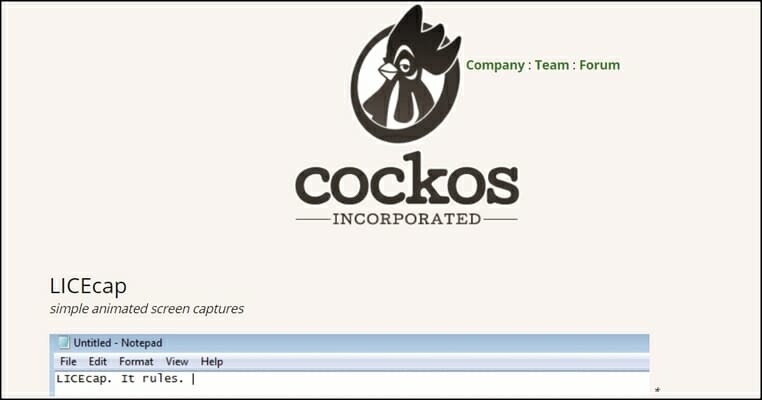
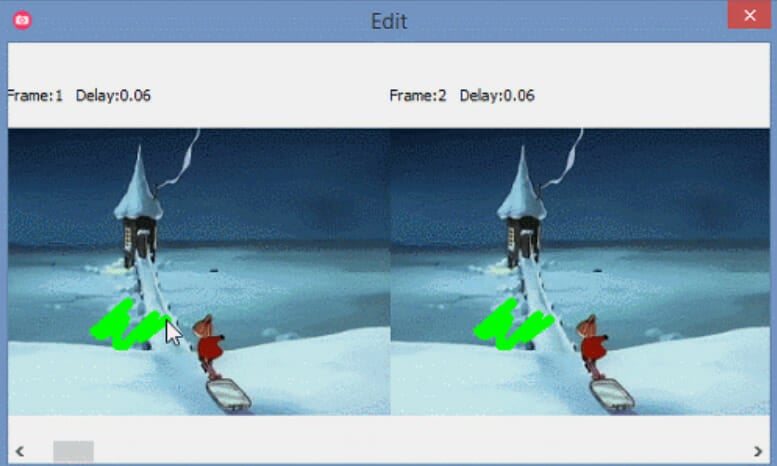

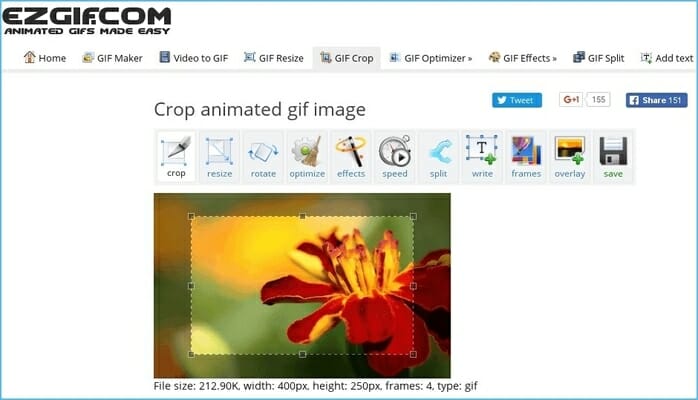
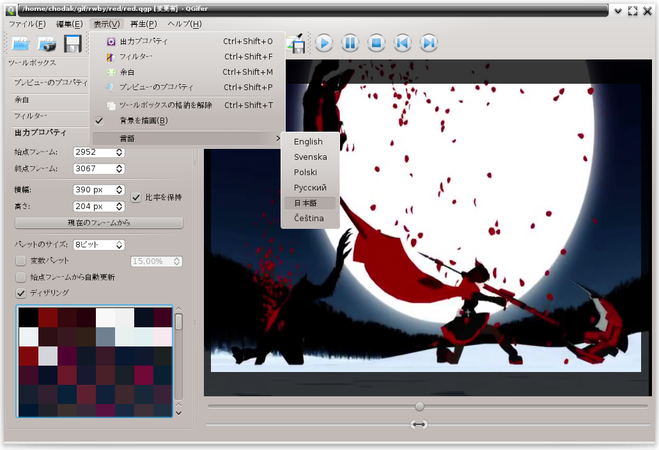
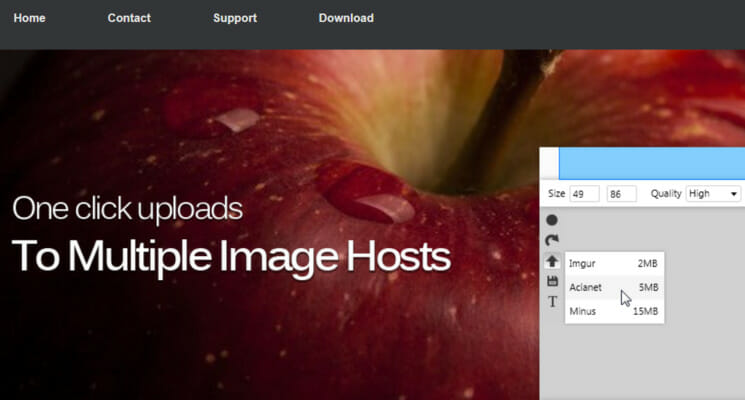

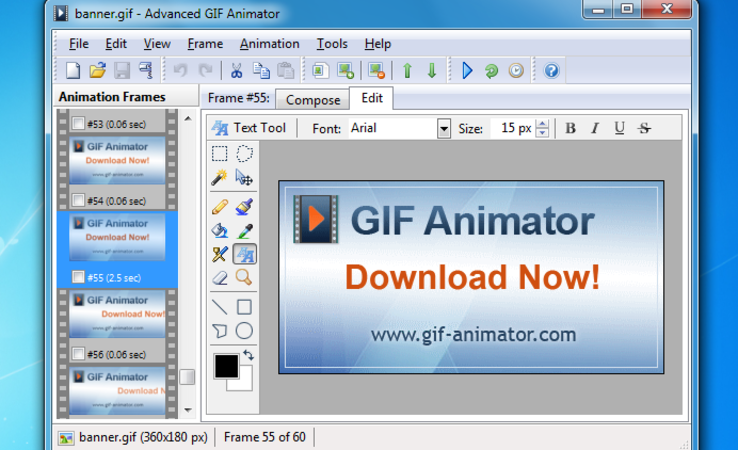
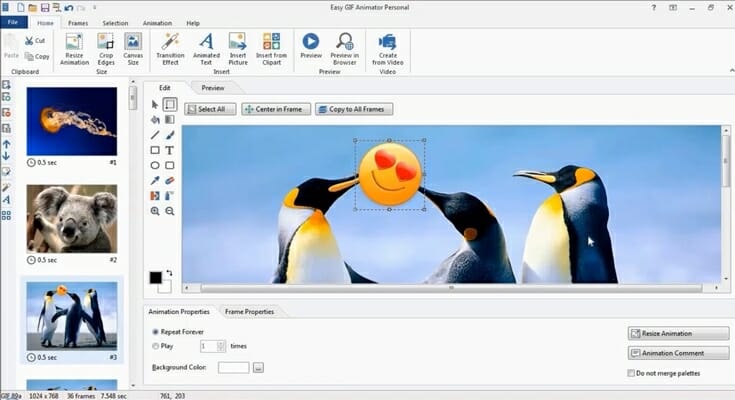
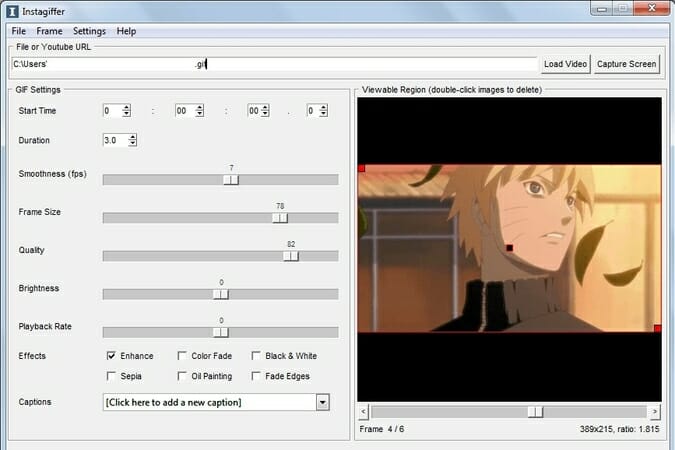
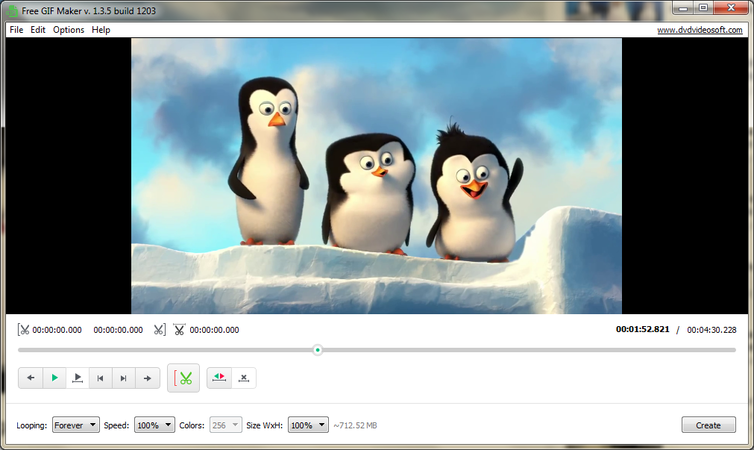
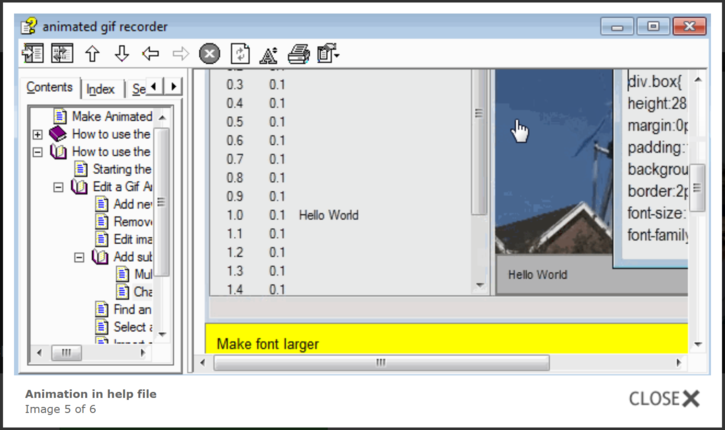


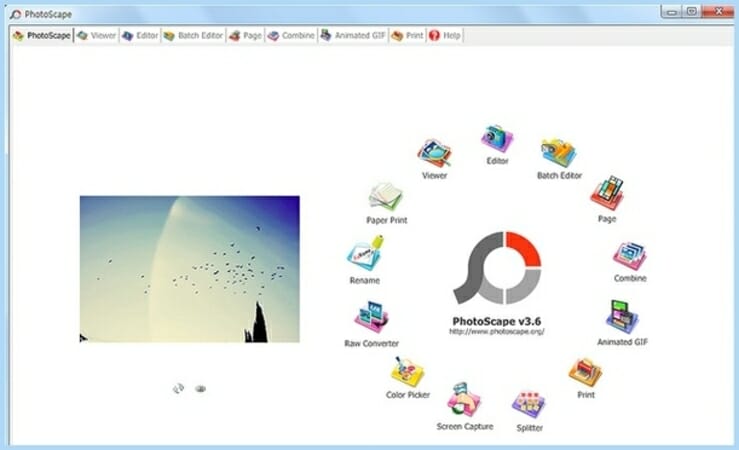
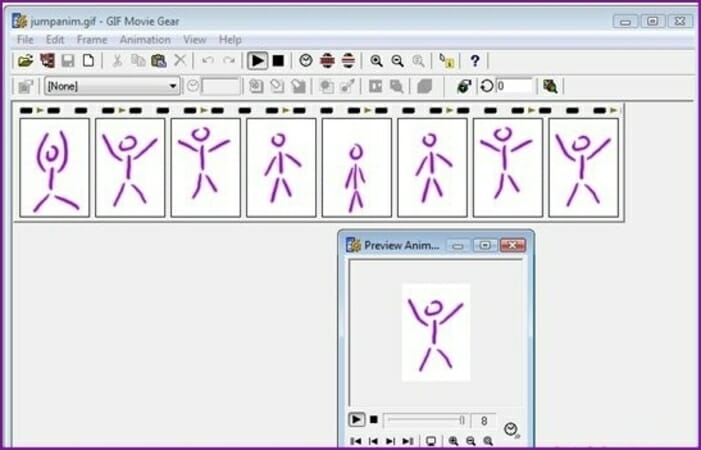
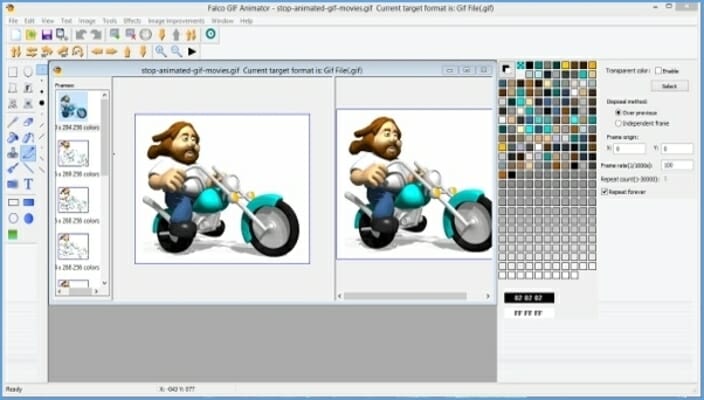
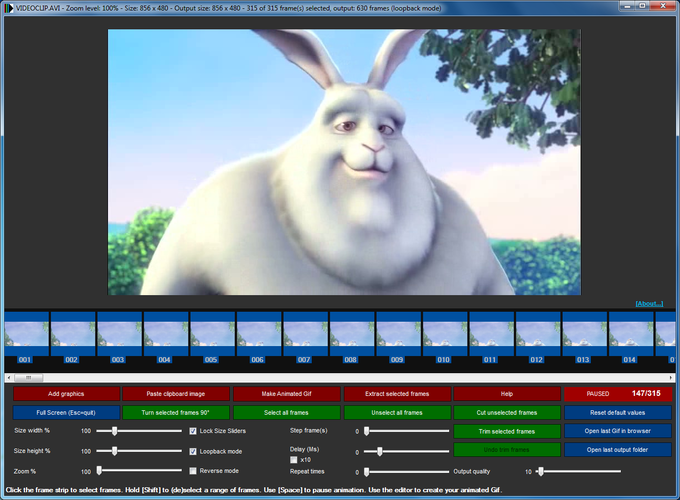
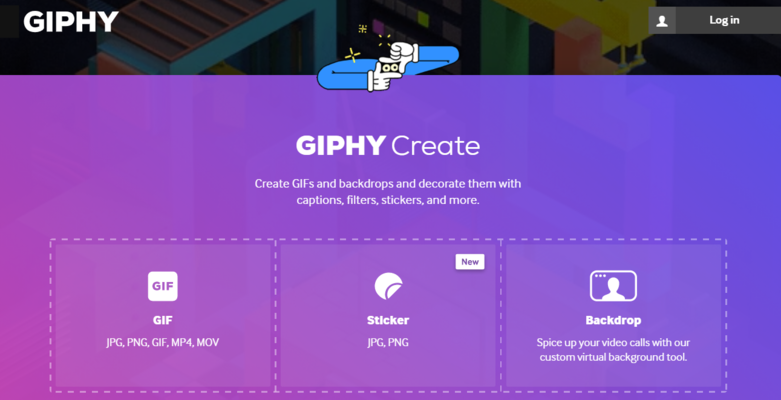


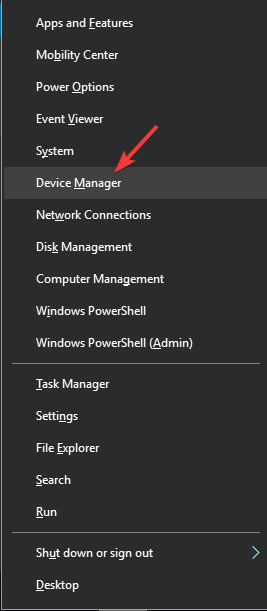
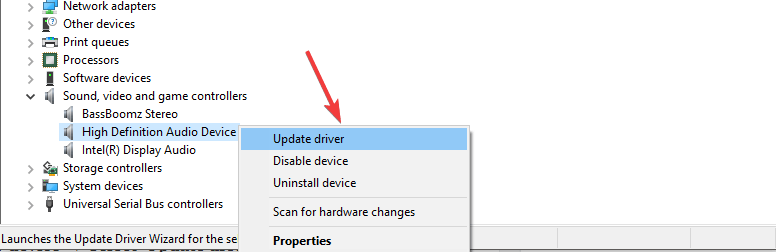
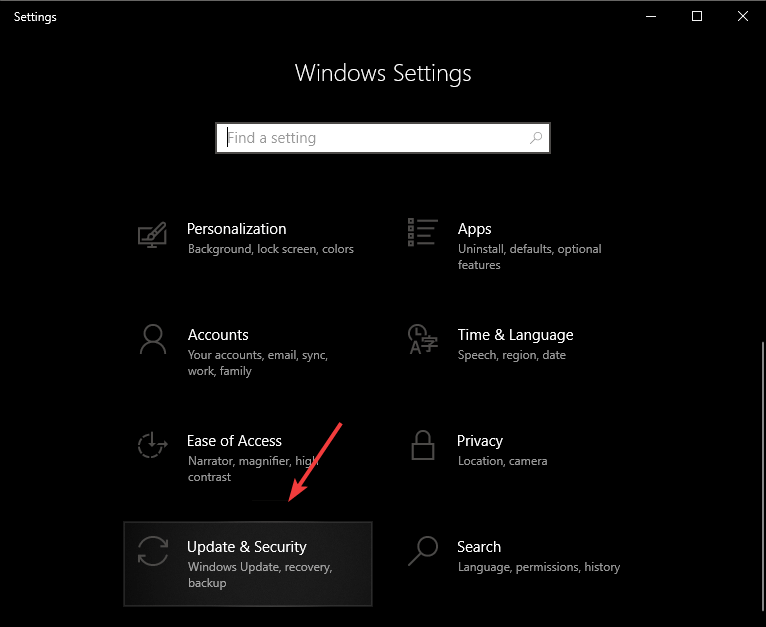
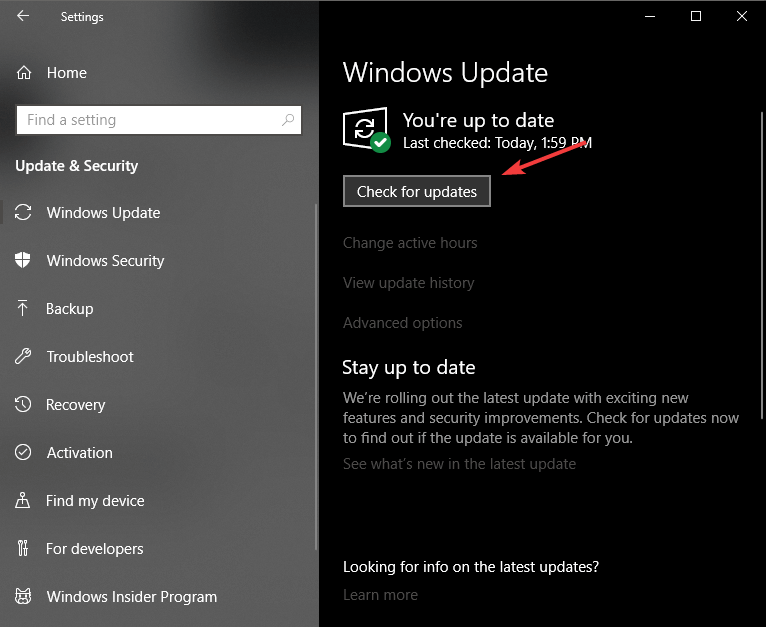
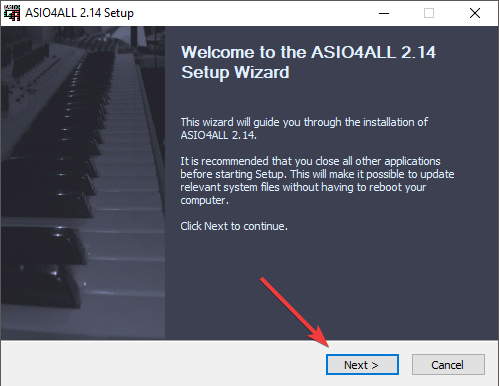


![How to annotate and manage PDF files [Best Apps]](https://windowsreport.com/wp-content/uploads/2020/04/PDF.jpg)











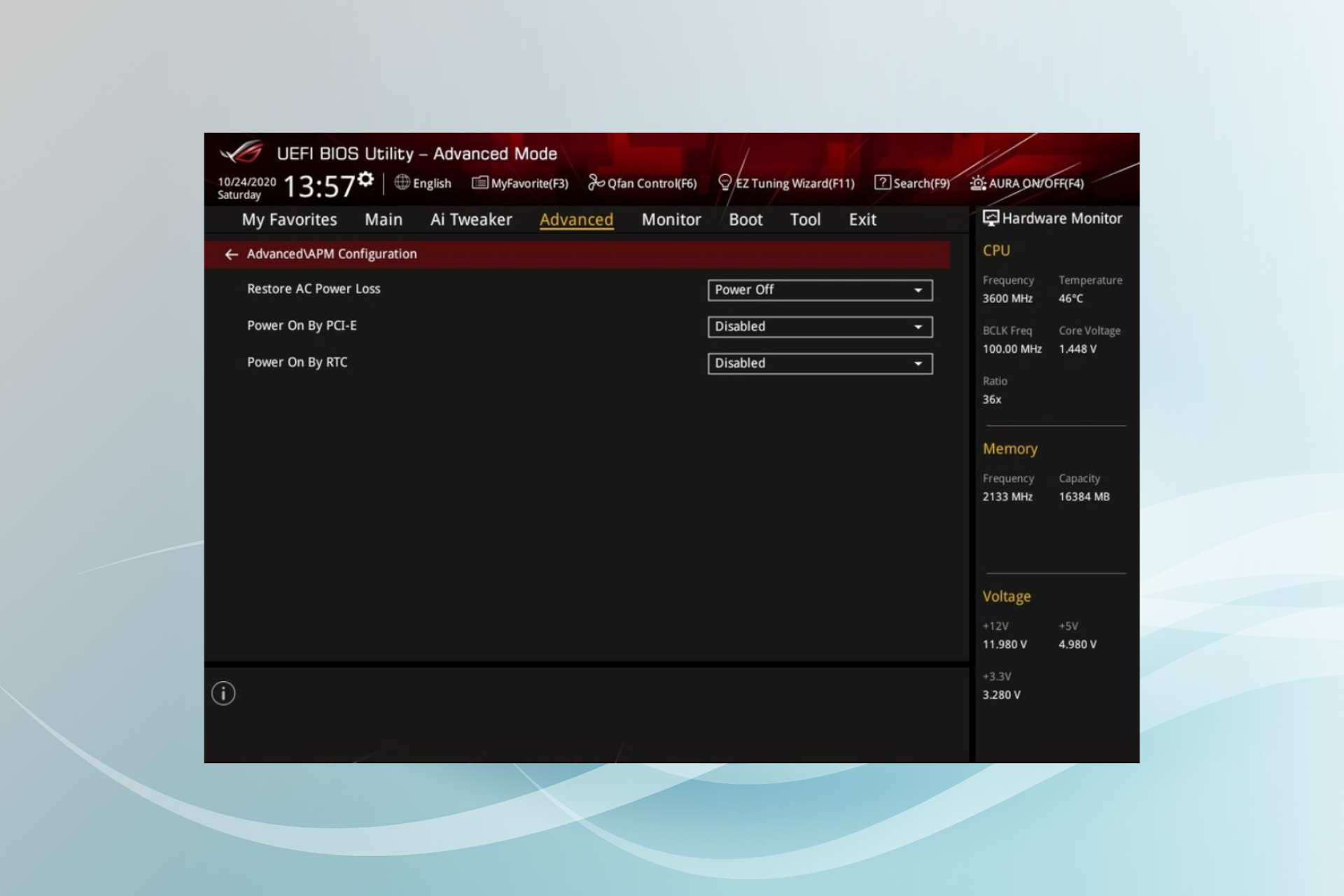

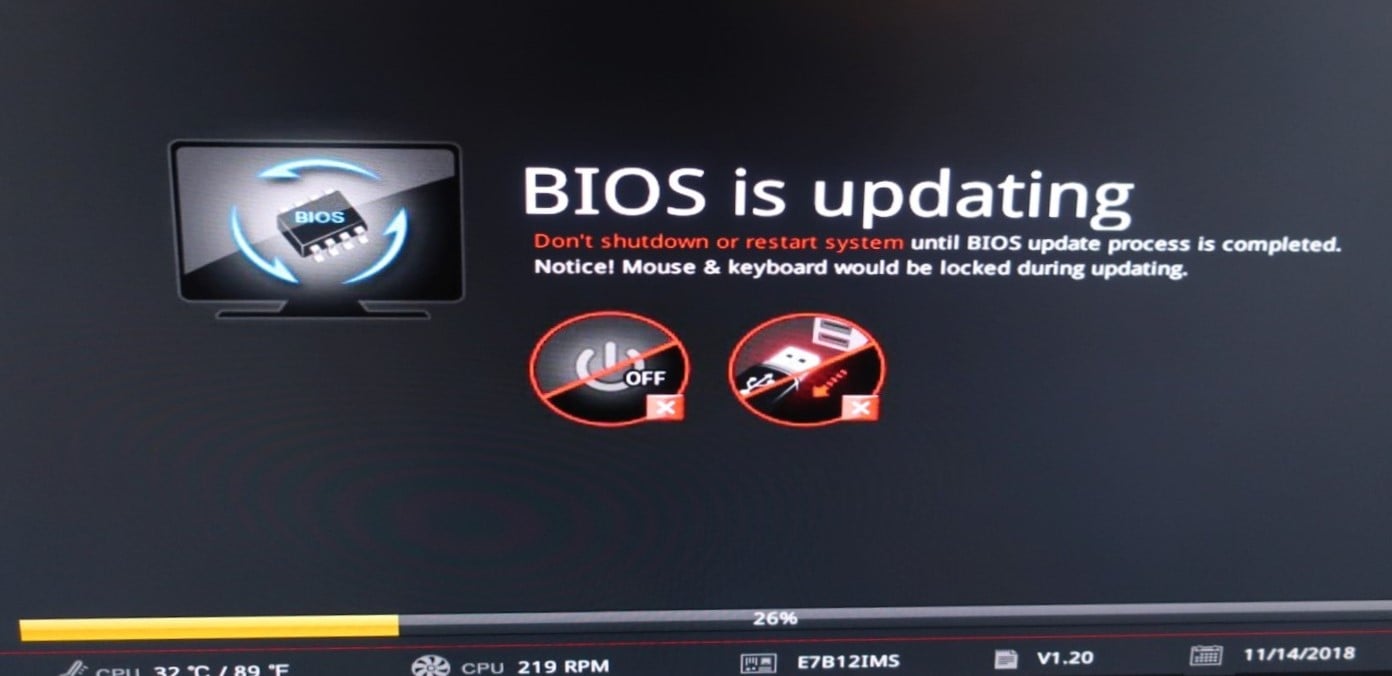



















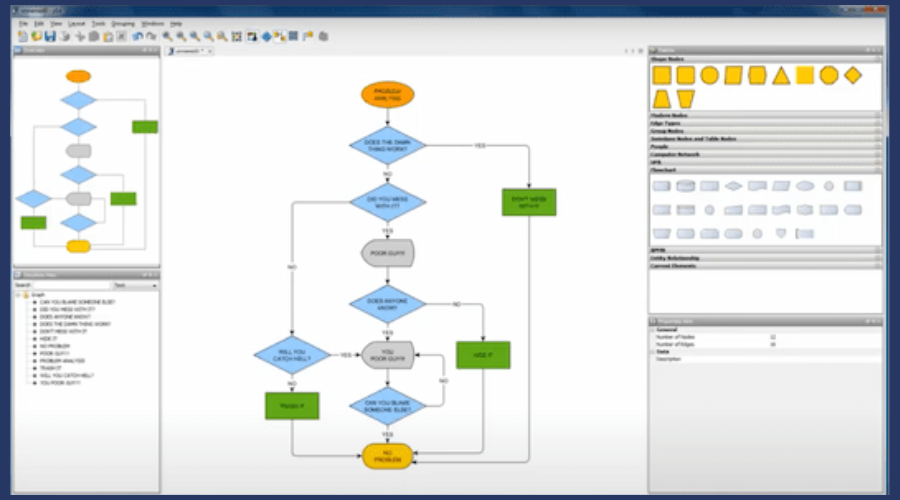
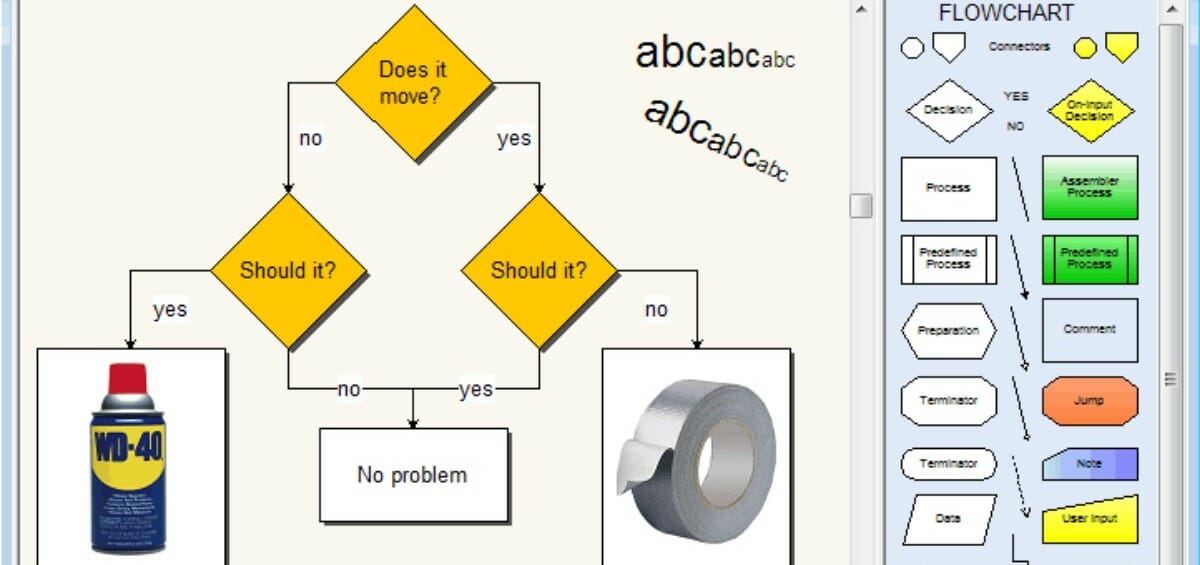
![The offer is not available right now [Error code: 100]](https://windowsreport.com/wp-content/uploads/2021/02/the-offer-is-not-available-right-now.-error-code-100.jpg)


![[FIX] Raspberry Pi relay not working](https://windowsreport.com/wp-content/uploads/2020/12/raspberry-pi-relay-not-working.jpg)
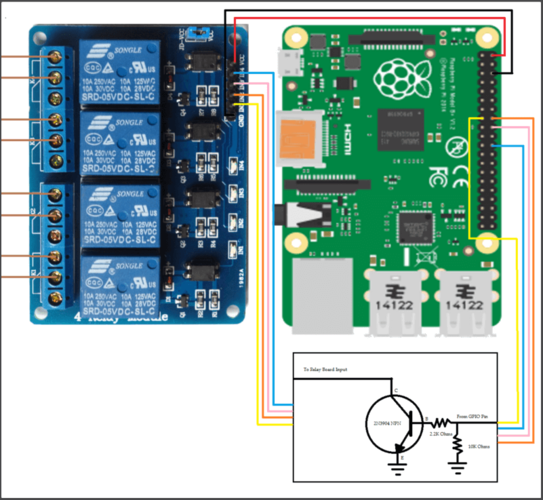








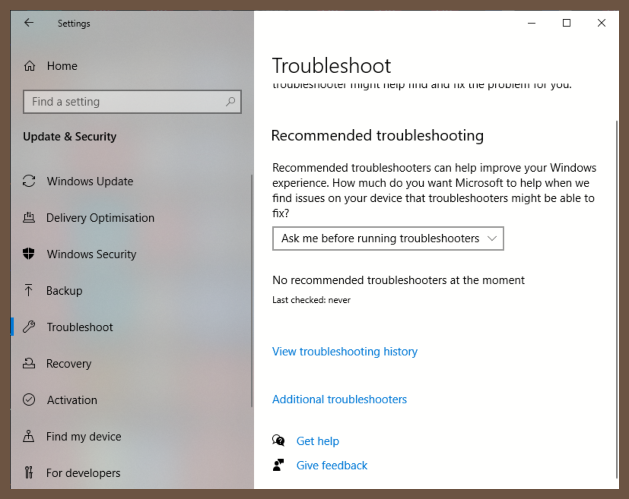


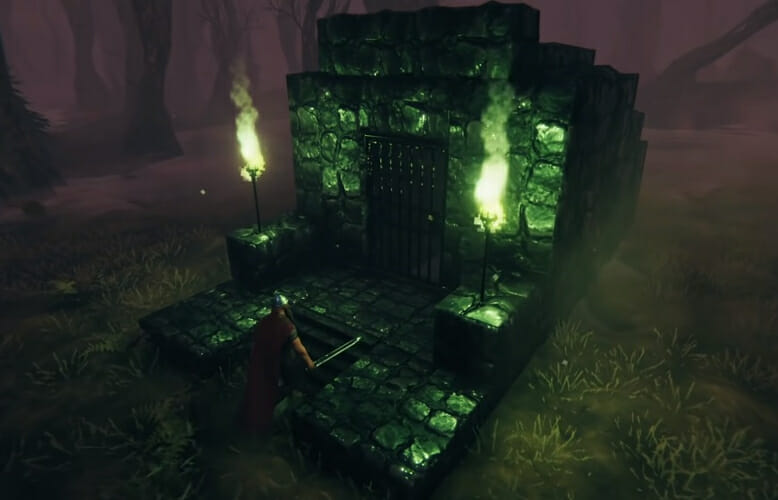






![4 best tools to record audio with timestamp [Windows & Mac]](https://windowsreport.com/wp-content/uploads/2020/04/4-Best-tools-to-record-audio-with-timestamp-Windows-Mac.jpg)
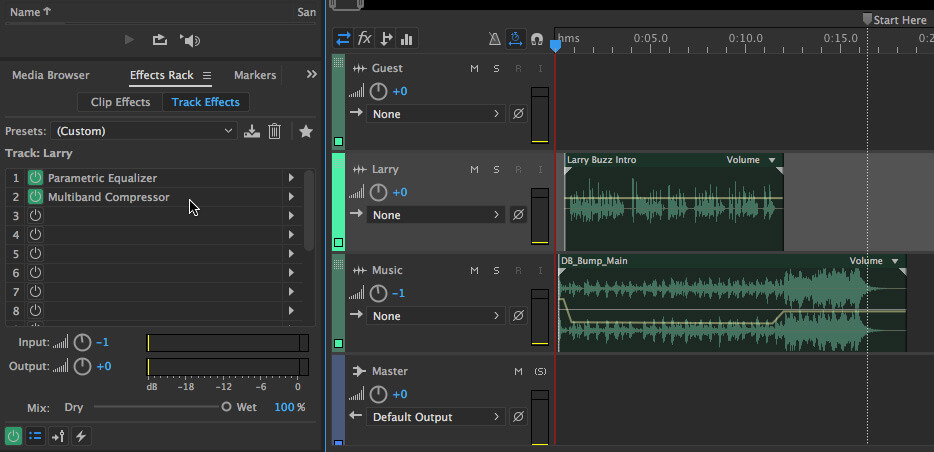

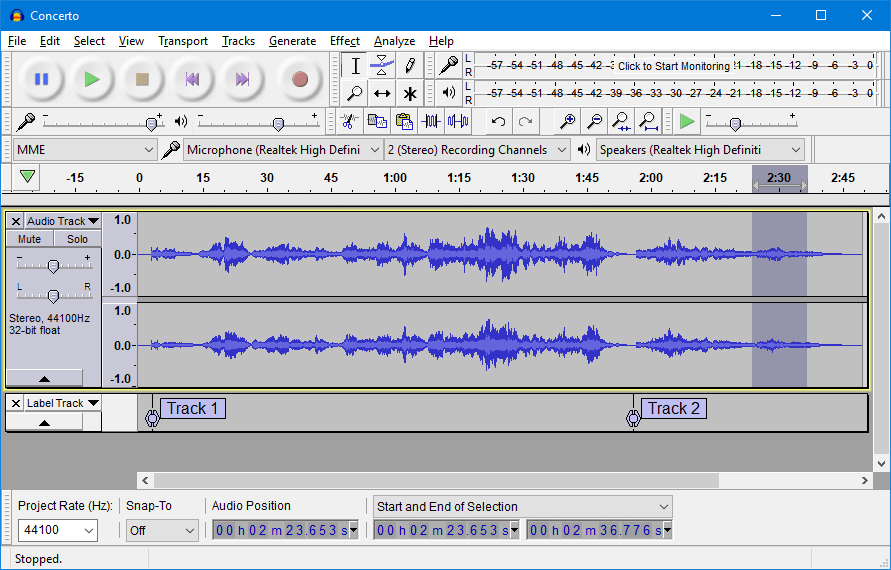
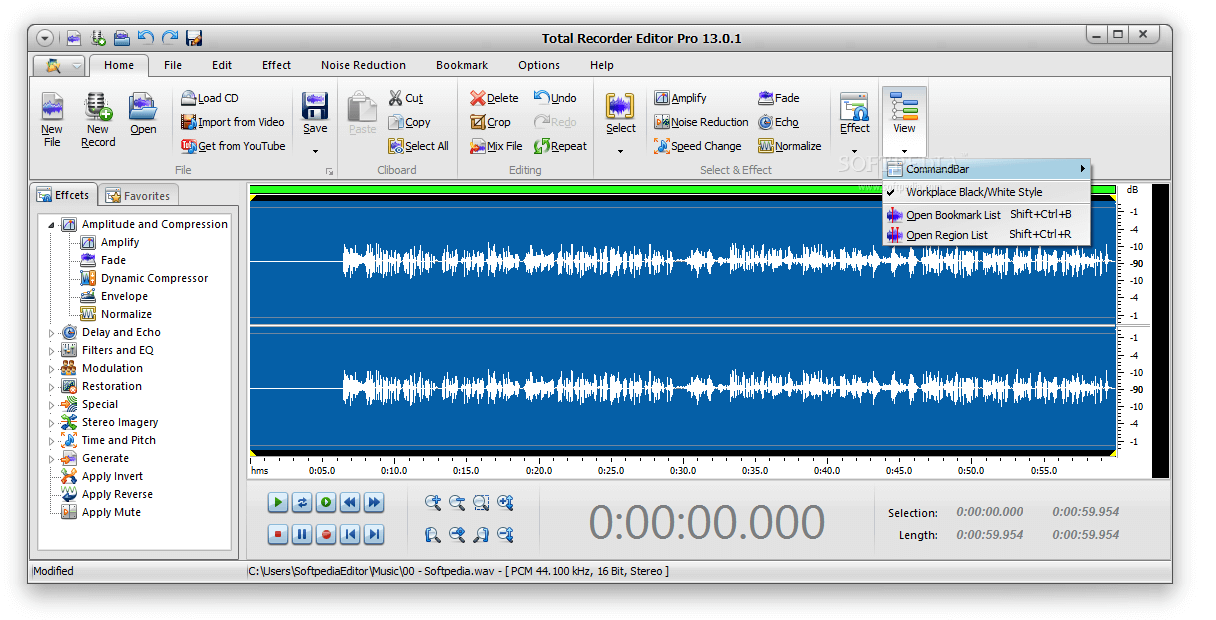



![5+ best nature sounds generator software [+Online Tools]](https://windowsreport.com/wp-content/uploads/2020/04/Nature.jpg)

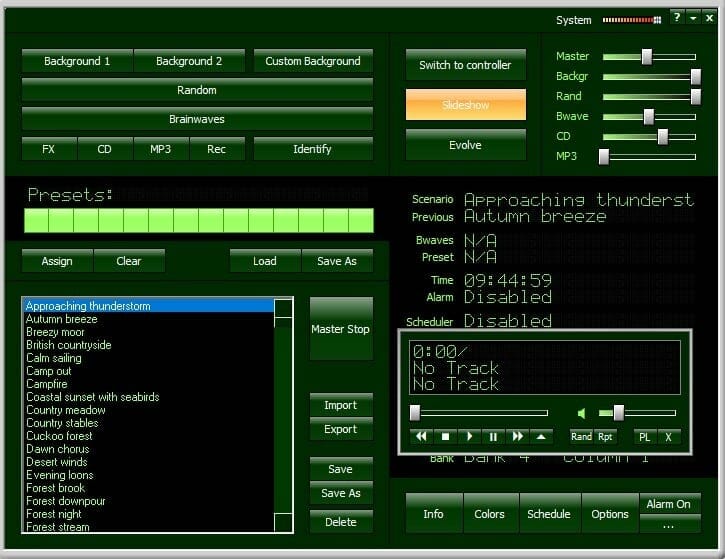
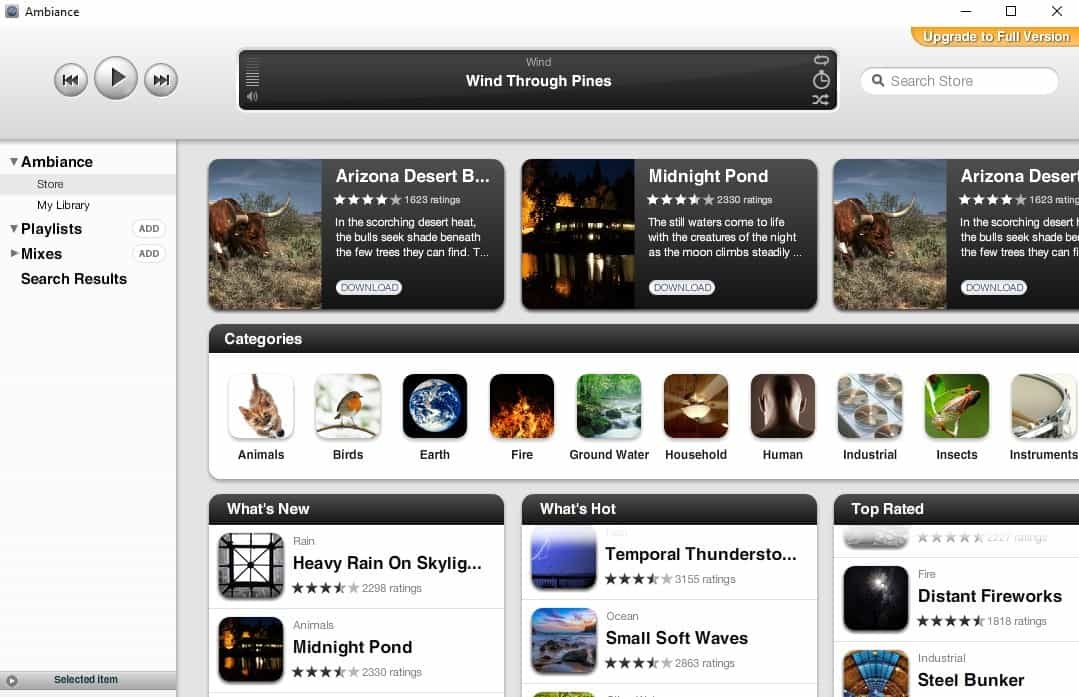
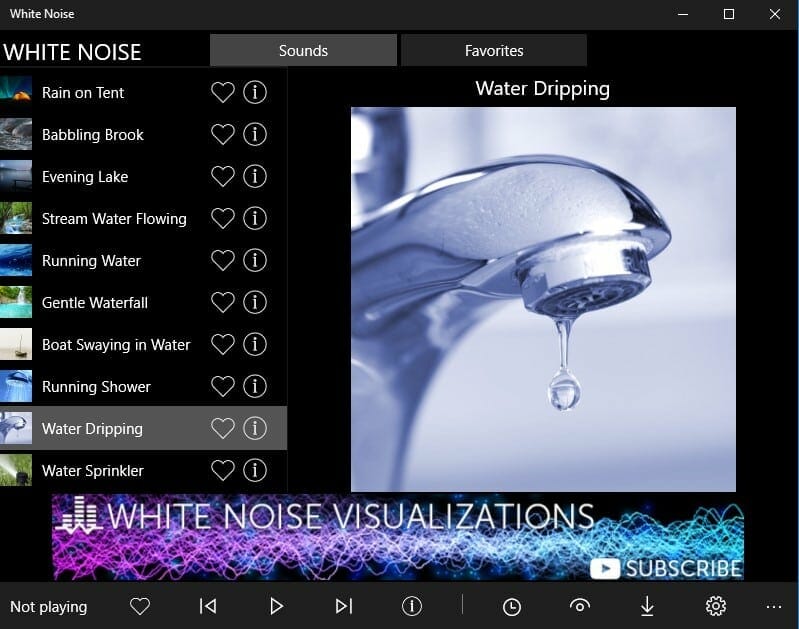





















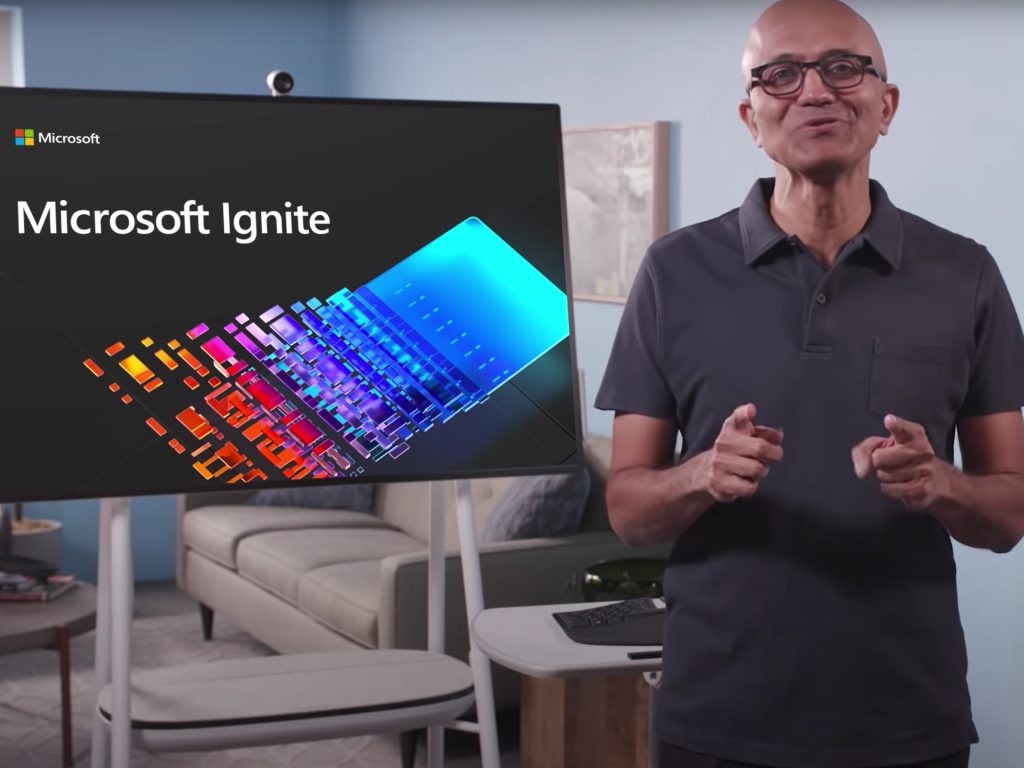











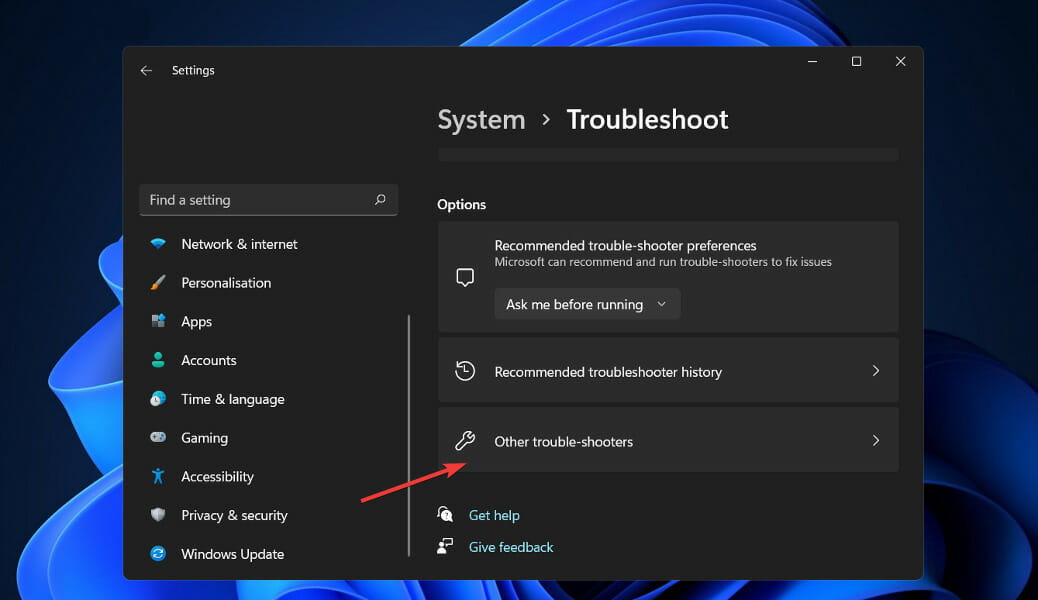


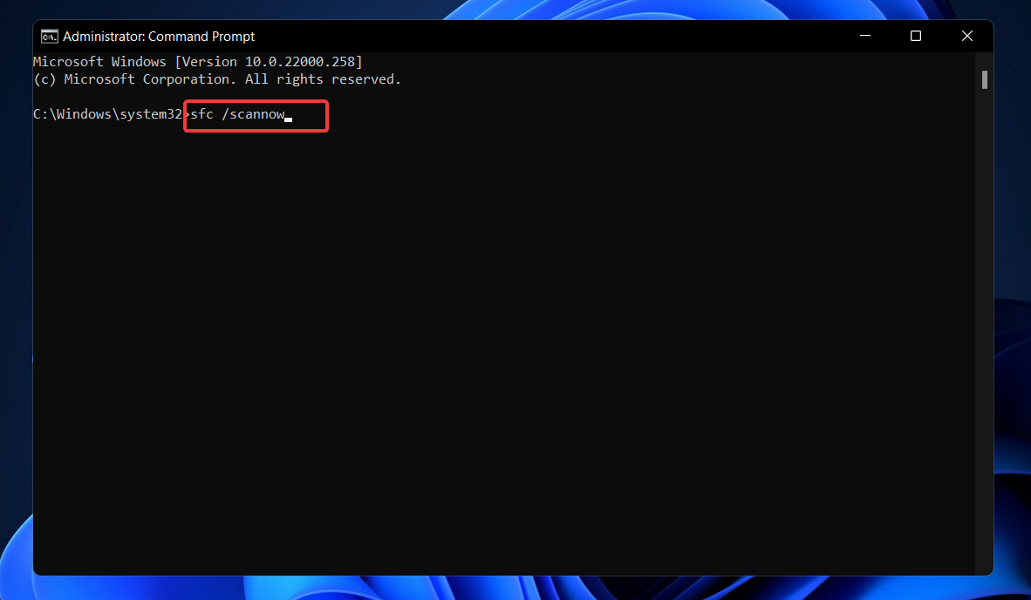
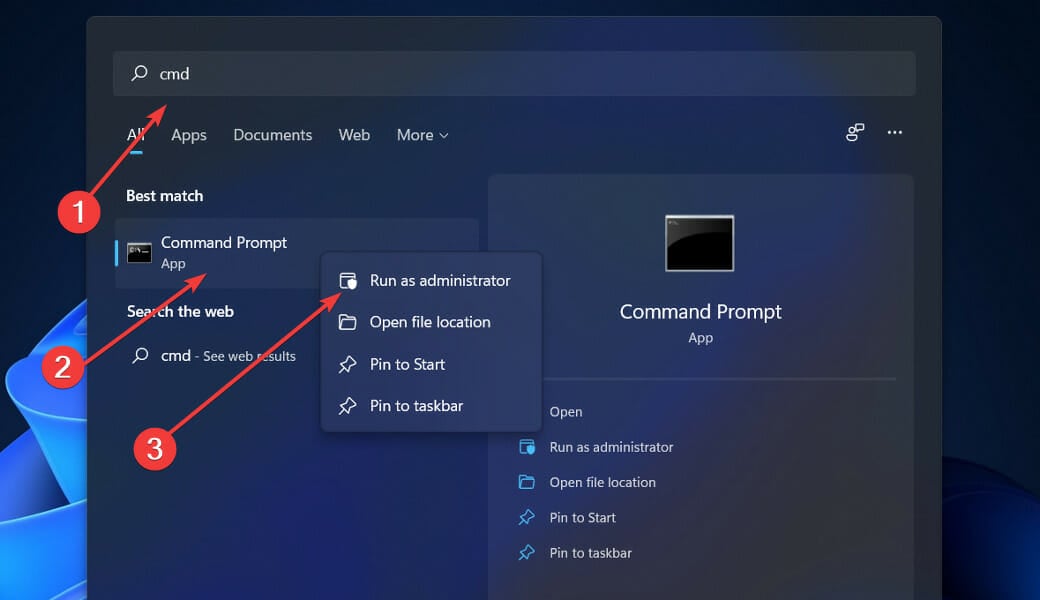
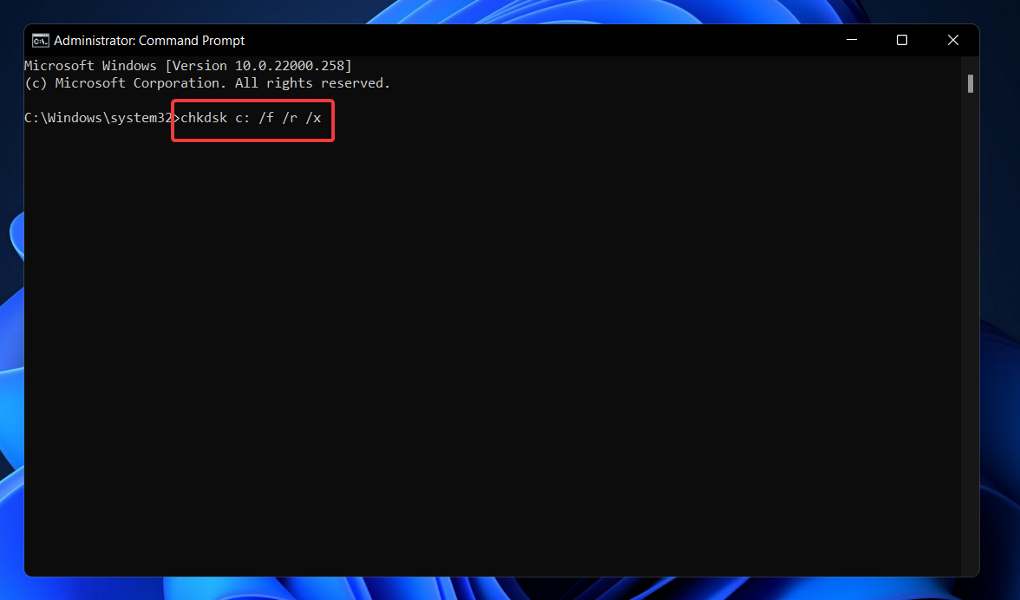





![Parental Control Software for Windows 10 [Top 14]](https://windowsreport.com/wp-content/uploads/2022/02/best-parental-control-software.jpg)