Call of Duty: Black Ops 7 to Include Co-Op Campaign and Global XP System

Call of Duty fans have something to look forward to this November. During Gamescom’s Opening Night Live, Activision revealed the first gameplay details for Black Ops 7, set to launch on November 14, 2025, five weeks after Battlefield 6.

The biggest highlight this year is the new co-op campaign. Players can team up with up to four friends and explore the coastal city of Avalon.

Unlike previous entries, every elimination, objective, and breakthrough in the campaign contributes to a Global XP system. Well, it carries over to multiplayer progression. Xbox’s blog explains that this integration allows your Co-Op efforts to fuel your overall rank and unlock new abilities directly.

In addition to the campaign, Black Ops 7 introduces a multiplayer endgame designed for up to 32 players. Gamers can select Operators, craft custom Loadouts, and level up their Combat Rating to tackle advanced challenges across Avalon.

The multiplayer launch includes 16 6v6 maps and 2 20v20 Skirmish maps, featuring classic locations from Black Ops 2. The Omnimovement system returns with enhancements like Wall Jump and Combat Roll, offering fluid mobility in every match. Zombie mode also returns with the largest Round-Based map ever, alongside Survival Maps for fans of intense undead action.

Like last year, Black Ops 7 will support Xbox Play Anywhere and will be available on day one with Game Pass Ultimate and PC Game Pass. It will also release on Xbox Series X|S, PS5, last-gen consoles, Battle.net, Steam, and the Xbox app on PC.

For a closer look, the Xbox @ Gamescom 2025 broadcast continues today at 6 AM PT, showcasing Black Ops 7 alongside Ninja Gaiden 4, Overwatch 2, and The Outer Worlds 2.

Indiana Jones and the Great Circle Heads to Switch 2 in 2026

Indiana Jones and the Great Circle is set to arrive on the Nintendo Switch 2 in 2026, marking the first Xbox game to be ported specifically for the new console. The action-adventure title, which has already seen releases on PS5 and other platforms, continues its journey to reach a wider audience.

The announcement came at the tail end of a trailer for the game’s upcoming DLC, The Order of Giants, scheduled for September 4. This new chapter will see Indiana Jones explore the secrets of the Roman Empire, adding fresh content to the original adventure.

To catch you up, the reveal appeared during Gamescom 2025’s Opening Night Live. It was accompanied by other major showcases including a gameplay trailer for Call of Duty: Black Ops 7.

Switch 2 owners are seeing a growing library of both original titles and ports. Earlier this summer, Atlus confirmed that Persona 3 Reload, a remake of the 2006 classic, will launch on Switch 2 in October. Additionally, the revival of Kirby Air Ride, renamed Kirby Air Riders, is planned for an exclusive release on the console in November.

At this time, Nintendo and the publishers have not shared details on pricing or an exact launch window for Indiana Jones and the Great Circle on Switch 2.

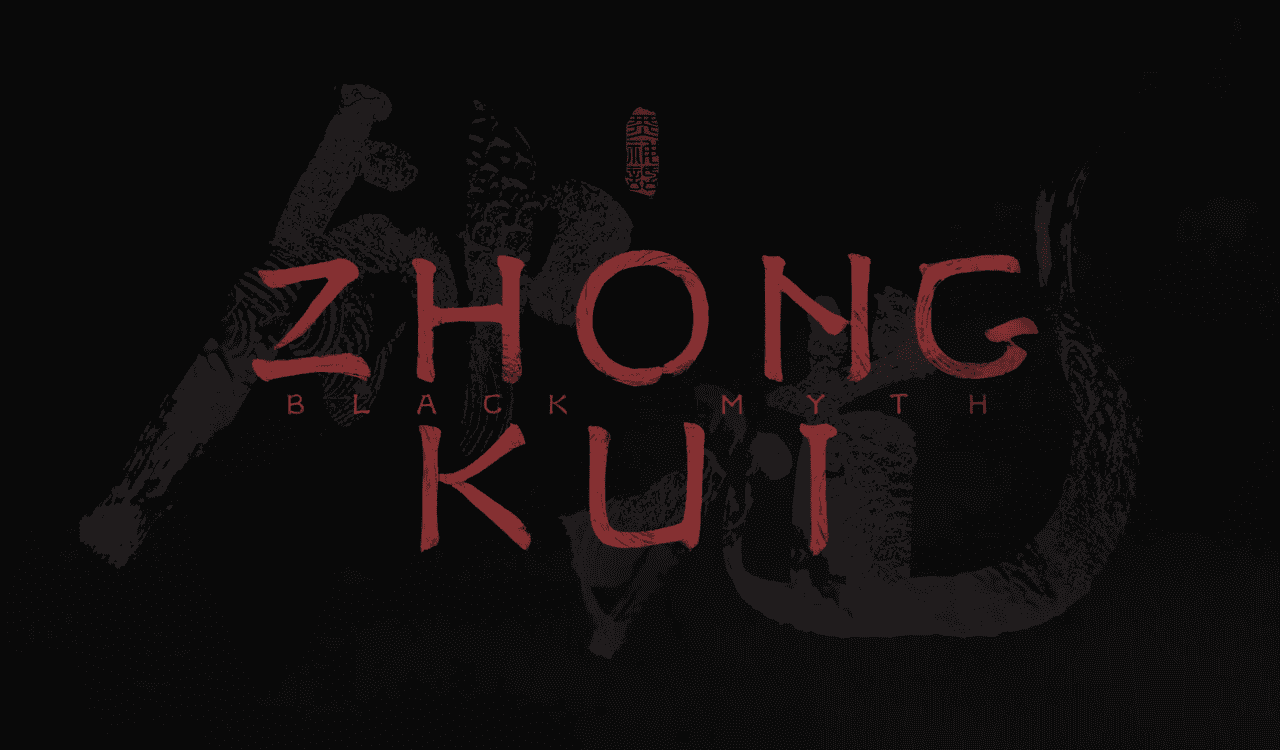
Black Myth: Zhong Kui Announced at Gamescom 2026 with Horror Twist

The next chapter in the Black Myth franchise is here. Black Myth: Zhong Kui was unveiled during Gamescom 2025’s Opening Night Live, following the massive success of Black Myth: Wukong.

The sequel promises to expand on Wukong’s acclaimed combat while introducing a darker, more horror-focused tone. You can check out the official teaser trailer below.

Unlike its predecessor, Zhong Kui centers on the Taoist deity known as the “king of ghosts,” who exorcises and commands evil spirits. Players can expect a single-player, action-focused RPG experience, though the teaser trailer leans heavily into horror and otherworldly elements rather than combat mechanics.

The short trailer sets an eerie scene. Two brothers argue before noticing two enormous monsters approaching. The camera then pans to a procession of demons, culminating in Zhong Kui himself riding a giant tiger, fully armored and ready for battle.

The imagery hints at more frightening environments and supernatural encounters, building on the creature design praised in Wukong. While the teaser does not show Zhong Kui in action, the narrative focus and horror-driven aesthetics signal a shift from the fast-paced spectacle of the previous game.

Fans of the series can expect the sequel to retain the challenging combat of the first game while exploring darker, more atmospheric themes. No official release date has been set for Black Myth: Zhong Kui, but the announcement has already hyped fans, thanks to visually striking and intense follow-up.

Vampire: The Masquerade – Bloodlines 2 Launches October 21 with Fabien Storylines

Paradox Interactive and The Chinese Room have announced the release date for Vampire: The Masquerade – Bloodlines 2. The long-awaited RPG will arrive on October 21, marking the end of years of delays and development hurdles.

The news came during Gamescom’s Opening Night Live showcase, alongside fresh gameplay insights.

One of the biggest reveals centers on the Malkavian clan. While players cannot make Phyre, the game’s protagonist, a Malkavian, the bloodline still plays a crucial role. Phyre shares their head with Fabien, a disembodied Malkavian detective.

At certain points, players will control Fabien in sequences set in a moody, neo-noir version of 1920s Seattle. His fractured perception of reality adds a surreal layer, making detective work feel like solving puzzles between truth and delusion.

Bloodlines 2 will also launch with multiple editions, each packing extras. The Santa Monica Memories cosmetic pack brings nostalgic touches from the original game, letting players decorate Phyre’s apartment.

That’s nort all; the Shadows & Silk DLC, which unlocks two additional clans: the manipulative Lasombra and the alluring Toreador. Both offer new playstyles that add variety beyond the main storyline.

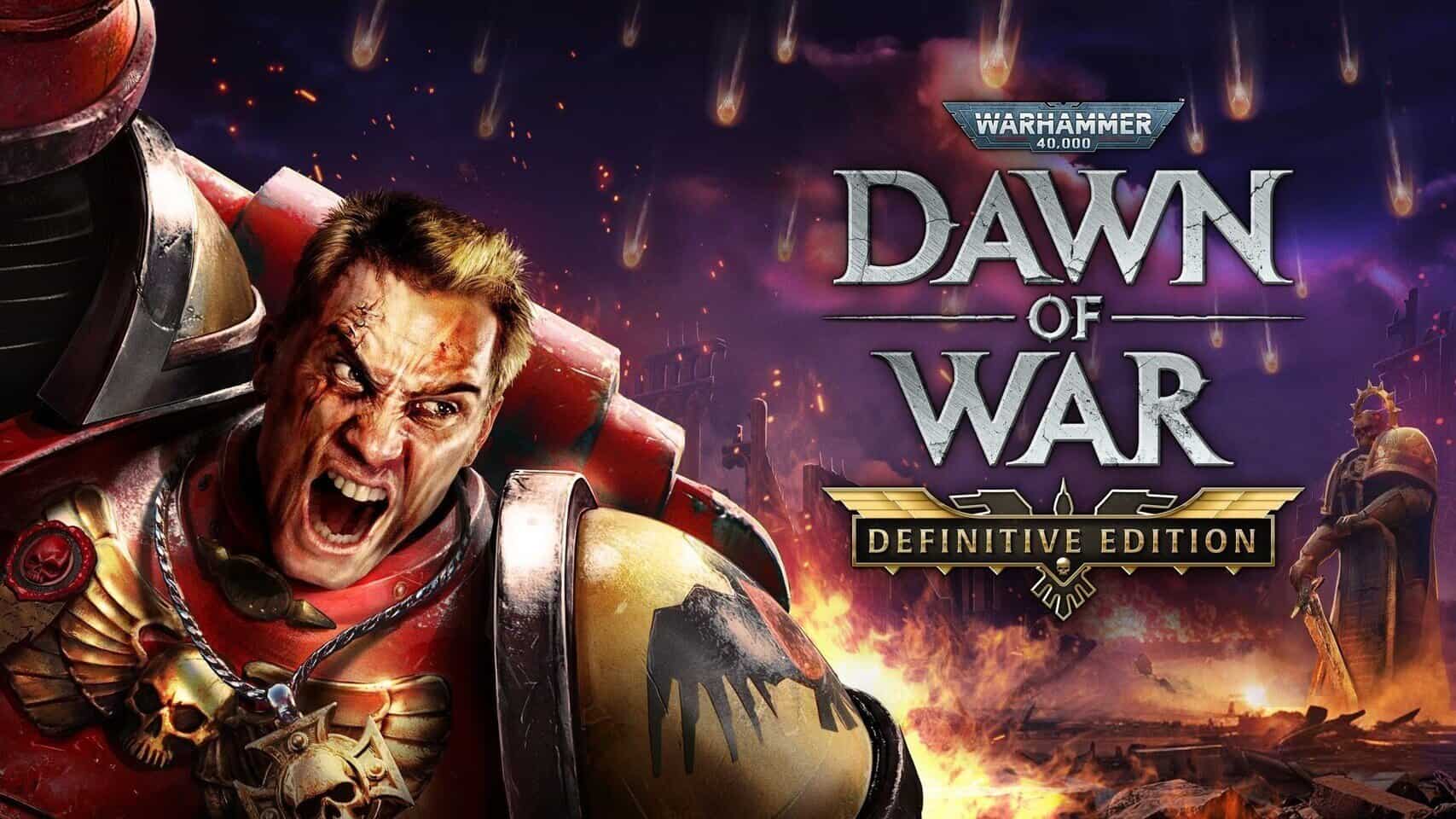
Warhammer 40,000: Dawn of War – Definitive Edition Launches on PC

Relic Entertainment has officially released Warhammer 40,000: Dawn of War – Definitive Edition for PC. The game is now available on both Steam and GOG at $29.99 USD.

Players who already own the Anniversary Edition of the original game can take advantage of a 30% Veteran’s Discount. Additionally, all players will receive a 10% launch discount for the next two weeks.

This Definitive Edition revives the genre-defining real-time strategy title with performance upgrades tailored for today’s systems. It combines the original Dawn of War with all its expansions, including Winter Assault, Dark Crusade, and Soulstorm, ensuring fans get the complete experience in one package.

Key Enhancements for Modern Systems

Relic has packed the re-release with upgrades that preserve the game’s original charm while improving stability and visuals. Players can now enjoy full 4K resolution with upscaled textures, refined lighting and reflections, and improved shadows and emissive effects.

The update also includes a wider draw distance, enhanced camera controls for cinematic battles, and an optimized HUD for widescreen monitors. Built on 64-bit architecture, the game promises smoother performance and better stability during large-scale clashes.

RTS Legacy Lives On

Beyond visuals, gameplay improvements include enhanced pathfinding and large-army support. With nine playable armies, more than 100 skirmish maps, and compatibility with two decades of mods, the Definitive Edition aims to be the ultimate way to relive this RTS classic.

Availability and Pricing

Warhammer 40,000: Dawn of War – Definitive Edition is now available on PC through Steam and GOG for $29.99. Veteran players can claim their 30% loyalty discount, while all buyers can benefit from a limited-time 10% launch discount over the next two weeks.

HP Expands OMEN and HyperX Lineup With AI Enhancements and New Gaming Gear

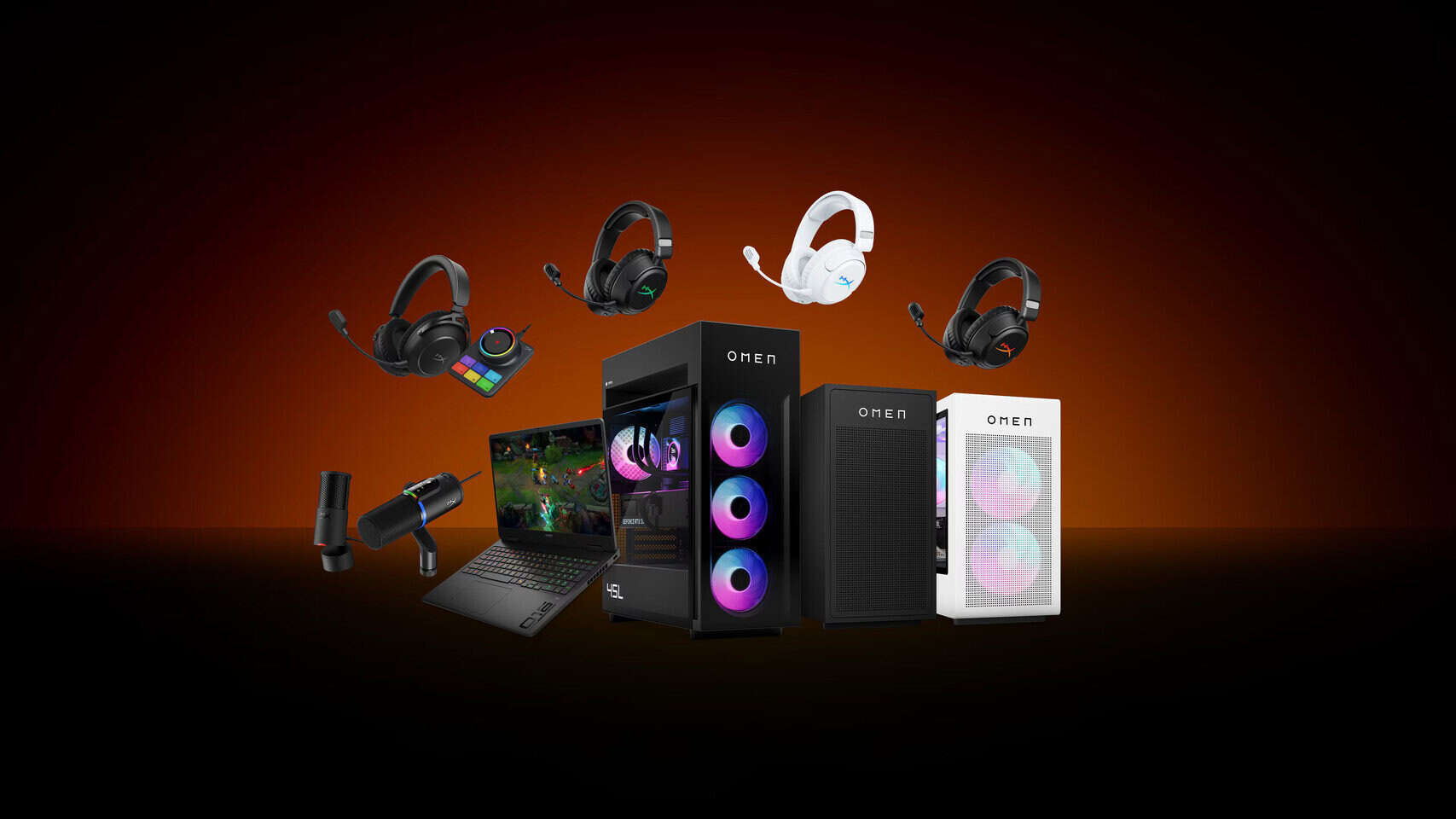
If you’ve been keeping up with HP’s gaming hardware news, you must know the company has been leaning heavily on AI and performance-driven designs. At its first-ever Level Reforge event, HP took things further by unveiling a fresh lineup of OMEN desktops and HyperX peripherals.

OMEN MAX 45L: Flagship Powerhouse

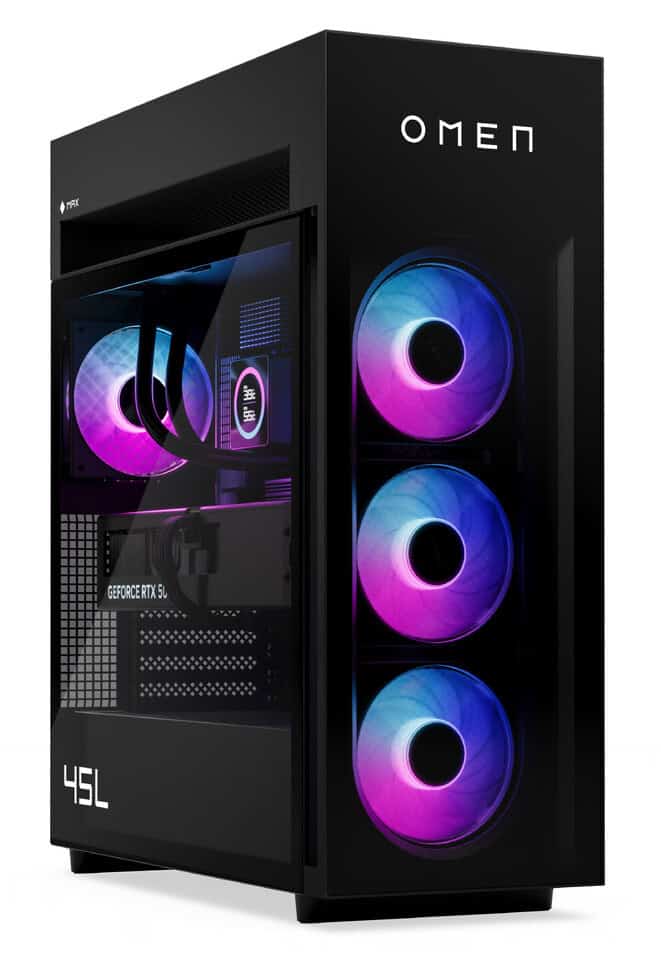
The star of the show was the OMEN MAX 45L Gaming Desktop, HP’s most powerful gaming tower yet. It packs up to an AMD Ryzen 9 9950X3D CPU and NVIDIA GeForce RTX 5090 GPU.

HP OMEN 45L
Image: HP

HP’s patented CRYO CHAMBER cooling keeps things steady with lower CPU temps under load, while a fully modular 1200W PSU offers customization and real-time monitoring. OMEN MAX 45L will be available on HP.com in December, with pricing announced closer to launch.

OMEN 35L and Stealth Edition: Performance Meets Style

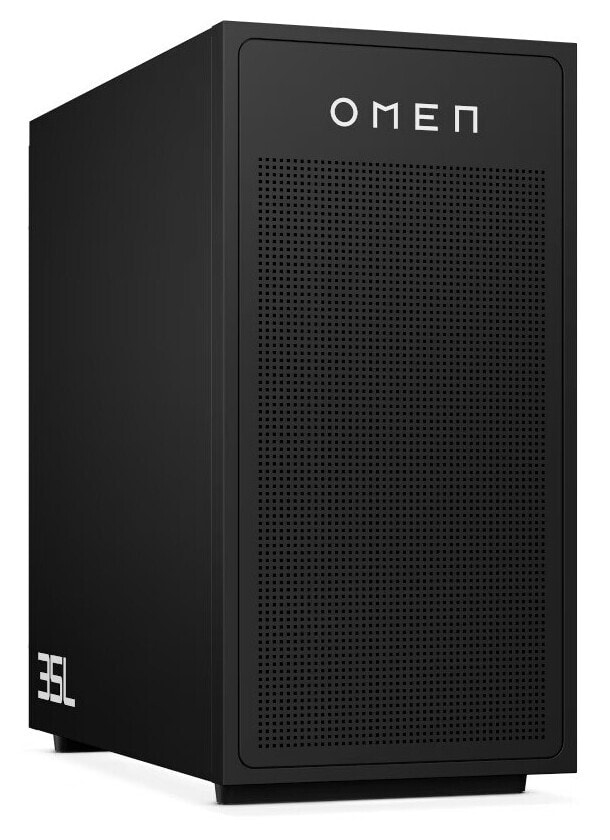
Joining the MAX is the refreshed OMEN 35L, delivering high-end specs in a flexible design. A Stealth Edition also debuts, featuring the same hardware but with an all-black, RGB-free build.

HP OMEN 35L
Image: HP

It has already been named the official PC of League of Legends Esports and the VALORANT Champions Tour. Both models will be available in October on HP.com starting at $1,499.99.

HyperX Cloud Headsets: Built for Endurance

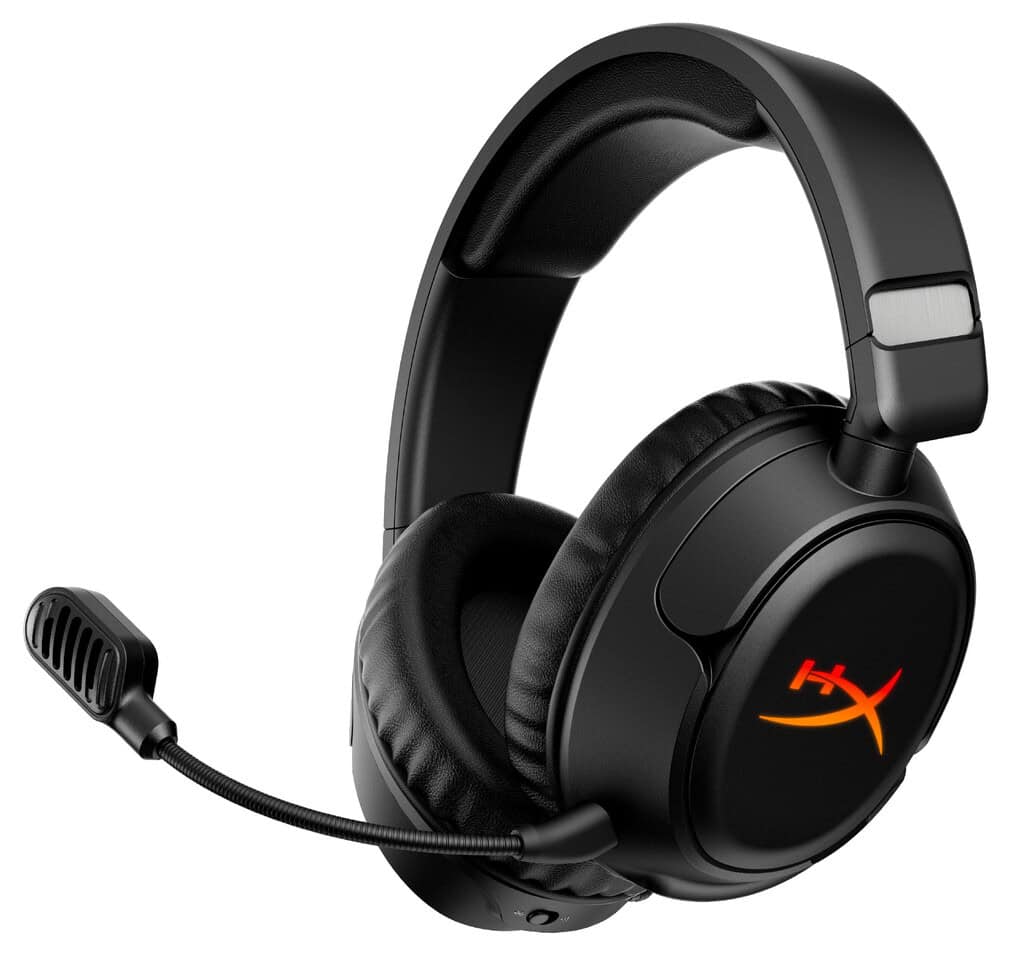
HP also revealed the HyperX Cloud Alpha 2 Wireless, promising up to 250 hours of battery life and immersive audio with dual-chamber drivers. The Cloud Flight 2 adds full RGB panels and removable earcup plates, while the CloudX Flight 2 brings Xbox compatibility.

HP Hyper X Cloud Headsets
Image: HP
HP Hyper X Cloud Headsets 2
Image: HP

Pricing and Availability:

  • Cloud Alpha 2 Wireless: $299.99, available August on HP.com and HyperX.com
  • Cloud Flight 2: $129.99, available October
  • CloudX Flight 2: $139.99, available December

HyperX Microphones: Studio-Grade Simplicity

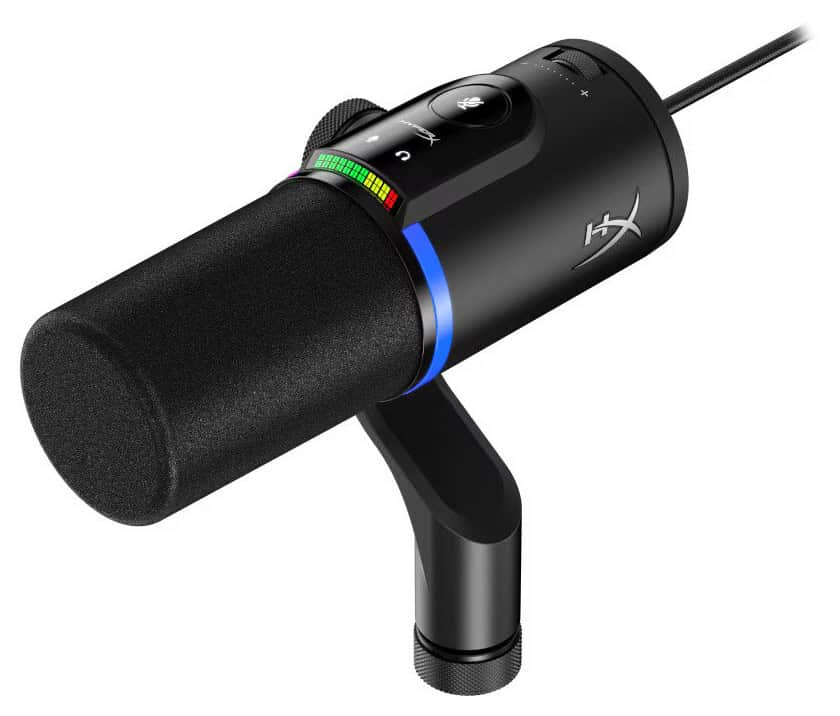
For creators, the new HyperX FlipCast offers USB and XLR support with pro-level audio tools, while the HyperX SoloCast 2 brings compact, plug-and-play versatility.

HP HyperX Microphones
Image: HP
HP HyperX Microphones 2
Image: HP

Pricing and Availability:

  • FlipCast: $229.99, available August
  • SoloCast 2: $59.99, available August

HP says the launch shows how it’s reimagining gaming ecosystems with AI-enhanced performance, smart cooling, and hardware that adapts to both competitive play and creative workflows.

NVIDIA Bundles Borderlands 4 With GeForce RTX 50-Series GPUs

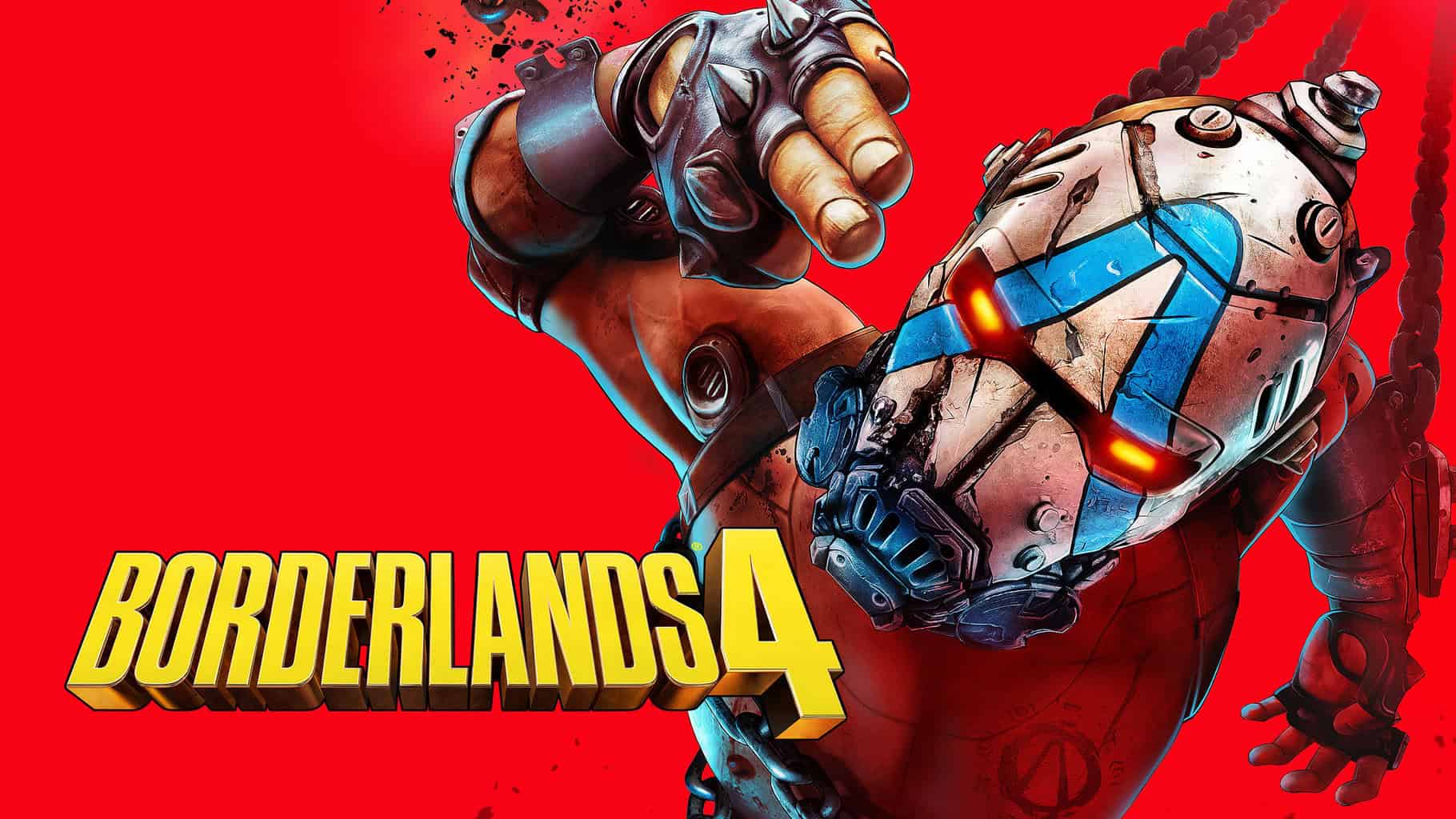
NVIDIA has announced a new gaming bundle in partnership with Gearbox Software. The partnership will bring an exciting deal ahead of the launch of Borderlands 4. The mayhem-filled FPS RPG, known for its signature cel-shaded style, will officially release on September 12, 2025.

As part of the promotion, players purchasing select GeForce RTX 50-series “Blackwell” GPUs will receive a free copy of Borderlands 4. NVIDIA says that the bundle will be available with the RTX 5090, RTX 5080, RTX 5070 Ti, and RTX 5070 graphics cards.

Not to forget, the offer also extends to prebuilt desktops and laptops powered by these GPUs, ensuring both PC builders and laptop buyers can take advantage of the deal.

NVIDIA isn’t just including the base game. Players who redeem the promotion will also unlock the “Gilded Glory Pack” DLC, offering bonus content to kick off their adventure in style.

The bundle will be available through September 22, giving players a limited window to secure both the latest graphics hardware and one of the year’s biggest game releases.

With the RTX 50-series set to push performance even further, NVIDIA is highlighting how its latest GPUs will bring Borderlands 4’s chaotic combat and vibrant visuals to life like never before.

Xbox Unveils Big Lineup at Gamescom 2026, Including Fallout TV Show Teaser

Xbox has officially revealed a massive slate of announcements at Gamescom 2025’s Opening Night Live, headlined by a surprise teaser for the second season of the Fallout TV show. The showcase also featured blockbuster game reveals, expansions, and fresh trailers across some of Xbox’s biggest franchises.

Kicking off the event, fans got their first extended look at Call of Duty: Black Ops 7, showcasing its new co-op Campaign, along with glimpses of Multiplayer and Zombies. The game launches on November 14 and will be available day one on Game Pass.

Following that, The Outer Worlds 2 received a new trailer focused on its Companion characters, while Ninja Gaiden 4 debuted a story trailer introducing fresh weapons, enemies, and characters.

Indiana Jones and the Great Circle: The Order of Giants was another highlight, with a gameplay trailer teasing the Rome-based DLC expansion arriving September 4. Double Fine also showed off Keeper, its emotional, otherworldly adventure releasing on October 17.

Meanwhile, Blizzard lifted the curtain on World of Warcraft: Midnight, the next chapter in its ongoing Worldsoul Saga, featuring a new Housing system and Void vs. Light storyline.

Not to be left out, Age of Empires IV: Anniversary Edition is expanding to PlayStation 5 later this year, alongside the Dynasties of the East DLC for all platforms. Fans of classic shooters also got good news with the announcement of Heretic + Hexen in an enhanced edition.

Overall, Xbox’s Gamescom 2025 showcase delivered something for nearly every kind of player. With more gameplay, interviews, and reveals promised across the two-day Xbox Broadcast, the event is only just getting started.

Xbox Game Pass August Wave 2 Adds Gears of War: Reloaded, Dragon Age: The Veilguard & More

Microsoft has confirmed a fresh lineup of titles heading to Xbox Game Pass this month, with some heavy hitters leading the charge. As revealed ahead of Gamescom’s Opening Night Live, fans can look forward to new releases, remasters, and beloved RPGs making their way to the subscription service.

First of all, you’ve the Blacksmith Master (PC) and Void/Breaker (PC) kicking off the wave. Blacksmith Master lets players manage their own medieval workshop, while Void/Breaker brings fast-paced roguelite FPS action against a relentless AI opponent.

On August 20, the quirky Goat Simulator Remastered arrives with upgraded visuals and DLC included. That same day, the fan-favorite Persona 4 Golden lands on console, cloud, and PC, offering a coming-of-age journey packed with mystery and heartwarming friendships.

Herdling, a day-one title on August 21, tasks players with leading adorable creatures on an alpine adventure filled with challenges. Fast forward to August 26, Gears of War: Reloaded will be available. This Unreal Engine-powered remaster of the original blockbuster includes all post-launch content, new optimizations, and bonus campaign material.

Just two days later, Dragon Age: The Veilguard joins through EA Play, inviting fans into a new chapter of the acclaimed RPG saga. For those who missed it, Heretic + Hexen is also now available, bringing back two classics in enhanced form.

Not everything stays forever, though. By August 31, games like Borderlands 3, Sea of Stars, and This War of Mine: Final Cut will leave the library. Xbox reminds players they can purchase favorites with a discount before they disappear.

How to Fix “EA AntiCheat Has Detected an Incompatible Driver” on Windows 11?

The error “EA AntiCheat has detected an incompatible driver” appears when launching certain EA games such as EA FC 24, Battlefield 2042, or Apex Legends. This typically blocks the game from starting entirely and is caused by one or more of the following issues:

  • An outdated or unsigned driver
  • A conflicting third-party tool (e.g., RGB software, overclocking tools)
  • Remnants of old anti-cheat systems or kernel-level services
  • A misconfigured Windows setting, such as Test Mode being enabled

This guide shows you exactly how to identify and fix the incompatible driver error step by step. If you’re also facing issues like EA AntiCheat service encountered an error, the troubleshooting steps below may help with that as well.

How to Fix “EA AntiCheat Has Detected an Incompatible Driver”?

1. Identify the Driver Name (If Shown)

If the EA AntiCheat error window displays a file name like gdrv.sys, mhyprot2.sys, or something else:

  • Note the exact filename
  • Search it online to identify the software it belongs to
  • Proceed to uninstall or disable that software

If no driver name is listed:

  • Open Event Viewer (Win + X > Event Viewer)
  • Go to Windows Logs > System and look for EA-related error entries

Users encountering this alongside issues in Origin may also want to review our guide on fixing the Origin Access Error.


2. Uninstall Conflicting Software or Tools

Certain background programs are known to inject unsigned or low-level drivers that trigger this issue.

Remove the following if installed:

  • GIGABYTE App Center or RGB Fusion – uses gdrv.sys
  • MSI Afterburner & RivaTuner – injects monitoring services
  • MyHoYo (Genshin Impact, Honkai) – leaves behind mhyprot2.sys
  • Cheat Engine or similar modding tools
  • Driver emulator tools or virtual drives

Steps:

  1. Press Win + R, type appwiz.cpl, hit Enter
  2. Uninstall any conflicting apps
  3. Reboot your PC

3. Update Device Drivers (Especially GPU & Motherboard)

Outdated or unsigned drivers are a top cause of EA AntiCheat failures.

How to update safely:

  • Open Device Manager
  • Right-click your GPU (under Display Adapters) > Update driver
  • Do the same for System Devices, Network Adapters, and Storage Controllers

You can also use:

If you notice messages like A driver cannot load on this device, check our fix guide for Windows 11 driver loading issues, as those may also block EAAC.

To avoid future problems, follow this checklist of driver update compatibility issues, especially if you recently installed system or BIOS updates.


4. Reinstall EA AntiCheat

Corrupt AntiCheat installation files or incorrect privileges may cause validation issues.

Steps:

  1. Go to C:\Program Files\EA\AC
  2. Run EAAntiCheat.Installer.exe as Administrator
  3. Select your game > Click Uninstall
  4. Then click Install
  5. Restart the PC

Apex Legends users may also encounter an EA AntiCheat startup block. In that case, see this specific Apex AntiCheat error fix as it includes game-specific tips.


5. Disable Windows Test Mode

EA AntiCheat will block any PC running in Test Mode, as it allows unsigned drivers.

To check and disable it:

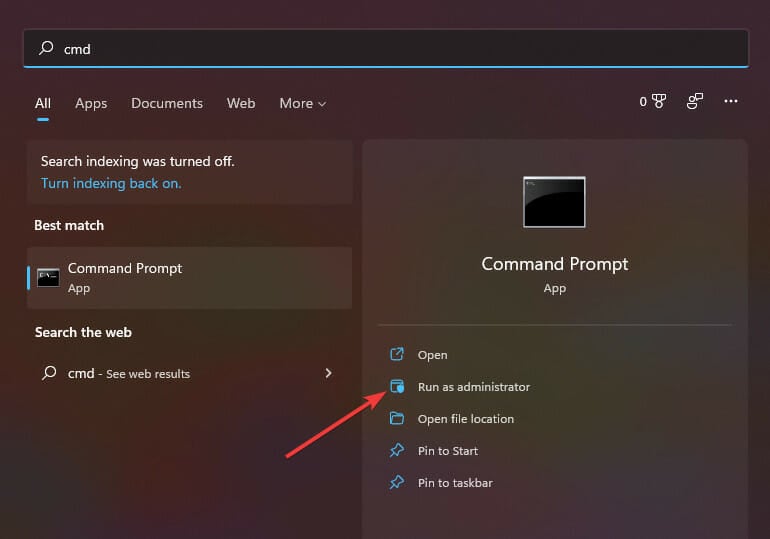
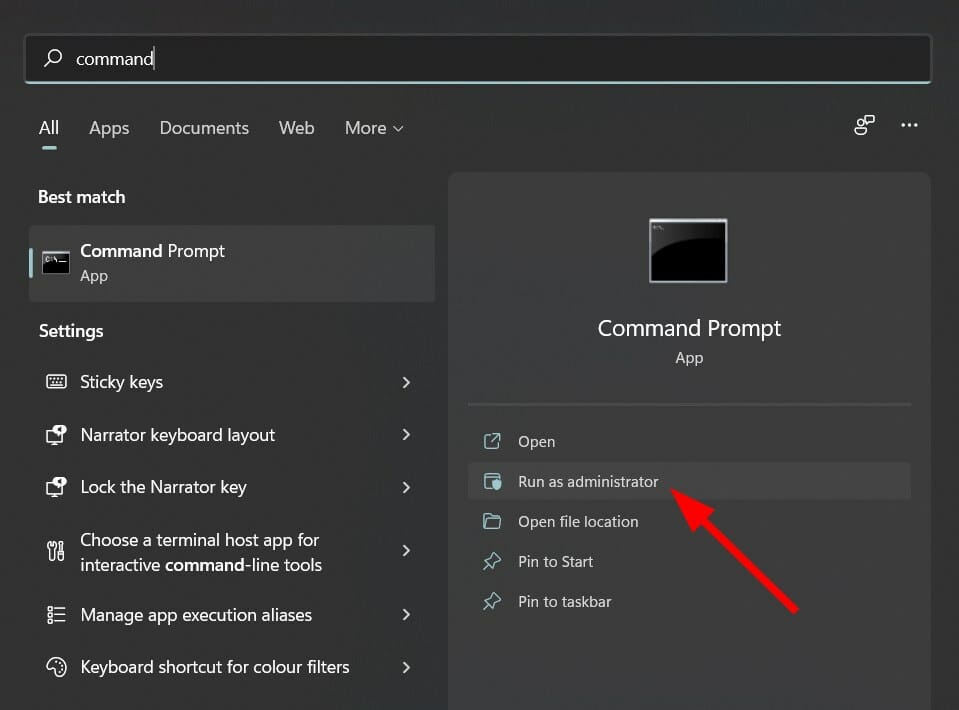
  1. Open Command Prompt as Admin
  2. Run: bcdedit /set TESTSIGNING OFF
  3. Restart your PC

You can verify status with:

bcdedit

Look for testsigning and ensure it’s not set to Yes.


6. Run EA AntiCheat with Admin Rights

Improper permissions or UAC interference may prevent EAAC from verifying system integrity.

Steps:

  • Navigate to C:\Program Files\EA\AC
  • Right-click EAAntiCheat.Installer.exe > Properties > Compatibility tab
  • Check Run as Administrator, then click Apply
  • Do the same for your game’s EXE

7. Perform a System File Check

Missing or altered Windows system files can interfere with driver loading.

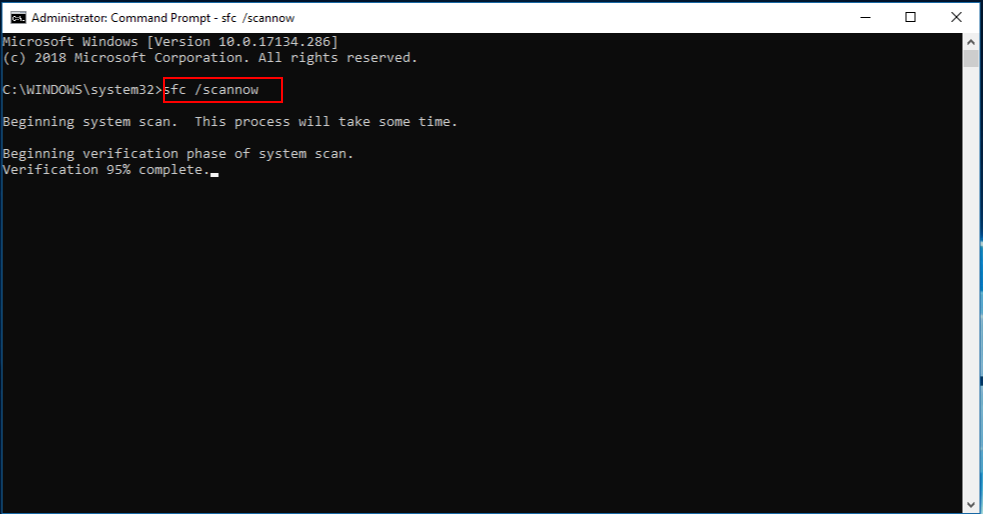
Run the following commands in Command Prompt (Admin):

sfc /scannow

Then also run:

DISM /Online /Cleanup-Image /RestoreHealth

This will repair corrupted system files that may be affecting driver validation.


8. Check for Unsigned or Hidden Kernel Drivers (Advanced)

To check all loaded drivers and verify their digital signatures:

  1. Open Windows PowerShell (Admin)
  2. Run: driverquery /v /fo list > %USERPROFILE%\Desktop\drivers.txt
  3. Open the drivers.txt file from your Desktop
  4. Look for non-Microsoft drivers with suspicious names

Use tools like Autoruns from Microsoft Sysinternals to locate any driver loading at boot.


Additional Tips for Persistent Issues

  • Temporarily disable your antivirus if it’s injecting a network filter (e.g., Avast, Bitdefender)
  • Ensure you’re using UEFI + Secure Boot, as some EA titles check system integrity
  • Do not attempt to bypass the error with modified EXEs or cheat loaders — EA AntiCheat is kernel-level and will block these

FAQs

What causes the “incompatible driver” error with EA AntiCheat?

Usually it’s due to unsigned or conflicting drivers loaded by motherboard tools, overclocking software, or old anti-cheat engines.

Can I fix it without reinstalling the game?

Yes. The issue is usually related to drivers or Windows configuration and doesn’t require game reinstallation.

Is mhyprot2.sys safe to delete?

Yes. It’s used by Genshin Impact’s anti-cheat. If you’ve uninstalled the game, it can be removed manually from C:\Windows\System32\drivers.

Why does EA AntiCheat block tools like MSI Afterburner?

Some overlay or monitoring tools inject DLLs or drivers, which interfere with anti-cheat validation.


Get Back in the Game Without Errors

EA AntiCheat errors are strict for a reason, to ensure fair, cheat-free gameplay. However, many users run into this issue because of completely harmless tools or outdated drivers left behind from older software.

By cleaning up your drivers, checking for known software conflicts, and ensuring your system isn’t in Test Mode, you can fix this permanently.

Want to avoid driver-related errors in the future? Use a trusted tool to install only signed, compatible updates, and always reboot after uninstalling any system-level software.

If all else fails, reach out to EA Help and attach the EAAC log files from your install directory for manual analysis.

DYMO Drivers for Windows 11: How to Download & Install

Drivers are a critical piece of software that helps relay commands between the OS and the devices, and it’s all the more critical that you get the latest Dymo drivers for Windows 11. 

When you upgrade the OS, connectivity issues or problems with the printer may arise if the previously installed drivers are not compatible with the current iteration. Or even otherwise, it’s recommended to have the latest drivers to enjoy seamless connectivity.

Does Dymo LabelWriter work with Windows 11?

Yes, most recent models of LabelWriter are compatible with Windows 11, including models like 550, 550 Turbo, 450, 450 Turbo, and 450 Turbo, amongst others in the series.

But a few legacy devices don’t work on Windows 11. This includes 310, 330, 330 Turbo, and 400 Turbo, as per the Dymo compatibility chart.

How do I download and install DYMO drivers on Windows 11?

1. Download and install from the official website

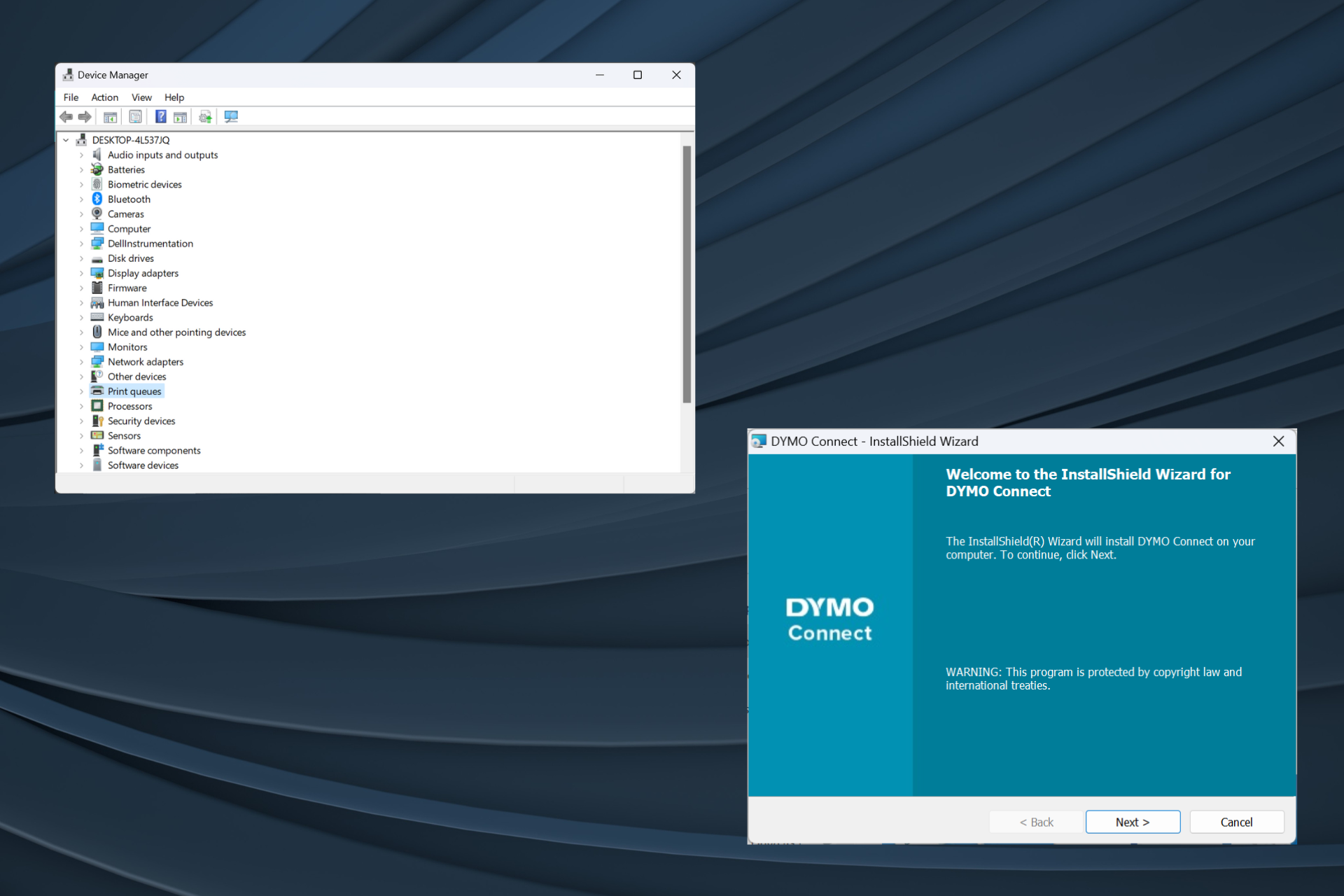
  1. Go to Dymo’s Support Center webpage, and expand the section that lists your printer model. Say, for the Dymo LabelWriter 450 driver download, we will select The Latest Software and Drivers for all LabelWriters and LabelManager.official website
  2. Click the Download button under Dymo Connect for Desktop Windows.dymo connect to install dymo drivers windows 11
  3. After the Dymo software download, double-click the DCDSetup file to run it.
  4. Click Yes in the UAC prompt.
  5. Now, follow the on-screen instructions to complete the installation process.dymo connect

Once you download Dymo Connect, establish a connection with the printer, and it will automatically install the latest Dymo 400 and other Windows drivers, depending on the connected printer. Besides, it is recommended that you have the Dymo Connect Utility installed for seamless operations.

And remember, different Dymo printer models require different software. For instance, you need Dymo ID for XTL and Rhino machines.

2. Use a driver update utility

Many of us are not comfortable with manual driver installation, and it makes sense, given that any mistakes here can render the device unusable, even if temporarily. 

And that’s where automatic driver update tools come into the picture. They can automatically identify all connected devices, find the latest driver version for each, and download them within minutes.

3. Via Device Manager

  1. Press Windows + X to open the Power User menu, and select Device Manager from the list of options.
  2. Expand the Printers entry, right-click on the Dymo printer and select Update driver. If the printer is not listed here, check the Other devices category, and make sure the hidden devices are visible.update dymo drivers windows 11 
  3. Now, click on Search automatically for drivers and wait for Windows to install the best version available locally.search automatically
  4. If that doesn’t work, again, go to driver update, and this time, choose Browse my computer for drivers.browse
  5. Click on Let me pick from a list of available drivers on my computer.availabe drivers
  6. If presented with a list of devices, select Printers, and click Next.
  7. Select DYMO from the left pane, then your printer model from the right, and click Next.install dymo drivers windows 11
  8. Once the printer driver is installed, restart the computer for the changes to come into effect.

If you are facing problems with the device, say Dymo is printing black labels, an easy way out is to install the latest printer driver. Make sure to choose the correct model because incompatible drivers can cause the device to malfunction.

Will Windows 10 printer drivers work on Windows 11?

We can’t generalize it. For some printers, the drivers from Windows 10 will work on Windows 11, while for others, it will not. So, it comes down to specific models, the PC’s hardware, and other changes during the upgrade process.

For instance, during the early days after the latest iteration was released, Brother printers connected via USB failed to work, but the issue was resolved in the subsequent updates.

You now know that Dymo printer driver downloads in Windows 11 are not really that complex. The best part, you can install printer drivers without administrative privileges.

In case it ever happens that the printer stops working, uninstall the recent OS updates, run the dedicated troubleshooter, or install the latest drivers!

For any queries or to share which method worked best for you, drop a comment below.

How to Fix The Fall Guys Error Code 200_2147483647

If you have encountered the Fall Guys error code 200_2147483647 on your Playstation, this guide can help! We will discuss the common causes and expert-recommended fixes to resolve the issue.

What causes the Fall Guys error code 200_2147483647?

  • The Epic Games server is facing downtime.
  • Weak internet connection.

How can I fix the Fall Guys error code 200_2147483647?

Before we go to the advanced fixes to get rid of Fall Guys error code 200_2147483647, here are a few preliminary checks you should do:

1. Restart your PSN

  1. Press & hold the PS button on your PSN controller and choose Power.PSN button - Fall guys error code 200 2147483647 PSN
  2. Select Turn Off PS4/5 or Restart PS4/5. Make sure you don’t choose Enter Rest Mode, as it doesn’t turn off your device completely.

Once you restart your PlayStation, try the same thing that caused the error to check if it persists. Rebooting your console can help you fix other issues like the Join Party error in Fall Guys on all consoles, including Xbox.

2. Change the DNS settings

  1. Go to Settings.
  2. Select Network, then click Set up Internet Connection.
  3. Select Wi-Fi, then choose Custom (select the Network and enter its credentials)
  4. Next, set these settings:
    • IP Address Settings – Automatic
    • DHCP Host – Don’t Specify
    • DNS Settings – Manual
  5. Enter the Primary DNS – 8.8.8.8 and Alternate DNS– 8.8.4.4, then click OK to confirm the changes.DNS server - Fall guys error code 200 2147483647 PSN
  6. Also, choose Automatic for MTU Settings and set Proxy to Do Not Use.
  7. Now select Test Internet Connection and check if it works.

2. Change the Wi-Fi band from Automatic to 5 Gigahertz

  1. Go to Settings.
  2. Select Network.Network - Fall guys error code 200 2147483647
  3. Wait for the initial scan to complete, and click the Options button from the Controller to get the Advanced menu.Options
  4. Under Wi-Fi frequency bands, choose 5GHz.
  5. Your PSN will scan for Wi-Fi networks again on the 5GHz band; once you see the network listed, select it, enter the credentials, and follow the on-screen instructions to complete the steps.

To conclude, if you face this issue, you must first check the server status of the game launcher and your console, then make sure you have a stable internet connection.

You can also try restarting the console, changing the DNS settings or choosing a 5GHz Wi-Fi band to ensure seamless connectivity.

To improve gameplay on Fall Guys, you must use a VPN, as rerouting the game traffic via VPN servers can help. To learn more about what VPNs to use, read this guide.

A VPN can also fix packet loss, protect your router from DDoS attacks, bypass ISP throttling, get rid of Internet restrictions, & more.

Did we miss a step that helped you? Feel free to mention it in the comments section below. We will add it to the list!

Valve’s Deadlock Update Brings New Heroes and The Hideout

Valve’s freshly released free-to-play MOBA, Deadlock, has received a major update that takes effect on gameplay as well as presentation. The patch, deployed on August 18, includes a combination of new content, balance adjustments, and a new hero release strategy.

The top-line addition is Mina, a range glass cannon who drains her enemies with vampiric attacks. She’s the sole new hero who can be accessed immediately, but more characters were officially coming, Valve said, gradually over the next fortnight.

Players even get to decide which next hero they want to release by casting votes accumulated after each game. The new voting system is in place of the cancelled Hero Labs feature for now. The staggered rollout also gives Valve greater flexibility to balance between releases.

Another significant shift is the introduction of The Hideout, a private hub replacing the previous Dashboard. Based on game systems found in titles such as Warframe, it provides the player with a personal area to visit, host friends, and have access to practice modes.

The Hideout features a mini firing range to test movement and skills without having to wait for full-game loads. Valve has also hinted that player customization and seasonal events will come to this region in the future.

Outside of the new hub, the update sees a visual makeover. The hero select screen now features a better layout, while a number of maps and characters have received cleaner designs. Valve states this is the start of a larger visual redesign designed to make Deadlock look more refined and unified.

With a new hero, new lobby design, and player-managed release scheme, Deadlock’s recent patch is one of the largest leaps forward since its initial launch.

NVIDIA Slashes Prices of GeForce RTX 50-Series GPU by 10% in Europe

If you’ve been eyeing one of NVIDIA’s latest RTX 50-series cards but held off because of the steep pricing, now might be the time to revisit.

NVIDIA and its GeForce add-in card (AIC) partners have rolled out price cuts across several Blackwell GPUs in Europe, trimming nearly 10% off their original launch tags, according to a report by Videocardz.

Per the report, the biggest drop comes to the flagship RTX 5090, which has fallen from €2,329 to €2,099, cutting almost €230 off the asking price. The RTX 5080 is now listed at €1,059, down from €1,169, while the RTX 5070 dips from €649 to €589.

Meanwhile, the RTX 5070 Ti, RTX 5060 Ti, and RTX 5060, however, remain unchanged at €879, €399, and €319, respectively. Even the entry-level RTX 5050 has seen a modest reduction, now €251 instead of €269.

So, what’s behind these sudden price adjustments? Well, two things: currency movement and tariffs. The Euro has strengthened significantly against the U.S. dollar, climbing from roughly $1.04 in January to about $1.16 today, a shift of nearly 12%.

This eventually makes importing hardware into Europe cheaper than when the cards launched. On top of that, the EU faces lower import tariffs on computer hardware compared to the U.S., easing costs further.

SharePoint Site’s New Header and Footer Enhancements Will Start Rolling Out Soon

If your SharePoint sites have always seemed a little stodgy, Microsoft is finally relaxing things a bit. The new update, scheduled to release between late August and mid-September, introduces a reworked header and footer experience.

The upcoming change will be simpler to customize and considerably cleaner to navigate. It’s worth noting that the most significant difference is background image support.

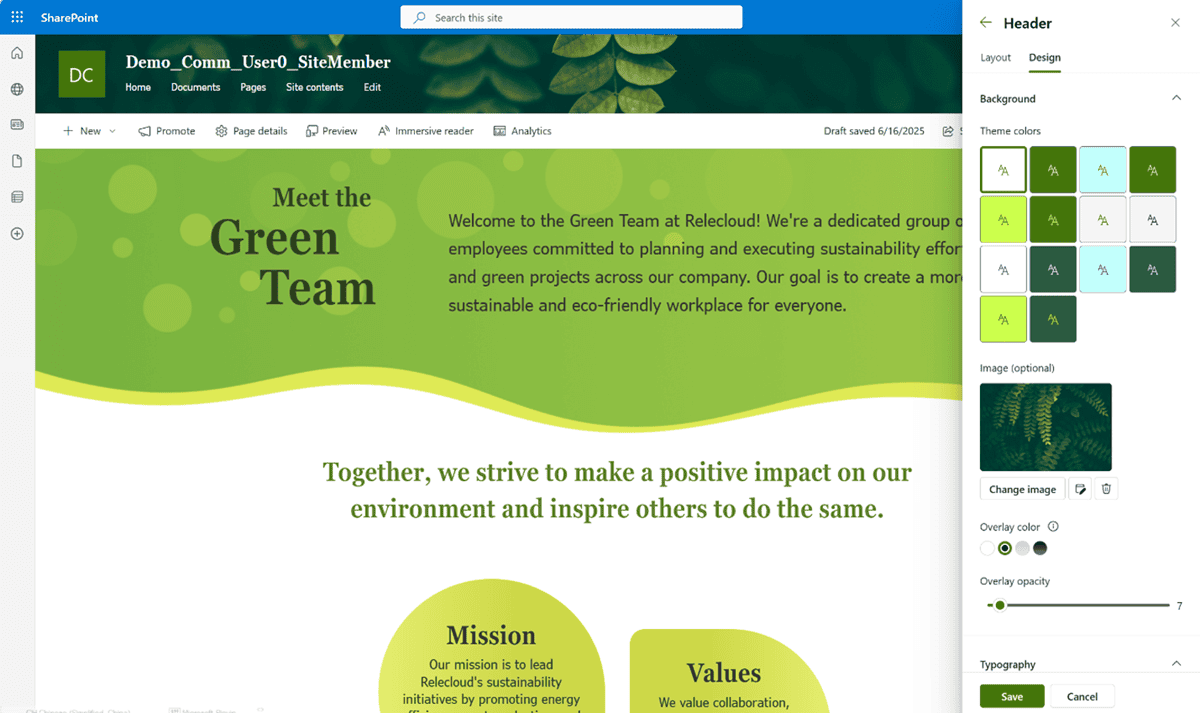
As a site owner, you can drag an image behind a site’s header or footer and adjust overlay colors to suit your brand. It supports all layouts, and you can access it under the “Change the Look” design tab.

Sharepoint header update
Image: Microsoft

Microsoft is also giving some attention to the fonts. Rather than being limited to a single type, you can now choose from a group of predefined titles, navigation links, and footer text families. If you want a more corporate feel or a friendlier one, your design can now bear it out.

Another notable addition is fluid footer alignment. Previously, footers were tied to centering. Now, with the update, you can left-align them if centering is not ideal for your design.

Not to forget, in view mode, the command bar no longer surfaces, which keeps surfing neater and less distracting. While these are a small batch of updates, they amount to a neater, more contemporary SharePoint experience.

If you’d like to get a glimpse of the new tools at work, watch Microsoft’s walkthrough video with Tina Chen and Vesa Juvonen. Alternatively, you can simply jump into the refreshed “Change the Look” settings and begin experimenting. In relatable news, SharePoint is also getting “Sections with AI” for smarter page building.

Microsoft Rolls Out August 2026 Hotfix Update for Skype for Business

If you’re running Skype for Business Server, Microsoft’s latest hotfix update is one you won’t want to skip. Released on August 18, the update introduces critical security improvements for hybrid environments and ensures the Skype Meetings Application keeps working past October 15, 2025.

So, what’s new? The biggest change is support for a Dedicated Hybrid Application in Microsoft Entra ID. Previously, Skype for Business relied on a Microsoft-managed Shared Service Principal to integrate with Exchange Online.

The aforementioned setup handled features like archiving, calendar-based presence, and profile picture sync. But moving forward, organizations will need to configure their own Dedicated Hybrid Application to keep those hybrid features running smoothly. Worth noting that Microsoft has provided step-by-step guidance in its official documentation.

The update also takes care of the Skype Meetings Application, which will stop functioning properly after mid-October unless this patch is installed.

For admins running Skype for Business Server 2015, there’s an extra step: you’ll need to run the add_sfbassets.ps1 script after applying the hotfix to keep meetings stable.

Here’s the breakdown of supported versions:

  • Skype for Business Server 2015 CU13 (KB3061064)
  • Skype for Business Server 2019 CU8 (KB4470124)
  • Skype for Business Server Subscription Edition RTM (KB5065372)

With minimum build numbers raised (2015 at 6.0.9319.881, 2019 at 7.0.2046.553, and Subscription Edition at 7.0.2046.820), Microsoft is making it clear that organizations must update. Apply the hotfix, set up the dedicated hybrid app, and your Skype for Business integrations will stay ready for what’s next.

SharePoint Gets “Sections with AI” for Smarter Page Building

Microsoft is giving SharePoint creators a new productivity boost. Starting this week, a new feature called “Sections with AI” is rolling out.

As the name suggests, this feature letting you build complete SharePoint page sections with just a simple prompt. It pulls from your existing page context, organizational knowledge, and even linked files to generate rich, full-fidelity sections in seconds. Now, you must be wondering how to use the new feature, right?

Well, you first need to click the new “Add section using AI” button between page blocks. From there, you’ll see suggested prompts tailored to your current content, or you can type your own. Additionally, you can attach relevant files like meeting notes or project docs.

Once you’re done, click on “Generate,” and SharePoint will create polished layouts that can mix text, visuals, and organizational insights. Copilot can pull in transcripts, recent documents, or other knowledge your team already has access to.

If you don’t like the first result, you can cycle through multiple variations using the arrows in the header.

What sets Sections with AI apart is how editable the results are. You can refine both the look and the wording with natural language prompts like “make the text more professional” or “add John Smith’s contact information.” Need something different altogether? Just regenerate for new suggestions.

Microsoft says it aims to cut down the time it takes to create professional, knowledge-rich pages. In demos, the tool showed how quickly it can build usable layouts that adapt to different needs, all while keeping you in control. Moreover, SharePoint sites are soon getting header and footer enhancements starting late August.

How To Change Windows Live Mail Spam Settings [Step-By-Step]

Windows Live Mail spam settings let you filter junk messages, whitelist trusted contacts, and block senders. Below is a fast, step-by-step setup plus tweaks for safer inbox management.

If you still run Windows Live Mail on Windows 10 or 11, it’s important to know that compatibility issues can sometimes cause sync glitches or crashes. Before adjusting spam controls, check this dedicated guide on how to download and install Windows Live Mail on Windows 10 and Windows 11.

How to Change Spam Settings in Windows Live Mail?

Time needed: 15 minutes

  1. Open Safety Options

    n Windows Live Mail, go to Home › Junk › Safety options… on the ribbon. On some builds, use File › Options › Safety options… (name can vary slightly by version).

  2. Choose your filtering level

    In Safety Options, open the Options tab and pick one: No Automatic Filtering, Low, High, or Safe List Only. High is aggressive; Safe List Only accepts mail only from approved lists. Click Apply.

  3. Add trusted senders (whitelist)

    Go to Safe Senders › Add…, type an email or domain (e.g., [email protected] or @company.com), select Also trust e-mail from my Contacts, then OK.

  4. Add safe recipient lists

    On Safe Recipients, Add… mailing lists or aliases you trust (e.g., [email protected]) so mail to those addresses never lands in Junk. OK.

  5. Block unwanted senders (blacklist)

    Open Blocked Senders › Add… and enter the spammer’s address or domain. Use Remove later if you block something by mistake. OK.

  6. Tighten international filtering (optional)

    In International, use Blocked Top-Level Domain List to block countries you never receive mail from, and Blocked Encoding List to filter messages in scripts you don’t use. OK.

  7. Turn on phishing protection

    On the Phishing (or Security) area, enable the option to move phishing-suspicious messages to Junk and to block external images in HTML mail. Apply › OK.

  8. Train the filter as you go

    In your Inbox, select a spam message › Home › Junk › Junk E-mail to send it to Junk E-mail. For false positives, open Junk E-mail, select the message, choose Not Junk to restore and learn.

Create Message Rules to Auto-Move Persistent Spam

If certain promos still slip through, add a rule that catches keywords, addresses, or subjects and moves them straight to Junk (or a custom “Spam” folder).

  1. Open Message Rules: Folders tab › Message rules.
  2. Pick conditions: e.g., “Where the From line contains people” or “Where the Subject contains specific words.”
  3. Set the action: “Move it to the specified folder,” then choose Junk E-mail (or your Spam folder).
  4. Add details: Click underlined values to add addresses, domains, or keywords, then OK.
  5. Move rule up: Keep your spam rule near the top so it runs early. OK to save.

Best-Practice Tweaks (Quick Wins)

  • Start at Low, then adjust. If spam still hits the Inbox, switch to High; if wanted mail is blocked, go back to Low and grow your Safe Senders list.
  • Use server-side spam filters. If your account is Outlook/Hotmail/Live, Microsoft’s cloud filter works before messages reach the app—log into the webmail junk settings to refine safe/blocked lists there as well.
  • Keep languages aligned. If your UI/language don’t match your typical mail, adjust the app language to reduce misclassification and pair it with International filtering. Here’s how to change Windows Live Mail language.
  • Planning a move to Outlook on Windows 10? If you’re migrating or syncing with Outlook/Outlook.com, set expectations and follow this guide so your mail and rules carry over cleanly. Use Outlook with (or instead of) Windows Live Mail on Windows 10.

Troubleshooting False Positives (Legit Mail in Junk)

  1. Add the sender/domain to Safe Senders.
  2. Open the mail in Junk and click Not Junk to retrain.
  3. Check you didn’t over-block in International (unblock needed encodings or TLDs).

Changing Windows Live Mail Settings for a Safer Inbox

Windows Live Mail is an older client, but with careful spam filter setup, it can still handle unwanted mail effectively. The key is balancing filtering strength with trusted sender lists so that you minimize junk without losing important messages.

If you notice issues with how Live Mail works on modern systems like Windows 10, it’s worth reviewing its limitations and considering alternatives. Microsoft has long shifted focus to Outlook, but with proper configuration, Live Mail remains usable for many.

For detailed steps on accessing your account, see our Windows Live Mail login guide.

Finally, don’t overlook ongoing management. Keep adjusting your Safe/Blocked lists, review phishing protection settings, and use message rules for recurring spam. Combined, these steps will give you more control of your inbox and make Live Mail a safer choice for everyday communication.


FAQs

What’s the safest filtering level to start with in Windows Live Mail?

Start with Low to reduce spam without losing mail, then move to High if needed. Safe List Only is strict and can hide new legitimate contacts.

Where is Junk settings if I don’t see the Junk button?

Use File › Options › Safety options…. On some UIs the ribbon entry is hidden, but Safety Options is still available from the menu.

Do Safe/Blocked lists work with IMAP and POP?

Yes, rules and lists run in the client. For best results, also configure spam controls in your provider’s webmail so filtering happens before delivery.

Can I auto-file recurring spam by subject or keywords?

Yes, create Message Rules to move matching mail to Junk E-mail or a custom folder automatically.


Microsoft Confirms August Patch Tuesday Updates Trigger Reset & Recovery Failures

Microsoft has officially confirmed a serious issue introduced in the August Patch Tuesday updates. The bug affects reset and recovery features across multiple supported versions of Windows 10 and Windows 11.

The problem prevents users from resetting or recovering their PCs through standard tools. The company notes that impacted options include Reset this PC, Fix problems using Windows Update, and device wipes through RemoteWipe CSP. Not to forget, all these recovery actions fail on affected builds,.

Which versions are affected

As first reported by Neowin, Microsoft’s Windows Release Health dashboard details that the following client versions are impacted:

  • Windows 11, version 23H2
  • Windows 11, version 22H2
  • Windows 10, version 22H2
  • Windows 10 Enterprise LTSC 2021
  • Windows 10 IoT Enterprise LTSC 2021
  • Windows 10 Enterprise LTSC 2019
  • Windows 10 IoT Enterprise LTSC 2019

Interestingly, Windows 11 version 24H2 is not affected. It’s worth noting that Windows Server editions are also unaffected. Microsoft has also confirmed that an out-of-band (OOB) fix is already in development. The company plans to roll it out before the next scheduled Patch Tuesday on September 9, 2025.

Until then, users running impacted builds should avoid using reset or recovery options. Microsoft recommends waiting for the emergency patch to ensure system stability.

All in all, the bug highlights the risks tied to routine security rollouts, even as updates deliver essential fixes. Microsoft says it will share further details once the OOB update is available.

NVIDIA App Finally Adds Global DLSS Override and More Cool Features

If you’re tired of clicking through each game to tweak settings, NVIDIA’s latest app update has your back. Starting August 19, the NVIDIA App gets a major overhaul packed with global DLSS toggles, better motion smoothing, Project G-Assist upgrades, retro 3D options, and more.

There are even smoother setup tools for multi-display gaming. Let’s break down what you can expect, starting with something that saves you time right out of the gate.

Ever wanted to force a DLSS setting across your entire game library? Well, now you can. The new global DLSS override brings all compatible games under one roof. Want to use the latest transformer model? Done. Prefer Ultra Performance or DLAA mode? One option for all.

You can still dial settings per-game if needed, but this feature alone is a time saver, especially if you have a monster library. Wondering if it’s active while gaming? The DLSS override appears right in your in-game overlay (Alt+R), showing the DLSS status next to FPS and GPU usage. Handy, right?

NVIDIA also notes that context switching is smoother than ever. The company has also extended the Smooth Motion AI tool to all RTX 40-Series GPUs. Whether you’re playing a modern game or an older DX11/Vulkan title, you can now inject smoother gameplay even if the game doesn’t support frame generation natively.

That’s not all; G-Assist now runs on all RTX GPUs with 6GB+ VRAM, including laptops, and uses 40% less memory. It’s smarter at picking the features you need, plus it’s more stable and responsive. And yes, you can now install plugins directly from mod.io in just a few clicks.

If you’re a multi-monitor flight or racing fan, NVIDIA has you covered. The updated NVIDIA app includes a streamlined NVIDIA Surround setup for easier horizontal or vertical arrangements. Want older games to look crisp? Legacy 3D settings like anisotropic filtering or PhysX are now back in the app, both globally and per-game.

The company further says that laptops equipped with Advanced Optimus can now show you which apps are stopping dynamic GPU switching. You’ll also get better notifications, so you’re never left wondering why your GeForce GPU isn’t kicking in.

NVIDIA isn’t stopping here, as it plans to bring more legacy control panel options, new features, and fine-tuned updates in future releases. If you’ve got any questions or need to report anything, head to the “Feedback” or “Report an issue” buttons inside the app.

OpenAI launches affordable ChatGPT Go plan in India

After months of user requests for a budget-friendly option, OpenAI has officially launched its most affordable subscription plan, ChatGPT Go, in India.

The new plan is priced at ₹399 ($4.5) per month and is designed to make premium AI access more attainable in one of OpenAI’s fastest-growing markets.

Yesterday, Nick Turley, head of ChatGPT, announced the rollout on X, highlighting how Go bridges the gap between the free and premium tiers. A part of his post reads, “We’re rolling out Go in India first and will learn from feedback before expanding to other countries.“

What ChatGPT Go offers

ChatGPT Go includes everything from the free plan, but with 10x higher limits on core features:

  • GPT-5 usage
  • Image generation
  • File uploads
  • Advanced data analysis with Python

ChatGPT Go plan also comes with 2x longer memory, making responses more personalized and continuous, plus access to projects, tasks, and custom GPTs for better organization.

Notably, the new tier does not include legacy models, keeping the focus on GPT-5 and core productivity tools. OpenAI has also enabled UPI as a payment option for Go subscribers, given India’s reliance on digital payments.

By testing the plan in India first, OpenAI is signaling a strategic bet on expanding its user base in emerging markets. If successful, Go could eventually roll out across other developing nations.

Firefox Brings CJK Translation to Android with Local Privacy

Mozilla has rolled out a major Firefox update for Android, bringing local translation support for Chinese, Japanese, and Korean (CJK) users. The move follows high demand on Mozilla Connect, where users had repeatedly requested better CJK coverage.

Unlike other browsers that process text in the cloud, Firefox handles translation entirely on the device. This means stronger privacy, faster results, and even offline use once the language models are downloaded.

“Firefox automatically downloads the model once,” explained Mozilla engineer Erik Nordin. “After that, translations happen on your phone. The content never leaves your device, and Firefox does not track what you translate.”

Mozilla notes that building translation for CJK wasn’t that easy. These languages rely on complex characters and lack spaces between words, making text segmentation difficult. Mozilla’s team had to overhaul algorithms and design lightweight machine learning models that still run smoothly on mobile hardware.

Firefox only translates the visible section of a page instead of processing everything at once to optimize performance. This makes the experience more responsive, especially on older or budget devices.

Mozilla relied on community testers fluent in Chinese, Japanese, or Korean to refine accuracy. Testers spotted real-world quirks, like one early model translating “stuffed mushrooms” as a plush toy. Their feedback helped fine-tune the final release.

CJK support has already doubled Firefox’s active translation users in Asia since landing on desktop. With Android support now live, even more users can browse the web in their own language, safely and privately.

You can try it by updating Firefox on Android or desktop, tap the translate icon on a CJK page, and the browser will handle the rest locally. In a related news, Firefox is soon getting built-in Google Lens support for image searches.

Mozilla finally releases Thunderbird 142 with handy updates and bug fixes

After a long wait of nearly a month, Mozilla has rolled out Thunderbird 142, and it’s packed with small but meaningful changes that long-time users will notice right away.

The latest version brings support for visual signatures in PDF attachments opened directly inside the app. It also updates the interface by adding “Copy Message Link” and “Copy News Link” under the header pane’s “More actions” menu.

Meanwhile, the outdated “Copy Message Location” option has been removed, making the UI a little cleaner. Another welcome improvement is the new Reset Folder Order option, allowing users to undo custom sorting and return to the default layout.

Now, copying folders between local storage and mail server accounts is also finally possible. This eventually makes backups and reorganization much easier.

Thunderbird 142 update also squashes several long-standing bugs. Fastmail calendar sync is working again after broken OAuth settings were fixed. Notification sounds now properly respect the do-not-disturb mode.

You should also notice smoother behavior when sending emails from unified folders, working with attachments in tabs, and toggling dark message mode. Other fixes improve Linux usability, restore correct alphabetical sorting for newsgroups, and stop the message list from jumping back to the top unexpectedly.

Thunderbird has also added support for displaying WebP contact photos from CardDAV servers, while Microsoft Store installations now open mailto links without errors.

SoftBank pours $2 billion into Intel to boost U.S. chip push

SoftBank is doubling down on semiconductors with a major move into Intel. The Japanese investment group has signed an agreement to acquire $2 billion worth of Intel stock at $23 per share, a deal that reflects both companies’ shared commitment to advanced technology and U.S. manufacturing growth.

Masayoshi Son, Chairman and CEO of SoftBank, described semiconductors as “the foundation of every industry,” noting Intel’s decades-long leadership in chip innovation.

For Son, this investment is about more than just capital; it’s about supporting the expansion of chipmaking capacity in the United States at a time when global demand is ever-growing.

Intel’s CEO, Lip-Bu Tan, welcomed the partnership, highlighting his long relationship with Son and calling the investment a strong vote of confidence in Intel’s direction. The company has been under pressure to accelerate its turnaround and reclaim ground from rivals like TSMC and Samsung.

This deal comes as Intel plans to build cutting-edge fabs in the U.S. and expand its role in the supply chain that powers everything from AI to cloud computing. For SoftBank, the move is a natural extension of its focus on the AI revolution.

With AI models requiring massive compute power, demand for advanced semiconductors is expected to skyrocket. By backing Intel, SoftBank secures a stake in one of the few companies positioned to deliver large-scale chip manufacturing in America. Not to forget, the agreement is still subject to closing conditions

Microsoft may cut Xbox Cloud Gaming cost

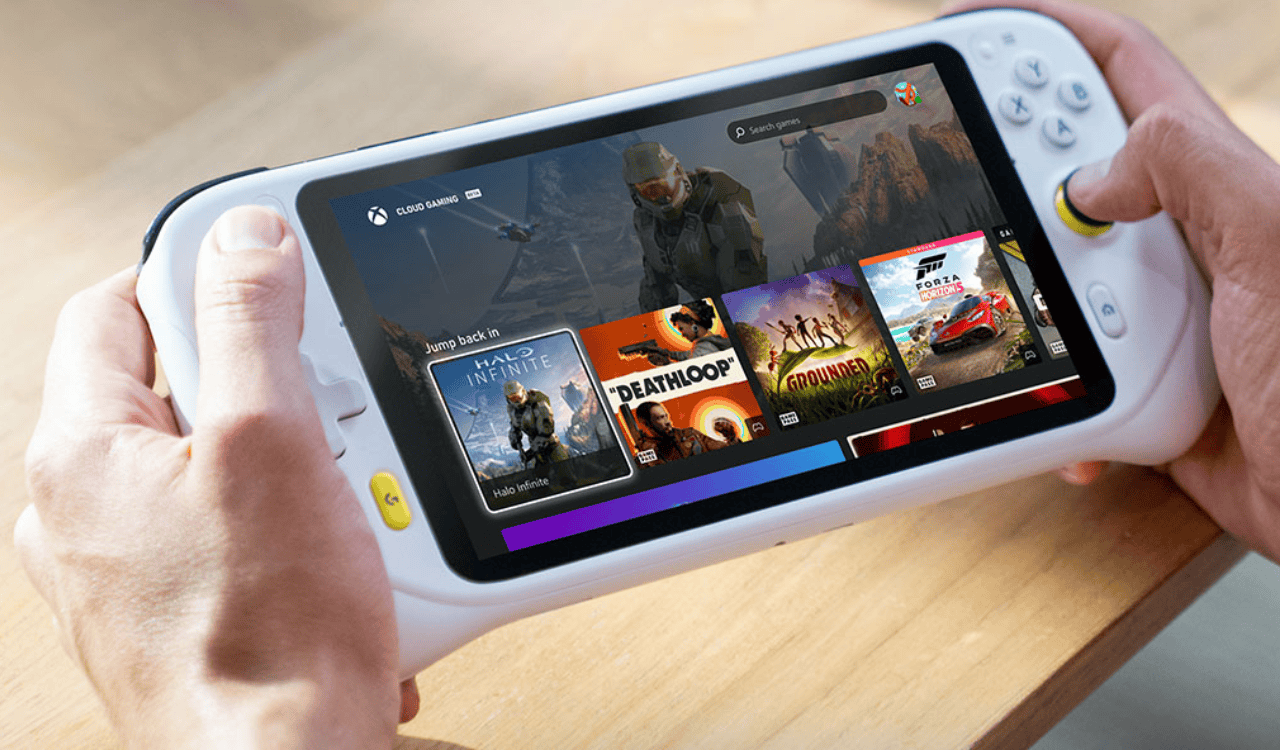
Microsoft could soon make Xbox Cloud Gaming more affordable. The company has hinted at a new plan that might lower the barrier for players who just want cloud access without paying for the full Xbox Game Pass Ultimate bundle.

According to The Verge, Jason Ronald, VP of Next Generation at Microsoft, acknowledged that many subscribers mainly use the cloud option. The comments reportedly came from Ronald in a recent appearance on the official Xbox podcast.

Apparently, for Xbox cloud players, paying the full $19.99 per month for Ultimate, including PC and console benefits, feels like overkill. That’s why Microsoft is exploring ways to offer a lower-cost entry point dedicated to the cloud.

As you may know, Xbox Cloud Gaming is tied exclusively to Game Pass Ultimate, priced at nearly $20 a month. That makes it less appealing for people who don’t care about console perks but still want to stream games directly from the cloud.

That’s where a cloud-only tier would fill this gap and potentially open the service to a much wider audience. In the past, the company trialed the Game Pass Friends and Family plan, though it was eventually discontinued.

Rumors of a standalone cloud subscription also surfaced in mid-2024, suggesting the idea has been floating around internally for a while. As far as launch timeline and pricing are concerned, there’s no details yet.

However, if Microsoft goes on to launch a cloud-only plan, it will likely sit between the cost of standard Game Pass and Game Pass Ultimate.

5 Best Antivirus and Tune up Software for Maintenance

With the varieties of viruses, Trojan horses, spyware, or malware, on the web, your data is constantly under attack. This makes it increasingly necessary to have the best line of defense available.

Most antivirus suites come with a tune-up utility included that makes sure to keep your PC’s performance as high as possible. In addition, these apps dig deep into the system and fix troubled areas.

Some tools are more effective and secure than others, though. So, we gathered the best antivirus and tune-up software for Windows on the market to make your choice much more manageable.

What is tune-up in antivirus?

A tune-up means the antivirus has extra features focused on optimizing your system. In addition to virus protection, you can also access tools to clean up your PC.

Below are some of the benefits of the tune-up feature:

  • Junk files removal
  • Clearing of cache and cookies
  • Removal of unwanted extensions on browsers
  • Speed up of startup time

These tools can help you remove junk files from your PC, remove unwanted extensions from your browser, clear cache data, and cookies, speed up startup time, and more.

What is the best antivirus and tune-up software?

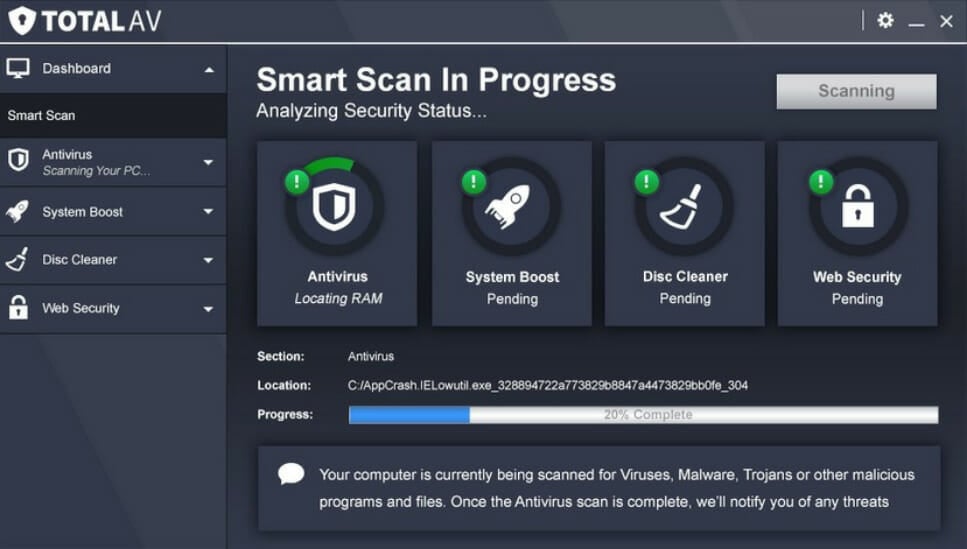
Total AV – Best protection and maintenance software

With Total AV, you are hardwired against threats like trojans, ransomware, trackers, and tune-up optimization tools.

This antivirus solution offers complete security support to defend your PC from all issues with malware infections, adware, and spyware risks present online.

You have real-time protection for your downloaded files or installed programs each time you access them, so you stay away from risky viruses.

Plus, with the tune-up functionality, your PC will be optimized for every area, which can improve the system to work faster and without any errors.

Take a look at more features of Total AV:

  • Remote firewall option
  • Disk Cleaner to free up memory
  • iOS and Android protection
  • Non-stop support

Other features include a fantastic WebShield browser extension to protect you every step of the way on the internet. Also, It’s compatible with any device, Windows, Android, Mac, and iOS.

Total AV

Total AV

Maintain your PC performance and safety sky-high with the latest tune-up tools from Total AV.
Check price Visit Website

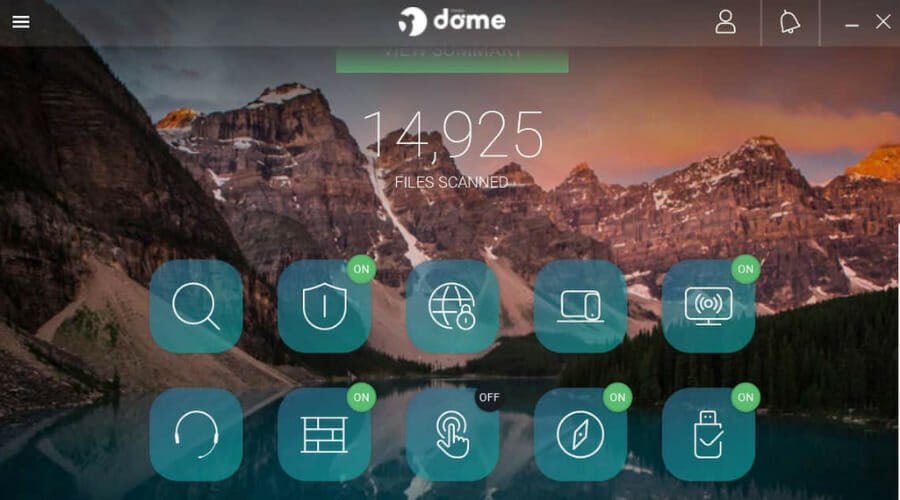
Panda Dome – Great cloud-based protection

router antivirus

Panda Dome comes with a safe browser and features an innovative cloud-based antimalware technology that protects against known and unknown virus threats.

The Panda Dome suite has quite a reliable record for malware detection, including a helpful toolset that will protect your system’s identity. Panda can rival the best Internet security software for detecting malware.

Panda has valuable extras, such as restoration tools, free online backup, and remote PC access. All these tools facilitate all your PC needs. Also, the safe browser provides a safe zone for online purchases and exchanging sensitive info.

Other notable features:

  • Parental control, firewall, online identity protection, email protection, and a network manager
  • Blocks most legit malware threats
  • Virtual keyboard for hiding your login info from keyloggers
  • Removes infected files from externally connected devices, including USB drives

Panda Dome brings some cleanup tools that speed up and improve your PC’s performance. Moreover, it provides safe browsing via a virtual machine wholly isolated from the PC.

Panda Dome Essentials

Panda Dome Essentials

Not only will your PC be safe from online threats, but it will also stay tuned as if it were new.
Free trial Visit Website

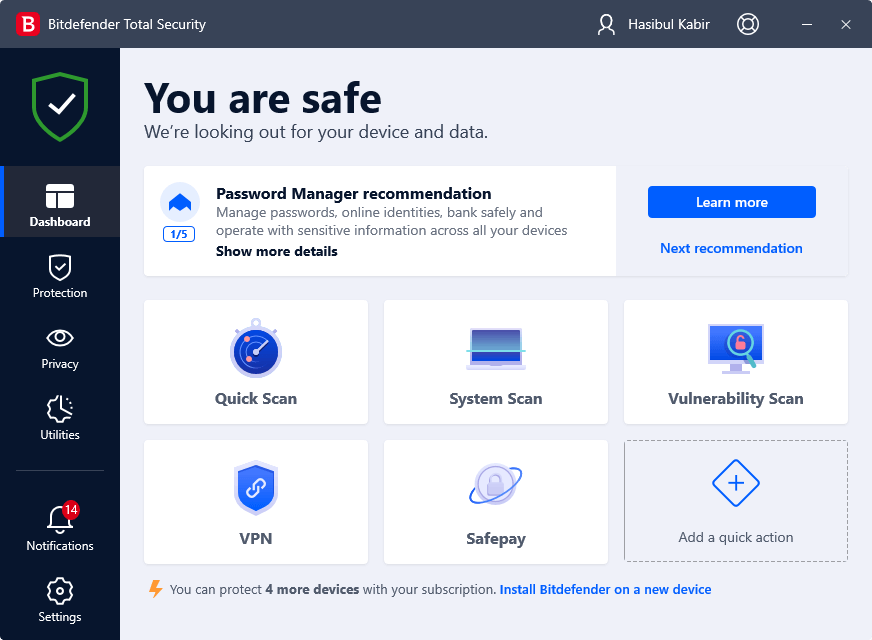
Bitdefender Total Security – Most advanced security options

Bitdefender is one of the best antivirus and tune-up software due to its performance, security-enhancing features, usability, and non-stop tech support.

It has more features and tools in its basic package than any other antivirus product and includes features to clean up your PC.

The OneClick Optimizer improves the system performance by removing the files that are no longer necessary, such as temporary Internet files, cookies, and temporary system files. Bitdefender also protects your social network by monitoring your privacy settings.

Bitdefender also has a parental control feature with the possibility of remote configuration and includes some tools to protect you during your online banking operations.

Check out Bitdefender’s key features below:

  • Examines files that are suspiciously similar to those already known to be malicious
  • Protects against new threats that pop up and target sensitive files
  • The USB Immunizer blocks potential malware in flash drives
  • Detects vulnerable software items and suggests necessary actions

Bitdefender’s impressive performance, valuable features, solid support, and excellent user experience make this tool an outstanding antivirus program.

Bitdefender Total Security

Bitdefender Total Security

The best antivirus in the world also has tune-up tools, making it great for older and unprotected PCs.
Free trial Visit Website

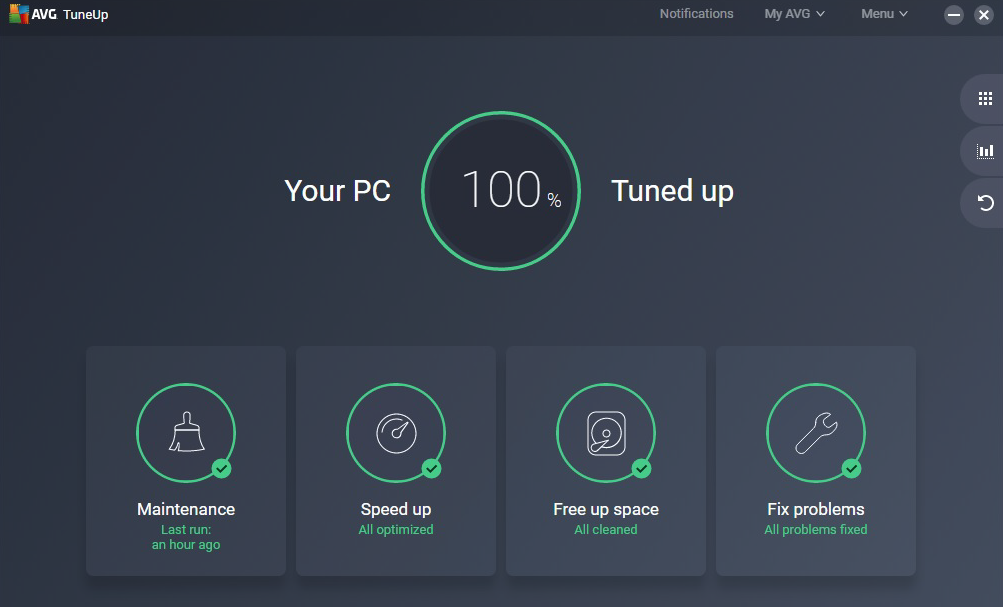
AVG TuneUp – Best tune-up features

avg free pc optimization software

AVG TuneUp makes your PC live longer. Unfortunately, the more programs you use, your PC will become slower. It comes with a great and potent PC cleaner and other tools to make your PC run smoother than ever.

The release of AVG TuneUp comes with a complete reboot of the parental Programs-On-Demand technology. It places draining programs into a smart Sleep Mode, reducing their impact on PC performance, battery life, storage, and network to almost zero.

It’s been tested that AVG TuneUp will make your boot time 77% faster and free you around 75 GB of space. Using this for a laptop will also increase its battery life and optimize it to make it run better.

Take a look at more essential features of AVG TuneUp:

  • Constant updates for popular applications such as Skype and Google Chrome
  • Fully automatic updater
  • Notifications for critical software updates
  • Removes unwanted files that accumulate over time

The software can remove temporary files in Office 2016, Snagit, Windows 10, and more. In addition, it removes hidden browser traces from the latest IE, Chrome, Edge, and Firefox. It can also eliminate unnecessary Windows cache and logs and duplicate photos, docs, and more files.

Norton Computer Tune-Up – Great tools and features

Norton Computer Tune-Up is a one-time service that will help you make your sluggish computer works brand new again.

The service gives you access to Norton’s certified technicians within 30 days from the acquisition day, and they will help you revitalize your device.

Use the service to:

  • Fixes common issues that cause undesirable behaviors, such as freezing and crashing
  • Scan, diagnose, and resolves various performance issues
  • Remove unnecessary files that take up space on your hard drive
  • Free up system memory, and make the most of your hard drive and RAM

Besides, you can extend your device’s lifespan and security using one of Norton’s top protection plans. To learn more about the programs and to get started right away, all you have to do is visit their website.

Norton Computer Tune Up

A perfect blend between an antivirus’ features and a PC optimizer’s speed-up capabilities.
Free trial Visit Website

An antivirus with additional tune-up features can positively impact your PC in the long run. While it can access all files, those tools will know the most optimal way to clean your computer.

They can enhance performance in many ways, from better boot times, less RAM usage from apps, or even faster loading times when opening apps.

These are the best antivirus tools with tune-up utilities you will find on the market. Hence, consider their practical features and choose the one that best fits your needs.

Microsoft Brings AI to Excel with New COPILOT Function

Microsoft has just introduced the Copilot function in Excel for Windows and Mac. With the new function, Excel now becomes a space for analyzing text, generating ideas, and simplifying repetitive tasks, all from inside the familiar grid.

Well, the feature is easy to use. You can simply type =COPILOT() into a cell, add a prompt, and Excel instantly returns results that update as the data changes. Unlike add-ins or scripts, Copilot is fully integrated into Excel’s calculation engine, keeping everything live and responsive.

Microsoft says the function works seamlessly with existing tools. You can pair it with IF, SWITCH, or LAMBDA formulas, or even feed it results from other functions. This means that there’s no need to reformat old spreadsheets.

Practical uses range from classifying customer feedback to summarizing reports or building lists in seconds. For example, Microsoft demonstrated how Copilot could categorize reviews of a coffee machine by sentiment using a single formula.

Beyond business tasks, it can also help with brainstorming ideas, SEO keyword generation, or even rewriting text for clarity. More importantly, Microsoft suggests that data handled by Copilot stays private and is not used to train AI models.

For now, Copilot supports up to 100 calls every 10 minutes and 300 per hour. It’s rolling out first to Beta Channel users with a Microsoft 365 Copilot license, with Excel on the web support coming soon.

The new function also replaces the earlier LABS.GENERATIVEAI tool from Excel Labs, reflecting feedback from early testers.

The company has also said that future updates will bring better array support, smarter date handling, and expanded guidance for tricky tasks. Moreover, Microsoft also hints at bigger plans, including live web integration and access to enterprise data sources.

Gamescom 2026 Kicks Off August 20: Here’s Schedule & What to Expect

Gamescom will be back in Cologne in just two days, running from August 20 through August 24, with Geoff Keighley kicking things off on Opening Night Live the evening before.

Organizers have said that this could be the show’s biggest edition yet, with record exhibitor numbers and a schedule packed with premieres and hands-on demos.

Xbox is going big this year

Microsoft isn’t holding back, as it has already confirmed it will bring more than 20 playable games across 120 demo stations. No wonder, it’ll be the company’s one of the most ambitious showcase in recent years.

The star of the booth will be the ROG Xbox Ally and Ally X handhelds, making their first public appearance. Additionally; fans will get to try titles like Hollow Knight: Silksong, Sea of Thieves, and the remastered Tony Hawk’s Pro Skater 3+4.

If leaks prove right, attendees might also get the first chance to pre-order the handhelds during Xbox’s August 20 showcase, with prices said to be around €599 and €899 ahead of a holiday launch.

That’s not all; Grounded 2, Ninja Gaiden 4, and new content for Indiana Jones and the Great Circle will also be playable. Bethesda is teasing a surprise of its own, keeping fans guessing until the show floor opens.

For those at home, Xbox is planning two live broadcasts from its booth on August 20 and 21, so the big reveals won’t be limited to Cologne.

Sony stays away yet again

Sony, meanwhile, is once again skipping Gamescom. This marks the sixth straight year without an official PlayStation presence at the event. Even so, fans shouldn’t feel left out. Publishers like EA, Capcom, and Konami will showcase PS5 games. That meansb there’ll still be plenty for PlayStation owners to look forward to.

With more than 1,500 companies set to attend, Gamescom 2025 looks ready to deliver one of its most exciting editions yet, and it’s Xbox, not Sony, taking center stage.

Xbox Hardware Chief Reflects on Series X|S as Microsoft Eyes Next Era

With the ROG Xbox Ally handheld on the horizon, Microsoft appears to be closing the book on the Xbox Series X|S generation. Partner Head of Design Carl Ledbetter shared a reflective post on LinkedIn (via Windows Central), hinting that Team Green is preparing for what comes next in Xbox hardware.

Ledbetter explained that the Series X and S were built with two different design philosophies in mind. The Series X focused on power and seamless living room integration, while the Series S offered accessibility and a lighter form factor without compromising performance.

Together, they defined what Xbox wanted this era to represent: devices that were powerful, purposeful, and deeply connected to players’ lives. “In designing them we often refer to their expression as ‘Intelligent Geometry’ — products based in pure geometric form that evoke precision, craft, and intelligence,” Ledbetter wrote.

Teasing the next generation

While most of his comments look back on the last few years, Ledbetter did hint at the road ahead. He noted that his “journey [is] far from over” and that he is “excited and inspired by what is ahead of us,” suggesting that the next-gen Xbox is already in the works.

For now, attention is turning to the upcoming ROG Xbox Ally, which expands Microsoft’s hardware ecosystem into the handheld space.

With new devices on the way and speculation about the future console cycle, the Series X|S generation may soon be remembered as the bridge to Xbox’s bold new chapter.

Error 0x800703f1 in Windows Update [SOLVED]

Despite the frequent updates, users still get troubled with issues like the Windows update error 0x800703f1 while trying to do the needful.

This issue is connected to Service registration failure and leads to an update stuck. Until Microsoft sorts this issue out, we have a few valuable pieces of advice and workarounds for you.

Why does the error 0x800703f1 appear on Windows?

This error is quite similar to the 0x8007012a install error in Windows 11, and it’s caused by certain glitches in the system. However, in most cases, these can be fixed with a built-in troubleshooter.

If this issue occurs, it’s likely that you’ll get We couldn’t complete the updates message, and you’ll be reverted back to the previous build.

A common cause for this is a system or file corruption, and we covered how to fix corrupted files in Windows in one of our previous guides, so be sure to check it out.

Here are a few similar issues reported by users:

  • System Restore error 0x800703f1 – This error can also appear while using System Restore, and if that happens, be sure to scan your system for file corruption and check if that helps. You can also try to solve the problem by disabling your antivirus.
  • 0x800703f1 Windows 8 – According to users, this error can affect older versions of Windows as well. Even if you’re using Windows 8 or 7, you should know that most of our solutions can be applied to them as well, so feel free to try them.

How do I fix the install error 0x800703F1?

1. Rollback malfunctioning drivers

    The next useful guide shows you how to roll back the broken drivers using the Device Manager tool on your Windows PC.

    1. Right-click Start and open Device Manager.
    windows-10-update-error-0x800703f1
  1. 2. Find problematic devices or peripherals on the list.

  2. 3. Right-click and open Properties.

    windows-10-update-error-0x800703f1
  3. 4. Open Driver tab.

  4. 5. Click Roll Back driver.

    windows-10-update-error-0x800703f1

Drivers are the core of this issue. While most of the drivers functioned seamlessly before the upgrade, Windows 10 somehow corrupted them.

So, your first step is to try and roll back drivers to their previous state. In case that hasn’t changed anything, move on to the next step.

2. Use the SFC and DISM tools

  1. Press Windows Key + X to open the Win + X menu. Now choose Command Prompt (Admin) from the list. If Command Prompt isn’t available, you can also use PowerShell (Admin).
    System Restore error 0x800703f1
  2. When Command Prompt starts, enter sfc /scannow and press Enter.
    System Restore error 0x800703f1
  3. SFC scan will now start and try to repair your system. This scan can take about 15 minutes, so don’t interfere with it.

If you keep getting error 0x800703f1, the issue might be caused by file corruption. This can occur for various reasons and cause your Windows installation to become corrupted. However, you can fix the corruption problems simply by running an SFC scan.

Once the scan is finished, check if the problem is resolved. If SFC scan didn’t fix the problem, or if you couldn’t start SFC scan at all, you might want to use DISM instead.

To use DISM to repair your computer, follow these steps:

  1. Press Windows key + X and run Command Prompt (Admin).
  2. Copy and paste the following command on the command line:
    • DISM.exe /Online /Cleanup-image /Restorehealth
      0x800703f1 Windows 8
  3. In case the DISM can’t obtain files online, try using your installation USB or DVD. Insert media and type following command:
    • DISM.exe /Online /Cleanup-Image /RestoreHealth /Source:C:RepairSourceWindows /LimitAccess
  4. Be sure to replace ”C:RepairSourceWindows” path of your DVD or USB.

After the DISM scan is done, check if the error 0x800703f1 with 21h2 still persists. If the issue is still present, or if you couldn’t run DISM scan before, be sure to run it again and check if that solves the issue.

3. Remove Nvidia drivers and Nvidia GeForce experience

Often your drivers can cause error 0x800703f1 and prevent you from updating your PC. According to users, this issue can be caused by Nvidia drivers.

If that’s the case, you need to remove both nVidia drivers and nVidia GeForce Experience from your PC.

There are several ways to uninstall Nvidia drivers and nVidia software, but the best way is to use uninstaller software. In case you are not familiar with it, uninstaller software can remove any application from your PC.

In addition to removing the application, the uninstaller software will also remove all files and registry entries associated with it, so it will be as if the software was never installed.

If you want a good and safe utility, we recommend getting a driver removal software or a full-featured uninstaller with an integrated driver removal feature.

Once you remove Nvidia drivers and software, reinstall Nvidia drivers and check if that solves your issue.

4. Check your antivirus

According to users, sometimes your antivirus can interfere with your system and cause error 0x800703f1 while trying to update your system.

If that’s the case, we advise you to disable certain antivirus features and check if that helps. In case the issue is still there, you need to completely disable your antivirus and check if that helps.

If the problem appears even with your antivirus disabled, you should consider removing your antivirus. Once you remove it, try to perform the upgrade again.

If removing the antivirus solves the issue, it might be a good time to consider switching to a different antivirus.

There are many great Windows 10 compatible antivirus software that are proven to have a low error rate and not interfere with other apps or system processes.

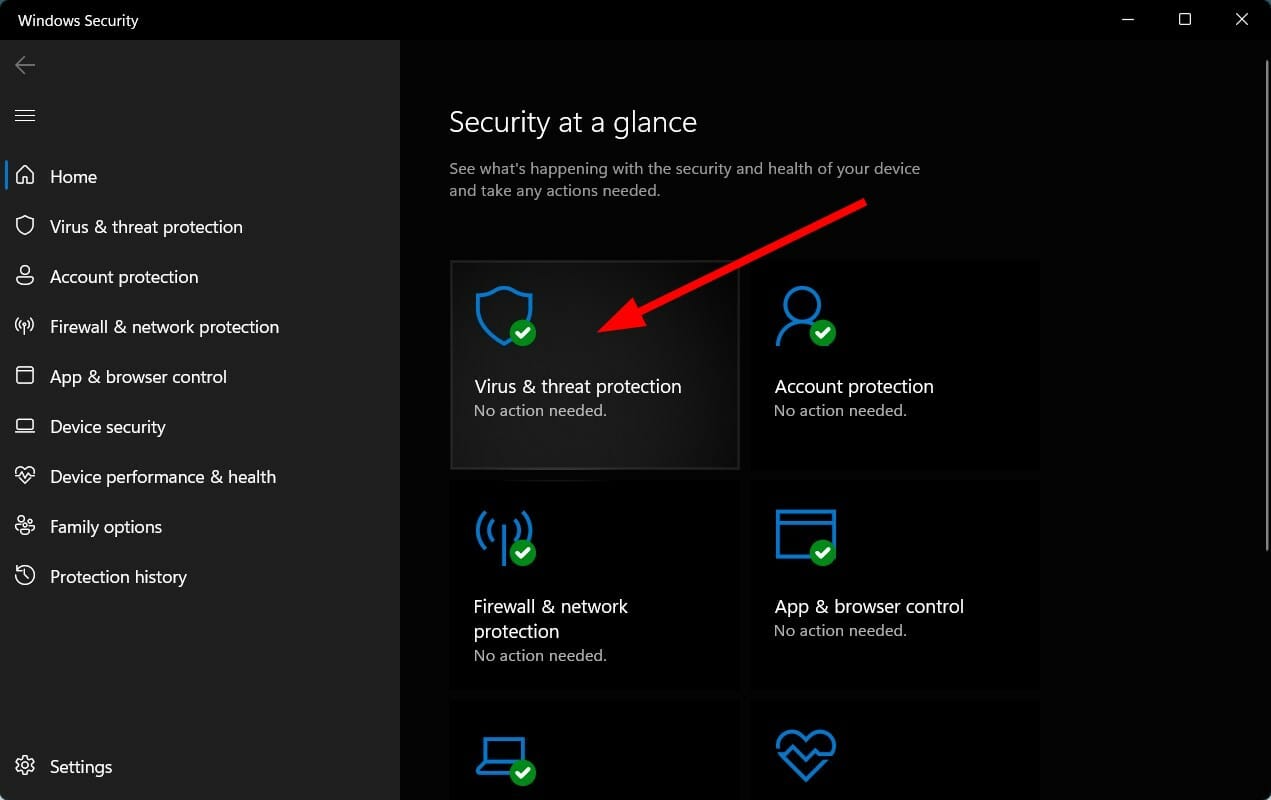
5. Disable Windows Defender

  1. Press Windows Key + I to open the Settings app. Go to Update & Security section.
    0x800703f1 Windows 8
  2. Go to Windows Security in the left pane. In the right pane click Open Windows Defender Security Center.
    System Restore error 0x800703f1
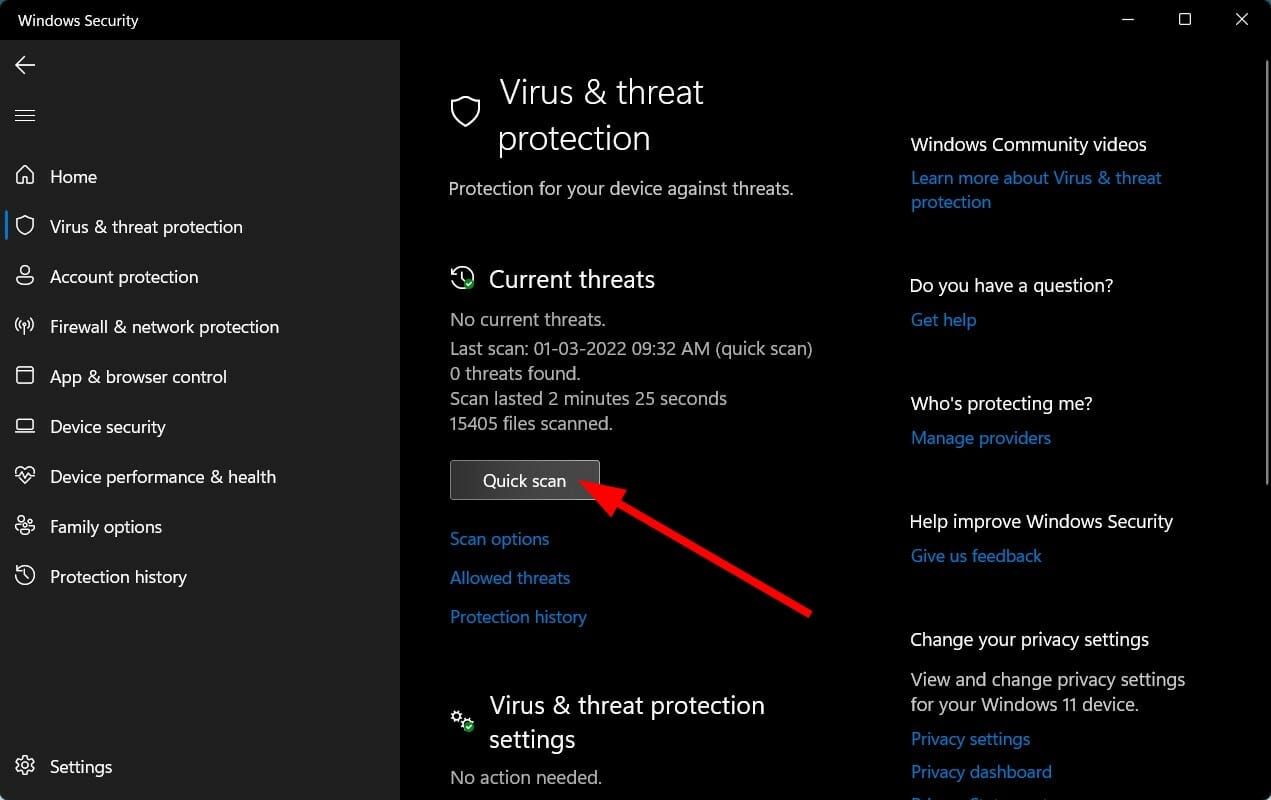
  3. Select Virus & threat protection.
    0x800703f1 Windows 8
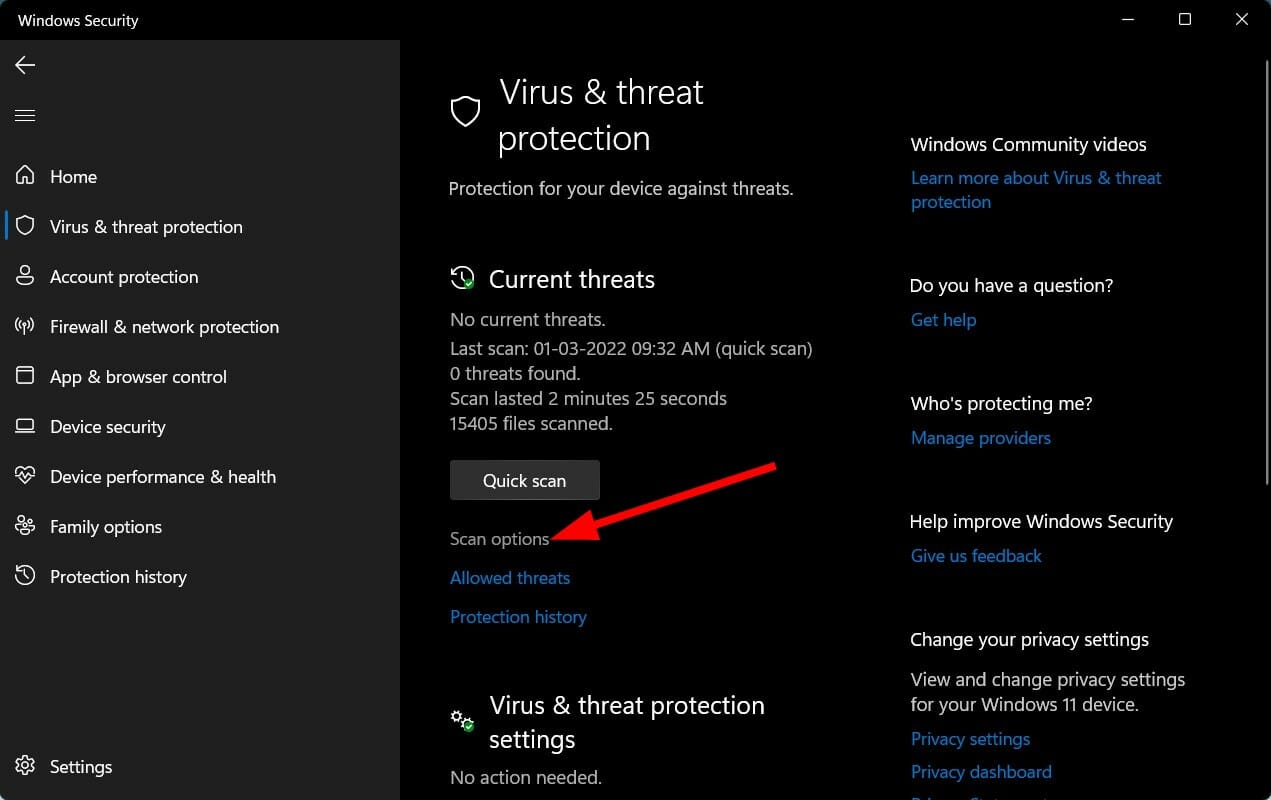
  4. Now click Virus & threat protection settings.
    System Restore error 0x800703f1
  5. Locate Real-time protection feature and turn it off.
    0x800703f1 Windows 8

After doing that, try to perform the upgrade again.

If you don’t have a third-party antivirus on your PC, it’s rather likely that you have Windows Defender running in the background. This is a solid antivirus software, and in most cases, it won’t interfere with your system in any way.

However, few users reported that sometimes Windows Defender could lead to this issue. To fix the problem, it’s advised to disable real-time protection in Windows Defender.

Keep in mind that by turning off real-time protection you’ll keep your system vulnerable, so don’t visit any suspicious websites while the real-time protection is off.

6. Run Windows Update Troubleshooter

  1. Open the Settings app and navigate to Update & Security section.
  2. From the menu on the left select Troubleshoot. In the right pane, select Windows Update and click Run the troubleshoot button.
    0x800703f1 Windows 8
  3. Now follow the instructions on the screen to complete the troubleshooter.

If you can’t update your system due to the Windows update error 0x800703f1 0x800703f1 error, the issue might be related to your system. Fortunately, Windows 10 comes with various troubleshooters that can fix common problems on your PC with ease.

Once the troubleshooter is finished, check if the problem is still there.

7. Restart all Windows Update components

  1. Start Command Prompt as an administrator.
  2. When Command Prompt starts, run the following commands:
    • net stop wuauserv
    • net stop cryptSvc
    • net stop bits
    • net stop msiserver
    • ren C:WindowsSoftwareDistribution SoftwareDistribution.old
    • ren C:WindowsSystem32catroot2 Catroot2.old
    • net start wuauserv
    • net start cryptSvc
    • net start bits
    • net start msiserver

According to users, sometimes the Windows update error 0x800703f1 problem can be caused by Windows Update components. To fix the issue, you need to restart all Windows Update components manually.

After running these commands, try to perform Windows Update again and check if the problem is still there.

Another common error is 0x8024402f, and we have a dedicated guide on it in case you ever encounter it.

8. Perform a clean reinstall of Windows PC

In the end, if your problem is somehow still there, you should perform a clean Windows 10 install. You’ll only lose installed programs and apps, while everything else can be backed up on other partitions.

So, use already prepared USB/DVD drive and reinstall your system. We can promise you that everything will work much better.

That should wrap it up. With this, you should be able to fix the Windows update error 0x800703f1. If you have any questions or alternative workarounds, feel free to post them in the comments.

For more Windows Update workarounds, and additional info, make sure to check our Windows Update hub.


Epson Scan Not Working on Windows 11: How to Fix it

If your Epson printer or scanner is not working on your Windows 11 PC and you are looking for solutions, you are in the right place.
This guide will give you multiple solutions to help you troubleshoot the Epson scan not working in Windows 11 error.
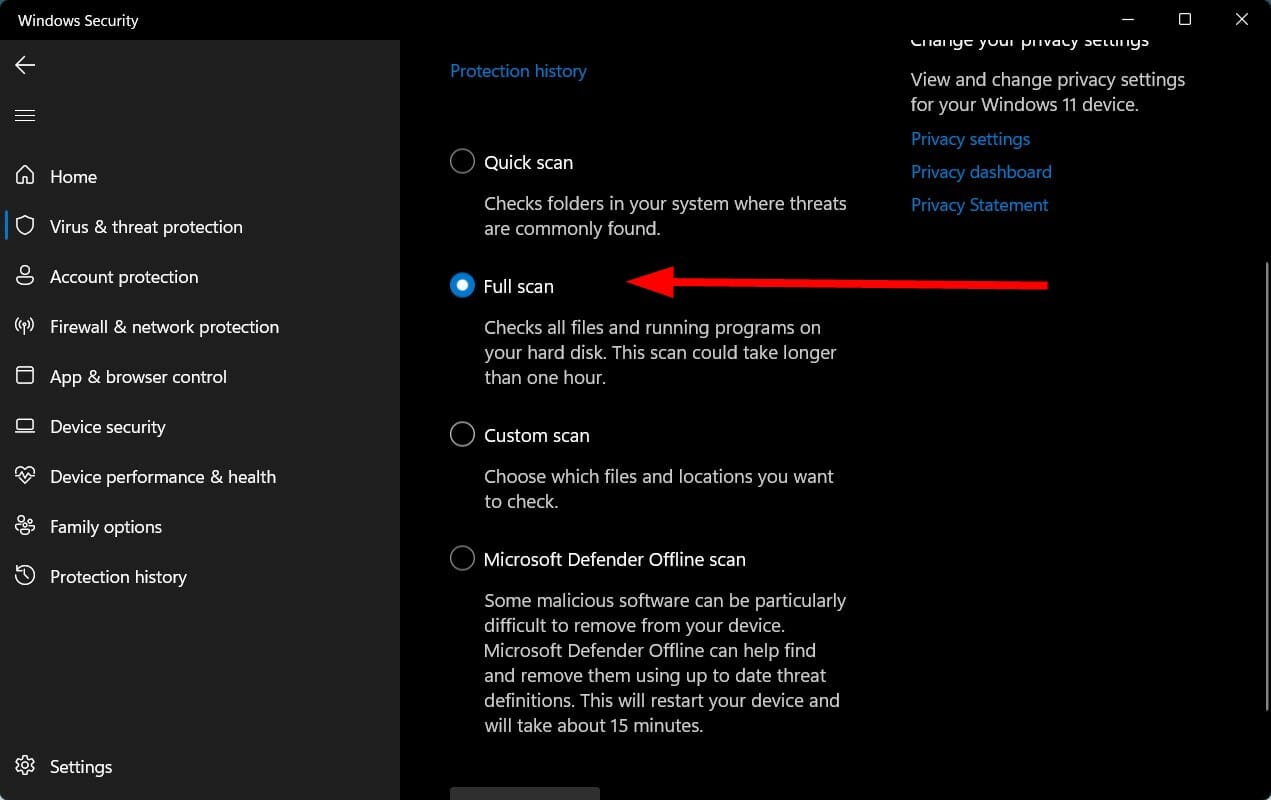
After upgrading from Windows 10 to Windows 11, several users are reporting that their Epson scanner isn’t working, and they are facing the Epson scan not working on Windows 11 PC.

If you are experiencing this issue, you may have an error message saying Problem connecting to the scanner.

There are chances that some files got corrupted, replaced, or missing when you upgraded from Windows 10 to Windows 11.

Else, the presence of a virus or malware could also be one of the reasons. If the drivers aren’t up to date, you will also face an Epson scan not working on Windows 11.

But you shouldn’t get too worried about it because, in this guide, we will share some effective solutions to help you fix the problem. Let us check them out.

Why is my scanner not working on Windows 11?

While almost all printers or scanners operate with no issues when you plug and play, if you are experiencing the Epson scan is not working on Windows 11 error, there can be multiple reasons behind this problem.

Below are some of the reasons which are most common causes of this issue:

  • The Epson scanner is set to compatibility mode.
  • Outdated drivers of the Epson scanner are installed.
  • Essential Windows services aren’t functioning properly.
  • There is a bug present that is preventing the Epson scanner from working properly.
  • Required admin privileges or permissions are not granted to the Epson scanner.
  • Presence of corrupt Windows 11 system files.
  • The USB port is damaged.
  • Due to viruses or malware.
  • A third-party app is conflicting with the scanner driver.
  • Registry issues

The above-listed reasons are almost all the reasons that could possibly trigger the Epson scan not working on Windows 11.

If you are having issues with a different brand of scanner, then you can check out our dedicated guide on how to troubleshoot scanner not detected in Windows 11.

The good thing is that this guide will help you tackle all the listed reasons and possibly fix the problem at hand.

What can I do if Epson scan is not working on Windows 11?

1. Restart Shell Hardware Detection service

  1. Press the Win + R keys to open the Run command.
  2. Type the below command and press Enter. services.msc
  3. On the right side, locate Shell Hardware Detection.
  4. Right-click on it and select Properties.
  5. Ensure the Startup type is set to Automatic.
  6. Hit OK and Apply.
  7. Close the Window.
  8. Restart your PC.

The Shell Hardware Detection service is an important system service that is responsible for detecting connected hardware plugged into the system.

If there is a problem with the service, or it is not set to Automatic startup, then you may experience issues such as Epson scan not working on Windows 11.

Follow the above steps and set it to Automatic and see if this fixes the issue or not.

2. Update scanner drivers

    Drivers for your hardware are an important component as they act as the communication channel between your PC and the hardware.
    So, it is essential that you keep the drivers installed on your PC, up to date, to avoid such issues. A simple solution to cure this would be to update the current scanner driver installed on your PC.

  1. 1.Right-click on the Start menu icon and select Device Manager.

  2. 2. Go to Imaging devices section and expand it.

  3. 3. Right-click on the Epson scanner and select Update drivers.

    update drivers epson scanner
  4. 4. Select Search automatically for updated driver software option.

  5. 6. Reboot your PC.

To ease the process, we advise you to use trusted third-party software. These tools are very easy to use and will help you fix multiple system-related errors on your PC.

They include all the necessary features to detect and fix system-related errors. Try it and see if it resolves the Epson scan not working on Windows 11 problem.

3. Reboot your PC

  1. Open the Start menu.
  2. Click on Power.
  3. Select Restart.

A simple restart can do wonders. Once you restart your PC, all the unnecessary files and processes are put to sleep. When the system boots up again, important system files are re-loaded from scratch.

There is a chance that some critical scanner-related files failed to load during the previous session. So, we advise you to restart your PC, try using your scanner, and check whether this fixes the issue.

4. Check the Compatibility mode

  1. Right-click on the Epson scan icon on your desktop.
  2. Select Properties.
  3. Head to the Compatibility mode.
  4. Uncheck the box next to Run this program in compatibility mode for.
  5. Hit the OK button.

5. Check the status of Windows Image Acquisition service

  1. Press the Win + R keys to open the Run command.
  2. Type the below command and press Enter. services.msc
  3. On the right side, locate the Windows Image Acquisition service.
  4. Right-click on it and select Properties.
  5. Make sure that the Startup type is set to Automatic and Service Status is set to Running.

6. Repair corrupt system files

  1. Open the Start menu.
  2. Search for Command Prompt and select Run as administrator.
  3. Type the below command and press Enter. sfc /scanowRun SFC scan to fix windows 11 error recovery
  4. Your PC will start scanning and possibly fix the issue as well.
  5. Reboot your PC.

To use the System File Checker tool, you need to execute a command in the CMD, and everything else is taken care of automatically.

To ease the process, we advise you to use trusted third-party software. These tools are very easy to use and will help you fix multiple system-related errors on your PC.

They include all the necessary features to detect and fix system-related errors. Try it and see if it resolves the Epson scan not working on Windows 11 problem.

7. Run the troubleshooter

  1. Press the Win + I buttons to open Settings.
  2. Select Troubleshoot.Run troubleshoot.
  3. Click on Other troubleshooters.
  4. Click on the Run button next to Printer.Run Printer troubleshooter Windows 11

The Windows Troubleshooter is a perfect tool if you are experiencing issues with the hardware on your PC.

This tool not only identifies the issues and displays them but would prompt you to perform certain actions to resolve them.

8. Scan your PC for virus

  1. Click on the upward arrow on the bottom right taskbar.
  2. Select Windows Security.windows security
  3. Click on Virus & threat protection.virus and threat protection steam error e502 l3
  4. Choose Quick Scan to allow Windows Security to scan your PC for viruses and malware.quick scan
  5. You can also choose the Scan options button.scan options
  6. Under Scan Options, you can opt for a Full scan to scan your PC for viruses or malware deeply.

While we used Windows Defender to scan our PC for viruses or malware, you can use any third-party antivirus software to do that.

The presence of a virus or malware causes several issues, such as the Epson scan not working on Windows 11 issue. Besides, the overall smooth functioning of your PC also gets affected.

Viruses and malware are of different types. We recommend you perform a virus or malware check to ensure your PC is well protected.

9. Check for Windows updates

  1. Press the Win + I buttons to open Settings.
  2. Select Windows Update from the left pane.
  3. Click on Check for updates button.

A bug in the previous version of the Windows update can cause problems on your PC. Related features won’t work properly, and you will also experience issues such as the Epson scan not working on Windows 11 problem.

We would suggest you keep your Windows 11 PC up-to-date. Not only do the latest updates add new features, but they resolve several existing issues.

10. Check for faulty cables

You can try connecting your Epson scanner to a different PC and see if it is working properly there. If the scanner doesn’t work with the other PC, then there might a problem with the cable attached to it.

Several hardware issues don’t appear just because of faulty drivers or system files but are also caused if the wire connecting your hardware to the PC is damaged or broken.

Check if the Epson scanner cable is damage-free, and if it is damaged, then you need to buy another cable or replace it.

The above solutions are sufficient to fix the problem of the Epson scan not working on Windows 11.

However, if none of it helped you resolve the issue, then we recommend you contact customer support and take things forward from there. There are chances that the Epson scanner that you have is faulty.

Before you leave, find out what to do when Epson Easy Photo print is not working. The dedicated tool is preferred by many for the effortless experience it offers.

In the comments section below, let us know which method helped you fix the problem. If another solution did the job for you, feel free to share that with us.

Microsoft Teams Is Getting Stronger Protection Against Malicious URLs

Microsoft is tightening security in Teams with new protections designed to keep users safe from rising threats. Teams will soon block harmful file types and automatically flag malicious URLs shared in chats or channels, according to an entry in the Microsoft 365 roadmap (via Bleeping Computer).

These upgrades are set to begin rolling out worldwide next month. The move builds on Microsoft’s ongoing efforts to strengthen collaboration tools at a time when Teams usage is at an all-time high.

Once live, the new features will stop users from sharing weaponizable files like executables in Teams conversations, reducing the risk of malware spreading through casual file transfers. Alongside this, Teams will scan links sent in chats and channels, warning users when a malicious URL is detected before they click.

Security administrators are also gaining more power through a fresh integration with Microsoft Defender for Office 365. This addition links Teams directly to the Tenant Allow/Block List, making it possible to block unwanted communications from specific domains.

Not only will future chats and calls from those domains be blocked, but existing ones can also be automatically deleted. Microsoft expects this capability to reach general availability by late September 2025.

These improvements follow another security measure introduced earlier this year. Back in July, Microsoft started rolling out the “Prevent Screen Capture” feature, which blacks out the meeting window if a participant attempts to screenshot sensitive information.

Battlefield 2042 Surprise Update 9.2.0 Adds Iwo Jima Map & Free Battle Pass

EA and DICE have rolled out a surprise update for Battlefield 2042, bringing a wave of fresh content that players can dive into right now. The latest update, 9.2.0, includes a free 60-tier Battle Pass, the return of the classic Iwo Jima map, according to the release notes.

That’s not all; the latest update brings a new lineup of weapons and vehicles, all available immediately.

Worth noting that the update dropped just hours after the Battlefield 6 beta was closed. Surely, DICE has reignited interest in 2042 by giving players another chance to stock up on rewards ahead of the next game’s launch.

Iwo Jima returns to the battlefield

The update also brings back Iwo Jima, the legendary Pacific theater map first seen in Battlefield 1942 and later in Battlefield V. Players will once again experience its island fortress setting, with beach assaults and fortress-style defenses designed to deliver intense, large-scale battles.

New aircraft, rifles, and balance changes

Vehicle fans can now fly the A-10 Warthog and SU-25TM Frogfoot in All-Out Warfare modes, both engineered to counter tanks and heavy armor. On the infantry side, players gain access to the XM8 assault rifle and the Lynx sniper rifle, with the Lynx instantly unlocked for those who participated in the Battlefield 6 open beta.

Beyond new content, the update also includes a suite of balance adjustments across weapons and gameplay systems, ensuring smoother firefights for all.

These 5 Games Are Leaving Xbox Game Pass Late In August

Microsoft has confirmed the next batch of games leaving Xbox Game Pass at the end of August 2025, and the lineup includes some heavy hitters. A total of five titles will exit the service on August 31, giving subscribers just a couple of weeks to wrap things up before they disappear.

The biggest name on the list is Borderlands 3 Ultimate Edition, which leaves just weeks before the launch of Borderlands 4 in September. For players hoping to catch up on the story, now’s the time. With an estimated 60–80 hours needed to complete, it’s a hefty challenge to finish before the removal date.

Also leaving is Sea of Stars, a critically praised RPG that takes roughly 40–50 hours to beat. Its departure will be disappointing for fans who haven’t yet dived into one of the service’s most beloved role-playing games.

Children’s titles are part of the exit too. Paw Patrol: Mighty Pups Save Adventure Bay offers a quick playthrough at just a few hours, making it one of the easier completions before it vanishes. On the other hand, Ben 10: Power Trip demands more effort, with around 15–20 hours required and a far lower achievement completion rate.

Finally, This War of Mine: Final Cut rounds out the list. Known for its difficulty and emotional storytelling, it will take players upwards of 50 hours to fully complete with DLC.

Players interested in any of the above have until August 31 to download and play before the games are removed.

Raspberry Pi Unveils $40 Five-Inch Touch Display 2

Raspberry Pi has expanded its display lineup with a more compact option. The company has announced the Raspberry Pi Touch Display 2 in a new 5-inch size, priced at $40. This smaller screen complements the existing 7-inch model, but keeps the same 720 × 1280 resolution.

The new display is designed with versatility in mind. It features a true multi-touch capacitive panel supporting up to five-finger input, making it a natural fit for Raspberry Pi OS.

Raspberry Pi 5-inch display
Image: Raspberry Pi
Raspberry pi 5-inch-display-back
Image: Raspberry Pi

Just like the 7-inch version, the panel includes an anti-glare coating, but it comes with a slightly narrower 80-degree viewing angle. Setting it up is straightforward: the display attaches to the rear of the Raspberry Pi with standoffs, while a flex cable connects to the Pi’s DSI port.

Moving on, power is drawn directly from the GPIO pins, although this design choice may cause issues if users also want to run a HAT accessory. Unlike some hoped, Raspberry Pi did not opt for a USB power input here.

At 155 × 88 mm, the display is compact enough for embedded projects such as kiosks, point-of-sale systems, home automation panels, or even DIY Star Trek-inspired interfaces. Raspberry Pi says the screen will remain in production until at least January 2030, giving makers plenty of time to integrate it into their builds.

Both the new 5-inch model and the existing 7-inch version are available through Raspberry Pi resellers. With its smaller footprint and lower price, the 5-inch Touch Display 2 offers a more accessible option without sacrificing resolution or core functionality.

Microsoft Begins 60-Day Countdown for Windows 10 End of Support

Microsoft has issued yet another reminder that Windows 10 is on its way out. While the company has been warning about this deadline for years, the cut-off is now firmly in sight. In fact, the October update will be the very last most users will ever receive.

The 60-day countdown has officially begun, with Microsoft confirming that October 14, 2025, marks the end of servicing for Windows 10, version 22H2. That includes Home, Pro, Enterprise, Education, and IoT Enterprise editions.

The company is also ending support for Windows 10 2015 LTSB and Windows 10 IoT Enterprise LTSB 2015 on the same date. The full message in the message center section of Windows release health dashboard reads:

60-Day Reminder: Windows 10, version 22H2 will reach end of servicing on October 14, 2025

On October 14, 2025, Windows 10, version 22H2 (Home, Pro, Enterprise, Education, and IoT Enterprise editions) will reach end of servicing. October 14, 2025 will also mark the end of support for Windows 10 2015 LTSB and Windows 10 IoT Enterprise LTSB 2015. The October 2025 monthly security update will be the last update available for these versions. After this date, devices running these versions will no longer receive monthly security and preview updates containing protections from the latest security threats.

As we shared last October, for the first time ever, you can enroll your personal Windows 10 PC in the ESU program and receive critical and important monthly security updates after support ends in October. See Windows 10 Consumer Extended Security Updates (ESU) program for detailed information on the ESU program for personal devices. See Enable Extended Security Updates (ESU) to learn more about the ESU program for organizations.

As always, we recommend that you update your devices to the latest version of Windows 11. For information about servicing timelines and lifecycle, see Windows 10 release information, Windows 11 release information, Lifecycle FAQ – Windows, and Microsoft Lifecycle Policy search tool.

The final patch will effectively be the goodbye to Windows 10 for the majority of users. After that, security updates will only continue for those enrolled in the Extended Security Updates (ESU) program, which, for the first time, even personal users can buy into. Still, Microsoft is clear about what it wants: move to Windows 11 as soon as possible.

Interestingly, October 14 will also affect some Windows 11 editions. Enterprise, Education, and IoT Enterprise users running version 22H2 will see their support end on the same day.

While many are already on Windows 11, millions still rely on Windows 10 daily. Some may prefer the older OS, while others face hardware or financial roadblocks. Microsoft hasn’t said how it will treat those who stay behind, but history suggests critical fixes may still arrive in extreme cases.