Are you encountering the problem: browser not supported in BINGE? This article will show how you can fix this type of error.
Binge is an Australian streaming platform that is a source of entertainment for a significant number of users. Though this service is available in Australia only, people around the world use it using top-class VPNs.
A significant number of users have talked about a problem with browser compatibility with BINGE. Only this problem has ruined the experience for a large number of users. It doesn’t matter if you are using any of the best browsers or not, the problem may appear in any situation.
Please note that BINGE error 008 is related to browser compatibility too. So, if you see such error codes, the solutions from this article will still work.
Can you watch BINGE in a browser?
Yes. You can easily watch BINGE in any compatible web browser from a computer or supported device.
Even though BINGE has apps for smartphones, tabs, and TVs, many people prefer to watch on desktop browsers for their convenience.
What browsers does BINGE support?
To watch on BINGE, you must use any of these recommended browsers as these are officially supported.
Google Chrome
Safari
Firefox
Microsoft Edge
You will not generally face any problems watching videos on this platform from a desktop browser. The following methods will solve the issue if it shows any incompatibility or browser support-related error.
What to do when a browser is not supported by BINGE?
1. Update the browser
1.1 Update Chrome
Open the Google Chrome.
Click on three vertical dots and Settings as shown in the screenshot.
Go to About Chrome.
Google Chrome will check for the update and install any available one automatically.
Relaunch the browser.
1.2 Update Firefox
Click on three vertical lines and go to Help.
Go to About Firefox.
Firefox will automatically check for updates and install if any update is available.
You may face BINGE not working on Chrome or Firefox even though these are compatible browsers. Updating these browsers may fix the problem.
2. Clear browsing data
Open your browser.
Press CTRL + Shift + Del on your keyboard to go to the appropriate page.
Set All time as the time range.
Tick Cache images and files and then click on Clear data.
Now, try to watch anything on Binge and see if it fixes the browser support issue or not.
3. Disable third-party extension
3.1 Disable in Chrome
Open the Google Chrome.
Click on the extension icon and then on Manage extensions.
Toggle the switch off next to the extensions you want to disable.
3.2 Disable in Firefox
Type the following address on the Firefox address bar and hit Enter. about: add-ons
Go to Extensions and then toggle the switch off for the add-ons you want to disable.
Some extensions tend to interfere with the BINGE platform, which may cause playback problems on your browser. As a result, you will see not supported or not compatible type errors. Disabling the extensions will solve the issue.
Extra tips to fix browser not supported error on Binge
The problem can also be a result of your internet connectivity issue, which may show various error codes that are similar to the ones that indicate browser incompatibilities. In this case, contact your ISP to improve the connection.
Additionally, you can use a VPN like Private Internet Access (PIA) to see if it helps. In many cases, this VPN can give you a better experience if your existing connection routing has some issues.
Even though you are using a BINGE-supported browser, you may still get the error. In this case, you may consider using a different browser like Opera One to see if it helps.
These are the best ways to fix the browser not supported BINGE problem. If you know any better way, feel free to let us know in the comment box.
With Wix, you may construct your own website with the aid of its user-friendly drag-and-drop tools and over 500 ready-made templates. Sounds tempting, right? Today we will show you the best browser for Wix that you can use.
This allows you to do so without the need for specialized skills or the assistance of a web professional. Wix shortens the time it takes to design a website and allows you complete freedom of expression in the process of creating the website you want.
Wix is an excellent choice as a website builder for eCommerce retailers operating on a small or medium scale. It is accessible in 17 different languages and has more than 200 million users that are registered all around the globe.
Why is Wix so laggy?
Wix websites will load more slowly if they include a lot of material, such as many huge photos, videos, or animations. Or if you’re using the wrong browser.
It may also slow down due to sites that are difficult to navigate, an excessive quantity of text and material, third-party applications, the use of a large number of typefaces, and/or a sluggish Internet connection.
Does Wix work on Safari?
Yes, Wix works and supports Safari, version 12 and above. Keep your web browser updated to the most current version available to guarantee that both your Editor and your live site will function faultlessly.
Does Wix work on Microsoft Edge?
As stated on their official website, Wix support Microsoft Edge, version 79 and above. Wix also strongly suggests that you maintain the zoom level of your browser at 100 percent to get the most out of its features and to have complete access to the Editor interface.
Chrome now gives priority to your currently active tabs rather than everything else that is now open, which may decrease CPU consumption by up to five times and increase battery life by up to one-quarter of an hour (based on our internal benchmarks). Thus, it is the best browser for Wix.
Moreover, it now launches up to 25 percent more quickly, loads websites up to 7 percent more quickly, and does all of this while using less power and RAM than it did in the past.
Chrome for Android now loads sites almost instantly when you go backward and forth, making these often time-consuming activities very quickly.
Microsoft decided not to upgrade Internet Explorer but rather to construct Edge from the ground up, not once but twice. This is one of the reasons why Edge is so much superior to its predecessor.
Because of this rebuilding, Microsoft could eliminate support for earlier technologies and code, which resulted in Edge being far more streamlined than the bloated version of Internet Explorer.
Essential to this process was a range of under-the-hood adjustments that assist the pages of the browser load quicker and respond more responsively while also keeping the software from exhausting the system resources of your machine, making it the second-best browser for Wix.
Nobody loves a program that takes up too much space on the computer. Firefox is a streamlined and efficient web browser. Because it requires less RAM than Chrome does, your other apps will be able to continue operating at their full potential.
Managing many tabs and windows simultaneously is now much more straightforward. Because Firefox is a multi-process browser, your tabs will always be up to date, and it won’t take an eternity for new content to load. This is another strong contestant and one of the best browsers to build responsive Wix sites.
Apple brags that they have the world’s fastest desktop browser in addition to a JavaScript engine that is lightning quick.
It also claims that using Safari would extend the life of your battery up to three more hours’ worth of surfing time compared to Chrome and Firefox, thus making it another excellent browser for Wix.
Large graphics might be a significant obstacle when trying to improve page performance. Image quality is essential; nevertheless, it must not be prioritized above overall performance. Images may be compressed in various methods, which is necessary for accomplishing this goal.
Because of this, it is essential to choose a website builder that already has all of these features. In this manner, you may avoid the delicate and sometimes difficult dance of acquiring as much information as possible about users’ actions while maximizing your site’s performance.
Microsoft is recapping the features that made it to Excel in June. This includes sheet protection and semi-select for links creation in the web for Excel for the web, and several other features on Excel for Windows and Excel for the Web.
We’ll be starting first with what’s new with Excel for the web. On this version of Excel, you can turn sheet protection on and off as you need it. This is for temporarily pausing protection for just a single session, or configuring unlocked ranges and other sheet protection options. Furthermore, you can now also get to customize which slicer applies to which PivotTable in Excel for the web. Then finally, Semi-select has also made it to Excel for the web, which means you can now get to create workbook links using cross-workbook formula selection.
Next, for Excel on Windows, new features included a data from Picture. This lets users insert information from a picture on your clipboard or an image file from your computer. Therefore, you no longer need to type in all the data as before. Aside, from this, you will also get automatic alt-text suggestions on charts and PivotCharts, which allows you to know what is being conveyed in the chart.
As for Excel for Mac users, they got the automatic alt-text suggestions on charts and PivotCharts, as well as the ability to import data from local files such as Excel workbooks, Text, and CSV files, using Power Query in Excel for Mac.
Slack is the instant messaging app of the corporate world. We could say it is WhatsApp for the office, and we can not overstate its importance for work life.
The service has a very thought-out desktop application that seems to be the go-to for many Slack users. It also has a nicely designed mobile version for Androids and iOS.
However, if you are working with an older PC, you may want to save on memory. In such cases, you would rather use the web-based Slack.
Sadly you may have issues with your browser not being supported by Slack. In this article, we show you the best workarounds.
To use Slack efficiently, these are the minimum browser requirements:
Browser
Browser Version
Chrome
Version 90 and above
Safari
Version 14.1 and above
Microsoft Edge
Version 90 and above
Firefox
Version 88 and above
Why is my browser not supported for Slack?
We have just shown you the minimum requirements for Slack browsers. If your browser does below these, it will not work. Also, if you use a browser different from the ones mentioned, Slack will not be supported.
How do I open Slack in the browser, not the app?
Log into your Slack account on your browser.
When prompted to open in App, click Cancel.
Select the option to use Slack in your browser.
What can I do if Slack says that my browser is unsupported?
1. Use a different browser
As we have discussed, Slack will not work on every browser. If you use a browser other than Microsoft Edge, Firefox, Chrome, and Safari, the chances are that you will get a Slack browser not working error.
In this case, you need to switch to a supported browser, and Slack will run smoothly.
2. Update your browser
2.1 How to Update Chrome
Click the three dots on your browser’s top right and select Settings.
Select About Chrome on the left pane.
If there are any available updates, you will get an Update button.
2.2 How to Update Firefox
Click on the three horizontal lines at the top right and select the Help option.
Click on About Firefox.
If there is a pending update, you have an option to Update Firefox. Click on it, then restart the browser when prompted.
The procedure to update your browser will be very similar in other browsers, with slight UI differences.
Click on the downloaded file and follow the prompts to install.
You will be directed to sign into a workplace on your browser, sign in, and you can start using Slack.
If you have Slack issues in your browser, these three fixes should be your best options. However, it would help if you double-check that you do not have the wrong email or password. Even though this will not result in the browser not being supported for Slack, it will mean you can’t use the service.
Let us know if these fixes have been able to work for you in the comments.
Missing DLL errors aren’t exceptionally uncommon Windows issues. For example, many users have reported an api-ms-win-crt-runtime-l1-1-0.dll is missing error arising when they try to launch specific software in Windows 11/10. That error displays the following message:
The program can’t start because api-ms-win-crt-runtime-l1-1-0.dll is missing from your computer. Try reinstalling the program to fix this problem. Try reinstalling the program to fix this problem.
This error can arise for various games, design, and image-editing software. Users can’t open and utilize programs because of this issue.
How does the missing api-ms-win-crt-runtime-l1-1-0.dll error arise?
The file that causes this issue is a Dynamic Link Library element of the Microsoft Visual C++ Redistributable package. The missing DLL error occurs when Windows can’t access that file.
Thus, the api-ms-win-crt-runtime-l1-1-0.dll is missing error, which means that the DLL file has disappeared or is somehow corrupted.
How can I fix the api-ms-win-crt-runtime-l1-1-0.dll error?
1. Update Windows 11/10
Launch Settings the quick way with its Windows key + I hotkey.
Click Windows Update to view that tab.
Select the Check for updates button to download and install further updates.
Click the Download and Install option for any available optional updates listed within that tab.
2. Run a system file scan
Open up the Type here to search box with the handy Windows + S keyboard shortcut for opening that utility.
Find Command Prompt by entering cmd in the Type here to search box.
Select Command Prompt’s Run as administrator option to open that app with elevated privileges.
Type (or copy and paste in) this command and hit Return: DISM.exe /Online /Cleanup-image /Restorehealth
Then input the following SFC command and press Enter: sfc /scannow
Please wait for the System File Checker’s scan to reach the 100 percent mark and display its outcome.
3. Repair the Visual Studio C++ 2015 package
Press the Windows and R keyboard keys simultaneously to start Run.
Open Programs and Features by entering this Run command and clicking OK: appwiz.cpl
Select the Visual C++ 2015 package in Programs and Features.
Click the Change button to bring up the window directly below.
Click the X64 download link for the Visual Studio 2015-2022 package. Users with 32-bit Windows platforms should select the X86 download link.
Bring up the directory (folder) that includes your downloaded Visual Studio 2015-2022 package.
Double-click the vc_redist file to open the installer.
Click the I agreeto option within the installer’s window.
Select the Install and Yes option.
Restart your PC by clicking Power on the Start menu and selecting that option.
NOTE
The general 2015-2022 C++ package linked above includes Visual Studio 2015. However, you can more specifically download the Visual C++ 2015 Redistributable package from this Microsoft webpage.
5. Copy the missing api-ms-win-crt-runtime-l1-1-0.dll from another Windows PC
Turn on a secondary PC with the same Windows OS and system type as the one you need to fix.
Click Explorer’s taskbar button shown in the screenshot directly below.
Open this folder: C:\Windows\System32
Type api-ms-win-crt-runtime-l1-1-0.dll in File Explorer’s search box to find that file.
Right-click the api-ms-win-crt-runtime-l1-1-0.dll file and select Copy.
Select your USB drive in File Explorer.
Right-click within your USB drive to select Paste.
Eject the USB drive, and shut down the PC.
Turn on the PC you need to fix the faulty DLL error on.
Plug the USB flash drive you copied the DLL file into the PC.
Open the System32 folder within File Explorer again.
Then right-click within the System32 folder and select Paste.
NOTE
Note that this resolution will only work if you copy a DLL from a PC with a matching Windows OS and 64/32-bit system architecture. You can check those details within the System Information app in Windows.
6. Reinstall the software the api-ms-win-crt-runtime-l1-1-0.dll missing error arises for
Open the Programs and Features Control Panel applet as specified in steps one and two of the third resolution.
Select the software for which the missing api-ms-win-crt-runtime-l1-1-0.dll error arises.
Click Uninstall for your selected software.
Then select Yes on a confirmation dialog box that will likely pop up.
Select to restart Windows after removing the software.
Download the latest version of the uninstalled software from its official website.
Then reinstall the software with the setup wizard you downloaded for it.
Many third-party uninstallers, like CCleaner, enable you to erase leftover files after removing software. However, the freeware CCleaner is a better alternative for removing software that includes many unique features the default uninstaller in Windows doesn’t have.
NOTE
To reinstall a game, you might need to uninstall it via its client software (Steam, Epic Games Launcher, Battle.net, etc.). Then you can select to reinstall it again within the game launcher.
7. Reset Windows 11/10
Open the Settings window.
Click the Recovery navigation option within the System tab in Windows 11. In Windows 10, you’ll need to select Update & Security > Recovery.
Select the Reset PC option in Windows 11. Or click the Get started button under the Reset this PC heading in Windows 10.
Click the Keep my files option for preserving user files.
Choose either the Cloud download or Local reinstall option you prefer.
Select Next to continue.
Finally, click Reset to initiate.
NOTE
After the factory reset, you’ll need to reinstall any software that wasn’t pre-installed on your PC. So, this resolution is best left as a last resort for fixing the missing api-ms-win-crt-runtime-l1-1-0.dll error.
How do you fix api-ms-win-crt-runtime-l1-1-0.dll in Windows 7?
This error can arise on older Windows platforms as well. For example, Windows 7 users might be able to fix the same issue by downloading and installing a Universal C Run update for that platform. This is how you can get that update.
Click the Download the package now link for x64 or x86-based versions of Windows 7, depending on your PC’s architecture.
Press the Download button on the next page that opens.
Bring up whatever folder includes the Universal C Runtime package.
Double-click the downloaded Universal C Runtime package to open its setup window. Then go through the instructions presented there.
Will any third-party repair software help fix this error?
The better third-party repair utilities might well do so. Our best DLL repair software tools guide provides more details about some of the best utilities for fixing missing DLL errors.
You can use these repair troubleshooters for Windows 11/10 because they have an automatic system and a substantial database with new files for replacement purposes.
Can I download another api-ms-win-crt-runtime-l1-1-0.dll file?
Numerous unofficial websites include downloadable DLL files. However, not all those websites are necessarily reputable sources for DLL. Some DLLs on such sites might be outdated or even contain malware.
DLL-files.com is one of the more reputable sources from which you can download the api-ms-win-crt-runtime-l1-1-0.dll file. However, even the disclaimer on that site says that its DLL files haven’t been tested (thoroughly checked).
So, in plain English, please don’t send us hate mail or sue us if your computer crashes when you come here, or if you find a virus in one of these files. If you want to take something we took hours to make, ask us.
We recommend you try applying the potential resolutions above (in the order specified) instead of downloading a new DLL file. This is because at least one of those resolutions will likely fix the api-ms-win-crt-runtime-l1-1-0.dll error on your Windows PC.
This isn’t the only type of file that can go missing, and we have an article on what to do if api-ms-win-crt-math-l1-1-0.dll is missing on your PC, so check it out.
You’re always welcome to chat about this error in the comment below. Click the Comment button to enter questions or share other potential fixes.
Some users have posted on Google’s forum about a Unity content error that arises in all major browsers.
When they try to play browser games, an error message pops up that states, An error occurred running the Unity content on this page.
Users can’t play browser games when that Unity error arises and the situation can be frustrating.
What is the Unity content?
The Unity content represents the files loaded by the Unity Player plugin. The HTML code of a web page communicates with a script called UnityObject2.
The role of this script is to embed the Unity content safely and to protect it from any browser issues.
What does a JavaScript error occurred in the main process mean?
This error means basically that the content was not loaded correctly in the Unity Player. Unfortunately, there are a lot of instances of this error.
Let’s see more Unity content errors with their complete message:
An error occurred running the Unity content on this page. See your browser javascript console for more info. The error was: runtimeerror: index out of bounds
An error occurred running the Unity content on this page. See your browser javascript console for more info. The error was: script error
An error occurred running the Unity content on this page. See your browser javascript console for more info. The error was: securityerror: the operation is insecure
An error occurred running the Unity content on this page. See your browser javascript console for more info. The error was: referenceerror: ethereum is not defined
An error occurred running the Unity content on this page. See your browser javascript console for more info. The error was: typeerror: src is undefined
An error occurred running the Unity content on this page. See your browser’s javascript hatası
Of course, if you encountered any of these errors, follow the steps below to fix them on your browser.
Quick Tip:
You can always switch to a more responsive and flexible browser. Opera Oneis a professional alternative with unique features created to bypass error times.
It’s possible to access any website or app because the browser has integration features with multiple services.
Opera One
Avoid Unity Player content issues with this highly compatible browser.
How do I fix An error occurred running the Unity content on this page?
An error occurred running the Unity content on this page – Edge
1. Clear the browser Cache
Click the Menu button and select Settings.
Select the Privacy, search and services from the left menu, then hit the Choose what to clear button from the Clear browsing data section.
Click on the Time range drop-down menu and select All time.
Now, check the first four boxes if they are not already checked and hit the Clear now button.
Try to load the website that is using the Unity Player and see if it loads now.
2. Load the website into a private window
Click the Menu button in Edge and select New InPrivate window.
Now, enter the URL of the website using the Unity Player and see if it loads correctly.
It would also be great to check if the browser is updated with the latest version. Just enter the browser’s Settings and click on the About Microsoft Edge section.
If there are any new updates, the browser will start updating immediately and after restarting it, all should work perfectly.
An error occurred running the Unity content on this page – Chrome
1. Clear Chrome’s browser data
Click the Menu button on the upper-right corner of the browser and select Settings.
Select Privacy and security from the left, then click on Clear browsing data from the right.
Click the Time range drop-down menu and select All time.
Select the first four checkboxes to clear Chrome’s browsing history, cache, and cookies, and click the Clear data button.
Restart the browser and see if the Unity Player works now.
2. Reset Google Chrome
Type the following line in Chrome’s URL bar and press the Enter key: chrome://settings/
Click Advanced to expand Settings, then click on Reset and clean up.
Then, choose the Restore settings to their original default option.
Click the Reset settings button.
This procedure will clear the cache and restore Chrome-s settings to their original default but it won’t affect your passwords.
3. Reinstall Google Chrome
NOTE
You’ll lose your Chrome profile information for bookmarks and settings by deleting the leftover folders as outlined above.
Press the Windows and R keys at the same time to start the Run console.
Next, type appwiz.cpl and click OK to open the uninstaller window.
Select Google Chrome within the Programs and Features applet.
An error occurred running the Unity content on this page – Safari
Clear the browser’s cache
Click the Safari button and select Preferences.
Select the Advanced tab and check the Show Develop menu in menu bar.
Now, click the Develop drop-down menu and choose Empty caches.
Disable or uninstall third-party antivirus software
First, try temporarily disabling any third-party antivirus software installed on your PC by right-clicking its system tray icon and selecting its disable (turn off) option.
Select to disable the antivirus utility for an hour or two if you can, and then try playing the browser game the Unity issue arises for.
If the Unity error doesn’t occur when you’ve disabled your antivirus utility, uninstall the software. You won’t need to disable the antivirus utility all the time if you uninstall it.
You can uninstall antivirus software via Programs and Features as outlined for resolution three.
Alternatively, check out the antivirus removal tool index on the ESET website to see if there’s an official removal tool for your antivirus software.
These are some of the resolutions users have fixed the Unity content error with. Some of the fixes above might also resolve the same issue for other browsers.
Since Unity is a player used mostly for gaming, you should also check our selection of the best browsers for cloud gaming that are fast and reliable.
If you have any other suggestions or questions, don’t hesitate to use the comments section below to share them.
Do you wonder which is the best web browser for news? This article will show you the list of the fastest and most trusted browsers that can give you a great experience while reading news articles or watching videos.
Nowadays, people are more comfortable with online news than the traditional newspaper. Even though there are apps specially optimized for news articles and videos, the web browsers are still the most compatible and flexible platform.
So, to enhance your online news experience, you will need a great web browser. This article will help you to get the best browser for news.
What are the benefits of online news?
People prefer online news more than a traditional newspaper for various reasons. It includes the followings:
Online news is easier to access from anywhere with an internet connection.
Unlike printed newspapers, readers don’t have to purchase online news.
Online news portals are updated in real-time, so users get the latest updates faster.
Online news can be accessed from any device, which makes it very comfortable to read from anywhere in any situation.
There are many other benefits. But, these benefits won’t help if you do not use a good web browser. So, we have prepared the list of best web browsers for news for your convenience.
Opera One is the best web browser for news if we compare overall advantages. This browser has many outstanding features, including an adblocker, news reader, built-in VPN, workspace, and a built-in feature for Messenger, WhatsApp, Instagram, etc.
Especially the news reading experience with this browser is excellent. You won’t have to configure anything or install any extensions. The built-in news feature lets you see the list of news from your preferred sources.
It also works great with various news services like Google News, MSN News, and Flipboard. In fact, Opera One is the most underrated web browser out there, which is available on Windows, macOS, Linux, Android, and iOS.
In our real-world experience, we have seen its extraordinary performance and benefits. That’s why we have tagged it as the best browser for online news.
Opera One
Get your stories navigating on this browser with integrated RSS and news.
The Microsoft Edge is another web browser that has a built-in news feature. Like Opera, you won’t have to install anything to enjoy MSN news here.
The news feature is available on both desktops and smartphones for this browser. Else, the built-in VPN, different levels of privacy settings, vertical tabs, tab groups, collections, and built-in web capture feature can enhance your news reading experience.
If you set the privacy settings to strict, unnecessary, annoying ads or unwanted malicious ads will be blocked while accessing various news portals.
Edge is the default web browser for both Windows 11 and 10. It is also available on all other popular platforms. However, it is considered the best web browser for Windows 11 for its tight integration within the OS. The availability and these benefits helped it to be the second-best browser for news on our list.
Unlike Opera and Edge, Google Chrome doesn’t have a dedicated feature for news on the desktop platform. But, on Android and iOS, Chrome automatically loads news articles from various sources, which Google News powers.
For being the most compatible and popular browser, web owners optimize their sites for Chrome more. As a result, you can get access to any news article or video easily without any issue.
The Chrome web store is the largest source for extensions where you can find various items that can enhance your online news experience. Overall features, popularity, and reliability have made it one of the best browsers for news.
Mozilla foundation’s open-source browser Firefox is an ultimate choice for users who do not like Chromium. Particularly, the people who do not want to rely on Google’s influence and love Linux tend to use this browser more.
Firefox has been an excellent choice for news readers for its popularity and compatibility. It loads any website very fast and also protects its users from various privacy threats.
Most Linux operating systems’ default browser is Firefox. As a result, there is always a solid userbase. Else, it is also available on Windows, macOS, iOS, and Android. So, you can use this browser to access online news from any platform.
Safari is one of the most popular browsers in the world for various reasons. It has haters too. But, for online news, Safari is an excellent application you can try.
If you feel comfortable in Apple’s ecosystem, Safari can provide an unmatched experience, whether it is for online news or casual browsing. In the recent updates, Apple has brought various privacy features and powerful functionalities.
Its reading view on iOS looks better than other browsers on that platform. Else, Safari seems very light, clean, and powerful on low-powered devices like Macbook Air, iPad, iPhones, etc.
Overall features, benefits, and compatibility have made Safari one of the best browsers for news on macOS and iOS.
Even though Opera GX is a browser for gamers, it still holds its worth for other purposes like the standard Opera browser. If you are a gamer and often check out online news on your browser, Opera GX can provide the best experience.
Having the features of the standard Opera browser and a few more optimizations for gamers have made it a very desirable choice.
Opera GX’s dark red aesthetic outlook and the built-in news feature have made it an excellent news browser for fancy users.
Brave is another best browser for news. This Chromium-based browser is very fast and safe like other popular Chrome alternatives.
Though Brave is a preferable browser for crypto lovers, it still works great for other purposes like news reading and video watching. While browsing news portals with Brave, you also have a chance to earn real money.
The reward system of Brave lets its users earn rewards by browsing its partner sites which can be converted into real money. Else, this web browser’s privacy features and Chrome extension support have made it an excellent choice for online news readers.
Vivaldi is an excellent Chromium-based browser to access news portals conveniently. Even though it is based on Chrome’s engine, the browser looks very different.
The developers have made the UI very unique and user-friendly compared to Google Chrome. You can use the Chrome extension on Vivaldi easily to enhance your online reading experience.
Else, its tab tools, ad blocker, tracking protection, built-in translator, web capture, notes, and web panel features can attract any type of user. If you want to experience Chrome a bit differently, you can switch to Vivaldi without any concern.
Maxthon is a feature-rich web browser for news lovers. It uses the Chromium rendering engine. But, you will not feel anything like Google Chrome here.
This browser has its own extension store though you can directly use Chrome extensions without any problem. There are already some built-in features in this browser that can enhance the online news experience significantly.
On its default page, you can easily find news articles from various sources like some other browsers in our list. However, its quick note, web capture, and night mode features have made it a hot choice to access online news easily.
Comodo Dragon is another outstanding browser for online news. Even though it is based on Chromium, people use this browser more for its privacy and security features.
This browser has a built-in virus scanner that protects you from severe threats while reading news from unknown or less popular sources. Else, its unique privacy feature blocks third-party from getting your browsing data aggressively.
These benefits and also the ability to use the Chrome extension have made this browser an incredible choice for online news.
Comodo IceDragon is identical to the Comodo Dragon. This is one of the best web browsers for news.
If the question appears, why should you use IceDragon instead of Comodo Dragon, you will get only one answer. Unlike Comodo Dragon, this browser uses Firefox’s browsing engine.
So, if you want to use Comodo Dragon for news but dislike Chromium’s rendering engine, the IceDragon is the best choice.
SRWare Iron is another Chromium-based browser that is very convenient for accessing online news. You use it to access any type of news portal and services like Google News, MSN News, Flipboard, etc.
While being similar to Chrome, SRWare maintains privacy a bit better by protecting its users from being tracked by third-party. Overall, it’s a nice choice to read online news.
Samsung Internet is the fastest and one of the best browsers for Android OS to read news articles. If anyone asks which one is the best Android smartphone brand, most people may answer Samsung.
As Samsung has a very big market share, its browser that comes preinstalled on smartphones automatically gets attention.
This browser has a built-in ad blocker, true dark mode, and reading view feature, along with speedy performance. Overall, the Samsung internet is a very safe choice. Many people consider it the best browser for Android users to read online news.
In the early smartphone era, UC was one of the best web browsers. It is still holding a solid smartphone userbase.
This browser can improve your online news experience on a smartphone significantly for its extra performance features.
Like Samsung Internet, the UC browser on Android is also very fast. It has data saving mode and also dark mode. So, while browsing heavy news sites at night, you will get both benefits.
Ghost is another Chromium-based web browser that works great with any news portal. The UI of this browser is like the standard Google Chrome. However, there are some features that have made it different.
Unlike Chrome, Ghost Browser uses fewer resources due to its excellent Quick Tab feature. Else, it has a built-in proxy manager and some other privacy features.
Overall, Ghost is a very good web browser for accessing various online news portals from your desktop.
The browsers mentioned above are pretty safe. However, it is hard to identify the most unsafe browser. Right now, it is Internet Explorer, which is very unsafe as Microsoft has discontinued this browser.
If you use Windows 11 and 10, an update will disable IE. But, If you still use Windows 8 or 7, IE will be there. Do not use it to protect yourself from online threats.
Else, Any browser can be unsafe if you use a very outdated version.
We have showcased the best web browsers for News for both computer and smartphone users in this article. If you have any opinions, feel free to write in the comment box.
Online browser games, on the other hand, can be played directly on the web browser. Irrespective of whether you have a PC or smartphone, HTML5 browser games run smoothly on all the devices.
In this article, we explore some of the best fun browser games that can be accessed directly through the web.
What games can I play for free without downloading?
If you are into PC gaming, you most likely have heard of My Friend Pedro. What you probably don’t know is that the original My Friend Pedro was first launched as a browser game. It is heavily inspired by Max Pain hence the slow-motion action sequences.
In the games, your friend Pedro is a banana who is very supportive of your plan to shoot bad guys while flying around the air.
My Friend Pedro is a violent ballet about friendship, imagination, and one man’s struggle to obliterate anyone in this path at the best of a banana, making it one of the best free games to play in your browser.
The game is all about maintaining a multiplier by killing enemies quickly. Finding creative ways to take down the enemies either through slow action or simple flying kicks, the ultimate objective is to maximize your score.
Prepare for battle! In Lords of the Arena, you can choose your hero and faction, then venture into a virtual world of strategy and war that allows you to play free games online without downloading.
Even though it’s only a browser game, you will discover that it’s pretty complex and you will be able to play a lot of missions and campaigns.
Gather treasures and gear for your hero and engage in real-time battles to become the realm’s premier guardian.
But it’s not going to be easy because you will fight against a lot of other players from all over the world and their own cunning strategies.
Completing quests and achievements is the best way to advance in the game but unfortunately, you have limited energy for fighting. Will you prevail?
If you want to play a game without installing it on a PC and get immersed in it, then take a look at The Third Age. It is another war strategy game that invites you to build a kingdom and troops, then fight other players across the board.
It’s important to manage your resources correctly and reaching a good guild is an ideal way to survive or even thrive.
Try to level up as quickly as you can to build enough power. This way, you will be able to become a force to be reckoned with in the realm.
You will face a lot of challenges and you will see that resources don’t come cheap. Also, the game can get pretty repetitive so patience is a virtue to look for within yourself.
The graphics are pretty nice and the fighting scenes can be quite catchy, at least at the beginning.
Jade Goddess – Great MMORPG to play with your friends
Jade Goddess is an MMORPG game that will transport you into an Eastern mythology realm and inspired graphics.
You will choose a hero and develop its abilities and artifacts to become stronger and rise in your rank to get more rewards.
At some point in the game, you will even get to tame an animal to aid you with the fierce battles ahead.
And if you get bored with battling against other players, the game has a social platform where you can chat and create bonds with other users.
We need to mention that if you don’t want to download the client, you have to play it with a Flash-enabled browser. Once you install a Flash-enabled browser, you will be able to enjoy more free online games.
BrowserQuest – The most engaging RPG adventure game
Another option, in our list of no download games to play, is BrowserQuest in which you play the character of a young warrior set on a quest to discover a lot of mysteries and treasures.
You will fight monsters, collect gear, and potions that have different effects, and meet a lot of other strange characters that will help you in your journey.
The graphics are simplistic but the sound and music are nice and refreshing, changing along the way.
At first, the game is easy but as you venture forward, the enemies are increasingly harder to beat and you will need better gear.
One of the most popular TV shows Game of Thrones has its official browser game. The fact that it is the only official version for any device means you get the best possible GoT game developed by the studio.
Game of Thrones – Winter is Coming is set on the Westeros map with all the major landmarks you may have seen in the popular TV series.
Your aim is to expand your rule and accumulate wealth and power by taking over more and more land before you are ready for the battle.
The attack on major strongholds like Tye Eries, King’s Landing, or Storm’s End will test your skills as you fight along with major GoT characters in your team including Jon Snow, Arya Stark, and Daenerys Targaryen.
To win the battle, you need to assemble your army, build your castle, and test your skills while playing with the global players.
Do you remember the Snake game from the old-era mobile phones? Well, Slither.io is that, and a lot more.
You play the role of a worm instead of a snake, that is obvious, and here, you need to collect shining dots. Some are more valuable than others.
We’re not gonna spoil the game by revealing this information but the goal is to get your worm as big and long as you can.
The catch is that it’s a multiplayer game and you will find lots of other players on the board so you should be careful not to collide with a bigger one because you will be eaten.
It’s a worm-eating-worm world and you will see that a lot of times, things aren’t fair at all so make sure you play it relaxed.
Forge of Empires is a fun free-to-play browser game. You play as a chieftain who founds his settlement 5000 B.C in the Stone Age with a few tents.
Your task is to show your online strategy game skills and develop your city through the ages of history.
You can play the game as a peaceful ruler or evil emperor amusing neighbor settlements.
With the right strategy, you need to develop your capital and expand the empire by conquering nearby provinces. The game continues to produce goods and troops even when you log out of the game.
Conflicts in the game settle on the field with turn-based hexagon battles in which you command your troops to win the battle.
Tavian Legends is one of the most popular and oldest MMO game that is massively popular among stage game enthusiasts. The game features a story entirely told by a complex web of player actions.
Travel a world so big that it may take days for the fastest rider to cover it. Meet and fight alongside ferocious Teutons, Romand, and Gauls as you set out to conquer and make a fortune. Own a unique artifact or build the fastest wonder of the world in history.
Tavian Legends boasts gorgeous graphical upgrades and allows you to choose from a handful of factions. Moving forward, you need to find your tribe, and grow the village into a technologically advanced empire.
If you like train games that have a strategy at its core, then Rail Nation fits your bill perfectly. The game allows you to spend your time making deals and expanding your railway empire from scratch.
Rail Nation is also available for Android and iOS devices if you prefer to take the game on your device.
The game has over 3 million active players trying to push their way into the leaderboard. You can join hands with other players for even greater success.
Some notable features of the game include over 100 true to original trains to choose from, 6 epochs of railway history, the ability to build 11 stations building with more than 250 level upgrades, and the ability to update your trains with countless updates.
Like any other strategy-based browser game, you start slow and approach epochs tactically. Use your existing resources to your advance to expand your network tactically.
For some reason, looking ahead on our Mars endeavors, it looks like the planet will be up for grabs in extracting its resources.
And in Mars Tomorrow, you will be a pioneer building a whole base needed to extract and transport lots of resources in order to make some Mars dollars.
In this free game, it’s all about building and upgrading your base to become stronger but there are a lot of others on the planet.
So, it all depends on your strategy to become the best, and installing relays in other outposts will allow you to expand further with your transport.
The game can become very addictive once you get the hang of the trades and expansion strategy.
If you’re more of a builder than a fighter, Eco City is the right game for you because you can create the city of your dreams.
You have all the buildings from a real city, including the City Hall from which it all starts. But you also have production facilities and stores that reward you with taxes.
The strange thing is that you will grow wheat right next to your buildings but it’s a game, right?
So, it’s all about managing your resources and collecting the cash to grow your city bigger and produce more.
But in the end, you will grow to be the proud leader of an eco-city that no one has ever seen before.
Prosperous Universe is a complex economics game where you become a space tycoon dealing with all aspects of resources and trading.
It’s not a game for the average folk because it has so many variables to take into account that you can become flooded with information.
The good thing it’s that the game comes with plenty of tutorials and data about all aspects so eventually, you will be able to master it.
However, don’t expect your average play of gathering resources and developing a base but more of an exciting pass time for stock market exchange specialists.
Total Battle – Best graphics medieval expansion game
If you’re up for a kingdom-building strategy MMO, Total Battle is just the game to enjoy right now.
It has the average resource management system you find in other similar games where you build farms, lumberjack buildings, and more, just to build troops and fight on-map monsters.
However, Total Battle has awesome graphics and the in-game music and effects are no less than spectacular for a free browser game.
Your kingdom will be protected for a while so try to build up as fast as possible and find a powerful alliance to get protection.
There is probably no one out there who hasn’t heard of Settlers of Catan because it’s one of the most famous board games.
Catan Universe is the online version that allows you to play single games, multiplayer and online games right in your browser.
Of course, you can also download the app and you will be able to play a lot easier, but if you don’t feel like installing anything, it’s also perfect.
There’s nothing much else to talk about Catan but if you really want to have a fun night with your friends, add a chat or a zoom meeting so you can hear each other’s laughter.
Do you remember the earliest text-based games? Well, they are still on and A Dark Room is a really fine example.
You start off in a dark cabin and you lit up a fire. Then on, the adventure expands exponentially as you set traps, gather wood, and build a lot of tools and objects to help you.
There are also a lot of mishaps that destroy your work but finally, you will build a village to be proud of.
The game automatically saves your progress so you can come in anytime and continue from where you’ve left off.
A Dark Room can be mysterious and engaging, even though it’s just text and sound-based.
Everyone in this world knows about Pokemon and its popularity is still pretty high among players of all ages.
Pokemon Showdown is an arena where you can use your strategy skills to fight with other players.
You can just play a random game where you are assigned a team of characters or you can design your own.
And like knife-paper-scissors, any team can be beaten by another with certain abilities so it’s only up to you if you picked up the right Pokemons to fight for you.
The game is pretty engaging and there are a lot of online users playing it all the time so you won’t miss any challenges.
If you’ve enjoyed the early PC platformer games, you will definitely love Spelunky because it sets you back in that pixelated adventure era.
But this is not your usual cave exploration adventure where your Indiana Jones-like character is hunting for treasure.
It’s also a survival game because you only get 4 lives and every time you run out of them and play again, the cave’s layout is different!
So, the longer you survive, the more you will see and treasures you will get. It’s not easy at all because you will stumble across a lot of puzzles to solve.
In the future, the world gets infected with a virus that transforms people into zombies. Sounds familiar, right?
It’s the premises of the game called Survivor Legacy and it’s about…well, you’ve probably guessed, killing zombies.
It’s all about managing resources, building your base for production, and leveling up your hero but you’re the one who has to decide the strategy to win.
For that, your hero, accompanied by well-trained troops have to venture into several quests and campaigns and slay the unfortunate beasts.
It’s a pity that they call pokemon monsters in Monster Evolution but it probably has to do with the licensing.
Anyway, it’s a game about collecting as many pokemon as you can (got to catch ’em all, right?) and growing their abilities to fight other pokemon teams.
It’s graphically pleasing and the challenges and missions are pretty diverse so you will spend a lot of hours in this game.
Also, the characters and pokemon look a lot like the ones in the original artworks so give it a try.
There you have it. A list of the best online browser games that you can play without downloading.
All the games are free to play and offer tons of fun and if you change your mind, some of the games on our list also have downloadable apps.
We also need to add that because they are browser-based games, you can play them on any system, including Windows 10 or 11.
Moreover, we recommend that you check out AARP games if you enjoy more slow-paced games. AARP is an advocacy organization that works at the local, state, and national levels on behalf of those aged 50 and older, as well as their families.
The second installment of the Bob the Robber series has ten distinct levels, each of which contains a variety of obstacles, including trap doors, guards, and surveillance cameras.
To go to the next level, you must first accomplish the level’s specific goal. The typical objective of this activity is to take a certain thing without being discovered by anybody.
It’s fun for Fluffies to capture red candies! You must overcome all of the challenges in order to get the sweets.
There is just one objective for each level, and that is for you to consume the delicious red ball and get the candy. Fluffies are able to grab items with their lengthy tongues and pull them closer to themselves. They will often work through a riddle in order to get the red ball.
3. Construct a bridge – Best physics game for kids
Construct a bridge is a physics-based puzzle game that is challenging but not insurmountably so. It challenges the player to construct bridges that are more complex throughout a variety of different levels.
To build a sturdy structure while adhering to the specified budget, you will need to use your ingenuity and logic in the process of selecting the appropriate building materials.
⇒Play Construct a bridge
Along with Bob the Robber 2, Catch the candy and Construct a bridge you will find plenty of good free online games for kids on Kiloo. Don’t miss out on its 1000 free games to play!
Because the website is often considered to be one of the top options available for children who like participating in online gaming, we strongly suggest that you check it out.
The feature is used on various streaming platforms such as Google Play, Netflix, YouTube, Amazon, and many others.
Is Widevine Content Decryption Module necessary?
As stated previously, this plug-in is used by most streaming services to protect their content from unauthorized copying.
In case your browser doesn’t have this module, or if it doesn’t work properly, you won’t be able to play content from these services at all.
Therefore, Widevine Content Decryption Module is necessary, so ensure that it’s working on your PC.
How do I download/update Widevinecdm component?
This component comes embedded in your web browser, so it can’t be downloaded separately. In most cases, you just need to install your browser and that should be enough.
If the component is removed from your installation, reinstalling the browser, or updating the component from the browser will download it again.
If you want to download the Widevine Content Decryption Module, that’s not possible, but you can always update it and achieve similar results.
How do I fix Widevine Content Decryption Module error?
Quick Tip:
A great method to bypass this error on your Chrome browser is to switch to another effective browser.
Opera One can be the greatest alternative for more stability on the web and security improvements. More importantly, you can utilize audio or videos on your sidebar with no problems.
Opera One
If you’re tired of getting media errors in your browser, switch to Opera One.
Open Chrome and type the following in the address bar then press enter: chrome://components/
Locate Widevine Content Decryption Module and select Check for update.
Refresh your page and if you’ll see Up to date message meaning that your plug-in has been updated.
Reboot your computer and check if the problem still persists.
This is the only way to update Chrome components such as Widevinecdm, so be sure to try it.
2. Ensure you give Widevine content decryption module full access
Press the Windows key + R.
Type the following command in the box and press enter: %userprofile%/appdata/local
Go to Google\Chrome\User Data 4. Check through the list and find WidevineCdm, right-click and select Properties from the menu. 5. Check the Security tab and ensure that you have full access to the folder. If you see a checkmark in front of Full control, it means you do.
If the tick is absent, follow the steps below to enable full control.
Click on Edit.
Select your profile on the Deny column and check Full control.
Press Apply and save changes.
Reboot your computer and try updating plug-in again.
3. Check your antivirus
The antivirus on your device can stop your computer from updating certain plug-ins. It comes with separate modes depending on your activity, thus adapting to your needs.
This is why a lot of users have noticed that the antivirus/security software on their computer was the cause of Widevine Content Decryption Module error.
You can try to disable your antivirus and update the plug-in again. After updating the plug-in, you can enable the antivirus software again.
Alternatively, switch to a reliable antivirus that does not interfere with your system in any way. We advise you to pick one with great ratings for its performance, extremely efficient features, usability, and low impact on the PC’s resources.
Then, type appwiz.cpl in the box and hit the Enter key. 3. Browse through the applications, select Chrome, and click on Uninstall. 4. After uninstalling Chrome, download it again. 5. After downloading, install it and check if this solves this problem.
Once you reinstall the software, the Widevinecdm plugin for Chrome will download and install in the background, along with the software.
5. Delete, re-install and update the plug-in
Press the Windows key + R.
Type the following command in the box and press enter: %userprofile%/appdata/local
Go to Google\Chrome\User Data
Check through the list of folders and find WidevineCdm, right-click it, and select Delete.
Start Task Manager by pressing Ctrl + Shift + Esc.
Right-click on Chrome entries and select End Task.
Update the plug-in using the steps in method 3.
Restart your computer.
After doing that, check if the problem is still there.
Press Windows key + S and enter firewall. Select Windows Defender Firewall.
Now choose Turn Windows Defender Firewall on or off.
Select Turn off Windows Defender Firewall and click on OK.
After saving the changes, check if the problem is resolved.
NOTE
Disabling your firewall isn’t recommended, so if this solution helps, enable the firewall and check its settings to find the cause of the problem.
How can I fix Widevine Content Decryption Module not updating?
Open Chrome.
In the address bar enter chrome://settings/content/protectedContent
Make sure that sites can plate protected content and use the identifiers. Also, make sure that any websites aren’t on the blocked list.
Follow these steps and you should be able to resolve Widevine Content Decryption Module error. If these solutions worked for you, feel free to let us know in the comments section.
At the tail end of 2020, Apple announced that users could now stream music from Apple Music on their favorite web browser.
Meaning, that users with Apple Music subscriptions can browse and play music from their music library and Apple Music on the web.
This subscription-based music streaming service gives you access to over 90 million songs and comes loaded with features such as tailored recommendations, internet radio, saving music for offline listening, integration with Siri, and much more.
Now that you can stream music from Apple Music on any web browser, the question arises, which is the best web browser for Apple Music?
If that is something you are wondering about, then this guide is here to help you. Because in this guide, we will give you a list that will help you choose the best browser for Apple Music streaming. Let us take a look at them.
Is there a web browser for Apple Music?
According to the official announcement, Apple has made it clear that you will be able to stream music from Apple Music on any web browser.
So, there is no limitation on using only a few or selected browsers. However, since there are a bunch of web browsers available, it becomes quite confusing as to which one to go for.
Another point that you should keep in mind is that, since you can use Apple Music on a web browser, it does not matter if you are streaming from a Windows, Mac, or a Chromebook laptop or PC.
➡ Is Apple Music the same as iTunes?
The answer to this is a simple NO. iTunes is a marketplace, from which you can purchase media. Moreover, it also acts as a digital music library and a player. Apple has now officially killed iTunes and has already released its replacements in the form of Apple Music, Podcasts, and TV apps.
On the other hand, Apple Music is a streaming app where you buy a subscription and get access to stream millions of songs owned by Apple.
Unlike iTunes, you cannot own the song; instead, you can only listen to it remotely, which is owned by Apple. Also, you can access your entire iTunes library on Apple Music by clicking on My Music.
Opera One is a lightweight and fast web browser, and one of the best web browsers that you can use to stream music from Apple Music.
You can enable the ad blocker and hardware acceleration features within Opera One to boost the page loading speed and also stream music at high quality with no hiccups.
Other features:
Quick access sidebar
Integrated messengers
Snapshot tool, workspaces, tab islands
Ad blocker and VPN
Native AI, modular AI-ready design
Opera One
Stream your favorite Apple Music media at top quality, without buffering!
If you want to take your Apple Music streaming to the next level, then you can download the special version of Opera called Opera GX.
It comes with integrated quick buttons to streaming services such as Spotify and Apple Music, right on the sidebar. Using these buttons, you don’t have to search for the websites, and you can access them quickly from the sidebar itself.
Microsoft Edge is the default web browser on the latest Windows OS laptops and PCs. It is also a Chromium-based browser, meaning you can install multiple add-ons to amplify your Apple Music streaming experience.
With advanced tracking features, startup boost to load pages quickly during startup, and smart resource management, Microsoft Edge is a nice web browser to stream content on Apple Music.
Can the web version of Apple Music play lossless music?
Lossless music is one of the staples of Apple devices. Other compression formats lose some of the data contained in the original source file.
The result is that, although high-quality, it isn’t similar to how the track was recorded in the studio. Apple developed a compression technique called Apple Lossless Audio Codec (ALAC) which ranges from 16-bit/44.1 kHz (CD Quality) up to 24-bit/192 kHz.
Apple’s lossless music format retains every bit of the original data and offers an unparalleled listening experience with the highest standards of audio quality.
Unfortunately, you cannot play lossless music on the web player for Apple Music. There were rumors that lossless music would arrive on the Apple Music web player, but as of now, the feature isn’t available.
Browsing the Internet has become second nature for most of us and we currently live in a period where it has become synonymous with pretty much everything we do.
Not only do we use it for shopping, or catching up with our friends and relatives, but it has also become a valuable work utensil.
Since the COVID-19 pandemic started and hybrid work became the new normal, browsers and communication software have turned into new links between us and our fellow colleagues.
Consequently, out of all the popular browser choices we have out there, the big majority of users have decided to go with Google’s Chrome.
As a result, you don’t necessarily need to be running a Microsoft-powered operating system in order to be able to use Chrome, as the software works fine on others as well.
That being said, if you are trying to install Chrome on your iPad and you can’t, for some reason, you came to the right place to get that fixed.
Why won’t Chrome install on my iPad?
This can happen for a number of reasons, and we’re about to spill the beans. First of all, you should know that Chrome won’t be compatible with your iPad if your software is outdated.
The Google Chrome App has a minimum system requirement of iOS/iPadOS of 14.0 or later. As such, unless your iPad has iPadOS14 or later installed, you’ll not be able to install Chrome.
More so, you could also run low on space, which is another fact that could impede you from completing the installation.
In addition, a notable method to use if you want to bypass the Chrome incompatibility with your iPad is to change your current browser.
? Quick Tip:
As a suggestion, Opera One can bring valuable features to the table and quickly install them on your device. You get better privacy and faster navigation, plus trustful security with VPN support and a tracking ad blocker.
That said, you don’t have to limit your options of browsers for your iPad, so take advantage of the most customizable one.
Opera One
Forget about installation issues and have this faster and highly customized browser.
Note that whether or not you are able to update any iPad to a newer version of iOS/iPadOS will be dictated by the iPad model itself, as well as the currently installed version of iOS.
So, if you want to check your software version, all you have to do is
Access Settings on your iPad.
Select General.
Tap the About button.
Hence, in order to update the software on your iPad to the required version for running Chrome, here’s what you have to do:
Access Settings on your iPad.
Select General.
Tap the Software Update button.
Here, you will see if any software updates are available and also install them, provided your device is compatible with the latest release.
2. Clear some space on your iPad
Access Settings on your iPad.
Go to General.
Tap the Storage button.
Scroll to the Recommendations section to see tips.
That being said, if you still need more space after you use the recommended actions, go ahead and delete apps and content that you don’t need.
3. Consider getting a newer version of iPad
As we mentioned above, Chrome needs iOS/iPadOS of 14.0 or later in order to work on your iPad. With that in mind, know that some models are never going to receive this software version.
For example, the following list contains the devices that can run iOS 14.0. However, if the Apple gadget you have is not on the list, you won’t be able to install the OS version or Chrome:
iPhone 6s & 6s Plus
iPhone SE (2016)
iPhone 7 & 7 Plus
iPhone 8 & 8 Plus
iPhone X
iPhone XR
iPhone XS & XS Max
iPhone 11
iPhone 11 Pro & 11 Pro Max
iPhone SE (2020)
iPhone 12, 12 Max, 12 Pro, and 12 Pro Max
This is what you have to do if Chrome is not working on your iPad. Hopefully, after going through our article you will be able to solve this annoying problem.
Has this guide been helpful to you? Let us know in the dedicated comments section located below.
Most websites include buttons of some description, and they usually work fine. However, on certain sites, it might not always work when users click them.
In such cases, nothing happens when users click certain, or all, buttons on specific pages. That will often be a browser issue, but might also be something for website developers to fix.
Problems like these can become extremely frustrating in time, as you can end up wasting a lot of time trying to figure out what is happening.
In order to help you fix the problem with website buttons not working, we came up with a series of fixes, described below.
Why does the back button not work on some websites?
That’s a good question you asked there, and you should know that there isn’t just one cause that can trigger this. In fact, the back button becoming unresponsive can occur due to multiple factors.
First of all, remember that while browsing the Internet, certain websites open their links in either a new window or a new tab. As a result, all your previous search history will not move over to the new window.
Furthermore, when you visit a web page, it can automatically direct you to another page. If you press the back button after this happens, you will immediately be re-forwarded to that same page again.
Another situation is when you access websites that add code to their pages, which prevents users from using the back button to leave that site.
Last but not least, it could be possible for an Internet browser to become corrupted, causing some features and functionality to stop working.
Quick Tip:
If you keep having issues with website buttons, it may be better to switch to a new browser. Users might find that some website buttons are not working in Chrome so, try opening the websites in an alternative one, such as Opera One.
Opera One is a Chromium web browser with a similar UI design to Chrome, and you can also utilize Chrome extensions.
Opera One
Try Opera for fast connectivity and a flexible and easy-to-customize interface!
1. Website buttons aren’t working on Google Chrome
1.1. Refresh the website page
A simple page refresh might sometimes solve the Chrome buttons not working issue. To refresh a webpage, click the Reloadbutton on the browser’s URL toolbar, or use Fn + F5.
Reload buttons are usually adjacent to the URL bar in most browsers. Then try clicking the buttons after reloading a page.
1.2. Turn on JavaScript
Click the Customize and control Google Chrome button.
Click the Settings option.
Click Advanced.
Click the Site settings button.
Next, click JavaScript.
Turn the Blocked option on.
If there are any sites on the Block list, remove them.
Click More actions and select Remove.
1.3. Clear the browser’s data
Click the Customize Google Chrome button.
Select More tools and Clear browsing data.
Select the Cookies and other site data check box.
Click the Cached images and files option.
Select All Time on the Time range drop-down menu.
Then press the Clear data button.
1.4. Reset the browser
Enter the code below in the URL bar: chrome://settings/
Click the Advanced button.
Next, click the Restore settings to their original defaults option.
Press the Reset settings button.
Sometimes the solution might be as simple as resetting your browser. Follow carefully these steps and you should get rid of the problem you have regarding the website buttons not showing up in chrome.
1.5. Update the browser
Open the Run accessory by pressing the Windows key + R hotkey.
Input the next line the Open text box: appwiz.cpl
Press the OK button.
Select the browser, and click the Uninstall option.
Select the Yes option to uninstall the software.
Restart the desktop or laptop before reinstalling the browser.
1.6. Adjust the security settings
Click the gear button and select Internet Options.
Then choose the Security tab.
Click Trusted sites.
Drag the Allowed levels bar down.
Click the Internet and Custom level.
Select a lower setting on the Reset menu.
Click the Reset andOK buttons.
Press the Apply button, and click the OK option to exit.
2. Website buttons aren’t working on Mozilla Firefox
2.1. Refresh the website page
A simple page refresh might sometimes solve the Firefox buttons not working issue. To refresh a webpage, click the Reloadbutton on the browser’s URL toolbar, or use Fn + F5.
Reload buttons are usually adjacent to the URL bar in most browsers. Then try clicking the buttons after reloading a page.
2.2. Turn on JavaScript
Open Firefox.
In the address bar, type about:config and press Enter.
Click on Accept Risk and Continue.
Type Java and, from the results, click on the toggle next to javascript.enabled.
Restart browser.
2.3. Clear the browser’s data
Open Firefox.
Click on the application menu button on the top right and select Settings.
Select the Privacy & Security tab.
Click the Clear data button.
2.4. Reset the browser
Open Firefox.
Click on the menu button in the top right corner and select Help.
Click on More troubleshooting information.
Press the Refresh Firefox button.
Press the Refresh Firefox button to confirm.
2.5. Update your browser
Open Firefox.
Click the menu button on the right side of the Firefox toolbar, thenHelp.
SelectAbout Firefox, and then theAbout Mozilla Firefox window will open.
Firefox will check for updates automatically. If an update is available, it will be downloaded.
2.6. Adjust security settings
Open Firefox.
Click the menu button next to the address bar and select Settings.
Click onPrivacy & Security, then Manage Exceptions and add the desired website.
3. Website buttons aren’t working on Microsoft Edge
3.1. Refresh the website page
A simple page refresh might sometimes solve the Firefox buttons not working issue. To refresh a webpage, click the Reload button on the browser’s URL toolbar, or use Fn + F5.
Reload buttons are usually adjacent to the URL bar in most browsers. Then try clicking the buttons after reloading a page.
These are some potential resolutions for fixing website buttons that don’t work.
3.2. Turn on JavaScript
Open Edge.
Click the Settingsand more button and select Settings.
In the search box type JavaScript, and click on the highlighted result.
Enable JavaScript.
3.3. Clear the browser’s data
Open Edge.
Click theSettings and more… button on the top right corner and select Settings.
Select Privacy, search, and services,and press theChoose what to clear button.
Select Cookies and other site data and press theClear now button.
3.4. Reset the browser
Open Edge.
Click theSettings and more… button on the top right corner and select Settings.
Click on Reset settings.
Click on Restore settings to their default values.
Press the Reset button.
3.5. Update the browser
Open Edge.
Click on the menu button, then on the Help & feedback button, and About Microsoft Edge.
Edge will start checking for updates if any are available.
3.6. Adjust the security settings
Open Edge.
Click theSettings and more… button on the top right corner and select Settings.
In the search bar type Security, activate Enhance your security on the web, and select Balanced.
You can also add exceptions for the websites you want.
Note, however, that the website developers might need to fix some buttons on their site pages. So, the resolutions above aren’t always guaranteed.
We’d like to hear more from you on this subject, so don’t forget to drop us a comment in the section below.
Chrome is a very robust browser and the most used in the niche. However, like all tech, it is not perfect and may need some troubleshooting.
The reading list may sometimes bug, and a few users are left wondering where to find it.
The Chrome reading list is a grouping of content to be read. It is very similar to your traditional bookmarks, but it is made to help you get more focused.
The reading list is on the Side Panel icon at the top right corner of your browser or just beside the user icon.
Once you click on this icon, if you have prior saved any items to the list, they will be displayed. It also will open the choice of keeping the current tab on the reading list.
Why can’t I see my reading list?
There may be different reasons for this, but the most common culprits are an out-of-date browser and extensions that are not compatible.
How do I turn on the reading list?
This used to be an experimental feature that is only accessible when you enable the Reading List flag. However, it is now on by default on Chrome. And you will only need to use the Side Panel icon to turn it on.
Quick Tip:
Try using a different browser that is more stable, like Opera One. It fully supports data transfer from Chrome, including your bookmarks, reading lists, history, and more.
It has simple and effective solutions to create and organize bookmarks. Plus, it comes with workspaces and tab islands that let you better organize. Also it features a native AI.
Opera One
Improve your overall navigation with this modern browser that keeps your reading list and bookmarks in place.
Once added, you will see the icon at the top right corner of the browser. Click on it to add items to your reading list.
While this is not the official reading list for the browser, it is a suitable replacement. Additionally, if your reading list adds the current tab is not working, this extension may be your preferred fix.
4. Restart the browser
Restarting the browser gives it time to shut down its running processes properly.
Once they are properly shut down, and a browser is re-launched, old functions that did not work may auto-correct, and your Reading List may automatically be restored.
5. Restart the computer
Close the browser.
Click the Start button on your PC, then the Power button, and finally the Restart option.
Reopen the browser after the system has turned back on and check if it is fixed.
Rebooting may be overkill, but if you got this far, the problem has not yet been resolved, and a restart becomes a viable fix.
Restarting shuts down all processes, frees up memory space, and gives the computer a mini reset.
We hope this has been a helpful article. Please share your thoughts with us in the comments.
NetSuite is a cloud-based business management software suite that offers a range of applications, including accounting, inventory management, customer relationship management (CRM), and e-commerce. But to pull all this off, you need to get your hands on the best browser for NetSuite
NetSuite’s applications are used by businesses of all sizes, from small businesses to large enterprises.
They are suitable for businesses in a wide range of industries. Today we shall be exploring the best browser for NetSuite users.
Is NetSuite browser-based?
Yes, NetSuite is browser-based. It supports all common browsers used today by many people.
These include Microsoft Edge, Mozilla Firefox, Google Chrome, and Safari. NetSuite also works with macOS platforms on the respective Apple products that run on that operating system.
AVG browser is the new kid in town regarding online privacy and data security on cloud-based platforms like Oracle NetSuite.
In terms of benefits, there is anti-tracking technology and fingerprint privacy developed to stop data gathering on different websites that use those cookies.
This browser guarantees you worry-free navigation due to VPN integration and cyber attack prevention which is needed on accounting tools like NetSuite.
In addition, there is a banking mode developed to protect confidential data while performing crucial tasks for financial and business needs.
Take a look at its best features below:
Privacy Cleaner tool
Automatic ad blocker
Stealth mode
Forced HTTPS web encryption
AVG Secure Browser
Make your NetSuite tasks more private using a full-featured browser.
Mozilla Firefox is a popular browser used by many for their online needs. It is also a great browser for NetSuite.
It has all the features you need to make your NetSuite experience efficient and enjoyable.
Firefox has a built-in password manager. This means that you don’t have to remember all your different passwords for different sites, including NetSuite.
You can add a lot of extensions that can make your NetSuite experience even better. For example, there are extensions that can help you save time by automatically filling in forms
If you are a NetSuite user, here are some of the reasons why Mozilla Firefox should be the one to use:
Microsoft Edge is a web browser developed by Microsoft. It is included in Windows and is the successor to Internet Explorer.
It is one of the best browsers available for this purpose, thanks to its many features and capabilities.
Edge is compatible with a wide range of devices. This is thanks to its support for a variety of standards, including HTML5, CSS3, and more.
Another great feature of this tool is its built-in security features. These will help you keep your information safe and secure when you’re using NetSuite.
So what are these features that make it ideal for use with NetSuite? They include the following:
Loads pages quickly and smoothly, even on devices with limited resources
Built-in security features
Very convenient to use thanks to its friendly UI
Compatible with NetSuite’s Web Application Previewer
Safari is a browser developed by Apple Inc. It comes pre-installed on all Mac devices and is also available for Windows users.
Safari offers a fast, secure, and intuitive browsing experience with amazing features perfect choice for NetSuite users.
The browser offers private browsing which prevents your browsing history and search queries from being saved, so you can work confidently knowing that your information is safe.
It has AutoFill that automatically enters your username and password on websites so you can log in quickly and easily.
However, Apple doesn’t support the Safari version for Windows so this would be a great option only for Mac users.
Let’s take a closer look at some of the key features of Safari:
Fast loading
Uses less battery power than other browsers
Private browsing option
AutoFill feature
iCloud Keychain feature for passwords and credit card information sync across all of your devices
The NetSuite Schema Browser is a tool that allows developers to view and edit the schema for their NetSuite account. The Records Browser, on the other hand, allows developers to view and edit the data in their accounts.
Both tools have their pros and cons, and which one you use will depend on your needs. The Schema Browser is great for viewing and editing the schema for your account.
You can see all of the fields in each table, and you can edit the data types and field properties. However, the Records Browser does not allow you to view or edit the schema.
Which tool you use will depend on your needs. If you need to view or edit the schema, use the Schema Browser.
If you need to view or edit the data, use the Records Browser. To learn more on this, check out our website and access a huge library of resources to help use NetSuite better.
This concludes our list of the best browsers for NetSuite and we hope that you found the right one for your needs.
While we’re on the navigation topic, check out our list including the best cross-platform browsers because you might also find some great ideas.
If you have any suggestions or questions, don’t hesitate to bring them to our attention by using the comments section below.
Autofill is a function in browsers that automatically fills form fields with data that has already been entered, such as passwords, addresses, and credit card information.
This feature needs to be enabled and given permission to store data. However, the security measures and the possibility of information leakage may concern some users.
The best browser for autofill is known to be Brave but there are also a couple of alternatives with advanced security options.
How do I autofill my browser?
Passwords, credit card details, and addresses may all be filled in automatically in Google Chrome if the autofill feature is enabled in the settings. If this feature isn’t functioning, some extensions can be to blame.
Plugins such as RoboForm which is the best autofill extension for Chrome, will fill up your forms and disable autofill Chrome.
This capability is also available in Microsoft Edge and Firefox, although the process to enable it may be different and more complex.
Opera One’s content compression reduces the amount of time spent waiting for a webpage to load, even when the internet connection is poor.
Another reason why Opera One is so powerful is that it has an integrated ad blocker that prevents ads from popping up and speeds up page loading.
As a result, there are no additional downloads, add-ons, or plugins required to use the ad blocker on both desktop and mobile platforms.
You may use Opera One’s free Virtual Private Network (VPN) to shield your online activity from prying eyes and to access blocked content on public Wi-Fi hotspots.
Opera One’s VPN hides your location when using the public internet, adding an extra layer of security against fraud and viruses.
Most tracking cookies are also blocked by the VPN. The private browsing option in Opera One does not save your online history.
Other features:
You can screenshot or edit pictures using the snapshot feature.
The crypto wallet feature helps you secure your crypto transactions.
You can use video pop put to watch the videos out of the browser.
Built-in AI and modular AI-ready design
Workspaces and tab islands
Opera One
Get quick access to all your favorite pages and platforms all while keeping your privacy in check.
Brave is the best secure browser since it offers superior security. It is a fast Chromium-based browser that promotes privacy by default. You can access a variety of add-ons and extensions, and it has built-in ad-blocking and anti-browser fingerprinting features.
For those who lack the time, patience, or technical know-how necessary for browser customization and tinkering, this makes it ideal. Because it supports Chrome extensions, Brave is a fantastic Chrome substitute.
If this browser notices anything sketchy with the website you are about to fill a form in, it will notify you immediately. This is why Brave is the best browser for autofill.
Other features:
Brave is the first web browser with a built-in bitcoin wallet that by default disables advertisements and trackers
When enabled, Brave advertising tracks your activity locally, protecting your information from third parties
You may get tokens and help the content producers you like by allowing Brave advertisements
Onion routing is essentially the connection technique used by Tor.
With onion routing, users connect to the server through one another rather than through a single hub to access the internet. An identical digital thumbprint can be found on every connected machine.
Within a network of other anonymous users, Tor keeps you concealed. Tor is well-known for being the only browser that gives you access to the deep web because of its powerful encryption.
Other features:
Tor can be used to access the dark web
Tor’s Complex Data encryption keeps you safe from hackers
The browser also features cross-platform compatibility
For privacy and security, Firefox is a fantastic all-around browser. Strong privacy protection measures, superior security, and frequent updates are all the strong sides of this browser.
The most recent Firefox version has several privacy customization options and is quick and light.
Firefox is open source, in contrast to Chrome and Safari, so anyone can check its source code for any suspicious items.
Although they don’t automatically prevent advertisements, Firefox is compatible with many excellent add-ons for increased privacy.
Make sure you turn off Firefox’s telemetry feature, which records technical and interaction data and installs and runs studies inside your browser.
If you want a reliable browser that is also known as the best browser for autofill, Mozilla should be your choice.
As an expansion of Firefox, GNU IceCat was created as a part of the GNU free software project.
Software called GNU IceCat is completely free, and it comes with a ton of privacy add-ons and adjustments by default making it one of the best browsers for autofill.
These include tools like SpyBlock, LibreJS (which protects your user freedom by blocking proprietary JavaScript code), and HTTPS-Everywhere. moreover, it also features anti-fingerprinting safeguards!
Although some may say that its an overkill to have this many security protocols, these features make IceCat one of the safest browsers to save information in and use its autofill features.
Other features:
Third-party zero-length image files, sometimes known as web bugs, can be blocked by this browser
One of the top mobile search engines and best autofill apps is DuckDuckGo. You can get its extension for Chrome if you use a PC!
In January, this privacy-focused search engine surpassed the milestone of 100 million daily user search requests. The business vigorously defends the privacy rights of customers.
DuckDuckGo’s Privacy Essentials plugin for Chrome, Firefox, and Microsoft’s new Edge has been downloaded by four million Chrome users.
Its reputation is built on the assertion that, while not collecting user data, it can provide search results that are comparable to those provided by other services.
Other features:
It includes extra information such as weather data, a loan calculator, and development features
DuckDuckGo can also be added to Chrome as an extension
Microsoft Edge – Strong built-in defenses against malware and phishing
You don’t need to download any more browsers if you use Windows. Microsoft Edge has many security protocols and is one of the most secure browsers available.
For your information, Microsoft Edge is safer than Google Chrome. There is no additional software needed to reach this secure baseline because it has strong, built-in defenses against malware and phishing as well as native support for hardware isolation.
Mac users can also get Microsoft Edge. Although it is believed that on Mac, the best browser for autofill is Safari.
Other features:
It fully supports advanced writing aid, grammatical recommendations, and spelling corrections
It will alert you about internet breaches
Advanced shopping assistant that will guide you through price comparison and coupon usage
Unless they are scripted to do so, websites cannot see the autofill data. That is a serious security risk since, in addition to you being able to read those credentials, a malicious script that has been included in the web page might also be able to. So, yes it can be hacked or phished.
Anti-Phishing features are all you need if you want your information to stay secure when auto-filling payment and login forms.
Most of the browsers offer security features that will keep you safe on ordinary websites but not on sketchy and scripted ones.
The best way to stay safe from hackers is simply disabling autofill or clear autofill chrome, and entering the credentials every time you are trying to make a purchase or log in.
Let us know which one you choose and which one, in your opinion, is the best browser for autofill in the comments section below.
Kik is a popular messaging app for mobile, and many are wondering if it’s possible to use Kik in browser.
Thanks to a customizable interface and to a high variety of fun features like emojis or chatbots, this tool has gained a lot of fans.
Today, we’re going to see just the commands you need to perform in order to run the Kik mobile app in your browser.
Keep in mind that this isn’t the only browser chat messaging app, but it’s one of the most popular ones, so we’ll focus on it.
Can you access Kik without the app?
How can I use Kik in my browser?
No, currently it’s not possible to access Kik without using the app. Some methods allow you to run the app on your PC, so you’re not limited to your phone.
Certain browser extensions might allow you to access Kik in the browser, but this isn’t the most reliable solution and users reported varying success rates.
Quick Tip:
A quick way to access quickly is to install a dedicated messenger extension for Opera One. It supports multiple instant messaging services, including Kik. Log in with your credentials and you are good to go.
This Chromium-based browser is one of the fastest and most secure browsers on the market. It has tracking protection, tons of extensions, built-in social media add-ons, and much more.
Opera One
Connect to Kik hassle-free using Opera One’s dedicated browser extension.
You might be able to use Kik in your browser by relying on third-party extensions, but these extensions usually aren’t well maintained, so they might stop working after a while.
If you’re a more experienced user, you might use third-party tools to emulate Android apps in your browser. Other than that, there are no ways to natively run Kik in your browser since there’s no Kik web client available.
1. Use a Chrome extension for Kik
A very efficient way to use Kik from your browser is to download the dedicated extension app for Chrome. The installation is very smooth, and it’s compatible with Messenger PC and MAC.
The Chrome extension for Kik can save you plenty of time, and it seems that up until the moment it is the only method that allows you to run the app in your search engine.
One aspect you need to consider is that in order to use the extension, you need to provide your name and email address.
As of late, some users reported not being fully satisfied with the extension. Either it does not open, or it redirects to the developer’s website.
Open Chrome, go to Menu icon, expand More tools and select Extensions.
Enable Developer Mode and load the runtime.
Download Kik APK, extract it and load it as an unpacked extension.
Start Kik.
By using ARChon Runtime you’ll be able to run Android APKs in your Chrome browser. Bear in mind that this project hasn’t been updated in a while, so it might no longer work.
It’s worth mentioning that this methods lets you run Kik in browser version, so feel free to try it.
Although the BlueStacks platform is dedicated to gaming it can be a very good option that enables you to use the Kik app from your browser.
The best thing about BlueStacks is that is free to download and is compatible with Windows 10 and Mac. You can also opt for a premium subscription that requires a monthly fee.
Unfortunately, there’s no way to natively run Kik in your web browser, and you’ll have to use one the provided workarounds if you want to use Kik messenger online.
As you can see, it’s not possible to run Kik natively from your web browser, so you might have to rely on emulators as the only available workaround.
If you’re a Windows 11 user, be sure to read our guide on how to use Kik on Windows 11 for detailed information.
We’d like to hear more from you on this matter, so drop us a comment in the section below.
Choosing the best browser for office work can be challenging because user preferences are significant in the final decision. However, security and safety should not be overlooked.
Office work can be tiring, but it can worsen if computer apps and browsers are slow and unresponsive.
Brave is known to be the safest browser with superior safety measures and protocols. Brave strictly claims that it does not track your search history and gives privacy to the users.
As said above, Microsoft Office is secure and offers Office Viewer, which lets you open Word, Excel, and PowerPoint files on the web.
Although the Opera One web browser offers many excellent features, its battery-saving technology is one of the greatest that will let you work on your files longer.
Thanks to Opera One’s content compression, less time is wasted waiting for a website to load on mobile devices, which makes sites load rapidly even with a sluggish internet connection.
The Opera One browser’s integrated ad blocker, which prevents advertisements from appearing as you surf and speeds up page loading, is one of the reasons it is so effective.
The ad blocker is available on desktop and mobile platforms, is cost-free, and doesn’t require extra downloads, add-ons, or plugins.
Opera One has a free Virtual Private Network (VPN) that protects your location from hackers and functions on private and public free internet.
Other features:
You can use video pop to watch the videos out of the browser
The crypto wallet feature helps you secure your crypto transactions
You can access the free native AI and make use of the modular AI-ready design
Workspaces and Tab Islands for better organization
Opera One
Such a great browser for increasing productivity with an organized sidebar and battery saver.
AVG browser should be the standard browser for web security and office tasks efficiency.
If you’re looking for productivity navigation, use this faster browser to improve productivity and organize your work.
The main feature you can use to streamline your work is tab optimization, virus detection integration, or even VPN support to mask your online identity.
Using the VPN on this browser, you can navigate the web anonymously to increase your safety and improve it.
Other worth-mentioning benefits are tracking script defense, adware protection, and AVG antivirus shield to remove malware.
Other features:
Mask browser fingerprint traces
HTTPS encryption rule
Faster navigation
AVG Secure Browser
Enhance your work efficiency with this reliable browser.
Chrome – Convert your handwritten notes into digital documents
In offices and workplaces, Chrome is the most used browser. Thanks to Google, you can easily scan and convert your handwritten notes into digital documents. You can use Google Lens to scan and copy your handwritten notes from your phone to the computer.
Some features make Chrome the best browser for Windows 11. One of these features is the one-click reopen option.
If you’re like the rest of us, go to Google Chrome History and choose it from the list of recently closed tabs to reopen recently closed tabs.
However, Google Chrome saves the last tab you closed within easy reach. This feature will save you from office embarrassment and make it the best browser for office work.
Other features:
Chrome has tools for grouping and organizing tabs
It can be used as a media player
It features reader mode for a more focused study and research
Contrary to other online browsers, the Brave web browser is noted for being a private browser that doesn’t profit from data collection, making it one of the best browsers in 2023.
When it has to gather any data at all, Brave uses aggregate user data to develop its browser while operating an advertising business focused on user privacy.
With a solid reputation for privacy, Brave is renowned for integrating functions that often need an extension. Ad-blocking software, HTTPS Everywhere functionality, and even a Bitcoin wallet are included.
Unfortunately, Brave does not support Microsoft Office; you must download an extension.
Other features:
Built-in Bitcoin wallet that, by default, disables advertisements and trackers
When enabled, Brave advertising tracks your activity locally
You may get tokens and help the content producers you like by allowing Brave advertisements
Epic – Automatically deletes all traces of browsing history
Epic is based on Chromium, an open-source effort supported by Google and others.
Epic often falls behind Google because its engineers must wait until a Chromium version’s final code is released before they can add Epic-specific components on top of the open-source foundation.
By limiting the amount of information the browser reveals to the outside world, Epic makes numerous efforts to improve privacy.
Other features:
Epic has a built-in VPN service
For the convenience of users, Epic uses a native ad blocker
Vivaldi – Adaptable, configurable, and better about privacy
A flexible and feature-rich web browser designed for maximum customization is called Vivaldi.
There is a lot to discuss in our Vivaldi review since it is adaptable, configurable, and better about privacy than other mainstream browsers.
The Vivaldi browser is adaptable enough for practically any user’s needs, whether for personal or business usage, and has a wealth of capabilities straight out of the box.
Vivaldi’s core idea is that you should already have enough tools to avoid downloading extensions.
Other features:
A fully functional, customizable browser without the need for addons
Vivaldi doesn’t sell the limited amount of user data it does gather to outside parties
Compatible with the majority of Chrome web store extensions
Chromium – Includes tracking mechanisms for crash reports
You may have observed that the open-source Chromium browser serves as the foundation for numerous safe online browsers.
The foundation for Google Chrome is Chromium, a quick, potent, and highly secure browser. Because it is open-source, anybody may use it in their applications while Google constantly develops it.
Since Chromium regularly receives security updates, it substantially benefits from Google’s ongoing work to improve the security of the core Chromium browser.
Chromium’s major objective is to make use of all the security features and other advantages that Chromium provides while removing the privacy concerns brought on by its dependency on Google services.
Other features:
Chromium has most of the Chrome browser features, such as browser-sync
It includes tracking mechanisms for crash reports
Incognito browsing is also one of the key features of Chromium
Compared to other browsers, DuckDuckGo is considerably safer and gives a lot more privacy. For this reason, it is the best browser for Android.
Your search privacy is the first thing that makes DuckDuckGo appealing. This indicates that DuckDuckGo does not monitor user information or search history.
Unlike Google, it doesn’t link anything you search for online with your IP address. This implies that you won’t always get tailored advertisements.
Other features:
It includes extra information such as weather data and a loan calculator
Useful development features
DuckDuckGo can also be added to Chrome as an extension
Since its debut in 2008, Maxthon has been a welcome addition to web browsers.
The most recent of them is an integrated ad blocker, which is added to its media downloader, screen-capture tool, Reader mode, and several other unique features.
Additionally, Maxthon provides a new beta X5 version of its browser, dubbed an “information assistant,” with an overhauled design, enhanced cloud storage, a password manager, and an email reader.
In contrast to most browsers, Maxthon has buttons for Favorites, Downloads, RSS feeds, and Notes along the left border of its window.
Other features:
Multiple websites may be seen side by side in the same window when using Maxton’s split-screen surfing feature
UR Browser is an open-source Chromium-based browser, which will be great for handling office work.
However, it’s not copying Chrome. It has a modern and different approach and comes with various built-in tools focusing on privacy and safety.
The most important of all has to be the built-in VPN. Because it’s free, don’t expect too much from it, but it’s handy if you need to browse something quickly connected to an unsecured Wi-Fi.
Ultimately, it has a good ad blocker, blocks website tracking and cookies that can weigh down the browser.
You can add to those a built-in antivirus scanner. It detects dangerous websites and warns you before accessing them.
Formerly known as Mozilla Application Suite, SeaMonkey is a free, open-source, cross-platform program that was created by the fictitious Netscape Navigator Communications Corporation.
It is a Mozilla product that includes a web browser (based on Firefox), an email client, a newsgroup client, an HTML editor, a JavaScript debugger, and an IRC chat client.
It is more than just an e-mail client because it is a full-featured web browser.
Its interest lies in integrating different tools, making it ideal for users actively using the Web and wanting to take full advantage of the network’s resources.
Other features:
It features a cookie manager for customizing the experience
The majority of internet risks, including viruses, spyware, and fake phishing websites, are protected by the SeaMonkey browser
Pale Moon is a secure browser derived from Firefox and the Mozilla engine. Although it has many features, this browser strongly emphasizes personalization and effectiveness.
A VPN is recommended when connecting to the internet, just as with any other browser. The user and developer communities for this open-source browser are highly vibrant.
This suggests that bugs and security issues are continuously reported and fixed. Additionally, it strongly emphasizes privacy and will not sell your data.
Other features:
The browser has easy to learn user interface
Built-in permission manager
There is an add-on website for Pale Moon to download plugins
The Chromium code serves as the foundation for the Iridium Browser. All changes improve user privacy and guarantee the use of the most cutting-edge, secure technology.
This browser is identical to Chrome but provides a significantly more secure browsing experience, one of the main reasons we consider it the best browser for office work.
Partial queries, keywords, and metrics are not automatically transmitted to central services; such transmission only occurs with the user’s consent.
Other features:
The browser blocks third-party cookies by default
It does not store any information put in the forms and login pages until the autofill feature is enabled
Microsoft Edge – Strong built-in protection against malware
Because Microsoft Edge is based on the Chromium open-source project, which is the foundation of Google Chrome, it has the same carefully developed security architecture and design.
Microsoft Edge is more secure for your office work than Google Chrome because the Edge for Business is tailored for enterprises. It is symbolized by a small briefcase icon which serves as a notice that you’ve switched modes.
No extra software is needed to reach this safe baseline, thanks to its built-in solid protection against malware and phishing.
Additionally, Microsoft Edge offers extra, strong security capabilities and features that aid in protecting against data loss for even more significant advantages when combined with native support for Microsoft 365 security and compliance services.
Any Microsoft Office file you have may be thrown at Edge using Office Viewer, and Edge can open it. You may then read your Word, PowerPoint, and Excel files directly in this browser.
Other features:
For maximum compatibility for work, it fully supports advanced writing aid, grammatical recommendations, and spelling corrections
It will alert you about internet breaches
Advanced shopping assistant that will guide you through price comparison and coupon usage
The best browser for Windows 10 was known to be Firefox, and it is still among the best browsers to surf the internet with.
Firefox has several security capabilities, such as virus detection and security indicators. Firefox provides a very safe browsing environment thanks to its sophisticated security measures.
Firefox also allows you to choose what information you share online, protecting the privacy of your private data.
You have some control over the data you share online by altering your privacy settings in Firefox, making it the best browser for office work.
Other features:
The toolbox on Firefox is customizable
Reading mode can help you do more effective and narrowly focused research
Use fake email addresses to void newsletters thanks to the Firefox Relay add-on
The desktop editions of Microsoft 365 or Office 2016 for Windows or Mac cannot be installed on a Chromebook.
Office, Outlook, OneNote, and OneDrive for Android are not yet supported on Chromebooks. Likewise, you can’t open Office files on Chrome unless appropriate extensions are installed.
Today’s jobs are merged with the internet, and browsers are the best way to access this vast space. Not many browsers support Microsoft Office, but they do support add-ons and plugins.
You may access your files using your safe browser with these plugins. However, Microsoft Edge is now the finest browser for office work and secure internet browsing.
You should select the browser that best suits your needs from the other browsers on the list because they all have advantages and disadvantages. Let us know in the comments section below which browser is your choice.
Most users that have experienced no sound on Amazon Luna have attributed it to bad volume settings. However, it could also result from out-of-date operating systems and faulty hardware.
Where can I find sound settings in Amazon Luna?
You can tweak sound settings in the Settings of your Luna app. Sometimes tinkering with some settings may resolve Amazon Luna sound issues.
What can I do if Amazon Luna has no sound?
1. Check your device’s sound settings
1.1 Windows 11 sound option
Right-click on the Start menu and select the Settings option.
Select the System menu on the left pane and click on the Sound option on the right pane.
Make sure the correct speaker is selected; then, slide the volume slider to 100.
Once done, check if the Amazon Luna Audio problem is fixed.
1.2 Mac sound option
Click on the headphone icon of the menu bar.
Select the Sound preferences option.
Click on the Output tab, then make sure the Output volume slider is not on zero and that the Mute button is not ticked.
Once done, check if the Amazon Luna Audio problem is fixed.
We have shown you how to check volume options on Windows 11 and Mac, but you must know that every device has different steps.
2. Update your sound drivers
Type Device Manager in the Start Menu.
Navigate through the list and click on Sound, video, and games controllers.
Right-click on your audio driver and choose the Update driver option.
Click on the Search automatically for drivers to find new available versions.
Wait for the process to complete and restart your PC.
In any case, you can escape this time-consuming process and update all your outdated drivers with one click using dedicated software.
The suitable software for this task is Outbyte Driver Updater because it offers a complete scan over the entire system to detect out-of-date or missing drivers and resolve them right away.
Outbyte Driver Updater
Update any old drivers on your device and enjoy Amazon Luna without trouble.
Click on the Power button and select the Restart option.
Retry the Luna service again when the computer comes on.
This is often a general fix, but it is very potent. A restart helps to shut down troublesome running computer processes properly. If any of the processes were not running properly, they have a mini reset and may launch correctly.
Once again, how you restart your system will depend on what device you use. We have only shown you how to restart if you use Amazon Luna on a Windows device.
3. Update the device
3.1 Update Windows 11
Right-click on your system’s Start menu and click the Settings app.
Select Windows Update at the bottom of the left pane.
If you have new updates for the OS, select the Download & Install button.
If you really think about it, it is a bit funny to see how we receive all of these fix updates which inevitably end up breaking even more stuff.
No, Windows 10 and 11 aren’t the only Microsoft-designed software to take hits after every rollout, as Windows Servers aren’t immune to these blunders.
That being said, note that this month’s Windows Server updates are causing quite a few issues, including VPN and RDP connectivity problems on servers with Routing and Remote Access Service (RRAS) enabled.
UPDATE: It took a little while, but Microsoft has finally confirmed Internet connectivity issues affecting servers with Routing and Remote Access Service (RRAS) enabled after installing Windows updates released as part of this month’s Patch Tuesday.
Furthermore, Redmond officials say that client devices might also experience problems after connecting to the affected servers, with the servers also likely losing their Internet connection in the process.
The company has now revealed that these issues have been addressed in last week’s optional Windows cumulative update previews.
That being said, users that are on newer Windows 10 releases, Windows 8.1, Windows 7 SP1, and several Windows Server versions also affected by this issue will likely have to wait for a fix until next month’s Patch Tuesday rollout.
After installing the above-mentioned updates, Windows admins started to report experiencing multiple issues that could only be resolved after completely uninstalling the updates.
The one that stands out the most is the servers freezing for several minutes after a client connects to the RRAS server with SSTP.
In case you weren’t aware, RRAS is a Windows service that offers additional TCP connectivity and routing features, including remote access or site-to-site connectivity with the help of virtual private network (VPN) or dial-up connections.
Same here. I had to roll back updates on two RRAS servers. Disabling NAT was not an option as this is what the servers are supposed to do.
However, even though the Internet is buzzing with complaints in regards to this matter, Microsoft hasn’t yet acknowledged these connectivity problems, which means we don’t have an official fix right now.
That being said, the only way to address these issues on affected servers is to uninstall the corresponding cumulative update for your Windows Server version.
How can I fix these problems?
As we mentioned above, there are no fixes yet, and the only thing you can do is to actually uninstall these cumulative updates.
However, we have to warn you that, since Microsoft packages all security fixes within a single update, removing this cumulative update may fix the bugs but will also remove all security patches for vulnerabilities addressed.
So, seeing how there’s no winner winner, chicken dinner situation here, be sure that restoring RDP or VPN connectivity on your servers is worth the increased security risks you are taking when uninstalling the updates.
If you are an admin, use one of the following commands to uninstall:
Windows Server 2012 R2: wusa /uninstall /kb:KB5014746
Windows Server 2019: wusa /uninstall /kb:KB5014692
Windows Server 20H2: wusa /uninstall /kb:KB5014699
Windows Server 2022: wusa /uninstall /kb:KB5014678
Are you also experiencing these problems on your Windows Server machine? Share your experience with us in the comments section below.
With Amazon delving into online gaming, there is genuine excitement about what may become of it. After the 2020 announcement, we can say there has been real progress with Amazon Luna.
But like all tech, it is not always beds and roses for users. It may act up once in a while.
So, in this article, we look at this new video game service and tell you what to do when Amazon Luna is not working.
What is Luna and how does it work?
Luna is a cloud gaming program that has been divided into several optional channels. Except for Prime members, Amazon Luna channels require a fee for access.
You may choose from the Prime Gaming Channel, Luna+, Ubisoft+, Family Channel, and Jackbox Games Channel.
What is needed for Amazon Luna?
You will need a compatible device, a good internet connection, and a robust Amazon Luna browser.
We recommend using the Opera GX browser. This is the first gaming browser and includes all the latest and coolest features a gamer might need. There are easy one-click integrations with Twitch and tons of themes and sound effects perfect for gaming.
1. Verify that your device and browser are compatible
Amazon Luna will only work on a compatible device with a robust browser.
It is compatible with Mac, Windows, and Chromebook systems, as well as Fire TV devices, Fire tablets, Android (Android 9+), and web browsers on Mac, PC, Chromebook, iPad, and iPhone.
2. Update your device’s OS
2.1 How to update Windows 11
Right-click on the Start menu and select the Settings option.
On the left pane, select the option for Windows Update at the bottom.
If there are new updates for the OS, click on the Download & Install button.
Restart the computer.
2.2 How to update Mac
Click on the Menu at the top leftmost corner and select System Preferences.
Alternatively, after launching the browser, press the F11 key. Note that this step will be different for other browsers.
Can I play Amazon Luna offline?
There is Amazon Luna support for offline gameplay using its controllers on Mac, PC, and Android. However, there is no support for offline gameplay over Bluetooth and USB on iOS devices.
If you have read this far, we are confident that your Amazon Luna is now working again. So let us know in the comment section which of the fixes worked for you.
Lastly, note that you do not have to follow these recommendations in any particular order; pick what you think is most relevant to your Amazon Luna problem.
Vivaldi is a lesser-known web browser that specializes in customization and a high level of security. It has some robust features that make sure your identity is safe while protecting you from being tracked.
One of the key features of Vivaldi is its ad-blocker. It works great most of the time, but sometime you may run into some problems.
Quick Tip:
Yes, we enjoy Vivaldi because of what it can accomplish. However, Opera is an excellent browser that filters advertising natively, with a built-in ad blocker that you can toggle on and off straight from the toolbar.
Furthermore, if you want some further ad-blocking features, you can get some of the Opera extensions that block even trackers and malware.
Opera
If you visit a lot of websites that support advertisements, you should test Opera’s built-in ad-blocker.
It’s usually due to some misconfiguration. Vivaldi’s Ad Block is fairly foolproof and really easy to set up. However, you may have made some random mistake or clicked on the wrong thing.
This can lead to the ad-blocker no longer working. Don’t worry because fixing this issue is very easy. And here are five ways to fix it.
What can I do if Vivaldi is not blocking ads?
1. Change blocking level
On Vivaldi, click the gear icon in the bottom left corner.
The Settings menu is now open. Click Privacy and Security on the left-hand menu.
In this tab, scroll down until you find the Tracking And Ad Blocking section.
If there are problems with Vivaldi blocking page, select No Blocking and see if that fixes the problem.
2. Block websites
In order to block ads on a particular website, go to the page in question first (in this case, YouTube).
Click the shield icon next to the URL. This is the Content Blocker.
In the little window that appears, you can select the level of protection that you want. From blocking all ads and trackers to some, or none at all.
3. Add exceptions
You can add website exceptions to Vivaldi by first opening the Settings menu.
Click the Privacy tab on the left and scroll down to Tracker and Ad Blocking.
There will be a section titled Exceptions.
Click the Plus sign at the bottom of Exceptions.
Add the website you want to have ad exceptions.
Click the menu below the URL and select the level of blocking. This guide chose No Blocking.
Click Add Site when done.
To remove a website from the exceptions list, highlight one and click the Minus symbol at the bottom.
4. Block sources
Vivaldi lets you block ads straight from the source.
Open the Settings menu again and click on Privacy and Security.
Scroll down to the Tracker and Ad Blocking section, then click the button that reads Manage Sources.
The first window that appears is the blocker tools themselves like EasyPrivacy. These tools are what prevent websites from tracking you. You can disable or enable them by clicking on the entry.
The second window shows off the sources. You click on an entry and it prevents ads from that source.
You can add your own source by clicking the Plug sign at the bottom.
A small window will appear where you can either enter the URL of the source or upload a file with the sources you want to add.
As an example, this guide will copy one of the URLs here and paste it onto the Import New Blocker List in Vivaldi.
Hit Import and the sources will be added.
Click Done when finished.
5. Hide cookie warnings
Click the Manage Sources button from the previous section and go to Ad Blocking Sources.
Scroll down that sub-section until you encounter Remove cookie warnings (Easylist Cookie List) and Remove cookie warnings (I don’t care about cookies).
Click down entries to enable this feature.
Sometimes when you visit a website, you may get a notice telling you to accept the cookies that appear on the page. Vivaldi can block those.
Which browser has the best adblocker?
Well, Vivaldi is certainly up there as having one of the best adblockers on a browser. This is due to the high degree to which you can configure the adblocker and the ability to exempt websites.
Besides that, you have Opera whose adblocker can detect and block scripts as soon as you enter a webpage. This can lead to web pages loading much faster than before.
And there’s also UR Browser. This one is not very well known, but its ad-blocker is pretty good. You can adjust its settings to prevent annoying ads and pop-ups from showing up. It even has an exemption list like Vivaldi.
Feel free to comment below if you have questions about web browsers. Also, feel free to leave comments about guides you’d like to see or information on browsers and their features.
Browsing is a significant part of our daily lives. Since it takes a lot of time, it only makes sense that we remain as safe as possible when we browse. Hence using safe browsers like AVG Secure Browser is only common sense.
However, running computer software takes a toll on your system resources, and sometimes they even act abnormally. One such case is the AVG Secure Browser’s high CPU usage.
In this article, we shall discuss it and tell you what to do to correct it.
Why is AVG Secure Browser using so much CPU?
There are a few reasons why your AVG Secure Browser may use so much CPU. First, opening too many tabs is a common culprit. When you have too many tabs open and when they all are active it would increase CPU usage.
Also, it could be due to malware on your computer. So, if you have clicked links containing malware, you may have computer processes randomly started, increasing CPU usage.
Can malware cause high CPU usage?
Yes, malware can. Viruses specifically can cause programs to repeatedly open and multiply. If this is not checked, you will have high CPU usage.
Quick Tip:
You can use a different online security tool with a lower CPU impact. TotalAV is not only one of the best antiviruses on the market, but it’s light on resource usage too.
It has dedicated features for securing payments, protects your webcam and microphone, stops trackers, and identifies suspicious websites.
TotalAV
Protect yourself in real-time against zero-day threats with advanced detection engines for secure browsing!
What can I do if AVG Secure Browser is using too many resources?
1. Close unused tabs
If you have many open tabs you may start experiencing high CPU usage. The trick is to close as many open tabs as possible. Doing this will reduce the amount of work your system has to process.
2. End every AVG process
Right-click on the Start menu and select the Task Manager.
Click on the Processes tab, then right-click on your AVG Secure Browser process and select the End task option.
Restart the browser to verify if the high CPU usage issue is fixed.
Persistent CPU spikes may require a clean removal, so you can follow our guide to uninstall AVG Antivirus completely and clear all related components from your system.
3. Scan for and delete all malware
Click the Start menu, type security, and select the Windows Security app.
Select Virus & Threat protection from the left pane and click on Scan options on the right pane.
Select the Full scan option, and click on the Scan now button.
At the end of the scan, verify that the problem of AVG using too much memory is gone. Note that while we used the built-in Windows Security for the scan, you may also employ third-party anti-malware tools.
Many viruses will use almost all of your resources and raise your CPU’s usage to near-maximum levels. because they are often designed to consume a lot of CPU power.
Some malware bombards you with pop-up ads or crypto miners that generate Bitcoin, and these will cause high CPU usage.
It would help if you used anti-malware to scan your entire PC and any external devices thoroughly.
In conclusion, there are many specialized software tools that reduce high resource usage. Many of them require just a single click after they are installed. So, if non of the fixes worked, you should try one of these software tools to fix high CPU usage.
Let us know if you managed to solve the issue in the comments area below.
Salesforce is a cloud-based SaaS (Software as a Service) that is specialized in Customer Relationship Management (CRM). Salesforce is not a desktop program and needs a good browser to function smoothly.
It is a popular CRM tool for support, sales, and marketing teams worldwide. Salesforce services allow businesses to use cloud technology to better connect with partners, customers, and potential customers.
If your business could use the help of a competent CRM solution, Salesforce is really something to consider. The fact alone that it’s cloud-based should be enough to pique your interest.
On the plus side, you won’t need a supercomputer to use Salesforce. This article, therefore, provides users with the best browsers for Salesforce.
Is Salesforce browser-based?
Any user can choose to open the link in the Salesforce mobile app or in a browser. If the user selects the Salesforce mobile app, the link opens in the Salesforce mobile app.
If the user selects the browser option, they are prompted to log in. However, you need to make sure that your browsers are up to date.
A PC and even mobile phones that can run the latest versions of Chrome, Firefox, or Internet Explorer and some other browsers that we recommend in this article and a stable Internet connection should suffice for using Salesforce.
Does Salesforce only work in Chrome?
Salesforce supports almost all the major modern web browsers, including chrome. However, some users have reported that Salesforce won’t work in this browser.
The reason for this issue can be related to a bad cache or browser incompatibility with Salesforce. Salesforce does not only work in Chrome, whenever an app proves faulty in a specific browser, the easiest solution is also to test it in a different one.
On this note, we’re pretty sure that Salesforce is perfectly functional in other browsers.
Is Salesforce compatible with Firefox?
Salesforce makes every effort to test and support the most recent version of Firefox. However, Lightning Experience currently doesn’t support Private Browsing.
It does not support the ESR version of Firefox due to the fact that this version may often lag behind regular versions of Firefox in features.
While Firefox ESR will include regular point releases which contain security updates, other features/updates will be maintained for more than one year.
Opera is a Windows browser that scores highly for originality and features. Even though it’s a Chromium browser, Opera has a unique UI design with a Speed Dial page and sidebar.
Furthermore, Opera’s integrated ad-blocker can remove lots of ads to speed up browsing. In addition, users can add both Opera and Chrome extensions to the browser. Hence, making it a feasible browser for Salesforce.
Opera
Make the best of Salesforce using this speedy browser with smart productivity add-ons!
Chrome is my go-to browser for just about anything. Since it updates automatically I’m not as worried about being out of date.
If you have more than 8GB RAM it’s the recommended browser for the Salesforce Console.
It does not support the Add Google Doc to Salesforce browser button or the Console tab. For macOS users, make sure to have the system settings Show Scroll Bars set to Always.
Mozilla gave Firefox a new lease of life with its Quantum update. That was a big update that made Firefox a faster browser, revamped its UI, and added some extra new tools to it.
To get the most out of Salesforce with Firefox, you will need to configure the browser with specific preferences. For details on configuration, visit the official page.
UR is one of the few browsers that incorporates a built-in antivirus scanner, VPN, and ad-blocker. The browser also boosts fast download speeds thanks to its advanced parallel tech.
UR is a Chromium browser that has a similar UI design to Google Chrome. In fact, this browser is a little like a Mach 2 version of Google’s flagship browser.
The full Salesforce site isn’t supported for Safari on iOS. If you use the Salesforce Console, CRM Call Center, or Analytics Cloud you are out of luck.
If not, and this is your preference, you should have the same experience as other browsers.
Yes, Salesforce makes use of the simplified chrome extension for salesforce developers to ease their daily life by sharing useful data points easily accessible on top of the UI.
This extension lets you jump quickly to any Salesforce page by simply typing what you wanted to do.
How do I use Chrome extensions in Salesforce?
Go to Google Chrome Webstore and search for ORGanizer for salesforce.
Add the extension to Chrome.
Launch it in the Extensions Manager.
By using this extension, you can gain access to Salesforce via Chrome.
Fedora is a Linux-based, secure operating system built for general-purpose use. It is known for innovation and integrating top-level features.
To get the best experience on the web on the operating system, you need compatible browsers. While there are a lot of browsers that lay claim to working with Fedora, only a few deliver the level of performance required.
Thankfully, as we did with the best browser for Arch Linux, we have curated the most reliable options you can use for optimal performance and security.
Can I install Chrome on Fedora?
You can install Chrome on Fedora, just like you do on other Linux distributions. Chrome is one of the best browsers for Fedora and should not be missed out.
The installation process is not difficult. You only need to download the installer and configure it to get going.
Which is the fastest browser for Fedora Linux?
The fastest browser for Fedora Linux is Opera. While others like Firefox, Chrome, and Brave can stake a claim to the title, Opera just peeps them to it.
The Opera browser is pretty lightweight with controlled resource usage. Also, it has a Turbo mode that increases its speed exponentially.
Opera is the unrivaled best browser for Fedora and other Linux distributions. This is thanks to its combination of excellent features and properties.
Opera has a simple and intuitive interface that is readily customizable. Also, it has the tabbed browsing feature, which is important in modern browsers.
Regarding speed, it is one of the fastest browsers out there. This is due to its little resource usage and Turbo mode that helps speed up the page loading.
Lastly, regarding privacy and security, only a few come close to Opera in the game. This is thanks to its free, built-in VPN and ad blocker offering maximum web protection.
Other features:
Anti-phishing and anti-tracking features
Uses extension
Syncing across multiple devices
Opera
Use a safe and fast browser that’s able to support any type of web-based activity!
Google’s browser holds the largest share in the market for a reason. And a large part of it is its availability on various devices while also performing efficiently.
It is based on the Chromium engine, the source of most of the fast, modern browsers available. Hence, it is not surprising that it is one of the fastest browsers you can use for Fedora.
Also, Chrome is very stable, with many themes and extensions to further extend its amazing features. Lastly, it boasts standard security features that are enough to keep you safe on the web.
Firefox is a typical modern browser with a series of amazing features. It is usually the default browser on most Linux distros, and Fedora is not different.
This browser is known for its incredible page load speed and effectiveness. Also, it is one of the most stable browsers that developers will always find useful on their Linux PC.
Another enticing feature of Firefox is its large addons store. This store houses great security, customization, and productivity tools that can help take the browser to a new level.
Vivaldi is one of the new kids on the block that has been doing wonders. Its interface has a striking resemblance to Opera and can be tweaked to any level.
In terms of customization, Vivaldi packs in many features that allow you to design just about everything aspect of the browser. Also, it is one of the most responsive browsers, thanks to its simplicity.
Finally, Vivaldi, just like other Chromium-based browsers, supports Chrome extensions. With this, you can extend its functionality further and get the best out of it.
Brave is a top-notch browser with excellent privacy and security features. Thanks to its superb browsing speed and simplicity, it is an ideal browser for Fedora.
The major catch point of the Brave browser is its privacy and security. It has a built-in ad blocker that eliminates all ads, from banners to phishing links disguised as adverts.
What’s more, this browser offers satisfactory data optimization. This, plus its nice design, makes it a browser you will enjoy using.
This is a multi-purpose browser that can also function as a file manager. Written in C++ with support for Javascript, CSS, and jQuery, Konqueror is the default browser for the KDE desktop environment.
One of the endearing features of the Konqueror is its unmatched rendering ability. This incredibly increases its speed and overall performance.
What’s more, its search services are highly customizable. Lastly, this browser can display multiple multimedia files within web pages thanks to the integrated Kpart.
Midori is a popular browser in the Linux community. It is the default browser in many Linux distributions like elementary OS and Bodhi Linux, to name a few.
It offers HTML5 support, which developers will surely find useful in their endeavors. Also, it has a private browsing mode that keeps you anonymous online.
Finally, it has an incredible Bookmarks management feature. With this, you can organize your frequently visited links to perfection. It is indeed a good browser for Fedora that you can always use.
This browser is designed to reduce the strain on your PC resources while delivering excellent performance. Pale Moon is based on the same engine as Mozilla Firefox but lacks the add-ons that could slow it down.
This is because it focuses on simplicity and high browsing speed. Another enticing feature of this browser is incorporating the private DuckDuckGo search as its default search engine.
This makes it a suitable private browser for Fedora. Lastly, it is compatible with extensions from the Mozilla add-ons store. With this, you know you can also improve its functionality with some excellent tools.
Initially a research project, this browser is one of the brilliant apps to use on Fedora. The good thing about Falkon is that it is designed for performance optimization.
Unlike most other browsers, Falkon’s main code is in Python with a touch of C++ to make it more portable. Its strong point is the incredibly low memory usage, far below that of Firefox and Chrome.
Furthermore, this browser uses DuckDuckGo as its default search engine. This gives you the needed privacy on the internet.
Previously known as the Epiphany, the GNOME Web browser is a great app with superb page loading capabilities. It was initially forked from the well-known Galeon and has gone from strength to strength.
It supports HTML5, HTML4, XHTML, CSS3, and CSS1, which makes it a more than useful tool for developers. Also, it integrates the rare Adobe flash.
What’s more, GNOME Web takes Bookmarks organization to a new level with its smart Bookmarks feature. Lastly, this browser is known for its fast launching ability that gets you going in no time.
The Tor browser is the go-to option if your focus is privacy on Fedora and other Linux operating systems. It uses a complex network to ensure your safety on the web.
It has a built-in VPN feature that allows you to access location-restricted data anonymously. In fact, this browser will enable you to access the deep web with relative ease.
Furthermore, Tor wraps your data in multiple encryptions. With this, nobody can track or follow you on the web.
Chromium holds the base from which Google Chrome and most other speedy, modern browsers sprang. It is an open-source browser available on Linux, Windows, Android, and some other operating systems.
Everything about Chromium is to make it easy to use while churning out top performance. It has a minimalistic design with a simple and customizable interface.
What’s more, it is one of the lightweight browsers for Fedora that boasts a top-tier browsing speed. Lastly, it features a bookmarks manager that allows you to organize your favorite sites with ease.
If you are looking for a browser that uses minimal PC resources and works across different operating systems, Maxthon might be all you need. It works with various devices like Windows, macOS, iOS, Linux, and Android.
What’s more, it is a browser compatible with old and frequently updated systems like Fedora. Another strong point of Maxthon is the effortless syncing across platforms.
This lets you access your data on different devices from any location. Lastly, it has a built-in screen capture tool that helps take quality recordings.
Slimjet is a typical modern browser in every sense of the word. It is one of the fastest browsers currently available in the industry.
The ever-impressive Blink engine powers this browser. Also, it comes with a series of extra features that improve your productivity exponentially.
It has a built-in ad blocker that removes ads effortlessly. Additionally, you get to use a rare YouTube video downloader. With this, you can easily download content without installing additional plugins or software.
As the official website describes, this browser is specially built to replicate the best things about Opera 12.x. This is evident in its simple but eye-catching interface.
Another striking similarity with the popular Opera browser is its high customizability. This allows you to design it to your taste.
Updating your browser on Fedora Linux is pretty simple. You need to follow the same steps used for keeping your PC updated at all times. To get it done, run the code below in your terminal:sudo dnf upgrade --refresh
This will scan your system for updates, including from your browser repository.
The best browser for Fedora needs to be optimized for general-purpose use and also boasts features that will aid developers. The options provided in this guide cover a lot of use cases that you will certainly appreciate.
Are you looking for a more general list like the most secure browsers for Linux? Check our guide for the most reliable ones you can choose.
Feel free to let us know the browser you would recommend from our list in the comments below.
If you are curious to know about the best browser for Google Meet, you can go through this article to see the top 10 list.
There is no doubt that Google WorkSpace has been gaining a lot of popularity. Thus, Google Meet has been the ultimate choice for online meetings, classes, or webinars for many users.
Though you can use it on your browser of preference, you still need to find out which browser works best for this platform.
A laggy or sluggish performance or problematic experience with Google Meet may create many inconvenient and unprepared situations. But, if you use it on a proper browser, you will get the best of it.
Can I use Google Meet on any browser?
No. You cannot use Google Meet on any browser. Though most modern browsers will work with this video meeting platform, some browsers which do not use the latest browser engine will fail to load it.
Also, you can use Meet on some specific browsers, but not all features will be available there. So, we have prepared a list of the best 10 safe and convenient browsers for Google Meet.
Opera One is among the best browsers for Google Meet for many reasons. If you want to use a Chromium-based browser but do not like Google’s UI, this is your getaway.
There is a built-in VPN and adblocker. So, you will not need several extensions to enjoy these extra benefits. Else, in our test, Opera One is also the fastest browser if you want to surf the web.
We have made Opera One the first runner-up in this best Google Meet browsers list for compatibility, performance, and privacy benefits.
Opera One
Work efficiently and join meetings quicker with this multi-purpose choice.
When you want to use any of Google’s services, Google Chrome comes automatically as the best compatible browser. Chrome works with any complex or simple Google services out of the box.
In our personal experience, Google Chrome works best with Google Meet. As you need a Google account to sync settings and history on this browser, you will not need to log in separately again to use Meet.
For compatibility, performance, and reliability, Chrome has got the first position in our list of best browsers for Google Meet.
Microsoft Edge has become one of the most preferred browsers for business and personal users. After adopting the Chromium browser engine, Edge has become compatible with anything that Google Chrome can run.
The UI is also different than Chrome. This browser uses relatively fewer resources and works great with Meet or any other Google services. Overall, it’s one of the best browsers for Google Meet to use in Windows 10 and 11.
The Edge has many features, including Collections, Vertical Tabs, Tab groups, Web Capture, a built-in VPN powered by Cloudflare, etc. That makes it a perfect choice for business users. If you often use Google Meet to discuss with your teammates, Microsoft Edge can give you a great experience.
Brave is a unique Chromium-based browser with excellent features. It works great with any Google services. Right now, this browser is one of the most suitable choices if you like to use Google Meet a lot from a desktop computer.
Brave has a built-in ad-blocker and crypto-wallet. But, the Brave Rewards is unique. This feature lets users earn real money by just browsing.
Overall features and these amazing benefits have made this browser one of the best for Google Meet.
Vivaldi is another excellent Chromium-based browser for Google Meet. Like the previous four browsers, you can use all of the Google Meet features on it.
Built-in adblocker, tab tools, Chrome extension support, and some amazing privacy benefits ensure a better browsing experience. Vivaldi also has features like the Web Panels, and Web Capture feature, which makes professional activities easier without third-party extensions.
You can trust this browser for its performance, benefits, and better compatibility with Google’s services, particularly the Google Meet.
SRWare is another Chromium-based browser that works excellent with Google Meet. While using it, you will not need to be worried about compatibility.
This browser is ideal for users who want to use Chrome but with more privacy benefits. The UI looks like the standard Google Chrome browser. But, SRWare protects you from being tracked by Google and third-party aggressively.
If you want a pure Chrome experience with more privacy, SRWare is a perfect choice to use with Google Meet.
For Google Meet, Comodo Dragon works really well. This Chromium-based browser has been made for Chromium fans who want to switch from Google Chrome to a different browser.
Comodo has another browser called Comodo Ice Dragon. We do not want you to use that one for Meet as that is based on Mozilla Firefox. The standard Comodo Dragon browser comes with the benefits of compatibility with Google services and more privacy features.
While browsing unsafe sites, its built-in virus scanner can warn and protect you from various online threats. There are also some other excellent privacy features.
This browser has a built-in secure DNS setup and pre-installed extensions that enhance your online privacy while doing your work smoothly. That makes it one of the best choices as a top Google Meet browser.
Opera GX – Gaming browser that works great with Meet
Opera GX is an excellent Chromium-based browser from Opera software. Though this browser is optimized for gaming, it also works perfectly fine with Google Meet.
The UI is similar to the standard Opera browser. But, its dark aesthetic outlook will surely make you love this, particularly if you are a gamer who also uses Google Meet frequently.
Having all the standard features of Opera and extra performance benefits has made it one of the best Google Meet-friendly browsers.
Mozilla Firefox is an excellent and one of the most trusted web browsers out there. If you are a fan of this open-source browser, you can use it with Google Meet. It mostly works great with Google services.
However, you may wonder why Firefox has 9th place on our list! It is because this browser uses a totally different rendering engine. Even though Firefox’s browser engine works great, you still may experience some issues with some Google and Microsoft services.
Google Meet doesn’t support virtual background or visual effect features on this browser. If you keep this part aside, this is a great browser.
Safari is another great browser that you can use for Google Meet. Unfortunately, this browser is available only on macOS. Apple has not released any new version for Microsoft Windows since 2012.
So, the only way to use this browser is to own a Mac device. Safari is a very fast and compatible browser. However, like Firefox, Safari doesn’t support Google Meet’s visual effect or virtual background feature.
If you don’t need to change or blur the background while opening the video camera on Google Meet, Safari is a perfect choice for Mac users.
You may see many other browsers that may work great. However, many of them belong to unknown companies. That is very risky for your privacy. So, if you need to use Google Meet from a trustworthy browser, we recommend any of the ones mentioned in our list.
Can anyone join a Google Meet with the link?
Unlike some other online meeting platforms, anyone can join Google Meet meetings with the appropriate link. However, that doesn’t make it insecure. The host will need to approve each participant especially if the participant is outside of the organization.
This article has showcased the best browsers for Google Meet, which are reliable and privacy-focused. If you have an opinion or suggestion, feel free to let us know in the comment box.
When it comes to selecting a web browser, how customizable it is will be an important consideration for many users.
Most users prefer to utilize browsers that they can edit the look and feel of, and change in other ways, to suit their preferences.
The most customizable browsers include numerous built-in customization options that enable users to configure start pages, web page fonts, tab bars, URL address bars, appearance, themes, and even keyboard shortcuts.
Aside from built-in settings, the best customizable browsers have vast extensions (or add-ons) and theme repositories.
Users can add a wide variety of additional extensions to some browsers that transform their start pages and add new customization options and features to them.
Opera One is by far the most customizable browser, offering one of the most distinct UI designs and customization settings that put Google Chrome to shame.
Its innovative Speed Dialpage includes user bookmarks in thumbnail form. Opera One’s customizable sidebar is also a notable UI feature for users to add shortcuts.
Users can tweak almost every aspect of Opera One’s UI. Opera One’sSettings tab includes a slew of appearance, start page, wallpaper, tab, and address bar settings.
Moreover, users can select an alternative dark mode, add their own wallpapers to the start page, change keyboard shortcuts, customize fonts, and more besides.
Another great thing about Opera One is that it has two extensions and theme (wallpaper) repositories.
Users can add new extensions and themes to this browser from the Opera One add-ons and Chrome Web Store websites! Therefore, Opera One is one of the very best browsers for extension and theme customization, as well as the best customizable browser.
Other useful Opera One features:
It includes a built-in VPN
Users can take webpage screenshots with Opera One’s Snapshot toolbars
This browser’s sidebar incorporates an integrated media player for YouTube
Opera One’s mouse gestures enable users to activate tools with specific mouse movements
Opera One
Opera One not only offers you a great array of customization options but also keeps you protected online.
Vivaldi is a supremely customizable browser that’s something of an Opera One spin-off.
It was launched by a former Opera One Software CEO who became a bit disgruntled with the loss of some of Opera One’s more iconic features after it transitioned to Chromium. As such, Vivaldi shares a similar UI design to Opera One.
Soon after opening the Vivaldi Settings window, you’ll realize you’re looking at one of the most customizable browsers.
That window includes a plethora of customization options for Vivaldi’s theme, appearance, tabs, start page, address bar, keyboard shortcuts, mouse gestures, and webpage display making it the second best customizable browser.
Vivaldi’s theme options are particularly impressive. This browser includes pre-defined themes, but you can set up custom ones with color palettes, theme preference settings, and contrast & saturation bars.
Moreover, Vivaldi even includes aSchedule Theme to Change option to schedule theme changes.
It doesn’t have an exclusive repository of extensions and themes. However, its users can download all the extensions and themes at Chrome’s Web Store for this browser.
Other useful Vivaldi features:
Advanced tab management options enable Vivaldi users to stack and tile tabs
Vivaldi users can set up custom mouse gestures
Its users can add browsing notes to Vivaldi’s notepad
The Page Actions menu in Vivaldi includes various page filter options
Mozilla Firefox, even though not as customizable as our first option, Opera, still offers some great capabilities in this department, even though the browser is not based on Chromium code. This is an old, open-source browser that Mozilla gave a new lease of life with its 2017 Quantum update.
That update made Firefox a faster and more system-resource efficient browser with an enhanced web engine.
Fox includes a Customize Firefox tab from which users can drag and drop button options to and from the browser’s toolbar. There you can select four different default themes, change the UI’s density, and change the position of the URL address bar.
Firefox’s Options tab includes more customization settings. There you can further configure the browser’s address bar,New Tab page content, and tabs.
TheOptions tab also includes extensive settings for customizing fonts and text/background color schemes for pages.
As it’s an old browser, Firefox has a very large add-on and theme repository. Mozilla’s website includes hundreds of thousands of abstract, nature, film, music, and scenery themes for Firefox.
There are also a plethora of add-ons with which you can customize Fox’s New Tab page and tabs in many ways.
Other useful Firefox features:
It includes aPage actionsmenu with handy sharing options on it
Users can take snapshots with Firefox’s Take a screenshot tool
Firefox incorporates a Ctrl + Tab hotkey for cycling through tabs
This browser’s Picture-in-Picture mode enables users to watch videos in floating windows
Edge has become one of the more customizable web browsers since Microsoft converted it to Chromium code.
Now Chromium Edge has an enhanced UI design, new features, a massive extension repository, downloadable themes, a revamped New Tab page, and more customization settings.
Edge’s New Tab page is more customizable than those in Firefox and Google Chrome. Its users can select three pre-defined page layouts or set up custom ones with their own wallpapers. It also includes feed users can personalize to suit their content preferences.
Furthermore, Edge’s Settings tab includes aDark option that turns the whole browser black. Users can toggle toolbar buttons on or off and customize page fonts via that tab. Thus we regarded it as one of the best customizable browser.
The Settings tab in Edge also includes a good range of site permission settings with which you can block or allow webpage content and features.
If you remember, the old Edge only had a small number of extensions, but all that has changed. Now Chromium Edge users can add all the extensions in the Chrome Web Store to this browser to customize it.
Furthermore, users can get thousands of different themes for Edge from the Chrome Web Store.
Other useful Edge features:
Its Web capturetool enables Edge users to take page snapshots
The Browser Task Managerin Edge is a handy tab management utility
Edge’s image site permissions setting enables users to block pictures on webpages
This browser’s Collections tool enables users to collect text snippets and images from sites
Maxthon is a browser that’s growing in stature and reputedly has more than 670 million users.
This is another browser that’s jumped on the Chromium bandwagon. Maxthon has some novel features and is among the most customizable browsers for Windows.
Maxthon includes numerous tab and appearance customization options on its Settings tab. Users can select alternative dark and light themes, or even add custom ones.
Moreover, Maxthon’s Settings tab also enables users to set up custom keyboard shortcuts and mouse gestures making it one of the best customizable browsers.
The Direct URL settings are another good customization feature in Maxton 6. Those options enable users to set up F1-F12 hotkeys for opening web pages. Maxthon users can also set up alias keywords to open website pages without entering URLs.
Maxthon 6 is fully compatible with Google Chrome extensions and themes (Max 5 isn’t). Bear in mind that Max 6 is also a new version that’s barely out of beta at the moment.
There is currently some Maxthon 5 customization features missing in Max 6 that will likely be added with further updates.
Other useful Maxthon features:
Maxthon’s screenshot tool enables users to capture page snapshots
This browser includes a Night Mode for adjusting display contrast
Its users can select an Auto-refresh tab option
The tab-grouping feature enables users to group Maxthon tabs
Within Chrome’s settings, you’ll find all of the capabilities that allow for customization. Click the symbol with three dots in the top-right corner of the desktop, and then pick Settings from the drop-down menu that appears.
When you begin Chrome or open a new tab, you will be welcomed with the automatically produced shortcuts to the websites you visit the most. This page is known as the Chrome homepage.
The homepage may be customized in a number of different ways by you. You may, for example, alter the background of the website and add your own shortcuts to the navigation bar.
You may even use a GIF as the backdrop for the Google Chrome homepage. When doing so, be sure to choose the GIF file rather than the image file when deciding on a background picture for the site.
Other useful Google Chrome features:
Tabs make it easier to remain organized, monitor numerous sites at once, and juggle various tasks
You’ll have complete command over the music and videos playing in any Chrome tab
You may maintain complete privacy over all of your Chrome data, including bookmarks, history, passwords, and other preferences, by using profiles
Apple has positioned Safari as the genuine alternative to either Google Chrome or Microsoft Edge with the release of macOS Big Sur and Monterey.
The company also introduces a significant number of new features and choices for configuring Safari on the Mac with each new version of the macOS operating system.
For example, a new option to manage your tabs with the release of macOS Monterey is provided. You have the choice of either maintaining the separate tabs as the default setting or switching to the compact layout.
The color option in the tab bar may now be used by users as well. When you visit a website, Safari will pull the color from it and display it across the tab bar making it another best customizable browser.
Other useful Safari features:
To create a group, choose New Tab Group from Empty Tabs or New Tab Group from X Tabs, respectively.
Select Privacy Report by tapping the AA symbol on an iPhone (or the ellipsis icon on an iPad). The pane shows how many sites contacted such trackers and how many trackers were stopped from profiling you.
The multitasking capabilities of the iPad enable simultaneous viewing of two web pages.
What is the best web browser for speed privacy and customization?
The Opera browser is well-known for its rapid loading times and has some outstanding data reduction capabilities. The browser made these features available for mobile devices as well, making it the best browser for Android.
You may have heard about the significance of ad blockers and virtual private networks (VPNs), even if you are not very knowledgeable about technology.
Because these two features are integral components of Opera One’s browser, you won’t have to worry about them even if you do decide to use Opera One. Although it may not be completely immune to VPN problems, finding a solution to them is really straightforward.
There is also a cryptocurrency wallet function that you can utilize, albeit you will first need to set up it on your mobile device running Android or iOS before you can use it inside the browser.
The above browsers are packed to the rafters with customization settings and features with which you can configure them to suit your preferences. So, check them out!
Feel free to share your thoughts with us in the comments section below. Thanks for reading!
While HP recommends the Edge browser for its laptops, our list of the best browsers will help you pick the one that suits you best.
However, every browser has its own USP, making it a tough choice. If you want to know about the best browsers for Windows 10, you can refer to our detailed post on the same.
This post lists some of the best browsers that will work well with HP laptops and other brands.
Which browser is the fastest for my HP laptop?
While Firefox emerges as a better option than Chrome regarding privacy and security, Edge outclasses both browsers in speed.
From the speed with which it loads videos and web pages or the use of less actual power on the system, Edge is the fastest browser for HP laptops, compared to Chrome and Mozilla.
Whether it’s the HP laptop or any other brand, its battery power lasts longer for web browsing.
Why you should not use Google Chrome?
There are quite a few reasons why you should stop using the browser:
Known as a resource hog, the more tabs you open, the slower the browsing
Exposes users to multiple security issues and website tracking
Collects user data and tracks browsing habits
Google tracks you through cookies, or profiling and fingerprinting
Incognito is not safe from website tracking either
Having said that, there’s no doubt about the popularity of Google’s products. However, using the products is also creating a big privacy concern.
It’s also known for its hardware acceleration feature that improves the web browsing experience.
Here’s a quick comparison chart for the top five browsers:
Private Browsing mode/Blocks third-party trackers, social trackers, crypto mining scripts
Private Browsing mode/Blocks third-party trackers, social trackers, crypto mining scripts
Private Browsing mode/Blocks third-party trackers, social trackers, crypto mining scripts
Utility/Built-in features
Tab browsing Bookmark manager Auto form-filling Search engine options Spell checking Web extensions Add-ons Built-in screenshot tool Built-in AI
Tab browsing Bookmark manager Auto form-filling Search engine options Reader mode Spell checking Web extensions/add-ons
Blocks autoplay Tab browsing Bookmark manager Auto form filling Search engine options Text to speech Reader mode Spell checking Web extensions/add-ons Built-in screenshot tool
Blocks autoplay Tab browsing Bookmark manager Auto form filling Search engine options Text to speech Reader mode Spell checking Web extensions/ add-ons Built-in screenshot tool
Opera One is an actively developed browser that competes with browsers like Firefox, Brave, or Maxthon, and uses the newest web technology.
Considered the best browser for Windows 10, Opera One comes with a clean and sleek user interface with a left bar and all the essential web apps. With a wide range of built-in functions, it lessens the need for extensions.
For example, instead of Chrome, it comes pre-installed with an ad-blocker, a VPN, a separate pop-out window, built-in AI, and more.
Moreover, its battery-saving mode offers up to 1 hour of extra run time compared to Chrome.
Some of its best features include:
Pretty good speed with HTML rendering
Compatible with many Chrome extensions
The Turbo feature compresses data and makes web pages run faster
Workspaces, tab islands, private browsing, and more
Built-in battery saver that lets you browse for a longer time
Opera One
Get all the standard features you need: social media integrations, anti-tracking, VPN, and more!
Based on the Chromium source code instead of the EdgeHTML, Edge is the default browser for Windows 10/11.
It runs almost all Chrome extensions and integrates much better with Windows than Chrome, Opera One, or Firefox.
Moreover, it offers enhanced privacy protection by removing any privacy-related issues related to Google products.
For this, Edge asks you to sync with the Microsoft account and not the Google account, thereby removing any Google-related tracking code.
Talk of multi-level tracking protection that blocks website trackers or the nearby sharing feature, Microsoft Edge is the best browser for Windows 11 at this moment.
Below are some of its other major features:
Considerably faster compared to Chrome
Can work as a preferred browser for Mac
Excellent set of privacy tools, ad-blockers, password managers, etc.
With 4.5 seconds of page loading capability, Firefox is the most stable and fastest browser in the category.
It’s a feature-rich browser that gives a strong competition to Chrome with its versatility, option to customize, and efficient RAM usage.
Equipped with a clean and impressive user interface, it also allows you to set a dark theme and other themes from a wide range of choices.
Whether it’s about alerting you of any data breach of your email address or blocking the fingerprint browser tracking, it offers an overall secure browsing experience.
Moreover, it comes with enhanced privacy protection technology that includes Total Cookie Protection which works to prevent cross-site cookie tracking.
We have listed some more of its significant features below:
Easy navigation to home page icons
Flexible and supports cross-platform sync
Advanced tab management, and a new task manager
Option to disable tracking and blocking in-browser crypto mining
Chromium browsers are some of the most efficient and feature-filled of all right now, but it you need a speedy browser on your HP laptop, you can try Thorium.
Thorium is also a Chromium-based browser, but it’s stripped down the most essential tools. No bloatware, no built-in integrations, just pure speed.
In fact, its developer claims on its website that Thorium is the fastest browser in the world and that it has an 8 to 38% performance improvement over the vanilla Chromium.
Not bad at all, and if you’re a developer looking for a testbed browser, Thorium is open-source and ready to be tweaked.
Thorium might be ultra-fast, but it doesn’t rival the more popular browsers from above this list in terms of features. You should still try it though and use it just for browsing.
Here are some of its great features:
Incredibly fast browsing
Chromium-based, stripped down browser
Available on most platforms, including Windows, macOS and Linux
A Chromium-based browser, Avast Secure Browser, comes with a wide range of pre-installed tools for data privacy.
From anti-phishing functions to fingerprinting, ad-blocker, and a web tracker, it features all the essential tools for added data security.
Moreover, it also features a Hack Check tool to find out if your data leaked during a breach.
Available on all platforms (Windows, macOS, Android, and iOS), it may not be better than Edge, but it definitely takes the cake in terms of a strong VPN download.
Below are some of its other special features:
Webcam Guard tool to block camera access for websites
WhatsApp is the most used instant messaging app across devices. Though in terms of features, it is miles behind the likes of Telegram, thanks to its massive user base, WhatsApp is the undisputed king when it comes to messaging platforms.
While the process of using WhatsApp on a web browser is pretty easy, the question arises which is the best browser to use WhatsApp Web on?
This is where this guide comes into the picture. Because in this post, we will share with you a list of the best browser to use WhatsApp Web.
Using the web browsers mentioned here, you could easily load WhatsApp web and start chatting with your friends right from any device. Let us check out the guide.
Does WhatsApp web work on all browsers?
Another important question that may pop up in your mind when talking about WhatsApp Web is whether you can use WhatsApp Web on all browsers or not.
Well, the answer to this is pretty straightforward. Regardless of whether you use Google Chrome, Firefox, Brave browser, Opera, or Microsoft Edge, WhatsApp Web will work flawlessly on each of them.
The main idea behind the development of WhatsApp web was to allow its users to access their contacts and message them by simply using a web browser.
All you need to do is follow the steps below and use WhatsApp Web on any of your preferred browsers:
Tap on the 3-dot icon on Android and Settings on iPhone.
Select Linked devices.
Tap on LINK A DEVICE.
Scan the QR code shown on the WhatsApp web page on your browser.
The web browser will refresh the page and load your conversations.
If you come across any issues with WhatsApp web on your web browser, then we have a guide where we have listed all the solutions that you can apply to fix the WhatsApp web not working issue.
How do I fix my WhatsApp speed?
An issue that has troubled WhatsApp users for quite some time is that their application runs pretty slow on their phones.
They have trouble opening groups, as it takes forever to load all the chats. Often, they are also not able to view the media files sent to them, because of speed issues.
There are a few tips that can help you speed up WhatsApp, which you can check out below:
Clear or delete unwanted chats
Get rid of the app cache and data
Soft reset your phone by switching it on/off
Check your internet connection
Keep the WhatsApp app up to date
Free RAM on your phone
Reinstall the app
Which browser has built-in WhatsApp?
If you are looking for a browser that comes built-in with WhatsApp, then look no further as the Opera browser is the one for you.
All you need to do is download the latest Opera desktop browser and you can access WhatsApp from Opera’s sidebar.
Opera is the best browser and our recommendation is if you want to use WhatsApp web. It will give you a browsing experience since it comes with built-in WhatsApp.
Notably, Opera offers an integrated messenger feature, which works with WhatsApp, Facebook, Telegram, and VK, out of the box. You can also use Instagram integration as well.
You can access WhatsApp on the Opera browser by simply clicking on the WhatsApp icon on the sidebar.
Follow the steps and scan the QR code and you are set to chat. Also, it lets you pop out the WhatsApp panel and keep an eye on your chats while you work.
Opera One
Use this practical browser for WhatsApp Web and chat there in seconds.
This privacy-oriented browser is from AVG company and it offers quick and reliable navigation while using the Whatsapp Web version.
Some features include a password manager, anti-phishing tools, an automatic ad-blocker, and more. Plus, you have a Stealth mode to hide all browsing data and block tracking scripts.
Having that said, WhatsApp will work smoothly and with no performance issues in this Chromium-based browser.
All in all, choosing this search engine to chat with friends online is probably the best choice you will make regarding privacy and navigation speed.
AVG Secure Browser
Keep up with your friends’ replies on Whatsapp Web on this fast-paced browser.
Google Chrome is a good browser if you want to access WhatsApp web. Well, it could be the default browser for most users.
With multiple features such as effective tab management, task manager, media controls, and a clean UI, Google Chrome is a suitable browser if you want to access WhatsApp web.
Everything works without any issues and you will be able to use WhatsApp web to its full potential on Google Chrome.
Another popular chromium-based browser is Mozilla Firefox. Notably, it is another feature-loaded web browser that is suitable for accessing WhatsApp web.
Thanks to convenient memory usage, enhanced security measures, ad blocker, and other features, you would love accessing WhatsApp web on it.
Brave browser is another privacy-focused browser that you can use to access WhatsApp web. The browser is lightweight, fast in size, and uses less memory, so your WhatsApp browsing will feel like a breeze.
The user interface is clean, offers ad blocking, gives you access to control cookies, per site shield settings, and much more.
When you install Windows 11, you get Microsoft Edge as your default browser. So, if you do not want to install a browser additionally, Microsoft Edge is a decent browser to access WhatsApp web.
Microsoft has changed several aspects of the Edge browser and the Chromium version is faster, lightweight, offers the Read Aloud feature, ad blockers, and so on.
Vivaldi is another acclaimed web browser, good for using WhatsApp web. There are tons of features, that even Google Chrome and Firefox do not offer.
For instance, you get tabs to view in the split-screen, a built-in email client, ad blocker, mouse gestures, a notes manager, custom macros, and much more.
The tracking protection does not track your whereabouts on the internet, so you can connect with your friends over WhatsApp web without worrying about you being tracked.
Tor is a super cool browser that claims to be a privacy-focused, simple-to-use web browser. It is the privacy feature such as hiding your IP address while browsing, giving you access to blocked sites, etc. that makes it the best browser to use WhatsApp web with.
The user interface is clean, provides multi-layer protection, and offers fast performance. So, you won’t face WhatsApp web slow speed issues with this browser.
While Maxthon may not be that popular among other browsers in this list, it is a nice and lightweight browser if you just wish to access the WhatsApp web and done with your easy tasks.
The browser curbs data consumption by toning down the image size online removes render-blocking JavaScripts, comes with an in-built ad blocker, password manager, multi-language support, etc.
Click on the 3-dot icon in the browser and select the Desktop site option.
You will get to the WhatsApp Web QR code to scan.
Take a second mobile phone and open WhatsApp.
Tap on the 3-dot icon on Android and Settings on iPhone.
Select Linked devices.
Tap on LINK A DEVICE.
Scan the QR code shown on the WhatsApp web page on the first mobile.
Do note that you will see the chats from the mobile you use to scan the QR code and not the one displaying the QR code.
Best mobile browser for WhatsApp web
Talking about the best mobile browser for accessing WhatsApp web on a mobile phone, then we would suggest you select anyone from Google Chrome, Mozilla Firefox, and Opera.
Browsing the Internet is a process, and one of the most annoying things is when a website does not automatically refresh itself.
This can be frustrating if you don’t have a browser auto-refresh app, especially when you are trying to view updated content or want to see if a new item has been posted.
Thankfully, there are a few different ways that you can set your web browser to auto-refresh.
This will make your browser automatically check for new page versions and reload them if necessary.
Just a few browsers have this feature. For instance, Polypane has live and auto-reloading functionality. However, for the most popular browsers, you will need a browser extension or plugin that provides it.
Many options are available, and which one you use will depend on your browser and operating system.
Finally, if you’re a web developer, you can set up your own server to automatically refresh the page whenever it detects changes. This requires some technical knowledge, but it’s the most flexible solution.
Quick Tip:
Opera One is your best option for the most customized, feature-rich, and sidebar integrations with social media, messaging apps and battery saver for a longer browsing session.
Aside from the optimized setup, you have a plethora of add-ons and features like workspaces, tab islands and built-in AI, entirely suited for an adventurer’s browsing experience.
Opera One
This is the way to explore what a modern browser has to provide for you to fully enjoy the ride.
AutoRefresh Plus is a simple yet effective Chrome extension that helps you keep your web pages refreshed automatically.
It works by periodically checking for changes in the web page and reloading the page if it detects any changes.
Of course, you can set it to refresh your pages at a precise interval or even provide a countdown before the refresh.
This can be useful when you’re waiting for an essential update on a website or simply want to ensure that you’re always seeing the latest version of a web page.
Auto Reload for Safari is a capability that Apple offers to reload web pages automatically in the Safari browser.
This can be a handy feature for users who want to ensure they always view the most up-to-date version of a webpage, especially if that webpage is frequently updated.
You may easily set the refresh intervals for any website to fit your needs and just click the Start button.
Easy Auto Refresh is one of the best extensions for Microsoft Edge that you can get.
Every time you load a page on Edge, it will first check to see if the page has been modified, and if changes have been made, it will instantly refresh the page.
Best auto-refresh Chrome extension
Auto Refresh Plus allows you to keep the content on your web pages up to date. This can be helpful if you are awaiting an important update on a website or if you simply want to be sure that you are always viewing the most recent version of a web page.
You can set it to refresh at a certain time interval, or even after a random amount of seconds have passsed.
How do I refresh my browser every 5 seconds?
The easiest way to do this is to install a plugin that will automatically refresh your browser for you.
As you’ve seen above, a few different plugins are available, but we will show you below how to use the Super Auto Refresh Plus extension on Google Chrome.
Search Auto Refresh Plus on Google Chrome.
Install the extension.
This will open a new page where you can set the interval. Enter any value you want.
That’s how easy it is to get your browser regularly refreshing automatically as you use it. This saves you time and energy and keeps your tabs updated with the latest information.
Can you imagine your mobile phone without notifications? Notifications help you navigate the different apps on your device by giving you bits and pieces of what’s going on in those apps, and you can decide what’s important enough to pay attention to.
There are three types of JavaScript popup boxes: the alert box, confirm box, and prompt box. This article will focus on the alert box.
The alert box’s main aim is to get the user’s information. The alert box usually requires the user’s OK or Dismiss input to proceed. Keep reading to learn more about browser popup alerts.
What is a browser alert?
A browser alert describes a notification sent by a website or web application. Users can receive browser alerts from websites they have subscribed to even when they’re not on the website or actively using their browser.
Before the development of mobile and computer applications, browsers were the only access to the internet, but even then, there were no notifications. The Google Chrome version 42 update marked the turning point in browser evolution.
Browser notifications perform the same functions as mobile app notifications. However, the notifications used in browsers are known as browser alert popups or JavaScript popup boxes.
What does JavaScript alert mean?
A JavaScript alert is a message window for users. It could vary from notifying the user of an error to other messages like a new update.
The JavaScript alerts function instructs the browser to send a modal dialog that carries a message and an OK button.
How do I manage browser alert popups in JavaScript?
1. Use Selenium webdriver
Press the Windows + E keys to start File Explorer.
Click on This PC, right-click on a free space on the drive of your choice and create a folder called jsalert.
Create an HTML file called jsalerts.html inside the jsalert folder.
Paste the code below into the file.
Save the code and open the HTML file in your browser.
Click each button repeatedly to see the different alerts; simple (), confirm (), and prompt ().
<!DOCTYPE html>
<html>

<body>

    <h2>Handling JavaScript Alerts Using Selenium WebDriver</h2>

    <button id="simple" onclick="simpleAlert()">Try Simple Alert</button>
    <button id="prompt" onclick="promptAlert()">Try Prompt Alert</button>
    <button id="confirm" onclick="confirmAlert()">Try Confirm Alert</button>

    <p id="lambdaTestDemo"></p>

    <script>
        function simpleAlert() {
            alert("This is how simple alert looks!");
        }
        function confirmAlert() {
            var textToDisplay;
            if (confirm("Click Ok or Cancel!")) {
                textToDisplay = "Selenium Webdriver clicked on OK!";
            } else {
                textToDisplay = "Selenium Webdriver clicked on Cancel!";
            }
            document.getElementById("lambdaTestDemo").innerHTML = textToDisplay;
        }

        function promptAlert() {
            var textToDisplay;
            var pincode = prompt("Please enter your area pincode:", "560061");
            if (pincode == null || pincode == "") {
                textToDisplay = "Selenium Webdriver cancelled the prompt.";
            } else {
                textToDisplay = "Product will be delivered to " + pincode + ". Happy?";
            }
            document.getElementById("lambdaTestDemo").innerHTML = textToDisplay;
        }

    </script>

</body>

</html>
There are four main browser alerts categories: simple, prompt, confirm, and authentication. To handle these alerts, you can use the steps above.
2. Close browser alert in JavaScript
There are two methods for closing browser alerts in JavaScript and they are:
The close () method. The code for the close () function looks like this:
let notification = new Notification(title, options);
// do some work, then close the notification
notification.close()
The setTimeout function for auto-close. The code for setTimeout function looks like this:
let notification = new Notification(title, options);
setTimeout(() => {
notification.close()
}, 4000);
3. Customize a JavaScript alert box with CSS
You can customize a JavaScript alert box with CSS. Using the CSS top and left properties to customize the position of the alert box.
This is what an alert box code would look like:
<div class="alert">
<span class="closebtn" onclick="this.parentElement.style.display='none';">×</span>
This is an alert box.
</div>
W3 Schools has a very nice tutorial on how to create JavaScript alerts with CSS and that might help you a lot.
4. How to set browser alerts
JavaScript uses the alert () method to display alert boxes. The alert box pops up with a specific message and an OK button, which is used to ensure that the user gets the message. For instance, let us look at the code below for a simple JavaScript alert:
<!DOCTYPE html>
<html>
 <head>
<title>
Alert() Method in JavaScript
 </title>
 <style>
 h1 {
 color: Blue;
 }
 h2 {
font-family: Impact;
}
body {
text-align: center;
 }
</style>
 </head>
 <body>
 <h1>Welcome to JavaScript</h1>
 <h2>Alert in JavaScript</h2>
<p>
 To display the alert message,
 click on the "Show Alert Message" button:
</p>
<button ondblclick="myalert()">
 Show Alert Message
</button>
  <script>
 function myalert() {
 alert("This is the Alert Message!");
 }
</script>
</body>
  </html>
This code will give the following output:
Welcome to JavaScript
Alert in JavaScript
To display the alert message, click on the show alert message button
Once you double-click the button, the following message will be displayed:
Open your Edge browser and click on the More button (the three dots at the top right corner of the screen), scroll down the options, and click on Settings.
Type JavaScript in the settings search bar.
The browser will highlight all JavaScript-related settings; click the JavaScript section.
Enable the JavaScript alert by clicking the toggle next to the Allowed (recommended) option.
You can use the Block or Allow options to select specific sites you want to block or allow alerts from.
Learn the exact steps to manage site pop-ups across Chrome, Edge, Firefox, and Safari with this clear guide on how to block or allow pop-ups.
Browser alerts have revolutionized the browser experience by allowing users to keep track of their activities as they would with mobile applications.
You can receive prompts, confirm an action, or just be reminded of certain activities on a website even when you’re not actively on the site or using your browser.
I hope this article’s information has made navigating your browser alert popup easier.
When it comes to finding the best browsers for Yeezy Supply, there are a few things you need to consider. Speed and dedicated features are two of the most critical factors. Since these shoes are in high demand, you need to be super fast to get your hands on early releases.
This article will look at the five best browsers for Yeezy Supply. So, if you’ve been thinking of buying a pair, read this to the end to know the best browser for Yeezy Supply.
How does Yeezy Supply work?
Yeezy Supply is a website created by Kanye West where people can purchase his Yeezy clothing line. The way it works is that people create an account, and then they can browse through the different available items.
When someone finds something they want, they add it to their cart and checkout. Once the order is placed, the clothing is shipped out to the customer.
You need the best browser for Yeezy supply with corresponding extensions to ensure you are first in line every time a new shoe line is dropped. This gives an edge over competitors who may be going after the same sneakers.
With AVG’s private browser, online shopping can be relaxing and you have peace of mind while finding irresistible shoes on the Yeezy Supply brand.
So, you may wonder why choosing this browser from other popular ones. The simple answer is online safety that is now crucial for protecting banking activities.
For that reason, this browser includes a banking mode that guarantees you no tracking and secured transactions on Yeezy websites.
Additional worth mentioning tool is the quick integration with AVG antivirus and even the VPN shield to shop online without any fingerprint. A few reasons to go for this browser:
The UI is straightforward and 4x faster than others
Security against tracking scripts
Privacy Cleaner can delete browsing data for good
AVG Secure Browser
Navigate easily online without banking issues while purchasing stunning Yeezy clothing.
Mozilla Firefox is among the best browser for Yeezy Supply options. It is a free and open-source web browser developed by the Mozilla Foundation and its subsidiary, Mozilla Corporation.
Firefox uses the Gecko layout engine to render web pages, which implements current and anticipated web standards.
Mozilla Firefox is also very secure – it has built-in security features that protect users’ information and keep their data safe
There are a few reasons for this:
Mozilla Firefox is incredibly fast. It loads pages quickly and smoothly
Mozilla Firefox is very user-friendly; it is easy to navigate and use
As one of the most popular browsers, Google Chrome is a freeware web browser developed by Google. It was first released in 2008 for Microsoft Windows and was later ported to Linux, macOS, iOS, and Android.
Google Chrome is also the main component of Chrome OS, which serves as a platform for running web apps. It offers a variety of features that make it an excellent choice for Yeezy Supply:
Google Chrome is fast and responsive
It has a clean and straightforward interface, which makes it easy to navigate
Google Chrome is secure, so you can feel confident when entering your personal information on Yeezy Supply
It offers a variety of extensions that can be useful when shopping on Yeezy Supply, such as the Honey extension, which can automatically apply coupons and discounts
Safari is another great option you can also use. It is a graphical web browser developed by Apple, based on the WebKit engine. First released in 2003 with Mac OS X Panther, a mobile version has been included in iOS devices since the introduction of the iPhone in 2007.
It is the default browser on Apple devices, and here are some of the reasons why it is ideal for making quick Yeezy Supply purchases:
Safari is faster and more energy-efficient than other browsers
It has a built-in ad blocker, which means you won’t have to see any annoying ads
This is a web browser developed by Microsoft. It is the default web browser on Windows 10 and replaced Internet Explorer as the default on all devices. In addition, Edge includes integration with Cortana and has extensions hosted on the Microsoft Store.
It is also one of the browsers supported for Azure Active Directory Federated Services. You can use Microsoft Edge to browse and order shoes on Yeezy Supply because it offers the following features:
Microsoft Edge is speedy and responsive
It’s very secure, meaning that users can feel confident that their personal and financial information will be safe when shopping on Yeezy Supply
Microsoft Edge is very user-friendly and easy to navigate
Yes, you can use a VPN on Yeezy Supply. A VPN can help encrypt your traffic and stay anonymous while online. This can be helpful if you are trying to avoid being tracked by Yeezy Supply or if you want to access content that is blocked in your country.
Overall, ordering shoes from Yeezy Supply shouldn’t be a problem if you follow the recommendations we’ve outlined above. For more options to pick from, check out these fastest and strongest browsers for all devices.
Let us know your browser of choice in the comments area below.
Want a low-data-consuming browser that’ll work great even on old computers and slow internet? Look no further.
Today we’ll take a look at the best options that will load sites seamlessly without having a huge impact on your PC’s memory. Let’s check them out.
Which Web browser uses the least data?
With a network inspection tool, we browsed Google, YouTube, Facebook, Wikipedia, and CNN for 5 minutes each using top-rated browsers. If you are interested in automated browsing with minimal data usage, using a headless browser can be an efficient solution. You can find below those that use the least amount of data:
Opera Mini is one of the most popular web browser available on Android platform with low CPU resource usage. The browser can save up to 90% of your data when browsing the web.
With a revamped look, user-friendly experience, and more functionalities, the latest version of Opera Mini allows you to customize your browse’s layout, themes, navigation and more.
If you’re looking for low data usage browser for Android, then this is a perfect choice.
Key features of Opera Mini:
Built-in adblocker to save data
Browser customization with custom layout, themes, and more
Save news stories and web pages for offline reading.
In a test by Pingdom, Puffin browser for Android devices offered the fastest loading speed. The browser also used around 30% less data when loading common websites like Google, Reddit and Buzzfeed.
Puffin browser speeds up mobile browsing by shifting the workload from resource-limited devices to the cloud server.
One unique feature of the browser is its ability to download files to your cloud drives without using third-party apps.
Key features of Puffin browser:
Saves up to 90% of data with its proprietary compression algorithm
Download to cloud feature to download files directly to your cloud storage
Enables you to emulate a game controller on your phone with keyboard shortcut customization
Firefox needs no introduction, but if you are wondering whether it can help you save some data when browsing the data, yes, it uses less bandwidth than Chrome does.
Firefox supports DNS over HTTPS, which helps keep internet service providers from selling your data.
Compared to Chromium browsers, Firefox offers an autoplay blocking feature that blocks videos that starts playing automatically whenever you load a webpage.
The web browsers listed in this article can not only help you reduce data usage but also stop high CPU usage from browsers by blocking trackers and ads.
You can further optimize them by using dedicated add-ons or extensions:
Data saver extension for Chrome
Save-Data: on is a Chrome extension that will automatically enable data-saving mode with compatible websites.
Do keep in mind that this extension won’t work on every website, so your results may vary.
Save-Data:on Firefox extension is also available, and you can use it to save data, but if you want something more reliable, maybe consider using Bandwidth Hero.
This extension saves your data by compressing images 50%-75% while browsing the web, so it’s worth checking out.
This can also fix slow web page loading issues with your smartphone and PC. Go through the list and let us know your favorite browser in the comments below.
You probably are here because your WhatsApp browser is not supported, so stick around, and we will show you what to do.
WhatsApp has grown rapidly to become one of the foremost social messaging services. From texts to emojis, videos to audio, it is easy to pass around information.
While the WhatsApp app on its own is a valuable tool on our devices, it’s often lovely to maintain focus on one device. In such cases, we would rather have WhatsApp open on our computer browsers rather than on the phone.
Sadly, sometimes your browser may not be supported, and you will not be able to use their service. So let’s explore the best solution in this article.
There may be a few reasons for this, but you must note that WhatsApp web does not support every Chrome version, and you may need an upgrade to the most recent version to get it working.
Why is WhatsApp web not working in my mobile?
WhatsApp web works on Desktop devices. You will be directed to download the app if you try to access this service on a mobile device.
Which browser is compatible with WhatsApp web?
Most modern web browsers are compatible with WhatsApp; however, we love to recommend Opera One.
Apart from its many beautiful features, it integrates WhatsApp web right from its sidebar. This means you will not need to change tabs or leave whatever you are working on to use WhatsApp.
The browser also comes with an in-built VPN, making it one of the most secure browsers and the best for Privacy. It’s also a smart browser that brings it’s own AI and a modular AI-ready design.
What can I do if WhatsApp is showing browser not supported?
1. Clear your browser cache and cookies
Click on the ellipses, the three dots on your browser’s top right corner, select More tools, then Clear browsing data.
Select the Basic tab, choose your desired time range, tick the checkboxes for Browsing history, Cookies and other site data, and Cached images, and finally, hit the Clear data button.
Reconnect to WhatsApp web and see if the browser is now supported.
Clearing the cache is a good start because browser cookies sometimes tend to leave us in the past. This means even though you give new commands to the browser, it tries to process your commands with the old information it has stored.
Clearing the cache is a potent solution when WhatsApp web is not working on PC or even when WhatsApp web is not supported on Mac. If this does not help, skip to the next solution.
2. Restart your browser
Rebooting your browser is often the tiny nudge needed to solve many simple problems. A restart forces browser processes to completely shut down and allows them to start again correctly.
In some cases, you may even apply a general system restart. This may be a good solution when the WhatsApp browser is not supported in Windows 10 or 11.
3. Update your browser
3.1 How to update Google Chrome
Click on the ellipses or the three dots on your browser’s top right corner and select Settings.
On the browser’s left pane, select About Chrome.
You will see an option to update your browser if there is an available update.
3.2 How to update Firefox
Click on the three horizontal lines, and select Help.
Select the About Firefox option.
You will have an Update button if the browser needs an update.
As we stated earlier, the WhatsApp service will not work on every version of every browser, so you will need to make sure you are on the latest versions for your browser.
After updating and WhatsApp web still does not work, you can move to the next solution.
4. Reset the browser
Paste the link below on your browser andpress the Enter key: chrome://settings/
On the left pane, click on the Advanced option.
Select the Reset and clean up setting.
Click on the Restore settings to their original defaults option and click the Reset settings button.
Now try using WhatsApp web again and see if it works; if not, you should move to a different solution.
5. Change your browser
Sometimes, you may simply be using a browser that does not support WhatsApp. A typical example is the Internet Explorer browser.
If this is your case, you must use a different browser. Notable any of the following will be good options:
Opera One
Chrome
Firefox
Microsoft Edge
Safari
Typically WhatsApp browser is not supported on Android mobile devices. So in these cases, regardless of the web browser, you will have no luck.
While we have shown you the process on Windows, the app also will work on Mac. You will first have to download the WhatsApp app from the app store and follow the other steps of the process. It’s a good alternative if the WhatsApp browser is not supported on your Mac.
On the address bar, paste the link below and click Enter: chrome://extensions/
Click on the Remove button for any recently installed extension.
Now you should check if the problem is resolved.
This may not seem like an obvious solution, but it is one to try. Extensions are often used to enhance browser functionalities, but they also could cause conflicts with your browser and hamper its normal functioning.
Outdated extensions are a danger, and if you notice that your browser has stooped supporting WhatsApp just after installing a specific extension, you may want to delete it to verify if it is causing compatibility issues.
How do I make Opera my default browser on WhatsApp?
Launch the Opera One browser.
Click the WhatsApp icon on the side panel.
Open WhatsApp on your mobile device and navigate to your Menu, then Linked devices.
Click on the Link a Device button.
Aim your camera at the displayed bar code on your Opera One browser, and WhatsApp should properly open on Opera One.
Now, by default, WhatsApp will be connected whenever you open Opera One.
To conclude, how do I reset my WhatsApp browser is a question we get a lot. You just have to log out of the web browser and log back in.
Note that while we have not followed a strict order with these solutions, we always advise that you start with more straightforward fixes before trying anything complicated.
Apple Music is the official music app for Apple devices. It is a streaming platform that allows you to stream and listen to over 90 million songs. Also, it allows you to watch music videos and follow music playlists users stream songs without downloading.
It means you can access your Apple Music account through a browser and also have access to your data. The web version is available on Mac, Windows, Android, and iPhone. Also, it works smoothly on all browsers.
However, users are complaining about the Apple Music browser not working.
Why is Apple Music not working on my browser?
Apple Music web conflicts with other apps: Web apps like Apple Music use location and other parameters to connect with their servers. However, interference from apps like VPN or extensions can cause Apple Music not to work on your browser.
Your browser is outdated: Not keeping your browser up-to-date can deprive it of some necessary features in its new patch. Updates are to keep browsers running smoothly with web apps like Apple Music.
Problems with your browser cookie: Browser cookies track and identify you when visiting a new website. However, Apple Music web can encounter an issue if cookies are active.
Poor internet connection: A common cause for Apple Music not to work on browsers is a poor internet connection.
Can you use Apple Music on Safari?
Apple launched a web version of Music that allows subscribers to access their subscriptions from browsers. It works without iTunes or a standalone app. Hence, you can use Apple Music on Safari and all other browsers.
Why is my Apple Music browser not working on my iPhone?
Poor Internet connection: When your network is bad or your Internet connection isn’t strong, you may not be able to access Apple Music on your browser.
iPhone needs an update: iOS releases new updates from time to time, and they help fix bugs from previous versions. So, the browser might not work if you don’t update.
Third-party apps like VPNs can cause interference between Apple Music and the browser.
Why is my Apple Music browser not working on Mac?
Apple Music not working on Mac is usually due to the same reason as that of the iPhone.
Quick Tip: Make sure you use an up-to-date browser that is able to fully support all the features of Apple Music. A good option that is also lightweight and fast is Opera One.
Enable its adblocker and hardware acceleration features to boost loading speeds even more. Running on a Chromium engine, Opera One is very secure with built-in antitracking.
Opera One
Play your favorite tunes nonstop with this fast and built-in player browser.
Press the Windows key + I to launch the Settings app on your PC.
Select Updates and Security and click on the Windows Update option.
Click Check for updates.
If there is any update available for the browser, it’ll download automatically. Thus, fixing issues related to outdated drivers that may cause the problem.
4. Apple Music browser not working on iPhone
Power cycle your router
Unplug the router from the power source, and leave it for some minutes.
Plug it back in, turn it on and rejoin the network.
This will reboot your network router and will help it stabilize your connection since an unstable connection can stop browsers from functioning.
Launch Opera GX and access the Apple Music icon on the sidebar.
Opera GX is a special version of the Opera browser. It integrates music players like Spotify and Apple Music in its sidebar for easy access. Hence, it is an alternative option to consider if your other browsers are not working.
These are the best fixes to troubleshoot browser issues with your Apple Music. However, you can also check out our guide to fix Apple Music not working on macOS.
Most Internet users use their browsers for common browsing activities such as watching videos, emailing, or playing games. The more advanced users are always experimenting with new tools and techniques.
This is particularly important especially if you are planning on building a site or an app. You will need website builder software and a compatible browser. It is for this reason that they have multiple browsers installed.
A developer browser also allows you to test how your code will work in different web browsers. This is important because not all browsers are the same. Some browsers have bugs that affect functionality, and others have quirks that could cause problems with your site or app.
If you are new to developing, you will need to enter into a phase of trial and error until you figure out what is the best browser for HTML.
Most of the browsers have similar features but as you will discover that while most modern browsers support HTML 5, some are better than others.
What browsers support HTML files?
If you’re a web developer or designer, you probably spend a lot of time testing your code in different browsers. You might also be wondering which one is best. The good news is that there are several options available.
The first thing to consider is which operating system you use. If you’re working on Windows, then Firefox and Microsoft Edge will be your best options. For macOS users, Safari is the most popular choice. If you have an Android device, Chrome may be the right fit for your needs.
You may be wondering: Why do developers prefer Firefox? Firefox has better support for standards than any other browser, which means that it’s easier to make sure your site works well in Firefox than it is in other browsers.
When it comes to coding, it is common to wonder: Is Opera One good for coding? The main advantage is that it has a lot of in-built features that make it easier to code with.
You might also benefit from our rich feature list of the best browsers for coding where we have some amazing recommendations.
Opera’s Developer Tools are great for debugging and testing. The DOM panel lets you inspect individual elements and see their styles applied, as well as edit them in real-time.
There’s also a JavaScript console that lets you type directly into the page, and it will execute your code.
In addition, the brand-new UI offers fluid animations and JavaScript support for any website out there.
Additional features:
There’s no need for any special plugins or downloads
The ability to test your pages on different screen sizes and resolutions
A built-in editor that allows you to edit CSS directly in the browser
Opera One
Access any HTML sources and navigate freely on this reimagined browser.
Firefox Developer Edition is a special version of Firefox which includes some useful developer tools. Most users prefer this version because it has more flexibility than other browsers when it comes to extensions and themes.
It is a browser for developers, by developers. It was created to help developers get the most out of the web, and to make it easier to build and test their work across multiple platforms.
Additional features:
The developer tools are an essential part of any web developer’s toolbox, and they’re especially useful when working on HTML pages
Has a network monitor which displays network requests and responses in real-time as you browse the web
A powerful console that allows you to inspect and debug code in real-time as it runs in your browser
Google Chrome has a lot going for it. It’s fast, has great developer tools, and is less resource-intensive than Firefox. Aside from being the most popular browser in the world, it also has one of the highest support for HTML and CSS3.
Chrome Devtools consists of a set of built-in developer tools that are very powerful. They offer a wide range of features and allow you to inspect and modify the HTML, JavaScript, and CSS used on any site.
Additional features:
Chrome’s built-in inspector tool lets you debug your code right in the browser
Has a network panel that shows you a breakdown of how much time each resource takes to load and whether it was loaded from cache or from the network
The elements panel gives you quick access to all sorts of information about your page’s markup and styles
Microsoft has made a lot of improvements to Edge over the years. Edge is lightning fast across all modern devices, even on mobile devices. It loads pages quickly and smoothly, especially compared to Chrome and Firefox.
The dev tools in Edge are among the best around right now. They’re easy to use and very powerful — they’ll let you inspect anything on any page you want with just a few clicks and keyboard shortcuts.
Additional features:
The dev tools also have built-in support for JavaScript errors
Supports the latest web standards
Has an Inspector feature that lets you view and modify any piece of web content on the fly
Safari is a good browser for developers because it’s the default browser on macOS, which means it comes with lots of development tools built into it.
For example, you can use the Inspector tool to inspect elements in your app and see all their attributes. You can also use other tools like Live View to see what your app looks like while you’re developing it.
Additional features:
Safari supports modern HTML5 tags
It is also available as a Windows app if you want to run it on a PC.
Access to JavaScript features such as LocalStorage and Web SQL Database access
Vivaldi is a fast and powerful web browser that’s based on the Chromium open-source project and features a number of unique features for web development.
The browser includes built-in support for Markdown, HTML, CSS, and JavaScript coding, as well as a built-in code editor that supports syntax highlighting for over 20 programming languages.
Brave is an open-source browser based on Chromium making it easy to take a look at its code and see how it works.
It also features a built-in ad blocker and tracker blocker as well as several privacy features like VPN support, fingerprinting protection, and HTTPS which are not included in other browsers.
Additional features:
Supports all of the latest Web standards, including HTML5 and CSS3
Ghost is a web browser for developers. It features a built-in browser debugger, a configurable user agent string, and support for a wide variety of web standards.
The browser is lightweight, fast, and clean offering you the best experience in web browsing. It has a number of features that support HTML for web development.
Additional features:
Support for CSS3 which allows you to create interactive effects on your website
It has a built-in inspector that helps you find errors in your code and check it for errors before publishing it
Chromium is an open-source browser project from Google. Its main feature is that it’s built on the same open-source code as Google Chrome.
This means it has very similar developer tools to Chrome. You can use them to debug your own websites or view them in other browsers to see if they look right.
Additional features:
Chromium includes a set of useful developer tools
Supports HTML5, CSS3, and JavaScript APIs such as WebGL
Avant browser is a free, open-source web browser that’s specifically designed for developers. It has an intuitive interface and supports many programming languages, including HTML5 and CSS3.
The browser fully supports HTML5 and all its new features, such as local storage, geolocation, and WebGL graphics acceleration technology.
Additional features
Supports PHP scripting language with syntax highlighting and code completion features
The browser is fast enough to handle even the most demanding tasks
Polypane is an open-source browser that offers the same interface on all platforms (Windows, Mac OS X, and Linux) without any additional plugins required.
It also has excellent support for HTML5 and CSS3 technologies as well as JavaScript in both desktop and mobile modes.
Additional features:
It supports JavaScript, HTML5, CSS3, and all kinds of web languages
Dot Browser – Best for shielding internet activity
Dot browser is a free and open-source web browser that supports the HTML5 standard. It is one of the best browsers to develop web pages.
One of its greatest features is that it is compatible with Windows, macOS, and Linux. It has many features that make it easy to use and efficient in developing websites.
Browser compatibility is a key factor when it comes to developing websites. The Classic Browser excels in this department.
It also has a good rendering engine. A good rendering engine will ensure that pages load quickly and efficiently, so you don’t end up with slow-loading pages that frustrate visitors.
Apache Cordova browser is a feature-rich web browser developed especially for mobile devices.
It’s based on the latest Chromium open-source project, which gives it all the advantages of this browser, such as high speed, security, and compatibility with any device.
Beaker browser is a browser for programmers, developers, and other people who are into software development.
It is an open-source, lightweight, easy to use, and highly customizable browser that’s perfect for web developers given that it supports HTML5, CSS3, and JavaScript.
SeaMonkey is a free, open-source, community-driven web browser that is made by a global non-profit company dedicated to promoting the Internet as a public resource.
It supports many modern web standards and is easy to install on Linux, Windows, and Mac OS operating systems.
BrowserJet is a fast and free online browser for testing, debugging, and experimenting with different websites. It supports most HTML tags, CSS properties, and JavaScript functions.
With its built-in web inspector, you can debug your site’s code using JavaScript console log messages with ease.
Once you figure out which browser best meets your needs, you may want to explore HTML5 editors to help you build your desired website.
Perhaps web development and coding is not your thing and you may be more interested in our list of the best gaming browsers. Don’t worry as we have that covered in our comprehensive guide.
Let us know which browser you prefer for HTML in the comment section below.
Adobe finally discontinued its Flash support on December 21, 2020. The Adobe company released its last Flash update in December. Now there will be no further updates for Flash, which is effectively dead.
However, that doesn’t mean you can’t play Adobe Flash games anymore. Some browsers still support Flash at the moment.
Preservation projects have also amassed collections of preserved Flash games you can play without Flash.
How do I get Flash games to work on Chrome?
Chrome can’t run Flash anymore, so it can’t handle Flash content anymore. However, there are extensions that can allow you to download and play Flash content. The following extensions have such functionality:
Other than using extensions, there aren’t any other methods you can use to play Flash content.
Will Flash games ever work again?
Adobe Flash is gone, and it’s not coming back, so you won’t be able to play Flash games in your browser.
However, there are still ways to play Flash games on your PC, and in today’s guide, we’re going to show you the best methods to do that.
How do I play Flash games without Adobe Flash Player?
1. Use a specialized browser
Unfortunately, Flash isn’t supported in any modern web browser, but you can still use Flash extensions to emulate Flash content in Chrome.
Since Opera One is a Chromium browser, it means you can add Chrome extensions to it as well as exclusive Opera One add-ons.
For gaming, OperaGX is the best version. Opera GX is an Opera One version optimized for gaming, which you can reduce the system resources that the browser hogs via its GX Control.
This browser’s sidebar is integrated with Twitch and Discord. Opera GX also includes a GX Corner that keeps players up-to-date on the latest releases.
The browser offers more features than Chrome, and it supports all Chrome extensions, so it’s a great alternative that you should consider.
Other useful features
Its built-in adblocker blocks ads
Includes built-in VPN
Opera GX’s snapshot utility enables users to take screenshots
Battery saver
Includes currency conversion tool
Opera GX
Use this great browser to play games online without being affected by any issues.
Click Software Library: Flash Games to open a collection of Flash games, which are available through emulation.
Click a game title to open its page.
Press the Click to Begin button to start the game.
The games’ pages don’t include control details, but you might be able to find key controls specified within some of the games’ menus. If not, you’ll have to figure out the keyboard controls for them (try the WASD and arrow keys).
As you can see, this method is pretty simple, so be sure to give it a try.


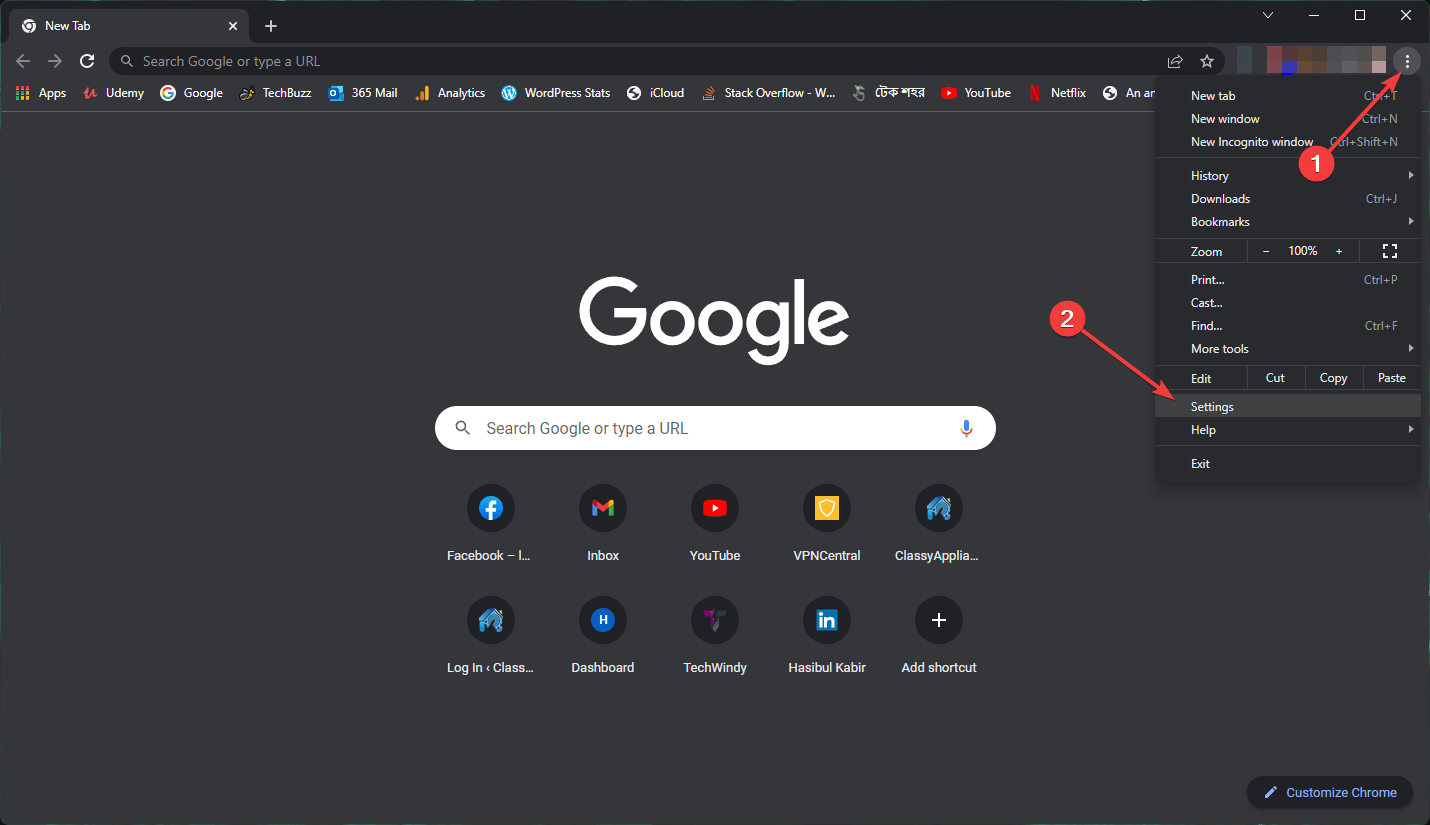
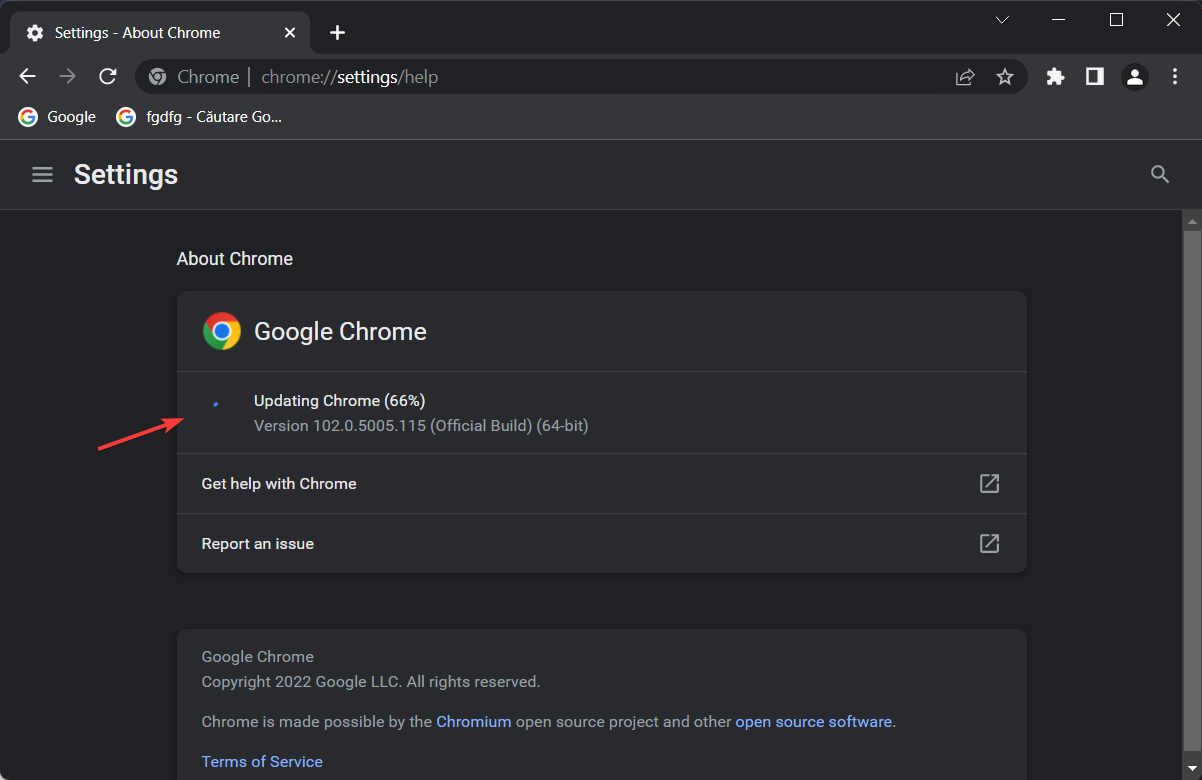
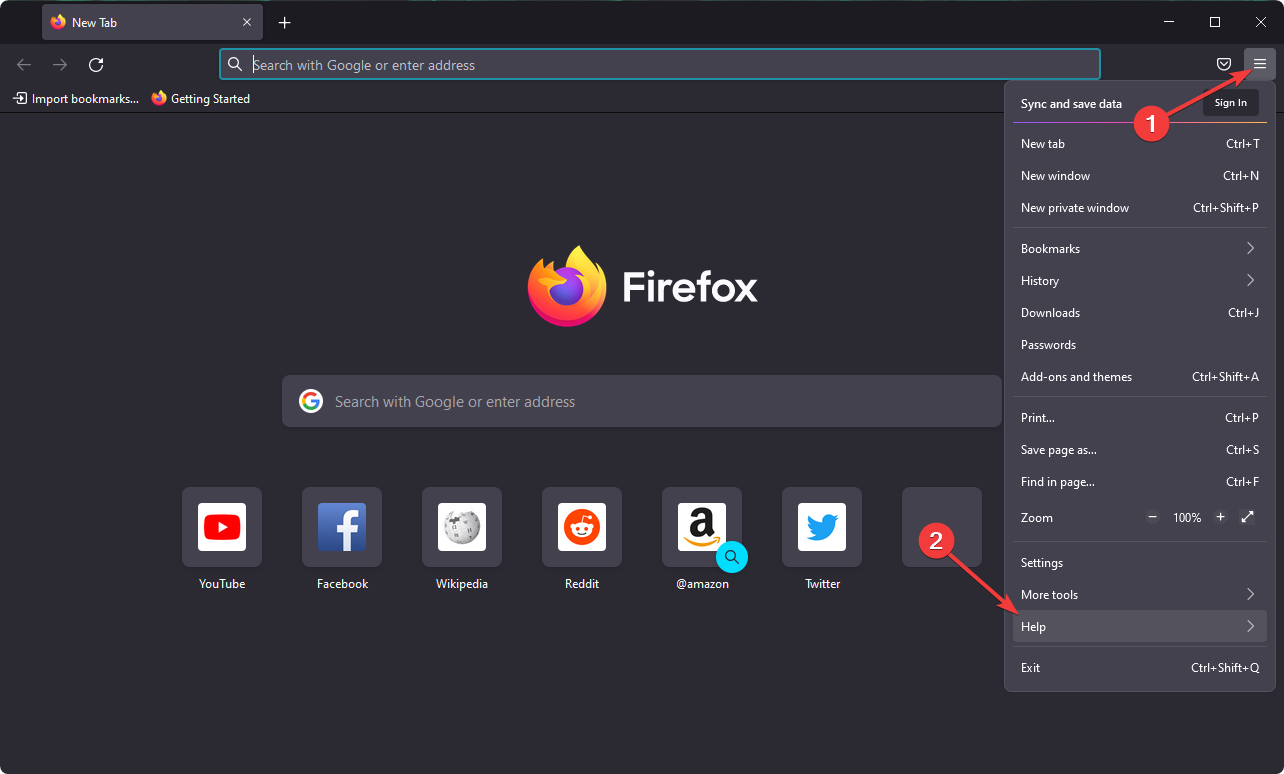
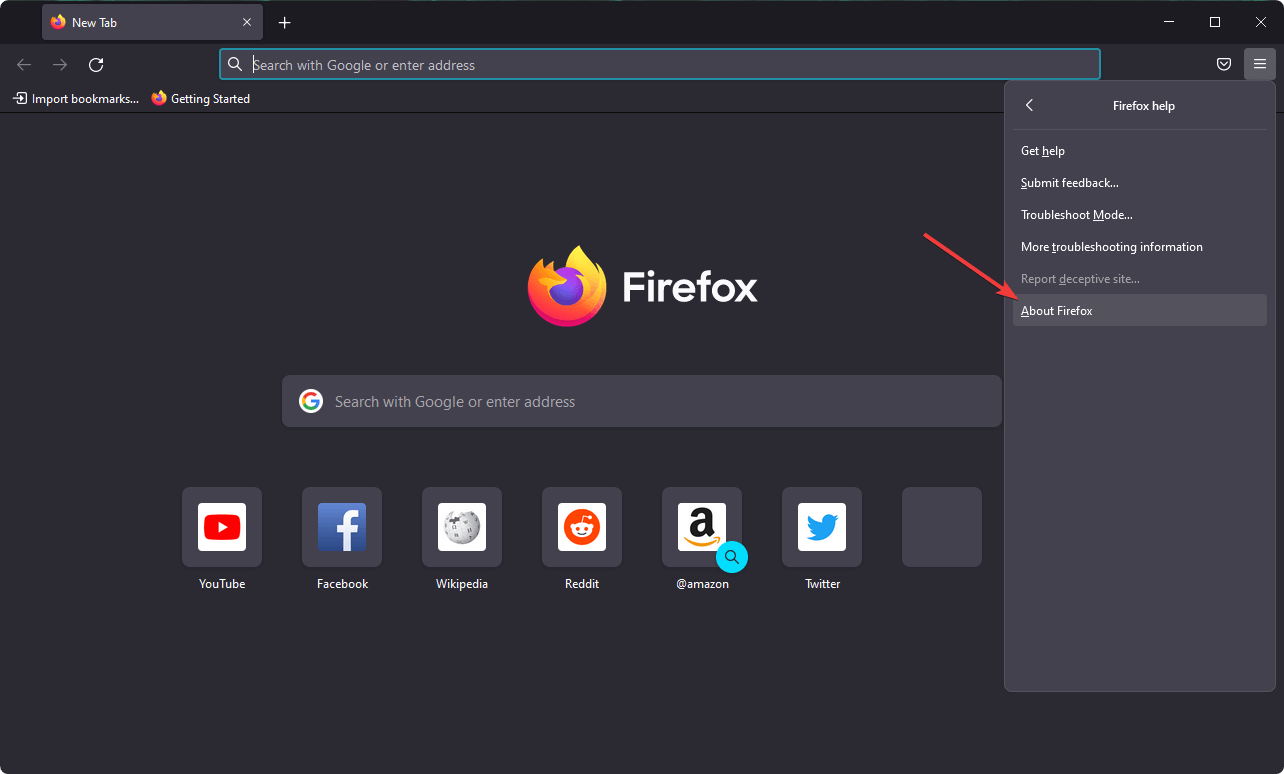
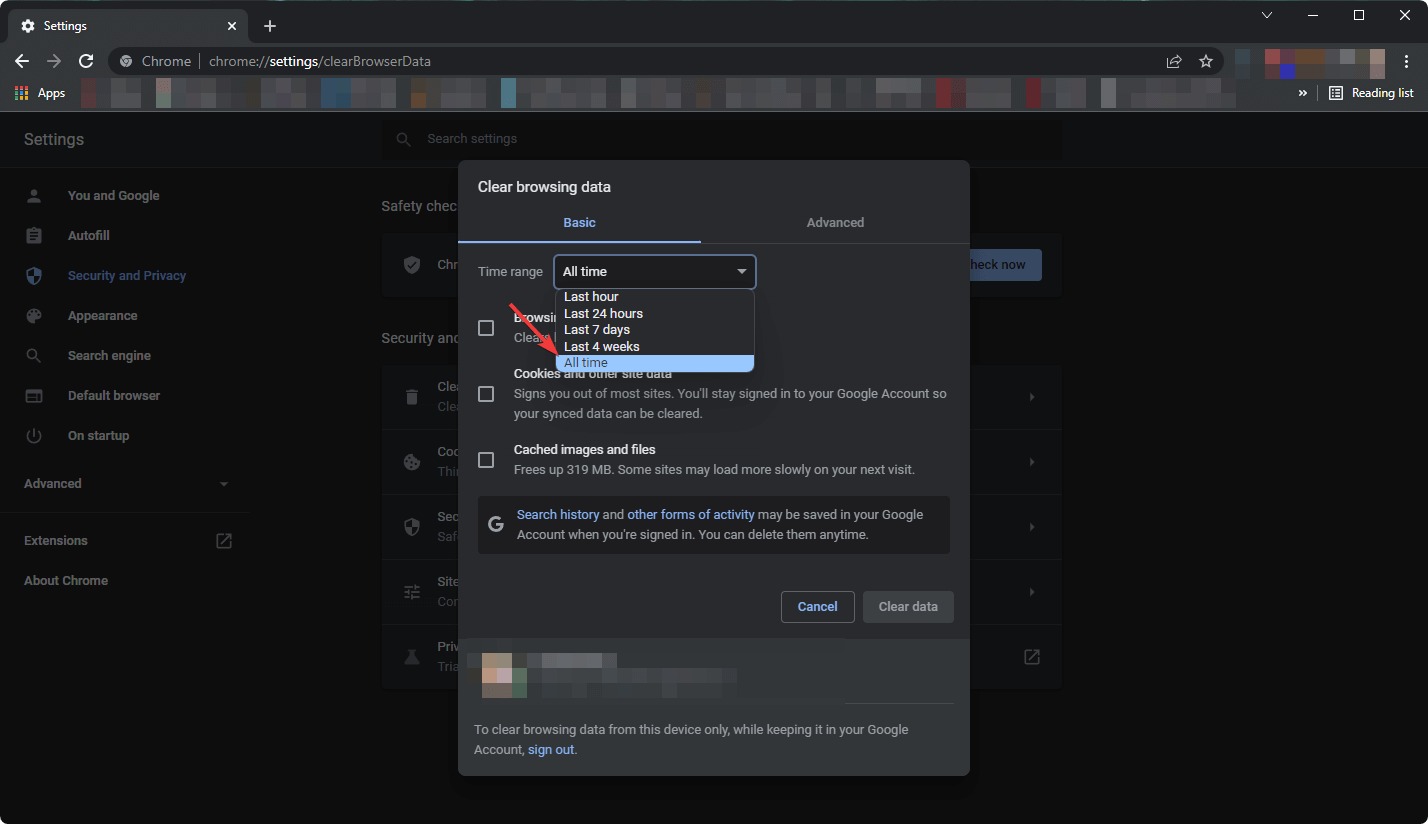

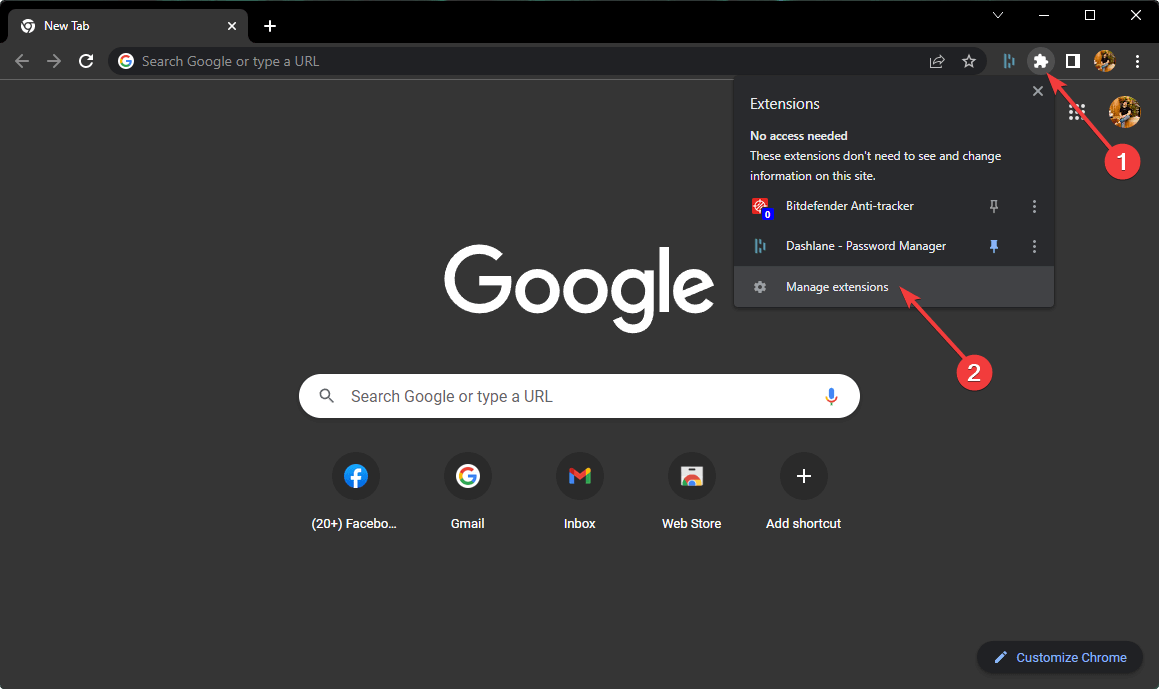
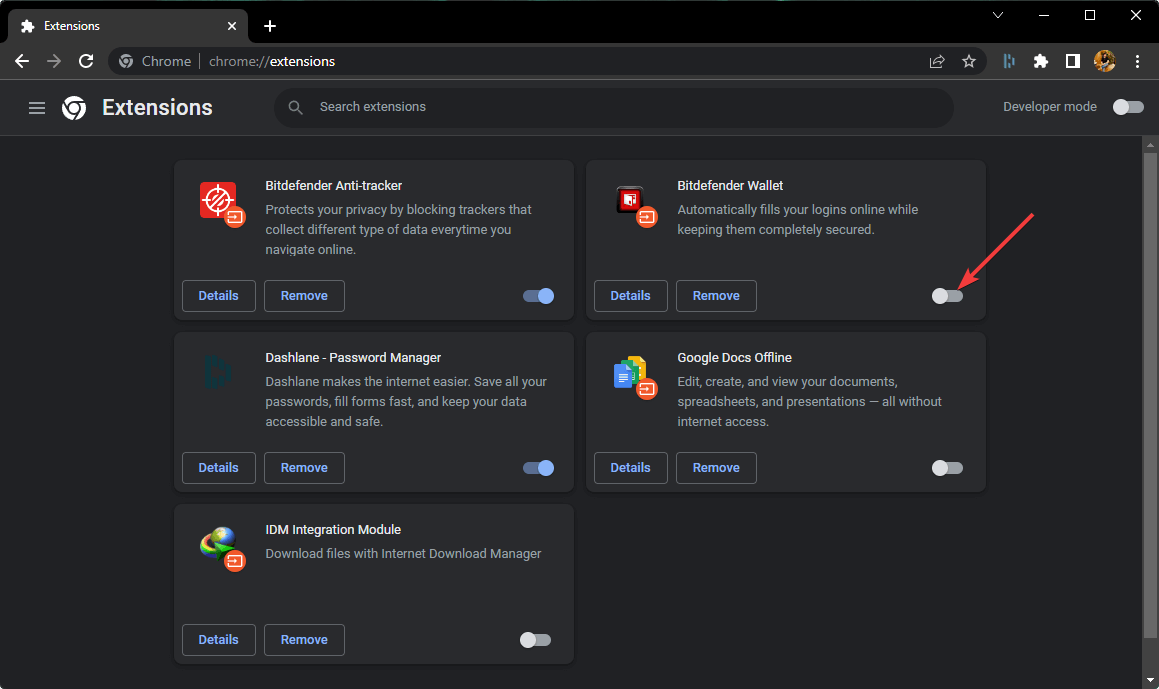
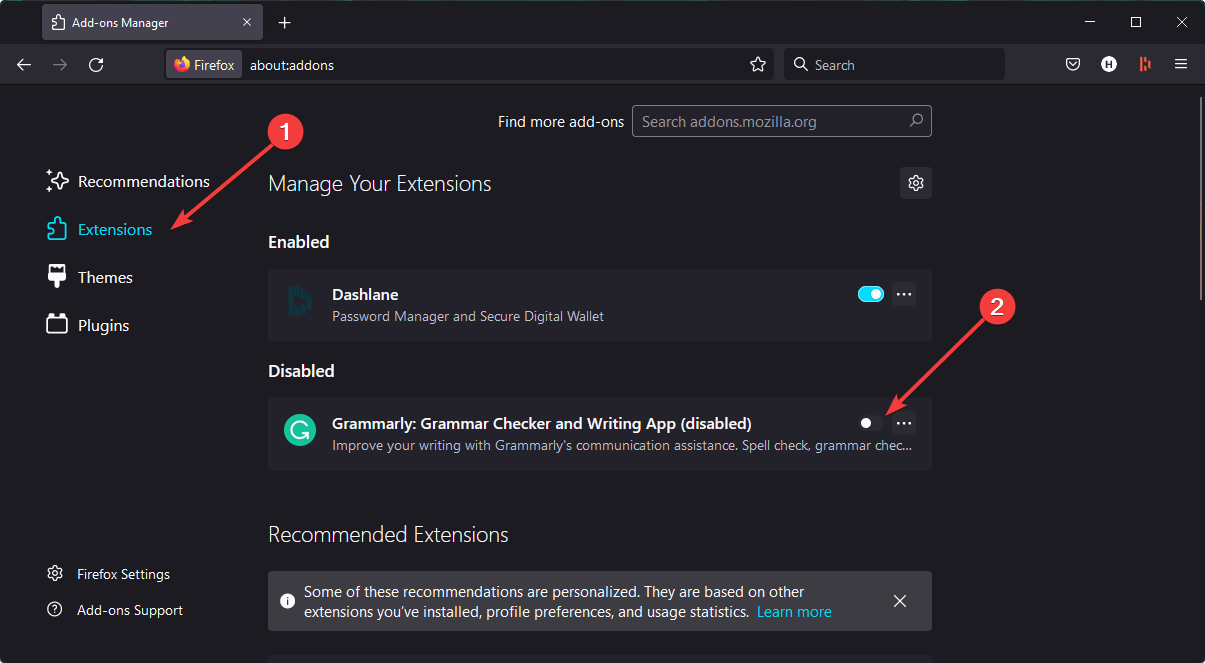

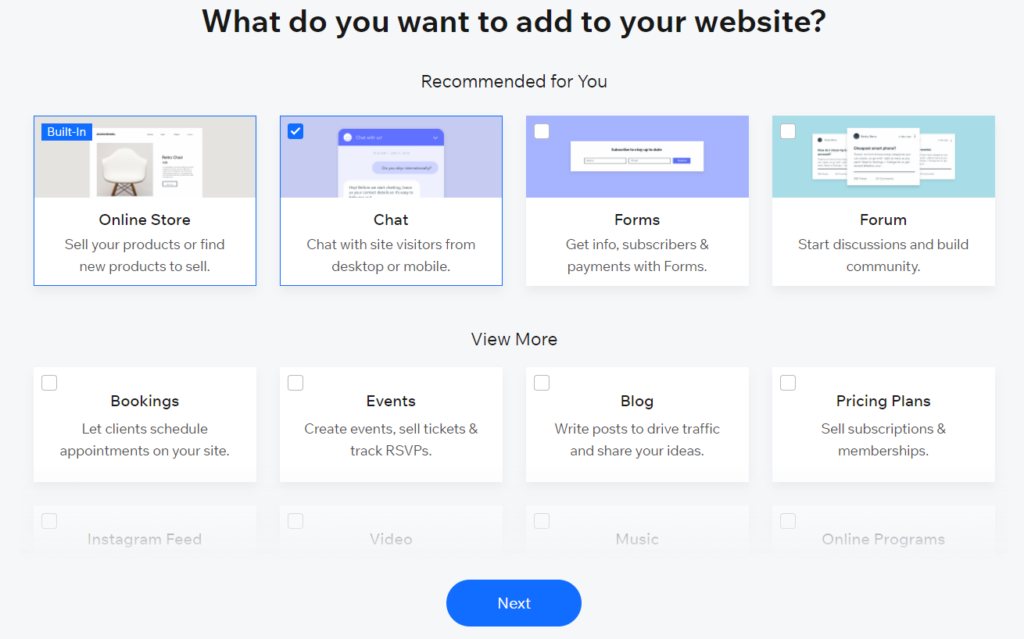
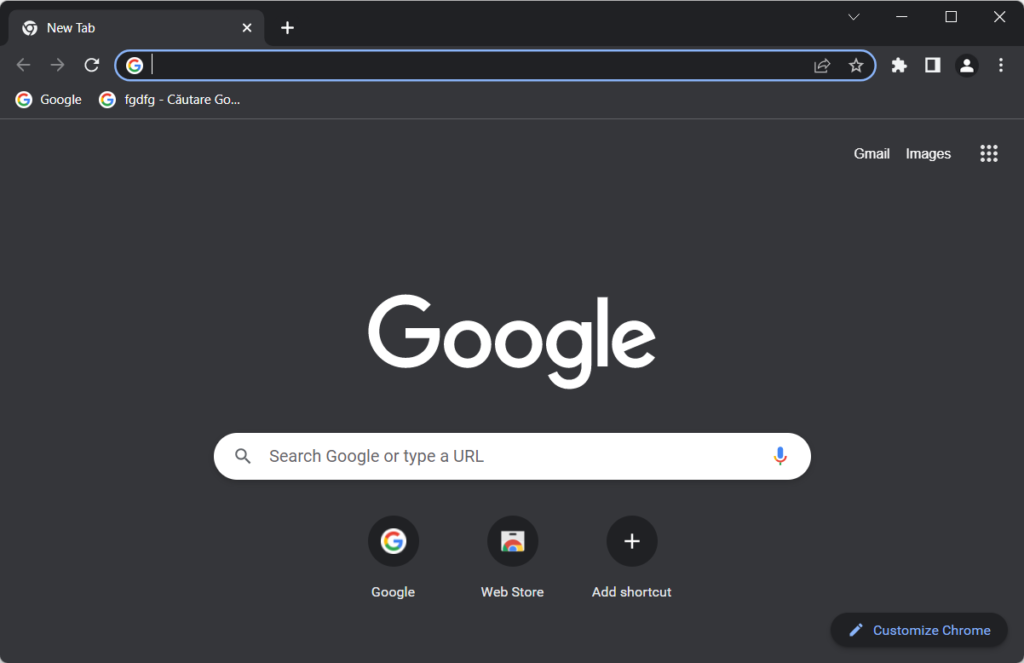
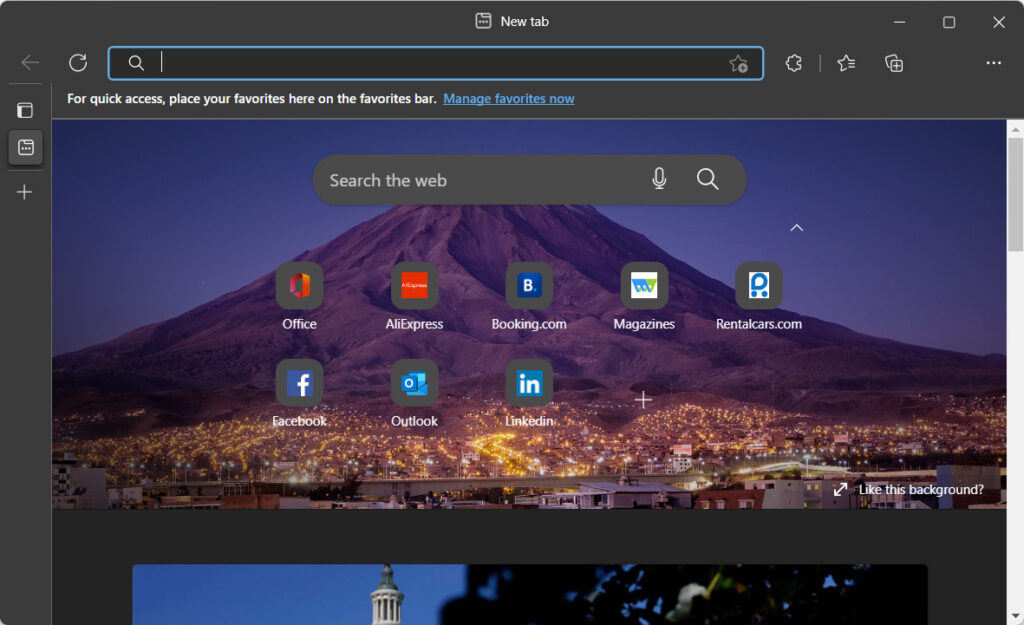
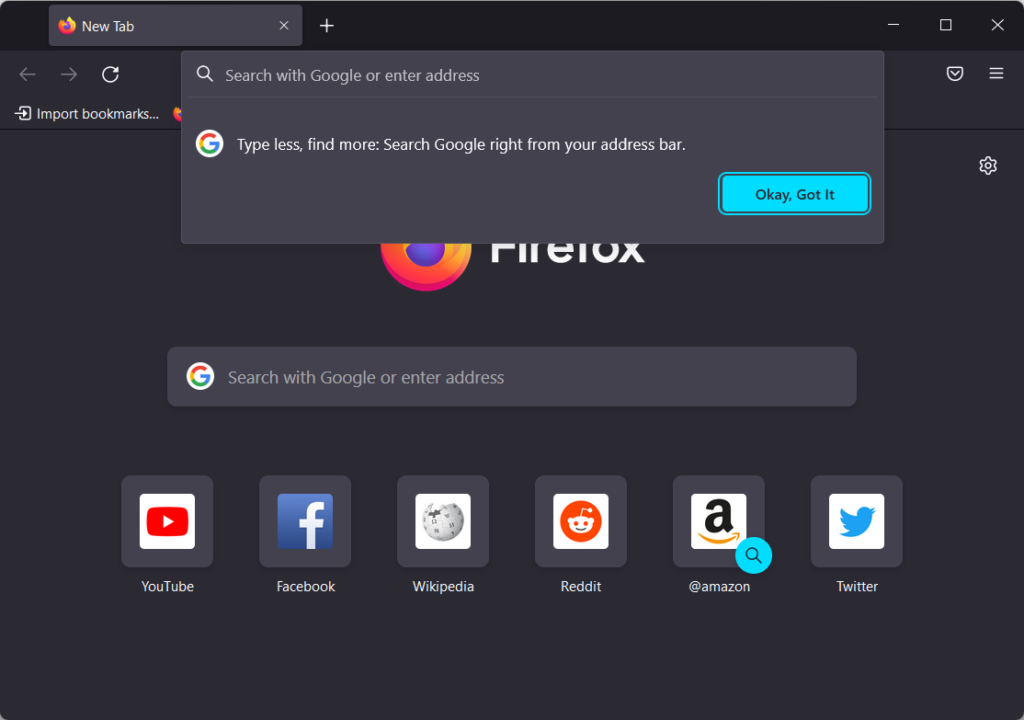
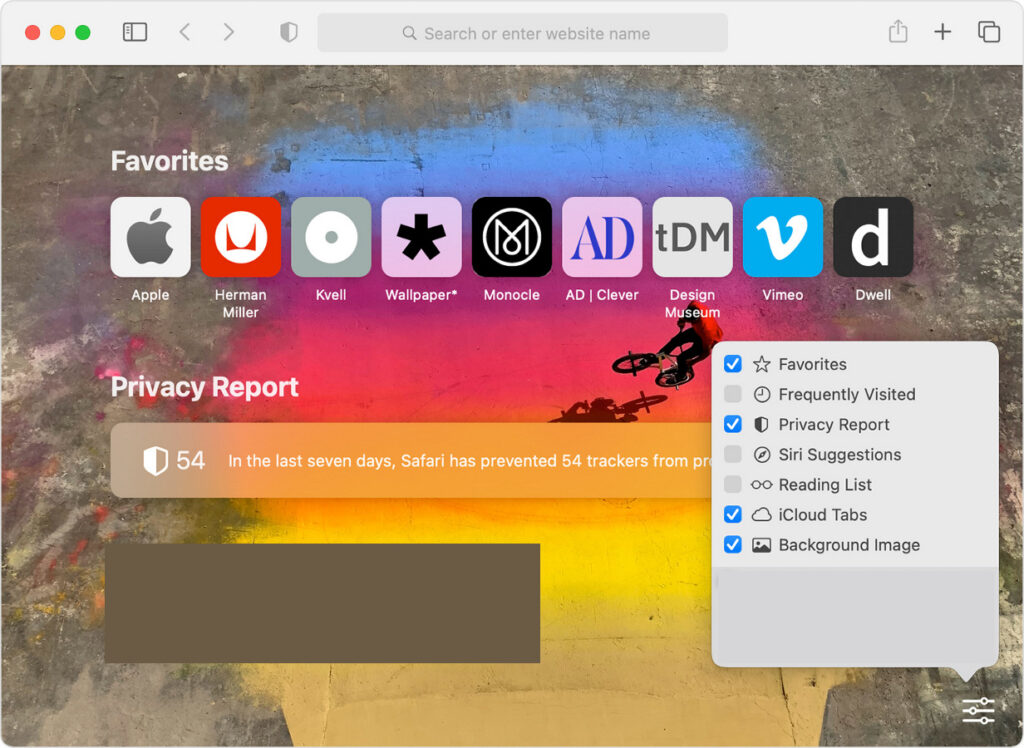
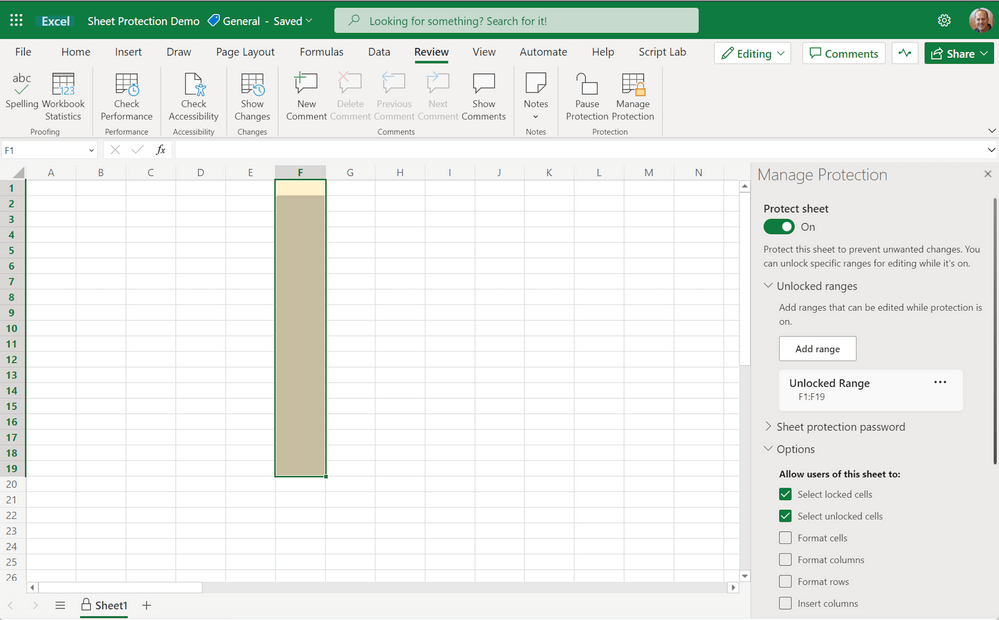
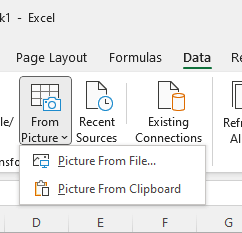
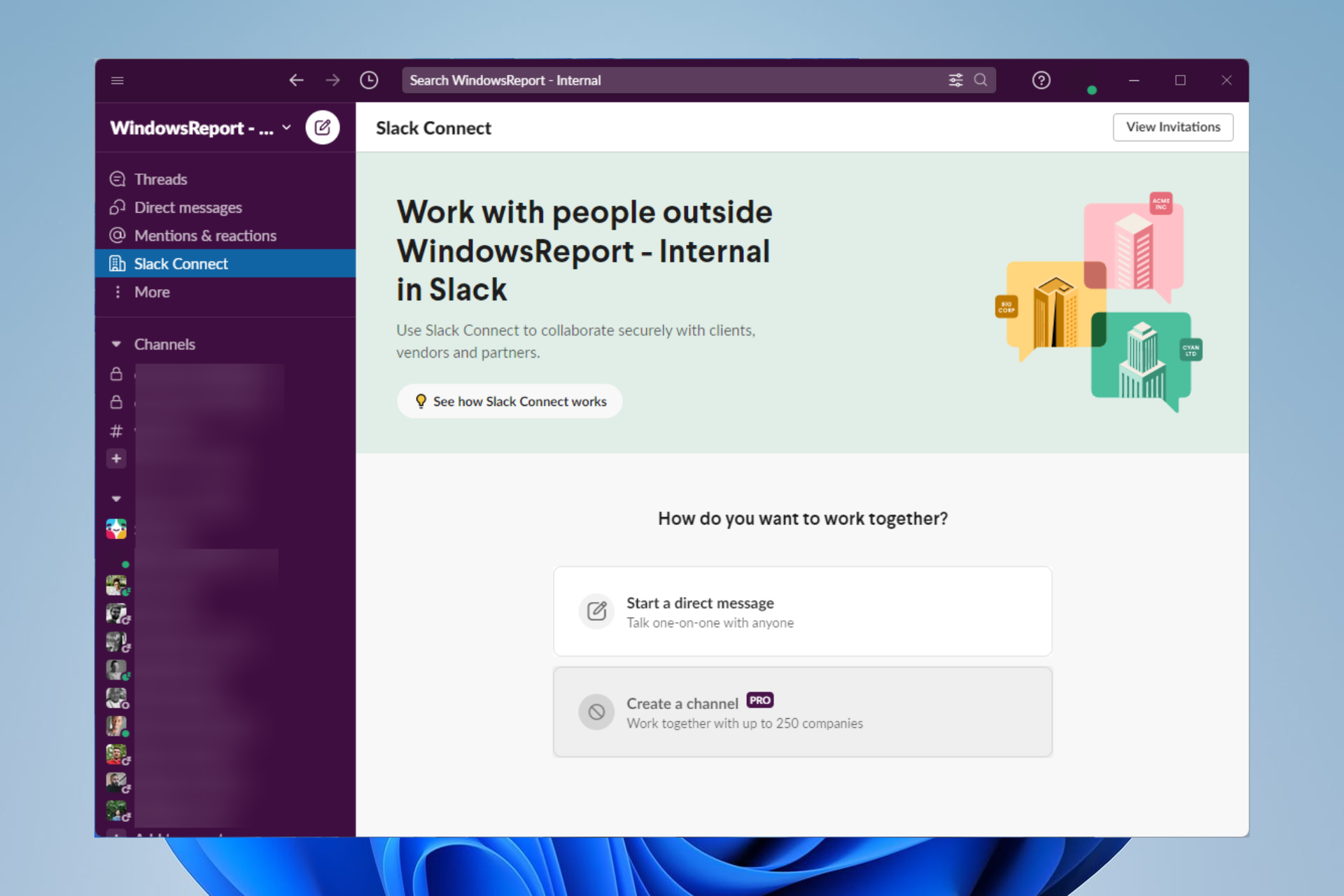
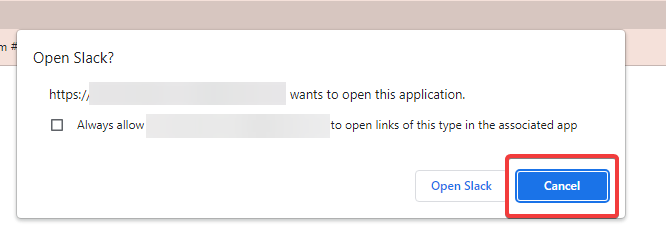
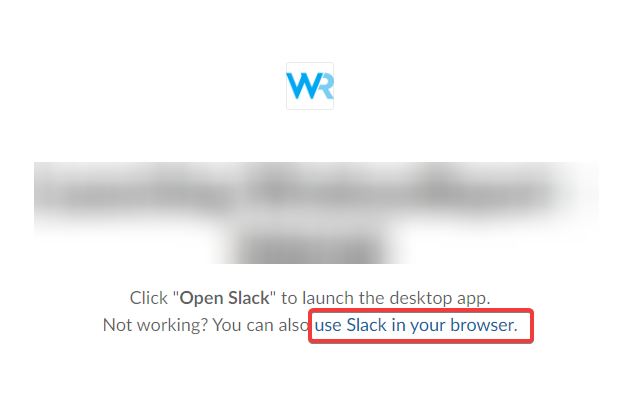
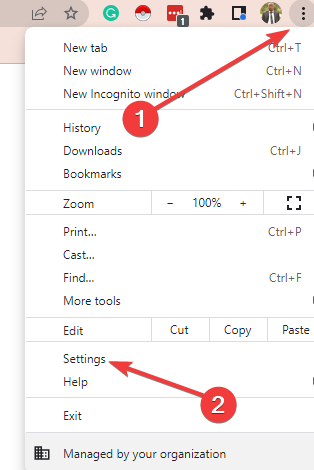
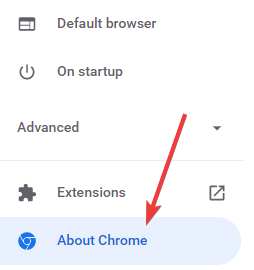
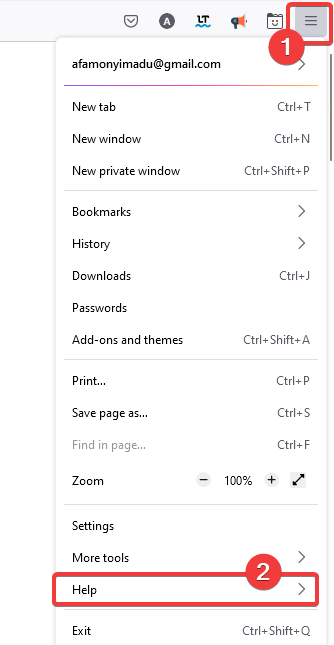
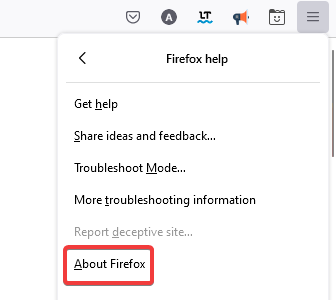
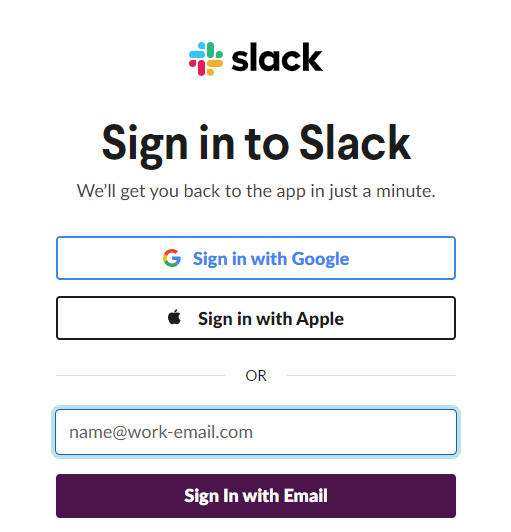



![An Error Occurred Running the Unity Content on This Page [Fix]](https://windowsreport.com/wp-content/uploads/2020/10/error-occurred-running-Unity-content.jpg)








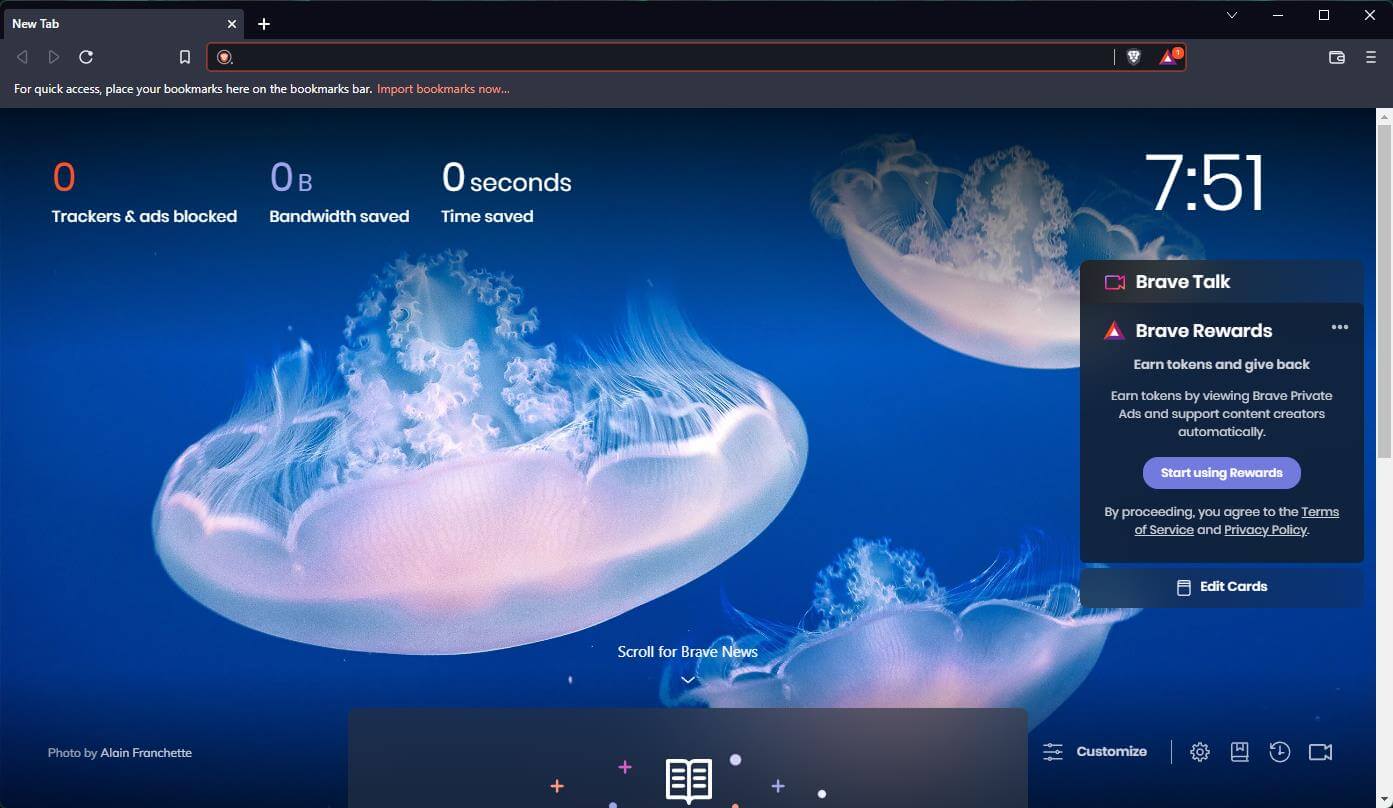

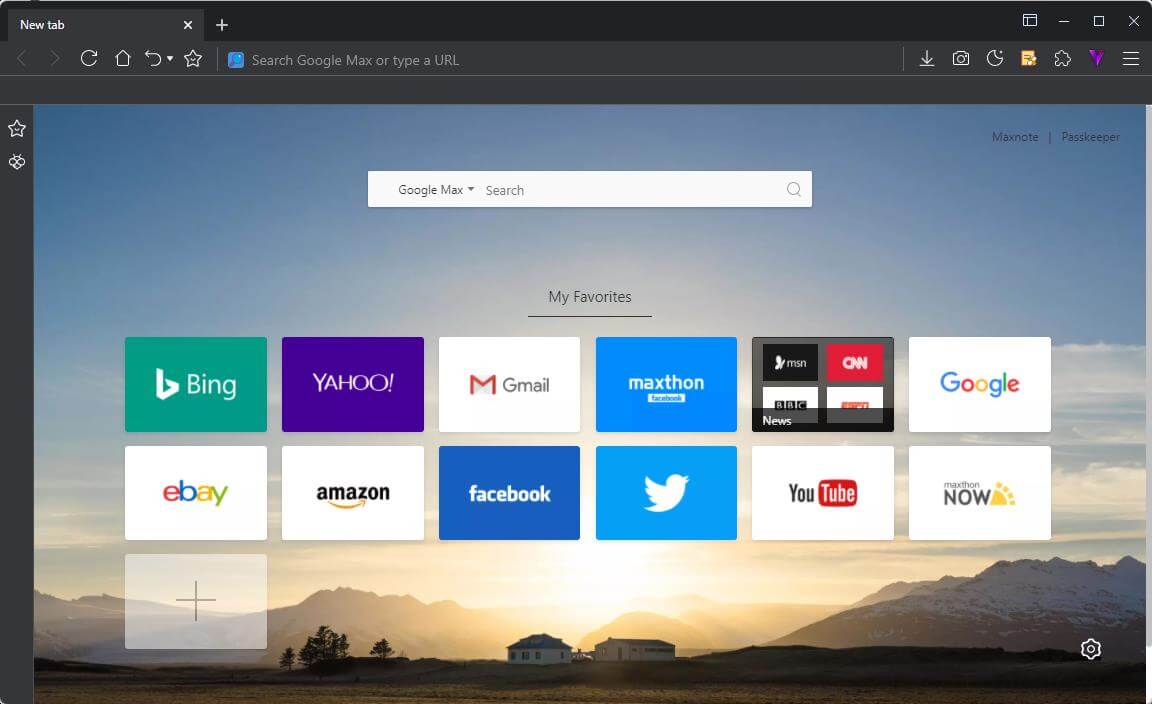

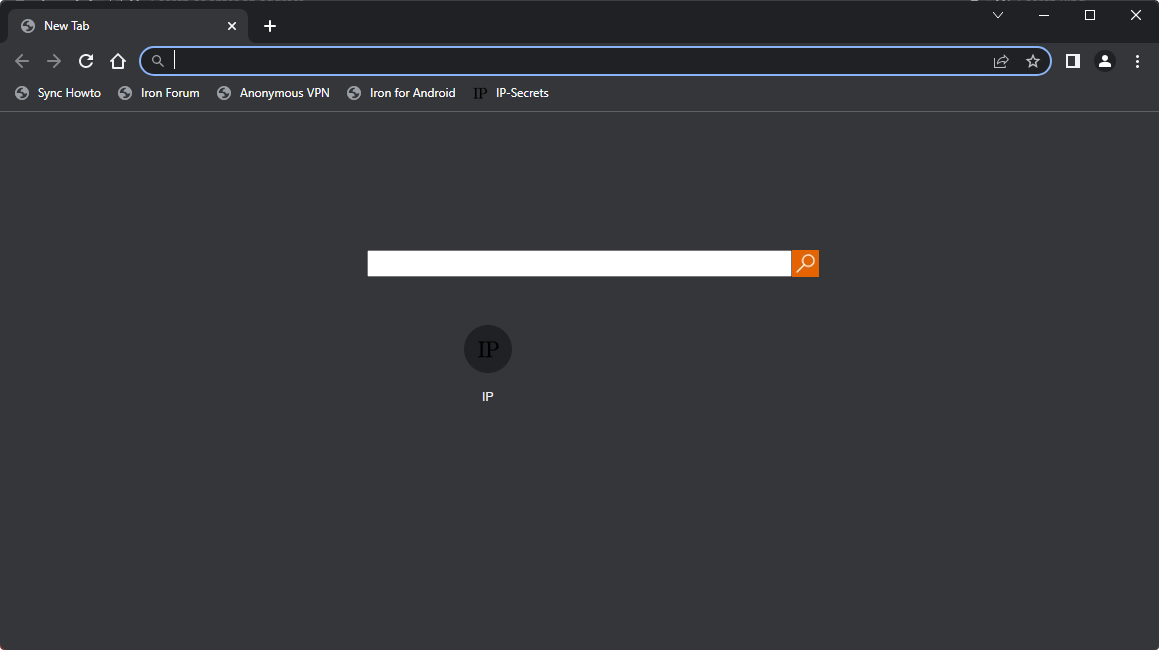

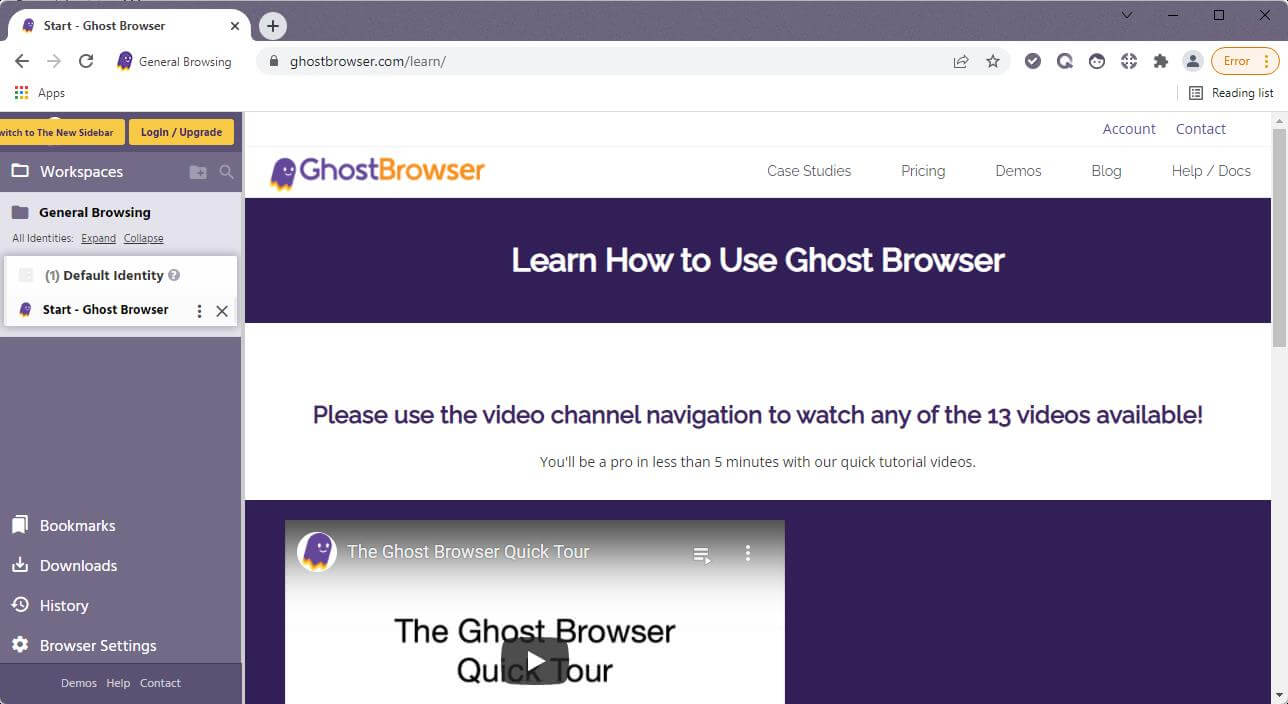







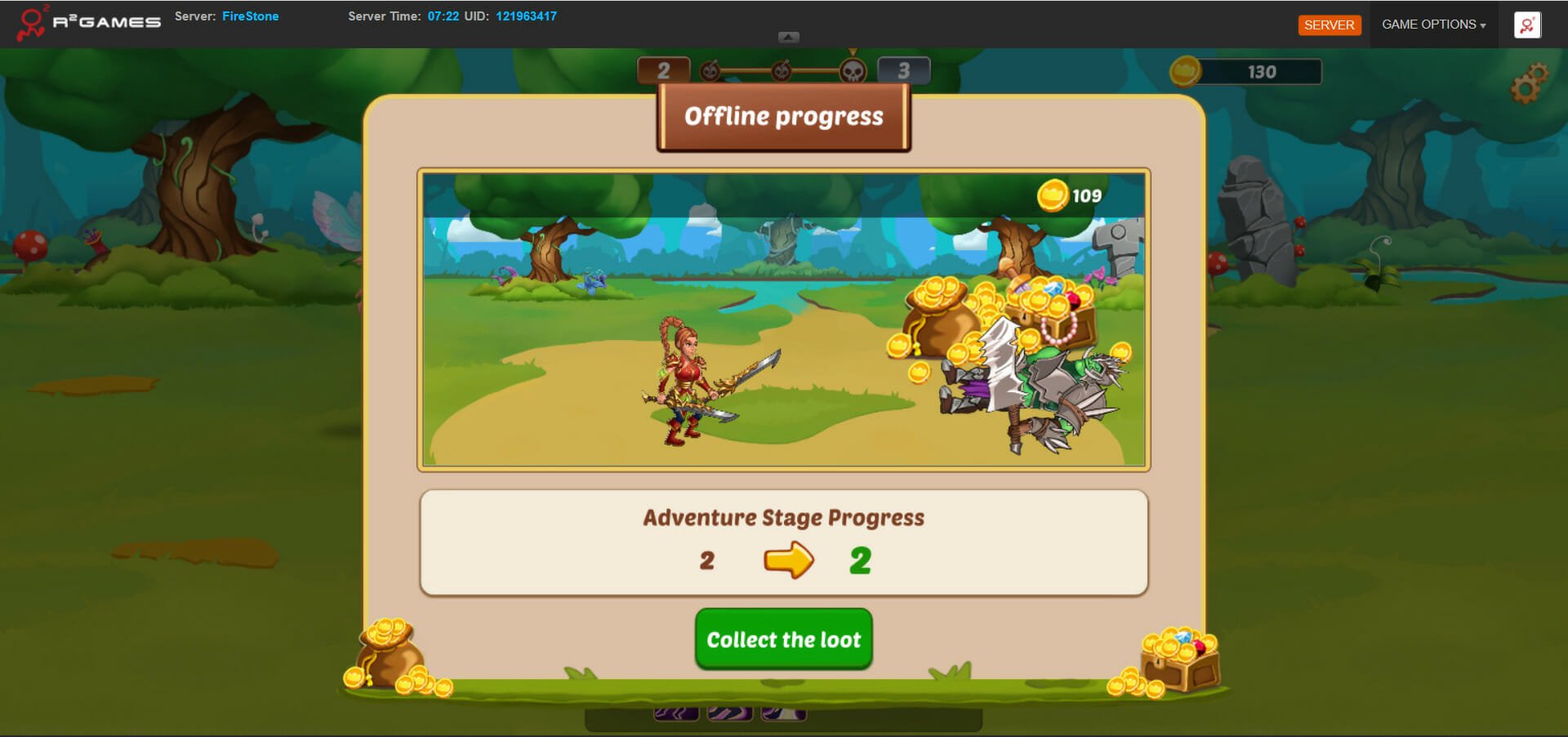











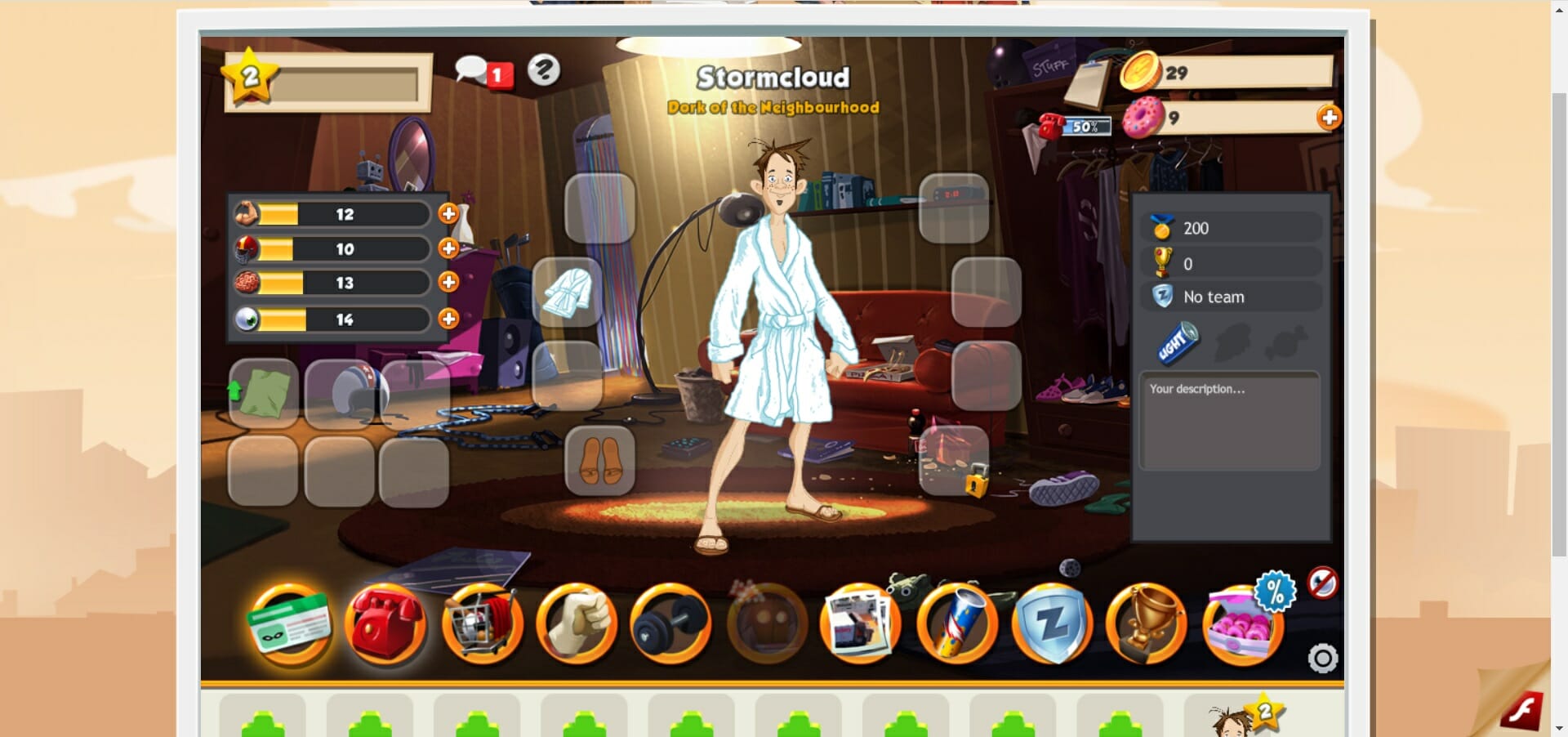


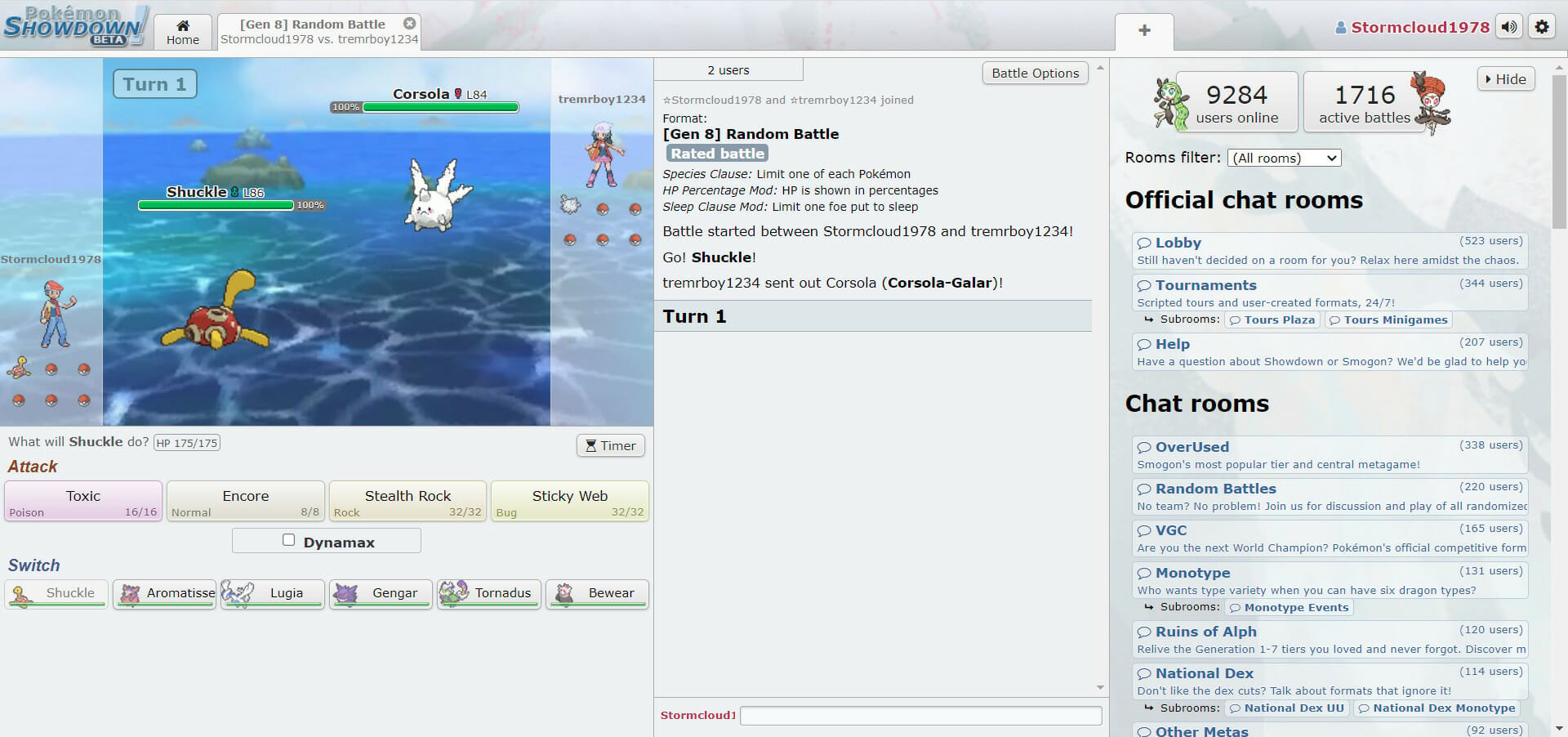









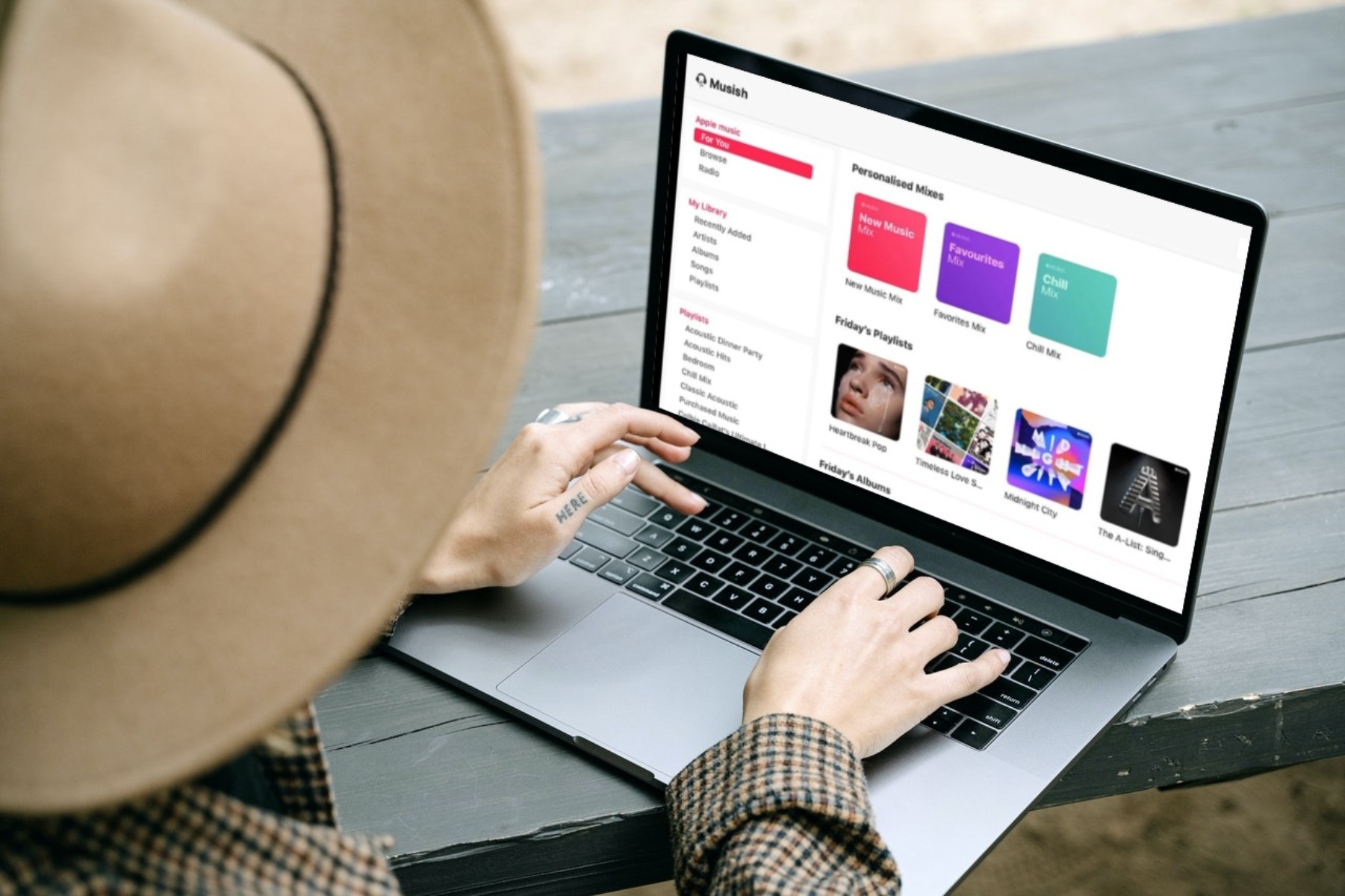


![Google Chrome is Not Compatible With This iPad [Fix]](https://windowsreport.com/wp-content/uploads/2022/06/chrome.jpg)
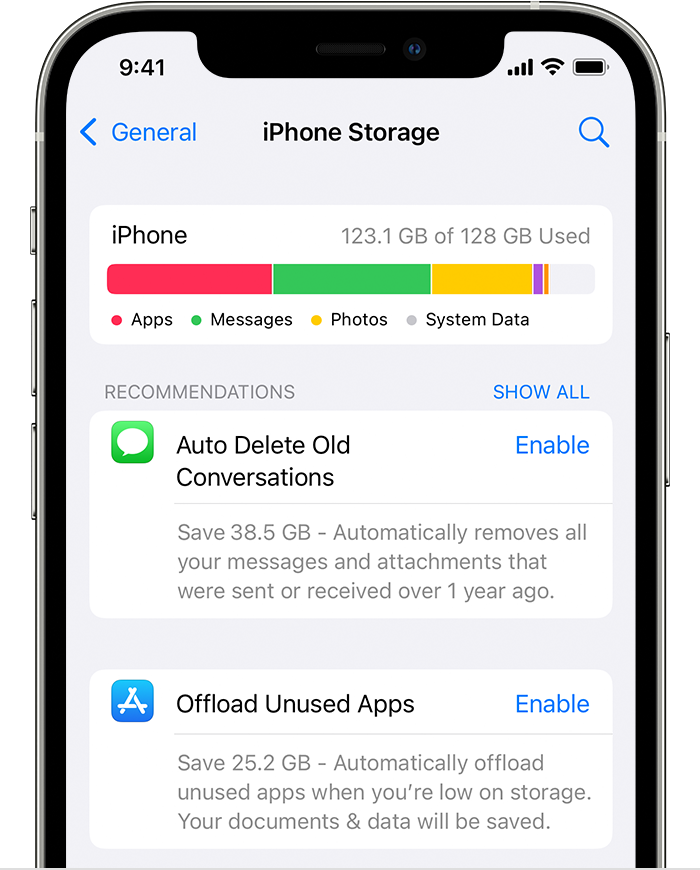


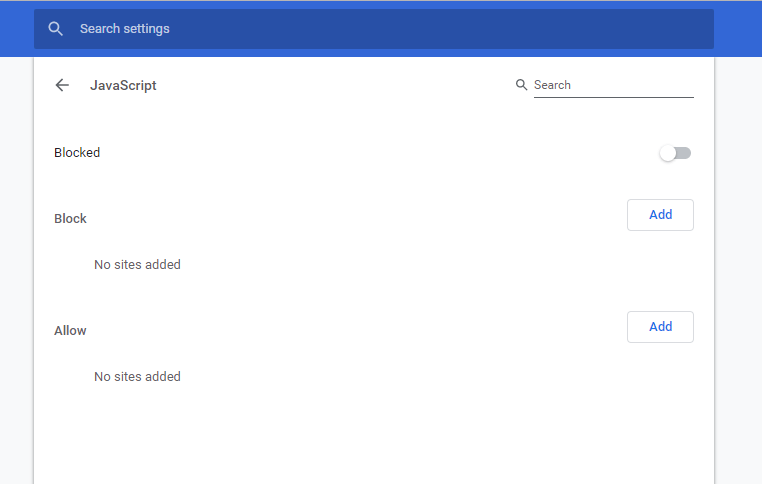


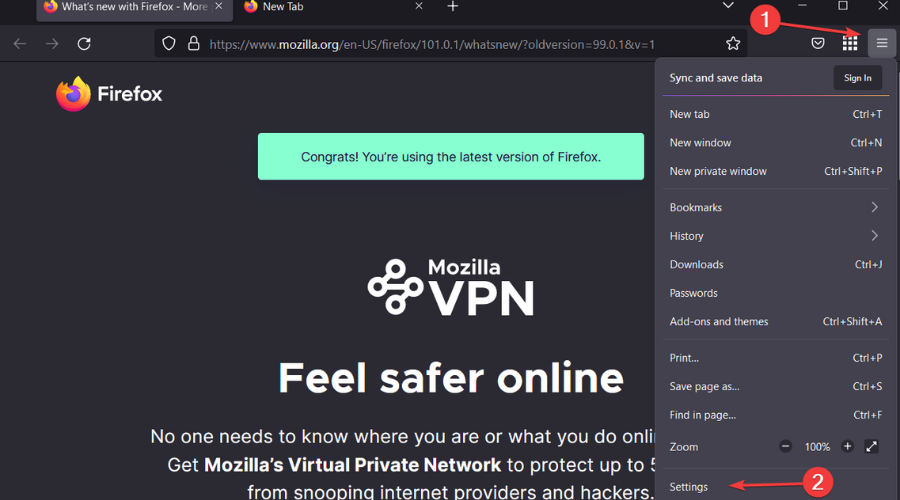
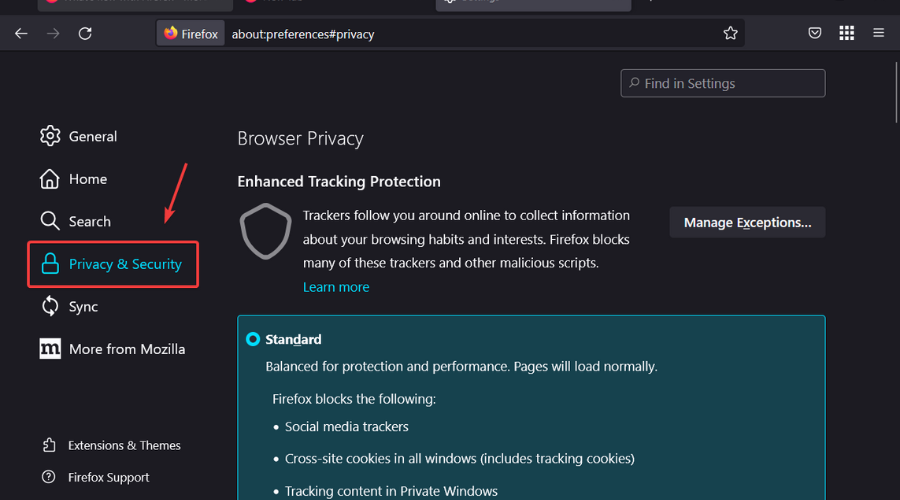
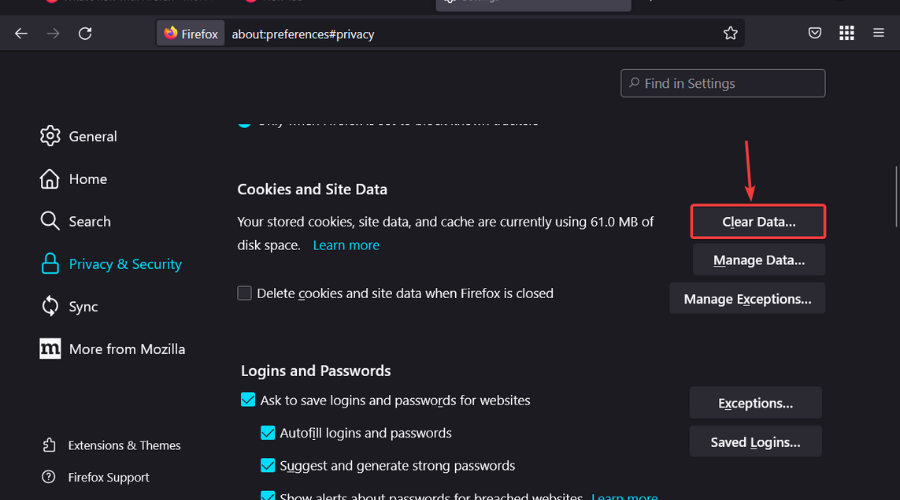


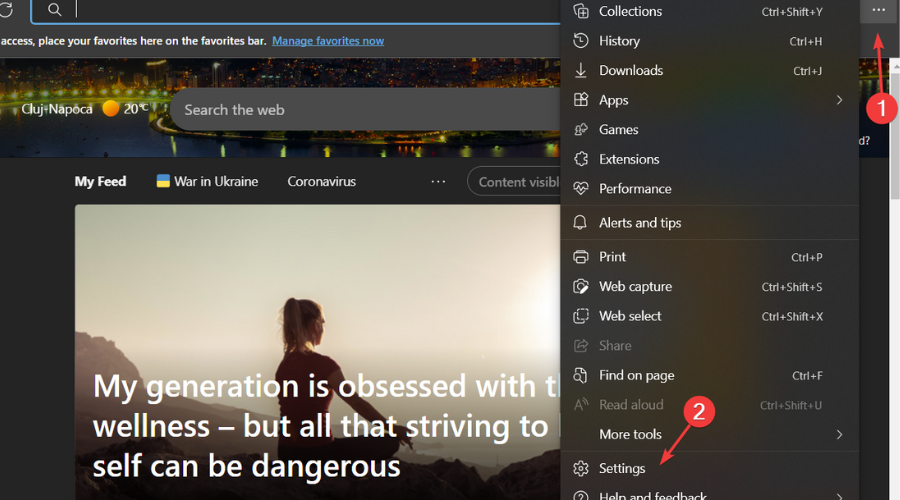
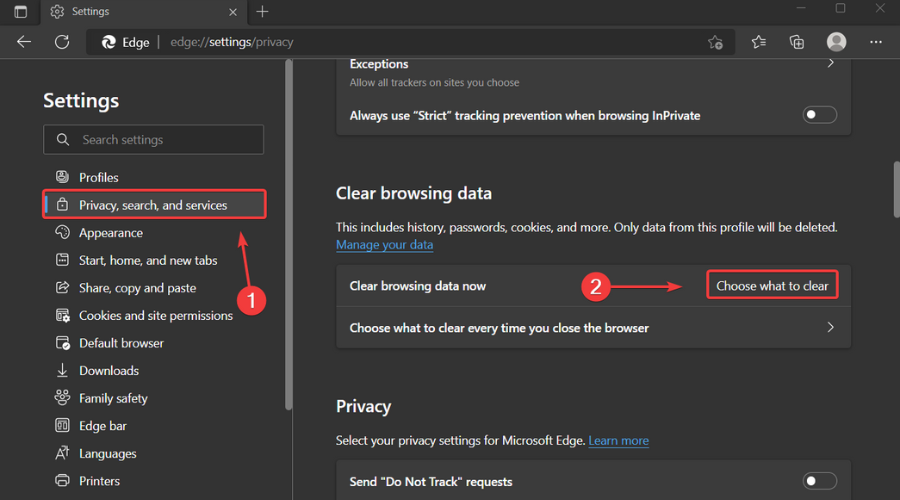
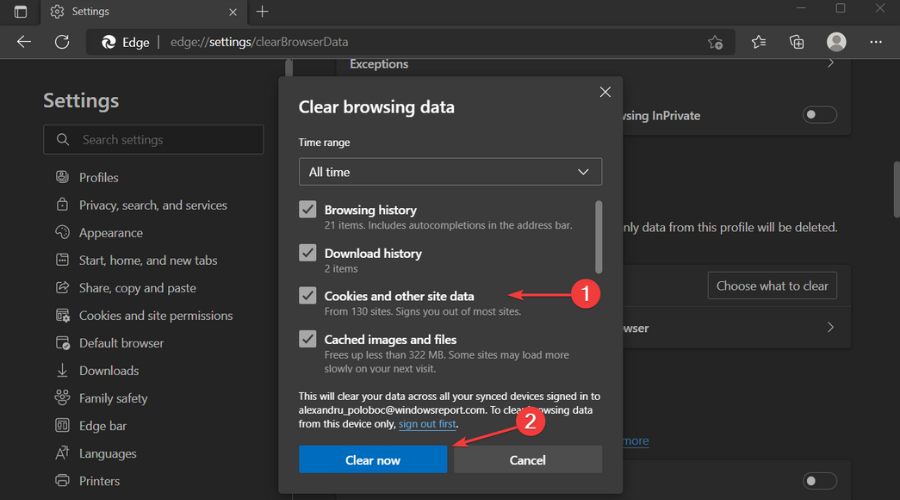


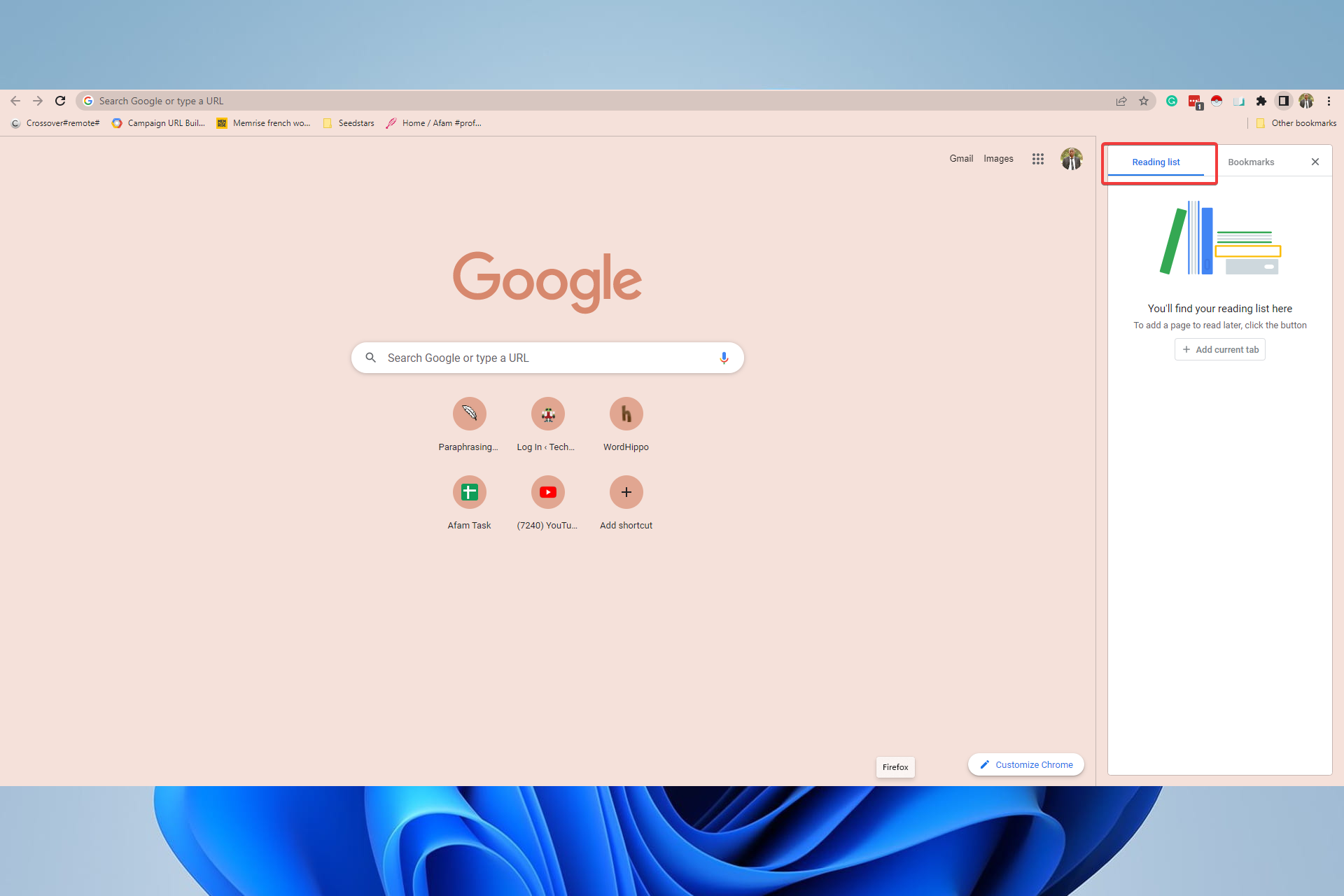
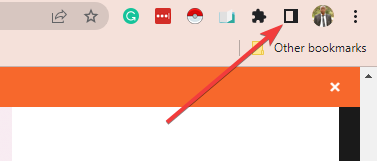
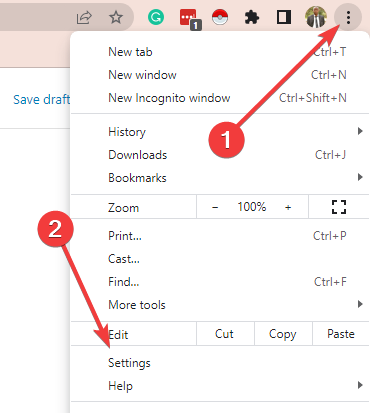
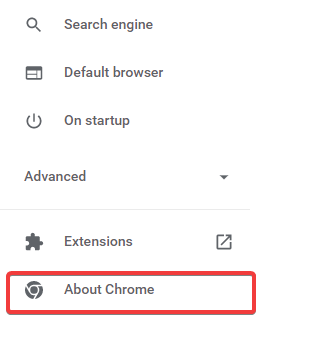
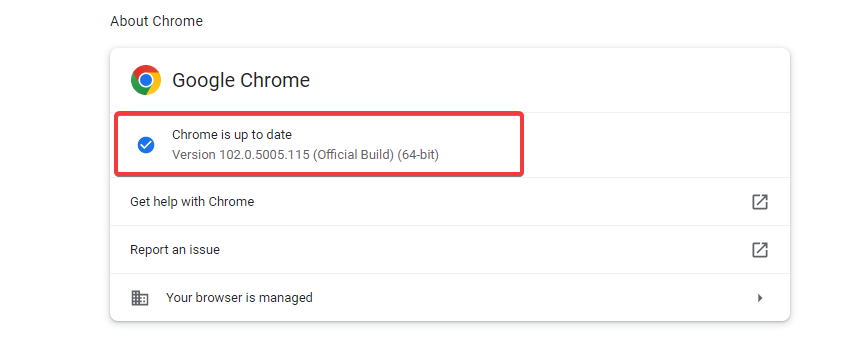
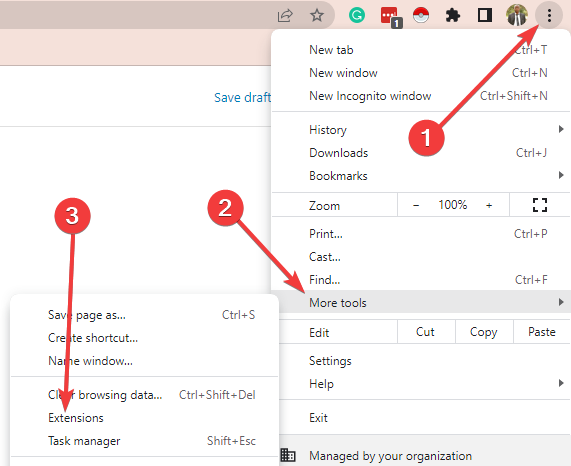
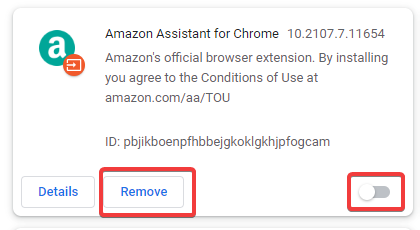
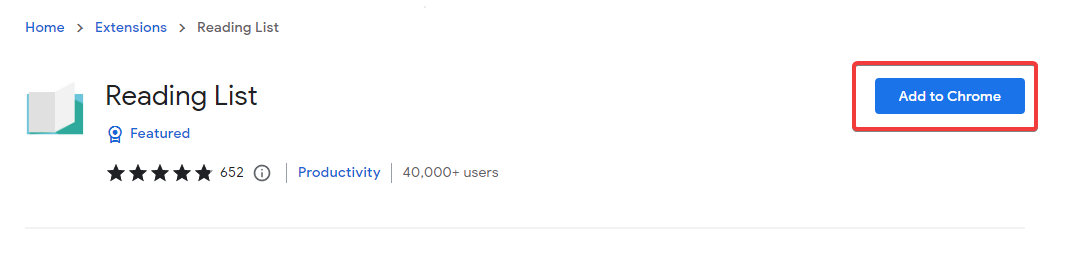
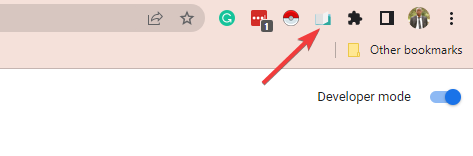
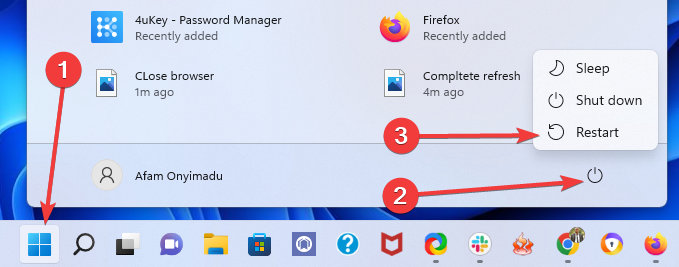
![6 Best Supported Browsers for NetSuite [Ranked by Performance]](https://windowsreport.com/wp-content/uploads/2022/06/best-browsers-for-netsuite.jpg)
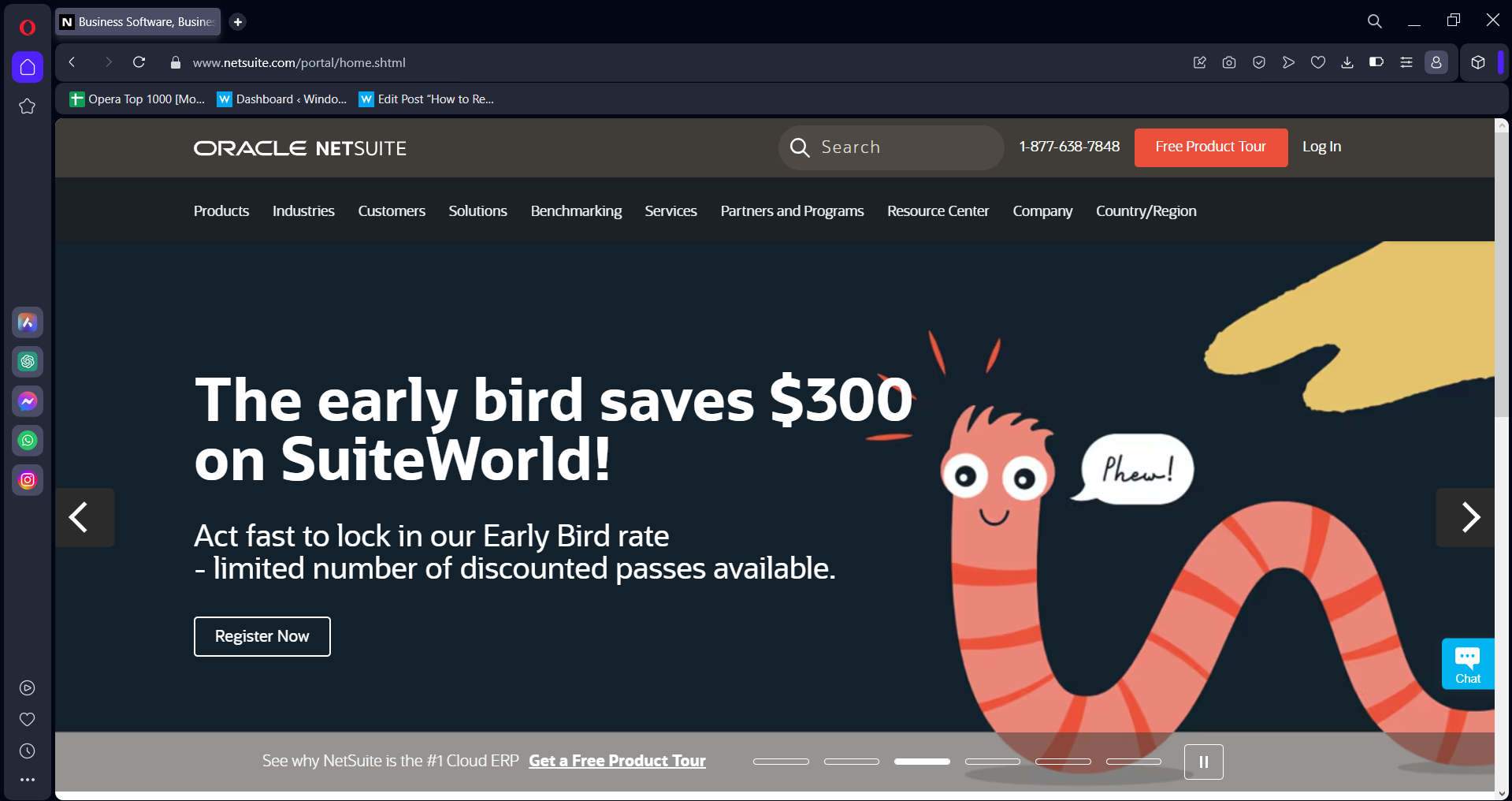

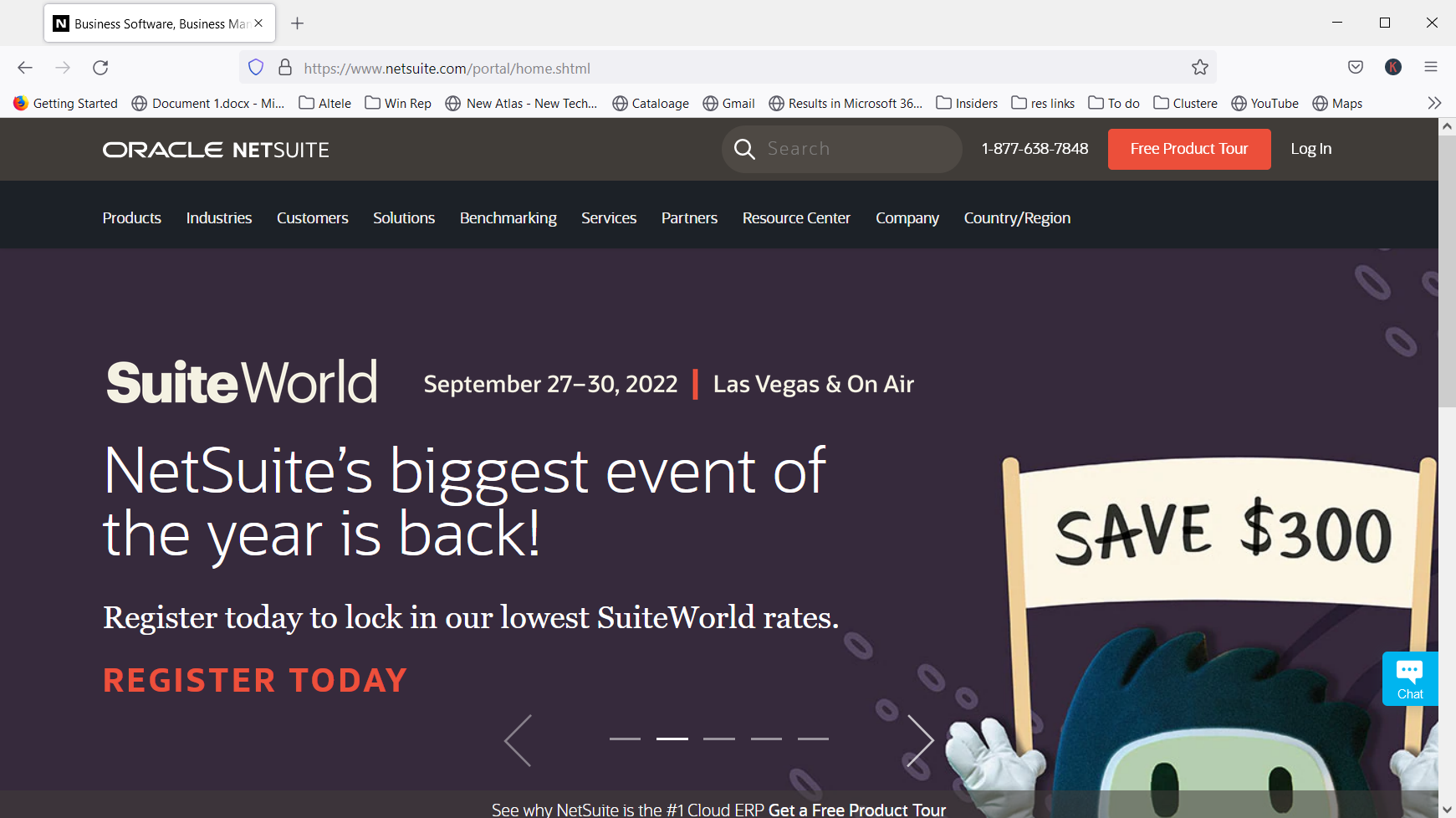
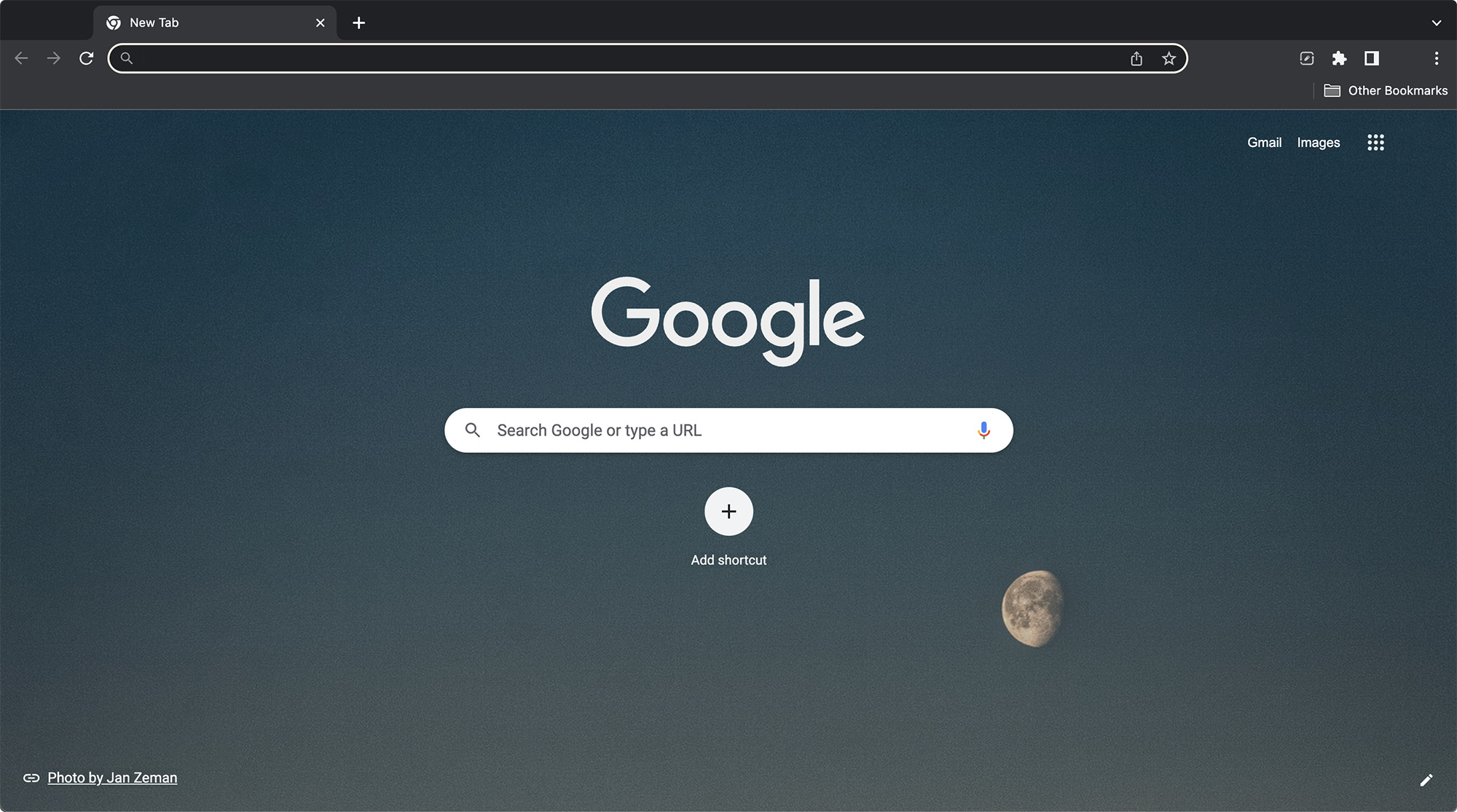

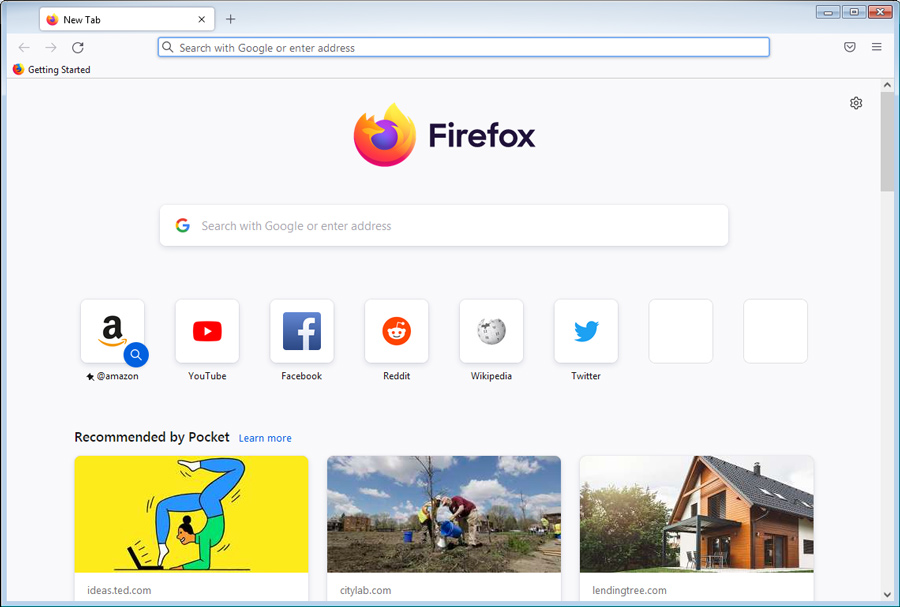
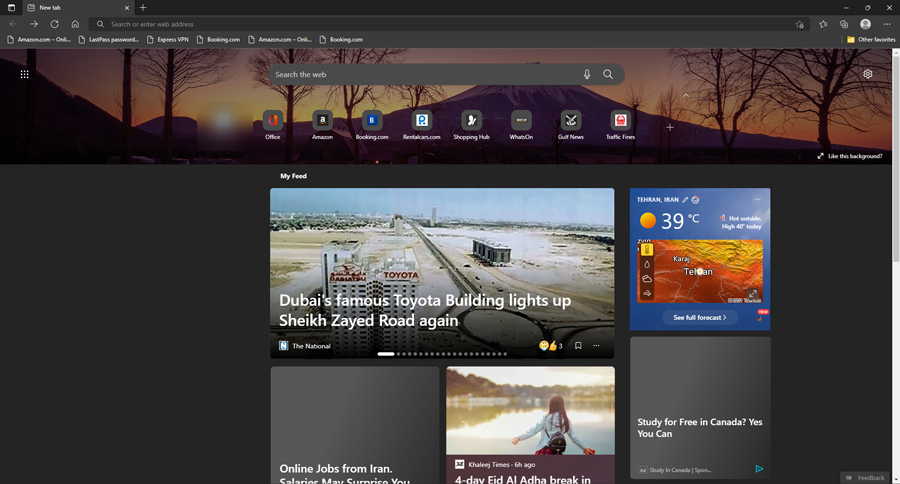


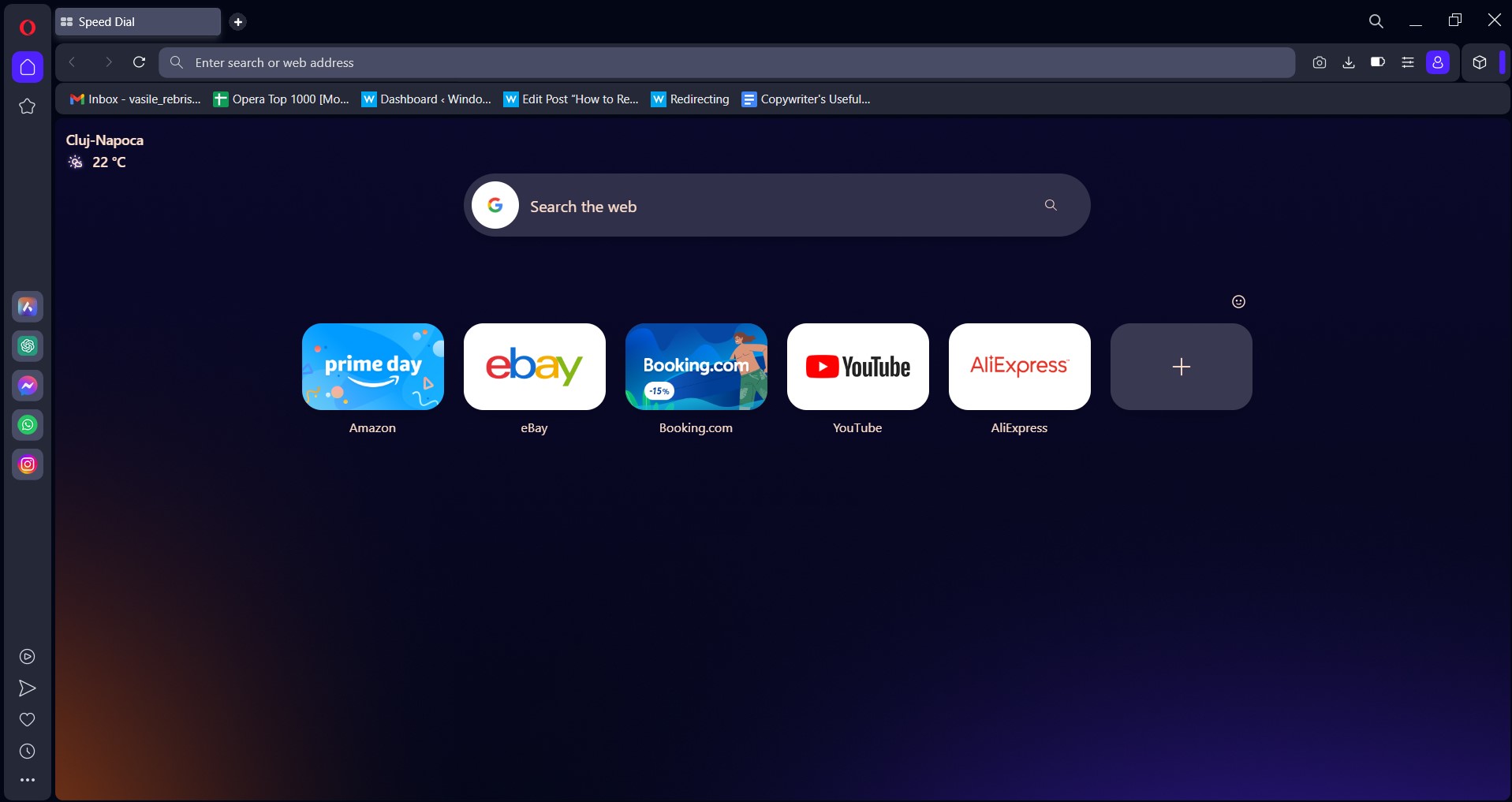
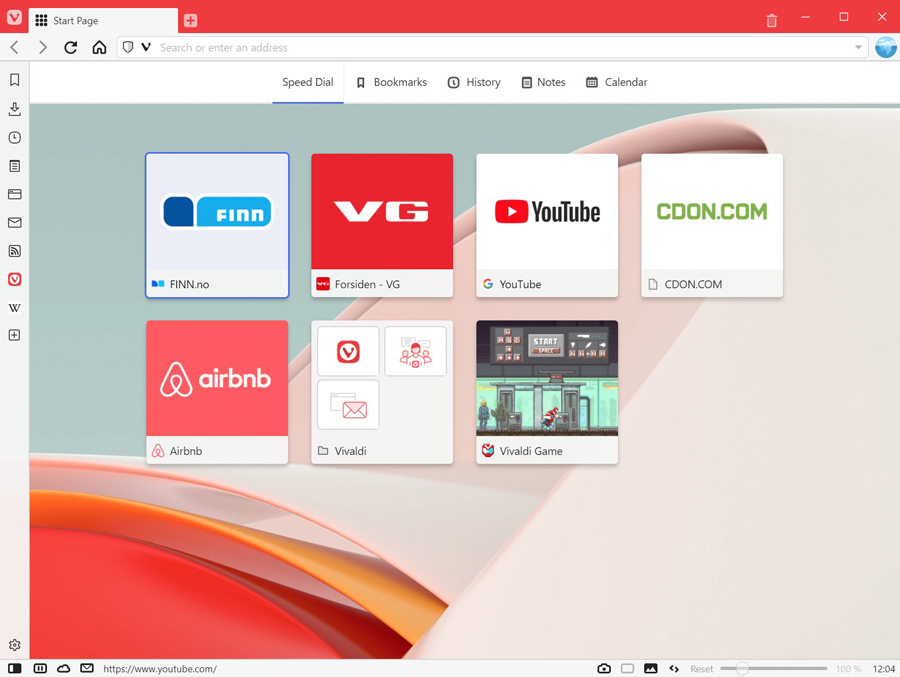
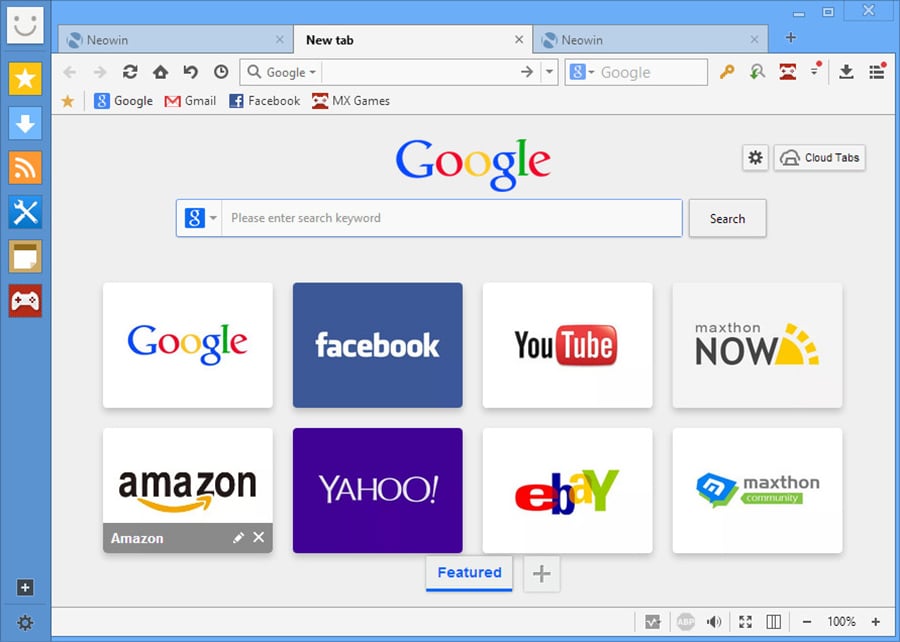
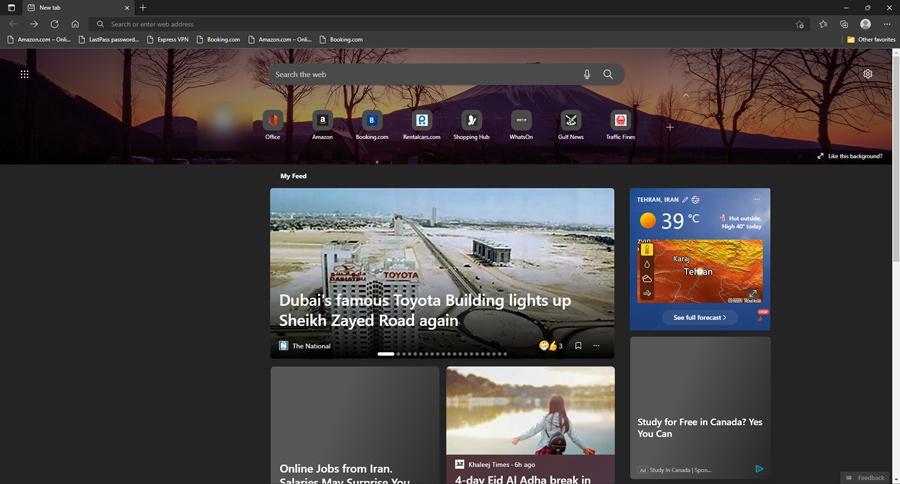
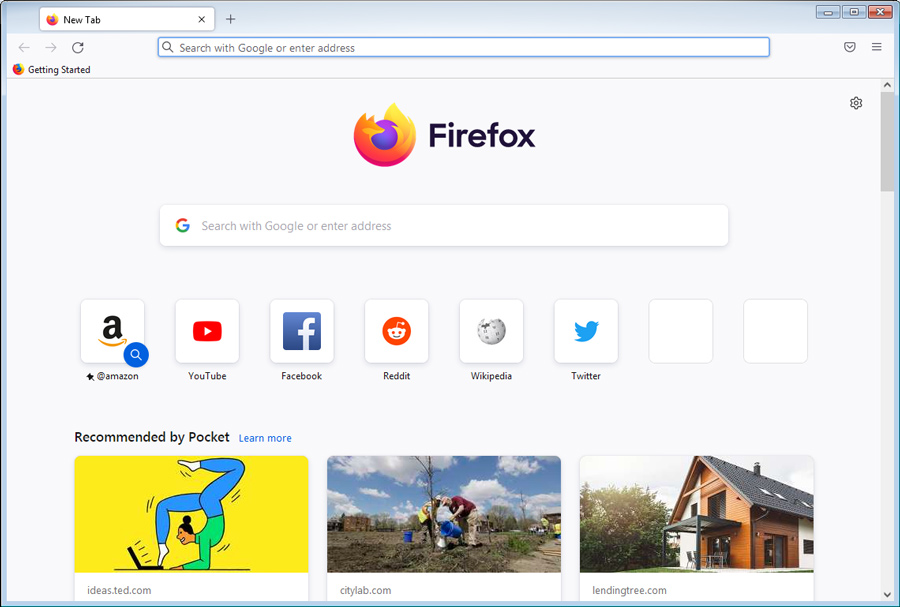
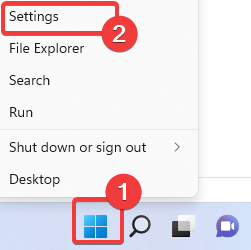
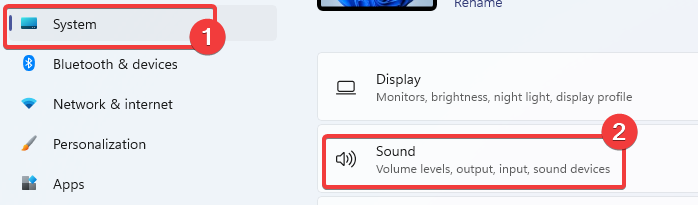
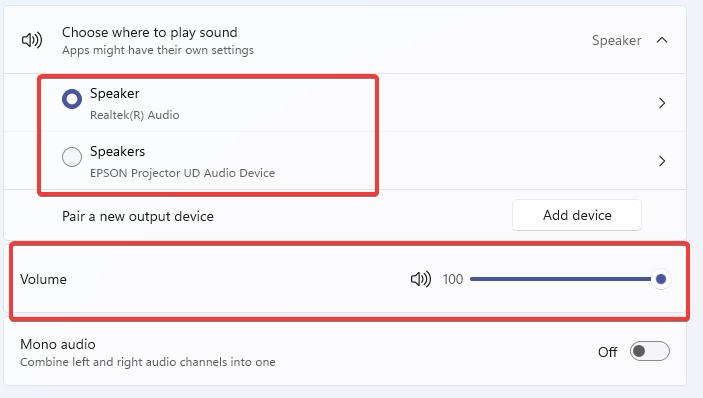
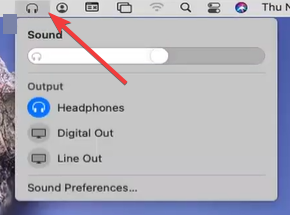
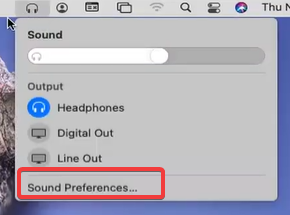
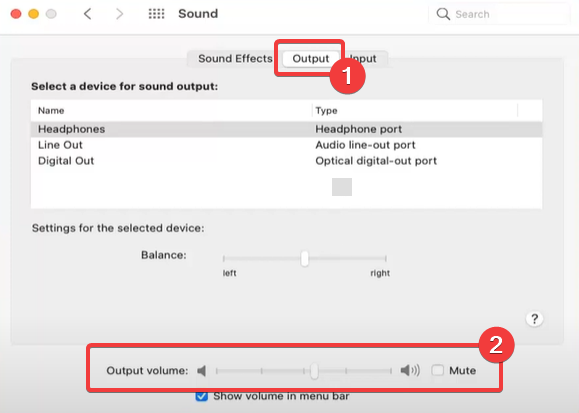
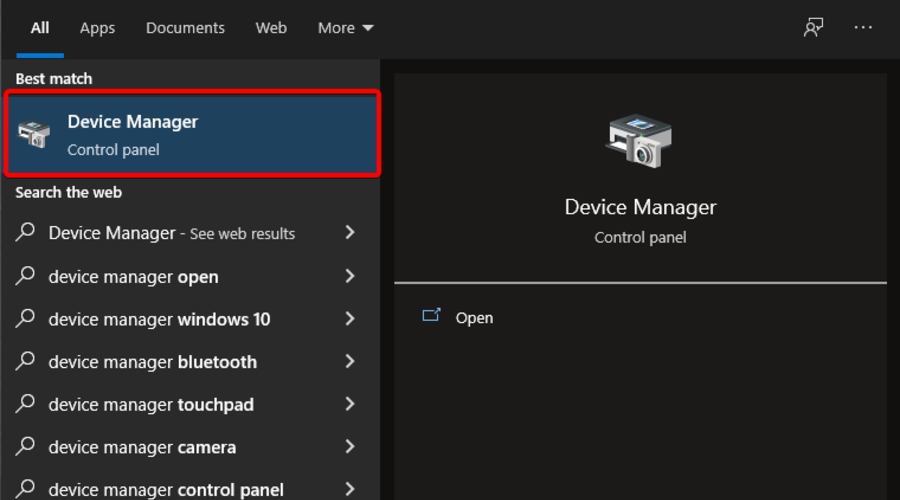
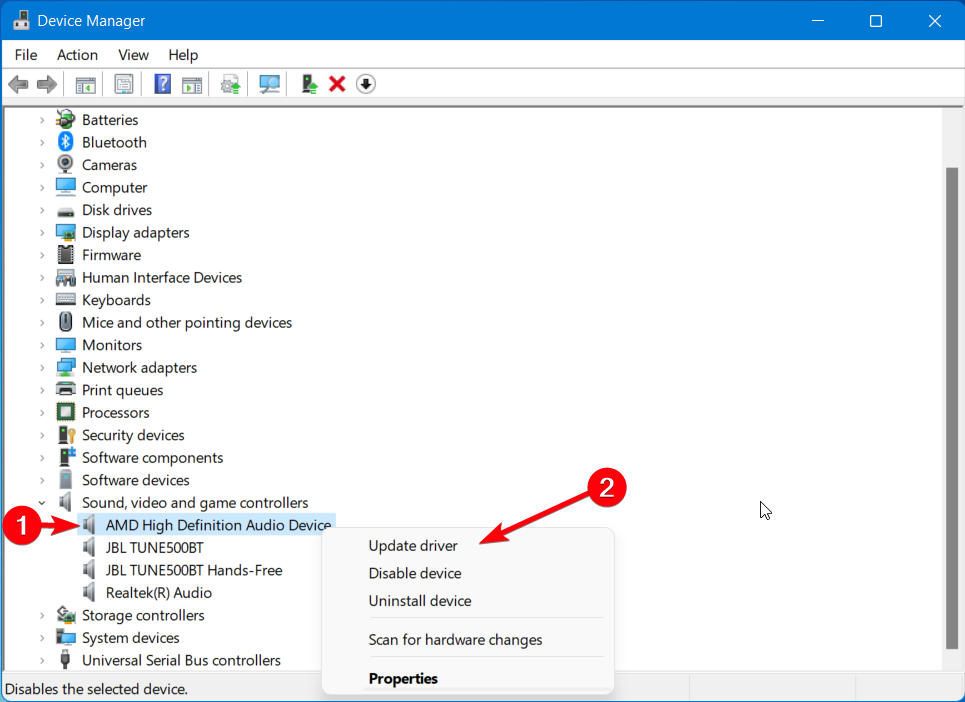
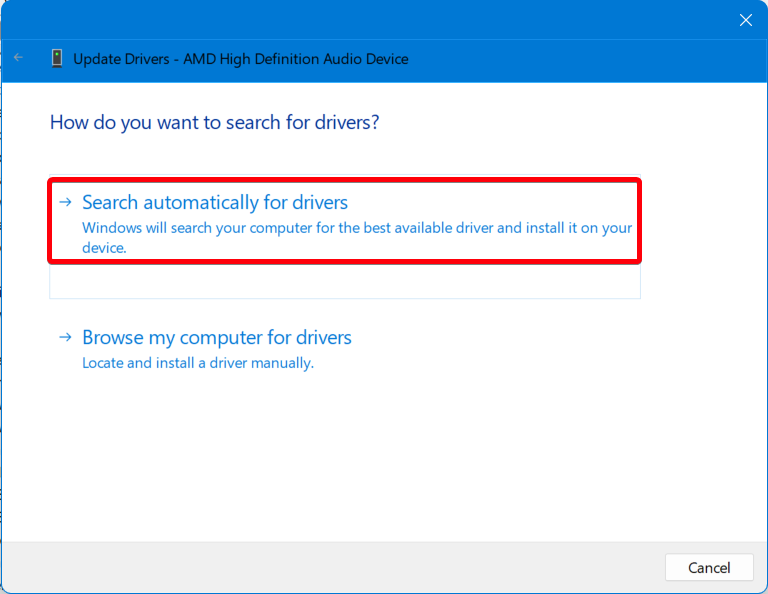

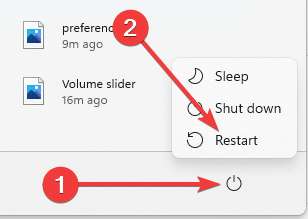
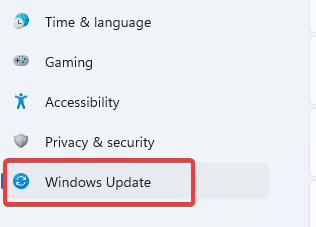
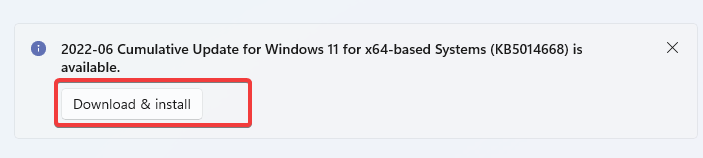
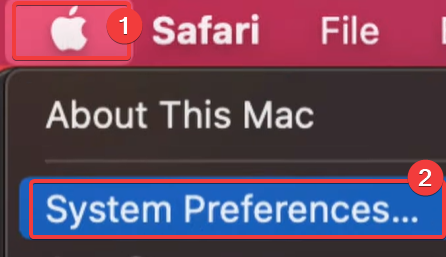
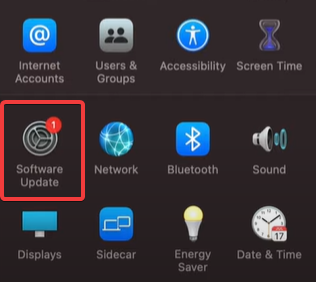
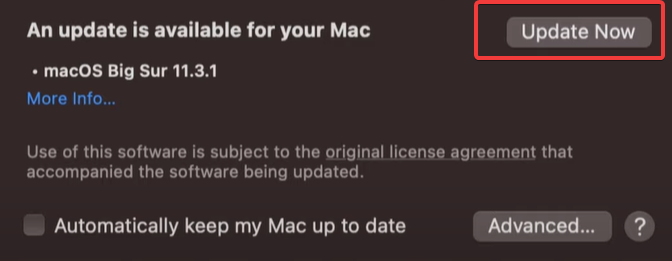


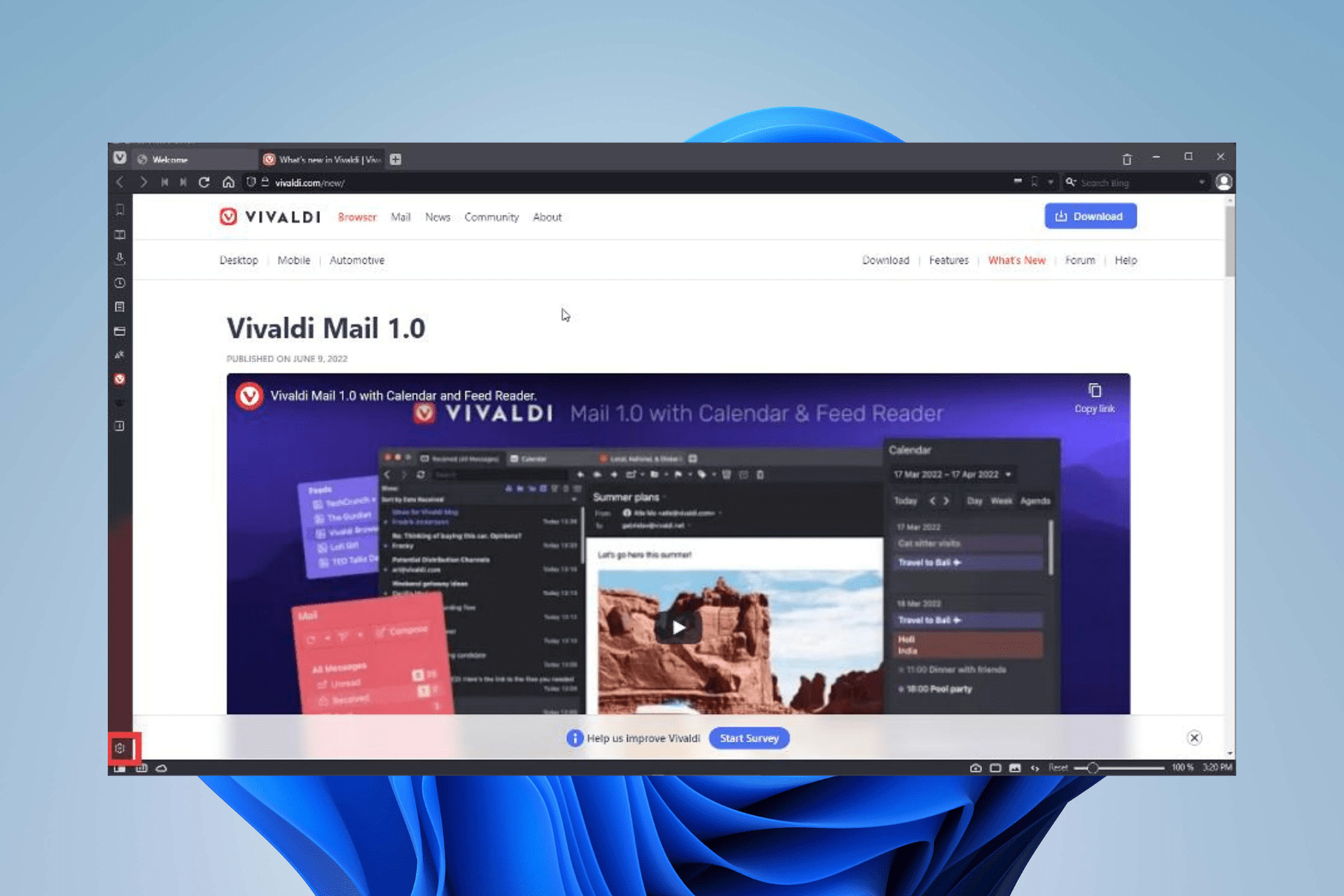

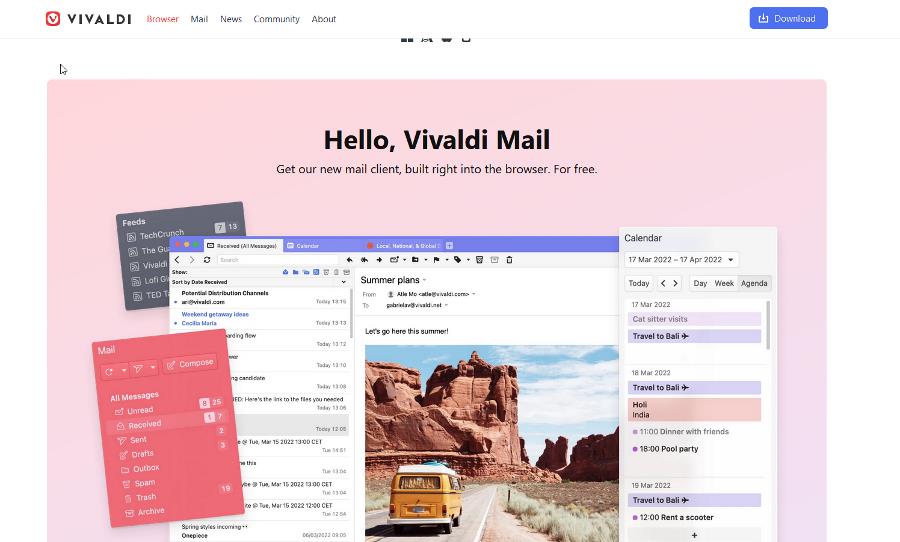
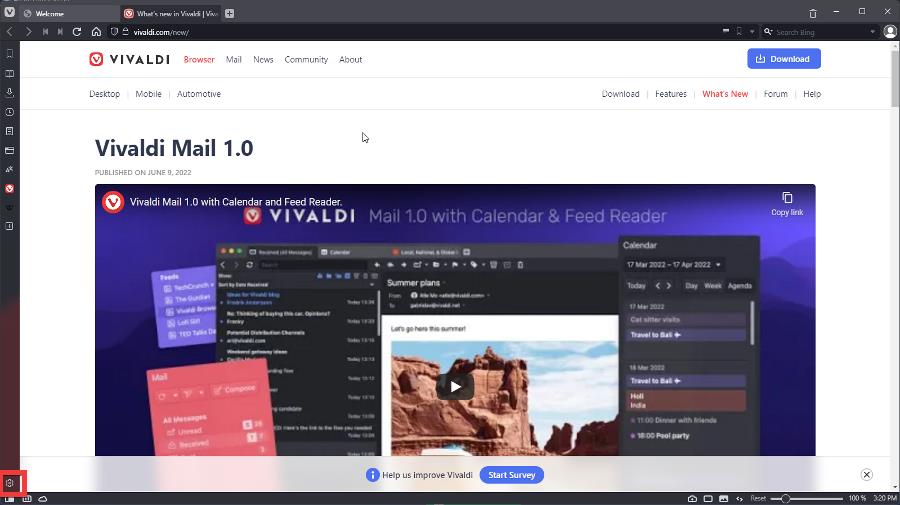
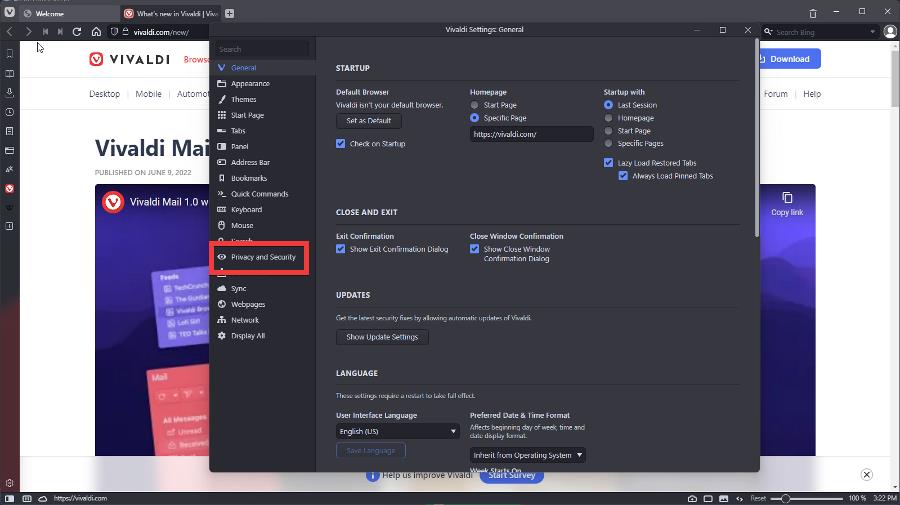
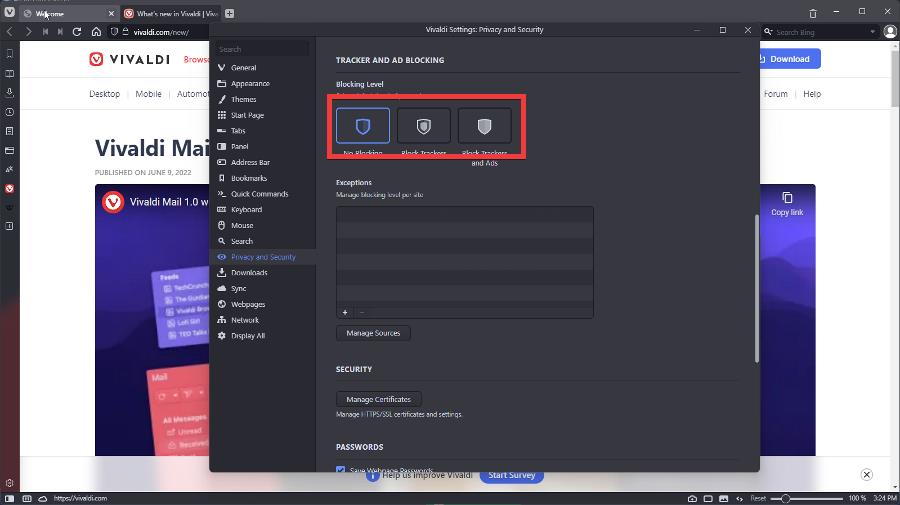
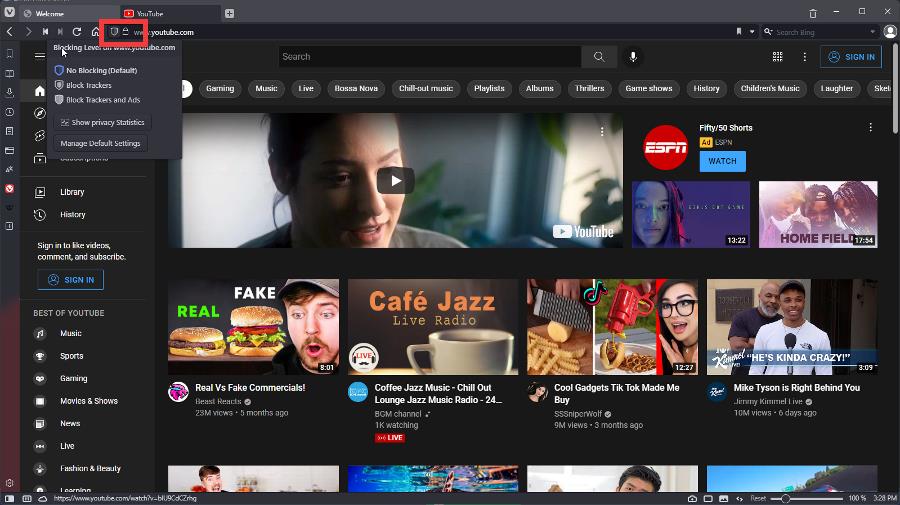
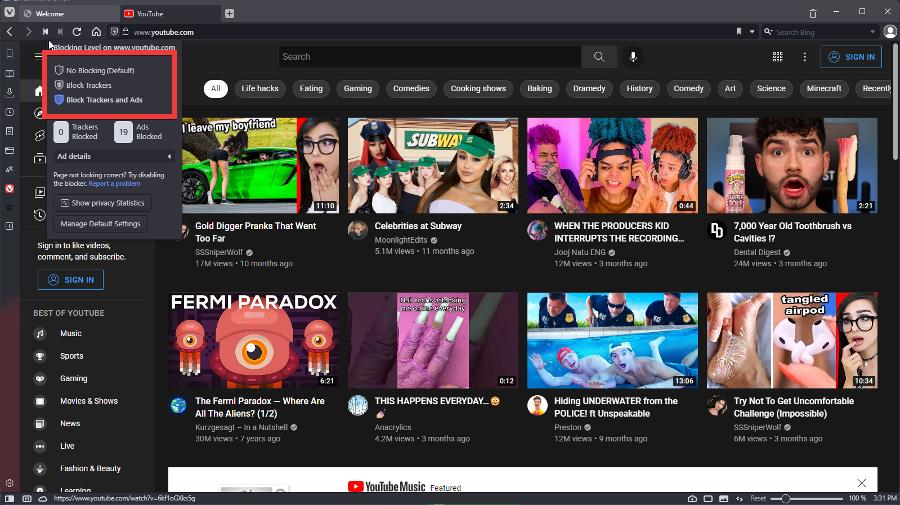
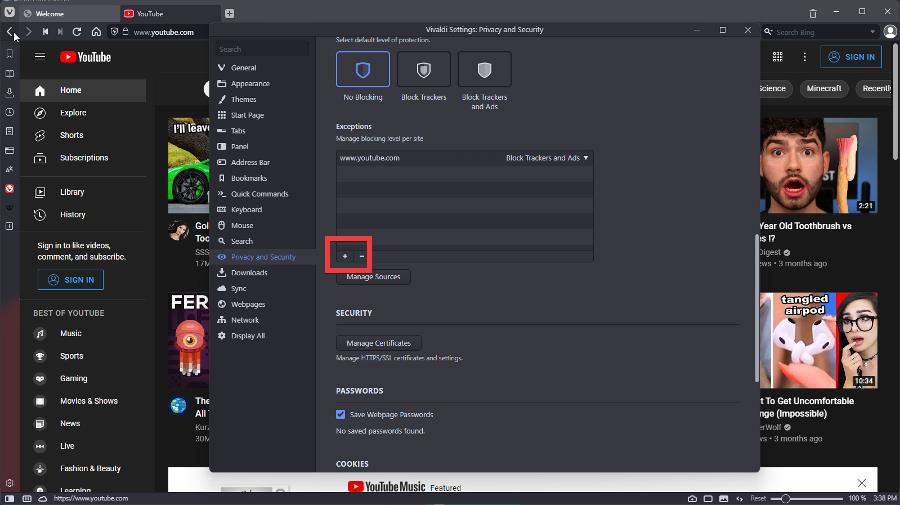
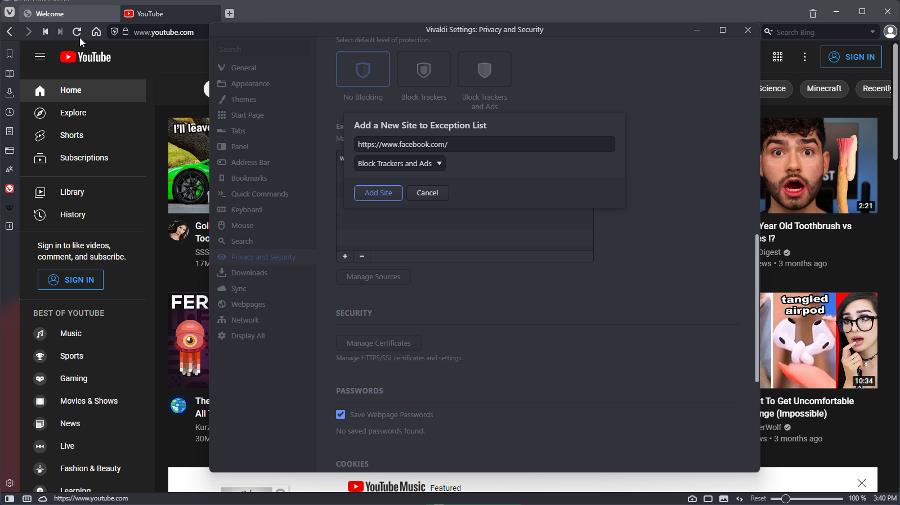
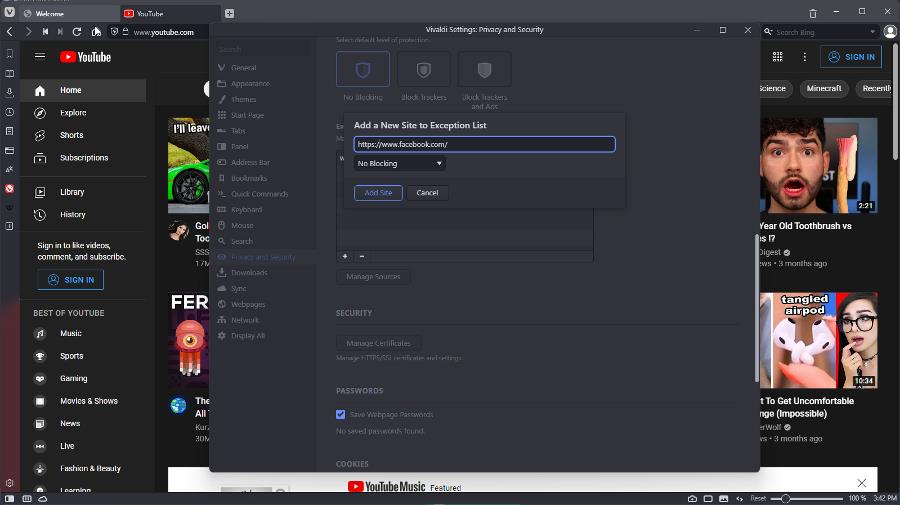

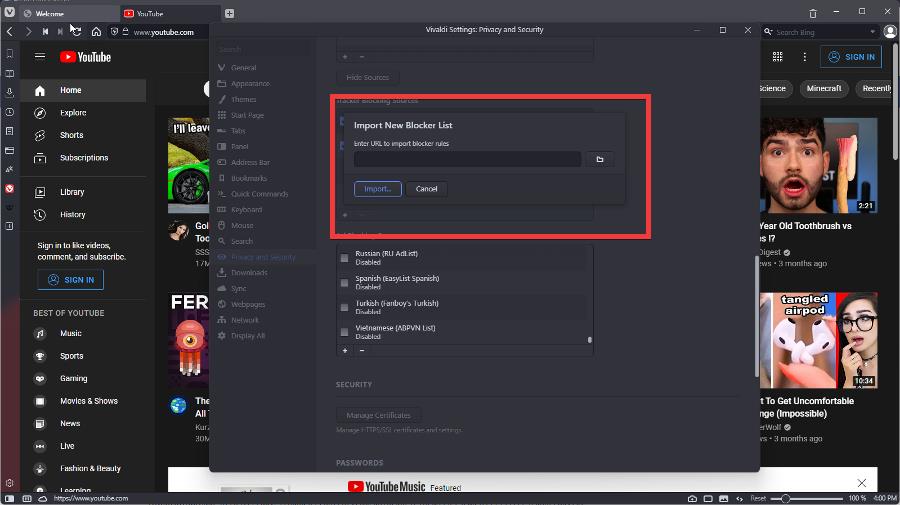
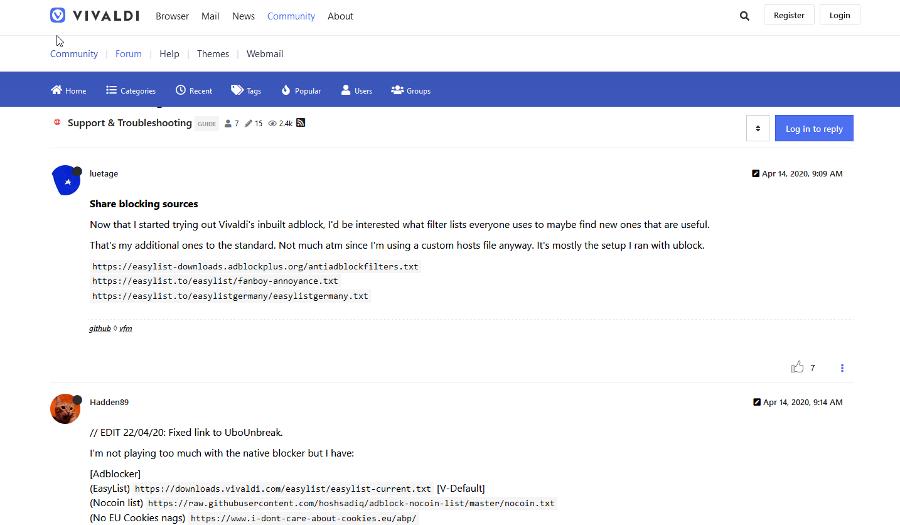
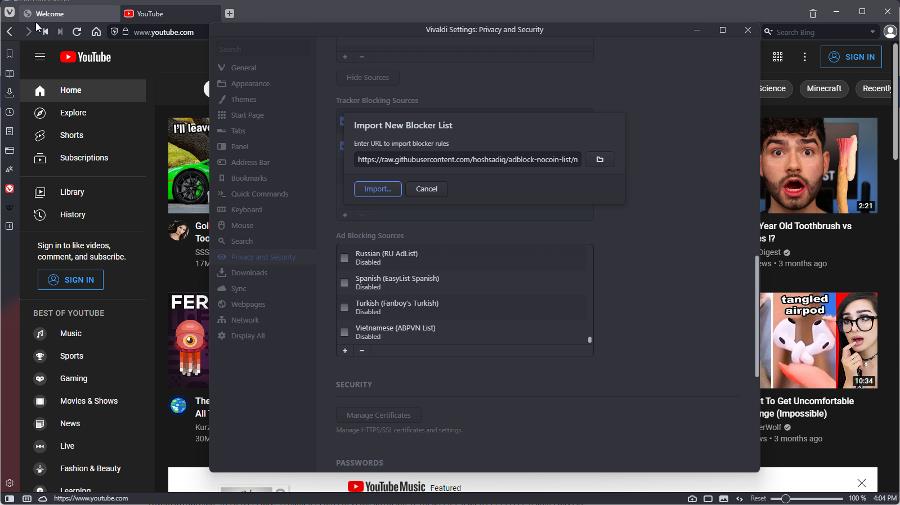

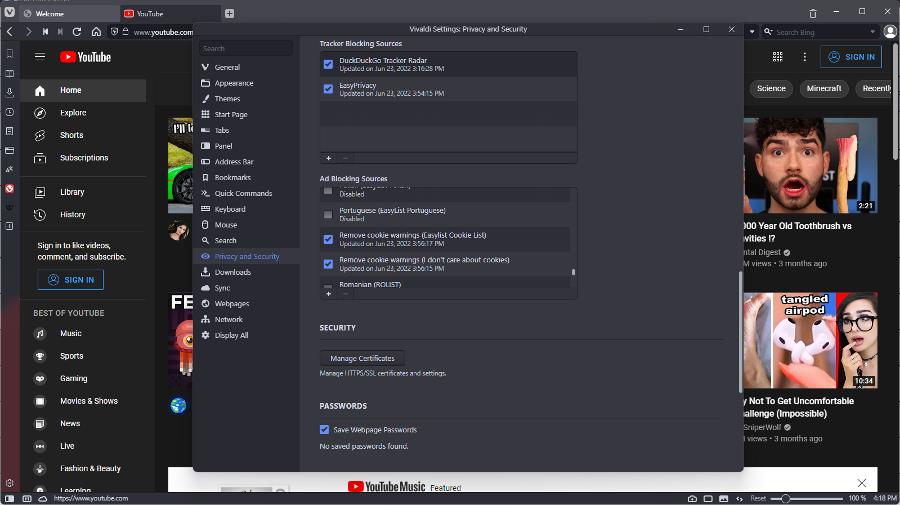



![7 Browsers that Salesforce Works Best in [Lightning Experience]](https://windowsreport.com/wp-content/uploads/2022/06/best-browser-for-google-workspace-16.jpg)


![Get One of the 15 Best Browsers for Fedora [Fastest & Safest]](https://windowsreport.com/wp-content/uploads/2022/06/browser-for-fedora.png)


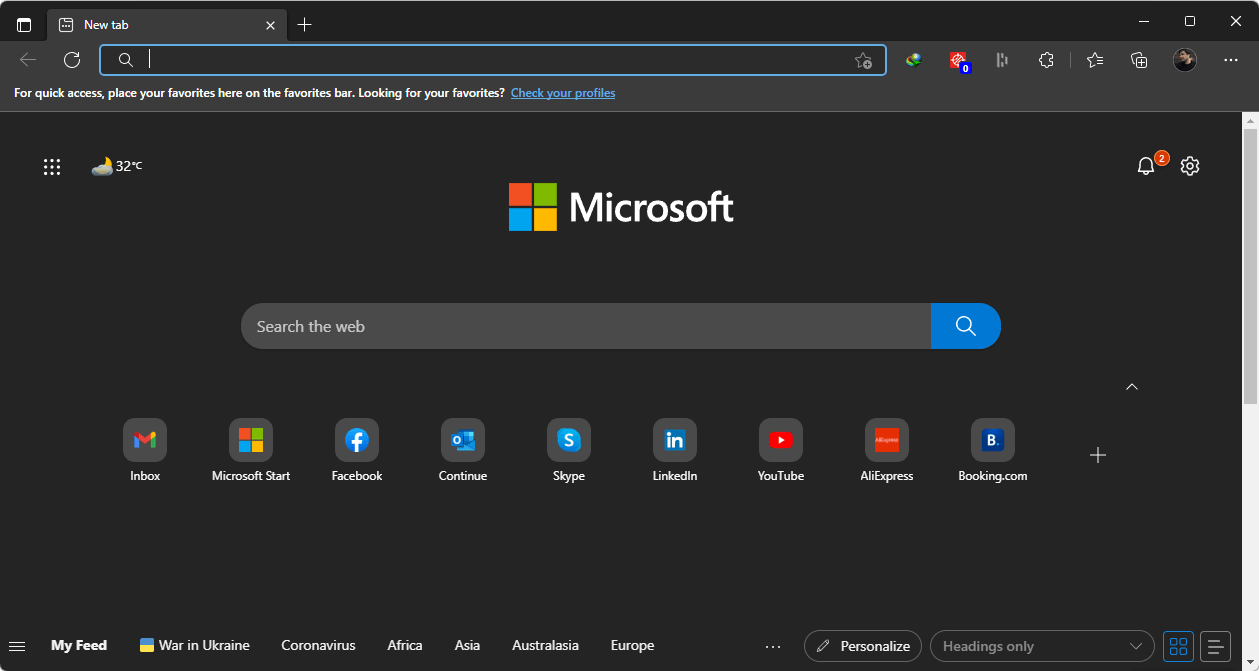
![8 Best Customizable Browsers [Tested by Pros]](https://windowsreport.com/wp-content/uploads/2022/06/best-customizable-browser-featured-img.png)


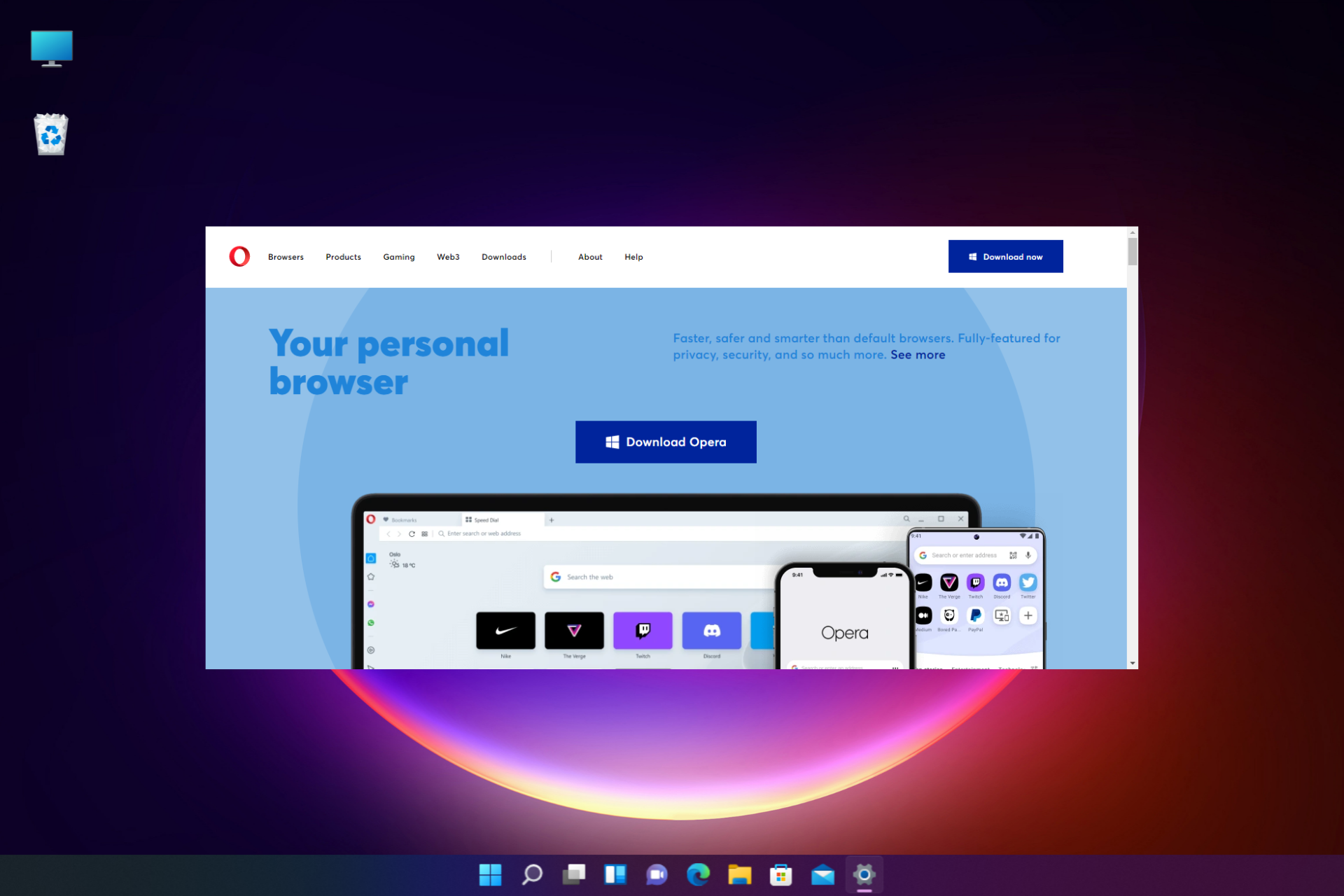




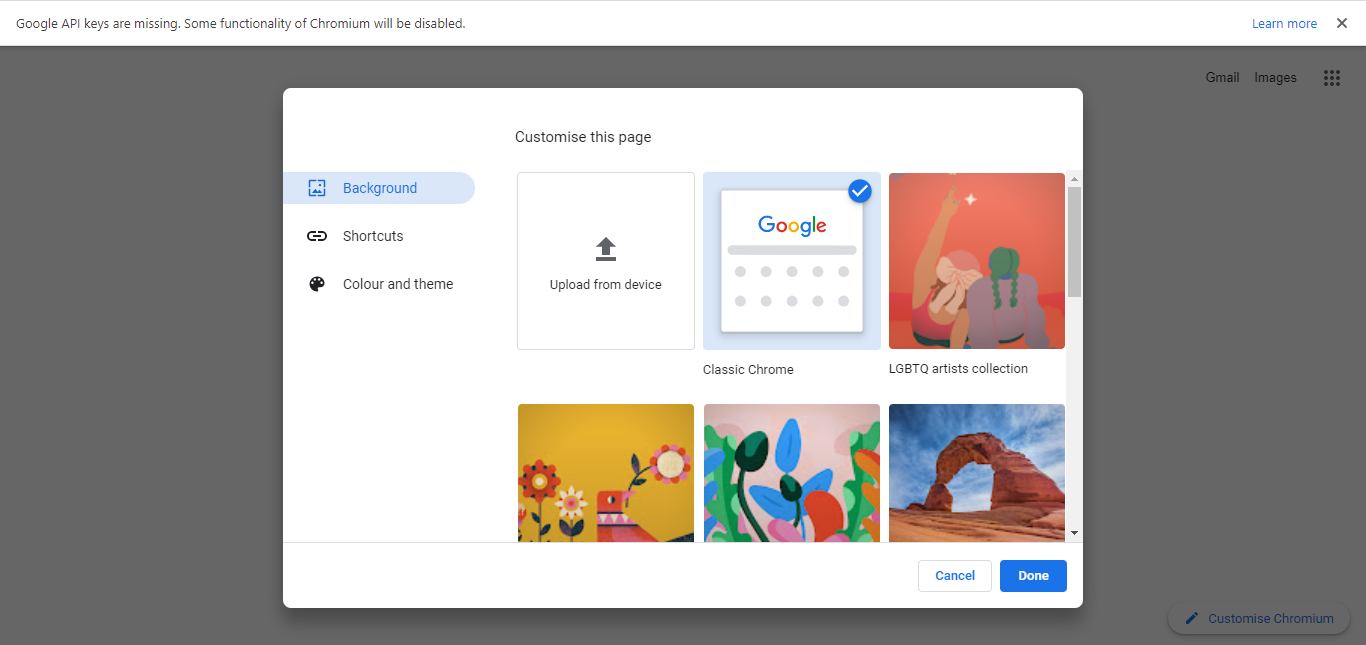

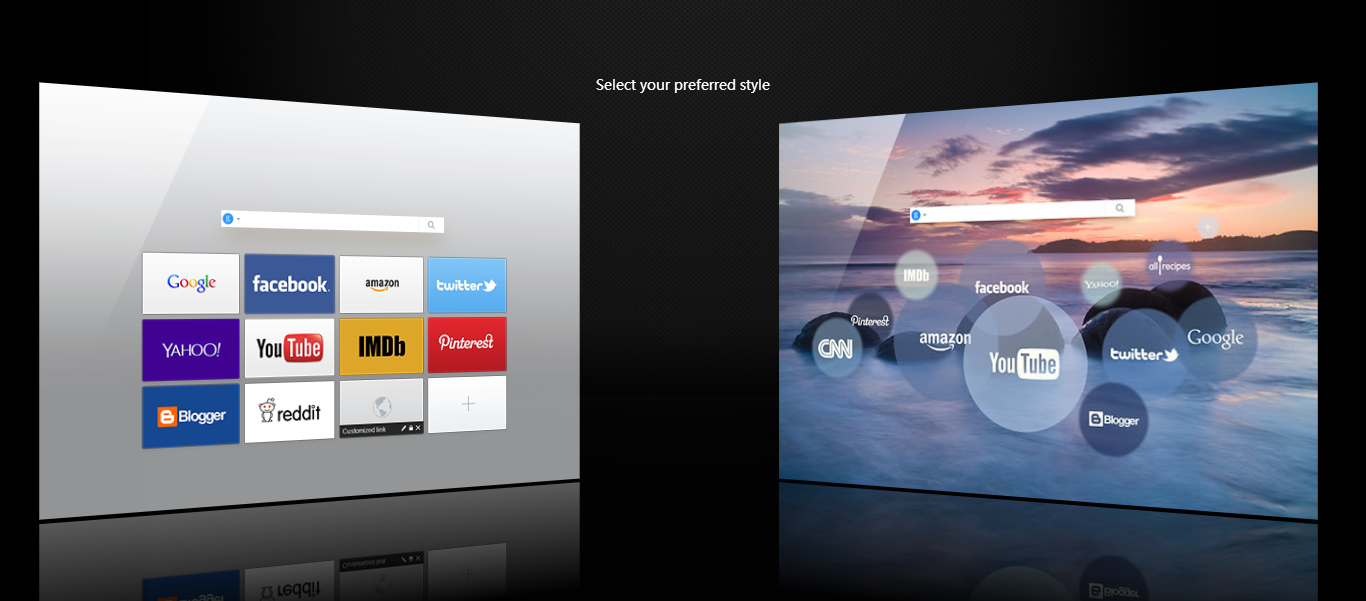
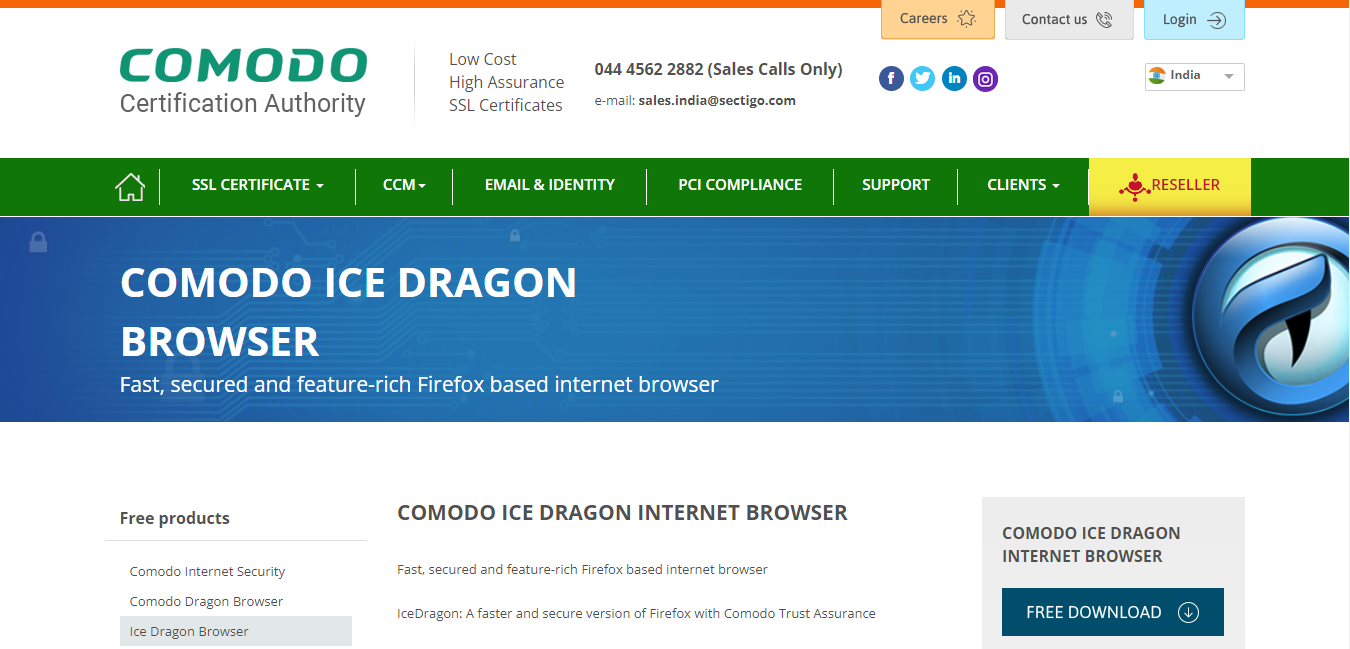
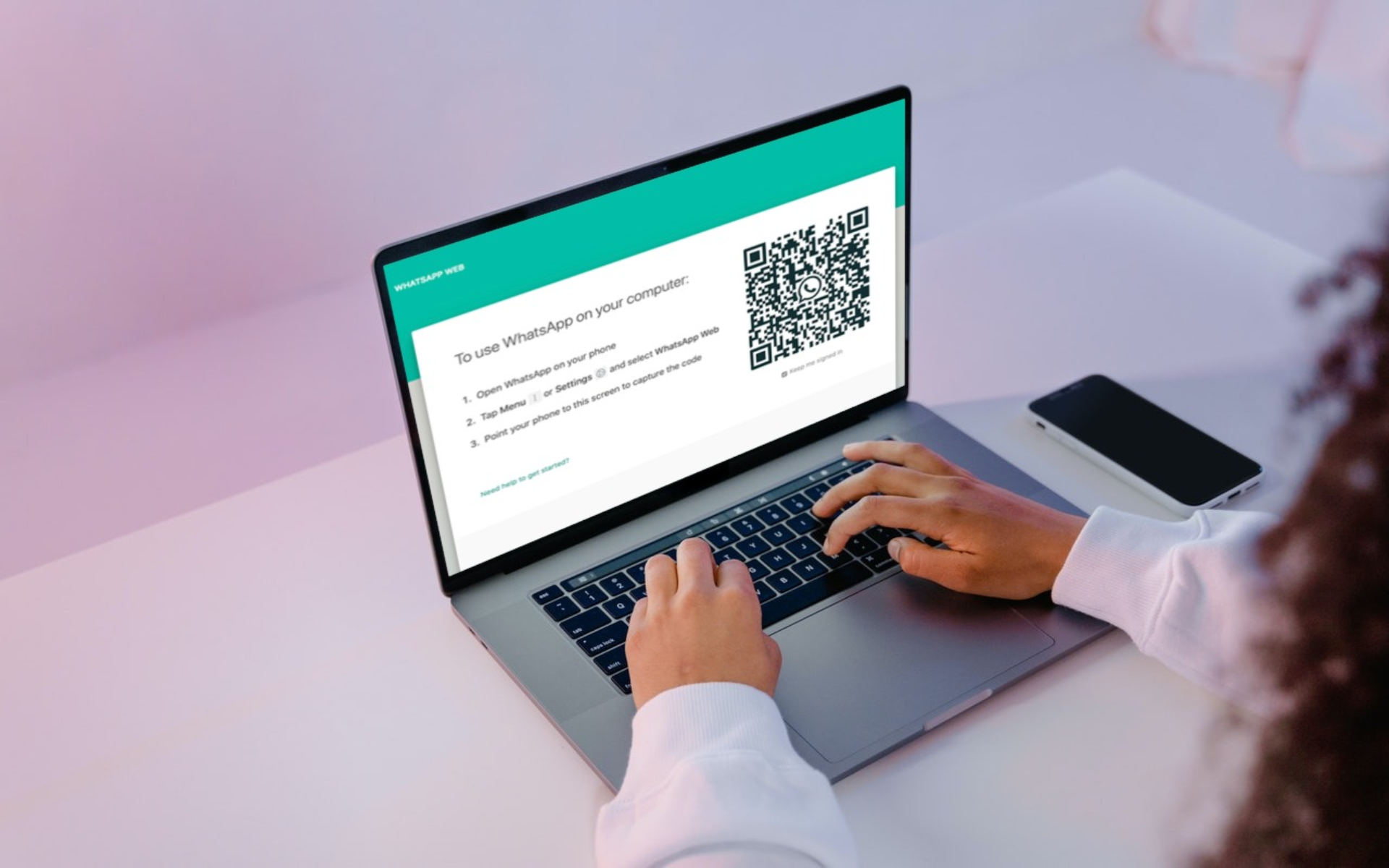


![Best Auto-Refresh Edge, Chrome, Firefox Extension [5 Tested]](https://windowsreport.com/wp-content/uploads/2022/06/best-auto-refresh-apps-for-browsers.jpg)




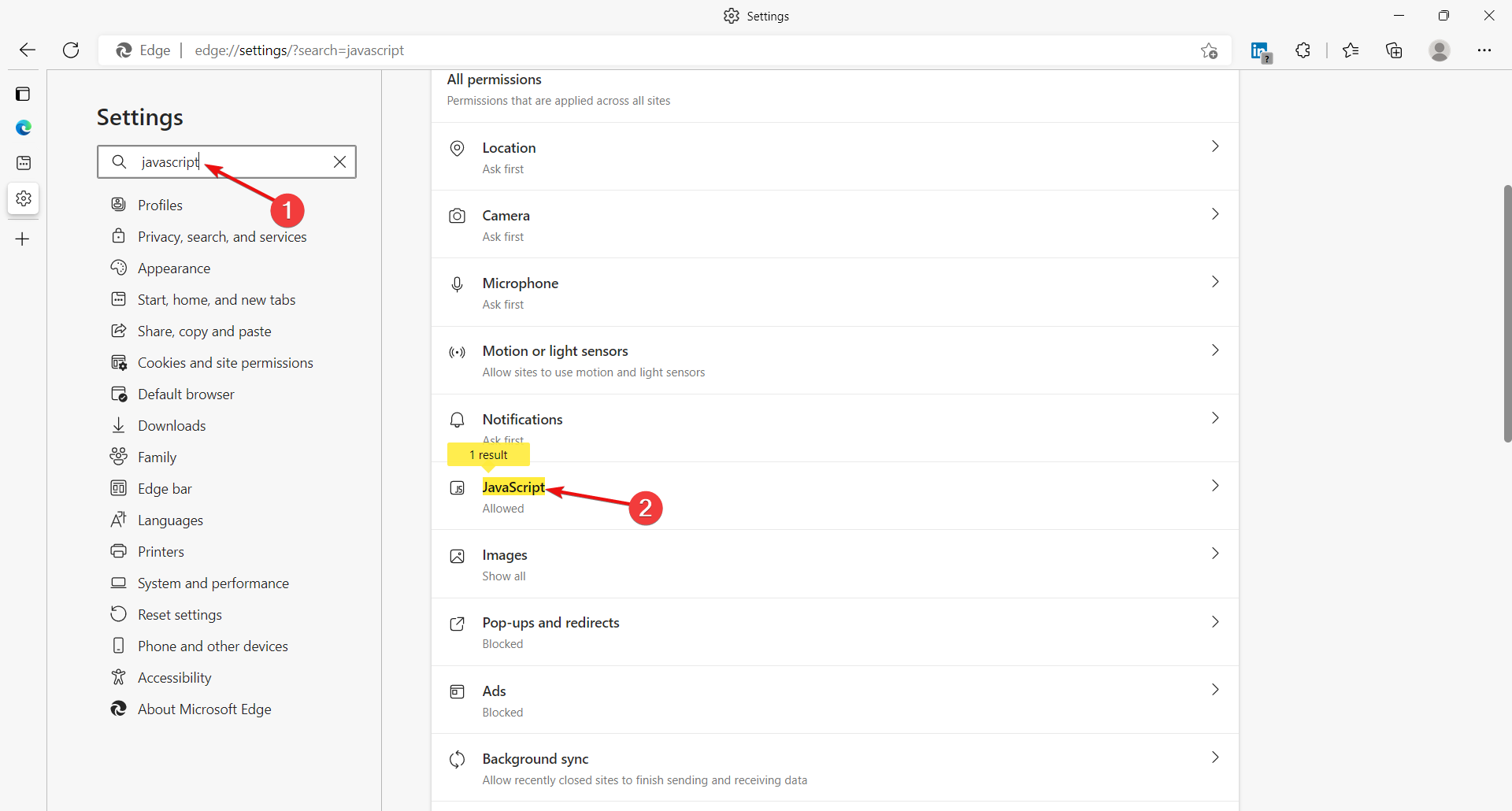
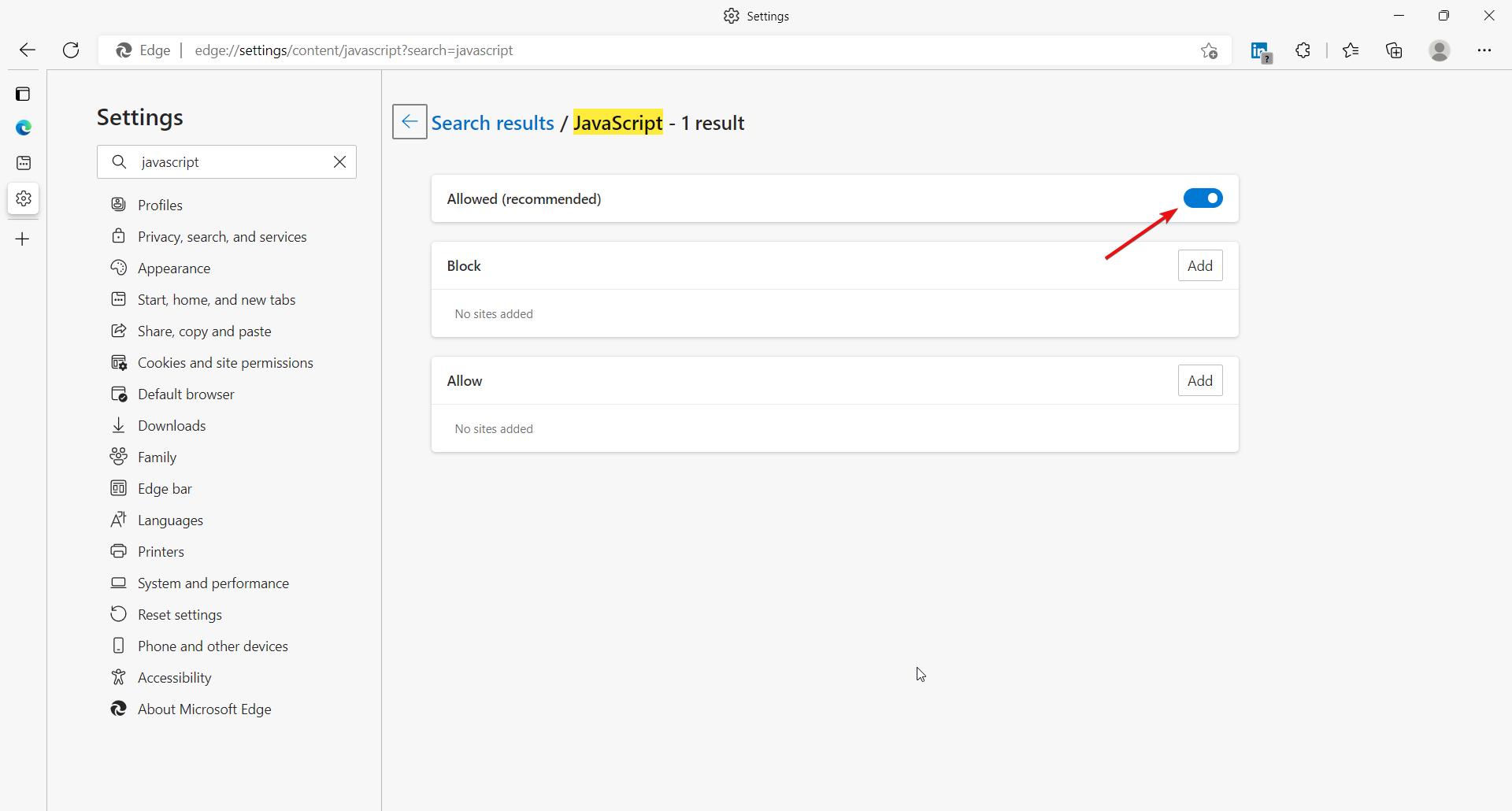
![6 Best Browsers for Yeezy Supply [Speed & Dedicated Features]](https://windowsreport.com/wp-content/uploads/2022/06/YEEZY-1.jpg)




![Which Browser Consumes Less Data? Comparing the Top 5 Options [PC & Mobile]](https://windowsreport.com/wp-content/uploads/2022/06/Best-Browsers-with-Least-Data-Consumption.jpg)
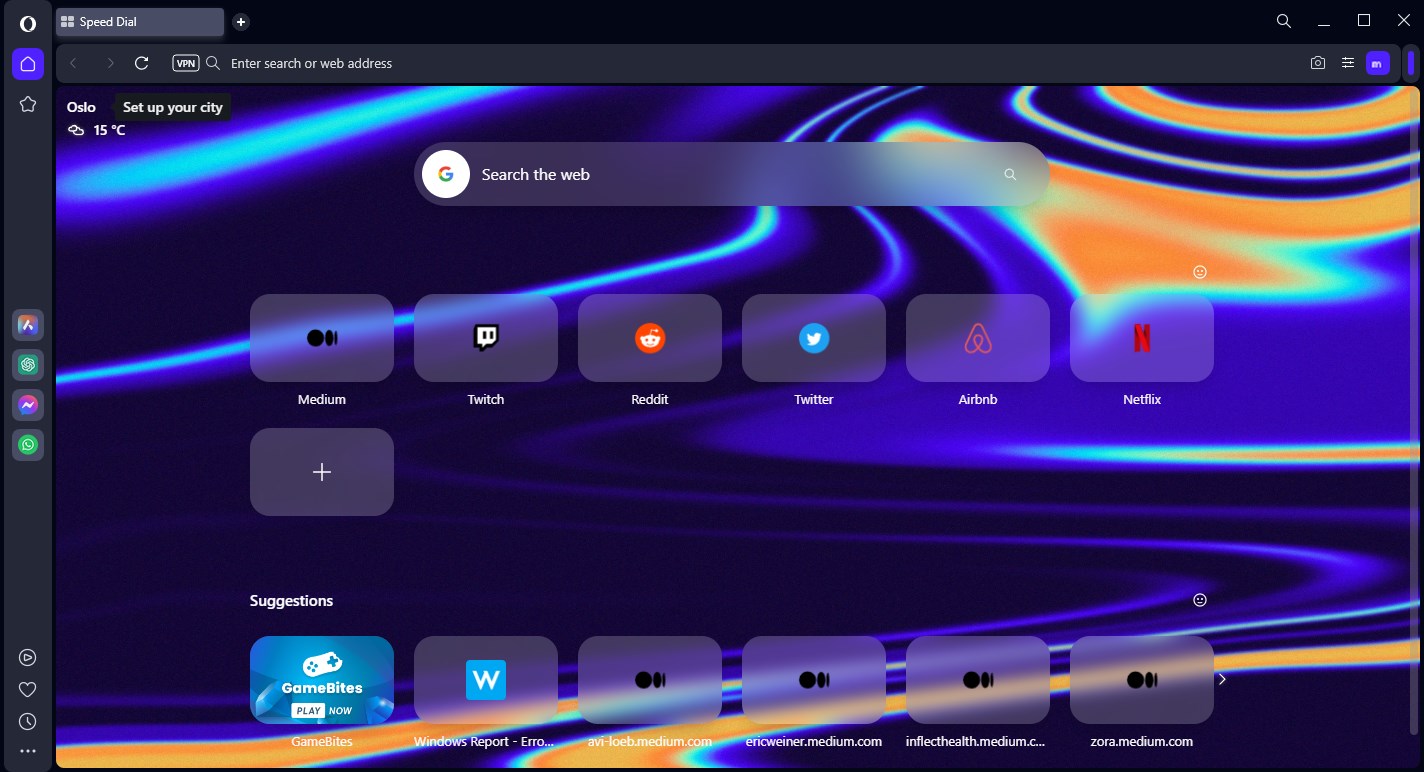



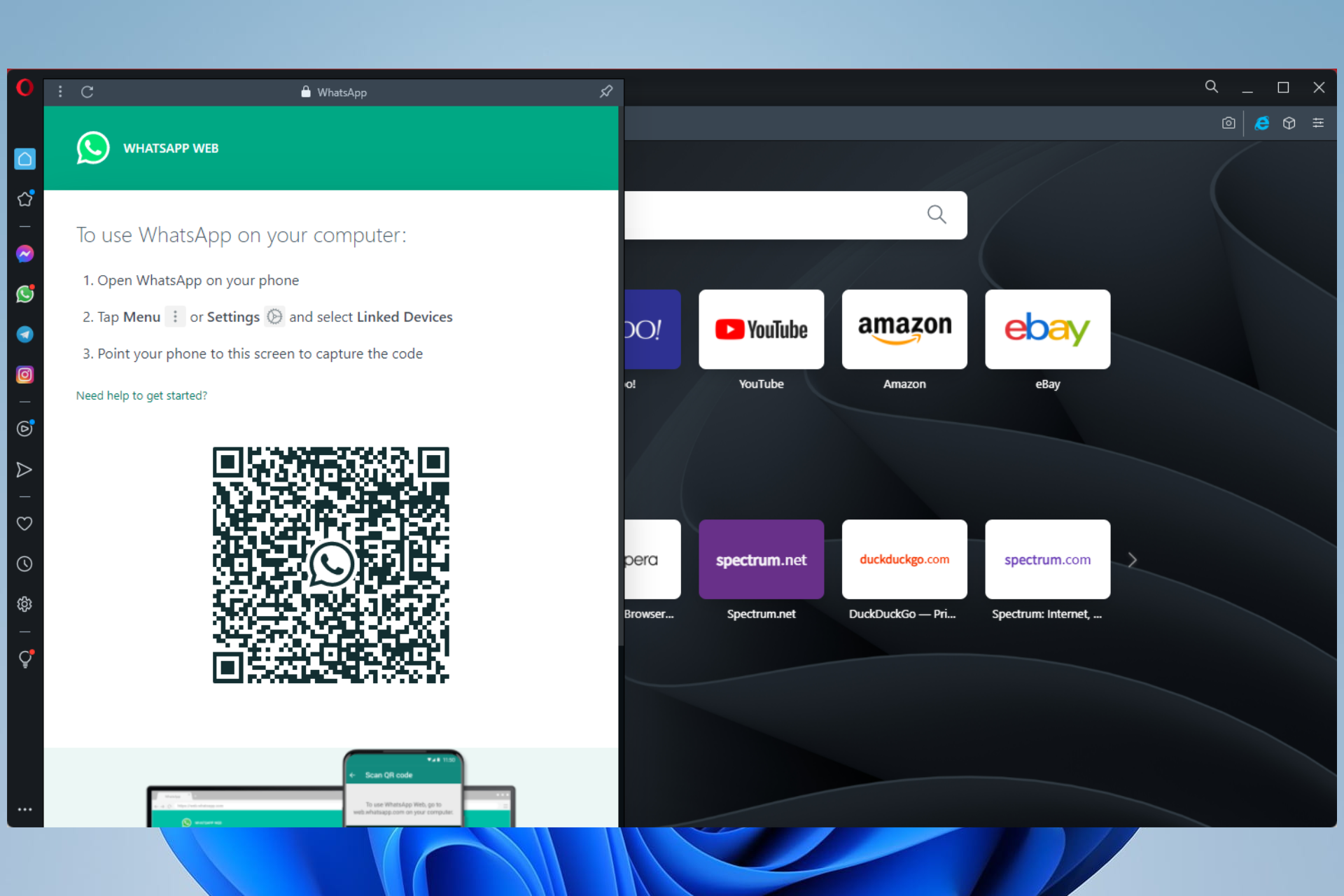
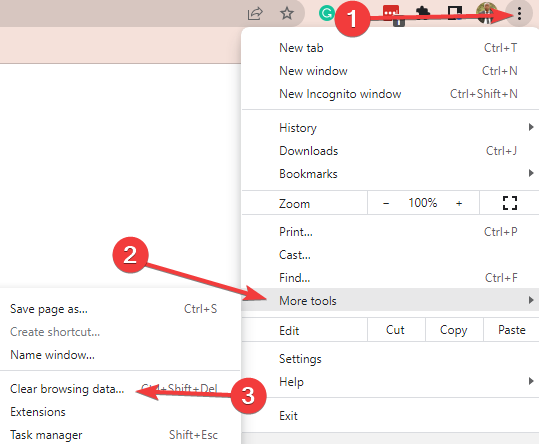
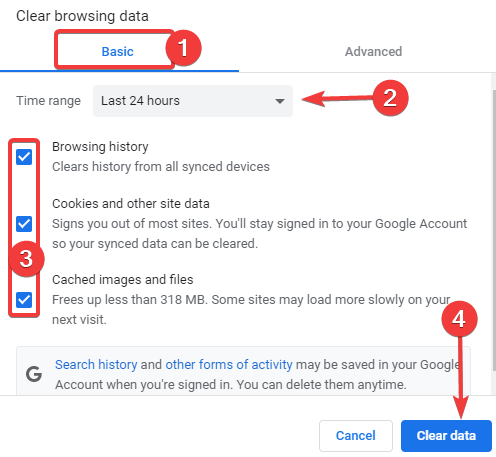
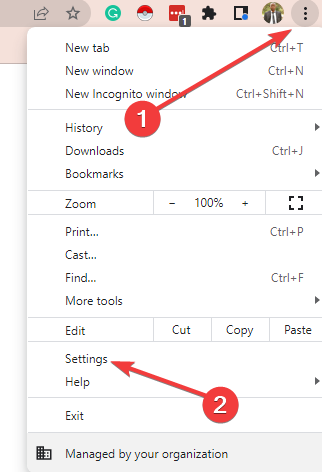
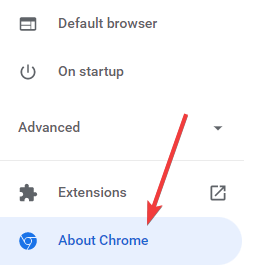
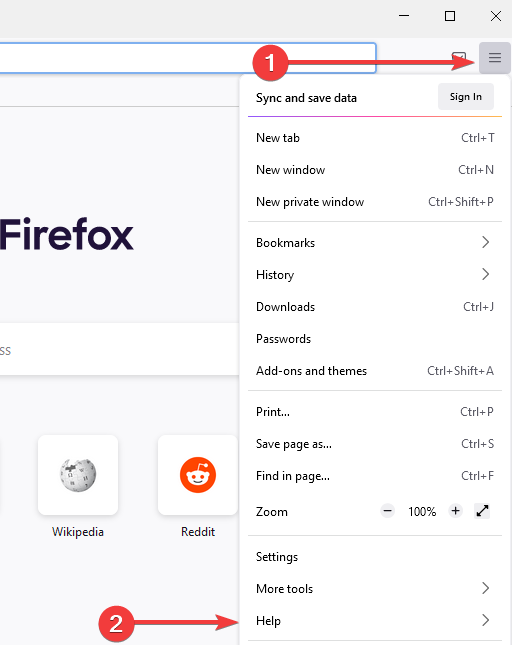
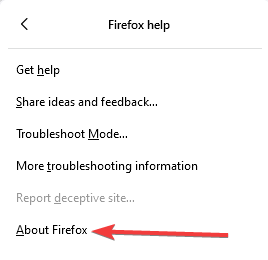
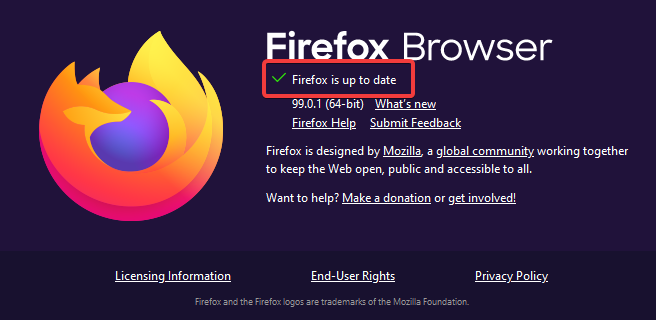
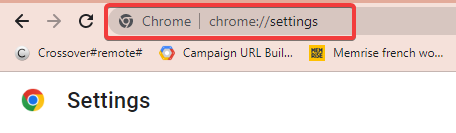
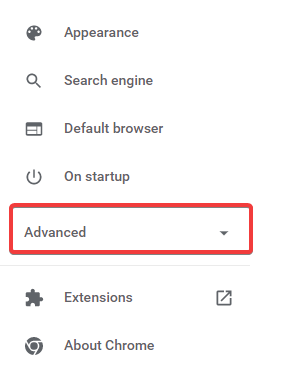
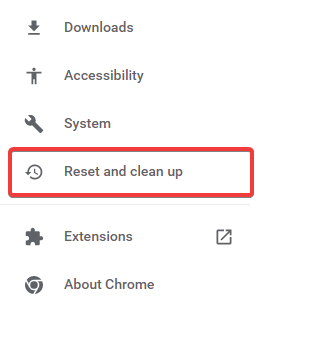
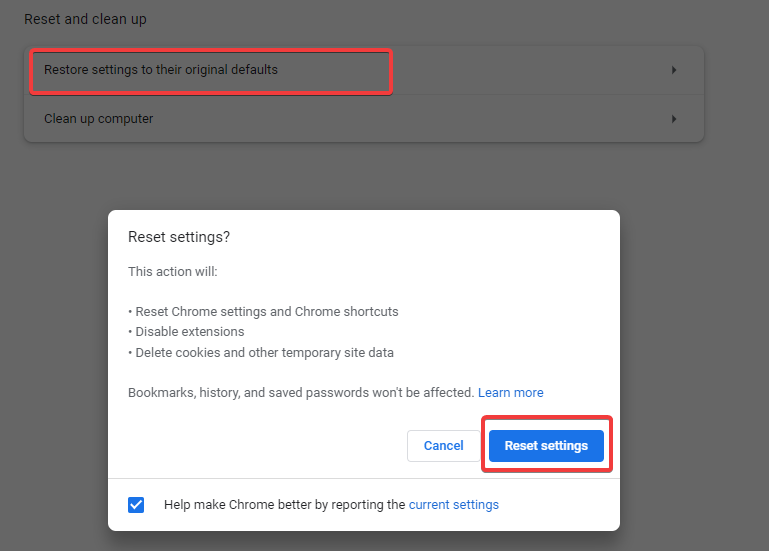

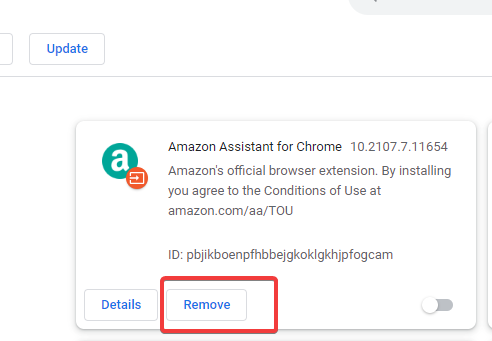

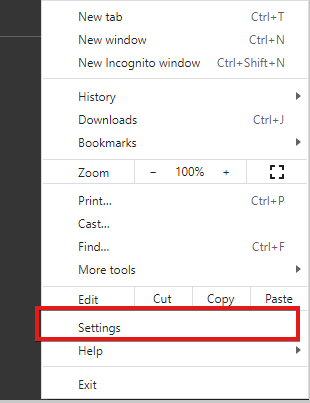
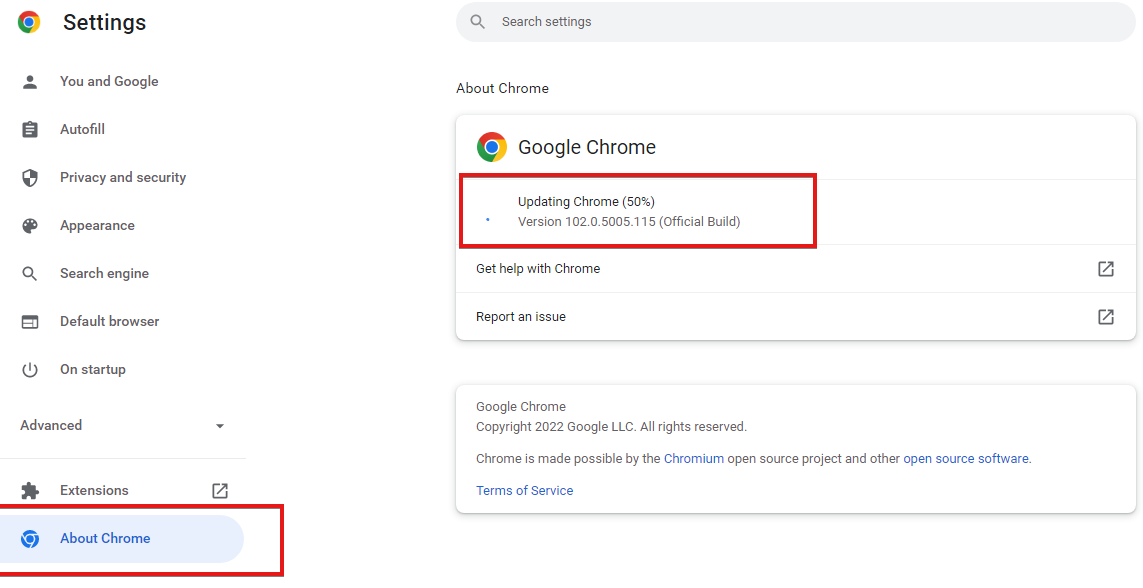
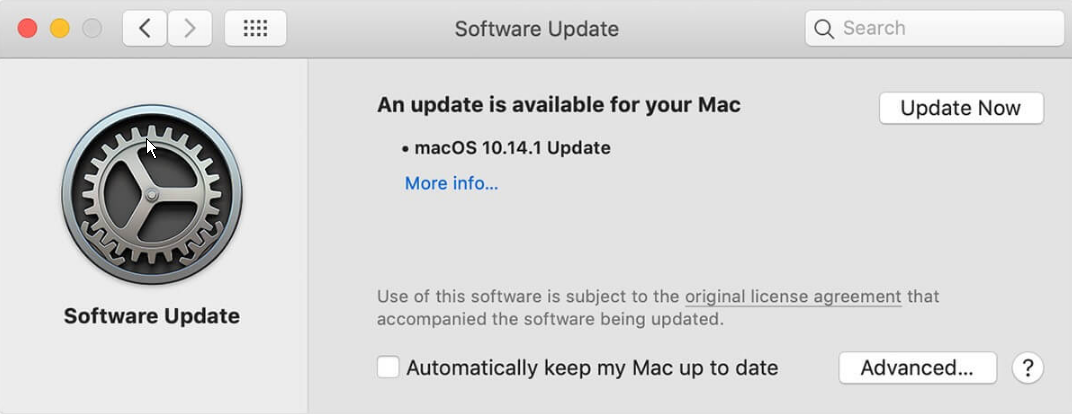
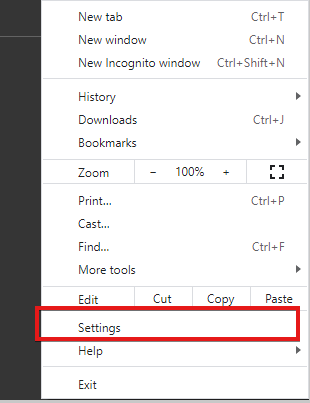
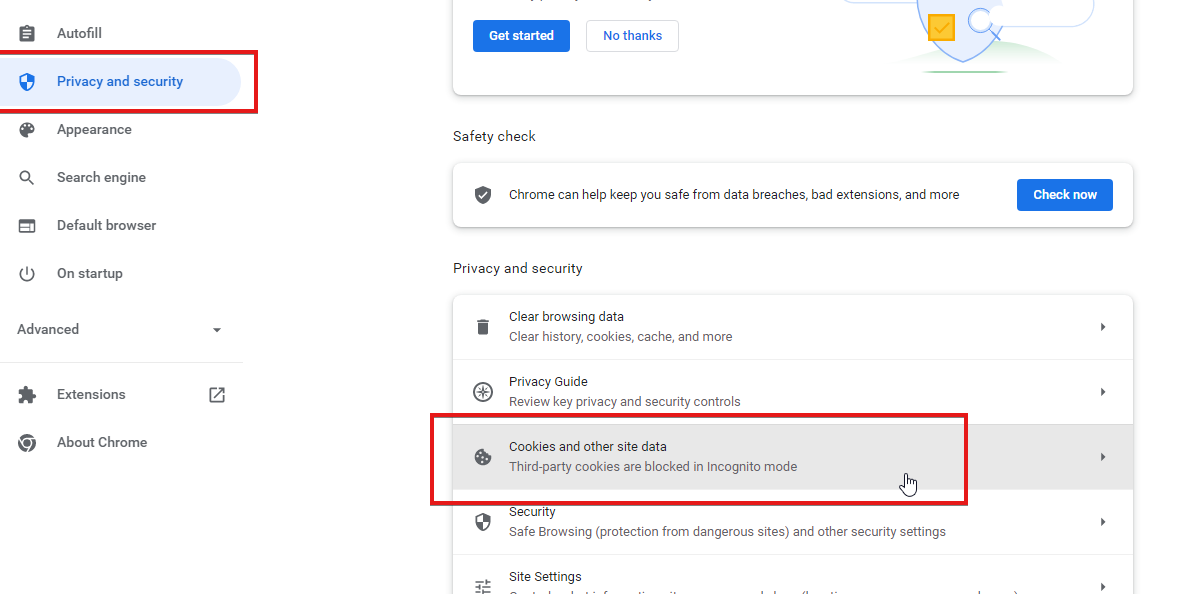
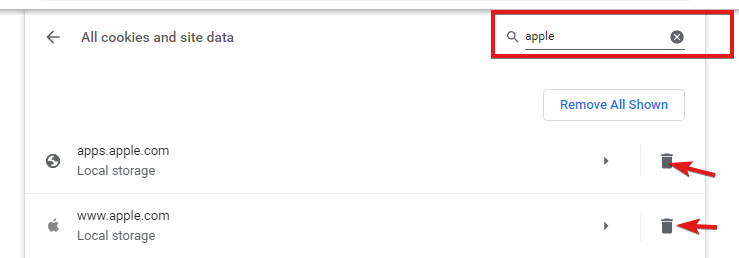
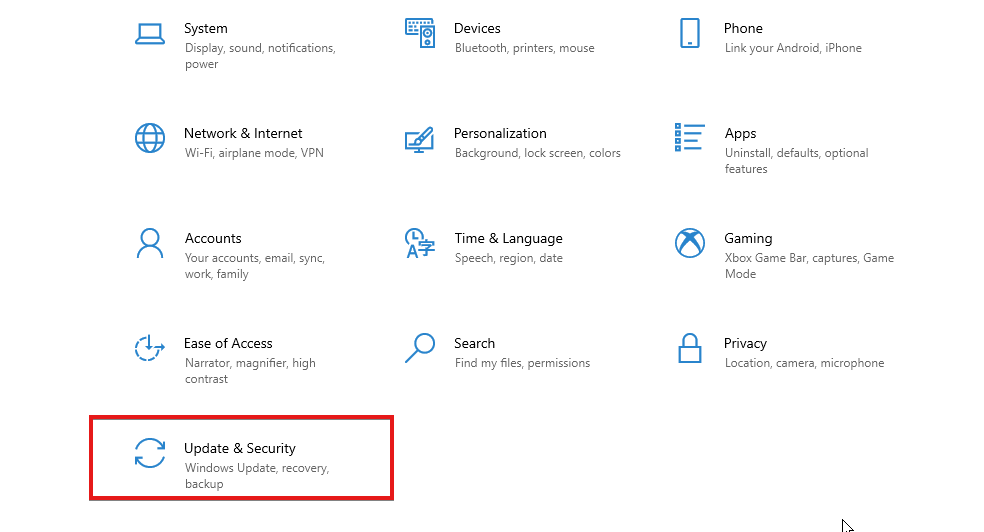
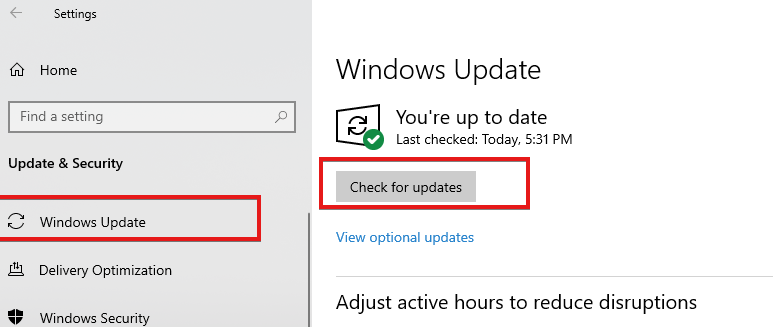
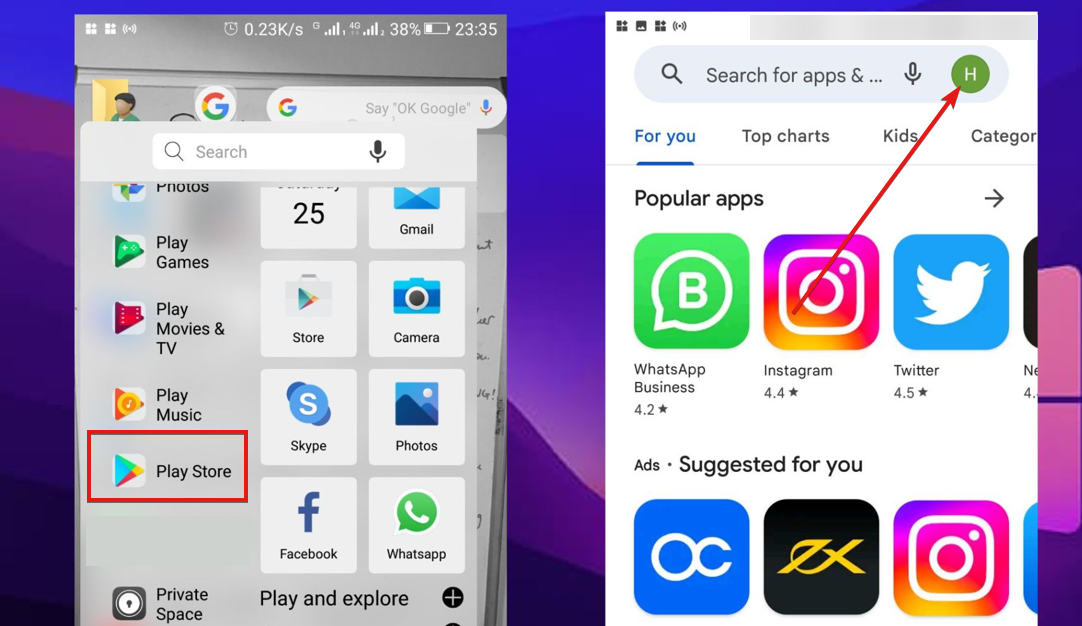
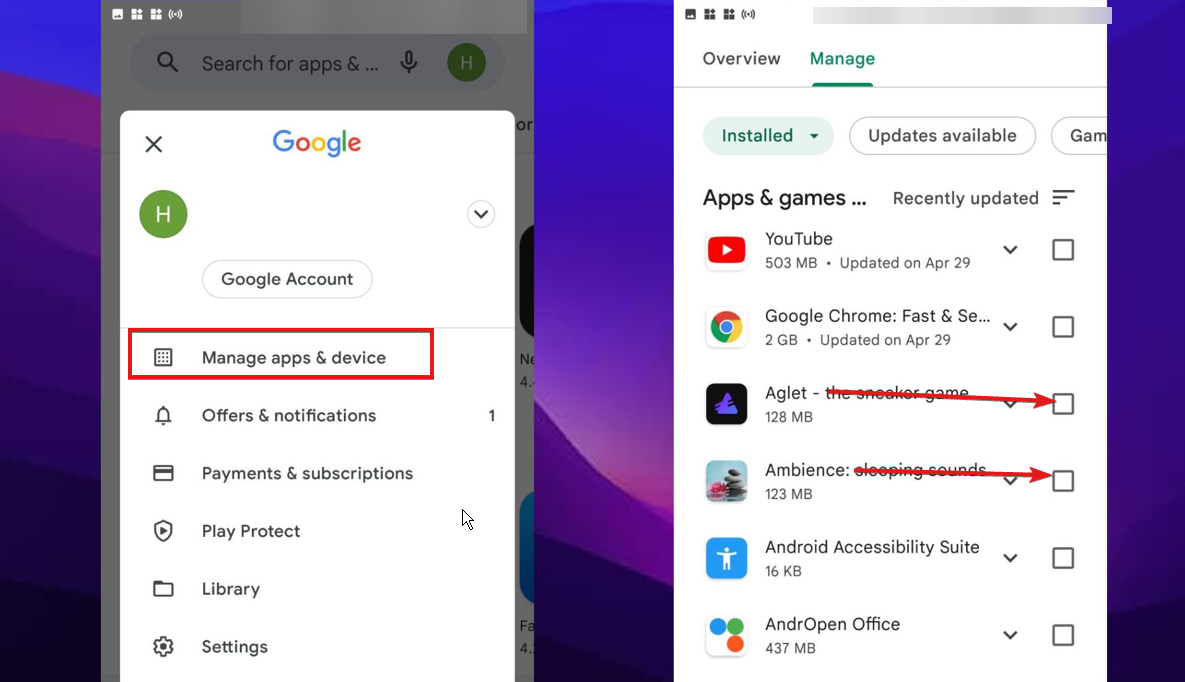


![Play Adobe Flash Games Without Adobe Flash [5 Methods]](https://windowsreport.com/wp-content/uploads/2022/06/how-to-play-adobe-flash-games-without-adobe-flash.jpg)