How to Fix Common NBA 2K18 Bugs and Issues [Full Guide]

NBA 2K18 is an addictive basketball simulation game that offers gamers the chance to become the best basketball players in the world.

Unfortunately, many gamers reported that the overall NBA 2K18 gaming experience leaves a lot to be desired, even if it does bring lots of new features and awesome graphics.

The game is affected by a plethora of issues, ranging from minor bugs to severe problems that actually prevent gamers from playing the game.

In order to help you fix some of the most frequent NBA 2K18 issues, we’ve compiled a list of workarounds that should quickly resolve these problems.

How do I fix NBA 2K18 issues?

1. Install the latest Windows updates

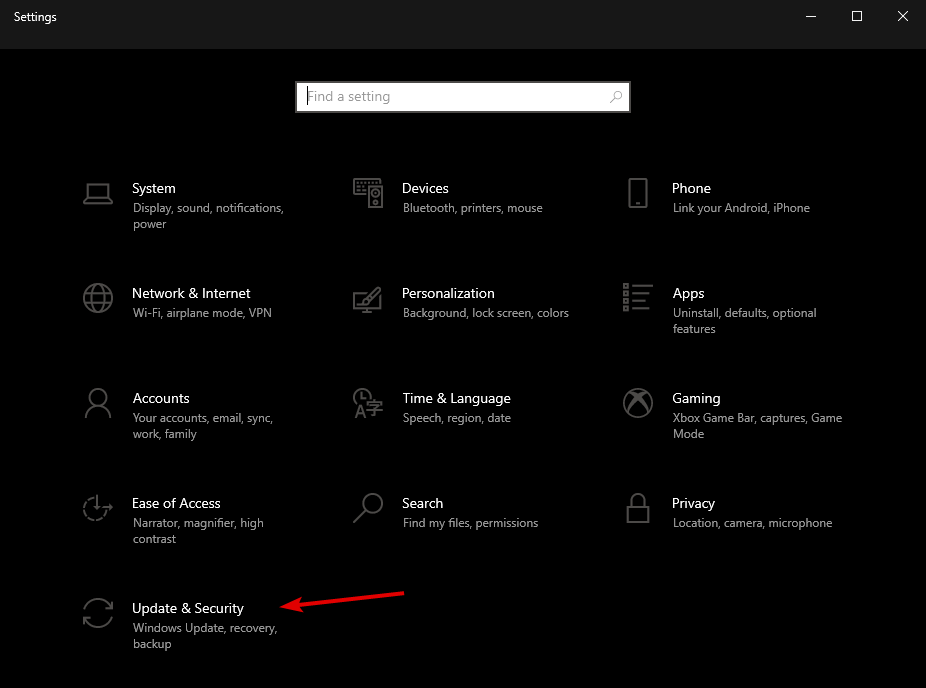
  1. Press the Windows Key + S and type in Settings.
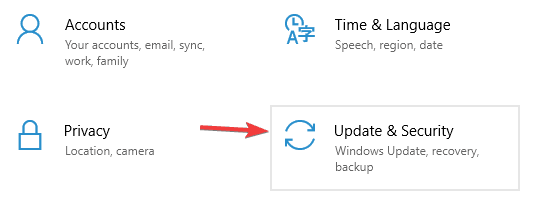
  2. Select Update & Security.
  3. Then, select Windows Update and click on Check for updates.
  4. Let the Windows search and finish the updating process.

Make sure that you’ve installed the latest Windows updates on your PC in order to enjoy a smooth gaming experience.

To access the Windows Update section, you can simply type follow the instruction above. We have to mention that Microsoft includes lots of security changes in their Windows update.

Therefore, we advise you to keep your operating system up-to-date for your safety and the well-being of your PC.

2. Install the latest graphics driver updates

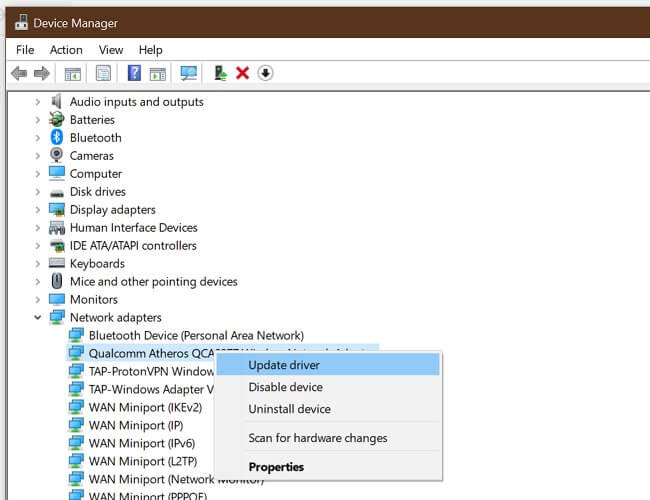
  1. Press the Windows Key + S and search for Device Manager.
  2. In the Device Manager, go to your Display adapter and expand it.
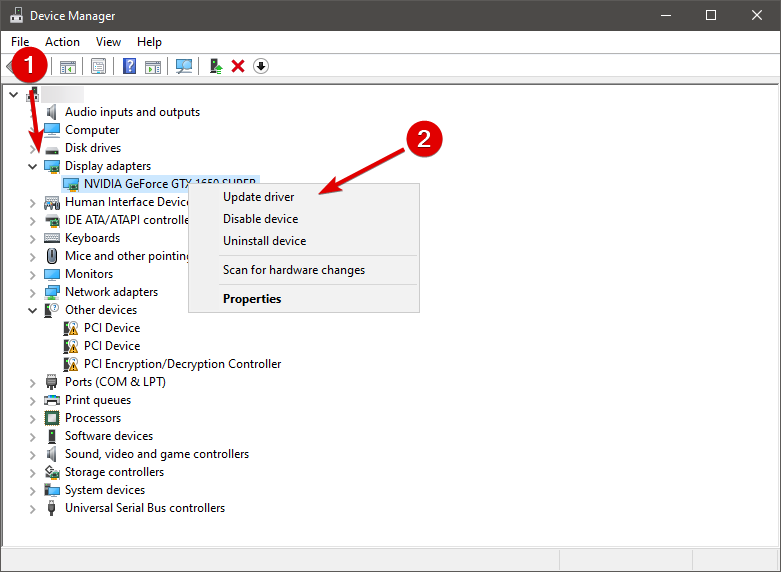
  3. Right-click on your GPU and select Update driver.

Make sure you’ve installed the latest drivers on your computer. Using the latest optimization resources significantly improves your gaming experience.

You can also use the links below to check if you’re running the latest graphics drivers on your Windows computer. Also, make sure to use the dedicated GPU while playing NBA 2K18.

Update your drivers automatically

One other way to update your GPU drivers is using third-party software that will do it for you. The program will constantly scan your PC’s hardware for newer available versions.

Never worry about out-of-date drivers again, and never get through the trouble of manually updating them thanks to this automated tool.

3. Reset your graphics card software

How to reset NVIDIA Control Panel:

  1. Right-click on your desktop.
  2. Select NVIDIA Control Panel
  3. Go to Manage 3D Settings and click Restore Defaults.

How to reset AMD Catalyst Control Center

  1. Right-click on your desktop then select Catalyst Control Center (aka VISION center)
  2. Go to Preferences and click on Restore Factory Defaults.

Graphics cards come with their own software: NVIDIA comes with the NVIDIA Control Panel and AMD has the Catalyst Control Center.

The two programs allow users to set up profiles that can potentially interfere with NBA 2K18. By resetting them to default values, you allow the game to take control over the graphics settings.

4. Repair your registry

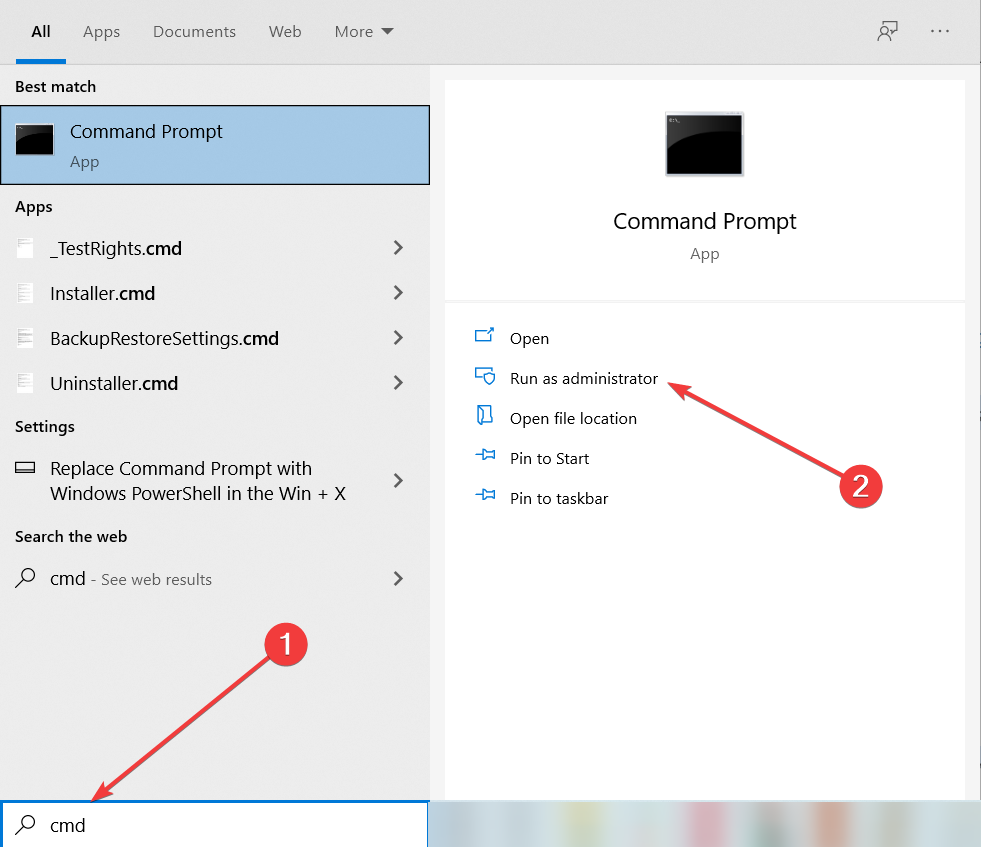
  1. Go to Start then type Command Prompt.
  2. Right-click on Command Prompt and select Run as Administrator.
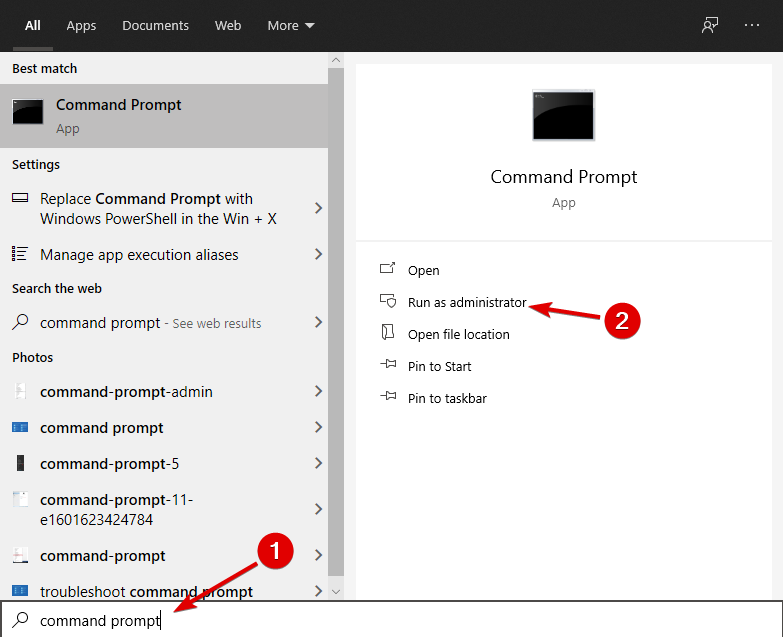
  3. Now type the following command sfc /scannow
  4. Wait for the scanning process to complete and then restart your computer.
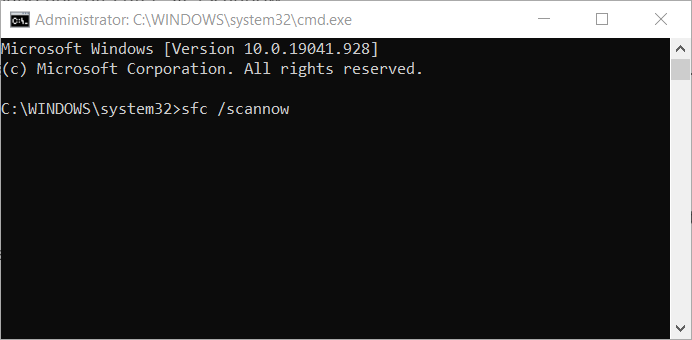
  5. All corrupted files will be replaced on reboot. Launch NBA 2K18 again and check if the issues persist.

The simplest way to repair your registry is to use a third-party dedicated repair tool. Don’t forget to first back up your registry in case anything goes wrong.

You can also use Microsoft’s System File Checker to check for system file corruption. The utility verifies the integrity of all protected system files and repairs files with problems when possible.

5. Update DirectX

DirectX is a set of tools that allows games to work directly with your PC’s video and audio hardware. They are required for playing any game, so they are mandatory.

Installing newer DirectX versions isn’t that hard. For more information about the latest DirectX version and how to install it, go to Microsoft’s Support page.

6. Fix NBA 2K18 data user file corruption issues

  1. Go to Dashboard and select NBA2k18.
  2. Choose Manage game then go to Saved data.
  3. Clear Reserved Space files.
  4. Exit and go to Settings, then choose All Settings.
  5. Open System then open Storage.
  6. Select Clear local saved games, then restart your Xbox One.
  7. Start Nba2k18 and wait for files to be synced.
  8. Once the files are synced, you should be able to continue your game.

If you are prompted with the File is corrupted or File is missing errors on your Xbox One, this workaround can help you.

More specifically, you’re going to delete the corrupted files from your console and then retrieve them from cloud.

In order to boost your game performance and get rid of slowdowns, lag, low FPS, and other annoying issues, we recommend downloading Game Fire.

To fix corrupted files issues on PC, you can also verify the integrity of your game files on Steam:

  1. Restart your PC and launch Steam
  2. Go to the Library section, then right-click on NBA 2K18 and select Properties.
  3. Select the Local files tab and click the Verify integrity of game files button.
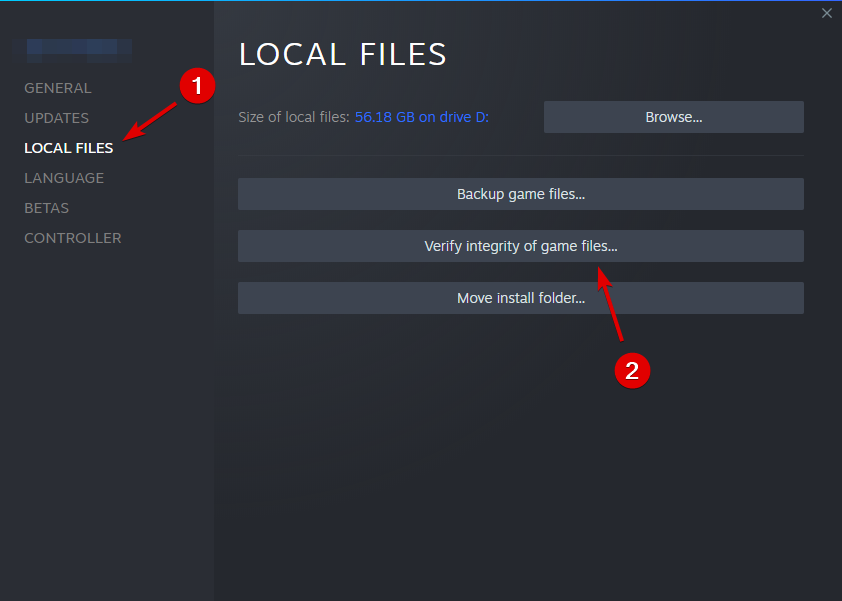
  4. Wait until Steam finishes the task, then launch the game again and check if the issue persists.

7. Restart your network

PC:

  1. Go to Start and type settings. Double click the first result to open the Settings page
  2. Go to Network and Internet, then Status, and scroll down to Network reset.
  3. Hit the Reset now button and confirm your choice.
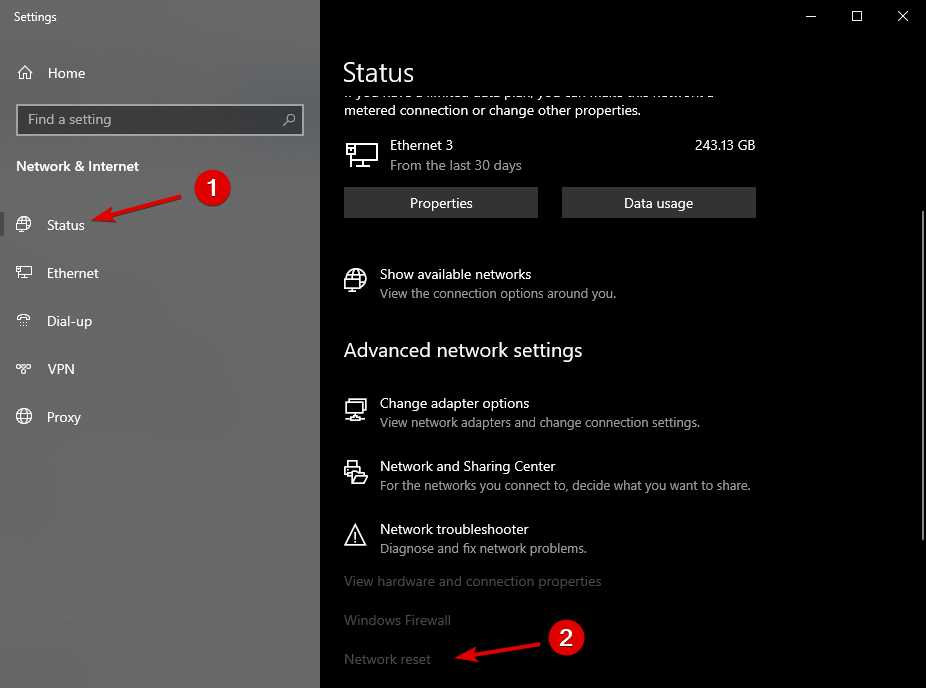
  4. Setup your network again.

An alternative workaround is to manually switch your network. It seems that some online modes can occasionally cause file corruption. Follow the instructions below in order to resolve this issue.

Xbox One:

  1. Go to Settings then go to Network Settings.
  2. Choose to Forget your network or Go Offline.
  3. Shut down the console and unplug your Power Source.
  4. Start Xbox One again.
  5. Enable your Network then start the Game.

8. Disable background apps

  1. On Windows 10, you can disable background apps using the Settings page
  2. Go to Start, then type settings and double-click the first result.
  3. Go to Privacy, scroll down to Background apps, then turn off the background apps toggle.
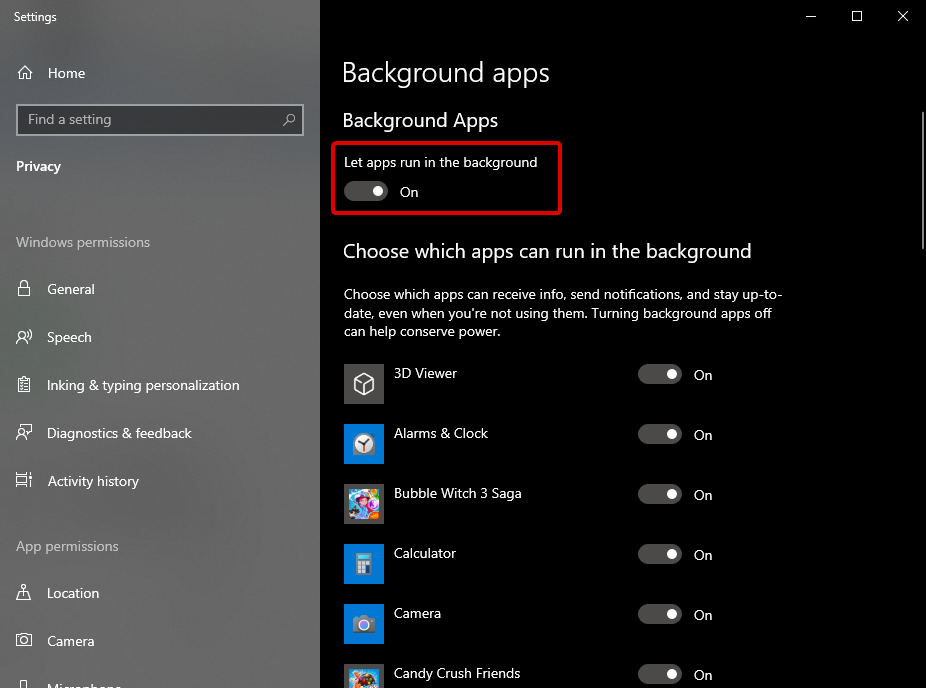
  4. Restart your PC and check if the issue persists.

Sometimes, background apps may interfere with your games. Try disabling them to see if this action fixes some of the NBA 2K18 bugs that you’re experiencing.

We hope that the solutions listed above helped you to fix some of the most common NBA 2K18 issues.

Make sure no driver-related problem stops you from playing your favorite games. Take a look at this helpful article dedicated to updating your GPU drivers and learn what you need to do.

If you’ve come across other workarounds to fix the bugs affecting the game, you can help the gaming community by listing the troubleshooting steps in the comment section below.


Class action lawsuits in Illinois question Microsoft and Amazon’s facial recognition tech

Flying under the radar are two class action lawsuits that allege Microsoft and Amazon have violated Illinois Biometric Information Privacy Act (BIPA).

According to the suits, Microsoft and Amazon have both failed to get informed consent from residents before initiating its facial recognition to collect, store and analyze their biometric data.

Breaking down the suits per their respective defendants, Amazon allegedly scans the faces in photos uploaded to its Prime Photo storage service, while Microsoft violated Illinois resident’s privacy rights in similar fashion as it partnered with Uber for bio authentication.

The suit alleges, however, that Uber’s “Real Time ID Check,” unbeknownst to drivers, works by providing a picture of the individual to Microsoft’s API, which then extracts the driver’s facial biometrics to build a geometric template that is then compared against the template from their original picture. Per the suit, Microsoft has failed to obtain proper consent and provide required disclosures to Illinois Uber drivers before collecting and storing their biometric data.

Uber - Illinois - Class Action Lawsuit

Beyond, the consent issue, Uber driver Mario Pena who launched the BIPA-related suit questions the security implications of Microsoft’s involvement as it relates to fraud and ID theft perpetuated by his own biometrics stored on Microsoft’s servers.

Microsoft has attempted to dance a fine line on communicating its intents and actions behind its facial recognition tech. Despite publicly touting its decision to shelf its efforts to partner with local law enforcement on facial recognition software last year over similar concerns presented in the new class action lawsuits, Microsoft was found to have ultimately been turned away by law enforcement prior to its announcement.

Since last summer, Microsoft has publicly maintained its position in championing federal legislation that would regulate government surveillance and the use of facial recognition technology.

Microsoft shuffles executive chairs ahead of global sales and commercial business reorg

Microsoft tends to announce company-wide reorganizations in mid-summer and 2021 appears to be no different.

Microsoft CEO Satya Nadella primed the reorg well ahead of its planned merger of its Global Sales and Marketing Organization and Worldwide Commercial Business, by announcing 37-year company veteran Jean-Philippe Courtois would not be leading the newly combined division as expected.

Jean-Philippe Courtois - reorg

Courtois, who currently heads up Microsoft’s Global Sales, Marketing & Operations group would have been the likely executive to head up the company’s reorg division.

However, according to GeekWire, Nadella alerted Microsoft employees that Courtois will instead be splitting his time between data expansion and cloud business projects at the company as well as personal interest that include the entrepreneurial foundation Live for Good Foundation.

Instead, eight-year company veteran Judson Althoff has been tapped to lead Microsoft’s reorg that’s scheduled to take effect July 1, 2021.

Judson Althoff-reorg

Structurally speaking, Althoff appears to report to Nadella directly. The newly reorg Sales and Marketing and Commercial Business divisions has puts yet another exclamation point on Microsoft’s efforts to streamline its sales and support of its fastest growing product, Azure.

In March of this year, Microsoft’s move of 15,000 employees was the latest puzzle piece put into place to address its sprawling cloud business as it established the Digital Transformation Platform Group.

Back in July of 2020, Microsoft once again announced a reorg that focused on establishing a new consulting arm to, in some part, address its field sales of cloud computing solutions.

3 best software to create newsletters that gain traction

There’s a software for almost everything these days and the newsletter software is one of them.

These type of software programs add to the efficiency of a business system and help promote their brand.

A newsletter is one such important aspect of a business and it vastly helps with brand’s email marketing. And, the best software to create a newsletter helps accomplish that effortlessly.

There are a wide number of powerful tools available these days that can help create and manage email newsletters easily.

While users may choose any tool for regular needs, there are certain features specific to only certain tools.

So, instead of choosing a tool a blindly, we suggest you check our recommendations for the best email newsletter tools.

Here’s a quick list of some of the best software to create a newsletter.

Create enticing email newsletters with these tools

SamLogic MultiMailer 2014

SamLogic MultiMailer 2014 Best Software to Create a Newsletter

For those looking for a convenient tool, SamLogic MultiMailer 2014 is one of the best software to create newsletters.

While it creates newsletters seamlessly, it also sends the newsletters to the desired recipient easily.

As a part of the process, it creates HTML messages in graphics editor that looks like a word processor. This makes the entire process easy to use even for those with no knowledge in HTML scripting.

It comes with a native newsletter wizard that enables users to build a basic template which can be later customized based on needs.

The program helps users create notable HTML or plain text newsletters that may include images, tables, colors, fonts, and more.

In addition, users can also add sound and attachments to the HTML newsletters. Users can also data fields in the message that may help in creating personalized messages.

Besides, the integrated database manages the mailing lists just right. It also allows users to import email addresses and contact information from platforms like Oracle, Outlook, MS Excel, etc.

Users can also get the email delivery status from the status tab in the software. While the statistics tab in the software offers detailed data about the mailings, the software also handles the email bounces efficiently.

Price: starts from $49.

Download SamLogic MultiMailer

Email Platinum Customer Bulk Emailer

Email Platinum Customer Bulk Emailer Best Software to Create a Newsletter

While the Email Platinum Customer Bulk Emailer does not exactly create a newsletter, but it does sort your email addresses. Moreover, it can help users enhance other aspects of the newsletter.

This means that it automates the search engine marketing process by automatically submitting the email addresses and the URL entered to the different search engines, live.

All that the users need to do is to enter the email address and the URL and it directly submits them to the separate search engines using a browser format.


Send out your newly-created newsletter with these email clients


Users receive the feedback from the format ensuring that the recipient indeed received and accepted the URL and the email address. The status is displayed live on the special browser pane.

In addition, it offers free ads through free web ads helping users to list their offerings. Users can submit endless URLs and webpages to all the possible search engines using the power submitter.

Meta tag generator is another feature that activates the meta tags such as, keywords, title, and description that can be formatted in HTML source code.

These codes are then ready to be copied and pasted into the webpage. While the submission log keeps a record of the data submitted, the code wizard offers a range of tools to create amazing JavaScript effects.

Popup magician and sitemap maker are among its other significant features.

Price: free trial available, upgrade available at $29.97.

Use Email Platinum Customer Bulk Emailer

PIMEX MailExpress

PIMEX MailExpress Best Software to Create a Newsletter

For those looking for a free alternative to the best software to create a newsletter, PIMEX MailExpress is the answer.

This tool offers a robust and effective method that helps reach customers and contacts through email.

This free program is just the right solution for an individual as well as for businesses helping them send newsletters and other important details.

What’s interesting is, users can personalize every message using plain text or HTML templates.

Since each message can be personalized, this ensures that all recipients receive the letters that are especially sent to them.

The software also helps import the complete lists email addresses in addition to the optional guidelines in either text or CSV format.

Price: free

Download PIMEX MailExpress

Conclusion

Newsletters form a critical aspect of the email marketing process of a business. Doing it the right way in and in an attractive manner, prove to be beneficial for the business in the long run.

Therefore, make a choice of your email newsletter software from the above list and get going with the marketing campaign.

How do I remove safesear.ch from Windows 10/11?

In the plethora of malicious software, the special place is reserved for browser hijackers. Perhaps they’re not the most dangerous ones but they are probably the most annoying piece of malicious software you’ll ever encounter. One of those annoyances is known as safesear.ch. This is a prolific browser hijacker which is actively plaguing users for more than a couple of years rendering the affected browser (or browsers) completely useless.

For that purpose, we enlisted ways to remove it and explained what safesear.ch indeed is. Make sure to check it out below.

What’s safesear.ch and how to remove it from Windows 10

What’s the deal with the safesear.ch

When it comes to browser hijackers, the pestilence known as safesear.ch is right there at the top. This is a known browser hijacker which originated in old days when Internet Explorer was a viable browsing solution. In comparison to some others, it is rather resilient and a lot of common fixes do not apply.

You’ve probably got it via a third-party application where it was hidden within the installer. That’s why it’s important to get your software from trusted sources, as they tend to disclose the presence of PUP software. On the other hand, it can get on your PC in various other ways, so having the right protection is of utmost importance.

How does it operate? Well, it takes controls of your browser and takes over the default search engine, home page, new tabs, and extensions. Basically, it completely disrupts the functionality of the said browser. The affected user is basically in a trap and every new step just showcases that every part of the browser is under control of the safesear.ch.

Luckily, there are a few ways to remove it completely. And, no, you won’t have to nuke your system in order to save the browser.

How to remove safesear.ch

As we already stated above, this is a rather resilient browser hijacker. A lot of users give the browser reinstallation a go, but with no success. They weren’t as thorough as they should. We made sure to provide you with all needed steps (even if it’s an overkill to some extent but better safe than sorry).

The first thing you should do is completely remove all untrusted and/or suspicious programs from your system. After that, running the dedicated anti-PUP tool and antivirus scan seems like a good idea. And, finally, make sure to backup your passwords and reinstall the browser clean (completely, including the residual files). Delete all browser accounts, as the hijacker might return after you re-establish the account after the reinstallation.

This is how to remove the program from your computer plainly:

  1. In the Search bar, type Control and open Control Panel.safesear.ch removal windows 10
  2. Click on the “Uninstall a program” under Programs.safesear.ch removal windows 10
  3. Remove any suspicious applications from the list.
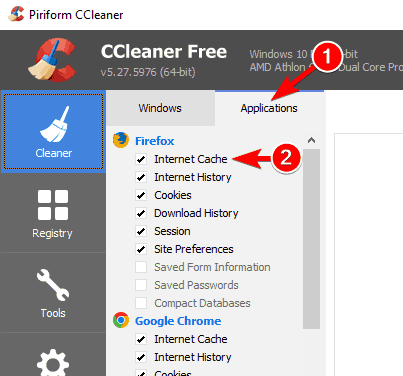
  4. Use CCleaner or another to remove the remaining files.
  5. Restart your PC.

Our choice is AdwCleaner by Malwarebytes (free) but you can use any other specialized tool. This is how to utilize the third-party anti-PUP tool.

  1. Download Malwarebytes AdwCleaner, here.
  2. Run the tool and click Scan Now.safesear.ch removal windows 10
  3. Wait until the tool scans your system and click Clean & Repair.safesear.ch removal windows 10
  4. After the cleaning procedure ends, restart your PC.safesear.ch removal windows 10

Good internet protection is quite important as the precautionary, proactive measure, which is why we immensely recommend Bitdefender Internet Security 2018. On the other hand, you can use a good old Windows Defender for malware scans after the damage is already done. Here’s how to do it:

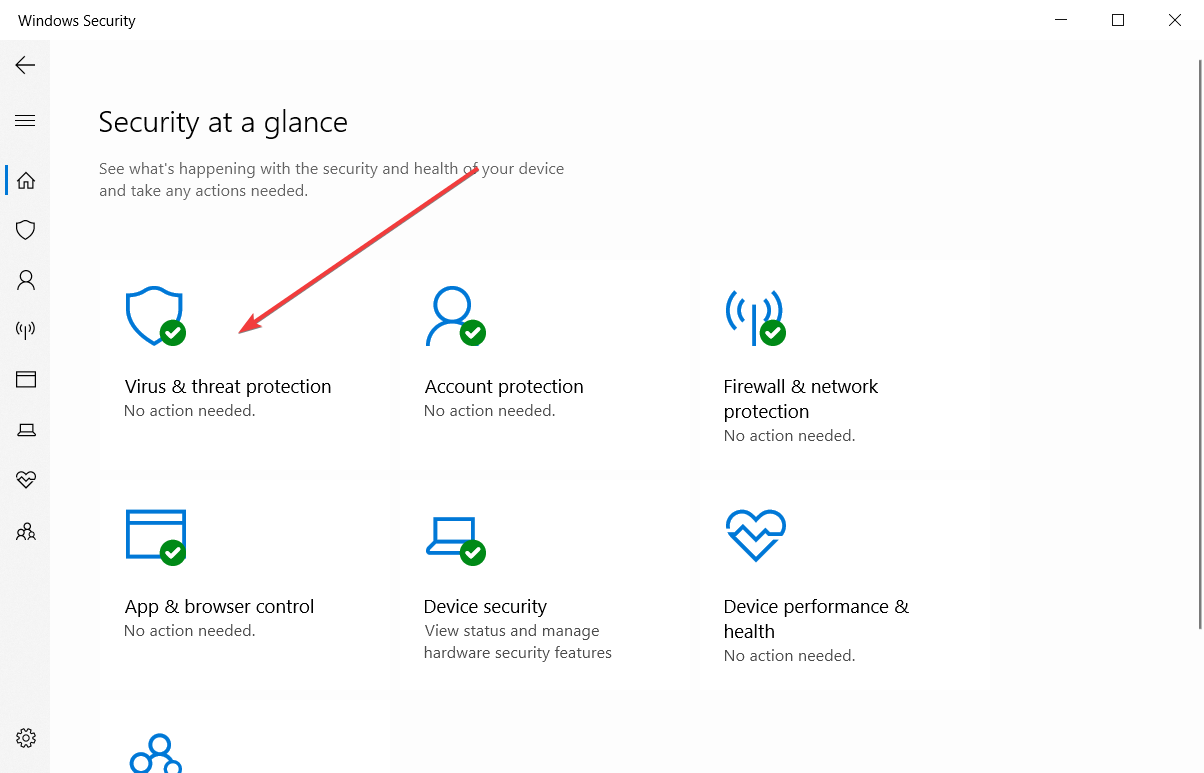
  1. Open Windows Defender from the Start menu.
  2. Choose Virus & threat protection.safesear.ch removal windows 10
  3. Click the “Run new advanced scan” option.
  4. Choose Windows Defender Offline Scan and click Scan now.safesear.ch removal windows 10

Finally, the only remaining thing to do is reinstalling your browser. We recommend using one of these uninstaller tools, with special emphasis on the recommended ones.

After that, the safesear.ch browser hijacker won’t bother you. If that’s not the case, make sure to tell us in the comments section. We’ll gladly help you.

Severe security breaches on Office 365 and Azure accounts

There is no stopping the future and, as much as we all wanted a more futuristic way to store our data and conduct business, we have all become to fear how easy it is for it to be accessed by external entities.

The complexity of vastness of the storage clouds makes the detection and repelling of threatening events more and more difficult.

How can you tell if your security has been bypassed?

According to the specialists at Vectra AI, there are a few signs that indicate the fact that security for our Microsoft 365 or Azure has been compromised.

External Teams access and non-authorized, suspicious mail forwarding should be the first red flags when it comes to your, or your company’s cloud security. This could easily mean that an attack has already begun.

Regularly checking what accounts are part of the team in Office 365 is an excellent way to make sure that an external account has been already added.

This type of activity could indicate that a malicious third party has added an account under their control.

Another sign that you should keep your eyes open for is risky Office 365 Exchange operations, which could point to an attacker that is controlling Exchange in order to gain access to specific data or further attack progression.

Also, peculiar Azure AD actions may imply that attackers are already escalating privileges and also performing admin-level operations, after the account takeover.

Office 365 accounts that are downloading or sharing files and folders at a volume that was higher than normal, which could indicate a third party is using either SharePoint, or OneDrive to download functions to exfiltrate data, is another sign.

Tell the difference between friend and foe

Taking into consideration the examples above, you can understand that every activity that is being detected isn’t necessarily of malicious nature, which is why it’s paramount to have the right data before we take action.

It’s all about being able to determine and, also, tell the difference between what’s considered to be normal activity for your environment and what could be a potential issue that needs to be addressed.  

The security issues that users deal with while using Office 365 are many, which should be an even bigger reason to keep both eyes wide open when we feel something’s not right.

Have you ever felt like your Microsoft Cloud security has been hacked? Tell us all about it in the comments section below.

Software for Plumbers and Electricians: 3 Must Have

People used to rely on the yellow pages to find and call a service professional if they had an emergency at home. Thankfully, those days are long gone.

Thanks to the brilliance of Internet technology, now we can simply look up a plumber or technician on our smartphones. More so, we can set up a job without even having to talk to someone.

We have prepared the best field service solutions that can be used by plumbing and electrical companies. These allow them to seamlessly collaborate with their clients and field workers.

What are the best plumbing and electrical software tools?

WorkWave

WorkWave homepage

WorkWave is a software solution that facilitates a cloud collaboration environment between field workers and office technicians using mobile apps and desktop tools. It can be used by both plumbers and electricians.

The cloud-based service provides an intuitive graphical interface that makes it easy to navigate all features, send commands, and customize settings.

The dashboard shows an overview of all field workers and their status, including a real-time position on the world map, provided that it’s paired with the mobile app of the field worker. You can look up information with a search tool and filter results by zones.

WorkWave makes it possible to manage services, schedule tasks, and recurring jobs, and create one-time work orders, thanks to a built-in calendar that lets you assign individual workers or entire teams.

You can consult the revenue for each route in the dispatch board, handle unscheduled jobs, manage accounts, set up agreements for each account, as well as issue payments for the plumbers or electricians. Distinct sections of the program show you sales, billings, and reports.

Pros:

  • Provides cloud collaboration
  • Intuitive UI
  • Shows real-time positioning

Cons:

  • Not recommended for non-professionals

Get it now

Housecall Pro

Housecall Pro homepage

Housecall Pro is another excellent choice when it comes to plumbing and electrical software solutions. It can only be used by people who live in the United States and Canada.

Available as a cloud-based service, it enables professionals to automate their tasks and communicate on a single platform.

The tool includes a mobile app for Android and iOS customers who can book services in just a few clicks. All data is centralized in the cloud, where the technicians can accept jobs and provide home services.

The specialists can use the web portal to respond and fulfill the client’s requests. This way, you can easily stay in touch with your customers and get notified of any issues.

Wrapped in a clean and stylish interface, Housecall Pro gives office managers the possibility to create and schedule jobs, dispatch plumbers, electricians and other service specialists on the field, as well as keep track of their progress.

With the help of this software solution, you can also issue invoices for each home service, process payments, and send emails as a marketing strategy. After paying for a successful service, customers get receipts automatically.

A free edition of Housecall Pro can be used by single operators, but not all features are unlocked.

Pros:

  • Modern interface
  • Comes with a free edition
  • Allows you to schedule jobs

Cons:

  • Limited to the USA and Canada

Get it now

Ai Field Management

Field Management homepage

Designed for businesses of any size, Ai Field Management is an elaborate software solution available in the cloud, which allows plumbers and electricians to communicate with their customers, manage jobs, and issue payments.

The graphical interface of the tool is simplistic and neatly organized, leaving no room for error. But that doesn’t mean that it has standard features. On the contrary, Ai Field Management is one of the most advanced in its industry.

There are three distinct sections: an administration panel for the company, a management panel for the customers, and another management panel for the workers.

It’s possible to organize the company’s assets, use a time-tracking tool, manage one-time and recurring jobs, issue payments for the workers, generate payroll reports, as well as keep track of revenue and commissions.

All jobs can be reviewed in a color-coded calendar, including their status. You can also manage the database of workers, including personal information and required actions.

Thanks to mobile apps available for Android and iOS, office managers can stay in touch with the field technicians, in order to constantly update their status and troubleshoot any problems.

What’s more, Ai Field Management can be integrated with multiple other software applications, such as QuickBooks for financial transactions, Slack for team collaboration, and Google Maps or Wave for GPS navigation.

Those who are interested in Ai Field Management can check out various monthly subscription plans.

Pros:

  • Lets you review the jobs in a color-coded calendar
  • Comes with different panels for different levels of control
  • Comes with a mobile app

Cons:

  • The price tag

Get it now

Closing thoughts on plumbing and electrical software tools

All aspects considered, make sure to check out WorkWave, Housecall Pro and Ai Field Management if you haven’t already.

And, if you have decided to optimize your business, do not hesitate to look into our selection for plumbing and electrical software.

Auction Listing Software: Best to Use in 2026

Are you looking for the best auction listing software to install on your Windows 10 computer? Look no further, we have enlisted the best auction tools for you.

Auctioning has become easier for many businesses since the turn of the century, with selling just a matter of uploading your items online. This has led to the emergence of hundreds of auction listing websites with the popular ones being eBay, Amazon, Etsy, eBid, and Bonanza.

With auction listing websites, individual sellers may find it easy listing just few items manually. However, for small businesses that has different items to list, this would be time-consuming and not effective.

Hence, it is ideal to use auction listing software. These programs enable listing of several items at once and some give feedback on how your listings are performing. Also, this auction programs enable access to live auction events, where you can bid and auction antiques, and valuable items from the comfort of your home.

In addition, it is ideal that any auction listing software used should be compatible with multiple market platforms and have a good user interface. If you’re still contemplating which software is ideal for your needs, we have enlisted the best auction listing software available.

Auction listing programs for PC

Auction!

best auction listing software

Ranked as the best auction listing software, Auction! enables accurate management of auctioning activities. The program which is available only on Windows OS enables users to organize and manage auction fundraising activities easily.

Also, the software has features for both silent and live auctions; therefore, users can view the progress of their auctions in the simple user interface.

Auction! has a unique event pager support, where you can easily plan your auctioning event to suit your preferences. The software gives detailed information about donation receipts, bidder invoices, item categories, reservations, and ticket sales.

In addition, Auction! is ideal software for auction activities as it has all the features needed to set up an auction bidding event. Furthermore, Auction! is compatible with various Windows Operating System from Windows XP up to Windows 10.

Download Auction!

Auction Defender

best auction listing software

Auction Defender is a simple auction listing software that allows users to manage multiple listings on a single window. Auction Defender may look clogged up on the user interface; however, individual menu is placed strategically to provide scalability and precision.

The program is developed to give efficient and fast management of listings as users can track several listings at a time. This removes the need to constantly refresh listings as this is automatically performed by the program.

In addition, Auction Defender enables users to easily bid for items and allows for greater efficiency in winning bids. Users also receive alerts on changes in bidding such as high bids or outbids by fellow bidders. These features above make the software one of the best auction listing software to use for your bidding processes.

Auction Defender is particularly optimized for eBay and gives comprehensive features on other auction listing website. The program is free and secure to use as the company keeps your entire personal information safe using a secure encryption process.

Download Auction Defender

BidStation

best auction listing software

BidStation is an excellent auction software by GoAuctionZoom which manages your auction information into a single database for easy auctioning. It uses a smart intuitive design which ensures easy access to several information. You also get tutorial videos which teach newbies how to use the software effectively.

Also, BidStation is ideal for new auctioneers as the full auction process which takes several hours can be easily prepared within minutes. Bid numbers, table numbers and check-in reports can be easily assigned to bidders and creation of custom auction bid sheets is performed easily.

There are several versions of BidStation software with each differing in terms of functionality and price. However, this best auction listing software is compatible with Windows OS.

Download BidStation

Auctionic

best auction listing software

When it comes to all-around auction program which gives comprehensive services, Auctionic is one of the best listing software. This auction listing software enables easy creation of listing and allows users to access hundreds of free templates.

Its comprehensive management toolbox allows users to easily import listings from the popular TurboLister and users can also use keyword optimization for listings. This keyword optimization enables you to rank highly on ecommerce websites which leads to more sales. Also, users can also add location and shipping preference to the listings. This enables proper management of places where items can be shipped to as well as the shipping client.

Another area where Auctionic excels is the feedback aspect of the software. For every listing sold, Auctionic sends instant prompts with information on the checkout and payment status. The messaging centre has a simple interface with all menus properly arranged to enable user precision and scalability.

Lastly, Auctionic is compatible with all versions of Windows OS from Windows XP to Windows 10; also, it can be downloaded for free.

Visit Auctionic

All the auction listing software we mentioned above have been reviewed by our team of experts. It is worth mentioning that some of them may have contrasting features. However, their features and user base makes them rated as the best auction listing software available.

Do you know of any software which did not make our list? Feel free to let us know by commenting below.

FIX: Hosted network could not be started in Windows 10/11

Network problems can be unpleasant, and one network problem that users reported is Hosted network could not be started on Windows 10.

This error can be problematic, but fortunately there are few solutions that you can try.

But first, here are some more error messages that are actually the same as this one, and can be resolved with the same solutions:

  • The hosted network couldn’t be started a device attached to the system is not functioning 
  • Microsoft hosted network virtual adapter missing 
  • The hosted network couldn’t be started the wireless local area network interface is powered down –
  • Can’t find Microsoft hosted network virtual adapter 
  • Microsoft hosted network virtual adapter not found in Device Manager 

What can I do if the hosted network could not be started on my Windows 10?

Table of contents:

  1. Check if your Wi-Fi is enabled
  2. Check if Microsoft Hosted Network Virtual Adapter is working
  3. Change Power Management settings
  4. Be sure that sharing is enabled
  5. Check if your wireless adapter supports hosted networks
  6. Change your wireless adapter properties
  7. Try using a different driver

1. Check if your Wi-Fi is enabled

Before you can create hosted network, you need to be sure that your wireless connection is working properly. If you have a laptop, be sure that the Wi-Fi button is pressed and that your wireless connection is active.

Keep in mind that problems with hosted network can occur if the Airplane mode is enabled, so be sure to turn it off.

2. Check if Microsoft Hosted Network Virtual Adapter is working

  1. Press Windows Key + X and choose Network Connections.
    hosted-network-could-not-be-started-network-1
  2. When Network Connections window opens, locate your wireless network, right click it and choose Disable.
    hosted-network-could-not-be-started-network-2
  3. Wait for a few seconds and then enable wireless network connection by following the similar steps.
  4. Close Network Connections window.

In order to create hosted network, you need to be sure that your wireless connection and Microsoft Hosted Network Virtual Adapter are working properly.

After doing that, you need to check if Microsoft Hosted Network Virtual Adapter is enabled in Device Manager. To do that, follow these steps:

  1. Press Windows Key + X and select <str from the menu.
    hosted-network-could-not-be-started-device-1
  2. Go to View and check Show hidden devices.
    hosted-network-could-not-be-started-device-2
  3. Navigate to the Network adapters section and expand it.
  4. Locate Microsoft Hosted Network Virtual Adapter, right click it and choose Enable.

Sometimes, the driver could be the problem. Check out this guide that will show you how to download the latest Microsoft Hosted Network Virtual Adapter driver.

After enabling the Virtual Adapter, do the following:

  1. Start Command Prompt as administrator. You can do that by pressing Windows Key + X and choosing Command Prompt (Admin) from the menu.
  2. When Command Prompt starts, enter the following lines:
    • netsh wlan set hostednetwork mode=allow ssid=NetworkName key=YourPassword
    • netsh wlan start hostednetwork

Keep in mind that you need to replace NetworkName and YourPassword values with the desired network name and password.

3. Change Power Management settings

  1. Open Device Manager.
  2. Once the Device Manager opens, locate your wireless adapter and double click it to open its properties.
  3. Go to the Power Management tab and make sure that Allow the computer to turn off this device to save power is checked.
    hosted-network-could-not-be-started-power-1
  4. Click OK to save changes.
  5. Restart your PC and try to start hosted network again.

You can fix the problem with hosted network simply by changing the Power Management settings.

4.  Be sure that sharing is enabled

  1. Open Network Connections.
  2. Locate the network that you want to share, right-click it and choose Properties.
  3. Go to the Sharing tab and make sure that Allow other network users to connect through this computer’s Internet connection and Establish a dial-up connection whenever a computer on my network attempts to access the Internet options are enabled.

In order to create hosted network, you need to make sure that sharing option is turned on.

5. Check if your wireless adapter supports hosted networks

In some cases your wireless adapter might not have the support for hosted network, and that can cause this problem to appear. To check if your adapter supports hosted networks, do the following:

  1. Start Command Prompt as administrator.
  2. When Command Prompt opens, enter netsh wlan show driver | findstr Hosted and press Enter.
  3. Look for Hosted network supported option. If it says No it means that your network adapter doesn’t support this feature.

If your network adapter doesn’t have support for hosted networks, you should be able to fix it by downloading and installing the latest drivers for your network adapter.

5.1 Update drivers

  1. Right-click the Start button and select Device Manager from the list.device manager
  2. Click on the Network adapters section to expand it.
  3. Right-click the network adapter and select Update driver from the list of options.overwatch lost connection to game server
  4. If there is any better driver, the system will install it and you will have to restart your PC.

If you don’t want to install the network drivers on your own, we suggest you use a dedicated driver updater tool that’ll do that for you.

A professional driver updater tool will help you update drivers automatically and prevent PC damage caused by installing the wrong driver versions. 

You just have to select the drivers you want to update and leave the rest for the automated software.

6. Change your wireless adapter properties

  1. Open Device Manager.
  2. Locate your wireless adapter and double-click it to open its properties.
  3. Once the Properties window opens, go to the Advanced tab.
  4. Select HT mode option and from the Value menu select Enabled.
  5. Click OK to save changes.

According to users, you can fix this problem simply by changing your wireless adapter properties. If you have any other problems with your wireless adapter, we recommend you check out this guide that deals with the most common wireless adapter issues.

7. Try using a different driver

  1. Open Device Manager.
  2. Locate your wireless network adapter and double click it to open its properties.
  3. Go to the Driver tab and click the Roll Back Driver button. If this option isn’t available, click Uninstall to remove the driver.
    hosted-network-could-not-be-started-driver-1
  4. After removing the driver restart your PC and install the older version. Keep in mind that you don’t need to install anything if you choose the Roll Back Driver option.

If the hosted network feature is supported, you should have Virtual WiFi Miniport Adapter in Device Manager. According to users, sometimes network adapter drivers don’t install this feature, so you might want to consider using a different driver.

Some users are also suggesting to use Windows 8.1 drivers if the Windows 10 drivers aren’t  Users reported issues with Belkin drivers, but after switching to Mediatek driver the issue was completely resolved. working on your PC.

In addition, few users recommend to roll back to the older version of the drivers or to uninstall your driver and install the older version instead.

After you roll back the driver, you’ll need to prevent Windows from automatically updating it. To do that, follow the simple steps in this complete guide.

There are several variations of this error, such as Hosted network could not be started. A device attached to the system is not functioning or Hosted network could not be started. The group or resource is not in the correct state to perform the requested operation.

You can easily fix any of these errors by using one of our solutions. If you have any other questions, don’t hesitate to leave them in the comments section below.

FIX: Windows Defender error 0x80016ba in Windows 10/11

Believe it or not, in comparison to so abruptly enforced Edge, Microsoft did a fairly good job with Windows Defender.

It’s not the best, far from it, but it’s still a viable free option when it comes to antimalware system protection.

However, there seems to be a plentitude of error prompts concerning Windows Defender, with one distinctive error which bears the 0x80016ba code.

There are various reasons for the appearance of this error, and we made sure to provide the list of applicable solutions.

In case you’re plagued with the aforementioned Windows Defender error code 0x80016ba, make sure to check it out.

How do I fix Windows Defender error 0x80016ba?

  1. Disable Windows Defender
  2. Update the system
  3. Exclude large compressed files from scanning (ZIP, ISO, CAB)
  4. Check the Windows Defender service
  5. Reset your PC

1. Disable Windows Defender

  1. Open Windows Security from the notification area or use the search bar.
  2. Select Virus & threat protection.windows defender error 0x80016ba
  3. Open Virus & threat protection settings.windows defender error 0x80016ba
  4. Disable both Real-time protection and Cloud-delivered protection.windows defender error 0x80016ba
  5. Exit Windows Defender Center and enable the third-party antivirus again.

Due to system conflicts, there can be only one antimalware tool enabled at the time. The dual antivirus presence when both of them work in the background and provide real-time protection is a no-go.

So, you need to make a choice. Whether you’ll use a native antimalware tool or you’re more prone to use a third-party alternative.

Furthermore, even though most antivirus solutions will disable Windows Defender upon installation, some of them might not.

Therefore, in case you’ve made your choice and you just installed a third-party antivirus, make sure Windows Defender is disabled afterward.

This, of course, applies only if you’re using a dedicated antivirus solution. In case you want to use Windows Defender instead and the error reappears frequently, make sure to continue with the steps.

2. Update the system

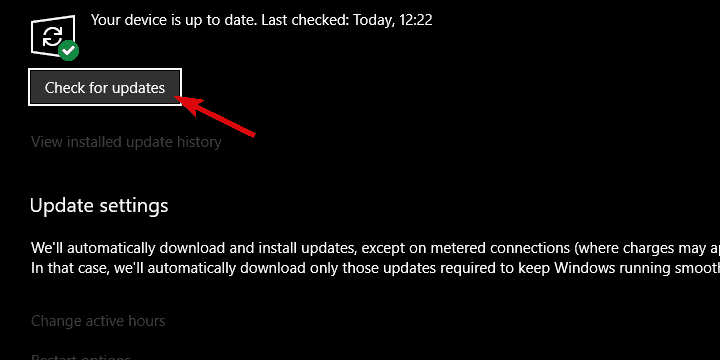
  1. In the Windows Search bar, type update and open Check for updates from the results.
  2. Click on the Check for updates button and install any pending updates.windows defender error 0x80016ba
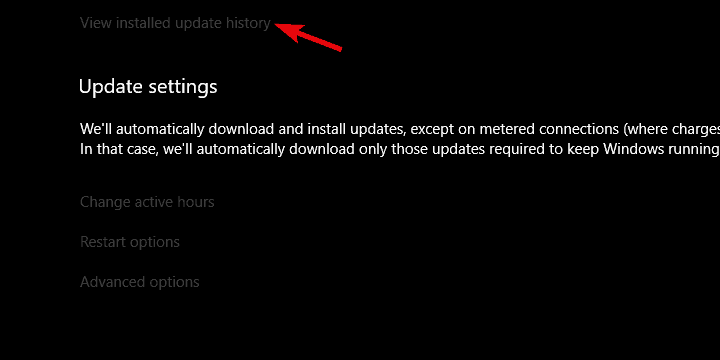
  3. On the other hand, under the same section, you can open View installed updates history.windows defender error 0x80016ba
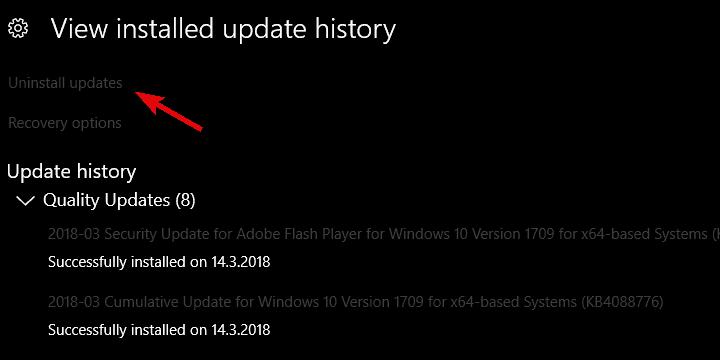
  4. Now, click on Uninstall updates and then remove the latest security update.windows defender error 0x80016ba

The error with the 0x80016ba code can be caused by various things and the faulty definition update is one of them.

If you’re unable to locate Windows Defender or just unable to perform a scan, we advise you to update your system.

Security updates are the most commonly distributed on Windows 10 and there’s a chance that one of them inflicted the error at hand.

Now, updates are mostly provided automatically, but, depending on your settings, they might get postponed. Therefore, checking for updates manually isn’t a bad idea.

Also, you can uninstall recent Windows Defender-related updates and look for improvements.

3. Exclude large, compressed files from scanning (ZIP, ISO, CAB)

  1. Create a new folder and name it as you wish.
  2. Move all large, archived files in this newly created folder.
  3. Open Windows Defender from the notification area.
  4. Choose Virus & threat protection.windows defender error 0x80016ba
  5. Open Virus & threat protection settings.windows defender error 0x80016ba
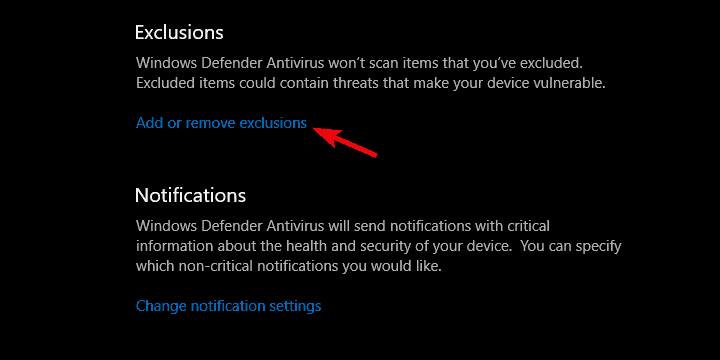
  6. Scroll down and click on Add or remove exclusions.windows defender error 0x80016ba
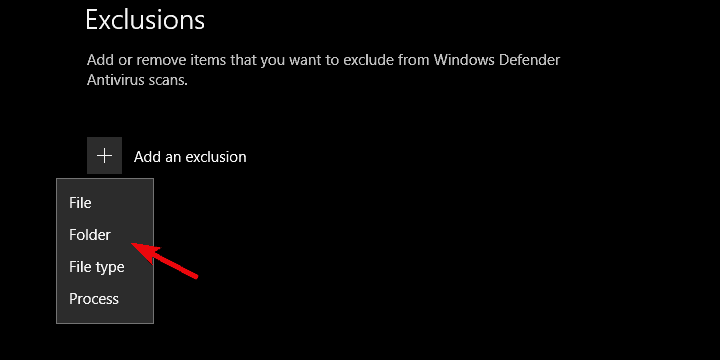
  7. Click on Add an exclusion and choose Folder from the drop-down menu.windows defender error 0x80016ba
  8. Browse for the chosen folder and add it as an exclusion.

Some users noticed that large chunks of compressed data can also cause this error. Namely, the scanning procedure worked as intended until the compressed or archived files come into play.

That’s when the Defender crashes and the error prompt appears. This covers all conventional file formats, starting with ISO files and reaching to Microsoft-own CAB extensions.

In comparison to third-party tools, Windows Defender kind of makes file format exclusions hard to work with.

What you can do is group all large, archived files into one folder and exclude that folder from future scans. This should resolve the in-scan errors.

However, since those formats tend to be the source of malware too often, this carries a certain danger factor.

If you want to exclude a single folder from the Windows Defender’s scanning procedure, follow the steps we provided above.

4. Check the Windows Defender service

  1. Uninstall a third-party antivirus and restart your PC.
  2. Press Windows key + R to open the elevated Run command-line tool.
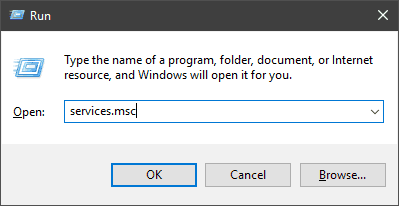
  3. In the command line, type services.msc and press Enter.windows defender error 0x80016ba
  4. Scroll down until you reach Windows Defender Antivirus Service.windows defender error 0x80016ba
  5. It should start Automatically (this is mandatory) but, due to collision with an alternative tool, it can get switched to Manual. If that’s the case, right-click on it and open Properties.
  6. Set its Startup type to Automatic and confirm the changes.
  7. Restart your PC.

You can’t remove Windows Defender from Windows 10. It can be subdued (as we explained above), but its dedicated service will still work in the background.

Unless it’s stopped manually or by the third-party antivirus. That service is, on many occasions, the probable cause of Windows Defender failure.

Namely, the dedicated service should always run in the background, automatically starting with the system shell.

Especially if you’re using Windows Defender for either real-time protection or for scheduled scans. Now, for some peculiar reason, the Windows Defender service tends to get disabled.

Some third-party tools will limit it, but if you’re using solely Windows Defender for the sake of system protection, it should be enabled all the time.

For that reason, we recommend checking Windows Defender’s dedicated service as indicated in the steps above.

5. Reset your PC

  1. Back up all files you deem important from the system partition onto a data partition, external drive, or cloud.
  2. Press Windows key + I to open Settings.
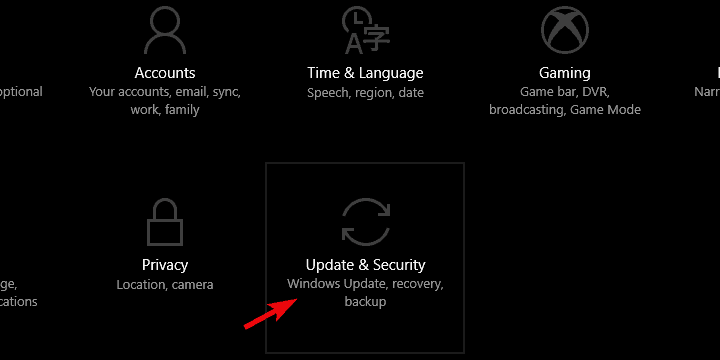
  3. Choose Update & Security.windows defender error 0x80016ba
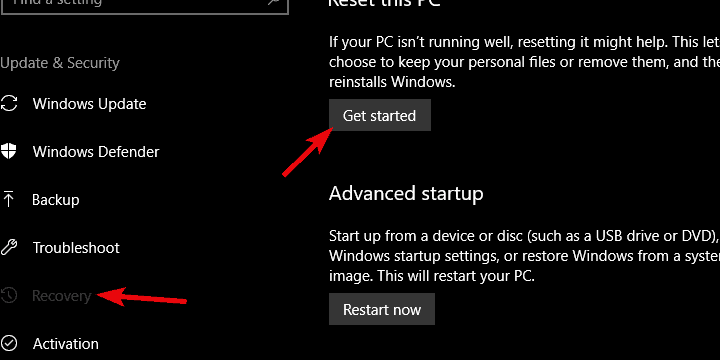
  4. Select Recovery.
  5. Click Get started under Reset this PC.windows defender error 0x80016ba
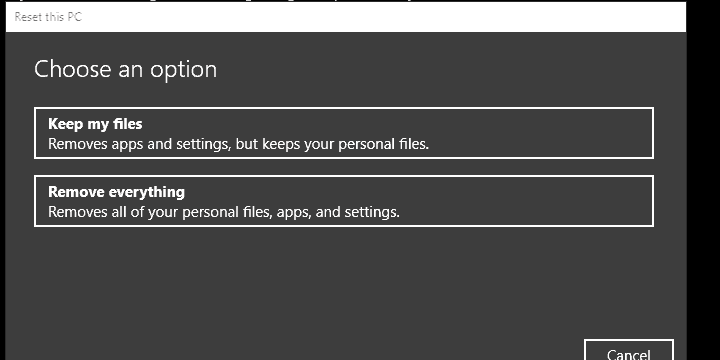
  6. Choose Remove everything and start the restoring procedure.windows defender error 0x80016ba

Finally, there’s turning to recovery options in order to resolve the issue completely and without chances of relapse.

Namely, some users suggest that the system upgrade is causing issues with Windows Defender on Windows 10.

As some users upgraded to Windows 10 over Windows 7, Microsoft Security Essentials were not uninstalled properly. This invokes the collision between the new native security solution and the old one.

For that purpose, the best solution that comes to my mind is (besides the clean system reinstall) to reset your PC to factory settings.

That way, you’ll have an effectively brand-new Windows 10 system without colliding Windows 7 files. We agree that this can be time-consuming, and you’ll lose some of your data.

But we reckon this is a small sacrifice for a good-performing system. In case you’re not sure how to reset your PC to factory values, make sure to follow the steps we provided above.

We hope that our solutions helped you fix the Microsoft Security Essentials error code 0x80016ba in Windows 10.

However, if you’re still suffering from this built-in software, you can always install one of the best antiviruses with unlimited licenses to upgrade your security.

We also recommend you a lightweight antivirus that provides complex digital security anytime you’re in trouble, namely TotalAV.

That’s a wrap-up. In case you have any alternative approach or maybe a question regarding the enlisted solutions, make sure to tell us in the comments section.

How to fix Windows 10 update error 8024a112

If you use Windows 10 the way it should be used, you’re probably installing updates on a regular basis. Or trying to. Windows 10 update issues are one of the most common problems that bother users, as almost every cumulative update, Preview builds, or major update fails to install on at least some computers.

This time, we’re going to talk about Windows 10 update error 8024a112 that prevents users from installing new updates, or Preview builds. This is, more or less, a common problem in Windows 10, but luckily, it’s solvable. And in this article, we’re going to show you how to do it.

How to fix Windows 10 update error 8024a112?

Update error 8024a112 can be problematic and in some cases, it can leave your system vulnerable. Speaking of these kinds of issues, here are some similar problems that users reported:

  • Windows Update failed – Windows Update can fail due to your antivirus, so if you’re having this problem, be sure to disable or to remove your antivirus software.
  • Windows restart error 0x8024a112 – Sometimes this problem can occur while your PC restarts. To fix this problem, disable all startup applications and try to install the update again.
  • Windows 10 update error code 0x8024a112 – This problem can occur due to Windows Update services, but you can fix the issue simply by restarting Windows Update components.

1. Restart your computer

The most common solution for this update problem can’t be simpler. All you need to do is restart your computer, and run Windows Update again. Microsoft mentioned this solution when some users failed to install Windows 10 Preview build 15060, and it proved as a good one.

So, before you try anything more serious, simply restart your computer, and try to download updates again. If it works now, you’re done. If not, check out some of the solutions listed below.

2. Reset Windows Update components

Update error 8024a112 can sometimes appear if Windows Update components aren’t working properly. To fix this issue, it’s advised that you reset update components. There are several ways to do that, but the simplest one is to use the command line. To do that, follow these steps:

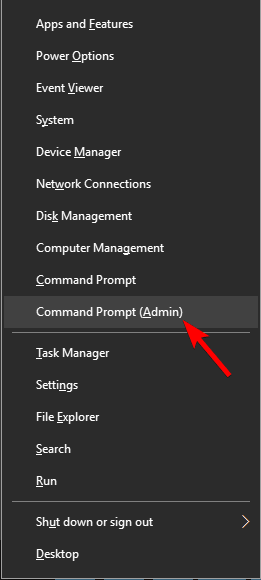
  1. Open Win + X menu and choose Command Prompt (Admin) from the list. You can do that by pressing Windows Key + X shortcut.
    Windows 10 update error code 0x8024a112
  2. Once the Command Prompt opens, run the following commands:
  • net stop wuauserv
  • net stop cryptSvc
  • net stop bits
  • net stop msiserver
  • Ren C:WindowsSoftwareDistribution SoftwareDistribution.old
  • Ren C:WindowsSystem32catroot2 Catroot2.old
  • net start wuauserv
  • net start cryptSvc
  • net start bits
  • net start msiserver

After running these commands, check if the problem is resolved. If this process seems a bit complicated, you can always fix the issue by creating a reset script. Read through our article to find out how to create a WUReset script.

3. Disable antivirus

One cause for update error 8024a112 can be your antivirus software, and if you keep getting this error, we advise you to temporarily disable your antivirus software. If that doesn’t help, your next step would be to uninstall your third-party antivirus. Users reported that this error was caused by Avira and Norton, so if you’re using any of these tools, you might want to remove them.

Even if you uninstall your antivirus, you’ll still be protected by Windows Defender, so there’s no need to worry about your online safety. If removing the antivirus solves the issue, we suggest that you switch to a different antivirus solution.

4. Remove entries from your registry

According to users, sometimes update error 8024a112 can occur due to problems with your registry. However, you can fix the issue simply by removing the problematic entries. This is relatively simple, and you can do it by following these steps:

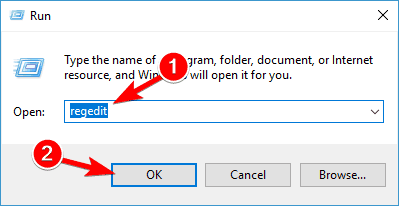
  1. Press Windows Key + R and enter regedit. Now press Enter or click OK.
    Windows 10 update error code 0x8024a112
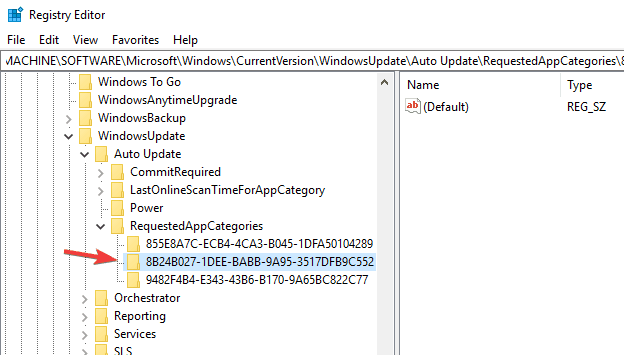
  2. In the left pane, navigate to the HKEY_LOCAL_MACHINESOFTWAREMicrosoftWindowsCurrentVersionWindowsUpdateAuto UpdateRequestedAppCategories key and expand it.
  3. Right-click 8B24B027-1DEE-BABB-9A95-3517DFB9C552 key and remove it. Before removing the key, it’s a good idea to extract it just in case anything goes wrong.
    Windows Update failed

After removing this key, restart your PC and check if the problem still appears.

5. Perform a Clean boot

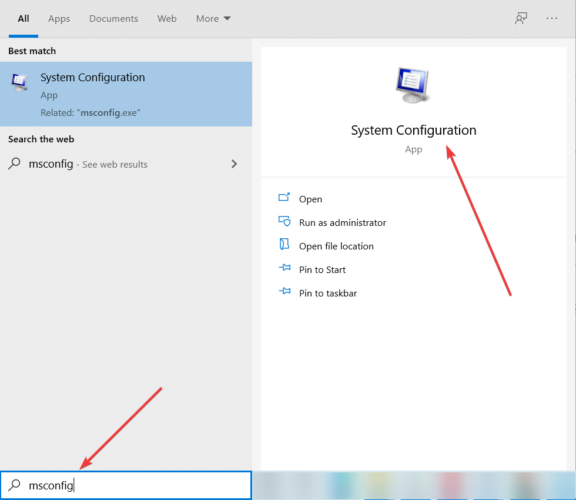
If you keep getting update error 8024a112 on your PC, it’s rather likely that a third-party application is interfering with your system and causing this issue to appear. However, you might be able to fix this issue simply by disabling all startup applications and services. To do that, just follow these steps:

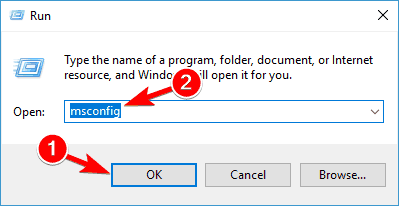
  1. Press Windows Key + R and enter msconfig. Now press Enter or click OK.
    Windows Update failed
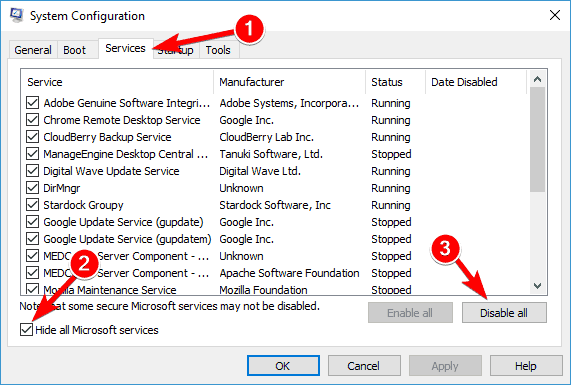
  2. When System Configuration window opens, go to the Services tab. Now check Hide all Microsoft services and click the Disable all button.
    Windows restart error 0x8024a112
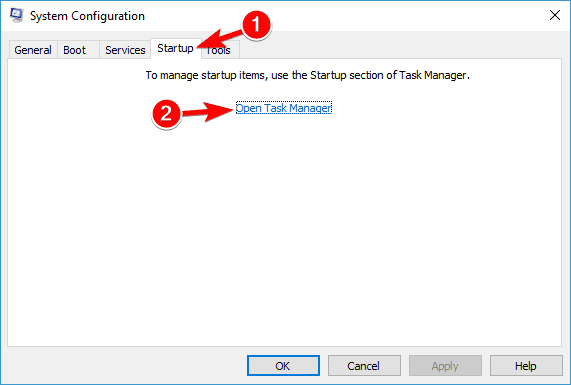
  3. Navigate to the Startup tab and click Open Task Manager.
    Windows 10 update error code 0x8024a112
  4. Task Manager will now show you a list of startup applications. Right-click the first entry on the list and choose Disable from the menu. Repeat this step until you disable all startup applications.
    Windows Update failed
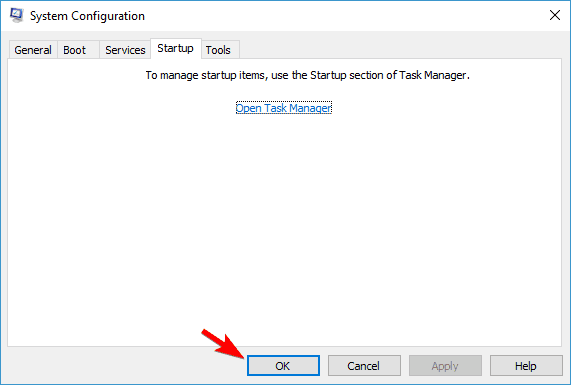
  5. Navigate to the System Configuration window. Now click Apply and OK to save changes and restart your PC.
    Windows restart error 0x8024a112

After your PC restarts, try to perform a Windows update once again. If you manage to download and install the update, repeat these steps once again, but this time enables all startup applications and services.

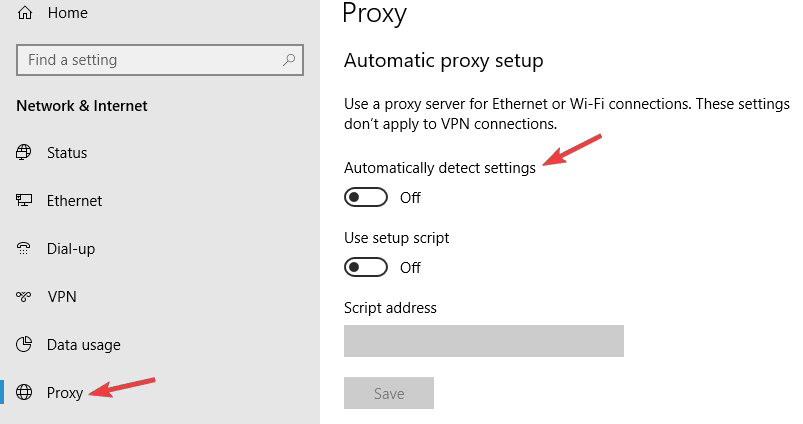
6. Check your proxy

Another common cause for update error 8024a112 can be your proxy. According to users, the proxy can sometimes interfere with your system and cause this and many other errors to appear. However, you can fix this issue by doing the following:

  1. Open the Settings app. Navigate to the Network & Internet section.
    Windows Update failed
  2. Select Proxy from the menu on the left. Disable all options in the right pane.
    Windows restart error 0x8024a112

After doing that, check if the problem is still there. If you still want to protect your privacy online, a better choice would be a VPN.


7. Download the update manually

If you can’t update your PC due to update error 8024a112, you might be able to fix the problem by downloading the update from Microsoft’s Update Catalog. Before you can do that, you need to find the updated code of the update you want to download.

The update code has KB at the beginning, followed by an array of numbers. Once you find the updated code, you can download the update manually by doing the following:

  1. Navigate to Microsoft Update Catalog website.
  2. Enter the update code in the search box.
    Windows 10 update error code 0x8024a112
  3. List of matching updates will now appear. Locate the update that uses the same architecture as your system. Click the Download button next to the update to download it.
  4. Once you download the update, run the setup file and follow the instructions on the screen.

Once you install the update, the issue should be resolved and everything will start working again. Keep in mind that this method might not fix the core problem, but it will allow you to download and install the missing update.


8. Perform an in-place upgrade

If other solutions didn’t fix the update error 8024a112, your last option is to perform an in-place upgrade. Basically, this process will reinstall the latest version of Windows, while keeping all your files and applications intact. To perform an in-place upgrade, you just need to do the following:

  1. Download and run Media Creation Tool.
  2. When Media Creation Tool starts, choose Upgrade this PC now option.
  3. Now choose Download and install updates (recommended) and click Next.
  4. Wait while the setup downloads the necessary files.
  5. Once the updates are downloaded, you just need to follow the instructions until you reach Ready to install screen. Now click Change what to keep.
  6. Be sure to pick Keep personal files and apps and click Next.
  7. After doing that, follow the instructions on the screen to complete the process.

Once you complete the in-place upgrade, you’ll have the latest version of Windows installed, and the problem with Windows update should be completely resolved.

That’s about it, in most cases, the first solution will be enough. But we listed more solutions, just to get you covered. So, we certainly hope at least one of our workarounds helped you to deal with the Windows 10 update error 8024a112.

If you have any additional comments, questions, or suggestions, feel free to let us know in the comments section below.

Free Fundraising Software: Best Options in 2026

Even though there are a number of powerful fundraising software on the market, they tend to cost quite a lot. If you are running a new or small nonprofit, you won’t afford to pay the full price for a donations software because of other costs like salaries for your staff, paying your nonprofit’s location rent, etc.

Luckily, there is a good range of very useful free fundraising software on the market, that cover a great range of features that can be easily compared with the paid versions.

Today we will explore some of the best software options that allow you to easily manage all aspects of the fundraising process for your charity.

4 free fundraising software for your charity

Houdini Project

Houdini Project - free fundraising software for charities

Houdini Project is one of the best free fundraising software available on the market, offering you an incredibly wide range of features. Most of the advanced features found in this software are usually found in other paid subscription software.

This software can cover a lot of areas, and simplify the process of managing your charity no matter how big it is, or how many donations you receive monthly.

You can process donations, create fundraising campaigns, set schedules for custom professional events, and also manage the database of donors, all from one user-friendly dashboard.

Using this software allows you yo easily build and share donation forms, and is perfectly suitable for individual nonprofits, but is also suitable for fully built crowdfunding sites and startups.

Because of it’s open source nature, this software is costantly upgraded and improved by users across the globe. This gives Houdini Project a great advantage compared to the other software options presented in this article.

Here are some of the best features found in Houdini Project:

  • Can process payments – automatic disbursals with reports (CSV), SSL 256-bit encryption
  • Can create event pages and print out tickets – tickets can be fully customized to fit your charity
  • Allows you to easily keep an eye on the amount of money raised in events, and the number of attendees
  • Gives you the power to observe the history of transactions from one dashboard – also offers powerful filtering and search options
  • Supported database management – unlimited number of records, detailed filtering, can send bulk email with filters, great set of email templates and drafts, etc.
  • Donation processing
  • Dashboard that encompasses recurring donations, analytics, and payouts

If you want to see a full list of features found in Houdini Project, you can visit the official website.

Try Houdini Project

CiviCRM

CiviCRM - free fundraising software

CiviCRM is another great free fundraising software that can help you manage all aspects of your charity from the comfort of one comprehensive dashboard. You can use this app to manage the registration process, create content, and manage all aspects of membership.

This software was designed specifically in order to help you run your charity and gather donations, keep track of donors, and communicate easily with them.

CiviCRM perfectly integrates the the front-end fundraising elements with the data collection part, making it one of the best software options on the market.

The tool can be set up to allow both individual and teams of donors to activate in peer fundraising, you can set a fundraising goal, create your own webpage, and send invitations to donate, all from one simple dashboard.

Here are some of the best features found in CiviCrm:

  • Contact management – stores entire range of contact data in one secure location
  • Configurable and customizable – you can hire a programmer and customize the installation to your needs
  • Membership management – users can sign up and pay online with automatic membership renewal reminders
  • Compatible with all accounting software
  • Case management – can create, manage and keep track of your workflows
  • Event management – everything you need to set up and manage all aspects of your event
  • Email marketing – can create and send bulk emails to lists with A/B testing and statistical analysis
  • Can track contributions and create professional reports

CiviCRM’s wide range of features can be increased even more by installing one or more of the wide range of available options. You can see a full list of extensions here, and a tutorial on how to install extensions here.

Download CiviCRM

ProcessDonation

ProcessDonation - free fundraising software

This software is a great online donation management software that offers you both a free and paid version.

The free version of this software has a great set of features that will surely get you started on your fundraising journey.

It bolsters a custom donation page, allows you to manage the fundraising event, gives you easy sharing options, and also allows for peer-to-peer fundraising.

The free version of ProcessDonation includes almost all the features found in the paid version, but is limited to only one campaign at a time, and with the capability to set just one administrator.

This shouldn’t be an issue for newly started fundraising charities, and once your charity grows, you can always invest in a paid version if needed.

Here are some of the features of the free version of ProcessDonation:

  • Great user-friendly dashboard that offers you an overview of all information in the software
  • Can manage all aspects of causes and edit details
  • Can produce professional looking email campaigns – this allows you to promote your campaign with ease
  • Auto-notifications and receipts
  • Allows you to start social media campaigns
  • 1 standard donation page – with an option of buying a ‘custom’ donation page separetely

The paid versions of the software add a few other useful features:

  • Can manage crowdfunding campaigns
  • Allows you to manage every aspect of your donor database
  • Allows mobile fundraising
  • Ticket sales

If you want to see a full list of features for every version of ProcessDonation, you can visit the official features webpage.If you have any questions, you can visit the official FAQ page.

Try ProcessDonation

Donor Box

DonorBox - free fundraising software

DonorBox is another great software option to use if you need a free fundraising software.

This app offers a great range of features, and it is mostly focused on getting new donors, the processing of donations, and also helps you to keep your donor databases up to date.

You can create custom donation pages, allows multi-currency, and can also easily export reports to MailChimp or SalesForce.

DonorBox is a great software option, and can be used freely for charities that do not exceed the amount of $1000/month donations.

If you exceed that amount, you will need to pay a fee of 1.5% of your donations, to continue to get access to DonorBox dashboard and features.

Here are some of the best features found in the free version of DonorBox:

  • Beautiful customizable forms that can be modified to be compatible with any website by using CSS
  • WalletAsk – has the option to set up the campaign so that donators pay the fees, allowing you to save money
  • Great integration with Zapier, Salesforce, and Mailchimp
  • Allows your patrons to donate weekly, monthly, or annualy – allows you to secure regular funds
  • Donors can donate by debit card, credit card, Google Pay, Apple Pay, PayPal, etc.

Try DonorBox

Conclusion

In this article, we explored some of the best software options on the market that allow you to easily manage all aspects of your fundraising, CRM, and also payments and event planning.

We would love to know what software option you chose and why. Use the comment section below.

Yahoo Mail app for Windows 10 will stop working on May 22

Yahoo has already started to notify Mail app for Windows 10 users that the app will be shut down next week, solidifying a rather negative trajectory for the app.

In September 2016, Yahoo admitted that in 2014, it suffered a huge data breach and over 500 million user accounts were hacked. That December, another security breach took place with a billion accounts affected. And this February, Yahoo warned everybody that the source code for generating cookies was stolen. Judging by all these events, we can’t really say that we’re shocked that Yahoo is in the process of terminating the Mail app.

Yahoo Mail app can’t be downloaded anymore

Even if the company has not yet made an official statement on the subject, various users have already reported getting a notification in the app informing them of its upcoming shutdown. Users have begun reporting on Twitter that the app has stopped working, suggesting that support for it has already begun to be cut off. The message that some users have been getting reads loud and clear:

Your Windows 10 app will stop working after May 22. Thank you for using Windows 10 app to check your Yahoo Mail. Going forward, please check your email in any web browser on your computer. You haven’t got the opportunity to complain about this, you just have the option of pressing “Got it.”

While the Windows Store listing for the Yahoo Mail app is still there and can be still seen online, it seems that the ability to download it has been removed.

We suggest you to read our article about best mail clients available on the market right now. Surely you will find a good alternative to Yahoo mail app.

Yahoo recommendations

However, Yahoo Mail users will still be able to login to their accounts on their Windows 10 devices. Yahoo recommends users should access the app using its website. There is also another option available and it involves choosing to set up your Yahoo Mail account in other apps such as Outlook or the Windows 10 Mail app.

The app is currently being taken over by Verizon and the company plans on merging Yahoo and AOL into Oath, a brand new company.

Full Fix: 0x800704DD-0x90016 install error on Windows 10/11

Although Windows 10 is a free upgrade for all Windows 7 and Windows 8 users, it doesn’t mean that upgrade is always smooth. User have reported error 0x800704DD-0x90016 during Windows 10 Setup, so let’s see if we can fix this somehow.

If you’re getting error 0x800704DD-0x90016 while upgrading to Windows 10 from Windows 7 or Windows 8, you need to follow this simple solution.

What to do if you’re unable to install Windows 10 due to an error 0x800704DD-0x90016?

0x800704DD-0x90016 error can be problematic and it can prevent you from installing Windows 10. Speaking of this error message, here are some common problems that users encountered:

  • Windows 10 Media Creation Tool error 0x800704dd 0x90016 – This error usually appears if you’re not using an administrator account. To fix it simply switch to an administrator account and try to run Media Creation Tool again.
  • 0x800704dd-0x90016 Windows 10 laptop – This issue can also appear on your laptop. If you encounter this issue, just perform a clean boot and disable your Internet connection during the installation.

1. Switch to the administrator account

If you’re unable to install Windows 10 due to 0x800704DD-0x90016 error, the issue might be the lack of administrative privileges. To fix this issue, you just need to log in to Windows using the administrator account and try to run the setup again.

In case you don’t have an administrator account available, you can create one by doing the following:

  1. Open the Settings app. You can do that quickly using the Windows Key + I shortcut.
  2. When Settings app opens, go to the Accounts section.
    0x800704dd-0x90016 Windows 10 laptop
  3. Select Family & other people from the menu on the left. Now click Add someone else to this PC button in the right pane.
    Windows 10 Media Creation Tool error 0x800704dd 0x90016
  4. You’ll be asked to enter sign-in information for the new user. Choose I don’t have this person’s sign-in information.
    0x800704dd-0x90016 Windows 10 laptop
  5. Now select Add a user without a Microsoft account.
    Windows 10 Media Creation Tool error 0x800704dd 0x90016
  6. Enter the desired username and click Next.
    0x800704dd-0x90016 Windows 10 laptop

After you create a new user account, you need to convert it to the administrator account. To do that, follow these steps:

  1. In Settings app go to Accounts > Family & other people.
  2. Locate your new account and choose Change account type.
    Windows 10 Media Creation Tool error 0x800704dd 0x90016
  3. Set Account type to Administrator and click OK.
    Windows 10 Media Creation Tool error 0x800704dd 0x90016

After creating a new administrator account, switch to it and try to run the setup again.

2. Enable hidden administrator account

As we already mentioned in our previous solution, 0x800704DD-0x90016 error can occur if you don’t have the necessary privileges, but you can obtain those privileges simply by using an administrator account.

If you don’t want to create a new user account, you can always enable the hidden administrator account and use it to install Windows 10. All versions of Windows have this hidden account available, and you can switch to it by doing the following:

  1. Start Command Prompt as administrator. The simplest way to do that is to press Windows Key + X and choose Command Prompt (Admin) or PowerShell (Admin) from the menu.
    0x800704dd-0x90016 Windows 10 laptop
  2. When Command Prompt opens, run net user administrator /active:yes command to enable the hidden account.
    Windows 10 Media Creation Tool error 0x800704dd 0x90016

After running this command, the hidden administrator account should be enabled and you’ll be able to to access it. Once you access the new administrative account, try installing Windows 10.

If the process is successful, you can disable the hidden administrative account by starting Command Prompt and running net user administrator /active:no command.

This method is quite effective, especially if you don’t want to create a new user account, so you might want to try it out.

3. Disable/uninstall your antivirus

Having a good antivirus is important, but sometimes your antivirus can interfere with Windows 10 installation and cause 0x800704DD-0x90016 error to appear. Your antivirus will prevent certain applications from modifying the system files, and that will cause this issue to occur.

To fix the problem, it’s advised to disable your antivirus before you try to install Windows 10. If disabling the antivirus doesn’t help, it’s advised to completely remove your antivirus and try to run the setup again.

To make sure that your antivirus is completely removed, download the dedicated removal tool for your antivirus and run it.

Once your antivirus is removed, try to install Windows 10 again, and 0x800704DD-0x90016 error shouldn’t appear. If you manage to complete the installation process, you should consider installing a new antivirus on your PC.

There are several stable antivirus tools that won’t interfere with your system. We recommend you look for a tool with a strong threat database.

Along with that, make sure to get an antivirus with a transparent privacy policy, a small footprint and multi-layered protection.

4. Disconnect unnecessary USB devices

If you’re having 0x800704DD-0x90016 error while trying to install Windows 10, the problem might be your USB devices. Certain USB devices such as external hard drives, card readers, and such can sometimes interfere with Windows 10 installation.

To make sure that the installation process goes smoothly, we strongly advise you to disconnect all USB devices except your keyboard and mouse and your installation media. Once you disconnect all USB devices, you shouldn’t have any issues with them.

5. Perform a Clean boot

Third-party applications can sometimes interfere with Windows 10 installation, and if you keep getting 0x800704DD-0x90016, perhaps you should try disabling the startup applications and services. This is quite simple to do, and you can do it by following these steps:

  1. Press Windows Key + R, enter msconfig and click OK or press Enter.
    Windows 10 Media Creation Tool error 0x800704dd 0x90016
  2. System Configuration window appear. Go to the Services tab. Now you need to check Hide all Microsoft services option and click the Disable all button.
    0x800704dd-0x90016 Windows 10 laptop
  3. Now go to the Startup tab and click Open Task Manager.
    Windows 10 Media Creation Tool error 0x800704dd 0x90016
  4. List of all applications will now appear. Now you need to disable all startup applications. To do that, right-click the first application on the list and choose Disable. Repeat this for all entries on the list.
    0x800704dd-0x90016 Windows 10 laptop
  5. After disabling startup applications, go back to the System Configuration window. Now click Apply and OK to save changes and restart your PC.
    Windows 10 Media Creation Tool error 0x800704dd 0x90016

After doing that, all startup applications will be disabled. Now try to install Windows 10 again and check if the issue is still there.

6. Disconnect from the Internet during the setup

According to users, if you’re trying to install Windows 10 using the ISO file, be sure to disconnect from the Internet. To be on the safe side, disconnect your Ethernet cable or in some cases you might even have to remove your wireless adapter from your PC.

After doing that, try to install Windows 10 again.

7. Download the ISO from on a different PC

Sometimes the ISO file you’re using to install Windows 10 isn’t good, and that can cause 0x800704DD-0x90016 error to appear. This can be a problem, but several users reported that you can fix the issue simply by downloading the ISO file on a different PC and using that ISO to install Windows 10.

This sounds like an unusual solution, but users claim that it works, so you might want to try it out.

8. Run Windows Update Troubleshooter

If you keep getting 0x800704DD-0x90016 error while trying to install Windows 10, you might be able to fix the problem simply by running Windows Update troubleshooter. Windows has many troubleshooters and they are designed to automatically scan your system and fix various problems. To run Windows Update troubleshooter, you just need to do the following:

  1. Press Windows Key + I to open the Settings app.
  2. Now navigate to Update & Security section.
    0x800704dd-0x90016 Windows 10 laptop
  3. Select Troubleshoot from the menu on the left. Select Windows Update from the list and click the Run the troubleshooter button.
    Windows 10 Media Creation Tool error 0x800704dd 0x90016

Follow the instructions on the screen to complete the troubleshooter. Once the troubleshooting is finished, try to install Windows 10 again.

We hope that our solutions were helpful and that you’ve managed to fix error 0x800704DD-0x90016 on your computer.

HP unveils two new mid-range ENVY Windows 10 laptops

HP recently announced its new generation of HP ENVY mid-range Windows 10 laptops, bringing with it a new sleek design. The main element of its design is metal, offering a very fashionable and attractive look to these new devices. The improvements don’t stop at its design: these two new laptops offer top-tier performance and a spectacular viewing experience thanks to their edge-to-edge flush glass displays.

The first laptop has 15.6″ diagonal display while the second one offers a more generous 17.3″ display. If you need to carry your laptop to various places, the ENVY series of laptops is a good choice since both are a half a pound lighter than their predecessors. Smaller is better seems to be the motto at HP at the moment after the company launched the world’s thinnest laptop just the other day.

The HP Fast Charge feature lets customers charge the battery up to 90% in only one and half hours when powered off — again, a very useful feature for those users who are always on the go. The battery is slated to deliver up to 11 hours of life when fully charged, with both devices equipped with Intel Core i7 processors and Windows Hello support.

Below are the main differences between both ENVY laptops.

  • UMA or Intel Iris graphics for the smaller laptop vs. NVIDIA GeForce 940MX graphics for the bigger one
  • An optical disk drive is available only for the 17.3″ display laptop
  • An optional HD IR camera for the 15.6″ diagonal display laptop vs. an optional Intel RealSense camera for the 17.3″ display laptop
  • 4.4 pounds and 17.95 mm thin vs. 6.6 pounds with a 25.45 mm profile.

The 15.6″ laptop should be available on HP’s site on May 25 with a price tag of $779.99 and starting from June 12, you should also be able to buy it from retailers. The 17.3″ laptop should make it to HP’s site on June 1. However, the device should be available three days earlier on BestBuy.com on May 29. Of course, its price is higher, starting at $1,029.99.

So, which laptop would you buy? Let us know in the comments section below!

How to fix common Resident Evil Village bugs

Resident Evil Village is, undoubtedly, one of the top games right now, and for good reason. The graphics are amazing, and the developments keep you always on your toes as they’re supposed to.

But like any other game since its release, the 8th title of the Resident Evil series has manifested its own bugs and problems.

Of course, not all of them can be avoided from your side but there are a lot of actions that can tip the balance in your favor.

Many users have reported crashes, and lots of problems with the sound, including stuttering, skipping, and cutting out.

In this article, we’re going to tackle those problems and more and help you fully enjoy this great title.

How can I fix the common Resident Evil Village bugs?

1. Make sure you have the minimum specs to run RE8

We’re sure you checked the minimum specifications required to play this game but just to get the elephant out of the room, here are the cold numbers for you to follow:

MINIMUMRECOMMENDED
Requires a 64-bit processor and operating system

OS: Windows 10 (64 bit)
Processor: AMD Ryzen 3 1200 / Intel Core i5-7500
Memory: 8 GB RAM
Graphics: AMD Radeon RX 560 with 4GB VRAM / NVIDIA GeForce GTX 1050 Ti with 4GB VRAM
DirectX: Version 12
Additional Notes: Estimated performance (when set to Prioritize Performance): 1080p/60fps.
・Framerate might drop in graphics-intensive scenes.
・AMD Radeon RX 6700 XT or NVIDIA GeForce RTX 2060 required to support ray tracing.
Requires a 64-bit processor and operating system

OS: Windows 10 (64 bit)
Processor: AMD Ryzen 5 3600 / Intel Core i7 8700
Memory: 16 GB RAM
Graphics: AMD Radeon RX 5700 / NVIDIA GeForce GTX 1070
DirectX: Version 12
Additional Notes: Estimated performance: 1080p/60fps
・Framerate might drop in graphics-intensive scenes.
・AMD Radeon RX 6700 XT or NVIDIA GeForce RTX 2070 required to support ray tracing.

If your rig doesn’t meet the necessary requirements, it’s normal to experience a lot of problems and bugs. If you need a more powerful PC take a look at our selection of the best Windows 10 gaming laptops.

2. Update your drivers

Manually updating your drivers can be time-consuming and a little bit tricky because you can miss some of the important drivers, and you could also install the wrong version which will, in turn, cause system instability.

A far more safe and fast solution is to use a dedicated, third-party tool for automatically updating your drivers. The solution recommended below can update all your drivers in one go.

It works with all versions of Windows and makes upgrading drivers a breeze. Outbyte Driver Updater may be set to discover outdated drivers automatically.

It is a useful program for updating drivers on your drivers. After installing the software, you only need to scan your computer. It will detect outdated drivers and request your permission to update them.

All you have to do is choose whether to update all of the drivers at once or one by one if you have reasons not to install specific drivers. You may rely on Outbyte Driver Updater to make such changes to ensure a proper upgrade with the most latest game-ready drivers.

⇒ Get Outbyte Driver Updater

If you want to do the entire process locally and know what you’re doing, you can also apply this solution:

  1. Right-click the Start button and select Device Manager from the list.
  2. Look for the graphics and audio drivers, right-click them and select Update driver.
  3. If there are any new drivers, the system will automatically install them.
  4. Restart your PC after updating the drivers.

Sometimes, manufacturers launch specific drivers and patches for them to fix certain problems in new and demanding games so you need to update them regularly.

Microsoft also includes a lot of new optional updates for drivers. You can reach them if to go to Windows Updates from Settings and click on View all optional updates.

You will see a dedicated section with Driver updates. You only need to check the one you like to install and hit the Download and install button under it.

3. Run Steam as an administrator

  1. Look for the Steam icon on your PC.
  2. Right-click on it and select Run as administrator from the list of options.
  3. Confirm your choice when prompted.

This simple but powerful procedure will ensure that the game will be able to use all available resources on your system.

4. Verify the integrity of the game

  1. Start the Steam app.
  2. Go to Library and select Home.
  3. Find Resident Evil Village in your game library, right-click on it, and select Properties.
  4. Go to Local Files and select Verify Integrity of Game Files.
  5. Wait for steam to perform a check on the files, then wait for it to download the necessary ones.

If some files from the game are missing, you will get crashes and all sorts of other problems to this is a very useful thing to do to fix it.

5. Select the correct playback device

  1. Press the Windows key + I to start the Settings app.
  2. Select System.
  3. Click on Sound from the left pane.
  4. Now set the correct playback device from the right pane and check the Device properties from underneath to check for the levels.

This is a dedicated solution for those who experience the no sound issue in Resident Evil game.

As simple as it may look, this procedure may fix the majority of sound issues with the game as sometimes you will see that it’s a different device set as the default one.

6. Perform a clean boot

  1. Go to the search box, type msconfig, and select System Configuration.
  2. Click on the Services tab.
  3. Select the Hide all Microsoft services box.
  4. Click on Disable all.
  5. Go to the Startup tab.
  6. Click on Open Task Manager.
  7. Close Task Manager then click OK.
  8. Reboot your computer.

After this procedure, you will have a clean boot environment and you can try and check if the game runs smoothly.

Exit the Safe Mode

  1. Right-click the Start button and select Run.
  2. Type msconfig, and press Enter.
  3. Go to the Boot tab.
  4. Deselect or uncheck the Safe Boot option box.
  5. Restart your computer.

This procedure will complete the process and the next time you restart the computer it will boot normally.

7. Reinstall the game and the Steam client

Unfortunately, this is the last resort but if the steps above didn’t solve the problems, it’s probably the game or the Steam client that are creating the problem.

Start by uninstalling and reinstalling the game, and if that still doesn’t work, proceed with the same process for Steam.

That’s it! We hope that our solutions helped you fix the Resident Evil Village no sound bugs and crashes for Windows 10.

If you have any other suggestions or if you faced any other problems, don’t hesitate to communicate them via the comments section below.

How to fix error 0x80010100 in Windows 10/11

Windows errors can happen for different reasons such as when your operating system is corrupted, or there’s malware and other emerging threats on your computer or the programs aren’t installing properly.

Other system conflicts or registry and Active X errors can also contribute to such errors including error 0x80010100, which can slow down your computer’s response time making it lag more.

Additionally, other causes of error 0x80010100 include system file damage (like corrupted system files), hardware or RAM decline, registry errors, excessive startup entries, or redundant program installations, among others.

There are many events that may result in system file errors such as incomplete installations, improper deletion of apps or hardware, improper computer shutdown, or if your computer is recovered from a virus or other malware attack. When any of this happens, the file system is corrupted hence missing and wrongly linked information, as well as files needed for the app to function properly.

Some symptoms of error 0x80010100 include system freeze, error message displays, slow boot, and slow system performance.

In order to fix this problem, you can run the Windows app troubleshooter, and then try other solutions outlined below.

Fix error 0x80010100

  1. Reset Windows Store cache
  2. Uninstall any damaged programs
  3. Clear all the junk and temporary files from your computer
  4. Run an antivirus program/software
  5. Perform a System restore
  6. Update BIOS
  7. Use manual ways to resolve error 0x80010100

Solution 1: Reset Windows Store cache

Sometimes you may encounter error 0x80010100 with Windows Store so resetting the cache may fix the issue as it resets Store without changing account settings, or deleting installed apps.

  • Right click Start and select Run
error 0x80010100
  • Type WSreset.exe and press enter or click OK
  • Restart your computer so that the fix can work

Solution 2: Uninstall any damaged programs

  • Right click Start and select Control Panel
error 0x80010100
  • Find the damaged program(s) and right click on each then select Uninstall
  • After the uninstallation, restart your computer

Check if error 0x80010100 goes away. If not, try the next solution.

Solution 3: Clear all the junk and temporary files from your computer

  • Click Start
  • Go to the search bar and search for temporary, junk or cache files
  • Select on each and right click then select delete
  • After each has been deleted, restart your computer to effect the changes

Check if error 0x80010100 goes away. If not, try the next solution.

Solution 4: Run an antivirus program/software

If you have antivirus software, click on it to scan your computer. If you don’t have one, download a good antivirus program and install it, then use it to scan all the files or data on your computer. This antivirus should detect any crash data or files on your computer, after which you can delete them from the system. We strongly recommend TotalAV TotalAV, as World’s nr. 1  antivirus at the moment.

Once they’re all deleted, scan your computer once again, and uninstall every other remaining crash file and restart your machine to effect the changes.

Check if error 0x80010100 goes away. If not, try the next solution.

Solution 5: Perform a System restore

  • Click Start
  • Go to the search field box and type System Restore
  • Click Create a restore point in the list of search results
error 0x80010100
  • Enter your administrator account password or grant permissions if prompted to
  • In the System Restore dialog box, click System Restore
error 0x80010100
  • Click Next
  • Click a restore point created before you experienced the problem
  • Click Next
  • Click Finish

To go back to a restore point, do the following:

  • Right click Start
  • Select Control Panel
  • In the control panel search box, type Recovery
  • Select Recovery
error 0x80010100
  • Click Open System Restore
error 0x80010100
  • Click Next
  • Choose the restore point related to the problematic program/app, driver or update
  • Click Next and then click Finish

Solution 6: Update BIOS

You can update your computer’s BIOS to version A16 by downloading the BIOS Update Executable file for Windows. Once you find the file from your computer manufacturer’s site, do the following:

  • Click Download File to download the file.
  • When the File Download window appears, click Save to save the file to your hard drive.
  • Run the BIOS update utility from Windows environment
  • Browse to where you downloaded the file and double-click the new file.
  • Windows System will auto restart and update BIOS while system startup screen.
  • After BIOS update is finished, the system will automatically reboot to effect changes.

Note: Do not turn off your computer or disconnect from your power source while updating the BIOS or you may harm your computer. Do not carry out other tasks on the computer until the BIOS update has been completed. Back up your data files to external media before updating the BIOS.

In the search bar, type Disk Management and click Create and format hard disk partitions.

Solution 7: Use manual ways to resolve error 0x80010100

There are other manual ways you can use to resolve this error including removing all drivers that were recently installed on your computer, updating old drivers, removing malicious or incompatible drivers, and then scanning your computer with a trusted and good antivirus. Once you’re done, start your computer in safe mode. Also, ensure all Windows Updates are installed as this fixes error 0x80010100 very well.

Have you managed to fix error 0x80010100 using any of these solutions? Let us know which one worked for you by leaving a comment in the section below.

Is cpx.exe dangerous? Here’s everything you need to know

Have you ever noticed a cpx.exe file on your PC? In this article, we’ll show you how to remove this file from your PC once and for all.

What is cpx.exe?

Cpx.exe is an executable file for Google Embedded Application (which is a background process). However, Google Embedded Application is not in any way related to Google Corporation but rather it is a component of the s5Mark adware suite. Hence, cpx.exe can be classified as a potentially unwanted program (PUP).

On the other hand, cpx.exe is responsible for utilizing a lot of CPU resources and users can’t remotely shut down its process from the Task Manager. Hence, we can assume that the cpx.exe process is used to mine cryptocurrencies.

Other common symptoms that your PC is infected with the cpx.exe program include:

  • Web browsers are injected with random advertisement toolbars
  • Random pop-up ads appear to recommend other software or updates
  • Advertising banners appear with different text such as: “Advertisements by S5Mark“, “Brought to you by S5Mark“, “Powered by S5Mark“, “Ads by S5Mark” or “Ads powered by S5Mark“.
  • Frequent web browser crashes
  • Your PC runs slow or lags in performance

How can I fix cpx.exe application error?

  1. Use CCleaner
  2. Use Apps and Features
  3. Scan your PC for malware

1. Use CCleaner

CCleaner is a powerful utility tool developed and maintained by Piriform Ltd which is can be used to remove the cpx.exe program from your Windows PC. Besides, CCleaner comes with powerful PC optimization tools such as disk cleaner, registry cleaner, duplicate finder, startup manager, program uninstaller, and more.

Follow these steps in order to download, install, and use CCleaner:

  1. Download CCleaner free version or Download CCleaner Pro version.
  2. Install and follow the prompts to complete the installation.
  3. After installation, launch CCleaner, and then click on the Tools tab.
  4. In the Uninstall menu, locate the program associated with the cpx.exe file (i.e. s5Mark program) and then click on uninstall to commence the uninstall operation.
  5. Afterward, click on the Registry Cleaner and then scan for issues to remove the software leftovers by the program.

2. Use Apps and Features

Cpx.exe is a part of the s5mark adware application suite. Therefore, you need to remove s5mark in order to ultimately remove the cpx.exe program.

Here’s how to do this:

  1. Right-click on the Start and then select Apps and Features. The App and Features window will display a list of all the programs installed on your PC.
  2. Scroll through the list of installed programs until you find the s5Mark program.
  3. Click on the s5Mark program, and then click Uninstall.
    uninstall application cpx.exe
  4. Follow the prompts in order to proceed with the uninstall process.

Note: the s5mark program may have a different name on your Windows PC. If you cannot find the program on your PC, you may proceed to the next method.

3. Scan your PC for malware

With MalwarebytesAdwCleaner, you can easily remove the cpx.exe process from your PC effortlessly. Besides, this program not only removes cpx.exe but another malware disguising as genuine programs on your Windows PC.

Here’s how to use MalwarebytesAdwCleaner on your Windows PC:

  1. Download MalwarebytesAdwCleaner at the official website.
  2. Double-click on the downloaded executable file and follow the prompts to complete the installation.
  3. After installation, right-click on the MalwarebytesAdwCleaner icon, and then select Run as administrator to open the program.
  4. In the MalwarebytesAdwCleaner display, click on the Scan button to commence the scanning operation.
  5. After the completed scan, click on the Clean button.
  6. Now, click OK when prompted to reboot your PC to complete cleaning.

Recommended Tasks to perform after removing cpx.exe

You should carry out the following tasks after removing the cpx.exe program on your Windows PC:

  • Install a strong antivirus program: You should install a strong antivirus program with malware-blocking features on your Windows PC. Some of the recommended antivirus programs which you can use include Bitdefender, BullGuard, and Kaspersky.
  • Reinstall your web browser: If your web browser is injected with myriads of unwanted ads from the s5mark program, you can easily resolve this by reinstalling your web browser. You can do this by uninstalling the web browser (whether Google Chrome, Microsoft Edge, Mozilla Firefox, etc.) from the Apps and Features and then install a new version from the official web browser site.
  • Run Windows update: Windows updates can also fix various malware issues most especially cpx.exe program. Moreover, Windows 10 built-in antivirus program (Microsoft Defender) is constantly updated by Microsoft to provide users with up-to-date security protection against any form of malware.

There you go, we hope that our solutions were helpful and that you managed to fix problems with cpx.exe.

Electrical Design Software: Best to Use in 2026

Because managing the wiring of your own electrical network requires both expertise and great attention to detail, we can use specialized software that allows us to streamline the process, and also allows for electrical systems drafting and measuring.

Whether you were wondering how both big and small companies handle their load of work with correct measuring and electrical circuit planning, need some help with your home electrical wiring, or you want to start a business in this domain, then you will surely find this article to be very useful.

To streamline the process of managing your electrical wiring system, we first need to understand what circuits and circuit diagrams are.

A circuit diagram is a 2D virtual representation of the electrical wiring found in your building. Diagrams are most commonly used for circuit designs, construction work, and also to easily maintain an already existing circuit. Circuit diagrams can be divided into two categories:

  • Pictorial circuit diagram – allows users without any experience to easily identify the components of the circuits, by using comprehensive images to represent each element
  • Schematic circuit diagram – as the name suggests, this type of diagram can be understood by people with experience with electrical setups, and the representation of the elements is done by using specialized icons (internationally standardized symbols).

In this article, we will explore some of the best-specialized software found on the market that offers you guidance and help regarding creating both pictorial and schematic circuit diagrams, by using creative and easy to understand guidelines and templates.

4 tools to design pictorial or schematic electrical systems

Edraw Max

Edraw MAX - electrical system management

Edraw Max is an incredibly powerful software option that allows you to easily create, manage, and repair any sort of electrical systems. This software has both pictorial and schematic circuit creation capabilities and also offers a great range of other useful features.

This software was designed to be easily understandable by different users indifferent of their proficiency in this domain. Edraw has great built-in symbols, doesn’t require you to waste any time by learning how to use it, and gives you the power to construct professional-level electrical circuits with drag and drop features.

After the process of creating the system is done you can easily use the built-in sharing tools to share your projects with partners or friends.

The range of symbols found in Edraw is incredible. You can find a great number (more than 2000) schematic diagram symbols, that are split into categories to offer easy access and use.

All these symbols are vectors, so that means that you can stretch the image as big as you want it, without losing any of the quality. This list covers the entire range of elements that make a circuit work efficiently.

This application can be downloaded completely free, but it was also released as a paid option. You can choose from a single-user or a multi-user license. Here are the subscription options :

Perpetual License – this license allows you full access to the features found in Edraw Max, and includes 280 types of diagrams, can be used on 2 computers and allows you to upgrade the software freely for 3 years.

Lifetime License – this licensing option contains all the features found in the Perpetual License, and also adds – unlimited email support, 1GB cloud storage space

Subscription License – this type of license allows you to pay a subscription fee every month with an annual contract that can be extended if you need to and contains all the features found in the Perpetual License.

If you want to get an idea of the wide range of templates that you can find in Edraw Max, you can visit their official templates page.

IF you want to see some tutorials regarding how to get started using Edraw Max, you can visit the official Edraw tutorial page.

⇒ Get Edraw Max

SmartDraw

SmartDraw - electrical wiring

Smart Draw

Smart Draw is another great software option that allows you to easily design professional looking electrical wiring setups. Because of easy-to-use templates, Smart Draw really helps you draw ‘smart’.

You get constant suggestions and recommendations based on what options you choose, and you also get access to a big database of already made and built-in templates, with great symbols and details.

One of the big advantages of using this software is the fact that it can be used either as a downloadable package or as a fully features online version – comes in very handy when your computer hard-drive is full or you need to access the information from a remote location.

Here are some of the most notable features of Smart Draw :

  • Can easily build and share diagrams with its intelligent formatting engine
  • Automatically sets up spacing, alignment, size and color schemes
  • Integrates seamlessly with MS Office, Google Apps, etc.
  • Great range of content – more than 34.000 symbols and 4500 templates
  • Great CAD-like environment with engineering scales
  • Wide range of electrical design templates that can be easily customized to fit your needs
  • Smart formatting – automatically connect symbols to circuit lines, with great drag-and-drop features that can be used to customize your circuit endlessly
  • Free email support
  • Great built-in sharing tools – can share on Smart Draw account, Dropbox, Google Drive, OneDrive, or by emailing a link (for non-SmartDraw users)

Another important feature of SmartDraw that needs to be mentioned is the integrated database filled with electrical design examples. This database can be customized and modified to fit your needs by dragging and dropping detailed symbols, rearranging elements, etc.

Some of the other great features included are – automatic spacing, automatic alignment and color schemes, automatic sizing, etc. SmartDraw uses standard engineering scales, and perfectly integrates with Visio and other similar apps, while also being able to adapt to the size of your business as it grows.

This software offers you a few licensing options:

Smart Draw Single User

  • Only one user allowed
  • AutoCAD import
  • Powerful intelligent formatting
  • Save and open diagrams from Dropbox, Google Drive, etc
  • Can import data to generate charts, bar charts, and graphs
  • Integration with Microsoft Office and PowerPoint
  • Free

SmartDraw Multiple Users – contains all features found in the Single User version, and adds:

  • Allows more than 5 users
  • Great administrative controls regarding who can access which project, and with specific permissions for sharing and access

If you want to get an idea about what this program can create, you can visit the official templates page to have a look.

⇒ Try SmartDraw 

Design Spark

DesignSpark -electrical wiring

DesignSpark is another great software option that allows you to build, maintain and manage every aspect of your electrical design project.

It has a very large database of built-in electrical parts, allows you automate the process of device and wire numbering, can set specific time checkers and can even help you buy the missing parts or cables needed, all from one screen.

This software integrates perfectly with any other software that deals with electrical CAD and offers you access to a wide range of useful tools that can guide you through the entire electrical system design process.

You can design your wiring setup, and also get a good range of tech information about your system. You can optimize the setup for your electrical system in a variety of ways, while also producing comprehensive and automated reports that cover a wide range of topics and are easy to understand.

This software also includes a wide range of symbols that are designed to simplify the process of both system control, and also when it comes to the ease of use. You get access to over 250.000 parts, with a few more million options available to download from the official library.

One of the best features found in this software is its ability to estimate, make suggestions, and even order parts from your providers with ease. Using this feature gives you peace of mind that all your electrical system parts are calculated and that the estimation of costs, both for individual parts or bulk, is exact.

You can find some great electrical support on the official DesignSpark website.

⇒ Download DesignSpark 

Electra E8

Electra E8 - electrical wiring

Electra E8 is another great software option that allows you to create electrical wiring systems with ease by offering you easy access to all the tools required, all found on one screen. This software also allows you to create material estimations and even print out bills.

This software was designed so that any user – beginner, intermediate, or advanced can use without too much time spent on learning how to use it. If you’ve ever used Microsoft Office applications, you are able to navigate Electra as well.

Electra E8 can create completed and professional-level electrical schematics fast gives you the ability to easily activate the ‘reuse’ command so you can simply drag and drop elements to your design.

You will also find around 700 amazingly good looking symbols that are designed to help you understand and create a drawing fast. By the use of the customization options the 700 options can be extended up to a few thousand.

This software simplifies your workflow by automating the process of applying tags, symbols, and wires. They can be assigned to a specific component, generate terminals, and can also generate reports instantly. You can create, edit and print out material bills, listings of terminals, the layout of the panels, etc.

To make this software even better, the team at Electra offer you great support options, with a guaranteed response within 24 hours of contact.

Here are some other notable features that can be found in Electra:

  • Software was designed to minimize the amount of typing you need to do, while also avoiding human errors
  • Automatic and intelligent naming of elements – allows you to save precious time
  • Smart wires – the ones with no name will be shown in red, and if they are connected to an element, the wire automatically picks the element’s name
  • Great cross reference features – allows you to easily keep track of what elements you have on your drawing
  • Circuit re-use tool – copy and pasting circuits allows Electra to automatically rename all symbols and wires, you need to draw the circuit once, and then you can use it as many times as needed

If you want to try this software out, you can use the 30-day trial version, which is completely free to download, and also contains all the features of the full version. If you are happy with the program’s capabilities and want to buy a license, you can do so with ease by choosing one of the paid options, each of them having a 30-day money back guarantee.

The people of Electra E8 offer you the possibility to learn tips and tricks by visiting their blog, if you want to learn how to get started, you can click here for help.

If you learn faster by watching videos, you can visit the official video tutorial page, and you can also check out the official FAQ page, for even more information.

⇒ Download Electra E8

Conclusion

Because of how hard it can be to deal with electrical systems, in this article we explored some of the best software options available on the market in 2019 that can help with that.

The features found in the software options we presented in this list cover all the needs of both beginner-level and more advanced users alike. Managing your electrical project will never be easier.

We would love to know what your opinion is about the software we presented in this top 4 list. Please feel free to let us know what you think in the comment section found below.

Getting started with GitHub Marketplace: how to list your apps and tools

Want to improve developers GitHub workflows with your GitHub Marketplace app? GitHub Marketplace is a place where developers can use the free and paid tools. The platform offers developers different types of tools such as Actions and Apps, where each tool requires different steps to be added into the platform. This article is about getting started with GitHub Marketplace.

Applying for publisher verification

On the top right corner of GitHub, click your profile photo, then click Your organizations. Click Settings next to the organization. In the left sidebar, click Developer settings. Then, under “Developer settings”, click Publisher Verification. Under “Publisher Verification”, complete the information in the checklist. Click Request Verification, GitHub will review your details and let you know once your publisher verification is complete.

Viewing metrics for your listing

In order to access GitHub Marketplace Insights. In the upper-right corner of the site, click on the profile photo and then click on Settings from the drop down menu. Then, on the left sidebar menu, click on Developer settings.

You can click on the OAuth Apps or GitHub Apps depending on the Marketplace listing developers would likely manage. Then, on the app settings landing page, scroll down to the Marketplace section and click List in Marketplace. If the draft was already completed as a Marketplace draft listing, click on Edit Marketplace listing.

Click on the Insights tab, where it gives you an option to select the different time period by clicking the Period dropdown in the upper right corner of the Insights page.

Viewing transactions for your listing

To access the GitHub Marketplace transactions. In the upper-right corner of any page, click your profile photo, then click Settings. In the left sidebar, click Developer settings.

In the left sidebar, you have an option to click on either OAuth Apps or GitHub Apps depending on the GitHub Marketplace listing you’d like to manage. If you have created an GitHub Marketplace App, you would have to select GitHub App that you’d like to view transactions for.

On the app settings landing page, scroll down to the Marketplace section and click List in Marketplace. If you already have a Marketplace draft listing, click Edit Marketplace listing. If you allowed the app you created for GitHub Marketplace to be installed by any user or organization when registering the app, when the Marketplace section is only visible.

Then click on the Transaction tab. Then, you can optionally select different time period by clicking the Period dropdown in the upper right corner of the Transactions page.

Testing your app

You can draft GitHub Marketplace listing to simulate each of the billing flows. Your testing scenarios may require setting up listing plans that offer free trials and switching between free and paid subscriptions.

GitHub provides a developer-only feature to “Apple Pending Change”. You can access Apply Pending Change for apps by drafting as draft Marketplace listings under pending cycle page (https://github.com/settings/billing#pending-cycle:).

Drafting a listing for your app

In the left sidebar, click the Developer settings section. In the left sidebar, you have an option to click either OAuth Apps or GitHub apps, which depends on the app you’re publishing on GitHub Marketplace. You have to select the app you’d like to add to GitHub Marketplace.

On the app settings landing page, scroll down to Marketplace section and click on List in Marketplace. If you already have created a drafted listing, you can edit it.

Once you’ve created the draft listing, you would see an overview of sections to go through before your GitHub Marketplace listing is completed.

Setting pricing plans for your listing

To create a pricing plan for your GitHub Marketplace listing, you click on Plans and pricing in the left sidebar of your GitHub Marketplace listing page.

If a pricing plan for your GitHub Marketplace listing is no longer needed, or if you need to adjust pricing details, you can remove it.

Submitting your listing for publication

Once your app listing meets the GitHub Marketplace requirements, you can submit the app. In the top left of the app listing page, you click on Overview.

To submit your completed app listing, click on Request review. An onboarding expert at GitHub will reach out to you with additional information.

Summary

Using GitHub Marketplace as an open source distributor of tools that would benefit developers to extend and improve GitHub workflows with free and paid rich tools and applications for your software projects. I’d love to hear from you about how GitHub Marketplace has benefitted other developers from the tools you have created and published on the platform. If you’re just getting started with GitHub in general, check out our previous posts of our series – Getting Started with GitHub – Hello World, Getting Started with GitHub – The Basics of Source Control, Getting Started with GitHub – Free vs Paid Accounts, Getting Started with GitHub – Tips and Tricks, Getting Started with GitHub Sponsors Program to monetize your Windows app. Learn more about GitHub Marketplace here. 


Unity game engine begins to catch up to improvements in .NET

So what is Unity you ask? Unity is a game engine originally developed around the year 2005 for Mac OS X, it has since been extended to over 20 platforms including iOS, Android and Windows as well as the web. The engine is built using C++ and leverages C# for scripting.

Microsoft has been slowly but surely improving .NET over the course of the last five years. These efforts have not gone unnoticed by the development team over at Unity. However keeping up with the latest release and features of .NET has not been happening, but that’s about to begin to change, according to a thread on the Unity forums:

Unity’s fork of Mono is about two years behind the latest upstream code.

So this effort pulls in many bug fixes from upstream Mono.
It also improves the managed debugger.
It will allow Mono to run in 32-bit floating point mode, improving floating point performance.
It brings in more .NET Core class library implementation, including many changes to the way the class library code interacts with platform-specific code.

Josh Peterson, Unity Technologies

Some of the notable changes include added support for .NET Standard 2.1, C# 8 support and soon after C# 9 support as well.

.NET 6 support further away on the horizon. This addition is a huge step forward, however it is a breaking change. The Unity team does not have a firm idea of when it will be delivered, but once implemented it will pave the way to being able to quickly bring on new features and fixes.

At the end of the day these changes mean improved performance, stability and ease of use. This progress is great news for .NET developers, as Microsoft evolves .NET its great to see partners like Unity keeping up with these changes. Chances are some of the video games you’ve played in the last 15 years have been powered by Unity, so these benefits will undoubtedly mean better games for all of us to enjoy.

Head over to Unity’s forum for more information and to follow the conversation around these upcoming updates and more.


Xbox users can get 3 months of Game Pass Ultimate for $1

Gaming has never been more fun and easily accessible than it is in this day and age and not having to physically go to the store to buy anything gaming related, has made it so much better.

Now, everything you need is just a few clicks and a payment method away. And what better way to spend your spare time than gaming on your console or PC?

Game Pass Ultimate is now available for only $1

For all you Xbox fans and bargain lovers out there, know that, right now, you can purchase the Game Pass Ultimate subscription for the price of just $1, for three months.

This amazing offer provides a 98% discount off the $44.97 price you’d typically pay for three months.

This offer is time-limited so you might want to jump on the opportunity before it’s too late. As you all know, this payable service grants you access to over 100 awesome games on consoles, PCs, and Android mobile devices.

However, after these three months, members will be charged the normal price of $14.99 per month.

These great offers that Microsoft keeps making a reality for fans means that more and more of them will continue to stay connected for a longer time.

And its also a great way to enjoy your favorite games, while also saving some hard earned money.

Have you already purchased your Game Pass Ultimate subscription with the discount? Tell us how you feel Microsoft can improve gaming experience in the comments section below.

Phone Manager for PC: 5 Best Software in 2026

Phone manager programs for PCs act as perfect tools for your mobile phone data management.

Using such software, you will be able to synchronize your mobile phone with the PC to access mobile data and perform all kinds of operations between your phone and your computer.

There are a lot of phone manager tools on the market, but we’ll list five of the best ones just to make your choice much easier.

Check out their features and their official websites in order to be able to decide which one is the best for your phone management needs.

What are the best phone manager tools for Windows PCs?

Mobile Go

MobileGo is the one-stop solution that allows you to manage your whole mobile lifestyle in a single convenient place.

It supports Windows 10, 8, 7, Vista, and XP and this great multi-files manager will make it really easy to download, manage, import, and export your music photos, and videos as well with the push of a button.

MobileGo is very rich in features, and at the same time, it is able to do lots of complex tasks effortlessly. You can currently try the software for free for PCs running Windows.

All you have to do is download MobileGo for free and try it.

Check out the most impressive features that come with this program:

  • You will be able to de-duplicate contacts, switch devices, manage your growing app collection, backup and restore and send messages from your desktop
  • You will be able to use apps on your PC straight from your mobile device without any restrictions
  • You can also send SMS right from your computer’s keyboard
  • You will be able to play Android mobile games on your computer thanks to Android Mirror
  • You will be able to view multiple notifications at the same time on your computer screen
  • MobileGo’s Essential Toolkit makes optimizing and managing your mobile devices essentials easy
  • You can easily recover your lost files or erase your mobile in order to protect your privacy
MobileGo

MobileGo

MobileGo’s rich features will help you get the best mobile functions straight to your PC.

Apowersoft Phone Manager

Apowersoft Phone Manager syncs your PC and your mobile phone automatically. The software is free, and it’s one of the best choices for a Windows phone sync utility.

If your files get deleted, you will still be able to recover data to your phone from the previous backup.

This program managed to become extremely popular among users, and it will be able to display mobile screen on your PC.

Take a look at some of the best features that are packed in this tool:

  • It comes with a great looking and well-organized layout, and it also supports additional devices as well.
  • This a fully-featured mobile device manager on your PC.
  • The program allows you to manage mobile data from your computer or vice versa.
  • It can effortlessly import or export music, videos, images, contacts, apps, books, messages and more between your mobile device and your computer.
  • This program can also serve as a backup tool, and it will enable you to backup your mobile data to your computer with a single click.
  • You can back up your contacts, SMS, videos, music, apps and much more.
Apowersoft Phone Manager

Apowersoft Phone Manager

Manage your mobile with Apowersoft Phone Manager to organize everything from your PC on mobile.  
Check priceVisit website

Xilisoft Mobile Phone Manager

Xilisoft Mobile Phone Manager will act as an ideal PC freeware for mobile phone data management.

This tool will be able to sync your mobile phone with your PC in order to access mobile data and perform phone data transfers, restoration, copying, and more mobile management between your PC and your phone.

This mobile manager program works well with mobile devices that are running Windows mobile.

With the help of this program, you will be able to turn your PC into a mobile world, and also your mobile data will never get lost again.

Take a look at more impressive features packed in this software below:

  • Xilisoft Mobile Phone Manager lets you create your own account to protect phone data
  • You will be able to load your contacts from the phone, read messages and emails, edit contacts, add tasks and calendar, view favorites and notes, and so on
  • Xilisoft Mobile Phone Manager also allows you to contact and communicate with more phones and the connection can be made via Bluetooth
  • You can transfer mobile content from a phone to your PC or you can backup local data on your computer.
  • You can restore the backup data to any supported phones
  • You can copy and manage mobile content among phones and also between a phone and a PC⇒

⇒ Get Xilisoft Mobile Phone Manager

Mitel Phone Manager

Mitel Phone Manager allows you to take advantage of the features of MiVoice 250 directly from your PC desktop.

You have three versions of Mitel Phone Manager available, and you can check out their complete set of features on Mitel official website.

Check out the best features that come with Mitel Phone Manager:

  • Mitel Phone Manager will make day to day office communications simple by providing users complete control over their phones
  • It offers presence information for all users, and it makes transferring calls simple
  • Instant messaging is a key tool for daily communication, and the integration of Microsoft Outlook offers users screen popping and easy dialing of contacts
  • This tool provides you call control from the desktop and instant messaging as well
  • You will also get a detailed individual call history

⇒ Get Mitel Phone Manager

Vibosoft Android Mobile Manager for Windows

Vibosoft Android Mobile Manager for Windows allows you to efficiently and safely manage and control everything that you have on your Android phone from your computer running Windows.

You will finally be able to keep your mobile data safe with this really practical solution that will help you make a copy of your data on the PC.

Supported operating systems include Windows 10, 8, 7, Vista and XP so it will work even on the less powerful configurations.

Check out more essential features that are included in Vibosoft Android Mobile Manager for Windows:

  • Vibosoft Android Mobile Manager for Windows provides unlimited control of your Android data from your PC
  • You can back up everything from your Android device to your computer without losing anything
  • You will have the ability to organize apps, download, install and uninstall, and also export app easily and quickly
  • This tool also allows you to edit your contacts and sync your PC with your phone
  • You can set up new catalogs on your PC when you are exporting files from your phone
  • You will also be able to add multimedia files instantly and to choose the format in which you plan to save your exported messages

⇒ Get Vibosoft Android Mobile Manager for Windows

These are five of the best phone manager programs for PCs running Windows that you can currently find out there.

We recommend that you head to their official websites and check out the complete list of features that are packed in these tools.

You’ll eventually be able to pick the ideal one that best suits your needs for syncing your PC and mobile device.

Lenovo ThinkPad X1 Titanium Yoga review: The executives showoff laptop

In a time where everyone is roughly their own independent contractor while working from home, the Lenovo ThinkPad X1 Titanium Yoga offers an executive experience like very few laptops can.

The Lenovo ThinkPad X1 Titanium is a flossy silver notebook that weighs less than any other previous or current ThinkPad laptop and that includes the newly released Nano. As such, the X1 Titanium is patently designed to be used by the more mobile employee who’s often in meetings, doesn’t need bleeding edge processing and who might weigh presentation over productivity.

I’ve likened the X1 Titanium to the executive laptop for all of the above considerations as well as its price. Coming in at $1,769.40, the X1 Titanium isn’t being made for the cubical jockey or even the mid-level manager with a propensity for self-entitlement. The X1 Titanium is an executive laptop through and through.

The new X! Titanium carries the same branding as other ThinkPads and for most durability standards achieves a similar hardness to its exterior as its thicker laptop cousins.

However, the immediate departure from matte black to the more noticeable Titanium colored lid denotes a conspicuous effort to stand out from the crowd.

Couple the visual distinct color scheme of the Titanium and its ultra-portable weight of 2.5 pounds, the X1 Titanium isn’t meant to simply rest on a desk or homogenize with the average desktop setup.

A noticeable caveat is that the X1 Titanium has way more flex to the chassis than other ThinkPads which appears to be a result of the lightweight materials used in its construction.

Fortunately, the X1 Titanium isn’t just a pretty package, it packs most the accoutrement needed for productivity as well as ushering in the much needed 3:2 display aspect ratio for optimized productivity.

Look and Feel

The X1 Titanium is a Lenovo Yoga class laptop which means its screen can be folded back close to 360-degrees of rotation. While I’ve found the Yoga branding and marketing to be more a tangential feature of Lenovo’s laptops, the Titanium’s incredibly reduced weight had me using its ‘tablet mode’ more often than I’ve done on any other Yoga-like device in the past.

The keys are still readily present when holding it in tablet mode and will always seem to take some getting used to but once that is overcome or at least acknowledged, using a 13.5-inch Windows tablet can be pretty useful.

At 13.5-inches and sporting a 3:2 aspect ratio with anti-reflective and anti-smudge technology allowed me to view more web content in both desktop and tablet modes when pairing windows side by side.

Lenovo ThinkPad X1 Titanium Yoga

The executive who spends 2/3 of their day triaging emails, PDF’s and Excel reports, the Titanium’s elongated display ratios will be much appreciated. In addition, the 450 nits of brightness (indoors) should help with eye strain as well as its QHD resolution which comes out to 2,256 v 1,504 pixels.

Unlike other ThinkPads, the Titanium has a textured tactile lid that is very different than the chalkboard-like feels you get from other ThinkPads. The lid of the Titanium feels bumpier than previous Thinkpads, and as such, offers a grippier feel in hands.

Moving beyond the exterior, the Titanium packs the infamous 11th Gen Intel Core processors with configurations up to an i7 vPro and is crafted alongside Intel’s new Evo platform standards.

Once again, the inclusion of a vPro enabled processor makes its top choice for Fortune 500 companies who may look to deploy these laptops to the top brass who weed through mountains of macros-enabled Excel sheets or 80+decks of PowerPoint proposals or presentations.

The model I reviewed was spec’d out at 16GB of LPDDR4X 4267MHz memory and 512GB of PCIe storage.

While I was able to squeeze out the same sort of performance, I normally get with most other ThinkPads, another reason I equate this device to executive arm candy is its limited port selection. Similar to a MacBook, the Titanium only offers 2 Thunderbolt 4 ports, a Kensington lock slot and a headphone/mic combo and that’s it.

X1 Titanium ports

Most productivity workers tend to need USB-A and HDMI ports from a device that’s powering their daily workstation. Yes, dongles and adapters can be used and, in fact, I used many, but its normally the executive whose connectivity needs are as limited as the Titanium’s.

In addition to its limited port selection, the Titanium sacrifices the familiar keyboard tactical feel. Key travel is capped at 1.35mm and is noticeably different than that of other ThinkPads but it’s definitely passable, but not for extended amounts of time.

X1 Titanium Keyboard

Comparisons

As my day job, I work in marketing so I have a hybrid management and cubicle workflow so I was able to enjoy the benefits of the power packed into the ThinkPad X1 Titanium as well as its focus on portability. Unfortunately, in its efforts to market its wafer-thin design, its airflow suffers and as a result, it comparatively comes up short to similar competitors.

When testing generic content-creation workflows, the X1 Yoga holds it owns against some of the best, with its easily scoring above 4,000 in the PCMark benchmarks. The PCMark benchmark synthetically test items such as word processing, spreadsheet triage, web browsing, and the all-important video conference.

When it comes to stressing the CPU and the cores to render complex images, it’s a step above the HP Elitebook but comes in fourth among its competitors. Cinebench R15 does negate some of the gains in GPU performance that Intel’s 11th gen chip boots, but with all things being equal the CPUs are relatively the same across the board and the X1’s performance may be due to throttling that happens when the fans kick up on the device.

It should be noted, none of the devices tested are gaming PCs but most can used for an extremely casual video game experience. Thanks in large part to the Iris Xe Graphics processor from Intel, the Surface devices performed slightly better but the X1 can be used to play games such as State of Decay 2, Wasteland 3, Red Dead Redemption 2 on super low settings for a couple of hours.

As for battery comparisons, the HP Elitebook outlasted all devices at 19:02 hours and the X1 Titanium Yoga came up second to both Surface devices which lasted over 14 hours a piece. The X1 Yoga does a decent job at a smidge over 14 hours in a battery drain test, but when working on devices full time, screen time on the Titanium Yoga topped out at just under 12 hours and the Surface lasted over 12 hours.

Summary

As I said before, the Titanium is a ThinkPad for the most part but in its pursuit of more casual features it differentiates itself from its cousins in ways that feel excessively premium. The reduced weight is appreciated but at the sacrifice of a familiar typing experience, quicker throttling of the CPU, tiny audio (the drivers are limited in space presenting a tinny auditory experience), and flex in the chassis, the X1’s tradeoffs feel better suited for a highly productive executive than a content creator, coder, or process professional.

FIX: QLBController.exe stops working on Windows 10/11, 7

Executable files have the .exe extension and Windows has a lot of them. But some users accidentally install Trojans on their computers and these dangerous executable files appear in the Windows Task Manager. QLBController.exe is a process belonging to the software HP HotKey Support (HP Hotkey Support), so it’s a trusted application, but it can cause problems. Its purpose is to record keyboard and mouse inputs and when it stops working, there are some things that can be done to fix the issue.

How to fix QLBController.exe stops working error on Windows 10?

QLBController.exe stops working message can be problematic and cause issues with certain applications on your PC. Speaking of application issues, here are some problems that users reported:

  • Controller has stopped working Windows 10, Elitebook – This message can sometimes appear on Elitebook devices that are running Windows 10. To fix this problem, be sure to check your antivirus, and make sure that it’s not interfering with this application.
  • QLBController exe error – This is a generic error and it can be caused by certain applications on your PC. To fix the problem, reinstall the problematic applications and check if that helps.
  • QLBController exe stops working Windows 7, 8.1, HP, laptop – This problem can appear on other versions of Windows. Even if you don’t use Windows 10, you should be able to apply almost all solutions to older versions of Windows.
  • QLBController.exe crash – This is another common problem that you can encounter on your PC. If you notice this problem, perform the Clean boot and disable all startup applications and services.

Solution 1 – Check your antivirus

According to users, sometimes you might get QLBController.exe stops working message due to your antivirus. Your antivirus can sometimes interfere with this process and cause this issue to occur.

However, you can fix that problem simply by scanning QLBController.exe and making sure that it’s not infected. If the file is clean, you can add it to the exceptions list and check if that solves the problem.

If that doesn’t work, try disabling certain antivirus features or disable your antivirus altogether. In case that doesn’t work, your next step would be to remove your antivirus entirely.

If that solves your issue, you should consider switching to a different antivirus solution, that has the benefit of whitelisting files, folders, and even processes.

You might want to try an antivirus that will offer maximum security without interfering with your system, and make sure you add the process in the settings of the security tool and put it on a whitelist.

Solution 2 – Perform an SFC and DISM scans

QLBController.exe stops working error can appear if your Windows installation is damaged. However, you can fix this problem by performing an SFC or DISM scan. To perform an SFC scan, you just need to do the following:

  1. Press Windows Key + X to open Win + X menu. Choose Command Prompt (Admin) or Powershell (Admin) from the list.
    QLBController.exe crash
  2. When Command Prompt opens, enter sfc /scannow and press Enter to run the scan.
    QLBController.exe crash

SFC scan will now start, and the process will take about 10 minutes, so don’t interrupt it or interfere with it. Once the scan is finished, check if the problem is still there.

If the issue persists, or if you weren’t able to run SFC scan, you might want to try using DISM scan instead. To do that, you just need to do the following:

  1. Start Command Prompt as administrator.
  2. Enter DISM /Online /Cleanup-Image /RestoreHealth and press Enter.
    Controller has stopped working Elitebook

DISM scan will now start and try to repair your system. DISM scan can take about 20 minutes, so don’t interfere with it. Once the scan is finished, check if the issue is still there. If you weren’t able to perform SFC scan before, try to run it once again.

After completing both scans, the issue should be resolved.

Solution 3 – Reinstall HP HotKey Support

Several users reported that QLBController.exe stops working error can occur due to third-party applications. To fix the problem, you need to reinstall HP HotKey Support, HPAsset component for HP Active or HP Power Assistant.

If you don’t have all mentioned applications or your PC, you can just uninstall the ones that are available. Once you remove them, the problem should be completely resolved. If you need to use those applications, you can just reinstall them again and the issue shouldn’t appear.

In order to completely remove these applications from your PC, we advise you to use uninstaller software. Uninstaller and cleaner software is a special application that will remove the selected application along with all of its files and registry entries.

As a result, the application will be completely removed and there won’t be any leftover files to interfere with your system.

Solution 4 – Perform a Clean boot

Sometimes third-party applications can interfere with your system and cause various problems to appear. If you’re getting QLBController.exe stops working message, you might be able to fix the problem simply by disabling all startup applications and services. To do that, just follow these steps:

  1. Press Windows Key + R and enter msconfig. Now press Enter or click OK.
    QLBController exe error
  2. When System Configuration window opens, go to Services tab and check Hide all Microsoft services. Now click Disable all button.
    QLBController exe stops working laptop
  3. Go to Startup tab and click Open Task Manager.
    Controller has stopped working Windows 10
  4. You’ll see a list of startup applications in Task Manager. Select the first item on the list, right-click it and choose Disable from the menu. Do this for all entries on the list.
    QLBController exe error
  5. Close Task Manager and go back to the System Configuration window. Click Apply and OK to save changes. Restart your PC.
    QLBController exe stops working Windows 7

Once your PC restarts, check if the problem is still there. If not, you should try enabling applications and services one by one until you find the one that is causing the issue. Keep in mind that you need to restart your PC every time after enabling an application or a service in order to apply changes.

After you find the problematic application or process, simply keep it disabled or uninstall it and check if that solves your problem.

Solution 5 – Set the startup type of QuickLaunch to Manual

According to users, sometimes certain services can cause QLBController.exe stops working error to appear. To fix the problem it’s advised to change the Startup Type of the QuickLaunch service. This is relatively simple, and you can do it by following these steps:

  1. Press Windows Key + R and enter services.msc. Now press Enter or click OK.
    QLBController exe error
  2. Locate QuickLaunch service on the list and double-click it to open its properties.
  3. When Properties window opens, set the Startup type to Manual. Now click Apply and OK to save changes.
    QLBController exe stops working HP

After doing that, restart your PC and check if the problem is resolved. Alternatively, you can set the Startup type to Disabled and check if that helps. If you don’t have QuickLaunch service available, then this solution won’t apply to you, so you can just skip it.

Solution 6 – Perform System Restore

If this problem started appearing recently, you might be able to fix it by performing a System Restore. In case you’re not familiar, this feature allows you to restore your PC to an earlier state and fix various problems.

To perform a System Restore, you just need to follow these steps:

  1. Press Windows Key + S and enter system restore. Choose Create a restore point from the menu.
    QLBController exe error
  2. System Properties window will now appear. Click the System Restore button.
    QLBController exe stops working Windows 8.1
  3. System Restore window will now open. Click Next to proceed.
    QLBController.exe crash
  4. If available, check Show more restore points option. Now select the desired restore point and click Next.
    Controller has stopped working Windows 10
  5. Follow the instructions on the screen to complete the restoration process.

Once your system is restored, check if the problem still persists. If not, keep a close eye on your PC, especially on software and software updates. If the problem reappears, it’s possible that certain software is causing this issue.

Solution 7 – Install the latest updates

If you’re getting QLBController.exe stops working error frequently on your PC, you might be able to fix it by installing the latest updates. Microsoft is working hard to make sure that Windows 10 is running smoothly and without any major issues, and if you want to ensure that your PC is working properly, it’s advised to keep your system up to date.

By default, Windows 10 is downloading the latest updates automatically in the background, but sometimes you might miss an update or two. However, you can always check for updates manually by doing the following:

  1. Open the Settings app. You can do that quickly by pressing Windows Key + I.
  2. When the Settings app opens, go to Update & Security section.
  3. Click Check for updates button.

Windows will now check for updates and download them in the background. Once your system is updated, check if the problem is still there.

QLBController.exe stops working error message can be quite annoying, but you should be able to fix this problem with ease using one of our solutions.

Posted in Fix

BullGuard antivirus gets enhanced support for Google Drive, Dropbox, OneDrive

One can never have too much protection. Protection is what helps us complete our various tasks without having to fear additional issues, especially when talking about computers and the online medium. As such, protection is something you should always focus on improving. One way of doing that is by keeping an eye for the newest updates and implementations in the security department, such as BullGuard and their newest update which focuses on cloud functionality.

With the new update to BullGuard Internet Security, users can enjoy multiple new features that provide easier integration with the rest of the ecosystem. For starters, better integration has been added for the popular cloud services available. Dropbox, Google Drive and OneDrive now are much better supported by BullGuard, allowing BullGuard to provide enhanced cloud backup solutions.

The cloud backup features also include a schedule administrator that initiates periodic backups as per user settings and set time periods. If users want more protection, they can opt to encrypt their files before uploading them to the cloud. This ensures that in the eventuality of someone somehow getting their hands on your files, you have a safety net in the encryption set — meaning they have your files but can’t read them. This method of securing one’s files seems to be more popular.

Other things that users should take a look at are the parental control settings new cleanup tools, which can be used to clean up the computer. These round up the update and give it more beefiness, pleasing a wider range of customers.

Those interested in BullGuard and BullGuard Internet Security can acquire its license for $60, or $100 for the premium version.  The main difference between the two is that the standard edition comes with three licenses which users can split between three compatible devices (PCs, Macs and Android devices), while the premium solution offers 10 licenses and additional social media related options for improving identity security.

FIX: Windows Defender application failed to initialize

Windows Defender is the built-in antivirus app included in Windows 10 and it’s pretty effective in defending your PC against threats.

However, some users have reported a Windows Defender error message along the lines of: Windows Defender. Application failed to initialize:0x800106ba.

The error message might pop up during the Windows startup, and Windows Defender doesn’t open. So, are you getting that software error? If so, here are a few potential fixes for it.

What can I do if Windows Defender fails to initialize?

  1. Remove any problematic programs
  2. Turn Windows Defender off
  3. Check the Windows Defender Service Startup configuration
  4. Re-register DLL files for Windows Defender
  5. Check the latest Windows updates installed
  6. Run the SFC scan
  7. Restart the Security Center Service
  8. Change your group policy
  9. Install a third-party antivirus

1. Remove any problematic programs

First, note that any third-party software can cause such problems to Windows Defender especially some third-party antiviruses.

Some utilities such as McAfee and Norton even disable Windows Defender to free up system resources and prevent potential software errors.

So, if there is third-party antivirus software running, that might be why you’re getting the 0x800106ba error.

You can uninstall the software accessing the Apps option from Settings, or you can use the dedicated uninstaller apps that come with the antivirus.

But it’s a lot faster and more convenient to uninstall the programs with reliable uninstaller software to ensure there are no leftover registry entries.

Hence, it is more efficient to entirely erase persistent applications from the PC and eliminate the ones that cause running issues with your Windows antivirus.

2. Turn Windows Defender off

  1. Enter security in Windows search and click on Windows Security from the results.
  2. Click on Virus & threat protection.
  3. Now select the Manage settings option.
  4. Then you can switch the Real-time Protection option off.
  5. In addition, switch off the Cloud-based Protection and Limited Periodic Scanning settings.

If you only need to stop the 0x800106ba error message popping up, then switch Windows Defender off. Do that by following the simple steps above.

3. Check the Windows Defender Service Startup configuration

  1. Enter services in the search box and select the Services app.
  2. Now double-click Microsoft Defender Antivirus Service.
  3. Select either Automatic or Automatic (Delayed Start) from the Startup type drop-down menu. The Automatic (Delayed Start) setting delays the Windows Defender startup until the other applications have loaded.
  4. Click the Apply and OK buttons.
  5. Then you can restart Windows.

The Microsoft Defender Antivirus Service startup configuration must be either Automatic or Automatic (Delayed Start).

If it isn’t, that’s probably why Windows Defender isn’t initializing. You can configure the startup type for Windows Defender as follows.

4. Re-register DLL files for Windows Defender

  1. Type cmd in Windows search and select Run as administrator to start Command Prompt with full privileges.
  2. Type the following commands, pressing Enter after each one:
    • regsvr32 wuaueng.dll
      regsvr32 wucltui.dll
      regsvr32 softpub.dll
      regsvr32 wintrust.dll
      regsvr32 initpki.dll
      regsvr32 wups.dll
      regsvr32 wuweb.dll
      regsvr32 atl.dll
      regsvr32 mssip32.dll
  3. Restart Windows after re-registering the DLL files.

Finally, reregistering Windows Defender DLL files can also fix the 0x800106ba error so make sure you perform the simple steps above.

5. Check the latest Windows updates installed

5.1 Delete the most recent update

  1. Press Windows Key + I to open the Settings app.
  2. Once the Settings app opens, navigate to Update & security section.
  3. Go to Windows Update tab and click on Update history.
  4. Click on Uninstall updates.
  5. A list of installed updates will now appear. Select the problematic update that you want to remove and click the Uninstall button.
  6. After removing the update, restart your PC.

It could be a recent Windows Update that actually breaks Windows Defender. If you suspect this may be the case, your best bet is to go and delete the most recent update.

5.2 Check for the most recent updates

If uninstalling the latest update didn’t make things right, you can try the opposite action. As Windows Defender is a part of Windows 10, it receives updates through Windows Update.

So, if the issue we’re dealing with is widespread, there’s a good chance Microsoft is working on the fix.

To check if the patch is available, simply check for updates by going to Settings, selecting Update & security, and clicking on the Check for updates button.

6. Run the SFC scan

  1. Open Command Prompt as administrator, as indicated in a previous solution.
  2. Type the following line and press Enter: sfc/scannow
  3. Wait until the process is done (it may take a while).
  4. If the solution is found, it will automatically be applied.
  5. Now, close the Command Prompt and restart your computer.

In case Windows Defender files got corrupt, there’s a good chance you’ll see all sorts of errors, including this one. To make sure the files are repaired, we’re going to run the SFC scan.

This is a command-line tool that scans the system for potential damaged system files, and repairs them (if possible).

7. Restart the Security Center Service

  1. Go to Search, type services, and open the Services app.
  2. Scroll down and find the Security Center service.
  3. Right-click the Security Center service and click Restart.
  4. Wait for the system to restart the service.
  5. Restart your computer.

Just like it’s the case with the Windows Defender service itself, the Security Center service is also crucial for running Windows Defender.

In case this service doesn’t function properly, we’re going to restart it in order to bring it back to working conditions.

8. Change your group policy

  1. Press Windows Key + R and enter gpedit.msc. Now press Enter or click OK.
    Windows Defender won't turn on after uninstalling Avast
  2. When Group Policy Editor opens, in the left pane navigate to Computer Configuration/ Administrative Template/ Windows Components/ Windows Defender Antivirus
  3. In the right pane, double click Turn off Windows Defender Antivirus.
    Windows Defender won't turn on Windows 10 Spybot
  4. Select Not Configured and click on Apply and OK to save the changes.

If none of the previous solutions resolved the problem, you can try with changing the group policy.

Those are some of the best fixes for the 0x800106ba error code. If you still can’t get Windows Defender up and running after applying those fixes, check out this comprehensive article for more fixes.

9. Install a third-party antivirus

Windows Defender is not a bad solution when it comes to security, but it’s pretty riddled with problems and errors like this one.

You can just choose to ignore its issues and get yourself a third-party antivirus like the excellent software recommended below that will bypass the default security app.

This tool is extremely easy to install and use although it has complicated, multi-layered protection technologies that will safeguard all your devices not only the PC.

Yes, it can also secure your mobile, your router and webcam and make sure that your online transactions will never be hijacked.

TotalAV

Clear your mind from Windows Defender issue and get a fast and reliable antivirus for your devices.
Check Price Visit Website

We can now conclude our guide hoping that you managed to fix the Application failed to initialize 0x800106ba Windows Defender problem and restore its functionality.

If it still gives you more headaches, you can always replace it with one of the best antiviruses with unlimited validity from our list.

Should you have other solutions or advice for clearing this problem, don’t hold back, write a comment in the section below.

Windows 10X is officially canceled says Microsoft

We already knew that Windows 10X will soon be canceled but only today did we get the confirmation from Microsoft that this is actually happening.

The information was presented by Microsoft in the same blog that is announcing the next important release, and that is the Windows 10 21H1 update.

As they already mentioned several times, they put in the center of their decision their customers and their needs, trying to constantly live up to them.

Windows 10X canceled

According to Microsoft Windows 10X technology will be better off as an integrative part than as a stand alone product:

Instead of bringing a product called Windows 10X to market in 2021 like we originally intended, we are leveraging learnings from our journey thus far and accelerating the integration of key foundational 10X technology into other parts of Windows and products at the company.

Additionally, the giant informed that they will continue to invest in areas where the Windows 10X technology will help meet customers’ needs.

This is definitely a shift that once again confirms how Microsoft puts great emphasis on customers and makes them their first focus point.

It’s been a year-long of testing and discussing, so for sure the decision has not been taken lightly, as Microsoft itself states:

Following a year-long exploration and engaging in conversations with customers, we realized that the technology of Windows 10X could be useful in more ways and serve more customers than we originally imagined. We concluded that the 10X technology shouldn’t just be confined to a subset of customers.

As always, your thoughts on the matter are important to us, so don’t hesitate to leave us a comment in the dedicated section below.

CCleaner isn’t deleting Firefox history [Step-by-step Guide]

CCleaner is a popular application that can remove old and unnecessary files. The application is extremely useful in removing leftover files, and it can even help you remove certain applications.

Another great feature of CCleaner is the ability to remove browsing history and cookies. This is useful because it allows you to remove browsing history of all browsers with a single click.

However, Windows 10 users reported certain issues with CCleaner. According to them, CCleaner isn’t deleting Firefox history, so today we’re going to show you how to fix that.

What can I do if CCleaner doesn’t delete Firefox‘s history? The simplest thing you can do is updating CCleaner to the latest version. In most cases, the issue is triggered by outdated software or improper settings. If that doesn’t work, close all processes related to Firefox and use CCleaner advanced file detection.

If you want to find out how you can do that, check the steps below.

Steps to take if CCleaner is not clearing Firefox history on Windows 10:

  1. Make sure that you have the latest version of CCleaner
  2. Select Internet Cache option in CCleaner
  3. Make sure that Firefox is closed
  4. Delete cookies.sqlite and permissions.sqlite
  5. Change Better Privacy settings
  6. Use CCleaner advanced file deletion
  7. Remove Firefox history using Firefox

Solution 1 – Make sure that you have the latest version of CCleaner

If CCleaner can’t delete Firefox history, you might be able to fix that by updating the CCleaner to the latest version.

Many users reported this issue on their Windows 10 PCs, and according to them, the easiest solution is to perform an update.

Simply download and install the latest version of CCleaner and check if that solves the issue.

Solution 2 – Select Internet Cache option in CCleaner

If you have any issues with Firefox and CCleaner, and you can’t delete Firefox history, you might want to try this solution. According to users, you need to select Internet Cache option in CCleaner in order to completely clean the browsing history.

This is relatively simple, and you can do it by following these steps:

  1. Start CCleaner.
  2. When CCleaner starts, go to the Cleaner section.
  3. Now click the Applications tab and locate Firefox on the list. Make sure that Internet Cache option is checked.
  4. After doing that, run the scan and check if that solves the problem.

Solution 3 – Make sure that Firefox is closed

If you can’t delete Firefox history using CCleaner, you need to be sure that Firefox isn’t running in the background.

Before trying to delete Firefox history, close Firefox and then run CCleaner. We have to mention that Firefox process can sometimes run in the background, so you’ll need to find it and stop it.

To do that, follow these steps:

  1. Press Ctrl + Shift + Esc to open Task Manager.
  2. When Task Manager starts, go to Processes tab and locate Firefox. Right click Firefox and choose End Task from the menu. Be sure to close all Firefox processes.
  3. Optional: You can also navigate to the Details tab and close firefox.exe processes from there by following the similar steps.

After closing all Firefox processes, start CCleaner and try to remove Firefox history again.

Solution 4 – Delete cookies.sqlite and permissions.sqlite

According to users, CCleaner is sometimes unable to delete your Firefox history and cookies due to cookies.sqlite and permissions.sqlite files.

These files are located in your Firefox profile folder, and in order to fix this problem you need to access this folder by doing the following:

  1. Open Firefox.
  2. Click the Menu button in the top right corner and then click on question mark icon at the bottom.
  3. Troubleshooting Information tab will now appear. Scroll down to the Application Basis section and click on Open Folder button.
  4. After doing that, your Firefox profile folder will appear.

Alternatively, you can open your Firefox profile folder by following these steps:

  1. Press Windows Key + R to open the Run dialog.
  2. When Run dialog opens, enter %APPDATA%MozillaFirefoxProfiles and press Enter or click OK.
  3. Profiles folder will now appear. Here you’ll see the list of profiles. Enter the folder that represents your profile.

You can use any of the methods to access your Firefox profile folder. The first method is better if you’re a novice user of if you have multiple Firefox profiles on your PC.

If you have just one profile or if you want to quickly access your Firefox profile folder, use the later method.

After you access your Firefox profile folder, simply locate and delete cookies.sqlite and permissions.sqlite files. Keep in mind that you need to close Firefox completely in order to delete those files.

Few users reported that they were unable to delete those files even after closing Firefox. If that happens, restart your PC and try to delete the files again.

Solution 5 – Change Better Privacy settings

If you’re unable to remove Firefox history or cookies by using CCleaner, you might want to check Better Privacy settings.

This is a useful Firefox extension, but it can cause problems such as this one to occur.

If that’s the case, open Better Privacy settings and enable Delete Flash cookies on application start option. After doing that, you’ll be able to remove Firefox cookies and history with ease.

Solution 6 – Use CCleaner advanced file deletion

If CCleaner can’t delete Firefox history or cookies, you might want to try this workaround. According to users, you can use CCleaner’s advanced file deletion feature to remove history or cookies.

Simply select Firefox cookies folder and remove it using CCleaner. This isn’t the best solution, but it’s a decent workaround that might work for you.

If you’re having any issues with CCleaner and Firefox, be sure to try this solution.

Solution 7 – Remove Firefox history using Firefox

According to some users, you shouldn’t use third-party tools such as CCleaner to remove Firefox history and cookies.

Even though using a single application to remove history and cookies is extremely useful, some users claim that this method can cause problems.

If you still have this problem, you might want to remove your Firefox history manually by using Firefox. To do that, follow these steps:

  1. Click the Menu button in the top right corner in Firefox. Choose History from the menu.
  2. Now choose Clear Recent History from the menu.
  3. From the Time range to clear menu choose Everything. Expand the Details section and select what type of data you wish to remove. After you’re done, click Clear Now to delete the data.

This solution won’t fix CCleaner, but it’s the best way to remove Firefox history if CCleaner can’t do that.

CCleaner is a rather useful application, but if you can’t remove Firefox history with it, be sure to try some of our solutions.

If you found another way to solve the problem, please leave your troubleshooting steps in the comments section below along with any other questions you may have.

How to download Microsoft Hosted Network Virtual Adapter driver

A wide range of users have reported trying to create a Wi-Fi hotspot on their Windows 10 PC without success.

This is extremely frustrating for users, as the situation seems to be created by the new Windows 10 update.

Here is what one user had to say about this issue on Microsoft Answers:

I couldn’t find Microsoft Hosted Network Virtual Adapter under Network Adapters in Device Manager which is essential for creating a Wi-Fi Hotspot. From where could I download Microsoft Hosted Network Virtual Adapter Driver?

Even though there isn’t an official way to download the missing driver as of now, in this article we will explore some of the best methods to deal with this issue.

So, once again, there is actually no way to download Microsoft Hosted Network Virtual Adapter drivers.

However, in this article, we’ll tell you what alternative methods you can use to fix the issue where you can’t create a Wi-Fi hotspot on your computer.

How can I fix the Network Virtual Adapter on Windows 10?

1. Un-hide the device from your PC

  1. Press Windows+R keys, type in devmgmt.msc and press Enter.devmgmg.msc in run window - download microsoft hosted network virtual adapter driver
  2. Select the View tab and click on Show Hidden Devices.
  3. Check to see if the driver is on the list. If so, right-click on it and select Update driver.

Sometimes, devices and their drivers can be hidden, so you can’t see them in Device Manager. Perform the steps above to uncover them and update them.

2. Update your drivers

2.2. Update your drivers using Windows Update

  1. Click on the Windows search box and type update.
  2. Select the first option at the top of the results.
  3. Click Check for updates and wait for the process to complete.
  4. Check to see if the issue persists.

2.1. Update your drivers using a third-party driver updater

Using dedicated driver updating software to update your driver may be the best solution in order to avoid any risk of damaging something in your computer.

There’s no easier way of doing that than using a specialized driver updating tool that can fix your problem in seconds.

3. Use WLAN auto config

  1. Press the Windows + R keyboard shortcut, type services.msc, and press Enter.
  2. Scroll through the list, right-click WLAN AutoConfig, and click Start.WLAN AutoConfig - download microsoft hosted network virtual adapter driver
  3. Check to see if the issue is solved.

Some users claim that they solved this issue by starting the WLAN AutoConfig service so try that out by performing the steps above.

4. Change value in Registry Editor

  1. Press Windows + R, type regedit, and hit Enter.
  2. Navigate to this location: HKEY_LOCAL_MACHINE\System\CurrentControlSet\Services\Wlansvc\Parameters\HostedNetworkSettingsHostedNetworkSettings in Registry Editor - download microsoft hosted network virtual adapter driver
  3. Right-click the EverUsed parameter and select Modify
  4. Change the value to 1 and select hexadecimal.
  5. Close the Registry Editor and check to see if the issue is resolved.

Changing the Registry value for the HostedNetworkSettings parameter can fix this issue so make sure you perform the steps above to do that.

5. Use the Microsoft Store app to bypass missing Hosted Network Support

  1. Press Windows key + X and select PowerShell (Admin).
  2. Inside the PowerShell window run the following command and press Enter: netsh wlan show drivers
  3. Wait for the process to end and check the results. (your results should show: Hosted Network Supported: No)Hosted Network supported in Powershell - download microsoft hosted network virtual adapter driver
  4. Open Microsoft Store and search for the NoWifi application.
  5. Click Get and wait for the process to complete.Download button NoWifi app - download microsoft hosted network virtual adapter driver
  6. Open the NoWifi app, set a name in the SSID box, and a password, then toggle the button Access Point to On.
  7. The Wi-fi Hotspot is now set and ready to use.

In this article, we explored the best troubleshooting methods to try and fix the missing Network Virtual Adapter driver on Windows 10, and in the end, we explored an easy workaround for this issue.

Make sure to follow the steps presented in this article in the order that they were written, in order to avoid causing any other issues with your Windows 10 PC.

Since this is an issue caused by problematic drivers, you should check our best driver update software for Windows 10 list and get yourself a great tool for that.

Please feel free to let us know if this article helped you solve your issue, by using the comment section found below.
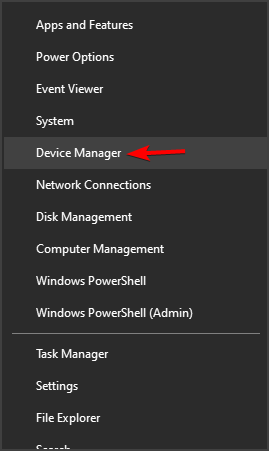
Malwarebytes now features better memory usage and enhanced stability

After the release of Malwarebytes 3.0 and the merging of the company’s products into a single app, the company has dealt with various issues such as stability problems, high memory usage, and functionality issues. The Malwarebytes 3.2 beta was recently released and promises a few improvements such as better memory usage, but in the end it just wasn’t enough.

Malwarebytes 3.2 improvements

With this beta version, memory usage has been improved. For instance, MBAMSrvice.exe drops below the 200,000 K mark on 64-bit versions of Windows. Still, Malwarebytes remains a large program since it runs three operations on Windows devices.

The software’s developers have managed to fix a few stability issues in this new version as well, including hangups and crashes related to the service, tray app, and the UI.

Automatically receive the beta versions of the app

Malwarebytes added the option to download and install the beta versions automatically. Until now, interested users had to download and install these updates manually.

While it’s not always the greatest idea to install beta software on production systems, if you’re really interested in the cutting edge and if you don’t mind running into a bug or two every once in a while, this is a good option. It is also useful to test the new versions of security software early before deploying them on the production systems.

The new option can be found under Settings – Application – Beta Application Updates. Click on the Install application updates button in the UI and the download will begin. You will then be able to install all the new components.

⇒ Get Malwarebytes

Microsoft planning to shut down Windows Live Mail 2012; is there an alternative?

There are a couple of clues that point to Microsoft discontinuing its older email service, Windows Live Mail 2012. Although the company hasn’t confirmed this claim, it announced that Windows Live Mail 2012 won’t support Outlook.com accounts in the future, which is basically the same thing as killing the program.

In a recent blog post, Microsoft stated that users of Outlook.com email accounts currently using Windows Live Mail 2012 will have to find another, newer solution, like Outlook Express or Windows 10’s Mail app.

“You will not be able to send or receive Outlook.com email from Windows Live Mail 2012 after your account is upgraded. This means the time has come for you to upgrade to a new email application.”

Apparently, Windows Live Mail 2012 doesn’t support the Office 365 infrastructure, meaning that users won’t be able to send and receive their emails with it anymore. Microsoft hasn’t precisely said when WLM 2012 would be discontinued, but Outlook.com accounts will be upgraded to new Office 365 infrastructure on June 30, so users should switch to another service before that date.

What about Windows 7 users?

Microsoft presented migration from WLM 2012 as a normal technology step. New technologies are developed and we move on to them, leaving old ones behind — it’s a natural circle. But what about Windows 7 users?

When Windows Live Mail 2012 stops supporting Outlook.com accounts completely, Windows 7 users will be left without any mailing software at all. So they will have three options: either using the web-based Outlook.com, using a third party email software or upgrading to Windows 10.

Many people see this Microsoft’s move as an effort to force users to make the third choice. As we already discussed earlier, when Microsoft presented the ‘Service Pack 2’ for Windows 7, everything the company does with this system will be categorized as an effort to force people to upgrade to Windows 10.

And although it might sound like a conspiracy theory, this theory might make perfect sense. As you can notice, Microsoft is pushing the upgrade mostly through Windows Update, but also discontinuing programs compatible with Windows 7 (in this case Windows Live Mail 2012), more or less disguising efforts to force people to upgrade.

Speaking about email clients, you can also consult our list of best Windows mail alternatives or download Mailbird, one of the best mail clients on the market at this moment.

⇒ Get Mailbird

Tell us what do you think about all of this? Will you upgrade to Windows 10 once Microsoft shuts down Windows Live Mail 2012? Are all these actions actually Microsoft’s attempts to push people to upgrade? Speak your mind in the comments below!

Super Bomberman R Online launches next week on PC, PS4, and Switch, Xbox gamers will have to wait

Super Bomberman R Online, the free-to-play action-maze game that launched exclusively on Google Stadia last year is finally coming to more platforms next week. Indeed, the game will reach a much bigger player base when it launches on Steam, PlayStation 4, and Nintendo Switch next week, but the Xbox version of the game still has no release date.

Super Bomberman R Online is a new battle royale version of the original Super Bomberman R game that launched a couple of years ago (including on Xbox consoles), and it will allow up to 64 players across all platforms to blast it out together. The upcoming cross-play support should hopefully address the matchmaking issues that Stadia players have been encountering since launch.

It’s a bit disappointing for Xbox gamers to not get Super Bomberman R Online on May 27, but it is what it is. Xbox gamers are also still missing fun multiplayer games such as Among Us and Fall Guys, though both of them have been announced for Xbox with no release date.

Super Bomberman R Online will adopt the same Season and Battle Pass systems that many free-to-play games have adopted to keep players engaged over time, with an optional Gold Pass offering exclusive rewards. You can check out Super Bomberman R Online on Google Stadia today, where it remains one of the rare free-to-play games alongside Bungie’s Destiny 2.

How to remove BitCoinMiner malware from PC

BitcoinMiner is a malicious software that forces computers to run complex tasks, draining CPU resources. As its name suggests, it has a very specific purpose: to generate bitcoins for its creators.

BitcoinMiner slows down your PC causing various performance issues. However, most of the time, it’s very hard to notice that the malware is even there. Its creators programmed it to activate when you’re not using your computer.

BitcoinMiner usually enters your computer through infected files. Good old pieces of advice, such as the one telling you to avoid downloading suspect files, could make a difference between getting your PC infected with BitcoinMiner or not.

The good news is that you can quickly remove BitcoinMiner using standard anti-malware software.

Remove BitcoinMiner malware with these tools

Remove BitcoinMiner with Bitdefender

If your antivirus failed to detect and block BitcoinMiner, maybe you should install a new one. Bitdefender Antivirus Plus removes all malware installed on your computer and prevents future malware attacks as well.

This solution identifies malware installed on your PC, and removes it in the blink of an eye.

Bitdefender has had the best malware detection rate in the cybersecurity industry for the past 5 years. Artificial Intelligence-backed algorithms and other revolutionary technologies will instantly detect and remove BitcoinMiner, and block future threats.

Bitdefender ensures instant reaction to malware, without affecting your PC’s performance.

Bitdefender

Bitdefender

Remove BitcoinMiner malware in just a few seconds!
Check priceVisit website

Remove BitcoinMiner with EMISOFT Anti-Malware

Emisoft’s Anti-Malware is a powerful malware removal tool that will clean all BitcoinMiner’s traces from your computer. The software features a unique dual malware scanner that will instantly detect BitcoinMiner.

The scanner actually features two major antivirus and anti-malware technologies, allowing it to scan quicker and more efficiently. There is very little impact on memory as any unnecessary duplicates in detection are avoided.

The cleaning and restoration module will then take over and will completely remove BitcoinMiner.

Emisoft’s tool also detects behavioral patterns of ransomware attacks and blocks them before they encrypt your files. The tool also removes annoying PUPs, adware, and other similar unwanted software.

EMISOFT Anti-Malware

EMISOFT Anti-Malware

Clean all BitcoinMiner’s traces from your computer!
Check priceVisit website

Remove BitcoinMiner with Malwarebytes 3

best malwarebytes deals

Malwarebytes is a handy tool that removes annoying malware that sneaked into your computer. The tool has a really light footprint, doesn’t require much space to install, and is very silent, running in the background.

Malwarebytes is a complex tool, that does more than just removing malware installed on your device. Thanks to its four-module architecture, the tool blocks malware, ransomware, as well as various exploits and website-targeted threats.

If you’re looking only for an malware remover tool, you should stick to the free version of Malwarebytes 3. This version doesn’t come with a price tag, but is quite limited. It only disinfects your computer after an attack.

After the scan and removal of BitcoinMiner, a reboot is required. Malwarebytes will prompt you to do this.

To benefit from the full range and features, we recommend the full real-time protection of Malwarebytes Premium. This tool will help you prevent malware infections in the first place.

Malwarebytes

Malwarebytes

Detects and removes malware and other advanced threats from BitcoinMiner.
Check priceVisit website

Remove BitcoinMiner with Microsoft’s Malicious Software Removal Tool

The Redmond giant offers Windows users a dedicated Malicious Software Removal Tool (MSRT) to keep computers free from malware. Microsoft’s malware removal tool detects and removes malware, including BitcoinMiner, reversing the changes made by untrustworthy software.

After the tool has scanned your computer and removed threats, it displays a report that lists the threats.

Microsoft rolls out the MSRT on a monthly basis through Windows Update. You can also download the standalone tool from Microsoft’s website.

There you go, we hope that the antimalware software listed above helped you get rid of BitcoinMiner. If you’ve got other tips on how to remove this malware, use the comments below to let us know.

5 Best Mobile Credit Card Readers For Businesses

Investing in a robust credit card reader for your business is a smart decision since it gives your customers more payment options. We live in such a time where everything is becoming automated and it would frustrate your customers if you are still living in the old cash and carry era. Thanks to technology that we now have a plethora of mobile credit card readers that allow you to collect payment even on the go.
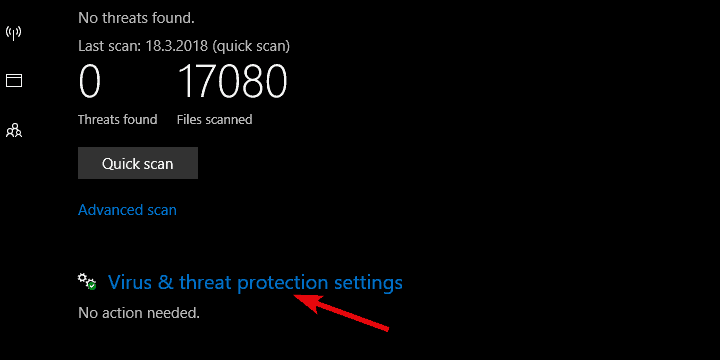
Mobile credit card readers offer payment processing with straightforward fees, point of sale (POS) systems, inventory management tools and so much more. Now your mobile phone can handle all the payment processing, making it easier and convenient for your customers to pay for goods and services.

Most of the service providers discussed below offer free basic card readers and have companion apps that make payment processing even easier. In this guide, we break down for you the 5 best payment processors or mobile credit card readers that are good for your business.

Related: Microsoft introduces new payment options with Windows 10 creators update

5 best mobile credit card readers for your business

Square

Mobile credit card readers

Square is one of the big names in the mobile credit card processing. As one of the oldest mobile credit card payment options, Square focuses on a straightforward pricing. It doesn’t require a contract either. Its users benefit from a flat-rate processing cost with no monthly, annual or hidden fees. The processing cost is 2.75% of all swiped cards. Better even, Square does not distinguish between card types, so credit, debit, and all other card types are all charged the same rate.

The company’s respective app, Square Register is compatible with both Android and iOS operating systems. When you sign up for Square, the company ships you a free mobile magnetic stripe credit card reader. The free Square card reader works with the free Square point of sale app to allow you process payments on your smartphone or tablet. What’s more, it allows you to send receipts via email or text message as well as connect a receipt printer to a tablet. Square also has an EMV compliant mobile credit card reader that can accept contactless payments such as Apple pay, that use NFC technology.

Get Square

QuickBooks GoPayment

Created by Intuit, the company that develops QuickBooks, GoPayment is the QuickBook’s arm that handles all the mobile credit card processing. Though it integrates well with QuickBooks, you don’t need to have QuickBooks to process via QuickBook’s GoPayment. The GoPayment app comes with a clean interface that is easy to use on mobile phones and tablets. Everything you enter into the app goes into your QuickBooks account, whether its sales, receipts or inventory management.

QuickBooks GoPayment offers two different plans: a pay as you go plan and a monthly plan. The pay as you go plan charges a flat rate of 2.4% plus a $0.25 fee for each transaction while the monthly plan has lower rates but includes a monthly fee. Though the QuickBook’s GoPayment charges less than most of the other mobile credit card readers, it does have a PCI-compliance fee that varies depending on the number of transactions you make.

⇒ Get QuickBooks GoPayment

PayAnywhere

This is one of the cheapest options available for mobile credit card processing. PayAnywhere mobile allows you to accept credit cards, MasterCard, Visa, PayPal cards, and Discover all at the same low rate. You get a free credit card reader that lets you transform your Android or Apple smartphone or tablet into a mobile credit card reader. The mobile payment processing app is not only easy to use but robust in every way.

The app is highly customizable, allowing you to add unlimited users to your merchant services and account. Moreover, the detailed in-app and online reporting lets you know what, where, and when your customers are transacting. The processing cost is pegged at 2.69% per swipe and the charge is flat for all cards including American Express. There are no setup, monthly, or hidden fees.

⇒ Get mobile Pay Anywhere

PayPal Here

PayPal Here is the mobile processing arm of PayPal. It makes it possible for you to accept credit card payments on your PayPal business account. PayPal Here accepts all types of credit and debit cards while allowing you to send invoices for later payments. It offers two types of readers; the mobile card reader and the chip card reader. The mobile card reader accepts both debit and credit magnetic stripe cards and is available on Android, iOS, and Windows devices.

Both readers are powered by the PayPal Here app.  This processor is easy to use and it plugs into your tablet or smartphone’s audio jack. When you open an account with PayPal Here, you get a free swiper. PayPal Here charges a flat fee of 2.7% on all transactions regardless of the card used. This is a good option for small businesses since it doesn’t have monthly fees or monthly minimum set by the service provider. However, PayPal here takes longer to receive your funds than other mobile credit card processors. It might also take up to 3 days for PayPal to approve your account once setup is complete.

⇒ Get PayPal Here

  • READ ALSO: PayPal issues critical patch to prevent hackers from stealing OAuth tokens

EMS+

EMS+ is the mobile processing arm of Electronic Merchant Systems, a global leader in merchants processing and transactions services for over 25 years. The company offers simple, secure, and cost-effective credit card processing services. When you sign up, you get a free mobile magstripe swiper, but you have to purchase any additional swiper for $10. At a flat swipe rate of $2.25 per transactions with no monthly or hidden fees, the EMS+ rates are among the lowest in the market. This rate applies to all card types, whether they are debit or credit cards, basic or rewards credit cards.

Setup up is easy and straightforward. All you have to do is download the free EMS+ app, plug the credit card reader into the headphones jack of your smartphone or tablet and begin accepting credit cards immediately. EMS+ provides real-time processing from anywhere. Once the customer acknowledges an automated receipt, money is automatically deposited into your checking account.

⇒ Get EMS+

Conclusion

If you run a small business, you don’t have to rely on the clunky old cash registers anymore to get money from customers. You can use any of these mobile credit card readers to get money from your customers instantly and at the comfort of your office seat. Most of these mobile credit card readers have to be plugged into the audio jack of your tablet or smartphone. However, advancement in mobile technology has left no leaf unturned and we now have advanced mobile processing apps like Cartwheel Register that don’t require the use of a card reader.

Instead, the Cartwheel Register and the rest of its kind uses your smartphone’s camera to capture data. Since these transactions are treated as online transactions rather than card-present transactions, you don’t have to worry about complying with the EMV regulations and so on. All in all, use of credit card readers is an efficient way to collect payments and increase your business productivity.

Windows Defender blocks all threats in real-world AV-Comparatives tests

Many Windows 10 users choose to rely on Windows Defender for malware and virus protection. According to the latest real-world AV-Comparatives tests, they actually made a good choice.

AV-Comparatives recently published their February 2018 Real-World Protection Test results revealing that Windows Defender blocked absolutely all the threats used in the tests.

Windows Defender did great at URL malware detection

The tests evaluated the behavior of 18 antivirus software when accessing thousands of malicious URLs, malware hosted on servers and IP addresses, and more.

Interestingly enough, Windows Defender was able to block every single threat that researchers threw at it. Indeed, Microsoft’s cloud-based protection feature is an insanely amazing feature.

However, as AV-Comparatives explains, keep in mind that while Windows 10’s built-in antivirus managed to block all the cyber threats encountered during tests, this doesn’t mean that it will necessarily have the same success rate on the web.

The results simply confirmed that Windows Defender successfully blocked all the malware samples used in the tests, not all the threats lurking on the Internet.

Apart from Windows Defender, three other antivirus software solutions managed to get a clean score:

Keep your antivirus up-to-date

windows defender blocks all malware

Irrespective of the antivirus tool that you choose to use, keep in mind that it’s essential to install the latest definition updates as soon as they’re available.

Deferring security updates means exposing your machine to threats, and there are plenty of malicious codes our there waiting to infect your computer.