Is Minecraft Servers Down Right Now? Here’s What You Can Do

After a server outage hit Epic Games Store, Fortnite, Rocket League, Fall Guys, and the Developer Portal yesterday. Now, Minecraft servers are down. That’s according to multiple players on X (formerly Twitter) and Downdetector. Clearly, gamers around the globe are frustrated right now.

NOTE: There’s no update from Mojang at the time of publishing this article.

From what it looks like, the volume of user reports surged around 8:18 AM Eastern Time. We have also come across some posts on X confirming issues with Minecraft. Check out some of the tweets:

We understand that you’re not able to connect to Minecraft right now. From the looks of it, the issue is related to authentication servers. We’d like you to keep checking these accounts on X: @MojangStatus, @Mojang, and @MojangSupport.

Even if the servers come back online for most players, your device or account may still run into cached errors or network issues. To fix those, make sure to try the following:

  • Restart your game and router to clear temporary network glitches.
  • If you use a VPN, disable it for a moment, as some servers reject VPN traffic during outages.
  • You should also sign out of your Microsoft account and sign back in. This often resolves authentication-related errors when login queues spike.
  • On PC, make sure the Xbox Services are running in the background. Open the Xbox app, run the network check, and let it repair any service issues.

If you play on console, verify that Xbox Live, PlayStation Network, or Nintendo Online services are operational, since outages on those platforms can prevent Minecraft from connecting even when Mojang’s servers are fine. Meanwhile, you can also check our guide to fix the Minecraft launcher throwing no internet connection error.

While you’re waiting, avoid repeated login attempts, as they can extend queue times. From the looks of it, the Minecraft servers looked to be down globally, so the only real option is to sit tight until Mojang restores normal service. Keep tracking!

Are you also facing issues with Minecraft servers? Please comment below.

How to Get BIOS Key on Any Windows PC (Simple Methods)

You can get BIOS key by checking manufacturer documentation, startup splash messages, system info tools, or motherboard manuals. These methods help you identify the correct key for any Windows PC.

How to get BIOS key on any Windows PC?

Check the startup splash message

Most PCs display the BIOS key during the first seconds after you reboot. Watch for a short line like Press F2 for Setup or Press Delete to enter BIOS, because this text reveals the exact key.

  1. Restart your computer.
  2. Focus on the lower area of the screen during boot.
  3. Write down the BIOS key shown by your device.

If you want an additional walkthrough that covers BIOS access basics, you can read this guide on how to access BIOS on a Windows PC.

Check your manufacturer’s support page

Manufacturers publish BIOS key shortcuts in their online model documentation. You only need your model number to find the correct shortcut.

  1. Visit your PC manufacturer’s support page.
  2. Enter your desktop or laptop model in the search field.
  3. Open the user manual or startup guide and look for BIOS or setup key details.

This method gives you the most accurate key because it matches your exact model.

Look up common BIOS keys by brand

Brands use predictable shortcuts, so you can find the BIOS key quickly by matching it to your device brand. This works well when you cannot find the manual.

  1. Identify your brand from the logo or system info.
  2. Check the usual BIOS key for the brand:
  • Dell: F2
  • HP: Esc or F10
  • Acer: F2
  • ASUS: F2 or Delete
  • Lenovo: F1 or F2
  • MSI: Delete

Use the matching key on the next boot and confirm that it works for your specific model.

Check your motherboard manual

Custom built PCs rely on motherboard BIOS shortcuts, not generic PC brand defaults. Every motherboard manual lists the required key for firmware access.

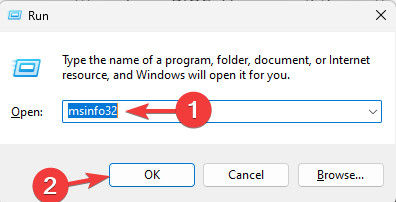
  1. Press Windows key + R, type msinfo32, then press Enter.
    msinfo32 Run command - Check if Windows 11 is UEFI or Legacy
  2. Note your BaseBoard Manufacturer and BaseBoard Product.
  3. Search online for your motherboard model manual.
  4. Open the BIOS or firmware section and note the listed BIOS key.

If you want to verify BIOS data inside Windows, you can follow this guide on how to check BIOS version in Windows.

Use Windows System Information

Windows shows the BIOS vendor and motherboard details, and this information helps you determine the correct key for your system. Vendor names often share the same default shortcuts across many models.

  1. Press Windows key + R.
  2. Type msinfo32 and press Enter.
  3. Check the fields for BIOS Version, BIOS Vendor, and BaseBoard Manufacturer.
  4. Search online for the common BIOS key associated with that vendor.

If you plan to tweak firmware options after you find the key, you can review this guide on how to change BIOS settings safely in Windows.

FAQ

What is the BIOS key?

The BIOS key is the specific keyboard shortcut your PC uses to open the BIOS or UEFI firmware menu during startup.

Where can I see the BIOS key on my screen?

You usually see the BIOS key on the first boot screen, in a small message such as “Press F2 for Setup” or “Press Delete to enter Setup” near the bottom.

Can different models from the same brand use different BIOS keys?

Yes, different series and generations can use different BIOS keys, so you should always confirm the shortcut using the model manual or support page.

What should I do if none of the common BIOS keys work?

You should check the motherboard or PC manual, search the model support page, and review System Information in Windows to identify the exact firmware vendor and matching key.

You can get BIOS key quickly by watching the startup splash screen, checking the manufacturer support page, looking up common shortcuts by brand, reviewing your motherboard manual, and using Windows System Information. These methods give you clear answers that match your hardware, so you avoid guesswork when you need to open firmware settings.

After you identify the correct key, you can handle tasks such as changing boot order, enabling virtualization, or updating firmware with much more confidence.

Verizon’s Black Friday Deal Lets You Grab a Free Samsung TV, Monitor, Marshall Speaker & More

If you haven’t thought of getting home internet plans from Verizon yet, this Black Friday Deal from the company might want you to do that. In a surprising deal, Verizon is offering a free Samsung Galaxy Tab S10 FFE, a 43-inch Samsung QLED TV, and more to new customers who sign up for select Verizon Fios, 5G Home Ultimate, or LTE Home Plus plans.

Disclaimer: Prices and availability of the offer can change by the time you read this. The following offers are valid until 1 December 2025. Eligible customers can redeem 14 days after service installation and must redeem within 60 days.

Here’s how you can claim a free gift by buying Verizon’s home internet plans this Black Friday

Well, there are plenty of offers to choose from. In addition to the products we mentioned above, you will also be eligible to get a free 32-inch Samsung Monitor, StreamTV Soundbar, $200 Target Gift Card, and Marshall Kilburn III, without paying a dime.

To remind you, Verizon Fio plans start as low as $20 per month, depending on availability across different regions, and come with a 3-year price guarantee for new and existing myHome customers. You can check more about the plan here.

Tech-savvy bargain hunters have another reason to consider Verizon for home internet this holiday season.

Other Black Friday Deals that you shouldn’t miss

HD Tune Software: How to Test and Check Your Hard Drive

HD Tune software helps you inspect the health and performance of your hard drive or SSD. It offers quick benchmarks, surface scans, and SMART diagnostics that help you understand the real condition of your storage. This guide shows you how to install it, test your drive, and interpret the results.

How to install HD Tune?

1. Download the installer

You need to download the tool from the developer’s site.

  1. Visit the HD Tune download page.
  2. Choose Standard or Pro.
  3. Save the installer file.

2. Install the app

Setup completes quickly.

  1. Open the installer.
  2. Agree to the terms.
  3. Finish the installation.

How to run a health check

1. Open the Health tab

This displays the drive’s SMART attributes.

  1. Launch HD Tune.
  2. Pick your drive from the menu.
  3. Select the Health tab.

2. Read the SMART values

Look for attributes that indicate risk.

  1. Check for caution or bad status on key metrics.
  2. Watch for reallocated or pending sectors.
  3. Compare values with normal ranges shown in the app.

How to scan for drive errors

A surface scan checks the drive for bad sectors that may cause failures. If Windows recently reported a disk issue, you can review the our guide on Windows 11 disk error messages for additional context.

1. Start a full surface scan

A full scan checks every block.

  1. Go to the Error Scan tab.
  2. Turn off Quick Scan for deeper results.
  3. Click Start.

2. Review the results

Red blocks signal sector problems.

  1. Wait for the scan to finish.
  2. Look at the grid for red squares.
  3. Replace the drive if many blocks fail.

How to run a benchmark test

Benchmark tests measure drive speed and performance across the disk. For more detailed comparison tools, you can check the list of hard drive benchmark software.

1. Choose the Benchmark tab

The app runs read and access speed tests.

  1. Select Benchmark.
  2. Keep the default settings.
  3. Click Start.

2. Interpret the graph

You can spot performance dips easily.

  1. Note the minimum and maximum speeds.
  2. Check the average transfer rate.
  3. Watch for unexpected drops on the graph.

What is HD Tune software

HD Tune software checks the status of your HDD or SSD using health reports, error scans, and speed benchmarks. It offers easy access to SMART data that highlights issues early. You can use it alongside drive speed tests, as explained in the tutorial on how to test hard drive speed.

FAQs

Is HD Tune safe to use on SSDs?

Yes, HD Tune works with SSDs and reads their SMART attributes, though some SSD-specific wear indicators may appear differently than on HDDs.

How long does an HD Tune error scan take?

A full surface scan can take several minutes to over an hour depending on drive size and speed, especially if the drive has bad sectors.

What should I do if HD Tune shows red blocks?

Red blocks indicate bad sectors, so you should back up your data immediately and consider replacing the drive to prevent data loss.

What does HD Tune software check?

It checks SMART data, drive temperature, transfer speeds, and surface errors to help you understand the overall health of your HDD or SSD.

HD Tune software gives you a simple way to check your drive’s health, scan for bad sectors, and measure performance. You can use its SMART readings to detect early problems, rely on surface scans to find failing blocks, and run benchmarks that highlight slow sections of the disk. When combined with the internal guides linked above, the tool provides a complete workflow for understanding the condition of your HDD or SSD and deciding when it is time to replace it.

How To Enable Dolby Atmos On Windows 11 For Immersive Audio

Dolby Atmos on Windows 11 gives you richer, more immersive spatial audio for games and movies. This guide shows you how to enable Dolby Atmos with simple steps that anyone can follow.

How To Enable Dolby Atmos On Windows 11?

1. Check What You Need

Make sure you meet the basic requirements before you switch Dolby Atmos on.

  1. Use modern headphones or an HDMI sound system that supports surround sound.
  2. Run Windows 11 with the latest updates installed and a stable audio driver.

For a full walkthrough of the setup process, follow the step by step guide to install Dolby Atmos on Windows 11.

2. Enable Dolby Atmos In System Settings

Turn on Dolby Atmos from the Windows 11 sound menu using these steps.

  1. Click Start and open Settings.
  2. Select System and choose Sound.
  3. Click your main Output device.
  4. Scroll to Spatial audio.
  5. Select Dolby Atmos from the dropdown.
  6. Approve the confirmation message to apply the change.

If Dolby Atmos does not turn on or keeps dropping, learn how to fix Windows 11 Dolby Atmos not working issues.

3. Enable Dolby Atmos For Headphones

Use the Dolby Access app to unlock Dolby Atmos processing for your headphones.

  1. Open the Microsoft Store.
  2. Search for Dolby Access and install the app.
  3. Launch Dolby Access from the Start menu.
  4. Connect your wired or wireless headphones to the PC.
  5. Open the Products section and choose Dolby Atmos for Headphones.
  6. Follow the on screen setup steps until the app finishes configuration.
  7. Turn on Dolby Atmos when the app prompts you.

If spatial sound still fails for your headset, check the fixes in the guide for Dolby Atmos spatial sound not working problems.

4. Enable Dolby Atmos For Home Theater

Route audio through your HDMI soundbar or receiver and select the Dolby Atmos mode.

  1. Connect your soundbar or AV receiver to the PC with an HDMI cable.
  2. Open Settings and go to System.
  3. Select Sound and click your HDMI output.
  4. Find the Spatial audio section.
  5. Choose Dolby Atmos for home theater from the dropdown.
  6. Confirm the change and then restart your media app or game.

Why These Steps Work

Windows 11 switches to the Dolby spatial audio format when you choose a Dolby Atmos profile in sound settings. The Dolby Access app installs the required audio extension, so supported games and movies can send height based surround sound to your headphones or home theater gear.

FAQs

Why is Dolby Atmos not showing on my PC?

Update Windows 11, reinstall Dolby Access, and select the correct audio output device in sound settings. If the device does not support spatial audio, it will not show the Dolby Atmos option.

Is Dolby Atmos free on Windows 11?

You can use Dolby Atmos for home theater for free with a compatible HDMI receiver or soundbar. Dolby Atmos for Headphones requires a one time license purchase inside the Dolby Access app.

Do all apps support Dolby Atmos?

Only games and video apps that include Dolby Atmos mixes output full spatial audio. Other apps still work, but they use standard surround or stereo sound instead of height based effects.

Does Dolby Atmos work over Bluetooth?

Most Bluetooth headphones do not fully support Dolby Atmos because of codec and bandwidth limits. You get the best results with wired headphones or dedicated wireless gaming headsets that support spatial audio.

Windows 11 makes it easy to enable Dolby Atmos once you install Dolby Access and pick the right spatial audio mode in sound settings. After you set up headphones or a home theater device, restart your games and streaming apps so they use the new profile and deliver a more immersive, theater style audio experience on your PC.

FXNOW Activate Guide: Connect Your TV And Start Streaming

FXNOW lets you link your TV provider so you can stream FX shows on any supported device. This guide explains how to activate FXNOW on smart TVs, streaming devices, consoles, and mobile devices.

How To Activate FXNOW On Smart TVs?

1. Open The FXNOW App

Start the FXNOW app to reach the sign in and activation screen.

  1. Launch FXNOW from your TV’s app list.
  2. Navigate to Sign In.
  3. Note the activation code on your screen.

If FXNOW fails to load while using a VPN, you can fix the issue by checking this guide on FXNOW not working with VPN.

2. Enter Your Activation Code

Submit your activation code online to continue with the setup.

  1. Open a browser on your phone or laptop.
  2. Visit fxnetworks.com/activate.
  3. Enter your activation code.

3. Sign In With Your TV Provider

Your provider login confirms your subscription and unlocks FXNOW content.

  1. Select your TV provider on the activation website.
  2. Enter your username and password.
  3. Approve the connection request if prompted.

4. Refresh Your TV App

Refreshing the app completes activation.

  1. Return to your TV.
  2. Close FXNOW.
  3. Reopen the app so your account loads correctly.

How To Activate FXNOW On Streaming Devices

Supported platforms include Roku, Fire TV, Apple TV, and Chromecast.

Roku

Follow these steps to connect FXNOW to your Roku device.

  1. Open FXNOW from your Roku channel list.
  2. Select Sign In to display the activation code.
  3. Visit fxnetworks.com/activate.
  4. Enter the code and sign in with your provider.

If your Apple TV experiences buffering while watching FXNOW, this guide on Apple TV keeps buffering may help.

Fire TV

Fire TV uses the same activation process as Roku.

  1. Install FXNOW from the Amazon Appstore.
  2. Open the app and select Sign In.
  3. Enter your code online.
  4. Log in with your TV provider.

Apple TV

You can activate FXNOW easily through the Apple TV interface.

  1. Install FXNOW from the App Store.
  2. Launch the app and open Sign In.
  3. Submit the code on the activation page.
  4. Sign in with your TV provider.

How To Activate FXNOW On Gaming Consoles

PlayStation

PlayStation supports FXNOW through the PlayStation Store.

  1. Install FXNOW from the PlayStation Store.
  2. Launch the app and open Sign In.
  3. Go to fxnetworks.com/activate and enter your code.
  4. Log in with your provider.

Xbox

The Xbox activation flow is similar to PlayStation.

  1. Install FXNOW from the Microsoft Store.
  2. Open the app and select Sign In.
  3. Enter your code online.
  4. Sign in with your TV provider.

How To Activate FXNOW On Mobile Devices

Mobile users only need to sign in because codes do not appear on phones or tablets.

iOS And Android

Sign in to unlock full access to FXNOW streaming.

  1. Install FXNOW from the App Store or Google Play.
  2. Open the app.
  3. Tap Sign In.
  4. Pick your TV provider.
  5. Enter your login credentials.

How To Fix FXNOW Activation Problems

1. Refresh The Activation Code

Generate a fresh activation code when the previous one expires.

  1. Close FXNOW.
  2. Reopen it.
  3. Copy the new code.

2. Restart Your Device

Restarting helps clear temporary loading issues.

  1. Turn off your device.
  2. Turn it back on.
  3. Retry activation.

3. Check Your TV Provider Login

Incorrect credentials often cause activation failures.

  1. Visit your TV provider’s website.
  2. Test your login.
  3. Use the verified credentials for FXNOW.

4. Turn Off Your VPN

A VPN may block content or interrupt the activation process.

  1. Disable your VPN or proxy service.
  2. Reopen FXNOW.
  3. Try activation again.

5. Clear App Cache

Clearing the cache can fix blank screens or loading errors.

  1. Open your device settings.
  2. Clear the FXNOW cache.
  3. Restart the app.

If other streaming platforms stop loading, this ESPN not working troubleshooting guide may help.

FAQs

How do I activate FXNOW without a cable provider?

You cannot activate FXNOW without a supported TV provider.

Why does FXNOW show an expired activation code?

Codes expire after a short time. Refresh the app to generate a new one.

Can I use FXNOW outside the United States?

FXNOW restricts content to US viewers.

Why is FXNOW not loading on my device?

Network issues, VPN interference, or outdated app versions can cause the app to fail.

You can activate FXNOW on smart TVs, streaming boxes, consoles, and mobile devices by opening the app, collecting your activation code, and signing in with your provider online. The included links provide solutions for common streaming issues involving FXNOW, Apple TV, and ESPN so you can complete activation without interruptions.

You can also follow this MTV activation guide to set up MTV on your smart TV or streaming device using a similar code based process. You can also compare the activation steps to other smart TV sign in methods, such as linking your YouTube account with the help of this TV YouTube verify guide

You can compare FXNOW activation to other streaming services that use code based sign in systems, and you can also follow this guide to activate AMC on your device using a similar process.

Security Keys May Prompt for PIN Following KB5065789 Update, Microsoft Confirms

Microsoft has updated the way FIDO2 security keys work on Windows 11 following the September 29, 2025, preview update (KB5065789) and subsequent updates. You may now be prompted to create a PIN when signing in with a security key. This is applicable even if no PIN was required or previously set.

Microsoft says that this can happen when a Relying Party (RP) or Identity Provider (IDP) requests User Verification = Preferred during authentication. Putting it simply, Windows will now prompt for a PIN if the security key doesn’t already have one, ensuring compliance with WebAuthn specifications.

The company has confirmed that the rollout has kicked off with the September preview update and was completed after the November 11, 2025, security update (KB5068861). The updates standardize the process, letting you set a PIN during authentication if one was not created during registration.

Not to forget, Microsoft has also shed some light on User Verification (UV), which confirms that the person using the security key is authorized. Do note that verification can be set to Discouraged, Preferred, or Required. Microsoft notes:

User Verification = Preferred means the RP wants user verification if the authenticator is capable of doing so. That means that if a PIN needs to be setup, the platform should do so.

User Verification = Discouraged means the RP does not want user verification. If a PIN has not been set up, there is no need to do so (unless required by the authenticator configuration).

Support for PIN setup in the authentication flow was added to be consistent across both registration and authentication flows.

Moreover, organizations that don’t want users to create or enter a PIN should ensure userVerification is set to Discouraged in PublicKeyCredentialRequestOptions.

via: Bleeping Computer

OpenAI API Users’ Names, Emails, & More Exposed in Massive Mixpanel Data Breach

OpenAI has confirmed a new data breach involving Mixpanel, a third-party analytics provider previously used to monitor activity on platform.openai.com, the frontend for its API product. In an update, the company claims that its own systems weren’t compromised, and that the content, API usage, passwords, payment details, and government IDs are safe.

As reported, on November 9, 2025, Mixpanel detected unauthorized access to part of its systems. The attacker exported an analytics dataset containing identifiable information of some OpenAI API users. Mixpanel then apparently notified OpenAI, which launched an investigation.

By November 25, 2025, the affected dataset was confirmed. Only API platform users are said to be impacted by this security breach. In other words, ChatGPT and other OpenAI products were not affected.

The exposed data included:

  • Names associated with OpenAI API accounts
  • Email addresses
  • Approximate location (city, state, country)
  • Operating system and browser used
  • Referring websites
  • Organization or user IDs linked to accounts

OpenAI has since removed Mixpanel from its production environment and reviewed the affected datasets. Users and organizations potentially impacted by the security breach are being directly notified. The company has also ended its engagement with Mixpanel and is conducting security reviews across all vendor partners to strengthen protections.

As a safety guard, you must remain vigilant against phishing and social engineering attempts. OpenAI will never request passwords, API keys, or verification codes via email or chat. More importantly, we recommend enabling multi-factor authentication (MFA). In case you’ve any queries related to the security breach, you can reach OpenAI’s support team at [email protected]⁠.

Quick Steps to Install and Use Alexa on Windows

You can use Alexa on PC to control apps, create reminders, play music, and manage smart home devices using voice commands. This guide shows you how to install the app, set it up, and start using Alexa on Windows.

How to Use Alexa on PC?

Install the Alexa app on Windows

You need the official Alexa app before you can use voice control on your computer.

  1. Open the Microsoft Store.
    search for microsoft store
  2. Search for Alexa.
  3. Click Get to install it.
  4. Open the app when the installation finishes.

For a complete installation walkthrough, you can review this guide on downloading and installing Alexa on PC.

Sign in to your Amazon account

Alexa uses your Amazon account to sync your preferences and skills.

  1. Open the Alexa app.
  2. Click Sign in.
  3. Enter your Amazon login details.
  4. Confirm your account.

Set up wake word and hands free mode

Alexa responds to your voice only after enabling these options.

  1. Open Settings in the Alexa app.
  2. Turn on Wake word.
  3. Enable Hands free mode.
  4. Allow microphone access.

If the Alexa app will not download on Windows 11, you can check this guide for fixing Alexa download issues on Windows 11.

Connect smart home devices

You can add lights, plugs, switches, and other smart devices directly through the app.

  1. Open the Devices tab.
  2. Select Add Device.
  3. Choose your device type.
  4. Follow the on-screen setup steps.

Use Alexa on your PC

Alexa becomes ready for voice commands after the initial setup.

  1. Say Alexa followed by your request.
  2. Ask Alexa to open apps, check the weather, or play music.
  3. Control your smart home devices from the PC.
  4. Manage reminders, lists, and calendar entries.

If the Alexa app fails to download on Windows 10, you can use this guide that explains how to fix Alexa download problems on Windows 10.

Troubleshooting Alexa on PC

These quick checks solve most common issues.

  1. Check your microphone permissions if Alexa does not hear you.
  2. Restart the app if it stops responding.
  3. Reinstall Alexa if it will not open.
  4. Reconnect smart devices if they fail to respond.

FAQs

Can any Windows PC run Alexa?

Yes. Any Windows 10 or Windows 11 device that supports Microsoft Store apps can install Alexa.

Do I need an Echo device for Alexa to work on PC?

No. Alexa works on PC without Echo hardware.

Can Alexa open programs on Windows?

Yes. Alexa can open supported programs such as Calculator, Spotify, or File Explorer.

Does Alexa work offline?

No. Alexa requires an internet connection.

Alexa on PC gives you hands free control of apps, reminders, smart devices, and everyday tasks. After installing the app, signing in, and enabling the wake word, you can manage your computer with simple voice commands.

Microsoft Support And Recovery Assistant CLI Guide For Windows

The Microsoft Support and Recovery Assistant command line tool helps fix issues with Microsoft 365 apps like Outlook, Teams, and OneDrive. This guide shows you how to install SaRA, open it through Command Prompt, run scenarios, and collect logs.

How To Install Microsoft Support And Recovery Assistant On Windows?

Visit the official download page

Follow these steps to install SaRA on Windows.

  1. Visit the official Microsoft SaRA download page.
  2. Download the SaraSetup.exe installer.
  3. Run the installer to begin setup.
  4. Accept the license agreement.
  5. Finish the installation and close the window.

You can also review the full download process in this SaRA download guide.

How To Open The SaRA Command Line Tool

Use these steps to launch the tool from Command Prompt.

  1. Press Windows and type cmd.
  2. Right-click Command Prompt and choose Run as administrator.
    CMD elevated ERROR_VOLUME_MOUNTED
  3. Open the path: C:\Program Files\Microsoft Support and Recovery Assistant\SARAClient\
  4. Run the executable: SaraClient.exe
  5. Use SaraClient.exe /? to view available switches.

If you manage Microsoft 365 credentials often, you can learn how to update your password in the Microsoft 365 password guide.

How To Run A SaRA Scenario From Command Line

Use these steps to launch a specific troubleshooting scan.

  1. Open Command Prompt as administrator.
  2. Navigate to the SaRA installation directory.
  3. Run a scenario such as Outlook repair: SaraClient.exe /S OutlookDesktop
  4. Follow the prompts that appear on the screen.
  5. Review the scan results when the tool finishes.

How To Run SaRA In Quiet Mode

Quiet mode lets you run scenarios without user interaction.

  1. Open Command Prompt with administrator rights.
  2. Go to the SARAClient folder.
  3. Run: SaraClient.exe /S OutlookDesktop /Quiet
  4. Wait for the scan to finish.
  5. Review the generated logs.

How To Locate SaRA Log Files

Use this method to access diagnostic logs for support cases.

  1. Press Windows + R.
  2. Enter %localappdata%\SaRALogs\UploadLogs
  3. Press Enter.
  4. Sort files by date.
  5. Share logs with Microsoft support when requested.

What The SaRA Command Line Tool Does

SaRA identifies and repairs common Microsoft 365 issues, and its command line mode supports automated troubleshooting across Windows devices.

For more account troubleshooting guidance, you can check the Microsoft 365 sign-in repair steps in Microsoft 365 sign in troubleshooter guide.

FAQs

What does the SaRA command line tool fix

It repairs issues with Outlook, Office activation, OneDrive sync, Teams sign in, and other Microsoft 365 services.

Do I need admin rights

Yes, most fixes require elevated permissions.

Can I run scenarios automatically

Yes, Quiet mode lets you automate troubleshooting.

Where are logs stored

Logs appear in the SaRALogs folder inside your LocalAppData directory.

The Microsoft Support and Recovery Assistant command line tool offers a fast way to diagnose and fix Microsoft 365 issues. With command line scenarios and Quiet mode, it works well for both routine troubleshooting and automated enterprise workflows.

How to Restore Missing Favorites in Microsoft Edge

Recover lost favorites in Microsoft Edge using built-in recovery folders, sync tools, and backup files. If your bookmarks disappeared after an update or profile issue, this guide helps you bring them back quickly.

How Do I Recover Lost Favorites In Microsoft Edge?

Check The Deleted Favorites Folder

Edge keeps deleted bookmarks inside a built-in recycle folder.

  1. Open Microsoft Edge.
  2. Select the Favorites icon.
  3. Click More options in the panel.
  4. Choose Manage Favorites.
  5. Open the Deleted folder and restore the items you want.

Reenable Edge Sync

If sync stopped working, your bookmarks may look missing even if they still exist in the cloud.

  1. Click your profile in Edge.
  2. Select the Cog icon.
     
  3. Choose Sync.
  4. Enable Favorites.
  5. Wait a few minutes for your bookmarks to return.

For customization tips afterward, see how to manage your toolbar using this guide on the Edge favorites toolbar.

Restore Favorites From The Local Backup Folder

Edge automatically saves a backup file called Bookmarks.bak.

  1. Press Windows + R to open Run.
  2. Enter %localappdata%\Microsoft\Edge\User Data\Default

  3. Locate Bookmarks.bak.
  4. Rename Bookmarks to Bookmarks.old.
  5. Rename Bookmarks.bak to Bookmarks.
  6. Restart Edge.

Use Previous Versions In Windows

Windows can store older versions of your bookmark files.

  1. Go to: C:\Users<username>\AppData\Local\Microsoft\Edge\User Data\Default.
  2. Right click Bookmarks.
  3. Choose Properties.
  4. Open Previous Versions.
  5. Restore an earlier file version.
  6. Restart Microsoft Edge.

Recover Favorites With A Microsoft Account

If sync was on, you may be able to restore your bookmarks from another device.

  1. Sign in to a PC where your favorites still exist.
  2. Open Edge and enable Sync.
  3. Let the sync finish.
  4. Return to your main device.
  5. Enable Sync to download your cloud favorites.

Import Favorites From Another Browser

If your bookmarks still exist in Chrome or Firefox, import them back into Edge. You can also back them up afterward using this guide on exporting favorites in Microsoft Edge.

  1. Open Edge.
  2. Click Settings.
  3. Select Import browser data.
  4. Choose the browser containing your bookmarks.
  5. Select Favorites or Bookmarks.
  6. Click Import.

Why Favorites Go Missing In Edge

Favorites usually disappear due to sync conflicts, corrupted profile files, or accidental deletion. A sudden reset or update can also hide your bookmarks. If you want to understand where favorites are stored, check this guide on the location of Edge bookmark files for deeper insight.

FAQs

Why did my Edge favorites disappear

Profile corruption or sync interruptions usually hide favorites instead of deleting them.

Can I restore favorites after reinstalling Edge

Yes. Use the Bookmarks.bak backup or reenable cloud sync.

Where are favorites stored

They are stored in the Default profile folder as the Bookmarks file.

Can I recover favorites without a backup

If Edge sync was enabled, cloud recovery usually works.

Recovering your lost favorites in Microsoft Edge usually takes only a few minutes. Whether you use the Deleted folder, a local backup, or cloud sync, your bookmarks often return without data loss. Keep a backup or export file to avoid losing them again.

Can’t Reset Steam Password? Try These Simple Steps

If Steam will not let you reset your password, you can usually fix the issue by checking your email, switching browsers, clearing cache, or using Steam’s account recovery form. This guide lists the fastest ways to regain access.

What Can I Do If Steam Won’t Let Me Reset Password?

1. Verify your account email

Steam cannot deliver reset instructions if your email on file is outdated or typed incorrectly.

  1. Open the Steam login page.
  2. Click Forgot your password.
  3. Select I forgot my Steam Account name or password.
  4. Enter your email and choose Search.
  5. Confirm the email matches your active inbox.

For more help, check this guide on recovering your Steam password.

2. Check email spam and filters

Password reset emails often get filtered or delayed.

  1. Open your email provider.
  2. Check the Spam, Junk, and Promotions folders.
  3. Search for messages from [email protected].
  4. Add the Steam address to trusted senders.
  5. Request a new reset link.

3. Use another browser

Browser extensions or cookies can block the reset page.

  1. Open another browser such as Edge or Firefox.
  2. Visit the Steam password recovery page.
  3. Request a reset link.
  4. Open the link directly from your inbox.
  5. Complete the reset process.

4. Clear Steam download cache

A corrupted Steam client cache can cause login and password issues.

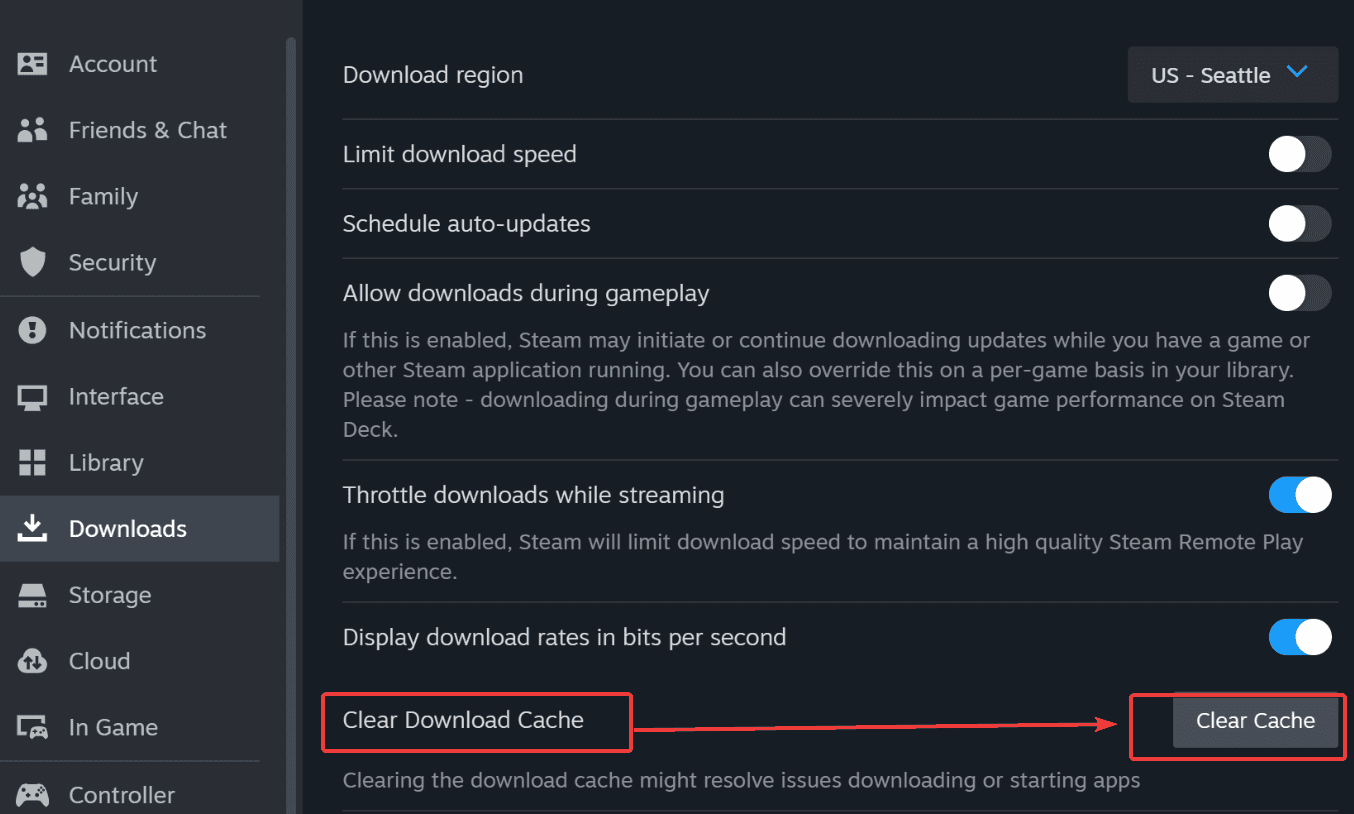
  1. Open the Steam app.
  2. Click Steam in the top left.
  3. Select Settings.
  4. Open Downloads.
  5. Click Clear Download Cache and restart the app.
    steam clear download cache

If Steam still has credential issues, see this guide on Steam not remembering passwords.

5. Disable VPN or proxy

Steam may block password reset attempts if your network route looks unusual.

  1. Disconnect your VPN or proxy.
  2. Restart your browser or Steam client.
  3. Request a new password reset link.
  4. Try completing the reset again.

6. Use the Steam account recovery form

This option works if you cannot receive reset emails or no longer have access to your old inbox.

  1. Open the Steam Support page.
  2. Select I cannot sign in.
  3. Choose I no longer have access to my email.
  4. Submit payment receipts, activation keys, or other proof.
  5. Wait for Steam Support to verify your identity.

7. Update or reinstall Steam

A damaged client can cause login and password recovery failures.

  1. Close Steam completely.
  2. Download the latest installer from steampowered.com.
  3. Run the installer.
  4. Try resetting your password again.
  5. Reinstall Steam if the issue continues.

8. Contact Steam Support

If you still cannot reset your password, your account may be locked or restricted. Steam Support can recover it manually.

  1. Visit help.steampowered.com.
  2. Select Help, I cannot sign in.
  3. Choose the matching issue such as Steam Guard problems.
  4. Submit proof of ownership.
  5. Wait for a support response.

After recovering access, you can check this guide on how to unhide Steam games if needed.

FAQs

Why am I not receiving the password reset email

Filters or outdated account details may block delivery. Check your spam folder and confirm your email.

How long does a Steam reset email take

Most emails arrive within two minutes. Some providers delay messages for up to ten minutes.

Can Steam limit password resets

Yes. Steam may slow reset attempts after many failed logins.

Can I recover my account without email access

Yes. Use the I no longer have access to my email option and provide proof of ownership.

Password reset problems usually come from email issues, browser conflicts, or blocked network routes. After completing the steps above, most users regain access quickly. If problems continue, Steam Support can restore the account through manual verification.

How to Change Sound Volume Windows 11 in 5 Easy Ways

Adjusting audio levels in Windows 11 is easy, and you can control both system output and individual apps. Use the methods below to manage your sound quickly and accurately.

How to change sound volume Windows 11?

Change the main system volume

You can adjust the main system volume directly from the taskbar.

  1. Click the sound icon at the bottom right.
  2. Drag the slider left or right to change the volume.
  3. Play any audio to confirm the new level.

For more detailed sound configuration, learn how to access additional controls using this guide to change sound settings in Windows 11.

Change sound volume through Settings

Windows Settings provides full control over output devices and volume levels.

  1. Press Windows + I to open Settings.
  2. Select System.
  3. Click Sound.
  4. Adjust the Volume slider under Output.
  5. Select the correct output device if you are using multiple audio devices.

Adjust volume for individual apps

Volume Mixer lets you control the audio level of each app separately.

  1. Open Settings.
  2. Select System.
  3. Click Sound.
  4. Scroll to the Advanced section.
  5. Select Volume mixer.
  6. Adjust the sliders next to each app.

If you need more help with app specific audio, follow this tutorial on individual app volume control in Windows 11.

Use the classic Volume Mixer

The classic mixer gives you fast access to per app controls and output options.

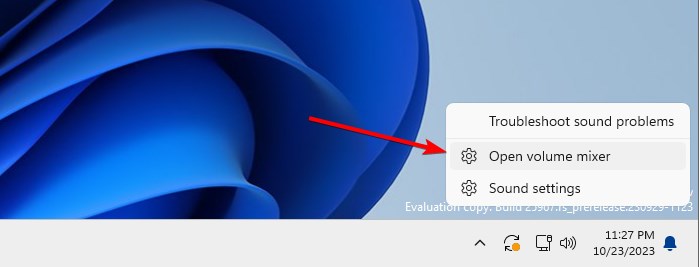
  1. Right click the sound icon.
  2. Select Open volume mixer.
  3. Adjust each app slider as needed.

You can read more in this guide on how to open the sound volume mixer in Windows 11.

Use keyboard shortcuts to adjust volume

Most laptops and many keyboards include dedicated audio keys.

  1. Press the Volume Up key to increase sound.
  2. Press the Volume Down key to decrease sound.
  3. Press the Mute key to silence audio.

FAQ

How do I change the main volume in Windows 11

Click the sound icon on the taskbar and drag the slider to increase or reduce system volume.

How do I adjust volume for individual apps

Open Settings, select System, choose Sound, then open Volume mixer to control each app separately.

Why is my Windows 11 volume so low

Check the correct output device, increase app specific volume, and enable enhancements like Loudness Equalization in sound settings.

Where is the classic Volume Mixer in Windows 11

Right click the taskbar sound icon and select Open volume mixer to access the classic control panel style mixer.

Changing sound volume in Windows 11 is simple whether you use the taskbar slider, Settings, the classic Volume Mixer, or keyboard keys. Each method lets you quickly control system audio and customize your listening experience. For deeper configuration and troubleshooting, explore the dedicated sound guides linked in this article.

Microsoft Edge Renames ‘Efficiency Mode’ to ‘Energy Saver’ and Reorganizes Performance Settings

Microsoft will overhaul the Performance settings in the Edge browser, including the names of two features to reflect their benefits.

The change affects two existing features.

Both features work the same as before. Energy saver lowers resource use during normal browsing. PC gaming boost reduces Edge’s impact when a PC game runs.

Edge’s current Performance settings show Efficiency mode and PC gaming options before the redesign.

Energy saver is not enabled by default. Here is how you can enable it.

Enable Energy Saver (formerly Efficiency mode) in Microsoft Edge

  1. Click Menu and select “Settings”
  2. Open “System and performance”
  3. Select “Performance”
  4. Scroll down to “Power”
  5. Turn on “Energy saver”

Microsoft describes Energy saver in Edge as follows:

“Reduces background tab activity and some foreground activity. Puts background tabs to sleep after 30 minutes or less of inactivity, if Sleeping tabs is on. Savings may depend on your device, applications and browser use.”

Edge displays a pop-up description explaining how Energy saver works inside the new Performance settings. Image Credit: Venkat | WindowsReport.

Microsoft Overhauls Edge Performance Settings

The Edge Performance settings page now appears in four sections instead of a single list.

General: This section covers basic performance tools such as Performance detector and Fade inactive tabs.

Power: This section contains the Energy saver toggle.

The updated Performance section displays new categories and the Energy saver option under Power. Image Credit: Venkat | WindowsReport.

Memory: This section holds the Sleeping tabs settings. It controls when inactive tabs go to sleep to free up RAM.

Gaming: This section is for gamers. It contains the PC gaming boost toggle and the Resource controls slider. The slider lets you manually limit how much RAM Edge uses.

Under the new Gaming category, Edge now lists PC gaming boost along with memory control options.

Microsoft mentioned these changes in a roadmap note. It said the new names appear in the Performance settings “after the update”, which is set for rollout from January 2026.

“Efficiency mode feature name will change to energy saver and efficiency mode for PC gaming name will be renamed PC gaming boost to better describe the feature benefits” notes Microsoft.

How Modern Technology Shapes the iGaming Experience

The iGaming industry has evolved rapidly over the last decade, driven by innovations in software, regulation and player expectations. Operators now compete not only on game libraries and bonuses but on user interface quality, fairness, and mobile-first delivery. A sophisticated approach to product design and customer care is essential for any brand that wants to retain players and expand into new markets.

Partnerships and platform choices influence every stage of the player journey, from deposit to withdrawal. Forward-thinking companies integrate cloud services, APIs and analytics to deliver smooth sessions and responsible play tools. Many leading vendors and enterprise providers offer comprehensive ecosystems that reduce latency, support multi-currency wallets and enable fast scalability, which can be complemented by services from large tech firms like microsoft to manage infrastructure and compliance reporting.

Player Experience and Interface Design

Design matters. A streamlined onboarding process, clear navigation and quick load times increase retention. Modern casinos emphasize accessibility, offering adjustable fonts, color contrast options and straightforward account recovery flows. Mobile UX is especially critical; touch targets, responsive layouts and intuitive controls make sessions enjoyable on smaller screens. A strong visual hierarchy and consistent microinteractions also reinforce trust and encourage exploration of new titles.

Security, Compliance and Fair Play

Trust is the currency of iGaming. Encryption standards, secure payment gateways and transparent RNG certifications reassure players and regulators alike. Operators must implement KYC processes, anti-fraud monitoring and geolocation checks to comply with jurisdictional rules. Audits and certification by independent labs provide credibility, while continuous monitoring of suspicious behavior supports safer ecosystems.

Key Compliance Components

  • Identity verification and age checks
  • Secure payment processing and AML controls
  • Random number generator audits
  • Data protection aligned with regional law

Game Variety and Supplier Strategy

Players expect variety: slots, table games, live dealers, and novelty products like skill-based or social games. A balanced supplier mix helps operators cater to diverse tastes and manage risk. Exclusive content and localised themes drive loyalty in specific markets, while global hits maintain broad appeal. Integration frameworks and content aggregation platforms permit rapid expansion of libraries without sacrificing quality control.

Responsible Gaming and Player Protection

Responsible gaming tools are central to a sustainable business model. Time and stake limits, self-exclusion options and reality checks reduce harm and improve long-term retention. Data analytics spot at-risk behaviors early, allowing tailored interventions that protect both players and brand reputation. Transparent communication about odds and payout rates further strengthens the relationship between operator and player.

Performance Optimization and Analytics

Analytics transform raw telemetry into actionable insights: session length, churn triggers, funnel drop-offs and lifetime value projections. A/B testing frameworks help iterate lobby layouts, bonus structures and onboarding flows. Low-latency streaming for live dealer games and CDN strategies for asset delivery ensure consistent quality across regions. Strategic monitoring of KPIs guides investments in UX, marketing and content procurement.

Essential Metrics to Track

Metric Why It Matters
Conversion Rate Measures onboarding effectiveness and first-deposit success
Retention Rate Indicates long-term engagement and product stickiness
ARPU / LTV Helps assess monetization and marketing ROI
Load Time Impacts bounce rates, particularly on mobile

Tactical Tips for Operators

Small changes can yield big lifts. Implement progressive onboarding, personalise offers based on behavior, and localise content and payment methods for each market. Prioritise server uptime and invest in customer support channels that include live chat and social messaging. Finally, maintain a strict approach to compliance while experimenting with gamification that enhances rather than exploits player engagement.

As technology advances, operators that combine user-centric design, robust security and data-driven decision making will lead the market. The most successful brands treat responsible gaming as a core value and leverage partnerships, platform automation and analytics to create compelling, safe experiences that stand the test of time.

[UPDATE: Operational Now] Arc Raiders Servers Down Right Now as Login Queues Grow

[UPDATE | 26 Nov 11:16 PM EEST ] Some players are starting to get into the game after waiting in long queues. No queues as of now (via PC Gamer)

Arc Raiders players are once again dealing with server downtime today. Reports from Downdetector suggest that players started having trouble at around 08:30 PM EEST, and hours later, things aren’t looking good.

Time shown in this screenshot is IST

Trying to log in right now feels a bit like déjà vu from launch day, long queues, failed attempts, and plenty of frustrated reloads.

It’s likely many players were kicked mid-match and rushed back in at the same time, overwhelming the servers. For now, Embark Studios hasn’t said a word about what’s going on.

And honestly, that silence is starting to feel familiar. Fortunately, though, previous outages were usually short-lived, which gives players some hope that this downtime won’t stretch too long.

Meanwhile, Fortnite players ran into widespread login issues on Wednesday afternoon, with thousands reporting that they couldn’t access the game across PC, PlayStation, Xbox, and Nintendo Switch.

Are you still encountering issues when trying to log in to Arc Raiders? If yes, do let us know in the comments below.

Microsoft Reports 45% Jump in Xbox Cloud Gaming Hours

If you’ve ever wondered whether Xbox’s cloud gaming bet is paying off, Microsoft may have just answered that. In a post from earlier today, Microsoft says Xbox Cloud Gaming hours from Game Pass subscribers have increased by 45% compared to last year. It’s a clear reminder of how quickly players are embracing streaming across devices.

Microsoft notes that console players are the ones driving that jump. As reported, time spent on cloud streaming on Xbox consoles is up 45%, while usage on PCs, handhelds, and mobile devices has increased to 24%. It’s a strong signal that players now expect their games to follow them, not the other way around.

A major part of that growth comes from global expansion. Earlier this month, Xbox Cloud Gaming launched in India, one of the fastest-growing gaming markets with more than 500 million players. With India now added, the service is live in 29 countries. Microsoft says Latin America is showing rapid growth too, with Argentina and Brazil reporting double-digit growth in both playtime and monthly active players.

Players in those regions can now stream directly through the Xbox app on LG Smart TVs and Amazon Fire TV devices. To keep up with demand, Microsoft has also increased local server capacity to reduce wait times. The company says that it wants to make every cloud session “instant and seamless.”

One of the reasons attributed to cloud gaming’s growth is the device flexibility. With cloud gaming, players can stream on consoles, PCs, smartphones, tablets, smart TVs, Fire TV sticks, handhelds, VR headsets like Meta Quest, and soon, even cars. In other words, players aren’t restricted from playing their favorite titles due to hardware limits.

That’s not all, Microsoft has been expanding Xbox Cloud Gaming so much that some Game Pass plans now include cloud access by default, giving players more choice in how they play. Microsoft calls this expansion “just the beginning,” and hints that you are in for “more great experiences and games to come across devices.”

[UPDATE: Operational Now] Fortnite is Down Right Now; Here’s How to Check Server Status & Fix Login Issues

[UPDATE Nov 26, 20:38 UTC] The issue has been resolved.

[ORIGINAL ARTICLE] Fortnite is facing widespread login and matchmaking problems today, leaving thousands of players unable to get into the game. If you’re seeing errors or getting stuck on the login screen, here’s a quick guide to understand what’s happening and what you can do.

What Should You Do While Fortnite Is Down?

Epic Games’ status page is the most reliable place to track real-time updates. While Epic works on a fix, you can try a few basic checks.

You can simply do the following:

  • Restarting the game launcher
  • Checking your home internet connection
  • Avoiding repeated login attempts that may slow access
  • Monitoring the Fortnite Status account on X for updates

Outages of this scale typically resolve within 1–3 hours, depending on the root cause.

When Will Fortnite Servers Be Back Up?

Epic Games has not provided an ETA yet. Engineers are still investigating and rolling out incremental fixes. Based on previous incidents, Fortnite usually restores services in phases. Login access returns first, followed by matchmaking and in-game systems.

Players are advised to wait for official communication and avoid spamming login attempts, which may trigger temporary blocks.

How Long Do Fortnite Outages Usually Last?

Historical data shows that major Fortnite outages last between one and three hours. However, severe backend issues or infrastructure-level incidents can extend that window. Notably, Epic typically posts restoration updates every 15–30 minutes during active investigations.

What Players Should Avoid During Outages

  • DO NOT reinstall the game
  • DO NOT reset your Epic Games password repeatedly
  • DO NOT switch platforms to bypass errors
  • DO NOT log in through VPNs, which often worsen delays

These actions won’t speed up access and may create new issues.

FAQs

Why can’t I log in to my Epic Games account?

Epic’s authentication servers may be overloaded or temporarily offline. This prevents accounts from verifying login requests, even if your internet is working normally.

Is Epic having problems right now?

Yes, Epic Games has confirmed today’s outage and is actively investigating. The issue affects login, matchmaking, and game services across all platforms.

Why are Epic Games not working?

The current disruption appears to be caused by backend server issues. These issues can occur during maintenance, high-traffic spikes, or unexpected technical failures.

How do I fix Fortnite stuck on “Logging In”?

You can try the following steps:

1. Restart Fortnite or the Epic Games Launcher
2. Check your internet connection or restart your router
3. Ensure your system clock is set to automatic
4. Log out of your Epic account on other devices
5. Wait for Epic’s status page to confirm service restoration

If the outage is on Epic’s side, your login will only work once servers are restored.

[UPDATE: Operational Now] Is Fortnite server down right now? Thousands report login failures, Epic Games investigating

[UPDATE Nov 26, 20:38 UTC] The issue has been resolved.

[ORIGINAL STORY] If you are wondering whether Fortnite servers are down right now, here are all the information you’ll need. Fortnite players ran into widespread login issues on Wednesday afternoon, with thousands reporting that they couldn’t access the game across PC, PlayStation, Xbox, and Nintendo Switch.

Outage trackers like DownDetector showed a sharp spike just after 12:40 p.m., where more than 5,500 users flagged server connection problems. Epic Games acknowledged the disruption shortly after.

Image: Epic Games

In a post on its Fortnite Status account, the company confirmed it was aware of the outage and is actively investigating. Players attempting to sign in are seeing “unable to log in” messages, while others who make it through the login screen are getting matchmaking errors that stop them from entering matches.

The issue appears to affect all platforms simultaneously, which suggests a backend problem rather than isolated regional downtime. Epic’s public status page also lists problems across login services and Battle Royale matchmaking, echoing what the community has been reporting throughout the afternoon.

Many players say they’re unable to authenticate their Epic Games accounts at all, while those who do are stuck waiting for matches that never load. This isn’t part of scheduled maintenance, and Epic didn’t issue any advance notice, making the outage more disruptive for players logging in ahead of Fortnite’s upcoming season changes.

Epic hasn’t shared a recovery timeline yet, but similar incidents in the past have taken a few hours to stabilize. The company recommends checking its official status page for real-time updates. Restarting the game or refreshing your connection won’t resolve the issue until Epic restores services on its end.

This is a developing story….

Cyberpunk 2077 Surpasses 35 Million Copies Sold Worldwide

CD Projekt Red’s Cyberpunk 2077 (Review) has officially passed 35 million copies sold worldwide, according to the studio’s Q3 2025 earnings report. This total includes standalone purchases as well as copies sold as part of the Ultimate Edition bundle.

Cyberpunk 35 million copies sold
Image: CD Projekt

The milestone builds on previous achievements. For the uninitiated, back in November 2024, CD Projekt confirmed the game had surpassed 30 million copies, showing that interest in the title has continued to grow years after its initial launch.

Given that the game faced a rocky start in 2020, this milestone feels even bigger. At launch, Cyberpunk 2077 was plagued by bugs and performance issues, especially on older consoles. Over time, the studio released major updates and expanded the game with content like the Phantom Liberty expansion, which improved stability and added features fans had been asking for.

CD Projekt reports that organic purchases on existing platforms actually increased compared to last year. In other words, this indicates renewed interest among players even though the game is widely available.

Well, a few factors also contributed to this milestone. For example, the 2025 release of the Ultimate Edition on new platforms, such as the Nintendo Switch 2, made the game available to new audiences. Moreover, post-launch support and expansions helped improve stability, enhance gameplay, and rebuild trust among the player base.

Best Black Friday Deals on Gaming Headsets to Grab Right Now

Black Friday is around the corner, and we have handpicked some of the best deals on Xbox headsets available on Amazon right now. Whether you want spatial audio, cross-platform compatibility, or a simple budget upgrade, these deals offer something for every type of gamer.

Disclaimer: These deals are accurate as of publishing, but prices and availability can change by the time you read this.

Best Black Friday 2025 Gaming Headset Deals You Can Grab Now

Turtle Beach Recon 200 Gen 2 Headset (56% off)

If you are looking for a compatible Xbox gaming headset that is available within a tight budget, the Recon 200 Gen 2 from Turtle Beach is a perfect pick for you. Its lightweight, comfortable design and 40mm audio drivers ensure that you can enjoy longer gaming sessions without any discomfort and compromise in audio quality. Additionally, it’s officially licensed for Xbox and known for strong mic clarity at an entry-level price.

Black Friday Deal | Grab now on Amazon for $26.49 (was $59.95)

DON’T MISS: PS5 Pro is $100 Off on Amazon in Huge Black Friday Deal

Ozeino Gaming Headset (46% off)

The Ozeino Gaming Headset delivers immersive 7.1 surround sound for PC, PS4/PS5, Xbox, Switch, or mobile. Its noise-canceling mic reduces background chatter, while LED lights and plush over-ear cushions boost comfort and gaming vibe. A solid pick for budget players wanting surround audio across multiple platforms.

Black Friday Deal | Grab now on Amazon for $16.14 (was $29.90)

RYR Wireless Gaming Headset (42% off)

This wireless headset boasts Bluetooth 5.3 and 3D surround sound, with rotatable earmuffs and a noise-canceling microphone. It’s compatible with Xbox, PlayStation, Mac, and more. If you’re looking for a wireless gaming headset within a tight budget, this might be the right choice for you.

Black Friday Deal | Grab now for $40.36 (was $69.99)

HyperX Cloud II Gaming Headset (41% off)

It is one of the popular wired headsets known for comfort and balanced sound, thanks to memory foam ear pads and a sturdy aluminum frame. The headset is compatible with PC, consoles, and more.

Black Friday Deal | Grab now for $47.50 (was $79.99)

Razer BlackShark V2 X Xbox Gaming Headset (30% off)

The Razer BlackShark V2 X Xbox Gaming Headset offers clear, immersive audio with its 50 mm drivers and impressive noise-isolating earcups. It’s often praised for its lightweight build and comfortable fit for long sessions. The cardioid mic delivers clean voice capture, and the 3.5 mm jack makes it great for Xbox Series X|S, PS5, PC, and Switch gamers looking for solid performance at a budget-friendly price.

Black Friday Deal | Grab now on Amazon for $34.99 (was $49.99)

DON’T MISS: Amazon’s Black Friday 2025 Best Deals on Laptops — Grab Yours Now

Xbox Wireless Gaming Headset (20% off)

Xbox’s first-party wireless headset supports Dolby Atmos, features an auto-mute mic, and connects seamlessly to Xbox Series X|S, Xbox One, and PC. It’s often lauded for punchy bass and a comfortable fit, and is ideal for anyone who wants premium features without the premium price.

Black Friday Deal | Grab now on Amazon for $96 (was $119.99)

Razer Kraken Gaming Headset (15% off)

The Razer Kraken delivers strong gaming audio with its 50 mm drivers, offering immersive bass and clear directional sound ideal for shooters and action titles. Its lightweight aluminum frame and cooling-gel ear cushions keep sessions comfortable even after hours. A retractable noise-isolating mic and wide cross-platform support make it a solid all-rounder for PC, console, or mobile gamers.

Black Friday Deal | Grab now on Amazon for $67.99 (was $79.99)

DON’T MISS: Save Big on Copilot+ PCs with Latest Black Friday Deals – Live Now

Turtle Beach Recon Spark Gaming Headset (20% off)

It is a lightweight wired headset with 40 mm speakers, a flip-up mic, and 3.5 mm jack support that works across Xbox Series X|S, PS5/PS4, PC, and mobile. You can expect great audio quality and simple plug-and-play convenience, which is ideal for casual gaming or cross-platform use.

Black Friday Deal | Grab now on Amazon for $39.99 (was $49.99)

That’s all we have for now, we’ve you’ve picked from the list above. If you did, do let us know in the comments below. Happy Thanksgiving!!

How to Enable the New Xbox Full Screen Experience in Windows 11

Xbox Full-screen Experience is a new console-style interface for Windows 11, designed for Xbox Insiders. Here is how to enable it, access it, and exit it.

How to Enable Xbox Full-Screen Experience on Windows 11?

Join the Required Insider Programs

You need to join both Insider programs to make the feature available on your device.

Xbox Insider Program

These steps help you join the PC Gaming Preview inside the Insider Hub.

  1. Open the Xbox Insider Hub app from the Microsoft Store.
  2. Go to Previews.
  3. Select PC Gaming Preview.
  4. Select Join.
To learn more about resolving issues with the Xbox app once you are enrolled, you can check this guide: Fix Xbox app issues on Windows .

Windows Insider Program

Use these steps to join the Windows Insider Program and access compatible builds.

  1. Open Settings.
  2. Select Windows Update.
  3. Select Windows Insider Program.
     
  4. Choose the Beta or Dev channel.
  5. Restart your PC.

If you want more details on downloading Insider builds, this guide covers the process clearly: Get Windows 11 Insider Preview builds .

How to Access the Xbox Full Screen Experience

1. Use Task View

These steps let you switch into the full screen interface directly from your taskbar.

  1. Hover over the Task View icon.
  2. Select Xbox full screen experience.
  3. Press Win + Tab as another option.

2. Use Xbox Game Bar

The Game Bar offers a quick and convenient way to toggle the experience.

  1. Press Win + G to open Game Bar.
  2. Open Settings.
  3. Select Xbox full screen experience.
  4. Press Win + F11 to toggle it.

To learn more about Game Bar features and shortcuts, you can explore this guide: How to use Xbox Game Bar on Windows 11 .

3. Use a Controller

Controller users can quickly enter or exit the full screen mode.

  1. Long press the Xbox button on your controller.
  2. Switch between open apps or the new interface.

How to Exit the Xbox Full Screen Experience

These steps let you leave the interface without restarting your PC.

  1. Open Task View and select Windows desktop.
  2. Exit from Game Bar settings.
  3. Press the Windows key to return to the desktop.

What Is the Xbox Full Screen Experience

This feature gives your PC a dashboard that resembles an Xbox console, with smoother navigation and controller-friendly menus.

FAQs

Why do I need to join Insider programs

The feature is in preview, so Microsoft currently limits access to Insiders.

Can I switch between apps while in full screen

Yes, you can use Task View, keyboard shortcuts or your controller.

Does this replace the standard Xbox app

No, it works as an optional overlay that you can toggle anytime.

The Xbox full screen experience brings a clean, console like UI to Windows 11, making navigation smoother for both keyboard and controller users. Once you join the Insider programs, you can open it from Task View, Game Bar or your controller and exit it just as quickly. It is a simple improvement that can make your gaming setup feel much more immersive.

Comet Wants to Rethink Browsing. Google’s Response? “Use Chrome.”

Even with a new AI-driven browser like Comet, Google shows the familiar Chrome prompt when you visit the Google homepage.

When you open Comet and access the Google homepage, a prompt appears. Google displays the full message:

“Choose Chrome, the browser built by Google. Try a fast, secure browser with automatic updates.”

Google has shown this prompt for years. It appears when users visit Google through browsers such as Firefox, Microsoft Edge, Opera, or Brave.

Google Prompts Comet Users to Switch to Chrome

Google’s “Choose Chrome” prompt as seen when opening the homepage in the Comet browser. Image Credit: Venkat | WindowsReport.

It now appears in Comet as well. The prompt includes two options: “Try it” and “Not interested.” Selecting “Not interested” tells Google to stop showing it. If the user ignores it, the prompt appears again on future visits.

Perplexity recently launched Comet. It positions itself differently from traditional browsers. It includes a built-in ad blocker and a shortcut to enable dark mode on websites.

Perplexity runs an AI-powered search engine. Google, which developed Chrome, leads in both search and browser share. Comet is still gaining traction among users.

Standard browsers like Chrome and Safari display web pages. Users move between links, read content, and switch tabs to find information.

Comet introduces a different approach. Perplexity describes it as an agentic browser. Instead of only showing a page, it can complete actions, retrieve information from several sources, and present the result directly. It handles tasks that users would normally manage themselves. This is a noticeable change from conventional browsing.

AI-focused browsers change how people use the web. As more of them become available, competition may move from design and navigation to how much work the browser can do for the user.

Comet is already available to all users. It entered the market only recently, yet it receives the same Chrome prompt that Google uses in well-established browsers. This shows how quickly Comet has gained visibility.

Google promotes Chrome by focusing on speed, security, and automatic updates. The message does not refer to the different browsing method Comet offers.

Microsoft to Block External Script Injection in Entra ID Sign-In for Stronger Security

Microsoft has announced that it’s working on a major security update for Entra ID that will block external script injection during authentication. As part of its Secure Future Initiative, the company has made an update to its Content Security Policy (CSP) to only allow scripts from trusted Microsoft domains to run on the sign-in page.

Thanks to this change, common threats like cross-site scripting (XSS) can be mitigated. For those unaware, it is a technique that attackers use to inject malicious code into login flows. Microsoft says organizations will have a stronger and more reliable layer of protection during authentication with robust script permissions.

In the announcement blog post, Microsoft noted that the new CSP rules will roll out globally starting mid-to-late October 2026, and that it’ll send periodic reminders before enforcement. “Note that the updated Content Security Policy will only apply to browser-based sign-in experiences, only for URLs that start with login.microsoftonline.com,” Microsoft added. “Microsoft Entra External ID will see no impact.”

For most organizations, nothing will change unless they rely on tools or browser extensions that inject code into the sign-in experience. Microsoft warns that those tools will stop working once the new CSP goes live. That being said, users will still be able to sign in normally.

If you’re an admin, you can test environments by running a sign-in flow with the browser’s dev console open. Any CSP violations will appear in red, helping teams identify extensions or scripts that will break after enforcement.

Image: Microsoft

Microsoft says this proactive step adds another meaningful layer of defense against modern security threats and encourages IT teams to validate their sign-in flows ahead of the rollout to ensure everything continues to work smoothly.

PowerToys’ latest update adds back ‘Image Resizer’ on Windows 10

After releasing PowerToys version 0.96 last week, Microsoft is back with an update, bumping the version to 0.96.1. It’s a small but important update that focuses on stability and bug fixes reported by users across a few popular features.

One of the notable changes in this version is the return of Image Resizer on Windows 10. The tool was missing for some users after the previous update, but version 0.96.1 restores it and ensures it works as expected.

Advanced Paste, meanwhile, receives several fixes in this release:

  • Removed deprecated OpenAI Prompt Execution Settings properties, enabling the use of new models such as GPT-5.1 in Azure OpenAI.
  • Updated Foundry Local model parameters to allow for longer output tokens.
  • Fixed an issue where a model could appear unavailable immediately after being downloaded from Foundry Local.

The update further improves reliability, prevents unexpected crashes, and ensures overall stability. The Awake module also gets attention in this update. A bug that caused timed mode to stay active beyond its set limit is now fixed.

If you use PowerToys, and especially Image Resizer, Foundry Local, Advanced Paste, or Awake, this update is worth installing right away. You can download the latest version from the Microsoft Store or GitHub.

How to Make Google Your Chrome Homepage on Windows

If you want to make Google your homepage in Chrome, the process is quick and easy. This guide shows you how to set Google as both your Home button page and your startup page in just a few steps.

How To Make Google My Homepage in Chrome?

Change your settings

Before you follow the steps, make sure Chrome is updated so that the Settings layout matches the instructions and your changes sync correctly to your profile.

  1. Open Chrome

    Open Chrome on your PC.

  2. Open the menu

    Click the three dots in the top right corner.

  3. Navigate to Settings

    Select Settings.google chrome settings menu

  4. Select Appearance

    Click Appearance on the left.appearance chrome

  5. Enable the Home button

    Turn on Show Home button.

  6. Select a custom web address

    Choose Enter custom web address.

  7. Enter Google URL

    Type https://www.google.com.

  8. Set it to open on startup

    Scroll down to On startup.

  9. Set specific page to open

    Select Open a specific page or set of pages.

  10. Add Google URL

    Click Add a new page and enter https://www.google.com again.

For comparison, you can see similar steps in Microsoft browser settings in this guide on how to set the homepage in Edge.

FAQs

Why is Chrome not saving my homepage settings

This usually happens when sync is turned off or your Chrome profile is corrupted. Turn on sync, then repeat the steps to set Google as your homepage.

Can I set more than one page to open at startup in Chrome

Yes. In the On startup section, you can add multiple pages so Chrome opens several tabs automatically.

Why does Chrome still open a New Tab instead of Google

You may have an extension overriding your startup settings. Disable extensions one by one and recheck your homepage configuration.

Can I set a custom homepage on Chrome mobile

No. Chrome for Android and iOS does not allow custom homepage URLs. Only the desktop version supports full homepage customization.

Why This Works

Chrome uses the Home button setting and the startup setting to control what appears when you browse. By pointing both options to Google, you make sure that clicking Home or starting Chrome always loads the same Google homepage.

If you are switching from other start pages like MSN, you can also check this article on how to set the MSN homepage in Google Chrome to compare the process.

Changing your Chrome homepage to Google only takes a few clicks and gives you a faster, more consistent way to start every session. Set the Home button, update the startup behavior, and you will always land on Google as soon as you open Chrome.

If you want to see how this compares across different browsers, you can read this guide on how to change the homepage in any browser.

How to Connect Microsoft Security Agents to Security Copilot

Microsoft Security Copilot uses advanced security agents that analyze threats, correlate signals, and automate investigation tasks. To use it effectively, you must install the required components and configure permissions, data sources, and plugins. Follow the steps below for a complete setup.

How to install Microsoft Security Copilot

Check subscription requirements

Before setting up Security Copilot, confirm that your tenant meets all licensing and role requirements.

  1. Sign in to the Microsoft 365 Admin Center.
  2. Confirm that your tenant has Security Copilot licensing.
  3. Verify that you have Global Admin or Security Admin permissions.
  4. Ensure your tenant uses Entra ID and that Defender services are active.

You can review how Microsoft security components work here: Windows 11 security overview

Enable Security Copilot in the admin portal

After verifying requirements, activate Security Copilot inside the Microsoft Security portal.

  1. Go to security.microsoft.com.
  2. Open Settings.
  3. Select Security Copilot.
  4. Enable Security Copilot for the tenant.
  5. Assign access to the users or groups who will use it.

Install Security Copilot plugin tools

Install the Copilot interface tools to access the service from your browser.

  1. Open the Microsoft 365 Apps portal.
  2. Install the Security Copilot extension for Edge or a supported browser.
  3. Sign in with your work account.
  4. Verify that the Copilot icon appears in the Microsoft Security portal.

Connect Defender and Sentinel signals

Security Copilot relies on incoming security signals for analysis and guidance.

  1. Open the Microsoft Security portal.
  2. Select Settings.
  3. Open Data connectors.
  4. Connect Microsoft Defender XDR, Microsoft Sentinel, and Entra ID logs.
  5. Confirm that log ingestion is active.

For deeper configuration details, check: Windows Defender settings explained

How to configure Microsoft Security Copilot

Configure access control

Role based access ensures only approved users manage or use Copilot features.

  1. Go to the Entra ID admin center.
  2. Open Roles and administrators.
  3. Assign Global Administrator, Security Administrator, or Security Reader.
  4. Apply Conditional Access policies if needed.

Configure Security Copilot plugins

Plugins allow Copilot to access Defender, Sentinel, Purview, and Intune data.

  1. Open the Microsoft Security portal.
  2. Select Copilot.
  3. Open Plugin settings.
  4. Enable the plugins required for your workflows.
  5. Save changes.

Set up incident response automations

Automations help Copilot guide investigations and apply recommended actions.

  1. Open Microsoft Defender XDR.
  2. Select Automation.
  3. Create a new automation rule.
  4. Add actions such as device isolation or email remediation.
  5. Enable AI assisted guidance.
  6. Save the rule.

Configure security agent telemetry

Telemetry ensures Copilot receives complete endpoint data for analysis.

  1. Open the Microsoft 365 Defender portal.
  2. Select Settings.
  3. Open Device configuration.
  4. Enable advanced telemetry.
  5. Verify that devices report correctly.

General device security settings can also be reviewed here: How to use Windows Security

Customize Security Copilot scenarios

Scenario Builder helps teams standardize investigations and responses.

  1. Open Security Copilot in the Microsoft Security portal.
  2. Select Scenario builder.
  3. Create scenarios such as phishing or identity compromise.
  4. Add required data sources and investigation steps.
  5. Save the scenario for team use.

FAQs

What do Microsoft security agents do in Security Copilot

They gather signals from Defender, Sentinel, and Entra ID, then feed the AI engine for analysis and guidance.

Do I need to install Security Copilot on every endpoint

No. Copilot is cloud based and only requires licensing and portal access.

Does Security Copilot replace Microsoft Defender

No. Copilot enhances Defender by adding AI supported investigation and response.

Is Sentinel required for Security Copilot

No, but Sentinel improves the quality of signals used for AI analysis.

When fully installed and configured, Microsoft Security Copilot becomes a powerful AI driven tool for threat investigation, detection, and automated response. By enabling the correct plugins, connecting Defender and Sentinel telemetry, and assigning proper access roles, your organization gains faster insights and stronger protection across all endpoints.

Best Free Racing Games on Microsoft Store for Fast Play

Looking for free racing games on Microsoft Store? Below are the top titles you can install right now, each with quick descriptions and direct links. These picks are great whether you prefer arcade action, kart racing, or realistic driving.

What Are The Best Free Racing Games on Microsoft Store?

Asphalt Legends – Arcade street racing

Asphalt Legends focuses on fast paced races, cinematic stunts, and a large library of licensed supercars. The game is ideal if you enjoy quick arcade sessions with visually rich tracks. For more recommendations in the same style, check out this list of Windows racing games.

You can race solo or in multiplayer events, unlock new vehicles, and fine tune your driving style. TouchDrive controls simplify movement for beginners, while full manual steering gives advanced players more control.

Asphalt 8: Airborne – Action-filled

Asphalt 8: Airborne is a fast-paced arcade racer with tons of cars, crazy jumps, and short, action-packed races. It’s free to download from the Microsoft Store (with optional in-app purchases) and works great for quick casual sessions on Windows.

If you enjoy compact racing experiences, you might also like browsing free online car games to try similar bite-sized racers.

Real Car Racing – Realistic track racing

Real Car Racing delivers a realistic circuit racing experience with a mix of licensed style cars and detailed tracks. You can take part in structured events, improve lap times, and gradually unlock faster vehicles as you progress through the career.

The game rewards careful braking, smooth cornering, and smart upgrade choices, making it appealing to players who enjoy a slightly more technical racer. If you like structured progression systems, you may also appreciate exploring car games you can play online for additional racing alternatives.

Beach Buggy Racing – Fun kart racing

Beach Buggy Racing delivers colorful tracks, power ups, and unique driver abilities for a family friendly kart racing experience. The layout of each track includes shortcuts, hazards, and terrain changes that keep races unpredictable.

Progression unlocks new drivers and vehicles, each with different abilities that influence your strategy. This game is perfect for younger players or anyone who enjoys playful racing rather than realistic physics.

Drift Legends 2 – Realistic drifting

Drift Legends 2 delivers a full drifting simulation experience with detailed car physics, realistic tracks, and a wide range of drift-tuned vehicles. The game challenges you to master corner control, throttle balance, and angle precision across increasingly difficult stages.

Its progression system lets you unlock cars, customize setups, and compete in drift events that reward accuracy and consistency. Whether you enjoy casual sliding or competitive drifting, the game provides plenty of depth and replay value.

FAQs

Which free Microsoft Store racing game is best for beginners?

Asphalt 9: Legends is the easiest to learn thanks to its simplified TouchDrive controls.

Which game should I play for realistic car handling?

RaceRoom Racing Experience and GT Racing 2 offer more realistic physics compared to arcade racers.

Are these racing games free to play without upgrades?

Yes. Each game offers free core content. Optional in app purchases unlock additional cars or tracks.

Can I play these games offline?

Some support limited offline modes, but most features such as events and multiplayer require an internet connection.

These free Microsoft Store racing games cover arcade action, kart fun, and realistic driving. Try a few to find the style you enjoy most and start racing today.

Amazon Alexa App for PC: Download and Setup Steps

If you want to control Echo devices from your desktop, you can download and install the Amazon Alexa app with ease. Windows 10 and Windows 11 support the app through the Microsoft Store, so let’s see how to install it.

How to Install the Amazon Alexa app for PC?

1. How to download the Amazon Alexa app for PC

The safest way is to install Alexa from the Microsoft Store so you always get the official Amazon version.

  1. Press Windows plus S and type Microsoft Store.
  2. Open Microsoft Store and select the search box.
    Microsoft Store -Discord: Upload Failed. File Cannot Be Empty
  3. Type Amazon Alexa and select the official app.
  4. Click Get to download it.
  5. Wait for the installation to finish.

If the app does not appear in your Store or refuses to download, see this fix: Alexa app not downloading on Windows 11.

2. How to set up the Alexa app on your PC

Once the app is installed, you can use it by doing the following:

  1. Open Amazon Alexa from the Start menu.
  2. Select Get Started.
  3. Sign in with your Amazon account.
  4. Choose whether to enable hands free mode.
  5. Grant microphone permissions.
  6. Follow the on screen steps to sync your Echo devices.

Why this method works

Installing through the Microsoft Store ensures compatibility checks, official updates, and fewer installation errors. Alternative download sources often cause setup loops and missing dependencies.

If you plan to link Alexa with external audio devices, this guide may help: How to connect Alexa to a stereo receiver.

To avoid setup bugs, check out this troubleshooting guide if your Alexa app gets stuck during setup.

What the Alexa PC app does

The Alexa Windows app lets you use voice commands, sync reminders, manage skills, and control smart home devices directly from your PC. You can interact with Alexa even without an Echo device.

You can learn more about controlling Alexa features on your desktop by reading this detailed guide on using Alexa on a PC.

FAQs

Can I install the Amazon Alexa app on Windows 10?

Yes. The app supports both Windows 10 and Windows 11 through the Microsoft Store.

Why is Alexa missing from the Microsoft Store?

Your region setting may hide it. Go to Settings, then Time and Language, then Language and Region, and set your region to United States or United Kingdom.

Does Alexa work without an Echo speaker?

Yes. You can use lists, reminders, routines, and skills directly from your PC.

Is the Alexa PC app free?

Yes. The app is free in the Microsoft Store.

Installing the Amazon Alexa app for PC is simple when you use the Microsoft Store and follow the guided setup. If you encounter download issues, setup freezes, or need help connecting Alexa to hardware, the linked resources above provide quick solutions.

Windows 11 Settings May Soon Let You Update Apps Without Microsoft Store

Windows 11 may soon give users a more direct way to manage app updates without relying on the Microsoft Store. As reported by Windows Central, a new “App updates” page has quietly appeared in the latest Insider preview build. It’s reportedly visible inside the Apps section of the Settings app.

From the looks of it, the feature checks for all the app updates available and includes a “Check for updates” button for installed apps. But its purpose is bigger than it seems. Per the report, the feature is still in early stages, as the update doesn’t work yet in testing, and only shows automated checks.

Image credit: Zac Bowden | Windows Central

That said, many third-party apps you install outside the Microsoft Store still need manual updates. So, it’s not a permanent solution, but surely an upgrade for Windows 11 users who rely on Microsoft Store apps, if rolled out to the masses.

That’s not all, gamers using the Xbox Full Screen Experience may also benefit from this change. That’s because when the gaming mode is enabled, there’s no way you can access the Microsoft Store. With the new option popping up inside the Settings app, gamers could keep apps updated without leaving the gaming mode.

Windows has long lacked a unified location for OS and app updates. While this doesn’t fully merge the two, it finally places both under the same Settings roof, so that’s a good thing to say the least. Not to forget, Microsoft is also testing the ability to uninstall Store-managed apps directly from the Store’s library page. You can read more about it here.

Microsoft Store Will Soon Let You Uninstall Apps Directly From the Library

Microsoft is pushing AI into all parts of Windows, attracting massive criticism from the community. But the company is also making some minor quality-of-life improvements

For example, Microsoft is now testing a small but useful improvement to the Microsoft Store on Windows 11. Here we’re talking about the ability to uninstall Store-managed apps directly from the Store’s library page.

The feature is rolling out to Windows Insiders using the Microsoft Store version 22510.1401.x.x and higher. Previously, when you clicked the three-dot menu next to an app in the Store library didn’t offer an uninstall option. This made users rely on the Settings app or other methods.

Image: Microsoft

Well, the latest update adds a native uninstall button for any app managed through the Microsoft Store, making it easier to remove apps without leaving the Store interface. Microsoft briefly mentioned the change in a recent blog post, which mainly focused on expanding the Xbox full-screen experience to more Windows devices.

The uninstall option appeared almost as a side note, but as mentioned earlier, it’s a meaningful quality-of-life improvement for Windows users. Not to forget, Microsoft also removed its $19 developer registration fee earlier this year.

With this update, uninstalling apps becomes more consistent across the OS, and Store-managed apps now behave more like traditional desktop software in terms of control and management.

HP to Slash 6,000 Roles as Memory Prices Spike and the AI Transition Bites

After Microsoft trimmed thousands of roles throughout this year, HP is now preparing one of its largest workforce reductions in years. Here, we are discussing the potential for slashing 6,000 jobs as the company battles rising component costs, shaky demand, and a wobbly outlook for fiscal 2026.

HP says the planned layoffs, representing as much as 10% of its global staff, are part of a multi-year restructuring roadmap that runs through 2028. The company is trying to pull back at least $1 billion in annual expenses as memory prices spike and new U.S. trade rules inflate operating costs far faster than anticipated.

Despite posting a 4% bump in quarterly revenue to $14.65 billion and modest net income growth to $795 million, investors are unsure about it. HP reportedly expects FY26 EPS of $2.90–$3.20, below the market’s $3.33 projection. The print business remains the biggest drag, down by 4%, while PCs held strong with 8% YoY growth to $10.35 billion.

The real pain point HP says is related to components as memory alone has ballooned to 18% of a typical PC’s cost, with prices rising sharply in recent weeks. The surging cost of DRAM is also expected to hike the price of Xbox consoles yet again.

Not to forget, HP laid off an additional 1,000 to 2,000 employees in February as part of a planned restructuring. All that said, HP CEO Enrique Lores is still pushing an AI-first narrative, arguing that HP can embed AI deeper across its product stack and internal workflows.

Big Tech keeps saying AI is the next big opportunity, but for thousands of workers, it’s increasingly becoming the next big layoff trigger.

Microsoft Confirms Copilot Is Leaving WhatsApp in January 2026

Microsoft has announced that Copilot will officially discontinue its WhatsApp integration starting January 15, 2026, following a major policy shift by WhatsApp that removes all large language model (LLM) chatbots from the platform. Launched in late 2024, Copilot on WhatsApp quickly became a popular way for millions to access AI assistance inside one of the world’s most familiar messaging apps.

The company says the shutdown is entirely due to WhatsApp’s updated platform rules, which block AI chatbot services from operating on the app moving forward. As a result, Copilot will stop working on WhatsApp after the enforcement date. Until then, users can continue chatting normally.

Microsoft is encouraging users to transition to Copilot’s other platforms, which offer a more advanced and authenticated experience. Copilot remains available on iOS and Android through the mobile app, on Windows, and on the web at copilot.microsoft.com.

These platforms include all the core features WhatsApp users are familiar with, along with additional capabilities such as Copilot Voice, Vision, and Mico, a companion presence designed to enhance interactions.

Users who want to save their WhatsApp Copilot chat history are advised to export their conversations using WhatsApp’s built-in tools before the January deadline, as chats cannot be transferred to other Copilot surfaces.

Microsoft emphasizes that Copilot will continue evolving across its official apps and platforms, and that there is no cost to get started, though some advanced features may require a subscription.

With WhatsApp access ending soon, Copilot users can expect a smooth transition to more feature-rich experiences across mobile, web, and desktop.

Edge turns the New Tab Page into a Copilot prompt board, whether you asked for it or not

Microsoft keeps adding more AI into the Edge browser. We recently saw a feature that allows users to capture screenshots from the Copilot sidebar. Now, the company is testing a new set of “Copilot suggestions” on the New Tab Page in the Canary version.

When you open a new tab, a section titled “Try something new” appears just below the Copilot chat box. It shows three cards.

These cards promote Copilot use for certain tasks. The screenshot we shared includes examples such as “Latest on topics i follow”, “Summarize news takesaways” and “Turn my browsing into an image”.

Clicking “Try it” opens Copilot with the prompt already filled in.

Edge loads a fresh set of suggestions each time you open a new tab. Edge changes these examples based on how you use Copilot. The browser likely draws from browsing patterns and usage inside the sidebar.

Edge Canary showing “Try something new” Copilot suggestion cards on the New Tab Page. Image Credit: Venkat | WindowsReport.

If you already use the Discover feed and Quick Links, this section adds more clutter to the page and makes it feel busy.

Disable the “Try something new” Copilot suggestions in Microsoft Edge

You can disable it: open a new tab, click the Page Settings icon, find “Copilot suggestions” and switch it off. This removes the “Try something new” section fully.

If you open multiple tabs quickly, the cards reload with new suggestions each time. Based on my testing, this interrupts basic browsing. Users who rely on new tabs to visit websites or perform searches may find this intrusive.

You can turn off Copilot suggestions from the New Tab Page settings in Edge Canary.

The feature currently appears only in Edge Canary. It is not present in Stable or Dev versions.

Apart from Copilot suggestions, Microsoft is also testing Edge browser emulation on Xbox and HoloLens, and syncing tab groups and workspaces across devices.

5 Games Are Leaving Xbox Game Pass on November 30

As we move into the final month of 2025, five games are bidding goodbye to Xbox Game Pass. Two of them come from Squarinix, while one comes from Outright Games, and one each from CI Games and Thunderful Publishing.

Here’s the list of games leaving on November 30:

  • Barbie Project Friendship
  • Lords of the Fallen
  • Octopath Traveler
  • Octopath Traveler II
  • SteamWorld Build

Although these games are leaving, 32 new games are joining Xbox Game Pass this week. At a glance, here are all of them:

GameXbox Launch Date
Primal FrayNovember 24
A.I.L.ANovember 25
Compadrone: Land WarsNovember 25
Delivery of UsNovember 25
KILL IT WITH FIRE! 2November 25
Mudness Offroad & Buried AliveNovember 25
Project Motor RacingNovember 25
Terminator 2D: No FateNovember 26
BrotherhoodNovember 26
Dude, Where Is My Beer?November 26
King’s JusticeNovember 26
Knight’s QuestNovember 26
Poko’s Arctic QuestNovember 26
Schildmaid MXNovember 26
Space FrontierNovember 26
ToriiNovember 26
Delivery Driver MassacreNovember 27
Garten of Banban 8: Anti DevilNovember 27
Quick WhiskersNovember 27
Snake.ioNovember 27
Star Ores Inc.November 27
Street Racer CollectionNovember 27
Aero CosmosNovember 28
Bee Simulator: The HiveNovember 28
BucketCrusherNovember 28
El CocoNovember 28
Emoji Battlefield – OriginsNovember 28
Habitat ShapesNovember 28
KeypybaraNovember 28
Red PippyNovember 28
Wild West: Hidden ObjectsNovember 28
I’m on Observation Duty 8November 28

You can also check our dedicated article for the same.

Microsoft investigates new Exchange Online outage as classic Outlook users hit with mailbox failures

Earlier last week, Microsoft began investigating an issue where Copilot for Microsoft 365 users were unable to trigger file-related actions, including opening or editing documents. That problem affected tenant-wide workflows and forced admins to seek workarounds while Microsoft worked on a fix.

These incidents surfaced shortly after multiple Azure outages reported across regions, along with brief Microsoft 365 outages that impacted authentication and Teams connectivity. For organizations heavily dependent on cloud-based workflows, the string of issues has raised fresh concerns about stability across Microsoft’s productivity stack.

Now, Microsoft is responding to a new outage affecting classic Outlook desktop users. The company acknowledged the problem under incident EX1189820, as reported by Bleeping Computer. According to Microsoft, customers are unable to connect to their Exchange Online mailboxes through the classic Outlook experience.

Users are reportedly also facing login failures and server connection errors. In a status update, Microsoft said, “Users may be unable to connect to their Exchange Online mailbox in the classic Outlook experience. We’re actively investigating the root cause of the connectivity failures.”

The outage appears to be affecting customers in the Asia Pacific and North America regions. Microsoft has not yet disclosed how many organizations are affected, but the incident carries the “significant impact” tag in the admin center, hinting at a bigger issue.

As a temporary workaround, the company recommends switching to Outlook on the Web, which remains unaffected. Alongside the connectivity failures, a separate outage, EX1189768, is causing issues for users relying on search within classic Outlook. This has prevented some users from retrieving results when using the search bar.

“Impact is specific to some users attempting to search in the classic Outlook desktop client. We’re analyzing service-side logs to identify the root cause and develop a mitigation plan,” Microsoft said.