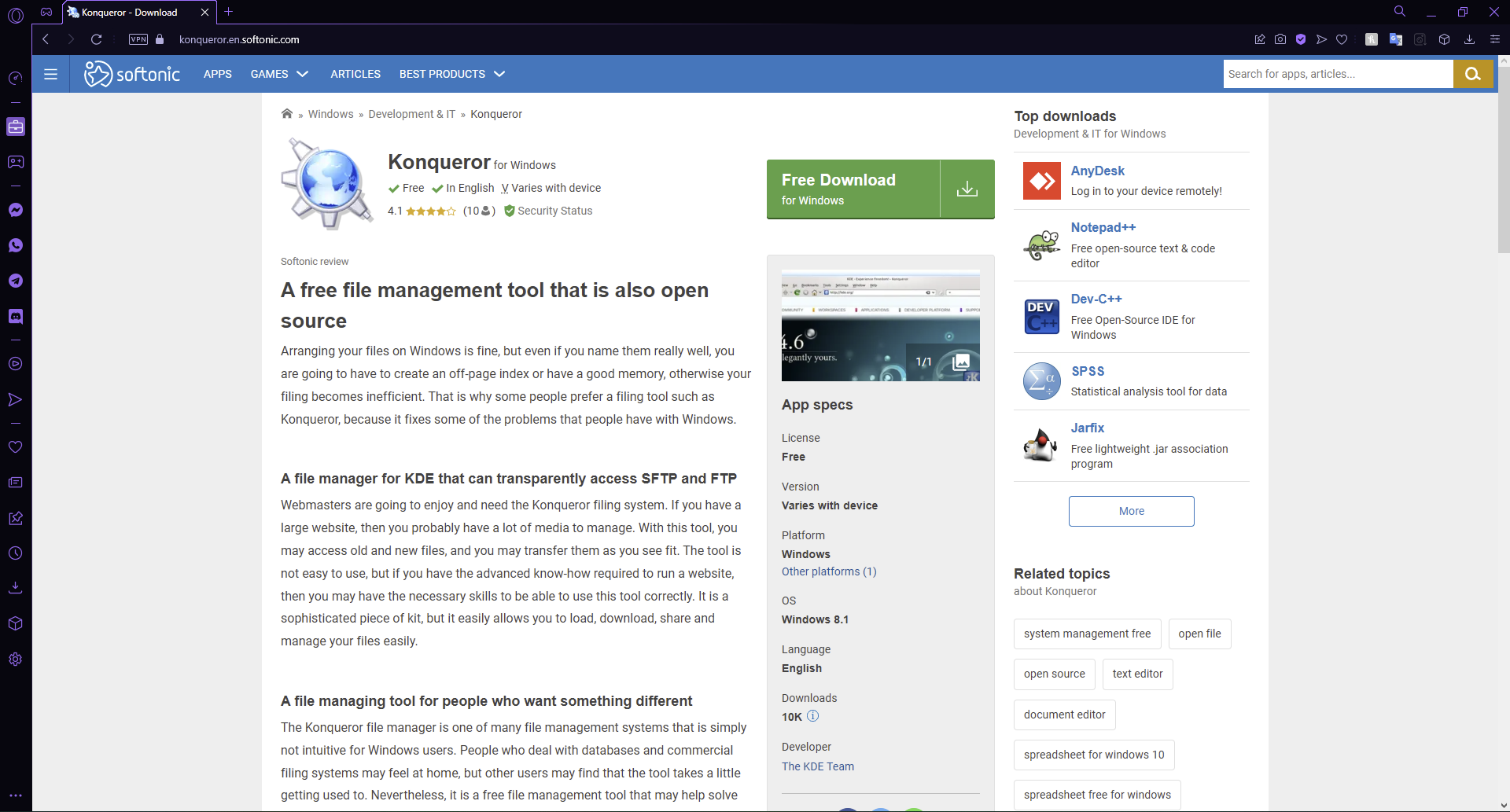
Konqueror Could Not Connect to Host: 3 Ways to Fix It

You may have encountered a Konqueror could not connect to host error when attempting to open a website in the browser. This can be caused by multiple things and the solution depends on what is causing it. The first thing you need to do is figure out what is causing this error.

This can be frustrating, as it makes it seem like the website is down when in fact, it might just be temporarily unavailable.

It could be due to technical issues on your end or on the server’s end, but most commonly it’s because of a problem at the server. Other times, it could be a problem with your PC and your apps won’t connect to the internet.

What does it mean could not connect to host? 

If you get a could not connect to host error message, it means that your computer can’t connect to the host name or IP address of the website you’re trying to reach. The server or host you are trying to connect to may be unresponsive.

This can happen for a number of reasons:

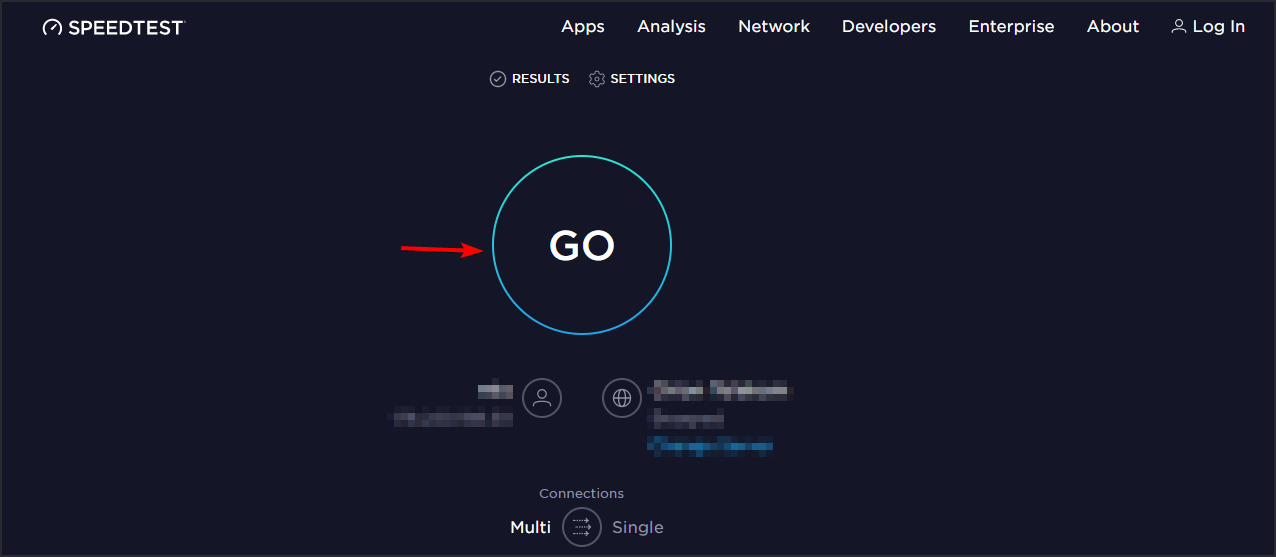
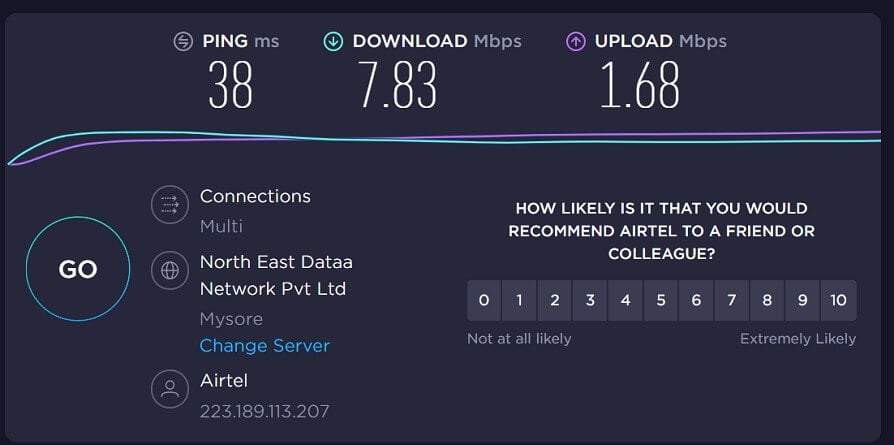
  • Your computer isn’t connected to the internet – The first step in troubleshooting is to verify that you are actually connected to the internet or it’s just your internet that is too slow. You can use an internet speed tester to check how fast your connection is.
  • Browser plugins – One possible cause for this error message is that one or more of your browser plugins may be missing from your system or corrupt due to an outdated version.
  • Your network settings are incorrect – If you are behind a firewall or using a dynamic IP address Konqueror may not be able to connect.
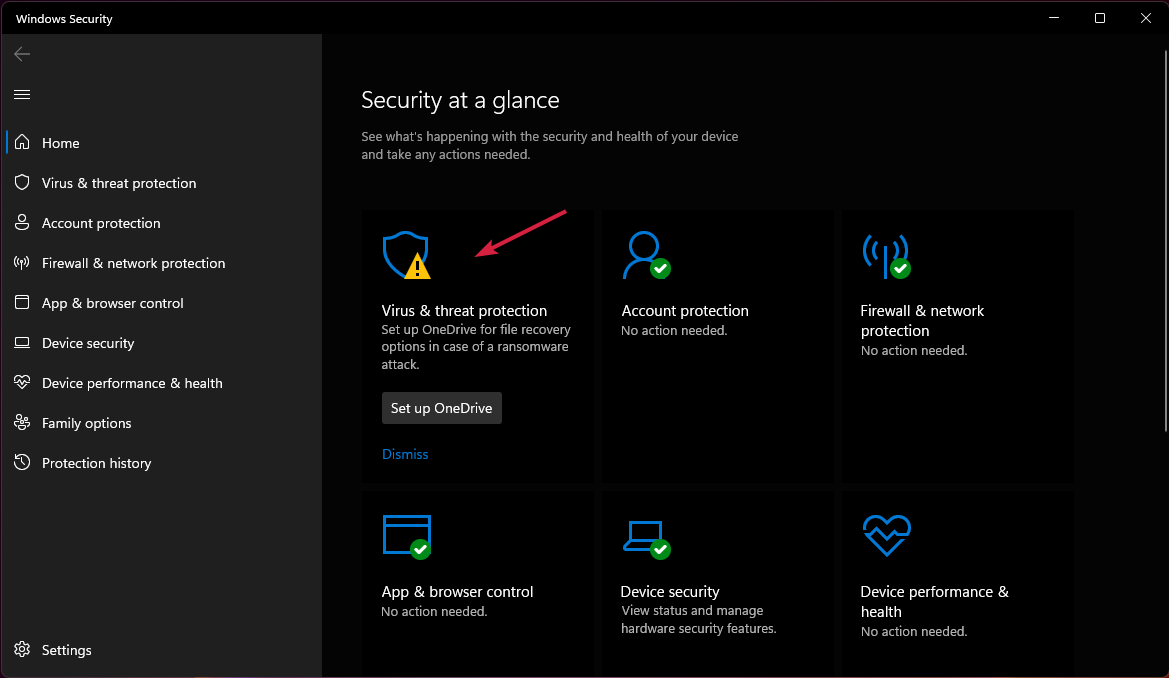
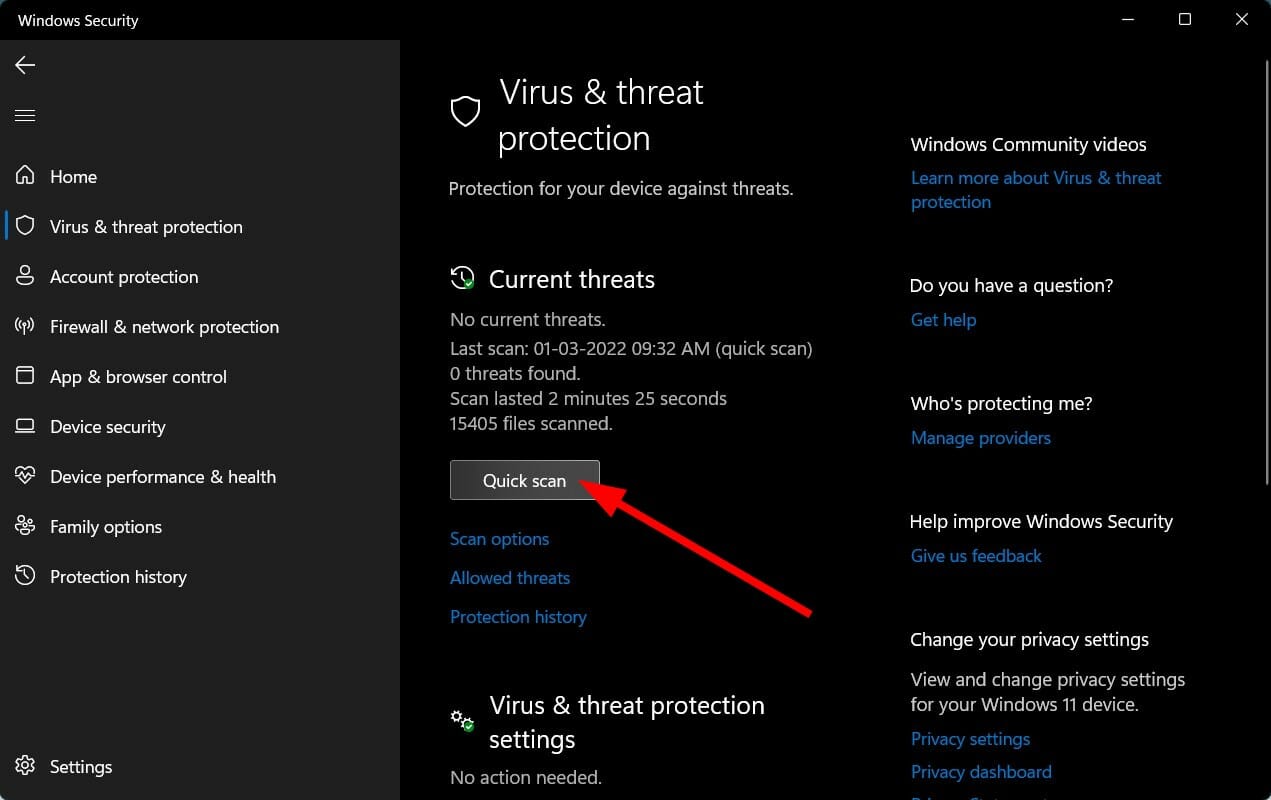
  • Virus infection – It is also possible that your computer is infected with malware or adware. Make sure that your antivirus software is up-to-date, and run a scan on both the computer and its browser cache.
  • The website has been taken offline – There’s a possibility that the website you’re trying to access is down or inaccessible. This could be because of technical issues on the server or because of maintenance. Another possible cause for this error is that the site you’re trying to visit has moved its location.

What’s the latest version of Konqueror? The latest stable version is 21.12.3 (released February, 2022). 

Quick Tip:

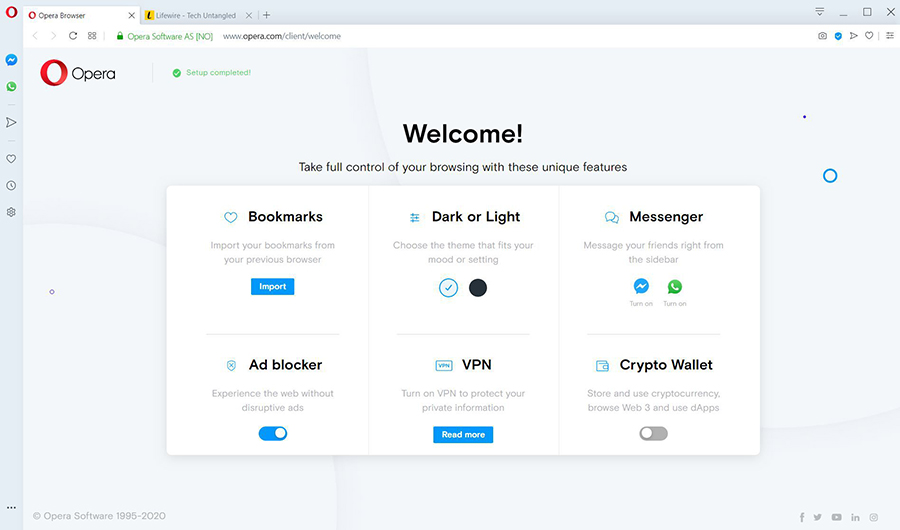
To get back online fast, use another browser. For an error-free experience, we recommend Opera. It’s lightweight, up-to-date, and includes all the standard features you need in a browser.

On top of that, with Opera, you will be able to create personalized workspaces, connect quicker to social media apps thanks to its built integrations and protect your privacy with the free, unlimited VPN.

Opera

Say goodbye to errors with this performance-optimized browser!

How do I fix Konqueror could not connect to host? 

1. Check your internet connection

If you are using a wired network connection, check that all cables are securely connected and that no cable is damaged or frayed. 

In case it is a wireless network connection, make sure that the router has power and is broadcasting its signal correctly. You should also ensure that your device is within range of the router’s signal. 

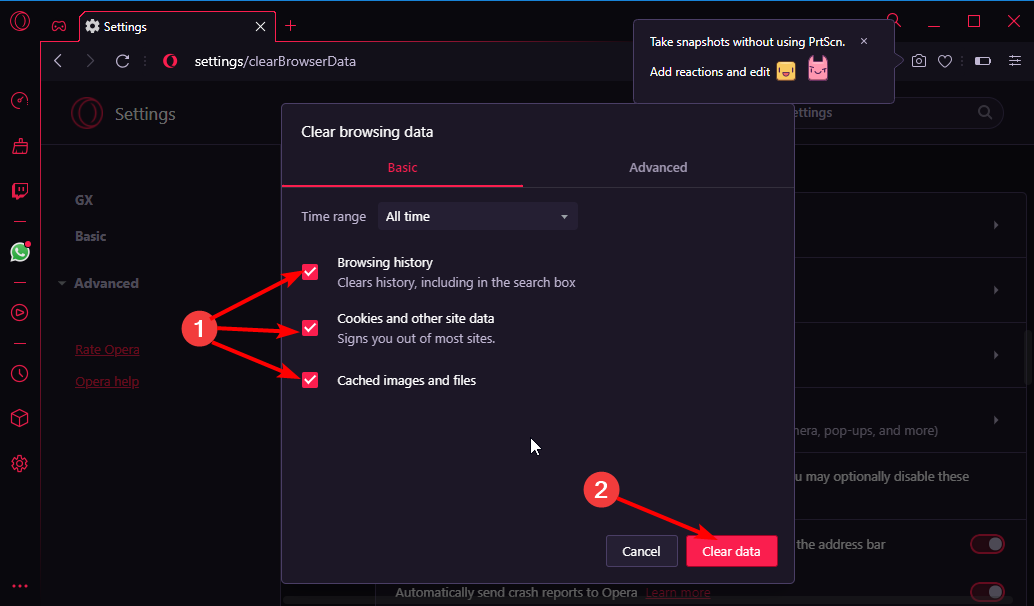
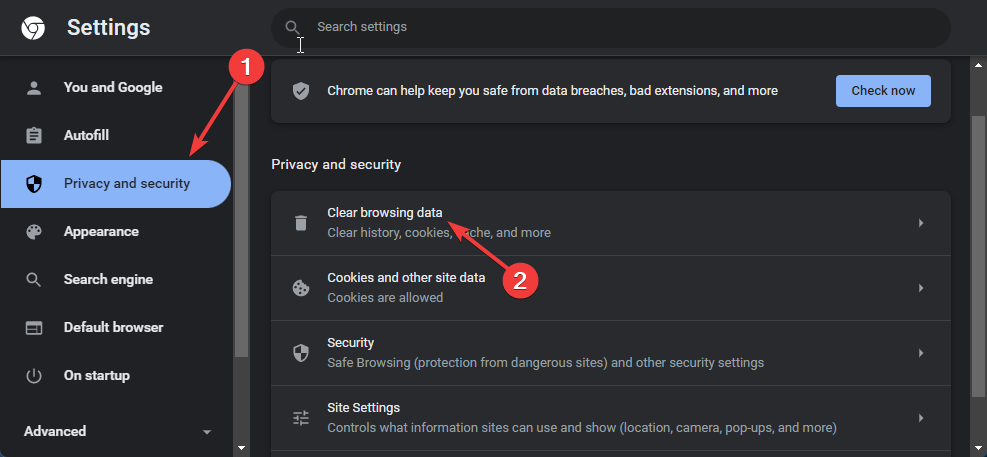
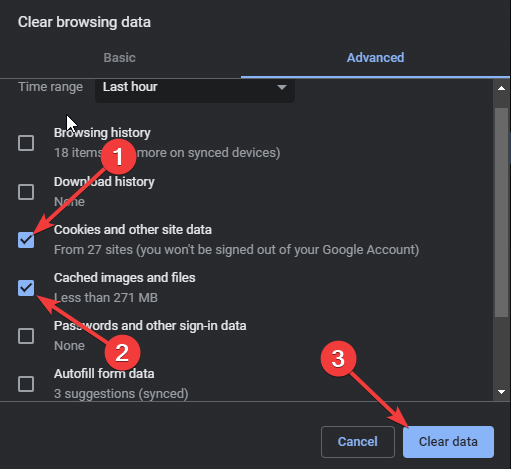
2. Clear cache and cookies

Cookies are pieces of data stored on your computer or mobile device that can be used to help you log in or navigate through the web pages you visit. They also can be used to store private information, such as preferences and shopping cart contents.

As such, clearing cookies isn’t always necessary but if you’re having trouble logging in or if something doesn’t seem right while browsing online then it’s usually worth checking your cookies first before moving on to other troubleshooting steps.

3. Disable firewall temporarily

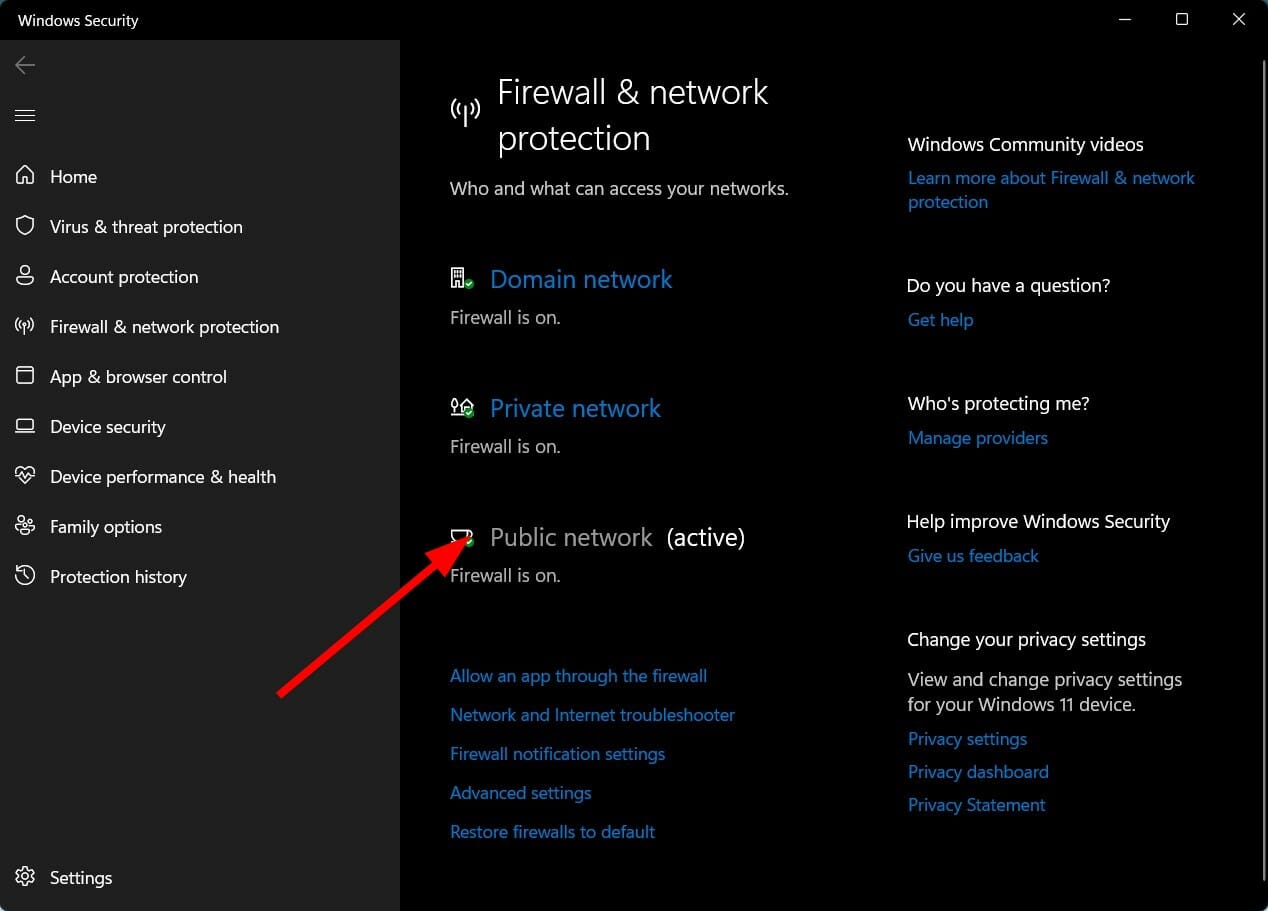
  1. Hit the Windows button, type Windows Security in the search bar, and click Open.
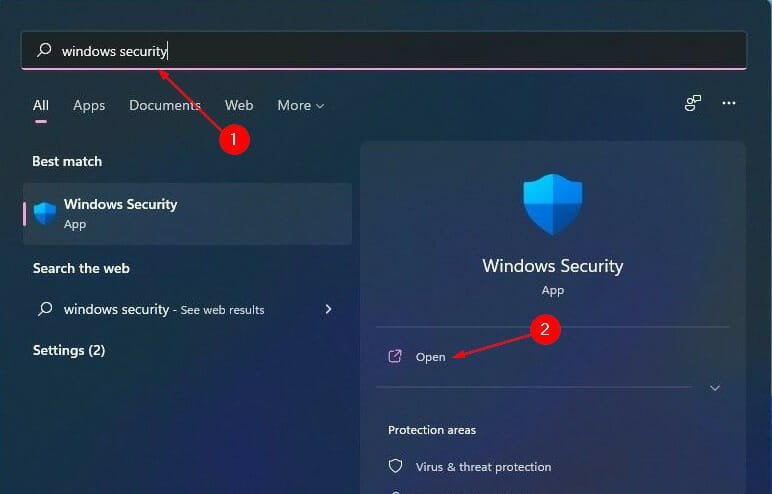
  2. Click on Firewall & network protection then select Public network.public network
  3. Locate Microsoft Defender Firewall and toggle the off button.

If after attempting the above solutions you are still facing the problem, try an alternative browser. The issue could be browser-related and may take a few moments before it is back to functioning.

Should you encounter any other related errors such as internet connected but browser not working, refer to our detailed guide on how to go about the issue.

We love your feedback so drop us a comment down below on any additional thoughts you may have.

Best Back-To-School Deals On ESET Antivirus Software

Nowadays, the online environment is full of threats lurking at any corner and the school or campus Wi-Fi is not the safest way to connect to the Internet.

Those term papers, notes, media, and other important data all can be gone in a glimpse without the proper protection.

We’re talking, of course, about antiviruses and ESET has a great Back-to-school campaign with great discounts on their antiviruses.

What are the best Back-to-school ESET Antivirus deals?

This year’s Back-to-school campaign brings a huge 30% discount on all ESET Antivirus products.

So, whether you’re a teacher or a student, you should take a closer look at these great deals:

  • The ESET Smart Security Premium plan is only $41.99/year for one device
  • ESET Internet Security antivirus is available for $34.99/year for one device

Based on your needs, the ESET products not only can protect your data from all the threats but also provide lots of other important features.

They all work on Windows, macOS, and Android platforms so you will be able to safeguard your entire suite of devices.

You should also know that if you’re a student and you can verify that with an ID.me account, you get an incredible 50% discount on all ESET products.

Also, you will get 30% off ESET HOME Security Essential and ESET HOME Security Premium if you apply the code BTS30-2023 when purchasing them.

⇒ Get the ESET Antivirus software deals

ESET is a global brand and security company and we’re sure you have heard of the great reliability of their software.

However, we will outline below some of the best features that these products have to offer.

What are the best features of ESET Antivirus software?

ESET HOME Security Premium

  • Intel Threat Detection Technology
  • 2 Factor Authentication
  • LiveGuard protects your devices against the latest threats
  • Easy and quick cleanup and scanning
  • Real-time protection against any attacks
  • Safely store and prefill passwords
  • Encrypt files and photos
  • Consumes fewer PC resources
  • Easy-to-use interface with quick configuration

ESET HOME Security Essential

  • Intel Threat Detection Technology
  • 2 Factor Authentication
  • Safe online shopping and banking
  • Secure all of your devices
  • Prevent any online and offline attacks
  • Advanced privacy protection

NOD32 Antivirus

  • Intel Threat Detection Technology
  • 2 Factor Authentication
  • Great for home or academic usage
  • Small footprint on your system
  • Keeps you safe from fraudulent websites
  • Autoupdate features

Here are some of the new product updates for the ESET Antivirus software:

  • All ESET Home products have Intel’s Threat Detection Technology which boosts ransomware protection to detect threats without affecting your system’s performance
  • 2 Factor Authentication within ESET Home
  • Network Inspector which tests your home router for vulnerabilities
  • Password Manager

Hurry up because this is a limited offer for customers in the US!

4 Ways to Fix Chrome when There’s No Sound in Incognito Mode

Google Chrome is a popular browser with the option for private browsing in Incognito mode. This mode allows users to browse without Chrome remembering browsing history and data.

However, users have reported that their sound is not working while in Chrome Incognito mode. If your sound isn’t working in regular Chrome, we have solutions for that as well.

Keep reading to find a quick solution to fix no sound in Chrome Incognito.

Why is there no sound on my Internet browser?

First of all, before trying anything else or going through a lengthy troubleshooting process, make sure that the Allow sites to play sound option is enabled in your browser’s sound settings.

Also, just to avoid silly mistakes, make sure the page is not muted by right-clicking on its tab. If it’s indeed muted, you’ll see the Unmute site option

Can incognito affect my browser audio settings?

When you use incognito, all of the cookies are deleted from your browser after you close said incognito window.

Also, browser history isn’t saved, so if another person uses that computer, smartphone, or tablet, it will not list the web pages you just went to

In other words, no, it shouldn’t affect your sound settings at all, as that is all the Incognito mode does to your browser.

Quick Tip:

If you continue having problems with the sound in Incognito mode, you should consider trying a different browser. Opera One offers a similar user experience, but it’s much lighter than Chrome.

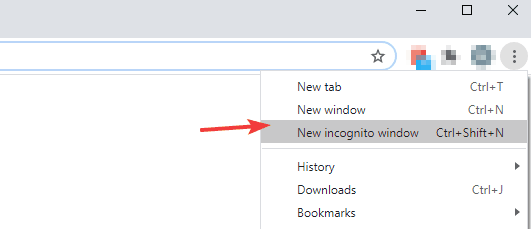
The browser gives you the possibility to surf online without keeping track of any data. To start an incognito session on Opera One, just click on the menu and select the New Private Window option.

Opera One

Benefit from fast-paced private browsing and create your own, customized online experience.

How do you fix an incognito window without sound?

1. Enable sound in site settings

  1. Open Chrome and click the three dots in the top right corner and select Settings. Open settings in Chrome.
  2. In the sidebar, select Privacy and security. Open privacy and security settings.
  3. Open Site Settings and scroll down and expand Additional content settings. In site settings expand additional content settings.
  4. Select Sound. Click on sound.
  5. Make sure Sites can play sound is selected and ensure there are no sites listed under Not allowed to play sound. Select sites can play sound.

If the sound is not enabled in site settings, then that might cause the sound to not work in Incognito mode. Also, make sure there are no sites blocked from playing sound.

2. Unmute the current tab

  1. In Incognito mode, right-click on the tab you want playing sound.
  2. Select Unmute site. Click unmute site.
  3. Refresh the page.

The issue could be due to the tab being muted. Unmuting the tab in Incognito mode should solve the problem.

3. Clean up Chrome

  1. Open Chrome and click the three dots in the top right corner and select Settings.
  2. In the sidebar, expand Advanced.
  3. Click Reset and clean up. Reset and clean up.
  4. Select Clean up computer. Clean up computer.
  5. Click Find. Click find.
  6. Remove any malware found.

If there is any potential malware on Chrome, it can prevent it from functioning properly. If your sound is not working in Chrome Incognito, try checking for any harmful malware and removing it to solve the issue.

4. Disable extensions in Incognito mode

  1. Open Chrome and click the three dots in the top right corner and select Settings.
  2. Select Extensions from the sidebar. Open extension settings.
  3. Click on Details under extensions. Open details.
  4. Disable Allow in Incognito. Disable allow in Incognito mode.
  5. Check each extension and make sure they are all disabled for Incognito mode.

By default, Incognito mode does not enable extensions. However, if you have some extensions that you have allowed to be enabled in Incognito mode, try disabling them and see if that fixes the problem.

We hope one of the above solutions fixed the issue of no sound in Chrome Incognito. It can be frustrating to have no sound on private browsing, so we hope this article helped. If there is a solution that worked for you that isn’t listed above, let us know in the comments.

3 Ways to Fix Waterfox when It’s Not Playing Videos

Waterfox is a browser based on the Firefox source code, with some additional features added. The browser is optimized for speed, customizability, and security. While it is a fairly great browser, it is not without the usual hiccups that plague every browser.

Sometimes, you may be trying to play a video on Waterfox but it just won’t load or play. Whereas it is a common issue, it does not make it less annoying when it happens especially if you don’t know the cause.

If you are having video streaming problems on your PC, you can easily fix them but when it’s specific to a browser, you will need to troubleshoot and attempt to resolve the issue.

Why is Waterfox not playing videos? 

Is your Waterfox not playing videos? Here are some of the reasons that could be the cause of the issue:

  • Outdated version – The first thing to check is the version of Waterfox that you are using. You will have to make sure that you have updated to the latest version of Waterfox and also make sure that all the plugins are up-to-date as well.
  • Insufficient storage – The next issue could be your computer does not have enough RAM (memory) to play videos smoothly. If the RAM is less than 1 GB, then you may face issues with Waterfox playing videos smoothly.
  • Incompatible add-ons – There are several add-ons that could be causing problems with video playback in Waterfox. If you’re using an add-on that’s known to cause this issue, it’s best to disable it until you find something else to replace it with.
  • Outdated graphics – Your graphics card might not be able to display the video or it may be incompatible with the codecs you are using. You may need to update your graphics card driver or use another browser with hardware acceleration enabled.

What is the best browser for watching videos? 

The browser you use to watch videos is one of the most important factors in your online experience. It’s not just about how fast it loads, but also about how well it renders the video and audio.

A good browser should also be able to play all kinds of video formats, even those that aren’t supported by default by your operating system. You can check our recommended list of best browsers for watching videos for various options.

Our top recommendation is Opera One because it offers dedicated support for uninterrupted video streaming. It lets you keep watching youtube while switching between different tasks, thanks to its pop-out feature.

On top of that, it includes a turbo mode to save bandwidth, a built-in ad blocker, and VPN, as well as support for the virtual reality type of videos. Plus, it features it’s own AI.

Opera One

Enjoy YouTube to the fullest with Opera One’s dedicated features for uninterrupted video streaming!
Free Download Visit website

How do I fix Waterfox if it’s not playing videos? 

1. Update your browser

Make sure that you are using the most up-to-date version of your browser. This will ensure that all security patches have been applied, and also any compatibility issues will be solved.

If you are still experiencing problems, you can uninstall and reinstall it again by checking its website for updates.

2. Disable add-ons

If you’ve added any extensions or themes since installing Waterfox, disable them temporarily and see if videos play better without them enabled.

It’s possible that the errors are caused by a bug in Waterfox or one of its add-ons and removing them may solve the issue.

3. Update your graphics drivers

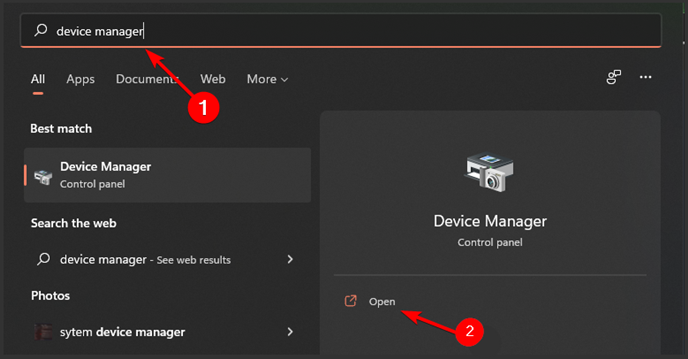
  1. Press the Windows key, search for Device manager and click Open.
  2. Navigate to Display adapters, right-click on your graphics card, and select Update driver.update display driver
  3. Click Search automatically for updated driver software.

If you want to save time and prevent having driver issues in the future, use an automatic tool like Outbyte Driver Updater. This utility scans all your drivers and automatically installs the latest versions to your PC.

You can set it up to run in the background and check your drivers on a regular basis. This means that you won’t have to manually check your drivers in the future. Don’t worry, it’s very lightweight.

⇒ Get Outbyte Driver Updater

How do I update Waterfox?

If you have the auto-update feature enabled Waterfox will automatically check for updates and download them when they are available. However, if it is not enabled, you have to manually update it by following the steps below:

  1. Launch your Waterfox browser.
  2. Click on the gear icon in the top-right corner of your screen and select Help from the dropdown menu.
  3. Select About Waterfox.
  4. If your browser is up-to-date, you will get the following dialog box.

You may also come across a similar issue where Opera is not playing videos but we have adequately covered various fixes to address the problem.

Feel free to drop us a comment below on the solution that worked for you.

How to Use WhatsApp in Browser on Your Computer Without Installing Anything

Find below how to use WhatsApp in a browser without having to install anything on your PC. With the WhatsApp on the Web option, you can jump into your instant messages fast. Luckily, the process is simple, and we’ll walk you through all the steps.

Here’s how to use WhatsApp on your computer without downloads:

How can I use WhatsApp in browser?

Use WhatsApp web application

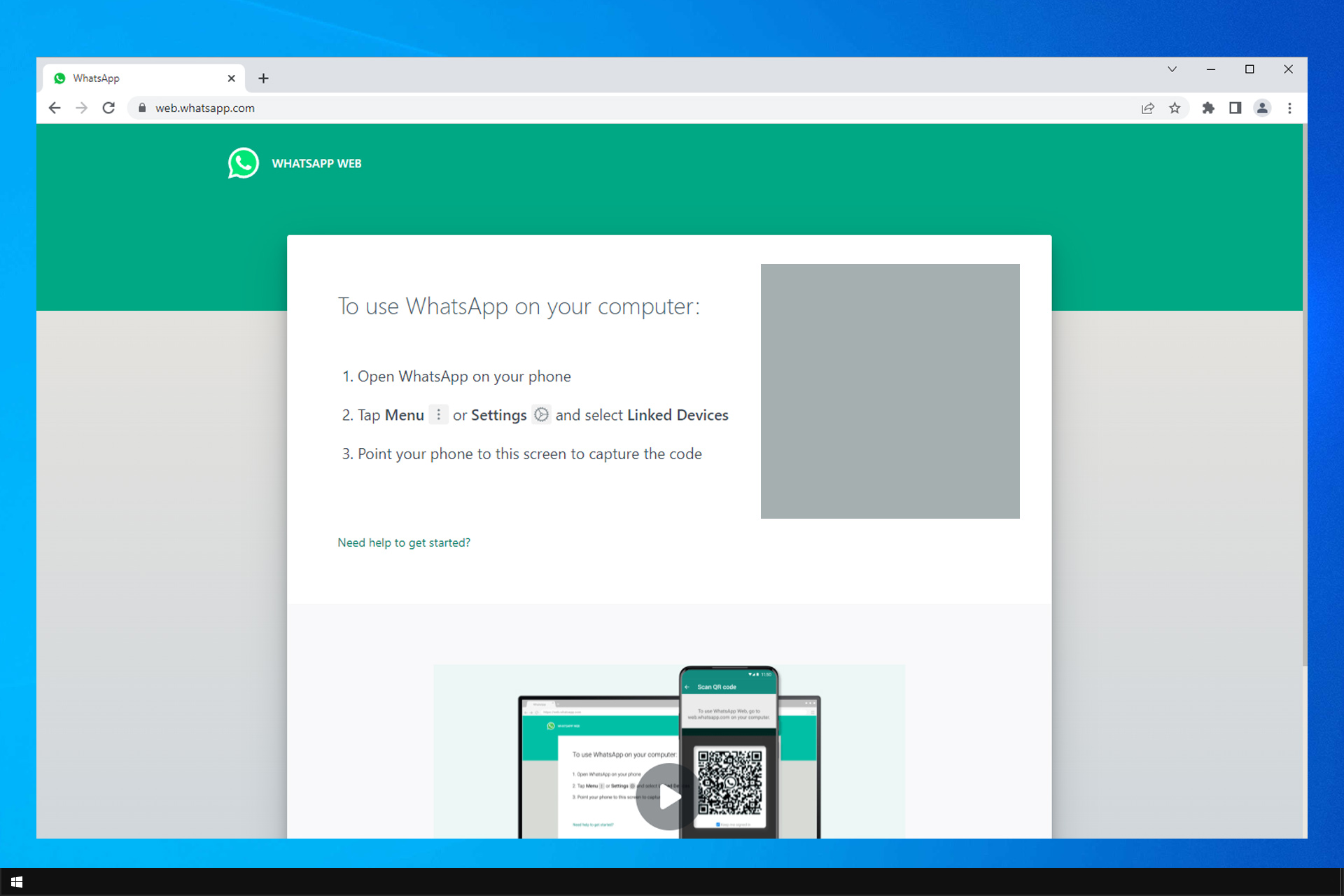
1. Open WhatsApp Web

Go to web.whatsapp.com in any major browser such as Chrome, Edge, Firefox, or Safari.

2. Scan the QR Code on Your Computer

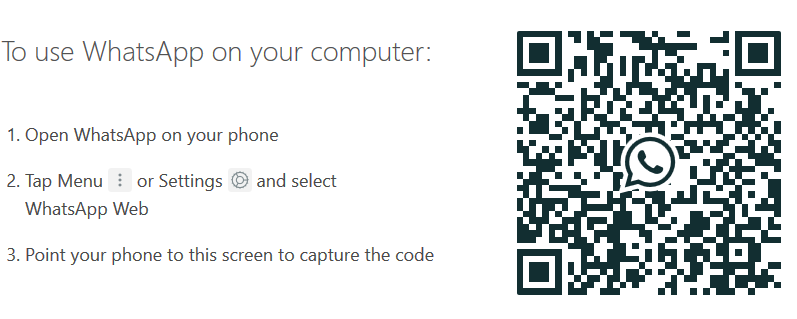
  • Open WhatsApp on your phone.
  • Tap on Menu or Settings and choose WhatsAppWeb.
  • Now scan the QR code on your screen.
    whatsapp QR code whatsapp browser
  • After scanning the code, WhatsApp will load in your browser.

3. Start Chatting

Your chats will load instantly. You can send messages, voice notes, media files, and even documents from your computer.

Do All Browsers Support WhatsApp?

To ensure WhatsApp works properly, use a supported browser for WhatsApp Web like Opera, Chrome, Firefox, Safari, or Microsoft Edge. WhatsApp does not work in outdated or non-Chromium browsers.

If you’re seeing an error:

  • Switch to a supported browser.
  • Clear your browser cache.
  • Check for firewall or VPN interference.
  • Try logging out and back in to refresh the session.

Unsupported browsers, outdated settings, or session glitches are common causes of WhatsApp Web not loading properly. For the best experience, consider using Opera. It’s Chromium-based, light on resources, and includes built-in privacy features that keep your WhatsApp Web sessions fast and interruption-free.

FAQ

Can I use WhatsApp without downloading the app?

Yes, you can access WhatsApp Web in any supported browser like Chrome, Edge, or Opera without installing anything on your computer.

How can I use WhatsApp on PC without a phone?

The only way to use WhatsApp completely independently of a phone is by using an Android emulator for Windows 11. Install the emulator, download WhatsApp from the Play Store, and log in using your phone number.

What if WhatsApp Web isn’t working?

If you’re having issues, such as a blank screen or QR not loading, check your browser compatibility and internet connection. You can also follow this step-by-step WhatsApp Web fix guide to troubleshoot common errors.

Can I run WhatsApp Web on older systems like Windows 7?

Yes, you can. If you’re on Windows 7, using the browser version is likely the easiest option. For more details, check this WhatsApp for Windows 7 PC guide.

Wrapping up

Using WhatsApp in a browser is one of the easiest ways to stay connected without installing extra apps. Just scan the QR code, and you’re ready to chat, share files, and multitask from your computer.

Gif Compressor for Discord: 6 Best in 2026

Looking for the best GIF compressor tool for Discord that generates the smallest size without losing quality? Then this post will guide you with your requirements.

If you are a Discord fan and love to chat with friends through the platform, using GIFs would make it more fun.

But, the GIF files are usually large and so, the size needs to be reduced. If you are wondering, how do I optimize a GIF, you would need a GIF compressor that helps you compress GIF without losing quality.

So, how does the GIF compression for Discord work? It’s a quick and easy process, provided you have the right tool handy. Read to know more on how to compress a GIF for Discord.

So, if you are looking for a GIF compressor to shrink the image to 256kb for discord, then below are some of the best applications you can try:

What are the best GIF compressor applications for Discord?

Veed.io – free Discord GIFs compression

Veed.io is a simple-to-use GIF compressor you can use online to reduce GIF files or videos, and post them on any social platform like Discord.

This free compressing tool will help you make catchy GIF images in minutes. You can just upload your GIF file or create one from videos, select the compressing settings, and download it on your PC.

More so, you may combine multiple GIFs to create animated images with anything you want. From various landscapes to human moves, you have it all.

But the best part is that you can also compress anything to share with friends on Discord. It’s even possible to create your GIFs from YouTube videos for memorable times.

In addition, there is a cropping tool on Veed.io that is extremely helpful for files that are not correctly cropped.

Below are some of its other great features:

  • Audio and video editor
  • Video to GIF converter
  • No installation required
  • YouTube videos compressor
  • Animated files feature

Veed.io

Use this tool to compress GIFs from your own videos or YouTube and share them with friends on Discord.
Check price Visit website

FreeConvert – Supports more than 1500 file conversions

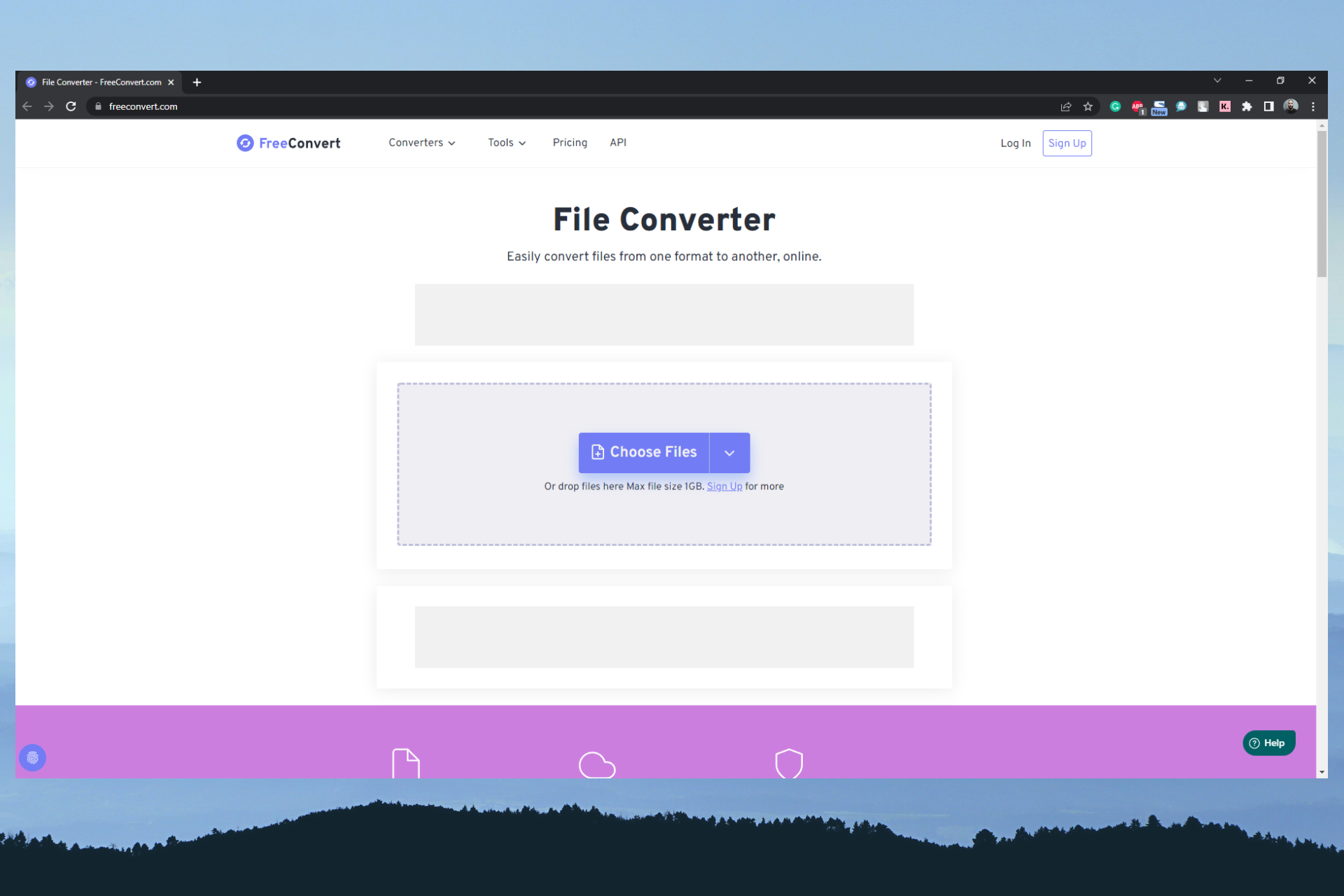
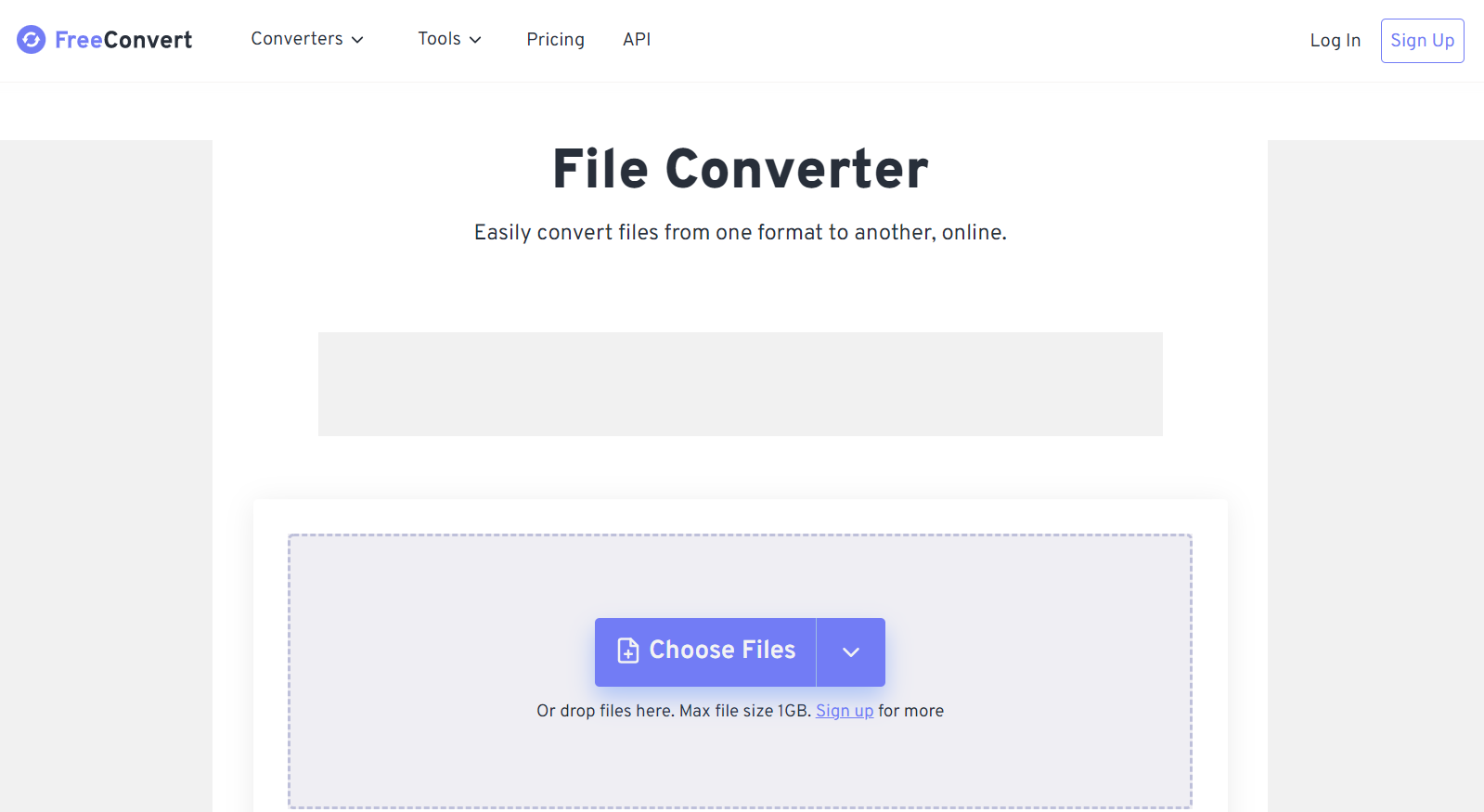
FreeConvert is a free image compression tool, that allows you to quickly compress your GIF files (up to 1GB) without losing quality.

It’s a complete online tool with an easy-to-use interface. Simply upload the file via the device, Dropbox, Google Drive, or drag and drop, to get going with the file compression.

Best of all, it adds a security layer to your compressed files by not saving them on their servers. The files get automatically deleted after 4 hours from the time you converted.

You can also use the tool to compress audios, videos, images, and pdf documents. Besides you can also use the converter tool to convert videos, images, audios, documents, ebooks, and units.

Some of its other major features include:

  • Wide range of advanced tools
  • Works on Windows, Mac, Linux, and mobile platforms
  • 256-bit SSL encryption
  • Supports all major browsers

⇒ Get FreeConvert

Media.io – Reduces the size by more than 65%

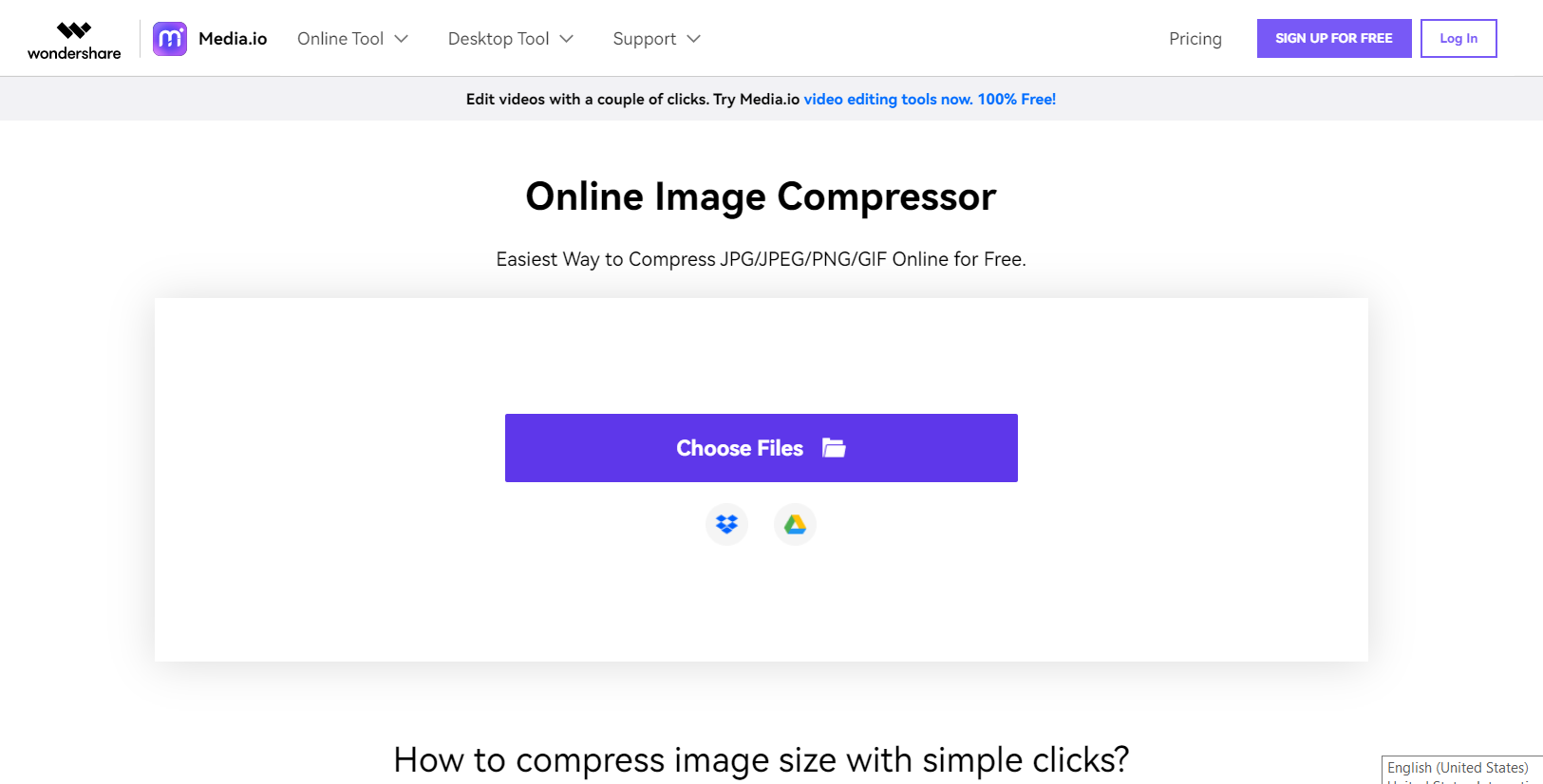
Media.io is another great online image compressor that helps you to compress image size within a matter of seconds. It helps you compress JPG/JPEG/PNG/GIF image formats in just a few clicks.

It allows you to save the compressed files to your PC or Dropbox directly. Also, if the file compression fails, you can contact their customer service available around the year.

Simply upload files from the PC, Dropbox, or Google Drive, or drag and drop the image, and sit back and relax while it compresses the files maintaining the high-definition image quality.

While it’s available in both free and paid versions, the free version comes without any unsafe ads.

Below are some of its other great features:

  • Batch image upload
  • fast compression
  • Compress large image files to medium
  • Maximizes the storage space

⇒ Get Media.io

XConvert – No watermark added

GIF compressor tool

XConvert is a completely free online GIF compressor tool that helps you to compress image files and reduce their size while maintaining the best quality.

It allows you to click and select files saved locally, from Google Drive, or Dropbox, or simply drag and drop to upload files. Additionally, you can select the output file size, framerate, or quality for the best results.

Best of all, it helps you to upload and compress batch images, and generate the best quality output with no watermark. Moreover, you can compress most image formats including JPG, PNG, WebP, or TIFF for free.

It makes things easier by separating all details required to compress GIF and JPEG files. This helps you to convert files with just a press of a button.

Here are a few more interesting features you should know:

  • Download images individually or in a Zip file
  • Modify output resolution for smaller image file
  • Compress videos, MP4 and JPEG files
  • Merge images into PDF

⇒ Get XConvert

Compress-Or-Die – GIF Compressor to 256kb for discord

Best GIF compressor tool

The Compress-or-die GIF image compressor is a free tool that helps you to compress image files in a few quick steps.

Select a file from the PC, drag, and drop, paste the image URL, paste a Base64 Data URL from the website clipboard, use the Photoshop JSX-Script, or paste the copied image directly to upload.

The tool allows you to create a 256kb emoji for Discord or replace the HTML5 ad banner with a GIF with reduced size and quality while maintaining the compressed file limits.

You can choose to upload the GIF from the device, through drag and drop, by pasting the image URL/Base64 data URL/image data, or by using the Photoshop JDX-Script.

Some of its other key features are:

  • Advanced algorithms for GIF compression
  • Lossy compression for GIFs
  • Changeable frame rates
  • Use custom codes
  • Supports JPEG, PNG, WebP, and SVG formats up to max. 8 MiB

⇒ Get Compress-or-Die

WorkinTool File Compressor – Multi-formatted file compressor

best GIF compressor software

The WorkinTool File Compressor software does not just allow you to compress GIF files, but also other formats like JPG, PNG, and BMP files.

The compressor offers advanced settings for optimized outcomes while maintaining the original quality. The output files are generated either in MP4 or original format, with good quality and in a smaller size.

At the same time, ensures complete privacy of the files you upload and compress. It also allows you to compress video files, PDF files, Word documents, and PowerPoint presentations.

Simply download the software, upload the file, adjust the settings, change the location where you save the output file, and hit Compress to get the reduced file size.

Here are some of its other useful features that are worth a try:

  • Compress GIF images in batches.
  • Improved interface, clear guidance, easy navigation
  • Works with MP4, WMV, AVI, and FLV formats
  • Supports both Windows and macOS

⇒ Get WorkinTool File Compressor

How do I compress an animated GIF for Discord?

When sharing GIF images on Discord without a Nitro account, you would need to compress the GIF image before you can use it for your purpose. Here’s how:

  1. Visit the online GIF compressor website and choose a file to upload or simply drag and drop.
  2. Next, press the Compress button. upload file in GIF compressor
  3. Download the output and rename it if needed,
  4. Go to the Discord app, upload the file on chat, and hit Enter to send. upload GIF on chat on Discord and send

If you’re in a hurry, you can quickly search for a free GIF compressor tool on Google and use one of the different tools available online.

Here, we have used one of the free tools listed online, which is very easy to use. However, we have listed more tools below that are much better with plenty of additional features.

How do you make a GIF small enough for discord Emojis?

The trick here is to use some cropping software, like Kapwing, resize your GIF in the Output Size section on the right-side menu and decrease your dimensions to 100×100 square.

With your file size reduced, now you can save your progress and choose to Export it as a GIF from the dropdown list.

All that is left to do now is to add it to your Discord and use it however you want. This process will help you compress GIFs for Discord PFP. Pretty easy, right?

Our list includes some of the best GIF compressor tools that will help you to upload optimized GIF images on Discord as well as on other platforms.

There isn’t only one good GIF optimizer for Discord, but we’re pretty sure that you will make the right choice when the time comes to reduce GIF size for Discord.

You can’t just use anything and you have to make the GIF a smaller file size for Discord, so keep that in mind next time.

Be sure to use the best GIF compressor for Discord emojis, and the best GIF compressor for Discord banner, for optimal results.

You can also refer to our guide on the best video compressors to use with Discord if you are looking to compress large video files.

Moreover, if you come across another great GIF optimizer, do let us know in the comments box below.

8 Ways to Fix Safari if It’s Not Working on Windows 10 & 11

Because Apple no longer supports Safari on Windows, you won’t be able to update it, which means Safari may stop working on Windows 10 or 11.

This web browser is Apple’s favorite and was first published in 2003. Since then, it has found its way into Apple devices such as the iPhone and has been steadily increasing in popularity.

It works just like other browsers. It has Incognito Mode and supports numerous tabs and other features available on other browsers like Google Chrome, Firefox, Opera One, etc.

Why is my Safari browser not working?

Let’s just put it this way. Since Safari is a native iOS app, updating your system is actually the only way to update the app too.

Keep this in mind the next time you are trying to use the Safari browser but the software refuses to properly function or does not function at all.

Quick Tip:

Using a different browser is the quickest workaround for your problem and a reliable one nonetheless. Opera One for Mac provides a user-friendly design with a lot of adjustable options and a large add-on (extension) marketplace.

It includes a built-in VPN, as well as a quick-access sidebar where you can link your favorite social media and instant messaging accounts. Plus, it comes with a free built-in AI.

Opera One

Use this error-free browser for seamless web surfing on any device!
Free Download Visit website

To fix any problems you’re having with the Safari browser, simply follow the instructions provided.

How do I get Safari to work on Windows 10 & 11?

1. Reload the page

When a glitch disrupts the network connection, Safari does not work on Windows 10. So you can simply refresh or reload the page and check if the problem is solved or not. 

2. Check URL

If the problem persists, check your URL to ensure it is correct. You may have entered the URL incorrectly, which is one of the most common causes for a browser to stop working.

3. Clear Safari cache

  1. Open Safari.
  2. Select the gear icon.Selcet small gear icon
  3. Click on Preferences.Select Preferences
  4. Choose Privacy.Privacy in Safari Preferences
  5. After that, select Remove All Website Data.
  6. Click on Remove All to clean website data entirely.Remove Website data on Safari
  7. Finally, select Done.

The Cache is the data and information the browsers save when you open a web page and whenever you surf the web.

Cache makes websites’ content load faster. However, sometimes too much Cache may cause Safari stops working and can’t load pages.

4. Install the most up-to-date and compatible version

Unfortunately, Apple has stopped publishing the Windows-compatible version of Safari since 2012. Thus, you can’t download the latest version for Windows 10.

However, The last version you can download and install is Safari 5.1.7, compatible with both 32 and 64-bit versions of Windows 10.

Since this is an older version, it is missing out on many security updates and new features.

5. Turn off Safari extensions

  1. Open Safari and select the gear icon.
  2. Choose Preferences.Select Preferences 
  3. Click on Extensions.Extension on Safari
  4. Deselect each extension you want to disable. 

You can also turn Safari extensions to ensure they’re not conflicting and interfering with Safari or the Internet network connection.

6. Use a VPN

When Safari is not working on Windows 10, the reason may be due to geo-restrictions and limitations, or the website you want to open is blocked in your region.

To see if this is the case, use a Virtual Private Network (VPN). We suggest Private Internet Access because it’s fast, stable, and secure and gives access to over 25 thousand fast servers worldwide.

PIA is a cross-platform VPN that is highly compatible with multiple operating systems and works well with many well-established browsers, including Safari. It hides your IP, changes your virtual geolocation, and includes many advanced security and privacy features.

7. Try Incognito Mode

  1. First, choose the File option.
  2. Then, click on New Private Window. 

As we said before, Safari stores websites data and information to load them faster. If you want to check whether the cache is the problem or not, another method is to open a website using Incognito Mode.

8. Check Network Settings

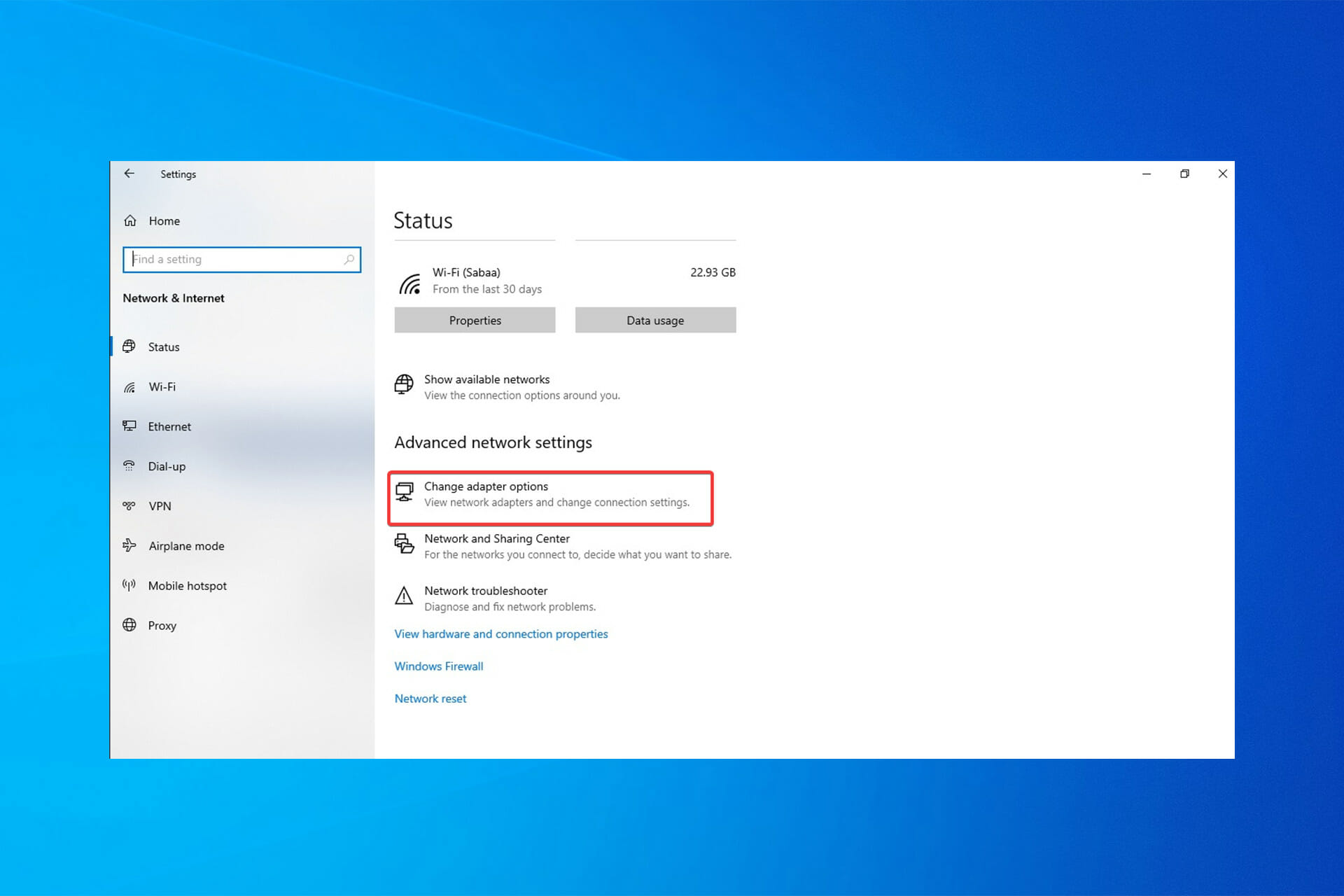
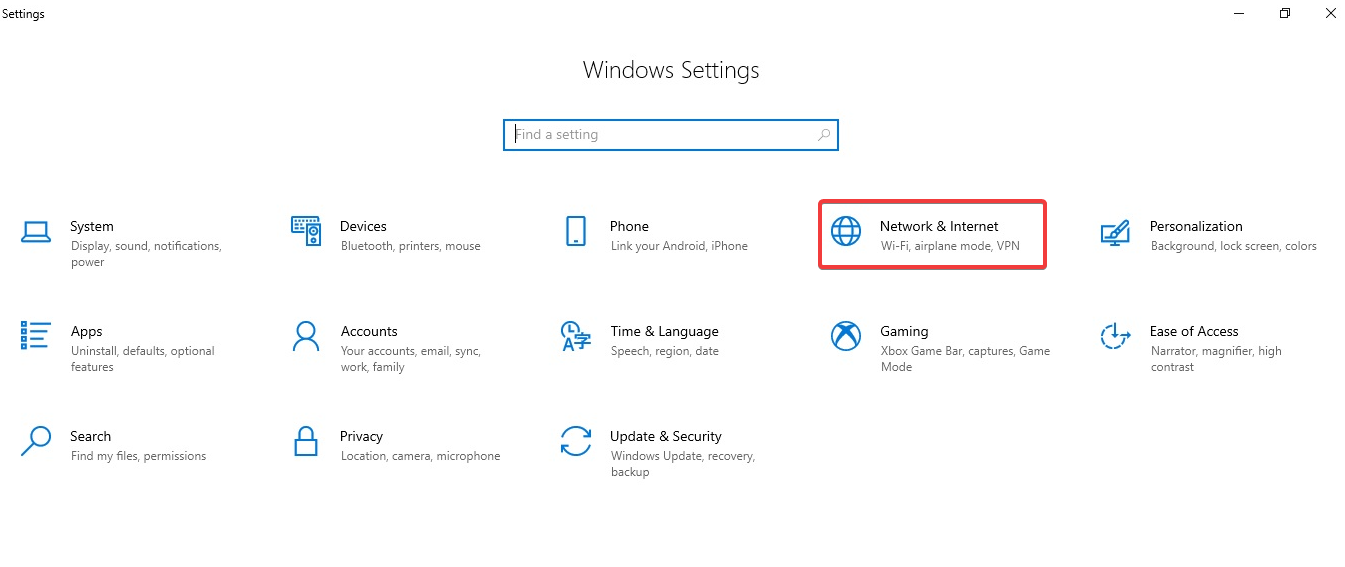
  1. Press the Windows key to open the Start menu then click on Settings.
  2. Select Network & Internet.step 1
  3. Following that, click on the Change adapter options.change adapter settings
  4. Right-click on your current connection then select Properties.select properties
  5. Click on Internet Protocol Version 4 (TCP/IPV4) and after that, choose Properties. Internet Protocol Version 4 (TCP/IPV4)
  6. Click on Use the following DNS server addresses then type 8.8.8.8 and click OK. DNS server addresses

Using a proxy server or custom DNS server may affect Safari’s access to the Internet content. Sometimes installing new software may change network settings, and sometimes you adjust it manually. 

If you’re having trouble with Safari on Windows 10, try changing your DNS server to Google’s 8.8.8.8 address. This should fix the problem.

Safari is not just a web browser for Mac users. Users can add articles to their Reading List and access passwords and credit card information stored on iCloud Keychain through this web browser.

However, this browser is not without flaws and errors, and users may experience Safari not working on Windows 10 at times.

Network connection settings, limited access to the internet content in a specific region, incorrect URL, and Safari Cache may cause this issue. 

If you’re looking for the best browsers to use on old and slow PCs, this article could help.

Safari not loading pages on Windows 10/11 is a problem that you can fix rapidly if you know the steps you need to take towards that.

And, if Safari not responding on startup, the first thing you should do is update the Safari browser on your Windows device.

Let us know in the comments below which method worked for you to fix the problem of Safari not working on Windows 10.

Microsoft Edge 104 ships to the Stable Channel

Microsoft Edge version 104 hit the stable channel for everyone to download on Friday. This comes a month after version 104 hit the beta channel with Edge Insiders. The update comes with a notable feature, the new Enhanced Security mode, it now comes with a Basic option which is already toggled by default. Users that make this update will also be able to access all their Chrome data by logging in to their Google account during Microsoft Edge’s First Run Experience, even if they do not have Google Chrome installed.

Here’s the full changelog for this release:

Policy updates

New policies

Obsoleted policy

Be sure to check out Microsoft’s blog to keep track of policy changes that have been added as well as those that have been removed. As usual, Edge should download this update automatically, but if this is not the case, head on over to the Help and Feedback menu in Edge, choose About Microsoft Edge and then restart the web browser when prompted.

Chrome Theme Not Fitting the Screen: 4 Ways to Fix It

Trying to personalize your workspace, but the Chrome theme you picked doesn’t fit the screen? You wouldn’t be the first. This is most likely because the theme wasn’t built correctly to begin with.

Below, we’ll walk you through a few adjustments you can make so your design of choice will look better on your device. Let’s get started.

How do I make my Google Chrome theme fit my screen?

1. Customize Chrome background

  1. Press the Ctrl + T keys to open a new tab on Chrome.
  2. Click the Customize Chrome button in the bottom right corner.
    Cutomize button chrome theme not fitting
  3. Click the Background option on the left pane and select Classic Chrome.
  4. Finally, click the Done button to effect the change.
    classsic theme

Sometimes, your Google Chrome themes do not fit or appear too small or big due to your background. This is especially common when you upload a background from your device, as it can have a contradicting size to your theme.

In some cases, it can cause the Chrome theme background not to show in a new tab. The easy fix here is to switch to the default background and relaunch your browser.

2. Restore settings to default

  1. Click the menu button and choose the Settings option.
    chrome settings theme not fitting
  2. Click the Advanced option on the left pane.
    advanced option
  3. Select Reset and clean up.
  4. Choose the Restore settings to their original defaults option.
    reset chrome settings theme not fitting
  5. Click the Reset settings button.
    reset button

Google Chrome themes might not be fitting on screen due to some settings on your browser. If you find it hard to pinpoint the cause, this fix should help you restore all settings to their default.

After the restoration, you can now apply the theme you want to use.

3. Disable hardware acceleration

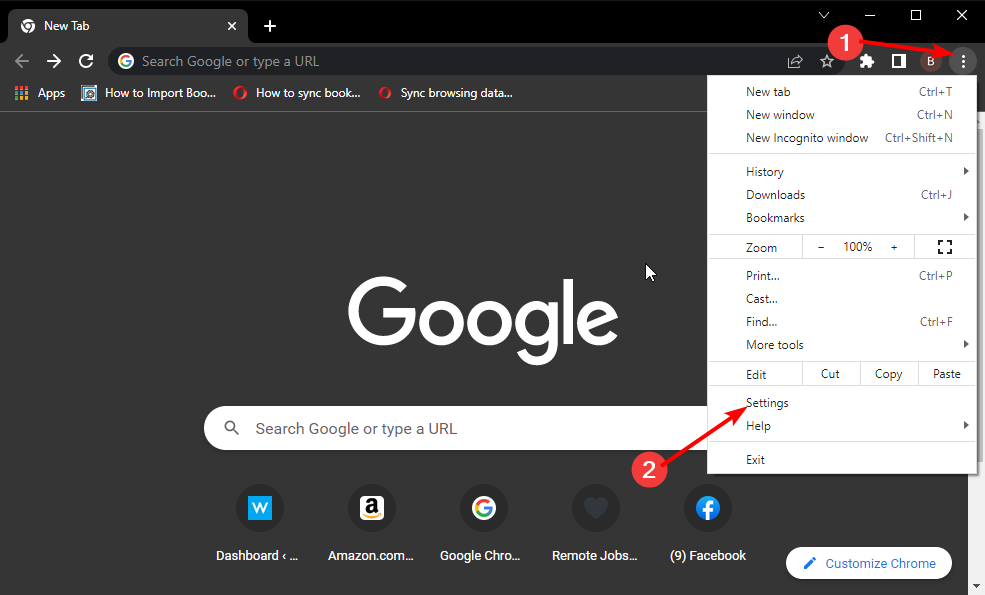
  1. Open Chrome and click on the three-dot menu in the top-right corner.
  2. Go to Settings.
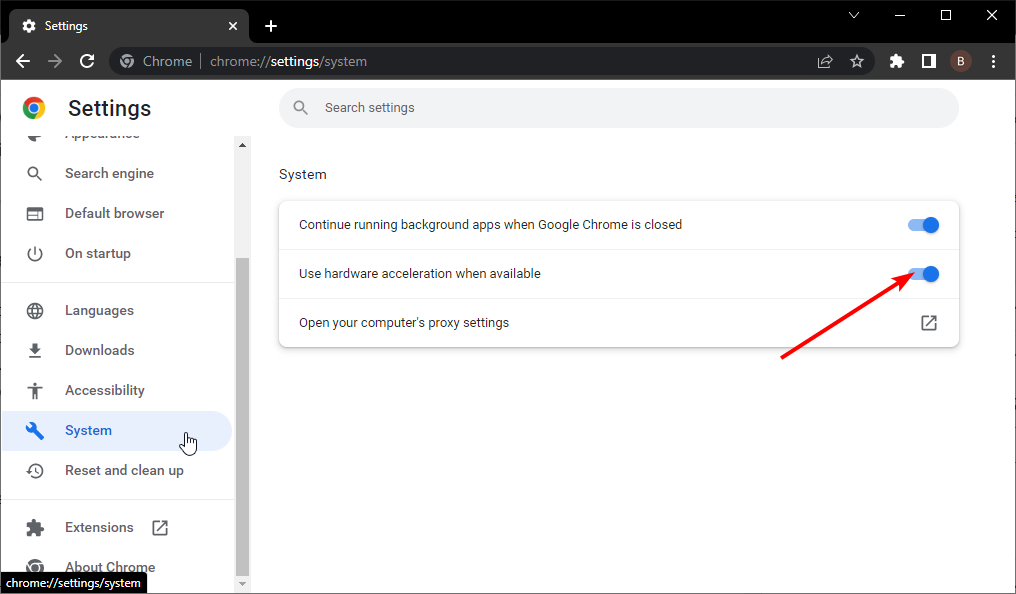
  3. Scroll down and click on System in the left sidebar.
  4. Toggle off Use hardware acceleration when available.use hardware
  5. Restart Chrome to apply the changes.

4. Try another browser

If you keep having trouble with Chrome, try using Opera instead. It’s a top-notch browser with an intuitive and fully customizable interface. It has a light/dark mode but an addition of a system mode for more options. 

Aside from choosing a theme color, you can also add any wallpaper from your PC or the Opera addons store. It gives you so much control of your customization without the errors from other browsers.

Opera

Opera

Easily customize your themes and organize your browsing activity using Opera’s wide range of options!

The Chrome theme not fitting issue can make even the most eye-catching background look horrible. And this makes your browser contents appear scattered and broken.

Thankfully, the problem is easy to fix, as shown in this guide. So, if your Chrome theme is not full screen, you know exactly where to tweak it.

The Chrome theme background not showing is another annoying problem that users have been reporting, but we now know how to solve it together.

Do you want to know how to set up your own custom Google Chrome themes? Then, check our guide on how to do it with ease.

Feel free to let us know the fix that worked for you in the comments section below.

Posted in Fix

3 Ways to Fix Waterfox when It’s Not Loading Pages

When Waterfox is not loading pages, you may not be able to view any content on any site you try to access. To fix this, you will want to try and troubleshoot the problem with your browser.

One of the most common reasons is that users are quick to install the browser without ensuring their devices meet the minimum system requirements first. Check that your system meets the minimum requirements to run Waterfox.

If your device satisfies all the requirements, you need to troubleshoot and we have recommended solutions below to help you resolve the issue. You can also check out our in-depth comparison of Opera and Waterfox for more features.

Is Firefox or Waterfox better? 

Firefox is one of the most popular browsers in the world.  But it’s not perfect — it has its share of quirks. If you are looking for an alternative, Waterfox, a 64-bit browser based on Mozilla Firefox may be what you are looking for.

It is similar to Firefox but with some key improvements. Waterfox has all the features you expect from Firefox: a customizable interface, tabbed browsing, built-in ad blocking, and encryption by default.

But it also comes with a few extras that make it worth considering: Waterfox uses less memory than Firefox, so it’s faster and less likely to crash your computer; it has more options for tweaking performance.

Waterfox is an excellent alternative to Mozilla Firefox, with more features, like better privacy protection, less data collection, and more control over cookies.

All in all, it depends on your needs. Waterfox is among the browsers that keep your data safe so if you are more inclined towards privacy, it is a good option.

Quick Tip:

If you keep having problems, try an alternative browser like Opera. It’s highly responsible and very lightweight, so it should have no problem with quickly loading any webpage.

Opera gets updated about once a month and includes performance-oriented features like hardware acceleration, a battery saver, and more.

Opera

Get an error-free web surfing experience with up-to-standard performance features!

How do I fix Waterfox if it’s not loading pages? 

1. Check for an update for Waterfox

The first thing you should do is make sure your version of Waterfox is updated to the latest version available.

If you’re using an older version of Waterfox, it’s possible that the latest version has fixed some issues that were causing your browser to not load pages properly.

2. Check your internet connection 

Check whether or not your connection is working properly, especially if your internet keeps disconnecting. You can do this by simply opening another web browser and trying to visit a website like Google or Facebook. 

If the site doesn’t load, it is most likely something wrong with your internet connection and so you need to contact your ISP (Internet Service Provider).

3. Check your antivirus settings

If your firewall is blocking access to Waterfox then it won’t be able to load any pages. You should disable your antivirus temporarily and see if this solves your problem. If it does, you should add an exception for Waterfox in your antivirus program.

Can Waterfox use Chrome extensions? 

Waterfox can use Chrome extensions, but you need to make sure that you are running the most recent versions of your OS. For instance, Windows users need to have installed Windows 10 and above to make use of this feature.

Although it is a bit buggy, most extensions work just fine with the browser. This is extremely advantageous given the rich library of extensions available on the Chrome Web Store.

You may also encounter a similar error when Chrome is not loading pages properly but worry not as our expert guide can help you address the issue

Let us know of any additional thoughts you may have on this topic in the comment section below.

Failed to Find Steam Error: 3 Quick Ways to Permanently Fix It

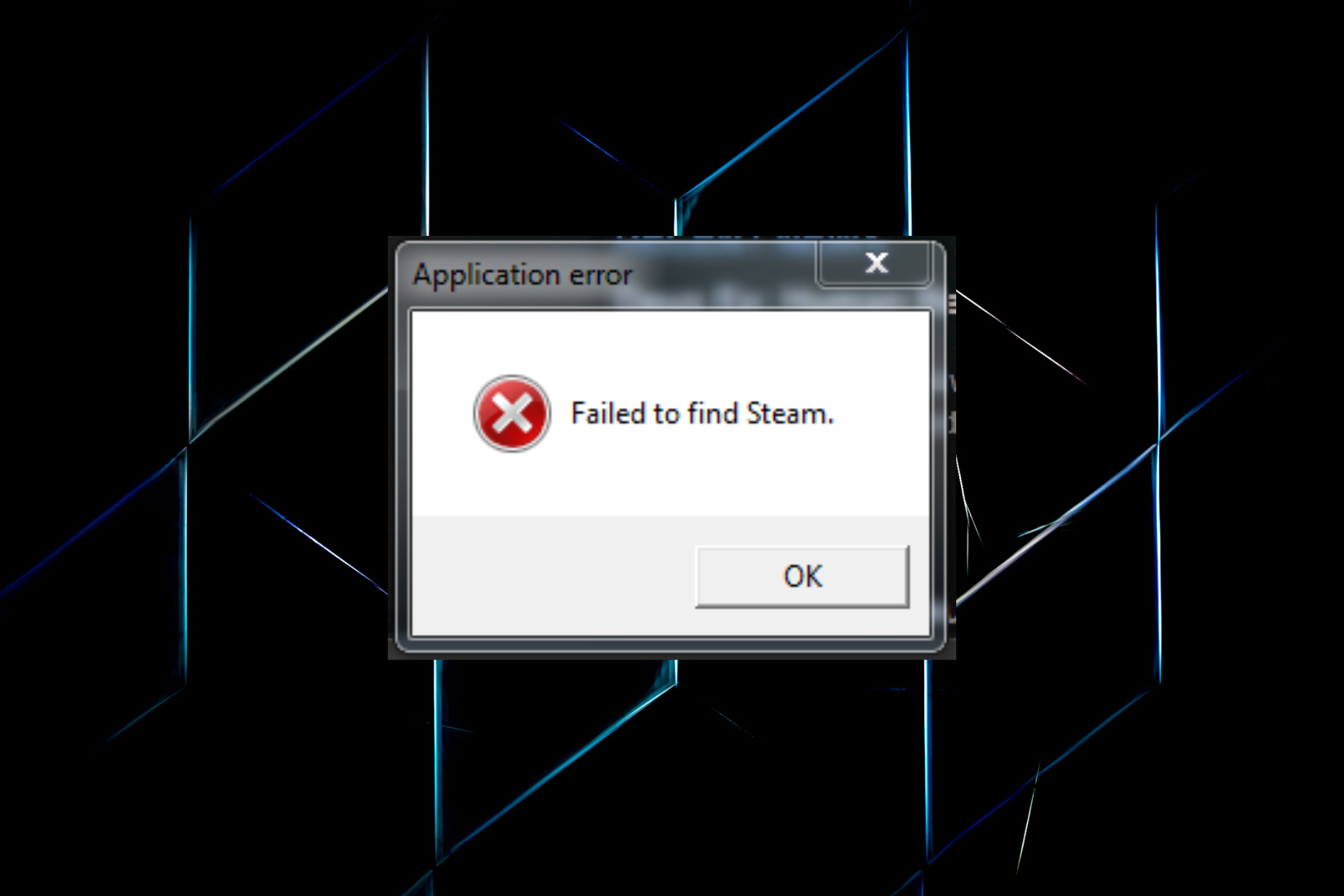
Steam is a popular gaming distribution platform, but many users reported encountering the Failed to find Steam error on their PC.

The error shows up when you try to launch a game on Steam and prevents it from opening. The worst part is that the error box doesn’t list the underlying cause or the possible issues leading to the problem.

This aspect makes troubleshooting the error slightly tricky, but we have the best solutions that have worked for most users. Read the following sections to find out.

Why does my game say Failed to find Steam?

This issue occurs if you choose a custom installation location for Steam. As a result, the environmental variables will become incorrect.

Also, compatibility issues when running a game unsupported on your device can lead to the Application error Failed to find Steam issue. So check the minimum requirements for the game before installing it and verify that your computer matches these.

Besides, if Steam doesn’t have the required permissions, the error may appear. In this case, launching the application with administrative privileges did the trick for many.

The error can affect various games, and we have already covered a couple of them:

Now that you understand the problem, let’s head to the common solutions for it.

How do I fix the Failed to find Steam error?

1. Use the Steam.dll file

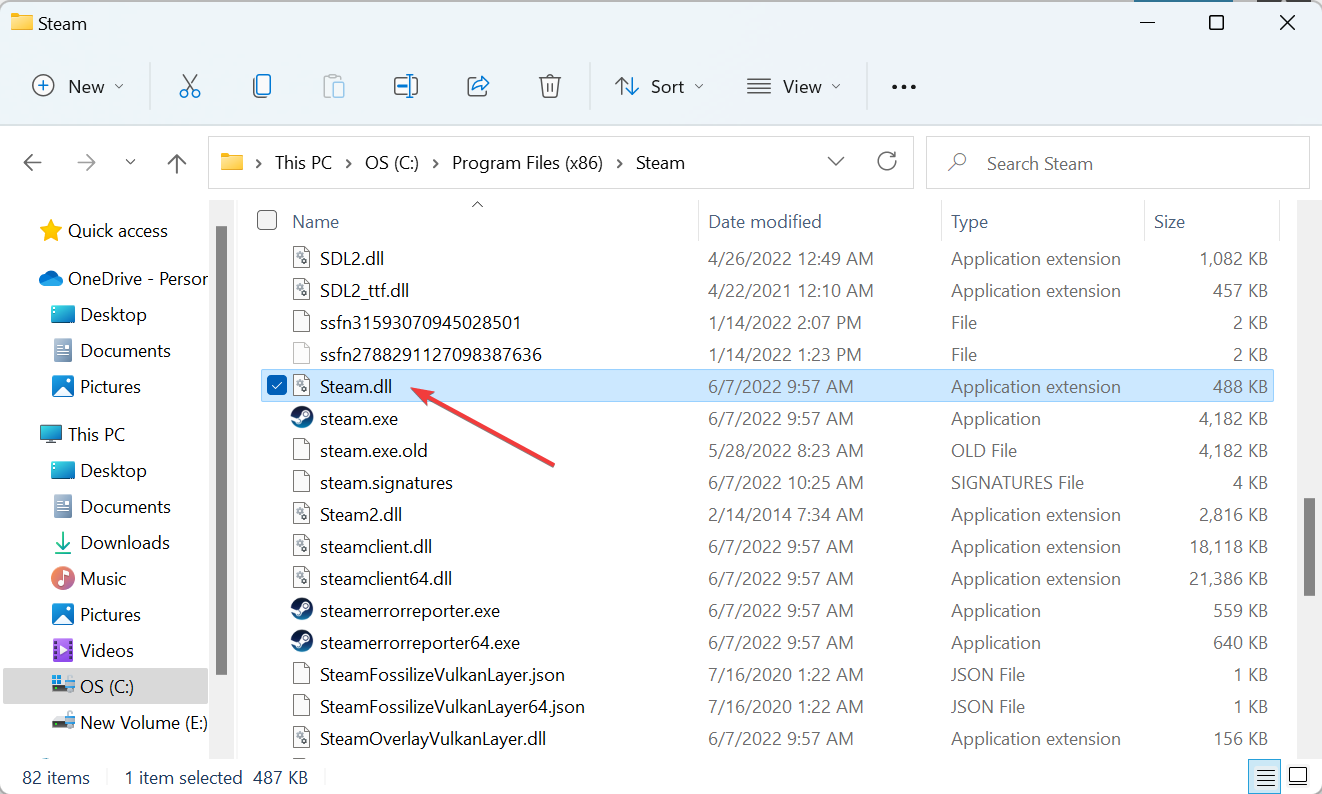
  1. Press Windows + E to open the File Explorer, paste the following path in the address bar, and hit Enter:C:\Program Files (x86)\Steam
  2. Select the Steam.dll file, and press Ctrl + C to copy it.copy to fix failed to find steam
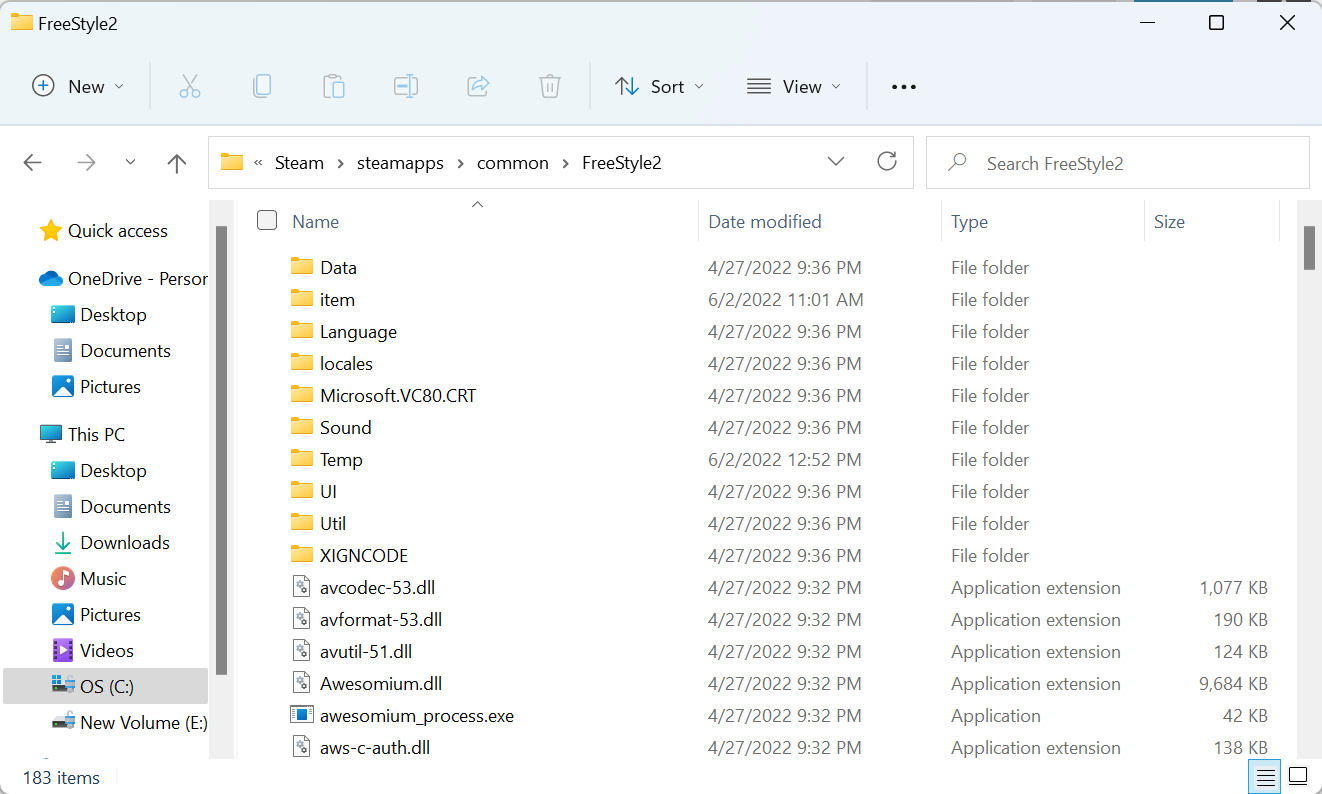
  3. Now, go to the following path where Game Name is the one you are facing trouble loading:C:\Program Files (x86)\Steam\steamapps\common\Game Name
  4. Press Ctrl + V to paste the file here.paste to fix failed to find steam

This is a quick and easy solution, and if you’re getting the Failed to find Steam error, be sure to try it.

2. Modify the Path environmental variable

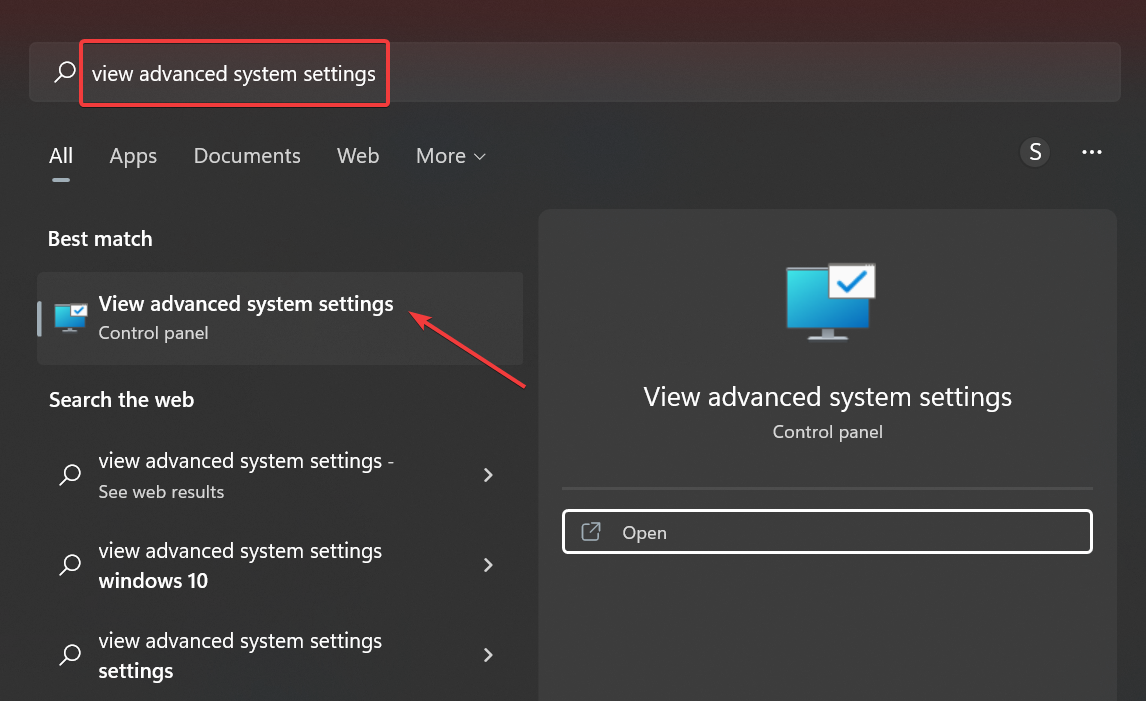
  1. Press Windows + S to open the Search menu, enter View advanced system settings in the text field, and click on the relevant search result.view advanced system settings
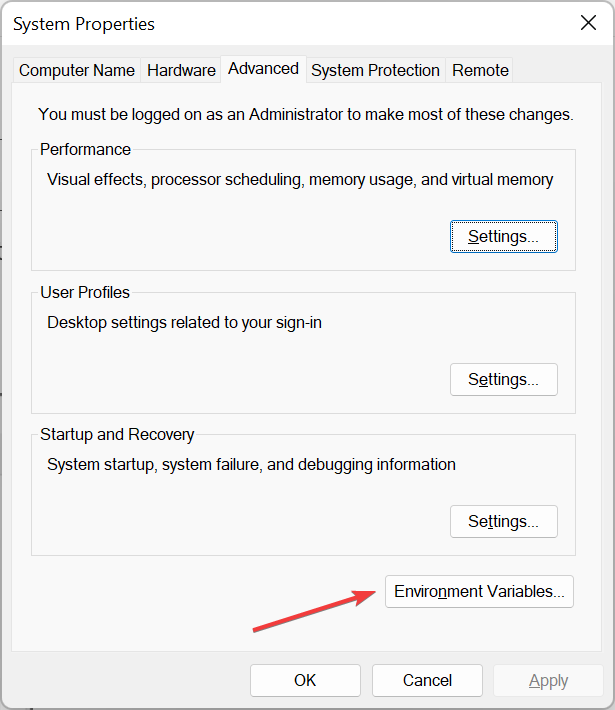
  2. Click on the Environment Variables button.environment variables to fix failed to find steam
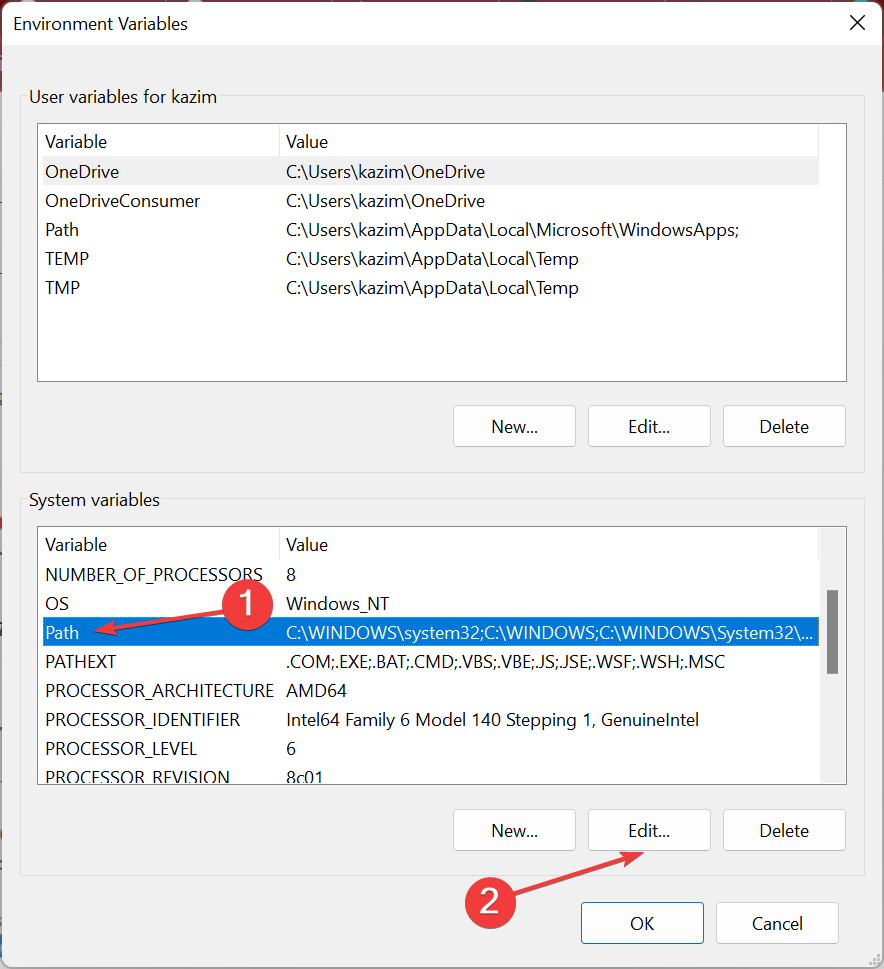
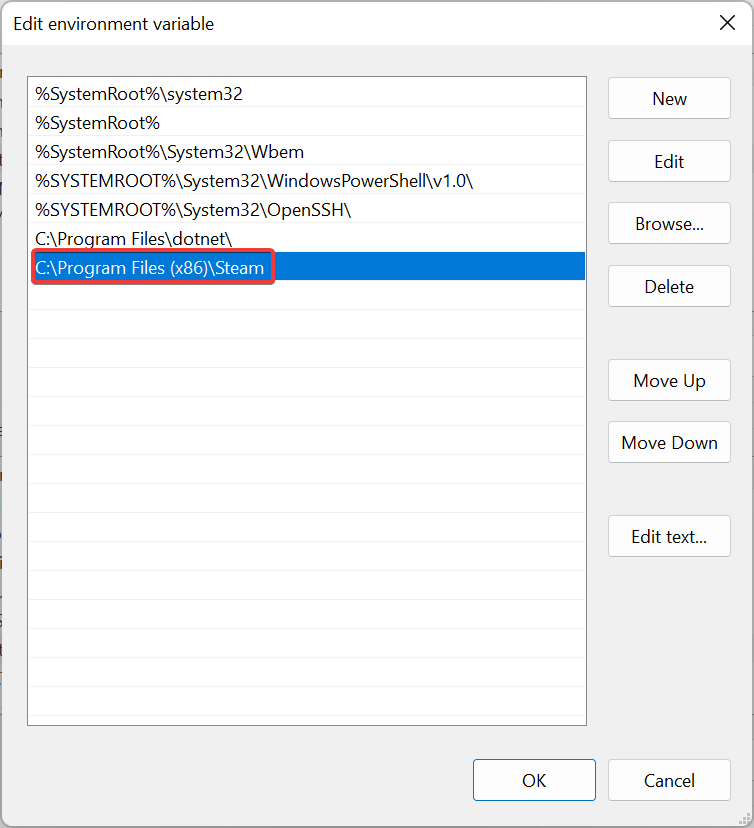
  3. Go to System Variables, select Path, and click Edit.edit
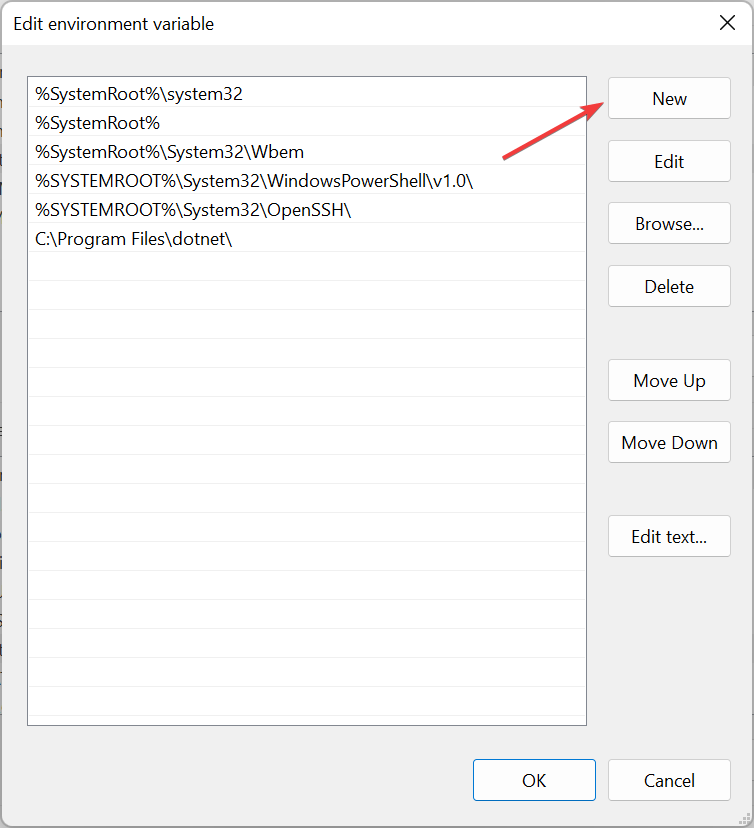
  4. Now, click on New.New
  5. Paste the path to Steam’s installation folder here, and hit Enter.paste path
  6. Next, click OK on all windows to save the changes.

The path to Steam for most users is the following:C:\Program Files (x86)\Steam

Unless you manually choose a different one while installing the program. In which case, use the path on your computer while executing the steps.

Once done with the changes, restart the computer and check if the Failed to find Steam error is fixed.

3. Verify game cache

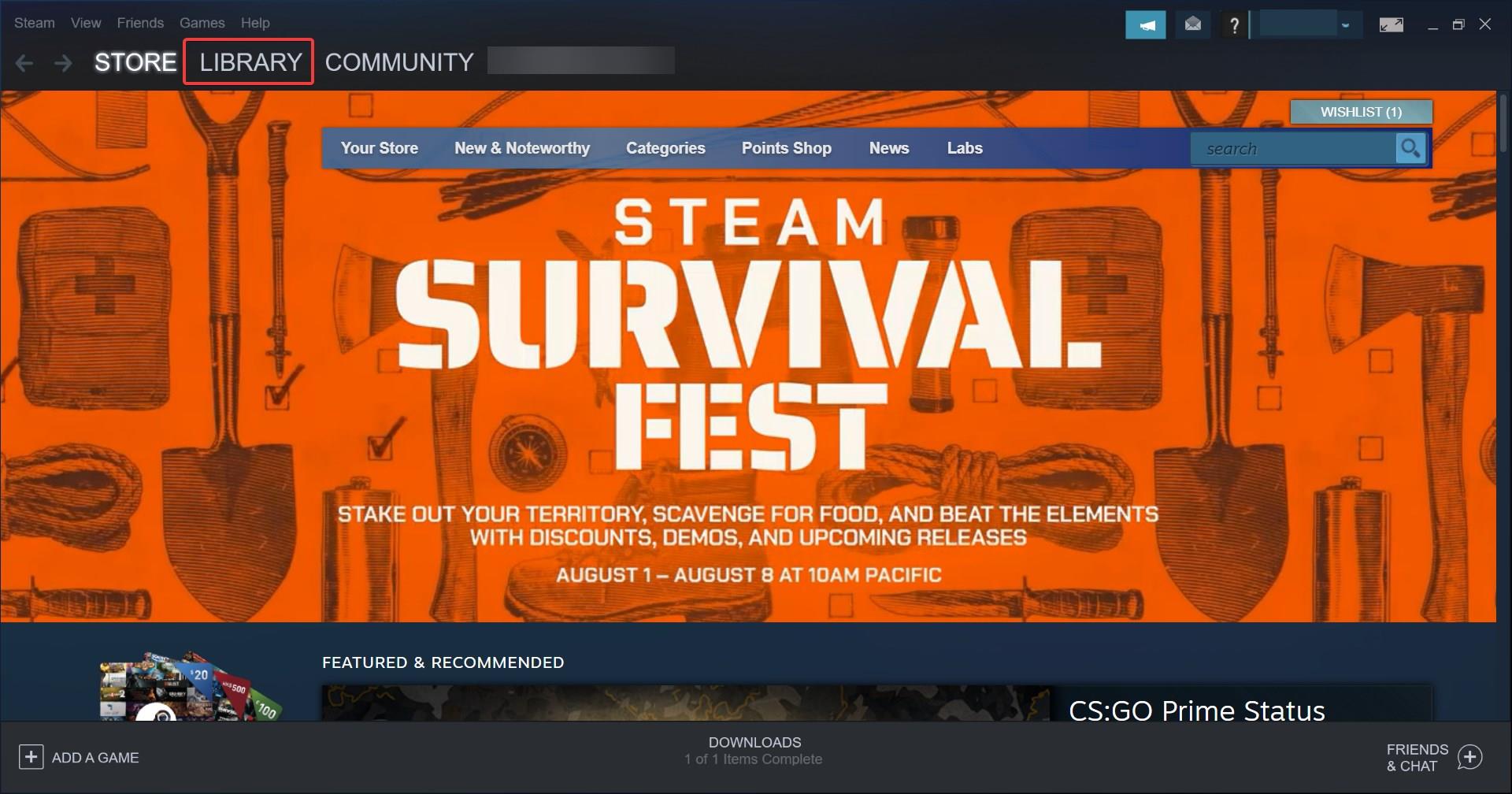
  1. Launch Steam and select Library from the top.library
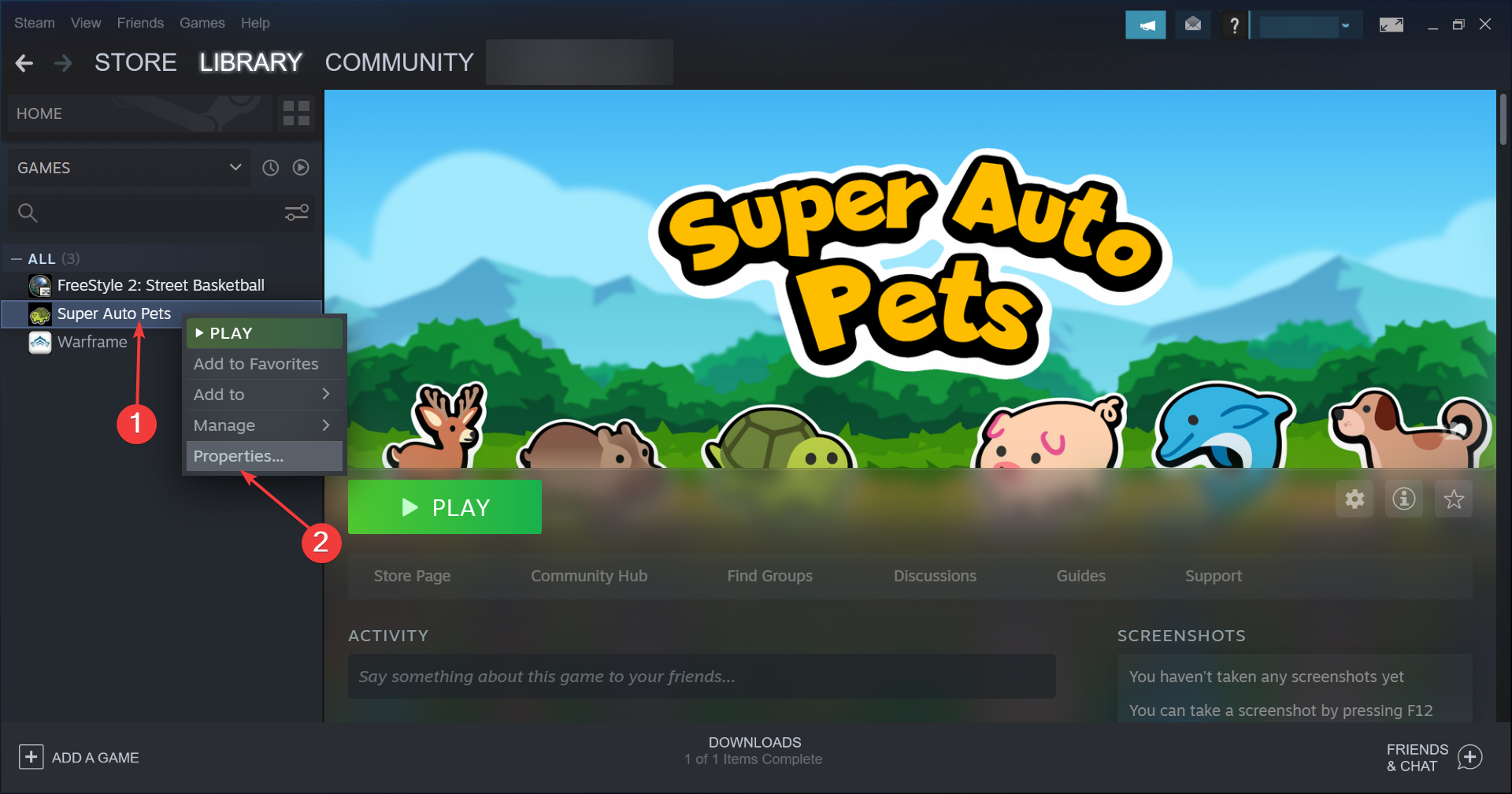
  2. Now, right-click on the game that’s throwing the error and select Properties.properties
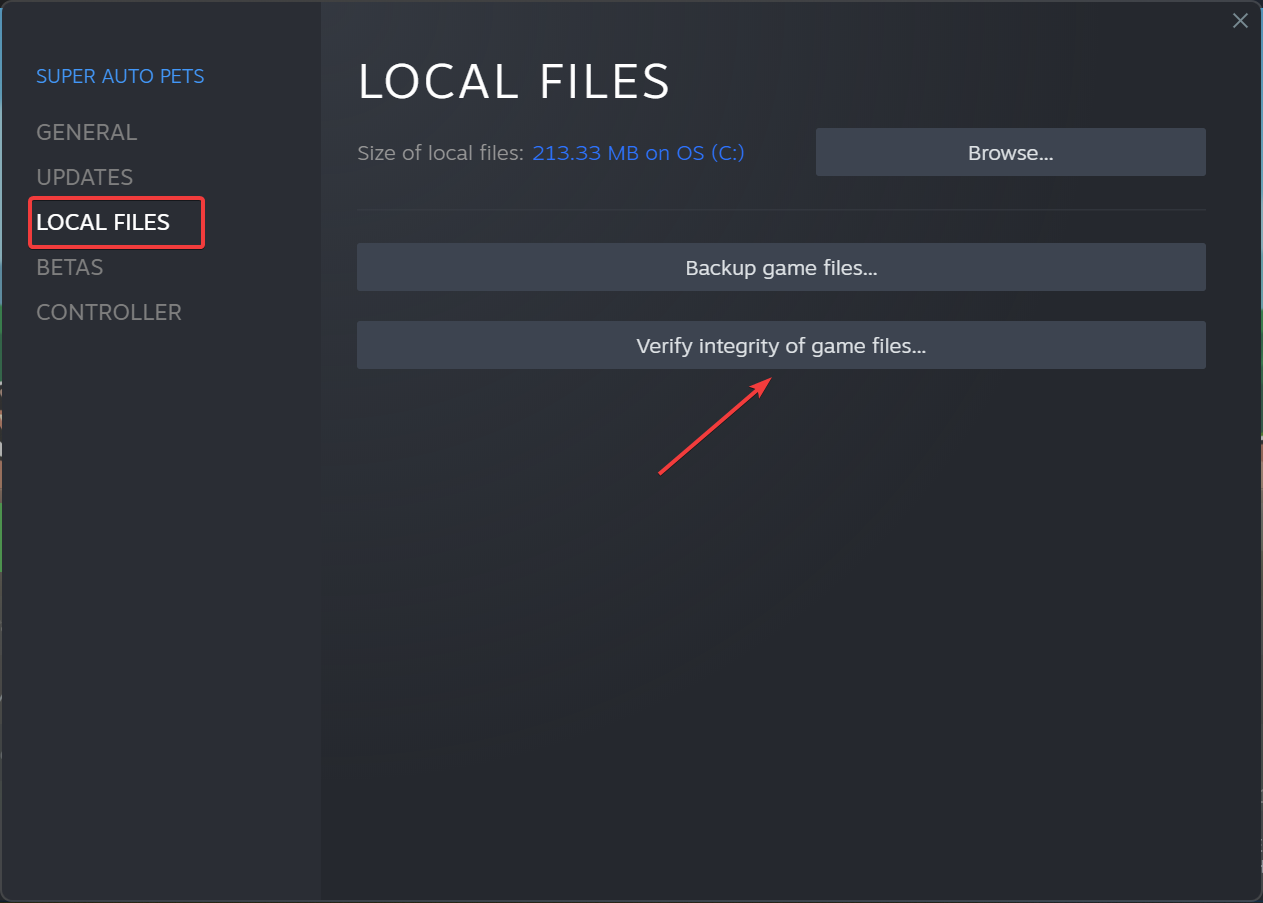
  3. Select Local Files from the left, and then click on the Verify Integrity of game files button.Verify integrity of game files to fix failed to find steam

Sometimes, your game installation might be corrupted, causing the error, but this solution should fix that.

That’s it! One of these methods must have fixed the Failed to find Steam error in Windows 10/11.

In case the error persists, you have no option but to uninstall the app, download Steam again, and then install it with the default settings.

Also, find out what to do if Steam games won’t launch on Windows or if you encounter a Steam disk write error.

Did our solutions work for you? Let us know in the comments section below.

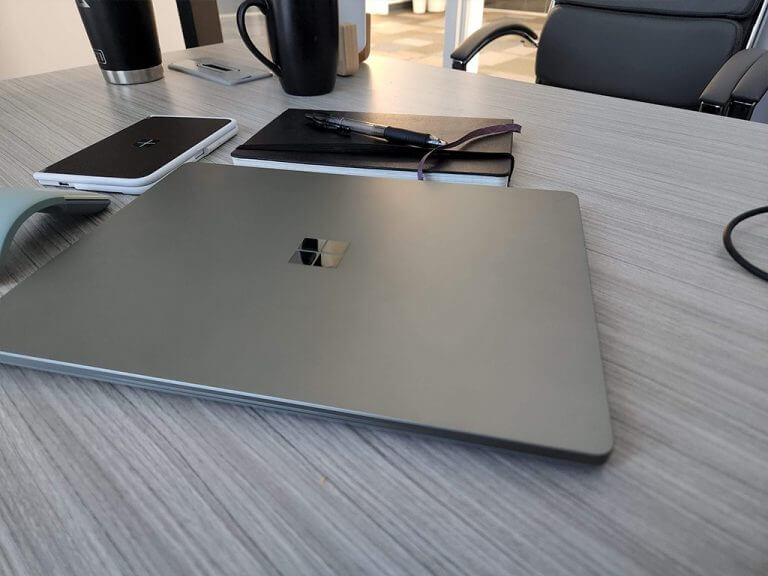
Surface Laptop Go 2 Long Term Review: A well-crafted “all-arounder”

Starting at $569.99

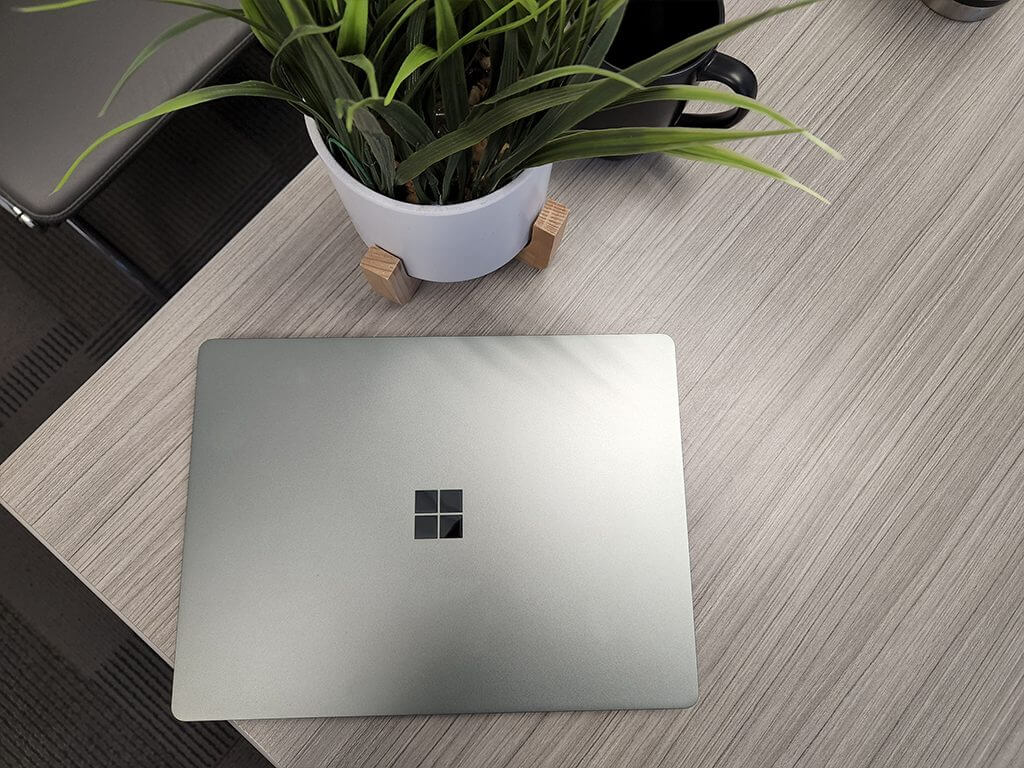
The Surface Laptop Go 2 is a more than solid follow up to the original Laptop Go and cements its purpose as less a Chromebook rival but all-around “basic” computer.

When Microsoft announced and subsequently released the Laptop Go in mid 2020, I admit I was a bit stumped by the decision. Half a year into a world where parents were learning to homeschool children on inexpensive computers and tablets and digital workers had settled into their work-from-home setups, comes the oddly marketed Surface Laptop Go which many argued was overpriced for its specs and underpowered for its price.

With a year under its belt, Microsoft’s Surface team has addressed one of the biggest drawbacks of the first iteration of the Laptop Go by adding a new 11th Gen Intel Core i5 processor.

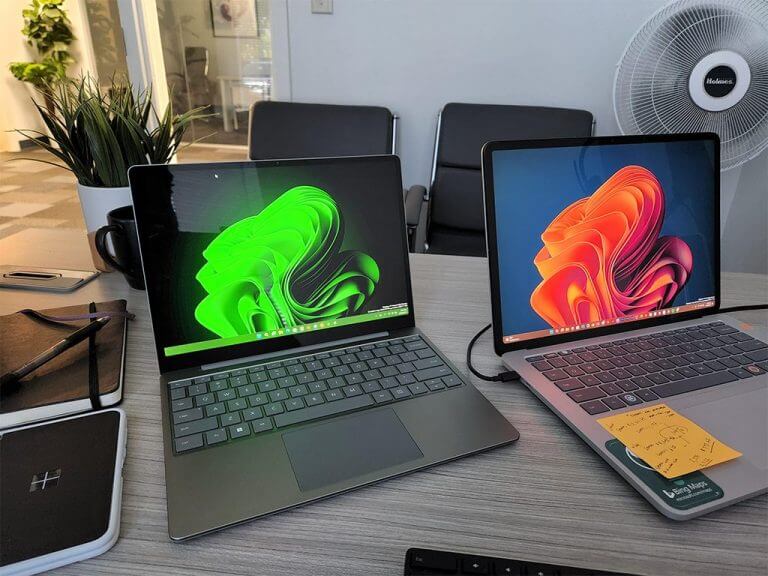
Microsoft Surface Laptop Go 2 - Side by

While the incremental number change is still a year behind the burgeoning release of 12th gen chips in 2022 and may dissuade critics of the original Laptop Go, the processing and graphical leap from Intel’s 10th Gen chips to the 11th are noteworthy.

Intel’s 11th Gen bumps the processing power of the Laptop Go 2 by almost 2x in the most synthetic benchmarking test and real-world performance displays a much snappier experience for users.

Specs
Surface Laptop Go Surface Laptop Go 2
Processor 10th Gen Intel® Core™ i5 processor – 1035G1 Quad Core 11th Gen Intel® Core™ i5-1135G7 Processor
Operating System Windows 10 Home in S mode²
Microsoft 365 Family 30-day trial
Windows 11 Home
Preloaded Microsoft 365 Apps5
Microsoft 365 Family 1- month trial6
Preloaded Xbox App
Xbox Game Pass Ultimate 1-month trial7
Display Screen: 12.4” PixelSense™ Display
Resolution: 1536 x 1024 (148 PPI)
Aspect ratio: 3:2
Touch: 10 point multi-touch
Screen: 12.4” PixelSense™ Display
Resolution: 1536 x 1024 (148 PPI)
Aspect ratio: 3:2
Touch: 10 point multi-touch
Storage eMMC drive: 64GB
SSD: 128GB, 256GB
Removable3 drive (SSD) options: 128GB, 256GB
Graphics Intel® UHD Graphics Intel® Iris® Xe Graphics
Camera 720p HD f2.0 camera (front-facing) 720p HD f2.0 camera (front-facing)
Memory 4GB or 8GB LPDDR4x RAM 4GB or 8GB LPDDR4x RAM
Dimensions 278.18 mm x 205.67 mm x 15.69 mm(10.95” x 8.10” x 0.62”) 10.95” x 8.12” x 0.62” (278.2mm x 206.2mm x 15.7mm)
Audio Dual far-field Studio Mics
Omnisonic Speakers with Dolby® Audio™
Dual far-field Studio Mics
Omnisonic® Speakers with Dolby® Audio™ Premium
Weight 2.44 lbs (1,110 g) 2.48 lbs
Color Ice Blue
Sandstone
Platinum
Sage
Ice Blue
Sandstone
Platinum
Ports/Slots 1 x USB-C®
1 x USB-A
3.5 mm headphone jack
1 x Surface Connect port
2 x USB-C 3.2 Gen 1 (support data transfer, Power delivery 3.0 and DisplayPort 1.4)1 x Pogo pin connector
Battery Up to 13 hours of typical device usage Battery Capacity Nominal (WH): 41.0
Battery Capacity Min (WH): 40.0
What’s in the box
Surface Laptop Go
39W Power Supply
Quick Start Guide
Safety and warranty documents
Surface Laptop Go 2
39W Power Supply
Quick Start Guide
Safety and warranty documents


When processing, the Laptop Go 2 is noticeably quieter than the Go with the fans spinning up less than the original, this is not to say they don’t but when comparing the same task between the two devices, a user will have a much quieter time with the new chipset.

Speaking of processing, Microsoft continues to make use of its unique cooling solution that pumps air out through the gap between the keyboard deck and the screen with an updated fan module to keep your lap and hands cool when stressing the system.

However, the 11th Gen chip stuffed into the Laptop Go 2 is only part of the overall improved processing experience as Intel also added its Iris Xe integrated graphics with the its Tiger Lake releases. The addition of Iris Xe was the first significant boost in graphical performance Intel had improved up in year-over-year release and in the Lapotp Go 2, it is notable.

Microsoft built in support for DirectX 12.1 support and Intel does a decent job of translating that with its Iris Xe discrete graphics onboard.

Pitched as a mid-range basic computer, I doubt few will mistake the Laptop Go 2 for a gaming PC, but thanks to xCloud and Game Pass, AAA gaming is possible and for local play, casual turn based or basic adventure RPGs work well on this sort of device.

Iris Xe graphics also help boost the Laptop Go’s ability to up to four displays at 7680×4320 at 60Hz versus last year’s model which topped out at three monitors at 5120×3200 at 60Hz.

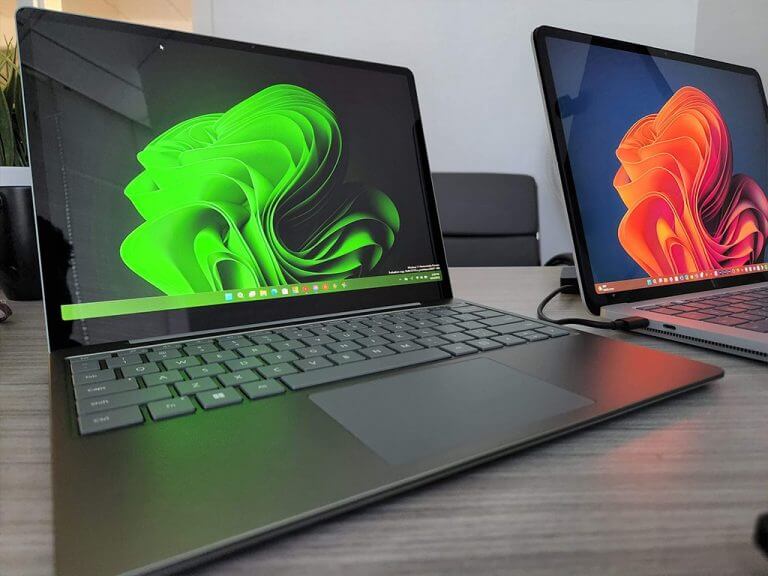
Microsoft Surface Laptop Go 2 - Compared

The other improvement helping meld the overall upgraded processing experience of the Laptop Go 2 is the bump in storage technology this time around.

Gone are the days of the baffling 64GB eMMC storage solutions, now replaced by 128 and 256GB PCIe 3.) solid state drives (SSD) which now help drive faster read and write speeds that make the overall use of Windows feel snappier than it did on the original Laptop Go.

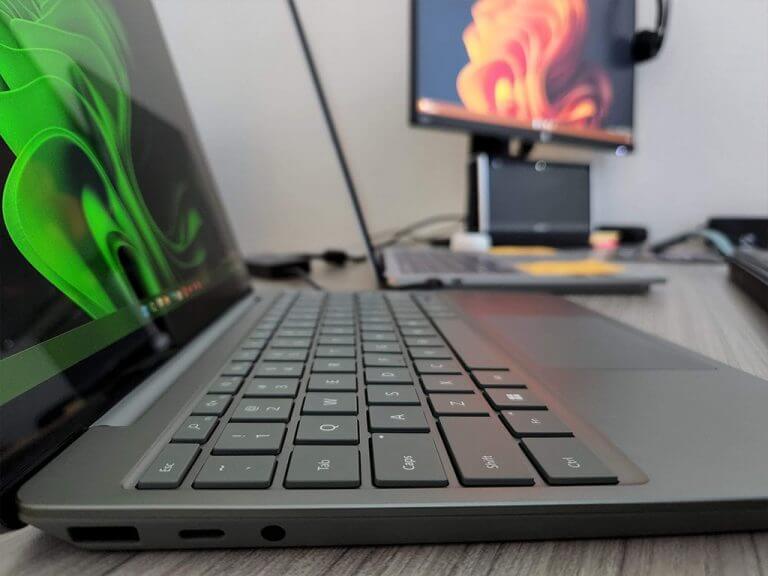
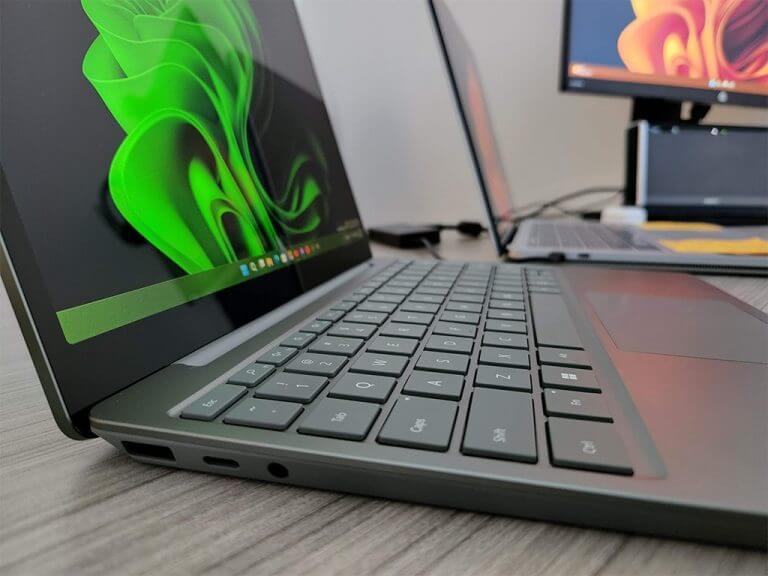
Most users might still find the Surface Laptop Go 2 limiting in the way of ports, as the overall feature set is still hampered by a single non-Thunderbolt USB-C port, a single USB-A, audio jack and the proprietary quick charge Surface connector.

Understandably, it can be frustrating to rely on dongles and try to figure out the power through and output depending on what needs to be connected, the Laptop Go 2 does not alleviate those concerns this time around. I have found myself relying more on the Surface USB-C Travel Hub as my permeate dongle solution that houses an HDMI, VGA (for really old monitors) USB-C, and GigE ports.

Microsoft Surface Laptop Go 2 - ports

While maintaining the overall design of the Surface Laptop Go, the Surface team snuck in some meaningful upgrades to the Laptop Go 2 that include a full version of Windows versus the S-Mode version that shipped with the 2020 version.

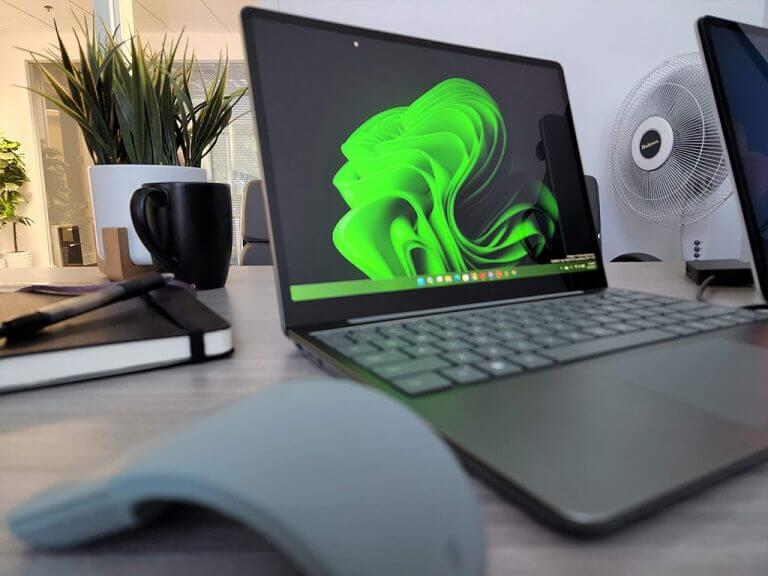
The screen of the Laptop Go 2 maintains its 12.5-inch size and 1536 x 1024 resolution and 10-point multi-touch functionality as well as iconic Surface pen support. The LCD panel sports 2019-ish thin bezels that keep it more modern looking than a Dell Latitude but not as revolutionary as the borderless Dell Insiprions or XPS’s.

As for anyone looking to do some image processing or editing, Microsoft has tuned the display to 98% sRGB, 74% of AdobeRGB, and 78%DCI-P3 while also pushing the lower limits high-end brightness standards at 330 nits.

The Surface Laptop Go 2 doesn’t punch the 400 to 500 plus nits of brightness standards of the higher end laptops but owners can still view 2K and 4K YouTube and Netflix content as well as making use of other Windows specific tweaks to get the most out of the screen in the HDR and Vivid options in the Settings menu.

Perhaps the most standout feature of the Laptop Go 2 is that it maintains the solo-status of being the only 3:2 display laptop on the market. Yes, more OEMs are adopting the 16:10 aspect ratio but not many have jumped aboard the ultra-productive data processing 3:2 screens of the Surface Laptops.

The aluminum and polycarbonate mix for the chassis of the Surface Laptop Go 2 also comes in a few ounces lighter than its predecessor at 1.1kg or 2.45 pounds versus the 1.1kg or 2.48 pounds of the original.

Anyone upgrading this year might also notice a bump in clarity with the upgraded webcam as well as the marginally improved mics embedded into webcam housing. Despite the Laptop Go 2 housing a 720P Full HD webcam for budget-friendly pricing, the f/2.0 lens does a decent job of recording less noise in less-than-ideal lighting conditions.

Microsoft also builds in some software smarts to help edge the marginal camera improvement even further by adding auto-Exposure, auto White Balance, noise reduction, auto brightness, and tweaks to contrast and colors.

The Surface team also stored Bluetooth 5.1 onboard to help keep up with modern connectivity standards as well as take a little strain off the battery as it seeks constant connection to older and newer devices. Unfortunately, the Wi-Fi isn’t quite as modern as Bluetooth as the Laptop Go 2 comes with Wi-Fi 6 AX versus the latest 6E but I doubt many will notice.

Moving onto the keyboard deck, the Surface team made few changes to an already stellar typing experience. The key travel remains the same at 1.3mm and slightly less mushy feeling than the original Laptop Go.

Microsoft Surface Laptop Go 2 keyboard

In 2022, Microsoft still cheapens out at keeping backlit keys reserved for its more expensive laptop offerings, yet maintains the singular lit power button. As with the power button on the original Surface Laptop Go, mid-tier and higher models of the Laptop Go 2 house a fingerprint reader in the same spot.

The Surface team did manage, however, to enlarge the glass trackpad which supports Precision Touch drivers and all of the built-in modern Windows gestures, and seamless design that hides the speakers under the keyboard deck is another constant with the Go 2.

The speakers hidden under the speaker deck are just as loud, if not a bit louder than the original Laptop Go. Microsoft doesn’t support Dolby Atmos on the budget Laptop Go 2 but the built-in Windows sound settings should help a tad in producing an adequate loud speaker experience.

The last thing of note is the battery life on the Surface Laptop Go 2, which outperforms the original Go by 45 mins to an hour on average, which equals about 9 to 10 hours of battery depending on the use case.

Microsoft Surface Laptop Go 2 keyboard 2

During my time with the Surface Laptop Go 2 I managed to get about four hours of heavy use out of the device when pushing the machine with an instance of Chrome and Edge with 15 tabs opened a piece as well as a Photoshop project with 50 layers, running YouTube videos in the background and working in a Supermetrics macro-laden Excel document the entire time.

I hit the 5-hour battery limit of the Surface Laptop Go 2 when using Adobe Premiere Pro on a 1080p project with several edits and multiple video layers while also streaming music from YouTube Music in the browser.

On other days, I managed to squeeze out that golden 10-hour battery life when triaging email, basic web browsing, moderate YouTube video watching, streaming podcasts either with the native Windows client Grover Pro or the browser-based Google Podcasts and editing Ads with the Google Ads desktop client.

Summary

The real-world use of the Laptop Go 2 is a solid all-arounder for anyone who values quality build materials and construction as well as tired of their experiences with more mainstream OEMs such as HP, Dell or Asus.

To be more specific, Microsoft can and should target these devices as replacements for in-office fleet devices. As mentioned, anyone who was assigned a mid-range 2017 ThinkPad or Lattitude will get kick out of replacing those devices with a Surface Laptop Go 2.

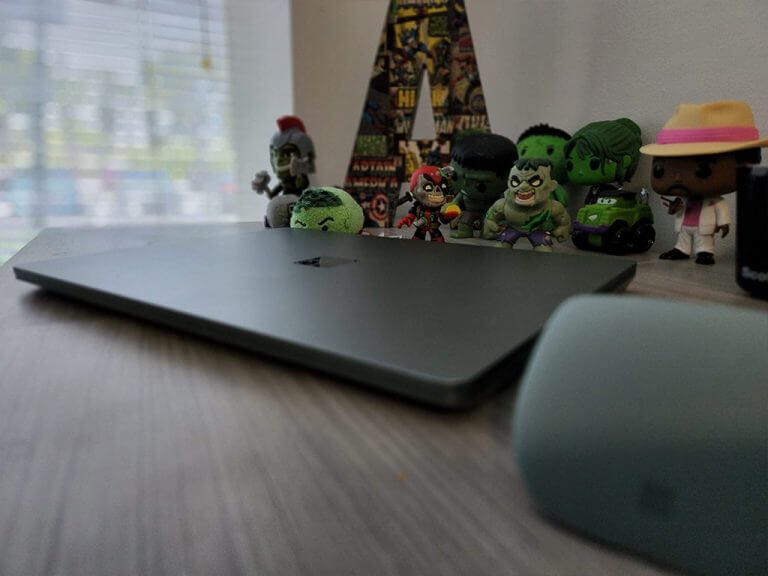
The Laptop Go 2 is often lighter, quieter, comes in Sage green, and better designed than many in its narrowly defined price category.

Another thing going for the Surface Laptop Go 2 is the built-in secured-core kernel as well as the Signature Microsoft out-of-the-box experience that offers zero bloatware.

The other side of that coin is a consumer pitch for the Surface Laptop Go 2 that offers a great starter or transitional laptop for people with moderate content creative goals but maintain data processing jobs or tasks daily.

Nigeria-based systems integrator Bluechip expands to Europe with help from Microsoft and Oracle

Bluechip Technologies, an African tech company that mainly focuses on bringing data warehousing projects together with integrated solutions and services, is expanding its reach to Europe with the help of Microsoft and Oracle as spotted by the folks over at TechCrunch.

The company was launched back in 2008 with a starting capital of $30,000 at the time. The company has since grown and expanded from its main office in Lagos Nigeria. It now has branches all over Africa from Kenya, Nigeria, DRC, Ghana, Zambia, and even Ireland with over 200 consultants aboard. Richard Lewis, CEO of Business Logic Systems, a Bluechip partner based in the U.K., is set to spearhead the company’s operations in the EU market. “Richard has a good feel of the market. He has seen some of the initial requirements from customers that can make him say, “hey, if this is how what you’re paying for a developer in India, we can give you an equally quality developer for 20-30% less this price. And that’s the target that we’re pursuing,” Soyombo indicated.

Essentially, Bluechip Technologies helps businesses decipher trends such as customer lifetime value, churn as well as business analytics with the aim of enhancing effectiveness and efficiency and at the same time turning it into a profitable venture. Other tech companies also make use of its simplex voucher management system to generate airtime vouchers.

According to Olumide Soyombo and Kazeem Tewogbade, Bluechip Technologies founders, “we want to try it out on the EU market and see how it works. The plan is also to expand further elsewhere like French-speaking Africa and possibly North America.” The move will position it as a “new competitive entrant” in the EU market offering its expertise coupled up with well-versed senior data engineers from its head office to pick up the pace in Europe.

Building upon this premise, they recently launched Primo Academy. A dedicated pipeline six-month program of data professionals that serves the entity as well as local and international shareholders. This way the company will be able to equip the professionals with the required skills that will make them land jobs in this current market, and they even help them source these opportunities.

Soyombo attributes these efforts to COVID-19 where most organizations picked up a work-from-home arrangement, which led to many of them suffering because of the shortage of employees that were tech-savvy to manage data. Hence, the company’s expansion to the European market. According to recent research studies conducted, the region’s big data and business analytics market size is set to hit $105 billion+ by 2027. Bluechip’s goal is to help bridge this gap.

We built this core enterprise business application for banks and telcos and the talent pool to address these needs. The whole play here is to be that systems integrator provider to the EU market. The pandemic has accelerated the need for that global flat workspace, and how to place those engineers while working with our partners like Oracle and Microsoft, and to do this cheaper than India or Eastern Europe.

The company’s founders are positive that they will be able to tap into the EU market successfully as Soyombo predicts that the company’s revenues might hit $250 million in five years. Furthermore, they intend to spread and widen its reach to both telcos and banks by leveraging its presence in Ireland.


5 Challenging Online Car Games to Play with Your Friends

Car games – and by this, we mean racing games – will never get old. The community for it is huge, and luckily, there are a plethora of online car racing games to play with your friends.

But the real task lies in identifying the best online multiplayer racing games to play with friends. Most found online either lack good graphics, or there’s a lot of lag.

Any good car game available for PC or console needs to be downloaded one way or another. Many of them are paid. Only some of them have multiplayer or online modes.

We’ll go over a few car games that come with online modes since this is one of the most sought-after features, not only for this genre but for almost any game genre.

What is the best browser for gaming?

Most users generally go with Chrome or Firefox, which is usually their primary browser, while playing games. But, both these and other popular browsers are not gaming-oriented and wouldn’t deliver the best performance.

When playing online car racing games, it’s recommended that you choose a browser like Opera GX, which is developed primarily for gaming. It offers several customizations to enhance the experience and boost the browser’s performance while playing games.

It allows users to set a limit on the CPU, RAM, and Data usage. The various apps integrated into the sidebar allow easy access while gaming. Besides, the GX corner lists the various free games, the latest developments, and other gaming news.

What car racing games can you play online with friends?

TrackMania Nations Forever – A classic car racing game

trackmania

A classic among online games, TrackMania has a community of over 17 million racers so far, and is one of the best online racing games to play with friends.

The initial game was released in 2008 and is still available because of the solid and fun gameplay.

In the free version, you get access only to the Stadium environment, plus some features. In the paid version, Trackmania United Forever, there are also car customization features, a track editor, 6 other environments, and many more.

You can try a preview of the game by downloading a particular setup only for Windows.

⇒ Play TrackMania Nations Forever

Distance – Not your regular racing game

distance

Opinions about Distance vary a lot since the game takes a bit of dexterity to carry on.

So it’s not a game for beginners. However, given its complicated gameplay and visual style, it managed to win some fans that don’t fancy racing games at all. Players have also appreciated the original soundtrack.

It comes with a multiplayer feature that allows online playing (for up to 12 players) and split-screen playing (for 2-4 players) in various game modes. You can also check out this collection of free racing games on Microsoft Store to find more titles you can play at no cost.

⇒ Get Distance on Steam

Real Racing 3 – One of the best for Android and iOS devices

real race 3

This is a top-rated online car racing game, available only as an app for both Android and iOS devices.

Its key features include 39 circuits, over 140 cars from top manufacturers, Real-Time Multiplayer, night racing, and Time Shifted Multiplayer™ (TSM) technology, that allows you to race anyone, anytime, anywhere.

As a side note, players have complained about the numerous cheaters in the online multiplayer mode.

As is the case with apps, the free version works up to a certain level; from then on, you have to make in-app purchases.

⇒ Get Real Racing 3

Forza Horizon 3 – Only for real game lovers

forza horizon 3

The Forza series (or their latest games) always tops any racing game rankings due to their ultra-realistic graphics and challenging gameplay.

Forza Horizon 3 uses some of Australia’s top-notch locations for various forms of races, time trials, driftings, and Bucket List Challenges.

The online car racing game also features a four-player live co-operative multiplayer Horizon campaign. It is also part of the Xbox Play Anywhere program, allowing live cross-platform play.

⇒ Get Forza Horizon 3

Mario Kart Tour – A fun and simple racing game

free car games

We left this one at the end because a car game list is incomplete without a Super Mario game.

Mario Kart Tour is available only as an app on Apple Store or Google Play. The standard version is free to play, but then there are, of course, in-app purchases.

After downloading the app, you have to create a Nintendo account, register your friends on the dedicated list, and you are good to play online.

Unfortunately, the multiplayer option received bad reviews online for its many bugs. The developers are surely working to fix it, as many players have installed the app precisely for this feature.

⇒ Download on Google Play

You now know the best online car racing games to play with friends. Try them all today, and choose the one that seems the best to you.

Also, find out the best free online games that don’t need to be downloaded.

Tell us your favorite online car racing game in the comments section below.

3 Ways To Fix Waterfox If Flash Is Not Working

Waterfox is an open-source web browser designed specifically for ARM64 and PPC64LE systems. Its main intention is to be ethical and offer support for legacy extensions by Firefox.

It was the first 64-bit browser to be available on the web. Not only did it offer better speed, but it gave users freedom and control to run any extensions or addons.

Waterfox is available on Windows, macOS, Linux, and Android. In terms of security, the webpage data is run via Google’s SafeBrowsing service, but you can opt out if you wish so.

Despite all these features, Waterfox still faces some errors sometimes. One of these errors is Flash not working in Waterfox. If you are also among the people facing this error, keep reading this post to learn how to fix it.

Does Waterfox still support Flash?

Flash or Adobe Flash Player is a software that allows the streaming of videos, audio, multimedia, etc., on a supported device. But it was discontinued due to multiple security issues.

Before being discontinued, the Flash Player was available for operating systems including Windows, macOS, Linux, etc. However, a Waterfox Flash plugin is still available to download for free on modern-day web browsers.

Now, to answer the question, yes, Waterfox is one of the browsers that still support Flash. Browsers supporting the Flash Player run fine, but sometimes security issues may arise.

Which browsers still support Flash?

No major browsers support the Adobe Flash Player. This list includes Google Chrome, Firefox, and Microsoft Edge.

However, there are still some lesser-known browsers that support Adobe Flash Player, such as Opera One, Puffin, FlashFox, Waterfox, Dolphin, and Kiwi. The Flash Player is built into the browser package of all these browsers.

If you want to get all the standard features of a browser, as well as privacy-focused features and modern social media integrations, and support for customized workspaces, we recommend trying Opera One.

Opera One

Use Opera One if you need integrated flash support, and up-to-date browsing features under a highly customizable interface.

How do I get Flash to work on Waterfox?

1. Update Waterfox to the latest version

  1. Open Waterfox and click on the open Application Menu icon at the top right corner.
  2. Click on Help and select About Waterfox.
    waterfox flash not working
  3. It will now automatically start to search for updates and install them if any.
    update wtrfox

Before getting started with different methods to fix Flash not working in Waterfox, check if your browser is running on the latest version or not. This will ensure that all security patches and core files have been updated.

If the error is still bugging you try reinstalling Waterfox.

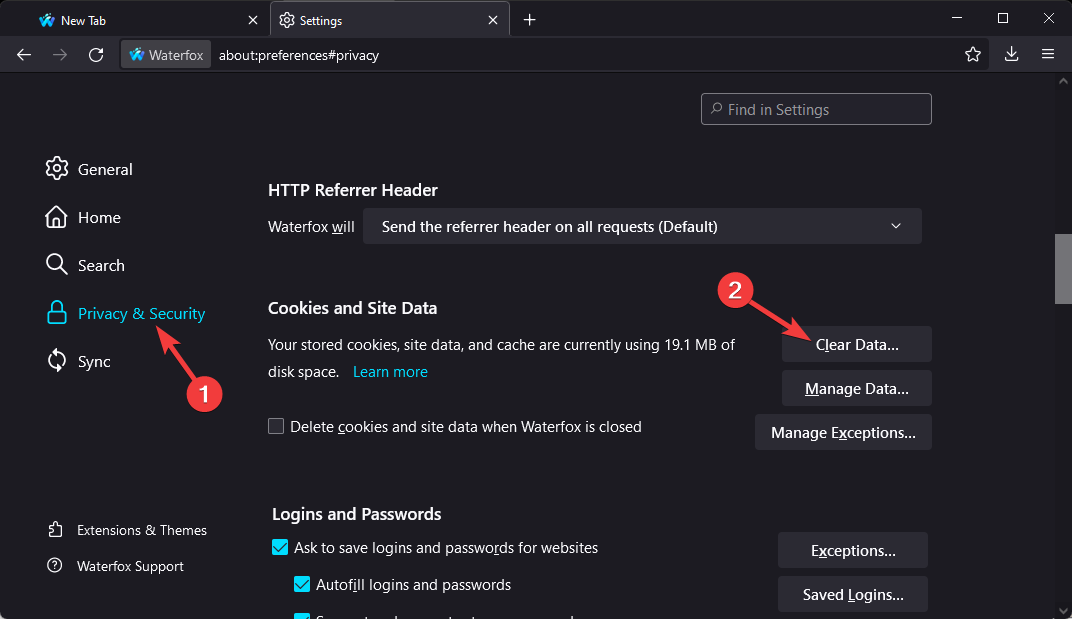
2. Clear Cookies and site data

  1. Open Waterfox and click on the hamburger icon at the top right corner.
  2. Click on Settings.
    waterfox settings
  3. Navigate to Privacy & Security.
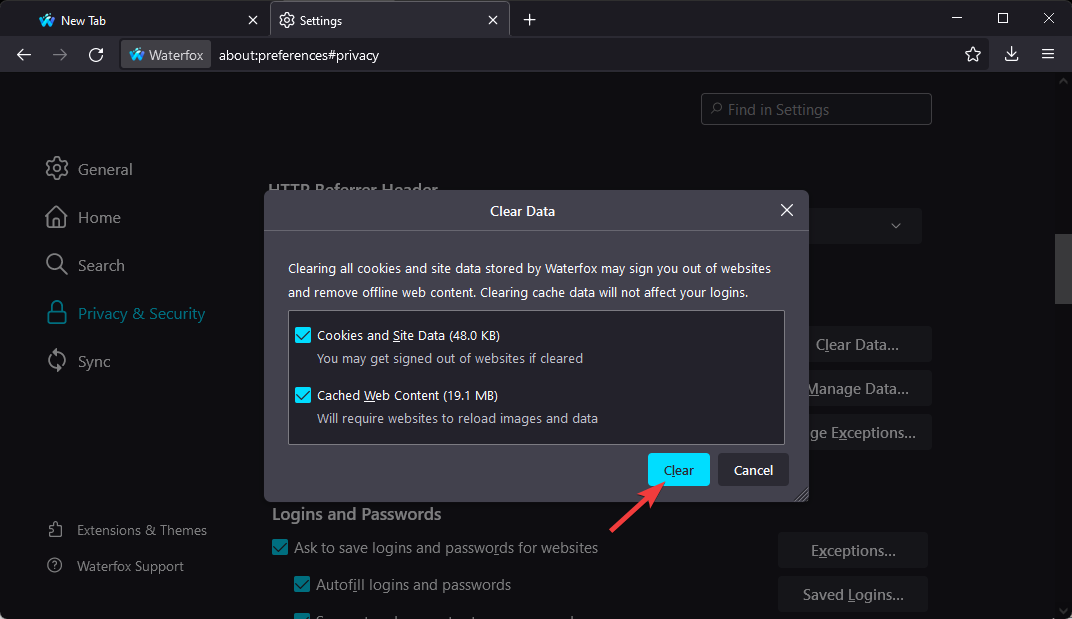
  4. In the Cookies and Site Data section, click on Clear Data.
    clwae data wtrfox
  5. Now click on Clear to confirm the process.
    waterfox flash not working

Flash not working in Waterfox can sometimes occur due to the browser’s cache data. Clear the cache data of the browser you are using and check if the issue is fixed.

Several users complain about the fact that they can’t set Firefox as the default browser. Rest assured that our guide shows you what to do in case that happens.

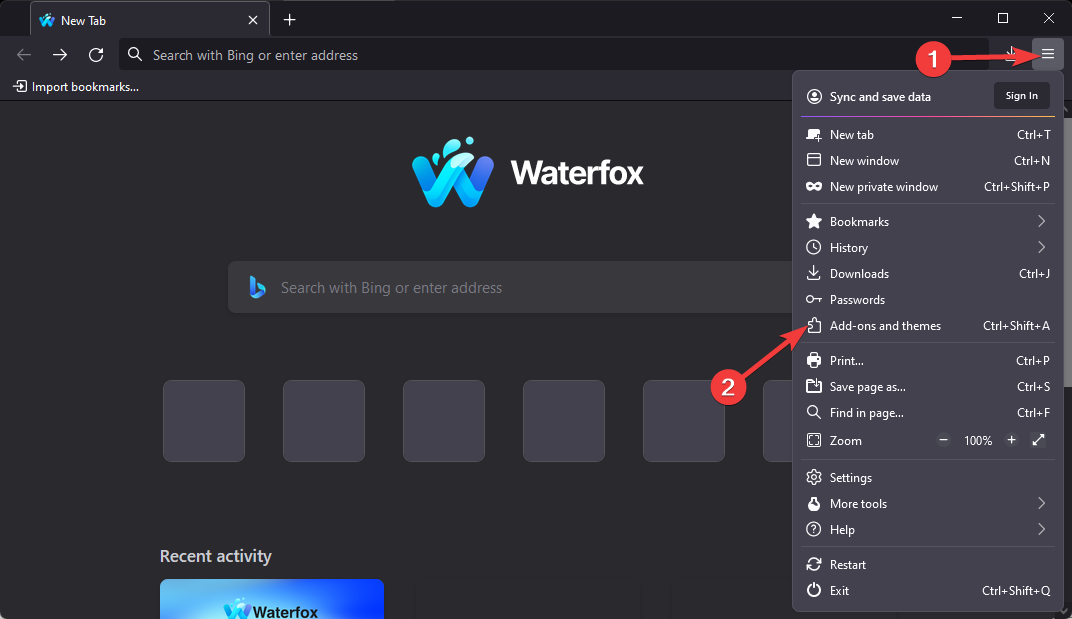
3. Disable extensions

  1. Open Waterfox and click on the hamburger icon at the top right corner.
  2. Select the Add-ons and themes option from the list.
    waterfox flash not working
  3. Switch to the Extensions from the left sidebar.
  4. Toggle the Disable option of every extension.
    disable extentions wtrfox

An add-on or extension could be the reason why Flash is not working in Waterfox. Try disabling all extensions and plug-ins and check if Waterfox allows Flash.

You can either disable all the extensions at once or enable them one by one to check which one of them is causing the problem. You can also disable them one by one and check simultaneously; anything per your preference should work.

How do I open a Flash site in 2022?

  1. Open Waterfox and navigate to the page that uses Adobe Flash.
  2. Click on the New Add-on icon on the address bar to open the menu.
  3. Select the checkbox beside Remember this decision to allow Flash to run on this website in the future.
  4. Then click Allow to save the settings.

This was how you can fix Flash not working in Waterfox. We hope that the mentioned steps were able to help you.

If you still have any issues, feel free to drop a comment below or try contacting Waterfox flash support. We’d love to hear from you.

11 Ways to Fix Err_Internet_Disconnected on Windows 10 & 11

Google Chrome is one of the best browsers on all your devices. It does well in all the major areas that matter to users and satisfies their needs.

However, like any other application, it has its problems. One problem with Chrome that Windows 10 and 11 users reported is err_internet_disconnected. This error prevents you from accessing important and trusted sites and can drag on for long.

Fortunately, it is not the most difficult problem to solve, and we’ll show you how to fix it in this guide.

Quick Tip:

Giving a try for Opera One browser comes as a permanent improvement. It’s a lightweight browser with a battery saver and a proxy VPN to help you with connection errors.

The Opera One it’s more stable overall due to having many of it’s features already built-in. Opera One comes with AI, Ad blocker, workspaces, tab islands, social media and messaging apps integration.

Opera One

Opera One is a top pick for a distraction-free and safe browsing experience.
Free Download Visit website

What does err_internet_diconnected mean?

The err_internet_disconnected, as the name shows, is down to a problem with your internet connection. It simply means your browser is having issues connecting to the host.

However, this problem can go just beyond your internet connection. It might be caused by issues with your browser or some settings on your PC. Below are some of the common causes:

  • Corrupt browser data
  • Faulty extensions
  • Proxy activation on PC
  • Faulty network driver

How can I fix the err_internet_disconnected error?

1. Check if your Internet connection is working

Before fixing this problem, you need to check if your Internet connection is working. To do that, try accessing the Internet from a different PC on your network.

If you don’t have another PC, you can use any device, such as your smartphone or tablet.

If the problem appears on all devices, there might be a problem with a network cable, so check if everything is connected properly.

However, if the issue appears only on your PC, your router is working properly, and your PC’s network settings cause the problem.

You can also fix this problem by restarting your modem/router. Press the Power button on your router to turn it off and wait for 30 seconds.

Now press the Power button again and wait for the router to boot completely. After your router boots, check if the problem is still there.

2. Clear browsing data and cache

  1. Click the menu icon in the top right corner and choose Settings from the options.
    settings
  2. Click Privacy and security in the left pane.
    privacy
  3. Select Clear browsing data.
    clear browsing
  4. Click the dropdown next to Time range and choose All time.
    all time
  5. Check the boxes for Browsing history, Cookies and other site data, and Cached images and files.
  6. Finally, click the Clear data button.
    clear data

Few users reported cleaning the browsing data and cache can fix the err_internet_disconnected on Google Chrome. So you might want to try it out too.

After clearing the cache, restart Chrome and check if the problem is still there.

3. Change Internet Options

  1. Press Windows key + I to open the Settings app.
  2. When the Settings app opens, navigate to Network & Internet section.
    Err_internet_disconnected Firefox
  3. Select Proxy from the menu on the left. In the right pane, disable all options.
    Err_internet_disconnected Windows 7

Sometimes Err_internet_disconnected error can be caused by your proxy. Although proxy is a great way to protect your privacy online, sometimes it can interfere with your system and cause this and other errors to appear.

To disable proxy in Windows 10, you need to do the following:

After you disable your proxy, check if the problem is still there. If you’re still concerned about your privacy, one good way to protect it is to use a trusted VPN like Private Internet Access (PIA).

PIA ensures complete privacy online thanks to its strong servers worldwide. It also protects your data and identity online without messing with your browser. It is worth considering if you need a reliable VPN.

4. Disable/remove your antivirus

Antivirus and firewall tools can interfere with your Internet connection, and if you’re getting err_internet_disconnected error, you might want to disable your antivirus and firewall temporarily.

If disabling antivirus and firewall doesn’t fix the problem, try uninstalling them.

If the problem is fixed after removing the third-party antivirus or firewall software, you can reinstall it or switch to a different antivirus tool.

5. Reinstall your network adapter

  1. Press Windows key + X to open the Power User Menu.
  2. Select Device Manager from the menu.
    Err_internet_disconnected Windows 10
  3. When Device Manager opens, locate your network adapter, right-click it and choose Uninstall device.
    Err_internet_disconnected laptop
  4. If available, check Delete the driver software for this device and click Uninstall.
    Err_internet_disconnected Chrome

Sometimes the net: err-internet_disconnected 200 problems can occur if your network adapter drivers aren’t fully compatible with your operating system or if they are improperly installed.

To fix this issue, you need to reinstall your drivers. After deleting the driver, restart your PC.

When your PC restarts, the default driver should be installed.

Lastly, if you want to update the missing drivers automatically without going through the steps above, you can choose third-party software in Outbyte Driver Updater. 

What you need to do is select the right driver to upgrade from the list, and the software will do all the work on your behalf.

⇒ Get Outbyte Driver Updater 

6. Change the name and password of your wireless network

To fix the err_internet_disconnected error, some users suggest changing your wireless network’s name and password.

To do that, connect to your router, go to the Wireless section and change the necessary data. You can also try disabling and enabling the wireless connection right from your router.

7. Flush your DNS configuration

  1. Press Windows key + X.
  2. Choose either Command Prompt (Admin) or PowerShell (Admin) from the menu.Err_internet_disconnected Lenovo
  3. When Command Prompt opens, run the following commands: ipconfig/release
    ipconfig/all
    ipconfig/flushdns
    ipconfig/renew
    netsh int ip set dns
    netsh winsock reset

Sometimes Err_internet_disconnected error can appear due to certain network glitches, but you can easily fix them by running a few commands in Command Prompt.

After running all commands, check if the problem is still there.

8. Delete wireless profiles

  1. Open Command Prompt as administrator.
  2. Now, run the command below to show all available wireless profiles. netsh wlan show profiles
  3. Lastly, run the command below to remove the profile. netsh wlan delete profile name=Name of the profile

If you’re getting the page failed to load error – 106 (internet_disconnected), the internet connection has been lost on your PC, and the problem might be wireless profiles. However, you can fix that problem by manually removing the wireless profiles.

After you remove your wireless profile, try to connect to the same wireless network again and check if the problem is resolved.

9. Temporarily disable Windows Firewall

  1. Press Windows key + S and type firewall.
  2. Select Windows Defender Firewall from the list of results.
    Err_internet_disconnected Chrome
  3. Windows Defender Firewall window will now open. Select Turn Windows Defender Firewall on or off.
    Err_internet_disconnected Windows 10
  4. Select Turn off Windows Defender Firewall (not recommended) for private and Public networks.
  5. Click OK to save changes.
    Err_internet_disconnected Lenovo

If you’re getting Err_internet_disconnected error frequently, your firewall may be blocking the browser.

However, you can fix the problem by temporarily disabling Windows Firewall. To do that, you need to follow the above steps.

After you disable Windows Firewall, check if the problem is still there. If disabling the firewall fixes the issue, ensure your firewall is properly configured.

10. Disable problematic extensions

  1. Click the menu icon in the top-right corner and select More tools.
  2. Select the Extensions option.
    more err internet diconnected
  3. Toggle the switch before each extension backward to disable it.
    disable
  4. Once you disable all extensions, restart Chrome.

In some cases, the Err_internet_disconnected error can appear due to problematic extensions. To fix the problem, you need to find and disable those extensions.

Once your browser restarts, check if the problem is still there. If not, it means that disabled extensions were causing the problem. To pinpoint the cause, you need to enable extensions one by one or in groups until the issue reappears.

Once you find the problematic extension, remove it, and the issue will be permanently resolved.

11. Reset Chrome

  1. Click the menu button on Chrome and select the Settings option.
    settings
  2. Click the Reset and clean up option in the left pane.
    reset and clean
  3. Select Restore settings to their original defaults.
    reset settings err internet disconnected
  4. Click the Reset settings button to confirm.
    reset button

If you keep getting Err_internet_disconnected error on your PC, the problem might be related to your settings.

Sometimes certain settings in Chrome can cause this issue to appear, but you can easily fix the problem by resetting Chrome to default.

After resetting Chrome to the default, the issue should be completely resolved, and everything should start working again.

Err_internet_disconnected error can cause you a lot of trouble, but you can easily fix this error by changing your network settings or resetting your router.

Speaking of this error, here are some related issues that users reported:

  • Err_internet_disconnected in Chrome, Firefox: This problem can appear on almost any browser. Even though our solutions are meant for Chrome, similar methods should also work in Firefox.
  • Net::err_internet_disconnected in Windows 10, 7: This issue can affect other versions of Windows, and even if you don’t use Windows 10, you should be able to apply most of our solutions.
  • Err_internet_disconnected on Lenovo laptop: Sometimes, this problem can appear on your laptop, and if that happens, be sure to check your drivers and wireless network configuration.

Irrespective of the variety of the error, this guide is an encompassing one with fixes that will surely solve the problem.

3 Quick Ways to Fix Pale Moon when YouTube is Not Working

Pale Moon is an open-source web browser that runs on engines similar to Firefox. However, its features and functionalities are entirely distinctive.

The browser is very lightweight and offers a very smooth browsing experience. Pale Moon is available for Microsoft Windows and Linux with contributed operating system support.

The browser focuses on efficiency and customizations by offering a range of features. Along with that, it follows the best practices to use a VPN while connecting to the internet.

However, even the most perfect things sometimes have some shortcomings. For example, it’s very common for users to experience YouTube not working in Pale Moon.

Luckily, issues like these are straightforward to fix. So keep reading this post to learn how to do so.

Why isn’t YouTube not working in my browser?

All browsers offer distinctive features that aim toward improving the User experience. However, you can still experience issues while playing videos sometimes.

There are several reasons why YouTube might not function properly on your browser. Some include an unstable internet connection, incorrect settings, and an updated browser version.

What is the best browser to watch YouTube?

Chrome is considered one of the fastest browsers for streaming YouTube videos. Additionally, it offers various features like magic actions and video extensions.

However, Opera One can also be considered the best browser for watching YouTube. This is because it offers some unique video options and features.

Also, Opera One includes a video pop-up allowing users to move videos out of the Opera One page tabs. It also offers an inbuilt ad blocker, a free VPN and also a native AI.

Opera One

Use Opera One to watch ad-free YouTube videos and access geo-blocked content with its built-in VPN!
Free Download Visit website

How do I fix Pale Moon if YouTube is not working?

1. Disable Pale Moon extensions

  1. Open the Pale Moon browser and press Ctrl + Shift + A key combination.
  2. On the left-hand side, select Extensions.
    pale moon youtube not working
  3. Click on each of the extensions at a time, select, and then click on the Disable button alongside each one.
    Disable Pale Moon Extensions
  4. Restart Pale Moon.

Browser extensions are designed to enhance the web browsing experience. However, these extensions sometimes interfere with the functioning of the browser. To ensure an extension isn’t responsible for YouTube no sound in Pale Moon, disable all extensions.

2. Reset browser to default

  1. Click on Pale Moon at the top and select Preferences.
    Settings prefrences
  2. Navigate to General and click on Restore to default.
    pale moon youtube not working

Pale Moon Settings could get corrupted, sometimes causing the browser to malfunction. If that’s the case, reset the Pale Moon browser to default settings.

3. Reinstall Pale Moon

  1. Right-click the Start button and then select Apps and Features.
    apps and features
  2. On the search box, start typing Pale Moon.
  3. Click on Pale Moon and then select Uninstall.
  4. Follow the on-screen instructions to uninstall Pale Moon.
  5. Download the Pale Moon browser, run the installation file to complete the installation, and launch the browser.

If none of the mentioned above workarounds were able to help you, the browser’s core files might be corrupted. Reinstall Pale Moon and check if YouTube no video in the browser issues get resolved.

This was how you could fix YouTube not working in Pale Moon. We hope that the troubleshooting methods mentioned above were able to help you.

If you still have issues, feel free to drop a common below. We’d love to hear from you.

3 Best Firefox Equalizers that Work with All Online Players

Mozilla Firefox is a popular browser that is used by millions worldwide. Several Firefox add-ons improve the music listening experience, including the best Firefox equalizer options.

They come in different forms, from enabling you to control your online or desktop media player to helping you fill in music to your album collection.

Some also aid in tweeting current songs to Twitter followers and sharing music on Facebook.

However, audio equalizers, on the other hand, make it easy to change the balance of frequency components of playing audio.

Hence, audio equalizers for Firefox make it easier to adjust the frequency from within the Mozilla Firefox web browser.

Does Firefox have an equalizer?

The browser natively has no sound equalizer, and equalizers are handy features that help users improve the listening experience on streaming videos or music.

However, it is not all doom and gloom since Firefox is a robust, modern browser with a fully developed extension library. As a result, you will be able to get some of the best equalizer features using a few of the browser add-ons.

Quick Tip:

If you are interested in peak audio performance on the web, we recommend taking a look at Opera One as well. Thanks to its lightness and fast response rates, Opera One is a great option for uninterrupted audio streaming.

It includes native support for audio settings so you can easily switch between different output devices, change volume, and more. On top of that, its add-on shop includes tons of audio booster/equalizer apps.

Opera One

Play your favorite tunes with this fully integrated browser with a built-in player.

Let us share some of our favorite Firefox audio compressor and equalizer options.

What are the best audio equalizers for Firefox?

Audio Equalizer – Available in other major browsers

Audio Equalizer is one of the most downloaded audio equalizers for Firefox. If you want an audio equalizer that enables you to play any embedded video, then this is the ideal equalizer to choose from.

With this lightweight add-on, you can seamlessly alter the audio equalization settings; it provides you with several choices in the toolbar popup.

We love the extension because it functions on every website using HTML5 audio and video components and is accessible on all operating systems in the Firefox, Opera One, and Chrome browsers.

In addition, WildFox works efficiently with media players such as Windows Media Player, Adobe Media Player, and VLC Mozilla Firefox add-ons.

This add-on includes the Mono function, an accessibility option for those who have hearing issues. You won’t ever miss a sound or word while listening to audio via headphones when this function is activated.

However, it is not without some limitations; for example, it cannot dynamically switch resolutions (streams) and does not work with Media Source Extensions (MSE) video tags.

Important features:

  • Low CPU usage
  • Frequency balancing
  • Replaces HTML5 video tags with HTML embed tags

⇒ Get Audio Equalizer

Equalizer for YouTube – Great embedded video functionality

best Firefox equalizer

Equalizer for YouTube is an add-on that makes it simple to change the audio settings, including the frequency components and harmony of the audio file for any YouTube video.

Please be aware that YouTube or Google Inc. are not affiliated with the add-on; its creator separately develops and maintains it as an unapproved add-on.

This add-on was created just for the YouTube website and is a condensed version of the Audio Equalizer add-on.

It is very lightweight, lacks a toolbar button, and contains an equalization button on the YouTube page. Also, the YouTube website and all other embedded YouTube videos are compatible with the add-on.

In its preset list, you have 18 audio presets to pick from. For any audio stream, you may choose soft rock dance, club, pop, party, or any other preset format.

To display the add-on’s drop-down list, you must click the equalization button under the video’s title. It’s one of the best Firefox equalizer options available.

Important features:

  • Embedded video compatibility
  • Multiple equalizer presets
  • Cross-browser availability

⇒ Get Equalizer for YouTube

Audio Equalizer and Amplifier – Great per-frequency amplification controls

best Firefox equalizer

This tool alters various media items’ frequencies on web pages.

It comes with the most straightforward equalization; the bass control, which controls low frequencies, and the treble control, which maintains high frequencies. This add-on is a great bass booster for Firefox.

Since it has just these two controls, you can adjust various frequencies. Hence, this extension allows you to alter a broad variety of frequency ranges similar to the popular VLC player.

By adding a toolbar icon to your browser, the extension allows you to manage audio equalization via a popup window easily.

You may choose from roughly 12 presets or establish your settings, and you will like its profiling feature, which lets you organize your choices into many profiles.

Lastly, pre-amplification is also supported for each profile with this modification. In essence, you may modify the volume of each profile separately using the global volume control.

Important features:

  • Support for multiple per-frequency amplification
  • Real-time pre-amplification
  • Real-time audio equalization

⇒ Get Audio Equalizer and Amplifier

There are many Firefox equalizers to choose from, but in this list, we have only provided the best Firefox equalizer options, including options we have used, tested, and loved.

You should note that this list has not been put together in any particular order, and in the end, we expect that your choices will depend on your personal preferences.

We, however, are curious to know which of these are your favorites, so please tell us in the comments section.

Lastly, if you are looking for a more cross-browser equalizer set, you may try any of the best equalizers for Windows.

If you’re looking to control volume of individual tabs, don’t miss our latest guide on the Volume Master extension for Firefox.

PC Doesn’t Meet Requirements for Firefox: 3 Ways to Fix It

Firefox is one of the best cross-platform browsers with wide compatibility with many devices. However, some users often experience your system doesn’t meet the requirements to run error message on Firefox.

This error has been reported to pop up even though the system could easily run Firefox. The root cause of this issue might be that websites or some add-ons incorrectly think you’re running an outdated version of Firefox.

Here’s how one user described the issue on the Mozilla Support forum:

I’m using Windows 7 on my HP laptop. When I try updating, I get a message saying I need to have at least Windows XP. Is there something else blocking my update? I’ve tried both updating an downloading the latest version. My current Firefox is 13.0.1

This guide contains surefire solutions to fix this browser issue.

Can I run Firefox on Windows 10 & 11?

Firefox works on all Windows versions, from Windows 7 to the latest ones. You can download the installer from the official Firefox website for installation on your Windows 10 and 11.

Also, Firefox is available in Microsoft Store for Windows 10 and 11 users. So, you are not short of options and can always run the browser on your PC.

What is the latest version of Firefox?

The latest version of Firefox at the time of writing is version 103.0.1. It is available on Windows and Mac with bug fixes from the 103.0 version.

Thankfully, Firefox updates automatically when you restart your browser on Windows. So, it will be hard to miss out on new releases.

Quick Tip:

If you keep having the same problem, perhaps switching to a different browser can help. Opera One is fast, reliable, and fully compatible with any version of Windows.

It focuses heavily on user privacy and security. It includes an unlimited VPN, crypto mining protection, social media integrations for quicker access, and integrated AI.

Opera One

If your system doesn’t meet the requirements to run Firefox, try installing the lightweight Opera One!
Free Download Visit website

What can I do if my PC can’t run Firefox?

1. Reset the User-Agent and clear browser data

  1. Launch Firefox, type about:config in the address bar, and hit Enter.
    about
  2. Click the Accept the Risk and Continue button.
    accept
  3. Type useragent in the search field.
    useragent firefox system requirements
  4. Click on the Reset icon before anyone with a value from the options.
    reset
  5. Open a new tab and click on the Firefox menu button.
  6. Click History.
    history firefox system requirements
  7. Select the Clear Recent History option.
    clear recent
  8. Click the dropdown next to Time Range to clear choose Everything.
    everything
  9. Check the boxes for Cookies and Cache.
  10. Finally, click the OK button.
    ok firefox system requirements

Ensure to restart your browser after clearing the data and check if the system requirements error message is still showing on Firefox.

2. Install the User-Agent Switcher add-on

  1. Download the User-Agent Switcher and restart the browser.
    user agent switcher download your system doesn't meet the requirements to run firefox
  2. Open Firefox and click the Tools, and select Settings.
  3. Expand Default User Agent and click on Edit User Agents.
  4. In the newly opened window, click New and select New User-Agent.
  5. Add a description for the new User Agent, for example, Firefox 9.
  6. Change the last number in the User-Agent box to 9.0.1 and click OK.
  7. Open the Tools menu again and select the recently created User-Agent.
  8. Reload the page and see if it works.

3. Make sure that you meet the requirements

option firefox system requirements

Firefox is a pretty light browser that can run with very few resources. However, if you get your system doesn’t meet the requirements to run Firefox message, we should cross this problem off the list.

Firefox works with a wide range of Windows PC, from some of the old versions to the latest ones. However, it does not support Windows XP and Vista and has stopped providing security updates.

We will discuss the full system requirements for running Firefox on Windows later in this guide.

What are Firefox’s system requirements?

So, Mozilla Firefox works on Windows 7, 8, 10, and 11 on both 32-bit and 64-bit versions.

As for the hardware, you can have a Pentium 4 or newer processor with SSE2 support and 512 MB of RAM (2 GB for the 64-bit version). Mozilla also recommends having at least 200MB of hard drive space.

If you don’t meet the requirements, you can try using another browser that works on older computers else you’ll keep getting a variation of Firefox errors that causes the browser to crash.

There you have it: a comprehensive guide on fixing Firefox system requirement issues. We hope that our solutions helped you out in solving the problem.

If you are facing general Firefox issues on Windows 10 and 11, check out our detailed guide on the solutions to apply to fix them easily.

If you successfully fixed the problem, leave us a comment in the section below.

How to Import Your Favorites from Another Browser Into Edge

Many Windows users probably decided to switch to Microsoft Edge once it got fully released.

And one of the main problems when switching to another browser is adding your bookmarks or favorites from the previous browser. So, in this quick guide, we will show you how you can easily import your Favorites from your previous browser into Edge, so you don’t have to visit every site and do it manually.

How do I import and export favorites in Edge?

1. Use a different browser

The intuitive design is usually found in browsers with big teams behind them, like Mozilla Firefox, Microsoft Edge, or Google Chrome. However, some hidden gems have a lot to offer.

For example, no web browser can currently match Opera One when it comes to the sheer customization capabilities that it provides you with. 

This doesn’t include just visual tweaks; it also includes rearranging UI elements such as your Favorites to suit your needs better.

Importing Favorites from other browsers is extremely easy, and you will be prompted to do so when you first install Opera One.

You can easily remove and add favorites to your home screen and create a new Favorites menu.

Also, you can group favorite websites for different profiles. For example, you can create your own profiles, making it great for PCs with multiple users. And

Opera One

A web browser that highlights customization features in ways other browsers can only dream of!
Free Download Visit website

2. Use the dedicated option in Microsoft Edge

  1. Open the Edge browser.
  2. Click on the dotted menu (…); at the bottom of the main menu, click on Settings to open the settings window.
    import favorites to edge
  3. Choose Import browser data from the profiles menu.
    import favorites to edge
  4. Now under Import from other browsers, click on Choose what to import.
    import favorites to edge
  5. In the Import browser pop-up, select Microsoft Internet explorer from the Import from dropdown, tick the Favorites or bookmarks checkbox and any other data you want to import, then click the Import button.
    import favorites to edge

Microsoft included the option of importing favorites from other browsers into Edge, so you can easily do that in just a few moments.

That’s it, and now you have all your saved favorites from other browsers in Microsoft Edge.

This is an excellent option because going to every site individually and saving the favorites on your own would be very annoying and require a lot of time.

Unfortunately, Microsoft Edge doesn’t support importing HTML bookmarks yet; also, you can’t just drag your bookmarks from another browser to Edge, as with some other web browsers.

We don’t know if Microsoft will change it in the future, so we can’t tell you anything right now.

3. Use the Favorites menu icon

  1. Launch the Edge browser.
  2. Click on the Favorites icon beside the Address bar.
  3. Click on the three dots (…), then select the Import favorites option to open the Import browser window.
  4. Select Microsoft Internet explorer from the Import from dropdown, tick the Favorites or bookmarks checkbox and any other data you want to import, then click the Import button.

Note that a lot of customization can be done from the Favorites icon beside the Address bar. It gives you easy access to add pages to favorites, remove favorites, or even export your favorites.

You can also learn the full process for saving your bookmarks by following this guide on how to export favorites in Microsoft Edge so you always have a backup ready.

Can you transfer favorites from Internet Explorer to Edge?

Internet explorer and Edge are sister browsers even though the former has now been discontinued for the latter.

With that in mind, Microsoft has made the transition easy for many users of IE, and you can transfer your favorites to Edge in just a few clicks.

Transfering your favorites will imply that this change does not totally reinvent your browser habit and use, and with IE now discontinued, it ensures a seamless transitioning experience.

Where are the browser Favorites stored on Windows 10/11?

These are stored in your AppData folder. You can navigate it by pasting the link below on the Address bar of your file explorer.

C:\Users\afamo\AppData\Local\Microsoft\Edge\User Data\Default

Be sure to substitute afamo for your user name. And once on this path, you will have access to bookmarks and other essential browser data on Windows 10 and 11.

Moving your favorites across browsers is a straightforward process. You should have completed the migration in under a minute using the steps above.

FAQ

How do I import an HTML bookmarks file?

Open Edge, click the three dot menu, choose Favorites, select Import favorites, pick your browser or HTML file, and complete the import.

Can I import bookmarks from Chrome or Firefox into Edge?

Yes. Edge can import bookmarks, passwords, and history directly from Chrome, Firefox, and other installed browsers.

How do I import bookmarks into Microsoft Edge?

Open Favorites, select Import favorites, choose Import from file, browse for your HTML file, and confirm to load the bookmarks into Edge.

Why are my imported bookmarks not showing?

They may appear in a separate Imported folder. Open Favorites and expand the Imported section, or turn on the Favorites bar to view them.

If you have any performance problems with Microsoft Edge, like connection or crashing issues, you can check out our Edge troubleshooting guide.

Now that you know how to import bookmarks in Microsoft Edge, take a look at our Microsoft Edge bookmarks location guide will show you how to access bookmarks on your PC.

We hope that our guide helped you move your Favorites to Microsoft Edge. If you have other suggestions, don’t hesitate to leave us a comment below.

5 Best Browsers that Support Keycloak [Ranked by Security]

Unauthorized access to protected data has the potential to result in damages. You can prevent these damages with Keycloak browser support.

Nearly every program needs a solid mechanism to control user identities and access. One of the available solutions is Keycloak.

It is an open-source program now released under the Apache License 2.0 and used for Identity and Access Management.

The critical question is which browsers support Keycloak deployment; hence, below are some solutions if you are looking for Keycloak browser support.

Does Keycloak support SAML?

SAML 2.0 and OpenID Connect, an OAuth 2.0 extension, are both supported by Keycloak. The first thing you must select when gaining clients and services is which of the two you will employ.

Keycloak includes its own set of adapters. The PKCE [RFC 7636] mechanism, which adds additional security during code to token exchanges in the OIDC protocol, is supported by the KeycloakInstalled adapter.

What are the best browsers that support Keycloak?

Opera – Built-in VPN

opera browser

The Opera browser is one of the few browsers that natively support most tools and extensions, which distinguishes it from other browsers.

It also outperforms in terms of speed and performance. For developers, Opera may not be as popular as Chrome or Firefox, but it offers certain advantages.

If you don’t require a lot of advanced development features, Opera may be able to provide you with what you need for a rapid and successful online experience.

Additional features:

  • Built-in VPN
  • Social media sidebar
  • Customizable homepage

Opera

Protect your data with dedicated Keycloak support and browse safely on any webpage!

Microsoft Edge – Supports Chrome extensions

edge browser

Although Microsoft Edge supports different Keycloak versions, it still needs some upgrades to function effectively with the tool because the browser lacked native support in earlier versions of Internet Explorer.

You may still use Keycloak in the browser. However, there might be some issues due to the unstable angular support.

Edge is unquestionably light years ahead of rival browsers for general purpose browsing on Windows 10, testing your website pages with Edge, and collaborating and sharing ideas with the WebNote functionality for native page annotation and sharing capabilities.

Additional features:

  • Simple privacy controls
  • Sleeping tabs
  • Supports Chrome extensions

⇒ Get Microsoft Edge

Google Chrome – Supports a wide range of extensions

Google Chrome

Because the most recent version of Chrome supports Angular, it may also support Keycloak. Chrome also supports a wide range of extensions, making it easier to add functions that the browser lacks.

Chrome developer tools are the simplest way to see your Lighthouse scores, which help you identify problems that might be preventing you from doing well in Google’s search results and being the gold standard for page rendering.

Additional features:

  • Organizable tabs
  • Dark mode
  • Superior developer console

⇒ Get Google Chrome

Firefox – Best JavaScript debugger

Firefox

The most recent Firefox versions all support Keycloak, but you should be aware that since the program prevents cookies and some tools from accessing data, the tool might not function in private mode.

Overall, the developer version of Mozilla’s Firefox is the most effective traditional browser for web development.

Additional features:

  • Independence from corporations that manipulate user data
  • Best JavaScript debugger
  • Master CSS Grid

⇒ Get Firefox

Safari – Advanced Privacy Features

safari browser

Because Safari natively supports angular js, it has Keycloak browser compatibility. This browser supports the majority of file and tool kinds, making it an excellent choice for web developers.

Moreover, Safari contains Web Inspector, a powerful tool for easily modifying, debugging, and optimizing web pages for maximum performance and compatibility on both platforms.

Additional features:

  • Supports extensions
  • Advanced Privacy Features
  • AutoFill diverse options

⇒ Get Safari

How do I enable HTTPS in a Keycloak?

You must enable SSL to activate HTTPS. SSL is a component of the HTTPS protocol that performs data encryption.

Additionally, a browser will almost certainly be able to execute Keycloak if the browser is supported by the Angular script that powers the Keycloak user interface.

Apart from the browsers listed above, most Chromium browsers, such as Brave, will allow you to use Keycloak due to native support for add-ons and development features.

Chrome, the gold standard for any website, is built on chromium. Therefore, you can expect full support and relative ease of use from Keycloak.

Now that you know which browsers support Keycloak, here is the Keycloak download link!

3 Quick Ways to Fix Pale Moon when There’s No Sound

Pale Moon is an open-source goanna best web browser focusing entirely on efficiency and customization. This browser is available for Microsoft Windows and Linux.

The browser offers a completely built from its own browsing experience. Pale Moon Browser offers carefully selected features and optimizations to improve the browser stability and user experience.

Apart from all these, below are some other Pale Moon Browser features:

  • Optimized for modern processors
  • Based on our own optimized layout and rendering engine, Goanna™
  • Additional security features and security-aware development
  • Supported by our user community, and fully non-profit
  • Familiar, efficient, fully customizable interface
  • Support for easily-created lightweight themes
  • Superior gradients and fonts compared to other rendering engines
  • Extensive and growing support for existing web standards

But recently many users have been complaining about no sound in the Pale Moon browser. If you are among those keep reading this post to learn how you can fix this issue.

Why is there no sound in my browser?

No sound on the Pale Moon browser is a very common issue people face. It could occur on Windows devices due to various reasons. These problems could be as simple as accidentally muting speakers or more serious such as hardware issues.

For starters, check if you have allowed the website to play sound. Also, make sure the page isn’t muted due to accidental mouse clicks.

Where are my sound settings in Pale Moon?

  1. Click on Pale Moon at the top left corner and select Preferences.
    pale moon no sound
  2. Navigate to the Content tab, you will find all sound settings here.
  3. Make the changes as required and click on OK.
    audio settings

Quick Tip:

If you keep having problems, try using Opera instead. It’s one of the best browsers when it comes to response rates and performance, with a very intuitive audio setup.

If you like Pale Moon for it’s small footprint and security, note that Opera has advanced privacy features too. Plus, it updates about once a month to prevent errors and comply with the newest requirements.

Opera

Load audio content with no effort with this light and responsive browser!

How do I fix Pale Moon if there’s no sound?

1. Disable extensions

  1. Open Pale Moon, and press Ctrl + Shift + A to launch the Add-ons Manager.
  2. Now, click the Remove button next to the problematic extension.
    pale moon no sound
  3. Click on Restart now for the changes to come into effect.

It’s likely that the extension is incompatible with some or all websites if you first noticed the issue after installing it in Pale Moon. Therefore, it is recommended that you delete it and see if Pale Moon no sound is fixed.

2. Restore the browser to default settings

  1. Click on Pale Moon at the top left corner and select Preferences.
  2. Navigate to the General tab and select Restore to default.
    Restore pale moon

Sometimes there is a problem with the browser’s core files that make you can’t hear anything in the browser. Reset it and check if the issue is fixed.

3. Reinstall the Pale Moon browser

  1. Press Windows + I to open Settings and navigate to Apps on the left pane.
  2. Next, click on Apps & features on the right.
    apps and features
  3. Locate the Pale Moon app, click on the ellipsis next to it, and select Uninstall.
  4. Again, click Uninstall in the confirmation prompt.
  5. After restarting the computer to make the changes effective, install Pale Moon.

If none of the above-mentioned workarounds were able to help you, reinstall the browser. Once you’ve reinstalled the browser check if the Pale Moon no sound issue is fixed.

How do I test my browser sound?

You can test your browser sound by performing a sound test online. By doing so, you can easily find out if the Pale Moon no sound issue is due to browser settings or not.

Before performing the test check if your operating systems volume isn’t all the way down. Turning the volume all the way up is a good idea as your speakers might be working but playing weak sound.

This was how you can fix the Pale Moon browser with no audio. We hope that the troubleshooting methods mentioned above were able to help you.

If you still have any issues, feel free to drop a comment below. We’re eager to hear from you.

Windows news recap: Amazon Prime Video gets a redesign, Internet Explorer lingers, and more

Welcome back to our Windows news recap, where we go over the top stories of the past week in the world of Microsoft’s flagship operating system.

Windows 11’s Smart App Control now blocks more types of files used to push malware

Smart App Control is a feature in Windows 11 that Microsoft has been testing, which uses cloud-powered security services from Microsoft to identify malicious software and block its installation. In an update, the feature can now block a wider variety of file types, with ISO and Ink being added to the list.

Amazon Prime Video app updates on Xbox and Windows with new design

An update for Amazon Prime Video on both Windows and Xbox has brought a new design. Predominantly, the new design showcases more menu content on the screen, as well as making content included for free with Amazon Prime Video more clearly labelled.

Amazon Prime Video Windows app

Internet Explorer still lurks in Windows 11

Support for Internet Explorer ended on June 15, and Microsoft has made all references to Internet Explorer redirect users to Microsoft Edge, except one route which still allows users to access Internet Explorer, and it appears to function as normal. You can read here on how to still access Internet Explorer, if for any reason you needed to.

Internet Explorer IE 11

That’s it for this week. We will be back next week with more Windows news.

Microsoft news recap: Microsoft Rewards comes to 38 more countries, hiring record broken, and more

Microsoft news recap is a weekly feature highlighting the top Microsoft news stories of the past week. Sit back, grab some coffee, and enjoy the read!

Microsoft Rewards expands to 38 new countries

Microsoft Rewards is now available in 58 countries, after adding an additional 38 countries this week, allowing more people to benefit from rewards points from using Microsoft products and services.

Microsoft Rewards expands to 38 new countries - OnMSFT.com - August 3, 2022

Microsoft reveals in interview that Xbox Cloud Gaming’s hourly use had grown 1800% in the past year

In an interview, it has been revealed that hourly usage of Xbox Cloud Gaming has grown by 1800% in the past year, marking steep growth in the amount of play time taking place on the service.

Microsoft broke its own hiring record, adding 40,000 employees over the year

Over the past year, Microsoft has added an additional 40,000 employees, marking a record-breaking hiring spree. It takes the company to 221,000 total employees.

Microsoft broke its own hiring record, adding 40,000 employees over the year - OnMSFT.com - August 1, 2022

Microsoft Teams is officially optimized for Apple Silicon

Users of Apple M1 or M2 devices can now benefit from an optimised Microsoft Teams experience, after a native version of Microsoft Teams was launched following a beta test.

Microsoft Teams is officially optimized for Apple Silicon - OnMSFT.com - August 3, 2022

That’s it for this week. We will be back next week with more Microsoft news.

Download Konqueror Browser for Windows 10 & 11 [32/64]

Konqueror is an alternative open-source browser that provides file-viewer features and uses KHTML web-rendering. Users prefer Konqueror because of its highly customizable interface and search services. Keep reading to find out how to download Konqueror for Windows 10 or 11.

Konqueror is one of over 200 apps available on the latest KDE desktop environment, Plasma 5. This KDE desktop environment is pre-installed on some of the most popular Linux distributions so users with Linux can easily access Konqueror and other KDE apps.

Is Konqueror still maintained?

The Konqueror web browser is still maintained and receives regular updates. However, Dolphin replaced the default KDE file manager after the release of KDE 4. The developer, KDE, continues to support Konqueror as the default web browser.

What’s the latest version of Konqueror?

Konqueror has received regular updates since its initial release in 1996. As of the date of this article, the latest version of Konqueror is version 22.04.3.

Quick Tip:

If you want a secure and customizable browser but don’t have the time to go through all the steps required to install Konqueror, we recommend using Opera One instead.

The browser is supported by all major operating systems and it’s very easy to install. Plus, it offers multiple customization options, including VPN, Ad blocker, AI, social media and messaging app integration.

Opera One

Integrate all the tools you need and organize them to your own liking with this light and highly customizable browser!
Free Download Visit website

How do I download & install Konqueror on Windows 10 & 11?

1. Via third-party source

Users can get the link to download Konqueror for Linux from the KDE website, but users will need to source from a third-party website to download the browser for Windows. Konqueror is compatible with Windows OS and will run seamlessly.

Download Konqueror for Windows 10 from a trusted third-party.

To find out if a site is trustworthy, do some googling and research to verify its credibility. Once you find a trusted website, download it and follow the necessary steps to install the browser. Most of these third-party sources offer downloads for 32 and 64-bit PCs.

2. Use a Linux emulator

A Linux emulator allows users to run Linux via virtual machine software. This means users can launch a Linux operating system within a Windows OS. Using an emulator on your Windows will allow you to download and run Konqueror efficiently.

Use a Linux emulator to download Konqueror in Windows 10 or 11.

There are different types of emulators depending on what you want to use Linux for. Check out our recommendations for the best Linux emulators for Windows 10 or 11.

Is Konqueror a good browser?

Konqueror is a very capable browser that many users prefer to use as their default. The browser has all the functions of a file manager and web browser with a built-in File Size Viewer which gives users an organized view of their files.

With unique features like the tab-tilting function, users can manage tabs in panels for easier viewing. It also has Konsole, which allows users to type scripts directly in their browser without needing to open the terminal. It also supports extensions from Chrome, Firefox, and Opera.

Konqueror browser Homepage.

We hope you enjoyed our guide on how to download and install the Konqueror browser for Windows 10 and 11. For recommendations on the best browsers for Linux, we have suggestions for that as well. Let us know in the comments what you like about Konqueror.

Download SeaMonkey Browser for Windows XP 32/64 bit

While there is no shortage of web browsers for Windows PCs, there is a long list of not-so-well-known browsers as well.

The SeaMonkey browser is one of them. It is an open-source web browser that is based on the Mozilla platform.

Thanks to its huge community, you will find new features and add-ons available for the browser quite often. The SeaMonkey browser is built to be an all-in-one internet browser that comes with browsing, chat, and email clients.

The SeaMonkey browser also features a built-in web editor to build basic websites. There are a few drawbacks attached to this browser as well.

First, it looks dated, there are only a few basic actions available, and the browsing speed isn’t that appalling as well.

If you are fine with the downsides and want to know if you can download the SeaMonkey browser on a Windows XP PC or not, then you have landed in the right place.

Because here, we will give you all the information that you need to know about how you can download the SeaMonkey browser on Windows XP. Let us get right into it.

Quick Tip:

The positive thing about Windows XP is that it is so unique that some software and app vendors create their own versions of tools to meet its requirements. One such online software is the Opera browser.

Even though this is an older version of Opera, namely 36, it is still at its finest, with a built-in VPN, password manager, and sidebar integrations. Try and see for yourself the perks of using Opera 36.

Opera

The Opera 36 can be found at the bottom of the Opera browser’s download page.
Free Download Visit website

Does SeaMonkey support Windows XP?

Yes. You can download and install the SeaMonkey web browser on your Windows XP running PC. However, you should note that you won’t be able to install the latest available version on a Windows XP PC.

The last version of the SeaMonkey browser that supports Windows XP is SeaMonkey version 2.49.5. Notably, the x86 version can run on any current Windows version starting with Windows XP SP3.

However, in order to enjoy new features and also get updated security, you should upgrade the operating system on your PC and install the latest version of the SeaMonkey browser.

Moreover, automatic updates are disabled for the SeaMonkey browser version 2.49.5, which is the last version supported for Windows XP. If you want to upgrade from an earlier version, then you need to download the full installer from the official website and then manually install the latest supported version.

Does SeaMonkey work on Windows 10?

Yes. You can download the latest version of the SeaMonkey browser on your Windows 10 PC. The SeaMonkey browser is equipped with a bunch of cool features:

  • It supports tabbed browsing allowing you to open several pages at once
  • Session restore lets you bring back the opened windows and tabs if at all the browser crashes or was unexpectedly closed
  • There are a good set of add-ons
  • Lightweight themes help you customize the browser without hogging the resources
  • The smart location bar lets you search for the websites that you visited
  • In-built mail, and chat clients
  • Offers web-development tools as well

How do I download & install SeaMonkey on Windows XP?

Download SeaMonkey

  1. Head to the official website.
  2. Scroll down and select the language you wish to install the SeaMonkey browser on your Windows XP PC.
  3. Based on your Windows XP PC configuration, i.e., 32bit or 64bit hit the Download button for it.
  4. Save the installer in your desired location on your PC.

Now, that you have downloaded the SeaMonkey installer on your Windows XP PC, head on to the next section to see the steps to install the browser.

Install SeaMonkey

  1. Launch the SeaMonkey installer.
  2. The installer will begin extracting the browser files.
  3. Click Next on the welcome page.
  4. Accept the agreement terms.
  5. Select either Standard or Custom installation type.
    • Standard will install the browser with the most common options.
    • Custom will let you choose individual options such as the destination folder, where you want to create a quick entry or not, etc.
  6. After you have finalized your selection, hit the Install button.
  7. The program will get installed and you can launch the browser on your Windows XP PC.

Which browser is suitable for Windows XP?

If you are looking to stick with Windows XP as the operating system on your old PC, and don’t want to upgrade, and are looking for the best suitable browser for it, then after careful research and testing, we would advise you to go with the Opera browser.

While you can check out our dedicated guide on the best browsers that work flawlessly on a Windows XP PC, and the SeaMonkey browser is a part of the list, the Opera browser is termed as the Overall best.

The last Opera version that supports Windows XP is Opera 36, and we have a guide on how you can download and install the Opera browser on Windows XP 32/64 bit PC.

The reason for choosing Opera is simple, it gives you the best browsing speeds, with the best browsing functionalities that other browsers miss out on older PCs.

Here are some of the key features of Opera 36 that supports Windows XP:

  • Comes with an in-built free VPN
  • The Turbo function lets you optimize the traffic and increase browsing speed
  • Adblocker lets you block all the ads and trackers
  • Features a built-in unit converter
  • Advanced bookmarking tool
  • In-built email and chat clients
  • The Snapshot allows you to capture and edit snapshots of pages
  • Customizable search bar

All these features make Opera the best choice for Windows XP. Do let us know in the comments below if you still use Windows XP on your PC and which browser you are using on it.

5 Best Browsers that Support WebGL [PC & Mobile Devices]

To play WebGL-based 2D/3D games, or use online image editors, you would need a browser that offers support for this programming interface on both PC and mobile devices.

When trying to access WebGL-based websites or applications in your browser, you may often see the message, Your browser does not support WebGL.

It could be either because your Windows PC is using an older graphics card, or you are running an outdated browser version.

But if you are facing an unresponsive Chrome page error, we have some quick and effective solutions to fix the issue.

Does WebGL work on my browser?

Since WebGL uses your computer’s hardware acceleration capabilities, it can save computer resources and reduce the web page loading time.

But, the downside of this is that not all computers and browsers support it. In fact, some browsers may disable WebGL for certain GPUs and drivers to prevent stability issues.

In such a case, you can run a simple test using this quick online tool to detect if your browser offers support for WebGL 2.

Does WebGL work on Android?

Yes, WebGL 2.0 works on Android devices, however, on specific versions as mentioned below:

  • Full support for Android browser versions 97-103; not supported on 2.3-4 versions
  • Works with Opera Mobile 64-64; not supported on 10-12 versions
  • Complete support for Chrome for Android versions 97-103; not supported on versions below 97
  • Compatible with Firefox for Android versions 95-101; not supported on versions below 95
  • Full support for Samsung Internet versions 7.2-17; not supported on 4-6.2 versions

Below are some of the best PC and mobile browsers that support WebGL 2.0 for both devices.

What are the best browsers that support WebGL?

Opera One – Fastest 3D graphics with JavaScript

Opera One emerges as one of the best browsers for those looking for a WebGL-compatible browser.

If you are running the latest version of the browser, for example, Opera One 74, WebGL is automatically enabled and offers 3D canvas graphics.

Besides, if you are using the Opera Mobile 10 browser, you can also experience faster web page loading, improved auto-rotation, and native keyboard input integration.

Some of its other key features include:

  • Free built-in VPN
  • Integrated ad-blocker
  • Social media shortcuts on the sidebar
  • Built-in messengers for a quick chat
  • Snapshot tool, video pop-out, battery saver, and more

Opera One

Get dedicated support for WebGL and load any page fast with this optimized browser.

Google Chrome – Highly customizable browser

brower that support webgl

Chrome is known for its super-efficient hardware acceleration feature that helps it to manage graphic-intensive tasks effortlessly.

Google Chrome is a highly customizable browser, which makes it super easy to change the graphic settings to suit your needs.

Moreover, with Chrome for Android, you can expect hardware accelerated canvas, support for requestAnimationFrame, HTML features, and more.

Below are some of its other major features:

  • Incognito mode for private browsing
  • Option to cast your screen
  • Built-in Google search page with Omnibox
  • Create and manage passwords automatically
  • Quick image viewer

⇒ Get Google Chrome

Microsoft Edge – Enhanced GPU-intensive gaming experience

browser support HEIC

Another great browser in the list that offers support for WebGL is Microsoft Edge which offers a flawless viewing experience.

Edge off-loads all the graphically demanding tasks to the GPU for an improved browsing experience.

You can even force Edge to use your preferred GPU for enhanced performance. Best of all, you can change the graphics settings for every app.

Here are some of its other notable features:

  • Revamped user interface
  • Create profiles and share the browser
  • Tracking prevention for web trackers
  • Compatible with Chrome extensions
  • Supports Progressive Web Apps technology

⇒ Get Microsoft Edge

Mozilla Firefox – Fast graphics acceleration

brower that support webgl

With WebGL working in tandem with the Firefox graphics capabilities, you can enjoy 3D games and a whole new kind of visualization experience online.

Moreover, the JagerMonkey JavaScript engine provides faster start-up times and graphics rendering to improve page load speed that’s visible instantly.

Besides, you can also experience cleaner graphics in Firefox with some modifications to the C++ representation of JavaScript values.

Among its other important features are:

  • Fast graphics acceleration
  • Protection from phishing and auto-install
  • Live bookmarks
  • Tabbed browsing
  • Integrated web search

⇒ Get Mozilla Firefox

Apple Safari – Blazing fast JavaScript engine

brower that support webgl

Undoubtedly the best browser for Apple devices (both Mac and iOS), Safari comes with the WebGL feature enabled by default.

However, if you are using a system that may be susceptible to a security risk due to WebGL, you may have to enable the feature manually.

The browser runs on the Webkit engine that delivers superior graphics, runs Java scripts, and renders fonts and page layouts flawlessly.

Below are some of its other significant features:

  • Super fast JavaScript engine
  • Apple silicon offers max speed
  • Enhanced power efficiency
  • Supports streaming of 4K videos
  • Built-in privacy protection

⇒ Get Apple Safari

What do you do when your browser doesn’t support WebGL?

If the browser does not support WebGL, you would need to enable it in its configurations as shown below:

Enable WebGL in Firefox

  1. Launch Opera and navigate to the below path: about:config
  2. Next, click on Browsers on the left. opera browser settings
  3. On the right, scroll down and under System, turn on Use hardware acceleration when available.
  4. Click on Relaunch to restart Opera. Use hardware acceleration when available

Restart Firefox and check if WebGL is now working in your browser.

Likewise, you can enable WebGL for other browsers also, like, Chrome, Firefox, and Edge.

But, if your browser still does not support WebGL, you can try the solutions mentioned in our detailed post for all browsers.

Once WebGL is enabled, you can refer to our recommendations and download a browser that supports WebGL to continue.

However, if your browser could not allocate enough memory for WebGL, you can follow our comprehensive guide for quick solutions.

If you have any other queries related to browsers, you can leave a message in the comments box below.

5 Best Browsers that Support Keyframes & CSS Animations

CSS animations allow developers to animate their web transitions using different CSS style configurations. The animations used are made up of two components – a set of keyframes indicating the state of the animation style when it starts and ends and a style used to describe the CSS animation.

However, it would help if you were careful about keyframes browser support when using keyframes and CSS animations.

Some benefits of CSS animations over other script-driven techniques include:

  • The animations perform well even when exposed to moderate system load because the rendering engine uses frame skipping to ensure a smooth performance.
  • They are easy to use, especially when implementing simple animations. You do not even have to be an expert in JavaScript to create CSS animations.
  • They allow you to leave efficiency and performance to browsers by leaving the control of the animation sequence to them.

Do CSS animations work on all browsers?

CSS animations do not work with all browsers. Therefore, when using a browser with CSS animation, you need to take note of the browser version and test to see whether the elements you are using are supported.

There are different platforms you can use to test browser support for CSS animation. Some of the best platforms include LambdaTest and caniuse. These platforms will let you know which browser versions are supported and the ones that are not.

Do I still need WebKit for keyframes?

This can get a little bit complicated for you if you are not careful. This is because you need to ensure that you have accounted for all the prefixed and unprefixed implementations in different browsers and different versions of those browsers.

In a nutshell, you still need Webkit for keyframes depending on the browser that you are using. In addition, you should find out the versions of each of the browsers that need a prefix for all your properties. You might even have to apply the prefixes for all the browsers differently.

However, you do not have to worry about prefixed or unprefixed overlap when using modern browsers such as Safari.

What are the best browsers that support Keyframes?

Opera One – Best for speed, privacy, and user experience

Even though Opera One is not as popular as Firefox and Chrome among web developers, it is one of the best browsers regarding speed, privacy, and user experience.

It comes with a lot of in-built features for development, meaning that you do not have to worry about adding any extensions. It even has a built-in AI.

Versions 10.1 and 11.5 of the Opera browser do not support keyframes and CSS animations. However, these web properties are compatible with versions 15 to 29. Versions 30 and later support keyframes and CSS animations.

Opera One

Go with this integrated browser to profit from the latest browsing tools like CSS animations.
Free Download Visit website

Google Chrome – Amazing JavaScript Engine

Chrome - keyframes browser support

Google Chrome is slowly gaining popularity among web developers especially because of the features that it comes with. It is backed by one of the biggest tech companies in the world and has a solid WebKit, an amazing JavaScript engine, and faster loading times – making it a favorite for many.

When it comes to supporting keyframes and CSS animation, Google Chrome versions 4 to 42 are partially compatible with CSS animation but with the prefix -WebKit-. However, version 43 and above of the same browser are fully compatible with this web property.

⇒ Google Chrome

Mozilla Firefox – Best for web developers

Mozilla Firefox

Mozilla Firefox has been a darling to web developers for a long time because it can run on different operating systems with ease and without performance issues. It also comes with rich features and add-ons such as the Web Developer Toolbar and Firebug.

However, you need to be careful when using CSS animation with this browser. This is because the web property is not compatible with Firefox versions 2 to 4. It is, however, supported partially for versions 5 to 15 but with the prefix -moz-.

Fortunately, version 16 and later supports keyframes and CSS animations fully.

⇒ Mozilla Firefox

Safari – Best for performance and energy efficiency

Safari browser

Even though Safari, developed for Mac and iOS devices, has not been very popular among developers, the latest version of the browser comes with an amazing interface that supports the development of responsive web applications.

You can even view web pages across different screen resolutions, orientations, and sizes.

Keyframes and CSS animations are not supported on Safari versions 3.1 and 3.2. Safari versions 4 and 5 support these properties partially but with the use of the prefix -webkit- while versions 5.1 to 8 support it fully with the same prefix. Safari 9 and the later versions support keyframes and CSS animations.

⇒ Get Safari

Microsoft Edge – Best for Smart Web Components

Edge - keyframes browser support

This is the default web browser that comes with Windows operating system. The browser supports web development with its in-built web development tools known as Microsoft Edge DevTools. These tools appear when you render a webpage on the browser. You can use them to not only inspect but also debug web applications and pages.

This is the only browser in this list whose all versions support keyframes and CSS animations fully.

⇒ Get Microsoft Edge

How do you add a keyframe in HTML?

When adding a keyframe in HTML, you use the @keyframes rule to specify your animation code. You create the animation by changing from one CSS style to another gradually. For example, you can use this code to make an element move gradually by 300px down:

@keyframes mymove {
  from {top: 0px;}
  to {top: 300px;}
}

When using keyframes and CSS animations, you need to be careful with the browsers you want to support. The truth is that you might find it difficult to support all browsers, but looking at the browsers discussed above, it gets easy to use keyframes and CSS animations.

Red Dead Online Error FFFF: 3 Quick Ways to Fix It

Advanced and realistic games are one of the most exciting parts of this generation. Study shows that in 96% of every home around the world, there is at least a kind of game like Red Dead Online. However, you can encounter many errors while playing these games.

Today, we’ll be discussing the Red dead online error ffff and how some easy fixes you can use to solve the problem.

Red Dead Online is an adventure game by Rockstar Games. The game allows players to customize and control their protagonists. Likewise, this silent protagonist gets a storyline to follow and is given tasks to achieve in the game. The game is available on PlayStation 4, Xbox 1, Stadia, and Windows.

What does Error Ffff mean?

The Red Dead Online error ffff can mean a couple of difficulties with the games. It indicates that there is a problem with your sound driver. Likewise, the error may occur due to outdated driver issues on your device.

The error ffff can also mean a corrupt file in the game client, causing problems with the game activities. So, whenever you encounter this error, it can mean several things.

Why is Red Dead online crashing?

  • Outdated graphics drivers: This error occurs in Windows. However, if your device’s graphics drivers are obsolete, it can trigger some errors resulting in Red dead online crashing.
  • Third-party app interference: Apps like antivirus can cause issues with Red Dead Online. It happens when the antivirus wrongly detects or senses a threat from the game client. So, it can cause difficulties with the game.
  • Outdated Windows: Playing Red Dead Online on an obsolete device as Windows can sometimes cause problems.

How do I fix the Red Dead Online error ffff?

1. Disable audio device drivers

  1. Press the Windows + X to prompt options and select the Device Manager.
  2. Click on the Sounds, video, and game controllers option.
  3. Right-click and disable the audio devices you are not using.

Restart your device and check if the error persists. This solution is probably the best fix for the red dead online error ffff but if it fails, proceed to the next one.

2. Update graphics drivers

  1. Press Windows + X key to prompt options and select the Device Manager.
  2. Click on Display adapters.
  3. Right-click on each driver and select Update Driver.
  4. You can select the Search automatically for Drivers option.

Launch the game client and see if the error occurs. Alternatively, you can use a dedicated tool to update this and other drivers automatically without having to do it individually.

⇒ Get Outbyte Driver Updater

3. Verify game integrity

  1. Launch the Rockstar client on your computer.
  2. Click on Settings.
  3. Select the game you want to verify from the list of My installed games.
  4. Go to Verify game file integrity and select Verify Integrity.

After the process is finished, you’ll receive a message stating the integrity of your game.

There are several other difficulties you can encounter while playing Red Dead Online. Hence, we recommend you check our articles on how to fix them. 

Conclusively, using VPNs can be helpful with RDO. So, you can read our article about the three best VPNs for Red Dead Online to fix lag and stuttering.

Leave your suggestions and questions below in the comments section. We’d like to hear from you.

6 Best Browsers that Support the Latest Versions of TLS

TLS or Transport Layer Security is an internet engineering task force standard protocol. It offers authentication, privacy, and data integrity between two communicating platforms.

TLS could also be understood as a cryptographic protocol that offers end-to-end security of data between applications.

Typically, TLS is implemented on a TCP to encrypt application layer protocols like HTTP, FTP, SMTP, IMAP, etc. Note that TLS doesn’t secure data; instead, it simply ensures secure data delivery over the Internet.

Almost all major web browsers are TLS-compatible. Keep reading this post to learn more about browser support TLS.

How do I check my browser TLS version?

Chrome

  1. Click on Start, search for Internet Options, and hit Enter.
  2. Navigate to the Advanced tab.
  3. Scroll down to the Security section and check if the Use TLS 1.2 and Use TLS 1.3 options are enabled.
    browser support tls

Firefox

  1. Open Firefox browser, type about:config in the address bar, and hit Enter.
  2. In the Search field, enter tls. Find and double-click the entry for security.tls.version.max.
  3. See the integer value, if it’s 4 your browser is using TLS version 1.3, and if it’s 3 it’s using TLS version 1.2.
    TLS ffox

What are the latest TLS versions?

TLS 1.3 is the latest version of the most deployed security protocol on the internet. It can encrypt data to provide a secure communication channel between two points.

Also, TLS 1.3 can eliminate obsolete cryptographic algorithms to enhance security over older versions. Currently, this version uses three cipher suits with authenticated encryption and modern algorithms.

This often increases challenges with the IANA TLS registry defining hundreds of Cyprus-used code points. The new version of TLS improves privacy by using minimum protocol bits on the wire that facilitate the deployment of future versions.

What are the best browsers that support TLS?

Opera One Browser – Integrated messengers

Opera One is a long-term solution if you need reliable security or clever tools for enhanced privacy. You can navigate on this browser with no fear of unsecured behaviors or personal data phishing due to its developed anti-tracker or VPN protection.

There are useful safeguarding tools integrated into easy setup panels that allow covering your online behaviors with just a click.

The browser supports SSL (Secure Sockets Layer) versions 2 and 3 along with TLS protocol that improves communication security for highly sensitive financial data.
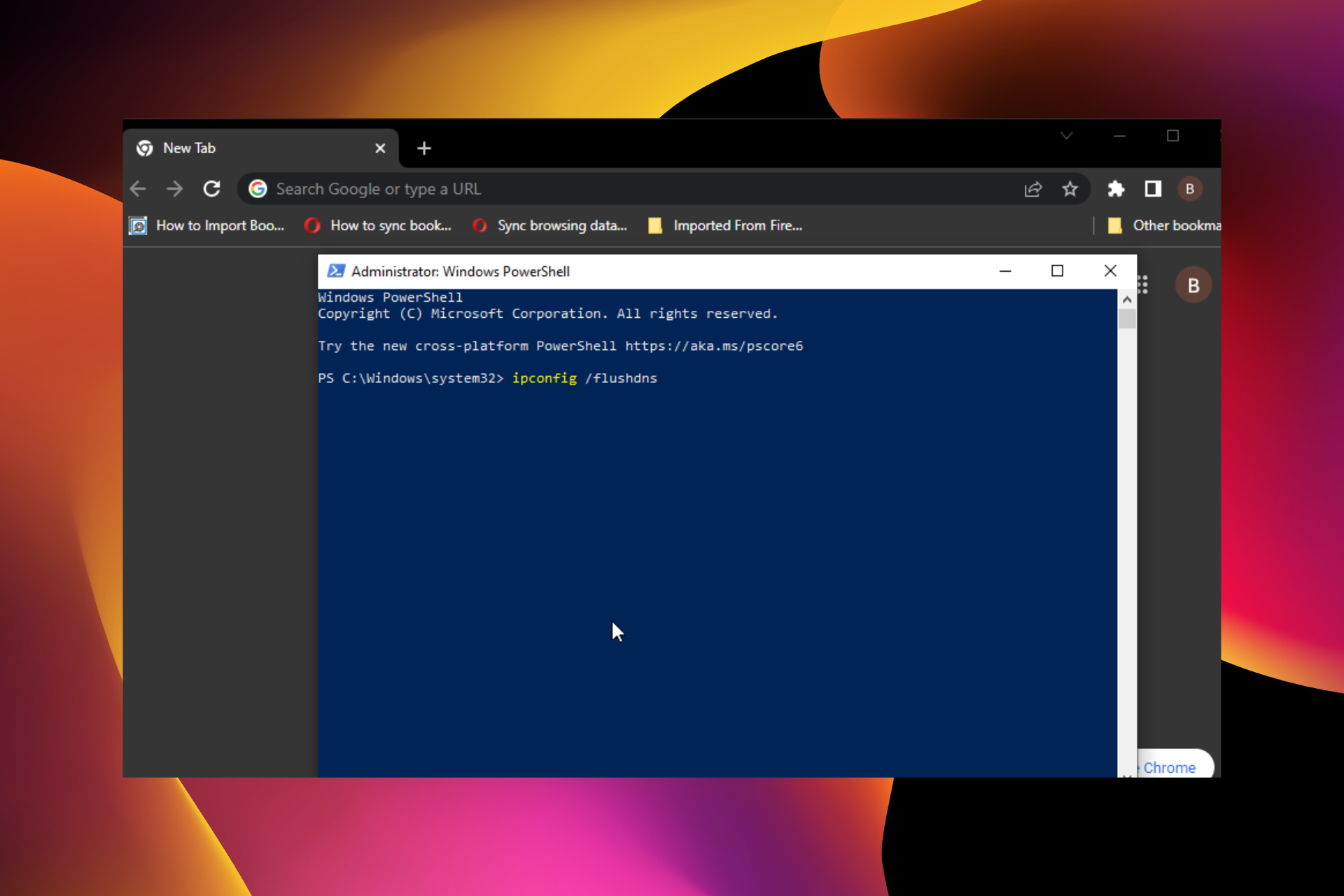
It’s worth knowing that you have the highest security level on Opera One with 128-bit encryption aid.

Opera One

The support this browser offers for TLS is sometimes overlooked, but it’s very efficient.
Free Download Visit website

Google Chrome – Stay safe from dangerous sites

Chrome is one of the best browsers that support TLS. It offers a privacy-conscious and polished surfing experience. It also has a variety of add-ons, privacy settings, and a straightforward user interface.

Chrome’s cross-platform availability makes syncing data easy across all your devices. It also offers various extensions to make your browsing experiences hassle-free.

The Chrome browser encrypts local passwords and cookies using AES-256 encryption standards and the browser support TLS 1.3. It also leverages the data protection API built into the OS to handle encryption sources.

Several users complain about the keyboard not working in Chrome. Rest assured that our guide shows you what to do in case that happens.

⇒ Get Google Chrome

Firefox – Enhanced tracking protection

browser support tls

The Firefox browser is the first choice among all privacy-oriented web browsers. The browser supports TLS 1.2 making it one of the best choices among users.

Firefox offers the best sound quality, with audibly meatier mid and upper bass than the other competitors. Some other features it offers are default ad blocking and tracking, a clean user interface, and Siri shortcuts to clear history with voice commands.

Its stealth mode automatically avoids trackers without having to use the incognito mode. Some other features Firefox offers are default ad blocking and tracking, Siri shortcuts, and a clean user interface.

Mozilla Firefox is the best browser for all browsing requirements but the lack of tabs could be frustrating sometimes.

⇒ Get Firefox

AVG Secure Browser – Enhanced privacy

This next solution offered by AVG delivers high-privacy navigation and TLS support for HTTPS encryption protocol.

By using this popular browser, you will automatically validate the security of websites using TLS digital certificates and other useful security tools.

For example, there are new functionalities such as browser fingerprint masking, privacy cleaner tool, or built-in adblocker for smooth online navigation.

In addition to this, this dependable browser supports the latest TLS protocol versions and uses powerful antivirus security to block digital threats.

Having that said, security enhancements also play a crucial part in providing secure web communication and provides you worry-free Internet browsing.

⇒ Get AVG Secure Browser

Microsoft Edge – Control your privacy

The next browser on our list is Microsoft’s Edge browser. It’s a replacement for the old Internet Explorer.

Edge has enough features and benefits that make it a real alternative to popular browsers like Chrome and Firefox. It now comes with a personalized gaming homepage with exclusive Xbox features and curated content tailored to enhance users’ gaming experiences.

In terms of security, it has passed the browser TLS support test. It’s extremely powerful with its built-in differences against phishing and malware that natively support hardware isolation and browser support TLS 1.0. Also, no additional software is required to use this secure baseline.

Many users have complained about Microsoft Edge not closing. If you’re among those, read this post to fix this issue.

⇒ Get Microsoft Edge

Brave – Built-in ad blocker

browser support tls

The Brave web browser is a privacy-first web browser that loads 3x faster without slowing down your computer. It is a Chromium-based web browser that mainly focuses on privacy and automatically blocks ads.

The best thing about Brave is that it allows users to choose any search engine as their default. As a result, this browser will not hamper your surfing experience but rather improve the security and integrity of your data.

Keeping aside all these facts, it comes with a built-in ad blocker and a wide address bar, and you’ll also receive rewards for browsing. This browser support TLS 1.1 along with all its versions.

⇒ Get Brave

Are TLS and SSL the same?

Basically, TLS and SSL are the same but still entirely different. Both are cryptographic protocols that authenticate data transfer between servers and systems.

SSL was the first kind of cryptographic protocol whereas TLS was a recently upgraded version of SSL. As we know, cyber security is now essential to encrypt data flow. Both these certificates help and act as an endpoint encryption system.

One major difference is that SSL is less secured whereas TLS offers high security and is more reliable. Also, SSL currently is in the 3.0 version and TLS in the 1.0 version.

These were the five best browsers that support TLS. Among the above-mentioned, Firefox and Opera One are the two most recommended ones you can try.

If this guide was helpful, do let us know in the comments below.

3 Ways to Fix Maxthon’s Adblocker when It’s Not Working

Browsing the internet without any intrusion from ads or pop-ups is necessary for everyone. While many browsers, including Opera, etc., come with an in-built ad-blocker, you can still install third-party adblockers. There are often issues with them where they fail to work as intended.

Several users have reported that they are facing an issue with the Maxthon browser where the Maxthon adblocker is not working. And because of this issue, none of the ads or pop-ups are getting blocked and people have to manually get rid of them.

While a simple restart of the Maxthon browser could do the trick for some users, for others, this could not be the case.

This is where this guide comes into the picture. Here, we will explain to you 3 solutions that will help you fix the Maxthon browser adblocker not working issue. Let us get right into it.

Why is my Adblock not working?

There can be different reasons for software or extension to not work properly or malfunction. After some research, we found the below to be the most common causes for Maxthon browser Adblock not working issue:

  • The Maxthon browser isn’t up to date
  • Due to the presence of a corrupt cache or data
  • Another extension is conflicting with the adblocker
  • You have turned the adblocker off
  • The adblocker isn’t updated

Mostly, the Maxthon browser adblocker not working issue is caused by general reasons. Let us check out the 3 effective solutions that will help you resolve the problem.

What is the best adblocker for my browser?

AdBlock Plus is one of the best adblockers that is used widely across web browsers by people because of its efficient adblocking features.

The AdBlock Plus adblocker has been installed on millions of devices, making it a popular adblocker. It blocks ads for a website as soon as you turn it on. AdBlock Plus also disables the social media buttons you find on websites.

It blocks all kinds of ads by default, such as video ads on YouTube, Facebook ads, flashy banner ads, pop-ups, and more. You can even customize the filter list to block other types of ads.

Moreover, it also lets you allow certain ads on a website, since many websites rely on ads for revenue. AdBlock Plus also disables most tracking activities by websites on your whereabouts, allowing you to browse more anonymously.

Removing ads while browsing can improve overall performance and page loading speeds. Your browser won’t need to use resources to load pop-up and ads.

You can find below several solutions that will help you use the adblocker again.

Quick Tip:

Use a browser with an integrated adblocker option. We recommend Opera because it’s light and has a very low error rate.

The adblocker is preinstalled, you just have to enable it with one click. The browser gets frequent updates to ensure great performance from all its features, so the adblocker should work just fine.

Opera

Improve your online experience with built adblock and other modern features!

How do I fix my Adblock in Maxthon?

1. Re-install Adblocker

  1. Launch the Maxthon browser.
  2. Click on the 3-line menu icon.
  3. Navigate to More tools > Extensions.
  4. Click on Remove button for the Adblocker extension.
  5. Hit Remove again.
  6. Visit Maxthon Web Store.
  7. Search for Adblocker and add it to your browser.

Often, due to problematic installation, you will come across several issues with programs installed on your browser. Reinstall it and check if it fixes the issue or not.

2. Clear cache and data

  1. Open Maxthon browser.
  2. Click on the 3-line menu icon.
  3. Select Settings.
  4. Click on Advanced from the left pane.
  5. Select Clear browsing data.
  6. Check the appropriate boxes and hit the OK button.

Corrupt cache and data files not only prevent the browser from smooth functioning but also conflict with the in-browser apps and impact their functionalities.

If you have not cleared the cache files or data files for quite some time in your Maxthon browser, then you should clear it and give it a breather and check if this fixes the Maxthon adblocker not working issue.

3. Check if your filter lists is up to date or not

  1. Open Maxthon browser.
  2. Click on the Adblocker extension.
  3. Hit the Settings button for the extension.
  4. From the left, select Filter lists.
  5. Hit the Update now button.

If the adblocker was working perfectly fine on a website previously, but now, you have suddenly started seeing ads on that website, then there might be a problem with your filter list.

Adblockers such as AdBlock Plus let you update the filter lists with a simple tap of a button. One of the best solutions to make the blocker work back would be to simply manually update the filter list and check if this fixes the issue or not.

4. Remove other adblockers (Bonus tip)

If you have installed multiple adblockers on your browser, then there is a high chance that either of the adblockers will malfunction and not work properly.

Not only that, but due to this conflict, both adblockers may fail to block ads, and you will see ads everywhere you visit a website.

So, it is advised that you make use of only a single adblocker on your browser and keep it up to date for it to perform optimally.

There you have it from us in this guide. If you are still experiencing issues with Maxthon browser, then we would suggest you check out guide on the best browsers that you can install on your PC, and switch over to a new browser.

Let us know in the comments below which solution helped you fix the Maxthon adblock not working issue.

5 Tested Ways To Fix Error Loading This Resource

Chrome is one of the best browsers to use on all your devices. It combines superb browsing speed with standard security and excellent overall performance.

However, it is not the perfect browser, as it is prone to the occasional error message. A prominent issue users report is the Error loading this resource message in Chrome. This problem can cause issues with certain websites, so it’s important that you fix it.

Fixing this error message is pretty simple, and in today’s article, we’ll show you how to do it properly.

Quick Tip:

Before you start fixing this issue, it’s important to check if this issue appears in other web browsers. You can use any browser for this purpose, but we recommend using Opera One.

The browser is lightweight and fast and comes with a built-in ad blocker, so you won’t ever have to deal with ads again. There’s also a built-in VPN with unlimited bandwidth for an extra layer of privacy. Opera One also brings features like workspaces, tab islands and a native AI, all these will help you organize and protect your browsing.

Opera One

Opera is a lightweight, secure, and private alternative to Google Chrome.
Free Download Visit website

What does error loading this resource mean?

The error loading this resource message shows up when your browser cannot load a file from the server. This sometimes happens on popular websites and web apps like WordPress.

Some of the common causes of the problem include:

  • Faulty browser extensions
  • Interference from antivirus software
  • Wrong image format

How do I resolve failed to load a resource?

1. Run Chrome in Incognito mode

  1. Open Chrome.
  2. Click the menu icon and choose the New incognito window.
    new incognito window error loading this resource chrome
  3. Open the webpage giving you this error and check if the issue appears.

If the error loading this resource issue doesn’t appear, it’s probably an extension causing the problem, so you’ll need to find and disable the problematic extension.

2. Disable/remove problematic extensions

  1. Click the menu icon on Chrome and select More tools.
  2. Choose the Extensions option.
    menu more
  3. Click the switch icon next to each extension to disable it.
    disable
  4. Now check if the problem is still there.
  5. If the issue doesn’t appear, enable extensions one by one until you find the one causing the problem.

Users reported that Adblock and Do Not Track Plus extensions caused the error loading this resource problem when trying to play a video on Chrome, Safari, and other popular browsers. So you might want to disable or replace them to fix this problem.

3. Rename images

If you are a developer trying to build a website or web app and your browser keeps showing the failed to load this resource error, it might be due to the images on the app.

You need to rename the images on the web app or site to fix the error. Make sure that the name does not contain words like banner or ad. Now, you can test again and check if you still have the problem.

4. Use the ipconfig command

  1. Press Windows key + X and select Windows PowerShell (Admin) or Command Prompt (Admin).
    powershell
  2. Run the following commands:

ipconfig /flushdns

ipconfig /renew

ipconfig /registerdns

After the commands are executed, check if the problem is still there.

5. Disable your antivirus temporarily

Sometimes, it might be your antivirus that is causing the failure to load this resource. This is because it might flag a file your browser wants to load as inappropriate or dangerous.

With this, it blocks the file, thereby causing the error. Users reported that Malwarebytes is causing this issue, but remember that other antivirus tools can also cause it.

The only solution here is to disable your antivirus temporarily and enable it after loading the site.

Fixing Error loading this resource when trying to play videos or load other files on Chrome is pretty simple. In most cases, you need to disable a problematic extension or apply another simple tweak.

If you are facing other problems like the browser not working in Windows 10, check our comprehensive guide for simple and effective fixes to apply.

Feel free to let us know if the fixes above helped to solve the resource loading problem in the comments below.

5 Quick Ways to Fix Opera GX When the Sound Is Not Working

You are listening to your favorite music or watching a movie, but the audio is not working in your Opera GX. This is not a scenario anyone wants to find themselves in.

The first thing you’ll want to do is check your volume controls. If the volume is muted or set too low, the sound won’t play when you visit certain websites. You can take steps to improve sound quality on your PC if sites continuously play at low volume.

Sometimes, however, you may still experience sound issues even when the volume is set at a decent level. Restarting your PC can solve all kinds of problems with software and hardware, so it’s worth trying before doing anything else if you’re having sound issues on Opera GX. 

You might just be able to reboot your computer and get everything working again without doing anything else.

Why does my Opera GX not have sound? 

There are several reasons why your Opera GX may not have sound. If you can see the audio icon and hear your computer’s sound, the problem is likely due to a setting in the device.

Other possible reasons include:

  • Volume settings – You may have accidentally set your volume to low. In such a case, you will see a speaker icon in the system tray area. If it’s grayed out, then it means that the volume is muted. Also, verify that your speakers are connected properly and all cables are firmly inserted into their respective ports.
  • Virus/malware infection – Test the speakers with another application. If the sound does not work in any other application, your computer may be infected with malware or a virus that blocks your machine’s audio output. It is good practice to install an antivirus solution to stay protected at all times.
  • Outdated sound drivers – Make sure you download and install the latest versions of your sound card drivers from the manufacturer’s website.
  • Problematic extensions – While extensions add functionality to your browser to make efficient, not all of them are good. Some can interfere with browser functions so it is best to keep the extensions to a minimum and install only what you need.
  • Recent software installation – You may have downloaded a problematic program that is causing issues with your sound. Check if you have installed any new software recently and uninstall until you find out which one is causing the problem.

If any of the above are the cause for your sound not working in your browser, proceed to try one or more of our recommended solutions below.

Opera GX

Get the latest version from an official source to benefit from all the features at full potential!

How do I fix Opera GX if the audio is not working? 

1. Update your device drivers

  1. Hit the Windows key, type Device Manager, and click Open.run device manager
  2. Locate Audio inputs and outputs and right-click on your specific driver to Update driver.
  3. Select Search automatically for drivers.

Alternatively, you can also download the audio driver straight from the manufacturer’s website. You however need to be cautious when taking this route as not just any driver will be compatible with your device.

Another option is to use an automatic tool like Outbyte Driver Updater that will scan your drivers and automatically install the newest versions to your machine.

2. Clear cache and data from Opera GX

  1. Launch Opera GX on your computer and click on Settings icon in the sidebar.opera gx adblock hoome settings
  2. Select Clear browsing data under the Security and Privacy section.clear browser data
  3. Click the dropdown next Time range and select All time.all-time-operagx twitch error 4000
  4. Check the checkboxes for Browsing history, Cookies and other site data, and Cached images and files, then click the Clear data button.clear data button

3. Run an antivirus scan

  1. Press the Windows key, search Windows Security and click Open.
  2. Select Virus & threat protection.
  3. Next, press Quick scan under Current threats.
  4. Wait for the process to finish and restart your system.

4. Uninstall any third-party programs/apps

  1. Press the Windows key, search Control Panel and click Open.
  2. Navigate to Programs and Features, then select Uninstall a program.unable to uninstall program windows 10 11 app won't uninstall
  3. Find the most recent download from the list, right-click and select Uninstall.uninstall-program what is wave browser

5. Uninstall and reinstall Opera GX

  1. Press the Windows key, click on Apps on the left pane then and select Apps & features.
  2. Locate the Opera GX app and right-click on it.
  3. Select the Uninstall option and follow the simple onscreen instructions to complete the process.
  4. Go to Opera GX’s official page.
  5. Click the Download Opera GX button.opera gx download adbblock
  6. Wait for the installation process to finish and check whether the problem persists.

How do I change the audio output on Opera GX? 

The default audio output on your browser is your OS’s default device. That’s why if you have multiple devices, you can easily switch if your audio is not working in Opera GX.

If you wish to change the audio output on Opera GX and have an external audio device, such as a USB headset, you can change the output device and it will automatically change for your browser too.

You can change it by right-clicking on the speaker icon in the system tray. In there, you can select a different device or even an application to use as an output.

Should you run into a problem where Windows cannot find your audio device, don’t hesitate to check out our detailed article on the steps to follow.

You may also be interested in installing audio enhancers, especially if you want an enjoyable experience playing video games and music on your browser.

A similar issue has been spotted in other browsers, and we already showed you what to do if Opera has no sound, so don’t miss it.

Sound issues aren’t uncommon, and even Opera GX users reported that background music is not working for them, but we tackled this issue in another guide, so don’t miss it.

This isn’t the only issue, and many reported that microphone isn’t working in Opera GX, but we have a guide that addresses it.

If none of these apply to you or if you have found another solution for this problem, please leave a comment below with your experience and how you solved it.

Fix: Can’t Set Firefox as Default Browser in Windows 10 & 11

Can’t set Firefox as the default browser on windows 10 or 11? This article will show you how to solve this problem.

Even though Microsoft is doing its best to enforce Edge, the majority of users is quite satisfied with what the likes of Chrome and Firefox have to offer.

You should be able to choose an alternative browser such as Mozilla Firefox, depending on your preferences, and set it as your default internet surfing tool.

However, some users reported after multiple attempts that they couldn’t set Firefox as the default browser in Windows 10 and 11.

For example, if your computer has multiple browsers installed, you may end up with a different default browser than Firefox.

When you make Firefox the default browser in Windows, you’ll be automatically guarded against invasive tracking methods like fingerprinting and crypto mining.

Why can’t I change the default browser in Windows 10/11?

In general, every browser asks users if they want to make it the default browser, at least at the first launch. Firefox should do it too. But, unfortunately, it may not happen due to some reasons. It includes the followings:

  1. Firefox was not installed properly
  2. Third-party software or hijacker tool is preventing you from changing the browser
  3. Windows Update is causing an unwanted problem

The good thing is you can easily solve this problem.

Making the simplest of steps is quite a chore. Not to worry, we will show you how to make Firefox the default browser in the steps provided below to make sure it won’t change overnight.

Quick Tip:

If nothing worked, maybe you should give up setting Firefox as your default browser altogether. Instead, try installing Opera One.

Opera One is fast, lightweight, and secure. You will definitely notice a significant difference in terms of speed and responsiveness compared to other browsers you’ve used. And it comes with native AI.

Opera One

Enjoy a fast and error-free browsing experience with Opera One, and never go back to a different browser again.
Free Download Visit website

How do I set Firefox as my default browser?

1. Try on Firefox preferences

  1. Open Mozilla Firefox.
  2. Go to the following location using the address bar: about:preferences
  3. Click on Make default, as shown in the screenshot.setting firefox default web browser

This method is applicable to make Firefox the default browser on Windows 10, 11, macOS, Linux, or any other operating systems.

2. Change the default browser in Settings

  1. Press Win + I on the keyboard to open the Settings app.
  2. Choose Apps and go to Default apps.going default apps windows 11 settings
  3. Find and go to Firefox.going firefox from default apps settings windows 11
  4. Click on Set default as shown in the screenshot.setting firefox the default browser windows 11 settings

Even though the default browser can be set within the browser settings, it might fail. It works most of the time, but a safer route is to navigate to Settings.

There, you can select Firefox as the default browser. After that, you should be able to open all web links and associated files with Firefox.

There is no easy script or command to set Firefox as the default browser on Windows 10 or 11. This method is the easiest and most straightforward way to do it.

3. Reset Settings and assign default programs again

  1. Go to Default apps settings like before.
  2. Scroll down and click on the Reset button next to the Reset all default apps.resetting default app settings windows 11
  3. Now, set Firefox as the default browser, as shown in methods 2 and 3.

This method helps particularly when you notice that Firefox is not showing up in the default app settings.

Is the issue persisting? After resetting the preferences, restart your PC.

Make sure that you’re using the full Mozilla Firefox version which is installed. If it’s some kind of portable Firefox, it won’t create the registry entry, which means that it can’t be recognized by Windows.

4. Set Program associations individually

  1. Go to Default apps settings like before.
  2. Click on the Choose default apps by file type.going choose defaults by file type windows 11 settings
  3. Replace all Edge/Internet Explorer/Chrome associated files with Firefox and confirm changes.

Besides the global settings for the most common system use (default browser, email client, calendar, etc.), there are file associations, as well.

You can associate specific programs with certain file extensions, and they’ll be, by default, accessed with that program solely. In this case, you can assign all relevant extensions to Firefox.

5. Reinstall Firefox

  1. Open Windows Settings like before.
  2. Go to Apps and then Apps & features.going apps & features Microsoft windows 11
  3. Now, search for Firefox.
  4. Click on three vertical dots next to the Mozilla Firefox and choose Uninstall.uninstalling firefox windows 11 settings

And finally, reinstallation might help as well. As we already explained, the system creates the registry input when Firefox is installed.

However, if the installation gets corrupt or incomplete, it might skip listing Firefox as a relevant browser.

That’s why you should reinstall it and, after you set it up, check the Default apps section again. We suggest installing Firefox in architecture that corresponds to your system architecture.

How can I set Firefox as the default browser on Windows 11?

Setting Firefox or any other apps as the default browser on Windows 11 and 10 is pretty much the same. For this, you can just follow methods 2 and 3.

However, On Windows 11, Microsoft has made it a bit tricky to do it when there are multiple web browsers related to the web file types. In this case, method 5 will help you.

With that said, we can conclude this article. Hopefully, you were able to assign Firefox as the default browser after these steps.

In case you have an alternative solution or something you would add or subtract, feel free to tell us in the comments section below.

5 Best Browsers That Have Support For Zencastr

Zencastr is a tool for recording a high-quality podcast. This service captures high-quality audio with as little background noise as possible.

Using Zencastr, you can record audio your and your guest’s audio in separate tracks and edit them according to your exact specifications. The platform uses its Voice Over IP service and allows to send recordings to Google Drive and Dropbox.

To use Zencastr, the host and the guest need to access it using a web browser. Keep reading this post to learn more about browser Zencastr support.

Is Zencastr better than Zoom?

Zencastr offers the benefit of VoIP so that the recorded sound is what the internet hears, eliminating wanted background noise like Skype and Zoom.

On the other hand, Zencastr is designed solely for high-fidelity podcasting, and zoom can conduct cloud video conferencing, simple online meetings, etc. So when talking about high-quality podcast recording solutions, Zencastr is a better choice than Zoom.

Can you use Zencastr on mobile?

No, tablets and mobile phones don’t support Zencastr. All hosts should access Zencastr from a laptop or desktop computer that meets the minimum requirements.

Also, Zencastr should be opened in a supported web browser, not in incognito or private mode. The internet connection speed should also be at least 5 Mbps, and headphones should be used to avoid echo on the call.

What browsers does Zencastr support?

Opera Browser – Best resource management

zencastr browser support

Opera is a long-term solution if you need reliable security or clever tools for enhanced privacy. You can navigate on this browser with no fear of unsecured behaviors or personal data phishing due to its developed anti-tracker or VPN protection.

There are useful safeguarding tools integrated into easy setup panels that allow covering your online behaviors with just a click.

It is compatible with Zencastr browser support and SSL (Secure Sockets Layer) versions 2 and 3 along with TLS (Transfer Layer Security) protocol that improves communication security for highly sensitive financial data.

It’s worth knowing that you have the highest security level on Opera with 128-bit encryption aid.

Opera

Tweak and customize your Zencastr recordings in Opera to create high-quality audio podcasts.

Google Chrome – Easy, stylish interface

Chrome is one of the best Zencastr browsers. It offers a privacy-conscious and polished surfing experience. It also has a variety of add-ons, privacy settings, and a straightforward user interface.

Chrome’s cross-platform availability makes syncing data easy across all your devices. It also offers various extensions to make your browsing experiences hassle-free.

The Chrome browser encrypts local passwords and cookies using AES-256 encryption standards. It also leverages the data protection API built into the OS to handle encryption sources.

Several users complain about the keyboard not working in Chrome. Rest assured that our guide shows you what to do in case that happens.

⇒ Get Google Chrome

Microsoft Edge – Control your privacy

zencastr browser support

The next browser on our list is Microsoft’s Edge browser. It’s a replacement for the old Internet Explorer.

Edge has enough features and benefits that make it a real alternative to popular browsers like Chrome and Firefox. It now comes with a personalized gaming homepage with exclusive Xbox features and curated content tailored to enhance users’ gaming experiences.

It’s extremely powerful with its built-in differences against phishing and malware that natively support hardware isolation and allows Zencastr browser support. Also, no additional software is required to use this secure baseline.

Many users have complained about Microsoft Edge not closing. If you’re among those, read this post to fix this issue.

⇒ Get Microsoft Edge

Brave – Built in Ad-blocker

The Brave web browser is a privacy-first web browser that loads 3x faster without slowing down your computer. It is a Chromium-based web browser that promotes privacy and disables ads by default.

The best feature of Brave is the option to set any search engine as the default for users. As a result, this browser will enhance the security and integrity of your data.

In addition to all of these features, it has a big address bar and an integrated ad blocker, and you may earn prizes for browsing. It offers Zencastr browser support and all future iterations.

⇒ Get Brave

Firefox – Browse fast and free

zencastr browser support

Firefox is one of the best browsers for protecting your privacy. When utilizing this, you don’t need to use an incognito mode to prevent tracking because the browser’s stealth mode is already turned on.

The finest sound quality is provided by Firefox, which has audibly meatier mid and higher bass than its rivals. Other features include default ad blocking and tracking, a simple user interface, and Siri shortcuts for voice-activated history clearing.

Mozilla’s Firefox is the greatest browser for all of your browsing requirements and offers Zencastr browser support. Although the lack of tabs could be annoying, it is still a fantastic browser app.

⇒ Get Firefox

Why Zencastr is not working?

1. Restart your browser

Before starting with different troubleshooting methods to fix this issue, try restarting your browser. Restarting your browser can fix small bugs and issues effortlessly.

2. Clear browser cookies and cache

On Google Chrome

  1. Open Google Chrome and click on three vertical dots at the top right corner.
  2. Click on Settings.
  3. Navigate to Privacy and Security.
    Chrome privacy and security
  4. Click on Clear Browsing Data.
  5. Check the options Cookies and other site data and Cached images and files.
  6. Once done, click on Clear Data.
    zencastr browser support

If Chrome’s cache data gets corrupt or full it can cause the Zencastr browser not supported issue. Clear Chrome’s cache data and cookies then check if the error gets fixed.

On Firefox

  1. Open Firefox and click on the hamburger icon at the top right corner.
  2. Click on Settings.
  3. Navigate to Privacy & Security.
  4. In the Cookies and Site Data section, click on Clear Data.
    Firefox Clear Data
  5. Now click on Clear to confirm the process.

3. Check your Internet connection

  1. Visit the Speedtest website.
  2. Click on Go.
    zencastr browser support
  3. Wait while your connection is being tested.

If you don’t prefer this service, you can use any other Internet speed tester to check your connection.

4. Disable VPN

  1. Press Windows key + I to open the Settings app.
  2. Navigate to Network & Internet.
    Network and internet option on Windows 10
  3. Select VPN from the left pane. In the right pane, pick your VPN connection and click on Remove.
    vpn-remove
  4. If you’re using a VPN client, make sure to disconnect from the VPN.

5. Contact Zencastr Support

If none of the above steps work, contact Zencastr Support via chat or email.

These were the 5 best browsers for using Zencastr in 2022. Among the above-mentioned, Firefox and Brave are some of the most recommended ones.

If the guide was helpful, do let us know in the comments below.

How to Stop Chrome from Replacing Flash with HTML5

Google has rolled out its kill schedule for Flash on Chrome by starting to display HTML5 content by default on some websites for select users. That means the search giant has disabled Flash for a few Chrome users.

Google initially implemented the update for half of the Chrome 56 beta users, according to Eric Deily, technical program manager for the program. By February 2017, the change went live for all users of Chrome 56.

Can HTML5 run Flash?

HTML5 is a direct replacement for Flash. Flash used to support audio and videos on a web page, and it allowed us to play light games on websites. HTML5 has a similar or better capability.

Adobe Flash is an obsolete technology now. HTML5 cannot run Flash. But, it has replaced that technology, and many games and web content have been coming out that utilize HTML5. It works better than Flash.

There are so many modern contents, including non-flash games, available right now. So, you should not worry about obsolete technology anymore.

Also, if you want to know how to replace Flash with HTML5 in Chrome, that’s not valid. It is because all web browsers support this modern technology out of the box and have already retired the Flash.

How can I access Flash content on my PC?

The answer is easier than you might expect. There are some projects like BlueMax Flashpoint software that let you access Flash content.

However, there is an even easier solution, and it involves using a browser that offered native support for Flash till the end. We’re talking about Opera One, a very light and fast browser that can offer a lot of advantages over more popular solutions.

So, you can use any older version that still supports this technology out of the box or you can use it’s extensive add-ons library to search for extension that will allow you to run flash content.

Opera One offers excellent social media integration, including WhatsApp, Facebook Messanger, and Instagram, with a dedicated button on its left side.

This excellent browser also comes with free VPN, Ad blocker and native AI that can be used without any limits and do a perfect job of protecting your privacy completely.

Opera One

Opera One can play Flash content through it’s add-ons and comes with a lot of interesting features, including a VPN and AI.
Free Download Visit website

What can I do if Google replaces Flash with HTML5 in Chrome?

Google announced its plan to ditch Flash for HTML5 in May 2016 in a push for a more secure content player on Chrome. In August, the company promised it would transition to HTML5 by default beginning in the fourth quarter of 2016.

And Google delivered on its promise. The move aimed to minimize reliance on a web component that can slow down CPU and memory usage. On top of those issues, Flash can consume battery life quickly.

As if that’s not enough, Flash has encountered many security issues in the past. Attackers have targeted interactive and advanced content features of Flash to access user systems for years.

Google isn’t the only tech giant that decided to block Flash content. Microsoft also moved to disable automatic playback of peripheral Flash content on the Edge browser due to some security flaws.

Adobe dropped all support for Flash on December 31st, 2020, so it’s a normal and irreversible process. However, you can the Flash content from your PC.

Even though HTML5 is the current technology, there may be some third-party Flash player extensions or software available for Chrome that may help to play old games without any problem. But, most of these tools are not trusted anymore.

If you have other suggestions or questions, don’t hesitate to leave them in the comments section below.