Many gamers with dual monitor setups are wondering how to move a game to another monitor, and this guide will help you with that.
Moving a game to another monitor has many advantages, so let’s see how we can move a fullscreen game to a second monitor.
Why won’t my game run on the second display in fullscreen?
Most applications, including games, will start on your primary monitor when you launch them. If you want to start your game on a second display, you need to set it as your default screen.
How to move a fullscreen game to another monitor?
1. Move a full-screen game to a second monitor on Windows 10
1.1 Change your display settings
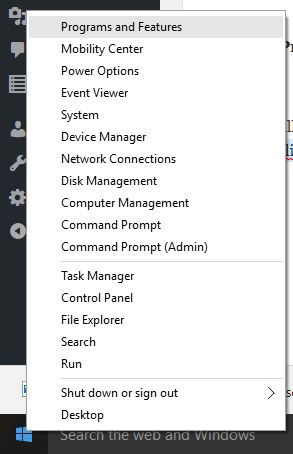
Right-click your desktop and choose Display Settings.
Click the Identify button to observe how the displays are numbered.
Scroll down to the Multiple-display section and click on the drop-down list.
Choose the monitor number identified in the steps before you want to use it to display the game.
This is a pretty simple solution, but it works. If you want more options while gaming on multiple displays, we suggest using the DisplayFusion software.
1.2 Run the game in Windowed mode
Launch League of Legends
Navigate to Display/Video Settings.
Look for the Display Mode setting.
Change it to Window or Borderless Window and save changes.
Next, drag the game window to your preferred monitor.
Change the preferred monitor to primary, and set it as a priority.
1.3 Set the second monitor as the primary monitor
Plug the second monitor into your computer.
Right-click your desktop and choose Display settings from the menu.
The Display Settings window will open next, scroll till you find Multiple Displays, and select the second monitor.
When you select the second monitor, a checkbox will appear labeled ” Make this my main display.
Ensure you select the checkbox to finish up the procedure.
2. Move a full-screen game to a second monitor on Windows 11
2.1 Change your display settings
Right-click your desktop and choose Display settings.
Scroll down to the Multiple displays.
Select Show only on and select the second monitor.
2.2 Run the game in windowed mode
Open the game you want to play.
Navigate to Display settings.
Set the Display mode to Borderless window.
Move the window to the second screen.
Adjust the game resolution, so it matches the display size.
3. Move a full-screen game to a second monitor on Mac
3.1 Use Mission Control
Start the desired game.
Start Mission Control by using the three-finger swipe on your trackpad.
Now move the game window to the desired monitor.
3.2 Assign the app to the second display
Right-click the app on your Dock.
Choose Options, and select the desired display on the Assign To menu.
Now run the app.
4. Move a full-screen game to a second monitor with keyboard shortcuts
4.1 Use the move window shortcut
Make sure that your game is running.
Now press the Windows key + Shift + Left or Right arrow to move the window.
Your window should now appear on the second screen.
Can I use multiple monitors with different resolutions?
Yes, you can use multiple monitors with different resolutions without any problems. The two will be fully compatible, but the difference in image quality will be noticeable.
What’s the difference between fullscreen and borderless window mode?
Fullscreen mode offers better performance since it controls the display output completely. However, if you want to switch to a different application, you need to minimize the game with a keyboard shortcut.
With a borderless window, you might get slightly lower performance, but you can quickly open any application on top of your game or move the game to a different screen.
How to move the mouse to a second monitor in-game?
Ensure that the second monitor is still plugged in.
Also, make sure the game is launched and ready.
Next, move the cursor towards the direction of the gaming screen until it pops into the screen.
When that is done, the cursor will disappear from the secondary and appear on the primary gaming screen.
How to move League of Legends to another monitor?
Duplicate your preferred monitor to the other
Right-click a space on your desktop, and choose Display Settings.
Select the display you want to use.
Click Identify and check your monitors to ensure you choose the right one.
Open the drop-down menu close to the Identify button, and choose to Duplicate this display.
This is how your settings will look after doing so.
Set your preferred monitor as the main screen
Right-click a space on your PC’s desktop, and choose Display settings.
Select the display you want to use.
Click the Multiple Displays drop-down.
Choose the Make this my main display option by ticking the box.
The same methods apply even if you want to know how to move a fullscreen window to another monitor, so follow the steps strictly.
While moving games to a second monitor is easy, you can encounter issues, such as a mouse that won’t move to a second monitor, but we tackled this issue in a separate guide.
Users often try to take advantage of Spell Check but they at times get disappointed due to Spell Check not working on Firefox.
Firefox web browser has a built-in inline Spell Checker. This automatically checks for spelling mistakes as you type in forms or text boxes on web pages.
At times, after installing Firefox, especially if you are installing it fresh for the first time, the spelling check may not work. As a result of this, Firefox won’t highlight with red dotted underline any word that is misspelled.
If you are struggling to understand why Spell Check quit working properly, here we have jotted down the best potential solutions to troubleshoot this with ease.
Why is spell check not working in Firefox?
The reason the spelling checker is not working in Firefox is probably caused by the missing dictionary, or no dictionary installed. For this, you need to ensure and double-check that the Firefox spell checker is enabled.
To check, simply right-click on any user type-able field. Then, if you see an option Add dictionaries, that means no dictionaries existed in Firefox. So, the spelling check won’t work.
Quick Tip:
Before trying anything else, you may consider another browser option with integrated spell checker.
Opera One is more than suited for getting faster navigation and app integrations with messaging apps, plus customizable spell check functionality on your settings. Also, it comes with it’s own AI.
Opera One
Go for this personalized browser and write on any website or chat without spell check issues.
Telegram is a popular messaging service, and it’s available on almost all desktop and mobile platforms. But did you know that you can use Telegram in your web browser as well?
That’s right! Telegram can just as easily work in your web browser, and in today’s article, we’ll show you how to use it.
Can I open Telegram in browser?
Yes, Telegram has a web version that you can access on any browser. The process is simple, and you have two options to sign in, either using your phone number or scanning the QR code.
Telegram Web, or the online version, offers the same set of functionalities and features as the mobile app, so wouldn’t really be missing out on anything.
Can I use Telegram Web without a phone?
Yes, you can use Telegram web without a phone, but you would need one during the verification, i.e., the initial setup. Both methods to sign into the Telegram web require a phone with an active Internet connection.
Remember, once the verification is complete, you will remain signed in unless you choose to manually log out or are inactive for a certain period which can be set in the Telegram settings.
Quick Tip:
Use a browser with dedicated support for Telegram. We recommend looking into Opera One’s sidebar integrations feature. It lets you connect your account and access it quickly, without having to open a new tab.
You’ll have to scan a QR code with your phone and Opera One will automatically connect to your chat within seconds. The browser has anti-tracking and VPN for a more private and seamless experience.
Opera One
Open Telegram, Facebook Messenger, or WhatsApp right from the sidebar.
Visit theTelegram webpage, and click Log In By Phone Number.
Select your country from the dropdown menu, enter your phone number, and click Next.
A verification code will be sent to your Telegram mobile app. Enter it in the text field, and Telegram will automatically verify the code and sign you in.
2. Use Telegram web by scanning QR code
After opening Telegram Web, launch the mobile app, and tap on Settings at the bottom.
Now, tap on Devices.
Tap on the Link Desktop Device button.
Now, scan the QR code displayed on the computer screen with the mobile phone, and Telegram will automatically sign you in.
This would be the perfect method if you were trying to access Telegram in the Chrome browser. It’s quick and seamless.
Why Telegram Web is not working?
If Telegram web is not working, it could be a problem with your Internet connection. Also, it’s likely that Telegram is blocked in your region or country since several have imposed restrictions on it, so make sure to verify that.
The issue might lie with the browser itself, in which case switching to a more reliable option, like Opera One, would help.
Besides, there’s also a chance that Telegram’s servers are facing an outage, and here, you will have to wait for some time for things to be up and running again.
Telegram is a great app, and with the web version available, you should be able to use it on any platform without any issues. We recommend opening Telegram in the Opera One browser for the best experience.
To learn more about Telegram and see how it compares to other services, we also have a great guide on Discord vs Telegram, so don’t miss it. Moreover, you can get Telegram for Windows 10 so you can use it on your desktop, too.
And if you’d like the speedier version with more customizable features, try Telegram X.
Are you going to use Telegram in your web browser? Let us know in the comments below.
Opera GX is a new browser from Opera, and it’s touted as the world’s first gaming web browser. The browser is optimized for online gaming and comes with a wide array of features for gamers.
In today’s guide, our gaming team has spent quite some time researching, testing, and comparing features for various browsers. Now we’ll look closer into Opera GX and see what it can offer its users and whether it’s worth checking out.
It’s one of the best browsers with gaming features built into its design, and this is the conclusion of real-world gamers.
Let’s dive deeper into this subject and understand what makes this browser a good choice in today’s market.
Opera GX
The world’s first gaming web browser is worthy of your attention. Ready to give it a try?
Opera has been present for more than two decades. The browser underwent various changes and is still available on almost all desktop and mobile platforms.
Their gaming-oriented Opera GX is the latest product from the company with a similar name, and it was initially released in 2019. As mentioned earlier, this web browser is optimized for gamers, with some unique features.
In this guide, we’ll look in-depth and see what Opera GX can do.
➡ Installation
The installation process is simple as it can be. You can complete this task with a single click of a button, so there’s no need for additional configuration, you just hit the Install button, and that’s it.
The setup process took more than a minute on our test PC, and once it was finished, the browser started automatically.
➡ Interface
The browser comes with its dark theme out of the box with red highlights, bringing a cyberpunk look that gamers would like. In addition, the theme looks minimalistic and easy on the eyes, which is a significant plus.
The interface is divided into two parts, the main area you’ll use to navigate websites and perform other online activities and the sidebar, which is used for quick access.
➡ Sidebar
The sidebar works like a powered-up shortcut center, and you can use it to access crucial features of the web browser.
You can also quickly access your history, installed extensions, or settings right from the sidebar, which will surely come in handy.
Of course, you can customize the sidebar and choose what features and shortcuts you want to be available in the sidebar.
Additionally, extensions from the Opera Store are right in your sidebar for quick and easy access.
➡ Sidebar customization
While the sidebar works excellently if you need to access certain features quickly, some users prefer an extra workspace in their browser.
If that’s the case, you can hide the sidebar entirely from Settings and choose which elements are activated on it.
Click on Settings from the sidebar.
Scroll down through the list and click on the Manage sidebar option.
Tick the boxes next to any option that you want to appear in the sidebar, or unclick to deactivate.
As you can see, there are various options, including Instagram, Bookmarks, Speed Dial, and many others.
This ensures that only the most essential information for you is always accessible by simply clicking on the respective icon in the sidebar.
➡ Browser customization
Customization is a big part of the Opera GX experience, and the browser comes with 23 different color themes, so you can easily find the best one that works for you.
Of course, there are custom theme options to choose between several predefined primary and secondary colors.
For even more customization, advanced settings allow you to adjust the hue, saturation, and lightness of primary and secondary colors for any theme you choose in the previous step.
To reach the advanced settings for themes, follow these simple steps:
In the Settings window, click Configuration from the Themes section.
Next, toggle the Advanced Configuration button.
Next, move the sliders and choose the exact values you want for every element.
If you prefer, you can set a HEX value for your primary and secondary colors to get the perfect results.
➡ Browser sound customization
In addition to visuals, there’s an option for customizing sounds, and you can set the volume of browser sounds or turn them off completely. Sadly, there’s no option for using custom sounds.
Customizing what sounds the browser produces is a valuable feature, especially if you’re running the browser on a different display while playing your favorite games.
This way, you will always only get notified with the most critical updates while ensuring that you keep your focus where you need to.
➡ Background music
Background music is also available, and you can choose between 5 different ambient tracks using the software. But, of course, you can turn this feature off whenever you want.
This is a very thoughtful addition to this type of software and will be handy, especially when reading texts, working, or simply browsing the internet.
Besides choosing the track you want as your background music, you can activate the Dynamic audio visualizer option for some visual effects.
Even more, if the Mute automatically option is toggled on, the ambient music will automatically stop if playing a video online or any content with sound.
This ensures you don’t need to waste any time first turning off the ambient music and then playing whatever content you want to listen to.
➡ Browser wallpapers
Opera also has a feature that lets you force dark pages so that they could blend better with the dark theme of Opera GX.
Lastly, you can customize the Speed Dial page with several available wallpapers or download additional wallpapers from the Opera’s Addon page.
If you dislike any wallpapers, you can always use any picture from your PC as wallpaper for Opera GX.
➡ Unique features
➡ GX Corner
GX Corner works as a news hub for gamers. You can easily view the release date of new gaming titles so that you won’t miss out on the latest games.
In this section, you also have access to free games and deals, which is perfect since you won’t have to monitor services such as Steam for discounts constantly.
Lastly, there are trailers and news sections; staying up to date with the latest gaming news has never been easier.
➡ GX Control
This feature allows you to manage your resource usage in Opera GX. In addition, thanks to the Hot Tabs Killer feature, you can monitor CPU and RAM usage at a glance.
If a particular tab is slowing down your PC or using too many resources, you need to click it, and it will be automatically closed.
We found this feature incredibly useful, especially on low-end PCs that aren’t suitable for heavy multitasking, and we wish that other browsers would incorporate this feature.
The Network Limiter is another welcome feature that will limit bandwidth usage in the browser. With this feature, you can see both download and upload speeds in your browser at a glance.
If needed, you can choose between one of the 15 available presets according to your needs. Sadly, this feature doesn’t support custom values, and there’s no option to set the upload limit.
Overall, Network Limiter will surely be helpful and ensure you have enough bandwidth for game downloads or other network-intensive tasks on your PC.
Lastly, there are RAM and CPU Limiter features. Certain websites can use more resources than you’d like, negatively affecting your gaming sessions or other tasks.
To prevent that, you can limit CPU and RAM usage in Opera GX. However, remember that restricting CPU and RAM usage can negatively impact your browser performance, so use this feature carefully.
The GX Control feature is handy, especially on lower-end PCs, since it will limit resource usage and provide more hardware power to other PC applications.
DigitalTrends has a detailed explanation of why RAM and CPU limiting feature is essential:
You can also limit memory usage, which is arguably the more important throttle. Modern web pages can chew through enormous sums of memory if given free reign, so Opera GX has a built in limiter with a soft and a hard edge to it. The soft one does its best to stay roughly within your set limit, however many gigabytes you decide is OK. The toggleable hard limit means any new tabs you open once you’ve hit that limit will start killing old ones.
Quick access to these features simplifies the process and allows you to manage your PC’s resources quickly.
➡ GX Cleaner
GX Cleaner is a feature that lets you easily clean your cache, cookies, and browsing history with just a couple of clicks.
With this feature, you can observe the amount of space the browsing data occupies on your PC and choose one of three available presets to clean your files quickly.
You can select the data type you want to remove and set the desired time range.
This feature doesn’t bring anything new, but it lets you quickly and easily clean your cache and other data, which will surely come in handy.
➡ Integrations
Opera GX offers integration with various services, allowing you to access them from the sidebar easily. First, Twitch integration lets you quickly see your favorite channels and notifications.
You can even watch Twitch in the sidebar while working on different tasks.
➡ Music Player
Music player integration is also available, allowing you to access services such as YouTube Music, Apple Music, Deezer, Soundcloud, Tidal, and Spotify right from the browser sidebar.
Sadly, you can’t use the seek bar while the player is minimized, so if you want to skip a specific part of a song, you’ll need to open the player in the sidebar.
Ensuring quick access to any media player of your choosing proves extremely useful no matter what workspace you’re using at that time.
➡ Messaging services
Opera GX supports many messaging services, such as Facebook Messenger, WhatsApp, Telegram, and VK. In addition, of course, support for Discord is also available.
If you’re a fan of social networks, we’re pleased to inform you that Opera GX has full integration with Instagram and Twitter so that you can keep up with your feeds at all times.
Most of these integrations aren’t available out of the box, and you’ll have to enable them from the Sidebar settings, but that takes only a couple of moments.
Here’s how to activate them:
First, click the Settings button from the bottom of the sidebar.
Then, scroll down through the list, choose and click on Manage sidebar.
Tick the boxes of the messaging services you want to activate and remove any ticks to remove apps from the sidebar.
After choosing which messaging apps you want to use, they will appear in the sidebar and allow instant access to write new messages and even respond.
➡ Other features
Opera GX inherits many features from the regular version, so you get all the significant elements that Opera offers, plus all the unique ones we mentioned above.
As for regular Opera features, let’s take a closer look at what Opera GX offers.
➡ Workspaces
One of the most valuable features that Opera GX offers is the Workspaces feature. That’s your chance to organize all your open tabs into workspaces.
An icon on your sidebar represents each workspace, and you can switch between them with a single click. This is perfect if you need to separate tabs into groups.
Of course, you can move the tabs between workspaces by right-clicking the desired account and choosing the appropriate option from the menu.
This feature isn’t enabled out of the box, but you can help it quickly by following these steps:
First, click the Sidebar settings shortcut represented by three dots.
Next, activate the Workspaces toggle by clicking it.
Finally, customize the workspaces as you see fit, set icons and names, and create new ones.
Optimizing your workspaces allows you to configure settings for each, thus considerably simplifying your experience, whether you’re using the browser for work, casual browsing, or gaming.
➡ Privacy protection
Another great feature of Opera GX is privacy protection, and just like with Workspaces, this feature is disabled out of the box, but you can enable it by following these steps:
First, click the Easy setup button from the top-right corner.
Next, scroll down to the Privacy & Security section.
Finally, activate it by clicking the respective toggles.
The browser has a built-in ad-blocking feature that should block all ads with a single click. In our testing, it stopped ads on all websites we visited.
Regarding tracking protection, this feature will block websites such as Facebook and others from tracking your online activity.
These two features are customizable, and you can easily manage exceptions or add blocklists to filter ads better, which is a welcome addition.
➡ VPN
Opera GX also has a built-in VPN, which can be used to protect your online privacy. The VPN offers three locations to choose from, which should be enough for basic needs.
A helpful graph can also show you your network usage for a week. As for bandwidth, we have to mention that Opera GX offers unlimited VPN for free, which is a significant plus.
As for the VPN speed, that is a bit of a mixed bag. While using servers closer to our location, we didn’t notice any changes in the download speed.
However, when using servers on a different continent, the speed dropped drastically, so be sure to choose the location closest to you to avoid this issue.
The VPN works great as long as you pick the correct location. Our only complaint is that the VPN feature is disabled and somewhat hidden, and you must manually enable it from the settings page.
➡ Flow
Opera Flow is another great feature that lets you share content between your PC and phone. After you download the Opera app for your phone, you need to set up Flow and connect your phone to your PC.
The process is simple and seamless, and you’ll instantly get a notification on your phone. The feature works like an instant messenger, and you can share links, files, or texts from your devices.
Flow is a unique and simple way to share data between devices, but it’s not available on the sidebar by default, so you’ll need to adjust your settings to enable quick access.
Opera GX offers a vast number of features, and PCMag had this to say about the features:
These features work as advertised, and individually are very straightforward. But it’s the sheer number of them that really impresses. If anything, it’s overwhelming. I didn’t always immediately know where I needed to go to access certain features, because there are so many things to potentially click.
Is Opera GX Chromium-based?
Yes, Opera GX is based on the Chromium architecture, allowing you to use compatible add-ons and extensions to supplement the already stocked-up built-in features.
Is Opera GX safe?
Opera is based on Chromium, so it’s safe as any other Chromium browser. In addition, it has a share of unique features, such as DLL hijacking prevention and homepage hijacking protection, that should keep you safe.
With its tracking protection and built-in VPN, Opera GX is slightly safer than most other browsers on the market.
As many users have been interested in finding out if Opera is safe on forums like Reddit, we have initiated a benchmark test called on the BrowserAudit website to test this statement and see how well this browser performs when it comes down to safety.
This website allows anybody to freely test their browser online for the most common security standards and features. The benchmark is comprised of a total of 400 tests, so let’s see the results Opera GX had:
Browser
Passed tests
Warnings
Critical issues
Skipped
Opera GX
357/400
26
1
20
As you can see from the table above, Opera GX has crushed 357 of the total of 400 tests, making it a handy and safe browser.
That being said, a few users are worried about data collection and the fact that the software isn’t open-source. However, these are minor concerns; most users shouldn’t be worried about this.
Speaking of privacy concerns, the review from LifeHacker states the following:
The other drawback is how the browser tracks user data. Opera GX tracks certain data (just like the normal Opera browser), including your IP address and browsing activity, plus some activity from connected third-party accounts like Twitch. Opera shares this data with advertisers and other third-party partners, but Opera’s tracking doesn’t feel any worse than Google Chrome’s—and users can disable (some) data-sharing from the settings menu.
Is Opera GX good?
The simple answer to this question is a resounding Yes. Opera GX offers an incredible array of standard and gaming-related features that no other browser can match.
People have been trying to find this information by searching if Opera GX is good on forums like Reddit, and this guide will provide you with all the answers you need.
Additionally, the browsing speed Opera GX offers, combined with the ability to control the RAM and CPU usage, makes it an excellent browser.
Is Opera GX a virus?
No, Opera GX is not a virus; it is a Chromium-based browser built with gaming in mind and has some fantastic features that will surely expand your gaming experience.
Is Opera GX better than Chrome?
To answer this question, we have tested both browsers through rigorous tests to find the best option.
To run the tests, we will be using the Browserbench website tests, which include three different testing grounds:
JetStream 2 – JavaScript and WebAssembly test to ensure that browsers can start quickly, run optimally, and run code efficiently. More significant scores are better.
MotionMark – Graphics benchmark tests check if the browser can animate complex scenes with a specific frame rate value. More significant scores are better.
Speedometer – Measures how many and how reasonable the browser deals with Web applications with multiple actions performed in a row. More significant scores are better.
If you want more details regarding this comparison, feel free to explore our Opera GX vs. Chrome guide.
Now that we understand what the actual tests aim for, we can better understand the results of our thorough tests:
As you can see from the results above, when it comes to JavaScript and WebAssembly, Opera GX scored 161.531, while Chrome scored only 152.992 points for the JetStream 2 test, making Opera GX the winner in this department.
When looking at the MotionMark test results, you will see that Chrome performs better than Opera GX. This means that Chrome can better animate complex scenes.
In our Speedometer test, Chrome lost again, scoring 119 points, while Opera GX had 129 points. This makes the Opera GX browser a faster browser than its competition.
Conclusion:
Opera GX wins the testing session in front of Chrome, with 2 out of 3 tests won. Of course, that doesn’t mean Chrome is the wrong choice of browser, but still, Opera GX takes the crown.
Opera GX is a more advanced and specialized version of the original Opera, with some added gaming features like a built-in CPU, GPU, and Network limiter.
Any gamer will know that controlling all these aspects gives you an edge, both in professional gaming but also for casual users.
➡ Similarities
Both are based on Chromium
Very similar privacy policies
Same built-in VPN service
Both versions have an Ad-blocker and Block trackers features
Built-in music player
➡ Differences
GX Corner – this handy feature ensures you can access a helpful overview of all your gaming settings in the browser and tweak them according to your needs.
GX Control – offers you access to all the critical gaming-related features and settings like RAM limiter, CPU limiter, etc.
GX Cleaner – as the name suggests, this tool enables you to efficiently clear browsing data, and it can be easily accessed from the sidebar
Interface design (Opera GX offers a more gaming-inclined interface)
➡ Benchmark tests
In this section, we will compare the capabilities of these two software options using a benchmark test. Let’s have a look at the results we’ve obtained:
As you can see from the information presented above, choosing between the Opera and Opera GX versions will come down to a straightforward question: Are you a gamer?
If the answer to that question is Yes, then choosing Opera GX is the best option.
If the answer to that question is No, then the classic Opera will ensure you have all the tools you need to browse the internet safely and securely.
You can, of course, use Opera GX even if you’re not a gamer. However, in this case, looking at all the differences and similarities will help you make an informed decision. For more information, explore our Opera GX vs. Opera guide.
Is Opera GX trustworthy?
Opera GX offers users the same level of trustworthiness as Chrome and other popular browsers, so you don’t need to worry about this element.
Even though the software employs some data tracking, it doesn’t go overboard with this detail. It offers users the capability to utilize the built-in VPN service while providing users the choice to deactivate some of the tracking features.
Don’t hesitate to find out how Opera GX compares with Edge to ensure you have all the information required to make an informed decision.
Opera GX impresses with its beautifully-designed user interface while offering quick shortcuts and customization features, making it one of the most trustworthy browsers on the market.
Is Opera GX free?
Yes, Opera GX is free to download and use, so you don’t need to worry about this. Added to that, this browser also works without issues on Windows 7.
You get all this app’s fantastic features without a subscription or extra premium options hidden behind a payment. As a bonus, you can play offline browser games on Opera GX.
Certain advanced features need to be enabled manually
No light theme
Opera GX offers a sleek and customizable interface, so it’s perfect if you’re a gamer or prefer a dark and minimalistic interface.
Features such as GX Control are welcome because they will limit your browser’s resources and ensure that other applications work smoothly.
We were pretty pleased with the available integrations, and if you rely heavily on music services, Twitch, social networks, or instant messengers, Opera GX will provide you with a way to keep a close eye on them.
Features such as Hot Tabs Killer, Workspaces, and Flow impressed us with their usability, and we hope that other browsers will start adding them to their list of features.
We had a few minor complaints, and the most notable is that the features we found the most exciting and valuable are hidden in the settings and had to be manually enabled.
This takes a couple of seconds, but if you’re a first-time user and want to try these features, you’ll need to adjust your settings before using them.
How does Opera GX compare to other similar software?
As we all know, not all browser software is the same, with some offering a plethora of valuable elements that improve your overall experience and some offering a limited amount.
As you can see from the image presented above, even though there are some other helpful browser alternatives on the market, none of them come close to the gaming features that Opera GX contains while ensuring fast speeds and quick access to your favorite social media platforms.
Downloading and installing the software to your PC is even easier than in the case of some other well-known browsers:
First, open the Opera GX download page.
Then, click the Download Opera GX button.
In the window that pops up, navigate your PC and choose the location for the installer to download.
Wait for the download process to complete, and run the installer.
Click Run inside the pop-up window that appears on the screen (appears for any executable files that have been downloaded).
Click the Install button to initiate the process.
Wait for the installation process to complete.
Opera GX will start automatically.
As you can see, the download and installation process forOpera GX is intuitive, and the same principle applies to using the software on your PC.
Besides the fantastic gaming features it offers, you also get quick access to your favorite social media accounts, Discord integration, and lightning-browsing speeds.
Make sure to try it out!
As we come to a close with the review for this helpful software, Opera GX not only provided us with an easy-to-understand interface that allows full customization but also ensures that your online privacy is respected at all times.
Even more than that, the gaming-specific elements included in the build of Opera GX allow all gamers, no matter what kind, to find a use for these features while also having a breakneck Internet-browsing speed.
Try this excellent software today to make your browsing experience your own without compromising security, efficiency, and versatility.
You must use any of the best Hotstar browsers to get the best streaming experience on this platform. This article featured a list where you can find the most recommended web browsers for this purpose.
Hotstar is India’s largest premium streaming platform, with more than 300 million viewers. The service offers everything from live sports to web series, exclusive TV shows, and movies.
Hotstar is available in both free and premium versions. While the largest user base of Hotstart uses the Hotstar app, the service is also accessible from the web.
Can I watch Hotstar on a browser?
Yes. You can easily watch Hotstar on a browser as long as you have a valid subscription and a compatible web browser.
However, the web browser you use to access the Hotstar service can, at times, make a huge difference in the viewing experience.
If you are looking for a change from your old browser, here are the best browsers for Hotstar that you can use to stream videos without any issues.
Opera One didn’t use to the trendiest browsing. That’s a thing of the past, and we can ensure you you’re missing out on quite a gem.
This browsing solution has evolved tremendously and has built its own niche audience. The latest design overhaul has given the browser the much-needed design upgrade with some cool features up its sleeves.
Here’s what makes Opera VPN perhaps the best browser to stream Hotstar videos.
Coming to the streaming capabilities, the Opera One browser offers excellent page loading speed thanks to the built-in ad blocker.
The browser also comes with built-in VPN support to access the restricted websites blocked by your ISP or access the region-restricted contents.
Other features offered by the browser include built-in Facebook messenger support. You can take screenshots of the web pages without using any third-party tool.
Let’s quickly look at its key features:
Comes with support for VR Players, standard security protocols
Instant search and integrated ad-blocker
News feeder, battery saver mode, currency unit, time zone converters, etc.
Countless customization options for a friendlier-than-ever UI
Speed tab to further accelerate your workflows and more
Opera One
Reimagine Hotstar streaming with the most powerful browser: faster, better, 100% private, and ad-free.
This solution is one of our top choices for the best browser to watch Hotstar content.
UR Browser is the newest kid in the block but comes with some cool tricks up its sleeves. It is fast, secure, and optimized for privacy.
This web browser comes with tools to speed up the page-loading process. The browser loads websites faster without the ads, tracker, and cookies that can slow down the loading speed.
It has three levels of privacy. Low Privacy mode offers HTTPS Redirect and Anti-Fingerprinting protection.
Let’s quickly look at its key features:
Medium Privacy blocks ad trackers and ads, third-party cookies
The High Privacy mode offers everything in Medium privacy
Ninja Mode allows you to open Incognito mode without opening a new window
Built-in VPN connection that can help you bypass ISP restrictions or access region-restricted content
UR Browser
Enjoy fast, private, and secure Hotstar streaming with a top-range browsing solution!
Mozilla Firefox – Streaming friendly browser with great privacy features
Mozilla Firefox is another popular browser that received a complete overhaul. Now Firefox claims to offer 2x more speed than its predecessor.
Firefox comes with better memory management as well as more privacy options. Plus, it has a great number of extensions to enhance your video-watching experience.
Better memory management means Firefox now leaves more resources to run apps and stream content while also increasing the page loading speed.
Let’s quickly look at its key features:
Numerous customization options (users can choose from thousands of themes to give Firefox a look they want)
Improved sync between devices and better add-on and extension support
Bookmark manager, more powerful private browsing, and ad tracker blocking features
Google Chrome is the most popular web browser as of now in the Windows ecosystem. The browser is popular for its clean interface, extensive extension support, as well as better security.
To watch Hotstar, Google Chrome offers a password manager with automatic login support. The web streaming service works without any issues on the browser.
Let’s quickly look at its key features:
Built-in smart search features, including translation and more
Can detect unsafe sites and block user access with a warning
Auto-updates every six weeks to keep up with the newest security protocols
Not to mention that Chrome has a Hotstar party extension that allows you to enjoy your favorite programs remotely and sync with friends from various locations.
Microsoft Edge is one of the best browsers for Hotstar. It is based on the Chromium engine, which makes it a very powerful option to stream any type of video content on different platforms.
If you access Hotstar using Edge and login into that platform, this browser will remember your login and also save your credentials if you want without any issue. As it is from Microsoft, it has a very good privacy reputation.
Edge Key features:
Built-in VPN powered by Cloudflare
Microsoft SmartScreen to protect you from online threats and unsafe sites
Auto update
Performance and privacy mode
Like Chrome, you also can use the Hotstar Party extension on Edge to enhance your experience.
There can be numerous reasons why Hotstar is not working in your browser. The reasons can be any of the followings:
Incompatible version of browser
A third-party extension is interrupting
Slow network speed
Low-quality VPN and proxy
Your primary steps are to disable unnecessary extensions and ensure that your internet connection can stream videos well. Then, make sure you have always updated the browser. You must use a different option if you still get the error, particularly with a VPN.
For this, we suggest using the Private Internet Access for Hotstar. PIA also works great on any video streaming services like Netflix, Hulu, and Disney Plus.
If you are streaming live sports events on Hotstar or other types of video content, watching it on the large screen of your desktop would make more sense.
To enhance the browsing experience, you can use one of the Hotstar web browsers listed in this article.
We recommend you try Opera first as it has a built-in VPN and is optimized for streaming media online. Do let us know your pick in the comments.
Using the Firefox browser can streamline your work. For example, you can keep your email page open and provide technical support to your clients and guidance to your employees while you browse the Internet by opening each page in its own tab.
The tabs enable you to easily organize your pages and works. Tabs can be moved in Firefox, so you can also rearrange the pages based on their importance.
When you click on a link, the way it will open by default depends on the webpage settings. It can either open in a new tab or in the same tab.
But, what to do when links that ought to open in a new tab are not working in Firefox? Worry less as we have provided some fixes in this article.
Why links are not opening in the new tab?
Most likely, problems with opening hyperlinks are connected with either the security restrictions of your Internet browser that doesn’t allow opening pop-up windows.
It can also be with your Flash player plug-in that prevents you from opening URLs in local Flash files.
First of all, make sure that the hyperlink has been created correctly: put your mouse cursor over a hyperlink and see if it changes to a hand.
Quick Tip:
Try opening links using a more stable browser. A good option that includes standard browsing features like bookmarking and private browsing, plus tools like an ad blocker, VPN and Ai is Opera One.
Sometimes, it’s possible that the pages you try to access are not configured to be opened in a new tab, in which case the site is at fault. In Opera One, you just have to right-click the link and select Open in a new tab.
Opera One
Surf the web with up-to-standard features for error-free and secure browsing that let you open as many new tabs as you need!
How do I force Firefox to open links in a new tab?
1. Use the Adds-on Store
The Firefox Browser Add-ons Store contains several extensions that can open links in new tabs. Just install it, and every link that you come across should open in a new tab.
How do I get Firefox to open a new tab with the keyboard?
Use the dedicated shortcut
Hover the cursor over the link that you want to open in a new tab.
Now, press and hold the Ctrl key, and then left-click on the link.
If you always want to have Firefox open all links in a new tab when you normally click on them, modifying the advanced configuration settings would do the trick.
Both methods presented above are easy and effective ways to fix your Firefox if the new tab does not open or is not working.
From now on, you can have Firefox open the link in a new tab without switching, no matter the default site settings.
Just choose the method you feel more comfortable with. Let us know your pick in the comments area too.
Vimeo has been on a path of steady growth since its inception in 2004, so it has now become an excellent alternative to the segment leader, YouTube.
Vimeo has the edge over YouTube because it offers high-quality videos without annoying ad breaks.
Another inherent positive with Vimeo is that a human crew entirely manages it. As such, video suggestions are performed by real humans, which vastly reduces the chances of anyone coming across inappropriate video content.
Plus, you also get to upload your videos on Vimeo with perfect ease.
Unfortunately, notwithstanding how great Vimeo is as a video-sharing platform, there have often been instances where users have trouble viewing the site.
As you can see from the error image presented above, the issue stops the player from running and includes the users complaining that Vimeo is not working on Chrome. So it seems that the problems are extended to all main browsers.
Here are the most common reports from Vimeo users:
Vimeo took too long to respond
player.vimeo.com sent an invalid response
player Vimeo refused to connect
These issues have much to do with the respective browser settings, and getting back to viewing the videos can be just a few taps/ mouse clicks away.
Quick Tip:
If your current choice, be it Chrome, Mozilla, and so on, does not comply with your viewing standards, the most straightforward solution is to switch to a more performant browser.
Opera One is a robust, well-balanced, browsing solution that constantly improves. The Video pop-out is an option that offers you a flawless Vimeo viewing experience without leaving the browser.
Opera One
Navigate your Vimeo content anytime without buffering or errors using this secure browser.
There are multiple areas to discuss when it comes to the possible reasons for the Vimeo player not working on your device, so let’s break them down one by one:
➡ Caused by browser
Your choice of browser not only affects how you’re able to enjoy online content but also dictates if some online services work as intended or not.
Choosing a browser that can decode H.264 videos in a player that uses HTML5 will usually allow you to access the Vimeo video player.
➡ Caused by internet connection
As the video quality variety on Vimeo starts from 360p up to 8K, we can safely conclude that what video you choose to watch will significantly impact how that video will be played.
If you’re trying to play an 8K-quality video with a slow internet connection, then the browser will not have the power to buffer it, so please make sure that your ISP offers you good browsing speeds to play Vimeo high-quality videos.
➡ Device-related causes
As the online environment is constantly updated, Vimeo is no different.
The company has chosen to restrict access to people using Windows XP or Windows Vista, as these OSs are discontinued and can pose a security and privacy threat to your system. Any other OS from Windows will work without issues.
If you’re using an Android device to watch Vimeo, ensure you’re running Marshmallow Version 6.0 or above.
If you’re trying to watch Vimeo on iOS, having the 12.4 version or above will not cause any conflicts.
How can I fix the player.vimeo.com took too long to respond issue?
Clear browser Cookies, Internet Cache, and History files
To do that, launch the Firefox browser.
Click on the Menu button – the three horizontal lines referred to as the hamburger icon – at the top right corner.
Select Options > Privacy & Security from the list of options on the left panel.
Under the Cookies and Site Data section, click on Clear Data on the right.
Under the Clear data window, ensure Cookies and Site Data and Cached Web Content are check-marked.
Click on the Clear button. A prompt will ask you to confirm if you are keen to clear the cache, given that this might sign you out of specific sites. Click on Clear Now.
Restart Firefox, and it should now be able to playback Vimeo videos with ease.
However, just in case issues persists with Vimeo, there is something more advanced than you might pursue with your Firefox browser.
Launch Firefox and type about: config in the address bar. Press enter to launch the config page.
There will be a warning message shown stating This might void your warranty! Plus, there will also be the other usual cautionary stuff. Nonetheless, click on the I accept the risk! Button.
From the page-load of files shows, locate media.autoplay.enabled. Check whether its boolean value is set to True. If not, double-click on it to toggle the value to True.
Next, right-click on the preference (media.autoplay.enabled) and select New > Boolean. A New Boolean Value pop-up shows. Enter media.autoplay.enabled.nppl3260.dll and click OK.
In the next pop-up that shows, select False as the value and press OK.
Restart Firefox. You should be able to view Vimeo videos with the least fuss.
Clear browser cache: Launch Chrome and click on the three vertical dots at the top right corner.
Select More tools > Clear browsing data.
You will be shown the Clear browsing data pop-up: select Browsing history, Cookies, and other site data and Cached images and files. Then, select the time range accordingly and click on Clear Data.
Restart Chrome, and you should no longer have any issues watching Vimeo videos.
However, here is yet another method to try if you continue to have issues with Vimeo in the Chrome browser.
Launch Chrome and click on the three vertical dots at the top right corner.
Select Settings. In the Setting page that opens, click on the Advanced tab at the bottom.
Scroll down to the System section and toggle the Use hardware acceleration when available to Off.
Restart Chrome and check, and your Vimeo videos should play just fine.
3. Fix Vimeo issues on Internet Explorer
Clear browser cache
Launch Internet Explorer and click on the gear icon towards the top right corner.
Select Safety > Delete browsing history.
In the Delete Browsing History window, checkmark Temporary Internet Files and Cookies. Then, click on the Delete button at the bottom.
An affirmative message will be shown at the bottom once the deletion process is complete.
Check if Vimeo is playing fine in IE. If it isn’t, here is a more thorough procedure to clear the cache.
Note: The process applies to only IE 10 and below.
Click on the gear icon as before and select F12 developer tools.
In the Developer Tools window that shows up, click on Cache > Clear browser cache.
There is going to be a pop-up seeking your confirmation. Click on yes.
If you are still having trouble viewing Vimeo in IE, here is something you can try.
Click on the gear icon at the top right corner, followed by Internet Options.
Click on the Advanced tab.
Checkmark the first option: Use software rendering instead of GPU rendering.
Click Apply and OK.
Close IE and restart your PC for the change to take effect.
You should have no issues viewing Vimeo on Internet Explorer anymore.
Feel free to try any of the solutions above and let us know how they worked for you. Also, don’t hesitate to share other workarounds with us if you know of different workarounds.
Yes, downloading and installing the Safari browser on your Windows 11 PC is possible. Apple stopped supporting Safari for Windows back in 2012, so the only available version is outdated (Safari 5.1.7).
Still, it can be useful for testing or exploring Apple’s interface. Follow the steps below to install it safely.
How can I download and install Safari on Windows 11?
Here’s a quick video tutorial. For more details, check the step sbelow.
Click the Download button to download Safari for Windows 11.
If your browser isn’t configured to automatically download to the user Downloads folder, you’ll need to select a directory to save the file in. Then press the Save button.
A few months ago, the download option was available on Apple’s website. Unfortunately, they have removed that Safari download for Windows 11 64-bit option. So, you will need to depend on third-party sources.
2. Install Safari on Windows 11
If you want to properly install the Safari browser for Windows 11, know that it’s easy to do on your own device. We offer the detailed steps below for the installation.
1. When you’ve downloaded Safari’s setup wizard, click the File Explorer taskbar button.
2. Open the folder you saved the downloaded installer to in File Explorer.
3. Next, double-click SafariSetup.exe to open its window.
4. Click Next to bring up the license agreement details.
5. Select the I accept the terms radio button.
6. Then, select the installation options shown directly according to preference. Note that Bonjouris not required for Safari.
7. Click the Change button to choose an alternative installation folder for Safari if you prefer. Alternatively, you can install the software at the default directory specified.
8. Press theInstallbutton, and clickYeson UAC prompts.
9. When Safari has been installed, select the Open Safari after the installer exits checkbox.
10. Select theFinishoption.
Now you should be able to run Safari on your Windows PC. Note that version problems and certain incompatibilities may lead to issues. If you’re not keen on having to troubleshoot frequently, consider another browser.
Quick Tip:
Using Safari on an incompatible OS can sometimes be a hassle. There are Windows 11 compatible browsers that offer a similar user experience.
Opera is one of the safest browsers out there, with similar anti-tracking technologies. It also blocks ads, is highly customizable, and is very light on memory and other resources used.
Opera
Lightweight and organized browsing for multiple devices, suited for long-run sessions.
Apple discontinued Windows support back in 2012. The last version available for Windows, Safari 5.1.7, was released in 2011 and is outdated compared to current browsers.
While you might still find ways to install Safari 5.1.7 on Windows 11, it is important to note that using this outdated version can pose significant security risks and compatibility issues.
What are the best features in Safari 5.1.7?
When you’ve got Safari up and running in Windows 11, you can discover some of its best features. Its standout feature is its Top Sites tab, which displays your most visited sites. Click the Show Top Sites button to view that tab.
To add a new site to that tab, click the Edit button. Then input the URL for the website you want to add there in the address bar, but don’t press Enter. Left-click the small globe icon on the left of the website’s address, and drag the URL onto a thumbnail on the Top Sites page.
Safari has a Reading List feature, which is like a secondary bookmarks sidebar for web pages. Click the Show Reading List button to open it. Then open a webpage to add to that sidebar and click the Add pagebutton.
Safari’s Bookmarks Bar also includes novel thumbnail previews for pages. To view it, click the Show all bookmarks option on the left side of the browser. Then click bookmarked pages to cycle through their thumbnail previews.
You can also customize Safari’s URL toolbar. To do so, click the Display a menu button at the top right of the browser’s window. Then selectCustomize Toolbar to bring up the window in the snapshot you can see below:
With that window open, you can drag and drop buttons to and from the toolbar to customize it. Left-click buttons on that window to drag them onto the URL bar. You can also drag buttons already on the toolbar onto the window to remove them. Click Done to save changes.
Is there any way I can utilize the latest Safari versions in Windows 11?
The only way you can try out Apple software that’s not compatible with Windows 11 is to install virtualization software. Note that it enables you to utilize different operating systems in Windows. So, you can enjoy newer Safari versions for Mac platforms within virtualization software.
There are numerous virtualization software tools available for Windows platforms. VMware Workstation, VirtualBox, and Hyper-V are three decent virtualization packages you can utilize on Windows 11.
Our virtualization software guide provides further details about those virtual machine packages. Even though the guide talks about Windows 10 software, it works perfectly fine with the new OS as well.
Conclusion
Overall, it’s quick and easy to install Safari in Windows 11. It has minimal system requirements. Once you install it, you can easily migrate from a browser like Chrome, preserving all your bookmarks and saved data.
What would this world be like without video games? Probably a more productive place, although this lack of blowing off some steam in such a fun way could be disastrous.
But, before we go imagining a gaming-related apocalypse, let’s focus on the fact that we can game whenever we want, for how long we want.
We can’t say gaming without mentioning Microsoft’s Xbox consoles, and we can’t talk about these consoles without bringing the Xbox Game Pass subscription into the spotlight.
If you are a monthly subscriber to the above-mentioned service, then you are surely wondering what games are coming to Game Pass for July.
And, as always, we’re here to provide a quick, documented, trustworthy answer anytime you have a tech-related question or query.
Here are the Xbox Game Pass titles for July
The new Xbox Game Pass titles usually get announced on Tuesdays, but the second wave of July has been revealed a bit earlier than expected.
Let’s kick off this list with As Dusk Falls, which is an original interactive drama from Interior/Night that explores the entangled lives of two families across thirty years.
The second game being added is Ashes of the Singularity, a real-time strategy video game developed by Oxide Games and Stardock Entertainment.
Third on the list is the popular Watch Dogs 2, in which you can play as a brilliant young hacker living in the birthplace of the tech revolution, the San Francisco Bay Area.
If you feel you need more speed and adrenaline, Moto GP 22 is also coming, so you can join more than 120 riders, over 20 official circuits, and all the excitement of the official championship.
Torment: Tides of Numenera is the fifth title on this release list, a journey that lets you discover the Ninth World built on the bones of extinct, hyper-advanced civilizations and leave your own mark on it.
We conclude this second wave of July Game Pass additions with Inside, a title that has received critical acclaim for its moody art style, ambient soundtrack, and unsettling atmosphere.
To summarize and specify what support these games will get upon being added, and the exact release date, here’s a simplified list:
As Dusk Falls (Cloud, Console, and PC) – July 19
Ashes of the Singularity: Escalation (PC) – July 19
Watch Dogs 2 (Cloud, Console, and PC) – July 19
MotoGP 22 (Cloud, Console, and PC) – July 21
Torment: Tides of Numenera (Cloud and Console) – July 21
Inside (Cloud, Console, and PC) – July 29
Yes, the picture above, from the Xbox website, shows Sins of a Solar Empire: Rebellion instead of Ashes of the Singularity, which is actually what’s coming into PC Game Pass.
12 games gain touch control support for Ultimate members
Microsoft made another announcement for Ultimate members, stating that 12 more games are available this month to play with touch controls via Xbox Cloud Gaming.
These include returning fan favorites such as Yakuza and As Dusk Falls on day one, so you can jump in and have a ton of fun with no controller required.
Which ones, you ask? We’re about to show you the complete list:
Citizen Sleeper
Disc Room
Escape Academy
Garden Story
Little Witch in the Woods (Game Preview)
Lost In Random
Spacelines from the Far Out
Umurangi Generation
Yakuza 0
Yakuza Kiwami
Yakuza Kiwami 2
As Dusk Falls – Available July 19
What games are leaving Game Pass?
We also have to mention that there are some titles leaving the service on July 31, among which are Dodgeball Academia, Katamari Damacy Reroll, Omno, Raji, and Lumines Remastered.
Fans of these titles may want to complete their current runs before that date or make use of the membership discount to add them to their library permanently.
So, if you are an Xbox user and an Xbox Game Pass subscriber, there are a lot of fun additions coming to you in this second wave of July 2022.
Which one of the above-listed games is your favorite? Share your opinions with us in the comments section below.
Conducting formal surveys to understand how potential customers perceive your products or services is paramount.
Most business managers have had the experience of conducting a web survey, but they don’t understand the benefits provided by online survey software.
How are the survey tools helping me?
These tools allow you to monitor your customers’ behavior and adapt your products and services accordingly.
For instance, you can measure the user satisfaction level, discover flaws in your products or services, and find out the user’s expectations.
After you find out what exactly they want, you’ll be able to increase their engagement with your business.
Better engage with your customers
With the help of survey software, not only you get information on consumers preferences, but also get to know them.
You will learn information about their age, gender, hobbies, occupations, and location. All these details are significant because they will allow you to learn more about your core audience.
Online surveys are faster and cheaper because the information is gathered automatically. So, you won’t have to wait for any paper questionnaires to come back.
Moreover, you can act quickly and use the data collected to create graphs for detailed analysis.
What are the best survey software for Windows PCs?
Qualtrics promises to be one of the most trusted enterprise research platforms in the whole world with more than 8,500 brands and 99 of the top 100 business schools using it to make the most critical decisions.
Using the tool, you will be able to track consumer behavior across various segments, benchmark your company versus competitors, and conduct sophisticated academic research, product testing, and advertising.
Qualtrics provides robust solutions for concept testing, user experience research, and pricing. It will offer self-serve access to anyone from an organization not only to trained experts.
Using this tool, you may create, test, and modify surveys instantly with no coding required. And it will offer you intuitive and powerful survey flow logic options to tailor your survey.
You can leverage over 100 question types, embedded data, advanced branching and display logic, quotas, triggers, and every advanced feature you need.
You can quickly create online surveys and polls with this intuitive web-based program.
QuestionPro allows you to create your own survey, copy a written template, or upload it straight from a Word file.
It offers you over 30 question types and lots of color themes. And it makes it incredibly easy to create great looking surveys.
Using this tool, you will be able to reach your customers wherever they are. Use the email system, the embedding on the website, or create pop-up and exit surveys and post them on social media.
QuestionPro makes analysis easy by offering a full set of reporting features such as real-time summary, pivot tables, trend analysis, segmentation tools, and text analytics.
You will also be able to export your survey data to SPSS, Excel, CSV. After that, share your results with formatted Word and PowerPoint reports and generate fantastic infographics.
CheckMarket is a user-friendly tool that makes it very easy to create great surveys that will work on mobile and everywhere else.
You will be able to send out your surveys by email, paper, social media, and text messages.
The tools will help you find insights in your survey results, and you can get the actionable data that you need to improve through reports, text analysis, and dashboards.
Using this tool, you can take your surveys to the next level with its enterprise features such as automatic notifications by email, Twitter, Zendesk, Slack, and more.
With this tool, you will get an extensive range of professional services from scripting to custom analysis to get the best out of your surveys.
We know that many of you are huge gadget freaks and absolutely must have the latest handheld doodads from your favorite companies.
Now, if your favorite hardware provider is Microsoft, we’re about to show you a glimpse into what could have been if the tech giant hadn’t canceled this project.
Yes, we’re talking about a mid-range Surface Duo 2, a device that many were waiting to add to their collection.
Unfortunately, however, Microsoft has scrapped this project, as it did with many others, so we’re just going to have to make peace with the thought.
Photos of the mid-range Surface Duo 2 got leaked
It would seem that the Surface Neo wasn’t the only gadget that Microsoft ended up canceling recently, for whatever reason.
In case you weren’t aware, The Redmond company was also been developing a mid-range variant of the Surface Duo 2, which is called the Surface Duo 2 Dev unit.
We haven’t heard anything about this subject for quite a while. That is, until an eBay listing that is now deleted surfaced.
Allegedly, the canceled Surface Duo 2 device was actually supposed to be a lower-cost, lite version of the original Surface Duo 2 gadget.
Even though this eBay listing was found, don’t go thinking it provided a rich description and specs for the above-mentioned device, only some pictures.
Condemned Cronos, this mid-range device was, in theory, supposed to become available towards the end of the year, at a much lower cost than the original Duo 2.
If it did, it would have come equipped with an upper mid-range Qualcomm SoC, dual-camera on the back, non-curved displays without the glance bar, and a fully plastic exterior.
For the sake of comparison, the original Surface Duo 2 has a Snapdragon 888 SoC, triple-camera array on the back, 90hz curved displays with the glance bar, and a plastic-glass combination exterior.
We know what you are thinking. That this is a major downgrade from the OG Surface Duo 2, both in design and performance-wise.
Before you judge though, remember that this is a mid-range version of the device, designed to cater to customers with lower budgets.
We can’t know for sure why Microsoft chose this path, but we’re sure there’s a good enough reason behind this decision.
And even if there aren’t there are a lot of Microsoft-powered gadgets out there to satisfy everyone’s needs until this project is reopened.
If you are looking for a new tablet for Windows 11, we can help you make a choice based on specs, price, and reviews.
Recently, Microsoft put out its Surface Go 2 laptop, which is available for a great price. Also, if you are a Surface user, check out these VPNs that will suit your browsing needs.
We’re going to keep an eye open for any development on the mid-range Surface Duo 2 subject and let you know as soon as we have new details.
Until then all we can do is wait and hope that the Redmond-based tech giant has not given up entirely on the project, as there are many customers who would love to get one.
Would you buy a mid-range Surface Duo 2 or stick to the original version? Share your thoughts with us in the comments section below.
Bethesda Game Studios is a video game developer and the creator of the popular game series The Elder Scrolls and Fallout among other titles.
In order to access certain game features, gamers need to create an account on Bethesda’s website.
Many players reported encountering difficulties when trying to create an account though. Namely, the error message Something went wrong. Please try again pops up when they try to register.
Why can’t I create a Bethesda account?
Apparently, this issue is caused by username or password conflicts. So first, verify if the username is not already taken.
Also, you might have created an account on that email address and forgot about it. If that’s the case, then try resetting your password.
How do I verify my Bethesda account?
On your login screen, click on Help find my account.
Next, enter your email address in the box and check your inbox for the information from Bethesda.
The solutions we provided below will also help you fix the following issues below:
Fallout 76 can’t create account – This is an error that appears when you’re logging into your Bethesda account
Something went wrong please try again Bethesda – It is a small variation of this error
Error during bethesda.net login 3:0:1125899906842632 – Sometimes, the error is followed by this long code
However, if you still get an error during bethesda.net login, we managed to come up with a few solutions that you should try.
What can I do if I can’t create a new Bethesda account?
1. Try using an alternative browser
Some users reported that changing the Internet browser fixed the issue. So, we suggest doing the same, at least temporarily, until you manage to create an account.
And, who knows, perhaps you decide to stick with the new browser for good. Our suggestion in this respect is Opera GX, especially since it is a tool dedicated especially to gamers.
Namely, it includes some features meant to improve the users’ gaming experience while allowing them to run the processes that they would run normally.
Some of the notable additions to Opera GX are Twitch integration, Discord integration, an ad blocker, a dedicated GX corner so that you stay connected to the latest releases in the gaming sector, plus various display customization tools that you can use.
Besides, it comes with an incorporated VPN, to secure your presence while you are online.
What you need to do is to download Opera GX using the button below, adjust a few settings, which will only take a couple of minutes, and you’re good to try creating your Bethesda account.
Opera GX
Create your Bethesda account and be amazed by this responsive gaming browser.
Because of the fact that there are so many accounts created, it is very hard to find an original name that is not taken.
Choosing an already existing username may trigger this error message.
Add a complex set of numbers after the initial name in order to make it unique (e.g. username2846) and see if you can go through with the registration.
Having an invalid password could also trigger the error message Something went wrong. Please try again.
Make sure that you have an alphanumeric password. Certain characters are not accepted. Use at least 8 characters that have to contain a capital letter and at least a digit.
Click the three-dot icon on the top right corner of Google Chrome.
Select More tools and click Clear browsing data.
Choose a time range to delete the data, selecting All time is recommended in order to make Chrome work better.
Select what kind of information you’d want to delete.
Click Clear data.
For a more thorough result, we recommend using a dedicated cleaning tool. This software will help you not only with the thorough cleaning of the OS but also with optimizing a lot of processes.
4. Contact Bethesda support
If none of the above solutions worked for you, consider contacting Bethesda’s Support Center.
You can access the Support Center by going to the bottom of their official website, or you can request support on their Twitter page.
We hope that at least one of our solutions helped you to fix the Bethesda error message. If you liked this article, leave a comment in the comment section below.
Sound modules are electronic instruments that allow you to create music. This is done by using some kind of external controller like a keyboard, for example.
The term ‘sound module’ is more of an umbrella term and can refer to many different devices, both hardware and software. Synthesizers, samplers, and romplers can be considered to be sound modules.
The sound module industry is vast with so many different types of devices that it can be difficult to breach for beginners. This guide will break down the possible sound modules that you can buy.
It’ll cover a wide variety of sound modules that have a low price tag. Some of these machines can reach into the thousands of dollars, so to keep your wallet happy, we’re only focusing on the cheap ones.
What should I look for in a sound module?
For starters, you’ll want one that has modern connectors. By this, we mean a module that has a USB-C port or some way to directly connect to your computer would be great.
That way, you can use your computer as an instrument of sorts. You should also look for modules that come with a preset sound library. Building a sound library from scratch can be timing consuming.
You should also look for how many different sounds the modules can operate. If you’re going to use one to create music, having the ability to play many different tracks or sequences is a big plus.
Kicking things off is the MIDIPLUS Piano Engine USB Host MIDI Sound Module. Despite the long name, it’s actually quite small coming in at 7.68 x 7.28 x 2.05 inches. Don’t let the size fool you because it can output big sound.
The PianoEngine is very good for a beginner because it comes with hundreds of sounds pre-installed into the device. You get 128 piano sounds that are compatible with the GM (General MIDI) standard. You also have access to 100 built-in drug songs.
With these pre-installed tracks, you can experiment and pull together some cool sounds. As for ports, it supports micro-USB connections and several different types of interfaces.
In total, you have two 3.5mm audio jacks (one input and one output) and two MIDI ports (one IN and one OUT). The PianoEngine can also serve as a USB host.
If you don’t know, a USB host is a device that can communicate and control other USB devices that it’s connected to.
Next is the PianoBox USB from Miditech. This sound module is a decent device for its low price. It comes with 128 MINI sounds, nine different drum sets, and an SFX set pre-installed.
SFX refers to a series of sound effects that you can add to songs to enhance them. They’re not necessarily music notes, just a short track to give a song that extra oomph.
In addition to the pre-installed sounds, the PianoBox has a 6.3mm HI-Z guitar input TRS (tip-ring-sleeve) jack. With this port, you can connect your guitar to the port and create a song alongside the pre-installed sounds.
That said, it’s not all great. Looking through the PianoBox reviews, some people have complained that the user manual is very unhelpful and Miditech sending a European power supply to American buyers.
Moog Music is a well-known sound module manufacturer famous for its synthesizers. They create a lot of high-quality products but are also pretty expensive as they reach hundreds of dollars.
Out of all of Moog’s sound modules, there is one that has a cheap price point while maintaining company quality and that’s the Werkstatt-01 Analog Synthesizer Kit with CV Expansion Board.
If you look at the product image, you will see what look like nozzles on the right of the Werkstatt. That is the Expansion Board which will allow you to connect to other synthesizers, drum machines, and controllers.
Moog also claims the Werkstatt is easy to use as it points to the simplistic front-panel layout that sports a 13-button keyboard. That way, you won’t have to connect an external keyboard to play music.
The company also boasts the device is easy to modify to foster experimentation. Its flexibility is something many people like about the Werkstatt.
So if experimentation is something you like, the Werkstatt-01 is highly recommended.
Something that you notice as you get into electronic music and synthesizers is the concept of West Coast Synthesis and East Coast Synthesis. To oversimplify, these two concepts refer to different styles and approaches to music.
East Coast Synthesis refers to a more traditional sound while West Coast Synthesis refers to something more experimental. The Korg Volca Modular Synthesizer follows a more West Coast sound.
This experimental sound is made due to tools such as complex oscillator modulation and loss-pass gates. Synthesizers like the Korg Volca are adept at creating more metallic and industrial sounds.
So people who like to experiment with their music should feel at home with the Korg Volca Modular Synthesize. As for more traditional features, it is a little lacking.
The Korg Volca doesn’t have MINI IN or OUT ports nor does it have a USB connector for computers. It does have a 3.5mm headphone jack and Volca sync ports.
If you’re someone who’s looking into delving deeper into electronic music, this device is a great choice.
Now we have a retro-looking sound module in the IK Multimedia UNO portable monophonic analog synthesizer. This is one of the expensive options on this list coming in at a couple of hundred dollars, but it’s still worth the price.
For starters, it’s portable and can be powered by batteries or from a USB cable connected to a laptop. It’s also easy to configure with its 100 preset sounds. 80 of those sounds can be written over if you want to save your own creation.
You can reprogram those sounds straight out of the box without any prior knowledge. Afterward creating music, you can take those files and edit them on the UNO Synth Editor app.
The app has settings like 4-stage ADSR envelopes, velocity control, waveform shape modulation, and more. The UNO does come with a 27-note keyboard with two octaves of sound control.
But you can also connect your own keyboard via the MIDI In and Out ports.
The Native Instruments Store has multiple models under the Komplete name with the best one being the Komplete Audio 6 Mk2. It’s not the cheapest model either; in fact, it’s one of the most expensive ones.
But it makes up for the price with a wide assortment of features. First, it has six inputs and six outputs. Four of the respective outputs are analog while the other two are digital.
The Audio 6 Mk2 also comes with two headphone jacks and MIDI In/Out ports. It’s also compatible with a wide assortment of devices and instruments. You can plug in microphones, guitars, and synthesizers for example.
The device is highly versatile allowing for different kinds of setups. You can simulate a small band, being a producer, or playing a live show.
Other notable features include the ability to be powered via a USB 2.0 cable and produce sounds at 192kHz/24-bit.
Some sound modules have pretty unique designs to them. Not all of them are your standard board filled with knobs and switches. Others take a more straightforward and approachable design such as these AKAI devices.
AKAI is a good brand for these types of MIDI controllers and the first one on this list is the AKAI Professional MPK Mini MK3. These devices are what people use to create beats.
The MPK Mini MK3 comes with a 25-key keyboard controller that sports eight drum pads, eight knobs, and a thumbstick right on its form factor. The thumbstick can be used to actively pitch and module music as it plats.
It sports an arpeggiator to adjust sound resolution, range, and modes on the device. You can exercise further control over your music with the eight knobs that can be assigned to mix and tweak sounds.
To get you started, the MPK Mini MK3 has over 1500 sounds across instruments and beats pre-installed.
Feel free to leave a comment below if you have any questions on any of these sound modules. We’d love to hear your opinion.
There is an increasing number of streaming music services and lots of online radio stations. Music-streaming services such as Spotify and Deezer enable subscribers to play music from their websites, but only from the sites.
You can’t download any MP3 copies of the music from the sites for playback in media players.
Consequently, some publishers have developed streaming audio recorder software for Windows 10 and other platforms.
Then you can play the recorded music and radio stations in media players and transfer the MP3s to other devices using these recorders for Windows 10 that you can record streaming audio with.
Which is the best audio streaming recording software?
Adobe Audition is regarded by many as the Photoshop of audio files since there is pretty much nothing audio-related that you cannot do with it.
You can edit music, compile it, mix it, arrange it, and, in the case at hand, even record it for audio streaming or radios.
The program has the typical UI of a digital workstation, and while it may have a bit of a steep learning curve, intermediate and expert users will have no problems using it.
You can use it to open pretty much any type of audio file, and even mix them together, regardless of the different format.
More so, recording audio is a piece of cake, as the resulting sound is crystal-clear, and the program’s toolset lets you then enhance it in whatever way you want anyway.
Here are some of the perks of using Adobe Audition:
Great for recording music, regardless of the purpose
Toolset comprised of pretty much anything an audio editor should ever have
Compatible with many other Adobe products
Supports a very wide range of audio file formats
Can be tested out for free for 7 days
Adobe Audition
Don’t stick with just recording audio, create your own mixes and enhance them with stunning sound effects using Adobe’s smart tools.
Sound Forge Audio Studio is a full set of tools and capabilities for digital audio editing. It is a specialized tool for sound digitization, cleaning noises, and recovery. The program has a collection of particular settings and useful one-click solutions tailored to this area of practice.
Record professional-quality podcasts and edit your recordings with a wide selection of professional effects. For clean, professional sound, digitize old vinyl and modify audio files with restoration and mastering tools. There are various cleaning modes, each designed to eliminate a certain sort of noise.
Noise and pop from vinyl records, distortions from overmodulated recordings, noise disturbances, continuous hissing sounds, and brief noises may all be eliminated this way.
Finally, you may use plug-ins to adjust the speed and pitch of audio objects, as well as save audio files in MP3, OGG, AAC, FLAC, WAV, AIFF, or WMA formats.
In addition to recording data on audio CDs and DVDs, you may manually change track information or obtain metadata from the Internet, as well as design CD covers and labels.
SOUND FORGE Audio Studio
A full set for recording in many formats, editing, and restoration of vinyl records.
Apowersoft Streaming Audio Recorder is Windows recording software that you can utilize for erecording streamed audio from music sites and online radio, microphone devices, games, and media players.
So this is a more general audio recorder that includes plenty of recording options.
Streaming Audio Recorder is a fairly comprehensive recording software that supports five output formats. Thus, you can utilize the software to record streamed audio for iOS and Android devices and export music to iTunes.
This software also includes a Video to MP3 converter with which you can convert YouTube music videos to MP3s by entering their URLs. So this software has most of the tools and options you’ll need for recording streamed audio.
Streaming Audio Recorder
Easy yet powerful tool ready to record and convert different music files.
Audio Streaming on services such as Spotify is becoming increasingly popular nowadays, and some are even looking to it as a form of making a profit or getting famous.
While knowing how to tie together a few rhymes and having a good voice is important, how you package and edit is is equally important. That being the case, a program like Gilisoft’s Audio Recorder Pro is a must-have.
It features all of the professional tools that you need while arranging them in a UI that is accessible to users of all experience levels.
It creates CD-quality recordings and can record content from pretty much any media, including the Internet, Skype, and Yahoo conversations, and more.
Additionally, you can set up a recording schedule so that it can do the job without your intervention between set time intervals, allowing you to get even more recordings while being away on other duties.
Main features:
Record audio to MP3/WMA/WAV directly
Record computer sounds and microphone at the same time
Pre-define audio recording qualities to help quickly set and manage recording parameters
Schedule your recording easily with the built-in timer
Silence detection (Voice Activation) auto pause suspends recording when there is no sound
Preview sound recording device before recording
Audio Recorder Pro
The predefined audio recording is high quality with a noise cleanser.
Wondershare Streaming Audio Recorder is a streaming audio recorder that records more than 500 online radio stations and music-streaming websites.
It also supports a wide range of output audio file formats that are compatible with a range of playback devices, such as MP3, WMA, WAV, AAG, M4A, and more besides.
The software runs on Windows platforms from Win XP-10 and Mac OS X and includes a lot of handy tools and options for recording online audio.
For starters, you can schedule the program to record audio with established start and end times and configure the program to filter out ads.
You can adjust the output formats with the software’s Encoder, Sample Rate, and Bit Rate settings.
When you’ve got some recorded output, you can set up new ringtones, edit the ID3 tags, organize them in playlists or add the tracks to your iTunes library. So it’s worth checking out this audio recorder.
Wondershare Recorder
Screen recording in a variety of high-quality presets and support for many audio files.
Leawo Music Recorder is another top-ranking audio recorder with which you can record audio from a variety of music-streaming websites and offline sources. This is also a decent music manager package to set up and edit playlists with.
You can run this software on Windows platforms from XP to 10, and there’s also a Mac version. The registered Leawo Music Recorder is available at $19.99, but you can try out an unregistered version restricted to three-minute recordings.
Leawo Music Recorder can record streamed audio to the MP3 and WAV formats. That’s not a huge number of output formats, but the software does provide additional Bit Rate, Sample Rate, and Audio Codec output configuration settings.
Furthermore, you can easily share recorded output on iTunes with the click of a button. The software comes with a built-in Task Scheduler to schedule recordings with, a tag editor, and split recording options.
This audio recorder also incorporates a Media manager tab with which you can set up, organize and customize playlists much the same as in media player software.
Leawo Music Recorder
Record music using Task Scheduler to set the start time and length.
Audacity is one of the best audio editors for Windows that you can also utilize for recording Spotify music with a little extra configuration.
This is a great open-source music editor that has a plethora of tools for editing recorded output. You can add this software to the Windows, Mac or Linux.
The advantage of utilizing Audacity for recording songs from music-streaming websites is that it supports a variety of output file formats. Furthermore, the software is chock-a-block with editing options and tools for recordings.
Audacity includes a rich list of effects to apply to recorded output, such as reverse, echo, fade in and out, bass, equalization, amplify, and more besides.
The software enables you to record multiple channels, record at a range of sample rates, schedule recordings, and set up multi-track recordings.
Few other open-source programs provide as many audio editing and recording tools like Audacity. Those are seven decent audio recorders for Windows that you can record streamed music and online radio with.
Then you can transfer the recorded streamed music to portable playback devices, add it to CD/DVD or open it in your native Windows media player.
This is a classy all-in-one music manager and streaming audio recorder that’s compatible with Windows platforms from XP to 10 and Mac OS X.
The software is also fully compatible with iPhone, iPad, iPod, and Android devices so that you can transfer music from them to a PC and iTunes library.
The iMusic software is retailing at $59.95 on the publisher’s site, but there’s also an unregistered version you can download from this website page.
You can utilize the iMusic recording tool to record streamed audio from online radio and websites. Alternatively, you can download songs from more than 3,000 music websites by entering their URLs.
The software enables its users to separate music tracks by splitting files and filter out ads from streaming music.
Another good thing about iMusic is that it automatically provides music details and album covers thanks to its ID3 tag identification. You can also utilize iMusic to organize, back up, and clean up iTunes libraries.
If you have downloaded torrents, you know what Magnet links are and how they work. Magnet links are most commonly used for peer-2-peer file sharing. However, several users reported that magnet links are not working on Chrome and Firefox.
This problem occurs when the browser refuses to identify the link, resulting in an error. It could be a problem with the browser or the link itself.
In this article, we have listed a few troubleshooting tips that you can try to fix the magnet links not working issue on your Chrome and Firefox browser.
When I click on a magnet link nothing happens?
Every browser has a built-in feature that allows users to download magnet links. In Chrome, it’s the Sites can ask to handle protocols feature, and if it’s disabled, you wouldn’t be able to use a magnet link.
Also, in some cases, clicking on a certain part of the link may work, so you may just as well try it, and remember, it’s usually the last part. Besides, if no app has been configured for the magnet links, things won’t work, and you will have to modify the Registry.
The problem may also lie with the magnet link or the client you are using for the download, for instance, uTorrent or BitTorrent.
Quick Tip:
Access magnet links from a reliable and up-to-date browser. We recommend trying Opera One because it’s focused on privacy and security, all while being very fast and responsive.
The browser lets you select where to download your files and gives you an overview of your recent download activity.
Opera One
Safely download magnet links that will open with no issue using Opera One!
Press Windows + R, type regedit in the text field, and click OK.
Click Yes on the UAC prompt that appears.
In the Registry Editor, paste the following path in the address bar and hit Enter: Computer\HKEY_CLASSES_ROOT\Magnet\shell\open\command
Check the Data column for the Data entry here, which will show the complete directory path of the torrent client.
If the path does not direct to your torrent client installation, you need to modify and make the changes. Leave it as it is if the path is valid and move to the next method.
If the path does not match your torrent client installation directory, here is how to change it.
Press the Windows + E, and navigate to the following location while replacing *your username* with the one on your computer:C:\Users\*your username*\AppData\Roaming\
Next, open your torrent client folder. In my case, it is uTorrent, so the full path will look like this: C:\Users\*your username*\AppData\Roaming\uTorrent
To this, we need to add the .exe file as well. So, the full path will be: C:\Users\*your username*\AppData\Roaming\uTorrent\uTorrent.exe
In Registry Editor, right-click on the Default value, and select Modify.
Change the path within the first quote with your torrent client path and click OK to save the changes. Leave everything else in the data field as it is.
Close the Registry Editor and launch your browser.
If the uTorrent magnet link is not working, adding its path to the Registry might help.
2. Manually create a registry file
Open a new Notepad window, and paste the following into it:Windows Registry Editor Version 5.00 [HKEY_LOCAL_MACHINE\SOFTWARE\Policies\Google\Chrome\URLWhitelist] "1"="magnet:*"
Press Ctrl + S, and save the file as Chrome Magnet Links fix.reg while keeping Save as type to All Files.
Once saved, double-click on the file to run it.
Restart the browser and check if the magnet links are working as before.
Note that you may have to repeat the steps every time Chrome installs a new update. Once done, check if you still can’t open magnet links. If that’s the case, head to the next method.
3. Check content settings
Launch Google Chrome, paste the following path in the address bar, and hit Enter:chrome://settings/handlers
Now, select the Sites can ask to handle protocols option.
Once done, relaunch the browser for the changes to come into effect. If magnet links were not working in Vuze until now, things should now go through just fine.
How do I manually add a magnet link?
There are various ways to do that. You could paste the magnet link in a separate tab, hit Enter, and the download should start.
Or, there’s a slightly complex method that has proven highly effective for most users. In this, you right-click on the page, select View page source, and then manually locate and add the magnet link for download.
This method comes in handy on sites where you face download problems. Just try this, and you should be able to download through magnet links just fine.
The magnet links not working in Windows 10/11 issue can occur due to several reasons. However, you should be able to fix it by following the steps listed in the article above.
We received a lot of new builds from Microsoft lately and we’ve been going in-depth on each and everyone in order to discover all the tweaks, changes, and new features.
Also, since we’re on the topic of Microsoft and new releases, keep in mind that the company is moving back to a three-year release schedule for operating systems.
That means that Windows 12 is right around the corner, so there’s a lot to look forward to in the near future for PC aficionados.
Now, we get to take a look at the latest rollout to the Windows 10 Release Preview Channel, which is Build 19044.1862.
Let’s take a closer look together and decide if the Redmond tech giant has made substantial improvements or only a few minor tweaks.
What’s new in Windows 10 Build 19044.1862?
As we previously mentioned, Microsoft has just released a brand new build to the Release Preview Channel for Windows 10 Insiders.
KB5015878 adds improvements to Input-Output operations Per Second (IOPS) performance, better reliability in push-button reset after an OS upgrade and more.
First of all, let’s focus on the fact that the tech giant has provided the ability for users to consent to receive urgent notifications when focus assist is on.
This will make the experience much less annoying and more tailored to everyone’s needs, as we know that we all have different tastes and habits.
Furthermore, Microsoft restored functionality for Windows Autopilot deployment scenarios that are affected by the security mitigation for hardware reuse.
Thus, KB5015878 removed the one-time use restriction for self-deploying mode (SDM) and pre-provisioning (PP).
It has also re-enabled any User Principal Name (UPN) display in user-driven mode (UDM) deployments for approved manufacturers.
The rest of the release changelog is comprised of fixes and other tweaks, as we are about to share with you right now:
Reduced the overhead of resource contention in high input/output operations per second (IOPS) scenarios that have many threads contending on a single file.
Improved the reliability of a push-button reset after an OS upgrade.
Fixed an issue that makes the tenant restrictions event logging channel inaccessible if you remove the EN-US language pack.
Fixed an issue that prevents troubleshooters from opening.
Updated the Remove-Item cmdlet to properly interact with Microsoft OneDrive folders.
Fixed an issue that causes certain docking stations to lose internet connectivity when waking from Sleep mode.
Added functionality that caches additional audio endpoint information to improve the OS upgrade experience.
Fixed an issue that might cause consecutive video clip playback to fail in games that use DX12.
Fixed an issue that affects certain games that use the XAudio API to play sound effects.
Fixed an issue that causes port mapping conflicts for containers.
Fixed an issue that causes Code Integrity to continue trusting a file after the file has been modified.
Fixed an issue that might cause Windows to stop working when you enable Windows Defender Application Control with the Intelligent Security Graph feature turned on.
Fixed an issue that affects the height of the Search box when you use multiple monitors that have different resolutions as measured dots per inch (DPI).
Ffixed an issue that prevents the Storage Migration Service (SMS) from completing inventory on servers that have many shares. The system logs error event 2509 in Microsoft-Windows-StorageMigrationService/Admin channel (ErrorId=-2146233088/ErrorMessage=”Invalid table id”).
Fixed an issue that causes the Windows profile service to fail sporadically. The failure might occur when signing in. The error message is, gpsvc service failed to sign in. Access denied.
These are the changes that Microsoft implemented for the latest software rollout on the Release Preview Channel.
Remember that Windows 10 will reach the end of its life in 2025, just in case you are looking for a reason to switch to Windows 11.
And, speaking of end of service, Windows 8.1 will reach the end of the line in January 2023, and Microsoft has already started sending users notifications.
Have you noticed any issues after installing KB5015878 for Windows 10? Let us know in the dedicated comments section located below.
Don’t know what to play on Game Pass? We’ve got you covered with these Game Pass recommendations for those who just want to build stuff. These sandbox/building games are the perfect answer for gamers who just want the freedom to shape their own gaming experiences. Game pass has plenty such games to choose from. So let’s take a look at some of the best the service has to offer right now.
Dragon Quest Builders 2
This is the second installment of the sandbox/building spin-off of Square Enix’s legendary Dragon Quest JRPG series. Dragon Quest Builders 2 mixes up things with real-time combat and the ability to construct buildings and such.
New to this second installment is an optional first-person viewpoint, fast travel, and up to 4-player online cooperative multiplayer.
Developed by Argentinian studio HopFrog and published by Humble Bundle, Forager is farming and crafting game in the same vein as games like Stardew Valley.
Forager has a personality all its own, however. It also sets itself apart not only with its colorful pixel art style but also as “a crafting game stripped down to its very bones,” as one reviewer put it. Forager eschew some of the fluff found in other games of its ilk. Is it tedious at times? Sure. Is it also addictively enjoyable? Absolutely.
What is there really left to say about the best-selling video game phenomenon that hasn’t already been said? Explore an unbounded world where the only limit is your imagination. Craft, build, explore and shape the game to suit your own unique experience. If you have a creative bone in your body, then you owe it to yourself to try Minecraft if somehow you are one of the few gamers left who have yet to do so.
“Start a new life in the enchanting town of Portia!”
In this game from Chinese studio Pathea Games, players work to build the fledgling city-state of Portia into a proud city. Take over the abandoned workshop of your father – a great builder in his own time. With his handbook and workbench, you’ll gather materials and craft them into new items, and grow crops, raise animals, befriend the inhabitants of Portia…and maybe even find romance when you can spare the time.
Chucklefish’s procedurally generated 2D sandbox adventure may draw immediate comparisons to Terraria. Some might even call it “Terraria in space,” but to do so would be to sell Starbound far short.
The game has you exploring the universe as the pilot of a wayward spaceship. Within Starbound’s open world you are free to take on story-based missions and quests, or just explore at your leisure. Along the way you can gather materials, farm, build things, craft items, and more as you discover uncharted planets.
Stardew Valley
Incredibly, this amazing title was created by a single developer – known in gaming spheres as ConcernedApe. He was heavily inspired by the Harvest Moon series, and his creation is obviously a labor of love.
It is also one of the greatest farming simulations ever made. Stardew Valley has also been called one of the greatest video games ever made, of any genre. It has sold 20 million copies across a slew of platforms. It is a very open-ended game, with a seemingly limitless number of things to do: fishing, cooking, crafting, mining, exploring, scavenging, socializing (and possibly even romancing) with the folks of Pelican Town, and so much more.
Terraria is one of the forerunners of the modern sandbox building game. It is also one of the best examples of the genre. Rarely have disparate gameplay elements like building, crafting, mining, combat, survival, and exploration come together so harmoniously into one gameplay experience.
In Terraria players can even reshape the world itself, and combat features a bit more in Terraria than it does in some of the other games on this list, with several bosses thrown into the mix. In some cases, defeating one of these bosses can have unforeseeable ramifications upon the game’s world.
The Sims has been traditionally more of a social simulation game. But this fourth installment of the main series introduces more building elements into the game. It seems like a natural fit, and The Sims 4 takes the Build Mode from its predecessor and elaborates on it with a fully revamped, room-based iteration of the feature. Obviously, this game puts more an emphasis on the social aspect of its gameplay, which serves to set this apart from the other games here.
Townscaper
This independently developed city building game takes a decidedly different approach to the genre than most others. And by different we mean streamlined. Creator Oskar Stålberg has described Townscaper as more of a toy than a game. It uses a minimalist interface and low poly graphics that pop with brilliant, vivid color.
Townscaper is more town-generation than town building. There is no real objective here, and the gameplay flow is freeform in the extreme. The result is a more relaxing city-building experience that takes most of the details out of the players hands, and presents a very unique city building game.
This construction/management/political simulation is considered the strongest entry yet in the long-running Tropico franchise. As “El Presidente,” the leader of the Caribbean island nation of Tropico, the player will be tasked with guiding the archipelago through 4 eras of history: The Colonial era, the World Wars era, the Cold War era, and the modern era.
Build the nation’s infrastructure and make Tropico into the envy of the Western Hemisphere. Or pour all your focus into customizing the presidential palace if you prefer. For the first time in the franchise virtual dictators will have to deal with a “fully simulated” citizenry who may choose to revolt if things go too sour in the island.
And now for the capstone
So what do you think of these sandbox building games? Among them are some of the most played and most acclaimed video games of all time. There is just something about that freeform, sandbox play experience that keeps people coming back to these games again and again. And it’s great to see so many of them on Game Pass – it’s one of the things that make it the best value in gaming right now.
If you don’t have a subscription to Xbox Game Pass yet and are interested in signing up, you can do so here. You can also learn more about Game Pass over on its FAQ page. And don’t forget to check out our other “What to play on Game Pass” posts for other Game Pass recommendations.
Featured image courtesy of store.steampowered.com.
The Marvel vs. Capcom series has constantly been evolving since its first release in the year 1998, called Marvel vs. Capcom: Clash of Super Heroes.
This was the start of a long journey in which the graphics and complexity of the mechanics in this game evolved drastically
The last version of this series, called Marvel vs. Capcom Infinite, brings your favorite heroes into the 21st century with beautiful graphics, more fluid gameplay, and up-to-date game performance.
In this article, we will explore some of the best software options that allow you to play the entire Marvel vs. Capcom series on your Windows PC.
In other words, you will be able to play all the versions of the game, starting from the oldest, then moving on chronologically to the latest release.
Here are the Marvel vs. Capcom versions that we will delve in today:
Marvel vs. Capcom: Clash of Super Heroes
Marvel vs. Capcom 2: New Age of Heroes
Marvel vs. Capcom 3: Fate of Two Worlds
Ultimate Marvel vs. Capcom 3
Marvel vs. Capcom Origins
Marvel vs. Capcom Infinite
In order to be able to emulate any of these games on a Windows platform, we will need to use specialized software that allows you to emulate the titles you’re trying to play.
These software solutions create a virtual set-up of the original hardware of the emulated platform, – PS, PS1, Xbox , Xbox360, PSP, etc.
After setting the hardware environment up, you can play the games, called ROM (read-only-memories) of the original discs/cartdriges.
Most of the emulators we will list in this article do not come with pre-installed ROMs, but some of them have a store with both free and paid options. Let’s dive right in.
Can you still get Marvel vs. Capcom 2?
Marvel lost the license to distribute the game Marvel vs. Capcom 2 years ago. Since then, we have not got the game from any official channel. So, you cannot get it from the official source. But, you can still get the non-PC version or incompatible version of the game.
Can my PC run Marvel vs. Capcom?
Yes. Using an emulator, you can easily play the Marvel vs. Capcom 2 on PC. Not only this game, but you can also play many console and android games on PC using such extra tools.
LDPlayer is the best Android emulator to play games with on your PC. The software supports the latest versions of Windows and Android, and it features all the popular mobile games that you love.
Moreover, the emulator is not limited only to Android games, but it also allows you to access the Google Play store for other Android apps.
You don’t have to worry about the limitation of your phone’s specs anymore. LDPlayer brings performance to a new level, offering user-friendly AI and multifunctional design.
Additionally, in terms of performance, the software doesn’t require beefy PC specs, which makes it great for those who don’t own a gaming PC.
Break the limitations of your phone controls, and use your mouse and keyboard to play mobile games, thus gaining a considerable advantage.
LDPlayer also has the following unique features:
Multi-instance
APK support
Key-mapping
Multi-instance sync
High FPS/Graphics
LDPlayer
Player your favorite mobile games on PC with this free awesome emulator software.
This software allows you to emulate both Marvel vs Capcom: Clash of Super Heroes, and also Marvel vs Capcom 2: New Age of Heroes.
MAME is also called the Multiple Arcade Machine Emulator, and it is the best solution to play old-school games on your PC.
MAME emulator supports an impressive number of arcade and old school gaming consoles, by emulating their hardware and playing ROMs.
This software does not come packed with ROMs, but their official site hosts a good number of items available for free download. You can check them out here.
This emulator software doesn’t have the most useful and good looking GUI (Graphical User Interface), but if you want, you can change it with another more efficient and user-friendly option.
We suggest you try out the QMC2 GUI, because, besides the better-looking visual interface, it is also updated regularly, while offering a better overall experience in MAME.
If you are interesting in the best Xbox360 emulator software, we have an awesome article just for you.
RPCS3 is an open-source Playstation 3 emulator that allows you to play Marvel vs. Capcom 3: Fate of Two Worlds, and also Marvel vs. Capcom Origins on your Windows PC.
This emulator was founded in 2011 and it is written in C++ for Windows.
Because of the fact that this software is open source, many developers across the globe joined the RPCS team to improve the performance of the emulator.
Therefore, the program is constantly growing and adapting to your feedback. You can check out the latest news and chat with users on the Official RPCS Forum.
Unfortunately, the software has some system requirements that need to be met, so not every PC can run it well. You can find these system requirements and other useful tips on their official page.
In order to be able to play the latest releases of Ultimate Marvel vs. Capcom 3 and Marvel vs. Capcom: Infinite on your Windows PC, you will need to download the Steam gaming platform first.
Steam is an incredibly large PC gaming distribution platform for PC games, and offers a great range of features to its users, besides access to thousands of games.
This software allows you to stream video, automatically installs updates to the games you have downloaded in your library, and a great supportive community in which you can add friends and play online games together.
Microsoft Inspire is back, and there’s a lot to unpack. Microsoft Teams has been receiving a lot of updates and features that are designed to make hybrid work easier and more seamless. However, there has been a bit of a tussle trying to strike balance, where the employees’ demands are fulfilled and at the same time, the organization’s business also gets to thrive.
Today, Microsoft is introducing Teams Connect Shared Channel, a platform where users will get to interact with people within your organization and outside. This enhances the collaborative experience as you get to work, chat, share, meet, share, and co-author files together. Teams Connect Shared Channel has already reached general availability.
Aside from that, Microsoft is also launching Excel Live which is quite similar to Live Share, but with a twist. It lets meeting attendees collaborate on Excel workbooks in real-time while in a Teams meeting, Live Share only lets “participants collaborate in apps directly within the Teams meeting window”. Although, Live Share has also gotten new extensions in the Teams SDK, which has made it easier for developers to build apps.
Video Clip has also made it to Teams, where the user can record, send and view short videos. A nifty feature that will provide an alternative to sending out messages. The recipient of the video will also be able to playback the short video at their own convenience.
And finally, you can now interact with content shared during meetings using collaborative annotations. Users can now draw over the content, type, and react to the shared content using the “rich toolset of Microsoft Whiteboard”.
At Inspire 2022, Microsoft announced the Microsoft Cloud for Sovereignty. This is specially designed for the government sector and can help customers build and digitally transform workloads in the Microsoft Cloud while meeting strict security and policy requirements.
Under Microsoft Cloud for Sovereignty, customers can also enjoy broad platform capabilities, resiliency, and security at scale. All of this is done while they still have great control over data, residency, and transparency to their own operational and government processes.
Also announced at Inspire 2022 are some updates for the ISV program. Microsoft even announced the Azure Space Partner Community. This is all about enabling partners to deliver the best Azure offerings to joint customers and is an ecosystem that gives access to technical support and scaling solutions. Benefits include co-innovation and engineering, go-to-market scale and support, marketing and community involvement, and product offering incentives. Interested parties can sign up today to expand with Azure.
At Microsoft Inspire 2022, Microsoft is introducing the Microsoft Digital Contact Center Platform. The collaborative center solution brings together the best of Microsoft’s digital tools and Microsoft 365 to help power customer care.
A lot of the Microsoft Digital Contact Center Platform is dependent on Microsoft Dynamics 365, Microsoft Teams, Microsoft Power Platform, and Nuance (which Microsoft acquired back in April of 2021.) According to Microsoft’s Charles Lamanna, who is the corporate vice president of business applications and platforms, this platform is a “great yet flexible solution for contact centers.” Here’s what The new Microsoft Digital Contact Center Platform can do.
Enable omnichannel engagement and intelligent self-service.
Personalize and protect customer interactions
Improve agent productivity and modernize case mangement
Increase customer acquistion and revenue
Drive infastructure simplicitiy, flexibility, and innovation
Nuance is playing a huge role in the Microsoft Digital Contact Center Platform. Microsoft says that it gives customers and agents tools to resolve issues faster with more personalized service. Microsoft’s AI also is huge, since it can provide analytics to anticipate customer requests. You can learn more about the Microsoft Digital Contact Center over on Microsoft’s website.
Jiotv is one of the leading video streaming services that offers you a wide range of entertainment content. If you are a fan of movie streaming apps, you will enjoy the variety at your disposal.
The platform has live TV channels, movies, sports, and other entertainment programs. If you are looking for an alternative to cable TV, Jiotv is the best option.
The user interface provides an excellent viewing experience for users who want to watch high-quality content on their devices without any hassles or problems while using the app.
Is JioTV available on a web browser?
Yes, JioTV is available on a web browser. It can be accessed through your PC, laptop, or tablet browser. You can watch it on the official website of JioTV. You can also watch its counterpart Jio Cinema on a browser, especially with loading issues like error 7050 or a streaming error 1.
If you are an Android user, you can get the app from the Google Play Store, while iOS users can access the app on the Apple Store.
Can I run JioTV on Android TV?
Well, you can run the JioTV app on your Android TV. The good thing is that the app is available on Google Play Store. So, you can easily download and install it on your device.
If your TV does not support the Google Play Store or Apple Store, you will have to download the APK file and install it manually.
Opera One is one of the best browsers available in the market today. It’s an ad-free browser that offers many features such as ad blocking, and a built-in VPN service.
The built-in VPN can be used to protect your privacy while you’re browsing on public Wi-Fi networks or while accessing websites that are blocked in your country.
You can also use Opera One to access geo-restricted content and streaming sites without having to install any additional extensions or plugins.
This browser also brings you battery saver mode which extends your browsing time. Also, the workspaces, tab islands, and the built-in AI will greatly improve your experience.
Additional features:
Lightweight browser that doesn’t consume much RAM or CPU power
It has an anti-malware feature
Opera One offers you private browsing
Built-in crypto wallet and anti-mining feature
Modular AI-ready design, for current and future AI integration
Opera One
Stream JioTV content without buffering using Opera One’s performance-oriented features!
Google Chrome is the most popular browser in the world, and it’s available on both iOS and Android. It has a huge number of extensions, including some specifically designed for JioTV.
For example, you can use Google Chrome to watch JioTV channels without having to install any third-party apps or plugins.
Mozilla Firefox is one of the best browsers for JioTV. It has a clean interface and user-friendly design. The browser also has great security features, allowing you to surf safely online.
Firefox also has a built-in password manager that allows you to save your passwords and log into websites without having to remember them all yourself.
Microsoft Edge has a built-in adblocker, preventing ads from appearing when you browse online. This helps users save bandwidth and gives them an uninterrupted online browsing experience.
Security is always important when browsing the internet, as you never know what kind of malware threats might be lurking around every corner. You don’t have to worry about such threats with the Microsoft Edge browser.
Additional features:
High performance
Security
Password manager to fill in passwords automatically
Brave is a browser that blocks ads and trackers by default. This means that it is ideal for JioTV users looking to surf the internet more securely and privately. The browser also gives you control over the data you share with websites, making it the best JioTV browser.
Another key feature that makes Brave ideal is that it uses less bandwidth than other browsers because of its advanced compression technology, which compresses images and text before sending them over the Internet.
Additional features:
Ad blocking
Speed boost
Sync feature so you can access your bookmarks from any device
There are a lot of options for watching TV from your computer. The simplest option is to use a streaming service like Netflix or Hulu, which offers a wide selection of movies and TV shows you can watch online.
Streaming TV services allow you to watch live and on-demand television on your computer or mobile device. These services require a subscription fee, but you’ll typically get a lot more content.
Another way is to download Kodi or Plex. These applications allow you to add channels to your computer, which gives you access to live and on-demand programming. Apart from Jiotv, we also have excellent recommendations on the best browsers to watch Showmax, so be sure to check out our article on the same.
Should you have any additional thoughts on this topic, let us know in the comment section.
Instagram is one of the most popular social media platforms out there. But, like any other app, it has its share of problems. One such issue is that Instagram will stop working on Firefox.
This can be a lot of trouble for you as it means you won’t be able to enjoy your favorite social media platform in your browser.
Aside from not working in Firefox, there are a plethora of problems associated with the application. Sometimes, Instagram cannot play videos, and other times, you can’t log in to Instagram but refer to our article for a workaround.
Can I use Instagram on Firefox?
You can use Instagram on Firefox, but some features may not be available. If you’re using a desktop computer, you can login to Instagram on a browser window.
However, if you want to take advantage of all the features in the app, it’s best to download it onto your phone or tablet.
Why isn’t my Instagram working in Firefox?
Bugs in Firefox – Sometimes, Instagram is not working on a browser because of a known bug in Firefox that causes this problem. You can try to open Instagram in another browser to see if it works.
You’re using a proxy – If you are using a proxy server or VPN on your device, Instagram may not work properly. To fix this issue, you need to change your proxy settings or remove the proxy from your browser.
Outdated browser – Some older versions of Firefox have trouble running newer websites like Instagram, so updating your browser might solve this issue for you.
Firewall settings – Your antivirus software or security software might be blocking access to Instagram. If this is the case, try disabling it temporarily to see if it fixes the problem.
Check your internet connection – If you are having trouble accessing Instagram, then there is a good chance that your internet connection is down or not working correctly.
If any of the above reasons are the cause for Instagram not working on Firefox, proceed to try and resolve the issue with our recommended solutions.
What can I do if Instagram doesn’t work in Firefox?
1. Update Firefox
Launch your Firefox browser and click on the three horizontal ellipses in the top right corner.
Select Help.
Click on About Firefox.
If your browser is up-to-date, you will get the following dialog box.
2. Check your proxy settings
A Proxy is a server that acts as an intermediary between your computer and the internet. However, since proxy servers are not always trustworthy, there are chances that some of them may have been blocked by Instagram.
If you’re using a proxy or VPN, temporarily disable it and see if the issue goes away. If it does, you’ll need to find out why the proxy is interfering with Instagram.
Launch your Firefox browser and click on the three horizontal ellipses in the top right corner.
Select Settings.
Navigate to Privacy & Security, then under Cookies and Site Data, select Clear Data.
4. Disable Windows Firewall
Hit the Windows button, type Windows Security in the search bar, and click Open.
Click on Firewall & network protection, then select Public network.
Locate Microsoft Defender Firewall and toggle the off button.
5. Scan for viruses
Press the Windows key, search Windows Security and click Open.
Select Virus & threat protection.
Next, press Quick scan under Current threats.
Wait for the process to finish and restart your system.
How do I fix compatibility issues in Firefox?
Firefox is a great browser that’s packed with excellent features, but you may find that it doesn’t work as expected with some of your favorite sites. Compatibility issues can occur when you install or uninstall software that affects the way your computer works.
If you suspect a program may have caused compatibility issues in Firefox, you can try uninstalling the application and restarting your computer.
Add-ons can also cause problems with websites in Firefox if they have been disabled or removed. For example, if you recently updated Firefox and lost functionality on a site, it could be due to an outdated add-on. Check and ensure your add-ons are up-to-date and reenable them if necessary.
In addition, always ensure that you are running the latest version of your browser as it is the most stable and has all the security features.
You may also experience the same issue with Instagram not working in Chrome, but we have adequately covered various ways you can resolve the problem.
Vivaldi is a freeware web browser that supports multiple platforms and is based on Chromium. However, several users reported that Vivaldi is slow on their devices.
For instance, users report a delay when opening or switching to another tab.
Thankfully, there are a few workarounds that you can perform to speed up the browser’s performance. But, before we head to that, let’s first find out why Vivaldi is running slow.
Why is Vivaldi running so slow?
Like any other browser, a few issues could lead to Vivaldi lagging on your system. The most common is having multiple tabs open at once. Though you can have several of them open at a given point, it would slow Vivaldi’s performance.
Then comes the extensions. These are too known to affect the functioning of the browser. Here, it’s not necessarily the quantity but also the quality that is critical. A single problematic or conflicting extension can considerably slow down Vivaldi.
Besides, certain browser settings, having a custom theme, or running an outdated version of Vivaldi can cause it to slow down. Sometimes, Vivaldi might be slow after an update, in which case you will have to wait for the next version to be released.
Considering these aspects, we recommend going with Opera One, but you can also try the other two. Though Opera One does offer a built-in VPN and ad blocker, the latter is known to fix the slow loading of pages, a common problem with Vivaldi.
Quick Tip: Use a lighter, more stable browser. We recommend Opera One because it’s up-to-date and uses very few system resources.
The browser removes the need to load unnecessary ads with its integrated, free ad blocker. It also has a battery-saving mode that can also contribute to better overall performance.
Opera One
If you’re looking for a fast and customizable browser with minimum impact on your OS, Opera One is the answer.
If you prefer to keep using Vivaldi, then start by tweaking some settings.
One reason for the browser’s slow pace can be an opened settings page (vivaldi://settings/all/). Normally, your first stop is in the settings tab, as you might want to make some changes to the browser before using it.
Once you finish customizing the browser, make sure to close the settings page. Otherwise, Vivaldi will delay other browser activities. Once done, check if Vivaldi’s slow startup problem is fixed. If not, head to the next method.
2. Modify or disable browser functions
Paste the following path in the address bar, and hit Enter:vivaldi://settings/startup/
Set the Startup with setting to Specific pages without assigning a URL to the field.
Now, enable the Lazy Load Restored Tabs option if you previously configured the browser to load the last session upon startup.
Now, paste the following path and hit Enter:vivaldi://settings/appearance/
Uncheck the Use Animation and Use Buttons in Range Controls boxes.
Then, paste the following path and hit Enter:vivaldi://settings/tabs/
Now, uncheck the following options under the Tab Options, Show Popup Thumbnails, Show Tab Thumbnails, Detect Page Title Notifications, and Use Unread Indicators.
Last, paste the following path and hit Enter:vivaldi://settings/mouse/
Uncheck the Allow Gestures and Allow Rocker Gestures boxes.
If you cannot live without all of the features of the browser, do not perform the mentioned changes.
However, you may choose to do away with some to increase the speed of Vivaldi. Extensions can also slow down your browser, so you may want to disable some of them, as mentioned.
Does Vivaldi use a lot of RAM?
Vivaldi is a lightweight browser and consumes lower resources compared to Chrome or Firefox. This is one of the major reasons why most users go for it, in addition to the several beneficial features offered by Vivaldi.
But, there have been cases where users reported encountering high RAM or high CPU usage with Vivaldi, but that’s generally due to an issue. In case you are unable to fix things, there is always the option to switch to a more reliable browser like Opera One.
That’s all about the issue and how you can speed up Vivaldi on your device. By the time you reach this part, the problem should be long gone. Also, find out what to do if Vivaldi is not loading pages.
Do you know any other methods to speed up Vivaldi? Share them with us in the comments!
Obsidian Entertainment’s survival game Grounded is headed for television. It is the latest game-to-television adaptation – joining the likes of Halo on Paramount+ and Arcane on Netflix – in what is increasingly becoming a entertainment trend.
Published by Xbox Game Studios, Grounded the game is set for a September 2022 full release, though the game is currently playable in preview form on Xbox Game Pass. Taking inspiration from movies like A Bug’s Life and Honey, I Shrunk The Kids, Grounded follows the adventures of four teenage friends who have been shrunk to the size of insects. Together they must survive the perils of the backyard and uncover a conspiracy that threatens the entire town. So far the game’s early access run has attracted more than 10 million players.
EXCLUSIVE: ‘Grounded’ is the latest videogame that is being adapted as a TV series. The Xbox videogame, which was inspired by ‘A Bug’s Life’ and ‘Honey I Shrunk The Kids,’ is being adapted by ‘Star Wars: Clone Wars’ writer Brent Friedman https://t.co/ANw7xaM2Mr
Xbox will be working with Waterproof Studios/SC Productions, Bardel Entertainment, and Kinetic Media to bring the Grounded show to fruition. Screenwriter Brent Friedman, who is also working on a TV adaptation of Earthworm Jim, has been tapped to direct the story of Grounded, which will loosely follow that of the game.
Are you looking for the best browser for Decentraland? This article will help you by providing you with a list of web browsers where you can play this game smoothly.
The Virtual World game Decentraland has been getting a lot of attention in recent years. Being a browser-based and free-to-play game, it has gained a lot of popularity.
Particularly, from any OS with a desktop-class browser, Decentraland is accessible. However, People also find it difficult to run this metaverse as some browsers are not entirely compatible with it.
What do I need to run Decentraland?
If you want to run Decentraland, you will need a desktop computer with a compatible web browser. For a better experience, Windows PC is best as Decentraland has a dedicated stand-alone version for Windows.
If you want to play this game, your computer must have a minimum Core i3-9100 or Athlon 3000G processor with NVIDIA GTX 670 or Radeon RX 550 or Intel UHD 630 graphics. All Apple Silicon Mac devices can run this version without any issue.
The minimum RAM requirement for Mac, Windows, and Linux is 4 GB.
How do I make Decentraland run better?
The first condition to make Decentraland run better is having a computer with recommended capacity. Then, there is scope for optimizations. For the best experience, you can do the following things:
Enabling hardware acceleration in the browser
Disabling unnecessary extensions and add-ons
Not opening additional tabs while playing Decentraland
Closing background apps and services
Applying the best Decentraland settings according to your hardware capacity, like lowering in-game graphics quality
How to choose the perfect browser for Decentraland?
Though you can play Decentraland metaverse on most modern browsers, It still has some requirements. Officially, the authority recommends users to use Chromium or Firefox browsers. However, this is not only the story.
To get the best experience with this virtual world, you should check the following things in a browser.
Is the browser using a fully compatible browser engine or not?
Does the browser support extensions like MetaMask?
Is the browser secured and trusted?
These three things should be considered when you want to choose an ideal browser for Decentraland. Particularly the browser engine is very important. You cannot simply get a smooth experience on any browser engines except Chromium and Firefox.
Yes, You may be able to play it on some other browsers like Safari. But, there may be a performance issue. And you may find that Safari is not working with Decentraland properly. Except for this, there is no Metamask extension on it.
So, You should make sure of the three things mentioned above before choosing a browser for Decentraland.
We have already created a list of best-performing web browsers for Decentraland. You can find the list below.
Which are the best browsers for Decentraland?
Opera GX – The best gaming browser for Decentraland
Opera GX is a very mature and popular web browser with a loyal user base. It is an open-source and game-oriented browser developed by Opera Software and available on all modern desktop platforms, including Windows, Mac, and Linux.
For being chromium-based, it can run Decentraland without any problem. So you can get the best experience with this virtual world game on Opera GX for multiple reasons.
Opera GX has its extension store. But, you can still use Chrome extensions like Metamask, which is necessary to have the best experience with Decentraland.
This browser has a built-in ad-blocker, VPN, and some cool privacy features that make it appealing to most users. Unlike other browsers, you will not have to manually apply the best settings for Decentraland. It is because this gaming browser already has the best things configured for this metaverse.
There are a huge number of Decentraland users who prefer Opera GX over other browsers to run this metaverse.
Opera GX
Choose this browser developed for gaming to collect your NFT or crypto assets on Decentraland.
Google Chrome is not only the most popular web browser, but it is also one of the best browsers for gaming. If you need to run Decentraland, there are not many better Chrome alternatives right now.
By being managed and developed by Google Inc., it has gained the trust of most people. It is a very dependable browser with sync capability across multiple devices.
But, the Chrome web store is the thing that made it even better. There are a lot of extensions that you can use. Decentraland users may need some extensions which are natively available for Chrome.
Else, Chrome has some excellent privacy features and the advantage of being in Google’s ecosystem. As a result, We have considered it as one of the best browsers for Decentraland.
After losing again and again in the browser market, Microsoft finally made the Chromium-based browser the MS Edge. It is right now the third most popular desktop browser. To play Decentraland, Edge has been a perfect choice.
Microsoft Edge has its extension store, but users also can download and install extensions required by Decentraland from the Chrome web store. It has the most benefits that you see on Chrome.
As it is a chromium-based browser, Decentraland is fully compatible with it. If you use Windows, Edge is the default browser right now. Else, It is available for Mac and Linux too.
So, If you want an alternative Decentraland browser to Chrome or Opera, Microsoft Edge should be the best choice.
Mozilla Firefox is another excellent and recommended browser for Decentraland. It is the only non-chromium browser on our list which is fully compatible with this virtual world game.
Firefox is a free and open-source browser managed by Mozilla Foundation. It is compatible with most modern games and web applications.
To give you an excellent experience with Decentraland, Firefox has multiple privacy features and an add-on store. In that store, you can find all necessary add-ons, which are alternatives to the Chrome extensions.
Firefox is the default browser in most Linux distros. However, it is available for Windows and Mac too. As a result, you can run this browser for any purpose on any operating system.
So, For Decentraland, if you do not like to use Chromium-based web browsers, consider using Firefox without worrying much.
Brave – Ideal for Decentraland and similar platforms
Brave is a free and open-source browser that is an excellent alternative to other popular ones. To play Decentraland, Brave is a wise choice.
In the Decentraland community, many users are using Brave exclusively to play this Virtual World game. Brave lets you use Chrome extensions without any problem. As a result, any required extensions for Decentraland are easily usable in this browser.
Except for these things, Brave is a very privacy-focused browser with a built-in ad-blocker that doesn’t act aggressively.
But, Another thing that makes Brave special is its reward system. This is the first popular browser that lets users earn money by sharing its profits. It is also the first browser with a built-in crypto wallet.
For all these features, this browser has been a perfect choice for users who like cryptocurrencies, NFTs, or virtual world games like Decentraland.
Sometimes, you may see that your web browser is not compatible with Decentraland. In the same or similar cases, you may see the following message:
Your browser is not among the recommended choices for an optimal experience in Decentraland. We suggest you use one based on Chromium or Firefox.
That message clearly states that you must use any of the Chromium or Firefox-based browsers.
In our list of best web browsers for Decentraland, Firefox is the only non-chromium browser. It has a reason.
Chromium is the most drastic and compatible browser engine for any type of web game and application. Else, Google has its extension stores where countless items are available. These are also accessible from any Chromium-based web browsers if configured correctly.
In our test, this type of browser also performs extremely well with Decentraland while maintaining minimum CPU, GPU, and RAM usage.
Not only Decentraland, but Chromium can also handle any browser-based game very well. As a result, it is the preferred browser engine for everyone. Thus, we have listed Opera GX as the best browser to explore Decentraland.
If you are new to the Decentraland or want to get the best experience, any of the browsers mentioned above are enough.
If you have already been exploring this virtual world, you can let us know in the comment box which Decentraland browser you prefer among the ones mentioned in the article.
BBC iPlayer is a pretty cool internet streaming, TV and radio, and catchup service from BBC, which is available for users of mobile phones, tablets, PCs, and smart TVs.
However, the service, which is only delivered to viewers based in the UK, usually has ads (what most people don’t like), but just for non-UK users, so if you’re in the UK, you’re safe from the annoyances.
However, not everyone can reside in the UK simultaneously to stream and enjoy the content, as some may be traveling. In contrast, others reside in countries where geo-restrictions on content apply. This is why they get VPNs to access such content.
Thankfully, the best VPNs for BBC iPlayer know how BBC bans their IP addresses and other streaming services. Most providers usually replace the blocked IP with a new one, but then it becomes a huge game between BBC iPlayer and the VPN vendors.
So what do you do when BBC iPlayerVPN is not working?
One of the most straightforward troubleshooting methods is restarting your device, but if this doesn’t help and you don’t know what else to do, try the solutions below.
What can I do if BBC iPlayer VPN is not working?
1. Preliminary checks
Sometimes BBC iPlayerVPN is not working because your VPN account may have expired, so you cannot connect. In this case, check with your VPN’s support team to confirm if your account is still valid or has expired.
It is also good to check third-party app settings like your antivirus or firewall settings, which sometimes block the PPTP and L2TP protocols, especially when your security level has been set higher than the average level.
In this case, disable the third-party apps or security software and try connecting again. If this helps, allow PPTP, L2TP, and IPSec through your antivirus and firewall, and then enable the security software again.
Check your router settings if you’re connected to a Wi-Fi router, and check for pass-through options for PPTP, L2TP, and IPSec under Router Firewall/Security tab and enable them.
If you don’t have these pass-through options, disable the router firewall and try again. If this works, allow PPTP, L2TP, and IPSec through your router firewall, then enable the firewall again.
You also need to ensure, first and foremost, that you’re entering the correct user credentials, which are your username and password for logins. You can confirm these details also with your VPN provider.
2. Change your VPN
Find a VPN that will replace IP addresses as soon as BBC iPlayer blacklists them. Similarly, some time may pass between when the IP address was banned and when the VPN provider changes it, and this can be a few days up to several weeks.
In this case, disconnect and then connect again, and try until you find an IP and servers that work. There are good VPN providers like Private Internet Access and CyberGhost. Remember, it’s vital to choose a reliable VPN solution. Otherwise, you may encounter the BBC iPlayer Error code: 02062.
Private Internet Access
Our top choice regarding VPNs is Private Internet Access. This US-based provider has been in this industry for some time and has maintained an impeccable reputation among privacy-conscious users.
Private Internet Access focuses on privacy and performance and has a vast network of over 3200 servers.
Here are the top reasons we recommend it:
Over 180 servers in the UK in 3 different locations
No-logs policy
OpenVPN and WireGuard support on all servers
Connect 10 devices simultaneously using one account
Private Internet Access
Try this VPN service with multiple UK-based servers that will allow easy access to BBC iPlayer content.
This VPN has 6300 servers in over 90 countries, so you can access BBC iPlayer, whether the services are blocked or not where you reside.
Its Unblock Streaming feature lets you access many popular streaming services, including BBC, without testing servers manually. Kape Technologies also owns them.
By default, it provides features such as the hiding of IP, IP sharing as an additional security layer, and Leak Protection against IPv6 leaks, DNS, and port forwarding leaks.
Once you’re successfully connected to the server, CyberGhost will send feedback about the website you’re connected to and want to watch, the current server location, and protection status.
CyberGhost
Watch BBC iPlayer shows with no lag with this great VPN source.
Uninstall the VPN app you’re running, sign in to your VPN account and follow the instructions to set up the VPN. Find the latest version for your device and then connect again, then see if you can access BBC iPlayer.
For Windows 10 users, here’s how to set up a VPN:
Right-click Start and select Programs and Features
Find your VPN from the list of programs and select Uninstall
In the SetUp Wizard, click You’ll get a notification after a successful uninstall, so click Close to exit the wizard.
If the VPN is still listed as available after uninstalling it, right-click Start and select Run
Type ncpa.cpl and press Enter to open the Network Connections window
Under Network Connections, right-click on the WAN Miniport labeled (your)VPN
Select Delete
Click Start and select Settings
Click Network & Internet
Select VPN
If you see your VPN as available, delete it
Connect again to your VPN and see if you can access BBC iPlayer.
If you want to know which are the best Backgammon games for PC, you must have a passion. For your convenience, this article has all the information you need.
Backgammon is a classic game most of us have tried our hands at. With the advent of computers in almost any home, the option has arisen to play this game on the virtual machine and not using the physical board and pieces. Of course, Windows 11 and Windows 10 also come with Backgammon games through its Windows Store, especially.
This way, gamers can save the money they would spend on acquiring the set.Windows users also have at their disposal some pretty engaging Backgammon apps which will allow them to play, compete against other players, and win virtual championships.
Does Windows 10 & 11 have Backgammon?
Windows 10 and 11 don’t come with any Backgammon games pre-installed, at least for now. However, There are many Backgammon software available for both Windows 10 and 11 users.
You can find such games on both Microsoft Store and Steam, as well as third-party platforms. So, you will always get multiple games of your choice.
What is the best online Backgammon game to play with friends?
There are plenty of games that can give you an excellent Backgammon experience. Right now, we can mention the game 247Backgammon as the best web-based Backgammon game playable on all desktop platforms. For Windows PC, Backgammon Blitz is the best available one.
Microsoft doesn’t have a Backgammon Online game like they have many other similar games. But, for Windows, there are many options available for you from various developers. You can even get Backgammon games totally free and download them on your PC.
For your convenience, we have prepared the list of best Backgammon games for Windows 11 and 10 computers.
The Backgammon Blitz is one of the best Backgammon games available on Steam. It has got a lot of positive feedback in that store. The VooFoo Studios is behind the development of this game, and Nomad Games is the publisher.
One of the unique features of this game is you can implement your own extra rules in the game. Along with that feature, the game looks very beautiful with elegant graphics. You can play this item with your friends online or just using the local network.
The Backgammon, Chess & Checkers is developed and published by MobileFusion Apps Ltd. This game is also available on Steam. It is not a free game. However, it’s available at a very low price. Here, along with Backgammon, you can play Chess or Checkers against a virtual opponent.
The specialty of this game is you can play it in both VR and normal mode. This title has a beautiful-looking, high-quality 3D environment with excellent elements for VR mode.
The Backgammon is an addictive Backgammon game developed by UNBALANCE. This is one of the most popular Backgammon games in the Microsoft Store. It features 5 levels of difficulty, which should be challenging enough for all players, from absolute beginners to experienced Backgammon players. If you’re a beginner, this is the perfect app to learn and improve your game.
If you collect a certain number of models, you will get a special style board as a reward. The game supports Human vs. Computer and Human vs. Human when sharing the same device.
This is one of the most popular Backgammon apps that can be found in the Windows app store, rated highest by most of the users who have tried it. The concept is simple, gamers need to remove all the 15 pieces off the board before their opponent does the same to them.
The movements within the game are decided by sheer luck. Just throw the dice and see what comes up. Gamers can choose levels of difficulty and their opponent. Beginners can get their hand on gameplay with less difficult levels, but advanced users can choose to play against the computer.
This app features a highly advanced neuronal network acting as the computer, so be sure that you will be challenged. This Windows 10 and Windows 11 app will also display worldwide online high scores, so it will pump your motivation.
Backgammon Premium app for iPhone and iPad has already been given very high ratings by the Apple community. Now the app has made it to Windows 10 and Windows 11 as well and is threatening to offer endless hours of backgammon fun. Enjoy the high-resolution graphics and compete against 3 different difficulty levels. Your efforts will then be recorded in the high score so you can track your progress.
Not exactly your classic backgammon game, but checkers is a similar game. You also have to eat your opponent’s gaming pieces before he does the same to you. To do so, gamers must move their pieces over (jump) the ones of their partner.
The app features extensive high scores, 1 or 2-player mode, different difficulty levels, and very well-put-together graphics. Games can be paused or auto-saved, and if you make the wrong move on the board, you can always undo it.
The Backgammon Deluxe is another best game available on Microsoft Store developed by Random Salad Games LLC. It is free to play on your PC. This title allows you to play against another player online. However, for practice, you can easily play against the computer.
You can customize the board and pieces and also check your statistics easily in the free version. Overall, this can give a good experience to Backgammon lovers.
This one is another title available on Microsoft Store. Here, you can play up to 16 different Backgammon games, including Tabla, Tawla, Tavla, Tapa, etc. Though this game looks the same, each of them is unique for different rules.
You can play this game in both single-player and multiplayer modes. The local multiplayer benefit is also available in this item.
The Backgammon Reloaded is another best game for PC available on Windows Store. It is a free-to-play game. You can play against AI in cascade mode. Also, you can play against very high-skilled players online easily.
The UI and the gameplay experience are very much friendly to any type of Backgammon lover. Also, the multiplayer experience is very smooth. To explore the game in detail, you must try it once.
The Backgammon Ultimate is another best item available on Microsoft Store. You can play against AI with 5 different difficulty levels. It has good UI and can give you a very friendly gameplay experience.
This title automatically saves the game so you can continue where you left off. There is also scope to see the statistics so you can track your progress easily. However, it has no multiplayer facility.
What do you do if VRV is not working on Chrome? Here is all you need to know.
A web browser is probably the only software used to access streaming content on the web, and if problems with your software occur, you won’t be able to enjoy streaming content.
This isn’t a significant issue if the service has a dedicated app for the PC, but let’s face it, most streaming platforms don’t create software for Windows, except for a handful of Microsoft Store apps.
Since your web client is the primary method of accessing this type of content, it’s paramount that you solve any problems that can prevent you from viewing multimedia.
Many reported that VRV is not working in Chrome, and in today’s guide, we’ll show you the best ways to correct this.
Quick Tip:
You can try a different browser that’s better suited for streaming platforms. Opera One is a great alternative that lets you enjoy VRV buffer-free.
With standard features such as bookmarks, add-ons, and customizable themes, you’ll adjust in no time. It also includes a free VPN that will allow you to access VRV even from outside the US.
Opera One
Stream VRV content with no effort using this light and a responsive web browser!
VRV is a streaming service owned by Crunchyroll, and it gives you access to anime, fiction, and gaming channels. This makes it perfect if you just want to relax with your favorite show or enjoy podcasts.
Keep in mind that VRV is not free, and while some content requires no payment, most of it does, and if you want to access it, you can choose between a premium bundle or an individual subscription.
Is there a VRV app available?
Yes, a dedicated app is available that you may use if the website isn’t working for you. Unfortunately, there isn’t a Windows version available, so you’ll have to take advantage of it on a different platform.
Luckily, you can use this service on a wide array of platforms, including your Xbox One, so we’re confident that you’ll be able to find the version that you can run on the VRV download page.
What can I do if VRV is not working on Chrome?
1. Check if VRV is down
It might just be the case that the website is down when it’s not working in Chrome. To check if that’s the case, open the VRV DownDetector page in a web browser.
That page will tell you if there’s an outage, and if that’s the case, you might need to wait a day or two before the service starts working again. So if something goes wrong on VRV servers, it’s your best bet to know.
2. Clear Google Chrome’s cache
In Chrome, click the Menu icon in the top right.
Expand the More tools section and select Clear browsing data.
Click All time on the Time range drop-down menu.
Then select the checkbox for the Cached images and files and Cookies and other site data. Now click on Clear data.
3. Close background programs and inactive tabs open in Chrome
Right-click your taskbar to select the Task Manager option.
Select any apps listed on Task Manager’s Processes tab, and press the End task button to close them.
In addition, close third-party background programs listed under Background processes by selecting them and clicking End task.
Open Google Chrome, and close any inactive tabs you have open in your browser.
Then try watching some VRV videos.
4. Restart your router
Press the Power button on your modem/router to turn it off.
Wait for a minute or two.
Now press the Power button again.
Wait while the device boots.
Once the connection is established, check if the problem is still there.
In rare instances, there might be a hardware problem with your device, and if that’s the case, you might want to consider getting a new router with a USB port.
This is an excellent solution to try if VRV is not loading on Chrome or any other browser.
5. Disable hardware acceleration
Type the following within Chrome’s URL bar, and press the Enter key: chrome://settings/
Click the Advanced button at the bottom of the Settings tab.
Toggle off the Use hardware acceleration when available option.
After that, restart your Chrome browser.
Once you have followed these steps, try the next step if VRV is still not working on Chrome.
6. Turn off Chrome’s ad blocker
Click the Menu icon in the top right corner and select Settings.
Then click on Site Settings.
Scroll down and click Additional content settings and then select Ads.
Select All sites can show any ads to you option.
NOTE
If you have added any third-party ad blocker extensions, disable them. Resetting Google Chrome as outlined in the method below will disable all extensions.
7. Reset Google Chrome
Open the Settings tab in Chrome by entering the following in the address bar: chrome://settings/
Scroll all the way down, and click the Advanced button.
Then scroll down to the Restore settings to their original default option.
Click the Reset settings button to confirm.
In what regions is VRV available?
The service is currently accessible only in the United States, but we hope that this will change in the future. However, you can still access it using a VPN.
Suppose you plan to do so without any slowdowns, lag, or additional issues. In that case, we suggest you use Private Internet Access, as it has plenty of servers and is optimized explicitly for US performance.
With over 30000 servers, PIA is one of the most resourceful VPNs, offering a complete set of features that include advanced AES-256 bit encryption, split tunneling, private DNS, and unlimited bandwidth.
What’s the difference between VRV and Crunchyroll?
The two services are similar since they both allow you to watch anime, but with several differences. Crunchyroll is free, but it comes with ads, and it doesn’t offer any podcasts.
However, one advantage is that you can access it globally without any restrictions, but you won’t be able to find the unique content that VRV has.
Those potential resolutions are worth a shot if VRV is not working on Chrome or any browser. This is a cache issue in most cases, and clearing it should help.
You can contact VRV support via the VRV contact form webpage if you need more potential fixes. Some of the solutions in our fix video streaming guide might also help.
Our solutions are great if you have any VRV network error or your VRV premium is not working.
Did you find a way to fix this issue on your own? If so, feel free to share it with us in the comments section below.
Netflix’s new Resident Evil series has been receiving a lot of criticism from viewers and critics alike for its pacing, script, and characters since it launched this week. It’s not all bad news though as the show has also rewarded everyone with yet another hilarious example of characters in film using technology in a way that’s not only strange but is also kind of impossible.
Spotted by Nick Dahlink on Twitter, Resident Evil’s second episode, around the 39 minute mark, shows a character making a video call on an HP laptop running Windows 10.
Netflix’s Resident Evil
This sequence doesn’t seem that strange at first but it’s hard not to laugh once you realise that not only is the app doing the video call Microsoft Paint (as seen by the highlighted icon in the taskbar) but the entire device appears to be offline (check out that globe icon that only appears when there’s no internet connection.)
Bloopers like this aren’t uncommon in shows and movies which often place digital displays on screens in post-production or shoehorn a sponsor’s product into a scene without knowing much about it.
One example of the latter is Charlies Angels (2000) which showed two boys playing Final Fantasy VIII, a single-player game, at the same time.
Probably the most infamous example of tech being misused in media is the music video for Dilemma when Kelly Rowland texts Nelly via Microsoft Excel on her Nokia and then gets frustrated when he doesn’t reply.
FarmVille two requires Flash to function. Unfortunately, in 2020 with the discontinuing of Flash on many browsers, the creators also announced the stopping of FarmVille 2.
It was also very popular as a Facebook game, but that version is also discontinued, however, you will still be able to play the Zynga game version.
You can still play offline but you will need a FarmVille 2 launcher download.
Opera GX continues to be one of the best browsers to use when playing FarmVille online, thanks to the unique features available.
This browser is a special version of Opera, and although it has been built specifically for gaming, it’s also an excellent choice for web browsing.
With Opera GX, you can fully control your CPU by seeing how much RAM is used and by which tasks.
You can free up some resources by closing some of the tabs that consume the most resources to reduce the lag; this makes it the best browser for FarmVille 2.
Moreover, thanks to the Network limiter, you will also be able to set maximum limits for upload and download.
Other great features:
Twitch integration
Discord integration
Free and unlimited VPN
GX Corner for the latest gaming news
Highly customizable
Opera GX
Use a browser that has been created specifically for games to enhance your gaming experience and avoid all interruptions.
Chrome is another excellent FarmVille 2 browser recommendation, thanks to how fast the browser is.
Moreover, this browser is also optimized for multitasking, and you can handle several open tasks at the same time.
As for your online security and privacy, Chrome has powerful features that ensure your online games won’t be interrupted by annoying advertising.
Even though Chrome was not built with specific features for online gaming, it is a great choice considering its speed, reliability, and lack of interruptions.
The primary reason why the game is slow is your processing power. According to Zynga playing forums, it will require a modern fast PC and would run better on an SSD.
You will also need a fast internet connection if you play online; if not, you will experience lag during gameplay.
Thanks to all the existing variety, you have plenty of available and powerful browsers to choose from, and this list contains the best browser for FarmVille 2.
That does not always make it a simple task, and we hope you’ll find the browser that is best for your gaming needs in this article.
Please share with us in the comments section below which browser you have tried and how was your gaming experience.
Microsoft’s Grounded video game, which is still in early access, is set to get an animated series spin-off.
The Grounded animated series will be set within the same world as the game (unlike the Halo TV series which is in a separate continuity than the Halo games) and is being produced by Obsidian Entertainment and Xbox in association with Waterproof Studios/SC Productions, Kinetic Media, and Bardel Entertainment.
“The series, which exists in the same universe as the game, follows four friends, who the summer before high school, plan “big things” to elevate their social standing, but their plans are upended when they stumble upon shrinking technology that makes them two inches tall,” the initial report on Deadline reads. “Now the four shrunken friends must learn to survive in a towering backyard that’s a jungle full of enormous predators and hiding a vast corporate conspiracy threatening their entire town.”
Brien Goodrich, who has previously worked on Xbox’s Halo video games, is currently slated to direct the Grounded animated series while Star Wars: The Clone Wars and Star Trek Enterprise writer, Brent Friedman, is a lock for writing duties.
“We couldn’t be more excited about diving into the whimsical universe of Grounded,” Bardel Entertainment’s CEO, Tina Chow told Deadline. “This partnership will be one of great collaboration, expanding on an already wonderful journey of exploration and adventure.”
This article will explore what to do when you get the error – Chrome not allowed to load local resource.
Bad networks or Javascript issues could cause it. Whatever the case may be, here’s how to fix it:
How do I fix not allowed to load local resource?
1. Change to Public DNS
Right-click on the Start menu and click on Settings.
On the left pane, click on Network & Internet, then scroll down and select Advanced network settings on the right pane.
In the Related settings section, click on More network adapter options.
Right-click on your adapter and select Properties.
Select Internet Protocol Version 4 (TCP/IPv4), then click the Properties button.
Under the section for Preferred DNS server, type 8.8.8.8, and for the Alternate DNS server section, type 8.8.4.4, tick Validate settings upon exit and hit OK.
Relaunch your browser and try re-accessing the resource.
Updating your network setting’s DNS servers is a simple solution to this problem. For example, you may use any publicly accessible DNS servers on the internet.
Lastly, consistently utilize recognized and trusted server addresses when resolving domains for security reasons.
On your browser, type the address below and hit enter. chrome://net-internals/#dns
Click the button to Clear host cache.
Relaunch your browser and try re-accessing the resource.
When you browse the same domain repeatedly, Chrome employs DNS caching to speed up the site’s loading by mapping IP addresses from the cache.
Unfortunately, due to variances in IP addresses, Chrome DNS caching may create delays in loading the webpage when website admins change IP addresses. This is a good fix if your error is caused by JavaScript not allowed to load local resources.
You should have successfully resolved the error of Chrome not allowed to load local resources. Please note that these solutions are not in any particular order, and you should try whichever seems the easiest to implement.
If you are fan of the 9Now TV by Channel 9, the good news is, you can watch your favorite shows on your computer or Smart TV using a browser.
You can even stream content on your PC and Smart TV, using your browser, however, make sure it’s compatible and not geo-blocked.
So, if you are trying to watch 9Now outside the region, you can try these best VPNs for video streaming in our detailed post for uninterrupted entertainment.
Can I watch 9Now on my computer?
Yes, you can watch 9Now on your PC using a compatible browser on the web and an active internet connection.
While 9Now recommends the latest versions of Chrome, Firefox, Safari and Edge, you can also use a few other browsers to watch your favorite shows in & outside Australia.
How do I connect 9Now to my TV?
To watch 9Now on your Smart TV using a browser, you must activate it, however, you need a second device for the activation.
It can be a PC/ laptop or you can activate the channel even through your mobile/ tablet app as show below:
Launch 9Now on your browser and click on Connect Your TV at the top right.
On the next page, select from Log in to your Nine Account or Create a Nine Account.
Next, open the channel on your TV, select an episode of a show you want to watch and sign in with the 9Now log in details.
Now, enter the 6 digit code on your computer that you see on your TV.
Once done, your TV should be activated in the next 30 seconds and the selected show should start playing.
Below are a few of our best browser recoommendations for a high-quality video streaming experience with 9Now.
While Google Chrome is the clear winner in terms of popularity, it also works as a great browser for the 9now TV.
One of the best Chromium-based browsers around, Chrome works faster in Windows 10 and hence, you can get the best streaming experience on this Windows version.
Its wide range of useful extensions also includes some of the well-known VPNs that help you watch 9Now on your browser, even outside the region.
Besides, if you are using Chrome on your mobile device to watch your favorite shows, you can even sync passwords, bookmarks, and settings effortlessly.
When trying to watch the 9Now shows through the app on your smart TV, it may sometimes fails to work.
It could be because you have not installed the latest version of the app on your TV. Hence, you must update the 9Now app as shown below:
On your smart TV remote, press the Menu or the Smart Hub button.
If you pressed Menu, select Smart Hub.
From the Smart Hub options, select App & Game Auto Update and then press ON.
Once done, the app will update automatically each time a latest version is available and you should not encounter any problems with the 9Now app on your smart TV.
So, if you are looking for a browser to binge on your favorite 9Now TV shows, live sports, etc., our list of browsers can help you with the best experience.
At the same time, you would not want any interruption while streaming, and hence, you can refer to our detailed guide on the best browsers for watching videos.
If you are looking for the best browsers for any other streaming service, do let us know in the comments box below.
Tivibu is a digital TV platform service offered and regulated by Turk Telecom. It was introduced in 2010 when internet TV was relatively new.
You can enjoy your Tivibu TV on four screens without any interaction. This premium TV experience lets users enjoy anywhere by choosing the package according to their requirements.
Users can watch this platform on computers, tablets, mobile phones, or on their smart TV via Webcastv and web browsers.
So without any further ado, let’s know about the best Tivibu web browser in 2022.
What browsers support Tivibu?
Some of the browsers that support Tivibu are Chrome, Opera, and Firefox. In addition, you can watch movies on the website anytime with an Internet connection.
It also offers ease of stopping the watched movie and rewinding it.
Opera One is the finest Tivibu web browser if you want something speedy yet lightweight. This web browser powered by Chromium is frequently referred to as a more polished version of Google Chrome.
The Opera One web browser works excellently and is very concerned about privacy, keeping all of your data safe and secure.
Furthermore, in terms of features, Opera One will not disappoint. This Tivibu browser provides various features for modern users, such as a VPN, an ad blocker, a native AI, and others.
Opera One
Stream Tivibu without interruptions with the built-in VPN.
The following browser is developed with privacy in mind and comes with VPN support for Tivibu watching.
You can rely on the AVG browser due to its practical tools that ensure confidential navigation and a Cast option that allows you to watch streaming content on other screens.
More than this, you have easy integration with the AVG antivirus to be protected against malware or tracking scripts while you navigate online.
Regarding features, you will benefit from the Stealth mode which can mask your history and erase cookies from websites like Tivibu that may track you.
AVG Secure Browser
Experience quality streaming on Tivibu with the greatest secure browser.
Google Chrome is the Tivibu smart TV browser. As we all know, Chrome’s browsing experience isn’t the most private but is smooth. It offers several add-ons, privacy settings, and a simple user interface.
This Tivibu web browser is cross-platform and syncs data between devices. It has many extensions that you may use to increase the audio quality of any music, video, or other material you’re listening to.
It also has a website task manager, a visual browser history, and media controls. Chrome is extremely fast, especially when loading Google-owned websites like Gmail and Youtube.
Several users complain about Chrome black screen issues. Rest assured that our guide shows you what to do in case that happens.
Firefox is one of the greatest privacy-oriented Tivibu web browsers that has excellent audio quality. When using this, you don’t need any incognito mode to prevent trackers; the browser’s stealth mode is activated by default.
It offers the finest sound quality, with clear mids and higher bass than the others. It also includes default ad blocking and tracking, a clean user interface, and supports the Tivibu browser plugin.
Firefox by Mozilla is the best browser for all of your online needs. The lack of tabs may be annoying, but it is a fantastic browser tool.
Twitch is a top-class streaming platform that prioritizes the security of its users. One of its security features is the verification code it sends when it detects an unusual login activity in your account.
Unfortunately, some users are complaining that this feature is not working. In most cases, they don’t receive the verification code at all, even when using the best browsers for Twitch.
This guide will take you through the steps to start getting the code again and regain access to your account.
Why am I getting a Twitch verification code?
Twitch sends the verification code if it notices a strange login activity on your account. You will receive this six-character code in your email if you log in on a new device.
You will also get the code when you log in from a new location. But it will only send the code provided you have a verified email address.
How long does it take to get a verification code from Twitch?
The Twitch verification code stops working after 10 minutes. So, you should get the code within this time frame.
However, the ideal time is around the 2 minutes mark. There might be a problem if it does not drop in your email after that time.
Editor’s tip
As a suggestion, you can try the Opera GX browser to get awesome gaming features and app integrations with Twitch for quicker access to your best gaming content.
What can I do if my Twitch verification code is not working?
1. Check spam
As mentioned earlier, the Twitch verification code only lasts for 10 minutes. However, some users still don’t get it even after that period.
To be sure the Twitch verification code is not working for you, check the spam folder on your email every two minutes. This is because your email provider might treat the mail as spam and keep it there instead.
Also, ensure your mailbox has space, as this can prevent you from getting the code.
2. Enable 2FA authentication
Go to Twitch TV on your browser and click on your profile picture.
Select the Settings option.
Click Security and Privacy in the top menu.
Choose the Set Up Two-Factor Authentication.
Click the Enable 2FA button.
Type your phone number and click the Continue button. This will be used to send a verification code.
Enter the seven-digit code sent to you via text message and click the Continue button.
Finally, click the Skip & Use SMS when asked to verify your code.
If Twitch fails to send you the verification code or it’s not working, you should enable the 2FA protection. This offers high protection, as it sends you a security code every time you try to log into your account.
3. Deactivate pop-up blocker
Click the menu button on your browser.
Choose Settings from the options.
Select Privacy and security.
Click on Site Settings.
Click the Pop-ups and redirects option.
Tick the radio button for Sites can send pop-ups and use redirects.
If you are trying to accessyour Twitch account from your browser and the verification code is not working, it is advisable to disable your pop-up blocker.
The only way to skip the Twitch verification code on your account is to enable 2FA. While this also uses a security code, it differs from the verification code you need to provide every time you switch devices or locations.
Also, this sends the security code as a text message to your phone. With this, you don’t need to worry about spam and other folders.
Twitch verification code is a standard security feature to protect your account. So, you will be missing a vital security feature if it’s not working. But with our detailed guide, you will start getting the code again in no time.
Feel free to let us know if you were able to solve the problem in the comments below.

![How to Move a Game to Another Monitor [Works for Fullscreen]](https://windowsreport.com/wp-content/uploads/2021/12/move-a-fullscreen-game-to-a-second-monitor.jpg)
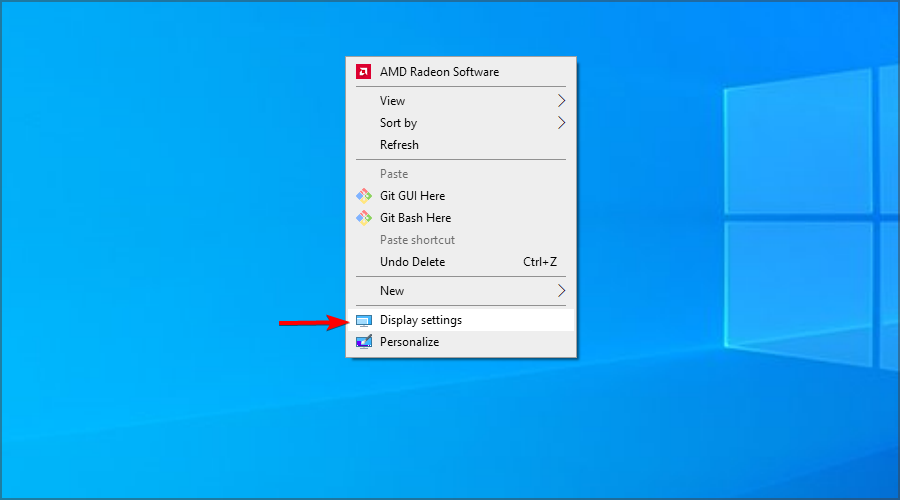

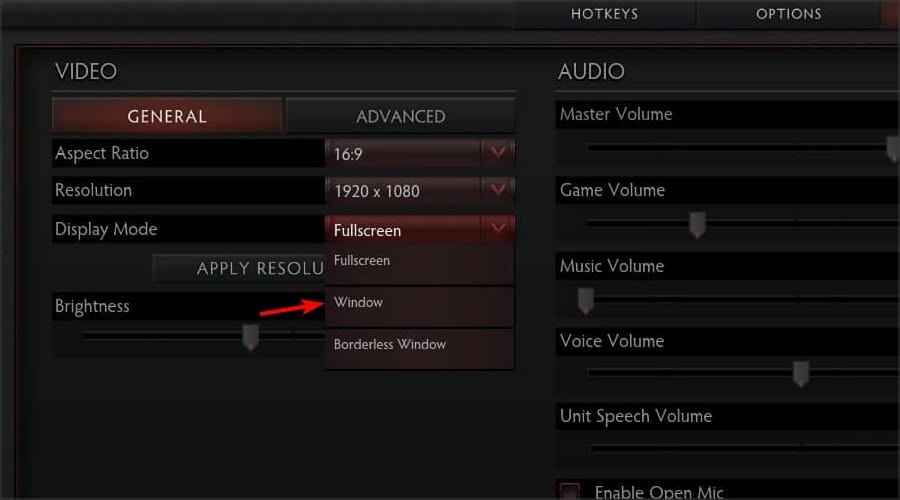
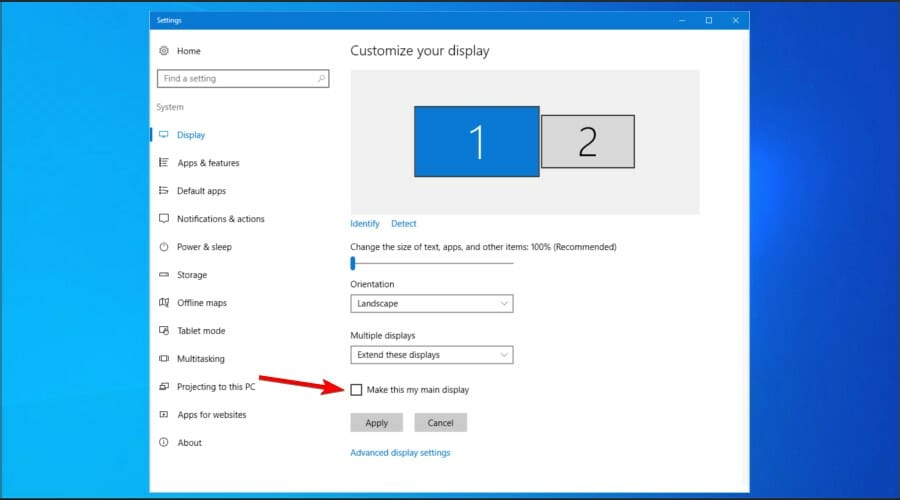
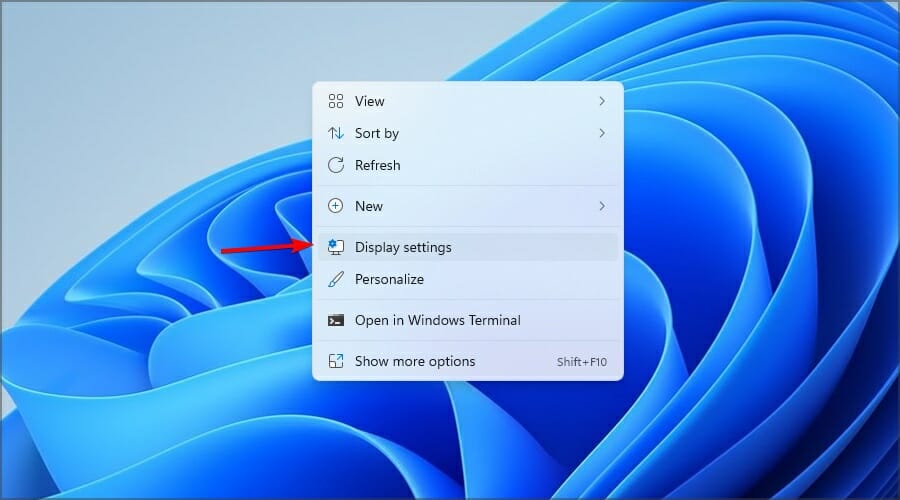
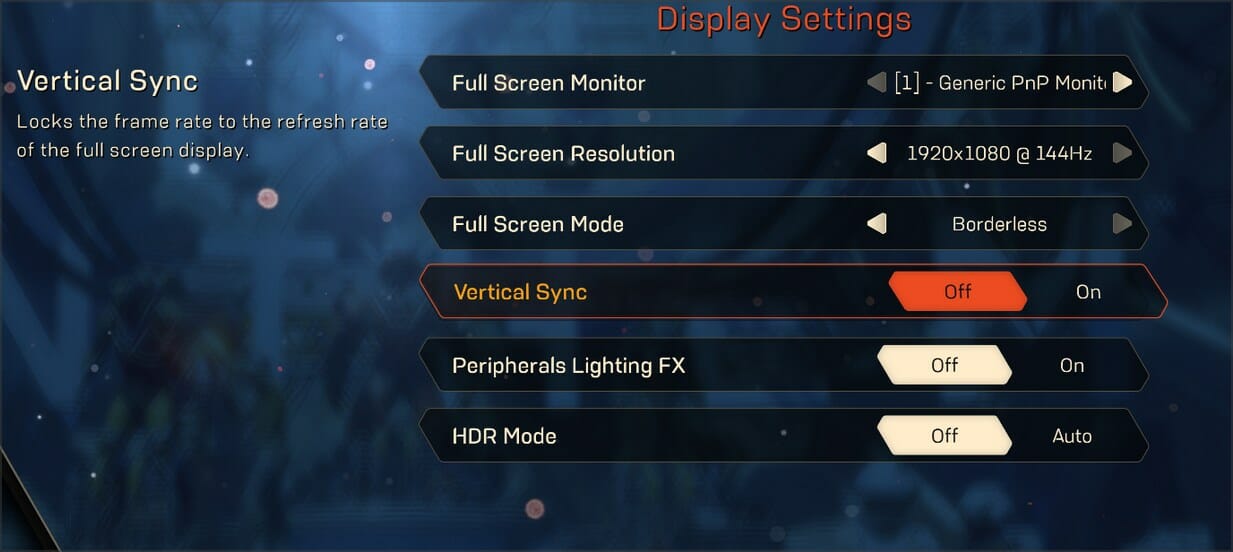
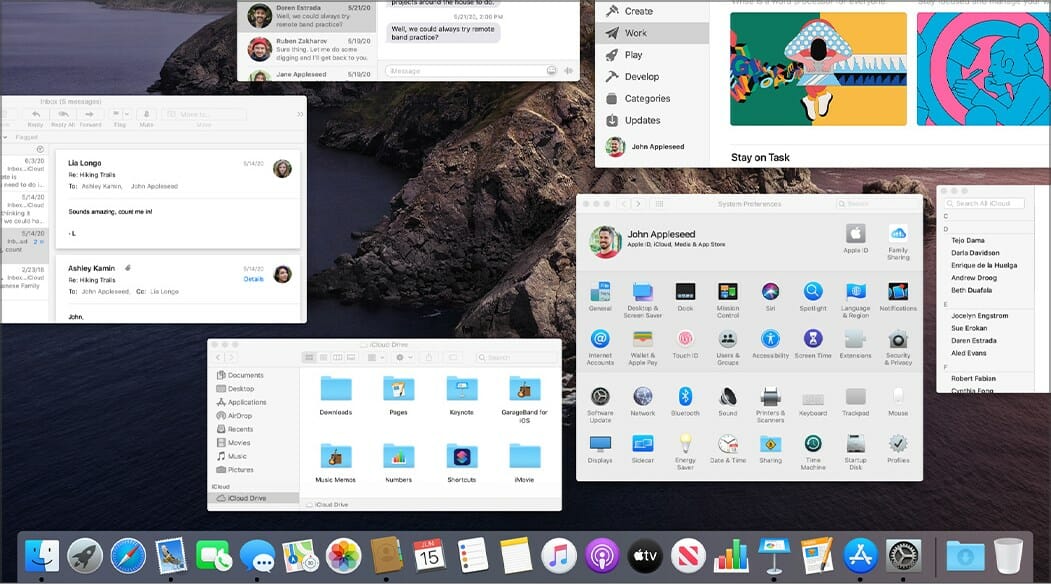
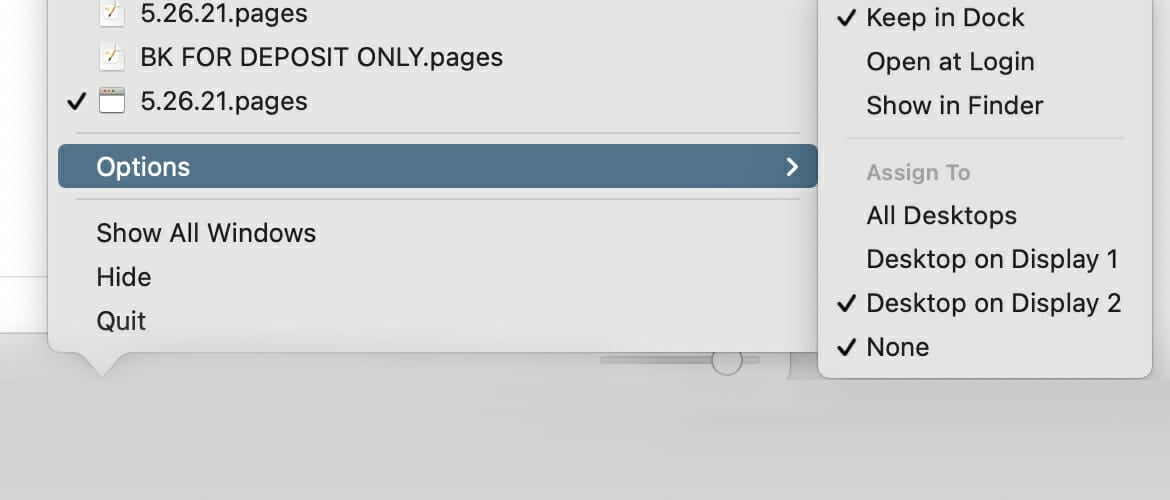
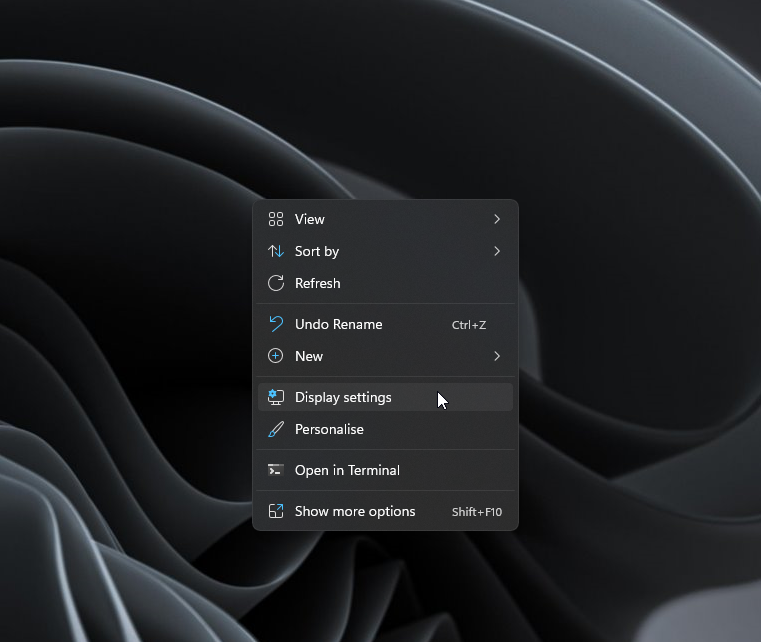
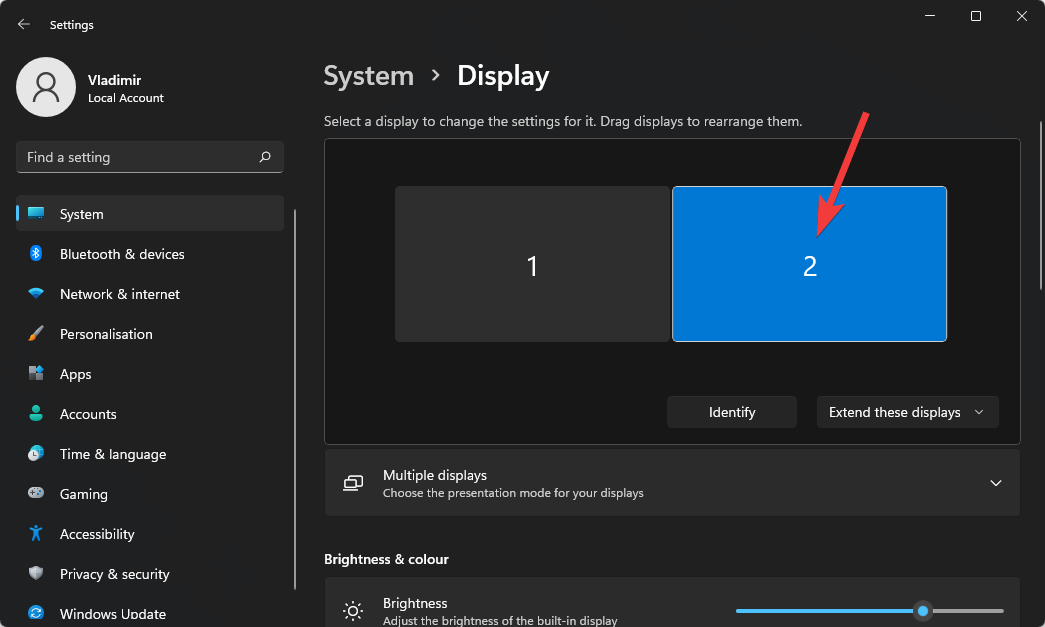
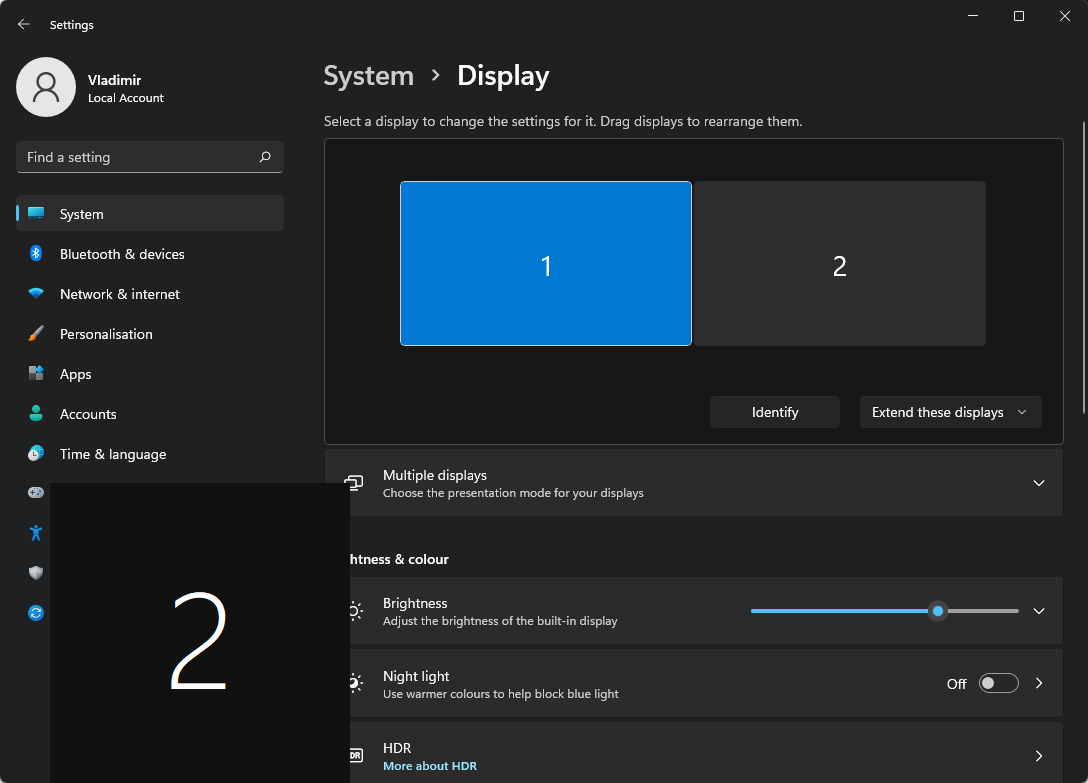
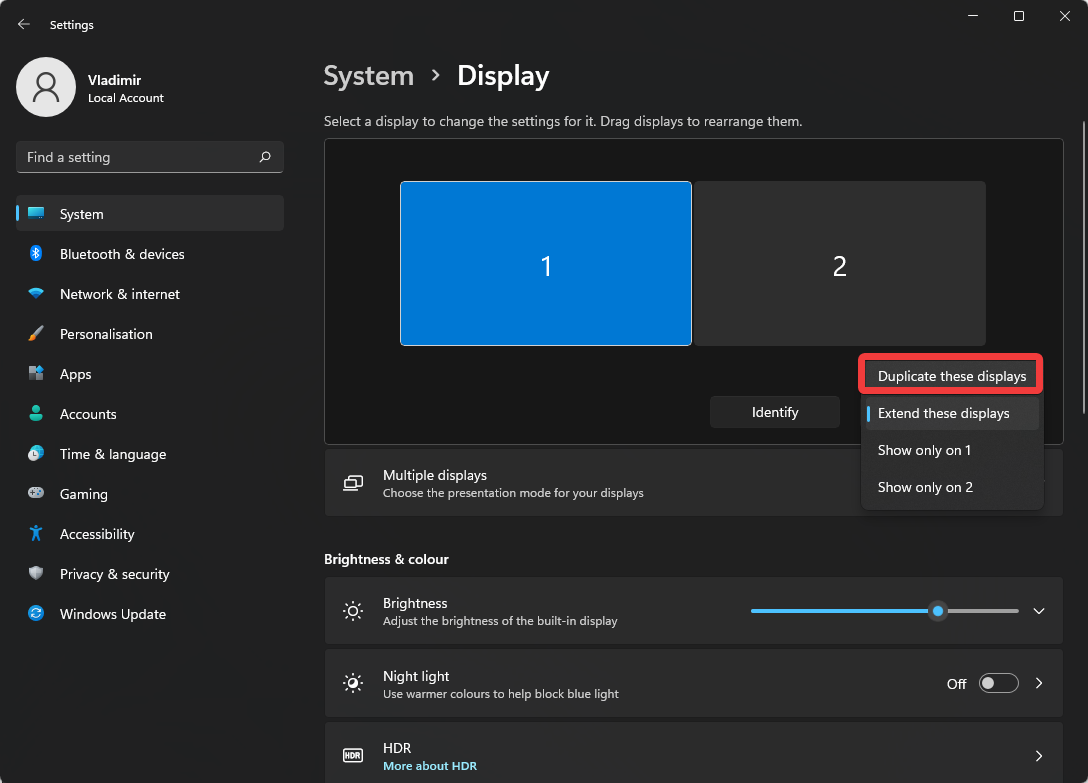
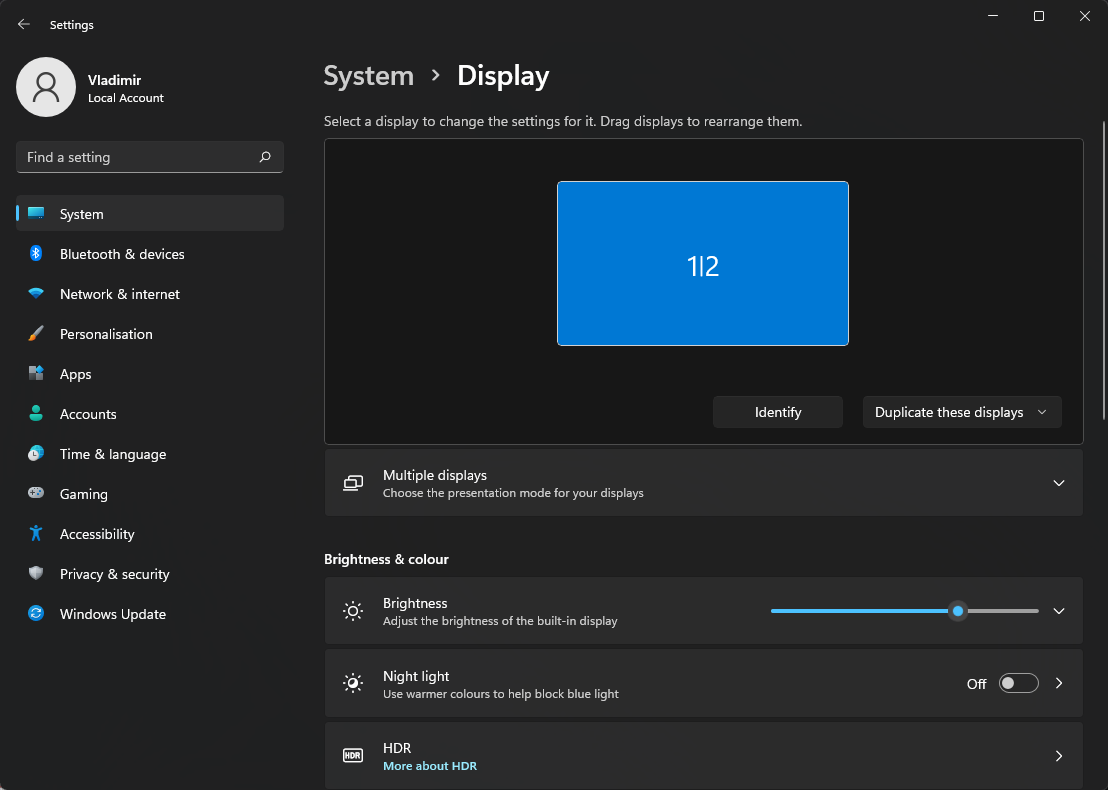
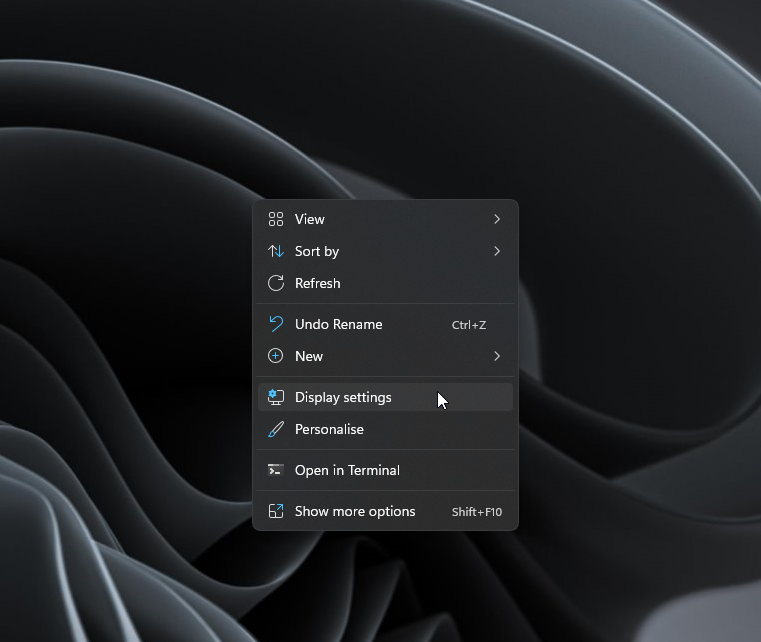
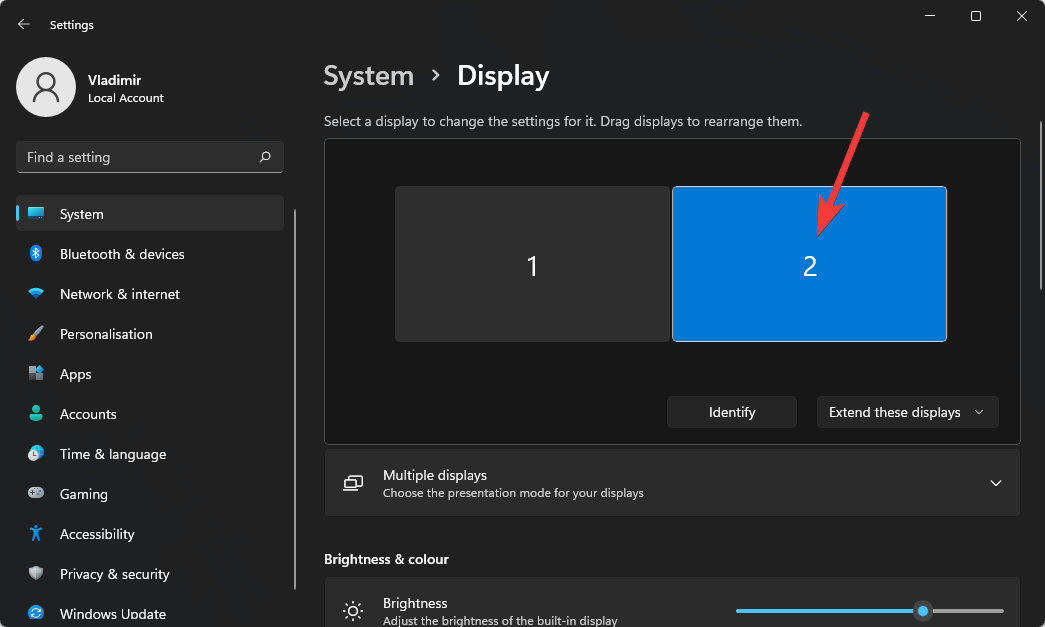
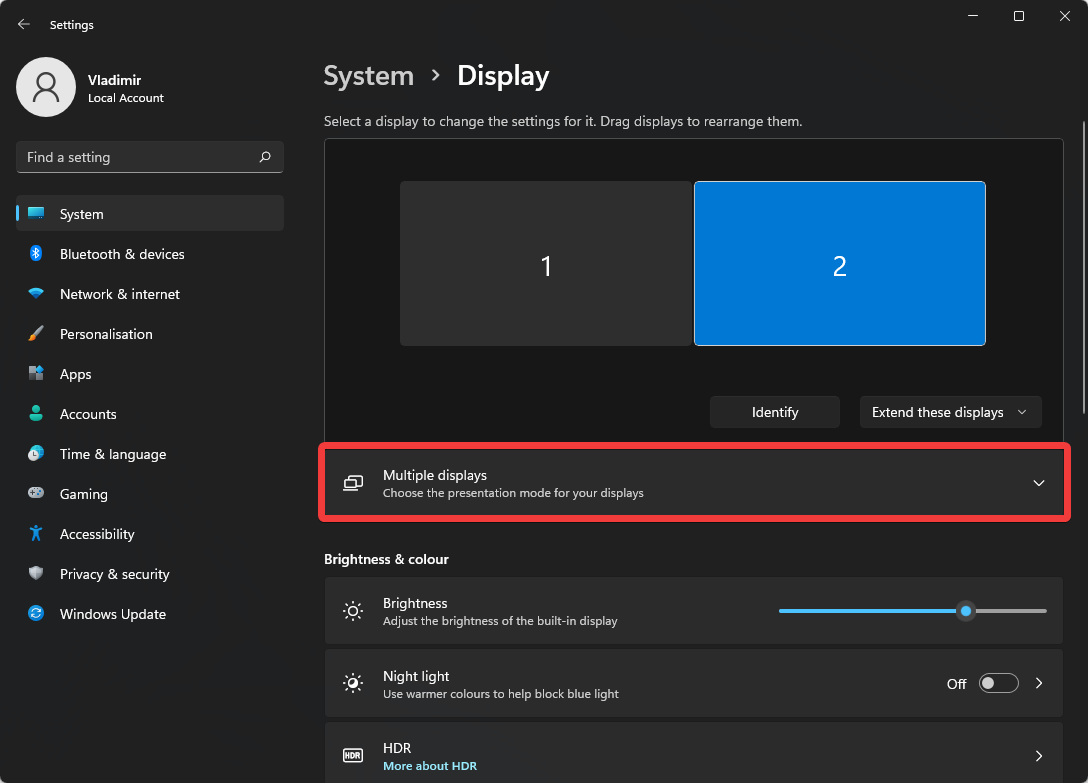
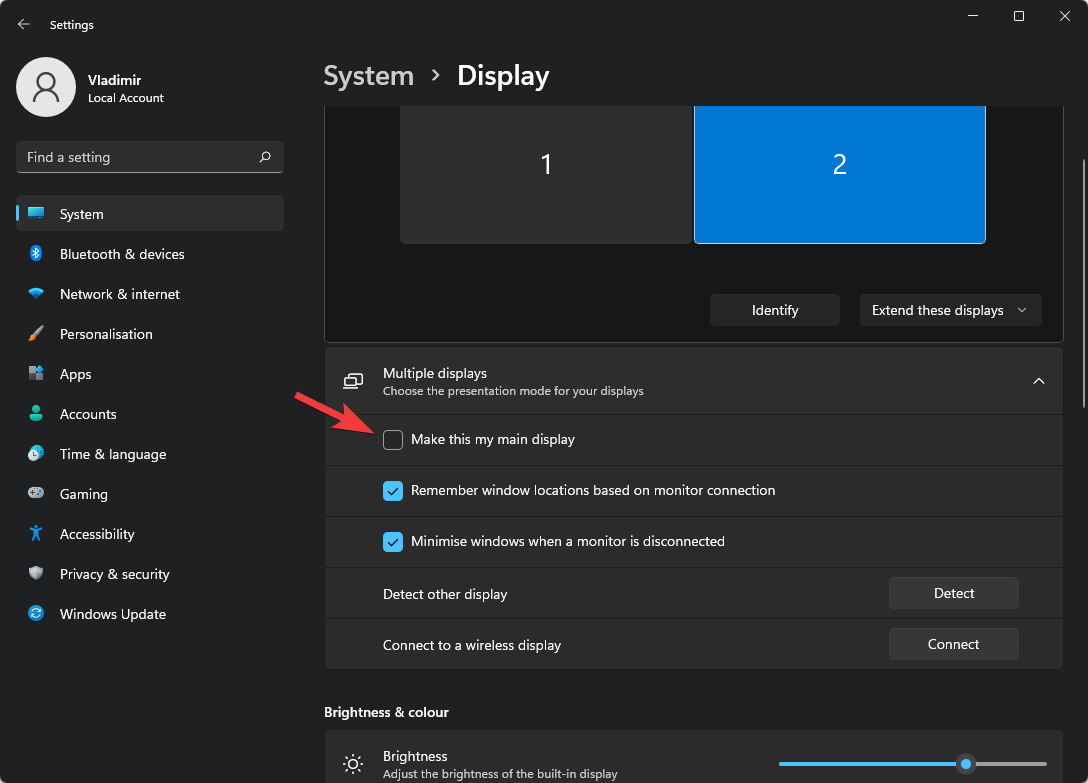



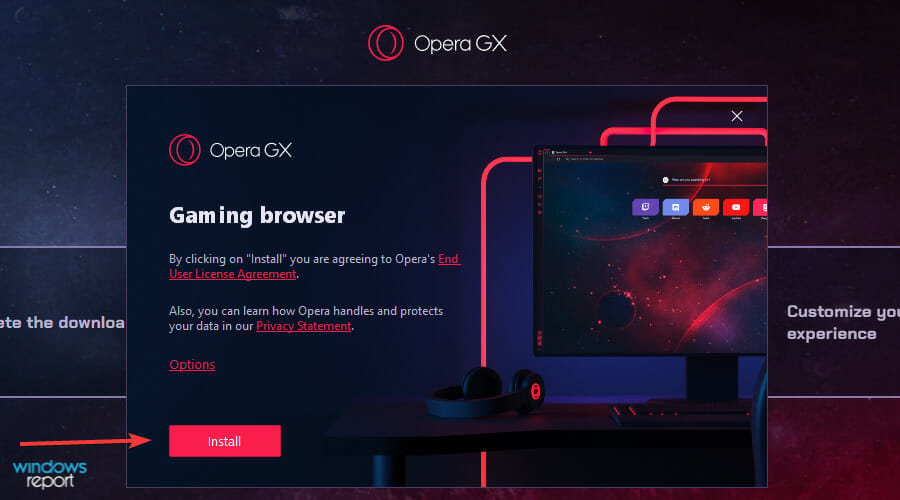
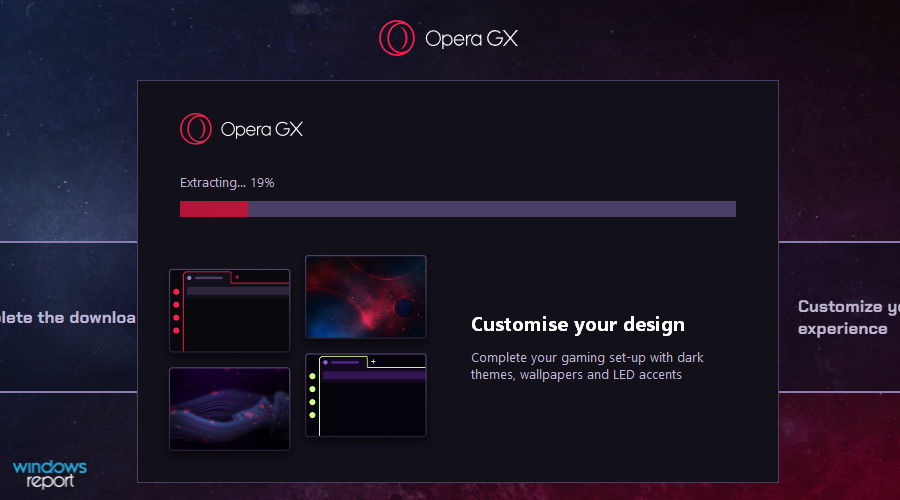
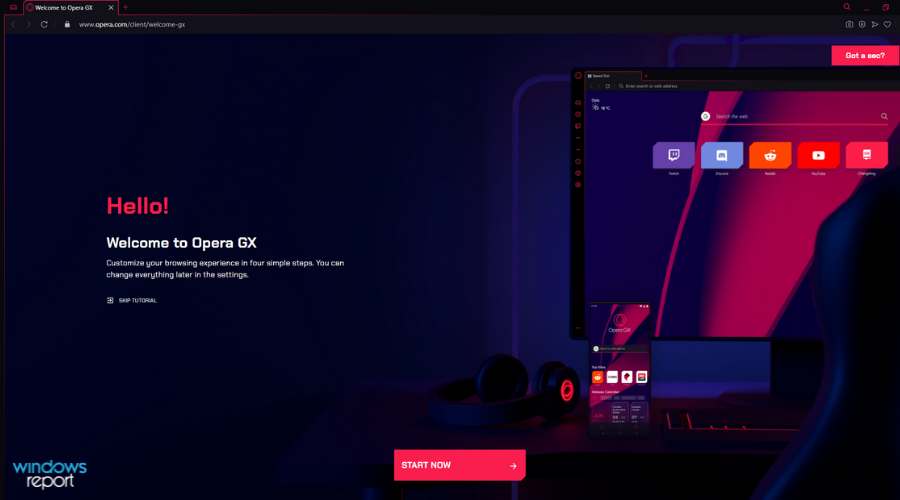
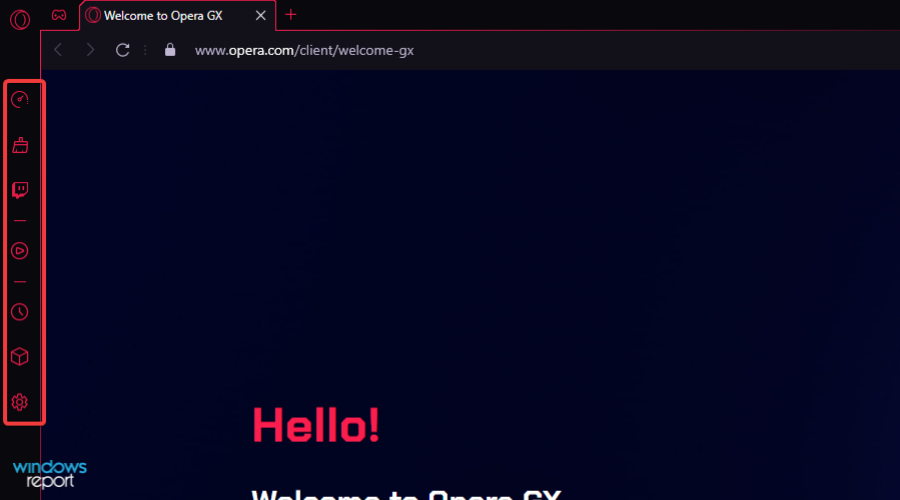
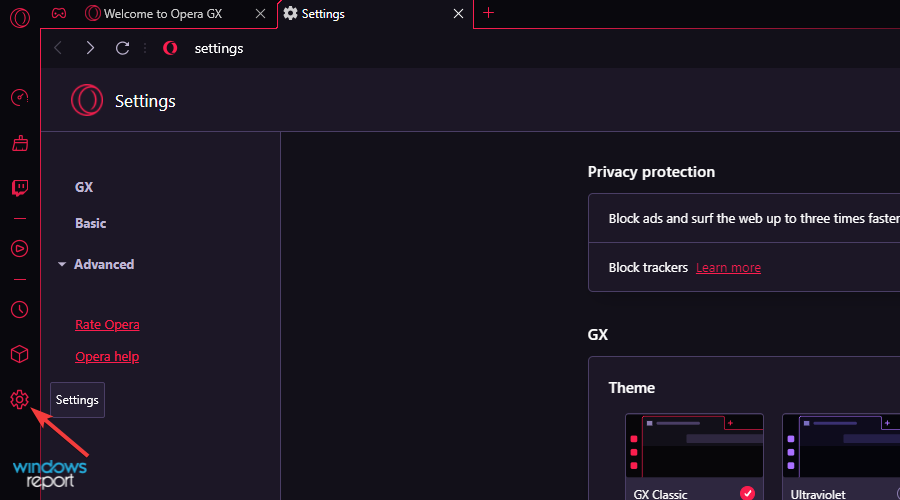
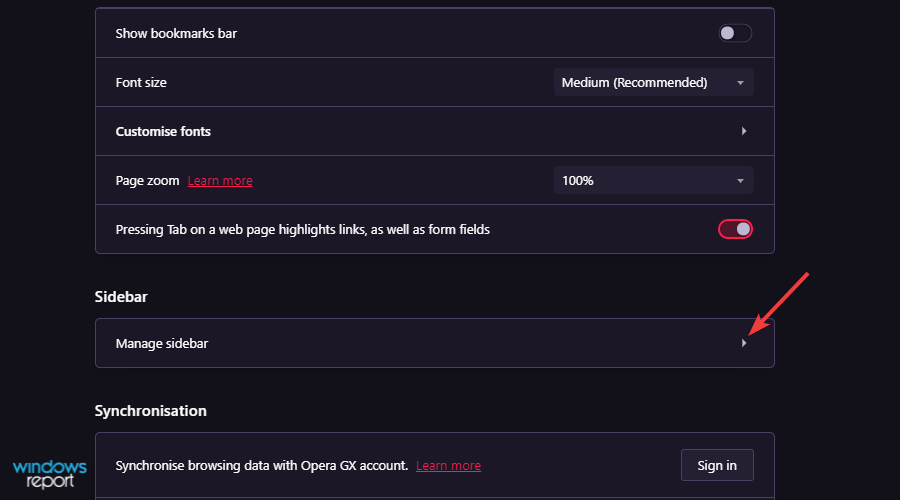
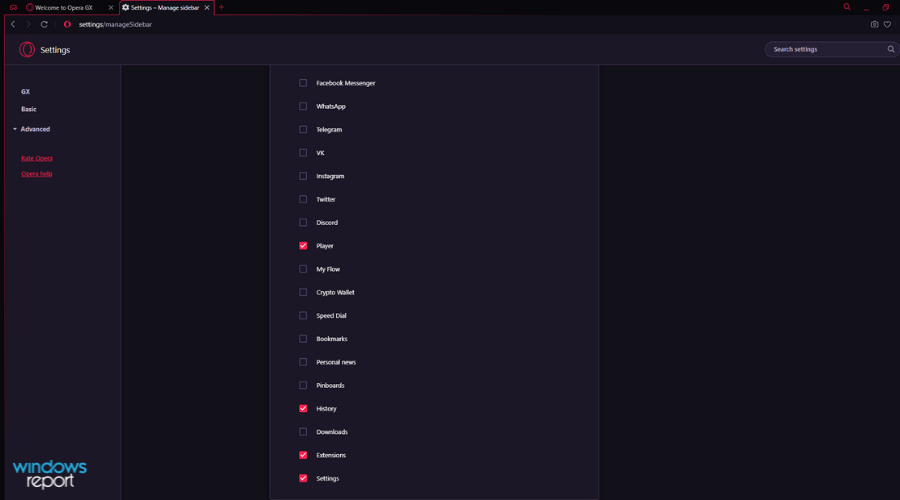
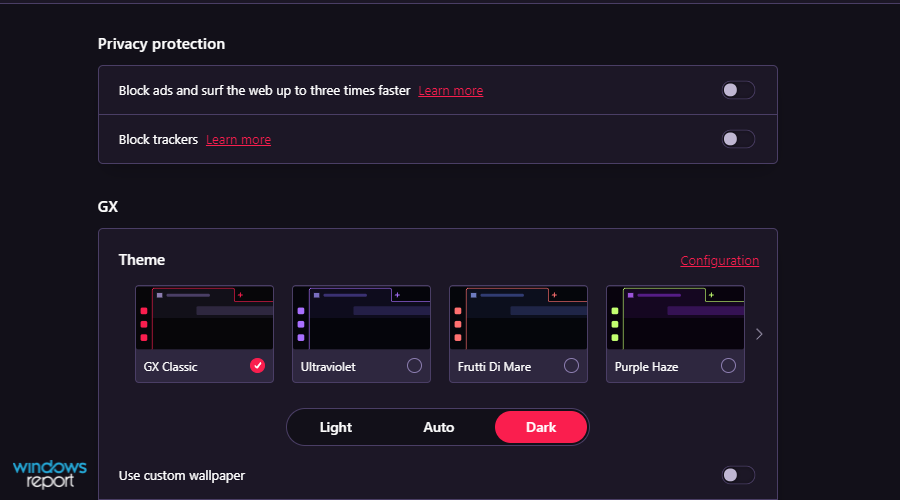
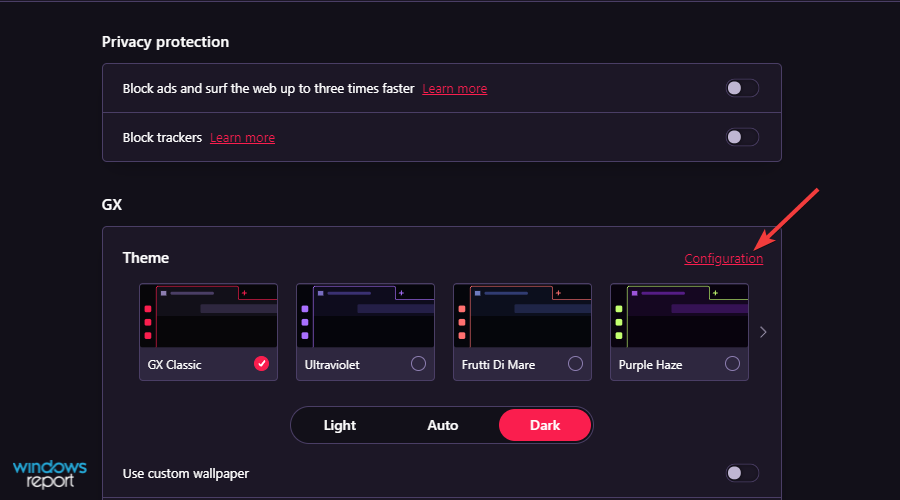
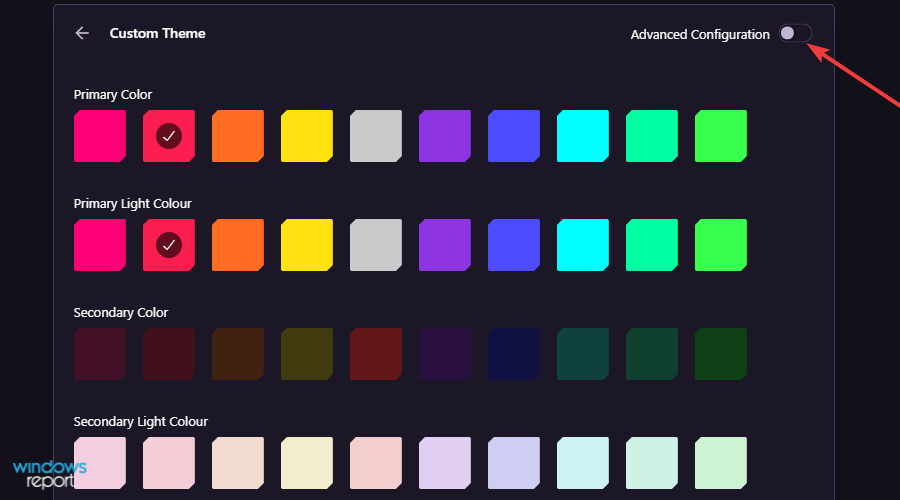
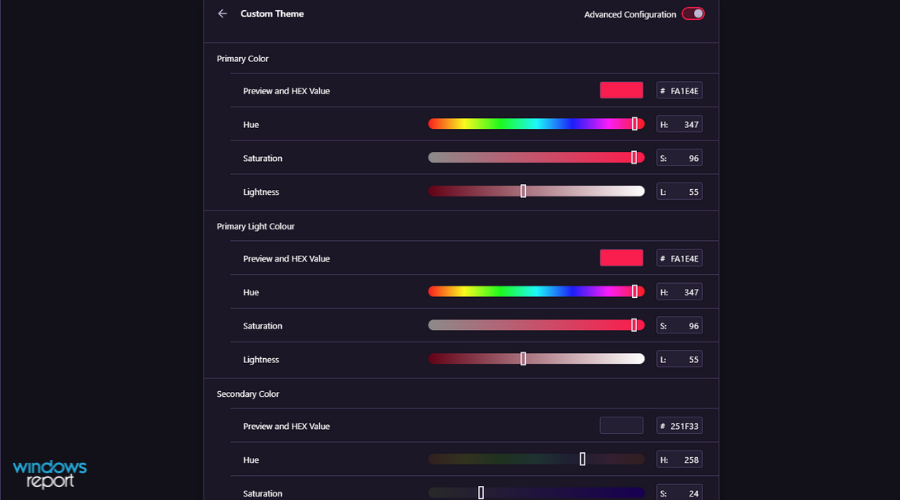

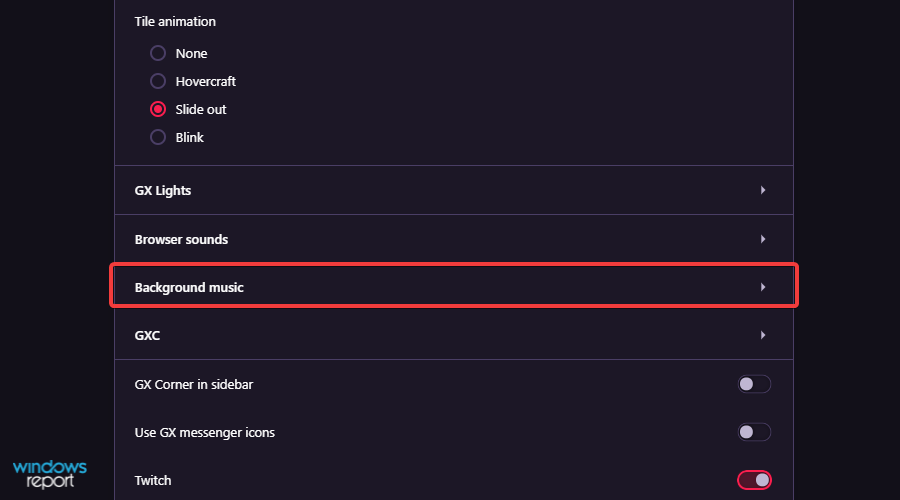
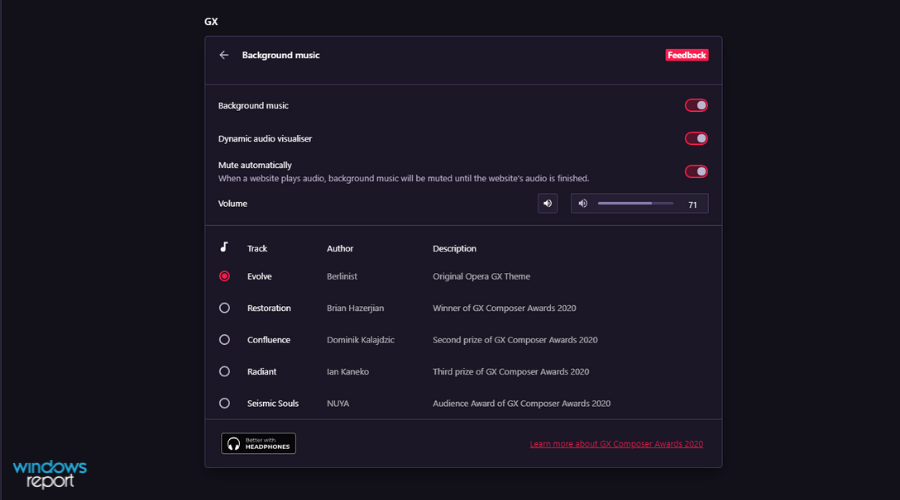
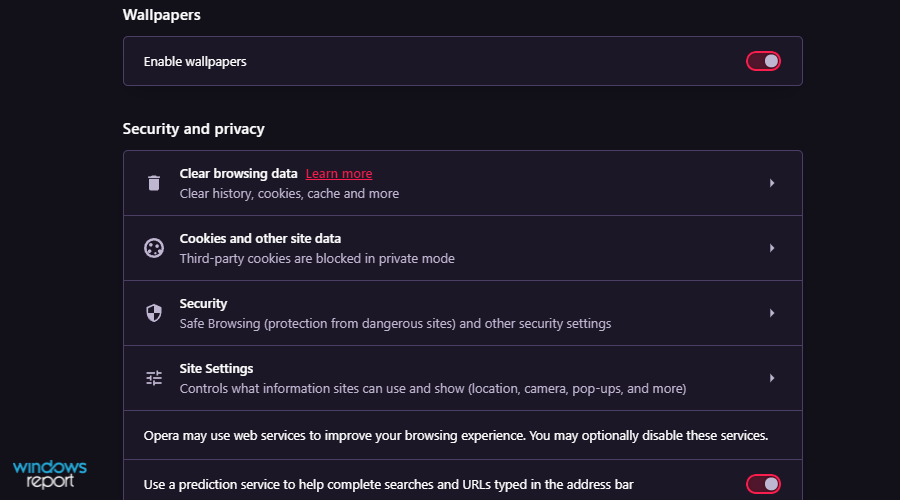
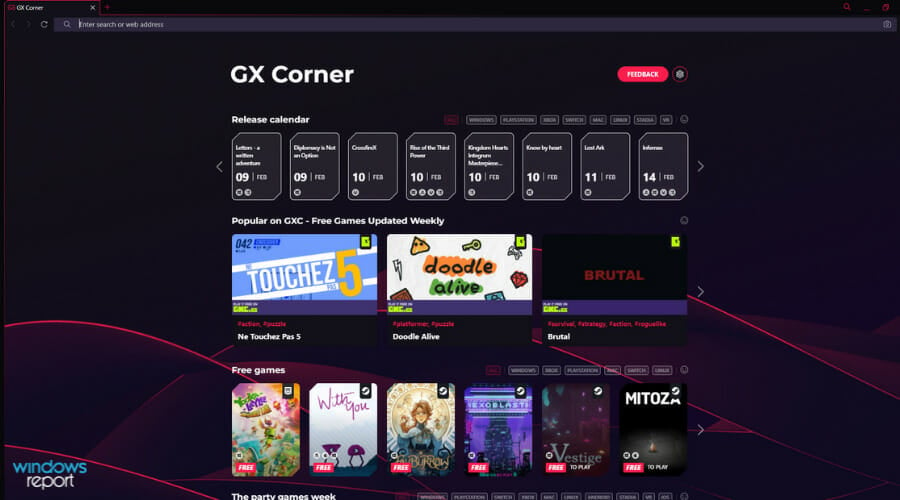
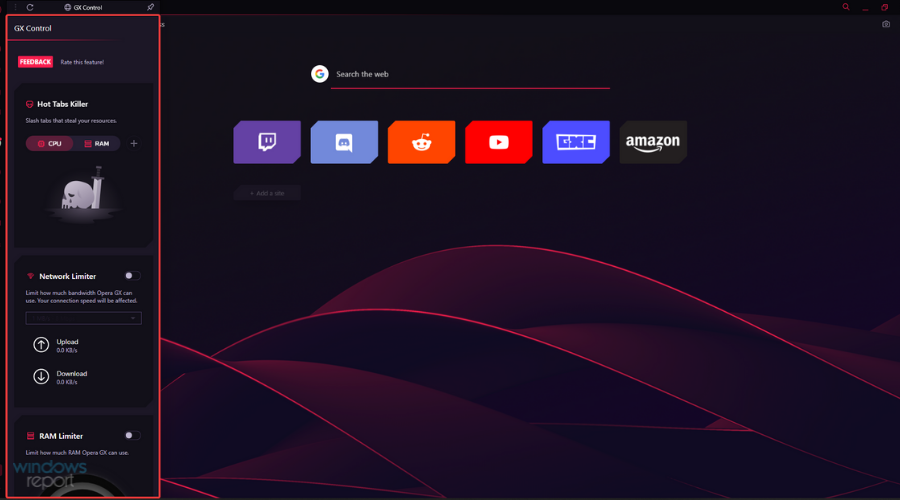
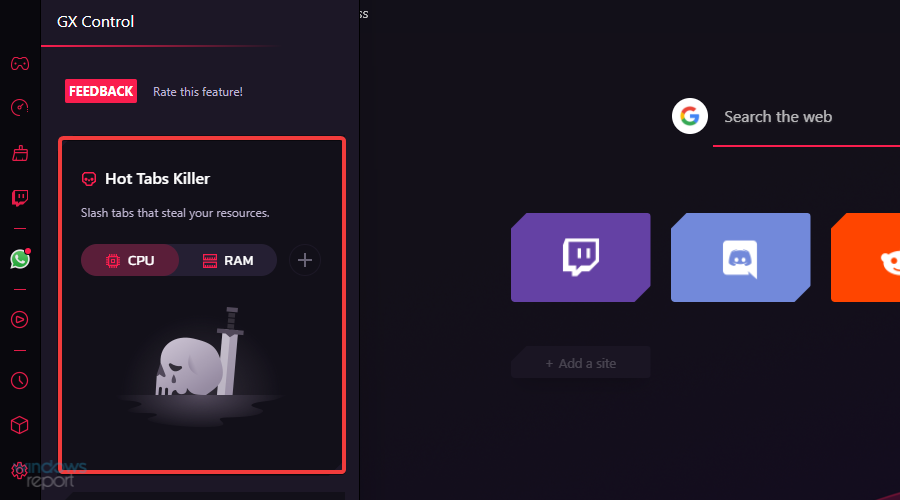
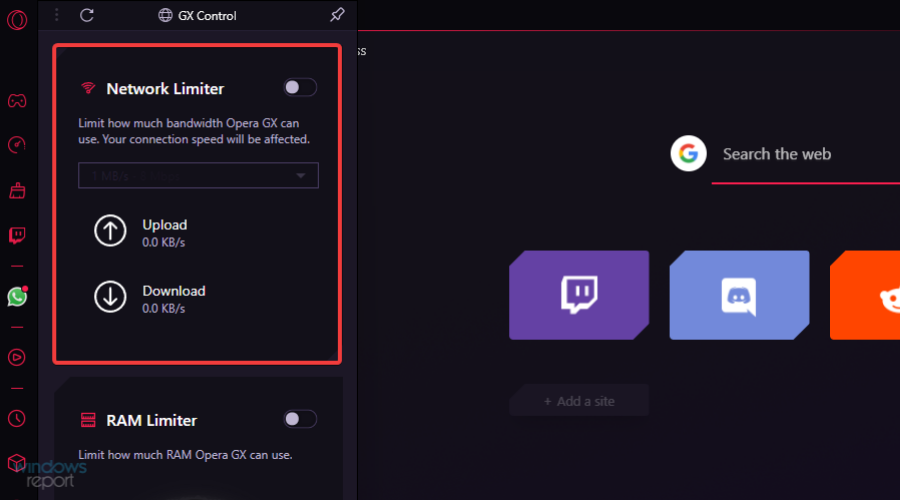
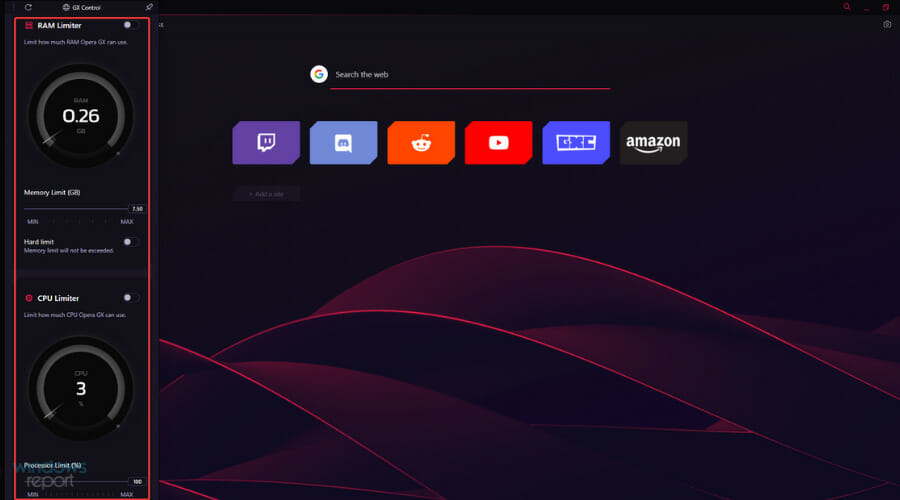
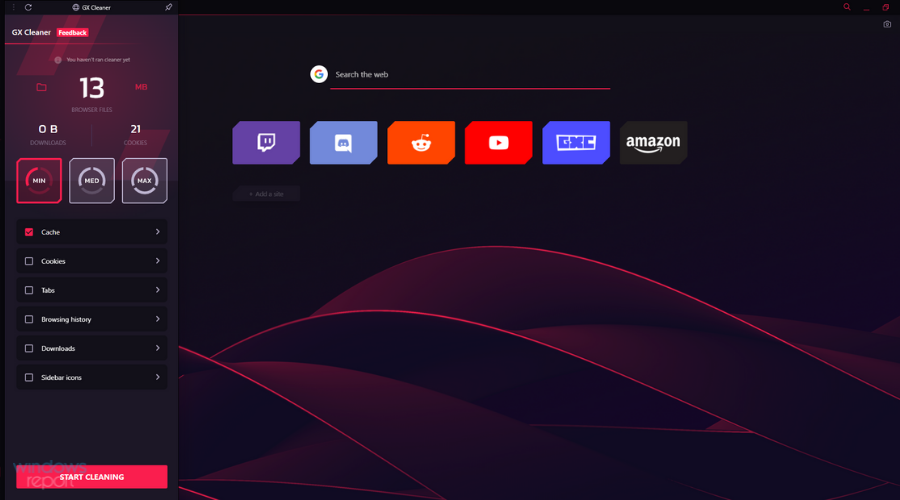
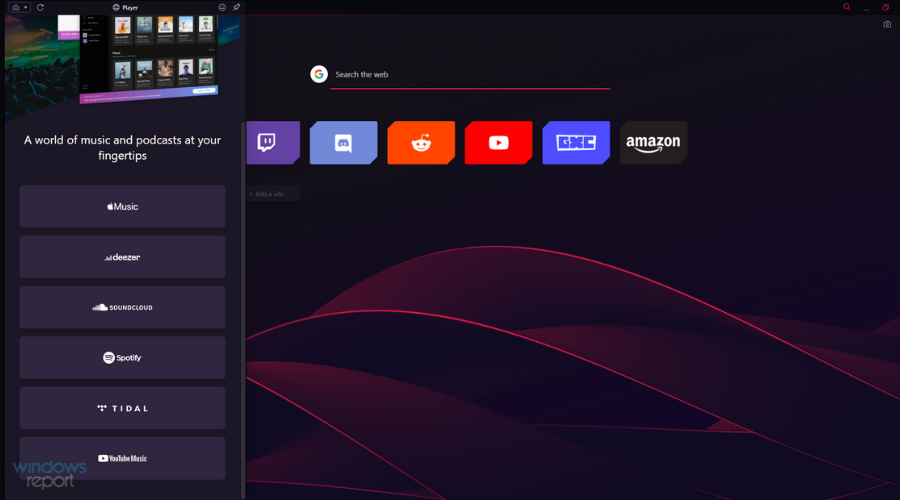
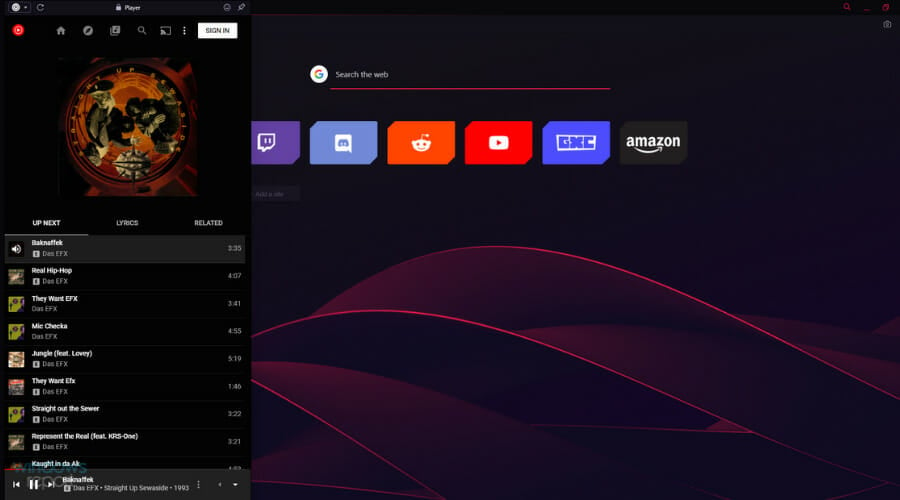
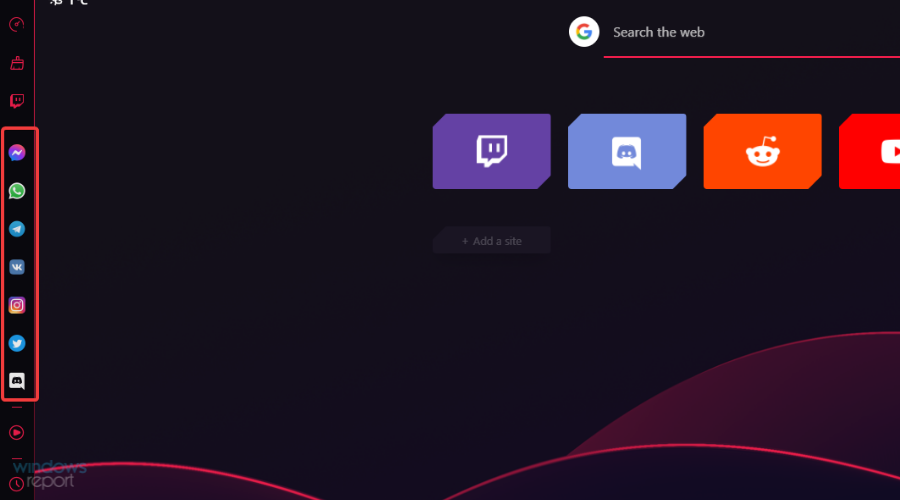
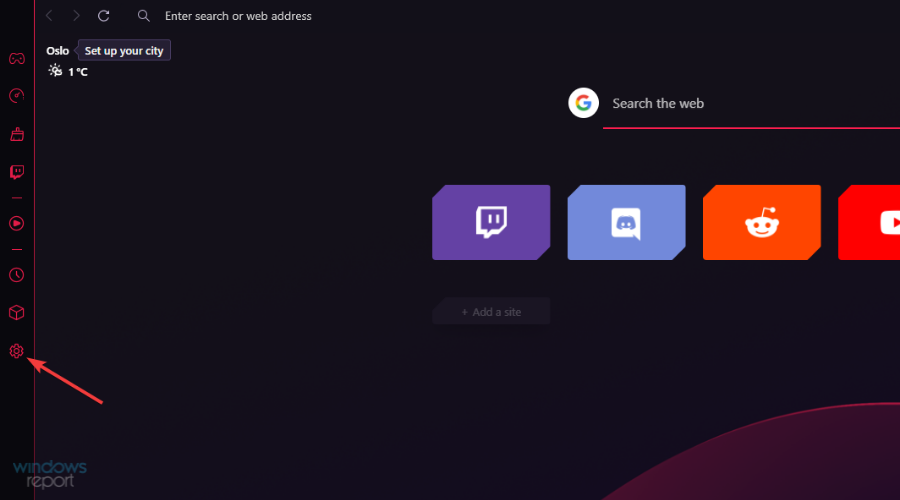
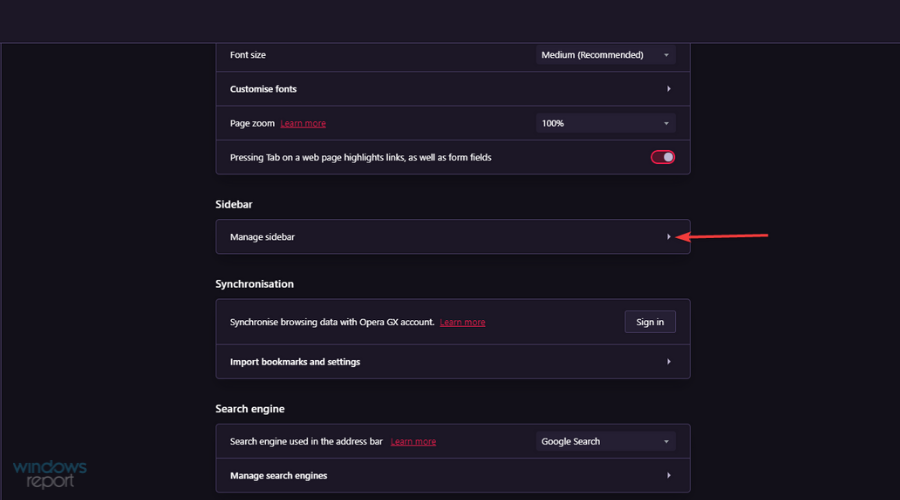
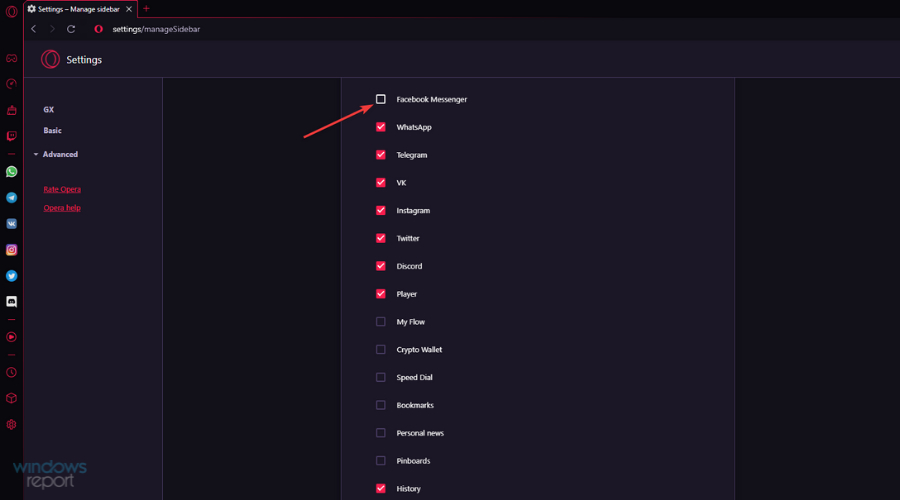
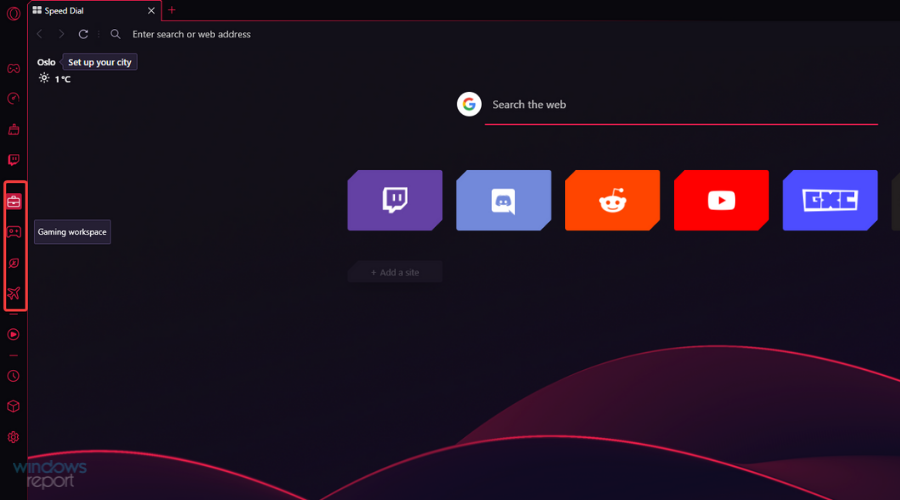
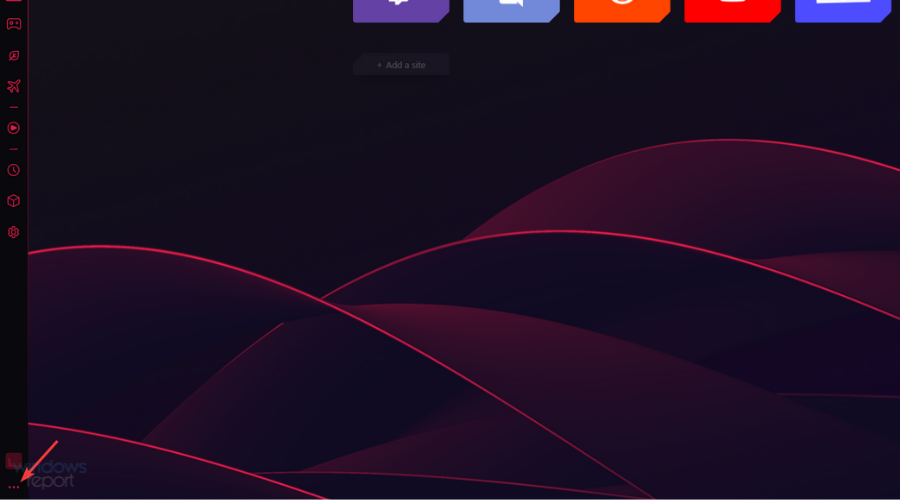
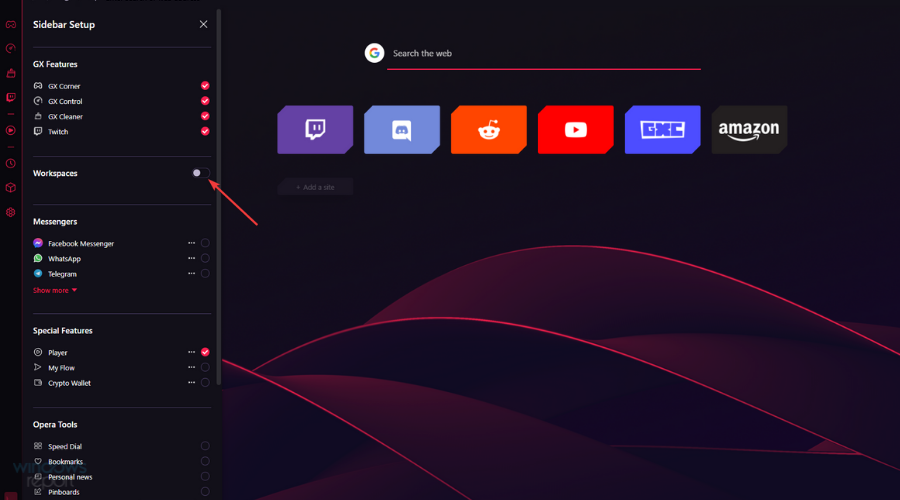
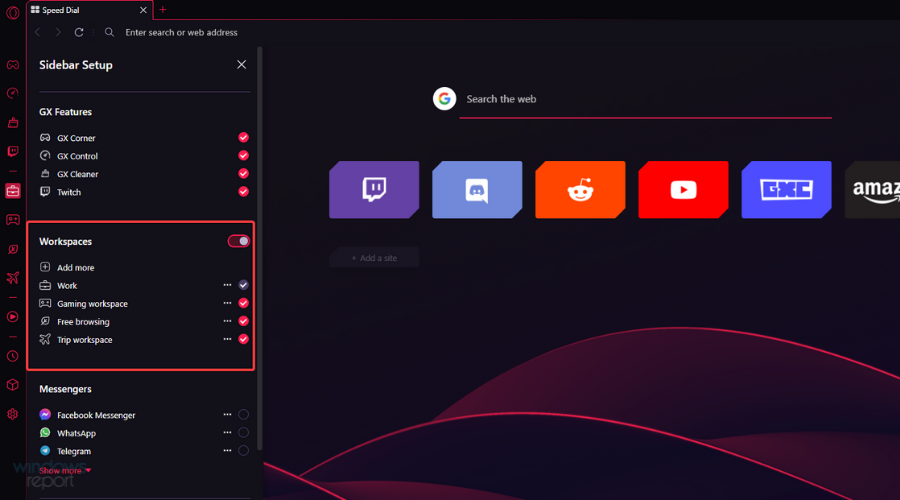
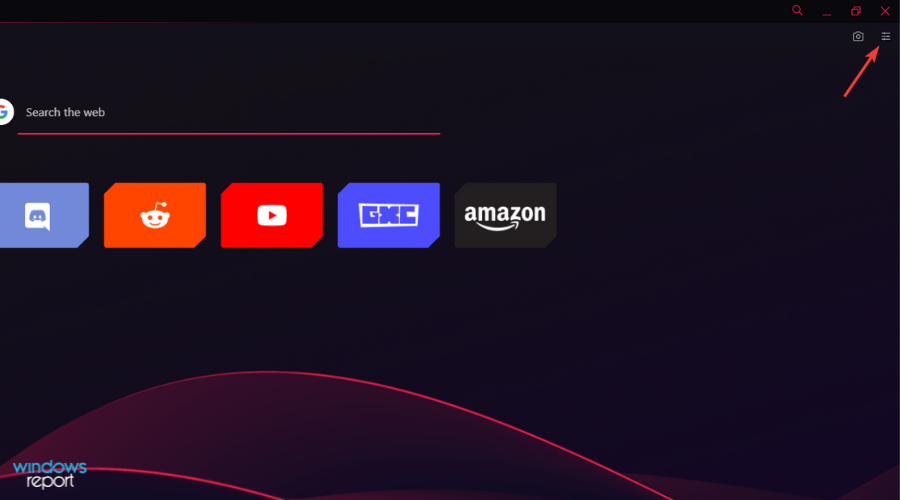
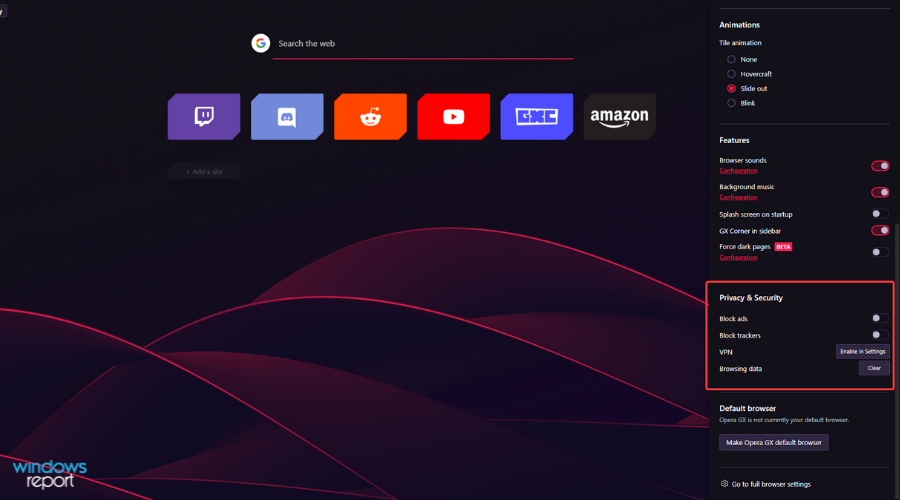
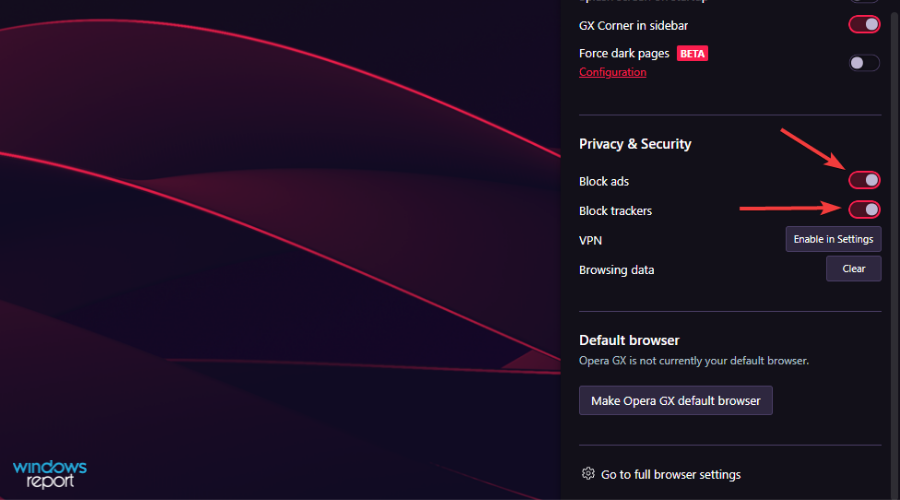
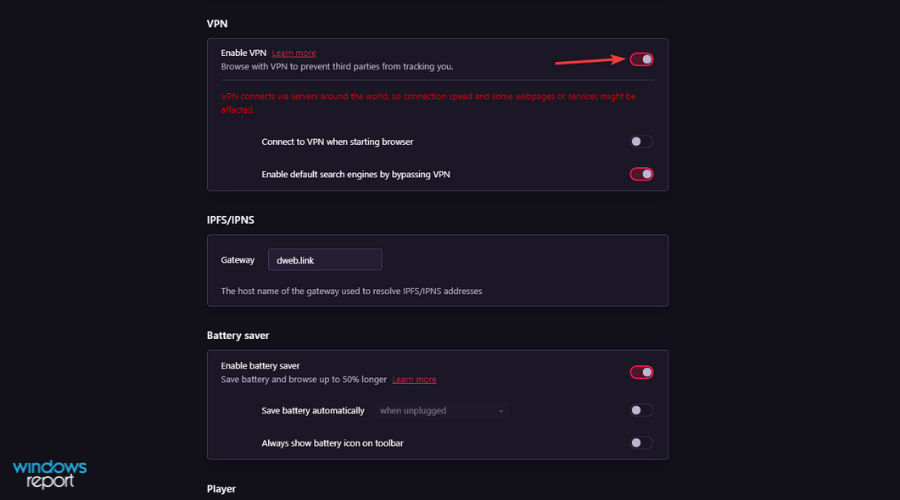
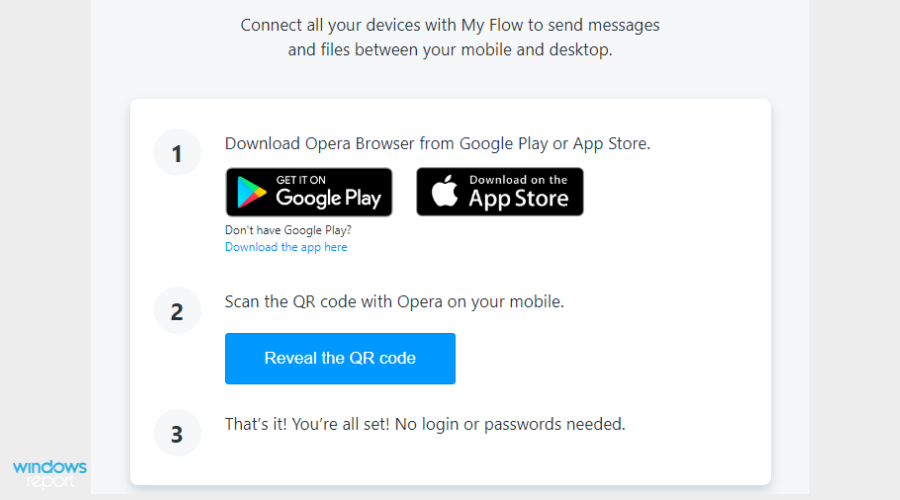
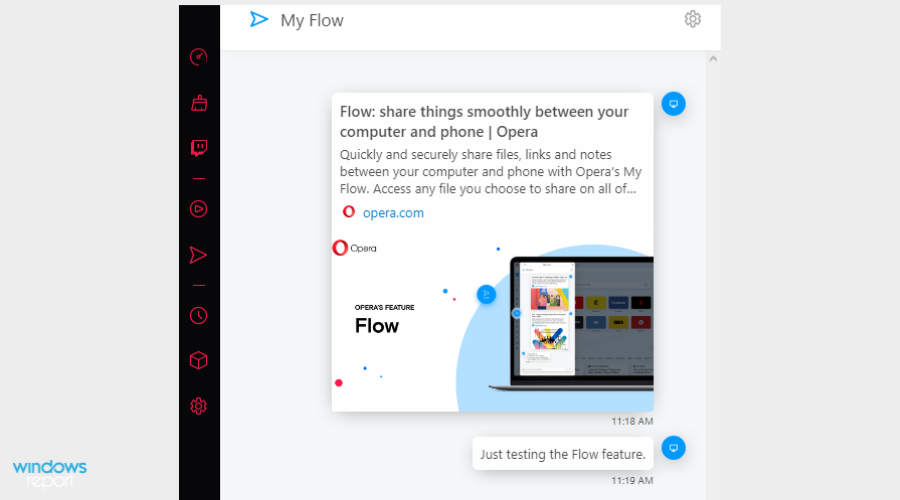
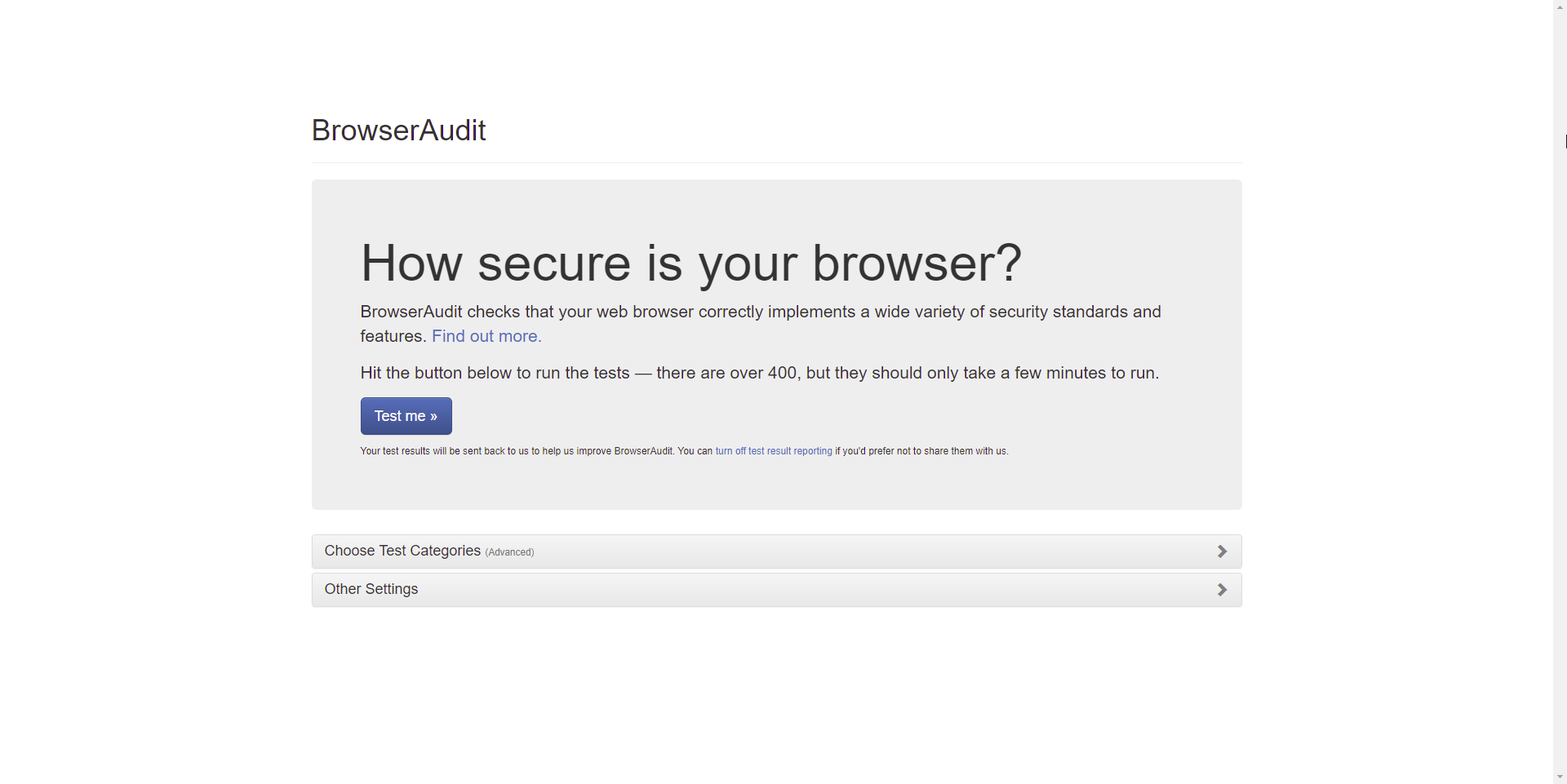
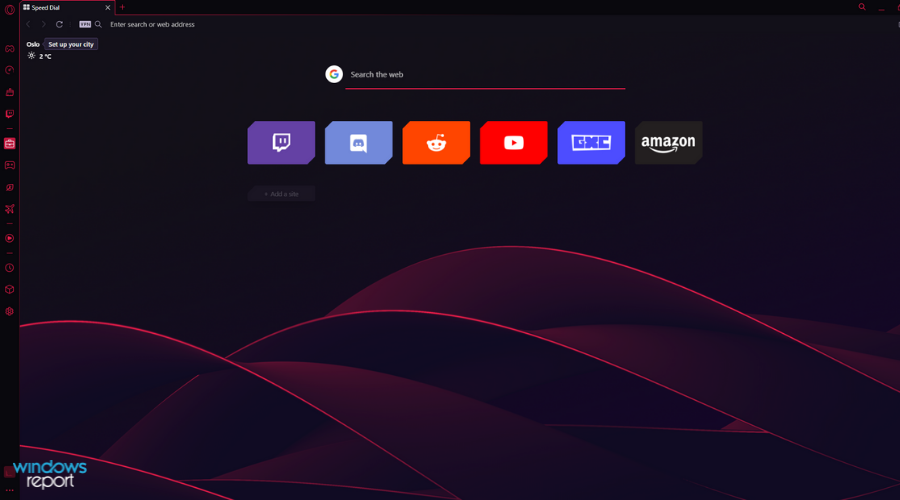
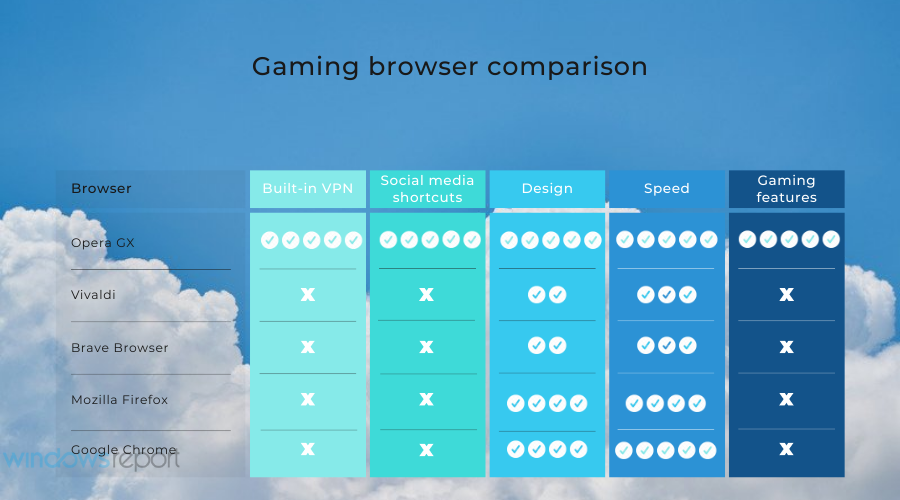
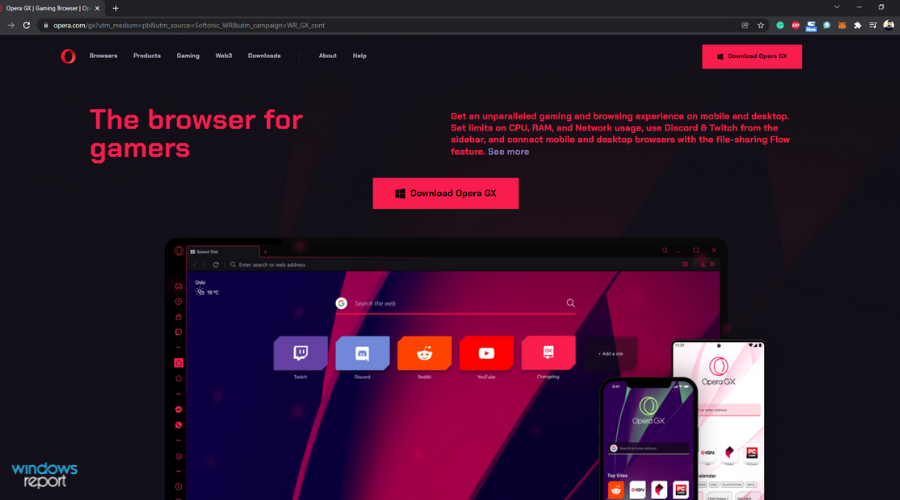
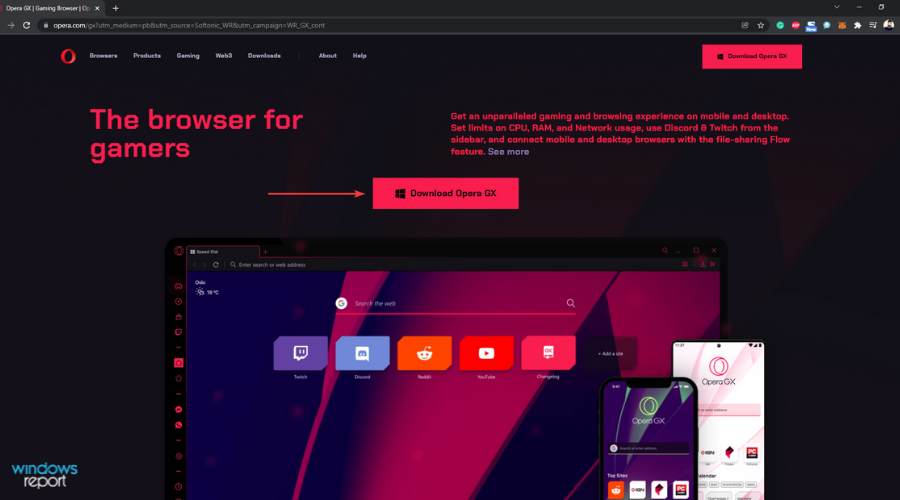
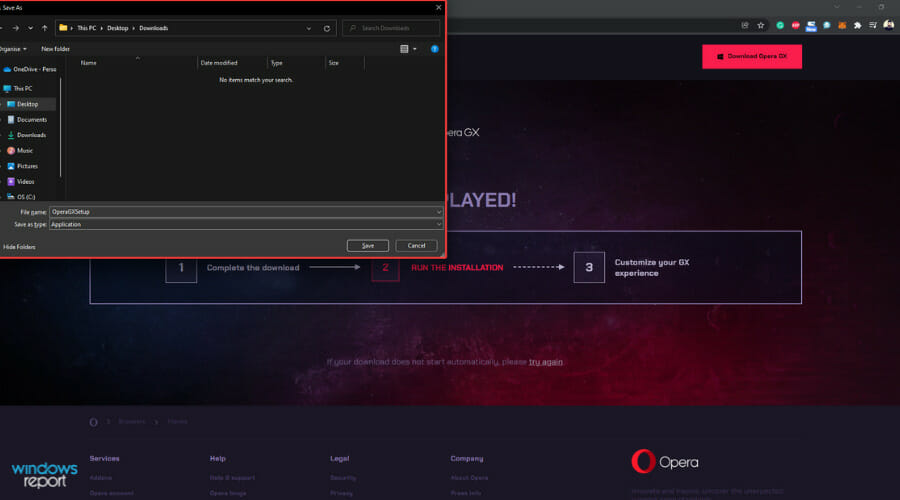
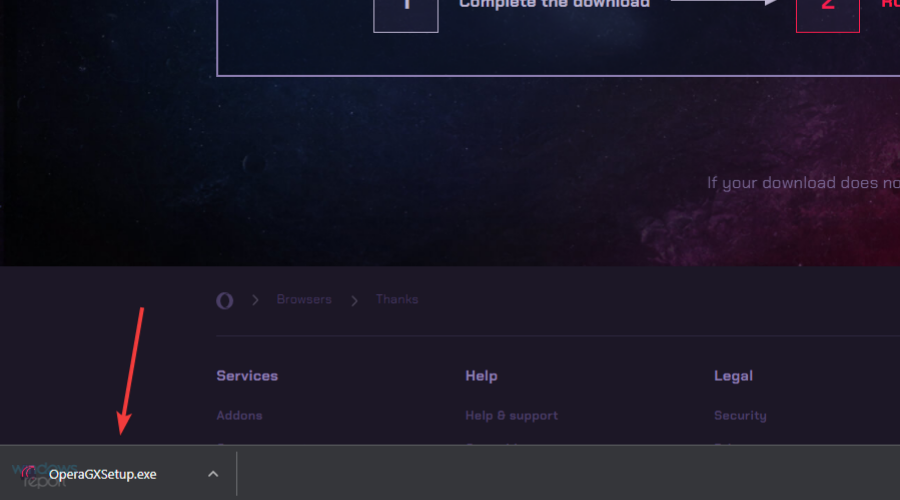
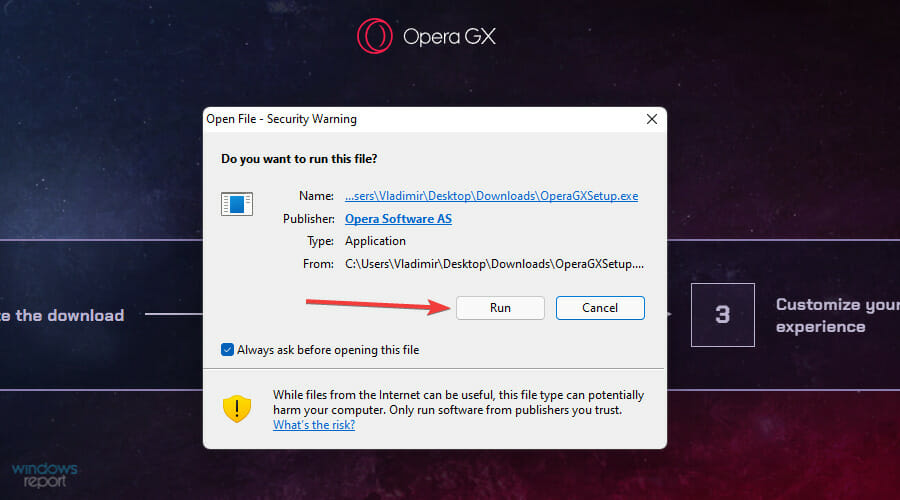
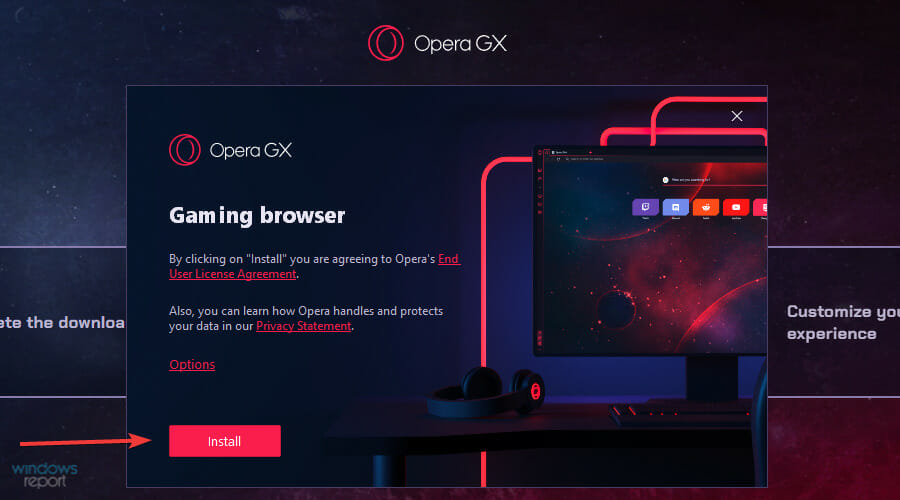
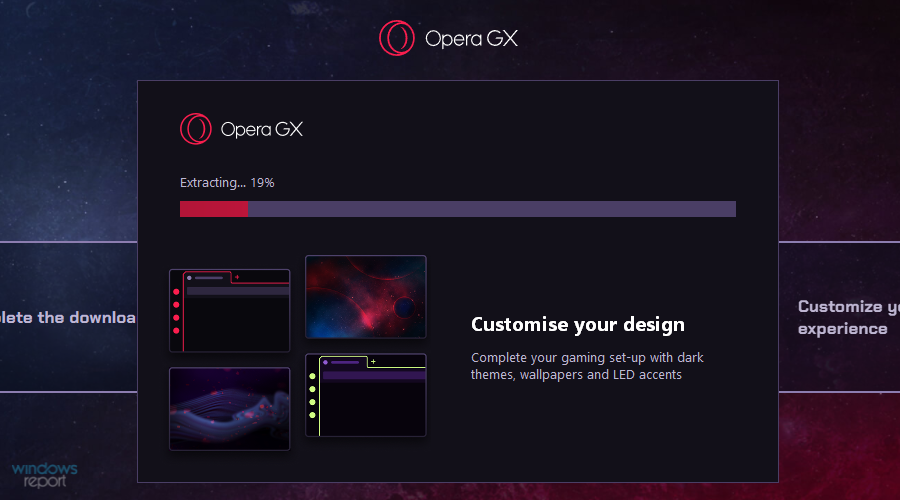
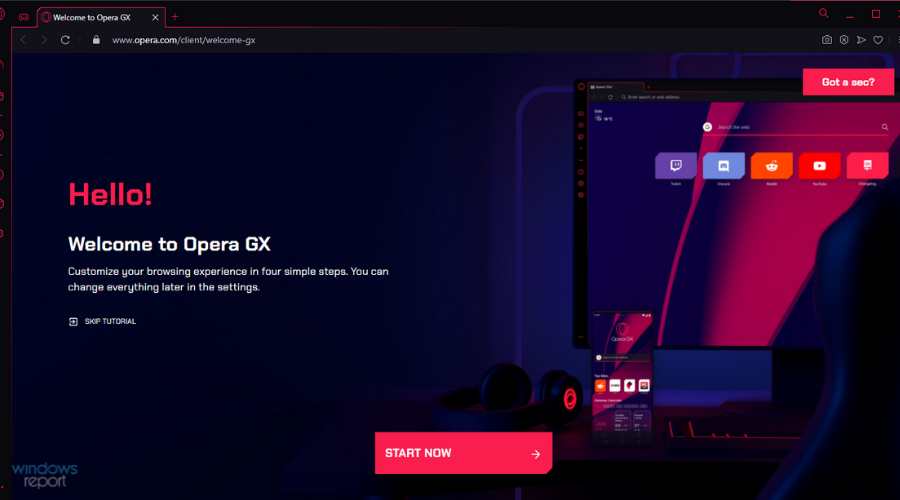
![5 Best Browsers For Seamless Hotstar Streaming [2026 List]](https://windowsreport.com/wp-content/uploads/2020/07/Hotstar.jpg)




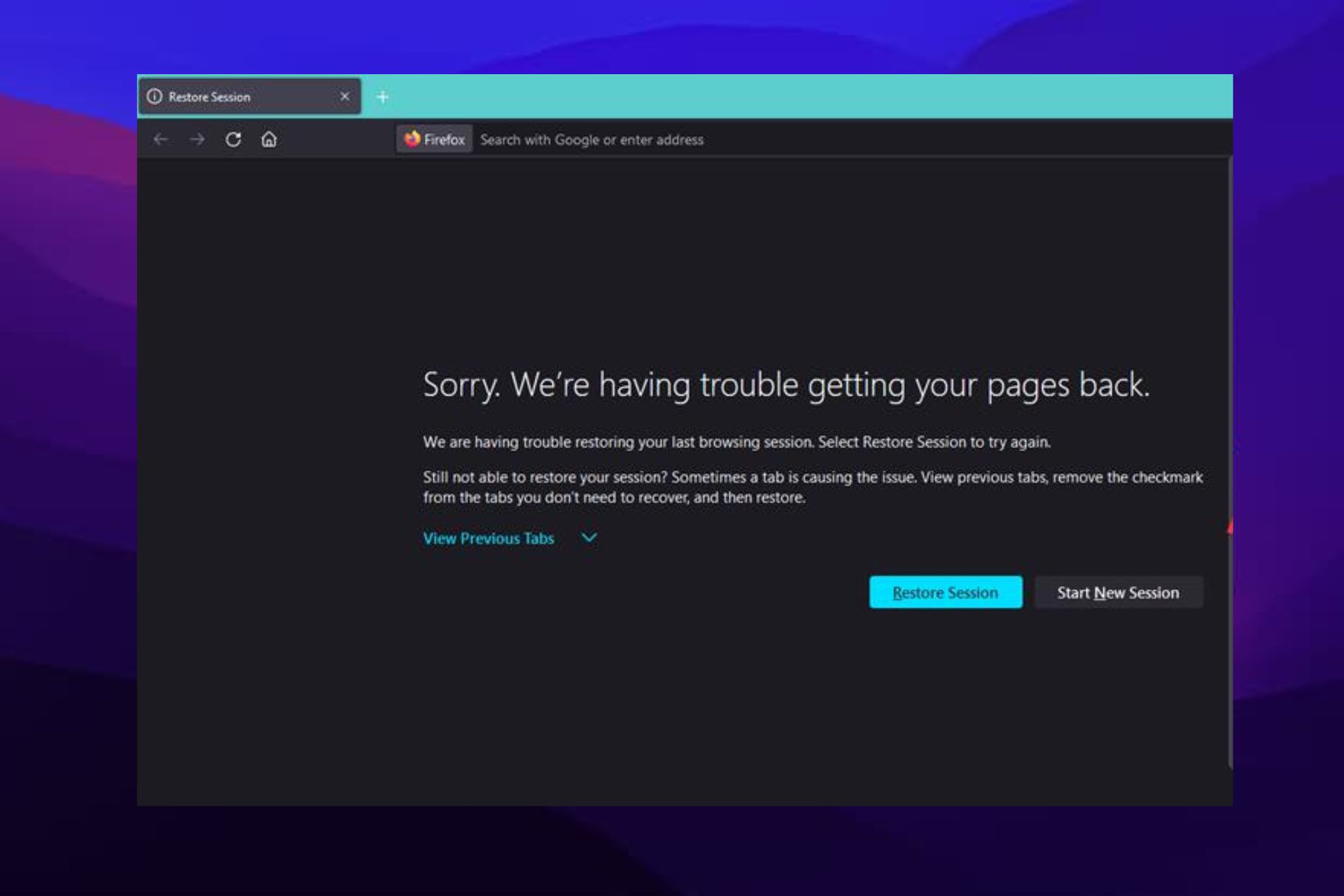
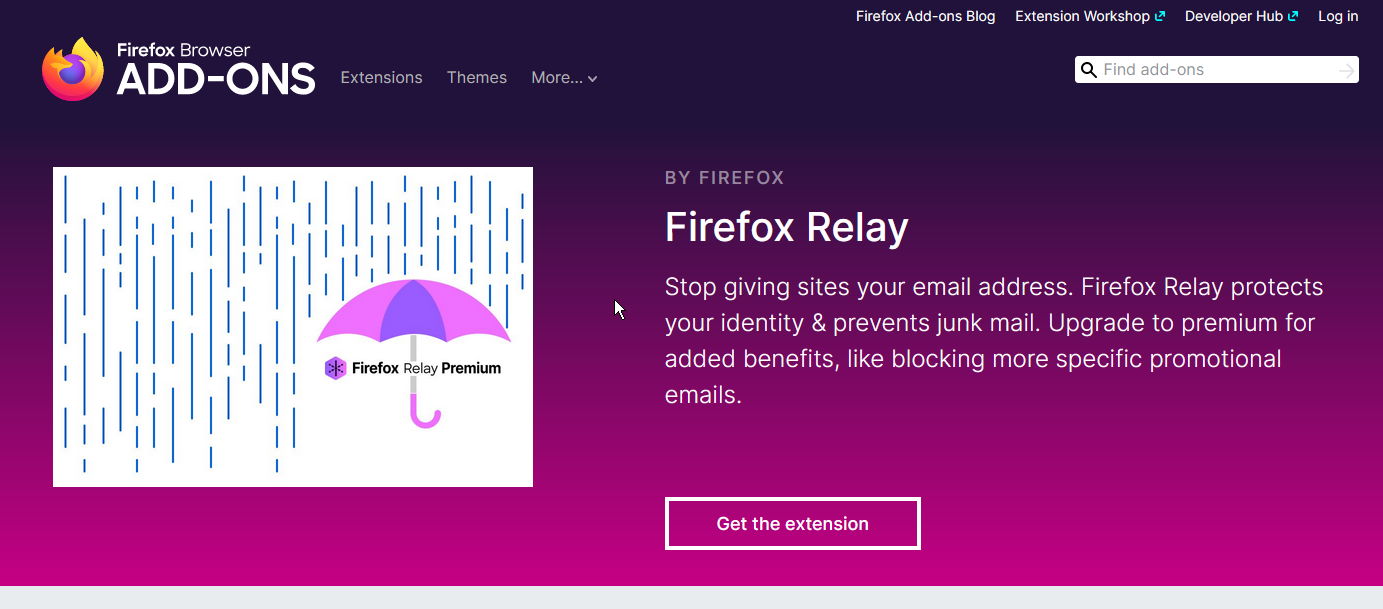
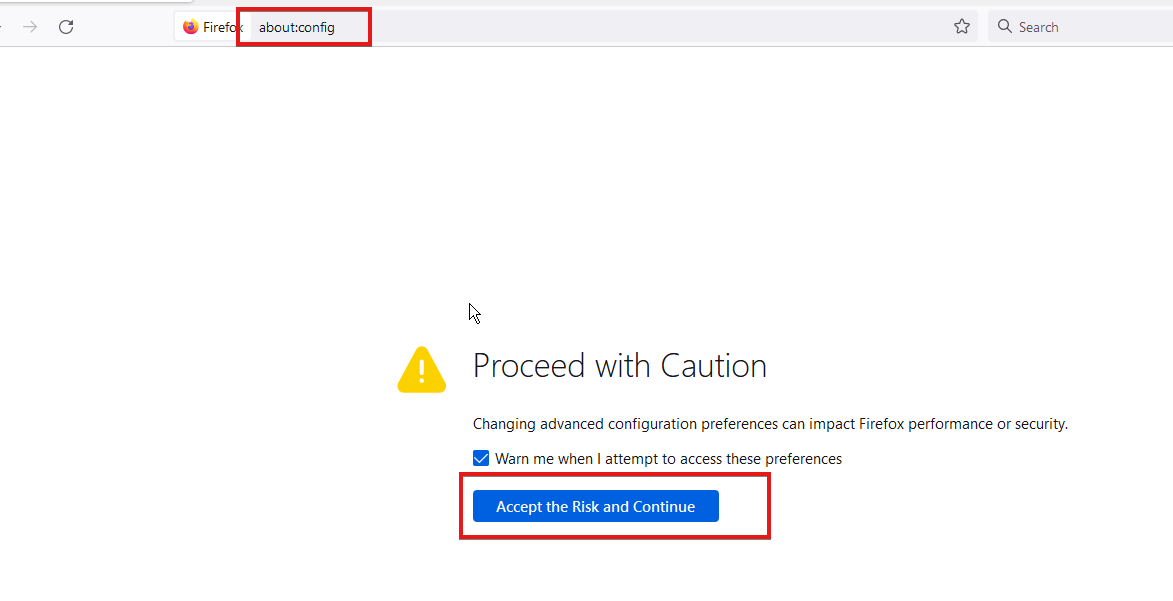
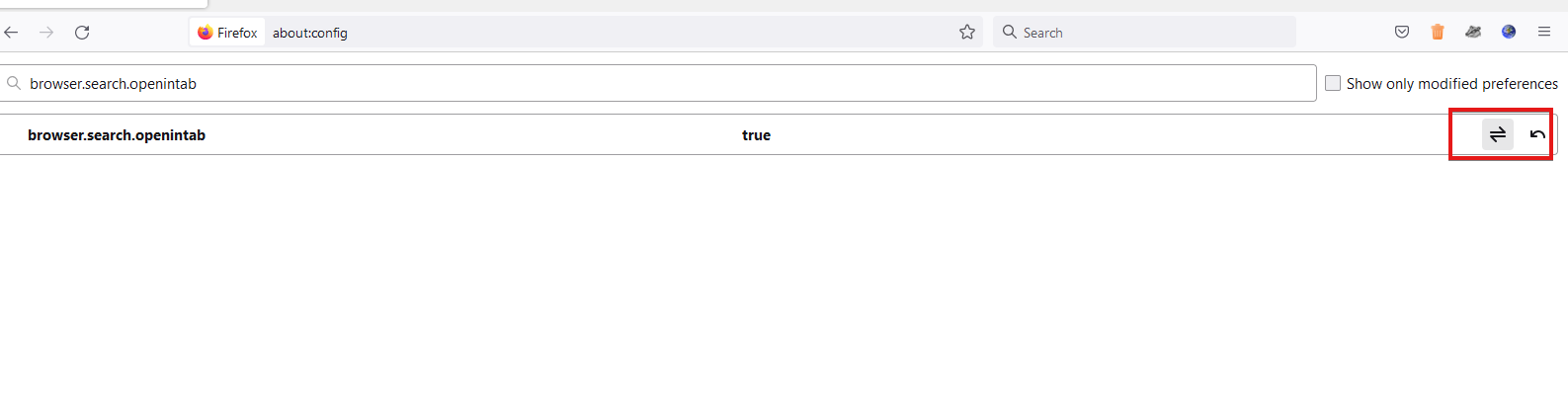
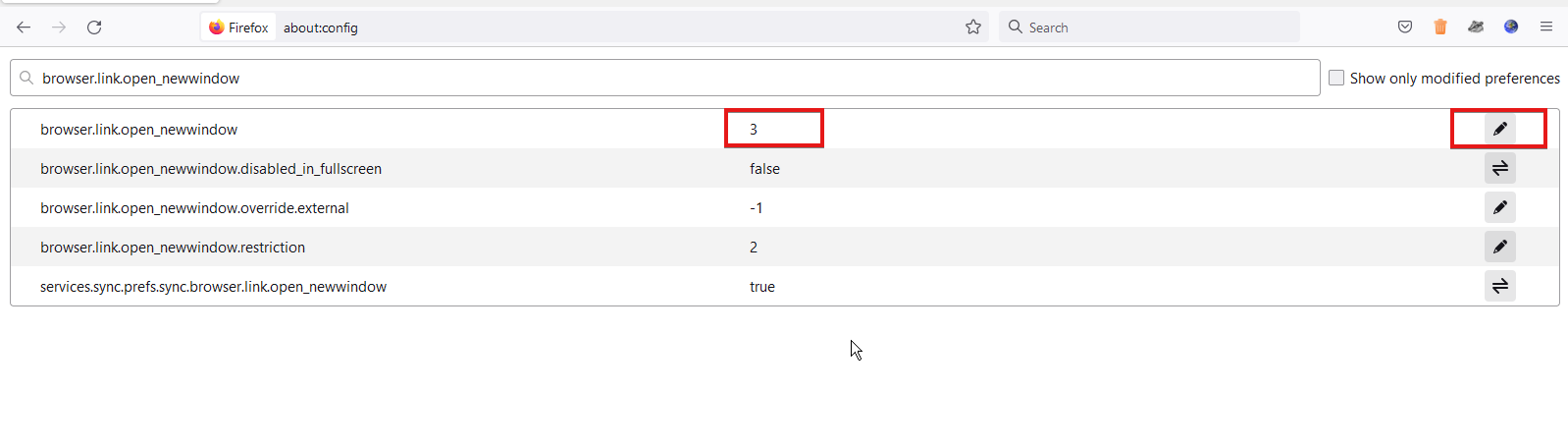
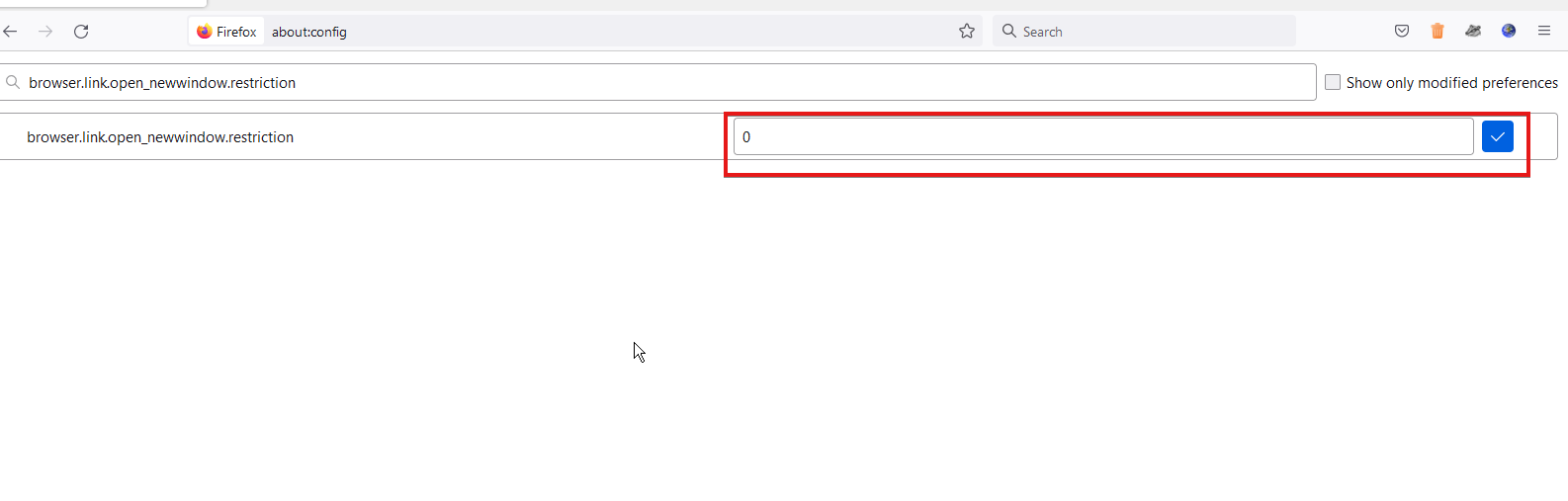
![Player.vimeo.com Took too Long to Respond [Chrome, Firefox]](https://windowsreport.com/wp-content/uploads/2022/07/player.vimeo_.com-took-too-long-to-respond-Chrome-Firefox.png)


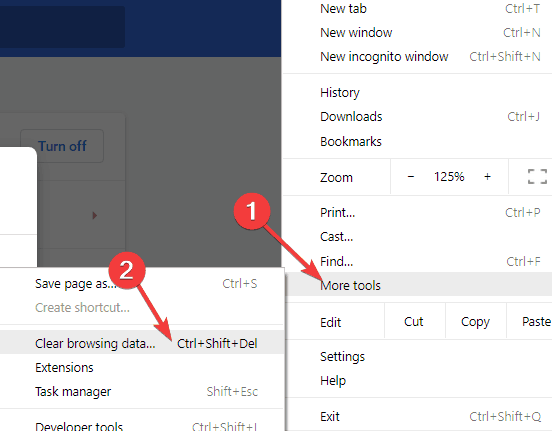
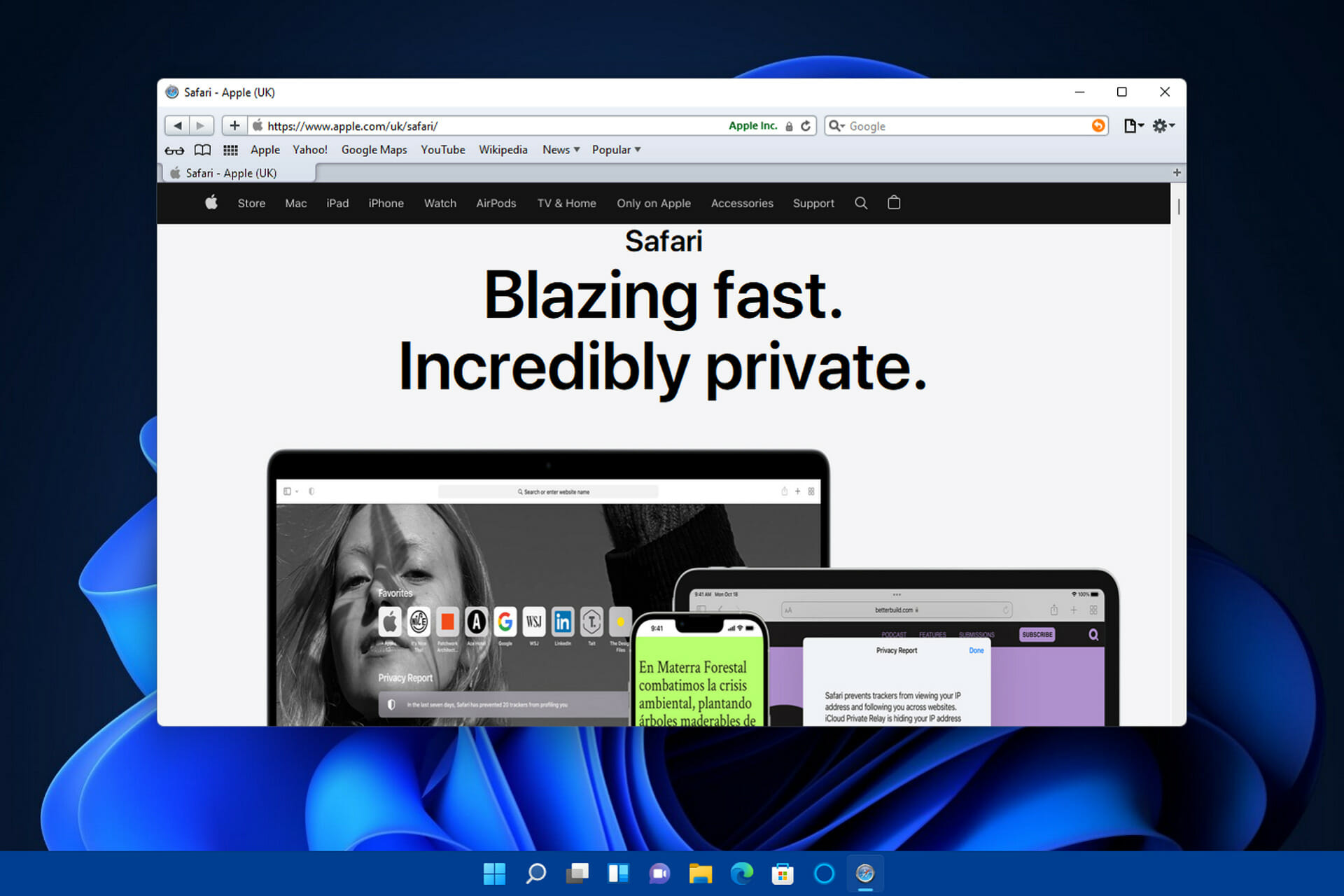
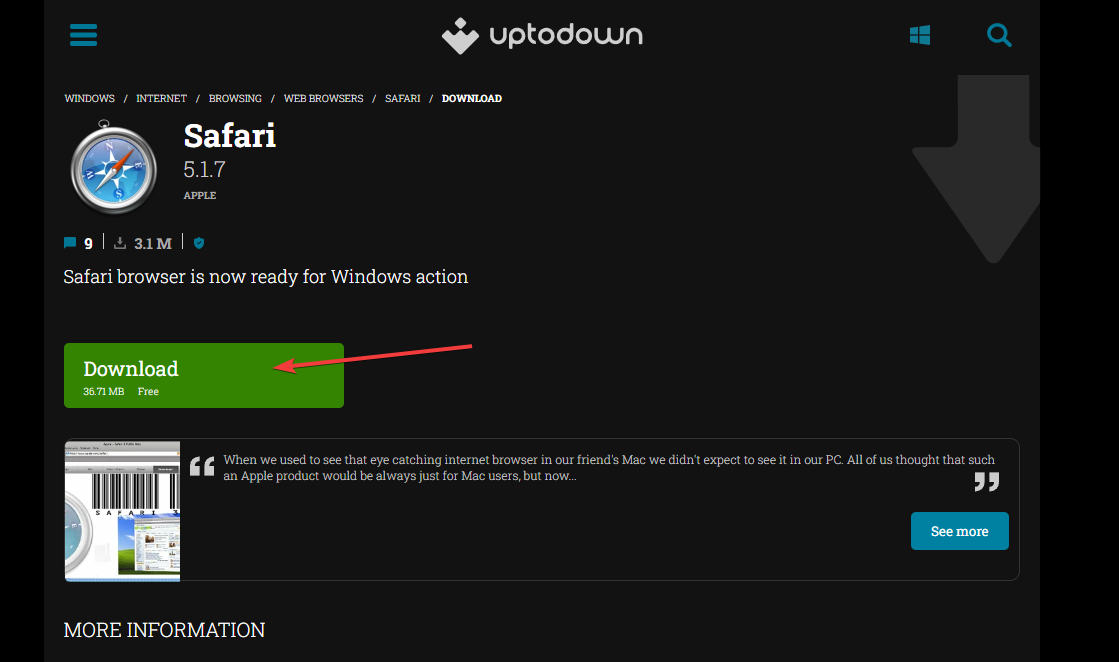


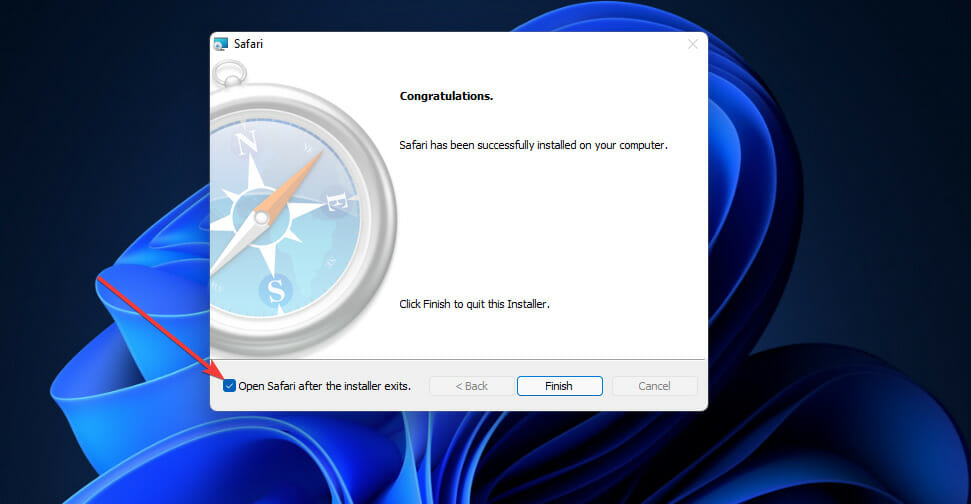

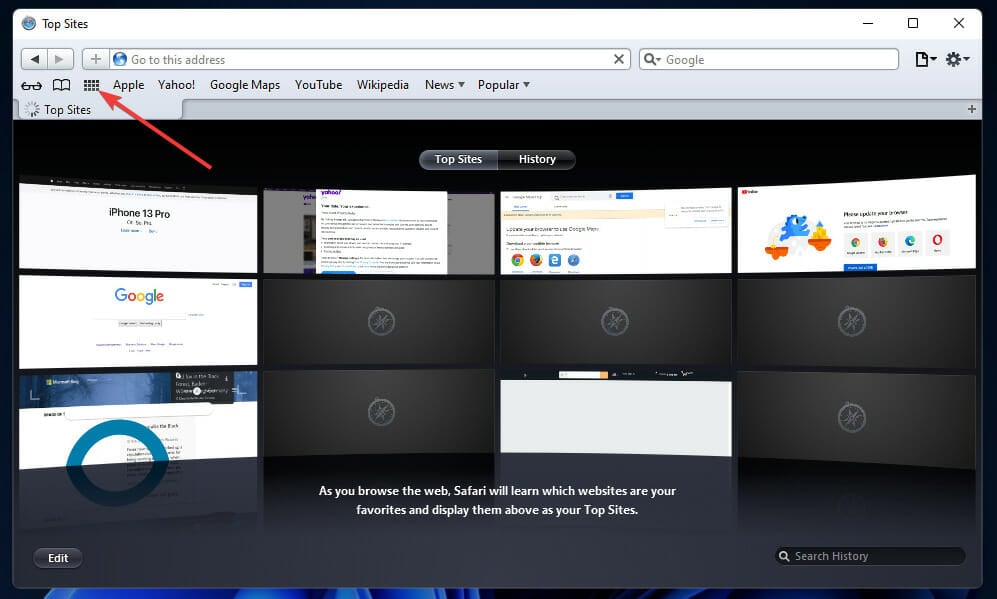
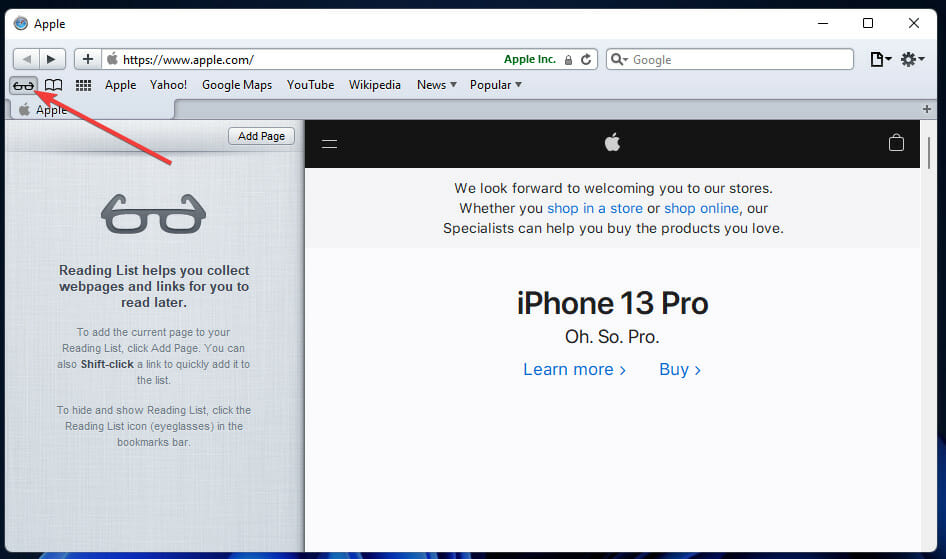
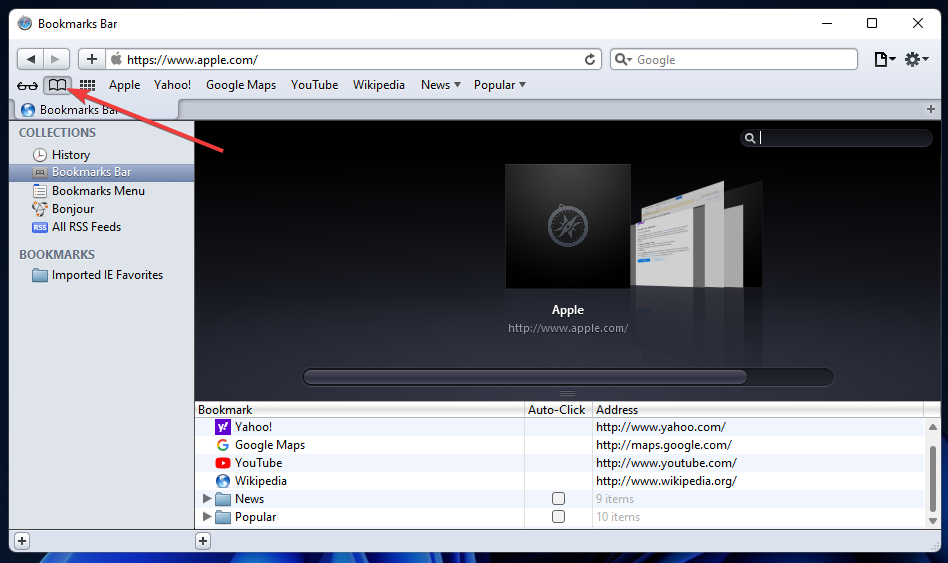
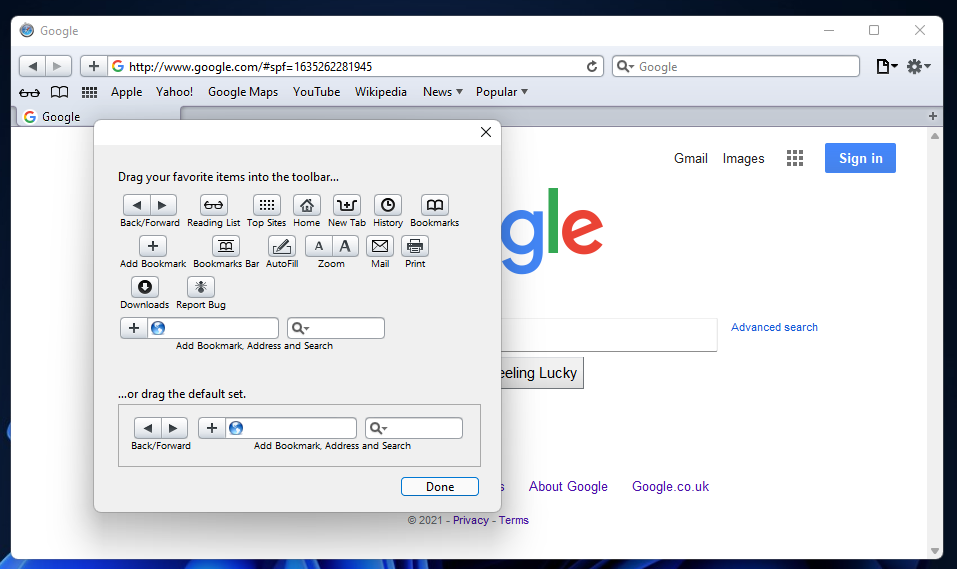

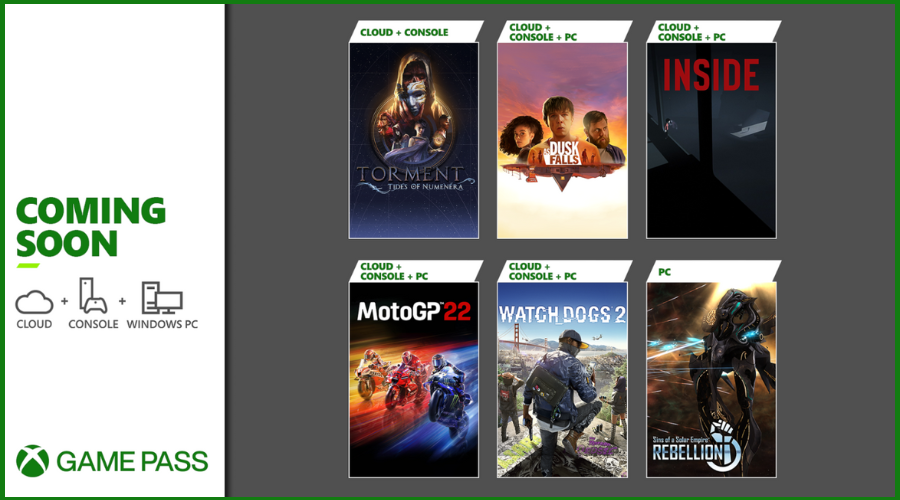
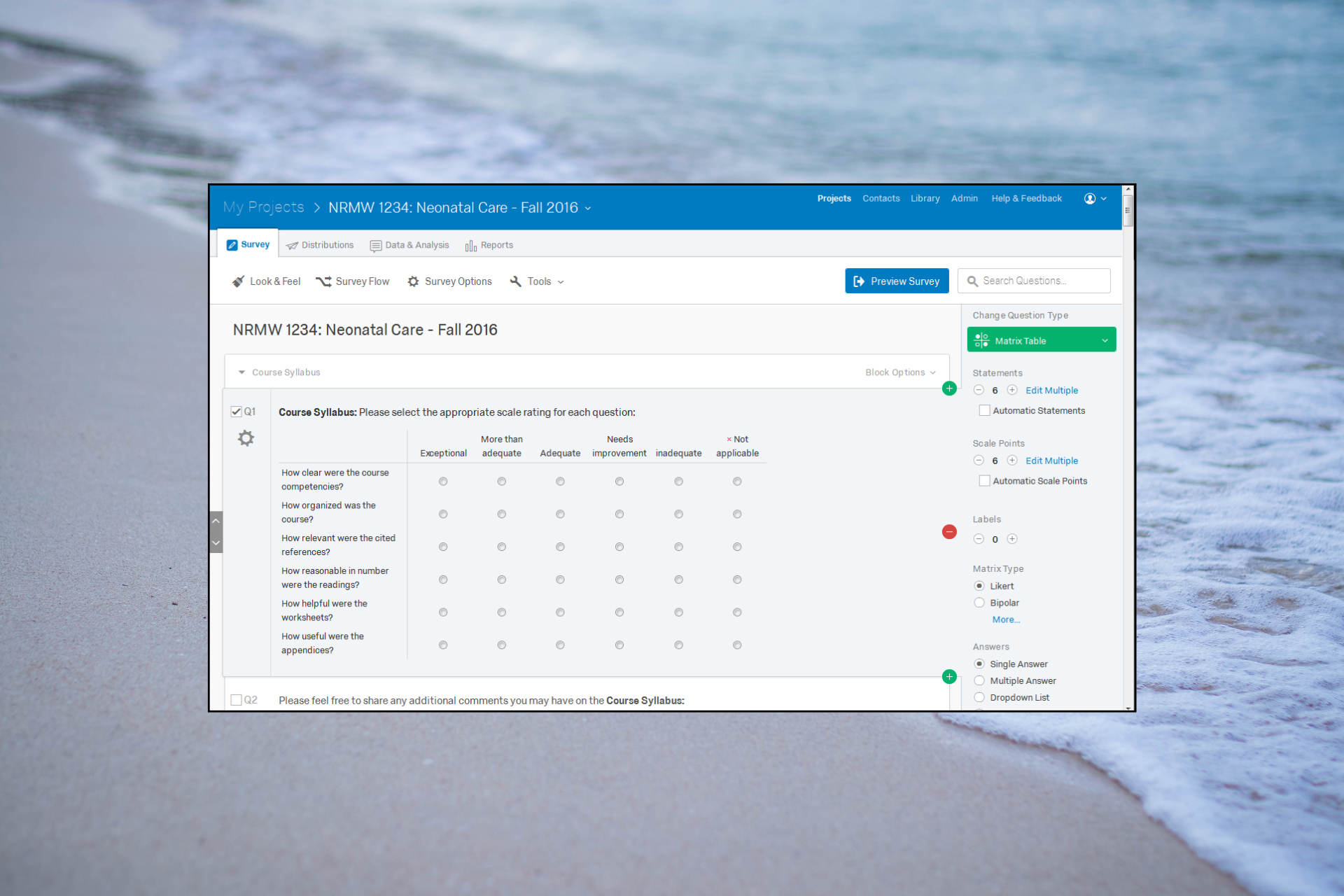


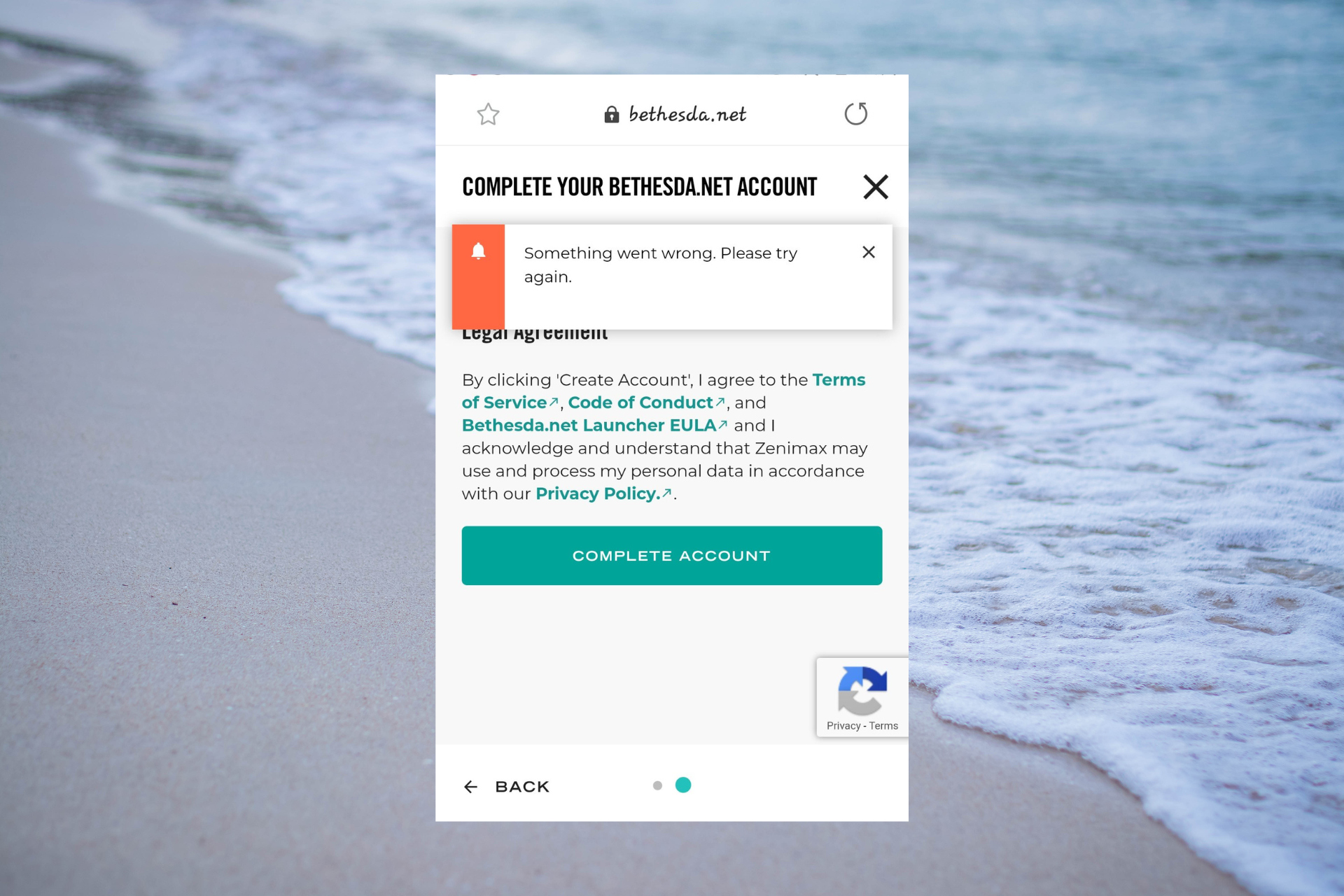




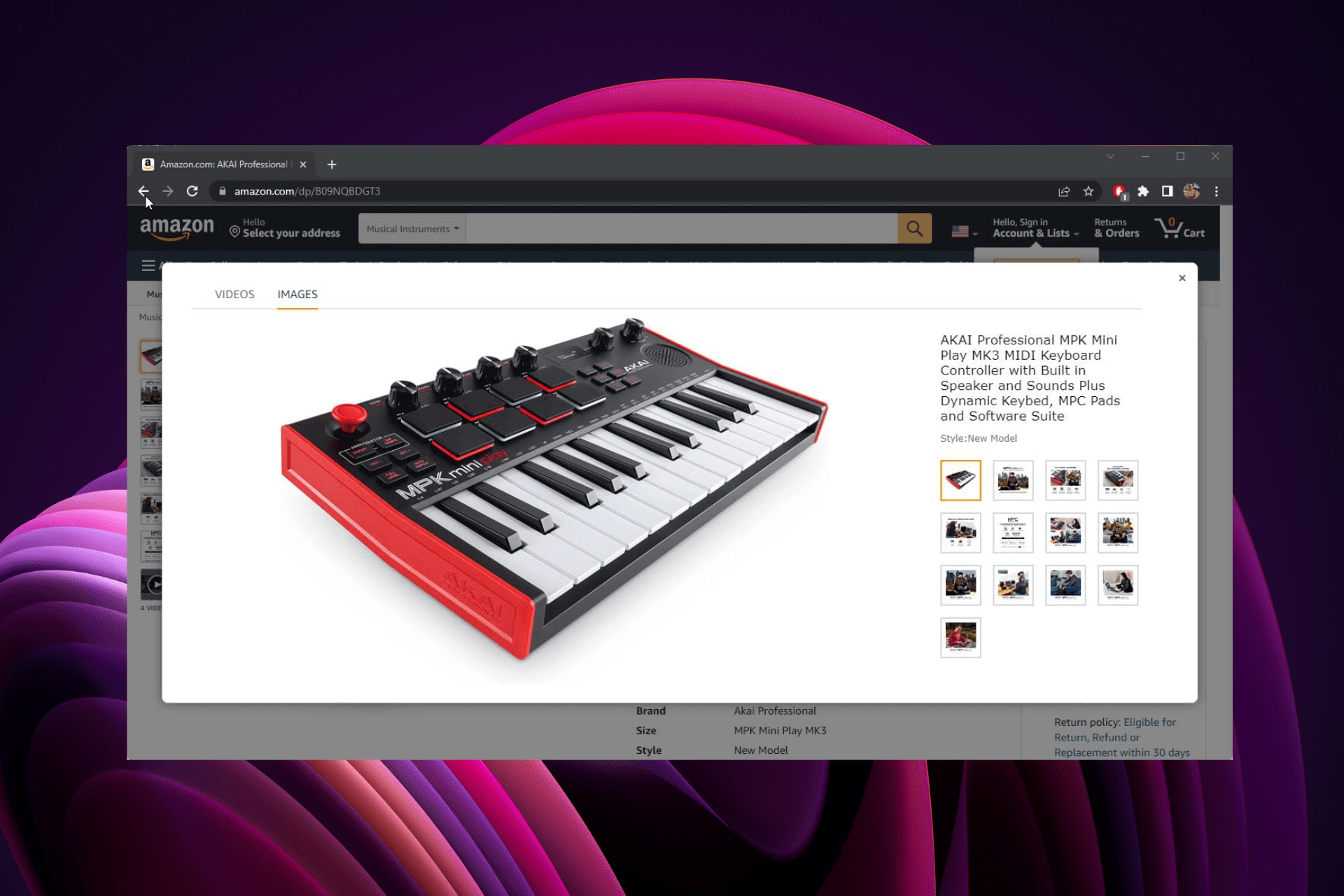





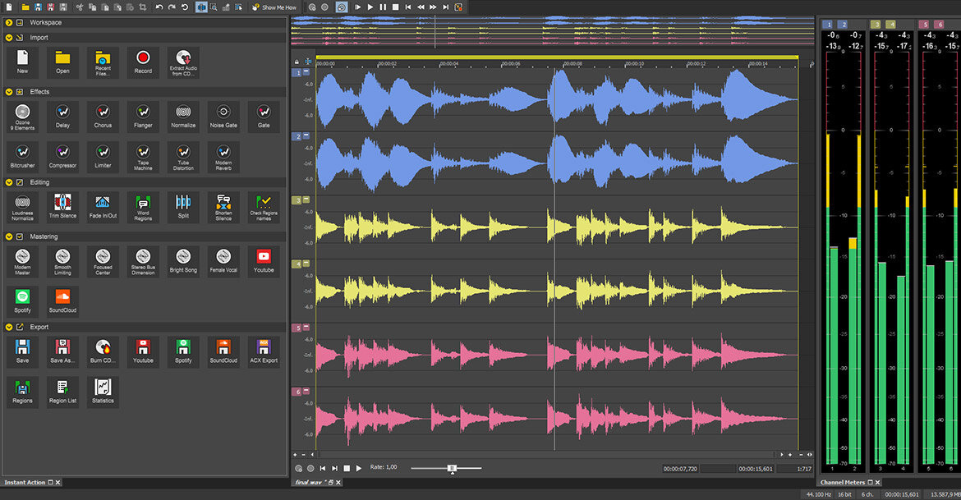


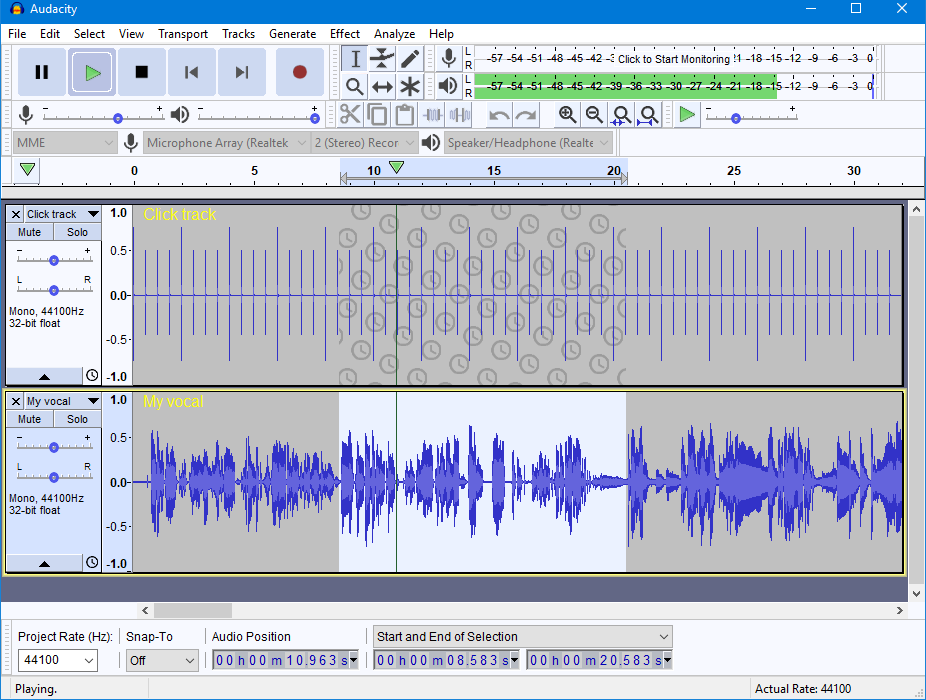


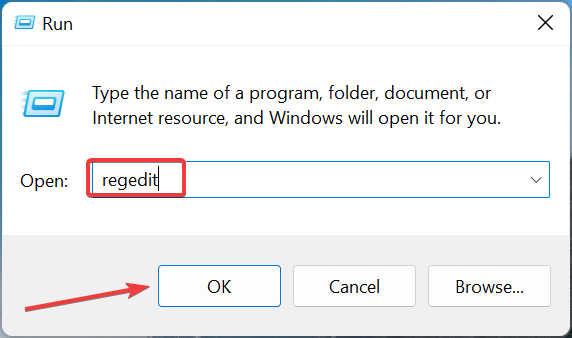
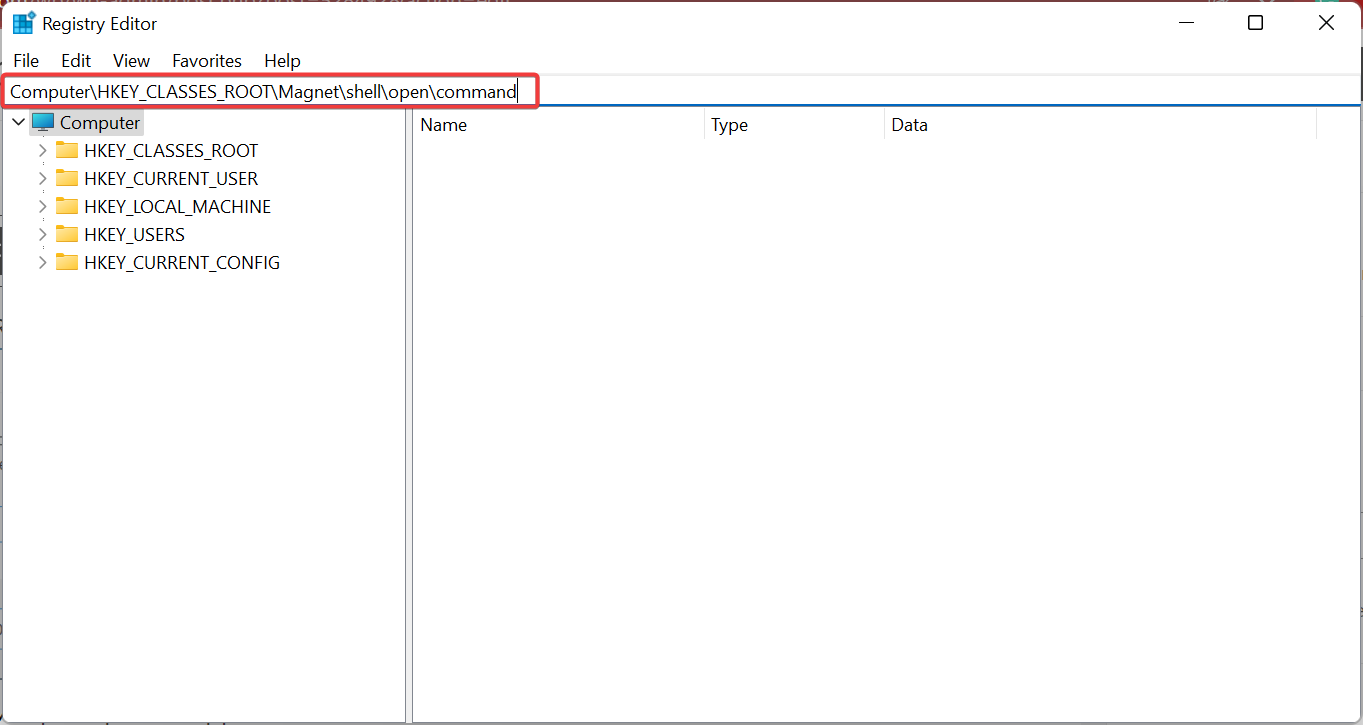
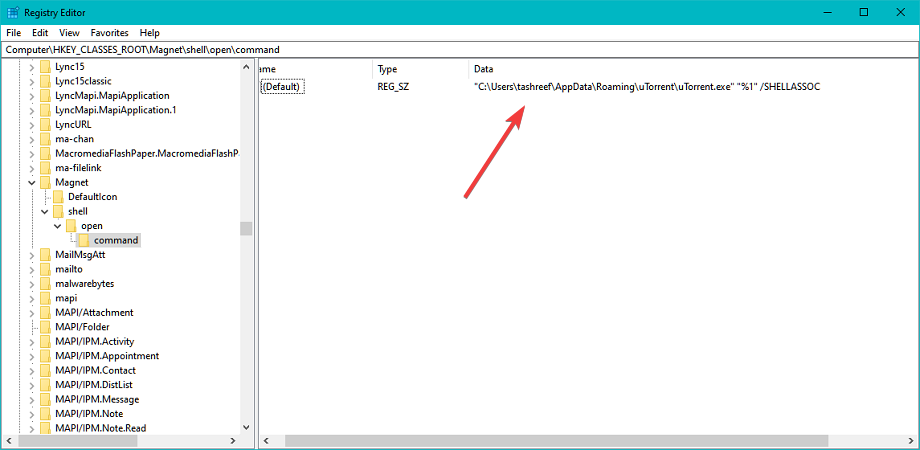
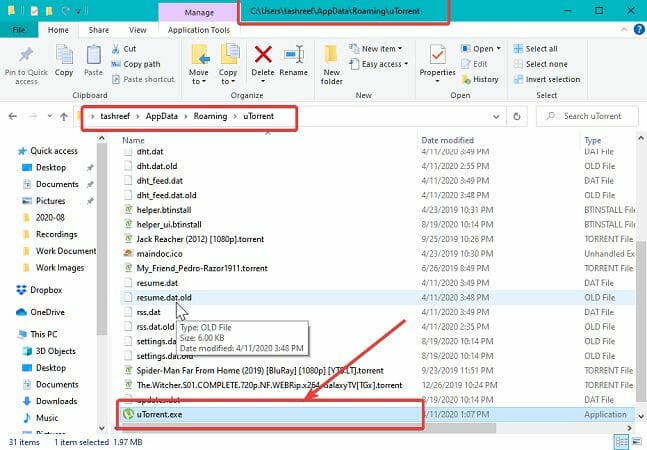
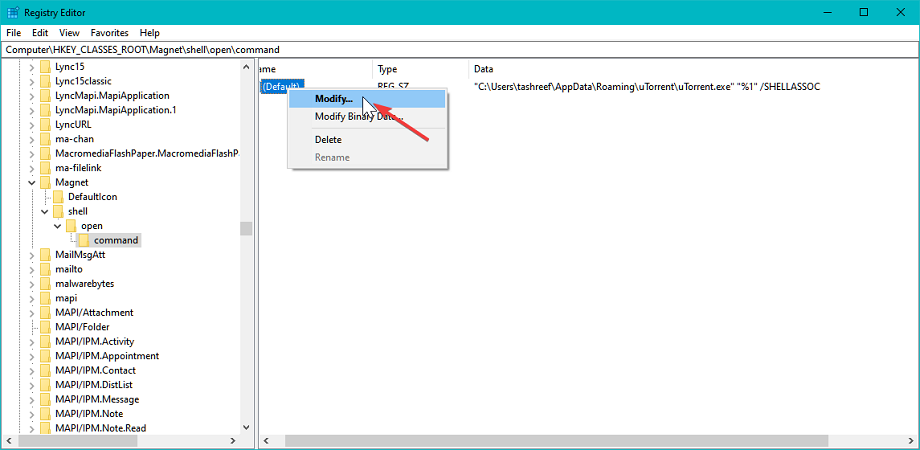
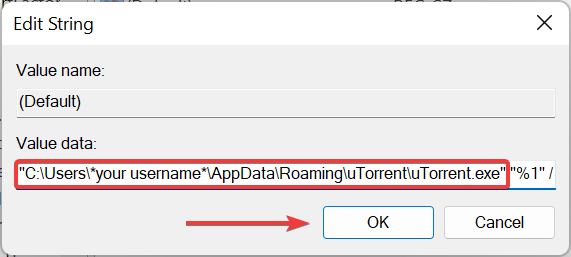
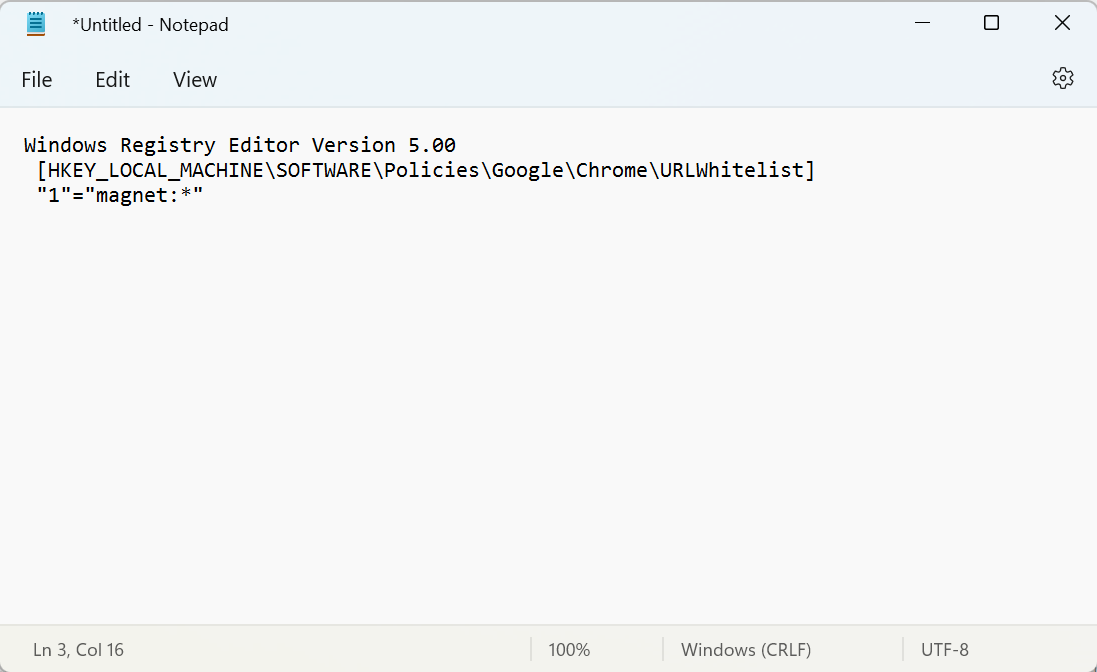
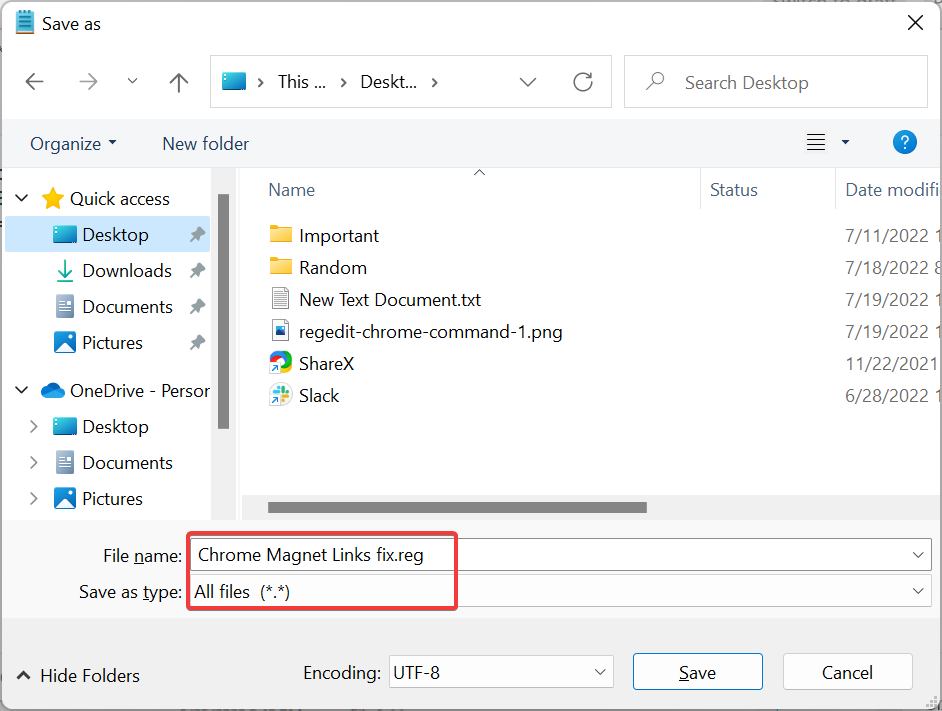

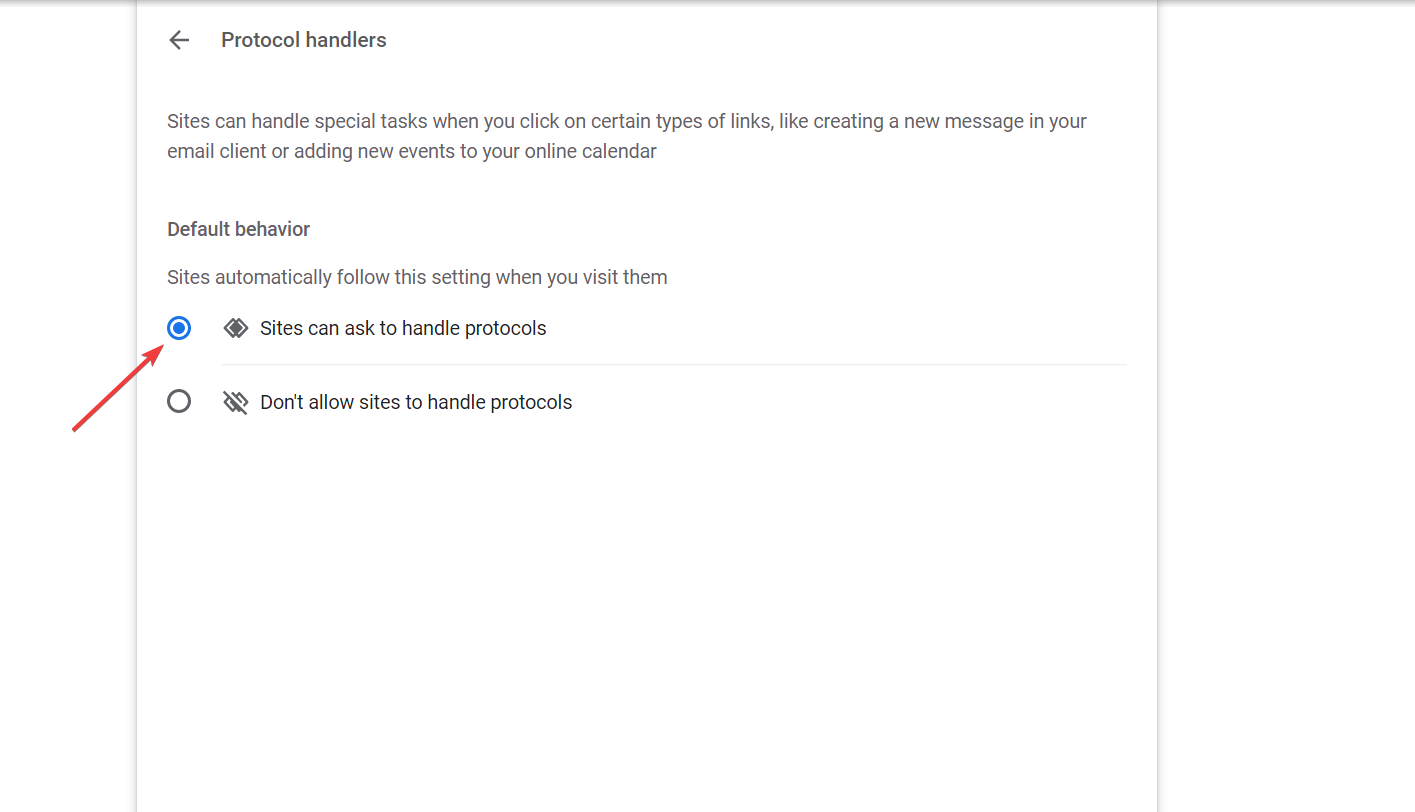
























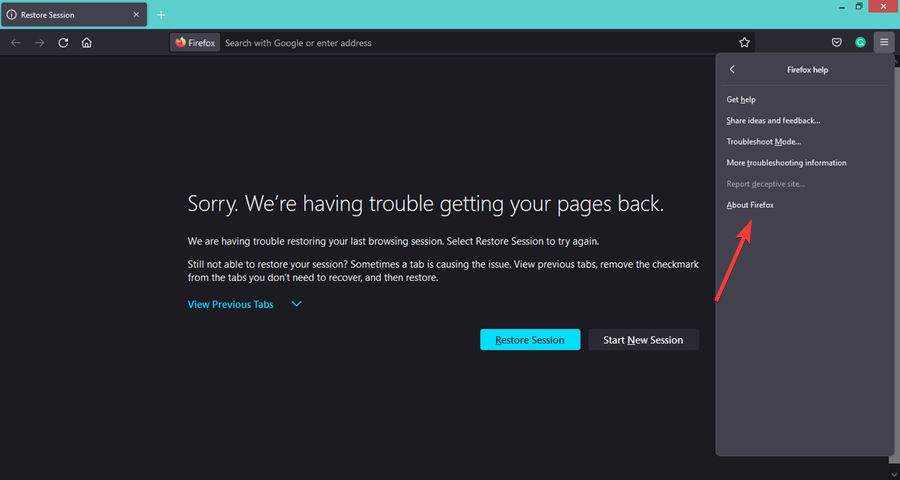
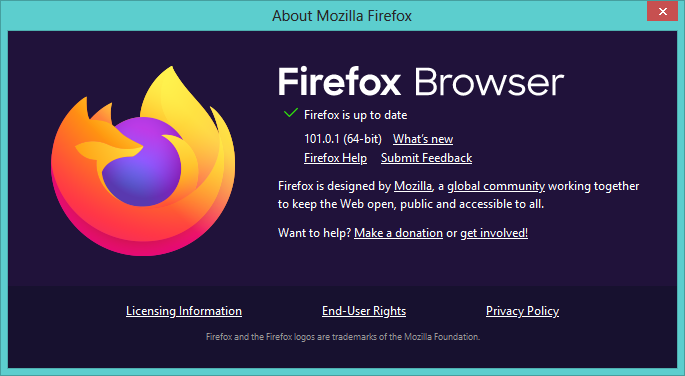
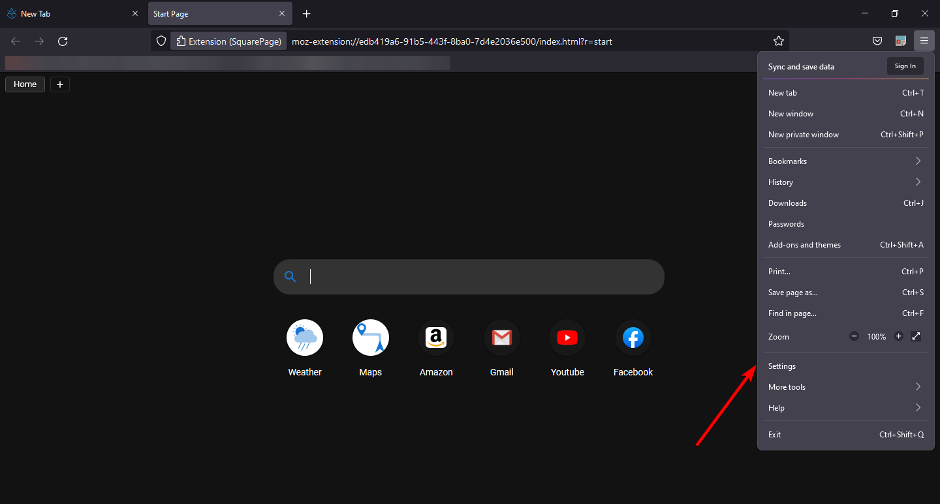



![How to Fix Vivaldi if it’s Slow or Lagging [Speed up Tips]](https://windowsreport.com/wp-content/uploads/2020/07/vivaldi-slow.png)