Among Us is now live on Xbox Series X and Xbox One consoles

Innersloth’s Among Us has finally made its way to Microsoft’s Xbox consoles and is now live on both Xbox One and Xbox Series X console families. The game is now also available to download and play via the Microsoft Store app store on Windows PCs.

This release of Among Us supports crossplay between the Xbox console and Windows versions, will play in 4K Ultra HD on supported hardware, supports online matches with up to 15 players, and comes with a number of Xbox Achievements for players to unlock.

Among Us only costs $4.99 on Xbox consoles and Windows PC (with crossbuy unlocking it for free on the other platform after buying it on the first) but it’s also available to play for free for Xbox Game Pass and PC Game Pass subscribers.

Xbox Cloud Gaming is also fully supported.

Among Us originally launched on iOS and Android back in June 2018 before arriving on Windows in November of the same year. The game became somewhat of a viral hit after streamers on Twitch, YouTube, and Mixer (RIP) began streaming it and was one of the most-talked about video games of 2020.

Here’s the official game description and trailer:

Play with 4-15 players online or via local WiFi as you attempt to prepare your spaceship for departure, but beware as one or more random players among the Crew are Impostors bent on killing everyone!

Originally created as a party game, we recommend playing with friends at a LAN party or online using voice chat. Enjoy cross-platform play between mobile and PC.

Among Us was first confirmed for Xbox console in December 2020 but it wasn’t given a concrete release date until October 2021.

Want more Xbox gaming news? Give us a quick follow on Twitter, Facebook, and Pinterest.

Sorry, we’re having trouble loading content right now on Hulu [FIX]

Do you also see the Sorry we’re having trouble loading content right now error whenever you try watching one of your favorite TV shows on Hulu?

Many users have reported the same issue, and Hulu hasn’t released a specific fix for this issue yet.

Users voiced their concerns on a variety of forums.

All other streaming apps working fine, Hulu will load menus but when trying to watch anything I get this error message. Now on day 3. I have done a manual reboot on the Roku stick & my router, deleted & re-entered my network info, etc…all the normal steps. Convinced its a Hulu issue as, again, everything else streams without issue.

Learn how to fix the error with the steps below.

Why is Hulu not loading on my PC?

1. Clear cache and data from your system with dedicated software

Dedicated browser cleaner software are recommended because they can save you a lot of time and hassle by scanning your browser and detecting what type of data can be removed.

Browser cleaners can easily delete your cached files as well as cookies and allow your browser to run smoother.

They can also help you uninstaller intrusive toolbars and browser extensions.

On top of that, most browser cleaners also include at least some minimal PC cleaner feature that will detect and delete unnecessary files on your PC.

2. Close and restart Hulu

  1. Right-click on your taskbar, and choose Task Manager.task manager sorry we're having trouble loading content right now hulu
  2. Inside the task manager, search for any Hulu-related services, select them one by one and hit the End Task button.
  3. Restart the Hulu application and check to see if the problem persists.

2. Power-cycle your devices

  1. Turn off your PC and modem/router or Roku.
  2. Wait for 3-5 minutes.
  3. Turn them back on.

4. Uninstall and reinstall Hulu

  1. In the Windows Search bar, type Hulu.
  2. Right-click on the app and uninstall it.
  3. Navigate to Microsoft Store and install the Hulu app again.hulu app windows 10 sorry we're having trouble loading content right now hulu

5. BONUS SOLUTION

Alternatively, to avoid the Sorry we’re having trouble loading content right now you might want to use the web-based client which is much better than the half-baked lackluster Windows 10 app.

And what’s a better browser to use for that than Opera One. Give it a try and see for yourself why this browser is our choice for the last couple of months.

Opera One has a minimalistic user interface that is very easy to use and you can customize it to your own liking and needs. It has a built-in VPN feature that will allow you to surpass geo-restrictions.

It is amongst the most stable and secure browsers out there with a transparent privacy policy that will protect your browsing data and identity.

The browser has a comprehensive add-on library with plenty of useful tools that can help you boost your productivity. It also includes fun mini-games and other interesting apps.

⇒ Get Opera One

In some cases, this solved the issue with the error message, but if the problem still persists, you can contact the Hulu team for and ask for help.

To learn more about this amazing service, check out our dedicated Hulu Hub.

For more similar troubleshooting guides, visit out Web Apps Fix page as well.

How to Fix Surface Pro 4 Black Screen of Death Errors

In recent years, Microsoft had a lot of issues with its hardware. The Surface Pro series was advertised as the main competitor to MacBooks and Chromebooks, but they fell short in the hardware department at least.

One of the most common debilitating errors on Surface Pro 4 is the Black Screen of Death after users put the device in Sleep or Hibernation mode.

Even though lots of tech-savvy users pointed out a software problem, we never found a software-related resolution for this unwelcome occurrence.

At least if you want to keep the Sleep mode as an option, you can always navigate to Power Options and, under the Advanced menu, enable Hibernation and stick with it instead.

Two solutions (which work for most users) concern hardware workarounds.

The bad thing about this is – besides the apparent extra effort a user of a premium device needs to put into resolving this – it won’t solve it for good. It might not solve it, and the warranty service will be necessary.

How can I fix the Surface Pro 4 Black Screen of Death errors?

1. Reset the device

  1. Removing the AC adapter and deplete the battery completely.
  2. Then, hold the Power button for a minute or so.
  3. After that, plug in the adapter and try putting your Surface Pro 4 in Sleep mode.

After that, your device should spring back into action. Even though it’s an unusual solution, it worked for many users, so make sure you try it out. Remember, it even fixed the black screen on Surface Go 3.

After that, your device should spring back into action. Even though it’s an unusual solution, it worked for many users, so make sure you try it out. Remember, it even fixed the black screen on Surface Go 3. If the problem persists, a full factory reset of Surface Pro may also resolve the issue.

2. Use dedicated software

This Black Screen of Death error is not so standard and is not as alarming as the infamous Blue Screen of Death error.

However, they are disturbing as you can’t use your device correctly. Another solution besides tweaking your hardware is to use a dedicated repair solution to fix all Windows errors.

These tools can provide helpful support for Windows errors, BSoD issues, or other virus damages that can harm your PC.

There is another solution found online that involves heating the Surface Pro 4. Still, we don’t recommend such a procedure as it can lead to severe issues, and your warranty might be affected.

With the exception of those two, we couldn’t find a solution or workaround to address the issue definitively.

If you know an alternative solution applicable to this scenario, please tell us in the comments section below.

Posted in Fix

Adobe Creative Cloud is draining the battery too fast

Those of you that are fans of Adobe products, such as Adobe Photoshop or Adobe Illustrator probably know what Adobe’s Creative Cloud is.

For those of you that don’t, Adobe Creative Cloud is a set of applications and services that gives you access to all of Adobe’s programs, some mobile apps, and even some cloud services.

It also acts as the basic launch platform for Adobe products. You can install, update, manage and uninstall programs from here.

However, Adobe Creative Cloud isn’t without its own fair share of issues. Users have been complaining about how Adobe Creative Cloud has a tendency to drain their battery very fast.

I just discovered today that my creative cloud is significantly draining my battery life.  Can someone please help me with tips to combat this problem?  I have a MacBook Pro 2014 13 inch.  Apple told me that the best they thought I could do was ‘pause file syncing’ unless I completely uninstall the application.  Can I download Photoshop, Lightroom, Premiere, and InDesign without the cloud?

Judging by how the issue is described, it could be linked to another problem that some users have encountered. This involves Creative Cloud taking up the majority of a CPU’s resources, even when idle.

If you want to fix Creative Cloud’s high CPU usage, we have some great solutions for you, so check them out.

What to do if Adobe Creative Cloud is draining the battery?

1. Get the latest version of your Adobe products

Make sure you download and install the latest version of Adobe products. Improvements in battery life are constantly added, and the apps are optimized to use up fewer resources.

Updated software are also more secure and have fewer chances of crashes and errors, plus they may also come with new or improved features.

Just update your applications and check the battery status. You will definitely notice an improvement.

2. Disable font syncing and file syncing

CC preferences
  1. Start Adobe Creative Cloud. (Launch it from the taskbar if it is already open)
  2. Go to the Preferences Panel.
  3. Open the Creative Cloud tab.
  4. Navigate to Fonts.
  5. Right under TYPEKIT ON/OFF, select Off.
  6. Open the Files tab.
  7. Right under SYNCKIT ON/OFF, select Off.
  8. Confirm the changes.
  9. Restart your PC for the changes to take effect.

3. Uninstall and reinstall Adobe Creative Cloud

  1. Download the official Creative Cloud Uninstaller.
  2. Unzip the archive.
  3. Run the uninstaller.
  4. Follow the on-screen instructions.
cc cleaner

Creative Cloud tends to leave a lot of leftover data, so it would be advised to use the Adobe Cleaner before trying a new install.

  1. Click to download the Adobe Creative Cloud Cleaner Tool for Windows.
  2. Right-click it when it is finished downloading.
  3. Select Run as Administrator.
  4. Follow the on-screen instructions.
  5. Restart your PC.
  6. Reinstall the Creative Cloud.

By following these steps you should be able to stop Creative Cloud from using too much battery.

4. Disable any antivirus programs when running Creative Cloud

Creative Cloud is known to raise suspicions in a lot of antivirus programs. Given the program’s already high battery usage, having an antivirus constantly monitoring it may not be a good idea.

As such, whenever you have Creative Cloud open, try to disable or turn off your antivirus completely.

If you follow these steps, you should be able to stop Adobe’s Creative Cloud from draining too much of your device’s battery.

Do you have issues with Adobe’s Creative Cloud as well? Let us know in the comment section below, and we will try to find a solution.

How to uninstall GTArcade / delete account / remove app

GTArcade is a popular global online publishing platform that offers free arcade games. It also has a desktop client for Windows PCs that allows you to play games directly from your system.

When installed the app will take up to 2GB of Space. If you are running out of storage and want to uninstall GTacrade, then the process can be a bit tedious.

Unlike other apps, GTArcade’s uninstall option does not work always. Fortunately, there are a few workarounds that you use to delete GTArcade account and app.

This article is a step by step guide to uninstall GTArcade from your PC and delete the account.

How do I uninstall the GTArcade app from Windows 10 PC?

1. Use uninstaller software

The quickest and safest method is to use dedicated uninstaller tools. These are specifically made to remove stubborn apps that are difficult to uninstall.

They are also able to detect and remove all leftover files and registries entries related to the app you want to uninstall so you won’t have any issues if you want to reinstall it in the future.

The process is pretty straightforward. They generally display a list of all your apps, you select what you want to remove and let the operation complete.

2. Remove the app from the installation folder 

uninstall GTArcade
  1.  Open File Explorer on your PC and navigate to the following location C:UsersusernameAppDataLocalgtarcadeapp
  2. If you don’t find the app installation folder, right-click on the desktop shortcut of GTArcade and select Open File Location.
  3. In the App folder, scroll down and locate Uninstall.
  4. Double-click on the Uninstall file.
  5. Click OK to confirm the action.
  6. Wait for the uninstallation to complete. 
  7. Once the app is uninstalled, reboot the computer and check if the app is uninstalled.

Getting you do not have sufficient access to remove GTArcade error?

This error occurs due to permission issues. Check out what to do if you don’t have sufficient access to remove GTArcade error to see more details about this subject.

How to delete GTArcade account?

Unfortunately, there is a no straightforward way to delete the GTArcade account. While there is a Truce option that removes the castle from your account if you don’t log in for 14 days straight.

That said, the account is still not completely deleted. However, if you have logged in using your Facebook and Gmail account, you can delink the account from your Google or Facebook account settings to delete your GTArcade account.

Windows 10 offers multiple ways to uninstall third-party apps. You can remove them from Settings as well as Control Panel.

However, apps like GTArcade may require extra effort to remove them completely. Go through all the solutions and apply them to remove the app permanently.

Worker Thread Returned at Bad IRQL: X Solutions for BSOD

Blue Screen of Death errors will often crash your Windows 10 system and restart your personal computer in order to prevent any software or hardware damage. The worker thread returned at bad IRQL is one such example.

In this guide, we walk you through all the important elements of this BSoD, including the most practical solutions.

Why does Worker Thread Returned at Bad IRQL error occur?

The Inappropriate Interrupt Request Level (IRQL) is the priority level for different system resources including devices, processes, and interrupts. When you experience a worker thread returned at bad IRQL it could be for any of the following:

  • Hardware failure – Users
  • Bugs in the driver code
  • Faulty or outdated drivers
  • Incompatible driver with the operating system or other system components

How do I fix the WORKER_THREAD_RETURNED BSoD error?

1. Use a dedicated tool for BSoD

Finding the cause and moreover, the solutions to fix computer errors such as BSoD can be a complicated task. Luckily, tools specialized in system repair can easily help you scan your system, identify the broken or corrupted file, and replace it with a fresh one from their own databases.

2. Keep Windows 10 up to date

BSoD errors are often caused by hardware and software issues, and in order to fix these issues, you need to update Windows 10.

New patches are released frequently, and many fix both hardware and software issues. You can download the latest patches easily through Windows Update.

Microsoft is constantly working on Windows 10, therefore if you wish to keep your PC stable and error-free, we strongly advise that you download the latest patches.

3. Remove problematic applications

Third-party applications can often cause these types of errors, therefore it’s important that you find and remove any application that might be causing this error.

According to the users, applications such as ASUS AI Suite can cause these errors, so if you’re using this or any other similar application, be sure that you remove it.

Another common cause can be your antivirus software or firewall, therefore you’ll have to remove all third-party antivirus programs from your PC in order to fix this error.

Even if you remove your currently installed antivirus, your computer will still be protected by Windows Defender, so you don’t have to worry about online safety.

We have to mention that uninstalling the antivirus software might not fix the problem since many antivirus programs tend to leave certain files and registry entries behind once you uninstall them.

To completely remove all files associated with your antivirus program, we strongly advise using a dedicated removal tool. Many antivirus companies have these tools for their software.

According to users, McAfee antivirus was the cause for this error, but bear in mind that almost any antivirus program can cause this error to appear.

We have to mention that sometimes drivers can cause these types of errors, therefore you might have to uninstall a certain driver from your PC.

Users reported issues with the Broadcom CrystalHD Video Decoder driver, and according to them, the only way to fix the error was to remove that driver. 

4. Update your drivers

Rather often Blue Screen of Death errors are caused by outdated or buggy drivers and the only solution is to update the problematic drivers.

 Updating drivers isn’t that hard, and you can do that simply by visiting your hardware manufacturer’s website and downloading the necessary drivers for your device.

Bear in mind that you might need to update drivers for all major components in order to fix this error. Searching for drivers on your own can be time-consuming.

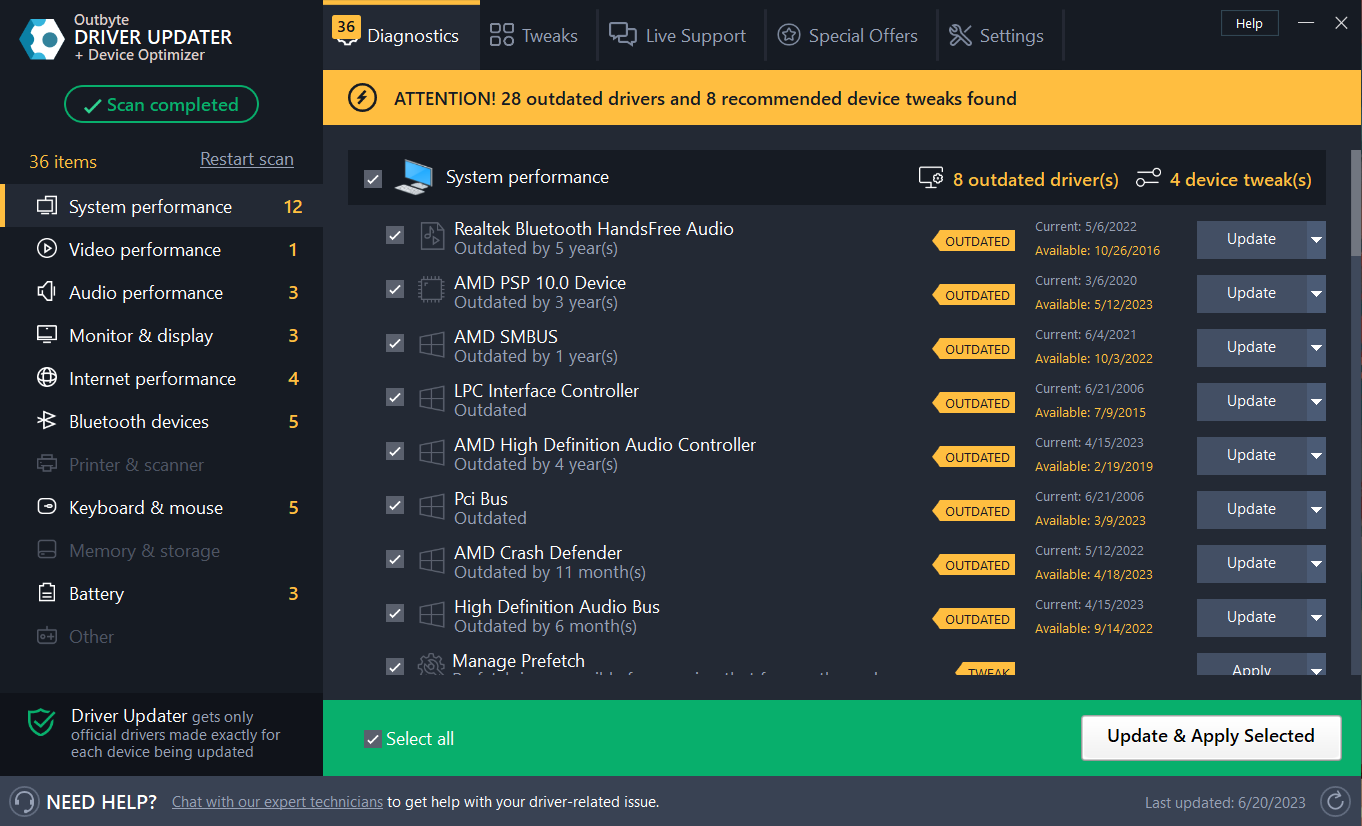
So, we advise you to use a tool that will do this for you automatically. Using an automatic driver updater will certainly save you from the hassle of searching for drivers manually.

This tool will help you update drivers automatically and prevent PC damage caused by installing the wrong driver versions. 

⇒ Get Outbyte Driver Updater

5. Run the Hardware Troubleshooter 

  1. Open the Settings app and go to Update & Security section.
  2. Select Troubleshoot from the menu on the left.
  3. Select BSOD from the right pane and click Run the troubleshooter.
  4. Follow the instructions on the screen to complete the troubleshooting.

Now, we’re going to seek help from Windows 10’s troubleshooting tools. The first tool is the built-in troubleshooter. This tool can help you resolve various issues, including the BSOD problems.

6. Run the SFC scan

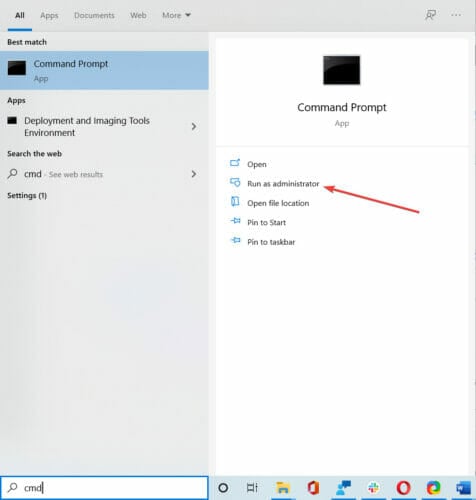
  1. Open the Windows search bar and type cmd and open Command Prompt as administrator.
  2. Enter the following line and press Enter: sfc/scannow
  3. Wait until the process is done (it may take a while).
  4. If the solution is found, it will automatically be applied.
  5. Now, close the Command Prompt and restart your computer.

The next tool we’re going to use is the SFC scan. This is a command-line tool that will scan your system for potential issues and resolve them on the way, of course, if possible. 

If you encounter problems while running SFC, it stops or does not work at all on Windows 10, use our dedicated guide in order to fix the issue.

7. Run the DISM tool

  1. Follow the first two steps from the above solution to open Command Prompt as admin.
  2. Paste the following command and press Enter:
    • DISM /Online /Cleanup-Image /RestoreHealth
  3. Wait until the scan is finished.
  4. Restart your computer and try updating again.

And the last troubleshooting tool we’re going to use is DISM. This tool is more powerful than the previous two, as it deploys the system image all over again.

8. Reset your Windows 10

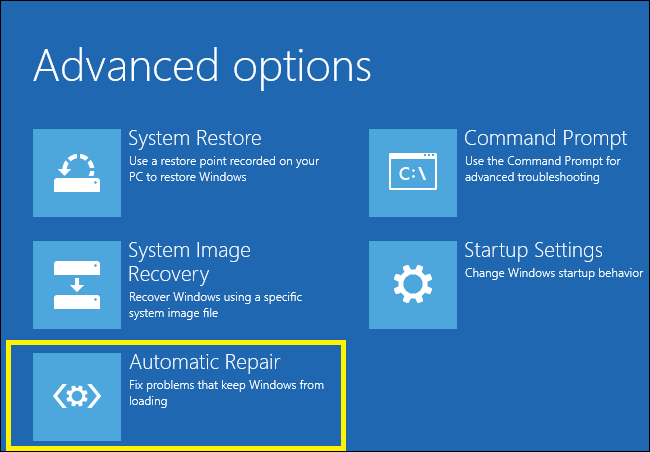
  1. Restart your computer a few times during the boot sequence to start Automatic Repair.
    Yellow Screen of Death in Windows 10
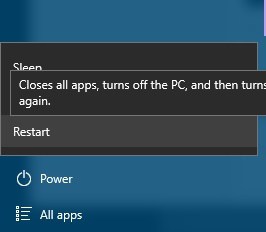
  2. . You can also do that by holding the Shift key and clicking the Restart button.
    bugcode-id-driver-restart
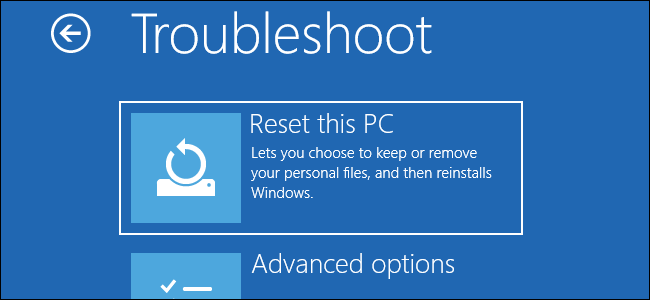
  3. Select Troubleshoot > Reset this PC > Remove everything. You might be asked to insert Windows 10 installation media, so be ready to do that.
  4. Select Only the drive where Windows is installed > Just remove my files.
  5. Click Reset to start the Windows 10 reset and follow the instructions on the screen in order to complete it.

If the WORKER_THREAD_RETURNED_AT_BAD_IRQL error is caused by certain software, you might be able to fix it by performing a Windows 10 reset.

To perform Windows 10 reset, you’ll need to back up all important files from your C partition and to create a bootable USB flash drive by using Media Creation Tool. 

If Automatic Repair couldn’t repair your Windows 10 PC, you can check the steps from our dedicated guide and easily fix the issue.

9. Check your PC for faulty hardware

Blue Screen of Death errors are often caused by your hardware, therefore we urge you to remove any recently installed hardware since it might not be fully compatible with your PC.

If the recently installed hardware isn’t the problem, then one of your components is probably faulty and you need to replace it.

A common cause for these errors is your RAM, but we also advise you to check all other major hardware components, since many of them can cause this error.

WORKER_THREAD_RETURNED_AT_BAD_IRQL BSoD error can be problematic, but you can easily fix this error if you follow the steps from this guide. Our latest guide covers a similar issue, Worker Thread Returned With Non Default Workload Class error, so don’t miss it.

If you solved the issue with any of these solutions or you have a suggestion, please leave us a comment below.

How do I upgrade to Windows 10/11 with low disk space

Upgrading to a new operating system isn’t always easy. For example, you might encounter some issues with hardware requirements.

One common question that many users have is how to install Windows 10 on devices with low free disk storage space or a small hard drive. Worry not, we’re going to explain to you how to do it.

How do I install Windows 10 on low disk space computers?

1. Free up disk space before installing Windows 10

When you start upgrading to Windows 10 setup will perform a compatibility check to see if you have enough hard drive space. The setup will inform you of how much space is required.

In most cases, Windows 10 takes about 10 GB of your hard drive, but it’s recommended to have some more for additional files and software.

If this is a problem, the easiest way to free up some space is to perform an in-depth cleaning for your hard drive and free up valuable memory space instantly.

To perform that without erasing essential system files, it’s recommended to use reliable memory cleaner software to free up disk space.

Just make sure that you leave some extra space available because you’ll need it for updates and additional software.

2. Use an SD card

Another option is to use an SD card as well but be careful because SD cards drivers are not migrated if the device doesn’t support Connected Standby.

You don’t have to use an external hard drive or USB for installation. But if you don’t use it, you’ll see that on your hard drive there’s a previous version of Windows available.

Don’t worry, this version will be automatically deleted after 30 days, or you can delete it manually right now if you want.

If you decide to use a USB stick or external hard drive during Windows 10 installation, your previous version of Windows will be moved to that external device.

As you can see you don’t need that much space in order to install Windows 10, but if you want to save maximum space, you might want to use external storage to store your previous version of Windows.

Alright, so now that you have all the information you need to upgrade your low disk space device to Windows 10, let’s quickly sum up the steps to follow.

3. Install Windows 10 on a low disk space computer

  1. Check your hard disk space. Make sure you have at least 10 GB of free space.
  2. If you don’t have enough disk space, use Ashampoo WinOptimizer to free up some space.
  3. Once you’ve got at least 10 GB of free space, your Windows 10 install will begin.
  4. Wait patiently and follow the on-screen instructions.

Have you completed the above procedure? Let us know how it went for you in the comments area below.

How to fix XPS printer error 1168: Element not found

Several users have been reporting on the official Microsoft forums that they are having issues with the XPS printer:

I was unable to print from software using the XPS writer.  I attempted to reinstall the printer but the installation fails reporting “printer driver not installed.  Element not found”

Apparently, they are getting an error 1168: Element not found can have a wide variety of causes.

This article will guide you step-by-step on how to fix this error with the XPS printer.

How do you fix a generic error 1168?

1. Update your drivers

  1. Click on the Start button, then go to Settings
  2. Select Update & Security
  3. Click on Check for updates
  4. Allow Windows Update to download and install the updated driver

Follow these steps to install the latest printer drivers using Windows Update.

Alternatively, you can use a professional third-party tool that performs this process automatically and aims to keep your printer drivers updated and healthy.

More so, by choosing this automated method of managing drivers you also stay secure from potential damages caused by devices incompatibility.

Thus if you need reliable support to install or update any driver, the following software will accomplish this mission with no exception.

⇒ Get Outbyte Driver Updater

2. Try reinstalling the Windows XPS feature

  1. Press Windows
  2. Click on Settings (the cogwheel-shaped button)
  3. Select Apps
  4. Go to Apps & features
  5. Click Optional features
  6. Look for XPS feature if it is present
  7. If it is, right-click it and select uninstall
  8. Restart your PC
  9. After the restart or if your PC didn’t have the feature, go to the Manage optional features screen, and select Add a new feature
  10. When on the Add a new feature screen, select the XPS Viewer
  11. Restart your PC
Add a new feature XPS

3. Manually search for the location of your XPS Writer

Depending on which version of Windows 10 you have installed, the location of the XPS Writer may vary.

As such, if the solution listed above didn’t work, try this:

  1. Press Windows + R
  2. Type in control.exe
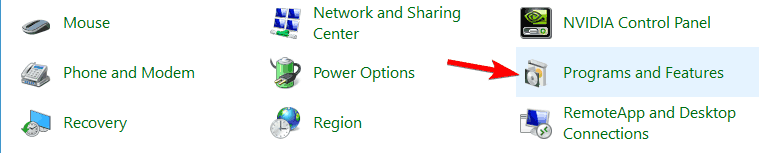
  3. Click Programs
  4. Select Programs and Features
  5. Click Turn Windows features on or off
  6. See if XPS Services and XPS Viewer are listed
    • If the services are marked in their checkbox, unmark them and restart the PC
    • If the services are unmarked in their checkbox, mark them and restart the PC
  7. Press Windows + R
  8. Type in control.exe
  9. Go to Hardware and Sound 
  10. Click Devices and Printers
  11. See if Microsoft XPS Document Writer is installed as a printer.
  12. If it is, right-click it and choose Remove device
  13. Restart your PC
  14. Go back to Devices and Printers and select Add a printer
  15. Select The printer that I want isn’t listed
  16. Click Add a local printer or network printer with manual setting
  17. In the Choose a printer port screen, select Use an existing port and PORTPROMPT: (Local Port)
  18. In the Install a printer driver screen, select Microsoft on the left pane and Microsoft XPS Document Writer on the right
  19. When asked Which version of the driver do you want to use? select Use the driver that is currently installed (recommended)
XPS printer remove device

If these particular steps didn’t help, you could also try to:

FIX: Dropbox date and time error

A great number of users have reported that Dropbox shows them a date and time error on Windows 10.

This issue seems to appear on different system setups and is spread across a variety of Dropbox versions as well.

Because Dropbox uses SSL (Secure Sockets Layer) connections to verify any certificates, not having a matching date and time on your machine and online servers will cause a variety of issues.

In today’s fix article we will explore some of the best troubleshooting options for this error.

Please try the methods in the order that they were presented, and after completing each one, verify if the issue persists.

How do I fix the Dropbox date and time error?

1. Whitelist Dropbox in your antivirus or firewall softwarelaptop with mug on desk - Dropbox error date and time

  1. Click the Cortana near your Start button on the taskbar and type Windows Defender.
  2. Select the first result from the top.
  3. Click Firewall & network protection.
  4. Select Allow an app through the firewall then Change settings.
  5. Scroll through the list and select Dropbox.
  6. Tick the respective boxes to allow incoming and outgoing connections.

Using antivirus or firewall software is recommended in order to maintain your online security, but in some cases, it may cause conflicts.

In order to make sure that your antivirus or firewall software is not stopping your Dropbox from connecting without errors, it is recommended that you temporarily disable them, or whitelist the app.

Note icon NOTE
It is worth noting that the steps required for you to take in this method will vary depending on the security setup of your PC.

2. Change Windows time and date settings

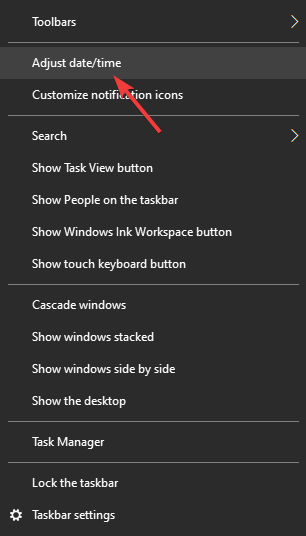
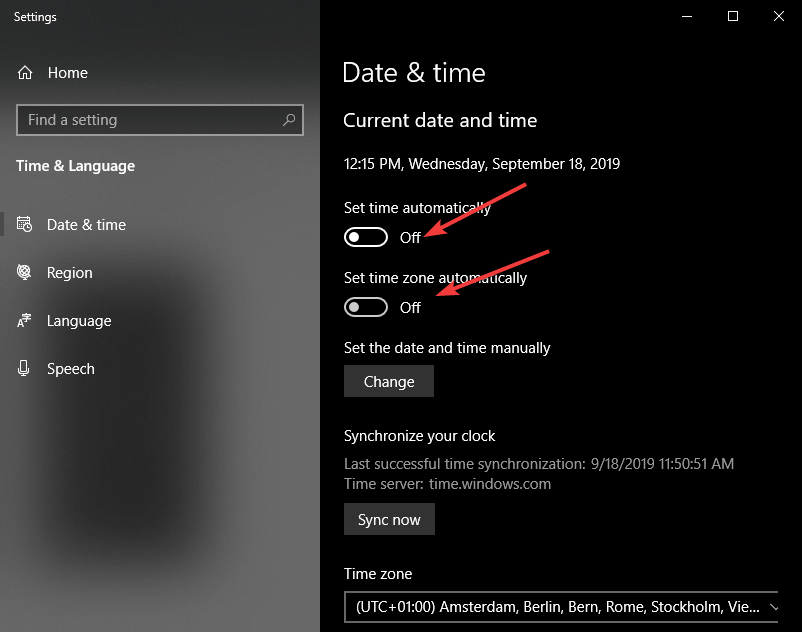
  1. Right-click your clock inside the Windows taskbar.
  2. Select the option Adjust date/time.Date and time - Dropbox error date and time
  3. Toggle On the buttons next to Set time automatically and Set time zone automatically.automatically - Dropbox error date and time
  4. If the issue is still not solved, please try the next method.

3. Modify Dropbox settings

  1. Open Dropbox.
  2. Click Preferences.
  3. Under the Proxy settings option, choose No proxy then Save the settings.
  4. Restart your PC and check to see if the issue still exists.

While Dropbox is a useful tool mostly because it’s been on the market for long and it also offers free cloud storage space, there are alternatives to try if you don’t want to spend time troubleshooting this app.

In case you strongly need another method to backup your essential data locally or on the cloud, the answer is to use effective backup software on Windows 10.

You will find robust solutions that can assist you with managing all your information and saving the most essential data in a safe location to always have quick access to it.

In this article, we explored the best troubleshooting methods to apply when your Dropbox won’t connect and shows you an error relating to time and date.

This issue is a common occurrence, so making sure that your date and time settings are correct is crucial. Please let us know if you found this guide helpful by using the comment section below.

FIX: A problem caused the program to stop working correctly

On Windows 10 you can sometimes get A problem caused the program to stop working correctly error in any of your programs, so today we’ll try to cover this issue and show you how to fix this error on Windows 10.

We have to point out that this error can happen in any application, and we have already mentioned some cases where A problem caused the program to stop working correctly error occurs, and today we have more fixes for this issue.

What programs are affected by this error?

A problem caused the program to stop working correctly error message can crash your favorite applications and games. This is an annoying problem, and speaking of problems, users reported the following issues as well:

  • A problem caused the program to stop working correctly GTA V, The Sims 3, The Sims 4, Watch Dogs, Call of Duty, Need for Speed, GTA San Andras, League of Legends, Far Cry, Battlefield 4 – This error message can appear while trying to run many other games.
  • A problem caused the program to stop working correctly Internet Explorer, Outlook, OneDrive, Visual Studio, Excel, iTunes, Word, Adobe Reader, Remote desktop, Photoshop, Powerpoint, Autocad, Steam, Skype, Firefox, Google Chrome – This error can also appear in various applications listed above.
  • A problem caused the program to stop working please close the program – This error forces the application to crash, can be fixed using one of our solutions.

What can I do if a program to stop working in Windows 10?

  1. Uninstall the KB3132372 update
  2. Remove the Norton Antivirus software
  3. Change the Comodo firewall settings
  4. Make sure that the Windows Image Acquisition (WIA) service is running
  5. Update your graphics card drivers
  6. Create a new Neat database
  7. Rename the Skype folder
  8. Turn off EVGA Precision
  9. Update DirectX
  10. Disable Origin in-game for Battlefield 4

1. Uninstall the KB3132372 update

  1. Open Windows Key + S combination to search for it.
    A problem caused the program to stop working please close the program
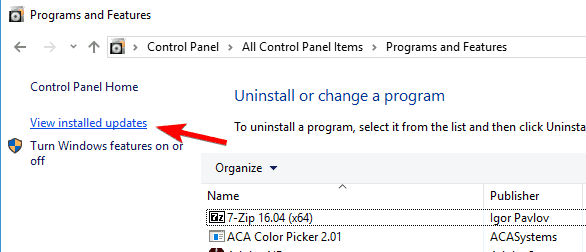
  2. Click on Programs and Features.
    A problem caused the program to stop working correctly Battlefield 4
  3. Click on View installed updates.
    A problem caused the program to stop working correctly GTA V
  4. Find the Security Update for Internet Explorer Flash Player for Windows 10 Version 1511 for x64-based Systems (KB3132372).
  5. Some users report that this update is called Security Update for Windows, but to be sure, just look for update KB3132372.
  6. Uninstall it and restart your computer.
Note icon NOTE
This solution might fix any other application that suffers from A problem caused the program to stop working correctly error.

2. Remove the Norton Antivirus software

According to the reports, it seems that Norton Antivirus can sometimes cause this issue, so it’s advised that you disable it, but if disabling Norton Antivirus doesn’t help, you might have to uninstall it.

You can remove Norton Antivirus just like any other software, but it would be a better idea to use the help of a third-party tool that will help you remove any trace of the app.

A regular uninstall doesn’t guarantee the removal of all the files of the program but this clever tool will wipe out any traces of Norton Antivirus for sure.

Note icon NOTE
For the Norton users, we’ve also got a dedicated guide on how to completely remove it from your PC.

If you’re using any antivirus solution and you want to completely remove it from your PC we strongly recommend CCleaner.

The app has a built-in uninstaller as well as a junk file cleaner and registry cleaner, so you will be sure that everything related to your antivirus will be completely removed,

If your antivirus is interfering with your software, then it would be a good idea to switch to a different one. Plenty of Windows 10 compatible antivirus software are proven to ensure 100% real-time protection without having an impact on any other app on your PC.

We recommend looking for an antivirus that has a large threat database, as well as a great privacy policy. Many antivirus software nowadays provides integrated VPNs that protect you against identity theft and any other data breach attack.

Along with the no-interfering, many antivirus software integrates a don’t disturb type of feature for when you are gaming or watching a movie.

When you turn it on, the antivirus will still run in the background as usual, but it won’t pop up any intrusive alert until you turn it back on.

3. Change the Comodo firewall settings / Uninstall Comodo firewall

  1. Open Comodo firewall.
  2. When Comodo firewall opens, click on Tasks in the top right corner.
  3. Navigate to Advanced tasks, and click on Open Advanced Settings.
  4. Click on Security Settings.
  5. Go to Defense+, then HIPS, and select HIPS Settings.
  6. Find Detect shellcode injections and click on Exclusions.
  7. Click the little arrow at the bottom of the Manage Exclusions window and choose Add, then select Files.
  8. Locate chrome.exe in the following folder (default location) and double click it:
    • C:Program Files (x86)GoogleChromeApplication
  9. Click OK (Chrome should now be added to the exclusions list).
  10. Click OK in Advanced Settings window to save the changes.
Note icon NOTE
If for some reason the problem persists, you might want to uninstall the Comodo firewall. This solution can be applied to any network application, so make sure that you try it.

4. Make sure that the Windows Image Acquisition (WIA) service is running

  1. Press Windows Key + R, type services.msc, and press Enter or click OK.
    A problem caused the program to stop working correctly Outlook
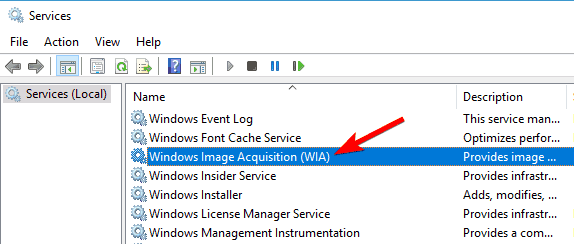
  2. Locate the Windows Image Acquisition (WIA) service and double click it.
    A problem caused the program to stop working please close the program
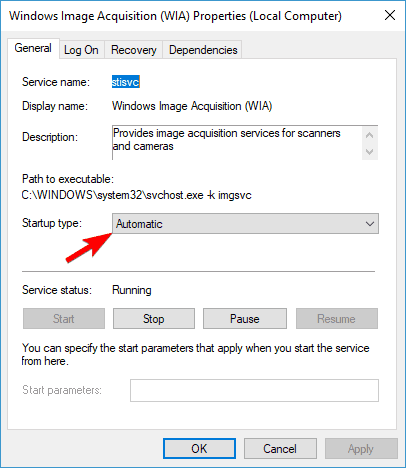
  3. Locate the Startup Type section and check if it’s set to Automatic. If not, use the dropdown menu and set the Startup Type to Automatic.
    A problem caused the program to stop working correctly Call of Duty
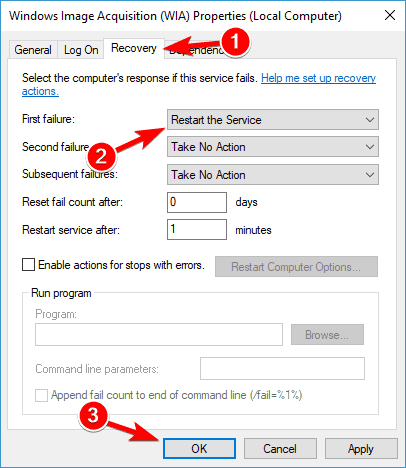
  4. Click on the Recovery tab. Find the First Failure section and choose Restart the Service from the menu.
  5. Click Apply and OK to save the changes.problem caused the program to stop working correctly iTunes
  6. Find the Neat shortcut, right-click it, and choose Run as administrator.

5. Update your graphics card drivers

Sometimes this error can be caused by an incompatible driver, so in order to avoid such issues, it’s advised that you update your graphics card drivers.

If you don’t know how to update your graphics card driver, we’ve prepared a step-by-step guide that will help you do it with ease.

However, it’s a lot easier to update your drivers automatically by using Outbyte Driver Updater. It’s extremely easy to use and it will finish the job in a fraction of the time used for the manual procedure.

There are just two steps to perform. The first is to download and install Outbyte Driver Updater. As soon as you run the program, this awesome tool will immediately start scanning your system for driver problems.

After just a few minutes you will receive a report with suggested driver fixes.

The second step is to click on the Select All checkbox from the top to install all the drivers in one go. Of course, you also have the option of installing just one or several by checking just their corresponding boxes.

6. Create a new Neat database

  1. Go to the Documents folder, or to the folder where your Cabinet is saved (by default, it should be Documents).
  2. Find your Cabinet and move it to your Desktop.
  3. Start the Neat Support Center.
  4. Click on the Advanced tab.
  5. Click on the Create Database button.
  6. Start Neat again, and it should create a new database.

7. Rename the Skype folder

  1. Close Skype completely.
  2. Press Windows Key + R and type %appdata%. Press Enter or click OK.
    A problem caused the program to stop working correctly Internet Explorer
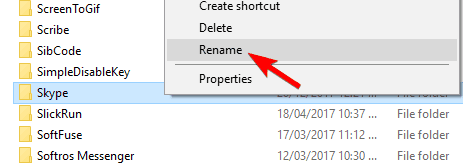
  3. Locate the Skype folder and rename it to Skype_old.
    A problem caused the program to stop working correctly GTA V
  4. Press Windows Key + R, type %temp%skype and press Enter or click OK.
  5. Locate the DbTemp folder and delete it.
  6. Restart Skype.
Note icon NOTE
If you need your chat history, you can still access it from the Skype_old folder.

8. Turn off EVGA Precision

We know that many gamers use EVGA Precision tool in order to get maximum performance from their graphic card.

However, sometimes EVGA Precision can cause A problem caused the program to stop working correctly error while running certain games.

To fix this, you just need to turn of EVGA Precision and your favorite games should run without any problems.

9. Update DirectX

If any game is crashing for you, you might want to update DirectX to the latest version.

Most games have DirectX setup tool in their installation directory, so make sure that you run DirectX setup from the game’s directory.

10. Disable Origin in-game for Battlefield 4

  1. In Origin, right-click Battlefield 4 and choose Properties.
  2. Now check Disable Origin in-game for this game.
Note icon NOTE
This solution might also work for other Origin games. We have also covered how to fix Battlefield 4 issues on Windows 10, so if you have any other issues with Battlefield 4, make sure that you check that article.

A problem caused the program to stop working correctly error can prevent you from running your favorite applications, but you should be able to fix this error by using one of our solutions.

News, updates, guides, you can find all in our huge Windows 10 section.

Our Tech Troubleshooting Hub is the place to start if you have problems with your PC.

If you have any other suggestions or questions, feel free to leave them in the comments section below.

Windows requires a digitally signed driver [Quick Guide]

If you are receiving an error message which is blocking the installation process of a new device driver or any other similar software, don’t panic. Your Windows 10 system still runs properly and you are not facing a system malfunction.

However, it means that the implied driver cannot be ‘verified’ by Windows 10 and, for security reasons, the installation process has been blocked by default.

Usually, the error message that appears is Windows requires a digitally signed driver and it means that Windows needs a verified driver by the Signing Authority. Such requirements can additionally throw errors like the tpm-wmi 1796.

To be specific, vendors are signing the drivers to ensure their integrity and to be certain that the file wasn’t modified in any way. If you try to install an unsigned driver, Windows will always let you know that that specific file is unsafe and it comes from an unknown source.

The good news is that there are some solutions that you can use to fix this error and resume the driver installation process. Here’s what you can do if Windows requires a digitally signed driver.

How can I fix Windows requires a digitally signed driver error?

1. Install the required drivers automatically

The easiest way to install the drivers you need is to use professional driver updater software that installs all the unsigned drivers in seconds. By choosing a dedicated tool you are safe from errors.

These tools will safely keep your drivers in check. You can use them to schedule regular updates to prevent errors related to out-of-date drivers from occurring again.

2. Disable driver signing

  1. On your computer open Local Group Policy Editor: press the Win+R hotkeys and in the Run box enter gpedit.msc.
  2. In Local Group Policy Editor, from the left panel, click on User Configuration option.
  3. Then, from the main window double-click on Administrative Templates.
  4. From the menu that will open double-click on System and then go to Driver Installation.
  5. Next, select the Code signing for device drivers entry.
  6. Select Enabled and from the dropdown located beneath, change to Ignore.
  7. Click Ok and apply your changes.
  8. Restart your Windows 10 system in the end.

Most Windows 10 users have no idea how to edit the Group Policy. Learn how you can do it by reading this simple article.

3. Put Windows in test mode

If the above method isn’t working for you, or if you don’t want to disable driver signing, you can choose to enter Windows 10 test mode.

In test mode you can install any drivers you want without experiencing any problems. Of course, go to normal Windows 10 mode afterwards:

  1. Open an elevated command prompt window on your PC: right-click on the Windows Start icon and select Command prompt (Admin).comand prompt
  2. In cmd type bcdedit /set TESTSIGNING OFF.
  3. Close the cmd window and restart your computer.
  4. Install your drivers.
  5. Revert back to normal mode: open elevated cmd, enter bcdedit /set TESTSIGNING ON and restart your Windows 10 system.

4. Permanently disable driver signature enforcement

  1. Open an elevated command prompt window as explained above.
  2. In the cmd window type bcdedit.exe /set nointegritychecks on and press Enter.
  3. This will disable the driver signature enforcement in Windows 10 permanently.
  4. You can restore this operation by tapping into cmd: bcdedit.exe /set nointegritychecks off.

Well, these are the troubleshooting solutions that can help you fix the issue where a digitally signed driver is required.

Tell us more about your experience in the comments field below. Let us know if the problem is still there we will try to find the perfect solution for your particular situation.

READ ALSO:

Seeing the driver error Code 32? Fix it in 4 simple steps

Driver error Code 32 is an issue that can arise for specific hardware devices.

Device Manager displays the error message for Code 32 within the General tab on device properties windows.

The full error message within the Device status box states:

A driver (service) for this device has been disabled. An alternate driver may be providing this functionality. (Code 32).

So, it’s obvious enough that this is a driver issue.

These are some of the potential resolutions for driver error Code 32.

How can I fix driver error Code 32?

1. Reinstall the driver

  1. Right-click the Start button in Windows 10 and select Run.
  2. Enter devmgmt.msc into Run’s box and click OK to open Device Manager.
    Device Manager driver error code 32
  3. Expand the hardware category that includes the device with error code 32.
  4. Right-click the device to fix error code 32 for and select Uninstall device.
  5. Select Delete the driver software for this device option on the window that opens.
    Uninstall Device dialog box driver error code 32
  6. Click the Uninstall button.
  7. Thereafter, click the Action menu.
  8. Select the Scan for hardware changes option to reinstall the device.
Scan for hardware changes option driver error code 32

2. Update your drivers

  1. Open the Device Manager
  2. Expand the category tree of the drivers you want to update
  3. Right-click on them and select Update driver
  4. Click on Search automatically for updated driver software
  5. Reboot your PC after Windows installs the drivers

As this is a driver issue, updating the driver for the device is one of the more obvious resolutions. You can do it by following the above steps or by using an automatic third-party software that scans your PC, downloads and installs the latest drivers with just a few clicks.

That being said, you should consider the support from dedicated tools to improve your system performance fast. More so, you will repair corrupted drivers or errors once for all.

With this dedicated tool, you will automatically update PC drivers from its rich database with over 18 million drivers. You only have to select which drivers need to be updated and the rest is magic.

⇒ Get Outbyte Driver Updater

3. Undo system changes with System Restore

  1. Open the Run accessory in Windows.
  2. Input rstrui in the Open box within Run, and then click the OK option.
  3. Click Next on the System Restore window to continue.
  4. Select the Show more restore points check box.
    The System Restore utility driver error code 32
  5. Choose a restore point that will roll Windows back to a date that predates the Code 32 error on your desktop or laptop. (If you’re not sure, select the restore point that goes the furthest back.)
  6. Note: Software installed after a selected restore point gets deleted. Click Scan for affected programs to check what software will be uninstalled.
    The deleted programs list driver error code 32
  7. Click the Next option.
  8. Select the Finish option to confirm.

4. Delete the UpperFilters and LowerFilters string values

  1. Open Run’s window.
  2. Enter Regedit in the blank box and press Enter to open the Registry Editor.
  3. Open this registry path: Computer\HKEY_LOCAL_MACHINE\SYSTEM\ CurrentControlSet\Control\Class
    Class registry key driver error code 32
  4. Identify what GUID subkey class in the registry corresponds to the hardware device you need to fix error code 32 for on Microsoft’s System-Defined Device Setup Classes page.
  5. Select the respective registry subkey.
    UpperFilters and LowerFilters string values driver error code 32
  6. Right-click UpperFilters and select Delete.
  7. Right-click LowerFilters to select Delete.
  8. Exit the Registry Editor.
  9. Thereafter, click Restart on the Start menu.

Those are among the most probable fixes for the Code 32 error.

There might be other ways to fix Code 32, however, so feel free to share alternative resolutions you might know in the comments section below.

Fix: Adobe error code 110 [Document could not be saved]

Some Adobe Reader users have posted about a 110 error on the Adobe forums. Error code 110 arises for some users when they try to save a PDF in Adobe Reader. The full 110 error message states:

The document could not be saved. There was a problem reading this document. (110).

As a consequence, users can’t save changes to PDFs when that error arises.

How can I fix Adobe Reader’s error code 110?

1. Update Adobe Reader

  1. First, try updating Adobe Reader. To do that, open the Adobe Reader window.
  2. Click the Help menu.
  3. Select the Check for Updates option.
    Check for Updates option Adobe Reader Error 110
  4. If there are updates available, select to update Adobe Reader.
  5. Then restart Adobe Reader.

2. Select Print to PDF to save the document

  1. Some users have confirmed they’ve saved the documents the 110 error arises for by selecting to print to PDF.
    • To do that, click the Print file button in Adobe Reader.Print file button Adobe Reader Error 110
  2. Select Microsoft Print to PDF in the Printer drop-down menu.Microsoft Print to PDF option Adobe Reader Error 110
  3. Click the Print button.
  4. A Save Printed Output As the window will then open. Enter a new title for the PDF document in the text box.
  5. Select a new folder to save the document .
  6. Then click the Save button. Thereafter, the PDF document will also print.

3. Fix a corrupted PDF file

Error code 110 often arises for corrupted PDF files. Therefore, you can download the Stellar PDF Repair tool.

The process is straightforward. You select the file that gives you problems. Add it to Stellar. Click on the Repair button and wait for the process to end.

Then you can visualize a preview of the file and save the new repaired file.

You can then open the newly repaired file and see the contents correctly in Adobe Reader.

4. Save the PDF document with Nitro Pro

Some users have said saving their PDF files within Nitro Pro fixed error 110.

  1. Open the Nitro Pro window.
  2. Open the PDF file the 110 error arises for in Nitro Pro.
  3. Click the File menu.
  4. Select the Save As option.
  5. Select PDF Document, and then save the file in a new folder.
  6. Close Nitro Pro.
  7. Then open the same PDF in Adobe Reader.
    • Try saving it again in Adobe Reader.

5. Save the PDF file in Foxit

Alternatively, try saving the file error 110 that arises with Foxit Reader, which might get rid of some of the document properties that generate the issue in Adobe Reader.

Click the Free Foxit Reader Download button on Foxit’s webpage to download the installer. After installing the software, open the PDF document in Foxit.

Then click File and Save As to save the PDF to a selected folder.

Those are a few of the resolutions that users have fixed error 110 with. The error is usually due to corrupted file properties and font issues, which the above resolutions fix.

To know more about this amazing tool, check out our Adobe Reader Hub.

For more troubleshooting guides pertaining to Adobe products, check out our Adobe Fix page.

Warning: Formatting will erase all data on this disk [Fixed]

Warning: Formatting will erase all data on this disk is an error message you’ll receive when you try to open a USB or hard drive that has been corrupted.

By default, Windows will prompt you to fix the issue by formatting the storage media, but this is not the only way to fix it.

Formatting will erase all data: How can I fix this error?

1. Use Windows built-in repair tool

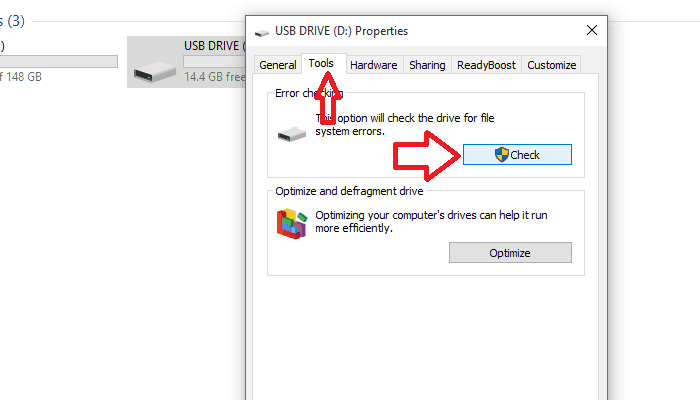
  1. Right-click on the drive you want to repair and choose Properties from the drop-down menu.
  2. When the Properties window opens, go to the Tools tab.
  3. Click on the Check button. click on check
  4. Click on Scan and Repair and wait till the operation is finished.
  5. If you are prompted to repair your drive then click the repair button.

Windows comes with a built-in repair tool that automatically scans the drive and repairs the issues. Follow these steps to use the tool:

This is it. If in the end, the tool said it couldn’t find any errors, this means that it is unable to fix your issues and you should try another method.

2. Use the CHKDSK command

  1. The only way to run this tool is through the Command Prompt with administrator privilege. Search for cmd in Start and then hit Ctrl + Shift + Enter. Say Yes when prompted by the User Account Control.
  2. Run this command chkdsk [Drive Letter]: /f. Replace [Drive Letter] with the letter of the drive you want the tool to check and repair. If the disk is in use, this tool will automatically notify you and tell you if you want to schedule a check on the next computer restart. Say yes if prompted and restart your computer.
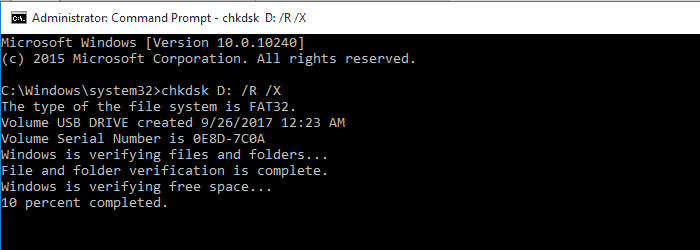
  3. If the above command didn’t work, there’s a stronger command that removes bad sectors and tries to recover data. Run chkdsk [Drive Letter]: /R /X This will also unmount the drive if necessary before performing the check.

This command-line utility was created specifically to check for many common drive errors, as well as check its integrity.

If you face any issues while using Check Disk (chkdsk), be sure to read this article dedicated to what to do if the command gets stuck.

3. Use a repair tool to scan your drive

Since issues with storage devices are so common, there are companies that specifically create programs to solve them.

You may first check the website of the company that manufactured your storage media and see if they provide any repair tools or make no compromises from the start.

Alternatively, it is advised to use specialized tools capable of repairing your PC’s corrupted hard drive and resolving the specific errors.

By choosing PC repair software you get the opportunity to fix HDD errors without much effort on your part, and thus have access to your USB media files or drivers again.

If you require specialized software for this issue, it’s ideal to get the best PC repair toolkits out there that are proven to resolve system errors.

Give this solution a go by installing the most suitable tool for this error type and nail it effortlessly.

4. Format the drive and then use recovery programs

This is a non-conventional method, and you should only use it as a last resort. If you can’t access your drive or fix it in any way, then you don’t have a choice aside from formatting it.

The good news is that there is a lot of recovery programs that will help you salvage the deleted and lost data.

We’ve already compiled a list of the best recovery programs you can use. You should be aware that no matter how good these programs are they are never capable of regaining all your lost data.

Go on with this method only if you are OK with this.

You’ll often encounter the Warning: Formatting will erase all data on this disk error message when you insert a corrupted or non-functioning drive into your computer.

In this article, we looked at the ways you could try to repair your drive using a program or formatting and recovering the data if repairs didn’t work.

Tell us in the comments section about the ways you’ve dealt with this problem.

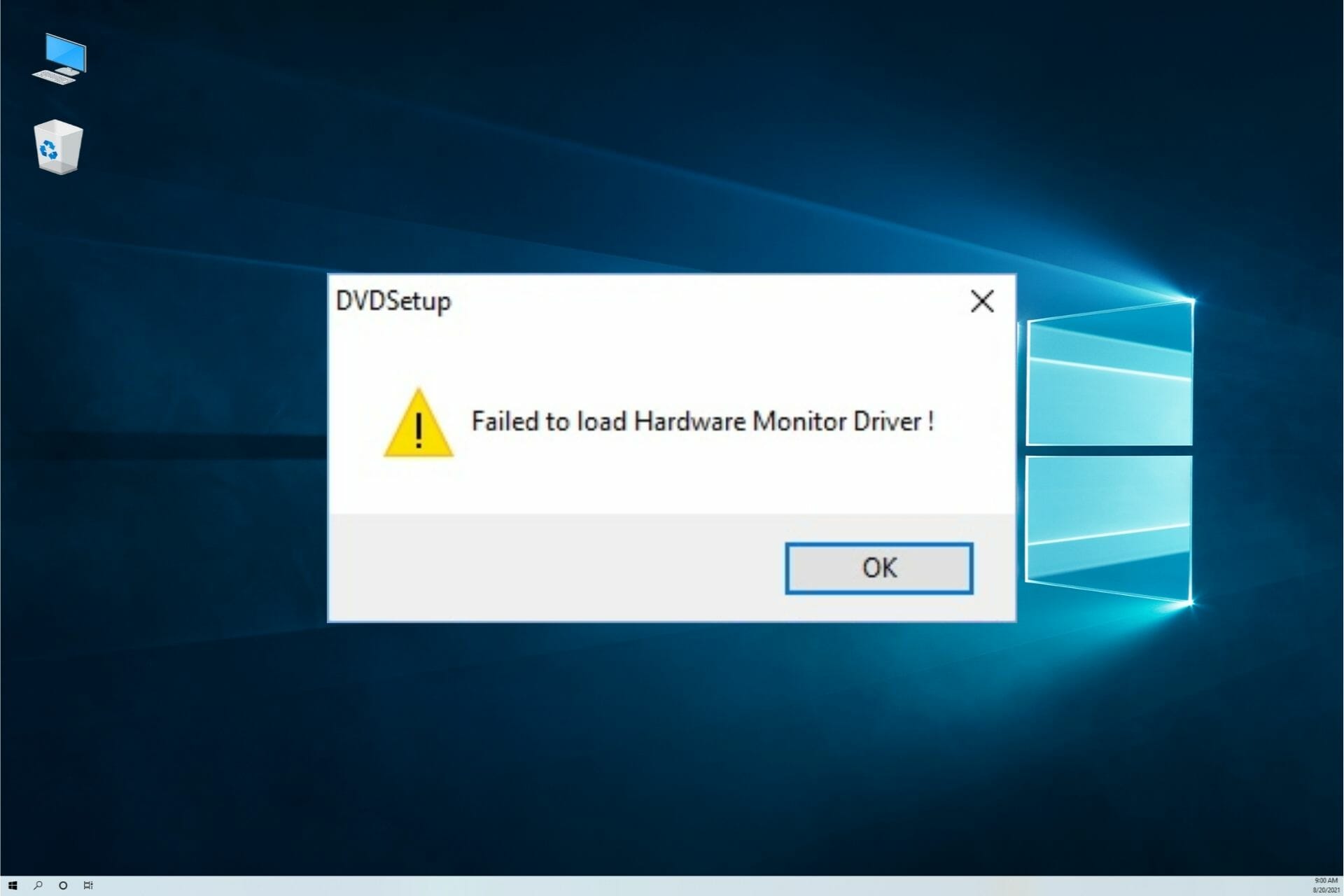
What to do if the hardware monitor driver failed to load

The “Failed to load hardware monitor driver” error message is one that pops up for some users when trying to install drivers from a DVD. When they insert the DVD, this error message pops up: “Failed to load hardware monitor driver: This program must run as administrator.”

Consequently, the users can’t install the drivers with DVD. Below are a few resolutions that might fix the “load hardware monitor driver” error message in Windows.

Steps to fix ‘Failed to load hardware monitor driver’ errors

  1. Install the Driver Within an Admin Account
  2. Turn Off Driver Signature Enforcement
  3. Update the Graphics Card Driver
  4. Install the Drivers Without the DVD

1. Install the Driver Within an Admin Account

Note that the error message states, “This program must run as administrator.” Thus, it might be worth trying to install the driver from an admin account if you’re not already. You can activate the built-in Windows admin account as follows.

  • Right-click the Start menu button and select Command Prompt (Admin).
  • Enter ‘net user administrator /active:yes’ in the Prompt, and press the Return key.
  • Close the Command Prompt.
  • Thereafter, restart Windows 10. Then you can select to log in to an Administrator account.

2. Turn Off Driver Signature Enforcement

It might be the case that Driver signature enforcement is blocking you from installing the drivers via DVD. Driver signature enforcement is supposed to block the installation of broken or corrupted drivers. However, it will also block drivers that aren’t digitally signed. This is how you can turn off driver signature enforcement.

  • Press the Windows key + X hotkey to open the menu shown directly below.
  • Select Command Prompt (Admin) to open the Prompt as an administrator.
  • Then enter ‘bcdedit.exe /set nointegritychecks on’ in the Command Prompt, and press the Return key. That will turn off the signature enforcement.
  • You can turn Driver signature enforcement back on by entering ‘bcdedit.exe /set nointegritychecks off’ in the Command Prompt.

3. Update the Graphics Card Driver

The “Failed to load hardware monitor driver” error can be due to an outdated graphics card driver. So updating the graphics card driver might fix the issue. There are a few ways you can update a graphics card driver. This is how you can manually update the driver.

  • First, you’ll need to note down Windows platform and graphics card details included on the DirectX window. Right-click the Start menu and select Run.
  • Enter ‘dxdiag’ in Run and click OK to open the window shown directly below.
  • Note down the OS details included on the System tab.
  • Then note down the manufacturer and graphics card model details on the Display tab.
  • Open your graphics card manufacturer’s website in a browser, which will probably be NVIDIA, AMD or Intel.
  • Then open the driver section of the website.
  • Next, select your graphics card model from the site’s menus or lists. You might also need to select your platform.
  • Then download the most update driver compatible with your platform.
  • Open the folder you saved the driver to.
  • Open the installer for the driver to install it.
  • If the driver is packaged within a ZIP file, you’ll need to extract the file by selecting Extract all in Explorer. Then open the driver file from the extracted folder.
  • Follow our further details for updating graphics card drivers.

4. Install the Drivers Without the DVD

So long as you have a net connection, you probably won’t need a DVD to install the required drivers. Most companies include downloadable drivers on their websites. Thus, even if the above resolutions don’t fix the “Failed to load hardware monitor driver” error, you can get the required drivers from the manufacturer’s website instead.

Alternatively, you can update system drivers with third-party software that will scan your system drivers and list those that need updating or replacing. With a simple click, the program will complete this action within minutes.

This software will offer comprehensive services regarding drivers’ operations on your system, and thus you can install or update any driver in no time.

Using its rich driver database, it provides millions of driver versions that can be used to optimize your device at its peak capacity.

⇒ Get Outbyte Driver Updater

So it’s not that essential to fix the “Failed to load hardware monitor driver” error in Windows. However, reinstalling Windows, as outlined in this post, or a factory reset might also fix the issue. I would only suggest those fixes if you can’t get the required drivers from website sources.

Windows doesn’t have a network profile for this device [TECHNICIAN FIX]

Many users reported an error while trying to connect to a device (mostly printers) over a network. The full error reads Windows doesn’t have a network profile for this device.

More often than not, fixing this error requires only a slight reconfiguration of the network settings. And in more grave cases, where there is actually a problem with your PC or the connected device, the built-in troubleshooter and updating drivers should resolve the issue.

How do I add the missing network profile in Windows 10?

1. Update Device Driver

Update Device Drivers from Device Manager

  1. Open the ‘Run’ dialog box: click on Windows + R
  2. In the box, type ‘devmgmt.msc‘ and then hit the Enter key to launch the Device Manager.windows doesnt have a network profile for this device
  3. In the next window, locate and right click on the target device (like printer or USB).
  4. On the list of options, select Properties.
  5. On the ‘Properties‘ window, locate and click on the Update Driver (update the driver for this device) option.windows doesnt have a network profile for this device
  6. Click on OK at the base of the display window.
  7. Wait for the update to run.
  8. Reboot PC.

Update Device Drivers using a professional tool

It’s important to keep your Windows OS updated and maximize its performance with the latest drivers. They have an important role and neglecting them can result in security loopholes or recurring Windows errors.

Instead of performing this action manually, you can save time by using trusted and professional third-party software that downloads and installs Windows drivers automatically. 

Automated software will save you some time and hassle. Outbyte Driver Updater has a large and constantly updated driver database and it ensures to always find the best drivers versions for your hardware.

The software is very lightweight, so you can set it up to regularly keep your drivers in check and let it run in the background.

⇒ Get Outbyte Driver Updater

2. Reset your network visibility

  • Wireless connection
  1. On your desktop window, click on the ‘Windows’ icon to open the Start
  2. In the menu, type ‘settings‘ in the designated search box.windows doesnt have a network profile for this device
  3. On the list of options, select Settings.
  4. Select Network & Internet.windows doesnt have a network profile for this device
  5. Locate and, click on Wi-Fi.windows doesnt have a network profile for this device
  6. On the list of available networks, select Advanced Options, to open your connection settings.
  7. Locate the option Find devices and Content, and toggle to On.
  8. Apply and exit ‘Settings’.
  9. Restart PC.
  • Wired connection
  1. On your desktop window, click on the ‘Windows’ icon to open the Start
  2. In the menu, type ‘settings‘ in the designated search box.windows doesnt have a network profile for this device
  3. On the list of options, select Settings.
  4. Select Network & Internet.windows doesnt have a network profile for this device
  5. Locate and click on Ethernetwindows doesnt have a network profile for this device
  6. Find and click on your Ethernet network.windows doesnt have a network profile for this device
  7. Toggle from Public to Private.windows doesnt have a network profile for this device
  8. Apply and exit ‘Settings’.
  9. Restart PC.

3. Run Hardware and Devices Troubleshooter

  1. Click on the Start menu or hit the Windows key
  2. In the box, type ‘troubleshooting‘ and click Enter.
  3. On the list of options, select Troubleshoot.windows doesnt have a network profile for this device
  4. Navigate to the Hardware and Devices optionwindows doesnt have a network profile for this device
  5. Click on it and then run the troubleshooter.windows doesnt have a network profile for this device
  6. Follow the prompt guidelines to finish up the process.
  7. Restart PC.

Once this is successfully executed, check if the issue is resolved; otherwise, try the next solution.

4. Uninstall and reinstall the device driver

  1. Open ‘Run’ dialog box: click Windows + R
  2. Type in ‘devmgmt.msc‘ and press OK to launch the Device Manager.windows doesnt have a network profile for this device
  3. Locate the affected device driver (printer, USB drive, speaker, etc.) and expand the option.
  4. Right-click on the driver and select Uninstall on the list of options.windows doesnt have a network profile for this device
  5. Navigate to the manufacturer’s website to download the latest drivers.
  6. Follow the on-screen commands to complete the installation process.
  7. Restart PC.

Brave ad notifications are not properly working on Windows 11

Depending on what browser you use, we can all agree that we’re gonna run into some bugs and errors from time to time, and some are more dependable than others.

However, glitches do happen, and recently, some Brave users started complaining about a problem affecting ads.

We know that this isn’t a large-scale bug due to the fact that there still are many saying that they remain unaffected.

Ad notifications are not working for some Windows 11 users

A post made earlier today on the brave_browser Subreddit tells the story of a bug that apparently renders ads unfunctional on the above-mentioned browser, on a Windows 11 device.

Although not many, some of the posts’ respondents confirmed to struggle with the same issue. The bad news is that simply restarting the browser unfortunately won’t do the trick.

The user that flagged this problem also describes going through the troubleshooting steps listed on the Brave official website, without any favorable result.

Furthermore, the bug doesn’t seem to be limited to web versions of the Brave application, as another user pointed out in a comment to the same post:

I had the same problem when I first started on my phone… I had to email Brave, took a couple of days but they ended up fixing some issues on their side. Now it works great and collects fast.

Apparently, the same type of problem, only this time for the mobile version of the software, got fixed after Brave customer support was contacted.

We’re not exactly sure if the same procedure has to be followed for the web version, but a fix patch will most likely become available soon after the company gets wind of these issues.

We will keep monitoring the situation and keep you informed on any developments.

Have you also experienced the same problem while using the Brave browser on Windows 11?

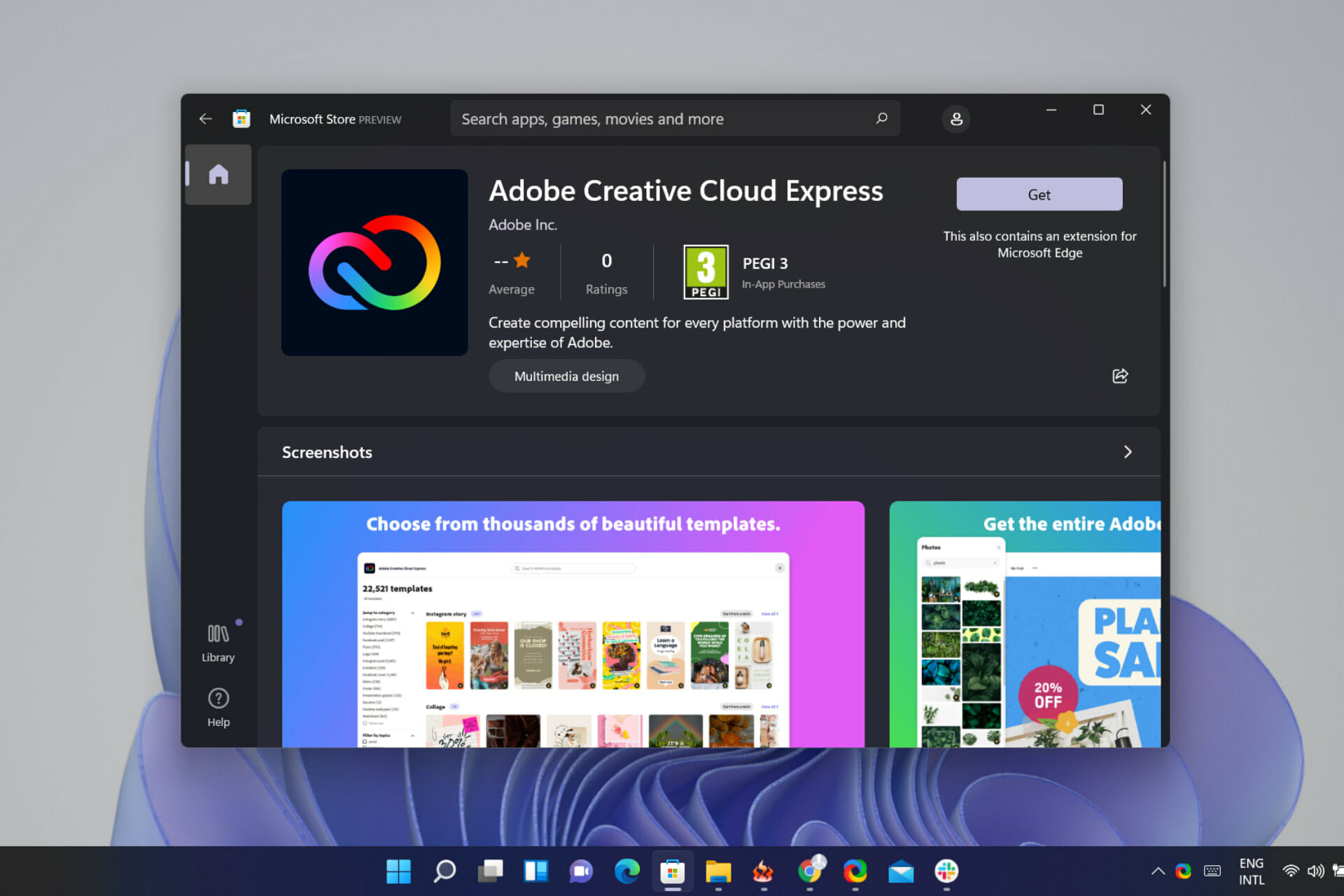
You can find Adobe’s Creative Cloud Express app on the Microsoft Store

On the off-chance you weren’t already aware that this is happening, we can tell you that it’s most definitely happening.

Adobe and Microsoft are actually teaming up and helping armature creators, entrepreneurs and SMB’s get a head start in their branding careers with a new freemium Creative Cloud Express promotion.

Thus, Adobe is providing a Creative Cloud Express app that is a free, web and mobile-based experience for creators and small to medium-sized businesses to leverage quick branding or marketing templates.

Get the Adobe Creative Cloud Express for free on the Store

The Redmond-based tech giant is also promoting this new software via the Microsoft Store, giving customers a quick and safe way to grab the app and get started.

Adobe’s Creative Cloud Express provides over 22,000 templates, access to tools such as animations, videos, PDF converters, Photoshop effects, Adobe’s stock collection of fonts, photos, icons, backgrounds, and more.

Creative Cloud Express offers access to literally millions of photos, fonts, templates, graphics, and other assets that give you a head start on any project. Finding what you need is easy through intuitive, intelligent search. And our assets are easy to remix. If you find a graphic you love, you can swap in your own image and Creative Cloud Express will automatically apply all the filters and effects from the original graphic.

If you opt for a Creative Cloud Express membership, you unlock more templates, access to the entire royalty-free Adobe Stock photo collection, effects, and fonts.

In addition to all that, you will also receive plus premium features like Apply Brand, Customize Cutout, and Resize.

Your paid membership includes the premium versions of apps such as Adobe Creative Cloud Express on the web and mobile (iOS and Android), Adobe Premiere Rush on desktop and mobile (iOS and Android), Adobe Photoshop Express on mobile (iOS, Android), and Adobe Spark Video on mobile (iOS).

And if you already have an Adobe CC account or work with Adobe files, the Creative Cloud Express is just another cross-platform tool to help armatures and semiprofessionals create quick and easy content on the fly.

The app can be downloaded from the Microsoft Store, Apple App Store, Google Play, and the web for free.

However, for $9.99 or $99/year, you can unlock 175 million Adobe Stock photos, 20,000 Adobe Stock fonts, and extended access to a handful of other Adobe suite applications.

Also, if you own a new Surface device, the addition of access to Adobe Creative Cloud Express is yet another bonus that comes bundled with the trial 3-month subscription to Adobe’s Creative Cloud suite.

Microsoft Surface Adaptive Kit Review: Surprisingly thoughtful

Starting at $14.99

Microsoft continues its push for inclusiveness with a new accessibility package in the Surface Adaptive Kit and the company’s least expensive Surface branded product proves to be it most thoughtful one.

Windows has long offered varying degrees of accessibility features built into the software such as contrast adjustments, text cursors, magnifiers, color filters, narrators, captions, sticky keyboard settings and more.

However, in 2018 the company presented its first piece of dedicated hardware with its Xbox Adaptive Controller to help gamers of all types and concerns access the same sort of experiences across the board.

In another collaborative effort between Microsoft and those living with disabilities, the company’s produced its new Surface Adaptive Kit.

Announced back in September 2021, the Surface Adaptive Kit went on sale officially last week and we got our hands on a kit to review, and while no one here at OnMSFT deals with any significant disabilities, we’ll do our best to review what’s in the box.

What’s in the Box

The $14.99 box of stickers and port tags is the least expensive Surface branded product Microsoft offers but is still presented in the same fit and finish as any other Surface device or service.

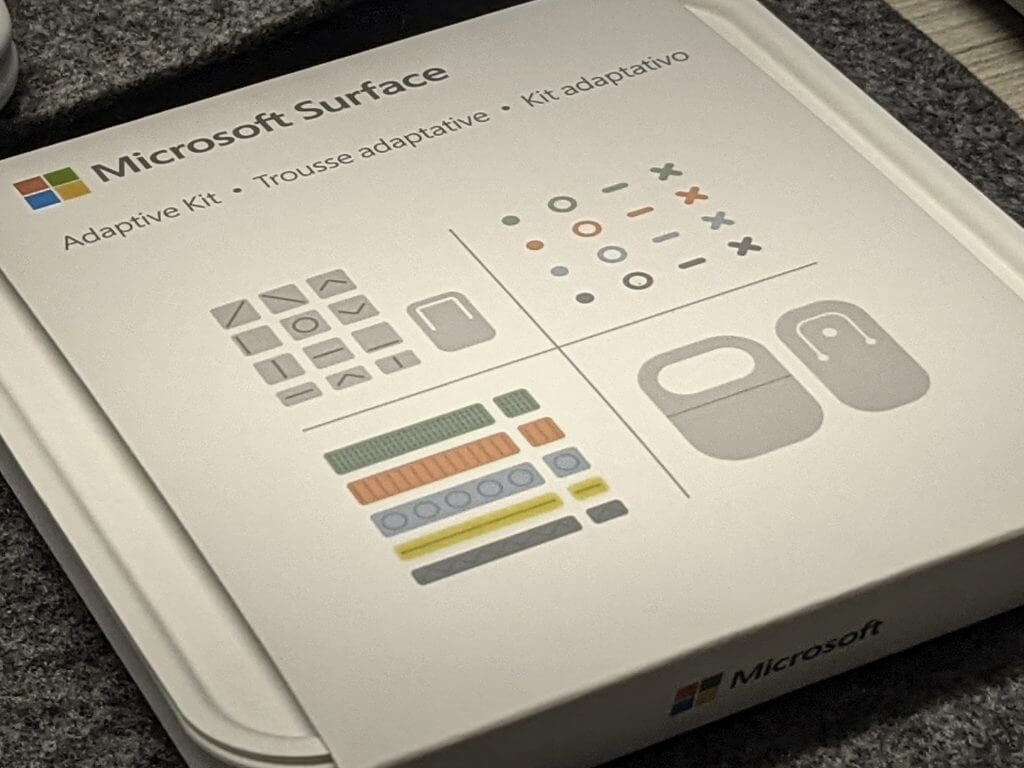
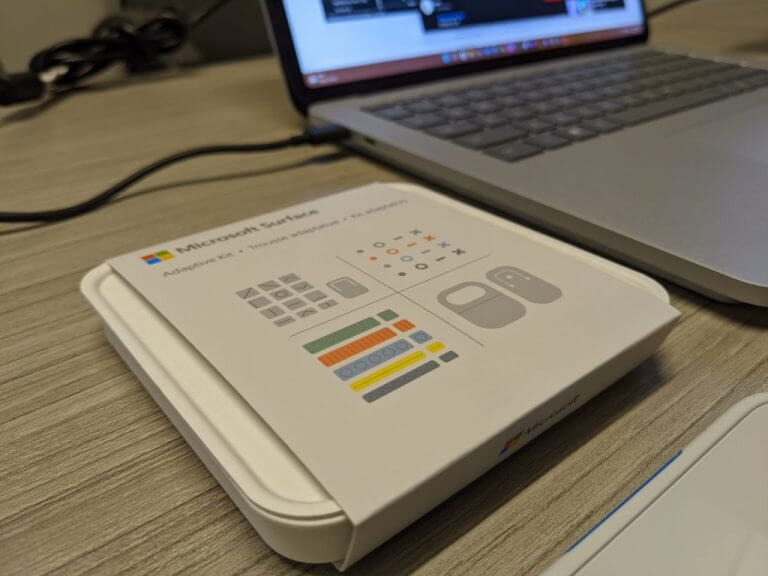
The Surface Adaptive Kit package is minimal in appearance, with a single off-white cardboard box that’s about 4 1/2-inches wide by 1-inch tall and wrapped by colorful itemized breakdown flap.

Inside the box are four cards that hold the various stickers, attachments and tags and each are divided by design, intent and function.

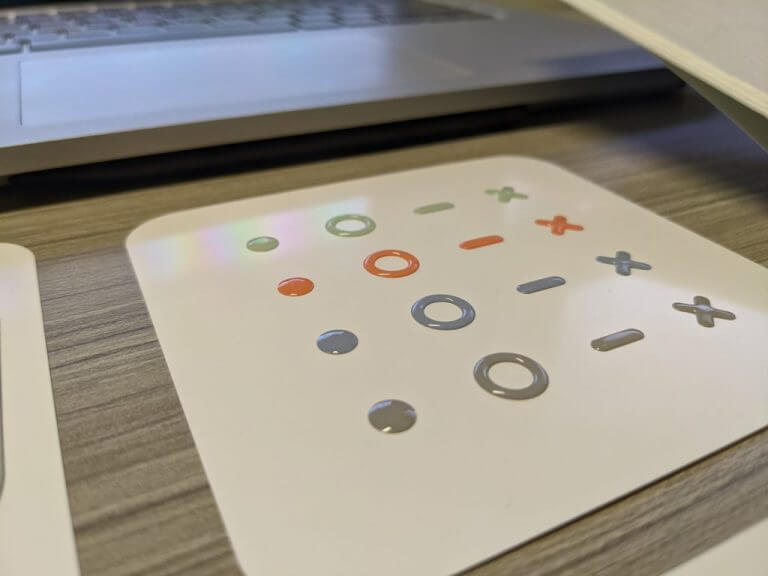
The first card comes with a total of sixteen raised stickers of X’s, O’s, dashes and dots all with corresponding colors in gray, orange, blue and light green themes. The raised stickers offer additional tactile feedback for users who may have vision impairments, allowing them to identify often or rarely used buttons on the keyboard deck or areas around a device.

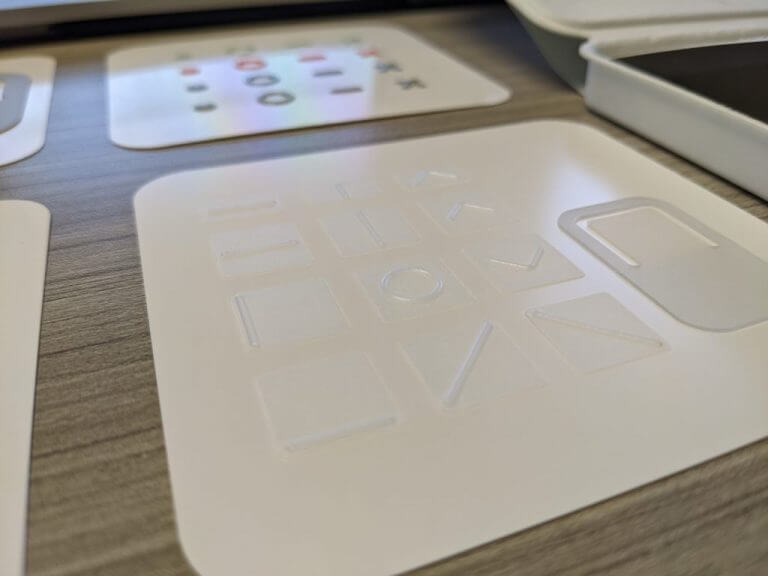
A second card comes with an all-white motif of raised stickers which function similarly to the stickers with color. Instead of X’s there are diagonal dashes and greater than – lesser than iconography displayed as well as applicator to help place the stickers evenly across surfaces.

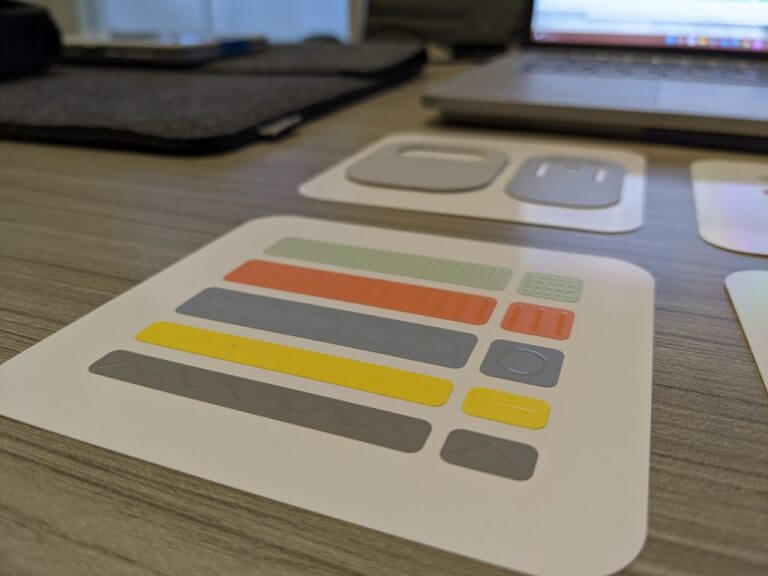
A third card houses port tags that are similar in color to the stickers from the first card, orange, blue, gray, light green and yellow. There are corresponding square tags that match in raised patterns and colors to match the port tags which are designed to wrap or stick to connecting peripherals.

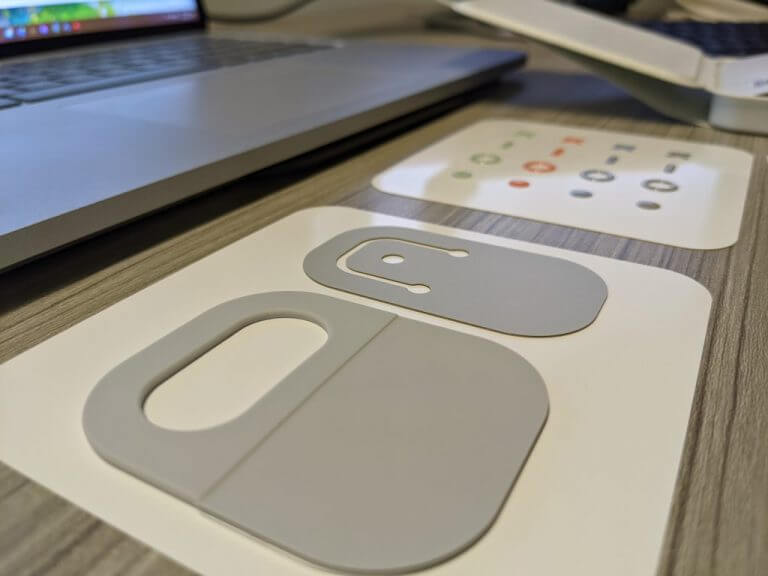
The last card has two stickers designed to help with opening devices such as laptop lids or Surface Pro kickstands. These stickers can be paired with lanyards, wristbands, and stings to help one-handed users pull open laptop lids or tablet kickstands.

During Microsoft’s presentation of the Adaptive Kit, the looped attachments for aid in opening lids and kickstands was among the stand out experiences for the entire event.

While the Surface Adaptive Kit is designed for those who have accessibility concerns with their tech, the product can be used in very similar fashion for everyone else. The raised stickers are great for people with muscle memory of their keyboard but still need a little assistance in the dark or accidently bump the wrong keys during long typing sessions.

For additional use cases with the Surface Adaptive Kit Microsoft provides a support site equipped with a Table of Contents, How To’s, examples and product details.

The looped lid and kickstand sticker is perhaps my favorite experiences because prior to it, I always had to run my fingers along the sides to find the divot between the lid and Surface Pro body to prop the thing open.

Now I can open the Surface Pro from in any orientation without having to massage the device beforehand.

The Surface Adaptive Kit initially rolled out last week to US only Microsoft Store online but as of December 14th, is available internationally.

9 Best Disk Management Software [2026 List]

Disk management is one of the most underrated actions in Windows. Most Windows users don’t even pay attention to maintaining their hard drives.

This is not a good idea because keeping your partitions in top shape is very important.

To help people understand disk management better and hopefully convince more users to perform this action, we’ve prepared a list of the best disk managers for Windows.

So, we advise you to review this article carefully and pick the best solution. As a result, your partitions will always be healthy, and you won’t face the risk of potential data loss.

You can quickly check our top picks in the table below.

ProductOSRatingLink
AOMEI Partition
Assistant
Windows XP/ Windows Vista/ Windows 7
Windows 8/ Windows 8.1/ Windows 10
Windows 11/
Windows Server 2011-2022
⭐⭐⭐⭐⭐➡️Get The Deal
Acronis
Disk Director
Windows XP/ Windows Vista/ Windows 7
Windows 8/ Windows 8.1/ Windows 10
Windows 11/
Windows Server 2011-2022
⭐⭐⭐⭐⭐➡️Get The Deal
Paragon Partition
Manager
Windows 7 / Windows 8/ Windows 8.1 /
Windows 10 / Windows 11/
Windows Server 2011-2022
⭐⭐⭐⭐➡️Get The Deal
MiniTool
Partition Wizard
Windows 7 / Windows 8/ Windows 8.1 /
Windows 10 / Windows 11/
Windows Server 2011-2022
⭐⭐⭐⭐➡️Get The Deal
EaseUS Partition
Master Free
Windows 7 / Windows 8/ Windows 8.1 /
Windows 10 / Windows 11/
Windows Server 2011-2022
⭐⭐⭐➡️Get The Deal

Which are the best disk managers for Windows?

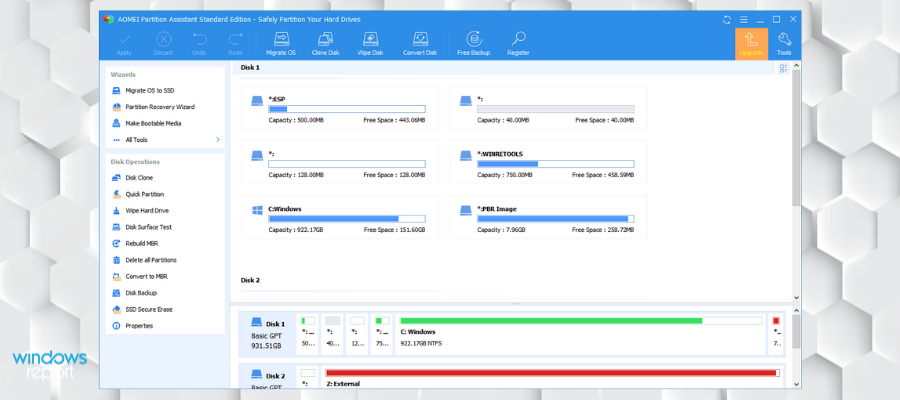
AOMEI Partition Assistant – Specific partition migration

AOMEI Partition Assistant is a useful disk management software for Microsoft’s operating system.

It contains all the regular disk management features, including resizing, merging, splitting, moving, or extending partitions.

Using AOMEI, you can create a bootable drive or CD with data from your partitions.

The tool contains some conversion features, like converting disks from GPT to MBR and reverse.

Additionally, one of the most valuable features of this program is the ability to migrate a specific partition to another drive.

This software is a safe solution that will allow you to format your partitions into a different file system, such as NTFS, exFAT, Ext 4, Ext3, Ext2, or FAT32.

On top of that, it also lets you merge partitions together without any loss of data. This feature can be helpful if you need to store large files and don’t have the space for them on one partition.

Other key features include:

  • 4k Alignment partition
  • Can create Windows bootable USB drives
  • Integrates to Windows Recovery Environment

AOMEI partition assistant has licensed software with several versions available. One license can be used on two computers. It offers packages that cover Windows servers as well.

AOMEI Partition Assistant

Try this awesome all-in-one partition assistant to manage and optimize your system with just a few clicks.
Check price Visit website

Acronis Disk Director – Simple yet powerful

Acronis Disk Director disk management

Acronis Disk Director is a simple yet very powerful disk management software. It was built with one thing in mind and that is to fix and protect the disk.

This can easily help you alter, add, and merge partitions, both for the internal drive but also on external devices.

It is a very easy-to-use software that can handle even volumes with multiple operating systems. Due to its comprehensive tools, you can organize your hard disk configuration for the best performance, all that while still keeping your data safe.

Acronis Disk Director can be used with a large number of format files, such as FAT16, FAT32, NTFS, Exts, Ext3, Reiser 3, Linux, SWAP.

Being such a complete disk manager, it is only natural that this software also offer backup and restore functions.

Some of the more important features of Acronis Disk Director:

  • UEFI PC Support
  • Flexible disk and volume  management
  • Dynamic Disk Support
  • Edit Mirrored Volumes
  • Convert basic disks and Dynamic Disks
  • Convert MBR disks to GPT
  • Clone Disks

Acronis Disk Manager

Try out this straightforward and easy-to-use disk manager.
Check price Visit Website

Paragon Partition Manager – Clean interface

Paragon Partition Manager is a component of Paragon Hard Disk Manager. It’s one way for the developer to offer you precisely the tool you need instead of buying the whole software.

Its functionality, as you can imagine, is to help you create, resize, copy, or delete partitions.

The program has a very clean, intuitive user interface so that anyone can get around the action buttons and features.

The partition manager also comes with one handy feature called Automatic partition alignment, which automatically aligns partitions to boost the performance of the storage device.

Additionally, you can assign unallocated space to another partition, for more practical use of the disk space.

This software lets you fully customize your partition. You can pick the exact size and also change the label of your partitions and drives.

Other key features include:

  • Covert MBR disk to GPT
  • Support to migrate OS
  • Data wiping
  • Virtual disk support

This is licensed software. If you are not sure about it, you can try it for free as it provides a 30-day trial.

Paragon Partition Manager

Securely convert or partition your physical and virtual drives with just a few clicks.
Check price Visit website

MiniTool Partition Wizard – Suitable for all users

Mini Tool Partition Wizard is another feature-rich partition manager, that’s pretty suitable for users.

It has a clean, well-designed user interface, and is perfect to create, resize, delete, move, format partitions, and more.

The Data Protection Mode keeps your files safe while editing partitions, so you don’t have to worry about losing a single file.

The tool supports all major disk types, including  SATA, SCSI, IDE, and all USB external drives.

It can also serve as a recovery software because it completely recovers data from previously created partitions.

The software lets you create new partitions in just a few steps. You can also use it to delete and format your drives. The format option can help you open inaccessible hard drives and convert RAW to NTSF.

Minitool includes a merging option that lets you create a larger partition by combining two existing ones. This can help with low disk space, thus improving the performance of your device.

For those of you who want to resell your device, the Wipe Disk/Partition feature comes in handy. It can completely delete all data without any possibility of recovery.

Other key features include:

  • Change drive leter
  • Set partitions to active/inactive
  • Hide partitions
  • Recover lost/deleted partitions

MiniToll partition Wizard has a free version and several pro versions that require an annual subscription.

MiniTool Partition Wizard

Organize your resources with error-free tools that let you create, manage, change, and recover partitions.
Free trial Visit website

EaseUS Partition Master Free – Partition recall protection

disk management tools

EaseUS is one of the most respectable software companies that develop various utilities for Windows. Their Partition Master software is one of the best disk management tools for Windows you can find.

It features all you need to keep your partitions in top shape.

With EaseUS, you can create, format, explore, delete, and convert partitions. Additionally, it allows you to move, resize, and hide/unhide existing partitions without losing your data.

EaseUS supports hard drives with up to 4TB of space, so you can use it to manage basically any partition. It also has the ability to move the OS to SSD, which is an extremely useful feature.

The resize option lets you set the exact amounts you want your partition to have, or you can use visual support and slide partition left and right until you are happy with the result.

Similar to other recommendations on this list, EaseUS comes with a merge partitions feature. This will combine two already existing partitions without losing any data. It can help with low disk space problems.

Another optimization feature provided by this app is the Migrate OS feature. This will let you migrate your operating system to an SSD to improve response rates.

EaseUS has a recovery tool that scans for lost partitions or files within your disk or unallocated space.

Other key features include:

  • Partition Recall protection
  • Manage dynamic volume
  • Clone partitions

EaseUS has a free trial version and a premium, subscription-based version.

EaseUS Partition Master

Manage your disks with secure features that let you recover, merge, format, and create new partitions.
Free trial Visit website

SMART Monitoring Tools – Lightweight app

If you’re a fan of command-line tools, SMART Monitoring Tools is the right disk-monitoring program for you.

This tool developed by SourceForge will give you everything you need to know about your disk‘s SMART status, simply by entering one command into the command line.

To make the program show you the SMART status, just enter the smartctl -a sda (or sdb, sdc, or the like) command.

As the program is only textual, it might seem confusing in some cases, so we don’t recommend it to beginners, unfamiliar with this user interface.

If the utility detects problems with your drive, it will print log messages or send alert emails in real time so you can immediately take action.

S.M.A.R.T. has a scheduling feature to set up a driver testing routine.

Other key features include:

  • Compatible with multiple operating systems
  • Very fast response rates
  • Lightweight

This software is available for free. You can support its development by donating.

⇒ Get SMART Monitoring Tools

Active Partition Manager – Straightforward tool

Active Partition Manager is a straightforward tool that lets you delete, format, change, or create partitions.

It is very effective and practical since changes to partitions don’t require reboots. This way, managing your partitions is quicker than you’d imagine.

Using the solid format features you can format FAT and NTFS, or flash memory to NTFS.

The ability to edit dit partition tables directly at the HEX level is one interesting feature that could appeal to more advanced users.

⇒ Get Active Partition Manager

GParted Disk Partition – Multiple formats support

GParted Disk Partition can resize, delete, move, create, copy, explore, format, convert, hide, and unhide partitions with minimal effort. This tool is considered a GNOME editor, so it’s free to all users.

GParted Disk Partition supports a great variety of formats, not just for Windows, but for other operating systems: NTFS, FAT, ext2, ext3, or ext4.

Like some other tools from this list, GParted Disk Partition also features the data recovery option, allowing you to retrieve data from lost partitions.

⇒ Get GParted Disk Partition

Windows 10’s Disk Management Tool – Basic disk management

If you don’t like third-party solutions, Windows 10 has its own disk management feature that you can use to manage your partitions easily.

It’s not as powerful as the third-party programs recommended above, but if you don’t need to perform any complex operations, it gets the job done very well.

Shrinking, adding, deleting, and renaming partitions with this tool won’t be a problem. Additionally, you can safely use this tool to initialize a new hard disk, in case the system doesn’t show it by default.

To access Windows’ Disk Management Tool, go to Search, type disk management, and click on Create and format hard disk partitions.

Bonus: Defragging tools

Another type of disk management tool are defragging tools. Read more about the best defragging tools for Windows 10. At times, you cannot shrink volume with unmovable files so this option should suffice.

We also recommend reading our guide on how to convert a RAW to NTFS drive without formatting because it may provide useful information. You can also use these tools if you can’t access the GPT protected partition on your PC to convert it to MBR.

You may also be interested in our guide on how to access Disk Management in Windows 7.

That should be it for our top picks for disk management in Windows. Do you agree with our list? What’s your favorite disk management tool? Tell us in the comments below!

Surface Duo gets a big Microsoft Launcher update, some UI elements now visually on par with Duo 2

Microsoft might have just backed off its plans to deliver Microsoft launcher updates via monthly security updates on the Surface Duo and Duo 2. Spotted by Windows Central, Microsoft Launcher on the original Surface Duo has just gotten a big update, bringing it visually up to par with the new Surface Duo 2.

Now up to version 6.211102.0.1017440, this new Microsoft Launcher version brings over some of the visual designs from the Surface Duo 2 over to the Surface Duo 1. That includes a new app draw, which now has more rounded corners and a grab bar on the top. Even the Your Feed has been updated, with more transparency, and rounded effects to match what’s seen in Windows 11. Microsoft’s official changelog is below.

  • Launcher’s feed and overall design were updated.
  • The News feed experience was enhanced.
  • The toggle between work and personal apps was improved.
  • Additional filters are now available to improve searching.
  • Other known bugs were fixed, and improvements were made.

Surface Duo 2 owners also got this same update, but it apparently does not bring any big changes. It’s great to see these changes come to the original Surface Duo, despite the original alarm of launcher updates only coming with software releases. This is all apparently because Microsoft faced a blocking bug and internal software issue, which has since been fixed. We still are awaiting Android 11 on the Duo, however, which was promised by the end of the year. But with less than 15 days left in 2021, Microsoft is now pushing it close but there could be hope on the horizon after today’s Launcher update.

Get the December Patch Tuesday updates today

December is now here, and with it comes the last round of Patch Tuesday updates called the December Patch Tuesday updates.

As with all the other Patch Tuesday updates of previous months, these bring a host of changes, fix and improvements to all supported versions of the Windows OS.

What can we expect from this month’s Patch Tuesday?

It’s safe to say that we can expect a similar light set of CVEs addressed this month in the set of Windows 10/11, legacy, and ESU-supported operating systems, as we did the month before.

There were two zero-day and four publicly disclosed vulnerabilities last month, so be on the lookout for any new ones coming out this December.

Some of the most interesting vulnerabilities resolved via the November 2021 release, all deemed as important, are: 

  • CVE-2021-42321: (CVSS:3.1 8.8 / 7.7). Under active exploit, this vulnerability impacts Microsoft Exchange Server and due to improper validation of cmdlet arguments, can lead to RCE. However, attackers must be authenticated.
  • CVE-2021-42292: (CVSS:3.1 7.8 / 7.0). Also detected as exploited in the wild, this vulnerability was found in Microsoft Excel and can be used to circumvent security controls. Microsoft says that the Preview Pane is not an attack vector. No patch is currently available for Microsoft Office 2019 for Mac or Microsoft Office LTSC for Mac 2021.
  • CVE-2021-43209: (CVSS:3.1 7.8 / 6.8). A 3D Viewer vulnerability made public, this bug can be exploited locally to trigger RCE. 
  • CVE-2021-43208: (CVSS:3.1 7.8 / 6.8). Another known issue, this 3D Viewer security flaw can also be weaponized by a local attacker for code execution purposes. 
  • CVE-2021-38631: (CVSS:3.0 4.4 / 3.9). Also made public, this security flaw, found in the Windows Remote Desktop Protocol (RDP), can be used for information disclosure.
  • CVE-2021-41371: (CVSS:3.1 4.4 / 3.9). Finally, this RDP vulnerability, known before patching was available, can also be exploited locally to force an information leak.

This is a relatively low number of vulnerabilities resolved during the month of November, comparing this release with those of previous years.

The tech giant addressed a large number of CVEs last month and it’s safe to say that we can expect that number to remain high.

And since we already received our first Windows 11 update in October, it will be interesting to see how closely the new one, if there will be any, reflects what is being addressed in Windows 10 as well.

With the last big push before the holidays, we can expect major updates for all the operating systems and applications, including the ESUs.


All in all, there’s no news yet as to what The December Patch Tuesday updates might bring yet until the updates hit live later this day.

This will happen at around 10 AM PST, so make sure you are ready for when the update notifications hit your area.

Keep in mind that the Patch Tuesday updates are extremely important from a security standpoint, so if you aren’t employing the use of a third-party antivirus tool, you might as well update your PC every chance you get as soon as the update becomes available.

What are your expectations for the last round of Patch Tuesday updates of the year? Let us know by leaving us your feedback in the comments section below.

Fix: Windows Encountered a Problem Installing the Driver

Driver installation and updates are important for the smooth running of a PC. Unfortunately, some users report a Windows encountered a problem installing the driver for Windows 10 device error when trying to do the needful.

This error usually means that there is an error with the installation package, but it can be easily solved in just a few steps.

Why am I getting Windows encountered a problem installing the drivers for your device error?

  • Outdated PC: If you are getting Windows encountered a problem installing the drivers for your device error with code 10, it could be due to several factors. including an outdated operating system. You need to update your PC to fix to get rid of the error message.
  • Hardware issues: Another factor that can cause this problem is problems with the hardware whose driver you are trying to install. In this case, you need to run the hardware troubleshooter.

How can I fix Windows encountered a problem installing the drivers for your device error?

1. Run the troubleshooter

  1. Click the Start button, type control panel, and select the app from the results.
    control windows encountered a problem while installing driver
  2. In the Hardware and Sound section, click on View devices and printers.
  3. In the Device section, right-click the device with the problem and choose Troubleshoot.
  4. Wait for the process to complete.
  5. Now, press the Windows key, type cmd, and select Run as administrator under Command Prompt.
    cmd admin
  6. Type the command below and hit Enter to run the Hardware and Devices troubleshooter: msdt.exe -id DeviceDiagnosticmsdt
  7. Finally, restart your PC after the process is finished.

If Windows encounters a problem installing the driver software for your device on your Qualcomm driver, you need to troubleshoot your device.

You should start troubleshooting the affected device before running the general Hardware and Devices troubleshooter.

2. Install the driver manually

  1. Right-click on the Start button and select Device Manager from the list.
  2. Expand the component sections, right-click on the problematic driver, and select Properties.
  3. Next, go to the Driver tab and click on the Update Driver button.
  4. Choose the Browse my computer for drivers option in the new window.
  5. Now, click the Browse button, navigate to the path where you have the driver, and click OK.
    browse
  6. Finally, if you don’t have the driver downloaded, type the path below and press Enter: C:\Windows\WinSxSwinsxs

In some cases, you might be getting Windows encountered a problem installing the drivers for your device on Nvidia Geforce GT 710 because of the installation mode.

To get past the error, you need to download the driver from the official source and install it manually.

If you’re still facing issues, particularly with the message An exception occurred in the driver: Could not find driver (Docker), find more troubleshooting methods in our detailed guide.

3. Change the permission for TrustedInstaller

  1. Press the Windows + E key and double-click on the Windows C drive.
  2. In the Windows folder, locate System32 and click on Properties.
  3. Next, in the Security tab, click on Edit.
  4. Under TrustedInstaller, check the box next to Full Control, then hit Apply and OK.

Sometimes, Windows encountered a problem installing the driver might be due to a lack of permission to carry out the operation. You need to grant full control to TrustedInstaller to solve the problem.

4. Update your PC

  1. Press the Windows key + I and select Update & Security.
    update and windows encountered a problem while installing driver
  2. Click the Check for updates button.
    check for
  3. Finally, download and install any available updates.

Windows updates sometimes include important driver updates. While these updates are installed automatically, you can sometimes miss out on them.

In this case, you need to update your PC manually.

5. Perform a malware scan

  1. Press the Windows key, type virus, and select Virus & threat protection.
    virus
  2. Click Scan options.
    scan option
  3. Now, select the Full Scan option and click Scan now.
    scan now windows encountered a problem while installing driver

If you still can’t get rid of Windows encountered a problem installing the driver error message after applying the fixes above, there might be a virus on your PC preventing the installation.

To fix this, you need to perform a full malware scan.

While Windows Defender scans your PC well, we recommend using a dedicated antivirus in ESET NOD32.

This top-notch software performs a deep scan and eliminates even the most hidden malware on your PC.

That’s about it. These are our recommendations for solving the Windows encountered a problem installing the driver error message when installing or updating drivers.

If you’ve switched to Windows 11 already, learn what to do if Windows 11 is not recognizing your USB device.

We hope at least one of these solutions helped you install the drivers on your computer. If you have any additional comments or suggestions, just let us know in the comments below.

Get Bank of America Windows 10/11 app to track transations

Bank of America is one of the biggest banks in the United States, and in order to remain accessible to a wide array of users, it has specialized apps for multiple platforms.

Note that the Bank of America app is one of the first universal applications available for Windows 10, and while the application was useful, it’s no longer available on Microsoft Store.

This is unfortunate because the app was quite useful, but you can still use Bank of America services on your PC, even without the app.

In today’s guide, we’re going to show you the best ways to use these banking services on your Windows 10 computer, without the app.

Is the Bank of America Windows 10 app still available?

No, the app isn’t available for Windows 10 since 2018. According to the Bank of America personnel, they are focused on delivering the best mobile experience to the mobile platform.

Universal apps aren’t that popular, and since Windows doesn’t have a mobile platform anymore, developing an app for a small user base simply isn’t profitable.

What features that Bank of America app had?

Inside the Bank of America you had the following abilities:

  • Make mobile check deposit to your Bank of America account
  • Send money from your account by email or mobile
  • Find BankAmeriDeals
  • Receive alerts within the Bank of America app and live tile updates about important financial operations
  • Check your Bank of America account balance
  • Pay different bills
  • Locate Bank of America ATMs and banking centers

How can I use Back of America services on my PC?

1. Use the web app

  1. Visit the Bank of America online banking page.
  2. Enter your Online ID and Passcode to sign in.
  3. After signing in, all the feature from the app will be available to you in your browser.

Although this feature can work in any web browser, we suggest using one of the best browsers for online banking to ensure that all your transactions are safe.

2. Use the iOS app

  1. Visit the Bank of America page on App Store.
  2. Download the app.
  3. Once the app is downloaded, sign in with your credentials and you’re good to go.

3. Use the Android app

  1. Visit the Bank of America page on Play Store.
  2. Download the app.
  3. After it’s downloaded and installed, run it.
  4. Login with your credentials and you’re good to go.

Is the Bank of America web app safe to use?

Yes, the Bank of America web app is perfectly safe to use, since it offers two-factor authentication, so you don’t have to worry too much about hackers stealing your login data.

However, it’s always a good idea to ensure that your PC is free from malware before making any online transactions.

Which is better, a Bank of America mobile app or a web app?

It all depends on what you prefer to use, and both have the same features. We found that the web version is more convenient, especially if you’re multitasking.

You’ll soon be able to install Android apps on Windows 11, so you could give a Bank of America a try and see how it works.

Even though the Bank of America app for Windows 10 isn’t available anymore, it doesn’t mean that you can’t take advantage of its services on your PC.

The best method to use it would be to use the web app, but be sure to install a reliable antivirus for online banking to ensure that your transactions are perfectly safe.

What method are you using to access Bank of America? Let us know in the comments section below.

Dell’s Concept Luna is a unique prototype for a truly sustainable laptop

Dell is finding a new way to address the climate crisis, resource constraints, and to help reduce its carbon footprint. Building on previous commitments, the company is now revealing Concept Luna, a proof-of-concept prototype developed in collaboration with Intel for a truly sustainable laptop.

Project Luna is unlike any existing laptop on the market. It takes some new design ideas and makes components more accessible, replaceable, and reusable. This should help reduce resource use and keep more circular materials (used in manufacturing) in the economy. Dell says the device was built to test what could be possible, but not to be manufactured and sold. Yet if the device were to be released, it’s expected to see a 50% reduction in overall product carbon footprint.


There’s a couple of things that make Concept Luna a sustainable laptop that can reduce Dell’s carbon footprint. The first of those is a shrunk-down motherboard size, which is now 75% smaller, and with 20% less component count. In addition, there’s a relocated motherboard, which is in the top cover, so it could be in a larger surface area, and away from the battery charging unit in the base. Dell even has reduced the battery size, which, with the relocated motherboard helps with cooling and even the elimination of the fan. Other key points are below, with the biggest one being the future vision for reuse, repair, and recreate.”

  • The number of screws have been reduced by 10x, with only four needed to access internal components
  • The palm rest assembily is designed for repair and reuse
  • The deep cell battery provides a long charge
  • A new bio-based printed circuit board is made with flax fiber in the base and water soluable polymer as the glue

Dell has been a champion for sustainability, and in the past year has introduced many new initiatives. The company has previously introduced closed-loop aluminum to its products from old hard drives. It also has used bioplastics made from tree waste in the paper-making process and has scaled the use of reclaimed carbon fiber to 1.2 million pounds. More information is available over on the company’s website.

Windows Telegram app updates with enhanced privacy settings

The privacy-focused communication app, Telegram, updated on most of its major supported platforms this week and added even more security settings to help creators control how their content is seen and shared.

Creators will now be able to limit how group content is saved or forwarded while new bulk-delete options have been added for one-on-on chats. A variety of new admin features have also been added.

“With this update, we’re helping creators protect the content they publish on Telegram and ensure that it is available only for their intended audience,” an official Telegram blog post explains. “Group and Channel owners who want to keep their content members-only can restrict message forwarding from their chat, which also prevents screenshots and limits the ability to save media from posts.”

Here’s the full release notes for the Telegram Windows app update:

PROTECTED CONTENT, DELETE BY DATE, ANONYMOUS POSTING AND MORE

  • Content creators can restrict the ability to save media and forward messages from their groups and channels.
  • Clear messages in one-on-one chats from a specific day or date range.
  • Comment as one of your channels in public groups and channel comments.
  • When you request to join a community and its admin or bot-admin contacts you with a message, you will see which chat they are from at the top of the chat.
  • Bot-admins can now ask users to complete tasks before they are allowed to join – like accepting community rules, passing a test, or making a donation to the content creators.

Telegram started out as a privacy-focuses text messaging app but has since evolved into a comprehensive communications platform with full support for voice and video calls, groups, public feeds, and even livestreaming.

Get more app updates by following us on Twitter, Pinterest, and Facebook.

Telegram Desktop
Telegram Desktop
Price:
Free

Google Workspace takes a shot at Microsoft 365 with a new update

Google is creating synergies between its productivity and collaboration apps. In a new blog post, Google says that its users will soon be able to launch into various applications within Chat.

Microsoft has been working tirelessly over the past year to improve and enhance its Teams app by introducing new features such as custom backgrounds.

Since Google Workspace was declared free a few months back, this news is a breath of fresh air to users and can only wait to see what’s in store in the coming months.

First come to Android

Android users will be the first to receive the update as rollout begins in the coming weeks but iOS users will get it from 2022.

“While you’re having a conversation in Google Chat, you can now more easily take actions in other Google Workspace products. The options vary by context, and can include Drive, Docs, Sheets, Slides, Photos and Calendar. This will make it easier to take action across Google Workspace and enable a faster and more seamless workflow”

Google Workspace update

Google launched G Suite in 2006, competing directly with Microsoft in the office software market, at the time going head to head with Microsoft 365 suite, that comprises of Word, PowerPoint, Excel etc.

Microsoft’s strength is its tight integration between apps and services, which expands to Windows operating system that most business devices operate on. Google’s strength is its cloud-based model. And although Google has taken the lead in the cloud-based market, individual G Suite apps have since become much more isolated–and difficult to work with.

Last year, Google rebranded with an aim of creating a more deeply integrated user experience. This was to be done by improving interoperability between the various apps.

The latest Workspace update is a great step towards achieving this goal but it is still far from achieving interoperability between apps.

For example, in June Google announced integrations between Chat and Calendar, to help users connect with co-workers before or after a meeting. This was shortly followed by a separate integration that allowed sharing of documents and messages with the attendees within the calendar marker.

Meanwhile, at its Cloud Next event, Google announced its plans to pour a significant investment in the Workspace Marketplace with an aim of creating ways to expand the functionality of its services.

It will also lessen the workload by reducing the number of apps that workers are required to juggle simultaneously.

At the moment, the updates may not look like much but each plays a major role in enhancing the user experience and making the Google Workspace become more coherent.

What do you think of the new Google Workspace updates? Share your thoughts in the comment section below.

Microsoft provides fixes for the Windows 11 memory leak and addresses the performance bugs

In a recent update, Microsoft has acknowledged several bugs. One of these bugs causes Windows 11 memory leak, a problem with File Explorer, and hard disk performance issues. 

However, Microsoft claims that the most recent update (KB5007262) fixes these bugs. You may recall that Windows 11 user experience has been plagued with a few issues since its release.

Just a few days ago, the Windows App had been crashing but has since been resolved. Now, with the numerous bugs, an update has been released to address these issues.

Memory leak issues

Windows 11 memory leak problems occur when switching between different edit clients. The new update now addresses a memory leak in ctfmon.exe.

File explorer issues

  • Apps had an issue providing shortcut menu items in File Explorer and desktop context menus. This happened when apps were using the Directory or  Directory\Background registration but this issue has since been addressed.
  • The shortcut menus for File Explorer and desktop had display issues and occurs when choosing a single click to open. This has now been fixed.
  • There was an issue with File Explorer that caused it o stop working once it was closed. This issue has now been addressed.
  • There was an issue with renaming a file after mounting NFS share. The issue often occurs when using File Explorer. However, the issue does not occur when renaming using the command line but has now been fixed.

Hard disk performance issues

Microsoft has addressed a performance issue involving all storage devices (including NVMe and SSD drives) on Windows 11. The issue is triggered when performing write operations on any drive set up to use the NTFS file system’s USN journaling attribute, but only when the drive being written to is the Windows C: partition.

Have you experienced any of the memory leak and hard drive performance issues on Windows 11? Let us know in the comment section below.

Repair technicians can now buy official Surface repair tools from iFixit thanks to new Microsoft partnership

In a move that could make Surface devices easier to fix, repair group iFixit has announced that authorized parties can now purchase Microsoft service tools for Surface devices directly from iFixit.com. Though it is not really directed at consumers and tinkerers, this should help repair technicians service Surface devices a lot faster.

Under this new partnership, iFixit Pro independent repairers, Microsoft Authorized Service Providers, Microsoft Experience Centers, and Microsoft Commercial customers will be able to buy Microsoft service tools for Surface devices from iFixit. There are currently three tools, weights, and accessories available under the program, of which all were designed by Microsoft.

Manufactured by iFixit, the tools should help in the removal of glues and adhesives, which the group says is ” one of the most challenging aspects of repairing the Surface line.”

Authorized parties can now buy a Surface Display Bonding Frame for Microsoft Surface Pro 7+ or the Surface Pro 8 or Pro X. There’s also a Surface Battery Cover, which is to ensure that no accidental contact is made with the motherboard or other sensitive components. This works with the Laptop 3, Laptop 4 13-inch and 15-inch, as well as the Laptop Go, SE, and Laptop Studio.  Finally, there’s the Surface Display Debonding Tool, which is used to separate the screen. It works with the Pro 7+, the Pro 8, and Pro X.

iFixit has long been critical of Microsoft, famously calling the original Surface Laptop a “glued-filled monstrosity,” It is good to see the two companies partner up like this, even if it’s not for those who want to repair their own devices, this is a small step forward in right to repair. In the long run, it should help reduce the downtime a consumer or business faces when they send in a Surface device for repair. As for repair guides and reliability scores, iFixit says that this will not affect its editorialized content.

Facing pressure, Microsoft has long shown interest in this area, and, in October, said a third-party organization would study the environmental and social impacts of increasing consumers’ options to repair their devices. It even has made the SSD’s replaceable in the new Laptop Studio, Pro 8, and Laptop 4, and the education-focused Laptop SE uses standard screws for service. Rival Apple, meanwhile, recently announced it was making it easy to fix iPhones at home.

Fix: ‘Device in use’ error causes no sound in Windows 10/11

It looks like audio-related issues are some of the biggest problems in Windows 10. And one of the most common problems is the “Device in use” error.

According to Microsoft, this error is quite common in new Insider builds, but you could also face it in the stable versions. There’s still no official workaround, however. So, while the development team is investigating the issue, we’re going to try and fix the issue on our own.

How to fix  “Device in use” error in Windows 10

  1. Use the Audio Troubleshooter
  2. Restart the Audio service
  3. Update the USB drivers
  4. Roll back the USB driver

1. Use the Audio Troubleshooter

The first thing we’re going to try is also the simplest one. We’ll let Windows 10’s own troubleshooting tool try and solve the issue for us. As this tool can be used for dealing with all sorts of issues, it will probably be helpful with the “Device in use” error, as well.

Here’s how to run Windows 10’s built-in troubleshooting tool:

  1. Open the Settings app and go to Update & Security section.
  2. Select Troubleshoot from the menu on the left.
  3. Select Playing Audio from the right pane and click Run the troubleshooter.
  4. Follow the instructions on the screen to complete the troubleshooter.

2. Restart the Audio service

According to Microsoft, restarting the Audio service is probably the most effective solution to this problem. So, that’s exactly what we’re going to do now.

To restart the Audio service in Windows 10, do the following:

  1. Go to Search, type services.msc, and open Services
  2. Find Windows Audio from the list of services
  3. Right-click it, and choose Restart
  4. Wait for the service to restart

3. Update the USB drivers

The “Device in use” error can also be caused by an inappropriate or outdated audio driver that’s installed on your computer. So, the next thing we’re going to try is updating your audio drivers. If you’re not sure how to do that, follow these instructions:

  1. Right-click the Start and select Device Manager.
  2. Navigate to Universal Serial Bus controllers and expand this section.
  3. Right-click your graphics device and open Properties.
  4. Select the Details tab.
  5. From the drop-down menu, open HardwareIds.
  6. Copy the first row and paste it into your browser’s address bar.
  7. The search results should show you the exact drivers you’ll need to install.

3.1 Update drivers automatically

Searching for drivers on your own can be time-consuming. So, we advise you to use a tool that will do this for you automatically.

Using an automatic driver updater will certainly save you from the hassle of searching for drivers manually, and it will always keep your system up to date with the latest drivers.

We recommend you give Outbyte Driver Updater a try because it is very easy to use, lightweight, and is proven to always find the corresponding driver version for your software.

On top of that, you can use it to have a fully automated driver management system. It uses up very few resources, so you can let it run in the background and regularly check on your drivers and update them when necessary.

⇒ Get Outbyte Driver Updater

4. Roll back the USB driver

On the other hand, maybe you installed a faulty driver, and that’s what’s causing the “Device in use” error. If you suspect that might be the case, go on and roll back your current audio driver. And here’s how to do that:

  1. Right-click Start and open Device Manager.
  2. Navigate to Sound, video, and game controllers.
  3. Right-click your audio device and open Properties.
  4. Open Driver tab.
  5. Click Roll Back Driver.
  6. Wait until the procedure finishes and restart your PC.

Now, check if you can hear audio from your computer. If Microsoft’s advice were correct, your problem should be fixed now. However, if the problem still persists, you should our article about audio issues in Windows 10, for even more solutions.

If you’ve tried everything we told you in this article, let us know about your results in the comments. Also, if you know about some workaround that we didn’t list here, please don’t hesitate to write it down below.

FULL FIX: Irql_unexpected_value error on Windows 10/11

IRQL_UNEXPECTED_VALUE is a Blue Screen of Death error, and just like many other BSOD errors, this one will restart your PC in order to prevent damage.

Since these errors can be problematic, today we’re going to show you how to fix this error on Windows 10.

Irql_unexpected_value is a BSOD error, and like other blue screen errors, it will force your PC to crash and restart.

This can be a big problem for many users, and speaking of problems, users reported the following issues:

  • Irql unexpected value Windows 10 WiFi – Many users reported that this issue was caused by their WiFi adapter. If that’s the case, you might want to consider updating your wireless adapter drivers and check if that helps. If the issue still persists, your wireless adapter might be faulty.
  • Irql unexpected value when connecting to Internet – According to users, sometimes this error message occurs when connecting to the Internet. This is most likely an issue with your network adapter, so it’s advised to reinstall its drivers.
  • Irql unexpected value Netgear – Sometimes this error message can appear while using a Netgear adapter on your PC. If the issue persists even after updating your drivers, it’s advised to replace your network adapter.
  • Irql_unexpected_value Windows 8.1 – This error can appear on every version of Windows, and many users reported it on Windows 8.1 and 7. Even if you don’t use Windows 10, you can apply our solutions to the older versions of Windows as well.
  • Irql_unexpected_value ndis.sys – Sometimes you’ll get a name of the file that is responsible for this error. If that happens, you need to do a bit of research on your own and find an application or a driver that this file is related to.
  • Irql unexpected value blue screen – This is a blue screen error and it will force you to restart your PC whenever it appears. However, you should be able to fix the problem by using the solutions from our article.

How can I fix the IRQL_UNEXPECTED_VALUE BSOD error?

1. Update Windows 10

  1. Press Windows Key + I to open the Settings app.
  2. When Settings app opens, navigate to the Update & Security section.
    Irql unexpected value when connecting to Internet
  3. Now click Check for updates.
    Irql unexpected value Netgear

Windows will now check for available updates. If any updates are available, they will be downloaded automatically in the background.

After the updates are downloaded, they will be installed as soon as you restart your PC. Once your system is up to date, check if this problem still occurs.

Many issues can appear if your Windows 10 is out of date, and one of those issues is the IRQL_UNEXPECTED_VALUE Blue Screen of Death error.

Windows 10 has some minor problems with certain hardware and software, and those minor problems can sometimes lead to system crashes and BSOD errors.

If you want to make your PC stable and error-free it’s important that you download the latest updates by using Windows Update.

Many of these updates bring new features, but more importantly, these updates also address both hardware and software issues, and by installing the latest updates you’ll minimize the risk of BSOD errors.

To make the updating process more streamlined, Windows 10 usually downloads the missing updates automatically in the background, but sometimes you might miss an important update due to bugs.

2. Update your drivers

  1. Press the Windows Key + X, and select Device Manager from the list.
  2. When Device Manager opens locate the device that you wish to update, right click it and choose Update driver.
    Irql unexpected value Windows 10 WiFi
  3. Select Search automatically for updated driver software. Windows 10 will now download and install the required drivers.
    Irql unexpected value when connecting to Internet
  4. Repeat these steps for all devices that you wish to update.

Drivers are important for system stability, and if your drivers are out of date, or just not compatible with Windows 10, you can experience a BSOD error such as IRQL_UNEXPECTED_VALUE.

To fix these types of errors it’s advised that you update your drivers, and you can do that right from Device Manager by following the above steps.

Although using Device Manager to update your drivers is fairly simple, many users are advising to update drivers manually.

According to them, Device Manager doesn’t always download the latest drivers, therefore it’s better that you download the drivers manually.

To update the necessary drivers, you just need to visit your hardware manufacturer’s website and download the latest drivers for your device.

It’s worth mentioning that many users had problems with their network adapters, most notably Atheros, Netgear, and TP-Link.

But they managed to fix this BSOD error by downloading the latest drivers for their network adapter.

Keeping your drivers up to date is crucial for system stability, and if you want to update all drivers on your Windows 10 PC, we suggest that you use third-party software that will do that automatically.

Downloading drivers manually is a process that carries the risk of getting the wrong driver installed, which may lead to serious malfunctions.

The safer and easier way to update drivers on a Windows computer is by using an automatic tool. We strongly recommend you use software with the ability to update, fix, and find missing drivers.

This tool is very lightweight, so you should have no issues if you let it run in the background as you take care of other tasks. You can set it up to regularly keep your drivers in check and never worry about them again.

Outbyte Driver Updater is easy to use and quick. It has a large and constantly updated driver database. It automatically finds the driver version you need, so you won’t have to look it up yourself.

The process is almost fully automated and completely safe, so we highly suggest you give it a try.

⇒ Get Outbyte Driver Updater

3. Remove antivirus software

Blue Screen of Death errors can be caused by certain software, such as your antivirus for example.

According to users, IRQL_UNEXPECTED_VALUE error can be caused by third-party antivirus programs, and in order to fix this error, you need to remove all third-party antivirus software.

Uninstalling a certain antivirus might not fix the problem, therefore it’s recommended to use a dedicated removal tool in order to delete any files left by your antivirus programs.

If your antivirus was the problem, it’s highly recommended to switch to a different antivirus solution.

This tool offers great security and is fully compatible with Windows 10, so you won’t experience BSOD errors when using it.

4. Perform a Clean Boot

  1. Press Windows Key + R and enter msconfig. Press Enter or click OK.
    Irql_unexpected_value Windows 8.1
  2. When System Configuration window opens choose Selective startup and uncheck Load startup items.
  3. Go to Services tab, check Hide all Microsoft services and click the Disable all button.
    Irql_unexpected_value ndis.sys
  4. Go to Startup tab and click Open Task Manager.
    Irql_unexpected_value Windows 8.1
  5. Right click each item on the list and choose Disable from the menu.
    Irql unexpected value blue screen
  6. After you disable all startup items close Task Manager, go back to System Configuration window and click Apply and OK.
    Irql unexpected value Windows 10 WiFi

After you restart your PC check if everything works properly. If the IRQL_UNEXPECTED_VALUE error doesn’t appear it means that it was caused by one of the disabled applications or services.

To find the problematic application now you need to repeat the same steps and enable applications and services one by one until you find the one that is causing you this error.

As we already mentioned, Blue Screen of Death errors can be caused by installed software, and in order to fix this problem, you need to find the problematic software and remove it.

5. Remove the problematic applications

Third-party applications are useful, but some applications might not be fully compatible with the version of Windows you’re using.

Many users reported issues with Intel Online Connect Access, and in order to fix this problem, it’s advised to remove this application from your PC.

Keep in mind that uninstalling the problematic application might not be always enough, so it’s recommended to remove all files and registry entries associated with this application.

Doing this manually can be a long and tedious process, even for advanced users, so it’s always better to do that automatically with specialized software.

If you’re looking for a tool that can completely remove any application from your PC, you might want to consider using uninstaller software.

These tools are specially designed to remove any leftover files and registry entries along with the application you’re trying to remove.

By doing so, you can remove any application from your PC and ensure that any leftover files don’t interfere with your system in the future.

Leftover files can prevent you from reinstalling the app because the installer system may wrongfully detect that the app is already on your system. They also take up memory space for no reason.

Another benefit of dedicated uninstallers is that they can remove malicious and stubborn apps. If you ever encountered these, you know how difficult it is to get them removed with the built-in Windows utilities.

6. Reset Windows 10

  1. Restart your computer during the boot in order to start Automatic Repair.
  2. Choose Troubleshoot > Reset this PC > Remove everything. Insert Windows 10 installation media if you’re asked to.
  3. Select Only the drive where Windows is installed > Just remove my files and click the Reset button.
  4. Follow the instructions to complete the reset process.

If this error is caused by software, you can fix it by performing a Windows 10 reset.

To perform a Windows 10 reset you’ll need a Windows 10 installation media, so be sure to create one by using Media Creation Tool.

We have to mention that this procedure is similar to clean install, therefore it’s highly recommended that you back up your important files from your C partition.

7. Check your hardware

If Windows 10 reset didn’t fix the IRQL_UNEXPECTED_VALUE error it means that a certain hardware issue is causing it.

These errors are usually caused by faulty RAM, so be sure to check your RAM modules.

In addition to RAM, almost any other hardware component can cause this error, so you might have to perform a detailed hardware inspection.

IRQL_UNEXPECTED_VALUE BSOD error can cause some problems, but this error is usually resolved by updating the outdated drivers or by finding and removing the faulty hardware.

We hope that these recommendations from our list were helpful. For more suggestions, please access the comments section below.

FIX: The application needs to be restored in Kaspersky

The application needs to be restored. Run the Setup Wizard to restore is a popup that can be displayed on your computer screen at boot and continues to appear while the system is running.

In this scenario, the Kaspersky application encounters a failure while running and you know for sure that the protection does not work at all or works incorrectly.

To get things on track and make your antivirus serve its purpose, don’t hesitate to follow the most effective solutions that are given below.

How can I fix The application needs to be restored Kaspersky error?

1. Select the Repair option from Control Panel

the app needs to be restored
  1. In the search box on the taskbar, type Control Panel.
  2. Select it from the results.
  3. Select Programs.
  4. Click the Programs and Features option.
  5. Right-click the Kaspersky program you want to fix and select Repair.
  6. Then, simply follow the directions on the screen.

When seeing this Kaspersky error message, you should first try to repair the antivirus software. If you don’t see the Repair option, select Change or Modify for similar results, depending on the version you’re using. Finally, confirm that the issue has been fixed.

2. Restore the application

  1. At first, run the setup.exe file from the application installation package.
  2. This opens the welcome window of the install package.
  3. Click the Kaspersky Security for Microsoft Exchange Servers link to open the welcome screen of the Setup Wizard.
  4. Hit Next.
  5. In the Modify, Repair or Remove the application window, it’s time to click the Restore button.
  6. This opens the Restore application window with information about the process.
  7. When the restore is completed, the Setup Wizard displays a notification. You may now click the Finish button.

You can also try to restore the application using the Setup Wizard. The Restore button often does wonders.

3. Remove and reinstall Kaspersky application

the app has been installed
  1. Open the Run command box by simultaneously pressing the Windows key + R keyboard shortcut.
  2. Type Appwiz.cpl and then click OK. It will open the Programs and Features window.
  3. Select the Kaspersky antivirus software file from the program list.
  4. Then, click the Uninstall/Change button at the top of the screen.
  5. Don’t forget to select License information.
  6. Click the OK button to begin the Kaspersky antivirus removal procedure.
  7. Download the Kaspersky installation package from its official website.
  8. Run the installer.
  9. Wait until the searching for a newer version of the application has been completed, or click Skip.
  10. Carefully read the End User License Agreement and click Continue if you agree to the terms.
  11. Click Install.
  12. Wait for the installation to complete. Make sure the recommended settings are enabled and click Apply.
  13. You may now click Finish.

Alternatively, we recommend using a third-party uninstaller that performs this procedure in a complete way, removing every unnecessary file left behind by the app.

If you encountered difficulties with the previous procedure, note that restoration of the Kaspersky software is not possible if its configuration files are damaged. In this case, removing and reinstalling the application is recommended.

We get your worries regarding this procedure, but if the currently installed Kaspersky product is legally activated on your computer, you don’t need the activation code to reinstall it. Just follow the above steps with the hope of an error-free immediate result.

We hope you found this guide useful. Don’t hesitate to share your valuable suggestions and feedback in the comments section below.

Color calibration keeps resetting in Windows 10/11 [FIX]

Windows 10 comes with a built-in color calibration feature to help you calibrate your display to your preference. However, at times the color calibration may stop saving the changes and start resetting.

The color calibration keeps resetting issue occurs after restarting the computer or waking up from Sleep Mode. According to some user reports, this issue can occur due to several reasons, including corrupted GPU or display driver and issues with Windows 10 features.

If you are also troubled by the color calibration keeps resetting in Windows 10 issue, here is how you can fix it by following a few quick steps.

How do I fix the color calibration keeps resetting in Windows 10 problem?

1. Use a driver updater tool

Outbyte Driver Updater is a premium driver update utility that you can use to update all your driver with one click and enjoy better gaming and general performance.

It comes with a huge database of drivers for almost everything that is connected to your Windows computer. It can also create drivers backups before making changes so that you can roll back to the earlier version if something goes wrong.

Upon installation, Outbyte Driver Updater will scan your PC for missing and outdated device drivers. Select the display driver from the list of options to fix the Color calibration that keeps resetting in Windows 10 issue.

More so, you can handle all drivers easily and install, update or fix the corrupted ones to improve your PC.

Key features of Outbyte Driver Updater:

  • A huge database of Windows drivers
  • One-click scan and update of all drivers
  • Built-in backup and recovery option
  • Download manager to see the download progress

Therefore, to manage all your drivers correctly and install the right versions for your system you can use this proficient driver manager anytime your need.

⇒ Get Outbyte Driver Updater

2. Install display driver in compatibility mode 

color calibration keeps resetting
  1. Download the latest version of the display driver from the manufacturer’s website and save it on your local disk.
  2. Right-click on the setup file and select Properties.
  3. Open the Compatibility tab from the properties window.
  4. Under Compatibility mode, check “Run this program in compatibility mode for“.
  5. Click the drop-down menu and select the latest version of Windows.
  6. Click Apply and OK to save the changes.
  7. Run the setup file and proceed with the installation.

3. Disable F.lux and Night Light 

color calibration keeps resetting

If you are using a third-party tool like F.lux to automatically adjust the display temperature depending on the time you are using the system, the chances are that it is also meddling with your display’s color calibration setting and resetting it after every restart.

To fix the issue, try disabling F.lux on your system and check for any improvements.

Windows 10 also comes with a built-in Night Light tool that works like F.lux. You can disable Night Light by clicking on the Action Center. You can also turn off Night Light from the Display settings.

4. Install older version of graphic card driver

color calibration keeps resetting
  1. Download and install Display Driver Uninstaller.
  2. Run the installer.
  3. Select the Device Type as GPU.
  4. Next, select your display driver maker (NVIDIA, Intel, AMD).
  5. Click on Clean and restart to uninstall the driver.
  6. After uninstalling the driver, download an older version of the display driver from the official website.

Reinstalling the older version of the graphics driver can fix the issue if the problem started to occur after installing the driver’s new version. However, if the issue persists, try disabling the Calibration Loader from Task Scheduler.

5. Disable Calibration Loader settings 

color calibration keeps resetting
  1. Press the Windows key and type Task Scheduler.
  2. Navigate to the following location:
    MicrosoftWindowsWindowsColorSystem
  3. Right-click on Calibration Loader and select Properties.
  4. Open the Triggers tab.
  5. Select At Log on and click on Edit. 
    color calibration keeps resetting
  6. Uncheck the Enabled option and click OK.
  7. Select On connection to user session and click on Edit.
  8. Uncheck the Enabled option and click OK to save the changes.
  9. Close Task Scheduler.
  10. Set color profile once again and reboot the computer to see if the color calibration resetting problem persists.

The Color calibration keeps resetting in Windows 10 issue can occur due to display driver issues.

Try reinstalling the graphics driver to fix the problem. If the issue persists, modify the Calibration Loader settings using the Task Scheduler.

How to Fix Mafia 2 Crashing, Not Launching Issues

Mafia 2 is a worthy successor to the original game, but according to users, it seems that certain issues are frequent on Windows 10. Among these, many have mentioned game crashes or black screens, freezing, and low FPS. Sometimes, users can’t even launch the game.

How can I fix Mafia 2 problems on Windows 10?

Fix Mafia 2 crashes / not starting

1. Make sure the drivers are up to date

Sometimes Mafia 2 can crash if certain components are out of date. To avoid any potential issues, make sure your drivers, PhysX, and Visual C++ Redistributables are up to date before running Mafia 2.

All your drivers need to be updated, but doing it manually is very annoying, so we recommend you download Outbyte Driver Updater to do it automatically.

With Outbyte Driver Updater, you will surely get just the right drivers for your system, with only a few clicks. No need to worry about choosing or finding the right software. This tool does everything for you.

Plus, using the program you avoid any critical changes that may cause functional troubles on your PC while updating old drivers.

2. Uninstall PhysX

  1. Go to the following location: Program Files/Steam/steamapps/Common/mafia ii/3rd
  2. Locate PhysX_9.10.0513_SystemSoftware.msi and run it.
  3. Choose the Uninstall option.
  4. After the process is completed, restart your computer and try running the game again.

Few users reported that reinstalling PhysX has fixed the issue for them, so if you want to use PhysX, try reinstalling it.

If you’re reluctant to completely uninstall this file, it’s advised that you at least disable it. To do this, just start the game, go to Video options, and turn off PhysX from the menu.

3. Run Mafia 2 in compatibility mode/use compatibility troubleshooter

  1. Locate Mafia 2 shortcut, or Mafia 2 .exe file and right-click it. Choose Properties from the menu.
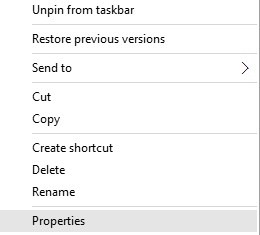
    open-properties
  2. Navigate to the Compatibility tab, and check Run this program in compatibility mode for and choose one of the previous versions of Windows, for example, Windows 7.
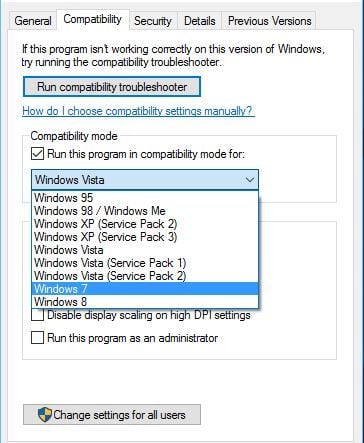
    compatibility-mode
  3. Click Apply and OK.
  4. Try running the game again.

To run compatibility troubleshooter, follow these steps:

  1. Find Mafia 2 shortcut and right-click it. Choose Properties and go to the Compatibility tab.
  2. Click Run compatibility troubleshooter button.
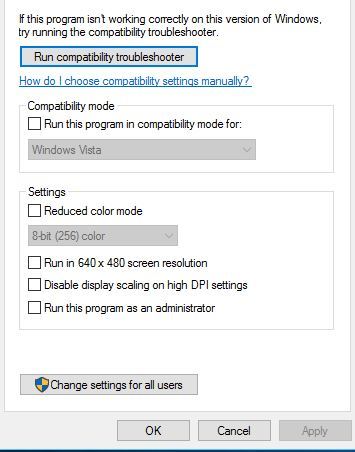
    run-compatibility-troubleshooter
  3. Wait for the process to finish.
  4. Click on Try recommended settings.
    try-recommended-settings
  5. Click Test the program button.

4. Remove overclock settings

Overclocking your hardware can improve your performance, but at the same time, it can cause certain games, such as Mafia 2 to crash.

If any of your hardware is overclocked, make sure to remove any existing clock settings and try to run the game again.

5. Disable Steam Overlay

  1. Start Steam and go to your game Library.
  2. Locate Mafia 2 and right-click it. Choose Properties.
    steam-properties
  3. In the General tab, make sure that Enable the Steam Overlay while in-game is not checked.
    enable-steam-overlay
  4. Save changes and start the game.

After disabling Steam Overlay you won’t be able to see any Steam notifications, such as messages and achievements, but crashing issues should be resolved.

If Steam Overlay doesn’t work in other games, check out this article to solve the issue easily.

6. Turn off anti-aliasing

In some cases, the cause for Mafia 2 crashes can be the anti-aliasing option.

So if Mafia 2 is crashing on your computer, make sure that you disable this option from the settings menu.

7. Add Mafia 2 to the list of exceptions

Mafia 2 can sometimes crash if it’s not added to the list of exclusions in your firewall or antivirus software.

To check if your firewall is blocking the game, follow the simple steps in this guide.

Additionally, before launching Mafia 2, make sure that the following folders are added to the list of exceptions in your antivirus software:

  • C:Program Files (x86)Steamsteamappscommonmafia ii
  • C:UsersUsernameAppDataLocal2K GamesMafia II

At the same time, it is recommended to switch to a better antivirus that can provide real help for your game. Hence, take action and choose one from the best antivirus software for gaming PCs.

Users reported that Mafia 2 crashes can be caused by third-party applications running in the background.

Certain applications, such as Gigabyte OC Guru, Fraps, Mumble, and Xfire can cause Mafia 2 to crash, so if you’re using any of these applications, make sure to disable them before running Mafia 2.

8. Delete videoconfig.cfg

  1. Press Windows Key + R and enter %localappdata%. Press Enter or click OK.
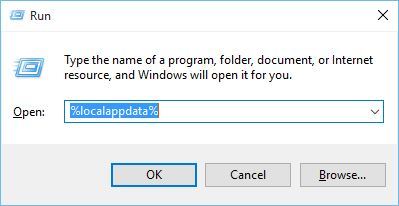
    localappdata-run
  2. When the AppdataLocal folder opens, navigate to 2K GamesMafia IISaves
  3. Locate videoconfig.cfg and delete it.
  4. After you’ve deleted videoconfig.cfg, run the game again.

We have to point out that you’ll need to repeat this solution every time before you start the game if the problem returns.

9. Run the game as administrator

  1. Find Mafia 2 shortcut or .exe file and right-click it.
  2. Choose Run as administrator from the menu.
    run-as-administrator

Few users reported that their problem was resolved after launching the game like this, so make sure that you try that as well.

10. Verify the game cache

  1. Start Steam and go to your game Library.
  2. Locate Mafia 2, right-click it, and choose Properties.
  3. Navigate to Local Files tab and click Verify Integrity of Game Cache button.
    local-steam
  4. Wait for the process to complete.
  5. When the verification process ends, try running the game again.

11. Reinstall the game

If Mafia 2 won’t start one of the last options is to completely uninstall the game and install it again.

In addition to reinstalling the game, it’s also advised to update your graphics card drivers to the latest version.

12. Change videoconfig values

  1. Go to this location C:\Users\\UserName\AppData\Local\2K Games\Mafia II\Saves
  2. Locate the videoconfig file and open it with Notepad.
  3. Change all #1 to #0. For example, when you open videoconfig you might see something like this (keep in mind that you’ll probably get different values):
    0 0 1680 1051 1 0 0 0
  4. Now just change #1 to #0 like this:
    0 0 0680 0050 0 0 0 0
  5. Save changes and start the game again.

Fix Mafia 2 black screen

1. Edit videoconfig file

  1. Navigate to this location: C:\Users\UserName\AppData\Local\2K Games\Mafia II\Saveschange videoconfig resolution mafia 2
  2. Here, open videoconfig with Notepad.
  3. Change the video resolution setting to your native desktop resolution, save changes, and try running the game again.

If you want to create custom resolutions, this guide will certainly help you do it with ease.

2. Connect your PC to another monitor or TV

Sometimes you’ll experience black screen issues while starting Mafia 2 if your display doesn’t support the set resolution, so you’ll have to connect your PC to a different monitor or a TV.

After you’ve connected a different monitor or a TV, start Mafia 2, change the game resolution to 1024×768, or something similar.

Save changes and turn off your computer. Connect your old monitor once again, and try to start the game.

Fix Mafia 2 low FPS

1. Delete certain files from the Cloth folder

  1. Open Mafia 2 installation directory.
  2. Locate Edit/APEX/CLOTH folder.
  3. Create a backup of the Cloth folder on your Desktop.
  4. Open the CLOTH folder and delete all files except those starting with VITO. In addition, don’t delete m2skeleton and ClothRemapTable files.

After you’ve deleted these files, the dynamic clothing effect will only work on your character thus increasing your fps.

2. Delete the Effects directory

  1. Open Mafia 2 installation directory.
  2. Go to Edit/APEX/Effects directory.
  3. Make a copy of the Effects folder and save it on your Desktop.
  4. Delete Effects folder from Edit/APEX directory.

By removing this folder you’ll disable most of the particle effects in the game and drastically improve performance.

Fix Mafia 2 freezing

1. Run the game in windowed mode

If Mafia 2 is freezing on your PC, try to run the game in windowed mode. To do that just run the game, go to the options menu, open graphics settings, and set the game to run in windowed mode.

2. Reinstall the game

Also, it’s well-advised to reinstall the game if the occurring issues keep reappearing, just like the freezing.

Reinstalling the game includes clearing all the remaining files and registry inputs, so it’s advised to run CCleaner. This ensures a complete uninstall process so that unnecessary files from the removed app don’t interfere later with the fresh install.

⇒ Get CCleaner

Here’s how to reinstall Mafia 2 in a few simple steps:

  1. Open Steam.
  2. Choose Library.
  3. Locate Mafia 2, right-click on it and choose Uninstall.
  4. Open CCleaner and run the PC cleaning feature, then the registry cleaning one to remove the remaining files and registry entries.
  5. Open Steam again and navigate to Library.
  6. Download Mafia 2 and install it again.

3. Meet the system requirements

Another thing worth paying attention to is the imposed system requirements. This game is quite demanding, and, in order for it to work, you’ll need to have a capable configuration in order to run it. Here are the minimum and recommended system requirements:

Minimum Requirements

  • CPU: Pentium D 3GHz or AMD Athlon 64 X2 3600+ (Dual core) or higher
  • RAM: 1.5 GB
  • OS: Microsoft Windows XP (SP2 or later) / Windows Vista / Windows 7
  • VIDEO CARD: NVIDIA GeForce 8600 / ATI Radeon HD 2600 Pro or better
  • SOUND CARD: Yes
  • FREE DISK SPACE: 8 GB

Recommended configuration

  • CPU SPEED: 2.4 GHz Quad Core processor
  • RAM: 2 GB
  • OS: Microsoft Windows XP (SP2 or later) / Windows Vista / Windows 7
  • VIDEO CARD: NVIDIA GeForce 9800 GTX / ATI Radeon HD 3870 or better
  • SOUND CARD: Yes
  • FREE DISK SPACE: 10 GB

Fix Mafia 2 graphics problem

1. Update 3D Vision drivers

Sometimes you might get unreadable text and black textures if you’re playing Mafia 2 using 3D vision. To fix this issue we strongly advise you to download and install the latest 3D vision drivers.

You can safely use Outbyte Driver Updater, the same tool we recommended in this article’s very first solution.

2. Check your graphics card temperature

In certain cases, you might see black lines while playing Mafia 2, and if that’s the case, you should check your graphics card temperature.

If your graphics card is overheating, you might want to install additional cooling or switch your graphics card.

These are some of the most common issues that many PC gamers had with Mafia 2. If you’re having any of these issues, feel free to try any of our solutions.

If you have any more questions, drop them in the comments sections below.

Duplicate Screen not Working: 7 Solutions to Force it

PCs can be used for presentations using the projector duplicate feature. However, the option is faulty sometimes. For example, a few Windows 10 users have complained that the duplicated screen is not working during projection.

Sometimes, the HDMI connection might be the problem because the built-in graphics interfere with your system.

That being said, please find below a list of causes and solutions that should help you restore the projector duplicate feature on your device.

Why is the duplicate display not working?

From complaints and observations, we realize that any of the following factors could be responsible for the duplicate screen not working:

  • Outdated display driver – This will be the primary factor for most users. If the driver is outdated, they may run into this problem.
  • Incorrect display settings – Something as minor as a misconfigured setting could also trigger the problem.
  • Faulty projector hardware – Chances are that the problem is a sign of an underlying fault on the projector itself. In most cases, you may need a replacement of one of the parts.
  • Faulty or loose connections – If you have cables connecting your devices, chances are that they may be loose or bad. Either situation may trigger the problem.

What can I do if the duplicate screen is not working?

Before going through the suggested solutions, we recommend checking your cables and ensuring they are properly connected at all ends. The aim is to eliminate the problem if loose cables and connections cause it.

Also, as an alternative to save you troubleshooting, use a cable splitter. A splitter cable has two ends. One end goes to your monitor, while the other goes to your projector, TV, or second monitor.

After connecting both displays, the same signal will be sent to both simultaneously, so you’ll duplicate your display automatically.

If you want a reliable and cost-efficient solution, we recommend you try the TB VGA Splitter Cable Converter. The tool sends an identical VGA signal to 2 separate VGA displays, allowing users to view the same image on two monitors.

  1. Update your drivers
  2. Make sure that both monitors are using the same resolution
  3. Disable the built-in graphics
  4. Use Hardware and Device Troubleshooter
  5. Perform an SFC and DISM scan
  6. Install the latest updates
  7. Perform a System Restore

1. Update your drivers

  1. Press Windows + R, type devmgmt.msc, and hit Enter.
    duplicate screen not working
  2. Expand Display adapters, right-click on your graphics card, and hit Update driver.
    duplicate screen not working
  3. Click Search automatically for drivers.
    duplicate screen not working

Also, users mentioned that the DisplayLink port replicator driver was outdated, which caused this issue to appear. To fix this problem, you need to ensure that all your drivers are up to date. Visit your laptop manufacturer’s website and download the latest drivers for your model.

If downloading drivers manually seems tedious or you don’t know how to do it properly, you can always use tools such as Outbyte Driver Updater.

Using this tool, you’ll update all your drivers automatically with just a few clicks.

Besides, you’ll get recommendations for only the compatible drivers for your device. Needless to say that this is the safest and quickest solution to fulfill this job.

Outbyte Driver Updater

Try Outbyte Driver Updater and find the newest versions for all your outdated device drivers.
Free Trial Download now

2. Make sure that both monitors are using the exact resolution

  1. Right-click your desktop and select Display settings.
    duplicate screen not working
  2. Click the dropdown under Change the size of text, apps, and other items, and select the recommended resolution. Do the same for the Resolution option.
  3. Repeat the process for the second monitor and make sure the resolutions are the same.

If you can’t use the duplicate projector feature on your PC, perhaps the problem is your display resolution.

Several users suggest that both monitors must use the exact resolution to duplicate your screen.

Once both monitors are set to use the same resolution, the issue should be resolved, and you can duplicate your screen without problems.

3. Disable the built-in graphics

  1. Press Windows Key + X to open Win + X menu. Choose Device Manager from the list.
    projector duplicate device manager
  2. Locate your built-in graphics card, right-click it, and choose Disable device from the menu.
    projector duplicate not working disable device
  3. When the confirmation dialog appears, click Yes.

Check if the duplicate projector feature works properly now.

Many laptops and some PCs have built-in graphics available. However, according to users, Intel integrated graphics can sometimes cause problems with the duplicate projector feature on your PC and prevent you from using it.

4. Use Hardware and Device Troubleshooter

  1. Press Windows Key + I to open the Settings app.
  2. Head over to the Update & Security section.
    duplicate screen not working
  3. Choose Troubleshoot from the menu on the left, then in the right pane, select Hardware and Devices, and click Run the troubleshooter.
    projector duplicate not working troubleshooter

Once the troubleshooting process is finished, check if the problem is still there.

5. Perform an SFC and DISM scan

  1. Start Command Prompt (Admin) with administrative privileges by pressing Windows Key + X.
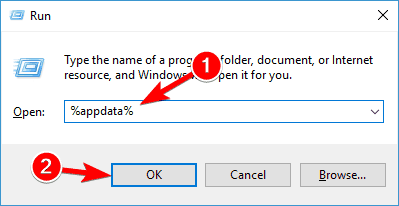
    duplicate screen not working
  2. When Command Prompt opens, type the script below and hit Enter.
    sfc /scannow
    sfc projector duplicate
  3. The SFC scan will now start. The process takes 15-20 minutes, so don’t interrupt it.

Once the SFC scan is completed, check for the problem.

We also have a guide on what to do if the sfc/scannow stops out of the blue.

If the duplicate projector is still unusable, try running a DISM scan. To do that, follow these steps:

  1. Launch Command Prompt as an administrator.
  2. Enter the following command and press Enter: DISM /Online /Cleanup-Image /RestoreHealth
    DISM project duplicate not working
  3. DISM scan will now start. The scan usually takes about 20 minutes or more, so don’t interrupt it.

Once the DISM scan is finished, check for the problem. If you couldn’t run an SFC scan earlier, try to run it now and check if that solves your problem.

This solution is helpful if file corruption is causing the error. After all, the OS installation often gets corrupted for various reasons.

6. Install the latest updates

  1. Press Windows + I to open the Settings app.
  2. Head over to the Update & Security section.duplicate screen not working
  3. In the right pane, click the Check for updates button.
    updates projector duplicate not working

Windows will now check for available updates and download them automatically in the background.

After downloading the updates, they will be installed as soon as you restart your PC. Once your system is updated, check if the problem is still there.

7. Perform a System Restore

  1. Press Windows Key + R, type rstrui, and hit Enter.
    duplicate screen not working
  2. Click Next.
  3. Choose a restore point and hit Next.
    duplicate screen not working
  4. Follow the instructions on the screen to complete the process.

Remember that a System Restore will work only if this problem started appearing recently.

The projector duplicate is a useful feature, but sometimes issues like the duplicate screen not working can appear. However, we hope you’ll solve the problem using one of our solutions.

We’d like to hear which solution helped, so feel free to use the comments below.

Here’s how to fix Surface Book 2 CPU throttle issues for good

Surface Book 2 is undoubtedly one of the best hybrid tablet devices on the market, but many users reported Surface Book 2 CPU throttle issues. This issue will negatively impact your performance, but there’s a way to fix it.

How can I fix Surface Book 2 gaming throttling?

  1. Run the Surface Diagnostic Toolkit
  2. Run the Windows Memory Diagnostic tool
  3. Run the error checking tool
  4. Adjust power mode to a less CPU intensive setting
  5. Start Surface Book 2 in Safe Mode

Also, before getting into the remedial measures, the one thing that you will do good to know is that the one prime reason that causes CPU throttling in the Surface Book 2 is the increase in external temperature conditions.

If you’re using Surface Book 2 in a high-temperature environment, the built-in software will initiate CPU throttling to prevent the device from getting too hot. In that case, you might also consider moving the Surface Book 2  to a colder environment.

1. Run the Surface Diagnostic Toolkit

If you’re having Surface Book 2 CPU throttle issues, download and run the Surface Diagnostic Toolkit. It’s a specialized software designed to identify and remedy most issues with Surface devices including the Surface Book 2.

According to Microsoft, it can take just about 15 mins for the tool to identify and repair most problems though it can also take longer depending on the complexity of the problem at hand. The repair time also depends on Internet speed. The toolkit will also download and install all the latest updates that might be relevant to your device.

2. Run the Windows Memory Diagnostic tool

Issues with the memory might also be another reason for your Surface Book 2 to get heated up. Running the Windows Memory Diagnostic tool will help identify and fix such issues to ensure the memory on your Surface Book 2 is working just fine. Here are the steps.

  1. Type memory in the Cortana search box.
  2. From the search results shown, select Windows Memory Diagnostic.how to fix surface book cpu throttling
  3. In the Windows Memory Diagnostic, select Restart now and check for problems (recommended).how to fix surface book 2 cpu throttle issues
  4. Your Surface Book 2 will restart and initiate the test process.
  5. The test will run in the background and will display the status on the display.
  6. Windows will restart automatically after the test is over.

3. Run the error checking tool

Errors in the hard drive can be another possible cause for your Surface Book 2 to get heated up. Run the Error Checking Tool to ensure all errors, if any, on your device hard disk is isolated and fixed.

  1. Open File Explorer.
  2. Select This PC from the options on the left.
  3. Open Local Disk (C:).
  4. Right-click on Windows and select Properties.
  5. In the Properties window, select the Tools tab.
  6. Under Error checking, select Check for the process to begin.surface book 2 fix cpu throttle

Alternatively, we recommend using a third-party tool that can scan your PC for errors and repair them automatically.

This type of program can increase the performance of your CPU and keep it in a stable condition, as it has features specifically designed to fix such errors and optimize your OS by repairing or replacing damaged files.

4. Adjust power mode to a less CPU intensive setting

Keeping the slider in the Best performance setting will naturally be more taxing for the CPU and lead to Surface Book 2 CPU throttle issues. To prevent this, switch to a different power plan.

To adjust the power setting, simply click on the battery icon and slide the switch away from the rightmost position. Ideally, place it on the Recommended position for best performance and battery life.

5. Start Surface Book 2 in Safe Mode

Starting your Surface Book 2 in Safe Mode means it’s going to run only the most basic set files and drivers. This can sometimes help you find the cause for CPU throttling. If your Surface Book 2 isn’t getting overheated in Safe Mode, you know that basic files and drivers are not at fault.

You can then proceed with checking other files and applications and see if those are causing overheating issues.

Here is how to start Surface Book 2 in Safe Mode.

  1. Type msconfig in the Cortana search box.
  2. The search will yield System Configuration. Right-click on System Configuration and select Run as administrator.
  3. In the System Configuration window, select the Boot tab.
  4. Under Boot options, check the Safe Boot check box.
  5. Click on OK.
  6. Your PC will restart in Safe Mode.

So, there you have it, these are just a couple of solutions that can help with Surface Book 2 CPU throttle.