How To Install Ultimate Crosshair OPK In Overwolf

Crosshair use in online games is a debatable topic that may go on for long. However, publishing platforms like Overwolf may not support third-party overlays, citing security reasons.

Now, if you want to know how to install Ultimate Crosshair in Overwolf, this article you need.

Several users have reported that they cannot install Ultimate Crosshair in Overwolf in the Reddit community.

any Crosshair Overlay in Overwolf works?
Ultimate Crosshair is dead? What now?

Since Overwolf has banned the use of Ultimate Crosshair, you cannot directly install it from the Overwolf App Store. In this article, we have listed two methods to install Ultimate-Crosshair in Overwolf manually.

Does Overwolf have a crosshair overlay?

Anything that creates an overlay on top of your game could be bannable if the company in question does not explicitly permit it.

So we’re going to go with no, it doesn’t have one anymore, but it can if you know exactly what tweaks you need to make.

Is crosshair overlay cheating?

Yes, it is mainly considered cheating in most gaming communities, so think about that and the work you’ve put into your account before getting banned.

How do I install Ultimate Crosshair OPK in Overwolf?

1. Manual installation in Overwolf

  1. First, download and install Overwolf.
  2. Download the latest release of Ultimate Crosshair as OPK (Origin Pack File) from Github.
  3. Launch Overwolf and sign in to your account.login overwolf
  4. Click on Settings (the gear/wrench icon on the dock).
  5. Open the Support tab and then Development Options.overwolf
  6. Now click on Install extension.
  7. Please navigate to the location where the OPK file is stored and select it.
  8. Click on Open and proceed with the installation.

2. Install Ultimate Crosshair as developer

If the manual installation did not work, try to install Ultimate Crosshair as a developer in Overwolf.
Make sure you have the latest version of Overwolf installed.

  1. Download the Ultimate Crosshair repo from Github to your computer.
  2. Extract the archive to get a folder.
  3. Launch Overwolf and log in.log in overwolf
  4. Go to Settings.
  5. Select the Support tab and then click on Development Options.support tab overwolf
  6. Click on unpacked Load extension.overwolf unpack
  7. Navigate to the location where the downloaded Github repo is stored. Select the repo.
  8. Make sure you select the folder and not the files inside.

That’s it. Following this article’s steps, you can install Ultimate Crosshair in Overwolf. Next, make sure you can use Crosshair while playing a game.

Anti-cheat systems incorporated by many game developers may flag it as a cheating tool, thus suspending your account. So, think twice before using any Overwolf custom crosshair.

Yes, an Overwolf crosshair overlay could be helpful, but it could also get you into a heap of trouble.

Do let us know your favorite Overwolf crosshair overlay for online games in the comments.

How To Unsync OneDrive from PC [4 Easy Ways]

OneDrive is one of the big three cloud storage services along with Google Drive and Dropbox.

Windows 10 includes a built-in OneDrive app that syncs your OD folders and files so you can open them from File Explorer.

However, there are a few ways to unsync OneDrive if you don’t need to keep the cloud storage harmonized with Windows 10 at all times.

How to unsync OneDrive in Windows 10?

1. Uninstall the OneDrive App from Control Panel

  1. Press the Win key + R keyboard shortcut to open Run.
  2. Enter appwiz.cpl in Run’s Open text box and click OK to open a Control Panel window.
  3. Now scroll down to the Microsoft OneDrive app. Alternatively, enter OneDrive in the search box as shown directly below.
  4. Select the OneDrive app, and click its Uninstall button.uninstall onedrive control panel
  5. Press the Yes button to provide further confirmation.

If you really don’t need the OneDrive app syncing at all, and prefer to open documents via browser, you can uninstall the app in some Windows 10 versions.

Since the Windows 10 Creators Update rolled out, you can uninstall the OneDrive app via the Programs and Features tab on the updated platform. You can now uninstall the OD app as shown above.

2. Uninstall OneDrive with the CMD

  1. Press the Cortana button, and enter cmd search box.
  2. Then right-click Command Prompt and select Run as administrator.run cmd as admin
  3. Enter taskkill /f /im OneDrive.exe in the Prompt and press Return to close the OneDrive app.
  4. To uninstall OneDrive on a 64-bit Windows platform, enter the command shown in the snapshot directly below and press Return.uninstall onedrive with cmd
  5. To remove OneDrive from a 32-bit system, input the command shown below and press Enter.
uninstall onedrive with cmd

You can’t uninstall OneDrive as outlined above in earlier Windows 10 builds. Nevertheless, you can still uninstall the OneDrive app in Windows 10 versions that predate the Creators update.

Instead, you can uninstall the cloud storage app with the Command Prompt.

    3. How to unsync OneDrive with GPE

    There are a few ways that you can unsync OneDrive without uninstalling the app. Windows 10 Pro and Enterprise include the Local Group Policy Editor with which you can disable OD syncing instead.

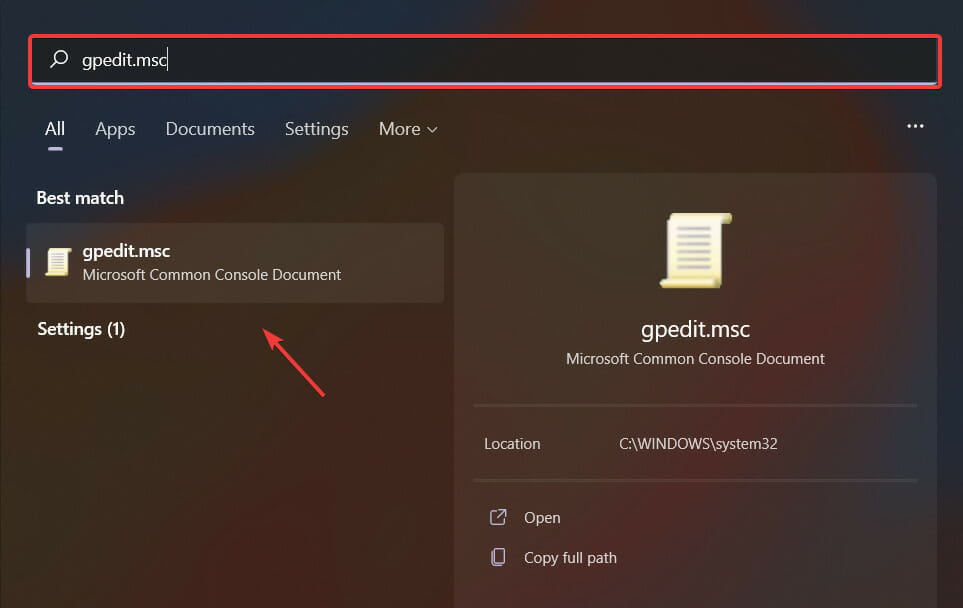
  1. 1. Enter gpedit.msc in the Windows search box, and select the first result to open the document.

    open gpeditmsc
  2. 2. Select Computer Configuration and Administrative Templates from the left pane.

  3. 3. Press twice on the Windows Components and OneDrive folders.

  4. 4. Then double-click on the Prevent the usage of OneDrive for file storage setting on the right of the Group Policy Editor window.

    unsync onedrive windows 10 gpedit
  5. 5. Select the Enabled radio button.

  6. 6. Then press the OK button.

  7. 7. To switch the cloud storage app back on when required, select the Not Configured radio button for the Prevent the usage of OneDrive for file storage setting.

4. How to unsync OneDrive using the Unlink account option

  1. Right-click the OneDrive notification area icon and select Settings.
  2. Then select the Account tab shown in the snapshot directly below.onedrive account settings
  3. Click Unlink this PC to open the dialog box window directly below.
  4. Press the Unlink account button to unsync your OD files.unlink account on this PC onedrive
  5. You can also uncheck the Start OneDrive automatically when I log in to Windows check box on the Settings tab.
  6. Press the OK button on the Microsoft OneDrive window.

If you don’t have the Group Policy Editor on Windows, you can still unsync the OD app by selecting its Unlink account option as shown above.

Bonus: How to unsync OneDrive only for specific folders

You can also choose to unsync specific files and folders, which is much more flexible than unsyncing all your OneDrive storage in Windows.

Then you can free up some hard drive space by unsyncing selected files and folders, but keep some of OneDrive synced with Windows 10.

This is how you can selectively unsync OD files and folders.

  1. Right-click the OneDrive system tray icon and select Settings.
  2. Select the Choose folders tab, which includes a Choose folders button.Folders you choose will be available on this PC onedrive
  3. Press the Choose folders button to open a list of your OneDrive folders and files.
  4. Uncheck the Sync all files and folders in my OneDrive option
  5. Then you can uncheck the check boxes beside the folders and files you don’t need to sync.
  6. Press the OK buttons to close the OneDrive windows when you’ve deselected the file and folder check boxes. Your OneDrive File Explorer folder will no longer include the unsynced folders and files.

So, you can unsync OneDrive by uninstalling the app, selecting the Unlink account option, or pressing the Choose folders button.

Unsyncing OneDrive files and folders will free up hard drive space for new software. Thus, it’s worth unsyncing documents and images that you seldom open.

5 Best Browsers That Support Kerberos Authentication

There are several browsers in the market that users download and install on their devices. However, the difference between browsers is the features they have to offer their users. Some browsers target specific users like developers, which means they contain tools that are useful for developers.

Also, there are browsers for regular users for normal daily activities. Hence, software like Kerberos authentication requires some browser features before assigning them the Kerberos browser support.

The Kerberos authentication service is a protocol that authenticates requests between a trusted host and an untrusted network. It securely validates the transmissions between a client that is the host across a server that is not reliable, e.g., the internet.

However, Kerberos is software that protects your requests across untrusted networks from threats and hijacking. Hence, authentication services like Kerberos will secure your requests across networks, giving you safe access.

Nevertheless, browsers can use Kerberos authentication to secure your browsing activities. However, not all browsers are reliable for their services.

How does Kerberos authentication work in the browser?

Kerberos Authentication is an inbuilt security protocol for Microsoft Windows. However, it can also use in browsers. Hence, you need to configure your browser to use it. It means you’ll give your browser an active directory integration.

Kerberos configuration differs in different browsers like Chrome, Firefox, and Microsoft Edge. It authenticates service requests between the hosts and clients through an untrusted network.

Do all browsers support Kerberos authentication?

However, what determines whether the service supports your browser or not is how many features your browser can offer. Features like security and privacy are part of the requirements that make a browser good for Kerberos.

Nonetheless, Kerberos supports almost every browser. However, not all browsers can function properly with it. As we go further into this article, we’ll go through our list of the best browsers that support Kerberos authentication.

What are the best browsers that support Kerberos?

Opera – Trusted for security

Opera is one of the best and oldest browsers in the market. It has been through many improvements over the years. However, Opera comes with an inbuilt integrated messenger that allows users to use their social media platforms to reach out to their friends.

Also, it has the best internet security system that protects users browsing information from malware, hijackers, and viruses.

However, Opera is a browser that Kerberos supports because of its strict security. More so, note that Kerberos only supports the latest version of the Opera browser. Hence, using an outdated browser can cause difficulties with Kerberos.

Opera

Encrypt your browsing data with increased security of Kerberos and an effective VPN.

Google Chrome – Best for browsing speed

One of the best browsers that support Kerberos is Google Chrome. It runs on the Chromium code, and it comes with many features. However, Chrome uses advanced technology to secure browser information sent from different servers, which is a good feature for Kerberos.

Furthermore, Google Chrome has an inbuilt Ad Blocker that prevents ads from popping up in the middle of your browsing experience. It allows you to focus on what you are doing at the moment. Also, it loads websites with a fast speed and smoothly.

Another feature of the Chrome browser is a high-security system that protects user browsing information from external threats and intruders. Also, it offers a good tab manager that allows you to arrange and organize your tabs. Moreover, Chrome has a repository where users can get extensions to improve their browsing activities.

⇒ Get Google Chrome

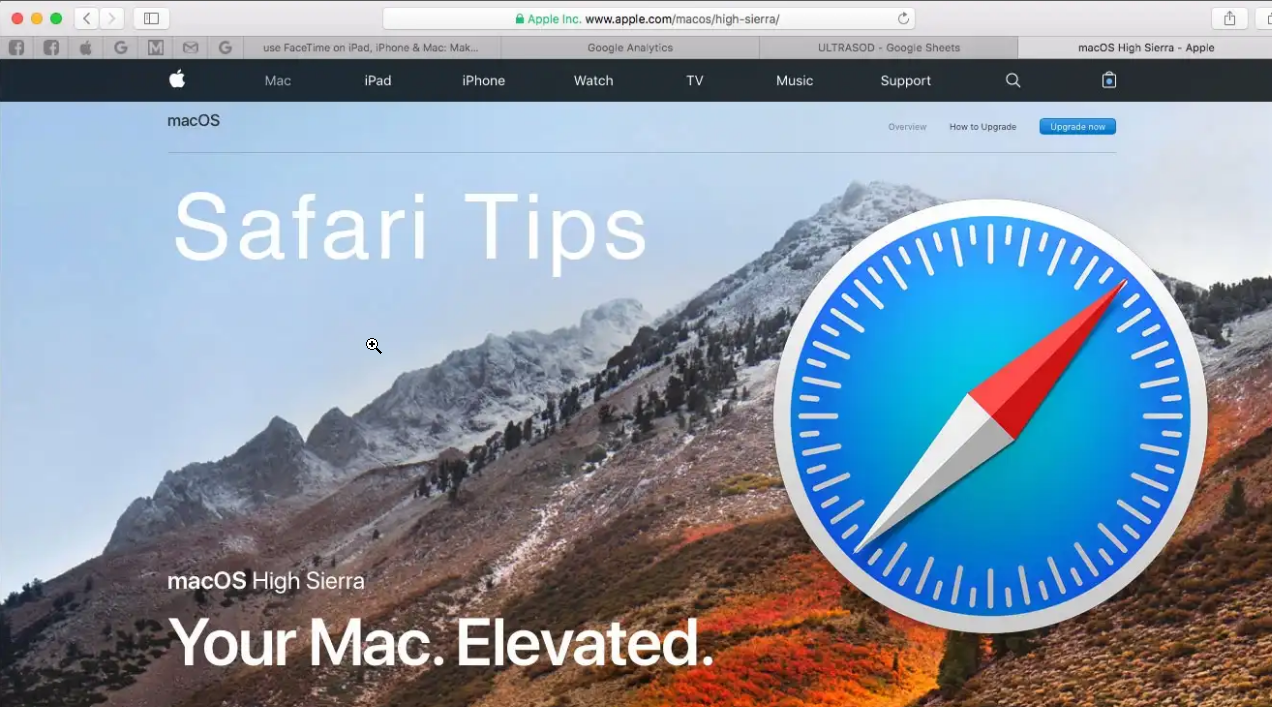
Safari – Ideal for Mac users

Safari is a fast browser that helps you browse the internet swiftly and smoothly without interruptions. It is the default browser for Apple devices. Safari has a high-standard browsing system that allows its users to enjoy the latest features for browsers. It uses an advanced security system, one of the browsers’ requirements that support Kerberos.

Moreover, the Safari browser has a good speed that helps you to load websites quickly and smoothly. Unlike other browsers, Safari has the best syncing system that helps you safely access your browsing data across several devices.

Furthermore, users can download and install Safari across different operating systems e.g, macOS, Linux, and Windows.

⇒ Get Safari

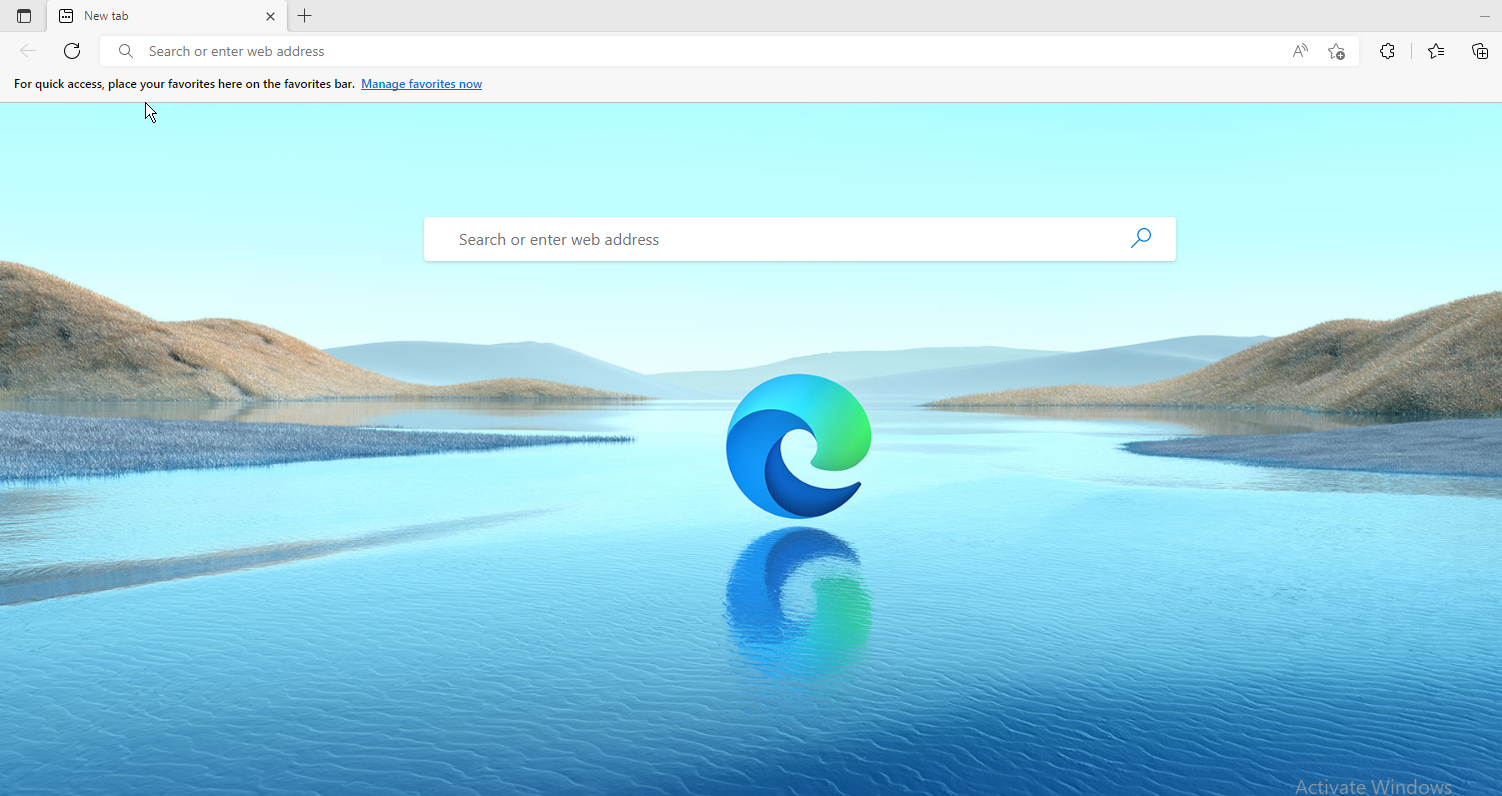
Microsoft Edge – Great for Windows users

Edge is a browser by Microsoft. It is one of the best browsers to use with Kerberos. However, Microsoft Edge has many features that make it a perfect browser that supports Kerberos.

Some notable features of Microsoft Edge are easy navigation and a customizable user interface that helps you enjoy your browsing sessions.

Also, it has an inbuilt Ad Blocker that prevents ad pop-ups and an inbuilt VPN service that helps you surf the internet without geolocation difficulties.

⇒ Get Microsoft Edge

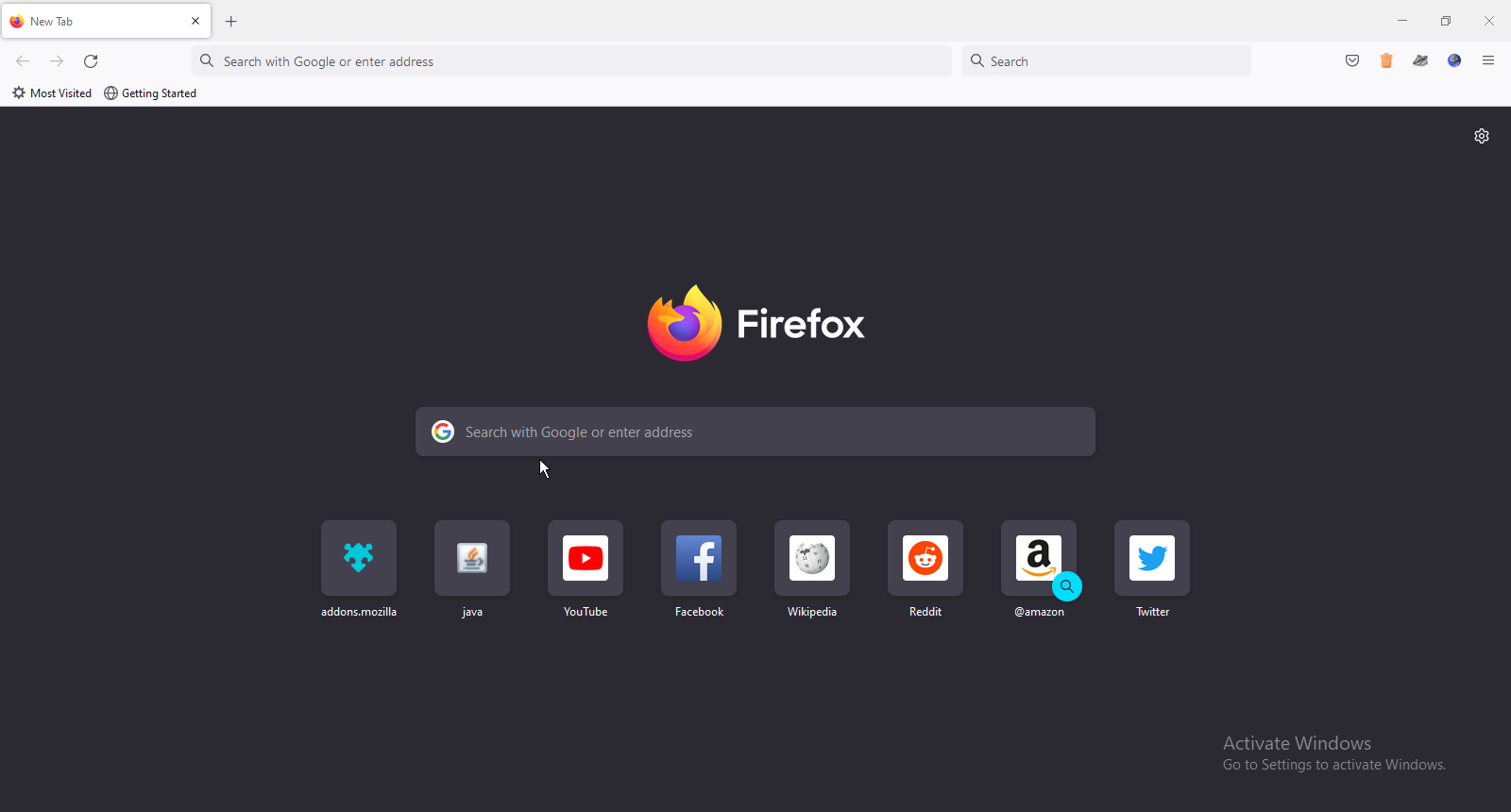
Firefox – Packed with great features

Firefox is a fast and reliable browser that houses several features. It has a lot of extensions that users can install on their browsers for a better internet experience. Hence, it is one of the browsers that support Kerberos.

Furthermore, it has a customizable feature that allows users to configure their display. It runs on the Chromium code, which helps it to perform faster.

However, Kerberos supports the IE mode of Firefox and the latest versions.

⇒ Get Firefox

How do I enable Kerberos in my browser?

  1. Press the Windows key, search for the Control panel, and launch it.
  2. Select Internet Options, and click on Advanced under the Security tab.
  3. Select the Enable Integrated Windows Authentication option.
  4. Click on Local Intranet, then select Custom level.
  5. Select Automatic logon only in Intranet zone under the User Authentication/Logon tab, then click OK.
  6. Click on Sites, then tick all the boxes.
  7. Click Advanced, add the BMC Helix SSO service website to the local zone, then click Add.

In conclusion, users can read through the five best browsers that support XML [view and edit XML online]. However, users should update their browsers to the latest version to prevent the browser not sending Kerberos token errors.

Also, users can read through our articles about the 20 best browse with the highest support for HTML.

Leave your suggestions and questions in the comments section below. We’d like to hear from you.

7 Ways to Fix There Was a Problem Playing This Video Error

One of the most appreciated things in Google Drive is its video-playing feature. Firstly, it supports numerous video file types: MPEG4, 3GPP, MOV files,  AVI, WMV, and more.

Secondly, it’s so easy to use: you upload your videos and then double-click to play. There are other advantages, like allowing you to upload videos of any resolution.

However, various issues crop up sometimes when attempting to watch uploaded videos. It’s particularly annoying to receive the message Oops there was a problem playing this video when attempting to access a video you just uploaded.

Well, what is most interesting is that it’s an error caused by sometimes minor problems like a user signing into Google from a different user account.

In such cases, the error is quite simple to troubleshoot. But before going deeper into how to solve this error, let’s look at what triggers this message.

Why does it say this video Cannot be played?

We already mentioned this fault because you could have signed in to Google Drive using multiple Google accounts.

Here are more of its other possible causes:

  • Overloaded Cache/cookies – Caused by a high amount of content in your browser’s cache.
  • Browser Extensions – Caused by problematic add-ons installed in your browser.
  • Malware: Caused by infection with a virus, worm, or even a Trojan horse.
  • Damaged Browser – Caused by corrupted software installation files.
  • Presence of Unwanted Third Party Programs – Caused by Potentially Unwanted Programs (PUP) installed apps that compromise your security/privacy.
  • Incompatible Video – Caused by Google Drive video format incompatibilities.

This being said, let’s see how you can fix the Couldn’t preview file there was a problem playing this video error in Windows 10, and start using Google Drive flawlessly right away!

Quick Tip:

If you need to have improved video results and uninterrupted game time, then the best solution is to use a dedicated game browser.

Opera GX has been built with a variety of excellent features in order to create a better user experience. You can choose from the browser a range of topics, wallpapers, and colors.

Opera GX

Resolve web video playing issues using this optimized browser for streaming and flawless navigation.

How do you fix there was a problem playing this video?

Before we head to the slightly complex solutions, here are a few quick ones you can try:

  • Make sure your connection is working fine, and the Internet speed is high.
  • Open the video in a new tab or window.
  • Restart the computer and the modem/router. Also, unplug the power cable for the modem/router, and turn it back on after 1-2 minutes.
  • Switch to Incognito or Private browsing mode. For Chrome, Edge, and Opera, press Ctrl + Shift + N, while for Firefox, the keyboard shortcut is Ctrl + Shift + P.

If none work, move to the fixes provided next.

1. Scan your PC for malware

Don’t also forget to scan your PC for viruses and malware. Use an updated and powerful antimalware that runs deep scans and doesn’t miss a corrupted video file.

A video file might get infected with viruses or spyware, so the Google Drive video player is unable to play it. We advise you to use 
antimalware software entirely compatible with your PC.

Antimalware software is highly rated in the cyber-security industry and provides your PC full protection. Regarding security, these solutions are defined by their high levels of malware detection, greater speed, and increased performance.

A professional malware remover searches your PC for viruses, worms, trojans, rootkits, and other malicious software and removes them from your device completely.

As a suggestion, you should consider ESET HOME Security Essential as a lightweight antivirus that detects any malware or ransomware attacks and prevents phishing threats from stealing your private data.

2. Check the video format

Not every video format load on all devices. You should thus verify that your video isn’t in one of the unsupported formats.

The supported types include .WEBM, .MPEG4, .MOV, .AVI, .3GPP, .MPEG, .MPEGPS, .FLV, .WMV, and .OGG.

You may have to convert your incompatible video file to one of the types accepted by Google Drive.

Additionally, Google Drive allows a maximum playback resolution of 1920 x 1080, so any video exceeding this won’t play.

If the video you’re trying to play isn’t the one listed above, you can use an awesome tool called WinX HD Video Converter Deluxe to convert your video to any of these formats.

It has a modern UI, it’s easy to use, and the results will be professional after utilizing it.

WinX HD Video Converter Deluxe can help you download videos, reduce their size, cut, and merge clips, and even easily convert 4K UHD videos.

WinX HD Video Converter Deluxe

Use the best converter tool to transform any video into an accessible format with just a few clicks!
Free trial Visit website

3. Check your Google Accounts settings

  1. Visit Google.com and click on your profile pic.google-profile there was a problem playing this video
  2. Click each unwanted account under your current one, then choose Remove.

An alternative solution to multiple accounts

  1. Right-click on the video, then select the Get shareable link option.get-shareable there was a problem playing this video
  2. Now Open a new browser tab.
  3. Paste the link then press Enter.

4. Clear browser cache and cookies

Google Chrome

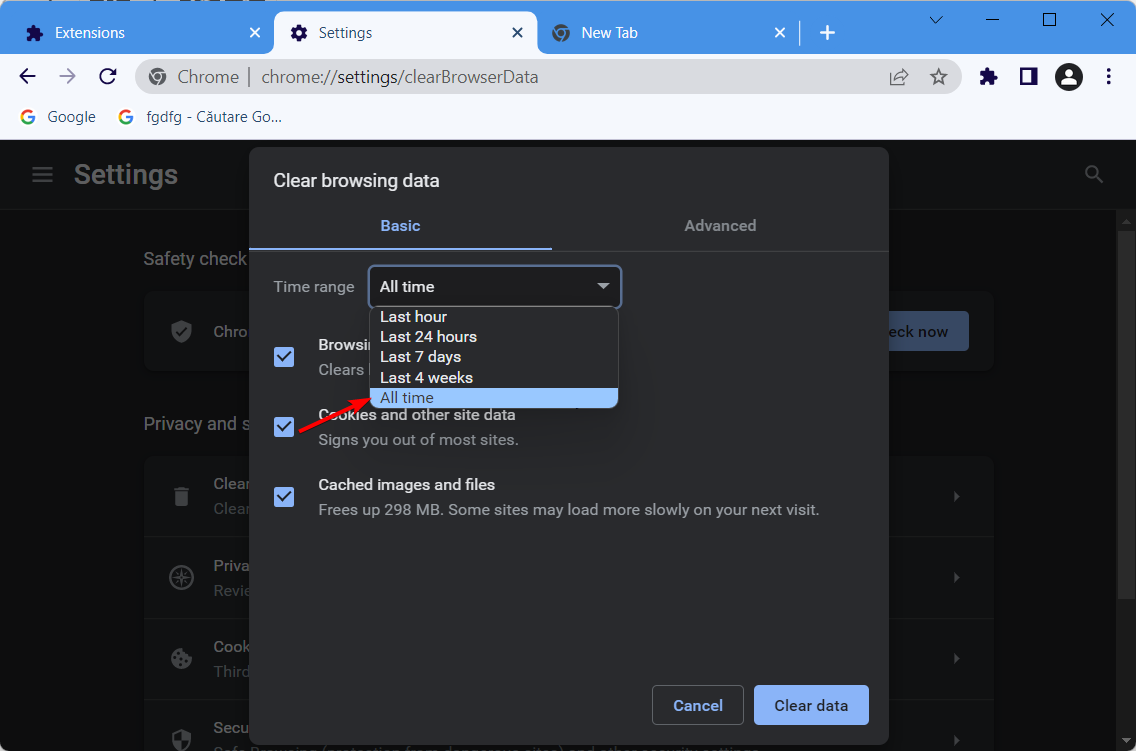
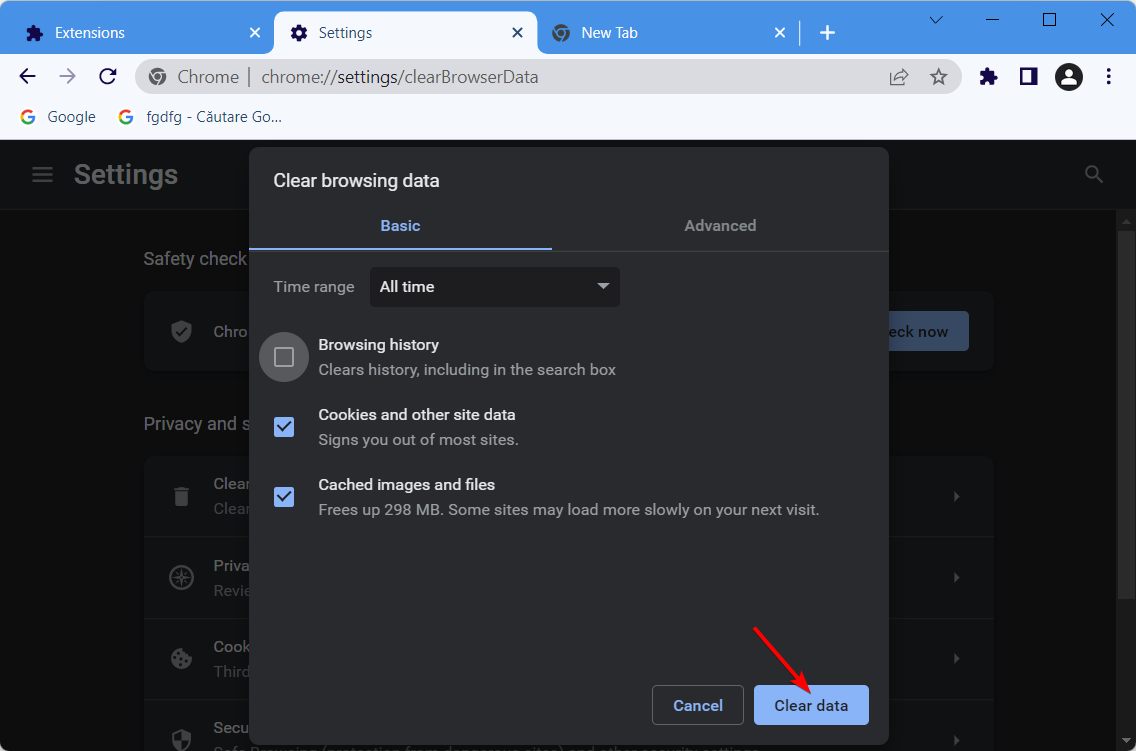
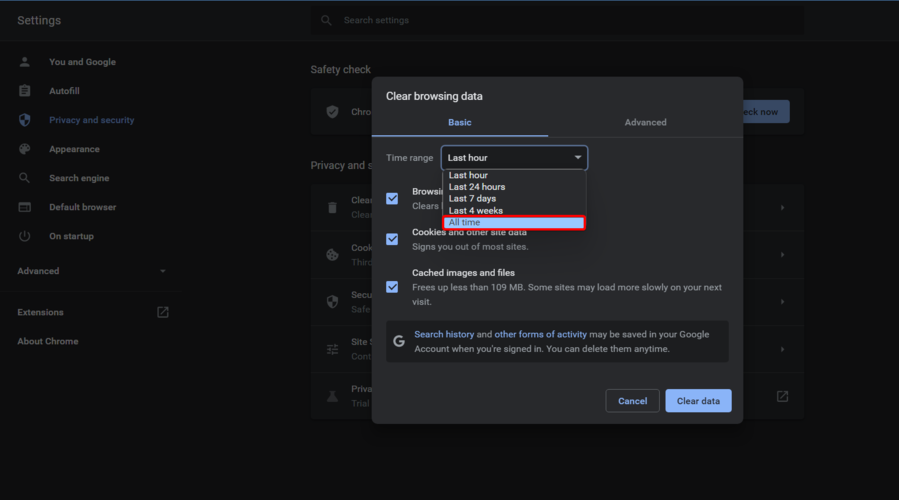
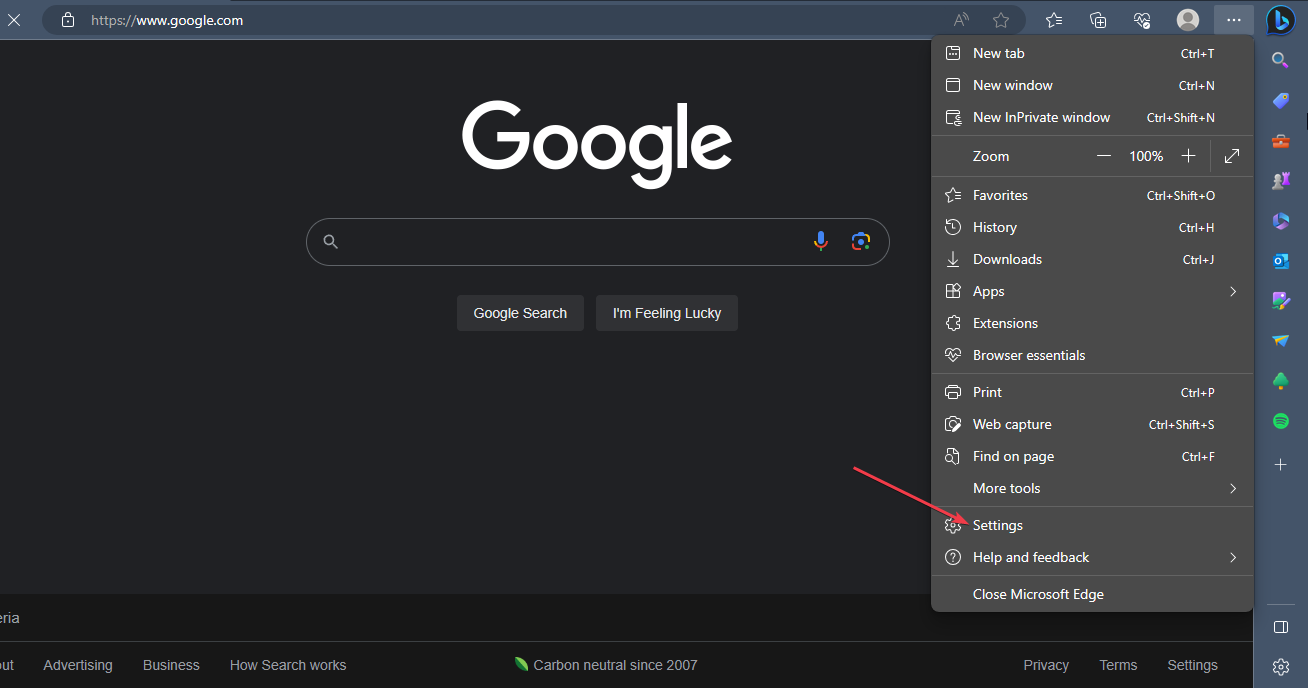
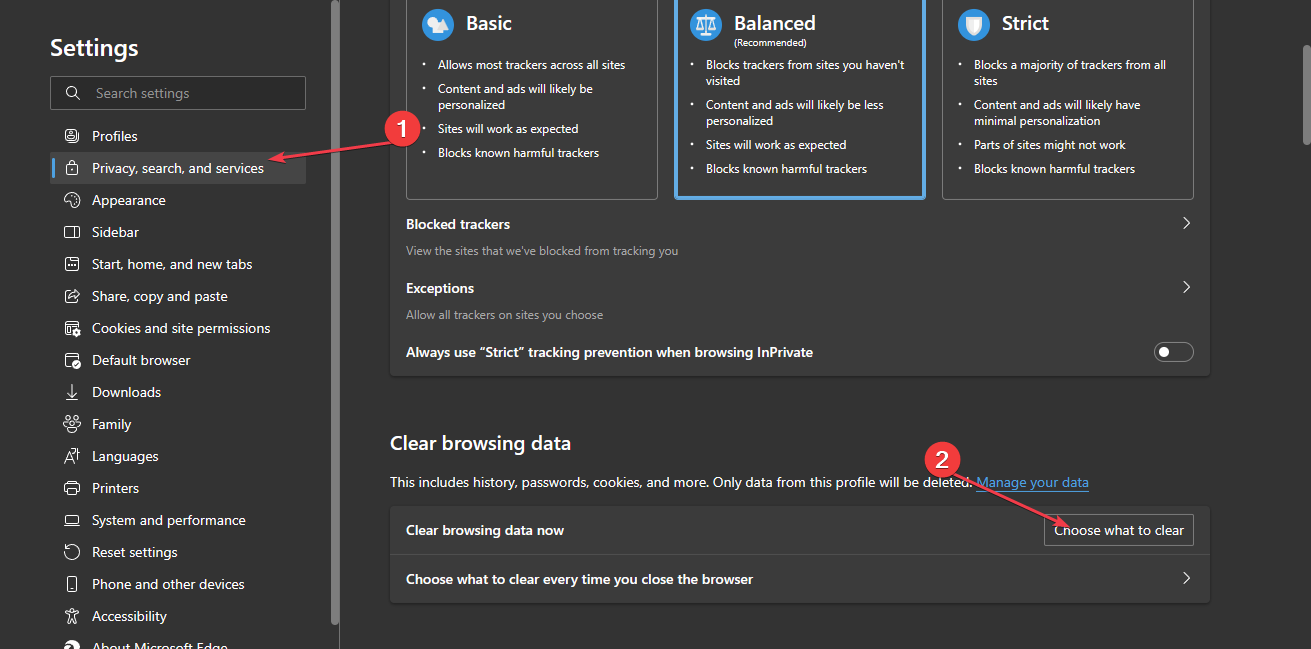
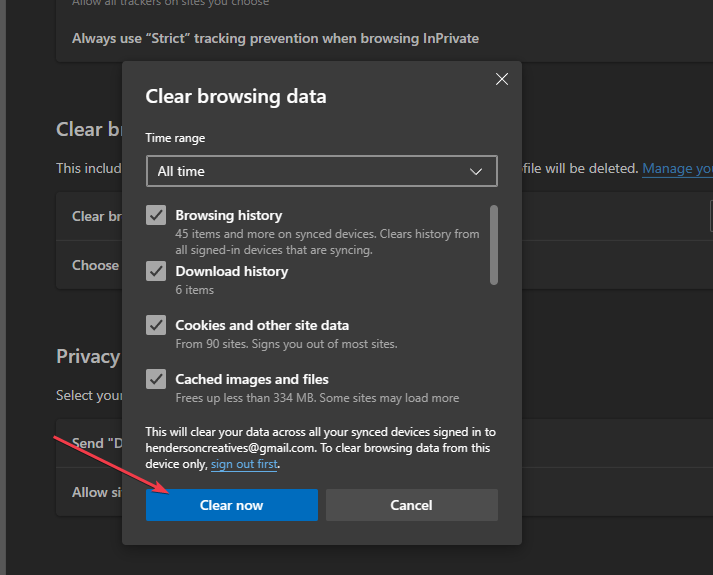
  1. Open Chrome then use the following keyboard shortcut to access the Clear browsing data menu: Shift + Ctrl + Delete and select All time as the time range.all-time-chrome images not loading in chrome
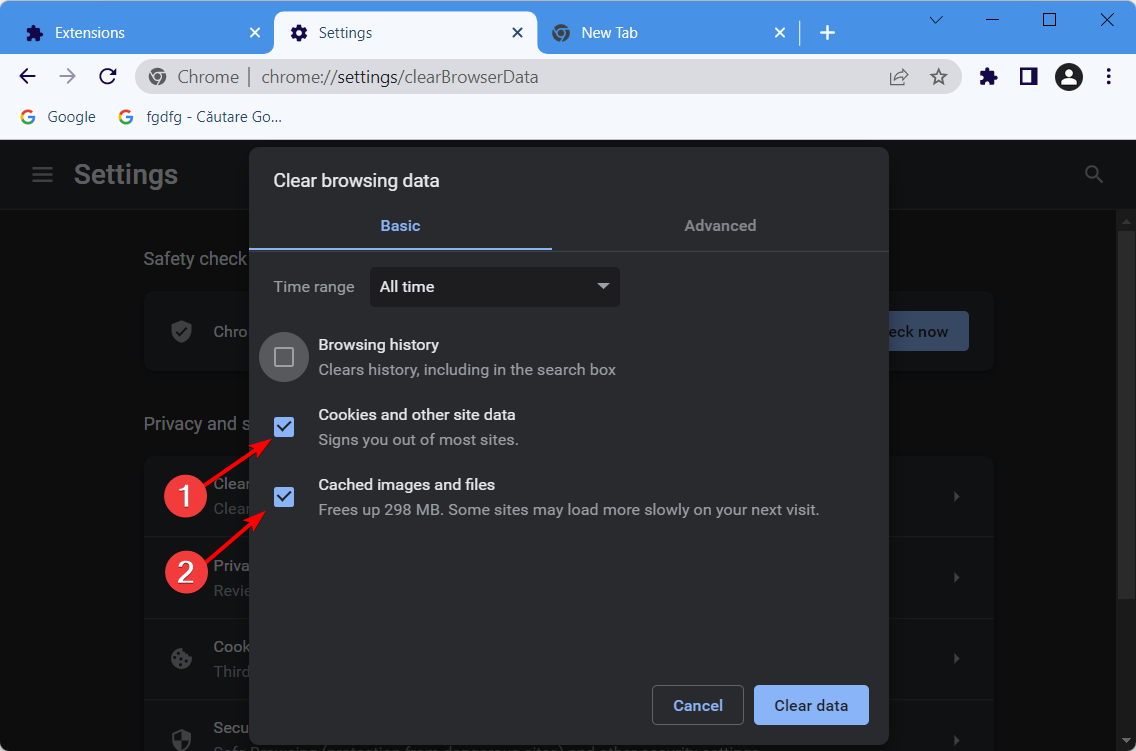
  2. Checkmark the Cookies other site data and Cached images and files options.cookies-and-cache-chrome images not loading in chrome
  3. Click Clear Data. The There was a problem playing this video issue will be resolved.clear-data images not loading in chrome

Edge

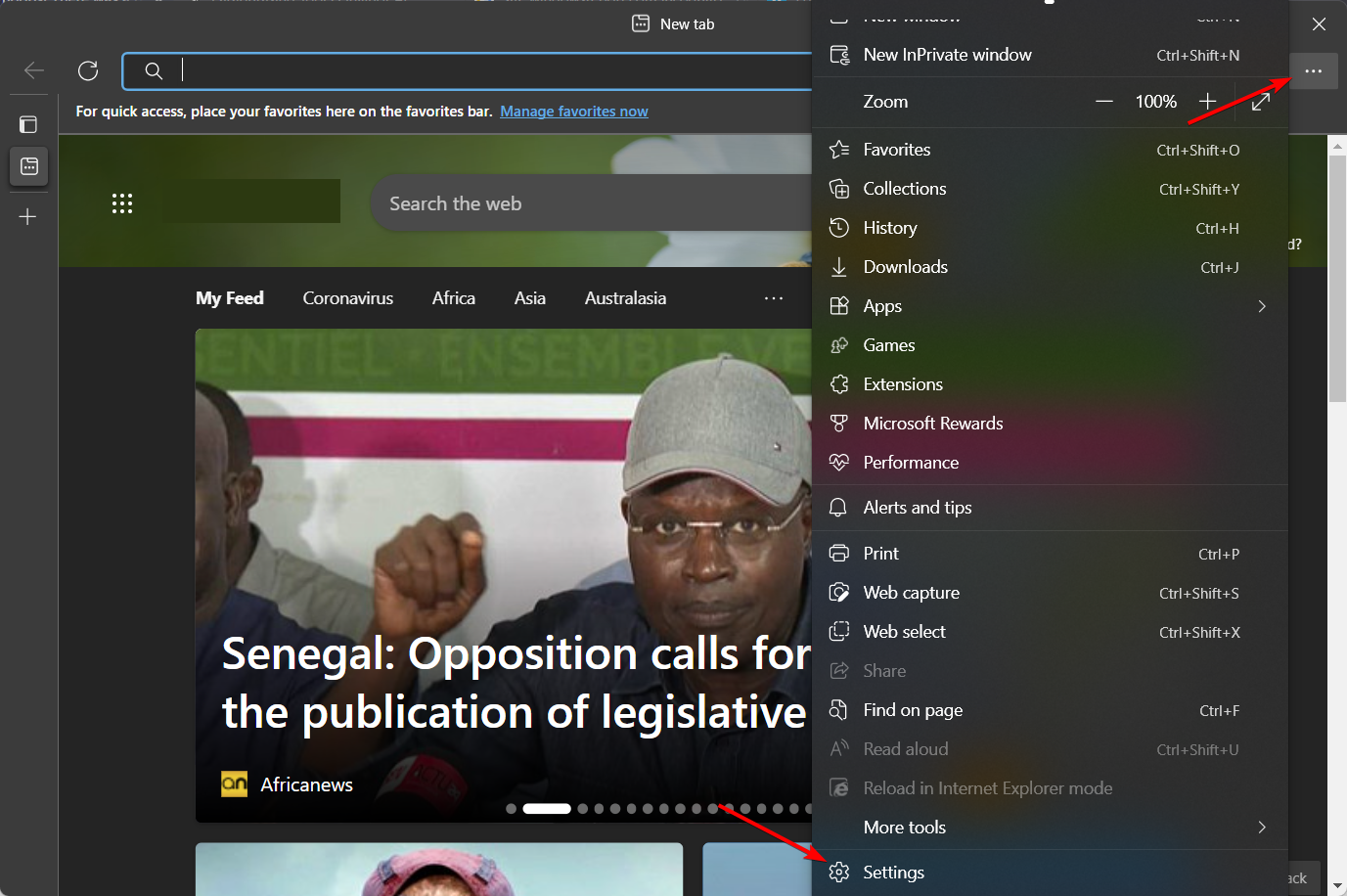
  1. Open Edge then click the three dots menu to access Settings.settings-edge-option there was a problem playing this video
  2. Next, go to Cookies and other site permissions followed by Manage and delete cookies and site data.cookies-manage-edge there was a problem playing this video
  3. Select See all cookies and site data.
  4. Click Remove all and select Clear.remove-clear there was a problem playing this video

Mozilla Firefox

  1. Start Firefox then tap the hamburger menu icon from the top right corner and navigate to History.firefox-history twitch error 4000
  2. Click Clear Recent History.clear-recent-firefox twitch error 4000
  3. Click the Time range dropdown menu and select Everything.everything-firefox twitch error 4000
  4. Select anything you want to clear from the History and Data sections. It is recomended to check all the boxes except Active logins.delete-data twitch error 4000

5. Reset the Google Chrome settings

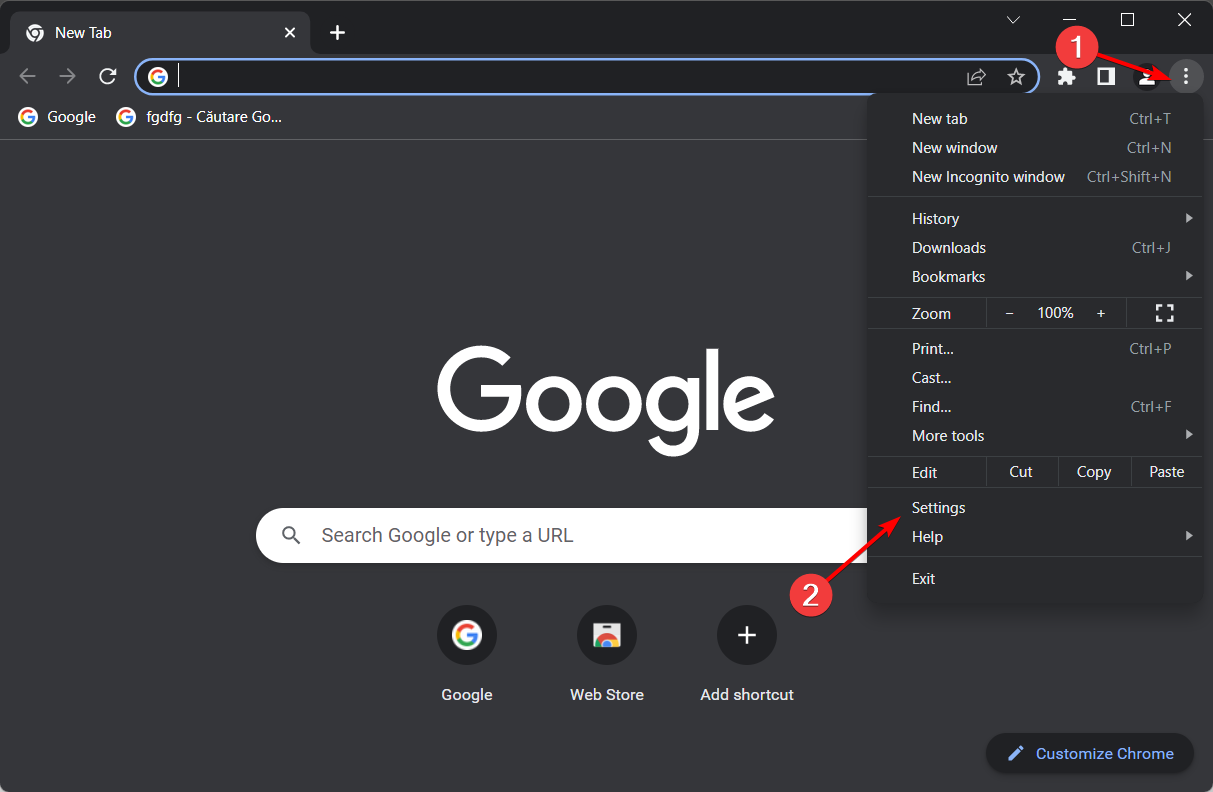
  1. Resetting Google Chrome will turn off all its extensions. Users can reset the browser by clicking on the three-dot menu followed by Settings.chrome-settings windows 10 blocking chrome install
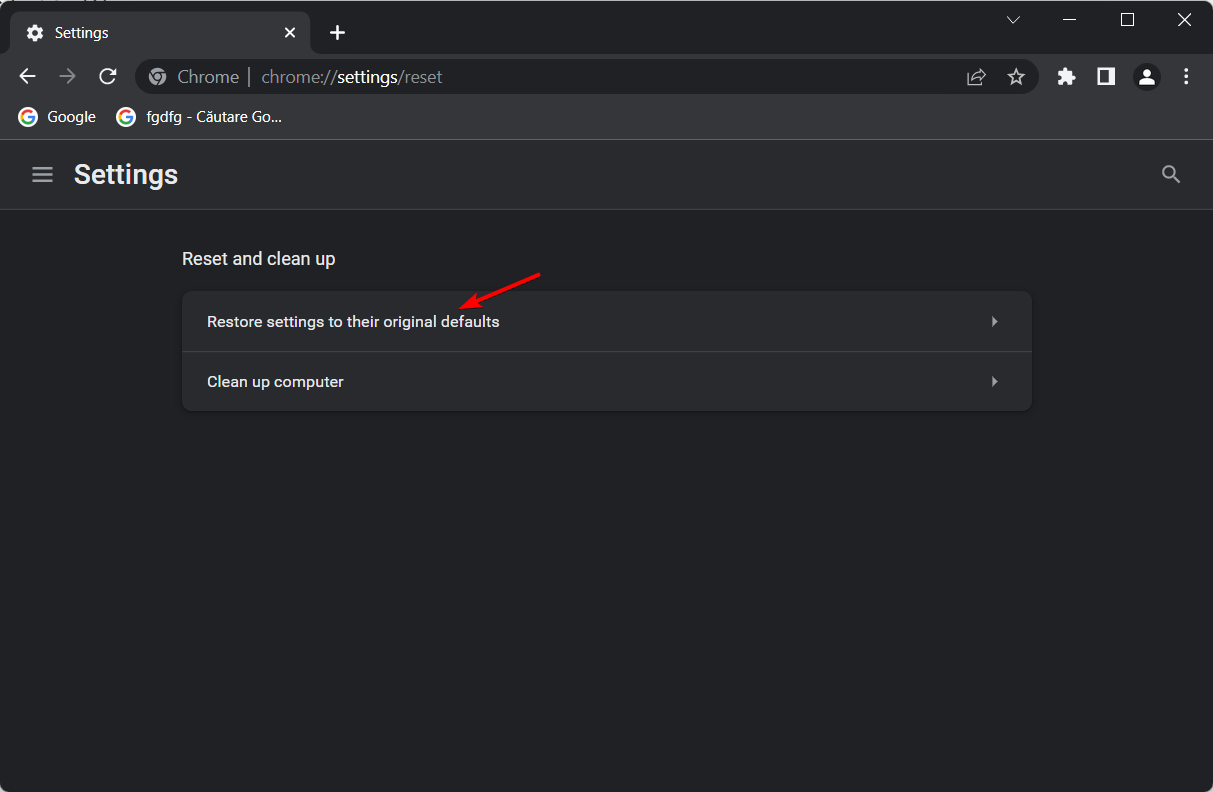
  2. From the left menu select Reset and clean up then click the Restore settings to their original defaults option.restore-settings windows 10 blocking chrome install
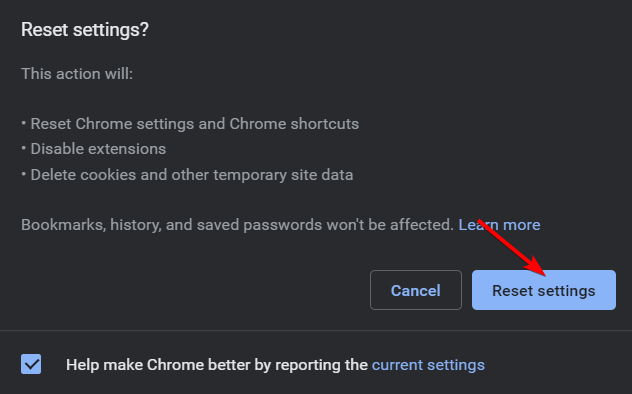
  3. Click Reset settings. That’s it! reset-settings-yes windows 10 blocking chrome install

6. Check your browser extensions

Chrome

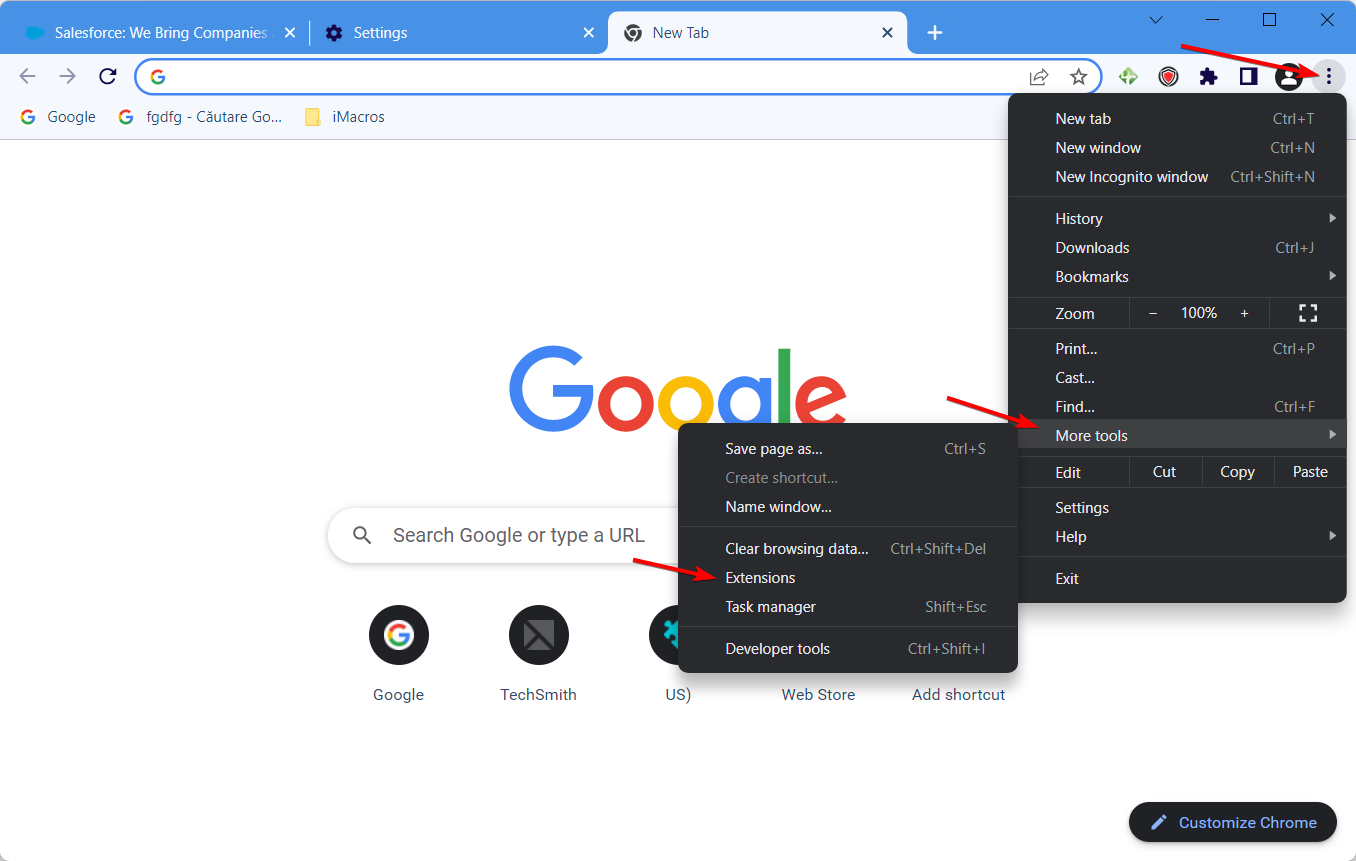
  1. Open Chrome and click the three-dot menu then go to More tools followed by Extensions.chrome-extensions=button salesforce not loading in chrome
  2. Here, turn off your extensions one by one by clicking the toggle button next to them, then check Salesforce to see which one is buggy.turn-off-ext salesforce not loading in chrome

Microsoft Edge

  1. Open Microsoft Edge and select Extensions under the three-dot menu.edge-ext there was a problem playing this video
  2. Next, select Manage extensions.manage-ext-edge there was a problem playing this video
  3. Here, toggle off your extensions one by one and check whether There was a problem playing this video issue is gone.

Mozilla Firefox

  1. Open Firefox and click the hamburger menu followed by Add-ons and themes.add-ons-firefox confirm form resubmission err_cache_miss
  2. Click the toggle button next to one of your extensions in order to turn it off then check whether the There was a problem playing this video issue is gone.toggle-off-ext-firefox confirm form resubmission err_cache_miss

7. Uninstall and reinstall your browser

  1. Open the Start menu by pressing Windows, then search for the browser you need to remove.
  2. Right-click the result then choose Uninstall. uninstall-chrome-w10 there was a problem playing this video
  3. Head to the browser’s website and download it again.

How do I recover a video that failed to load?

When you try to upload your videos or any other type of data to a program, you should always have a backup of your videos and data.

You also have the option of making use of one of the top five file recovery programs available for PC.

Alternatively, you can look at the best deleted file recovery software [Windows 10/11 & Mac] to recover your videos successfully.

Before you go, you should know that error code 232001 is rather common when streaming videos, but we have a guide that tackles this issue. We also have a guide on No valid sources are available for this video error, so feel free to visit it.

Following these steps, you should be able to fix the error stopping your video from playing. Let us know which solution worked for you by leaving us a message in the comments section below.

Twitch Not Connecting To Youtube/Blizzard/Steam [2026 Guide]

Users worldwide claimed that Twitch is not connecting to YouTube/Blizzard/Steam and if it’s happening to be in the same boat, you should read this guide completely.

Twitch is one of the most popular streaming platforms for gamers. It is a reliable and easy-to-use tool even for not very experienced users.

A connectivity problem in this app might have various causes, and today we will show you what to do if you encounter this issue.

Before anything else, let’s take a look at some of the most common reasons why this error can occur, then jump into the list of solutions for Twitch connections not working.

Why is Twitch not connecting to YouTube/Blizzard/Steam?

  • Antivirus are blocking the connection – This one seems to be one of the most serious problems. Fortunately, we have the best solution to perform an antivirus scan. To discover it, make sure you keep on reading.
  • Temporary bugs – In this case, we recommend logging out and logging back in the apps that you’re using. In addition, you can also restart the webpage.
  • Cache, cookies and browser history are blocking the connection – This one can be solve in a couple of minutes by clearing all of them. You’re going to find how you can do it later in this guide.

What can I do if Twitch is not connecting to Blizzard?

1. Log out and log back in

1.1 Twitch

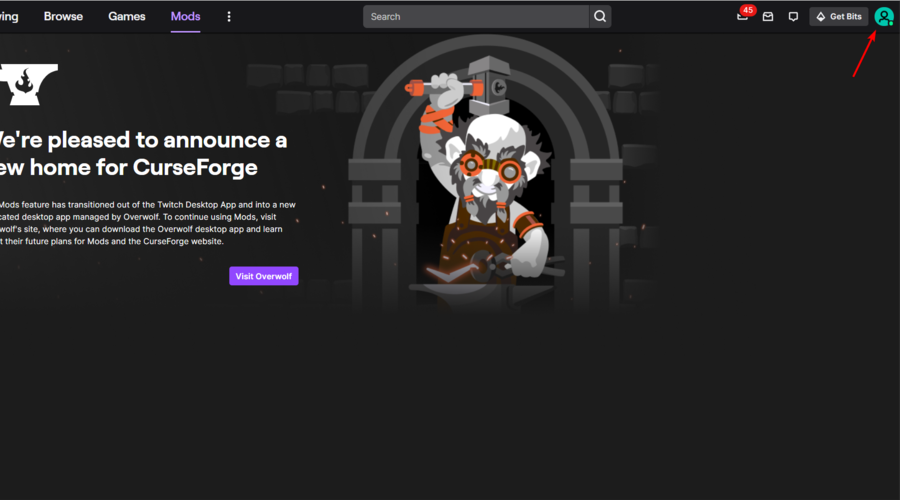
  1. Open the Twitch browser version click on your profile image, from the upper right corner of the window.
  2. Now, click on Log out.
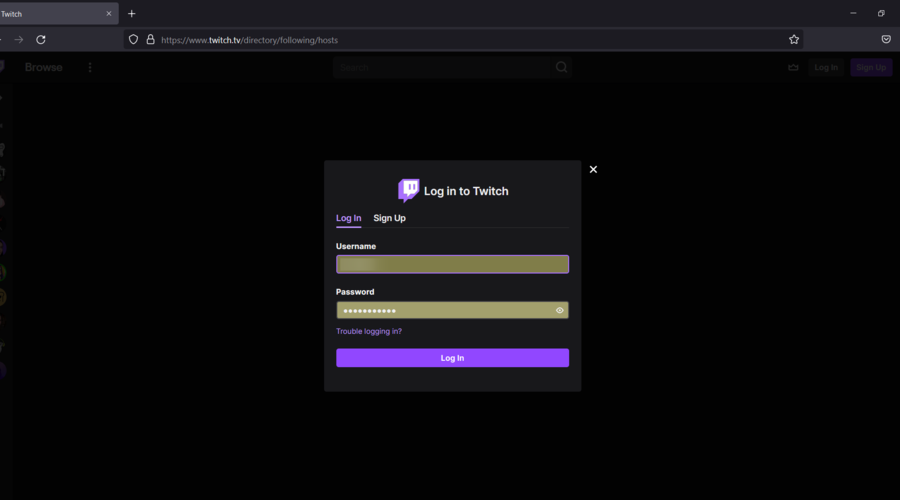
  3. After you logged out, enter your Twitch credentials and click on the Log in button.

1.2 YouTube

  1. Open YouTube click on your profile image, from the top-right corner of the page.
  2. Select Sign out.
  3. Now, click on the SIGN IN blue button.
  4. Choose you Google account and log back in. This way, the Twitch failed to connect to Youtube issue will be resolved.

1.3 Blizzard

  1. If you can’t connect Blizzard to Twitch, open Blizzard click on your Blizzard nickname from the top-right corner of the page.
  2. Now, click on Log out.
  3. In the upper right corner, click on My Account.
  4. Now, click on the Log in button.
  5. Enter your Blizzard credentials, then click on Log in.

1.4 Steam

  1. If you can’t connect Steam to Twitch, open Steam click on your Steam username.
  2. Choose to Logout.
  3. Now, click on login.
  4. Enter you Steam credentials, then click on Sign in. This way, the Failed to connect. please try again. Twitch Steam error will be fixed.

2. Restart the webpage

  1. Close your browser by clicking on the X button from the upper right corner of the page.
  2. Now, use the following keyboard shortcut to open Task Manager: Ctrl + Shift + Esc.
  3. Look for your recently closed browser, and if you find any related processes, click on them, then on the End task button.google-end twitch not connecting youtube blizzard steam
  4. Open again your browser and the apps that you want to use.

Sometimes, a simple restart of your webpage can solve this issue. If not, try the solution below.

3. Clear browser cache, cookies, and history

1.1 Google Chrome

  1. Hit the Windows key, type Chrome, then open the first result.
  2. Use the following keyboard shortcut to open the Clear browsing data menu: Ctrl + Shift + Delete.
  3. Select All time as the time range.
  4.  Now, checkmark all the boxes.
  5. Click on the Clear Data button.

1.2 Mozilla Firefox

  1. Press on the Windows key, type Firefox, then click on the first result.
  2. Click on the 3 horizontal lines button from the top right corner.
  3. Navigate to History.
  4. Click on Clear Recent History.
  5. Select the Time range dropdown menu and select Everything.
  6. Checkmark all the boxes from the History and Data sections, then hit the OK button.
  7. Now, go again to the Firefox general menu.
  8. Navigate to Settings.
  9. From the left window pane, choose Privacy & Security.
  10. Scroll down to Cookies and site data, then click on the Clear Data… button.

1.3 Opera

  1. Hit the Windows key, type Opera, then open it.
  2. Use the following keyboard shortcut to open Opera Settings: Alt + P.
  3. Click on Clear browsing data.
  4. Checkmark all the boxes.
  5. Click on Clear Data.

4. Perform an antivirus scan

If you encounter a Twitch connectivity error on YouTube, your computer might be infected with malware.

You can perform an antivirus scan. It is recommended that you use the best antivirus for Windows 10. As it happens, we have the best options. Be sure you choose the antivirus tool that suits your PC better.

Additionally, you can opt-in for advanced antivirus software that can protect you from all kinds of digital threats.

For instance, TotalAV will highly secure your PC from malware, phishing attacks, or ransomware threats that may compromise your system.

The solution also includes a Network Inspector and firewall tools capable to scan your computer and erase risky malware.

⇒ Get TotalAV

What other Twitch connection problems should I be aware of?

Our presented issue is just one of the Twitch connection troubles you can face. Because it is important to be aware of the most common ones, we suggest taking a look at the list below:

  • Twitch chat not connecting / loading – This seems to be one extremely popular among users worldwide. If it’s happening to face it, make sure you check our dedicated guide.
  • The app can not connect at all – Some users reported that sometimes Twitch won’t let them sign up. This is one of the most annoying issues, so if you ever face it, do not hesitate to check some easy solutions to fix it.

How do I find out what my Twitch account is linked to?

  1. Open Twitch, then click your profile icon and choose Settings.sett-twitch twitch not connecting youtube blizzard steam
  2. Here, navigate to the Connections tab where you will find all the apps your account is linked to.connections twitch not connecting youtube blizzard steam

As you can see, you can solve connectivity issues in no time with the easiest solutions. Twitch is still not connecting to YouTube/Blizzard/Steam, you’ll need a more technical solution.

Also, don’t forget to try the best browsers to stream Twitch effortlessly. Our recommendation goes to Opera which brings fast browsing experience and a stable streaming experience.

If you face any additional questions, feel free to leave a comment in the section below.

How To Make A Minecraft Server In 2026 [Java, Bedrock]

We can all agree that Minecraft is an amazing game. It has come a long way since its initial release, and updates don’t cease spawning. So what’s the thing that makes Minecraft so great, even after so many years?

It might be that after a while, you get accustomed to thinking in squares. But no. Perhaps the fact that a rather simplistic survival game has evolved to the point where you can build fully-functional computers in it? Maybe.

Can you create a free server on Minecraft?

If you wonder how to make a Minecraft server for free, there are a number of websites that provide free hosting for Minecraft; however, these services often come with restrictions, such as a lack of support and the availability of paid add-ons.

Free Minecraft server hosting is an excellent choice if you are new to Minecraft servers or only want to play with a few friends online because most free server hosting has a maximum player restriction.

Before you join up for any free Minecraft server hosting, you should do some research to find out what type of customer care and extras, such DDoS protection and server backups, come with the hosting package.

Minecraft’s servers are all community-based

But the real reason why Minecraft thrived and still keeps at it is the community. As you probably know, Minecraft never had any official servers, everything was run by its community.

So there was no place where everything was readily available to you. You had to soldier on through tears and frustration to build the perfect world for you and your friends.

However, all of this couldn’t be possible without servers, the backbone of every single Minecraft world ever built. With that in mind, let’s see how you can build your own Minecraft server that your friends can join.

Since most of the servers are community-made, it would be a wise idea to protect your online privacy using a VPN. You can find a list of our best 5 VPNs for Minecraft on Windows and Mac.

Before we continue, here are similar questions asked by our users that will be answered in the solution list below:

  • How to make a Minecraft server for friends
  • How to make a Minecraft server with mods
  • How to make a Minecraft Java server
  • How to make a Minecraft Bedrock server

How do I make my own server on Minecraft?

1. Create a Minecraft Server using a dedicated server hosting

apex-hosting-minecraft-server

Creating a Minecraft Server is never been easier with Apex Hosting. You can make your own Minecraft server or create one for your friends by simply choosing a provider, determining the size that you need, and selecting which version to start with.

Most packages are instantly deployed and ready to run within a few minutes. You just have to share the IP address with everyone you wish to play with.

Apex Minecraft Hosting uses the latest and most powerful hardware to ensure that your Minecraft server runs without lags or downtime.

You can easily control your server hosting account with full access to the edit configurations and console. You can change versions anytime with a simple change in the control panel or you can contact the support team to do this for you in seconds.

You can enjoy all the following features:

  • Free Server Transfers
  • DDoS Protection
  • 24/7 Servers & Support
  • Java & Bedrock Edition Servers
  • Instant Setup
  • One-Click Modpacks
  • Automated Backups

Apex Hosting server is extremely secure to use and one of the best server hosters with video tutorials if you are unsure of how to use any of its components.

Apex Minecraft Hosting

An endless number of options for creating the Minecraft server of your dreams!
Check price Visit website

2. Check that the latest version of Java is installed

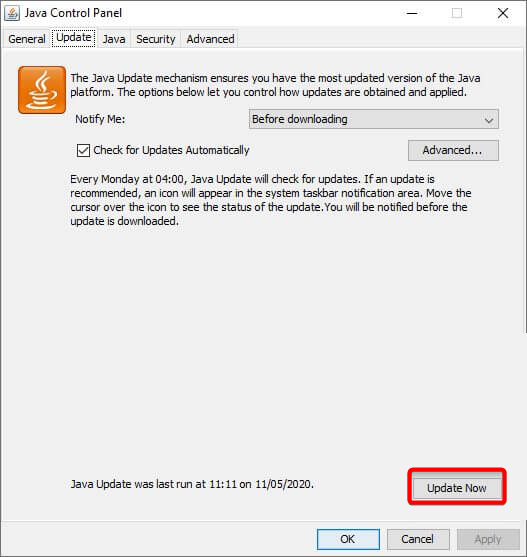
  1. First of all, you have to download and install Java. If you already did, you need to make sure that the latest version is installed on the PC you’ll use to host the server. Here’s what you can do to perform a Java version check:
  2. In your Control Panel, click Java (32 or 64-bit), go to the Update tab , and click Update Now.update-java how to make a minecraft server
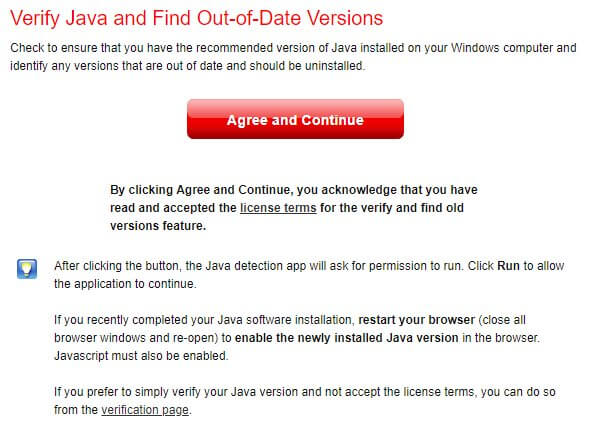
  3. Visit the Java Version checker tool and let it check the version for you. Note that this doesn’t work on Chrome and Firefox.Check Java version online
  4. Launch the Command Prompt, type java -version, and hit Enter on your keyboard. Compare the version to the official website.

3. Download the Minecraft server files

You can find the Minecraft server files on the official website’s Download section. It’s possible to retrieve older versions, as well, but not from the official website. If you want the latest developments, we recommend you always use the latest version from the official site.

Note that the server is a JAR file that won’t work unless you have Java on your system.

It’s worth mentioning that the JAR file will create various configuration files in the location you launch it. So, before you launch the server, make sure it’s in an appropriate location on your PC.

The best practice would be creating a dedicated folder wherever you feel like, moving the JAR file there, and launching it.

4. Launch the server

After you set everything up, just launch the server by double-clicking the JAR file. This should start a process that writes some configuration files and quits almost immediately.

Minecraft game view

First, and foremost, we have to agree to the EULA. Therefore, locate the eula.txt file in the server‘s folder and open it in a text editor. Edit the eula=false part inside the document to eula=true, save it and close it. Note that doing so means you accept the EULA.

Note: in order to avoid any complications, make sure you always launch the Minecraft server as an Administrator.

If you want to keep your privacy safe while playing Minecraft, this easy fix will show you how to connect to Minecraft with a VPN.

⇒ Get Private Internet Access

Can you make a Minecraft server without Realms?

It is possible to run a server without making use of Realms; however, doing so typically necessitates paying for the services of a third party.

This being said, you might as well use a dedicated server hosting solution such as Apex Minecraft Hosting, and start playing right away!

How to make a Minecraft: Bedrock server on Windows 10

As you probably know, Minecraft has a Windows 10 version, which isn’t compatible with Java version servers and the other way around. So you can only connect to servers that are designed for your current edition.

Launch Minecraft Bedrock server

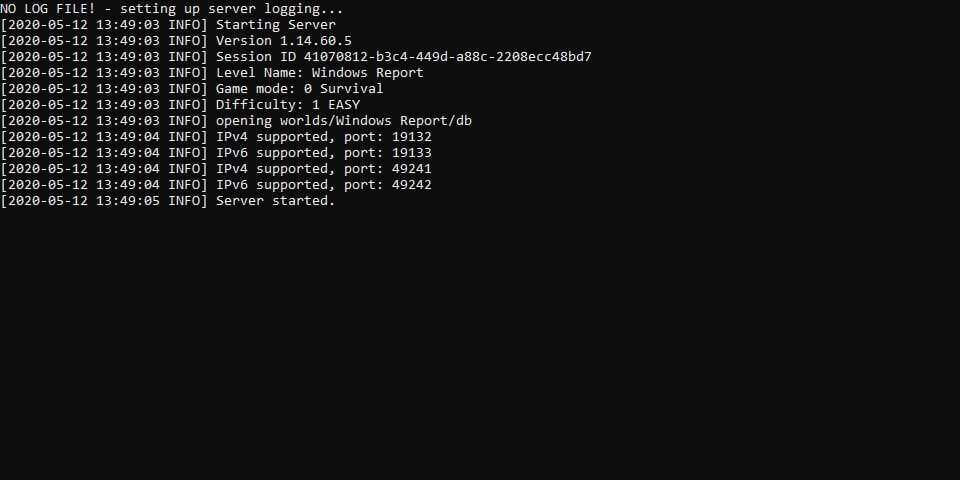
Creating a Minecraft: Bedrock server is easier than making its Java counterpart since there’s no Java dependency. All you have to do is download the server files from the official website, unpack the archive and run the executable.

However, note that the same thing will happen as with the Java server. A lot of configuration files will be created in the location of the executable, so make sure it’s someplace you’re comfortable with.

You can configure the server before you launch it by editing the server.properties file. However, if you want to learn more about it, there’s an extremely helpful How-To HTML guide in the archive.

Thus, you might want to check it out if you want to operate and customize the server effortlessly.

Can’t make a Minecraft public server?

There are some cases where making a Minecraft public server is simply not doable. The reasons may vary from having a restrictive ISP to double NAT configurations that make port forwarding difficult, if not downright impossible.

In those cases, you can either play with your friends by connecting to an existing public server or creating a LAN one. You can use Radmin VPN with Minecraft so that the game will detect you and your friends as part of the same physical network.

Once the VPN connection is established, you can host/join LAN Minecraft servers without any issues.

We hope our article proved helpful to you. As always, don’t hesitate to leave a comment in the section below and share your thoughts with us. Thanks for reading!

5 Best Browsers That Support RGBA and Multiple CSS Values

An RGB color value denotes Red, Green, and Blue light sources. In CSS, you can define a specific color using RGB value.

Each parameter of the RGB defines the intensity of the color, and they usually range from 0 to 255. For instance, in order to display black, color parameters should be 0, and defined like rgb (0, 0, 0).

RGBA color values are an extended version of the RGB color values with an additional alpha channel, which is denoted by the A attached to RGB.

However, there is one caveat related to RGBA. That is not all browsers support RGBA color values, and if you are using an old browser, chances are it does not support RGBA.

Now, which are the browsers that support RGBA values? This is exactly what we are going to discuss in this guide. Because here, we will give you a list of the 5 best browser that support RGBA.

Without any further ado, let us jump right into it.

What is RGBA in CSS?

RGBA is a new color format that comes with an additional value A, that lets you define the opacity of the color.

RGBA in CSS lets you add transparency to color with the first three numbers defining the colors and the value A defining the amount of transparency value.

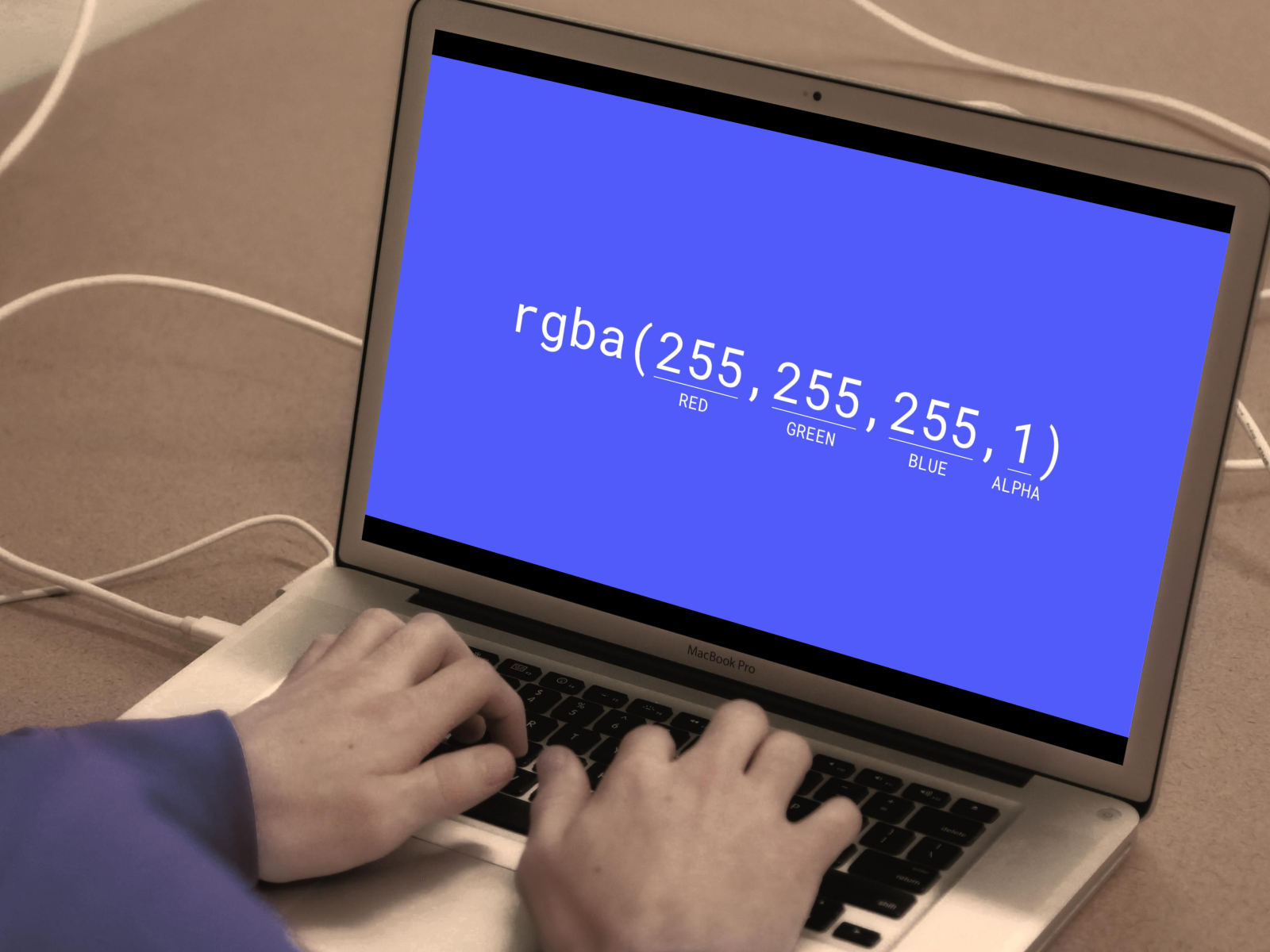
You can define RGBA values in rgba(red, green, blue, alpha) format in CSS. The value of A should be defined by values 0 or 1, with 0 being fully transparent, and 1 being fully opaque.

There was opacity property already available for quite a long time but the downside of using opacity forces all the dependent values to become transparent.

The availability of RGBA lets you make a box transparent or opaque and leave all of the dependent colors alone. This gives more room for the web designers to play with the CSS to add opacity or transparency in the background.

How do you write RGBA in CSS?

RGB Color Scheme is a three-channel format containing data or values for red, green, and blue colors. In CSS, you can easily define RGB color format using: rgb(red, green, blue)

Whereas, you can define RGBA in CSS as: rgba(red, green, blue, alpha)

The alpha value or A value is defined with values 0 and 1 allowing to select the background to be transparent or opaque.

What are the best browsers that support RGBA?

Opera One – Supports HSL

With tons of features such as the built-in VPN, built-in ad blocker, and a sidebar that gives you access to Facebook, Twitter, Instagram, WhatsApp and even it’s own AI, the Opera One browser is one of the best browsers that you can use in 2023.

Opera One browser is based on Chromium and also supports RGBA. This means web designers can define specific colors along with transparency values in CSS using the Opera One browser.

It also supports HSL (Hue, Saturation, Lightness) and RGBA allowing developers to tap into these color models to apply more intelligent color schemes.

Opera One

It supports HSL (Hue, Saturation, Lightness) and RGBA.
Free Download Visit website

Google Chrome – Popular choice

Google Chrome does support RGBA values. Meaning web designers can use the alpha (transparency) value along with the other hex values.

Chrome is the father of Chromium browsers. Notably, other popular browsers such as Opera, Brave, Vivaldi, etc. are based on Chromium.

Although, Chrome does not come with multiple features such as built-in adblockers, tracking protection, etc. the Chrome Store is full of extensions that can get you the desired functions quickly and easily.

⇒ Get Google Chrome

Mozilla Firefox – Enhances your productivity

Mozilla Firefox, which has created its name as one of the choices for power users, does come with RGBA support in CSS.

With multiple add-ons available from the Firefox store, you can easily enhance your productivity within the browser.

Mozilla Firefox isn’t based on the Quantum browser engine which is specifically designed for the browser to keep the user data private and secure.

⇒ Get Mozilla Firefox

Microsoft Edge – Default web browser in Windows 11

The browser that comes built-in with Windows, i.e. Microsoft Edge is also one of the browsers that support RGBA.

Not all browsers support RGBA in CSS. Microsoft Edge not only supports RGBA but it is the default web browser in Windows 11. So, you need to tweak some Settings in Windows 11 in order to make a different browser on your PC.

There are multiple new additions that have been added with the Windows 11 overhaul. You can learn more about the new additions by visiting our helpful article about Microsoft Edge’s upcoming overhaul.

⇒ Get Microsoft Edge

Safari – Fast and easy to use

The most used web browser on Apple devices, Safari is also among the browsers that support RGBA. Unfortunately, you cannot use the Safari browser on your Windows 10 or Windows 11 PCs.

However, we at WindowsReport have a solution that will allow you to run the Safari browser on your Windows 10 or 11 PCs.

In order to install the Safari browser on Windows 10, you can check out our dedicated guide here. Else, Windows 11 users can check out our guide to installing Safari on a Windows 11 PC.

⇒ Get Safari

How do you convert RGB to RGBA?

RGB can be represented in RBGA. It is just the same RGB values with A (transparency value)=max or 1. So, for example, in CSS colors, rgb(255,102,71) = rgba(255,102,71,1) since the maximum alpha is 1. You can test it here.

However, do note that you cannot directly convert RGBA back to RGB (except when everything is with A=max). The actual color displayed also depends on what is the background that you have chosen.

Some differences between RGB and RGBA color formats:

RGB Color FormatRGBA Color Format
RGB is a three-channel color format.RGBA is a four-channel color format.
The CSS function rgb() has wide browser support.The CSS function rgba() may have limited browser support.
The opacity of the color cannot be specified using RGB.The opacity of the color can easily be defined by specifying the value for a, by setting the value between 0 and 1.

There you have it from us in this guide. Let us know in the comments below if you liked this guide and learned something from it.

3 Ways to Fix Your Backspace if it’s Not Working in Chrome

If Google Chrome is your primary browser, you probably use some of its default keyboard shortcuts. But, several users reported that backspace isn’t working on Chrome anymore.

Backspace was one of the most popular shortcuts in Google Chrome and was used to return to the page previously opened in a tab.

And with backspace and, sometimes, the delete key not working in Chrome, users are left in a lurch. But, it’s not that you can’t head to the previous page using a keyboard shortcut anymore. There’s another shortcut for that. Read the following sections to find out.

Quick Tip:

As an alternative, you can try the Opera One browser as it comes with built-in ad and tracker blocking, useful sidebar extensions, and even a unit converter for time zones.

And if security is essential for you, keep in mind that it includes a built-in VPN that works quickly. After all, that’s a browser that uses the Chromium page-rendering engine.

Opera One

With a built-in ad blocker to block crypto-mining scripts and a free VPN, Opera One is a worthy alternative to Chrome.

Why is my backspace not working in Chrome?

Chrome has disabled the backspace shortcut to revert to the previous webpage. Unfortunately, this was done in Chrome Version 52. So if you have that or a later version of the browser installed, the backspace key wouldn’t work.

The change was introduced because several users reported accidentally hitting backspace and losing their data or progress.

While Chrome disabled the shortcut and provided no built-in option to re-enable it, it now offers users another shortcut and an extension in case the backspace key is not working in Chrome.

How do I get my backspace to work again on Chrome?

1. Use the new keyboard shortcut

From now on, you can navigate through Google Chrome pages by pressing Alt + Left Arrow to go back and Alt + Right Arrow to go forward.

This is a significant improvement because navigating pages is now simpler than ever. In addition, you don’t have to worry about losing the work if you accidentally hit backspace. So, if backspace was not working in Chrome to go back, you now know which shortcut to go for.

2. Install the Go Back with Backspace extension

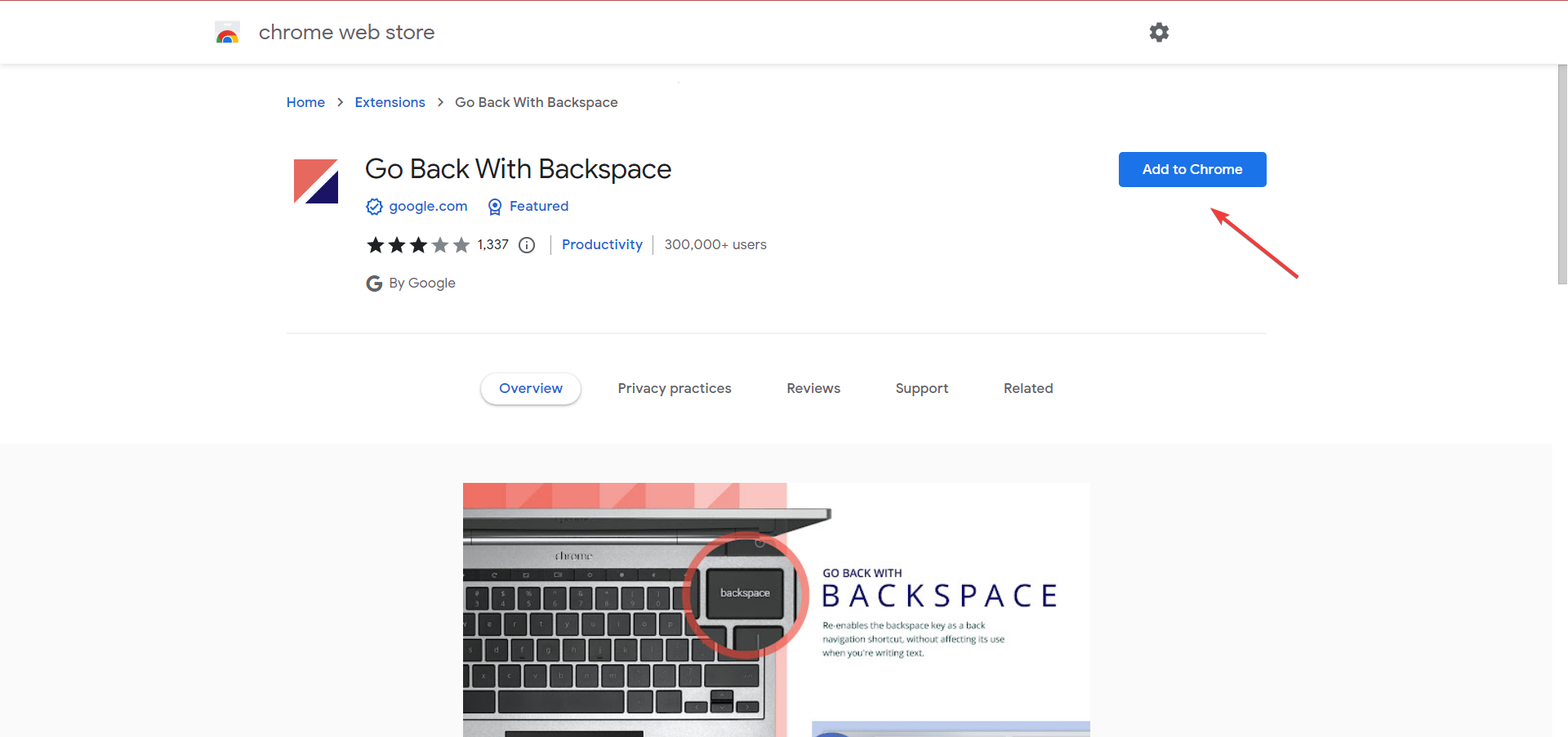
  1. Open the Go Back with Backspace extension in the Chrome web store and click on Add to Chrome.add extension to fix backspace not working in chrome
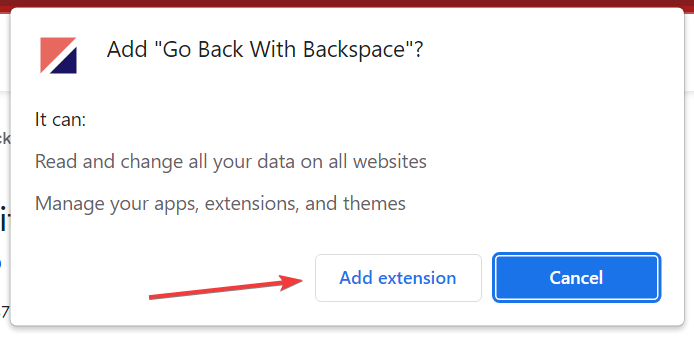
  2. Click Add extension in the confirmation prompt.add extension
  3. Once the extension is installed, you can use the Backspace key to navigate the previous page.
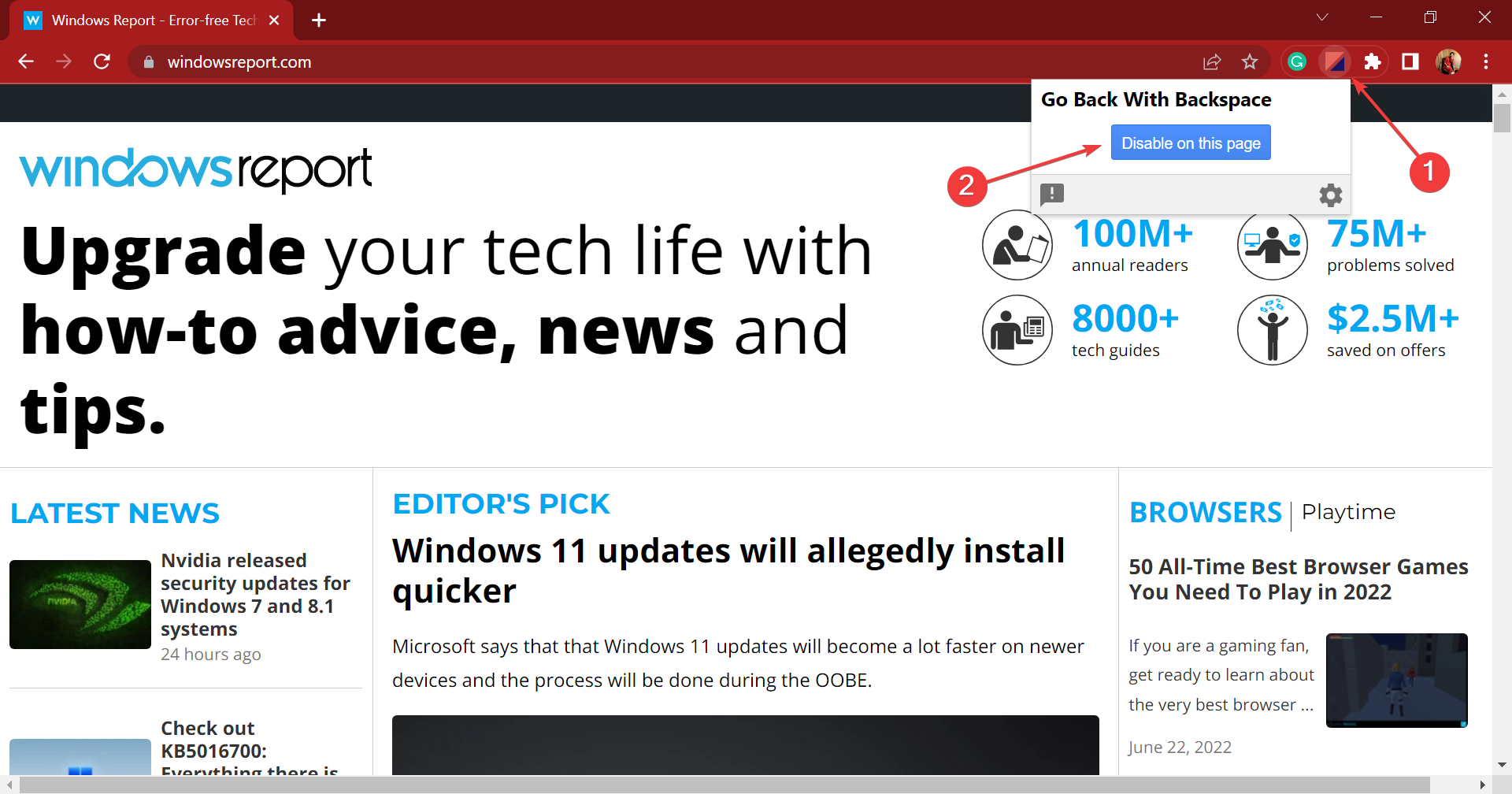
  4. To disable the Backspace key on a particular webpage, click on the extension in the Toolbar and select Disable on this page.disable on this page

If you are unwilling to adopt the new keyboard shortcut and want the backspace key to keeping working in Chrome, the Go Back with Backspace extension by Google would do the job.

How do I change backspace settings?

Using a third-party extension, you can change the backspace settings or even the other keyboard shortcuts in Chrome.

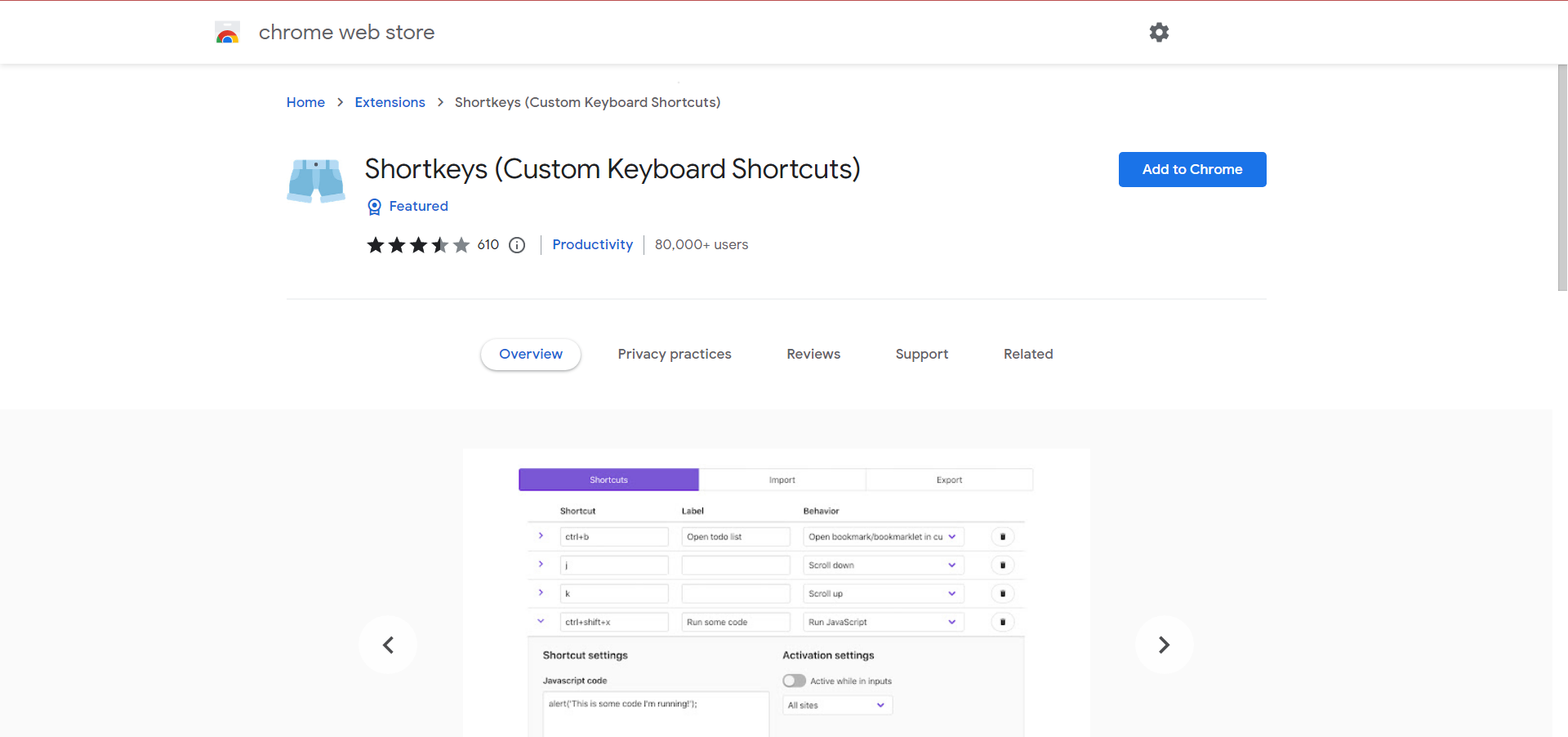
Shortkeys is a great extension to modify or reconfigure the keyboard shortcuts, and you might just as well give it a try. It offers a simple interface, and the changes made to the shortcuts reflect as soon as the webpage is refreshed.

How to disable backspace as a back button in Chrome?

While earlier you could disable backspace as the back button in Chrome, there’s no need for that anymore since the browser itself has disabled the keyboard shortcut.

As stated earlier, the back button functionality has now been replaced with the Alt + Left Arrow keyboard shortcut.

Google Chrome is currently the most used web browser worldwide and is constantly trying to improve. As a result, regular updates and patches for previously known bugs are introduced.

If the backspace is not working in Chrome to delete text, it could be a problem with the keyboard. So make sure to look for that.

What do you think about this way of navigating through pages in Google Chrome? Is it more practical and safer now? Tell us in the comments.

5 Best Browsers That Support KeePass [Ranked by Security]

The KeePass password safe is primarily designed for the Windows operating system. However, it can also be a cross-platform software that works on other operating systems like macOS and Linux.

Likewise, it works for mobile devices, making it more accessible to users. An advantage of the KeePass Password Safe is that it helps you store & manage your passwords in one database.

Furthermore, it gives you easy access to your password. Nevertheless, there are some limitations that you can encounter with KeePass, and one of them is the KeePass browser support.

Moreover, the KeePass browser support deals with browsers authorized to use the password manager’s services. Users download and use many browsers in the market, but only a few are reliable.

Hence, not all browsers are supported by KeePass to run it. Some of the main features that KeePass requires are browser speed, security, and privacy. Also, it allows you to use KeePass on your work and home devices.

However, we’ll discuss some of the best browsers you can use on your devices that support KeePass.

Does KeePass have a browser extension?

KeePass password safe works for browsers, but it doesn’t have a browser extension that users can download for features like security prompts and pop-ups.

However, to use KeePass on your browsers, you need to integrate KeePass into your browsers by using third-party browser extensions. Furthermore, it allows users to download third-party apps and plugins from its extensions and repository.

What browsers does KeePass support?

Opera One – Best for data protection

Opera One is a widely used browser with lots of advanced features. It has undergone many improvements, making it one of the best in the market. However, it is a browser that KeePass supports.

Other Opera One browser features are built-in VPN and AI, and a modular AI-ready design to help you integrate other AI technologies, current or future.

Also, it comes with an inbuilt ad blocker that prevents ads from interrupting your browsing sessions. Likewise, It is highly customizable.

The browser has many built-in features that make it one of the recommendations.

Opera One

Go for highly flexible navigation and support for password managers such as KeePass.
Free Download Visit website

Google Chrome – Best for customization

Google Chrome is a Chromium-based browser. It is one of the most reliable browsers in the market. A commendable feature of the Chrome browser is security and privacy.

It uses an advanced security system to protect users’ browser information, securing it from intruders and hijackers. Hence, it is our best pick for browsers that support KeePass.

Furthermore, Google Chrome has a vast repository of extensions where users can download browser tools that can help them make them work better. Likewise, it is a highly customizable browser that allows users to download themes and wallpapers to customize their user interfaces.

However, KeePass Password Safe supports the latest version of the Chrome browser for Windows, macOS, and Mono.

⇒ Get Google Chrome

Mozilla Firefox – Good for data syncing

Mozilla Firefox has been around for a long time, and it is known as one of the best browsers in the world. However, it is one of the best browsers for KeePass because of its features. Also, Firefox is a browser that supports KeePass.

Some features of Mozilla Firefox are a reliable and fast internet connection and user protection from external threats like malware and viruses.

Also, Firefox offers a good browser syncing service that helps users link and access their browser data across different devices. Firefox is a good browser for developers because it comes with developer tools that are good for HTML and others.

Nevertheless, Firefox can download and install extensions from the Chrome browser because they are both Chromium-based.

Likewise, Firefox has an extension repository where users can download tools for their browsers. Another notable thing about the browser is its customizable features and inbuilt tools like Adblocker.

⇒ Get Mozilla Firefox

Microsoft Edge – Ideal for Windows users

Edge is a browser by Microsoft. It is a fast and easy browser to use for different users. However, it is one of the best browsers that support KeePass. It is a cross-platform browser available across other operating systems like Windows, Linux, and macOS. Moreover, Edge is the default browser for Windows devices.

Furthermore, Microsoft Edge has advanced browser features like a high-security system that helps protect user data from internet threats.

Also, it is easy to navigate and has a customizable interface. Microsoft Edge supports the latest browser-features, allowing users the best browsing experience.

A significant feature that determines KeePass browser support is security. However, Edge is reliable and has a strict security and privacy policy.

⇒ Get Microsoft Edge

Safari – Ideal for Mac users

Safari is the default browser for Apple devices. However, it is accessible across different operating systems. Safari uses a high-standard browser system that can’t compare to other browsers. One of its features is security which is the main requirement for KeePass browser support.

Moreover, the Safari browser is fast, allowing you to load websites quickly and smoothly. Unlike other browsers, Safari has the best syncing system that helps you safely access your browsing data across several devices.

Furthermore, users should note that KeePass supports and works well with Safari 12 and later versions.

⇒ Get Safari

Is LastPass better than KeePass?

Generally, LastPass is the best option for most users because of its outstanding features. However, KeePass is also reliable and has a strong password generator, but it lacks some features that LastPass possesses. A significant part is the password pop-up option which is not available in KeePass.

↪️ You didn’t make up your mind yet? Luckily, AVG Secure Browser is the ideal choice as it can organize all your passwords and accounts in seconds and complete web credentials safely with 1 click.

However, users can read our article about the safest password managers with multifactor authentication. It will help you learn about other password managers and their services.

Conclusively, we recommend you check the latest versions of the above-listed browsers as KeePass works better with them.

Kindly leave your questions and suggestions below in the comments section below. We’d like to hear from you.

Wondershare PDFelement 9: Simple and Affordable PDF Editor

Editing PDF documents is necessary, and to do that effectively, you need proper software. Many tools can perform this task, but today we want to focus on Wondershare PDFelement 9.

The latest version was released recently, and it brings a wide array of new features that will help users improve their workflow and productivity.

This is so much more than a simple read-only PDF converter, it’s full editing software that you can use to edit your documents.

In today’s guide, we’re going to take a closer look at the latest version of Wondershare PDFelment 9 and examine all the new features that it offers.

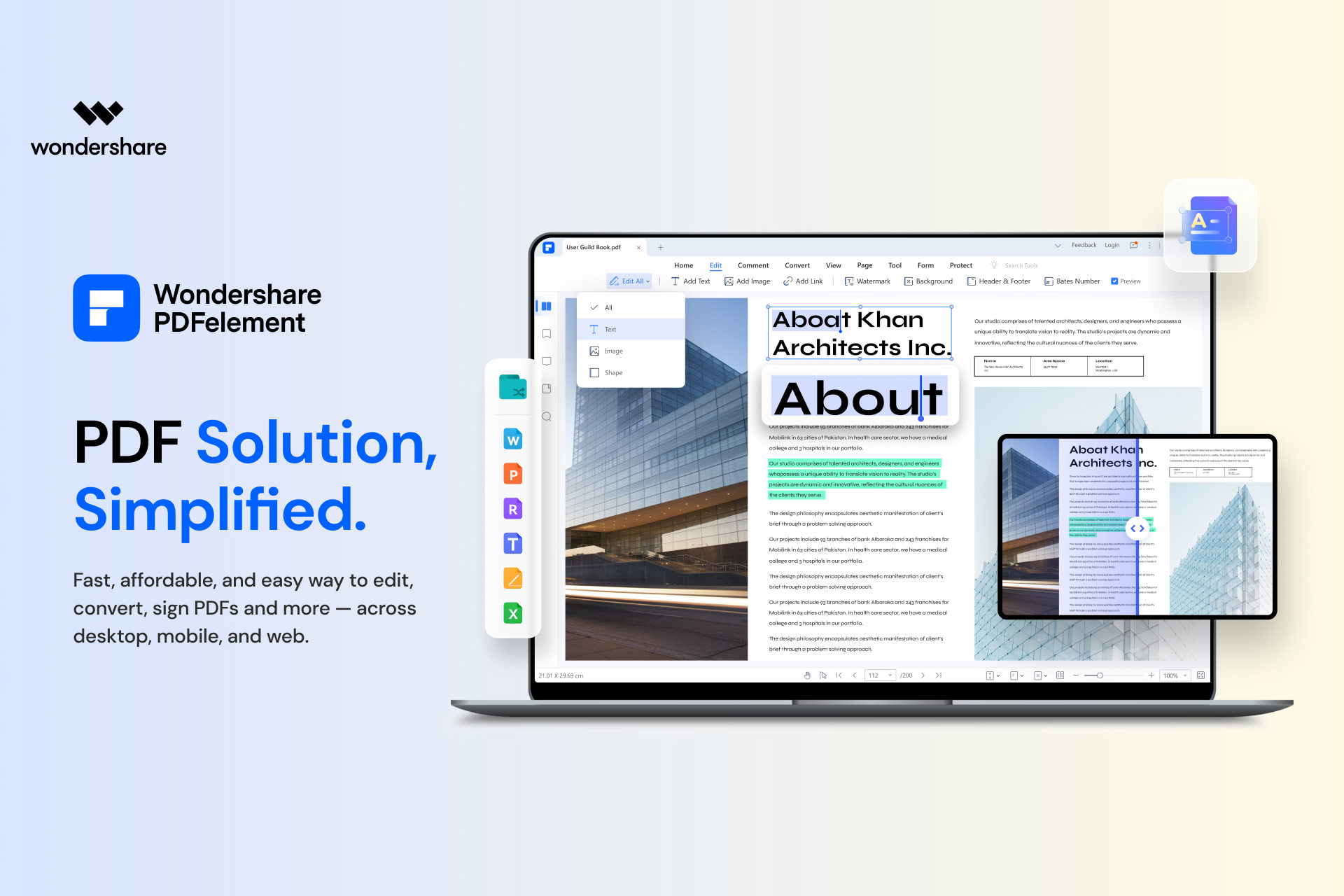
Wondershare PDFelement 9: A fast and easy tool to edit PDF documents

What is Wondershare PDFelement?

Wondershare PDFelement is an incredibly powerful and versatile PDF editor that allows you to easily edit, convert and sign PDF documents.

A professional PDF editor usually comes with an expensive license fee, but that’s not the case with Wondershare PDFelement, and the software is more affordable than most other similar applications.

Despite its affordability, the application offers simplicity of use, so it’s perfect for home users and professionals alike.

The software is available on desktop and mobile, so you can edit your documents while on the go. You can even edit your files on the Web, so you don’t have to rely on desktop software if you don’t want to.

Features overview

Editing and annotation

Just like with most PDF editors, with Wondershare PDFelement you can easily edit text, images, backgrounds, and other elements of your documents.

Creating PDFs is also simple, and you can add pdf, html, rtf, txt, jpeg, jpg, png, and gif files to your documents.

Regarding editing, you can manage pages, reorganize them, insert new ones, or even delete them as you please. You can even merge different PDFs into a new one if you want.

You can change the font settings, and add backgrounds and watermarks. Annotation is also supported, allowing you to add notes and text comments.

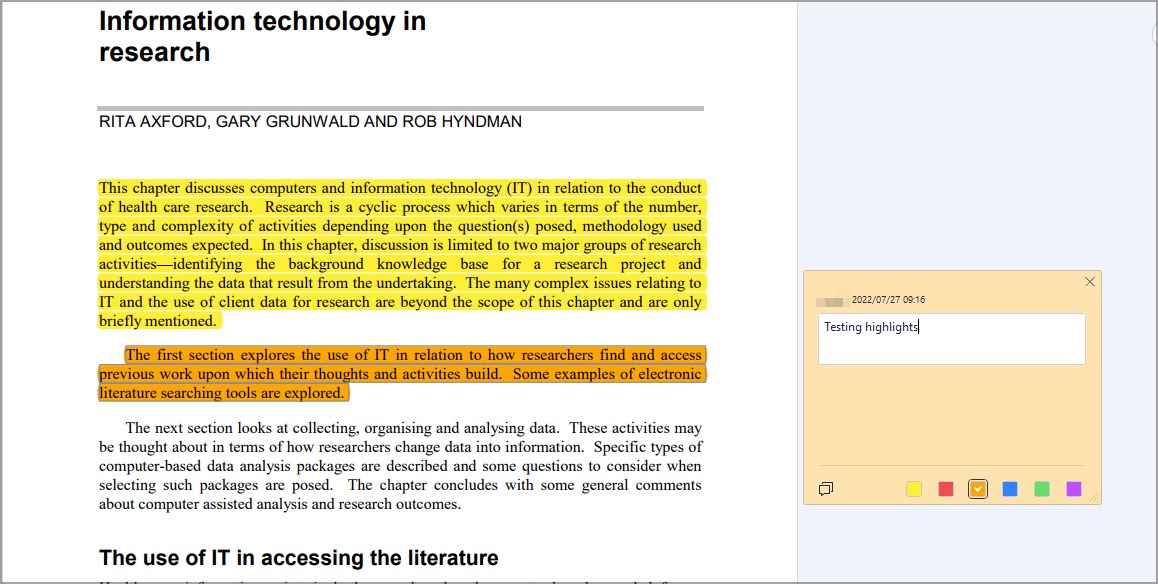
You can highlight any text you want or you can draw on the document with one of many available tools.

Form filling, OCR, and file conversion

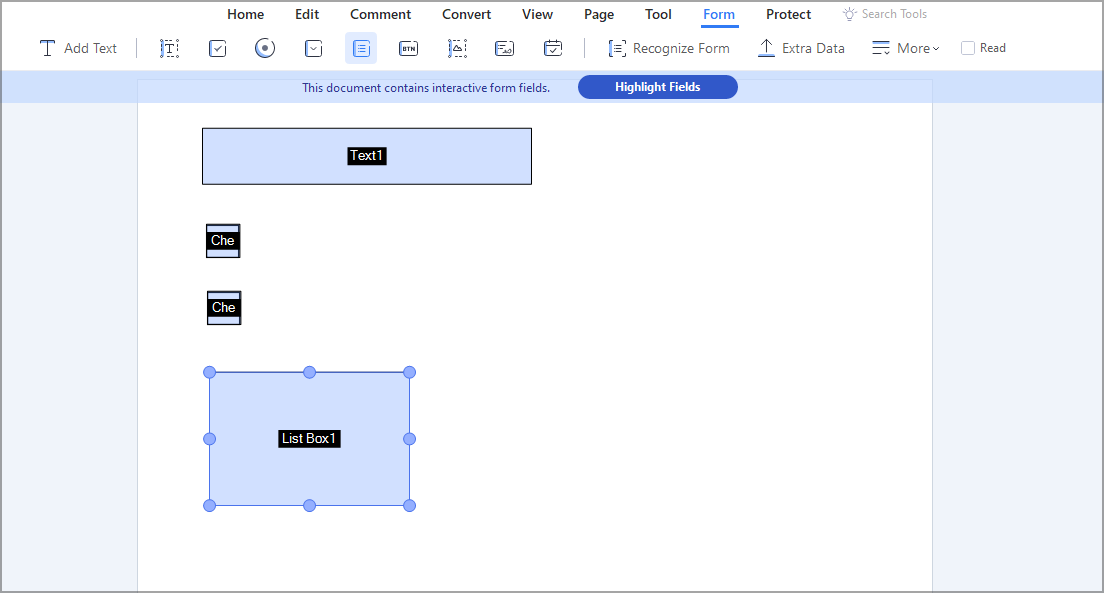
Form filling is also supported, and you can create fillable PDF forms with ease. If you need a quick solution, there are many prebuilt PDF forms that you can use. Of course, there’s support for adding a digital signature to your forms.

Optical Character Recognition is available, and it allows you to edit scanned PDF documents or pictures. Regarding language support, this feature currently works with 29 major languages.

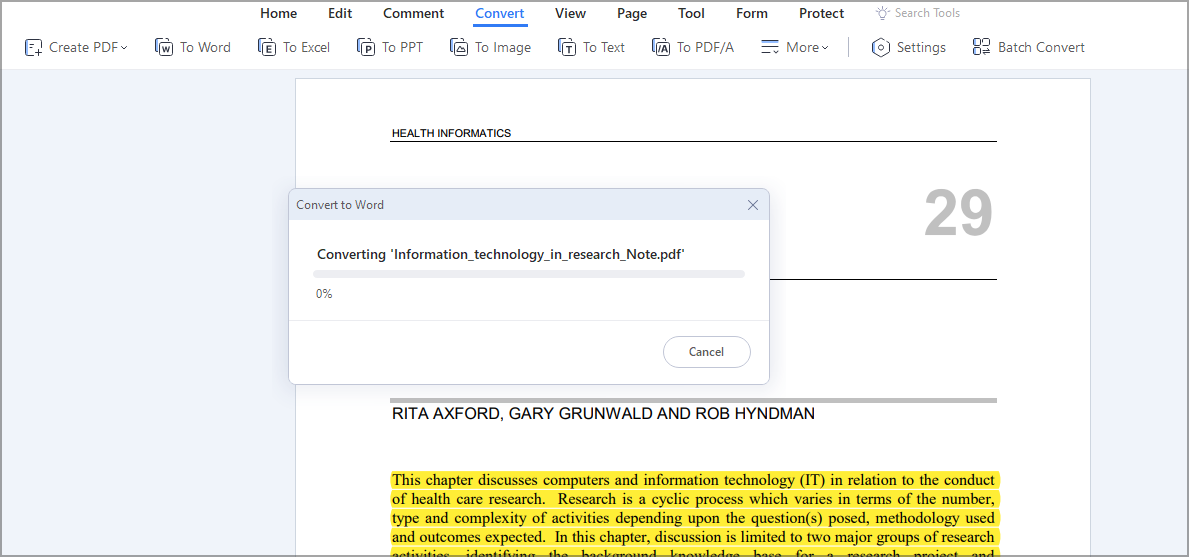
File conversion is available, and you can easily convert multiple formats to PDF. Wondershare PDFelement supports PDF to Word, Word to PDF, JPG to PDF, and PDF to JPG conversion.

All your elements will remain after the conversion, so you’ll retain the original format. Batch processing is also available, allowing you to convert multiple documents.

It’s worth mentioning that you can convert your documents to docx, xlsx, pptx, jpg, png, gif, epub, html, text, and rtf format.

Different reading modes, batch processing, security

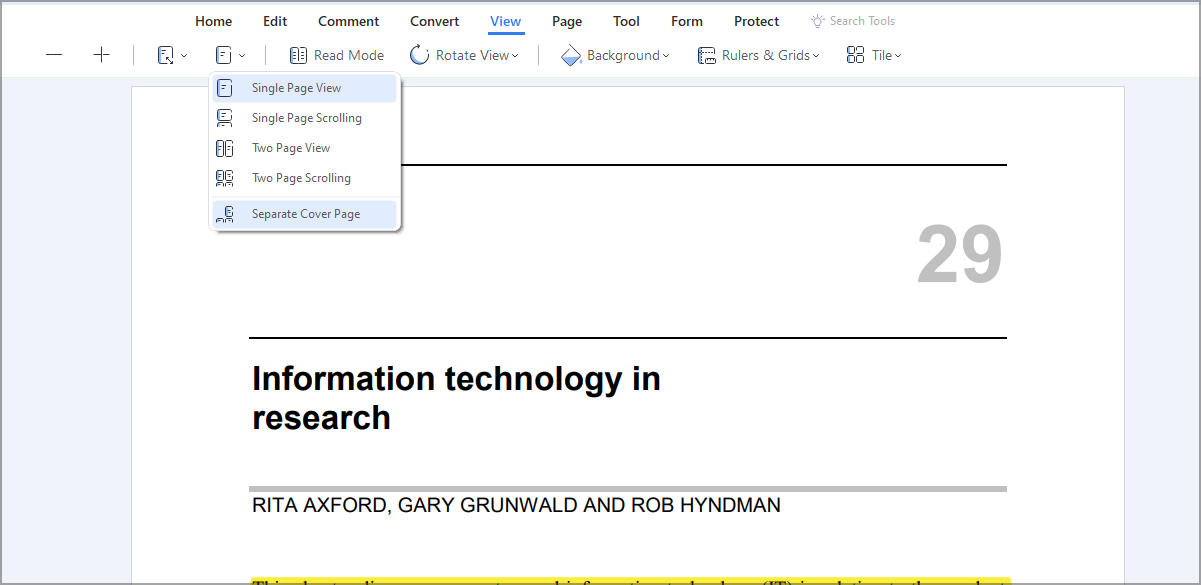
The application comes with several viewing modes, and you can view the document on a single page or in the two-page mode. Of course, there are also scrolling modes available for both layouts.

For full immersion, there’s a Read Mode that will open your document in a full-screen mode, and you can even change the background, and find the most suitable one for your eyes.

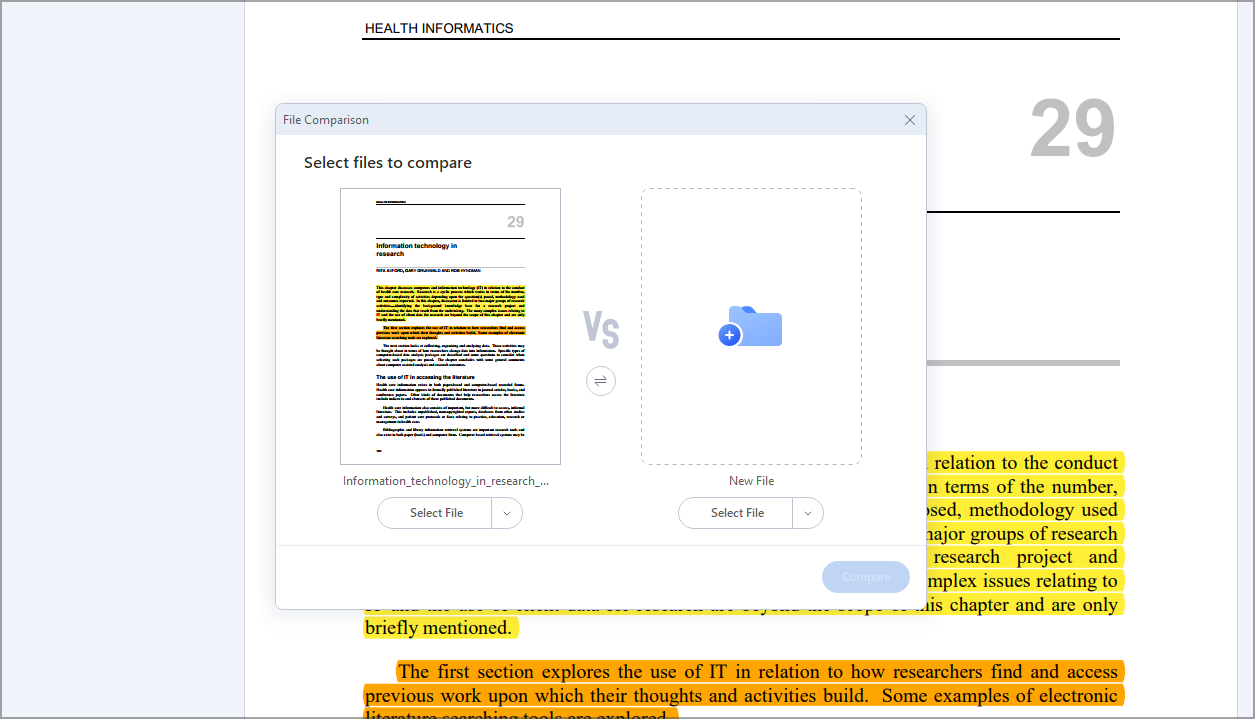
The application also allows you to compare documents for differences, which can come in handy when creating multiple versions of a document.

Batch editing is also supported, and you can create, convert, compress or print PDF files in batches. It’s also possible to crop pages in batches, which can be quite useful.

To help you speed up the editing process, you can add backgrounds, watermarks, footers, headers, and numbering in batches.

Security is a big component of Wodershare PDFelement and it allows you to protect your files with passwords. You can also set permissions and block users from accessing certain features, such as copying, editing, etc.

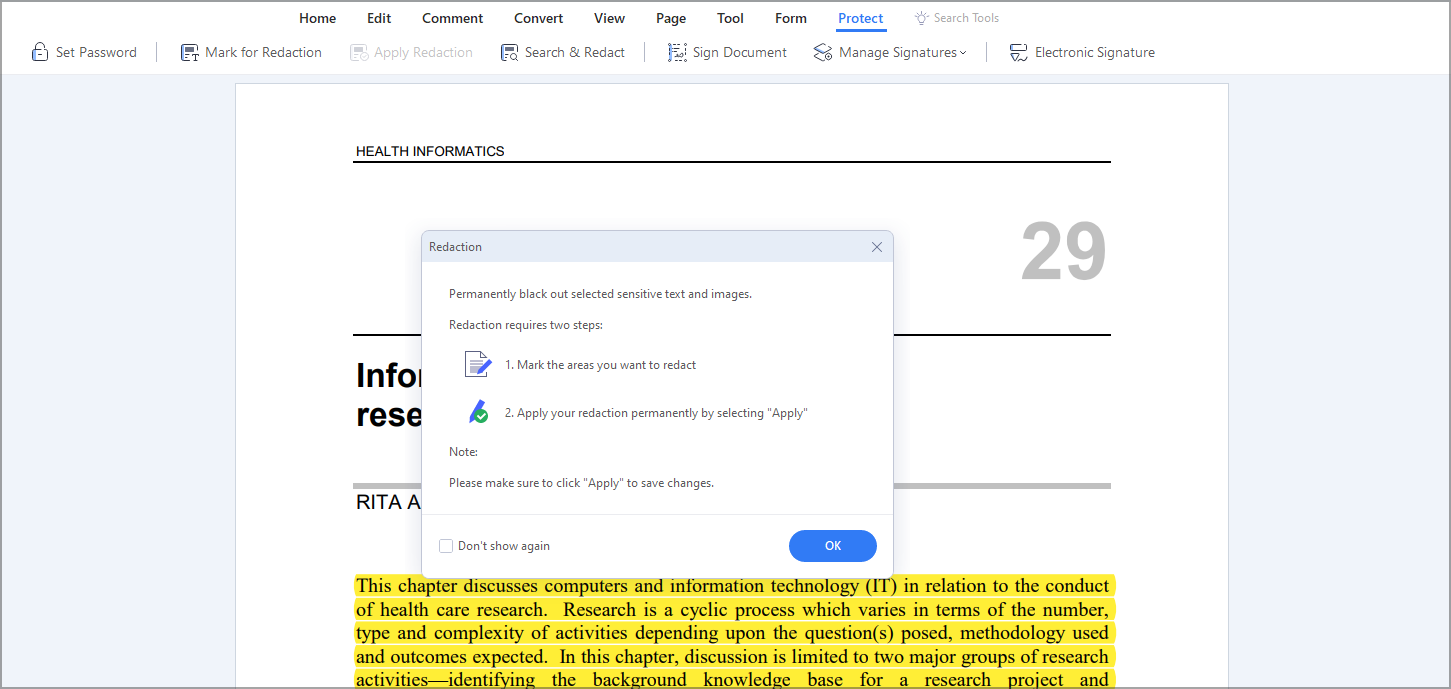
To protect sensitive information including both text and images, there’s redact option available as well.

The software offers great features that you would expect from any serious PDF editor, so it’s suitable for all types of users. The user interface is simple and sleek, so even first-time users won’t have issues using this software.

Wondershare PDFelement 9 improvements

Cloud management

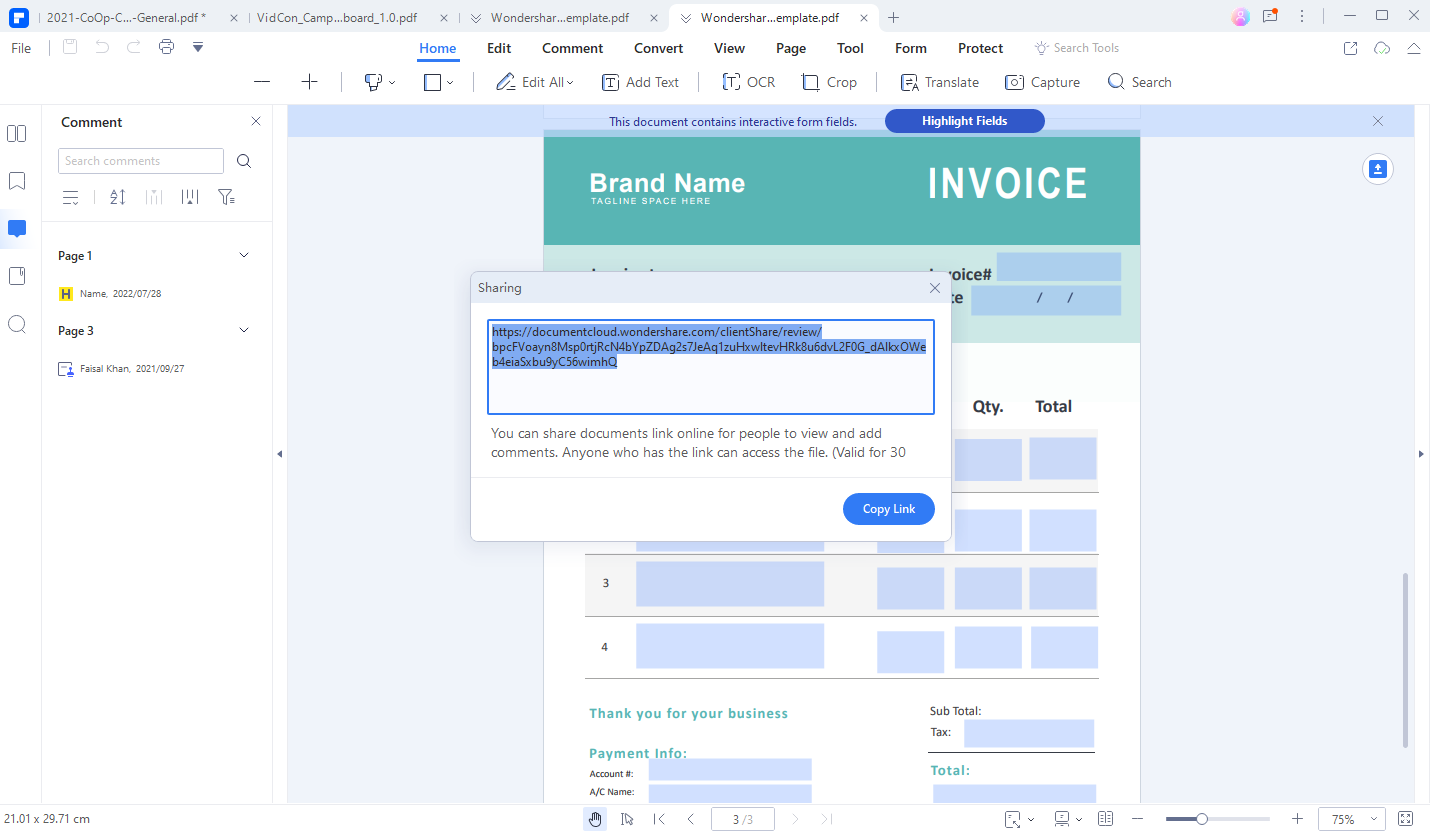
With the new version, you can access your documents on any platform, be it desktop, mobile, or web.

The documents are stored in the cloud, so they can be easily accessed from any platform or location for editing.

Improved performance

Among other improvements, this version PDFelement offers faster document rendering thanks to the new PDF technology.

The software is 30% faster than its predecessor, so it will start and load your documents faster than ever before.

Redesigned user interface

The new interface is minimalistic, and all features are easily accessible. All functionality is located in a tabbed menu, and you can access it with a single click.

Thanks to the tabbed interface, you can open multiple documents and switch between them easily, which is perfect for multitasking.

New features

There are many new features added in this version and they include the following:

  • Form table recognition extraction
  • Document translation
  • Focus Mode
  • Batch Print and Compress
  • Image signatures
  • Ability to merge multiple images into a single PDF

Is PDFelement better than Adobe Acrobat?

In our opinion, PDFelement is just as good as Adobe Acrobat, if not better. The interface is simple and it offers a wide array of features that both professional and home users will use.

It’s worth mentioning that PDFelement is more affordable than Adobe Acrobat, and as such, it’s a better choice for most users.

Wondershare PDFelement is available for Mac, Windows, iOS, Android, and online, so you can use it on any platform without issues.

Is Wondershare PDFelement safe?

Yes, Wondershare PDFelement is completely safe to use. We didn’t experience any security issues while testing the software.

The software doesn’t come with any unwanted applications or hidden malware, so it’s 100% safe to use.

Closing thoughts

In the digital age editing PDF documents is a must, even if you’re a business or a home user, so why not use a proper tool for it?

Wondershare PDFelement 9 has once again proven to be a professional tool with features that all types of users will find useful. With the sleek and easy-to-use interface, this software is a perfect choice for first-time users as well.

Lastly, we have to mention that this tool is more affordable compared to many other PDF editors, plus it offers a couple of unique ones, so there’s no reason not to try it.

Ramnit Malware: What It Is, How It Works & How to Remove It

Antivirus and anti-malware programs are becoming increasingly powerful and cybercriminals seem to have found a new way to counter this.

Ramnit is one such worm that was recycled from BullGuard. Recycling a computer worm is nothing but repackaging it in such a way that it avoids detection, and still does its job.

Our intention is to explain what Ramnit is, how it can affect your PC, and how to safely remove it. If you’re concerned about its negative effects, look below for a detailed explanation.

What is Ramnit?

Ramnit is infecting Windows executables, Microsoft Office, and HTML files. It is known to steal usernames, passwords, and browser cookies. Furthermore, it allows hackers to take control of the infected PC.

Ramnit keeps on replicating itself without the need to be attached to an existing program. In a nutshell, the Ramnit is known to spread across the Internet rapidly.

How does Ramnit work?

Ramnit is commonly spread via flash drives and it all starts after the Worm (Win32/Ramnit) is copied with a random file name. The infection is at large at sites that promise to offer keygen and cracks.
The Ramnit works by infecting .exe, HTML/HTM files before opening a back door that compromises your computer.

This backdoor can be used by a remote attacker to download and execute more malicious files.

If not dealt with in a timely manner the Ramnit infects more files and the entire system might eventually become unusable.

How can I remove Ramnit from an infected PC?

1. Perform a deep antivirus scan to remove Ramnit

First, you have to run an antivirus scan. Ramnit might have corrupted the .exe, and HTML/HTM files and that compromises your PC.

Modern users are taking advantage of the facilities used by the Internet to work, perform online shopping, and do online banking. However, this raises different problems regarding their privacy.

This performant software will ensure the users’ privacy and protect their devices regardless if they are running the Android, Windows, Mac, or Linux operating systems.

You will no longer have to worry about the safety of your personal information, passwords, online payments, and your smart home devices.

Use a single license to secure all your devices, and do not worry about the safety of your private data when you make an online payment or use an electronic wallet.

TotalAV

This powerful tool protects your online identity and keeps your PC safe from malware.
Check Price Visit Website

2. Use a third-party tool from Symantec to remove Ramnit

The Ramnit removal tool by Symantec is specifically designed to detect Ramnit on computers. In order to use this tool, one needs to be logged in as an admin and only then download the executable file.

Please note that the Risk Detected message will appear on the main page when you are trying to scan the virus with Symantec.

The tool will automatically repair all the infected files and also resets the registry values that have been tampered with. Moreover, the tool will also terminate all the processes associated with Ramnit.

3. Use Bitdefender’s remover tool

The Bitdefender Rootkit Remover is designed to tackle known rootkits efficiently. You can download the tool from the official website.

This great tool is capable of removing the following worms: Ramnit, Mayachok, Mybios, Plite, XPaj, Whistler, Alipop, Cpd, Fengd, Fips, Guntior, MBR Locker, Mebratix, Niwa, Ponreb.

The Bitdefender developers have added the definitions for the newer rootkits as well.

    4. Remove Ramnit by formatting and reinstalling Windows

    Some security analysts claim that the Rammnit is not disinfectable and it’s always advisable to format your PC and reinstall Windows.

    This solution may seem extreme, but the erasing and reinstalling method remains the best, especially when you are dealing with rootkits. Before using this solution, don’t forget to back up all your files.

  1. 1. Hold the Windows Key + S to open the search box.

  2. 2. Type Settings in the search box, and then click on the result.

    Go to Settings to Fix Needs Your Attention in Windows 11
  3. 3. Select Update and Security, then click on Recovery.

  4. 4. Navigate to Reset this PC.

  5. 5. Click Get Started to initiate the reset/refresh. You can choose to remove everything or keep personal files.

    reset this pc control panel

Once a system has been affected by a backdoor Trojan, it is very difficult to sweep the remnants and in some cases, the files become corrupted making the entire system unstable.

That being said it’s also wise to employ some precautionary measures, for instance always make it a point to scan the email attachments.

To scan your emails, we recommend you to use any of these great email-scanning software to remove malware.

Ensure that your antivirus suite is updated to the latest version and the same goes for the Windows 10 build.

We hope at least one of these solutions was helpful. In case you have any subject-related questions or suggestions, just reach for the comments section below.

Error 1722: How to Fix This Windows Installer Package Issue

When you use Windows 11, the built-in Windows Installer handles the installation, maintenance, and removal of software on your PC.

If your Installer is faulty, you might encounter errors while trying to install or remove a software program. A typical one is Error Code 1722. An error may also appear due to issues with your computer system in the following format:

Error 1722. There is a problem with this Windows Installer package. A program run as part of the setup did not finish as expected. Contact your support personnel or package vendor.

It is worth noting that you are likely to experience the error when you are trying to install:

  • Java
  • Security software
  • Drivers
  • Games
  • Microsoft products

What causes the Windows Installer 1722 Error in Windows 11?

When installing new software on your computer, errors do occur. Sometimes, this is due to the fact that the program needs a component that is no longer available on your PC or because there is a conflict with another software that’s already installed.

This can also be caused by an incorrect installation of another application because they leave traces behind and sometimes make changes in the registry. 

The registry holds all settings for them on your computer. When making changes here, they can cause errors in other programs.

When you use different kinds of software that make changes in the same area of ​​the registry it can lead to conflicts between them. These conflicts can prevent your software from working correctly.

What can I do about the Windows Installer 177 Error in Cisco VPN client?

Error 1722 Windows Installer is one of the common errors you might come across while installing Cisco VPN Client in Windows 11.

There may be different reasons for this error but the most common one could be the incompatibility of the files with the OS version, bad sectors on the disk, or damaged registry entries. That’s why our below fixes will do the trick in no time.error

What causes the Error 1722 with Windows Installer Package of Acrobat DC?

Error 1722 is a common error message in Windows operating system. It usually occurs when we try to install a software program or driver using the .exe file.

Do note that it also occurs when we try to open some programs, for example, Adobe Acrobat DC. The error message appears as:

causes

It is not a critical error and it only means that the application failed to start correctly, due to some corrupt files or missing files. You can usually correct that by reinstalling the application or the program with which you are trying to open it.

Are there multiple Windows Installer 1722 Error variations?

Windows Installer 1722 Errors in Windows 11 often occur when trying to install, reinstall, or update one of Microsoft’s programs. 

These complications are usually caused by minor issues that can be fixed in a few minutes. Here are some of the main variations that you may encounter:

  • Error in Application: Windows Installer Error 1722
  • Windows Installer Error 1722 is not a valid Win32 application
  • Windows Installer Error 1722 has encountered a problem and needs to close. We are sorry for the inconvenience.
  • Windows Installer Error 1722 can’t be located
  • Windows Installer Error 1722 can’t be found
  • Error starting program: Windows Installer Error 1722
  • Windows Installer Error 1722 is not running
  • Windows Installer Error 1722 quit
  • Faulty Program Path: Windows Installer Error 1722

It’s important to know how to troubleshoot Error 1722 in order to get things back to normal. In this particular guide, we will help you learn how to bypass this issue. Do not fret!

How can I fix the Error 1722 Windows Installer in Windows 11?

1. Run a PC repairing software

In order to specifically detect the potential errors in your PC, a practical answer that can really solve the error is specialized repair software.

These Windows repairing tools behave as restoring software that will deep scan your PC in order to find issues regarding privacy, crashing applications, broken registry files, or junk files.

2. Restart your device

In an attempt to quickly resolve this issue, you need to restart your PC. The simplest way to do this is by pressing the power button for a few seconds until the computer turns off. 

When the PC is turned on again, the error should be gone. If it doesn’t work, repeat the process until the error disappears.

3. Use Safe Mode to remove unnecessary programs

  1. Click on the Windows Start Menu, then select Settings.select
  2. Then, select the Recovery option on the left side of the window.select
  3. Scroll down to the Advanced Startup option, and click on the Restart Now button.adavnced startup
  4. Your device will restart in the Recovery Environment.

To fix Error 1722, you’ll need to open your system in Safe Mode and then remove any unnecessary applications and services from your computer.

If you’re still receiving this error even after performing these steps, try uninstalling the software that is causing the conflict and then reinstall the program again. 

Rest assured that you can certainly find the best uninstaller software that fits your budget and specific needs. Although the guide talks about Windows 10, the software can also be used in Windows 11.

Therefore, if you continue to receive Error 1722 after uninstalling the software, make sure that your antivirus software isn’t blocking the installation, and then try installing the program again.

In that regard, make sure you use one of the best antivirus solutions perfectly compatible with Windows 11 to protect your computer.

    4. How to fix Error 1722 using cmd

    Windows Installer Error 1722 can occur due to issues with the registry entries or broken files in your Windows 11 PC. Therefore, running the SFC and DISM scans in Command Prompt can help solve the error.

  1. 1. Press the Windows Key + R key, then type cmd in the Run dialog box.

    open cmd
  2. 2. Press Ctrl + Shift + Enter to open the Command Prompt.

  3. 3. Type the following command and then press Enter: DISM /Online /Cleanup-Image /ScanHealth

    enter cmd
  4. 4. Then, type this command and press Enter: DISM /Online /Cleanup-Image /RestoreHealth

    enter dism command
  5. 5. Wait for the scan to complete, and then restart your device.

  6. 6. Finally, input the following command and hit Enter:sfc /scannow

    enter sfc scan

5. Turn on the Windows Installer

  1. Press the Windows key + R key to open the Run command dialog box.
  2. Key in the following command, then press Enter: services.msc run
  3. On the window, scroll down and double-click the Windows Installer option.select
  4. Then, set the Windows Installer Startup type to Manual. Click the Start button to enable the service. set
  5. Finally, select Apply and then OK to save these changes.apply

6. Unregister and re-register the Windows Installer

  1. Press the Windows key + R key to open the Run command dialog box.
  2. Type cmd and then press Ctrl + Shift + Enter to open the Command Prompt.open
  3. To temporarily unregister the Windows Installer, type the following command and press Enter:msiexec /unregderegister
  4. When this process is complete, you can now re-register the Windows Installer. To do this, type the following command and hit Enter:msiexec /regserverreregister
  5. Finally, restart your device to save these changes.

7. Enable Windows Script Host

  1. Type cmd in the Search bar, right-click Command Prompt, and choose Run as administrator.run as administrator
  2. Key in the following commands and press Enter after each one:
  • REG DELETE /“HKCUSOFTWAREMicrosoftWindows Script HostSettings” /v Enabled /f
  • REG DELETE /“HKLMSOFTWAREMicrosoftWindows Script HostSettings” /v Enabled /frun

8. Perform a system restore

  1. Click on the Start Menu and click on the Control Panel.open
  2. Type in Recovery in the search box of the Control Panel and then tap into it.select
  3. Select Open System Restore.select
  4. Then, click on Next.click
  5. On the list shown, choose the most recent driver or update and then click Scan for affected programs.scan
  6. You’ll be shown a list of items that will be deleted. If you’re OK with that, click Next and then Finish otherwise select another update from the list.click

Can resetting an application resolve the Windows Installer 1722 Error?

When you’re trying to install an application on Microsoft Windows, you might receive an error message that reads: 

Error 1722. There is a problem with this Windows Installer package. A program required for this install to complete could not be run.

This error message is usually caused by a corrupted file in the installer program, but there are also instances where the problem lies elsewhere. If you’re receiving Error 1722, try resetting your application, then installing it again.

Flight Simulator X installation Error 1722 is one that can occasionally occur as well. Take a look at our detailed guide on Flight Simulator X Error 1722 to resolve the issue and forget all about this error message: 

Error 1722 Windows Installer Package FSX. A program run as part of the setup did not finish as expected. Contact your support personnel or package vendor.

Were you able to fix this error using our detailed procedures? Do not hesitate to let us know in the comments section below.

Xbox Insiders in Colombia and Ireland can now preview shared Game Pass Ultimate

Microsoft is offering a new Xbox Game Pass plan with an interesting benefit. This time, though, it is only in preview for the Colombian and Ireland market, letting Xbox Game Pass users who live in these regions share their Game Pass Ultimate benefits with multiple people.

According to Microsoft, this new benefit will make it easy to play the best Game Pass games with friends and family. That’s because Colombian and Irish gamers will be able to add up to four people to a subscription, with each of them having their own access to games.

Getting started with this offering in these markets is easy. Just purchase the Xbox Game Pass – Insider Preview” Game Pass plan in the Microsoft Store. There are some caveats though, which can be seen below.

  • The people you share your membership with do not have to be Insiders but must reside in the same country as you. Enrollment is limited and will remain open while the offer is available.
  • Joining the Game Pass – Insider Preview will convert the time remaining on your membership to time in the new plan, based upon the monetary value of the old membership.
  • Conversion is not available for invited group members. Before joining a group, a group member can cancel their existing subscription or wait for it to expire. If they do not have a Microsoft account, invited friends and family will have to create a new Microsoft account and sign in with it to participate.
  • Members with Xbox All Access won’t be able to participate in this preview.
  • In Colombia, parts of the copy for the preview have not been localized and might be displayed in English.

Being a preview, there will also be some known issues. You might have errors when accepting invites to join the plan, upgrading twice within 24 hours might block you out. Other known issues are below.

  • Microsoft account family members will not receive an email when automatically added to a group. Primary account holders can share benefits with Microsoft account family members automatically. We’re working on sending a confirmation email, and family members do not need to explicitly accept an invite to get access.
  • Error while trying to purchase Xbox Game Pass – Insider Preview plan. If you’re blocked from purchase with this error code: PEX-CatalogAvailabilityDataNotFound, please report a problem following the steps outlined in the Insider subreddit here. You may be able to work around this by restarting the Microsoft Store and trying to purchase again.
  • Subscription sharing “Get help” link on account.microsoft.com links to the support.xbox.com home page instead of a specific support article with sharing help.
  • Invitation and group management related emails are currently only in English. We are working on additional languages for these emails.

If you follow Game Pass closely, you might recall that shared Xbox Game Pass plans were rumored to launch this year. So, it looks as though Microsoft has moved ahead with this, beta testing it outside of the United States first.

5 Best Browsers that Support Kibana [Ranked by Compatibility]

Kibana is a data visualization and exploration tool that logs analytics, application monitoring, and operational intelligence use cases. It offers powerful and easy-to-use features like histograms, line graphs, pie charts, etc.

Kibana is the user interface to monitor, manage and secure an Elastic Stack cluster.

But, there are certain things one should check before choosing a browser to use Kibana. Keep reading this post to know what browsers Kibana supports.

Is Kibana only for Elasticsearch?

Yes, Kibana only works with Elasticsearch. Due to this, it doesn’t support any other data source. It needs to shift into the ELK stack to gather data from other sources and apply Kibana.

What web server does Kibana use?

Kibana uses Elasticsearch’s REST API. As we know, Kibana is a Node.JS best application and runs stand-alone; sometimes, it makes it possible to run Elasticsearch under Jboss after repackaging it.

Kibana 4.0 is written in Node.JS but realizes on different libraries to serve HTTP traffic. In addition, Kibana ships with a Node.JS distribution, so there are fewer external dependencies while deploying.

What are the best browsers that support Kibana?

Opera One – You may now protect your privacy

Opera One is your go-to choice if you want something lightweight yet fast as it offers Kibana support. This Chromium-powered browser is often considered a much more refined version of Google Chrome.

One of its unique features is a hotlist that serves as both a directory to the web and a bookmark file. However, it can easily be removed according to the user’s preferences.

Other than that, Opera One offers keyboard as well as mouse controls as one of its features. Also, this browser comes with built-in VPN, Ad blocker and AI.

Opera One

Utilize any data visualization tools like Kibana on this cutting-edge browser.
Free Download Visit website

Firefox – Browse fast and free

Firefox is one of the best privacy-oriented web browsers. A stealth mode is offered by default with the browser that automatically disables trackers while browsing.

Firefox, among all browsers, offers the best sound quality with meatier mids and upper bass. Some other features offered are default ad blocking and tracking, a clean user interface, and Siri shortcuts to clear history with voice commands.

Mozilla Firefox offers Kibana browser support but the lack of tabs could be frustrating sometimes.

Many users have complained about Firefox not responding in Windows 11. If you’re among those, read this post to fix this issue.

⇒ Get Firefox

Microsoft Edge – Simple privacy controls

Kibana browser support

The Edge browser is now offered as an alternative to Internet Explorer. It contains a variety of features and perks that make it a viable alternative to major browsers such as Chrome and Firefox.

The browser is strong, with built-in anti-phishing and malware protections, and offers Kibana support. It now includes password encryption stored in the OS storage space.

Microsoft also improved the browser’s gaming capabilities by adding a customizable gaming home page. It includes exclusive Xbox features and selected content to enhance the gaming experience of users.

⇒ Get Microsoft Edge

Google Chrome – Cross-browser availability

Google Chrome offers a privacy-conscious and polished surfing experience. It has a variety of add-ons, privacy settings, and a straightforward user interface.

Chrome’s cross-platform availability makes syncing data easy across all your devices. It offers various extensions to make your browsing experiences hassle-free and allows Kibana browser support.

The Chrome browser encrypts local passwords and cookies using AES-256 encryption standards. It also leverages the data protection API built into the OS to handle encryption sources.

Several users complain about Chrome not saving passwords. Rest assured that our guide shows you what to do in case that happens.

⇒ Get Google Chrome

Vivaldi Browser – User-friendly interface

Kibana browser support

Vivaldi is a web browser that belongs to the same family as Chrome. However, unlike Google Chrome or Firefox, Vivaldi lacks in terms of functionality and privacy. Yet, because of its numerous options, it is one of the finest browsers for audio-quality wired earphones.

It lets users customize every feature of the web browser, giving it whatever shape they like. Vivaldi also has some pretty nice features that may be beneficial when exploring.

⇒ Get Vivaldi

How do I access Elasticsearch from my browser?

Elasticsearch is accessible from anywhere if you use the default configuration. But for security reasons, people bind it to the local host or the intranet IP to restrict access.

Furthermore, to access the Elasticsearch server from the other Browser, you will have to enable the server’s firewall by running the below commands:

  • To check the current status run – sudo ufw status verbose
  • To enable the firewall for accessing the Elasticsearch from anywhere, run – ufw enable

These were the best browsers Kibana supports. Among the above-mentioned, Opera and Firefox are the two most recommended browsers you can try.

If this guide was helpful, do let us know in the comments section below.

How to Extract Multiple Zip Files [Complete Guide]

Zip files are used when you need to send multiple files, or if you need to group your files to save space. But what if you need to extract multiple zip files?

Windows don’t have the ability to extract multiple files, therefore you need to rely on WinZip or any other third-party tool that supports this feature.

What is WinZip?

WinZip is a file archiver and compressor. It can compress images, folders, PDF files, MP3s, videos, and thanks to the built-in repair feature, it can repair your archive if it gets damaged.

It’s important to mention that the software supports other archive file types, including ZIP, ZIPX, RAR, 7Z, GZ, ISO, IMG, TAR GZ, TAR, GZIP, GZ, and many others.

The software can also work as a file manager, so you can easily move, cut, copy, and paste your files if needed. There’s even a file splitter feature that allows you to split larger files into smaller ones.

 WinZip offers great features, and it’s one of the most used file archivers, so be sure to try it out.

Other great features:

  • Supports over 24 different archive formats
  • Cloud backup feature
  • 128-bit and 256-bit AES encryption
  • PDF to Word and Word to PDF conversion
  • Available on Mac and PC

Winzip

If you want to extract multiple zip files, the best and simplest tool for that task is WinZip.
Free trial Download now

How do I extract multiple ZIP files in Windows 10?

By extracting multiple zip files, you can save some time, and in today’s article, we’re going to show you how to properly extract multiple zip files.

    How to extract multiple zip files at once using WinZip

    If you need to extract multiple zip files, then WinZip is the right tool for the job. Extracting multiple zip files is simple, and you just need to select them and choose the Extract to option and the software will do the rest.

  1. 1. Download and install WinZip.

  2. 2. Navigate to the destination directory where you want to extract the files.

  3. 3. Select the archives that you want to extract.

  4. 4. Drag them with the left mouse button to the destination directory.

  5. 5.  Right click on them and choose WinZip > Unzip to here.

    winzip zip folder

How to extract multiple ZIP files with CMD?

  1. Make sure you have WinZip and WinZip command line addon installed.
  2. Press Windows Key + S and enter the command prompt. Select Command Prompt from the list of results.
    command prompt extract multiple zip files
  3. When the command prompt starts, run the following command: wzunzip *.zip

Keep in mind that you need to open the directory that holds the zip files in the Command Prompt for this command to work. Alternatively, you can just specify the file path to that directory in the command line.

Unfortunately, Windows doesn’t have a native way of extracting files using the command line, so you need to rely on third-party tools such as WinZip.

Extracting multiple zip files in Windows isn’t possible by default, but this process becomes a breeze with third-party applications. To learn more about file extracting, visit our guide on how to unzip files on Windows 11.

You can package files into a single executable to simplify distribution, and you can follow this guide on how to create a self extracting archive to learn the exact steps.

Many applications support this feature, but if you want a simple and powerful archiver software that can extract multiple archives, WinZip is the right choice.

OneNote for Windows and web get new dictate feature

Have you been using Microsoft OneNote and trying to capture all the crucial points in a meeting but couldn’t? Microsoft is introducing a new dictate feature in OneNote to serve this particular need for OneNote for Windows and OneNote for the web users. The feature is supported in more than 50 languages.

The new dictate feature in OneNote will allow users to “conquer the blank page and capture notes at the speed of thought”. It is further supported by AI-backed voice commands which in turn allows the users to add, format, edit, and organize text in OneNote. Here is a glimpse of how the feature appears on OneNote.

OneNote

As long as the microphone on your device is functioning and you have a stable internet connection you should be able to make use of this feature. With these in place, launch the OneNote application and head on over to the Home tab and click on the Dictate button. Then, click on the Dictation Settings button to adjust your preferences. Once done, you can now start speaking to create the notes. To conclude the process you can either say “stop dictation” or hit the Stop Dictation button on the Dictation tab.

However, the feature comes with two known issues. First up, users will not be able to access all the voice commands available in OneNote for the web or in Word are available in OneNote for Windows. Although Microsoft has indicated that they are working on adding new voice commands including those that are already available in other Office apps. And finally, some of the supported languages are on preview, which means that the may be slightly inaccurate or limited language support.

Therefore, if you are an Insider ot running OneNote on the web you should be able to access this feature. In other Dictation news, back in June Microsoft tested out a cleaner dictation experience in Office with Insiders. Be sure to also check out the newly redesigned OneNote app on Android that Microsoft was testing.


4 Ways to Fix Twitch When Your Games Are Not Showing Up

Twitch is the most popular tool when it comes to streaming games online. There are many good reasons why gamers prefer to record their gameplay with the help of this platform.

However, quite a few users encountered a significant issue with the Twitch app can’t find games. For example, one user reported the following on the Reddit forum:

As the title says. I downloaded twitch and it shows none of my games in my games tab. I ran the smart scan and it doesn’t see any and locating manual won’t find them either. Not sure what to do.

The thread’s title is Twitch app; I do not see any of my installed games. Also, the OP tried several methods, such as running an intelligent scan and manually locating the games. Still, nothing seemed to work.

Fortunately, there are other methods you should try when the Twitch my games list is an empty problem. So today, we will show you how to fix this major problem.

Why can’t Twitch find my games?

  • Internet problems – These are pretty obvious. If your Internet connection is slow, your streaming experience will also be affected. In these terms, we recommend checking your Internet connection and restarting your router.
  • Wrong privileges – Some users are streaming on Twitch without being logged in. However, it seems like the app needs you to connect with your user credentials, so always log in with your official account.
  • Temporary bugs – Twitch can get into short-term glitches like any other app. You may need to refresh it and re-open it after closing completely.
  • Browser-related issues – If Twitch can’t find games while streaming on the browser, you’ll probably need to change it with an option designed especially for this kind of app.

We’ve compiled the perfect solutions to quickly fix all of these issues, mainly Twitch app games not loading, so make sure you keep reading.

Quick Tip:

You can try using Twitch through a browser. We recommend Opera GX as it’s a particular browser dedicated to gaming.

This tool stands on top of the list of browsers perfectly optimized for Twitch. It has a dedicated Twitch integration for quick access, a CPU or RAM limiters for streaming optimization, plus notifications for Twitch streams.

Opera GX

Use a gaming browser with Twitch integration to optimize streaming or gaming easily.

How do I get my game to show on Twitch?

1. Reset your router

  1. Press the Power button on your router. If you have both modem and router, turn off both devices.
  2. Wait for a couple of moments and turn your router back on again.
  3. Wait while your router boots completely. This should take about 30-60 seconds.

It seems like problems with Twitch chat can occur due to issues with your router. So you might have to restart your router if it’s happening to encounter glitches.

2. Sign in with the Twitch account

2.1 Desktop app

  1. Download Twitch for Windows.
  2. Follow the on-screen instructions to install it.
  3. Once installed, hit the Windows key, type Twitch, then click on the first result.
  4. Enter your username and password, then click on Log in.

2.2 Browser app

  1. Access the Twitch browser version.
  2. In the top-right corner of the window, click on Log in.
  3. Now, enter your username and password in the pop-up window, then click on Log in.
  4. Try searching for your games.

Sometimes, it is possible that you forgot to sign in. But, of course, if you don’t sign in with your Twitch account, no games will appear.

If Twitch doesn’t let you sign up, we’ve got an amiable guide on how to solve this problem.

3. Refresh the app

Quite a few users solved this issue by refreshing their app. Just click on the button from the upper-left corner of the window.

The explanation for this is simple. The servers are overloaded, and it takes some time to load all the games. So, a refresh will reload the platform with all the games on it.

4. Close and open the program in Task Manager

  1. Use the following keyboard shortcut: Ctrl + Alt + Delete.
  2. Select Task Manager.
  3. Find Twitch in the Apps section and click on End Task.
  4. Open Twitch again.

Not seeing games in the Twitch app is a significant issue. It makes the program useless. However, some easy solutions will work. These will allow you to stream your favorite games.

How do I download my game from Twitch?

  1. Download the Twitch App for Desktop.download twitch app
  2. Install the app.install twitch application
  3. Visit The Twitch Website and click on the Prime Loot Icon.
  4. After claiming a game on the website, head to the Desktop App to download and install the game.
  5. Access your games on the Desktop App

That’s all you have to do, so don’t be discouraged, as this is far from daunting and, who knows, maybe you’ll even have some fun while doing it.

So, if your Twitch app games are not loading, your Twitch prime games are not showing up, or any issues with the Twitch game library, check us out for more guides.

Did you find our solutions helpful? Then, do let us know in the comments section below!

Microsoft Mail users targetted in new phishing campaign

Read very carefully what we’re about to write in this article, as nobody is safe from attackers and the methods they are presently using.

To be more specific, Microsoft email service users need to really be on the lookout because Zscaler, a cybersecurity research company, just discovered a new ongoing phishing campaign targeting Microsoft email users.

Not to scare you but, according to the firm, corporate users are under attack and the campaign is being run using adversary-in-the-middle (AiTM) technique to bypass multi-factor authentication.

Phishing campaign uses AiTM method to steal your credentials

Even the Redmond tech giant acknowledged this problem back in July when it created a blog post meant to warn users about the impending danger.

To bring you up to speed, this AiTM technique places an adversary in the middle in order to intercept the authentication process between the client and the server.

Needless to say that, during this exchange, all of your credentials are as good as gone, as malicious third parties will have them as a result.

And, as you would have expected, this also means the MFA information is stolen. Therefore, the adversary in the middle acts like the server to the real client and the client to the real server.

Attacker-registered domain nameLegit Federal Credit Union domain name
crossvalleyfcv[.]orgcrossvalleyfcu[.]org
triboro-fcv[.]orgtriboro-fcu[.]org
cityfederalcv[.]comcityfederalcu[.]com
portconnfcuu[.]comportconnfcu[.]com
oufcv[.]comoufcu[.]com

As the security experts explained, this campaign is specifically designed to reach end users in enterprises that use Microsoft’s email services.

Remember that Business email compromise (BEC) continues to be an ever-present threat to organizations and this campaign further highlights the need to protect against such attacks.

These are some of the key points that cybersecurity experts have summarized, as a result of analyzing the threat at hand:

  • Corporate users of Microsoft’s email services are the main targets of this large-scale phishing campaign.
     
  • All these phishing attacks begin with an email sent to the victim with a malicious link.
     
  • The campaign is active at the time of blog publication and new phishing domains are registered almost every day by the threat actor.
     
  • In some cases, the business emails of executives were compromised using this phishing attack and later used to send further phishing emails as part of the same campaign.
     
  • Some of the key industry verticals such as FinTech, Lending, Insurance, Energy and Manufacturing in geographical regions such as the US, UK, New Zealand and Australia are targeted.
     
  • A custom proxy-based phishing kit capable of bypassing multi-factor authentication (MFA) is used in these attacks.
     
  • Various cloaking and browser fingerprinting techniques are leveraged by the threat actor to bypass automated URL analysis systems.
     
  • Numerous URL redirection methods are used to evade corporate email URL analysis solutions.
     
  • Legitimate online code editing services such as CodeSandbox and Glitch are abused to increase the shelf life of the campaign.

Per our analysis of the original emails using the Federal Credit Union theme, we observed an interesting pattern. These emails originated from the email addresses of the chief executives of the respective Federal Credit Union organizations.

Allow us to also mention that some of the attacker-registered domains were typosquatted versions of legit Federal Credit Unions in the US.

Source: Zscaler

Nowadays, the line between online safety and compromising your entire operation is so fine, you’d need an atomic microscope to see it.

That’s why we always preach safety, which means:

  • Never download anything from random, unsafe sources.
  • Never reveal your credentials or other sensitive information to anyone.
  • Don’t let people you don’t trust use your PC.
  • Don’t open links received in emails that originate from untrusted sources.
  • Always antivirus software.

It’s all up to you to stay safe in this everchanging online jungle, so be sure to take all the safety measures you need, in order to avoid disaster.

Have you received any such emails lately? Share your experience with us in the comments section below.

How can you Transfer Your Lost Ark Characters to Different Servers?

Well, nowadays, the situation is pretty simple. Gamers are either playing Elden Ring or going against monsters, as well as each other, in Lost Ark.

Lost Ark is an isometric 2.5D fantasy massively multiplayer online action role-playing game. It is co-developed by Tripod Studio and Smilegate’s game development subsidiary, Smilegate RPG.

And, like many MMOs, Lost Ark asks you to select a server when creating your character, and the server you choose is critical, as friends must select the same server to play together.

However, as Lost Ark’s player count continues to explode, you might struggle to get into the same server without experiencing long queues and wait times.

That being said, many players are now wondering whether they can change servers in Lost Ark, making it possible for them to transfer characters to team up with friends later.

Can you server transfer in Lost Ark?

We don’t mean to be the bearers of bad news, but you can’t do that anywhere except in Korea. 

When you make a character, it becomes linked to a server and cannot move to another, which means that if you want to play with a friend, you need to select the same servers during the character creation process.

You can still create multiple characters in Lost Ark, so at least we have that. In addition, everyone gets six character slots for free in Lost Ark, and each of these characters can live on a different server.

Thus, you could build a character now and hop into any server with a free slot and then build another character to play through Lost Ark with a friend when there are fewer server queues.

With five classes and 15 subclasses to try out, there are plenty of character options to explore, so there’s no need to limit yourself to just one character.

A post you can find on the Lost Ark official forum clarifies the situation and explains why this addition will take some time to be implemented if it ever will be.

As the forum post says, the Europe Central region is at capacity, and unfortunately, there is no way to increase the number of players per world in Europe Central.

Adding more servers is impossible based on the complexity of all the systems that need to work together.

Can I transfer gold from one server to another Lost Ark?

Yes, but not as easy as you might think. First, you’re not going to walk up to a character on a different server and trade the gold.

The mailing system can make private trade within the same server easier. Inter-server, however, is a bit more complex, and this usually involves using Lvl.1 Tier 2 gem.

Since the auction house works across servers within a region, you can move assets such as gold across servers by posting cheap items at a high price and repurchasing it from another account.

Due to not being able to continue expanding Europe Central capacity, we quickly spun up Europe West. This is an appealing option for new players or players who have not significantly progressed on Europe Central.

The problem for most fans is that moving to a new server means starting fresh and abandoning whatever characters they made before.

Quick Tip:

Remember that when dealing with online games, we often need to turn to a VPN to access some of them or play on different servers.

That being said, know that Private Internet Access has made quite a name for itself in the VPN industry, thanks to fast network connections and superior encryption methods.

This fantastic service provides over 22,500 VPN and proxy servers in 98 locations across 77 countries.

Private Internet Access

Use the best VPN (overall) for Windows 10 to stay safe online and unblock streaming media.
Check Price Get it now

You could redeem Founders Pack and Starter Pack rewards on another server for a bit, but that’s not a proper solution to the problems.

As the statement mentions, the Korean version recently implemented server transfers for Lost Ark, but who knows if that option will make it over to the west.

So, if you want to escape the queues, we suggest moving to a less populated server with your friends and creating a new situation.

Does server matter in Lost Ark?

Many Lost Ark players will say that it does matter for some things, but most essential items are cross-server.

This will make you better grasp the notion of why it’s essential to pick the server you play on:

  • Cross Server (Region-wide): Raids, Dungeons, Cube, Plat Fields, Auction house, Character name, Boss Rush, PVP arenas.
  • Server Specific: Guilds, Friends, Islands, Open world, Strongholds, GvG, Life skills (professions), Unranked Arena Premades

So, if you have a specific guild you want to join or friends you want to play with, we’re going to go with yes, it matters.

Lost Ark character transfer isn’t yet possible, so if you are not from Korea, you can forget about this idea for the moment.

Lost Ark region transfer, and by that, we mean Lost Ark server transfers between NA/Korea/EU/RU/KR, is also not an option we have yet.

As we said at the beginning of the article, Lost Ark’s free server transfer is only available to Korean users for the time being.

It’s all up to you, depending on your preferences, so let us know how it went in the comments section below.

Windows 11 Build 25174 is out now for all Dev Channel Insiders

Microsoft is focused on delivering the best quality for its latest operating system, and its a trend that it will surely follow with Windows 12 as well.

Also know that the startup sound quality for the 22H2 version of Windows 11 has been lowered by the tech giant, in an effort to make the OS less resource-hungry.

Wondering what all this costs and what kind of financial benefits the Redmond-based tech giant gets? Read about it in the latest quarterly income report.

Yesterday, the Redmond tech giant flighted two more builds to the Beta channel, in the form of KB5016700, so it was time for the Dev channel insiders to get their software tweaks.

Furthermore, since we’re on the topic of updates, Nvidia released critical security updates for Windows 7 and Windows 8.1 as well.

The Windows Subsystem for Android also got an important update and got bumped to version 2206.40000.15.0.

Now to the matter at hand, Microsoft has just released Windows 11 Insider build 25174 to the Dev Channel. Let’s see what this update is all about.

What’s new in build 25174?

The tech giant stated that, for the past couple of months, it has been working with the Xbox team to make Windows and PC Game Pass an even better combination.

Thus, today it is announcing something new for gaming and our widgets experience, which is the Game Pass widget preview.

The Game Pass widget.

This brand new widget is a window to the extensive PC Game Pass library, and it will show the latest additions, games leaving soon, and others from highlighted categories and then take you to the Xbox app where you can install them, see reviews, and go all in.

Let’s take a closer look at the rest of the changelog and discover all the improvements, fixes, as well as known issues together.

Changes and Improvements

[File Explorer]

  • Middle clicking a folder in the navigation pane of File Explorer will now open it in a new tab, like clicking a folder in the body of File Explorer already does. Please note that this requires tabbed File Explorer, which hasn’t rolled out to everyone in the Dev Channel yet.

Fixes

[File Explorer]

  • Fixed an issue which could cause explorer.exe to crash when opening new File Explorer windows.
  • Fixed an issue where launching File Explorer in certain ways when using dark mode (for example, from the command line) was showing the body of File Explorer unexpectedly in light mode.
  • Fixed an issue where the left/right arrows in File Explorer were in light mode when you were using dark mode, causing them to not have enough contrast to show when they were enabled.
  • Fixed an issue where the dividers in the navigation pane were overlapping / drawing too close to text sometimes.
  • Fixed an issue where if you drag and drop a folder into the navigation pane was sometimes unexpectedly putting the folder at the bottom of the list rather than where you’d dropped it.
  • Fixed an issue causing UI issues in File Explorer when using F11 to put File Explorer in full screen mode.

[Taskbar]

  • Fixed an issue leading to various system tray elements being unexpectedly missing for some Insiders on the previous build.

[Settings]

  • Fixed a crash on some PCs were experiencing when going to System > Storage > Disks & Volumes.

[Other]

  • Fixed an issue which was leading to mouse and keyboard input not working correctly in certain games in the last 2 flights.
  • Fixed an issue believed to be leading to SQL Server Management Studio failing to launch for some Insiders.
  • Fixed an issue where Memory Integrity in Windows Security might show a warning saying it couldn’t be enabled due to incompatible drivers, but the incompatible drivers list would be blank.
  • Fixed an issue which was causing some apps to unexpectedly not launch in the last few flights when core isolation was enabled in Windows Security.

Known issues

[General]

  • Some games that use Easy Anti-Cheat may crash or cause your PC to bugcheck.
  • [NEW] We’re looking into reports that audio stopped working for some Insiders after upgrading to the last flight.
  • [NEW] We’re working on a fix for an issue leading to some Insiders experiencing a decrease in FPS when playing certain games in recent flights due to the wrong graphics card being used.
  • [NEW] We’re investigating reports of a few different apps having started crashing in recent builds.

[File Explorer]

  • The left-half of the File Explorer title bar may not be draggable via mouse or touch.
  • The up arrow is misaligned in File Explorer tabs. This will be fixed in a future update.
  • [NEW] We’re working on a fix for an issue causing Home, Documents, Pictures and potentially other folders to become unexpectedly duplicated in File Explorer’s navigation pane or appear on the desktop.
  • [NEW] We’re working on a fix for an issue where the search box background in File Explorer might be the opposite color of your current mode.
  • [NEW] We’re working on a fix for an issue causing the delete key to unexpectedly not work on files in File Explorer. If you encounter this, you should still be able to use the context menu to delete.

[Widgets]

  • Notification badge number may appear misaligned on the taskbar.
  • In some cases, the notification banner for some badging will not appear in the widgets board.
  • We’re working on the fix for an issue causing Widgets preferences (temperature units and pinned widgets) to unexpectedly get reset to default.

[Printing]

  • [NEW] We’re working on a fix for an issue causing hangs and crashes when trying to print from certain apps (like Excel) in the last flight.
  • [NEW] We’re investigating reports in recent Dev Channel flights lines aren’t included when printing tables from certain apps.

What can I do if KB5016700 fails to install?

  1. Press Win+ I to access Settings.
  2. Select the System category and click on Troubleshoot.w11 troubleshoot
  3. Press the Other troubleshooters button.other troubleshooters windows 11
  4. Press the Run button next to Windows Update.windows update troubleshooter

There you have it, folks! Everything you can expect if you are a Dev channel Insider. Leave a comment below if you found any issues since installing this build.

How to Fix Opera GX High CPU Usage on Windows

The Opera GX high CPU issue often results from misconfigured browser features or background processes. Below are practical steps to reduce CPU consumption by using the browser’s own performance controls.

How do I fix Opera GX if the CPU is at 100%? 

1. Close other programs

You may not be aware that you have other programs running in the background that are causing your CPU to spike.

To check for this, open the Task Manager, find the program that’s using a lot of CPU and close its window or End process and see if Opera GX stops consuming so much CPU. If not, close all other programs except Opera GX and see if that helps.

2. Update Opera GX

  1. Launch Opera GX and click on the Opera logo in the upper left corner.opera logo in opera gx
  2. Select Update & Recovery.opera gx update and recovery
  3. Wait for Opera GX to check for updates.wait for opera gx to check for updates
  4. If a new version is available, the browser will automatically install it. All you’ll have to do is click on the Relaunch now button for all changes to take effect.opera gx relaunch after update

Getting stuck in the update-checking process? Click the button below to download the latest version directly from the official website.

Opera GX

Make errors disappear by installing the latest version of Opera GX!

3. Disable extensions

  1. Press Ctrl + Shift + E shortcut to open the Extensions page.
  2. Toggle off the Disable button for all your extensions.

4. Disable hardware acceleration

  1. Launch Opera GX, click the Opera icon in the top left corner, and choose Settings from the menu.
  2. Scroll to the bottom of the page and click on Advanced.
  3. Go to the System section and toggle off Use hardware acceleration when available.
  4. Restart your browser and check if the problem is still there.

For more information, don’t miss our guide on how to turn off hardware acceleration in Opera GX.

5. Limit Sidebar Apps and Integrations

Sidebar tools like Twitch, Discord, WhatsApp, and Instagram run scripts in the background, which increases CPU load.

  • Right-click each sidebar icon and select Remove from Sidebar
  • Or go to Settings > Sidebar and disable the services you don’t use

This prevents Opera GX from constantly updating or syncing those services in the background.

6. Use the CPU Limiter in GX Control

The CPU Limiter helps you cap the percentage of CPU the browser can use.

  • Open GX Control from the left sidebar
  • Enable CPU Limiter
  • Drag the slider to limit usage, ideally around 50–60%

This ensures the browser doesn’t consume unnecessary processing power during regular use or gaming sessions.

7. Enable the Memory Limiter

The RAM Limiter reduces memory usage, which indirectly affects CPU usage by lowering tab and script activity.

  • Go to GX Control
  • Enable RAM Limiter
  • Choose a limit based on your system memory (2GB or 4GB for most users)
  • Select Hard Limit to enforce it strictly

This helps stabilize performance when multiple tabs are open.

8. Force Background Tabs to Sleep

Inactive tabs may continue running scripts or videos. You can set Opera GX to automatically suspend them.

  • Go to Settings > Advanced > System
  • Turn on Snooze inactive tabs to save resources

This will reduce CPU cycles spent on tabs you’re not actively using.

9. Turn Off Animations and Effects

Graphical effects can also increase CPU load unnecessarily.

  • Go to Settings > Appearance
  • Disable Animated themes, Dynamic background, and Visual effects

This creates a lighter user interface and helps lower overall system resource usage.

10. Reset the User Profile Without Reinstalling

Corrupted settings or session files can cause CPU spikes. You can clean up your user profile without losing bookmarks.

  • Navigate to
    C:\Users\<YourUsername>\AppData\Roaming\Opera Software\Opera GX Stable
  • Back up this folder
  • Delete all files except:
    • Bookmarks
    • Login Data
    • Extensions
  • Launch Opera GX again

This removes leftover cache or broken session data that may be causing high CPU usage.

Limiting RAM and CPU usage can be useful when you’re running heavy games or apps that require a lot of power. It is also an alternative way to save battery life by limiting the amount of RAM consumed by background processes.

You may also want to consider installing a RAM cleaner and optimizer that automatically does the job for to avoid RAM errors in the future. 

If you are still experiencing problems with the browser, feel free to check out our recommended list of the best gaming browsers for another alternative.

Did you know that Opera GX has a hidden offline game? That’s right, and you can access it with a hidden URL.

Let us know if any of our solutions have been able to bring down the CPU usage in the comment section below.

Best back to school Minecraft Education Edition resources for educators

Updated: 2/21/2023

Summer grows long in the tooth and that means it’s back to school season once again. What better time to check out the best resources available for teachers in Minecraft Education Edition?

It has a wealth of lesson plans covering almost every academic topic out there, and something for educators of all types. Here we’ve selected some of the best lessons, challenges, and activities Minecraft Education Edition has to offer. So with no further delay let’s have a look at them.

Minecraft: Education Edition: Teacher Academy

Illustration of Minecraft: Education Edition course progression: Earn a badge for each module. Once you complete all three modules, you receive the Minecraft Certified Teacher badge.

This course for teachers new to Minecraft Education Edition consists of three modules: building individually; modifying together; and building worlds together. The course has a well-laid-out pathway for educators and makes for a great introduction to Minecraft Education Edition.

It is designed to accommodate various teaching and learning styles. For teachers looking to dive into this learning tool, this is the place to start.

Back to School!

Back to school!

This custom Minecraft world is specifically designed for students going back to school in a virtual environment. In Back to School! Students are asked to create something unique within the game with which to introduce themselves to the class. The student’s creation – or rather a screen capture of it – is shared via Microsoft Teams or Flipgrid.

Inside the virtual classroom are posters displaying rules for digital citizenship, upon which students are tested via NPC challenges. Back to School! is a great activity for helping returning virtual learners get back into the swing of things after the long summer break.

Element Scavenger Hunt

Learn all about the elements with these fun scavenger hunt activities. The great thing about these challenges is that they have lesson extensions, such as researching an element and creating a build in Minecraft that contains that element. These are also great for building collaboration and critical thinking skills.

League of Literacy

Created in partnership with Random House and the National Literacy Trust, this lesson has students reading the first official Minecraft novel Minecraft: The Island by Max Brooks in class and then in the game building a shelter inspired by the novel.

Students then create a short video showing their Minecraft build and explaining their use of the six Ps from the text: Planning, Preparing, Prioritizing, Practice, Patience, and Perseverance. It’s a fun activity for students and a great way to spark their creativity.

Build Your Emotion

This challenge helps students build their emotional self-awareness. The challenge for students is to build something in the world of Minecraft that matches how they are feeling at present.

First students use the Book and Quill to write a paragraph about what is affecting their mood. Then, they build something for each emotion they record. And lastly, the student then shares that build with the class.

Fantastic Mr. Fox

Fantastic Mr. Fox

This Minecraft world is based on Roald Dahl’s Fantastic Mr. Fox. It is designed to help teach English/Language Arts and allows teachers to create their own lessons alongside those included in the lesson plan.

Lesson ideas include having students explore the lesson world and find scenes from the book. Or have students build a village for the animals from the story to live in. These are just a few ideas of how the Fantastic Mr. Fox Minecraft world can be used to improve students’ language skills in an engaging way.

Desert Island

The concept of this lesson is fairly simple: have students build an object in Minecraft that represents the one thing they would bring with them to a desert island. Lesson extension ideas include having students take pictures or screen captures of their creations and share them with the class.

Additionally, you can have them write a paragraph about what they built and why. And, most interestingly, have them switch to survival mode in Minecraft to see how long they can last on the island with the object they built.

Wrap up

These were really just a small sampling of what Minecraft Education Edition has to offer. Do yourself a favor and take time to explore the Minecraft Education Edition site and discover for yourself the range of educational tools and resources available. It is a great tool that can engage students and is especially invaluable in digital learning. Be sure to also check out our post where we compare Minecraft Education Edition and Roblox Education.

Browser Not Supported (Error Code 100): 3 Ways to Fix It

Error Code 100 is a browser not supported error code. It indicates that the website you’re trying to visit is not compatible with your browser. This could be due to an outdated browser version or a problem with your operating system.

Generally speaking, older browsers don’t work well with newer websites because they don’t support newer technologies and features.

You may also encounter a this site can’t be reached error, but we have adequately covered various fixes to help you bypass this issue.

What does error code 100 mean? 

Error code 100 is an error code that means the browser could not establish a connection to the server. It can be caused by a number of reasons, so the first thing you should do is check your internet connection.

Other reasons include:

  • Bad response from server – The server might be down or overloaded and cannot handle all of the requests it is receiving at the time hence giving you a bad response. 
  • Unsupported browser – You may also get this error if you are using an unsupported browser. In order to resolve this issue, you will need to upgrade your browser or use another one altogether.
  • Corrupted files – If you’ve just downloaded some new software, then it’s possible that one or more files within that program have become corrupted during download or installation.

In some rare cases, it could also be because there’s a problem with the website’s security certificate. If this is the case, don’t hesitate to check our expert article on recommended fixes.

Quick Tip:

Use a more stable browser if you keep having problems with your current one. We recommend Opera One as a stable and lightweight solution.

Running on a Chromium engine, this browser is compatible with all Chrome extensions and includes familiar tools for tabbed browsing, and advanced tools like an adblocker, VPN and an AI.

Opera One

Say goodbye to errors by using this performance-optimized browser.
Free Download Visit website

How do I fix the browser not supported error code 100? 

1. Update your browser

In order to fix the error code 100, all you need to do is upgrade the browser from the one that is currently installed on your computer so it supports all the websites that require a specific browser version. 

By upgrading your current browser, you can ensure that all supported sites will work properly without any errors or crashes in future visits.

2. Clear cache and cookies

One of the most common causes of this error is an outdated cache or cookie file in your browser. You may also be able to fix this problem by clearing your browser’s cache and cookies. 

Clearing your browser cache deletes temporary files stored on your computer by your browser that may be causing sites to load slowly or incorrectly.

3. Uninstall recent updates 

  1. Press the Windows + I keys simultaneously to open Settings.settings-option oops thre was an error
  2. Navigate to Windows Updates, then select Update history.
  3. Click on Uninstall updates.
  4. Select the most recent update, then click Uninstall.

What are the most common browser not supported errors? 

A browser not supported error is an alert that web pages may display to users when their browser is incompatible with a particular website’s requirements. It can manifest in different forms, such as:

  • Error 400 Bad Request – This error occurs when the request sent by the client is invalid or malformed. The server returns this error when receiving a request with an empty body, partial content, or certain characters.
  • Error 404 Not Found – This error occurs when a URL requested by the client does not exist on the server side and cannot be found by the server. It can sometimes happen because of incorrect linking or missing files on your web server.
  • Error 500 Internal Server Error – This typically means that your web server has been unable to process a request because of an internal error or misconfiguration.

You can easily solve most browser errors by updating your browser or clearing cookies. In some cases, you may also not have enough memory for your browser to handle such requests, or a virus has infected your system.

It is why we recommend that you install a reliable antivirus to prevent such occurrences. Hopefully, you have been able to resolve the browser not supported error code 100 from one of our solutions above.

Let us know of any other additional solutions not mentioned here that may have worked for you in the comments section below.

How to enable Edge automatic profile switching to keep your work and personal life separate

In a new update, you can now enable Edge automatic profile switching, so the browser will use a certain user profile for opening links in Microsoft and other third-party applications.

Previously available in Edge Canary build 81.0.413.0 and above, the update brought the feature to Edge’s Stable Channel. The new-to-you feature is called Edge automatic profile switching.

Other Chromium-based browsers like Google Chrome allow specifying the profile to use for links, but the process is a bit more complicated forcing you to make command line and Windows Registry changes.

Edge looks to make the process a whole lot easier. Once set up, if Edge detects a link that is a personal or work link, the browser will automatically prompt you to switch to the appropriate Edge profile.

Edge automatic profile switching is greyed out

Edge automatic profile switching is enabled by default. However, if the Edge automatic profile switching is greyed out and you can’t select it, there’s a reason for it. You need to make sure you have at least two profiles attached to your Edge browser.

edge automatic profile switching

If you need to add a profile to Edge, click the profile tab and click Add profile.

edge automatic profile switching

You will need to login to your Microsoft work or personal account in order to add it to your Edge browser.

Enable Edge automatic profile switching

Once you have at least two profiles on Edge, here’s what you need to do to set up automatic profile switching.

1. Open Microsoft Edge.

2. Click the three-dot menu in the upper right and then click Settings.

edge automatic profile switching

3. In the left pane, click Profiles.

4. In the right pane, click Profile preferences.

edge automatic profile switching

5. Toggle Automatic profile switching on.

Edge automatic profile switching

To reiterate, you need at least two profiles on Edge for automatic profile switching to function.

Once you turn on automatic profile switching, there are a few additional Edge settings to configure.

Additional Edge Settings

edge automatic profile switching

Underneath Automatic profile switching, here are the 4 options and what they do:

    1. Automatically sign into sites with your current work or school account?: Choose this option if you want to use only one profile, either personal or work, for opening links in emails and other applications on your PC.
    2. Default profile for external links: Here you can pick the default account you want Edge to use. The default option enabled is “Last used (default).”                                           If you want to specify which account to use, click the dropdown menu and choose the profile you want Edge to always use for external links.
    3. Allow single sign-on for Microsoft personal sites using this profile: When this setting is enabled, you can access Microsoft personal sites using the profile you indicated.
      If this setting is turned off, you will need to switch to your personal account profile to use single sign-on.
    4. Profile preferences for sites: This setting allows you to add, edit, and delete automatic profile switching websites list. Sites that you specify will automatically switch profiles. Please note: If your organization uses Windows Information Protection (WIP), and if a link is WIP protected, WIP settings will override the Edge profile preference settings.

Once you are finished, Edge will now open links in email and other applications using the settings you configured.

Is Windows 11’s Shut Down UI being redesigned?

Microsoft just released Windows 11 build 25174.1000 to the Dev Channel which featured the new Game Pass widget and the usual bug fixes. But as it now seems, there are some changes that might have been rolled out with this build that were not highlighted in the release notes. As spotted by @XenoPanther on Twitter, the “PC-like icon on the Shut Down menu is missing”.(via Neowin)

While following up on the matter, Xeno discovered that the “Icon” and “Icon Group” folders within the “shutdownux” DLL file were also missing.

Xeno also recently discovered that users could still run Internet Explorer in Windows 11. Could this be an indication that Microsoft is planning to redesign Windows 11 Shut Down icons or is it just a bug? Share your thoughts with us in the comment section below.

6 Best Browsers for Canvas [Ranked by Speed & Security]

The Canvas Learning Management System is a great tutoring tool. It facilitates students and teachers to get along with their studies at the K12 level.

Everything about Canvas is done online, including courses, study materials, or submissions of assignments. So, you must have the right browser to ensure a truly hassle-free learning experience.

If you rely on the Canvas Learning Management System to facilitate teacher-student collaboration, check out this article to learn the best browsers for the Canvas platform.

What is the best browser for Canvas Learning System?

Opera One – Overall best browser for Canvas

Opera One packs many features that make it the best browser for Canvas and online teaching.

You can use the bookmark feature and the built-in bookmark manager to create folders. You can also use it to save the web pages you often use when teaching.

The Snapshot tool lets you capture entire web pages or parts of them and quickly edit them. This is a useful feature as you no longer need to install third-party tools to take screenshots to send to your students.

Educators and teachers will love the Workspaces feature. You can use it to organize your tabs according to their role: teaching materials, homework ideas, lesson planning, and more.

The Unit converter is another useful feature. The built-in currency, measurement, and time zone converters allow you to convert unknown numbers and time formats without opening a new tab.

As you can see, Opera One packs plenty of useful features for teaching online classes.

Opera One

Get the most amazing features that will make your online learning easy to organize and manage. 

UR Browser – Private browser

ur browser

The UR Browser may be among the newest kid on the browser’s block but is already making waves with the several exciting features that it comes with.

That includes the excellent security credentials it boasts that make the browser well suited for even security-sensitive tasks such as banking or other financial transactions.

It is also quite light on the hardware, which means fewer computer resources are diverted to keep the browser going.

It is also updated regularly, which makes it perfect for Canvas. The speed advantage that the browser has over its rival is also another reason why it is considered ideal for Canvas.

The browser’s security features are another plus, as anything you do on Canvas remains private and secure.

UR Browser

Navigate on this multilayered private browser and access Canvas without issues of any kind.

Google Chrome – Fast browser

chrome

Chrome is one of the best browsers out there. It is available across a wider device segment – mobiles, desktops, and tablets.

This way, you can carry on with whatever you’ve been working on any device. That said, Canvas encourages using its app on mobile devices instead of the browser.

Additionally, Chrome gets the highest recommendation as the preferred browser for Canvas.

Among the other positives that make it right for Canvas, we need to mention its speed and efficiency. It may not be the fastest browser, but it works well.

With regular updates, the Chrome browser is also quite great in dealing with most security threats, which include malware and virus attacks.

So, you can rest assured your activities on Canvas remains unhindered.

⇒ Get Google Chrome

Mozilla Firefox – Browser with low resource usage

mozilla firefox best browser for canvas

It’s another browser that enjoys a wide appeal, perhaps next only to Google Chrome. It also gets updated quite regularly. So, you can be sure that you will always get all the features Canvas offers.

Besides Chrome, Mozilla is another browser that enjoys the highest recommendation from Canvas.

Firefox is also among the faster browsers, which means you won’t be left wanting for speed while on Canvas.

The latest Firefox Quantum is also hyped for being the most secure and private browser Mozilla has ever created.

That makes it another reason why you might opt for it for Canvas. Overall, a simple, safe, and speedy browser can be a nice fit for Canvas.

⇒ Get Mozilla Firefox

Microsoft Edge – Best browser for Canvas on Windows

edge

The Edge browser is great and can be used to access Canvas as effectively as any other browser though this is applicable for Windows devices only.

In other words, Edge will be best for Canvas on Windows PCs and tablet devices only.

Worth mentioning that the official Canvas app is only available for Android and iOS, meaning that the only way you can avail of Canvas services and features in a Windows environment is via the Edge browser.

Microsoft has also been doing a great job updating the Edge browser regularly while adding new features to the browser.

More recently, Microsoft announced adopting the Chromium platform for Edge, which should make for a more streamlined and user-friendly user experience with the Edge.

Plus, it’s fast and secure, too, all of which make it the best browser for Canvas for Windows users.

⇒ Get Microsoft Edge

Internet Explorer 11 – Simple browser

best browser for canvas IE

Although Microsoft is keen to uphold Edge as the default browser for current and future Windows devices, it has also packed Internet Explorer 11 within Windows 10, just in case you need it.

If you like the browser, you can still access Canvas with Internet Explorer 11.

However, things might look slightly different in Canvas when using Internet Explorer 11, given that the browser is somewhat dated compared to Edge.

Internet Explorer 11 isn’t given as much attention within Microsoft as Edge. Hence, it is not the first choice for Canvas.

That said, things aren’t expected to be different by a wide margin. This is because the Canvas basic functionality is going to be the same.

So, if you are on Windows and are somehow looking for an alternative to Edge, Internet Explorer 11 can be a nice option.

⇒ Get Internet Explorer 11

What devices does Canvas support?

Canvas is an online platform built using web standards. It works on virtually all devices, provided you have a supported browser.

This means you can use Canvas on Windows, Mac, Android, iOS, Linux, and other devices with any of the browsers listed above.

There you have it: The best browsers you can use for Canvas on any device. You can confidently choose any of the browsers on the list to get maximum performance on the popular learning platform.

If you need a list of the best interactive training module software, check our list of carefully curated tools in the linked guide.

Feel free to let us know in the comments below the browser you enjoy using for Canvas.

Insomniac Browser Review: Here’s What You Should Know About It

The best secure browsers are increasingly becoming important, with data theft and spying more prominent on the web than ever. Having your browser as a haven in the insecure web gives you respite and lets you go about your business freely.

The Insomniac browser falls into this category of secure browsers you can use. However, that is not all it offers, as it thrives in other features.

This guide will show you everything you need to know about the browser, especially what you should expect regarding privacy and security.

What is Insomniac browser?what is insomniac browser

The Insomniac browser is a privacy-focused app, and unlike other browsers, it will assign a custom IP address for each open tab.

The browser has a Gmail Switcher feature that allows you to easily switch from one Gmail account to another with a single click.

How do I download the Insomniac browser?

  1. Visit the Insomniac browser official website in order to download the installer.
  2. Click the Download version for your version of PC.
    download
  3. Wait for the download to complete.

How do I install Insomniac Browser?

  1. Click the downloaded Insomniac installer.
  2. Click the Install button when prompted.
    install
  3. Wait for the installation to complete.

And with that, you have the Insomniac browser installed on your PC.

Why should I use Insomniac browser?

The major selling point of the Insomniac browser is its privacy feature. However, it offers so much more than that.

It supports advanced timers, and your tabs will change colors according to the remaining time on a timer.

Adding to the productive features, Insomniac allows you to organize your tabs vertically to navigate them faster. This is quite useful if you have dozens of open tabs.

Besides, the Pasties features work like a clipboard for each tab so that you won’t paste anything in a wrong tab by accident anymore.

If needed, you can clean your cookies with a single click. It’s worth mentioning that you can clean the cookies for the current tab, website, or just Google cookies.

Insomniac is available for download on the official website, either as an independent web browser or as an extension to Firefox or Chrome. Apart from the freeware version, the browser also has an Ultimate version (paid), with many extra features.

What are Insomniac browser alternatives?

Other browsers, such as Opera One, offer similar features free of charge. Opera One has built-in tracking protection that permanently blocks tracking scripts and cookies, thus improving page loading time.

In addition, there’s a built-in ad blocker, so you won’t have to deal with ads anymore. As for privacy, there’s a free and unlimited VPN available.

It’s worth mentioning that Opera One is based on Chromium and can work with Chrome extensions and it comes with it’s own AI.

Opera One requires few resources and is compatible with most operating systems (mobile versions included). Switching to Opera One and then customizing the browser is extremely easy and intuitive.

Opera One

Switch now to Opera One to benefit from many smart, unique features that make browsing more efficient.
Free Download Visit website

There is everything you need to know about the Insomniac browser. While it lives up to its privacy-focused tag, the pricing is a letdown, as there are free browsers that has everything it offers and more. So, you might be better off using those browsers.

If you need a list of the secure and private browsers you can download today, check our guide on the topic to ease your decision-making.

Feel free to let us know your experience with the browser in the comments below.

10 Best Privacy Extensions For Firefox That Are Safe To Use

From malware to spyware to web trackers, all of these entities can be a potential threat. While you can use antivirus software to protect your PC offline, online threats have become a challenge, and this is where the best privacy extensions for Firefox come into the picture.

Fortunately, with the right privacy extensions for Firefox, you can protect your sensitive information from malicious websites.

Similar to Google Chrome, Firefox also offers plenty of third-party extensions to protect you from online trackers and unwanted advertisements such as misleading banners and pop-up ads.

In this article, we take a look at the best Firefox security extensions to install today.

Quick Tip:

Opera One can help by protecting you and your data and allowing you to browse privately and securely without having to depend on third-party extensions.

Opera One browser offers privacy features such as an ad blocker to help you prevent clicking on suspicious ads and save bandwidth data, a tracker blocker for online trackers like analytic scripts, and a free VPN to protect your data on public Wi-Fi networks.

Opera One

Protect your privacy online without any extra extensions, by using the built-in VPN service.

How good is Firefox for privacy?

Firefox is one of the best browsers for privacy, and you can always enhance the security and privacy measures by installing extensions. But even without these, things should function smoothly.

Firefox offers tracking protection, an HTTPS-only mode where connections to secure websites are only permitted, blocks dangerous downloads, and a feature to prevent unauthorized access to your account.

Can I trust Firefox extensions?

You should not blindly trust the extensions, even the ones downloaded from the Add-Ons store. Always verify the permissions to be granted and the data an extension could read.

Every extension submitted on Firefox goes through a series of checks to verify its integrity and safety. But that too doesn’t guarantee 100% security, as quoted by Firefox.

So, we recommend being cautious before installing an extension, doing thorough research on it, and checking what others users have to say.

Is there a VPN extension for Firefox?

Yes, there are several VPN extensions for Firefox, both free and paid. Though in the free version, you wouldn’t have access to as many servers, and the functionality would be limited.

Here are some of the VPN extensions for Firefox:

Now, that you have a basic understanding of extensions in Firefox, let’s see the best ones for privacy.

What are the best privacy extensions for Firefox?

DuckDuckGo Privacy Essentials – Say no to tracking

privacy extension for Firefox

DuckDuckGo is popular for its privacy-focused search engine that, unlike the traditional SE’s, does not track your searches.

The Privacy Essentials is an add-on to make online browsing secure as it allows you to take control of your personal information. 

DuckDuckGo comes with features like a tracker blocker, built-in encryption, private search supported by DuckDuckGo, and built-in GPC to invoke your legal privacy rights, which tells websites not to sell or share your personal data by default.

⇒ Get DuckDuckGo Privacy Essentials

Ghostery – Offers the best ad blocker

privacy extension for Firefox

Ghostery is one of the best privacy add-ons for Firefox. The extension has been designed to offer all the goodies of popular privacy extensions in one place.

It comes with enhanced ad blocking that works with anti-tracking technology to block ads that may slip through the ad blocker.

Ghostery can also improve the page loading speed by preventing the page from loading unnecessary media in the form of videos and ads.

You can view and customize the privacy filter to block the tracker on the website you browse and customize your display with the multiple insights dashboard.

⇒ Get Ghostery

Blur – For enhanced online privacy 

privacy extension for Firefox

If you want an all-in-one extension with privacy settings, password management, and generation capabilities, Blur is an excellent choice.

It allows you to create strong encrypted passwords, save, encrypt and organize your password with auto-login, works with iPhone, iPad, and browser, and supports touch ID and other login features.

The secure payment options allow you to shop online without giving out your credit card information to the merchant. It also offers other usual privacy protection features, including a web tracker and ad blocker, and privacy filters.

⇒ Get Blur

Facebook Container – Stops Facebook from tracking activity

privacy extension for Firefox

Like most tech giants, Facebook relies on user data for targeted advertising. Even if you are not using Facebook, it can track your visit to other websites through cookies.

The Facebook Container extension for Firefox prevents Facebook from tracking you around the web. You can take control and isolate your web activity from the big blue tech giant.

⇒ Get Facebook Container

uBlock Origin – More than simply an ad blocker

Security add-ons for Mozilla Firefox

uBlock Origin is a popular ad-blocker extension available for almost all major browser platforms, including Firefox.

This extension can block all of the intrusive ads through its filters by default. Furthermore, you can customize the filters to adjust the effectiveness according to your preference.

uBlock Origin can protect you against EasyList ads, malware domains, and trackers, and offers customization to work with Fanboy’s enhanced tracking list, Dan Pollock’s HOSTS file, MVPS Hosts, Spam404, and many more.

⇒ Get uBlock Origin

Private Bookmarks – To password protect your bookmarks

Security add-ons for Mozilla Firefox

If you don’t want everyone accessing your PC and peeping into your bookmarks, Private Bookmarks offers a special password-protected bookmark folder.

It encrypts the private bookmarks with a password chosen by the user. Since the extension works offline, you have complete control over the data.

⇒ Get Private Bookmarks

Avast Online Security – For all-round protection

Security add-ons for Mozilla Firefox

Avast Online Security is a browser security and web reputation extension. It is one of the best privacy plugins for Firefox.

It uses the crowdsourced web reputation rating to offer protection against known phishing and malware sites to improve your browsing experience.

The extension’s notable features include blocking phishing sites, website ranking by users, and blocking tracking cookies.

⇒ Get Avast Online Security

NoScript Security Suite – Eliminates threats like no other

privacy extensions Firefox

NoScript Security Suite is a simple Firefox extension that allows you to run specious and potentially malicious web content from your trust sites.

It helps mitigate XSS and other web security exploits executed remotely. 

NoScript Security Suite protects your trust boundaries against cross-zone DNS rebinding / CSRF attacks, clickjacking attempts, and more.

⇒ Get NoScript Security Suite

Privacy Badger – To automatically block trackers

Security add-ons for Mozilla Firefox

Privacy Badger saves the user hassle of blocking individual sites manually as it can learn and block invisible trackers automatically.

Based on the tracker behaviors, it decides what to block without requiring any input from the user.

It also sends a GPC signal to opt you out of data sharing and selling and a DNT signal to tell companies not to track your movement across the internet.

⇒ Get Privacy Badger

Cookie AutoDelete – Deletes cookies after every session 

privacy extension for Firefox

Firefox, like other modern browsers, offers an option to clear cookies. However, clearing cookies may feel like a laborious process for those who have to clear their cookies every few hours.

Cookie AutoDelete inspired by the Self Destructing Cookies, deletes any cookie not being used when you close the tab automatically. You can whitelist the ones you trust, and the rest will be deleted.

⇒ Get Cookie AutoDelete

How do I maximize privacy in Firefox?

Firefox offers a plethora of features aimed at enhancing privacy and security for the user. You can switch to Strict tracking protection for a safer browsing experience.

Besides, configuring Firefox to never remember the browsing history can be a handy privacy measure, though you won’t be able to check the webpages accessed earlier.

And, do not forget to regularly clear the browsing data. This not only prevents your activity from being tracked but also reduces the possibility of encountering several errors.

Whether you are a privacy enthusiast who chose Firefox for its Privacy features or a regular user, protecting yourself and your data should be a priority.

By installing the best privacy extensions for Firefox, users can protect against Malware, web trackers, and browser-based security threats.

Also, discover the best free VPN extensions in Firefox.

Explore the list and let us know your favorite Firefox privacy extension in the comments below.

Best back to school gaming gear for 2022

Back to school season is almost upon us. And you know what that means: it’s time to stock up on this year’s hottest gaming gear. You’re in luck, because we’ve got some of the flyest apparel already picked out for you to peruse. Have a look.

Xbox Heritage Logo Tee ($29.99)

Wrap yourself in comfortable nostalgia with this Xbox Heritage Collection inspired by the feelings and iconography of those very first years of gaming together on Xbox consoles. 

If you have a soft spot for the original Xbox, then the Xbox Heritage Logo Tee is just for you. It features the iconic original Xbox logo and makes a great fashion-conscious homage to the first Xbox.


Xbox Black Sphere Gaming Hoodie ($59.99) 

Game time just got infinitely more stylish with this Xbox hooded pullover made of a quality tri-blend fleece. It boasts a loose, cozy fit and a thick drawstring. Complete the winning look with matching Black Sphere Gaming Joggers. 


As classes start back again Autumn is right around the corner, and with it cooler weather. Stay warm and stay stylish at the same time with this hoodie, which displays the black Xbox sphere. It is the perfect Fall apparel for any Xbox fan.


Halo Garment Washed Adjustable Cotton Ballcap ($16.99) 

Made for true Halo enthusiasts, the official Quick Turn Halo Infinite Logo Hat is subtle but impressive. The Halo Infinite logo embroidered in bright white pops against the solid black hat. A traditional adjustable back gives it a classic look and soft, washed cotton makes this hat feel comfortable and worn in like you’ve had it forever. Proudly represent the United Nations Space Command like any off-duty soldier would with this cool Halo Infinite hat. 


Halo fans will love this officially licensed headwear. The adjustable snapback ballcap features the UNSC logo from the Halo games. The best part about this Halo headwear is that it won’t bust you back to school budget.


Accutime kids Minecraft smart watch ($34.99) 

This Minecraft kids smartwatch is one of the coolest things you can get your little Minecraft fan! With a generously sized, easy to read touchscreen display and a cool, fun Minecraft design featuring their favorite characters, this is a smartwatch that boys and girls of all ages can enjoy. 


Let us introduce you to your kid’s favorite back to school accoutrement. The Accutime Minecraft smart watch comes loaded with learning games, pedometer, calculator, alarm, selfie camera and so much more.


Fortnite Headline Kids’ 18″ Backpack ($29.99) 

Calling all Fortnite players: this backpack will have you set for the long haul while letting everyone know exactly what your favorite game is. The classic silhouette features modern add-ons like a laptop sleeve, mulitple pockets, and an internal organizer, plus fun details like a logo emblazoned shoulder strap and embroidered back panel.


This Fortnite backpack is the quintessential back to school item. Celebrate everyone’s favorite free-to-play online shooter with this Fortnite-themed 18’ backpack. It features padded shoulder straps and an expanding water bottle pocket.


Xbox Icons Crew Socks 3-Pack ($19.99)

Mix and match with these officially licensed Xbox Crew Socks. This pack includes three pairs featuring a playful assortment of iconic Xbox graphics. 


Back to school gaming style extends from head to toe. And on that latter end we have you covered with these officially licensed Xbox crew socks. They’ll keep your feet warm and toasty, not to mention snazzy with three different styles to choose from.


Xbox Green & Black Pompom Beanie ($24.99) 

Look appropriately festive while keeping your head toasty warm with our Xbox pom pom beanie. 


Beanie season is closer than you think. Why not round out your back to school gaming gear collection this gaming headwear? The beanie features the trademark green and black Xbox colors and the Xbox sphere logo. Let everyone know you’re an Xbox gamer who knows style.

Wrap up

Are you excited about our back to school gaming gear collection? Will you be buying any of the items on this back to school gaming gear list? Let us know in the comments.

World of Tanks Blitz: Is It Worth Downloading It on Windows 7?

World of Tanks Blitz went a long way from its beginnings in 2014. Back in the day, it was exclusively developed for handheld devices, but the developers made it cross-platform and bring it to Windows 10.

Now, Windows 7 version wasn’t supported until the end of 2016, but now you can play it seamlessly on the most popular Windows iteration.

Many folks are unaware of the facts mentioned above, so we decided to showcase this game and even tend to certain issues that occur from time to time on Windows 7.

Here’s everything you need to know about World of Tanks Blitz on Windows 7, so make sure to check it out.

What devices can you play World of Tanks Blitz on?

Players may get their fill of tank warfare anywhere they can access the Internet since World of Tanks Blitz can be played on various platforms, including Android, iOS, Mac OS X, and Windows computers and mobile phones.

Before downloading World of Tanks Blitz, ensure your computer meets the minimum requirements listed below.

Can I play World of Tanks on browser?

Because World of Tanks requires it to be downloaded onto your computer, you cannot play the game from your browser now.

However, there is no need to be concerned since the game is playable on various systems thanks to the minimal minimum system requirements.

What is there to know about World of Tanks Blitz?

1. System requirements and how to download

World of Tanks Blitz is a cross-platform game on Windows, macOS, Android, and iOS. The game isn’t demanding, so most contemporary machines can run it without a sweat — Windows 7 PCs included.

Here are the World of tanks Blitz system requirements you’ll need to meet to play the game:

  • OS: Windows 7, 8.0, 8.1, 10
  • CPU: 2GHz
  • RAM: 2GB RAM (4GB is recommended for the 64-bit version)
  • Graphics: DirectX 9.0c compliant video card with 256 MB RAM
  • Storage: 3GB available space

Once you’re certain that you’re PC is up to the task, follow the steps below to Download World of Tanks on your Windows 7 PC:

  1. Download the Steam desktop client and run it.
  2. Open the Steam desktop app and search for World of Tanks Blitz.world of tanks blitz windows 7
  3. Download and install World of Tanks Blitz.
  4. Run the game from the desktop shortcut or from the Steam’s library.world of tanks blitz windows 7
  5. Create your account and start participating in multiplayer tank battles.

2. How to resolve compatibility issues

When the title was in beta back in 2016, some players had issues with Windows 7 compatibility that should now be history, but if you bump into some issues on Windows 7 ( crashes or performance inconsistency), make sure to run the game as an administrator and update it timely.

Follow these steps to run World of Tanks Blitz with administrative permissions on Windows 7:

  1. Open the Steam desktop client.
  2. Click on the Library.world of tanks blitz windows 7
  3. Right-click on the World of Tanks Blitz and open Properties.world of tanks blitz windows 7
  4. Select the Local Files tab and then click on the Browse local files button.
  5. Right-click on wotblitz.exe and open Properties.world of tanks blitz windows 7
  6. Select the Compatibility tab.
  7. Check the Run this program as an administrator box and confirm changes.world of tanks blitz windows 7

Furthermore, since we’re referring to an online game, make sure to disable VPN/Proxy and, in some cases, antivirus.

In addition, it’s advised to check the Windows Firewall and let the WoT Blitz communicate through it.

3. Game in detail and all about tanky tanks gameplay

If you ever came across the standard World of Tanks game, then you’ll find Blitz to be a light port with, basically, quite a similar approach.

The in-game physics are similar, the team-based pub battles are similar (7 vs 7 instead of 15 vs 15), and the advancement through a tech tree is almost the same.

It’s a free-to-play game with in-game microtransactions like premium accounts, premium tanks (for faster credit-grinding and extra experience), and gold coins for certain purchases.

The Wargaming took the opportunity to earn a bit more cash, so the advancement through tiers, similar to some other mobile titles, might take some time. At least if you decide to play without the investments.

Even though it was primarily oriented for handheld devices, nowadays is available for almost every given OS that’s out there.

This, in my opinion, is a bit unfair for players that play on smartphones or tablets. It’s much easier to utilize in-game mechanics, move around, aim, and fire with the keyboard and mouse.

There are 7 nations with their respective tech trees, and you can choose between 4 different tank classes. Besides the light, medium, and heavy tanks, you can play with tank destroyers.

The diversity of the classes makes it more interesting since you’ll need to adapt to different play styles. There are 10 tiers, with tanks dating from World War I and leading to Cold War armored vehicles.

You might need some time to take a grip on the gameplay, but once you learn map positioning and game mechanics (double-bush, side scraping, and hull-down) and upgrade the system, it will get much easier.

In-game purchases can and will affect your overall success since they directly improve various important features.

Some might call it a pay-to-win policy, but in the era of the loot box in AAA titles, what else to expect from the free-to-play game?

4. Community reviews

When it comes to community reviews, World of Tanks Blitz is getting mostly positive reviews.

Many users deem it much better than before, but since the game tracks closely its big brother, it’s not unusual for Wargaming to make dubious changes that won’t meet the expectations of the experienced player base.

Special emphasis is put on update 3.8 which changed the way the upgrade system functions.

The latest updates changed a lot, but game developers are still receiving a huge backslash on Steam and the official forum, respectively.

We advise you to try out the game and see for yourself. In the end, it’s free. However, if you want to be competitive and make better results, prepare to reach for your wallet.

What are your thoughts on World of Tanks Blitz? Make sure to tell us in the comments below.

Tip icon Tip
Microsoft officially ended Windows 7 support. If you’re planning a change, check out our guide on how to upgrade to Windows 10 for free.

And if you decide to hit the upgrade button, you may also want to check out this list of the best tank games for Windows 10.

Also, don’t hesitate to comment in the sections below and share your thoughts with us. Thanks for reading, and happy gaming!

Microsoft Word gets a new “Review mode”

If you have previously worked on a collaborative project in Microsoft Word with users who play different roles, then you have probably encountered some challenges. For instance, some of the parties involved might end up altering the document and editing out crucial components of the project due to a lack of control.

But through a blog post, Microsoft has announced that they are introducing Review Mode in Microsoft Word in an attempt to establish control and transparency. The Review Mode in Word will help the people taking part to stick to their roles, that is, if the document is shared with you for review you will be restricted to that only.

This means that you will not be able to edit the document, however, you can leave comments and suggestions that you think might be worth consideration and should be incorporated into the document. Only document owners and other collaborators will be able to edit the document and approve the suggestions made by reviewers.

review mode in Microsoft Word

If you want to share a Word document in Review Mode you will need to click on the Share button, then click on the Share command in the menu. Finally, add people that you want to review the document then select the Can review option, which is also available under Other settings in the Link settings dialog box.

Review Mode does come with limitations, for instance, it only works on documents that are stored in  OneDrive or OneDrive for Business. This means that the capability will not work on documents stored in a SharePoint library, because the file permission settings for the library are prioritized thus allowing users to edit the document despite it being shared to them in Review Mode.

Review Mode is currently available for users in Word for the web, and to all Beta Channel, Current Channel (Preview) and Current Channel users in Word for Windows and Word for Mac. As for the ability to share a document for review via the Can review option. It is expected to rollout to the Beta Channel, Current Channel (Preview) and Current Channel users in Word for Windows and Word for Mac soon. In other Word news, be sure to check out our news report where we talked about the new comment like feature that made its way to Microsoft Word on the web.


4 Best Chrome Extensions to Help You Stop Procrastinating

Let us discuss the best Chrome extension options to stop procrastination. The Internet is perhaps man’s best invention, but sometimes this wonderful tool can become a double-edged sword.

The World Wide Web is full of exciting information from a wide array of domains, and when we find something we’re interested in, we often jump from website to website, losing all track of time.

We connect to Facebook, we come across the profile of a long-forgotten friend, and then we start browsing through their posts. We could stay glued to YouTube for hours watching funny cat videos.

Before we notice, we’ve spent most of the time doing nothing, and that dreadful deadline is only drawing nearer.

If you want to stop procrastinating, consider installing the following Google Chrome extensions on your Windows computer.

How do I block procrastination on Google Chrome?

This is a problem that most people face, and a few suggestions may help on your Chrome browser.

  • Customize your PC settings to remove focus on certain apps
  • Use anti-procrastination extensions
  • Create work Chrome groups
  • Create a profile dedicated to work

These suggestions may not be 100% effective, but they are a good way to maintain focus and help reduce procrastination. We, however, will recommend as a top solution the use of anti-procrastination extensions.

We will share our best recommendations in this article.

How do I put Chrome in focus mode?

In the past, there was a Chrome flag called Focus Mode. Sadly now this is done away with, and you will no longer be able to put Chrome in focus mode.

However, you can get the best out of your surfing using some of the extensions we will discuss. To get the total package, you may want to use these tools in addition to a motivation Chrome extension.

Quick Tip:

Opera One is free to install and use, and it comes with a lot of awesome handy features, most of them just one click away.

This browser already has a lot produictivity and organizational tools built right in. At a click away you can organize your browsing with workspaces, tab islands and AI.

Opera One

Stay focused on your work and never miss a deadline using Opera One’s exclusive features and plugins.
Free Download Visit website

What are the best Chrome extensions to stop procrastinating?

Site Blocker – Subdomain blocking

Let us start with Site Blocker, a Chrome extension that will help you avoid procrastination. You can safeguard your workday by preventing unproductive websites. You can maintain your attention on what’s essential in this manner.

The tool prevents access to websites either permanently or for a set period.

For your benefit, you’ll block undesirable websites or shield your kids from offensive material. Additionally, it contains a function called Net Safely that will block all websites in a prohibited category.

The essential point is that having a predetermined blocklist with thousands of rules has minimal benefit if you only ever utilize a tiny portion of it. With the tool, you create the blocklist on the go with the Block Site addon.

It is a great Chrome extension to stop procrastinating; you should give it a try.

Important features:

  • Subdomain blocking
  • Block sites by entered keys
  • White list

⇒ Download Site Blocker

Block Site – Great for creating active days

chrome extension procrastination

Block Site allows you to stay focused and block any websites that you can’t stay away from.

Add the webpages to your block list, and every time you want to visit them, Block Site will redirect you to a special page animated by the funny mascot Mr. Wips.

Block Site is an excellent tool that can block specific search queries on search engines and URLs so that you can stay focused on your work.

The adult-related list of blocked words allows you to block the predefined bad and profanity words. This option is handy for parents who want to keep their children safe from inappropriate content.

With the help of the Active days & Times feature, you can choose the days and time intervals when you want the tool to be active so that you don’t procrastinate during certain activities.

This is an anti-procrastination extension that you should try.

Important features:

  • Focus mode
  • Adult content filtering
  • Scheduling

⇒ Download Block Site 

Procrastinator – Multiple blocking rules

chrome extension procrastination

Here is another Chrome extension that will help you avoid procrastination. Procrastinator blocks unnecessary distractions, helping you to fight against your procrastination tendencies.

Unlike other website blockers, Procrastinator offers you many customization options: you can add your URL and decide how long particular websites should be blocked.

You can also block sub-sets of websites using pattern matching techniques, as well as regular expressions to fine-tune dangerous websites.

If you are looking for a procrastination blocker, we recommend Procrastinator.

Important features:

  • Individual website controls
  • Block list definition
  • General time span

⇒ Download Procrastinator

TimeDoser – Great work/break management

chrome extension procrastination

Human beings can’t work for hours on end. But, from time to time, we need to take a break and relax.

The only problem appears when these breaks take longer than expected, and we indulge in not-so-productive activities.

TimeDoser helps you stay focused by selecting the amount of time for work and breaks.

You can also switch on/off notifications, audio, and much more to eliminate the factors that may disturb your concentration.

With TimeDoser you’ll become more productive, and you’ll be able to control those annoying procrastination tendencies that you may experience from time to time.

It is a great Chrome extension for focus.

Important features:

  • Skip and accumulate breaks
  • Notifications
  • Pinned window

⇒ Download TimeDoser

The four tools listed above are valuable allies in your battle against procrastination. If you want to remain productive, we recommend using any of these Chrome extension options to avoid procrastination.

Tell us which tool works best for you. It can be one of these, or perhaps you’ve got another app that you prefer. Your feedback is welcome in the comments section.

Finally, while you get the best out of work, we recommend you take charge of your online security and use any of the best Chrome extensions to protect your privacy.

Nintendo Switch has now sold 111 million units, will likely become one of the best-selling consoles of all time

The Nintendo Switch keeps right on riding a wave of success that started when the hybrid console launched back in March of 2017. How much success? Answer: over 111 million units worth as of August 2022.

That puts it currently in fifth place in the list of all-time best-selling game systems, behind Sony’s PlayStation 4 which sold 117 million units. The Game Boy sold over 118 million units including the Game Boy Color variant. The Nintendo DS and PlayStation 2 have sold 154 million and 155 million units respectively.

The Switch will have a bit of an uphill climb if it is to eventually take over the top spot. And with Switch sales down 23% compared to a year ago (though still relatively strong), it seems more unlikely that that will happen.

7 Ways to Fix Net::err_cert_common_name_invalid Certificate Error

You found this article because you got an error message that read net::err_cert_common_name_invalid. We will show you all the ways to resolve this issue on your browser in this article.

We connect to the Internet through our web browsers. However, the interconnection they offer may expose us to online threats and malware. An excellent way to stay safe is to communicate with security certificates between our browsers, servers, or web resources.

However, when credentials are mandated, we may receive error messages if something is out of sync.

How do I fix NET :: ERR_CERT_COMMON_NAME_INVALID?

1. Disable your antivirus or firewall

  1. Click the Start menu, type firewall, and select the Windows Defender Firewall app.
    net::err_cert_common_name_invalid
  2. On the left pane, click Turn Windows Defender Firewall on or off.
    net::err_cert_common_name_invalid
  3. Click on both options to Turn off Windows Defender Firewall.
    net::err_cert_common_name_invalid
  4. Visit a web resource and verify that the net::err_cert_common_name_invalid error is gone.

Antivirus programs and firewall applications are also the culprits for your browser’s errors. This results in SSL issues that will limit your browsing.

You may disable security applications in the interim and check if it solves the issue.

Additionally, you could try using an antivirus tool that is reliable and has minimum system interferences.

Antiviruses that are compatible with Windows 10 and 11 PCs are generally well-built, with frequent updates that allow them to keep your system protected without causing any interference with other apps.

There are lightweight options silently in the background, stopping all forms of malware before it can even enter your PC.

Ensure you get a utility with a fast response rate and can run regular scans while you take care of other tasks.

Thankfully, many antiviruses implement more than just one type of shield, being able to prevent and remove all sorts of threats.

2. Reinstall Chrome

  1. Click on the Start menu, type Chrome, then right-click on the Chrome app and select Uninstall app.
    net::err_cert_common_name_invalid
  2. Follow the wizard to complete the uninstallation.
  3. Visit the Chrome website and click Download Chrome to get a new executable file.
  4. Click on the downloaded file and follow the wizard to complete the reinstallation.

This should resolve possible issues and get you in the clear. But, of course, don’t forget to backup your bookmarks and passwords.

You can do it manually or use a third-party cleaner utility. One such tool is CCleaner. It will remove any browser trace, allowing you to reinstall it as if it was never there.

⇒ Get CCleaner

3. Identify problematic extensions

  1. Click on the Chrome menu, select More tools, and click on Extensions.
  2. Click on the Remove button for individual extensions.
  3. Visit a web resource and verify that the net::err_cert_common_name_invalid error is gone.

To determine if an extension is causing the trouble, you may browse in incognito mode first to see if everything is fine.

An extension might be the culprit if you don’t see the error message in incognito mode.

To identify the problematic extension, disable all the plugins in your Chrome browser, following our outlined steps.

Then, enable one extension at a time and visit any site to see if the error message still appears. Repeat this step for the rest of the extensions until you find the culprit.

4. Check proxy settings

  1. Click the Start menu, type inetcpl.cpl in the Search box, and open the inetcpl.cpl utility. 
    net::err_cert_common_name_invalid
  2. Go to the Connections tab and click the LAN settings button.
  3. Tick the Automatically detect settings checkbox and hit OK.

Now check if the error is gone after correcting your proxy settings. Proxy settings can also affect how your browser works. For example, a small error in the configuration is enough to cause problems with browsing, so be sure to check your proxy settings.

5. Clear cache and data

  1. Press Ctrl + H on your keyboard.
  2. On the left pane, click on Clear Browsing Data.
  3. Select All Time from the Time range dropdown box, tick the options for Browsing history, Cookies and other site data, and Cached images and files, then click on the Clear data button.
  4. Visit a web resource and verify that the net::err_cert_common_name_invalid error is gone.

6. Clean your SSL cache

  1. Click the Start menu, type inetcpl.cpl in the Search box, and open the inetcpl.cpl utility. 
    net::err_cert_common_name_invalid
  2. Open the Content tab, then select Clear SSL State.
  3. Click OK on the popup.

7. Update your Chrome

  1. Launch the Chrome browser.
  2. Click the browser menu, select Help, and click the About Google Chrome option.
    net::err_cert_common_name_invalid
  3. Wait for the browser to check for updates, then restart your browser automatically.

How do I check my SSL certificate?

  1. Navigate to the website.
  2. Click on the padlock icon beside the website address and select Connection is secure.
    net::err_cert_common_name_invalid
  3. Finally, click on Certificate is valid.

As you must have guessed, this error is related to certificate issues. It simply means that your certificate’s common name is invalidated.

In such cases, your domain name and certificate name are mismatched. Other problems may also arise from various extensions installed on your browser.

This common SSL error on many platforms can also be due to a server misconfiguration of your website, a Chrome bug, firewall issues, or third-party extensions.

Also, while each Chrome update resolves known bugs in the browser, it can introduce new issues if things don’t go as they should and could be a cause of the error.

Users may have an issue displaying any of the following messages:

  • err_cert_common_name_invalid
  • net::err_cert_common_name_invalid
  • err_cert_common_name_invalid in Chrome
  • Edge chromium err_cert_common_name_invalid
  • net::err_cert_common_name_invalid HBO
  • err_cert_common_name_invalid in Windows 10

Why is my SSL certificate not secure?

There are a few reasons why your SSL certificate may not be secure, but in most cases, it is because it has expired. In some cases, it could also be because the installation is not correctly done or completed on the server.

How do I install an SSL certificate?

  1. Launch your browser.
  2. Type the path below in the Address bar and click Enter.
    chrome://settings/security
  3. Click on Manage certificates.
  4. Click the Import button and follow the wizard to install your certificate.

If you have read to this point, we believe you must have fixed the net::err_cert_common_name_invalid error.

As a general rule, we recommend regularly updating your browser; it is a great way to avoid browser-level errors.

Some of the solutions will also work if you have a no proceed option certificate error on Chrome. You can also check our guide on solving SSL_ERROR_BAD_CERT_DOMAIN error.

If you know of any other method to fix the ERR_CERT_COMMON_NAME_INVALID issue in Chrome, share them with us in the comment section below!

7 Ways to Fix Teams if Your Bluetooth Headset is not Working

Some users utilize Bluetooth headsets for listening to meetings with the Microsoft Teams app. However, a few users have said in forum posts their Bluetooth headsets don’t work with MS Teams.

Those users can’t hear audio from Teams with Bluetooth headsets. One user’s forum post said this:

When I use Hands-free AG Audio, there is some static disturbance. When watching videos, the stereo option gives great sound quality, but for some reason, it doesn’t give any sound during a meeting in Teams. In device settings during a meeting, once I choose Hesh 3 Stereo, the voice just stops.

Why are my Bluetooth headphones not working with Teams?

Bluetooth headphones may not work with Microsoft Teams for several common reasons. These are:

  • You have not selected the correct audio device
  • Improper privacy settings
  • Problematic Bluetooth driver
  • Wi-Fi and Bluetooth signal interference

The reasons mentioned above don’t only cause Teams Bluetooth headset no sound, not working or bad quality issues on Windows 10/11, but also on Mac.

If you can overcome these situations, BT headphones will work again with teams.

How do I get my Bluetooth headphones to work with Teams?

1. Try utilizing MS Teams within a compatible browser

If your Bluetooth headset is not working with the Teams UWP app, you can try utilizing the Teams web app instead.

The Microsoft Teams web app is compatible with all major web browsers, but for the best results, we recommend using Opera One.

The browser is built on Chromium, which means that all your Chrome extensions will work with Opera One. In addition, the software has built-in tracking protection, its own adblocker and native AI.

For extra security, Opera One offers free and unlimited VPN, which is always a welcome feature. If you need a reliable browser that works with Microsoft Teams, be sure to give Opera One a try.

Opera One

The sound settings are easily configurable on Opera One and many devices are compatible.
Free Download Visit website

2. Run the Bluetooth troubleshooter

  1. Launch Settings by pressing the Windows + I hotkey.
  2. Click on System and go to Troubleshoot.going system and troubleshoot windows 11 settings
  3. Go to Other troubleshooters.
  4. Next, select the Bluetooth troubleshooter; and click the Run button.clicking run bluetooht troubleshooter windows 11 settings
  5. Thereafter, follow the troubleshooter’s instructions to fix Bluetooth issues.

After running the troubleshooter, check if Bluetooth headset is still not working with Microsoft Teams.

3. Update Bluetooth drivers

If you’re encountering a more general Bluetooth audio issue for Teams and other apps, updating drivers is recommended. You can scan your PC with driver updater software to check if its Bluetooth driver needs updating.

If so, you can also install the latest drivers with a driver updater utility. It can be updated automatically without having other system issues due to incompatible drivers.

Updating drivers may help you to get rid of Plantronics, Jabra, or any other Bluetooth headset not working issues with Teams.

⇒ Get Outbyte Driver Updater

4. Make sure your microphone is enabled for apps

  1. Go to Windows Settings like before.
  2. Go to Privacy & Security and click Microphone on the left side of Settings.going microphone privacy settings windows 11
  3. Allow microphone access for Microsoft Teams.
  4. Scroll further down to toggle the Allow desktop apps to access your microphone setting on.granting microsoft access to desktop apps
  5. Make sure that microphone access is specifically turned on for the MS Teams app listed within the Microphone Settings tab.

If the Bluetooth headset is not working with Microsoft Teams, it’s possible that the app doesn’t have permission to access your microphone, so be sure to change that.

5. Disable the Bluetooth Enumerator LE device

  1. On Windows Settings, go to Bluetooth & devices.going bluetooth devices windows 11 settings
  2. Remove the Bluetooth headset that you wanted to use with Teams.removing bluetooth devices windows 11 settings
  3. Open the start menu, search for Device Manager, and open it.
  4. Double-click Bluetooth to expand that category.
    bluetooth device manager
  5. Right-click Bluetooth LE Enumerator and select the Disable device option on its context menu.
  6. Select the Yes option on the Microsoft Bluetooth Enumerator confirmation prompt that pops up.
  7. Thereafter, open Bluetooth & other devices in Settings again.
  8. Click Add Bluetooth or other device to pair the headset you previously unpaired.

If the Bluetooth headset is not working with Microsoft Teams, you need to remove the device and add it again to fix the problem.

6. Check app audio configuration in Settings

  1. Open the Settings, and then click System and go to Sound.
  2. Go to Volume Mixer.
  3. Make sure the Microsoft Teams app audio isn’t muted there and is correctly configured with the required audio output device.windows volume mixer windows 11 settings
  4. Then open your Microsoft Teams app.
  5. Right-click the account button to select Settings.
  6. Select Devices on the left of Settings.
  7. Make sure your PC’s microphone is selected within the Microphone drop-down menu.
  8. First, unpair your Bluetooth headset via Settings as outlined within the fourth resolution.

7. Change MS Teams’ Permissions settings

  1. Open the Microsoft Teams UWP app window.
  2. Right-click your user account button and select the Settings option.
  3. Then click Permissions to open the options shown below.
  4. Turn on the Media (Camera, microphone, speakers) option if it’s disabled.
  5. Thereafter, pair your Bluetooth headset with Windows 10 PC again.

Many users have confirmed the above resolutions can fix Bluetooth headset issues with Microsoft Teams. Therefore, there’s a pretty good chance those resolutions will fix Bluetooth headset audio for Microsoft Teams.

Did you find a solution to this problem on your own? Share it with us in the comments section below.

How to Enable Read Aloud in Edge [Even When It’s Stubborn]

Today we’ll teach you everything you need to know about enabling and disabling the Read Aloud accessibility feature in Edge.

Before we start, it’s important to note that sometimes, even after enabling Read Aloud using the browser’s built-in settings, it might not work as expected.

But don’t worry, if you follow all the steps in this article, you’ll be all set.

How to use Read Aloud in Edge

1. Make sure Read Aloud is enabled

  1. Open the webpage, PDF, or document that you want to read aloud and click on the Read aloud icon.read aloud in Microsoft Edge
  2. You can also use the Ctrl + Shift + U Microsoft Edge read-aloud keyboard shortcut to enable the feature.
  3. To modify the read-aloud settings, click on the Voice options icon once the feature is enabled.voice options
  4. You can now change the playback speed, or choose a different voice and language based on where your region.change

The feature supports a wide range of languages, ensuring that users from most parts of the globe can use it. And Edge is adding more periodically to enhance accessibility.

Also, when read-aloud is enabled in Microsoft Edge, the part being read is highlighted, so you always know which part the focus is on presently.

If you tried using the feature and it’s not working after enabling it, continue with the steps below.

2. Reset Edge

  1. Press Windows key + i to open Settings.
  2. Select Apps from the left pane and go to Installed Apps.apps installed apps
  3. Scroll down to Edge and click on the three dots next to it.
  4. Select Advanced options.advanced options in apps settings
  5. Scroll down to the Reset section and click on the Reset button. Confirm your choice and wait for the process to complete.reset edge

3. Clear cookies and cache

  1. Launch Microsoft Edge, click on the three dots on the top right side, and select Settings.microsoft edge settings
  2. Select Privacy, search, and Services.privacy search and services edge
  3. Go to the Clear browsing data section.
  4. Select the Choose what to clear option.choose what to clear microsoft edge
  5. Then, select All Time from the time range at the top.
  6. Check the boxes next to Cookies and other site data, and the Cached images and files option and click on Clear now.clear now microsoft edge

How do I disable Read aloud in Microsoft Edge?

Right now, disabling the Read aloud function in Microsoft Edge is impossible. You may only turn the feature On or Off. Here’s what to do:

  1. Open Edge, then click the Read aloud icon in order to turn this feature off.disable-voice read aloud edge enable
  2. Once you’ve done this, the Read Aloud function will be turned off. To re-enable it, click the icon again.

That’s all you need to know about using read-aloud in Edge. After working with it for a few days, you can easily configure the various Microsoft Edge read-aloud settings per your preference.

Also, you can download voices for Microsoft Edge read-aloud to increase its scope further.

Besides, find out all the new feature in Microsoft Edge on Windows 11.

We hope this quick article helped you. Share your thoughts on the read-aloud feature in the comments section below.