7 ways to make CCleaner update again & get the latest version

CCleaner is a great utility that can be used to remove unwanted files from the computer, along with updating the installed drivers and optimizing the Registry. But, several users have reported that the CCleaner update is not working.

For CCleaner to work effectively, it should be up-to-date. Updates for it are released regularly to keep up with changes and make sure that your PC is optimized accordingly. And, if CCleaner is not updated for a while, it may affect the system’s performance.

So, now that you have a basic understanding of the problem and the risks it poses, read the following sections to find out why the CCleaner update is not working and the most effective fixes for it.

Why is CCleaner not updating to the latest version?

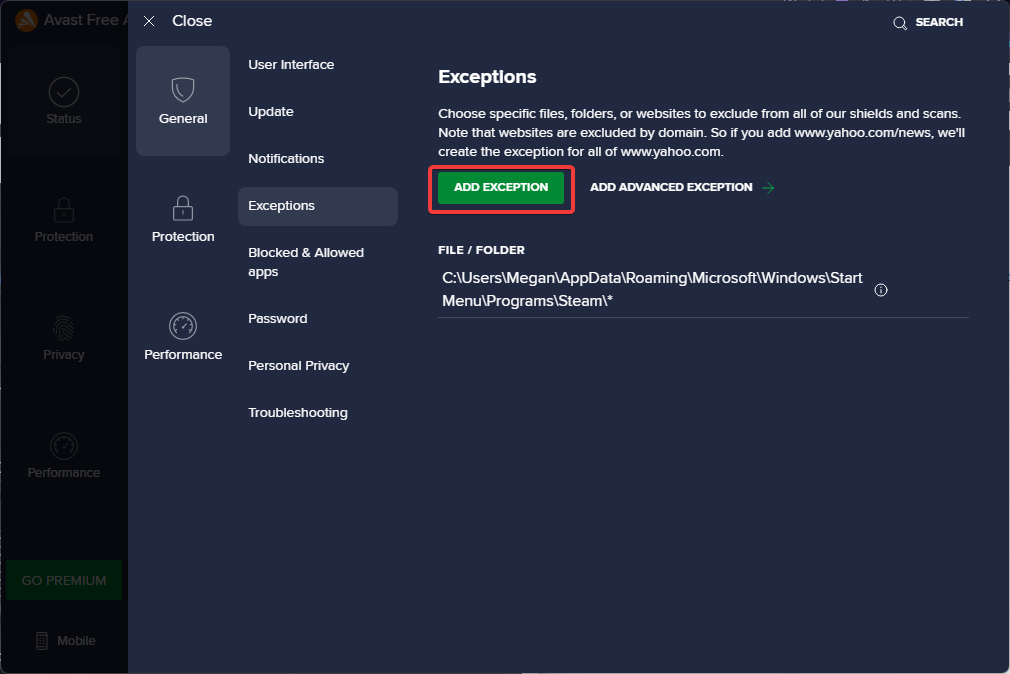
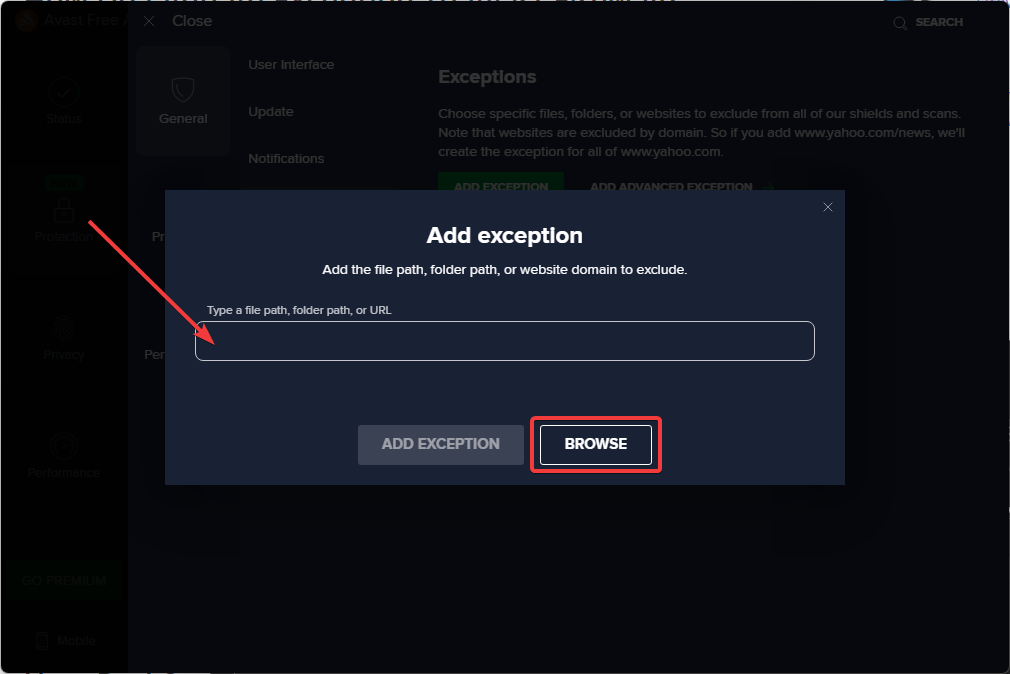
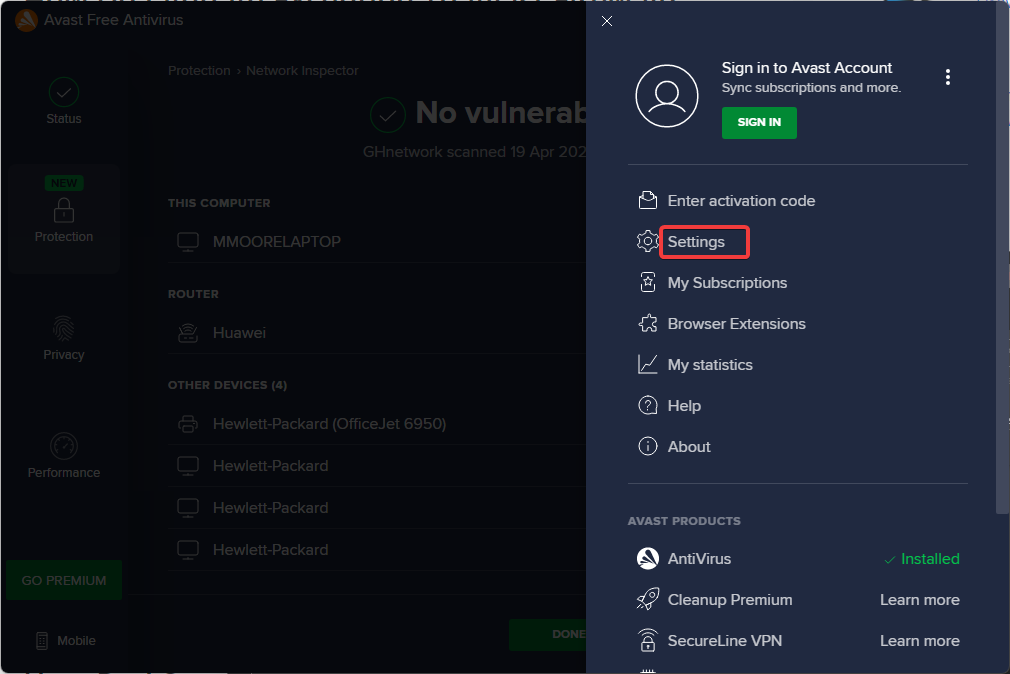
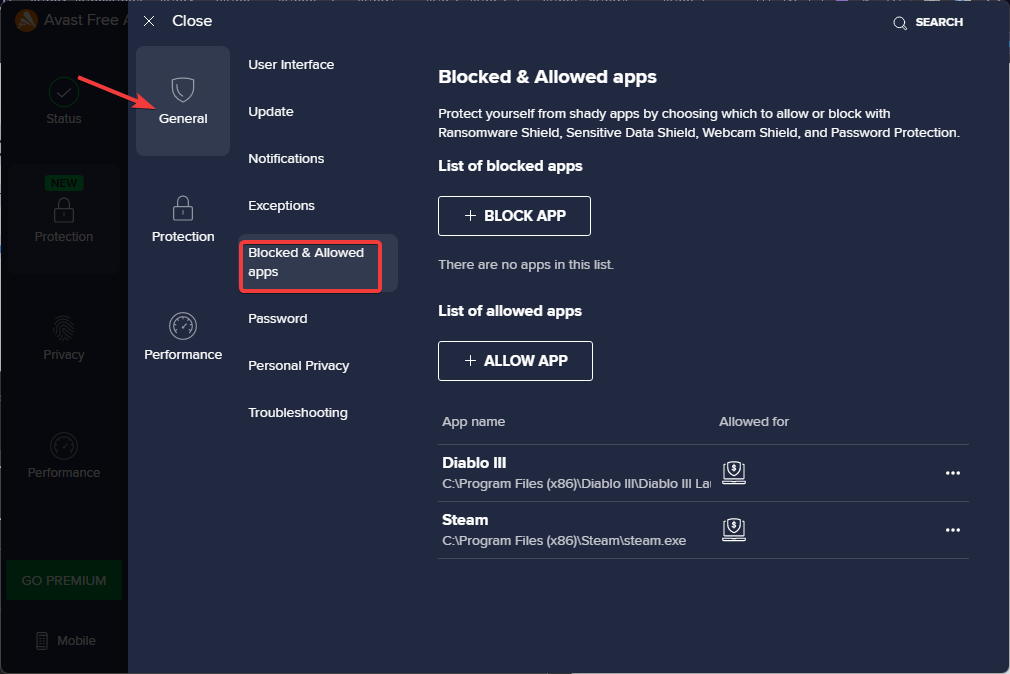
When CCleaner is not updating to the latest version, it could have to do with a large number of reasons. You may have possibly disabled automatic updates for CCleaner. Or, a third-party antivirus installed on your computer may be blocking the update.

Even not running CCleaner with administrative privileges (as an administrator) can lead to issues with the update process. Also, there might be a bug in the current version of Windows that could be preventing CCleaner, and maybe other applications, from updating.

Apart from these issues, there certainly could be others as well behind the CCleaner update not working, but the chances are low.

Yet, we have covered all possible solutions in the next section, and once done with these, you should be able to update CCleaner on your computer.

What can I do if the CCleaner update is not working?

1. Reboot the computer

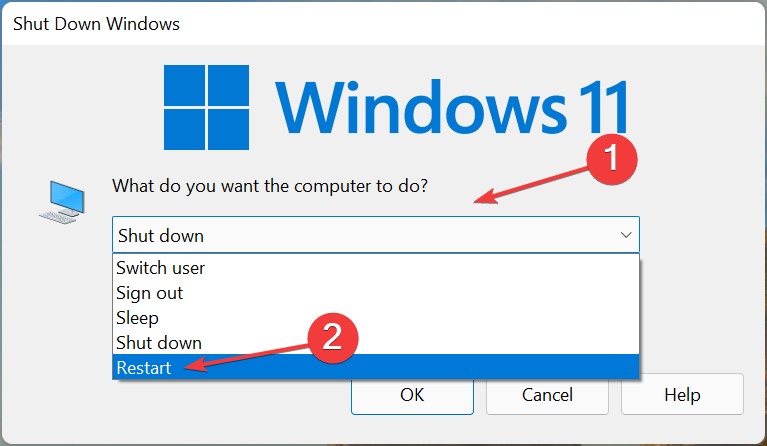
  1. Navigate to the desktop, press Alt + F4 to launch the Shut Down Windows box, and select Restart from the dropdown menu.Restart to fix ccleaner update not working
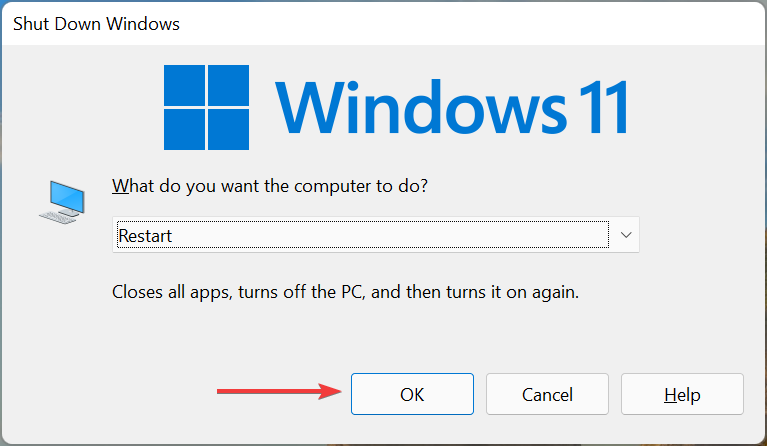
  2. Now, click on OK at the bottom to restart the computer.Ok

One of the simplest methods that fix a plethora of errors, including CCleaner update not working, is restarting the PC. It will eliminate any background process or trivial bug that might be conflicting with the update process.

2. Manually install the latest version of CCleaner

Note icon NOTE
This is a two-step method, first, uninstall the current version, and then download and install the latest version. But, since it will consume time, you can go with this one after trying the other methods listed here.
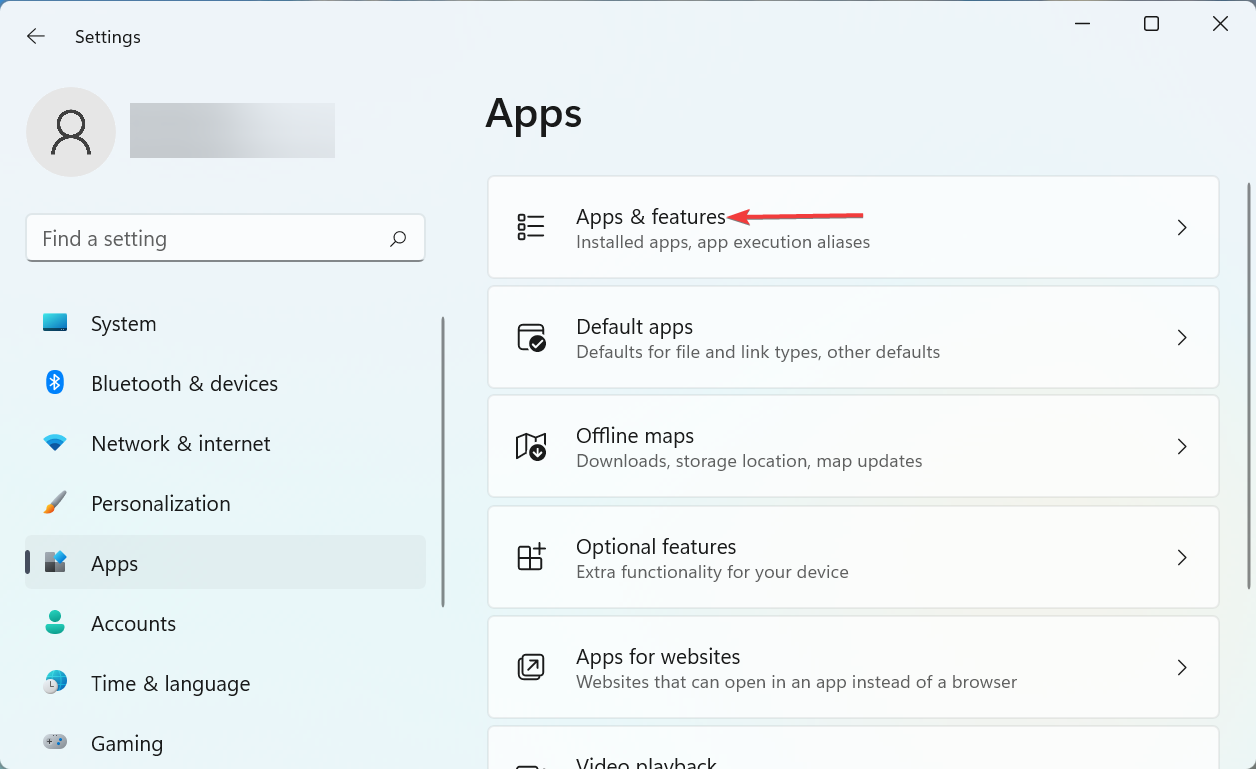
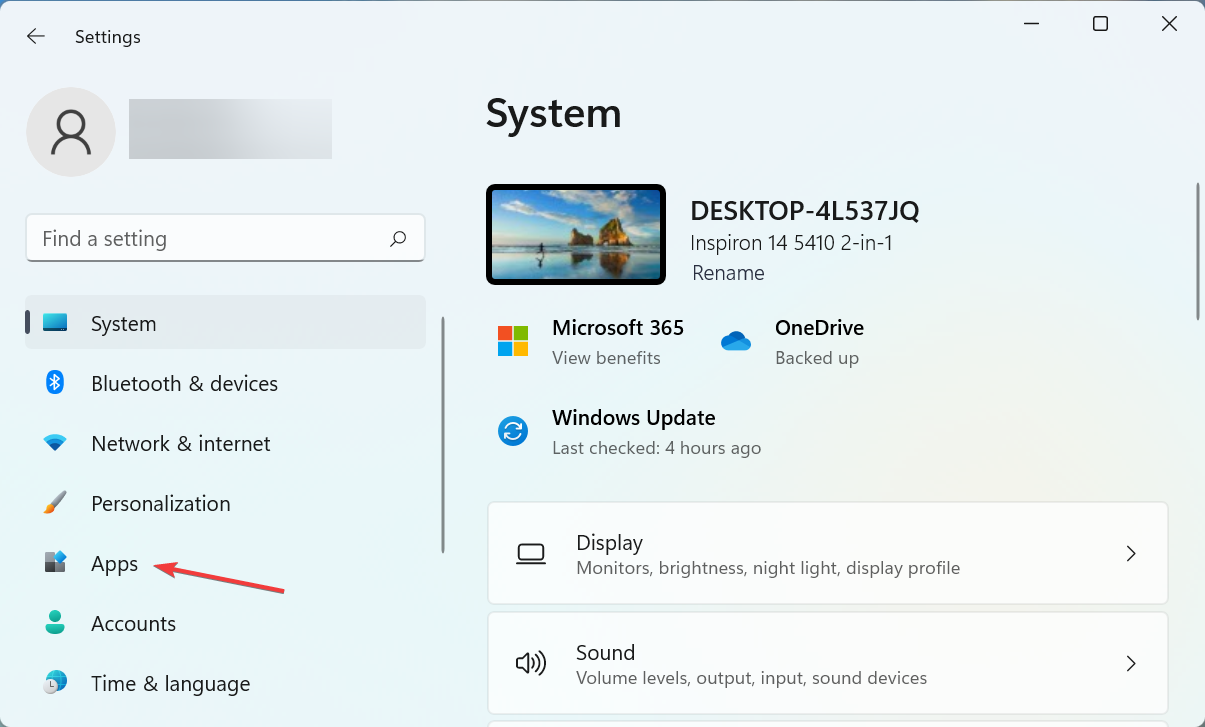
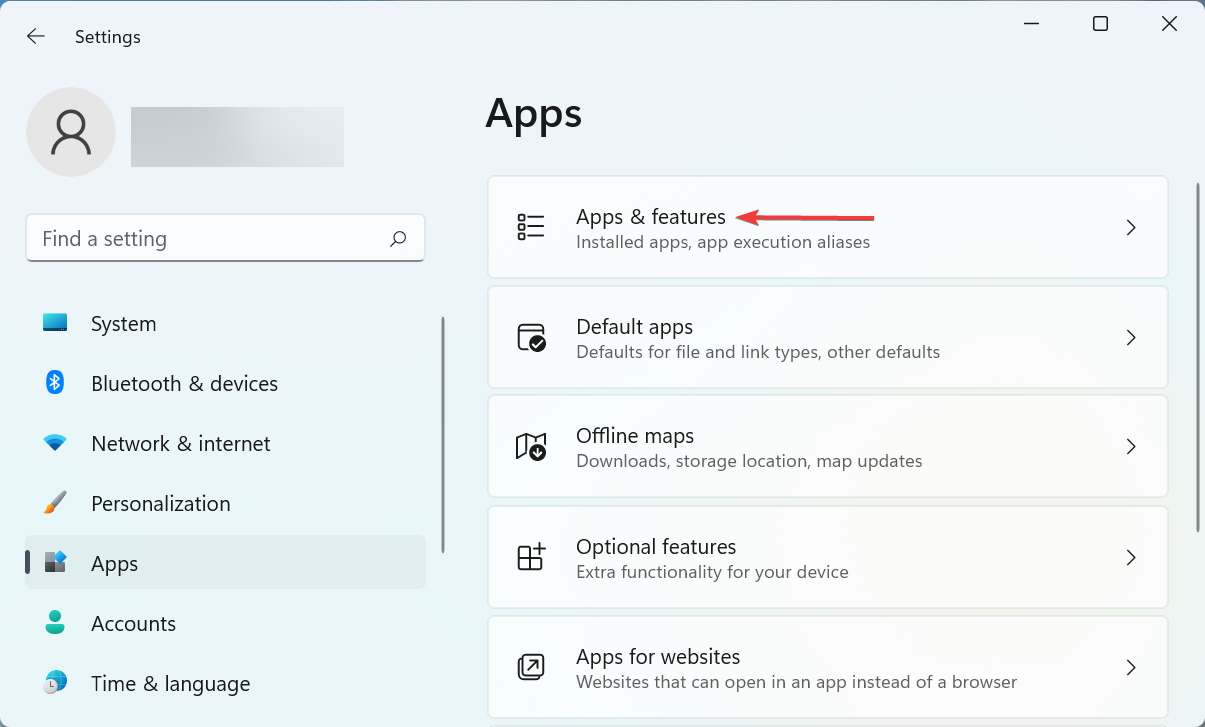
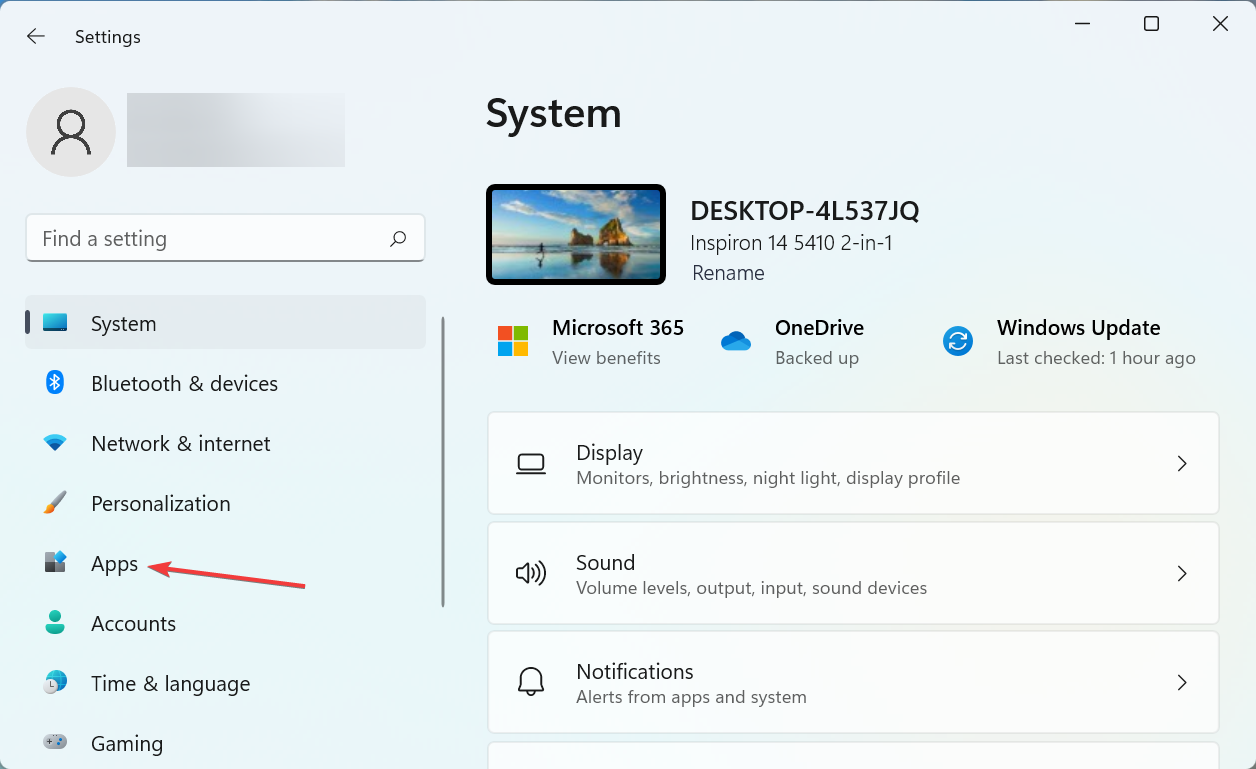
  1. Press Windows + I to launch Settings, and select Apps from the tabs listed in the navigation pane on the left.Apps to fix ccleaner update not working
  2. Next, click on Apps & features on the right.Apps & features
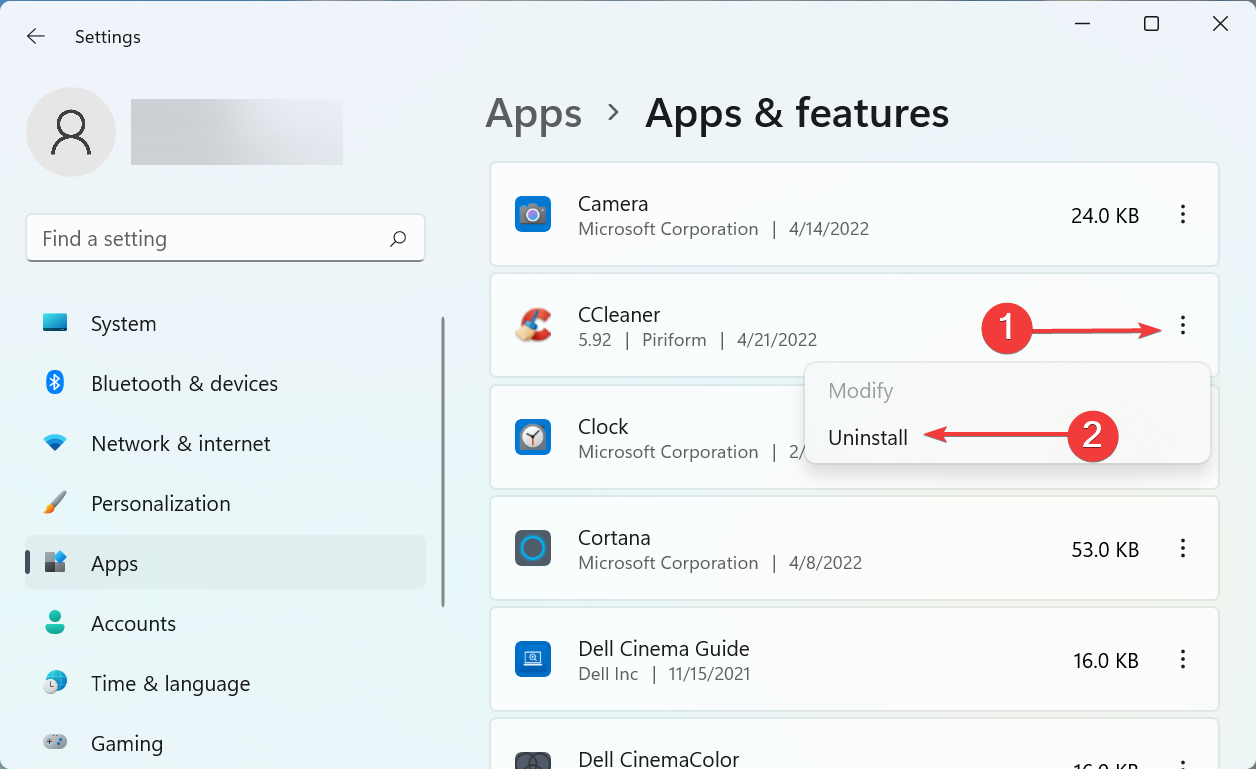
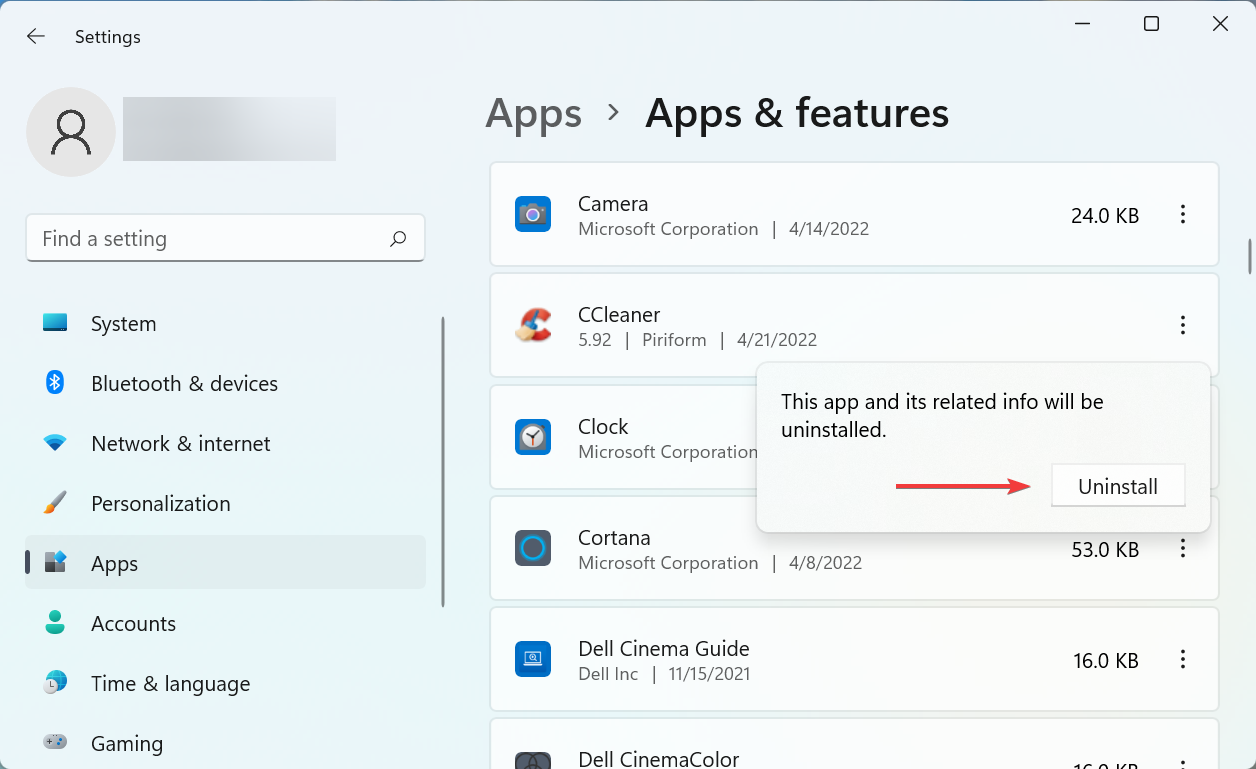
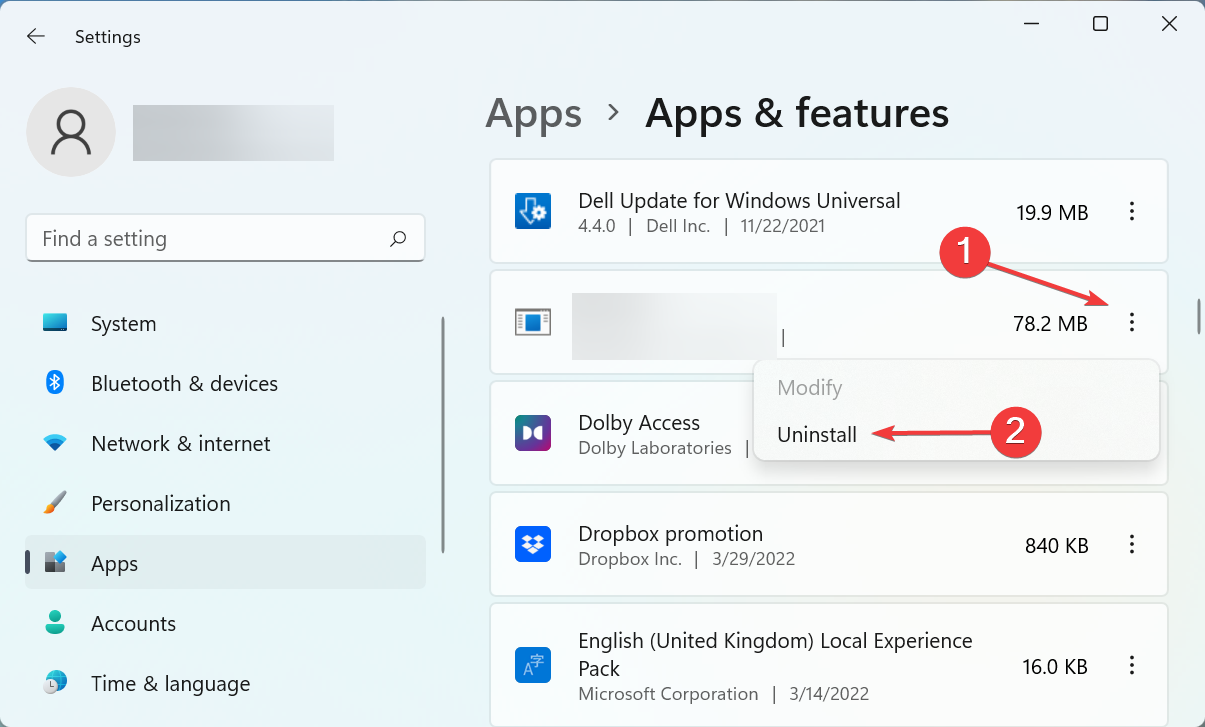
  3. Locate the CCleaner app, click on the ellipsis next to it, and select Uninstall from the flyout menu.Uninstall to fix ccleaner update not working
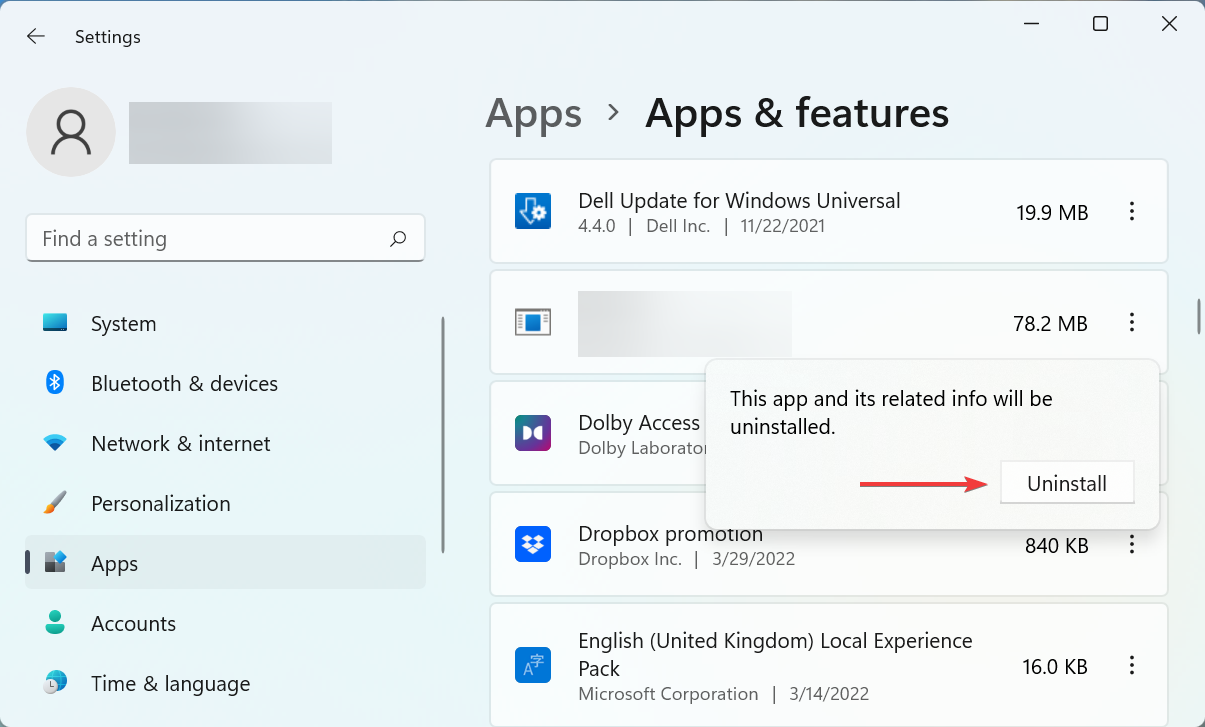
  4. Now, click Uninstall in the confirmation prompt that pops up.Confirm Uninstall
  5. After removing the version that was currently installed, you can safely download the latest version of CCleaner.
  6. Follow the on-screen instructions to complete the installation process.
This method will probably take some time, but is the most effective when it comes to eliminating the CCleaner update not working problem, and has worked for most of the users.

3. Check if Automatic Updates are enabled in CCleaner

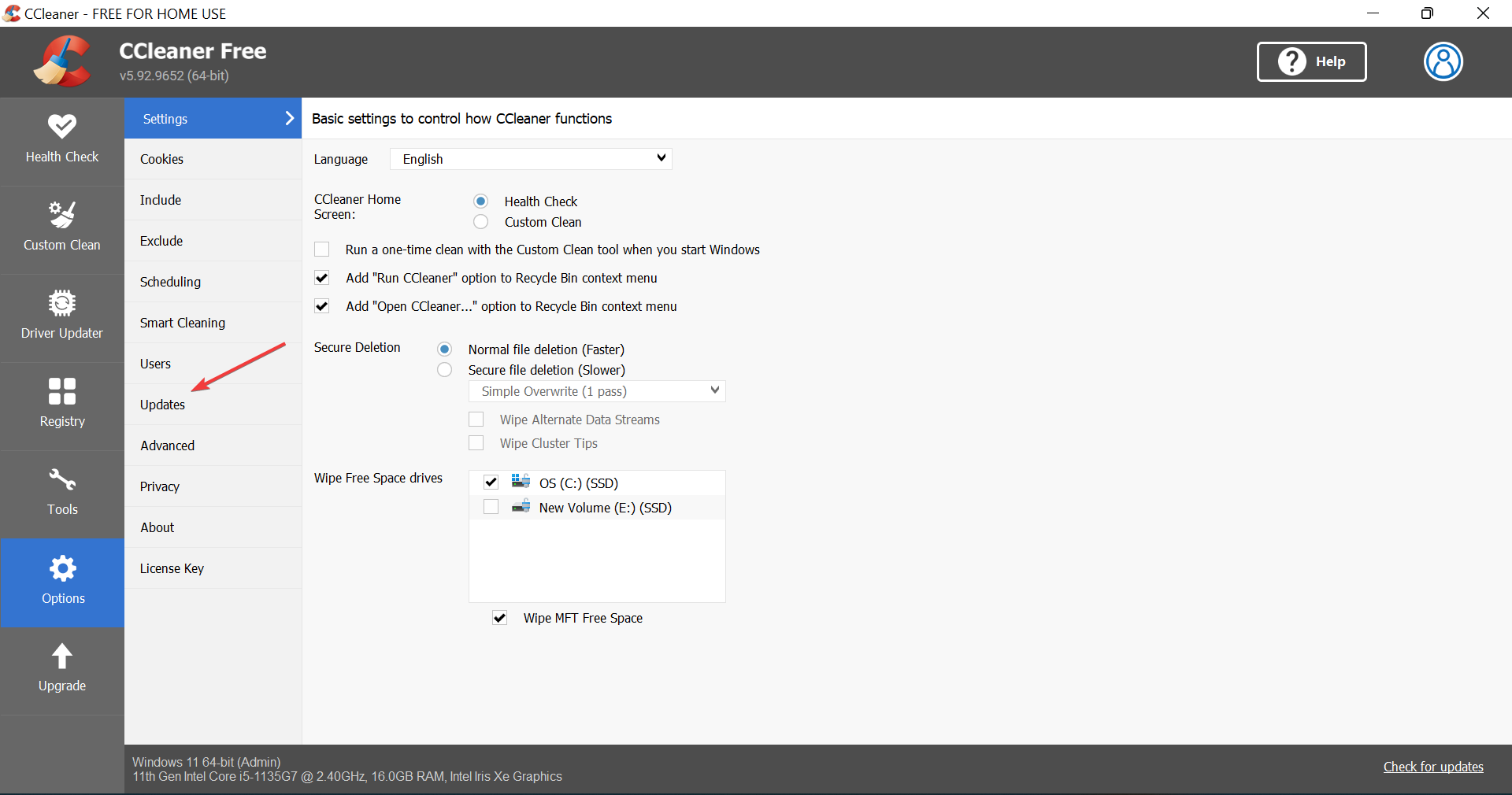
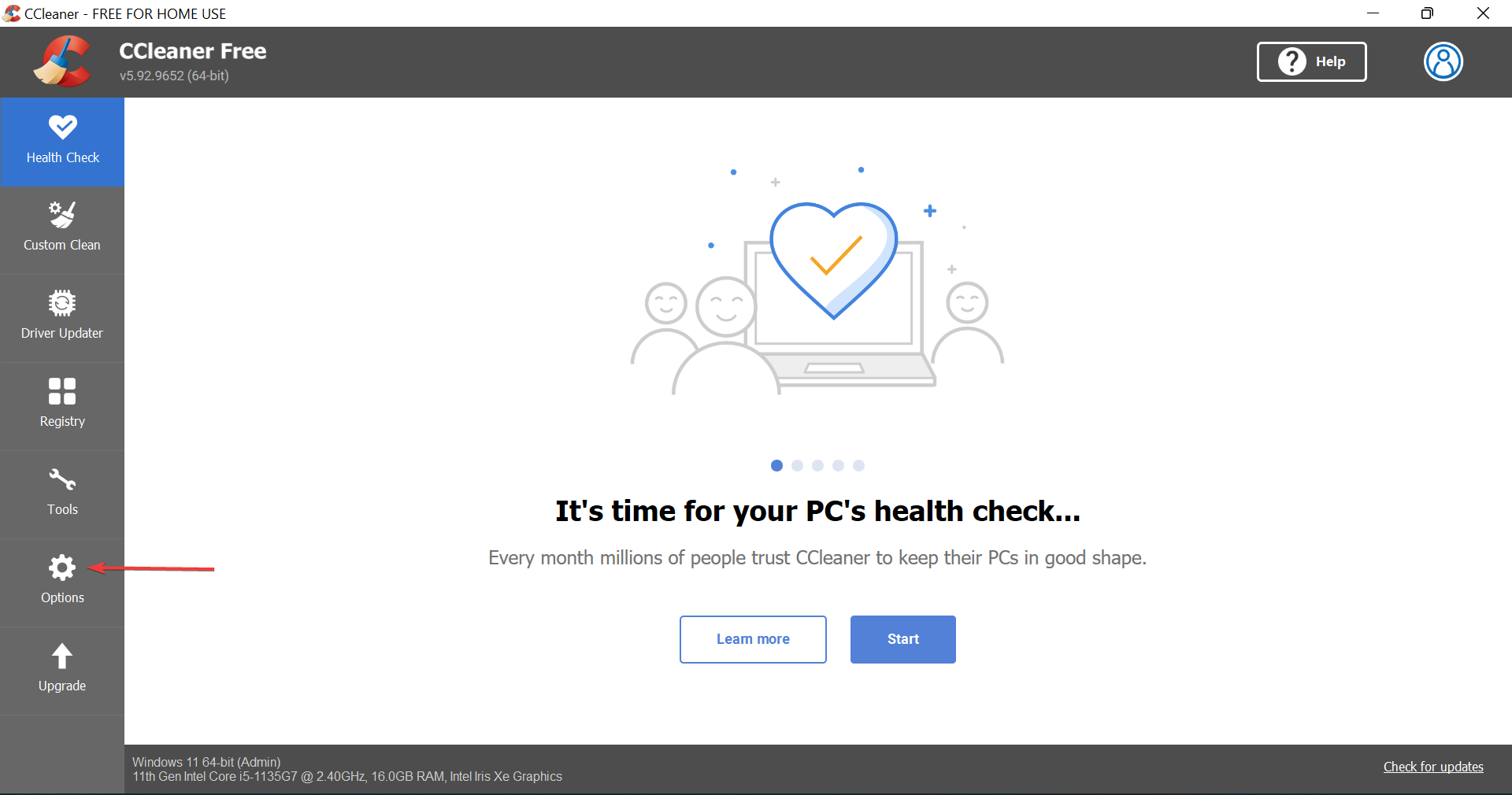
  1. Launch CCleaner and click on Options in the navigation pane on the left.Options to fix ccleaner update not working
  2. Next, select Updates from the right.Updates
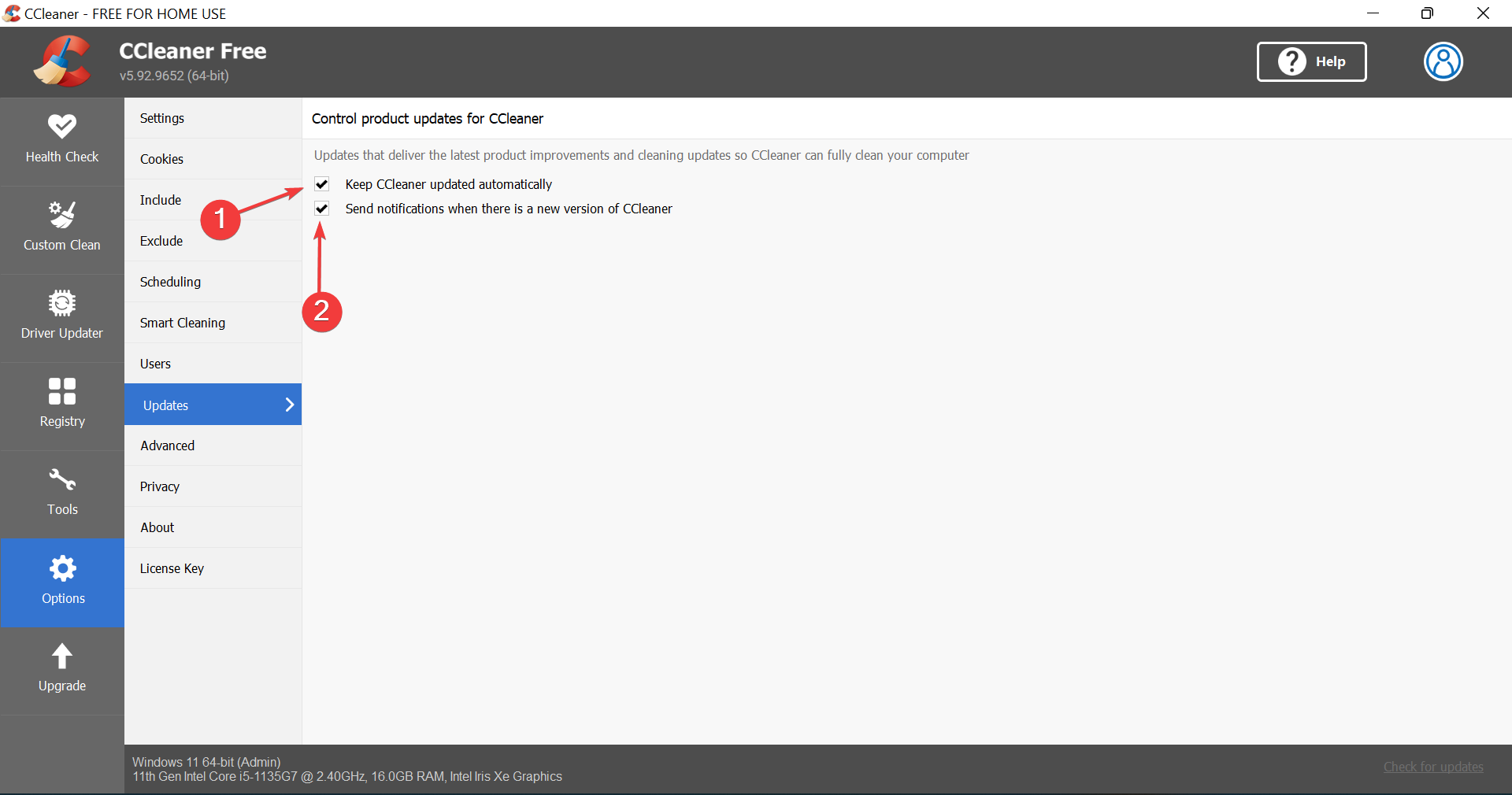
  3. Now, verify that the checkboxes for Keep CCleaner updated automatically and Send notifications when there is a new version of CCleaner are ticked. If not, make sure to do that.Enable settings
  4. Now, restart CCleaner for the changes to come into effect.
Whenever there’s an update available for CCleaner, you receive a prompt to approve the installation of the latest version. But, if the necessary settings are not in place, you may never realize that a newer version is available until you check for it manually.

4. Uninstall third-party antivirus

  1. Press Windows + I to launch Settings, and select the Apps tab from the left.Apps
  2. Click on Apps & features on the right.Apps & features to fix ccleaner update not working
  3. Locate the conflicting third-party antivirus, click on the ellipsis next to it, and select Uninstall.Uninstall to fix ccleaner update not working
  4. Again, click Uninstall in the prompt that appears.Click

Third-party antiviruses are often found to conflict with the process and prevent CCleaner from updating. But, before you go ahead and uninstall it, disable it first, and if the update goes through, uninstall the antivirus since it could cause other similar issues in the future.

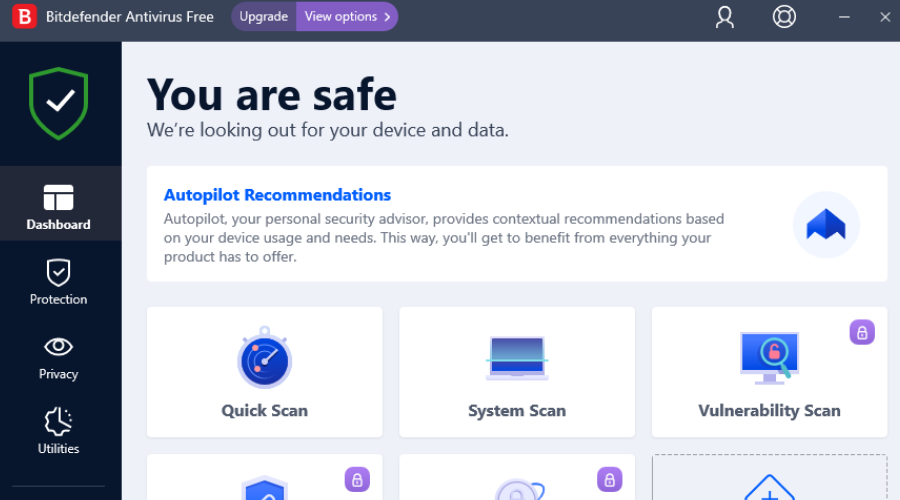
After uninstalling the one installed previously, check our curated list of the most reliable and effective antiviruses.

5. Run CCleaner as administrator

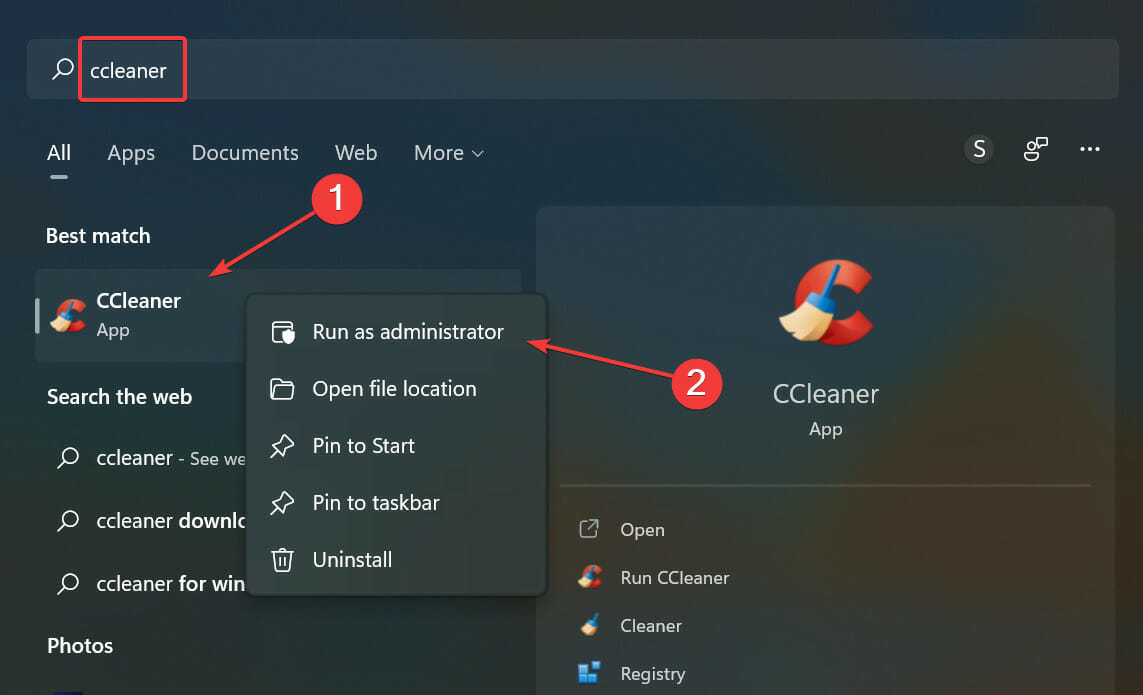
  1. Press Windows + S to launch the Search menu, enter CCleaner in the text field at the top, right-click on the relevant search result, and select Run as administrator from the context menu.Run as administrator to fix ccleaner update not working
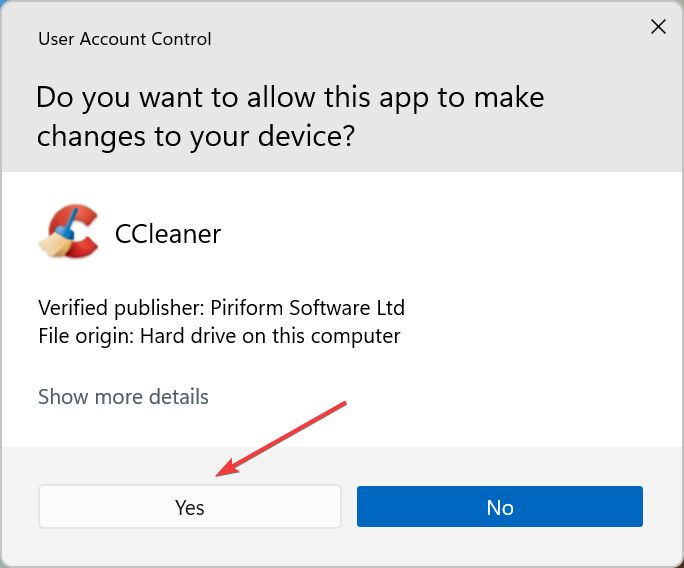
  2. Click Yes in the UAC (User Account Control) prompt that pops up.Click Yes
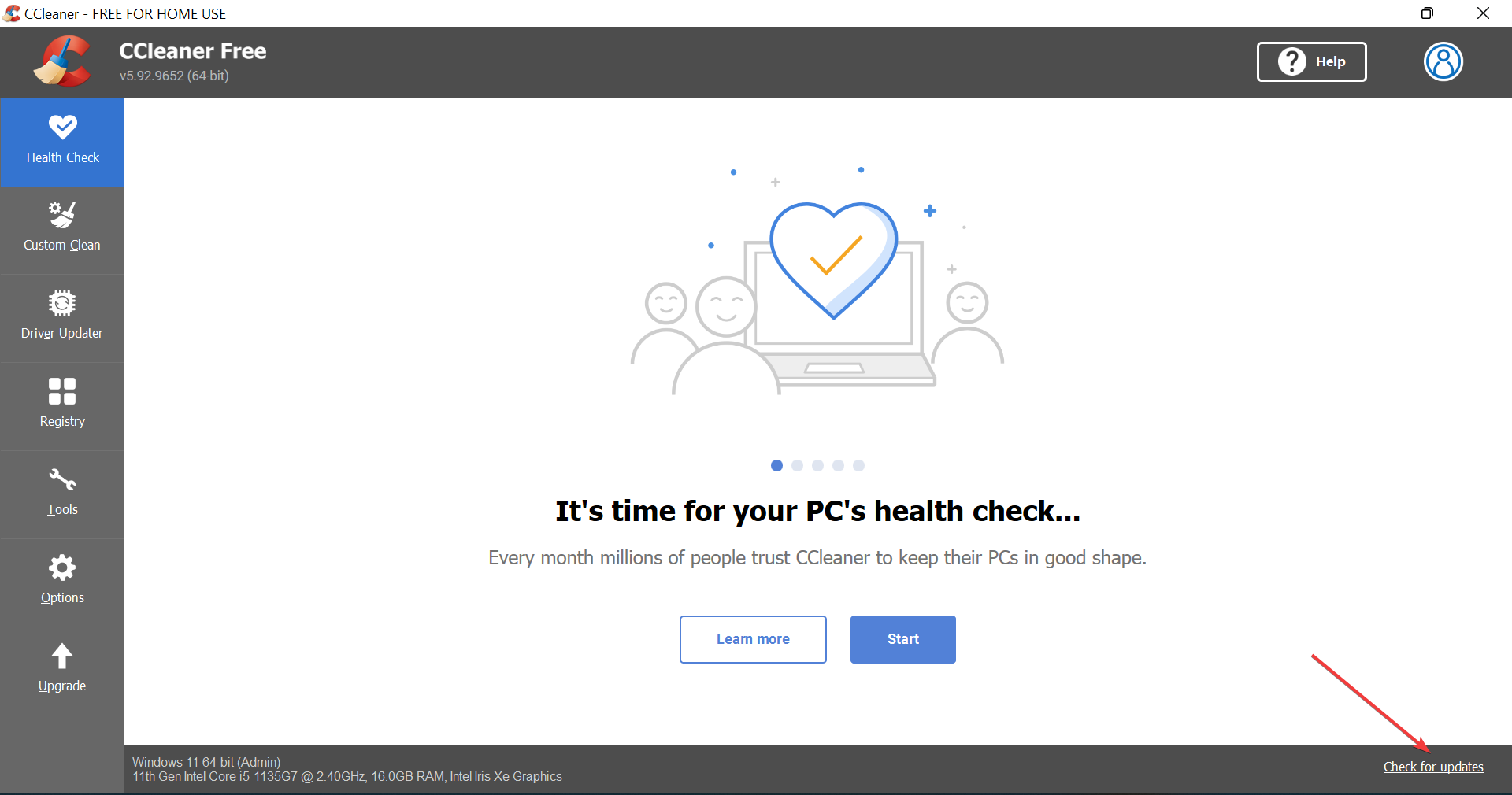
  3. Now, click on Check for updates near the bottom-right corner and if an update is available, make sure to install it.Check for updates to fix ccleaner update not working

Oftentimes, it’s the lack of administrative privileges that leads to the CCleaner update not working problem. In this case, just running the app as an administrator should do the trick.

6. Update Windows

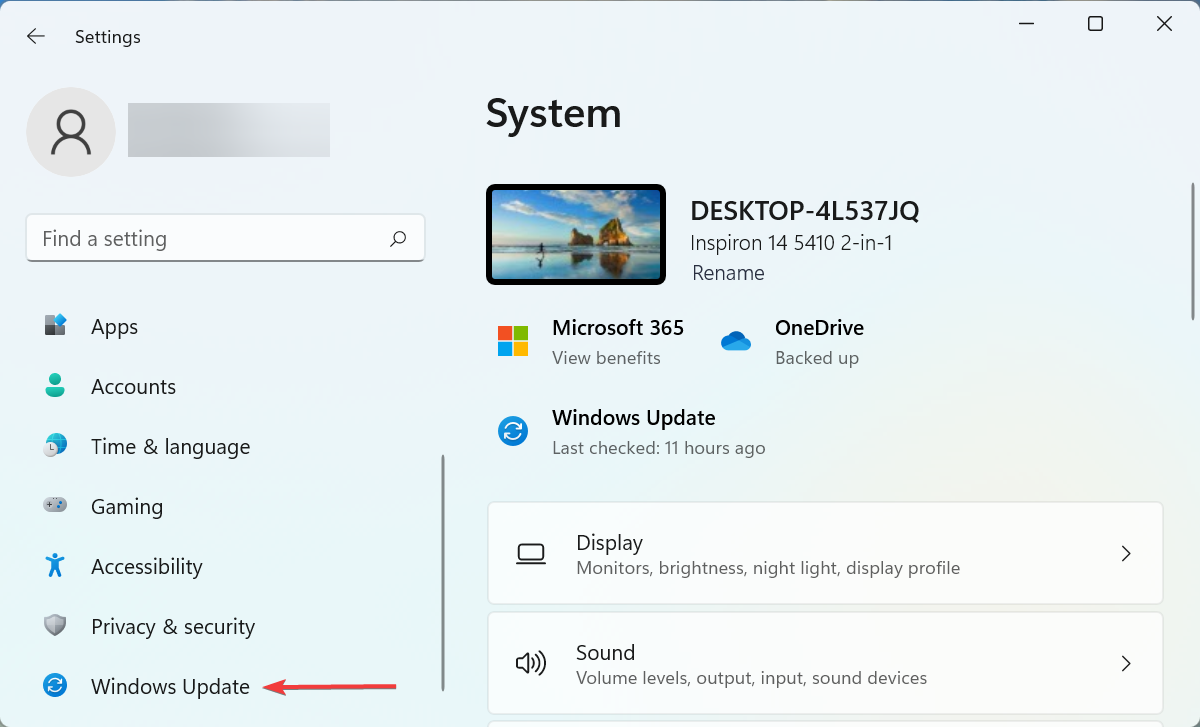
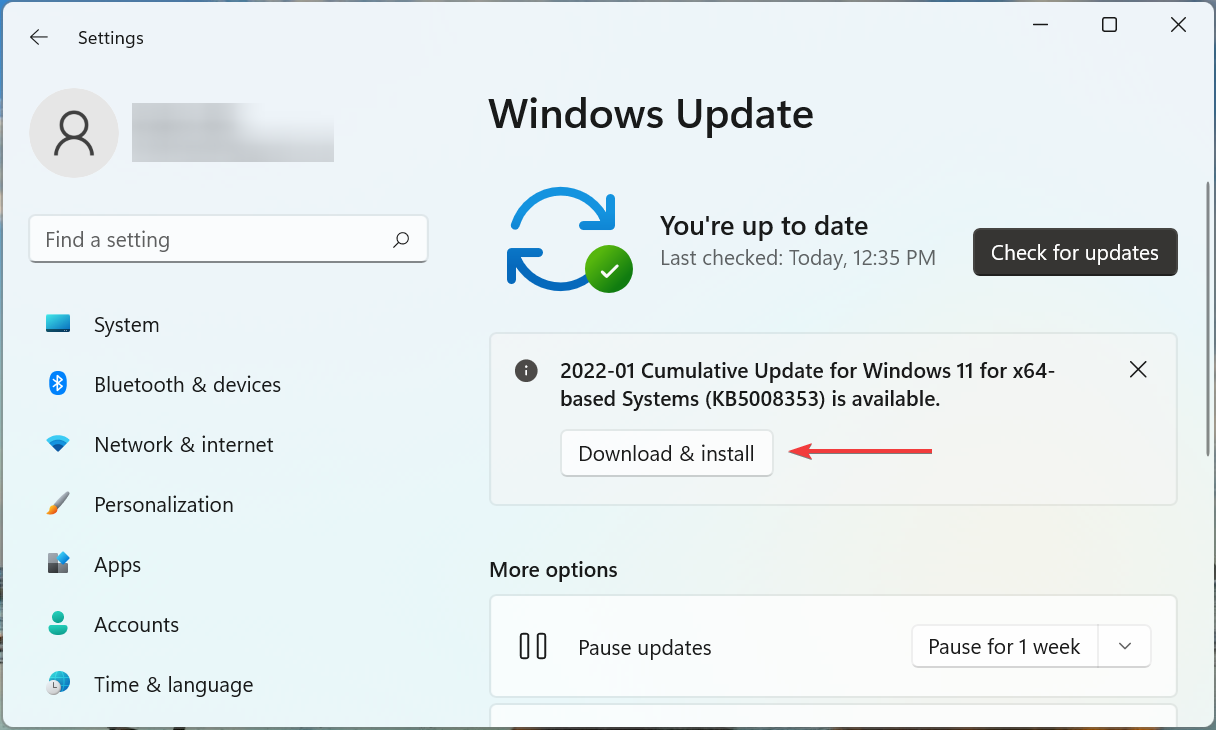
  1. Press Windows + I to launch the Settings app, and select Windows Update from the tabs listed in the navigation pane on the left.Windows Update
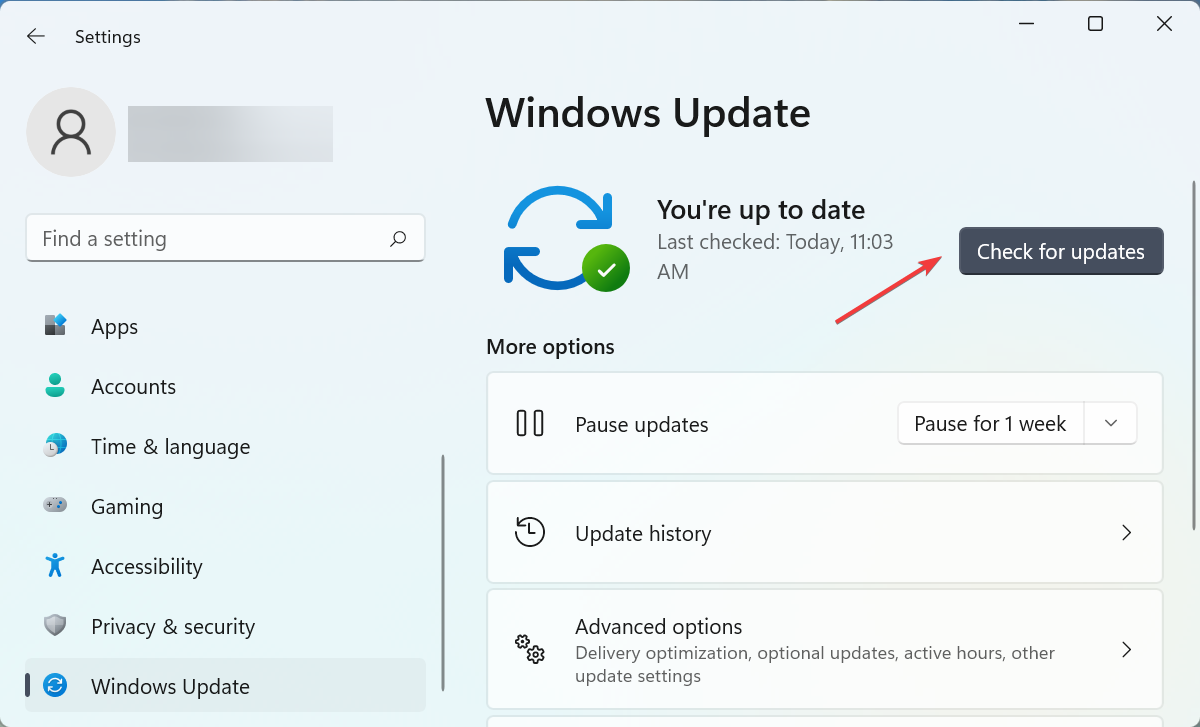
  2. Next, click on Check for updates on the right.Check for updates to fix ccleaner update not working
  3. If an update is listed after the scan, click on the Download & install button.Download & install

7. Perform a System Restore

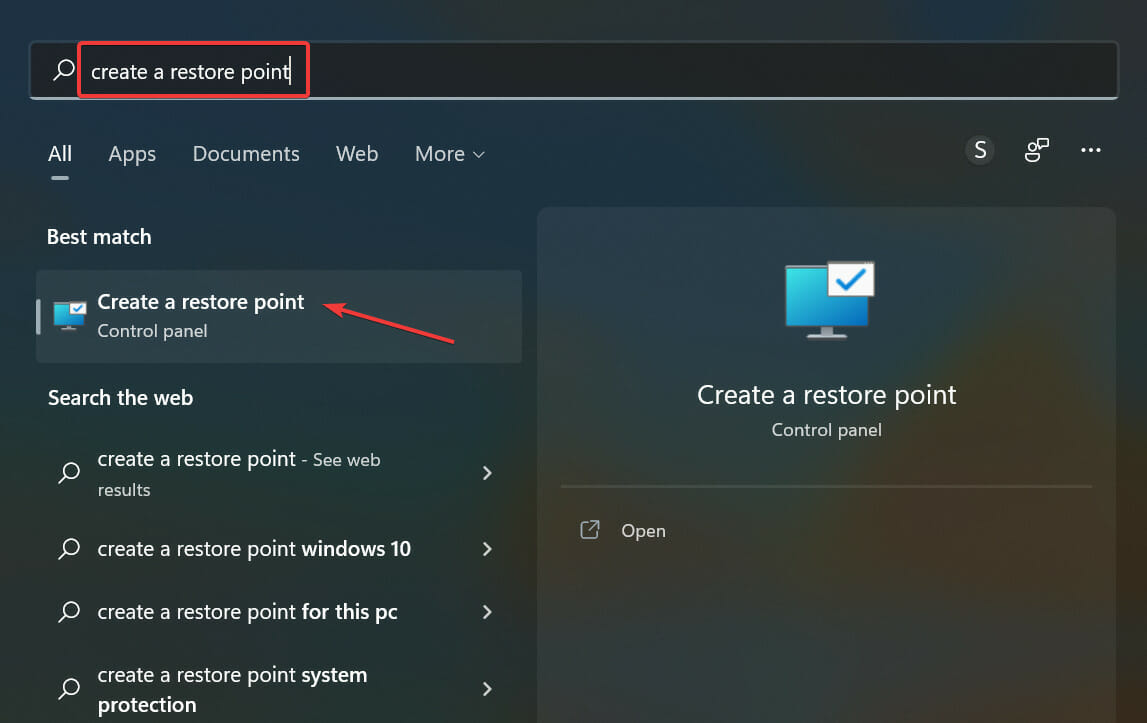
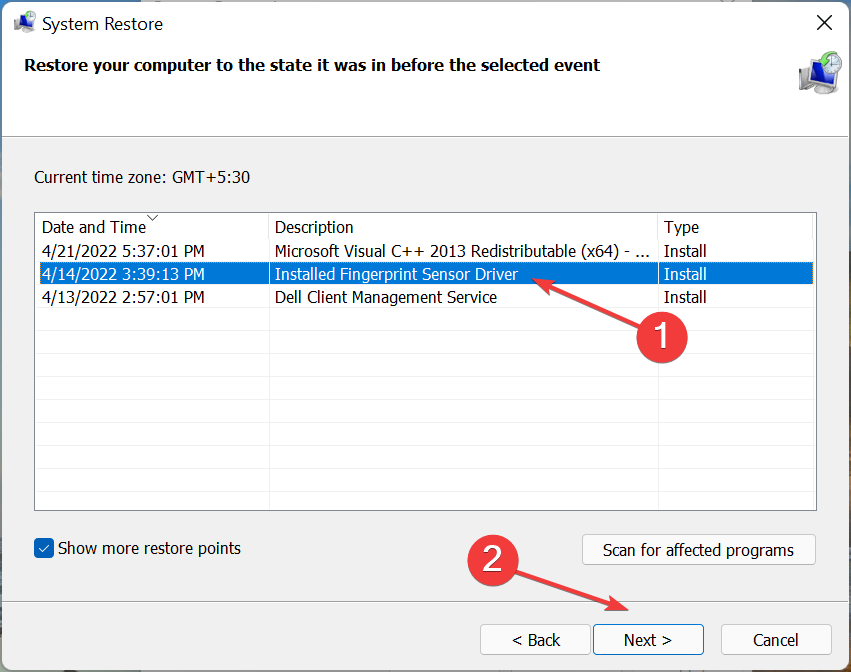
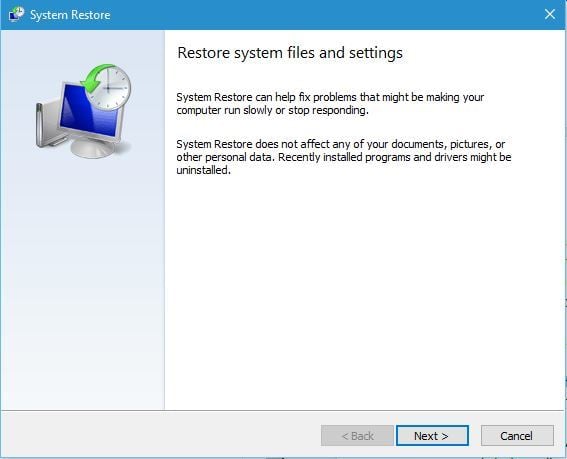
  1. Press Windows + S to launch the Search menu, enter Create a restore point in the text field, and click on the relevant search result that appears.Create a restore point
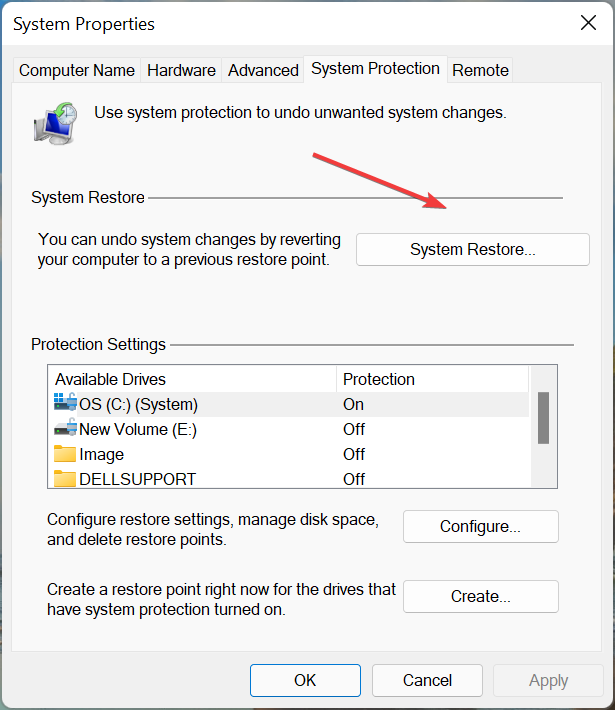
  2. Now, click on the System Restore button.System restore to fix ccleaner update not working
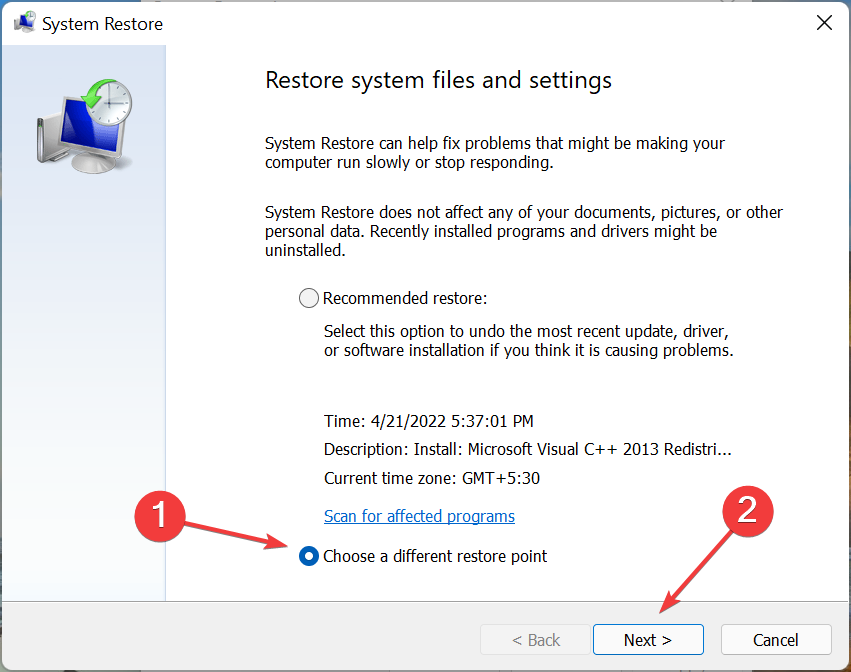
  3. You can either proceed with the recommended restore point or manually choose one. We recommend you to select the Choose a different restore point option and then click on Next.Choose a different restore point
  4. Now, select the desired restore point from the list, and click Next at the bottom.select restore point
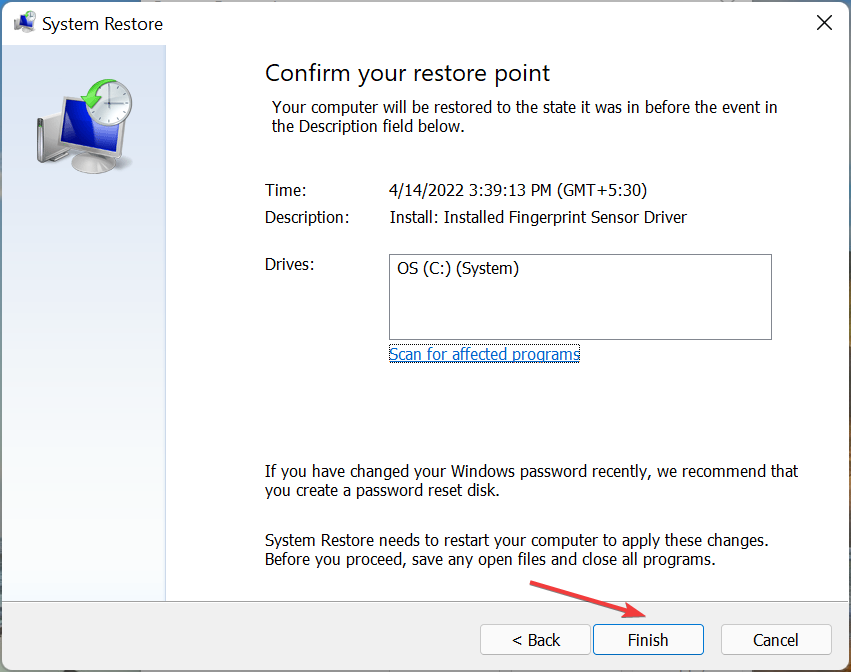
  5. Finally, verify the details of the restore, and click on Finish to start the process.Verify details to fix ccleaner update not working

If none of the methods listed earlier have worked, it’s likely a problem specific to your computer and one that is not encountered generally. If you had been able to update CCleaner until now, performing a system restore should solve the problem.

Just remember to choose a restore point that was created before you first started encountering issues with CCleaner, and once the restore process is complete, the CCleaner update not working issue would be resolved.

These are all the ways you can eliminate issues that cause the CCleaner update not working problem. Also, find out how to clean your computer with CCleaner to clear storage space and boost the performance of the computer.

Besides, if you notice that CCleaner keeps disappearing, update the OS or disable Smart Cleaning, amongst other methods in the linked guide.

Tell us which fix worked and your review of CCleaner, in the comments section below.

FIX: iTunes.exe bad image error in Windows 10/11

Bad image errors can occur for various Windows software. Some iTunes users have stated on forums that a bad image error message pops up when they launch iTunes. The error message states:

iTunes.exe – Bad Image <file path> is either not designed to run on Windows or it contains an error.

Try installing the program again using the original installation media or contact your system administrator or the software vendor for support.

Quick tip

Do you want to make sure that you never lose the desired images or that you will have access to them without any unexpected errors? Then Zoolz is exactly what you need!

This service offers a complete solution for backup. You can easily organize, search through, share, and preview all of your files.

Just select the folder to backup and the tool will periodically check for the files changed and will upload it to the cloud storage.

Zoolz

Now you can be fully secure with Zoolz back-up and access your data anywhere and anytime!
Check price Visit website

In the following lines you will discover how to fix the iTunes.exe bad image error.

How can I fix the iTunes.exe bad image error in Windows 10?

1. Run the System file checker

  1. Press the Win key + X hotkey.
  2. Click Command Prompt (Admin).
  3. Input DISM.exe /Online /Cleanup-image /Restorehealth
  4. Press Enter to run the Deployment Image Servicing tool.
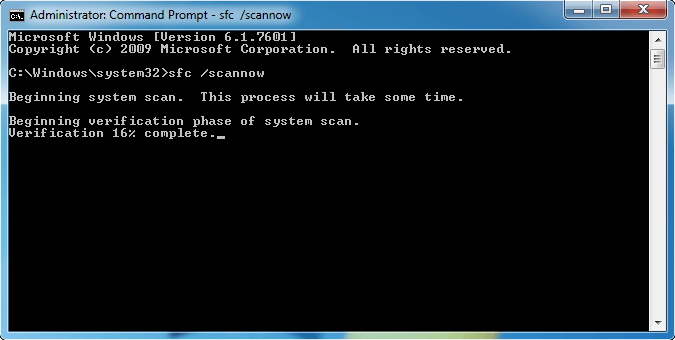
  5. Enter sfc /scannow and press Return.
  6. Restart Windows if the SFC scan states that Windows Resource Protection repaired corrupt system files.

2. Reinstall iTunes

The error message suggests also that you can Try installing the program again using the original installation media or contact your system administrator or the software vendor for support.

So if the issue occurs for iTunes, reinstalling the software might be a potential fix.

You can uninstall the software more thoroughly with a third-party PC optimization utility such as CCleaner which can erase leftover registry entries.

The tool has its own Uninstall feature where you can easily select iTunes from a list and remove it in just a few clicks. Wait for the standard uninstall to complete.

Afterward run the registry cleaner to remove registry entries and other data remains from the applications safely and irrevocably.

You only have to select the iTunes software to remove and the uninstaller will scan for and list leftover registry entries. Then you have to close the tool and you can now reinstall the iTunes software.

⇒ Get CCleaner

3. Reinstall QuickTime

QuickTime is also fairly essential software for iTunes to run. As such, also consider reinstalling QuickTime with a third-party uninstaller as outlined above.

Download the latest version of QuickTime . Open the QuickTime installer to add the software to Windows.

4. Repair iTunes with a repair install

No sound with Netflix
  1. Press the Win key + R hotkey.
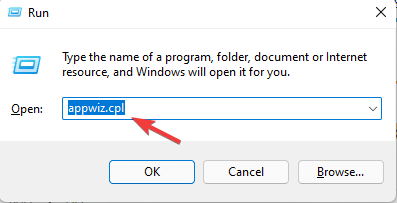
  2. Enter appwiz.cpl in Run and click OK to open.
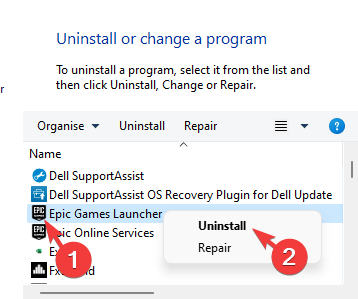
  3. Select iTunes on the software list.
  4. Then select the Repair option for iTunes.
  5. Alternatively, you can also press the Change button and then select a Repair option.
  6. Thereafter, restart your desktop or laptop.

5. Uninstall recent Windows updates

Fonts missing after Windows update
  1. Open the Run accessory with the Win key + R hotkey.
  2. Enter appwiz.cpl in Run to open.
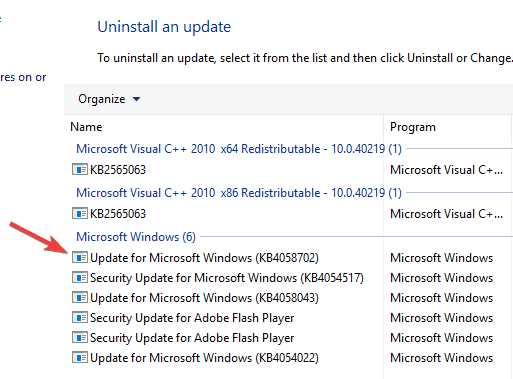
  3. Click View installed updates to open the list of updates.
  4. Select an update to remove, and press the Uninstall button.
  5. Then you can restart Windows.
  6. Download and open the Show or hide updates tool.
  7. Click Next and select the Hide updates option to open an available updates list.
  8. Select the update you uninstalled to ensure Windows doesn’t reinstall it.

6. Repair Windows to a restore point

  1. Enter rstrui in Run, and press the OK button.
  2. Press the Next button on the System Restore window.
  3. Click the Show more restore points.
  4. Now select a restore point to roll Windows back to.
  5. Pick a date that predates the iTunes exe bad image error.
  6. Press the Scan for affected programs button.
  7. Click the Next and Finish buttons to confirm your selected restore point.

You can also utilize the System Restore tool to roll Windows back to a time when the iTunes image error message wasn’t popping up.

System Restore will roll back all minor Windows updates after a selected restore point. So this resolution might also fix the bad image error for you.

One or more of these resolutions might kick-start iTunes and resolve the bad image error. Added to that, running the Automatic Repair tool from a Windows installation disc might also fix the issue.

Check out our dedicated Windows 10 Fix page for helpful and complete troubleshooting guides.

For further information on the best cloud services, be sure to bookmark our Web Cloud Hub.

Are there other ways you use to resolve the bad image error in Windows 10? Share with us in the comments section below.

FIX: ”hl2.exe has stopped working” error in Windows 10

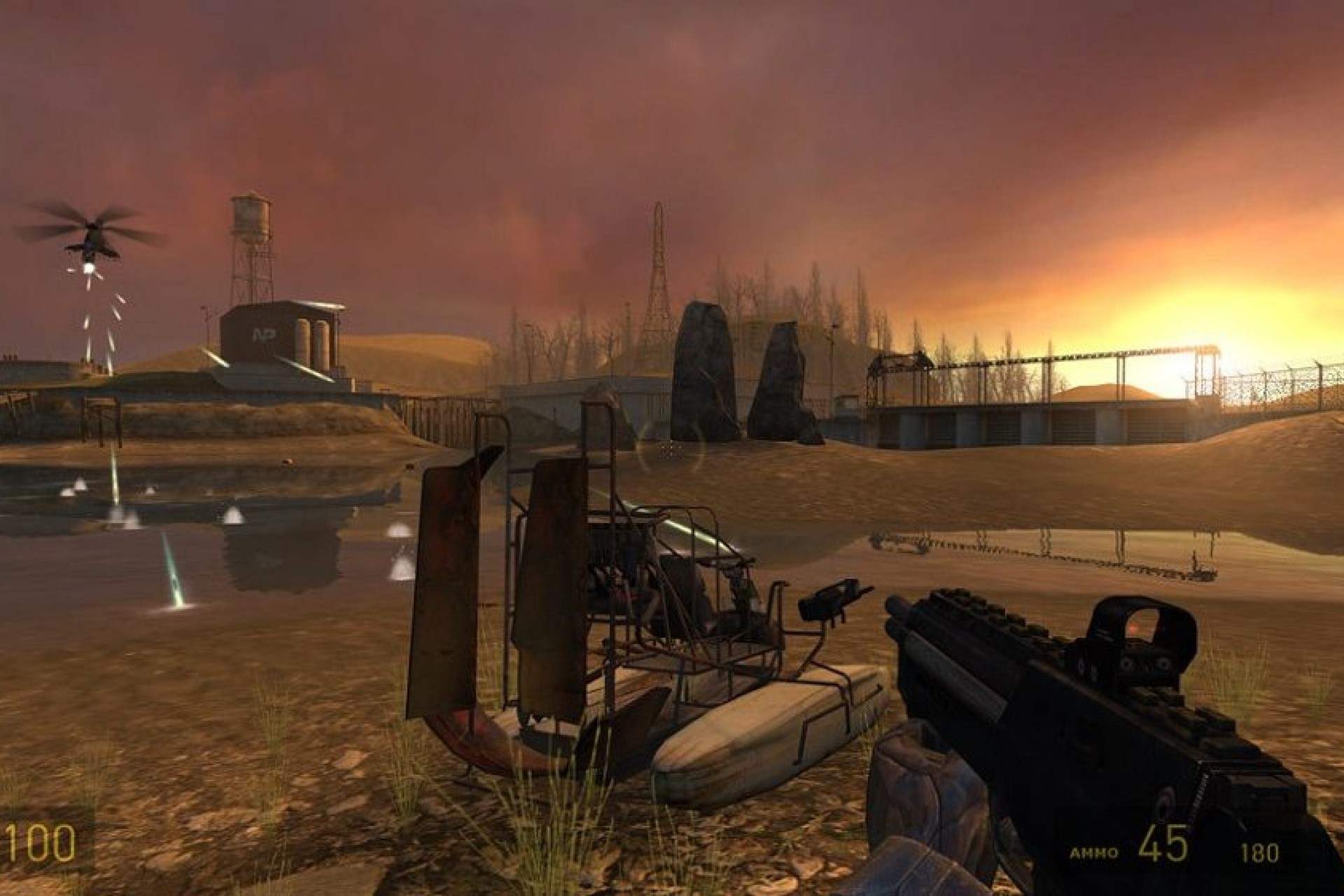
Playing legacy games on Windows 10 proved to be a problem for some avid fans of classic first-person shooters developed by Valve. Namely, older titles are unified within the one Source engine and, even though the error we’re addressing today points towards Half-Life 2, it can occur with other similar shooters. The sudden crash followed by the ”hl2.exe has stopped working” message seems to bother a substantial player base.

There are different aspects and causes that lead to this exact error, so we provided resources that should get you out of the slump. In case you’re experiencing this error in Windows 10, the solutions below will come in handy.

How to address the ”hl2.exe has stopped working” error in Windows 10

  1. Run the game as an administrator and in a compatibility mode
  2. Update Graphics drivers
  3. Disable a third-party antivirus
  4. Check the DirectX version
  5. Disable the Steam service
  6. Reinstall the game

1. Run the game as an administrator and in a compatibility mode

As we already stated, even though the ”hl2.exe” points towards Half-Life 2, all other Valve-produced games with slight Source engine variations can be affected by this error.

The first thought goes to incompatibility with Windows 10. Some of those games, like Counter-Strike 1.6 or Half-Life 2 are quite old. That’s the main cause for this error in the first place.

The primary solution could be to force the game to run in compatibility mode. Also, in order to avoid system limitations imposed by Windows 10, you should run it as an administrator. Here’s how to do so in a few simple steps:

  1. Navigate to the game’s installation folder. Mostly found in C:ProgramsSteam.
  2. Locate the exe file, right-click on it and open Properties.
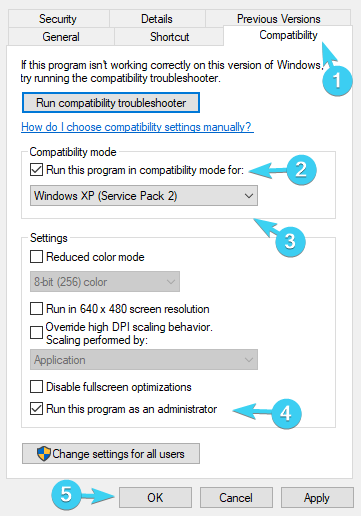
  3. Select the Compatibility tab.
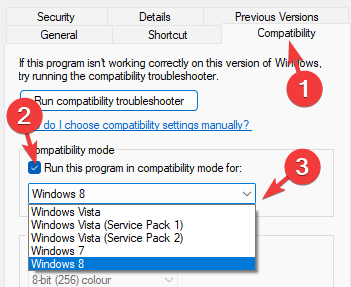
  4. Check the ”Run this program in compatibility mode for” box and select another iteration of Windows from the drop-down list. The one that’s noted in the game’s system requirements is the preferred one.
  5. Furthermore, check the ”Run this program as an administrator” box.hl2-exe-has-stopped-working
  6. Confirm changes and try starting the game.

If the crashes with the distinctive error are persistent, check the other solutions.

2. Update Graphics drivers

When it comes to Graphics card drivers and Windows 10, there’s no simple solution when the problem emerges. Windows 10 tends to install generic drivers through Windows Update. Those drivers might suffice for certain games, but that’s far from a concept you can rely on. Furthermore, even if you get the latest drivers manually from the official site, taking into consideration the game’s release date, it still might not work.

So, the only way to resolve this is to block the drivers-updating feature in Windows Update and experiment with various older and newer drivers versions until you find the one that fits.

If you’re not sure how to do it in Windows 10, follow the steps we provided below:

  1. In the Windows Search bar, type System settings and open ”View advanced system settings” from the list of results.
  2. Select the Hardware tab.
  3. Open Device Installation settings.hl2-exe-has-stopped-working
  4. Toggle ”No (your device might not work as expected)”.hl2-exe-has-stopped-working
  5. Now, navigate to one of these sites (depending on what’s your GPU manufacturer) and download drivers:
  6. Now, right-click on Start and open Device Manager.
  7. Expand Display adapters.
  8. Right-click on your GPU and uninstall it.hl2-exe-has-stopped-working
  9. Use a dedicated removal tool to clear all the remaining driver inputs.
  10. Install the proper drivers you’ve downloaded from the OEM’s site.
  11. Restart your PC and start the game.

In the same manner, you can download and install older drivers and not the latest ones. As we already said, experimenting might get things sorted out. It can be time-consuming but also quite rewarding if you match the driver version with the game.

On the other hand, you can use a third-party tool. Using an automatic driver updater will certainly save you from the hassle of searching for drivers manually, and it will always keep your system up to date with the latest drivers.

After several tests, our team concluded that Outbyte Driver Updater is one of the best solutions. It has a large driver database and the ability to detect the exact version you need for your specific hardware.

3. Disable a third-party antivirus

Some third-party antivirus solutions weren’t even concepts when Half-Life 2 or Counter-Strike 1.6 hit the market. So, some of them might detect these gold legacy titles as something malicious and prevent them from running. The main suspect, if it’s to be believed to reports, is AVG antivirus solution. Nonetheless, many others can and will occasionally block Valve games, either on startup or after some time.

Therefore, we advise you to at least temporarily disable a third-party antivirus and start the game again. If you’re still unable to run it and the launcher crashes followed by the ”hl2.exe has stopped working” error prompt, consider uninstalling as a viable option.

Finally, if you can’t make your current antivirus and the game work together, we advise you to try Bitdefender. It’s a top-notch security solution, with a remarkable virus base and various protective features. Here’s our review, so make sure to take a look.

4. Check the DirectX version

Older games require older DirectX versions to run. If you’re running Windows 10, all the chances imply that you’re using either DirectX 11 or 12. That, of course, isn’t suiting the game older than 10 or even 15 years. Because of that, make sure to install older DirectX versions, mostly DirectX 9 that was the most-present solution for ages.

Nonetheless, even if you have DirectX 11 or 12, you can still install and use older versions. You can find the DirectX 9 on this link. Once you install it, start the game and look for changes. Hopefully, it won’t crash anymore.

5. Disable the Steam service and other background programs

The Steam client for Windows is a usual way to launch the game, especially the ones produced by Valve which founded Steam. However, this nifty launcher/application reportedly had issues with legacy titles, mainly referring to likes of Half-Life 2, Team Fortress, or Counter-Strike. Therefore, disabling the process before starting the game or running the game without the Steam client are possible solutions for the issue at hand. All of those are affected by the ”hl2.exe has stopped working” error.

Furthermore, there are a lot of other background programs that can affect the game in the same manner. So, by limiting the background activity, you can resolve the issue.

It’s worth a shot, so make sure to follow the instructions below to overcome possible issues inflicted by the client itself or other programs:

  1. Right-click on the taskbar and open Task Manager.
  2. Click on the Startup tab.
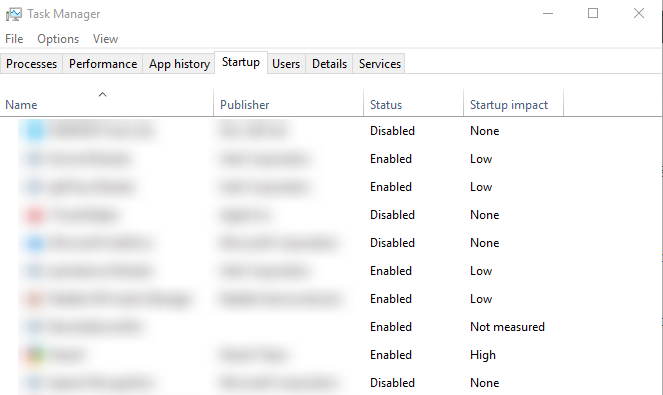
  3. Disable all startup programs in the list and restart your PC.hl2-exe-has-stopped-working
  4. Start the game from the installation folder and look for improvements.

6. Reinstall the game

In the end, if the problem proves more resilient than we initially expected, you can reinstall the game or use the game client (Steam) to validate the integrity of the game files.

However, instead of a classical reinstallation, we advise you to clean all of the remaining files before you install the game again. You can do that with the help of a PC cleaning utility.

⇒ Get CCleaner

But, before we move to reinstallation, try running the tool within Steam in order to validate the integrity of the game files. They can get corrupted or incomplete over time due to virus infection (or antivirus false detections) and misuse. Here’s how to repair the game integrity with the Steam client:

  1. Open the Steam desktop client.
  2. Open Library.
  3. Right-click on the affected game and open Properties.
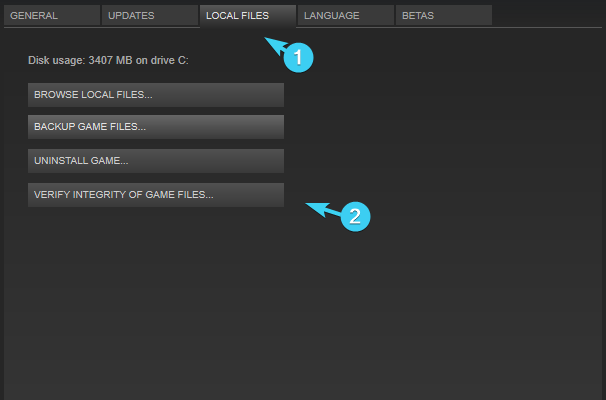
  4. Open Local Files.
  5. Click on the ”Verify integrity of game files…” button.hl2-exe-has-stopped-working

Finally, if even this doesn’t help, follow these steps to perform a clean reinstallation:

  1. Open Steam.
  2. Under Library, right-click on the affected game and Uninstall it.hl2-exe-has-stopped-working
  3. Navigate to the installation folder and delete all the remaining files.
  4. Use a professional removal tool to clear the associated registry entries.
  5. Get back to Steam and install the game from the Library.

With that, we can conclude this article. We hope that these workarounds helped you resolve the  ”hl2.exe has stopped working” and run legacy SourceEngine-related games without crashes again. Don’t forget to share your experience with the error or ask subject-related questions in the comments section below.

Genshin Impact: Failed to Check for Updates Error – 10 Fixes to Apply

If you are a fan of online games like Genshin Impact, you may often come across the Failed to check for updates error. This occurs mainly when you try to launch the game and the automatic update fails.

Genshin Impact is one of the most popular waifu games, but like any other online PC game, this also comes with its own set of issues.

Failing to check for updates error is quite common while trying to launch Genshin Impact, and hence, this post will help you fix the issue and continue to play the game without hassle.

Why does the Failed to check for updates error occurs in Geshin Impact?

You may encounter this error due to outdated or faulty network drivers, network issues, server outages, busy game servers, too many open applications interfering with the game, modified system configurations, and more.

While you can play it smoothly on Windows 10, a stable version of Genshin Impact for Windows 11 is yet to be released. Check the official website for more details.

Having said that, the game is compatible with Android, iOS, Microsoft Windows, macOS, Nintendo Switch, PlayStation 4, and PlayStation 5.

However, all trouble can start due to system incompatibilities so below we listed the minimum and recommended requirements.

Minimum system requirements:

You must save at least 30 GB of space for the game and then make sure of the below system requirements:

  • CPU: Intel Core i5 or higher
  • RAM: 8 GB RAM or higher
  • GPU: From NVIDIA GeForce GT 1030 graphics card
  • DX: Version 11
  • Supported OS versions: Windows 7 SP1 (64-bit), Windows 8.1 (64-bit), or Windows 10 (64-bit)

Recommended system requirements:

While you must remember to reserve a minimum of 30 GB of space for the game, below are some of the recommended requirements for the game to be installed on your system:

  • CPU: Intel Core i7 or equivalent
  • RAM:16 GB RAM
  • GPU: NVIDIA GeForce GTX 1060 6 GB and higher
  • DX: Version 11
  • OS: Windows 7 SP1 (64-bit), Windows 8.1 (64-bit), or Windows 10 (64-bit).

What can I do if Genshin Impact failed to check for updates?

1. Run Genshin Impact directly

  1. Close the already open Genshin Impact game and then press the Win + E shortcut key to launch File Explorer.
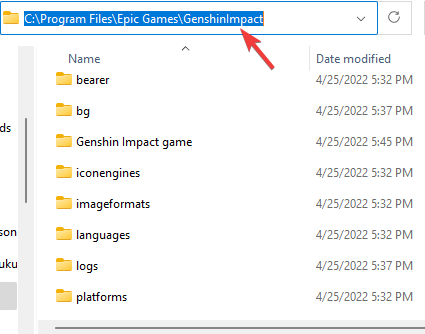
  2. Navigate to the below path in the File Explorer window: C:\Program Files\Genshin Impact OR C:\Program Files\Epic Games\GenshinImpactNavigate to games launcher folder for genshin impact
  3. Replace Epic Games with the name of your games launcher.
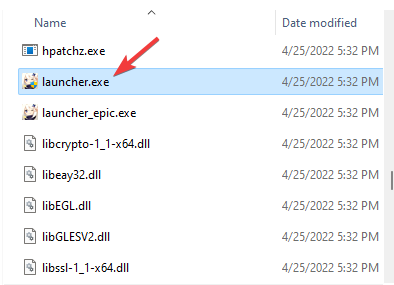
  4. Now, look for the launcher.exe file and double-click on the file to run the game. Double click on launcher.exe file in Ginshen Impact folder
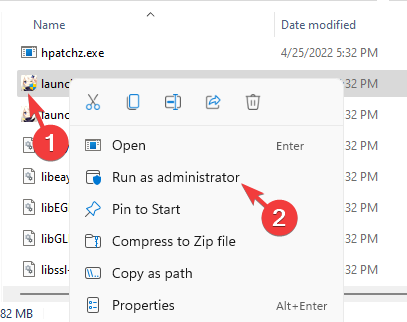
  5. Alternatively, you can right-click on the launcher.exe file and select Run as administrator, to run the game in administrator mode. Right-click on Launcher.exe in the game folder and select Run as administrator

Many users reported that running the game in administrator mode helped them fix the failed to check update issue.

2. Change your DNS servers

  1. Press the Win + R keys simultaneously to open the Run console.
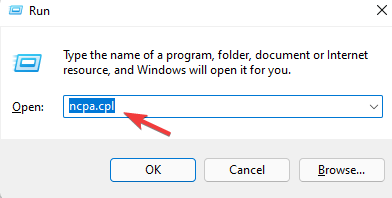
  2. In the search bar, type ncpa.cpl and hit Enter. Type ncpa.cpl in Run Console and press Enter
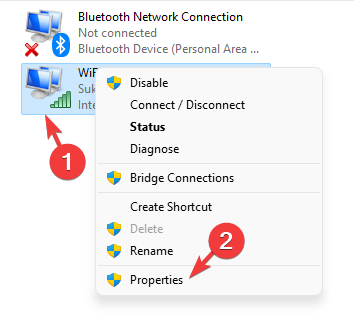
  3. It will open the Network Connections window. Right-click on the active network adapter and select Properties. right click on acctive network adapter and select Properties
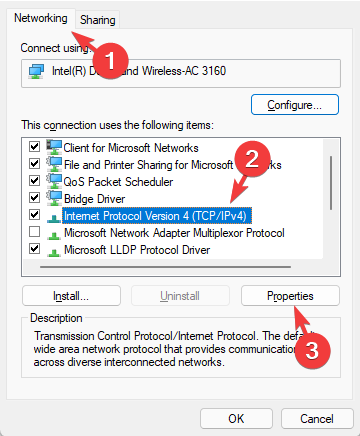
  4. In the network properties dialogue box, under the Networking tab, go to This connection uses the following items field.
  5. Here, select Internet Protocol Version 4(TCP/IPv4) and click on the Properties button below. Select Internet Protocol Version 4 and click on Properties
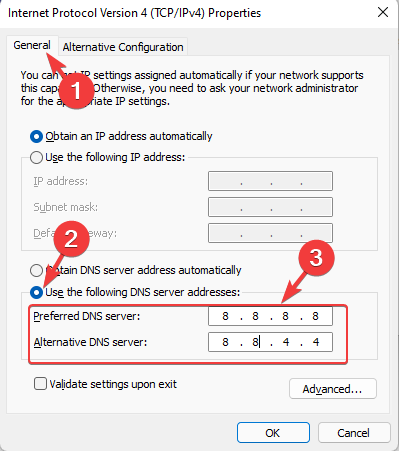
  6. Under the General tab, select Use the following DNS server addresses.
  7. Enter the below DNS server addresses in the respective fields: Preferred DNS server: 8.8.8.8 Alternate DNS server: 8.8.4.4Enter DNS server addresses in Properties
  8. Press OK to save the changes and exit.

Now, try launching the Genshin Impact game and see if the Failed to check for updates error is fixed. This also helps with Genshin Impact’s Error Code 4201.

3. Flush the DNS cache

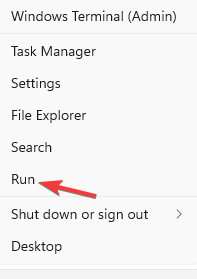
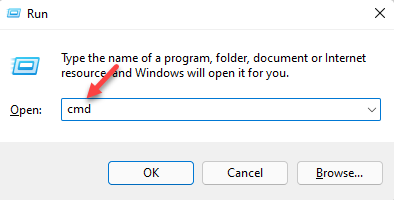
  1. Go to Start, right-click and select Run. Right click on Start and select Run
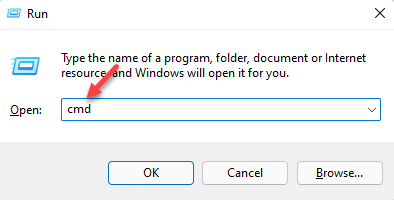
  2. In the Run console search field, type cmd and press Ctrl + Shift + Enter simultaneously to launch the elevated Command Prompt. open elevated command prompt by pressing Ctrl + Shift + Enter together
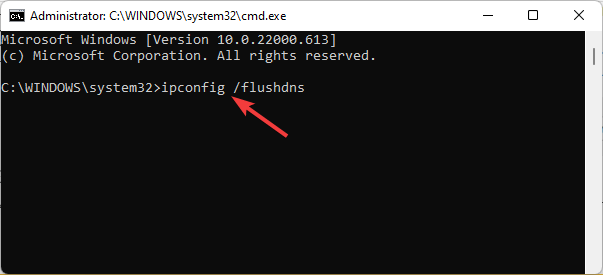
  3. Run the below command in the Command Prompt (admin) and hit Enter: ipconfig /flushdnsRun command in elevated command prompt t flush DNS
  4. Alternatively, you can also run the below command in the mentioned format and hit Enter: C:\Usernames\Yourname>ipconfig \flushdns
Note icon NOTE
Replace Yourname in the path with your specific username and also remember to add a space after ipconfig.

Once you see the success message, try updating the game and check if the error still persists.

4. Reset the network settings manually

  1. Press the shortcut key combination Win + R to open Run console.
  2. In the search box, type cmd and press the keys – Ctrl + Shift + Enter simultaneously. This will open the Command prompt in admin mode. Type cmd in Run console, press Ctrl + Shift + Enter
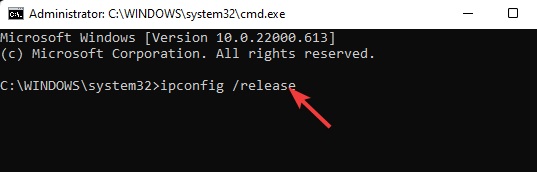
  3. Now, execute the below commands one after another and hit Enter after each one: ipconfig /release ipconfig /flushdns Copyipconfig /renew netsh int ip reset netsh winsock resetreset network by running commands in cmd admin

Once done, close the Command Prompt, restart your PC and now check if the Failed to check updates error for Genshin Impact is gone and it’s updating now.

5. Check for updates in the game launcher

  1. Open the game launcher and click on Settings (the gear icon) on the upper right. Click on the gear icon in Genshin Impact game
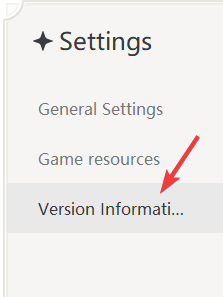
  2. In the Settings window, click on Version Information on the left. Genshin Impact Settings - Version Information
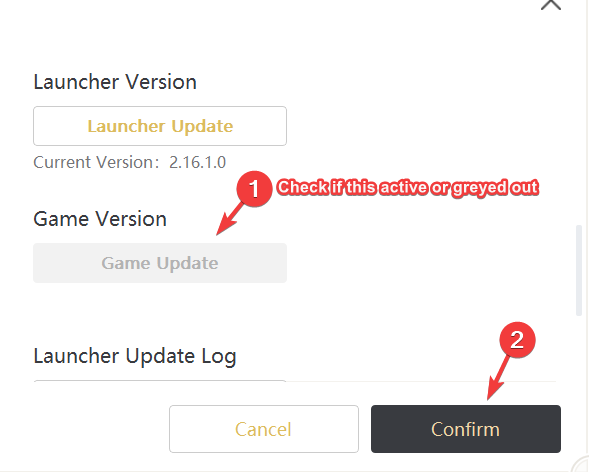
  3. Now, on the right side, under the Game Version, you should see an option to check for updates. In this case, it’s Game Update.
  4. If there’s an update available, the Game Update button will be active. Click on it to check if it installs the update.
  5. But, if no updates are available, it will be greyed out. Press Confirm to exit. Check if he game update button in ginshen impact game settings is active or greyed out
  6. If the update is successful, you should be able to play the game now.
  7. However, if you still encounter the error, press the Win + E shortcut keys together to launch File Explorer.
  8. Navigate to C:\Program Files\Genshin Impact OR C:\Program Files\Epic Games\GenshinImpactNavigate to games launcher folder for genshin impact
  9. Replace Epic Games with the name of your games launcher.
  10. Here, locate launcher.exe, right-click and select Run as administrator to run the game as an administrator. Right-click on Launcher.exe in the game folder and select Run as administrator

This should help you install the update for Genshin Impact and you can now launch and play the game normally.

6. Install the Microsoft Visual C++ 2019 redistributable

  1. Visit Microsoft’s official page for the Microsoft Visual C++ 2019 redistributable.
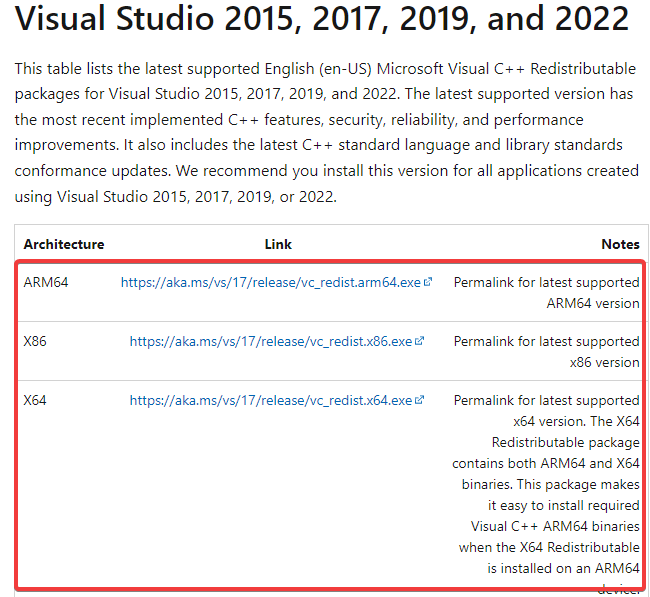
  2. Go to Visual Studio 2015, 2017, 2019, and 2022 and download the version based on your system architecture (32-bit or 64-bit).Visit Microsoft's official page to download Microsoft Visual C++ 2019 redistributable
  3. Once downloaded, run the setup file and follow the on-screen instructions to complete the installation.

This will install the missing DLL files. You can now try updating the Ginshen Impact game and check if you still encounter the failed to check for updates error.

7. Update Genshin Impact from file location

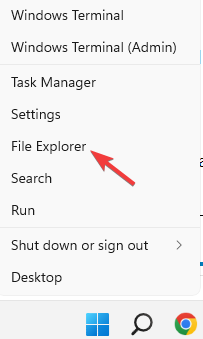
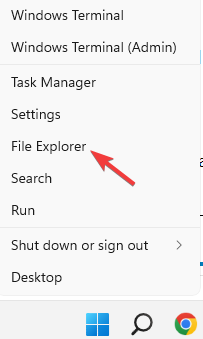
  1. Right-click on Start and select File Explorer. right click on Start and select File Explorer
  2. In the File Explorer window, navigate to the below path and hit Enter: C:\Program Files\Genshin Impact OR C:\Program Files\Epic Games\GenshinImpactNavigate to games launcher folder for genshin impact
  3. Replace Epic Games with the name of your games launcher.
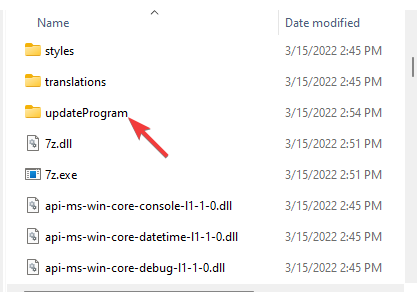
  4. In the folder, look for the updateProgram folder and open it. Open updateprogram folder in the Genshin impact game folder
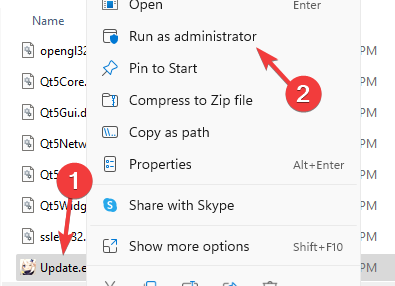
  5. Now, look for Update.exe, right-click on it and select Run as administrator to run it with admin rights. right click on update.exe file and select Run as administrator

Try updating the game and the failed to check for updates error should be fixed.

8. Create a shortcut for the game

  1. Navigate to Start, right-click and select File Explorer. right click on tart and click on File Explorer
  2. Go to the Genshin Impact folder path in the File Explorer: C:\Program Files\Genshin Impact OR C:\Program Files\Epic Games\GenshinImpactGo to Genshin Impact game path in the File Explorer
  3. Replace Epic Games with the name of your games launcher.
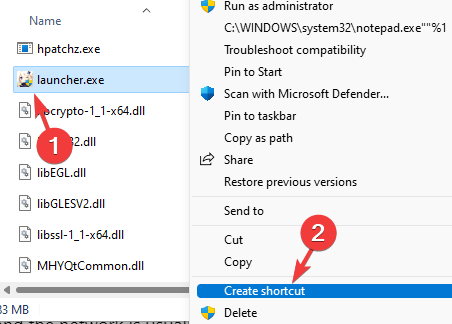
  4. In the File Explorer window, look for launcher.exe file. Right-click on it and select Create shortcut.right click on launcher.exe and select Create shortcut
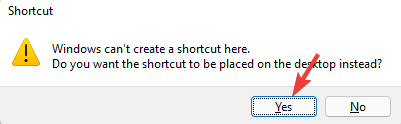
  5. You will now see a Shortcut prompt that informs you that the shortcut can be created on the desktop. Press Yes to confirm. Click yes in the shortcut prompt to confirm

Once the shortcut is created, you can launch the game through it and it will check for updates automatically.

9. Use a VPN

During peak hours, when the traffic is high, the game servers are busy and the network is usually unstable.

Most internet service providers throttle your connection speed when you connect to a gaming-related website or app.

In such a case, you can install a VPN to help improve the network connection and fix the check for updates failed error. This is because the VPNs tend to have reduced downtimes, larger bandwidths, and a strong connection.

A VPN, such as ExpressVPN, encrypts your traffic, making it difficult for your ISP to determine where you’re connecting and, as a result, less likely to throttle your connection speeds.

ExpressVPN’s extensive network allows you to access a wide range of geo-restricted content, gaming, and other content.

To avoid server fatigue, you may also use Smart DNS to configure a proxy connection for your gaming devices, allowing you to instantly change your virtual location and play Genshin Impact safely without interruptions.

10. Reinstall the Genshin Impact game

  1. Press the Win + R keys together to launch the Run console.
  2. Type appwiz.cpl in the search bar and hit Enter to open the Programs and Features window in Control Panel. type appwiz.cpl in run command and press Enter
  3. In the Control Panel window, navigate to the right side. Go to the list of programs, look for Genshin Impact or the game’s launcher, right-click on it and select Uninstall. Under Uninstall or change a program, right click on game launcher and select Uninstall

Once it’s completely uninstalled, restart your PC and re-install the game from its official download page. The updates should go through usually and you should not see the error.

What are some other tried and tested solutions?

  1. The error could also pop up due to the game server issue, hence, check their Genshin Impact Twitter handle for server updates.
  2. You should also try uninstalling any recently installed app that may be causing the issue. According to some gamers, uninstalling Riot Vanguard, Adlock, or Origin helped them fix the error.
  3. Go to Start and right-click on Task Manager. Here, close all instances of Genshin Impact and relaunch the game. This resolves the issue in most cases.

While you can restart your network by unplugging the power cords from your router or modem and then plugging it back after 2 minutes, you can also follow the other advanced methods above to fix the issue.

You can also update your router’s firmware to rule out any possibility of an outdated version. This will ensure that your router has all the latest features and runs smoothly.

We have mentioned the best possible solutions above based on some of the common causes. This should help you fix the issue easily.

Let us know in the comments section below if you come across any other solutions.

2 Ways to Fix bad Owner or Permissions on SSH Config

SSH is commonly used by network administrators to control systems, and issues such as Bad owner or permissions on SSH config occur seldom.

Fixing this problem is rather straightforward, but it is one of those processes rife with blunders and misinformation from multiple sources.

But what if someone who did not know how to fix this problem encountered it? Here are some fixes that might help you.

What is SSH used for?

SSH connections have been used to secure a variety of communications and administrative or management duties between a local workstation and a remote host.

Among other things, SSH is used to control routers, server hardware, virtualization platforms, operating systems (OSes), and file transfer programs.

A related problem is the Unable to establish host authenticity but this guide will help you fix it quickly. You can learn more about secure remote access by checking this guide on what OpenSSH is and how it works on Windows.

Now, let’s see how we can fix bad owner or permissions on SSH config with the solutions below.

How can I fix bad owner or permissions on SSH config?

1. Change permission

  1. Open Windows Explorer and locate your .ssh folder. It is usually located in C:\Users\
  2. Right-click the .ssh folder and click Properties.
    ssh file properties
  3. Find and click the Security tab and then click Advanced.
    security tab and then advanced
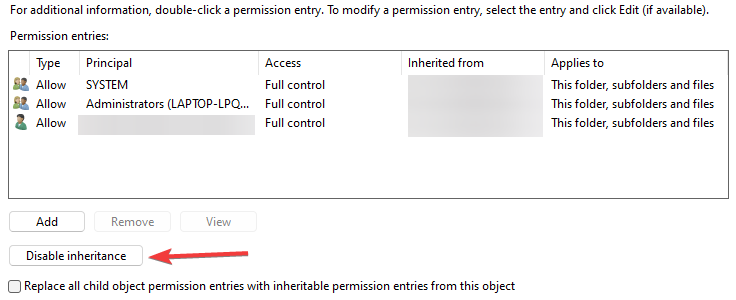
  4. Click Disable Inheritance.
     disable inheritance
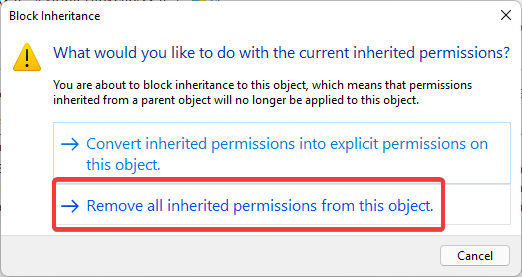
  5. A warning popup will appear. Click Remove all inherited permissions from this object.
    Remove all inherited permissions from this object
  6. Click OK to close the Advanced Security Settings for .ssh window.
  7. You will notice that all users will be removed. On the same window, click the Add button.
     add owner
  8. Next, click Select a principal to bring up the Select Users or Groups window.
     select a principal
  9. Click Advanced.
    advance setting for principal
  10. Click the Find Now button. A list of user results should appear.
    find now
  11. Select your user account.
  12. Then click OK.

2. Using commands

  1. First, type in
    chown $USER ~/.ssh/config
  2. After that, type in
    chmod 644 ~/.ssh/config

What is the difference between telnet and SSH?

Telecommunications and Networks are abbreviated as Telnet, and it is a networking protocol best known for the UNIX platform.

Telnet is credited as being the first Internet, having been created as a method of remote control for managing mainframe computers from remote terminals when the Internet originally opened in 1969.

While there is no official fix for bad owner or permissions on the SSH config problem, many users have reported that removing inherited permissions has worked for them.

Additionally, there are numerous lines of commands that might fix the issue and are available on the web and in the forums.

The fix for a bad owner or permissions on the SSH config problem can vary in steps depending on the process type.

If you are experiencing ssh_exchange_identification connection closed by host issues, read this article.

Let us know whether you were able to fix the bad owner or permissions on the SSH config in the comments section below.

Implausible Industries launches its first original game dubbed Research and Destroy

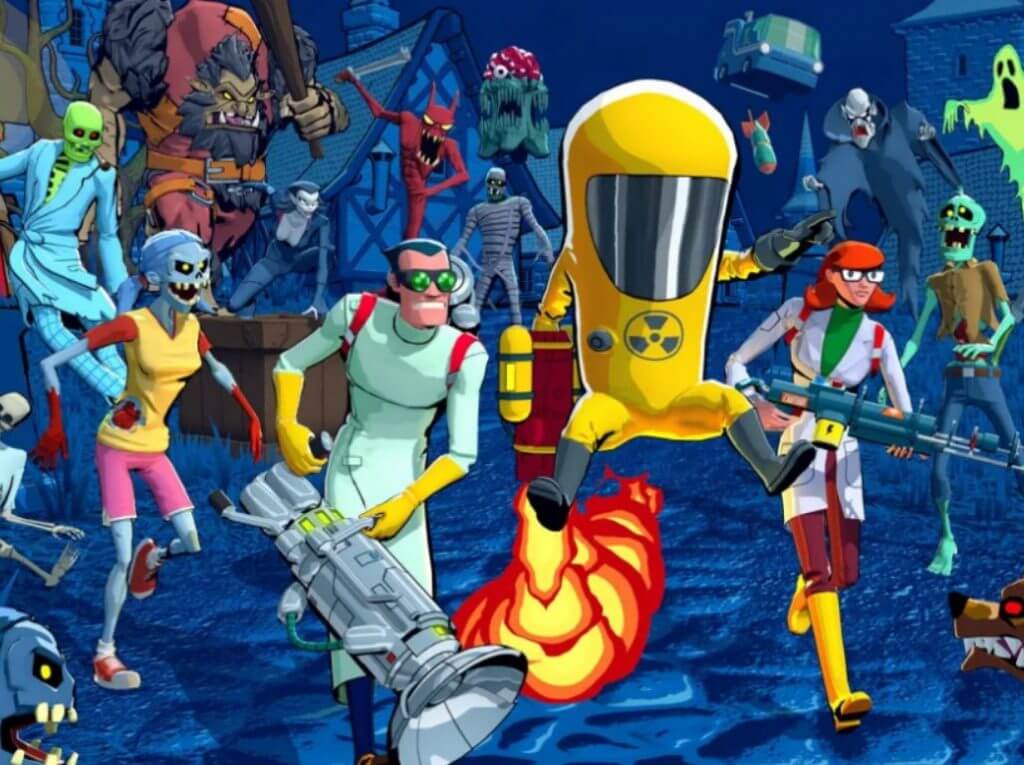
Today, Implausible Industries took to a blog post to announce the official launch of its first-ever original game, Research and Destroy. It is a turn-based action that supports both single and multiplayer. The game will provide players with the thrill of having direct control over the character in the game similar to that of a person playing an action game.

According to the blog post on Xbox Wire, the player will assume the role of three “brilliant” scientists and get to develop strange new weapons and gadgets that will be used to fight off and destroy supernatural hordes that have crushed humanity. While playing, gamers are supposed to cause havoc using science in the utopia created by the hordes post the elimination of mankind.

Gamers will be required to complete the first few missions first, this will then allow them to either play the game “via couch co-op or online with any other player on the Xbox ecosystem, including on the cloud.” The game can either be played in single-player mode or in co-op. Players also have the provision to pop in and out of a friend’s open game at any point.

At $19.99, you will get to experience this and more. The game is already available for Xbox One, Xbox Series X|S, Windows 10/11 PC, and with Xbox Game Pass and from the cloud with Xbox Cloud Gaming. As gamers continue to pursue this quest, they will be able to customize their gameplay experience by researching and developing “radical upgrades for each strange weapon and fascinating gadget.”


3 Quick Methods to Install a Browser on Firestick

The Amazon Fire TV Stick is a gadget that connects to your TV’s HDMI connector and lets you surf the web if you know how to install the browser on a FireStick.

Additionally, it allows you to watch your favorite TV episodes and movies, subscribe to subscription services, listen to music, see photos, and play games.

Amazon’s new device can be confusing to work with but with a few steps, you will be able to install a web browser on this amazing device.

Does FireStick support browsers?

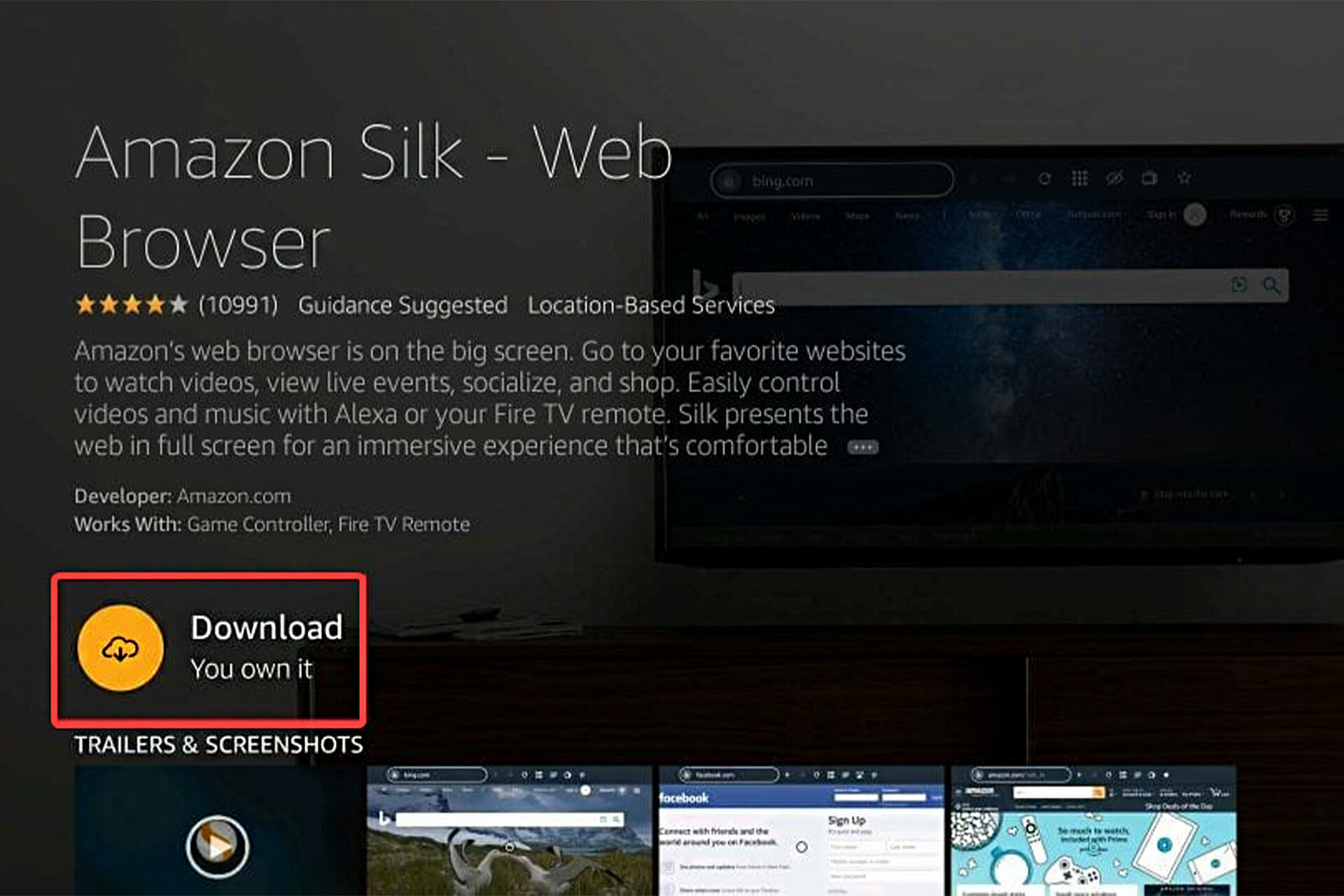
Browsers are supported in some fashion by Fire Stick devices, and the most well-known browser is Amazon Silk, which is completely supported.

You can visit websites on Amazon’s Fire TV Sticks via web browser apps, just like you would on a computer or smart smartphone.

How can I install a browser on FireStick?

1. Via the internet

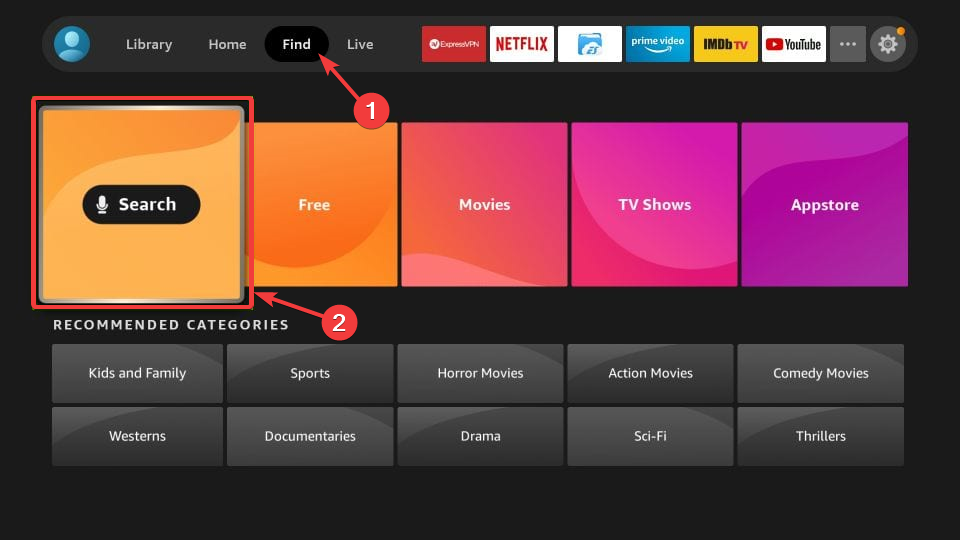
  1. First, choose Find and then Search on your Fire TV Stick home screen.find and download buttons in fire stick
  2. Type in the name of the browser.
  3. After that, click the browser icon or tile on the following window.
  4. Now, click Get or Download on this window and wait for the browser to download and install.get or download the app
  5. Then, click Open to access the installed browser.open the downloaded app

2. Via the Amazon website

  1. Open the Amazon website’s Fire TV Apps directory in your preferred browser.
  2. Following that, select the web browser app that you want to install on your Fire TV Stick.
  3. Choose your Fire TV Stick’s name from the dropdown menu on the right side of the screen.
  4. Finally, select Deliver. The web browser app should automatically install on your Fire TV Stick.

3. Install Google Chrome

  1. Select Settings from the home screen menu.
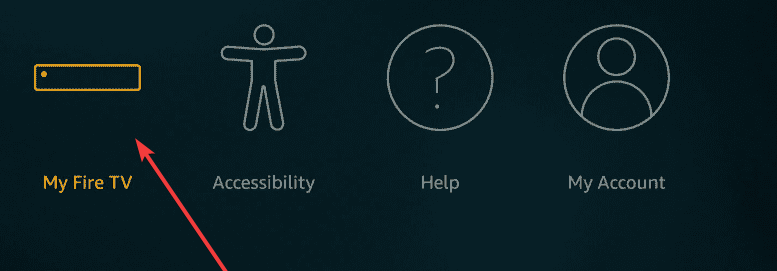
  2. Go to My Fire TV (on new Fire OS versions, this option is called Device & Software).my fire tv setting
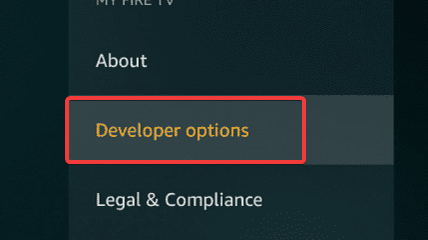
  3. After that, select Developer options.developer options
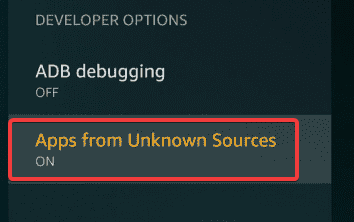
  4. Enable Apps from Unknown Sources.enabling apps from unknown sources
  5. Then, select Search on the FireStick home screen.
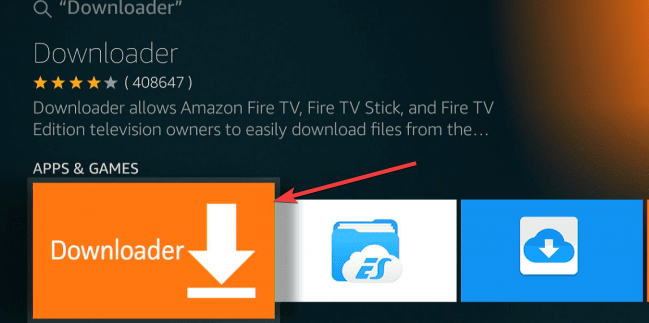
  6. Type Downloader.downloader app
  7. You may see similar apps, so make sure to select Downloader, the orange app in the Apps & Games category.
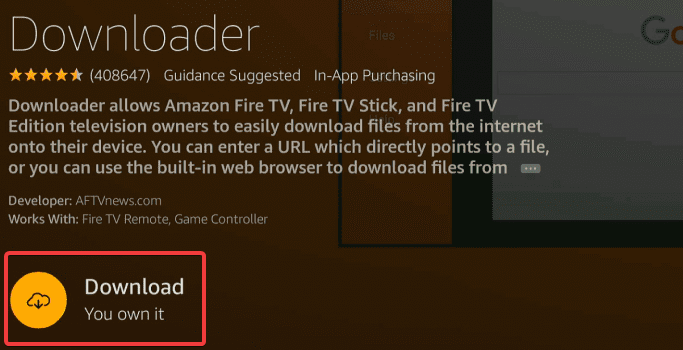
  8. Once located, select and hit Download or Get.download the downloader app
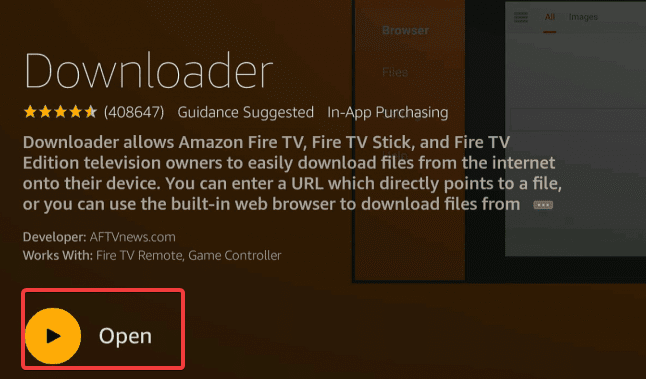
  9. Now your FireStick is ready to sideload the Google Chrome APK through the Downloader app. Go ahead and click Open.open the downloader app
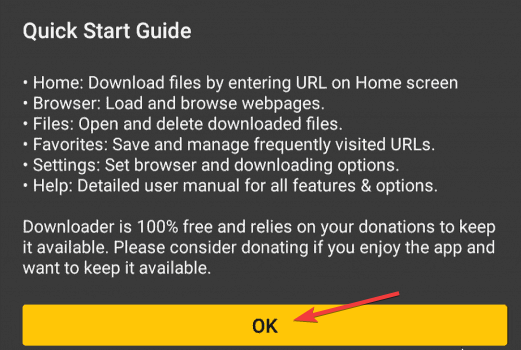
  10. The application will ask permission for storage access. Select Allow, then OK to lock configurations.give permission to the downloader app
  11. On the home page of the Downloader app, type the following in the URL bar: https://chrome.en.uptodown.com/android.
  12. Hit Go and the system will navigate to the page where you can download the Google Chrome APK.
  13. Once downloaded and installed, select Done and the system will take you back to Downloader.
  14. Access Your Apps & Channels on your FireStick / Fire TV and launch Google Chrome. You may have to select See All, as Chrome may not show up among the side-scrolling options.

What browsers to install on FireStick?

Amazon Silk is a straightforward FireStick browser with straightforward controls. This browser was developed with Fire TV devices in mind.

Another good alternative is Mozilla Firefox which can be downloaded for FireStick devices and used to access the world wide web.

You can check out this article if you’re looking for the best browsers for your FireStick.

For a highly compatible browser with your FireStick device, you should use Opera One. This browser comes with thousands of integrated applications and strong security against online dangers.

⇒ Get Opera One

While installing the Silk browser is simple, installing Chrome on these devices would necessitate a number of additional procedures.

Amazon Silk and Firefox, which are both popular FireStick browsers, are both fantastic alternatives to Google Chrome.

Many people have been perplexed as to how to install a browser on FireStick, but by following the steps above, anyone should be able to install a browser with ease.

If you want to reset factor Amazon FireStick, this article could help.

Let us know in the comments if you were successful in installing a browser on your FireStick, and if so, which one.

Microsoft Build 2023: When Is It And Where Can You Watch It?

Yea, it’s that time of the year again. Wait, just so that we avoid any type of confusion, we’re not actually talking about Easter or Christmas.

It’s the time of the year when all the major software and hardware companies announce their upcoming projects and endeavors.

We also covered last year’s Build conference, However, in 2022, Microsoft decided to reveal the dates of its upcoming Build conference first.

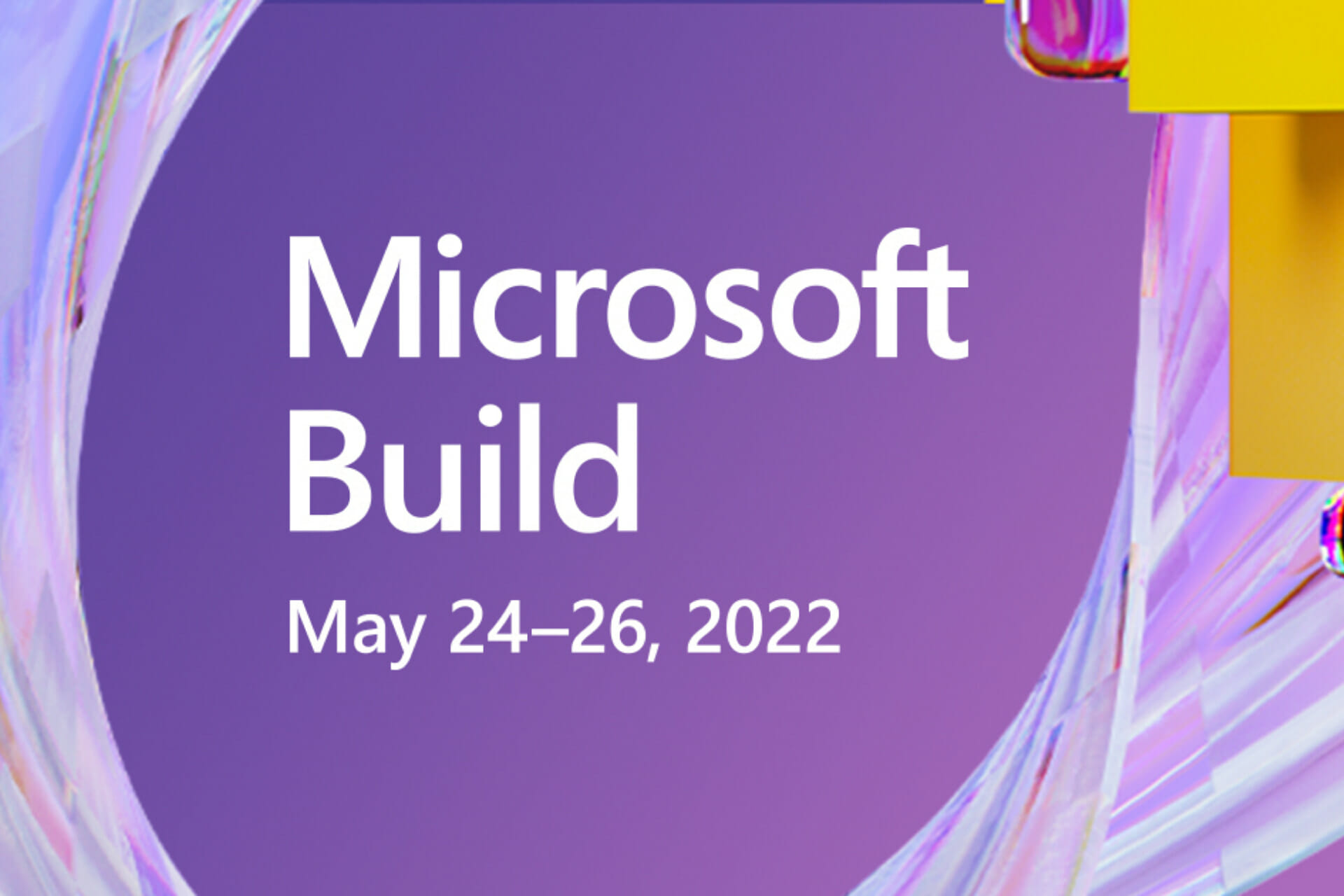
Thus, we’re happy to announce that the Microsoft Build 2022 event will go live starting on May 24th, all the way up to May 26th.

Microsoft opened up free registration for everyone interested

As most of you are already familiar with, the Microsoft Build 2022 showcase will be a three-day developer conference.

During these three days, the software giant will unveil its latest developer tools, technologies, and updates for various software products.

In 2020 and 2021, due to the pandemic, Microsoft had to shift from in-person to virtual events. Build 2022 will be exactly the same, as Microsoft apparently is not ready to host a large in-person conference.

It’s only natural for all of us to want to go online, check out this conference, and learn more about the latest dev tools and innovations from the software giant.

Doing so is very easy, as you can quickly register on the official Build website. Yes, registration is now open for everyone and is absolutely free.

The Redmond tech company says Build 2022 will help developers innovate without compromise, develop creatively, and build the next generation of apps for more than one billion devices.

This main event will actually feature 13 speakers from Microsoft, among which Satya Nadella, Kevin Scott, Amanda Silver, Scott Guthrie, Kathleen Mitford, and others.

Of course, all present attendees will get a chance to learn during live sessions and book time with Microsoft experts.

Now, you might be wondering what differentiates Build 2022 from previous developer conferences held by Microsoft is new regional spotlights.

Microsoft strongly aims to provide keynote analysis, trending news, and topics for specific regions, such as France, Germany, Japan, Latin America, and the UK.

You can watch the event live on the official site, but also on YouTube, as it was in previous years as well.

Apple will also host its WWDC 2022 soon enough, on June 6-10. This year’s Worldwide Developer Conference will be an online-only event, the same as Microsoft’s.

Did you already get your front-row virtual invitation to this magnificent tech event? Share your thoughts with us in the comments section below.
Accessing Edge tabs from other devices is easier with Dev Build 102.0.1235.1

Were you expecting another weekly Edge update from the Redmond tech giant? If the answer is yes, then this is exactly up your alley.

Last week, we discussed how build 102.0.1227.0 brought a new management policy to control if the Network Service Sandbox is Enabled. 

However, now, Microsoft has released another weekly Edge update for the Dev channel. Version 102.0.1235.1 is now available for all users with an improved Tab Actions menu and a traditional list of bug fixes.

What to expect from Edge Dev build 102.0.1235.1

The 102.0.1235.1 version for Microsoft Edge doesn’t come with an impressive array of new features, but it does bring important changes to the table.

By far, the only visible change is a slightly improved Tab Actions menu that now lets you access tabs from other devices.

Now, the Tab Actions menu offers the ability to enable or disable vertical tabs, tab search, recently closed pages, add tabs to a new collection, and now tabs from other devices.

If you use Edge Stable, you can access tabs from other devices in the History flyout. We know you want to see the entire changelog for the brand new build, so we’re going to provide that for you as well.

Added features: 

  • Added a link to Tabs From Other Devices in the Tab Actions menu. 
  • Enabled support for a management policy from Chromium to control if the javascript engine behavior to Set Timeout Without 1 Ms Clamp is Enabled, which controls if calls to setTimeout() with a 0ms timeout are changed to have a 1ms timeout.  Note that updates to documentation and administrative templates may not have occurred yet. 

Improved reliability: 

  • Fixed an issue where all tabs crash with an error code:  FACILITY_VISUALCPP/ERROR_PROC_NOT_FOUND. 
  • Fixed a crash on mobile when sending feedback. 
  • Fixed an issue where WebView2 apps crash when setting User Data Folder Access options (Issue 2363). 
  • Fixed a crash on Xbox when using Tab Search. 

Changed behavior: 

  • Improved how many types of tabs can be put to sleep. 
  • Reduced the number of tabs that are discarded due to memory pressure in certain situations.   
  • Fixed an issue where Tab Search doesn’t work. 
  • Fixed an issue where printing and print preview sometimes doesn’t work. 
  • Fixed an issue where certain search engines can’t be removed from Settings. 
  • Fixed an issue where certain languages aren’t available in Spell Check. 
  • Fixed an issue where IE mode sometimes can’t be enabled or configured. 
  • Fixed an issue in Application Guard windows where downloads are sometimes blocked when they shouldn’t. 
  • Fixed an issue where work/school results don’t appear in the search engine when searching from the address bar. 
  • Mobile: 
    • Fixed an issue where Top Sites can’t be edited because the edit button is too hard to hit. 
    • Fixed an issue where Read Aloud sometimes doesn’t highlight words that it should, or says words that it shouldn’t. 
    • Fixed an issue where the Read Aloud controls sometimes don’t appear in the notification shade. 

Known issues: 

  • Users of certain ad blocking extensions may experience playback errors on YouTube.  As a workaround, temporarily disabling the extension should allow playback to proceed.  See this help article for more details. 
  • Some users are still running into an issue where all tabs and extensions immediately crash with a STATUS_INVALID_IMAGE_HASH error.  The most common cause of this error is outdated security or antivirus software from vendors like Symantec, and in those cases, updating that software will fix it. 
  • Users of the Kaspersky Internet Suite who have the associated extension installed may sometimes see webpages like Gmail fail to load.  This failure is due to the main Kaspersky software being out of date, and is thus fixed by making sure the latest version is installed. 
  • Some users are seeing “wobbling” behavior when scrolling using trackpad gestures or touchscreens, where scrolling in one dimension also causes the page to subtly scroll back and forth in the other.  Note that this only affects certain websites and seems to be worse on certain devices.  This is most likely related to our ongoing work to bring scrolling back to parity with Edge Legacy’s behavior, so if this behavior is undesirable, you can temporarily turn it off by disabling the edge://flags/#edge-experimental-scrolling flag. 

Be sure to download the correct version of the update, depending on the channel you are currently using Microsoft’s Edge browser on.

Have you updated your Edge browser lately? Share your experience with us in the comments section below.
What is Windows Recovery Environment & how you can boot into it

Updated: 3/29/2023

The Windows Recovery Environment, also called WinRE, is an important tool in the Windows operating system that can help you fix a host of problems in your Windows computers.

In this article, we’ll dig a little deeper into the exact processes of Windows Recovery Environment (WinRE). Let’s get started.

What Is the Windows Recovery Environment (WinRE)?

The WinRE is a handy Windows tool that helps you fix your Windows environment.

“The Windows Recovery Environment (WinRE) is a companion operating system installed alongside Windows 10, typically in a separate partition, that can help with troubleshooting, recovery, or booting from external media, such as a USB stick.

WinRE is also used during the Windows update process to apply updates in specific paths or phases. (This process is sometimes referred to as SafeOS.),” says Aaron Lower from Microsoft.

So, now that we know its function, let’s look at how we can access it.

You can learn more about the underlying environment that WinRE relies on by reading this clear explanation of what Windows PE is, which helps you understand how recovery tools run on your system.

Accessing the Windows Recovery Environment (WinRE)

A peculiar specialty of WinRE is that if you’re facing any problems, the tool will get launched automatically.

However, even if you’re currently not facing any issues with your PC’s working, you can still access the WinRE without any hassles. But, before you get going, make sure that it’s enabled in the first place.

Here’s how you can do that:

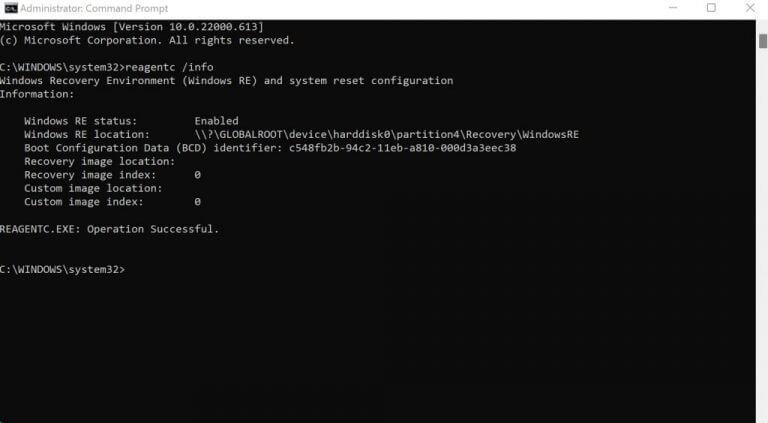
  1. Go to the Start menu search bar, type in ‘cmd,’ and launch the cmd as an administrator.
  2. In the cmd, type in the following command and hit Enter:
    reagentc /info
  3. Check the Windows RE Status. It should be set to enabled. In the case it’s disabled, run the following command below:
    reagentc /enable
command prompt

So now that you’ve verified the Win RE status to be enabled, you can get going by launching the WinRE manually.

Here’s how you can launch the WinRE:

  • Turn off your PC and the next time you power it on, press the F11 key while you boot into it. However, depending on your PC manufacturer, you might’ve to use press different keys, such as F9 or F12.

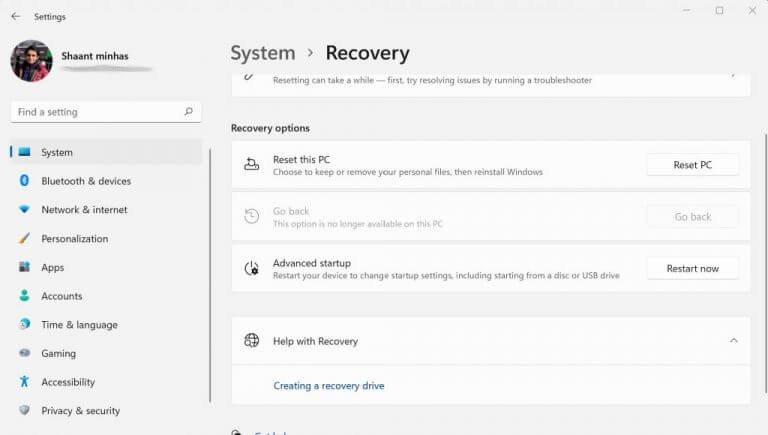
Alternatively, you can also boot into WinRE using Windows Settings. Go to the Start menu search bar, type in ‘settings,’ and select the best match. Alternatively, press the Windows key + I.

In the Settings menu, click on System > Recovery. Now, from under the Advanced start-up section, click on Restart Now. This will push your computer into a restart and take you straight to WinRE.

windows recovery

Things to do with Windows Recovery Environment

But, what are the exact tools that Windows Recovery Environment has to offer us? Let’s take a look at all the tools we’ve at our disposal.

1. Reset your PC

If your PC has been bogged down for a while now, you can rely on the factory reset through WinRE. Although you can reset your PC through Windows Settings as well, WinRE comes in handy when you’re unable to access your PC.

resetting the windows pc

2. Startup Settings

So you want to change how your PC behaves at the startup? The Startup Settings feature is what you should put your stakes in. For instance, after you’re in the Startup Settings through WinRE, you can then enter into Safe mode, which helps you launch your Windows with minimal programs.

additional settings

3. Do a System Restore

Through the WinRE feature, you can use the restore a Restore Point.

A System Restore creates a Restore point, an image of your PC based on past settings, where everything works smoothly. You can then resort to these settings when something goes off with your PC.

All about Windows Recovery Environment

And that brings our brief introduction to Windows Recovery Environment to a close. As a complementary solution to WinRE, you should have a nice Windows backup set up beforehand. After all, precautions are better than cure and data loss is a huge annoyance for almost all computer workers.

Switching accounts in Microsoft 365 web apps is now possible without signing out

Remember that Microsoft announced its community that it was currently working on a capability that would allow users to switch between different accounts with ease when using Microsoft 365 web apps?

You probably didn’t know how long it was going to be until it was actually going to happen, so we’re here with an update.

Indeed, the Redmond-based tech giant stated that this feature has started to roll out and will become available to everyone within the next couple of months.

You don’t have to sign out in order to switch accounts

Before this new way was perfected, users had to first sign out of a Microsoft 365 web app and then sign in to a different one.

Not to mention that the multi-factor authentication when signing in each time further hindered overall productivity and workflow as well.

We won’t have to worry about that anymore, as seamless account switching has finally started to roll out.

All you really need to do is simply click on the account switcher on the top-right corner of your Microsoft 365 web app and then choose between other accounts that have previously signed into the service.

The switch should be seamless, and you wouldn’t have to sign out from your current account and then sign in again to the other one.

However, you can only be active on one account per app. Thus, you can’t have two active apps with different Microsoft accounts running in the same browser instance.

Seamless account switching for Microsoft 365 web apps has started rolling out to Worldwide environments of Office, Word, Excel, PowerPoint for the web, Outlook on the web, OneDrive for the web, SharePoint, and Microsoft 365 admin center.

The tech giant is also working to expand this to more services but the rollout for the current scope is expected to be complete by June.

You should keep in mind that the featre is not available for Microsoft 365 operated via 21Vianet, Microsoft 365 Government, and Germany cloud environments.

There are no admin controls to turn off the feature but Microsoft has assured IT admins that data integrity and privacy will be maintained.

Microsoft announces GitHub Desktop 3, now with updated pull requests

Microsoft has announced the release the GitHub Desktop 3. From the onset, GitHub was specifically designed to help simplify developers’ workflow. But now, with the GitHub Desktop 3 comes more enhancements, such as squashing, reordering, or amending commits that are geared toward improving git operations.

A key enhancement is the ability to review the status of your pull requests, which in return helps developers confirm whether the code is indeed ready for production. The blog post further provides an illustration of how to use it:

Just click on the badge with the pull request number, and start diving into the checks, jobs, and steps to better understand and fix whatever problem you might run into. You still can’t find out why your checks failed? Don’t worry! You can just re-run your checks to give them another chance to succeed. Users also now have the ability to re-run failed or individual GitHub Action checks.

The GitHub Desktop 3.0 also provides support for high-signal notifications. Essentially, this will help the user sieve through the numerous notifications that keep on popping up, it will instead only alert the user about important notifications that occur in the repository the user is on.

Developers will also be able to get ahead of failed pull request checks, in that GitHub Desktop 3 will notify them when they fail to file commits. It redirects users to a new dialog with a detailed account of what transpired. In return, this makes it easier for the developer to identify where the problem is and rectify it.

It is Microsoft’s hope that the new enhancements that come with the GitHub Desktop 3 will help promote effectiveness, and efficiency and cut down on distractions.


Paging File Error in Warzone: 6 Solutions That can Help you

This article explores the Paging file error on Warzone, identifying causes and recommending solutions.

The Call of Duty: Warzone is one of the trendy games that has taken users’ gaming experience to another level. However, things are not all rosy, as users face problems with it.

One of the earliest problems was the Warzone stuck on the loading screen, which proved frustrating. Now, the Warzone paging file error deprives users of the pleasure of doing what they love.

Thankfully, we have gathered seven effective and proven fixes for this problem. The fixes are not far-fetched, and you should find them practicable.

What causes paging file error?

The causes of the paging file error on Warzone are numerous. Below are some of the common ones:

  • Outdated Windows – When the OS is outdated, many applications and processes may stop functioning properly. For some users, this results in the Warzone paging file error
  • Outdated or broken drivers – A few users had also reported that they experienced the error when drivers, especially the graphics driver, became outdated.
  • Insufficient virtual memory allocation -All applications need to use some system resources. Low virtual memory will trigger this error.
  • Running counter programs – Conflicting programs on a device often result in errors and bugs and may trigger the Pagging file error.

We will now show you the best steps to restore the game to normal functioning after experiencing this error.

How do I fix the paging file error in Warzone?

Before starting with these solutions, check your RAM and ensure it sits properly. A loosely-fitted RAM causes all sorts of problems on PCs. For example, it has proved to be one of the major causes of the paging file error on Warzone.

1. Update Windows

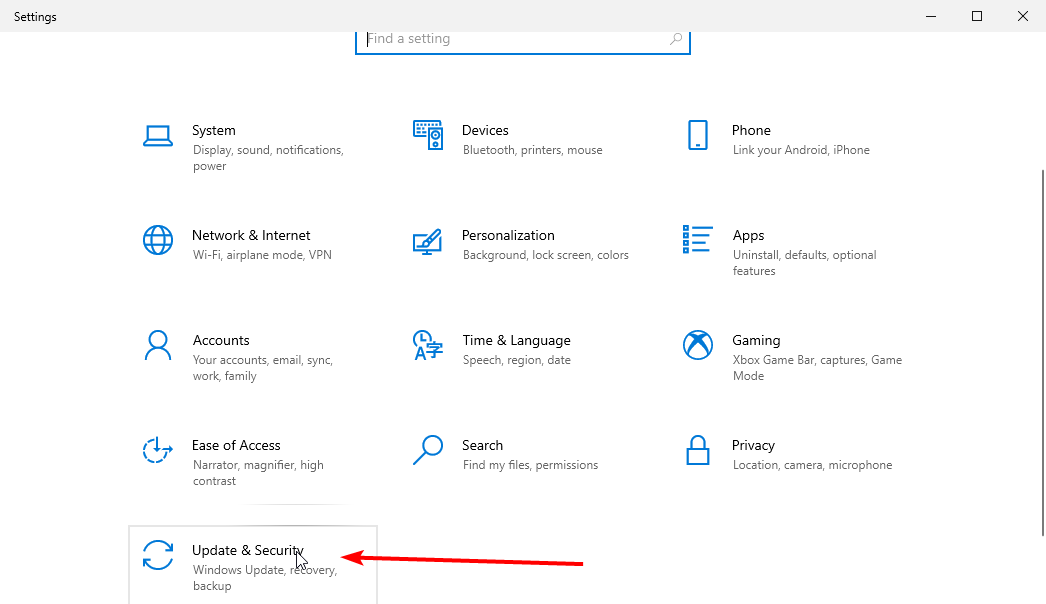
  1. Press Windows + I to open the Settings app.
  2. Select the Update & Security option.
    update and security
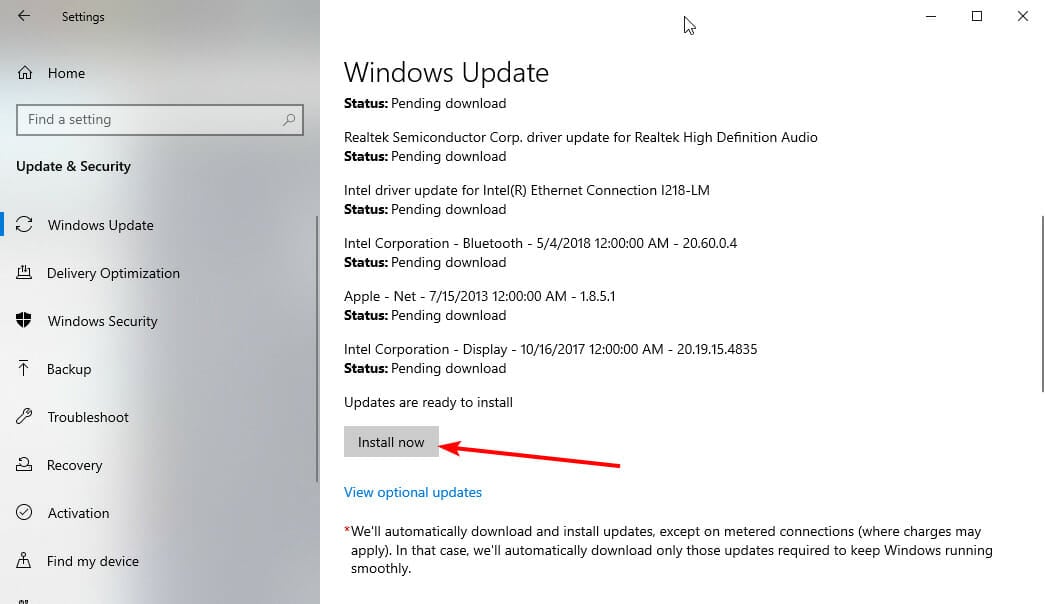
  3. Click the Check for Updates button.install updates paging file error
  4. Click the Install now button to download and install all available updates.

2. Update graphics card drivers

2.1 Update manually

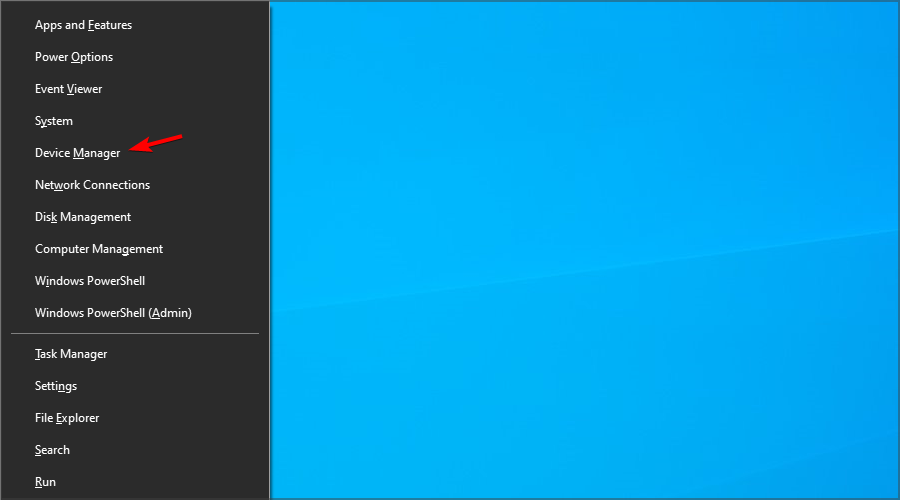
  1. Press the Windows key + X and select the Device Manager option.
  2. Click on the Display adapters option to expand it.
  3. Right-click on any of the drivers there and select the Update drivers option.
    update driver
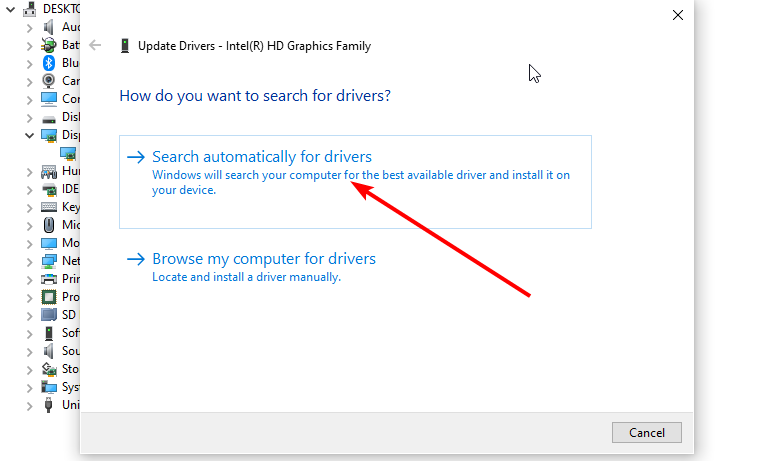
  4. Select the Search automatically for drivers option.
    search update automatically paging file error warzone
  5. From here, follow the simple on-screen instructions to install any driver update shown.

2.2 Update automatically

Instead of going through the steps above, you can automate the process with a top-notch driver updater in Outbyte Driver Updater.

Outbyte Driver Updater is renowned software that automatically scans, recommends, and installs drivers. Whether outdated, missing, or broken drivers, this incredible software leaves no stone unturned.

It has a whooping database of 18 million original drivers from trusted manufacturers worldwide. This assures you that it indeed has everything you need in-store already.

What’s more, you can schedule driver scans on Outbyte Driver Updater. This lets you focus on other things and let it take care of your drivers’ functionality. It is everything you need, never to be bothered by driver problems on your PC again.

⇒ Get Outbyte Driver Updater

3. Set virtual memory to Automatic

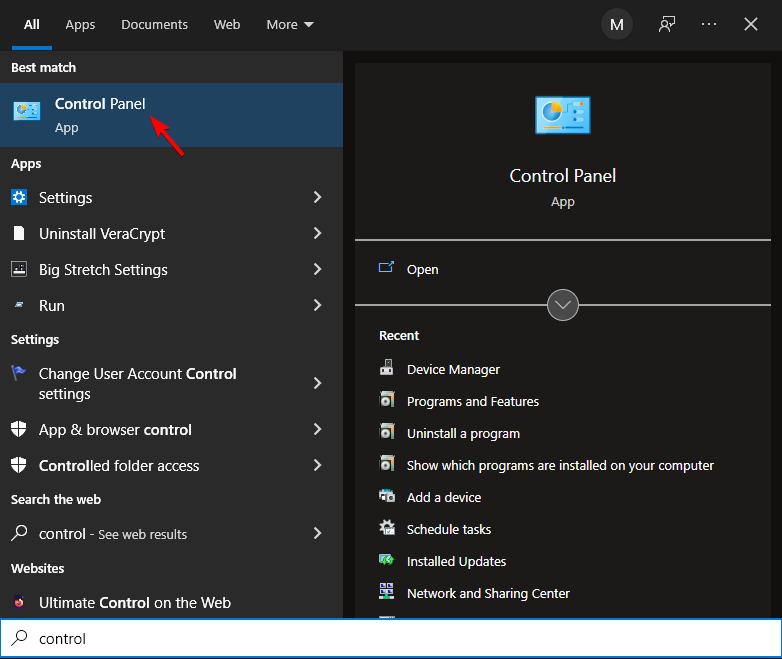
  1. Press the Start button and type control panel.
  2. Select the Control Panel app option.
  3. Click System and Security, and click the System option.system and services
  4. Click the Advanced system settings option on the left pane.advanced system settings paging file error warzone
  5. Switch to the Advanced tab in the System properties window.
  6. Click the Settings button under the performance tab.
  7. Switch to the Advanced tab in the Virtual Memory window.
  8. Go to the Virtual Memory section and click the Change button.
  9. Now, check the Automatically manage paging file size for all drives checkbox and click the Ok button to save the changes.

4. Increase Video memory scale value

  1. Press Windows + E to open File Explorer and click the Documents folder on the left pane.
  2. Select Call Of Duty Warzone.
  3. Now, select the Players option.
  4. Double-click on adv_options.ini file.
  5. Select Notepad as the app to open it.
  6. Finally, increase the value of VideoMemoryScale.

Allocating more video memory to the Call of Duty Warzone game is an excellent solution to the paging file error. This is because the increased VRAM allocation helps eliminate many graphical problems that could lead to it.

However, it is essential that you only allocate as much VRAM as your graphics card can take. To ensure you get it right, increase the value slowly and test your game to see if it runs with stability.

5. Close running programs

  1. Press the Windows key + X and select the Task Manager option.
  2. Right-click all the apps in the Apps section and choose the End task option.
    end task
  3. Relaunch Warzone.

6. Repair game files

  1. Launch the Battle.net app.
  2. Choose the Call of Duty Modern Warfare.
  3. Click the Settings Cog and choose Scan and Repair option.
    paging file error warzone

There you have it: the seven practicable fixes for Warzone paging file error. As frustrating as this error could be, it is not difficult to solve, as we have shown.

If you face other issues like Warzone lag spikes, you can check out our detailed guide on fixing it quickly.

In the comments section below, let us know the fix that helped you get back to your gaming best.

Microsoft employee shows up on Windows Insider podcast using unsupported Windows 11 hardware

By now, we are all conversant with set system requirements that a user is required to have under the hood to run the Windows 11 OS. These restrictions have led some users to use workarounds to get the OS on their unsupported devices. As it now appears, even Microsoft employees have now joined the bandwagon too.

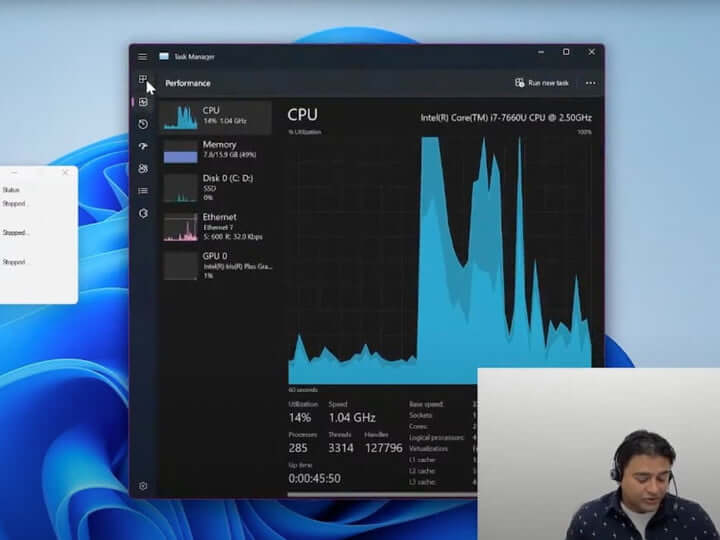
As spotted by Aathif Mahir on Twitter, Claton Hendricks, a Program Manager at Microsoft, had a Core i7-7660U processor running under the hood while discussing the new Task Manager which is set to reach Windows Insider soon. The device is not part of Microsoft’s list of supported devices. (via Digital Trends)

Windows 11 unsupported device

It has been established that it is possible to run Windows 11 on an unsupported device. According to Microsoft, though, the downside to this is that the user will not receive any security updates which potentially exposes them to a lot of risks. Of course, this hasn’t been proven to be true. Unsupported Windows 11 systems are still getting monthly security updates today, but Microsoft could reserve the right to pull these updates at any time.

Xbox Cloud Gaming has now been streamed by over 10 million people, says Microsoft

Over 10 million people have streamed games via Xbox Cloud Gaming, according to Microsoft CEO Satya Nadella. The announcement was made as part of the company’s third quarter earnings report for fiscal year 2022. Microsoft Communications Lead Frank Shaw confirmed the milestone in a tweet on April 26.

Xbox Cloud Gaming is only available through Xbox Game Pass Ultimate. Game Pass currently has over 25 million subscribers across all three variants of the service, a number which is steadily growing year by year and is up from 18 million subscribers from the same time the year previous. With Xbox Cloud Gaming reaching the 10 million streamers mark, along with recent news that Xbox had a record-setting month in March, it seems that the Xbox brand as a whole is on quite a roll as of late.

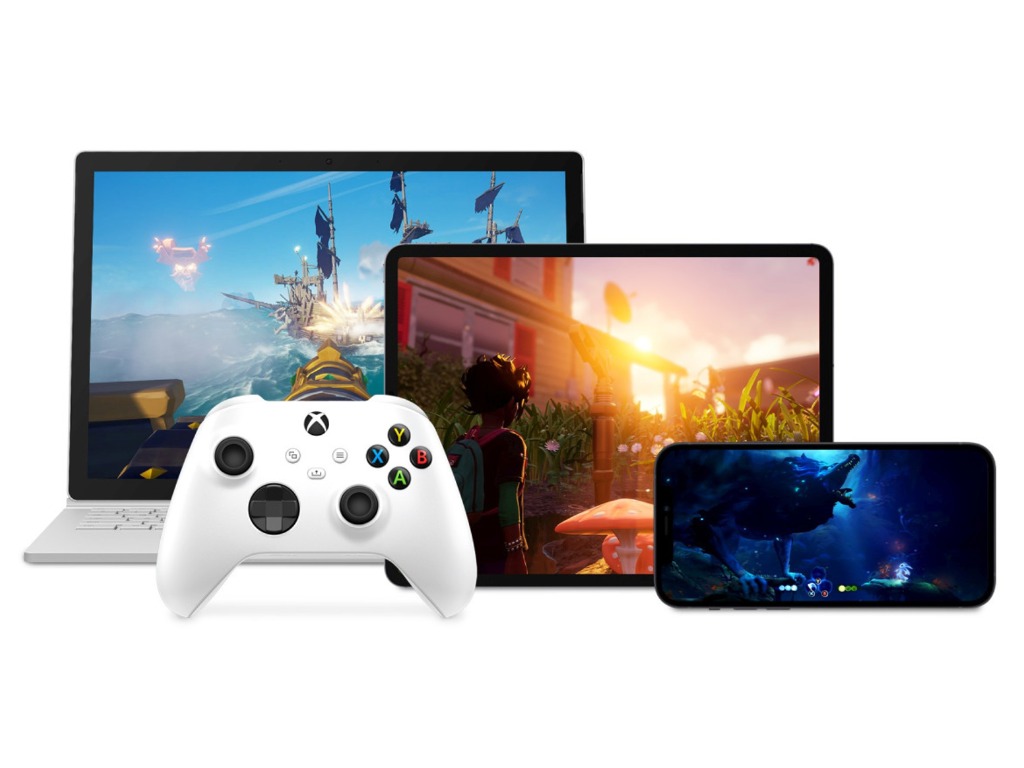
Xbox Cloud Gaming is available on several platforms in addition to Xbox consoles: PC, Android, and even iOS, and features an ever-expanding library of compatible games.

4 fixes for Xbox One headset mic not working but can hear sounds

The convenience of a headset is priceless in delivering the gaming experience you deserve. With a headset, you can communicate with your teammates and make the right call to win a game, or you can enjoy your banter and trash talk with fellow gamers during a match, which is half the fun.

Having a Xbox One headset mic that is not working is one of the more frustrating issues you might run into while trying to play on Xbox Live. Without your mic, you can’t make call-outs unless you type them into in-game chat, which takes time.

While you could use the in-game chat function, it’s not ideal, especially if you play with a lot of teammates or are playing an online co-op game.

There are many reasons why your headset mic may not be working. It could be due to a simple update or hardware issue. Or specific settings and misconfigurations could be the cause of this issue.

What can I do when Xbox One mic is not working?

1. Connect the controller and headset again

The first thing you should check is whether or not the headset is muted. If your headset is muted, you won’t be able to hear anything. You can easily unmute the device by pressing the mute button on the back of the headset.

If your headset isn’t muted, it may not work if the connection between your controller and your headset is loose. To fix this, just plug both devices again and resync your controller.

2. Install the Xbox Controller Update

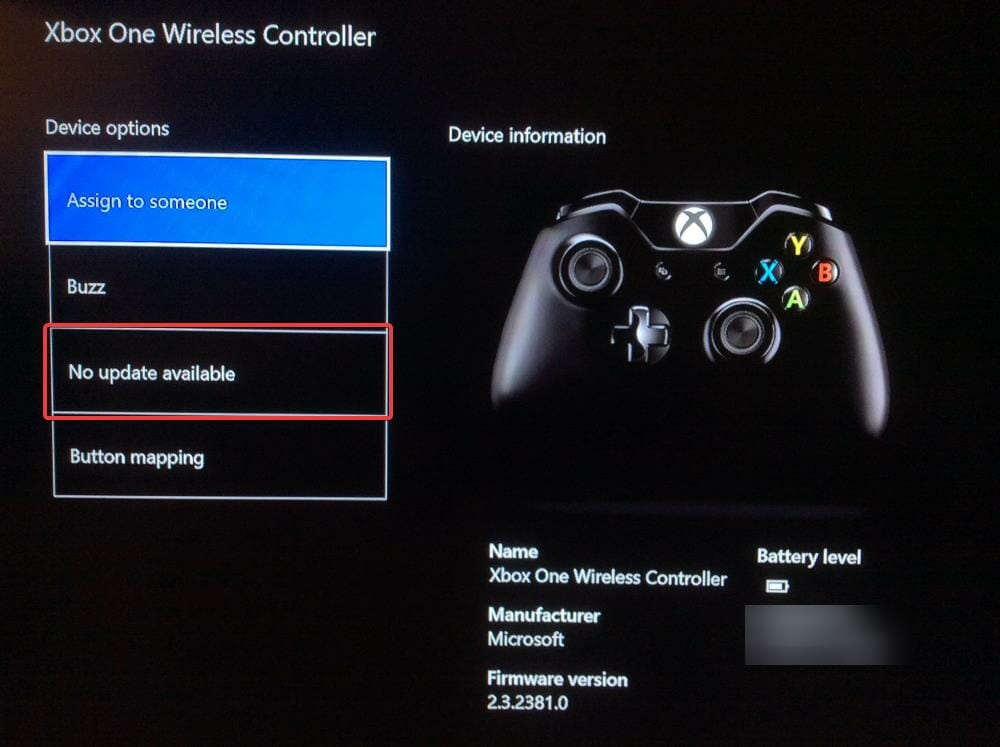
  1. Go to the Xbox Accessories on the Xbox and choose your controller.controller settings
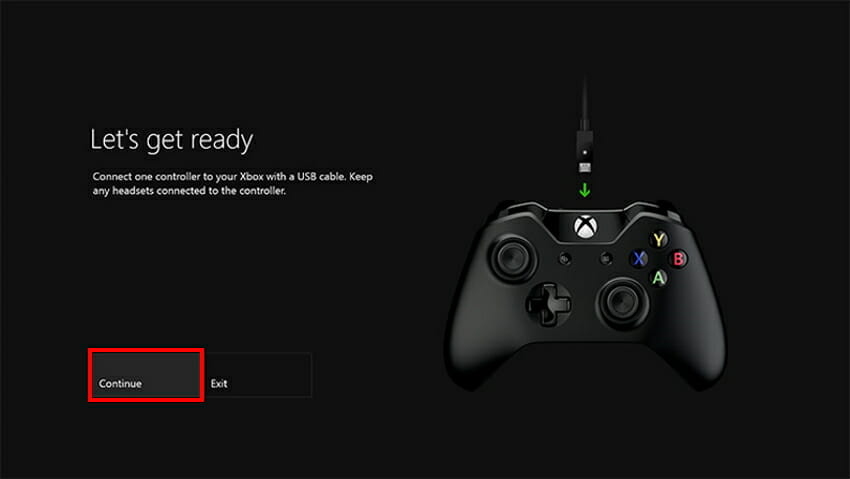
  2. Make sure your headset is connected to the controller and that your controller is either already charged or connected to the Xbox One via USB cable.
  3. Click on the update if available.update Xbox controller
  4. Confirm the update prompt.Controller update

The Xbox headset can stop working if the controller is out of date. So it is necessary to update it regularly.

3. Adjust the sound settings

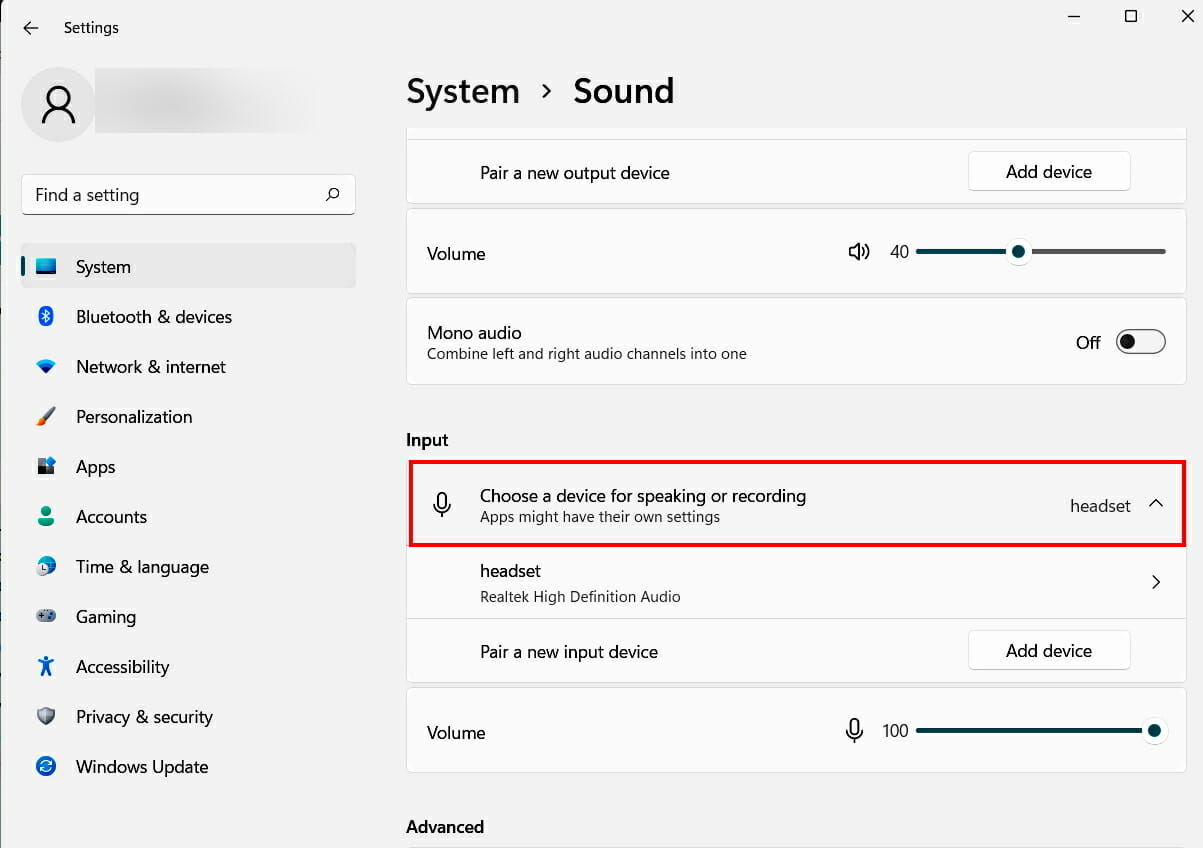
  1. Open the Sound settings from the Start menu.
  2. Go to the Input section and select or add your headset device in the Choose a device for speaking and recording option.Choose Sound Device
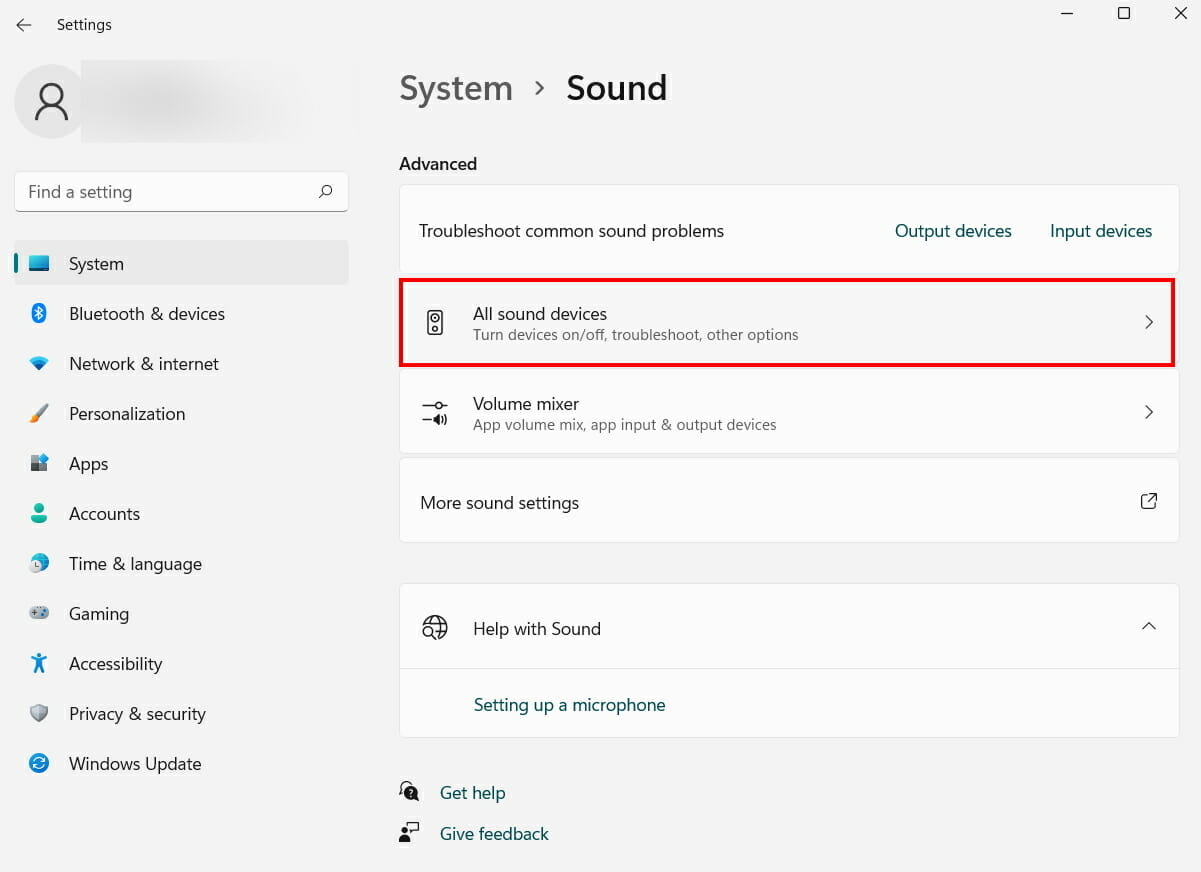
  3. Next, go to the Advanced section and select All sound devices.sound devices
  4. Select your device from the Input devices.
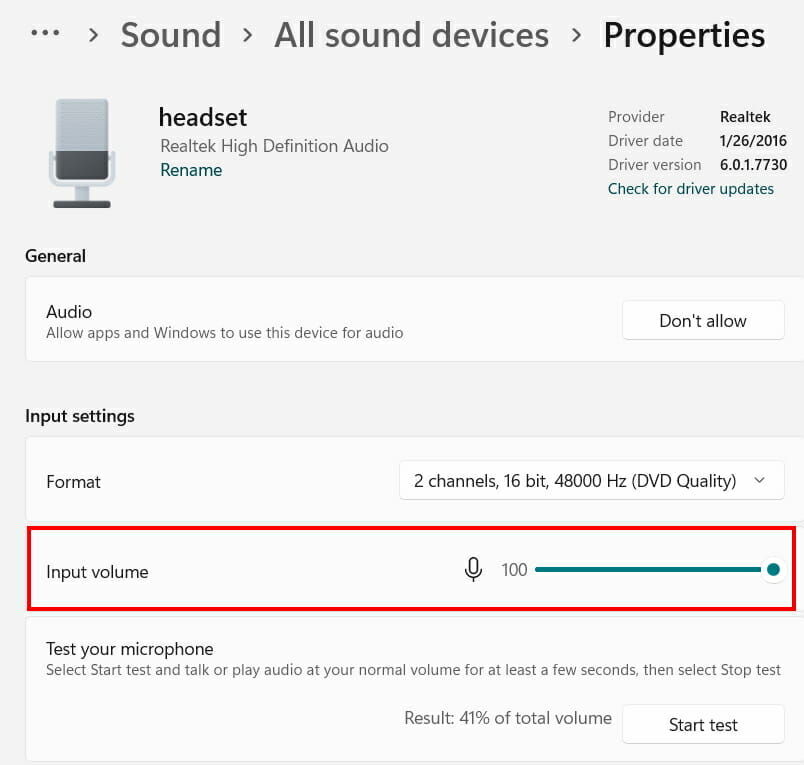
  5. Set the Input volume under the Input settings to its maximum.Input volume sound device
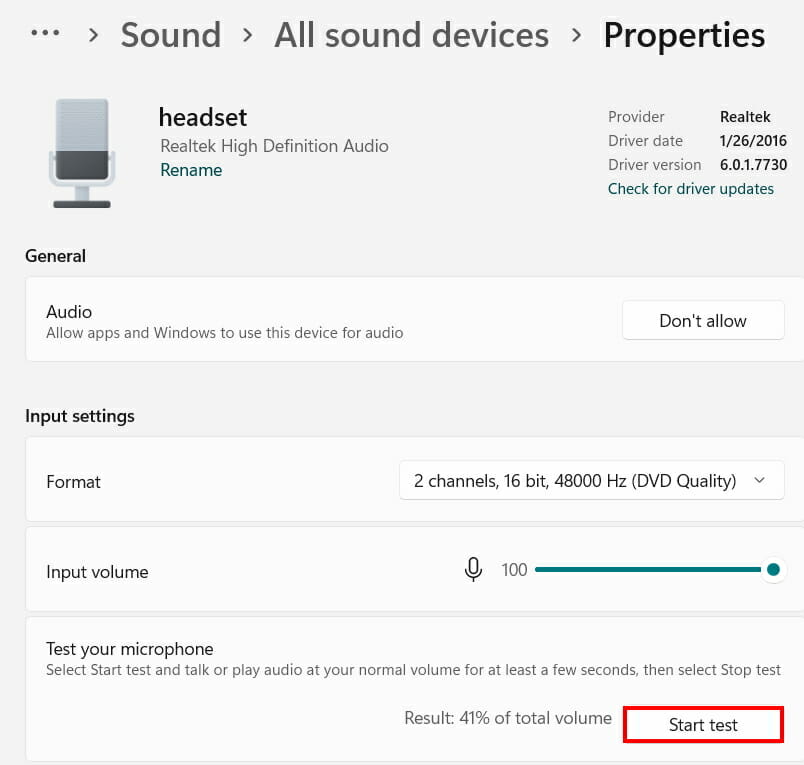
  6. Test your device by clicking on Start test to check if your device is working properly.test sound device
  7. After the test, click on Stop test.

It will combat any issues that could originate from system misconfiguration. Try the next method to resolve the mic issue in Fortnite.

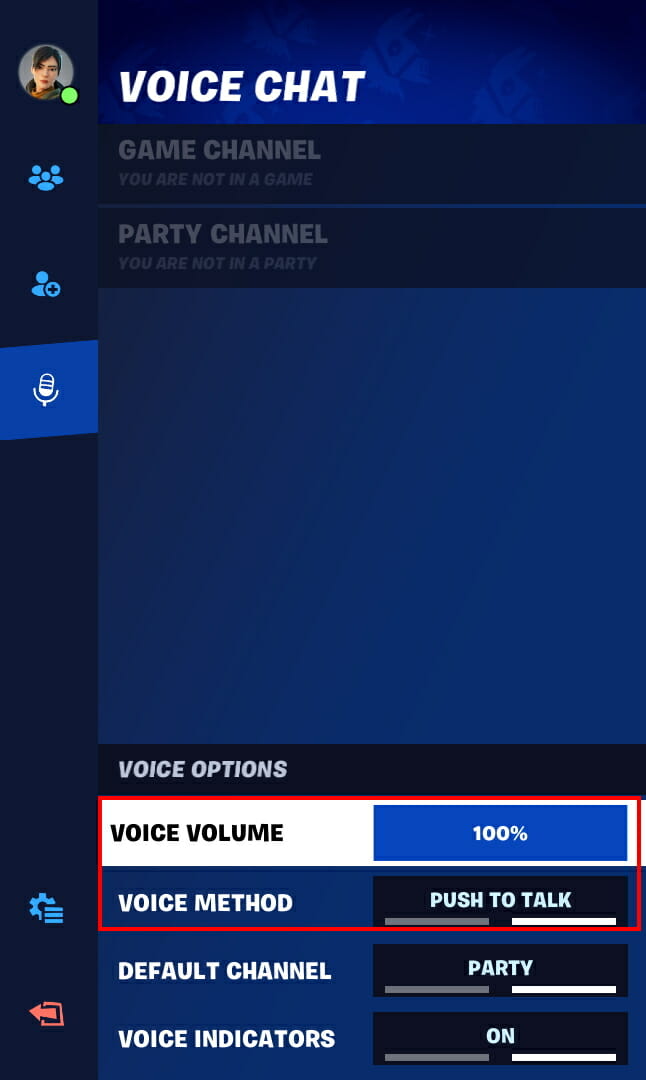
4. Configure voice chat settings in Fortnite

  1. Open Fortnite and Click on the gear icon from the side toolbar.
  2. In the audio toolbar, click on the speaker icon.
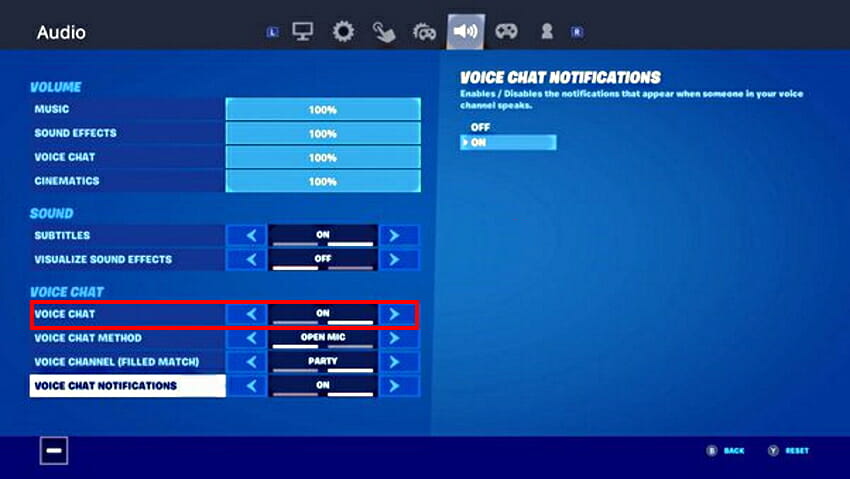
  3. Change the voice chat to ON.Fortnite audio voice chat
  4. Next, go back home and click on the mic icon on the side toolbar.
  5. Turn the voice volume in the voice options to the maximum.Fortnite voice chat settings
  6. Turn the voice method to push to talk.

If your Xbox headset mic is not working in certain games like Fortnite, it can be caused by in-application settings.

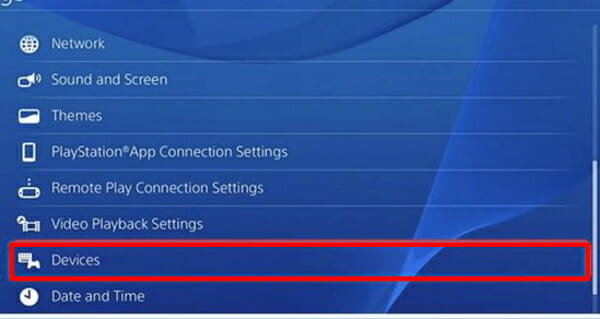
5. Customize PS4 device settings

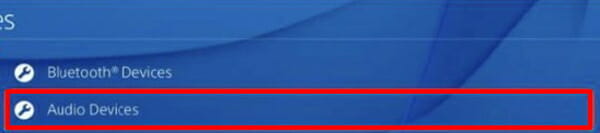
  1. Go to Settings > Devices.ps4 device audio settings
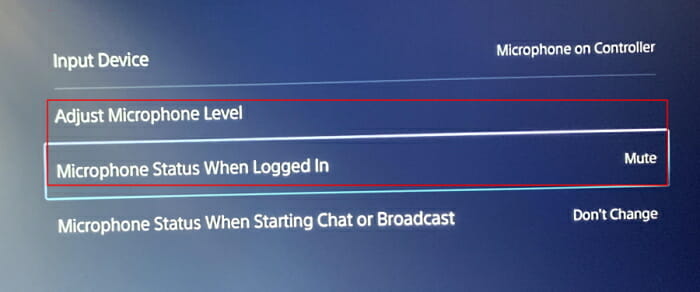
  2. Next, go to the Input Device.ps4 input device settings
  3. Go to the Adjust Microphone Level and turn it to its maximum.
  4. Go to Microphone Status When Logged In and select Unmute.sound settings ps4

The Xbox One headset is compatible with the PS4 as they both use 3.5mm input. But before using them, you have to make sure that their level is adjusted and they are not muted.

We also have a guide explaining what is Mic Monitoring on Xbox, and it can come in handy when troubleshooting issues.

The above methods should resolve the Xbox headset mic issues, but if you are encountering issues broader than the mic, check out our full guide to troubleshooting the Xbox One heads

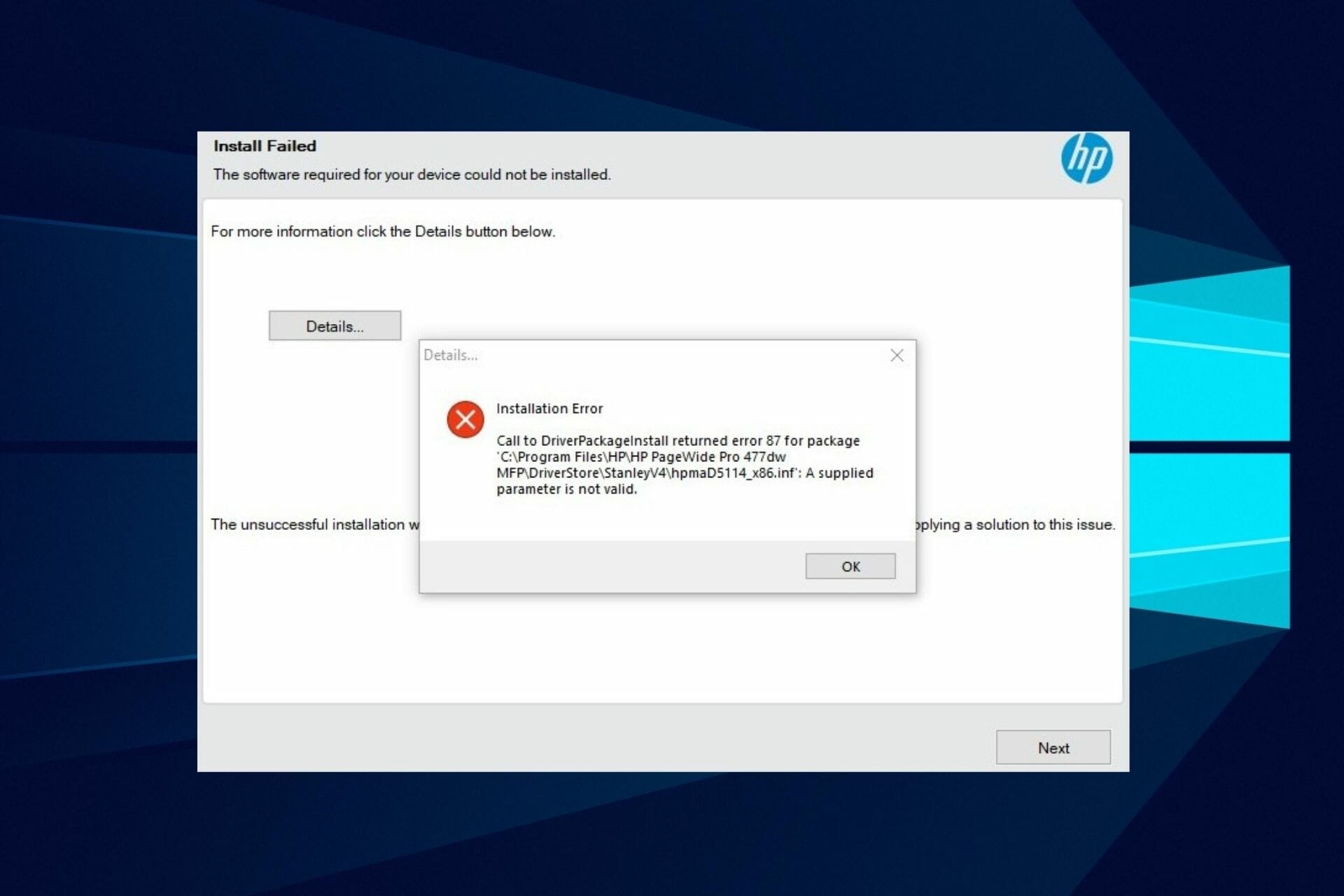
Install the HP LaserJet P1606dn driver without encountering errors

Are you getting stuck trying to install HP LaserJet P1606pn driver on your PC? This can be quite frustrating because you can’t use your printer.

Many users have reported that they cannot download the latest HP LaserJet P1606pn driver and this can occur based on different reasons such as incorrect installation or residue of the previous driver is still active.

Whatever the cause may be, it is still a common issue that is associated with laser printers.

What causes a download issue that prevents the HP LaserJet P1606dn driver from installing?

While there are many causes of this, the issue usually stems from incorrect software installation. Abrupt interruption during drivers update can prevent new drivers from being installed.

Hence, this article will provide different troubleshooting solutions that apply to different potential causes of this issue. Follow the instructions strictly to ensure optimal results to fix the issue.

How can I fix the HP LaserJet P1606dn driver not installing?

1. Disable Spooler Service and Restart

1.1 Disable Spooler Service

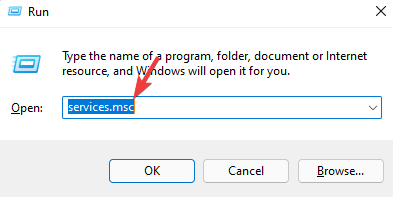
  1. Press Windows + R, input services.msc and click OK or press Enter key. 
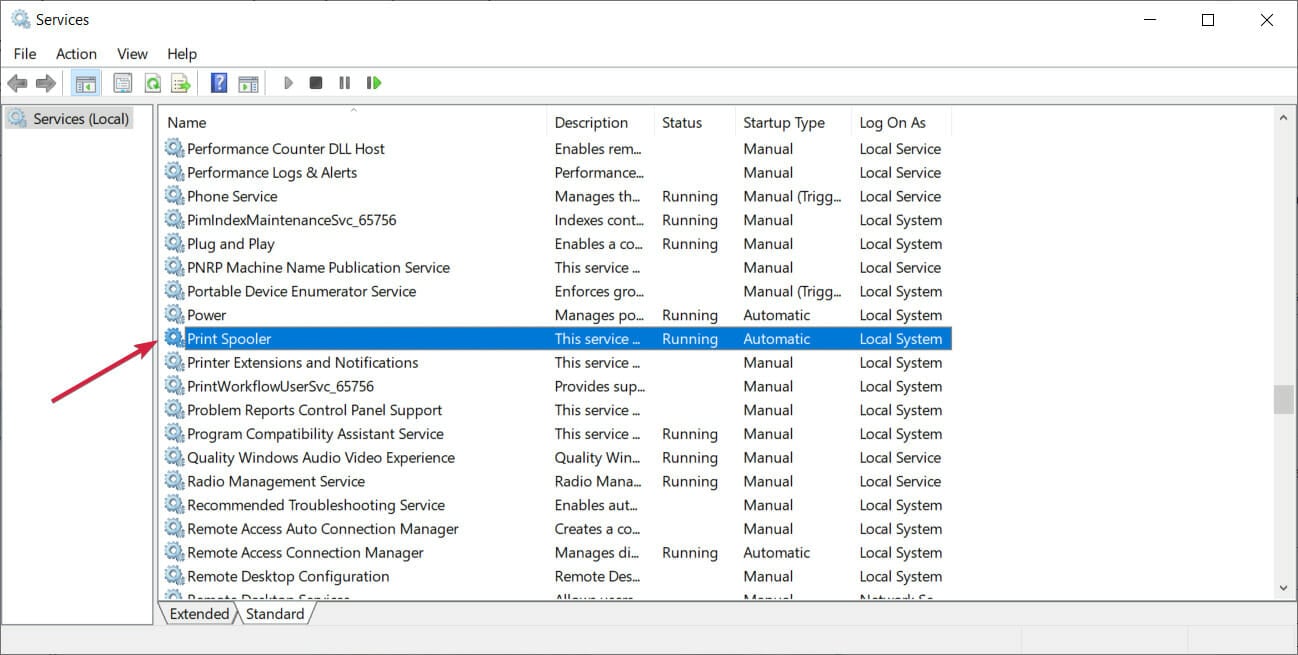
  2. Choose Print Spooler from the list.
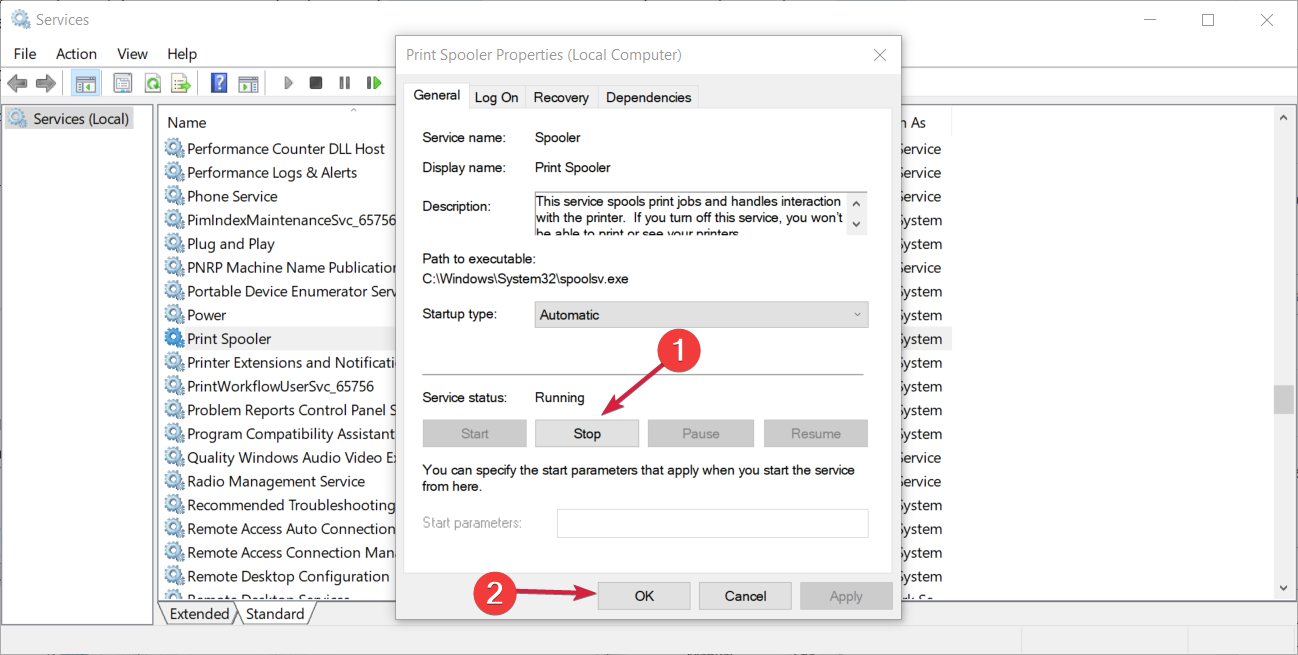
  3. Double-click to open Properties. 
  4. Click the Stop button, and press OK to apply changes.

1.2 Delete Printer files

  1. Launch File Explorer with Windows key + E.
  2. Navigate to the following path on your computer: C:\Windows\System32\spool\Printers
  3. Delete all files inside the folder.

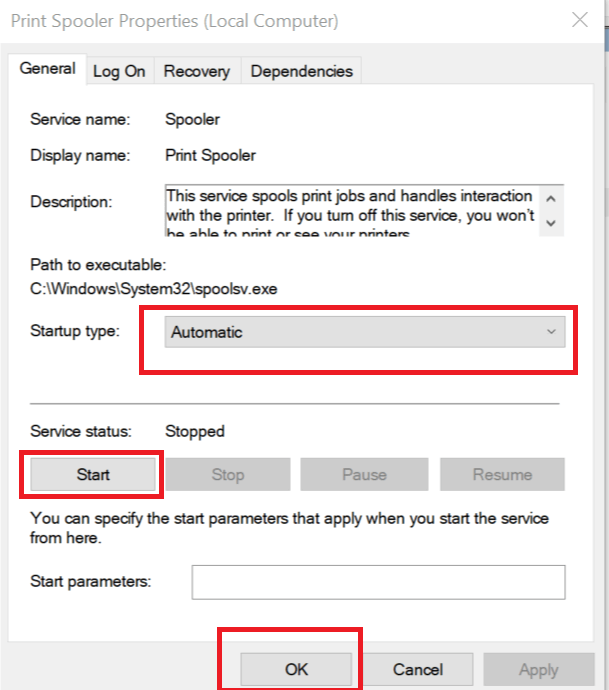
1.3 Restart Spooler Service and Install drivers

  1. Return to Print Spooler Service.
  2. Click Start and set the Automatic startup type.Printer Spooler - Services -Start
  3. Install the printer drivers again.
  4. Then Restart the PC to take effect.

The Spooler Service is integral for the smooth functioning of the printer. It can sometimes be compromised and this can prevent the installation of drivers. Deleting the corrupted files should fix the problem.

2. Update Printer drivers

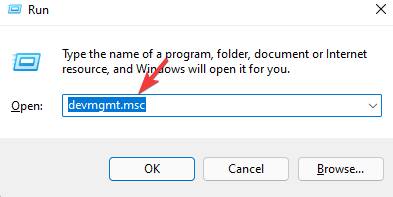
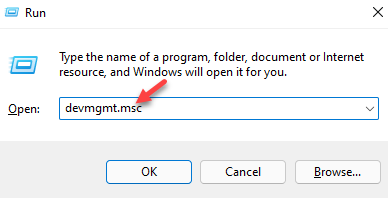
  1. Press Windows key + R, Input devmgmt.msc and press OK to launch Device Manager.Type devmgmt.msc in Run command and press Enter
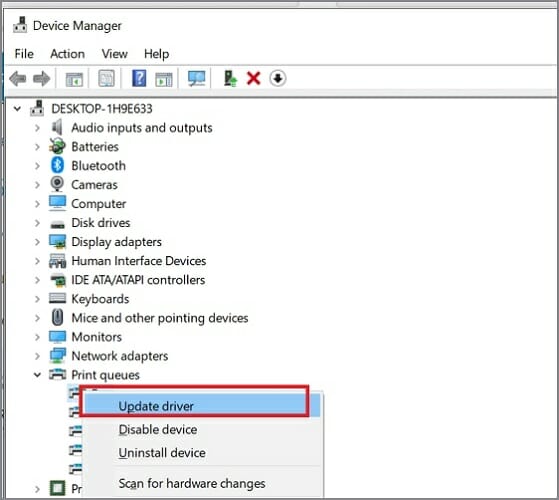
  2. Locate hardware and expand it.
  3. Right-click your device and choose Update Driver.
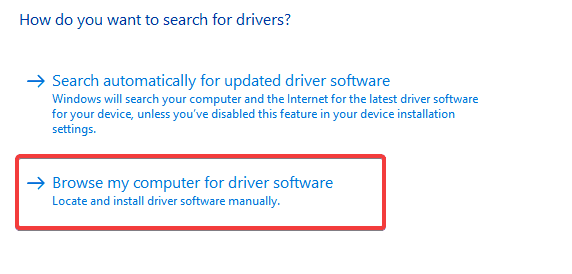
  4. Choose Browse my computer for driver software and select the driver to install from your device.browse my computer for software update
  5. Restart PC to take effect.

By choosing the driver manually, you can update the driver by selecting from the available update on your device.

An alternative that saves all these hassles is to use dedicated software for your updates. It can be used to generate the latest driver updates for all drivers on your device automatically and update all at once.

⇒  Get Outbyte Driver Updater

3. Uninstall the printer device

  1. Press Windows key + R, Input devmgmt.msc and press OK to launch Device Manager.Type devmgmt.msc in Run command and press Enter
  2. Locate hardware and expand it.
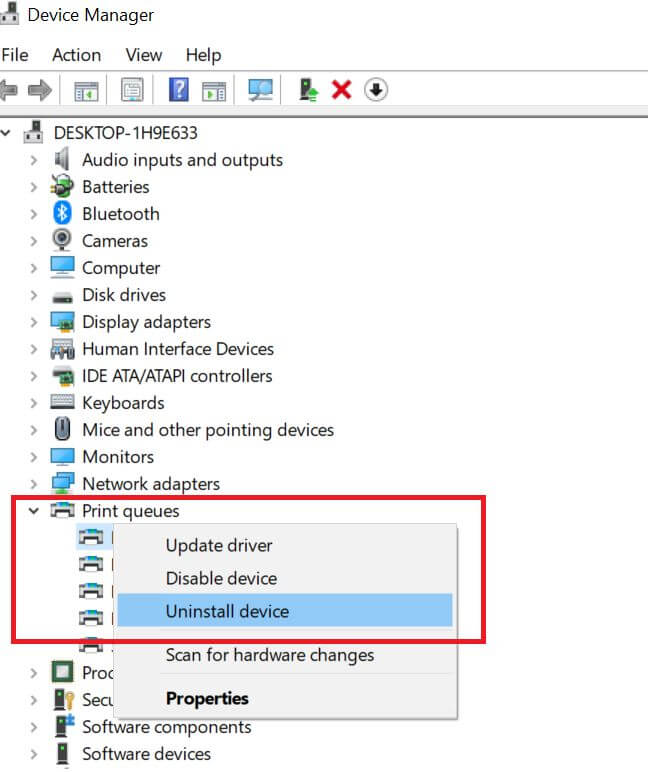
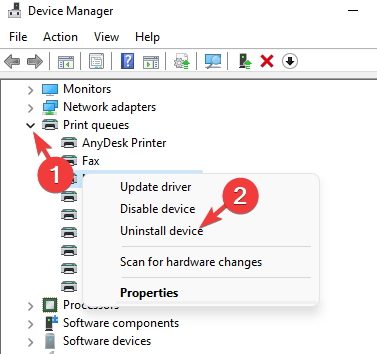
  3. Right-click your device and choose Uninstall device.
  4. Restart PC to take effect.

By uninstalling the drivers and rebooting the PC, Windows will automatically search for the latest updates that are more compatible with the printer device.

Hence, downloading new drivers should be possible after this step. If this fails, then try the next fix.

4. Run Printer Troubleshooter

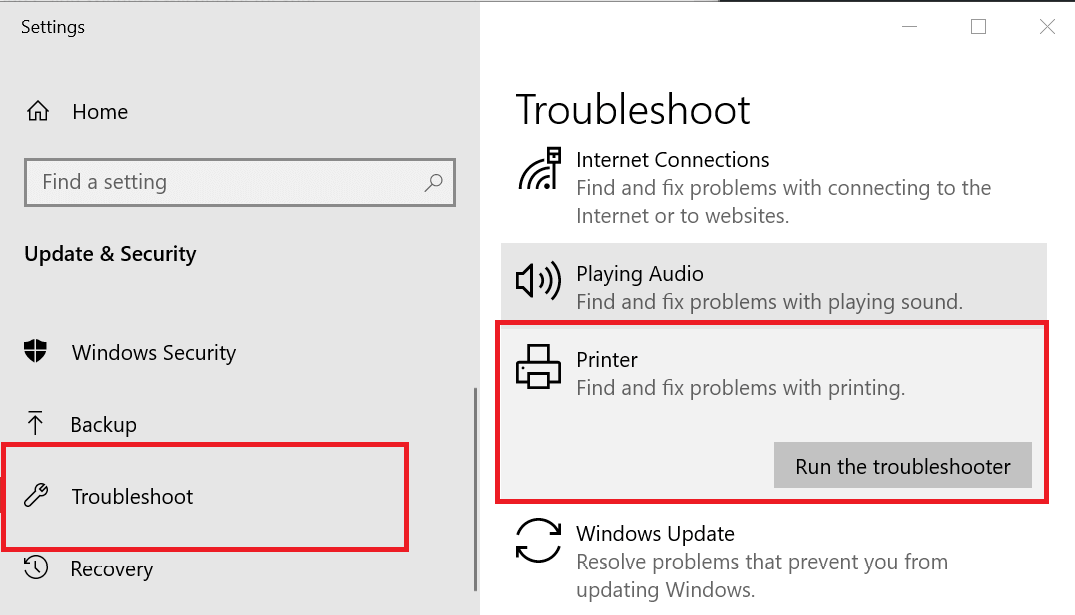
  1. Press Windows + I to launch Settings.
  2. Open Update & Security from the left pane and select Troubleshoot.troubleshooter Lexmark printer issue
  3. Choose Printer from the options. Click Run the troubleshooter.
  4. Follow the instructions and Restart the PC after the process.

Since Windows has an inbuilt troubleshooter, it can override the printer issues.

This fix should resolve the problem since Windows is expected to fix all previous registry entries that could prevent the installation of new printer drivers.

5. Run HP LaserJet P1606dn driver Printer software

  1. Download the HP LaserJet Pro p1606dn driver printer software and drivers for Windows 11 from HP’s main page.
  2. Install the software following the on-screen guide. 
  3. Right-click the Start button and choose Run.
  4. Input this and press OK.
  5. Follow the steps to update drivers.

An alternative to this for windows 10 users is to download HP LaserJet P1606dn driver free download for Windows 10 (64bit/32bit).

Meanwhile, Windows 7 users can download HP Host-based Basic Driver update for Windows XP Vista 7 8 and 8.1 (32bit/64bit) also.

Ensure to install the software immediately after downloading. When you start the reinstallation for drivers, it will select from the drivers available in the app.

6. Install Windows updates

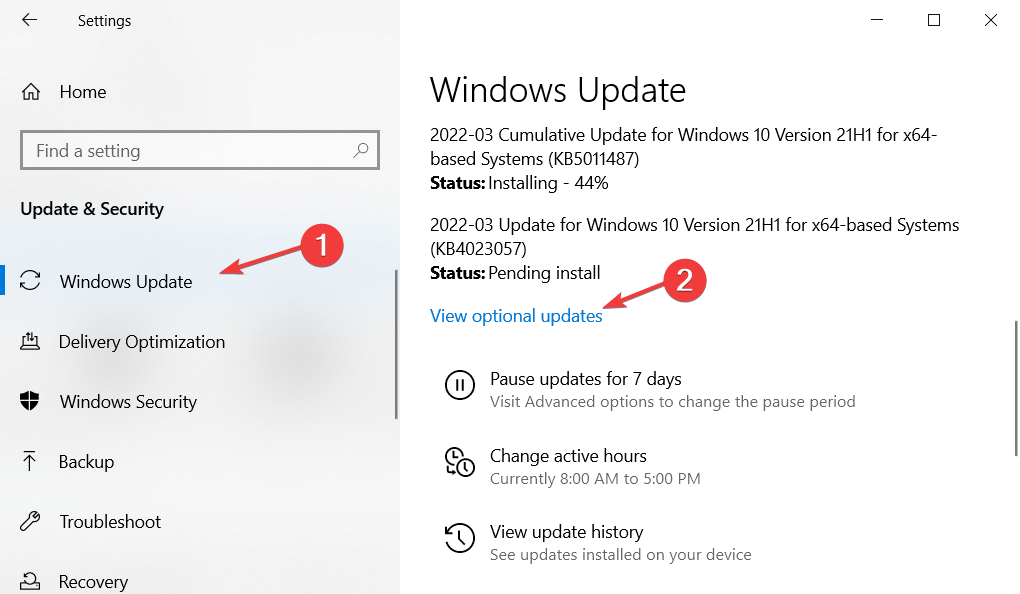
  1. Press Windows key + I to launch the Settings app. 
  2. Choose Updates & Security.
  3. Select Windows Update from the left pane. windows-update-optional windows 10 apps close when minimized
  4. If there are available updates, click Install now.

By updating Windows, you can troubleshoot all the issues with your device. Simply update the printer drivers according to recommendations from your windows.

These are the most efficient solutions to fixing the HP LaserJet P1606dn driver not installing issue.

For further information, our article on the printer driver package could not be installed fix could be helpful.

You can also check out our article to fix unable to install the Printer in Windows 10/11.

What are your suggestions and questions about this article? We’d like to hear from you in the comment section below.

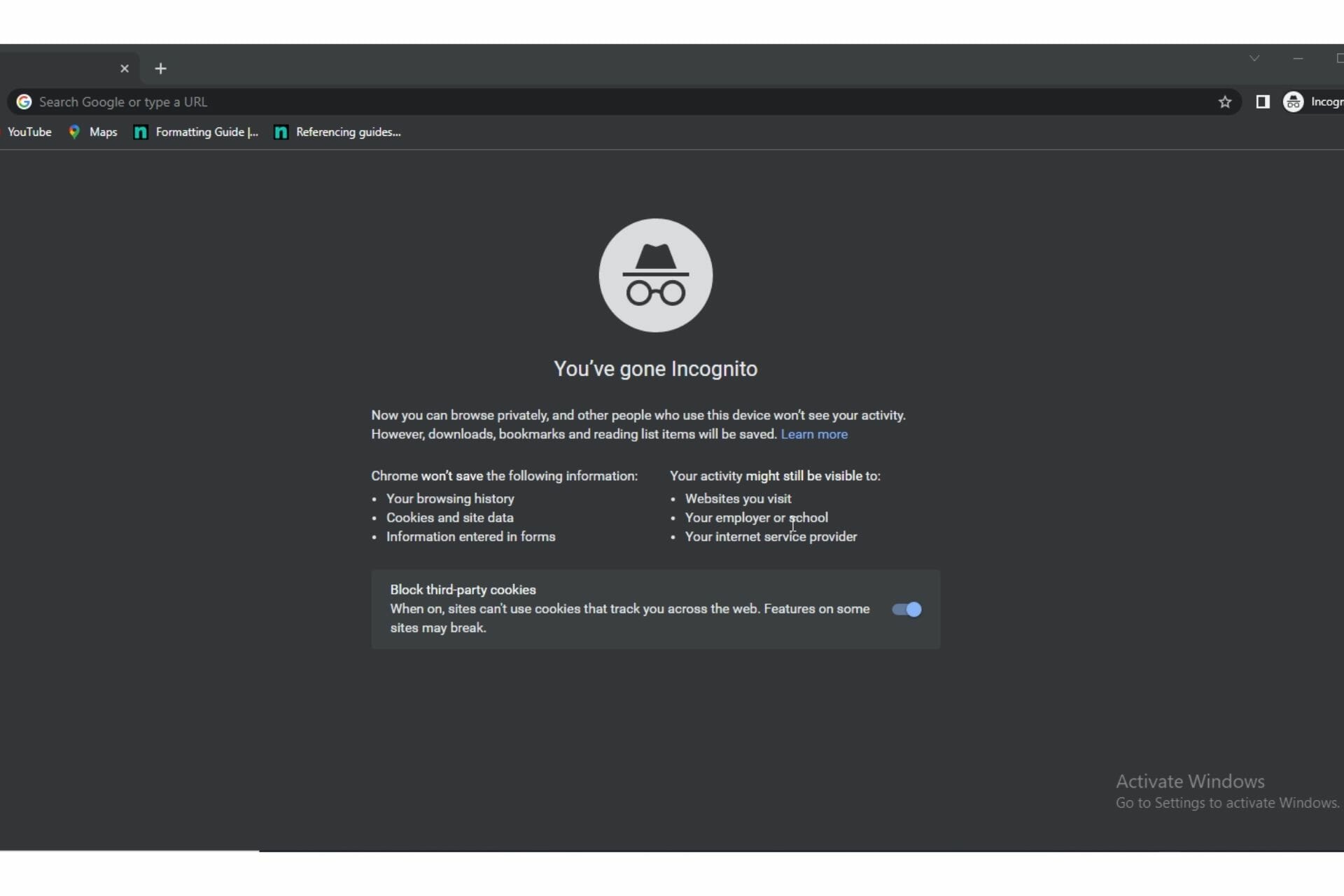
Chrome Incognito won’t load any pages: 3 quick fixes

Chrome Incognito is often favored by most users because it’s a much safer way to surf the web without saving your activities in browser history.

However, some users have reported that their Chrome Incognito is not loading pages despite the main Chrome working properly.

Hence, this article will provide 3 quick fixes to solve this problem without hassles. Before that, let’s understand how the Incognito mode works.

How does Chrome Incognito work?

The Incognito mode is considered the safer version of Chrome since it doesn’t remember your activity. In addition, browsing history, login information, site cookies, and data will not be remembered after the session close.

Meanwhile, downloads and bookmarked pages will still be visible after the session.

Chrome Incognito is not working?

Many reasons can cause Chrome Incognito not to load pages and they will be highlighted in the article.

You should note that these reasons could also be responsible for the following also: Chrome Incognito is not available, not secured or not responding.

What can I do if Chrome Incognito won’t load any pages?

1. Reset Chrome to Default settings

  1. Launch Chrome and go to Google.com.
  2. Click Settings in the bottom right-hand corner. 
  3. Expand Advanced from the left pane, select Reset and clean up. 
  4. Click Restore settings to their original defaults. 
  5. Choose Reset settings. 
  6. Restart Chrome to take effect.

Most users with this problem have resorted to this means only after everything else has failed because of the implications of resetting to default.

By doing this, all the data will be erased and chrome will be restored to its basic settings and overwrite all entry errors that were causing Chrome Incognito not to load pages.

2. Restart your PC

  1. Press Ctrl + Shift + Esc to launch the Task Manager window. taskmanager explorer.exe class not registered
  2. Click Processes and locate Google Chrome from the list, select it and click End task below. 
  3. Press Alt + F4 to launch the Shutdown window.
  4. Select Restart from the options and click OK.

If Chrome Incognito won’t load any pages, ending all processes involved in the running of Chrome might be effective before rebooting your PC. Thus enhancing its performance and might fix the issue.

3. Try a different browser

Google Chrome is not the only browser with Incognito mode. If you must go Incognito and Chrome isn’t working, we recommend using the Opera One browser.

Also, the Opera One browser prioritizes user privacy and security. It has an in-built VPN and anti-tracking features for an extra layer of anonymity. Plus, this browser comes with it’s own built-in AI.

Opera One

Browse privately in Incognito mode using one of the leading browsers in terms of privacy and security.
Free Download Visit website

These fixes should solve Chrome Incognito not loading pages. In case this issue extends to the whole Chrome, we have solutions for that in our article on Google Chrome not loading properly.

For further reading on Chrome Incognito-related issues, check out our guide on fixing Chrome Incognito remembering websites after exiting the mode or how to export your incognito tabs if you’d like your browsing history.

If you have questions and suggestions about this guide, we’d like to hear from you in the comment section below.

8 Best Antiviruses for Windows 10/11 Enterprise

If there is one thing the enterprise market cares about more than anything else, it would have to be security.

For the most part, Windows 10 is well protected from danger, but users are still required to install antivirus software for even more protection.

Why do I need antivirus on Windows 10 / 11 Enterprise?

You’re undoubtedly concerned about maintaining tens of thousands of Windows endpoints healthy, up-to-date, and secure.

If you’re wondering if your company needs antivirus protection, the short answer is yes. Despite the fact that Windows 10 and 11 come with their own well-rated built-in antivirus tool, Windows Defender, investing in a specialized Windows enterprise antivirus solution can provide complete security.

We have done proper research and we put down a list of the best antivirus for Windows 10 Enterprise.

What are the best antiviruses for Windows 10 / 11 Enterprise?

Panda Small Business Protection – Cloud cleaner

Panda Small Business Protection is one of the most basic cost-effective solutions you may get for Windows 10 and 11 Enterprise.

You can manage your product’s services, find out when it expires, renew the license, receive your product’s unique documentation, and report difficulties to technical support.

Let’s see what are the main features of Panda Small Business Protection:

  • Identifies computers with an alias
  • Wi-Fi auditing
  • Connection history
  • Blocks unknown computers from accessing your computer.
  • Panda Cloud Cleaner

The Wi-Fi monitor tool displays the Wi-Fi networks to which you are connected as well as the devices to which you are connected. This is very useful for determining whether or not someone is hijacking your Wi-Fi connection.

The application control is an excellent function that creates a secure and closed environment. As a result, it provides an excellent additional layer of defense against zero-day threats.

The application control not only lets you choose which applications can run on your computer, but it also lets you specify what actions should be taken when an unfamiliar software tries to install itself.

Panda Cloud Cleaner is an innovative disinfection utility that uses the cloud scan to run a deep scan and eliminate viruses that regular antivirus products cannot identify.

Panda Small Business Protection

Panda Small Business Protection

Protect your company’s Wi-Fi network, keep all of your private information virus-free, and receive daily automatic updates from a user-friendly, non-intrusive application.
Check price Visit Website

Bitdefender Gravity Zone – Vulnerability assessment

Bitdefender’s GravityZone is a business security solution that is constantly ranked first in independent security tests, and that’s a good start for choosing the tool for your company.

And if you’re wondering why it’s because of the combination of machine learning and heuristics with signatures and other technologies for protection against all types of threats.

Whether it’s malware, ransomware, exploits, or any type of malware including zero-days, this enterprise tool covers all endpoints and servers equally.

And with all modern solutions, you can control everything from a centralized management point that is easy to use and configure.

Take into consideration some of its best features:

  • Risk management and vulnerability assessment
  • All actions are managed from a single console and by a single agent
  • Best ranked by independent security tests
  • AI and machine learning technologies
  • Layered protection against all threats
Bitdefender GravityZone

Bitdefender GravityZone

This enterprise security tool will mold on your business requirements no matter the size.
Free trial Visit Website

ESET PROTECT Advanced – Easy Deployment

Is there a perfect security solution for your business? That is up to you and ESET PROTECT Advanced is an enterprise solution for any size o scale of business.

This tool combines anti‑malware scanning, spam filtering, and anti‑phishing to perfectly secure all the computers in the network against malware and email-based attacks.

In these troubled times, it’s important to be able to control everything from afar. That’s perfect because the ESET tool comes with a cloud-based management solution console in that regard.

This solution can be tuned for your specific needs because it also provides file server security, full disk encryption, cloud app protection, e-mail security, and many more.

Let’s see what are its best features:

  • Single click management for a lot of actions
  • Advanced reports from over 1000 data points
  • Easy installation and deployment
  • Advanced multilayered protection for all devices, including mobile
  • Ransomware prevention
ESET PROTECT Advanced

ESET PROTECT Advanced

Secure your business with the most versatile and advanced solution on the market!
Free trial Visit Website

Malwarebytes Small Business – Brute force protection

Malwarebytes for Small Business or Malwarebytes for Teams is intended to safeguard small enterprises’ data and devices for multiple operating systems, including Windows 10 and 11. It provides real-time threat detection and response, as well as priority phone and email assistance.

You don’t need prior cybersecurity or IT experience to manage security for your team with Malwarebytes for Teams; it’s simple to use and has straightforward features.

Let’s have a glance at the features Malwarebytes for Teams can offer:

  • Advanced anti-malware, anti-spyware, and anti-virus
  • Tamper protection
  • Brute force protection
  • Device alerts
  • Monthly reports
  • Priority phone call support

With proactive protection from downloads, hack attempts, and infected advertisements, it detects and avoids contact with fraudulent websites and harmful links. It works in the background and targets active threats with quicker analysis thanks to its lightning-fast Hyper Scan mode.

Malwarebytes for Teams is currently not available for trial. If you’re not familiar with Malwarebytes features and want to try it out, you can first sign up for Malwarebytes Security and Antivirus trial, post which you can switch to Malwarebytes for Teams subscription.

Malwarebytes for Teams is a group membership for up to 20 devices that you may purchase for your team.

Malwarebytes Small Business

Employs 4 separate technology modules anti-malware, anti-ransomware, anti-exploit, and harmful website protection to detect and eradicate known and hidden threats.
Check price Visit Website

Avast Endpoint Protection Advanced – Multi-OS Support

It’s important for antivirus not only to provide excellent protection for your business but also to be able to deploy very fast and easily, and Avast Endpoint Protection Advanced promises just that.

Although it’s a simple solution, it offers sophisticated tools for protection against all threats and data or identity theft.

The result is that you will be able to use banking tools on any device and keep off the hackers by using an excellent firewall. It even takes care of your webcam security.

And security is not the only concern of this solution. The built-in Patch Management option can be used for Windows and the installed applications maintenance directly from a unified console.

Let’s take a look at some of its top features:

  • Easy to use and installs in minutes without any prior experience
  • Multi-OS support (Windows, Mac, iOS, and Android) and platform
  • No management or maintenance needed
  • 24/5 support via email, chat, or phone
  • Advanced ransomware protection

Avira Prime – Unlimited VPN

If you have a small business, Avira Prime is dedicated to security that will fit right away to your needs.

This tool is tailored for a maximum of 25 devices for a subscription and it offers strong but classic protection that you would also get from an antivirus for home users.

However, this software has some aces down its sleeves as it also offers a free, buit-in VPN and a password manager that will add to the overall protection features.

Apart from security, Avira Prime also takes care of the software and system updates or the correct functionality of the drivers on your PC. In that respect, it can replace other costly solutions.

Take a look at this solution’s top features:

  • Free and unlimited VPN
  • Password management features
  • Endpoint real-time protection against malware and online threats
  • PC optimization and cleaning tools included
  • Keeps software and drivers updated

Webroot Business Endpoint Protection – Multi-shield defense

Even when an endpoint is not connected to the internet, Webroot Business Endpoint Protection uses patented technologies to identify, track, and control infections for Windows enterprise devices.

Offline protection for system and user data is also offered, rather than relying on Windows volume shadow copy, which might cause issues.

Webroot security utilizes an approach that is less vulnerable to malware assault. It employs a new approach to preserving and safeguarding device data, preventing the local host disk from becoming corrupted or demanding to reformat.

Let’s have a look at the features Webroot Business Endpoint Protection offers:

  • User and device protections that are layered
  • Multi-shield defense
  • Malicious script defense
  • Identity and privacy protection for users
  • Dynamic risk prevention using infrared
  • Extremely efficient heuristics

Security indicates that you no longer require the services of an expert in IT security, people, or resources on hand to ensure your company’s digital fitness. Furthermore, with fewer infections and security events, as well as fewer remediation cases and productivity losses, administrators can focus on what is most essential. 

Webroot Business Endpoint Protection

Service application for securing internet devices and network communication through prevention with web filtering and antivirus.
Check price Visit Website

Kaspersky Endpoint Security – Multi-layered protection

best antivirus software for small business

If you have a home or small business, you should also consider trying Kaspersky Endpoint Security. However, you can use it for more than 5 devices, including servers or mobile devices.

As is the case with all the above solutions from our list, the Kaspersky antivirus can be easily controlled from a cloud-based main console.

Its interface is so friendly and simple to use that you or your IT management team won’t need any special training to implement it.

In line with the defined schedule, Kaspersky Endpoint Security automatically scans the entire computer or specific regions of the computer.

Again, you will benefit from multi-layered protection aided by machine learning to protect all your devices from any possible online or offline threats.

How do I pick the ideal professional antivirus for my business?

Your requirements will define the best antivirus for your company. If you run a small business that does not store or handle sensitive information like credit card numbers or other private information, you may be fine with a simple-to-use antivirus like Windows Defender, Avira, or Kaspersky.

If your organization is large, you may need to adopt a more powerful antivirus system. The best solution will be one that meets all of your company’s needs. It should be able to protect you against all forms of threats, including viruses and malware, spyware and Trojan horses, and hackers.

It should also be able to defend you from internal dangers like as data loss, employee emails, computer abuse, and so on. The best solution will be one that is easy to use, has a good detection rate, and is updated regularly.

This was our selection including the best antiviruses for Windows 10 Enterprise. Do not hesitate to make a pick as soon as possible.

Moreover, if you’re interested in server solutions instead, take a look at the best antiviruses for Windows Server. You won’t be disappointed, be sure of that.

Do you agree with the findings? Let us know in the comment section below!

3 ways to stop Avast from blocking your Steam games

Avast is a popular antivirus that offers free and premium versions for users to try. As one of the oldest antivirus applications on the market, Avast is experienced in protecting devices.

However, users have reported that the antivirus is giving false positives when trying to run a program or access certain websites. These reports include Avast blocking Steam games from running. Steam is a free, downloadable service for video games.

If your issue is with Steam games lagging, we have another guide for that. Keep reading for ways to stop Avast from blocking Steam games.

What’s the difference between Avast Antivirus and Avast One?

Avast One is the latest security and protection service from Avast. Its purpose is to have all Avast security features in one central hub for easy management so users don’t need to have multiple subscriptions.

Avast One offers features like a VPN, firewall, antivirus, and more all in one. Avast is encouraging users to switch to Avast One from Avast Antivirus and Premium Security. Users can only have one Avast service installed on their PC at once.

Avast Antivirus vs. Avast One.

If you want to know how Avast Antivirus compares to Windows Defender, we have an in-depth look at both antiviruses.

How do I stop Avast from blocking Steam games?

1. Add Steam directory list to exceptions

  1. In Avast Antivirus, click on Menu. In Avast Antivirus click on Menu.
  2. Select Settings. Avast Antivirus open Settings.
  3. Under General select Exceptions.
  4. Click Add Exception. In general, click add exceptions.
  5. Either copy and paste the file path where Steam is located on your PC or select Browse and locate Steam. Either insert the Steam file path or click Browse to locate it.
  6. Click Add Exception.

This will add Steam and its directory to the exceptions list and thus should solve the issue of Avast blocking Steam games. When installing new games, be sure to add them to the exceptions list.

2. Add Steam games to allowed apps

  1. In Avast Antivirus, click on Menu.
  2. Select Settings. Open Avast settings.
  3. Under General select Blocked & Allowed apps. Under General click blocked and allowed apps.
  4. If a game or the Steam app is listed under blocked apps, remove it.
  5. Under List of allowed apps click Allow App and add steam and any games. Add Steam to allowed apps.

Adding all the games you play through Steam to Avast will prevent the firewall from blocking them. Be sure to also include Steam itself on this list.

3. Restore from quarantine

  1. In Avast Antivirus click on Protection. Click on Protection menu.
  2. Select Quarantine (previously known as Virus Chest). Open quarantine.
  3. Locate the game file and click on the three dots.
  4. Select Restore and add exception. Click restore and add exception.

Avast places any potential threats detected in quarantine to be reviewed. If Avast blocked your Steam game from opening, the file can be found in quarantine. Restoring and adding the file as an exception will prevent Avast from blocking the game in the future.

4. Temporarily disable Avast

  1. In Avast Antivirus, click on Protection.
  2. Click on Firewall. Open the firewall.
  3. Toggle the Firewall off. Turn off Avast Firewall.
  4. Select the duration of time to turn off the firewall. Duration of time the firewall is turned off.
  5. Launch the Steam game.

Turning off the firewall is not recommended, but it will prevent Avast from blocking Steam games. Setting a duration will disable the firewall for a set amount of time so it will automatically turn back on if you forget.

We hope the above solutions fixed the issue of Avast blocking Steam games from running. Avast is one of the most popular antiviruses out there, and it does a great job at protecting devices from potential threats and malware.

Users can have peace of mind while using Avast and with the knowledge that their device is protected. However, it can be frustrating when the antivirus blocks programs that are safe to use like Steam.

Comment down below what solution worked for you, or let us know if there is a different solution that is not listed that worked.

7 Best Game Design Software With Debugging Tool

Debugging is a big part of the software development life cycle that eliminates errors in code. Debuggers are invaluable tools for game design that enable developers to identify and remove glitches, or bugs, that may have crept in.

So if you’re looking for game design software, you should select one that comes with an integrated debugging tool tailored for games. These are a few game design packages that include built-in debuggers so that you can fix code without any separate standalone debugger tools.

Why is a debugging toolkit important in game design?

Human beings are not flawless, no matter how much we try to deny it. We all make errors, and that’s okay. When you have the chance to correct flaws and errors, is better to understand the importance of using a debugging tool when you decide to make a project that is based on game development.

Bugs come in a variety of shapes and sizes, and there are even formal classifications for them, such as syntax issues, logic bugs, and design flaws. Debugging is not limited to programming, and it is an essential component of any game design project.

What if you need to resolve a server problem in a massively multiplayer game? Can you really afford to take hundreds of gamers down while you rebuild, test, repair, and restart the server? Sometimes you won’t have any other alternatives, but issue response is something you should keep in mind when creating games that may have a non-trivial problem.

Now, let’s take a look at the best game design software with built-in debugging to start your awesome project and awe gamers worldwide.

What is the best game design software with built-in debugging?

Autodesk 3ds Max

hard surface modeling 3ds max

3DS Max is considered faster for demanding hard surface modeling projects. As a matter of fact, some of our editors felt that its UV projection tools and smoothing groups are immensely better than almost every other tool from Autodesk. Consequently, there’s a widespread impression that 3DS Max is the benchmark as far as hard surfaces are concerned. Well, when we scanned its abilities, it’s hard to disagree.

First, you can create models in numerous intuitive ways. You can also easily extract information for your model to help inform planned modifications. You can as well blend and mix up to six materials to create realistic hard surface models. The software’s spline-based modeling features have also been earning rave reviews as they are super-efficient when creating/ editing poly formats in surface modeling.

Second, 3ds Max developers allow a user to debug its models, and pretty much everything is created in 3ds Max with the MAX Script Debugger. You will be able to detect and fix all the glitches you may get in your 3D models.

Bottom-line? The 3DS Max software offers 3D hard surface models of the highest possible quality in much less time.

Autodesk 3ds Max

With this professional 3D modeling and animation toolkit you will create dynamic, customizable gaming projects faster than ever.
Free trial Visit website

Unity

Unity is one of the industry-leading design applications tailored for the Unity engine that lots of publishers develop their games with.

This is a multiplatform game engine with which you can develop software for Windows, PlayStation 4, Xbox One, iOS, Android, Wii U, 3DS, Mac, and Oculus Rift. The software has Personal, Plus, Pro, and Enterprise versions to design games with. 

Unity boasts a flexible editor with which you can develop both 2D and 3D games with C# and Javascript scripting. The software includes extensive animation, graphics, audio, and 2D and 3D physics design tools; and you can also extend the Unity editor with more than 1,700 extensions.

The game engine has been used to create several of the world’s highest-grossing games on multiple platforms. All-time successful game projects like Pokémon Go, Hearthstone, Cuphead, Monument Valley, Assassin’s Creed, and Beat Saber demonstrate Unity3D game production’s tremendous potential. The nicest part about this game engine is that the free web-based version is rather strong and well-equipped. You don’t have to rush to grasp a premium version as a beginner game creator.

Furthermore, Unity has a MonoDevelop IDE debugger tool with which to debug JavaScript, Boo, and C# scripts. This tool enables users to inspect code by executing the scripts step by step. You can also establish conditional breakpoints at lines that you need to analyze more closely with Unity’s debug tool.

Unity

Join one of the Unity plans and learn to create gaming content at ease as professional builders do.
Check price Visit website

Visual Studio

Microsoft Visual Studio is an excellent game development software that includes a debugging tool that supports the node.js and Mono platforms. JSON is the project file format for debugging, which we much appreciated during testing.

Depending on the size and code you want to build within the software, Visual Studio provides three distinct subscriptions.
Visual Studio Community is a free open-source, feature-rich IDE for students and independent developers just starting out in game development.

If you have a team and want to enhance mobile experiences for Android, iOS, and Windows through unfettered code sharing and debugging, Visual Studio Professional is for you.

Create cloud-powered apps for numerous devices, PCs, and the web, all built on top of your existing applications and expertise. Cross-platform technologies enable you to design programs for Windows, Android, and iOS using a single development environment.

The Visual Studio Professional subscription includes Azure DevOps, a set of services that allows you to design, create, and ship apps quicker to any cloud or on-premises environment.

Graphics Studio Enterprise features comprehensive capabilities for historical game creation, cloud apps, visual, mobile apps, debugging, and testing. You may get free training, support, and partner offers with this membership.

Visual Studio from Microsoft is omnipotent, it is compatible with virtually all programming languages, it can be tailored to your programming requirements.

⇒ Get Visual Studio

Unreal Engine 4

Unreal Engine 4 is another of the most renowned development kits in the industry that big publishers design games with.

It includes a full suite of creation tools for game design and supports all the major gaming platforms, such as Xbox One, PS4, Windows, Wii U, Oculus, etc. It’s a great software for designing first-person shooters, MMORPGs (multiplayer RPGs), and stealth games.

Perhaps the best thing about Unreal Engine 4 is its Blueprint system that enables users to design games without a source code editor. Blueprint is effectively visual scripting for game design with which you can set up and edit scripting node networks, and the editor also incorporates various debugging and analysis tools.

For debugging, the Blueprint Editor includes Play in Editor and Simulate in Editor modes that enable you to pause game executions and step through Blueprint graphs with breakpoints. With that built-in debugger, you can then inspect the game‘s property values and make changes when required. Unreal Engine 4 also includes a Gameplay Debugger tool that displays overlaid real-time game data for specific data debugging.

⇒ Get Unreal Engine 4

GDevelop

install GDevelop gaming software

GDevelop is ideal for beginner developers as coding isn’t so essential to design games with it.

This is open-source software with which you can develop games for Windows, Linux, and web browsers. The software is compatible with the Windows, Ubuntu, Mac OS X, iOS, and Android platforms.

GDevelop enables you to design games by inserting object and event elements, and it translates those into machine code. The software provides tons of objects for games, such as text, 3D boxes, tiled maps, sprite, and particle engine objects. Users can design more advanced levels and interfaces with GDevelop’s scene editor.

Even though minimal coding is required, GDevelop still has an integrated debugger tool for native games. That enables developers to view and modify scene data, play through or render scenes frame by frame and insert new variables and objects. Overall, this software is ideal for developing HTML 5 web games; but you might need something with more extensive tools for 3D game design.

⇒ Get GDevelop

Godot

godot

Godot is also open-source game design software packed with plenty of handy tools. This software supports both 2D and 3D game design and has its own custom scripting language. Godot is compatible with Windows, Linux, and OS X; and you can design games for those platforms and PlayStation 3, iOS, Android, Haiku, HTML 5, and Blackberry 10 with the software.

Godot has innovative scene-based design architecture with which developers can combine multiple scenes (a collection of game elements) into larger scenes.

Developers can design games in Godot either with C++ or the software‘s custom GDScript that’s optimized for the scene-based architecture.

The software has a dedicated engine for 2D game design, and you can also develop 3D games by importing 3D models. Godot includes a timeline animation editor with which users can animate 2D or 3D graphics.

In addition, the program’s built-in editor incorporates a debugger tool with which users can lay down some breakpoints and program stepping to go through code one line at a time.

⇒ Get Godot

GameMaker Studio 2

GameMaker: Studio 2 is one of the best-established game design packages for Windows. With this program, you can deploy games for PlayStation 4, Xbox One, Windows, Mac, iOS, Android, Linux (Ubuntu), HTML 5, and PlayStation Vita.

There’s a freeware version of the software, as well as a Studios Professional and Masters Collection. Studios Masters Collection enables users to export their games to all platforms, while the freeware is limited to just Windows.

GameMaker: Studio 2 is a developer software that incorporates an intuitive drag-drop-drop UI for game design. It also has its own GML scripting language that’s comparable to C but provides greater flexibility when combined with the software‘s drag-and-drop UI. In addition, the software supports the Box2D and LiquidFun particle physics engines to add realistic motion; and it also boasts integrated cross-platform shader support.

GameMaker incorporates a Debug Mode that launches a Debug Module when you run your game. With that, you can inspect the finer details in games down to individual instances and variables.

The Debug Module includes watching windows that display source code, global variables, step properties, instance variables, buffer data, call stack events and more besides to give you a comprehensive overview of the game. Furthermore, users can add debug breakpoints (a stopping point in the game code) within the Debug Module or from the Studio IDE with a hotkey. GameMaker’s comprehensive error reporting for scripts can also further assist developers to discover bugs in their games.

⇒ Get GameMaker Studio 2

So those are seven developer toolkits with which you can design games for Windows, Mac, Linux, and consoles. As all the design suites include debugger tools, you can track down and fix bugs in the games more quickly without any standalone debugger required.

Game designers vs. game programmers. What is the difference?

Game designers are in favor of creating the game’s stories and storylines interesting, as well as designing characters and building up to level themes, rules, goals, and difficulties.

Game programmers must be well-versed in software coding and frequently have a background in computer science.

The heart of the game creation process is believed to be game programming. It entails converting the game designers’ ideas into code in order to build an enjoyable video game that everybody can understand. Once the game’s concept and design has been finalized, it is up to the programmers to bring it to life. 

Note icon NOTE
For similar software from any other domain out there, see our Dev Tools section. In the Gaming Hub, you’ll find lots of dedicated reviews, recommendations, and news.

Debugging and experimenting are the only ways to obtain a precise understanding of what is going on when you design your game. And that’s when things start to fall into place and you can get your game up and running.

If you’ve been heard of another software that you think it’s worth mentioning, tell us in the comments and we’ll check it out.

Completely Free Antivirus: 7 Top Picks of 2026

The best things in life are free, and this list includes truly free antivirus software.

If you’re not ready to purchase a full antivirus package for your computer or device, then you can opt for the best and truly free antivirus to use while you decide to get the paid version.

Even if your computer has Windows Defender, you can still pony up and get free third-party security software that delivers more effective security protection for your PC or devices.

They need to constantly perform checks to prevent such threats in real-time, and they need antispam and anti-phishing protection for your internet security, among other simple features.

If you want an antivirus for business, consider a fully paid security suite, but if you’re considering one for your personal use and you’re cash-strapped, here are the best truly free antivirus solutions for you.

These software solutions pack advanced security features that will block almost all malware attacks.

Of course, premium antivirus tools offer additional features that guarantee your PC is safe from virtually all the cyber threats out there.

Is there an antivirus completely free?

Yes, you have free antivirus software with reliable services out there that gives you the peace of mind to keep surfing and protect your online identity.

Although, you should know that this choice doesn’t include complete security against the most complex malware threats or cyber-attacks.

This is why our editors handpicked the best free antivirus tools available in today’s market, so read further and choose the one that entirely fits your needs.

Which antivirus is 100% free?

Bitdefender Antivirus Free Edition – User-friendly program

Bitdefender Antivirus Free Edition is a completely free antivirus with powerful protection bundled into a user-friendly product.

With this security software, you can be sure all threats are dealt with while you’re browsing, using advanced technologies like machine learning to protect you from phishing and other frauds.

Features include on-demand virus scanning and removal, advanced threat detection using behavioral detection, anti-phishing, and anti-fraud whenever you visit porn, casino, money loan schemes, and other scammer sites.

It is easy to set up and configures, efficient on your system resources, doesn’t slow down your computer, and doesn’t send annoying upgrade messages.

Although the free version is a good choice for PC protection, it’s not the best. Check out these Bitdefender solutions instead.

Other useful features you should know of:

  • Customizable scans
  • Advanced threat defense
  • Web attack prevention
  • Network threat prevention

Bitdefender Antivirus Free Edition

Enjoy a wide variety of security-related features with Bitdefender, one of the most trusted antivirus.
Check price Visit website

Guardio – Data breach monitoring

truly free antivirus

Next, we have a security tool that provides high-class protection even though it does not come in the form of regular antivirus software.

Guardio is a lightweight browser extension built with powerful antivirus and online protection shields. Its aim is to block threats before they even get the chance to infect your PC.

Most cyber-attacks come from the web which is the reason why this tool employs powerful cloud-based detection technologies in order to detect and remove day-one threats so they don’t reach your PC.

The logic behind this tool is to diminish the need to recover lost files and repair your system after a malicious attack. Not giving threats a chance to enter your system essentially means that your data is safer.

Guardio is of course able to detect pre-existing viruses on your system and remove them for good. It also contributes to a cleaner browsing experience by removing trackers, blocking ads, and popups, and detecting malicious links, websites, and browser extensions.

While a regular antivirus is capable to detect and successfully remove threats, this tool will block them from the get-go so they have no time to cause damage.

Other notable features include:

  • Block suspicious webpages
  • Stop unwanted notifications
  • Data breach monitoring
  • Fast browser cleanup

This innovative antivirus browser extension is compatible with Edge, Chrome, and Firefox and you can use the same account on your Android and iOS devices.

Guardio

Detect and block web threats before they get a chance to reach your system!
Free trial Visit website

Avira Free Security – System optimization tool

Avira Free Security is a completely free antivirus that doesn’t run any type of ads and doesn’t lock its features behind a trial period or a paywall.

With the software, you will benefit from multilayered protection, scanning, and removal of malware, as well as anti-data theft systems that will keep your identity and information private.

Moreover, Avira includes an optimization tool to speed up your computer, and a cleanup tool to remove any leftover junk files.

In fact, let’s see the core features Avira has in store for you:

  • Anti-scam, identity theft, malware, adware, and spyware protection
  • Free VPN
  • Speeds up PC
  • PC Cleaner
  • Phone locator tracker
  • Network scanner

Avira Free Security

A feature-rich premium antivirus software that is completely free and doesn’t run ads of any kind.
Get it free Visit website

AVG Antivirus Free – Simple design

windows vista antivirus

AVG has a truly free antivirus, simply called AVG Antivirus Free. It’s fully loaded and refreshingly easy with real-time security updates, as it scans for malware and other performance issues before they reach your computer.

Its new design is simple and shows you exactly how you’re protected, all without slowing down your PC.

Whether you use the free or paid/full protection, you get impressive security that automatically updates itself, with a cutting-edge virus scanner to block and remove viruses, thereby protecting you and your family from the latest threats.

Benefits include blocking unsafe links, downloads, and attachments from emails, real-time updates, performance scanning, and much more.  

You also get to enjoy 30 days of total online privacy all for free so you can browse, bank, and shop privately using AVG Secure VPN, which protects your online activity in bank-grade, 256-bit AES encryption.

AVG Antivirus Free is ideal for personal and family use only, not business or enterprise use, plus it is available in multiple languages.

The free antivirus tool provides minimal protection. To ensure your PC’s safety, check out these AVG security solutions.

Here are some other key features:

  • Sensitive data shield
  • Anti-theft phone tracker
  • Phishing protection
  • Malware protection
  • Phone and chat support

AVG Antivirus Free

AVG offers premium protection against harmful software with security-related tools, all for free.
Free download Visit website

Panda Dome Essential – Great detection technique

Panda’s truly free antivirus protection tool is called Panda Free Antivirus, and it’s the best-rated free security software for 2018, with new and advanced features for safer web browsing, shopping, and even banking.

It comes in three different packages: basic, advanced, and complete protection.

With Basic protection, you protect devices from viruses and other threats, plus you can browse the web safely.

Advanced protection, on the other hand, does this but also lets you download and share files without nasty surprises, on an unlimited number of devices.

Complete Protection combines Basic and Advanced, but also optimizes and makes the most of your devices, letting you shop and pay online with zero risks. It also comes with a parental control module.

Panda Protection automatically picks threat detection techniques from other users who have installed it, and this helps protect against any new or upcoming attacks, what with its on-access or resident protection tool.

It is lightweight, easy on your system’s resources, offers gaming or multimedia mode, has a built-in web monitor to safeguard against malicious links, but contains ads.

Take a look at these other good features:

  • Application control
  • Real-time monitoring
  • Personal firewall
  • Wi-Fi protection
  • USB protection

Panda Dome Essential

A secure and premium choice for both you and your family that will ensure no data is stolen from you.
Free download Visit website

Kaspersky Standard – Advanced encryption

Kaspersky Basic Security offers free and fast protection for you and your computer by blocking dangerous files, sites, and other threats while protecting your personal information.

You can choose your protection level between Kaspersky Free Antivirus, Kaspersky Internet Security, or Kaspersky Total Security.

However, for the free version, you get features such as advanced protection from malware, hackers, and network attacks, and security for your computer and devices with just one license for you to buy.

The privacy protection will help stop criminals from accessing your webcam or tracking digital activities, and safe money tool for extra security when shopping or banking online.

Other practical features include:

  • Protects online transactions
  • Blocks ads
  • Prevents data collection
  • Protection against ransomware

Kaspersky Standard

Kaspersky is one of the most popular antivirus software in the world, protecting millions of people.
Free download Visit website

Avast Free Antivirus – Smart analysis

Avast Free Antivirus is a light, powerful, award-winning, and truly free antivirus that’s recognized for its low impact and 100 percent protection against zero-day threats.

It is also easy to install and effortless to use while scanning for security and performance issues in real-time and letting you know how to fix them instantly.

New features include a beautifully intuitive interface, advanced app protection, passive mode for running multiple security products in parallel, and gaming mode for uninterrupted play with maximum processing power.

It also has the Behavior Shield that monitors malware behavior to ensure they don’t go rogue all of a sudden.

Other key features include password manager, Smart Scan to find cracks that let malware in, Wi-Fi inspector to detect weaknesses automatically, and strangers riding on your network.

The CyberCapture feature captures and sends suspicious files for analysis in the cloud, and smart analytics to stop threats before they get to you.

Here are some other convenient features:

  • Remote access shield
  • Password protection
  • Data shredder
  • Sensitive data shield
  • Easy to download and navigate

Avast Free Antivirus

Avast Free Antivirus will constantly protect, stopping the current and newest threats.
Free Download Visit website

That’s about it for this list. We hope that you’ll find the best free antivirus that suits your needs among the products above.

Feel free to try them out and share with us your favorite pick from these best, truly free antivirus software.

Easy tip to charge Oculus Quest 2 controllers without a dock

The Oculus Quest 2 controllers cannot be charged while inside the headset. If you are looking for a way to charge without the charging dock, there is a workaround.

Most people charge their Quest 2 controllers with the charging dock that comes with the headset. The dock uses a USB-C port, so you can plug it into your computer or another power source with a USB-C cable.

Although the Oculus Quest 2 is one of the best VR headsets on the market, there are other great VR headsets that are equally high-performance and give them a run for their money.

One of the few areas that Oculus Quest 2 is slacking on is the charging of the headsets. There is no easy way to charge both controllers at once when they’re not attached to the headset.

If you want to charge your controllers without the dock, you need to find another way. For instance, when you’re on the go and don’t have access to a computer.

The good news is that there’s a way around it. If you have an extra pair of AA batteries around, this is the best way to charge your Oculus Quest 2 controllers. 

Though it’s not too obvious, the Oculus Quest 2 controllers do have a slot for you to charge them. It’s the same slot where you add AA batteries. There are plenty of options so you shouldn’t have trouble finding something that suits your needs.

If you feel this method is too cumbersome and not sustainable in the long run, you can consider getting one of the best gaming controllers that guarantee you perfect play.

How can I charge Oculus Quest 2 controllers without a dock?

Use rechargeable batteries

  1. Hold your Oculus Quest 2 controller in an upright manner and slide the eject compartment upwards.
  2. Remove the battery from the battery compartment and replace it with new ones.
  3. Restore the cover and your Oculus Quest 2 controller is charged. 

Can I check my Oculus Quest 2 controller battery levels?

If you’ve ever played a VR game for hours on end, chances are the low battery warning screen has popped up in the middle of a heated battle.

Sure, you can keep playing if you’re willing to risk losing battery power at any given time. However, it is not ideal. Your best bet is to stop and charge.

To keep enjoying your game, you need to check for the battery level and replace them when they are drained.

The thing with rechargeable batteries is that there will come a time when they run out of charge.

If you decide to buy replacement batteries then we recommend getting some good quality ones. There are a lot of bad ones out there, so make sure you check reviews before purchasing.

A decent pair of replacement batteries should serve you for a while before you need to change them again.

But what if there was a way to check your battery levels so you are never caught unaware? Well, with Oculus Quest 2 controllers, you can foresee the future.

Getting an idea of how much battery is left will allow you to play uninterrupted or recharge before they run out.

To check for the battery level of your Oculus Quest 2 controllers, follow the steps below:

  1. Navigate to your menu on Oculus Quest 2.
  2. The battery levels of your headset and controllers will be displayed.

We hope this guide was able to help you charge your Oculus Quest 2 controllers. Now, you can enjoy your game uninterrupted.

Should you encounter any other related problems such as Oculus not working, feel free to refer to our expert guide on the steps to take to bypass the issue.

We are always down to hear about all the tricks you have up your sleeve. Let’s meet in the comment section as you share more.

Fix: Genshin Impact controller not working [5 easy steps]

Genshin Impact is a game that features anime-style graphics and an action-driven battle system with elemental magic and character swapping. Since it is an open-world adventure game, many users face issues like the Genshin Impact controller not working.

One of the things we find strange about Genshin Impact is the controller support. Most of the games that have been released recently have XInput, which makes it easy for them to detect controllers.

However, Genshin Impact is an exception. It has a buggy implementation of XInput or employs other methods to identify controllers.

That being said, there are some workarounds we can try to fix the issue. In this guide, we’ve listed a 5 a step solution that we have found to be effective, and we hope it helps you solve the problem in the long term.

Why is the Genshin Impact controller not working?

The Genshin Impact controller is not working issue can be due to certain bugs. Games that are played online are no exception to this problem, sometimes suffering from specific code errors and logical problems. It is an online game so it isn’t the only one to fall victim to this issue.

Thus, if your controller stops working while you play the game, stay calm and read on. Below we highlight some of the easiest 5 step methods to solve this problem and get you back on track. Make sure to attempt them in sequential order until the problem has been resolved.

What should I do if the Genshin Impact controller not working?

1. Delete the executable file

  1. Press the Windows key on your keyboard and type Genshin Impact into the Search bar.
  2. In the right pane, select Open file location to open up Programs.
  3. Right-click the exe. file, select the delete icon and copy as the path.

An executable file is a type of computer file that contains all of the codes or instructions necessary to run a program. When the file is opened, it executes these instructions on the system. Therefore, you must copy the folder path and continue with step 2 of the process.

2. Configure controller settings on Steam

  1. Click the icon on the top left corner of your desktop to open up Steam.
  2. Once you have opened it, select Big Picture Mode which is next to minimize.
  3. Next, double-click the Settings option and go to Controller Settings.
  4. In the Control settings window, check the Xbox Configuration Support and Generic Gamepad Configuration Support.
  5. If you have a DS4 controller, you should check the Guide Button Focuses Steam option.

You must configure controller settings on Steam as it can help solve the problem. Once done, continue with step 3 of the process.

3. Connect Genshin Impact with Steam

  1. Go to Settings and then back to the home page.
  2. Click the Power option and select Exit Big Picture from the window that pops up.
  3. Click the + icon beside Add a Game on the bottom left corner of your screen.
  4. From the pop-up window, choose the option Add a Non-Steam Game.
  5. Scroll down and open the Browse tab of the dialog box, paste the file path name you had copied in Step 1, and select Open.
  6. Select the executable program (.exe file) and click Add Selected Programs.

Connecting Genshin Impact with Steam is important if you want your controller to work effortlessly. Once done, continue with step 4 of the process.

4. Make corrections on the Control tab

  1. Double-click on the Genshin Impact and go to Manage.
  2. Next, go to Controller Configuration. Choose this option if you want to make any changes.
  3. Close the program, click on Genshin Impact, and select Play.
  4. Choose Settings and then select the Control tab.
  5. From the list that will pop up below, click the option Control type and select Controller.

Wrong choices often result in a blunder, thus you should configure the settings on the Control tab. Once done, proceed with step 5 of the process.

5. Restart Genish Impact

Once you’ve gone through the steps listed above, restart Genshin Impact and check if the issue has been resolved.

Alternatively, you can also reinstall the game on your PC and the issue might vanish as soon as you do that.

If you are a gaming enthusiast, you may want to check our guide on the best gaming laptops under $300.

With this, our guide on the Genshin Impact controller not working error has reached its conclusion. We hope the methods listed above have helped you resolve the problem for good.

If you have any questions or queries, do let us know in the comments section below.
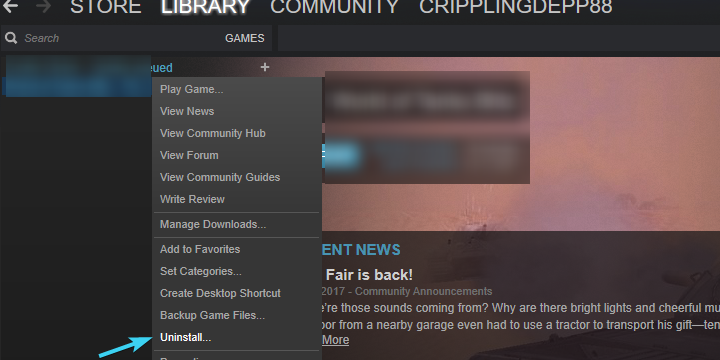
Second Monitor is Lagging: 7 Easy Ways to Fix it

Dual monitors can be fun, but it’s often affected by video lags issue on the second monitor.

Having two monitors for your PC setup is a common practice, especially if you are an avid gamer or love highly detailed images and a wider screen view.

The flickering video issue is noticed on all GPUs irrespective of how powerful it is, or even if the game runs on a high FPS.

Moreover, this issue is especially prevalent on the dual monitors with 144hz and 60hz refresh rate setups.

In this post, we have listed 7 ways to get rid of video lags on the second monitor. Read to know more.

How can I fix the video stuttering issue on the dual monitor?

1. Change the refresh rates for both monitors

  1. Press the Win + I keys to launch the Settings app.
  2. Next, click on System. Open Settings - click on System
  3. Navigate to the right side and click on Display. In system settings click on display
  4. Next, on the right side, scroll down and click on Advanced display.
  5. On the next screen, on the right side, click on Display adapter properties for Display 1 (for monitor 1). In Display settings click on Display adapter properties for Display 1
  6. Go to the Monitor tab, navigate to the Monitor settings field, and set the Screen refresh rate to 60 Hz.Change screen refresh rate to best possible FPS in monitor settings
  7. Press Apply and OK to save the changes and exit.
  8. Alternatively, you can change the refresh rate for the second monitor.
  9. If it’s set to 144 Hertz, you can reduce it to 60 Hertz.
  10. The idea is to keep the same refresh rate for both monitors, for example, 60 Hertz for both monitors.

If the refresh rate of your monitors is too high, maybe the video graphics card can’t cope with the load.

Try to set the refresh rate lower for both monitors and keep it the same and that will most likely fix the stuttering and lag on the dual monitor setup.

2. Turn off the hardware acceleration on your browser

  1. Open the browser, click on the three vertical dots on the top right, and select Settings. Click on three dots in Chrome and select Settings
  2. Search for hardware acceleration in the search box and hit Enter.
  3. Go to Use hardware acceleration when available and turn it off.Search for hardware acceleration in Chrome settings and turn off Use hardware acceleration when available
  4. Click on Relaunch to restart Chrome and check if the video lag issue still persists.

This problem is prevalent in Chrome browsers, and hence, while this solution is useful if you use it, this can also be applied to other browsers with similar issues.

3. Run the hardware troubleshooter

  1. Navigate to Start, right-click and select Run to launch the Run console. Right click on Start and select Run
  2. In the search box, type cmd and press CTRL + Shift + Enter shortcut key to open Command Prompt in admin mode. open elevated command prompt by pressing Ctrl + Shift + Enter together
  3. Run the below command in the elevated Command Prompt and hit Enter: msdt.exe -id DeviceDiagnostic Run command msdt.exe -id DeviceDiagnostic to open hardware and devices
  4. This will open the Hardware and Devices window. Click on Advanced. Expand Advanced in Hardware and Devices
  5. Check the box next to Apply repairs automatically. Press Next.
  6. The troubleshooter will now start detecting any issues. If any are found, it will display the solutions.
  7. Select to apply the repairs automatically.

Once done, close the troubleshooter, reboot your PC and check if the video stuttering on the second monitor is fixed.

4. Update the second monitor driver

  1. Press the Win + R hotkey to open the Run console.
  2. Type devmgmt.msc in the search bar and hit Enter. Type devmgmt.msc and hit Enter
  3. In the Device Manager window, go to Monitors, right-click on the device, and select Update driver.Right click on the Monitor driver in Device Manager and select Update driver
  4. Here, click on Search automatically for drivers. Click on Search automatically for drivers
  5. Now, wait till Windows looks up for any latest drivers. If available, it installs the driver automatically.

Now, reboot your PC and check if the video still lags on the second monitor.

You can also use an automated tool like Outbyte Driver Updater and save some time and hassle. It’s a dedicated utility that’s able to repair and update any type of Windows driver using its own database.

It can take care of specific drivers or scan your whole system and update or fix any outdated or corrupt drivers. Set it up to automatically scan your drivers on a regular basis and never have this issue again.

⇒ Get Outbyte Driver Updater

5. Roll Back the monitor driver

  1. Right-click on Start and select Device Manager. Right click on Start and select Device Manager
  2. Navigate to Monitors and expand the section. Right-click on the device and select Properties. Right click on monitor driver and select Properties
  3. In the Properties window, select the Driver tab and press the Roll Back Driver button if it’s available. In the Properties tba under Driver, select Roll Back driver
  4. Press OK to save the changes.

Now, restart your PC and the video on your second monitor should be fine now.

If you don’t see the Roll Back Driver button, don’t worry. That means that there are no older drivers installed and you can skip this step.

6. Change the monitor’s screen resolution

  1. Press the Win + I keys simultaneously to launch the Settings app.
  2. Now, click on System on the left side. Open Settings - click on System
  3. Next, navigate to the right side and click on Display.
  4. In the Display settings screen, go to Scale & layout. Here, navigate to Display resolution and select your preferred resolution. Select display resolution in display settings

This should fix the video stuttering issue on the second monitor.

7. Disable windows transparency

  1. Right-click on the Windows Start button and click on Settings. Right click on Start and select Settings
  2. In the Settings window, click on Personalisation. In the Settings app, select Personalisation
  3. Now, move the cursor to the right and click on Colours. Select colours in the personalisation settings
  4. Next, go to the right and turn off Transparency effects. Turn off Transparency effects on Colours in personalosation settings

Now, close Windows settings, reboot your PC, and check if this helps fix the issue.

You can also try disconnecting and connecting the cable, however, this could be a temporary solution.

For NVIDIA graphics cards, you can try disabling the G-Sync, turning the V-Sync on and off, or playing the game in full screen and checking if it resolves the issue. 

Alternatively, you can simply restart the PC, try switching cables between both monitors, or replace any old cables.

Additionally, check for any damaged connection ports, or turn off Aero themes and it may help you get rid of the video lag issue on the second monitor.

If you have sound issues, check our guide on how to fix sound problems on the second monitor. Do let us know which solution worked for you in the comments box below.

Microsoft teases accent color support for Task Manager utilization area in Windows 11

The latest Windows Insider builds tweak the Task Manager in Windows 11 to make it more modern with features like dark mode and a new hamburger menu, but Microsoft isn’t done just yet. Spotted by Neowin, the company recently teased a custom color support for the Task Manager utilization area in Windows 11.

As talked about in the recent Windows Insider Webcast (at the 16:00 mark) Microsoft says it came up with this feature for a very specific reason. It is because Windows Insiders didn’t exactly like the yellow mustard color of the utilization area in the Task Manager.

Apparently, it doesn’t fit well with the new user interface. So, the company teased a new way for the Task Manager to support a user’s favorite colors based on whatever is picked in the colors section of Windows 11’s personalization page. Microsoft showcased how you can switch to pink, red, orange, blue, and even, white. It even highlighted how the colors carry over to dark mode, too.

Based on comments in the live stream, reaction to the feature was pretty great, especially with Microsoft’s own Jen Gentleman, who said, “YAY, Pink!” Brandon Leblanc also mentioned how the new colors add contrast between different shades.

Microsoft didn’t mention when Windows Insiders can specifically expect these color options. However, per the chat and Brandon LeBlanc, these are all improvements coming to a future build. That means we don’t know when we’ll see it yet, but there’s hope down the line. We haven’t had a major build last week, so a big build with a cool feature like this is overdue.

Microsoft is quietly testing an Apple M1 optimized version of Teams in beta

If you’re a Teams user with an Apple Mac that has an M1 chip, we’ve got some good news for you. Spotted by Neowin, Microsoft has just released a new Apple M1 optimized version of Teams, though it’s still in beta.

Available for download on Microsoft’s website, (warning, direct download link!) the beta version of this Teams app no longer runs under Rosetta 2 emulation. While Teams on M1 Macs was never as slow as it is on Windows, this should mean that the M1 optimized version of Teams should be a lot faster than the current version coded for Intel Macs. The Teams app is now what Apple calls a “Universal” app, which are apps that are specially coded for the ARM-based M1 chip as well as Intel processors.

Apple’s M1 chip first hit the scene back in 2020, and since then, Microsoft has worked to optimize its apps for Macs with ARM-based silicon. The Microsoft Edge web browser is already optimized, as well as the Microsoft Office suite of apps. Even the OneDrive sync client is optimized, too.

The link we’ve shared for the M1 version of Teams isn’t listed on Microsoft’s website. Rather, it’s a direct download, so it appears that Microsoft is quietly testing it. We will keep you posted, as a full-on release should not be too far out.

Experiencing AutoCAD mouse lag? Here’s an easy fix

Mouse freeze, or mouse lag, is a notorious problem in AutoCAD software. It can be infuriating if you are right in the middle of a drawing session and all of a sudden your cursor freezes up and refuses to move.

Although AutoCAD is a powerful software on its own, there are times when you may experience performance issues or bugs. This can be frustrating, but there are ways to work around some of those issues.

The screen jitters or sticks and sometimes, the only thing you can do is to wait it out. One reason is if you have more than one monitor attached to your computer.

This causes issues with the mouse control inside AutoCAD, so you will need to turn off the secondary monitor.

Why I’m I facing an AutoCAD mouse lag?

It’s really hard to use AutoCAD when there is a mouse lag. The most common reason for a slow mouse in AutoCAD is that you are running out of physical memory (RAM).

Because Windows 11 is a memory hog OS, it is essential that you ensure your PC meets the minimum system requirements. A 64-bit system will allow you to allocate more memory to AutoCAD.

Also, make sure you have the most current version of your graphics card. If your system is running slowly, this could be related to graphics or video driver settings.

AutoCAD is primarily a graphics and graphics-intensive program. You can download the most current drivers from your computer manufacturer or graphics card vendor.

You can also use a dedicated tool that can automatically download and install corresponding driver versions. This will save you some time and you’ll be sure to have the correct up-to-date drivers.

⇒ Get Outbyte Driver Updater

For most users, a mouse lag in AutoCAD does not indicate any major underlying issue. Just make sure to check your system memory and follow the instructions in this guide.

What can I do to fix an AutoCAD mouse lag?

Disable hardware acceleration

  1. Open your AutoCAD interface, type Options in the Command line, and press Enter.
  2. Select the System tab, and click Graphics Performance in the Options dialog box that pops up.
  3. In the Graphics Performance dialog box that pops up, toggle Hardware Acceleration off then click OK.

Is AutoCAD GPU-intensive?

AutoCAD is a heavy application, it needs at least 8 GB of RAM and a good graphics card to run smoothly. A budget processor won’t cut it.

When it comes to CPU, AutoCAD works best with a fast CPU. If you have just 2 cores then your CPU is probably too slow.

A 4 core CPU will still work, but if you are running other programs at the same time then more cores will help AutoCAD run better.

For high-performance graphics, check out our recommended list that guarantees you an improved experience.

We also have a rich collection of CPUs if you are looking to upgrade your PC and perform more CPU-intensive tasks.

Aside from an AutoCAD mouse lag, you can also fix general mouse lagging issues in case your keep facing the same frustrations.

Alternatively, you can select one of our top recommended mice options for a consistent connection.

We hope this guide was helpful in fixing your AutoCAD mouse lag issues. Also, we’d love to hear from you on any additional thoughts you may have on this topic. Don’t forget to interact with us in the comments section below. 
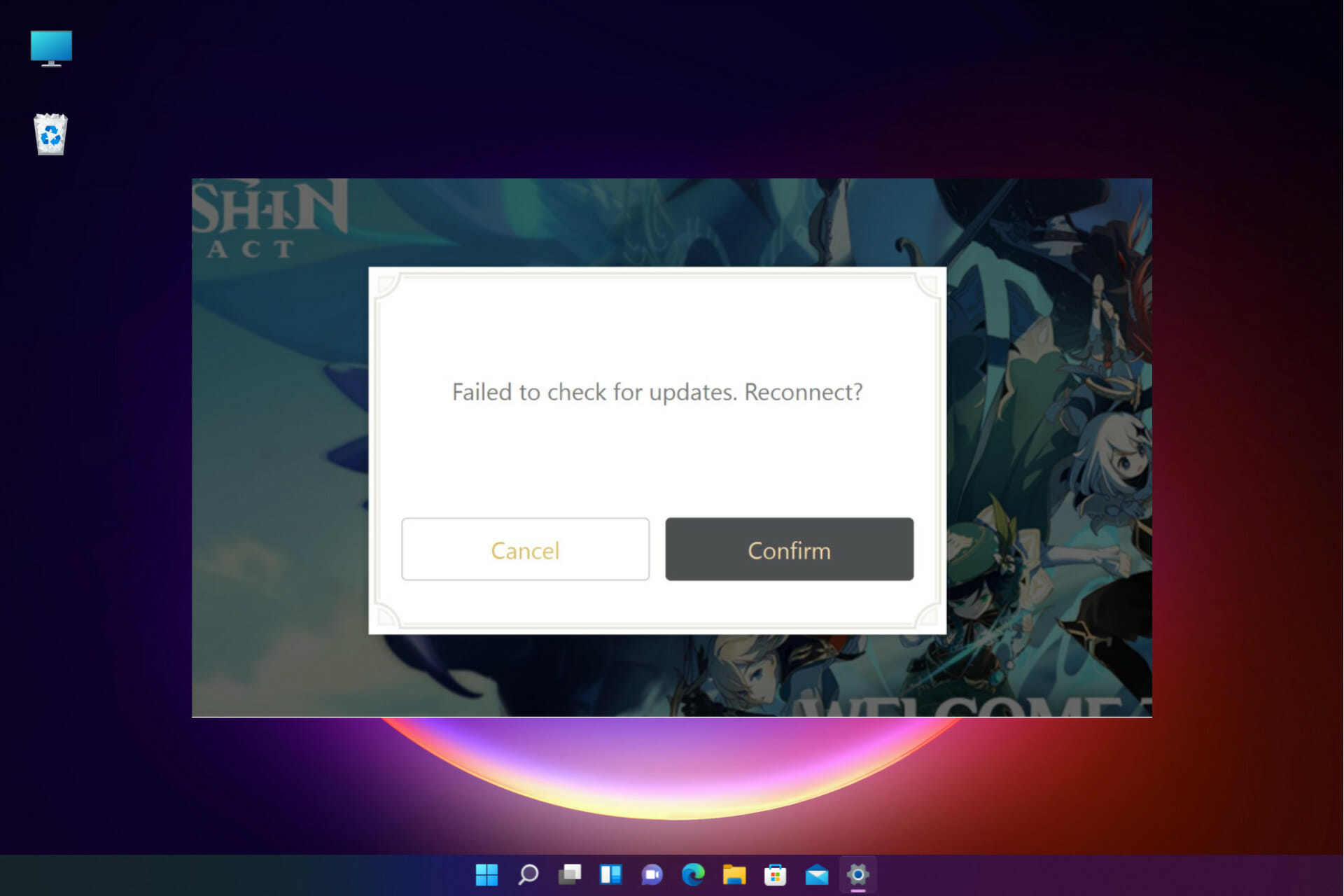
System Reserved Partition on Wrong Drive? How to Change it

When the System Reserved partition and the system partition are not on the same disk, you encounter the System Reserved partition on the wrong drive issue.

After you install a new Windows OS, a special disk partition called the System Reserve partition is created. These partitions are only visible in the Disk Management utility since they do not have any drive letter.

This special partition contains the Boot Configuration Data, Boot Manager, Windows Recovery Environment, and some space for the startup files.

These files are crucial for the functioning of the BitLocker drive encryption. The partition should be on the same disk as the system partition which is usually the C: drive.

But when both the partitions are not on the same disk, it means you installed the Windows OS on a PC with multiple hard drives.

The good news is that you can move the System Reserved partition to another drive. Read on to learn how to do that.

How do I move the System Reserved Partition to another drive?

Use the Disk Management utility

  1. Navigate to Start on the taskbar, right-click and select Run to open the Run console. Right click on Start and select Run
  2. In the search field, type diskmgmt.msc and hit Enter to launch the Disk Management tool.Type diskmgmt.msc in run console and press Enter
  3. Now, look for the disk to which you want to place the System Reserved Partition.
  4. Here, look for a block name Unallocated or Free space. Right-click on it and select New Simple Volume. Right click on Unallocated or free space and select New Simple Volume
  5. If you do not find any Unallocated/Free space, you can create one. For this, you can go to any existing drive/partition that is empty/unused, right-click and select Delete Volume. Right lick on unused partition and select Delete volume
  6. Alternatively, you can also right-click on this existing partition and select Shrink Volume. right click on empty partition and select shrink volume
  7. In the Shrink dialogue box, go to Enter the amount of space to shrink in the MB field and type the volume you want to reduce, and press Shrink.Type volume in Enter the amount of space to shrink in MB field and hit Shrink
  8. Once done, right-click on this Free space and select New Simple Volume. Right click on free space and click on New simple volume
  9. It will open the New Simple Volume Wizard. Press Next to continue.In New simple volume wizard, click Next
  10. Follow the on-screen instructions to specify the volume size, assign a drive letter, and format partition.
  11. Designate a drive letter to the old reserved system partition for it to show on the File Explorer.
  12. Move the Boot folder, bootmgr, and BOOTSECT.BAK from the old partition to the new one.
  13. Now, go to the new System Reserved partition, and delete the drive letter.
  14. Next, right-click on the new reserved partition and select Mark Partition as Active.right click on new reserved partition and select Mark Partition as Active
  15. Once done, reboot your PC and check if it boots normally. If it does, you can now delete the original partition.
  16. But if the system fails to boot use the system repair disc to perform the Startup Repair.

If you lack the patience to work with this built-in Windows utility or are worried about doing something wrong, you can use a dedicated disk partition management software.

It will help you skip some of the above-mentioned steps, allowing you to safely transfer your system partition to a different drive in just a few clicks. It’s proven to work well without the risk of data loss.

Tenorshare Free Partition Manager automates most of the process and includes other handy features that help you create, clone, split, format, and resize partitions.

Creating a clone of the system reserved partition in the system disk, and then deleting the old partition can help fix the issue.

Since the reserved partition contains files for booting the system, in order to prevent operation errors or other situations, please make a system repair disc first.

Tip icon Tip
The size of the reserved partition is 500 MB for Windows 10 and Windows 11. You can rename the new partition as System Reserved while formatting.

While the System Reserved Partition on a wrong drive is a common issue, we recommend not to delete the original reserved partition since it can create a further mess.

If you come across any other errors related to the System Reserved partition, you can leave your comments in the comments box below.

Microsoft Build 2022, announced for May 24-25 as a Digital Event, is now open for registration

Microsoft announced in late March that its Build developers’ conference, yet again a free virtual event, would be held on May 24-26, and today they’ve opened registration:

Although the event is free, you still have to register to gain access to the sessions, but you then gain access to the session agenda (when it becomes available, we’ll keep you posted), a Connection Zone and Learning Zone, Regional spotlights, and a lot more.

Remember to stay tuned to OnMSFT.com for all the latest on Build 2022 and everything Microsoft!

Steam scams explained: Best tips to keep your cards safe

The Steam gift cards are perfect if you want to make a gamer or, why not, yourself, happy. And that’s because it’s the most popular gaming platform.

However, lately, Steam received more and more reports of scams with wrongdoers contacting unsuspecting victims, convincing them to buy Steam Wallet Gift Cards.

They pretend that the cards will help users cover a lot of payments including bail, debt, and receive money from sweepstakes.

The scammers pose as officials for certain agencies and even the I.R.S. which should sound suspicious enough.

The modus operandi implies buying the gift cards from a local shop in the area of the victim and then scratching the codes and communicating the data over the phone.

Of course, if all that sounds familiar, you have been the victim of a scam and you will never get anything in return.

What is a Steam card and how does it work?

Essentially, Steam Gift Cards and Wallet Codes are like any gift certificates, but they can only be redeemed on Steam.

Users often have one important question: Can Steam cards be converted into cash? And the answer is yes; in fact, that is the whole point of the cards.

After you redeem the card, its value is converted into cash within your Steam account so you can use it to purchase games, software, and various other items within the store.

But once again, we emphasize the fact that the cards can only be activated on Steam and don’t have any value within other services.

Why would a scammer want a Steam card?

The question is legitimate because you would think that the scammer will just buy games and software on Steam but that’s not the case.

Once they get the code and the pin from your Steam card, they immediately sell the data online for a smaller amount of money.

And as it seems, they are in real demand for people who just wait for a bargain to get that awesome game they’ve been waiting to purchase.

Another way of getting the real cash is to immediately buy items and then send a sad letter to the Steam support team to freeze the transaction and send back the money into their account.

The story often involves an alleged kid who took his parents’ credit card and made the purchase without their knowledge or something similar.

User is approached by scammer to get a Steam gift card

Here are the top platforms where Steam cards scams are happening:

  • Steam
  • Reddit
  • Instagram
  • Facebook
  • Paypal

Steam scam statistics

1. What are the most common Steam scams?

1.1 The PayPal scam

Unfortunately, there are no precise statistics on Steam scams but the PayPal scam is one of the most popular among fraudsters.

It is actually very simple to create a fake invoice and even on the official PayPal forms you can add text to the Terms and conditions and Note section below.

That is where the scammer can get creative and reinforce your belief that the money has been sent but, as you can see from the screenshot above, they will take 24 hours to reach your account.

In the meantime, they will put pressure on you to send them the items you’ve bargained for because they’ve provided sufficient proof that they have sent the money, right?

Wrong! You will never see the money and your precious item will be lost forever because the Steam support time will not duplicate the item.

Another trick here is to actually send you the money, providing a real invoice, but then charge it back.

1.2 The Phishing scam

When it comes to phishing, in a press release released by Kaspersky, they raised awareness about the rising number of Steam phishing URLs.

Forums, chats, Facebook groups, and emails can all be used by wrongdoers to invite you to websites that look almost exactly like the original ones.

However, the more you look at it, you will start noticing some elements that are not as they should be, starting with a tiny difference in the URL address.

Then, as a pretext of redeeming some bogus prize you just won, they invite you to log into your Steam account.

Of course, this way, your credentials will be stolen, and your account emptied out in a matter of minutes.

1.3 Pay with gift card scam

In a recent consumer alert from the Federal Trade Commission, you can find out how the scam is orchestrated and mostly how you can be approached.

Obviously, if someone asks you to pay something by giving them the data of your Steam or any other gift card for that matter, it’s definitely a scam.

1.4 Steam Wallet Scam

The Steam Wallet scam is as simple as it gets. Out of nowhere or with prior convincing from the fraudster, you get an offer for an item for real cash.

If you don’t know that already, you can’t send cash within Steam so it’s only you parting with your item in exchange for a wild assumption that you will be paid.

1.5 The Steam administrator scam

This is a more elaborate scam that we learned through one of the Malwarebytes blog posts about common scams within the Steam realm.

The scammer approaches you with a sorry note that he reported you for a scam by mistake (ironic, isn’t it?) and your account will be suspended shortly if you don’t do anything about it.

This person also suggests contacting a Steam or game developer administrator who will clear out your problem.

Obviously, that user switches to a very well disguised profile of an alleged official that will threaten you with account deletion unless you send details that contain your credentials.

Finally, the outcome is the same. You lose everything from your account and eventually it gets closed so that the scammer can cover its trace.

2. What are the most affected countries by Steam scams?

Although we don’t have any data about the top countries affected by Steam scams, starting with the pandemic, the reported cases multiplied considerably.

For instance, in a news report from the FTC, in the first nine months of 2021, consumers lost $148 million only from gift card scams.

That was more than in the whole year of 2020. According to their data, almost 40,000 consumers filed reports for such scams in the U.S. and that is not counting the cases with users who didn’t bothered to complain and try to get their money back.

In another news report from the Australian Competition & Consumer Commission Australians lost more than $5 million on gift card scams.

On top of the most used gift card scams are the ones from iTunes, Google Play, and Amazon but Steam also holds an honorable fourth place on the list.

How do I secure my Steam account?

After the installation of the desktop app, you will be prompted to verify your email, and Steam Guard will be activated.

That means that if someone attempts to log into your account from another device, they will need to provide a code sent to either your phone or email address.

However, you can also install the Steam Guard Mobile Authenticator on your Android or iOS. Here’s how you can do that:

  1. Download the Steam app from Google Play or App Store.
  2. After you install it and log into your account, click on the Menu button and tap on Steam Guard.
  3. Now, tap the Add Authenticator button.
  4. Next, add your phone number and touch the Add phone button.
  5. Lastly, you will receive a confirmation code on your phone that you will need to enter in the Step 2 window.
  6. If you entered the code correctly, you will receive a very important recovery code which you need to store safely for later use.
  7. When the process is done, you will receive another code, that will refresh every time you log into your Steam account.
  8. So, every time you log in, Steam will request the code so you will need to open your mobile app and get the code from there.

It may seem a little bit tedious but this way, no one can steal your account unless they have access to your phone or, of course, if you give them your code.

Apart from the mobile Steam Guard app, the best protection from scammers is to use your better judgment.

Look carefully at the websites that ask you for your credentials, don’t engage in conversations that lead to them asking you for such favors.

Also, if an offer from a stranger seems to be too good to pass, then it definitely is and you should definitely end the conversation there.

Avoid dealing any items games or goods outside the Steam platform. The risks outweigh the benefits almost all the time.

Never, ever, give your account details and screenshots that contain them to anyone. The officials from Steam would never ask for such details.

Be careful about who you make friends with. Someone who added you to their friend’s list might not be doing that because they admire your play style.

But sometimes, all the caution in the world can’t help you from malware and virus attacks on your PC. That’s why we also prepared a short list of the best antiviruses for gamers.

What is the best security software for gamers?

  1. ESET HOME Security Essential – Although it’s light on your system, it will protect your PC from any possible intrusions.
  2. Bitdefender Antivirus Plus – Apart from the much-needed Game Mode, you will also have multi-layered protection impossible to overcome by any wrongdoers.
  3. Total AV: Real-time virus protection, it takes care of your privacy with a built-in VPN, and also prevents in-game lag with its own disk cleaning feature.

You may also consult our full list including the best antiviruses for gamers and check out all the other offers.

What are the other scam platforms you should worry about?

When it comes to gift card scams, according to an FTC report, iTunes and Google Play definitely lead the way.

And the operation mode is identical. The fraudster is demanding payment with a gift or reload card, scammers posing as business representatives, family members, well-known agencies, or simply friends.

For instance, if you are contacted by IRS and they tell you that they cannot accept other payments because of your tax problems, that’s an obvious scam.

According to FTC, sometimes, the wrongdoers even call the iTunes cards payment vouchers and instruct the victim to buy the cards from different stores and not talk about this with anyone, just to avoid alerting the salespersons from the store.

As for the most notorious scamming platforms, a study released by SocialCatfish.com offers an insight picked up from asking 726 of their readers about this experience.

Facebook clearly leads the way with 151 victims and most of them were the victims of profile cloning.

The scammer uses the photos and data from the profile of the victim to create an almost identical fake one, then asks the friends for money or sends malicious links.

On Google Hangouts there were 99 scam reports. Here, romantic impostors fall in love quickly, gaining the trust of the victims and asking for money or personal information.

The scammers have a different approach on Instagram. They pretend to be representatives of a famous brand and offer giveaways in exchange for important personal data that involve credit card data.

You should also be aware if you receive a six-digit verification code on WhatsApp from a friend who desperately needs it to get back into his/hers account.

Most likely, they already broke into their account, and if you give them the code, they will also hijack yours and demand money from your friends, pretending to be you.

The most important thing is that if you are the victim of any of these scams, report it immediately to the authorities.

You can always contact FTC, IC3, IdentityTheft.gov, and even the FBI and make a complaint because these scammers have to be stopped.

Extensions such as Steam Inventory Helper for Firefox can also help you while trading, so don’t hesitate to use them.

Dell’s new Latitude 9330 has collaboration features built into the touchpad

Dell is launching a series of new Latitude and Precision products. The list includes the Latitude 9330, as well as the Precision 7670, and Precision 7770. There’s even a special Precision 5470 25th Anniversary Edition, too. The highlight is the Latitude 9330, the world’s first laptop with a unique new collaboration touchpad.

Somewhat going the route of the Asus Screenpad 2.0, which is a touchscreen in the touchpad on Asus laptops, the Latitude 9330 brings conference call features right at your fingertips. The touchpad has controls for microphones, camera, sharing screen, as well as chat options for when in meetings (they disappear when the meeting ends.) This is an all-new 13.3-inch ultra-premium 2-in-1 and it looks a lot like an XPS 13 2-in-1 with a slim bezel 90% screen to body radio 16:10 aspect ratio display that can be configured up to QHD+

CPU options include 12th generation Intel Core i7 vPro processors, and LPDDR5 memory can be configured up to 32GB, with Storage going up to 1TB or a 256GB self-encrypting drive. Other cool features include upward-firing speakers with intelligent running, 4G and 5G options, fast charging support, and AI-based background noise elimination. Note that the webcam is also FHD. Pricing has not yet been announced, but availability is set for June 2022 worldwide.


As for the Precision 7670 and 7770, these laptops are quite powerful. The Precision 7670 gives you a best-in-class front-of-screen experience that doesn’t compromise on power in a 16-inch form factor. It is available in two chassis options—thin and performance—allowing added configurations. The Precision 7770, meanwhile, is the world’s most powerful 17-inch mobile workstation offering the highest scalability across the portfolio and providing desktop-like performance on the go. Both laptops are set for release FYW2 worldwide, with pricing to be confirmed nearer to the shipping dates. CPU options include Intel’s most powerful options, Core i9 55 watts, and Intel VPro. GPU options include up to Nvidia RTX A5500 graphics.

Note that these Precision models include Dell’s CAMM (Compression Attached Memory Module) technology. This enables a thinner chassis, without giving up on performance. It also helps reduce waste when making components, too.

Moving along to the Precision 5470 25th Anniversary Edition, this is a special laptop for Dell fans. The laptop marks 25 years of Precision and comes with a special cobalt finish and etching to mark the occasion. Otherwise speaking, it’s the same as the Precision 5470 that was released last month.

Here’s how to download Java on your Windows 10/11 PC

Java is an important component for many applications, and some applications require you to have Java installed if you want to run them.

We’ll show you how to download and install Java on your Windows PC. Don’t worry, it’s simpler than you think.

Installing Java is incredibly simple, and it takes only a couple of minutes, and in today’s guide we’re going to show you how to install it on Windows 10 and 11.

Do I still need Java on Windows 10 and 11?

Most applications don’t require Java in order to run, so there’s no need to have it on your PC. If you try to install an application that is built in Java, then you’ll have to install it.

Java was used in the past for web applications, but after the removal of the browser plugin a few years ago, there’s no need to have Java on your PC anymore.

How can I download Java for Windows 10 and 11?

Download Java setup from the official website

  1. Visit the official Java website.
  2. Choose the option Windows Online.
  3. Select the download directory.
  4. Wait for the download to finish and run the downloaded file.
  5. Click on Install to proceed.
  6. Wait while the installer is being downloaded.
  7. Once that is finished, the installation process will start.
  8. Wait for it to finish.
  9. Once the setup is finished, click on Close.

How can I download and install Java on Windows 11?

If you want to use Java on Windows 11, you’ll be pleased to hear the download and installation process is exactly the same as on Windows 10.

Simply download the installer from the official website, run the setup file and follow the instructions on the screen, it’s simple as that.

If you want more in-depth information, we suggest reading our how to install Java on Windows 11 guide.

Is Java safe to install?

Yes, Java is perfectly safe to install, but in order to minimize any chances of security issues, it’s always a good practice to install the latest version.

Java browser plugin on the other hand is unsafe to use, but no major browsers support it, and most websites have dropped support for Java, so you don’t have to worry about it.

Java can be useful, and sometimes even necessary if you’re using applications that are built on it. As you can see, downloading and installing Java is pretty simple, regardless of the Windows version.

Now that you know how to install the necessary components, you might want to check our how to run JAR file on Windows article to learn how to properly run Java apps.

Did you find our guide helpful? Let us know in the comments section below!

HP Scanner Not Working on Windows 11? 4 Easy Tips to Try Out

The HP scanner not working on Windows 11 is a common issue and is often encountered after a Windows 11 upgrade. A similar issue with scanners is also noticed in other brands like Canon, Epson, Panasonic, etc.

First of all, make sure that the scanner or the multifunctional printer like the HP Deskjet 3755 scanner is turned on. At least a light on the printer’s panel should be lit to let you know about its status.

Also, check if the cables are properly attached to the PC and the scanner. If the scanner is built into the printer, printing a test page could confirm that it’s functioning properly.

What can I do if the HP scanner is not detected in Windows 11?

1. Enable related Windows services

  1. Navigate to Start, right-click and select Run to launch Run Command. right click on Start and select Run
  2. In the search field, type services.msc and press OK.
  3. In the Service Manager window, go to the right side, and under the Names column, look for the Windows Image Acquisition (WIA) service. Find Windows Image Acquisition (WIA) in Services and double click
  4. Double-click on it to open its Properties window.
  5. In the Properties dialogues box, under the General tab, go to the Startup type field. Set it to Automatic. Under WIA properties set startup type to automatic
  6. Now, check if the Service status is running. If not, click on Start. Check if WIA is running, if not Start
  7. Press Apply and then OK to save changes and return to the Service Manager window.
  8. Repeat the above process for the DCOM Server Process Launcher service and, Shell Hardware Detection, Remote Procedure Call, and RPC Endpoint Mapper services as well.

Once done, close the Services window, restart your PC and check if the HP scanner is working now.

2. Run the hardware troubleshooter

  1. To open Run Console, press the shortcut keys Win + R simultaneously.
  2. Write cmd and press the Ctrl + Shift + Enter hotkey to launch the elevated Command Prompt. Type cmd in Run console, press Ctrl + Shift + Enter
  3. Now, run the below command in the Command Prompt (admin) window to open the hardware troubleshooter: msdt.exe -id DeviceDiagnosticRun command in elevated cmd to open hardware troubleshooter
  4. As the Hardware and Devices pop up, click on Advanced. Click on Advanced in Hardware and devices troubleshooter
  5. Check the box next to Apply repairs automatically and press Next. enable apply repairs automatically in Hardware troubleshooter, press next
  6. Now, wait till Windows detects any issues. If any issues are found, it will apply the fix automatically.

Once the process is over, reboot your PC. Check if your HP scanner not working issue is resolved now.

A troubleshooter may help pull up the issues if your scanner won’t run due to a glitch.

3. Update drivers

To manually update drivers follow these steps:

  1. Go to Settings from Start.
  2. Go to Windows Update, then select Advanced options.
  3. Select Optional updates.
  4. Expand the Driver updates section, then checkmark the scanner drivers.
  5. Reboot the computer.

If the scanner driver is outdated or corrupt, your HP scanner can stop working on Windows 11 hence, make sure to keep the drivers updated at all times.

To update the drivers, you may also visit the manufacturer’s website to download the latest driver and install it on your PC.

4. Enable compatibility mode

  1. Press the Win + R shortcut key to launch the Run console.
  2. Type control printers in the search bar and press Enter. Type diskmgmt.msc in Run console and hit Enter
  3. In the Devices and Printers window, right-click on the HP scanner and select Properties. right-click on HP scanner and select Properties
  4. In the Properties window, select the Compatibility tab. Now, go to Compatibility mode and enable the option – Run this program in compatibility mode for. Then, select any older Windows version from the drop-down. Enable compatibility mode for HP Scanner
  5. Press Apply and then OK to save changes and exit.

Now that you are done, check if the HP scanner is working fine.

4. Reinstall the HP Scanner

  1. Right-click on Start and select Device Manager. Right click on Start and select Device Manager
  2. In the Device Manager window, expand Imaging devices or Print Queues. Here, right-click on the HP scanner device and select Uninstall device. Right click on HP scanner device in Print queues in Device Manager and select Uninstall device
  3. As you see the Uninstall Device prompt, click on Uninstall to confirm.
  4. Once it’s completely uninstalled, reboot your PC.
  5. Now, visit the HP scanner’s official website, and download and install the latest scanner driver.

As the scanner driver is reinstalled, the HP scanner not working issue should be fixed now.

Alternatively, you can run the SFC and the DISM scan to find and fix any corrupt system files.

In case you have recently installed an update, uninstall the update and check if this helps fix the HP scanner not working issue on Windows 11.

If you’re also experiencing issues with the HP Smart app, our guide on how to resolve Windows 11 issues with the HP Smart app can offer additional troubleshooting methods.

For any other questions or advice, let us know all about them in the comments section below.
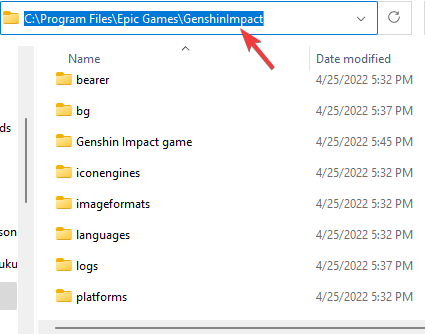
Windows 11 Settings App: Already Integrated, No Download Needed

Windows 11 brought many changes and improvements over its predecessor, as we can easily see in our detailed Windows 11 review. One of these changes was reducing the dependency on the Control Panel and increasing the same for the Settings window.

The Settings app comes inbuilt with Windows 11, and no download is needed. The app has been a Windows computer staple for a while, but it’s still not the most straightforward software. Finding your way around between the different sections and limited search functionality can be a bit difficult.

Luckily, the Settings app isn’t without some tricks up its sleeve that can help you find what you’re looking for.

The original Settings app for Windows 10 made things difficult to find and manage because it was so cluttered with options. Windows 11 has been redesigned from scratch with simplicity in mind, making it much easier for users to understand.

What are the main features of Windows 11’s Settings app?

Windows 11’s Settings app is a streamlined and simplified version of the Control Panel. It has all the same features but is much easier to use and navigate.

  • Settings is an all-in-one app that allows you to configure everything from how it looks to how you connect to the internet or add accounts. Here, you can customize the look and feel, connect peripherals, configure networking settings, and change language settings.
  • The search bar at the top of the page now includes breadcrumbs for navigation sub-menu buttons, making it easier for you to find what you are looking for in the menu.
  • It also has a section for managing privacy and security settings. This is called the Privacy section, and it contains features such as location, camera, microphone, and other controls.
  • The new app is the control center for your computer that stores settings for most Microsoft apps, including your display, colors, and keyboard. You can also use this app to configure gestures and touch shortcuts if you have a touch-screen device.

While it would be rare for the Settings app not to be present in Windows 11, if it happens, try the following solutions:

What can I do if the Settings app is not present in Windows 11?

1. Run a quick SFC scan

  1. Go to the Windows Search bar and type CMD to open Command Prompt.
  2. In the right pane, select Run as Administrator.
  3. Once the Command Prompt window opens, type the following and hit Enter: sfc/scannow
  4. Wait for the process to complete and then reboot your computer.

SFC stands for System File Checker. It is an inbuilt utility in Windows that checks for any corrupted or missing system files and repairs them if any discrepancy is found. Therefore, running SFC Scan may resolve the Settings app missing issue.

If doing this scan manually overwhelms you, you might consider utilizing a third-party safe repair tool that specializes in Windows repair.

These tools analyze and diagnose your damaged PC, then repair it using technology that restores your Windows Operating System and reverses the harm done with a comprehensive database of replacement files.

When the setting’s app is corrupted or missing, these troubleshooters will repair it, restore the registry, and even offer a thorough hardware analysis.

2. Reset the PC

Windows has a Reset this PC feature that restores the system to factory default settings, which can resolve and fix the most common problems and improve performance. Resetting also means all default features, like the Settings app, will be back on your computer.

The Reset this PC feature has been available since Windows 10, and on Windows 11, it also allows you to reinstall Windows with multiple options.

For instance, you can restore your system to factory settings while keeping your files and settings, or do a complete removal for improved memory usage, the performance of apps, or battery drainage.

Once you get the app back, do not forget to create a Settings shortcut in Windows 11.

How to open the Settings app on Windows 11?

1. Through a nifty keyboard shortcut

  1. Press the Windows + I key combination on your keyboard.

This will open up the Settings app for you in a separate tab.

Microsoft has designed the Settings app in Windows 11 to be more accessible, and you can open it via a keyboard shortcut.

2. Through Start Menu

  1. First, click the Windows key on your keyboard.
  2. Then, find the Settings shortcut pinned by default in the menu and click it.

The Settings app will appear on your computer screen as soon as you do that.

In Windows 11, the Start Menu has been redesigned. It still lets you open Settings, though. To do this, simply follow the steps above.

3. Use the Run dialog box

  1. Press Windows + R and type CMD into the dialog box.
  2. Then, type in the following command and hit Enter: start ms-settings:

The Settings app window will be launched on your computer screen.

Keep in mind that the Run dialog box is a special interface that you can use to access programs that regular shortcuts don’t activate. It can also be used to open the Settings app.

4. Through the Win-X menu

  1. Press Windows + X simultaneously. You can also right-click on the Start button and choose Settings.

The Settings app will open on your screen as soon as you do that.

The WIN-X menu in Windows 11 contains shortcuts to important system tools and various programs, including Settings.

The Settings app is where you can configure and control how your computer operates. The app is organized into different tiles representing individual settings categories, such as System, Device, Network & Internet, Personalization, and Accounts.

Within each of these categories are further subcategories that cover individual settings controls. Some settings are available in multiple locations.

Moreover, Settings is an in-built Windows 11 app that doesn’t require any download. It keeps your system healthy through recommendations.

If the Settings app keeps crashing on your Windows 11 PC, be sure to go through our guide on the same issue.

Do let us know your opinion in the comments section below, we would love to hear from you.

Trezor One stuck in bootloader mode? 3 quick fixes to apply

Many users have reported the error Trezor One stuck in bootloader mode on their PC while trying to update the firmware using the Trezor Suite. In case you encounter this error, try the solutions in this guide.

Bootloader mode is a feature on the Trezor One device that allows firmware updates to be completed.

This is the age of cryptocurrencies and people are shifting to blockchain-based currencies from hard cash. However, the volatility of the currencies is often questioned.

If you’re serious about crypto and have a nice stack of coins that you’d like to hold, you have to have a crypto wallet.

The easiest form to store your cryptocurrency is online, however, it certainly isn’t the safest. The online exchanges come under the scrutiny of the government and can also be hacked by cyber-criminals. Thus, an offline wallet would be a good idea for keeping your money safe.

What is Trezor?

Trezor is an offline wallet similar to your leather wallet which stores cash. The data in your wallet cannot be hacked or even contacted by anyone online. To access your money, a person would have to physically access your Trezor device which is difficult.

What are the Trezor Suite and Trezor wallet?

Now while the Trezor device is physical hardware, you cannot check all information in detail on the device’s LED screen. So, a dashboard using software is required. This software is the Trezor Suite.

Other than checking the status of your wallet and managing coins, when connected to the internet, the Trezor suite can also be linked to exchanges.

The link between the Trezor Suite and the Trezor wallet is that the online wallet is connected to the server and the suite that works offline as well as online.

If there’s an issue with the suite, it could be due to a problem with the app. And if the online Trezor wallet doesn’t work across multiple browsers, then the problem has to be with the server.

What should I do if Trezor One is stuck in bootloader mode?

1. Use the online Trezor wallet instead of the Trezor Suite

Users have reported that simply using the online Trezor wallet to update the firmware resolved the problem. So, you can try using the online wallet instead of the offline one.

2. Press both buttons on the Trezor device

  1. Unplug the Trezor device from your computer.
  2. Now, keeping both the buttons on the Trezor device pressed, plug the device into your computer.
  3. Enter the bootloader mode as you tried earlier.

Proceed to update your firmware from the online Trezor wallet as usual. It will work this time.

3. Reinstall the Trezor Suite

  1. Right-click on the Start menu select Settings from the list that appears.
  2. In the Settings menu, go to the Apps tab on the left pane.
  3. Next, in the right pane, go to Apps and Features.
  4. From the list of applications, find the Trezor Suite.
  5. Click on the 3 dots corresponding to it and select Uninstall. Doing this will uninstall the application.
  6. Now, reinstall the Trezor Suite from the official website.

While the online wallet workaround is helpful, you might also want to fix the case with the Trezor Suite. The best solution would be to reinstall the software.

We hope that at least one of the above methods worked for you in resolving the Trezor One stuck in bootloader mode error.

If you are looking for the best cryptocurrency converter apps, do check our guide on the same.

If you have any questions, don’t hesitate to ask them in the comments section below. We are eager to help.