Latest sales reports reveal that March was a record-setting month for Xbox

According to market research by NPD Group, Xbox had its best March on record, outperforming its previous March records from 2014 in dollars, and 2011 in units sold.

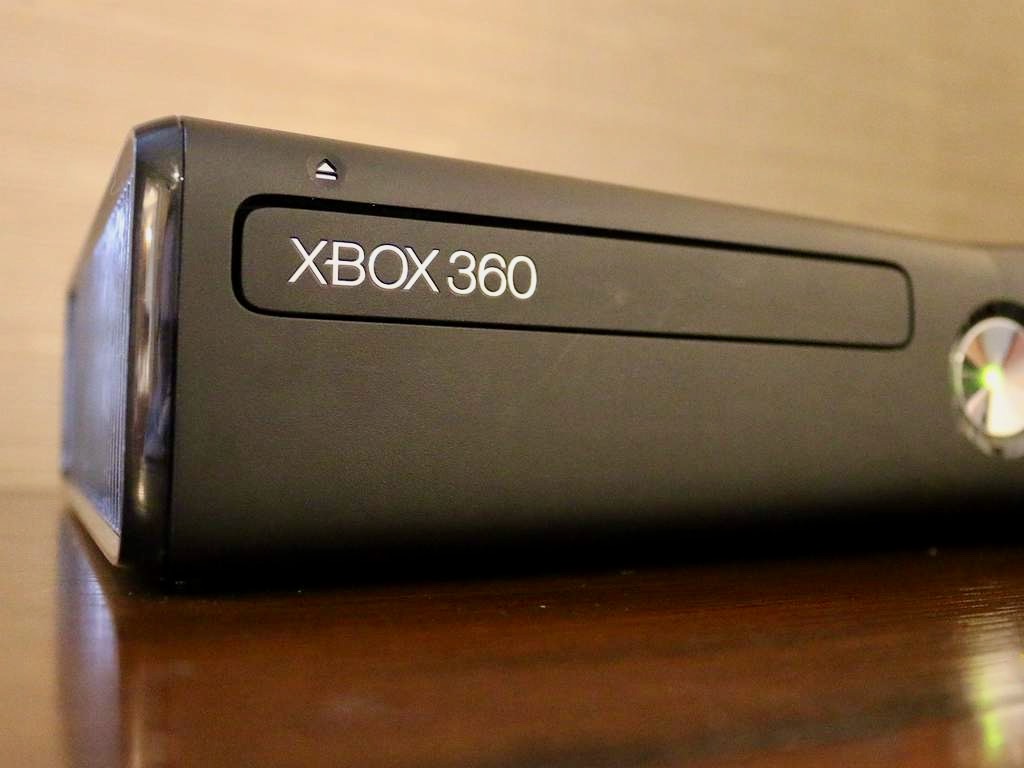
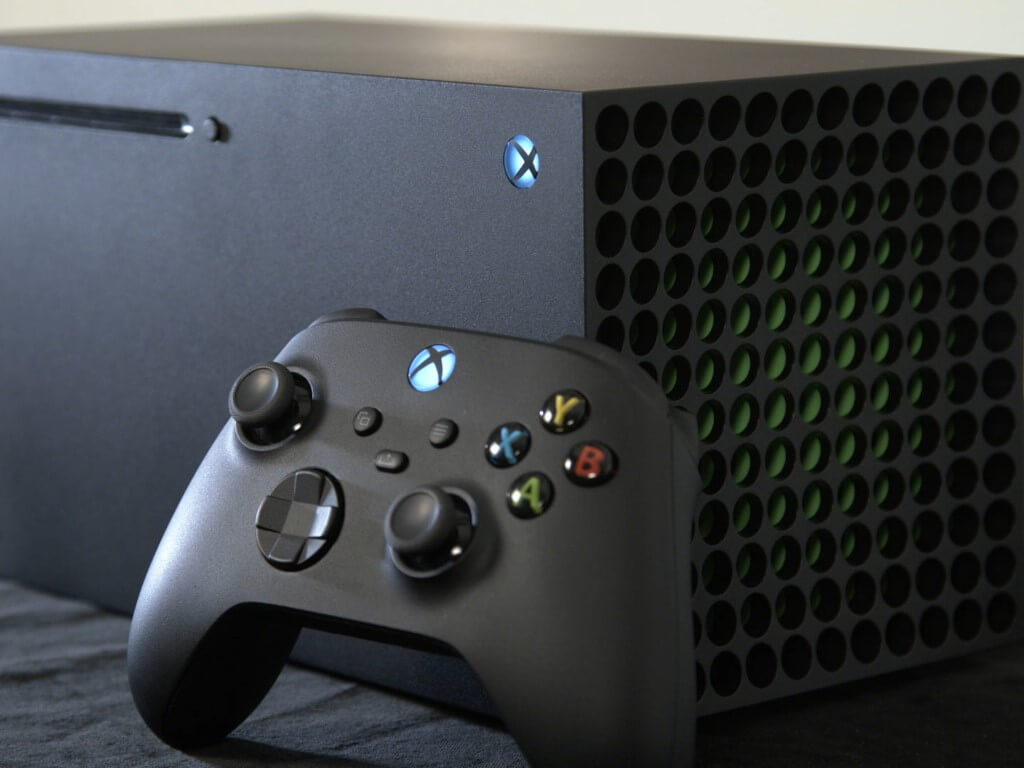
It is interesting to note that the Xbox Series X|S was the best selling console in dollar terms not only for March 2022 but for the first quarter, while the Nintendo Switch led the way in units sold for both March and throughout the first three months of the year. It was also recently revealed that the Xbox Series X|S is nearly 4.5 million units ahead of the Xbox 360 in terms of total sales after the first 17 months each system’s respective lifespans.

February saw the Xbox Series X|S outsell the PlayStation 5 in Europe for the first time. Though both Sony and Microsoft have been crippled by worldwide chip shortages, the Series X and particularly the Series S have consistently been more readily available than the PS5.

It should be noted that total industry hardware sales are drastically down from this time in 2021. At present, the Xbox Series X|S has sold right around 14 million units.

Mastercard teams up with Microsoft to help tackle digital fraud

Today, Mastercard has announced its collaboration with Microsoft which is geared toward delivering a frictionless online shopping experience and reducing digital fraud cases. Mastercard launched an enhanced identity solution that will help them achieve these goals.

Mastercard has put measures into place to help avoid the further occurrence of this issue by enhancing its Digital Transaction Insights solution with next-generation authentication and real-time decisioning intelligence capabilities.

According to the blog post by Microsoft:

Microsoft will be the first partner to share its insights and integrate with the new Digital Transaction Insights solution across several lines of business. Building on a long history of cross-collaboration, Microsoft’s Dynamics 365 Fraud Protection’s proprietary risk assessment, which leverages adaptive AI to assist in real-time fraud detection by identifying risky behaviors across purchase, account and in-store activities, has been integrated with Mastercard’s Digital Transaction Insights to better enable real-time intelligence sharing in an easily consumable and actionable format.

Mastercard’s network insights will now be paired with the shop’s own data, which will in return help them verify the buyer’s true identity. It will also provide financial institutions with all the necessary information that is required before making any authorizations, thus, fostering transparency when payments are made.


Perform a Razer Book 13 BIOS update efficiently and easily

Attempting a BIOS update for your Razor Book 13 sounds like a daunting process. 

On the contrary, the process is simple and holds a lot of benefits for your laptop when done correctly. 

Some of the benefits you might enjoy with an updated BIOS could involve new feature support and improved stability. 

By running a successful BIOS update, you will allow your computer to perform more optimally.  

How do I perform a Razer book 13 BIOS update?

1. Prepare your Windows

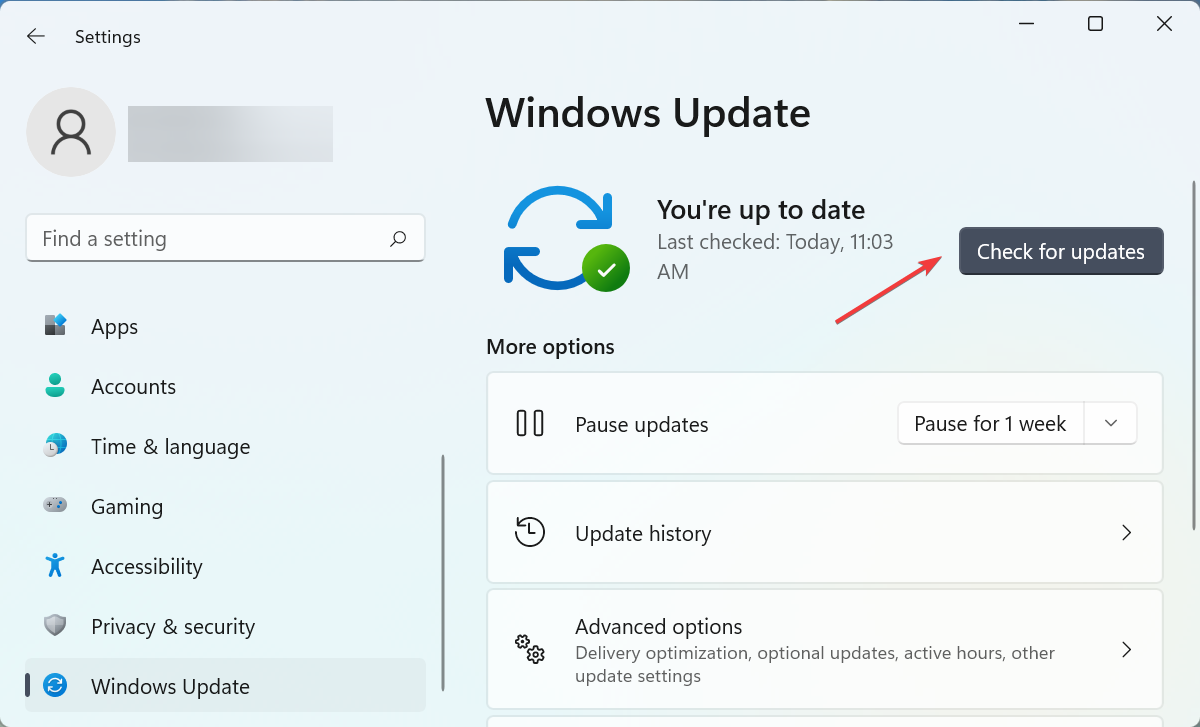
  1. Verify that you have the latest Windows update available. 
  2. Click on the search button on the bottom left part of your screen. Settings
  3. Type in settings and open the settings app. 
  4. Select Update and Security. Windows Update and security
  5. You should see the condition of your updates on this page.  Windows Update status
  6. If there are any updates happening, you can let them run or pause them. Make sure there aren’t any updates happening while you are updating your BIOS. 
  7. Also, make sure to save all your work and close any running programs. 
  8. Make sure that your Razer Book 13 is plugged into a direct power or an uninterruptable power source. 

2. BIOS update process

  1. Visit the official Razer Book support page and download the latest BIOS updater
  2. The download should start automatically. Razer BIOS updater link
  3. Once done, click on the BIOS updater by clicking on the program from your browser. Click on the Razer BIOS software
  4. You can also start the Updater from your download window. Windows download window
  5. Click yes to confirm the changes that will be happening to your computer.Windows App Confirmation  
  6. The updater will start by providing you with the Update information.
  7. Make sure your system is compatible with the Book 13 Updater or it will not proceed past this point. Razer updater
  8. If you are using a compatible system, Click on Update and let the process finish.  razer BIOS updater
  9. Your Razer Book 13 will restart a few times.
  10. Do not force a restart or shut down during this process as Razor Book will boot your computer automatically once the update process is complete. 

We’re you able to successfully carry out a successful Razer Book 13 BIOS update?

Note that it is important that you do not interrupt the process in any way because it might damage your computer.

This detailed guideline will also help you run a successful BIOS update on other Windows devices.

As always, feel free to add any other pointers in the comment section.

How to adjust brightness on HP Envy x360 [Few easy steps]

If you are constantly working on your laptop for a lengthy period, it is necessary to adjust the screen brightness to protect your eyes and also to save the battery lifespan due to maximum performance.

However, users have been reporting that they cannot adjust screen brightness on their HP Envy x360. Most users claim that their screen brightness is always on max after upgrading their windows version.

If you cannot modify the brightness at all, you can resort to the basic solution of restarting your PC. Though basic, it is more effective in solving most PC problems.

That apart, this article will provide troubleshooting fixes that have been effective for other users with a similar situation. It is advisable to follow the instructions in the fixes strictly.

How can I fix HP Envy X360 brightness not working?

1. Change the Graphics Properties

  1. Right-click on your desktop and select Graphics Properties.
  2. Select Advanced Mode and click on OK.
  3. Click Display from the left pane and select Color Enhancement. Proceed to adjust the Brightness using the slider till you are comfortable with it.
  4. Click Apply button below to save the brightness setting.

Adjusting the brightness from the Graphics properties menu can be helpful. Since this is controlled by the Graphics card driver, it may not work for some users with lesser versions.

2. Update the driver

  1. Start by right-clicking on the Start icon then click on Device Manager to open it.Device Manager
  2. Expand the Display adapters section then right-click on the GPU and lastly click on Update driver.update GPU driver
  3. Select Search automatically for updated driver software and wait for your OS to install the appropriate driver.
  4. Restart PC to take effect.

Most users have reported that their issues was related to their graphics card drivers. Hence, this solution will likely solve your screen brightness problem.

In case your driver couldn’t update automatically, we strongly recommend you download Outbyte Driver Updater for your driver updates. You can get the latest updates for all your drivers installed faster and it is also easier to use.

⇒ Get Outbyte Driver Updater

3. Enable Generic PnP Monitor

  1. Start by right-clicking on the Start icon then click on Device Manager to open it.Device Manager
  2. Expand the Monitors and right-click Generic PnP Monitors. Select Enable device.
  3. Restart PC to take effect.

The Monitor driver can get disabled during other driver updates and this will prevent you from adjusting screen brightness on the HP Envy x360. It should be fixed after being enabled.

4. Change Power Options settings

  1. Press Windows key + R and input powercfg.cpl. Click OK to launch.
  2. Choose Change plan settings and click change advanced power settings.
  3. Select Display and click the + sign to expand Display brightness. Adjust the screen brightness manually.
  4. Select Dimmed display brightness and set it to mirror step 3. Turn off Enable adaptive brightness.

For further reading on solutions that could fix your issue, take a look at our article on fixing Windows 10 brightness not working.

Alternatively, is brightness not working in Windows 11? Apply these fixes is another complete guide for windows 11 users to solve their screen brightness issues.

We’d like to hear your questions and suggestions on what works for you in this guide in the comment section below.

Fix: Windows Malicious Software Removal Tool Not Installing

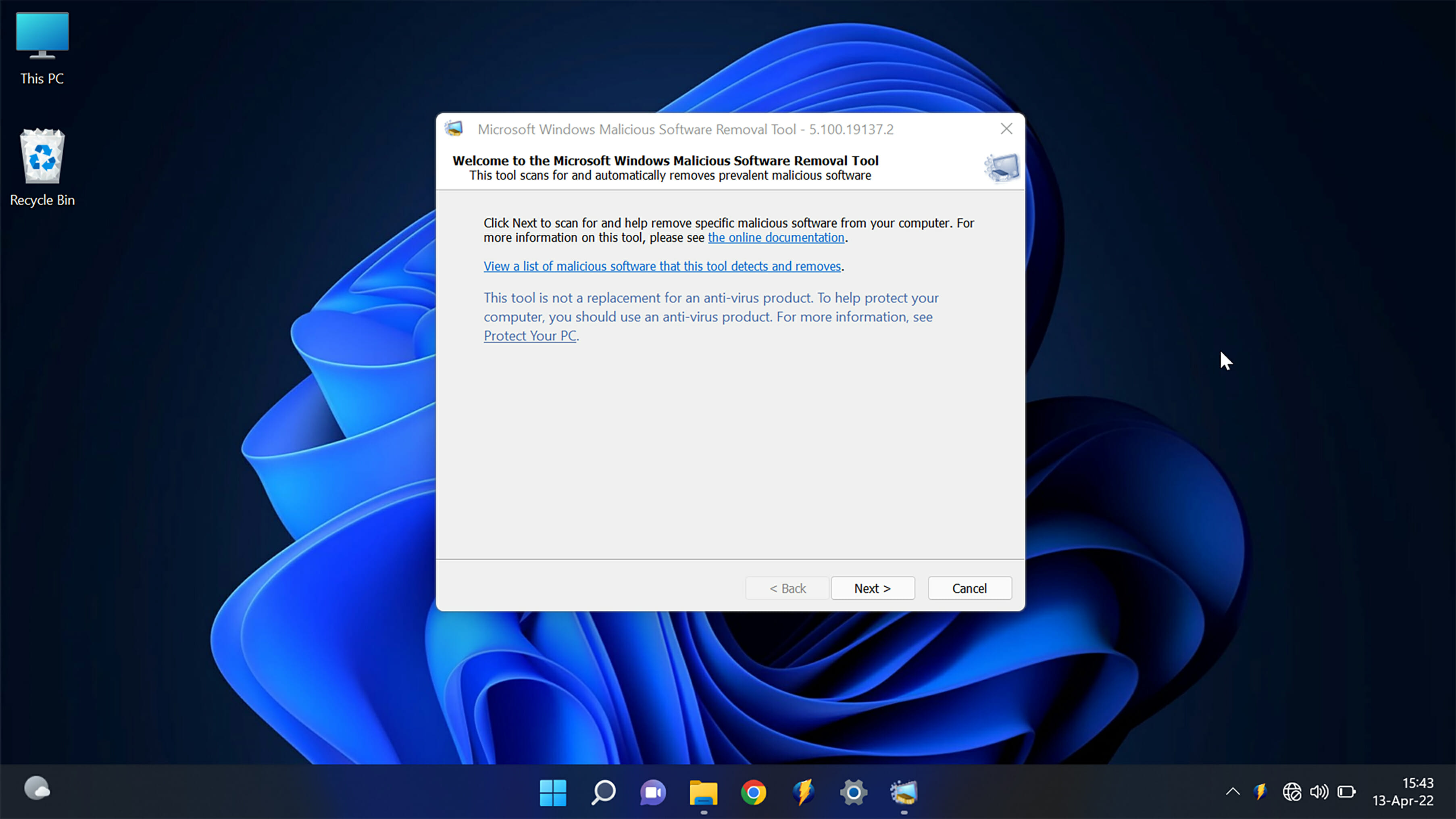
Microsoft Windows Malicious Software Removal Tool is a free security tool that protects your computer from viruses and other malicious software. However, there are times when it may not install correctly on your computer. In this article, we will discuss six ways to fix the problem.

Malware can be disruptive on your computer and if left unchecked, can cause irreparable damage. There are many anti-malware tools, but most are premium and may be out of reach for a regular user. This is where the Windows Malicious Software Removal Tool comes in. It may be free but is highly effective at dealing with all types of malware.

You can learn more about how it works and how to run scans in this detailed Windows Malicious Software Removal Tool guide.

However, it’s common to run into installation problems once in a while. If your Windows Malicious Software Removal Tool update takes forever then you’ve come to the right place. Read this to the end to know how to fix Microsoft Windows Malicious Software Removal Tool not installing.

What can I do if the Microsoft Windows Malicious Software Removal Tool is not installing?

1. Use the Safe Mode

  1. Restart your computer and press F8 before the Windows logo appears. 
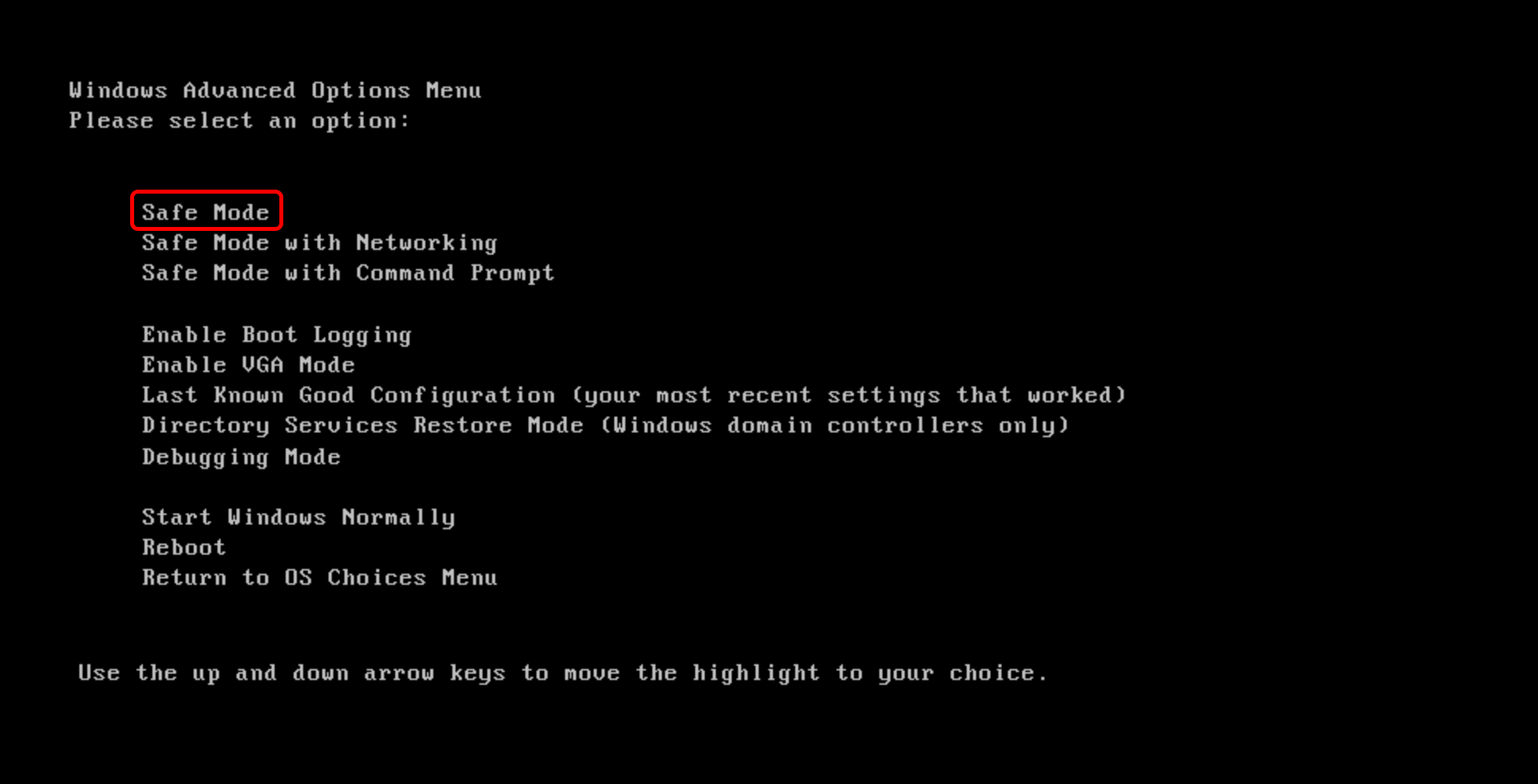
  2. From the menu that appears, select Safe Mode and press Enter.
    Safe Mode
     
  3. Once your computer is in Safe Mode, try installing the tool again.

2. Use the Uninstall troubleshooter

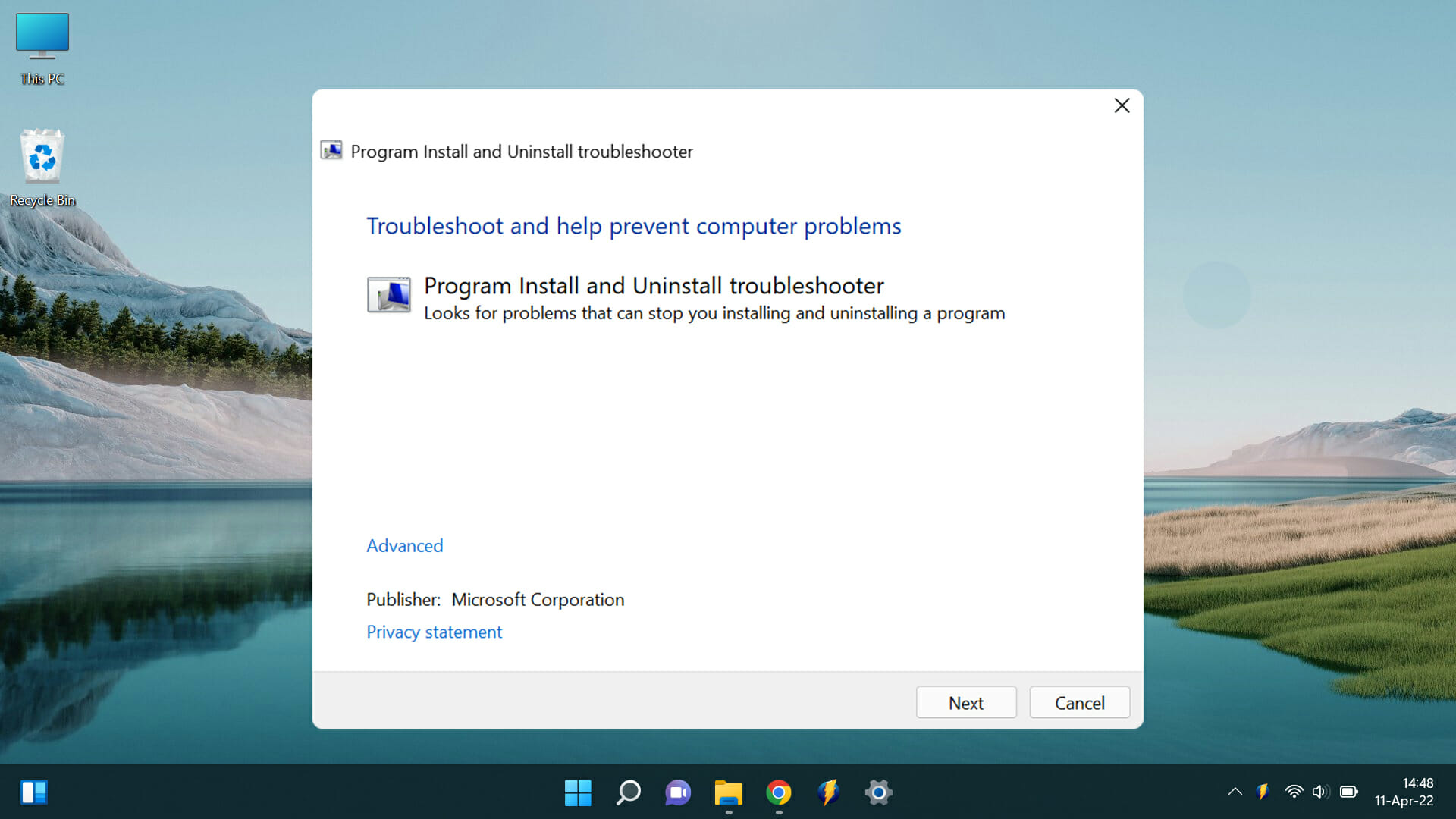
  1. Go to the Microsoft support page and download the Program Install & Uninstall troubleshooter.
  2. Install the troubleshooter.
    Install the Troubleshooter
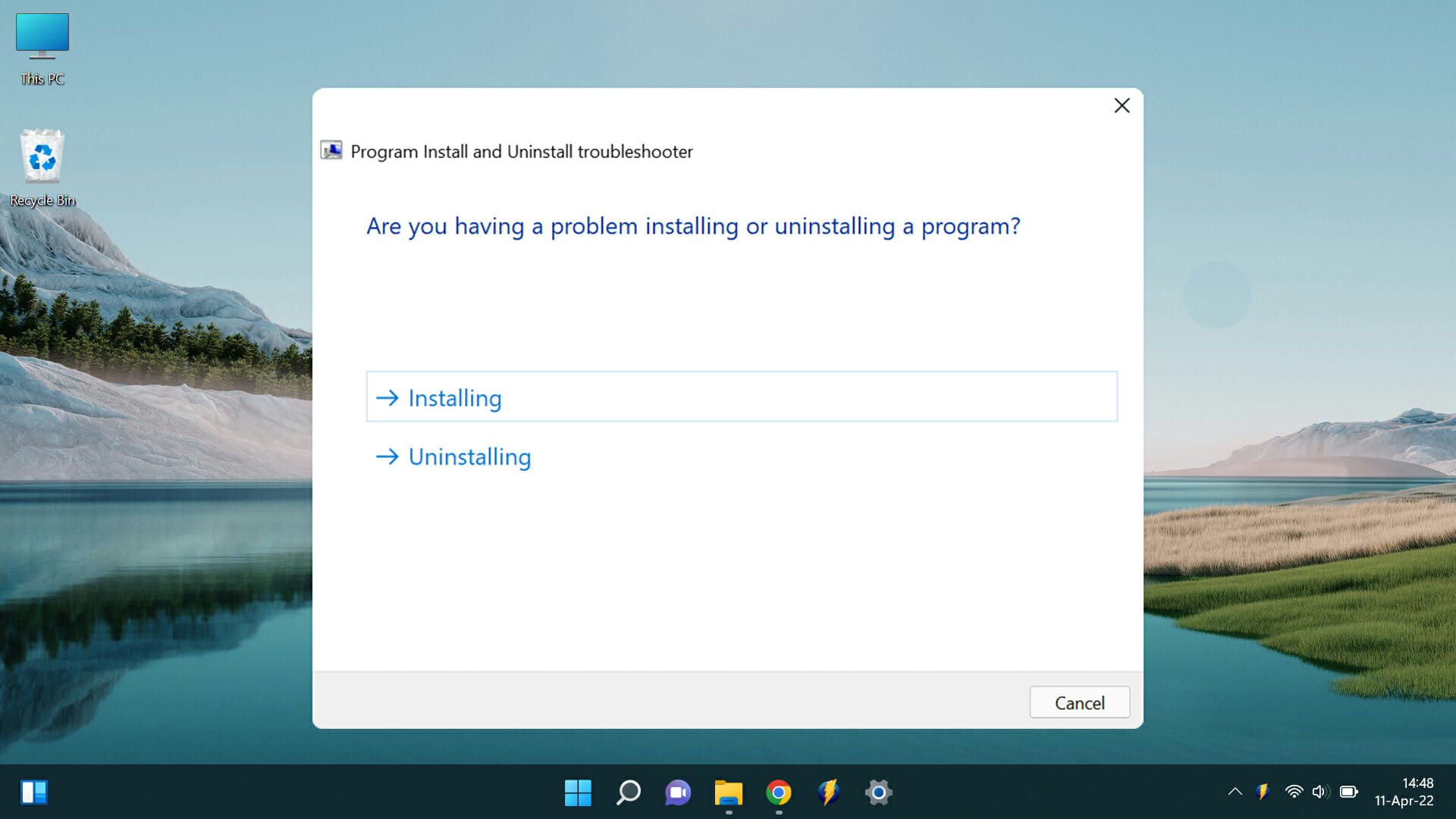
  3. This will bring up options where you have to choose the issue you’re dealing with. Select Installing.
    Dealing with Installation problems
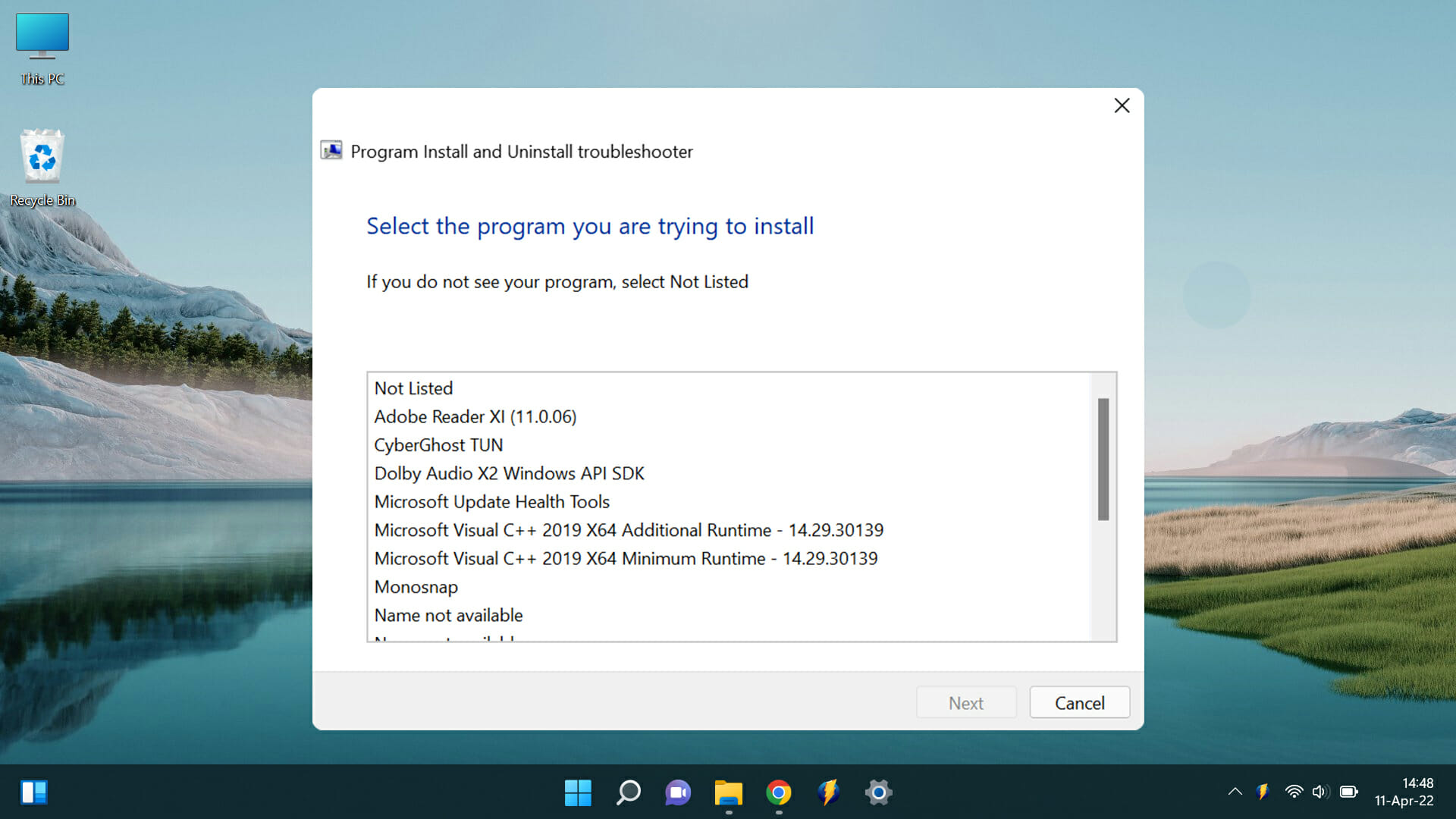
  4. This will open up a list of programs. Select the one you’re having problems with.
    Choose the Program Causing you issues
  5. You’ll be given an option to either uninstall it or try other fixes.
  6. You should now be able to install the Microsoft Windows Malicious Software Removal Tool without any issues.

3. Manually install the tool

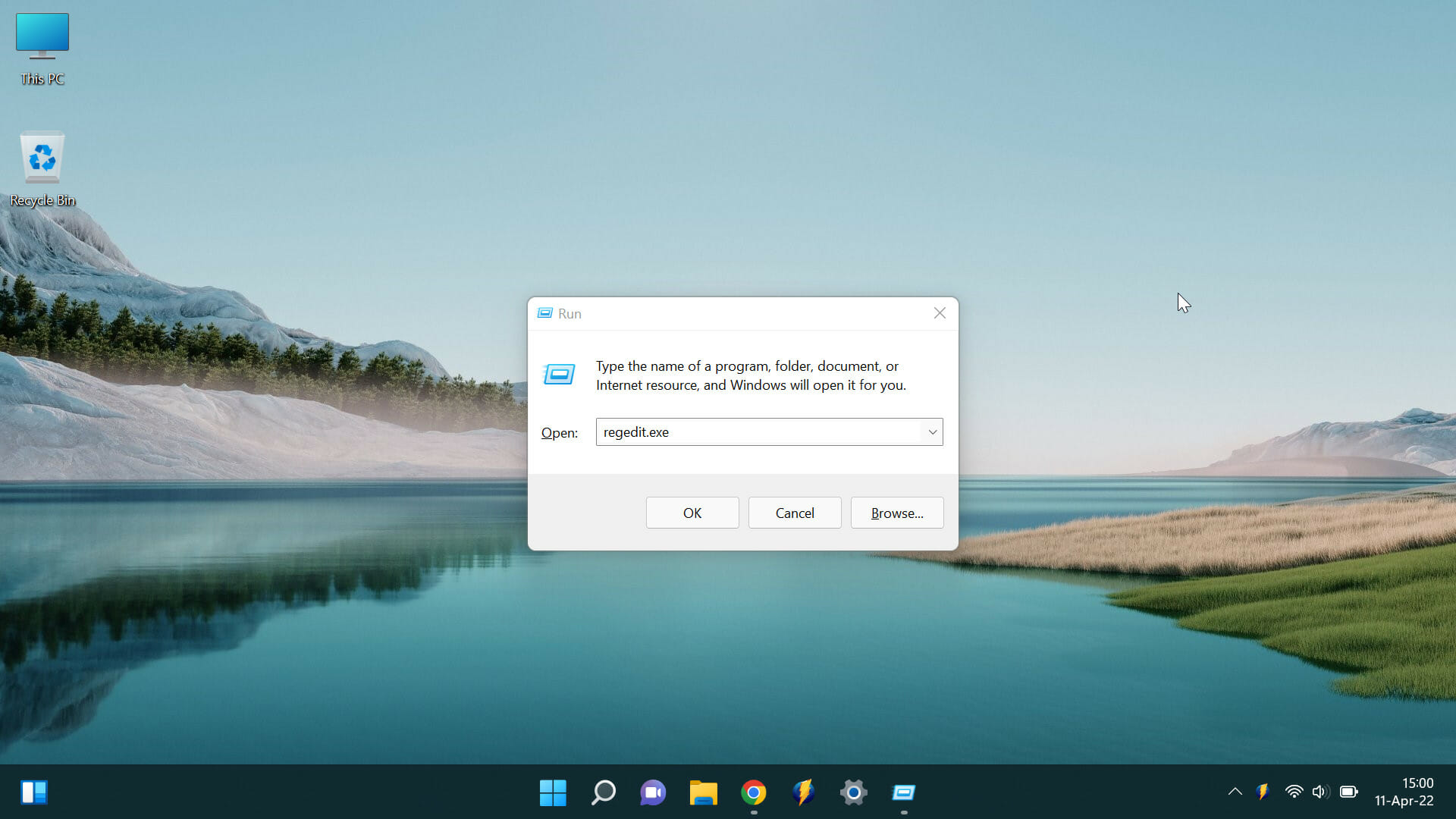
  1. Open the Registry Editor by pressing the Windows key and R at the same time. Type regedit.exe and hit Enter
    Open Regedit
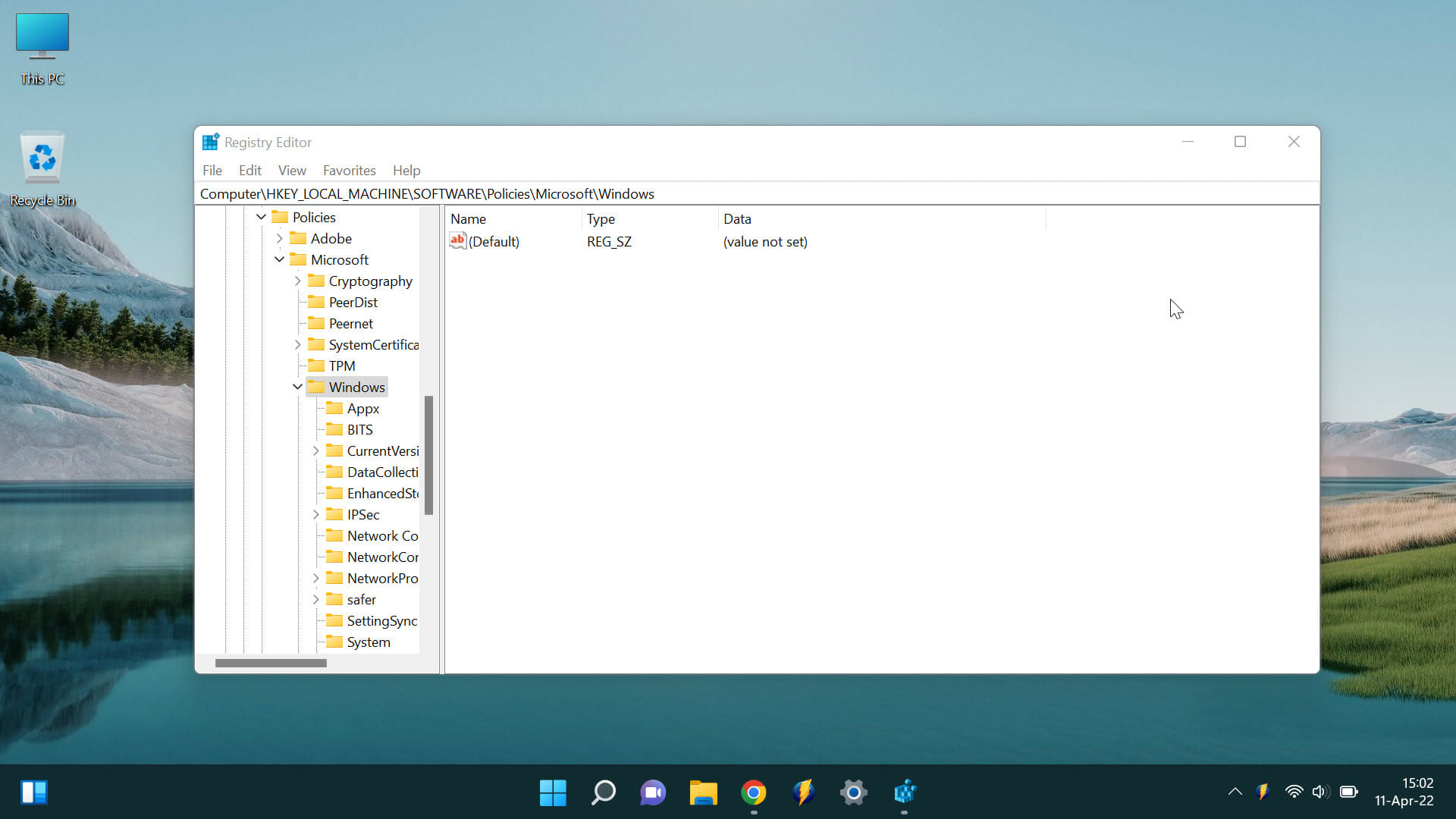
  2. Navigate to the following key: HKEY_LOCAL_MACHINE\SOFTWARE\Policies\Microsoft\Windows\Installer
    Navigate to Windows
  3. If this Installer key doesn’t exist, you’ll need to create it.
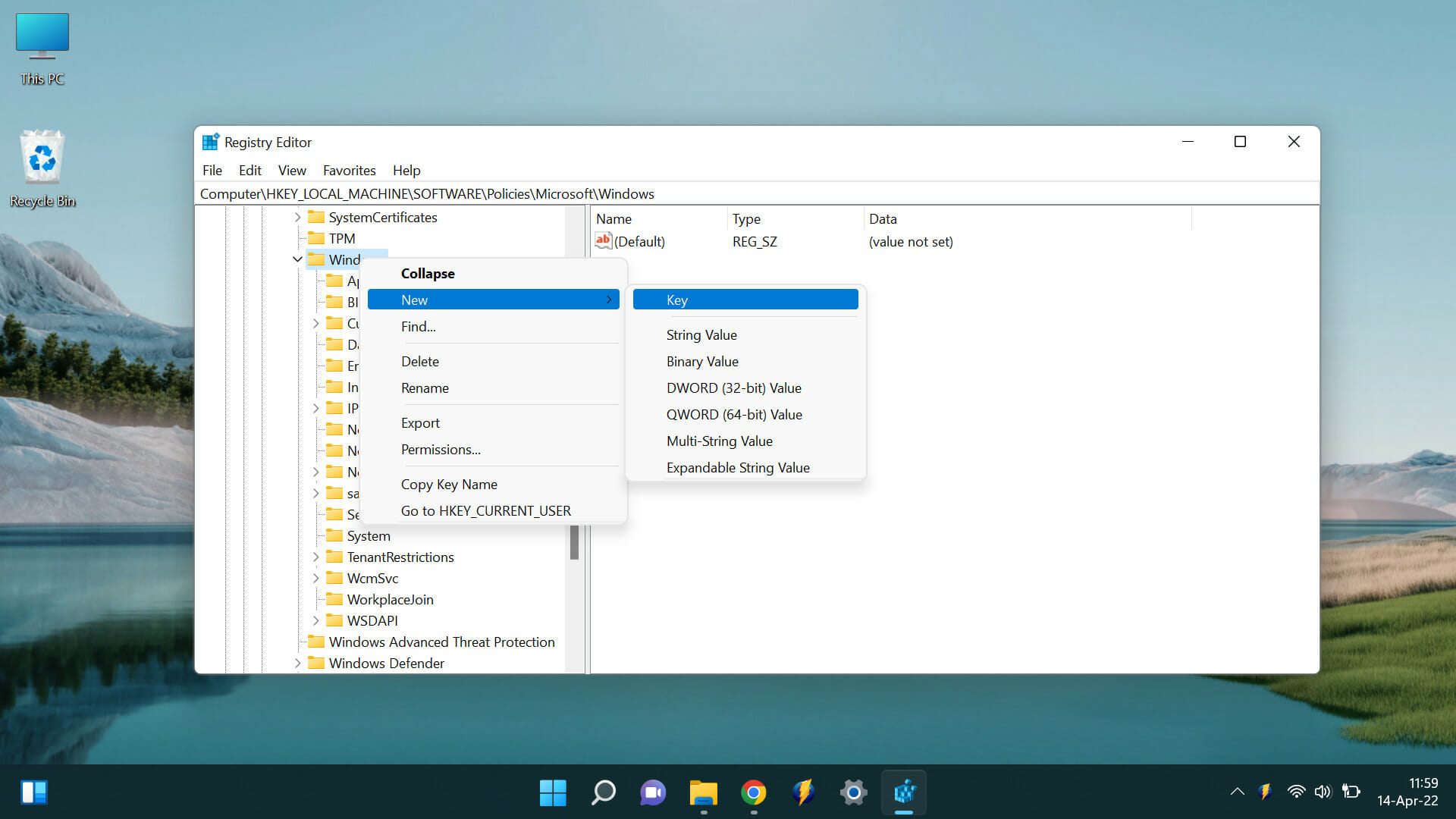
  4. To do this, right-click on the Windows key and select New then go to Key.
    Creating New Key
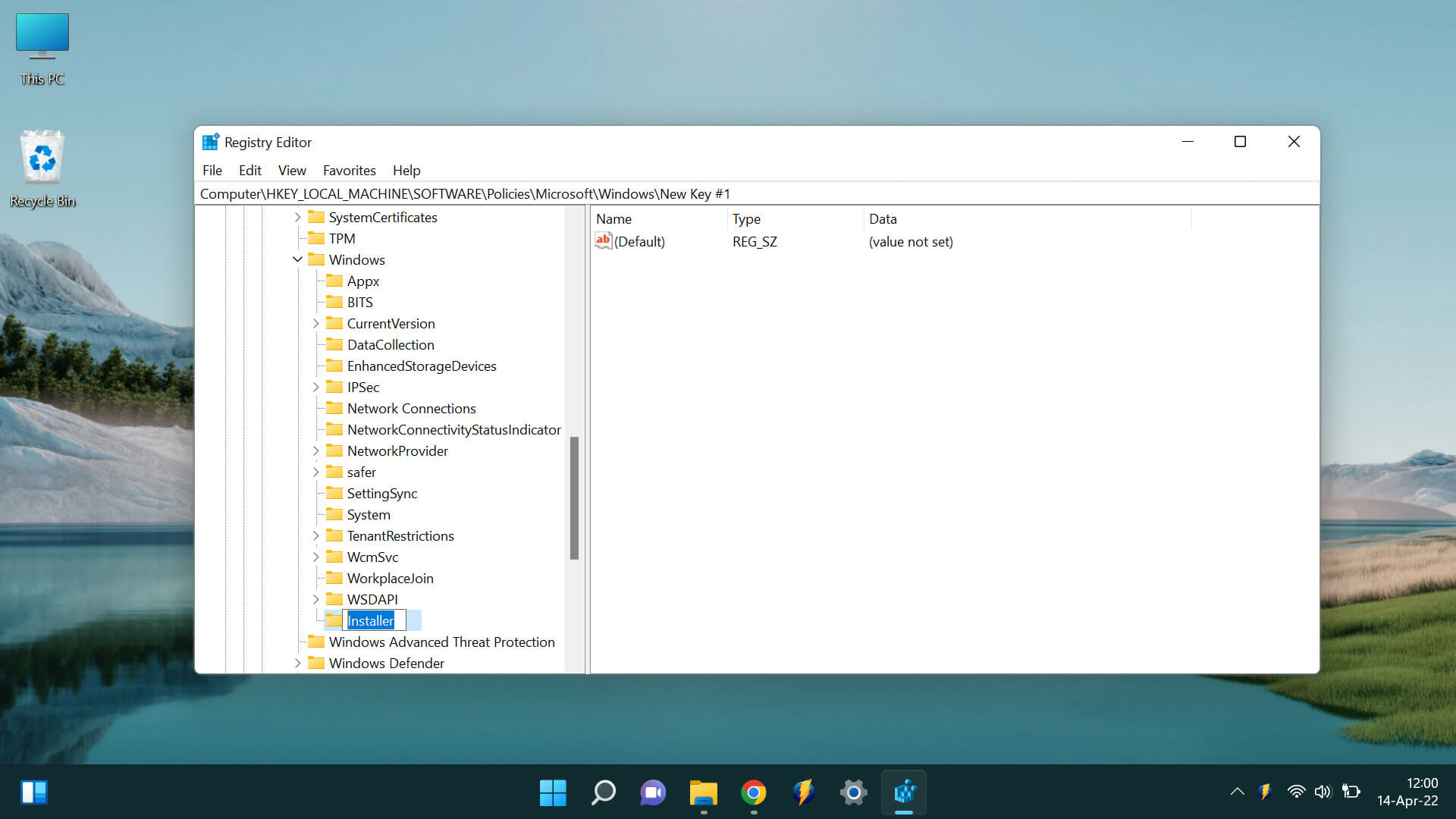
  5. Name the new key Installer and press Enter
    Rename new key as Installer
     
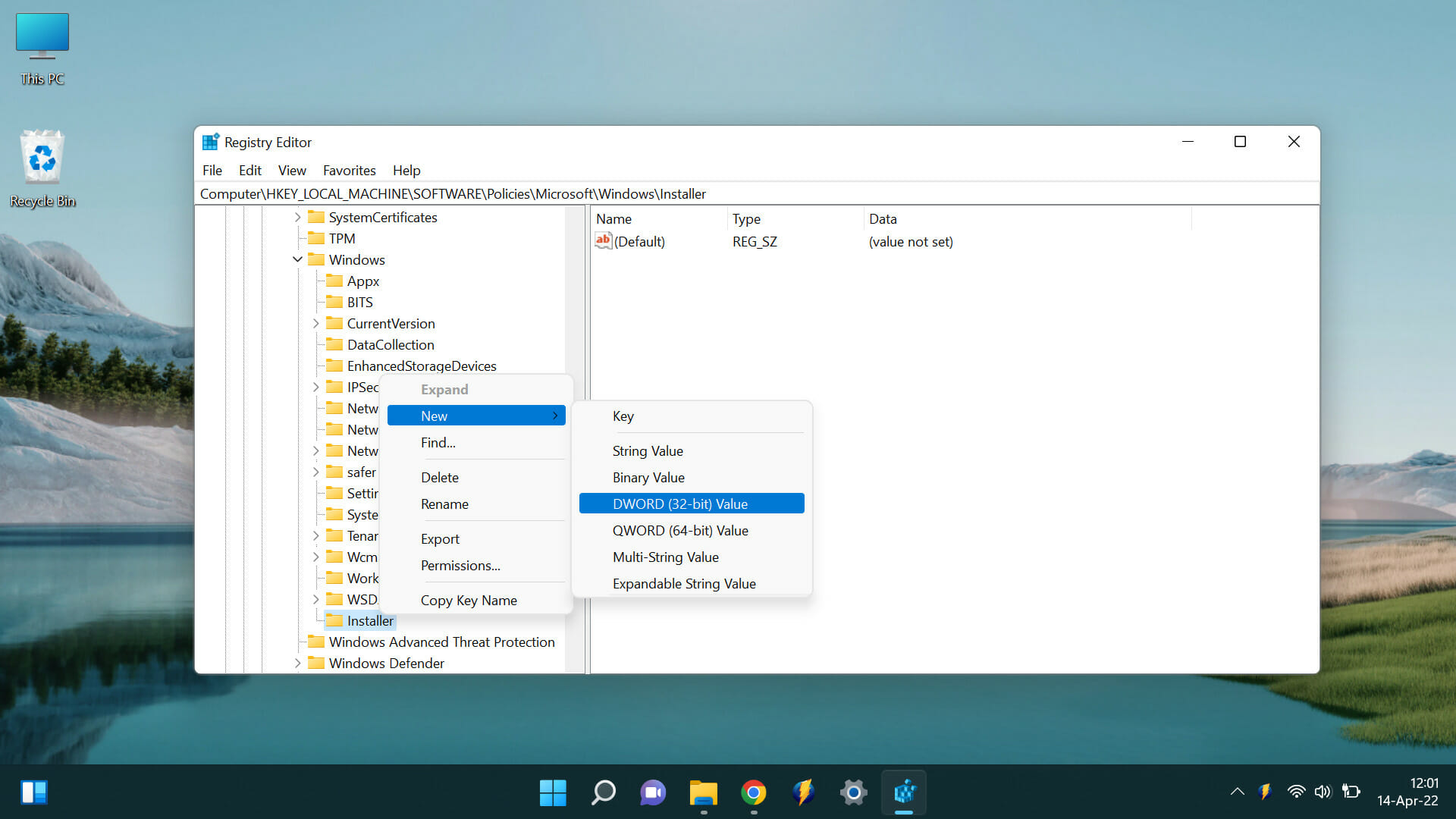
  6. Right-click on the Installer key and select New then scroll to DWORD (32-bit) Value and press Enter
    Create a new D-Word key
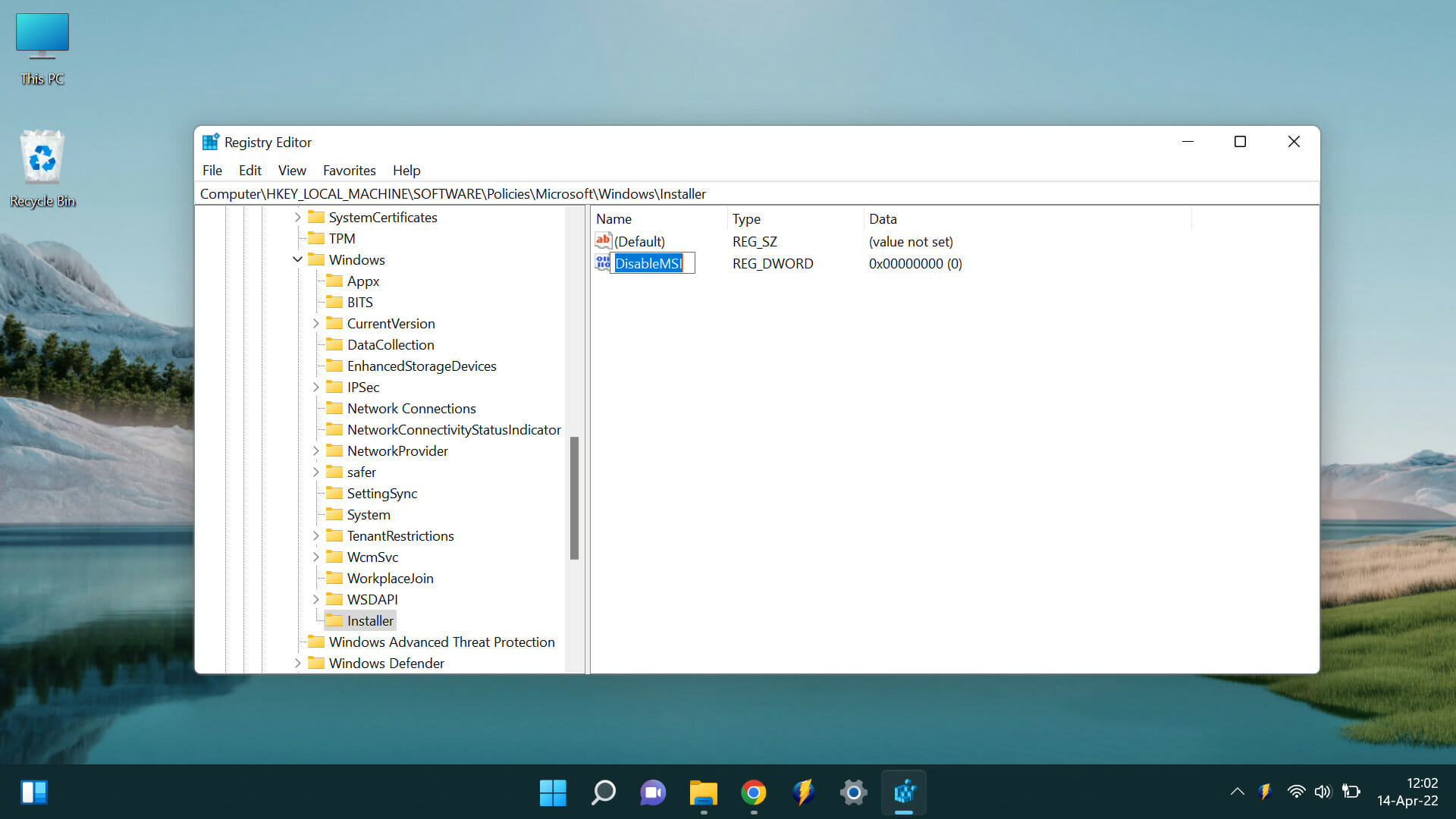
  7. Name the new value DisableMSI and press Enter
    Rename it DisableMSI
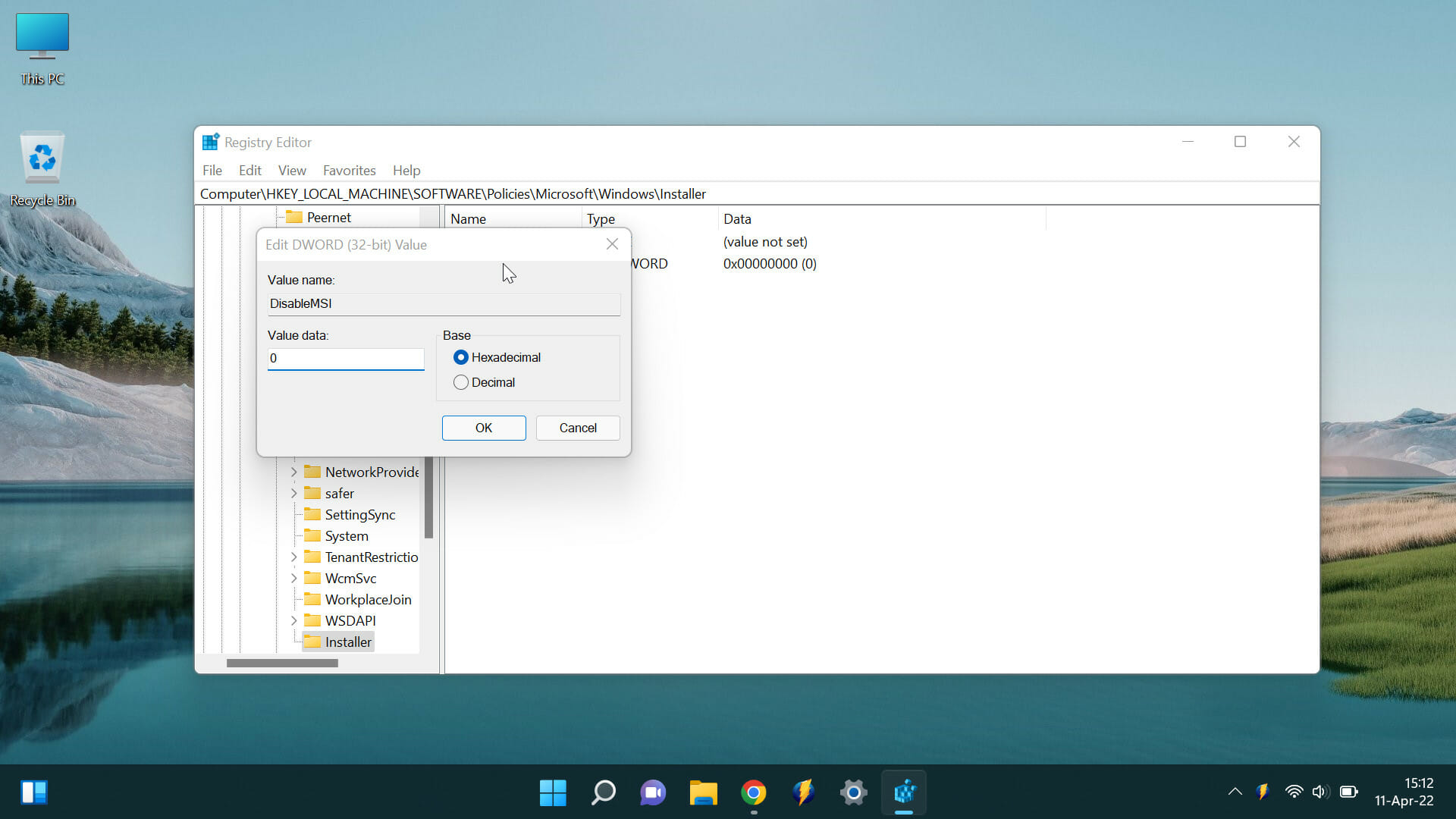
  8. Double-click on the DisableMSI value and set the Value data to 0.
    Change the values
     
  9. Close the Registry Editor and try installing the tool again.

4. Delete temporary files

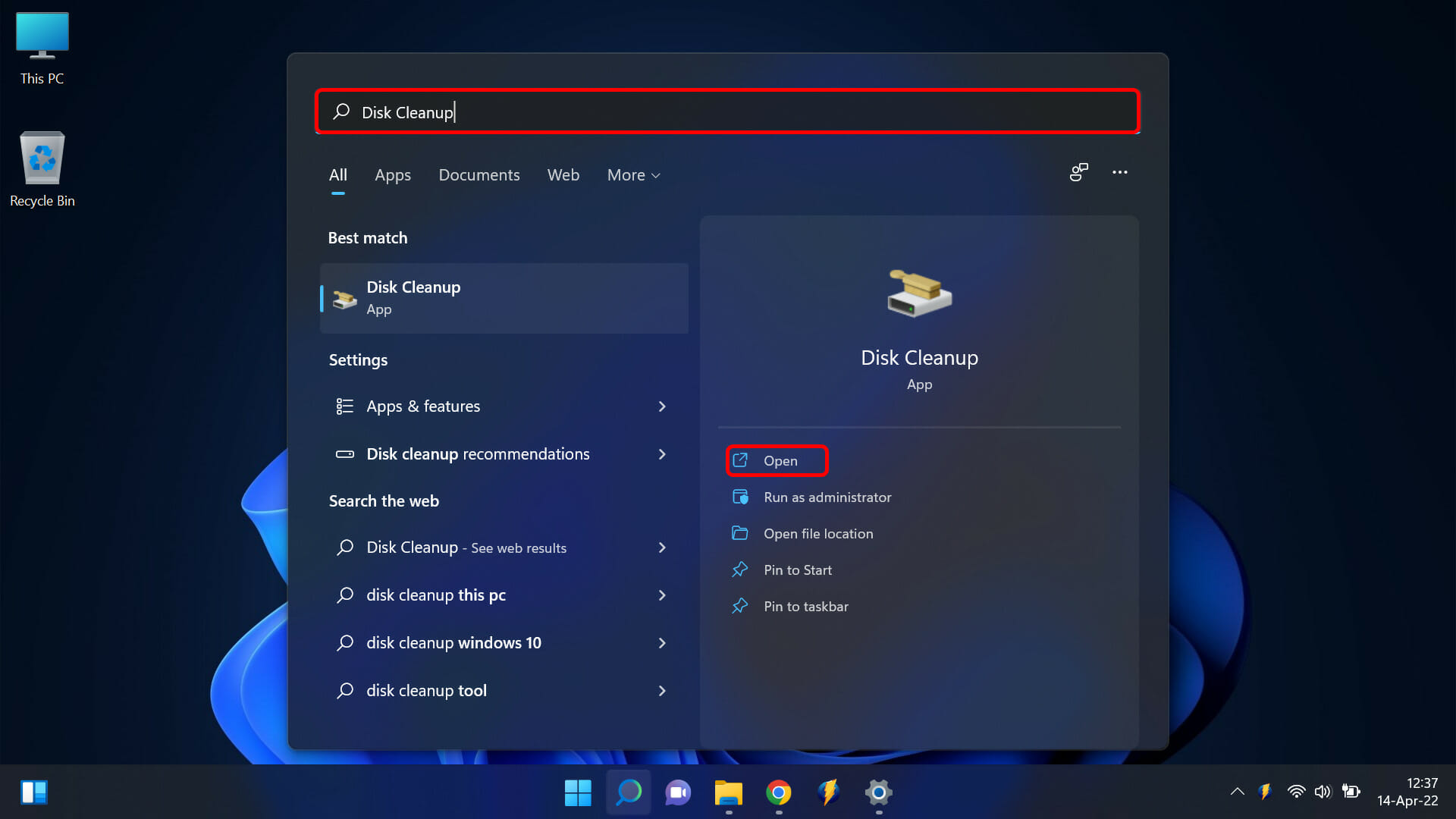
  1. Open the Search function and type in Disk Cleanup, and click Open.
    Open Disk Cleanup
  2. Select the drive you want to clean up. Make sure the Temporary files option is checked and select OK.
    Disk Cleanup
  3. This will delete all of the temporary files on your computer, which may resolve the issue.

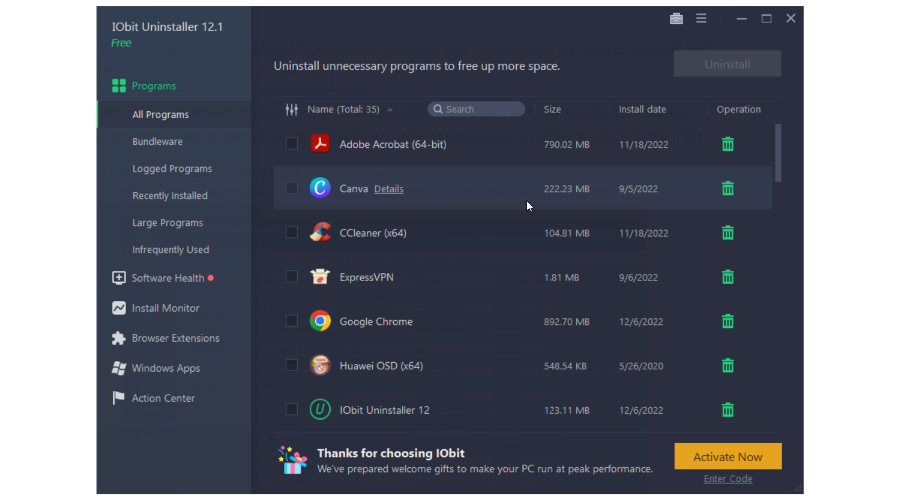
5. Use a third-party toolIObit Uninstaller 11 PRO

You can also save yourself time and the headache of handling things manually by using a third-party tool. These tools help you uninstall anything problematic with simple clicks. Of the many that exist, the one I’d highly recommend is the IObit Uninstaller.

It features complete uninstallations, in-depth cleaning, safe surfing, software health, and even monitors your installations to ensure everything runs smoothly. The price plans are cheap and you can also use a Free version just to test drive how it works.

6. Contact Microsoft Support

If the Windows malicious software removal tool update stuck problem continues after all this, you can contact Microsoft support for help. They’ll be able to help you troubleshoot the problem and get the tool appropriately installed on your computer.

These are six ways to fix the Windows Malicious Software Removal Tool not installing properly on your computer. Try each of these methods until you find one that works for you. You can check out our website for more quick fixes for all your Windows issues.

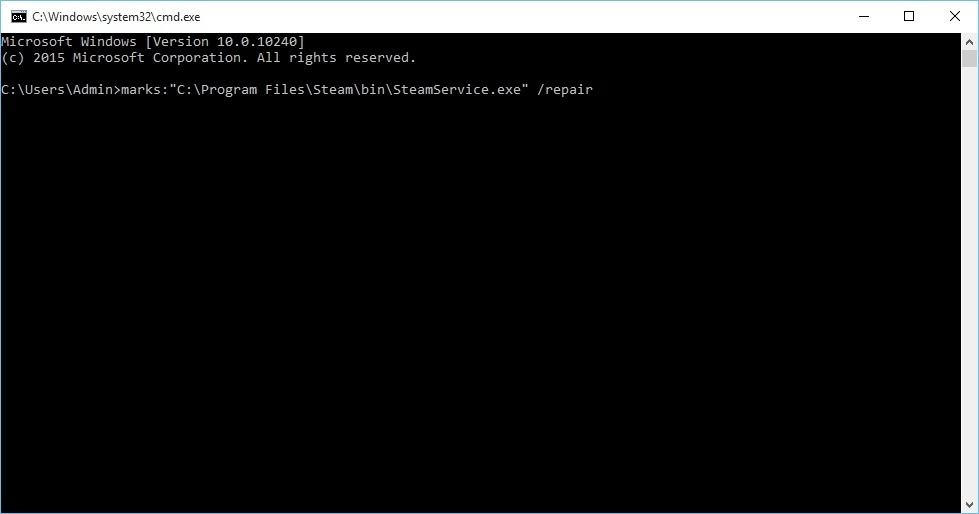
Launcher error code 15: The game was not launched via the Steam client

Launcher error code 15 has been reported by dozens of gamers. This error has been reported for almost all major games on the Steam Client.

This is not the only error that Steam users come across very often. If you are facing issues where the downloaded game does not show up in the library, you can check out this guide for solutions. Moreover, if games on Steam are lagging or running slow, then we have a guide that can help you fix the issue.

When this Launcher error code 15 occurs, it shows a message The game was not launched via the Steam client. Some gamers have reported that due to this Launcher error code 15, they are unable to play the game.

And for others, this error pops up after the game is launched, but it does not let them get into the match or play the game.

Imagine wanting to play your favorite game only to come across this Launcher error code 15. It could be pretty annoying not being able to play your favorite game. Sadly, there isn’t any specific reason for this issue, and it can surface for several reasons.

Thankfully, we have prepared this guide for you that lists down all the possible reasons along with the method to resolve them.

What are the reasons for Launcher error code 15 on Steam Client?

The Steam Client on PC is known to throw up different errors. One of the most common and irritating errors gamers have reported is the Steam error code 105. This prevents gamers from connecting to the game server and playing the game or downloading in-game content.

Luckily, we have a guide that contains some expert solutions that would surely help you fix the problem of Steam error code 105.

Coming to the problem at hand, as mentioned there isn’t any specific reason why this Launcher error code 15 shows up.

Although there isn’t any specific reason, there are a few common reasons that are responsible for causing this error.

  • Server outages.
  • Windows Firewall or antivirus conflict.
  • Unstable internet connection.
  • Corrupt game files.
  • VPN might be interfering with the Steam client.
  • Corrupt cache files.
  • Presence of virus or malware.
  • The game doesn’t have the necessary permissions to run.
  • Outdated drivers.
  • The steam client is out of date.
  • Presence of cheating software.

To be specific, this launcher error code 15 on the Steam client has the majority of affected users who are trying to play the GTA V game.

Be it GTA V or Battlefield 2042, this issue has been troubling users, and below we have a curated list of solutions that will possibly help you fix the issue.

How can I fix the GTA V launcher not opening, or Launcher error code 15 on Steam?

1. Check the server status

There are chances that the error may not be from your side but from the game’s side. Several users have reported that because of a server outage, the game failed to load and the Steam client showed Launcher error code 15 with a message The game was not launched via the Steam client.

So, before you go ahead and look for a solution at your end, you should check if the game server is functioning fine or facing an outage.

To find out about server issues, we would advise you to check the game’s official website, game forum, the game’s official Twitter account, and other social media handles, as such server outages are informed to the people via these channels.

2. Check Firewall settings

  1. Open the Start menu.
  2. Search for Windows Defender Firewall.
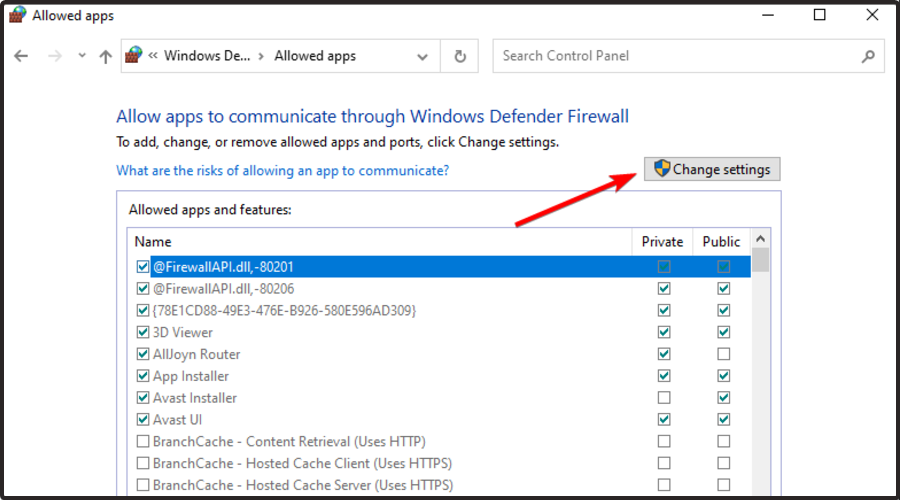
  3. On the left side, click on Allow an app or feature through Windows Defender Firewall.allow app firewall
  4. Click on the Change settings button.
  5. Select your game and tick both the checkboxes.
  6. Click on OK.
  7. If you cannot find your game, then click on Allow another app option. Navigate to the directory where the game is installed and select the game and again click on both the checkboxes.
  8. Restart your PC and see if this fixes the issue or not.

Following the above steps, you are basically allowing the game through the firewall. In order to protect your data, the firewall on your PC may restrict the game from connecting to the internet, which could be the reason you are experiencing Launcher error code 15 The game was not launched via the Steam client.

3. Check your internet connection

An unstable internet connection is also one of the reasons you can come across the Launcher error code 15 with the error message The game was not launched via the Steam client.

Not only this, you will come across several other problems if your internet connection is unstable. In such a scenario, we would suggest you test your internet connection and see if it is providing a stable and fast data connection as per your data plan.

You can make use of websites such as Fast.com or Speedtest in order to check the internet speed. If you are experiencing any issues with your internet, then we would advise you to contact your ISP to resolve the problem.

4. Check integrity of game files

  1. Open the Steam client.
  2. From the main menu, click on LIBRARY section.
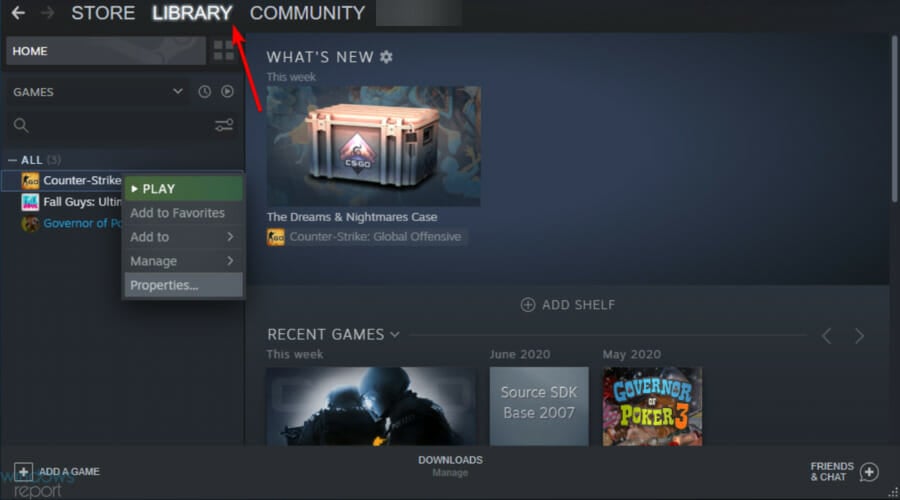
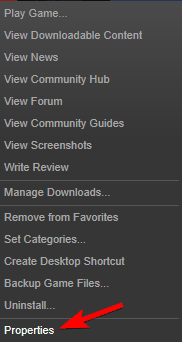
  3. Right-click on the faulty game and select Properties.
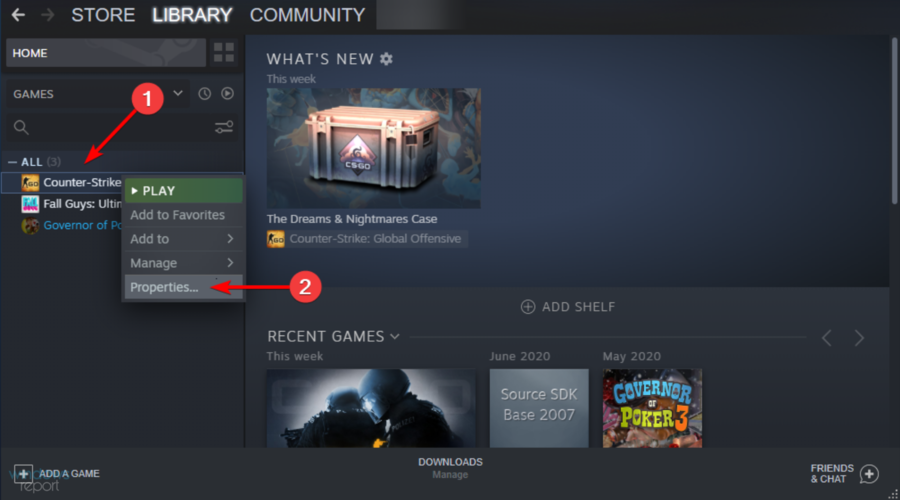
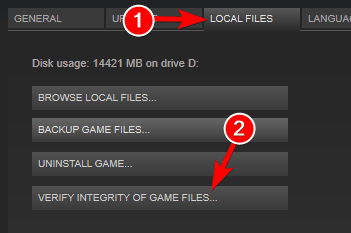
  4. Select LOCAL FILES.
  5. Click on Verify the integrity of game files.verify integrity of game files z1 battle royal steam
  6. The process will begin.
  7. Once the process completes, try relaunching the game and see if this fixes the issue or not.

If your PC has missing game files, then it will cause issues with the Steam client and ultimately show you multiple errors.

In such a case, we would suggest you follow the above steps and verify the integrity of the game files to fix missing or corrupt game files and see if this fixes the issue or not.

5. Update drivers

  1. Open the Start menu.
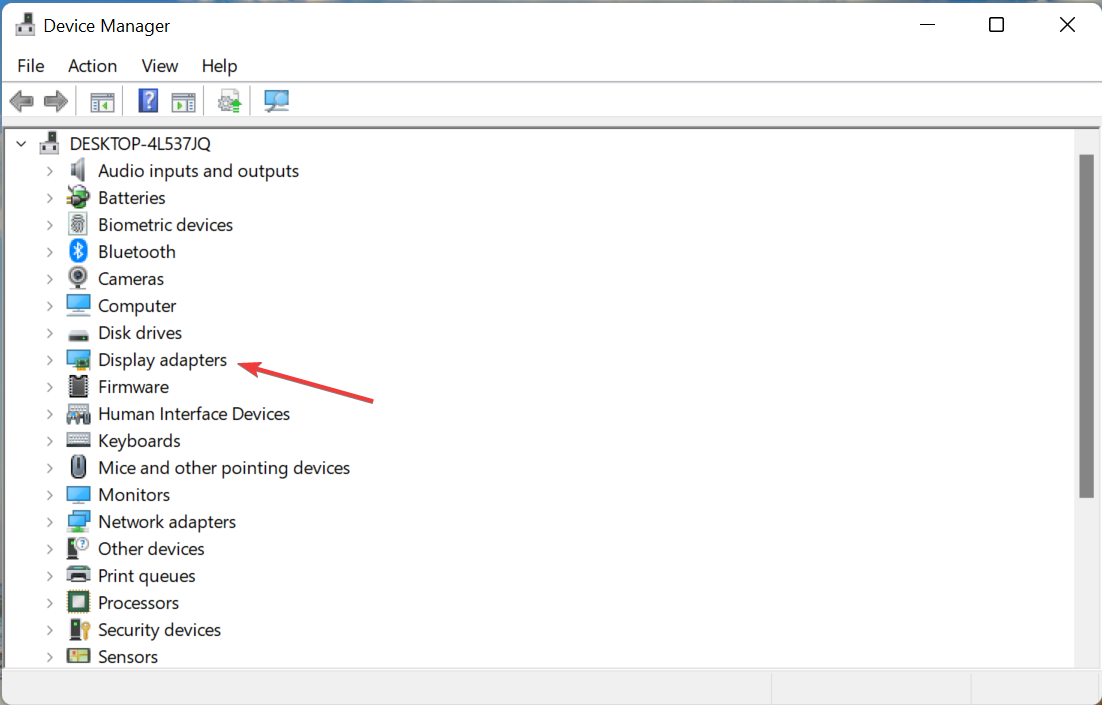
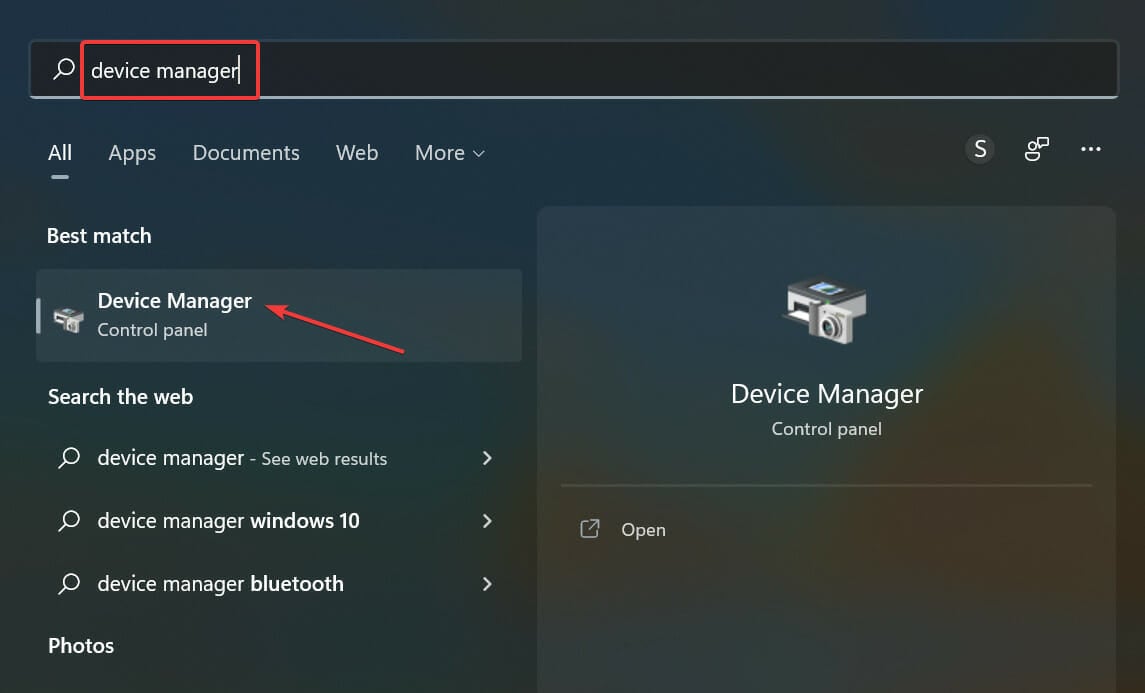
  2. Search for Device Manager.open device manager
  3. Expand the Display adapters section.Display adapters to fix nvidia driver keeps crashing windows 11
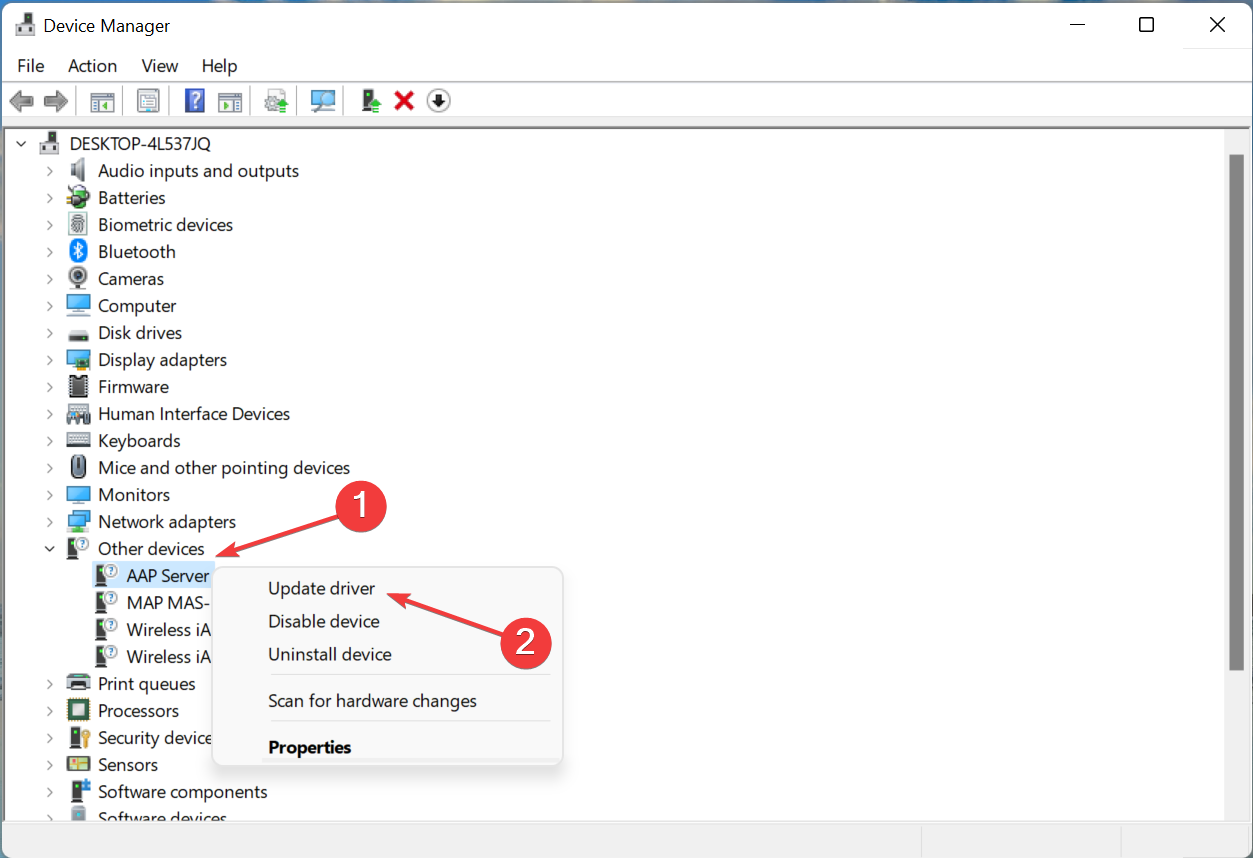
  4. Right-click on your GPU and select Update driver.
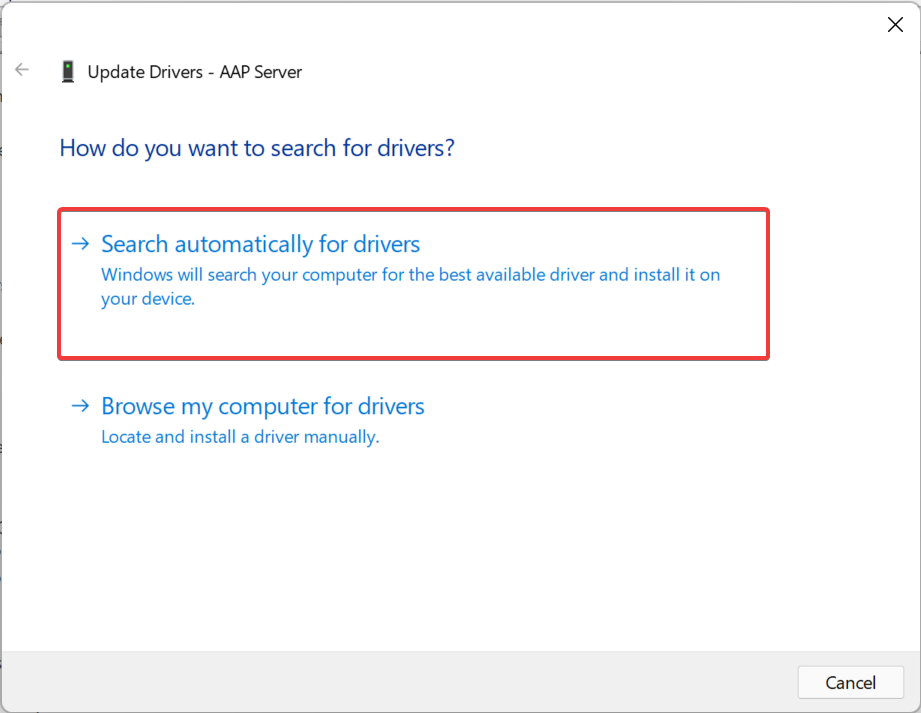
  5. Select Search automatically for drivers.
  6. Your system will look for new updates for GPU drivers and will prompt you to install if the new one is available.
  7. Repeat the same steps for audio, DirectX, and other drivers.

If the drivers for GPU, audio, etc. aren’t up to date on your PC, then not only you will come across this error, but you will also experience other errors with game and overall system performance.

To resolve this, it is advised to keep all the drivers on your PC up to date. Steam doesn’t work efficiently if the required drivers are corrupt, missing, or outdated.

While you can follow the above steps to manually update the drivers, there is a much quicker way to do it.

Notably, you can make use of the reliable driver updating tool known as Outbyte Driver Updater. It’s lightweight and lets you perform a full system scan automatically on startup, find any outdated, damaged, or missing drivers, and update them with just a simple click.

All you have to do is select the drivers you’re interested in updating, and Outbyte Driver Updater will take care of the rest automatically.

⇒ Get Outbyte Driver Updater

6. Disable the VPN

If you are making use of VPN tools, Steam will not work perfectly. This is not true for every VPN service, but for some. The issue arises only for free VPNs because they use public IP addresses.

In such a case, we would suggest you either disable your free VPN service or if you want to use one, you can use a premium VPN or a free VPNs which we have suggested in this guide.

7. Clear temporary folder

  1. Press the Win + R keys to open the Run dialogue.
  2. Type the below command and press Enter. %temp%
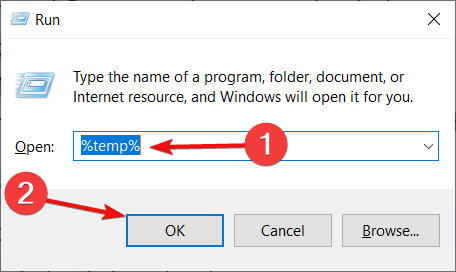
  3. Select Ctrl + A to select all files and press the Del button on your keyboard.

The presence of corrupt cache files not only causes issues with the Steam client but also with the overall performance of your PC.

It is advised that you clear the temporary folder periodically in order to clear out the junk files, create more free space, and delete all the corrupt cache files.

8. Scan for viruses or malware

  1. Click on the upward arrow located on the bottom right taskbar.
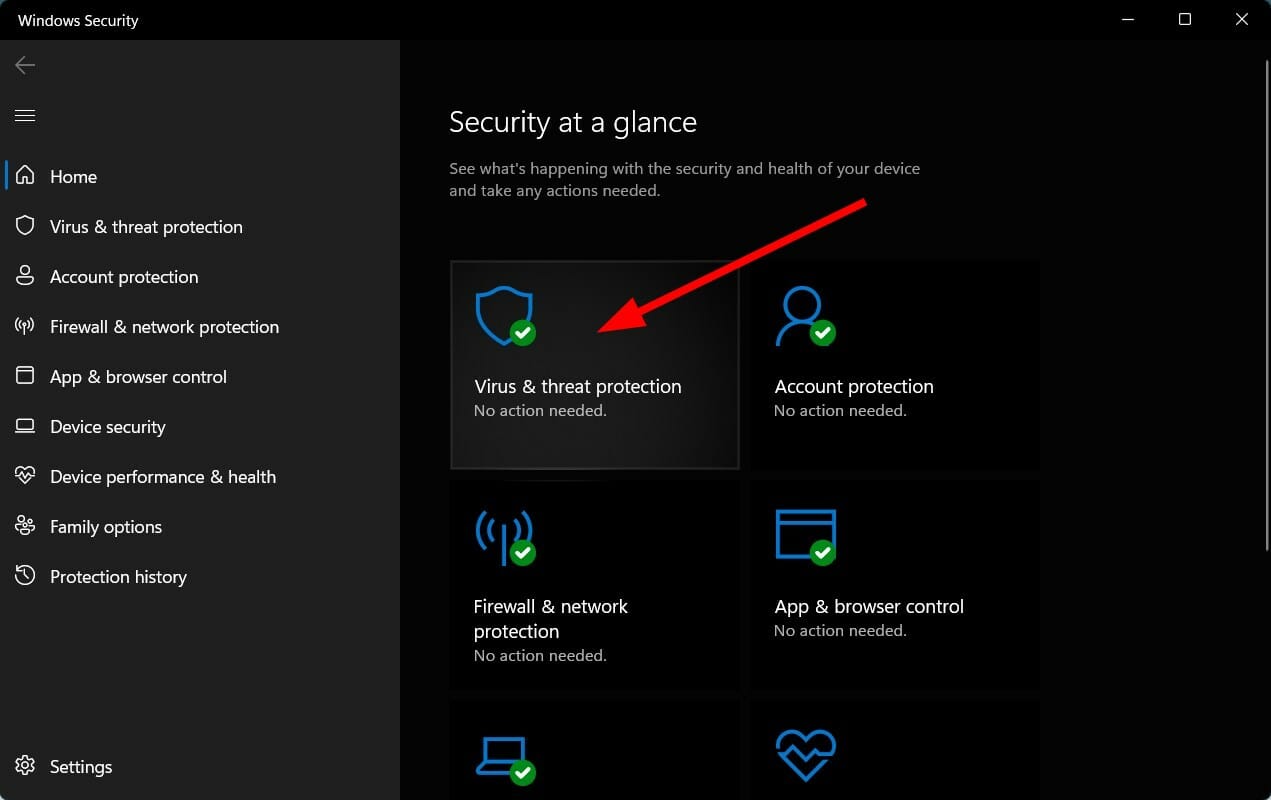
  2. Click on Windows Security.
  3. Select Virus & threat protection.virus and threat protection steam error e502 l3
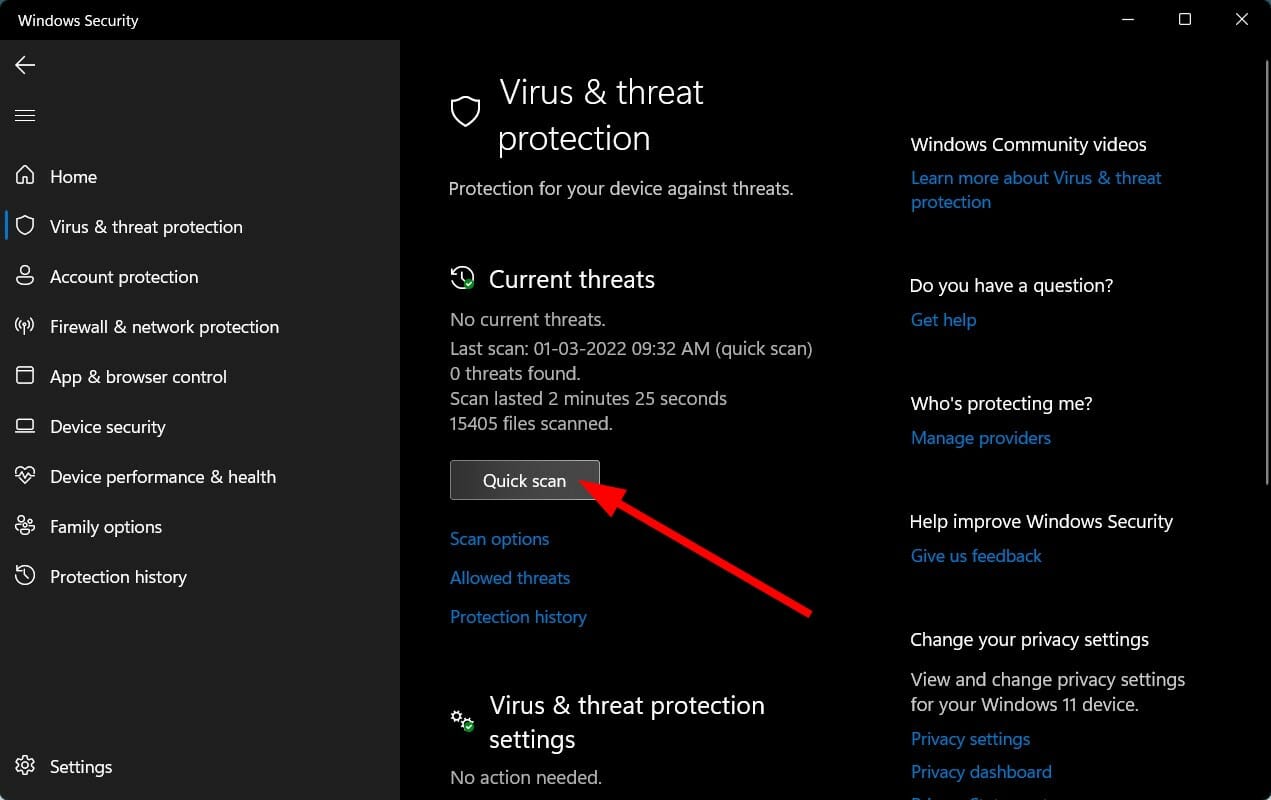
  4. Select Quick Scan to let Windows Security scan your PC for viruses and malware.quick scan
  5. Alternatively, you can also click on the Scan options button, and opt for a Full scan to deeply scan your PC for viruses or malware.

Here, to give you an example, we used Windows Defender to scan our PC for viruses or malware. But you can use any third-party antivirus software to do that.

We would recommend you install and use the TotalAV antivirus tool. It comes with an intuitive UI and features such as antispyware, ransomware shield, banking and payment protection, firewall, network inspector, etc.

9. Run as administrator

  1. Open the Steam client.
  2. Head to the Library.
  3. Right-click on your game and choose Properties.
  4. Click on Manage > Browse Local Files.
  5. Search for the EXE file inside the installation folder.
  6. Right-click on the game’s EXE file and select Properties.
  7. Switch to the Compatibility tab.
  8. Select Run this program as an administrator.run this program as an administrator steam not working
  9. Click Apply and check if this fixes the issue or not.

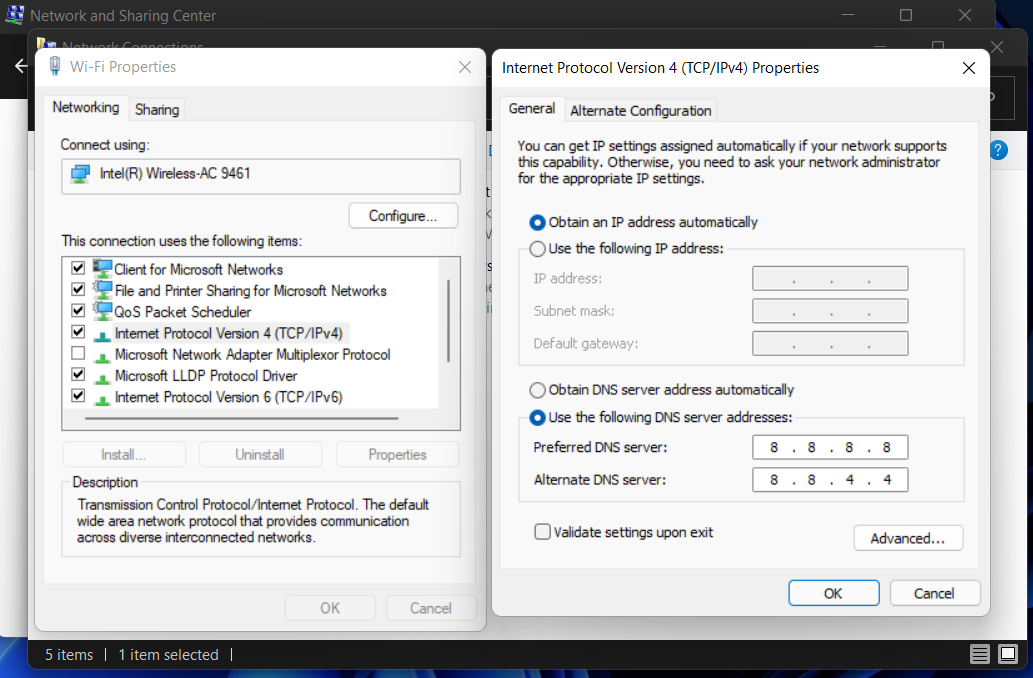
10. Change DNS servers

  1. Open the Run dialogue by pressing Win + R keys.
  2. Type the below command and press Enter. ncpa.cpl
  3. Right-click on your network connection and select Properties.
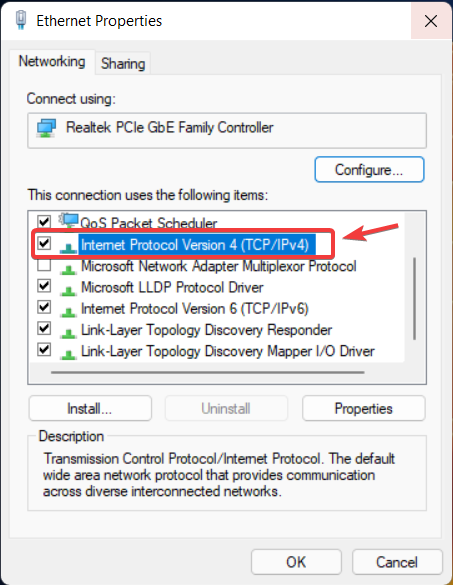
  4. Select Internet Protocol Version 4 (TCP/IPv4) then click on Properties.internet protocol version 4
  5. Choose the Use the following DNS server addresses option.
  6. Enter the below values:
    • Preferred DNS server: 8.8.8.8
    • Alternate DNS server: 8.8.4.4
  7. Click OK.
  8. Restart your PC and check if this fixes the error code 15 with the Steam client or not.

In the above method, we used the free, public, and secure DNS servers provided by Google Public DNS. Alternatively, you can try out Cloudflare or OpenDNS.

What else can I do to fix the Launcher error code 15 on the Steam Client?

If none of the above methods helps you fix the problem, then there are a few other methods that you can try and possibly fix the Launcher error code 15 The game was not launched via the Steam Client.

➡ Update the Steam client

  1. Open the Steam Client.
  2. Click on the Steam button on the top menu bar.
  3. Select the Check for Steam Client Updates option.
  4. Steam will automatically look for a new update and if available, will download it.

Often, due to a faulty internet connection, the Steam Client fails to download and install the latest available update. And if the latest update is not installed, you won’t be able to enjoy all the latest features and the bug fixes it brings.

So, you can follow the above steps and check if you have the latest version of the Steam Client installed on your PC to avoid different problems.

➡ Delete cheating software

Many users make use of trainers and other cheat engines that help them play the game with ease. While this software makes the gameplay easy, it can conflict with the Steam Client and will show you multiple errors, one of which is the Launcher error code 15.

We would suggest you delete any cheating software or mod and check if it fixes the issue or not.

The above-listed methods are some of the effective ones that have helped users fix the Steam Client launcher error code 15.

Let us know in the comments below which one of the above methods helps you fix the Launcher error code 15 The game was not launched via the Steam Client.

Windows news recap: Windows 10 21H2 available for everyone, Lenovo UEFI flaw found, and more

Welcome back to our Windows news recap, where we go over the top stories of the past week in the world of Microsoft’s flagship operating system.

Microsoft Teams will be making a comeback to the Microsoft Store

According to the Microsoft 365 Roadmap, the company is working on bringing Microsoft Teams back to the Microsoft Store, 4 years after the last time it was in the Store via Windows 10 S, which was later pulled. This should make it quicker for people to download Microsoft Teams on Windows, whilst also easing the process of keeping it up to date.

Microsoft Teams will be making a comeback to the Microsoft Store - OnMSFT.com - April 21, 2022

Researchers find Lenovo UEFI flaw that affects millions

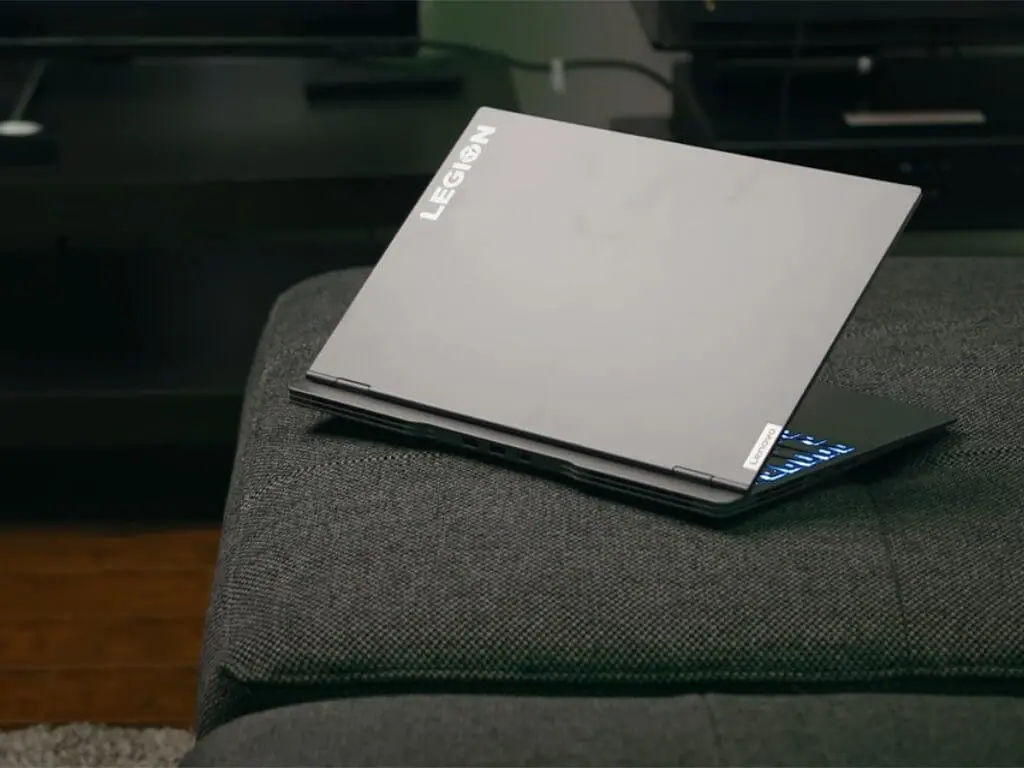
Three high-impact Unified Extensible Firmware Interface (UEFI) security vulnerabilities have been identified by researchers, present in Lenovo devices. Two of the vulnerabilities, CVE-2021-3971, and CVE-2021-3972, were meant to be used during the manufacturing process, but these were accidentally left in in a non-deactivated state. Lenovo has now released patches for the flaws.

Lenovo-Legion-Slim-couch

Microsoft says Windows 10 version 21H2 is now available for everyone

Whilst Windows 10 doesn’t get as much focus now that Windows 11 is available, Microsoft has announced that Windows 10 21H2 is now available for everyone, which was first released back in November 2021.

Windows 10 Spotlight Lead Cropped

That’s it for this week. We will be back next week with more Windows news.

Watch Microsoft tear down and highlight the repairability of Surface Laptop Studio in this video

In a video published to the Microsoft Surface YouTube channel, Microsoft is showcasing the repairability of the Surface Laptop Studio. The 14-minute long high-level demonstration takes you through a full teardown of the device and highlights some of the components that can be replaced with minimum tools.

Of course, Microsoft does warn that you seek professional assistance for device repairs, and seek caution when doing any of this on your own, but the video is pretty interesting for do-it-yourself fixers with experience. The tools needed include a spudger, tweezers, and Torx plus screwdrivers with a 3IP and a 6IP tip. An anti-static wrist strap is even recommended, to avoid frying internal components. Microsoft also mentions that guides are available in service guides on the Microsoft Support website.

Thanks to this video, can see that to get into the guts of the Laptop Studio, you need to first tear off the rubber feet as well as the cosmetic tape surrounding the bottom lip of the device. This will then give access to seven screws, and two screws on the brim. With those removed, you’ll then be able to pull out the backplate, and get access to the SSD for replacement and also shutting down the power (with just two screws) or removing the battery cable and then the battery.

With the backplate and SSD removed, Microsoft goes a bit further to point out the repairability of the device beyond just those components. According to Colin Ravenscroft, who is doing the disassembly, the fans, motherboard, and display module are all removable without hidden adhesive or glues. “We really wanted to make sure that we focusing on doing the right size repair, and get you up and running as soon as possible,” said Ravenscroft, the senior DFX Engineer, Design for Repair, at Microsoft.

The repair video goes on to show the process of replacing the display module (4:50 mark) the Surface Connect port, and the audio jack (7:04 mark,) the fans (8:43 mark) subwoofers (9:51 mark.) Even the motherboard is removed (10:47,) as well as the thermal module (11:43,) revealing that Microsoft has visual guidance (via stickers) on where screws might be covered up. Microsoft then ends the video by mentioning by mentioning that during reassembly, removing the SSD puts it into repair mode, so the device will not power on until a charger is connected.

It’s really great to see that a lot of the components in the Surface Laptop Studio are replaceable, but it’s also quite a shame that to get into the device, users need to replace both rubber feet and cosmetic tape. If not careful, these can be damaged, and make the Laptop Studio quite ugly when put back together.

At any rate, this is a huge win for repairability. Microsoft said in October 2021 that a third-party organization would study the environmental and social impacts of increasing consumers’ options to repair their devices. It also teamed up with iFixit on Surface repair tools for authorized technicians, making device repairs quicker and more efficient. The new Surface Laptop SE in education is also quite a repairable device, mainly made of plastic.

Downloaded fonts not showing up in Silhouette Studio? Here’s a quick fix

If you are a crafter, chances are you have faced downloaded fonts not showing up in Silhouette Studio. It is frustrating, but the good news is that it is easily fixable.

Silhouette Studio is a free design application that lets crafters and designers create craft projects. Due to easy integration with Silhouette cutting machines, crafters can easily bring their projects to life.

In this article, we will go over the steps you need to take to fix downloaded fonts not showing up in Silhouette Studio.

How can I install fonts in Silhouette Studio?

  1. First, make sure your Silhouette Studio is not open.
  2. Download your desired font to your computer then, unzip it. Download and unzip a font
  1. Following that, find the OTF or TTF version of the font. Install it in your Windows Font Viewer or other font management software on your PC by double-clicking on it and choosing Install.Install the font
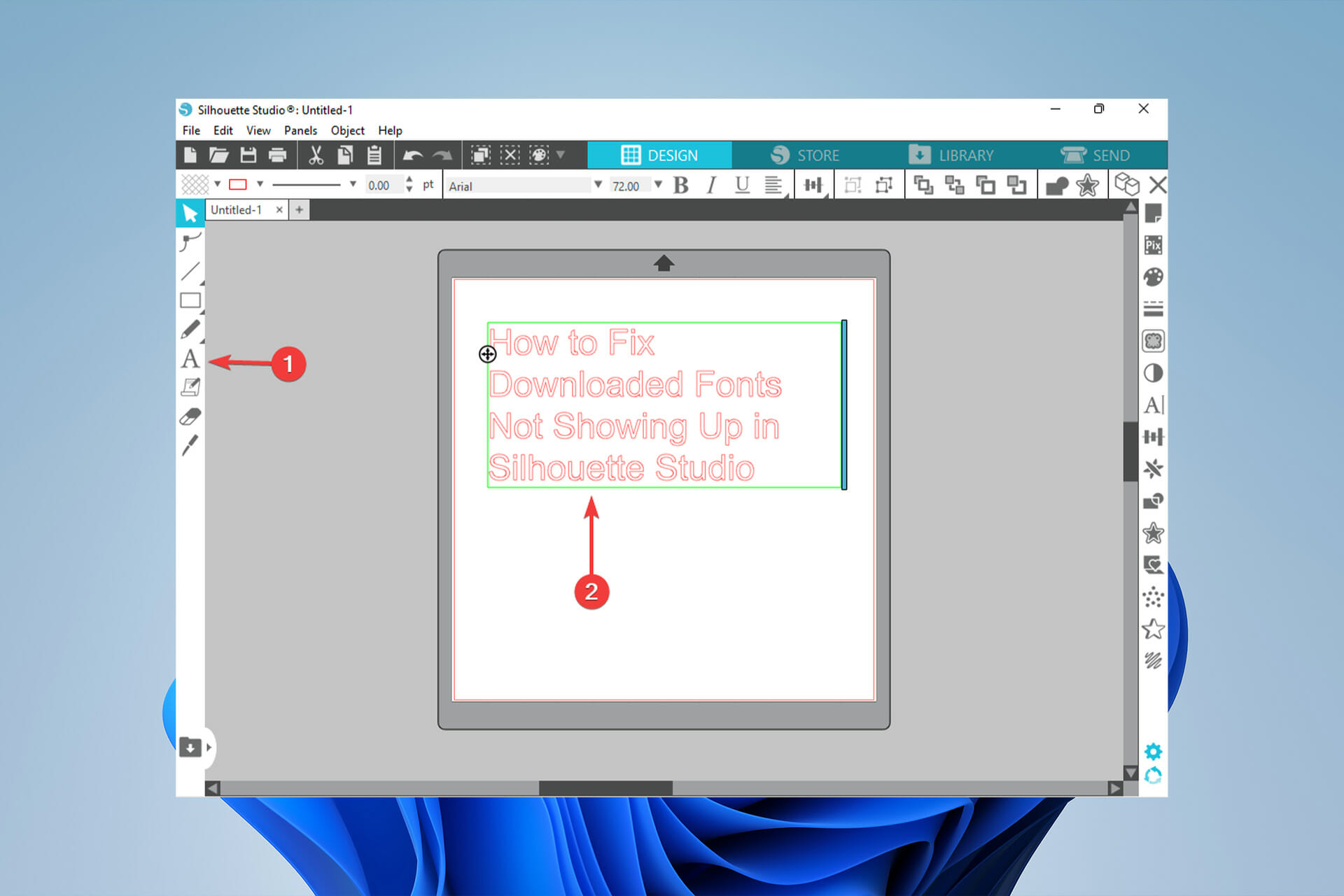
  1. Use the text tool from the left-side panel and type something.Use text tool and type something
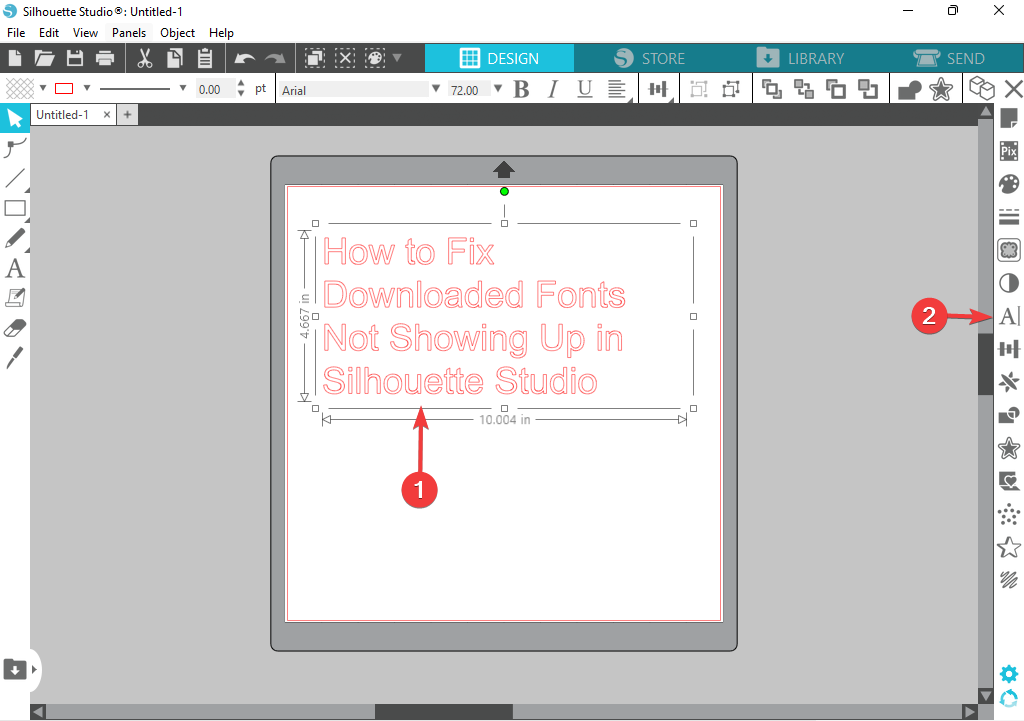
  1. Afterwards, select the text and open the Text Style panel.Select text and open text style panel
  1. Finally, type the name of the font into the font search box and click on it to change the font style.

Silhouette Studio can use any font that you have downloaded on your PC.

Check out this article if you’re having trouble with Silhouette Studio’s automatic update.

What can I do if downloaded fonts are not showing up in Silhouette Studio?

  1. Press Windows + R to open the Run dialog box.
  2. Next, type %localappdata% into the dialog box and hit Enter.Open localappdata
  3. Open the Microsoft folder.Open Microsoft Folder
  4. Then, open the Windows folder. Open Windows Folder
  5. Afterwards, open the Fonts folder. Open Fonts Folder
  6. Right-click on every font and choose the Install for All Users option.

This article may be useful if you’re getting the message that Silhouette Studio has encountered a problem and needs to quit.

How can I access glyphs manually in Silhouette Studio?

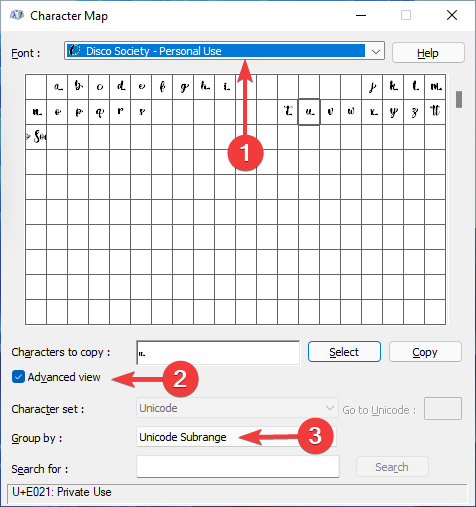
  1. Go to the Start menu, type Character Map, and hit Enter.Open Character Map
  1. Then, select the font you want to work with, check the box for Advanced View, and change the Group By to Unicode Subrange.Check advanced views and group by unicode subrange
  1. Following that, choose Private User Characters. All those small characters are your glyphs. Clicking on them will bring up a larger preview.
  2. Click on the ones you want and one-by-one, click on Select. They will be present in the Characters to copy area.
  3. Click on the Copy button to copy these special glyphs to the clipboard.
  4. Then, go back to Silhouette Studio and paste the glyphs into the design area.
  5. Click on the little boxes like a normal font. Then, select the font you will use from the fonts available in the Text Style menu.

It is best to upgrade your Silhouette Studio at least to Designer Edition and run the V4.1 to access glyphs manually.

Font extras are covered in as a part of the font’s glyphs and you can access them directly within Silhouettes Studio’s Text Style panel.

Text styles are important for Silhouette Stadio users, and if you’re new to the program, you should understand the differences between Monogram Font and Monogram Cut File.

Monogram Cut Files are designs that cannot be altered by typing with your keyboard.

However, Monogram Fonts are font files that have access to multiple letters and can be modified by typing on the keyboard via the Text Tool.

If your Silhouette Studio software is running slow, this article could help.

Let us know if you were able to solve the issue, or if you have another way that could help the readers in resolving the problem in the comments section below.

How to Change the Boot Order on Windows 11 [2 Ways]

There are certain situations in which you need to change the boot order in Windows 11. You might want to boot from a USB drive or an external hard drive, or you may want to change your default OS.

Before Windows 10, there were not many ways to achieve this. You could only keep pressing a key at boot so many times, just to miss getting to the BIOS at all.

However, today, there are more ways to achieve this. This article will go into detail to tell you all the ways using which you can change the boot order in Windows 11.

How can I change the boot order in Windows 11?

1. Go to the BIOS menu

  1. First, click on the Start menu, search for Settings, and click Open.
  2. From the left-side panel, choose System then, scroll down to the Recovery option and click on it.
    Recovery Option
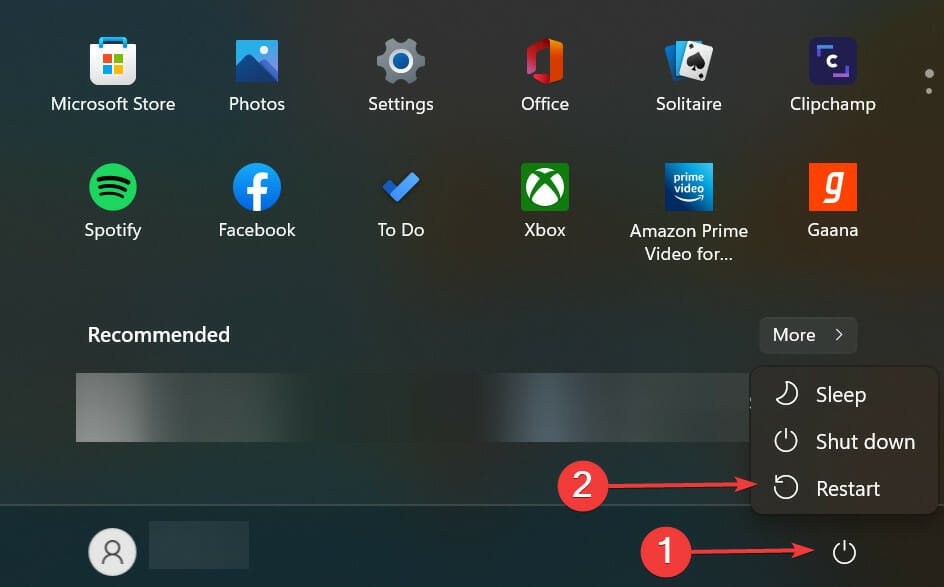
  3. Click on Restart Now in front of Advanced Startup.
    Restart Now
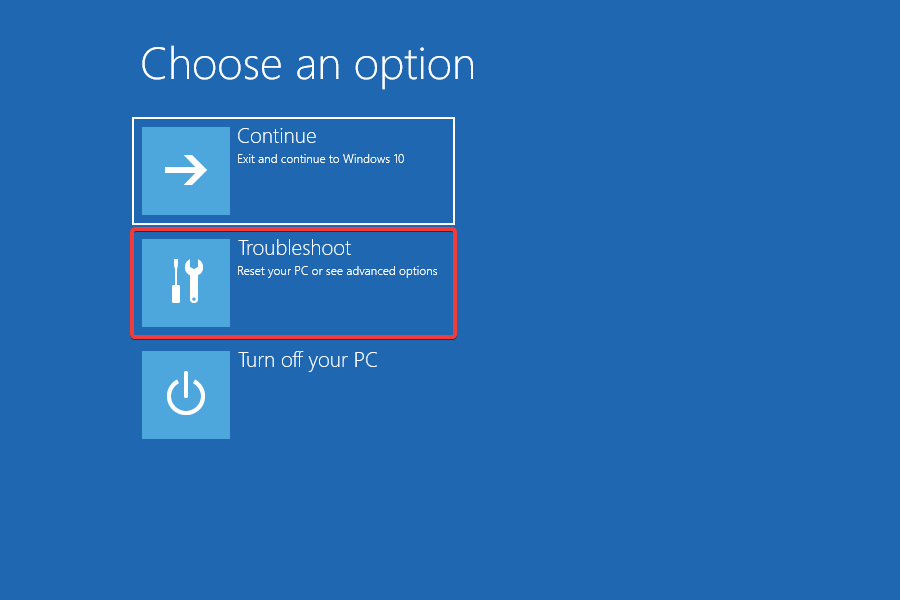
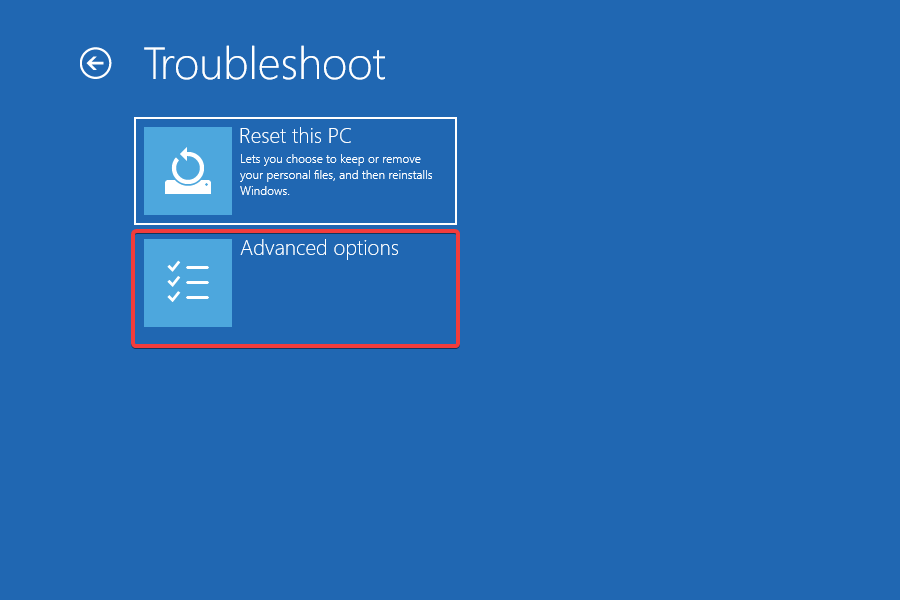
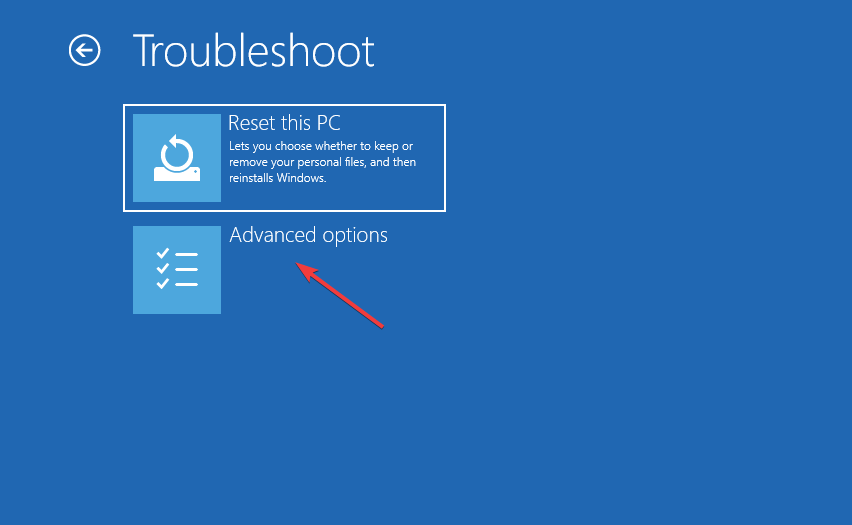
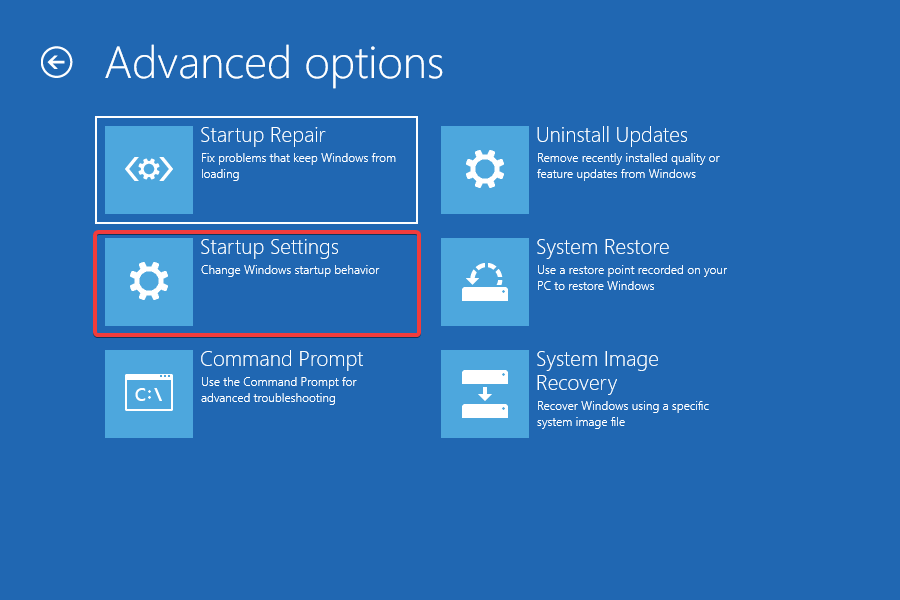
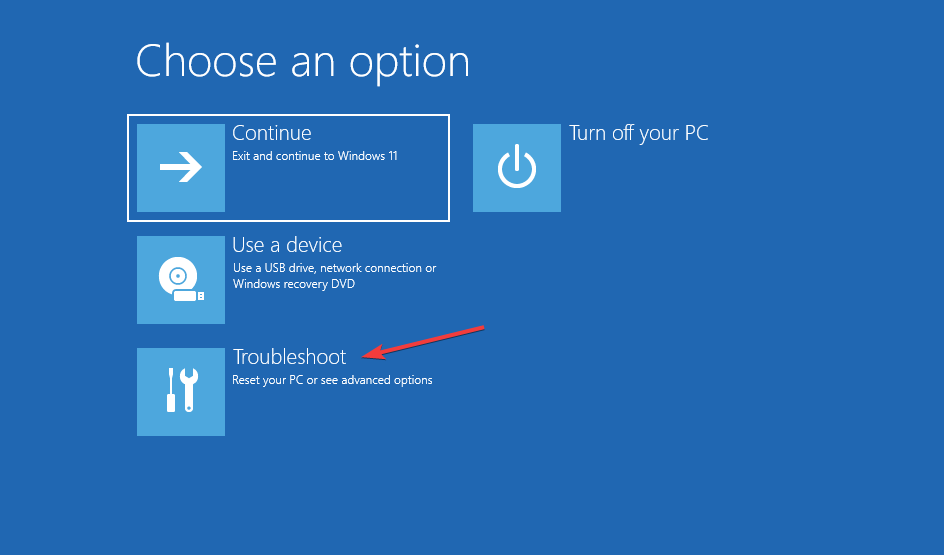
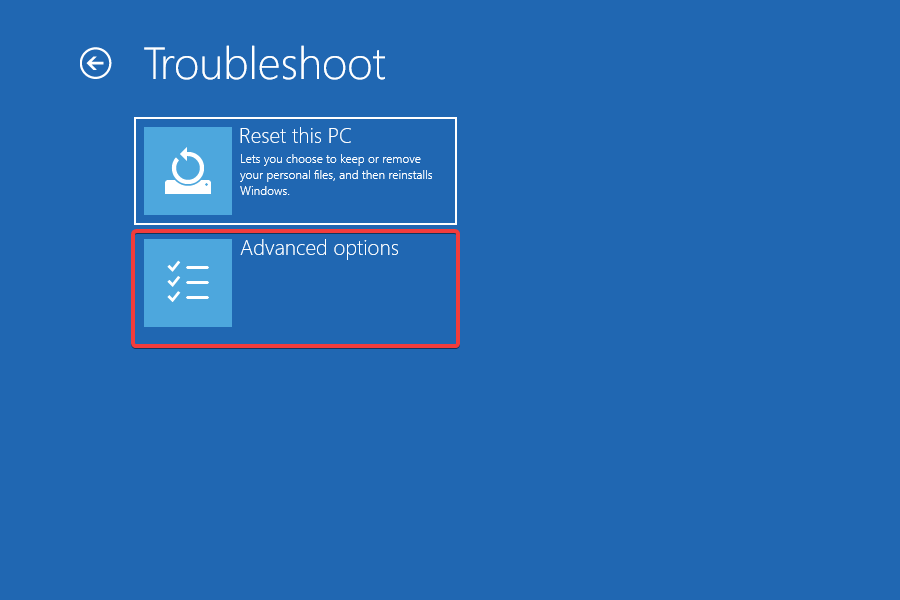
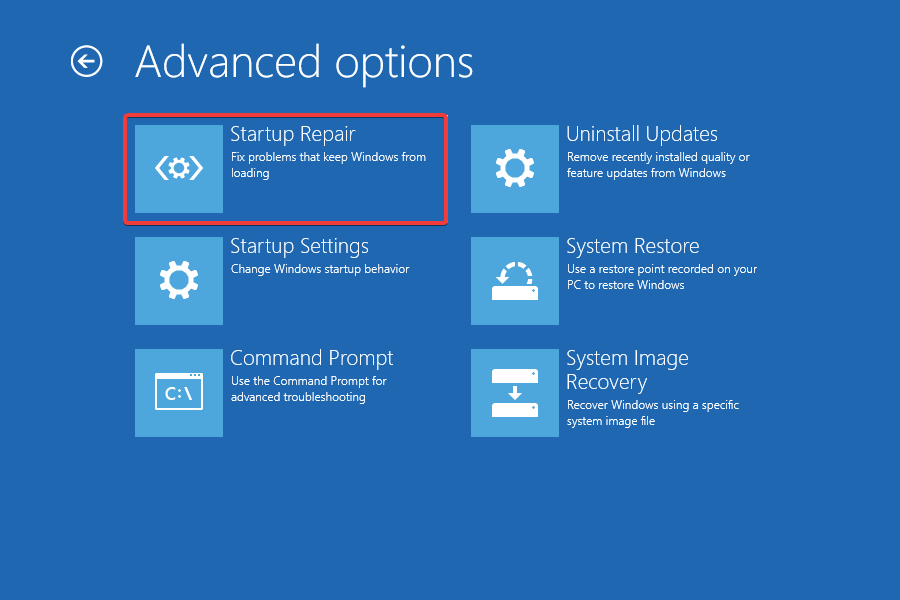
  4. When your computer boots up, in the Choose an Option screen, select Troubleshoot. Then, head over to Advanced Options.
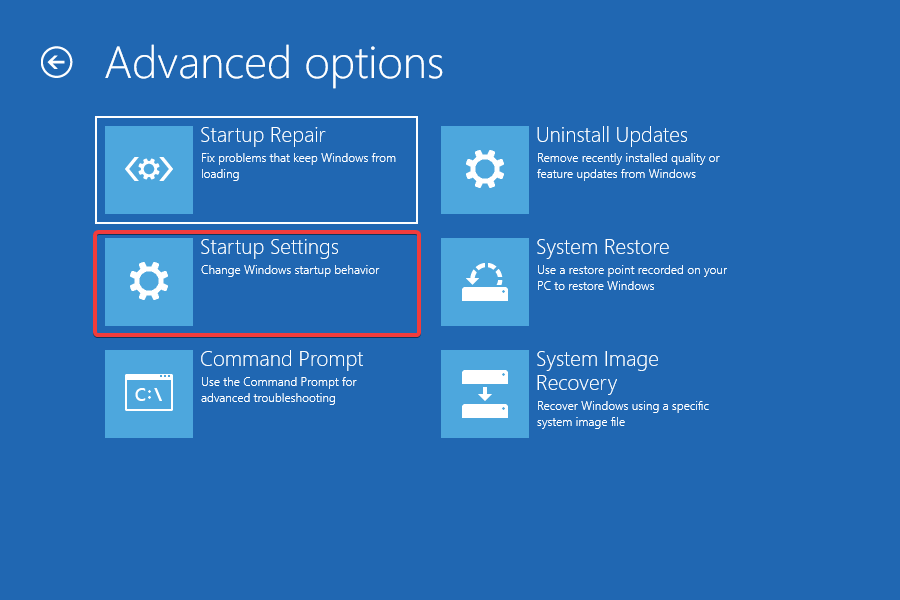
  5. Finally, choose UEFI Firmware Settings and click on Restart.

Getting into BIOS/UEFI settings enables you to tweak low-level computer settings. You can even access and alter the settings of your CPU.

There are many ways to open up the boot menu in Windows 11. However, this was the easiest way to achieve this.

You can also get to the UEFI Firmware settings by following the steps below:

  1. Press the Window + S keys, search for PowerShell, and click on Open.
    Open Windows Powershell
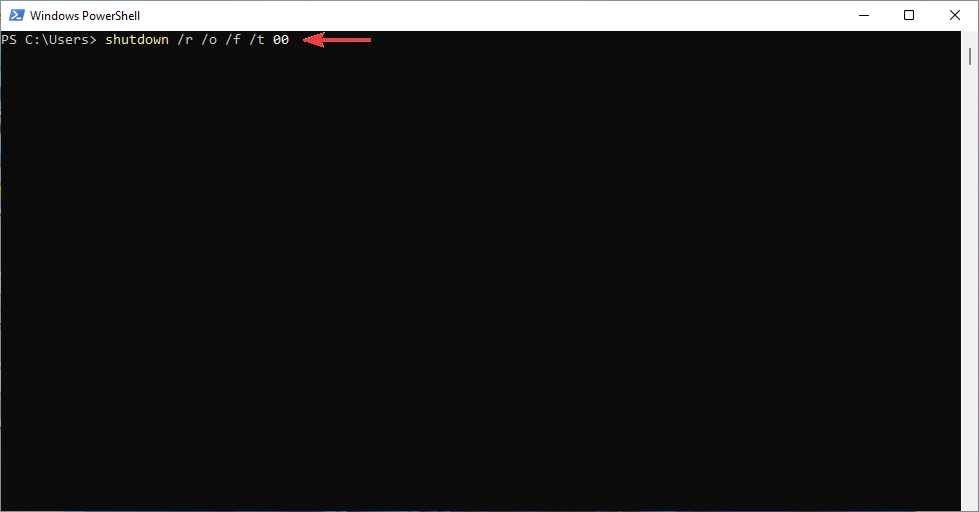
  2. Type the following command, and press Enter:
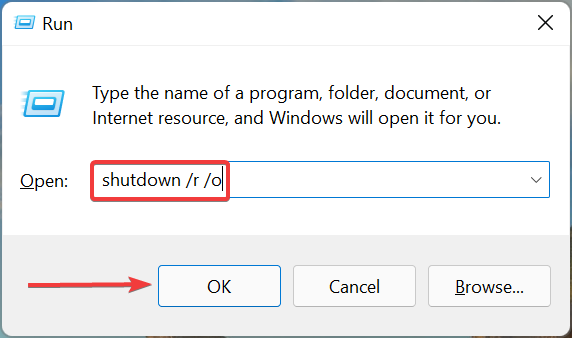
    shutdown /r /o /f /t 00
    Type a command in powershell
  1. In the Choose an Option screen, select Troubleshoot.
  2. Then, head over to Advanced Options, and finally, choose UEFI Firmware Settings and click on Restart.

If you need to update the BIOS, follow the instructions given in this article. Having trouble seeing the boot menu or OS choices? Enable Windows Boot Manager first to restore the menu and make changing the boot order straightforward.

2. Make changes from Boot Option Priorities

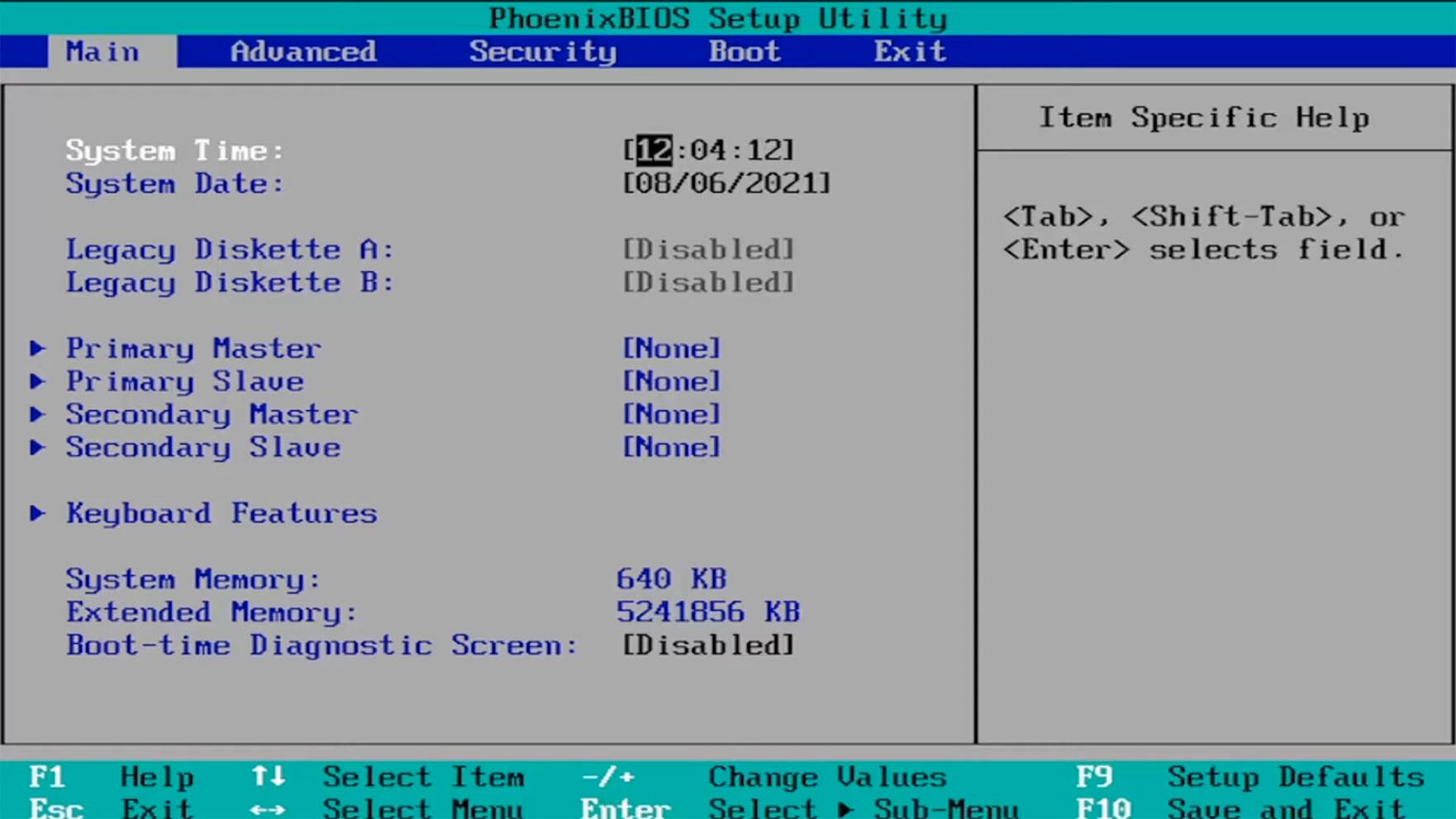
  1. Open the BIOS settings either using the aforementioned methods or by pressing the F10, F2, F12, F1, or DEL keys constantly when the computer starts.
    Open BIOS
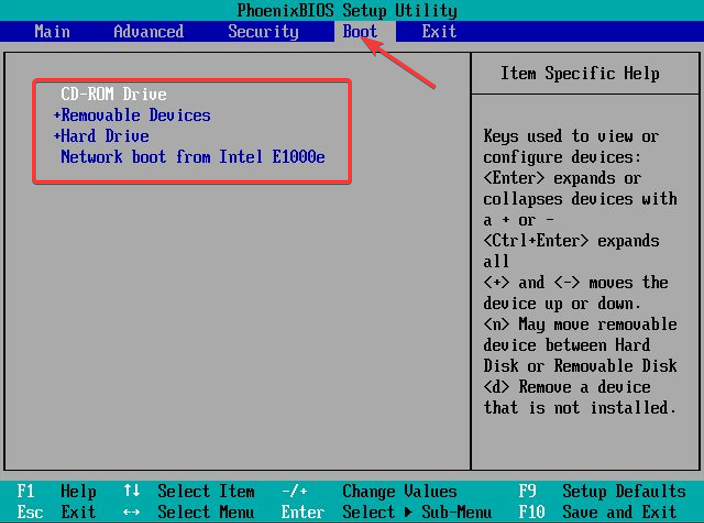
  2. After that, switch to the Boot tab. Then, under Boot Option Priorities, go to each boot option and press Enter.
    Boot order
  1. Next, go to the Exit tab, then choose Save and Exit, and press Enter.

BIOS is an acronym for Basic Input/Output System. It is firmware that is stored on a motherboard chip and has access to your computer’s hardware.

The computer boots into BIOS after starting and this configures your hardware before giving the system to a boot device, e.g. your hard drive.

Furthermore, using boot manager applications such as EasyBCD can be helpful if you do not want to go through all that trouble.

These applications give you complete control over your boot settings. They can even help you add boot options to the current list.

Check out this article if you’re looking for the best Windows 10/11 boot repair tools to rescue your PC.

Let us know whether you were able to successfully change the boot orders in Windows 11 in the comments section below.

3+ confirmed tips for fixing the Windows Remote Access Service error

A Remote access server (RAS) is a type of server that provides a set of services to users who are connected to a network or the Internet, but users may experience Windows Remote access service errors from time to time.

This service functions as a remote gateway or central server, connecting remote users to a company’s internal local area network (LAN).

A RAS consists of specialized server software that is used for remote communication. This program is intended to provide authentication, connection, and resource access services to users who are connected.

After connecting to a RAS, a user can access their data, desktop, applications, printing, and other supported services.

What is the difference between RAS and VPN servers?

Data is authenticated and encrypted when it is sent via a VPN. There are no authentication or encrypted security elements when data is sent through RAS.

Even though RAS performed a crucial role in allowing remote clients to connect to the Internet, there has been a shift in priorities.

The RAS Gateway is a router and gateway that is available from any Internet service provider in either single-tenant or multi-tenant mode.

Organizations of any size can benefit from a gateway deployment on the outside, or as a DirectAccess server in Internet-connected workplaces when configured as a single tenant.

Now that we know RAS completely and understand its differences from VPN, we can move on to the question that what can we do if we encounter a Remote access error on Windows while using the service?

Quick Tip:

There is a workaround you can use to connect to the Remote Access Service and avoid connection errors.

Using dedicated software like Parallels RAS, you will quickly access your PC anywhere you are, connecting to virtual applications and virtual desktops.

You can therefore work remotely and improve your data security with centralization and monitoring business databases to avoid information breaches.

Parallels RAS

Bypass Remote Access Service errors and connect to your own PC and applications instantly.
Check price Visit website

How can I fix the Remote Access Service error?

1. Restart the computer

Restarting electrical equipment, including computers, is the simplest method of fixing any problem.

Consider restarting it first to see if the Remote access service error has been fixed before moving on to more complex solutions.

2. Update Windows Server

  1. First, click on the Windows logo.
  2. After that, type update and click on Check for Updates option.Check for updates Windows server
  3. Finally, select the Install now option.

Before doing anything, you check to see if there are new updates available for the Windows server.

If there is an update for the Windows server, update the service and restart your computer. If the Windows Remote access service error didn’t resolve, perform the next solutions.

3. Reinstall Network Adaptors

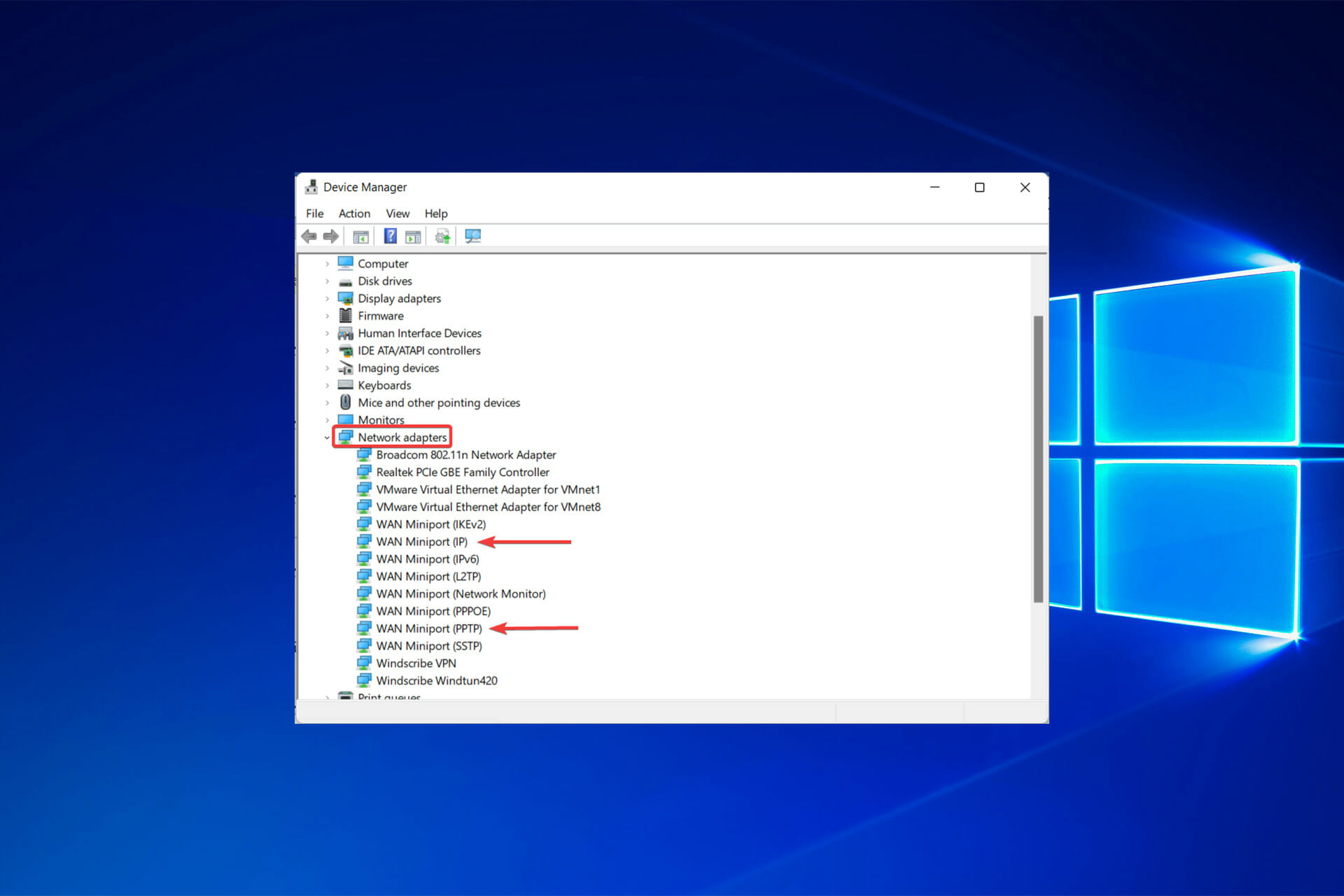
  1. Search for the Device Manager in the Windows search bar and hit Enter.
  1. Look for Network adaptors.Find network adaptors
  2. Following that, uninstall the WAN Miniport (IP) and WAN Miniport (PPTP) devices.unistall IP and PPTP in network and adaptors
  3. To reinstall them, click on Scan for hardware changes icon.scan for hardware changes
  1. Try using RAS again.

4. Reinstall NetExtender

  1. Click on the Windows logo, type Add or remove programs, and hit Enter.
  2. Find NetExtender, and uninstall it. Unistall NetExtender
  3. Restart your system.
  4. After that, reinstall NetExtender.Inistall NetExtender
  5. Restart the system again and connect.

Remote PC access requires a good Internet connection. You’ll also need to activate or install software on the device you want to access, as well as on the device or devices you wish to use to acquire that access.

RAS supports a variety of network protocols, including TCP/IP, IPX, and NBF. It is not required to install Windows NT on the client.

However, client versions are available for different Windows operating systems.

Moreover, Windows Remote Access Service allows users to connect to an NT-based LAN by modem, X.25 connection, or WAN link.

If Remote access to the server is not enabled, simply follow the steps specified in our article.

Let us know in the comments if the aforementioned solution worked for you, or if you have any other suggestions for those experiencing Windows Remote Access Service errors.

Windows 11 Always On VPN Not Working? Here’s What to do

Since the launch of Windows 11, many users have been reporting that the Always On VPN is not working on their Windows 11 PCs.

One of the common issues being reported is the Always On VPN tunnels being removed on system reboot.

This issue is usually noticed after a Windows 11 upgrade. Whether you deploy the VPN with Intune, PowerShell, or the Microsoft Endpoint Configuration Manager using the XML VPM profile, you may encounter this issue at any time.

Other errors you may encounter are error code – 800, error code 809, error code 812, etc. Fortunately, there are a couple of solutions that may help you fix the Always On VPN removed issue on Windows 11.

What can I do if Windows 11’s Always On VPN has been removed?

1. Reinstall the network adapter driver

  1. Press the Win + R shortcut keys simultaneously to open a Run console.
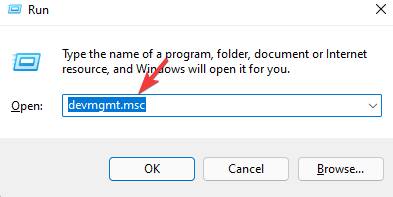
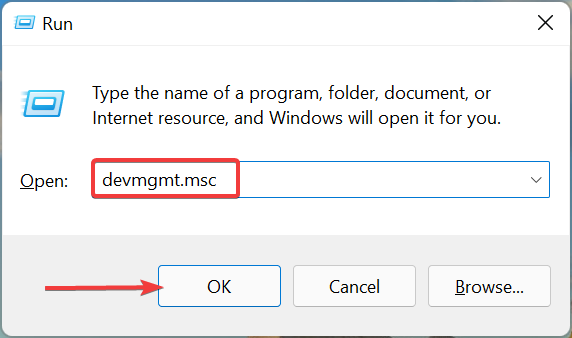
  2. In the search field type, devmgmt.msc and press OK. Type devmgmt.msc in Run command and press Enter
  3. As the Device Manager window opens, expand the Network adapters section. Now, right-click on WAN Miniport (IP) and select Uninstall device. Right click on WAN Miniport (IP) and select Uninstall device
  4. You will now see the Uninstall Device confirmation prompt. Click Uninstall to confirm. Click n Uninstall in Uninstall Device prompt
  5. Once uninstalled completely, click on the Action tab at the top and click on Scan for hardware changes. Click on Action tab andd select Scan for hardware changes
  6. This will reinstall the WAN Miniport (IP) driver.
  7. Repeat steps 3 to 6 for WAN Miniport(IPv6) and WAN Miniport (PPTP) as well.

Once done, close the device manager and reboot your PC. Check if the Always On VPN not working issue is resolved.

However, if you are looking for a quick alternative, we recommend using the Outbyte Driver Updater, a tool that helps you to automatically reinstall drivers, update outdated drivers, or replace missing drivers with the latest version.

⇒ Get Outbyte Driver Updater

2. Make changes to the registry key

Note icon NOTE
Before you make changes to the registry editor, you must create a backup of the registry data. This will help you to recover any data lost during the process.
  1. Right-click on Start and select Run.
  2. In the Run Command window, write regedit in the search bar and hit Enter to open the Registry Editor window Type regedit in Run search bar and hit Enter
  3. Press Yes in the UAC prompt to continue.
  4. Copy and paste the below path into the Registry Editor address bar and press the Enter key. HKEY_LOCAL_MACHINE\SYSTEM\CurrentControlSet\Services\PolicyAgent
  5. Now, go to the right side, right-click on an empty area, select New and then select DWORD (32-bit) Value to create a new DWORD key. Navigate to path in Registry Editor and create a new DWORD (32-bit) Value
  6. Rename the new DWORD key as AssumeUDPEncapsulationContextOnSendRule. Double-click on it.Rename DWORD as AssumeUDPEncapsulationContextOnSendRule
  7. It will open the Edit DWORD (32-bit) Value dialogue box. Here, set the Value data field to 2 and press OK to save the changes. In Edit DWORD (32-bit) Value change value data to 2

Exit the Registry Editor and reboot your PC to check if the VPN issue is resolved.

3. Turn off IPv6

  1. Press the hotkeys – Win + R to launch the Run Command window.
  2. In the search bar, type ncpa.cpl and hit Enter.Type command ncpa.cpl in Run and press Enter
  3. Now, in the Network Connections window, right-click on the Always On VPN client and select Properties. Right-click on VPN in Network Connections and select Properties
  4. In the VPN Properties dialogue box, navigate to Networking and here, uncheck the box next to Internet Protocol Version 6 (TCP/IPv6). Under Networking tab in VPN Properties disable Internet Protocol Version 6 (TCP/IPv6)
  5. Press OK to confirm the changes.

Now, close the Network Connections window and restart your PC. The Always On VPN removed issue should be fixed now.

Those with advanced technical skills can also try creating a custom Profile XML with intune or remove all custom routes. However, that’s only for the ones with proficiency in computer skills.

Moreover, if you come across other Always On VPN errors, you can refer to the Microsoft website to troubleshoot other Always On VPN not working issues.

Whether it’s the Always On VPN removed issue on Windows 11 or any other VPN not working issue, these are some of the tried and tested methods that work in most cases.

If you choose to add other best VPNs for Windows 11 and if you face any issues, these methods should be applicable for other VPNs as well.

Let us know in the comments if they worked for you.

Acer Camera Not Working? How to Fix it in Just 3 Steps

It can be extremely frustrating if your Acer Swift integrated webcam is not detected when you have the most important call to make. This is a common issue that occurs mostly after a Windows update or an upgrade due to any glitch with the drivers or if they are defective.

Fortunately, there are a few workarounds that can help fix the Acer Swift webcam not working issue in Windows laptops. Read on to know more.

What can I do if the Acer Swift camera is not detected?

1. Allows apps to access the camera

  1. Press the Win + I shortcut key on your keyboard to launch the Settings app.
  2. In the Settings window, click on Privacy & security. Settings app - Privacy & security
  3. Next, under the App permissions section, click on Camera. Settings - Privacy & security screen - Camera
  4. Now, go to Let apps access your camera and turn it on. Turn on Let apps access your camera in Privacy & security settings
  5. Look for the specific app in the list, for example, Skype, and turn it on. Allow camera access for specific apps

Now, go back and check if the webcam is working on your Windows laptop.

By enabling the Let apps access your camera option in Windows settings, you can fix the webcam not detected issue. Also make sure to allow camera access for the specific apps that use the laptop camera like Skype, Zoom, etc. as shown above.

2. Check for driver issues

2.1 Update the webcam driver

  1. Go to Start, right-click and select Device Manager. Right click on Start and select Device Manager
  2. In the Device Manager window, click to expand Cameras. Here, right-click on the Integrated Webcam and select Update drivers. Right click on Integrated webcam in Device Manager and select Update drivers
  3. In the Update Drivers window, click on Search automatically for drivers. Select Search automatically for drivers in update drivers

Now, Windows will start looking up for the latest drivers and if available, it will install the same automatically.

Once done, restart your PC and check if the issue persists.

If you want an automated solution to scan your Windows PC and update the webcam driver automatically, you can instead use an automatic driver updater.

⇒ Fortect Driver Updater

2.2 Roll Back the driver

  1. Follow steps 1 and 2 as above to open Device Manager.
  2. As the Device Manager window opens, expand Cameras. Now, right-click on Integrated Webcam and click on Properties. Right click on Integrated Webcam in Device Manager and select Properties
  3. Navigate to the Driver tab. Here, click on Roll Back Driver. Press OK to save the changes. Select driver tab in properties and click on Roll back driver

Wait till it reverts to the previous version. Now, reboot your PC and the Acer Swift webcam not working issue should be fixed.

2.3 Uninstall the driver

  1. Open Device Manager as shown above.
  2. Here, click to open Cameras. Right-click on Integrated Webcam and select Uninstall device. Right click on Integrated webcam and select uninstall device
  3. In the Uninstall Device pop-up, click on Uninstall to confirm. Click on Uninstall to confirm

Once the driver is uninstalled, reboot your PC and Windows should automatically reinstall the driver.

Note icon NOTE
If the driver is not installed automatically, head to the manufacturer’s website and install the webcam driver manually.

2.4 Disable or Enable the Webcam

  1. Launch the Device Manager as shown above.
  2. In the Device Manager window, expand the Cameras section, right-click on Integrated Webcam and select Disable. Right click on Integrated Webcam and select Disable
  3. Now, close Device Manager and restart your PC. Follow step 1, expand Cameras, right-click on Integrated Webcam, and select Enable. Right click on Integrated Webcam and select Enable

3. Reset the Camera app

  1. Go to Settings.
  2. Select Apps, then Installed apps.installed apps
  3. Find the Camera app and select Advanced options.advanced options camera app
  4. Scroll down and hit the Reset button.reset camera app
  5. Confirm your choice and try to open the app again.

This post highlights the most common issue related to the Acer Swift webcam not being detected in Windows hence, you can try the methods and let us know in case you find any other fix.

Tell us if the solutions worked for you or ask any other questions by using the comments section below.

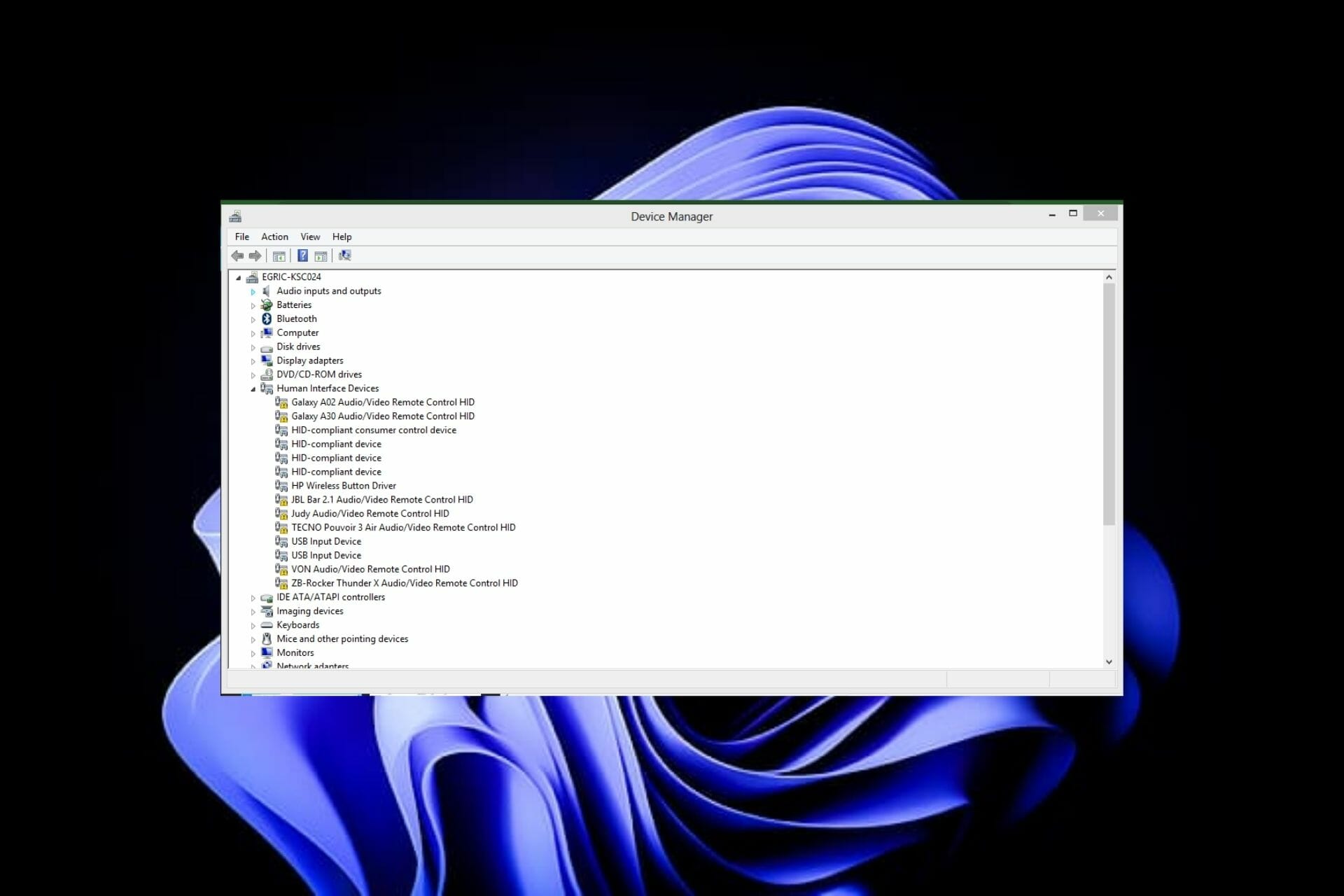
Device Manager Alternative: 3 Picks You Didn’t Know About

A Device Manager alternative can come to your rescue if you’ve ever experienced the frustration of trying to fix a computer that’s so bogged down.

Microsoft’s Device Manager is very powerful. It can help you get rid of viruses, spyware, and other malignant programs but sometimes it’s just not enough.

But what if there were an alternative? Device Manager allows you to manage, diagnose and repair your computer’s hardware and devices. It can also take an in-depth look into the performance of individual components such as video cards, hard drives, and printers.

With its built-in registry editor, you can edit the registry on your PC. This in turn can help you fix problems such as missing device drivers, uninstalled programs, system software conflicts, and more.

Device Manager lets you see what drivers are necessary and which ones are outdated or missing, allowing you to easily update them. 

The program also gives you information about each device’s performance, including information about its CPU speed; RAM; storage capacity, and more.

What are some of the Device Manager alternatives?

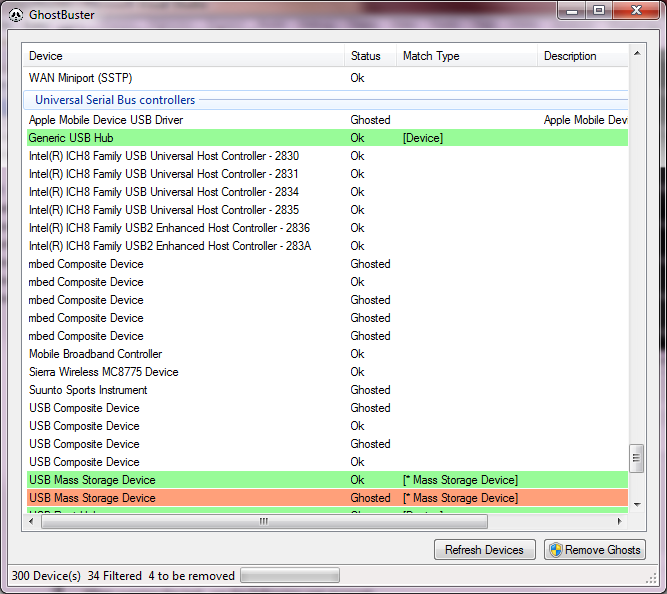
1. Ghostbuster – The most intuitive alternative

If you’re looking for a Device Manager that’s much more than an inventory, consider adding Ghostbuster to your PC.

Ghostbuster is not a replacement for the Device Manager. However, it can perform most of the same tasks that you can do with the Device Manager.

It is a handy and easy-to-use application, especially for beginners. Ghostbuster lists all the devices present in your system and allows you to easily remove those that are ghosted.

The interface is very simple and intuitive, being extremely easy to understand and use even by beginners.

There is however a need to be careful as it can remove some ghosted devices that should never be removed.

⇒ Get Ghostbuster

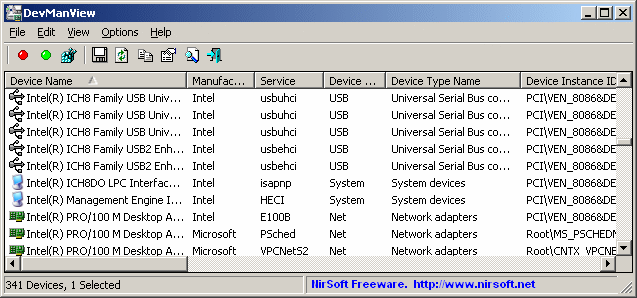
2. DevManView – The best choice with advanced options

If you’re looking for a small and simple Device Manager app, DevManView is the solution. DevManView is a Device Manager alternative, with advanced options. It displays all devices and their properties on a flat table. This is contrary to the typical tree viewer, as in Windows Device Manager.

If your PC has booting issues, DevManView can prove to be particularly useful, especially when disabling the device.

You need to exercise caution when uninstalling, updating, and disabling devices as it may cause some issues with your OS.

⇒ Get DevManView

3. NoDrives Manager – A powerful application at your disposal

NoDrives Manager is a powerful application that allows you to manage your computer hardware, storage, and drivers. It comes with a simple interface that both beginners and advanced users can benefit from.

It is a useful application for those who want to hide their drives. You can also prevent unauthorized access to them by enabling password protection.

⇒ Get NoDrives Manager

With the alternatives listed above, next time you face any issues with Microsoft’s Device Manager, you can use either to perform similar functions.

Should you experience any other issues with Device Manager such as the Ethernet adapter not showing, refer to our comprehensive guide on how to fix it.

If you’ve used any other Device Manager alternatives, we’d love to hear your experiences. Let us know in the comments section below.

Hardlock Driver for Windows 10 & 11: How to Install it

When using a dongle on a PC for dongle-secured software, it usually requires a few drivers to run. In most cases, Windows runs a search for the essential drivers automatically and then installs them right away.

However, certain security drivers like the Hardlock driver needs to be manually installed. This post highlights what is a Hardlock driver, why is it important, and how to install the Hardlock driver on Windows 11.

What is a Hardlock Driver and why is it important?

The Hardlock driver or the Hardlock device driver is a software component by the Aladdin Knowledge Systems. The software component belongs to the Aladdin HASP (Hardware Against Software Piracy).

HASP is protection and licensing software, and a part of the DRM (Digital Rights Management) bundle. Hardlock.sys is the driver that works a filter and is essential for the HASP to function properly.

So, if your dongle contains any sensitive information or software that must be transferred to the system, the driver protects the information.

The Hardlock.sys process is located in the drivers’ folder in Windows. Go to the below path to access the driver’s folder:

C:\Windows\System32\drivers

While a third-party provider created the driver file, it also contains Microsoft’s digital signature. Originally, it was Hardlock Device Driver for Windows NT, but now, you can also install it on Windows 7, Windows 8, Windows 10, and Windows 11.

Now, a part of the Sentinal HL group which is a next-gen hardware security key powered by a smartcard. It’s known for providing innovative technologies in the category of software protection and licensing.

Users can follow the below process to download and install the Hardlock drivers on Windows 11.

How do I install the Hardlock driver on Windows 11/10?

1. Install Hardlock.sys on Windows 11

  1. Visit the Thales support website for the Hardlock device driver.
  2. On the support page, go to Click here to download the file and click on the blue link.Official website - Download Hardlock driver
  3. As you click on the link, an End User License Agreement will pop up. Hardlock driver End user agreement
  4. Scroll down till the end and click on the I accept button. Once done, the download will start. Accept User agreement
  5. Now, open the Sentinel_LDK_Run-time_setup zip file and double-click to open the Sentinel_LDK_Run-time_setup folder. Select  Sentinel_LDK_Run-time_setup in Zip folder
  6. Select the HASPUserSetup.exe file and extract the file to the desired location on your PC. Extract HASPUserSetup.exe
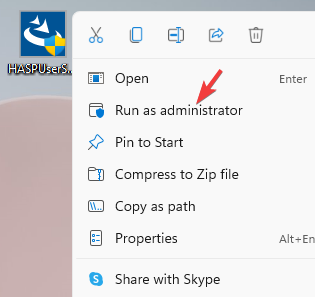
  7. Now, double-click on it or right-click and select Run as administrator to run the setup file. Right click on executabel and select  Run as administrator
  8. Follow the on-screen instructions to complete the installation.

Once done, restart your PC and the drivers should be installed automatically.

As you can see, installing the Hardlock driver is pretty easy since the latest driver file is available on the official support website.

Now continue with the below method to install hardlock.sys on Windows 10:

2. Run Harlock in Compatibility mode in Windows 10

  1. Visit the Thales support website for the Hardlock device driver.
  2. On the support page, go to Click here to download the file and click on the blue link.Visit Thales support website and click on Download
  3. As you click on the link, an End User License Agreement will pop up.End User License Agreement
  4. Right-click on the executable and select Properties. Hardlock executable Properties
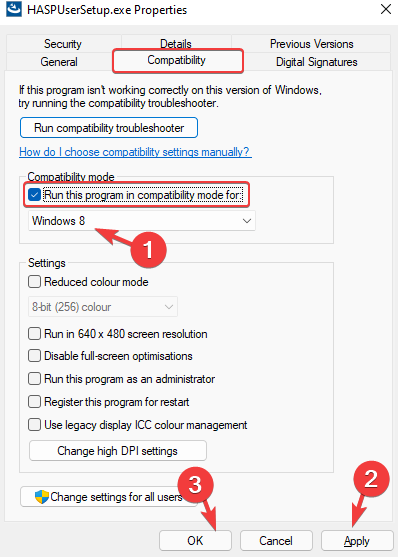
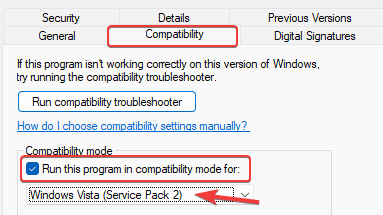
  5. In the Properties dialogue box, select the Compatibility tab.
  6. Navigate to the Compatibility mode section and check the box next to the option – Run this program in compatibility mode for.
  7. Next, from the drop-down select, Windows 8. Hardlock .exe properties - Windows 8 - Compatibility mode - Run this program in compatibility mode for
  8. Press Apply and then OK to save the changes and exit.
  9. Now, right-click on the .exe file and select Run as administrator to start the installation process. Follow the instructions as shown to finish installing the driver.

Once the hardlock.sys driver is installed, and you can now use the USB dongle without any worries.

3. Install the Hardlock.sys driver file on Windows 7

  1. Visit the Thales support website for the Hardlock device driver.
  2. On the support page, go to Click here to download the file and click on the blue link.Visit Thales support website and click on Download
  3. As you click on the link, an End User License Agreement will pop up.End User License Agreement
  4. Right-click on the executable and select Properties.right click on Hardlock set up file and select Properties
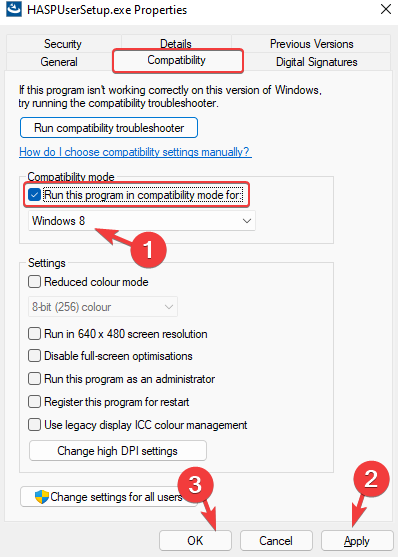
  5. In the Properties dialogue box, select the Compatibility tab.
  6. Navigate to the Compatibility mode section and check the box next to the option – Run this program in compatibility mode for.Enable Run this program in compatibility for in Compatibility mode
  7. Now, click on the drop-down below and select Windows Vista (Service Pack 2). Properties - Compatibility mode - Run this program in compatibility mode for - Windows vista (server pack 2)
  8. Hit the Apply button and then press OK to apply the changes and exit.

Now, double-click to run the Hardlock driver .exe file and follow the instructions as per the installer to finish installing the hardlock.sys driver file.

Note icon NOTE
In case you come across any errors when trying to run the Hardlock.sys driver, you can try changing the compatibility mode for Windows 11 and Windows 10 to Windows 8 or Windows Vista (Service Pack 2) to check if this helps fix the issue.

4. Update the Sentinel driver

  1. Press the shortcut keys – Win + R at the same time to launch Device Manager.
  2. In the Device Manager window, go to Universal Serial Bus Controllers and expand the section.
  3. Here, right-click on the Sentinel driver you installed as above and select Update driver.
  4. In the new window, click on Search automatically for drivers. Click on Search automatically for drivers
  5. Wait till Windows looks up for any latest drivers. If available, it will automatically install the driver.

It’s a good practice to update the driver right after you have installed the Sentinel driver to make sure you are running the latest version and no issues occur while using the USB dongle.

What are some key takeaways?

Since the Hardlock.sys driver file is not important for the Windows OS, it does not trigger problems very often.

The file size is usually 693,760 bytes on Windows 10/8/7/XP with 13% of all occurrences and can also be 676,864 bytes.

It is available to download in 10 different sizes. The hardlock.sys file is safe and is not a virus, however, some malware can disguise itself as hardlock.sys.

Therefore, make sure it’s located in the below folder: C:\Windows\System32\drivers

If not, then it could be malware. Hence, you should check the hardlock.sys process on your PC to see if it is a threat using trusted software.

Hardlock driver is a useful utility, especially for those using dongles to transfer secured files or programs to their system.

Since it’s not a harmful file and is not essential to Windows, you can continue using your system with it in the background.

Let us know your comments in case you come across any issues while installing the Hardlock device driver on Windows 11.

Device Manager Keeps Refreshing? Here’s What to do

As we know, drivers are critical for the effective functioning of connected devices. And these are generally managed through the Device Manager, but sometimes it constantly keeps refreshing, which prevents users from making any changes.

The situation generally arises when a particular device keeps connecting/disconnecting, and the Device Manager refreshes after each to reflect the change. Mostly, USB devices have been found to cause the problem.

Though, conflicting third-party applications, corrupt system files, or the presence of malware on the system are also likely to lead to the issue.

Now that you have a basic understanding of the underlying causes, let’s walk you through the most effective fixes for the Device Manager keeps resetting issue.

What can I do if the Device Manager keeps refreshing constantly?

1. Remove non-critical USB devices

Since it’s generally the USB devices behind the problem, your primary approach should be to remove all the non-critical devices. Most likely, it’s a malfunctioning device or a damaged cable used for the connection.

Remove non-critical devices

So, remove every single piece of hardware except for the mouse, keyboard, and monitor in the case of a PC. While in the case of a laptop, you can remove every external peripheral.

Once done, check if the Device Manager constantly refreshing problem is fixed. If it persists, head to the next method.

2. Update the driver

  1. Press Windows + R to launch the Run command, type/paste devmgmt.msc in the text field, and either click OK or hit Enter to launch the Device Manager.devmgmt.msc
  2. Now, locate the device that keeps appearing/disappearing, right-click on it, and select Update driver from the context menu.Update driver to fix device manager constantly refreshing
  3. Select the Search automatically for drivers option here.Search automatically for drivers

Now, Windows will automatically find the best available driver and install it for the problematic device. In case it says that the best available driver is already installed, try the other ways to manually install a driver in Windows 11.

If it’s the driver causing the issue, the Device Manager constantly refreshing problem should now be fixed. If the issue still persists, updating your drivers will the help of specialized software like Outbyte Driver Updater is recommended, it will scan your PC for missing or outdated drivers and prompt you to update them.

3. Disable the problematic device

  1. Press Windows + S to launch the Search menu, enter Device Manager in the text field at the top, and click on the relevant search result.Device Manager
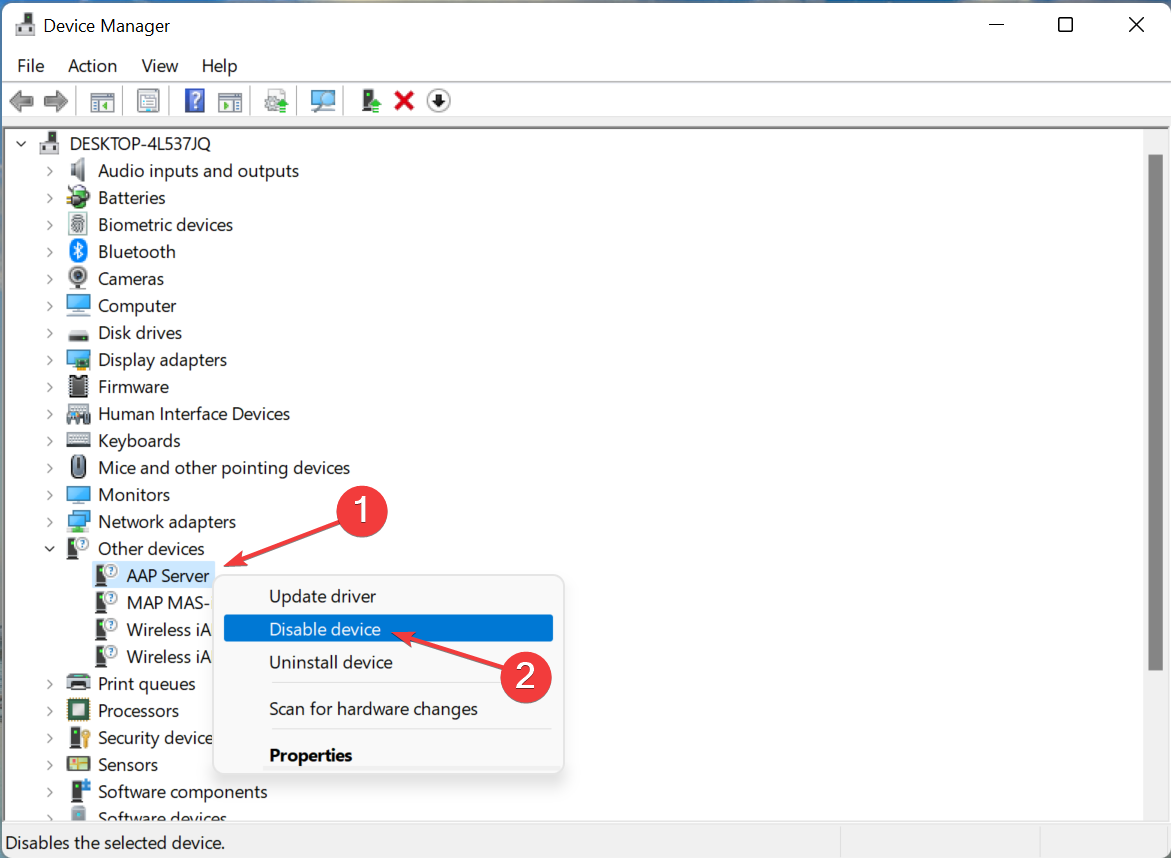
  2. Locate the device that keeps appearing and disappearing constantly, right-click on it, and select Disable device from the context menu.Disable device to fix device manager constantly refreshing
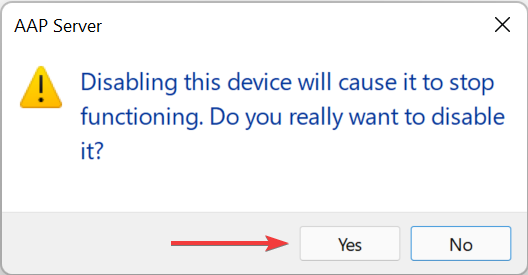
  3. Click Yes in the confirmation prompt that pops up.Click Yes

Another quick way of fixing the issue is to disable the problematic device. This method comes in handy when the device is built-in and can’t be removed. For instance, some users found the webcam to be causing the Device Manager constantly refreshing issue.

4. Scan for malware

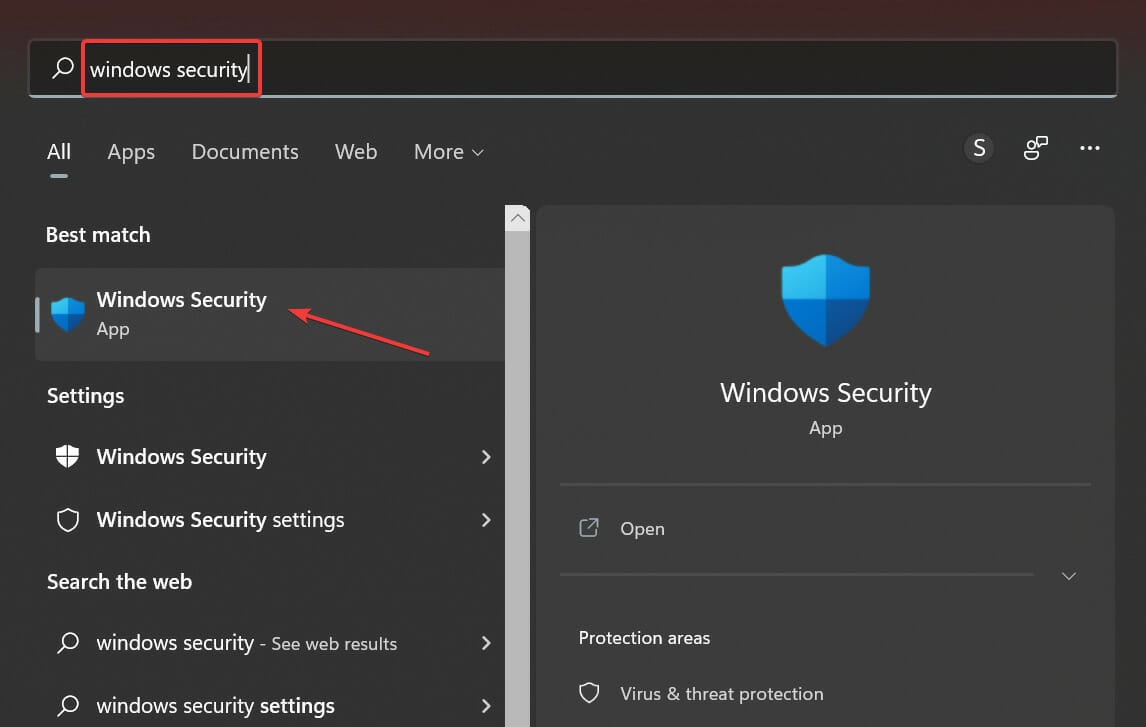
  1. Press Windows + S to launch the Search menu, enter Windows Security in the text field, and click on the relevant search result.Windows Security
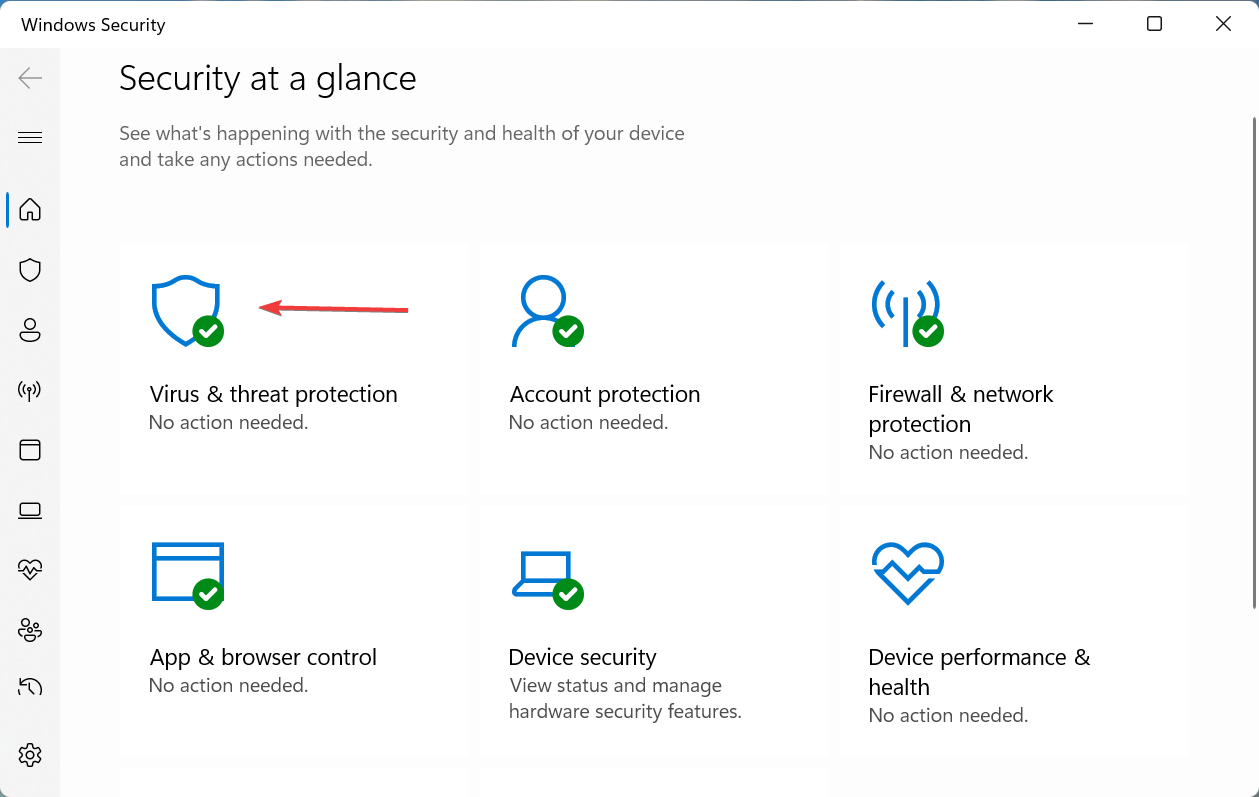
  2. Click on Virus & threat protection from the options listed here.Virus & threat protection to fix device manager constantly refreshing
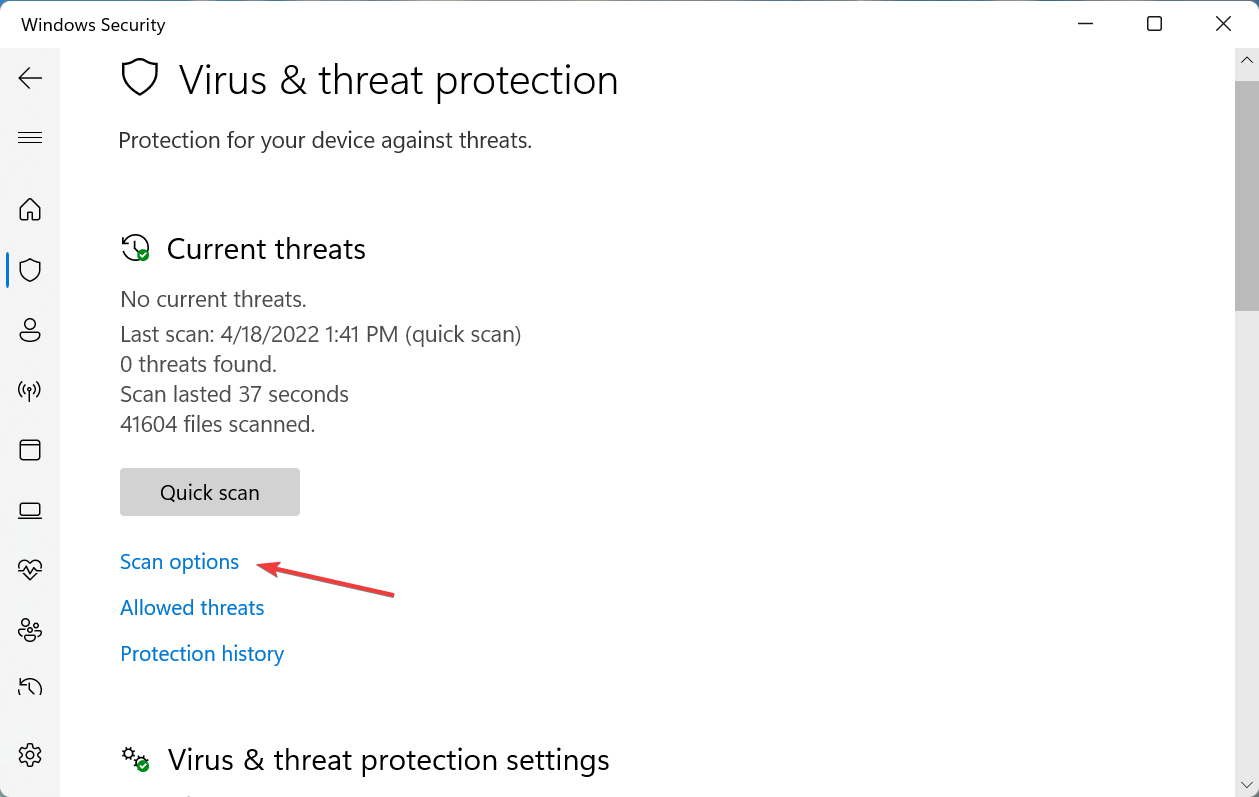
  3. Next, click on Scan options to view all the types of available scans.Scan options
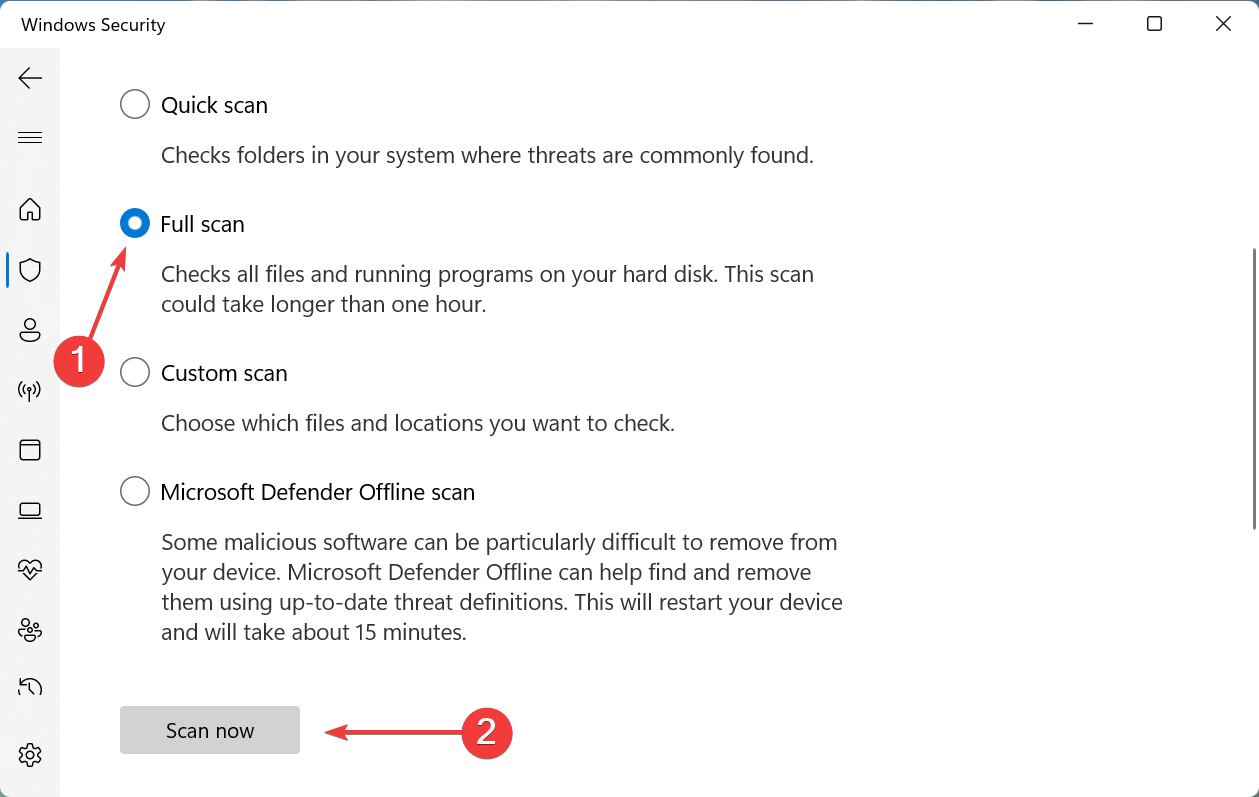
  4. Select Full scan and then click on Scan now at the bottom.Full scan to fix device manager constantly refreshing

Now, wait for the scan to complete and check if the Device Manager constantly refreshing problem is fixed. It will take some time depending on the data stored on the PC.

Also, you can use a reliable antivirus to secure your PC and keep such errors at bay.

5. Run the SFC scan

    Another way to solve the issue with Device Manager that keeps refreshing is by running an SFC scan. Here is how you can do this.

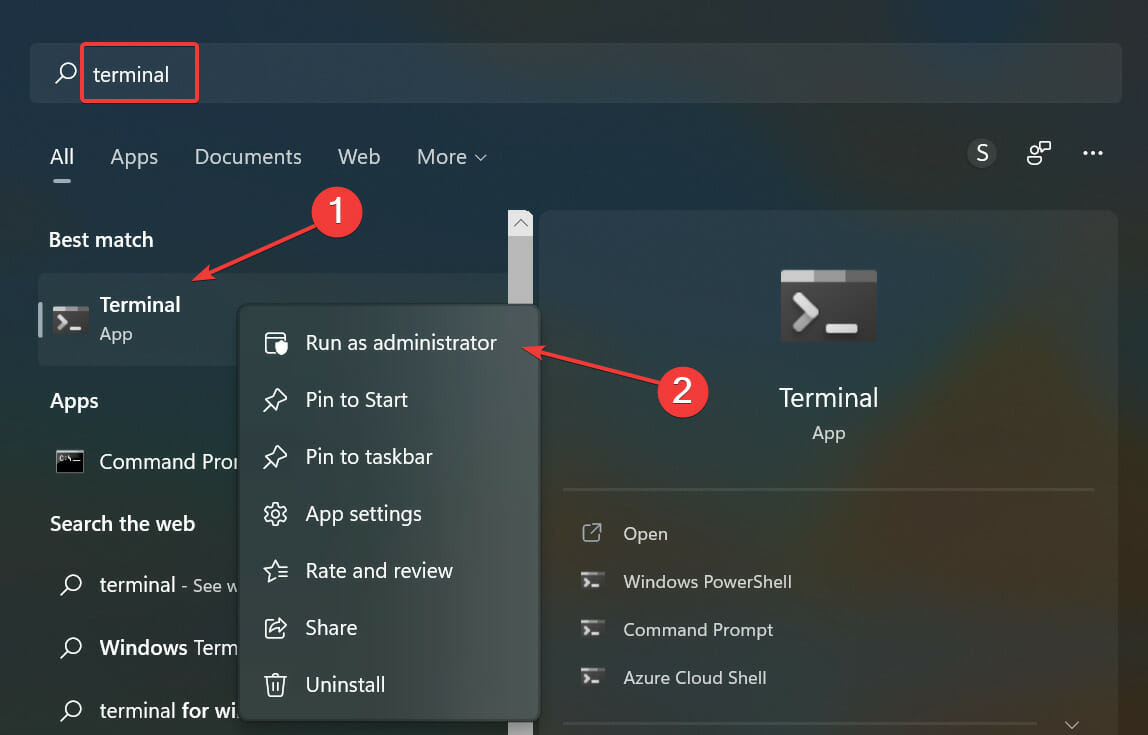
  1. 1. Press Windows + S to launch the Search menu, enter Windows Terminal in the text field at the top, right-click on the relevant search result, and select Run as administrator from the context menu.

    Windows terminal
  2. 2. Click Yes in the UAC (User Account Control) prompt that pops up.

    Click Yes
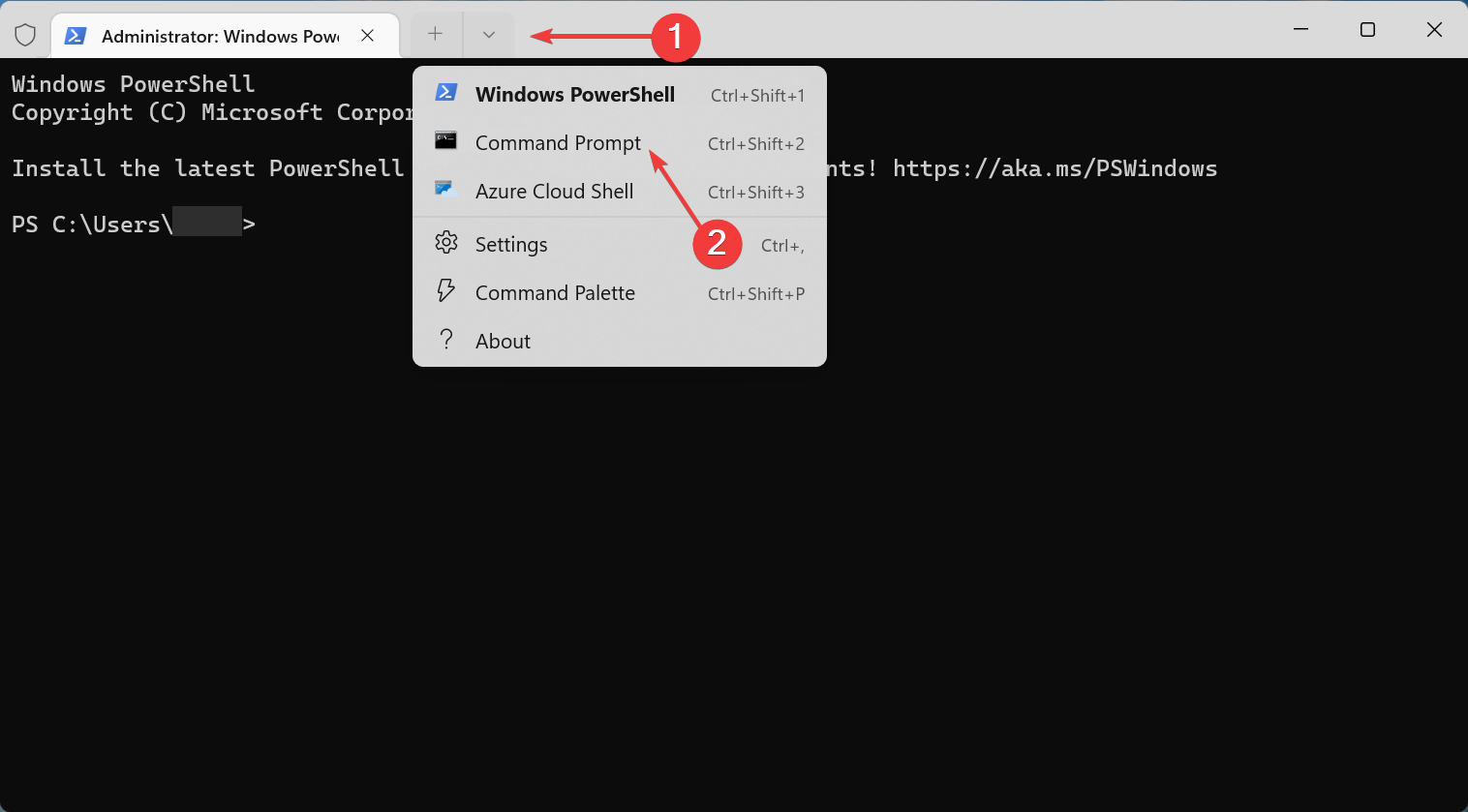
  3. 3. Now, click on the downward-facing arrow at the top, and select Command Prompt from the menu. Alternatively, you can hit Ctrl + Shift + 2 to launch Command Prompt in a new tab.

    Command Prompt
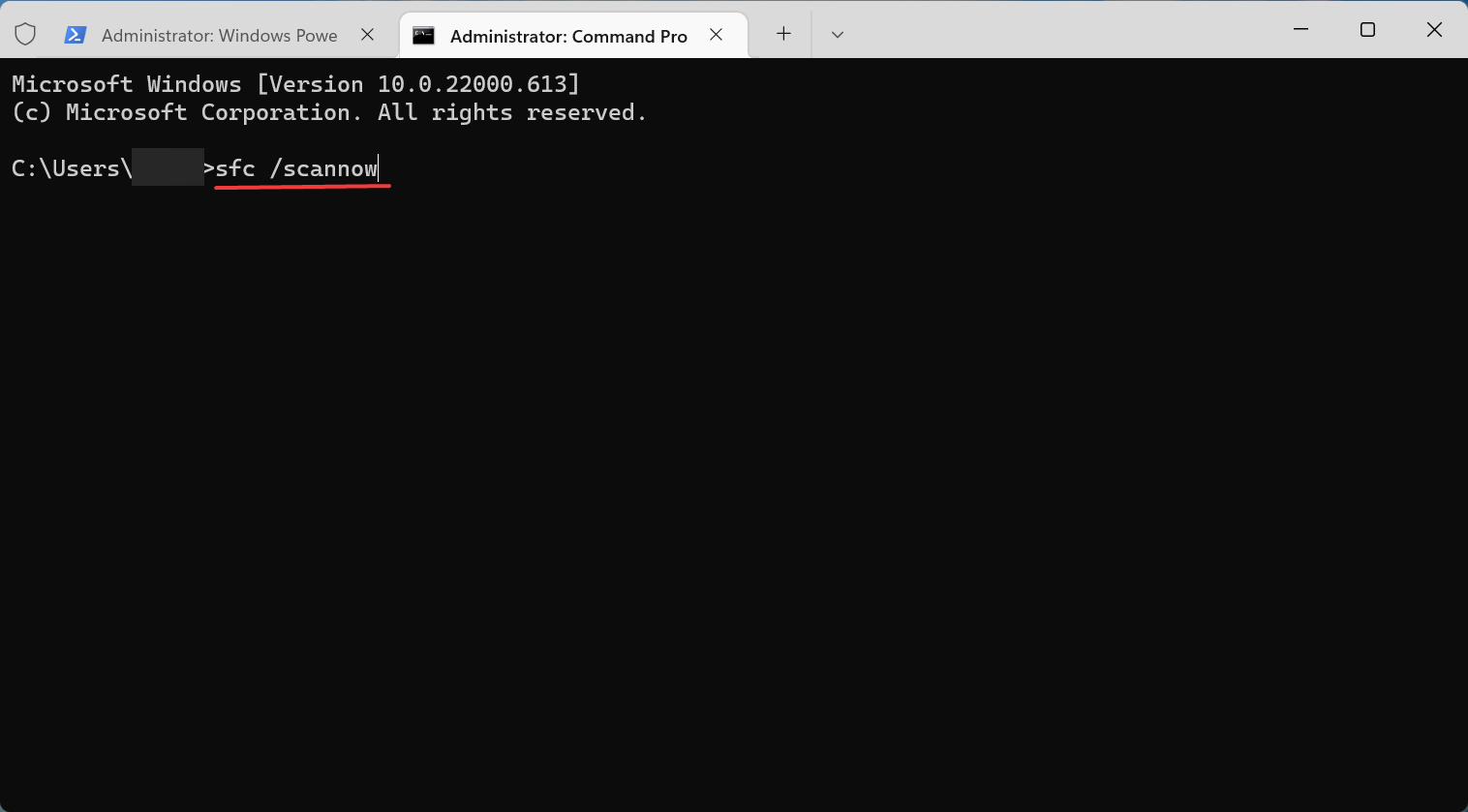
  4. 4. Now, paste the following command and hit Enter to run the SFC scan:sfc /scannow

    SFC scan to fix device manager constantly refreshing

The SFC or System File Checker scan looks for corrupt system files, and if any are found, replaces them with their cached copy stored on the PC. If the Device Manager was constantly refreshing due to corrupt system files, the problem should now be fixed.

6. Remove conflicting applications

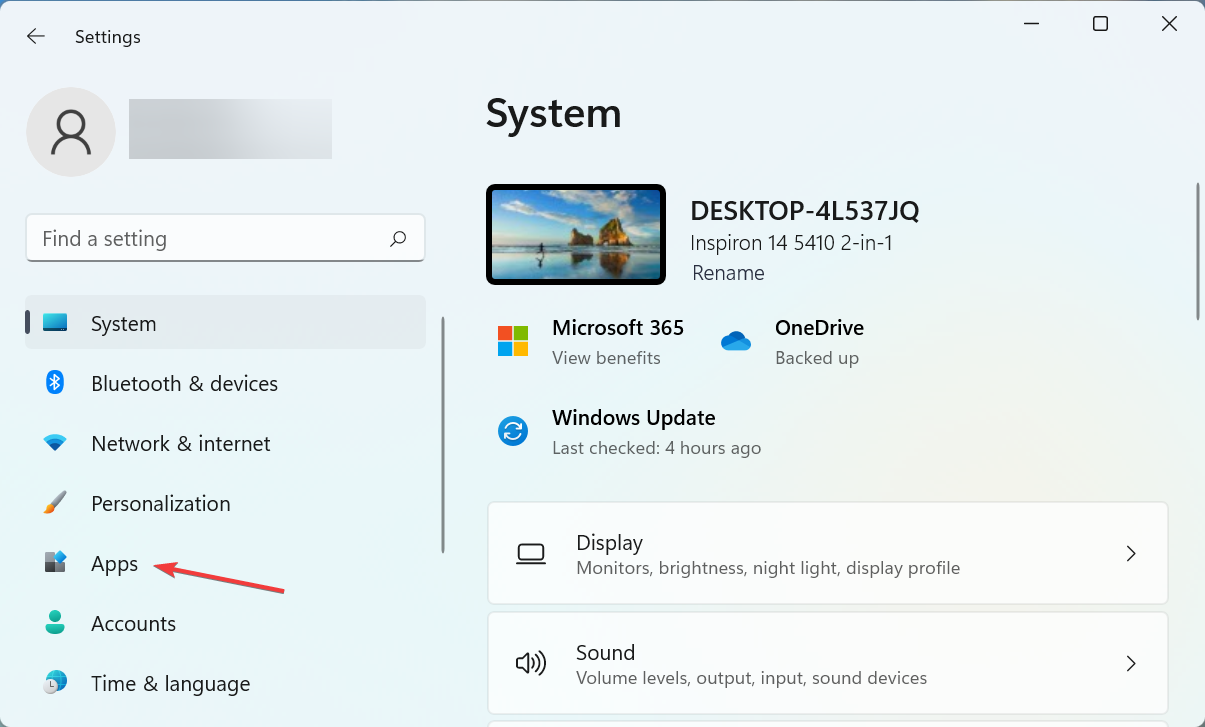
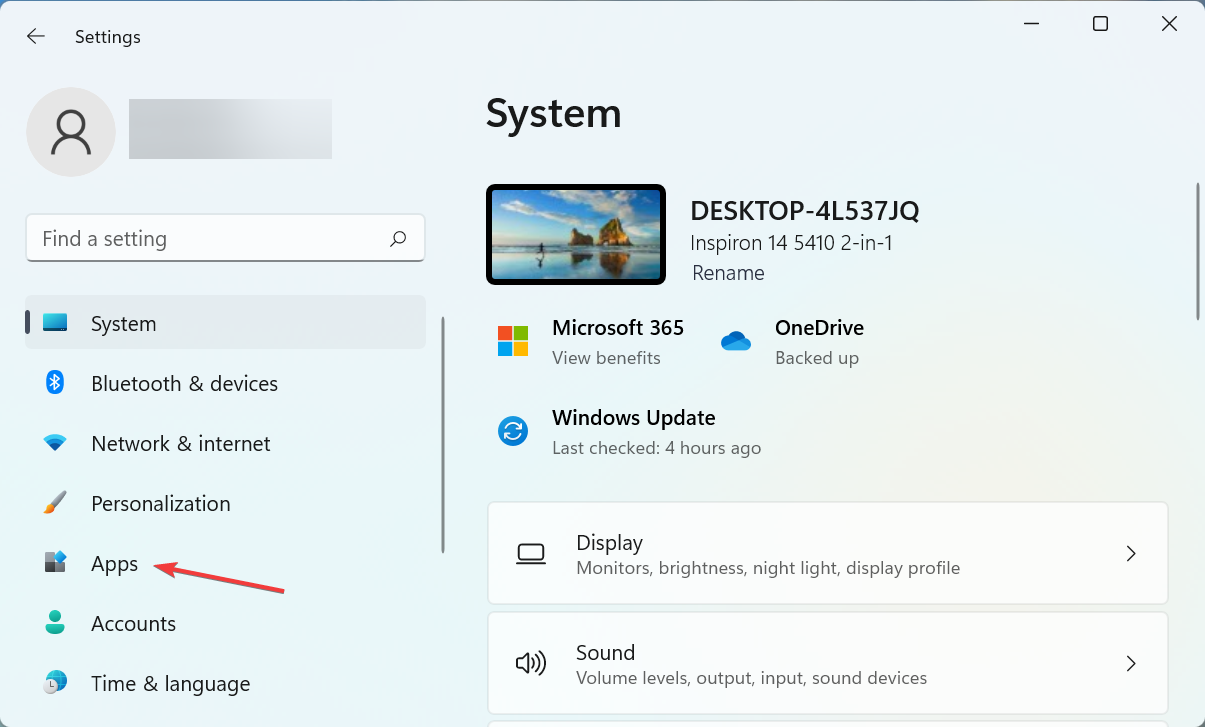
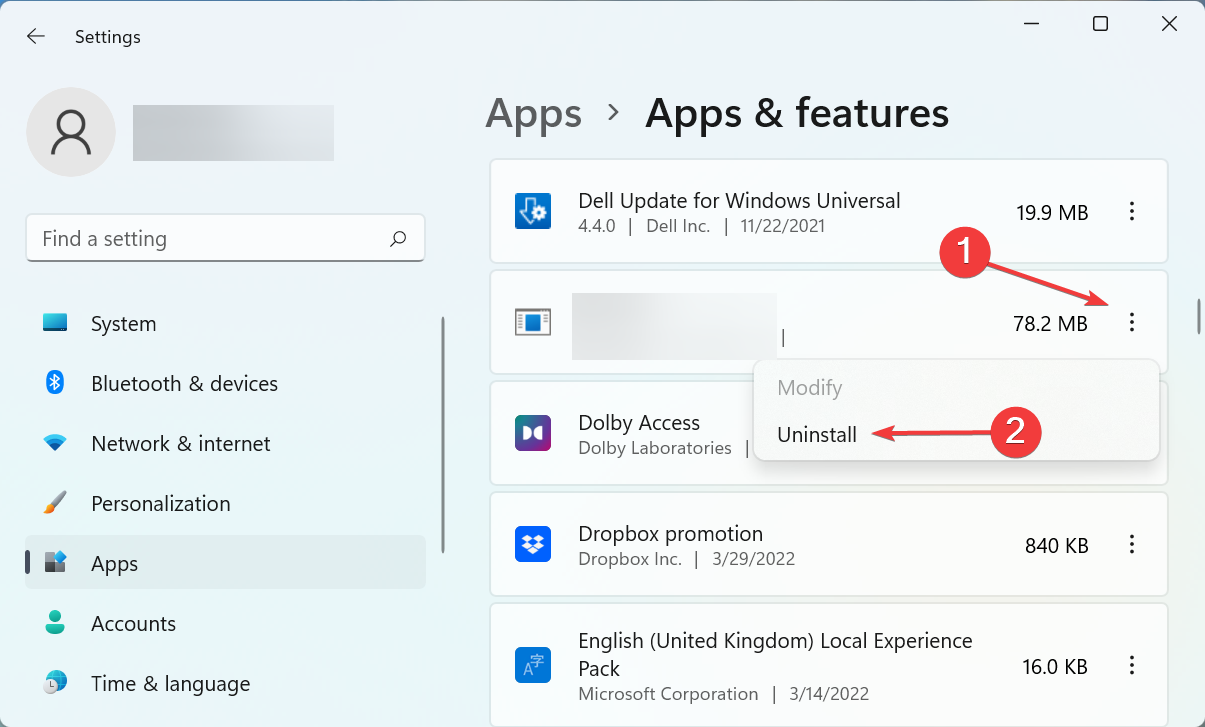
  1. Press Windows + I to launch Settings, and select Apps from the list of tabs listed in the navigation pane on the left.Apps
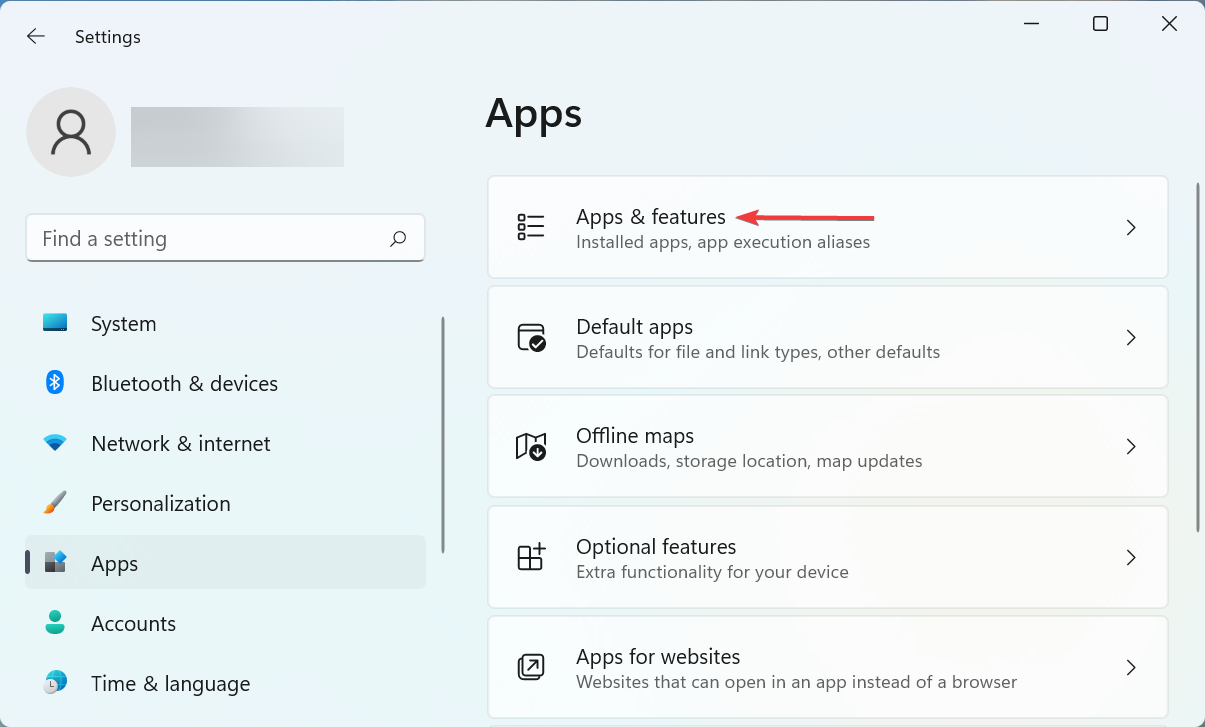
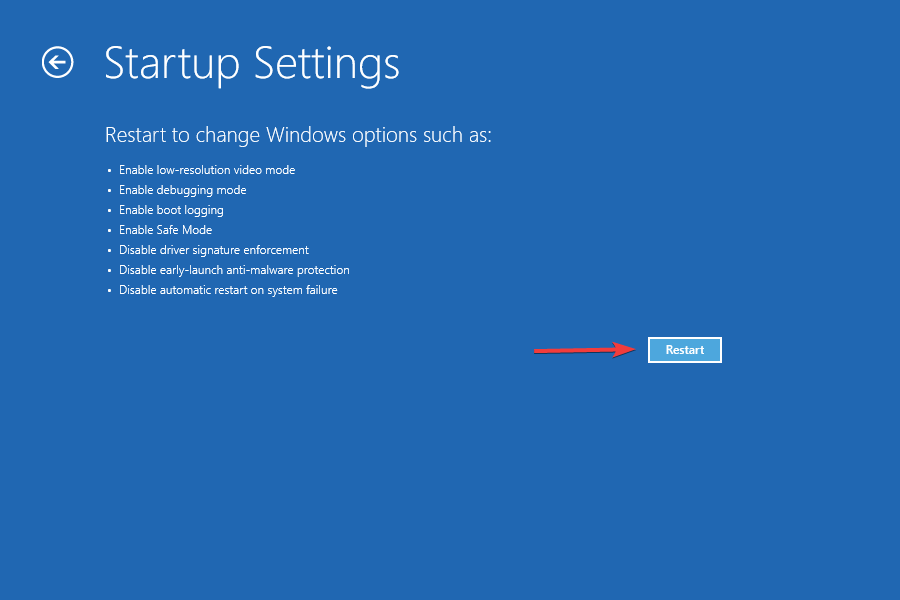
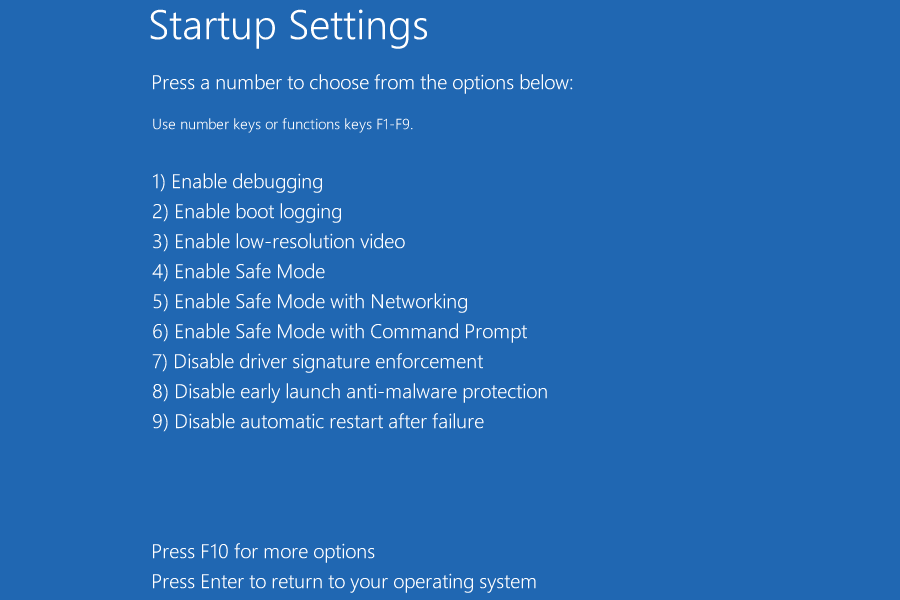
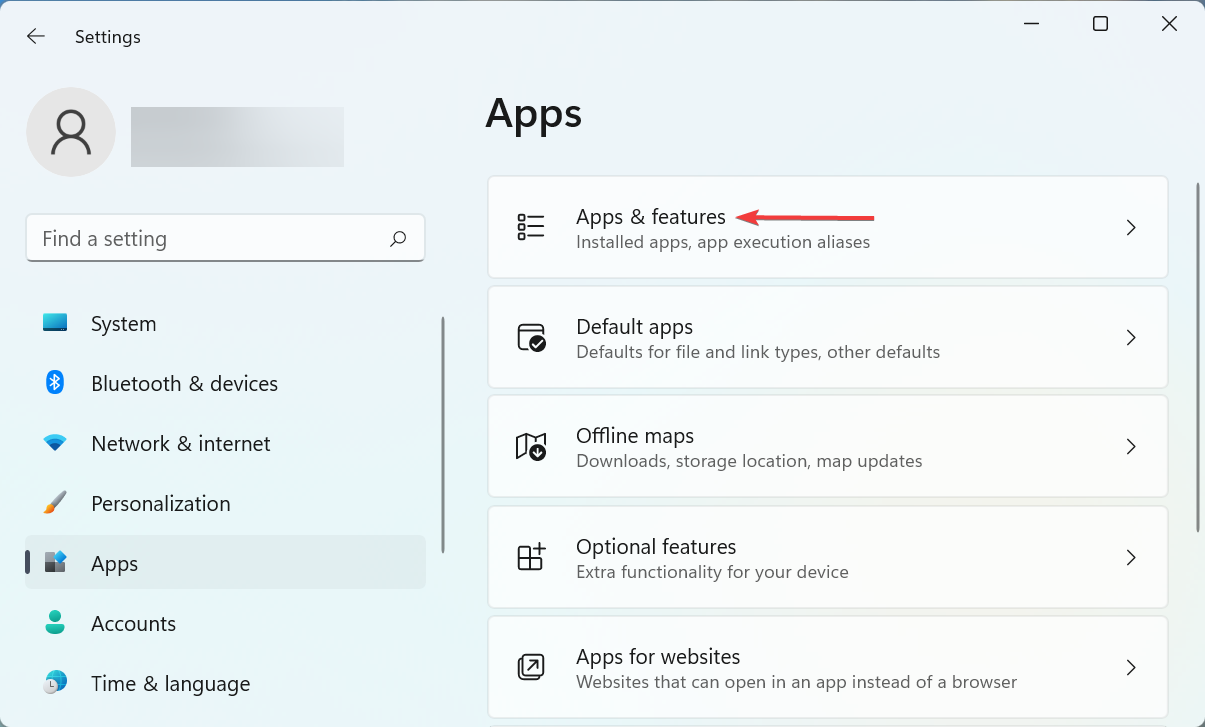
  2. Click on Apps & features on the right.Apps & features to fix device manager constantly refreshing
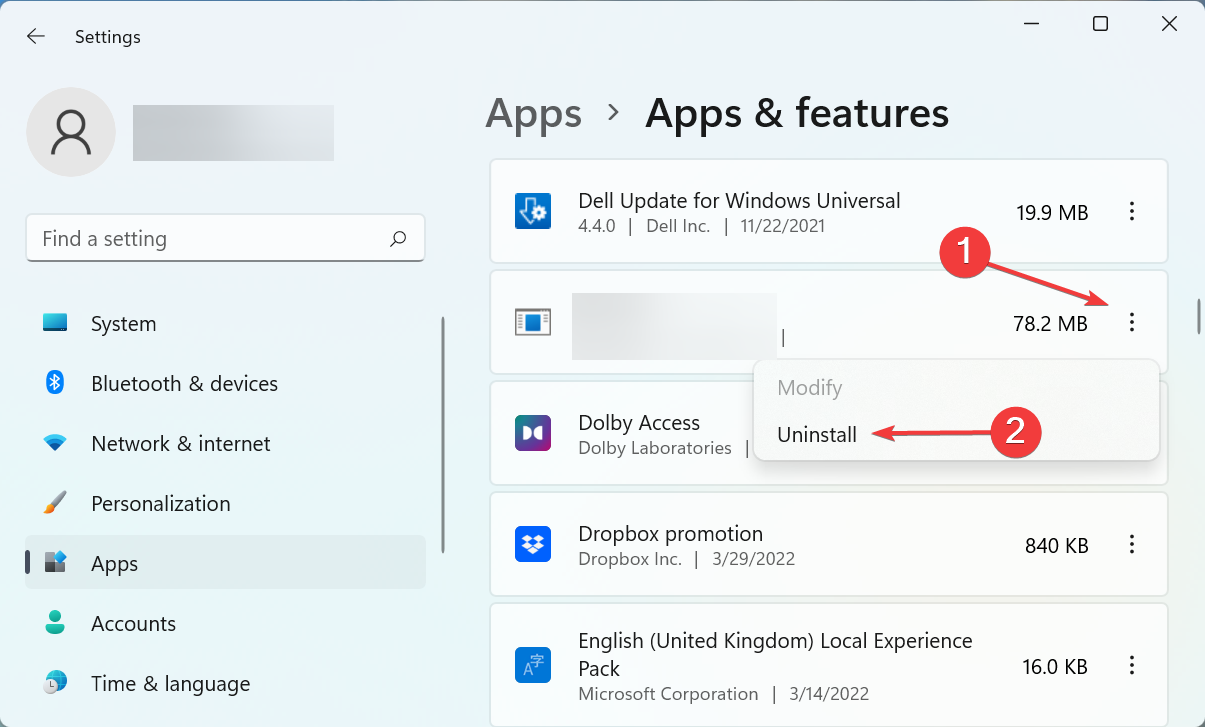
  3. Locate the conflicting app, click on the ellipsis next to it, and select Uninstall from the menu.Uninstall app to fix device manager constantly refreshing
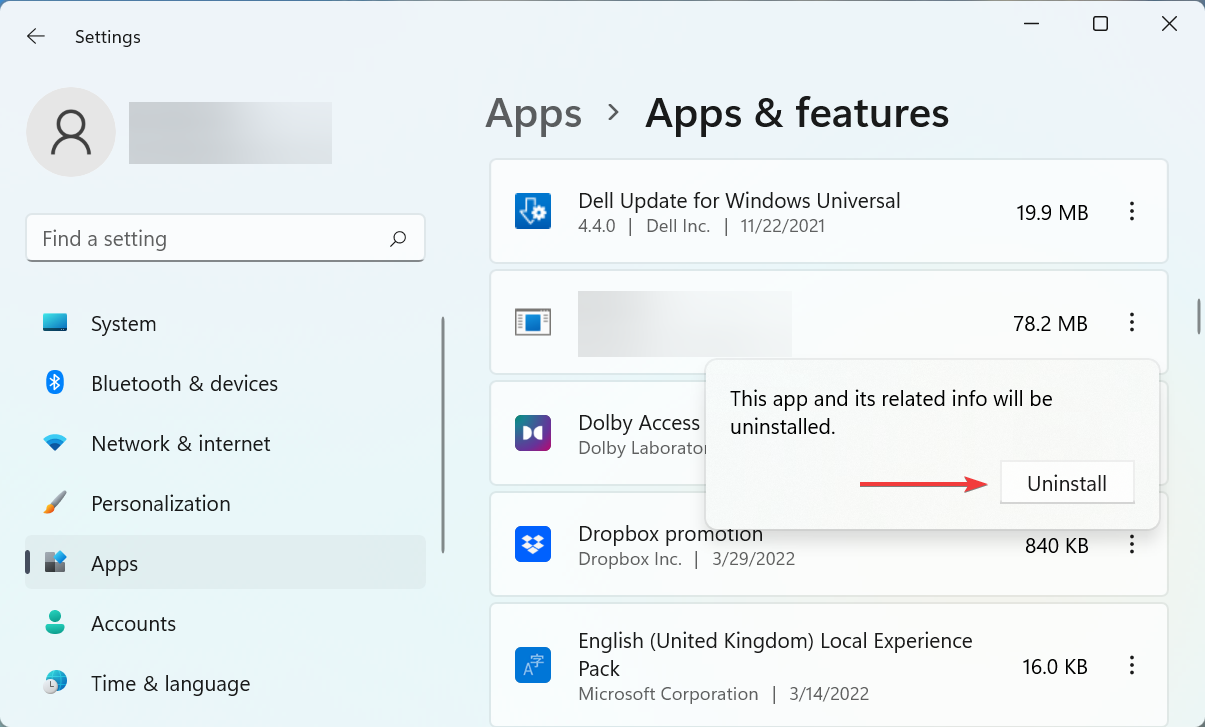
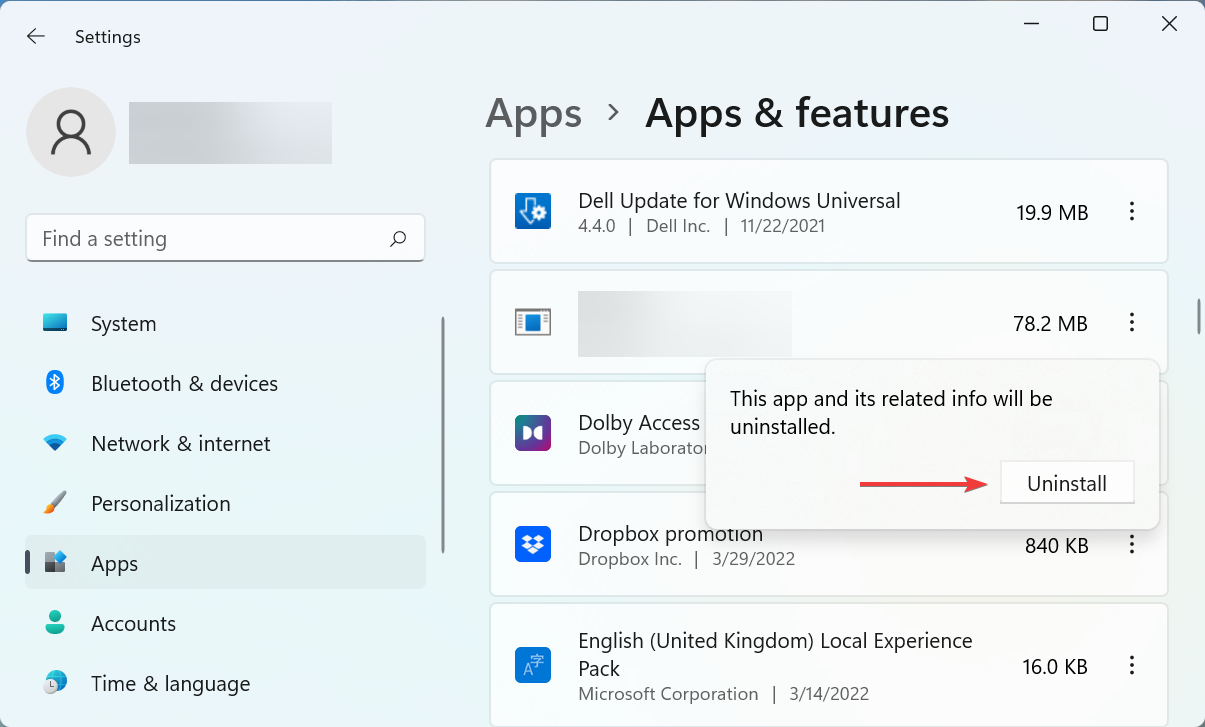
  4. Again, click Uninstall in the confirmation prompt.confirm change

If you started encountering the error after installing a particular application, simply removing it should help fix the problem. In case the Device Manager constantly refreshing issue persists, head to the last method.

7. Disable a few services

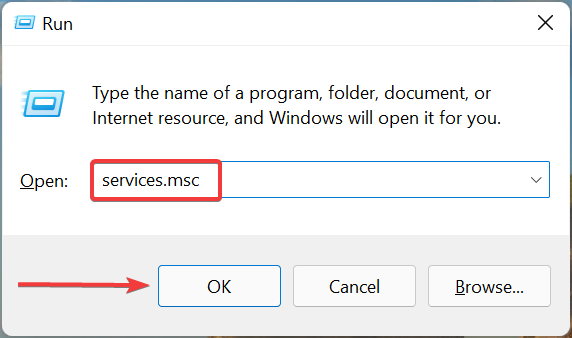
  1. Press Windows + R to launch the Run command dialog box, enter services.msc in the text field, and either click on OK or hit Enter to launch the Services app.services.msc
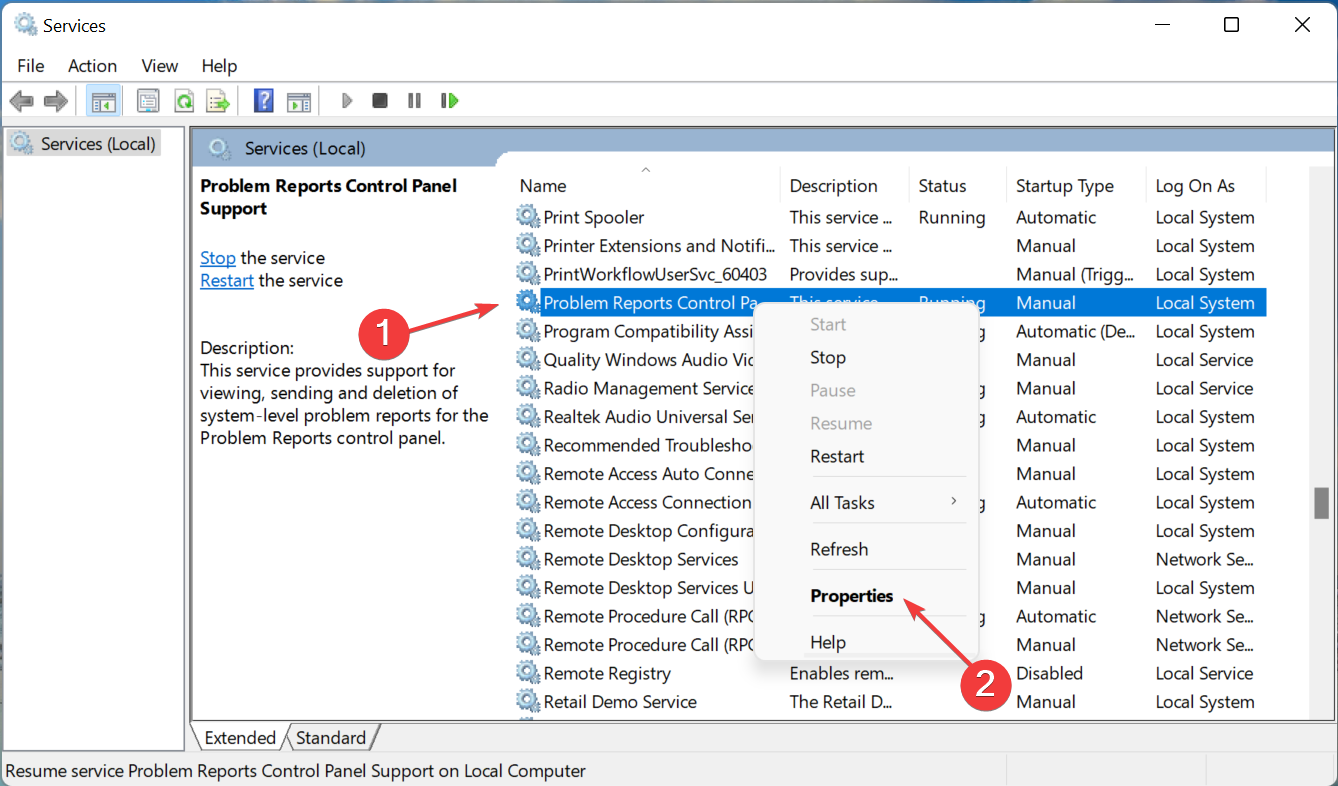
  2. Now, locate the Problem Reports Control Panel Support service, right-click on it, and select Properties from the context menu.Properties to fix device manager constantly refreshing
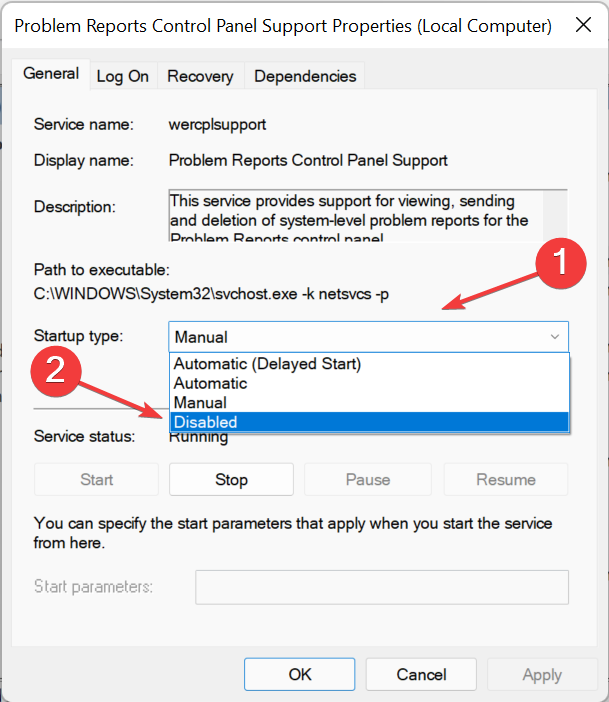
  3. Click on the Startup type dropdown menu, and select Disabled from the list of options.Disable to fix device manager constantly refreshing
  4. If the service is running, click on the Stop button under Service status, and then click on OK at the bottom to save the changes.Stop
  5. Similarly, disable the Windows Error Reporting Services.

That’s it! The Device Manager constantly keeps refreshing issue should now be fixed, and you can make the desired changes.

Also, learn what to do if Bluetooth is missing in Device Manager, since a lot of users have reported encountering the problem after upgrading the latest iteration.

Tell us which fix worked, and the device/application that was causing the issue, in the comments section below.

Easy way to save information from DirectX Diagnostic Tool pop up

Since its inception, DirectX (as well as its Diagnostic Tool) has become one of the most popular API amongst gamers. Thus, today’s topic is how to save information from the DirectX Diagnostic Tool pop up window.

The first version of the program was released back when Windows 95 was still in use. It is important to note that the DirectX version you are running will be determined by both the iteration of Windows that you have installed and by your graphics adapter.

When you run the tool for the first time, you will be asked whether you want to check to see if your video drivers have been signed by Microsoft.

If you choose to do so, the tool will begin checking your video drivers. The tool will not make any changes to the drivers that you are currently using. It will only inform you as to whether or not they have been signed.

In general, using signed drivers results in a more stable and dependable environment for the driver. But now, let’s see how you can save information from the DirectX Diagnostic Tool pop up, right after we see why it might show up unexpectedly.

Why is DirectX Diagnostic Tool popping up?

DirectX is a collection of application programming interfaces (APIs) that are used in Windows for multimedia and video programs. It is particularly important to gamers.

DxDiag (DirectX Diagnostic Tool) is a diagnostics tool that is used to test DirectX functionality and diagnose video or sound-related hardware problems.


The findings are frequently posted in tech forums or attached to help emails to provide support workers with a better understanding of the PC that is being used in the event that the issue is caused by a hardware breakdown or incompatibility with a particular software package.

In addition to providing a wealth of information about DirectX, the Diagnostic Tool also allows you to perform basic tests on the system in question.

The fact that the tool shows without your command indicates that your DirectX installation has been corrupted, either by a missing file or a system misconfiguration.

Consequently, we propose that you reinstall it by following the instructions provided in the linked article. Make certain that you are installing the most recent version of the software that is available on the market to ensure that it is free of bugs and errors.

Most significantly, in order to upgrade DirectX, you must also update your operating system and driver software. Windows will automatically discover and install any available updates.

How can I save information from the DirectX Diagnostic Tool pop up?

  1. Press Windows + R on your keyboard and type dxdiag inside it. Then click OK in order to run the command. Another easy way to open it is to open the Windows Search function and type the same command there.dx-diag directx diagnostic tool pop up
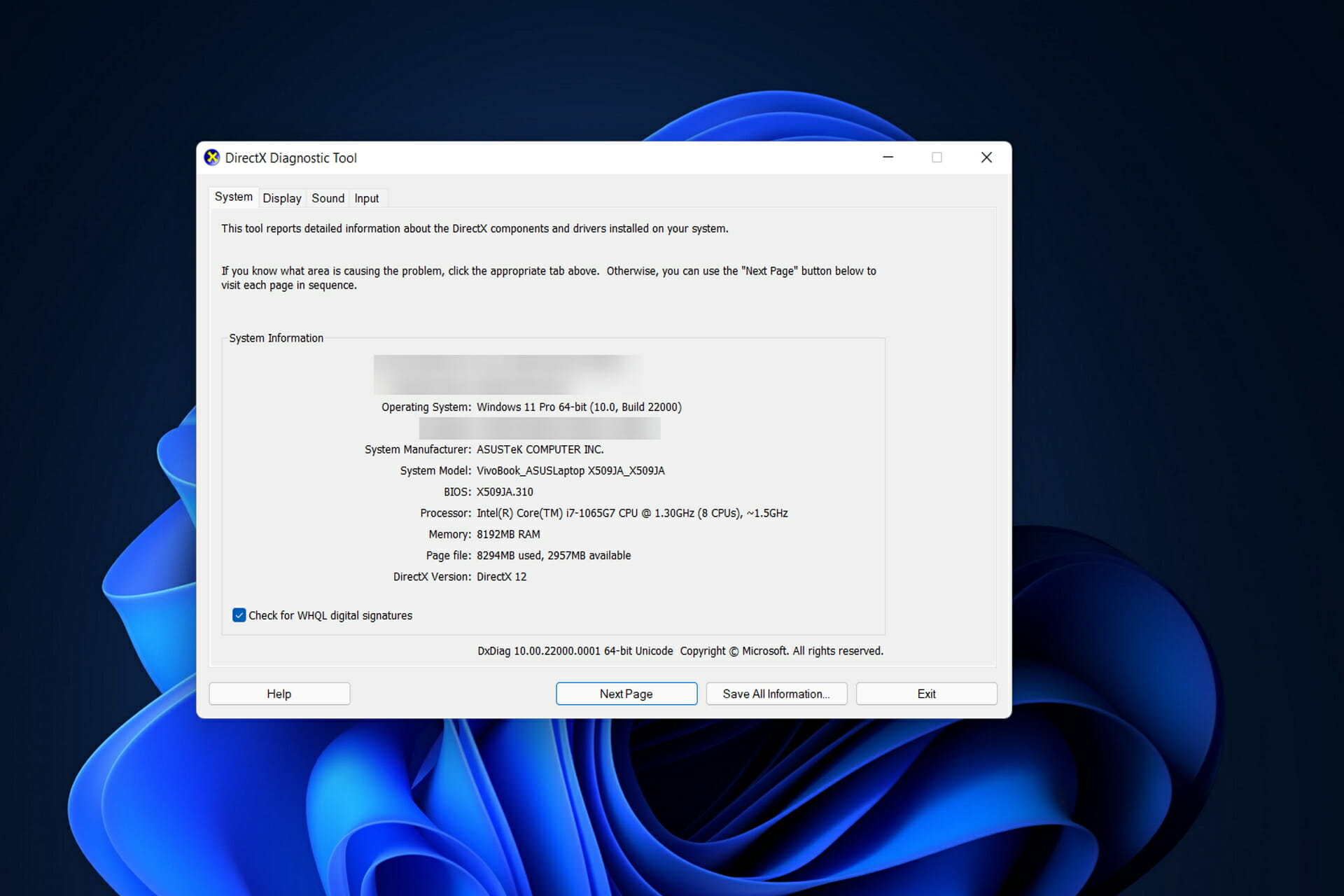
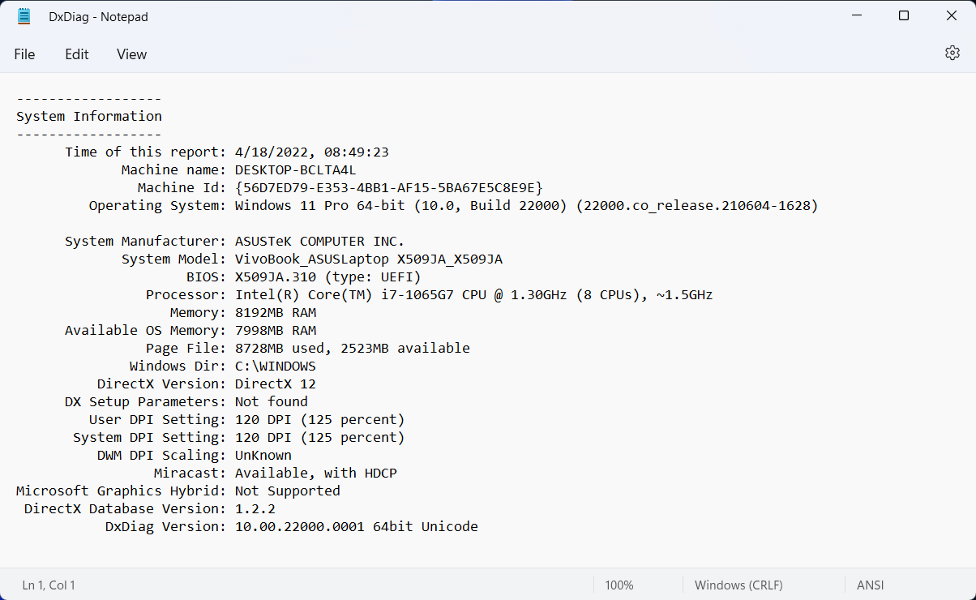
  2. Inside the DirectX Diagnostic Tool pop up window, select the Save All Information… button. This will extract data about your system, display, sound, and input parameters.save-all directx diagnostic tool pop up
  3. The information will be saved as a .TXT file. You can choose your desired location and click on Save.save-txt directx diagnostic tool pop up
  4. If you wish to get feedback on your system information, you can send the file to Intel, or AMD, or even post it on an online forum to see what other users have to say, and how they can help you.

Using the Direct X Diagnostic application, you may build a text file that contains a wealth of information about your computer. Depending on the type of user you are, one particular thing may be able to link your computer and yourself. And that’s if you name your computer as yourself.

However, Microsoft has made it safe for users to exchange the dxdiag file without disclosing any sensitive information that hackers could exploit in the future.

How does DirectX 12 Ultimate influence gaming?

Although it is built on the DirectX 12 foundation, DirectX 12 Ultimate includes a few new features that have emerged over the last two years. Raytracing 1.1, in particular, is included in it.

As ray tracing becomes more popular in games, the Ultimate version natively integrates the capability into both Windows and Microsoft’s Xbox Series X.

DirectX 12 Ultimate (Source: Nvidia)

Variable-rate shading is also available, allowing a GPU to make better use of its resources when rendering in-focus objects, resulting in faster frame rates and higher fidelity.

Other enhancements include Sampler Feedback, which improves texture quality while using fewer resources, and an overall set of improvements that should allow next-generation games to run more smoothly than before the upgrade.

Because DirectX 12 Ultimate is now included in Windows, game developers will be able to create more immersive games with higher-quality textures and life-like lighting.

In order to improve your gaming experience even more, check out the 5 best game booster software for Windows 10 / 11.

Alternatively, here’s our full comparison between Windows 11 editions that shows which one is best to use by gamers.

Let us know in the comments section below whether you found this guide helpful. Thanks for reading!

Play The Elder Scrolls Online and two other games this weekend with Xbox Free Play Days

The Elder Scrolls Online is still playable through an extended event until April 26 as part of Xbox Free Play Days. Two other games are free to play this weekend as well with the Xbox Free Play Days perk.

The Elder Scrolls Online is a massively multiplayer online role playing installment of the now-legendary Elder Scrolls franchise. Join over 20 million other players and discover the world of Tamriel like never before in the most epic adventure yet.

The other two games free to play with Free Play Days include Gonner 2, a platform shooter with nonlinear level designs and secrets galore, as well as multiplayer co-op.

Monster Truck Championship is a true monster truck simulation with drag races, freestyle competitions and more. The game features 16 highly customizable monster trucks and 25 arenas, as well as the ability to go head to head against other players.

These latter two games are free to play from Thursday, April 21 through Sunday, April 24. Xbox Free Play Days is another perk of being a subscriber to Xbox Game Pass or Xbox Live Gold. New games are made available each week, and it is a great way to try out something new and maybe even find your new favorite. You can learn more about Xbox Free Play Days here.

17 months after launch, Xbox Series X/S is on track to outsell Xbox 360

Throughout the 17 months it has been available, the Xbox Series X|S has outsold the Xbox 360 by nearly 4.5 million units throughout that same 17 month period. This is according to VGChartz, which has released its March sales reports as well as a sales comparison article for the two consoles.

The article notes that both the Series X|S and the Xbox 360 released in the month of November, so the initial holiday season launch lines up for both systems as a fair comparison. As of March 2022 Microsoft’s ninth generation console(s) has sold 13.87 million units. It currently is ahead of comparative Xbox 360 sells by 4.49 million units, a gap which has widened by nearly half a million (480,485) units since the previous month.

Xbox 360
The Xbox 360 would go on to sell 85.81 million units throughout its lifetime.

By comparison, the Xbox 360 had sold 9.38 million units after 17 months on the market. The 360 didn’t reach the 10 million units sold mark until its 19th month, and it wasn’t until the 360 had been on shelves for 26 months until it reached the sales number currently held by the Series X|S.

Why does any of this matter? While the 360’s successor, the Xbox One, is now seen as a misstep by Microsoft thanks to its less-than-stellar reveal and messaging that was seen as “anti-gamer,”  the Xbox 360 was an important success for Microsoft that resonated with the more than 85 million gamers who wound up buying the system. The Series X|S represents a return to form and a chance for the company to redeem itself for its 8th generation mistakes, at least in the eyes of gamers. This is why so much attention is being paid to these sales figures.

Of course one has to take into account the fact that the home video game console market is a much bigger pie today than it was in 2005, which does undercut some of the Series X|S success relative to that of the Xbox 360 in that it has a bigger piece of what is a much bigger market.

Ubisoft quietly shutting down online features for many of its classic Xbox 360 games

Starting in June of 2021, developer Ubisoft began shutting down online features for some of its classic games, including Tom Clancy’s Rainbow Six Lockdown and Ghost Recon Future Soldier. Many other titles also met with the same treatment, and the termination of game servers applied across all platforms – PC, Xbox and PlayStation. Part of Ubisoft’s official statement on the matter read “Following a critical update on our online services management platform…our teams have investigated and found that these titles couldn’t meet our stability and quality standards while running said update.”

Enter 2022, and a recent article posted in the Help section of Ubisoft’s official site has listed a slew of Xbox 360 titles whose online features have ceased. While some of these have already been noted, only now is Ubisoft going public with the other shutdowns, the newest of which are listed here.

  • Assassin’s Creed II
  • Assassin’s Creed III
  • Assassin’s Creed: Brotherhood
  • Assassin’s Creed: Revelations
  • Beyond Good and Evil
  • Blazing Angels 2
  • Far Cry 3
  • Just Dance Kids 2014
  • Rabbids: Alive and Kicking
  • Smurfs 2

In the case of some of these games, the Xbox 360 servers were up and functional only a few weeks ago, and the shutdowns have come surreptitiously and without warning. What this means for these games is that online multiplayer is of course no longer available, nor is downloading of additional content. Other game features such as leaderboards will no longer be available either, and many games now have achievements that are unfinishable, which will be the most rankling part of this news for some.

While it is sad to see these titles get sunset, the company has stated that “Discontinuing these online servers is a ‘necessary step’ in an effort to allocating IT and service staff to newer and more popular titles.”

Confirmed method to use Device Manager and update all drivers

To use Device Manager to update all drivers on Windows, you will have to do it manually and one after the other.

At present, Microsoft has not included a feature that could automate all drivers’ updates with just a click. It has to be done one after the other. Although, there are software tools that can automatically help update drivers on your system

Drivers are an integral part of any computer. They act as middlemen between a PC and external peripherals such as mice and keyboards.

Why do I need to update my PC drivers?

An outdated or incompatible driver can cause different problems for your system. Aside from it affecting the functionality of the connected hardware, it can also interfere with the smooth operation of other programs on the system.

It is also worthy of noting that sometimes, the solution to a problem may not be a typical update of the driver but a change of device.

Such as if you are looking for swift mouse cursor movement for gaming, updating your current mouse’s driver may not give you what you want but changing the mouse to another with higher capability and also installing a compatible driver may be the solution.

How can I update my drivers using the Device Manager?

  1. Right-click on the Windows logo icon in the Taskbar. Next, select Device Manager.
  2. Locate the peripheral you want to update its driver. For instance, if it is a keyboard, click on the small drop-down arrow beside it to display the list of connected devices. Right-click on the concerned device, then select Update driver.
  3. Follow the screen prompt to select the preferred choice of update. If you wish to update the driver of more than one device, repeat the process for them all.

An outdated driver can cause an overall problem with your computer such as making the general performance slower than normal. Updating can also help to avoid issues that may arise during an emergency.

For example, a Webcam problem within a few minutes of a zoom meeting can be caused by an outdated driver.

Follow our guide to avoid any of this kind of frustration. We also have a guide specially written for Windows 10 users who want to update drivers.

Alternatively, if you want a quick, error-free solution, you can use a dedicated driver updater such as Outbyte Driver Updater. Set it up to regularly check your drivers and never have this problem again.

With this tool, you will always be certain that your drivers are up to date. It can automatically detect whether you have outdated or corrupt drivers and install new ones from its own database.

⇒ Get Outbyte Driver Updater

Let us know in case you face any challenges using these methods. Appreciate our work by commenting if this helped you solve the problem.

Microsoft and Xbox celebrate Earth Day

April 22 is Earth Day, and Microsoft is celebrating the occasion in a number of ways. Among the many endeavors the company is taking to reach its goal of becoming a zero waste, water positive and carbon negative company by 2030 are its involvement with the likes of Project Amplify and the Green Software Foundation. These organizations are committed to driving social impact through providing sustainability projects access to the technology they need to achieve their goals. The Green Software Foundation in particular is committed to making the software industry a carbon-free one – from development and distribution to consumer use.

Microsoft also works with many other enterprises as part of its sustainability efforts, like TCS Clever Energy, which helps industrial organizations achieve their carbon-neutral goals. Also noteworthy is Microsoft’s partnerships with the World Wildlife Fund, Water.org and The Nature Conservancy

And for the mainstream consumers Microsoft is celebrating Earth Day with a host of Xbox goodies. Xbox Game Pass has created an Earth Day collection featuring four games: Jurassic World Evolution; Subnautica: Below Zero; Craftopia; and Fe. Minecraft developer Mojang Studios is also getting in on the celebrations with new learning content for Minecraft: Education Edition. And a slew of in-game content will be released in honor of Earth Day including new liveries in Forza Horizon 4, Forza Horizon 5 and Forza Motorsport 7. New Earth Day themed content will be available in the Xbox Store in the form of gamerpics, profile themes and avatar Items.

As we celebrate Earth Day 2022, let us think of all the small ways we can appreciate this beautiful planet we call home. Visit a park, plant a tree, or build a birdhouse with the family.

Device Manager Log: 2 Easy Ways to View & Check History

All Windows versions come with a Device Manager log that keeps track of applications, setups, and other features of a computer.

These logs can be easily accessed through either the Device Manager or Event Viewer tools to determine the root cause of any issue.

We understand some of these log reports might not be easy to decipher, that is why we have included in this article the general meaning of Event types you are likely to notice.

Types of Device Manager logs

As stated earlier, Device Manager logs are detailed reports of activities of a system feature. There are five major types of events it records:

  • Application: It keeps track of all actions related to applications such as installation and crash reports.
  • System: It highlights reports of system info changes along with any alteration in device drivers’ settings.
  • Setup: Records the installation and activation of new device drivers and software on Windows.
  • Security: Informs of the activities pertaining to security such as alerting whenever a site or application attempts to access your computer location.
  • Forwarded events: It is a shared log from other connected devices in a network that the computer belongs to.

Windows device logs are detailed reports on important hardware and software actions that are generated and stored by Windows and some dedicated applications.

How can I check the Device Manager log on my Windows 11?

1. Use Device Manager

  1. Right-click on the Windows logo icon in the Taskbar. Select Device Manager.
  2. Find the device type you wish to check its logs. For example, to check the logs of a connected keyboard, locate Keyboards. Click on the small arrow beside it. Right-click on the name of the device itself. Select Properties.
  3. Select Events. If you are not satisfied with the few displayed Events, click View All Events.

2. Via Event Viewer

  1. Launch Run by pressing Windows key + R. Type cmd.
  2. Press Enter to launch Command Prompt.
  3. Input the Command below or copy and paste:
    eventvwr
  4. Next, press Enter.

How do I interpret Device Manager log reports?

The Event Log is usually launched immediately after a computer boot. Some of the Event types you are likely to see in a Device Manager log include:

  • Critical: A report of user logins/logoffs, modification of system time, clearing of audit logs, computer logon/logoffs/restarts, among others.
  • Error: These are records of problems like data loss, malfunctioning devices, or failure of a service to load on startup.
  • Warning: The events documented here are not significant but may pose future problems. This includes errors such as low disk space.
  • Information: Details successful launch of applications, drivers, or services. Information is logged when a driver successfully loads and executes properly.
  • Audit Success: Records successful attempts to access the system such as when a user successfully log on to the system.
  • Audit Failure: Unlike the Audit Success, this records the failure to gain access to the system. For example, when a user is unable to login successfully into a system.

We believe by now, you should have been able to see your Device Manager log and take any expected actions on certain reports such as the error and warning Event types.

Let’s know in the comment section in case you have any problem trying out any of our highlighted methods. Also, share if this works for you perfectly without any hitch.

Windows 11 Backup Settings: How to Use or Change

Wondering how to go about Windows 11 backup settings? You have come to the right place. For people still unsure whether they need this, here’s the thing. After upgrading to the Windows 11 operating system, many users can’t stop talking about the good look of the interface.

Maybe you like the appearance too, but all of these could be forgotten in a jiffy if your computer encountered an issue and there was no backup.

How can I use Backup Settings in Windows 11? Three important features

Windows 11 backup can be used for any of the following and more:

  • Restore files after malware/ransomware attack: Backing up your Windows 11 settings can save you from losing all files after a malware/ransomware attack. With a backup, you can easily restore your Windows settings without losing any files and thus putting your attackers to shame.
  • Transfer Windows settings: System backup can transfer settings from an old laptop to a new one. It helps you retain most of the features you are used to instead of finding your way around the new PC.
  • Access files anywhere: Backing up your Windows settings also permits you to access all files on your PC from anywhere. This comes in handy when you forgot to take the laptop along on a vacation for instance. But if you have the backup file with you, you can easily connect to any available laptop and access them. This is important for any files you may not want on the cloud.

How can I set up a backup on my Windows 11?

1. OneDrive syncing

  1. Log into your Microsoft OneDrive account. The OneDrive app comes with Windows 11 by default.
  2. Right-click on the Windows logo in the Taskbar.
  3. Select Settings.
  4. Click on Accounts. Next, select Windows backup.
  5. Check if the toggle for Remember my apps and that for Remember my preferences are both On. After this, select Manage sync settings.
  6. OneDrive will automatically scan the system for Windows settings and files. Select the ones you will like to exclude, then click Backup now.

2. Use a dedicated backup tool

There are third-party tools specially designed for this purpose. One of the highly proficient is Acronis Cyber Protection Home. It enables any PC user, irrespective of their technical knowledge, to back up any files and, at the same time, safeguard the system against any cyberattack.

If the directions in the guides above look confusing, this tool can take the burden off and help with whatever you need.

⇒ Get Acronis Cyber Protection Home

3. Use File History

  1. Get an external hard drive for the purpose. The hard drive should have enough space to handle the Windows settings file. This is determined by the file size of your system.
  2. Connect the hard drive to the PC.
  3. Go to Control Panel via Run by pressing Windows key + R. Then, type control, and press Enter.
  4. Select Save backup copies of your files with File History.
  5. Choose the plugged-in device. Then follow the screen guide to backup your Windows settings.

Backing up your Windows settings gives you something to fall back on when attacked by malware or ransomware and makes it easier to migrate your settings from one computer to another.

Now that you know how this feature works, you can go ahead and restore individual files from Windows Backup.

Also, check out our expert review on File History vs Windows Backup to see which best fits your needs. Backing up files is important, but if you need a service that works with multiple platforms, visit our guide on how to download IDrive for Windows.

Were you able to back up your Windows settings now? Let us know in the comments section.

3 Easy Ways to Change Windows 11 Control Panel to Classic View

With the introduction of Windows 11, Microsoft has been slowly deprioritizing some of the Control Panel functionalities and shifting them to the Settings app.

While the Control Panel is still relevant with some of its essential features, a complete switch to the Settings app is inevitable.

However, many users are not accustomed to the changed interface in Windows 11 and would prefer things in a previous manner. For instance, opening the Windows 11 control panel in classic view.

So, while you are still adapting to the Windows 11 interface, this post will guide you on how to change to the classic control panel in Windows 11.

What’s new in the Windows 11 Control Panel?

Here are a few changes in the app that you must know:

  • You can now change the network adapter settings through the Windows 11 settings app. Simply follow the path Network & internet > Advanced network settings and enable or disable the network connection from this page.
  • Instead of navigating to the Sound window through Control Panel, you can now make changes to the sound settings through System > Sound in the settings app. Here, you can make changes to the sound settings like adjusting volume levels, test input and output levels, access to the volume mixer, and more.
  • An advanced storage settings layout that helps you free up space on your hard drive by clearing any redundant files, managing disk volumes, and more.
  • Check battery and power consumption with graphs that give you in-depth details.

Having said that, the Windows Control Panel is still essential to make changes to advanced settings like making changes to the firewall settings, power settings, uninstalling a program or update, and more.

How do I switch to the Control Panel classic view in Windows 11?

1. Change the view to small icons

  1. To open Run Command, press the Win + R keys simultaneously.
  2. Type control in the search bar and hit Enter to open Control Panel.
    Type control in run command and hit Enter
  3. In the Control Panel window, navigate to the View by field located at the top right.
  4. Select Small icons from the drop-down next to it.
    Set View by in Control Panel to small icons

This will change your Windows 11 Control Panel to a classic view.

Note icon NOTE
To revert to the normal Windows 11 Control Panel view, go to View by at the upper right and set it to Category or Large icons.

2. Pin the Control Panel to Start or Taskbar

  1. Go to Start and type Control Panel in the Windows search bar.
    Type control panel in Windows search
  2. Under Best match, right-click on Control Panel and select Pin to Start.
    right click on Control Panel and select Pin to Start
  3. This will pin the Control Panel app to the Start menu.
  4. Alternatively, as you search for Control Panel in the Windows search, right-click on the app and select Pin to Taskbar.
    right click on control panel and pin to Taskbar
  5. This will pin the app to the Taskbar.

This will also ensure that you have quick access to the Control Panel.

Note icon NOTE
To unpin the app, again search for Control Panel in the Windows search bar, right-click on it and select Unpin from Start or Unpin from Taskbar.

3. Create a desktop shortcut for Control Panel

  1. Click on Start and type Control Panel in the Windows search bar.
    Type control panel in Windows search
  2. Click on Control Panel under Best match to open the app.
    click on Control Panel under best match to open app
  3. Now, navigate to the small Control Panel icon on the left side of the address bar, and hold and drag it to the desktop.
    hold and drag control panel icon to desktop

This will create a desktop shortcut for the Control Panel app instantly. When you double-click to open the app, it will automatically open in Control Panel classic view on Windows 11.

What are some of the key takeaways?

In Windows 11, you can still open the control panel as you did in Windows 10:

  1. Go to Windows search, type Control, and select Control Panel from Best match results.
    Type control panel in Windows search
  2. Press the Win + R shortcut keys to open Run Console. Type Control or Control.exe in the search bar and hit Enter.
    Type control in run command and hit Enter

Alternatively, you can open Control Panel through Command Prompt (Admin). Here’s how:

  1. Right-click on Start and select Run to open Run Console.
    Right-click on Start and select Run
  2. In the search field, type cmd and press the Ctrl + Shift + Enter keys together to launch Command Prompt in admin mode.
    open elevated command prompt by pressing Ctrl + Shift + Enter together
  3. Now, run the below command control in the elevated Command Prompt and hit Enter.
    Run command control in command prompt (admin) and press Enter
  4. It will open the Control Panel app.

Once you open the Control Panel, follow the above methods to switch to the classic view. Want to go even further? You can also switch Windows 11 to classic view entirely for a more familiar experience.

While the new Control Panel and the changed layout may be a bit overwhelming for the new users, once you are used to the pattern, it should be a cakewalk just as it was on Windows 10.

Do leave a comment below if you find this post useful to open the Windows 11 Control Panel app.

3 Ways to Transfer Windows Settings to a New Computer

Are you worried about how to transfer your Windows settings to a new computer? We’ve all been there before.

People change laptops for different reasons which are usually because of the inability of the old laptop to handle present work demands. Likewise, those who lost their PC would need to make a similar move.

The fact that you change a laptop does not mean you can’t import all of your files and Windows settings from the old laptop to a new one to retain your user experience.

Does Windows have a migration tool?

When it comes to Windows settings, nowadays, we live a lot more simple times and that’s because if you signed into a Microsoft account on different PCs, you will have the settings readily available.

As for the data, as you will see from our guide, it’s enough to use Microsoft OneDrive which is already installed on your Windows 10 and 11, and start the backup.

However, you should be aware that when you migrate from Windows 10 to Windows 11, not all the programs will be compatible, especially if you’re running a 32-bit Windows 10.

Anyway, we have broken down, bit by bit how you can do this with ease. Tag along and in no time, you would be able to retrieve that feel of your old laptop.

How do I copy Windows 10/11 settings to another computer?

1. Back up your data with Microsoft OneDrive

  1. Make sure your system is connected to the Internet. Sign into your Microsoft account by opening Windows search with Windows + Q and typing Your info.
  2. Select Your account info and click Open to launch.
  3. Check the Account settings section to sign in. Make sure you don’t sign in with a local account. If not yet signed in, under Related settings, select Accounts. It will automatically open a sign-in page in your default browser. Follow the directions on the screen to sign in.
  4. Open Settings by pressing Windows key + I.
  5. Select Accounts. Click on Windows backup.
  6. Next, select Manage sync settings. Also, ensure the Remember my apps option is toggled On. Likewise, do the same for Remember my preferences.
  7. Wait for the Microsoft OneDrive to complete syncing. After this, select the options you wish to backup, then click Start backup.
  8. To retrieve the Windows settings, simply sign into OneDrive on the new computer using the same login details as on the old computer. Follow the system prompt to Restore the Windows settings and files from OneDrive.

2. Use the Windows built-in backup

2.1 For Windows 11

  1. Connect an external hard drive to the old laptop.
  2. Press the Windows key + R to launch a Run console, type control and press Enter to start Control Panel.
  3. Under the System and Security, select Save backup copies of your files with File History.
  4. Select the Drive, then follow the screen directions to backup your preferred folders.

2.2 For Windows 10

  1. Connect an external hard drive.
  2. Select Start. Next, choose Settings.
  3. Under Updates & Security, click on Backup.
  4. Toggle the Automatically back up my files to On.
  5. Select More options.
  6. When done selecting your preferred files, click the Backup Now button to start.

3. Use a dedicated third-party tool

There is a faster and more convenient way to move your Windows settings across any released version by Microsoft. FastMove, a dedicated third-party tool has proven to be very effective for the purpose.

The tool is not only proficient in transferring Windows settings, it can also help you migrate your files and drivers with ease.

⇒ Get FastMove

Aside from the methods explained above, there are third-party tools you can use to transfer Windows settings to a new computer. If you’ve just bought a new PC with no existing OS, we show you how to install Windows 11 on it.

If you have any questions or contributions, don’t hesitate to write them down in the comments section below.

NET HELPMSG 2191: The requested control is not valid [Fix]

In the TCP/IP protocol suite, the Domain Name System is one of the protocols that provide computer name-to-IP address mapping name resolution services. However, sometimes it glitches resulting in errors such as The requested control is not valid for this service NET HELPMSG 2191.

The DNS Client and Server work together to provide computer name-to-IP address mapping name resolution services to computers and users.

Upon the Windows installation, the Client service is enabled by default in both client and server versions of the operating system.

As soon as you specify the IP address of a server in your TCP/IP network configuration, the DNS Client queries the server to discover domain controllers as well as resolve computer names to IP addresses.

It is only after the server responds to the client’s query and provides the domain controller’s IP address that communication can take place between the client and the domain controller and the authentication process can begin.

Follow along as we will show you how to enable DNS on Windows 11, and then jump into the list of solutions to The requested control is not valid for this service NET HELPMSG 2191 issue.

How can I enable DNS on Windows 11?

  1. Open Control Panel and navigate to Network & Internet to find the settings we need to tweak.netwrok-andI net helpmsg 2191
  2. Go to Network and Sharing Center.center net helpmsg 2191
  3. Click on the Change adapter settings option in order to select the network you want to modify.change-adapter net helpmsg 2191
  4. Right-click on the network you want to enable DNS on and choose Properties.wifi-prop net helpmsg 2191
  5. Navigate to the Networking tab, select IPv4 and click on Properties. IPv4 is an abbreviation for Internet Protocol version 4. It is the underlying technology that enables us to connect our devices to the Internet and share information with them. prop-ipv4 net helpmsg 2191
  6. Select the radio button next to Use the following DNS server addresses and enter the Prefered and Alternative servers. Any device that connects to the Internet is assigned a unique numerical IP address, such as 99.48.dns-enter net helpmsg 2191

Some of the best third-party DNS servers to use are the Google Public DNS (8.8.8.8 and 8.8.4.4), Cloudflare (1.1.1.1 and 1.0.0.1), and OpenDNS (208.67.222.123 and 208.67.220.123). Each of these service providers has a primary and secondary DNS address that you can use to connect to.

Because it is so easy to remember, Google’s Public DNS is one of the most widely used addresses on the Internet.

The fact that Google keeps a log of the IP addresses that access its servers for one to two days is important because it can be used for diagnostics and troubleshooting purposes.

There may also be some long-lasting logs, but Google claims that it does not store any personally identifiable information in its logs. As a result, if you value your privacy, you may want to consider using a different DNS address.

What can I do if I get the NET HELPMSG 2191 error?

1. Restart DNS

  1. Open the Windows Search function and enter services. Click on the topmost result to open the Services app. services net helpmsg 2191
  2. Here, scroll down until you meet the DNS client and right-click on it in order to choose Properties.dns-prop net helpmsg 2191
  3. Click on the Stop button, followed by the Start button. However, if the buttons are greyed out, go to the second solution.stop net helpmsg 2191

You can create long-running executable applications that run in their own sessions using Microsoft Services, formerly known as NT services, which are available on the Windows platform.

These services can be started automatically when the computer starts up, they can be paused and restarted, and they do not display any graphical user interface.

It is important to note that because clearing the DNS cache removes all of the entries, it also deletes any invalid records, which forces your computer to repopulate those addresses the next time you attempt to access those websites.

These new addresses are derived from the DNS server that has been configured for your network.

2. Use Registry Editor

  1. Open the Windows Search function and enter regedit inside the search bar. Select the top result in order to open Registry Editor.regedit-search net helpmsg 2191
  2. Here, enter the following location and press Enter: Computer\HKEY_LOCAL_MACHINE\SYSTEM\CurrentControlSet\Services\DNSCache\Parameterscomputer-loc net helpmsg 2191
  3. Right-click on the empty area and create a new DWORD or QWORD depending on your system. A DWORD, which is an abbreviation for double word, is a data type definition that is only applicable to Windows.dword net helpmsg 2191
  4. Name it MaxCacheTtl and double-click on it in order to set the value to Decimal and 86400. 86400 net helpmsg 2191
  5. Repeat the same steps, and create a new DWORD / QWORD that is named MaxNegativeCacheTtl. Set its value to 5. This way, the DNS cache will be reset every few hours.5 net helpmsg 2191

In the Registry Editor, users can perform the following operations: creating, manipulating, deleting, and renaming keys and subkeys in the registry as well as modifying and deleting value data.

However, if you are still unable to complete the above solution or it doesn’t work for you, check out what to do if you can’t restart the DNS client.

Why should I use third-party DNS servers?

DNS servers are responsible for connecting domain names to their associated IP addresses. The first time you enter a domain name into your browser, your computer contacts the DNS server that is currently in use and inquires as to which IP address is associated with the domain name.

The IP address is then connected to your computer, which then retrieves the appropriate web page for you. Your Internet service provider is most likely responsible for providing the servers you use (ISP).

If you’re behind a router, your computer may be using the router as its DNS server, but the router is actually forwarding requests to the servers provided by your Internet service provider.

dns net helpmsg 2191


Computers store DNS responses locally, which means that the request does not have to be made every time you connect to a domain name that you have already been to once or more times.

Once your computer has determined the IP address associated with a domain name, it will retain that information for a period of time, allowing you to connect faster by skipping the request phase altogether.

As we’ve established above, you’re most likely using the servers provided by your Internet service provider. However, you are not required to do so. Instead, you can make use of ones that are operated by a third-party company.

In some cases, these DNS servers may be able to provide you with faster resolves, allowing you to connect to a domain name more quickly the first time you connect to it.

But, in practice, the actual speed differences you experience will be determined by your distance from the third-party servers as well as the speed of your Internet service provider (ISPDNS)’s servers.

Was this guide useful to you? Don’t hesitate to tell us what you think in the comments section below. Thanks for reading!

No hardware capable of accepting calls is installed? 3 tips at your convenience

It doesn’t matter what the reason is, Windows 11 includes a feature that allows you to configure and manage VPN connections from the Settings app. But, users have been getting the No hardware capable of accepting calls is installed error which we’ll address today.

VPN services will provide an app for Windows 11 that will allow users to connect quickly to their private networks. However, if the app isn’t working as expected or if you don’t want to install an additional piece of software, you may still want to configure it manually.

Follow along as we will see how to create a private connection and then jump into the list of solutions that tackle the No hardware capable of accepting calls is installed error.

How can I set up a VPN connection on Windows 11?

  1. Open Settings and go to Network & internet, followed by VPN. Here you will be able to connect to third-party VPN services, create your own connection or change advanced settings.vpn-settings no hardware capable of accepting calls is installed
  2. Click on the Add VPN button in order to start the configuration process.add-vpn no hardware capable of accepting calls is installed
  3. Under the VPN provider drop-down menu, select the Windows (built-in) option.windows-built-in no hardware capable of accepting calls is installed
  4. In the Connection name setting, type a name for the connection such as Private Internet Access, or your_name_VPN.connection-name no hardware capable of accepting calls is installed
  5. Under the Server name or address section, enter an address such as windowsreportvpn.com or a number such as 12.12.12.12server-name no hardware capable of accepting calls is installed
  6. In the VPN type drop-down menu, select the Automatic option. Or the protocol required to connect to the particular VPN server.vpn-type no hardware capable of accepting calls is installed
  7. Under the Type of sign-in info drop-down menu, select the authentication method that you desire. We recommend selecting the User name and password one.username-pass no hardware capable of accepting calls is installed
  8. Configure the username and password and then click on Save.

For the same reasons you’d use a VPN with Windows 11, you’d also use one at any other time: to increase your security and privacy.

In addition to preventing data theft, it allows you to access geo-restricted content and connect to private networks outside of your own network with relative simplicity.

As an alternative, you can configure yours directly within Windows 11, eliminating the need for any additional VPN software. There are advantages and disadvantages to doing so, but now let’s see how to solve the No hardware capable of accepting calls is installed issue.

How can I fix the No hardware capable of accepting calls is installed error?

1. Obtain an IP address automatically

  1. After you have created your VPN connection, open Control Panel from the Windows Search function and navigate to Network and Internet in order to find the settings we need to tweak in order to fix the No hardware capable of accepting calls is installed error.netwrok-andI no hardware capable of accepting calls is installed
  2. Go to Network and Sharing Center.center no hardware capable of accepting calls is installed
  3. Click on the Change adapter settings option.change-adapter no hardware capable of accepting calls is installed
  4. Find the created VPN connection and right-click on it in order to choose Properties.properties-vpn no hardware capable of accepting calls is installed
  5. Navigate to the Networking tab and select the IPv4 option in order to choose Properties.ipv4-ip no hardware capable of accepting calls is installed
  6. Here, make sure the Obtain an IP address automatically option is selected, then click Save.obtain-auto no hardware capable of accepting calls is installed
  7. Do the same for the IPv6 option back under the Networking tab.

2. Use a third-party tool

SoftEther VPN is one of the most powerful and user-friendly multi-protocol VPN software solutions available anywhere in the world. It is compatible with Windows, Linux, Mac OS X, FreeBSD, and Solaris.

Connection protocol (Source: SoftEther)

It is a superior alternative to Microsoft’s VPN servers in terms of performance and has a clone function that is similar to that of the OpenVPN Server. Moreover, it will help you fix the No hardware capable of accepting calls is installed issue.

With the help of SoftEther, you can implement BYOD (bring your own device) in your company environment. If you have smartphones, tablets, or laptop PCs, the L2TP/IPsec server function will assist you in establishing a remote-access VPN from your local network using these devices.

3. Use a third-party VPN service instead

By creating an encrypted environment, a virtual private network protects your online privacy and helps to secure your Internet connection. It is way easier than configuring your own connection and avoids errors such as No hardware capable of accepting calls is installed.

It is this fact that makes virtual private networks so popular among computer users: all network traffic passes through the VPN without being seen by anyone, including your Internet service provider.

VPNs protect your Internet traffic from being intercepted by other people or organizations. They are extremely useful when using public Wi-Fi or while traveling because they conceal your true IP address.

PIA advantages (Source: Private Internet Access)

Private Internet Access (PIA), developed by Kape Technologies, is a virtual private network service that allows you to hide your IP address, change your geolocation, unblock websites, and watch streaming services such as Netflix.

It is fully compatible with Windows 10 / 11 and provides 24/7 live support for users who encounter issues along the way.

⇒ Get PIA

Should I use a free or paid VPN service?

Virtual private networks ensure that you remain completely anonymous online, protect you from cyber threats, and allow you to access geo-restricted websites. The thought of receiving all of this for free is incredible.

The problem is that maintaining a dependable VPN service – which includes tasks such as managing a global server network, developing client applications, and providing user support, to name a few – is not inexpensive.

Occasionally, the company can make things work by restricting the functionality of its free service, which is a simple but effective solution. If you only require a VPN for privacy on rare occasions, a free one with a time limit may be sufficient for you.

vpn no hardware capable of accepting calls is installed

What about providers who claim to offer a comprehensive, limitless service at no cost to the user? That’s where you’ll need to be a little more cautious. To make money, some free VPNs actually compromise your privacy and security in order to remain free.

That is the absolute last thing you want from a VPN. In many cases, free ones acknowledge that they share your session data with advertisers and that they bombard you with advertisements.

Many free VPNs, in contrast to premium ones, rely on unreliable security measures and weak encryption, which can behave in a manner similar to malware. Because of this lax security, hackers and spying agencies can often easily decipher your data.

On the other hand, the top-rated paid services protect you from potentially dangerous websites by incorporating an ad and malware blocker into the software.

If you’re looking for a free VPN to use to stream videos, play games, or download torrents, you’re going to be extremely disappointed. The use of it will result in some speed loss as a result of the encryption process, but with the paid ones, you won’t even notice the difference.

The good news is that slow speeds are only an inconvenience and do not pose a threat to your security or privacy. If all you need to do is send a confidential email from a public WiFi hotspot, a little patience and a reliable free VPN will be more than sufficient.

For more information, take a look at our article on whether there are any advantages of using a VPN without encryption.

Was this guide useful for you? Let us know in the comments section below as well as whether you have more solutions in mind. Thanks for reading!

Is Starlink Good For Gaming? Facts & Solutions In 2026

Starlink is SpaceX’s idea to deliver high-speed Internet connection across the globe, from metropolitan cities to the remotest of the villages. But one thing that users had been pondering over was if Starlink supports gaming? We will clear that up in this guide.

Starlink has so far managed to cover 29 countries by launching more than a thousand Low Earth Orbit (LEO) satellites, though most of these countries are in North America and Europe. So, the first thing you have to check is whether it’s available in your region.

If it is, there are various factors that may affect your gaming experience, such as downtime, Internet speed, and latency. So here’s all you need to know about Starlink and gaming on it.

Is Starlink good for gaming?

Starlink claims to offer an Internet speed of around 100 Mbps to 200 Mbps and latency under 20ms in most locations, which is considered optimal for gaming.

And most users are able to get a more-than-decent Internet speed in the range of 80-120 Mbps which is suitable for browsing the web and running high-resolution videos on YouTube, Netflix, or other streaming platforms.

LocationDownload Speed (Mbps)Upload Speed (Mbps)Average Ping (ms)
Amsterdam241192
Miami211353
Paris15051
London116926
Los Angeles1131310
Fastest Internet speed on Starlink

In most of these cities, you would find the download speed and ping to be in the advertised range.

But there are also intermittent drops in the connectivity in many locations which affects real-time activities like gaming and video calls on Starlink, though the effect is minimal while watching videos.

For many users, the connection goes down for a few seconds several times a day, and they are automatically disconnected from the game servers. Some even had it down for a couple of hours due to obstructions, as reported by their Starlink app.

If Starlink is able to deliver ping under 50 ms in your location, along with reliable connectivity, things should work out just fine. Otherwise, you will face problems with online gaming.

Based on our research, ping and Internet speed are not as big a concern as the frequent drops in Internet connectivity. But you can minimize or even eliminate the latter, as discussed in the next section.

It’s also imperative to mention that over the last few months, Starlink has made considerable improvements in terms of coverage, Internet speed, and reliability.

The ping has reduced, and the drops are not as frequent, owing to more Starlink satellites being launched into space.

How can I reduce the frequent drops in Internet connection on Starlink?

Before you order the Starlink kit, make sure to download the Starlink mobile app, and check for obstructions at the exact location you intend to install it. This tool will help you find the right place and ensure the best performance.

Starlink app to find estimated obstructions

Let’s first understand why you face Internet drops on Starlink. The official website clearly states that Starlink must have a clear view without any obstructions whatsoever. This helps it effectively connect to the overhead satellite.

These obstructions include trees, roofs, and chimneys, among others. If your house is surrounded by trees, installing the Starlink on Ground Pole Mount in a relatively open area, as seen in the image below, could help.

Starlink also offers a bunch of other accessories to ease the installation process and ensure that you find the best install location. Once the obstructions have been reduced to the minimum, you should have a seamless Internet connection, but a high ping could still affect gaming.

How can I fix high ping/latency while playing online games on Starlink?

Ping/latency is a critical aspect for gamers. It is the time elapsed between the point you take an action and the same registering and reflecting to the other players.

For optimal gameplay, the ping should be under 50ms, but if you are into competitive gaming, try to get it below 20ms.

Starlink has gotten the latency down considerably in recent months. But honestly, it is nowhere near the 20ms advertised on the website in most locations. There is still a lot of work to be done before you can enjoy uninterrupted gaming on Starlink.

Many users still report the latency shooting from 30 ms to 150 ms while playing games. Though it does not necessarily have to do with the connection, and you should verify if the configured game or system settings are in order.

For instance, updating the network adapters or changing the DNS server could help lower the ping in Warzone Pacific. Also, you can easily fix ping spikes in League of Legends.

If you started noticing a high ping after updating or upgrading Windows, changing adapter settings, or disabling third-party antivirus and firewalls could do the trick.

Besides, you can also use a reliable VPN to reduce ping in online multiplayer games. These have helped a lot of users, both using the Starlink Internet and others.

To increase the Internet speed on Starlink, you can reconfigure the network settings and try the other methods listed in the linked guide.

Should I use Starlink for gaming?

It depends on your location and whether there are other reliable ISPs in the region. In metropolitan cities, you will find several other reliable Internet providers that deliver better speed, connectivity, and ping. At this moment, we would recommend that you go with these for the best gaming experience.

Also, in cities with a high population density, the satellites will be overloaded. This will adversely affect the Internet speed and other parameters.

Besides, other than the monthly subscription charge, you will have to pay a high upfront amount just to get the Starlink kit, which makes it slightly more expensive compared to the other available options. All the more reasons to not go with Starlink, at least for now.

Starlink kit

However for those residing in areas with no Internet service providers, generally the rural parts, Starlink seems to be both viable and economical. Just get one, install it at a location with none or minimum obstructions, and you are good to go. The installation process is seamless.

Starlink has already created a storm. And, with it investing in new-age technologies to further lower the rates, Starlink is bound to attract a lot of new customers.

You now know all there is about the intricacies dealing with gaming on Starlink. It would still take a few more months before we can draw a clearer picture encompassing every aspect since regular changes are being introduced and the user base is still low.

If you have any other queries, drop a comment in the section below. For those of you who have already ordered Starlink, do share your experience.

5 simple tips to get CCleaner back if it keeps disappearing

CCleaner is one of the best PC optimization tools which helps boost performance. It has a simple interface, easy to run, and offers a bunch of options. However, several users reported that CCleaner keeps disappearing each time they launch it.

The issue generally arises due to a bug in the current version of the OS or CCleaner, or an antivirus terminating the software. Other than that, in a certain version of CCleaner, the Smart Cleaning feature too closed the program each time after running a scan.

Now that you know what’s causing the problem, let’s walk you through the most effective fixes if CCleaner keeps disappearing on your PC.

What can I do if CCleaner keeps disappearing?

1. Update Windows

  1. Press Windows + I to launch the Settings app, and select Windows Update from the tabs listed in the navigation pane on the left.Windows Update to fix ccleaner keeps disappearing
  2. Now, click on the Check for updates button on the right to scan for any available new versions of the OS.Check for updates to fix ccleaner keeps disappearing
  3. If any updates are listed after the scan, click on Download & install.Download & install

A quick way to eliminate a plethora of errors in Windows, including CCleaner keeps disappearing, is to keep the OS up-to-date. Whenever a bug is reported, Microsoft releases a patch for it in the subsequent updates. So, make sure to have the latest version installed.

2. Launch CCleaner in Safe Mode and then back in regular mode

  1. Press the Windows key to launch the Start menu, click on the Power icon, hold the Shift key and then click Restart from the flyout menu.Restart PC
  2. Wait for the OS to enter the Recovery Environment, and then click on Troubleshoot.Troubleshoot to fix ccleaner keeps disappearing
  3. Now, select Advanced options.Advanced options
  4. Select Startup Settings from the six options listed here.Startup settings
  5. Click Restart.Restart
  6. Now, either hit the 4 or F4 key to boot Windows into Safe Mode.Safe Mode to fix ccleaner keeps disappearing
  7. Next, open CCleaner in Safe Mode and let it run for a minute or two.
  8. Finally, restart the PC to boot Windows into regular mode.

Once in the regular mode, you should now be able to run CCleaner and it shouldn’t keep disappearing anymore. If this method doesn’t work, head to the next one.

3. Disable/uninstall antivirus

Note icon NOTE
First, you should try disabling the antivirus and if that helps fix the issue with CCleaner, go ahead and uninstall it. The steps to disable the antivirus will be different for each, and you can find them on the official website.
  1. Press Windows + I to launch Settings, and select Apps from the list of tabs in the navigation pane on the left.Apps
  2. Next, click on Apps & features on the right.Apps & features
  3. Now, locate the problematic app, click on the ellipsis next to it, and select Uninstall from the flyout menu.Uninstall to fix ccleaner keeps disappearing
  4. Again, click Uninstall in the confirmation prompt that pops up.Confirm change

The antivirus is often found to block the functioning of CCleaner which leads to it immediately disappearing after launch. McAfee has been reported to cause the issue by many, so make sure to disable/uninstall it.

4. Disable Smart Cleaning

  1. Launch CCleaner and click on Options from the pane on the left.Options
  2. Now, select Smart Cleaning from the navigation pane.Smart Cleaning
  3. Now, untick the checkbox for Enable Smart Cleaning from the top, and select Yes in the confirmation prompt that pops up.Disable smart cleaning to fix ccleaner keeps disappearing

Once done, restart the computer for the changes to come into effect, and the CCleaner keeps disappearing problem should be eliminated. If it persists, head to the last method.

5. Reinstall CCleaner

  1. Press Windows + R to launch the Run command, type appwiz.cpl in the text field, and either click OK or hit Enter to launch Programs and Features.appwiz.cpl to fix ccleaner keeps disappearing
  2. Next, select CCleaner, and click on Uninstall.Uninstall to fix ccleaner keeps disappearing
  3. Click Yes on the UAC (User Account Control) prompt that pops up.Click Yes
  4. Now, follow the on-screen instructions to complete the uninstall process.Follow

If there’s a problem with the current version or the configured settings for CCleaner, simply updating it wouldn’t do the job. In this case, it’s best to first uninstall the program and then safely download CCleaner.

That’s it! CCleaner shouldn’t keep disappearing anymore, and you can use the tool to optimize your PC and get the best performance out of it.

Also, find out some of the other reliable PC repair and optimization tools, in case CCleaner does not live up to your expectations.

Tell us which fix worked for you in the comments section below.

How to uninstall greyed out Windows 10 apps

We have all sorts of applications on our PC, but sometimes certain apps can become grayed out and unable to remove. This can be a problem, so today we’re going to show you how to uninstall grayed out apps on your Windows 10 PC.

Grayed out applications are somewhat common, and some applications are built-in into Windows, so that’s the reason they’re grayed out.

Sometimes applications you install can get corrupted, and that will prevent you from removing them. Speaking of grayed out apps, here are some problems that users reported.

  • Unable to uninstall program Windows 10 – This problem can occur for various reasons, and if you encounter it, be sure to download Microsoft’s troubleshooter and run it. After using the troubleshooter, the issue will be resolved.
  • Uninstall Amazon Assistant Windows 10 greyed out – Many users reported issues with Amazon Assistant on their PC, and we already covered how to uninstall Amazon Assistant in one of our previous articles, so be sure to check it out for detailed instructions.
  • VMWare player uninstall greyed out – This issue can occur with almost any application, and if you encounter it, try deleting the software from Safe Mode.
  • Uninstall greyed out apps VMware, VirtualBox, Visual Studio 2015, McAfee – This problem can affect almost any application, but you should be able to fix it using the uninstaller software.
  • Greyed out apps won’t delete – Sometimes you might encounter certain grayed out apps that you can’t delete. However, you might be able to fix that issue by using PowerShell.

How can I uninstall grayed out apps on PC?

1. Use a specialized tool

One way to uninstall grayed-out apps is to use dedicated software. A PC cleaning utility such as IObit Uninstaller offers many benefits when it comes to safely remove applications.

With an uninstalling utility, you will make sure that the app you are trying to uninstall along with all its corresponding files is completely erased from your PC.

IObit Uninstaller is our top choice because it is easy to use, allowing users to uninstall and clean leftover files from one central window, so you will not have to jump between apps and setting panels.

The uninstallation feature is very simple. It displays a listing similar to what you find in Windows settings. You can easily select the unwanted app and then click on the trash icon on the right for a clean uninstall.

⇒ Get IObit Uninstaller

2. Enter Safe Mode and try to remove the application

  1. Open the Settings app and head to the Update & Security section (to open the Settings app quickly, you can use Windows Key + I shortcut).
    update and security settings grayed out apps
  2. From the left pane pick Recovery. In the right pane, click the Restart now button.
    restart now button grayed out apps uninstall
  3. Navigate to the Troubleshoot, then click on the Advanced options select the Startup Settings, and click the Restart button.
  4. Select the Safe Mode with Networking by pressing the appropriate keyboard key after the reboot.

Once the Safe Mode starts, try to remove the application. If that doesn’t work, you might want to try removing the application’s installation directory manually.

This method isn’t usually advised since it can leave registry entries behind, but if other solutions aren’t working, you might want to try it out.

If you can’t uninstall grayed out apps on your PC, perhaps there’s a certain glitch that is preventing you from doing that.

However, you might be able to fix this problem simply by entering Safe Mode and trying to remove the application from there.

In case you’re not familiar, Safe Mode is a special segment of Windows that runs with default settings, so it’s perfect for troubleshooting. To enter Safe Mode, follow the steps above.

3. Use Microsoft’s troubleshooter

  1. Download Microsoft’s troubleshooter.
  2. Once the troubleshooter is downloaded, run it and follow the instructions on the screen.

After the troubleshooting process is finished, the issue should be resolved and you’ll be able to easily uninstall any application from your PC with ease.

Many users reported that this method worked for them, so be sure to try it out.

According to users, issues with certain applications can sometimes occur, and they can become grayed out and unable to remove.

Microsoft is aware of this issue, and it has released its own troubleshooter to help you with this problem.

4. Use PowerShell

  1. In the Search bar enter powershell. Locate Windows PowerShell on the list, right-click it and choose Run as administrator.
    search powershell grayed out applications
  2. Run the following command: Get-AppxPackage | Select Name, PackageFullName
    powershell all apps grayed out apps
  3. Find the application that you want to remove and copy its Package name. Let’s say we want to remove ZuneVideo, for example. The Package name for this application would be: ZuneVideo_10.18102.12011.0_x64__8wekyb3d8bbwe
    product name powershell grayed out
  4. Enter Remove-AppxPackage <package name> command and press Enter to run it. In our example, the correct command would be: Remove-AppxPackage Microsoft.ZuneVideo_10.18102.12011.0_x64__8wekyb3d8bbwe
    remove grayed out apps powershell
  5. Be sure to replace the package name with the package name that matches the application you’re trying to remove.

After doing that, the problem will be resolved and you’ll successfully remove the selected application.

If you’re having problems removing certain applications from your PC, perhaps you can try removing them using PowerShell.

Bear in mind that this solution only works for Universal applications that are downloaded from the Microsoft Store or available in Windows by default.

Before we start, we have to warn you that PowerShell is an incredibly powerful tool, so you can cause damage with it if you’re not careful, so use this solution and PowerShell at your own risk.

Grayed-out applications can sometimes be a problem, and in this article, we showed you several solutions that can help you deal with them, so be sure to try them all out.

FIX: Could Not Load Library Client on Windows 10/11 error

Millions of gamers use Steam on a daily basis to play their favorite games, but some users have reported Engine error: Could not load library client error when they try to launch their favorite games on Steam, so today we’re going to show you how to fix this error on Windows 10.

What is Engine Error: Could Not Load Library Client And How To Fix It On Windows 10

Speaking of this error, users reported the following issues:

  • Could Not Load Library Client CS GO, Left 4 Dead 2, HL2 mod, Goldeneye Source, CS Source, Wolfenstein, GMod – This error can affect many games such as Global Offensive, Garry’s Mod, Wolfenstein and many others. If you’re having this problem, be sure to check the integrity of the game cache of the affected games.
  • Could Not Load Library Client Try restarting – Sometimes you might encounter this error message on your PC. If that happens, be sure to restart Steam using Task Manager.
  • Could Not Load Library Client w3btrv7.dll – If you encounter this error on your PC, the problem is related to the missing files, so you might have to install the missing components to fix this error.
  • Could Not Load Library Client Steam – As previously mentioned, this error message usually occurs when using Steam. However, you should be able to fix the problem by using one of our solutions.

According to reports, “Engine error: Could not load library” affects only Valve’s games, such as Counter-Strike: Global Offensive or Dota 2, making your favorite game unplayable, so what can you do to fix this problem?

1. Download Microsoft Visual C++ 2010 Service Pack 1 Redistributable

If you’re getting Engine error: Could not load library client error, it might be that some Visual C++ Redistributable files are missing on your computer, and you can download all the necessary files from here. Just remember to install both x86 and x64 version if you’re running a 64-bit version of Windows 10.

2. Temporarily disable your antivirus

If you’re encountering Engine Error: Could Not Load Library Client message on your PC, the cause might be related to your antivirus. To fix this issue, be sure that the Steam directory is added to the exclusion list in your antivirus.

If that doesn’t help, you might have to temporarily disable your antivirus and check if that solves the problem. In case the issue still persists, you might have to uninstall your antivirus.

You can do that from Windows Settings, but we advise you use a dedicated utility that will uninstall your antivirus and remove its corresponding files and registry entries.

Removing any trace of an application when you reinstall ensures that there’s n risk of getting similar errors in the future. It will also make it easier for you if you want to reinstall it in the future.

For this job, we recommend you use CCleaner because it is a very simple to use utility that embodies a powerful yet simple uninstaller that lets you remove apps in just a few clicks.

It also includes a registry cleaner as well as a junk file cleaner. It is safer to use it than to try to manually detect leftover files. The registry utility includes a backup option that you can use to make sure everything goes smoothly.

⇒ Get CCleaner

3. Restart Steam

If “Engine error: Could not load library client” error is giving you trouble, try restarting Steam. Make sure that you turn off Steam completely, you can even check with Task Manager if the Steam is running. After turning off Steam completely, start it once again to see if the problem has been resolved.

4. Move your Steam installation

If the problem persists, and Steam is installed to a location that contains letters or symbols that are not in the English alphabet, you might have to move your Steam installation. Don’t worry, your Steam games will be saved, and if everything goes well you won’t have to download them again.

Before we start moving your Steam installation, make sure that you know your username and password, because you’ll need it to access Steam later.

  1. Make sure that Steam isn’t running.
  2. Go to the Steam installation directory. By default it should be:
    • C:Program FilesSteam
      However, this location might be different on your computer.
  3. Delete all the files and folders except for the SteamApps folder (this is where your downloaded games are stored) and Steam.exe.
  4. Move these two files to another location.
  5. Launch Steam.exe from a new location, and log in to your account.

Steam will now update, and you’ll be able to play your favorite games again. In addition, it wouldn’t be a bad idea to verify game cache files. If you have any issues after moving your Steam games to a new directory you should delete Steam data from your registry. To do that follow these instructions:

  1. Go to your Steam directory and delete all files from it, except for the SteamApps folder. It’s advised that you move the SteamApps folder to a different location because you’ll need it later.
  2. Now, start the Registry Editor. You can start it by pressing Windows Key + R on your keyboard and typing regedit in the Run dialog. After typing regedit click OK or press Enter.
    Could Not Load Library Client Left 4 Dead 2
  3. When Registry Editor opens navigate to the following key in the left pane:
    • HKEY_LOCAL_MACHINESOFTWAREValve (if you use a 32-bit version of Windows 10)
    • HKEY_LOCAL_MACHINESOFTWAREWow6432NodeValve. (if you use a 64-bit version of Windows 10)
      Could Not Load Library Client Try restarting
  4. Right-click on the Valve key and choose Delete.
    ould Not Load Library Client CS GO
  5. Close Registry Editor.
  6. Now go to Steam’s website and download the new Steam client.
  7. Install it, and move your SteamApps folder to it.
  8. After doing that, log in to Steam. It’s also advised that you verify the game cache of the games you want to run.

5. Repair the Steam Client Service

  1. Make sure that Steam isn’t running.
  2. Start Command Prompt as administrator. To do that, press Windows Key + X to open the Win + X menu and choose Command Prompt (Admin) from the menu.
    Could Not Load Library Client Try restarting
  3. When Command Prompt starts paste the following:
    • marks:”C:Program FilesSteambinSteamService.exe” /repair
      Could Not Load Library Client w3btrv7.dll
  4. Remember to change the location between the quotes, so that it matches your Steam installation directory.
  5. Press Enter to run it. This might take a while, but after the process is completed, you should get a message saying “Steam Client Service repair completed”.
  6. After the process is completed, close Command Prompt and restart your computer.

6. Verify the game cache

To verify the game cache of the game that gives you Engine error: Could not load library client error you need to do the following:

  1. Open Steam.
  2. Right-click the game that doesn’t work and choose Properties.
    Could Not Load Library Client w3btrv7.dll
  3. Next, navigate to the Local Files tab and click Verify Integrity Of Game Files.
    Could Not Load Library Client Steam
  4. This process might take a while, so be patient.
  5. After the verification process has been completed, try running the game again.

7. Delete bin folder

If a certain game is giving you this error, you might want to delete its bin folder. Sometimes some .dll files can move to the wrong locations, so let’s try to delete the bin folder. We have to warn you, sometimes by deleting a game folder you can cause damage to your game, and if that happens you might have to download the game again.

In our example use used Garry’s mod, but this could be any other game that isn’t working properly. To delete the bin folder follow these instructions:

  1. Navigate to the following folder:
    • C:Program FilesSteamSteamAppsyour_usernamegarrysmod
  2. Find the bin folder and delete it. After deleting the folder, try running the game again.
  3. If the problem persists go to the following folder:
    • C:Program FilesSteamSteamAppsyour_usernamegarrysmodgarrysmod
  4. Find the bin folder and delete it
  5. After you have deleted the bin folder, try to start the game again.
  6. If the problem still isn’t fixed go to:
    • C:Program FilesSteamSteamAppsyour_usernamegarrysmod
      and delete all folders and files except the garrysmod folder.
  7. Try to start the game again.

8. Change the gameinfo.txt file

This solution applies to game mods, so if you’re having any problems with mods, try the following steps:

  1. Go to mod folder and open gameinfo.txt file.
  2. Find the following line:
    • Game hl2 and change it to:
    • Game sourcetest
  3. Save the changes and try running the mod again.

As you can see, Engine error: Could not load library client error can create some trouble, but in most cases, you can fix it by downloading Download Microsoft Visual C++ 2010 Service Pack 1 Redistributable files.

Windows 11 System Restore Taking a Long Time: 5 Steps to Speed it up

System Restore is often considered the best troubleshooting method whenever a major error is encountered and other fixes don’t seem to work. But many users have reported that System Restore is taking a long time in Windows 11.

In case it’s been just a couple of minutes, you should let the process run uninterrupted for at least an hour. However, if Windows 11 system restore is stuck, it points to an issue with the restore point, the system files, or a background process/app conflicting with System Restore.

So, without further ado, let’s walk you through the most effective fixes in case Windows 11 System Restore is taking a long time.

What do I do if Windows 11 System Restore is taking a long time?

1. Run the SFC scan

  1. Press Windows + S to launch the Search menu, enter Windows Terminal in the text field at the top, right-click on the relevant search result, and select Run as administrator from the context menu.Terminal to fix windows 11 system restore taking a long time
  2. Click Yes in the UAC (User Account Control) prompt that pops up.Click Yes
  3. Now, click on the arrow at the top, and then select Command Prompt from the menu. Alternatively, you can hit Ctrl + Shift + 2 to launch Command Prompt in a new tab.Command Prompt
  4. Now, paste the following command and hit Enter to run the SFC (System File Checker) scan:sfc /scannowSFC scan to fix windows 11 system restore taking a long time

Corrupt system files are a common reason behind Windows 11 System Restore taking a long time, and since this method is the simplest and quickest, try it before proceeding with the ones listed next.

2. Try a third-party repair tool

If the system files are corrupted or missing, professional third-party software can repair corrupted or damaged files, restore your registry, and even give full hardware analysis and replace broken Windows entries.

It is ideal to choose a universal system optimizer and repair solution that can eliminate malware and fix any virus-related harm to your computer. In addition, the programs can repair both system and application crashes.

Because such programs are automated, you may correct all of the System Restore difficulties and more with only a few clicks. As well, these can analyze PC stability since your operating system was installed on the computer.

3. Try a different restore point

  1. Press Windows + R to launch the Run command dialog box, enter rstrui.exe in the text field, and either click OK or hit Enter to launch System Restore.System restore to fix windows 11 system restore taking a long time
  2. Click Next at the bottom to proceed.Next
  3. Now, select a restore point different from the one you selected the last time, and then click on Next.Select another restore point to fix windows 11 system restore taking a long time
  4. Verify the details, and then click on Finish to start the restore process.Finish

Oftentimes, it is an issue with the restore point itself that leads to Windows 11 System Restore taking a long time. If the current restore point is not critical, try using another one and check if the process goes through smoothly.

This is why it is recommended that you manually create restore points in Windows 11 to help bypass such issues at ease.

4. Run System Restore in Safe Mode

  1. Press the Windows key to launch the Start menu, click on the Power button, hold the Shift key, and then select Restart.Restart
  2. Once Windows boots in the Recovery Environment, select Troubleshoot from the options listed here.Troubleshoot
  3. Click on Advanced options.Advanced options to fix windows 11 system restore taking a long time
  4. Next, click on Startup settings in the Advanced options screen.Startup settings
  5. Click Restart at the bottom.Restart
  6. Now, either press 6 or F6 to boot Windows in Safe Mode.Safe Mode to fix windows 11 system restore taking a long time

Many users reported that it was a conflicting program or process behind Windows 11 system restore taking a long time.

The best option here is to boot into Safe Mode, where only the critical programs, services, and drivers run, and then try performing the restore process, as discussed earlier.

5. Perform Startup repair

  1. Press Windows + R to launch the Run command dialog box, enter shutdown /r /o in the text field, and then click on OK to enter the recovery mode.Recovery mode to fix windows 11 system restore taking a long time
  2. Click on Troubleshoot.Troubleshoot
  3. Next, select Advanced options.Advanced options
  4. Now, click on Startup Repair from the six options listed here.Startup repair to fix windows 11 system restore taking a long time
  5. Select an account to proceed.Select account
  6. Enter the password for the account and then click on Continue. If you haven’t set a password, leave the field blank.Continue to fix windows 11 system restore taking a long time

The repair process will now start and eliminate issues that stuck System Restore in Windows 11.

One of the four methods listed here should definitely help eliminate the System Restore taking a long time in Windows 11 problem. Remember to follow them in the listed sequence for quick troubleshooting.

Also, find out how to undo a system restore in Windows 11 since the need for it arises on quite a few occasions.

If you have any queries or know of a fix that’s not listed here, drop a comment in the section below.

Microsoft Office cannot open this file because of the .zip archive error

Microsoft Office is a must-have when it comes to processing files and interacting with them due to the high capabilities of this Microsoft client software.

Most file types can be opened with Microsoft Office like Word files, PDFs, and excel sheets, even though there are a few exceptions.

Users have reported some problems with the app when attempting to open Zip files that they recently archived or downloaded from the web.

While there are no official answers to this problem, numerous specialists have addressed it on many forums and websites, such as Microsoft’s official website.

What applications does Microsoft Office contain?

Microsoft Word, Microsoft Excel, and Microsoft PowerPoint were included in the initial version of Office, which was originally a marketing phrase for an office suite.

It now includes Word, Excel, and PowerPoint, as well as an e-mail client (Outlook), a database management system (Access), and a desktop publishing application (Publisher).

There is also a web version of Microsoft Office, which consist mainly of three web applications: Word, Excel, and Powerpoint.

This special and lightweight edition of Microsoft Office also comes with Outlook.com, OneNote, and OneDrive, all of which can be accessed via a unified app switcher.

What can I do if Microsoft Office cannot open this file because of the .zip archive error?

1. Open with File Explorer

  1. Right-click on the zip file, then select Windows Explorer from the Open with menu.
  2. Double-click any of the Word documents you want to interact with.Double click word file
  3. You should save the document using Save as rather than the Save.

Be sure to change the location where it will be saved from the temporary directory that will be the default to somewhere more convenient, like your Desktop

2. Extract with WinRAR

  1. Download WinRAR and install it.winrar website
  2. Right-click on the zip file and select Open with and then WinRAR archiver.open with winrar
  3. Select Extract to on the top bar and then choose your desired location for the files to be extracted in and then press OK.extract

After the steps, head into the destination file that you chose to extract the files in and try opening the extracted files using Microsoft office.

3. Install the appropriate Office application

  1. Identify the file type by right-clicking the file and then choosing Properties, there you can find out the file type. file type
  2. Install the right application from Microsoft Office’s official website. microsoft-website

If you can’t open the file, it’s possible that you don’t have the required app installed on your computer; check the file extension and then install the necessary app.

Now, check to see if Microsoft office cannot open this file because the .zip archive issue has been resolved if not proceed to the next solution.

4. Repair the file using WinRAR

  1. First, right-click on the zip file and select Open with and then select WinRAR archiver.open with winrar
  2. Select Tools from the top bar and then click on Repair archive.WinRar repair
  3. Finally, click OK on the pop-up window.

This method usually works with downloaded files rather than zip files that have been compressed by the user.

This article may be useful for those having problems opening Microsoft Office documents such as Word and Excel.

Because Microsoft Office lacks any programs designed to open zip files, it’s understandable that it has trouble handling archives.

Windows itself has extraction tools but like many other official applications, it can be a headache to work with and is slower than any other third-party app.

While using Microsoft Office, a set of supplementary tools might be recommended based on the user’s experience and workload to make the job easier.

That is why having a separate application for handling zip files is a recommendation while working with such files.

If you encounter issues when trying to extract a zip file, do not hesitate to take a look at this article.

Let us know your opinion in the comments area below.

6 best Windows hosting services with remote desktop

The demand for Windows hosting is getting higher every day, and that’s why the market is filled with various such services packed with lots of features.

Moreover, the remote desktop access is a must nowadays because it will allow you to control everything from a centralized console wherever you may be.

How do I pick the best hosting service with remote desktop?

There are a lot of Windows hosting out there on the market but not all of them offer remote desktop access.

Also, let’s go through some of the most important criteria to choose the best one for you:

➡ Guaranteed uptime

All of the solutions recommended below have excellent uptime but the best advise here is to check the forums for client feedback because they definitely tried the services.

However, let’s face it, there is no failproof solution. It will be hard to find hosting with 100% uptime so it’s also important to look for a service with good support record.

➡ Dedicated resources

Server sharing is OK if you have a small blog or a website and you want to cut some costs but if you’re in full development and the visitors are pouring in, things need to change.

Look for a service and plan that offers dedicated servers and resources to match your content amount and traffic.

➡ Scalability

If you don’t want to move your website(s) too many times, look at the plans of the hosting service and make sure that you can scale up your service.

Get one of the best network traffic inspection tools so you can react quicky when the demands grow.

We gathered five of the best such services, and we’re listing their top features to make your decision much more accessible.

Check them all out and after you analyze their perks, decide which one is the best for your needs.

What are the best Windows hosting services right now?

AccuWebHosting

AccuWebHosting provides low-cost Windows VPS hosting that guarantees 99% uptime so it’s worth your consideration.

The VPS hosting plans provide full root access and remote desktop access to connect to your Windows Virtual Machines.

This solution provides 24/7 live chat assistance to make sure that all your issues are solved, and your VPS hosting experience is a real asset to all of your online needs.

Internet connectivity will ensure extreme reliability that is also backed by fire suppression systems, constant video surveillance, and more.

The data centers are geographically dispersed, and this means that you will get really high-quality network with low latency.

You will benefit from the Self-Managed support option on all the traditional VPS plans. Check out more details on AccuWebHosting on the service’s official website.

Check out the best features that you will be able to enjoy once you decide to use ACCU Web Hosting:

  • Superior Windows VPS hosting with flexible plans
  • Bulletproof network and infrastructure
  • Root access capability
  • Choose your VPS data center from the USA and Asia locations
  • Onsite staff, 24 hours a day, seven days a week
  • All of the HyperVisor nodes run with a 1Gbps connection
  • Ideal for software apps, website hosting, forex hosting, game servers, web developers, business needs, and more

AccuWebHosting

Low-cost Windows VPS hosting with 1Gbps connectivity speed, 99.9% uptime, and 100% customer satisfaction.
Check price Get it now

GoDaddy

GoDaddy is one of the world’s largest web services companies and it provides an industry-standard cPanel to install apps, manage backups and security.

In terms of web hosting, it offers classic website hosting for Windows of Linx, WordPress hosting (including site management tools), or server hosting (VPS or dedicated servers).

You can start with a low plan but if you require more power for your site, you will be able to increase your CPU/RAM, I/O, and storage with a one-click purchase seamlessly.

GoDaddy has state-of-the-art data centers in North America, Europe, or Asia-Pacific to ensure faster page loads and a better visitor experience.

An advantage over other hosting services are the commercial apps that can be implemented with a single click so if you’re a merchant, we strongly recommend it.

The service also comes with Deluxe, Ultimate, and Maximum plans, with enhanced features, but pricier.

A quick look at the key features in the Economy plan will reveal:

  • Unmetered bandwidth
  • 1-year Office 365 subscription included
  • 50 FTP users
  • 1 website
  • 99.9% uptime guaranteed
  • 100 GB storage

GoDaddy

Superior performance and load times, plus award-winning 24/7 support – get all that and more with GoDaddy!
Check price Get it now

V2 Cloud Desktop Services

If you are looking for a virtual desktop that can be installed in straight 20 minutes for your clients, employees, or students, then V2 could be your best bet.

In just about 10 clicks you can deploy a cloud-based virtual windows desktop making the entire process unbelievably simple.

V2 Cloud offers a fully managed virtual desktop solution, that helps business owners or IT managers to save time.

The best part is that this virtual cloud-based virtual desktop solution is fast, cost-effective, and flexible.

Get access to all the controls, settings, resources, and more under one roof through a responsive dashboard.

You get the advantage of both single and multi-user desktops, and also publish a Windows app to a client in their browser with access to just the application and not your full desktop.

V2 Cloud comes with an intuitive management console that offers access to all your security settings, cloud resources, user controls, billing, and more, all on a simple and secure pane.

Available as a web and mobile app, it enables you to access your cloud desktop on the go, while it protects it with a secure SSL connection.

V2 Cloud key features:

  • No minimum proficiency, no IT skills, and no long-term contract are required
  • Real-time protection and night scan with fully managed Malwarebytes Pro antivirus software in business plans
  • AD integration and backup snapshots
  • Multi-factor authentication for added security and automatic integration with the SSO provider of your choice
  • Offers live support with the technical support team
  • Also available as a desktop app for Windows, Mac, and Linux, and as a Raspberry Pi app

V2 Cloud

Build a cloud-hosted Windows virtual desktop in just 20 minutes with no prior technical skills.
Free trial Visit website

Riptide Hosting

Riptide Hosting offers remote desktop hosting that enables you to log in from all kinds of devices in order to run and share software and files with other people.

This service also provides server hosting including Microsoft SQL server and website hosting on both dedicated and virtual servers.

Riptide Hosting delivers three plans for the users’ needs with different pricings: Dedicated Server Hosting, Virtual Server Hosting, and Terminal Server Hosting.

You can check out the complete extensive set of features that are packed in Riptide Hosting and choose the best plan that this server has to offer from the official website.

This service offers redundant power and network for maximum uptime and Dell hardware and Intel CPUs.

Check out the best features that this service is able to offer you below:

  • Maximum uptime for your app’s needs
  • Secure data centers, networks, and hardware
  • Multiple tier 1 bandwidth providers, and it keeps you always online
  • Windows dedicated server hosting, terminal server hosting, and also server colocation
  • Sales and support are available non-stop via phone
  • Class-A data centers with redundant power and blended bandwidth in order to maximize uptime

⇒ Get Riptide Hosting

SolVPS – RDP hosting

With SolVPS, you will be able to use any PC, Mac, or smartphone to connect to your Windows cloud server with RDP.

You will be able to use Remote Desktop Connection on your PC, TeamViewer, and other various RDP clients.

Windows VPS instances are offered with a standard installation of Windows Server, with ready-to-deploy server roles and features, and with the possibility to install your own apps as well.

You can choose your favorite version of Windows for free, and this includes Windows Server 2016, Windows Server 2012 R2, and Windows Server 2008 R2.

Then, add more licenses for Microsoft Office, Exchange, SharePoint, SQL Server, and other Microsoft software.

Every VPS is a fully licensed system that provides constant access to Windows Updates and more Microsoft Services.

Check out the most exciting features that are included in this service:

  • You can run the apps securely on a hosted desktop
  • The Administrator RDP access comes with all Windows VPS cloud server services
  • Hosted cloud desktop to run your software
  • Create additional system users and RDP hosts for your team’s members
  • RDS Licensing for every user
  • Windows Server is enhanced to offer users the best performance of cloud desktops

⇒ Get SolVPS

VirMach Windows Remote Desktop VPS

This is another excellent Windows VPS, and it’s also easy to use even for users without tons of experience.

VirMach Windows Remote Desktop VPS offers various plans with various price tags, and you can check them out on the official website of this service.

The solution provides KVM virtualization, dedicated CPU, and RAM as well so you don’t need to share your resources.

This service relies on virtual dedicated servers that provide all the power that you need at an affordable price.

Take a look at the best features that are included in this service:

  • Customize your disk size up to 8GB
  • Massive servers in ten locations in the world for providing maximum scalability and speed
  • Enjoy enhanced SSD and Intel CPU performance
  • Automatically activated and one of the easiest VPS to use
  • Using this VPS will turn out to be just like having a second computer

⇒ Get VirMach Windows Remote Desktop VPS

These are our top picks for the best Windows hosting with remote desktop services that you can use right now.

Head over to their official website to analyze their complete set of features and choose the best service for your needs.

Moreover, consider consulting some forums and checking for the opinions of other users because they already have some experience in working with them.

On the same subject, you might also be interested in the best business email hosting software if you need to provide them for your clients and employees.

We would like to know your opinion regarding this list and if we can improve it, so feel free to leave us a comment in the section below.

6 best remote desktop software for gaming [Low latency, HFR]

Remote desktop software solutions are a great option when you need to access a computer, server, or any other device, which is not located near you, but at a considerable distance.

However, when you need want to play a game on a remote computer, or you’re using design software, you need software that can transfer images with high frame rates.

Fortunately, there are many great remote desktop software with high frame rates that will not cause any resolution loss, even when the bandwidth is not so great.

How can remote desktop software help you with gaming?

These tools allow you to connect and take over the keyboard and mouse controls for any computer that is connected to the Internet.

And that will help you access the resources on a remote computer without physical contact. Let’s say that you will be able to collect some saves or add-ons that you don’t have on your local computer.

In this guide, we will present you with the most reliable remote desktop tools that will display the image in high resolutions, and with the best performance.

What is the best remote desktop app with high frame rates?

Mikogo – Ideal for remote troubleshooting

Mikogo is a great choice when you need an optimized solution for remote desktop connections with high frame rates.

It is mostly used for online meetings, rather than remote control support tools. However, it is possible to hand over the control of your computer to somebody else, and vice-versa.

This app allows you to show only the application windows you want the others to see and hide the rest of them. It also has multiple monitor support for up to 4 screens at high resolutions.

If you need to share files from your computer with others, Mikogo lets you send documents up to 200MB.

Some other important features include:

  • Allows you to share the desktop with up to 25 meeting participants in real-time
  • You can use it on your smartphone
  • The sessions can be recorded to review later
  • It includes a chat to improve the communication between participants

Mikogo

A remote desktop solution with high performance that you can rely on is waiting for you right away!
Check price Get it now

SupRemo – Best all-round solution

SupRemo is a reliable and cost-efficient remote access, tech support, and remote work tool that is not demanding on the system and doesn’t hinder its performance.

If you want the smoothest experience both in terms of connectivity and frames during the sessions, this is the perfect software for you.

Additionally, SupRemo has cross-platform availability between Windows, iOS, macOS, Linux, and Android. Use the program on any device, from anywhere in the world.

You can use the software free for non-professional and/or non-continuous use. If you wish to hold multiple simultaneous sessions, you’ll have to buy a quarterly or annual subscription plan.

One license can be installed on an unlimited number of devices with the only restriction being the number of simultaneous sessions that you have. There is actually no limit of endpoint or seats where you can install the license.

Don’t worry, it’s really affordable, with starting prices of $6/month per user. You can also use it freely for 21 days with the fully functional trial.

Besides giving you complete mobility, freedom, and total security, SupRemo also comes with the following useful features:

  • Encrypted connections and Allowed ID to make sure there is no unauthorized access to the data
  • File Transfer and Remote Printing to easily manage your work between the connected devices
  • Installation as a service lets you connect whenever you want without needing access from the connected PC
  • Chat with the connected person during the sessions through instant messaging
  • Online Reports monitors the connections made throughout the day
  • Online Address Book allows the transfer of contacts between SupRemo users
  • Customizable interface to bring your own unique brand, info, and references

⇒ Get SupRemo

AnyDesk – Great for gaming

AnyDesk is one of the most reliable remote desktop software to use when you need to access a computer with high screen resolution, and you definitely don’t need any lags.

You will enjoy a smooth remote desktop experience, due to its technologies that use the available bandwidth in an efficient manner, resulting in breath-taking frame rates.

Moreover, the latency will be imperceptible. So, play your favorite games at the best performance even when you do it remotely.

But it can do a great job also in a corporate environment because this tool comes with top-grade TLS encryption.

You can also use AnyDesk as an app on your smartphone, with the same performance, reliable security, and stable connectivity.

Some of the best features include:

  • Secure solution that uses military-grade TLS
  • Encrypts every connection with asymmetric RSA 2048 key exchange
  • Two-Factor Authentication is possible
  • You can control which devices are allowed to connect to your PC

⇒ Get AnyDesk

Splashtop – Great for 4K streaming

Splashtop is another reliable solution to use, that offers fast and secure remote access to high-end workstations, with high frames.

This software allows you to access remotely any workstation that has resources and processing-intensive tools as if you were sitting in front of that computer.

Additionally, Splashtop makes possible 4K streaming at 40 frames per second (fps) at low latency. It will also reduce CPU utilization, thus, you can open even more apps.

Furthermore, it features an optimized encoding and decoding engine to take advantage of the latest hardware acceleration from Intel, NVIDIA, and AMD.

Known for offering secure remote access and support, some of its other major features include:

  • Protects your remote access activities with advanced security solutions like two-factor authentication and SSO
  • Complies with government and industry regulations like SOC2, GDPR, CCPA, and HIPAA
  • User-friendly, quick to install, and available as a single application that works across all major platforms – Windows, Mac, Linux, iOS, and Android.
  • Experience high-quality (4K) visuals and blazing fast framerates (60fps) with minimum latency
  • Anytime support for any of your queries from any part of the globe

⇒ Get Splashtop

TeamViewer – Simplest solution for beginners

TeamViewer is maybe one of the most used and known remote desktop applications worldwide. It was launched in 2005 and provides support in more than 30 languages.

Featuring automatic resolution scaling, it allows you to connect to a remote computer with ultra-high resolution. It allows adjustments in order to fit within the display of the PC.

Moreover, if the remote computer is connected to multiple UHD monitors, you can view them side by side, or switch to see just the one you want.

TeamViewer is a great tool for remote desktops that allows you to access computers with high display resolution and see them at the maximum performance of your monitor.

A cloud-based platform for remote access, TeamViewer also offers some additional useful features:

  • Connects just about anything – servers, mobile devices, computers, IoT devices, and more even in low bandwidth areas
  • Offers an AR assisted remote access and support for improved productivity, remote IT management, and encrypted video meetings
  • Comes with cross-platform IT support or global remote access for corporate IT services
  • Supports industry process with digitally advanced, high-tech support using AR and IoT solutions
  • Protects the remote connections with end-end-end encryption offering complete security to your data

⇒ Get TeamViewer

Parsec – Great for gaming

Parsec is another remote desktop solution, intended for gamers. It uses its own peer-to-peer networking protocol called BUD, Better User Datagrams.

This protocol is optimized for low-latency video delivery with lightning-fast adjustment to packet loss and congestion. It is the cornerstone of the Parsec core technologies.

Moreover, it is a secure software, which supports the best security features available with DTLS 1.2, and AES128 or AES256 cipher enabled on every single packet sent over the Internet.

Its fine-tune technology allows for 60FPS, on UHD displays, which lets you play all your games from any device, with no lag and latency.

A reliable name in the remote desktop category, Parsec also offers some more useful features:

  • Provides a pristine clear, interactive HD experience for remote desktop
  • Allows you to connect on the go with a friend or a co-op and play your games from wherever you are
  • Stay remote and get access to dual displays, drawing tablet mode, and more
  • Enjoy visual enhancements, bonus settings, and added controls
  • More crisp colors and compatibility with NVIDIA on Windows PCs running GTX 1000 or newer and 11th-gen or newer Intel CPUs

⇒ Get Parsec

These are the best remote desktop software tools with high frame rates during the session. You can use any of them whenever you want to access a computer with high screen resolution.

If you work from home, you’ll need remote connectivity apps, project management tools, and more. To find them all, check our guide including the best telework software.

Feel free to tell us which one you like, or if you have a suggestion for us, share it in the comments section below.