Risk of Rain 2 Shows Black Screen At Startup? Fix It With This Easy Guide

Surely most of you have heard about the Risk of Rain 2 game at least once. This 2019 title follows the crew of UES: Safe Travels as they try to find UES: Contact Light and any survivors along their path.

The main characters have to try and survive the hostile wildlife and environment as difficulty increases over time, navigating Petrichor V via the teleporters strewn across the entire planet.

As an unexpected twist, the entire crew loop endlessly through many distinct environments, but end on the moon to defeat the final boss.

But doing all this means that the game has to run first. And, speaking of that, there are Risk of Rain 2 players that report a black screen whenever they try to launch it.

Now, don’t go thinking you have to be extra tech-savvy to fix such an issue, as the solution is simpler than you might have expected.

There are other bugs for Risk of Rain 2 as well, and we covered most of them and how to get past these problems.

How can I fix the Risk of Rain 2 startup black screen?

1. Force the game into windowed mode

When the game starts and you notice the same black screen behavior, try and force the game from fullscreen to windowed mode.

You can do so by using the Windows + Enter keyboard shortcut. After Risk of Rain 2 has switched, many players reported the problem being solved.

Then, you just go into the options menu and switch it back to fullscreen and continue your adventure.

2. Clear Steam download cache

  1. Press the Steam button and select Settings.steam settings (2)
  2. Select the Downloads tab and press the Clear download cache button.clear download cache steam

3. Check game file integrity

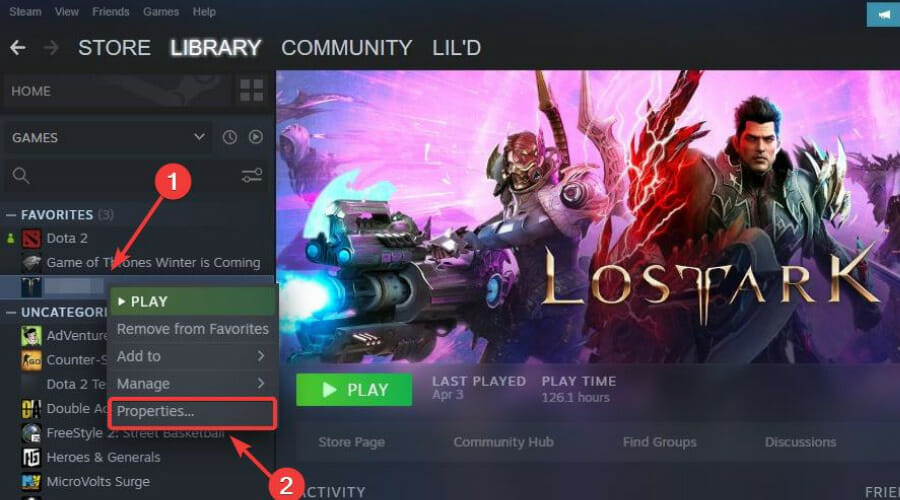
  1. In Steam, right-click Risk of Rain 2 and select Properties.dying light steam properties
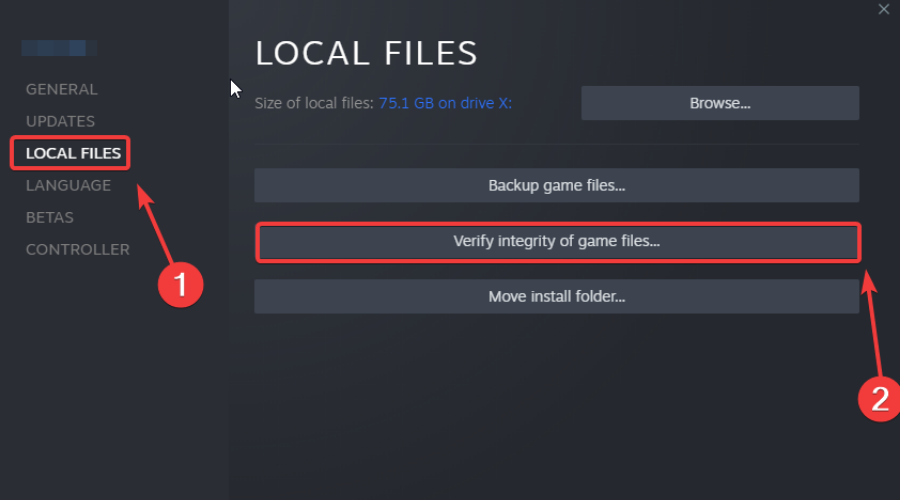
  2. Select the Local Files tab and click on the Verify integrity of game files.game file integrity

3. Update your GPU

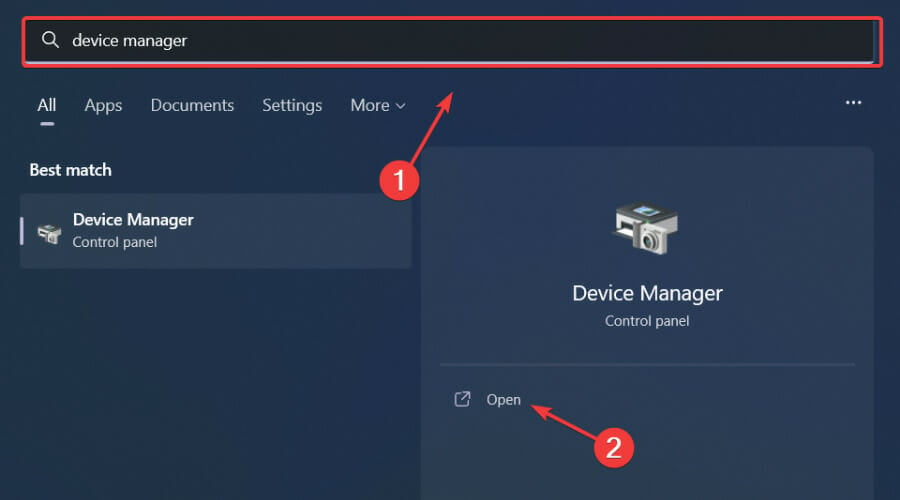
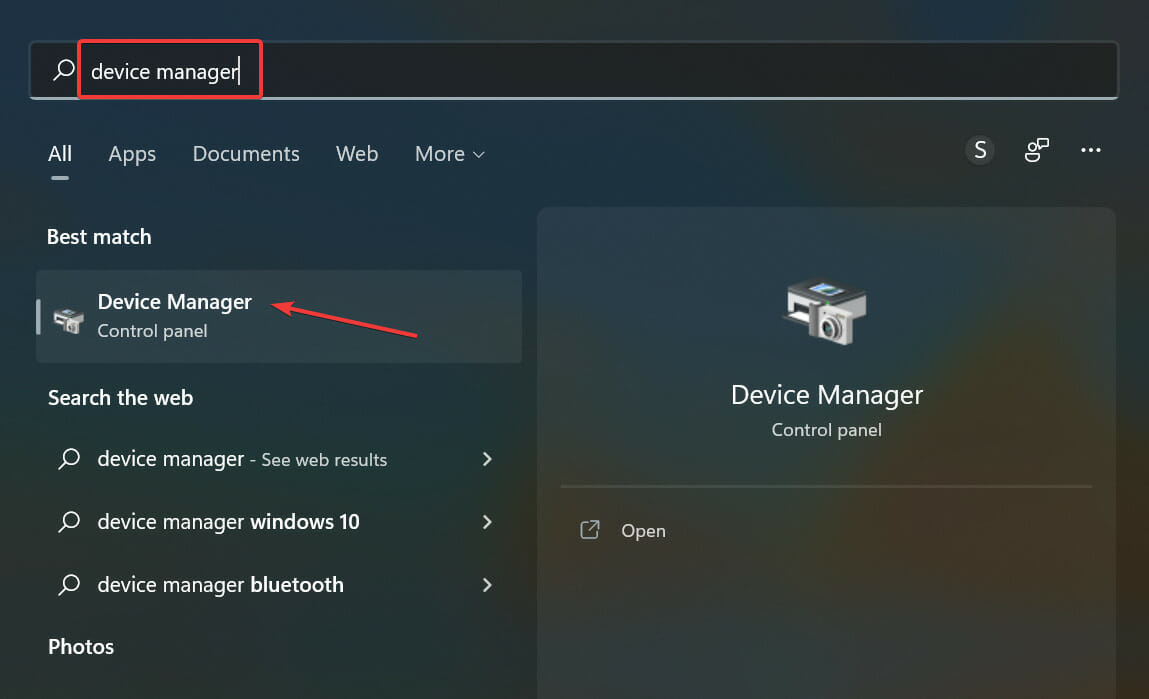
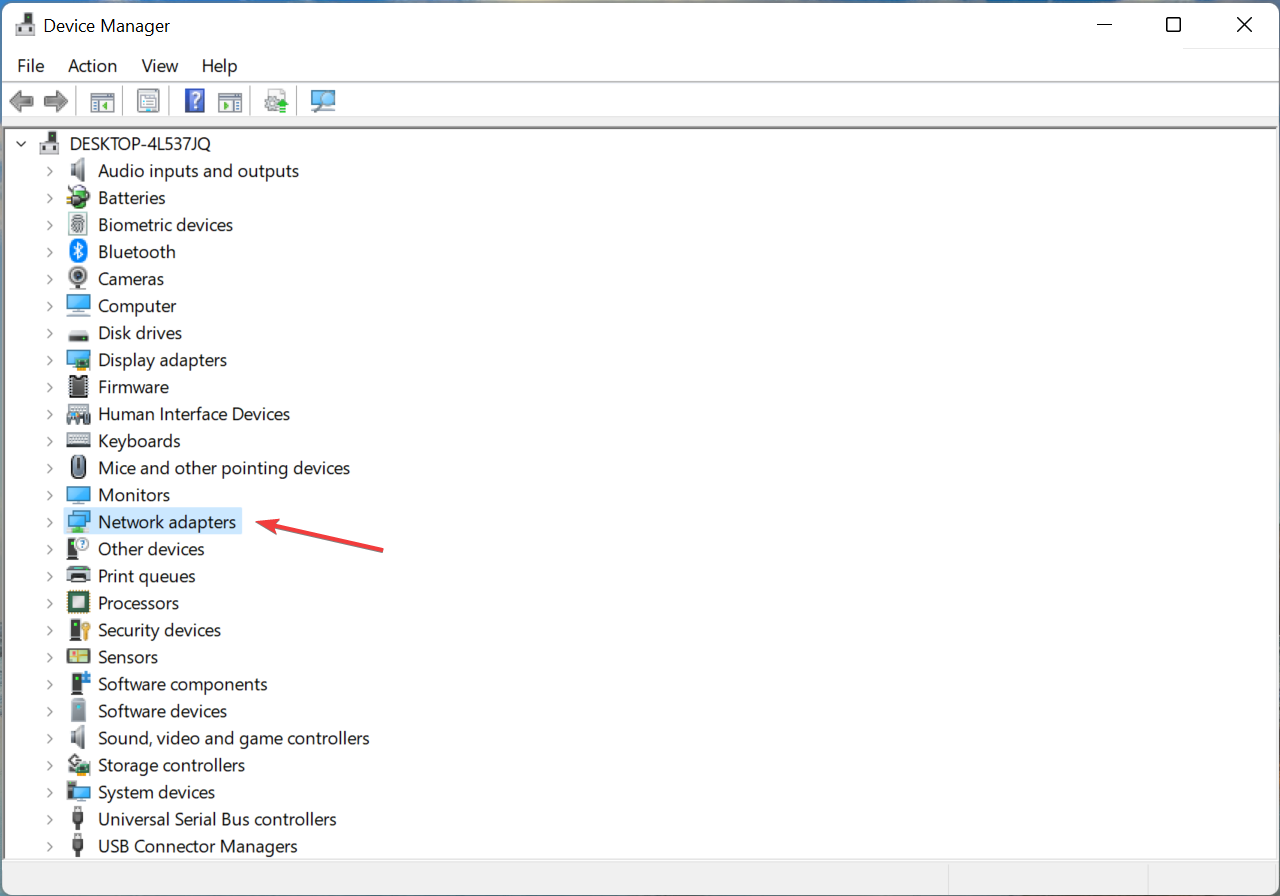
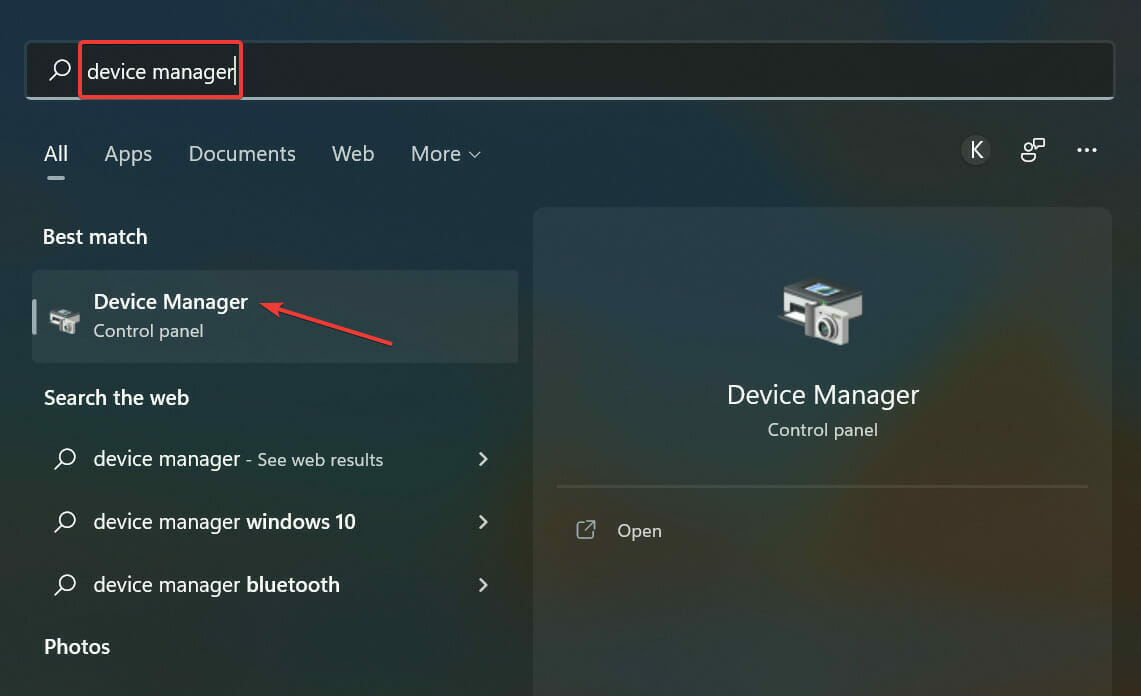
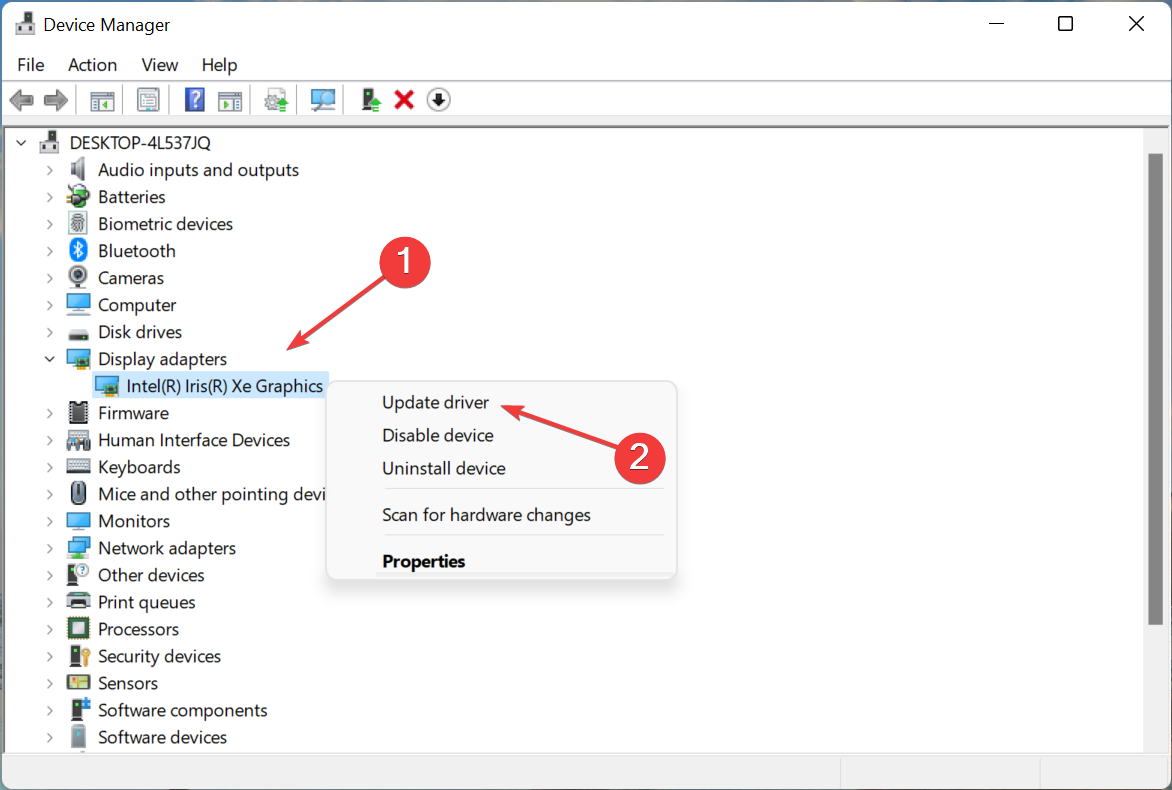
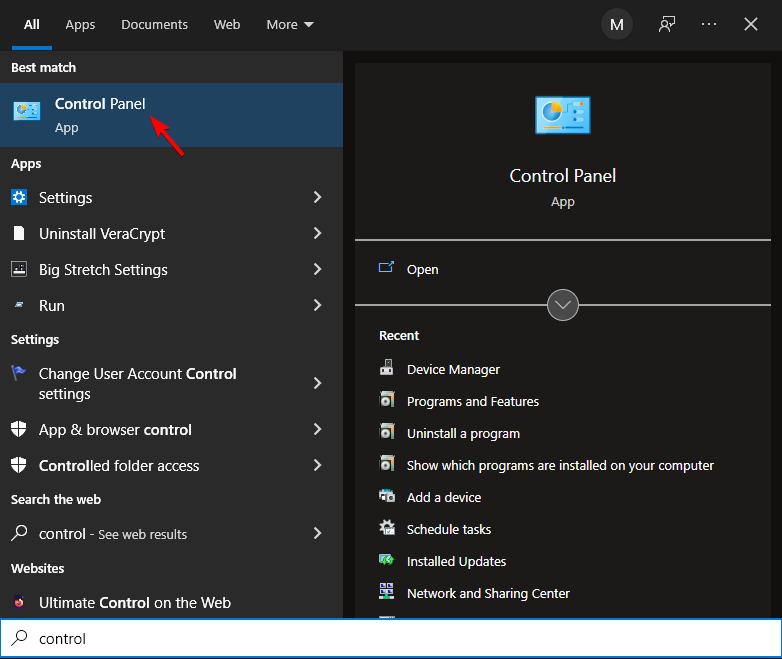
  1. Press the Windows key, search for Device Manager and click on Open.run device manager
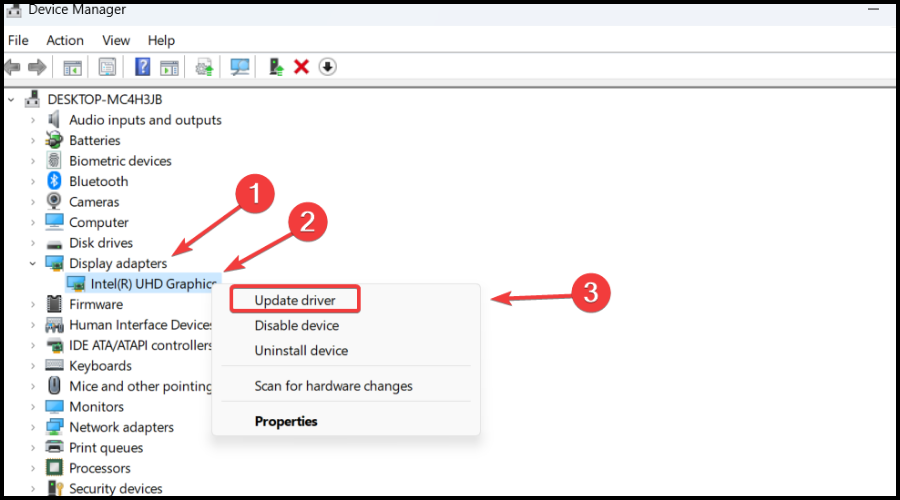
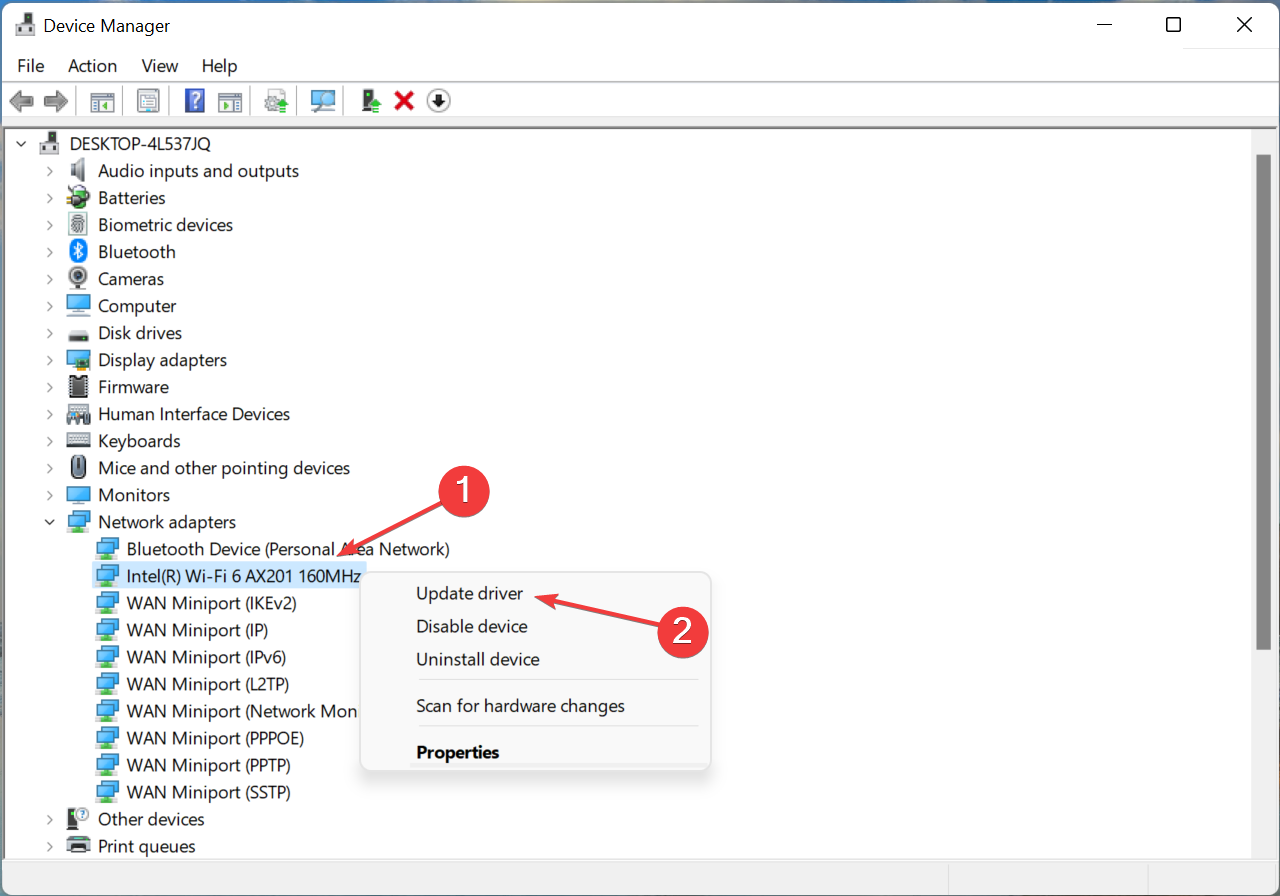
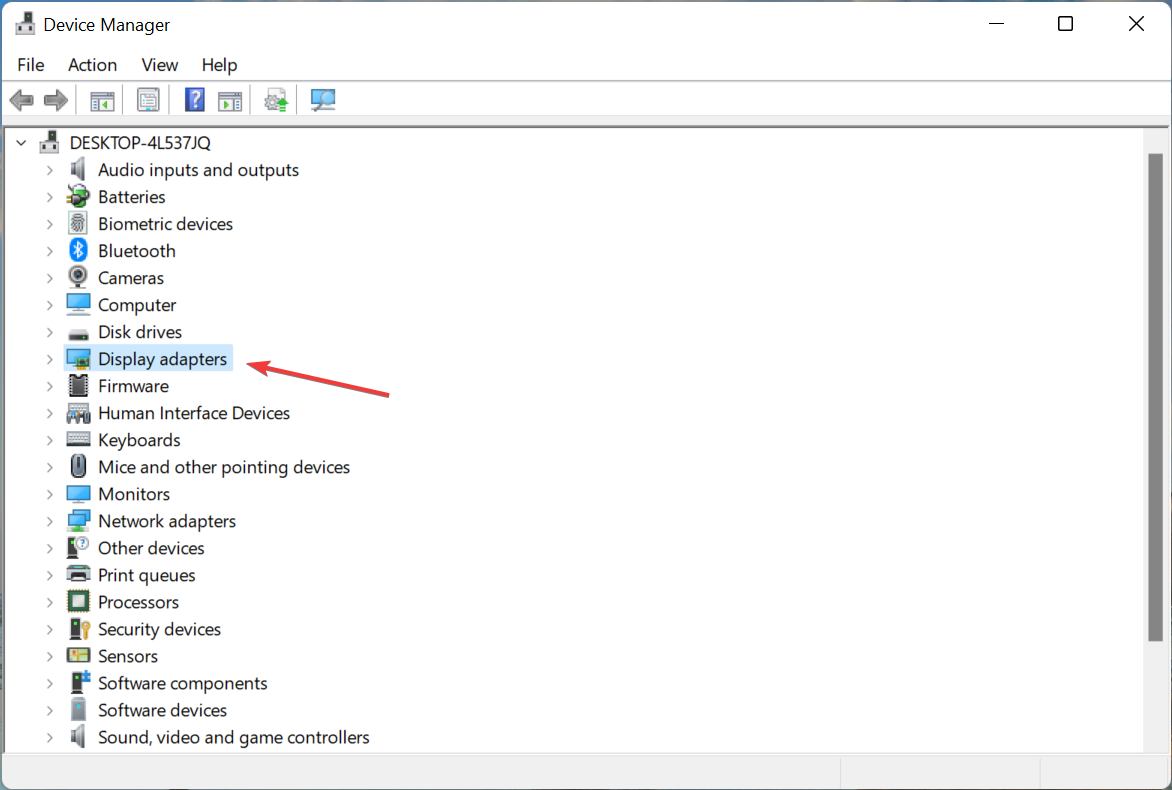
  2. Expand Display Adapters, right-click on your GPU and select Update driver.update gpu
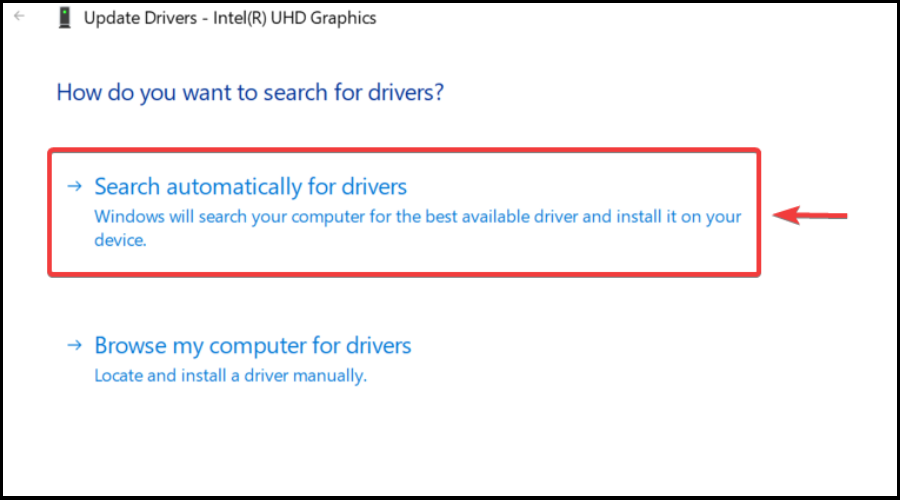
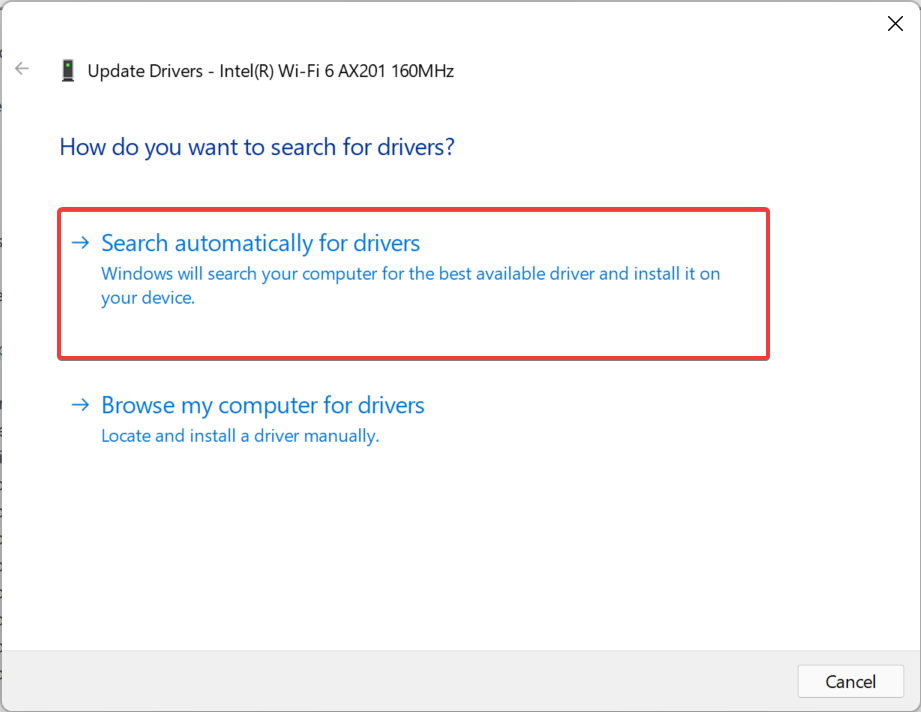
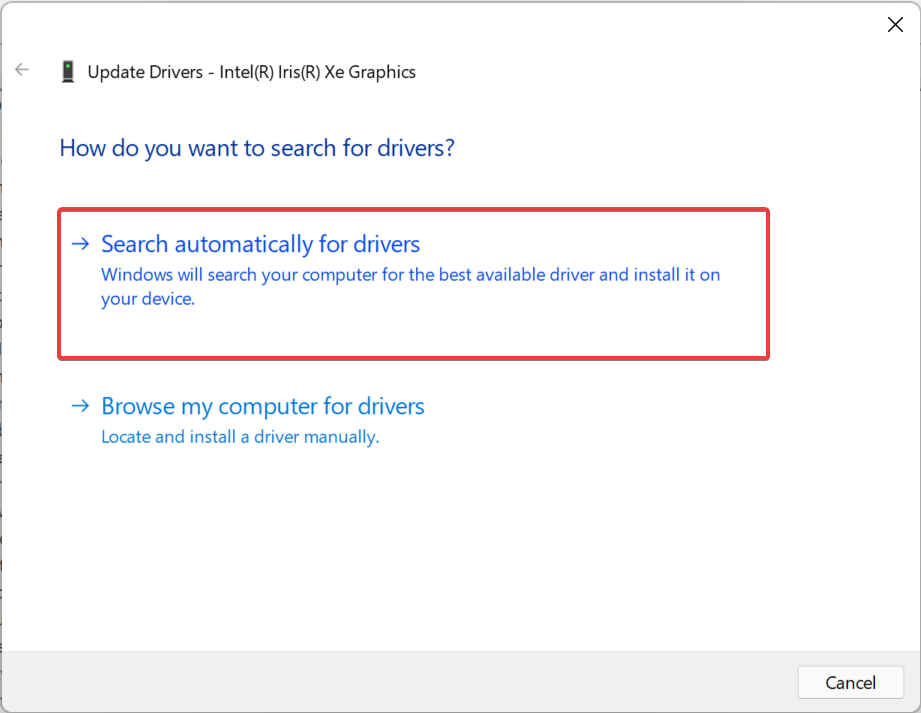
  3. Select Search automatically for drivers.search for driver automatically

Gaming can be enjoyed without any crashes, lags, or freezes by keeping all drivers up to date and error-free easily. 

Sometimes, manual checks are hard to perform, that’s why we recommend using an automated assistant that will scan for fresh driver versions daily.

In case you’re a beginner, you don’t have to worry! Outbyte Driver Updater is smart, simple, engaging and its user interface was built to make your life easier.

⇒ Get Outbyte Driver Updater

The above-listed steps have helped countless other players in solving this exact problem when they found themselves in this situation.

Mention in the comments section below if this guide has proven useful in dealing with the issue.

Diablo 2 Resurrected Not Launching? Here’s How To Fix The Problem

Anybody can say whatever they want about the Diablo game series, but it will continue to be one of the most popular game franchises in the whole world.

It’s literally very hard to find someone that hasn’t at least heard about these games. Particularly Diablo 2, which is by far the most known out of all of them.

Even though many were still playing the first version of the title, Blizzard Entertainment decided to revamp the entire game, just as they did with Warcraft 3, and various expansions of World of Warcraft.

The HD version of Diablo 2 is outstandingly good and players can’t seem to get enough of it. Provided they can also play it first.

Yes, even though the game is more than twenty years old, the new version came with some pretty nasty bugs and glitches.

That being said, for some, the title doesn’t even launch. And, if you are among the users that are in that situation, know that you came to the right place for a solution.

How do I fix Diablo 2 Resurrected not launching?

1. Check system requirements

Before we decide that there is indeed a problem that is preventing your device from running Diablo 2 Resurrected, you must first check the system requirements.

Why? Well, because the device you are trying to run the game on could be incompatible, thus not allowing the application to even start.

 MINIMUM REQUIREMENTSRECOMMENDED SPECIFICATIONS
OPERATING SYSTEMWindows® 10Windows® 10
PROCESSORIntel® Core i3-3250
AMD FX-4350
Intel® Core i5-9600k
AMD Ryzen 5 2600
VIDEONvidia GTX 660
AMD Radeon HD 7850
Nvidia GTX 1060
AMD Radeon RX 5500 XT
MEMORY8 GB RAM16 GB RAM
HARD DRIVE SPACE30 GB
NETWORKBroadband Internet connection
RESOLUTION1280 x 720

If all is in order here, we can proceed with the actual troubleshooting process and determine what exactly is happening.

2. Scan and repair Diablo 2 Resurrected

  1. Open the BattleNet app on your PC.
  2. Select the Diablo 2 Resurrected tab and click on the Settings button.battlenet
  3. Click the Begin scan button.begin scan

3. Run the game as an administrator

  1. Locate the folder where Diablo 2 Resurrected is installed.d2 folder
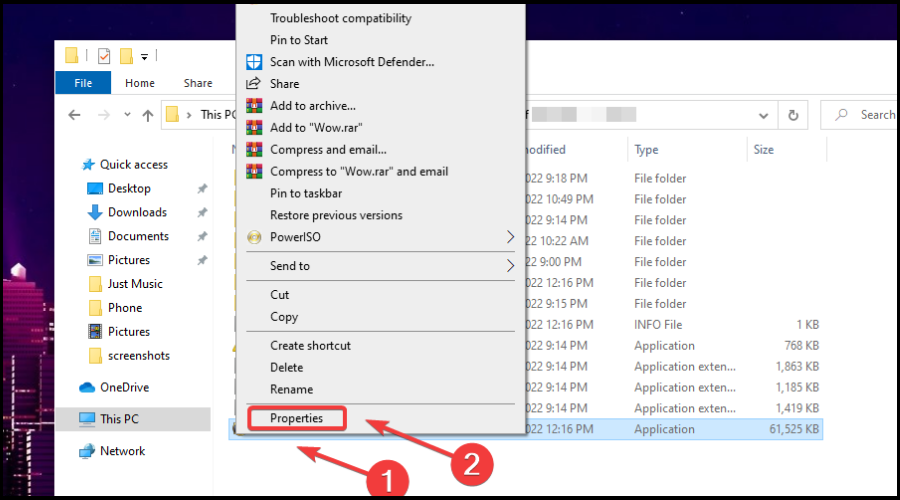
  2. Right-click on the Diablo 2 Resurrected executable and click on Properties.propreties
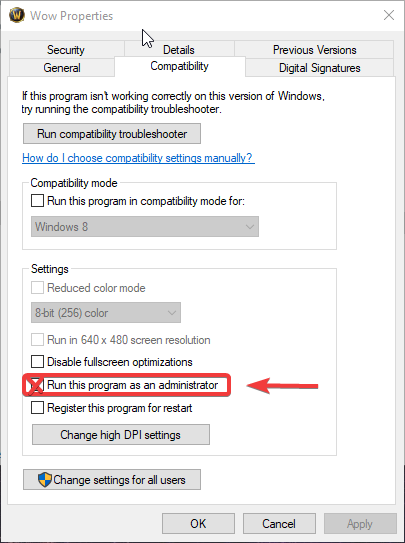
  3. Select the Compatibility tab and check the Run this program as administrator box.run werid west as admin

4. Update your graphics driver

  1. Press the Windows key, search for Device Manager and click on Open.run device manager
  2. Expand Display Adapters, right-click on your GPU and select Update driver.update gpu
  3. Select Search automatically for drivers.search for driver automatically

    Gaming can be enjoyed without any crashes, lags, or freezes by keeping all drivers up to date and error-free easily. 

    Sometimes, manual checks are hard to perform, that’s why we recommend using an automated assistant that will scan for fresh driver versions daily.

    In case you’re a beginner, you don’t have to worry! Outbyte Driver Updater is smart, simple, engaging and its user interface was built to make your life easier.

    ⇒ Get Outbyte Driver Updater

5. Update Windows to the latest version

  1. Press Windows + I to access Settings.
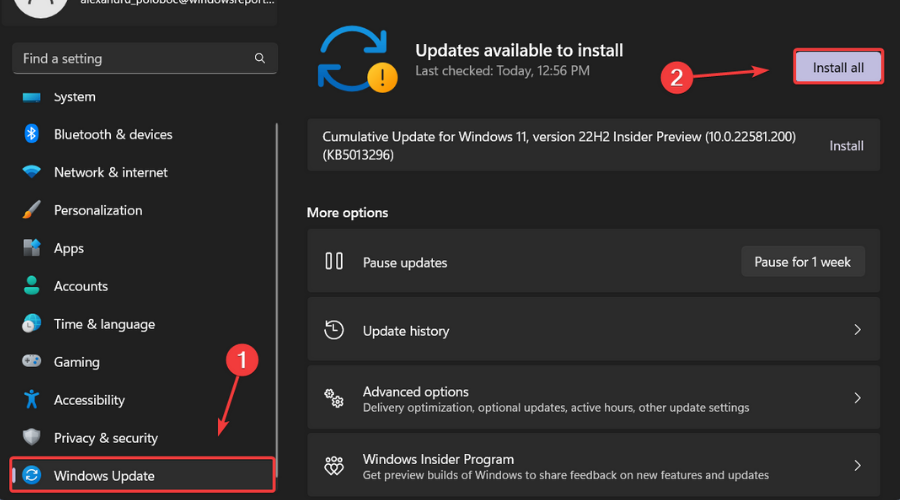
  2. Select the Windows updates tab and click Install all.install Windows updates
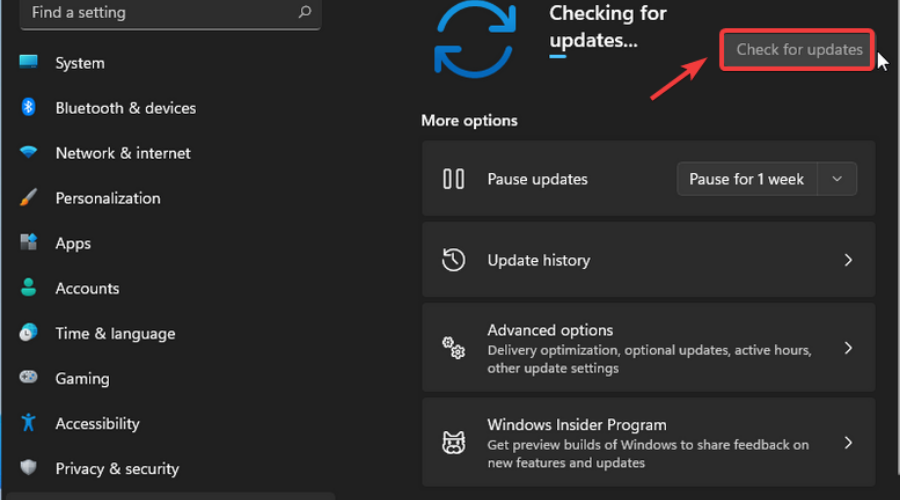
  3. If no updates are queued for installation, press the Check for updates button.check for updates

6. Allow Diablo 2 Resurrected through the Windows Firewall

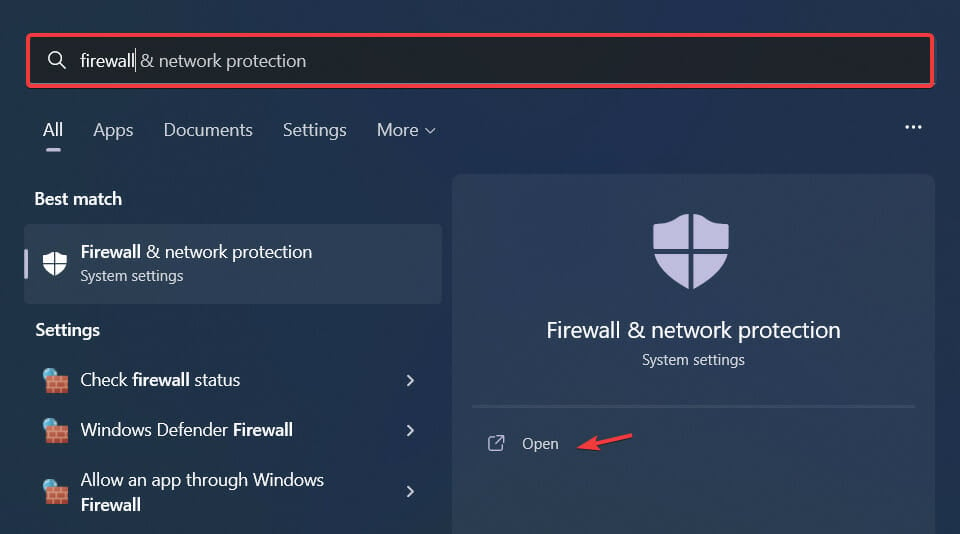
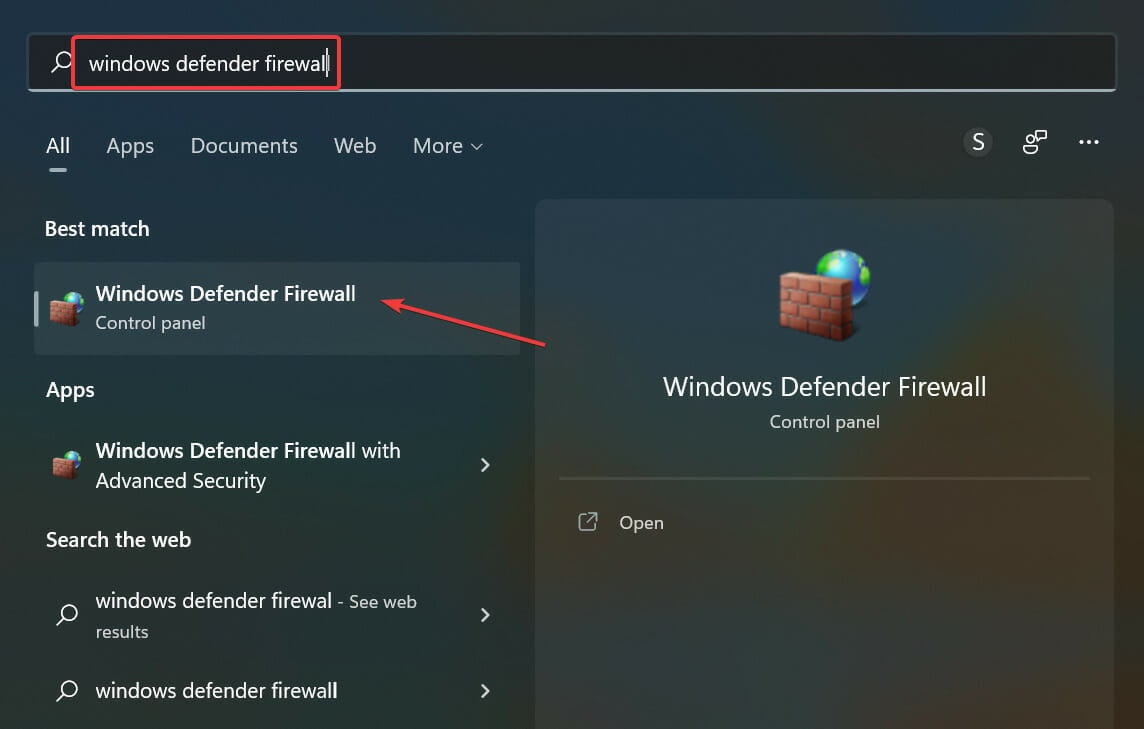
  1. Press the Windows key, search for Firewall and select Open.open firewall
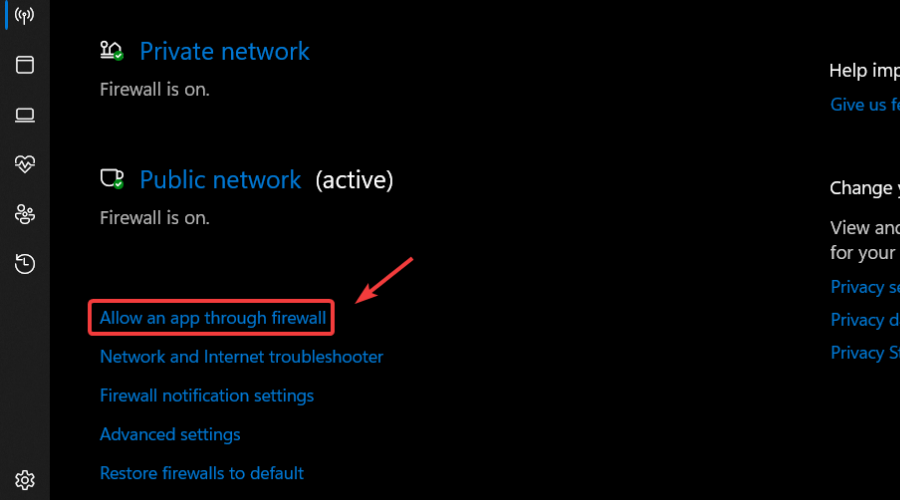
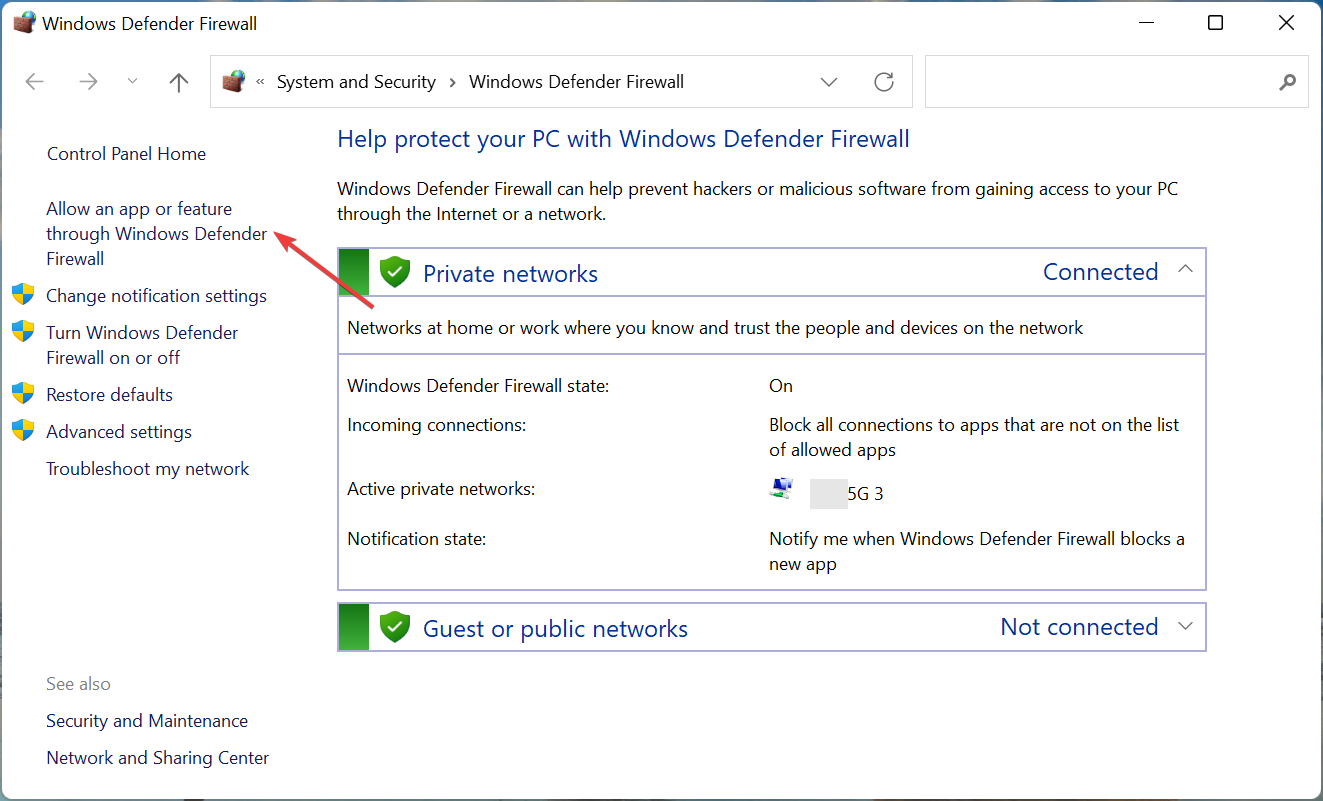
  2. Click on Allow an app through Firewall.allow app through firewall
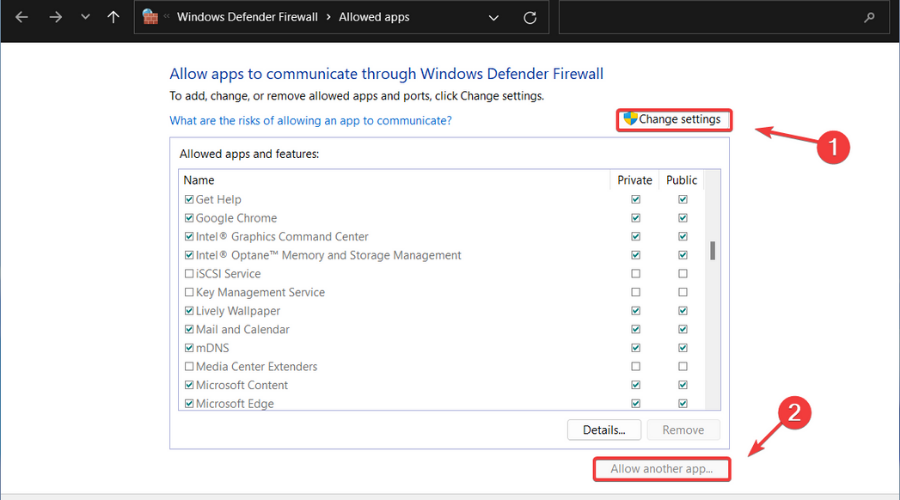
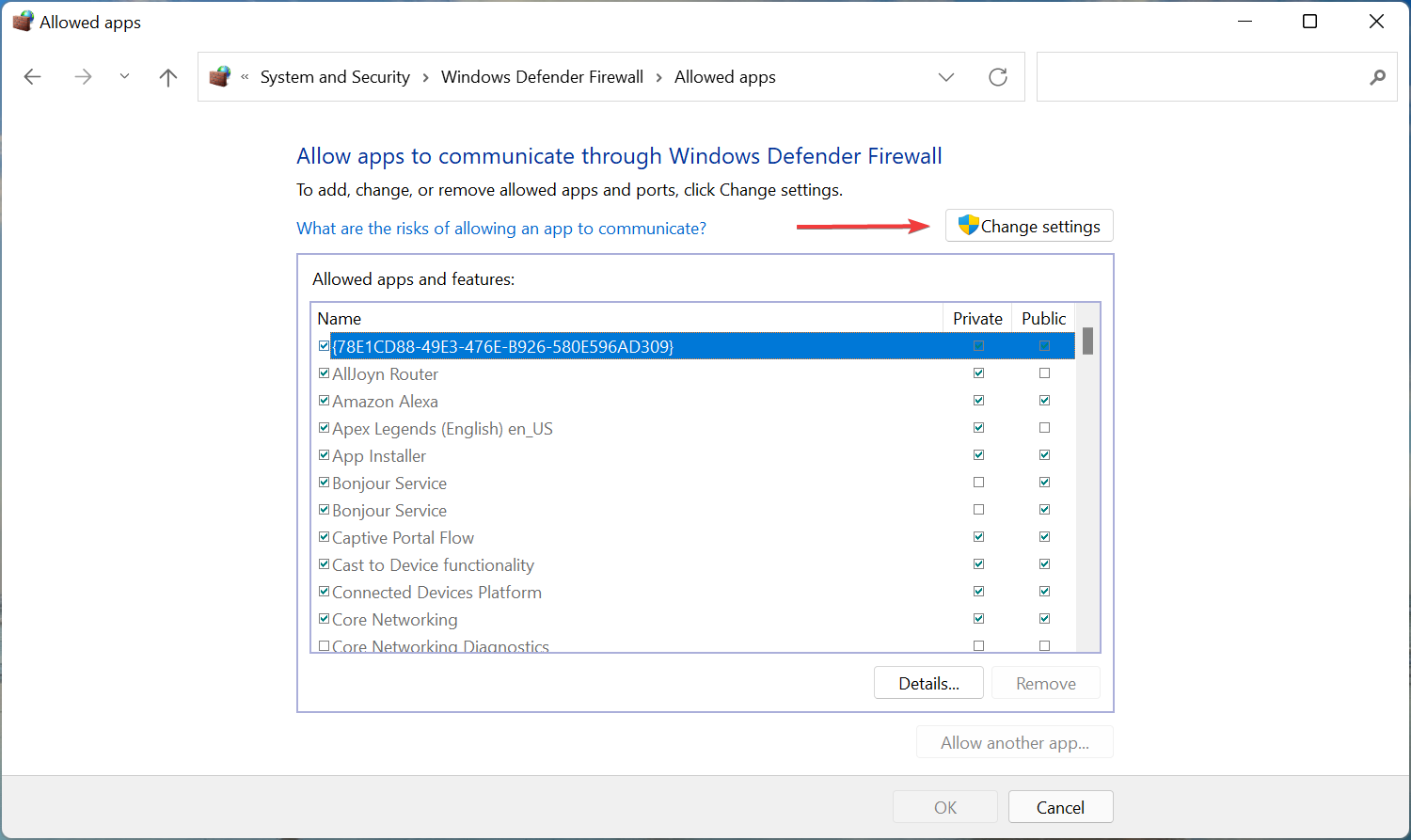
  3. If Diablo 2 Resurrected isn’t in the list, click Change Settings, then Allow another app.Allow another app
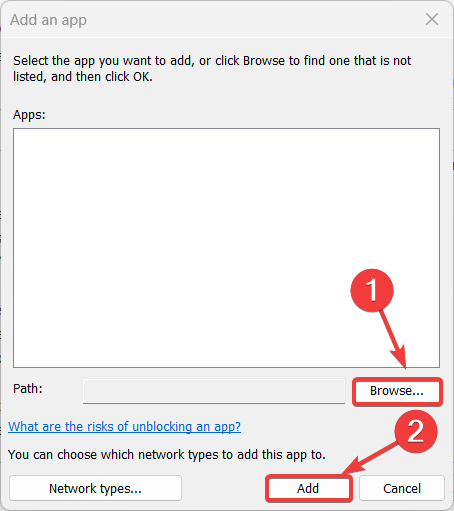
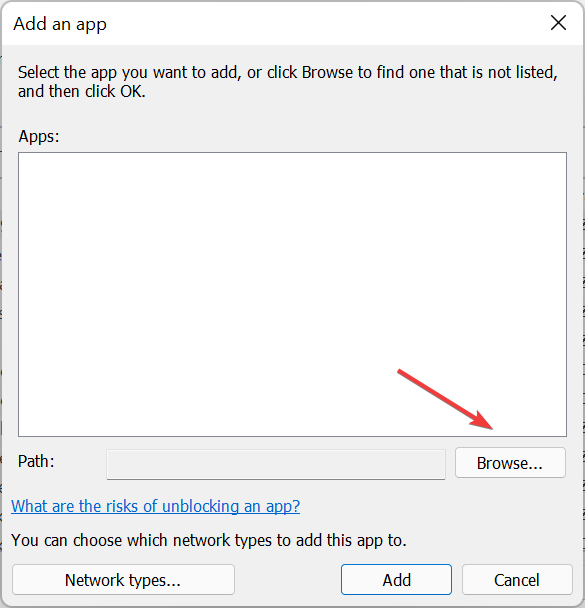
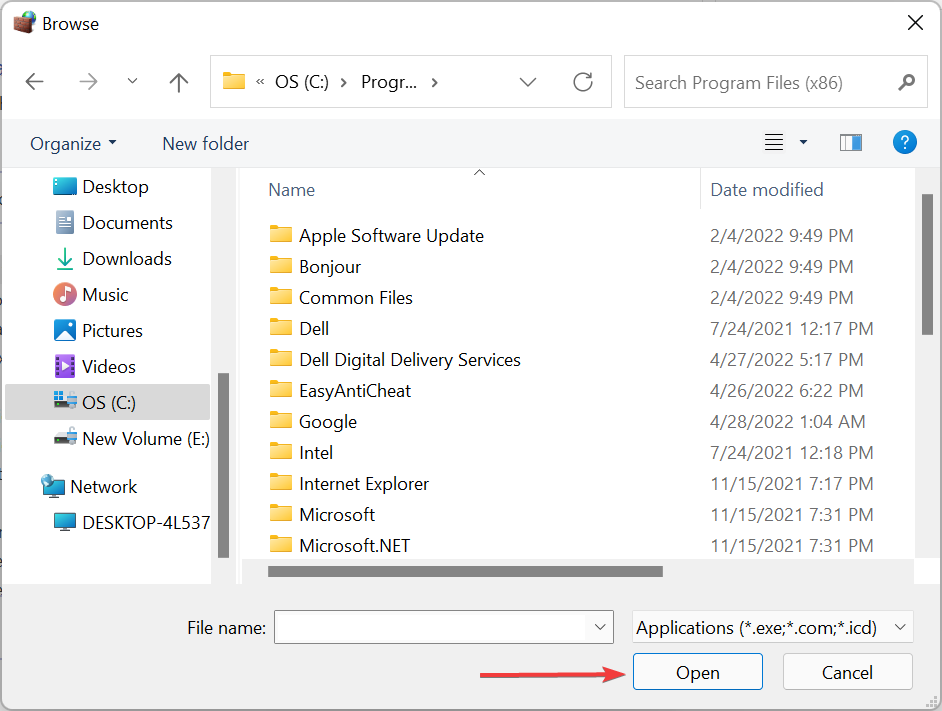
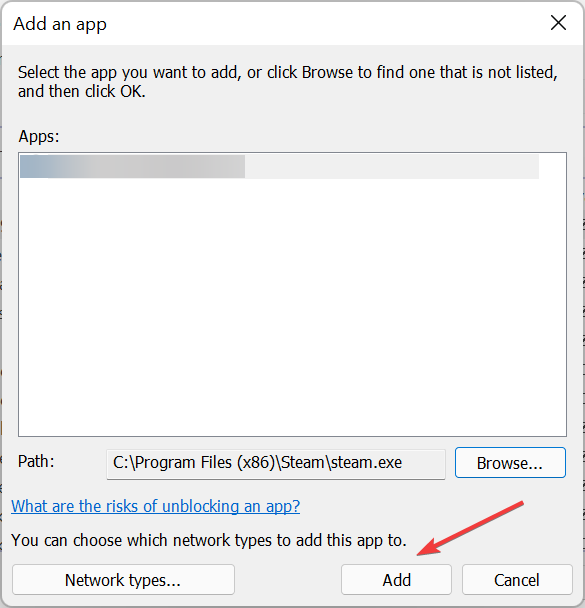
  4. Click the Browse button, locate your game and press the Add button.browse firewall games

These methods have proven to work for other Diablo 2 Resurrected players that found themselves in the same situation when trying to launch the game.

Has this guide solved your problem? Share your experience with us in the comments section below.

Pci.sys Missing on Windows 11? How to Download & Fix it

If your operating system’s files or applications are corrupted, your OS will be unable to start properly, and your app will be unable to function until the error is corrected. So is the missing or corrupted @system32driverspci.sys file that we will address today.

The full error message reads as Windows could not start because the following file is missing or corrupt system32DRIVERSpci.sys, which indicates that the PCI.sys file is corrupted and must be repaired by the system administrator.

This error message usually appears on computers running the Windows 2000 or Windows XP operating systems. But today we will be using Windows 11 to showcase the solutions. Don’t hesitate to upgrade your OS as well.

What do system files do?

A Windows system file, in technical terms, is any file that has the hidden system attribute enabled. On the practical side, system files are those files that are required by Windows in order for it to function properly.

They are used to store critical computer information that, if not present, can cause a computer system to malfunction and fail altogether.


Hardware drivers, configuration and DLL files, and even the various hive files that make up the Windows Registry are all examples of what is included in this category.

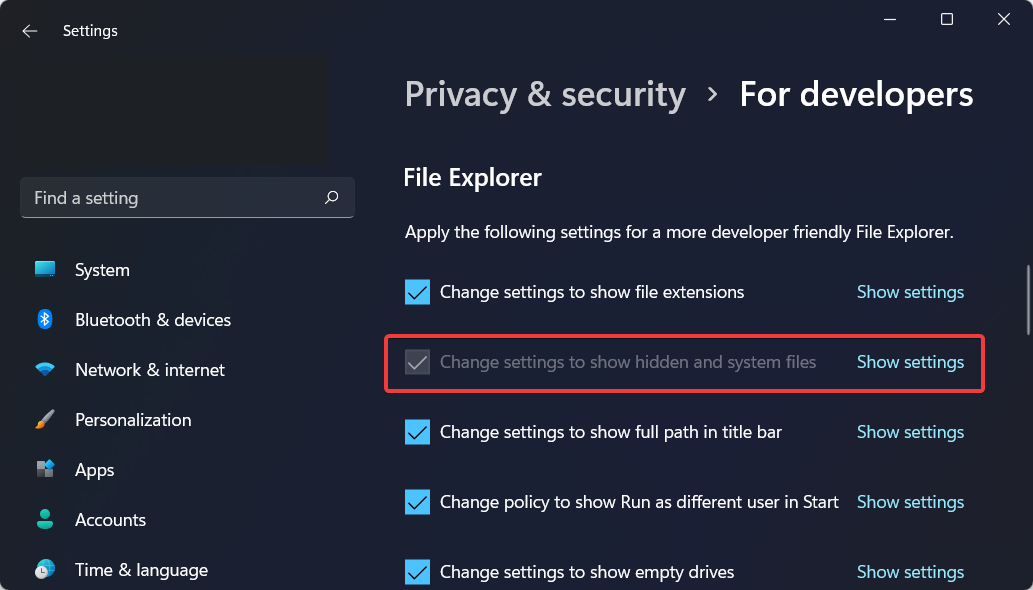
System files are typically found in specific folders that have been designated as a system folder on the computer’s hard drive. These files are hidden from view by default in Windows in order to further prevent any accidental deletions from occurring.

How can I fix the missing @system32driverspci.sys error?

1. Reconfigure your BIOS

  1. Restart your computer and press the F2 key in order to enter the BIOS mode. The Basic Input/Output System, is the built-in core processor software that is responsible for booting up your computer and serving as the most important startup program on your computer.
  2. Go to the SATA configuration section in order to edit it to Combination mode (AHCI, SATA).sata @system32driverspci.sys
  3. Next, navigate to VGA settings and change the video settings from PEG to PCI.
  4. Save the changes and continue with the boot-up process. Now the missing or corrupt @system32driverspci.sys error should be gone.

The BIOS, which is typically embedded into your computer as a motherboard chip, serves as a catalyst for the operation of the computer’s various functions.

Note that the procedure for changing the BIOS configuration varies from vendor to vendor, so you should consult the technical documentation for your motherboard for more information.

2. Use a third-party tool

PC problems will inevitably arise, and resolving them is not always as simple as it appears. However, there are specialized tools available, that can help you resolve these issues.

They are safe to use because these were developed by legitimate companies that work tirelessly to ensure that the software’s databases are kept up to date at all times.

With these troubleshooters installed on your computer, you will never have to worry about issues arising at random times or as a result of a power outage again, as these will automatically identify and resolve them even before they have a chance to negatively impact your computer’s performance.

They will diagnose and propose solutions and if you choose to proceed, these will automatically clean or replace the duplicated or corrupted files that caused problems.

3. Reinstall your operating system

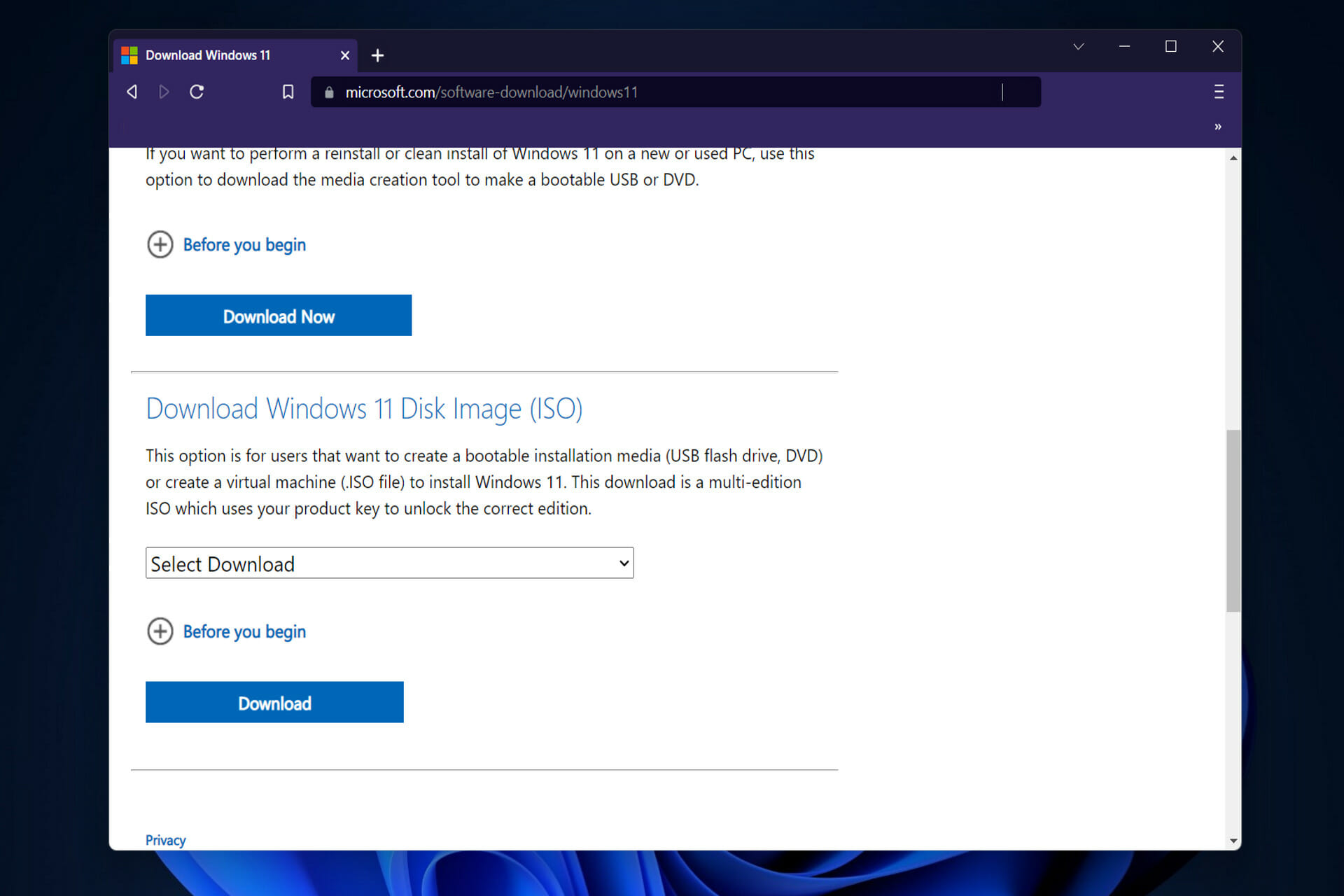
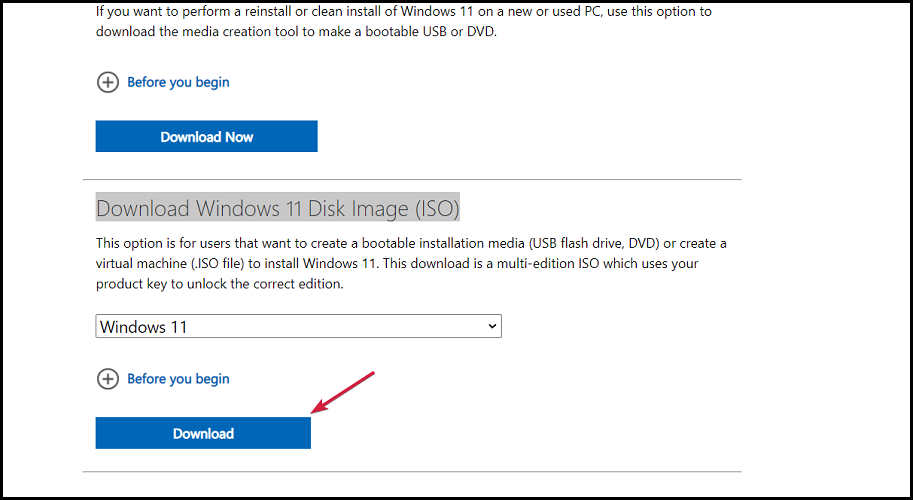
  1. In order to reinstall your OS, you need to head to Microsoft’s download page and download the ISO file. iso download-w11-website
  2. Once you select the language and system, download the file and right-click on it in order to choose Mount.mount @system32driverspci.sys
  3. Once it is mounted, click on the new drive created then double click on the setup file. You will be asked whether you want to reinstall the OS on this device and whether to keep your files. The @system32driverspci.sys missing error will be deleted along with the previous OS.setup @system32driverspci.sys

When developing the operating system, Microsoft’s primary goal was to provide its users with a better overall experience. This included a redesigned user interface, more collaborations for the App Store, and a unique gaming experience.

To name a few features, the streamlined new design includes pastel-like colors and rounded corners, a redesigned Start menu, and larger touch targets for a better PC tablet interface.

As a result of the support for Android apps through the Amazon Store, as well as a new way to see your interests at a glance thanks to the Widgets feature, upgrading to the new operating system is clearly a compelling proposition.

Because this OS iteration represents the most significant change in years, it’s only natural to want to get started using it as soon as possible. For those of you who are concerned due to a message stating your computer is unable to run Windows 11, rest assured that the problem is easily resolved.

4. Upgrade your RAM

System or application instructions may be unable to be addressed in RAM at times due to a faulty memory module. The most effective solution is to upgrade your RAM.

If you are using multiple RAM modules, you should try unplugging them one at a time to see if there is a problem with any particular one.

In case you intend to purchase another RAM module, you should also determine which generation of RAM memory is currently in use on your motherboard before making your purchase.

According to tradition, we recommend that you review the technical documentation for your motherboard and make an informed decision about which RAM module to purchase for your computer or notebook system.

For more information and potential solutions to the missing @system32driverspci.sys error, check out how to fix corrupted files in Windows 10 / 11.

Was this guide helpful to you? Leave us a comment in the section below and tell us what you think. Thanks for reading!

Where Do Incognito Downloads Go? How to See Them in Chrome

If you thought what you downloaded in Incognito can’t be viewed, think again. In Windows, you can check Chrome Incognito history if you examine the DNS cache.

How can I access Chrome’s Incognito download history?

  1. Open the Windows Search function and enter cmd then right-click on it in order to Run it as an administrator.cmd-run chrome incognito download history
  2. Now type or copy-paste the following command in order to see the DNS cache history. Make sure to press Enter after you enter the command: ipconfig /displaydnsipconfig chrome incognito download history
  3. You can now see detailed information about websites that have been recently visited but have not been recorded in history.
  4. In order to delete the history, type the following command and press Enter: ipconfig /flushdns

What Incognito doesn’t hide

Incognito doesn’t save the browsing history on the device you’re using. That does not mean your ISP or snoopers won’t be able to check your DNS queries and figure out the sites you visited.

The feature is good enough if you just want a clean browsing experience without a lot of cookies being saved on your browser.

However, if you want true online privacy, use a VPN. It encrypts data so what you do online is no longer visible. There are many reliable VPN software, or you can use a browser with a built-in VPN such as Opera.

To further improve your privacy and minimize the data located about you, check out our post on how to disable telemetry in Windows 11. We also have a guide on what to do if Incognito is not working in Chrome, so feel free to visit it.

Don’t hesitate to leave a comment in the section below and tell us what you think.

3 easy ways to take your Printer from offline to online

You are doing your job and you need to print some crucial documents when your HP printer says offline. This problem is more common than you might guess and nearly everyone runs into it from time to time, but it can be easily fixed.

What should I do if the HP printer says offline?

1. Launch HP Print and Scan Doctor

  1. Download the HP Print and Scan Doctor application to identify and solve your HP printers errors.
    Download HP Print and Scan Doctor
  2. Open HPPSdr.exe from the download location. You might need to be an administrator to be able to do this. If your computer prompts you, select Yes so that your computer can trust the file source.
  3. Then, tap on Start and select your printer. If your printer is not present, reboot your printer, then choose Retry.
    Click Start
  4. Follow the prompts the application gives you and choose Yes if it asks to turn on printer updates. Then set your default printer.
  5. Click on the Start menu, search for Printers, then choose Printers & Scanners.
    Printer and scanners
  6. Deselect Let Windows manage my default printer.
    Deselect Let Windows manage my default printer
  7. Next, select your printer from the list. If your printer is on the list more than once, select the one with idle/online status.
  8. Following that, choose Manage then, click on Set as default.
    Printer set as default

When an HP printer says offline in Windows 11, it is best to manage your printers yourself and set your printer to default. This will help you put the printer online if it’s offline.

You can also use Outbyte Driver Updater, a program that checks your PC for missing or outdated drivers and automatically installs them.

Using this program and updating the drivers, you can easily fix issues like HP printer says offline that are caused by driver issues.

⇒ Get Outbyte Driver Updater

2. Check your connection status

  1. Reboot your printer by turning it off, waiting 10 seconds, and then unplug the power cable from your printer.
  2. Then, turn off your computer.
  3. Reconnect the printer power cable and turn the printer on again.
    Plug in Printer
  4. Next, unplug the power cable from your network router and wait 10 seconds before connecting it back again.
  5. When your Internet connection is back again, turn on your computer.
  6. After that, connect your printer to your Internet via the HP Wireless Setup Wizard or the HP Smart application.
    HP smart
  7. Print a wireless report and check if any connection issues still exist.
  8. Finally, you can look for this report in the Network settings or the Wireless menu of your printer.

3. Verify printer port and Windows services status

  1. Click on the Start menu, search for the Control Panel, and hit Enter.
    Control Panel
  2. Then, go to Devices and printers.
    Devices and printers
  3. Right-click your printer and select Printer Properties.
  4. Click on the Ports tab and see if your printer uses a WSD port. If it does, continue to go through the next steps, but skip them if it does not.
  5. Click on the Start menu again, search for Services, and click on press Enter.
    Services
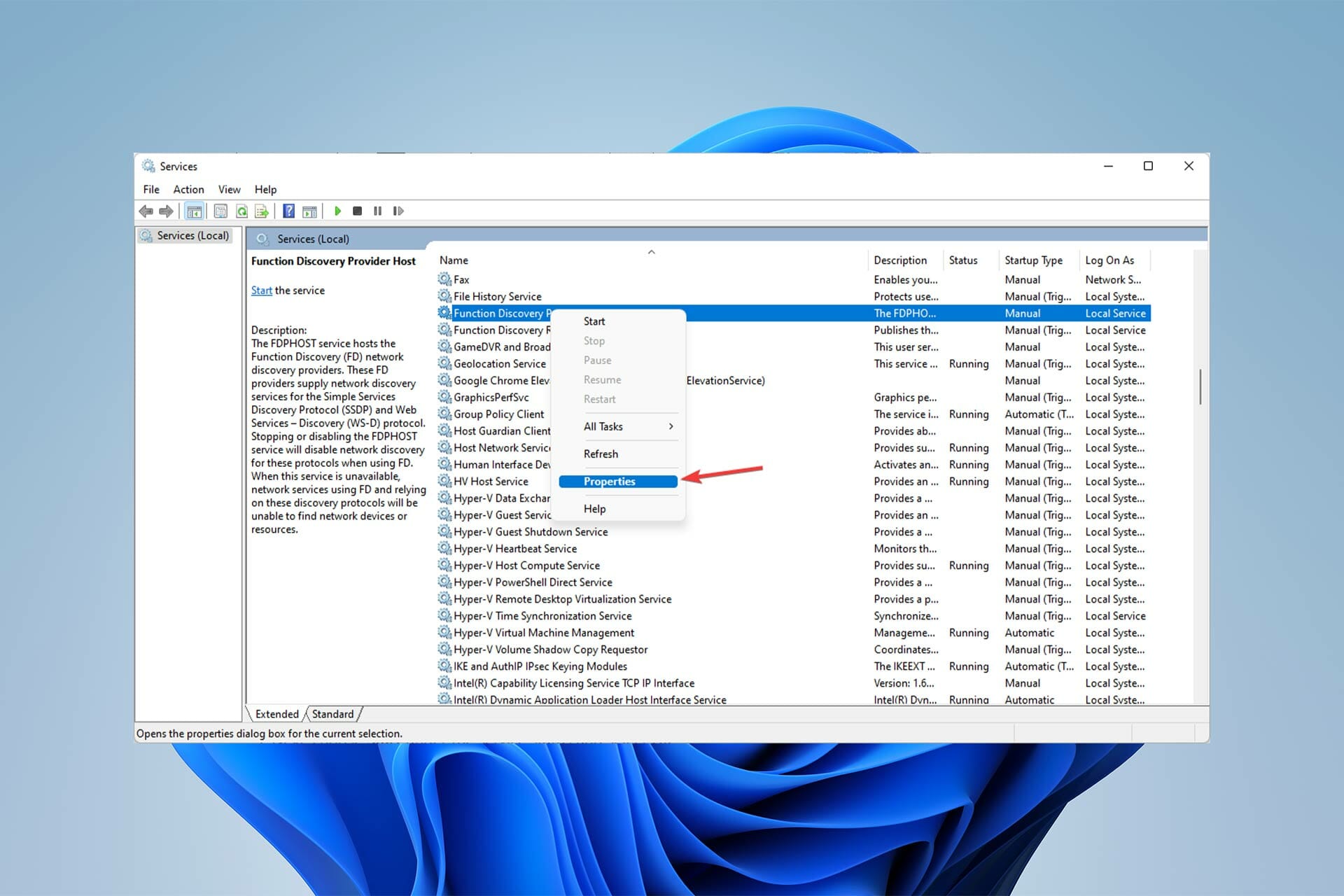
  6. Find Function Discovery Provider Host and Function Discovery Resource Publication.
    Function Discovery Provider Host
  7. After that, check the Status and Startup type columns. If they show up blank, with a manual startup type, right-click the name and choose Properties.
    Function Discovery Provider Host Properies
  8. Change the Startup type to Automatic.
    Start up type
  9. Next, choose Start under the service status and select OK.
  10. Go to the Devices and Printers window and press F5.
  11. Now, click on your printer’s name and see the status.

To put your offline printer online, the necessary services need to be actively running, so be sure to enable them.

When and why does the HP printer say offline?

There are many reasons that your HP printer says offline and you have documents waiting. Mostly, outdated drivers, connection issues, and bad settings can cause this error to happen. 

When your HP printer won’t print and says offline, it is best to pause all the print jobs you have for it.

Do not overload it by adding more prints to the stack and try to figure out how you can bring it back online before resuming your prints.

Check out this article if the HP printer won’t scan in Windows 10/11. We also have a great guide on how to connect an HP printer to Wi-Fi so you might want to check it out.

FAQs

Why does my printer show offline?

It usually happens due to connection issues, disabled printer status, or outdated drivers.

How do I bring my printer back online in Windows?

Go to Control Panel > Devices and Printers, right-click your printer, and select “Use Printer Online.”

Can restarting the printer fix offline status?

Yes, turning the printer off and back on often resets the connection and resolves the issue.

Do I need to reinstall drivers if my printer is offline?

Sometimes. Installing the latest drivers from the manufacturer can fix compatibility issues.

What if my printer stays offline on Wi-Fi?

Check your network settings, reconnect the printer to the Wi-Fi, and restart the router if necessary.

After fixing the issue, it is best to ensure that enough paper is loaded into the input tray of your HP printer and that the paper width guides rest gently against the sides of the paper stack.

Also, keep in mind that the correct ink or toner cartridges must be installed and that the printer must have enough ink or toner for your print job.

If you get fatal errors when installing HP printer drivers, this article could help.

Let us know if you were able to fix the HP printer says offline issue in the comments section below.

Trezor device detected in an incorrect state? 4 easy fixes

Trezor is one of the most popular cryptocurrency wallets that work with various cryptocurrencies. It’s known as one of the most secure and trusted wallets in the world.

It’s a small device that connects to your computer through a USB port, allowing you to safely store your bitcoins offline. That said, it is not infallible and will occasionally report the Trezor device detected in incorrect state error.

It has been reported that this error became common after an update with the Trezor software. It could also be an issue with the hardware’s firmware. Try the solutions we provide in this guide sequentially to resolve the problem.

How does Trezor work?

Trezor is a hardware wallet that allows you to store your digital currencies safely, securely, and very conveniently. The device is the size of a pocket calculator and connects to your computer via USB.

It can store numerous Bitcoin, Ethereum, and other altcoins. By ensuring the private keys used to send coins are not exposed to your computer or the internet, Trezor aims to eliminate the risk of theft and loss.

The Trezor wallet incorporates a small display and two buttons, allowing users to interact with it directly.

What is the Trezor suite?

The Trezor hardware wallet suite is a new and revolutionary approach to storing cryptocurrencies. Instead of storing your private keys on your local computer, they are stored offline on a physical device.

This means that your private keys are never at risk of being stolen. Because your digital assets are only as secure as your private keys, this is an extremely important step in protecting your assets.

What can I do if the Trezor device is detected in an incorrect state?

1. Unplug and re-plug the device

  1. Unplug the device from your computer.
  2. Close all programs on your system including the Trezor suite.
  3. Reboot your system.
  4. Now, launch the Trezor suite only and nothing else.
  5. Connect your Trezor device to the system.

2. Clean boot your system

  1. Press the Windows key + R simultaneously to open the Run window.
  2. In the Run window, type the command MSCONFIG. Hit Enter to open the System Configuration window.
  3. Go to the Services tab.
  4. Check the box associated with Hiding all Microsoft Services.
  5. Now, if any other service is checked, click on Disable all.
  6. Finally, click on Apply and then OK to save the settings. You will be prompted if you wish to reboot the system. Click on the option to Restart the computer.

There is a high probability that other third-party programs could be interfering with the Trezor suite. In this case, you can troubleshoot the issue in the Clean boot state.

3. Update the firmware

The firmware of the hardware device is different from the software of the Trezor suite. If there is a mismatch between the software and firmware, the error Device detected in an incorrect state will occur.

The problem is that the firmware can be updated only through the Trezor suite. So, once you are in the suite somehow, select the option to Install Firmware.

4. Reinstall the Trezor suite

  1. Right-click on the Start button and select Settings.
  2. In the Settings window, go to the Apps tab on the left-hand side.
  3. Next, in the right pane, go to Apps and Features.
  4. Find the Trezor Suite from the list of applications.
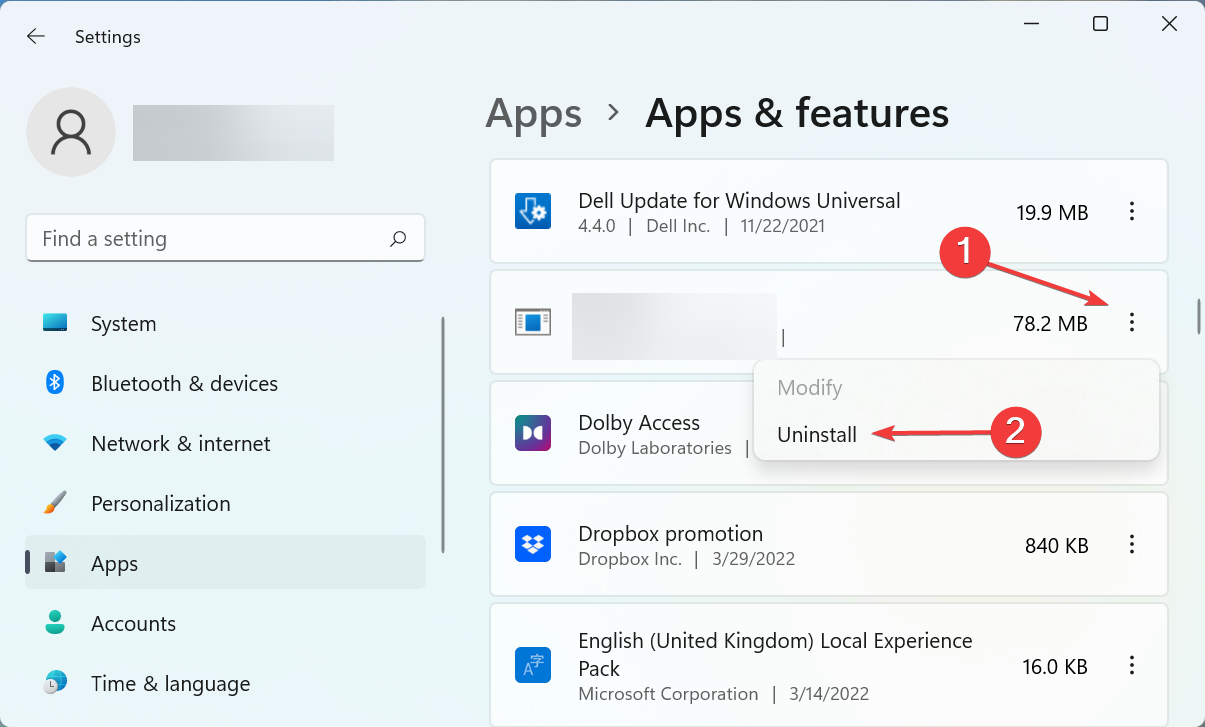
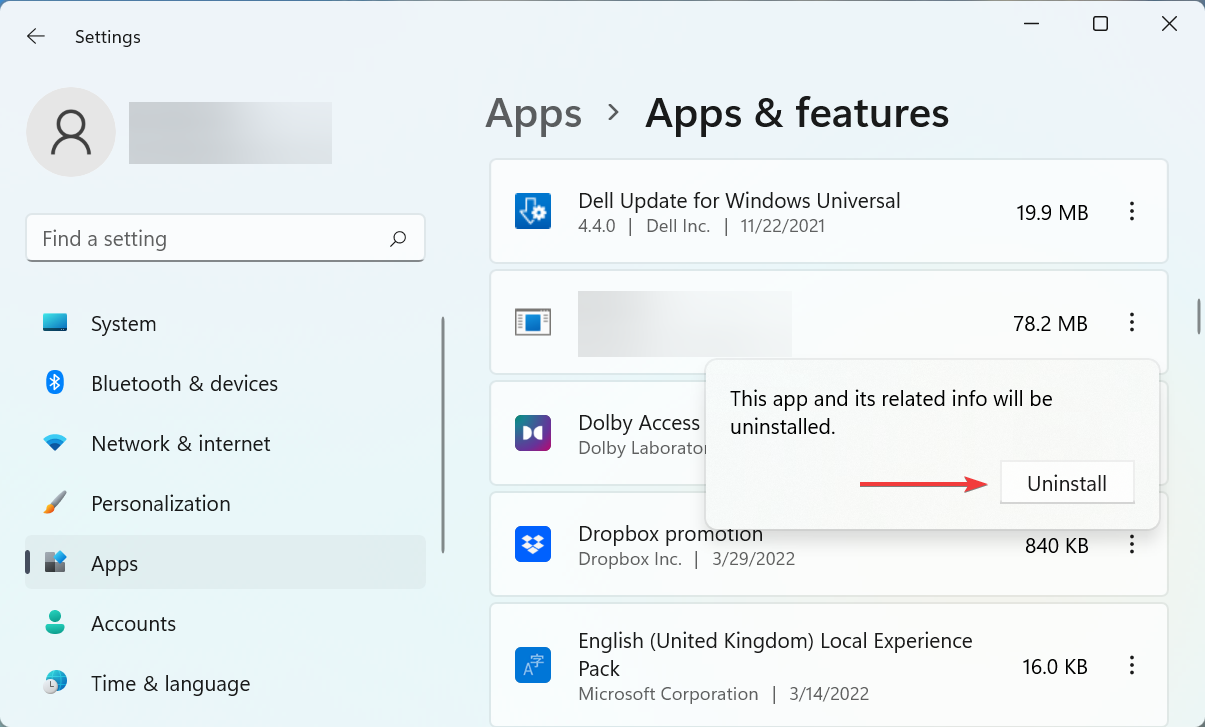
  5. Click on the 3 dots corresponding to the application and select Uninstall to delete the program from your PC.

Now, you can reinstall the Trezor suite.

As more and more people are shifting towards cryptocurrency, security is becoming a well-discussed issue. Online cryptocurrency wallets are usually considered safe, but people still report fraud. Even more, the exchanges start imposing conditions and the government keeps a strict eye.

You can check our guide on the best cryptocurrency converter apps. Also, do let us know which method worked for you from this guide, in the comments sections below.

DBX to PST Converter: 8 Best to Download Free

Microsoft’s Outlook and Outlook Express are the company’s two most widely used email clients globally. However, Microsoft’s announcement that Outlook express would be phased out made it critical for everyone to make the switch.

Outlook uses a PST file type, while Outlook Express uses a DBX file format for its mail. Although it is possible to convert DBX to Outlook manually, it is not a straightforward process.

We’ve discovered the most excellent tools for completing this process, and we’ll explain why we like them in this article.

We recommend you read our guide to learn about the best email migration tools.

What is a .dbx file and how can I open it?

The DBX file format is an email file type typically produced and saved in Outlook Express. Other file types and email messages are successfully stored in the DBX file. The email client that creates the DBX file is also used to access, open and view it.

In the absence of Outlook Express, to open a DBX file, you must first convert it to the PST format and then open it with your Outlook client.

How can I convert Outlook Express .dbx files to .pst?

There are multiple methods to convert DBX content into PST, EMLX, EML, MBOX, and MSG.

You can use paid tools, freeware tools or even online tools. We will show you all the cool ones to use in the article’s next section.

The conversion process will usually include:

  • Uploading or importing the DBX files
  • Converting, traditionally by clicking on a Convert button
  • Downloading the converted PST files

What are the best .dbx to .pst converters with free trials?

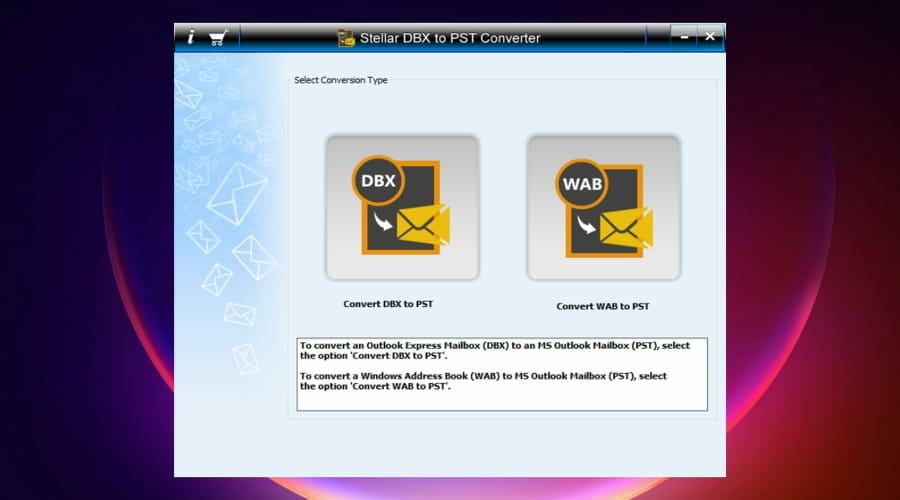
Stellar Converter for DBX

dbx to pst converter software

This program efficiently harvests and converts items from any DBX file to Outlook PST. It permits you to store the converted data in a separate PST file or add it to an old PST.

You will also be able to import addresses into an Outlook account using its address book conversion feature. For example, you may export all of the information from the WAB file’s Name, Summary, Business, Home, and Personal Tabs to a PST file.

After that, you will have to upload this PST file into your Microsoft Outlook profile to view your contacts. This Stellar DBX  converter app previews important mail items, giving you a sneak peek at the final conversion results.

Additional feature:

  • Concurrent conversion of several DBX files
  • Batch conversion
  • Support for EML, MSG, Office 365, and RTF
  • Professional and reliable

Stellar Converter for DBX

Quickly convert all your DBX files into PST and benefit from batch conversion, multiple file support, and pre-conversion previews.
Free trial Visit website

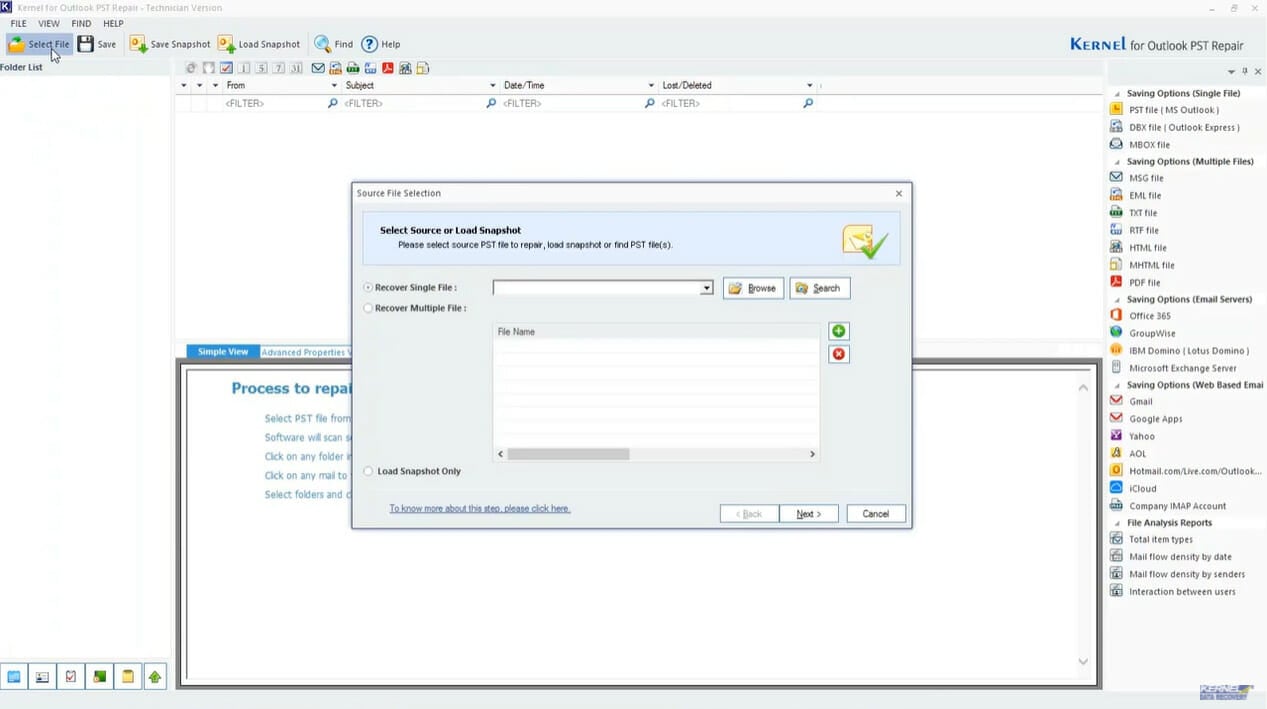
Kernel for Outlook PST Recovery

dbx to pst converter software

This is a professional tool that can convert PST files to DBX, MSG, MBOX, TXT, EML, HTML, RTF,  and MHTML, among other file formats. Even password-protected and encrypted PST files may be converted using the program.

It is optimized to convert large PST files without slowing down your computer. It also can split huge PST files into smaller ones. When you save a big PST file, you can choose the size, and it divides the contents into many PST files.

The program effectively converts both healthy and damaged PST files. As a result, the program allows you to see emails from damaged PST files in many formats. It also restores deleted data to their original locations.

You may even use the program to convert emails you incorrectly erased. To do so, go to the PST mailbox’s Deleted Items folder and pick them. You may also choose whether or not to convert removed items.

Additional features:

  • Multiple PST conversion
  • Supports for Outlook 2007 and later
  • Support for all Windows OS

Kernel for Outlook PST Recovery

Regain access to your PST files and restore corrupt PSTs to their original qualities.
Free trial Visit website

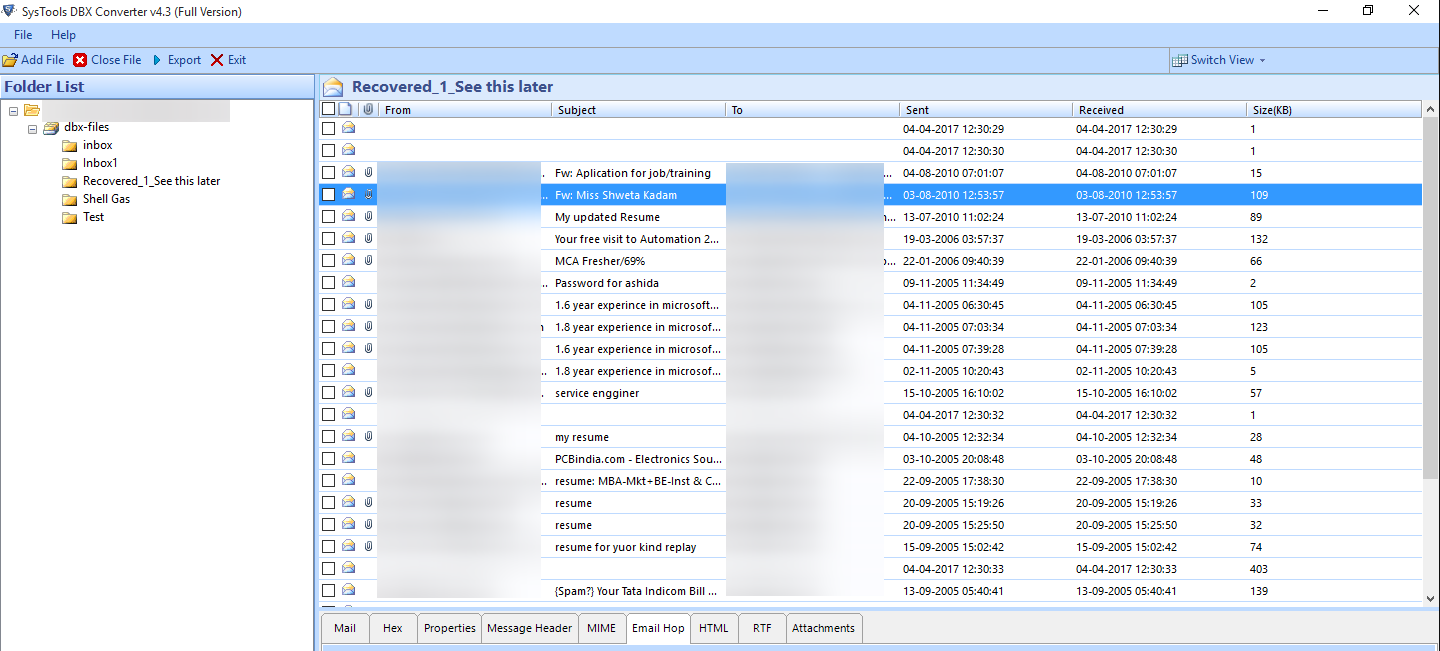
SYstools DBX to PST converter

dbx to pst converter software

This DBX Converter application is built with an innovative and cutting-edge algorithm that makes converting DBX files to multiple file formats easy. To examine DBX files, the converter offers many preview modes.

You’ll be able to scan many DBX files concurrently and get a detailed status report. The content count of every folder is shown in all email scans.

The program has an in-built reader that displays a live preview of the attachments in the associated emails. Attachments such as docs and photographs may be previewed.

By preserving the structure of the folder, you may save and convert specific folders from DBX to EML, MBOX, MSG, PST, and PDF file formats. After conversion, the program will preserve the formatting of emails.

Additional features:

  • Batch exporter
  • Support for eight naming options
  • Spit PST by size

SysTools DBX to PST converter

Convert DBX files to whatever format you like and preserve their orignal structure.
Free trial Visit website

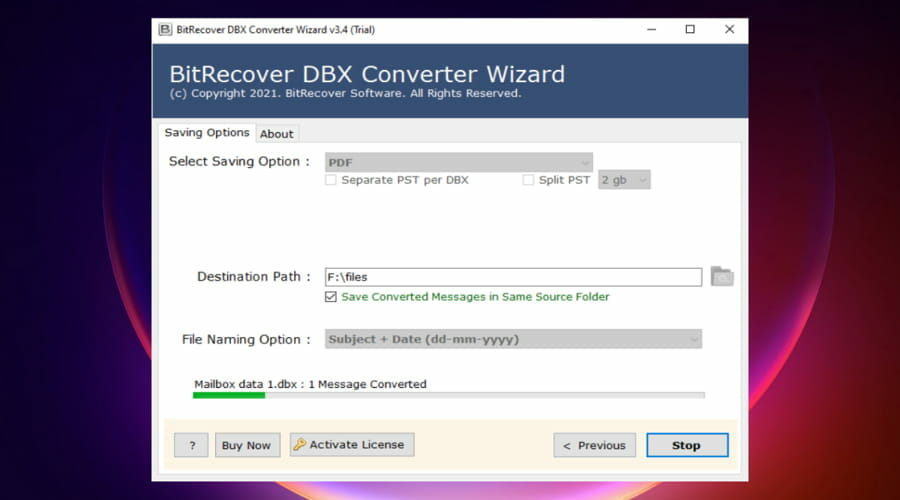
BitRecover DBX Converter

dbx to pst converter software

It is a prevalent choice among users for batch DBX email conversion since it provides many options for saving your configuration. For example, you may easily convert DBX files into a range of popular file formats for storage.

This tool lets you save your DBX files according to your specifications. For example, you can choose from various naming options for converting a DBX database to another format, such as Subject, Time, Date, or any other combination.

⇒ Get BitRecover DBX Converter

What free and open-source .dbx to .pst converters should I use?

Outlook Open Converter

dbx to pst converter software

There are hardly any free and open-source DBX to PST converters, so this is a rare gem. The one drawback is that you will only be able to use this app on a Linux OS, so not too good for Windows and Mac users.

That said it is fast and efficient.

It is a little program based on dbxconv and readpst that offers a user-friendly interface for converting Outlook Express and Outlook files to open standards. 

The application converts .DBX files from Outlook Express 5/6 to .EML files for Outlook 2003 to 2010, PST to MBOX, etc. The tool isn’t frequently updated, so it might not work for all users.

Additional features:

  • Doesn’t require a Microsoft mail client installation
  • Support for .DBX to .EML files
  • Support for Outlook 2003 and later

⇒ Get Outlook Open Converter

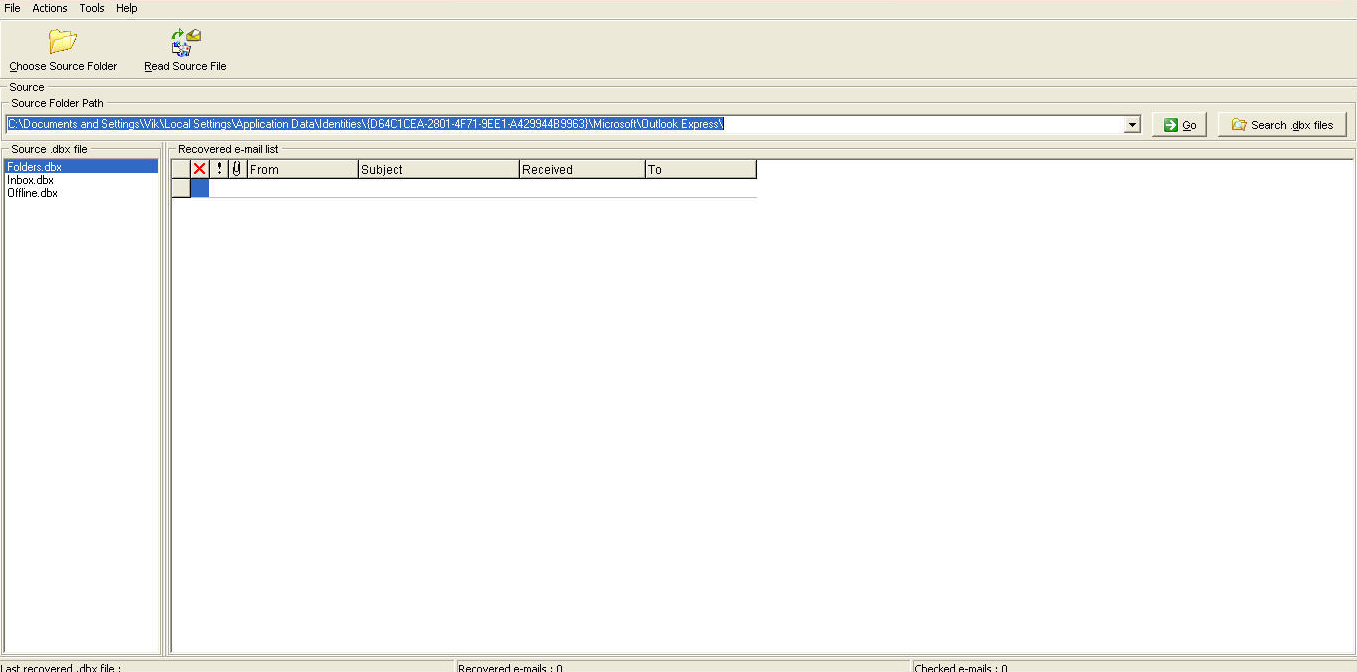
DBX Extract Free

dbx to pst converter software

This tool is a free Outlook Express app that lets you recover DBX files. The procedure of converting DBX files using this utility simulates the parsing of individual documents independently.

All recent Windows operating systems can run this converter app. Although there may be different editions of this software, it is a free software product that is completely functioning for an infinite period.

However, the last time DBX Extract Free was updated was in 2011, so you might experience issues on new systems.

Additional features:

  • 100% free
  • Windows compatible
  • Lightweight

⇒ DBX Extract Free

What online .dbx to .pst converters should I use?

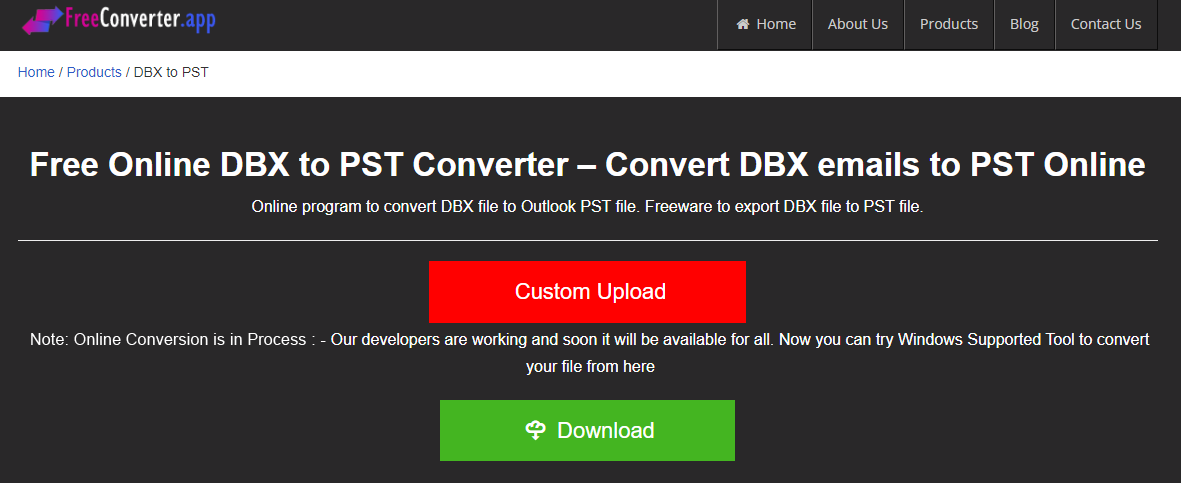
Freeconverter.app

dbx to pst converter software

The free online Converter features simple, easy-to-follow procedures. You must first go to the website and select an application. Then, after adding the DBX file, you will receive a link to your PST file in seconds.

By using this service, huge DBX files may be readily converted to PST format quickly since the online service has no file size limitations.

The program does not need you to have installed any third-party apps to complete a conversion. Instead, you may effortlessly convert Outlook Express emails to MS Outlook PST, including attachments, without any external tools.

Additional features:

  • Safe conversion
  • 100% effective migration
  • Zero data loss

⇒ Get Freeconverter.app

FilePro Info

dbx to pst converter software

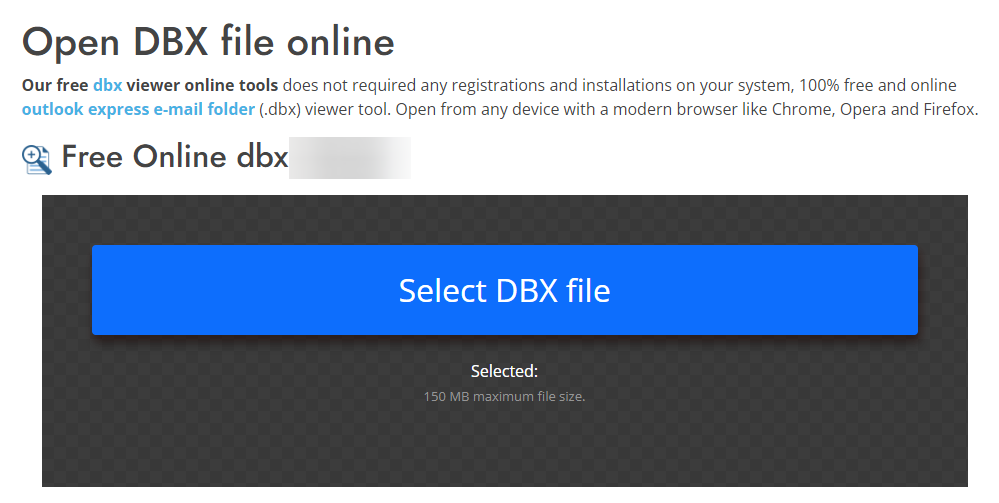
There are no installations or registrations necessary to use this free online converter application. It works on any device with a browser such as Opera, Chrome, or Firefox.

To begin, you have to drag a file into the converter’s white area, or click within the white area to select a file. Then choose Convert from the drop-down menu. Finally, you’ll be able to download the converted file in seconds.

The DBX file download link is available immediately after conversion and will be removed after 24 hours, and your files will not be accessible to anybody else.

Additional features:

  • Speedy conversions
  • No required registrations
  • File comparison

⇒ Get FilePro Info

What type of .dbx to .pst converters are most reliable?

To start with, there is a very limited list of open-source or online DBX to PST converters. We have only been able to review three that fall in this category. While they may work, they will not be our first recommendation.

They do not have an active development team which means you will likely experience bugs while using these free tools. This implies some in this category may work and others will not.

We will recommend you stick to using the paid converters. They often offer free trials and generally have a stable development team. You will have access to support when you need it.

This article aims to give you all the education needed before you convert DBX to PST files. A paid tool will provide you with even more functionality if you can afford it, allowing you to do more than DBX to PST conversions.

Since you have now migrated to Outlook, you may be interested in checking out its most awesome features in our guide on the 10 best Outlook features you need to try right now.

We are curious and want to know which of these tools you have tried out. Please leave us your comments.

Pulse Secure for Windows 11: How to Download & Install

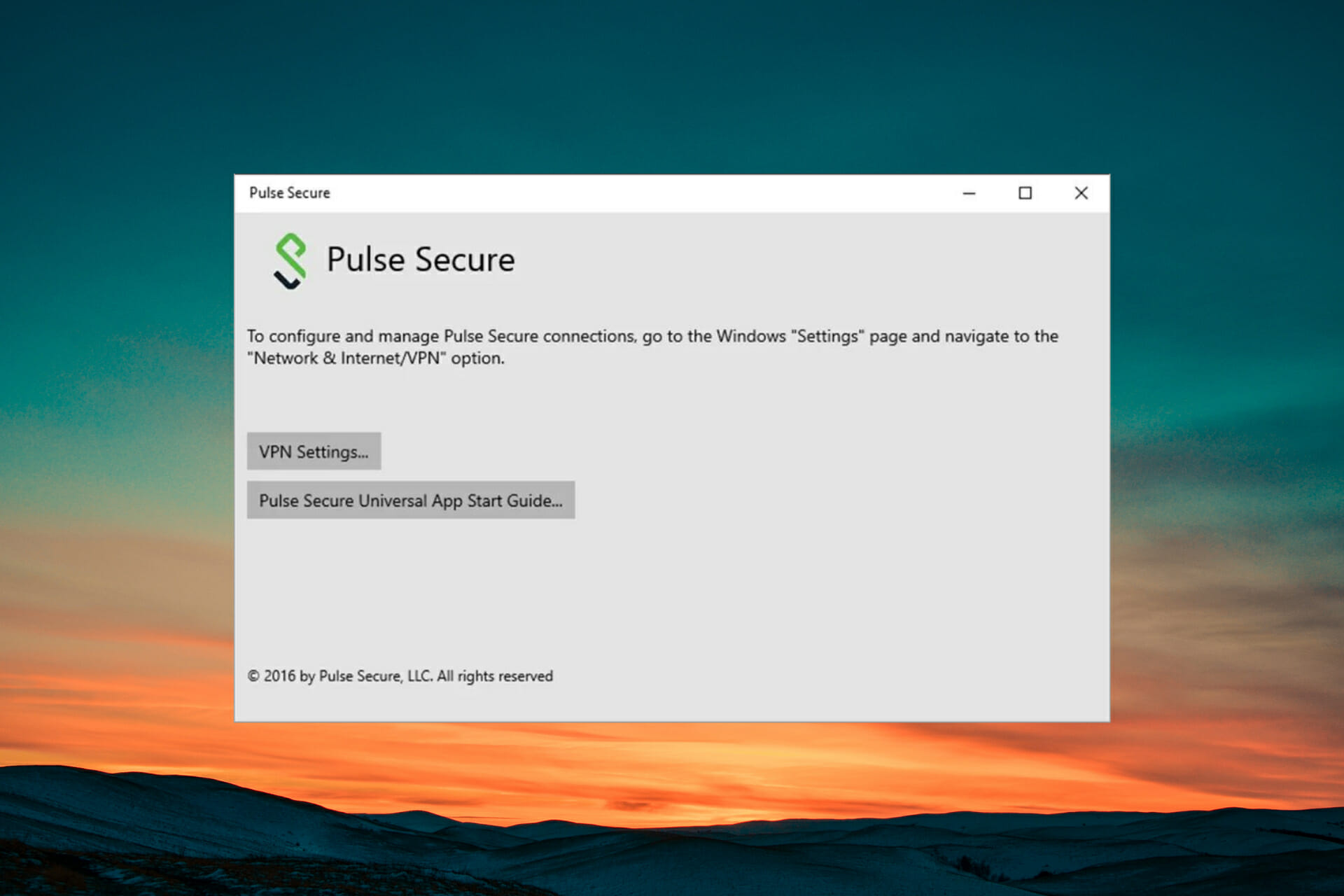
Pulse Secure VPN is now available for Windows 11 and there are two ways to download this software to your PC. You can either download it through the official website or the Microsoft store.

Downloading from the official page requires you to create an account before proceeding. If you don’t have the patience for that, you can simply visit the Microsoft store and download the VPN.

It is easier to download Secure VPN Windows 11 from the Microsoft store. The process is straightforward and hassle-free. Also, bear in mind that VPNs can get overloaded. This mostly happens when a lot of people are connected to one server. Your internet speed slows down which can be quite frustrating.

To solve this issue, you can either switch the server you are currently on or change your location or use a different protocol.

That said, let’s go ahead and look at the step-by-step procedure to download Pulse VPN on Windows 11.

How can I download and configure Pulse Secure VPN on Windows 11?

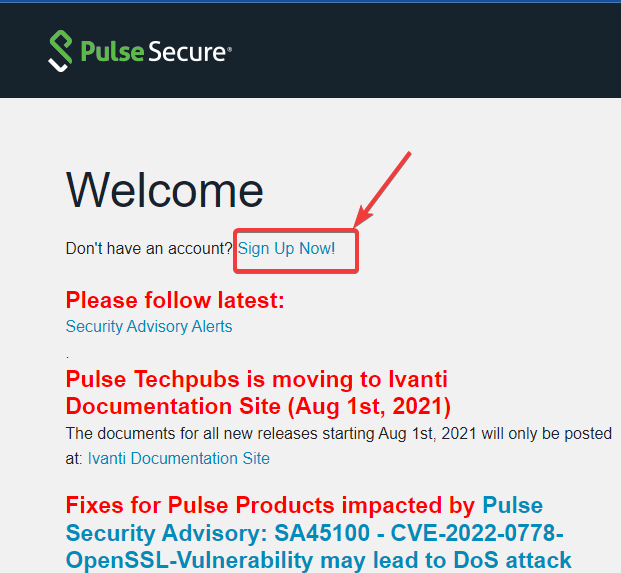
1. Download from the web

  1. Visit Pulse Secure official website and click on sign up now.Pulse secure windows 11
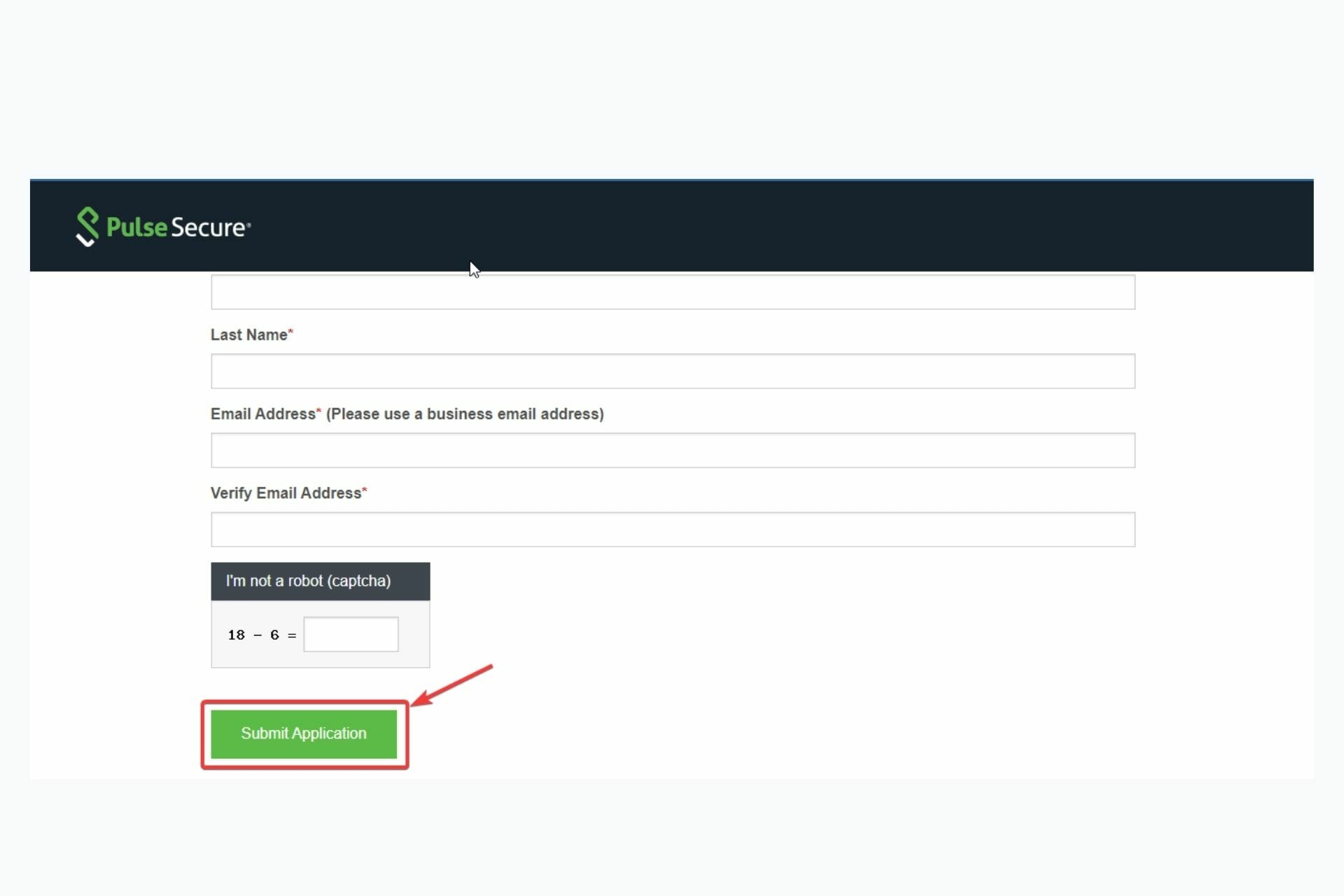
  2. After entering the required information, click on the Submit Application button.pulse-secure-vpn1
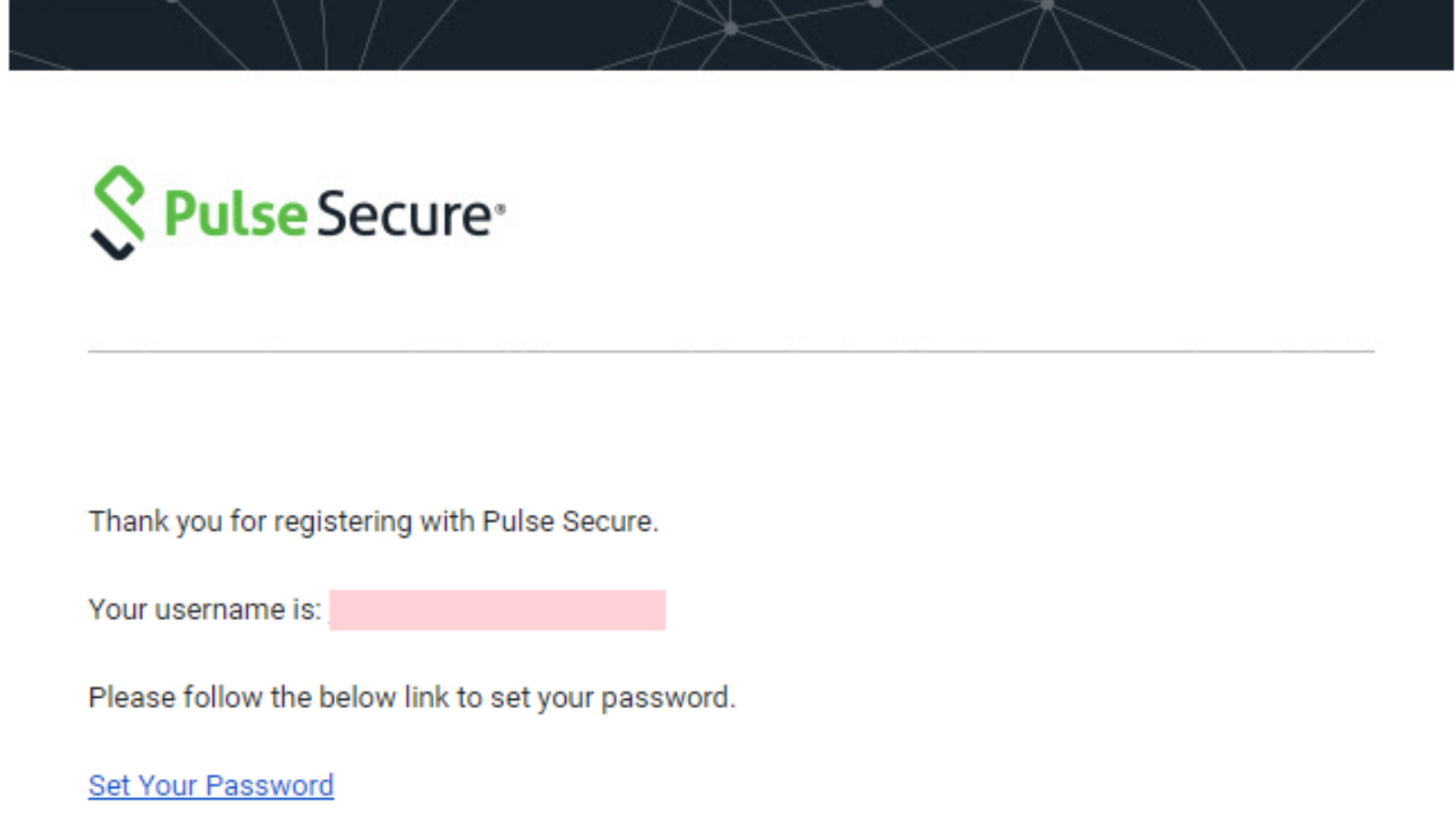
  3. You will receive a confirmation email. Follow the link to set your password.Pulse secure windows 11
  4. Then log in from the website, scroll down and enter the required details to onboard your account.
  5. On the Pulse Secure Center page, select licensing and download center and choose the account you want to use.
  6. You will be redirected to Licensing and Download Center page, click on the downloads tab.
  7. Scroll down to browse my software and documentation tab and click on Pulse Secure.

Your download automatically starts.

2. Use the Microsoft Store

  1. From the windows tab on your PC, click on Microsoft Store.
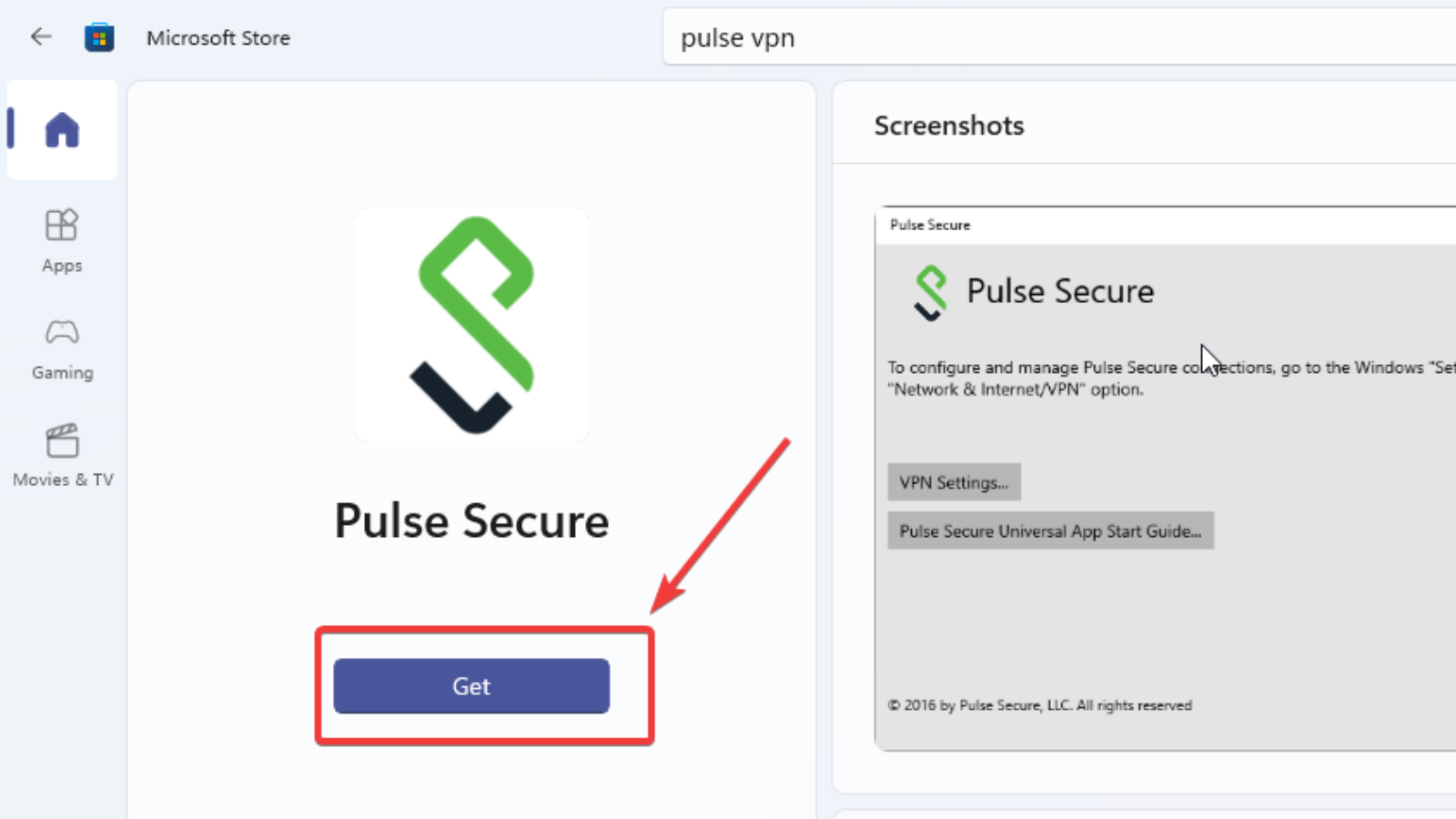
  2. Use the search button to search for Pulse Secure. And click on the Get button.pulse secure vpn windows 11

3. Configure the app

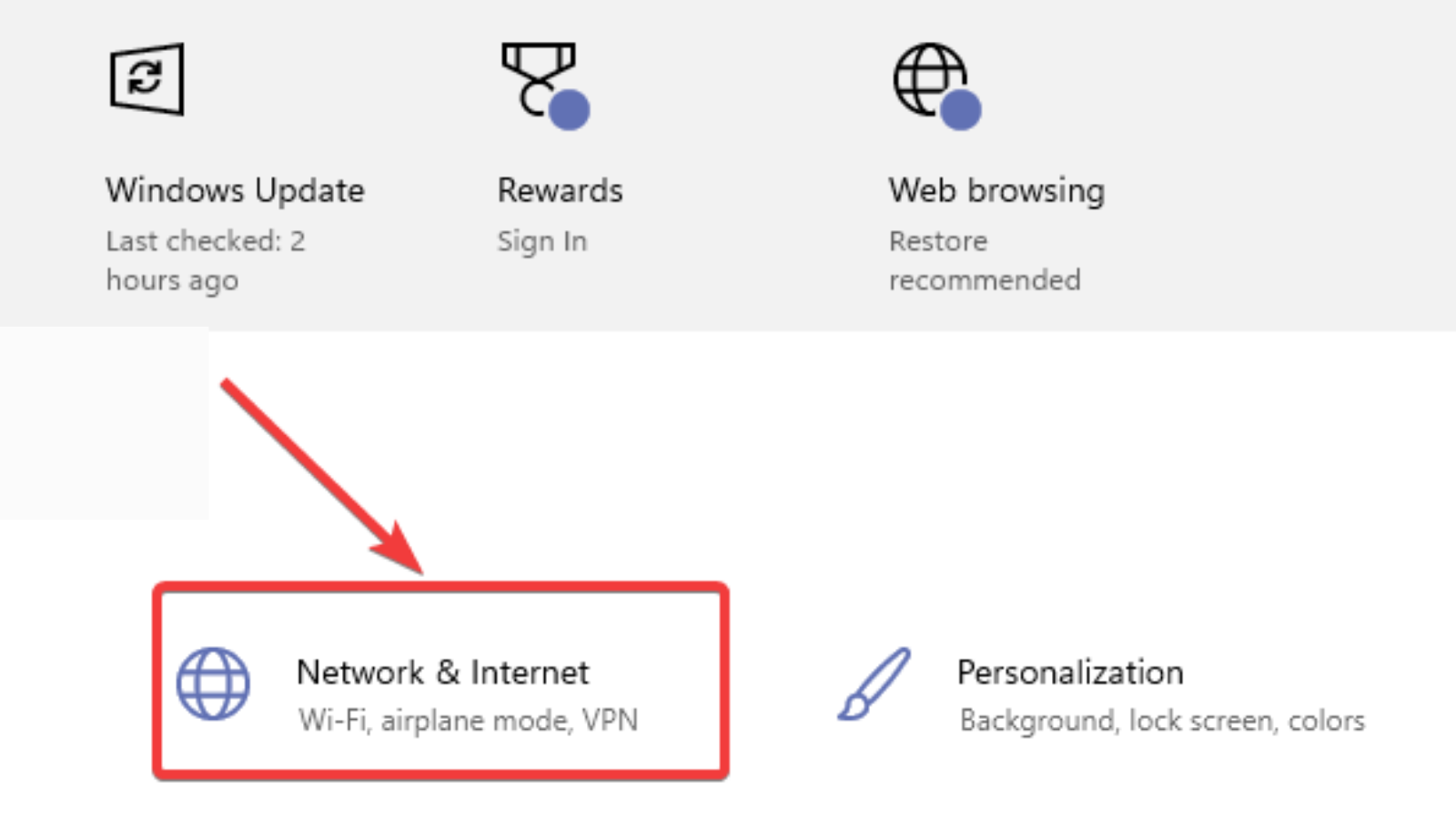
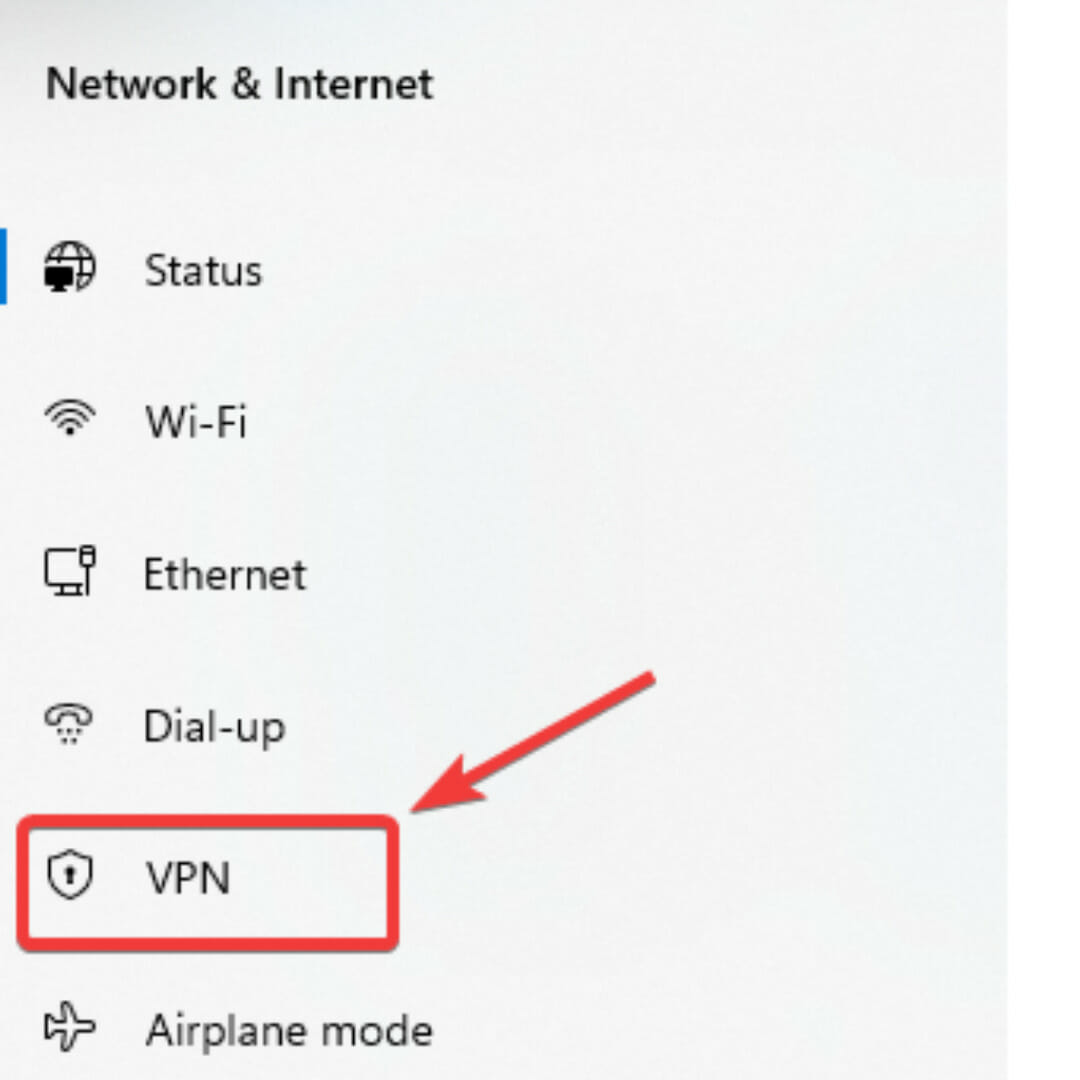
  1. Go to your settings and click on Network and Internet.Pulse secure vpn download
  2. Click on VPN on the left sidebar.Pulse secure windows 11
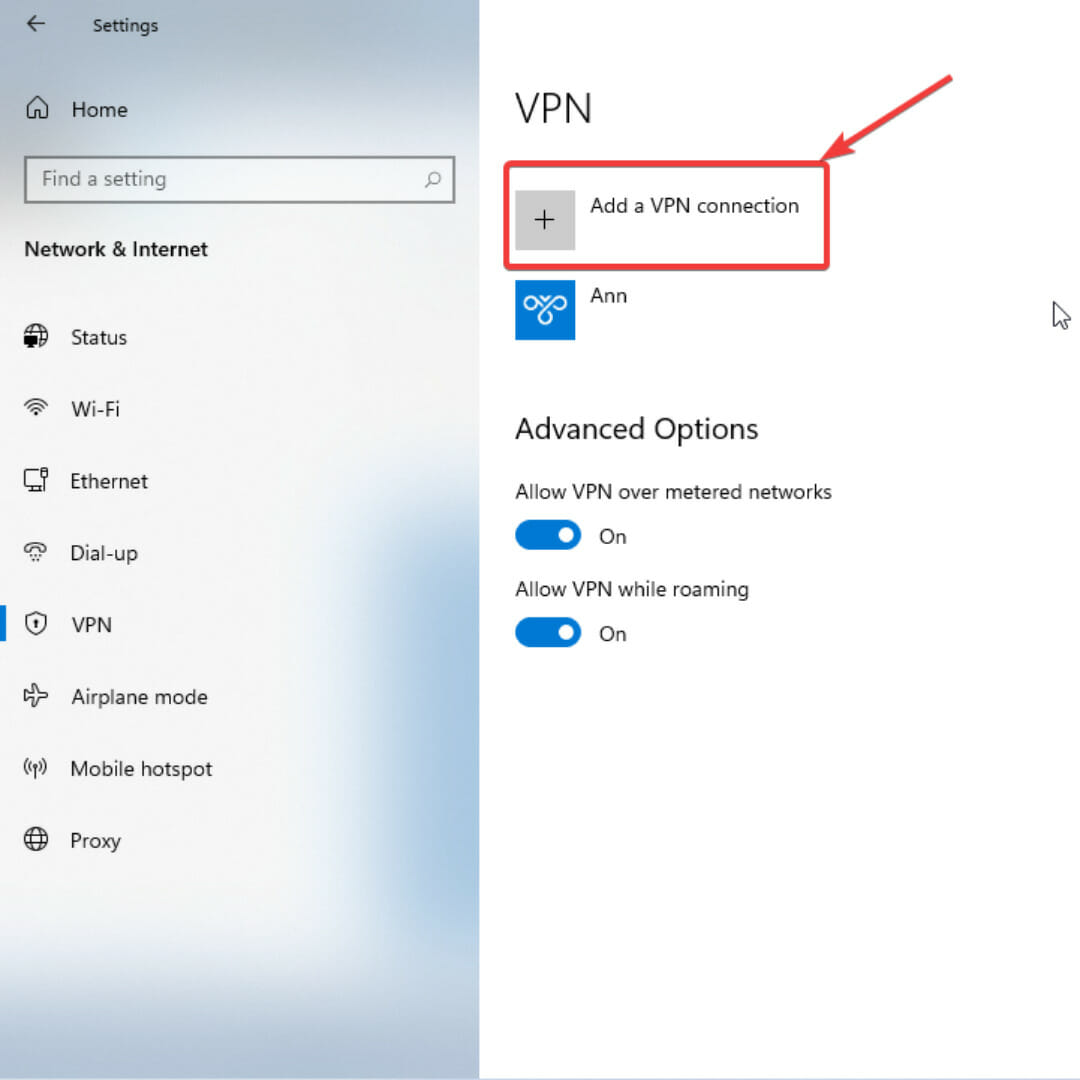
  3. Click on Add a VPN connection.Pulse secure windows 11
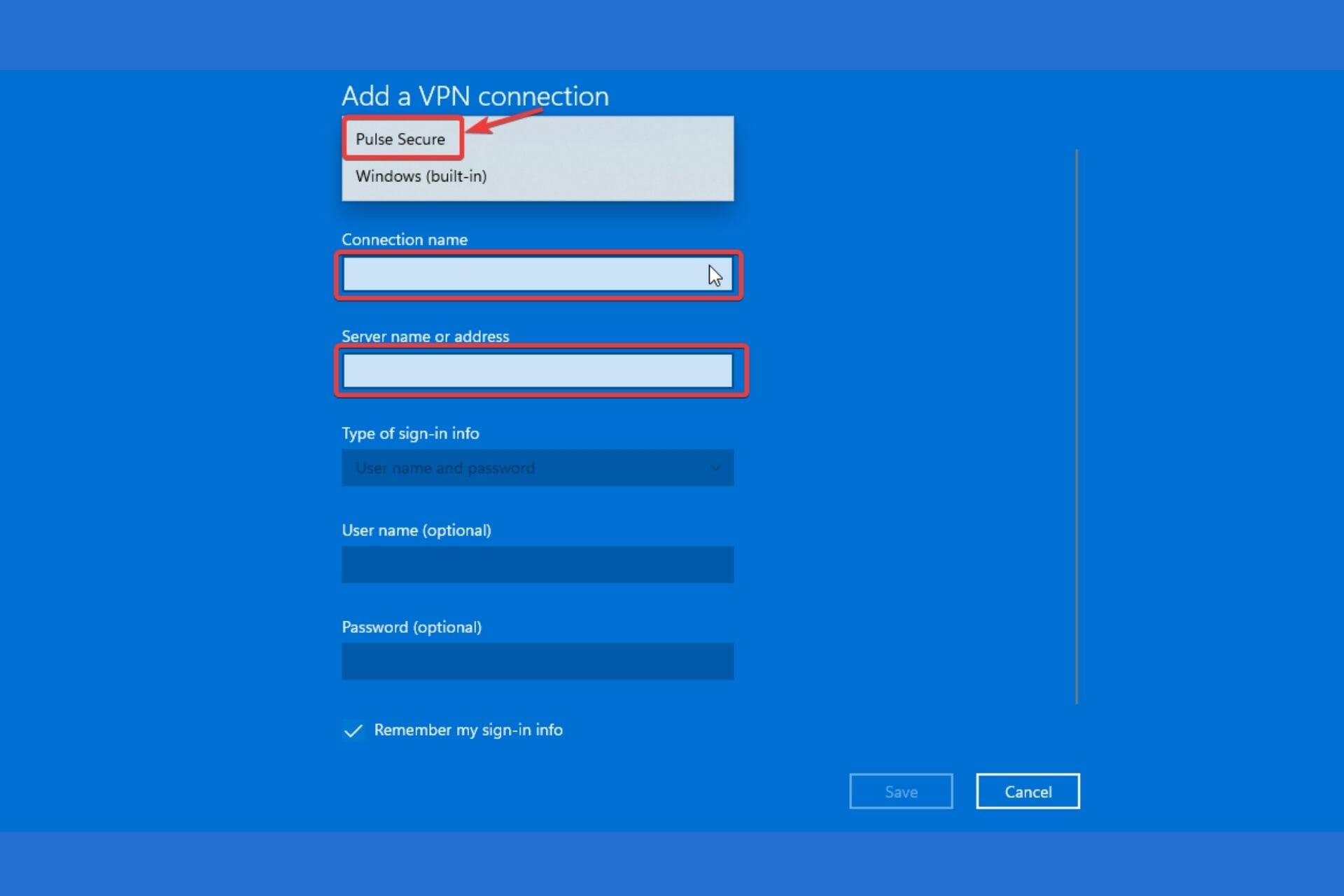
  4. Under the VPN provider option, choose Pulse Secure. Then, enter your configuration settings – connection name and server name/address. Tick the remember my sign-in info, box, and click save.Pulse secure windows 11

While having a safe and user-friendly VPN on your computer is great, don’t forget that it is common for software including VPNs to crash. It is an unavoidable occurrence that might lead to unrecoverable damage such as leakage of sensitive information.

The best way to avoid issues like this is to get a VPN with a kill switch. Private Internet Access is such a VPN. This software automatically disconnects your PC from the internet whenever there is a break in your VPN connection. That way, your private data is safe.

⇒ Get Private Internet Access

If you notice that your internet speed is getting slower while using a VPN, don’t freak out. It is a normal occurrence caused by poor quality VPN servers, bandwidth limitation, and even distance.

Using a trustworthy VPN, choosing a wired connection instead of a wireless connection, and closer and faster servers will help to hasten your internet speed.

Fix: Microsoft Rewards is not available in this Country or Region

Microsoft Rewards is a program that allows people to earn points whenever they buy something from the Microsoft or Xbox Store. The rewards you get range from gift cards to entries in sweepstakes to charity donations.

There are a wide variety of rewards you can collect, but it’s not available to everyone. The program is available to the US, several European countries, and a select few across Asia. It’s unknown if Microsoft will expand its Rewards program.

Is there a way to collect Microsoft Rewards in other countries?

Yes, you can with the Opera One browser. Initially, you might think that you can use a VPN to access the Rewards program, but this is strongly not recommended.

People have been banned from participating in Microsoft Rewards when the company discovered they using a VPN. Opera One uses one too, but it’s integrated within the browser so you’ll be fine.

This short guide will show you how to download the Opera One browser and then show the steps to change locations.

How to change locations with the Opera One browser

1. Download the Opera One browser

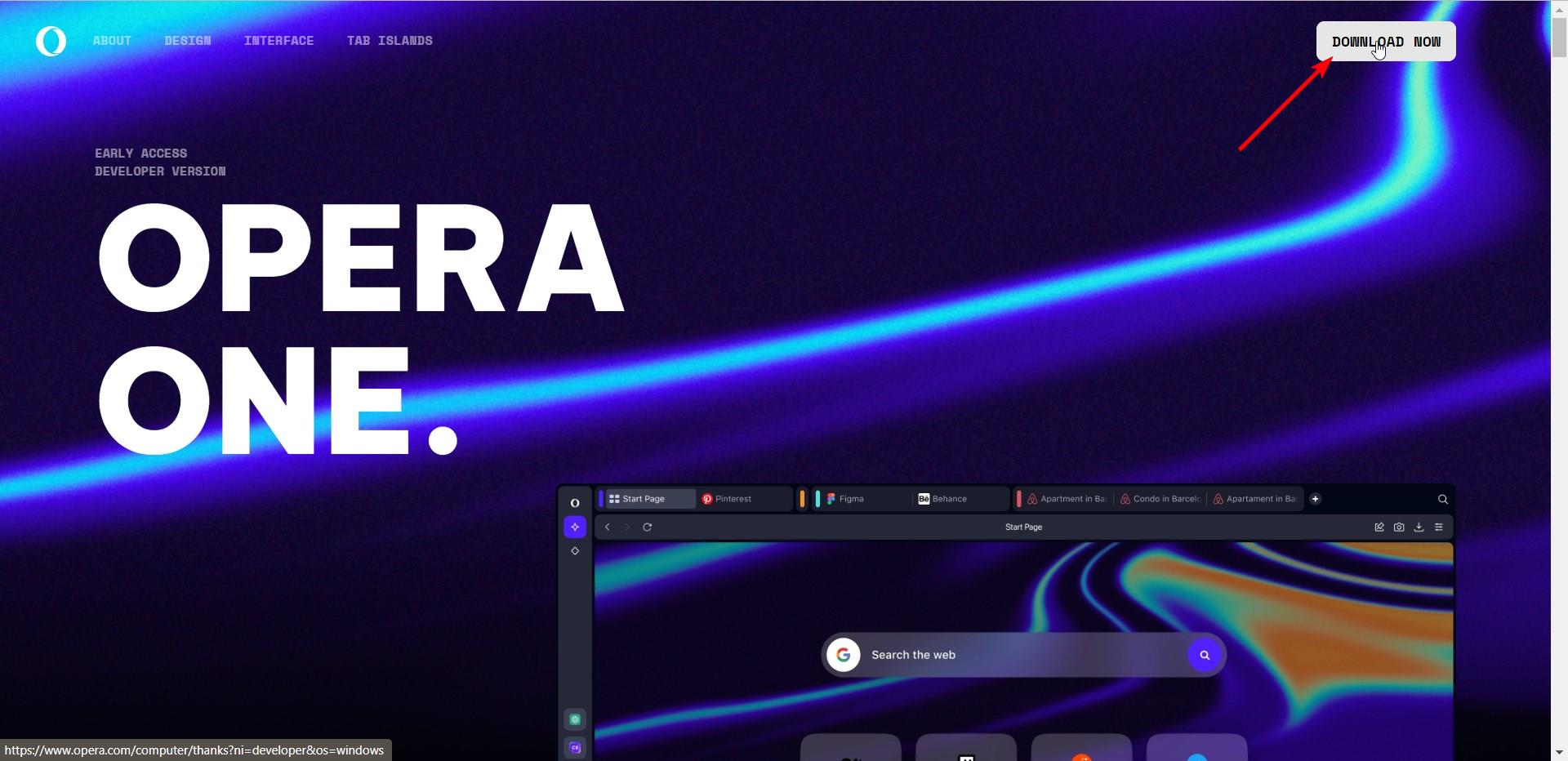
  1. Open the official link and then click on the Download Opera One button.
    Opera One download
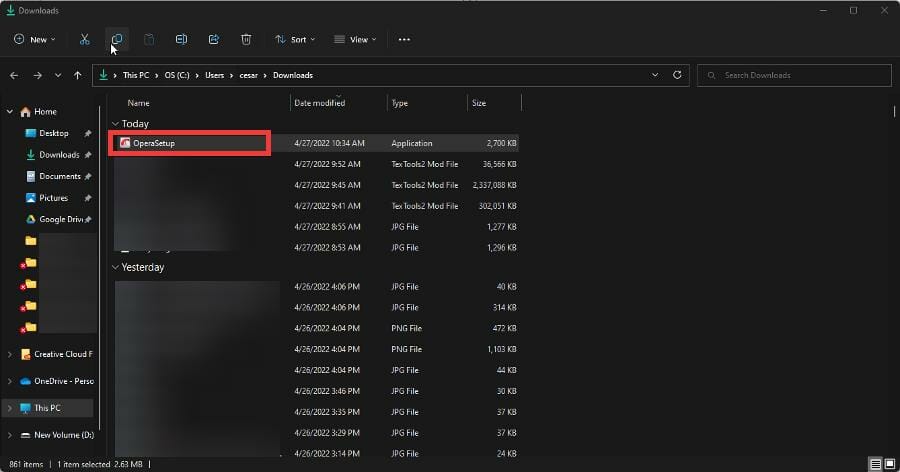
  2. After downloading, go to the file’s location and double click to begin the installation.
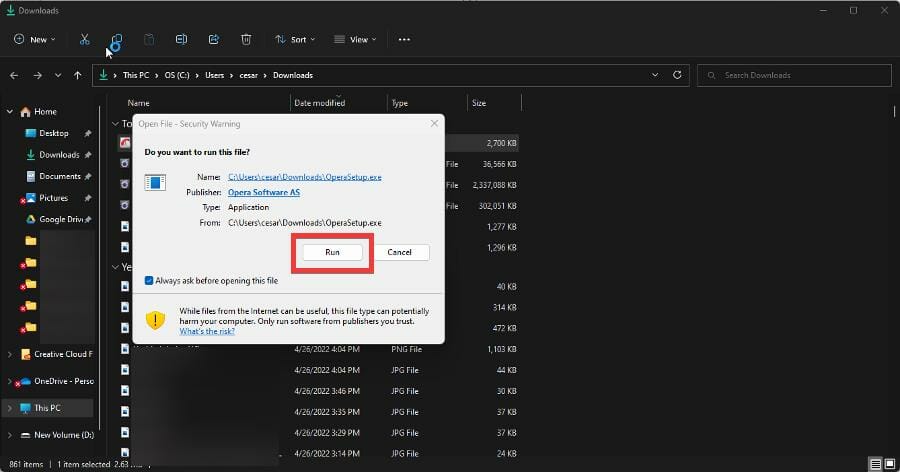
  3. Click Run to begin.
  4. Select Accept and Upgrade in the new window that appears.
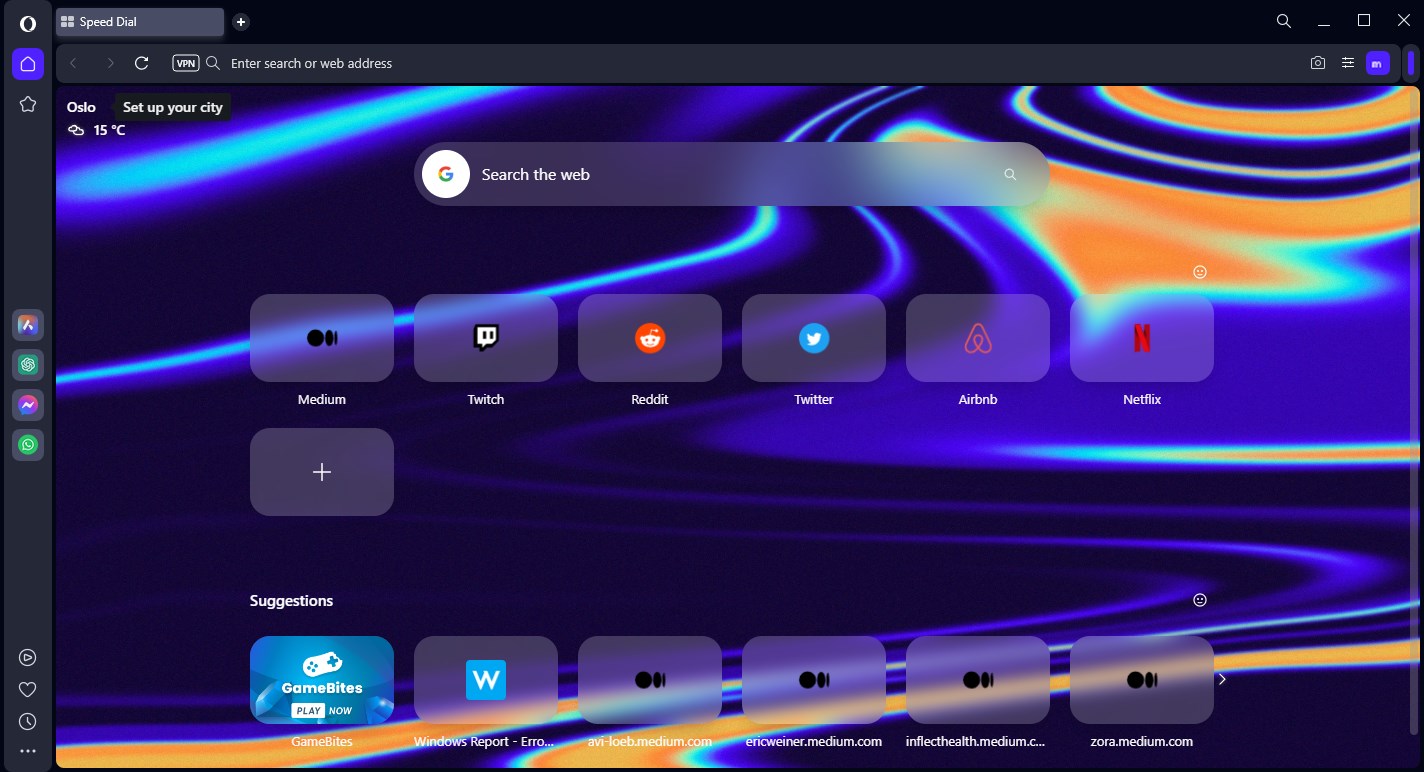
  5. Give the wizard a few seconds to install the browser which will open automatically.

2. Changing browser location

  1. In Opera One, click the menu button in the top right corner.
  2. In the menu, scroll down until you see the VPN entry.
  3. Click the Enable in Settings button.
    click VPN Enable
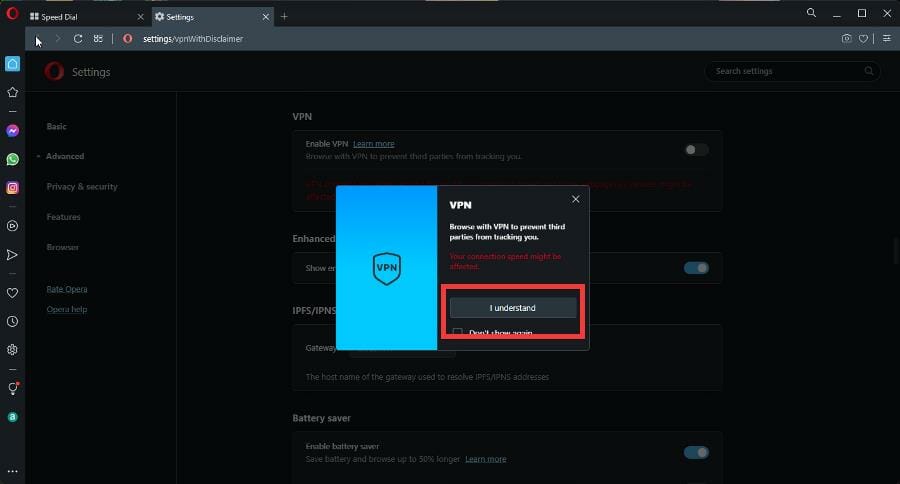
  4. A window will appear telling you that your connection speed may be slowed down. Click I understand.
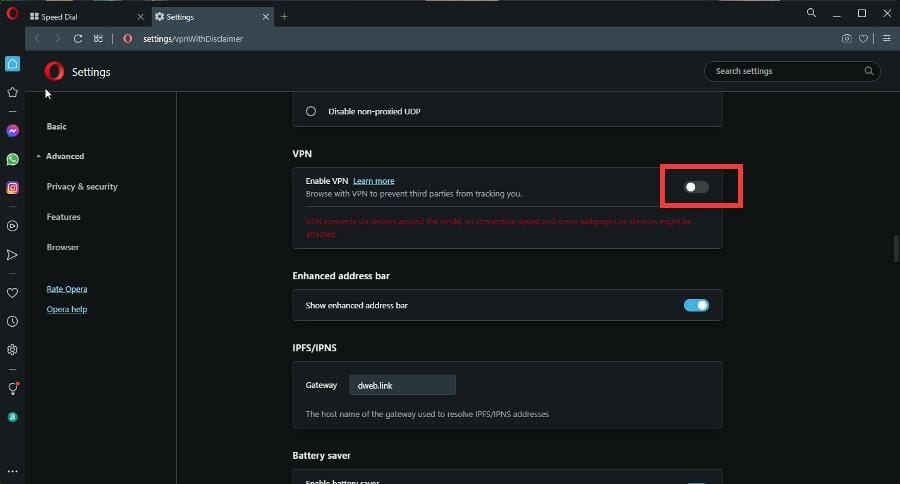
  5. Toggle the VPN switch to enable it.
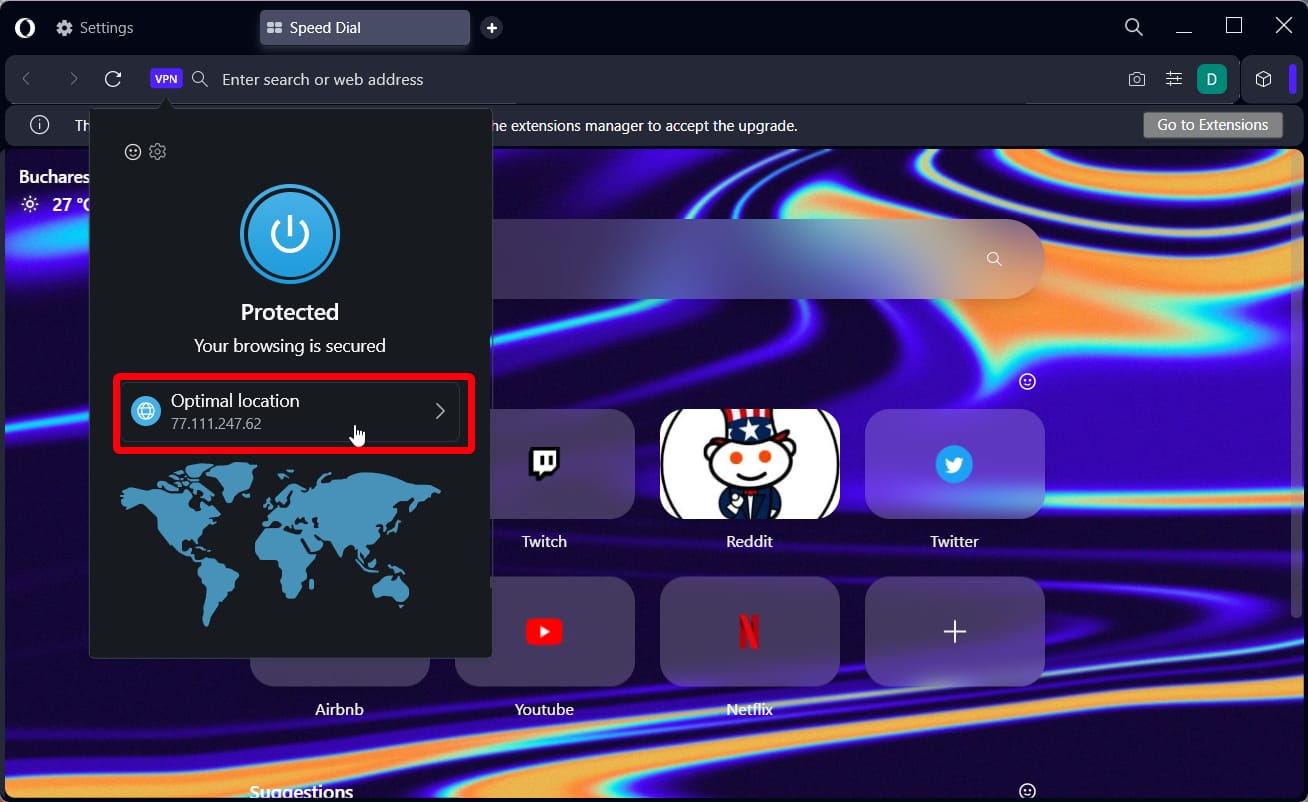
  6. Doing this will put a VPN symbol into the address bar. Click it.
  7. A window will appear from the top. Select the drop-down menu underneath Optimal location.
  8. In that drop-down menu, you can select from a variety of world regions: Europe, the Americas, and Asia. You can select Americas for Microsoft Rewards.
  9. From there, you can log in to your Microsoft Rewards account and start collecting points for the program.

Is there anything I should know about web browsers?

First, Opera GX has a solid reputation for being a really good web browser for gaming. It’s easy on the CPU and has a ton of customizable options within its menus.

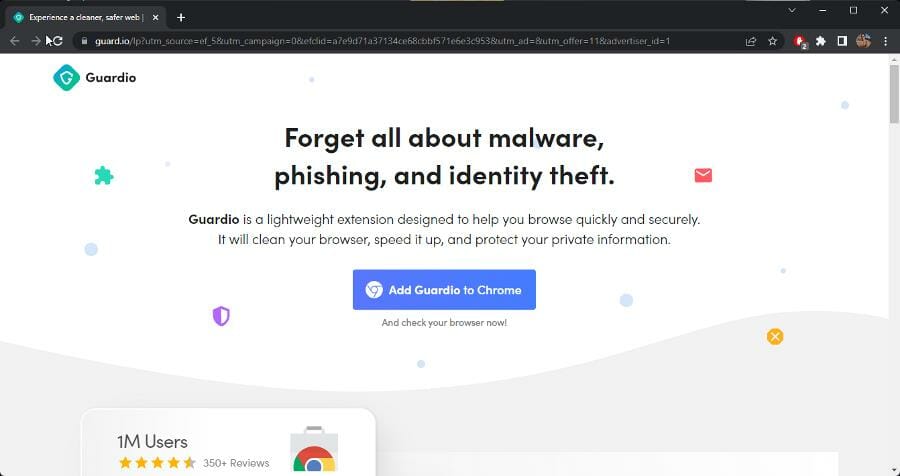
You also may be interested in getting an antivirus extension for Chrome to protect your browser. Some of the recommended ones include Guard.io which can block phishing sites and Avast blocks tracking cookies.

And if you’re thinking about getting into app development, you should look into a lightweight browser so you can maximize performance. Firefox Developer is a good one in this regard and so is LT Browser.

Before you leave, don’t miss our latest article that explains if it’s possible to redeem Microsoft Rewards without a phone number.

Feel free to leave a comment below if you have any questions on other Windows 11 apps. Also, leave comments about reviews that you’d like to see or information on other Windows 11 features.

How to Download Valorant on Windows 11 [Install & Play]

If you’re a fan of first-person shooters, you’ve probably heard of Valorant and want to join it as well, thus today’s topic is how to play Valorant on Windows 11.

It is a first-person shooter developed by Riot Games that features innovative mechanics and a cast of characters with a variety of abilities that can be used to gain a tactical advantage in battle. Moreover, it has anti-cheat measures that are among the most stringent in the industry.

So if you’re looking for a first-person shooter with the lowest number of cheaters, look no further than this title. To install Valorant on your Windows 11 PC, you will need to meet the game’s requirements.

The TPM and Secure Boot requirements can be met with the help of our guide on how to enable Secure Boot on Windows 11. However, if you skipped over these requirements when installing Windows 11, you will not be able to install Valorant on your computer.

If you wish to continue using Windows 11, you will need to upgrade your hardware to include TPM and Secure Boot, or you will need to roll back to Windows 10 in order to run Valorant on the same system.

This being said, let’s see how you can play Valorant on Windows 11. There are two ways in which you can install the game and they only require 4 or 6 steps to play the game. Follow along!

How can I play Valorant on Windows 11?

1. Use Epic Games

  1. Navigate to Epic Game’s page for Valorant and click on the Get button.get how to play valorant on windows 11
  2. Choose the method in which you want to sign in to your Epic Account, otherwise click on the Sign up button to create one.sing-up how to play valorant on windows 11
  3. Follow the on-screen steps and then hit the Open Epic Games Launcher button or Download Epic Games Launcher if you don’t have it already.epic-launcher how to play valorant on windows 11
  4. Sign in to your account again and choose the location where you want to install Valorant. By clicking on the Downloads button you will be able to keep track of its installation progress. That’s it! Once it is downloaded and installed, hit the Launch button under it.downloads how to play valorant on windows 11

2. Install from RIOT

  1. Sign in to Riot by visiting the link anchored. In case you don’t have an account, click on Create Account and follow the on-screen steps.create how to play valorant on windows 11
  2. Once you have created an account, navigate to Valorant’s download page and hit the Download button. Wait for the download to complete then double-click on the executable file in order to start the installation process.download-button how to play valorant on windows 11
  3. Click on the Advanced options button if you want to change the folder you will install the game on, and then click on the Install button.advanced-install how to play valorant on windows 11
  4. The Riot Client will now be installed on your computer. Once done, sign in to your account again on the left side. Note that you can keep track of the download progress in the bottom right corner. Once done, click on the right arrow.sign-in-valroant how to play valorant on windows 11
  5. Accept the user agreement and wait for Valorant to complete its installation process.accept how to play valorant on windows 11
  6. Once finished, click on the Play button in the bottom right corner and select your Display Name that will be shown in Valorant. This is how to play Valorant on Windows 11. Easy, isn’t it?

Many players will be pleased to know that Valorant, like many other Riot Games titles such as League of Legends and Legends of Runeterra, is available for download for free.

For more information on the game at hand, check out our guide on how to fix Valorant not opening in Windows 11.

Alternatively, take a look at how to fix Valorant’s Vanguard errors and become able to play it again without further issues.

Don’t hesitate to leave us a comment in the section below and tell us what you think. Thanks for reading!

Destiny 2 CAT Error When No Update is Available [5 Fixes]

Many reported Destiny 2 CAT error while no update was available for download. This can be a big problem and prevent you from playing the game, so let’s fix it.

What caused the CAT error no update?

In most cases, this issue is caused by missing updates or your settings that prevent the game from updating.

How can I fix Destiny 2’s CAT error no update?

1. Change PS5 settings

  1. Turn on your console and sign in to your PSN account in order to go to the Settings menu.
  2. Open the System section and navigate to the System Software option.sysmte-software destiny 2 cat error no update
  3. Access System Software Update and Settings and turn on the Download Update Files Automatically. Finally, restart your console.update-and-settings destiny 2 cat error no update

After you restart your console, the Destiny 2 update should start on its own. Wait for the process to finish then enjoy the game.

2. Adjust PS4 update settings

  1. Turn on your console and press up on the d-pad in order to go to the Settings menu.
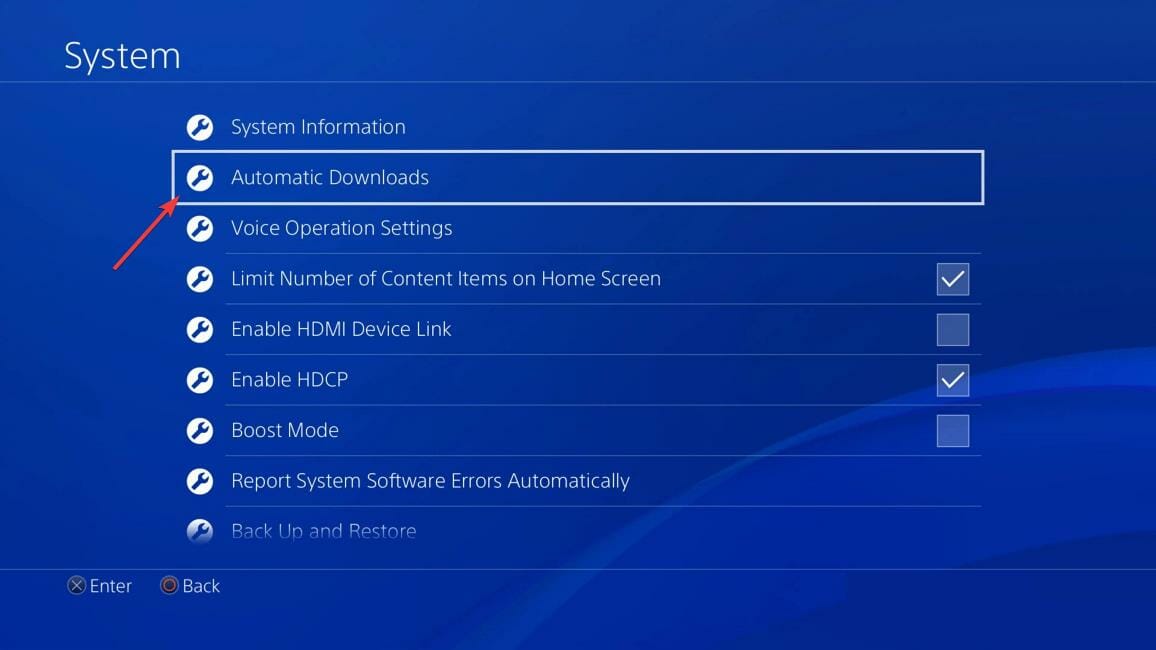
  2. Open the System section and choose Automatic Downloads in order to select the Application Update Files option.automatic destiny 2 cat error no update

3. Modify your Xbox Series X | S update settings

  1. Turn on your console, sign in to your account and go to the Settings panel.
  2. Select the System option in order to choose Updates.system destiny 2 cat error no update
  3. Next, select the Keep my console, games & apps up to date option.

4. Enable Always keep this game up-to-date

  1. Restart Steam in order to automatically update Destiny 2 under the Downloads tab.
  2. However, if the download doesn’t start, right-click on Destiny 2 and turn on the auto-update (Always keep this game up-to-date) option under the Updates menu.updates destiny 2 cat error no update
  3. Right-click on Destiny 2 in your Library and choose Properties in order to check the file’s integrity.properties-game destiny 2 cat error no update
  4. Now select the Local Files tab in order to choose the Verify integrity option.

5. Verify Game Files

5.1. On Epic Games Launcher

  1. Open Epic Games.
  2. Go to the Library tab.epic games library tab
  3. Locate Destiny 2, click on the 3 dots next to it, and select Manage.manage destiny 2 in epic games library
  4. Select Verify and wait for the process to complete.

5.2. On Steam Launcher

  1. Open Steam.
  2. Go to the Library.library tab in steam
  3. Locate Destiny 2, right-click on it and select Properties.
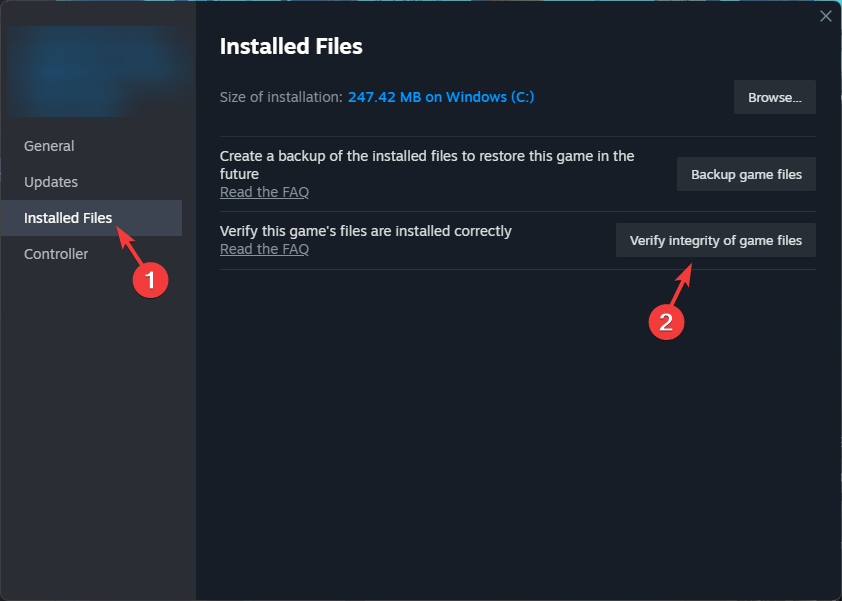
  4. Go to the Installed files tab and Verify the integrity of the game files.Verify integrity

Corrupted or missing game files can cause the CAT error but no update in Destiny 2.

The verification options in the Epic Games and Steam launchers allow you to scan and repair these files, addressing any issues and restoring proper game functionality.

Wrapping up

Fixing the CAT error but no update in Destiny 2 takes some patience. Checking for file corruption and making sure your settings are on point usually fixes the problem.

Simple tweaks like these can also improve other game errors like a stuck update, or mouse stuttering.

Let us know which of the fixes ended up fixing your problem and feel free to ask for further questions in the comments.

10 effective ways to get your Oculus Quest 2 charging again 

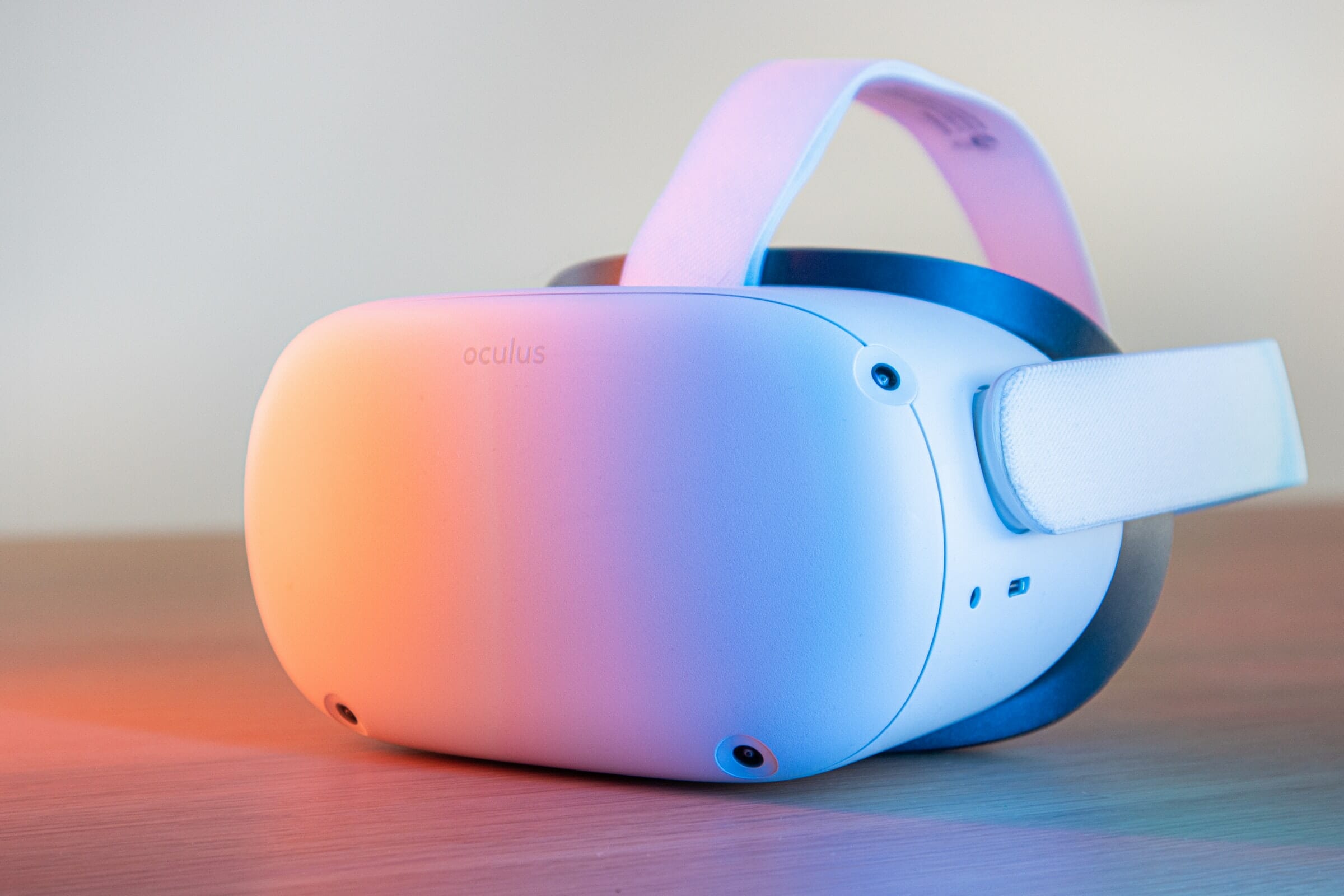
The Oculus Quest 2 is a VR headset for enjoying virtual reality games that has gained massive popularity over the years.

Problems with charging have been experienced by many, and speaking of which, did you know that you can charge Oculus Quest 2 controllers without a dock?

Luckily, these issues can be solved with ease, and in today’s guide we’re going to show you the best ways to do that, so be sure to keep on reading.

Why is Oculus Quest 2 not charging properly?

There are several causes for this, and here are the most common ones:

  • Overheated battery
  • Dirty USB charging port
  • Incompatible charger
  • Non-functioning power source

There are many ways to troubleshoot Oculus Quest 2 not charging. In this post, you’ll learn how to fix the charging issues of your headset.

How do I fix Oculus Quest 2 not charging?

1. Check the battery status

  1. Open the Oculus app on your phone.
  2. Go to Settings and, then select Devices.
  3. Under Controller or Headset, you’ll see your connected Oculus Quest 2 and its battery status.

The battery indicator light will show you whether your headset is charging. There are three different light colors.

The red color means the headset battery is low, but if you Oculus Quest 2 gives you a red light when charging, it means that something isn’t working right.

The orange means the VR headset is charging, and the green light shows a fully charged device.

If your Oculus Quest 2 charging light is not on, then you might want to try a different solution.

2. Let the battery cool down

When you use your device while charging can cause the battery to overheat, you can indeed use your Oculus Quest 2 while charging.

But it can drain the battery faster and prevent it from charging. If it’s overheated, unplug the Oculus Quest 2 from the power source and turn it off for some time. This will cool the battery down. 

To turn off your headset, hold the power button until the indicator light on the front of the headset turns off, and the power down chime is played. This ensures the headset is entirely off and not in sleeping mode.

3. Restart or soft reset your Oculus Quest 2

  1. Press and hold the Volume down and the Power button simultaneously.
  2. Use the volume buttons to highlight the Boot device option from the menu.
  3. While highlighted, use the power button to select the boot device option.
  4. Your headset will restart.

One of the simplest ways to ensure your battery charges is rebooting your headset. The reboot is called a soft reset because it doesn’t delete your files on the headset, unlike a factory reset.

4. Use the original Oculus Quest 2 charger

Any USB-C cable and adapter can charge the Oculus Quest 2 headset. However, using the original charger is the best option.

A different adapter can damage the charging system because it might not meet the voltage requirement of your device. A different adapter can prevent it from charging, so always use the default adapter.

5. Replace the USB cable

Most times, a broken USB cable causes your headset not to charge. You can replace the USB cable to see if it works. If the Oculus Quest 2 headset charges, it’s time to buy a new USB cable.

When picking a new cable, always use high-quality, certified cable if you want to avoid additional issues while charging.

6. Turn off the auto wake up feature in Oculus Quest 2

  1. Go to Settings in the Navigation bar.
  2. Press See All.
  3. In the Device tab, scroll down and select the power menu.
  4. Select Auto Wake Headset and disable it.

As the name suggests, the Oculus Quest 2 auto wake-up feature automatically turns on when it detects any object near it. This feature can drain your battery and even cause overheating. An overheated battery is hard to charge.

When the auto wake is turned off, you’d have to press the power button to wake it up every time you put on the headset.

7. Clean the charging port

When the charging ports collect dust inside, it blocks the charger from charging effectively. A dirty charging port can hinder your Oculus Quest 2 battery from charging.

It’s advisable to clean your charging ports once in a while to avoid these types of issues. In a worst-case scenario, you might have to repair your Oculus Quest 2 charging port.

8. Change the power source

Sometimes the power source might be the reason for this issue. You must insert the charger into a new power source.

A faulty power source won’t charge your headset, and many have reported that Oculus Quest 2 isn’t charging from a PC. if that happens, try using a power adapter.

Always use a certified charger if you want to avoid these types of problems in the future.

9. Restore to factory settings

Factory reset using the Oculus Quest 2 headset

  1. While the headset is turned off, push and hold the Volume down and the Power button simultaneously until the USB Update Mode pops up.
  2. Use the volume buttons to scroll down and highlight Factory reset.

  3. While highlighted, click the power button to select.
  4. Use the volume button to select Yes, erase, and factory reset on the next screen.

Factory reset using the Oculus mobile app

  1. Open the Oculus app on your phone.
  2. Go to Settings.
  3. Select the Oculus Quest 2 that is connected.
  4. Press More Settings.
  5. Select Factory reset and confirm you want to factory reset.

The factory reset should be the last option because a factory reset, also a hard reset, will delete all the files you’ve downloaded onto your Oculus Quest 2 headset.

You can factory reset your headset via the headset or using the Oculus mobile app.

10. Seek professional help

If the above solutions don’t rectify the problem, it’s time to seek professional tech support because the problem might be hardware malfunctioning.

In case your device is still under warranty, be sure to contact the official repair center or ask for a refund.

What are other issues charging issues that users reported?

  • Oculus Quest 2 slow charging: This problem usually occurs if you’re charghing the device from your PC port. Your USB port doesn’t generate enough power, so switching to an adapter is recommended.
  • Oculus Quest 2 not charging or turning on: In case the device isn’t charging at all, make sure that your charging port and cable are working properly.
  • Oculus Quest 2 not charging with Link cable: A common cause for this issue is a damaged cable or adapter, so consider changing them.
  • Oculus Quest 2 not charging to 100: Resetting your device usually fix this issue since it seems like a software bug.
  • Oculus Quest 2 not charging while off: You can try using any methods from this guide to fix this, or you might want to contact the official repair center.

The Oculus Quest 2 is an awesome tech accessory you can own even if you’re not tech-savvy, and it’s important that you can use your device without any charging issues.

To make sure that your device is safe, you might want to consider using one of these antivirus apps for Oculus Quest 2.

We also have a guide on how to run the Opera browser on Oculus Quest 2, so don’t miss it.

In the comment section below, let’s know which of the method helped you.

7 Best Social Trading Platforms With No Fees

Looking to trade without paying fees? These zero-fee social trading platforms make it possible. With access to stocks, crypto, ETFs, and more, you can start trading without commissions.

Check out our list of the best platforms to get started.

What are the best trading platforms with no commission?

ZuluTrade

✅Pros

  • Easy to learn and start trading
  • Excellent collection of tools for beginners
  • Mobile trading options

❌ Cons

  • One trading account per user

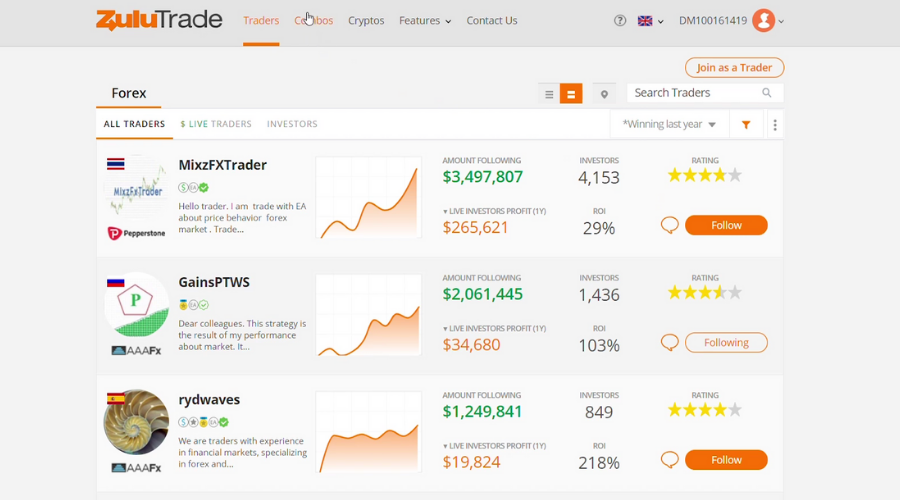
ZuluTrade is a top choice for social trading with zero fees and a low $1 minimum. Perfect for beginners, it offers mobile trading, powerful tools, and an easy learning curve.

You can choose from a wide range of assets, including crypto. However, it only allows one account per user and requires an MT4 account.

⇒ Get ZuluTrade

Robinhood

✅ Pros:

  • No trading fees
  • No account minimum
  • Very accessible user interface

❌ Cons:

  • No mutual funds or bonds

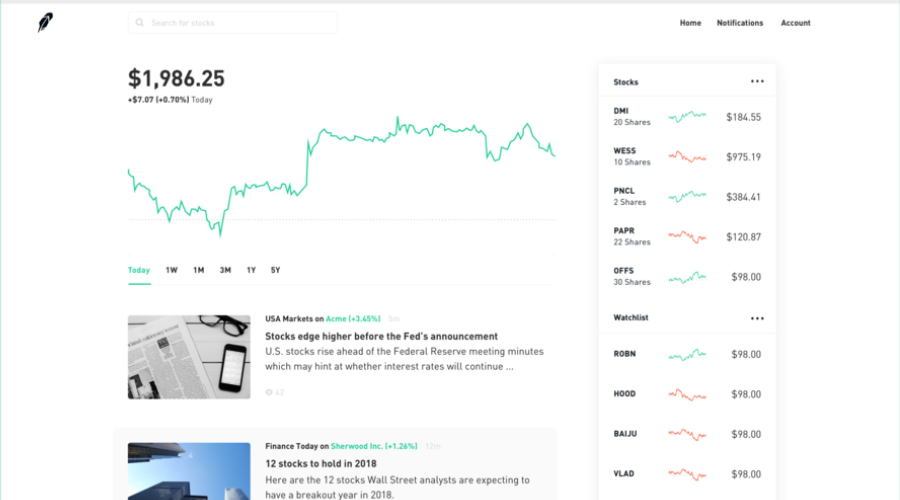
Robinhood is a commission-free trading platform, perfect for beginners. With no trading fees and a simple interface, it makes it easy to trade stocks, ETFs, and crypto.

Available on both web and mobile, your account stays synced across devices. Robinhood uses historical data and prediction stats to help you time trades for the best prices.

Plus, it offers educational tools to guide new traders. Overall, Robinhood is an easy, affordable way to start trading without needing a huge investment.

⇒ Get Robinhood

TD Ameritrade

✅ Pros:

  • Free access to lots of trading platforms
  • Tons of educational resources
  • Mobile friendly
  • Free research
  • 24/7 specialized support

❌ Cons:

  • Some platforms require a learning curve and may be intimidating for beginners
  • No fractional shares
  • Pretty high margin rates

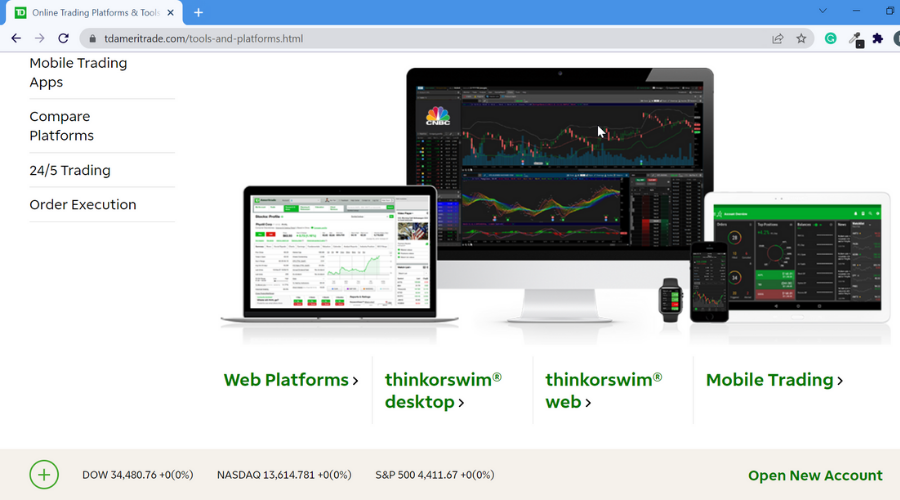
TD Ameritrade is a powerful trading platform offering access to various assets with $0 commission on stock, ETF, and options trades.

It provides free access to multiple trading platforms and mobile apps, making it easy to manage your investments.

The platform also offers educational resources tailored to different investment types and powerful research tools for market analysis.

⇒ Get TD Ameritrade

Fidelity

✅ Pros:

  • no fee for stock, ETF and option trades
  • Specialized team of financial advisors
  • Mobile application
  • Resourceful research options
  • Easy transfers between your Fidelity account and your bank

❌ Cons:

  • No crypto trading
  • No forex trading

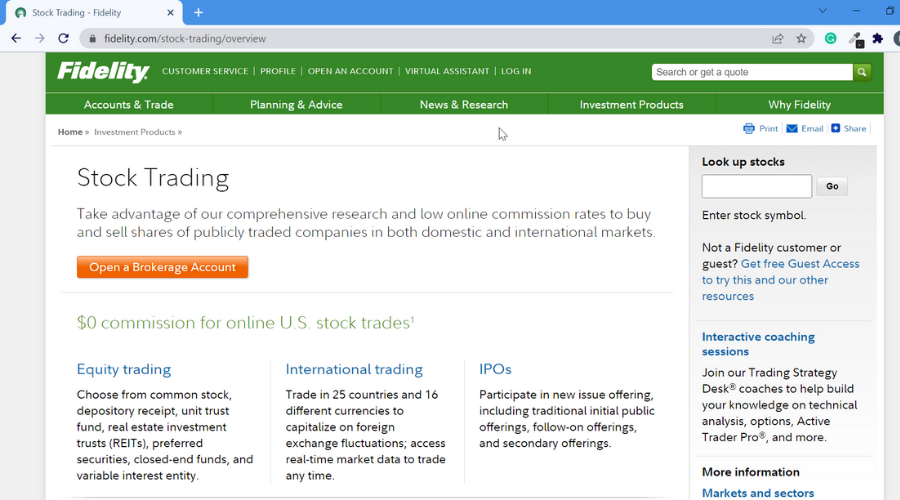
Fidelity is a reliable, zero-fee platform with no commission on trades for ETFs, stocks, penny stocks, and options.

With two main account packages, Fidelity tailors investment strategies to meet individual goals, with professional management.

The key difference is that the Fidelity Personalized Planning and Advice plan includes unlimited one-on-one advisor calls, while the Fidelity Go plan charges fees for specialized advice.

⇒ Get Fidelity

NAGA Trader

✅ Pros

  • No minimum deposit
  • Proprietary web-based social trading platform
  • Good customer support

❌ Cons

  • Spreads are comparatively high
  • Hidden costs

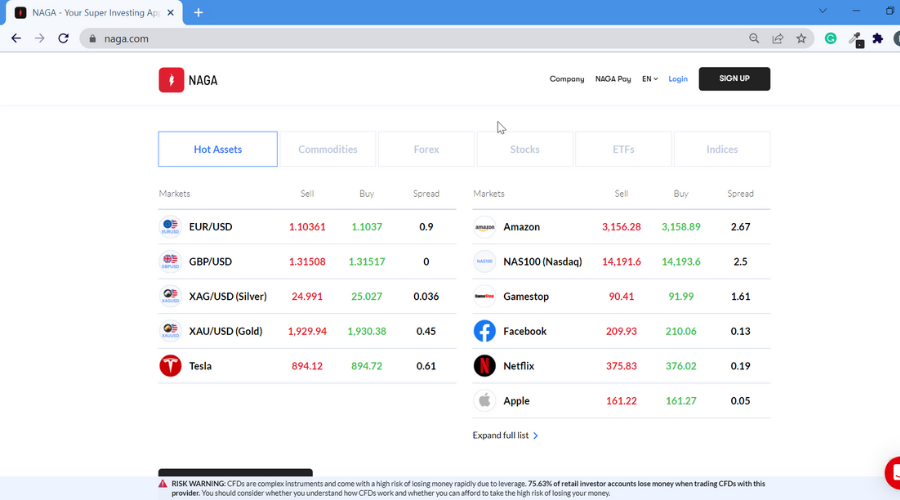
NAGA Trader, once known as SwipeStox, is a social trading platform with over 750 assets like stocks, commodities, and crypto.

No trading fees, but there are withdrawal fees. It’s powered by TradingView and lets you connect MetaTrader 4 and 5.

For newbies, the platform has solid tutorials and regular webinars to help you level up.

⇒ Get NAGA Trader

Collective2

✅ Pros

  • Automated trade copying
  • Multi-broker AutoTrade feature
  • Social communication features

❌ Cons

  • No demo accounts
  • Not the best commission system
  • Now own broke solution

Collective2 has been around since 2012, offering social trading with no commissions—just a monthly subscription. No extra fees unless you’re paying for a pro strategy from a broker.

The Portfolio Plus plan gives you unlimited strategies, but it’s not cheap. You can trade whatever system you want, with unlimited trade size, and it supports Forex, options, futures, and stocks.

It’s a solid option if you’re looking to copy trade without extra costs, but be prepared to spend a bit more for the perks.

⇒ Get Collective2

Trade 360

✅ Pros

  • CySEC regulated
  • Commission-free trading available
  • Can trade multiple assets class

❌ Cons

  • Lacks market analysis

Trade 360, founded in 2013 and regulated by CySEC, is another solid social trading platform. You can start with as little as $1, and there are no withdrawal fees.

It offers six commission-free accounts, though the pricing structure can be pricier than competitors.

While deposits and withdrawals are free, Trade 360 doesn’t disclose third-party costs, which could be a downside.

⇒ Get Trade 360

So, these are the five best social trading platforms and networks that you can use to start social trade.

Consider bookmarking our Business Software Hub for more resources. Do check out our Trading Software section as we have some up-to-date and detailed resources for online traders.

Make sure to check out all services, and go through user reviews on Trustpilot before locking on a network that you think will serve you better.

Microsoft and Marvel are giving away a custom Doctor Strange Xbox Series S console

To celebrate the May 6 premiere of the latest Doctor Strange movie, Microsoft and Marvel are teaming up to give away a custom Xbox Series S. The limited edition console has a custom livery featuring Gargantos, the space octopus from Doctor Strange in the Multiverse of Madness. The console will also include four Xbox controllers that have been given the same customized treatment, each taking inspiration from a different key character from Marvel Studio’s latest movie: Doctor Strange (Benedict Cumberbatch), Wong (Benedict Wong), the Scarlet Witch (Elizabeth Olsen), and America Chavez (Xochitl Gomez).

Doctor Strange in the Multiverse of Madness is a follow-up to the 2016 film Doctor Strange. Directed by Sam Raimi, creator of the Spider Man trilogy, and written by American screenwriter Michael Waldron (of Rick and Morty fame), the film is the 28th set in the Marvel Cinematic Universe.

This is far from the first time Xbox has teamed up with major movie and television franchises to produce unique Xbox creations. Spongebob Squarepants and Sonic the Hedgehog have also been honored with custom Xbox consoles recently. If you are interested in a chance to win this Custom Doctor Strange Series S Custom Console and Controllers Sweepstakes, you can learn more here. You can also check out the official rules page.

NoxPlayer’s new Hyper-V version works along Google Play Games & WSA

Hyper-V is Microsoft’s hardware virtualization product that allows you to create and run a virtual machine that acts like a full PC system.

To run it, you will need a 64-bit version of Windows 11 & 10 Pro, Enterprise, or Education and a 64-bit processor by Intel and AMD capable of Second Level Address Translation (SLAT).

The CPU also has to support VM Monitor Mode Extension (VT-x on Intel CPU’s) and the RAM should be at least 4 GB.

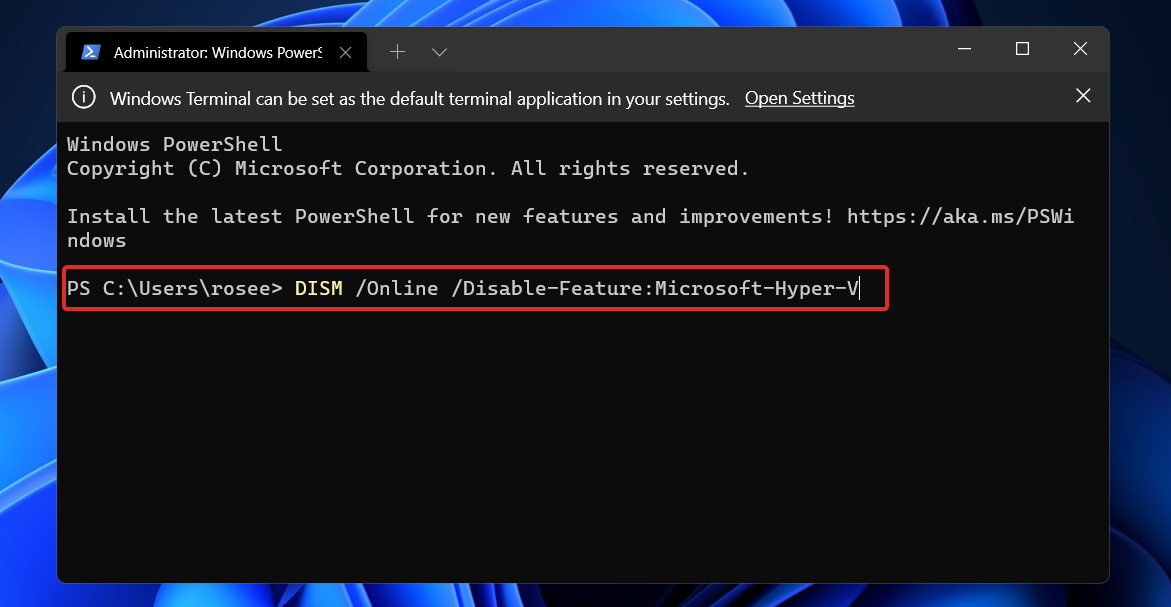
However, you must also know that VirtualBox and VMWare cannot run with Hyper-V enabled and that’s why, if you want to run a VM, the first step is to disable this feature.

Disabling Hyper-V by using a command-line tool

That is usually a bother because you have to enter Control Panel or run a command line and change that, then restart your PC.

Well, that’s where the fun part begins because the new version of NoxPlayer is the first emulator on the market that supports Virtualbox technology and Hyper-V enabled at the same time.

How does the Hyper-V compatibility from NoxPlayer help me?

As you’ve learned from our recent articles, Windows 11’s WSA and Google Play Games are based on Hyper-V technology.

Of course, you will be able to use them, but they won’t be as feature-rich as NoxPlayer and for any other emulator, you will still have to tweak the feature and avoid the Intel virtualization technology.

Lastly, having Virtualbox and Hyper-V technology in the same product, NoxPlayer will run on any environment, whether or not your PC is Hyper-V ready or not.

This feature is especially wanted by developers that have to work in a technical environment that has Hyper-V enabled.

And, of course, NoxPlayer is great for all the users who would like to try all emulation products and want to have WSA, Google Play Games, and classic Android emulators installed on the same PC.

In addition, if tech bloggers/YouTubers would like to run some tests on their apps, they can now choose NoxPlayer.

What’s the difference between NoxPlayer and the Hyper-V version of Bluestacks?

Bluestacks has also created a new version but instead of upgrading the VirtualBox version, they released a version based entirely on Hyper-V.

That means you cannot run the emulator on Windows 10 Home and earlier OSes that don’t support Hyper-V.

Besides that, if you’ve installed another version that’s based on VirtualBox, you won’t be able to transfer your data to the new emulator so, say goodbye to your current status if it’s saved locally. 

Thus, NoxPlayer made things a lot easier for everyone, including developers that also needed to switch between environments.

What are the best features of NoxPlayer?

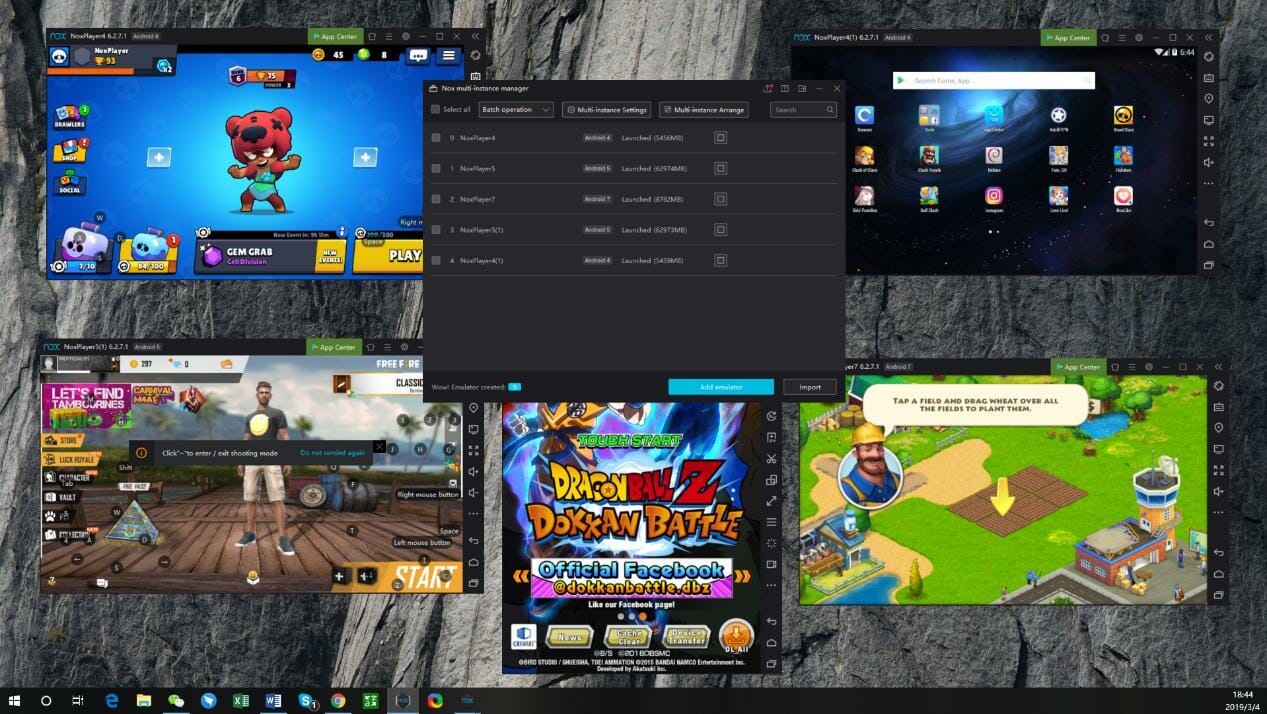
1. Multi-instances

If you have more than one account for a game or want to play more than one game at the same time, NoxPlayer will make it happen.

You will be able to change the window size, access all the games easily and they will run smoothly, but that also depends on the amount of RAM on your machine, of course.

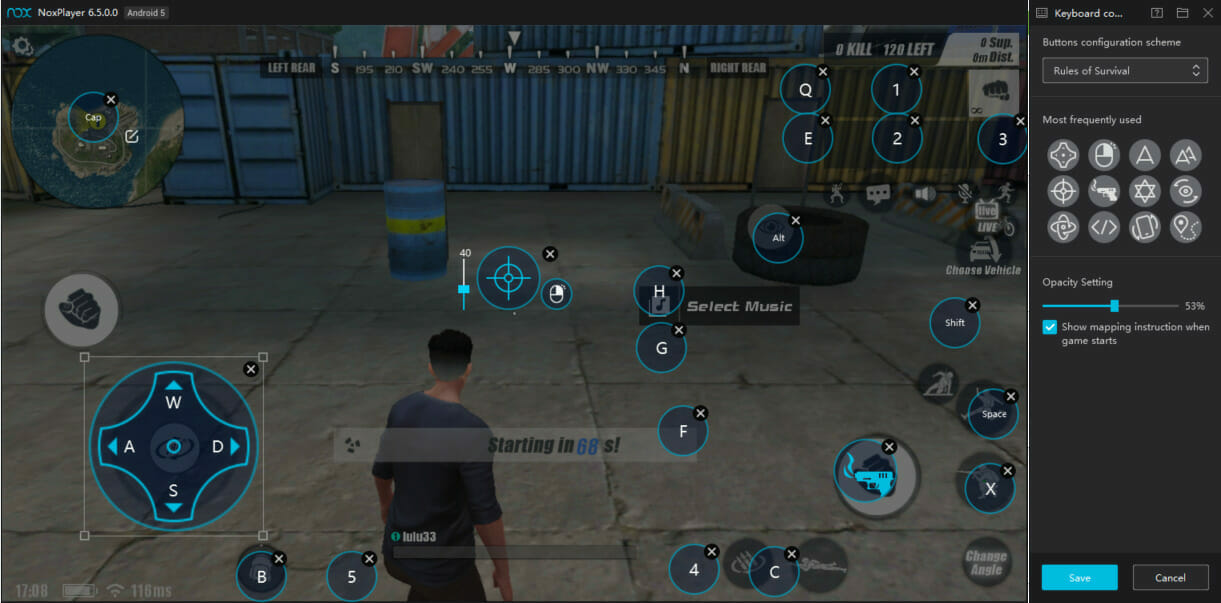
2. Keyboard and mouse mapping

Especially in action games, there can be a lot of keys and controls, and managing them with your keyboard is not always easy.

With NoxPlayer, you can map all the keys and mouse clicks in a heartbeat and then save the configuration seamlessly.

In fact, you can even change the size of their representation on the screen and adjust their opacity to keep them from restricting your view.

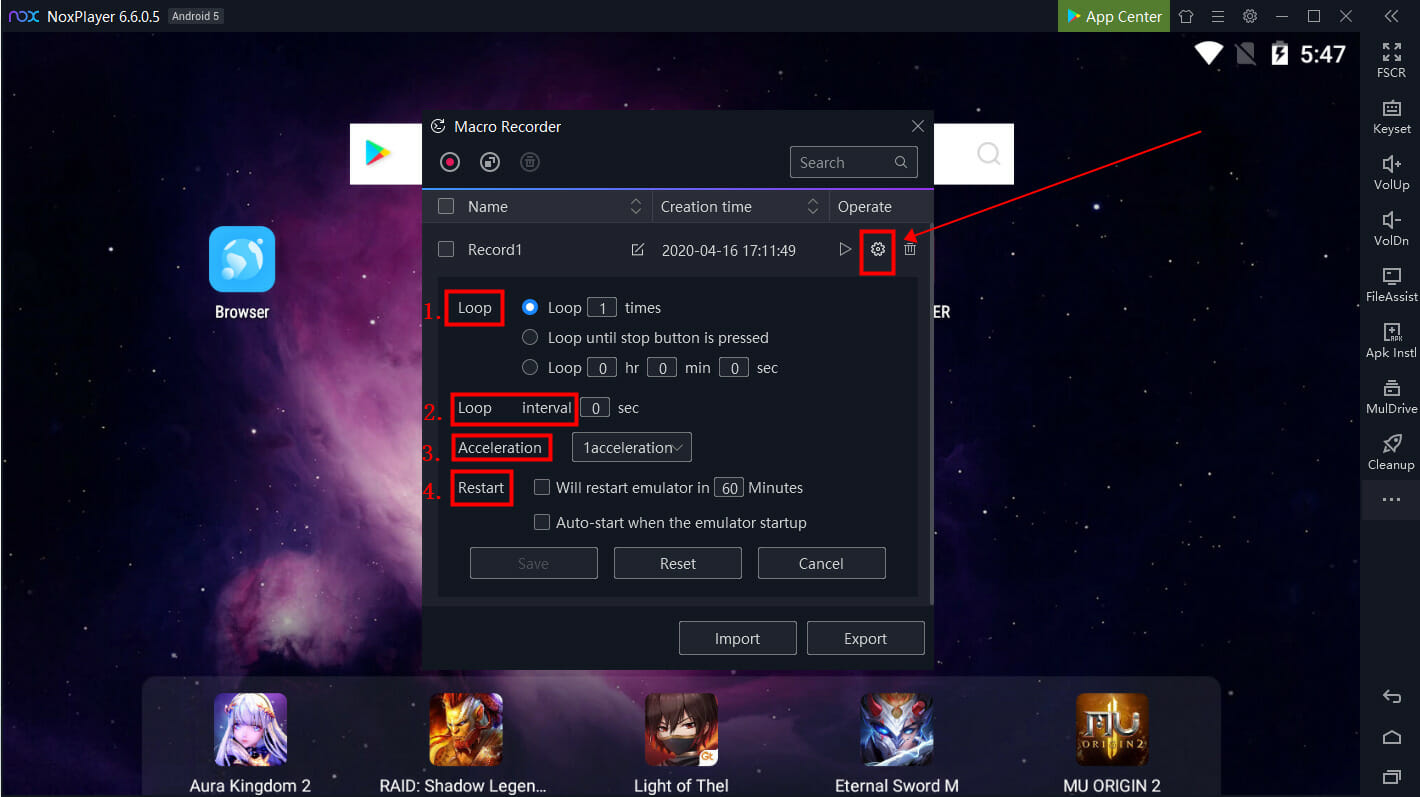
3. Macro Recorder

If you’re playing a game that requires a lot of repetitive tasks to advance, the Macro Recorder will help you reach a higher level in no time.

Just hit the Record butt, the tool will automatically minimize to the top of the emulator window and will record actions like mouse clicks, slides, and keyboard clicks.

After the recording stops, the script is automatically saved to your current list. After that, you can record several more loops and execute them in the desired order.

As you can see, NoxPlayer brings some heavy features that are impossible to ignore, and now that you have Virtualbox and Hyper-V under the same hood, it’s easier than ever to enjoy your games.

And yeah, NoxPlayer can run Android 9 so you will be able to play all the new titles without fuss.

Of course, you can also look at our list including the best Android emulators, and take your pick.

If you’ve already tested the new Hyper-V NoxPlayer Android emulator version, feel free to share your experience in the comments section below.

Amazon App Store Not Working on Windows 11 [4 Fixes]

Many users reported that the Amazon App Store is not working on Windows 11, and if this happens, you won’t be able to use or download Android apps.

Since this is a highly popular feature that many users are eager to try, we will show you a couple of methods you can use to fix this issue in today’s guide.

Why is Amazon Appstore not working on my device?

  • Running Windows 11 on a virtual machine can cause issues with the software.
  • You don’t have Virtual Machine Platform enabled on your PC.
  • You’re located in a region that doesn’t support Amazon App Store.

What can I do if Amazon Appstore is not working in Windows 11?

1. Verify that you are not using the Hyper-V virtual machine

  1. Make sure you’re running Windows 11 on a virtual machine.
  2. Virtual machines emulate the disk thus causing issues.
  3. Alternatively, install Windows 11 directly on the PC, or use another reliable Virtual Machine.

2. Enable Virtual Machine Platform in Windows

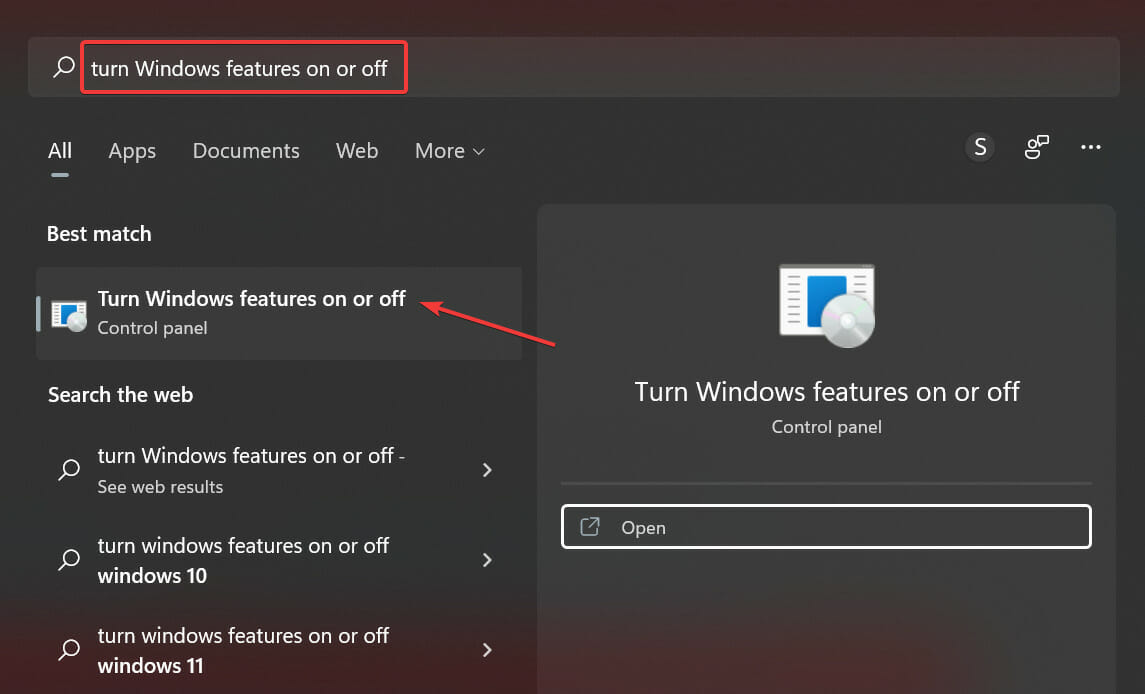
  1. Press Windows + S to launch the Search menu, enter Turn Windows features on or off in the text field, and click on the relevant search result.Turn windows features on or off
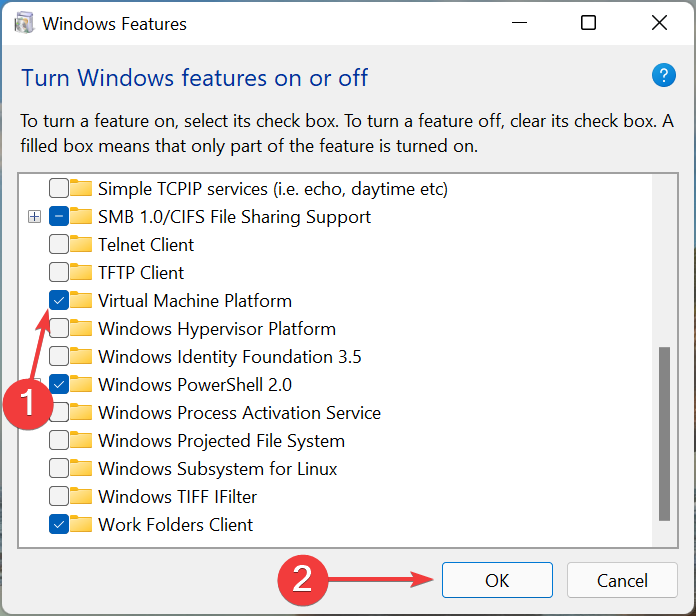
  2. Tick the checkbox for Virtual Machine Platform, and click OK.Virtual machine platform to fix amazon app store windows 11 not working

Once the required files are downloaded, restart the computer for the changes to come into effect.

3. Manually download and install Windows Subsystem for Android

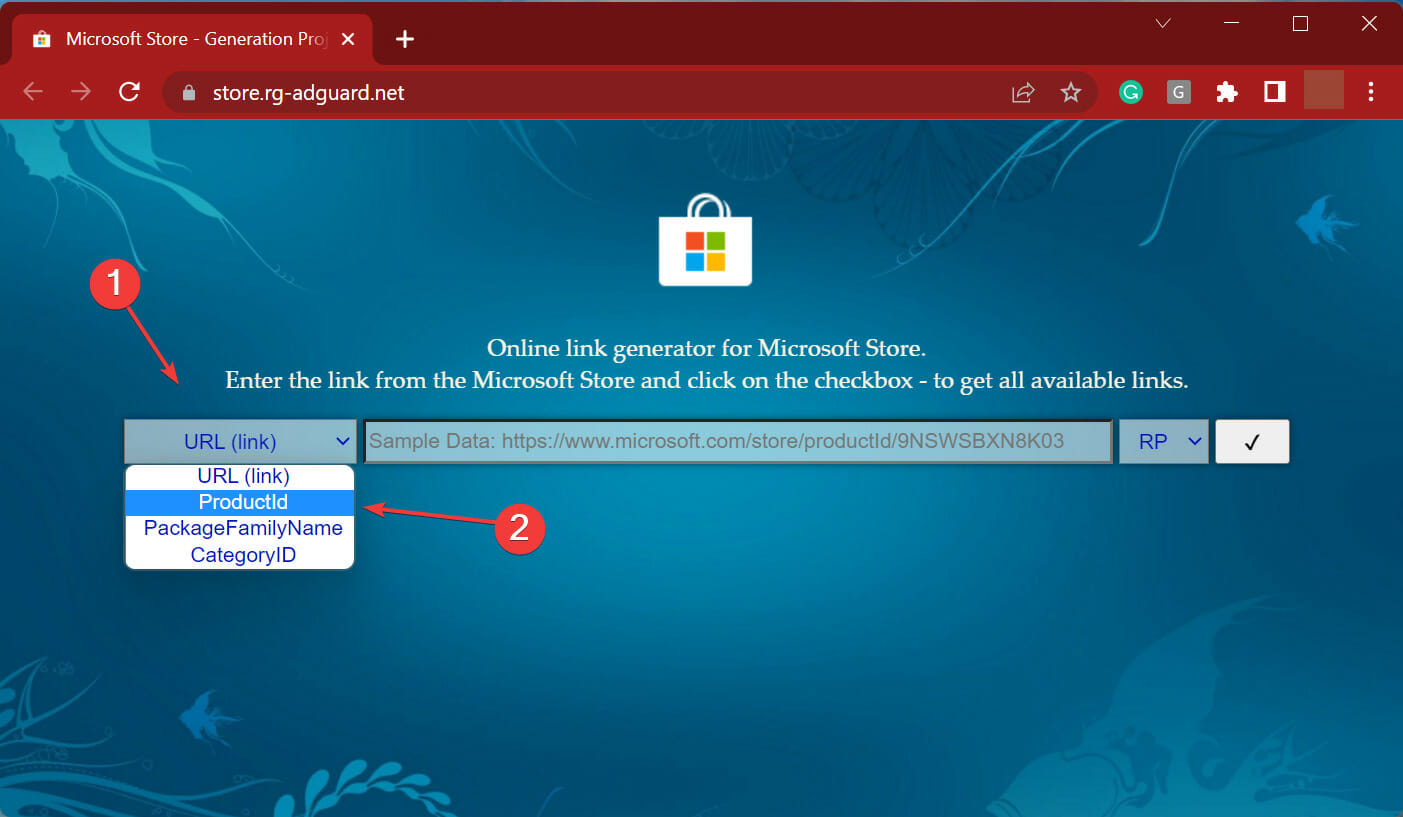
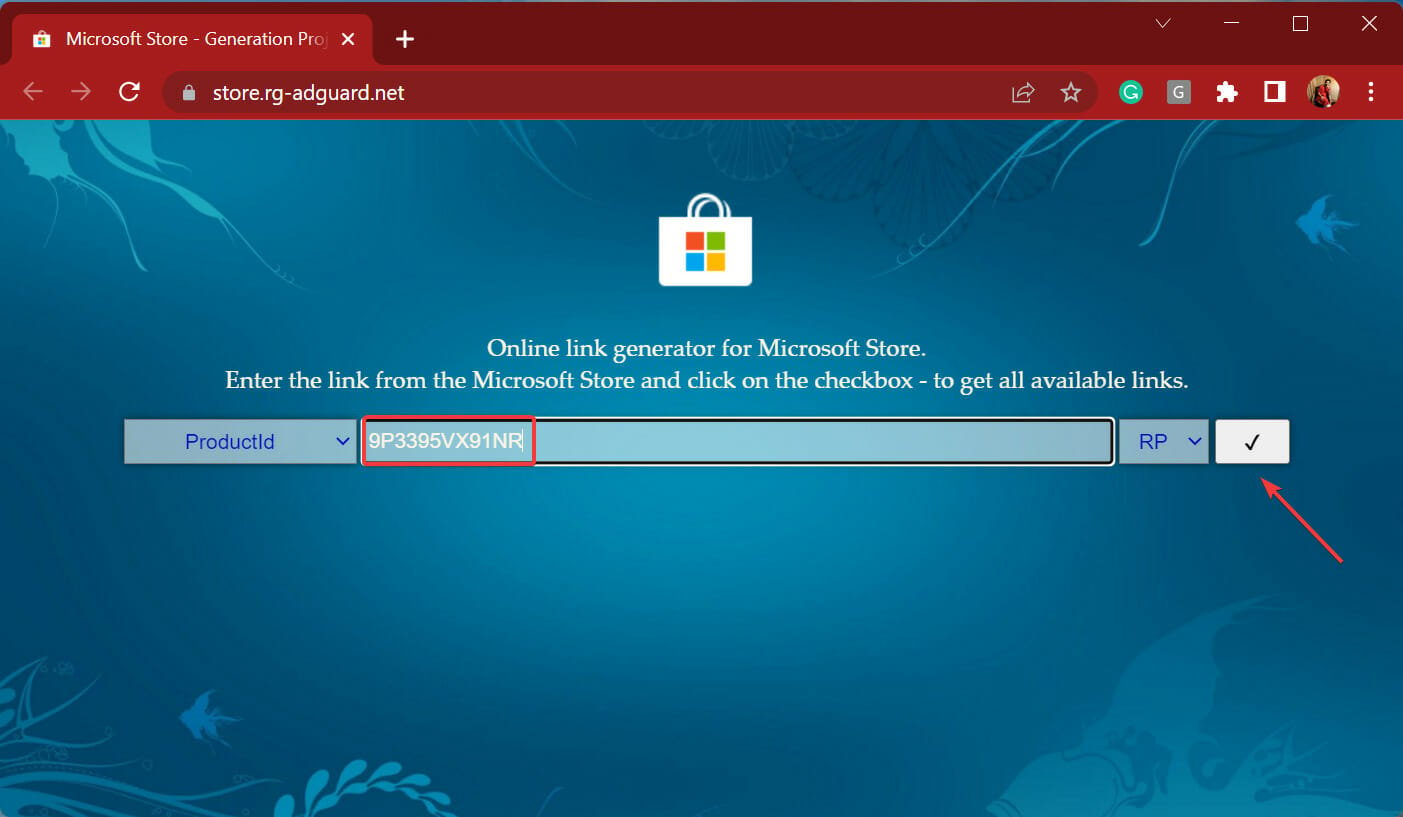
  1. Open any reliable web browser, go to the Online link generator for Microsoft Store, click on the dropdown menu on the left, and select ProductId from the list of options.Product ID to fix amazon app store windows 11 not working
  2. Now, type/paste the 9P3395VX91NR in the text field, and click on the Tick icon.Paste
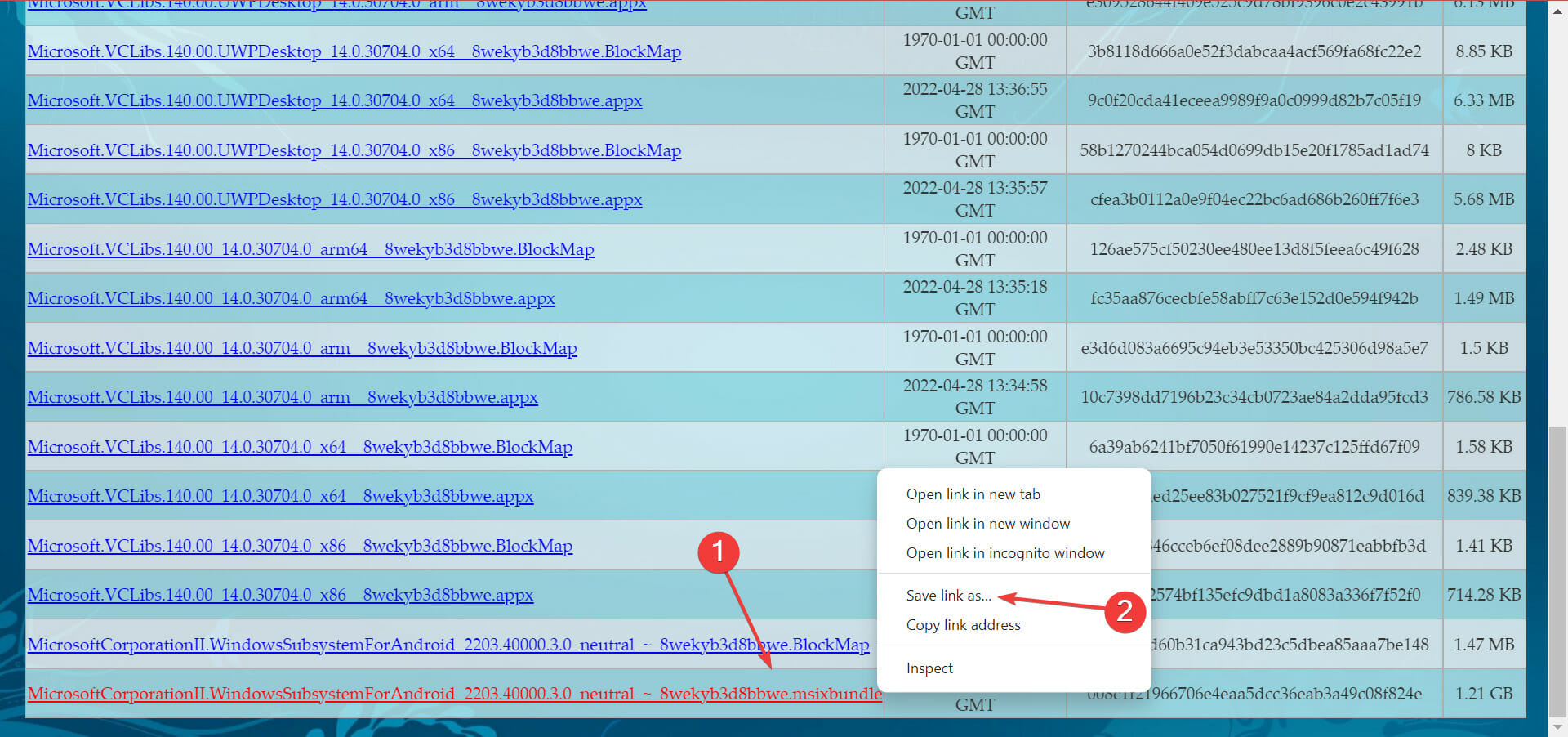
  3. Locate the file with msixbundle extension, right-click on it, and select Save link as from the context menu.Save link as to fix amazon app store windows 11 not working
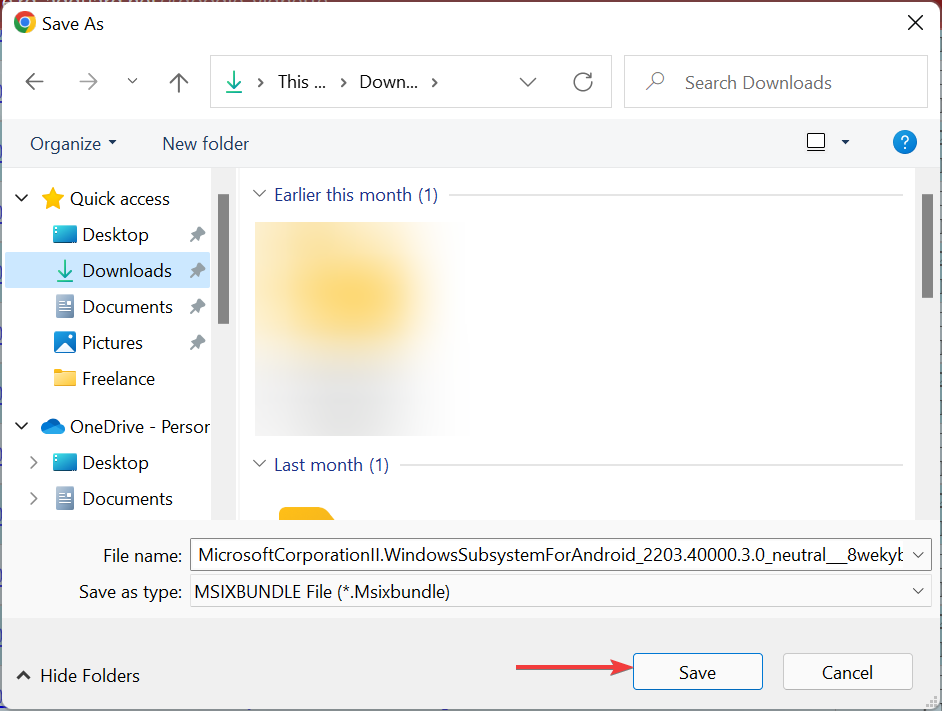
  4. Choose the download location for it, and click on Save.Choose folder
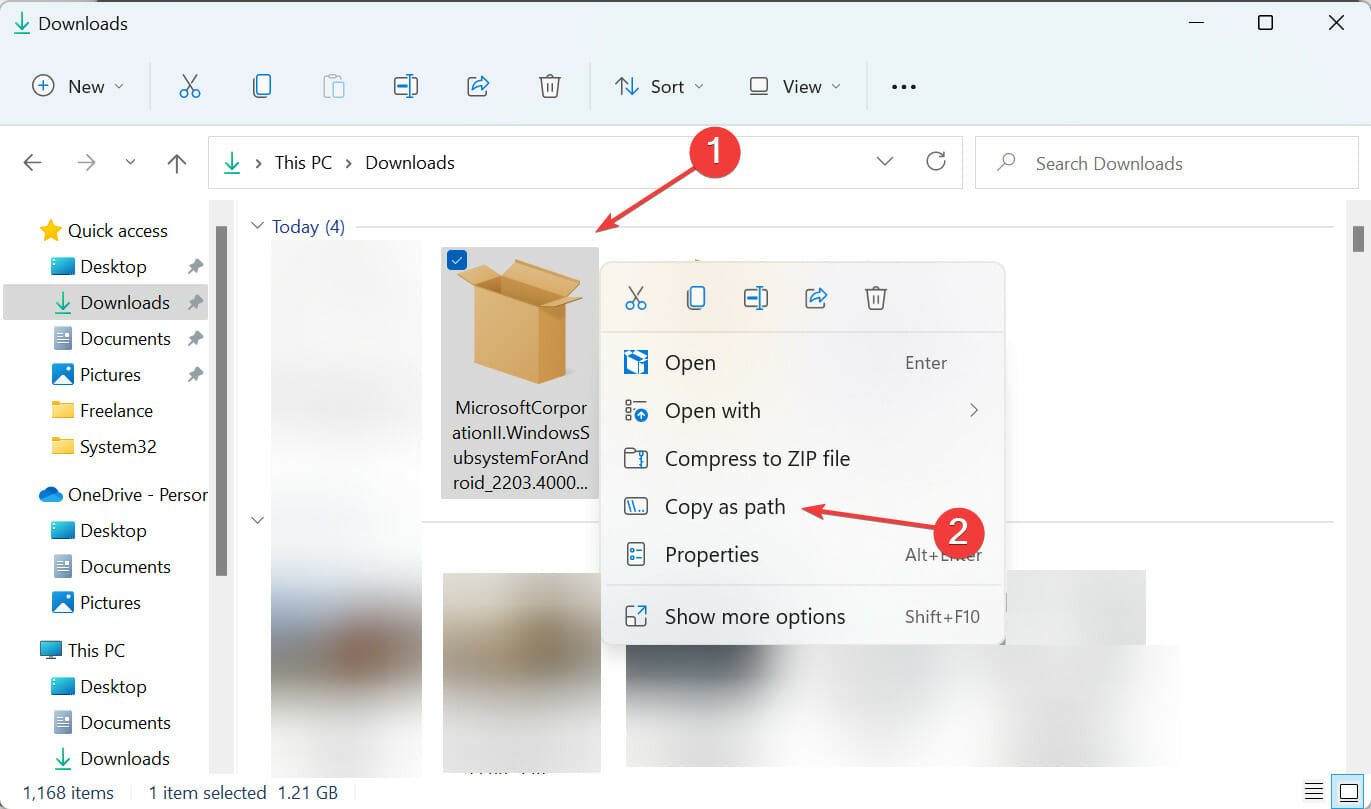
  5. Now, right-click on the file, and select Copy as path from the context menu. Copy as path
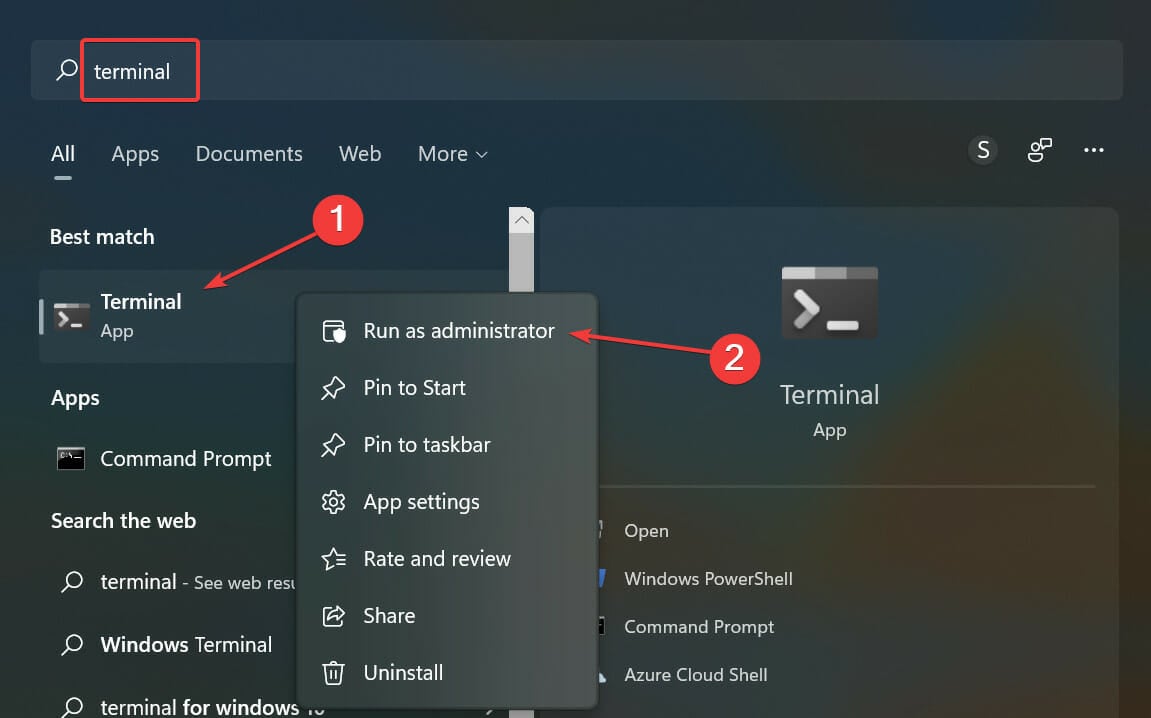
  6. Next, press Windows + S to launch the Search menu, enter Terminal in the text field, right-click on the relevant search result, and select Run as administrator from the context menu.Terminal
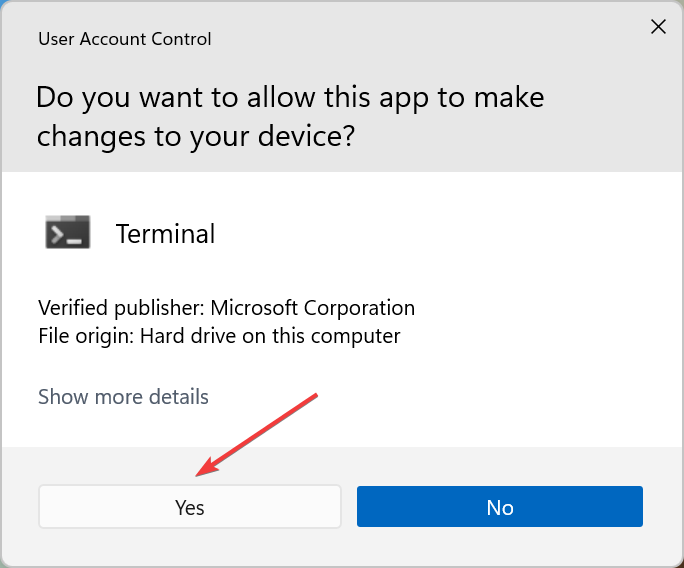
  7. Click Yes in the UAC (User Account Control) prompt that pops up.Click Yes
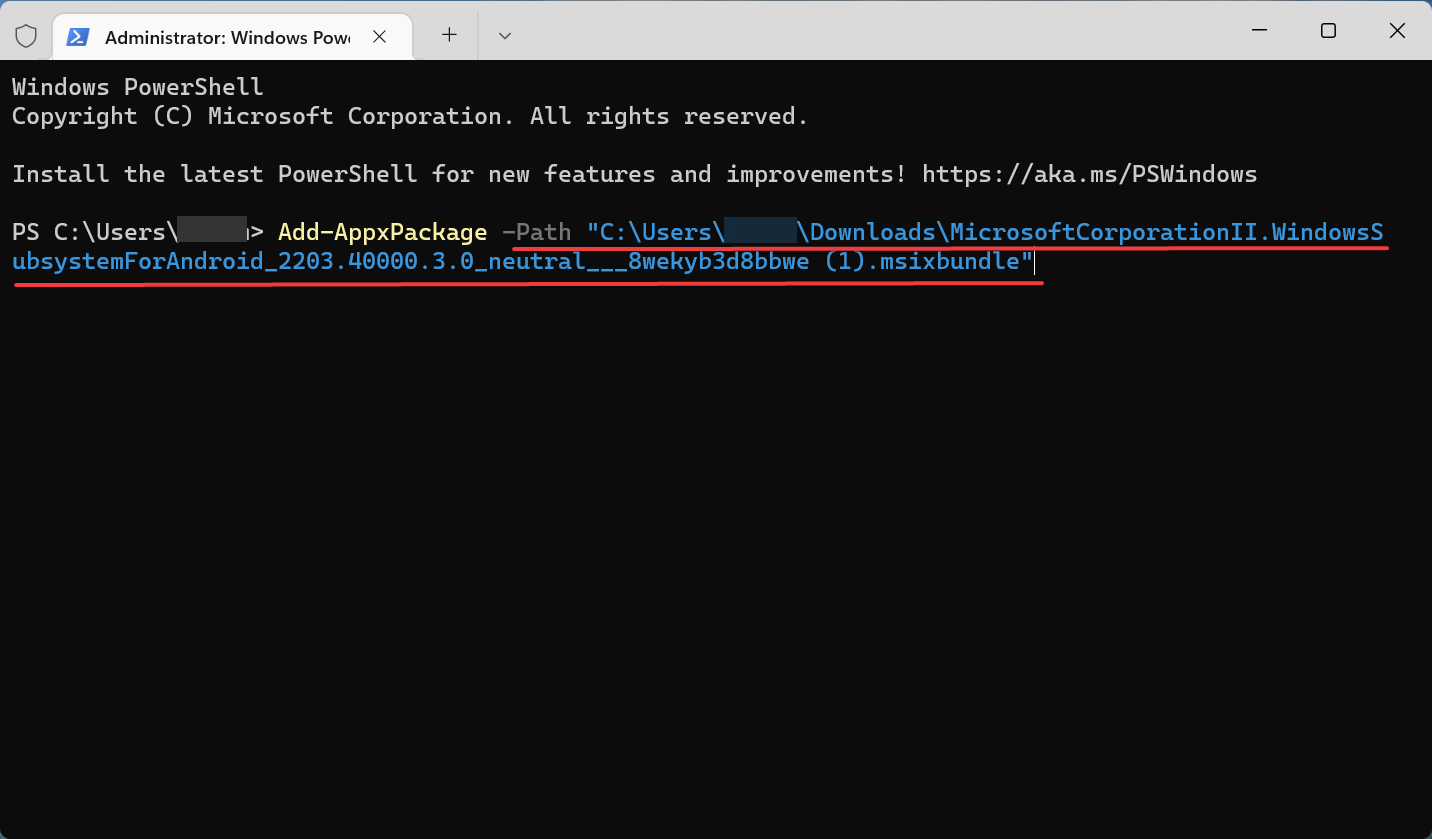
  8. Paste the following command in PowerShell, replace <path> with the one you copied earlier and hit Enter.Add-AppxPackage -Path <path>Execute command to fix amazon app store windows 11 not working
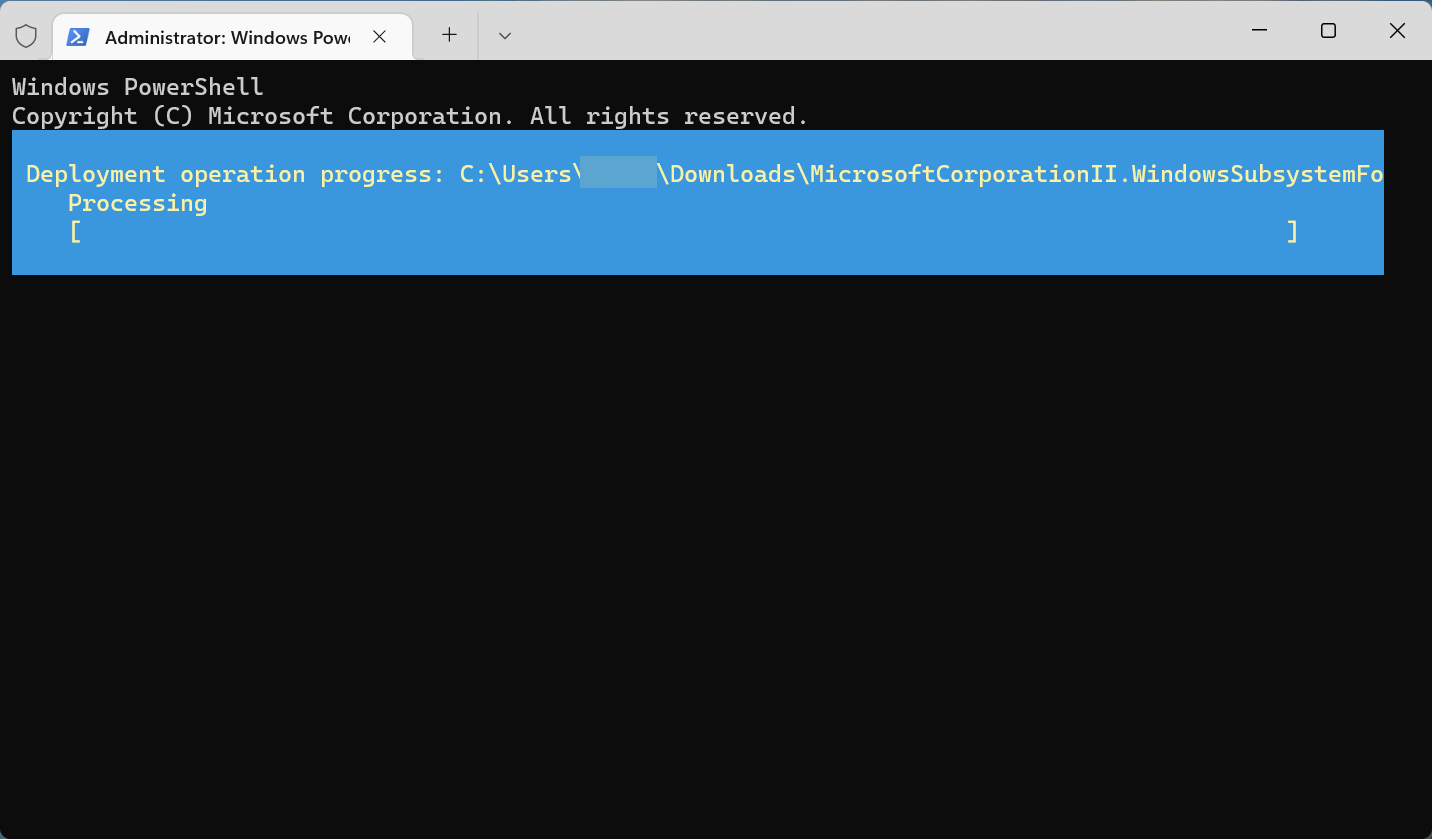
  9. Now, wait for the installation to complete.Install

A few users reported Add-AppxPackage: Deployment failed with HRESULT: 0x80073D06, The package could not be installed because a higher version of this package is already installed while using this solution.

If you get the same error, make sure you’re trying to install the latest version.

4. Change the location to the US

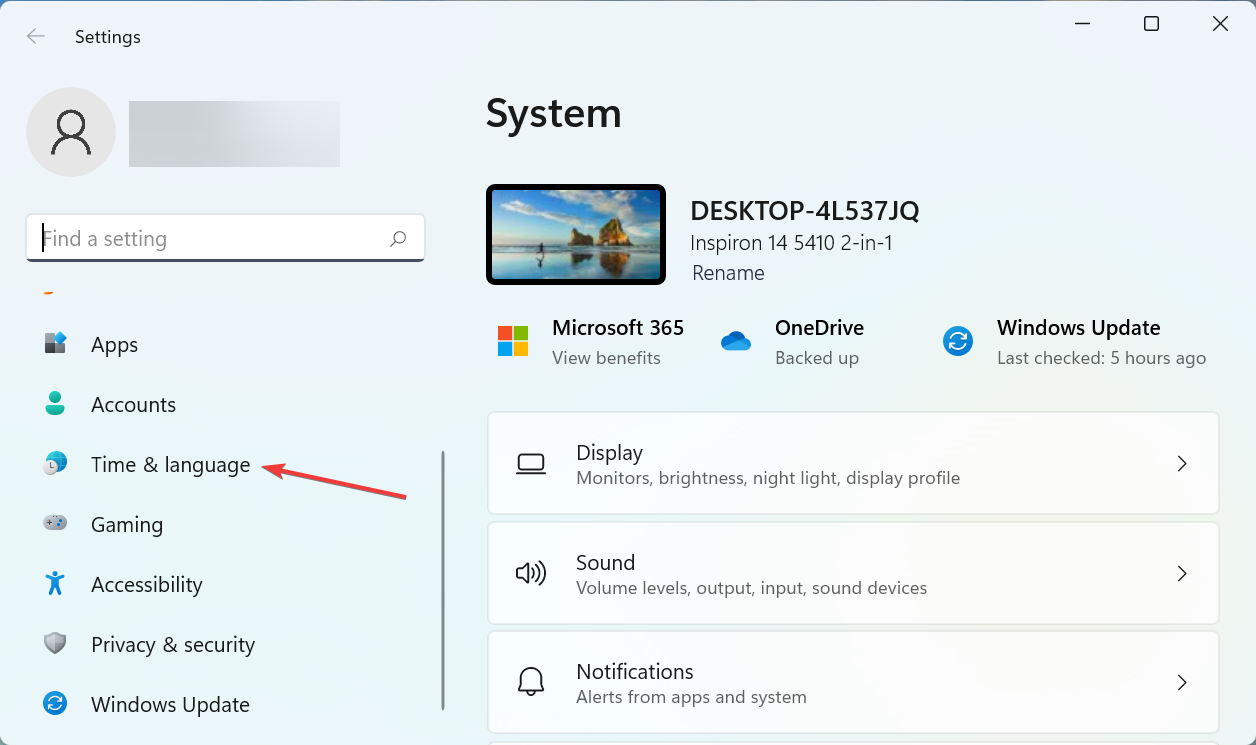
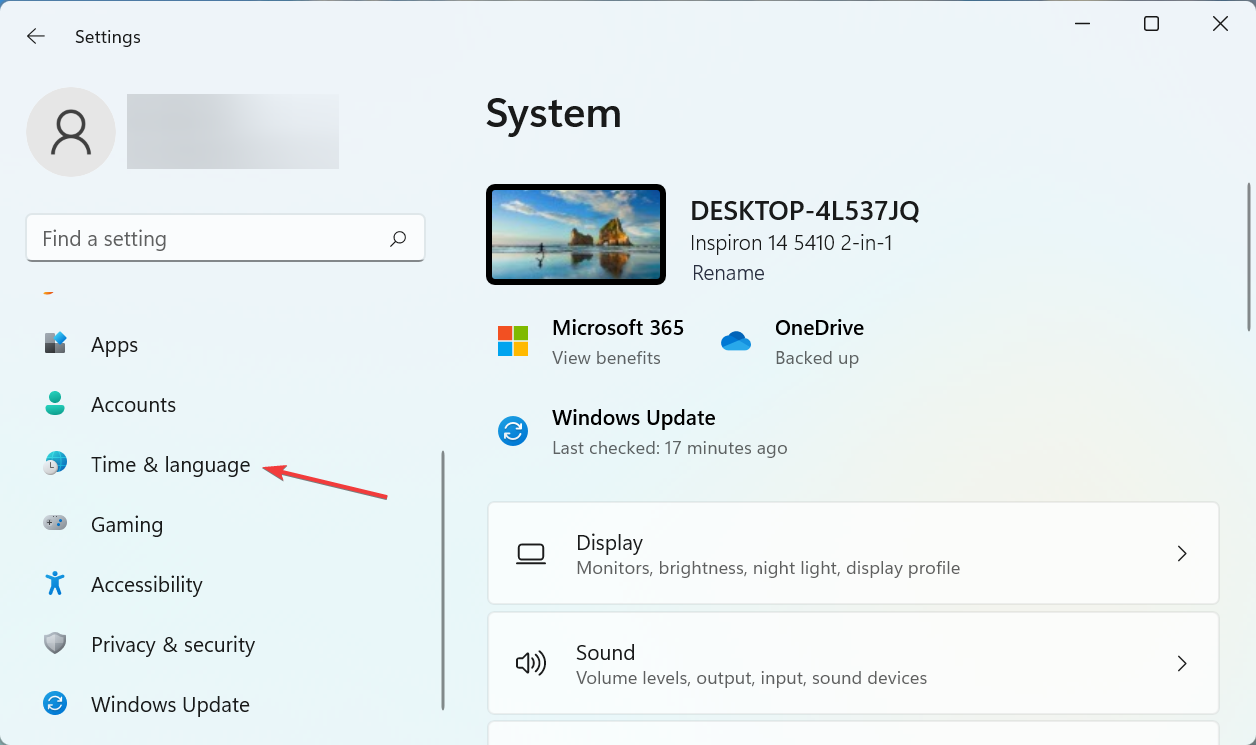
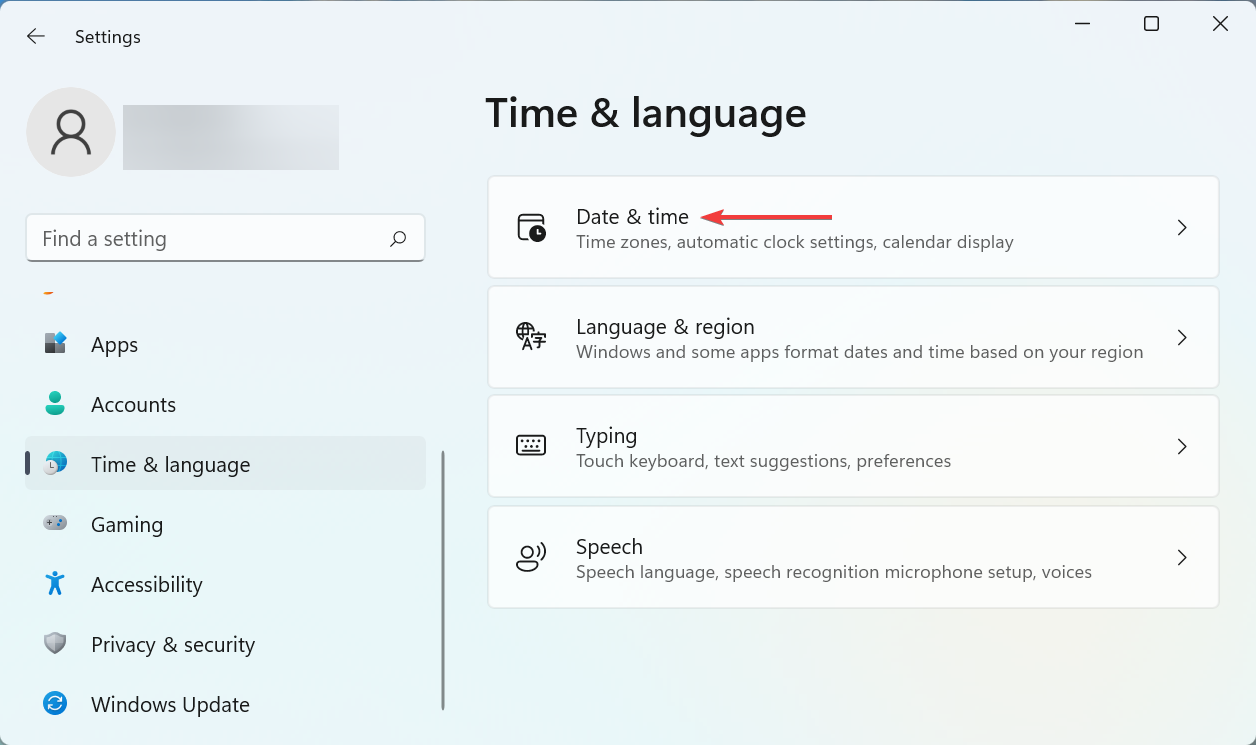
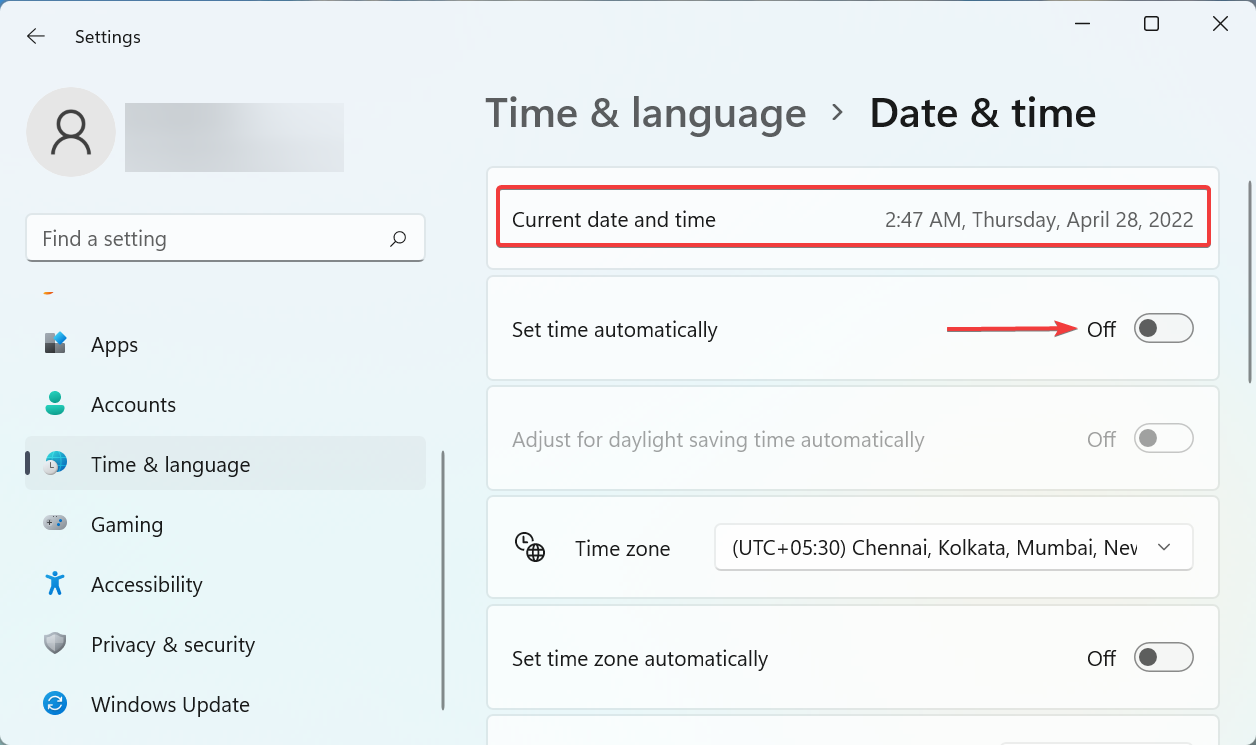
  1. Press Windows + I to launch the Settings app, and select Date & time from the tabs listed in the navigation pane on the left.Time & language to fix amazon app store windows 11 not working
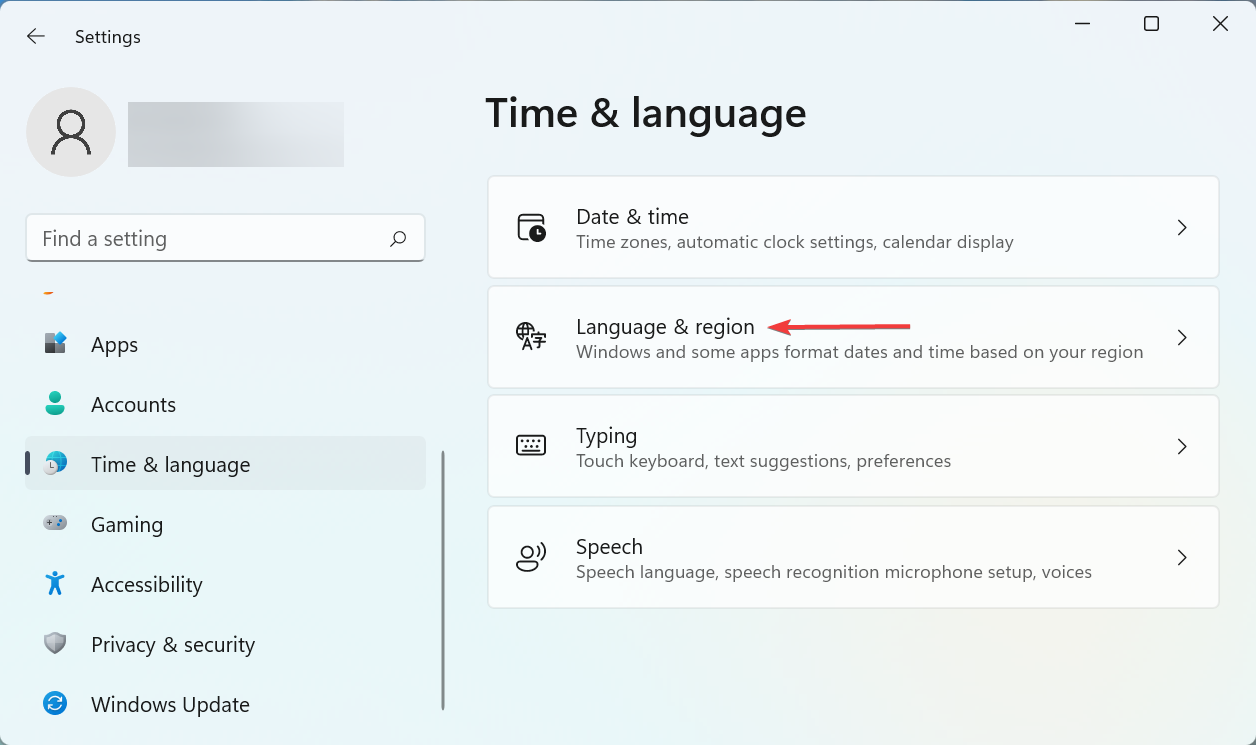
  2. Click on Language & region on the right.Language & region
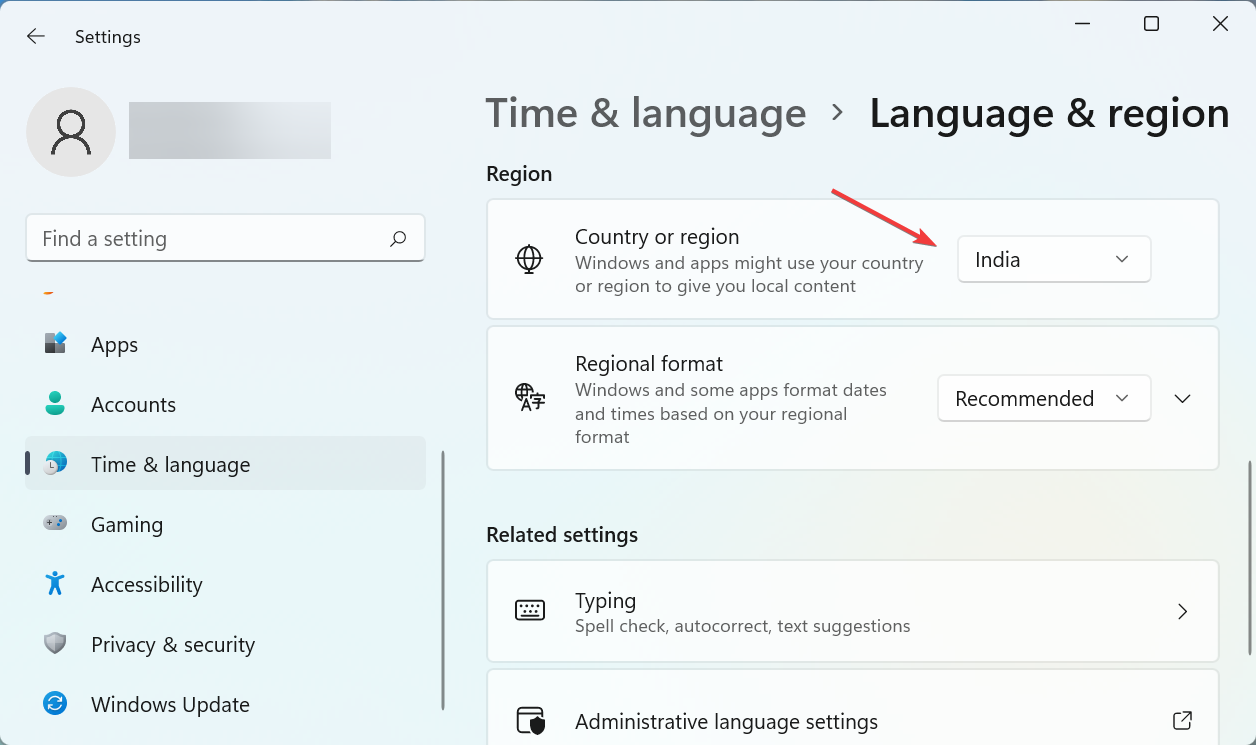
  3. Now, click on the dropdown menu next to Country & region.Change region to fix Click on Language & region on the right.
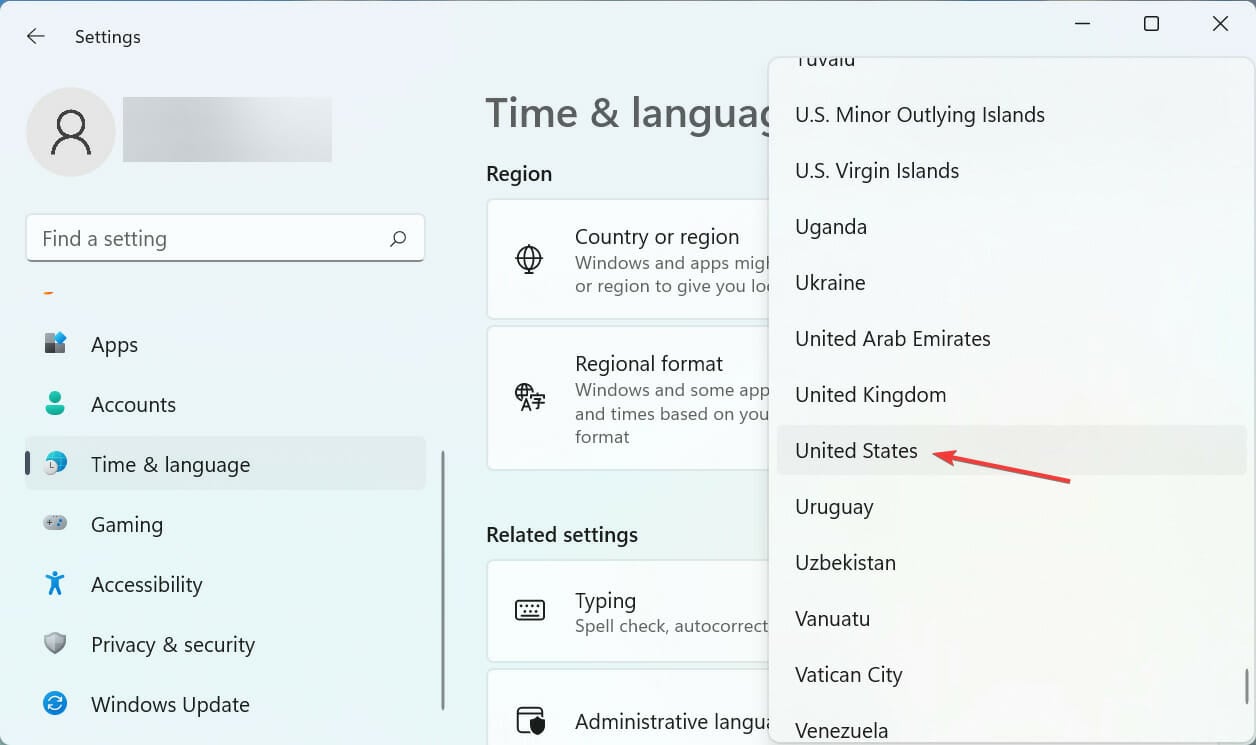
  4. Select the United States from the list of options.United States

The Amazon Appstore is only available in the United States at the moment, and if you have installed it in a different region, there is a slight chance of encountering issues. And, changing the location should eliminate that.

How do I manually install Amazon Appstore on Windows 11?

To do that, you must install Windows Subsystem for Android from third-party sources. We explained in detail how to do that in solution 3, so don’t miss it.

You can also use a VPN to change location information. We recommend you tunnel your data with a fast-paced service like Private Internet Access which has a large US server base.

That’s it! After reading this guide, you should be able to download and install Amazon Appstore for Windows 11. Keep in mind that this feature isn’t available globally, so you might encounter an Amazon Appstore not available in your country message.

If additional problems occur, our guide on how to enable Windows 11 Amazon Appstore if it’s grayed out should be able to help you.

Tell us which fix worked and your review of the Amazon Appstore, in the comments section below.

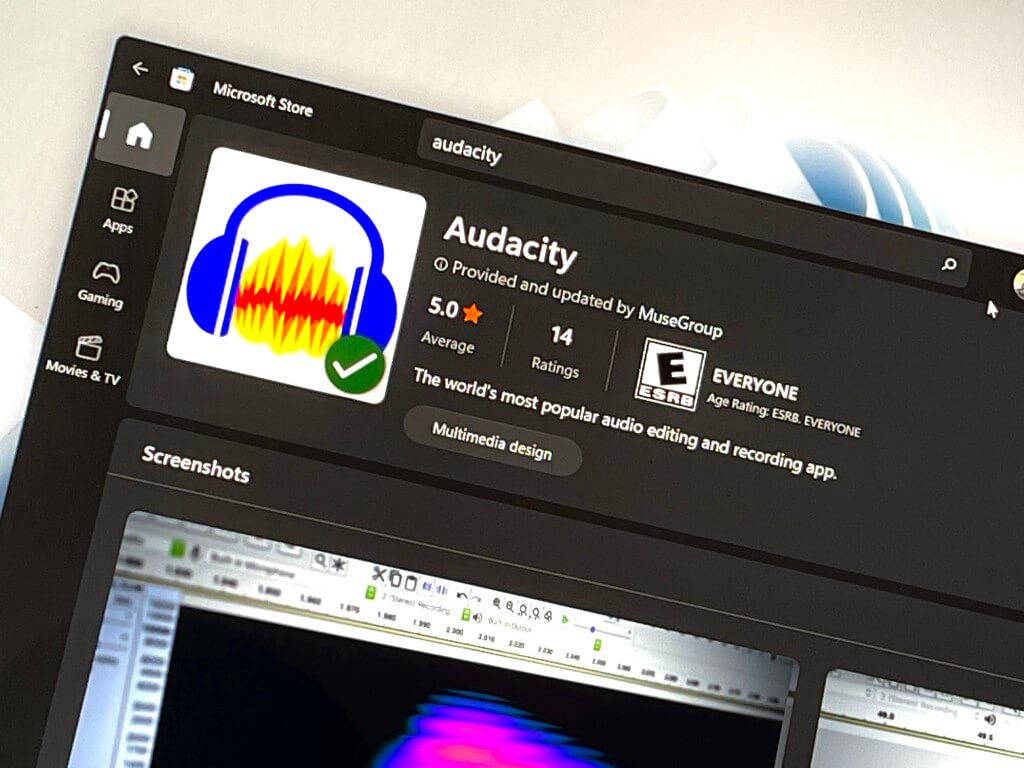
PuTTY and Audacity Win32 apps now available in the Microsoft Store in Windows 11

Two new Win32 apps have landed in the Microsoft Store. Spotted by @kid_jenius on Twitter, PuTTY and Audacity are now available as downloads on Microsoft’s storefront on Windows 11.

For those unfamiliar, PuTTY is a popular communications tool. It is often used for running interactive command-line sessions on other computers using the SSH protocol. The app also lets you communicate over a serial port, or speak various legacy Internet protocols. As for Audacity, it doesn’t need an explanation, as it is a multi-track editor and recording tool, used in podcasting and other audio production.

Before these official apps landed in the store, there were plenty of “fakes” or third-party apps that use the same logo as the real apps. Audacity has likely added a checkmark to the logo on their Microsoft Store app for this reason. Now that Win32 versions of PuTTY and Audacity are in the store, they join other heavy hitters, like OBS Studio, Firefox, Opera, and VLC media player.

Google not Deleting Search History? 3 Easy Ways to Fix It

Many of us are under the impression that deleting the search history on the browser ensures privacy and security. What we don’t realize is that Google, too, keeps track of our activity, and when trying to delete its search history, many users run into an error.

Google utilizes the search history to show personalized ads to users. While viewing personalized ads doesn’t seem that big an issue, knowing that your searches are being recorded and can be accessed later is a grave concern for many.

If you, too, don’t want your searches to be recorded, here is how you can delete the Google search history.

How can I delete the Google search history?

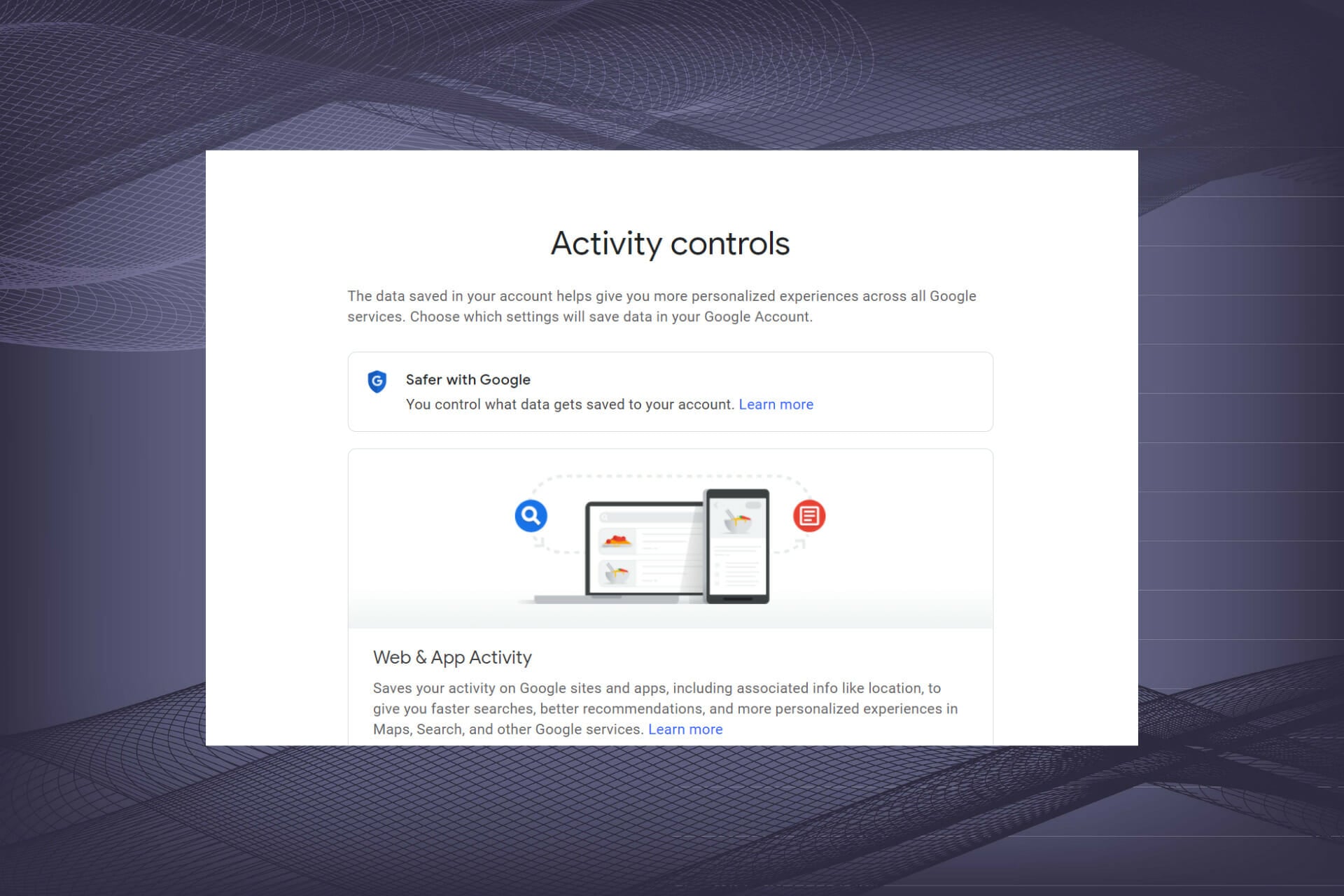
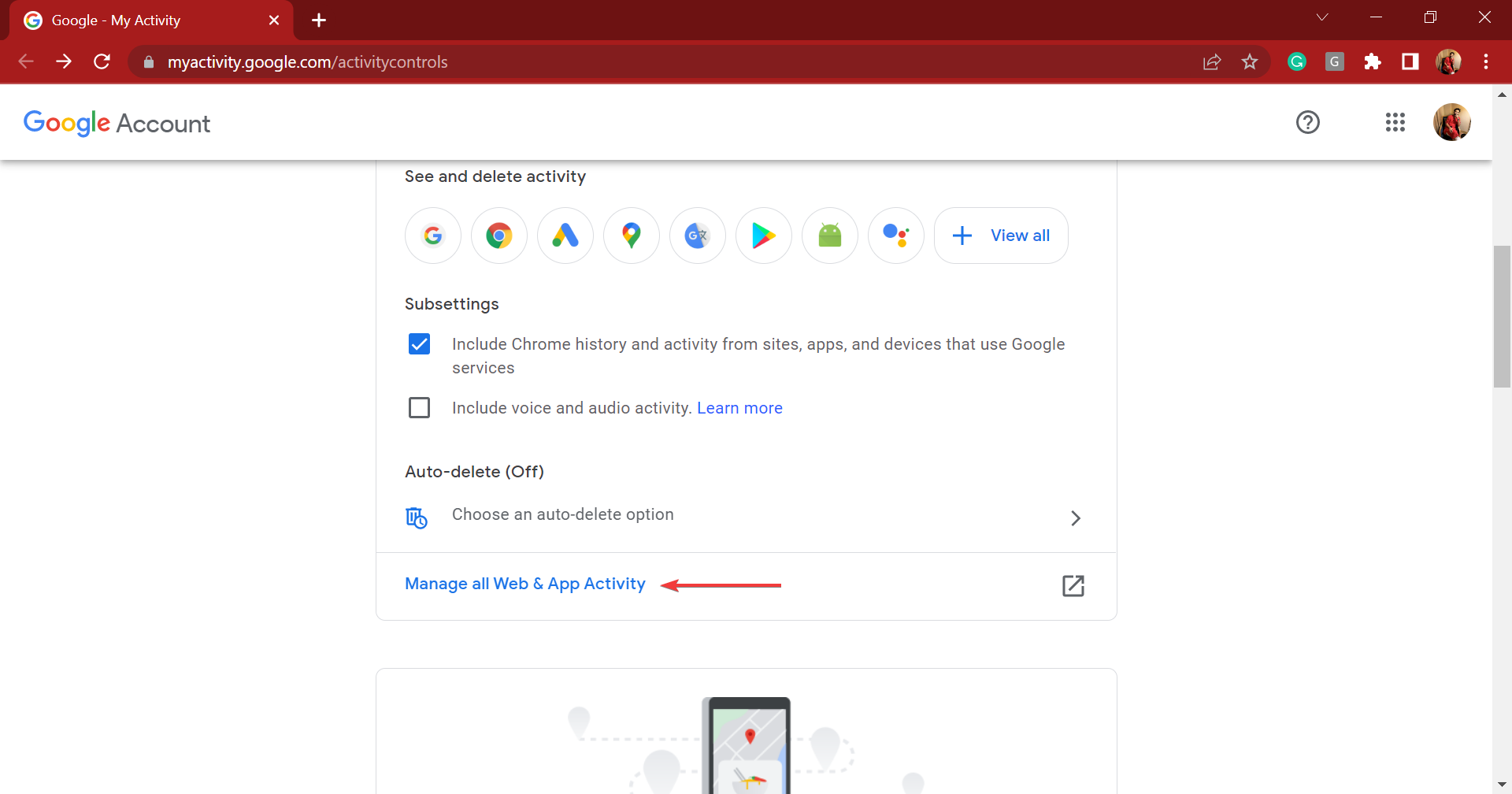
  1. Launch any reliable and safe browser, go to the Activity controls section in your Google account, and click on Manage all Web and App Activity.Manage all web and App activity to fix google not deleting search history
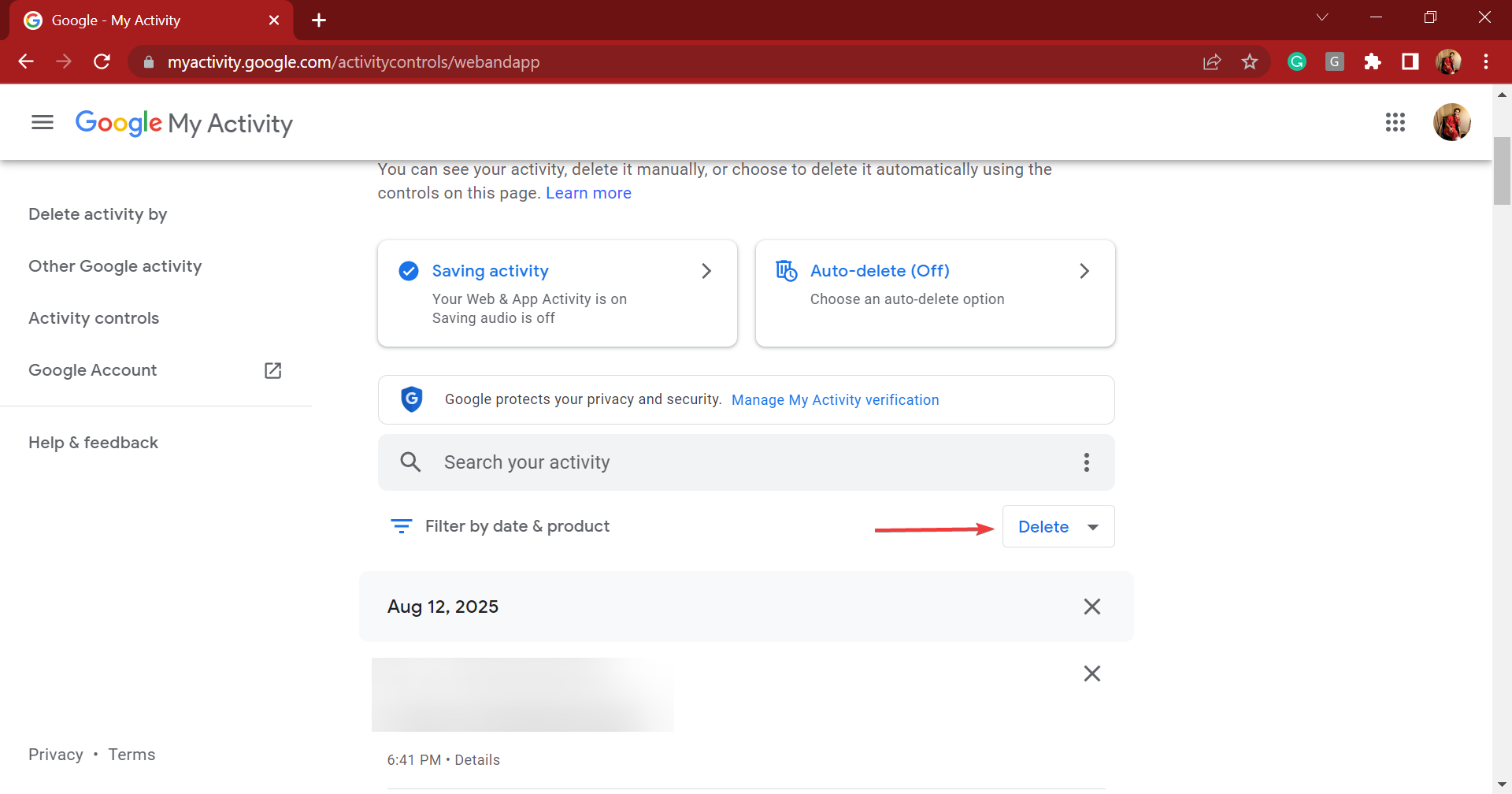
  2. Now, click on the Delete button under Search your activity.Delete
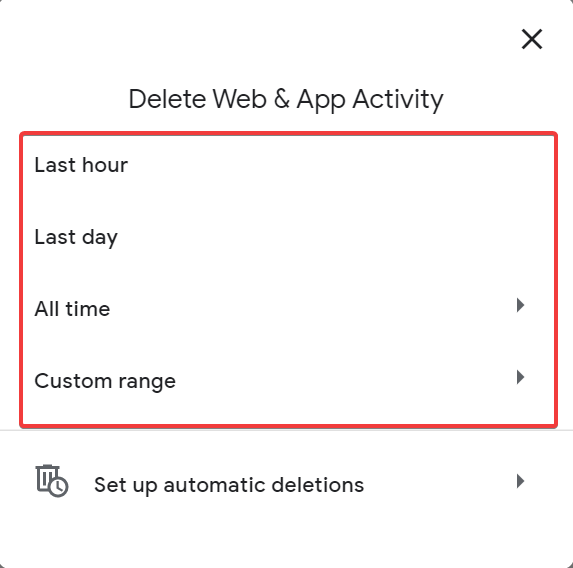
  3. Finally, select the time range for which you want to delete the Google search history on the computer.time range
  4. The data that falls under the selected time range will be deleted automatically.

This will delete the search history for all Google products, such as Chrome, Gmail, Maps, News, and Translate. If you want to delete a specific one or a few, add them to the filter and proceed with the deletion. And if you find Samsung One UI Home in Google Activity, it’s not something to be concerned about!

Remember, deleting the search history does not necessarily mean it will be removed from Google’s servers immediately. However, it will not be used for showing personalized ads anymore.

What do I do if Google is not deleting the search history?

1. Try again in some time

If you regularly clear the Google search history and face the problem for the first time, it could be a temporary issue with the server. Or you could be having trouble with the Internet connection. Try restarting the computer and the modem/router.

No matter the underlying cause, it’s always better to wait for some time in these cases and then try again. If Google is still not deleting the search history, head to the following method.

2. Re-login to your Google account

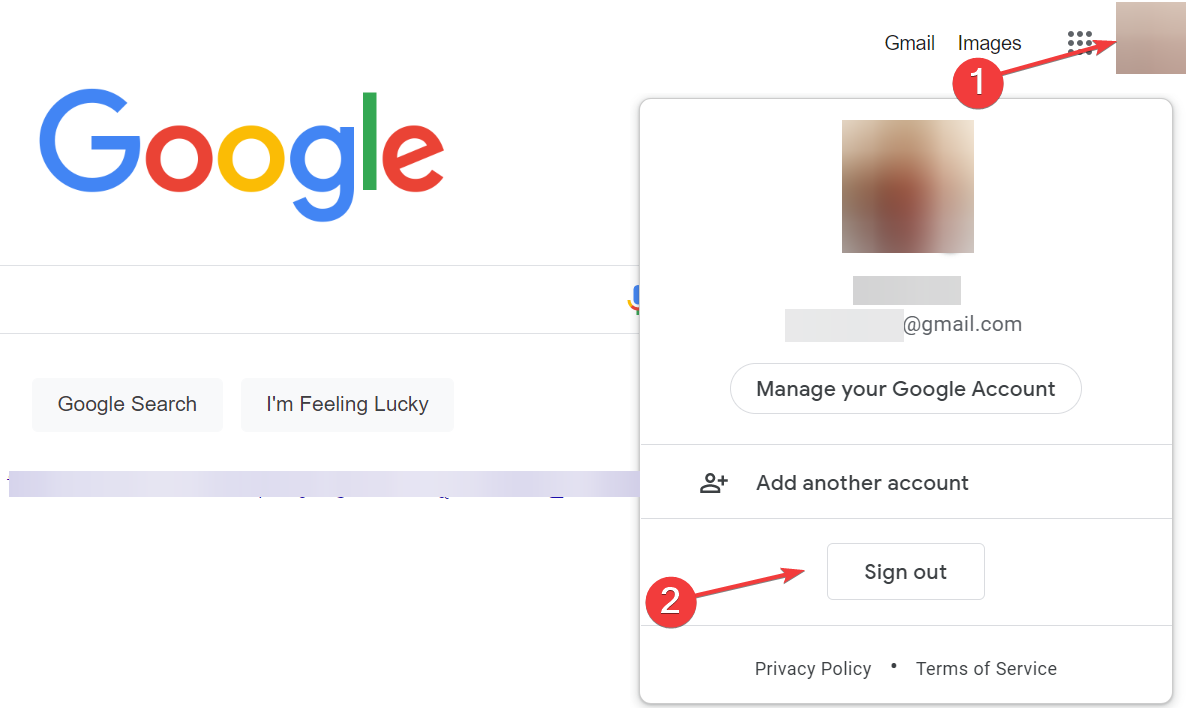
  1. Go to Google, click on your profile picture (or the alphabet in case you haven’t added a picture), and select Sign out from the menu.Sign out to fix google not deleting search history
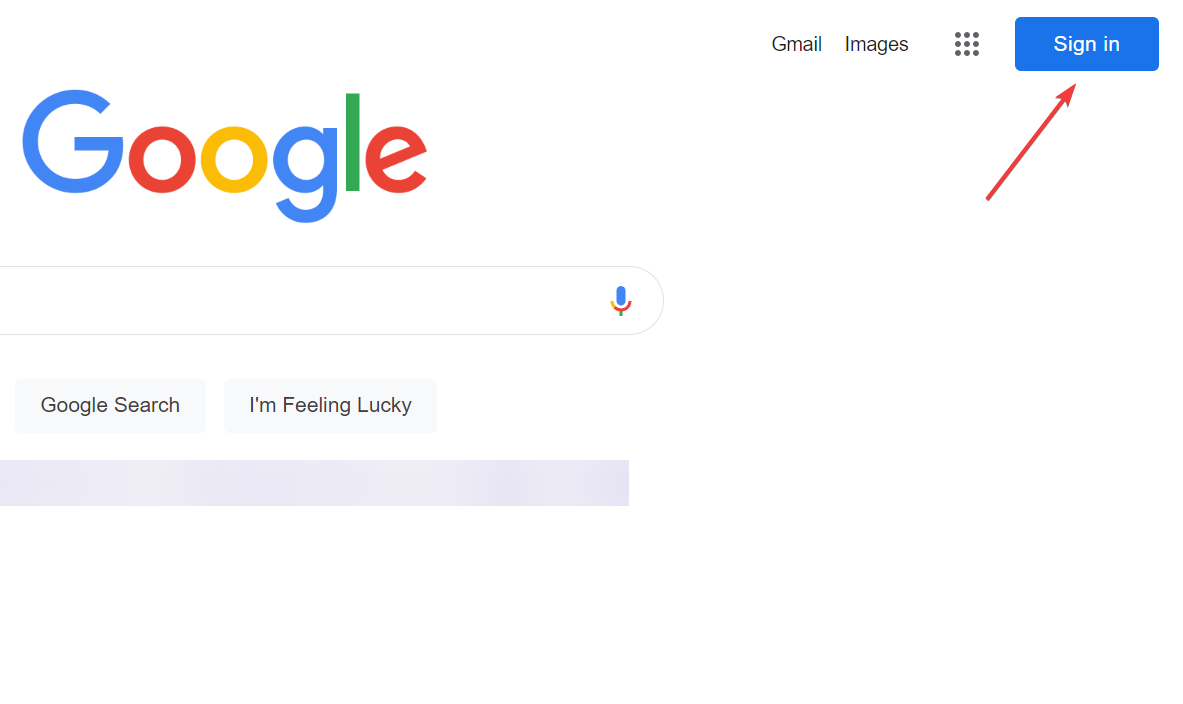
  2. Next, click on the Sign in button near the top-right corner.Sign in
  3. Now, enter your Google account details to log in.

In some cases, logging out and then signing in back to the Google account helped fix the problem. This is generally due to a trivial bug that crept in, which a re-login would easily eliminate.

Once done, the Google not deleting search history problem should be fixed.

3. Use a dedicated VPN

If both methods have not worked, you should use a dedicated and reliable VPN. This is because the problem most likely lies with the connection settings, and using an effective VPN would eliminate that.

Apart from that, VPNs offer many other advantages, the most important being their ability to mask the user’s identity. Also, these can help you bypass geo-blocking by connecting to a server in another country.

If you require industry-standard VPN security to resolve this browser safety matter, it’s advised to pick reliable and fast software like Private Internet Access.

This VPN tool delivers super-fast servers spread to thousands of regions with advanced tools like split tunneling or censorship blocking for unlimited content in restricted countries.

⇒ Get Private Internet Access

How do I set the Google search history to delete automatically?

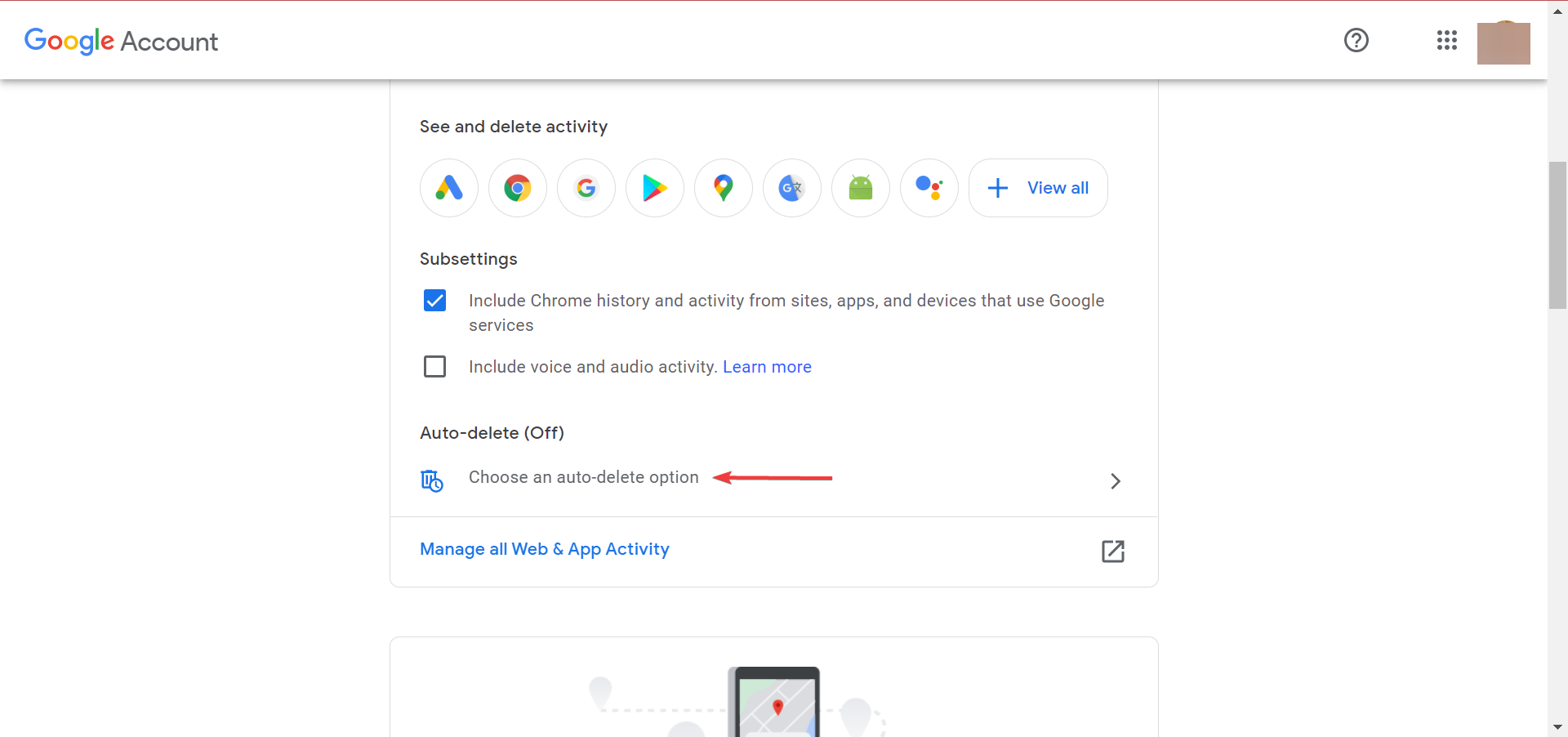
  1. Go to the Activity controls section in your Google account, and click on Choose an auto-delete option under Web & App Activity.Choose an auto-delete option
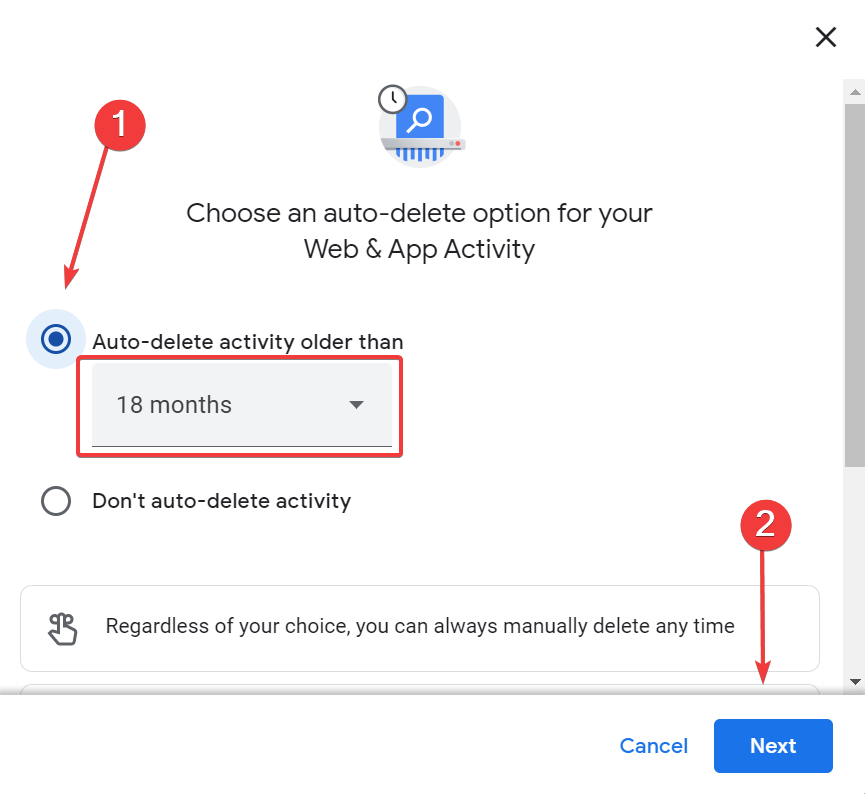
  2. Select the Auto-delete activity older than option, choose the desired duration from the dropdown menu, and then click on Next at the bottom.Next to fix google not deleting search history
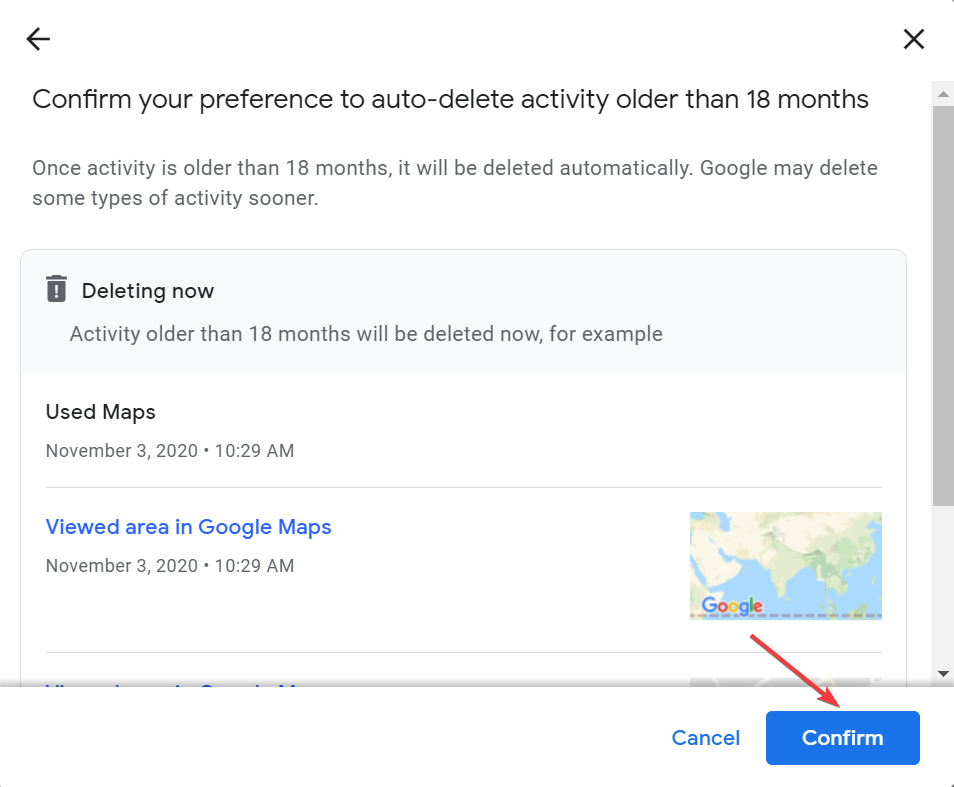
  3. Now, click on Confirm to save the changes. Also, the saved activities older than the selected duration will be deleted right now.Confirm

From now on, Google will automatically delete the search history, and you won’t have to worry about it. However, you can still manually delete it anytime you want.

The methods listed here, though illustrated for a Windows PC, work on every device and can fix Google not deleting search history on Android or iPhone as well. To delete Bing’s search history, refer to our expert article.

Also, find out what to do if you find unknown searches in Google search history since it could indicate an account breach.

Tell us which fix worked and your thoughts on Google search history in the comments section below.

Play Session: Skate Sim and 2 other games free this weekend with Xbox Free Play Days

Three more games will be playable for Xbox Game Pass and Xbox Live Gold subscribers free of charge this weekend with Xbox Free Play Days.

Perhaps the most notable entry for this week’s Free Play Days lineup is Session: Skate Sim (Game Preview). With tweaked visuals and an overhauled physics system, this is the most realistic iteration of the game yet. It features a unique control scheme in which the dual thumbsticks represent the in-game characters feet, and is inspired by 1990’s golden age street skating culture.

Another game that is largely centered around its in-game physics is Moving Out. The game also has a rather unique premise: players take the helm of a startup moving company named “Smooth Moves.” You’ll take on a variety of increasingly challenging moving jobs throughout the town of Packmore in this quirky game that features up to four player co-op multiplayer.

Lastly for this week’s Free Play Days games we have Embr, in which players take on the role of a firefighter for hire. Players can play alone or with up to three friends in multiplayer co-op, throughout 25 hazard-filled levels in three districts. As you fight fires and save lives (and perhaps “collect” a few loose valuables in the process) you will rack up ratings based on your performance, hopefully leading to jobs from wealthier clientele. And there is an array of tools, vehicles and outfits to obtain that will help you get the job done in all-new ways.

Xbox Free Play Days is another perk of having a subscription to Xbox Game Pass or Xbox Live Gold. A new lineup of free-to-play games is introduced each week. It is a great way to try something new and maybe even find your new favorite. You can learn more about Xbox Free Play Days here.


Microsoft Edge version 101 now in Stable channel with PWA, profile improvements

Microsoft Edge version 101 is now rolling out to the stable channel. The release is still a fairly minor one, but it adds two new features relating to Progressive Web Apps, as well as browser profiles. Here’s a look at what you need to know.

First up, there are some improvements to the Progressive Web Apps launch experience. You’ll now be able to launch these from the favorites bar via an Apps icon. In addition, there are changes to the ability to set the default profile. Microsoft says that a new EdgeDefaultProfileEnabled policy will let you set a default profile to use when opening the browser instead of the last profile that was used. Other new features are below.

  • Client Certificate Switcher: This feature will offer a way for users to clear the remembered certificate and resurface the certificate picker when visiting a site that requires HTTP certificate authentication. This can be done without manually quitting Microsoft Edge.
  • Manage the “Allow extensions from other stores” setting. Now you can use the ControlDefaultStateOfAllowExtensionFromOtherStoresSettingEnabled policy to set the default state of the “Allow extensions from other stores” setting.
  • Improvements to the Enterprise Site List Manager. Now you can configure shared cookies between Microsoft Edge and Internet Explorer on your enterprise site list. You can access the Enterprise Site List Manager at edge://compat/SiteListManager.

As usual, the release brings some depreciated and new policies. We invite you to check out Microsoft’s changelog for more on these. We also remind you that updating Edge to version 101 will patch some security issues. There are two CVEs related to Edge that Microsoft has listed. Check it out here.

Microsoft Edge should auto-update to the latest version, but if it does not, you can trigger it manually. Just head to the browser’s menu, choose Help and Feedback then About Microsoft Edge and wait for the update to download and then restart.

Pi Browser Not Opening: Why It Happens & Fix

Is Pi Browser not opening and showing errors like Invalid Code. Go back to the Pi Network App and tap the “Open Pi Browser” button again? Follow the guidelines below to fix it quickly

What can I do if Pi Browser is not working?

1. Sign in and open with Chrome

  1. Open the Pi Network mobile app.
  2. Tap on the three lines in the top left corner then select Pi Browser. open Pi Browser.
  3. Tap Sign in to Pi Browser. Tap sign in to Pi Browser.
  4. In the Open with pop-up, select Chrome.

For this solution, you need to have the Pi Network app and Chrome installed on your device. Users reported that when they sign in to Pi Browser through Google Chrome, the issue is solved and they can open Pi Browser without getting stuck on the welcome screen.

2. Check for updates

  1. Open the Google Play Store or Apple Store for iOS.
  2. Tap on your profile and select Manage apps & device. in your profile select manage apps and device.
  3. Under Updates available, tap See details to check if there is an update for Pi Browser. Under Updates select see details.
  4. Update Pi Browser if available.

Usually, when an application on your device is bugging out or has issues, it may be an indication that it needs to be updated. Check your app store regularly to keep your apps up to date and prevent issues.

3. Set Google Chrome as the default browser

  1. Open Settings on your mobile device.
  2. Scroll down and open Apps. In Settings click on Apps.
  3. Select Default apps.
  4. Tap on Browser app and change it to Chrome. Set Chrome as the default browser app.

For some reason, when Chrome is set as the default browser, Pi Browser will open and operate seamlessly. Try setting Google Chrome as the default and check if that solves the issue.

4. Force stop Pi Browser

  1. Open Settings on your mobile device.
  2. Scroll down and open Apps.
  3. Tap App management and search for Pi Browser. Search for Pi Browser.
  4. Select Force stop. Tap Force stop.
  5. Tap Force stop again. Select force stop again.

If you were receiving an error message in Pi Browser or it stopped responding, force-stopping the app may do the trick.

5. Clear cache and data

  1. Open Settings on your mobile device.
  2. Scroll down and open Apps.
  3. Tap App management. Open App management.
  4. Search for Pi Browser and select it.
  5. Tap Storage usage. Open storage usage.
  6. Select Clear data then Clear cache. Tap Clear data and then clear cache.

This will reset the app and remove any potential bugs or malware that could be causing Pi Browser to not work. Try opening the browser again after clearing the data and cache.

6. Try a different browser

Use a different browser

One of the biggest appeals of Pi Browser is that it offers access to dApps and has an integrated crypto wallet. For a great browser with all these features and more, try Opera Browser.

This browser is the world’s first Web3 browser and has a native non-custodial crypto wallet.

Opera Browser is available for download on your PC and has a mobile app to pair with it. With Sync, users can synchronize the Opera on their desktop to the one on their mobile device for seamless Web3 browsing.

Opera

Opera

Get the best of the web with Opera’s fast & secure browsing!
Free Download

Let us know in the comments which solution worked for you. If there is a solution that worked that is not listed above, also let us know.

8 Solutions to Solve Huion Pen Pressure Not Working

The Huion tablet, paired with the best painting software for Huion, can take your drawing skills to a new level. Creatives have increasingly grown accustomed to this top-notch tab, as it allows them to recreate their vision and imagination perfectly.

However, users are starting to complain that the Huion pen pressure is not working. The reasons range from broken or faulty drivers to activating wrong settings and some unknown causes.

Irrespective of the cause, this encompassing guide contains fixes that will get your Huion pen pressure working again in Photoshop, Windows, and Mac. Read on to find out more!

Why is pen pressure not working on Huion H420/H640P/GT 191?

This issue can occur if your tablet isn’t configured correctly, so you’ll have to open its configuration software and make a few changes to fix it.

Users reported issues in Photoshop, but the problem doesn’t appear in other software, so you might consider using it instead.

Outdated drivers are the common cause of various problems, and users reported pen pressure issues on the Kamvas Pro 16 and Kamvas 13 models. It’s also the reason XP Pen is detected as a keyboard.

Luckily, this can be easily fixed, and our guide will help.

What can I do if Huion pen pressure is not working in Photoshop?

1. Enable Windows Ink

  1. Launch the Huion tablet interface on your PC and click the Stylus Pen tab on the left pane.
  2. Check the Enable Windows Ink checkbox.
  3. Finally, click Apply followed by the OK button, to save the changes.

In previous Photoshop, like the 2018 versions and below, disabling the Windows Ink feature helps to solve brush lags and other issues. The only tradeoff is the unavailability of some drawing tools.

However, in the latest versions from 2020 and above, you need to enable the Windows Ink feature to have any chance of using the Huion tablet pen pressure.

Lastly, if you created a PSUserConfig.txt in the past to force Photoshop to use WinTab instead of Windows, you need to delete that text file to solve the Huion pen pressure not working problem. Remember, these are universal solutions that also work when XP-PEN pressure is not working in Photoshop.

2. Use another compatible software

If you still can’t get Huion pen pressure to work after trying the fix above, you should try another creative software in Clip Studio Paint for a change.

Clip Studio Paint is a stunning software specifically designed for drawing and painting. It boasts a natural brush feel well beyond anything you have ever experienced on other graphics software.

The powerful brush engine allows you to recreate your vision stroke after stroke as you imagined. What’s more, it has a free trial period that will enable you to glimpse what you will be getting before deciding.

However, to use it with a Huion tablet, you must upgrade to the Pro version. But with the ability to detect even up to 8192 pen pressure levels, you are sure that you will never experience the Huion pen pressure not working again.

How can I fix the pen pressure not working on Windows PC?

1. Update driver

Update manually

  1. Go to the Huion website and enter your tablet model in the search box.huion driver download
  2. Select Windows as the OS and Driver as the Category.
  3. Click the Submit button and wait for the page to load.download driver
  4. Scroll down on the new page and click the download option before the available update.
  5. Now, go to the Downloads folder and extract the contents of the downloaded zip file.driver extract
  6. Open the folder you just extracted and double-click the Application file to open it.application huion pen pressure not working
  7. From here, follow the simple on-screen instructions to complete the update.

It is important that you download the exact driver update for your Huion tablet model and your computer. Else, the driver will not work.

Restart your computer after the update to effect the changes. You can also check this guide for other ways to manually update your Huion tablet driver.

Update automatically

Instead of taking the risk of installing the wrong drivers and spending lots of time doing so, you can download and install the Huion drivers automatically with a specialized driver updating tool.

Whether it is repairing broken drivers, downloading missing ones, or updating drivers, these tools do it all with aplomb. What’s more, they don’t just recommend any driver for you.

Instead, they give you a list of original and compatible drivers from trusted manufacturers worldwide.

2. Disable Sleep mode

  1. Press the Windows key + I to open the Settings app.system pen pressure not working
  2. Select the System option.
  3. Click on the Power and sleep option on the left pane.power and sleep
  4. Select the Additional power settings option under the Related settings section.change plan settings
  5. Click the Change plan settings option at the front of your preferred power plan.
  6. Click on the dropdown button in front of the Put the computer to sleep option and select Never.never sleep huion pen pressure not working
  7. Finally, click the Save changes button to effect the changes.

3. Uninstall and reinstall drivers

  1. Press the Windows key and type control panel. Select Control Panel.
  2. Click the Programs option followed by Programs and Features.program and features
  3. Select any Huion tablet-associated file and right-click on it.uninstall driver
  4. Select the Uninstall option. Do this for all other Huion tablet files.

The Huion pen pressure not working problem might be due to a faulty driver. The only solution here is to uninstall the driver and reinstall it.

After you completely remove the driver, you can reinstall it with the disk that came with your tablet or follow the steps in Solution 1 above to reinstall it manually.

How can I fix pen pressure not working on Mac?

1. Restart the computer

Sometimes, the simple fix is the best one. If Huion pen pressure is not working on Mac, you should restart your PC and relaunch the tablet interface.

This fix can be especially useful if your tablet driver has problems, stopping it from working well. If this does not work, you can proceed to the next fix.

2. Unplug and plug the tablet

Establishing the right connection between Mac and your Huion tablet is important to the pen pressure working properly. Sometimes, it might be that the USB port you connected the tablet to is faulty.

Hence, you should try disconnecting it from the present USB port and connecting it to another port. This has proven to solve the problem many times.

3. Give everyone read/write access to the tablet driver directory

  1. Locate the tablet driver folder.
  2. Right-click it and select Get info.
  3. Go to Sharing & permissions and click the lock icon.
  4. Enter your password if needed.
  5. Set Privlege to Read & write and save changes.

The Huion pen pressure not working can be frustrating as you might not know the cause. Thankfully, it is not the most difficult problem to solve, as shown by our numerous fixes.

What are other issues that can occur with Huion tablets?

Pen pressure issues will make your tablet almost unusable, and users also reported the following issues:

  • Huion pen pressure too sensitive: This can be caused by a bad driver or your configuration settings.
  • Huion pen pressure not working: If your pen isn’t working, the tablet will be almost useless. If that happens, we suggest you check your device for hardware damage.
  • Huion tablet not working on Windows 10: In a worst-case scenario, your tablet might not work at all. If this happens, check if everything is connected correctly and update all your drivers.

It is important to note that some of the fixes for Windows, such as driver updates, can work on Mac and vice versa.

Also, this type of issue affects other brands besides Huion tablets, and we have covered one of them in our Wacom error: no device detected article.

Wintab32.dll error can often cause issues with your tablet, but we have a guide that addresses it, so don’t miss it.

We hope this guide helps you get back to your creative best soon. In the comment section below, discuss the fixes that helped you solve the problem.


HP Recovery Manager not working on Windows 10/11 [Fixed]

HP Recovery Manager is preinstalled on computers purchased from an HP authorized reseller. It is a program designed to help you recover your computer system in the event of a failure or disaster. 

If your PC has a hard drive failure, you can perform a system recovery using the recovery media instead of an external hard drive/flash drive or DVD disc.

At times, the HP Recovery Manager may fail to start due to some technical problems. It could be outdated software or it’s simply corrupted.

In such cases, you can either download the latest software update or uninstall and reinstall the program and see if the problem persists.

What can I do if my HP Recovery Manager is not working?

Download HP firmware updates

  1. Navigate to your browser and go to the HP official site to download HP updates.
  2. Click Start Download in the dialog box that pops up.

Is HP Recovery Manager a reliable recovery tool?

HP Recovery Manager is part of the software that comes with your computer when you purchase it. It allows you to reinstall and recover the system in case of errors or problems with the operating system.

There are many recovery tools available in the market. The HP recovery tool is one of them. Whereas it is useful in restoring your PC’s software and programs, there are times when it may fail and stop working.

If you are thinking of using HP Recovery Manager to recover your files, you might want to consider using some of the best third-party recovery software designed for that.

We hope this short guide was everything you were looking for when you were faced with this problem. Remember to back up all your files before attempting any recovery as you may lose important files in the process.

If you tried out another solution that worked for you, we’d love to hear it. Share with us in the comment section below.

2 Simple Ways to View Google Docs Anonymously

Google lists the profiles of all the users currently viewing a document in the top-right corner. You may have encountered users with random names if you work regularly on shared Google Docs. This happens when others anonymously view Google Docs on a browser.

In this case, instead of showing their Google account name, Docs refers to these users as Anonymous animals. For instance, the user views the document anonymously if you see someone named Anonymous Wolf, Anonymous Iguana, or Anonymous Ibex.

Once you know there’s an option, curiosity arises about how to view Google Docs anonymously. To find out, read the next section.

How do I view Google Docs anonymously?

1. Sign out of the Google Account

  1. Sign out of your Google account.
  2. Now, paste the Google Docs link you want to view anonymously in the address bar and hit Enter.how to view a google doc anonymously

Your real account name would not appear to other users while viewing the document now.

However, all else remains the same. Whether you can edit or leave comments depends on the permissions provided by the user who created the document and won’t be affected by going anonymous.

This method is suitable for those who occasionally view a Google Doc anonymously and don’t mind signing out of their account for a while.

2. Use Incognito mode

  1. If you are using Chrome, click on the ellipsis near the top-right corner and select the New Incognito window from the flyout menu. Alternatively, you can press Ctrl + Shift + Esc to launch the Incognito mode.Incognito mode
  2. Once done, paste the link for the Google Docs in the address bar and hit Enter.

You would appear anonymous since the incognito mode is isolated and doesn’t rely on stored cookies. This may also help if the Google Docs site refuses to connect when logged in.

You can also use similar modes in other browsers to view Google Docs anonymously, for instance, Private mode in Firefox or InPrivate browsing in Edge.

This method works better for users who prefer viewing Google Docs anonymously since they don’t have to regularly sign in and sign out of their account, thus saving some time.

Why don’t I appear anonymous in Google Docs?

Remember, you will appear anonymous only when accessing the Google Docs through a link and not if the document has been individually shared with you. So, the sharing settings should be configured such that anyone with the link can view/edit the document.

In case someone has individually provided permission to view/edit the Google Docs, your Google account name would appear even if you use Incognito or Private mode.

Also, you will be asked to sign in to your Google account to access the document, so the first method listed earlier won’t work either.

Why do I need to view Google Docs anonymously?

Everyone has reasons for it, but it’s generally to mask the identity. If you are viewing a document shared by a bunch of people and don’t want others to find out when you are viewing it, go anonymous.

For instance, class notes that teachers share with students or, in some cases, official documents.

Whether to go anonymous or normally view a document depends solely on your requirements and the situation.

Speaking of choices, you can also enable or disable Strikethrough on a document on Google Docs. You can also hide comments in Google Docs for a distraction-free reading experience.

Also, find out how to create awesome and fancy borders in Google Docs since there are no direct methods, and you must resort to workarounds. And if you want, you can even learn how to hide comments in Google Docs.

Aside from all the col stuff you can do on Google Docs, compare it with Microsoft Word and see which one you prefer.

If you have any queries, drop a comment in the section below.

FIX: VirtualBoxVM.exe application error on Windows 10/11

VirtualBox has been a user’s favorite virtualization software since its release in 2007.
It lets you run multiple operating systems on the same computer, being compatible with all major platforms including Windows, Mac OS, Oracle Solaris, and Linux.

It’s a good solution to test out operating systems and new software and it is a good option in terms of backing up your data as well.

VirtualBox is all in all a great virtual machine software, but unfortunately, many users reported VirtualBoxVM.exe errors while using it.

This problem will prevent you completely from running a virtual machine on your PC, but there are ways to fix it.

Here’s how one user described the problem on the Spiceworks forum:

In intervals last from less than a minute to over an hour, VirtualBox throws this error and the VM freezes.

VirtualBox.exe – Application Error

The instruction at 0x00007FFA94CC6733 referenced memory at 0X0000000000000018. The memory could not be read[…].

How do I fix VirtualBox.exe application error?

1. Uninstall and reinstall VirtualBox

  1. Go to your Start menu and open Control Panel.
  2. Click on Uninstall a program.
    uninstall a program VirtualBoxVM.exe error
  3. Select VirtualBox and uninstall it.
  4. Proceed to download VirtualBox from its official website.
  5. Open the file and reinstall the program.

Many software products leave some files behind after a regular uninstall and sometimes, those leftovers can prevent you from reinstalling the app.

If you want to make sure that you remove all the contents of VirtualBox, you need to use specialized software like CCleaner.

By using this type of software you’ll be able to uninstall and then verify and clean your registry and scan for any leftover files and remove them as well.

After you completely remove VirtualBox, you can download the installer wizard and follow along with its prompt. The process should go smoothly after all leftover files are gone.

2. Update the graphics card driver

  1. Check your graphics card drivers.
  2. If the drivers are outdated, visit the graphics card’s manufacturer’s website and download the latest drivers for your model.
  3. Once the latest drivers are installed, check if the problem is still there.
  4. If updating your graphics card didn’t offer any acceptable results, try disabling 3D acceleration for your graphics card.

You can also use the Windows Device Manager panel to automatically check for driver updates.

  1. Type device in the taskbar and open Device Manager.
  2. Locate the Display Adapters category and expand it.
  3. Right-click on your graphics card driver and select Update.
  4. If Windows identifies any new drivers, it will automatically install them. Wait for the process to complete.

We must mention that Windows sometimes fails to identify new driver updates even if they’ve been made available. For that, we recommend you try the first method.

Keep in mind that it is very important to make sure you install the correct driver version, otherwise you risk generating more problems.

Faulty drivers can lead to frequent app crashes, BSoDs, malfunctioning of the corresponding hardware, and other annoying issues.

To make sure you avoid these, you can use a dedicated utility such as Outbyte Driver Updater. The tool is safe and uses its own Windows driver database to detect the newest driver versions for your hardware.

It’s easy to use, lightweight, and can keep all drivers in your system in check on a regular basis, so you will not experience such problems in the future.

⇒ Get Outbyte Driver Updater

3. Perform a malware scan

You can always try to scan your PC for malware using Windows Defender. It comes with your OS for free and it offers basic protection.

However, if you want to make sure that you detect and eliminate all possible malware from your system and stay protected at all times, you will need a professional-grade security solution.

We recommend you look into the best Windows 10/11 antiviruses to use today. Up-to-date antiviruses use advanced detection technology in order to find and block present-day threats.

Most antiviruses have a similar user experience, so on the app of your choice, run a full PC scan and remove/quarantine any threat found.

After you are positive that your PC is free of malware, try to use VirtualBox again. The error should no longer appear and the app should work as new.

4. Stop VM from the Task Manager

  1. Press Ctrl + Shift + Esc to open Task Manager.
  2. In the Process tab select the VirtualBoxVM.exe and right click on it.
  3. Select End Process Tree.
    task manager VirtualBoxVM.exe error
  4. Exit Task Manager and start VirtualBox.

There you go, 4 quick and simple solutions that can help you fix VirtualBoxVM.exe error on your PC. Feel free to try all of our solutions, and let us know which solution worked for you.

VirtualBox errors can be a headache, but if you follow any of these solutions, you should be able to start reusing the software as if nothing happened.

These have been our recommendations on what you can do to overcome these issues. If you want to learn more about VirtualBox and similar software, bookmark our Virtualization Hub.

If you need more assistance with PC-related issues, our Tech Troubleshooting Hub is full of possible solutions to your PC problems.

For any questions or suggestions regarding how you can fix this issue, please feel free to use the comment section below.

Got the temporary error: 19 on Yahoo Mail? Check our 3 fixes

Because Yahoo Mail is a dependable and effective email service, when users experience issues such as the temporary error: 19, it is adamant to fix them right away.

A technical glitch prevents Yahoo from allowing its users to send emails or messages to the recipients they have specified. There are a variety of factors that could be causing your Yahoo Mail to stop working.

Most of the time, temporary errors in Yahoo last between a few seconds and several minutes. In some cases, it can take up to thirty minutes before the errors are detected and corrected automatically. And the temporary error: 19 is no exception to this rule.

When this error appears in your mail account, you may also receive a message stating that your account has been temporarily locked. Log out of all your devices and browsers, then follow the solutions we have prepared for you below. But first, let’s see what the advantages of using Yahoo are.

What are the advantages of Yahoo?

In addition to offering products and services ranging from maps and movies to photos and technology, Yahoo is more than just another online email provider.

It is a full-fledged online company with distinct advantages over other online businesses. For example, Yahoo Small Business can assist you in setting up an online store that can generate revenue for you.

While the Yahoo Store does not offer any free services, there are a plethora of other useful free services just a click away.

With the Standard mail service, you can send and receive emails, manage contacts, and keep track of your appointments. Every email sent or received is encrypted, and users have 1TB of space to store emails and other files.

yahoo news temporary error: 19
Yahoo News (Source: Yahoo)

It can be difficult to get Web applications to work correctly across all browsers. Yahoo, in contrast to some other Web companies, solves this problem by providing free access to its massive Yahoo User Interface Library.

When you need to know the distance between Mars and Earth, or if you want to know how to make a good quiche recipe, type your question into the Yahoo Search box to find the answer.

Yahoo indexes the Web and makes information from Web pages available to searchers in the same way that Google does.

You will receive additional benefits when you create a Yahoo account, such as the ability to view the results of your previous searches and Bing, which is one of the most popular search engines in the United States.

How can I fix the temporary error: 19?

1. Use supported browsers

Not all browsers are created equal, and some are extremely fast but lack security, while others are slower but overburdened with features, and still, others take an eternity to load a simple page at the speed of light.

Opera One is the best Yahoo Mail browser to use on your Windows 11 computer, and it is also the most secure. It operates at breakneck speed and consumes minimal resources while providing a plethora of features.

However, there are also other browsers that support Yahoo that you can opt for instead. Check out the article linked to make your decision and fix the temporary error: 19 issues on Yahoo Mail / AOL.

2. Enable your browser to accept cookies

  1. Open your browser and navigate to the Settings page. Here, we will be using Opera One as it is one of the best options on the market, and we will click on the menu button from the top-right corner and then go to full browser options.menu-settings temporary error: 19
  2. Expand the Advanced section and go to Privacy & security in order to find the cookies settings.adv-privacy temporary error: 19
  3. Click on Cookies and other sites data then select the radio button next to Allow all cookies.allow-all temporary error: 19

3. Clear your browser’s cache and cookies

  1. Navigate to the Settings section from your browser as we have shown in the first solution.menu-settings temporary error: 19
  2. Then expand the Advanced button in order to choose Privacy & security.adv-privacy vtemporary error: 19
  3. Choose the Clear browsing data option from the right menu and then select Cookies and other site data and Cached images and files to delete them.clear temporary error: 19

Cookies are small text files that websites you visit store on your computer’s hard drive. They make your online experience more convenient by saving information about your browsing habits.

Sites can use cookies to keep you logged in, remember your site preferences, and serve you content that is relevant to your location.

Cache is a feature of your Internet browser that allows you to speed up the loading of web pages. However, when websites are updated and developed, it can sometimes cause issues because the files saved may conflict with the actual code that is being used to build the page itself.

We recommend that you check out our post on the 5 best backup software for Yahoo Mail to make sure you don’t lose any important data.

Was this guide useful to you? Don’t hesitate to tell us what you think in the comments section below. Thanks for reading!

Microsoft introduces Mica material and rounded tabs for Edge Canary

If you decided to forsake any other browser options out there, such as Chrome, Opera, Brave, or Firefox, then you surely decided to stick with Microsoft’s very own Edge.

Now, that isn’t a bad thing at all, considering how much work the Redmond tech company puts into perfecting its flagship browser experience.

Thus, if you know your Edge, you surely noticed that, recently, Microsoft added a new setting for managing experimental appearance settings in Edge Canary.

This toggle, however, did not work initially, but now you can use it to test what looks like the biggest Edge redesign since its launch in early 2020.

Ready to find out more about this? Let’s get right into it and discover what future plans Microsoft has for Chrome and Firefox’s biggest competitor.

Edge takes another step into the future with new looks

This will surely not come as a surprise, but Microsoft is actually on track to insert a lot more Windows 11-like design bits in the Edge browser.

Edge Canary already has tabs with rounded corners and the Mica material effect, which means that there’s not much left to do.

Now, Edge’s tabs are a lot more similar to Firefox, and the Mica effect adds dynamic translucency to primary parts of the UI.

However, you should keep in mind that both these changes are experimental, which means Microsoft might remove them at some point.

That being said, that doesn’t necessarily imply that these design features will be gone. They could very well also be here to stay, permanently.

How can I test the updated Edge UI?

Before we show you how to do this, make sure you remember that this only works on Windows 11 machines, not on Windows 10.

  1. Update Microsoft Edge Canary to the latest version.
  2. Access edge://flags.
  3. Enable Show experimental appearance settings.
  4. Restart Edge.
  5. Access edge://settings/appearance and turn on Show Windows 11 visual effects.
  6. Enable Use rounded corners for browser tabs.
  7. Restart Edge.

That’s pretty much all you have to do, so make sure you have a go at it and see if the new looks of the browser won’t make you fall in love with it even harder.

Also, remember that Edge will allegedly get an integrated, Cloudflare-powered VPN service soon, so there’s more to look forward to.

Have you tried the updated Edge UI yet? Share your experience with us in the comments section below.

Microsoft details Purview classifiers that can help prevent abuse, harassment, other illegal activities on Teams

It has been known for some time that Microsoft was working on more ways to allow IT admins to monitor Teams chats and channels, and as spotted by Neowin, we now know the specific work that’s being done under the hood to do so. Indeed, the Microsoft 365 Roadmap recently added several new classifiers relating to Microsoft Purview, the solution that scans and detects security and other risks in a company’s Microsoft 365 services against pre-set compliance standards.

To be specific, there’s a total of eight new classifiers for Purview that Microsoft is working on. The list covers sexual harassment, corporate sabotage, gifts and entertainment, money laundering, stock manipulation, workplace collusion, leavers, and authorized disclosures. A lot of those classifiers are self-explanatory, but we’ve included a sample explanation below.

The sexual harassment classifier detects explicit instances of sexual harassment as may be outlined in your organization’s policies and code of conduct, such as sexual advances, sexual comments and sexual favors. Microsoft Purview Communication Compliance helps organizations detect explicit code of conduct and regulatory compliance violations, such as harassing or threatening language, sharing of adult content, and inappropriate sharing of sensitive information.

When configured if Purview’s A.I. scans or spots anything that relates to any of these themes, the messages or content are sent for moderation. Do note, that the feature is Built with privacy by design. This means that usernames are pseudonymized by default, role-based access controls are built-in, investigators are explicitly opted in by an admin, and audit logs are in place to help ensure user-level privacy.

These classifiers are set to hit preview in June. General Availability should then come in September of 2022.

State of Decay 2 error code 1006: 5 easy ways to fix it

State of Decay 2 has been popular amongst the gaming community and is available on various platforms. But several users who played it on their Windows computer reported encountering the State of Decay 2 error code 1006.

Released in 2018, the game has been largely successful but the computer version of it is known to run into errors from time to time. The error code 1006 is one of the many you may come across.

This error is encountered if you have outdated drivers installed, set the date and time incorrectly, or the firewall is interrupting the connection. However, all these are easily fixable given you follow the right approach.

Without further ado, let’s get straight to the most effective solutions for State of Decay error code 1006.

How can I fix the State of Decay error code 1006?

1. Some basic checks

Misconfigured connection is one of the most common reasons behind the error. So, first, unplug the modem/router from the power source, wait for a minute or two, and then plug it back. Also, restart the computer in the meantime.

Besides, make sure that you are not using a VPN since it could prevent the computer from establishing a proper connection with the game server. If both these don’t help eliminate the State of Decay error code 1006, head to the next method.

2. Add an exception for State of Decay 2 in the firewall

  1. Press Windows + S to launch the Search menu, enter Windows Defender Firewall in the text field, and click on the relevant search result that appears.Windows defender firewall
  2. Next, click on Allow an app or feature through Windows Defender Firewall from the list of options on the left.Add app or feature
  3. Click on the Change settings button.Change settings to fix state of decay 2 error code 1006
  4. Now, verify that the checkboxes for both Public and Private are ticked for State of Decay 2 and click on OK at the bottom. If the game is not listed here, follow the steps listed below.tick checkbox
  5. Click on Allow another app at the bottom.Allow another app
  6. Click on Browse to locate and select the game.Browse
  7. Navigate to the folder where the launcher (.exe) for State of Decay 2 is stored, select it, and then click on Open at the bottom.locate
  8. Finally, click on Add.Add to fix Navigate to the folder where the launcher (.exe) for State of Decay 2 is stored, select it, and then click on Open at the bottom.

If the Windows Defender Firewall is interrupting the connection, you can add an expectation for the game. Once done making the changes, restart the computer and check if the State of Decay error code 1006 is eliminated.

3. Update the drivers

  1. Press Windows + S to launch the Search menu, enter Device Manager in the text field at the top, and click on the relevant search result.Device Manager to fix state of decay 2 error code 1006
  2. Double-click on the Network adapters entry to expand and view the devices under it.Network adapters
  3. Right-click on the adapter that you are using to access the Internet, and select Update driver from the context menu.Update driver to fix state of decay 2 error code 1006
  4. Next, select Search automatically for drivers from the options in the Update Drivers window.Search automatically for drivers
  5. The OS will scan for the best available driver on the system and install it.

An outdated driver is just as likely to cause the State of Decay 2 error code 1006 on your computer. The only thing that you can do here is to update all the drivers installed on the computer after you are done with the network adapter driver.

In case the update didn’t go through via the Device Manager, try the other methods to manually install the latest driver version in Windows, since this one will only look through the drivers already downloaded to the computer.

However, if you want to update your network drivers automatically in a few minutes, you can use a specialized driver updater like Outbyte Driver Updater.

This software can entirely scan your computer and identify out-of-date drivers in your system, and therefore update particular device drivers or all your drivers at once.

⇒ Get Outbyte Driver Updater

4. Verify the date and time set on the computer

  1. Press Windows + I to launch the Settings app, and select Time & language from the tabs listed in the navigation pane on the left.Time and language to fix state of decay 2 error code 1006
  2. Next, click on Date & time on the right.Date & time
  3. If the Current date and time are incorrect, disable the toggle for Set time automatically.Set time automatically
  4. Click on the Change button next to Set date and time manually.Change to fix state of decay 2 error code 1006
  5. Now, set the correct time and date here, and click on Change.Change

If the date and time set on your computer are incorrect, you are likely to encounter the State of Decay 2 error code 1006, and a bunch of other issues. So, make sure to correct it, and check if the problem is fixed.

5. Activate the Teredo adapter

  1. Press Windows + R to launch the Run command, type wt in the text field, press and hold the Ctrl + Shift key, and then either click OK or hit Enter to launch Windows Terminal.Terminal
  2. Click Yes in the UAC (User Account Control) prompt that pops up.Yes
  3. Next, click on the downward-facing arrow at the top, and select Command Prompt. Alternatively, you can hit Ctrl + Shift + 2 to launch Command Prompt in a new tab.Command prompt
  4. Paste the following command and hit Enter:netsh interface teredo show stateCommand to fix state of decay 2 error code 1006
  5. If you find the State listed as Offline, execute the following command:netsh interface teredo set state enterpriseclientExecute command to fix state of decay 2 error code 1006

If the Teredo adapter is not functioning, you may come across the State of Decay 2 error code 1006. And, enabling it should eliminate the problem.

That’s it! By the time you reach this part of the article, the error should be long gone and you would be able to play State of Decay 2 with your friends.

Also, find out how to fix bugs in State of Decay 2 using a bunch of quick and effective methods.

Tell us which fix worked and your review of the game, in the comments section below.

Microsoft outlines world’s ‘first hybrid war’ between Russian and Ukraine

Microsoft was among the first “cyber” actors attempting to alert Ukraine to the digital threats Russia was imploring shortly before the country enacted its land invasion of the sovereign nation.

With firsthand experience and knowledge about cyberattacks preceding a physical confrontation, Microsoft released the conclusion of a report “detailing the relentless and destructive Russian cyberattacks we’ve observed in a hybrid war against Ukraine.”

Yesterday, the company posted to its Microsoft on the Issues blog, a report it commissioned that lays out the details of Russia’s seemingly sanctioned nation-state (the GRU) cyber-attacks launched in concert with kinetic military actions as well as how Microsoft sought to help protect Ukranian people and organizations during the onslaught.

See the source image

Below are some details on a handful of what Microsoft believes to be upwards of 237 attacks, that also happen to align with widely reported “kinetic military operations,” listed in its detailed report.

As today’s report details, Russia’s use of cyberattacks appears to be strongly correlated and sometimes directly timed with its kinetic military operations targeting services and institutions crucial for civilians. For example, a Russian actor launched cyberattacks against a major broadcasting company on March 1st, the same day the Russian military announced its intention to destroy Ukrainian “disinformation” targets and directed a missile strike against a TV tower in Kyiv. On March 13th, during the third week of the invasion, a separate Russian actor stole data from a nuclear safety organization weeks after Russian military units began capturing nuclear power plants sparking concerns about radiation exposure and catastrophic accidents. While Russian forces besieged the city of Mariupol, Ukrainians began receiving an email from a Russian actor masquerading as a Mariupol resident, falsely accusing Ukraine’s government of “abandoning” Ukrainian citizens.

Not only does Microsoft cover more specific instances of coordinated cyberattacks, but it charts the percentage of destructive attacks concerning government, military, economic and civilian organizations or critical infrastructures as well as detailed timeline of the types of techniques used.

When Russian troops first started to move toward the border with Ukraine, we saw efforts to gain initial access to targets that could provide intelligence on Ukraine’s military and foreign partnerships. By mid-2021, Russian actors were targeting supply chain vendors in Ukraine and abroad to secure further access not only to systems in Ukraine but also NATO member states. In early 2022, when diplomatic efforts failed to de-escalate mounting tensions around Russia’s military build-up along Ukraine’s borders, Russian actors launched destructive wiper malware attacks against Ukrainian organizations with increasing intensity. Since the Russian invasion of Ukraine began, Russian cyberattacks have been deployed to support the military’s strategic and tactical objectives. It’s likely the attacks we’ve observed are only a fraction of activity targeting Ukraine.

Microsoft’s Special Report: Ukraine an Overview of Russia’s Cyberattack Activity in Ukraine is an engaging piece of immediate historical reference as per the company’s president Brad Smith puts it, marks the first publicly highlighted hybrid war.

See the source image

Microsoft’s report also examines the most overt and subtle forms of cyber warfare where Smith implores the world’s nations to be on the lookout for “disinformation” campaigns which are particularly threatening to democracy around the globe.

Not all is lost by the end of the 21-page report Microsoft offers a set of recommendations that include:

  • Minimizing credential theft and account abuse
  • Secure internet-facing systems and remote access solutions
  • Leverage anit-malware, endpoint detection, and Identity protection solutions.
  • Enable investigations and recovery
  • Defend against destructive attacks
  • Review and implement “best practices” for defense in depth.

Microsoft vows to continue to work with Ukraine to spot, catalogue and address future Russian backed cyber aggression but also encourages liberal arts and computer majors to switch class focus for a bit to better identify the political, socio-economic, historical and engineering aspects to future hybrid war strategies.

Bad Module Info has Stopped Working: How to Fix it

Playing games is only fun when there is the least disruption and no lags or stutters. But some users have reported encountering the bad_module_info has stopped working when running games. Generally, you would come across it in Fortnite, Counter-Strike, and Minecraft.

Besides, it’s generally encountered when the system resources are running low, there’s a problem with the installed drivers, or an application is conflicting with the game.

Now that you understand the underlying causes let’s walk you through the fixes for the bad_module_info has stopped working error.

How do I fix bad_module_info has stopped working?

1. Reboot the computer

  1. When you encounter the error, navigate to the desktop, press Alt + F4 to launch the Shut Down Windows box and select Restart from the dropdown menu.Restart to fix bad_module_info has stopped working
  2. Next, click OK at the bottom to restart the computer.OK

In most cases, low system resources led to the bad_module_info has stopped working error in Valorant. When you restart the computer, all the background processes are terminated, thus releasing a good amount of load from the CPU.

2. Disable fullscreen optimization

  1. Go to the folder where the launcher (.exe file) for the problematic game is stored, right-click on it, and select Properties from the context menu.Properties
  2. Next, navigate to the Compatibility tab.Compatibility
  3. Tick the checkbox for Disable fullscreen optimization, and click on OK at the bottom to save the changes.Disable to fix bad_module_info has stopped working

The fullscreen optimization feature is enabled by default for games and video players and helps enhance the gaming experience by optimizing the system’s performance.

However, it also leads to the bad_module_info has stopped working error with Adobe and other similar applications, so disable the feature. If the error is not fixed, re-enable fullscreen optimization and move to the next fix.

3. Update the graphics driver

  1. Press Windows + S to launch the Search menu, enter Device Manager in the text field at the top, and click on the relevant search result.Device manager to fix bad_module_info has stopped working
  2. Next, double-click on the Display adapters entry to expand and view the devices under it.Display adapters
  3. Right-click on the graphics adapter, and select Update driver from the context menu.Update driver to fix bad_module_info has stopped working
  4. Now, select Search automatically for drivers from the two options in the Update Drivers window.Search automatically for drivers
  5. Wait for the system to find and install the best available driver.

Also, make sure to check if there are updates available for the other drivers as well and install them. Once done, check if the bad_module_info has stopped working error with Genshin Impact and other games is fixed.

If the update didn’t go through successfully using the Device Manager, you could try other ways to manually install the latest driver in Windows.

A reliable alternative is to use automated software such as Fortect Driver Updater. Using its comprehensive database, it will identify and install the latest drivers in just a few minutes.

⇒ Get Fortect Driver Updater

4. Disable SysMain service

  1. Press Windows + R to launch the Run command, type services.msc in the text field, and then either click OK or hit Enter to launch the Services app.services
  2. Locate the SysMain service, right-click on it, and then select Properties from the context menu.SysMain properties
  3. Now, click on the Startup type dropdown menu, and select Disabled from the list of options.disable to fix bad_module_info has stopped working
  4. If the service is currently running, click on the Stop button under Service status, and then click on OK to save the changes.Stop

SysMain is one of the most advanced services but consumes a lot of resources while running in the background, which could lead to the bad_module_info has stopped working error.

The service basically identifies a pattern of how you use the computer, which apps you open, and at what particular time of day. Subsequently, it will load these programs to reduce the boot time and optimize the system’s performance.

Even if it doesn’t help eliminate the bad_module_info has stopped working error, you may consider keeping the SysMain service disabled to free up system resources in case the computer is unresponsive or lagging most of the time.

5. Remove conflicting applications

  1. Press Windows + I to launch Settings, and select Apps from the list of tabs in the navigation pane on the left.Apps
  2. Click on Apps & features on the right.Apps & features to fix bad_module_info has stopped working
  3. Locate the conflicting app, click on the ellipsis next to it, and then select Uninstall.Uninstall to fix bad_module_info has stopped working
  4. Again, click on Uninstall in the prompt that pops up.Confirm

Several applications are known to conflict with games, and in most cases, it was a third-party antivirus. Malwarebytes was the most common of these. So, if you have any third-party antivirus installed, remove it. And do not forget to check the most reliable antiviruses for Windows.

6. Use a dedicated game booster software

If none of the methods listed here have worked, you may want to consider going for an effective game booster software. These are designed to optimize the computer’s performance by strategically allocating the system resources and enhancing the gaming experience.

Game booster software may come in handy for computers with low-end specifications. It will improve the FPS, decrease ping, and some even offer the option to overclock the CPU.

These are all ways to eliminate the bad_module_info has stopped working error. Once you’ve done so, you can play your favorite games the way they were meant to be.

Also, find out how to optimize the PC for the best gaming experience.

Tell us which fix worked, and if you know any that have not been listed here, drop them in the comments section below.

Microsoft testing rounded corners, more subtle Windows 11 design effects in Edge Canary

Microsoft has been known for some design inconsistencies, where not all of its products or apps look the same on Windows. Yet Windows 11 was a huge step forward in cleaning things up, but one more thing is in the works, too. Shared by FireCube on Twitter (via Windows Central), Microsoft is testing rounded corners, and more subtle Windows 11 design effects in Edge Canary.

These new design options come in Edge Canary version 102.0.1241.0 and is exclusive to Windows 11, but take a bit of digging to get to. You’ll first have to go to edge://flags and search for the Show experimental appearance settings option and turn it Enabled, then quit and reopen the browser.

Once that’s enabled, you can go back to Edge’s appearance settings menu, and look for the new Show Windows 11 visual effects in the title bar switch. Turn it on. You’ll also see a Use rounded corners for browser tabs (Preview) option, too. And it can be toggled to the on position as well. Once done, restart the browser, and Edge should look like the screenshot below.

Overall, this is a really nice look, very reminiscent of the now-defunct legacy version of Microsoft Edge. It definitely helps the web browser look more consistent with the operating system that it is running on, mainly thanks to the semi-transparent mica effects that already make Windows 11 look so beautiful. Even the rounded tabs are nice, as it has more of a “floating” look, similar to what Mozilla has accomplished in the latest version of Firefox.

We hope that Microsoft rolls this design change out to the regular stable version of Microsoft Edge soon. However, features in Edge Canary are known to come and go, so just because we’re seeing this today, it doesn’t mean that it’s final. Do check it out, though, and let us know what you think in the comments below!

Xbox Game Pass subscribers to get early access to Disney Dreamlight Valley

Gameloft today announced an upcoming video game called Disney Dreamlight Valley that’s currently expected to release on Windows PC, Xbox One, Xbox Series X (and S,) and Sony and Nintendo’s rival consoles in 2023.

Disney Dreamlight Valley seems to be a bit like The Sims and Animal Crossing and allows the player to customize their own player avatar and complete tasks within a village populated by Disney and Pixar properties.

A short teaser video was released that shows a variety of customization options and activities that players can explore. Rather amusingly, Disney Dreamlight Valley seems aimed at adult fans of Disney properties rather than young players. As in, it has a strong free-to-play mobile game for soccer mums to play vibe going for it. This isn’t necessarily a strange decision though as there are definitely a lot of adult Disney fans out there, this writer included.

While Disney Dreamlight Valley isn’t due for release until 2023, subscribers of Microsoft’s Xbox Game Pass subscription service will be given free early access to a kind of open beta which is expected to debut sometime this year. Interested gamers on other platforms will have to purchase a Founders Pack to partake in this early testing period.

Need more gaming news in your life? Follow us on Facebook, Twitter, and Pinterest.

How to turn off the touch screen on HP? 7 easy ways

HP laptops and Chromebooks with touch screen displays offer advanced user experience for improved workflow and better work mobility.

The touch screen functionality often comes as a default feature on touch screen enabled HP laptops and most users never bother to learn how to turn off the touch screen on HP.

While a touch screen has a lot of benefits for fluid workflow, there are situations where you might need to temporarily turn off the touch screen on your gadgets.

To learn how to turn off the touch screen on HP, we will provide different ways in this article. But before that, let’s understand the reasons you might need to turn off the touch screen.

Why turn off the touch screen on the HP device?

Various scenarios could prompt you to disable the touch screen functionality on your PC. However, most users turn it off due to its heavy power consumption on their devices.

Also, some users have reported about the Ghost touch. This is an erratic malfunctioning of the screen to react automatically without a user’s interference and prevent you from using it.

Another reason might be to prevent unexpected disturbances during troubleshooting and other mechanical issues. Although, some users simply disable it because they don’t use it because they are more comfortable with a mouse and keyboard.

Whatever the reason may be, simply follow the instructions in the methods provided below for a quick solution.

How can I turn off the touch screen on an HP laptop?

1. Disable the Human Interface devices

  1. Press Windows + R to launch the Run box, input devmgmt.msc and click OK. write devmgmt.msc in the run command and press enter
  2. Locate Human Interface Devices and expand them. 
  3. Right-click on HID-Compliant Touch Screen and choose Disable device.
  4. Restart PC to take effect.

It isn’t uncommon to have more than one touch screen driver, so you should disable them all.

By disabling the touch screen via device manager, it should override its functionalities. However, you may have to enable the device before your screen touch can be reactivated on the PC.

2. Use the Windows PowerShell

  1. Right-click the Start button and choose Windows PowerShell (Admin).Windows PowerShell (Admin) - How to check .net version Windows server
  2. Input the following command and press the Enter key: Get-PnpDevice | Where-Object {$_.FriendlyName -like ‘*touch screen*’} | Disable-PnpDevice -Confirm:$false
  3. After a successful process, the touch screen should be disabled.
  4. Restart your PC.
  5. To re-enable the touch screen, input the following command: Get-PnpDevice | Where-Object {$_.FriendlyName -like ‘*touch screen*’} | Enable-PnpDevice -Confirm:$false

Most Dell laptop users reported success with this method. Hence, it is one of the most effective solutions on how to turn off the touch screen on Dell.

Sometimes, the PowerShell might display errors on the commands you run on HP laptops, but that doesn’t mean it isn’t successful.

So, there’s no reason to panic if it pops up an error code, just restart your PC. If it fails to work, you can retry the steps again or proceed to the next method.

3. Adjust settings in the Control Panel

  1. Press the Windows key and search for Control Panel.
  2. Choose Hardware & Sound.
  3. Select HP Touch screen Configuration.
  4. Click the Global tab, and tick both Touch screen and Touch Screen Sound.
  5. Press Enter and restart your PC to take effect.

This is a much easier and faster way to get your HP touch screen turned off. You may not need to restart the PC in some cases. This is more suited as a solution for users who have upgraded to Windows 11.

4. Change settings in Registry Editor

  1. Press Windows key + R to launch the Run dialogue box,
  2. Input regedit and press Enter or click OK.Type regedit in Run search bar and hit Enter
  3. In the registry editor, navigate to the following or paste this location manually in the navigation box above: Computer\HKEY_CURRENT_USER\Software\Microsoft\Wisp\Touch
  4. Right-click the space on the right pane, then click New and choose DWORD (32-bit) Value.
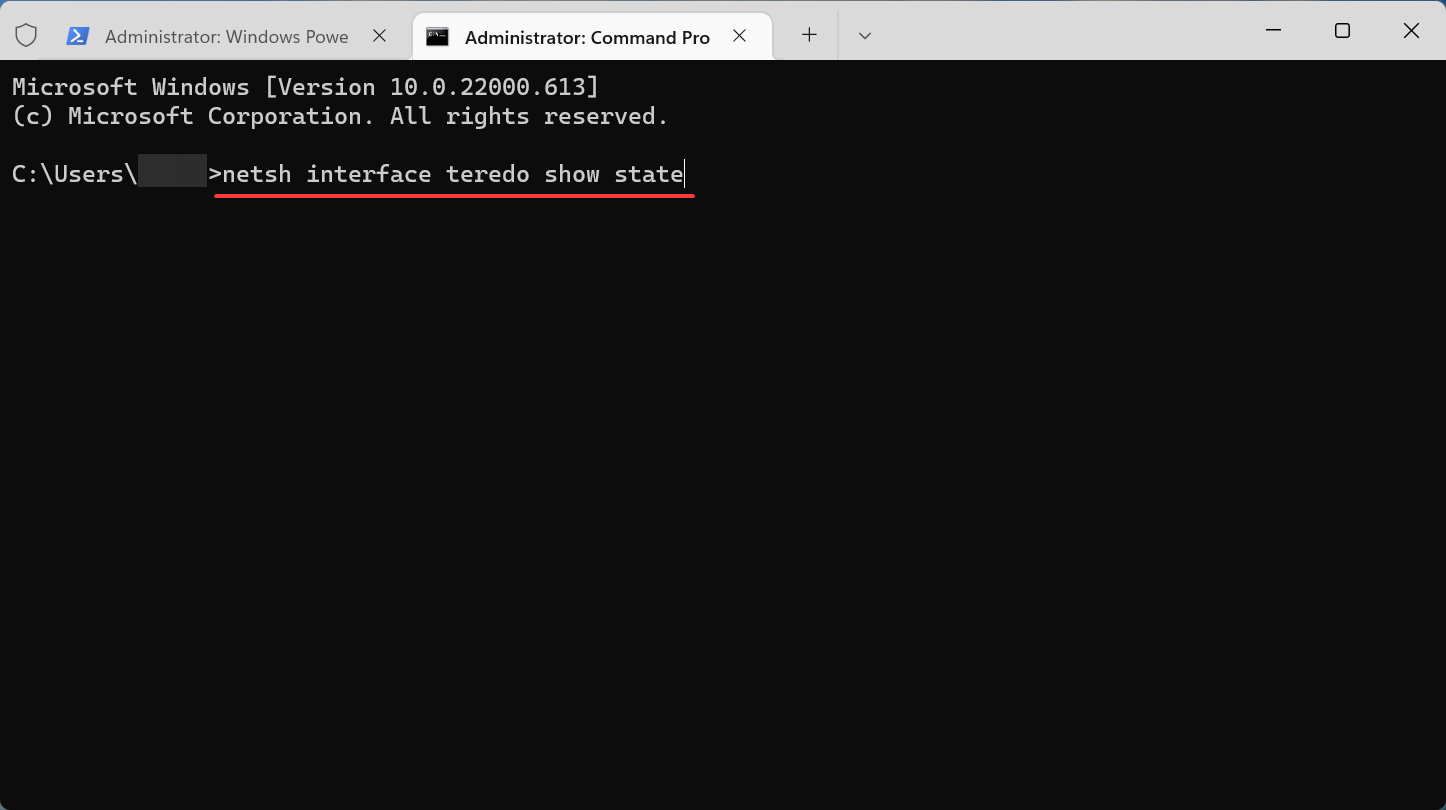
  5. Change the value name to TouchGate.
  6. Double-click TouchGate, change value data to 0, and Base to Hexadecimal.In Edit DWORD (32-bit) Value change value data to 2
  7. Restart PC to take effects.

This should turn off the touch screen on HP if done properly. However, It is important to backup your registry before attempting this particular method. 

The registry editor houses some important configuration files for the proper functioning of your PC. To prevent issues as a result of mistakes during this process, you can safely restore from backup.

5. Change Bios settings

  1. Power on your PC and keep pressing the F2 or F10 keys during the booting process.
  2. Navigate with the keyboard arrow keys to choose Advanced Bios.
  3. Select system properties or device options.
  4. Locate the touchscreen device, and press Enter key on the highlighted Enable/Disable option.
  5. Press the Esc key, click on the Exit menu and select Save Changes and Exit.

Unless everything else has failed, changing settings through the Bios is not recommended.

6. Disable the touch screen on ChromeOS

  1. Launch Chrome and search for the following: chrome://flags
  2. Input Debugging Keyboard Shortcuts in the search flag menu.
  3. Click to enable it.
  4. Restart Chrome book to take effect.
  5. Then press the following keys simultaneously to disable the touch screen: Search key + Shift key + T

This offers a much more straightforward solution on how to turn off the touch screen on Chromebook once the settings have been updated in Chrome OS settings.

7. Disable touch screen through Registry Script

  1. Download the .reg file, unzip it and open it.
  2. Navigate to the disable/enable_touch_screen and highlight them. 
  3. Right-click and select Merge.
  4. Click Yes and Restart PC to take effect.

This Registry Script offers the best solution on how to turn off the touch screen on Lenovo but it applies to HP devices too.

These are all the solutions available if you want to learn how to turn off the touch screen on HP.

In addition, there are differences in the efficiency of each method depending on your device. Some are suitable options for Windows 11 users, Windows 10, and even Chromebooks.

However, if your device isn’t HP, you can check out our article on how to disable the touch screen on Windows 10.

We also recommend you to check our article, Windows 11’s touch screen not working fixes on how to enable your touchscreen back when needed.

We’d love to hear back from you in the comments section below on your questions and suggestions about this article.

7 best sound modules for greeting cards to surprise your friends

In recent years, personalized greeting cards have become a popular way to convey affection to people we feel for. 

A greeting card is made of a piece of card that typically has some illustrations or photos on it and is used to express sentiment.

What better way to put a sound module for greeting cards inside so that it is even more personalized?

In this article, we will explore seven of the best sound modules you can use for your greeting cards.

How do audio greeting cards work?

Audio greeting cards are not made up of complicated technology. The circuit board contains a Chipcorder which is glued to a paper mounting.

A tab made of plastic refrains the electrical contacts from being in touch with each other and closing the circuit.

The paper mounting which is attached to the end of the plastic tab is drawn back every time the card is opened.

It slips out of the two contacts, which makes the circuit complete. This sends the Chipcorder a signal to start playing the recording.

Not all audio greeting cards allow you to record your own personalized message. The reason is that it costs more to include this technology.

What are the best sound modules for greeting cards?

EZSound module for DIY audio cards

  • Capable of recording audio from video and sound files, etc.
  • Compatible with Mac, Windows, iOS, Android, MP3 Player, Tablets, etc.
  • Capable of recording up to 120 seconds
  • Lacks a push-to-play button
  • Needs to be plugged in to be able to record.

EZSound sound module is a module that comes with a double-sided audio adapter to record your voice messages. It needs 3 LR44 batteries and has a 2.5-millimeter headphone jack. It has a 5-inch screen size and weighs 0.7 Ounces.

This sound module for greeting cards lets you record audio from video and sound files, voice recordings, messages on your phone, etc.

Moreover, you do not need to install any software and it is compatible with any device (Mac, Windows, iOS, Android, MP3 Player, Tablets, etc.).

EzSound enables you to record up to 120 seconds and you can re-record your message as many times as you want.

MultiPlay light activated recordable sound chip

  • Light sensor
  • Store and play multiple audio files
  • Capable of recording up to 120 seconds
  • Cannot play the recorded sound based on a 12v relay switch

The MultiPlay sound module is a light-sensor activated audio module. It plays the next recording every time it is exposed to light.

It needs 1 Lithium-Polymer battery. Furthermore, it has a screen size of 10 inches. You can store and play multiple audio files on MultiPlay and also re-record your message as many times as you want.

Additionally, this sound module for greeting cards has a 2 MB internal capacity which means you can record up to 120 seconds total.

Unfortunately, the MultiPlay sound module cannot play the recorded sound based on a 12v relay switch.

WayinTop sound module

  • Carious trigger modes
  • Built-in 8 MB memory
  • Comes with a micro-USB port 
  • Cannot record multiple files
  • Needs to be connected to a computer to be able to record

WayinTop sound module is a fit-for-all sound module. It is the ideal choice for DIY small gifts for different holidays. It weighs 85 grams and has a mono microphone operation mode.

WayinTop sound module enables you to develop a module that suits your own project best. You can choose various trigger modes by connecting different soldering pads.

However, you cannot record multiple files in this sound module for greeting cards. Also, it needs to be connected to a computer to be able to record.

Icstation–IS recordable sound module

  • Push-to-play button
  • Compact body and is self-adhesive
  • Windows recognizes it easily when you connect it via USB
  • Deleting the files will open the way for re-recording new sound

Icstation-IS sound module for greeting cards is very easy to use. This sound module is a button-activated type.

Furthermore, it needs 2 Lithium-ion batteries and the button batteries are rechargeable via the micro USB.

Icstation-IS has a compact body and is self-adhesive which gives you a lot more flexibility when you want to hide it.

This sound module comes with a micro port and more importantly, Windows recognizes it easily. ICstation-IS has 8 MB of storage.

You can remove old sound files and re-record new ones if the memory is full.

Fosa 4-minutes voice greeting card

  • Record messages up to 4 minutes
  • 3-button battery
  • Loud and clear speaker
  • Buttons must be manually triggered every time to play

Fosa comes with three battery-powered buttons and the ability to record four minutes of audio. This allows you to playback your recordings many times before running out of power.

Another benefit was that it allowed for the use of an 8 0.25W green speaker that produced loud and clear sound.

Importantly, you can control the voice movement with button induction. The wire is 10cm long, allowing you to install them wherever you like.

The button on the Fosa sound module needs to be manually triggered every time to play.

5Zerone DIY greeting card chip

  • Record your message for up to 120 seconds
  • Enables you to loop your playback
  • Re-record as many times as you need 
  • No instructions and manuals

Zerone sound module is suitable for DIY homemade greeting cards, gift boxes, invitations, handmade products, etc. It comes with 3 built-in replaceable button batteries for power supply.

With this product, you can re-record for as many times as you need and it enables you to loop your playback.

Moreover, the Zerone sound module for greeting cards lets you record your message for up to 120 seconds.

On the downside, we should point out that if you do not cut the red chord when you are finished with your message, you risk accidentally removing it and having no method of recovering it.

ASHATA recordable voice module

  • Record up to 60 seconds
  • Loop mode
  • The sound has a bit of static noise

ASHATA sound module has a screen size of 2 inches. It is powered by a single CR2 battery and weighs 20 grams, so it will not add significantly to the weight of gifts that must be lightweight.

Furthermore, ASHATA allows you to record up to 60 seconds, which is plenty to express your love and affection for the recipient of the gift.

The installation of this sound module is made easier by the 10cm button line length. Also, the board is 31x21mm in size, so it won’t take up too much space for you to enjoy listening to a recorded audio file.

How do you make a recordable card?

  1. Record your message after pressing the button on the sound module.
  2. Move the Pull tab to test if your message has been recorded the way you like.
  3. Insert the module into the holder.
  4. Peel the adhesive off the back of the holder.
  5. Open your greeting card and align the notches of the module with the folding line of the card.
  6. Stick it down and press on it until it completely sticks to the card.

Now, every time someone opens the card, your voice message should be played for them. Of course, there are other ways to make a recordable card with a sound module for greeting cards, but this was the easiest way around.

Using a sound module for greeting cards to show your loved ones affection is a great idea. After reading this article, you must be able to choose the best sound module for your needs.

Be sure to follow the instructions for each sound module to get the best experience. Also, keep in mind to hide the sound module from plain sight by using a gift card or something beautiful.

Check out this article, if you are looking for the best greeting card maker software.

In the comments section below, tell us which of the greeting card sound modules you’d want to buy and why.

Instagram Bulk Downloader for Photos: 7 Best to Use in 2026

Instagram is a social media giant owned by Facebook. It is one of the most popular forms of social media with over 1 billion users worldwide.

Users were once limited to posting only on the Instagram app for Android and iOS, however, users can now create Instagram posts straight from their PC. This feature makes it easier for users who edit their photos and videos on their computers.

This is also beneficial for social media marketers who use social media automation tools to grow their businesses. Being able to bulk download photos and videos from Instagram is essential for marketers. keep reading for our suggestions for the best tools to batch download Instagram photos.

Can I manually batch-download Instagram photos?

  1. Go to the Instagram profile you want to save images from.
  2. Right-click anywhere on the page and select Save as. Save webpage to PC.
  3. Save to your downloads then open the file. Open the saved webpage file.
  4. To save a specific image right-click on the link and select Open image in the new tab.
  5. Right-click the image and select Save as to save it to your PC as a JPG. Right-click and select Save image as.

That is the manual way to save bulk images from an Instagram profile to your PC. Luckily, this guide will give suggestions for the best tools to make this process faster and easier.

If you’re looking to download bulk stock photos, we have suggestions for the best image downloader software for Windows.

What are the best tools to batch-download Instagram photos?

ByClick Downloader – Best hassle-free downloader

ByClick Downloader.

ByClick Downloader is a graphical user interface (GUI) tool that allows users to download all posts from an Instagram user. It also works on YouTube, Twitter, and Facebook. This downloader also allows users to download media from private accounts.

ByClick Downloader can handle most media files such as MP3 and MP4. It also downloads in the highest quality possible. The One Click feature automatically detects media on a page and bulk downloads it, saving users the hassle of copy and pasting URLs.

Key features of ByClick Downloader:

  • Simple user interface
  • Compatible with Youtube, Twitter, and Facebook
  • Download from private accounts
  • Handles most media files

ByClick Downloader

Download all media from Instagram in no time with this easy-to-use tool.

4K Stogram – Best user interface

4K Stogram to batch download Instagram photos.

This Instagram downloader allows users to download not only photos, but also stories, reels, and hashtags. 4K Stogram has a simple user interface making downloading Instagram media quick and easy. Users can download all Instagram posts or select specific ones for a more curated download.

4K Stogram also allows users to download photos from private accounts. Users can back up their own Instagram accounts using 4K Stogram.

Key features of 4K Stogram:

  • Download photos, stories, reels, and hashtags
  • Simple user-interface
  • Backup Instagram profile
  • Pick and choose downloads

4K Stogram

Download Instagram photos, stories, reels, and hashtags easily with the 4K Stogram app.

WFDownloader – Perfect for all types of media

WFDownloader for bulk downloads.

WFDownloader is a free bulk image downloader for PC. It’s compatible with Windows, Mac OS, and Linux. It has a simple interface but also offers a lot of features like proxy support. WFDownloader will also export links and will work if users added links to their Instagram photos.

This bulk image downloader also works for Twitter, Youtube, Pinterest, and more. It can handle all types of media including videos and audio files.

Key features of WFDownloader:

  • Cross-platform compatibility
  • Download up to 20 files at once
  • Proxy support
  • Can bulk download videos and audio files

⇒ Get WFDownloader

IG Downloader – Best extension for downloading IG photos in bulk

IG Downloader.

This Instagram photo downloader is a free extension for browsers compatible with Chrome extensions. IG Downloader allows users to download Instagram photos and videos in bulk. The extension is open-source and no sign-in is required so it does not collect user data.

To download all photos on a profile, simply click the download icon next to the home button. However, users cannot download photos from private accounts.

Key features of IG Downloader:

  • An extension only, no downloading necessary
  • Open-source
  • No sign-in required

⇒ Get IG Downloader

Toolzu – Quickest tool to batch-download images

Toozu Instagram image downloader.

This website allows users to input links to Instagram profiles to download all the photos from the profile. No registration is required to use the program, however, to download all the photos of a profile at once, users need to sign up.

Toozu only downloads high-resolution images and allows users to pick and choose which photos they want to download from a profile.

Key features of Toolzu:

  • Pick and choose downloads
  • High-resolution images
  • No installation required

⇒ Get Toolzu

ImgDownloader – Compatible with any website

ImgDownloader.

ImgDownloader is an online Instagram image downloader tool that is free to use. It does require users to create an account to use the designated bulk Instagram downloader.

There is no need to download an application, users can download Instagram photos with Imgdownloader straight from their browser. However, users have to copy and paste individual links from Instagram into the bulk downloader.

Key features of ImgDownloader:

  • No installation required
  • Easy user interface
  • Compatible with any media website

⇒ Get ImgDownloader

InstaLoader – Perfect for Python users

InstaLoader for photo bulk downloads.

InstaLoader is another open-source Instagram downloader. What sets this downloader from others is that it allows users to download all Instagram photos from multiple profiles rather than just one.

This streamlines the image-saving process if you are someone who needs to download a large amount of Instagram photos. However, users need to be familiar with Python and code to use this program.

Key features of InstaLoader:

  • Download from private accounts
  • Bulk download from multiple profiles
  • Open-source

⇒ Get InstaLoader

How do I manually download Instagram videos?

  1. Open the video or reel you wish to save in your browser. Open Instagram reel.
  2. Right-click and select Inspect element (or View page source). Right-click and select inspect element.
  3. Press Ctrl + F and type .mp4. Press Ctrl + F and search for mp4.
  4. Copy the link that ends in .mp4 next to src= and paste it into a new tab.
  5. Right-click the video to save it to PC.

This is the way to save videos from Instagram without using any of the tools listed above. To make your life easier, we recommend using a program from the list above to streamline this process. Most of the tools suggested also apply to Instagram videos, reels, and stories.

We hope this list helped you pick out a tool to batch download Instagram photos easily and quickly. There is no easy way to download photos and videos from Instagram without using one of the tools.

If you’re someone who has a lot of content to post on Instagram but you struggle to come up with a good bio, we have a guide on the best ideas for Instagram bios to make it easier.

Let us know in the comments below which tool you use for batch downloading Instagram photos or videos.