Picasa app ends support for Windows 8, Windows 10 [Download errors]

We’re still looking for an official Windows 8, Windows 10 Picasa app, but you can resort to the desktop version or a third-party app called Picasa HD
windows 8 picasa appEvery once in a while, we want to modify our pictures and post them on social networks such as Facebook or Google+, and while the skills required to use a program like Photoshop are not achieved over night, some might want a simpler alternative. If you fall in this category, then using Picasa on your Windows 8, Windows 10 computer is the next best thing.

Important Update on Picasa Desktop Application

The official Google Picasa Blog posted an update on March 26, 2018 to announce that the Picasa Desktop application will no longer work online. If you choose to download the app from other sources, you may see error messages when trying to upload or download files.

As off now you will not be able to upload or download photos and videos, create online albums, or delete online photos, videos and albums. Users with a Picasa account who missed to migrate on time, have no worries! All of your photos and videos [should be] automatically backed up in Google Photos, as the post claims.

While Google has decided to focus on a single application to manage photos and made it possible for users to keep their files synced in Google Drive, Windows users have to look for a new photo organizer native app. We can help here with some handpicked lists of tools to manage your gallery on the following articles:

Picasa is now history, but our memories are saved

Google‘s photo editor, Picasa was a very useful tool for many users out there, and its seamless integration with he Google+ platform made it even better for quickly uploading pictures to your profile. Give the fact that Picasa was a very well known photo editor, we won’t have to explain every single feature that it provides, but we will give you a tour of Picasa for Windows 10, Windows 8.

Running Picasa on Windows 10, Windows 8

Although on the Picasa website in the list of compatible operating systems, Windows 8, Windows 10 is not present, I did install it and I can say with certainty that it works great. So, if you were wondering if Picasa works on Windows 10, Windows 8, then the answer is a definite YES.

picasa-for-windows-8

Users can download and install the 3rd version of Picasa from the official website, and as you know, it is free of charge (download link will be provided at the end of the article). Once you have installed the program, it will automatically start scanning your computer for photos.

If you plan to use Picasa on your Windows 8, Windows 10 computer for uploading photos to your Google+ profile, then you will need to log on to your account by using the link at the top right corner of the Picasa window. Furthermore  after  the scan is complete, you will be able to upload any photos or albums to your profile by clicking on the Sync button on the right of each folder. The process is very simple, like all other Google products.

In terms of editing, not much has changes in the latest updates, so users can still make the classic modifications to their photos, like balance colors, contrast, rotate and add certain effects. One new feature that was added is the Side-by-Side editing, where users can have the original version of the photo right next to the edited one, so they can see the differences better.

picasa-for-windows-8

Once your Google+ account is linked to Picasa on your Windows 8, Windows 10 computer, before you upload photos, you can tag your friends and then upload them. This feature makes it easier for users to completely edit their photos before they upload them.

As you can see, Picasa for Windows 10, Windows 8 is a great photo editor and for Google+ users, an even better tool to upload photos to their profiles. It has the quality of all Google products and a host of features are effects for editing your favorite photos. I recommend Picasa for all Windows 8, Windows 10 users as a great and lightweight Photoshop alternative.

Download Picasa for Windows 10, Windows 8 – is no longer available in Microsoft Store.

October 2013 Update: we’ve found a reliable Picasa app to use on Windows 8 and Windows 8.1, Windows 10 device, so head over to this article to read more about Picasa HD app from the Windows Store.

RELATED ARTICLES TO CHECK OUT:

Xbox One’s Sunset Overdrive has been rated for PC… in South Korea

A potential PC version of the 2014 Xbox One video game, Sunset Overdrive, has just been rated in South Korea. An official PC release of the game has yet to even be hinted at by any official party, making this news a bit of a surprise.

Due to Sunset Overdrive being an Xbox One exclusive title, it’s likely that any possible future PC release would be an Xbox Play Anywhere title. A renewed interest in this game could also suggest a sequel is planned for release though this is all purely speculation at this time.

Assuming that this version of the game is coming out sometime in the next year, official details on it will likely be announced during Microsoft’s Xbox conference at E3 next month.

Do you want to play Sunset Overdrive on your Windows PC and would you like a sequel? Let us know in the comments below and don’t forget to like us on Facebook for more Xbox news.

Sunset Overdrive
Sunset Overdrive
Developer:
Microsoft Studios
Price:
Free

Microsoft’s Xbox 360 console just got its first system update in 2 years

Xbox One’s precursor, the Xbox 360, just received its first system update in almost two years this week.

This update, once installed, brings the Xbox 360 dashboard up to Version 2.0.17526.0 though it doesn’t look as if any special new features or functionality were added. According to the official release notes, this update simply contained “Minor bug fixes and improvements.” It’s unclear what bug fixes and improvements were made but it is good to know that Microsoft is still taking care of older hardware, even if it is just a little.

Do you still use your Xbox 360 console or have you switched over fully to the Xbox One? Share your thoughts with the community in the comments below and make sure to follow us on Twitter for more Xbox news.

Battlefield V digital pre-orders open on Xbox One, to have 4K UHD, HDR10, & more

The highly anticipated video game, Battlefield V, has been announced and is planned for release on Microsoft’s family of Xbox One consoles on October 19 this year.

Battlefield V will support 4K resolution, HDR10, and variable refresh rate when played on the Xbox One X console and will still be completely compatible with the regular Xbox One and Xbox One S like all Xbox One-branded titles.

Here’s the official game description and announcement trailer.

Enter mankind’s greatest conflict with Battlefield™ V as the series goes back to its roots in a never-before-seen portrayal of World War 2. Take on physical, all-out multiplayer with your squad in modes like the vast Grand Operations and the cooperative Combined Arms, or witness human drama set against global combat in the single player War Stories. As you fight in epic, unexpected locations across the globe, enjoy the richest and most immersive Battlefield yet.

  • World War 2 as You’ve Never Seen It Before – Take the fight to unexpected but crucial moments of the war, as Battlefield goes back to where it all began.
  • 64-Player Multiplayer in the Chaos of All-Out War – Lead your Company in all-out multiplayer with new experiences like the massive Grand Operations mode. Take on classic modes like Conquest or squad up with friends in the cooperative Combined Arms.
  • The Most Physical Battlefield Yet – Maneuver through the battlefield using a new soldier move set, fortifications, and mobile tools of destruction.
  • Play Untold War Stories – Witness human drama set against global combat in the single player War Stories. Ski down Norwegian mountains as you battle for control of nuclear weapon supply lines, join the frontline with the French colonial troops, or go behind enemy lines in North Africa with a band of misfits sent to create mayhem.
  • Tides of War – Embark on a journey where new content drops continuously transport you and your Company to a huge variety of key WW2 locations, where new battlefields and gear await.

A special Deluxe Edition of Battlefield V has also been announced and it, along with the regular version, are now available to pre-order digitally.

The Battlefield V Deluxe Edition will contain the base game, special customization items, bonus Starter Assignments, 20 weekly items, and access to the game three days before its official launch. Those who pre-order will also get early access to the Battlefield V Open Beta, an extra Special Soldier Set, and access to five weapons as soon as they begin playing.

The Battlefield series is one of the biggest video game franchises on Xbox One. Let us know if you’re going to buy this latest entry in the comments below and make sure to follow us on Pinterest for more video game content.

uTorrent official torrent client for Windows: Desktop and App [Download]

From all the BitTorrent clients I have tried in the past, uTorrent is my absolute favorite, mostly thanks to its small resource footprint and ease of use. I wasn’t too pleased when I looked for uTorrent for Windows 10, 8.1/8, and discovered that they did not have an official app or a customized client.

However, when I tried the old Windows 7 client, I discovered that uTorrent is compatible with Windows 8. Meanwhile, the development team has created a client app for uTorrent, which we’ll be taking a look at in a few moments.

While this app cannot download torrents on its own, it is however quite useful for monitoring. But for now, let’s talk a bit about uTorrent for Windows 10, 8.1/8 – the desktop app.

uTorrent for Windows 10, Windows 8 – Desktop App

If you are like me, then you are always looking for new legal torrents to download every day, and if this is the case, you will be as thrilled as I was when I found out that uTorrent is compatible with Windows 10, Windows 8 and therefore, can be used for our daily downloading tasks.

There is no configuration that needs to be done in order for you to use uTorrent and it works just as fast as it did on previous versions of Windows. Although, there are some settings that you must do in order for you to start using the uTorrent Client app for Windows 10, Windows 8. I’ll show you exactly how to configure it so you can manage your torrents from your Windows 10, Windows 8 device.

uTorrent Client  App for Windows Windows 10

utorrent-client-for-windows-8

The uTorrent Client app is available in the Windows Store for purchase ($2) and while it does not work as the desktop program, it is, however, a great manager for your torrents. It works similarly to the uTorrent Remote app for Android and it allows users to connect to the computer they are running uTorrent and see the progress of their downloads.

utorrent-client-app-for-windows-8 (1)

Also, it allows you to pause, resume or stop torrents that are on your list but it goes one step further, allowing users to add torrents to the download list. By right-clicking in the app, from the menu at the bottom of the screen, you can add torrents to the list and they will be downloaded on the computer that you have the desktop app installed on.

The UI of the app is very simple and well designed, with all the elements in the right places you can easily navigate through all your torrents. The process of adding a new server (in this case the server is the computer running the desktop app) is also very simple and the user has only three fields to fill out:

utorrent-client-app-for-windows-8 (2)
  • Name – You can name your server as you wish. This comes in handy when you want to manage more than one computer from the app.
  • IP Address – The IP address of the computer (server) you want to control.
  • Port – This is incoming connection port for the computer you want to connect. I’ll show you where you can find this later on.
utorrent-client-app-for-windows-8 (5)

As you can see, the uTorrent Client app is very simple to use, and if you have multiple computers, you can effortlessly monitor the status of your torrents from your Windows 10, Windows 8 devices with no problems. However, before you buy this app, remember that it does not work as a standalone torrent downloader, but it is only a mirror for other uTorrent desktop apps on other computers.

Setting up the uTorrent Client for Windows 10, Windows 8

While the process of setting up the uTorrent Client app for Windows 10, Windows 8 is not very difficult, it does require you to do a few steps before you can use it. I’ll walk you through the entire process of how to set up the uTorrent Client app for Windows 10, Windows 8.

utorrent-client-for-windows-8-review

First of all, ensure that you have the uTorrent desktop program on the computer you want to connect to. For the purpose of this tutorial, I used my uTorrent Client app running on my Windows 8, Windows 10 laptops to control the uTorrent desktop program on my Windows 7 home computer. After installing the desktop client on your computer, it is time to move on to your Windows 8, Windows 10 device and purchase and install the uTorrent Client for Windows 10, Windows 8.

After everything is installed and working, you have to make some settings on your uTorrent desktop program:

  • Open uTorrent and navigate to Options -> Preferences (Shortcut Ctrl+P)
  • In the Preferences window, go to Advanced -> Web UI
utorrent-for-windows-8-step-1
  • Click on the Check box that enables the Web UI feature
  • Choose a username and password for connecting to the computer (remember them as you will need them to connect later on)
  • Click Apply
  • Ensure that uTorrent is not blocked by any firewall you have on your computer. If you only have the Windows Default Firewall, then in the Preferences Panel, go to Connection and check the “Add uTorrent to Firewall Exception” box.
utorrent-for-windows-8-step-2

Note: If you have another antivirus program installed on your computer that provides a firewall, you have to add uTorrent as an exception manually.

  • Click Apply
  • In the Preferences panel, navigate to Connection and write down the Port Used for Incoming Connections (this port will be written in the uTorrent Clie>nt app for Windows 10 Windows 8)
  • Click Apply and you are done with uTorrent for desktop
  • Now, you have to write down the IP address for the computer with the desktop client of uTorrent. Navigate to Control Panel -> Network and Sharing Center -> On the right, click on the Change Adapter Settings; Find the network connection that you are connected to and right click on it and choose Status.
utorrent-for-windows-8-step-3
  • In the window that opens, click on Details and a new window will open. In this window, look the IPv4 Address and write it down (with the dots)

Note: If you have a Dynamic IP or if you connect to wireless connections that don’t have the same IP all the time, you will not be able to use the app when the IP changes.

You have finished setting up uTorrent on your desktop and you have all the information you will need to connect to it from your uTorrent Client app. Now, you can move to your Windows 8, Windows 10 device and open the app.

    • Notice the big button on the screen that says “Add Server“
    • Click or tap on it and it will open a window on the right side of the screen. Here, you will be required to add the information from your desktop computer.
    • In the <strong>Name field, you can write any name you wish, this is so you can keep track when you monitor multiple computers.

In the Host IP field, you have to write down the IPv4 address from the computer that runs the desktop uTorrent client.

  • In the Port field, write the Port for Incoming Connections that you took from the desktop version of uTorrent.
utorrent-client-app-for-windows-8 (4)
  • Click on Add and your settings are saved.
  • When you first try to connect to the desktop version of uTorrent, you will be prompted to authenticate with the username and password that you added to the Web UIpan> menu in the desktop client of uTorrent.
  • After all, you connect to your computer, you will be able to see all your torrents, sort them and modify them as you please. Also, you can add or remove torrents if you like.

As you can see, the process is not too complicated, but it does require some attention and it has quite a few steps. However, if you follow these instructions, it will work and you will be able to control your desktop version of uTorrent on your Windows 8, Windows 10 device.

Lately, users have encountered some issues while using uTorrent and related programs. We have covered most of them, so feel free to check the list below or leave a comment after the article.

It’s great to see that the uTorrent team is putting so much effort into making their products better and offering users different options of managing their torrents. I was very pleased with uTorrent for Windows 10, Windows 8, both with the desktop client that is compatible with> Windows 8 as well as with the uTorrent Client App for Windows 10, Windows 8. Happy downloading everyone! And don’t forget to seed!

[Note: It is illegal in most countries to use file-sharing clients to download copyrighted data. Do NOT use uTorrent for sharing or downloading files without permission of the copyright holder.]

RELATED ARTICLES TO CHECK OUT:

5+ Best Windows 8, Windows 10 Scrabble Apps

Play the Scrabble game with your friends in Windows 10, Windows 8 with these five best apps
windows 8 scrabble game
Scrabble has been one of my favorites games during childhood, when as kids, we would have gathered around the living room floor and would become lost into the world of words, for countless hours. Scrabble is a board game, which at the beginning presents itself empty. 100 tiles are provided, each with one letter (and a tally) scribbled upon it.

To begin playing users should draw a letter from a pouch where the tiles have been previously squabbled. Then each player has to draw seven letters and try to make up words with them. Each player has to try to come up with words that are long and score high, in order to win the game.

Now, in the era of computers and mobile devices, owners of Windows 10, Windows 8 and Windows RT machines, have the opportunity to play this game in the virtual environment. Let’s check out a couple of apps which might help rekindle your childhood:

Windows 8, Windows 10 Scrabble apps


Word Connect [Free]

word connect gameplay scrabble windows 10

This is another great scrabble game with a easy and addictive gameplay. You can download it in Microsoft Store for free and enjoy it right away with your friends. The game contains over 1000 levels so you won’t get annoyed. From the start, we have to mention that the game works perfectly on Windows 10 both PC and Mobile versions.

You can also win prizes for daily logins, repeat levels that you found interesting,  play whithout any time limit and anywhere as you can open it whithout internet connection. Moreover, you will go back in your childhood with its wooden block graphics and will keep you vocabulary in shape and your brain entertained.


Words 4 Friends [Free]

words 4 friends windows 8 scrabble

I choose this app first because of its wonderful endearing graphics And indeed it makes you think of being a kid again. The cartoon like graphics place the player on a pirate ship, where he/she can select a funny looking avatar. This is a turn base game, so users can play against other “pirates”.

Up to four players per game are allowed and the neat thing is, if your buddies don’t want to play Scrabble, you can go and hook up with Scrabble lovers from over the world. The game is available in multiple languages like Spanish, German, Dutch and even (lol) Pirate! Whenever you find yourself stuck, feel free to consult the dictionaries which also come available in different languages.


WordHaste [Free]

wordhaste windows 8 scrabble

A classic game of Scrabble with simple graphics which allows you to locate and play against other Scrabble fans around the world. Scores are generated automatically and at the end of each game you get to see where in the high score top you have been placed. The game play is timed, so players have to be swift in creating their words. Experience can be gained, so as you advanced you will be paired with more advanced opponents.

READ ALSO: Enjoy These New Windows Board Games – ‘Scrabble’ and ‘Risk’


Word Scrabble [Free]

word scrabble windows 8

Not a classic Scrabble game per se, but one that could help you develop your word forming skills. Each level of Word Scrabble is divided into three sublevels, each featuring three stages of its own. A time is assigned for each stage. For example at level 1, gamers are presented with a 5×5 letter grid and in 120 sec they have to form at least 17 words. The more you advance, the more you become quicker at word formation. These exercises will surely turn out to be handy when you play a real game of Scrabble.


Wordfeud [Free]

wordfeud windows 8 scrabble

Wordfeud should ring a bell for die hard online players of Scrabble. Windows 8, Windows 10 users have also the opportunity to play this game on their machines. Why is this game so popular amongst the Scrabble community? Well because it allows for a lot of variations. For example players can score extra points for creativity.

If routine comes in from playing the same standard board, there’s the option of randomizing the board and switching where the DL, TL, DW and TW tiles are placed. Users can be engaged in up to 30 games at a time and can play against other opponents from all over the world. This app has it all, so if you are a Scrabble fan, this is a must.


AlphaJax [Free]

alphajax windows 8 scrabble

Here we have a nice Scrabble app which also features of how to play guide, for those just starting up with the game. It provides tips about how to make words, dictionaries and allows beginners to understand every rule of the game. Games can be played against friends or other online opponents.

And at the same time, you can chat and interact. Make new friends or enjoy some quality time with your current acquaintances. The app allows the game history to be saved, so you can learn from your past mistakes and improve.


If you are interested in some other similar Windows 8, Windows 10 games, check these out:

Windows 10, Windows 8 FreeCell: Five best Apps and Collections

FreeCell is a variety of card game invented by Paul Alfille. Unlike many card games, FreeCell doesn’t really rely on luck, but mostly on skill. The better you become acquainted with the game play, the better you can perfect your strategy and game play. Speaking of which – what are the rules for playing FreeCell?

At the beginning of the game, each player can see the all the cards arranged in eight tableau piles. There’s also four cells and four foundation piles. Players will to need to build up all cards on foundations from Ace to King, and to win the game all 52 cards need to be moved there. Tableau piles should be built by alternating card color. Cards in the cells are allowed to go to the foundation and back to the tableau piles. So those were the basics.

If playing a game of solitaire appeals to you and you have a Windows 8, Windows 10 or Windows RT machine, you should know that there are a few alternatives you should be taking into consideration.

Try your hand with these Windows 8, Windows 10 FreeCell apps


Free FreeCell Solitaire 2012 [Free]

free freecell 2012 for windowsThis is an extremely interesting collection of the famous solitaire card games. Designed by TreeCardGames especially for Windows, it will give you 4 popular solitaire games:

  • Eight off
  • Free Cell
  • Free Cell Two Decks
  • Stalactites

Great graphics and animations will keep you entertained while switching between these 4 games. Don’t bother about licenses because this collection is rated as freeware for all Windows versions, and it works on both 32 and 64-bit platforms.


FreeCell HD [Free]

free cell hd windows 8

This game allows you to choose the texture and the color of the backgrounds, so you don’t get bored playing it over and over again. The nice sounds will certainly enhance your gaming experience as well. The app also offers the ability to choose how you handle cards: you can move them by tapping columns or by dragging the cards.

The first games you play will be set to an easier mode, so you will be able to get the hang of it, and as you advance the difficulty will increase. Made a mistake? FreeCell HD allows for unlimited undo moves. Statistics are constructed, but only solved games are taken into account.


FreeCell Collection [Free]

free cell collection free windows 8

This app offers not only the ability to play the classic FreeCell but a whole host of variations of FreeCell like Eight Off, Beker’s Game and FreeCell Two Decks. Background and cards can be customized in this app as well.

An extra feature is that you can comfortably switch to Autoplay when you want to take a break or simply feel like you don’t have any valid options. Game progress can be saved at any time. The game runs smoothly, so you won’t experience any lagging when you move the cards.


Solitaire Pack [Free]

solitaire pack free cell windows 8

Not a standalone FreeCell app, but for those who are passionate fans of Solitaire games, it should be a breeze.  The graphics are pretty much similar to the ones we known from older version of Windows – green background and standard looking cards.

Nevertheless the app combines the six most popular Solitaire games for your pleasure. So download this Windows 8, Windows 10 app for free and play unlimited Klodike, Spider, Tri-Peaks, two versions of Pyramid and of course FreeCell.


Solitaire Savant [Free]

solitair savant windows 8

Because we like free apps, here’s another app that packs a whole bunch of Solitaire related games. The Solitaire Savant packs a massive collection of games from Eliminator, Eight Off, Bristol to FreeCell and Penguin Aces. Graphics are pretty much standard in this app as well, but there are some special features we haven’t spotted in any others apps.

For example you can receive updates (News) about the games you love customize your very own game options. Save games and improve your game play with this extensive and fun app.


RELATED ARTICLES:

Photo Stamp Remover: Windows 10, Windows 8 Watermark and Logo Removal Software

There are lots of programs out there that promise to eliminate watermarks from pictures, and when you put them to the test, they fall short of what you’d expect for a watermark remover. Until recently, I thought that I will never going to find a simple watermark remover for Windows 10, Windows 8 that would work as good as Photoshop does, but after searching for a while, I found Photo Stamp Remover.

This lightweight and easy to use program does (to some extent) remove the watermarks from images. However, I strongly recommend that you do not use this program to remove the watermarks from other people’s photos, as this is not moral. You can, however, use it to remove time-stamps from photos, or even some elements from the photo if needed.

How does Photo Stamp Remover work?

remove-watermark-windows-8 (1)

The process that this watermark remover software for Windows 10, Windows 8 uses is fairly simple, as it uses the images and patterns from around the selected area to fill the space where the watermark is. As you can imagine, this technique works on some photos better than on others. While in testing, with some photos, I got a great result, and others, well…not so much. Even so, with the photos where it worked, the result was spectacular.

remove-watermark-windows-8 (5)

I have used this tiny program to remove both watermarks and different elements from some pictures. If you were wondering what types of watermarks it didn’t erase, these were those that were overlaying the photo. In this test, it only managed to scramble the entire photo. But for most of what users, need, Photo Stamp Remover for Windows 10, Windows 8 will get the job done with no problem.

remove-watermark-windows-8 (2)

Using Photo Stamp Remover is very simple. Thanks to its very user friendly interface, adding photos and editing them is a breeze. All the tools are in the upper menu, starting from Add Photos and all the way to the magic “Remove” button.

Selecting the area where the watermark is placed is done by pressing one the three buttons on the top menu. For simple watermarks, you can use the simple selection tools and draw a square over the area with the watermark. The other option is to use the Selection Marker, which lets you paint over the area you want to edit. Last but not least, you have the option to select a single color and remove it with the Select Color option.

remove-watermark-windows-8 (3)

Once you’ve selected your watermark, you can find the Remove button in the same menu, right next to the Color Select. Also here, users can find another removal method, Quick Remove, but from I saw, it offers lower quality results.

remove-watermark-windows-8 (4)

As you can see from the pictures, the process was a smashing success and all traces of the watermark were gone. Although I am against removing watermarks from pictures that belong to other, this Windows 10, Windows 8 watermark removal program can be used to edit photos and get rid of unwanted elements.

Download Photo Stamp Remover for Windows 10, Windows 8

Other Photo Stamp Remover features

With this awesome software, you can not only remove logos, watermarks and stamps, but you also can correct photos. If there are some unwanted elements – they can be easily removed in a couple of clicks.

photo stamp remove unwanted elements from photo

You can also rejuvenate old photos that you keep in your family archive. All you have to do is to scan those photos, upload them to your computer and open them in Photo Stamp Remover. The software will clean all the dust, reshape scratches and cracks. Keep in mind that if you do scan them at a low-quality scanner, you will get a less satisfying result, so use a good one.

Another important feature is that you can retouch more than one photo at a time. If you have several photos with the same stamp, as some cameras use to leave, you can select them, you can simply define the area where the stamp/logo/watermark is located and start the removal process.

RELATED ARTICLES:

Fix: Can’t install Skype in Windows 10/11

Nowadays we have lots of available VoIP services, for all platforms including Windows 10. However, Skype is still the most common solution for Windows users. Microsoft lately tried to enforce the UWP version of Skype as that’s the version which comes with the system by default. Furthermore, users who tried to install a classic Skype weren’t able to do so.

In order to undo this injustice, we prepared clear instructions below. If you’re unable to install classic Skype on Windows 10, follow the steps we provided below.

How to move past “Can’t install Skype” error in Windows 10

Microsoft has an obvious agenda to make users transfer to UWP version of Skype. And, up to version 8, Skype for Windows obtained through Microsoft Store was quite nice VoIP and instant messaging application. Background updates, nice looking interface and multifunctional features. However, over time it got really bad, as modernized aesthetics can’t replace the overall usability nor bugs and issues (just my opinion). So, many users decided to stick with the Classic version of Skype. Nonetheless, Microsoft goes at it again with the aggressive promoting of UWP alternatives.

The first step in avoiding this is by simply following the link. After that, just close the tab and run the Skype Classic installer in different compatibility mode and with the administrative permissions. That should make it work and resolve the imposed blockage.

Here’s how to do it, step-by-step:

  1. Run the installer in a standard way and once prompted, close the browser.
  2. Right-click on the installer and open Properties.
  3. Select the Compatibility tab.
  4. Check the “Run this program in compatibility mode for” box.can't install skype windows 10
  5. Select “Windows 8” from the drop-down menu.
  6. Confirm changes.
  7. Right-click on the Skype installer again and click “Run as administrator” in the contextual menu.can't install skype windows 10

That should do it. Another thing which might get you in trouble concerns the compatibility of your Skype version. Namely, a lot of old versions won’t work on latest iterations of Windows 10. Starting with the Anniversary update, the supported Skype versions are rather limited. The best way to avoid this is to navigate to the official site and download the Classic Skype for Windows 10.

That’s it. In case you still have issues with Windows 10 and Skype working together and don’t want to settle with the UWP version, make sure to tell us in the comments section below.

RELATED STORIES YOU SHOULD CHECK OUT:

WWE App for Windows 10, Windows 8 [Review]

WWE fans who own a Windows 8, Windows 10 tablet are definitely looking for a wrestling app to watch their favorite fighters; read on to discover more about the official WWE app for Windows 10, Windows 8

Almost all of us was a fan of WWE in our young years, and we had our heroes in the form of the fighters. Although some of us have lost the interest in WWE, there are still those that love it and won’t miss even one event. Nowadays, wrestling has become a multi-million dollar industry that has hundreds of fighters and all kinds of events. For Windows 8, Windows 10 users that still love WWE, we give you the official WWE app for Windows 10, Windows 8.

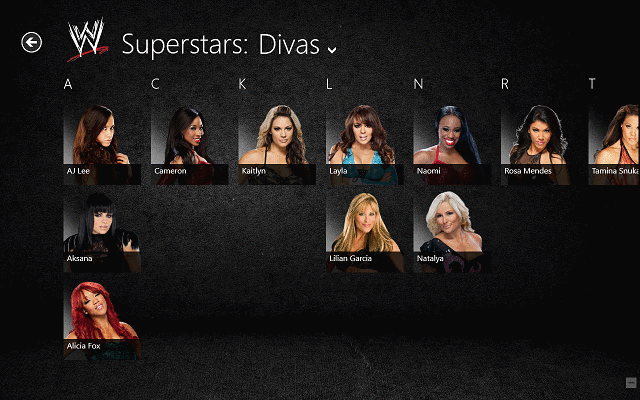
If you are a WWE fan, then you will be able to keep a close watch on all the news, fights and events via your Windows 8, Windows 10 device y using the WWE app.  Also, for those longing to see their heroes from when they were kids, the WWE app for Windows 10, Windows 8 can provide photos, videos, and other information.

WWE app for Windows 10, Windows 8 – Good, not great

This free app is available for download in the Windows Store, but keep in mind that it is not available in any country. There are a few knock-offs of the official WWE app, but they don’t come near the quality of this one. If you do want the app, but it isn’t available in your country, you can always enable all the Windows Store apps and then install it.

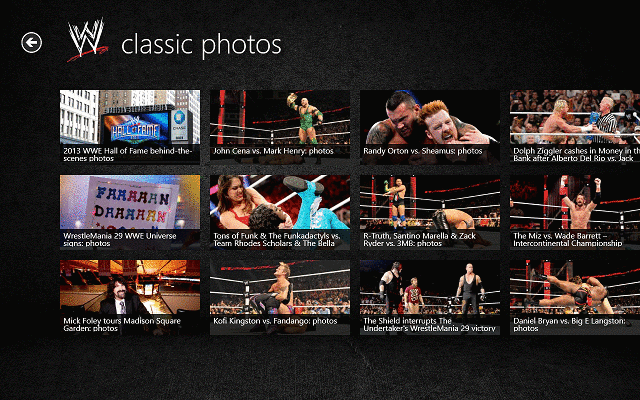
WWE-app-for-windows-8 (4)

While the WWE app for Windows 10, Windows 8 provides a good resource for wrestling fans, where they can find the latest news, a Hall of Fame, information on current and past WWE members, videos and pictures from fights, the app has a few minor issues with the computer compatibility. The UI is excellent to use on a touchscreen interface, but when you bring a mouse and keyboard into the mix, things are not working as good, particularly the scrolling through menus and articles.

The user interface of the WWE app for Windows 10, Windows 8 has a tile-style menu that can be scrolled to the left and reveal all the categories of information you have access to. Users that want to search for a specific player can use the Search charm and in a few moments, they can find all manner of information about any player they’d like.

WWE-app-for-windows-8 (3)

The quality of the information contained in the app is pretty good, the articles are nicely written and they are well placed. There were no problems reading or skipping from one article to another (except when I had to scroll). The images have pretty decent quality, but the videos that you can watch from the official WWE app for Windows 10 Windows 8 are not as good as I hoped. The video player is pretty basic, offering only playback controls and no possibility to change the resolution.

At some times, due to the intense graphics that the app has to load, I did notice a slight lag, but not something to be upset about. I also like that there are no ads in the app and thanks to the developers, the never crashed or encountered any other problem during testing.

WWE-app-for-windows-8 (5)

I’d like to say more about the WWE app for Windows 10 Windows 8, but I don’t want to spoil the fun for those who love this sport and what to use the app of their Windows 8, Windows 10 devices. Overall, I thought the app was pretty decent, and if the scrolling problem could be resolved, I’d say we’ll have a great app on our hands.

2018 update: WWE Network is the new official app for Windows 10

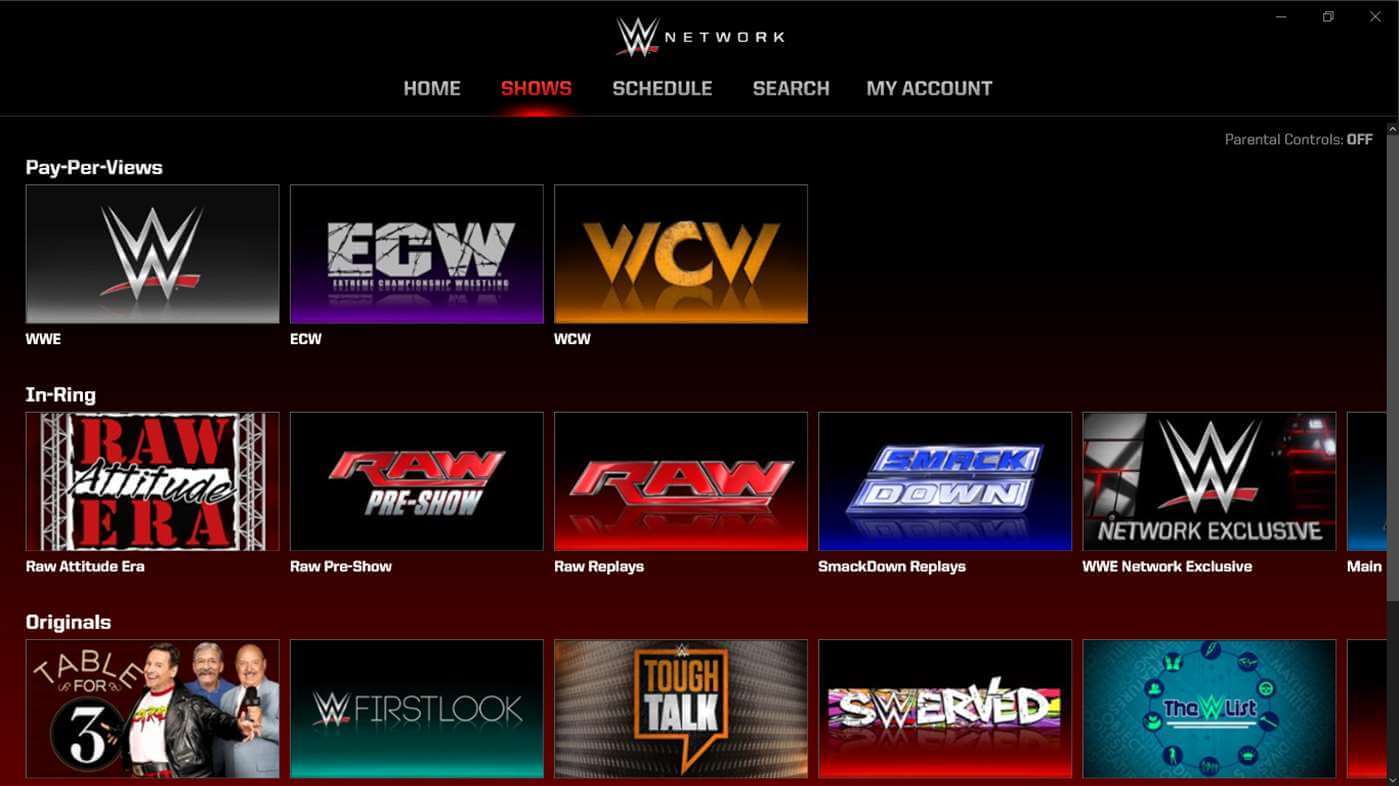
wwe network app main window

Since this review was written, the app has stopped its existence. But there is no bad without good: there is an official FREE WWE app, perfectly compatible with Windows 10 which you can use in order to enjoy your favorite show. Here are some of the most interesting features of this app:

  • 24/7 scheduled and live programming
  • All WWE pay-per-views live – including WrestleMania
  • Awesome original series, reality shows, and documentaries
  • A large video-on-demand collection of WWE, ECW, and WCW content

Download now WWE Network for Windows 10

READ ALSO: WWE Windows 8, 10 Apps: Top 5 to Use

Check Your News With CNN App for Windows 10, Windows 8

cnn-app-for-windows-8 (1)

I agree that there are lots of news apps available on every platform, and Windows 8, Windows 10 is no exception. However, there are some that outrank the vast majority, and one of them is the well known CNN app for Windows 10, Windows 8. If you like to know the latest headlines from around the world, then the CNN app is a must have on your Windows 8, Windows 10 device.

CNN is one of biggest news broadcasters in the world, therefore you might want to have their services on the go, via your Windows 8, Windows 10 device. The CNN app for Windows 10, Windows 8 is perfect for reading news and watching videos, and as you’ll see in a few moments, it is one of the best news apps I’ve tried in a while.

CNN app for Windows 10, Windows 8 – How good is it?

cnn-app-for-windows-8 (2)

If you are looking for the short answer to this question, then the CNN app for Windows 10, Windows 8 is awesome! Being a free app that doesn’t show ant ads or other materials that would otherwise ruin your experience, CNN for Windows 10, Windows 8 is perfect for those who want to enjoy reading the day’s headlines with no hustle or stress.

The user interface of the app is very well thought, having intuitive menus that offer just enough information so the user can decide if they want to read a certain story, but not as much as to make it cluttered. Each menu has been designed to look its best and the stories are shown in a form that is easy to read and scroll.

cnn-app-for-windows-8 (5)

The main window of the app is where all the important content is shown. Once you’ve opened the app, you will the Top Story occupying the main portion of the window, and in the right, you can see the Latest Stories. Also, by scrolling to the right of Latest Stories, you will find other content in the form of a dedicated Videos section and a menu of story categories.

cnn-app-for-windows-8 (7)

Each sub-window has a the stories arranged with tile-like icons, very easy to click or tap, with the name of the article inside the photo, but still very easy to read. Once you’ve opened a story, in the first part you will a video or a image, underneath which is the name of the article, the journalist who wrote it and the date at which it was published or edited.

cnn-app-for-windows-8 (3)

The videos look awesome, having great quality, unlike other news apps. Once you’ve opened a video, it will run in full-screen mode, and there is no option to minimize it. In case of photos and photo galleries, it’s the same story. You can also share articles via the Share charm if you please.

cnn-app-for-windows-8 (4)

By right-clicking anywhere in the app, you will see two menus appear on the top and bottom of the screen. From the bottom menu, you can add the story you were reading to favorites, so you can save it for later or return to it at a later time, and from the top, you have the option to return to the home window, see the latest news, videos your browsing history and your favorite stories.

cnn-app-for-windows-8 (6)

Overall, the CNN app for Windows 10, Windows 8 is one of the best news apps for Windows 10, Windows 8 I’ve tested, and thanks to its awesome looking user interface and it’s quality build, I’d recommend it to anyone who enjoys CNN News. This is how official apps should be created.

Download CNN app for Windows 10, Windows 8

CNN App for Windows 10 users

The app has been adapted to Windows 10 OS and works on all Windows 10 devices like a charm. Now you can enjoy your favorite news app whithout any ads thanks to an update that has been released in late 2013.

What’s so important about this release? In Windows 8 you had the possibility to contribute to your story, with CNN iReport. This awesome feature is also available in Windows 10, and you can continue to contribute with news after upgrading your OS to Windows 10.

The app has been ‘abandoned’ by its support team, but it’s still available on Microsoft Store. However, you also can use it on your Windows Phone.

In case the app does not work on your devices or does not satisfy your hunger for news, you can always switch to another app. We would strongly recommend you to take a look at this list as we handpicked the best news apps for Windows 10 users.

Yahtzee in Windows 8, Windows 10: Best Apps from the Store

Yahtzee game players will be delighted to discover the following Windows 8, 8.1, Windows 10 apps from the Store to play the game
yahtzee windows 8
Are you an avid Yahtzee lover and you also happen to own a Windows 8, Windows 10 device, be it a laptop, hybrid or All-in-one computer? Then you know what you need, right? Some fun and entertaining Yahtzee Windows 8 or RT apps to play with your friends. If you love games like Yahtzee, then you probably will want to check out our collection of chess, checkers and Sudoku apps for your Windows 8, Windows 10 machine.

You will be able to download the Yahtzee game on your Windows 8, Windows 10 device in the form of an app and play in single player mode or with your friends, in multiplayer. Also, some apps might have online mode, as well. What are we waiting for? Let’s get the dice rolling and see some nice Yahtzee apps for you to consider downloading on your Windows 10, Windows 8!

Windows 8, Windows 10 Yahtzee apps for dice game lovers

We are doing our very best to scout the Windows Store and find the best there is, but if you know a certain Yahtzee app and you are satisfied with it, then you are most welcome to leave your impressions in the comments section just below the article.

Yatzy Ultimate [Free] and [$1.49]

yatzy ultimate free windows 8

Yatzy Ultimate Free is one of the best Windows 8, Windows 10 Yahtzee apps you will find at this very moment in the Windows Store. As the developers himself says: “this game is easy to learn but is difficult to become a master“, which sums up the whole point in Yahtzee. There are two modes: Yatzy and Maxy Yatzy. The graphics are pleasant to the eye and the sound doesn’t bother your game. There are also statistics and instructions available as special features.

The latest version got support in Microsoft Store, also Gameplay optimization and bug fix.

Yahtzee Score Keeper [Free]

yahtzee score keeper

As you understood from the title, this app isn’t a Windows 8, Windows 10 Yahtzee app per se, but rather a “companion” Yahtzee app, if I can say so. If you have a Windows 8, Windows 10 tablet nearby, you can use this app to keep the score while you play Yahtzee with your friends. Quite clever and pretty basic and simple to use.

[UPDATE] This game has no longer received support in Microsoft Store.

Magical Yatzy [Free]

magical yatzy windows 8

Magical Yatzy Online is a Windows 8, Windows 10 Yahtzee multiplayer dice game. While the graphics aren’t that appealing, this is a fun Windows 8, Windows 10 Yahtzee game to play online.

Your goal is to get as many points as possible by collecting different poker hands of five dices. Possibility to use “magical artifacts” to improve your score makes this game more fun. Magical Yatzy – this is a great opportunity to test your luck and have fun. Five sets of rules are implemented in the Magical Yatzy game, which makes it accessible for players with different levels, including children.

The game comes with a clear user interface in Windows 8 and Windows 10‘ style and the good news is that it is also optimized for Windows 8 or Windows RT tablets. If you want, you can also login with your Facebook account.

[UPDATE] Users have reported this game is very slow, crashes and freezes. We managed to play it well, but if you encounter any issues on your device, do not hesitate and mail your concern to support [at] sanet [dot] by.

Yatzy for Windows 8, Windows 10 Desktop [Free] and [$4.95]

yatzy windows 8 game

As of now, this application is only for desktop use, so you shouldn’t bet on it if you have a Windows 8, Windows 10 tablet or another Windows 8, Windows 10 touch device. This Windows 8 desktop Yatzy app is developed by baKno. The developer’s own words:

This version of the game was developed with a physics engine so the dice roll out of a cup and bounce on the table with realistic forces of nature.  The object of Yatzy is to score the most points by rolling five dice to compile various required dice combinations. Your score is easily recorded by clicking on the appropriate cell on the scorecard corresponding to the selected dice combination.

This desktop Windows 8, Windows 10 Yatzy games comes with five different versions and an advanced settings menu that lets you customize the game according to your preferences. This game is perfect for multiplayer as you can play Yatzy with up to six players. If you are alone and you just want to test your skills, you can also play against as many as five computer rivals.

  • Read also: 5 best software to analyze chess games in 2018

[UPDATE] In the latest version, developers have been modified wooden dices to improve readability. They have also fixed bumped table materials so your game experience is enhanced. Other improvements made:

  • Redesigned intro screen
  • New Fast Throw option to speed up the game
  • User interface localized into 12 different languages
  • In app purchases of License, Tokens or Subscription
  • Minor bug fixes

The mobile versions are not available on Windows mobile devices, still.

RELATED ARTICLES TO CHECK OUT:

Microsoft makes me want to ditch my iPhone for Android – here’s why

I might be a Microsoft blogger, but like many other people around the world, an iPhone is my go-to mobile device. Sure, I do own a Galaxy S8 as a “side phone” for testing apps and other Microsoft products, but after Build 2018, I’ve been thinking a bit in retrospect. Is Apple’s walled garden causing me (and maybe other Windows 10 users) to consider choosing Android over iPhone, or ditching iPhone completely?

Factoid: I actually was once an avid Android user, but I switched to iPhone last year after a disaster involving my phone deleting all my photos from the May 2 Microsoft EDU event. There’s an explainer at the bottom of the post for more on that.

Your Phone works with Windows 10, but maybe not iPhone?

On the first day of Build 2018, Microsoft showcased Your Phone, a new experience in Windows 10 which enables a seamless transition from content on your phone to PC. I was very impressed with how it allows for messages, photos, and notifications to sync to Windows 10, but by Day 2 of Build 2018 I was a bit worried my iPhone might be left out of the fun.

The reason why? A subsequent interview from Microsoft’s Shilpa Ranganathan revealed that Apple won’t allow the Your Phone app to sync text messages.

Since Apple has a walled garden around iPhone and wants users to sync up with MacOS and other iOS devices, I was not too surprised. But as someone who is integrated with Windows 10, I did feel a bit cold knowing that I won’t ever be able to reply to text messages from my iPhone to my PC.

I do own a Mac and an iPad, but I still prefer using Windows 10 more than anything else. Yes, syncing my messages to my iPad is cool, but I barely ever use the thing to care enough about it. Long story short, if I can’t get my text messages to sync up on my daily device (a Surface Pro 4) then it might be time to permanently switch back to Android to enjoy all this upcoming Android-Windows 10 PC syncing.

Your Phone app on Windows 10

Microsoft Launcher has all the Windows integrations I want

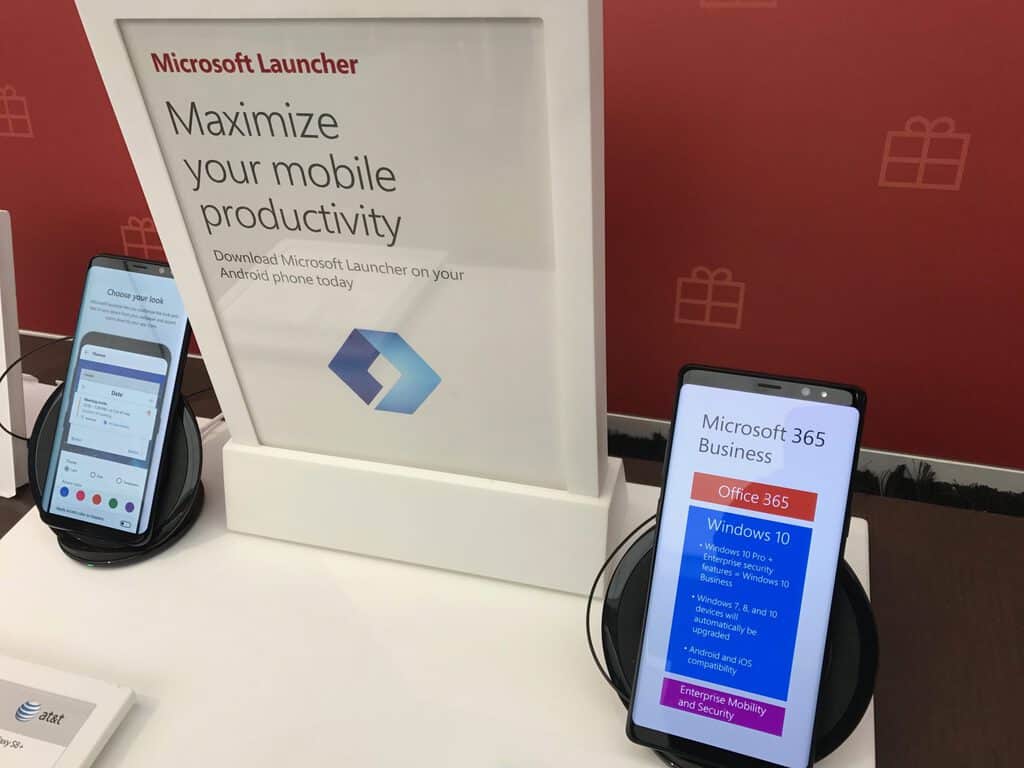
Over the past few months, Microsoft has introduced many new features to the Microsoft Launcher app on Android. Back when I was an Android user, I never really used Launcher (then called Arrow Launcher) because it wasn’t so integrated with the Windows or Microsoft ecosystem.

Now that I’m full-on iPhone, I look out and see that Microsoft Launcher on Android has come a long way— and is another selling point for Windows users to enjoy Microsoft experiences on the go with Android.

Currently, with my iPhone, most of my Microsoft integrations have to be done via an app. If I want to continue working on a Word Doc, I need to open the Word app. If I want to see that screenshot I took on my Windows 10 PC, I need to open OneDrive.  And, if I want to run Bing searches, I need to download the Bing app. Simply put, in iPhone, there are no proactive suggestions or ways to get your Microsoft content more easily.

So, like my colleague Kareem Anderson points out, I’ll say that Microsoft Launcher has more of what Windows and Microsoft fans want. The features from Microsoft Launcher listed below are just a few reasons I want to give up iPhone for good.

  • Integrated Cortana that’s much more useful and accessible than a stand-alone alone iPhone App
  • Fluent Design and more ways to customize wallpapers, icons, and the phone folders
  • Proactive suggestions, and ability to directly pick up files where left off without having to leave the Launcher experience to go searching
  • Continue files opened on Android on Windows 10 PC
  • Sync clipboard from latest Windows 10 Insider builds on PC to your phone
  • Bing directly integrated with the search bar

Again, this is Apple’s proprietary ecosystem striking back at me here. Yes, I can access my Microsoft stuff on iPhone, but it has to be done via an app. It’s not exactly a convenient proccess. Nothing Microsoft is built in or integrated into iPhone like how Apple integrates its services to their device.

Microsoft Launcher

You can *sorta* turn Android into a Microsoft Phone

I already pointed out how to turn any Android phone into a Microsoft Phone, but the same can’t be said for iPhone. Just like I’ve said above, Apple’s locked down system means and I can’t switch out of Apple defaults on my iPhone. It’s something that always bothered me, and another reason Microsoft is making me want to go back to Android.

Anyway, with Android, I can easily blank out Google and sorta switch to an all Microsoft phone if I wanted. Indeed, though some Google or Samsung apps or services are locked down and hard to get rid of, there are some workarounds with Microsoft Launcher. The list below covers the ways I’ve done this.

  • I can change my App Defaults so Edge is my default browser for a more Microsoft-centric experience on Android.
  • I can open the app drawer on Microsoft Launcher, press the “…” on the top, and then press on “Hide apps” to and hide certain Google apps and the other non-Microsoft which I may not be using.
Hiding apps on Microsoft Launcher

Staying on iPhone for now— maybe

We’ve all heard the rumors Microsoft is working on some sort of “Surface Phone” device, so, for now, my iPhone is somewhat good enough for me. If Surface Phone rumors hold up to be true, soon there might not be a need to worry about iOS or Android at all. And, like with Windows 10 Mobile, Microsoft may just release its own device with its own services and integrations built in. If that happens, I’ll be switching back, not to Android, but to Windows for my mobile needs.

But looking at things right now, I really do enjoy the peace of mind, performance, and security of the locked down iOS ecosystem, not to forget iMessage. It is a bit frustrating to not have it so heavily integrated with Microsoft stuff like on Android, but it is a good thing for the security of the iOS platform.

All platforms on mobile

At the end of the day, there is some sort of evolution going on at Microsoft. The company is clearly trying to be a cross-platform kind of company now that it has no mobile phone platform of its own. But Microsoft’s apps and services don’t work as well on iPhone as they do on Android because Apple won’t fully let them into the locked down ecosystem of iOS. I’ll be keeping all this at the back of my head, so feel free to let me know if you agree with me by dropping us a comment below.

Manage Music, Video Collections in Windows 10, Windows 8 with MediaMonkey [App]

As your media collection grows ever bigger, so is the need for a media organizer that can allow you to quickly find any track you want or any video that you have stashed away in a corner of your hard drive. While iTunes and similar products are great for desktop use, in Windows 10, Windows 8, users are somewhat limited.

There is, however an app that can help them organize music and video collections on their Windows 8, Windows 10 devices with ease. MediaMonkey is one of the best apps that can help Windows 8, Windows 10 users to manage all their media. Within this one app, you can easily see all your music and videos and manage them as you see fit.

MediaMonkey for Windows 10, Windows 8 [Review]

manage-organize-music-video-collection-windows-8-media-monkey-app (11)

This free app is one of the best media organizers I’ve seen in a while, and while it only allows users to manage videos and music (including audio books) and not photos, it still is a great app to install if you want a good music/video player that keeps your collection in order.

manage-organize-music-video-collection-windows-8-media-monkey-app (1)

The app itself is pretty simple, although having it to sync you music from different folders is not done automatically and you will need to fiddle a little with the settings. The user interface is pretty simple to use, having a simple menu that will allow you to go to any feature that the app provides.

manage-organize-music-video-collection-windows-8-media-monkey-app (2)

On the Home menu, users will see a Library section, where they can access different folders, such as Artists, Albums, Genre, UPnP (Universal Plug and Play), Videos, Audio Books and Podcasts. The UPnP function is for attaching DLNA devices to stream music or videos wireless to other compatible devices.

manage-organize-music-video-collection-windows-8-media-monkey-app (3)

The Podcasts and Audio Books sections are for adding your own files, as they do not provide downloading services. Nevertheless, if you are a Podcast listener, then you can Sync your download folder to MediaMonkey for Windows 10, Windows 8 so you can listen to them via the app. The same is true with Audio Books.

manage-organize-music-video-collection-windows-8-media-monkey-app (7)

Videos are neatly sorted via name and they all have a thumbnail so you can get a little preview of each before you open them. The app uses the default Windows 8, Windows 10 video player, this helps with keeping the app lightweight.

Most of you will probably use the app for organizing listening to music, so, the most important part for you is the music player. If this is true, then know that the music player is vary basic in looks, but it still provides all the features that any other player will do. Also, the user interface of the music player is very well designed.

manage-organize-music-video-collection-windows-8-media-monkey-app (4)

The main part of the screen is occupied by the track list and on the left you have the album art (if available), rating, information on the current track and on the bottom of the screen, you can see a VU meter and the play controls. The equalizer can be opened by right clicking on the top of the screen (or swiping down from the top).

manage-organize-music-video-collection-windows-8-media-monkey-app (5)

When you do this, you will see some other functions, like Play All, Shuffle All, Open File, Equalizer and Sync. On the other side of the menu, you can find the Select All button, used when performing bulk operations. Also, when you want to exit the player menu and browse other parts of the app, you can press the Home button at the top right corner and it will minimize the player to the bottom part of the screen.

manage-organize-music-video-collection-windows-8-media-monkey-app (6)

Adding specific folders to the app is done via the Settings Charm. Go to the Scan for Media portion and using the Add Folder button, you can browse your device for the folder you want to sync. From here, you can also remove folders if you want.

manage-organize-music-video-collection-windows-8-media-monkey-app (10)

Overall, MediaMonkey is a great music and video organizer app for Windows 10 Windows 8, allowing users to keep their media collection tidy. Also, thanks to the possibility to add Podcasts and Audio Books, MediaMonkey for Windows 10 Windows 8 has more functionality than your average music player. I loved testing the app and I hope you will like using it.

[UPDATE] MediaMonkey is currently not available in Microsoft Store, but you can download the program from its official website and run it on your Windows 10, 8/8.1 without any compatibility issues.

However, there are some good alternatives to MediaMonkey, if you would rather go for a native app to organize music and videos on your Windows 10, 8/8.1, or if you have no other choice than using apps from Microsoft Store (that goes for Windows RT users).

Alternatively, you can try Foobar2000 or MusicBee to manage music and videos. Recently, iOS fans can now download iTunes from the Microsoft Store and use it as their main music player.

RELATED ARTICLES TO CHECK OUT:

Xbox to sponsor first ever Special Olympics video gaming tournament

eSports has become a burgeoning talking point for gaming. Be it investments, studio development or publishing participation, the topic of electronic sports has been all the rage recently.

With the popularity of eSports growing over the past couple of years, so too has the spotlight of its inclusionary nature, so much so, that Microsoft is now partnering with the Special Olympics USA Games to host its first-ever pilot video gaming tournament at the USA Games in Seattle.

As a premier partner with the Special Olympics Microsoft is looking to bridge the rich communities of both gaming and people who participate in the Special Olympic games, together with the new Xbox Gaming Tournament this year Monday, July 2, at the University of Washington.

“Many of our athletes are avid gamers and research indicates playing video games can potentially boost cognitive and motor skills of people with intellectual disabilities,” said Beth Knox, President and CEO of the 2018 Special Olympics USA Games.  “We are thrilled to partner with Xbox to bring the first-ever video gaming tournament to the USA Games. We hope everyone will come out and support the competitors in this pilot event.”

The tournament will be held at the University of Washington Husky Union Building from 1:00 pm to 4:00 pm in the Lyceum room. Last month, Microsoft held Forza Motorsport 7 qualifiers at its national stores and selected eight teams that had houses both athlete-players with and without intellectual disabilities.

While the eight teams battle it out for top rankings, Microsoft will also be featuring additional gaming stations for fans who want to do more than just watch their favorite teams. The 2018 USA Games Fan Zone, located in the Northwest Plaza at Husky Stadium will host playable games such as Forza Motorsport 7, Minecraft, and Super Lucky’s Tale all week long.

Xbox One Preview Alpha build 1806 brings game groups & multiple Wi-Fi options

Microsoft is pushing out a new build for Xbox Insiders in the Xbox One Preview Alpha Ring today. The build is described as the 1806.180517-2122 system update and it will bring support for a range of new features to consoles such as app and games groups, better search, more accessibility options, and the ability to save more than one Wi-Fi password on an Xbox One console.

It’s important to note though that while this update adds support for these features, some of them may not be enabled immediately and could appear days or weeks from now.

Here’s the official list of new features with this update.

Group Your Games and Apps

With so much content available, fans have asked for more options to organize libraries of games and apps.  Today, we’re introducing a powerful new enhancement to Pins, which we call “Groups.” With Groups, you can create multiple collections of content made up of anything from within My Games & Apps. You can also assign custom names to each Group, organize and order them, and add individual Groups to Home. Groups will appear across My Games & Apps, Home and Guide, so you’ll be able to access your Groups at a moment’s notice. Best of all, Groups are tied to your Xbox Live account, so they will automatically sync across multiple Xbox One consoles. We’ve started you off with a Group that should look very familiar — your Pins!

Improved Search Functionality

Searching for content is now even easier!  Now pressing the Y button anywhere in the dashboard will bring up the search dialog.  This process is found in many apps, but now you can do it anywhere within the dashboard.  Not seeing enough results for your search? Hit enter or click the “more results” button to view a full page for your search results.

Multiple Wi-Fi passwords

The team at Xbox wants to enable gamers to hop online and play with ease.  This feature enables users to store multiple Wi-Fi passwords on their console.  This will make jumping between networks even easier and give you even more reasons to pack your Xbox on your next vacation!

Additional Accessibility Options

The Narrator feature on Xbox One now supports five additional languages, including Spanish, Portuguese, Polish, Swedish, and Dutch. We’re also adding an Australian version of English language for Narrator, so Australian users will no longer have to select US or UK English in order to use Narrator.

Improvements to Family Settings

New features will allow for the right experience for child accounts.

Experiments

A subset of Xbox Insiders may see some experimental features in addition to what’s listed above.  These are designed to gauge interest and solicit feedback from a more focused group.  For example, some users will be able to share game-specific stats amongst your friends right on your home page.  While others may find greater functionality within Clubs.

This update also fixes a variety of issues affecting Game DVR, Groups, Microsoft Edge, and system performance.

Have you installed this update yet? Let us know what you think of these new features in the comments below and don’t forget to follow us on Pinterest for more Xbox One content.

FIX: Set as Desktop Background not working in Windows 10/11

Setting your desktop background is an essential part of the Windows platform from its incidence back in the 90’s. However, apparently, there are issues concerning this simplest operation on Windows 10. Windows 10 offers a lot of improvements even in this area, but all that goes in vain if users are unable to set an image of their choosing as the desktop background.

In order to address this annoying error, we enlisted the most common solutions for the issue. In case you’re, after several attempts, unable to resolve set the background of your choice, make sure to check the list below.

How to resolve desktop background error in Windows 10

  1. Make sure the background file is supported and not corrupted
  2. Check Ease of Access
  3. Check the Group Policy
  4. Delete the corrupted files
  5. Make sure that the Power options comply

1: Make sure the background file is supported and not corrupted

First things first. There are various reasons why Windows won’t accept one of the most common operations there is. And we need to start with the elementary steps. We need to you to make sure that the image file at hand isn’t corrupted and that is, in fact, supported by the system itself.

We recommend sticking to standard image formats, JPG or PNG. In addition, make sure that the file is accessible and not corrupted. Corrupted or incomplete files, as same as the unsupported formats, can’t be applied as desktop background wallpapers. The image at hand should be easily accessible so we recommend creating a separate folder for all rad background wallpapers you want to use in Windows 10.

2: Check Ease of Access

Ease of Access is there to make the user experience as best as possible. And, with a few tweaks here and there, it really does. However, there’s also an option which, if enabled, prevents changing the desktop background. This feature’s main use is to relieve you of unneeded background switching while reading or focusing on the task.

This might work for some of us, but if you’re a background aficionado and want that wallpaper changed right away, we recommend disabling it right away.

Here’s how to do it in a few simple steps:

  1. In the Windows Search bar, type Ease and open Ease of Access settings.set as desktop background not working windows 10
  2. Scroll down and click on the “Make it easier to focus on tasks” section.set as desktop background not working windows 10
  3. Confirm that the “Remove background images (where available)” box is unchecked.
  4. Confirm changes if needed and close the Ease of Access settings.
  5. Try setting the desktop background again.

3: Check the Group Policy

Finally, similar to the Ease of Access options, Group Policies can prevent the change of the current active wallpaper. This requires an administrative permission and it can be easily done. The option at hand is to be found under the User Configuration submenu, and once you know the path — the rest is rather simple.

Here’s how to make sure the Group Policy isn’t blocking desktop background:

  1. In the Windows Search bar, type Group and open “Edit group policy” from the list of results.
  2. Under User Configuration, expand Administrative Templates.set as desktop background not working windows 10
  3. Further, expand Control Panel and then click on Personalization.
  4. Finally, open Prevent changing desktop background in the right pane.set as desktop background not working windows 10
  5. Make sure this option is either Disabled or Not Configured.

4: Delete the corrupted files

Another thing worth checking is the “TranscodedWallpaper” file which often gets corrupted. Also, it’s worth resetting the Slideshow configuration which resides in the same folder. Once you’ve done that, just restart your PC and try setting the desktop background again.

This is the fastest way to locate it and address the possible corruption:

    1. Copy-paste the following input in Windows Search bar and press Enter:
      • %USERPROFILE%AppDataRoamingMicrosoftWindowsThemesset as desktop background not working windows 10
    2. Right-click on the TranscodedWallpaper and rename it. Add .old at the end, so it should read like TranscodedWallpaper.old.set as desktop background not working windows 10
    3. Now, open the slideshow.ini with Notepad, delete everything inside the file and save changes.set as desktop background not working windows 10
    4. Restart your PC and look for resolution.

After that, you should be in the clear and every new single-image or slideshow configuration should work without any issues.

5: Make sure that the Power options comply

Finally, the one remaining thing you need to check concerns the Power Options configuration and the slideshow mode. One of the options will, by default, disable the background slideshow mode in order to preserve power while on a battery charge. We’re aware that sometimes every extended minute counts, but have in mind that this (of all others) background operation won’t consume too much of the battery power.

Here’s how to disable power saving in Advanced Power settings:

  1. Type Power in the Windows Search bar and open Edit power plan from the list of results.set as desktop background not working windows 10
  2. Click on the “Change advanced power settings” link.
  3. Expand Desktop background settings > Slideshow.
  4. Set “Available” for both power options and confirm changes.set as desktop background not working windows 10

That should do it. In case you have any questions or suggestions concerning the issue we tried to address today, feel free to share them with us. You can do so in the comments section below.

RELATED STORIES YOU SHOULD CHECK OUT:

Download Free HD Wallpapers on Windows 10/11 with this App

Many of us use dedicated websites to download quality pictures, and even more, we go the old-fashioned way and use Google.

But for Windows 10 users, there’s an even better tool that can help them download high-quality wallpapers that they can set as their lock screen or account picture or even keep them to create their own collections.

The tool is called Backgrounds Wallpapers HD and can provide users with awesome wallpapers. Also, the app has some extra features that will make users attached to it. Although different from the Picfinity app that we reviewed a while ago, it is still a great app to have.

Backgrounds Wallpapers HD: What does it offer?

1. Features

download-free-hd-wallpapers-windows-8-backgrounds-wallpapers-hd-app (1)

It certainly looks this way. While we tested this free app, we loved it more and more, and after seeing what it can do, we’re sure that everyone will love it as well.

First of all, even though the app is free and has an unlock feature, not one ad appeared the entire time I tested it.

download-free-hd-wallpapers-windows-8-backgrounds-wallpapers-hd-app (3)

Once you’ve installed the app, you will see a start screen with a menu called Main Actions that shows the different features it provides. From here, users can see:

  • Most Popular Wallpapers
  • Newest Added
  • Wallpaper of the day, which is picked according to the number of times it has been used or added to favorites
  • Random Wallpaper
  • Wallpaper Contest, where users can see the nominations for the weekly best wallpapers
  • Slide Show  – Users can create their own slideshows either with wallpapers that they have added to their favorites or with random wallpapers
  • App Setting, which can also be accessed via the Settings charm, and where users can turn off or on different app functions or change the theme
  • Manage Favorites and Tasks
  • Remove Advertising
download-free-hd-wallpapers-windows-8-backgrounds-wallpapers-hd-app (12)

If you were wondering what the Tasks button does, well, it allows you to schedule the app to change your lock screen with random wallpapers, wallpapers from your favorites, or from the daily best wallpapers.

This feature is great for those who want their Windows 10 device to look different every time they use it or if they want to always be on the lookout for an awesome image.

2. Interface

download-free-hd-wallpapers-windows-8-backgrounds-wallpapers-hd-app (7)

The main menu can be scrolled to the right, and users can see different categories of wallpapers. The first one is Popular, and once they open the category, they can see a list of images that they can open and view.

download-free-hd-wallpapers-windows-8-backgrounds-wallpapers-hd-app (6)

Further along the menu, users have the New section, Wallpaper of the Day, Weekly Wallpaper Contest, or wallpapers sorted by different criteria (animals, abstract, cars, etc.).

3. How to use

Once you’ve opened an image, you can then browse the gallery by tapping or clicking on the arrow icon on each side of the image. At the bottom, you have some options for using the wallpaper. These are as follows:

download-free-hd-wallpapers-windows-8-backgrounds-wallpapers-hd-app (5)

  • Save to Pictures – By pressing this button, you save the wallpaper in your My Pictures folder. You can find it there at the same resolution as you saw it in the app, and without any watermark
  • Preview Lock Screen – Using this option opens a lock screen window with the selected image, so you can have a preview as to how it will look if you use this image
  • Set as Lock Screen – This will set the current image as your Lock Screen
  • Set as Account Picture – This option changes your account picture to the one that you are viewing
  • Add as Favorite – Add the current picture to your favorites folder, from where you can create a scheduled task or a slide show
  • Home – Returns you to the main menu of the app
download-free-hd-wallpapers-windows-8-backgrounds-wallpapers-hd-app (4)

Users can also search for wallpapers with the help of the Search Charm from Windows 10 OS, a feature that makes browsing much easier, mostly when you are interested in only one type of picture.

If you are a designer, you can also send your own pictures to the developer via email, and he will add them to the app.

download-free-hd-wallpapers-windows-8-backgrounds-wallpapers-hd-app (8)

Overall, the app has a very sturdy build. I had no problems with it during the tests. Browsing is pretty fast, but it depends on your Internet speed.

Having these great features and quality content, Backgrounds Wallpapers HD is one of the best image apps I’ve had the pleasure to review in a while!

download-free-hd-wallpapers-windows-8-backgrounds-wallpapers-hd-app (10)

Backgrounds Wallpapers HD: Verdict

All-in-all, the Backgrounds Wallpapers HD app boasts features that make it an interesting option for all Windows 10 users. Also, the app recently received a series of updates that fixed some minor bugs and added new features to the table, such as:

  • You can now sync your favorite wallpapers with your Windows Live ID
  • You may also search and save your wallpapers
  • Wallpaper preview
  • Weekly wallpaper contest
  • Wallpapers of the day section

So, you can always go for it to explore limitless wallpapers.

⇒ Download Backgrounds Wallpapers HD

Microsoft Launcher revisited: Hey, this thing is really good!

Microsoft may have given up on the dream of people cradling 6-inch pieces of glass and metal with their company name plastered on the back but the fantasy of having their presence front and center on those handheld devices is perhaps more alive and well than it has been in recent years.

Thanks to some clever development from their Garage team, Microsoft managed to finagle its way onto some Android phones via a customizable home screen launcher and over time, the company’s launcher experience has become as fluid and useful as any native OEM customization of Android.

I’m going to lay it out there, the Microsoft Launcher isn’t the second coming of Windows Phone, nor has it been a sunshine and rainbows experience through its years of development but for the 15 million plus users who seek a bit of Microsoft refuge from the seeming inflexibility of the modern smartphone duopoly landscape, some of the updates recently brought to the launcher are a welcomed eschewal.

My Launcher Experience

During my time with my Lumia 950, I flirted with the purchase of a couple of low-cost Android phones (so it wouldn’t really count as cheating) and one of the first things I did was replace my relatively minimal Moto G 4 Play skin with the Arrow Launcher, at the time. I used the Arrow Launcher for testing and reporting purposes. I had no real attachment to the launcher and it didn’t serve as an everyday tool for me, so when things would glitch or break on the launcher, I would simply toss the phone in the drawer and chalk it up to poor development and go on enjoying my Lumia 950. It was easy to forget about the Arrow Launcher, as its limited ties into other Microsoft services were overshadowed by my newfound appreciation of access to a sky-high wall of apps experiences that were missing from my Lumia 950.

Then Mr. Windows phone death himself, Joe Belfiore, came back from hiatus and drove the final nail in the OS’ coffin, I was forced to reevaluate the future of my smartphone experiences.

After I cycled through my five steps of grief (a couple of times over), I finally made took the plunge and bought myself a Samsung Galaxy Note. While the rationale might seem irrelevant now, I justified my purchase at the time by claiming some future-proof nonsense that corresponded with its pen functionality. If I was going to leave my Lumia 950, it was going to be for a smartphone that could not only do more but help condense my tech load. I don’t use pen enough to warrant the purchase of a Surface Pro but I didn’t want to miss out on the few opportunities for pen interaction that could arise, such as signing documents, highlighting stuff in images, or when the weather is too cold to use an exposed fingertip (visiting the in-laws in New Hampshire during winter), so the Note 8 it was for me.

I tried using the Samsung Experience for as long as I could before I started seeing ads for the new round of Pixel devices. There was just something about the marketing material that had me envious of that particular home screen layout; the button placement, the look of icons etc. So I went foraging through launcher experiences trying to replicate the look and feel of a Pixel on my Note 8. At times, I had a pretty close replica of the Pixel experience on my Note 8, but with launchers, that experience came at the expense of speed, bugs, and general glitches that ultimately were just off-putting.

Switching back to the Samsung Experience, I still felt there was something lacking despite the launcher being a pretty fluid and straightforward experience. I couldn’t make good use of Bixby (took too long to accumulate points), I didn’t like the folder or icon layouts, and it didn’t offer any overt advantages to my mostly Microsoft-tied smartphone lifestyle, but my memories of the Arrow Launcher on my Moto G, kept prevented my fingers from pressing that install button; that was, until Build 2018.

Back In The Fold, Build 2018

During Microsoft’s developer conference this year, the company showcased its revamped Arrow Launcher, now called Microsoft Launcher, and a handful of tweaks that will make my time on either my Note 8 or Windows 10 PC feel native on both devices, so I downloaded and installed it.

Microsoft Launcher is a vastly improved experience over what I tested a year ago. Perhaps, with the full support of the company now behind the development, the developers are free to implement and deliver updates much quicker and add newer features at an accelerated pace. In the version of the Microsoft Launcher that I am using (non-beta, I would assume), the level of customization has been greatly improved:

  • Allowing users to set themes and get as granular as opacity, blur, accent and header colors.
  • Determine the shape and color of app folder, allowing users to opt for a more rounder folder look rather than the standard rounded-square iPhone-esque folders used in the original Arrow Launcher
  • Tweaks to the dock that allow system-wide sizing of the icons and use of icon packs if when available on the device.
  • The App drawer can now be viewed/scrolled vertically AND horizontally for people trying to make the use out of smaller screen devices.
  • A list of programmable gesture shortcuts that enable users to apply quick launch actions to double taps, multiple finger scroll
  • Bing search has been expanded to include vision and voice
  • Sort folders alphabetically (for the real anal retentive types)
  • Sort app drawer alphabetically (this just makes sense)
  • The ability to set Cortana as default search engine as well as the default digital assistant on the phone was a nice bonus.

Beyond some of the tweaks to the existing Microsoft Launcher framework, some newer features that lured me back into the fold were the adjustments for Clipboard, Timeline (TM), search features built into the camera, and the inclusion of Microsoft Rewards integration.

Now I can use the Clipboard feature recently developed into Windows 10 to bring a direct copy/paste of content straight to my phone with no need for an extra pasting app or paying for a 3rd party services or keyboard to fulfill my data transfer needs, sorta like using Edge’s Read Later feature across device ecosystem.

I haven’t been able to try Timeline yet in this latest review of Microsoft Launcher, but it sure looks pretty damn interesting.

However, when I’m connected to both Microsoft Launcher and my Microsoft account, I’ve been able to rack up 3,100 points for Bing Rewards over the last week as I funnel most of my searches through Bing. Part of the secret sauce of Microsoft Launcher for me has been going back to using the Bing app and search service on my phone. I was previously using Google on my Note 8 as Bixby search seemed amorphous and lacking to me. But now, with Microsoft Launcher and the Bing app, the search experience on my Note 8 feels just as native, functional and useful as Google and Google Assistant.

Tossing the Bing search Bar to the top of the home screen has prompted me to use Bing far more than I did with the Google Search Bar planted firmly at the bottom.

For me, the bottom line has been that Microsoft has finally put some considerable resources behind its new approach to mobile. Not to speak ill of the dead, but for the last year or so, Microsoft’s mobile efforts have been centered around tangential app offerings and with the new Microsoft Launcher, it finally seems that the company has found the necessary webbing to pull all of its mobile offerings together.

Microsoft Launcher
Microsoft Launcher
Price:
Free

What are the best Windows 10/11, 8 news apps to use?

These are some of the best news apps for your Windows 8, Windows 10 device. Check out the app descriptions and install the one that best suits your needs.

If you’ve tuned in the past, you that we have talked about some great news apps that you can use on your Windows 10, Windows 8/RT devices to get the latest headlines. However, there are some pretty awesome apps out there that we haven’t had the chance to review.

Today we’ll bring you a few other Windows 8, Windows 10 news apps that will certainly be to your liking, especially if you “technologically inclined”. As you will see, some of today’s apps offer customization as their best feature, while others can be used only how the developer created them. Different approaches, but equally good apps.

Windows 8, Windows 10 News Apps [Previous reviews]

best-windows-8-news-apps-free

If you didn’t have the change to see our past reviews of Windows 8, Windows 10 news apps, let me give you a short recap before we take a look at today’s choices, maybe some of these apps will be perfect for what you need, or, they might go well with today’s apps:

  1. Read News in Style on Windows 10, Windows 8 With NewsBento Aggregator
  2. Financial Times App for Windows 10, Windows 8 [Review]
  3. ESPN App for Windows 10, Windows 8/RT [Review]
  4. Check Your News With CNN App for Windows 10, Windows 8

And while these apps are very good for providing users with the latest headlines, there are others just as good out there, and you have the right to know about them before you choose which of them will be tasked with keeping you informed of the latest news from all over the world.

Here are the best Windows 10, 8 news apps to download

In addition to the apps that we’ve previously reviewed, there are some others that deserve your attention if you wish the get the best news as they surface on the web. Some of them might be familiar to Android or iOS users, as they have seen great success on the other mobile platforms.

1. Appy Geek

appy-geek-best-windows-8-news-apps-free

Appy Geek is a favorite among technology fans. This Windows 8, Windows 10 news app provides the latest headlines from all the major websites in the world. And while users cannot add their own subscriptions, the ones that are provided by the app are more than satisfying. Users do however have the possibility to add their own preferred topics to the app and receive notifications when a news item has appeared in that topic.

Also, its extremely well designed interface helps users manage their topics as they want. Each topic comes in the form of a tile, which can be re-sized and re-arranged, allowing everyone to set the stage for the most important news to be shown first. Overall, the quality of Appy Geek is flawless, which is something we’ve come to expect from the versions that work on the other mobile platforms.

2. Appy Gamer

appy-gamer-best-windows-8-news-apps-free

As you might have guessed, Appy Gamer is the gaming version of Appy Geek. In terms on features and design, the app is identical, the only difference between the two is the background and the sources for the stories. While Appy Geek is more focused on general tech websites, Appy Gamer is a Windows 8, Windows 10 news app solely dedicated to gaming.

If you want to be kept in the loop with all the newest headlines on games and other related topics. The build quality of the app is exactly as good as the other products developed by Mobiles Republic, which has become a pretty big name in the news app sector. We applaud the determination and focus on details that these fine developers have put in their apps.

3. News Republic

news-republic-best-windows-8-news-apps-free

Closing the loop of Window 8 news apps coming from Mobiles Republic is News Republic, which is a yet another flavor of the two apps we’ve already seen. This one provides users with general news from around the world, not so much specialized as Appy Geek or Appy Gamer, but still, it gives users the same great features and all of this, wrapped in the same awesome design.One thing that we likes very much about these apps is the fact that even though they are free, they do not have ads or any other promotional material within them.

This makes the app look very good and with the added benefit of allowing users to customize the size and position of the tiles, it makes for a gorgeous app. Also, in terms of content, rest assured that the developer team is always adding new sources once they think that these can be trusted and that they produce quality stories.

4. News360

news-360-best-windows-8-news-apps-free

Bringing a twist to the way we perceive news apps, News360 provides some awesome features to their users. It is one of the few apps that actually learns what you like and actively filters the news feed in order for you get only the headlines that matter to you. This feature is unique among Windows 8, Windows 10 news apps, and we’ve like to see more apps that have this so called “artificial intelligence” that searches for interesting news.

The user interface of the app is also in its advantage, providing users with an easy to read and easy to follow feed. It seems that the developers have put a lot of effort in making News360 a state of the art news app in all aspects. Also, if you have other mobile devices running on different operating systems, you can sync your preferences on all of them with a simple log in. For this, you must create an account at their website and upload your preferred sources.

5. News Bento

news-bento-best-windows-8-news-apps-free

If its style and a classy design you are looking for, then News Bento is the best app for you. Although I said the other looked good and have awesome designs, they pale in comparison to this one. Probably one of the most gorgeous Windows 8, Windows 10 news apps I’ve seen so far. Also, this app has more than looks on its side: it has some great feature as well.

Integration with Facebook is the first thing that this app provides, which makes sharing easy, also, for a more customized news feed, you can connect your News Bento app with your Google Reader (at least for now, while Google Reader is still available)account and get news that interest you the most. For a free app, News Bento offers quite a lot.

UPDATE: News Bento is no longer available in the Microsoft Store.

6. MSN NewsMSN News windows 10 news app

MSN News brings you the latest world news from the best sources on your Windows 10 computer. The app is also compatible with HoloLens and Windows phones.

There are several news categories available and you can select the one that matches your interest: Top Stories, US, World, Money, Sports, Opinion and more. You can also fully customize your News Page by choosing the topics that you’re interested in.

Of course, there are other very well designed news apps, and many more will come in the neat future. However, we feel that these awesome Windows 8, Windows 10 news apps will keep you informed about every event that has happened in the world, regardless of field it comes from, be it politics, financials or technology. Also, if you know other good news apps, we urge you to leave a comment and we will try to add them to our list as soon as possible.

RELATED STORIES TO CHECK OUT:


Windows 10 April Update installs on Intel SSD computers

On Reddit, there’s a thread about the Intel SSD issue on Windows 10 version 1803.

One user claims that the update finally showed up on the Surface Laptop, which we already know was on the block list, among other devices.

On the other hand, one other user who says runs Intel SSD, P600 256 GB claims that there are no issues with Windows 10, version 1803.

No issues with build 1803 (I updated as soon it was released.) It didn’t even know there were issues with Intel SSDs and I even have BitLocker enabled. Everything works.

KB4103721 triggered the problem

windows 10 april update intel SSD install


Looking for the best tool to fix Windows Update issues? Here are our top picks.


Many users suggested that update KB4103721 caused the compatibility issues between Intel SSD machines and the April Update.

Just to refresh your memory, here’s what Microsoft posted on the company’s support page about the May 8, 2018—KB4103721 (OS Build 17134.48):

  • The issue that used to cause some devices to stop responding or working when using apps, such as Chrome or Cortana after installing Windows 10 April 2018 Update was fixed.
  • The problem that prevented some VPN apps from working on builds of Windows 10, version 1803 was also fixed.
  • Problems involving updated time zone data were resolved as well.
  • The issue that might have caused an error when connecting to a Remote Desktop server was fixed.
  • The build includes security updates for Windows Server, Microsoft Edge, Internet Explorer, Microsoft scripting engine, Windows app platform and frameworks, Windows kernel, Microsoft Graphics Component, Windows storage and filesystems, HTML help, and Windows Hyper-V.

Known issues triggered by KB4103721

Among the problems that are triggered by the update, Microsoft noted that:

When attempting to upgrade to the Window 10 April 2018 Update, select devices with Intel SSD 600p Series or Intel SSD Pro 6000p Series may repeatedly enter a UEFI screen after restart or stop working.

The company also provides the workaround, saying that they’re working together with OEM partners and Intel in order to identify and block devices with Intel SSD 600p Series or Intel SSD Pro 6000p Series from installing the April 2018 Update.

Well, judging by user reports, it seems that Microsoft managed to fix this problem.

The company has yet to officially confirm the information, so this also leads to a new conclusion: perhaps Microsoft experimentally pushed the hotfix to a few users so as to make sure that it actually works.

RELATED STORIES TO CHECK OUT:

Best free recipe apps for Windows 10/11 to cook like a chef

With the right recipe apps, your Windows 8.1, Windows 10 tablet can become a real cooking book. We have included below one of the best Windows 10, 8.1/RT recipe apps for you to use. Bon appetit!
windows 8 cooking apps
Let’s face it, not anyone can cook fancy meals and complex dishes. However, having a recipe book handy might help you create a dish that you couldn’t have imagined doing. Also, even experienced cooks, sometimes need a recipe book, just to refresh their memory.

But thanks to the continuous advance of technology, recipe books have somewhat been replaced by recipe apps, and Windows users can use such recipe apps with great ease.

Today, we’ll be taking a look at some great recipe apps for Windows 10, Windows 8.1/RT that will give you a helping hand in the kitchen. They will allow you to find awesome recipes that you can trey and create, as well ass give you information on how to cook them.  In some cases, you will also have the the possibility to add your own recipes so other can try them.

Best Windows 10, 8.1 Recipe/Cooking Apps

  1. Allrecipes
  2. So CookBook
  3. Recipe4share
  4. Sweet’N’Spicy
  5. EatItalian
  6. Recipe Shows
  7. PetitChef
  8. BigOven
  9. Epicurious

You don’t have to be a gourmet chef to cook a fine dish. All you need is to have the right ingredients and to have a guide to show the steps. With these recipe apps, you will have all that information so you can impress everyone who comes to your house for dinner.

1. Allrecipes

best-windows-8-recipe-apps-cooking-apps (1)

Probably one of the best Windows 8, Windows 10 recipe apps of all is Allrecipes. This app offers users a perfect balance between design and functionality as well as an impressive number of recipes. From the start, you are greeted by a main menu that features recipe ideas or a filtering option based on ingredients.

The filtering menu can be refined after choosing the main ingredient by adding other ingredients and you also have the option to search recipes that do not contain a certain ingredient.

The number of recipes pretty impressive, and the way you search for them is also unique and very good. I would like to see this system implemented by other developers, as it puts complete control of the results in the hands of the user. There is no support for video, which would have been a awesome addition to the app, but it does provide the possibility to rate and review each dish.


2. So CookBook

best-windows-8-recipe-apps-cooking-apps (4)

CookBook is one of the best looking Windows 8, Windows 10 recipe/cooking apps you will find. But besides its looks, it also features lots of recipes for diverse dishes, all categorized into menus such as Main Courses, Deserts, Salads and others.

Each recipe is very easy to follow, having a panel with the ingredients needed, and one that shows the cooking process step by step. Users can also comment on recipes and if they want, they ca upload their own.

Overall, CookBook is a very well designed Windows 8, Windows 10 recipe app, with great content and a very neatly designed interface. Users that want to easily find different recipes will be pleased with it and if you also want to share your own creations, than you will find CookBook a perfect addition to your Windows 8, Windows 10 device.


3. Recipe4share

best-windows-8-recipe-apps-cooking-apps (5)

While other Windows 8, Windows 10 recipe apps try to impress users by having complex designs and over the top graphics, Recipe4Share is more focused on content and the easiest possible way to give the user what he wants. While the app does not have too complex graphics or beautiful backgrounds and transitions between menus, it does however have a simple and intuitive user interface that allows everyone to find the information that they want.

The app’s menu is divided into categories of dishes, starting from Main Courses, Appetizers, Deserts and all the way different types of drinks or other interesting types of food.Each of these categories has a Top and New section, so users can find the best recipes or the newest added, which they can try.

The information for all dishes is very well structured and easy to follow. Users can also upload their own recipes. I think that Recipe4Share has the potential to be one of the best recipe apps for Windows 10, Windows 8.

Although a few modifications in the design department would benefit the app, and the addition for videos would also have a big impact. Nevertheless, I feel that anyone would greatly benefit by using Recipe4Share, and it can prove to be of great help in the kitchen.


4. Sweet’N’Spicy

best-windows-8-recipe-apps-cooking-apps (2)

A simple app that provides users with lots of interesting recipe that they can try is Sweet’N’Spicy. The app’s user interface is well designed, the transition between menus is very fast and the overall layout is easy to use.

The users have many recipes at their disposal, however, they are not described as well as they are in other apps. Nevertheless, they provide all the information you need, so you can make some awesome dishes.

You can also do a search of the app for recipes that are made with different ingredients. This feature is accessible via the My Kitchen tab, and it provides a great addition to the app, as it lets you look for recipes that are created with anything you have lying around your kitchen.


5. EatItalian

eatitalian cooking app

If you love Italian food, then this is the right cookbook app for you. EatItalian features some of the best and most popular Italian recipes. Follow the cooking instructions available in this app and learn to cook like an Italian chef.

The recipes are organized by type of dish, so you can quickly find the perfect recipe so appease your hunger. If you prefer to use written recipes, you can also print individual recipes.

The app also features a series of interesting cooking tips that complement the preparation instructions whenever appropriate.


6. Recipe Shows

recipe shows app

As its name suggests, this app offers you a plethora of video recipes that you can use to polish your cooking skills and impress your friends when when they come over to dinner.

Whether you need to prepare dinner or just a snack, this app got you covered. It features a bevy of video recipes from around the world with detailed instructions on how to prepare the dishes.

Key features include:

  • Ingredient list along with video of the recipe so that you don’t forget any ingredient.
  • Automatically download new recipes and video links. In this manner, you’ll have access to the latest recipes.
  • Keep track of your favorite recipes across updates. Install new updates won’t delete the list of your favorite recipes. You can always return to it whenever you wish to cook delicious meals.
  • Access video history from the history page.

Download Recipe Shows from the Microsoft Store.


7. PetitChef

petitchef app

With the help of this app, you can learn to cook like a chef.
Install it on your Windows phone, and you’ll have access to more than 100.000 recipes for free, as well as a daily menu.

You can also organize your favorite recipes in your own cookbook. When your friends ask you to cook that delicious meal that you prepared some time ago, you can quickly find the recipe and start cooking.

PetitChef has a 4.5 star rating on the Microsoft Store, which confirms once again that this game is wort downloading.


8. BigOven

bigoven app

BigOven is a very interesting cookbook app that will save you when you’ve got no idea what to cook. Install the app and you’ll have access to over 300,000+ recipes.

There is a great diversity of recipes suitable for every taste and preferences.

Great recipes for all ethnicities, styles, even the options for gluten, egg, dairy, wheat, etc. free, just so many varieties to make the best meals you ever could for any guest or family member!

BigOven comes with a very useful feature that allows you to find recipes tailored you the ingredients available in your fridge. All you need to do is enter three items and the app will tell you what you can cook.

9. Epicurious Recipes & Shopping List

Epicurious App for Recipes and Shopping ListThis is quite a useful app, available in Microsoft Store for PC and Mobile devices. You might find the recipe box integration and the shopping list very useful! Expect to be surprised on how well the hands free cooking mode can work. Give it a try – it’s free.

There are lots of other cooking/recipe apps for Windows 10, Windows 8 available on the Windows Store. However, some of them, like Recipe Keeper, have a great user interface, but for the moment, there are not too many recipes featured.

Latest version of Recipe Keeper Pro has some interesting features that allows you to:

  • Add your own recipes, quickly and easily
  • Import recipes automatically from your favorite websites
  • Organize your recipes, your way, by course and by category
  • Add ingredients to your shopping lists with one click
  • Weekly and monthly meal planner

However, this is not a free recipe app, and you have to buy it to access its features. Hopefully, in the near future, all free apps will provide users with lots of cooking ideas and useful additional features. It all depends on how well the public takes to them and how many recipes are are submitted. Nevertheless, I think that in no time, there will be a lot of other great cooking apps for Windows 10, 8.1/RT.

RELATED ARTICLES TO CHECK OUT:

Send SMS from Windows 10, Windows 8 with Mysms (Free)

Sending an SMS from your Windows 8, Windows 10 tablet or laptop couldn’t be any easier with the MySMS app for Windows 8, Windows 10 and Windows RT
mysms-for-windows-8-app-send-sms-for-free-from-computer-tablet (2)
Text messages are one of our favorite methods of interacting: they are simple, easy to type and cheap. However, sometimes you don’t have your phone at hand or you just don’t have time to type on the little keyboard, and so, a method of sending an SMS text from your computer to another person via your phone had to be found.

mysms is a service used by thousands of users and it has proven its worth time and time again.Windows 8, Windows 10 users will be thrilled to know that mysms has released their official Windows 8, Windows 10 app, which can be downloaded from the Windows Store. Today, I’ll be taking a look at the app and we’ll see if lives up to the mysms name.

mysms App for Windows 10, Windows 8

mysms-for-windows-8-app-send-sms-for-free-from-computer-tablet (3)

mysms for Windows 10, Windows 8 comes as a paid app, for which users must part ways with $4.49, but there is also a trial version, especially designed for those who want to get a sense of the app will do for them. Also, for this app to work, you will need to have it installed on your smartphone as well, as it is not a stand-alone app and it will send and receive text messages via your smartphone.

Once you’ve installed the app, the first time you open it, it will prompt you for authentication. Here, you will have to input your country code, mobile phone number (the number of the phone you have the app installed on) and the password to your mysms account. If you don’t have a mysms account, you won’t be able to use the Windows 8, Windows 10 app. I’ll show you how to set up the service in a few simple steps.

Setting up mysms for Windows 10, Windows 8

Before you install the Windows 8, Windows 10 app, know that it requires a smartphone with an active phone number, from which you will send messages, and on which you will receive messages. Also, you will need to install on that smartphone, the mysms dedicated app. In order to do this, follow these guidelines:

  1. Go to the mysms website and download the mobile app for your device – the developers have tried to make the service available for all platforms, therefore, users have at their disposal Android, iOS and WP versions, as well as tablet apps for each of these apps.
  2. After you download the app on your smartphone, open it and set up your account – the process is very simple, as you only have to input your phone number and a password. After waiting a few seconds, your account will be created and you will be able to  move on to your Windows 8, Windows 10 app
  3. After everything is complete on your smartphone, download the Windows 8, Windows 10 App – The app can be found in the Windows Store, where you can search for it, or follow the link from the mysms website. On the website, you will also find Mac OSX, Windows XP/7, Chrome and Browser versions of the app.
  4. Open your Windows 8, Windows 10 app and input the phone number, country code and password and you are done – be patient, as the sync process will take a few minutes, depending on the number of SMS messages you have on your smartphone.

After you’ve set up the service, give it some time to sync all the messages. In my case, it took over 30 minutes to finish the process, but this time depends on how many messages you have on your device (in my case, close 5000). If you don’t have too many text messages on your smartphone, the sync process will finish much quicker.

mysms-for-windows-8-app-send-sms-for-free-from-computer-tablet (4)

The app itself is has a very simple interface, similar to other PC-to-Smartphone messengers. On the left side of the screen, you will a list of recipients, while the main part of the screen is taken by the conversation. This makes it very easy to read your conversations. On the bottom of the screen, you have your text box, where you can type your message, as well as a attachment button, from where you can insert pictures to messages in order to send multimedia messages.

If you want to see a list of all your contacts, you have to click the button at the top left corner, next to the “+” button (which is for creating a new message). This will forward you to a page that contains all your contacts. As you can see, the app‘s UI is very simple and clean looking. This makes it very easy to create and read messages. The simplicity of the app is one of its best features.

mysms-for-windows-8-app-send-sms-for-free-from-computer-tablet (5)

If you were wondering how much it costs to use the app, know that you will still be regulated by your carrier, so the same rates will apply. However, if you want to send free SMS messages, you can do this if the recipient is also a user of mysms. This is also true for group messages, which mysms for Windows 8, Windows 10 also supports.

Keeping your contacts and messages safe at all times is also a reason why one would want to use mysms. All your messages are automatically synced to the mysms server, where they can be kept safe and you will never lose them. The sync is automatically done across all platforms, if you use it on other devices as well, so no matter where you send your message from, it will always be backed up instantly.

mysms-for-windows-8-app-send-sms-for-free-from-computer-tablet (6)

After trying out the app, I was very pleased with the result. The thing that I liked more than all is the cross-platform compatibility, allowing me to use the service from my Windows 8, Windows 10 laptop, my Windows 7 computer as well as from my Android smartphone. The fact that users can benefit from the services provided by Mysms from different devices running on different platforms is a feature that few others support.

Download mysms for Windows 10, Windows 8

Other ways to send SMS from your Windows PC

You can choose to use another method to send SMS from your PC, and you can do that directly with your Windows 10 OS. All you have to do is to set up Cortana correctly and you are ready to go.

The only problem might occur is that this feature works with Windows 10 mobile devices only, but Microsoft is working hard in order to make this feature available for Android devices as well. If you want to start sending SMS from your Windows 10 PC, you can find a full guide here.

READ ALSO: Skype for Windows 10 brings SMS support and a new group video call interface

Download Star Chart app for Windows 10/11 to gaze at the sky

In love with the stars or an aspiring astronomer and owner of a Windows 8, Windows 10 tablet? The you should be downloading the Star Chart app from the Windows Store as soon as possible if you want to explore this infinite Universe!

Ever since the dawn of mankind we have looked at the stars and wondered what they are and how they got there. And if in ancient times humans considered them gods or the souls of their ancestors, today we know what they are and how they were formed. We have comes to learn much about the celestial bodies and the mysteries and wonders of the Universe, and with Star Chart for Windows 10, Windows 8, you can see them for yourself.

star-chart-for-windows-8-astronomy-app-review (11)

Those of you who are passionate about the mysteries of the Universe and like astronomy will find this next app very helpful. Star Chart for Windows 10, Windows 8 is a marvelous app that allows users to search our Solar System and find information on each and every planet and moon that are found within it.

Star Chart for Windows 10, Windows 8 Brings the Universe Closer

star-chart-for-windows-8-astronomy-app-review (8)

Before we delve in the in the wonders of the Solar System, I must say that this app is a paid app which supports a 24-hour trial for those who want to get a taste of what it can bring them. Users who like astronomy will gladly spend the $1.49 for a chance to take this app for a spin and they would be right to do so. For the purpose of this review, I used the free demo, but I might just go the extra mile and buy it.

From the first time you start Star Chart for Windows 10, Windows 8, you will see 3D simulation of the planets, all beautifully created with stunning detail. The user can move the sky around and see from different angles. Also, by clicking on any object, you can get information about it. This works with planets, moons and stars, and most visible galaxies.

star-chart-for-windows-8-astronomy-app-review (6)

By right clicking, you can see a bottom menu that give the user a few options, such as seeing the location they are at right how it looks in that moment, which is a great options if you want to compare it to the sky from outside and get information on the stars that you can see, as well as options to speed up time, both forward and backwards so you can see how the sky was at any date in the past or in the future.

star-chart-for-windows-8-astronomy-app-review (13)

One option that I would have loved to see is the ability to manually add a time and date so you can see the Solar System as it was/will be then. However, if you want to see what the sky was like on the day you were born, then you will have to reverse it and wait for it get to that date. Luckily there are more speeds for both backwards and forwards travel, so you don’t have to wait too long.

  • RELATED: Star Trek Online released for Xbox One and PS4

star-chart-for-windows-8-astronomy-app-review (2)

The information contained on each object is the name, what constellation it is from, the scientific name, a picture (the pictures are mostly generic for start), and other characteristics, such as distance from Earth or the orbital period and so on.

star-chart-for-windows-8-astronomy-app-review (5)

Also on the bottom options bar, you can see the “Explore” button, which opens a menu with all the planets in the Solar System (including the Sun and Pluto, even if they are not planets). All the planets are animates, showing them rotate around the Sun and the day/night cycles moving by.

star-chart-for-windows-8-astronomy-app-review (3)

The Sky View option allows you to see how the sky looks from a specific point. You can see the constellations, along with images of them and their latin names. The last option is the Night Mode, which turns the entire view red.

star-chart-for-windows-8-astronomy-app-review (12)

From the Settings charm, users can turn on or off different features, such as names, objects of interest or orbital lines. For a cleaner look, you can set all of these options off, but if you are interested in having a complete picture of the sky, filled with information, then you might find it best to keep these active.

  • RELATED: Astroneer game comes to Windows 10 and Xbox One

star-chart-for-windows-8-astronomy-app-review (4)

When you move from one object to the another, instead of just jumping to it, it moves like a short cinematic towards it, almost like a spacecraft flying from one planet to another. The planets also have a short video of each of them. This is like an overview of the orbit, the way the sky looks from there and their position relative to the Sun.

star-chart-for-windows-8-astronomy-app-review (9)

Also in the Settings charm, users can set up their location manually by imputing the coordinates, to compare the sky from the app with the real one and seek information about what they can see. Star Chart for Windows 10, Windows 8 can be used as a guide if you plan to take your telescope out for a viewing and you want to know exactly what you are looking at.

star-chart-for-windows-8-astronomy-app-review (5)

The Search charm is also a very powerful feature, allowing users to search for any celestial body and pick from the results an object which the app will bring onto the screen. This is the perfect tool if you want to see nebulae in closeup. This option also works for stars and other objects.

star-chart-for-windows-8-astronomy-app-review (7)

Overall, I think that the Star Chart app for Windows 10, Windows 8 is a must have app for anyone who likes astronomy and wants to find out more about the Universe and its mysteries. The quality of the pictures and 3D animations is not notch and the information is decent (however, it would be nice if it it were more). The features that the app has are awesome and the attention to detail paid off. I can’t say how much I enjoyed Star Chart for Windows 10, Windows 8, but in a short time, it has become one of my favorite apps.

Download Star Chart for Windows 10, Windows 8

Star Chart is one of the first apps available in the Microsoft Store. Meanwhile, its developer added a bevy of new features and improvements to the table, such as:

  • Point and view support: Your Windows 10, 8 AR enabled device will open up a window into the visible universe.
  • The app shifts forwards and backwards in time by up to 10,000 years so that you can witness the past.
  • Control Star Chart with your voice.
  • You can track satellites including Hubble and the ISS.
  • You can explorer all 88 constellations.
  • In-app purchases allow users to explorer 120K stars up to magnitude +10, and unlock 18M stars.
  • The zoom function lets you view the sky in extra detail.
  • Fully configurable — The app focuses only on the sky objects that you are interested in.

RELATED STORIES TO CHECK OUT:


Windows 10 Twitter PWA gets dark mode and more improvements with latest update

Twitter today pushed out an update for the PWA on Windows 10, and it introduces the much-awaited night mode feature. Overall, this automatic update is solid and brings much more consistency across all Twitter apps on Windows, Android, iPhone, and other platforms. Here’s what’s new.

Once updated, you’ll find the toggle option for a dark mode under your profile submenu. You’ll also notice that the Retweet and Like counts will update in real time, perfect for keeping track of viral moments. And finally, there is an updated Tweet compose box (accessible by pressing N) which now makes it possible to more easily move between your Tweets and your timeline.

Again, since this is a PWA, there’s no need to head to the Microsoft Store to get this update. Everything is automatic, and if you’re not seeing these new features at first, you might want to wait a few seconds or minutes and re-launch the app. Are you liking this update? Let us know your thoughts in the comments below.

Download Angry Birds for Windows 10/11, 8.1/RT

angry-birds-for-windows-8 (1)

There is no doubt that Angry Birds has taken the world  by storm and has become one of the most loved mobile games. Ever since the first Angry Birds game appeared, fans numbers have continued to grow, and with the next Angry Birds games, this growth has only been accelerated.

Now, with the rise of the Windows 8.1, Windows 10 operating system, the developers of Angry Birds have brought their games to Windows 8.1, Windows 10 users. Angry Birds for Windows 10, Windows 8.1 is just as fun as we remember it from the other platforms.

Angry Birds for Windows 10, Windows 8.1: The Same Fun, Different Platform

Pretty much everyone has heard of Angry Birds by now, the immensely popular Android and iOS game has thousands of fans in every corner of the world, and if you have moved to the Windows 8.1, Windows 10 platform, then you can still download and play the games just like before.

In the Windows Store, users can find two official versions of the game, and these are Angry Birds Space and Angry Birds Star Wars. Although the original version of the game is not available, these two will definitely suffice for most.

angry-birds-for-windows-8 (2)

Watch Angry Birds Space Trailer

Keep in mind that the these games are not free, each of them costing $3.49, but you can download a demo version of each of them for free. These demo versions have a limited number of levels, but they will keep you in front of your Windows 8, Windows 10 device just as long as you need to get your Angry Birds fix.

Watch Angry Birds Star Wars Trailer

Rovio is renowned for the quality that their Angry Birds games has, and the Windows 8.1, Windows 10 versions are no different. They are both very well designed, having the same high quality graphics and great gameplay.

So, if you are a fan of Angry Birds, and you own a Windows 10, Windows 8.1/RT device, then you should download these awesome games, as they offer the same great experience as the other versions. Playing them on a Windows 8.1, Windows 10 computer is even better, as the HD graphics make the games look awesome.

[Update] Although Rovio developer has ended support for Windows platform and focused on Android and iOS market, these games are still available in the Microsoft Store. Also, if you have some favorite games on your phone and want to play them on PC, you can use one of the best free Android emulators for Windows 10/8.1/7 and ejoy a better game experience.

RELATED ARTICLES TO CHECK OUT:

Microsoft Store gives users a Windows 8.1, Windows 10 Picture Vault

All our devices have sensitive information and personal files that we don’t want anyone else to see. Pictures are a prime example of such files, and due to the lack of a password protected Gallery on most of our devices, they can always be accessed by anyone.

Windows 8.1, Windows 10 users can use F.Y.E.O., a picture vault app that will give exactly that: a password protected image gallery, which only they can enter. Any picture that is added to the gallery is safe from any prying eyes.

This is one awesome app that works perfectly well like a picture vault feature for Windows 10, Windows 8.1 and will be found useful by those looking for security measures.

Update: This app has no longer received support in the Microsoft Store, so if you are looking for an alternative app to protect your pictures, jump right at the end of this article.

F.Y.E.O. for Windows 10, Windows 8 Keeps your pictures safe

for-your-eyes-only- windows-8-picture-vault-app (5)

F.Y.E.O. (For Your Eyes Only) is a free Windows 10, Windows 8/RT app that can be downloaded from Windows Store and installed on any device. It is very simple to use and many users will appreciate the fact that it lets them hide their photos very fast.

The app itself is very simple. It only offers a picture vault, with no other features, so you won’t have to spend time figuring out how it works. The first time you fire it up, it will prompt you for a password. This password will be required every time you open the app.

F.Y.E.O. - windows-8-picture-vault-app (3)

Keep in mind that you have to close the app for it to prompt you again for a password. If you minimize it, like all other Windows 8, Windows 10 apps, it will resume where you left it. F.Y.E.O.’s user interface is very simple to use.

Adding photos to the vault is as simple as clicking or tapping the “Add Photo” button from the bottom right corner of the hidden menu. The default Windows 8, Windows 10 file browser will open and you can browse for the files you want to hide.

F.Y.E.O. - windows-8-picture-app-keeps-pictures-safe

Once you’ve selected the files that you want to add to F.Y.E.O., you can press the “Protect Images” button and they will be added to the vault. The app will ask you if you want to delete the original files from your device, so they will only be available via the app itself.

F.Y.E.O. - windows-8-picture-vault-safety-app

This is a very good feature, as you won’t have to manually search for the images you’ve added to F.Y.E.O. later on. If you open a image from within the app, you can also restore it to its initial position if you want.

F.Y.E.O. - windows-8-picture-vault-app (6)

Overall, F.Y.E.O. for Window 8 is a very well designed app. The fact that it does not have ads is a definite plus, and its simple and intuitive interface makes it easy to use. I’d say F.Y.E.O. is a perfect Windows 8.1, Windows 10 image vault and every device should have it.

Alternative app to protect your pictures gallery

As we mentioned at the beginning of this post, the F.Y.E.O. app is no longer available for download in Microsoft Store. Therefore, you can try a similar app that does the job for you.

Photo Locker is a free app that allows you to securely keep certain pictures away from prying eyes. It’s an easy and quick way to save your private photos in a safe place.

The app is available for Windows 10 and has the following features:

  • Photo encryption and decryption
  • Password Login
  • Create folders to categorize photos
  • Import and export photos
  • Photo viewer

Download Photo Locker from the Microsoft Store
RELATED ARTICLES TO CHECK OUT:

Download Multimedia 8 on Windows 10, 8 computers

App developers have continuously tried to provide us with specialized apps that are the very best at what they do. We have awesome audio players, music players or audio book players, but despite this, the number of apps that offer a complete multimedia experience, spanning across multiple types of media is pretty low.

Good apps that provide these services are even fewer. But in this category, there are some that stand out, and one of them is Multimedia 8 for Windows 10, Windows 8. Many say that it is one of the best multimedia apps they have ever tried, thanks to its battery of features, and I tend to agree with them. Today, we’ll be taking a look at what makes Multimedia 8 for Windows 10, Windows 8 such a great app.

Multimedia 8 for Windows 10, 8 – The Complete Multimedia Experience

Unleash the power of Windows 8 with Multimedia 8, a free media application that allows you to access network media, load subtitles, convert media files, play 3D video, capture from external devices and much more!

multimedia-8-for-windows-8-best-player-all-multimedia-files-video-audio-editor-3d-rendering (5)

For starters, Multimedia 8 for Windows 10, Windows 8 is a free app that can be downloaded by anyone from the Windows Store and it can be run on both Windows 10, Windows 8 and Windows RT, which is perfect for both computers and mobile devices. Although it is dedicated for mobile devices, during testing on a Windows 8, Windows 10 computer, the app has performed exemplary.

The main menu of the app is very well designed, offering users access to almost all the features that it has, starting from video playback, audio playback, online playback, media servers or playlists, as well as organized media by the user.

multimedia-8-for-windows-8-best-player-all-multimedia-files-video-audio-editor-3d-rendering (4)

Although a part of the browsing is done via the default Windows 8, Windows 10 file explorer, it does not cover all parts of the app, so on a computer where you keep your media files elsewhere than in the Music or Video folders from User Documents, you will not have the possibility to browse to your music folder. This might come as a drawback, but it can be overcome by creating playlists with other apps or other players and load the playlist files to the app.

multimedia-8-for-windows-8-best-player-all-multimedia-files-video-audio-editor-3d-rendering (6)

The video section of the app is by far the most interesting, as it allows users to play virtually any type of files and load subtitles from your local drive. In the menu located on the bottom right corner of the screen you will find the different options that you might need, these include load subtitles, 3D rendering, zoom and others.

multimedia-8-for-windows-8-best-player-all-multimedia-files-video-audio-editor-3d-rendering (3)

Also on the main screen, users can find other options by scrolling to the left, where the developers have created the Recording Area, where anyone who uses a device (computer or mobile) that has a video camera or a microphone, can record videos or audio as they please. Also here, you can see a list of the recent files that were played.

The developers of Multimedia 8 for Windows 10, Windows 8 have put a lot of work in providing users with an assortment of features that will tend to their every need. The list of features, as provided by the developers goes as follows:

  • Play media from your libraries and Media Servers
  • SRT and WebVTT subtitles
  • 3D video
  • Multilanguage media
  • Create, manage and shuffle playlists
  • Convert and trim media to MP4 and WMV
  • PlayTo your DLNA TV
  • PlayTo from other devices, such as Windows Phone, to Multimedia 8
  • Search your libraries and Media Servers
  • Video Stabilization
  • Capture audio and video

multimedia-8-for-windows-8-best-player-all-multimedia-files-video-audio-editor-3d-rendering (7)

As you can see, Multimedia 8 has some very interesting features, trying to provide users with all the options they need in order to have a better multimedia experience. From subtitles to video convertion and video players, it has it all. I could go as far as to say that Multimedia 8 for Windows 10, Windows 8 is the all-inclusive package and all you could ever want from a media app.

Download Multimedia 8 for Windows 10, Windows 8

The latest Multimedia 8 update brings a series of interesting new features and options such as:

  • A new browsing algorithm can now process browsing more than 10000 files at the same time
  • Playlists now show in all locales
  • The app got a faster thumbnail generation algorithm
  • The update also fixed a UI bug that broke the app after playing a playlist
  • Several stability and performance fixes

RELATED STORIES TO CHECK OUT:


Windows 10 on ARM gets tested on Raspberry Pi 3B [VIDEO]

Novaspirit Tech just tested Windows 10 on ARM on Raspberry Pi 3B proof-of-concept and WoW. They also published a video that you can watch below to see some pretty exciting things happening. There’s also need for a bit of help in order to get the drivers working.

Don from Novaspirit has already created a thread on the subject which is really interesting and exciting.

Cases where Windows 10 on Raspberry Pi would be useful

One Redditor believes that there are a few cases in which running Windows 10 on ARM on a Raspberry Pi would turn out very useful.

Even though it may seem like a novelty, I can think of a few edge cases where it may be useful to run Windows 10 on the Raspberry pi. I have a brother printer that needs a server application for the networking to function properly. They do have network drivers for Debian, but the install process is arcane, and there are a lot of steps to get the buttons and the scanner and the printer all working together.

The Redditor goes on and says that their Windows app is easy enough to install and it comes with a simple GUI to set everything up, and it only takes a few minutes.

I currently run a virtual machine on a server to handle it. But I wish I could have just stuck a raspberry pi behind it and let that be the end of it. As much as I love Linux, sometimes things that are simple on windows are a huge time sink on Linux – almost always because driver support is lacking. But still. It’s good to have the option at least.

Windows 10 on ARM has built-in x86 emulation

The fact that Windows 10 on ARM comes with built-in x86 emulation offers high-performance capabilities. Microsoft has been focusing on building x86 emulation into Windows 10 on ARM for a while, and this means that if an app that you want to run is not compiled on the ARM architecture, then it should still be able to run thanks to the emulation layer that’s packed in Windows 10 on ARM.

This will make most x86 apps work, but there is a catch to all of this called performance. You can check out the complete Reddit thread to see all users’ opinions on the tests.

RELATED STORIES TO CHECK OUT:

Twitter to shut down Xbox app, no longer available as of Thursday May 24

Did you know that Twitter had an app for the Xbox One? If not, you’re probably not alone, and this may be why Twitter has just announced its retirement on Thursday, May 24. The Twitter Xbox app won’t be the only client to disappear this week as the company will also sunset Twitter for Android TV and Twitter for Roku.

As noted by Techcrunch, the Twitter apps for Apple TV and Amazon Fire TV will stay alive for now, which is a bit surprising. To be clear, all these Twitter apps for big screens aren’t full-fledged Twitter clients, but focus on live streaming videos and trending moments. The Twitter app for the Xbox One was released back in September 2016, and it initially didn’t let users sign in to their accounts until an update last year. However, you couldn’t use Twitter for Xbox to tweet, search or scroll through other users’ timelines, and that probably explains its current 1.5 stars rating.

While Twitter for Xbox will soon disappear from the Xbox Store, the Xbox One April update recently brought the ability to share screenshots and clips directly to Twitter, which is probably much more useful. Do you use the Twitter Xbox app, and will you miss it once it’s gone for good? Sound off in the comments below.

CPU Fan Makes Noise in Windows 10/11 – Try these fixes

According to some forum postings, some users have reported increased CPU noise coming from their laptops after making the upgrade to Windows 10. We’re offering some fixes that might solve your problems

Windows 8.1 comes with a lot of software problems for new users, but apparently, it does some annoying things to the hardware, as well.

Recent reports suggest that the CPU noise on some laptops is actually increased after making the Windows 8.1 update. One of the frustrated users is using a Sony VAIO Windows 8.1 laptop, he said the following:

My laptop is a Sony VAIO and is less than 1 year old. I am referring to fan sound, I had no problem before the update to Windows 8. Called Sony and they told me to contact Microsoft. I noticed my laptop too hot on the side where the fan sound comes. I am not using my laptop on a flat surface, I usually use a little piece of wood in the back to have a 30 degree angle. The fan stop if I restart the laptop, couple minutes after, it started again at full power. When I explained this to SONY, they told me to contact Microsoft immediately, there’s nothing wrong with the machine.

The higher noise level coming from the CPU fan has been reported on Microsoft’s support forums, as well as on the forum of other laptop OEMs. The fact that the CPU fan is generating more noise than before, is caused by increased heat of the processor. Therefore, Windows 8.1 is requiring more CPU power which causes a temperature increase.

The Windows 8.1 system requirements aren’t that strict and they don’t require a lot of power or space:

  • RAM: 1 gigabyte (GB) (32-bit) or 2 GB (64-bit)
  • Processor: 1 gigahertz (GHz) or faster with support for PAE, NX, and SSE2
  • Hard disk space: 16 GB (32-bit) or 20 GB (64-bit)
  • Graphics card: Microsoft DirectX 9 graphics device with WDDM driver

Some potential fixes for the CPU noise in Windows 10

[Update] Upgrading on Windows 10, some users have encountered similar issues with CPU constantly making a whirring/buzzing noise.

I have an Asus Vivobook S200e which has been running fine. However, since I have upgraded to Windows 10 the fan has been constantly running at the highest speed as soon as I turn on my computer. I’ve checked task manager and the CPU is very low, between 2 and 15%. I tried closing programs in task manager however nothing seems to affect the fan speed. I’ve been on the forums and tried a lot of what has been recommended however nothing has worked.

Microsoft officially listed the minimum hardware requirements for Windows 10 as follows:

  • Processor: 1 gigahertz (GHz) or faster processor or SoC.
  • RAM: 1 gigabyte (GB) for 32-bit or 2 GB for 64-bit.
  • Hard disk space: 16 GB for 32-bit OS 20 GB for 64-bit OS.
  • Graphics card: DirectX 9 or later with WDDM 1.0 driver.
  • Display: 800×600.

1. Clean CPU Fan in order to clear CPU noise

First of all, you need to make sure that Windows 8.1 is indeed the culprit. To do that, just clear fans carefully from dust so that you’re sure it’s not the dust that is causing the noise. You can find more details on how to manage increased fan noise by checking our article How to Reduce Fan Noise.

After you have done this, here’s what one user is suggesting

If you run Task Manager and go to the Performance tab, you’ll probably see that the CPU utilization is really high (80-100%) for no apparent reason. Also, if you go to the Processes or Details tab, you’ll notice multiple instances of a process called “sdclt.exe” appearing & re-appearing every few seconds.

So, here are the steps that you need to take:

  • Go to Task Scheduler
  • Task Scheduler Library -> Microsoft -> Windows -> Windows Backup
  • Disable the “ConfigNotification” task
  • Restart your computer

2. Fix Memory issue through Registry Hack

 Try hacking your way out of this issue by performing one Registry tweak. Here’s exactly what you need to do:

  1. Go to Search, type regedit, and go to Registry Editor
  2. Go to the following path:HKEY_LOCAL_MACHINESYSTEMCurrentControlSetControlSession ManagerMemory Management
  3. Find ClearPageFileAtShutDown and change its value to 1.
  4. Save changes
  5. Restart the computer.

3. Update drivers to fix the issue

It’s highly recommended to make sure you have the latest drivers installed. For a detailed procedure on how to check for driver issues and update them, read our article How to update outdated drivers in Windows 10.

If you are looking for an even faster way to update your PC drivers, use a dedicated automatic tool, such as Fortect Driver Updater. This type of software will update your drivers within a few clicks and always keep your device secure.

Let us know by leaving your comment if you have managed to fix the annoying CPU noise problem.

Adobe Flash Player bugs Gets Fixed on Windows 10 by latest updates

Microsoft and Adobe have announced the availability of a new security update for the Flash Player for Windows 8 and Windows 8.1 users. It brings fixes to bugs and also increases security.
adobe flash player windows 8.1
The Adobe Flash Player has been having quite a few issues in Windows 8.1, not working for several users. A previous update has fixed part of those bugs, but now a new version has been made available as part of the November 2013 Patch Tuesday that takes care of most of the glitches and also brings some security improvements. Here’s what Microsoft said regarding the update:

On November 12th, a security update for Adobe Flash Player in Internet Explorer 10 and 11 on supported editions of Windows 8, Windows 8.1 and Windows Server 2012 and Windows Server 2012 R2 is also available. The details of the vulnerabilities are documented in Adobe security bulletin APSB13-26. This update addresses the vulnerabilities in Adobe Flash Player by updating the affected Adobe Flash binaries contained within Internet Explorer 10 and Internet Explorer 11.

On Adobe’s website we find even more details about the Adobe Flash Player 11.9.900.117 version. Here is the full release note for the Adobe Flash Player and the Adobe AIR, as well

  • Users of Adobe Flash Player 11.9.900.117 and earlier versions for Windows and Macintosh should update to Adobe Flash Player 11.9.900.152.
  • Users of Adobe Flash Player 11.2.202.310 and earlier versions for Linux should update to Adobe Flash Player 11.2.202.327.
  • Adobe Flash Player 11.9.900.117 installed with Google Chrome will automatically be updated to the latest Google Chrome version, which will include Adobe Flash Player 11.9.900.152 for Windows, Macintosh and Linux.
  • Adobe Flash Player 11.9.900.117 installed with Internet Explorer 10 will automatically be updated to the latest Internet Explorer 10 version, which will include Adobe Flash Player 11.9.900.152 for Windows 8.0
  • Adobe Flash Player 11.9.900.117 installed with Internet Explorer 11 will automatically be updated to the latest Internet Explorer 11 version, which will include Adobe Flash Player 11.9.900.152 for Windows 8.1
  • Users of Adobe AIR 3.9.0.1030 and earlier versions for Windows and Macintosh should update to Adobe AIR 3.9.0.1210.
  • Users of Adobe AIR 3.9.0.1060 and earlier versions for Android should update to Adobe AIR 3.9.0.1210.
  • Users of the Adobe AIR 3.9.0.1030 SDK and earlier versions should update to the Adobe AIR 3.9.0.1210 SDK.
  • Users of the Adobe AIR 3.9.0.1030 SDK & Compiler and earlier versions should update to the Adobe AIR 3.9.0.1210 SDK & Compiler.

Update: Latest Flash Player updates for Windows 10

Since its last big update, Flash Player has received other many bug fixes appearing in Windows 10 but also in its previous versions. The first big update was on ‘Not working’ issues. It fixed some zoom scaling issues, rendering problems and other major problems.

In early 2017 Windows fixed a security flaw which allowed some malicious software to be installed on users PC. If you have an older version of Flash Player, we recommend you to take a look at the log in this article and see what you can do in order to secure it.

The most common error: ‘Error loading player: No playable sources found’ now can be easily fixed by using one of these solutions. It is one of the most annoying error, especially if you use the browser for video purposes a lot. In case you do, and you get this error, our solutions might be very useful.

Another security mass update was released with KB4053577 patch and it fixed the issues that could reset the global settings preferences file. The update covered all Windows versions so all users can be safe from problems with Flash Player.

READ ALSO: New Adobe Flash zero day vulnerability provides users more reasons to disable the tool


Microsoft Garage expands with new facility at NERD in Cambridge, Mass.

Microsoft announced today that it has opened up the seventh Microsoft Garage facility at the New England Research & Development Center in Cambridge, Massachusetts (NERD.) The opening comes after several years of hard work, brings new space for innovation, collaboration, and also marks an investment in cultural change.

The new Microsoft Garage space at NERD is designed to create a connection between Microsoft and the local community. There are nearly 15,000 square feet of space at the facility, which is perfect for presentations, workshops, and more. Other features in the space include a “makerspace” where local students and professionals can also book time, with 3D printers, soldering equipment, a metal stamper, and other tools. There’s also a Reality room which is designed for Windows Mixed Reality and HoloLens, and a special space for Garage internship program for university students.

According to Jeff Ramos, partner director of The Garage, the location is a display of how Microsoft has evolved as a company. “We’re a company of hackers, of doers, of makers, with a passion for experimenting. The Garage is an embodiment of that,” said Ramos.

He continued, “Like the rest of the company, the idea of The Garage itself has evolved… The Garage and the annual Hackathon have really changed our ethos so the whole company has embraced the value of experimentation and hacking.”

Anyone is free to explore The Garage at NERD, and a Microsoft badge is not required for most uses of the facilities. Residents in the area can walk into the lobby, visit the coffee bar or patio, or schedule an appointment to use the conference room, makerspace, and Reality Room. Learn more about The Garage at NERD here on Facebook.

How to submit usable feedback to the Windows Insider Program

Microsoft gets a lot of value out of the Windows Insider program and the Feedback Hub, but it can be hard to submit usable feedback that will actually be used. Here is some information on Microsoft’s new Cohorts program, how the Feedback Hub works, and how to submit viable feedback that Microsoft’s developers can actually use to improve Windows 10.

Feedback Hub

Microsoft developed the Feedback Hub with good intentions. The basic idea is that if you run into any problems with Windows 10, you can use the Feedback Hub to report your issue. You can also search through the Feedback Hub to see if anyone else is experiencing the same issue that you are having.

The problem with the Feedback Hub is that many Windows 10 users will report an identical issue, but it will show up multiple times because users don’t pinpoint their precise problem. The way feedback is reported has proven to be a major problem for the Feedback Hub; multiple entries reporting on the same issue. As you can tell from the low rating of the Feedback Hub app in the Microsoft Store, Windows 10 users are well aware of this issue too.

Microsoft, Feedback

Cohorts

Building upon the Feedback Hub (probably because of its abysmal app rating in the Microsoft Store), Microsoft recently introduced the Windows Insider Cohorts program. Cohorts could be considered a better Feedback Hub, but Microsoft is certainly taking a step in the right direction.

Microsoft created Cohorts as a way to sift through all the feedback by using groups of people that have a common specialty. These groups, or “cohorts,” can provide Microsoft with usable feedback for features in Windows 10. So instead of relying on random feedback by random Windows 10 users, Microsoft uses Cohorts as a specialized feedback community.

App developers, illustrators, Office 365 enterprise users, and other Microsoft MVPs come together in cohort forums to discuss what issues require the most attention and go after the pertinent details for further Windows 10 development. If you believe you can make a meaningful impact, Microsoft invites you to sign up to be considered a member of a cohort forum. You need to sign up to be a Windows Insider to be able to be a part of the cohort program.

Microsoft, Windows, Developer, Windows Insider

It’s important to know how to not only create feedback, but to create usable feedback that developers can actually use.. Raymond Dillon created a blog post on what constitutes good feedback and how to create feedback that is actionable for developers. Raymond Dillon is a Microsoft MVP and Windows Insider advocate.

In his blog post, Dillon outlines how you should you should phrase your feedback and be as detailed as possible, so that the developer can take your feedback and actually use it to improve their app or service within Windows 10.

“If you are providing feedback on an app (or a new feature of Windows) – try and avoid phrases like “it doesn’t work”, or “it’s broke” – try and provide as much detail as possible – what device are you using? What were you doing at the time? Did an error message appear? Can you reproduce the issue by trying the same steps again?

If you are able to answer these kind of questions, it gives developers (like me!) a better understanding of what has went wrong and how to fix it feeding back into the development of the product providing a better outcome for all parties involved.

Likewise, if you are involved in providing ideas to help improve a product, try and be as descriptive as you can. Avoid phrases like “make it look better”, or “make it work better” – be as detailed as you can and try and describe why your suggestion would help improve the product – it helps developers gain a better understanding of the users of the product. The more detailed your feedback is – the more actionable it will be.”

Microsoft is using CollaBoard as a pilot program for using cohorts as a future Windows 10 service for all apps. Collaboard is a Windows 10 app that acts as a real-time digital whiteboard to help transform how your team communicates and collaborates.

For those of you that already use the Feedback Hub app in Windows 10, how can Microsoft make the app better? Is there something specific Microsoft can do to filter out the unusable feedback they receive? Of course, Microsoft won’t be able to make everyone happy when it comes to submitting feedback. However, the most important thing about feedback is that developers can use it to improve Windows 10 and Microsoft’s apps and services for all users.

Microsoft, Google reveal fourth variant of Meltdown and Spectre exploit, Intel promises new security patches

It looks that the Meltdown and Spectre security flaws could continue to haunt Intel and other chip makers for quite a long time. Yesterday, Microsoft, Google and Intel jointly revealed a fourth variant of the Meltdown and Spectre vulnerabilities, which according to Intel affect “many modern microprocessor architectures, including but not limited to Intel’s.”

This new variant of the Spectre and Meltdown security flaws is called “Speculative Store Bypass,” and it could allow attackers to gather sensitive data on your PC. Here is how intel described the vulnerability:

Variant 4 uses speculative execution, a feature common to most modern processor architectures, to potentially expose certain kinds of data through a side channel. In this case, the researchers demonstrated Variant 4 in a language-based runtime environment.  While we are not aware of a successful browser exploit, the most common use of runtimes, like JavaScript, is in web browsers.

According to the chip maker, previous security updates for the most popular web browsers already offer some protection against this new Variant 4. However, Intel still plans to offer additional mitigation through a combination of microcode and software updates, and the bad news is that the firmware updates will negatively impact performance. Intel has already made beta microcode updates available for its various industry partners, and it expects them to roll out over the coming weeks. However, the mitigation will be turned off by default and it will be up to PC manufacturers to enable it or not.

“Research into side-channel security methods will continue and likewise, we will continue to collaborate with industry partners to provide customers the protections they need,” Leslie Culbertson, executive vice president and general manager of Product Assurance and Security at Intel Corporation. It’s important for Intel to get prepared for future Meltdown and Spectre variants that have yet to be discovered, but the company is also announced earlier this year that its upcoming Xeon and 8th gen Core chips will have built-in protections against Meltdown and Spectre.

Microsoft To-Do app now opens faster on Windows 10 devices

Microsoft To-Do has updated on Windows 10 PCs and tablets and Windows 10 Mobile smartphones. This updated hasn’t added any new features but significantly improves the app’s start-up time and the speed of switching lists. Here’s the release notes.

  • We’ve made some substantial improvements to our startup time. While we haven’t engaged the warp drive (yet), we think you’ll be quite pleased by the app’s new speed.
  • We’ve also improved performance when switching lists.

Microsoft To-Do is a productivity app designed for assisting in tracking tasks via a simplified checklist. The app is also available on iOS and Android and data can sync between any device as long as the same Microsoft account is used to login.

Let us know if you use To-Do in the comments below and don’t forget to follow us on Twitter for more app news.