Getting the No device drivers were found error while installing Windows 11? It usually means Windows can’t find the drivers it needs to recognize your hardware, like your USB ports or hard drive.
This can happen if the installed driver is missing from Device Manager, disappears after an update, or isn’t showing in the registry.
In this guide, we’ll show you quick, proven fixes to get past the error and finish installing Windows 11 smoothly.
How to fix Driver not found error when installing Windows 11?
1. Use a USB 2.0 port
USB 3.0 ports are relatively new and offer a higher transfer speed, along with other benefits. But, these may be the reason you are encountering the No drivers were found error while installing Windows 11.
USB port
So, if you were indeed using a USB 3.0 port, switch to USB 2.0, and check if the error is fixed. This method has worked for most users, and should be your primary approach while troubleshooting.
In case the error persists, or your PC doesn’t have a USB 2.0 port, try the next method.
2. Set the desired partition as active
Press the power button to force shut down the computer, and then restart it. As soon the Windows logo appears, again hold the power button to turn it off.
Repeat the process a couple of times until Windows initiates the Startup Repair. Once it does, wait for it to complete, and then click on Advanced options.
Next, click on Troubleshoot.
Select Advanced options here.
Now, click on Command Prompt from the six options listed here.
Once here, execute the following command.diskpart
Execute the following command to view the various disks.list disk
Next, paste the following command and hit Enter to select a disk. Make sure to replace X with the disk number you are selecting in this command as well as the ones in the following steps.select disk X
Now, execute the following command to list the partition.list partition
Paste the following command and hit Enter to select the desired partition to store Windows.select partition X
Finally, execute this command to mark the selected partition as active.active
After making the changes, close Command Prompt, and now try installing Windows 11. In most likelihood, the No drivers were found error should not pop up now while installing Windows 11.
The eXtensible Host Controller Interface or XHCI is a setting in BIOS that decides whether the USB ports will be controlled by the BIOS or the OS. When it’s disabled, BIOS is responsible for controlling USB devices, and when it’s enabled, the job lies with the OS.
Enable XHCI Hand-off in BIOS
Now, this setting when enabled is found to fix the No drivers were found error while installing Windows 11. Since the process is different for each system, check the FAQ section on the system manufacturer’s website or look through the PC’s manual for the exact steps.
If your display or external devices still don’t respond after the install, don’t forget to update your graphics drivers separately—especially on gaming laptops or custom builds.
4. Create a new bootable USB or disc
If none of the methods here work, the problem may well be with the disc or bootable USB that you created. The best option here is to create another bootable USB drive for Windows 11, and this time, make sure to be careful with the process.
Once done, you will be able to install Windows 11 without encountering the No drivers were found error anymore.
Tip: Once you get past the install screen, it’s smart to update all your drivers in Windows 11 right away—especially chipset, USB, and storage drivers—to prevent future issues.
Microsoft released Windows 11 in the last quarter of 2021. Since then, Microsoft has gradually rolled it out as an upgrade to more and more users.
Before upgrading to any new platform, you should check the system requirements for it first. The latest version is no exception because its system requirements aren’t entirely the same as those of its predecessor.
If you want to learn more, keep on reading to find out how Windows 11 and Windows 10 system requirements compare.
How do the system requirements for Windows 11 and 10 compare?
What are Windows 11’s system requirements?
Microsoft has provided both minimum system and feature-specific requirements for Windows 11 on its website.
Visual Display Unit: Stand HD monitor with 720p resolution
TPM: Trusted Platform Module 2
What are Windows 10’s system requirements?
Microsoft released Windows 10 in July 2015, which was some time ago. That platform’s system requirements are much the same as those specified for Windows 8.
Processor: One GHz CPU (64 and 32-bit processors supported)
RAM: Two gigabytes for 64-Windows 10 (one GB for 32-bit version)
Storage Space: 20 GB for 64-bit Windows 10 (16 GB for the 32-bit version)
Graphics Card: DirectX 9 compatible graphics card
Visual Display Unit: 800 x 600 resolution VDU required
TPM: Trusted Platform Module 1.2 or higher
What are the system requirement differences between Windows 11 and 10?
As Microsoft released Windows 10 more than five years ago, therefore, it’s not surprising that the latest operating system has some notable system requirement differences. All the minimum system requirements specified above have changed for Windows 11.
CPU
The processor requirement is the first thing to note. Windows 11 doesn’t have a 32-bit bit version, which means it doesn’t support 32-bit CPUs.
If you’re using such a processor, upgrading to the latest version is impossible. Furthermore, a PC’s processor must be the eighth generation or later if you’re using Intel and Zen+ or later for AMD CPUs.
The RAM (Random Access Memory) system requirement for Windows 11 is two gigabytes higher than for Windows 10.
Your PC must have at least four gigabytes of RAM for the latest desktop operating system. If it doesn’t, you can expand your PC’s memory by adding new RAM modules to it.
Storage
The minimum storage space system requirement is up from 20 GB to 64 GB for Windows 11. That means your PC must have at least 64 gigabytes of free storage space available.
It’s not a specification for overall hard drive size. So, make sure you’ve got about 70 GB of free space on your C: drive so you can install future updates and the necessary software.
Display
The visual display unit system requirement primarily specifies a minimum resolution. Your PC needs to have a standard HD 1,280 x 720 resolution for Windows 11.
That system requirement also specifies an 8-bit color channel, which most monitors, even the older ones fully support.
Whilst Windows 10 only needed graphics cards that supported the earliest DirectX 9 API, that won’t do for Microsoft’s new desktop platform.
Your PC must have a GPU that supports DirectX 12. If your PC’s graphics card predates 2014, it might not support DirectX 12.
TPM
Windows 11’s TPM requirement has turned away many users from upgrading. Some users have been dumbfounded by a This PC can’t run Windows 11 error arising even though their PCs meet the system specs above. Those users still can’t upgrade because of the TPM 2.0 system requirement.
TPM 2.0 (otherwise Trusted Module Platform) is a security chip for Windows PCs. It is needed to ensure your PC supports the latest security features and can protect data better.
If your PC is less than five years old, it can probably run TPM 2.0. However, TPM 2.0 might not be enabled by default. To learn more about this feature, visit our Windows 11 TPM guide for more information.
You can check TPM details via the Microsoft Management Console by doing the following:
Press Windows key + R to open the Run dialog.
Now enter tpm.msc and press Enter.
Look for Specification Version to find out which version of TPM is available on your PC.
Keep in mind that if you don’t get the same results, you need to enable TPM 2.0 in BIOS and then try again.
There are multiple versions of this feature available, and if you’re not on version 2.0, you might encounter issues while upgrading. To learn about the differences between the two, read our TPM 1.2 vs TPM 2.0 guide.
If your PC doesn’t meet some of the requirements, you might be able to upgrade it. Desktop users can add RAM, new graphics cards, and even CPUs if need be. However, laptop upgradability is somewhat more limited.
Microsoft has also released a PC Health Check app with which you can check if your PC meets Windows 11’s system requirements.
That app includes a Check now option that tells if your PC meets all the minimal requirements when selected. It also includes some additional system-maintenance tools.
Our download PC Health Check guide provides further details on how you can download, install, and check your PC meets Windows 11’s minimum system requirements with that app.
Is there any way I can try out Windows 11 without upgrading to it?
Overall, Windows 11 is a pretty big step up from its predecessor in terms of system requirements. It needs more RAM, processing power, and storage space to boot.
Many PCs that are more than five years old might not meet all the new platform’s minimal requirements.
If your PC does match all the minimum system requirements, another question is whether it’s worth upgrading to Windows 11.
To learn more about the differences between the two, our Windows 11 vs Windows 10 guide has all the information you need.
Productivity is a very important virtue in life. It helps you complete your tasks and achieve success. However, useful as it may be, it takes time to achieve but with Windows 11 productivity apps, you can up your game.
It’s not hard to spend your day in a state of constant distraction. You can always find something to do, but that doesn’t mean it’s always the most important thing you could be doing.
There are certain factors that help you improve your productivity, such as energy, focus, organization, etc. However, you can also improve your productivity by using tools that are specially designed for that purpose.
To really focus on what is important, you need to eliminate anything that isn’t important. That’s where the right productivity apps come in.
Productivity apps help you get things done. They can remind you to do something, or automate a task that you need to do often. They can also help you focus on your work by blocking distractions or making it easier to concentrate on specific tasks.
In this article, we will take a look at some of the best productivity apps that you can use to make progress and achieve success in life.
It is really difficult to select the best ones to install on your device as there are many, and you probably can’t use them all. So here we are with some of the best productivity apps for Windows 11 that you must try this year.
Quick Tip:
One of the best ways to improve your productivity is to have quick access to the apps you use most. That’s why it’s nice to have quick access to the frequently used apps.
Opera One offers a smart way to improve performance by grouping the most important apps you use into sidebars. Integrated messaging , and features like workspaces and tab islands create a smart way to organize.
Opera One
Organize your work and increase your productivity with intelligent features.
Yes, you can sideload apps on Windows 11. Sideloading is the term used when installing apps directly from the developer rather than downloading from an app store.
On Windows 11, you can download apps from the newly improved Microsoft Store but you’ll find that it does not contain an exhaustive list of all the apps you may need.
This is where sideloading comes in. When using this method, you must be careful as there are a lot of sites that contain malicious software that can harm your system.
If you’re looking for a Windows email client that can handle Gmail, Outlook, and other accounts without any trouble, give Mailbird a try.
Mailbird is an email client that packs in dozens of features while managing to keep things simple and straightforward.
The app strikes the perfect balance between being feature-packed but not overwhelming or hard to use.
Since we’re talking about an email client app, we must mention that it offers some solutions for easier and quicker email management.
These include a speed reader, a snooze feature, and intuitive keyboard shortcuts that help you easily archive, reply, compose, and forward your emails.
The app is also known for its advanced search options. You can find emails, contacts, and attachments with the help of keywords.
The search tool has advanced filtering. You can search by folder, sender or recipient, subject, email size, email date, and more.
Some of the additional features include:
Allows for third-party integration with other apps
Mailbird has an app store that you can use to add additional features
You can customize your layout from the library of themes to match your preferences
Find your contact’s LinkedIn accounts
Mailbird looks great too. Its minimalistic design makes for a clean and distraction-free experience.
Mailbird
Access all your email accounts, categorize your inbox, and organize your contacts with a modern email client.
Monday.com – Best for organizing teams, tasks and project
Monday.com is the most popular project management app on the market, and for good reason. The platform has a simple interface that allows you to create multiple projects and invite team members to collaborate.
With Monday, you can create boards to organize just about anything, including tasks, teams, projects, and more.
On your dashboard, you will get insightful real-time reports on how your projects are progressing.
This information can help you decide what you can do to improve your workflow and determine what past decisions turned out to be successful.
With the help of the Gantt chart feature, you can plan, execute and track your projects with simple visualizations.
What makes it stand out from other similar apps is the automation that helps you work more quickly and effectively.
The free version is limited, but there are other plans available for teams of five or more.
Some of the additional features include:
You can set up your Monday dashboard with color-coded columns so you can organize your tasks better
The platform also has a mobile app to keep tabs on your work while you’re on the go
You can rearrange projects in order of priority by dragging and dropping
Monday.com
Create, assign and keep track of all your projects with insightful information about your progress.
Grammarly is the ultimate app that helps you perfect your writing. It’s perfect for anyone who wants to ensure they have a proper grasp of grammar and spelling.
It is one of the most essential companions in all your Windows 11 programs. It automatically displays common errors and suggests corrections as you type.
This handy tool goes beyond just the basics of grammar and spelling checks to ensure that your writing is actually clear and easy to read.
While most word processors have spell checkers built-in, there’s no substitute for Grammarly’s real-time feedback as you type. For more useful features, you can upgrade to the premium or business plan.
Some of the additional features include:
Integrates other apps o check for any errors
Can adjust the tone of your writing to match your audience
Offers you a readability check and tips to improve your writing
Grammarly
Make sure your written text has impeccable grammar and a logical structure with this easy-to-integrate tool.
Teamwork – Best for tracking projects and team progress
Staying productive is hard. Really hard. You have to remember to follow your to-do list, manage your team, hit deadlines and make sure everyone’s happy, all at the same time.
Teamwork is a platform that allows you to collaborate with anyone, anywhere. It’s not just about managing tasks but also making sure that everyone is aligned on what’s happening across the business or department.
You can create and manage your projects from one central location. You’ll be able to work faster and smarter so you can finish your projects sooner.
Teamwork offers simple but powerful tools for communication including group chat and file sharing.
Some of the additional features include:
Offers a time-tracking feature
You can customize your view from Gantt charts, boards, or list view
Allows third-party app integration
Teamwork
Manage and track your team’s progress and enable easier collaboration with this customizable platform.
If you want to eliminate distractions and get quick access to every tool you need for your work, we can’t think of a better app than Desktop.com.
With this application, you will be able to create neatly organized virtual desktops where you can include every application you use on a regular basis.
It has a modern interface that lets you easily search for every app and resource you need so you can say goodbye to keeping dozen of browser tabs open.
It integrates hundreds of third-party productivity applications such as Google Sheets, MS Office Apps, Slack, and Mailchimp, so you will surely be able to add all you need.
Not only that, but the tool also supports teamwork. Besides creating shareable desktops, the app also supports multiple third-party messengers and VOIP applications.
You can use Desktop.com to access your email, worksheets, email, create presentations, hold meetings, and keep track of all your projects.
Some of the most important features of Desktop.com include:
Bookmark manager to keep track of all your resources
Categorize your applications and workspaces with your own tags
Unified chat that includes all third-party accounts you connect
Powerful encryption and abuse monitoring
This cloud-based application can be accessed on the web, or you can get a native app for your PC. It is also one of the best productivity tools that offer apps for Android and iPhone.
Microsoft 365 is a collection of apps that work together seamlessly to help you get more out of every day.
That can mean automating your budgeting, keeping track of your meetings, keeping your inbox under control, or staying connected to friends and family across the world.
You are getting an all-in-one deal with Microsoft 365. You can collaborate on documents using Google Docs or Google Sheets. Presenting demos is made easier with Google Slides.
If you were to look at only one productivity app in this roundup, it would be hard to find a better choice than Microsoft 365.
Some of the additional features include:
Store photos and videos securely in OneDrive so you can access them anywhere at any time
Trello is a task-management app that allows you to get organized. You can create custom boards to keep track of your big projects or office events. The Trello app makes it simple to stay on top of your tasks without having to pay a dime.
If you have multiple tasks that need to be completed in a short span of time, this is the app that will help you prioritize and check off completed tasks by keeping track so that you don’t miss out on any deadlines.
Once you have an item added to Trello, you can add more information like a description, comments from your team members, due date, attachments, and more.
The free plan has all the basic features you might need but if you are in a large team, you may benefit from more premium features in the premium, business, or enterprise plans.
Some of the additional features include:
Ability to sync across devices so you can use it anywhere
Save on time with the workflow automation feature that streamlines your team’s processes so that you don’t have to worry about which task comes next, who needs to complete it, and when it needs to be done
You can also color-code cards based on categories or progress levels
If you have a lot of tasks on your plate and tend to spend too much time on one, Clockify should be on the list of apps you need.
Clockify makes your workday easier by helping you track how much time you spend on tasks, so you can tell what works for you and what doesn’t.
It has a user-friendly interface, easy to learn, and it’s free. To help you work efficiently, Clockify will help you learn how to structure your workday, get better at planning your tasks, manage meetings, and more.
When you know you have a dedicated amount of time to work on a task, you won’t waste any time and this will help you complete your tasks sooner.
Some of the additional features include:
You can track time from anywhere whether desktop or on a phone
Unlimited number of users and projects
Has tons of integrations with other project management tools like Trello
If you are working on multiple projects at the same time on a laptop, then you are familiar with how frustrating it can be to work with multiple sets of tabs in a browser.
Opening a new tab is easy, but keeping track of your tabs can be tough. TidyTabs makes it easy to declutter your desktop.
The best part about TidyTabs is that it brings tabbed browsing to all of your programs. Once installed, it will allow you to combine multiple instances of the same program into a single window.
With TidyTabs, you can have multiple sets of tabs open without getting overwhelmed or confused by them all. It works with all programs, including web browsers, text editors, terminals, media players, and so on.
Some of the additional features include:
Works everywhere not just on browsers
Easy to use with the drag and drop feature to move tabs around
You can rename and highlight tabs for better management
The first step in being productive and remaining productive is by protecting your eyes. Spending too much time staring only at your screen can affect how you work.
If you don’t get enough sleep because the light from your screen affects you, it is almost impossible to maintain a healthy work routine.
F.lux runs on Windows to adjust the color of your computer monitor to the time of day. It’s designed to reduce eye strain during nighttime use. F.lux is free to use so you don’t have to worry about being light-sensitive anymore.
Some of the additional features include:
You can adjust the color for evening and daytime
It will remind you to take a break or go to sleep when you have been working for too long
You are probably not going to be surprised to hear that the more you use your PC, the more you need Quick Access Popup.
Shortcuts make the world go round and Quick Access Popup delivers just that. It gives you quick access to your most-used folders, documents, and programs via a popup menu.
Its main advantage is that it can be used as an alternative to the standard Windows Start Menu. It offers more functionality and personalization options than the standard one.
You can use it to open any folder, document, or program in a few seconds, without having to browse through the Start Menu or the File Explorer.
Some of the additional features include:
You can personalize the popup menu by adding your favorite items
It also has a powerful filtering feature that allows you to quickly find any item on your computer by typing just a few letters of its name
The application is very lightweight and fast. It does not hog your system’s memory when running in the background.
This is the ultimate productivity tool for everyone. If you are always on the go but need to access your primary PC, TeamViewer is your go-to.
Teamviewer is one of the most widely used software for remote desktop access, online meetings, and file sharing.
It can be installed on Windows and is completely free for personal use but requires you to sign up. You no longer need to put off meetings or tasks if you are away from your desk.
You can easily share your screen and do a demo even without your main computer. However, if you use it for work, you will need a license.
Some of the additional features include:
Remotely administer unattended computers
Gain access to your office desktop with all of its documents and installed applications
No matter how accurate you are, working for hours on end on your screen tends to slow even the best of us.
To stay on top of your game, Lightkey comes in to save the day. It is a text prediction software for Windows, with powerful and advanced features to help you type faster and boost your productivity so you can move on to other tasks.
It will learn the language and words you use frequently and provide them to you as suggestions based on what you have previously typed.
Some of the additional features include:
Dramatically reduce your spelling errors rate
Reduce the time you spend on writing by 50%
Understand your writing context over time to offer better predictions
Slack – Great for team communication and collaboration
Slack is an easy-to-use and powerful messaging platform. But it’s also one of the best Windows 11 apps around, thanks to the ability to run multiple instances of the app.
While there are other popular messaging platforms available, such as Google Hangouts, Slack is arguably the favorite among businesses and those who work in technology.
It’s a great way to keep in touch with your teams and share documents, images, audio files, and more. And because you can use Slack on Windows 11, you can keep in touch from any device or location.
For more advanced features especially if you are part of a large team, upgrading to the plus and enterprise plans is recommended.
In today’s age of social media, you cannot afford to be left behind when it comes to getting and delivering the latest updates in real-time.
Buffer is a great tool for managing your social media presence. Just add your posts and Buffer will publish them for you automatically, according to the schedule you pick.
You can queue up a bunch of posts in advance and have them go out on their own, without having to be at your computer at specific times. If you have a lot of tweets to share this is a pretty handy feature alone.
Some of the additional features include:
Supports multi-media sharing
Gives you access to analytics and insights for each site
Buffer automatically shortens your links across all social networks
Opening and closing a bunch of files throughout the day especially if you are looking for something particular can be time-consuming.
Seer enables you to preview files, folders, and pictures without opening them. You simply hover over the item you want to preview with your mouse cursor and Seer will open a small window that displays a preview of its contents.
It works with all common image formats, PDFs, and text files, so you can preview your work without having to open a bunch of apps just to see which file is which. It can also play videos on full screen or as an overlay in your window so you can preview them easily.
Some of the additional features include:
You can copy content in preview mode
Supports multiple formats of images, videos, and documents
The search function lets you find and open files quickly, even if you don’t know where they are located on your hard drive
Is my system safe if I download apps from unofficial sites?
You can never be too sure. If you want to use apps from third-party sites, you need to make sure that they are safe to install.
Windows 11 has an in-built security system that protects your computer from any malware or virus. However, it cannot do so if you download apps from sites that do not have a good reputation.
There are a few ways you can sideload apps on your computer. You can either go to the official website of the app and download it from there or use third-party sites. The former is recommended as it is always safer and more secure than the latter.
If you want to use third-party sites, make sure that they are legitimate and do not contain any malicious code or software. You can also go for browser plugins like Read and Write if your system is low on storage space.
Speed up everyday work with a quick launcher that opens apps, files, and web searches in one place. See our favorites in this desktop app launchers roundup.
If you were having a problem staying productive, we hope one or more of the apps listed in this guide was able to come to your rescue and your day is a little more organized.
We’d love to know what other apps are helping you stay on top of things. Share your thoughts in the comments section below.
Working without interaction with digital data is equivalent to a day without sunlight for professionals who do their jobs.
An office suite, on the other hand, is not the same as specialized software for a certain file type. An office suite must have a word processor, a spreadsheet, and presentation software in order to be considered ideal productivity software.
We all know there is one piece of software that can meet all of these requirements, but it is also rather pricey. It is therefore a fantastic idea to have an open-source alternative.
LibreOffice, an open-source office suite, is now available to handle all of your everyday document, spreadsheet, and presentation-related needs.
Thus, today we will show you how to download and install LibreOffice on Windows 11, right after we see its advantages in more detail. Follow along!
What are the advantages of using LibreOffice?
Be aware that the design of LibreOffice Writer does not compare to that of Microsoft Office before embarking on your trip with the program. It appears to be old, but this also implies that it will not use a large amount of resources when in use.
This makes it an excellent choice for PCs that are no longer capable of keeping up with the latest Microsoft offerings.
Documents created with LibreOffice are saved in the ODT file format by default. Because this format is not supported by Microsoft Word, it would be impossible to edit the same document on several devices at the same time.
The most effective solution is to ensure that when a document is saved, it is done so in a Word format rather than another format, and LibreOffice offers this ability.
As with Microsoft Office, LibreOffice has the flexibility to alter documents in the same manner that the former does, and let’s not forget that the latter is free to use.
Furthermore, the software operates admirably on slower PCs, but there are moments when things can be a little sluggish. This has a lot to do with memory, and as a result, the solution is straightforward to implement.
As a result, if you notice that things are not moving as swiftly as they could, a few tweaks to the Settings may be necessary. Users may enhance LibreOffice Writer in a similar way to how they can improve Microsoft Word by installing extensions.
Windows introduced biometric sign-in support with Windows 10. It allows you to log into the computer with a fingerprint or face ID.
However, older computers lack the hardware to run Windows Hello sign-in, requiring you to use an external fingerprint scanner. So, what are the best Windows 11 fingerprint readers?
You can use third-party fingerprint scanners if you don’t have the hardware that supports Windows Hello sign-in.
Unfortunately, finding the right scanner could be a challenge. Some are incompatible with Windows Hello, while others are poorly constructed and break down after a few uses.
To make it easy for you, we have curated a list of the best Windows 11 fingerprint readers that will save you time and money and is compatible with Windows Hello. Keep reading to find out more.
How does an external fingerprint reader work?
A fingerprint reader uses three ways to scan a fingerprint: optical sensor, a capacitive scanner, and ultrasonic sensor.
Optical sensor: This takes a digital image of your finger by shining a bright light. It uses a CMOS image sensor, or CCD, a light-sensitive microchip, to create a digital fingerprint image. After analyzing it, the computer then automatically selects the fingerprint and uses a pattern-matching program to convert it into a code.
Capacitive Scanner: A capacitive scanner works by measuring your finger electrically. When your fingers rest on the scanner, the ridges of your fingerprints are pressed into the surface, making the valleys of your fingerprints stand out. The capacitive scanner measures these distances to record your fingerprint.
Ultrasonic Scanner: Ultrasonic scanner uses high-frequency sound waves to map your finger instead of using light.
The Verifi P5100 is superiorly built and is exceptionally reliable. The P5100 uses a larger silicon sensor that is significantly better and more accurate than an optical sensor.
The Verifi P5100 also supports password managers and offers a free password manager, RoboForm. Installing and using the fingerprint reader is seamless.
Plug the device into a USB port.
It will automatically load and install the required drivers. If the drivers are not automatically loaded, you can use the mini-CD to install them manually.
Once the drivers are installed, click on the Start Button > Accounts > Sign-in options to set up Windows Hello.
Tip
You must have activated Windows Hello already by setting up a PIN. Once the PIN is set up, you can add your fingerprints.
The Verifi P2000 is the best Windows 11 fingerprint scanner for people who are tight on budget.
Although this does not have the high-end features of most other fingerprint scanners, it does the job for most people and is affordable.
The slide sensor reads your fingerprint on the first swipe every time. Just like the Verifi P5100, this also comes with the free edition of RoboForm password manager and is also Windows Hello compatible.
The Kensington VeriMark Reader is another small and portable fingerprint scanner for your Windows PC, which is about the size of your thumb’s tip. The Kensington VeriMark Reader comes with a keychain fob that you can use to carry with you when you are on the go.
Although this is Windows Hello compatible, it also comes with FIDO 2nd factor authentication, which you can use to protect your cloud files on Chrome.
The Kensington VeriMark Reader encrypts your fingerprint data, protecting it from being hacked and stolen.
The DigitalPersona Reader is more geared towards businesses. People who want a durable fingerprint reader with tons of purposes can use this reader. The software can be a little tricky to install, but if you are using it at your workplace, the IT department can help install it.
This fingerprint reader is best avoided for home use cases; it is suitable for small-scale to large-scale organizations, and hence, we recommend you use this at your workplace if biometric security is important.
The Lexar Jumpdrive Fingerprint Reader does not only serve as an external fingerprint reader; the fingerprint scanner comes with 64GB of additional storage.
The files are encrypted with 256-bit AES encryption. The best thing about this fingerprint reader is that you can use both the drive and the fingerprint reader simultaneously and register up to 10 fingerprints.
Also, the Lexar jumpdrive does not only offer 64GB of storage capacity. It comes with multiple storage sizes that you can choose from. Remove the device as it is a little bigger and protrudes.
How do I set up my external fingerprint reader?
Setting up your external fingerprint reader is quite simple. Connect your fingerprint reader to your computer. Once connected, it will automatically install the drivers. Once the drivers are installed, restart your computer.
Now to set up your fingerprint, follow these steps:
Press Windows key + I to open the Settings app.
Navigate to Accounts section and select Sign-in options.
Now navigate to Fingerprint recognition (Windows Hello).
Click on Set up.
Enter your PIN or password and follow the instructions on the screen.
As most Windows devices don’t have the required hardware to support biometric login, the best alternative to using them is by using an external fingerprint scanner.
That’s why we picked out the 5 best Windows 11 fingerprint scanners that range from affordable to feature-rich scanners, and we can’t wait for you to try them out.
The iTunes app helps you organize stuff, and also works as a media player. It’s a complete package in that sense. But it’s been a little inflexible when it comes to offering customizing options to users, and iTunes backup location in Windows 11 is an example.
The app doesn’t allow you to change the backup location, but there are ways to do that. However, do remember that the backup location itself is different for the version downloaded from Apple’s official website and the one from the Microsoft store.
You can also use Tenorshare iCareFone, a dedicated app to create backups for iOS devices, run a diagnostics test to eliminate issues, and also identify and remove duplicate files while transferring data.
Let’s now get back to the subject at hand, i.e., find and change the iTunes backup location in Windows 11.
How is changing the location of iTunes backup helpful in Windows 11?
The iTunes backup folder is by default stored in the C: drive and many want to change it. For instance, you have the C: drive on an SSD for better system performance but there isn’t a lot of storage there.
So, you may want to move it to another partition on the HDD to clear some storage. You can do that by creating a symbolic link between the iTunes backup’s default storage location and the new one in Windows 11.
Before we walk you through the actual steps, here are the paths to the backup folder for the iTunes app.
Downloaded from the Microsoft Store:%userprofile%\Apple\MobileSync\Backup
Downloaded from Apple’s official website:%APPDATA%\Apple Computer\MobileSync\Backup
So, now that you know how to find the iTunes backup location in Windows 11, let’s see how you can change it.
How do I change the iTunes backup location in Windows 11?
NOTE
Before you proceed, make sure to create the new folder in the same or another partition where you want to store the iTunes backups from now on.
Press Windows + E to launch File Explorer, paste the path of the iTunes backup location (from the previous section) in the address bar at the top, hit Enter, and delete the Backup folder.
Now, press Windows + S to launch the Search menu, enter Windows Terminal in the text field at the top, right-click on the relevant search result, and select Run as administrator.
Click Yes in the UAC (User Account Control) prompt that pops up.
Next, click on the downward-facing arrow at the top, and select Command Prompt from the list of options.
Now, enter the following command while replacing the initial backup location and final backup location with the paths in your case:mklink /J "Initial backup location" "Final backup location"
For instance, if the iTunes app was downloaded from the official website, and has to be moved to a folder named Backup for iTunes in the E: drive, here’s what the command would look like:mklink /J "%APPDATA%\Apple Computer\MobileSync\Backup" "E:\Backup for iTunes"
Paste the command and hit Enter to execute it.
Once done, a symbolic link will be created. From now on, any file added to the initial backup location will automatically move to the new iTunes backup location you just created in Windows 11.
Xbox Asia Business Lead Jeremy Hinton had this to say “At Xbox, our mission is simple, to bring the joy and community of gaming to everyone on the planet. Bringing PC Game Pass to new countries in Southeast Asia is an important part of how we will achieve this as we strive to reach billions of players.”
Like its Xbox counterpart, PC Game Pass boasts a huge library of games from just about every genre, including blockbuster hits like Minecraft, Halo Infinite, Forza Horizon 5 and many, many others, around 100 titles in all. At this point, there has been no word on whether the service will become fully available in the region, though it seems likely. There has also been no indication that the Xbox version of Game Pass will also be made available in Southeast Asia.
With this week’s Sony announcement, it seems that online gaming service competition is heating up between Sony and Microsoft, so it seems reasonable that Microsoft would be looking to extend the Game Pass reach as far as possible.
The Xbox Insider Hub App is available for anyone to join. Members can enjoy early access and sneak peeks to new Xbox related features. The App is free to download.
The latest March numbers from AdDuplex are out, and, it might not look too good for Windows 11. Per the latest report, Windows 11’s usage is leveling out a bit, with the operating system not picking up much steam in AdDuplex’s survey over previous months.
Compared to February’s numbers, Windows 11 just saw a 0.1% gain overall on systems that were part of the survey group. It’s up to a 19.4% share from 19.3% last month. Yet on the Windows 10 side, things are a bit different. Windows 10 21H2 now has a 28.5% share, which is up from 21% in the past month. Windows 10 21H1, meanwhile, saw usage shrink, down from 27.5% in February to 26.5% this month.
Keep in mind these numbers only look at data from 5,000 Windows Store apps that are running AdDuplex SDK version 2, so they might not be fully representative of Windows 11’s or Windows 10’s actual usage. Last Microsoft shared, there were 1.4 billion devices running both Windows 10 and Windows 11, though the two operating systems were combined under the number.
Other than that, Microsoft mentioned that PCs were being upgraded to Windows 11 at twice the rate seen for Windows 10. Yet as good as that seems, it is looking as though most people have already come on board with Windows 11, and things might slow down heading into April.
Throughout the course of its 9 years of existence, the ID@Xbox program has achieved some pretty incredible feats, working with hundreds of independent developers all across the globe to create over 3,000 games. Through the program’s efforts, indie developers have earned an accumulated two and a half billion dollars. No doubt these numbers far exceed what the founders of ID@Xbox dared dream when first launching the program back in 2013.
Today we thought it would be fun to look at 9 games made through a collaboration with ID@Xbox to celebrate its nine years in operation.
This tough as nails run and gun side-scrolling shooter was a breath of fresh air when it released back in 2017, with its then-original, “Old Disney” style visuals. Its gameplay is challenging yet fun as all get out, especially when you get a friend to tag along in the role of Cuphead’s brother, Mugman.
This free-to-play online game currently has well over 100 million active users. Widely seen as a Minecraft competitor, it features a game creation system that allows users to program games and play games created by others. There is also a VR version of Roblox for Oculus Rift. The game has a large and dedicated community.
Though it released long before the advent of ID@Xbox, many games made through Roblox Studio have been made with collaborative efforts with the program.
This graphically minimalist first-person shooter employs a unique mechanic whereby time only flows normally when the player is in motion. This means that by simply staying put, the player can take stock of his situation in slow motion. It’s an original feature that lends the game a strategy-game-like element. Superhot is surely one of the more original games to come out in recent years.
This open-world survival action-adventure game is set in an underwater alien world. It offers players first-person exploration of this unique setting in the role of a lone survivor of a spaceship crash. Players must gather resources and survive the many dangers of the ocean, all while working their way through the plot and unraveling the mysteries of Planet 4546B.
This smash-hit title has been described as a little bit metroidvania, a little bit roguelike, and a little bit soulslike, all rolled into one package. Perhaps the term “roguevania” describes it best. No matter how you choose to describe it, Dead Cells makes for one compelling side-scrolling action-adventure. The game employs a minimalistic story, and has players controlling a headless corpse being controlled by a ghost-like entity.
Undertale is a game created by a single developer, Toby Fox (with art and character designs by Temmie Chang), that hearkens back to the glory days of jrpgs, yet brings something new with shooter mechanics as well as writing and an overall aesthetic that feels totally fresh. Perhaps the game’s biggest inspiration is the cult-classic jrpg Earthbound, which is also known for bringing unconventional to the genre, though Undertale draws influence from many other sources as well, such as the Mario & Luigi rpgs.
This belt-scrolling beat ‘em up picks up right where its classic forebears left off and then some. Streets of Rage 4 can rightly be said to be a love-letter to not only the series but the genre at large. It features gorgeous visuals and classic beat ‘em up gameplay that, despite not reinventing the wheel, manage to breathe new life into this beloved franchise. There’s a reason people still want to play games like this, and it isn’t nostalgia alone.
Roguelike dungeon crawler Hades is a highly acclaimed 2020 release that currently enjoys a 93 rating on Metacritic. It has also won numerous awards, including becoming the first video game ever to win a prestigious Nebula Award (for best game writing).
Almost universally praised for its compelling gameplay as well as its story, soundtrack, and art, Hades has the player assuming the role of Zagreus as he endeavors to escape from the Underworld, and draws heavily from the mythology of ancient Greece.
While all three of the Bloodstained titles released so far have to some degree been made in partnership with ID@Xbox, it is the franchises flagship title, Ritual of the Night, that we highlight here.
A quintessential metroidvania, RotN is in many ways the closest thing we might ever see to a sequel to Castlevania: Symphony of the Night. The crowdfunded title was created by former Castlevania maven Koji Igarashi, and it is considered the spiritual successor to that franchise.
ID@Xbox and the indie games scene
And that is just a small sampling of the 3,000 plus indie games that have been brought into existence through partnership with ID@Xbox. It makes you ponder what might have been if the program weren’t around, and how much poorer gaming would have been over the last nine years if these gaming experiences had not been made for us to enjoy.
The popular free-to-play video game, Apex Legends, finally received its next-gen (aka current-gen) update today for Xbox consoles.
This means that, after installing the update, those playing on either an Xbox Series S or Xbox Series X console can now experience Apex Legends with full 60hz gameplay and HDR on compatible TVs. Xbox Series X console owners will also be able to play in 4K with higher resolution shadow maps and faster loading time on certain elements.
With today’s update, the developers announced that a future planned update would add 120hz gameplay support and a number of additional audio and visual improvements for both Xbox Series S and Xbox Series X consoles. No specific date for this update was given.
The full, detailed, release notes for today’s update can be read here.
No settings need to be changed for Xbox console owners as the game will automatically detect which version of Apex Legends to play depending on the console being used to run it.
Endpoint protection is a security solution that handles endpoint security problems while securing and protecting the endpoints from any attacks, data loss or leakage, and zero-day attacks.
Using antivirus software on its own cannot prevent targeted attacks, or other advanced and persistent threats so endpoint protection is a key component of an all-around security solution for your business or enterprise.
Endpoints are vulnerable entry points for malware and other cyber attacks as they give an easy access point for cybercriminals to breach business networks, and steal your private data.
This is why the best SaaS endpoint protection for Windows 10 is needed to safeguard your servers, devices, and workstations.
What does a SaaS endpoint protection tool do?
With the SaaS Endpoint security, you have efficient protection against malware or ransomware attacks for your IT environment at home or for businesses.
Essentially, using these tools can improve your PC security and also defend all endpoint devices from potential harmful attacks and malware threats.
SaaS-based security also evolved over time and now it grew into more advanced technology that involves endpoint security and response (EDR).
Hence, every endpoint protection software should be capable to offer antivirus security, data encryption, or application control to secure your devices.
This SaaS endpoint protection software involves securing endpoints or entry points of end-user devices like desktops, laptops, and mobile devices, preventing them from being exploited by malicious attacks.
Because the number of endpoints can vary, you will need a specialized tool that focuses on centralizing them all and protecting them easily from within a single hub, and that’s precisely what Desktop Central provides.
This unified endpoint management tool will give you full control over all servers, laptops, desktops, smartphones, and tablets from within a single location.
Besides the typical network management tools that it has, it now also provides top-notch endpoint security features by assessing vulnerabilities, monitoring browsers, controlling applications, and more.
More so, it has no limit to how many endpoints it can manage and secure, making it an ideal choice for those that need such a tool at an organizational scale.
Panda Small Business Protection safeguards all computers on your network while you manage the security of your business, protecting significant files or databases.
This SaaS solution is among the most ideal security tools for small businesses to highly protect IT infrastructure from risky online threats.
Using cloud antivirus tools, you will not be disturbed from your daily activities and use your applications without issues.
Moreover, it offers reliable security for your business WiFi network and filters suspicious websites from affecting your operating system.
It can also secure your confidential files and prevent viruses to determine information loss.
Hence, Panda’s endpoint protection provides profile-based security that adapts to the specific needs of your business.
Here are the software’s main features:
No slow-downs for your PC
Daily automatic updates
Support for multiple Windows versions and devices
Technical knowledge support from Panda experts
Panda Small Business Protection
Guard your business entirely with this SaaS protection tool from Panda antivirus.
Bitdefender’s Antivirus Plus is a SaaS endpoint protection for Windows 10 that blocks cyber attacks better than your ordinary antivirus software.
It has consistently ranked number one for protection, usability, and performance in major independent tests.
Features include advanced monitoring of app behavior and the largest security intelligence cloud with more than 500 million machines protected.
Moreover, Bitdefender features Artificial Intelligence and machine learning that’s been perfected over the years for better detection rates with fewer false positives.
It also includes antivirus, antimalware, a two-way firewall with intrusion detection/prevention, Search Advisor and web filtering, data protection, user web, and many more.
Some of its unique tools include location-aware policies that adapt as users take their systems outside the company and user-aware policies adapted based on employee roles.
These and so many other features demonstrate Bitdefender’s superior yet comprehensive protection that saves you time with simple control from your web browser.
Let’s have a look at Bitdefender’s main features:
Complete real-time data protection
Network threat prevention
Advanced threat defense
Multilayered ransomware protection
Lightweight
Anti-tracker
VPN
Bitdefender Antivirus Plus
It offers by far the best endpoint protection using award-winning machine learning technology.
Malwarebytes represents a top-rated security tool that will successfully protect small businesses or individuals with qualitative endpoint security tools.
This valuable anti-malware tool is ideal for every team that needs comprehensive security against ransomware or malware threats.
By choosing this SaaS antivirus technology it’s more simple to protect your business data using the right security tools.
Malwarebytes for Teams delivers behavior-based technology to detect emerging malware threats and eliminate them from any PC.
In addition, the software confirms industry-leading malware clean-up, Brute Force Attack prevention, monthly security reports, idle CPU resources while scanning data, and more.
The key features of Malwarebytes include the following:
Priority phone and email support
Real-time protection against spyware, phishing, or scams
Very fast installation
Flexible license for up to 20 devices
60-days money back
Malwarebytes for Teams
Take advantage of this ultimate malware protection tool and guard your business efficiently.
Kaspersky offers three different options for SaaS endpoint protection for Windows 10, namely:
Kaspersky Endpoint Security for Business (Select)
This protects businesses of all sizes against cyber threats across any device or platform with its powerful multi-layered security for desktops, servers, and mobile devices.
It is supported by extensive management features such as security controls to manage apps, devices, and internet access, centralized management, and security beyond the desktop.
Kaspersky Endpoint Security for Business (Advanced)
This combines IT security and efficiency to protect your systems from threats while streamlining management tasks, delivering flexible, proactive data protection with agile cybersecurity.
Its features include multi-layered security for desktops, servers, and mobile devices, security controls to manage apps, devices, and internet access, centralized management, and security beyond the desktop.
Unlike Business Select, this one also features encryption and extended IT system management.
This is strong on protection but easy on management and lets you manage security for multiple endpoints, mobile devices, and file servers remotely, from anywhere with the intuitive cloud-based console.
It is specifically designed for businesses that have no dedicated, full-time IT security staff.
Emsisoft Anti-Malware’s Business Edition offers you the features and options of the regular version plus some new great enterprise features, including endpoint protection.
You will be able to secure your operations and data at a great price.
Its Behavior Blocker and the dual-engine real-time scan will keep away any type of threat, including those coming from inside, like USBs, corrupted files, latent viruses, etc.
Even the files that will oddly modify will be the subject of a scan and isolation, The security level of this tool improves daily, once the updates are done.
After several independent tests, Emsisoft Anti-Malware is at the top of the list, right behind Bitdefender, but we think, the only difference between them is the price.
Emsisoft comes at a smaller price and works even on older PC or laptop configurations, which makes it extremely versatile.
This is the best-of-breed SaaS endpoint security for Windows 10 that covers all your devices and servers with the best protection compared to its competitors, some of which are on this list.
Benefits offered by F-Secure include the best security package that includes patch management and reduced overhead as you deploy and manage security.
Its features such as computer and mobile protection, server security, password protection, and a management portal make F-Secure the simplest and most cost-effective endpoint security software you can use for your business.
As the only vendor to have won the Best Protection award from AV-Test five times in a row since 2011, F-Secure can be trusted to deliver the best value and security, now and in the coming times.
It is easy to use and install, plus you don’t need servers to manage your security, just a browser.
If you’re looking for endpoint protection with a 100% malware detection rate, then Avast Business Endpoint Protection might be just what you need.
This software is light in terms of system usage, and it can perform a scan of unknown files in the cloud, so your system will remain perfectly safe.
This antivirus comes in several versions, and the basic version has built-in antivirus and firewall allowing you to easily manage which applications have access to the Internet.
There’s also a CyberCapture feature available allowing you to send any suspicious files to Avast for detailed analysis.
Another great feature is the Behavior Shield which will scan all applications for suspicious activities. As for additional features, there’s Web Shield, Email Shield as well as an Anti-spam feature.
Another great feature that we have to mention is the Sandbox which allows you to run suspicious applications in a safe environment.
Lastly, this version has anti-phishing protection as well as a Rescue Disk feature that will help you remove the toughest malware.
Avast’s core features include:
Next-gen threat defense
Easy to use and set up
Centralized, simple protection
Business hub
Enterprise-grade server security
Trend Micro – Good SaaS endpoint protection for business
If you want worry-free business security, then Trend Micro is your best SaaS endpoint protection for Windows 10 systems.
It is simple, easy to set up, plus is trusted by more than half a million businesses worldwide, with 30 years of security expertise, blocking 250 million threats daily.
Trend Micro provides round-the-clock threat visibility and protection, making it easy to protect your devices so you can focus on your core business.
Its all-in-one cloud solution provides endpoint, web security, and email protection in one hassle-free bundle with automatic updates, zero maintenance, and low monthly costs.
This endpoint protection features signatureless techniques such as machine learning, behavioral analysis, app control, and good file check with file and web reputation.
First of all, it’s important to secure your PC from evolving malware and digital threats out there. In case your antivirus needs more support, this technology is what you need.
If you’re still skeptical about such tools, we guarantee that they can optimize your system to maximum performance and block malicious websites.
To get a better idea, these are some key features of SaaS endpoint technology tools:
Protection from exploits (zero-day attacks)
Application and device control
Emails threats security
Protection from suspicious web downloads
Information loss safety
Having a business often requires using a Windows server. If you want to keep your data safe, we suggest taking a look at the most efficient antivirus software for Windows servers.
This detailed guide includes valuable information that can help every user to better protect their system against harmful malware or viruses. You can choose one of the SaaS antivirus tools to enhance your digital security.
We’d love to hear about your experiences with any of these SaaS endpoint protection for Windows 10. If there’s one you know should make the list, do share it with us by dropping a comment in the section below.
Microsoft pushes users to update drivers on their system from time to time. Most of the drivers, if not all, are provided by the processor manufacturer. The manufacturer could either be Intel or AMD.
In the case of AMD systems, many users have reported that when they try updating their driver set, Windows 11 keeps installing older versions of the AMD drivers.
According to some users, Windows 11 automatically installs outdated AMD drivers after the PC has been inactive for a couple of minutes, and it causes the graphics card to malfunction.
While it’s generally not going to cause damage to your system or lead to malware, it can still be downright frustrating.
There are a few ways to solve this issue. We are listing them below.
What can I do if Windows 11 keeps installing old AMD drivers?
1. Rollback graphics card driver
Press theWindows + Skeys simultaneously to open the search bar, type Device Manager, and hit Enter.
2. In the Device Manager window, go to Display Adapters.
3. Under Display Adapter, select your graphics card.
4. Next, right-click and select Properties.
5. In the pop-up window, go to the Driver tab.
6. Scroll down and click the Roll Back Driver option.
A window will pop up telling you why the change took place. The best bet is to select the option that most closely represents your reasoning and press next. Shortly after, the rollback process should begin.
NOTE
When you roll back a device driver, it sets a flag that prevents Windows updates from downloading the same driver again. Also, this option will not clear any settings and data, leaving you with the same setting as before.
2. Use a third-party driver updater tool
Installing new drivers can be a difficult task. There are many things that can go wrong, so it is always best to have a professional handle the installation. However, if you are looking for an alternative way to install drivers, you may want to consider switching to an automated tool.
3. Change Device installation settings
Press Windows + Ssimultaneously. Type inView advanced system settings. Hit enter.
2. Go to the Hardware Tab, and click the Device Installations Settings option.
3. Select No (Your Device Might Not Work as Expected).
4. Click the button that says Save Changes. When prompted by User Account Control, click Yes.
5. Moving on, click Apply and OK to save the changes.
With this quick fix, you may be able to resolve the problem. However, if the issue persists, move on to the next solution.
4. Uninstall the current old driver through Device Manager
Type devicemngr into the search bar and open up Device Manager.
2. Scroll down and expand Display Adapters.
3. Right-click your AMD graphics card and select uninstall driver.
4. Finally, Restart your PC.
You might have seen Windows 11 recently prompting you to update your AMD driver. Somehow, the old driver remains and takes priority. This simple solution will help you combat the issue.
Let’s take a look at the best third-party mouse cursors for Windows 11. These options go beyond basic customization, offering both stylish designs and practical enhancements to replace the default cursor.
While Windows 11 includes built-in options to tweak your cursor’s appearance through the Control Panel, third-party apps provide more variety and functionality.
What are the best third-party cursors for Windows 11?
Another popular set of cursors on Deviant Art is Oxygen Cursors. If you’re looking for something much more brighter and colorful, then this is the set for you.
Installation is easy as well since it’s the exact same as Numix. You need to download the RAR extractor app and extract the INF file before you’re allowed to install the series.
Also, the new cursor look when you’re extending a screen or grabbing the top of the window is great as well. Oxygen is truly among the best.
If you’re a fan of the MacOS cursor style and want it for your Windows 11 computer, then you should check out the EvolutionOS cursor pack from DeviantArt.
It’s a set of free mouse pointers that install the macOS Sierra style icons onto your Windows 11 computer. But instead of being a straight rip from the old operating system, everything has a distinct mint green look to it.
According to the artist who created this, Android Material Cursors has inspired Android OS’ text selection cursors, LG’s WebOS pink cursor, and some of Google’s design elements.
The arrow is bright and bold with a helpful material spinner to let you know when your computer is busy loading something. The resizing tool is shown with its arrows inside a contrasting white circle.
Precision select comes in a handy reticle design to help it stand out. The handwriting tool is also useful for those apps that require you to create a digital signature. In total, there are 15 different cursors to use.
Capitaine Cursors is an x-cursor theme which refers to a special type of file library that is easy for a computer to locate and load the set. These types of files can be loaded from files or by the computer’s memory.
It’s a little complicated, but it allows the creator to stuff a bunch of files together and have the computer pick which is the best for its system. As such, installation is a little complex.
After downloading, select the bin folder then click on Windows. Finally, click install to download the cursor set. Design-wise, it’s another set inspired by macOS and it’s based on the KDE Breeze user interface.
Vigyori adds emoticons to the cursor that indicate certain actions occurring on a computer. The most recent version is Vigyori 2 which made fixes that were afflicting the original version. From these fixes, special sets for left-handed users were made.
An issue afflicting the handwriting animation was also fixed. The resolution on these cursors is great and there’s even a 64×64 resolution version for big displays. The bigger cursors have up to 200% interface scaling, meaning they can grow bigger by that amount.
What are other ways to customize my Windows 11 computer?
If you’re interested in further customizing the look and overall personality of your Windows 11 machine, look into Rainmeter. It’s an app that allows you to place skins and overlays over your desktop home page.
You can add a cool-looking hub for all your games or a customizable news feed. There are also Android emulators that allow you to play Android games or other apps from the Google Play store.
Windows 11 has something similar natively, but it’s restricted to the Amazon Appstore. As an aside, enabling the Appstore takes a bit of work. It’s not as simple as downloading the app and turning it on. Certain settings must be on.
Feel free to leave a comment below if you have any questions on other Windows 11 apps. Also, leave comments about reviews that you’d like to see or information on other Windows 11 features.
A large number of users have reported that their Twitch hosting is not working properly. You can find thousands of blog posts asking for help regarding this issue.
As you know, it can be extremely frustrating to continuously encounter this issue. This problem becomes even more important to solve if you’re earning a living by using Twitch.
Even though the developer team from Twitch didn’t release an official fix to deal with this problem, our team has compiled some of the best methods from the online forums.
It is worth noting that the methods presented in this list are not sure fixes for this issue, but these workarounds have proven useful for other users.
It is worth trying them out for your case to see if you can improve or even solve the situation. Read on to find out more.
What can I do if Twitch hosting is not working?
1. Wait for a couple of minutes
If your auto-hosting service doesn’t come online immediately, you should wait for a few minutes to activate it.
Some users have suggested waiting for 5-10 minutes to make sure that the server has time to process your request.
Before trying the workarounds, confirm your account is fully set up by following this quick guide to activate your Twitch account, which helps prevent hosting issues caused by incomplete activation or device linking.
2. Un-mod everyone from your channel
Type /mods inside your Twitch chat to see all mods.
Type /unmod ‘NAME’ for every moderator found in the list presented to you above.
3. Stop bots on your channel
Type !bots to find out who is a bot on your channel.
Type !removebots to remove all bots from your channel.
If that doesn’t work, try the command @’botname’ stop by using the names of the bots found at step 1 of this method.
In the opened window, click on your profile picture.
Navigate to Channel.
Click on the Featured Content tab.
Look at the Auto Hosting section, then turn on the Autohost channel option.
If the option is already enabled, please try the next possible solution.
5. Disconnect all clients from your Channel
Most Twitch users have a long list of clients connected to their Channel.
Whether you were curious at some point and tried a client out, or wanted to follow a client to get updated information, to fix the Twitch hosting issue, you will need to remove all clients and re-add the ones you want after.
We hope this guide managed to help you solve the Twitch hosting not working issue. In addition, we highly suggest checking out our list of the best browsers for Twitch.
Twitch’s infrastructure occasionally twitches, and its response time to outages can be slow. Hosting channels has advantages and disadvantages.
Remember that if you want to thrive as a streamer, you must do what is best for your brand and community. Hopefully, you were able to host your channel, continue streaming your favorite games, and eventually reach a wider audience.
If you found these solutions useful please let us know by leaving a comment in the section found under this article.
When you own an online business or you are the IT manager of one, the most important issues to address are security and data loss prevention.
Usually, those are two separate topics but as we came to understand, there is an excellent SAAS data protection platform that does both.
We’re talking about SpinOne, a complex solution that offers ransomware monitoring and response, SaaS app risk assessment and access management, SaaS DLP, and SaaS backup and recovery all in one dashboard.
How can SpinOne help me protect my business data?
Data loss prevention (DLP) plays a crucial part in the SaaS environments, and it should be one of the main concerns in an enterprise cybersecurity strategy.
SpinOne provides you with a cloud-to-cloud backup solution with great features and an as-a-service model for protecting your data.
Whether we’re talking about Google Workspace or Microsoft 365 environments, this solution offers the support you need for multiple backup options.
But apart from extensive backup capabilities, this tool comes with AI-powered cloud ransomware detection, protection against risky third-party apps, alerts, SaaS security analytics, and more.
What are the SpinOne best features?
1. SaaS Ransomware Protection
Cloud ransomware is a type of complex malware for cloud environments that will lock you out of your device or blocks your access to the SaaS data until you pay a ransom.
It’s pointless to outline the level of damage that your business may suffer from such a ransomware attack.
SpinOne will help your team monitor, detect, and stop ransomware threats, then perform automated recovery of any affected data quickly, not in weeks.
With the intuitive interface and AI capabilities, this solution eliminates or reduces the impact of ransomware attacks and greatly improves your cybersecurity.
2. SaaS Application Security
Let’s face it, third-party applications can hide a lot of vulnerabilities that can be exploited by wrongdoers. That’s why monitoring the apps and detecting any unusual behavior is extremely important.
SpinOne gives you access to a database of over 100,000 OAuth apps and browser extensions discovered by their AI algorithms through a SpinApp API-based agent-less solution.
It also automates risk assessments and access management by using customizable policies, thus reducing the risks of zero-day attacks.
And after the assessment is made, SpinOne only allows access for compliant applications that meet the regulation requirements.
3. SaaS Data Loss Prevention (DLP)
A lot of data loss cases happen because of data leaks in the endpoints when the employees share data without any security monitoring.
SpinOne provides extensive Data Loss Prevention (DLP) features to prevent data loss and leaks within the cloud SaaS environments.
That includes automatic scheduled backups even multiple times per day, the ability to store your backups on multiple storage locations, but also end-to-end and offline encryption.
This way, SpinOne also ensures 100% recoverability of your data in case of attacks or catastrophic failures of your systems.
If you’re an online business owner, you definitely know the rule of three which implies keeping at least three backups of your data on different locations and media.
SpinOne not only provides incremental snapshot backups up to three times per day, but it also secures cloud storage on AWS, GCP, Azure, or your custom options.
And, as we mentioned above in the article, it offers full data security with data encryption when in transit and at rest.
When the situation requires, you will be able to restore a single file, several folders, or an entire service together with all the hierarchy and permissions.
As a closing note, we would like to emphasize the solution’s intuitive interface that brings all these features together in an ultimate visibility and control dashboard accessible from any location or device.
Your security administrators will have every assessment tool at their fingertips and will be empowered with the necessary options to take action and uphold both security and compliance of your business-critical data.
Need to know how to update AMD drivers in Windows 11? Updating your AMD Radeon drivers ensures peak performance, stable visuals, and better compatibility with the latest games and apps. Here’s a step-by-step guide, complete with screenshots, to walk you through every method.
Best Ways to Update AMD Graphics Drivers on Windows 11
The AMD Auto-Detect and Install utility is perfect for users unsure of their GPU details.
Simply download it from AMD’s website, run it, and let it scan your system. It will find and install the appropriate AMD graphics drivers for Windows 11.
If you already have AMD Software: Adrenalin Edition installed:
Open the app from your desktop or taskbar.
Navigate to Settings > System.
Click Check for Updates and install if a new version is found.
Adrenalin includes tools for tuning, overlays, and gaming enhancements. If you’re also running NVIDIA hardware, see how to update NVIDIA drivers on Windows 11.
5. Use a Driver Updater Tool
Want to automate the entire process? Tools like Outbyte Driver Updater will scan your system for outdated drivers, including AMD, and install them in one click—no manual steps needed.
What Happens If I Delete AMD Software?
Removing AMD Radeon Software won’t uninstall your drivers, but you’ll lose access to gaming tools, overlays, and tuning features.
It’s recommended to uninstall Radeon Software before installing new drivers to avoid conflicts. Your screen may go black during this process—this is normal and temporary.
FAQs
How do I check for AMD driver updates in Windows 11?
Use AMD Adrenalin, the auto-detect tool, Device Manager, or AMD’s official website.
Is AMD software necessary after updating drivers?
Not required, but it adds useful features like Game Advisor, overlays, and performance tuning.
Can I update AMD laptop drivers the same way?
Yes, but OEMs may offer custom versions, so check both the AMD site and your laptop manufacturer’s support page.
Twitch users can link their game as well as consoles to their Twitch profile. However, some users have reported that they are unable to link their EA account to twitch.
The error “Something went wrong linking EA account to Twitch” occurs when they try to connect Twitch with EA account.
A closer look in the search results suggests that it is not an isolated incident as many users have reported similar errors.
Every time I try to add the account, it gives me a <invalid request> instead of successfully linking the account. On my connections tab, it shows that I am connected, but I know I am not due to the fact that I haven’t received any of the in-game rewards that would come with it. Any help would be appreciated.
If you are also looking for a way to resolve Something that wentwrong by linking your EA account to Twitch error, this troubleshooting guide is for you.
Why something went wrong linking the EA account to Twitch?
Temporary glitches – Like any other digital process, linking the EA account to Twitch can be corrupted by several random and temporary errors. So, disconnecting and reconnecting EA from Twitch might actually help.
Browser related problems – In this case, we suggest trying to use another browser and see if the issue perssits.
Cache and cookies are blocking the linking – These ones can cause a lot of troubles, so it is always recommended to constantly clear them.
Now, let’s see what you can do to easily solve each of the listed issues before.
What can I do if something went wrong linking EA account to Twitch?
Click on the Log in button from the upper-right corner of the window, then enter your credentials.
In the top-right corner of the page, click on your profile image.
Go to Settings.
Open the Connections tab.
Look for Electronic Arts connection, then click on Disconnect.
Now, click again on your Twitch profile image, then choose to Log Out.
Enter your credentials and click on the Log in button.
Try to link to your EA account and check for any improvements.
2. Use a different browser
Many users have reported that switching their browser has resolved the error. If the issue persists, try to access Twitch from another web browser.
If you are using Google Chrome, try to access the Twitch profile using another browser. For great performance for Twitch, we recommend you try Opera GX.
This browser is specifically designed to perform well on streaming and gaming platforms. It lets you set limits on resource usage and provides quick access to Discord and Twitch, directly from the sidebar.
Opera GX also has a built-in game hub- the GX Corner. There you can browse and download free games, get information about new releases and other relevant gaming news.
Opera GX
Access Twitch directly from the sidebar and benefit from top performance on streaming and gaming platforms!
Hit the Windows key, type Chrome, then click on the first result.
Use the following keyboard shortcut to open the Clear browsing data menu:Shift + Ctrl + Delete.
Select All time as the time range.
Checkmark the Cookies other site data and Cached images and files sections.
Click on the Clear Data button.
3.2 Mozilla Firefox
Press on the Windows key, type Firefox, and open the first result.
Click on the 3 horizontal lines button from the top right corner.
Navigate to History.
Click on Clear Recent History.
Click on the Time range dropdown menu and select Everything.
Checkmark the History and Data sections, then hit the OK button.
Now, go again to the Firefox general menu.
Navigate to Settings.
From the left window pane, choose Privacy & Security.
Scroll down to Cookies and site data, then click on the Clear Data… button.
4. Server Issues at Twitch / EA
If nothing seems working, it could be an issue at Twitch’s side as it is refusing to link your EA account.
The support staff may not be very good at acknowledging if it is at their end. However, you should get an ETA or a workaround from the support staff.
Make sure you contact Twitch support through Social Media or Reddit Community forums as the support is usually active in these places.
What other Twitch related issues should I be aware of?
Many users prefer using the Xbox for playing EA games. Some of them actually need to link Twitch with their Xbox. However, it seems like some possible errors can occur. If you want to discover them, check the list below:
Error 0x20b31181 on Xbox – This error means that your account is restricted from broadcasting. In addition, rememeber that you must be an adult to broadcast using Xbox One
Twitch won’t broadcast on Xbox One – It seems like this problem is extremely popular among users. Fortunately, we’ve also compiled a series of methods to fix it.
These are the best solutions to use if something went wrong linking the EA account to Twitch. We guarantee that at least one of them will work for your particular situation.
If it’s happening to have additional questions or curiosities related to this subject, feel free to use the comment section listed below.
The days of painful plain-text log management are long gone. It’s true that plain-text data is still useful in particular cases when it comes to extended analysis to gather essential infrastructure data it really pays to have reliable log monitoring software.
Log monitoring software will monitor the log files generated by security devices, networks, servers, and apps.
All errors and issues are saved for deeper analysis. System admins can then set up a monitor on the generated logs to detect problems.
These monitors will scan the log files and search for known patterns and rules that show important events. After such events are discovered, the monitoring software will send an alert to the user or another system.
The main advantage of using log monitoring software is that it can help you quickly pinpoint the cause of an error within a single query.
When you are choosing the perfect tool, you first need to evaluate your current business operation.
You’ll have to decide whether you need basic data out of your logs or you require more powerful and efficient tools for a larger scale log management.
All these being said, we have put together a list of the best log monitoring tools for robust solutions. Check them out and pick your favorite tool that will meet your needs.
Which are the best log monitoring software for PC?
ManageEngine OpManager is a dedicated tool for server and network management that takes log monitoring to another level.
It’s a professional-level software that not only analyzes your entire network architecture but also VMware-virtualized servers to provide IT administrators complete situation awareness.
OpManager monitors Host, VMs, and Storage Repositories of Citrix XenServer and offers complete visibility regarding their performance.
The solution offers agent-based log file monitoring to supervise the system and application logs. The agent deployed on the end Windows system monitors the text log files in real-time.
Apart from the network components, OpManager also provides file and folder monitoring that helps you instantly detect storage subsystem problems, an unexpected steep increase in disk utilization, and more such events.
Its script monitoring feature supports Powershell, Linux shell script, VBscript, Perl, and Python scripts out-of-the-box.
It even provides a strong 24×7 monitoring of your website for availability and performance to identify any problems before they cause any damage.
ManageEngine OpManager best features:
Over 70 workflow checks and actions grouped under 9 different categories
Monitors Host, VMs, and Storage Repositories of Citrix XenServer
24×7 website management
Failover and failback functionality
Bandwidth monitoring, network configuration management, firewall management, IP address management, and switch port management
ManageEngine OpManager
Monitor all your network devices and servers from a single, powerful console with this premium tool!
Instead of collecting a ton of logs and only accessing them when things go bad, use PRTG as a centralized tool to see all your logs and also set up alarms to be notified immediately.
Once you receive a notification, you access the dashboard to detect the time frame when an issue occurred and spot the problem quickly.
PRTG is equipped with multiple sensors used for data collection and there are also a lot of filters you can customize.
There’s a Windows API sensor and a WMI sensor to collect Windows Event Logs and a Syslog Receiver Sensor for monitoring and collecting Syslog messages sent by devices from your network.
Next, create alarms and customize them for your particular situation. The dashboard is also customizable so that you can integrate data from other log tools.
What’s more, PRTG Network Monitor also comes with a lot of other tools to spot network problems or even prevent them from happening.
PRTG Network Monitor best features:
Windows API and WMI sensors
Centralized dashboard
Identifies potential network disruptions and issues notifications
Detailed graphical reports
Advanced network logging features
PRTG Network Monitor
Use PRTG as a centralized tool to collect all your logs and monitor the entire network.
SentryPC is a modern platform for logging, managing, and aggregating all potential errors from your software and within your applications.
The tool’s high-class algorithm can help out teams to detect any possible errors within the application infrastructure that could be critical to production operations.
Its real-time error reporting takes place as you deploy a new version of your application so that all errors can be monitored as they happen and eventually prevented before it’s much too late to do anything else.
SentryPC provides support for avoiding the hassle of having to deal with problems that are much too late to be fixed anymore.
The tool uses its technology to help inform teams about all potential fixes and rollbacks that would be able to sustain healthy software.
SentryPC best features:
Detailed error reporting for URLs, header information, and used parameters
The graphical interface is perfect for understanding the nature of particular errors and their origin to fix them
Dynamic alerts and notifications involve SMS, chat services, and email
Real-time error reporting
User-feedback system for comparing any potential error reporting
SentryPC
Every recorded action contains the precise day and time the event happened, as well as the length of the activity.
Logz.io uses predictive analytics and machine learning to make the process of finding critical events and data generated by logs from servers, apps, and network environments much easier.
This SaaS platform has a cloud-based back end built with the help of ELK Stack – Elasticsearch, Logstash & Kibana. The environment offers you real-time insight into any log data that you are trying to understand or analyze.
Logs.io best features:
Analyze logs in the cloud and use ELK stack as a Service
Critical log events before they even reach production
Splunk focuses its log monitoring services around enterprise customers who need very concise software for searching, diagnosing, and reporting all events that surround data logs.
The software is built in such a way to entirely support the process of indexing and deciphering logs of all kinds. It will work with structured, unstructured, and complex applications logs based on a multi-line approach.
Splunk understands machine data of all kinds including networks, servers, web servers, exchanges, security devices, mainframes, and so on.
The software offers a robust monitoring and alerting system for keeping an eye on all important actions and events.
Splunk best features:
Analyzes networks, servers, web servers, exchanges, security devices, mainframes, and more
Versatile and flexible user interface for searching and analyzing data in real-time
Drilling algorithm for finding all kinds of anomalies and familiar patterns across log files
Robust monitoring and alerting system
Visual reporting using an automated dashboard input
Coudlytics is a SaaS startup created to enhance the quality of the analysis of billing data, log data, and cloud services. The tool is aimed at AWS Cloud services in particular, such as CloudFront and S3 CloudTrial.
Using the software, customers can get in-depth insights and pattern discovery based on the data provided by the services.
Cloudlytics features three management modules, and it offers its users the flexibility to choose from monitoring resources in their environment, to analyzing AWS logs and monthly bills.
Cloudlytics best features:
R real-time alerts of errors as soon as they pop up
The billing analytics lets you watch closely over the consumption of your resources
Sophisticated user interface for an in-depth view of all your data
Apache Flume is a service that helps its users stream data straight into Hadoop. The service’s core architecture is based on streaming data flows.
They are used to ingest data from a variety of sources to directly link up with Hadoop for deeper analysis and storage purposes.
Flume’s Enterprise customers use the service to stream data into Hadoop’s HDFS. This data usually includes machine data, data logs, geodata, and social media data.
Flume best features:
Multi-server support for ingesting data from multiple sources
The collection can be done in real-time or another variant is to use batch modes
Ingestion of large data sets from conventional social and eCommerce networks for analysis in real-time
Scalable by adding more machines to transfer more events
Reliable back end built with durable storage and failover protection
NetIQ is an enterprise software company that focuses more on products that are related to application management software operations and security and log management resources.
The Sentinel Log Manager is a pack of software apps that provide businesses the opportunity to take advantage of features such as the effortless log collector, secure storage units, and analysis services, to keep your data safe and accessible.
Sentinel’s cost-effective and flexible log management platforms make it very easy for businesses to audit their logs in real-time for any possible security risks or app threats that could disturb the production software.
Sentinel Log Manager best features:
Distributed search to find comprehensive details about events from your local or your global Sentinel Log Manager servers
Common regulatory reporting; the predefined reports reduce the time you have to spend on compliance
One-click reports based on your search queries
Choose from traditional text-oriented search or built custom, and more complex search queries yourself
Support for non-proprietary storage systems
Log encryption over the network to provide another layer of security for your log data
The modern environment of IT departments can provide a layer of challenges when it comes to a truly in-depth understanding of the reasons for which events occur and what logs are reporting.
Entries are collected from multiple sources. With the demand for analyzing logs in real-time, some difficulties can arise regarding data management in a centralized environment.
NXLog focuses on providing the necessary tools for a concise analysis of logs from a variety of platforms, formats, and sources.
Note that it can collect logs from files in lots of formats and it can receive logs from the network remotely on all supported platforms.
NXLog best features:
Multi-platform support for GNU, Linux, Solaris, Android, BSD, and Windows
Pluggable plugins offer modularization
Ability to collect logs as 500,000 EPS or even more
Buffer and prioritize logs so that they will not get lost in the pipeline
Log rotation and task schedule
Secure network transport over SSL
Offline log processing capabilities for transfers, conversions, and general post-processing
We’ll end our list here. Before downloading one of the tools listed above, write down your needs and expectations in terms of log monitoring software and then select the tool that best suits your needs.
Log monitoring tools automatically track logs from servers, networks, apps, and security devices. They detect errors, unusual patterns, and performance issues, then generate alerts so admins can respond quickly.
What are the key features of a good log monitoring tool?
Important features include real-time monitoring, customizable alerts, centralized dashboards, advanced search filters, reporting, and support for multiple log formats or platforms.
What is the best free log monitoring software?
Popular free options include NXLog (multi-platform log collection), Apache Flume (for Hadoop environments), and Nagios Log Server (open-source). PRTG also has a free version with limited sensors.
Can log monitoring tools improve security?
Yes. Tools like ManageEngine OpManager, Splunk, and Sentinel Log Manager can detect anomalies, failed login attempts, and potential intrusions. They help prevent breaches by alerting admins before damage occurs.
Do log monitoring tools work on Windows 10/11?
Yes. Most modern log monitoring tools such as PRTG, NXLog, OpManager, and Splunk support Windows environments and can also integrate with Linux, cloud services, and hybrid infrastructures.
Have you already picked the best solution for yourself? Let us know about your experience in the comments section below.
Through a new Minecraft Preview build exclusive to Xbox Insiders, it seems that Microsoft is on the verge of incorporating ray tracing support for Minecraft on Xbox Series X|S consoles However, even with an original tease of the feature dating back two years, it is still in the early testing phase and not yet widely available in an easy way. (via The Verge)
At the moment, Xbox Insiders that have been able to access the feature, say that Ray Tracing feature is enabled through additional resources packs. That means it is difficult for most gamers to install and download these in the Xbox version of the game. Some gamers have been able to access ray tracing on the Xbox Series X|S by either taking part in a multiplayer game with a device that comes with the additional resource packs and has already enabled the feature. Alternatively, some have accessed it by creating a new world and found the feature in the settings.
Minecraft with raytracing on Xbox? The latest Minecraft Preview is optimized for Xbox Series S / X and has early raytracing support ???? pic.twitter.com/cqH0cuGbtS
This could be an indication that Mojang Studios working on an upgrade for both Xbox Series X and Xbox Series S. Besides, the latest build is marked as optimized for Xbox Series X|S, which is an indication that the next-gen patch s set to be released in the near future.
As a reminder, ray tracing is a unique lighting technique that enhances the appearance of a game by making it more realistic. The feature helps mirror how light is reflected and refracted in real life and replicates it in the game. Be sure to test out this feature if you are an Xbox Insider and share your thoughts and experience with us in the comment section below.
Can you contain your excitement?! Today, Microsoft released another servicing pipeline update for the Windows 11 Beta and Dev channels, upticking the build numbers to 22581.200. The blog post has been updated:
UPDATE 3/29: We are starting to roll out Cumulative Update Build 22581.200 (KB5013296). This update does not include anything new and is designed to test our servicing pipeline for builds in the Dev and Beta Channels.
If you’re in the Beta or Dev channels, be sure to update your installs to help Microsoft test the servicing pipeline. And don’t forget, if you’re in the Dev Channel and want to move back to the Beta Channel, now’s the time to do it. Once the Dev Channel begins bumping the build numbers up again to introduce new features for possible inclusion in upcoming releases, you won’t be able to get off the Dev channel without a clean install
Windows 11 Taskbar, like its predecessors, can be easily customized. But despite Microsoft’s best efforts to make this more customizable and accessible, it is still some ways short of what the dock offers.
The dock’s compactness, organization, and ease of access cannot be replicated by the Windows 11 Taskbar.
As usual, third-party software has benefitted from these shortcomings by releasing some of the best Windows 11 dock apps with striking Mac Dock resemblance.
And as always, we have curated the best of them for you to choose from.
Winstep Nexus is a stunning dock app that recreates that unique Mac-style Dock on your Windows 11 PC. Although it has been around for a while, it still works admirably on Windows 11.
It has freeware and a paid version. The free version houses some incredible features, like shortcuts for System Tray, Start menu, and Search bar.
There are also shortcuts that can’t be found on the macOS Dock and Windows 11 taskbar on this dock. This includes a recycle bin, a live CPU and RAM meter, and a real-time weather icon. Aside from programs, files, and folders, you can also add internal command lines to minimize all open windows, hide Taskbar, etc.
XWindows Dock is a top-notch app that looks exactly like the Mac Dock. The design is simple yet packs in a series of icons neatly. It does well to fit nicely in any window you are working on.
This dock was built for the Windows 11 predecessors but upgraded to work with the latest OS. XWindows Dock is highly customizable and allows you to tweak the appearance to be as fanciful as you want it to be.
Furthermore, you can add your favorite applications, folders, programs, links. It also comes with a plug-in manager for adding plug-ins. Lastly, this app is well-known to be stable and fast.
The Circle Dock is a unique app in its design and mode of operation. It lives up to its name, incorporating a rare but effective and powerful circle design.
Unlike most docks, the Circle Dock does not stay on the screen all the time. It automatically hides, and you will need to initiate it to use it. This can be done by pressing the Windows keys + Ctrl, and you can create a custom hotkey.
More importantly, this app can be customized to fit your desired shortcuts, apps, and folders. Also, you can also personalize the background with an image of your choice. Finally, the spinning feature of the dock makes it easy to pick an app from it irrespective of its position on the list.
This is an interesting Windows11 dock that can be placed in any corner, edge, or angle of the screen. It comes with some customizable features, such as appearance customization through themes and custom icons.
It is an ideal taskbar replacement app with a simple design. You can add shortcuts of your frequently used files, programs, and folders to its list. While it is not the most eye-catching app, it is no slouch either, thanks to its various themes.
RocketDock is a free app for optimal organization. It incorporates some frequently used folders, apps, and the recycle bin. It allows you to add folder shortcuts and customize them with icons.
RocketDock has 30 themes that give you full customization control. One of the nadirs of this dock is the difficulty of adding apps. It requires you to create a shortcut for the app before dragging it to the dock.
Lastly, part of its full customization is that you can customize the icons to be bigger or smaller. This makes it a good fit for people with visual impairments.
The Appetizer is a free, open-source dock with powerful organization. While this is not a fancy and colorful dock, it is lightweight and also effective in what it does.
You can easily resize this app and add your favorite shortcuts to it. What’s more, it allows you to import shortcuts with the help of wizards.
Appetizer automatically adds your frequently used programs from the Start menu and Taskbar during its installation.
Icons are neatly organized in this app. Finally, you can hide and show the dock by pressing a preset hotkey.
How to make Windows 11 Taskbar resemble the Mac Dock?
The only physical similarity the Windows 11 Taskbar shares with the macOS Dock is centralization. But with a third-party software called the TaskbarXI, you can shrink the Taskbar to make it compact, just like the dock.
Note that this app is still in the testing stage and can only customize the appearance of the Taskbar. Below are the steps to follow to make your Windows 11 Taskbar look like Mac Dock
Select the Taskbar exe file to download. Ignore the prompt from your PC stating that the file could be dangerous.
Now, run the application, and it will customize your Taskbar to resemble a dock!
Unlike the Taskbar, docks offer you more customization and control. The best Windows 11 dock apps boast unique combinations of adaptability, compactness, and ease of access.
All the apps listed above offer these features in abundance and some can even replace your Taskbar if you wish. Feel free to test them and discuss the ones you found more customizable in the comments section.
But if you only want to use a dock because of Windows 11 Taskbar issues such as Taskbar not working, the linked article and some of our detailed guides will help you solve those issues.
Whichever you decide on, we have certainly got you covered!
If you’re looking to get add and remove items to the File Explorer context menu to launch a frequently used application, you’re not alone. You can add and remove applications, add quick actions, and add and remove any apps you want with a simple registry hack on Windows. Here’s what to do.
Adding Applications to File Explorer context menu on Windows
This technique will work if you are using Windows 11, but can also work on PCs running Windows 7 and up.
Using this simple registry hack, you can add any application you want, with the ability to launch straight into a game of Forza Horizon 5. Here’s what to do.
2. Navigate to the following location to add and remove items from the File Explorer context menu:
If you’re an administrator: HKEY_CLASSES_ROOT\Directory\Background\shell
If you’re a normal user: HKEY_CURRENT_USER\Software\Classes\directory\Background\shell
3. Once completed, right-click on the “shell” key and click New > Key from the menu.
4. Give the new key a name as you want it to show up in the Windows desktop and File Explorer context menu. For this example, I will use Forza Horizon 5.
5. Under the new key you just created, create another new key by clicking New > Key from the menu. Rename this key command.
The command key will hold the command used to launch the application you want to use in the File Explorer context menu.
6. Next, you will need to copy and paste the full path of the Windows application that you want to use. Find the application you want to use, right-click and choose the Copy as path.
7. Copy and paste the file path into the command key value and click OK. Close the Registry Editor when you are finished adding applications to the File Explorer context menu.
No need to restart your PC for the changes to take effect, they are ready as soon as you complete these steps. Now, you can access the application you just added by right clicking anywhere on the desktop.But what if you want to add an icon to your application? Here’s what to do.
Add an icon to the File Explorer context menu
One extra step that I discovered is that you can use a custom icon next to your new context menu application. Here’s what to do.
1. In the new context menu application that you created, add a string value name icon for the new application key you just created.
2. Copy and paste the path name for any icon on your PC.
3. Click OK and close the Registry Editor when you are finished.
Now, I can hop in and out of whatever applications and games I want with a simple right click on my mouse. This is the fastest way to play any Xbox game you want, at will. Sure, it’s not practical, but that doesn’t mean it’s not useful.
What applications will you add and remove from your Windows File Explorer context menu on Windows 11? Let us know in the comments!
One of the most annoying things about Windows 11 has been the changes to the way users set a default browser. In previous versions of the OS, changing from Edge (or before that, Internet Explorer), was a simple process of choosing a preference for your browsers, often done by settings from the likes of Chrome or Firefox with a “make this your default browser” button.
That changed in Windows 11, and users were forced to go through a long list of file type associations, setting each one individually, a cumbersome process to say the least. Whether this was due to an incomplete new Windows 11 user experience, or something more sinister is hard to say, but the good news is that it’s now once again much easier to set your default browser to something other than Edge (via Neowin). The changes came to Windows 11 Insider users last December, and now with this latest update they’re available for all Windows 11 users.
To set your default browser in the production version of Windows 11, first make sure that you have installed the latest Cumulative Update for Windows 11, KB5011563, bringing your OS to version 22000.593. Check Windows Update and you should find the CU.
Then, to set your default browser to Chrome or Firefox or …., open the Settings app (you can use Windows key + i), click on Apps, then Default Apps, and under “Set defaults for applications,” type in the name of your preferred browser (making sure that you have it installed). Click on the listing for the browser, and choose Set default.
Windows 11 will then change all the main browser app defaults, and show you a list of what’s changed. Note that some settings like the default app for PDF files, will remain set to Edge, and Edge will still be used to open links in widgets and the desktop search, etc.
The rumors were indeed true. Sony has come out and officially announced a competitor to Xbox Game Pass. Yet, rather than launch an all new service, it’s merging existing ones together as one to take on Microsoft and offer PlayStation gamers more choice and value for their money.
Coming in June, the all new PlayStation Plus subscription service will have a couple of different tiers. Sony hopes that the new tiers will “provide more choice to customers,” as well as “high-quality, curated content with a diverse portfolio of games.”
Unfortunately, though, this still won’t include first-party games at launch, which is what makes Xbox Game Pass so unique. The new PlayStation Plus will be divided into Essential, Extra, and Premium. Essential is the bare minimum, Extra falls in between, and Premium is at the top. Here’s what each tier costs and gets gamers.
Essential: $10 a month, $60 a year: Same as current PlayStation Plus. Includes two monthly downloadable games, discounts, cloud storage for saves, and online multiplayer.
Plus Extra: $15 a month $100 a year: All benefits of Essential, plus 400 PS4 and PS5 games that can be downloaded to play. Includes games from PlayStation Studios, and third-party games, too.
Premium: $18 a month $120 a year: Everything in Essential, Extra, plus 340 additional games, PS3 games via the cloud, PS2 and PSP classics via the cloud. Trials on this tier to try games before buying. Customers can stream games using PS4 and PS5 and also on PC.
In addition to the three main tiers, Sony is also planning to launch PlayStation Plus Deluxe in select markers. This is for markets without cloud streaming, and it will be offered at a lower cost to Premium with the ability to download and play classic PlayStation, PS2, and PSP games.
At launch, Sony will include titles such as Death Stranding, God of War, Marvel’s Spider-Man, Marvel’s Spider-Man: Miles Morales, Mortal Kombat 11, and Returnal. Once the service is fully rolled out, PlayStation Now will transition to PlayStation Plus and will be phased out. PlayStation Now customers will also get PlayStation Plus Premium with no increase.
The Fortnite Crew Pack for April has been officially revealed ahead of its release later this week on April 1st.
The April Crew Pack will contain the new skin, Sayara, who looks to be some type of rat or mouse ninja character. Sayara doesn’t appear to have any alternative appearances but she does come with a back bling, pickaxe, and a weapon wrap.
As is usual with the Fortnite Crew Pack, all subscribers will also receive 1,000 V-Bucks (Fortnite’s in-game currency) on their renewal date and access to the current Battle Pass content.
Fortnite Crew April 2022 Pack
All subscribers who are charged for their Fortnite Crew membership renewal before April 3rd will also help support those affected by Russia’s invasion of Ukraine as Epic Games and Microsoft’s Xbox division have announced that all funds made by Fortnite purchases before that date will be donated.
Choosing the best game might be one of the hardest decisions you have to make and it seems like tons of worldwide users are struggling with this kind of situation.
Our research indicated that many players are interested in discovering what is the best option between Horizon Forbidden West and Breath of the Wild 2.
Some users are not interested in investing in two different games. Plus, it seems like a wide range number of them also do not have sufficient time to spend on two masterpieces.
We’re here to present everything you should consider about Horizon Forbidden West vs Breath of the Wild 2. So, at the end of this guide, you’ll definitely know what to choose.
Horizon Forbidden West vs Breath of the Wild 2: General approach
Horizon Forbidden West
This game was recently released, but it is no longer a surprise that it offers a one-of-a-kind experience every time gamers decide to access the action open-world of Aloy.
For those of you who already tried the Horizon Zero Dawn version, keep in mind that Forbidden West is no more than the second part of Aloy’s journey.
If you’re not already familiarized with Horizon scenarios, keep in mind that the protagonist is Aloy, a Nora brave, seeker, and machine hunter of unparalleled skill.
She leads enormous companions groups and the game places you in a dying land, with vicious storms, and different impressive battles, making your experience one of the best you’ve ever had.
Post-apocalyptic California, Utah, and Nevada create an awesome video-game experience, where players are able to explore wider and deeper into a huge and well-organized map.
You can also engage in strategic battles against dangerous machines and mounted human enemies by using weapons, gear, and traps.
Breath of the Wild 2
The Legend of Zelda: Breath of the Wild 2 is the in-development Nintendo Switch exclusive any gamer wants to experience as soon as possible.
However, Nintendo doesn’t seem to be in any great hurry to lay all its cards on the table. In this matter, we’re still waiting for confirmation of its official title and the specific release date.
For the moment, all we know related to that highly-anticipated release date are rumors that it could be in the latter half of the year.
Keep in mind that Internet users already came up with some fan theories based on The Legend of Zelda: Breath of the Wild 2 E3 trailers.
So, going back in time is one of the speculations. The music at the start of the 2019 BotW 2 trailer sounds reversed, which led some to believe that this is a clue, perhaps the BotW 2 story starts by going back in time.
The two Links are other aspects you should consider. This theory is strongly related to the 2021 BotW 2 trailer.
There we can see Link in the normal Hyrule wearing his traditional clothing and hairstyle. However, Link in the floating island realm is wearing a new set of clothes and loose hair.
In these terms, many gamers are wondering if he just changes his look or if floating island Link actually Links from the past.
The Secret Zelda is another important theory. Again, floating island Link could not be Link at all. The loose hair is not too long, and we already saw Zelda with shorter loose hair in the 2019 trailer. It’s not unlikely that BotW 2 will feature both Link and Zelda as playable characters.
Horizon Forbidden West vs Breath of the Wild 2: Main Differences
1. Supported devices and platforms
Horizon Forbidden West
Keep in mind that Horizon Forbidden West is only available to play on the latest PlayStation versions, like PS4 and PS5.
Unfortunately, if you’re looking for a game that would work on PC, you should go for another masterpiece.
Breath of the Wild 2
When it comes to Breath of the Wild 2, worldwide players will only be able to run it on Nintendo Switch.
2. Size requirements
Horizon Forbidden West
If you’re wondering what are the Horizon Forbidden West size requirements, do not forget that it will take around 90 GB on PS5.
However, there are variations depending on the region. In the US, the PS5 edition is around 87 GB with the day one patch installed.
Breath of the Wild 2
The Legend of Zelda: Breath of the Wild will require around 14GB of free space if you wish to download the game to your Nintendo Switch.
Horizon Forbidden West vs Breath of the Wild 2: Reported issues
Horizon Forbidden West
It is no longer a surprise that any game or software might sometimes generate specific problems. We’re here to highlight the most popular issues that you can encounter while running Horizon Forbidden West, as follows:
Horizon Forbidden West is not working at all – This one can appear if our console is outdated or the disk space is full. If you ever face this error, check out some useful solutions to easily fix it.
Can’t install Horizon Forbidden West – This problem is usually related to insufficient disk space on your device. Thus, you’ll have to make sure to have enough space to install the game.
Of course, similar to Horizon Forbidden West, even if Breath of the Wild 2 is a newly released game, it can also run into some troubles:
Breath of the Wild’s lack of traditional dungeons – When worldwide gamers are asked about their BOTW 2 complaints, the lack of traditional Zelda–style dungeons is the first thing that comes up.
Breath Of The Wild’s Unimaginative Boss Fights – In other terms, keep in mind that it is a similar complaint to the lack of variety found in BOTW‘s Divine Beasts. However, the game’s boss fights are an even more egregious example of a lack of creativity.
So, we hope that this guide helped you with choosing between Horizon Forbidden West vs Breath of the Wild 2.
Are you still questioning which is the best option? Feel free to leave a comment in the section below and we will come up with any detail you need.
First, you could consider installing a driver updater that will automatically take care of all of your drivers without any complicated methods or steps.
Keep in mind that faulty GPU drivers can mainly cause FPS drops, but you can easily fix that with just a couple of clicks. So, ensuring everything is updated is helpful before trying the steps below.
What are the best FPS settings for a better gaming experience on Windows 11?
1. Enable Game mode
Press Windows + I keys to open the Settings app.
Select Gaming from the left sidebar then go to the Game mode.
Now, enable the toggle from the following menu.
When you enable Game Mode, Windows will prioritize the gaming experience on PC and disable background tasks, Windows update services, driver installation, etc.
It is worth noting that the Game mode wasn’t effective before, but Microsoft has improved this feature significantly. This option will help to stabilize the frame rate.
2. Set a GPU priority for a specific game
Go to Settings by pressing Windows + I keys.
From the left pane, choose System, then Display from the right pane.
After that, scroll down and select Graphics option.
Select a game and click on Options.
Now, choose the High Performance option and click Save.
Using the Windows 11 Settings app, you can assign a specific application to a certain graphics card.
In order to get the best performance out of your computer, you can select which apps exclusively use the discrete GPU instead of the integrated GPU.
3. Disable restartable apps
Open the Settings app by pressing Windows + I keys.
Click Accounts then select Sign-in options.
Now, disable Automatically save my restartable apps and restart them when I sign back in.
Go to the Start menu, type Power Plan then select Edit Power Plan.
Once the window opens, select Power Options.
Click Show the additional plans if High Performance isn’t visible.
Select High Performance from the list.
The difference between Power Saving and High-Performance modes is noticeable, as the latter will burn through your laptop’s battery at speeds you may never expect.
However, it’s always the recommended option if you want to achieve higher FPS numbers.
NOTE
This setting is mainly for laptops, as PCs won’t need internal batteries to run.
5. Enable Auto HDR
Open the Settings app by pressing Windows + I, then select Display option on the System tab.
Ensure Use HDR is enabled.
Click Use HDR to open the HDR settings menu.
Ensure Auto HDR is enabled. If your monitor doesn’t support HDR, you will not have this option.
For a more lifelike gaming experience, you’ll want to choose a monitor with HDR capabilities. A wide color range, excellent brightness, and high resolution are advantages of an HDR-supported monitor.
Even if you don’t compare them side by side, the difference between SDR and HDR is noticeable.
This option improves your gaming experience, but as previously stated, it requires an HDR-supported monitor, which is highly recommended for gamers.
Having the best FPS is essential for gaming because lower FPS, besides causing a less smooth game experience, can also put you at a disadvantage against your gaming opponents.
Remember many factors determine the FPS rate, such as computer hardware (graphics card, motherboard, CPU, memory), graphics and resolution settings within the game, and how well the game code is optimized and developed for graphics performance.
Therefore, make sure that you have all the right equipment and other settings, such as in-game settings, checked for optimum performance. Also, be careful on what settings you enable as V-Sync can lower your game’s FPS.
File Manager on Windows 11 is great but can lack certain advanced features that users need. You’re in the right place if you’re looking for the best File Explorer on alternative Windows 11.
WinZip is a renowned Zip utility. It is not just your regular File Manager, as it incorporates astonishing features that put it in a league of its own.
It carries out all file management tasks with relative ease. It does it all with aplomb, whether it is a file edit, search, transfer, or organization.
WinZip also offers a level of security not seen in other File Managers. To protect your data, you can easily encrypt your files as you Zip them. This app also helps you Unzip all major formats with just a mouse click.
As impressive as WinZip is, it constantly evolves with new features to provide a better user experience. A recent upgrade saw a ribbon look-and-feel feature that adapts the software to whatever you are doing. It is indeed the complete package you can get.
Other features:
Can create Pdf with watermark.
Can share files anywhere, including email, cloud, social media.
Auto cleaning and management of computer.
WinZip
Manage files easily and take care of all your archiving needs with this powerful software.
FreeCommander is a classy app that offers two customizable panes for easy access when working on multiple files. If you don’t need the dual pane, you can switch to single pane mode.
It is a high-level manager that allows you to use tabs when working on multiple folders simultaneously. It also has a tree feature for effortless file organization.
FreeCommander is a freeware package that boasts Windows integration and allows you to access the DOS command line, Start menu, control panel, and system folders.
Lastly, it has an intuitive and customizable interface that can be set to your taste.
One Commander is an excellent file manager with unmatched portability. Unlike most other file managers, you don’t necessarily have to install this software.
You can save it on an external drive and take your files wherever you go. This eliminates delays and gives the versatility of using it on multiple devices.
Furthermore, this app allows you to switch between two panes. This makes your work easier and increases productivity when working on multiple files.
This app is right up there in terms of organization. You can use its seven colors to tag your files and organize them into specific patterns. It is just a blend of style and effectiveness.
Total Commander is a household name in the third-party file manager industry. It is a paid app with a 30-day free trial to get a sneak peek into what you will be getting.
It packs in some excellent features and powerful utilities. One of its endearing features is the intuitive and customizable interface that is easy to use.
It has extensible plugins and addons for premium experience and customization. This makes it suitable for advanced file organization and file management.
What’s more, it is ideal for large file transfers as you can set the file transfer speed limits. It is indeed one of the best Windows 11 file managers out there.
This is a premium paid file manager with extensive features. It has two versions – The professional edition and the Ultimate edition – both available on a 21-day free trial.
Xplorer² is a modern-looking file manager with two horizontal panes for multitasking. It features a tree along the left that can be customized for file organization and management and its tab feature.
Another nice feature is the stick selection. This feature makes sure the files you have selected will not be accidentally unselected when you click other parts of the screen.
Also, it allows you to use color code to organize your files. It is a fully packed app with style and substance.
6. TagSpaces – Comes with advanced tagging support
This is an open-source app known for high-level organization and coordination. It is suitable for people that seldom use file managers but cherish neat and well-organized files.
TagSpaces allows you to add tags like photos and colors to files to organize them into groups and patterns.
Another impressive feature of this app is that it allows you to separate the files you have worked on from the others when using multiple files.
Finally, it gives you the option of adding file descriptions for easy identification and location of files.
Altap Salamander is a highly secure file manager. It has a built-in password manager that allows you to protect your sensitive files and folders.
Compared to Windows File Explorer, this app features an extensive list of networking tools for file transfer. It supports FTPS, FTP, SCP, and SFTP to make your online file transfer effortless.
Also, the built-in SFTP and FTP clients give you total control of your file history. Altap Salamander boasts a file comparator that makes it easy to compare two or more files you are working on.
If you are looking for a file manager that gives you peak Windows experience, Explorer++ is everything you want and more.
It is a free, open-source app packed with features that rival some of the best-paid file managers. It incorporates a fully customizable interface that can be tweaked to your taste.
Also, it is endowed with two panes for browsing. This makes it easy to sort and split your files as you wish. There is also the Onedrive integration that cannot be found in the Windows File Explorer.
With this, you can create a sync to save and manage your files on the cloud platform.
This is another free, open-source file manager with impressive features that complement Windows 11 perfectly.
It has a neat, user-friendly interface that is easy to navigate. One feature that quickly sets it apart from the Windows 11 File Explorer is its access to cloud storage, such as Google Drive and OneDrive.
With this feature, you can easily access your files from this cloud storage without a browser.
Files also give you access to your PC’s partitions. This software provides just about everything you need for file management and organization.
Directory Opus is a paid app similar to Total Commander in design, albeit with a more modern feel. This excellent third-party app can completely replace the Windows 11 File Explorer.
It does everything Explorer does and more. Interestingly, it can also be launched with the Windows + E hotkeys used for File Explorer.
What’s more, Directory Opus features folder tabs that make it easy to keep multiple folders open at a time. Its search feature is as fast as they come, allowing deep searches in seconds.
Lastly, it has an easily configurable interface that allows you to tweak it to suit your preferences.
Q-dir is a free file manager especially suitable for users who frequently transfer files. It is unique because it displays four file management panes by default.
This app uses the native Windows 11 icons for Download, Desktop, Desktop directories to give users a more familiar feel.
It is lightweight and has a portable version that can be installed. The Q-dir file manager allows you to organize your files in a pattern of your choice.
Also, you can customize the folder tab to suit your multitasking needs. Lastly, it makes file transfer easy thanks to its Quad (Q in Q-dir) panes.
RX Explorer is more than just a file manager. It is a paid all-rounder app that packs in excellent features and capabilities.
RX Explorer allows you to create file tabs when working on multiple files for easy access. It also allows tabbed browsing for top-level file organization.
It has a fully customizable interface. You can switch the navigation menu to the left and customize fonts, colors, transitions, animations, and backgrounds, among other things.
Lastly, it has powerful in-app tools like video and image editors and encryption features.
Does installing third-party software affect my PC?
No, installing third-party software from this list won’t affect your PC in any way. To be on the safe side, you might want to use your antivirus software to scan third-party software and ensure that it’s not malicious.
File Explorer ticks just a few of those boxes, making this list of the best Windows 11 File Managers all the more important.
Before you leave, you might want to check our guide on the best file manager for Windows 10, for more alternatives.
This list is not arranged in any particular order. Let us know which of the apps you find particularly useful in the comments section and if there is any product you would like us to add.
A distorted or glitchy display can be quite problematic, especially for gamers or those into graphic editing. And most of the time, it’s the video driver issues to be blamed in Windows 11.
The three terms, graphics, display, or video are used interchangeably when it comes to drivers, and they have all got to do with the display adapter on your PC.
So, in case you are facing problems with the display clarity or running into issues with the driver, you know where to head to.
Here are the most effective fixes for video driver issues in Windows 11. Just follow them in the listed sequence and you should have the problem resolved real quick.
How do I fix video driver issues in Windows 11?
1. Restart the PC
Go to the desktop, press Alt + F4 to launch the Shut Down Windows box, click on the dropdown menu and select Restart.
Next, click on OK.
Whenever troubleshooting an error, you should first restart the computer. In many cases, it’s a trivial bug or a background process behind video driver issues in Windows 11. And, a simple restart should help eliminate that.
2. Update the video driver
Press Windows + S to launch the Search menu, enter Device Manager in the text field at the top, and click on the relevant search result that appears.
Double-click on the Display adapters entry here to expand and view the devices under it.
Right-click on the graphics card, and select Update driver from the context menu.
Now, select Search automatically for drivers from the options listed in the Update Drivers window.
Your computer will now scan for the best available video driver on the system and install it.
Another common reason behind issues with the graphics is an outdated video driver in Windows 11. Most manufacturers release regular updates, some through Windows Update while others make it available directly on their official website.
With each update, you get better driver performance, some new features, and patches for previously known bugs.
If you couldn’t update it with the method listed above, try the other ways to update a driver in Windows 11. There are a bunch of them, including manually downloading and installing from the manufacturer’s website.
But, there’s also an easy way out, use a reliable third-party app. We recommend using Outbyte Driver Updater, a dedicated tool that automatically scans the web for newer versions of the drivers on your PC, and installs them, thus keeping them all up-to-date.
Press Windows + X to launch the Quick Access menu, and select Device Manager from the list of options.
Double-click on the Display adapters entry.
Right-click on the graphics card, and select Uninstall device from the context menu.
Tick the checkbox for Attempt to remove the driver for this device, and click on Uninstall.
Once done, restart the computer and Windows will automatically install a fresh driver.
If you find a warning sign at the corner of the driver icon in the Device Manager, it denotes that the driver is corrupt, and this could be leading to Windows 11 video driver issues. In this case, reinstalling the driver should fix the problem.
4. Roll back the video driver
Press Windows + R to launch the Run command, enter devmgmt.msc in the text field, and either click OK or hit Enter to launch the Device Manager.
Next, double-click on Display adapters.
Right-click on the graphics card, and select Properties from the context menu.
Now, go to the Driver tab from the top.
If the Roll Back Driver button is not greyed out, click on it.
Select a reason from the ones listed here, and then click on Yes at the bottom.
If you started encountering issues with the video driver in Windows 11 after installing an update, it could well be a bug in that. Instead of manually installing the previous version, you can simply roll back the driver and get the one that you had earlier.
Windows generally stores the files for the previous version, in case you start to encounter issues with the one installed and intend to roll back.
If the roll back driver option is greyed out, either it was not updated or the driver files were not kept by Windows 11, which is when you will have to manually install the graphics driver.
These are all the ways you can fix the Windows 11 video driver issues and get the best display output from the installed graphics card.
Also, several users have reported facing the outdated driver error in Windows 11, which, as the name suggests, is encountered when the installed drivers are not updated in a while. Check the linked guide for more on that.
Tell us which fix worked and the graphics card installed on your computer, in the comments section below.
Microsoft Photos is a simplistic and intuitive photo viewer designed to be used as a Windows 10 default photo viewer app.
However, some users have been reporting on Microsoft’s forums that Photo Viewer in Windows 10 is rotating their raw photos.
[…] lately any vertical photos will flip sideways automatically. When I try to rotate it, I now get “That didn’t work, RAW files don’t rotate. Select edit to rotate and save it as a different file type.” This has never happened before. I work with multiple photos and I really don’t want to have to change.
The problem seems quite common, as people with a wide variety of Windows 10 versions and cameras are having similar issues. More so, it would seem that uninstalling and reinstalling the app did not solve the problem.
How do I fix the rotating RAW photos issue?
1. Update Photo Viewer to the latest version
Store apps don’t update themselves by default unless you open the Microsoft Store. Once you do that, they will start automatically updating. However, there are cases when you have to force a store app to update manually.
You can do this by following these steps:
Press Windows
Type in Microsoft Store
Press the 3 dots in the upper-right corner of the window, next to Search
Select Downloads and updates from the dropdown menu
A list of all of the Store apps you have installed will appear, and when it does, press Get updates
2. Update Windows 10 to the latest version
Sometimes an old Windows 10 version can come in conflict with a newer version of Photo Viewer.
Third-party photo viewer software may be the quickest fix to this issue. As a bonus, most alternative solutions have more photo library management features than Microsoft Photos.
There are multiple options available. You can get a plain and simple photo viewer, or you can get specialized software built for handling any type of file, such as FileViewer Plus.
FileViewer Plus is compatible with over 400 format files, including RAW images.
You will be able not only to open and rotate the images but also take advantage of FileViewer Plus’s editing features, such as resizing, cropping, adjusting brightness and colors, plus many more.
FileViewer Plus
Never worry about not being able to open any files with this powerful software.
Select the Windows Store apps option, and choose Run the troubleshooter.
Follow further on-screen instructions to finish the process.
Reboot your computer.
The finest feature of Windows is that it includes a troubleshooter for almost every tool, even programs acquired from the Microsoft Store.
So, if the Photos app or any other program isn’t operating correctly, you may try running the app troubleshooter on Windows.
5. Make sure Photo Viewer supports the file format you are trying to open
You can find a file’s format either through the name (if it has an extension) or by right-clicking it and looking at the file properties.
Once you see the file’s format, head to Photo Viewer’s download page or look into the help documentation to see if that format is supported.
Although there is no save option in Windows Photo Viewer, when you quit the program after rotating an image, you will see the Saving message show briefly on the app.
Normally, Windows Photo Viewer encounters issues only when there is a problem with the file being viewed. It’s primarily a straightforward program that works well.
The only exception is if the program cannot read EXIF data, which contains information about the orientation of the file. In that scenario, switching to a different app is an excellent option.
Professional image editors like Adobe Photoshop are excellent for opening RAW photos, as well as fixing any issues related to them. More troubleshooting guides can be found on our Windows 10 Fix page as well.
By following these steps, you should no longer have issues with your PC rotating RAW photos. Let us know which solution helped you by leaving us a message in the comments section below.
AMD offers drivers for its GPUs and CPUs through its proprietary software. Using the software, you can update existing drivers to install updates or set up new hardware on a new computer.
However, what if you want to find out how to install the Radeon driver without Adrenalin software? You may require to install the Radeon driver this way if you determine the utility to be causing system instability or crashes.
Fortunately, AMD and Windows make it easy and offer multiple ways to update the driver. In this article, we show you how to install AMD drivers without Adrenalin software on your PC.
Keep in mind that regular methods won’t work, so to update AMD Radeon drivers, you’ll need to use a different approach.
To learn how to do it, you might want to visit our guide and learn how to install older AMD drivers, or you can just follow the solutions listed in this guide.
How do I install the Radeon driver without software?
1. Install drivers with Device Manager
Make sure to close any AMD programs that are running. Use the Task Manager to end the process.
Next, go to the AMD download centre and download the ADM driver package you want to install.
Next, download the AMD clean-up tool. Double-click on the AMDCleanupUtility.exe file to run the tool. When the Safe Mode prompt appears, click Yes. Wait for the computer to boot into Safe Mode.
In Safe Mode, click OK to remove AMD drivers and applications from your computer. This will remove all the AMD drivers, including the graphics card, audio, and Radeon software.
Follow on-screen instructions to reboot your computer.
Install new drivers
Open Device Manager. To do this, press the Windows key + R to open Run.
Type devmgmt.msc and click OK.
In Device Manager, expand the Display Adapters section.
Right-click on your AMD GPU and choose Update Driver.
Choose Browser my computer for driver software.
Next, click on Let me pick from a list of available drivers on my computer.
Click the Have Disk button.
Navigate to the following location depending on where you have stored the download driver package. C:AMDWin10-64Bit-Radeon-Software-Adrenalin-XXXXXPackagesDriversDisplayWT6A_INF
Select the C0XXXXXX.inf file. XXX is the file version, so it could change depending on when you update the driver.
Click OK, choose a card from the list, then click Next.
Windows will now install the driver from the selected package without installing the Radeon software.
If this method did not work for you or if you want to install some drives from the Adrenalin 2020/2021, you can do it from the Device Manager.
Run the Adrenalin package and copy the installation path that is shown on the screen. Save the file path in a notepad file just in case you clear your clipboard.
Click on Install. This will not install the tool yet but will begin the extraction process.
Once extraction is complete, an Adrenalin screen will appear. Click the Cancel button on the left corner to abort the installation. Click Yes to confirm the action.
Next, open Device Manager and expand the Display adapters section.
Right-click Microsoft Basic Display Adapter and choose Update Driver.
Click on Browser for drivers on your computer.
In the location field, paste the copied location from the Adrenalin installation setup.
Click Next and proceed with the on-screen instructions to complete the installation.
Up next, launch any hardware information tool to check if you have the latest version of the AMD Radeon drivers installed.
You can have many reasons for not installing the AMD Radeon software to install the drivers. The additional tools such as benchmarking, gaming, and social media tools that come with the Radeon software could be useless to some users.
While you will not have access to any of the Radeon software tools, you can install the AMD Radeon driver without software by following the steps in this article.
For simplicity, sometimes it’s better to use specialized software such as Outbyte Driver Updater. Doing so will make the whole process faster, and fully automated, so you might want to try it out.
Let us know if you managed to do so in the comments area below.
Looking for the best calculator for Windows 11 PCs? Whether you’re after scientific functions, unit conversions, or the old classic calculator for Windows 11, there’s a perfect tool for you. Below are the top free calculator apps you can download and use on your Windows 11 PC.
What are some of the best Windows 11 calculator apps?
The HP Prime Pro is an advanced calculator that comes with an extensive range of functions. It is best suited for professionals and even students who wish to solve problems.
The calculator can be used to perform various graphical calculations, along with the option to trace or build tables of points.
There are other features such as pinch-to-zoom features to view graphs clearly, offering units and base conversions, a fully-featured programming language, and more.
It also offers easy toggles to change between special values and allows users to solve single equations and systems of equations.
Calc Pro HD Free comes with all the basic features of a calculator along with some additional features.
One of the best things about Calc Pro HD Free is that it lets you customize the calculator. You can do that by simply purchasing only those calculators which you need.
There are a total of eight calculators to choose from. You can use this calculator to convert between eight different number bases. It offers advanced graphing functions and can perform 3,000 conversions in 19 categories as well.
Moreover, there is a world currency converter that can convert 150+ currencies, and it is updated on a daily basis.
You can tweak multiple in-app settings such as button style, button color, change sounds, change language, and much more.
Here are some of the key features of the Calc Pro HD Free calculator:
Offers up to 8 calculators to purchase.
The interface is clean.
Has currency, units, constants, statistics, and many more calculators.
The free version includes the standard and scientific calculators.
Calc Pro HD Free
Offer multiple calculators with the option to convert 150+ currencies.
If you are looking for an advanced calculator that can solve differentiation, integration, and simplification queries, then you can check out Calculator+.
You can use this calculator to plot graphs, complex numbers, matrices, and more. It also offers the option to solve calculations in bin, oct, and hex modes.
As far as the interface is concerned, you can switch between light and dark modes and match it with the theme of your Windows 11 PC.
It is free to use, and all of your past calculations can be viewed under the History section. Overall, a feature-packed mathematical calculation tool.
Here are some of the best features of Calculator+:
Ability to solve calculations related to mathematical, trigonometrical, hyperbolic, and special functions.
Supports light and dark themes.
Use it to solve differentiation, integration, and simplification problems.
Calculator² or Calculator Square is another alternative to the Windows 11 calculator app that can be used by anyone, including professionals and students.
It comes with a currency converter that can convert over 150 currencies. Moreover, there is a unit converter as well that can handle the conversion of 200+ units.
Calculator² includes multiple calculators, including a scientific calculator, a programmer calculator, a financial calculator, a unit and currency converter, along with the basic calculator.
In order to unlock the financial calculator and currency converter, you need to make an in-app purchase.
Some of the best features of Calculator² are:
Comes with a scientific, programmer, and financial calculator.
Naturplay is a free calculator that can not only handle all the general calculations but can also solve formula-embedded expressions as well.
It lets you do step-by-step calculations and write line by line until the answer is reached. Moreover, in order to input powerful functions, you do not need to press the Shift button and enter them.
The integrated panel itself contains all the functions, and matrix, statistics, and complex number operations can also be implemented using this panel. The emoji interface is pretty fun to use as it depicts certain actions with emojis.
The Naturplay calculator also negates the need to use the equal key. Other features include the option to save results as pictures, showing your last calculation as a live tile, integrated Cortana command, and more.
Check out the best features of the Naturplay calculator:
Option to zoom into your complex calculations.
Store results as images.
Does not require you to press the Equals key to generate results.
A different calculator that brings together the option to type the entire expression that you want to solve directly from your keyboard.
The window size is pretty small since there is no Numpad. Moreover, you can also write notes while carrying out calculations, which makes it an awesome option to take notes while calculating.
The Sticky Calculator app is free to download. The supported features include Plus, Minus/Negative, Multiplication, Division, Modulus, Exponent, Root, Parenthesis, etc. functions.
Check out some of the best features of Sticky Calculator:
If the calculator is missing or disabled, you can enable the Calculator in Windows 11 through these steps:
Press Windows + I to open Settings.
Go to Apps > Installed Apps.
Search for Calculator.
If missing, click Optional Features > Add a Feature.
Search for “Windows Calculator” and install it.
How to use a keyboard shortcut to open Windows 11 Calculator?
Right-click on the blank space on your desktop.
Select New > Shortcut.
In the text field, type calc.exe and click the Next button.
Name the shortcut as Calculator and hit the Finish button.
Now, right-click on the shortcut you created and select Properties.
Switch to the Shortcut tab.
Click the Shortcut key field.
Type in the shortcut key you wish to assign to open the Calculator app.
NOTE
Do note that Windows will automatically add Ctrl + Alt to the selected shortcut. So, for example, if you choose C as the shortcut key, then Windows 11 will make the keyboard shortcut as Ctrl + Alt + C.
Once you are happy with the keyboard shortcut, simply hit the Apply button and OK button to save the changes.
From now on, pressing the Ctrl + Alt + C buttons on your keyboard will launch the Windows 11 Calculator app.
If you are in a profession that requires calculations to be at your fingertips, then you should consider checking out the list of calculators above.
What’s new in the Windows 11 calculator app?
When Microsoft released the preview build of the Windows 11 OS, most details about the new calculator app were out.
Speaking of features, the new calculator app looks pretty powerful. Notably, it gets the Windows 11 theme treatment, which makes it look modern and appealing to use.
Moreover, it also supports Microsoft’s app theme settings, allowing you to set light or dark themes or use the system settings to automatically detect the mode.
Additionally, the Windows 11 calculator features a standard calculator, along with a feature-packed scientific calculator as well.
There is even a Programmer mode as well. This mode is specifically designed to handle complex programming and engineering calculations.
There are other modes as well in the Windows 11 calculator, namely, a graphing mode that lets you visualize a graph.
Furthermore, the Windows 11 calculator also has converter features that can convert 100 different units and currencies.
The Windows 11 calculator is a powerful calculation tool. However, if you are looking for more options, then check out the list below of some of the best Windows 11 calculator apps that you can download.
Frequently Asked Questions
How to reinstall Calculator app in Windows 11?
Go to the Microsoft Store, search for Windows Calculator, and click Install. You can also run the command Get-AppxPackage *windowscalculator* | Reset-AppxPackage in PowerShell.
Why is my Calculator app not working in Windows 10 or 11?
It may be due to corrupted app files. Try resetting the app via Settings > Apps > Installed Apps > Calculator > Advanced options > Reset, or reinstall it from the Store.
Is the Calculator app missing from Windows 11 by default?
No, it’s included by default. But if removed, it can be easily reinstalled via the Microsoft Store or Optional Features in Settings.
Wrapping up
The above-listed calculators make your tasks, especially calculations, pretty easy, as we have created a curated list that can help you solve standard calculations as well as complex calculations, including formulas and expressions.
Let us know which of the above-mentioned calculator apps you liked in the comments section. You can also share other calculator apps that you use in the comments section below.
It’s safe to say that every self-respecting gamer has already played, seen a gameplay video, or at least heard about Gorilla Games’ new Horizon Forbidden West title.
Many say this is a gaming masterpiece but, like all the other games in existence, it too came with a wide array of bugs and glitches since launch.
However, before playing and observing all these bugs, you must first preload and install the game. There are some that said they can’t preload Horizon Forbidden West.
Don’t worry, we’ll show you some workarounds that did the trick for a large number of people that purchased the title and ran into the same issue.
What can I do if I can’t preload Horizon Forbidden West?
1. Power cycle your PlayStation
Most of the time, such peculiar behavior can be caused by some minor system errors that could end up preventing your game from preloading.
The safest way to move past this is to shut down and then restart your PlayStation console. Whether you have a PS4 or a PS5, simply select Turn Off PlayStation, give it a few minutes, and turn it back on.
2. Update your console
1.1 PS4
Make sure that the connection between your PS4 and Internet is stable.
Now, navigate to PS4 Settings.
Click on System Software Update.
Press on the X button.
You’ll get a message that informs you if the latest version of your system console has already been installed.
Otherwise, the message will let you know that you should upgrade your system. To install it, click on Upgrade now.
1.2 PS5
Open Settings.
Go to System.
In the System Software section, click on System Software Updates and Settings.
Choose the type of update you want to perform.
Click on the Update button, then wait until your console is updated and restarted.
3. Clear your console’s cache
Completely turn off your PS4or PS5 (Keep in mind that the Rest Mode won’t work).
Wait until the indicator light stops blinking and goes black.
Do not unplug your PS4 while in the Rest Mode.
Disconnet the PlayStation 4 or PlayStation 5 power cord from the back of your device.
Wait one minute, then plug the cord back into the PS4/PS5 and turn it on.
Now, you’ve power cycled your PS4/PS5 and you should’ve cleared the cache.
4. Free up some storage space
3.1 PS4
Go to Settings.
Scroll down to System Storage Management.
On the opened page you’ll see how the disk space is distributed and how much free space you have.
Make sure that you have enough to download Horizon Forbidden West.
If not, delete you should delete other saved data.
To do so, go back to your Settings menu, and choose the Application Saved Data Management section.
Choose what you want to clear.
Click on Delete.
3.2 PS5
Open PS5 Settings.
Scroll down to Storage.
There, you’ll be able to view both the Console Storage and the Extended Storage.
Click on each of them and check the free disk space.
If you don’t have enough, make sure you delete other saved data.
To do so, go back to your PS5 Settings, navigate to Saved Data and Game/App Settings.
Choose from Saved Data (PS5) or Saved Data (PS4).
Select Console Storage.
Click on Delete.
Tick the box next to the files you want to delete and select Delete.
If Horizon Forbidden West is not downloading, you’ll probably need to free up some disk space. However, if this solution seems not working, we have one more option you can try.
These are the solutions that other players in the same situation said worked. Thus, if you are facing the same odds, don’t be discouraged, follow our guide and all will be well.
It’s true that there are other exciting options out there, so we’ve compared them for you, in case you need a little bit more info before making a choice.
This isn’t the only issue that you can encounter and many have reported that Microsoft Word has stopped working, so you might have to check your installation.
How can I fix the Word experienced an error to open the file?
1. Use specialized repair software
This issue can occur if your Word file is corrupted, and if that’s the case, you might have to repair it with a specialized software such as Stellar Repair for Word.
Using this tool you can repair multiple documents simultaneously, and preview the recovered files before saving them. Regarding compatibility, the software works with all versions of Word.
As for the recovery process, there are three methods available, so you can easily recover any corrupted Word document.
Stellar Repair for Word
Try using this program to repair your files without modifying the original content.
Click the Open button’s small arrow to open the submenu in the shot directly below.
Select the Open and Repair option.
For more details on how to repair MS Word documents, you can always check out this thorough guide.
6. Open the document with an alternative word processor
This resolution is more of a workaround than a fix. However, your MS Word document might open fine with other software that supports its file format.
Lots of word processors support MS Word file formats. So, try opening the file the issue arises with alternative software.
Then you can view and edit the document as required if it opens ok in alternative word processors.
The above resolutions will probably fix the Word experienced an error issue for most users, and if you are included in that group, feel free to share you experience with us.
You can do so by using the comment section below this guide.
Numerous surveys have shown that more than 70% of consumers search online before visiting a business or making a purchase.
Search engine optimization (SEO), also known as organic search marketing, is simply a process that sends signals to search engines that your site is the best, most trusted, and most authoritative in your industry.
What is the best way to do local SEO?
They’re a great source for targeted traffic, so to prove that yours is the best site worth showing to your target audience, you can do either of two things:
Get an SEO specialist to ensure you rank at the top of search engine results
Get an SEO software tool that can analyze your site and help you rank better.
A specialist will analyze, review, and implement changes to your site to optimize it for search engines – in short, they know which buttons to press to get you to the top.
They understand site requirements such as keyword research, SEO copywriting, website layouts, internal and external links, as well as search engine marketing and advertising techniques for SEO.
Identifying and implementing the right local SEO software and implementing it can make all the difference in a local business’s online visibility.
What parameters should I look for in local SEO software?
An effective keyword tool research includes competition analysis and insights into strategies you employ to get a higher position and a clear outcome.
Consider the local SEO software provider’s ability to offer you a website audit with suggestions for improvement in search engines, depending on your location.
Online businesses that use current, scalable search engine optimization best practices as part of their overall digital marketing strategy may gain a major competitive advantage and become the best answer when it matters the most.
SEO execution on several platforms, including social, mobile, and desktop, with change tracking and monitoring data, is a cornerstone of an active online presence and a consumer trust builder.
Lastly, customer support with ongoing expert coaching is essential when selecting a local SEO software provider.
Remember that in such a competitive industry, you should only get the service from a trustworthy vendor, through the company’s official website to avoid scams or money waste.
Now that you know what SEO software can do for you and what to consider as you look for one, the next step is to find a reliable tool.
What is the best local SEO software to boost my rankings?
This tool offers comprehensive keyword research, domain analytics, backlink tracking, as well as search breakdowns on desktop and mobile platforms.
Although it is not as compact as Moz Pro, this tool has a fantastic feature called SEO ideas, which gives it a competitive edge over other tools.
The SEO ideas feature lets you identify your site’s high-value pages so you can optimize based on click-through rates (CTRs) and impressions, among other page metrics. Once you select the pages, SEMrush lets you know how to prioritize them, and how much traffic you can get based on this alignment.
It also comes with Trello integration, which means you can create a task and delegate to your team.
Why we like SEMrush:
Its SEO ideas feature offers unique value
Identifies high-probability ranking pages
Hyper-local SEO targeting
Keyword Suggestions
Proactive SEO recommendations
Custom business solutions for special marketing needs, such as on-site training, add-on features, and custom keyword databases
Position tracking tool checks which keywords trigger different SERP features, both owned by you and those owned by your competitors
SEMrush
All the tools and reports your business needs nowadays to stay ahead of the competition and attract growth.
This tool is revered for its exceptional web crawling capabilities (over 6 billion pages on a daily basis), comprehensive domain monitoring and analysis, as well as in-depth SERP analysis.
Ahrefs comes with a dashboard that displays everything you need to execute your SEO activities, both in summarized and detailed formats.
This SEO software tool meets all your SEO needs by providing comprehensive reports, competitor analysis, keyword research, backlink checks, research on what content works for your niche, keyword rank tracking, and monitoring your niche through alerts.
It also comes highly recommended by leading marketing and SEO names such as Neil Patel (KissMetrics), Brian Dean (Backlinko), and Jon Cooper (Pointblankseo), among others.
Why we like Ahrefs:
Displays exact words competitors rank for
Has a 240+ million keyword database in the US and in more than 100 other countries
Mammoth database of 3 billion keywords
Covers all your bases in keyword research and ongoing monitoring
Exceptional domain analysis
Provides insights on searcher behavior
Runs the world’s largest, top-notch index of live backlinks (over 12 trillion)
Crawls over 4 billion web pages every 24 hours, with fresh data updates every 15 minutes
Site explorer feature helps you see all backlinks and SEO metrics for any website
Content explorer feature helps you know which sites don’t link back to you, which best-performing content, and search traffic
You can set up keyword alerts related to your business and the tool sends you an email notification of this (helps you get new opportunities to serve your audience)
It’s important to access the core metrics of your website quickly, and CWVIQ (pronounced Quick), is a free web service that will help you with the numbers on the spot.
In essence, it is a free email notification system for website speeds. All you need to do is to enter a URL you need to monitor and your email address, and in just a few seconds, you will get a message with its metrics.
You will find out the speed metrics, the time needed until interaction, the first CPU idle time, the time for the first contentful print, and the first meaningful paint.
Upon our request for the Windows Report website, we found a speed index of 0.85 and 0.6 seconds of access time, which is very good. Anything over 5 s means that the website is pretty slow, and you need to take action.
CWVIQ is very good for monitoring your website but is also a great way to find out if the website you’re trying to access has any problems.
Why we like CWVIQ:
It is 100% free for everyone to use
Provides the core metrics of any website in seconds
You have access to the data directly on your e-mail address, where you can forward it to any other recipient
It’s extremely easy to use from any device with a browser
CWVIQ
Get the core metrics for any website in seconds with this smart free web app!
This toolkit has four sections that are jam-packed with features that make it appropriate for your SEO requirements, which include SEO Rank Tracker, Website Auditor, SpyGlass, LinkAssistant.
The Rank Tracker allows you to monitor your search rankings by tracking your keywords and checking them within a specified time schedule.
Within the Rank Tracker are features such as keyword suggestions, results comparisons, and reports that can be exported, all at the click of a button.
This feature lets you see where you rank based on keywords, and the best part is that its interface is user-friendly, while providing accurate data and additional insights for decision making.
Why we like SEO PowerSuite:
Unlimited free trial option (but with limited features)
If you get this tool, you can opt to get its four elements separately (if you don’t need all of them)
Helps track your site’s rankings
Helps you optimize your site, posts, and pages
Helps you identify link-building opportunities
Detailed reporting with customizable templates
With SEO SpyGlass you may take a peek at your competitors’ backlinks, and in turn, help you identify viable or suitable link-building opportunities for your site.
It also helps you identify possible harmful domains, gives detailed statistics for your backlinks, offers multiple backlink data information/sources, and generates useful reports for decision-making.
The Website auditor lets you optimize your website to rank well based on keywords.
It literally does all the legwork, giving you helpful analysis of your content, an overview of your domain, and generates a full audit of your site thus, you’re able to identify what’s wrong and take the necessary measures to correct and/or optimize your site.
The Link Assistant allows you to identify what sites you can approach, manage your emails, and still track links you may have earned in the long run.
It also comes with Google Analytics integration and helps you identify link-building opportunities you otherwise wouldn’t have seen.
SEO Power Suite
It includes everything necessary for the SEO field, such as SEO analysis tools, keyword research tools, backlink checkers, content editors, and PPC ad optimization.
You cannot search for SEO software tools without coming across Moz Pro.
This tool helps you improve your search engine visibility and rankings by deciphering the volumes of data online, to give you the highest quality of data and actionable insights for decision-making.
Salient features include keyword rankings, keyword research, link analysis, site crawling, page optimization, and comprehensive reporting with action-based recommendations.
Why we like Moz Pro:
It is an all-in-one SEO software tool combining all elements of the perfect SEO tool into one single suite
It is user-friendly, no need for expert technical knowledge on SEO to operate it
Ties SEO data directly to business outcomes
Access to SEO metrics for every page you visit online
Identifies outreach opportunities for rich backlinks
Benchmarks your site versus those of competitors
Identifies helpful, valuable, and strategic content topics for your site
Monitors the web for mentions of your brand, products, and competitors
After you have done an SEO analysis with one of the above-mentioned SEO tools, you absolutely need to go hands-on and start working to improve your web pages in order to gain more traffic.
WordLift focuses on semantic SEO and it will help you reach a wider audience, unleashing the power of artificial intelligence to enrich your content.
This tool analyzes the content of your articles and pages, detects the content through natural language processing, and then adds a layer of schema.org metadata.
In this way, WordLift turns your web texts into an open book for search engines, which can finally unambiguously understand your pages and serve them to users looking for that exact information.
There is even more: WordLift is like a smart librarian that will help you organize your content. In fact, it improves the information architecture of your website and offers your readers relevant internal links and, ultimately an engaging user experience.
Why we like WordLift:
Offers a unique and comprehensive approach to semantic SEO
Adds to your content the schema.org markup, allowing search engines to best index and display your website
Organizes your content, building a publicly available knowledge graph of your website
Extends the average dwell time of your website, keeps readers engaged with relevant content recommendations
Enriches your content with a meaningful internal linking
Supports your writing process with trustworthy and contextual facts
Expands your website with an internal vocabulary, which adds a great value in terms of SEO, because it helps search engines understand the semantic domain of your website.
There are several plans, to meet the needs and expectations of businesses and websites of any size. WordLift Business Subscription also includes full access to WooRank, an SEO platform that analyzes your website and allows you to measure your progress in terms of SEO rankings.
WordLift is available both as a plugin for WordPress and as a Cloud service, that can be used on any CMS thanks to an easy-to-install javascript library.
Google Search Console is a free SEO tool provided by Google that allows you to monitor, maintain, and troubleshoot the visibility of your website in Google Search results.
You don’t have to sign up for Search Console to appear in Google Search results, but it can help you understand and improve how Google perceives your site.
The primary difference between Search Console and the other tools we’ve reviewed is that it only provides statistics on your own domain, not your competitors’.
To activate it, you must first authenticate that you own the website by connecting it to your Google Analytics account or submitting a file or meta tag to it. By doing so, you have access to a wealth of helpful and free data from Google.
Let’s see the main features of Google Search Console:
Detects coverage issues
Identifies crawl errors
Offers sitemap information
Detects mobile compatibility issues
Scans for security issues
The Google Search Console message system will notify you if the website’s health is threatened by malware or hacking. The messaging system also notifies you if vital pages have been deleted or if robots.txt has blacklisted key pages.
Google Analytics is an excellent free SEO tool for a variety of reasons, the most important of which is its zero cost.
Another significant benefit for site owners is the ease with which it can be set up. You can track the majority of your website’s visitors in just a few easy steps.
You may track a plethora of information about site visits by signing up for an account and inserting a little bit of tracking code to every page.
Let’s take a look at the main benefits of Google Analytics:
Browser report for device compatibility
Visitor purchase report
Customer behavior report
Mobile performance report
Page timing report
The website report is the most essential component to consider when considering improvements to the website. A well-planned and stated report may help you increase visitors to your website while also increasing conversion rates.
When you operate an online business, you will want to employ Google Analytics for your website to get a better understanding of your customers and their behavior on your website.
Google Trends is a free SEO tool that allows you to explore which cities or sub-regions look for specific keywords or search phrases over time. This is an important asset for your local business since it works perfectly in parallel with Google Analytics.
You may explore people’s search interests and discover extra information such as the most relevant articles, interest over time, interest by location, trending searches, and related topics.
Let’s have a look at the main benefits of Google Trends:
Geographical keyword-related data reports
Frequency of a search term in Google
Comparative keyword research for event-triggered spikes
Popular and rising keywords per industry
When you search for a phrase, you will get a map that indicates the world’s regions where the term is most popular.
You may also travel back in time and compare distinct phrases from 2006 for example, to the recent 36 hours to better comprehend the relationship between them.
The free SEO tool Google Ads Keyword Planner assists you in researching keywords for your search campaigns and is such a great tool to use especially for local campaigns.
You can use this asset to find new keywords linked to your business and obtain estimates of the number of searches they receive as well as the cost to target them.
Google Ads Keyword Planner is one of the top keyword research tools for finding blogging keywords. As they always have been, the most essential factors are relevancy and search intent.
To accomplish this, type the search word into Google and observe who and what is ranking. You must have monitored your ad with Google Analytics to access statistics from previous ad campaigns.
Let’s have a look at the main benefits of GoogleAds Keyword Planner:
Discover new keywords
See monthly searches
Determine the cost for ads
Organize keywords
Create new campaigns
Google Ads Keyword Planner also allows you to create search campaigns based on in-depth keyword research. You need to have a Google Ads account to utilize the Google Keyword Planner. If you don’t already have an AdWords account, you can create one in a matter of minutes.
We recommend that you use this free Google Ads tool to generate keyword ideas anytime you optimize your website. This can help significantly in the ranking of your website on search engines as well as keyword research.
What is the difference between traditional SEO and local SEO?
Both traditional and local SEO services seek to enhance your rankings in internet search results so that more people can find, contact, and purchase from your e-business.
Traditional SEO focuses on improving your site’s exposure on a national or global scale, whereas local SEO assists you in capturing local search territory and interacting with local customers.
Furthermore, local SEO solutions employ tailored strategies to help you connect with customers in your specific geographic region in a detailed and more focused niched market.
Why is local SEO software good for me?
Keyword research, backlink tracking, and trend analysis give insights into your pages so you can track the results in a search engine.
You can select the most effective strategies for increasing your site’s search relevance, offering information based on your geographic position above your competition.
As background information, industry analysis provides recommendations on elements on your website that may be improved; thus, reports on optimization metrics are easily generated.
Some e-businesses are opt-in for paid search optimization tools that look at pay-per-click advertising, conversion metrics, and ad placement.
The SEO software market is constantly getting new tools, so if you’re confused about which tool to pick for your site, you can also read about automatic SEO software that can give you a glance at the best-optimizing practice with an all-in-one assistant.
Hopefully, now you are on a secure path of ranking and optimizing your local business with these great tools that can greatly impact your visibility and e-commerce sales.
Please leave a comment below if you have questions on the topic.
As we all know, Guild Wars 2: End of Dragons is the third expansion for the award-winning and critically acclaimed MMORPG Guild Wars 2.
This time around, the dragon cycle that has sustained and blighted Tyria for ages is collapsing, leaving mortal hearts and choices to define this moment in history, and echo in the future forever.
And, just as with any other game, Guild Wars 2 also needs to constantly receive a constant flow of updates that are designed to fix known bugs and improve gameplay.
We are about to take a look at the latest Patch Notes released for Guild Wars 2: End of Dragons and find out what’s new.
What’s new in Guild Wars 2: End of Dragons?
You should know that the last patch issued by ArenaNet for Guild Wars 2: End of Dragons was on March 17th, and it brought quite a few fixes to the game.
Although players deem the experience stable enough, there were still some problems that needed to be sorted out in order to improve the title as a whole.
As such, let’s take a look at the latest Patch Notes for this beloved game:
Updated the defiance bar mechanic of the final encounter in the Battle for the Jade Sea meta-event to be more consistent and not reliant on chance. This change should ensure more opportunities for players to engage with the defiance bar mechanic and allow for additional damage phases.
Reduced the amount of control effects needed to break the defiance bar of whirlpools in the final boss encounter of the Battle for the Jade Sea meta-event.
Fixed an issue that could cause the Igne Mossheart event chain to stall.
All light refuges while fighting Igne Mossheart will now correctly protect players.
Fixed a rare crash in the Seitung Province meta-event.
We’re pretty much looking at a wide array of game-breaking and server failure fixes, so we can breathe a sigh of relief that we won’t have to deal with those anymore.
Outbyte Driver Updater is a valuable option that you should definitely try, as it will scan for new drivers and update the older ones just like an expert.
With this tool, you’ll be able to keep your drivers up to date with just a simple click. Plus, you’ll have complete access to a huge database, so the processes don’t limit to graphics components.
This software will also provide a detailed report of all of your out-of-date device drivers, in order to know where the issues may come from.
All these changes were a part of Build 126,713. Have you discovered any other issues that might need a quick fix? Share your experience with us in the comments section below.


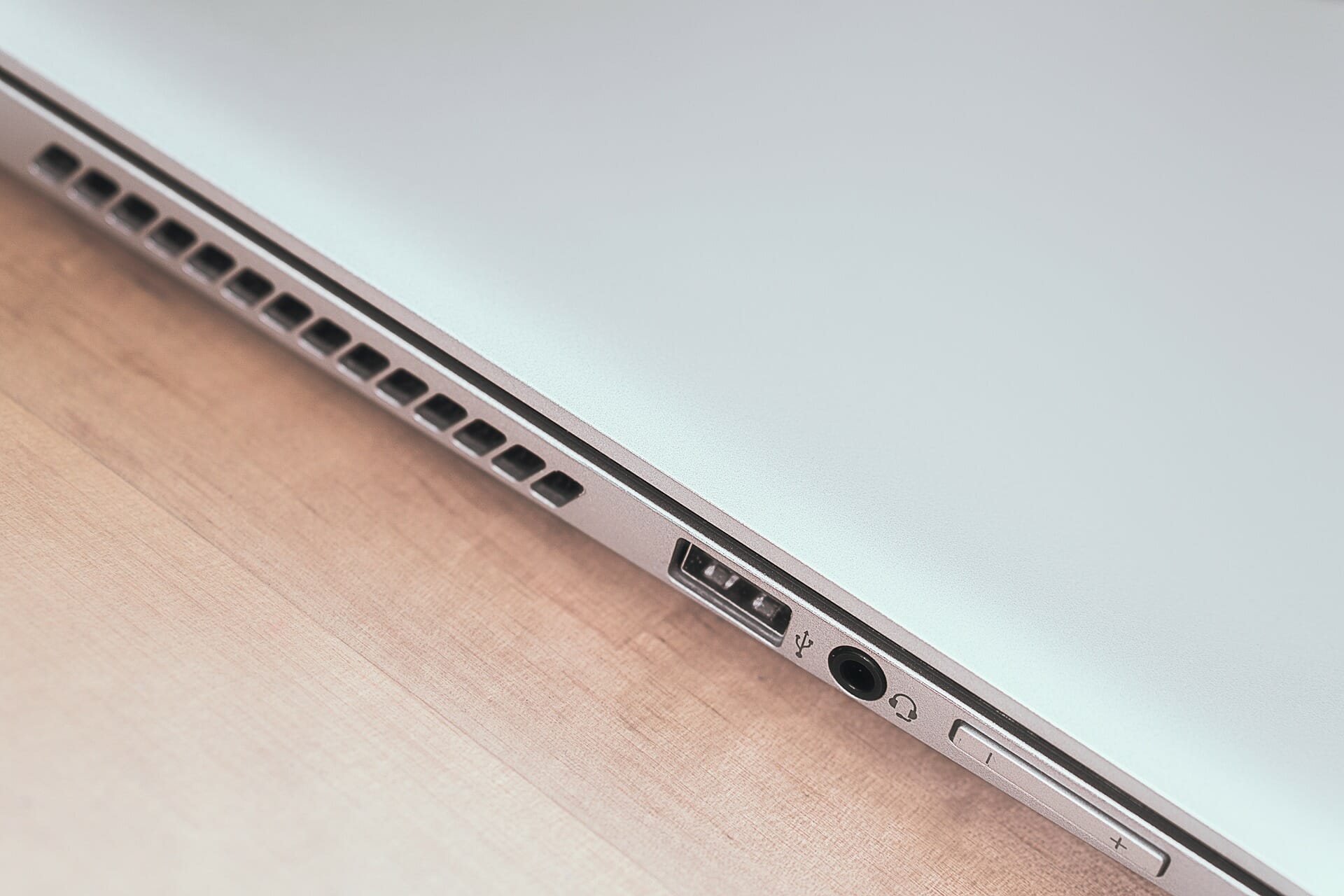
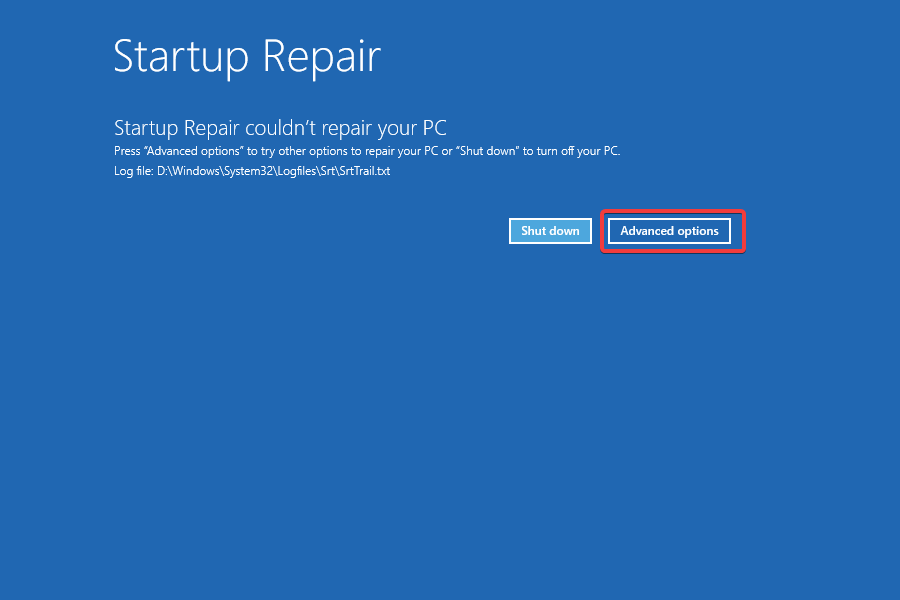
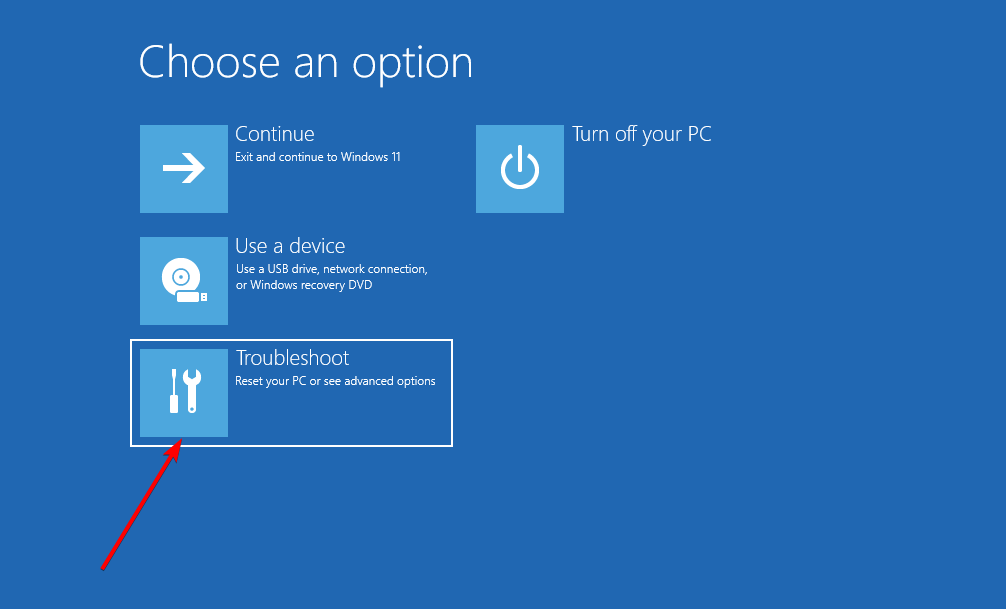
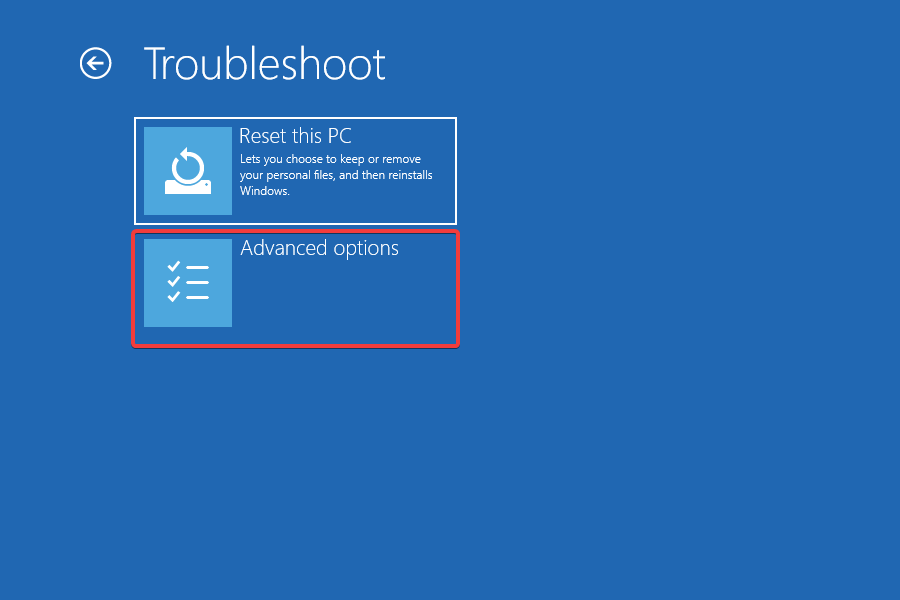
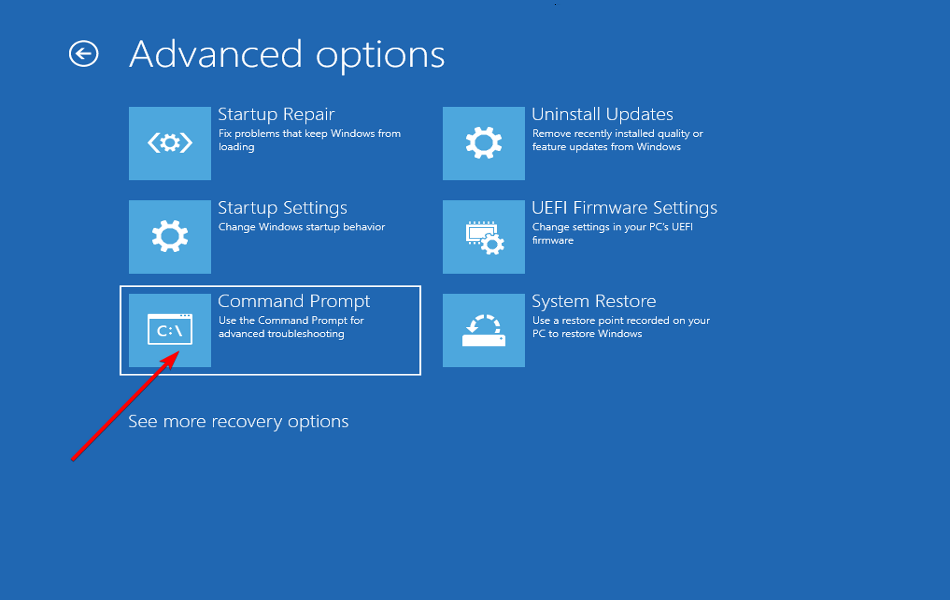
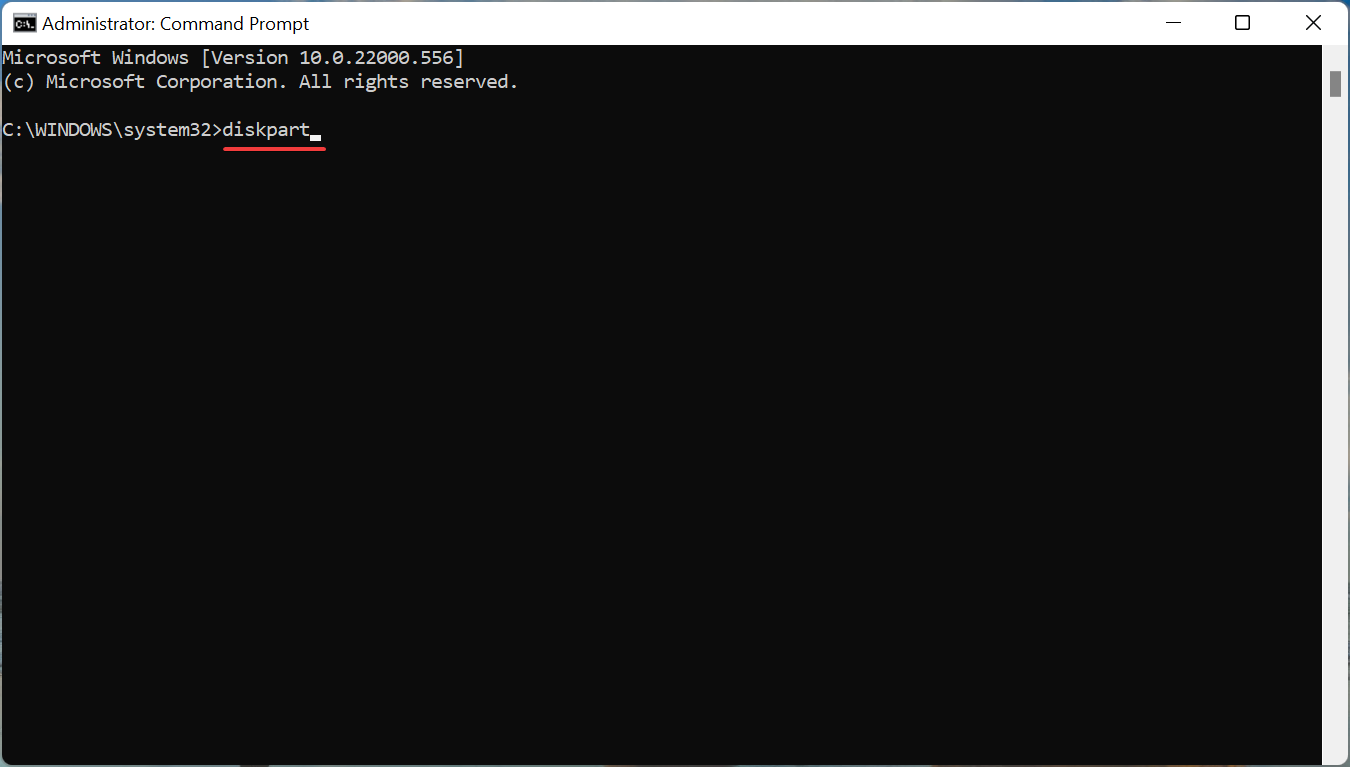
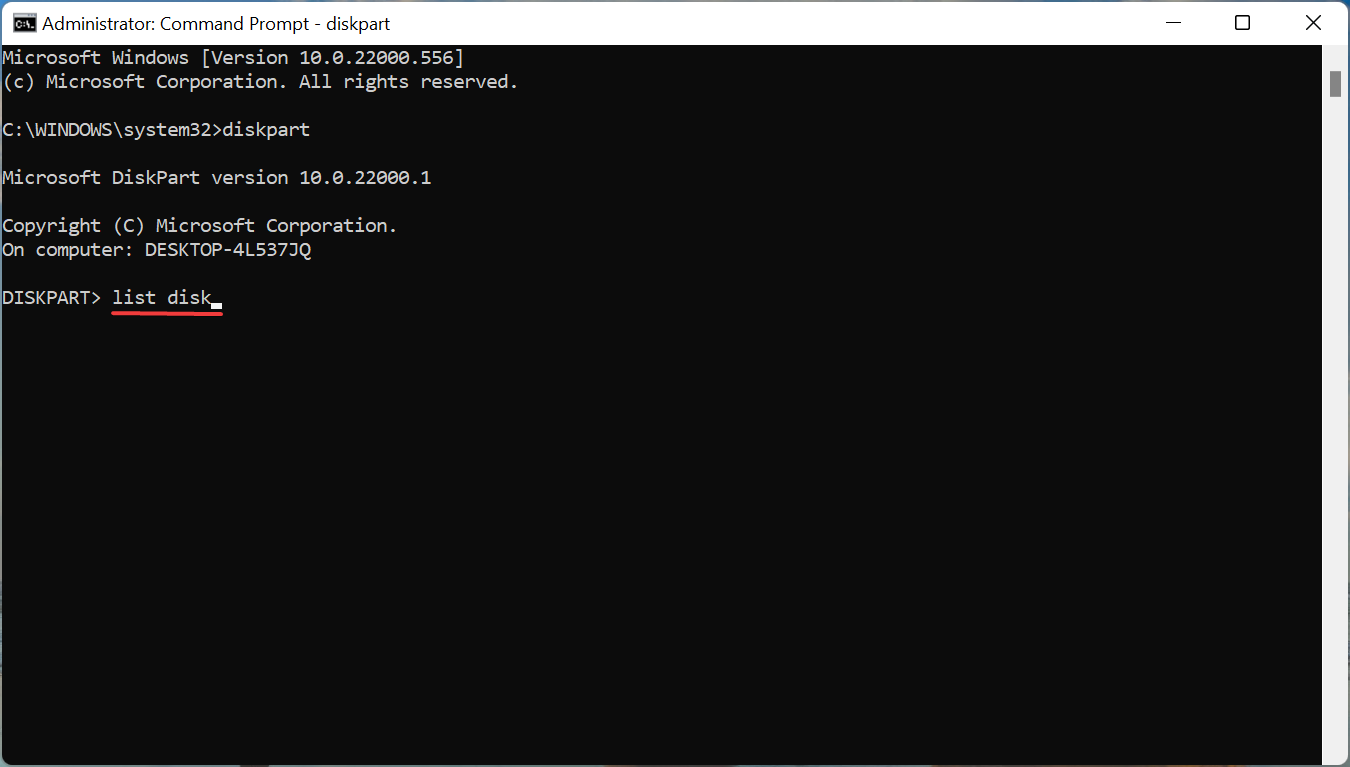
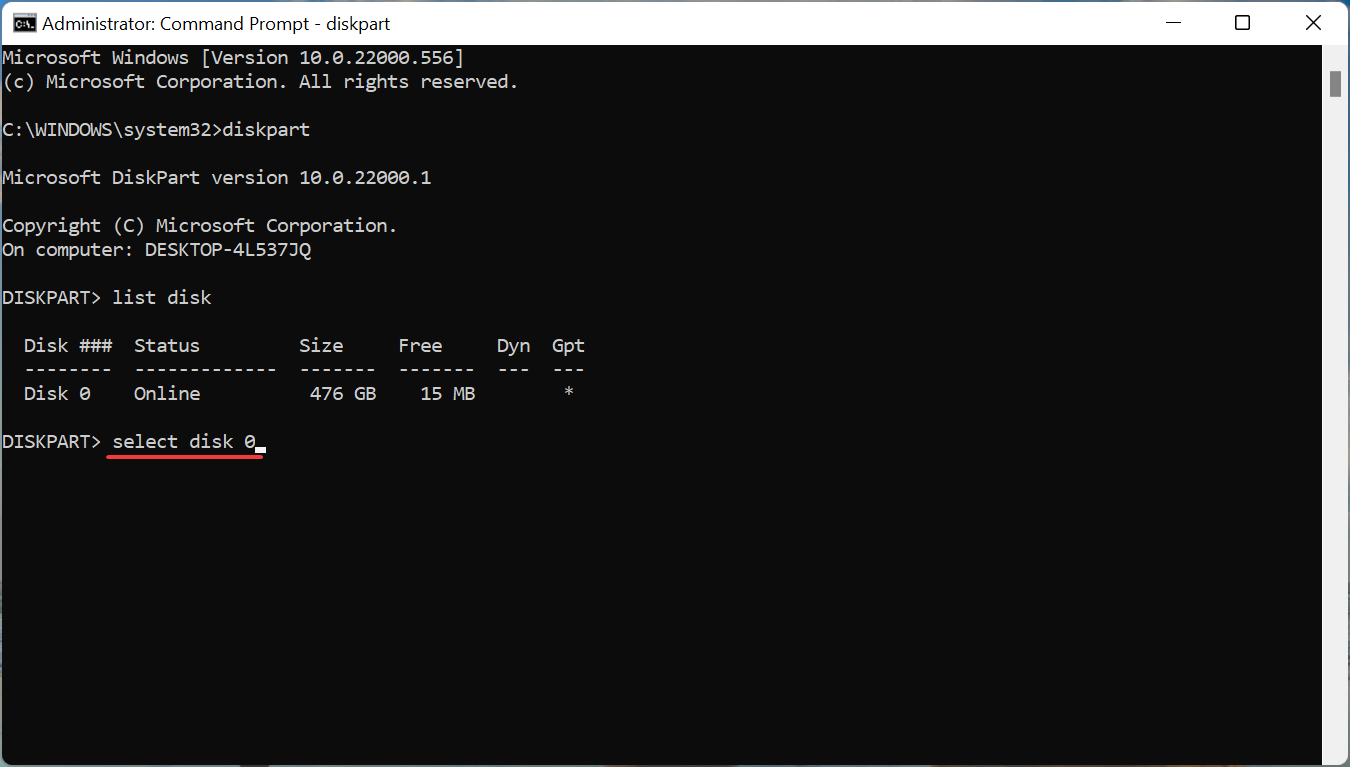
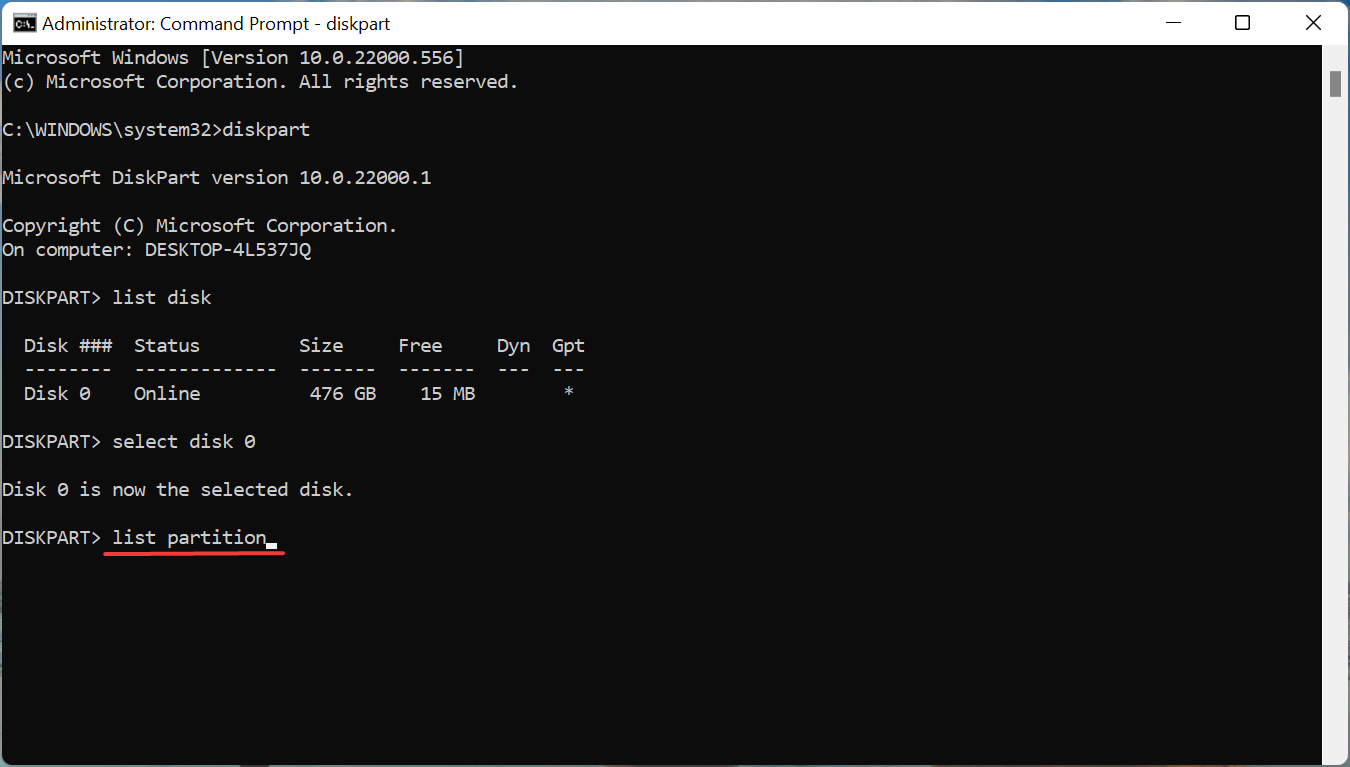
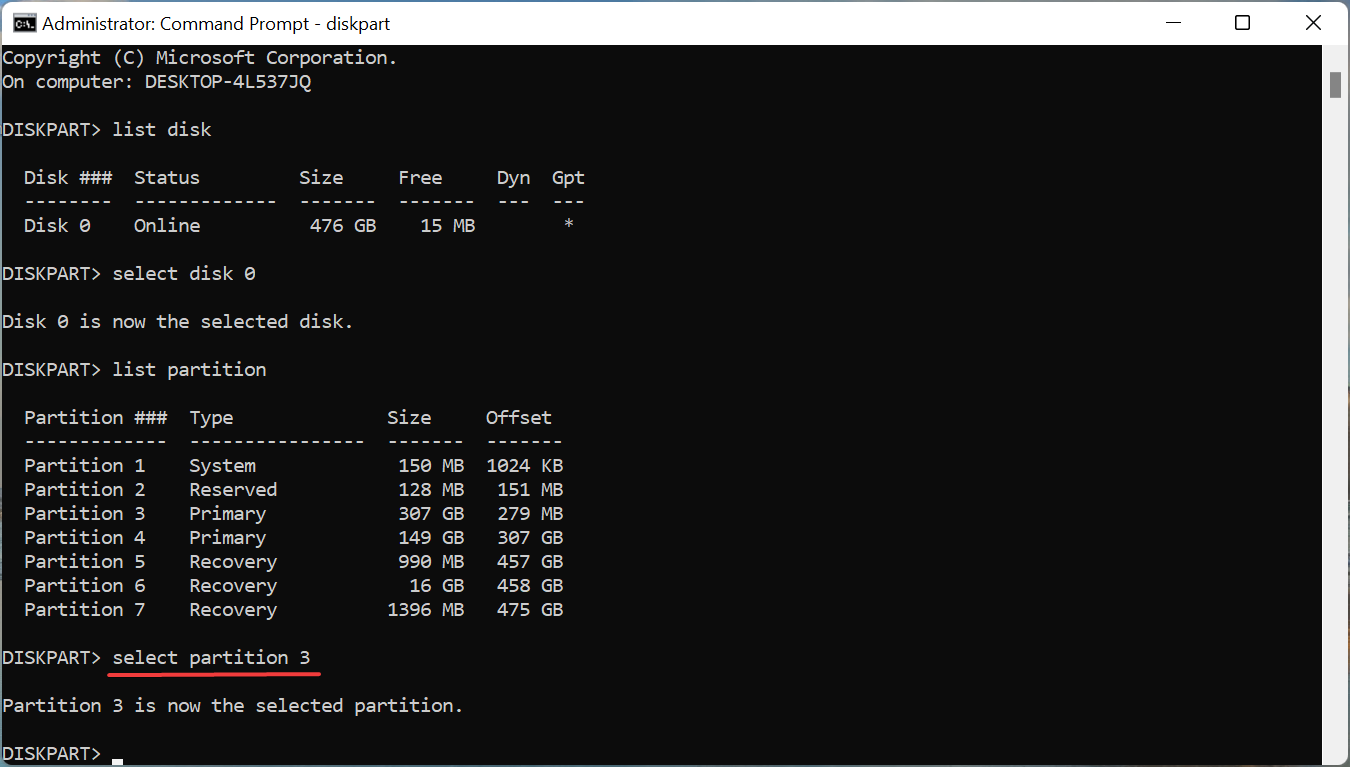
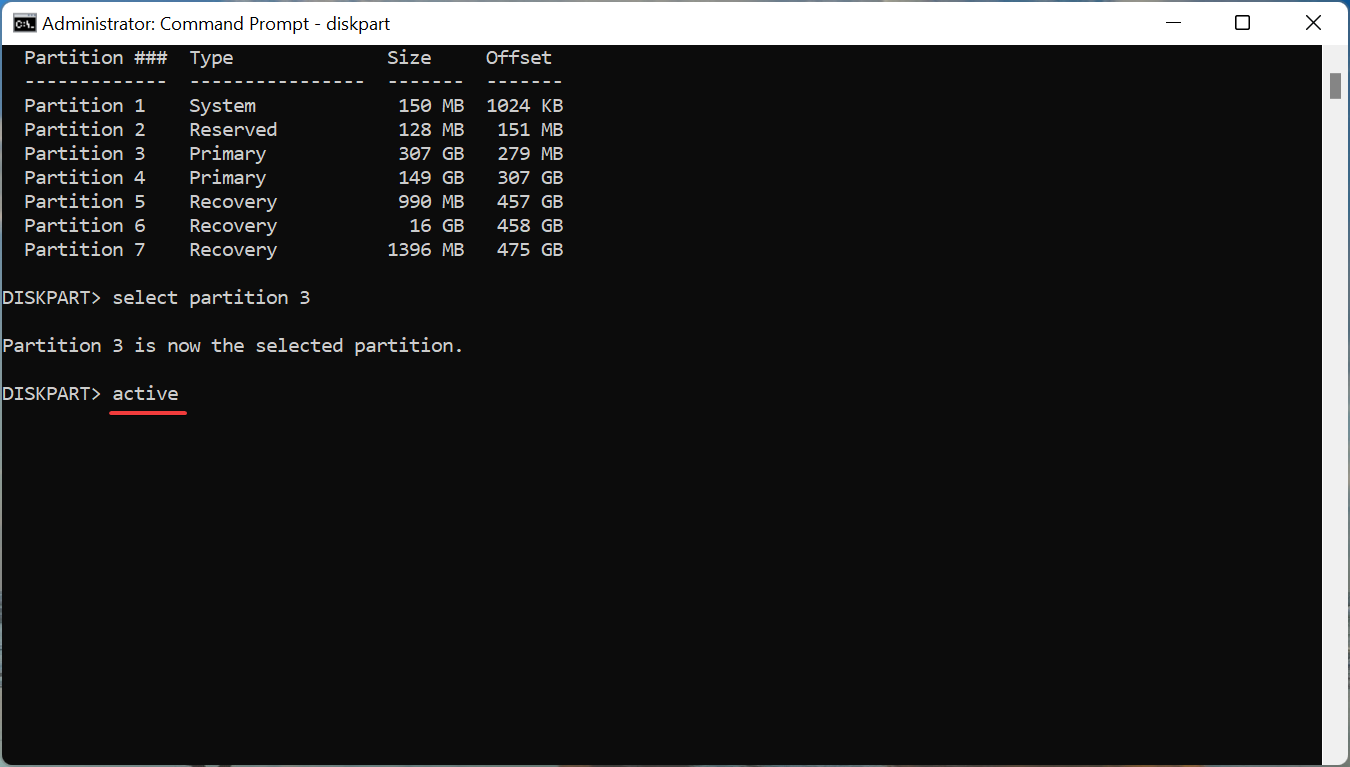
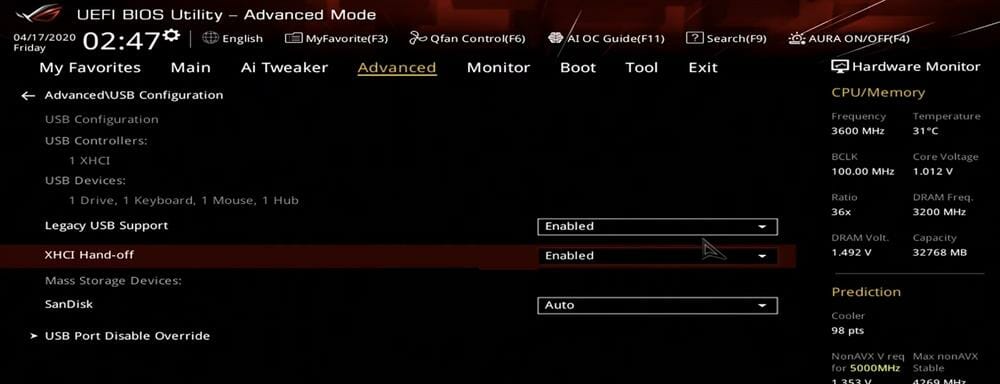
 Tip
Tip
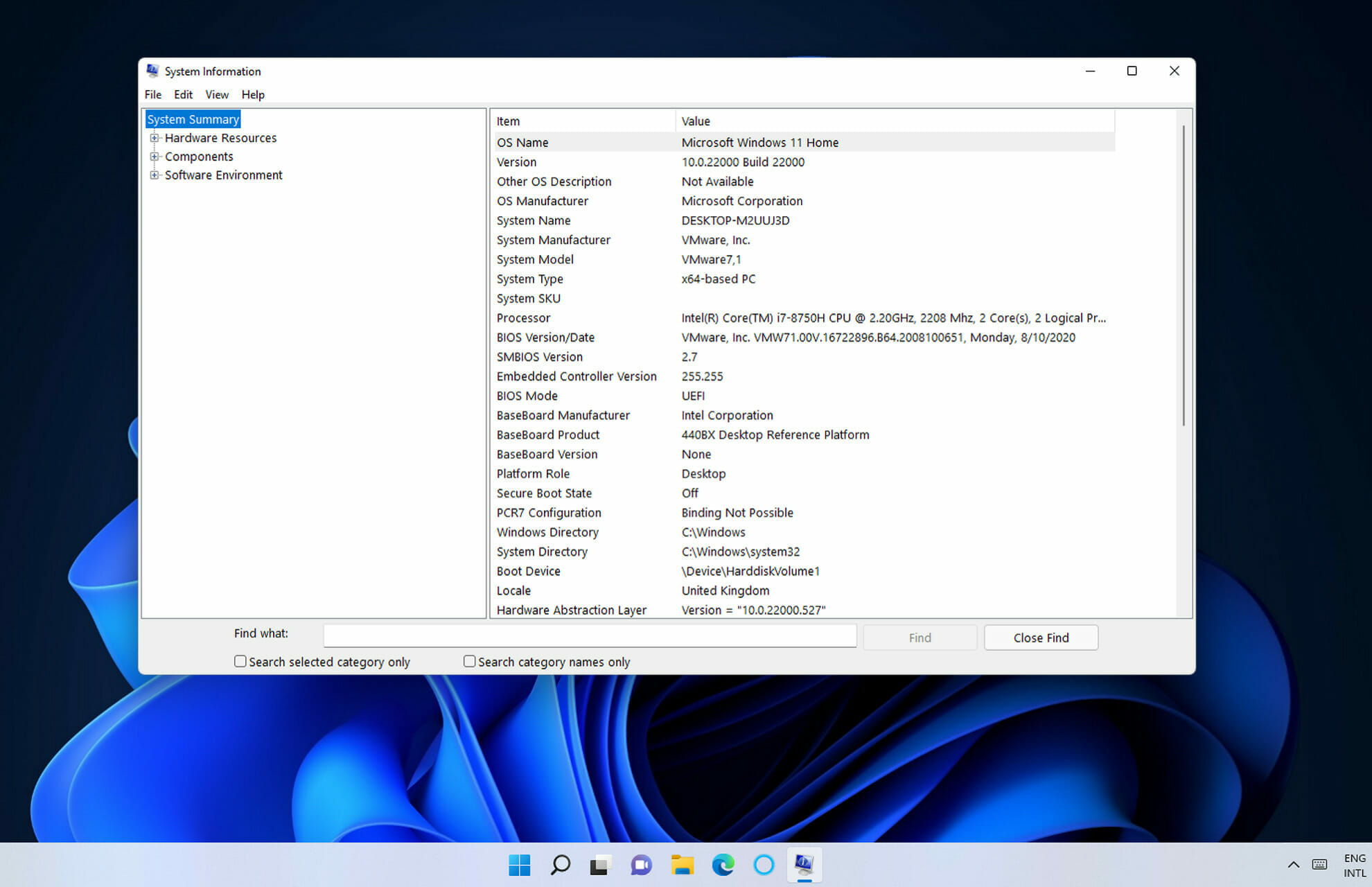
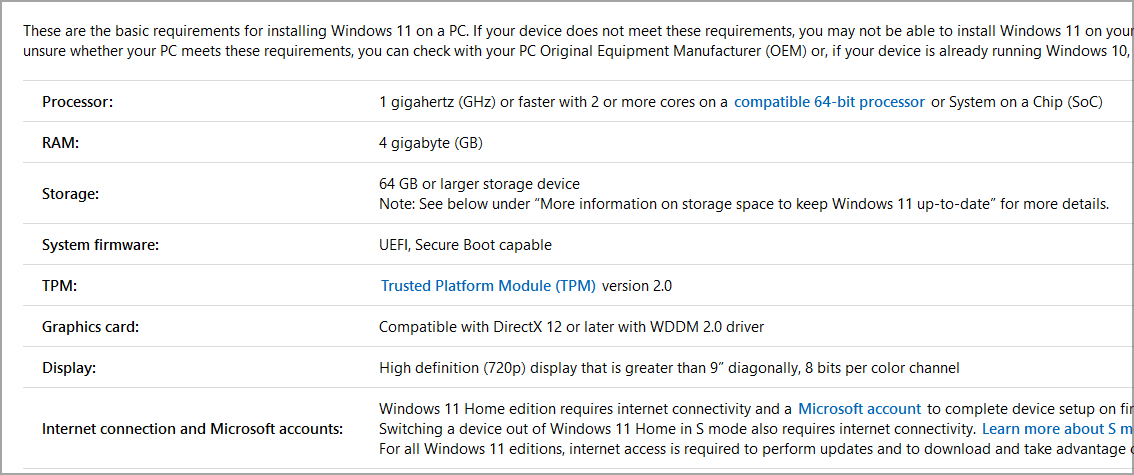
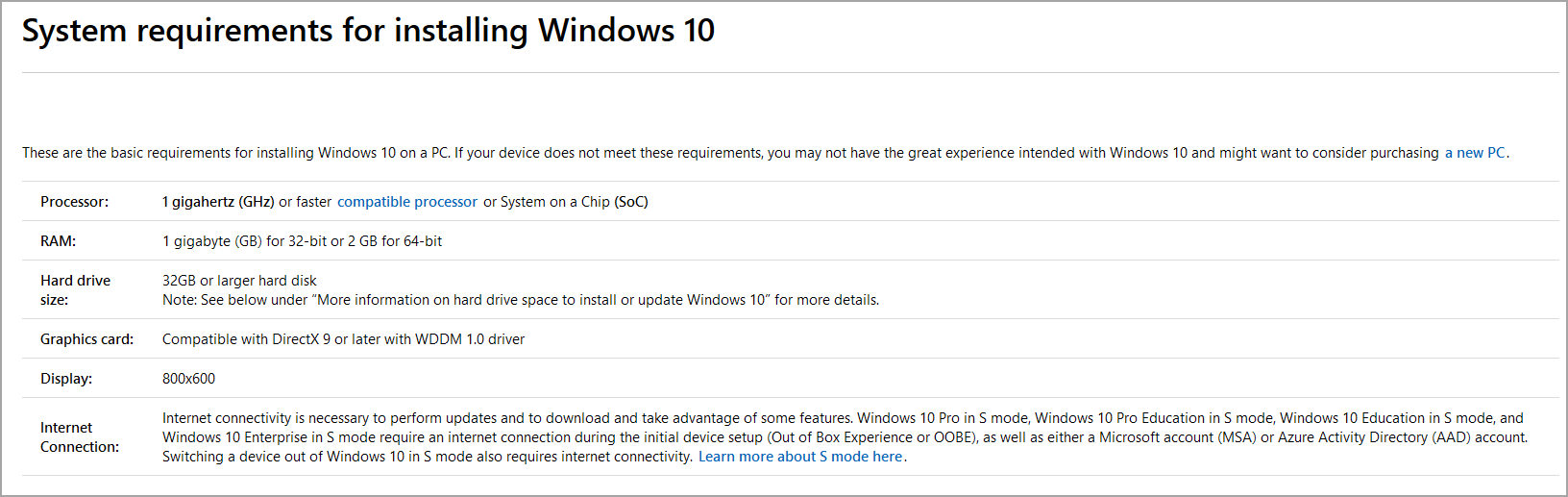


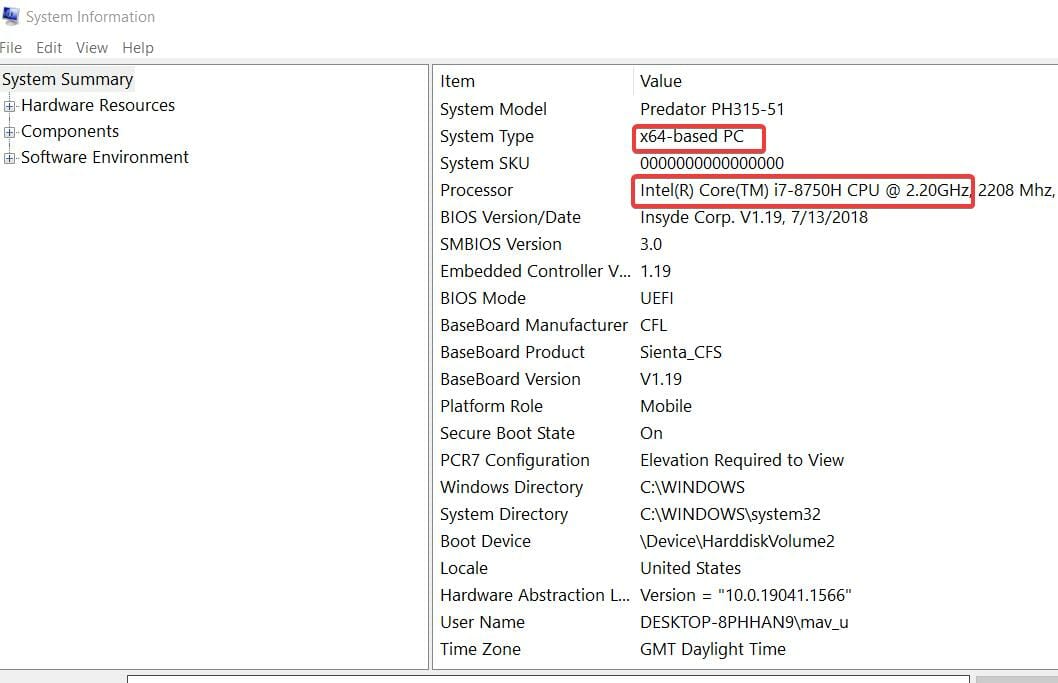


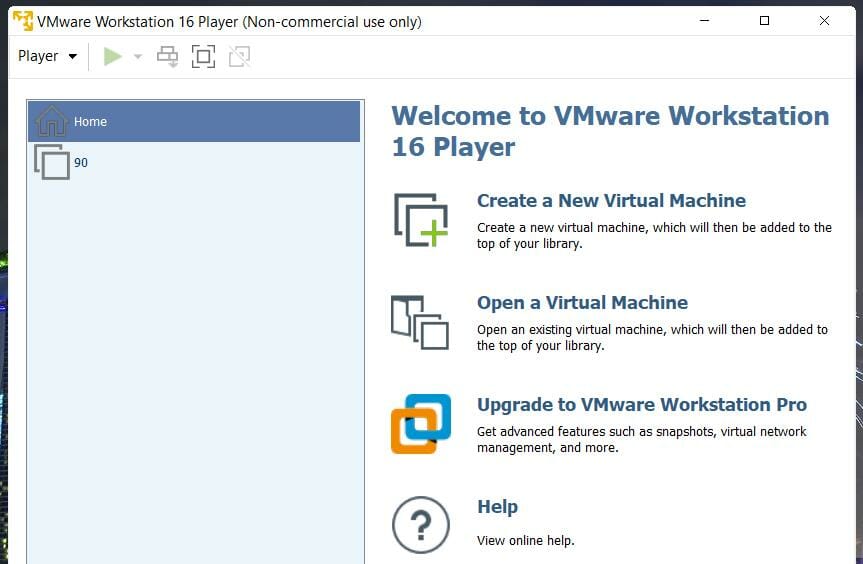







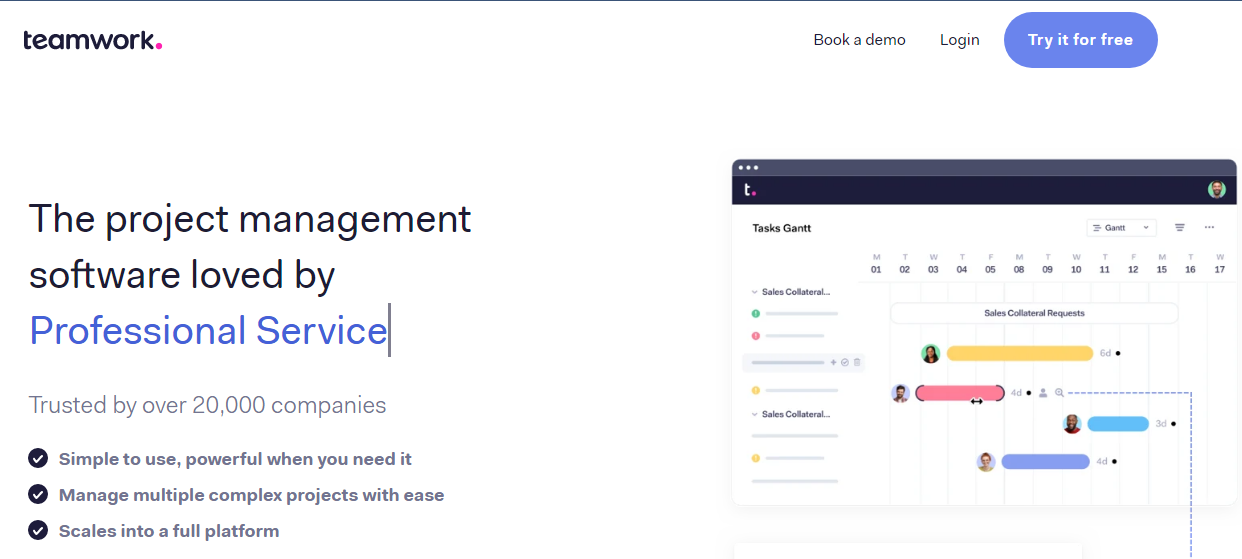



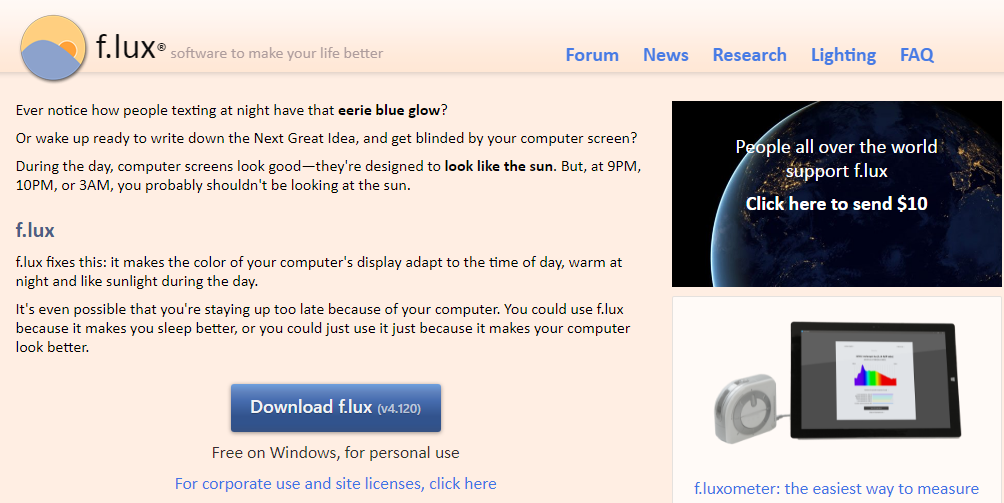






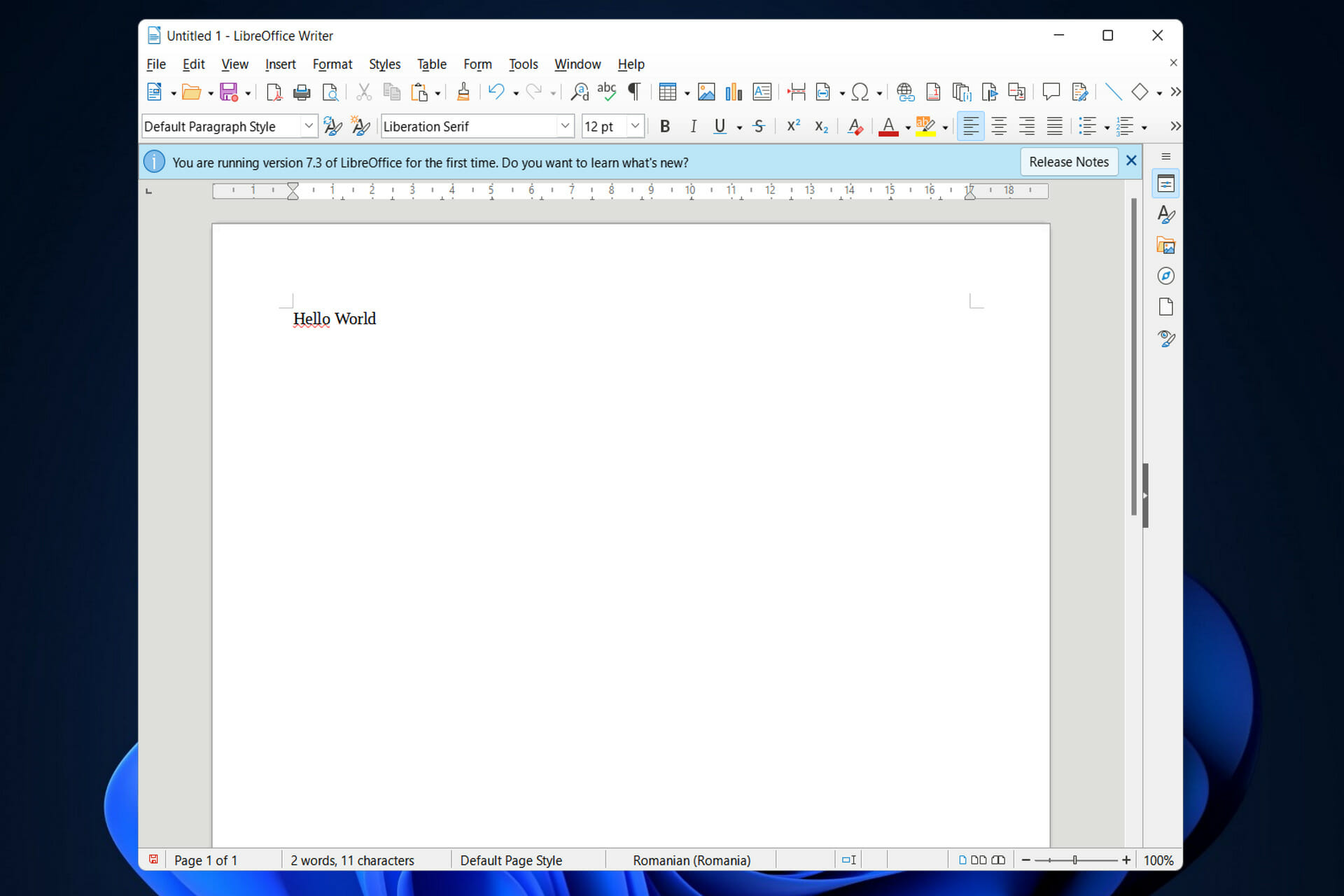
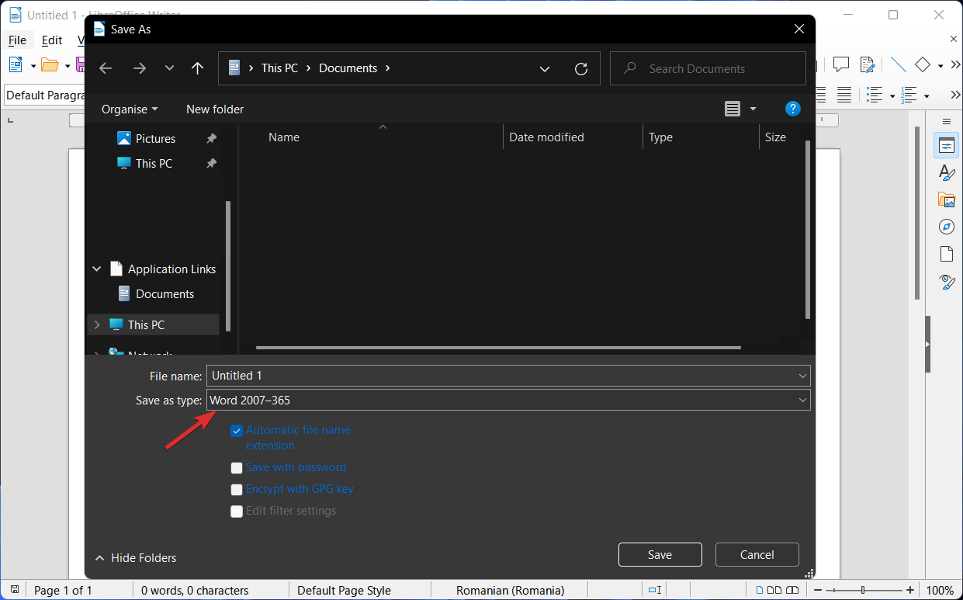
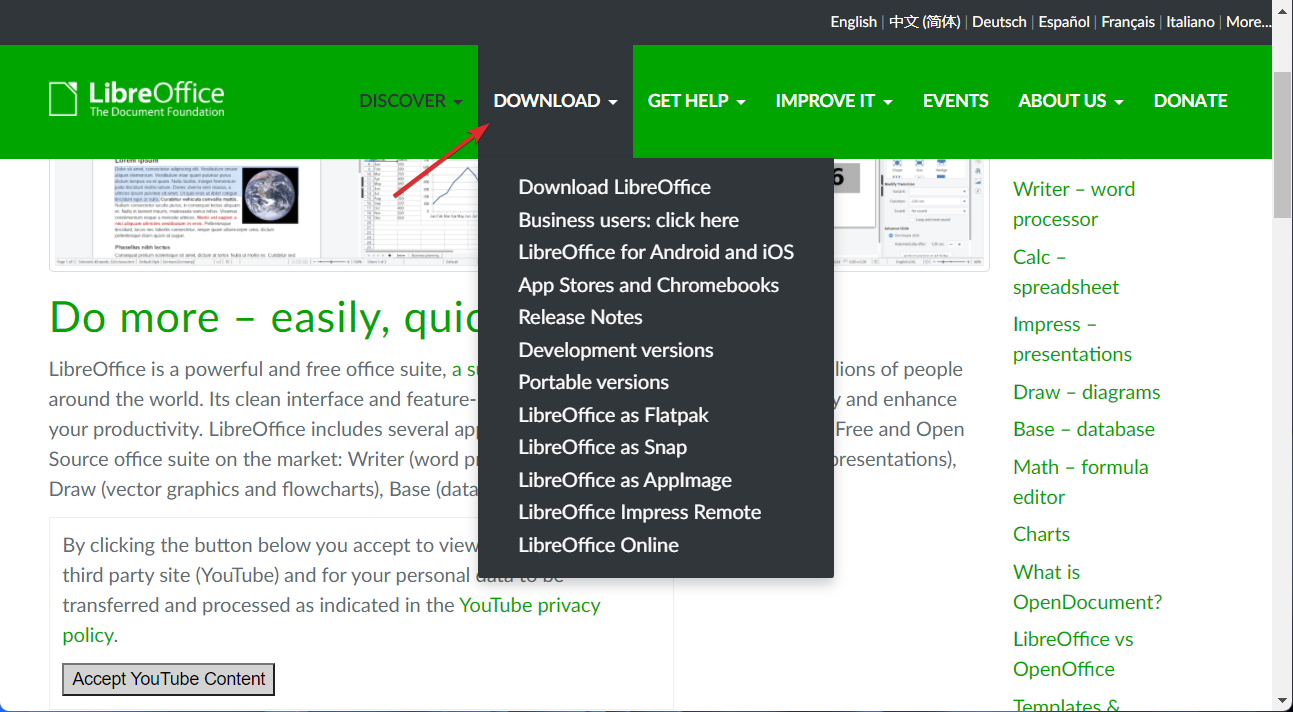
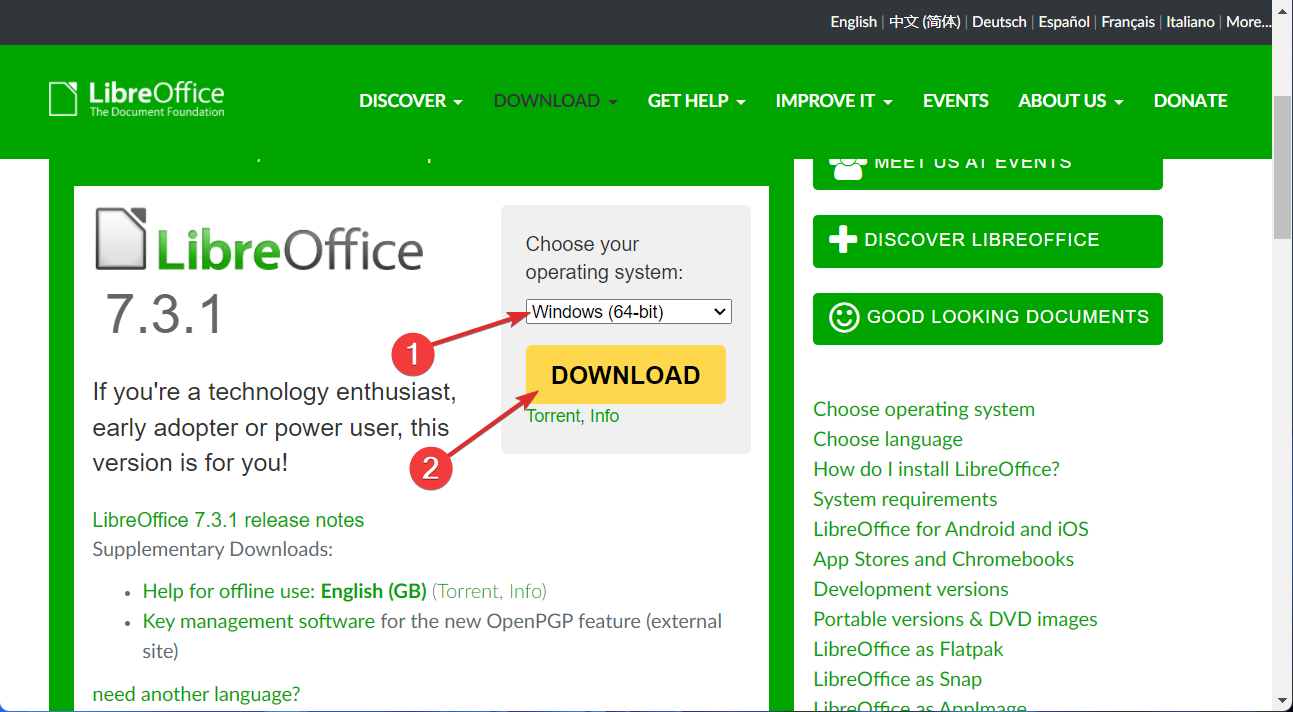
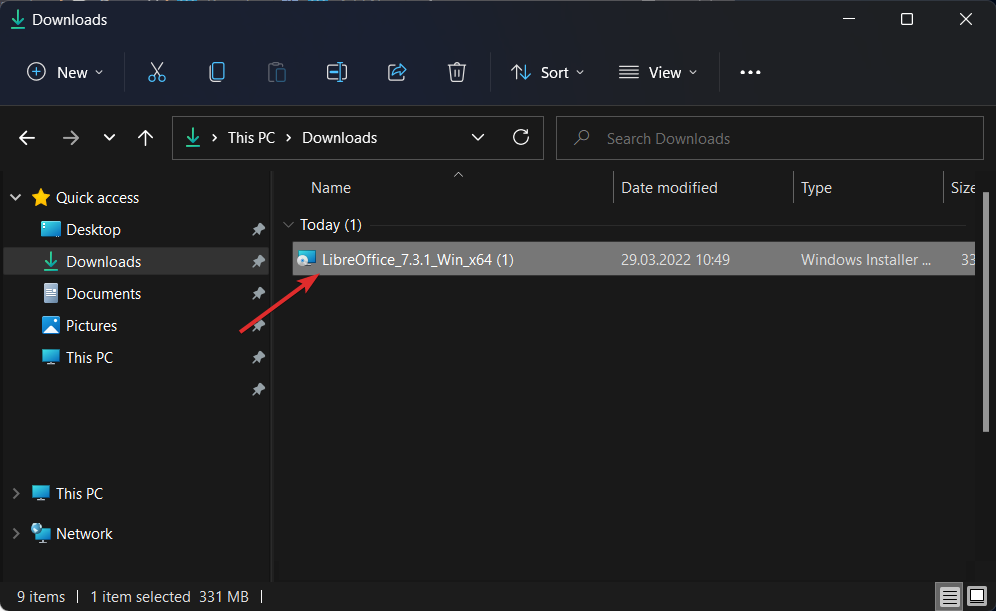

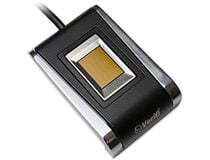
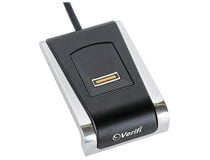
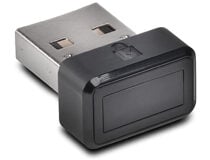
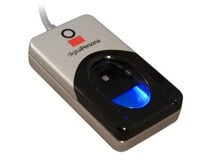
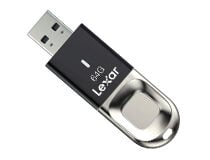
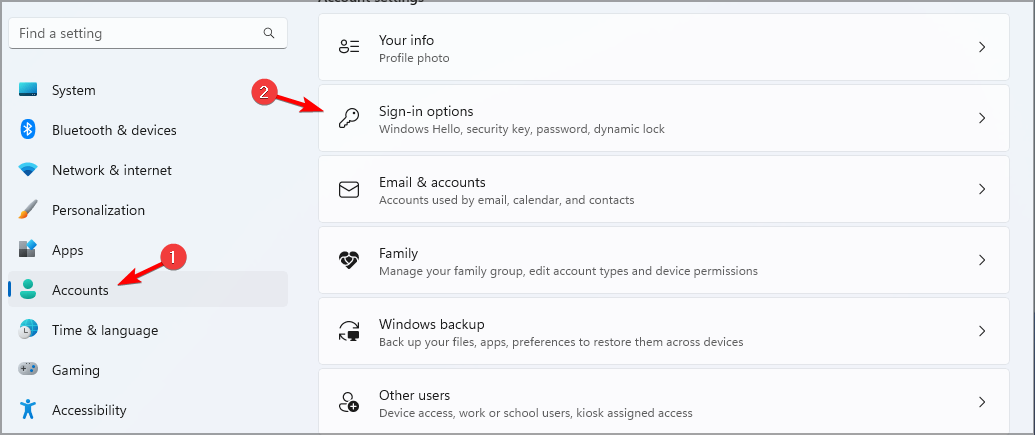
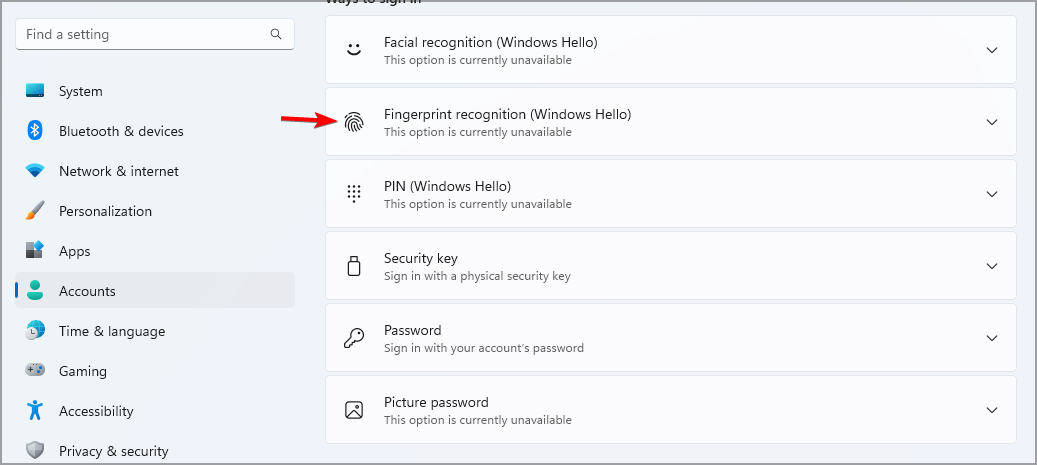
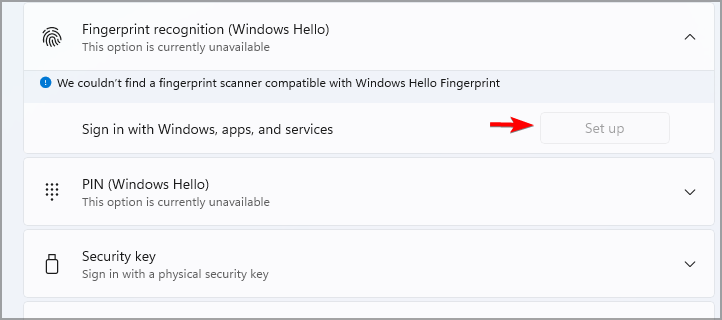
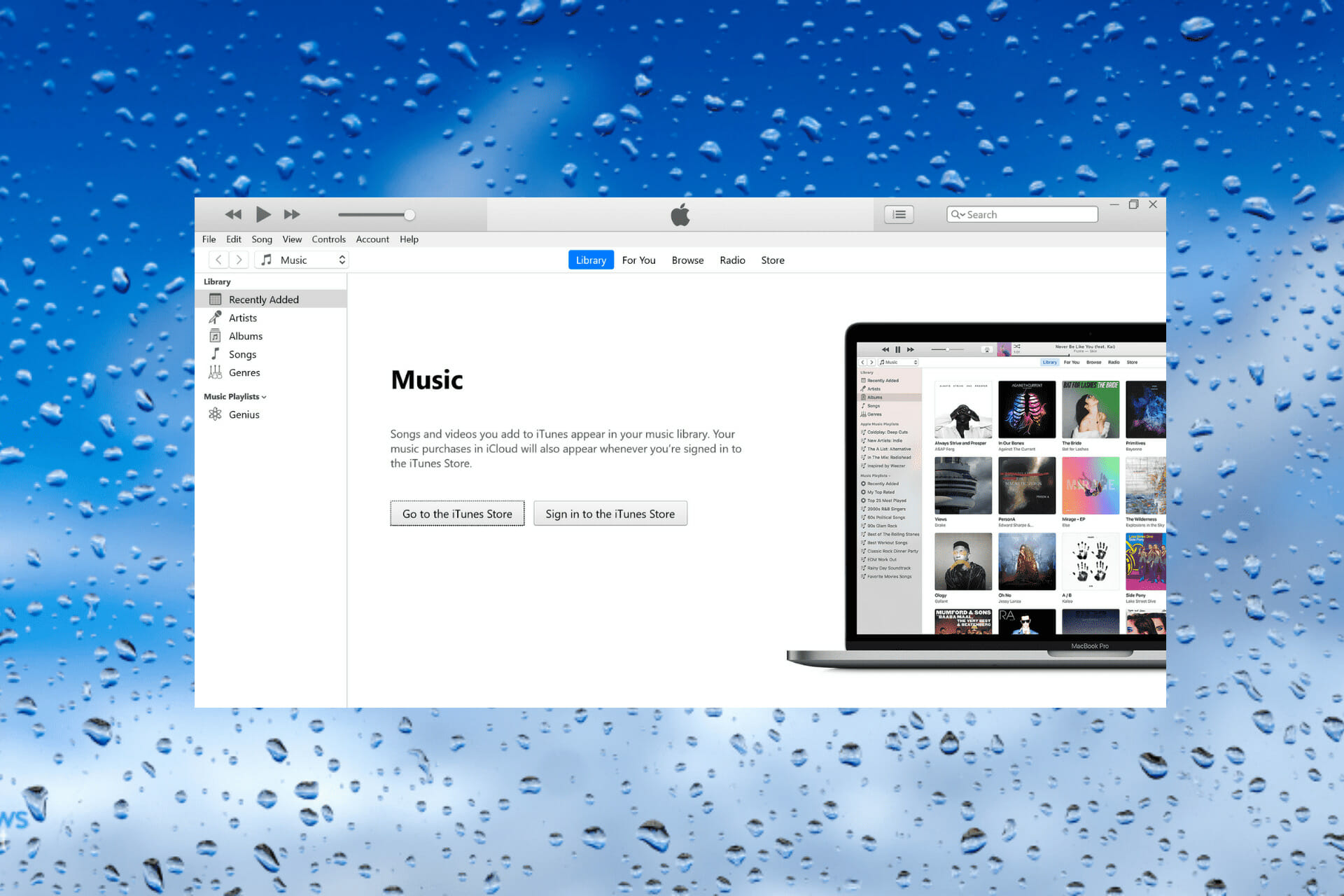

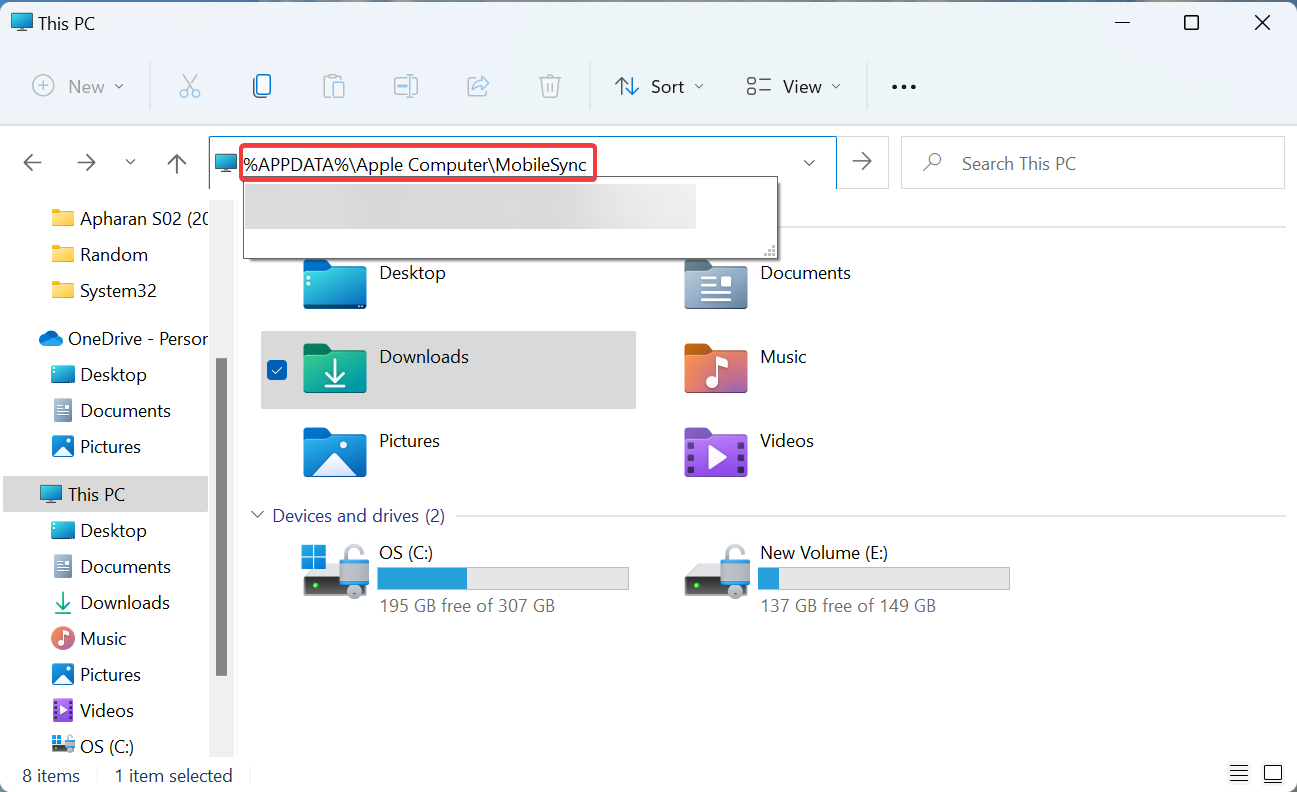
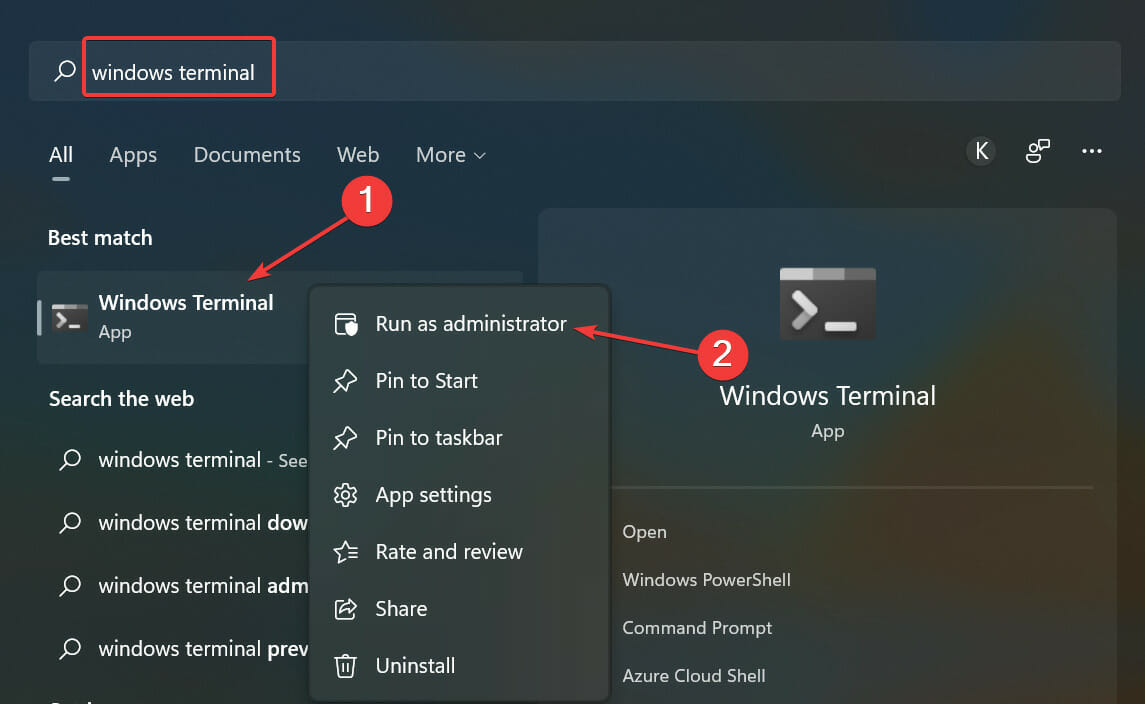
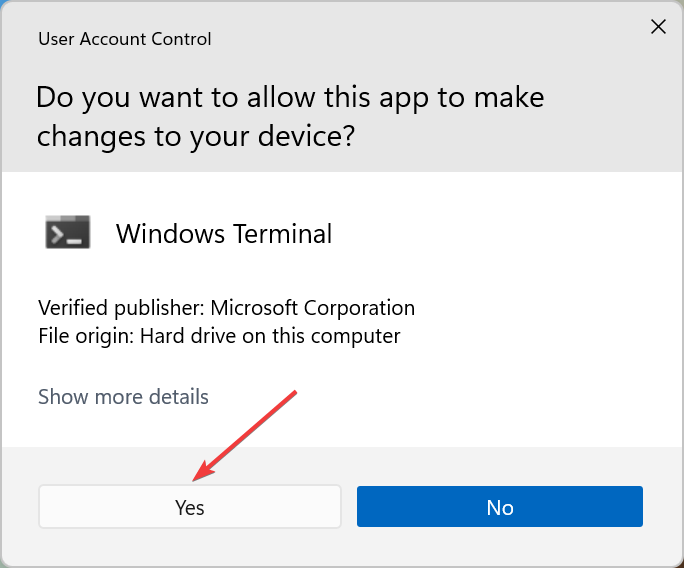
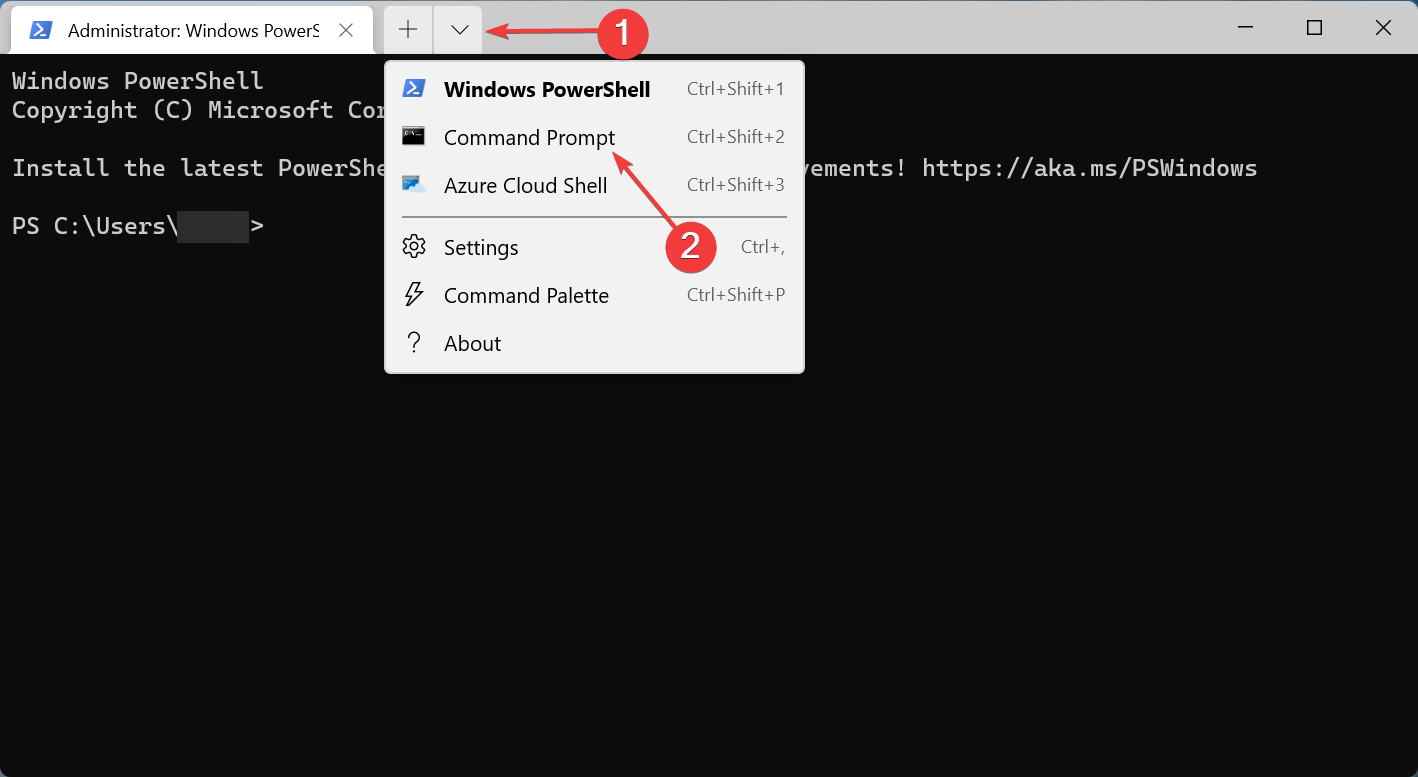
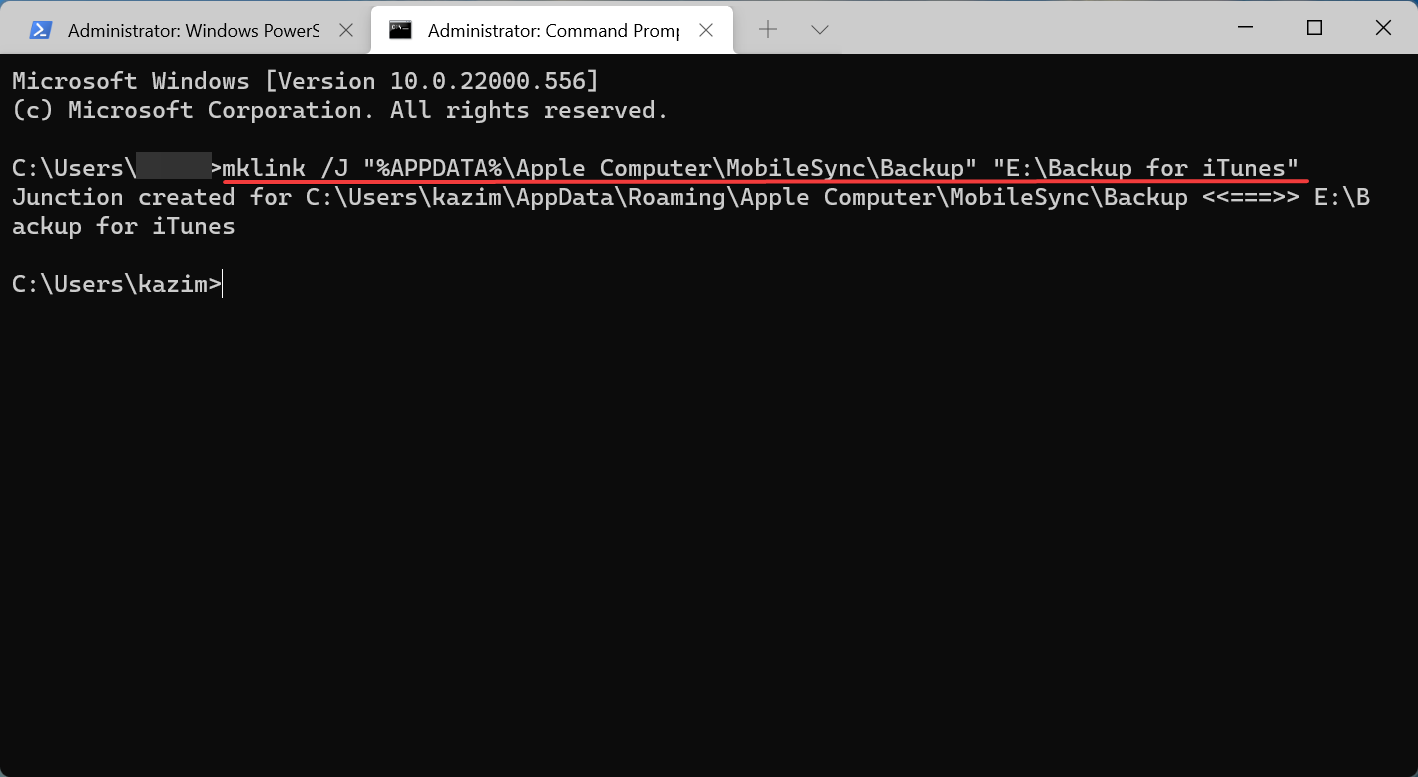
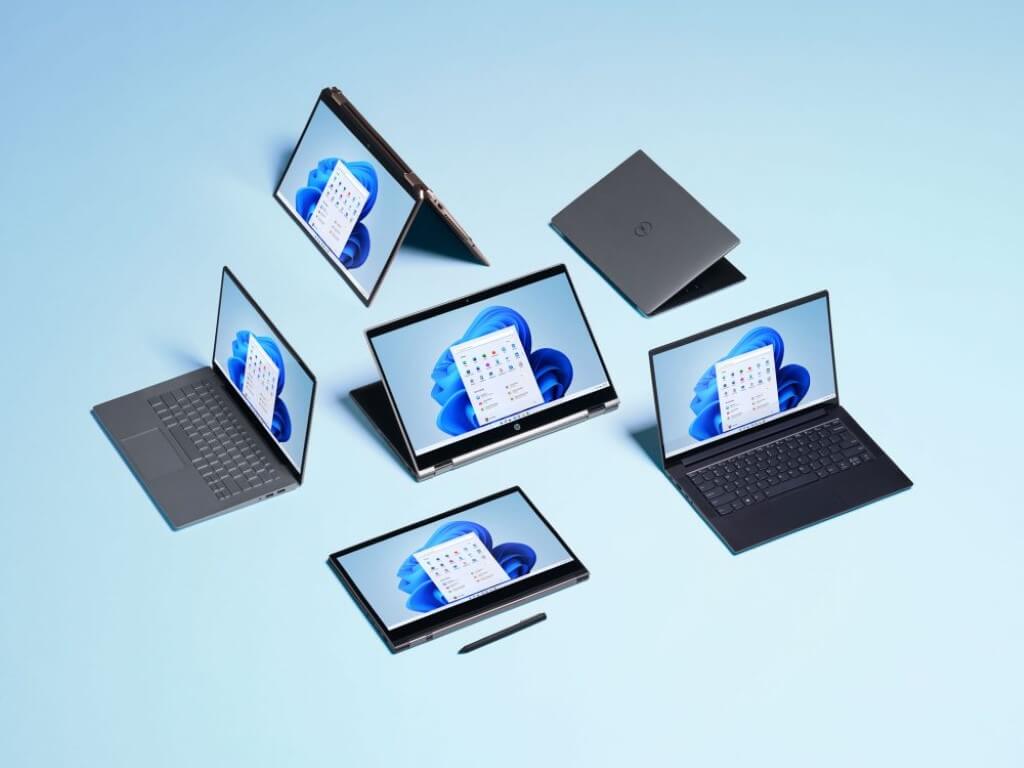

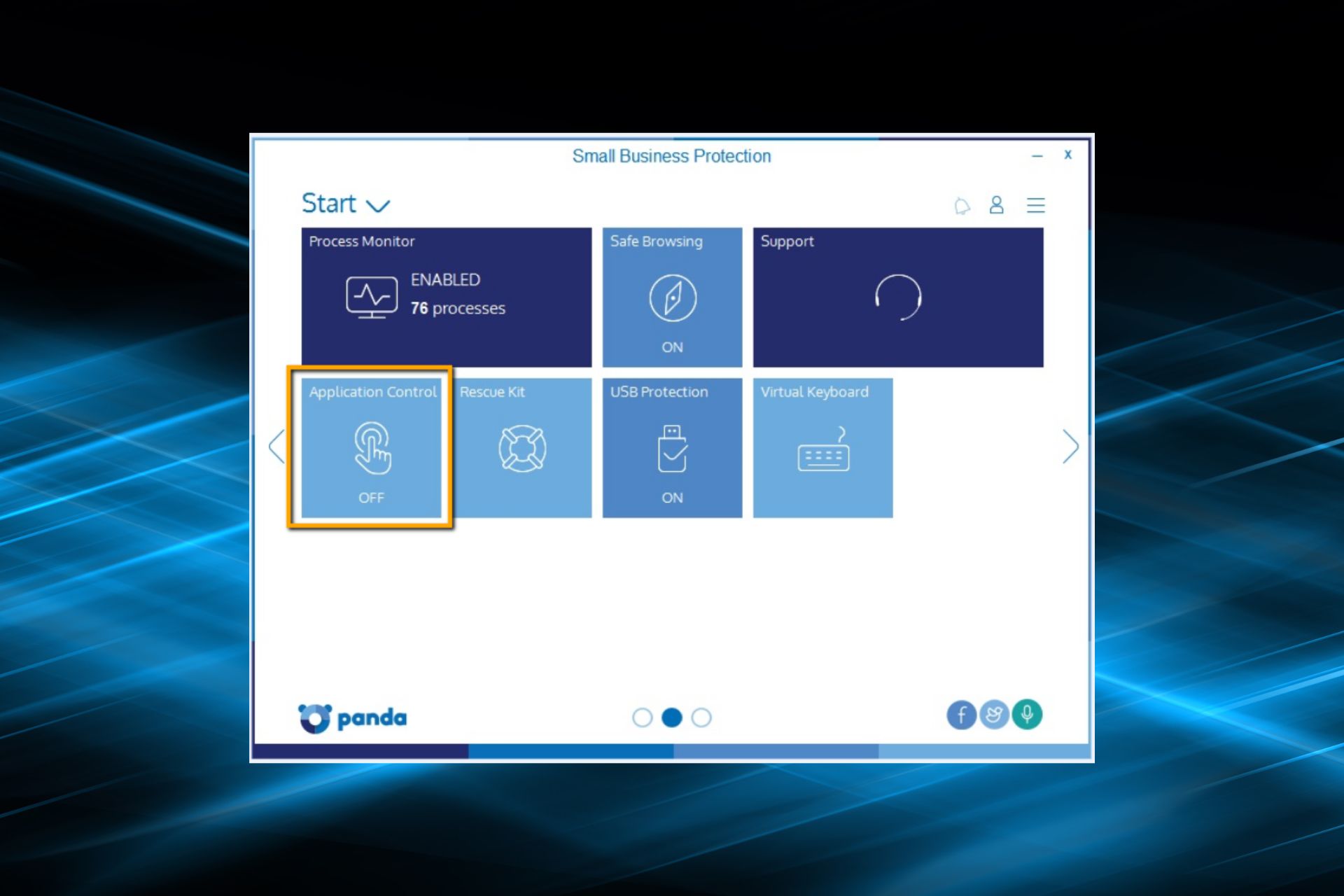

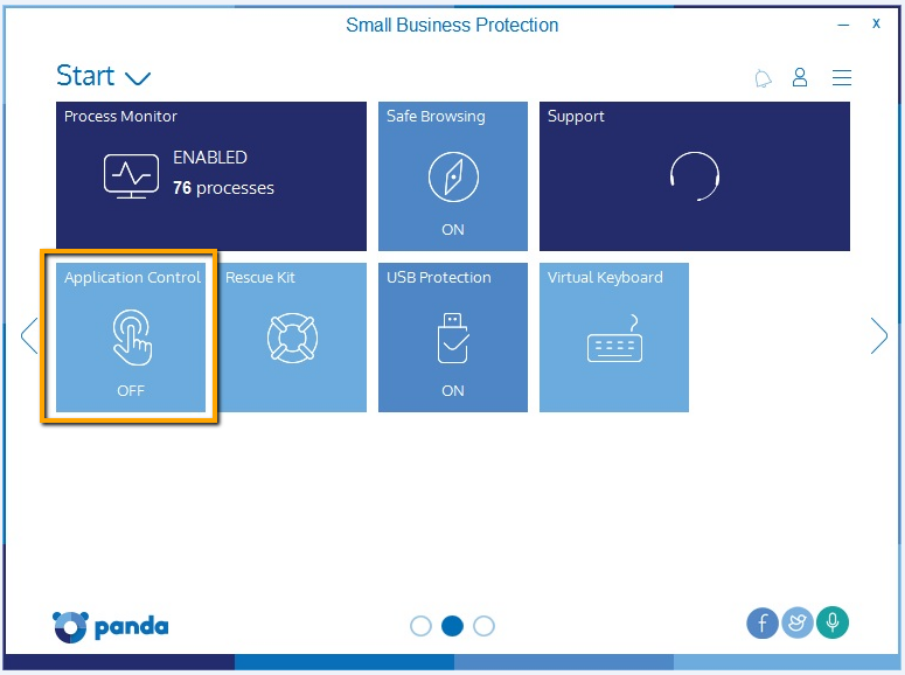

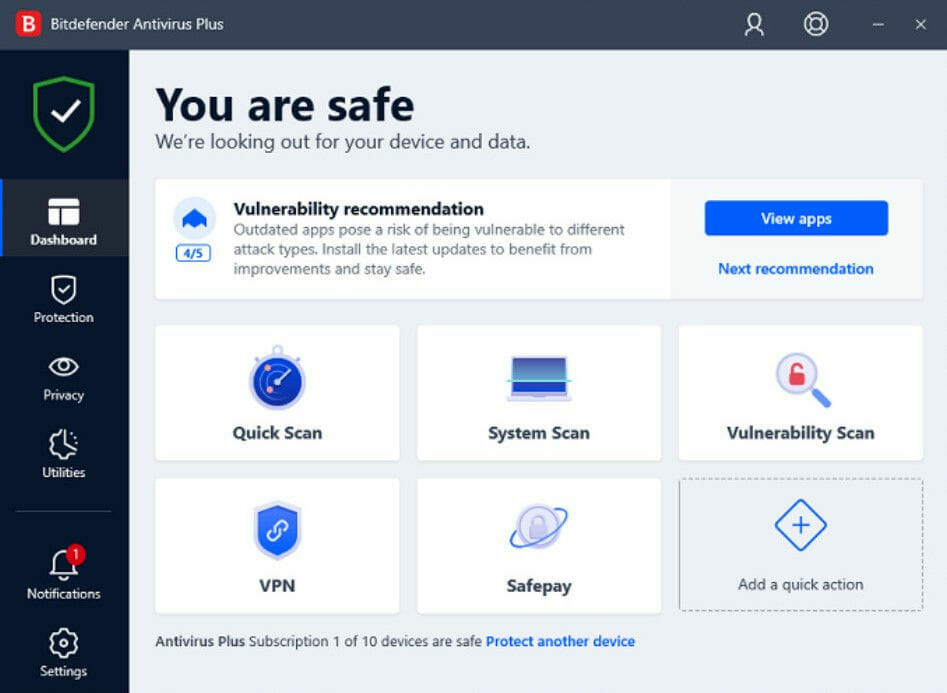

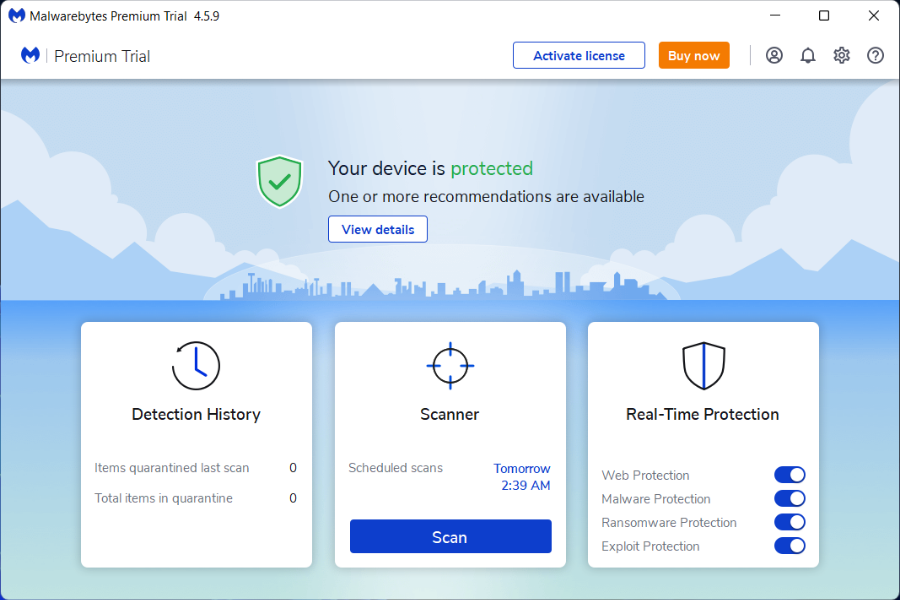

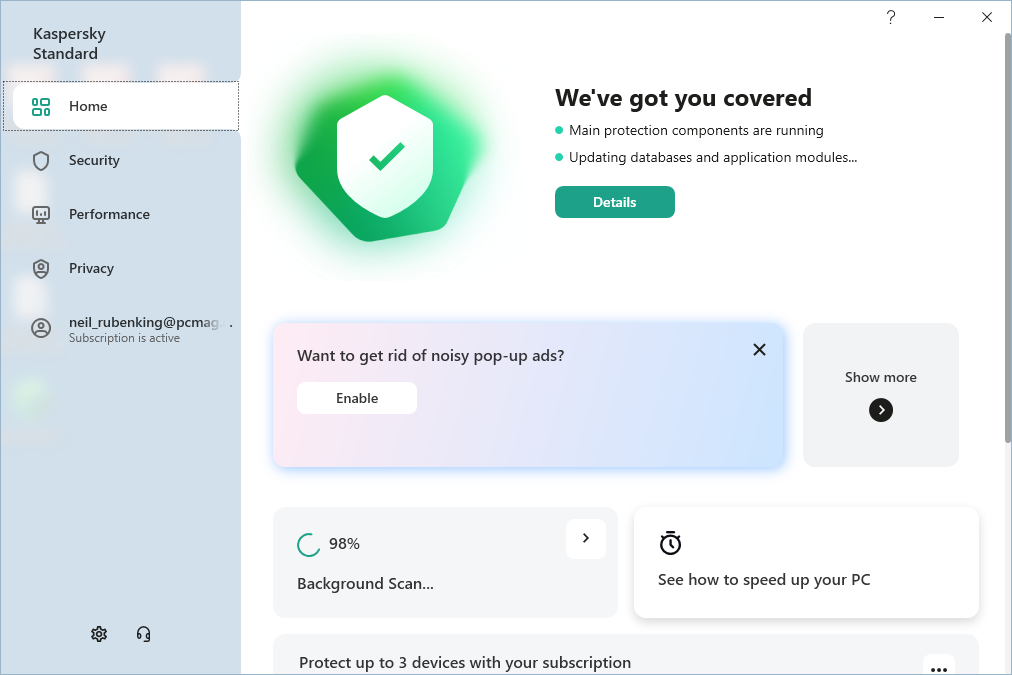

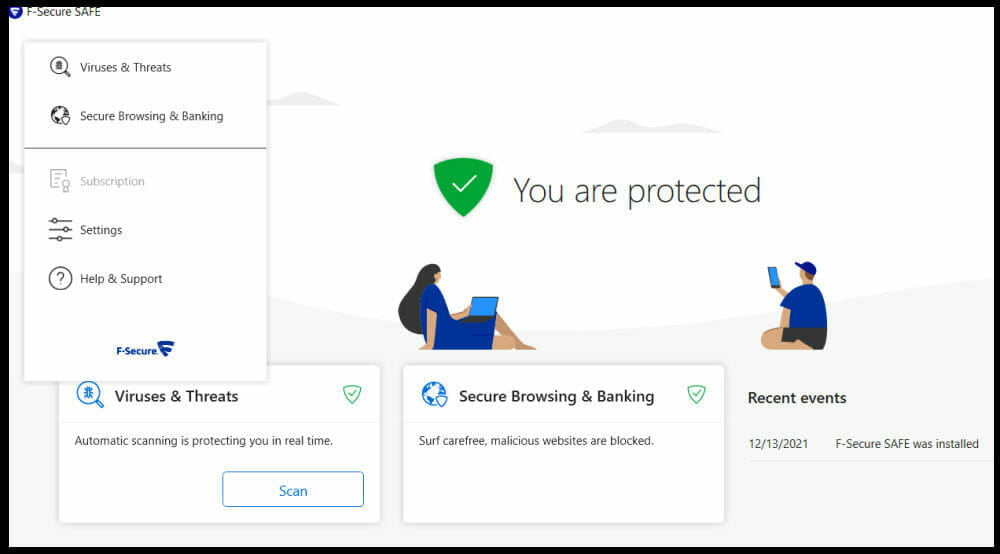
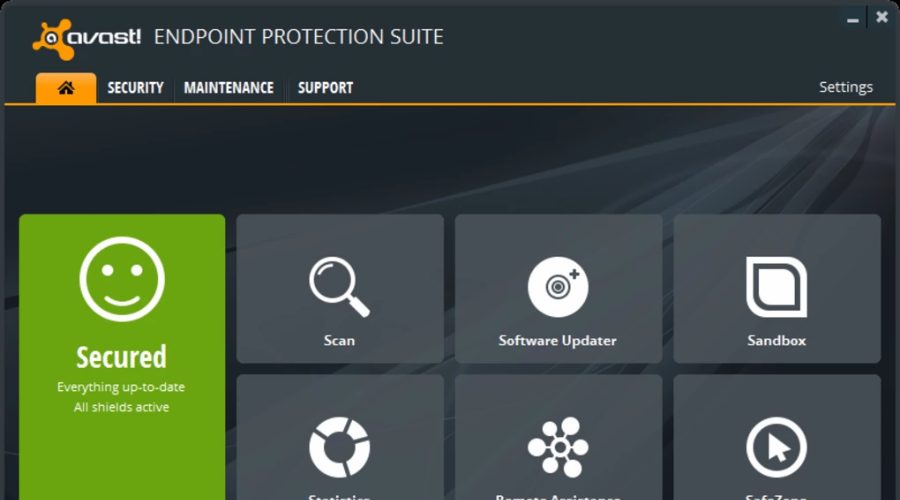
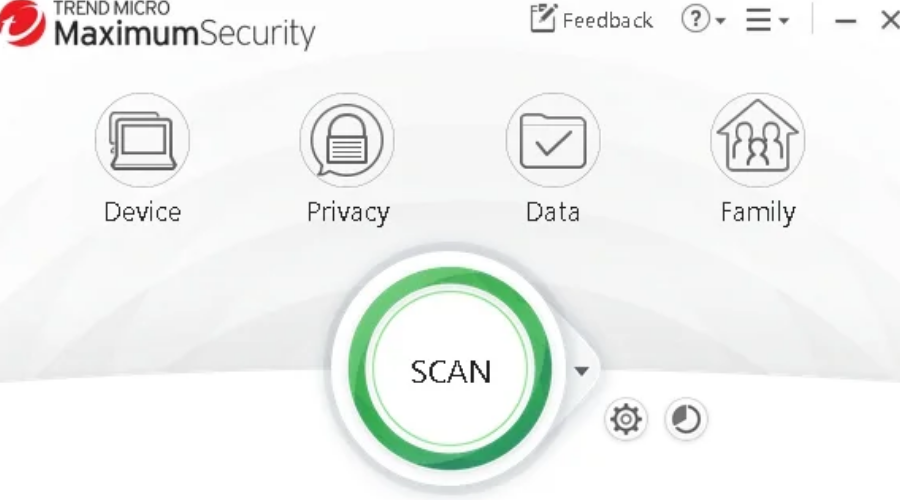
![Windows 11 Keeps Installing Old or Wrong AMD Drivers [Fix]](https://windowsreport.com/wp-content/uploads/2022/01/amd-windows-11.jpg)
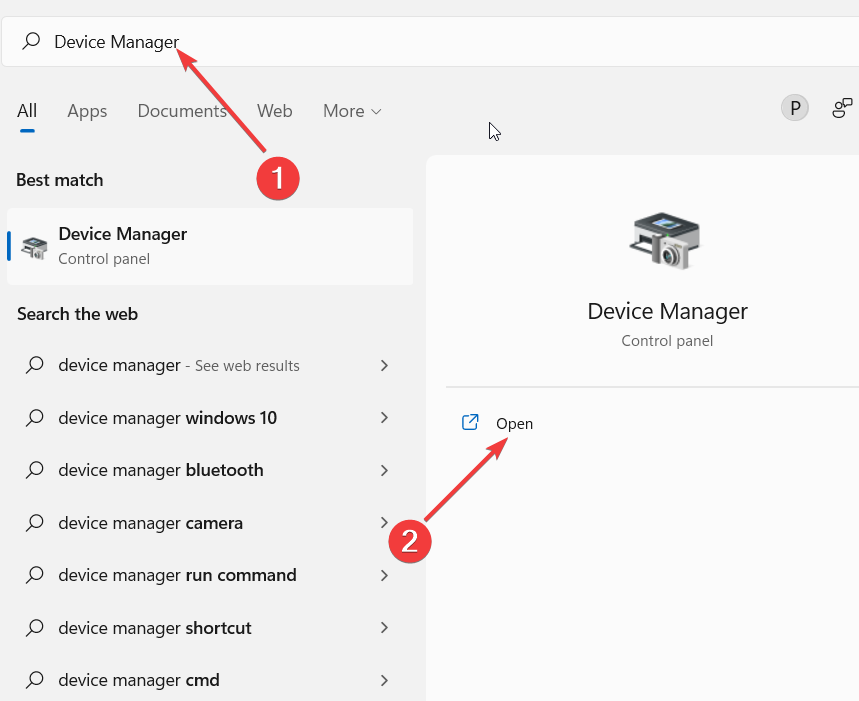
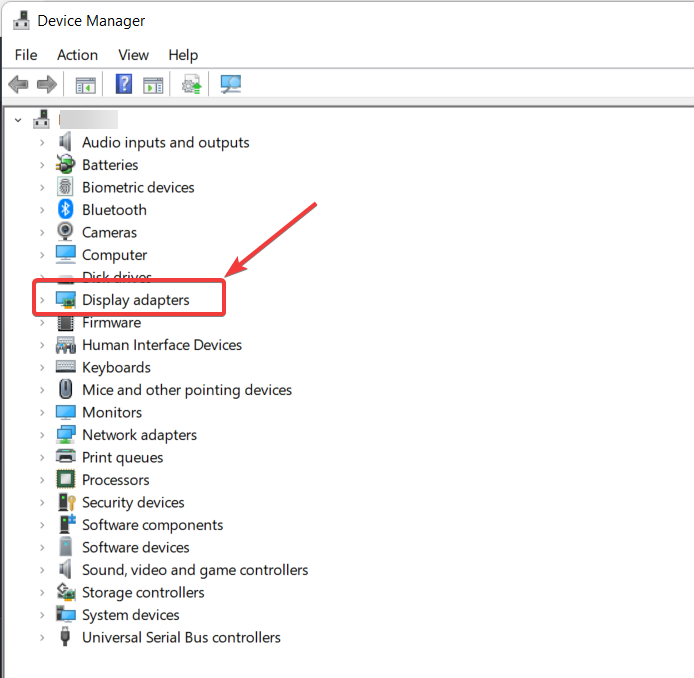
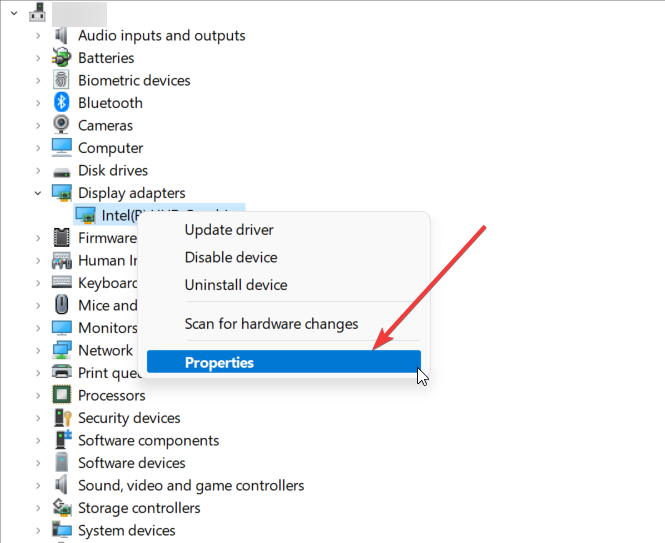
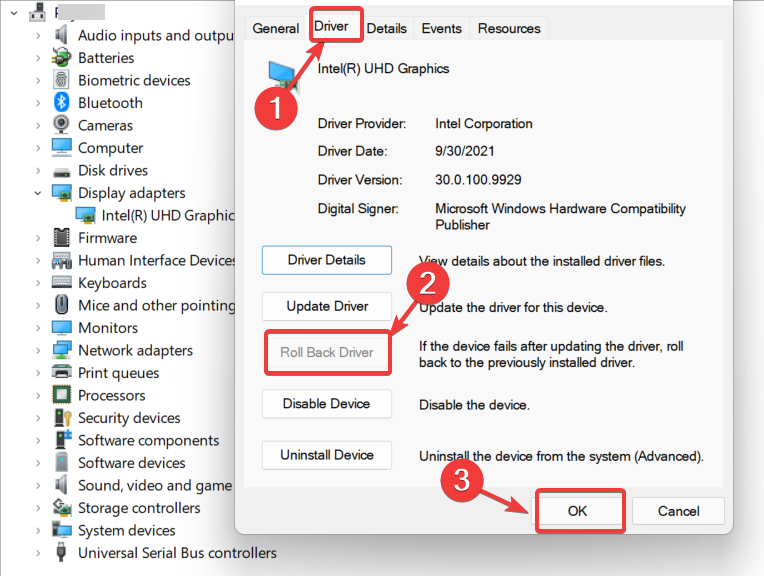
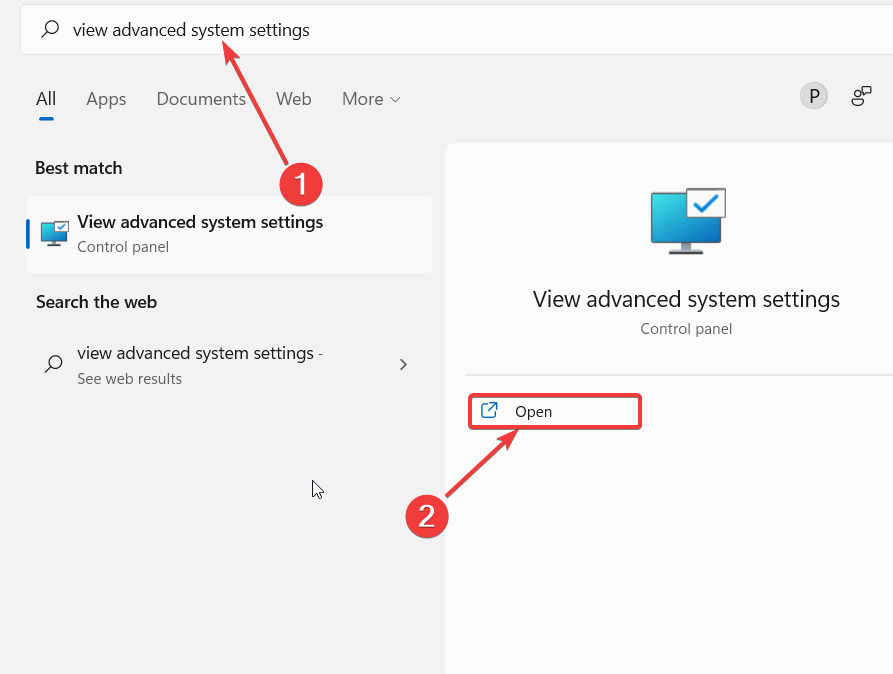
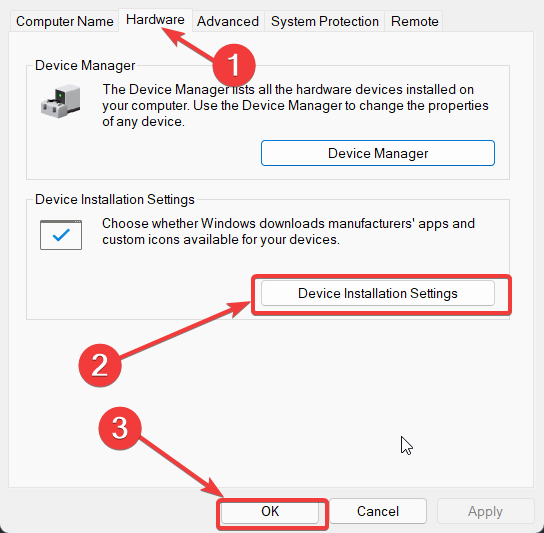
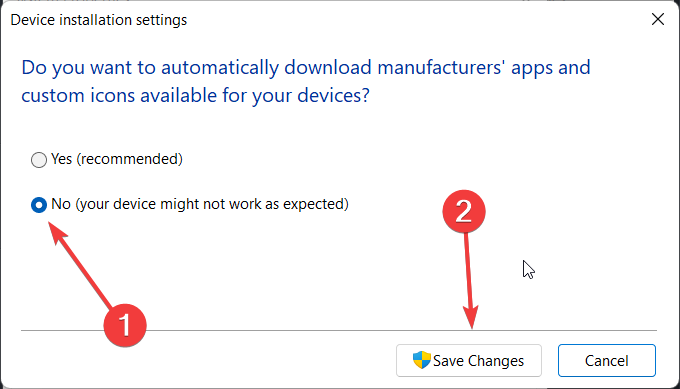
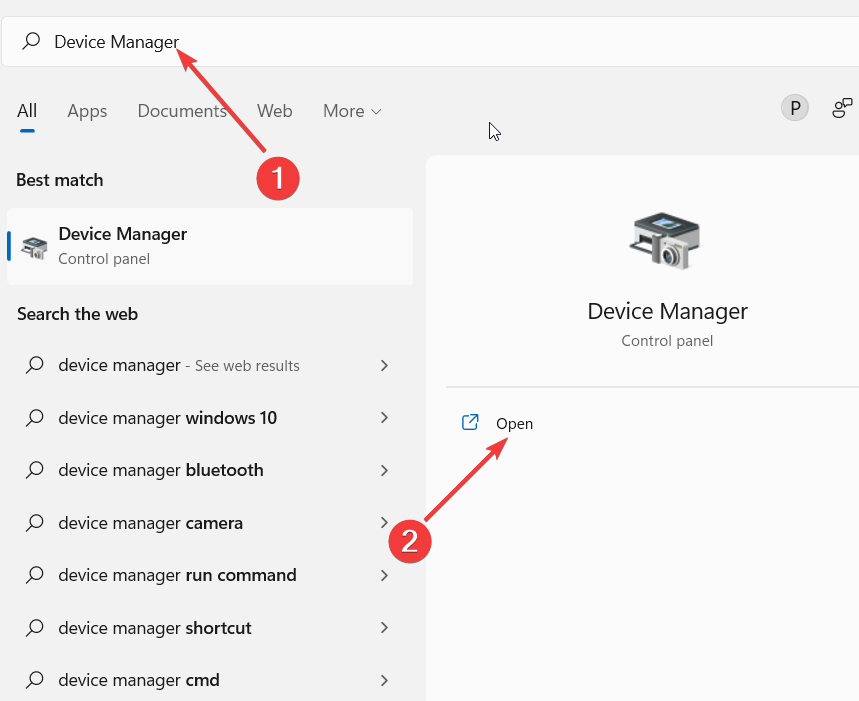
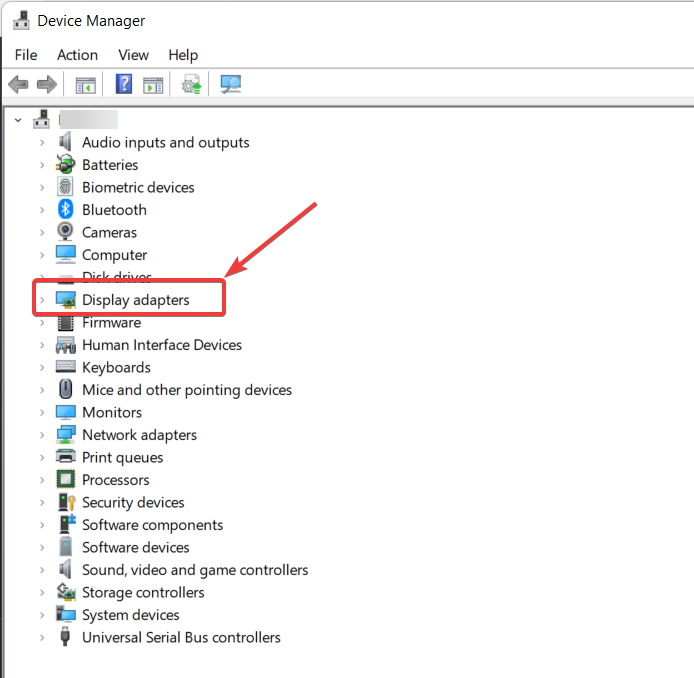
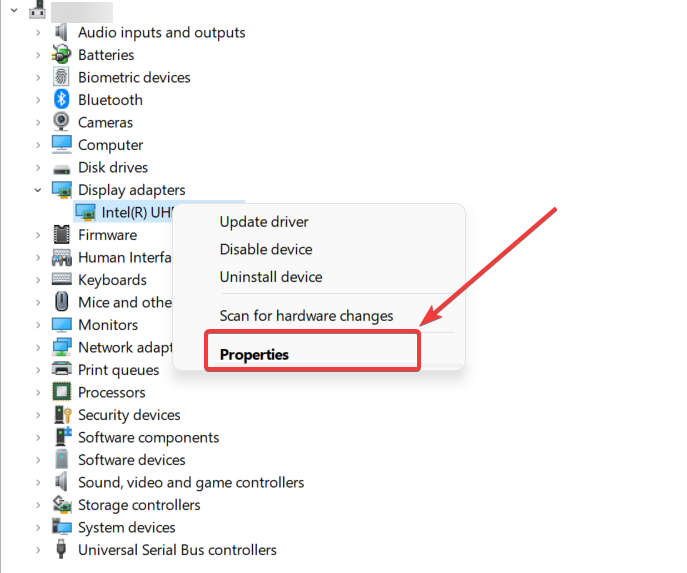
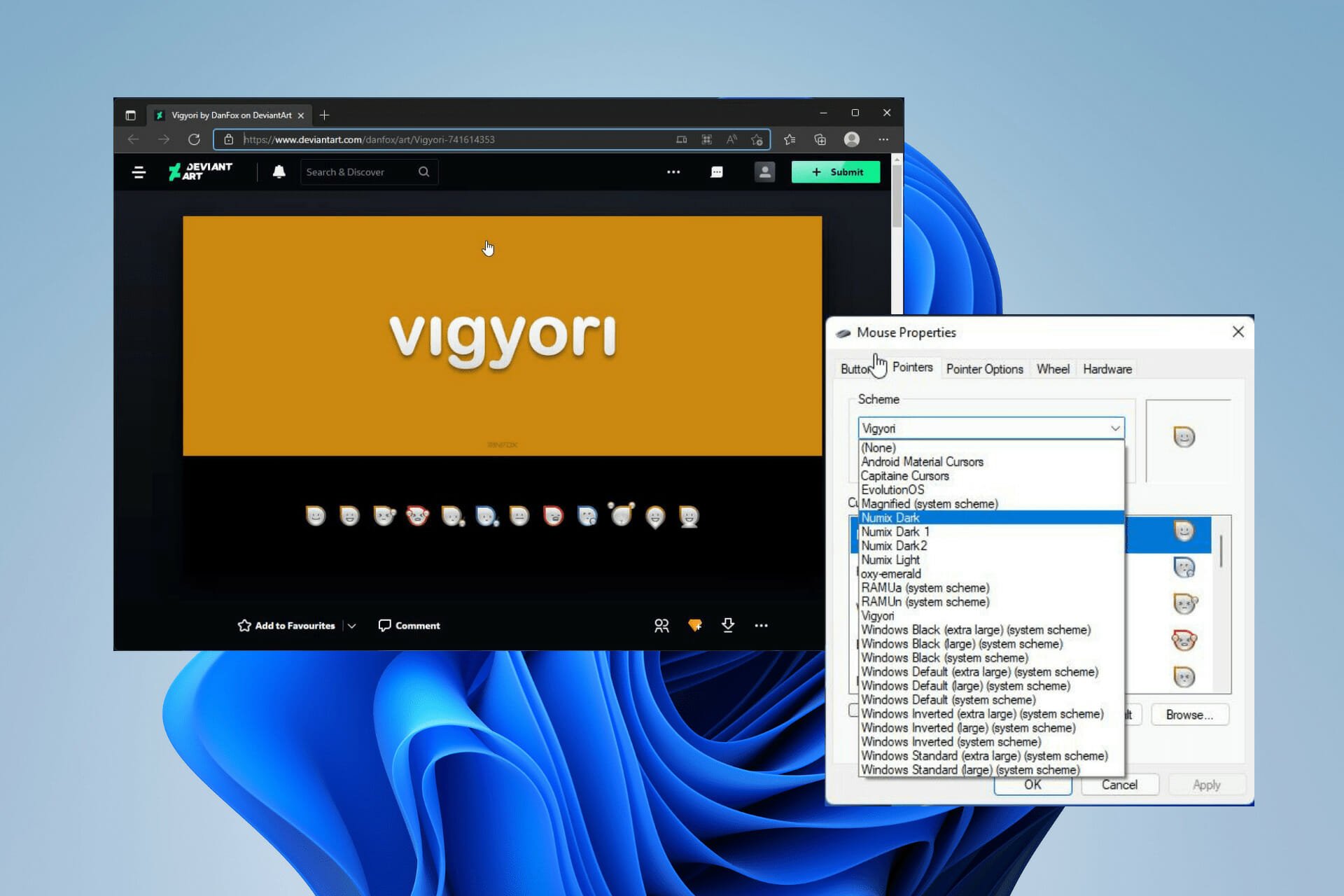
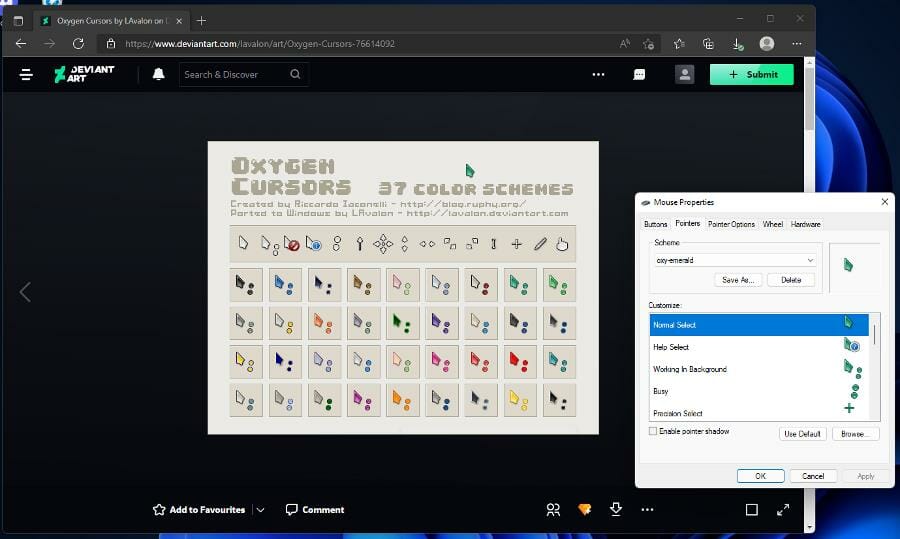
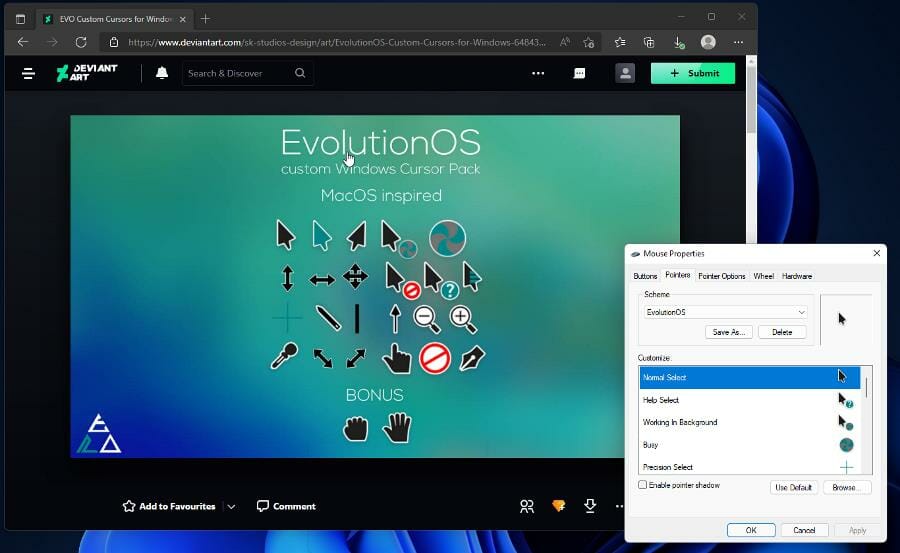
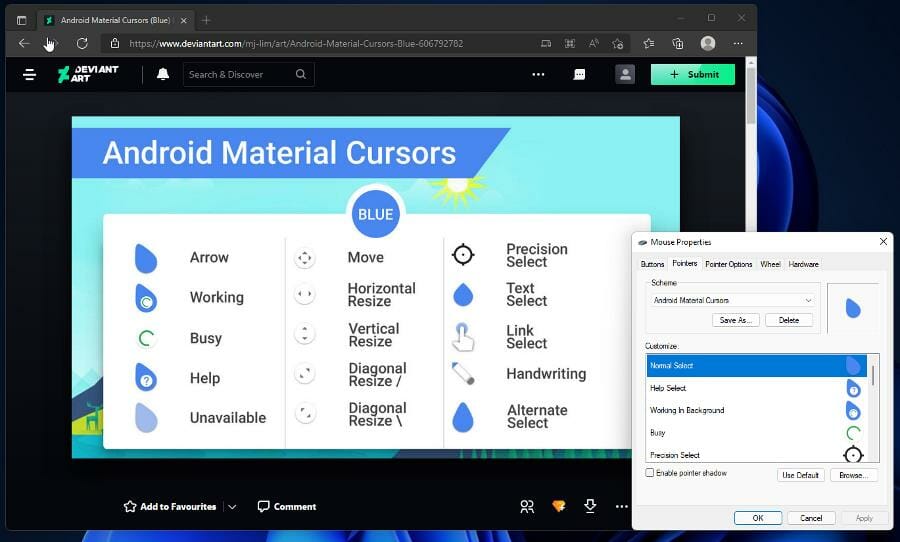
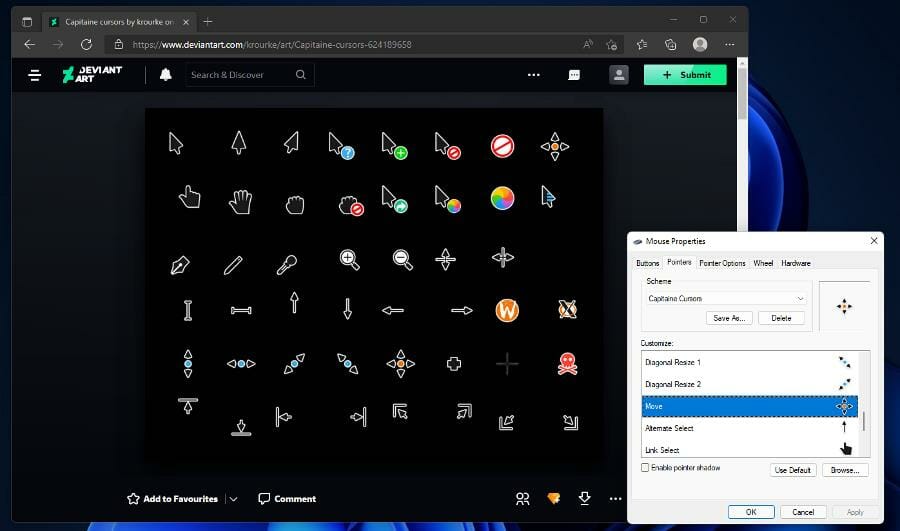
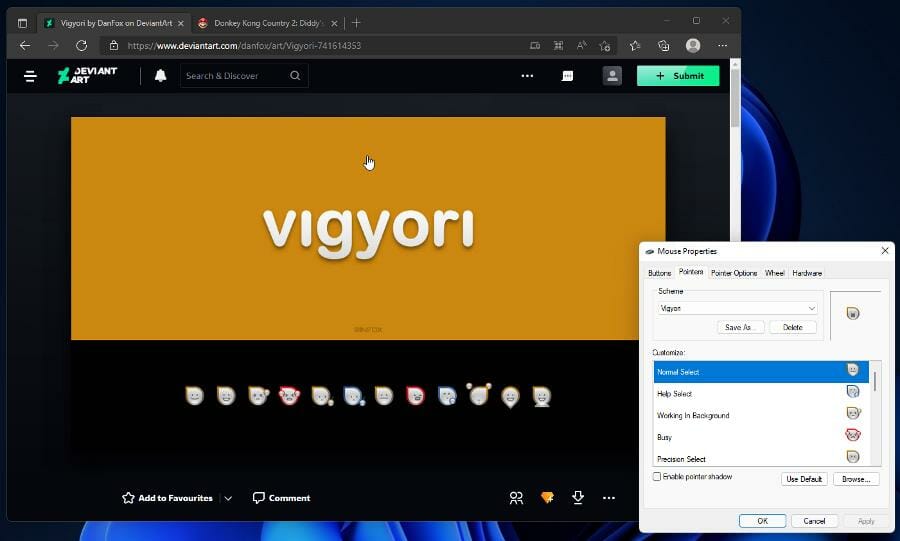
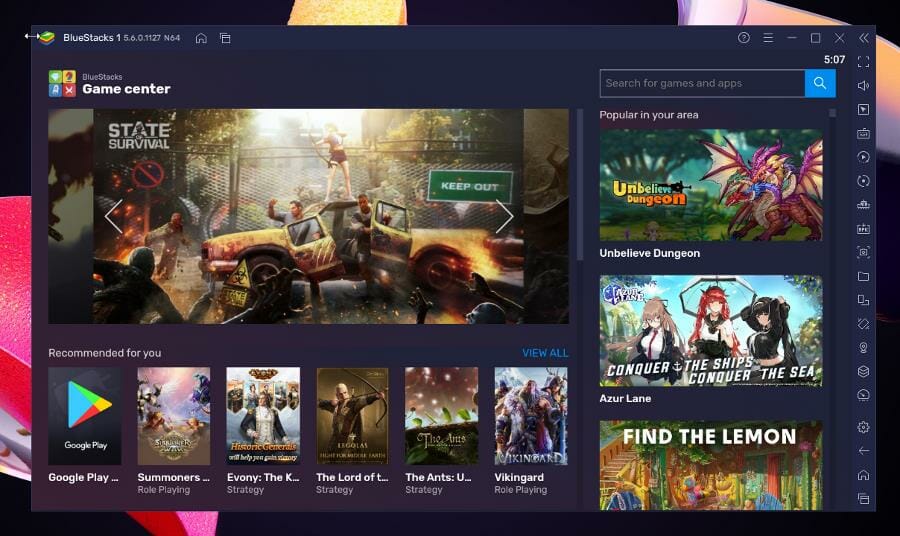

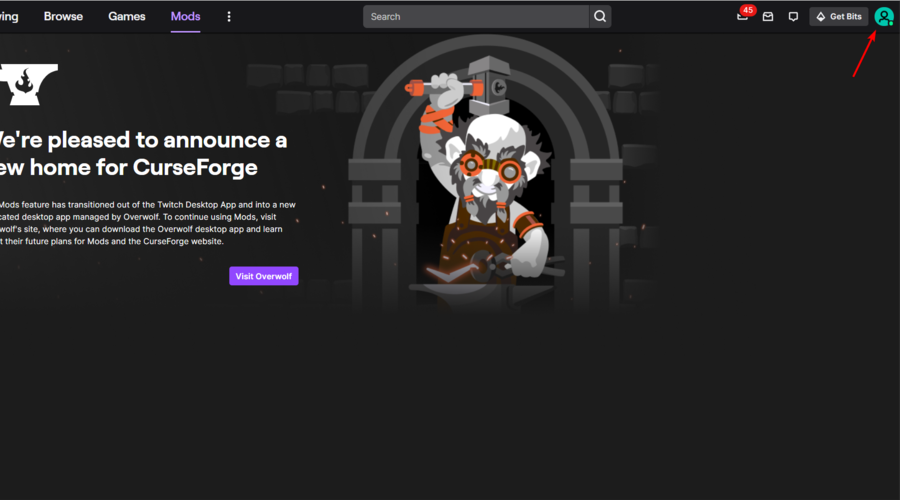
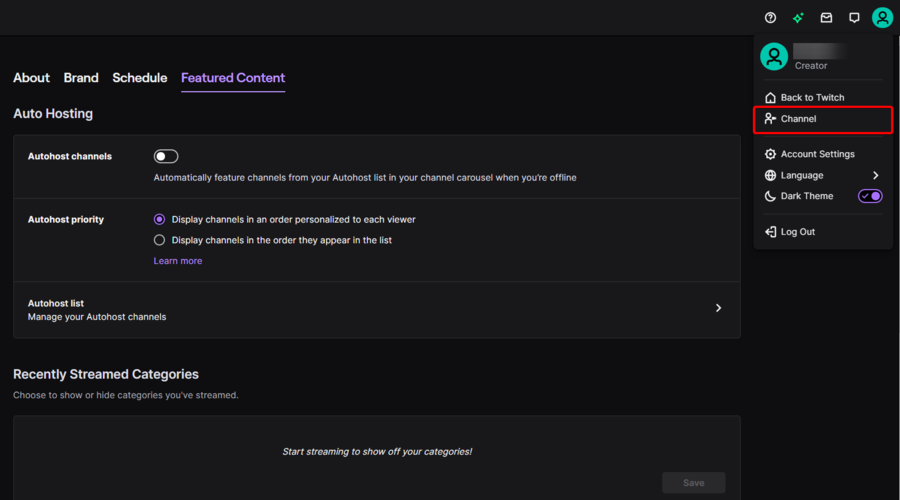
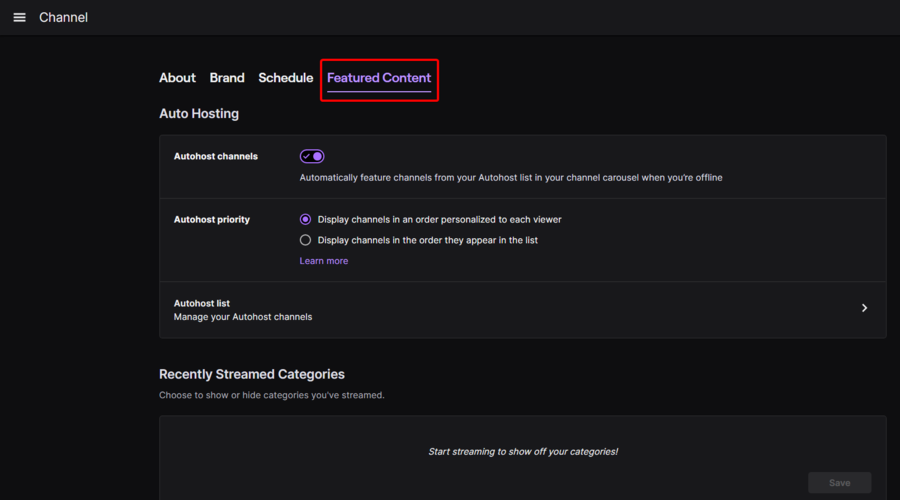
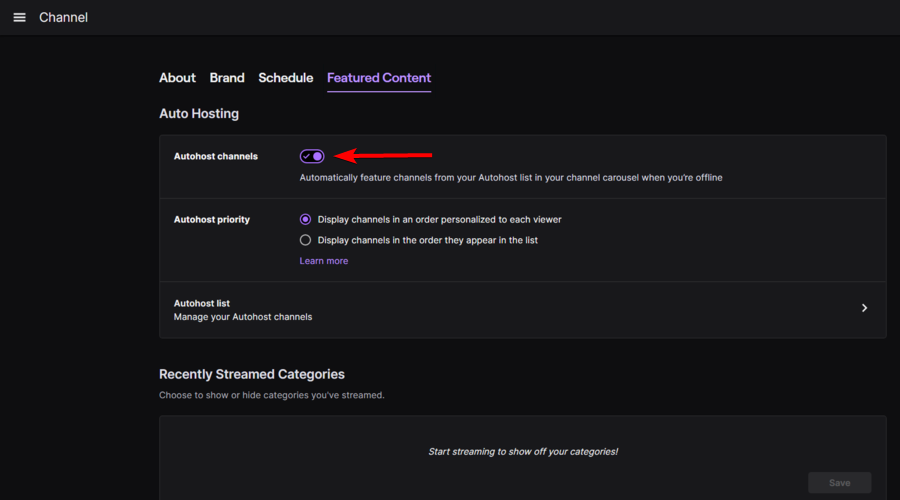
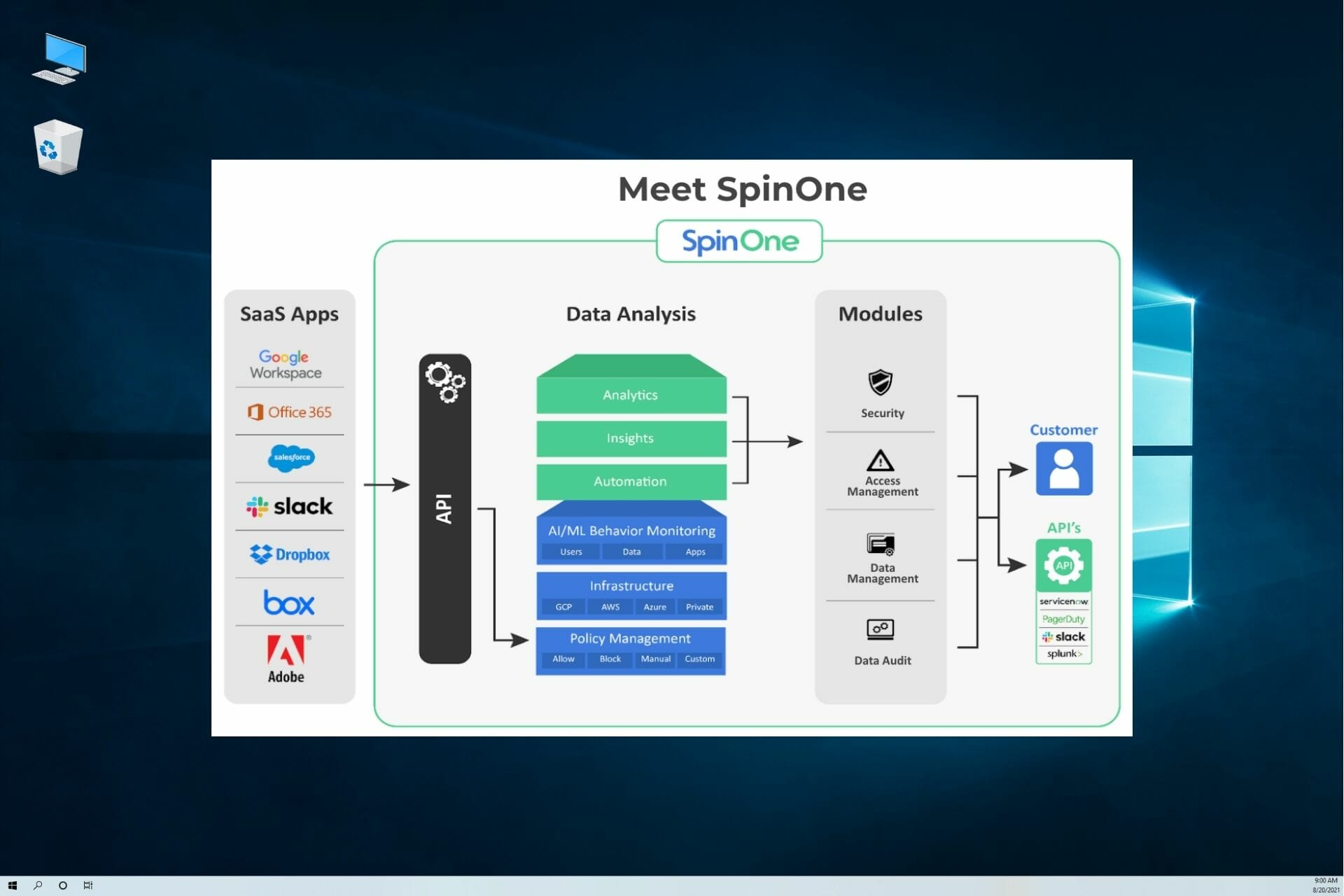
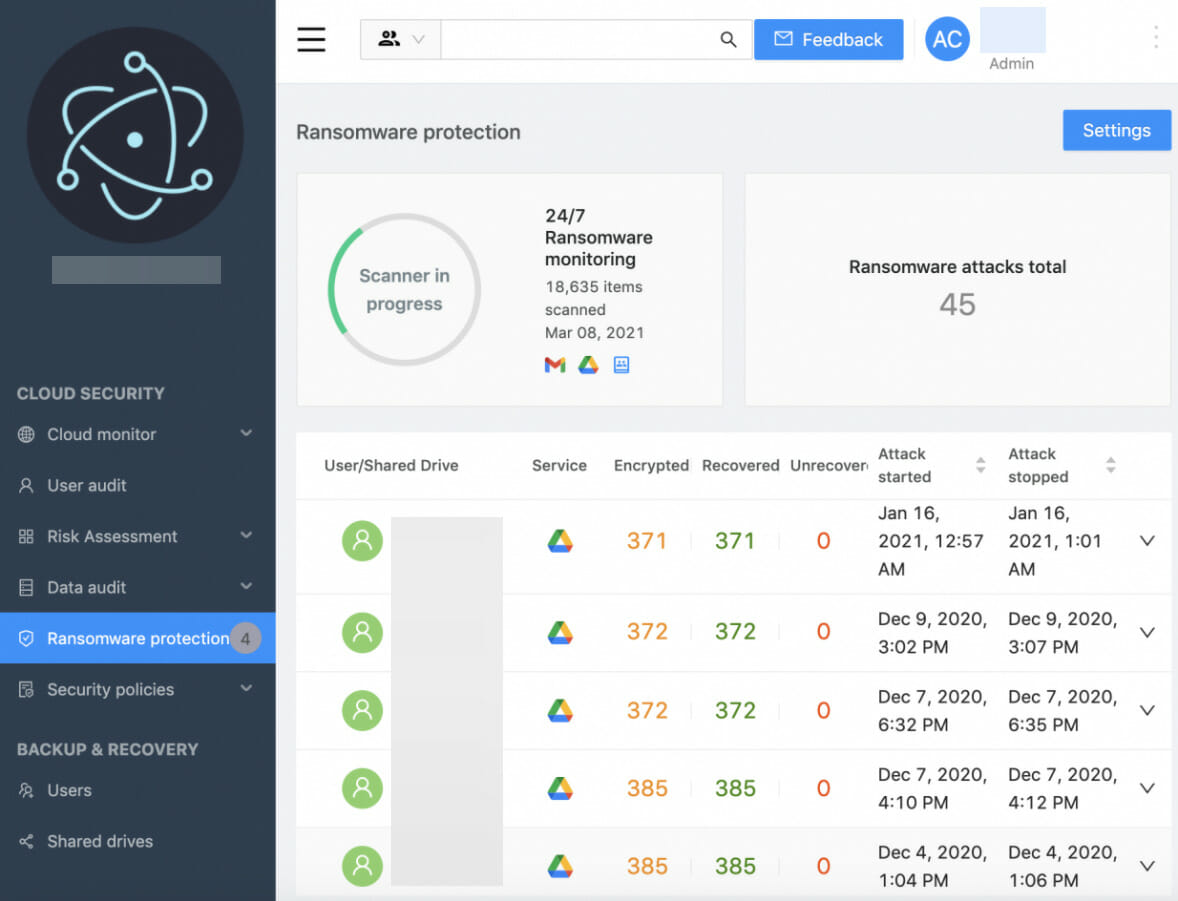

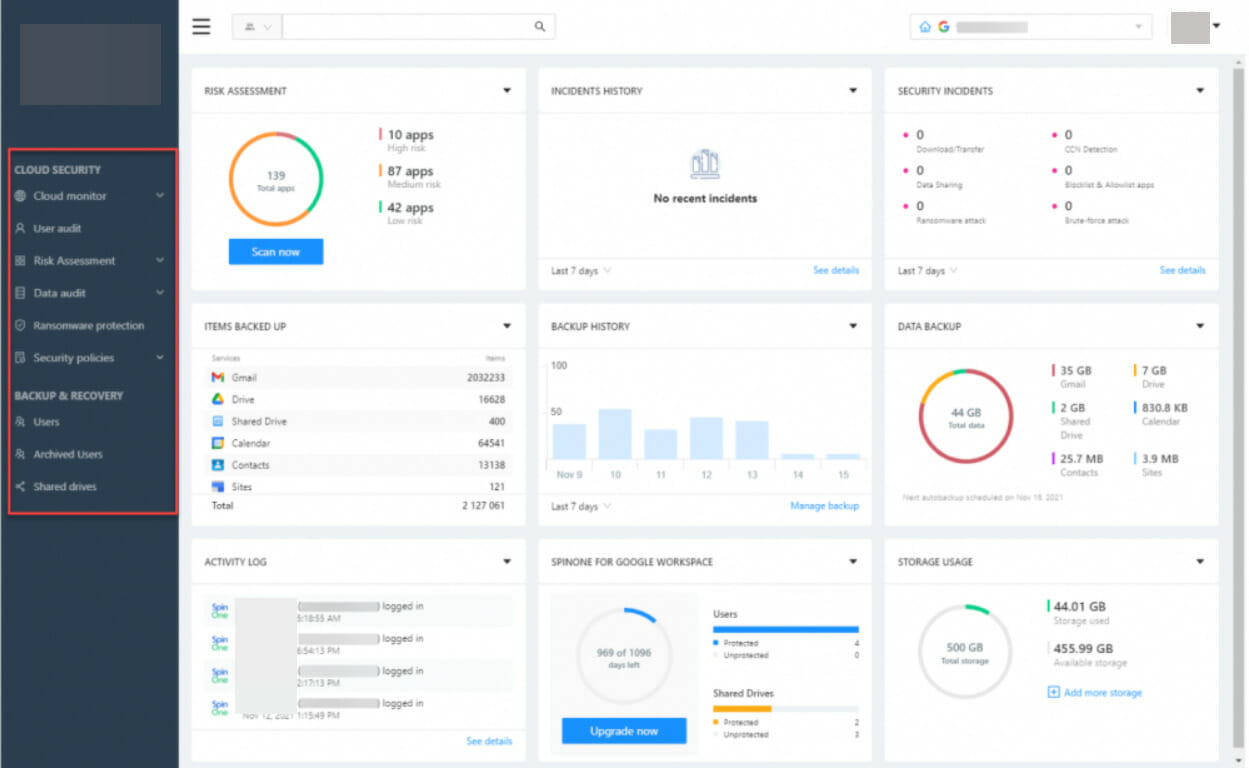
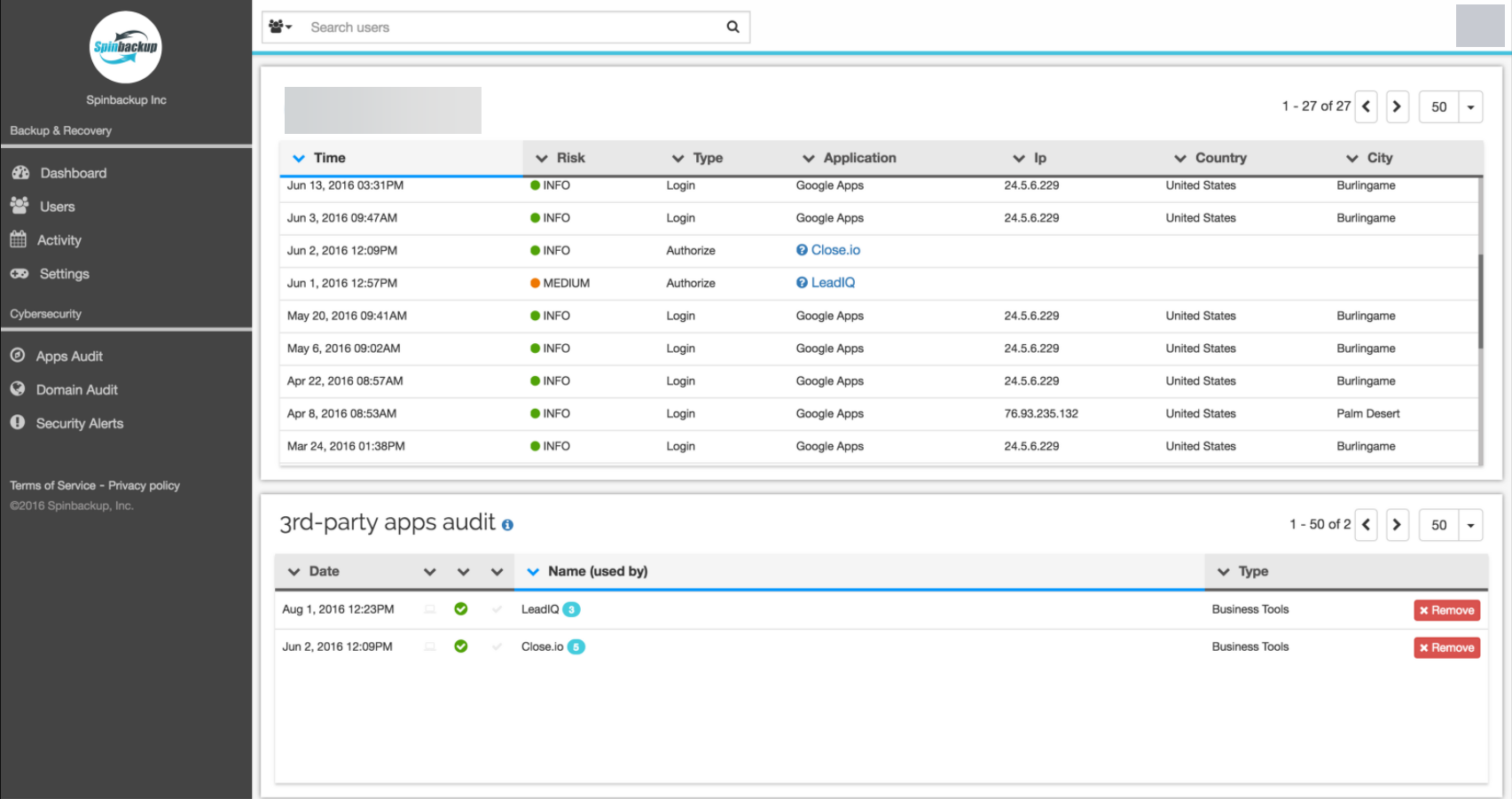


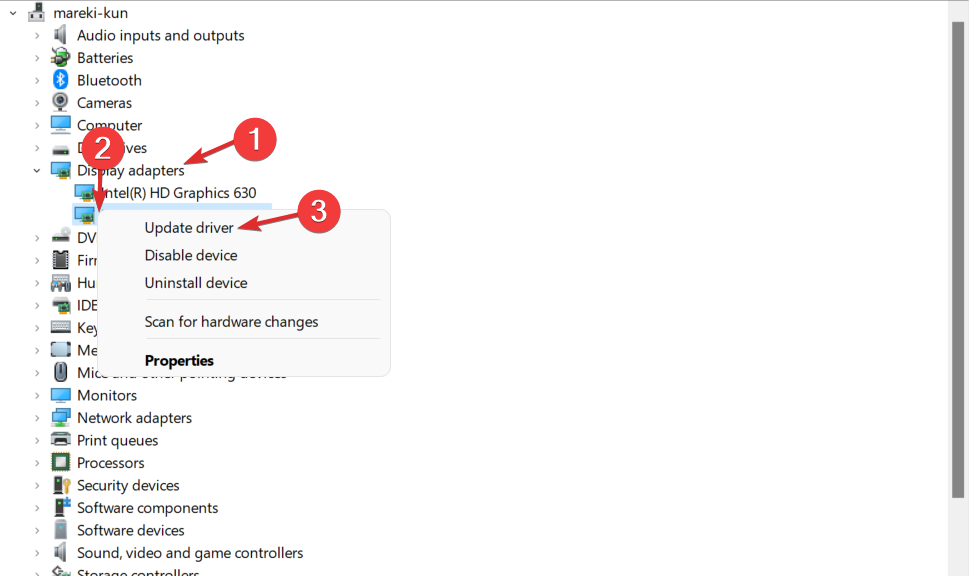


![Something went wrong linking the EA account to Twitch [Fix]](https://windowsreport.com/wp-content/uploads/2019/08/something-went-wrong-linking-EA-account-to-Twitch.png)
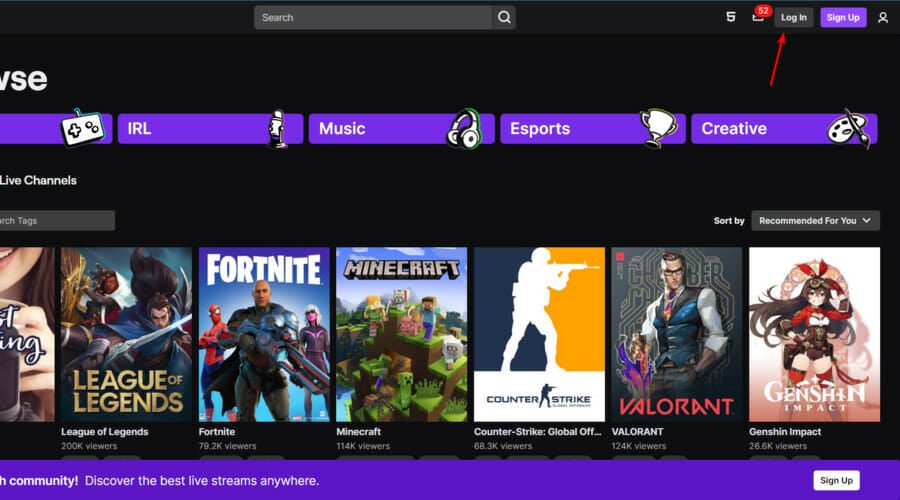
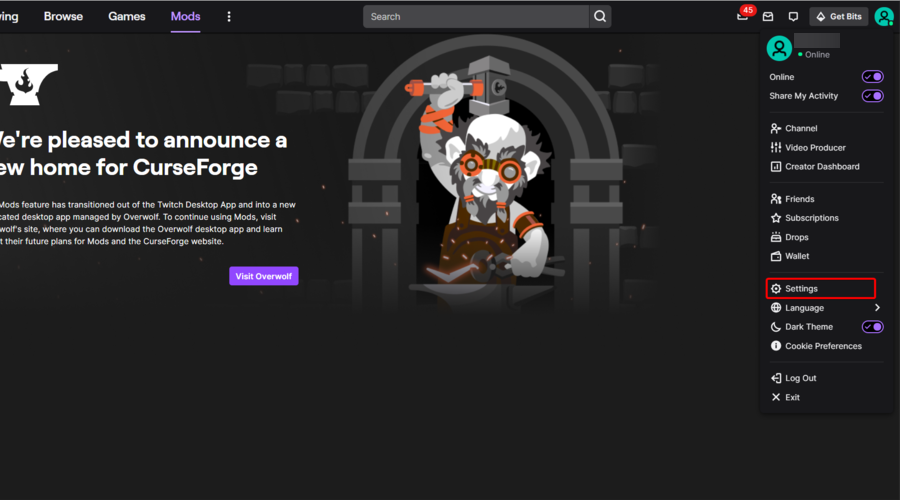


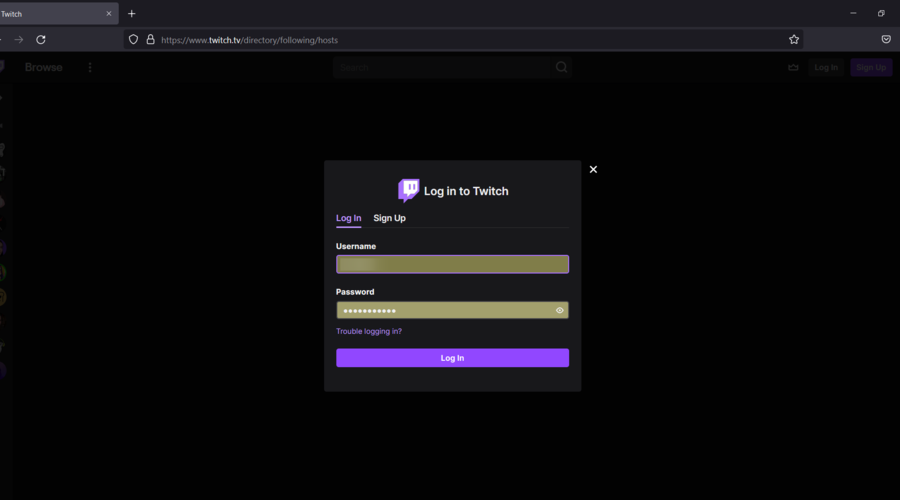


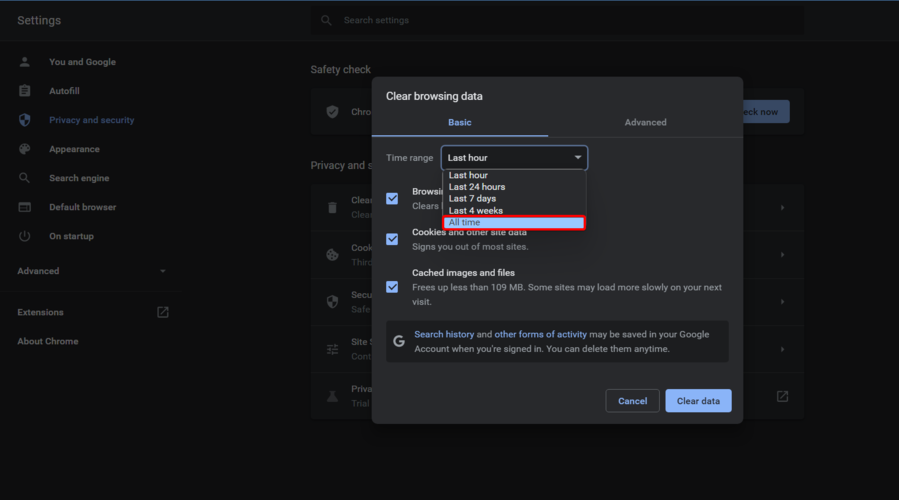
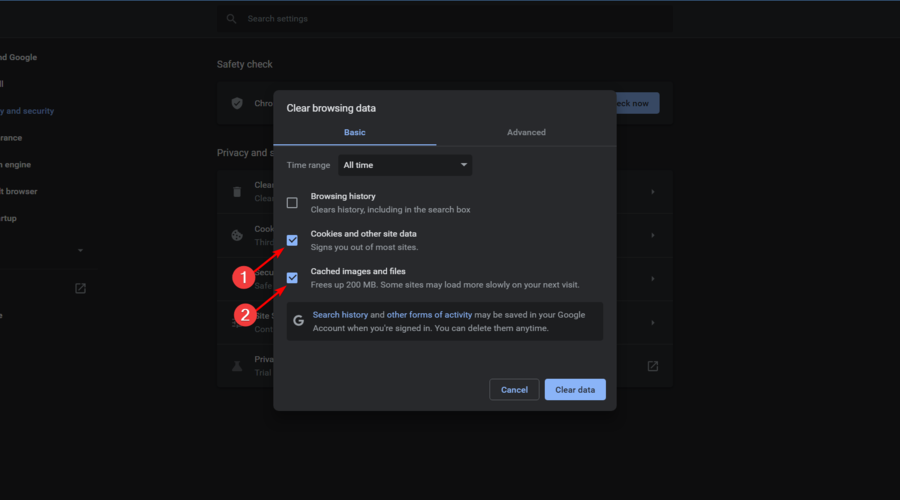


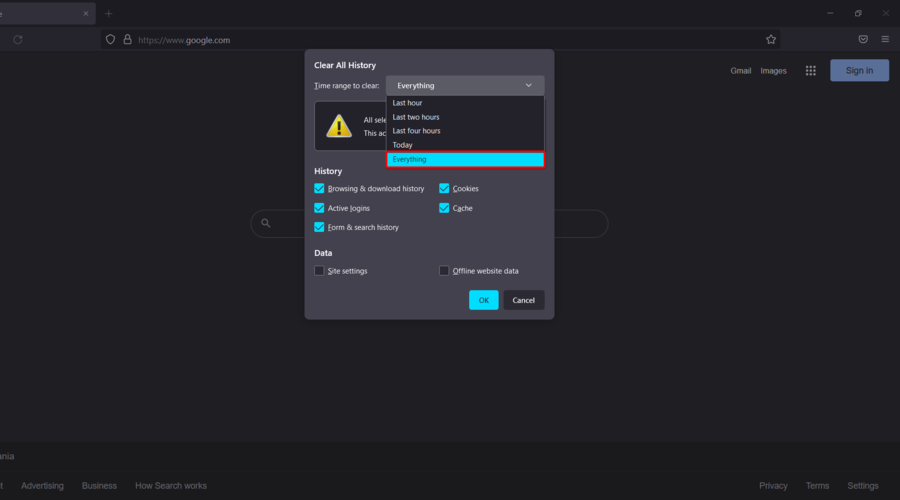


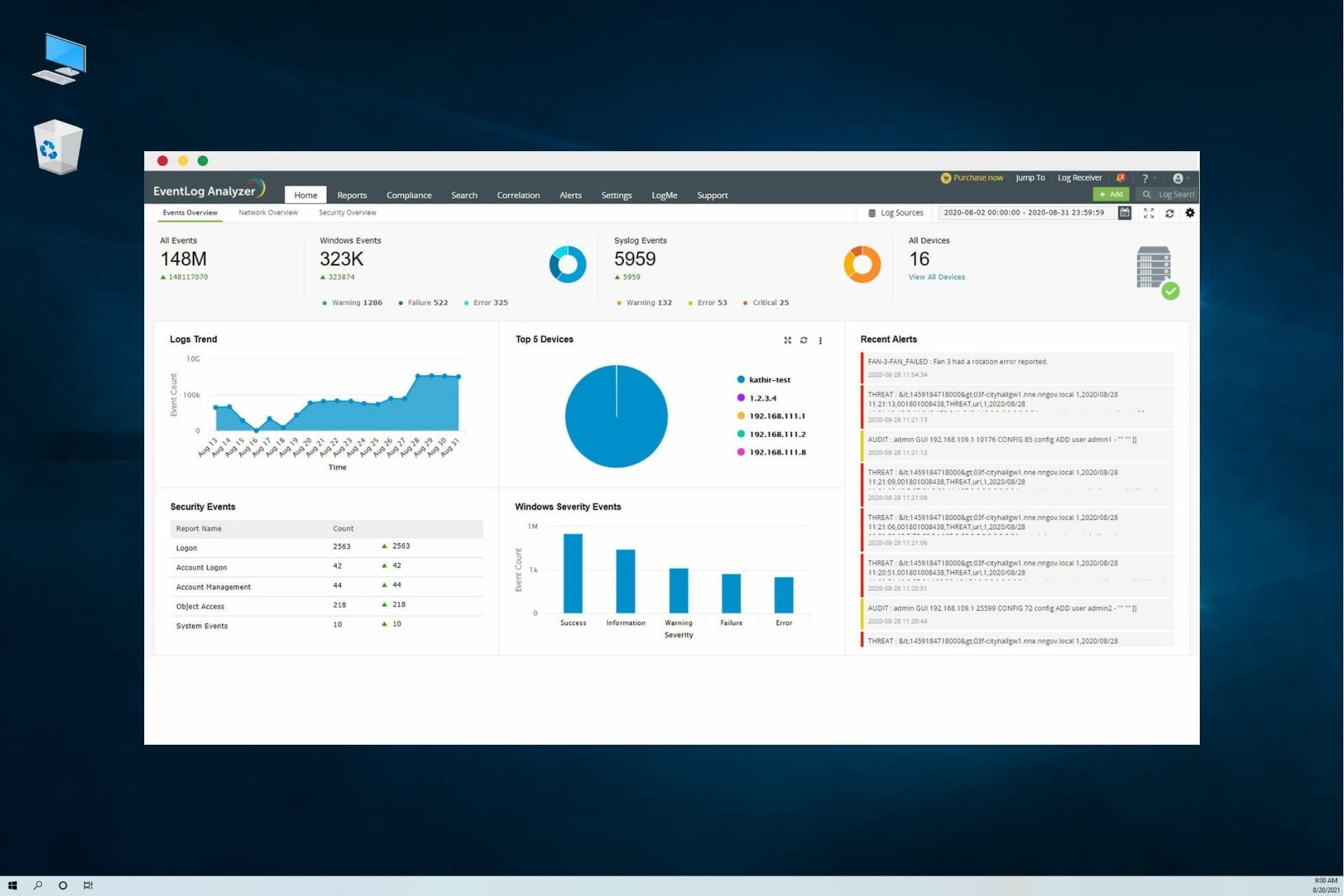






![Windows 11 Dock: How to Choose the Best App [6 Ranked]](https://windowsreport.com/wp-content/uploads/2022/03/best-windows-11-dock-1.jpg)


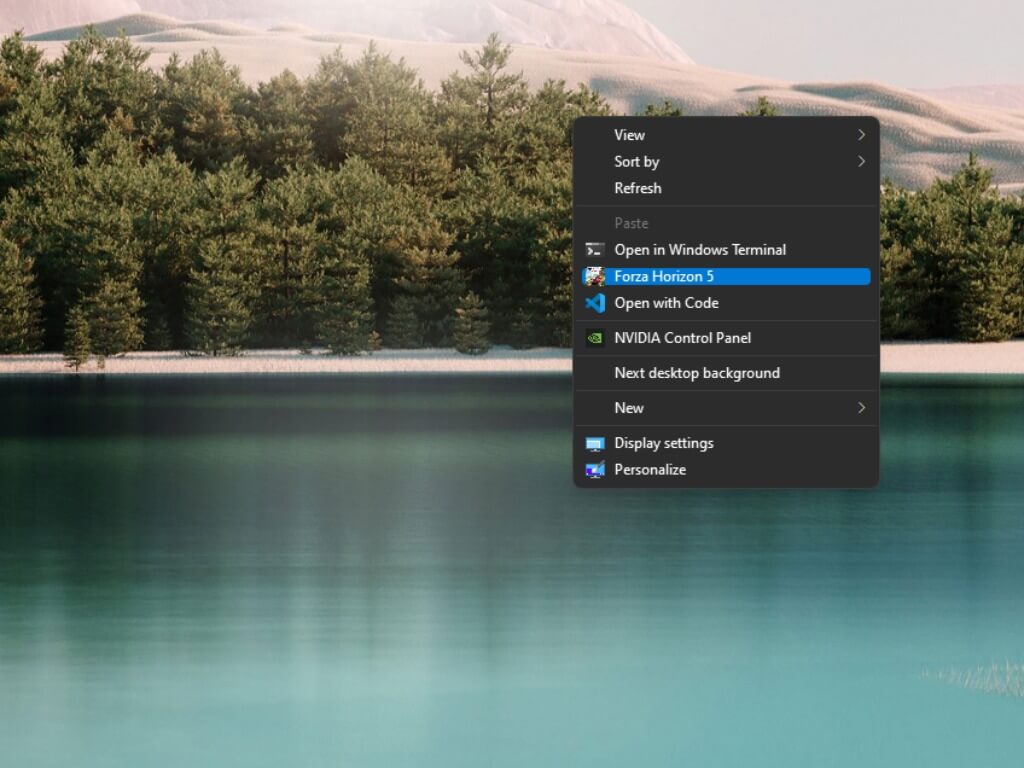
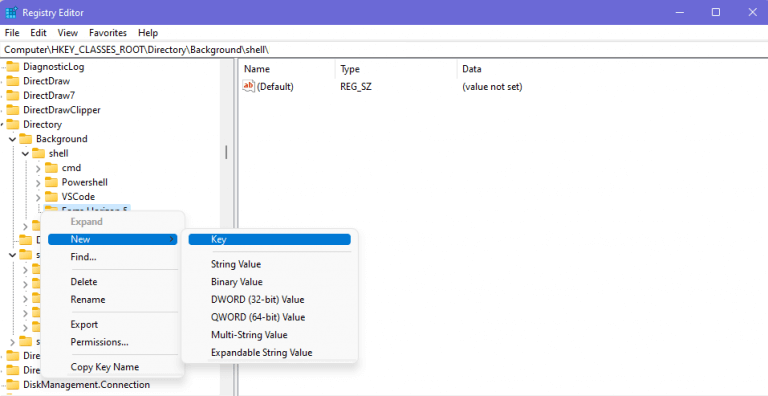
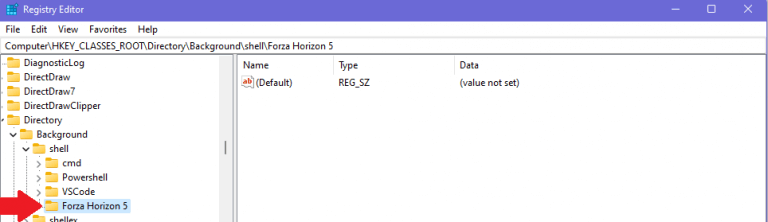
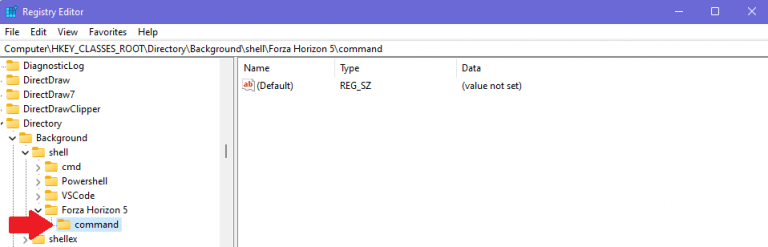
 Close the Registry Editor when you are finished adding applications to the File Explorer context menu.
 But what if you want to add an icon to your application? Here’s what to do.
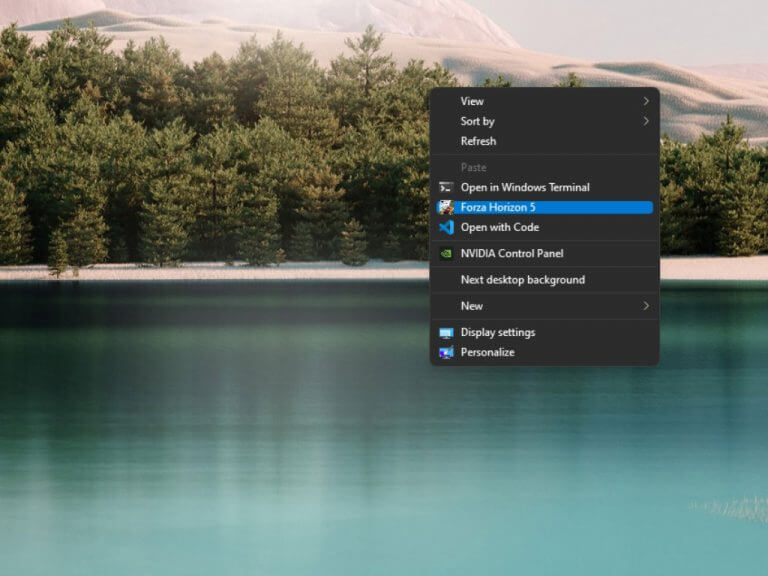

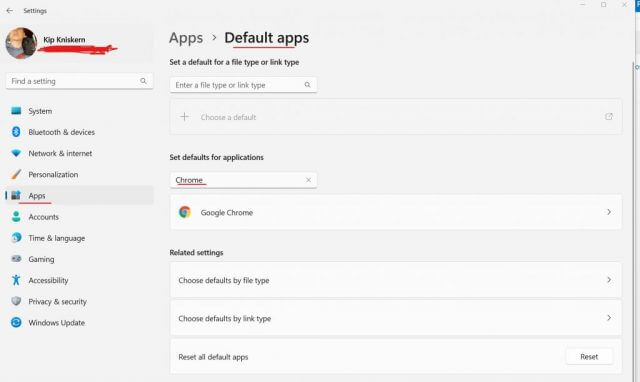

![Horizon Forbidden West vs Breath of the Wild 2 [Gamer Guide]](https://windowsreport.com/wp-content/uploads/2022/03/Untitled-design-2022-03-28T164627.593-1-1.jpg)


![How to Increase FPS on Windows 11 [Best Settings]](https://windowsreport.com/wp-content/uploads/2022/03/Windows-11-Best-FPS-settings.jpg)



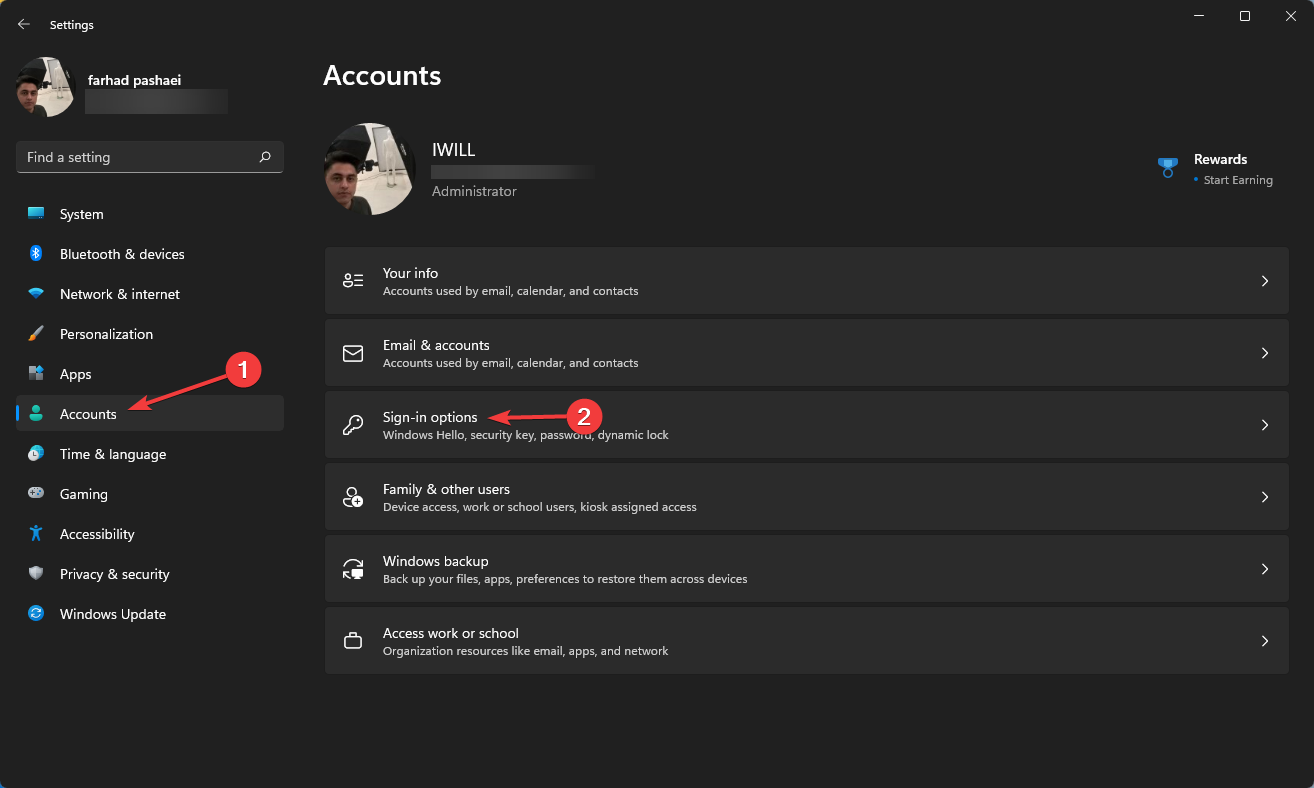
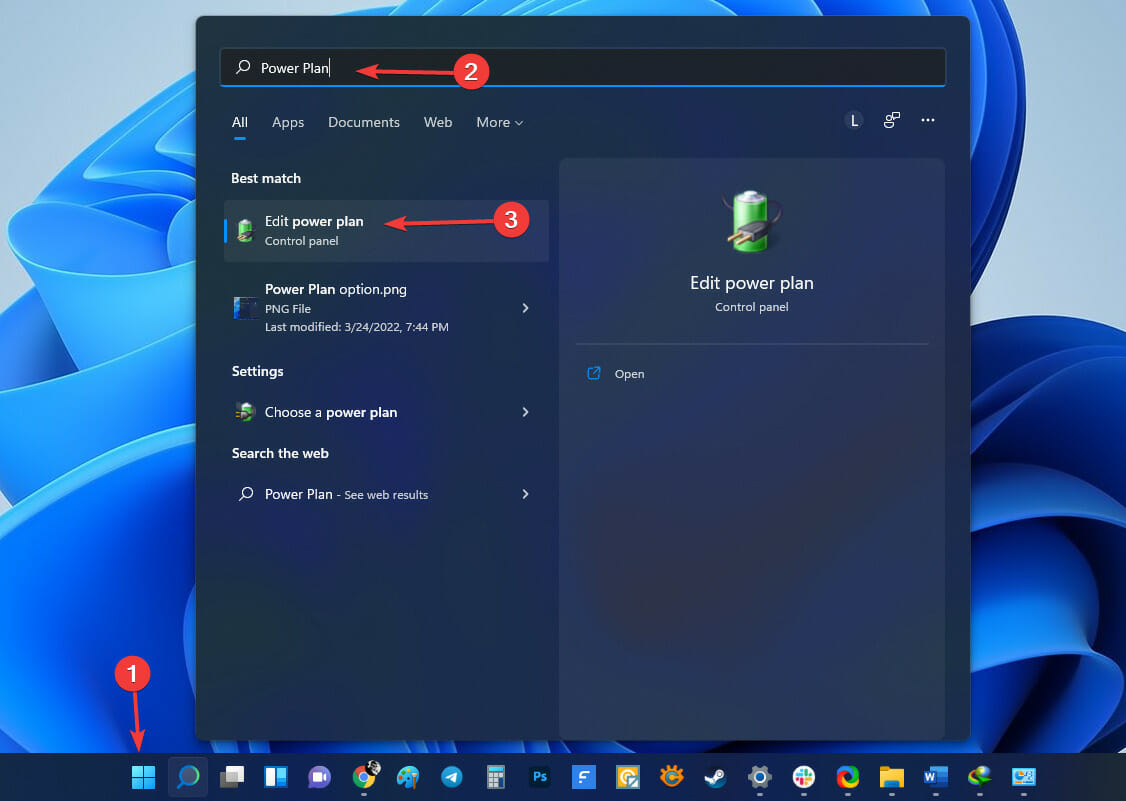
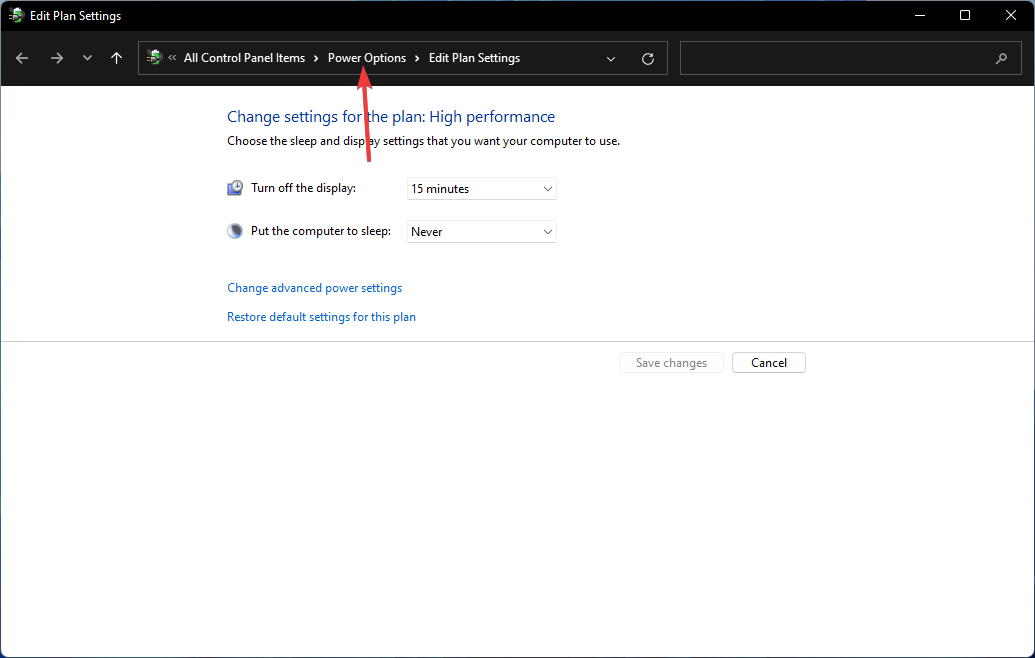
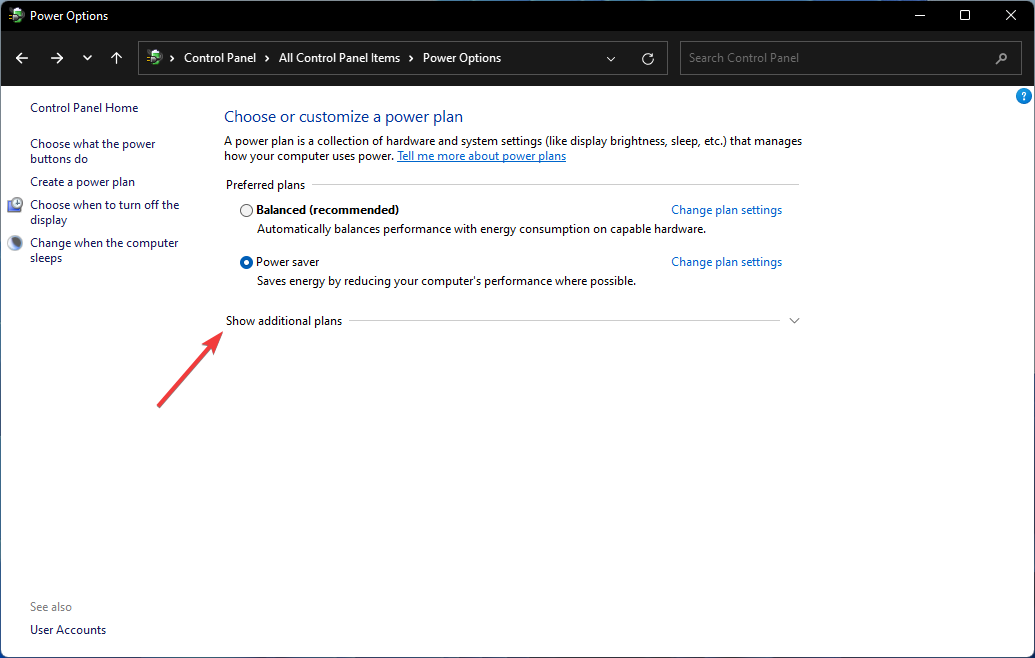

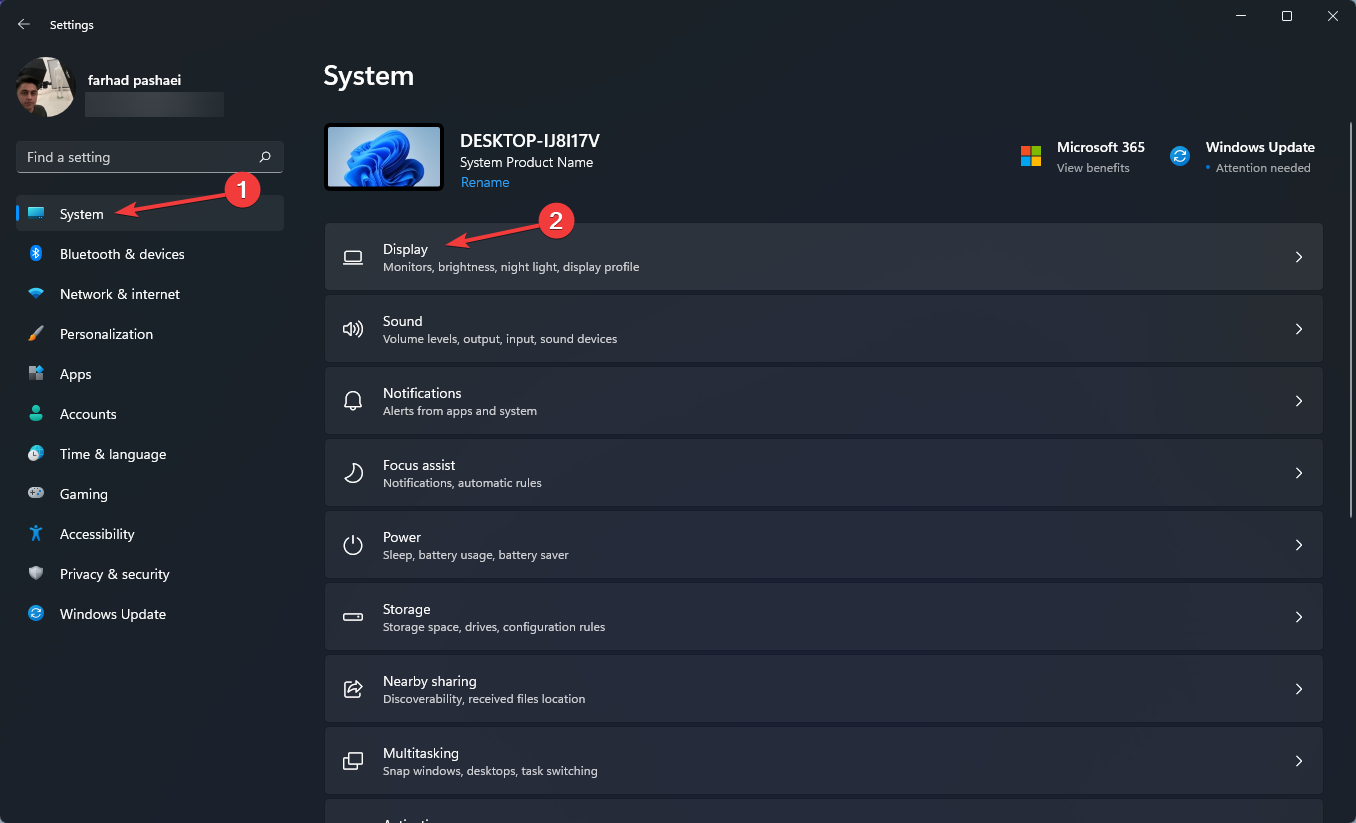
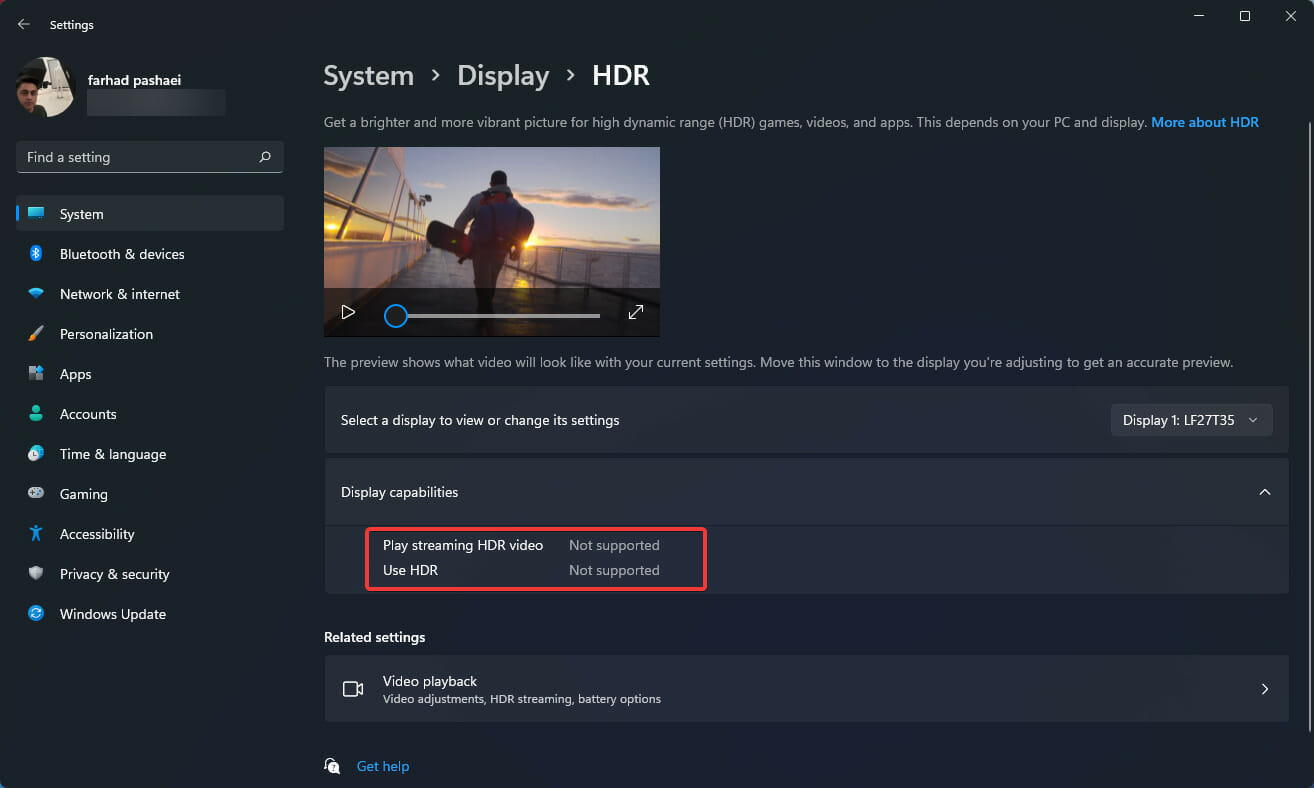
![Best File Manager for Windows 11 [12 Alternatives Ranked]](https://windowsreport.com/wp-content/uploads/2022/03/best-windows-11-file-manager.jpg)



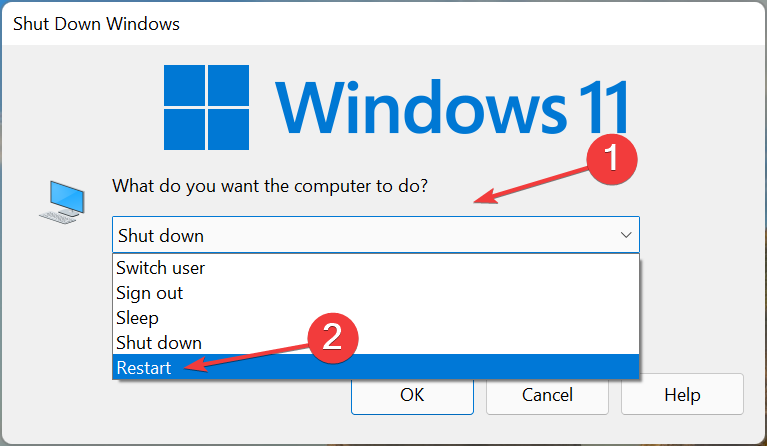
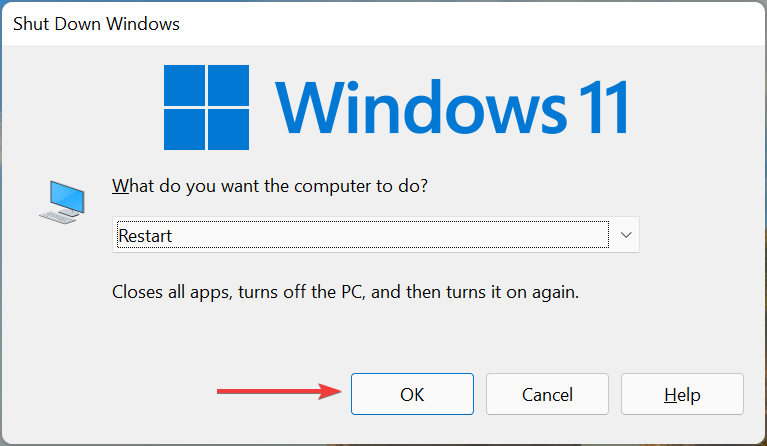
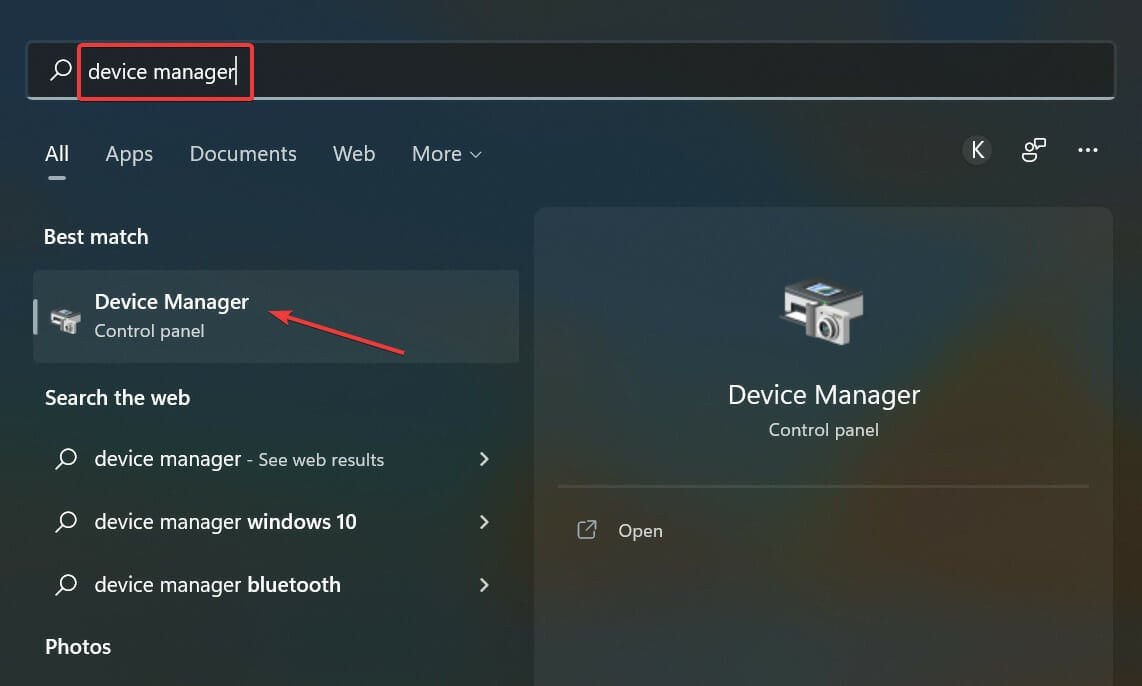
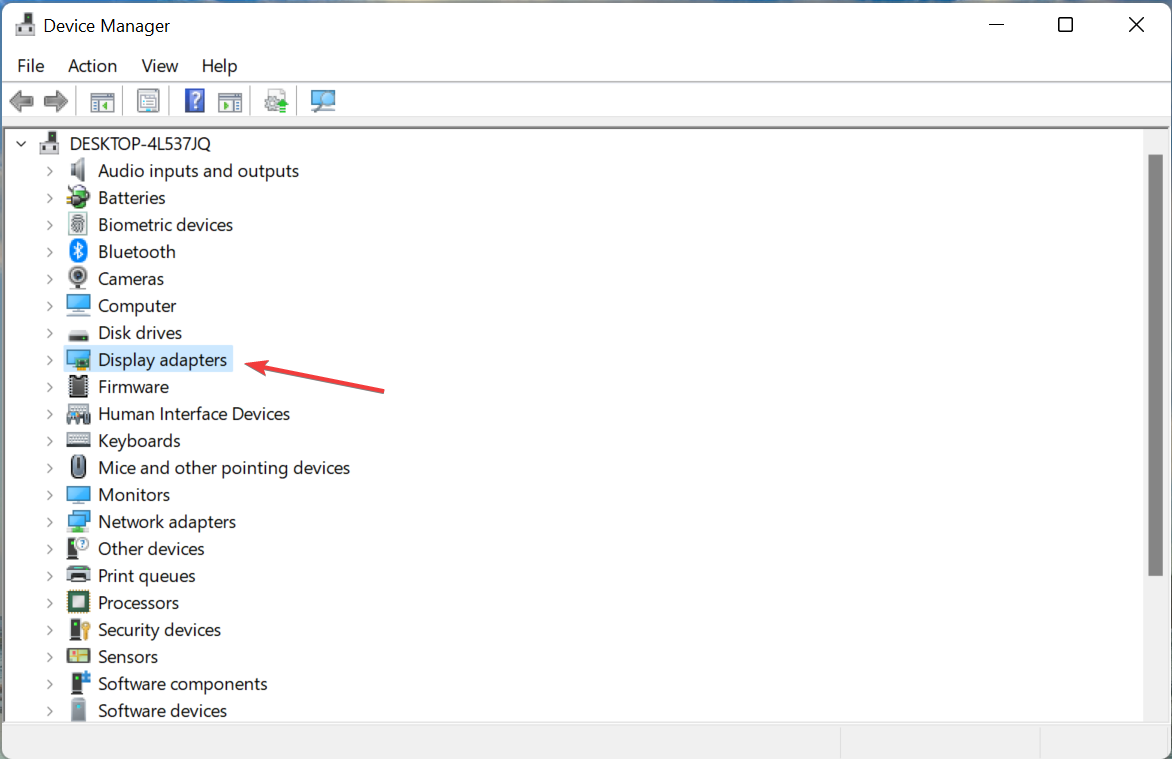
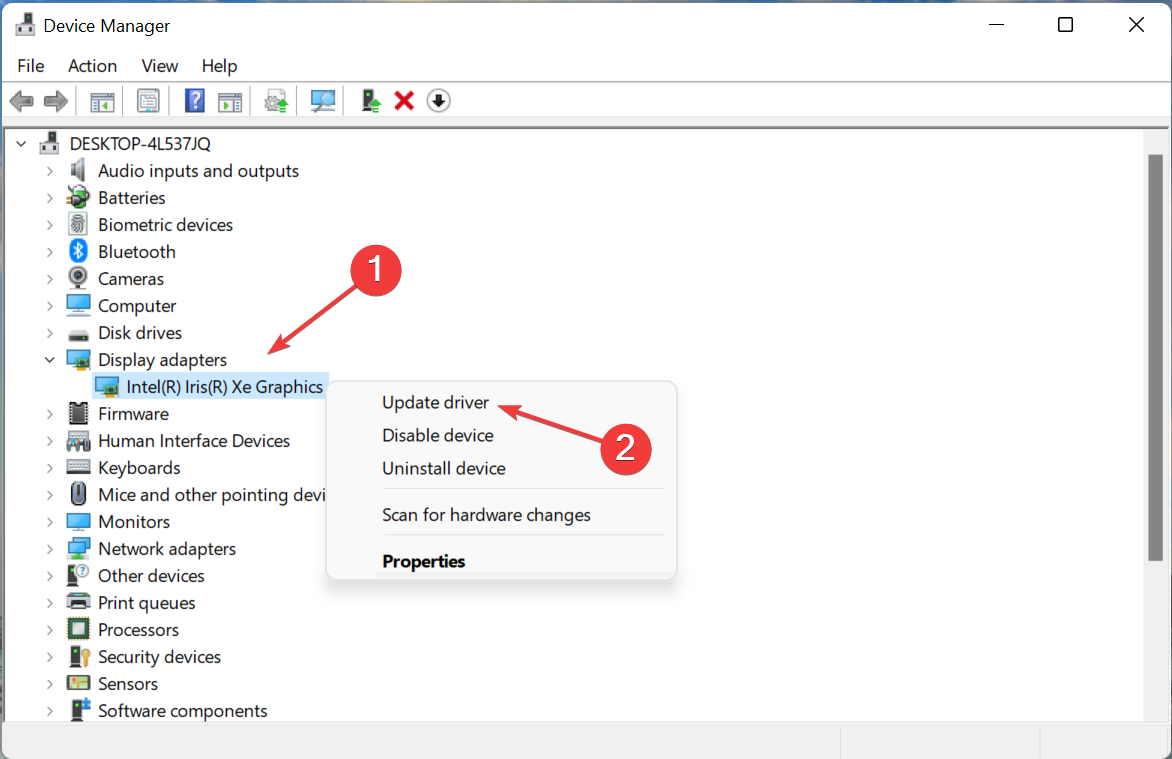
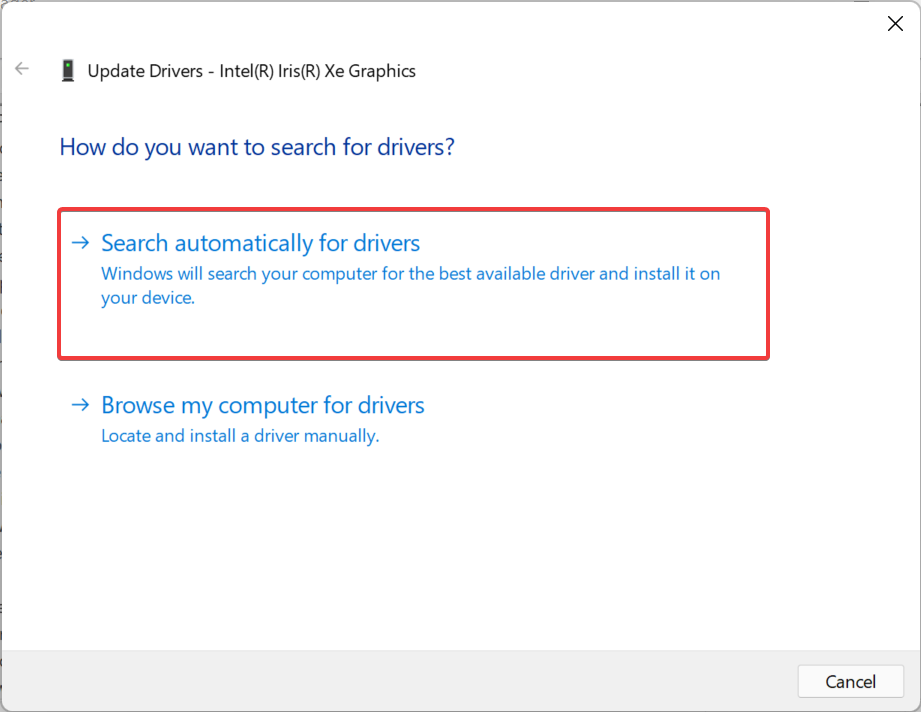
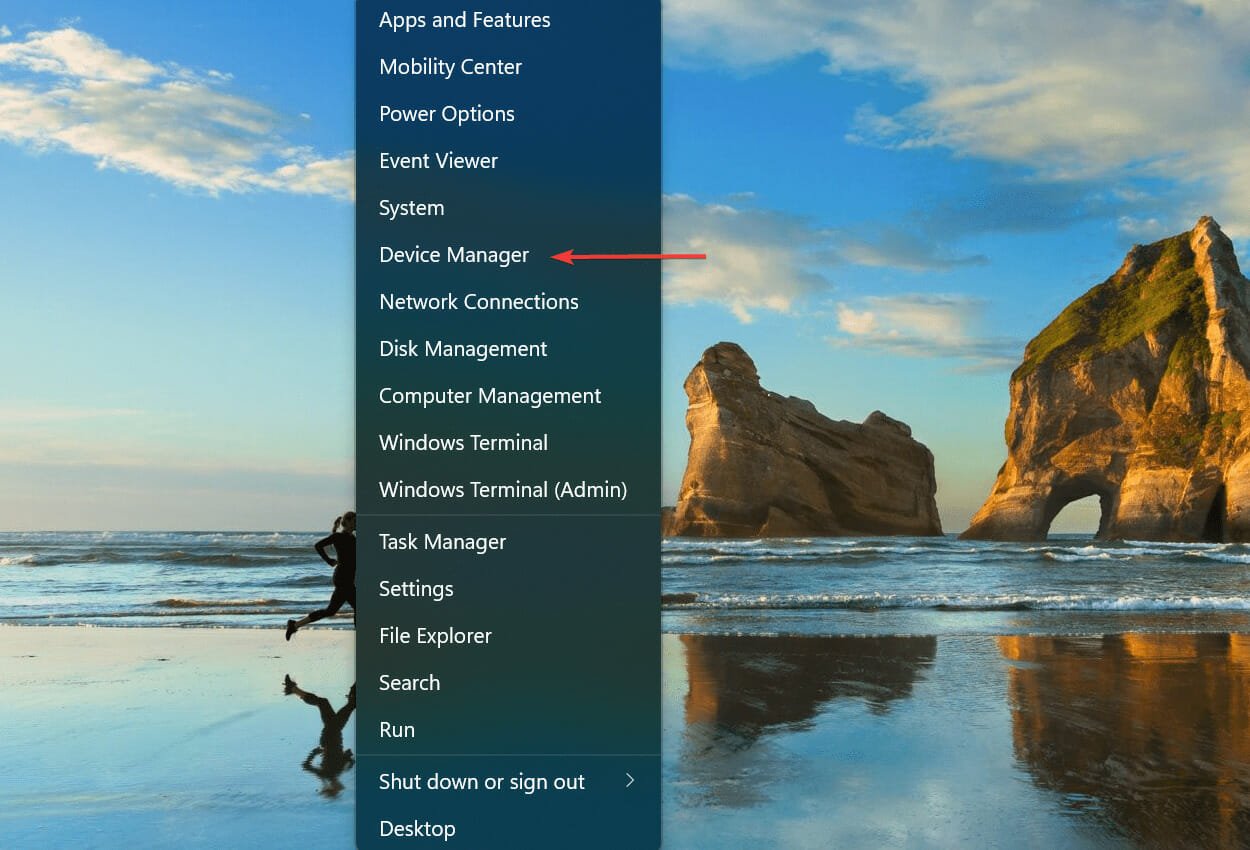
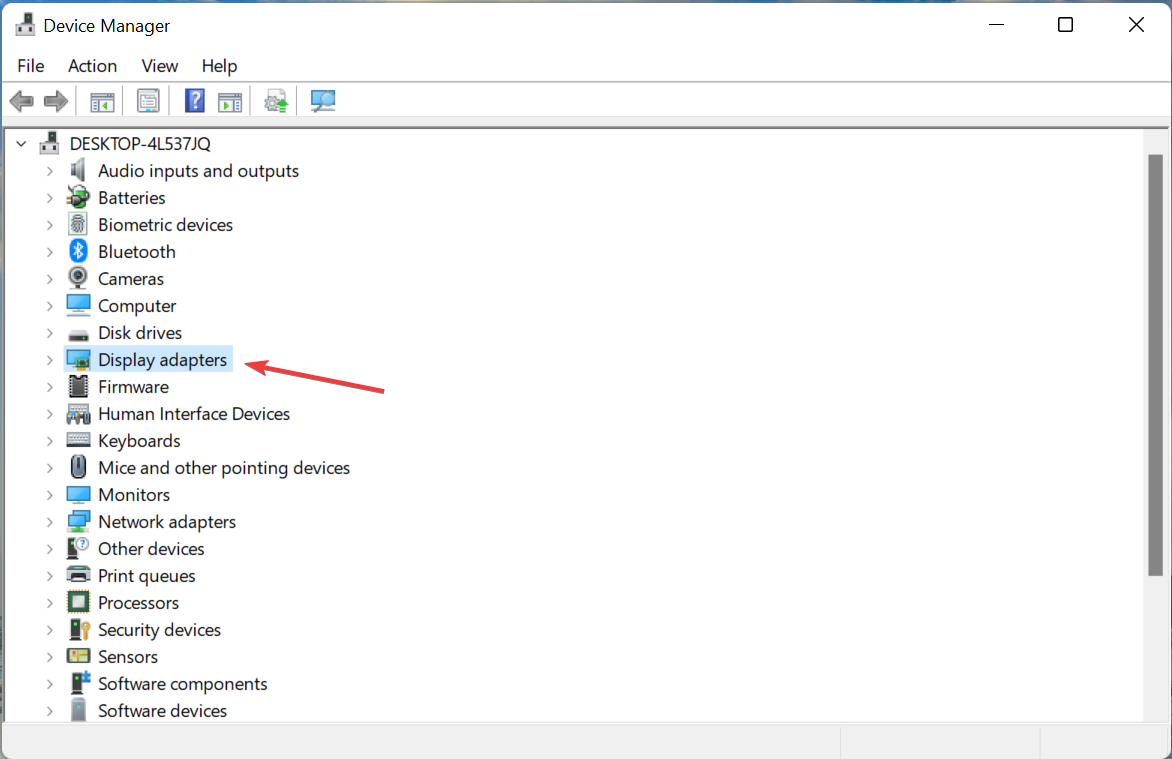
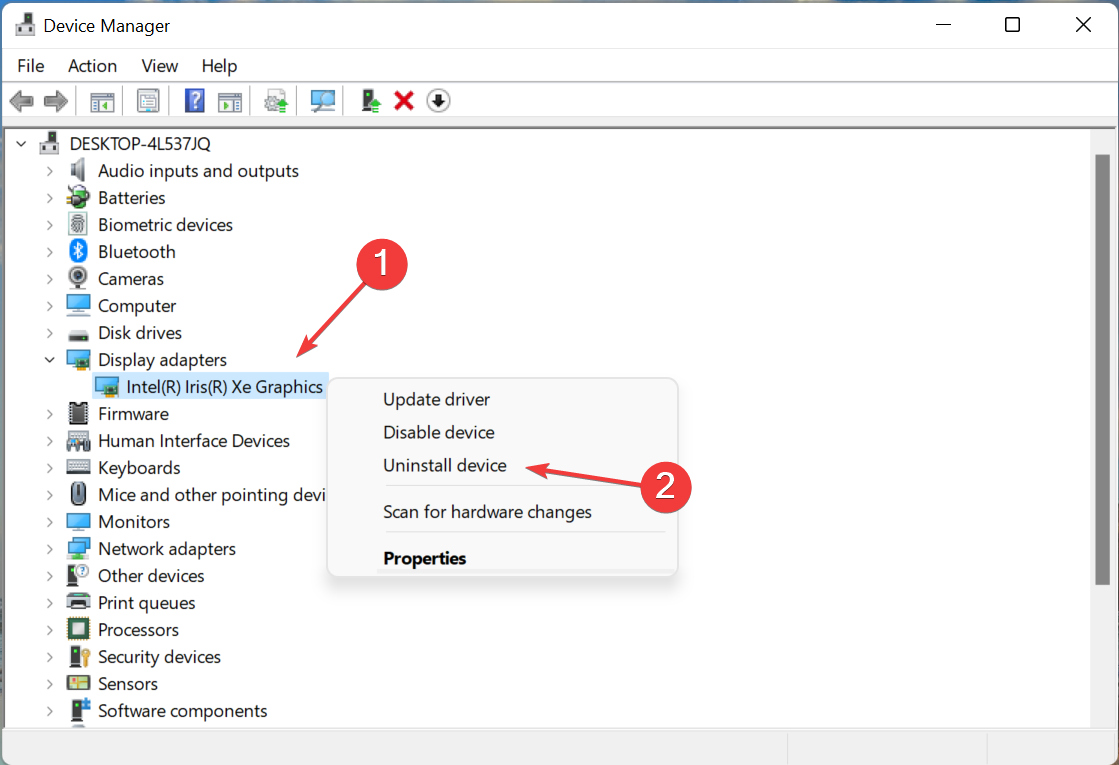
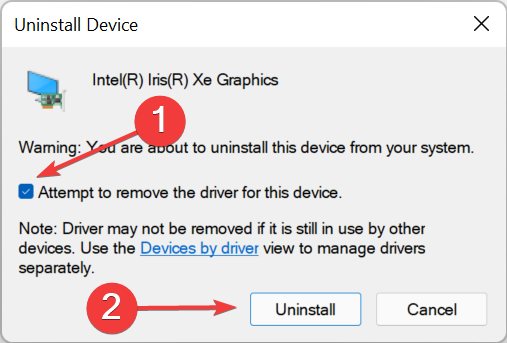
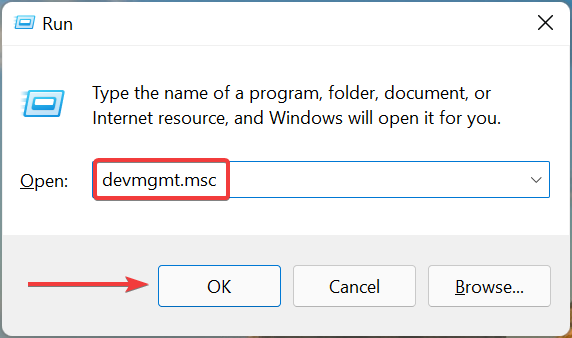
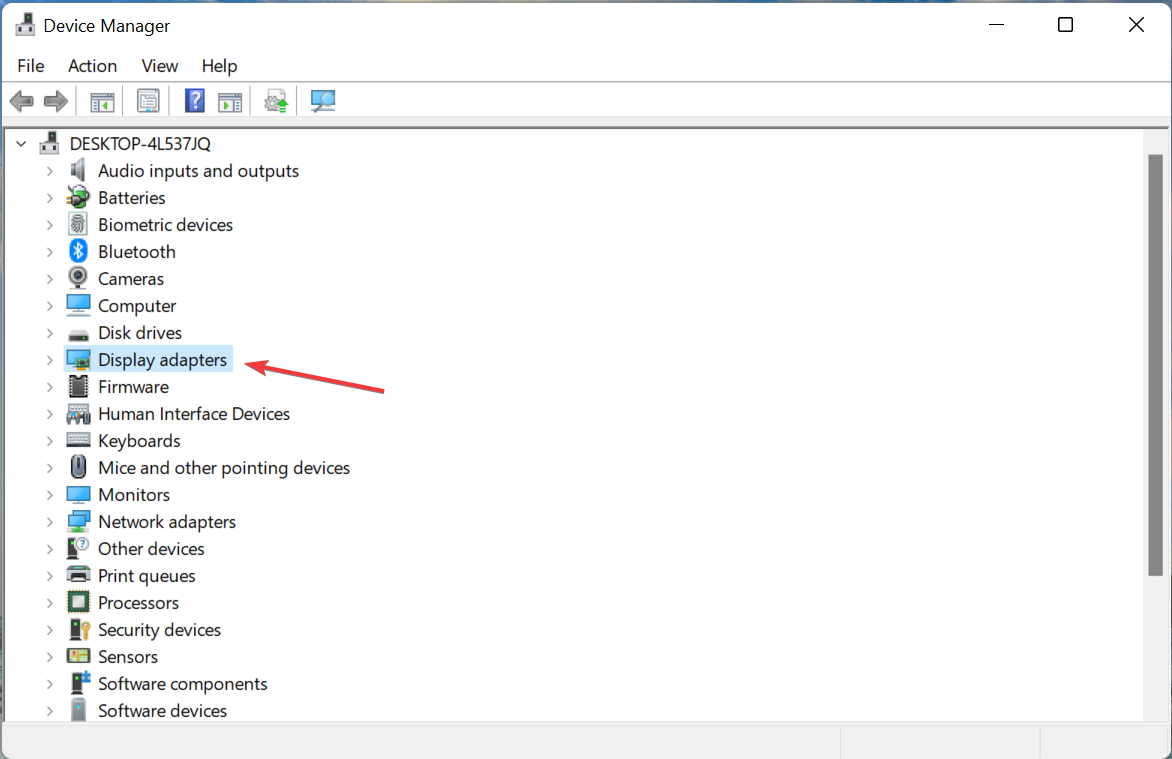
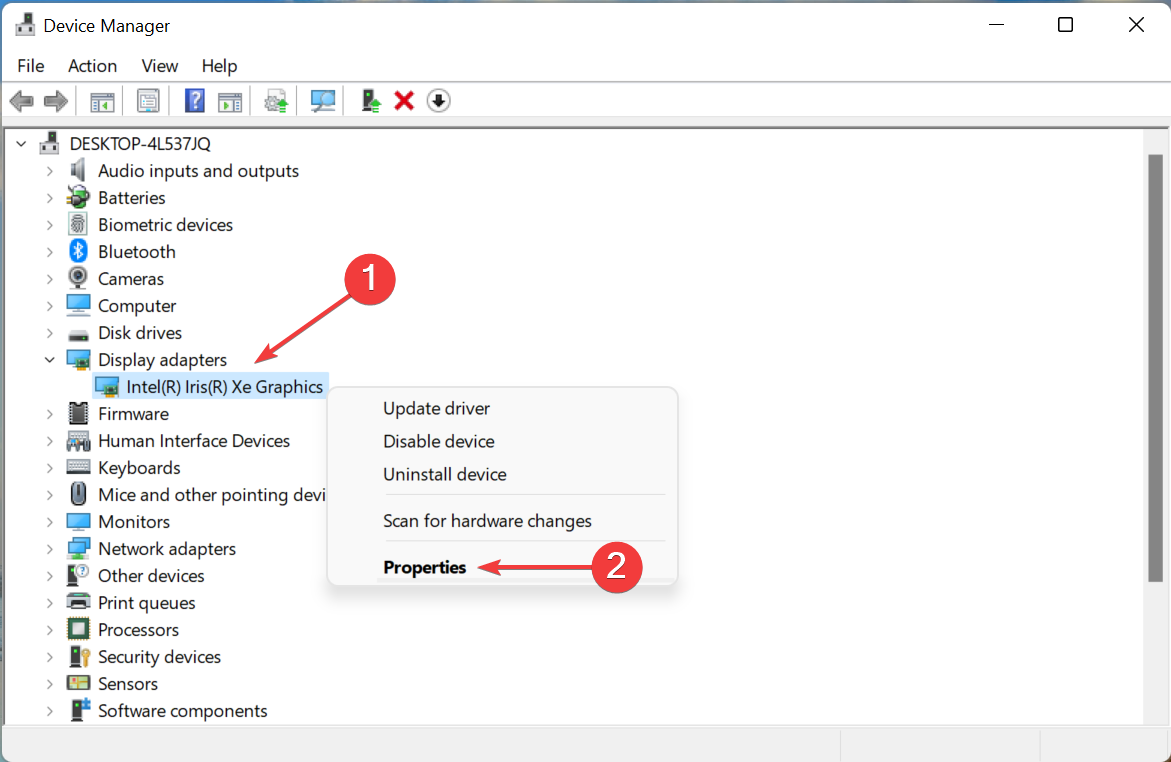
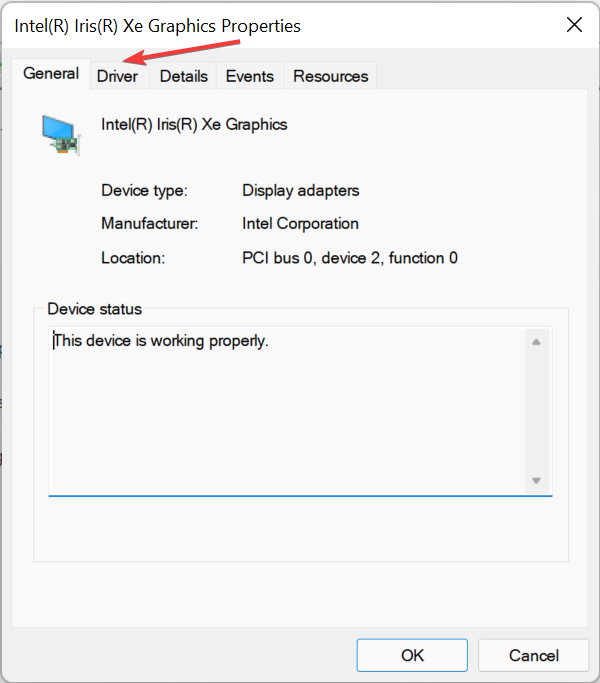
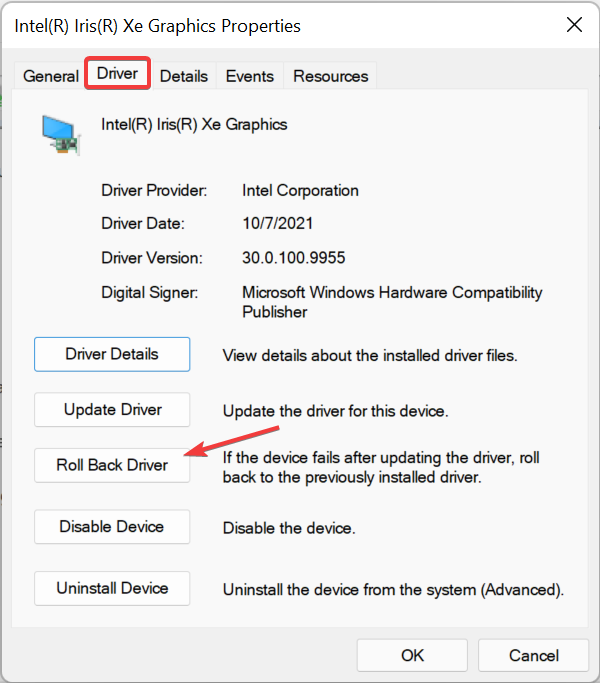
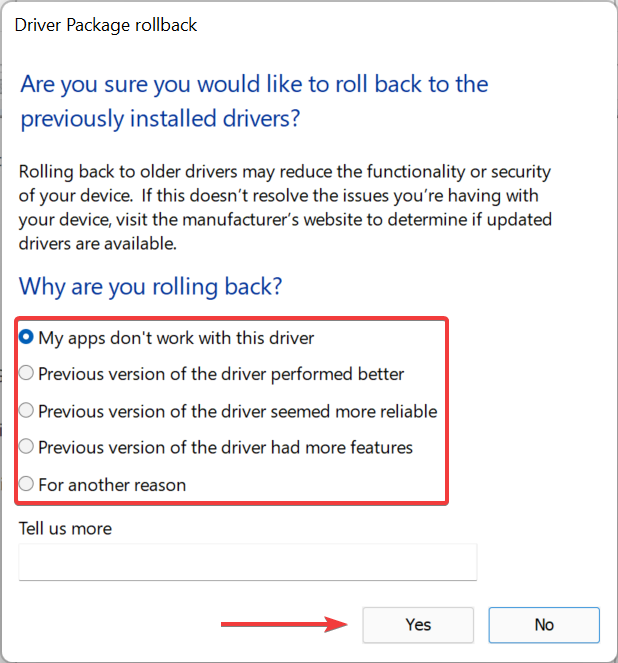






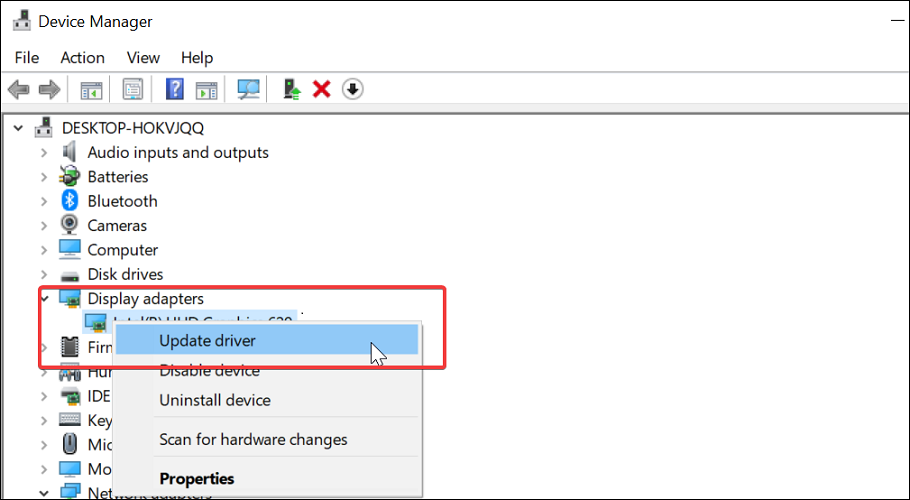
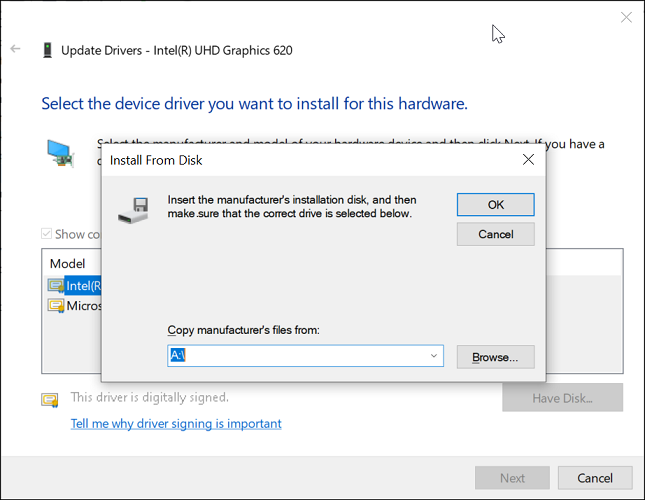
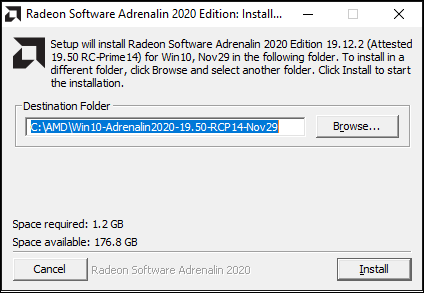


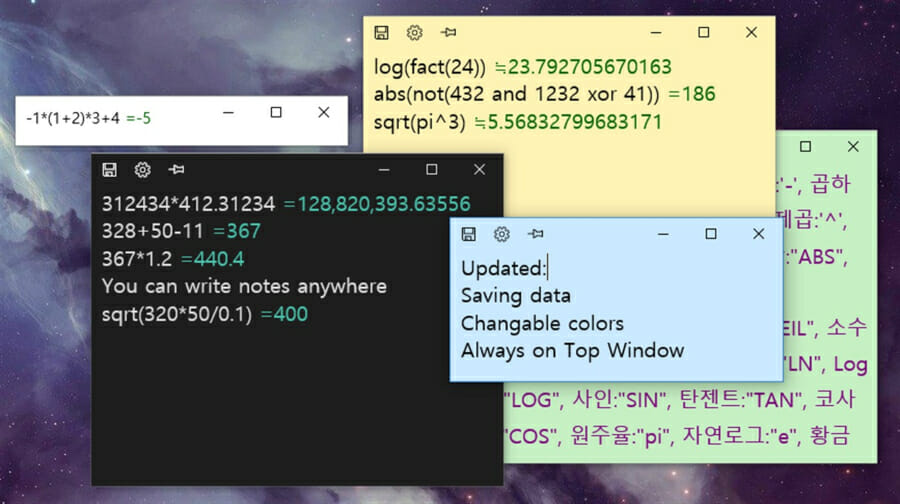
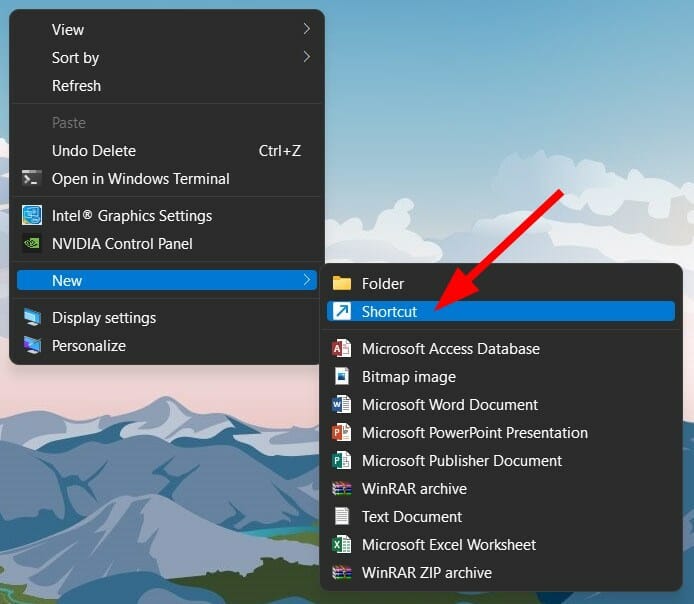
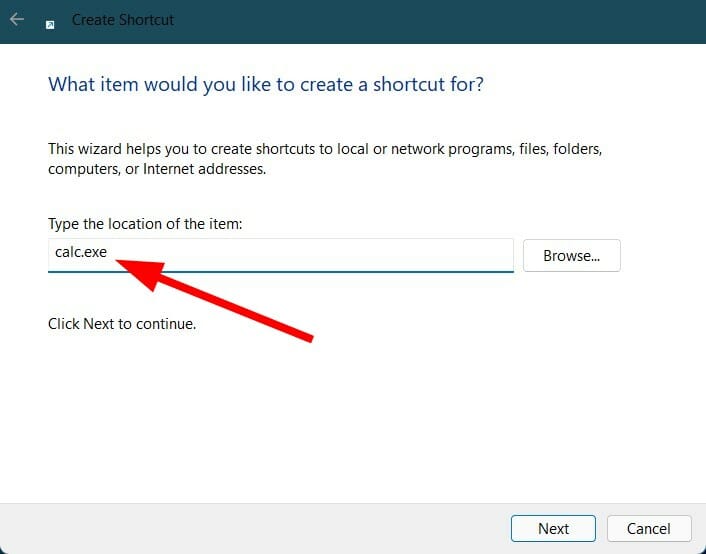
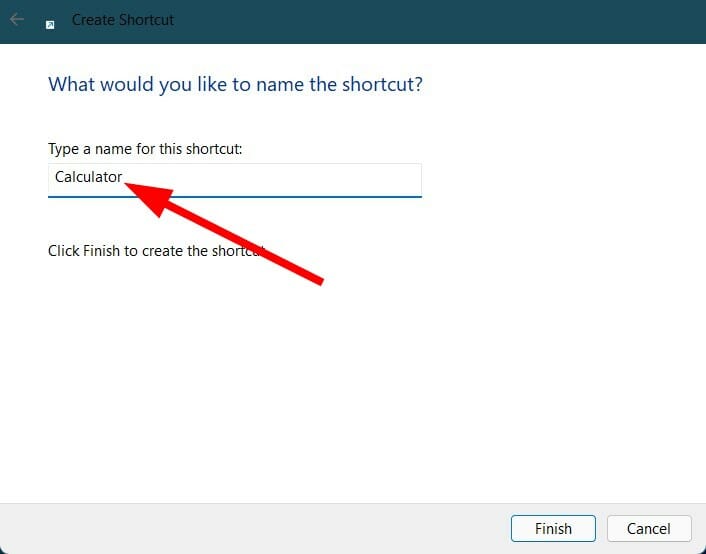
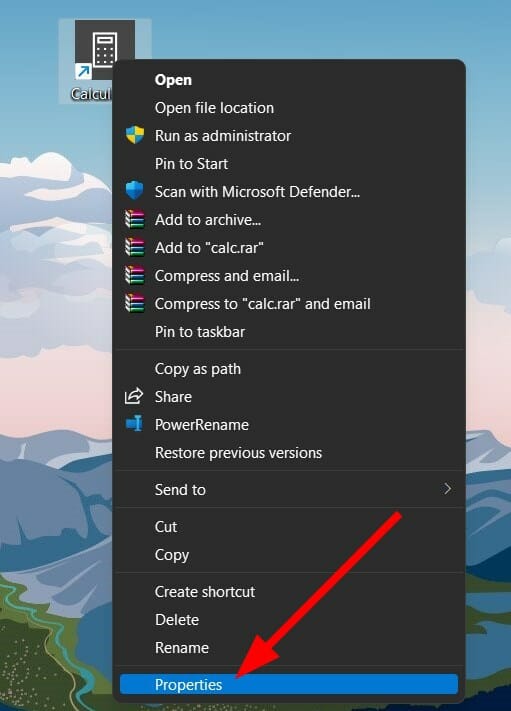
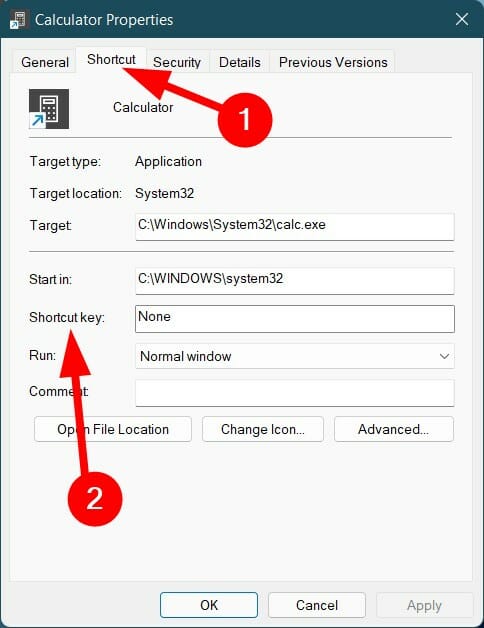
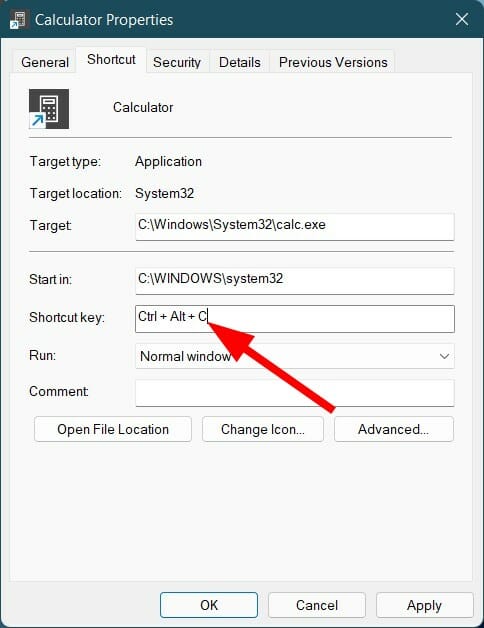
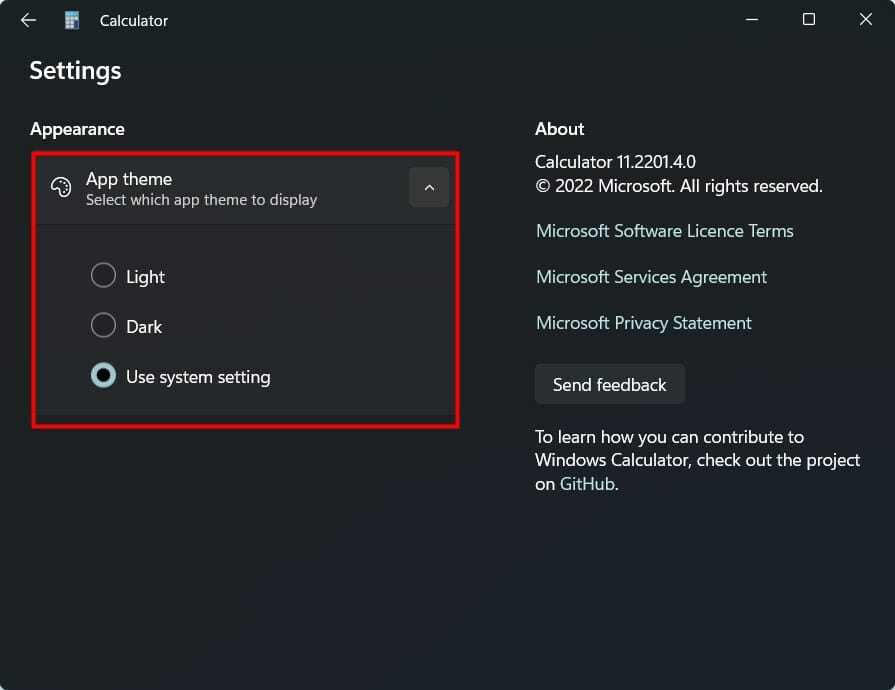

![Word experienced an error trying to open the file [Full Fix]](https://windowsreport.com/wp-content/uploads/2020/07/ms-Word-icon.jpg)


![10 Best Local SEO Software [Free, Paid]](https://windowsreport.com/wp-content/uploads/2022/03/best-local-SEO-software-featured-image-1.jpg)




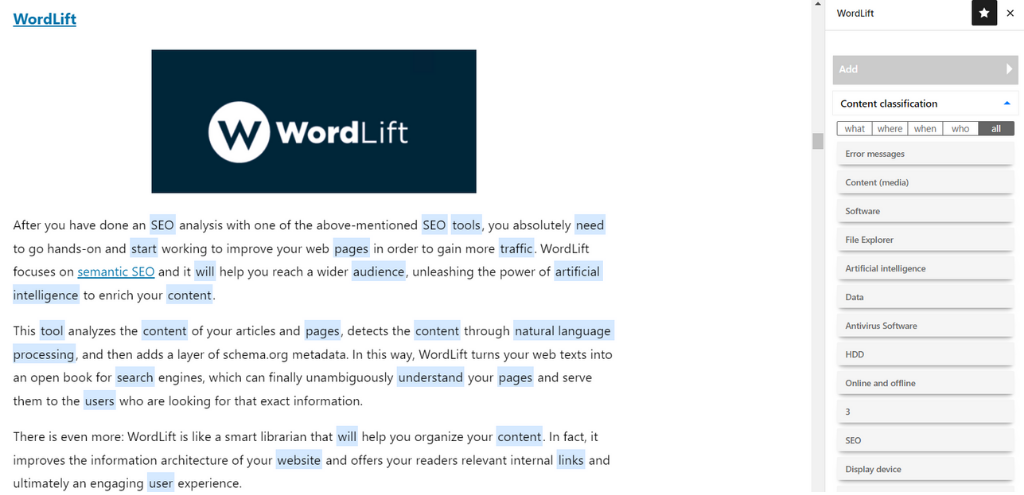
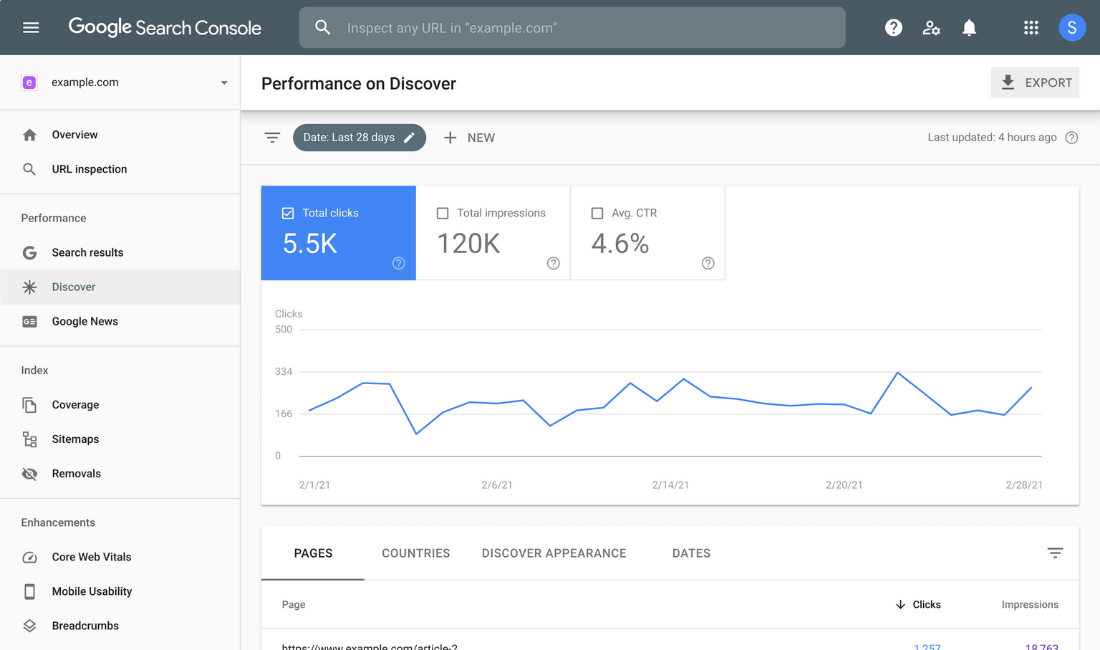
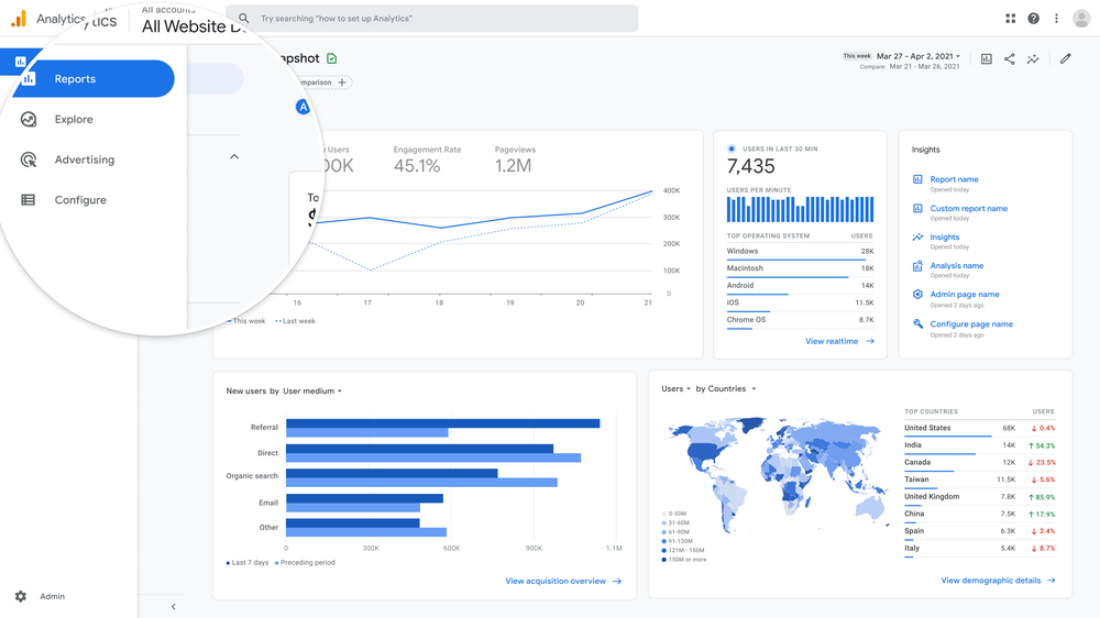

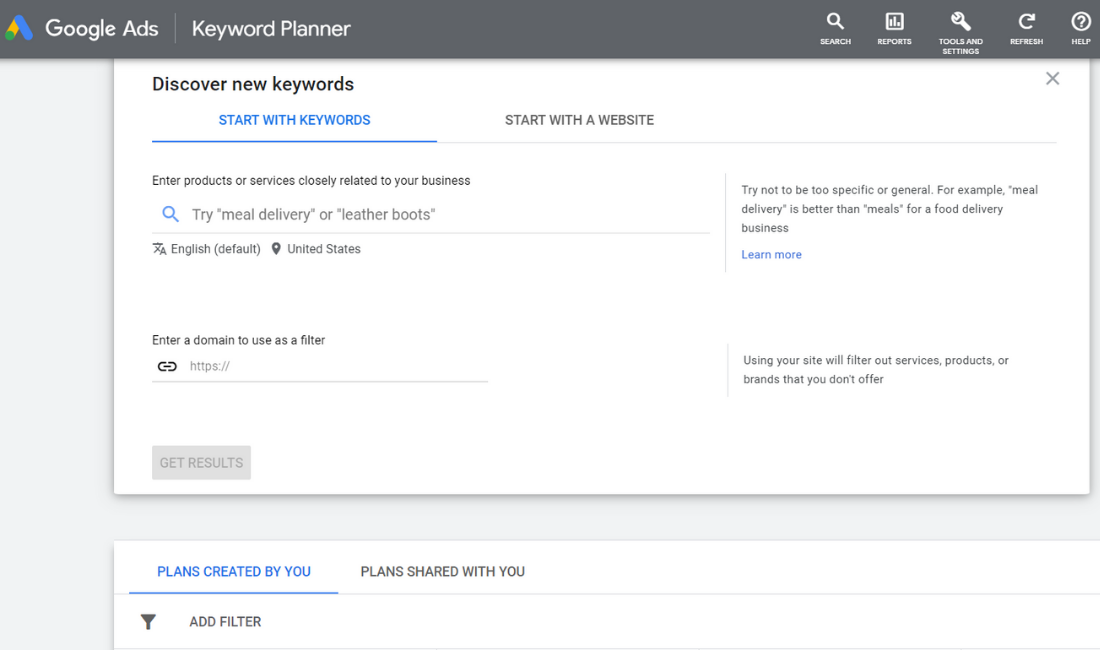
![Guild Wars 2: End of Dragons Update Fixes Multiple Event Chains Bugs [Patch Notes]](https://windowsreport.com/wp-content/uploads/2022/03/GW-patch-notes.jpg)