Well, it seems they are not going to stop anytime soon. Ever since the pandemic hit, students have suffered greatly academically. But Microsoft Teams is on the verge of bridging this gap with a digital reading tool dubbed the Reading Coach, which comes built into Immersive Reader. The tool will essentially help learners get equitable education opportunities education that will help them gain strong literacy skills in these unprecedented times.
Furthermore, the tool will help learners develop fluent reading capabilities. Students can also gain access to personalized exercises from the tool that will help them brush up on their weak points as far as literacy skills are involved. The new feature will further enhance the efficiency and effectiveness of the current portfolio of tools such as Reading Progress and Immersive Reader, thus, making the learning curve seamless.
Reading Coach helps students identify their shortcomings, especially when it comes to the pronunciation of words. It then creates tailor-made assignments that provide the students with the opportunity to improve on these areas.
The main goal of this feature as highlighted in the report is to provide educators with an easier time during the learning process, in that, they get to focus on developing the students both emotionally and academically.
The Reading Process will also get an update to detect prosody, it essentially aids in the detection of patterns when expressing oneself as well as intonation. This new feature is geared towards helping students develop a deeper understanding of what they are reading. “The new updates will also include support for over 100 languages and more actionable insights.”
Most new-generation laptops offer a good battery backup, but you still need to charge it at least once or twice a day to get it to run for up to 8 hours. But, several users have reported that their Dell XPS 13 is not charging at all.
This poses a major problem since the battery’s current charge would soon drain out. Your primary approach here should be to check for problems with the charging adapter. Verify if it’s properly plugged in and look for any damages to it.
If everything is in order, try the methods listed below to fix the Dell XPS not charging issue.
What do I do if the Dell XPS battery is not charging?
1. Try charging Dell XPS device while it’s turned off
If it’s the drivers or misconfigured settings to be blamed for the Dell XPS not charging issue, you shouldn’t face any issue when the device is turned off.
So, turn off the device and check if the battery starts charging. You can also verify the same in the system BIOS.
2. Run Power troubleshooter
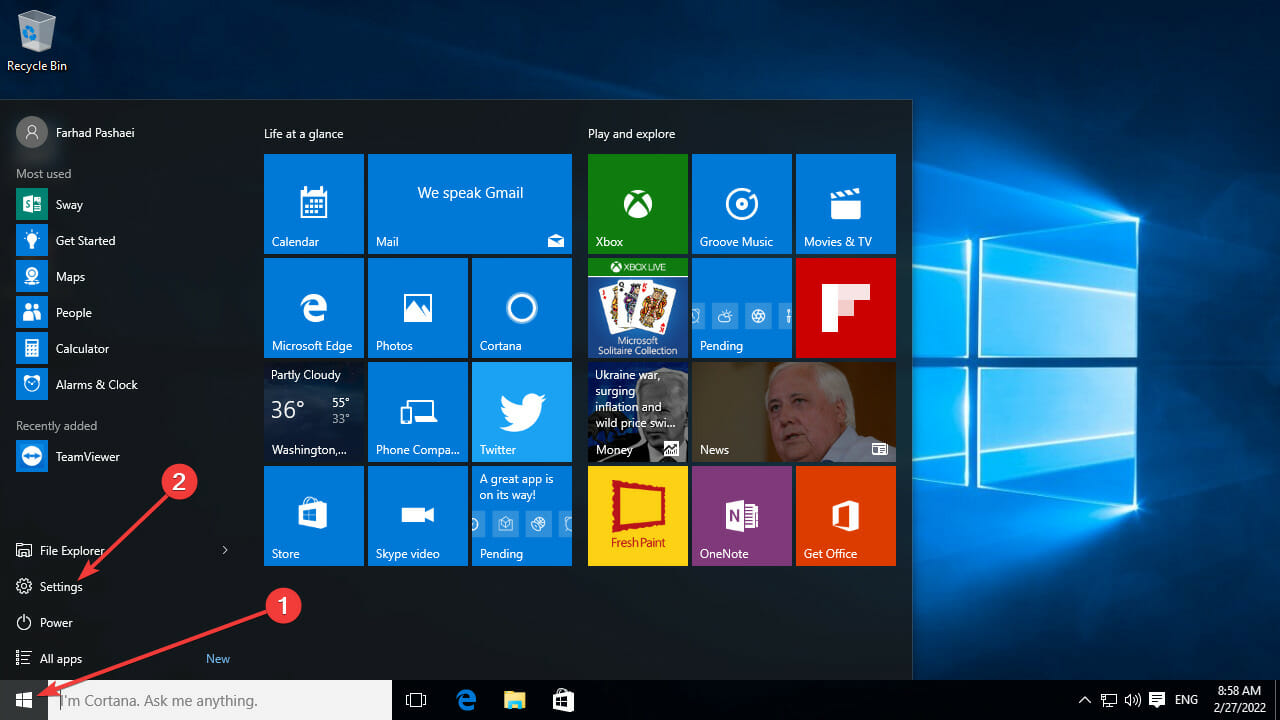
Press Windows + I to launch Settings, and click on Troubleshoot on the right in the System tab.
Click on Other troubleshooters.
Next, click on the Run button next to Power to launch the troubleshooter.
Follow the on-screen instructions to complete the process and check if Dell XPS not charging issue is fixed.
3. Update the battery driver
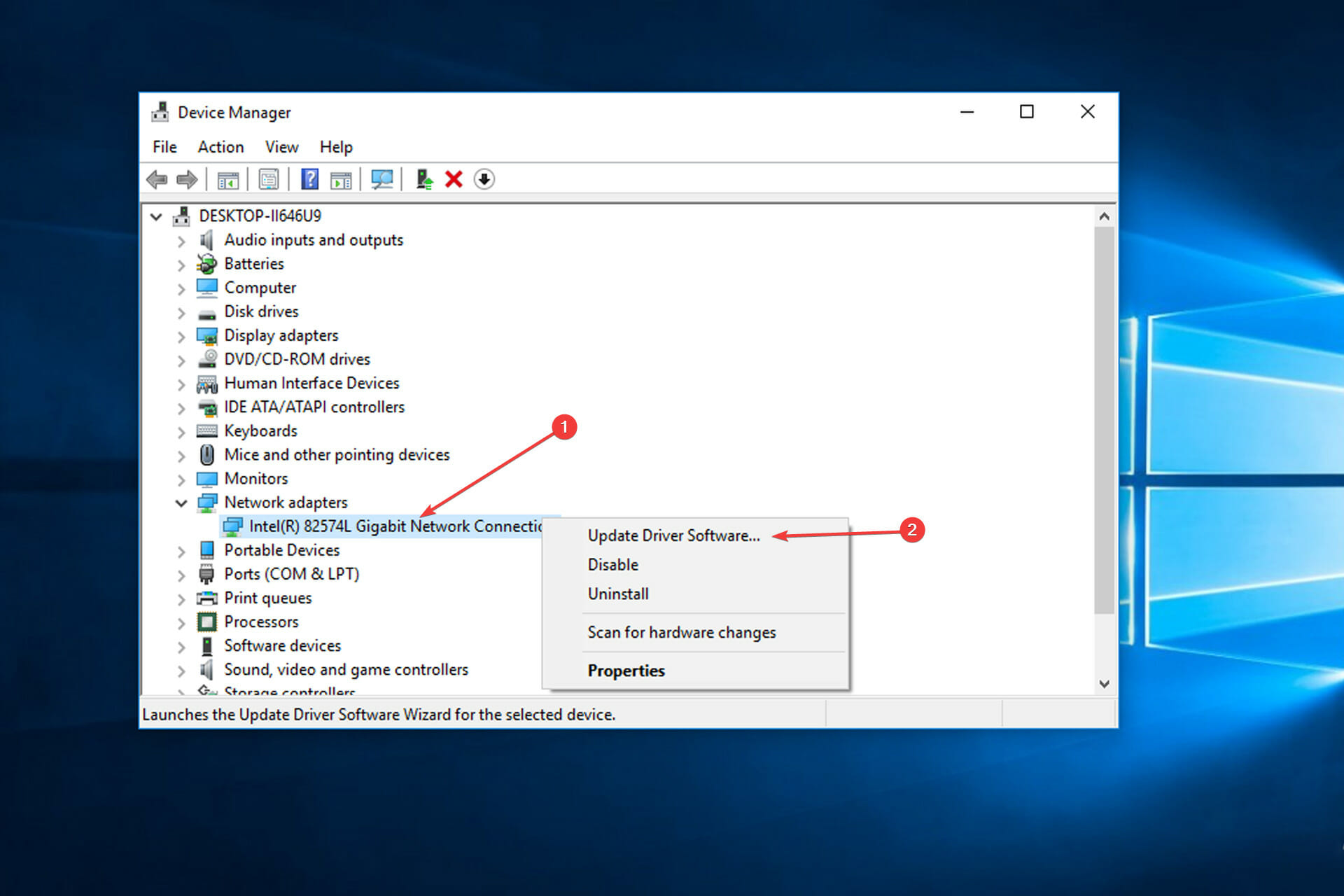
Press Windows + S to launch the Search menu, enter Device Manager in the text field, and click on the relevant search result.
Double-click on Batteries.
Right-click on the Microsoft ACPI entry, and select Update driver from the context menu.
Finally, select Search automatically for drivers in the Update Drivers window.
Wait for the OS to automatically update the driver.
An outdated driver is just as likely to cause the Dell XPS 13 battery not charging issue. So, it’s best that you update the driver when a newer version is available.
Also, you can use a reliable third-party app to update drivers. We recommend using Outbyte Driver Updater, a dedicated tool that will automatically keep all the installed drivers up-to-date.
4. Update BIOS
The first three methods should have resolved the issue to a great extent but if you still face it sometimes, update the BIOS.
Do keep in mind that this is a risky affair since you are facing charging issues in Dell XPS, and if the battery drains out during the update process, it might damage the system.
So first, try the other three methods to get your laptop to full charge, and then only proceed with this. Updating the BIOS may help the system effectively recognize the AC adapter, thereby eliminating the problem.
By the time you reach this part of the article, the Dell XPS not charging issue should be long gone, and you shouldn’t face any further problems with it.
Are you wondering how to use Microsoft Teams on a Chromebook? Well, the task is actually quite simple. There are two ways you can do so, either with the web version or with the Android app. In this guide, we’ll explain how you can get started.
Web App
To get the best experience with Microsoft Teams on a Chromebook, we suggest using the web app. The web app functions a lot like the desktop version of Microsoft Teams on a Windows PC, Mac, or Linux system. The user interface is not much different, and you won’t have to worry about dealing with a mobile version (as we get into in the next section.) Here’s how you can properly set up the web version of Teams on Chrome OS.
First, visit teams.microsoft.com in your Chrome web browser and sign in with the account you want to use
Be sure to accept the prompt on the lower-right side of your screen asking about notifications. Click the Turn on button
While still in Teams in your web browser, visit Chrome’s settings menu by clicking the three dots at the top-right of your screen
Choose More Tools
Choose Create Shortcut
In the prompt that pops up, name your Shortcut. Make sure the Open as Window button is checked, then, click the Create button
The Teams web app will display as a shortcut in your Chrome OS launcher. When you search for Teams it should now show up
After following these steps above, you can pin Teams to the Chrome OS shelf. To do this, find the app in your Chrome OS launcher, or search for it. Then, right-click and choose Pin to Shelf. You’ll now have quick access to Teams.
Android App
If you have a newer Chromebook that supports the Google Play Store, then you can also try using the Android version of Microsoft Teams. Keep in mind, this is a mobile-optimized app, so the user interface might take a while to get used to, especially if you’re more familiar with the desktop version of Teams. Chrome OS, though, will let you resize the app as you see fit, so you can make it bigger, or smaller. If you accept this fate, then here’s how to set up the Android version of Teams on a Chromebook.
Visit the Google Play Store on your Chromebook. Usually, it’ll be pinned on the Shelf, or you can search for it
In the Google Play search box, search for Microsoft Teams
Click the Install button and wait for it to install
Once installed, sign in with your account
Again, this version of Teams is optimized for phones and tablets, and not Chromebook systems. However, if you want, you can change the size of the Teams window by dragging it along the side, just as you would a regular app. This makes it look bigger, or smaller, and gives you more room to see your messages. You also can snap the app to one side of the screen and keep it in a more compact view, while you’re working, if you please. And, if your device has both a front and rear webcam, you can swap between the two during your call.
Don’t use the Linux version
If you’re a more advanced Chromebook user, you might have remembered that Teams recently launched on Linux. Unfortunately, though, unlike Microsoft Edge, the Linux version of the app doesn’t seem to work on Chromebooks at the moment. We suggest sticking to the Android or Web version of Teams, but do keep in mind if you have both installed, you might end up getting double notifications from both apps. So, choose one or the other.
This capability allows you and your organization to enable complex workflows to meet recertification and audit requirements calling for multiple reviewers to attest to access for users in a particular sequence.
Moreover, the feature allows users to come up with efficient reviews for their resource owners and auditors. Reviewers will be responsible for decisions, as compared to when they were required to account for a lot. Before, users were required to create multiple disjointed reviews artificially.
Now, with this new feature users will be able to achieve this with a single review. Here are some of the key access certification scenarios Multi-stage reviews will help you achieve:
Reach consensus across multiple sets of reviewers. Require agreement from independent reviewers at every stage before access is recertified.
Assign alternate reviewers to weigh in on unreviewed decisions. Ensure accounts left unreviewed by unresponsive or out-of-office reviewers are sent to the next appropriate reviewer, such as the user’s manager or the resource owner.
Reduce the burden on later-stage reviewers. Filter down the number of decisions for your later-stage reviewers by excluding accounts denied in previous stages. For example, have users attest to their own needs for access before asking the resource owners to attest.
Microsoft provides a detailed account showing how users can configure a multi-stage review, furthermore, they also have a comprehensive FAQ section that will help answer some of the questions that might have concerning this feature.
Speech recognition has advanced a lot during the latest years, and it has become a very useful technology for automation.
Nowadays, speech-to-text software can identify many languages and accents and even adapt to your behavior in time.
So, whether you would want to write a novel or perform an academic transcription, create business documents, or write memos, you will need the best speech-to-text tool.
How can I pick the best speech-to-text software?
There are plenty of options on the market these days and all of them have different sets of options and some of them even imply the help of professional transcribers.
Therefore, let’s go through some of the main aspects of how to choose the best solution for your needs:
➡ Automated or handwritten
Even with all the technological advancements, speech recognition is far from being failproof. So, the automatic speech-to-text software will never beat a human transcriber.
Of course, for writing a note or an email, any of the solutions presented below are perfect but if you’re working on lengthy and important transcriptions, we recommend selecting a tool that implies the work of human specialists.
For instance, a solution like Rev employs the help of professionals to make transcriptions and they even provide captioning for your videos.
Some of the listings below guarantee 99% accuracy and offer very fast results, but they are not free so you need to set up a budget for this task.
➡ Artificial intelligence features
All the automated speech-to-text software is based on artificial intelligence but while some use the latest installments, others didn’t receive any updates.
You will need to try them before buying and see if they meet your requirements in terms of speech recognition accuracy.
There is no tool out there that will get all your words and sentences but if you only need to correct three mistakes on a full page, that’s pretty good.
➡ Look for additional options
If you’re not just looking to transform speech into text and you want a more complex tool, you will find that some of the solutions below also offer translation, video captioning, and PC voice control.
For instance, Windows Speech Recognition is built into your OS, so it’s free and you can use it for dictation as well as for performing vocal commands.
We gathered the best tools that can help you transform speech into text so make sure that you check out their sets of features and functionalities because each of them is unique.
After analyzing their sets of functionalities, you will be able to make the most informed decision according to your needs.
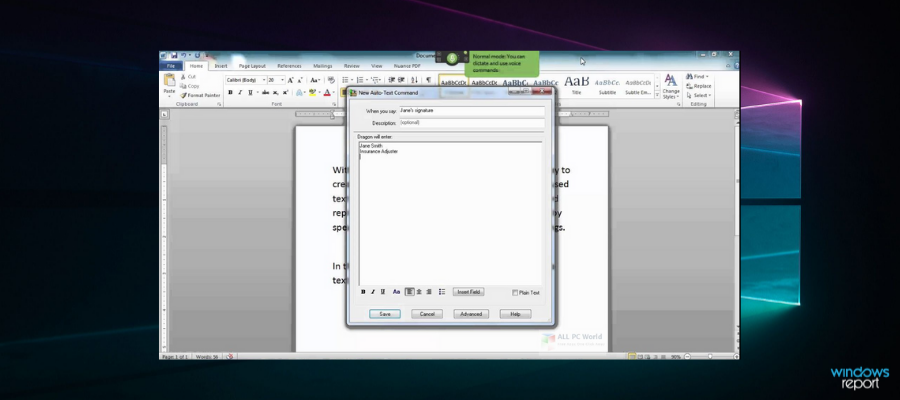
Dragon Professional Individual is one of the best options that are available on the market for speech-to-text transcription.
This is also one of the best-selling and most accurate speech recognition software that you can find, and it’s already being used by millions of people all over the world.
This software allows users to dictate three times faster than typing with up to 99% accuracy. There are more options that you can choose from on the software’s official website.
The tool will get your to-dos done with just your voice, and this tool is perfect for students, parents, retirees, speech recognition newbies, and busy multi-taskers.
Words will appear on the screen almost instantly, and all you have to do is speak naturally, and the tool will know exactly what you are saying.
We recommend that you head over to the product’s official website and take a look at the complete list of features and functionalities that are included in this software because there’s much more to see there.
Take a look at its best features:
Create documents much faster than typing, and you will get an accuracy of 99%
Comes with support for Windows 10 touchscreens PCs
Use your voice to search the Internet for videos, information, recipes, directions and more
Email your family and friends by dictating, editing, and sending messages via Gmail and Hotmail and manage appointments in the calendar with the help of voice commands
Update your social media status and navigate without even having to touch your keyboard
Import and export custom word lists and user profiles as well
Dragon Professional Individual
Your voice to gain total control over your PC, all software, and services with the help of this fantastic tool.
Marketed as the best speech recognition software on the market for home users, Dragon Home is an amazing tool that promises to deliver 99% speech recognition.
Unlike most similar speech recognition tools, you don’t need to worry about using it while having a strong accent, and neither should you worry about using it solely in quiet places since this product is designed to handle both.
Not only that, it uses Nuance’s learning technology to evolve alongside the user, allowing the program to get better and better at recognizing what you are saying, and thus become better at meeting your needs.
Since speaking has been proved to be three times faster than typing, get your work done faster and better with this tool.
Also, perform all the tasks you would normally do via text, such as editing documents, posting on social media, watching movies, and more via speech.
Let’s review some of its best features below:
99% speech recognition accuracy
Evolves and learns from your experience
Adapts to your voice or environmental variations
Streamlined user interface
No training required
Dragon Home
Use this adaptive tool that molds itself to your accent and environment and use your voice to get control over your PC.
If you’re in need of high-quality speech-to-text services, then Rev is your best bet. Their suite of solutions combines state-of-the-art AI with human professionals to deliver the fastest, most accurate speech-to-text services on the market.
Rev’s services are incredibly easy to use. All you need to do is upload your video or audio files from your device or share a public URL to your content.
Then, Rev’s marketplace of 70,000 freelancers will get to work on your files. Rev’s freelance marketplace is the largest of its kind in the world, and since the platform is functional 24/7, there is always somebody taking care of your files.
These freelance transcriptionists are required to meet rigorous quality standards before working on customer files. That’s how Rev is able to honor its 99% accuracy guarantee.
And the service is fast too. With Standard delivery, you will get your files within 12 hours, and if you need your files faster, you can choose the Rush delivery add-on, which will get you your files within 4 hours.
While Rev promises these standard timelines, your transcripts often come back much faster than advertised.
Once you have your Rev transcript, you can use their built-in, interactive tools to review, edit, and annotate transcripts alongside the audio.
The Transcript Editor also lets you share the file with team members and export the file in your preferred format.
Let’s review some of Rev’s best features:
Can process specialized, industry-specific vocabulary
Freelancers can handle multiple speakers, diverse accents and difficult audio
Simple and easy to use
Rev also offers video captioning and subtitle translation services
Very quick delivery and near-perfect accuracy
Rev
Transcribe all your audio and video quickly using this professional tool that guarantees 99% accuracy.
Temi is a speech-to-text tool that provides transcription in about five minutes. This is a really advanced software that will come in handy if you want to improve your efficiency.
All you have to do is upload any audio or video file, review the transcript with timestamps and speakers and eventually save and export the final result in MS Word, PDF, and more available formats.
If you head over to the official website of this tool, you will see that you can get a free trial that offers you the possibility to try one transcript of any length, access to all the software’s features, and no credit card is required for this.
The transcript will be back in a few minutes, and the shorter files are delivered much faster. This tool is ideal for journalists and reporters, podcasters, bloggers and authors, and so on.
The transcripts will be delivered in just a few minutes to your email so you can apply or send them wherever you want.
Take a look at more features that are included in this tool below:
The transcript quality usually depends on the audio quality so make sure to upload high-quality content for best results
Up to 90% accuracy with good quality audio
Built by machine learning and speech recognition experts
The editing tool is easy to use, and you will be able to adjust the playback speed and skip around effortlessly
This is not a standalone app, but it’s worth listing because it’s the best way to get started with speech-to-text.
Google Docs Voice Typing requires the Chrome Browser and also a microphone. You will also need a persistent Internet connection. This is probably the easiest way to get started with speech transcription.
You may have been using Google Docs before, but you were not aware of the fact that it includes a Voice Typing feature.
It’s best to get a dynamic microphone rather than a condenser because dynamics pick up less background noise and this way, your words will sound clearer, and the voice recognition software will be more accurate.
Check out the best features included in Google Docs Voice Typing:
You can use this tool for recording notes and thoughts while you are on the go.
Google Docs Voice Typing is also packed with enough features to allow you to write entire documents.
With only your voice you can control document navigation, text selection, text editing and formatting, and more.
You can disable voice typing by simply speaking Stop Listening, and the feature will get turned off.
Braina is another fantastic speech recognition software that you can find on the market. This is a multi-language speech recognition software that has the ability to fill forms on websites as well.
Apart from dictation, it also provides voice-command features that allow you to search the Internet, open files, websites, and programs, find all kinds of data, set reminders, take notes, and much more.
This amazing speech recognition software is able to convert your voice into text in any website and software, and it supports more than 100 languages.
You can create your own customized voice commands and replies as well, and you also can define hotkeys that will automatically trigger a custom command action.
Here are some of the best features that are included in this software:
Use your voice to dictate text to a computer, automate processes and enhance your personal and business productivity
Interact with your Windows PC and use various voice commands in English and more languages
Increases your productivity
Create customized voice commands, replies and define hotkeys that will automatically trigger a custom command action
Windows Speech Recognition is also known as Speech Platform Runtime, and it’s a free tool that requires a Windows 7 or later operating system in order to work.
This is really worth mentioning in the article due to its excellent features even if it’s a bit different compared to other software that we listed.
You have to make sure that your computer has a built-in microphone and if it doesn’t, you will have to connect an external mic or a headset that comes with a mic.
It’s best to use a headset with a microphone because this seems to give the best results. After you connect the mic, you will have to set it up.
Try the Windows Speech Recognition and see what more you can do with the help of this great feature.
Take a look at some of its best features:
It’s a free, preinstalled app on your OS
Works on any text editor, including Word and Notepad
The best part of Windows Speech Recognition is that it’s built into your OS so you don’t need to install anything else. And don’t forget that it’s free.
Here’s how to open and use this Microsoft tool:
Click the Start button, type windows speech and select Windows Speech Recognition from the results.
If you’re running it for the first time, you will have to perform a few microphone configuration steps so just go through them quickly.
The little app will attach itsef to the top of the screen and will listen to your commands.
The Windows Speech Recognition can be used to type any text or perform various commands. For instance, we have opened a Notepad window and dictated a few sentences, as you can see from our screenshot.
Windows Speech Recognition is certainly not the best tool we have listed here but it’s excellent for basic needs like opening certain apps or writing a note quickly.
We encourage you to give it a try and experiment with various commands because you might find it pretty useful for certain tasks.
These are the best tools for speech-to-text transcription that you can use these days, and no matter which one you decide to get/use you will definitely be satisfied with the result.
We also need to mention that all the software we recommended above work seamlessly on Windows 11, in case you upgraded to the latest OS.
The Microsoft Store on Windows 10 and Windows 11 got big revamps with a fresh, clean design, but Microsoft isn’t done there. As spotted by @FireCubeStudios, and @SapphirePublic on Twitter, the company is rolling out in preview a new web version of the Microsoft Store, and it is heavily inspired by what’s already in Windows 11.
You can get to the new preview version of this Microsoft Store by going to apps.microsoft.com on a phone, tablet, or any web browser. From there, you’ll see the new user interface features small touches of fluent iconography, rounded corners, and app listings similar to what can be found in Windows 11. More importantly, though, the website supports the Microsoft Store’s mini-install prompt. This is so that when you click the “Install” button, Windows will prompt you with its own dialogue box (rather than a redirection one from your web browser) to install the app from the actual Microsoft Store itself.
Interestingly enough, this early preview doesn’t list any games or movies and doesn’t support dark mode. You also won’t see minimum system requirements for apps. It does, however, allow you to search and share links to Win32 apps like OBS Studio.
Clearly there’s still some work to be done, but it’s nice to see that Microsoft is going for some design consistency across its store. Again, this is still in preview, so don’t expect any of this to be final. Once testing is finished, things could roll out with a completely different look. Check it out now and let us know what you think in the comments below.
Our cameras, camcorders, and other mobile devices can capture amazing quality footage with very high resolution as much as 4K.
Of course, we always strive for the best possible result so we shoot our videos to the best resolution and framerate but when it comes to sharing them, things get complicated.
That is because high-quality content automatically translates to a large video file that sometimes is hard or even impossible to share or upload.
How can a video compression software help you?
Most of the social media websites, email clients, and other sharing services impose file size limitations due to obvious server storage capabilities.
You could store them locally, on your devices, but that can also be a deal-breaker because, after a healthy dose of 4K videos, you will inevitably run out of space.
The long-term answer to this problem is either to shoot your content in a lower resolution or framerate or compress your files after you transfer them on your device.
And this is how we get to the subject of video compression software which is dedicated or built-in tools that help you convert your footage efficiently.
Converting your movies to other formats, reducing their resolution or framerate, cutting up parts, or simply using more efficient codecs can reduce their size to just MBs instead of GBs.
Moreover, the video compression software listed in this guide will help you make your files smaller without affecting their quality.
Adobe Premiere Pro is a very powerful tool that offers you the capability to compress and edit your video files with the comfort of using a friendly UI.
This amazing software works with a wide variety of file formats so that you never feel that you’re missing an option.
Don’t worry about the video quality. Premiere Pro supports the editing of high-resolution formats, up to 4K and 8K.
Premiere Pro lets you add background music and audio tracks, add text and animations. Also, it’s easy to adjust color, lighting, and add filters on top of your videos.
If you want to try the software out before purchasing, you get the full feature experience within the 7-day free trial provided.
Here are some of the best features found in Adobe Premiere Pro:
Allows import and export of any video file format
Quick processing of data, even for high-quality video files
Works best with Adobe After Effects
Wide range of tutorials can be found online
Connected to an extensive library of resources
Fully compatible with any Adobe product
Adobe Premiere Pro
If you’re dealing with video files – there is no better tool to help you play, edit, compress, and more!
WinZip is a great software that can compress video files and data packages, and thus make them smaller.
Compressing video files is a good way to save space on your PC and it also makes your files easier to send.
To compress video files, you just have to open WinZip, select the files, click Add to Zip, select where you want to save your zip file, and you’re done.
Feel free to compress your favorite videos in various format types such as MP4, AVI, MKV, WMV, MP3, DVD.
WinZip is also great for securing your video materials. Only you can access your zip files if you use the password protection feature.
Here are some of the best features of WinZip:
Large video files compression
Efficient file compression with duplicate file detection.
Organize your videos in the cloud
Update contents of a Zip file to match the source
Access and edit files shared with you by others
Automatically save cloud files
Easy access to Background Tools
Seamless integration with Microsoft Teams
WinZip
Take advantage of the powerful WinZip video compression features now!
WinX HD Video Converter Deluxe, as its name suggests, is an excellent media converter but it also does an awesome job in compressing your videos.
For instance, the tool can reduce the size of 4K / 1080p videos by 64% and make the size of 720p videos 56% smaller than the original.
That is outstanding because it can bring down MP4, MKV, MOV, MTS, AVI, iPhone, GoPro, Drone movies from GBs to MBs just enough to be embedded on YouTube, social media websites, and even email.
With the WinX app, there are a lot of flexible options for compressing a video like converting them to advanced codecs such as HEVC, lowering its resolution, changing CBR to VBR, bringing the frame rate from 60FPS to 30FPS, cutting it off to shorten its length and more.
The outstanding efficiency of this free video compressor software is due to the built-in High-Quality Engine that guarantees a minimum quality degradation of no more than 2%.
But the most impressive feature of the tool is the GPU hardware acceleration integration that will ensure an 8K/4K/2K video compression smooth and fast without burdening your CPU or crashing your laptop.
Take a look at its best features:
More than 370 codecs supported
40%-90% compression ratio with intraframe and interframe coding algorithms, and advanced entropy encoding tech
Compress large videos by adjusting bit rate, lowering frame rate and resolution, trimming, cropping, and more
Fast high quality compression speed
The High Quality Engine can further improve the output compressed video quality
WinX HD Video Converter Deluxe
Compress any video from GBs to MBs with high-efficiency technologies and over 370 supported codecs.
Movavi is a powerful video converter that can be used to compress, edit, and convert video files into over 180 formats.
Movavi is recognized as one of the most user-friendly software of its kind. It has a minimalistic UI with easy-to-follow tabs that don’t need much explanation.
You can add your media files into the editor with drag-and-drop. Pick your desired format, and your new file will be ready in seconds.
In terms of file compression, Movavi offers you 2 options. You either quickly compress single files or use the batch processing feature that can compress an unlimited number of video files simultaneously.
Along with conversion and compression features, Movavi also provides some basic video editing features that allow you to trim and merge videos.
You can also use it to add subtitles to make your videos more accessible. Movavi Video Converter is available in a free and premium, subscription-based edition.
Other key features of Movavi include:
Easy-to-follow online user guides
Picture and audio file editor
Predefined optimal compression settings
Responsive support team
Movavi Video Converter
Optimize your video media files for maximum enjoyment with easy-to-use converting, compressing, and editing features.
Another noteworthy option is Wondershare UniConverter. It can help you convert pretty much any media file, and it also comes with a media library and player.
This tool can compress multiple video batches. It can work on up to 8K videos simultaneously. It covers over 1000 file types so you can create media files for any device.
It also integrates a comprehensive video editor with a smart trimmer, a watermark editor, audio adjustment options, video speed adjustment, video merging, background remover, and more.
Moreover, Wondershare UniConverter helps you create your subtitles or edit already existing .srt files, change the font, timing, color, and more.
Watch videos directly from the app, as it also integrates a video player. It can run Full HD and 4K videos but it supports DVD formats as well.
Wondershare UniConverter has a free trial version and a premium version with multiple subscription options.
Other key features of Wondershare UniConverter include:
Burn video feature
Auto reframe
Screen recorder and webcam recorder
Background remover
Wondershare UniConverter
Compress, convert, edit and watch your video files using one full feature product.
AnyVideo Converter is a great tool that allows you to compress the size of your video files with ease.
It does not compromise the quality of your videos, allowing you to compress to even half the size of the original video without any unwanted impact.
This software supports various video inputs: MP4, MPEG, VOB, WMV, 3GP, 3G2, MKV, MOD, M2TS, etc.
It also supports a wide range of video outputs, including WMV, MPG, MP4, AVI, ASF, M2TS, 3GP, 3G2, FLV, etc.
Any Video Converter can also help you create physical copies of your video files as it comes with an integrated burn feature for DVDs and AVHD DVDs.
AnyVideo Converter comes in both free and paid versions. Even though the paid version has some additional features, the free version is a very useful and complete tool.
Some of its best features include:
HEVC/H.265 Video Coding
Fast speed and high video quality
Rip and extract audio from CDs and videos
Edit video codecs, dimension, bitrate, frame rate, sample rate, channel, video/audio quality, etc.
Any Video Converter
Convert videos to any format you like, quickly and easily with an excellent premium tool.
Pinnacle is an advanced video editing tool created for both beginners and professionals, offering a simplified video editing process, but with great options.
You can easily reduce the size of any video, but even more than that, edit your videos further by adding effects and enhancing color.
The user interface allows you to easily hide unnecessary tools as you work. This helps you focus on one step at a time and thus stay productive and inspired.
Use Pinnacle Studio to add text. It has both basic and advanced features for this task. You can add instructional information, subtitles, and other information that helps the flow of your footage.
Another cool and timesaving editing asset of this software is the template feature. It can help you put together video materials faster and easier. This is great to get you started when uninspired or unsure.
Pinnacle Studio comes in three separate versions. The basic version, Pinnacle Studio offers over 1,500+ effects, titles, and templates, 6-track HD video editing, multi-camera screen recorder, stop motion animation.
Pinnacle Studio Plus brings 1,800+ effects, titles, and templates, 24-track HD video editing, wide-angle lens correction, pro-level audio tools.
Pinnacle Studio Ultimate, leads over 2,000+ effects, titles, and templates, unlimited HD and 4K video editing, 3D Motion Objects
Other key features of Pinnacle Studio include:
Audio track quality enhancer
Keyframe controls
Blend modes
Screen recording feature
Supports and converts 360 videos.
Pinnacle Studio
Use advanced editing tools and optimize your videos for any platform.
VideoProc is a really powerful video processing software that you can use to edit, cut, crop, merge and compress videos in 4K.
This is the perfect solution when it comes to editing oversized videos recorded from GoPro, DJI, 4K cameras, denoising, cutting, filtering, splitting, merging, and subtitling.
Besides these features, VideoProc is a video converter and compressor expert that helps transcode HEVC / H.264 videos, convert any videos, audios, and DVDs – MKV to MP4, M4A to MP3, and DVD to MP4, and even make the media content playable on large TV screens or portable devices.
Video Proc has a minimal video editor that you can use to add simple effects such as grayscale, mirror effects, and filters. The software also has a noise reduction feature that increases video clarity.
You may use this software for screen recording and webcam recording. It has real-time video effects like chroma key, draw, highlight, and more.
Key features include:
Built in 370+ video and audio codecs
YouTube to MP3, iPhone ringtone
Customize video quality and file size
Record video from computer’s screen or webcam
Process videos fast and denoise easily
Stabilize videos from GoPro DJI
VideoProc
Use this powerful video processing software with over 370 built-in audio and video codecs.
Clipchamp is a simple video editor that provides all necessary features to ensure the creation of high-quality video files. Plus, it has a web-based version, so it’s accessible anytime, from any device.
The compression process is very simple. You upload your video, choose your output settings, and let it run its magic. You can select custom settings for the output format, quality, and resolution.
The standard exporting option for your videos in 480p, but higher resolution options are also available. The free version, however, applies watermarks on 720 and 1080p resolutions.
The video editor has a rich toolset and a beautiful and intuitive interface such as flip and mirror, rotate, crop, adjust colors, add backgrounds, and more.
Clipchamp allows you to easily incorporate text files into your videos. Use this feature to create subtitles, video titles, chapter transitions, and many other creative options.
You can edit videos from scratch or use the pre-made templates to boost your creativity and save time.
Clipchamp has specific templates for different types of video formats like promotional videos, video montages, testimonial videos, and many social-media-friendly options.
The software can be used for free with the Basic program. For higher quality videos and more editing options, pick one of the 3 subscription-based plans.
Other key features of Clipchamp include:
Stock photos and videos included
Multiple integration includin YouTube, Zoom and Google Drive
Freemake Video Converter is another great software option that can compress and convert videos into hundreds of formats. The tool is compatible with all the latest cameras and video devices.
The app is free to use without any hidden fees or limitations so it’s at least tempting to give it a try.
Freemake Video Converter supports a wide range of formats – MP4, AVI, MKV, WMV, MP3, DVD, 3GP, SWF, FLV, etc.
You can also import photos or audio files and add them to your video and transform multiple clips at once. The codecs included: H.264, MKV, MPEG4, AAC.
Freemake can convert HD formats without losing any quality in the process. It is compatible with 4K, Full HD 1080p, and HD 720p formats.
Like most of the recommended software, it has some editing features as well. Cut videos, merge them, rotate clips, and more.
Besides the fact that it is free to use, the software is also really lightweight, so you can probably use it with no issues.
Other key features of Freemake Video Converter include:
Handbrake is open-source software and one of the best video compression software, and it’s available for free. It bolsters advanced features that can be used by both professionals and beginners.
The software has multiple compressing and converting features. Pick from an extensive list of presets and select what devices you want to optimize your video for, or manually set your desired conversion parameters.
You can also add text to your videos. It supports subtitle files, but you also have the option to add video and chapter titles.
If you are not happy with the quality of your videos, the available built-in filters will help you increase it quickly.
Handbrake has deintercalation and denoising filters, as well as grayscale and some basic masks. Cropping and scaling your videos are also possible.
Before applying settings, Handbrakes gives you a preview of your video so you can check if it needs any additional adjustments. Handbrake is available for Windows, macOS, and Linux devices.
Other key features include:
Supported input sources – multimedia files and DVD or BluRay
Whether you need to save some space on your drive or you want to send a video quickly, compression is necessary but most of the time, you need to sacrifice the quality of the video.
Well, that’s not true for all compression methods so we will list some of the best:
➡ Codecs conversion
Converting your video to a more efficient codec like HEVC may save you a lot of MB from your video and the procedure will not affect the quality of your video, at least not noticeable.
However, the process will take some time, depending on the resolution and video length but some of the tools from our list can perform that operation pretty quickly.
➡ Reducing the resolution and framerate
Of course, lowering the resolution and framerate of the video will lead to a significant loss in quality but you might not notice the effect.
For instance, if you only have a Full HD screen limited to 30FPS, it makes perfect sense to downgrade the resolution and framerate of a 4K video to match the display.
Lowering the resolution in WinX HD Video Converter Deluxe
You won’t see any quality change but the file will be in the MBs range and not GBs and you will be able to upload it almost anywhere.
➡ Cutting the parts you don’t need
Although it might seem strange, editing your video and deleting some scenes can be the least intrusive compression method.
If we’re talking about a feature movie, that is out of the question but you will be surprised to see how much footage you will be willing to cut out of a homemade video.
These are the best video compression software for Windows. With the information provided in this article, you can now the tool that best suits your needs.
Steam is undoubtedly one of the most popular gaming platforms, hosting a wide array of exciting titles and offering a seamless and user-friendly interface. But for some, Steam voice chat is not working.
It can be annoying, especially when you are in an important conversation with your teammates. Besides, the Steam chat audio not working problem has been affecting many, and you must understand the intricacies and discover the solutions.
Why is my Steam voice chat not working?
Here are a few reasons the Steam voice chat mic is not working:
Misconfigured settings: Incorrect voice settings, both on Steam and the PC, can often trigger problems, as a result of which, Steam voice chat is not connecting.
Third-party apps triggering conflicts: Several built-in or third-party apps may prevent Steam from using the microphone or conflict with its connection to the network.
What can I do if Steam’s voice chat is not working?
Before we head to the slightly complex solutions, here are a few quick checks to perform:
Restart the computer and check whether the Destiny 2 voice chat is still not working on Steam.
Check the Internet speed and take the necessary measures to increase the speed, if it’s slow. This should help eliminate the Steam voice chat Waiting to connect message.
For an external wired microphone, unplug and then reconnect it. If you have a wireless one, forget the device from the Bluetooth settings and again establish a connection.
Verify whether apps on the PC can access the microphone. If not, it could be a problem with the mic itself and not Steam.
Make sure you are not logged into Steam on another PC. If that’s the case, sign out of Steam on all other devices except the one you are using the voice chat feature on.
In case you recently changed any of the router settings, revert them to default.
If none work, move to the fixes listed next.
1. Set the default device and disable other microphones
Press Windows + S to open Search, type Change system sounds in the text field, and click on the relevant search result.
Navigate to the Recording tab, right-click on the microphone in use, and then select Set as Default Device.
Now, right-click on every other microphone listed here, and choose Disable.
Click on Apply and OK to save the changes.
Now, launch Steam, click on the Friends menu, and select View Friends List.
Click on the gear icon to open Settings.
Navigate to the Voice tab, and select the microphone you set as default earlier from the Voice Input Device dropdown menu.
Finally, you can test whether the microphone now starts working in Steam chat.
One of the solutions that worked for many when voice chat was not working was to make only the default microphone available to Steam. This way, you can eliminate any conflicts between the built-in and external microphones, if any.
2. Whitelist Steam in the firewall
Press Windows + S to open Search, type Allow an app through Windows Firewall, and click on the relevant result.
Click on Change settings.
Click Allow another app.
Now, click Browse.
Head to Steam’s install location, select the launcher and then click Open.
Next, click Add.
Make sure both the Private and Public checkboxes are ticked for Steam.
Similarly, add SteamWebHelper.exe to the list of exceptions in the firewall.
Finally, click on OK to save the changes.
Your firewall could be blocking the app when Steam voice chat is not working, and adding an exception here did the trick. Just make sure to add both Steam and the related critical processes to the list of exceptions.
3. Uninstall conflicting applications
Press Windows + R to open Run, type appwiz.cpl in the text field, and hit Enter.
Select the app you believe to be causing the problem, and click Uninstall. It could be one that was installed or updated recently, so check that.
Follow the on-screen instructions to complete the uninstallation process.
A few users earlier reported that an update for the GeForce Experience messed things up and caused Steam voice chat to stop working, and uninstalling it helped get the feature running again. Other apps, too, may be responsible, so make sure to check that.
Although it might be weird to bring this up, seeing how we just went through everything that comes with a new operating system, Microsoft is apparently already working on a new one.
This might confuse a few people, as the Redmond tech giant said that Windows 10 would be the last ever Windows created by the company.
However, on October 5th, 2021, Microsoft introduced Windows 11 to the world, thus showing everyone that they weren’t done with their signature OS.
But what if we told you that there’s also a Windows 12 in the works? As funny and outrageous as it sounds, it appears that this is what happens behind closed doors at Redmond.
When is Windows 12 coming out – what we know about the release date
It seems that the likelihood of us receiving Windows 12 in the near future is not as farfetched as we initially thought.
Apparently, Microsoft is changing the way it releases major versions of the Windows OS again, and it could mean we see a Windows 12 release in 2024.
Recent reports indicated that the tech giant is shifting back to a three-year release cycle for Windows, which means the next major version of Windows could become a reality in 2024.
You surely remember that, originally, the company moved away from its three-year cycle with the release of Windows 10 in 2015, instead prioritizing the concept of Windows as a service.
That being said, many of the features that were planned for the now-scrapped Sun Valley 3 client release will ship as part of one of these Moments on top of Sun Valley 2, instead of in a dedicated new release of the Windows client in the fall of 2023.
We were just talking about SunValley 3 when we showed you the latest Windows 11 Insider Release Preview Channel.
In fact, several tech websites claimed that Microsoft is working on the next version of Windows already, even though it just put out a major OS four months ago.
Sounds like WDDM 3.2 is being worked on. Google is only bringing up some job related pages. pic.twitter.com/Yf954o7qGl
So, as it turned out, the screenshot Microsoft revealed during the Ignite conference is actually the prototype of the things to come in the near future.
This is the first look all of us got at this next-gen Windows OS which is actually codenamed Next Valley.
As we’ve previously said, Microsoft has decided to go back to releasing a major Windows upgrade every three years, and Windows 12 is on track to arrive in 2024.
The above-mentioned screenshot from the recent Ignite conference represents the design ideas Microsoft explores and considers implementing in Windows Next Valley.
What will Windows 12 have, according to leaks?
As you can see, the tech company is exploring the idea to include a translucent bar for the items sitting at the top of the screen, similar to macOS’s menu bar.
It seems like Microsoft also plans to redesign other parts of the operating system, such as the login screen, notification center, and probably a lot more.
Clearly, such a dramatic UI change is a significant shift for the operating system and its UI principles, not to mention how well it will probably sit with Windows fans.
There are also talks about the idea of making Windows work better on traditional PCs, tablets, hybrid laptops, and foldable.
We’ll just have to wait and see how it goes since Windows 8 focused too much on touch, and Windows 10 went the opposite way and abandoned touch-based computers.
Consider the fact that the screenshots in this article do not represent the final model Microsoft plans to deliver in 2024, so let’s not get our hopes up too much.
It is clearly way too early to tell what the next Windows will look like and what changes it will bring, so expect more changes and refinements as we get closer to the next generation of Windows.
Previously, Microsoft released multiple Windows 11 Insider builds, two on the Beta Channel (KB5016701) and one for the Dev Channel.
Furthermore, hints of next-gen Windows Display Driver Model (WDDM) version 3.2 have also been uncovered by Twitter users.
The string was found inside the DirectX Diagnostic tool (dxdiagn.dll) as you can see in the screenshot posted just below.
For the time being, it’s still unknown what the next WDDM version will bring to the table, but generally speaking, each revision adds some new features related to performance and efficiency enhancements.
Version 22H2, which is the upcoming Windows 11 major update, will introduce WDDM v3.1, just in case you were wondering.
For AMD users, this feature update is a huge performance if they are running OpenGL applications with driver 22.7.1.
Also, keep in mind that WDDM 3.2 may be in the works for the next major Windows release, though at the moment, it is difficult to pinpoint how or when it will be introduced.
And although sources are not yet revealed, they all state that this information is coming from Microsoft. Allegedly, Windows 12 will be a very different operating system.
Apparently, the tech giant even plans to drop part of the old foundation of Windows that is part of all versions of the operating system, including Windows 11.
Besides that, Windows 12 will require a Microsoft Account for Home and Pro users, the Microsoft Pluton security chip, and there are parts and bits of Windows 10X that will supposedly be used.
Also, TPM 2.0 and Secure Boot will play a larger role than they do now, so we’re thinking that the company is going to take security a lot more seriously this time around.
Also, according to a recent speculative leak, Intel and Microsoft seem to be focusing on AI-powered features through the next-gen Intel’s Meteor Lake desktop platform.
Leaker @leaf_hobby, who’d previously predicted Intel’s Xeon chips before its launch, said in a now-deleted tweet that it will include 20 PCIe Gan5 lanes and support for Windows 12, likely as a direct competitor to the AMD 600E platform.
However, it seems a bit unlikely that Microsoft will remove core backward compatibility features or plan to push the next Universal Windows Platform again to get rid of Win32 once and for all.
As we mentioned, Redmond officials have not yet confirmed any of this outside of new job postings, and there’s really not much to go on for the time being.
Windows 10 will still receive support until 2025, and if Windows 11 just started its journey so it’s a bit early for us to wrap our heads around the idea of dealing with yet another Windows OS.
The earliest mentions of Windows 12 date all the way back to April 2020, when the Redmondmag wrote about it, but everyone thought this was just a hoax, nothing more.
We’ve come a long way since, and there’s a Windows 11 now, so we’re just going to have to wait and see what Microsoft plans and if these rumors will actually materialize into something real.
SwiftOnSecurity deleted their first Windows 12-related tweet, through which they let people know that a new OS is coming.
In exchange, they posted a new one that is meant to be an apology for the joke they previously made, regarding Microsoft working on a new operating system.
I have deleted this tweet, which was supposed to be a joke. I apologize for the confusion. pic.twitter.com/0z2MZN22JM
What’s your opinion on the Redmond tech company’s latest reported endeavor? Share your thoughts with us regarding the alleged Windows 12 release date and its leaks in the comments section below.
If Steam failed to send a certain message, we strongly suggest carefully reading today’s guide, because you’ll discover the best solutions to try out.
It is no longer a surprise that Steam is one of the most popular gaming platforms in the world. Thus, millions of gamers use it every day to play their favorite games.
However, from time to time, they might experience various technical issues. For example, Steam might fail to send out messages.
Usually, when this happens, the following error message pops on the screen:
Steam failed to send message. Please try again later.
How can this error manifest?
Before discovering the main fixes of the day, let’s see how this annoying error can manifest on your Steam client:
Users can’t reply to messages – According to some users, when getting the above message, they are no longer able to reply to their messages in the Steam chat. Plus, you won’t receive the messages that your friends are sending.
People can’t send out messages to certain gamers – In this case, you also have to consider the voice messages, because the Steam chat may also sometimes not work. However, for a specialized guide, we invite you to check what you can do if the Steam voice chat not working.
Messages stop being sent in mid-conversation – This one seems to be the most annoying you can face, especially if you’re in the middle of something important. Most of the time, this appear due to some Internet connection related issues.
Fortunately, all of the above problems can be solved by carefully following the solutions presented in today’s guide.
What can I do if Steam won’t let me send messages?
Before diving into the troubleshooting steps, have you tried restarting your Steam app? As simple as this solution may seem, it may as well be very effective.
Secondly, check the status of the Steamchat. Sometimes, the service might be down which may explain why you’re getting this error.
If the problem persists and all the Steam services are up and running, then follow the steps listed below.
Use the following keyboard shortcut to open Windows Settings: Windows + I.
Navigate to Network & Internet.
In the right side of the opened window, make sure you get the You’re connected to the Internet message.
Checking your Internet connection would be another good idea. Besides the above steps, you can also try to ping different websites or contact your Internet service provider. Plus, do not forget that restarting your router might help in this situation.
If Steam failed to send messages after following the above steps, make sure you keep on reading because we have some other great solutions you should try.
2. Clear your cache
2.1 Google Chrome
Hit the Windows key, type Chrome, and open the browser.
Use the following keyboard shortcut to open the Clear browsing data window: Ctrl + Shift + Delete.
Look at the Time Range section, then select All time.
Checkmark the 3 boxes you see (Browsing history, Cookies and other site data, Cached images and files).
Now, click on Clear data.
2.2 Mozilla Firefox
Use the Windows + S keyboard shortcut, then type Firefox, and open the first result.
Now, press simultaneously on the following keys on your keyboard: Ctrl + Shift + Delete.
In the Time range to clear section, select Everything.
Now, make sure you check all the boxes from the History section, besides Active logins.
If you want to clear Active logins, make sure you save your passwords.
Click on OK.
2.3 Microsoft Edge
Press on the Windows key, type Edge, and open it.
Use the followiny hotkey, to open the Clear browsing data window: Ctrl + Shift + Delete.
In the Time range section, select All Time.
Checkmark the Browsing history, Download history, Cookies and other site data, Cached images and files sections.
Click on the Clear now button.
Try to clear out your cache in the Internet browser. Although it may not seem like a solution to repair the issue directly, some reported this worked for them.
The steps to follow may be different depending on the browser that you are using, so make sure you use the steps you need.
3. Disable Steam overlay
Press on the Windows key, type Steam, then open the first result.
From the top-left corner of the window, click on Steam.
Go to Settings.
Look at the left window pane, then select In-Game.
Now, from the right window pane, uncheck the Enable the Steam Overlay while in-game box.
Another element that might have caused this issue to occur is the Steam overlay. As a quick reminder, the Steam overlay is an interface that gives you access to friends, chats, and other features on top of any game.
In rare cases, Steam overlay might trigger some severe issues, might even block certain games or features. As a result, you can fix these issues by disabling the Steam overlay.
4. Disable your security software
Hit the Windows key, type Control Panel, and open it.
Navigate to System and Security.
Go to Windows Defender Firewall.
From the left window pane, choose to Turn Windows Defender Firewall on or off.
Now, Turn offWindows Defender Firewall, by checking the two options shown directly below.
A barrier that might cause this issue could be your Windows Firewall or your anti-virus. Turning them off could be the solution to your problem.
Now that you have disabled your firewall don’t forget to turn off your anti-virus and check if this solved your Steam message problem.
However, keep in mind that having an active firewall and anti-virus helps you to keep your PC protected at all times. Don’t forget to enable your security solutions after completing the task.
5. Uninstall interfering programs
Right-click on the Windows icon, then navigate to Apps and Features.
Now, from the right window pane, search for the apps you need to uninstall.
Click on each of them, then choose to Uninstall them.
Confirm by clicking on the second Uninstall button.
Wait until de process is finished.
If you recently installed new programs, try disabling them. If this does not work and you consider not needing them, you can go as far as uninstalling them.
From the top-right corner of the window, click on Install Steam.
Follow the on-screen instructions to reinstall the app.
What are the conditions for sending messages on Steam?
Keep in mind that if you want to send messages on Steam, you’ll first need to be friends with the users that you’re trying to chat.
The only exception is when you’re part of a group with the person you want to message. In this case, you two are allowed to discuss.
Otherwise, you only can leave comments on other users’ profile pages, but you have to consider that it only works if the other person has a public profile.
To install Steam back, you have to download the Steam Installer from the official Steam website, double-click steam.dmg, and click on Agree.
If nothing goes your way, there is nothing else that you can do other than reinstalling your Steam.
We hope that the presented solutions helped you out. If not, let us know what worked for you in the comment section below.
Dell XPS is one of the best series from the manufacturer, offering power-packed performance, great display, and the touchscreen option for certain variants. But, many users complain that the headphone jack in Dell XPS is not working.
We went through several forums where users shared their problems and checked the responses to these as well. Based on that and our research, we were able to come up with the most effective fixes for the issue.
So, without further ado, let’s see what you can do if the Dell XPS headphone jack is not working, ensuring that you will get back to using your PC normally as soon as possible.
What do I do if the Dell XPS headphone jack is not working?
1. Download Realtek High Definition Audio Driver from Dell’s website
Open Google, search for the Realtek audio driversfor your computer model, and click on the Support page for the manufacturer’s website from the search results.
Scroll down and click on the Find drivers option next to Manually find a specific driver.
Now, enter Realtek audio in the Keyword field, choose the Operating System (OS), and then either click on the Search icon or hit Enter.
Next, click on the Download button next to the Realtek High Definition Audio Driver.
Once it’s downloaded, double-click on the file to launch the setup, and follow the on-screen instructions to complete the installation process.
After the installation is complete, restart the computer for the changes to come into effect.
The steps listed here are to manually search for and install the Realtek HD audio driver. However, you can also use the built-in tool on Dell’s website that will identify your computer model and list out all the available driver updates.
If all this sounds a bit too complicated, you can use a reliable third-party app. We recommend using Outbyte Driver Updater, a dedicated tool that will automatically install driver updates and keep the ones on your system up-to-date.
After updating the Realtek HD audio driver, check if the Dell XPS headphone jack not working issue is fixed.
2. Enable Waves MaxxAudio Service application to launch at startup
Press Ctrl + Shift + Esc to launch the Task Manager, and navigate to the Startup tab.
Now, locate and select the Waves MaxxAudio Service Application, and click on the Enable button at the bottom.
Once done, restart the computer.
The Waves MaxxAudio Service Application is critical and helps enhance audio performance on your PC. In case it’s disabled, you may encounter the Dell XPS headphone jack not working problem.
We have some big news for all you Dawn of the Monsters enthusiasts out there, following previous reports that the game would be available in early 2022.
Since that first information became available, 13AM Games pretty much kept to themselves, leaving those interested wondering when exactly they would get the chance to try it out.
However, new details have come to light, revealing the exact launch date for Dawn of the Monsters, and it’s sooner than you think.
13AM Games will release Dawn of the Monsters mid-March
According to the most recent Twitter post from @ALumia_Italia, this awesome title is scheduled to be released on the 15th of March.
This means that we only have a couple of weeks worth of wait to endure before we get our hands on Dawn of the Monsters.
The title is designed for multiple platforms, among which Nintendo Switch, PC, PS4, PS5, Xbox One, Xbox Series X, Stadia. However, the tweet only says Xbox, without any mention of the others.
This is new information that we’re sure will get everyone even more excited about this upcoming monster game.
Keep in mind that this isn’t yet developer confirmed information and even checking Steam’s official game listing will result in the same answer we previously knew.
The title’s official website only says March 2022, again without zeroing in on the exact day of the big reveal.
One can only assume that when it does release, later this month, it will be available for all of the above-mentioned platforms.
Whatever the case will prove to be, the important thing to take away from all this is that we’re only fourteen days away from the official release.
Excited about trying 13AM Games’ new title, Dawn of the Monsters? Share your throughs with us in the comments section below.
Whether they simply got bored with its predecessor, or maybe just for the thrill of a new experience, more and more users have already upgraded to Windows 11.
The latest operating system has become much more stable and it’s free, so there’s really nothing to lose in taking it for a test drive, considering you can always go back to Windows 10 if it doesn’t work out.
The Redmond-based tech giant’s previous OS will still receive support until 2025, so there’s really no rush if you’re not that keen on making major changes.
The Windows 11 adoption rate continues to grow
The adoption rate of the Windows 11 OS continued its rise in February 2022, according to information made public by AdDuplex.
You might also want to know that the usage share of Windows 10 version 21H2 has also increased from 12.1% in January, to 21% this month.
As far as Windows 11 is concerned, it jumped from 16.1% of all tracked systems in January 2022 to 19.3% of all systems in February 2022.
Of course, a large number of devices still run on obsolete versions of Windows 10, that no longer receive support from Microsoft.
For example, version 2004 of Windows 10 still powers 7.9% of all systems, according to the chart, even though it reached its end of support in June 2021.
On the off chance you were asking yourself just how accurate AdDuplex’s numbers are, know that the information is provided by about 5000 Microsoft Store applications that use the company’s SDK.
Other companies that specialize in this type of analysis also report jumps in Windows 11’s adoption rate as well.
It seems that a few users are having issues with the Emulator running in Android Studio. Clicking Run and choosing Launch Emulator leads to no result.
The emulator is often refusing to work but be sure there are a few potential fixes for the error. The most prominent solutions we found are enlisted below so do give them a try.
How can I fix Android Studio Emulator not working in Windows 10?
1. Download Intel’s HAXM through Android SDK Manager
Start the Android SDK Manager.
Under Extras, check the box next to Intel x86 Emulator Accelerator (HAXM).
Click the Install package button next.
Review the Intel Corporation license agreement and accept the terms.
Then, click Install.
The SDK Manager will download the installer to the extras directory, under the main SDK directory.
Even if the SDK manager says Installed it actually means that the Intel HAXM executable was downloaded. So, you need to run the setup located in {SDK_FOLDER}extrasintelHardware_Accelerated_Execution_Managerintelhaxm.exe
Now, just follow the installation instructions.
If the Android Emulator does not start properly, this problem is often related to discovering that your application’s minimum SDK is higher than your emulator SDK. If that’s not the case, make sure you have HAXM installer on your SDK Manager.
HAXM issues generally are the result of conflicts with other virtualization technologies or an out-of-date HAXM driver. Try reinstalling the HAXM driver by applying the above steps.
2. Make sure you have adequate free disk space
If this does not clear up the issue for you please consider that your problem is not caused by the version of the SDK in the emulator, but by the amount of RAM. The emulator always checks for sufficient free disk space on startup, and will not start unless at least 2 GB is free.
If the emulator repeatedly fails to launch for you, check to see that you have adequate free disk space. Up next, free physical RAM before launching the emulator by closing unused applications and files or use Disk Cleanup.
3. Use an alternative Android Emulator program
You can use this third-party software on your PC and enjoy Android emulation games without interruptions. Utilizing such a tool, you can optimize your Android gaming experience instantly and benefit from comprehensive support. Hence this job is perfectly created for LD Player.
With this effective software, the gaming experience it’s assured and you do not have to worry about running issues. With lightweight functioning, it promises powerful quality for your favorite Android running games.
It’s commonly known that Android Emulator software may consume much of your hardware resources and requires certain specifications of your PC. However, LD Player needs fewer resources to run Android games without high system requirements.
In conclusion, this easy solution may resolve the issue with its effective emulator services and support. Also, the recommended specifications for LD Player are 8GB RAM, Intel i5 7500, and disk space of 100GB for a smoothly run time.
We suggest switching to an alternative. To be more precise, try examining the current commit charge. To open the Task Manager, press Ctrl+Shift+Esc. Then, enter y into the Performance tab.
In case of discovering any issues, try to disable all third-party memory management and memory compression utilities you might currently use. They can consume a good chunk of memory and bring your system closer to the commit limit without even knowing it.
5. Ensure you have the latest Intel graphics driver
An Android Emulator running slowly or at all is often related to the Intel GPU as well. If you have an Intel GPU (especially the Intel HD 4000), make sure you have downloaded and installed the latest Intel graphics driver.
Moreover, if your computer has both an Intel HD 4000 GPU and a discrete GPU, disable the Intel HD 4000 GPU in Device Manager to make sure only the discrete GPU remains functioning.
6. Check antivirus software impact over Android Emulator
Your antivirus software could also decrease the performance of tools like the Android Emulator. If you have additional antivirus tools installed besides the one coming with your operating system, don’t hesitate to run simple tests to determine which one has a greater impact on the emulator itself.
These resolutions usually make Android Studio Emulator work again in Windows 10. Don’t forget to share any alternative solutions in the comments section below.
If your computer doesn’t have enough RAM or it’s always full, you can rely on virtual memory to offload inactive files from the physical memory. But, if that doesn’t go too well, you may need to reset virtual memory in Windows 11.
We have often seen our computer lagging, and the most likely scenario is the high RAM usage in Windows 11. There are a bunch of ways you can lower the RAM consumption, but it might hamper your experience. And, this is where virtual memory comes to aid.
There are times when the need to reset virtual memory in Windows 11 arises, and therefore, a proper understanding of the concept and the process is imperative, and we have discussed both in the following sections.
How does virtual memory work and why do I need to reset it?
Virtual memory works very similarly to the physical RAM on your computer. The difference between the two is that files are first loaded to the RAM, and if it gets full, the inactive ones are then offloaded to the virtual memory, also called the page file.
While the RAM is a separate piece of hardware, virtual memory is stored on the hard drive. So, while you can increase the former by adding more chips, increasing the latter only takes up free storage on the drive.
For those who have low RAM installed or run high resource-consuming applications, setting up virtual memory is quite beneficial. If you are unsure how to do that, check our guide to learn how to increase virtual memory in Windows 11.
Also, it’s important to mention that Windows is more than capable of handling the allocation of the page file. Though, if you don’t see desirable results, there’s always the option to manually configure it.
But oftentimes, the configured page file may not be optimal or you may not have gotten it right. In which case, we recommend you reset the virtual memory in Windows 11 and then either let the OS handle it or increase the page file size, as the case may be.
How can I reset virtual memory in Windows 11?
Press Windows + S to launch the Search menu, enter View Advanced System Settings in the text field, and click on the relevant search result that appears.
Click on the Settings button under Performance.
Next, naviagte to the Advanced tab in Performance Options window and click on the Change button.
Now, untick the checkbox for Automatically manage paging file size for all drives on the top.
Select the drive from the list where the paging file is located, select the No paging file option, and click on Set.
Click Yes on the confirmation prompt that appears.
Once done, click on OK at the bottom for this and the other windows as well to save the changes, and then restart the computer for these to come into effect.
After the computer restarts, again open the Virtual Memory window, tick the Automatically manage paging file size for all drives checkbox, and click on OK at the bottom.
Finally, once again restart the computer for the new changes to come into effect.
The first seven steps here will reset the virtual memory in Windows 11, while the last two will let Windows manage it from now on. In case you want to just reset it, skip the last two steps.
But, do remember that it’s recommended to have a certain storage space allocated to virtual memory to keep the RAM free, thereby improving the system’s performance.
By now, many of you might be wondering if virtual memory is as good as the installed RAM and if the former can replace the latter. The answer is No.
While they both perform the same function, i.e., to temporarily store files, RAM is considerably faster than virtual memory.
To understand this, let’s take an example. Say, you have multiple apps running, of which some are minimized, and have not been checked in a while. When you open them, it will take a little longer, which indicates that there had been offloaded to virtual memory.
So, if you try to work with minimum RAM and high virtual memory, the system performance would be poor.
The page file can help reduce the load on physical memory by helping offload programs and prevent them from crashing. But it certainly cannot replace physical memory.
The previous sections will help you understand how to reset virtual memory in Windows 11. But, to calculate the optimal virtual memory (1.5-3 times the installed RAM), you need to find out the available RAM on the computer.
WinToUSB is an incredibly useful software that allows you to run Windows from a USB flash drive or external hard drive.
This isn’t the only application that supports this feature, and in today’s article, we’re going to show you some of the best WinToUSB alternatives that you can use.
Having a portable version of your Windows operating system enables users to work uninterrupted even when they don’t have access to their main device.
A portable Windows can be accessed on any compatible device and these versions include all user settings, data, and applications.
Older versions of Windows 10 included a built-in Windows to Go feature that let users create portable Windows directly from their settings panel. It is only available in a certain version of Windows 10 Home and Windows 10 Education, and it’s not supported by updated versions of the OS.
For this reason, third-party tools such as WinToUSB are recommended. We gathered a few WinToUSB alternatives. All tools recommended below are reliable and support the creation of Windows portable versions on removable media.
Moreover, they offer disk management solutions and a lot of backup options.
This software supports all versions of Windows, starting from Windows XP, and it allows you to perform standard disk management actions such as partition resizing, creation, removal, or formatting.
AOMEI Partition Assistant also lets you merge partitions, copy/wipe partitions and disks, split partitions, align them, and allocate space from one partition to another.
The software supports OS migration, and it can even convert disks between MBR and GPT and from FAT32 to NTFS.
There’s also a Windows To Go feature that lets you run your operating system from a flash drive. Overall, AOMEI Partition Assistant offers amazing features, and you should check it out.
With this tool, you can easily format partitions from one file system to another. The tool supports multiple formats, including NTFS, exFAT, Ext 4. Ext3. Ext2, or FAT32.
The tool also has the option to merge partitions which can help you if you have partitions with insufficient disk space. You can combine partitions and also allocate free space from one to another.
Aomei Partition Assistant also offers the tools necessary to create bootable media for your system. You can create CD/DVDs or USB drives to troubleshoot server problems and recover data in case your system fails to boot.
AOMEI Partition Assistant features:
Support for most Windows operating systems
Partition management
OS migration support
Convert MBR to GPT partition system
Windows To Go Creator
Aomei Partition Assistant is a licensed product. Users can get the current version of the spot, or opt for a package with lifetime updates. The tool has a free demo version as well.
AOMEI Partition Assistant
AOMEI Partition Assistant is powerful disk management software that can create Windows To Go drives.
O&O Disk Image is backup software, and it lets you back up and restore individual files and folders. The software can also create disk images for backup purposes.
The software can load ISO files as a drive, and you can even create a boot medium based on Windows from the application.
O&O Disk Image allows you to easily clone your partitions and hard disk, and it supports incremental and differential imaging.
Regarding storage, you can save disk images to a local disk, optical media, or to a network drive. The software is completely automated and you can create disk images with a single click.
Overall, O&O Disk Image is simple but incredibly powerful backup software, and you should consider it.
The DiskImage Recovery Partition feature lets you automatically access the last system image and restore it directly, without requiring you to create bootable media.
The To-Go function lets you run Windows from a USB in just one click, without having to manually restore a backup file.
O&O Disk Image features:
Can create disk images
Support for disk and partition cloning
Can create Windows boot medium
Incredibly simple to use
Can mount images as virtual drives
O&O DiskImage
O&O Disk Image offers extensive disk managing features along with the ability to create Windows To Go drives.
EaseUS Todo Backup allows you to create a backup on any file, disk, or partition on your PC. The software supports full, incremental, and differential backups.
To make the backup process simpler, you can easily schedule backups. Regarding the storage, you can store backups on your disk USB drive, NAS, FTP, or in the cloud.
The software also supports disk and system cloning, and you can even transfer your system to a different PC with it.
As for cloning, you can even create a portable Windows USB drive with ease. Overall EaseUS Todo Backup is a great tool, and even the basic version offers more than enough features.
The software lets you create a full system backup that includes all your data, files, and user settings. You can create a bootable backup on a USB drive and quickly restore your system if necessary.
The tool supports various storage media, including hard drives, external devices, FTP servers, network share, NAS, or cloud services.
EaseUS Todo Backup features:
Ability to backup files, partitions, or disks
Support for full, incremental, and differential backup
Ability to schedule backups
Disk cloning
Windows To Go support
EaseUS Todo Backup has a free, limited version and two subscription-based versions. It offers plans for home users and business-level users.
EaseUS Todo Backup
Easily add your OS to a portable flash drive, create secure backups, manage your disks, and more.
Rufus is a well-known tool that can be used to create bootable flash drives. The software is completely open-source and free to use.
According to its developers, it’s a lot faster than similar tools on the market. To use the tool, you just need to download the ISO file, select the destination flash drive, and wait for the process to finish.
The software also supports the Windows To Go feature, and you can enable this feature while creating the bootable drive. Overall, Rufus is simple, powerful, and free, so you might want to try it out.
The software also supports the creation of bootable media on CDs, with the help of third-party burning software.
Rufus offers support for MBR fix and BIOS boot fixes.
Rufus features:
Ability to create boot drives
Completely free and open-source
Portable
Easy to use
Windows To Go feature
Along with the installable version, Rufus also has a portable version which you can save to a removable media and start using right away, whenever needed, without installing it.
Another great WinToUSB alternative is FlashBoot. This software can create bootable flash drives but you can also use it to install Windows on a flash drive and run it from there.
The software will allow you to save the USB thumb drive to an image file and to restore the thumb drive from an image file.
With FlashBoot you can also clone a USB flash drive to another flash drive without affecting its bootability. The software can also quickly format or wipe your USB flash drive, which can come in handy.
FlashBoot is great software, and even in the free version it offers solid features, so make sure that you consider it.
In case you want to remove the data, FlashBoot software can also help you safely delete all USB thumb drive data, without leaving any trace.
FlashBoot features:
Can create bootable drives
Windows To Go feature
Can create image files from the flash drive
Quick format for flash drives
Wipe feature for flash drives
The tool is compatible with Windows operating systems including Windows 11, the latest version of the OS.
Everybody is using PDF documents, especially in the business sector because of their versatility and security features.
Unfortunately, these files can get damaged or corrupted during transfer, download, or due to catastrophic PC events and crashes.
Then the PDF document becomes unreadable, even with Adobe Acrobat or any other PDF reader you might use on your device. It’s more likely to stumble on file is damaged and could not be repaired error messages using the Adobe software.
Fortunately, nowadays there are special PDF recovery tools that allow you to fix damaged documents quickly and efficiently.
However, here, we will explore all possible solutions for fixing or restoring a PDF document on Windows 10 and 11.
How do I open a damaged PDF file?
There are many possible reasons why you can’t open a PDF file, so you can try to open corrupt documents by selecting the previous versions of the file from the backup storage of the PDF Reader.
Following up, before starting the troubleshooting methods, it’s important to perform a couple of verifications to pinpoint the issue.
➡ Open the file on another device
Send or copy the file to another PC and see if you can open it there. There is the possibility that something on your machine is malfunctioning and this way, you will rule it out.
Also, if you received the document via e-mail or online transfer, check with the sender if the file is OK on the other end, and if yes, reattempt the transfer in hopes that this time it will be received without any problems.
➡ Use a different PDF reader
This problem might be happening because of the reader you’re using, and not the file itself so you might want to try and open it with another PDF reader or with your browser.
Also, as you will discover from our guide below, it’s very important to make sure that the app you’re using to read the file is updated to the latest version.
How to fix or recover corrupted PDF files on Windows 10 & 11?
Click on the Help tab and select Check for Updates.
If the app finds new updates, it will install them. If you have the latest version, hit the Close button.
Some of the reasons why you can’t access a PDF document or get an error message might be simply because Adobe Acrobat is not updated to the latest version.
Our solution covered the fix for Adobe Acrobat but if you’re using another PDF reader, go through its settings and update it to the latest version.
2. Repair Adobe Acrobat
If you tried updating Adobe Acrobat and it did not fix the issue, then you should try to repair it. This will fix any errors associated with it and can help you retrieve your corrupted PDF. You can manually repair the app using it’s built-in repair function.
1. Open the Adobe Acrobat app.
2. Select the Help option from the top, then choose Repair Installation from the drop-down menu.
3. The system will perform a repair operation on Adobe Acrobat and will fix any possible problems with the app.
4. Wait for the repairing process to finish.
5. When it is done, try to open the PDF file once again and see if the problem has been resolved.
You will get an executable file of the Adobe PDF repair tool and you need to run it after it finishes downloading.
After the installation process, click the Finish button to start the app.
Click on the folder button to select the PDF document you want to repair.
After you have identified it, hit the Next button from the bottom-right corner of the window.
Now, select the output file name. By default, the tool will save the document in the same location but with the suffix recovered but you can now change that.
Lastly, you can select the PDF’s output version from the drop-down list, and compress it if you need that, then click the Save button below.
In the last window, you will see all the details of the recovery with the time and date stamp so you can click the Finish button.
That’s it! The damaged PDF recovery is completed easily end effortlessly, with just a few clicks.
Recovery Toolbox for PDF is a very small tool that allows you to open a damaged PDF file and display a list of objects and data found in the damaged PDF file.
And after it does that, you can export the recovered data from the file to a new *.pdf file and this time, you will be able to open it with any PDF reader software.
So even if your PC suffered from a crash, a virus attack, or any other catastrophe that crippled your PDF documents, Recovery Toolbox for PDF will fix the file corruptions and save the data in a new document.
The developer says that their tool manages that feat of recovery by using a powerful data analysis engine that can extract the maximum possible data from a corrupt PDF file.
And as you probably noticed from our screenshots, if something is not clear, the How it works button from the bottom of every window will take you to a step-by-step guide created by the developer.
The only problem is that if you are using a Demo version, the tool will only save one page from the document. If you want to use it for unlimited pages, you will be redirected to the purchase page.
Hit the Select File button to indicate the location of the corrupted file on your PC, enter your email address below and click on the Next Step button.
In a few seconds, the process will be over, you will be able to hit the Preview button to see the recovered document and then click on the Next Step button.
The last step is to click on the big credit card icon that will take you to the billing information for the purchase. After the payment, you will be able to download the file without any watermark.
This is how to repair PDF files online using a simple and friendly app that doesn’t need any installation or preparation.
Sometimes, it is faster and more convenient to use an Adobe PDF fixer online, especially if you don’t have a lot of them.
It’s also a good method if you don’t want or can’t install the desktop tool on the PC you’re working on.
There are a few online solutions you can use but we tested Recovery Toolbox for PDF and it worked flawlessly in just a few seconds.
It’s an easy method of how to repair damaged PDF files online, but it’s not free so it’s up to you to decide how important it is to recover certain files.
5. Restore a previous version of the PDF file
Press the Windows key + E to start File Explorer.
Navigate to the folder where the PDF file is located, right-click on it and select Restore previous versions.
If there are any available older versions, select the one you want to recover and hit the Restore button from the bottom-right corner of the window.
The older version of the file will be restored, and you will be able to see it now.
This solution is not ideal because you will hopefully recover an older version of the file and not the latest, which will still be unavailable through this method.
There comes a time when you might want to quickly mute your microphone or your webcam on a video conferencing call. Microsoft Teams, Zoom, Slack, Skype, all have dedicated mute and microphone off buttons that can help, but what if you don’t have time to dig through menus and want to mute things on the fly universally, across all your apps? Then, you might want to install PowerToys to help.
The latest version of Microsoft PowerToys, and also the preview versions, have a feature known as Video Conference Mute that can help you out. In this guide, we’ll show you how you can use it to your advantage.
Step 1: Download PowerToys
To begin, download Microsoft PowerToys. You can find it in the Microsoft Store on Windows. If you’re having trouble, you can also install it by going to this Microsoft page, which directs you back to GitHub for the download. Note the Preview version also works, and it often gets new features first.
Step 2: Install PowerToys and then launch
Once downloaded, launch the PowerToys installer. If you’re using the Microsoft Store download, it should launch automatically. Otherwise, you might have to manually double-click the install file to launch. After everything is installed, look for PowerToys in your Start Menu to launch it. Install typically takes less than 3 minutes.
Step 3: Enable Video Conference Mute & enjoy!
Once PowerToys is launched, head to the sidebar of the app. You might have to expand it by clicking the hamburger menu. Once expanded, click Video Conference Mute and look for the On/Off switch to the right of the screen. Make sure it’s On. You’ll also want to head into your video conferencing app(s) of choice, and make sure that PowerToys Video Conference Mute is the camera option, or PowerToys won’t be able to control your camera. Also, note down the following keyboard shortcuts, which are the toggles.
Windows Key, Shift, Q, will toggle/mute the camera and microphone
Windows Key, Shift, and A will toggle/mute the microphone
Windows Key, Shift, and O will toggle/mute the camera
These keyboard toggles will work in any app of your choosing. You might also want to scroll down in the section a bit and look out for your various microphone and camera settings and make sure the right ones are picked.
Not your only option!
Using PowerToys to mute your microphone and webcam is cool, but if you’re on Windows 11, Microsoft already has your back. The recent February Update introduced the ability to mute your microphone right in your taskbar. You still can’t disable your webcam from there yet, however, but it’s a nice start. In the meantime, PowerToys has your back!
Excel on the web allows users to access the number crunching application from anywhere, without having it installed. Microsoft issues regular updates to the web version, bringing it closer to a full desktop application, with only a web browser needed to access it.
As such, Microsoft is always sending updates to ensure that the application is up to date. In an expected update set to be released sometime this month, according to the Microsoft 365 roadmap, Microsoft is set to introduce a new feature dubbed the Argument Assistance card UI. The feature will help minimize and streamline lookups and errors, as it provides a description of the formula, associated arguments accompanied with examples for easy implementation.
Microsoft is including this feature in the update to help users get assistance in the app rather than having to source the information elsewhere. It is worth noting that you will have control over this feature, in that you can choose to implement it or stick to the tooltip implementation.
The update will also allow you to minimize The Excel formula bar manually based on your preference. This feature is already available for use in the desktop version of the app.
To commemorate the first Xbox sale to ever be made to Japanese fans 20 years ago, Microsoft is officially launching Xbox Wire in Japan. The main goal of this move is to expand their reach when it comes to Xbox news and announcements made on the platform.
Last year, Xbox Cloud Gaming was also launched in Japan with the aim of bringing Xbox games to the massive population that is into gaming. Japan is considered to be one of the “fastest-growing markets” for Xbox worldwide, which is why the launch of a Japanese Xbox Wire seems to be strategic. Not forgetting that the Xbox Series X|S and Xbox Cloud Gaming with Xbox Game Pass Ultimate recently touched base in Japan.
“We are so excited to bring the joy and community of gaming to so many more fans, journalists, and content creators, who will now be able to keep up to date with first-hand news and articles in Japanese about our consoles, services, and content – including Xbox Series X, Xbox Game Pass for console and PC, Xbox Cloud Gaming and everything related to the Xbox Game Studios and partner studios,” said Jeremy Hinton, Xbox Asia Director.
Pac-Man Museum+, a new version of Pac-Man Museum, was today confirmed for a May 27th release on Microsoft’s Xbox One and Xbox Series X console families. In addition to a regular retail release, the game will also launch Day One on Microsoft’s Xbox Game Pass video game subscription service.
Pac-Man Museum+, as its name implies, is a new version of the original Pac-Man Museum which launched on the Xbox 360. While Pac-Man Museum contained nine classic Pac-Man titles, Pac-Man Museum+ boasts 14 video games for Pac-Man enthusiasts to play in full.
In addition to the games, Pac-Man Museum+ also features a virtual arcade which can be fully customized by the player.
Here’s the announcement trailer which showcases all of the features.
Ever wondered how difficult it is to spot the difference in two identical photographs, sometimes it can look almost impossible to note the difference by face value only.
This technique has been used in several photo identification games such as Photo hunt whereby you need to spot the difference in two or more pictures.
These images can be easily analyzed by using photo comparison software. Also, many people take photographs and have duplicates of a particular photograph which can lead to unnecessary use of hard drive space.
A photo comparison software has features that can help to locate and remove these duplicate pictures easily saving you time and effort.
Adobe Photoshop is a conventional way of analyzing or comparing images; however, since it is majorly graphics software it is complicated for beginners and expensive.
Adobe Lightroom is our top pick when it comes to photo comparison. It has grown over the years to be one of the most recognizable software when it comes to image editing and especially organizing.
It is mainly targeted at professional photographers that are looking to bulk edit and organize their work into manageable chunks. The Quick Develop feature is quite handy for fast tone adjustments.
You can also opt for Adobe Lightroom CC if you want to get an extra 1TB of storage that ensures you can manage any amount of photos.
You can tag your photos with stars, colors, flags, and keywords which makes the process of grouping and filtering much easier.
Those tags can be used for quality, color, or thematic grouping that will allow you to compare photos side by side.
The latest AI-based tool called Adobe Sensei will recognize similar objects or people in your images and assign keywords to your photos as well as spot similar content that might be unnecessary to keep.
Adobe Lightroom
Create, edit, organize, store, and share your photos across any device with the world’s top photo editing tool.
ACDSee Photo Studio Home is a digital photo suite that has many interesting features. It uses GPU-based software that uses professional digital management tools.
The photo suite has several tools that allow the raw editing of pictures and allows easy manipulation of photos. You can also compare different photos and manipulate photographs to your preference.
The tool has been recently improved with new filters and options for more productivity and better results. Therefore, if you are looking for side-by-side photo comparison software, ACDSee is an excellent choice.
The developers also claim that their latest version of the app is the fastest one to date, packing more processing power and optimization. Furthermore, the latest version also includes new creative filters.
In addition, this software allows you to explore limitless editing options, with a powerful filter database or browse directly in your workspace. It’s also possible to find your shots using name tags for models or just friends.
Plus, you should benefit from productive features like a quick search option, finding duplicates to compare photos, location data, color labels, RAW data support, and much more to go.
ACDSee Photo Studio Home
Take your photo editing to the next level with an improved version of ACDSee’s tool dedicated to creatives all over the world.
Duplicate Photo Cleaner is a lightweight tool designed specifically to scan, manage, and remove duplicate images on your PC.
One unique feature of Duplicate Photo Cleaner is that, unlike other conventional photo cleaners that use file names or dates.
It uses a different algorithm in which it can search for edited, cropped, and rotated images on users’ PC with a high degree of accuracy.
Search results are fast and the tool gives you different options on search options, you can set file similarity to various degrees however the default figure is 50%.
Finally, you can use the software as photo comparison software; the unique Folder Comparison mode allows comparison between images from the source folder and your target folder.
This makes it easy to manage duplicates and keep the original files gotten from the results, which is a great thing when dealing with lots of copies of your photos.
Duplicate Photo Cleaner
Compare thousands of your images at a glance and erase duplicates right away with this valuable tool.
Duplicate Photo Finder as the name implies, allows users to easily scan and identify duplicate photos on your system.
The software supports over 10 image formats and possesses deep scanning capabilities. On installation, the software provides many options for the comparison of pictures on your system.
The user interface is simple to use and all options are presented on the main menu. You can quickly search for similar-looking photos, resized duplicates, or rotated duplicates.
The unique selection assistant allows users to select photos based on groups, dates, or locations on their hard drives. The image viewer allows a side-by-side comparison of images.
Duplicate Photo Finder is an excellent Photo comparison software as it incorporates many features as well as an intuitive user interface.
Therefore, like other solutions above this one makes your photo management easier. Because as a photographer you always have to be aware of your shots, automated help will surely help.
Image Comparer by Bolide Soft is a unique and simple tool used by many to scan, manage, and delete Duplicate images.
The software uses an analytical algorithm to detect your images and automatically identifies the best photo from your duplicates. Just like other software on this list, you can set different parameters for your search.
Image Comparer allows the search of Resized, rotated, and edited images. This is usually achieved using an inbuilt visual similarity tool which allows a high degree of accuracy.
The tool also scans your storage device fast and supports over 7 image file formats including GIF, PNG, TIFF, TGA, RAW, JPEG, and BMP. It is also compatible with Windows XP up to Windows 10.
More so, it can find your duplicates quickly and show you the best one, even if the shots have different sizes or colors, or if are of another format.
You should be aware that on the latest version of Image Comparer, you get new features such as renaming selected images from the top 10 similar lists, auto marking wizard, Swedish and Romanian translations, and more
This easy-to-use software is designed specifically to remove duplicates of a particular photo from your system. However, it also comes with photo comparison features and an attractive user interface.
The program also has simple-to-use commands, making it unique. You can easily add folders containing your duplicate photos with a simple drag-and-drop tool in the home menu.
The search feature is highly advanced as you can customize the matching levels for your preferred results. These results can then be easily compared or differentiated by the user.
The program also has an image recovery tool by which you can recover lost images and supports external storage devices.
In addition, with this solution, you will be able to scan for exact copies of images or similar ones, enjoy more disk space, auto-mark duplicates, etc.
Basically, the actions that will add value to your workflow are sorting out the photo gallery, removing duplicates quickly, acquiring more storage space, or grouping duplicate files to keep the best ones.
This tool is a lightweight tool designed to discover different file formats lost in your PC storage. It can also be used as photo comparison software because it can help you detect the differences between two images.
Duplicate File Finder developed by Auslogics uses a unique algorithm to search for duplicate image files that ensure near accurate results most times.
You also have full customization of the software and can set image parameters to your preference. All in all, a Duplicate finder is an ideal all-around file finder.
If you still wonder why you should consider this tool, that’s because the smart algorithm will do the dull tasks for you and gives you full control to erase any unwanted files.
The main problem resolved by this practical software is regarding your photo organizing. It helps you to identify and remove duplicate files quickly to improve your workflow.
Therefore, you can try out this completely free software and have a more efficient photo culling process, without too difficult steps to follow.
Software either comes with an installer (setup wizard) or has a compressed Zip file.
Most developers and programmers probably prefer to deliver their programs with an installer instead of just bundling them into a Zip or self-extracting archive.
Providing well-functioning and easy to follow installers creates a better user experience and doesn’t leave much room for errors.
The way you configure your installer software is often crucial as it makes for the first impression. If the installer looks dated or unprofessional, chances are that users may disregard your program, even if it is actually really good.
So if you need to set up an installer for your latest software package, you’ll need a Windows installer application to parcel it together.
There are a variety of Windows installer software packages, and these are some of the best ones compatible with Windows 10.
You will see that these software vary in functions. Some require good coding knowledge and previous experience, while others are more intuitive and easier to learn.
Depending on your level and on what you plan to achieve with your program, you can find both easy, but less configurable tools, as well as highly-customizable ones.
What are the best software package installers for Windows 10?
Actual Installer is a great tool for all types of software that need to be wrapped up for deploying on different PCs. You must know from the start that Actual Installer works on Windows programs. Let’s see what this tool has to give.
Actual Installer doesn’t require script knowledge. To get started, you just have to fill in a form with specifics about your software like its name, its version, your company’s name, and other relevant information of this kind.
You can either create a standard installation or an upgrade. Just select what you prefer and InstallAware will make the configuration automatically.
This software can be great for beginners because it guides you through each step and doesn’t allow you to miss any details. You can easily pick the system requirements for your software, add shortcuts, create updates, and more.
Installaware can also help you generate easy-to-follow and functional uninstaller packages for your software. You just have to go to the Uninstallation tab in the GUI.
Other key features include:
Support for x32-bit and x64-bit Windows applications
Multilingual installations
System Requirements check
Registry modifications
File associations
Font registrations
ActiveX components
Customizable dialogs
This tool comes in a trial version so you can test it and the paid version with different feature packages.
Actual Installer
Actual Installer works on Windows programs and offers support for x32-bit and x64-bit applications.
InstallAware is one of the best alternatives to InstallShield. This Windows installer software has a much more extensive GUI than Inno Setup, drag-and-drop scripting commands, and plenty of visual wizards to guide novice programmers.
InstallAware also has five alternative versions that are Express, Developer, Studio, and Studio Developer. One is a freeware version that has Visual Studio Integration, which you can add to Windows 10 by clicking the Download Now button on this page.
InstallAware makes the most of some of the latest technologies that elevate it above other Windows installer software. For example, it boasts InstantInstall Technology that enables users to set up the fastest installers. It has WebAware Installation Technology that reduces installer file sizes.
InstallAware also offers Hybrid Installation Technology so that you can switch between Native Code setup engines and Windows Installer at runtime.
And it’s the first installer package to support the full Redstone ecosystem so that you can pin your apps to the Windows 10 Start menu and taskbar alongside the live tiles.
Install Aware does offer visual support for MSI customization. You just have to select your preferred settings and the software will automatically transform your MSI setup accordingly.
Other key features include:
Service configurations for possible errrors
Install Acceleration engine
Automatic and manual machine unit testing
One-click patching
You can use the 14-day free trial to test InstallAware. The trial version allows experimenting with all the features available.
Install Aware
Use Install Aware for both a thorough, but also accessible experience that aligns with the highest industry standards.
InstallShield is the industry standard Windows installer software that many of the larger development houses use. It comes with an Express, Professional, and Premier version for MSI, EXE, UWP (Universal Windows Platform) and WSA installations.
The most basic InstallShield Express is pretty expensive, but it includes the most extensive set of options to build your installer with.
The software gives users an intuitive development UI to set up EXE and MSI installers as well as UWP and WSA packages. It enables you to virtualize applications with minimal scripting required.
It has comprehensive support for Windows 7, 8, and 10 and enables users to create installations for programs with Microsoft Visual Studio.
The latest edition of InstallShield enables you to set up custom Windows 10 Start screen tiles for your installers.
You can quickly scan your installer to check its compatibility with UWP and Windows Server App Packages. Furthermore, you can also create WSA and UWP app packages from existing InstallShield projects.
Other key features include:
MSIX package installer
Supports 35 different language strings (and allows you to create/insert your own)
Microsoft Visual Studio Integration
Detailed build reports
InstallShield is a professional-level tool. While it is very resourceful, we have to admit that it can be pricey. You can, however, try it for free before purchasing.
Inno Setup is a great budget alternative to InstallShield which is one of the best established Windows installer programs.
This is a syntax highlighting script editor with a more limited GUI that you can script your installers with. With this you can set up customizable setup files, single EXE for Web distribution, INI entries, registry entries and Start menu icons.
Inno Setup has extensive file compression support. It has support for encrypted installs and disk spanning. Furthermore, you can set up digitally signed installs and uninstalls with the software.
The software is also compatible with all Windows platforms back to Windows Vista, but some features are OS-specific. For example, you can integrate your own fonts only if you run the setup on a Windows 10, version 1803 or later.
You have multiple options when it comes to the appearance of your installer. You can resize it, use a classic or a modern value, add high-quality images, light and dark themes, and more. These can help you create great user experiences for your customers.
Other key features include:
Support for side-by-side installations
Dialog support
Online Guides and Tutorials
Older versions still available online (for older OS)
Inno Setup also offers an Encryption Module that allows you to set up passwords. Because of encryption laws in various countries, you need to download the module separately, but the configuration is easy and fast.
Nullsoft Installer System is one of the best budget Windows installer software packages. This software doesn’t have a GUI, but is instead a compiler for NSIS installer scripts. So you’ll need to set up the script with an alternative editor.
However, you can set up some advanced installers with NSIS. It also has minimal system requirements compared with the other Windows installer programs.
The software boasts advanced compression methods. Users can choose between the Zlib, BZip2, and LZMA compression methods. LZMA is one of the most effective compression methods, and there’s no requirement for self-extracting archive models.
Another good thing about NSIS is its plug-in system. You can extend NSIS with a number of C, C++, or Delphi plug-ins. Then you can enhance the installer’s UI with the plug-ins. Below is the WINAMP installer set up with NSIS.
You can use NSIS to create both simple and advanced installers. It is based on scripts, so you have the freedom to make in-depth customization to your installer wizard.
Other key features include:
Custom dialogs
Multiple language packs
Compatible with most Windows versions
You can pick from a classic or modern wizard interface, and you can also use the software to create your own.
WiX is another Windows installer tool without a GUI. It’s a command-line utility that compiles source code to create EXE and MSI setup and installation packages.
This is not really software for novice developers, but there are extensive tutorials on its website. You can add it to Windows 10 from the WiX website.
WiX has an extensive toolset for developers to set up installers with. It enables developers to create setup bundles that install numerous runtime prerequisites. In addition, developers can also add SQL databases or generate IIS websites with the WiX compiler extensions.
WiX Toolset can help you create accessible installers by allowing you to integrate multiple languages.
You can also use WiX o build patches, merge modules and transforms. You can build installers from scratch, and you can also customize already existing ones.
Other key features include:
Builds install package bundles
Dialog library
Support for upgrades implementations
WiX can be used directly from Visual Studio for both simple and advanced setups.
Those are the best installer software packages for Windows 10. Those developers can set up some great installers for end-users to install programs with.
If you have better suggestions or additions don’t hesitate to drop us a line in the comments section below.
Content is everywhere. Whether it’s an online business or a blog, in video or word format, powerful content is what keeps them running. To create effective content, the writer must focus on quality. While it should be original content with a solid subject matter, it should also be error free.
To write content free of errors is not humanly possible and therefore, many users prefer using an integrated spell-checker. However, these built-in tools are only as effective.
These tools can pick up only a few mistakes, overlooking the major concerns. That’s when the advanced grammar checker tools like an automated proofreading software come handy.
These software programs ensure clean and effective content in the minimum possible time. So, here’s a quick list of some of the best automated proofreading software for high-quality content.
Grammarly simplifies the entire writing process with its AI-based technology. After checking the content for even the smallest of mistakes, it generates a bold and clear copy minus any errors.
Whether the content is for a blog or a website, or for Gmail, Twitter, LinkedIn, it makes corrections to any type of text.
The correction level offered is beyond just grammar and spelling check. The software also highlights the style, tone, and also offers suggestions for the right words. It’s a perfect tool to eliminate errors, as well as for the right sentence structure.
From grammar, spelling, vocabulary, or punctuation to conciseness and formality, it covers all.
Ginger Grammar Checker is another leading automated proofreading software that helps users write better English while correcting texts, efficiently.
It can be used for grammar and spelling mistakes, and for words used wrongly, and does it with unbeaten perfection. The software refines the content just as would someone would do it manually.
From mistakes in syntax to punctuation errors, Ginger Grammar Checker ensures error-free English writing. It offers correction for a wide range of grammatical errors. Unlike the usual free grammar check tools, Ginger offers suggestions for corrections apart from pulling up the mistakes.
Whether the errors are related to singular vs plural, or there are mistakes in tenses, the software uses innovative technology to identify and correct with perfection. It offers one of the easiest and fastest ways to check grammatical mistakes.
Ginger Grammar Checker
Download Ginger for seamless grammar checking on all possible applications on your PC.
Quillbot is a web-based paraphrasing tool with an integrated Summarizer and Grammar Checker. It guarantees ease of access from any place with an Internet connection.
The software is intuitive, you don’t necessarily have to be familiarized with such tools before using it. The paraphrasing tool can be used in different modes, depending on the nature of your text and desired results.
The free version offers a Standard Mode, a Fluency Mode and a Creative mode. These options are really helpful in setting the tone of your text and giving it the proper structure for your specific needs.
The Summarizer is another great feature that comes in handy, along with the word flipper which allows you to replace words with their synonyms.
Another important element that contributes to the quality of your work is the possibility to use extensions and add ons. Quillbot offers a Google Chrome extension and Microsoft Word and Google Docs add-ons.
Quillbot comes with both a free and premium plan. The free plan has quite an extensive number of features, but if you need more advanced options like Comparing modes, you can try the premium version. It has a 3-day money-back guarantee.
Quillbot
Make sure all your assignments fit the right tone and are error-free with advanced spellcheck, paraphrasing, fluency modes, and more!
Scrivener is an all-in-one type of tool for writers. It is a word processor that doubles as a task organizer, so you can easily manage all writing-related tasks without using any other tool.
When it comes to spellchecks, Scrivener offers you two options: automatic and manual spellcheck. The automatic function can be your best bet because it generates suggestions as you write.
However, if you want to insert an already written text, or the automatic feature distracts you from keeping a good workflow, you can check your spelling manually. Just select the text and then select the spelling option within the edit mode.
Scrivener has standard text editing features similar to those of MS Word or Google Docs. You can select different font styles and sizes, change text color, insert tables and comments, insert images, and more.
If you need a proofreader for tedious, large projects, Scrivener may just be your best bet. It can help you create layouts, and it also allows you to focus on one section at a time.
You can work on whatever text level you prefer. For instance, if you want to focus on one paragraph, you can edit it separately in another window. Once you’re finished, all edits are saved in your main document and you can move on to the next section.
Scrivener also comes with a sticky-notes planning tool that can be used for quick ideas and reminders.
The notes and the main word processor can open simultaneously, so you can see all the important points you need to include as you write.
Scrivener has a free version and a full, licensed version. It is compatible with Windows 7 PCs and higher.
Scrivener
Create ready to publish materials with perfect spelling using this powerful text editor that takes care of everything from font size to paper outline!
For those working with PDFs on a daily basis (especially for business users), Nuance is a perfect choice. It helps businesses to regulate their PDF processes in each department and for any use.
It helps them build, convert, and collect industry-level PDF documents with high-level perfection, and with cloud and DMS connectivity. It also comes equipped with plenty of useful features that help users edit, search, and share PDF files, securely.
It also works as an automated grammar checker software, that proofreads and corrects scanned PDF file contents after changing to searchable PDF. Users can also view and rectify OCR results that can’t be viewed or edited by other PDF software programs.
The software allows users to convert paper content to PDF more precisely. It basically generates high-quality and more professional-looking documents without any errors.
Nuance is also a great solution for on-the-go writing as it can also be used as a dictation tool. It is highly accurate in speech-to-text production. You can use this feature to create documents from scratch, fill out forms, or write emails.
It can be used as a mobile and desktop app keeping all your documents in sync so you get to edit them wherever you are.
Nuance
Nuance is not only the perfect regulator for PDF documents but also a great automated grammar checker.
Whitesmoke comes with a set of completely in-built, and advanced English writing tools. It helps identify several errors that have been missed in the previous searches.
The software is easy to use and comes with a remodeled design and proven enhanced efficiency levels. It’s redesigned from scratch to boost performance and offer added details on individual errors.
The best part is, the packages for this software come equipped with plenty of features and updates on content. It offers superior quality proofreading skills by correcting the smallest of mistakes including spelling mistakes, word choices, and style mistakes.
The software is known for its grammatical power and its advantages using its innovative technology.
The products offered by the brand are based on NLP (Natural Language Processing) technology. It features exclusive and patented AI and algorithms for content evaluation.
The products are available as browser-based text editors, and specialized OEM versions developed for integration with 3rd party service providers.
Creating error-free text content is no more a challenge, especially with these applications around. So, get one of these super-effective automated proofreading software programs today, and improve your English writing skills.
Impress your clients and get noticed for your writing prowess.
Sure, a lot has been said about Microsoft’s latest operating system in these last few months, and a lot has also been done by developers, to make it a much more stable experience.
However, there are those that don’t agree with the tech giant’s OS choices and would rather use alternatives such as Linux instead.
But Microsoft made a big deal about how smooth Windows 10 or Windows 11 run on their very own Surface devices.
Is that so, though? Are the Surface machines made to only run Microsoft operating systems smoothly, or is it just a ploy to make us buy more laptops and tablets?
Recently, users actually confirm that Linux Mint runs way better on Surface laptops than the OS they were designed for in the first place.
Surface machines run Linux better than Windows 10 or 11
No, it isn’t a joke, people took it upon themselves to try it and the results are actually better than what was initially expected from this experiment.
Furthermore, users that have been using Surface devices since for graphics and work state that there is always something wrong with them.
They are referring to either Windows OS-specific problems or questionable hardware configurations choices made by Microsoft.
Regardless of the motivation that drove some to leave Windows 11 behind in favor of Linux, on Microsoft-designed laptops and tablets, the result is the same.
Most of the users that saw and responded to this post agree with what has been said and actually share from their own similar experiences.
Apparently, many Windows fans who own Surface gadgets have made this interesting transition instead of simply buying a Mac device because of compatibility issues and, most importantly, performance.
When asked why not Apple instead of Linux Mint, the answers were always the same: no touch screen support, no native pen support, and the lack of other important features or software.
The Marvell wifi adapter caused me so many problems on the Pro 3, Surface Studio and SurfaceBook 2 running Windows. Even today, it’s wonky on the Surface Studio, never being quite as stable as it should have been. I was able to get the Pro 3 wifi stable after upgrading to a SurfaceLinux kernel and Wifi has been good on the Book2 after the Mint upgrade. Funny thing is touch screen and pen functions were working without the new kernel on the Pro 3, but I made the switch regardless as it just made sense to me considering Mint is running on a Surface. After upgrade, Wifi has been good on the Pro 3.
It’s interesting to see just how many Windows users who own Surface laptops will make this transition and, more importantly, what will the Redmond-based tech company do about this conundrum.
We saw Windows 11 work just fine on a wide array of gadgets, from smartphones to NUCs, to foldable machines, but Linux is apparently a bigger threat to the new OS than anybody thought until now.
So, if you bought a brand new Surface laptop or a tablet and you’re not very happy with how the traditional operating system performs, maybe you can give this a try.
Have you ever tried installing Linux on your Surface laptop? Share your experience with us in the comments section below.
Users who want to upgrade their PC to Windows 11 might encounter the What needs your attention prompt. If this error appears on your screen, your device cannot upgrade, and the Windows 11 installation will terminate.
Windows 11 appears to be exciting, with major changes in user experience and system performance, making it reasonable to download and install for free.
However, many users experience incompatibility issues during the process. One of the issues you might run into is that the installation process gets stuck at 35% or 80%.
In certain circumstances, Windows will notify you which software or driver requires attention so that you can remove or update it and resolve the problem, but in our case, the installer will not explain why the error is being displayed. So, in this situation, you’ll have to double-check a few things.
Why do I get the What needs your attention error?
As you may be aware, there are a lot of factors that contribute to an error occurring, whether it’s related to Windows updates or the installation of new software, and the What needs your attention issue is no exception. In order to address the problem, we must first understand where the problem originates, which we will discuss in this section.
Incompatible devices – you can fix this issue by removing external devices and drives or updating the drivers to the latest version
Corrupted system files – some apps change the setup of your system files, and thus can cause system instability
Clutter of caches, cookies and older program parts – these files refer to remnants of uninstalled programs and data caches remaining from usual activities
Now that we’ve identified some of the main culprits, and we understand our circumstances better, we can move on to the actual fixes for this problem.
How can I fix the What needs your attention issue on Windows 11?
1. Remove external hardware
As we already mentioned, some hardware connections to your Windows 11 device can cause conflicts which can result in the error appearing.
To resolve this problem, all external hardware needs to be disconnected from the PC, and then after each of them attempts to perform the same task that resulted in the error.
Here are the type of devices that will need to be disconnected from your PC:
➡ Scanners and printers
➡ Wireless keyboards, speakers, microphones, and webcams
➡ External devices such as HDD, DVD-RW, etc
➡ Bluetooth devices such as mouse and keyboard
Ensuring that these devices are removed from the PC will allow you to eliminate the possibility that their connection is causing the issue in the first place.
After removing them all, try again to see if the same issue appears. If it does, feel free to follow the next method presented in this guide.
2. Uninstall suspicious applications
Some applications or remaining files from them can also cause this issue to appear on Windows 11, and for this reason, removing any apps that you’re not familiar with can possibly help with this problem.
As not all applications are built the same, users have reported that there are some that seem to be directly connected to the problem described in this guide.
Here are some of the most common applications that should be removed:
VirtualBox
VMware Workstation Player
BlueStacks
LDPlayer
Team Viewer
Dnplayerext2 (this file is installed with LDPlayer but won’t delete when you uninstall LDPlayer, so you have to delete it manually)
NOX Player
UxStyle
LinuxLive USB creator
Even though in your case you might have these apps or not, looking through the list of apps installed on your PC should help you identify any that you don’t use.
Below you can see how to remove any unwanted apps:
Click on Start menu and then select Settings from the menu that appears.
Select System from the Settings menu.
After that, from the left pane, select the Apps & Features option.
Scroll through the list of installed apps until you find the ones that aren’t compatible. For example, we want to get rid of TeamViewer, which is listed among the suspicious apps above.
Then select the option to Remove settings and click Uninstall.
Wait a few moments for TeamViewer to uninstall, then click Close to complete the procedure.
Now, navigate to the program’s directory in Program Files to confirm that all of the files have been deleted.
If a folder with the app’s name still exists, as in the example above, click on it first, then press Delete on your keyboard or right-click on it and select Delete.
Return to the Windows 11 Update window and click on Refresh to see if the problem has been addressed. If not, move on to the next step.
Press the Win + R keys simultaneously to open the Run dialog box.
Type Devmgmt.msc and press Enter or click on OK to open the Device Manager.
Following that, right-click each driver and select Update driver from the context menu.
Select Search automatically for updated driver software from the update driver wizard.
Wait a few moments for the updater to find the most recent driver version.
If your device requires an update, it will be done; however, if the driver is the most recent, you will receive a message similar to the one below. To complete the update process, click Close, and then move on to the next device.
The process of updating drivers can be done in multiple ways, with some of the most common being using the Device Manager app to search for them one by one, using the Windows Update process, or using special software.
Before jumping to any conclusions, keep in mind that there are numerous factors to consider. The first step is to determine whether or not your computer is capable of running Windows 11. Simply put, most current computers, as well as some powerful ones from the past generations, are capable of running this operating system. However, you may need to bypass some Windows 11 requirements along the road.
Now read over the Windows 11 system requirements and make sure your PC meets them:
64-bit CPU having at least 2 cores running at a clock speed of 1 GHz
Graphics card with WDDM 2.0 driver that is compatible with DirectX 12 or later.
Next factor to consider is that several Windows 10 features have been removed from Windows 11. For example, many users valued the ability to move the Taskbar, but it is no longer movable from the bottom of the screen. As a result, you should take into account more than just the Windows 11 requirements.
Furthermore, Windows 11 may not be compatible with the software and devices you use regularly. So, before upgrading, we recommend that you first install Windows 11 on a virtual machine and then test your critical apps to see if they work correctly.
You can also test devices by installing Windows 11 on another computer or by installing Windows 11 on another drive and testing them.
After removing the barriers, Windows Installer should be able to install the operating system on your PC. If your PC has no additional problems, the installation progress will go on after you press the Refresh button at the bottom of the ‘What needs your attention’ prompt. However, if the error still remains, you have to keep searching for malfunctioning files and drivers.
After you have upgraded your computer to Windows 11, you can reinstall the application you’ve removed previously. We also encourage you to add to the list of potential programs that prevent the Windows 11 setup in the comment sections so other users can install the operating system easier.
Are you facing Roku connected to Wi-Fi but not working problem? If so, then you are in the right place. Because in this guide, we will share some possible solutions to fix the problem.
Roku is a streaming device that connects with your internet connection and lists content from various online streaming services.
Fun fact: the first Roku device was built in collaboration with streaming giant Netflix in 2008. Now, you can choose from a wide range of Roku devices.
You can stream content from paid online streaming services, and Roku provides easy access to free TV, news, sports, movies, music, and much more.
All you need to do is purchase a Roku device, turn it on, connect it to the internet, activate your account and device, and that’s it! You are all set for a good time with your TV.
Roku streaming devices get connected to your TV via an HDMI cable, thus offering the best media output. Moreover, the Roku TVs have their own Roku OS built-in, negating the need to establish a connection using HDMI.
However, several users have reported facing Roku connected to Wi-Fi but not working issues. This is where this guide comes into the picture.
We have created a curated list of solutions to fix this issue and some bonus tips and tricks to help you get the best out of your Roku device. With that said, let us jump right in.
Roku throws up error codes for problems occurring in the device. These codes are shown as a part of the error message.
Error codes usually make it easier for customer support or developers to pinpoint and provide solutions for corresponding problems.
Notably, different error codes exist for different types of Wi-Fi or internet connection issues. Let us look at the different Roku error codes and their recommended solutions.
Password problems
Error code 14.40
Error code 14.41
Solution: Check and re-enter your password.
Wi-Fi signal strength
Error code 14.20
Error code 14.62
Error code 14.64
Error code 016
Error code 017
Solution: Place your Roku device close to your router.
Slow internet speed
Error code 018
Solution: Upgrade your internet plan or contact your ISP
Connectivity issues
Error code 009
Error code 14
Error code 14.10
Error code 14.11
Error code 14.30
Error code 14.50
Error code 14.62
Error code 14.64
Solution: Restart router and your Roku device.
Ethernet cable related issues
Error code 012
Error code 013
Solution: Replace your ethernet cable.
Now that you know the codes for some of the most common error codes for Roku problems, let us look at the solutions for Roku connected to Wi-Fi but not working issue.
How can I fix Roku connected to Wi-Fi but not working problem?
1. Restart Roku
Press the Home button on your Roku remote.
Select Settings.
Choose System.
Select System Restart.
Finally, choose Restart.
Most often, a simple restart does help fix several common issues related to a streaming device. Restart loads all the system files from scratch, which might have been missed during the previous session.
2. Restart your router
If you are having connection issues, then it is advised that you restart your router to fix this issue. Plug off the Wi-Fi router adapter or press the Power button to let it idle for about 10-20 seconds.
After that, plug back in your router and let the Wi-Fi signal get stable before connecting your Roku device to the network. Restarting the router would help resolve the discrepancies with the network and possibly resolve the Roku connected to Wi-Fi but not working issue.
3. Check internet connection
There are chances that the internet connection that you are connected to isn’t giving you optimal internet speed as per your data plan.
To check your internet speed, you can make use of websites such as Fast.com or Speedtest.net and get information about internet speed, ping, etc.
In such cases, you can either restart your Wi-Fi router or contact your internet service provider (ISP) and ask them to look into this matter.
Besides, if you connected the Roku device to a mobile hotspot, then try to minimize the number of connected devices to the hotspot.
4. Use an Ethernet cable
Wi-Fi signals often become unstable because of some issues with the Wi-Fi hardware. Besides, there are chances that your Roku device isn’t under the effective range of the router.
In such cases, we recommend you plug in the ethernet cable to your Roku device and try using a wired internet connection using an ethernet cable.
A wired connection would solve the Roku connected to Wi-Fi not working issue and give you uninterrupted internet speeds.
However, you should note that only a few Roku models have an Ethernet port. So, cross-check whether your Roku streaming device has an Ethernet port.
5. Switch the internet band on Roku
Most of the Roku streaming device models come with a dual-band wireless connection. This means it can connect to the 2.4GHz and 5GHz frequency bands with no issues.
Do note that 2.4GHz offers a better connectivity range than 5GHz, but the internet speed takes a toll. Conversely, the 5Ghz band sacrifices connectivity range for better internet speeds.
So, if you think internet speed is the real reason you are experiencing Roku connected to Wi-Fi but not working, you should switch to a 5Ghz frequency band Wi-Fi network. Otherwise, you should connect to a 2.4 GHz network for a better range. This can also resolve the Roku 014.30 error.
6. Move the Roku device closer to the router
As already mentioned, a Roku device shows network issues could be simply because the device isn’t able to properly receive the internet signal.
In such a case, you can either try to remove all the hindrances between your router and Roku streaming device or move your Roku streaming device to a place close to your router.
Besides, you can also make use of the signal extenders you can easily purchase online or offline to increase the signal coverage throughout your home.
A small adjustment in the Roku device’s position and your router’s position could do wonders. Furthermore, you can try adjusting the router antennas and point them towards your Roku device to check whether this fixes the issue.
7. Disable network pings in Roku
Press the Home button 5 times .
Press Fast forward + Play + Rewind + Play + Fast forward just once on the remote.
Select Systems operations in the secret settings screen.
Select Network Menu.
Choose Disable Network Pings option and hit OK on your remote.
Disabling network ping will help your Roku device to eliminate any false ping packets that it may have received from your router.
Choose internet DNS address into public DNS address.
Enter 8.8.8.8 in DNS1 and 8.8.4.4 in DNS2.
Save changes.
Restart Roku and your router.
9. Reset network connection Roku
Select Settings from Roku homepage.
Choose Advanced system settings.
Select Network connection reset.
Select Reset connection.
After the network connection is reset, your Roku device will restart. Head back to the Settings menu and connect to your Wi-Fi by entering your password.
10. Reset Roku device
Select Settings from the homescreen.
Choose System.
Select Advanced system settings.
Select Factory Reset.
Type in the 4-digit reset code that will display on your screen.
The factory reset should be chosen as the last option when none of those mentioned above methods did the job fixing Roku connected to Wi-Fi but not working issue.
Factory resetting your Roku device will erase your personal preferences, de-link your device from your account, and remove all settings to bring your Roku device back to its original state.
After the factory reset process is complete, you need to set up your Roku device once again from the start.
What are some tips for improved network connection?
Your Wi-Fi signal strength is one of the critical factors determining the quality of entertainment you would receive from your Roku device. Likewise, updating your Roku also requires a fast and stable connection or else you’ll get the Roku error 004.
If there are frequent drops in your internet connection, then Roku will not only throw up errors but also not load any content.
So, here are a few tips that you can apply to improve your network connection speed, which will your Roku device to give optimal performance:
Remove wireless interference: If your router is close to devices such as a microwave oven, cordless phone, or any other wireless devices, it may affect the quality of the network connection. Make sure to eliminate wireless interferences around your router.
Give your router a break: Often, due to continuous power supply, your router may heat up. This heating issue can compromise your internet connection speeds. So, if you keep your Wi-Fi router turned on for a long time, give it a break and power it off for at least 30 seconds during the day.
Check with your ISP: Contact your ISP if you think you are not getting the internet speed per your data plan. Moreover, you can also report to your ISP if you are experiencing frequent connection drops.
Adjust router antenna: Your router comes with multiple antennas. These antennas are the ones via which the signals are sent over to different devices. You can adjust the router antenna and point them towards your Roku device to receive optimal internet.
Use ethernet: If your Wi-Fi still has issues after following the methods mentioned above or contacting your ISP, you can switch to the ethernet connection. This will eliminate all the negatives of Wi-Fi and give you an uninterrupted internet connection.
Let us know your thoughts in the comments section below about this topic. You can also let us know which of the solutions mentioned above helped you fix Roku connected to Wi-Fi but not working problem.
Lenovo most flexible consumer brand receives a host of new tweaks and features in 2022 that include new screen sizes, GPUs, processors, and connections.
Lenovo IdeaPad Flex 5
Starting at $499.99
Lenovo’s IdeaPad line up offers perhaps the widest range of configurations for customers that include Windows 11 or ChromeOS operating systems as well as chip variants such 12th Gen Intel Core U-Series or AMD Ryzen 7 processors.
GPU set ups for the Flex 5 support AMD Radeon graphics or Iris-Xe Max.
The IdeaPad Flex 5 and 5i come with both 14 and 16-inch variants with optional E-color pens and reduced bezels for a 90 percent screen to body ratio when viewing in traditional clamshell or tablet modes.
The displays on both the 14 and 16-inch can be configured up to 2.8K on a 16:10 aspect ratio and powered OLED technology supported by 100 percent DCI-P3 color gamut and 400 nits of brightness.
When it comes to ports, the Flex 5-Series offers Type-C without Thunderbolt 4 support, full HDMI, 4-in-1 card reader, and mic/audio combo jack.
Each Flex 5 can be configured with up to 16GB of memory and 1TB of storage.
AMD and Intel variants of the Flex 5 will begin shipping May 2022 as well as the Flex 3i Chromebook variant and the 5i Chromebook option following in June 2022.
Lenovo IdeaPad Gaming
Starting at $989.99
Lenovo introduced two new super-noob consumer gaming rigs by the names of IdeaPad Gaming 3i and Gaming 3 that come in at 15 and 16-inch screen sizes and 16:10 aspect ratios with WQHD panel options. The new laptops introduce a muted gaming aesthetic with color highlights only displaying on the vent panel behind the computer.
Lenovo is packing the gaming rigs with 165Hz refresh rate screens for both Intel 12 Gen chips up to Core i7 H-series and AMD Ryzen 6000 Series configurations.
Gamers can also pair the IdeaPad Gaming rigs with up to NVIDIA GeForce 3060 Laptop GPU or an option to try out Intel’s Arc GPU for the first time.
Intel claims its improved airflow efficacy by an additional 10 percent from its other cooling architectures.
Other niceties of the IdeaPad Gaming rig include an Nahimic Audio 3D Sound System, optional 4-zone RGB backlit keyboard, 1080P FHD webcam and Xbox Game Pass via Lenovo partnership with Microsoft.
The Lenovo IdeaPad Gaming 3 and 3i begin shipping May 2022 for the 15-inch model and June 2022 for the 16-inch.
Lenovo IdeaPad Duet 3 and 5i
Starting at $399.99
Once again, Lenovo combines branding for dual operating system devices with Duet 3 (Chromebook) and the 5i (Windows) detachable tablet computers.
Starting with the Duet 3 Chromebook, buyers are getting spec upgrades to the 11-inch tablet computer that comes in with a fanless 7.9mm thick chassis slab running Snapdragon’s 7 c Gen 2 computer platform.
With a Snapdragon processor in Duet 3, Lenovo is claiming up to 12 hours of streaming video battery life. The Duet 3 comes in Misty Blue and Storm Grey color options as well as an anti-pry and water-resistant key detachable keyboard with pen support, two USB-C ports, 5MP front facing camera and 8MP rear cam setup.
As with most detachables the new keyboard cover doubles as a stand and folio case for protecting Duet 3.
On the Windows side of things, the screen of the Duet 5i is bumped up to 12-inches, bumps up the size to 9.45mm thickness and sports a 2.5K IPS touchscreen and 16:10 aspect ratio with support for 96 percent DCI p3 color gamut and 450 nits’ brightness.
Instead of Qualcomm, the Duet 5i sports Intel’s 12th generation with dual channel memory, Wi-Fi 6, Lenovo’s Smart Login technology with 5M infrared (IR) camera, and Rapid Charge Express technology.
The Duet 3 will begin shipping in May 2022 while the Duet 5i ships later in the year in July 2022.
Lenovo Tab M10 Plus (3rd Gen)
Starting at $189.99
Last up is Lenovo’s pure tablet effort in the Tab M10 Plus that gets a 10.6-inch 2K IPS LCD display with slimmer bezels for up to 85 percent screen-to-body ratios pushing up to 400 nits of brightness.
Customers can configure their Tab M10 Plus with up to 6GB RAM and 128GB of storage. The Tab M10 Plus runs on Android 12 OS with Lenovo promising “updates to come”.
At 465g, the sleek Tab M10 Plus pushes 12 hours of video playback on a 7700mAh battery and optional Lenovo Precision Pen 2 technology that supports up to 4,096 levels of pressure sensitivity and tilt modes.
The Tab M10 Plus will come in two color options and starts shipping June 2022 in most markets.
You probably use function keys every single day of your life, but don’t understand their purpose. Function keys on keyboards are tied to a specific feature on a computer, like increasing brightness level on a display or controlling the volume.
Admittedly, Function keys have so much usage that it can be confusing as to what they exactly do.
There may be times when you accidentally press a function key while typing and your computer do something that you didn’t know it could do.
Although function keys are pre-set, you can still change what they do. It’s important to point out what the function keys do is not universal across all Windows PCs and laptops.
Why should I change function keys on my Windows 11 computer and how?
The reason why you would want to change your function keys is to personalize your computer and know exactly what it does.
As stated earlier, function keys may have unknown uses or features, and it’s highly recommended that Windows 11 users know the ins and outs of their device so they can get the most out of it.
Digging into the inner workings of your computer can teach you a lot. Plus, configuring something all your own is a great way to make sure your machine meets your needs.
On some computers, you can remap your keyboard by going into the settings menu, but a lot of the time, this isn’t possible.
To solve this, you can install a third-party app and use that to remap your computer.
As you’re wondering how can you reassign function keys, this guide will show you some easy ways you can do just that.
One of the best third-party remapping apps is PowerToys and it works universally on all keyboards. Some gaming keyboards have their apps, but PowerToys is honestly better and saves space.
How can I change the function keys on Windows 11?
1. Download and install the Microsoft PowerToys app
You will be taken to the official Github page for PowerToys.
Click the link that reads PowerToysSetup-0.55.2-x64.ex to begin the download.
A small window will appear. Select Save File.
Go to where the file’s location and double-click it to begin installation.
Click the box next to I agree to the license terms and condition, then hit the Install button.
After a few seconds, PowerToys will install.
2. Configure PowerToys
Click on the magnifying glass icon to bring up the Windows 11 search bar.
Search for PowerToys and click the entry that appears.
In PowerToys, locate Administrator mode in the General tab.
If highlighted, click on Restart PowerToys as administrator in order to get the full capability of PowerToys.
It was automatically close and reopen after a few seconds.
After it reopens, click on the swtich next to Always run as administrator to turn it on.
Click on Keyboard Manager on the left hand side of the menu.
Make sure Enable Keyboard Manager has been turned On.
If it isn’t, toggle the switch to the right.
Under Keys, click Remap a key.
Under Physical Key, select a function key to change. For this guide, F7 will be chosen.
Under Mapped To, select a new action for the Function Key. In this example, F7 will now open up the App Menu, but it can changed to whatever is available.
Hit the OK button to set the change.
If you want change another Function Key, press the Plus sign to add another key and perform the same steps as before to change its input.
Press the Trash Can icon on the right to get rid of a change if you no longer want it.
A window appear telling that once reassigned, you can’t use the original function of that key. The change is permanent unless you uninstall PowerToys.
Click Continue Anyway.
You can test the newly remapped Function Key and pressing it and see if it does its new action.
3. Map multiple inputs to a single Function Key
You can input multiple presses and map that to one Function Key.
Go back to the Remap keys menu in PowerToys.
You can do this by first clicking on Type under Mapped To.
Type in the keys you want to bind, for example ALT and TAB to F7.
Press OK.
Press the OK button at the top of the window to set it
Press Continue Anyway when it appears.
Press the newly mapped Function Key to see if it works.
4. Configure keyboard inputs
Click on the magnifying glass icon to bring up the search bar.
Search for the Control Panel and click the entry that appears.
Click Category next to View by.
Select Large icons.
Select Keyboard.
A small window appear where you can adjust how fast letters come out when you press down on a key in the Speed tab.
Under Hardware, click Properties.
Click on the Driver tab to see if there are keyboard drivers to install.
Are there other keyboards tips that I should know about?
If you have a Windows 10 computer, it’s recommended that you also learn how to change the function keys on that OS too. It’s not that difficult as PowerToys and other third-party apps that work on Windows 11 also work on the older OS.
What you may not be aware of is using BIOS and UEFI Settings on Windows 10, which are firmware that can change a computer’s runtime services. However, it does take a bit of technical know-how.
There have also been cases of people reporting their keyboard layout changing to a completely different language. This can be caused by a corrupted user profile or the Fast Startup messing with the system. Whatever the case may be, fixing this weird glitch is highly recommended.
And if you get to a point where you don’t feel like typing away but still need to write, then you should look into the text-to-speech and voice recognition features on Windows 11. That way you can still work with just your voice. Set up is easy as it requires you to go into the Settings menu and turn the feature on.
Feel free to leave a comment below if you have any questions on other Windows 11 apps or features. Also, leave comments about guides that you’d like to see.
On February 24, Russia launched a large-scale invasion of Ukraine, sending in troops, launching missiles, and large-scale cyber attacks on Ukrainian institutions. Much of the world has come out against the Russian aggression, and the U.S. and European Union has pledged support to Ukraine. Though it’s a larger political and humanitarian issue, and not a “big tech” topic, Microsoft has now come out and opened up on its response to the situation.
In a blog post, Microsoft President & Vice Chair Brad Smith provided a “Short term” summary of how Microsoft is responding. There are four key areas. The first is protecting Ukraine from cyber attacks, the second is protecting against state-sponsored disinformation campaigns, the third is humanitarian assistance, and the final is protecting Microsoft employees.
In protecting Ukraine from Cyber Attacks, Microsoft says before the physical Russian invasion of Ukraine, it detected attacks against Ukraine’s digital infrastructure. It altered Ukraine of Russia’s use of the “FoxBlade” malware package and provided steps on how to prevent the malware from infecting systems. This was done within three hours of discovery.
As for what’s ahead, Microsoft says that it “remains especially concerned” about ongoing attacks on the Ukrainian financial sector, agriculture sector, and even emergency response services and humanitarian aid efforts. Microsoft says it continues to work with Ukraine, as well as NATO, American officials, and European Union officials, and advise them on these issues and any new malware.
On the second front of things, there’s disinformation from the Russian government. Here, Microsoft is “reducing the exposure” of Russian state propaganda. This fits with the EU’s decision to ban Kremlin-associated media. As a result, Microsoft Start, and MSN.com will no longer show any state-sponsored RT and Sputnik content. Microsoft also removed the RT news apps from the Windows app store and is de-ranking those search results on Bing, and banning all advertisements from RT and Sputnik across its ad networks.
As for humanitarian aid, Microsoft is working with the International Committee of the Red Cross (ICRC) and multiple UN agencies to mobilize resources to help people in need in Ukraine. Microsoft also activated the Microsoft Disaster Response Team to provide support to Ukrainian authorities. Even the Microsoft employee giving program is involved, and Microsoft is matching contributions to help provide funds to ICRC, UNICEF, and the Polish Humanitarian Association.
Finally, when it comes to employees, Microsoft says that it is devoted to protecting them, on both sides of the coin — Russian and Ukrainian. “As a company, we are always committed to the safe protection of our employees in every country, even when they live on opposite sides of a border marked by conflict,” said Microsoft.
For most of us, the simple mention of the word gaming triggers a whole conversation, that mainly revolves around another important word that is associated with the gaming experience, which is quality.
Naturally, some people don’t care that much about the overall quality and just want to experience the game. But for die-hard gamers, quality is the number one concern when putting together or purchasing an already premade gaming setup.
But it’s not only the hardware itself that can take away from our gaming experience quality, as there are certain software features that can also contribute to improving or decreasing it.
Game Mode can decrease gaming quality
Whether we are talking about Windows 10, or Microsoft’s upcoming operating system, players are constantly reporting that the Game Mode feature, which is turned on by default, takes away from the overall gameplay quality.
FYI – Game Mode is on by default in 1903 (May, 2019 feature update) and forward.
Testing has shown game mode is a mixed bag – minor fps increases on some systems with some games, and also fps losses for some systems and some games.
If you want your games to run as well as possible, disable unnecessary programs from running at startup, and uninstall any third-party antivirus or OEM software if you have a prebuilt.
But, since we were talking about Game Mode, let’s focus on how to turn it off. It’s a simple enough process and you will be able to do it in less than two minutes.
How can I disable Game Mode on Windows 11?
There isn’t much to be said about gaming on Windows 11, except that it’s an awful experience, due to the lack of optimization.
However, as on the previous OS, the Game Mode feature can also take a toll on your resources, thus causing stuttering or micro-freezes.
Turning the feature off on this operating system is just as simple as on the previous one.
Access the Settings menu.
Select the Gaming category and then click on the Game Mode button.
Switch the Game Mode option to Off.
How do I turn off Game Mode on Windows 10?
Follow these simple steps and you will disable the Game Mode feature on your Windows 10 device:
Access the Settings menu.
Click on the Gaming button.
Select Game Mode from the left side pannel and switch the feature to Off.
Of course, there could be other factors involved, that can ruin your gaming experience, due to constant stuttering, game crashes or FPS drops.
Adaptive brightness is a feature on Windows 11 computers that adjusts the screen’s level of brightness based on what’s being shown or lighting conditions.
Because some users are still getting used to the new interface of Windows 11, they can’t find adaptive brightness with ease, and some even say that the adaptive brightness feature on Windows 11 is missing, so this guide will clear everything up.
For example, if you’re watching a YouTube video and the video suddenly shows a dark scene, adaptive brightness will make the screen brighter and increase the contrast level.
This is different from auto-brightness, which is a screen setting that causes the computer, smartphone, or device to adjust the level of brightness according to the ambient lighting.
There’s a special sensor in the front-facing camera that detects the light. Adaptive brightness uses machine learning to learn how you or a user adjusts the brightness level and change automatically if it ever encounters the same conditions again.
On Windows 11, it has a special name which is content-adaptive brightness control or CABC. Windows 11 computers are typically really good at adaptive brightness, changing to suit your needs.
It can even improve battery life, but sometimes you want to have further control of your computer’s brightness and turn off adaptive brightness.
Why would it be necessary to turn off or configure adaptive brightness?
Simply put, it can be kind of annoying and distracting. There’s also the issue with decreasing image quality on stuff that requires color accuracy. Graphic designers and artists need to have displays that accurately show off what they’re working on or else risk producing the wrong thing.
People who work with photo and video apps require the same level of accuracy. Now if you’re something who uses a desktop version of Windows 11, then batteries are not an issue for you. But if you have a laptop with Windows 11 as the operating system, do note that turning off adaptive brightness will drain the battery much faster.
This guide will show you how to turn off and adjust adaptive brightness on your Windows 11 computer. It will show you multiple methods on how to turn it off from going to the Settings menu or adjusting your graphics card. The guide will also mention how to turn it back on.
How do I configure adaptive brightness on Windows 11?
1. Changing via the Settings menu
Click on the Start menu in the bottom left corner and click on the Settings icon.
Click on the System tab on the left hand corner.
Click Display in the System section.
Under Brightness & color, adjust the brightness meter by moving the slide left or right.
In some versions of Windows 11, there may be an option that reads “Automatically adjust contrast based on the display content to help improve battery.”
If that option is there, click the box next to it to turn it off.
Conversely, you can do the same by clicking on the battery icon in the bottom right hand corner to bring up the Quick Access menu.
In the Quick Access menu, adjust the brightness level by moving the slider just like in the Settings menu.
2. Configuring via Power & battery
Open the Settings menu by clicking on the icon in the Start menu.
Under the System tab, click on Power & battery.
Under the Power & battery section, click Battery saver to make the drop down menu appear.
Click the menu next to Turn battery saver on autimatically at and select a lower percentage for when adaptive brightness kicks in.
Or if you want it completely off, toggle the switch to turn off Lower screen brightness when using battery saver.
How can I turn off adaptive brightness on Windows 11?
If you find that you can’t turn off adaptive brightness on Windows 11 for any reason, the steps below will ensure that you manage to do so successfully, so make sure to follow the steps exactly.
1. Disable via Registry Editor
Click on the magnifying glass icon to bring up the search bar.
Search for the Windows 11 Registry Editor.
Click on the first entry you see.
In Registry Editor, click on HKEY_LOCAL_MACHINE.
Click SOFTWARE.
Under SOFTWARE, locate and click on the entry of your computer’s graphics card. In this guide, Intel is the processor being used.
Click on Display.
Click igfxcui to bring down another menu.
Select MediaKeys and a bunch of entries appear on the right.
Locate ProcAmpBrightness.
Right-click to bring up a menu. Select Modify.
Set the Value data to “0”.
Click OK and then close the Registry Editor.
Restart your PC.
2. Disable via the Intel Graphics Command Center
Click on the magnifying glass icon and search for the Intel Graphics Command Center.
Click the first entry that appears.
In the Graphics Command Center, select System on the left hand side menu.
In the System section, click on Power in the top menu bar.
In the Power section, go to the Power Settings.
Make sure that Display Power Savings is turned off. If it’s on, click on the toggle switch to turn it off.
3. Disable via the Control Panel
Bring up the search bar and search for the Windows 11 Control Panel.
Click on the first entry that appears.
In the Control Panel, click on View by.
Select Large icons.
In this new window, select Power Options.
Select Change plan settings in the middle of the window next to Balanced (recommended). Or you can create your own power plan.
Click Change advanced power settings.
In the new small window, scroll down and locate Display.
Click the plus sign to bring down the menu.
Click on Enable adaptive brightness.
Click on On next to Settings, if on desktop. For laptop owners, it’ll say On battery and Plugged in.
Select Off in the drop down menu to turn off adaptive brightness.
How can I make my interaction with my Windows 11 computer even easier?
An interesting feature that you may not be aware of is text-to-speech and voice recognition on Windows 11. They’re tools that allow you to use your very own voice to write, and this can be useful if you’re someone who struggles with getting their thought down on the screen.
Writer’s block is a terrible thing to deal with as a writer and something like voice recognition can help you. Conversely, if you want a tool that helps guide you through steps or you can’t see the screen well, then text-to-speech is fantastic.
If you’re a big PC gamer, then you should learn how to update your graphics drivers, which are the software that allows your computer to use the GPU.
A lot of modern video games require the best possible standards to play them and set a high bar for system requirements. Performance boosts and new features are often included in driver updates, so if you want to stay good at Call of Duty, download them.
Looking to dive into next-gen gaming, but don’t want to spend too much on a console? Well, today’s your lucky day. Woot!, an Amazon company, has the Xbox Series S for $250, which is $50 off the usual retail price of $300. This brings the console to its lowest price ever, and if you’re an Amazon Prime member, you even can enjoy free shipping.
As a reminder, the Xbox Series S is a more affordable way to enjoy some of the same features from Microsoft’s Flagship Xbox Series X console. You’ll get 1080p and 1440 gaming instead of 4K gaming, but you can still enjoy games at up to 120 frames per second, and fast load times thanks to the onboard solid-state drive.
Do note, though, that this console lacks a physical disc drive, so you’ll have to settle for downloading games. If you’re an Xbox Game Pass member with a solid internet connection, then this is the console for you. We reviewed the Xbox Series S right when it launched, so feel free to check it out to aid you in your buying decision.
Mobile World Congress, better known as MWC, is now underway, and there was a huge set of news coming out of the annual trades show this year. Microsoft and its partners played a big part in this, detailing some news around 5G telecommunications, as well as some big gains on the Windows on ARM front, with the world’s first ARM-powered ThinkPad. We recapped everything you need to know in this one post.
For most people, the big news out of MWC will be Lenovo’s ThinkPad X13s. This new ThinkPad sports Qualcomm’s Snapdragon 8cX SoC under the hood. Leaked benchmarks indicated this ARM chip could be just as fast as a 25-watt U-Series Intel 12th generation processor, and Lenovo’s new ThinkPad shows why. The company indicated that system-level performance on this device can be boosted by up to 57% and multi-tasking can be up to 85% faster.
The ThinkPad even sports Microsoft’s Pluton security chip, which is news from MWC that we dive deeper into in our separate post. This ThinkPad also has suggested battery of up to 28 hours, alongside 5G connectivity. Not to forget smart communications like a 5MP webcam, that has AI-based auto framing and standard triple-array microphones that can provide intelligent noise suppression during conference calls.
Samsung’s new Galaxy Books
The other big news of MWC is Samsung’s new devices. Samsung launched it’s new Galaxy Book2 Pro series. This is the company’s new flagship PC lineup, consisting of the Galaxy Book2 Pro 360 and Galaxy Book2 Pro with 5G. The Galaxy Book 2 Pro series is the first consumer PC which meets Microsoft’s secured-core PC requirements for protections against cyber attacks. The Galaxy Book 2 Pro 360 devices all have Intel’s 12th generation chips inside, as well as beautiful AMOLED panels.
Microsoft 5G news
Next up is the news of an AT&T partnership with Microsoft. In order to help make private 5G networks smarter, simpler, and more flexible for businesses, schools, and other organizations, AT&T revealed that it is using Microsoft technology for this feat. More specifically, it’s Azure private MEC with Azure Private 5G Core that’s being used to help deploy these private wireless networks rapidly across radio spectrums, including CBRS. This tech can be used in manufacturing, medical field, car dealerships, according to AT&T.
In other 5G news, Lockheed Martin Corp is working with Microsoft on a government contract. More specifically, they’re using 5G.MIL solutions to rapidly advance reliable connections for U.S. Department of Defense systems. In the agreement, the two companies will test how to effectively expand and manage 5G networking technology for Joint-All Domain Operations (JADO) defense applications using Microsoft’s 5G and Microsoft Azure services for Lockheed Martin’s Hybrid Base Station.
As we said, 5G is the big topic at MWC for Microsoft. They announced Azure for Operators, but there were other announcements, too. Of those, is the fact that Telefónica will be expanding its global collaboration with Microsoft to the consumer market. In addition, Qualcomm announced that it collaborated with Microsoft to transform Enterprise Connectivity with an end-to-end 5G private network solution.
Other news
We hit the highlights, here, but you can keep in touch with all the news from MWC 2022 over on Microsoft’s website. There were some smaller stories, like Lenovo’s new ThinkBook 14s Yoga Gen 2, IdeaPad Flex 5i, IdeaPad Gaming 3i and IdeaPad Gaming 3 laptop. Be sure to keep it tuned to OnMSFT, as we’ll be here to bring you all the latest from MWC 2022. Follow us on Twitter, and check us out on Pinterest, too.
Mobile World Congress news is upon us and out of the gate Lenovo introduces its updated ThinkPad lineup with 16:10 aspect ratios, 8TB hard drives and 12th Gen Intel Core processors.
ThinkPad X 13s
Starting at $1,099.000
Perhaps, the most talked about PC coming from Lenovo will be the new ThinkPad X13s which is co-developed project between Lenovo and Qualcomm Technologies to produce a more powerful Windows powered laptop driven by a Snapdragon mobile chip.
The new 8cx Gen will be the compute platform for the ThinkPad X13s and it helps power an ultra slim 13.3-inch 16:10 laptop with up to 28 hours of battery life and mmWave 5G connectivity.
Lenovo says the X13s is made with 90 percent certified recycled magnesium on the top and bottom and 97 percent PCC plastic in the battery Printed Circuit Board (PCB) for the cover and battery frame.
Now the big question will be how well Microsoft and Qualcomm work with developers and Enterprise ISV’s to make their technologies run natively-like on the 8cx Gen 2. Fortunately, the wait to test these all-day long and super connective devices is only until May 2022.
ThinkPad T-Series
Starting at $1,299
Next up is an update to ThinkPad T-Series that includes the T16i, T14i, T14s models now moving to a 16:10 aspect ratio screen with low blue light technology and an FHD webcam. Other improved features include Dolby support for Audio and Voice enhancements as well as Wi-Fi 6E and enhanced WWAN.
Lenovo will be providing both 12th Gen Alder Lake and AMD Ryzen 6000 Pro series processor configurations.
The T-Series will be available starting April 2022 for both the T16 and T14 Intel variants with other models including AMD variants available in June.
ThinkPad X1 Extreme Gen 5
Starting at $2,049
The ThinkPad X1 Extreme comes with 165Hz refresh rare panel at 16-inches and a 16:10 aspect ratio in its fifth iteration. The 16-inch screen can also be configured with a 4K panel at 600-nits of brightness, factory color calibrated, and Dolby Vision HDR supported with pen input.
With the X1 Extreme being one Lenovo’s sleekest workhorse laptops, customers can put the beefier 12th Gen i9 Core H with Intel Pro V tech processors into the chassis as well as choosing an NVIDIA GeForce RTX 3080 Ti with 16GB GDDR6 GPU.
Another “extreme” feature for the X1 is are the configuration options for up to 64GB of memory and two 4TB M.2 PCIe Gen 4 SSDs on a 90Wh battery layout.
The ThinkPad X1 Extreme Gen 5 will be available starting June 2022.
ThinkPad P-Series
Starting at $1,419
Last up is the other heavy-duty PC in Lenovo’s Ultrabook line up, the ThinkPad P-Series. in 2022 the P14s Gen 3 and P16s Gen 1 are coming with 12th Gen Intel chips, NVIDIA T550 GPUs, ISV-certification, wider touchpads, upgraded FHD webcams, blue light correction, X-Rite factory color calibration, and 16:10 aspect ratio panels.
Per tradition, the P-Series will come in the standard Lenovo Black, but will also come with a secondary aluminum grey color option.
Both variants of the ThinkPad P-Series will start shipping in April 2022.
Choosing the best photo editor is already hard enough and it can become even more difficult if you find it difficult knowing how to maximize its features in order to get the best result.
Depending on the kinds of edits you want to perform, there are several editing software for drone captures you can choose from.
How do I choose the best photo editor to enhance drone photos?
Basically, the photos you take with the drone are aerial shots that will capture landscape images while constantly moving.
Although drones nowadays have advanced systems of countering movement effects, you will have to be ready with some tools to correct those effects, the difference in lighting, and more.
So, you will need a photo editor that can handle all those aspects and that’s why the first product on our list is a dedicated landscape editor.
You will also need features like sky and light changing, object removal, or even adding some atmospheric effects for a dramatic twist, why not?
In this article, we will explore the different photo editing software options you have with the best functionalities and specialties.
Adobe Photoshop could not be excluded from our list since it has some nice tools and features available for anyone to use, regardless of their skill level.
With this software, you can edit your drone photos beautifully, create HDR images, panoramas and also edit your images as needed.
Of course, adding colors, removing elements from the pictures, adjusting the balance, and shades of the gradient is also a must-have and are included in this software’s tool.
Adobe Photoshop can also be of great use when you’re not sure about your final images. It has multiple undo that allow you to go back and forth and change things up.
For quick results, Adobe Photoshop also provides an extensive Filter Gallery that allows you to add different types of artistic effects to your pictures.
If you are passionate about creating collages or combining photos in a single image, then you will love how this tool allows you to play with them in creating the perfect one.
Other key features of Adobe Photoshop include:
Support for object removal
Extensive Adobe Fonts set
Brush stroke filters
Portait retouch features
Adobe Photoshop is a subscription-based software that charges monthly. The subscription package includes access to the Adobe Creative Cloud.
Adobe Lightroom, as you already know, is yet another great drone editing software that will enhance your photos in quality.
It comes with various tools and performance features such as image management that allows you to edit the pictures and organize them afterward easily.
Thankfully though, Adobe Lightroom has a nice, intuitive interface, which makes it easy to use even if you are a beginner.
Save all the images and the edit you made in the Adobe Cloud and then access them from everywhere in the world.
Lightroom can also help you save time by allowing you to save and store presets. When you are done editing your project, you can opt to save its particular adjustments for further use.
Moreover, the software also has a Lightroom CC app for Android and iOS which is perfect in case you want to quickly correct any of your social media pictures.
Adobe Lightroom is a subscription-based service but it’s available as a trial version for 30 days.
inPixio’s Photo Studio Pro has the necessary tools to enhance pretty much any image and bring it to its full potential. It automatically detects what adjustments your shot needs and fine-tunes it within minutes.
We tend to associate fast results with some sort of compromise on the quality, but it really is not the case with Photo Studio. Its features help you alter professional-level shots.
However, if you are not a big fan of automatic features, the software is fully equipped to allow you to edit every detail of your shots manually.
Some drone photographs may lack essential aspects such as alignment, clarity, or color. This software can take care of all these issues and elevate your work. Photo Studio can use just one image to create full HDR effects.
On the topic of fast and easy results, you also must know that inPixio Photo Studio Pro also has a set of over 40 HDR presets. These have particular settings for different types of photographs and can help you create both highly realistic and artistic, experimental shots.
inPixio Photo Studio Pro does offer support for regular HDR editing as well. It has advanced merging features that can help you combine multiple shots of the same scene for clear and detailed final pictures.
HDR Relight is another great feature of this software that detects the lightning sources in your shot and suggests the optimal adjustments.
Good lighting can really transform a mediocre shot into a beautiful piece of work. Photo Studio is a licensed product compatible with Windows PCs.
Other key features of Photo Studio Pro 12 include
Image alignment
Advanced tone mapping
Batch processing
Noise reduction
RAW photo processing module for over 600 cameras
inPixio Photo Studio 12 Pro
Make every shot count with easy and fast editing features, HDR presets, automatic lightning fixes, and more.
The newest project developed by Skylum comes in the form of Luminar. This software is simple and intuitive to use, but it also offers a new idea of how you can use Artificial Intelligence.
Luminar is an excellent choice for enhancing drone photos quickly and easily, making it the perfect software if you are a beginner.
This software is not specifically created for drone photographs, but it’s an excellent all-purpose editor that comes with extensive features.
For instance, it can detect what adjustments are necessary and automatically apply them. It takes care of color reveal, haze removal, and more.
Don’t worry though, you will not feel disappointed if you are an advanced user either. This is licensed-based software, but it’s available for a free trial. It can be used both on Windows and macOS devices.
If none of the above recommendations is the right one for you, then Corel PaintShop Pro will definitely make you want to give it a try.
This photo editing software is also offering a multitude of useful features, such as selection, removal, adding text, and creative filters.
From its repertoire are not missing the adjustment tools such as Brightness and Contrast, Fill Light and Clarity, Fade Correction, White Balance, Hue Saturation, and many, many more.
In case there are correction distensions to fix, then the Refine Brush along with the Lens Correction tools will help you bring the photo to the desired quality.
The software also has HDR-specific features that help you merge and correct pictures for beautiful final products.
Similar to Adobe Lightroom, Corel Paintshop Pro allows you to save your preferred settings for later use. This feature is found under the name of Scripts within the UI. It helps you save time by automating frequent editing steps.
Corel Painter can be used on Windows 10 PCs. It is a subscription-based software, and it’s available as a free trial for 30 days.
Other key features of Corel Paintshop Pro include:
You will probably get some amazing landscape shots with your drone but editing them can be a long process. Not if you choose an intelligent tool like LandscapePro.
It’s dedicated software for landscape editing that comes with intelligent controls that will adapt to your photo and get dramatic results.
With its AI-powered selection tools, it’s easy to label all the features and objects from the picture and the app will outline them.
LandscapePro has a built-in library with hundreds of sky options to change the one from your photo in seconds.
You need to add some atmospheric effects like rain, fog, lens flare, just to mention a few? With this photo editing software, they’re just a click away, and they look natural too.
And if you’re not a pro editor, there are specialized presets available that you can use to enhance your photos quickly, without any special training.
LandscapePro has a free trial version so you will be able to test all its features before committing to purchase the full version.
Take a look at some of its most important features:
AI-powered selection tools
Unique editing controls that adapt to your images
Easy-to-use slider interface
Brighten, recolor or replace skies
Add weather, overlays and logos
Lighting controls that respond to features in your landscape
Perfect for experts and beginners alike
As you can see there is great photo editing software that will make your drone photos look amazing, just the way you intend them to be.
We hope that one of our editing software recommendations will help you create stunning images, for everyone to enjoy.
We’d love to hear from you, in the comments section below, if you have additional suggestions and recommendations.
For suggestions of other tools that worked for you, let us know about them in the comments section below and if they prove worthy, we will include them.

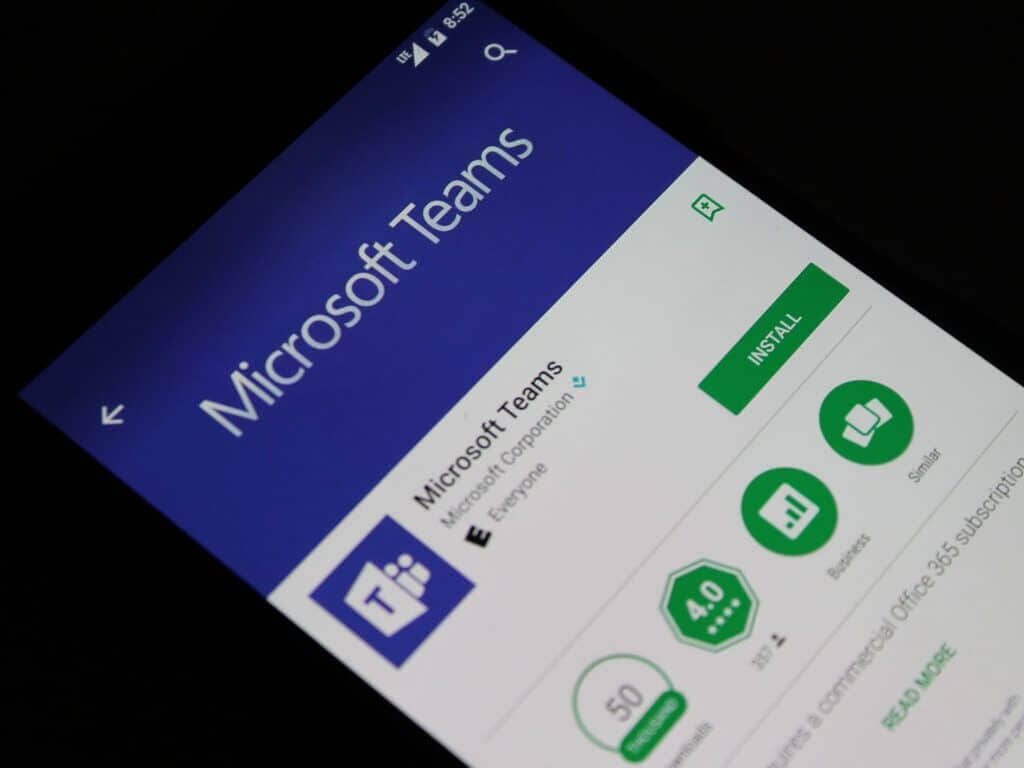
![Fix: Dell XPS 13 is not charging [Full guide]](https://windowsreport.com/wp-content/uploads/2022/03/dell-xps-not-charging.jpg)
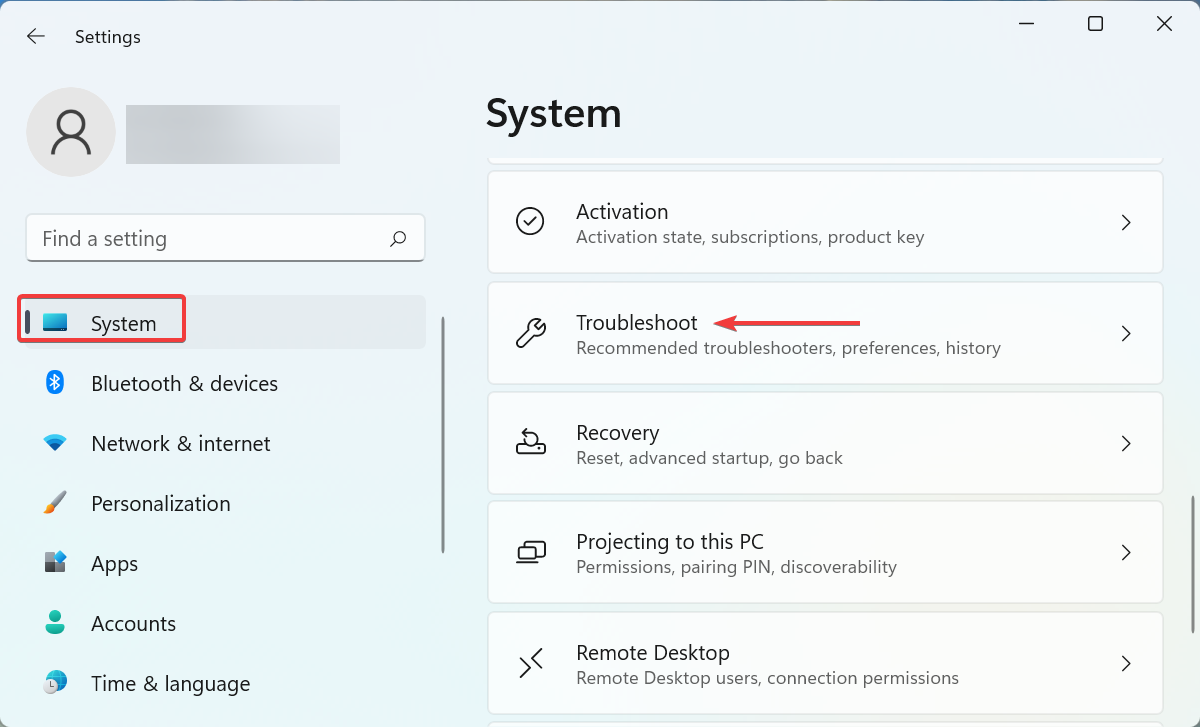
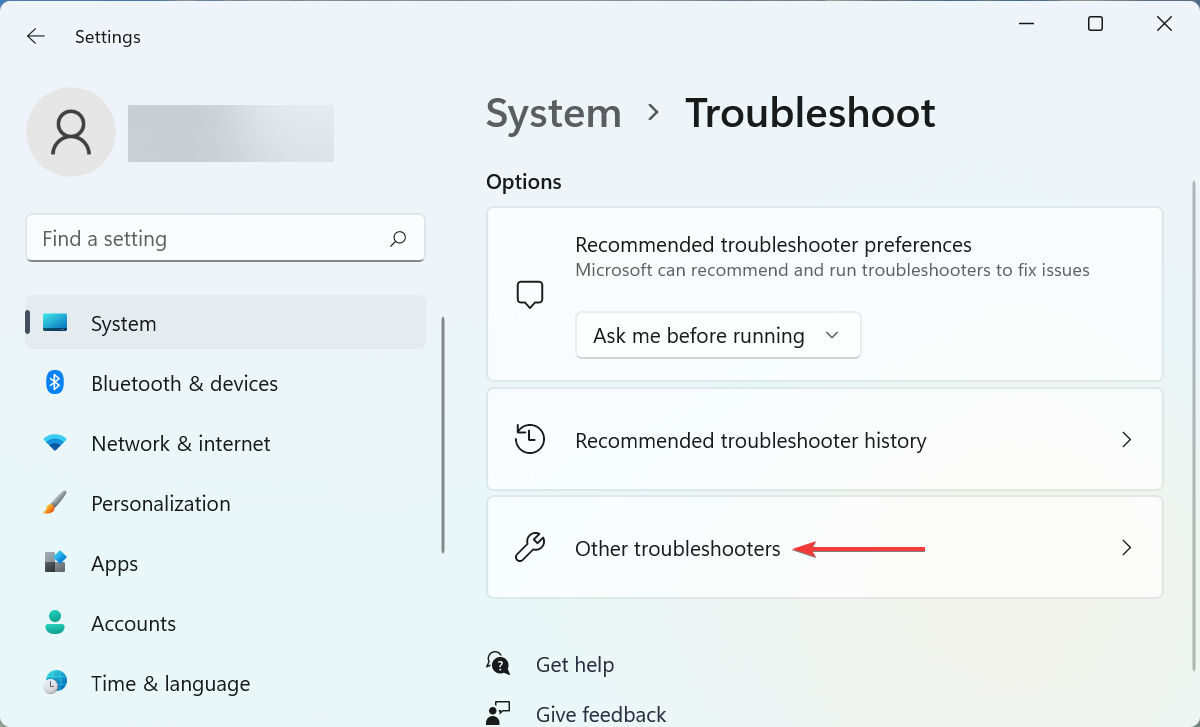
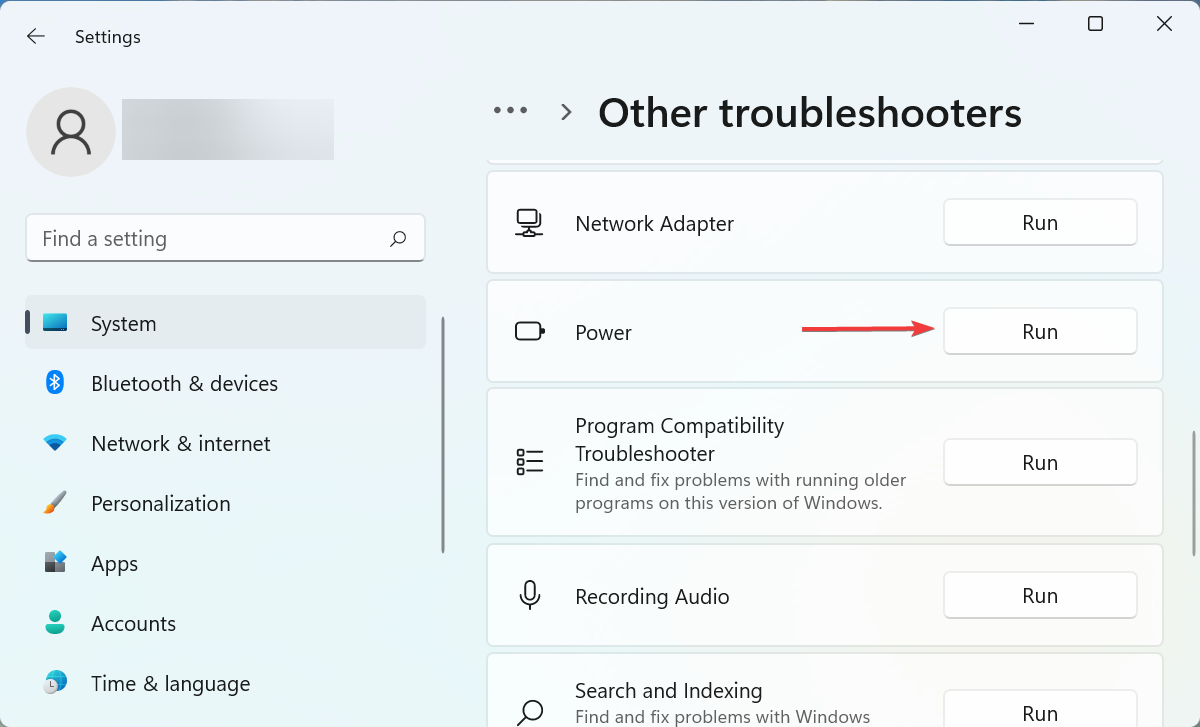
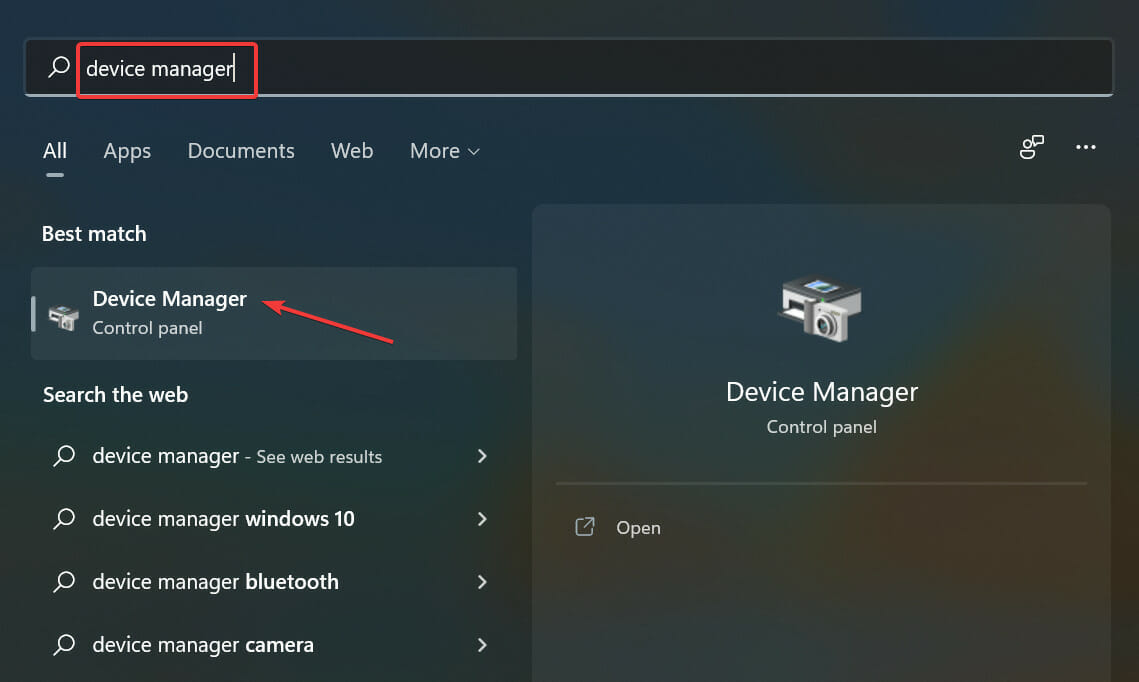
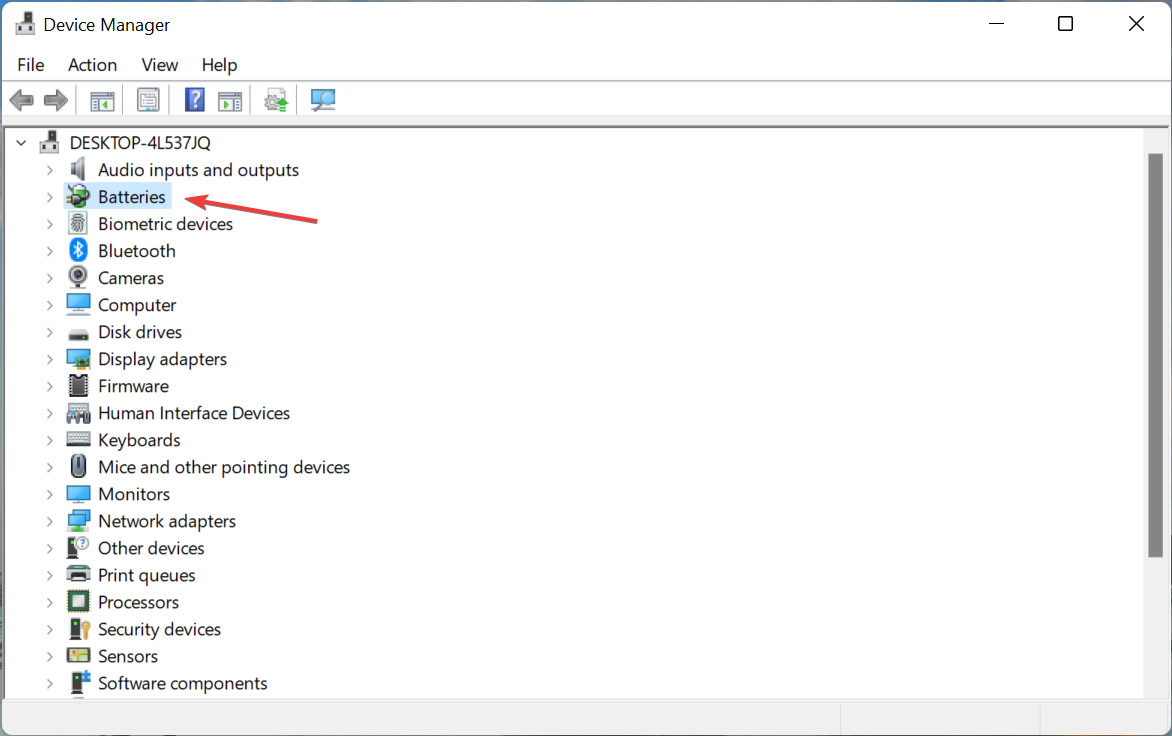

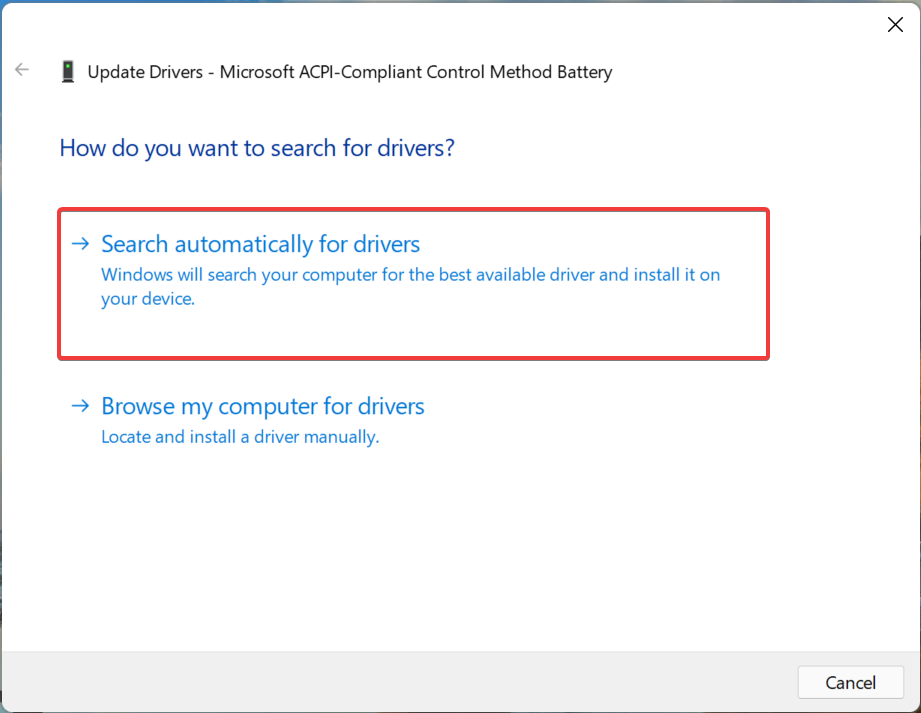
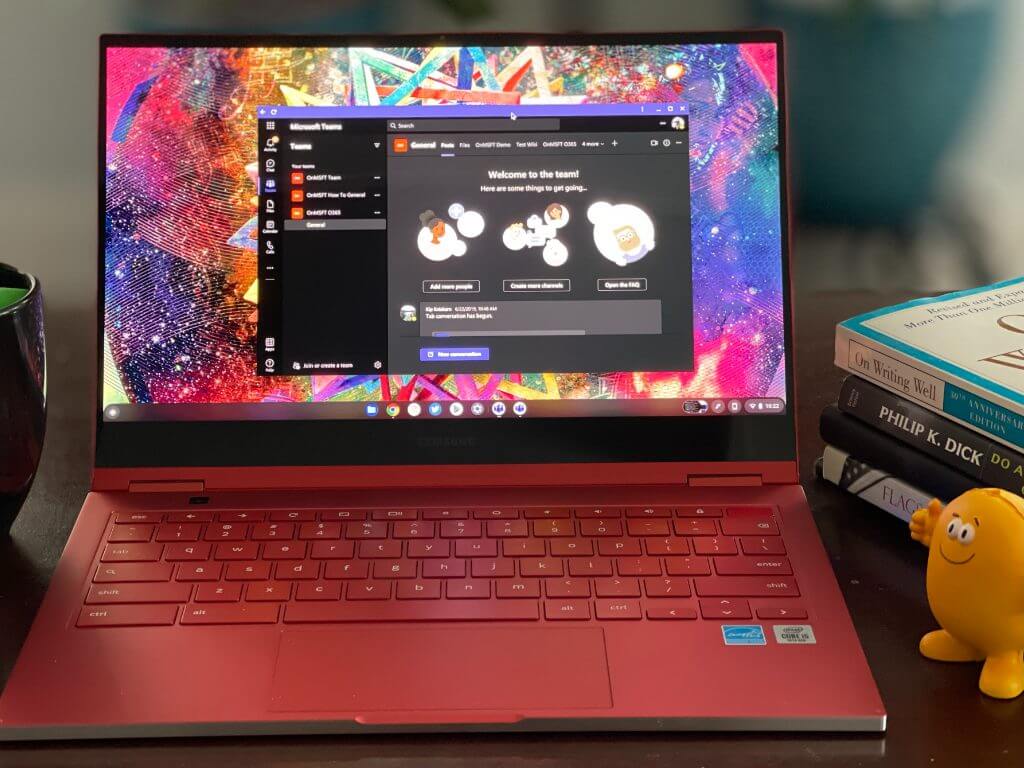
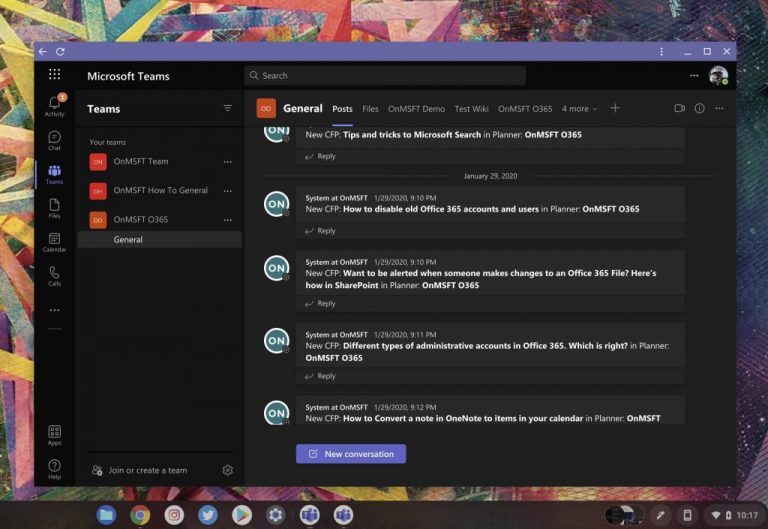
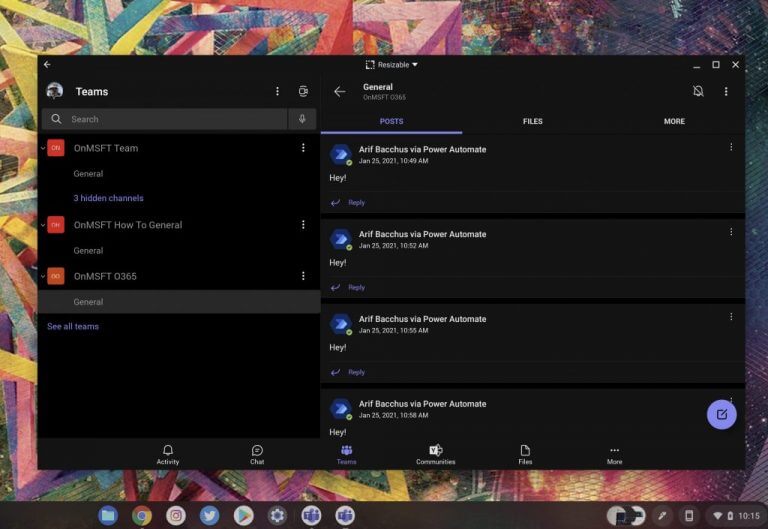


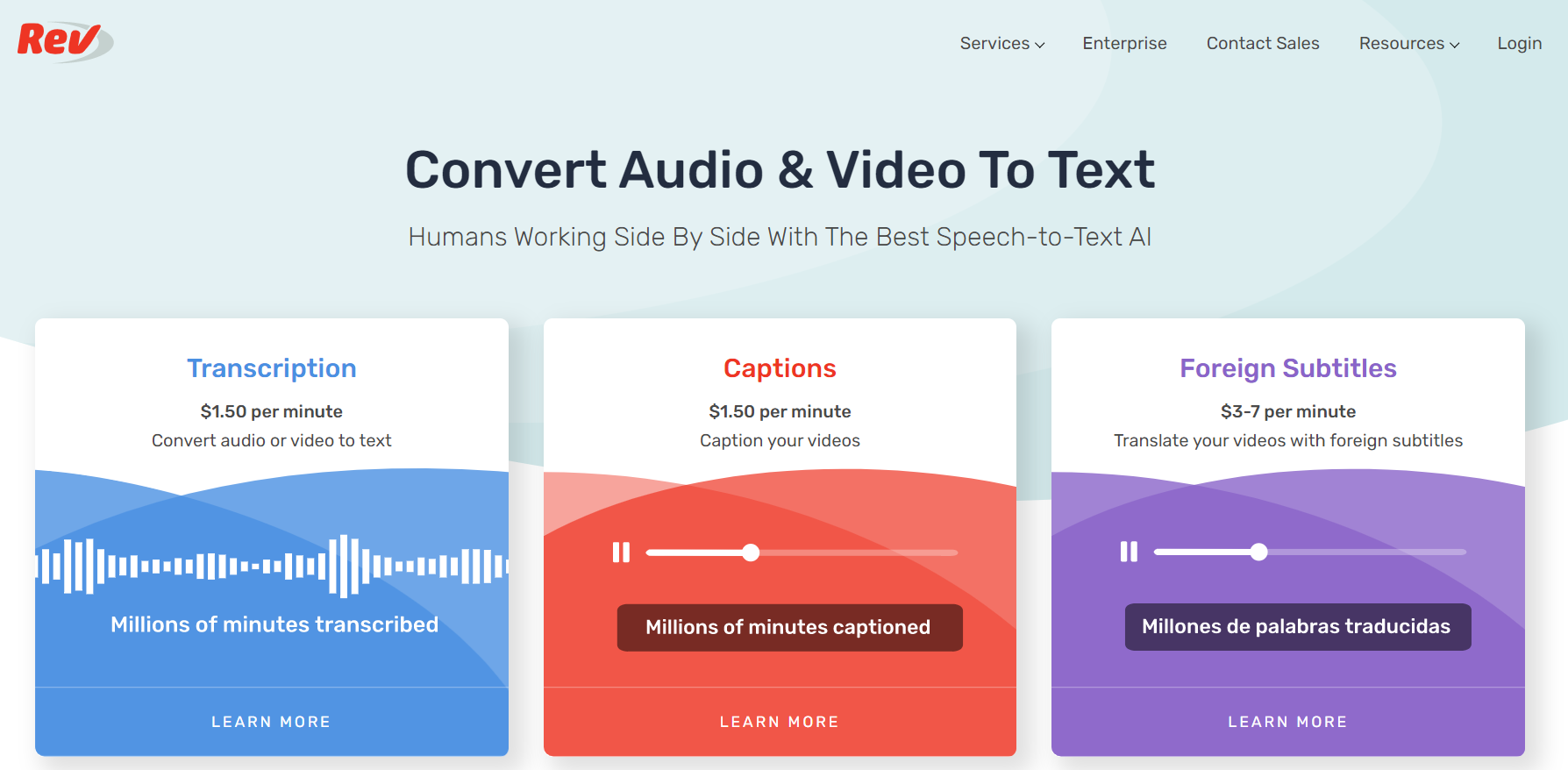


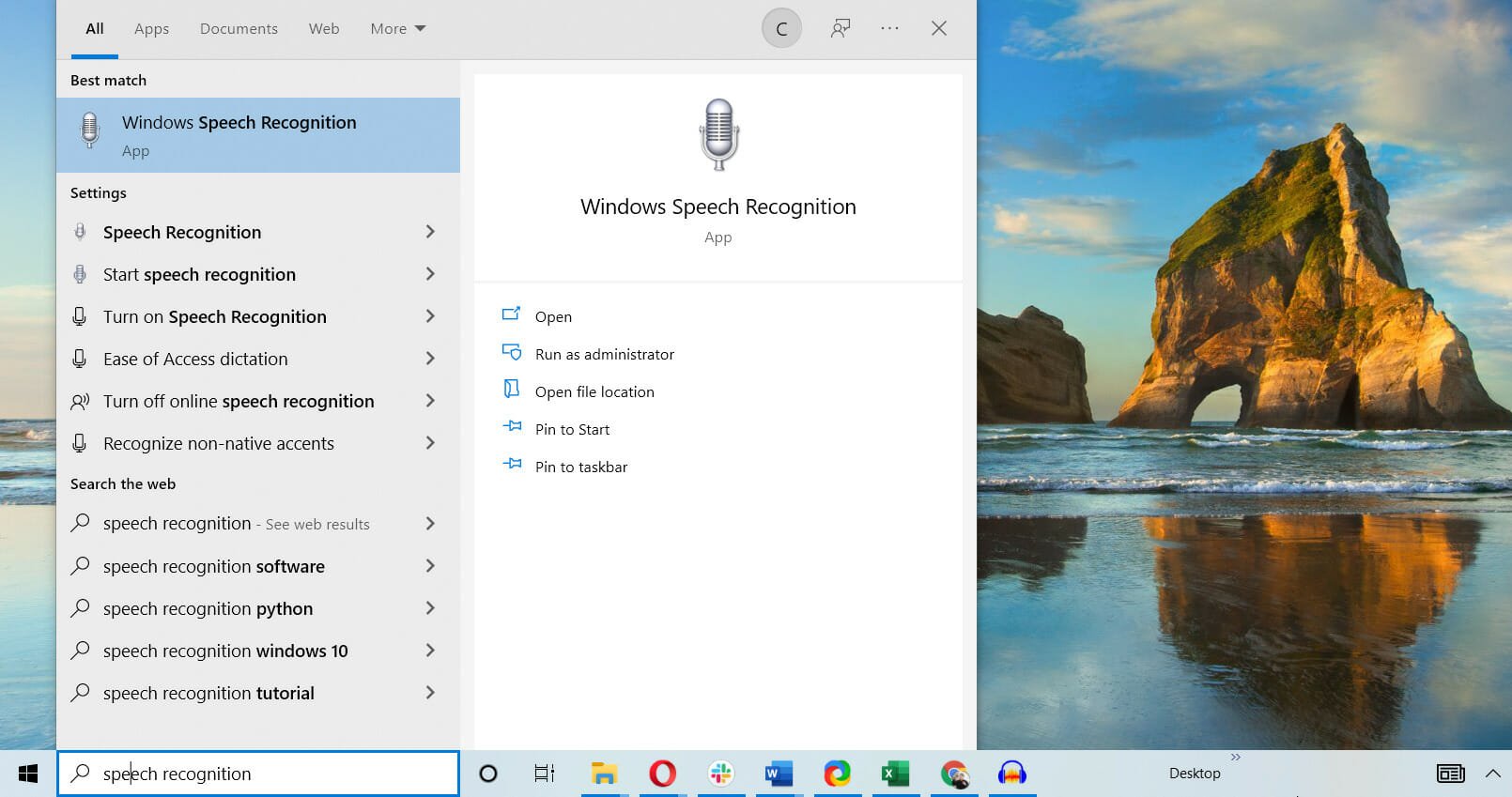


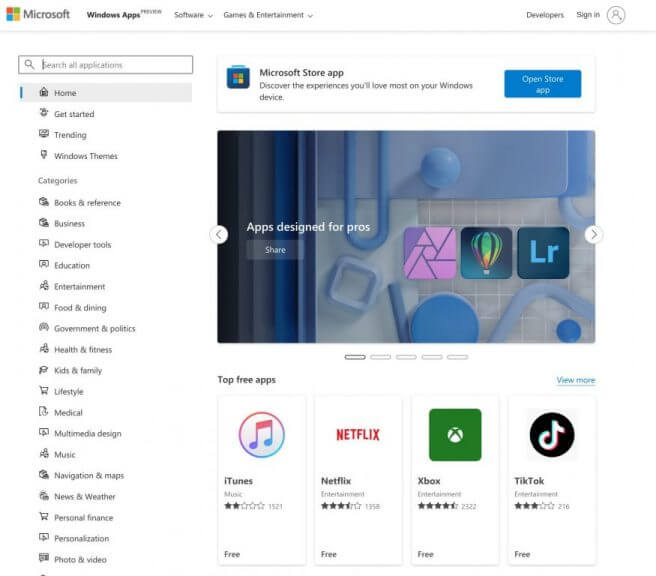
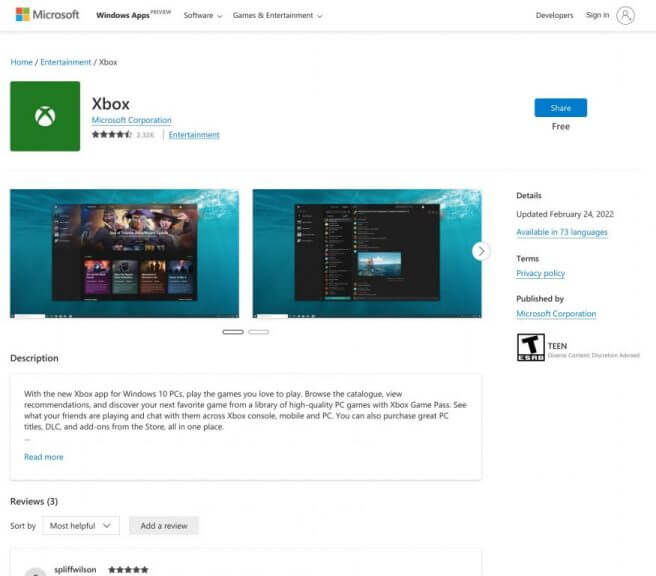

![Best Video Compression Software [Out of 15 Tested in 2026]](https://windowsreport.com/wp-content/uploads/2022/03/best-video-compression-software.jpg)
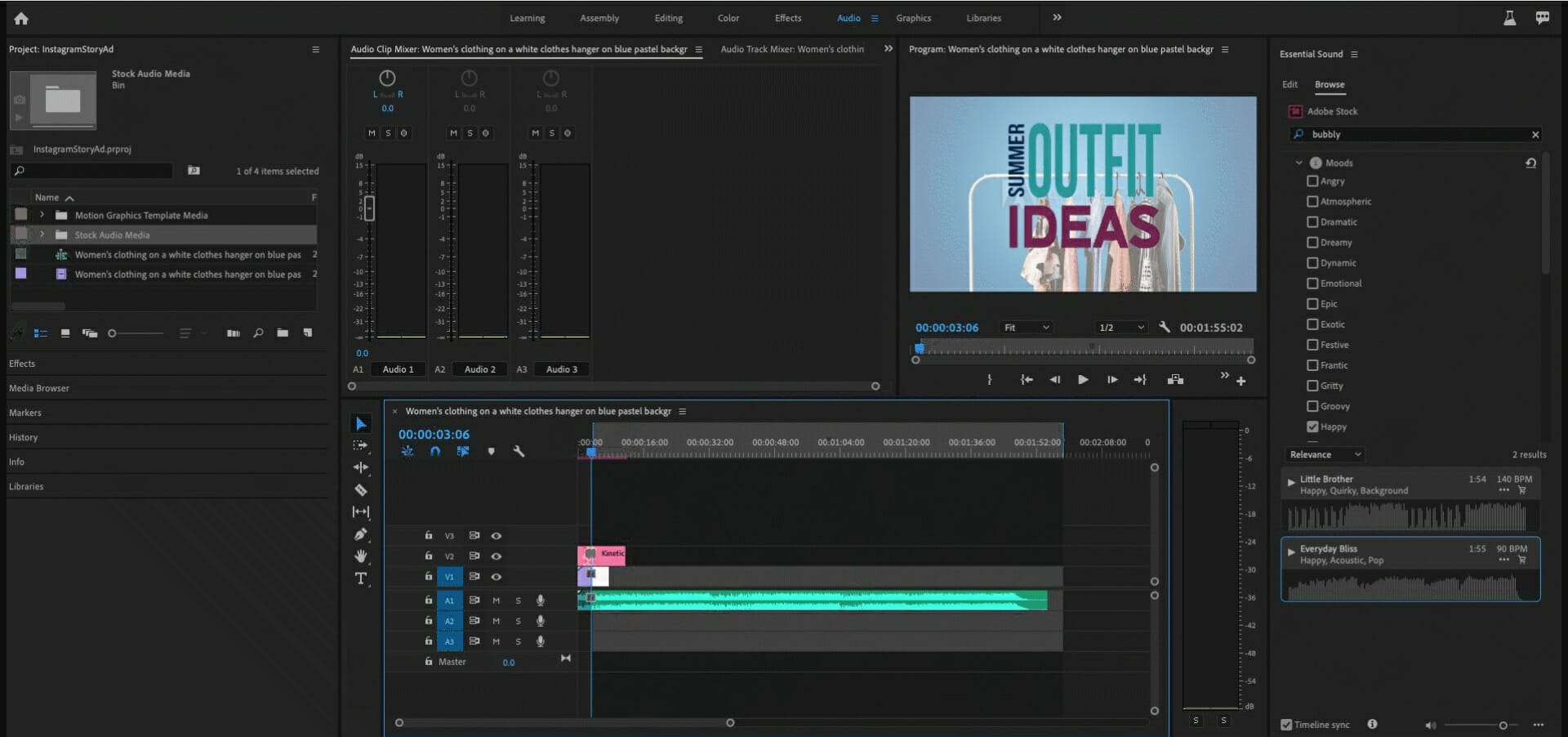

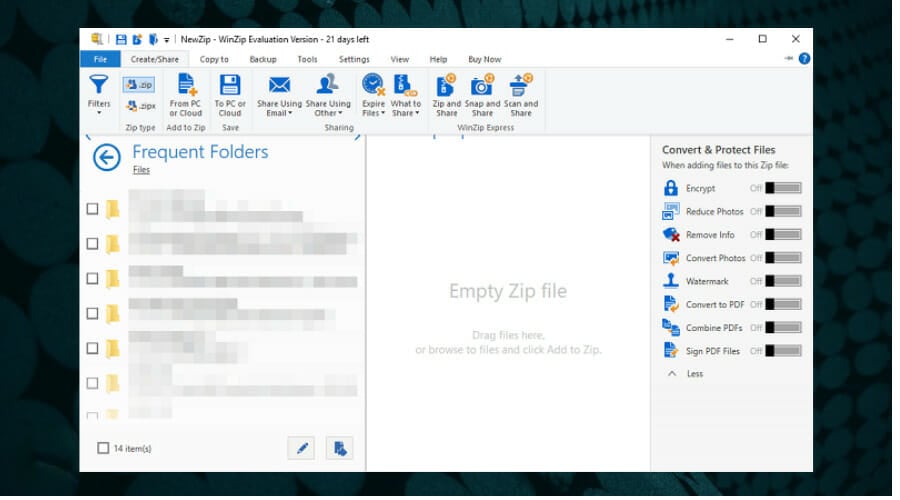

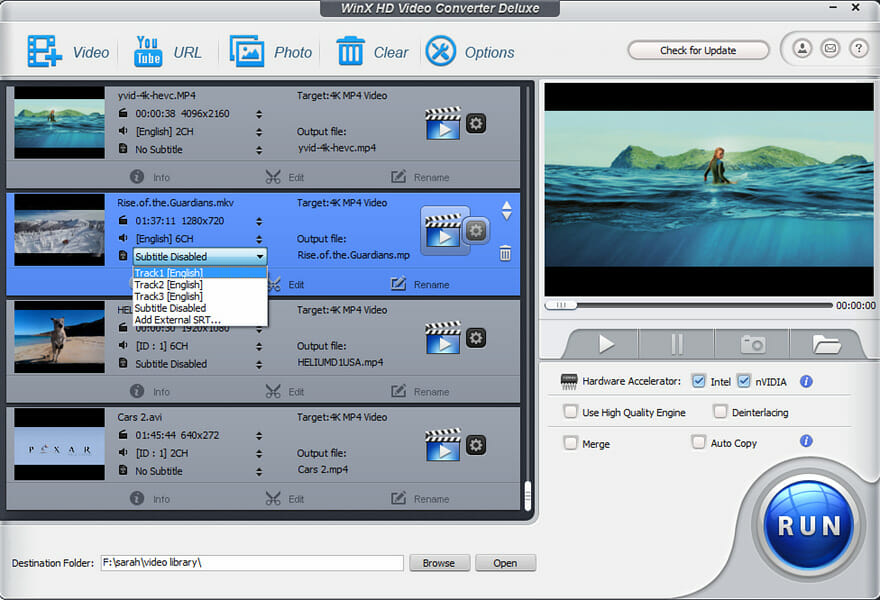

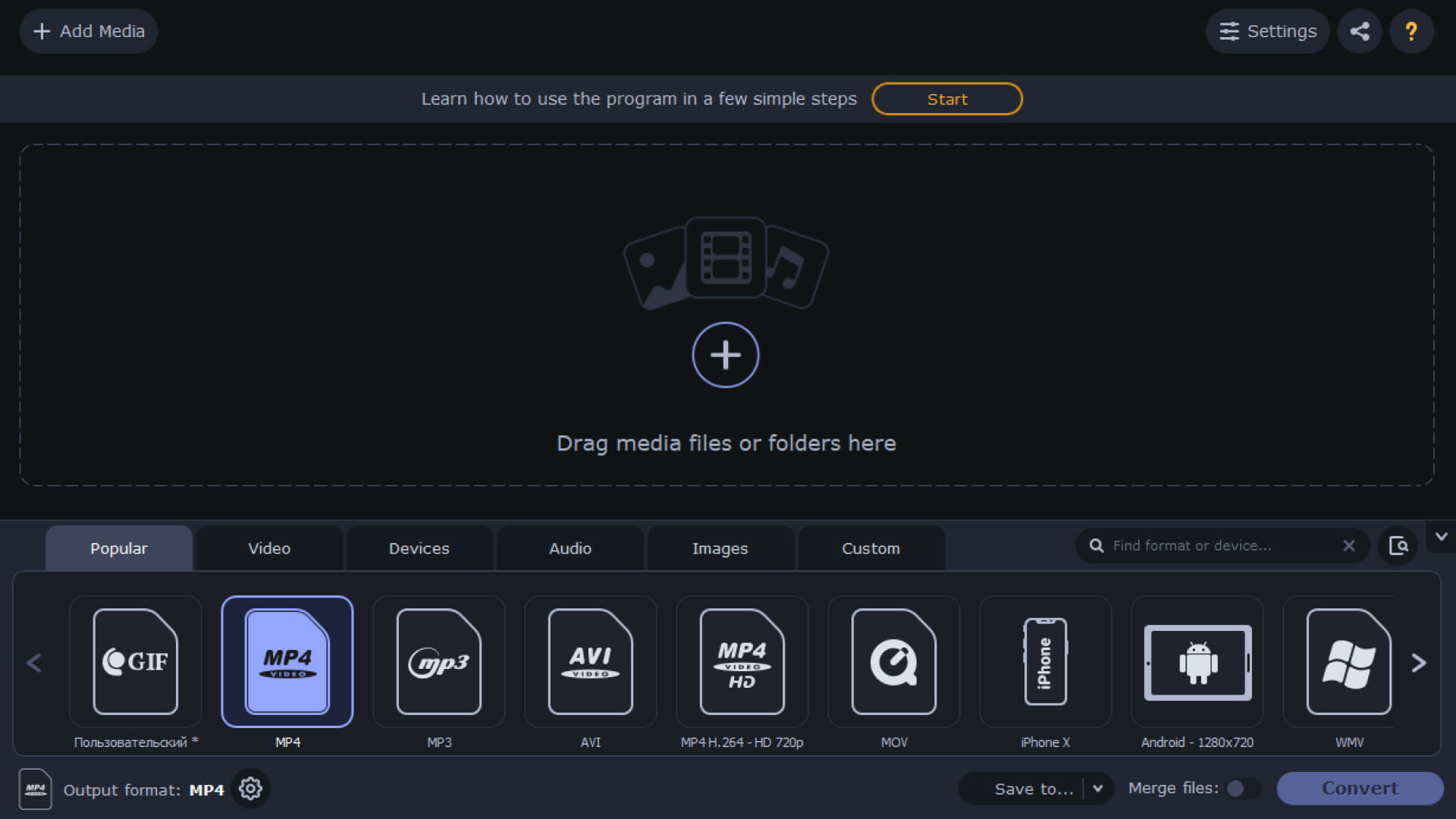
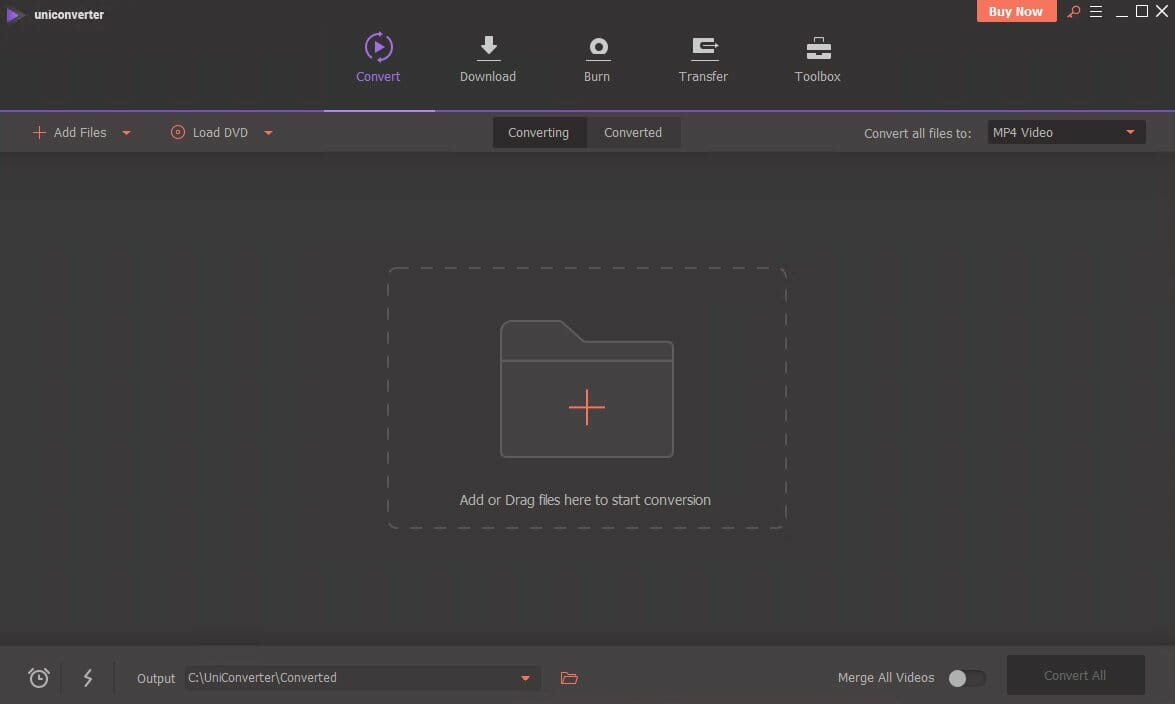

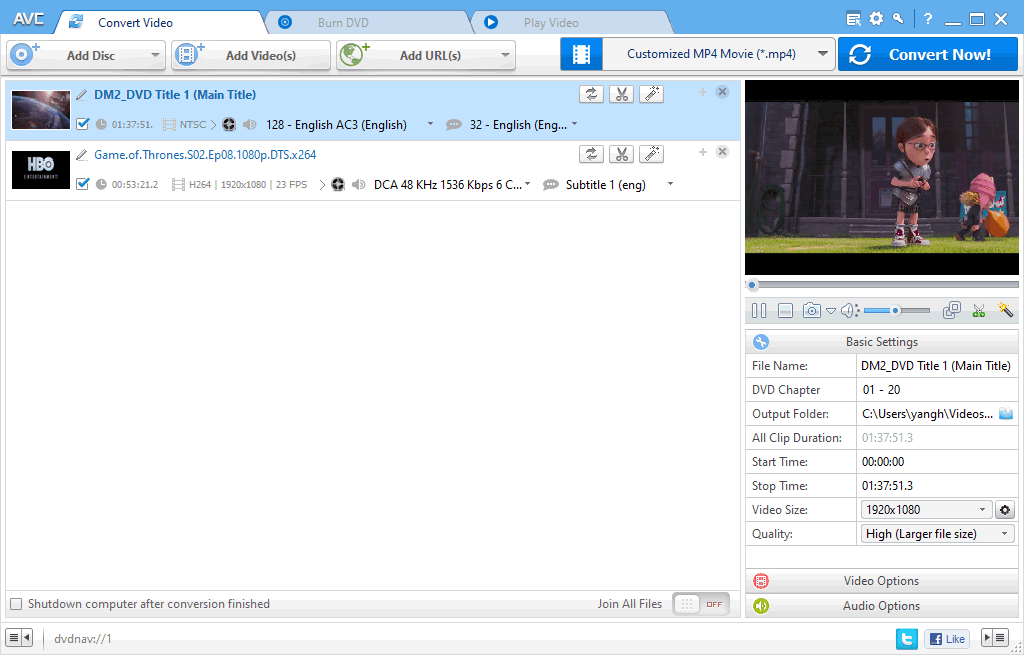



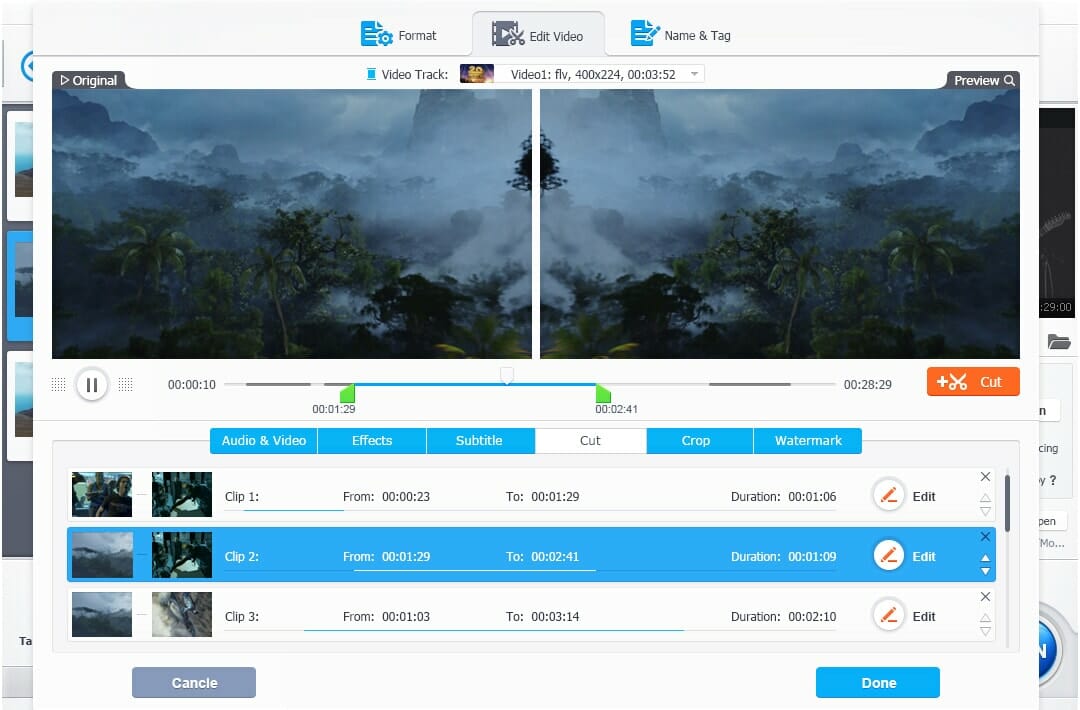

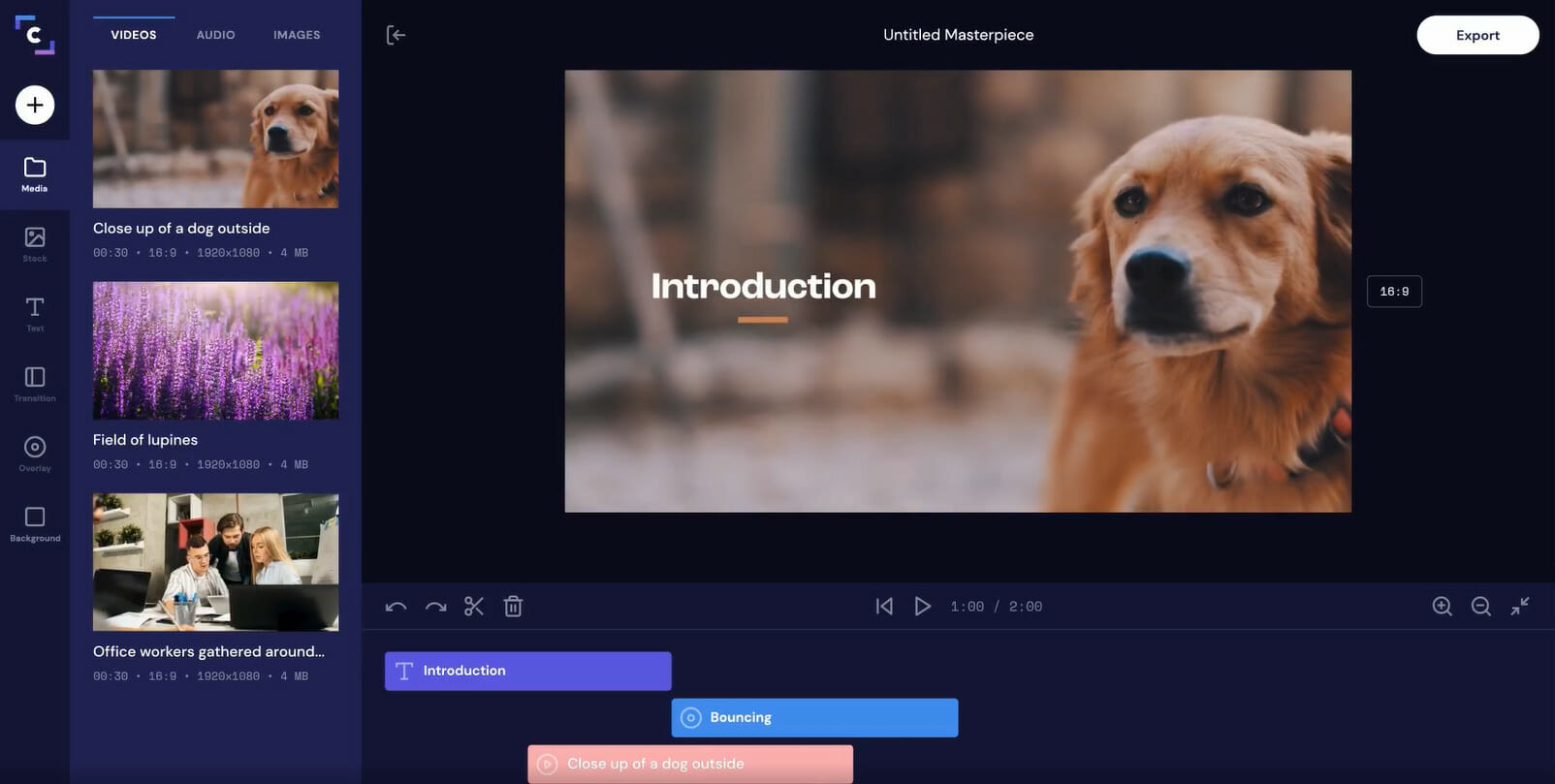
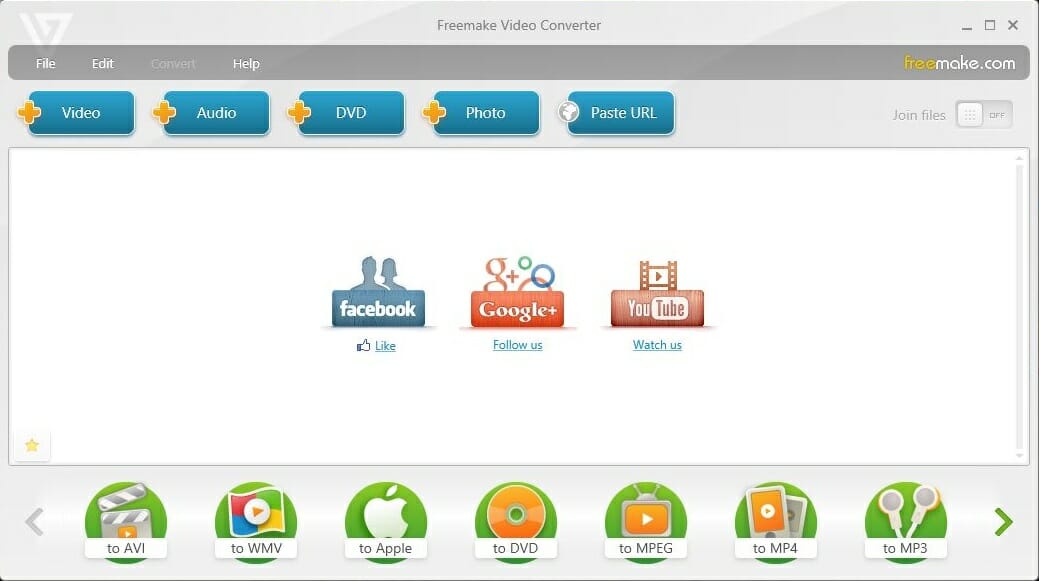
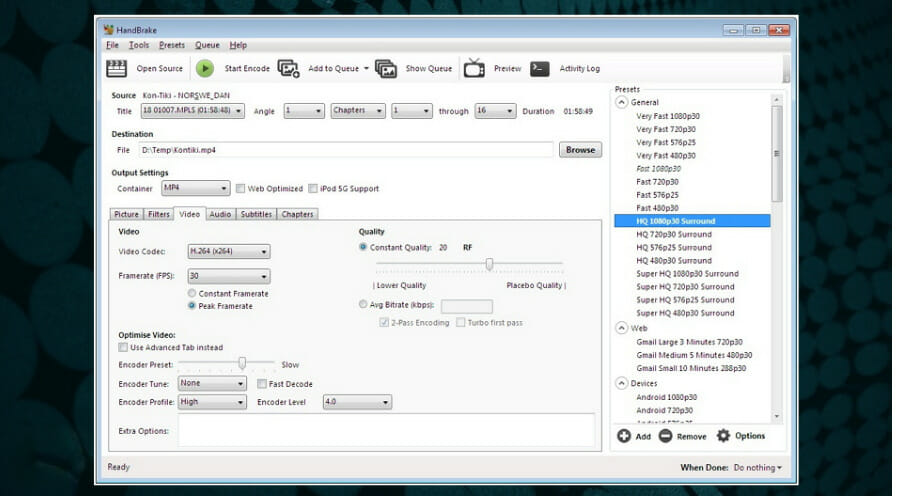
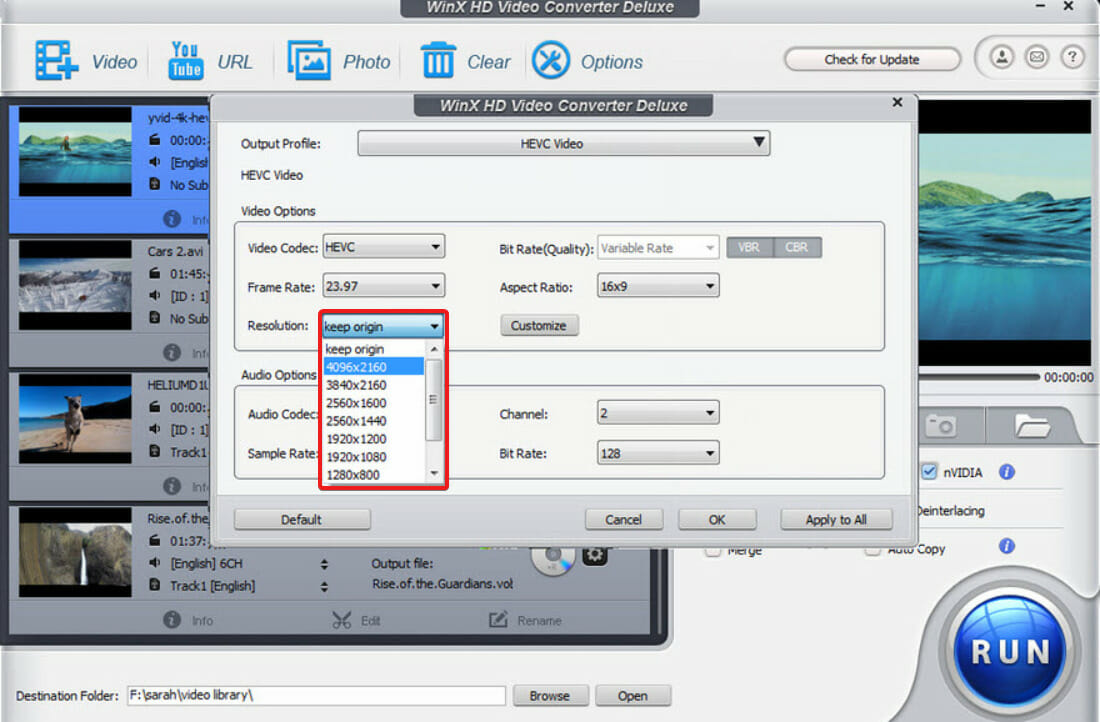
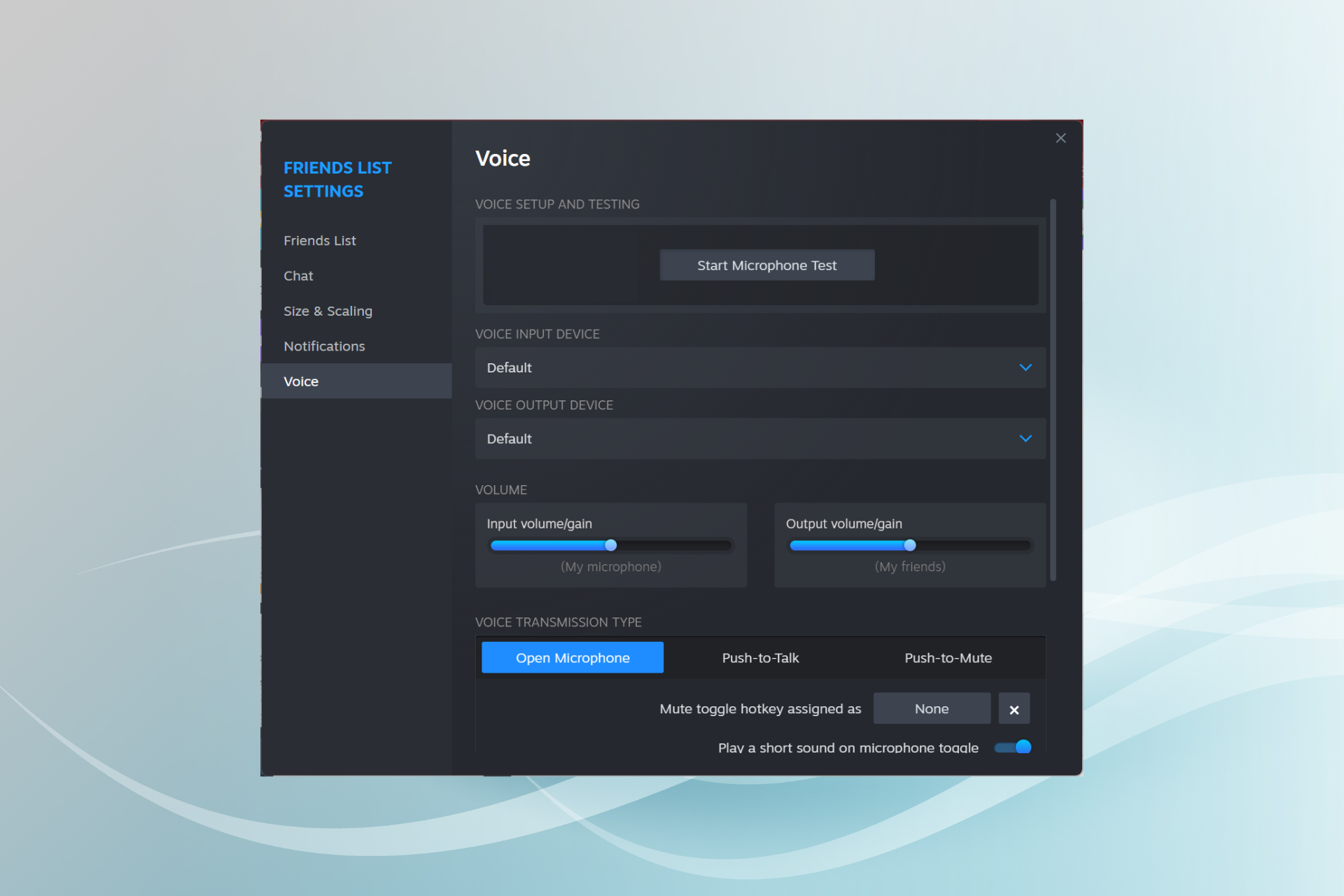


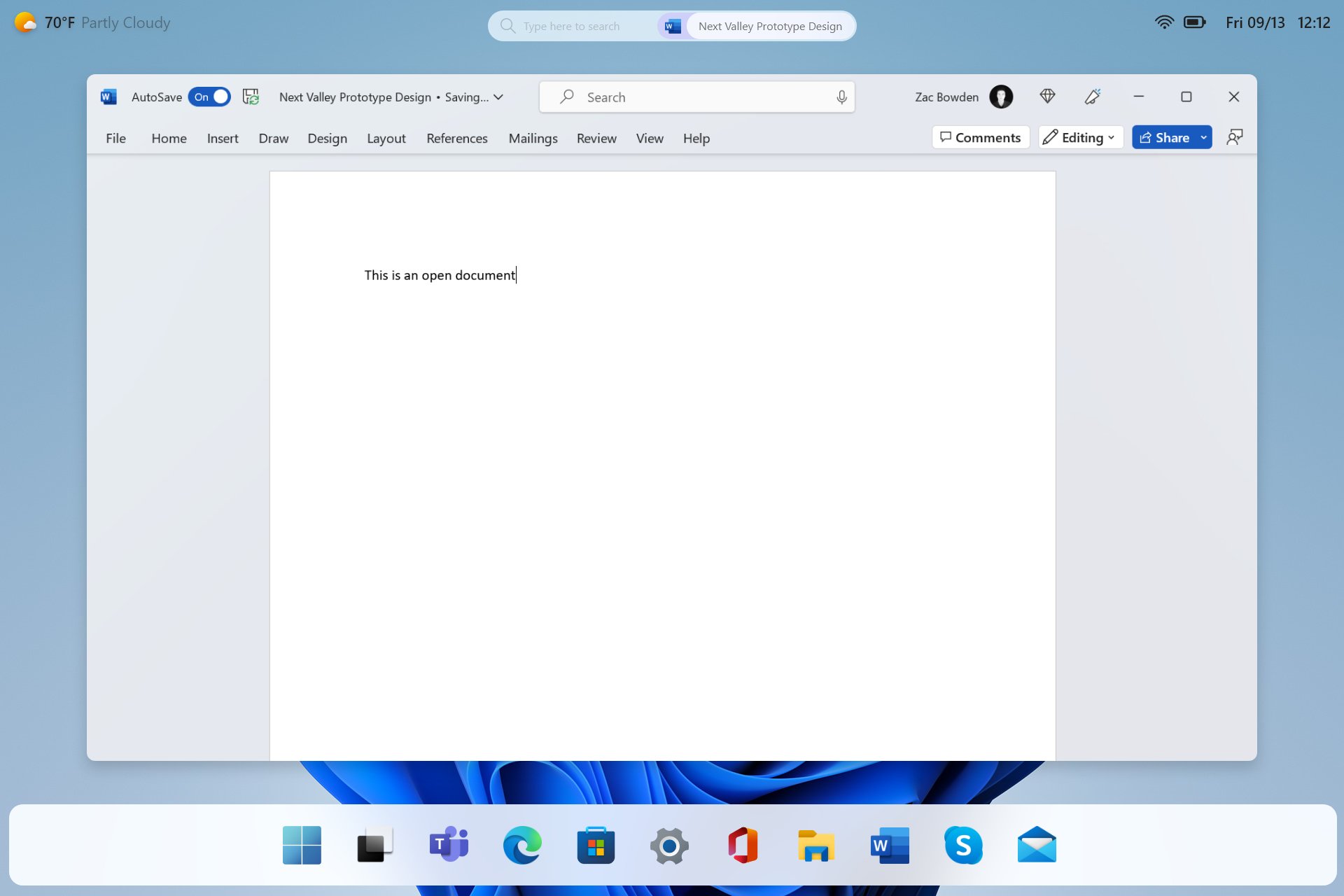
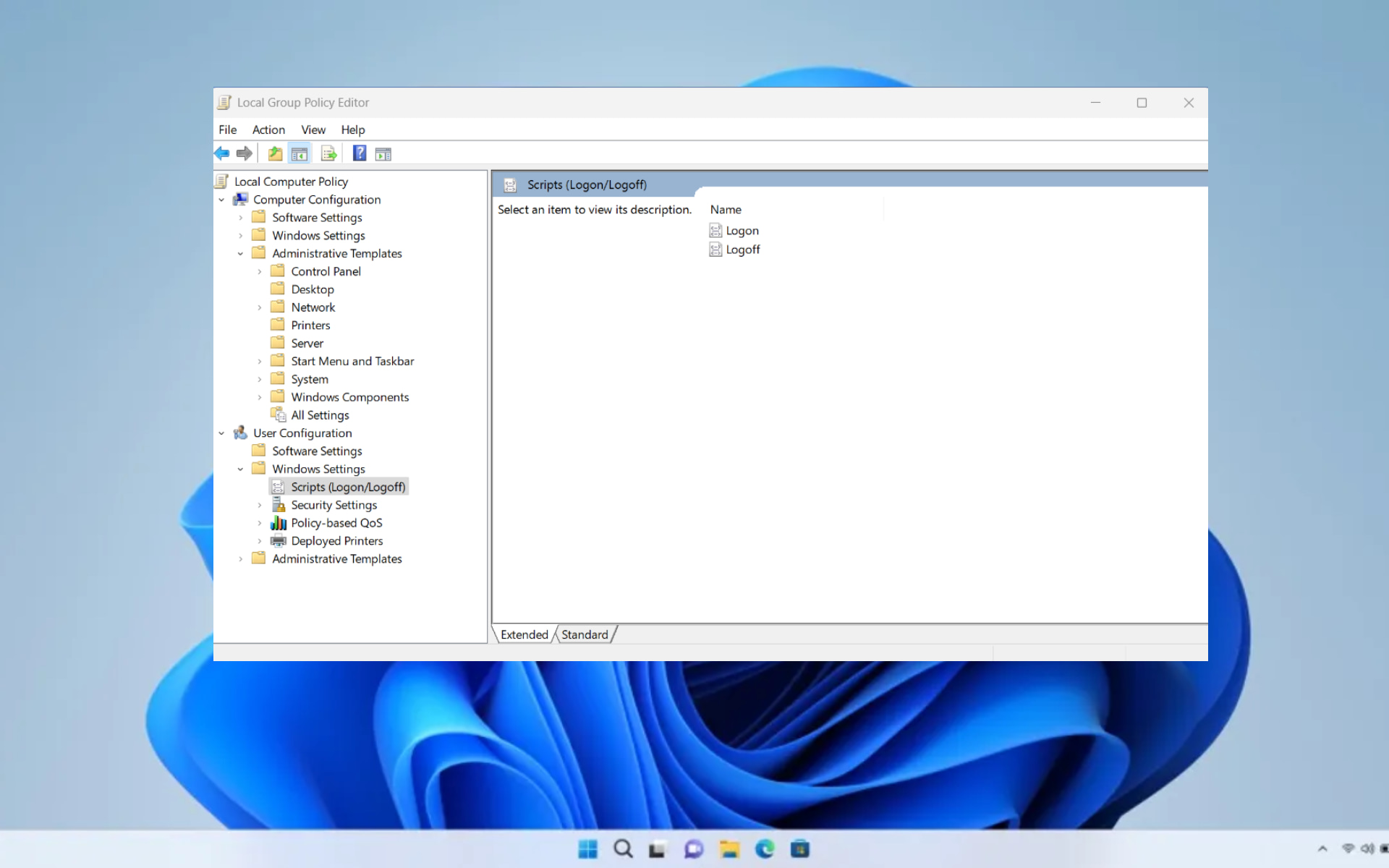
.jpg)
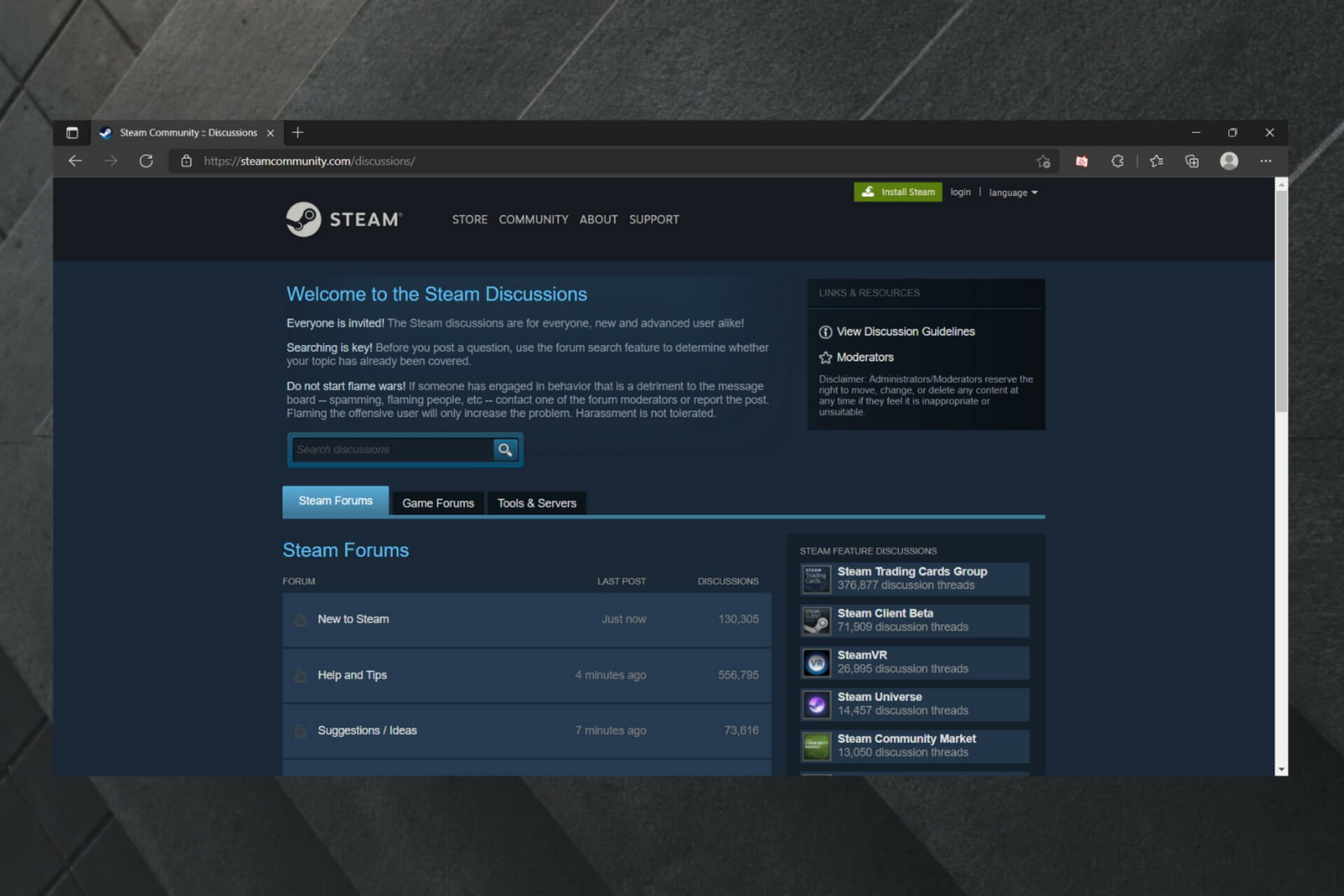
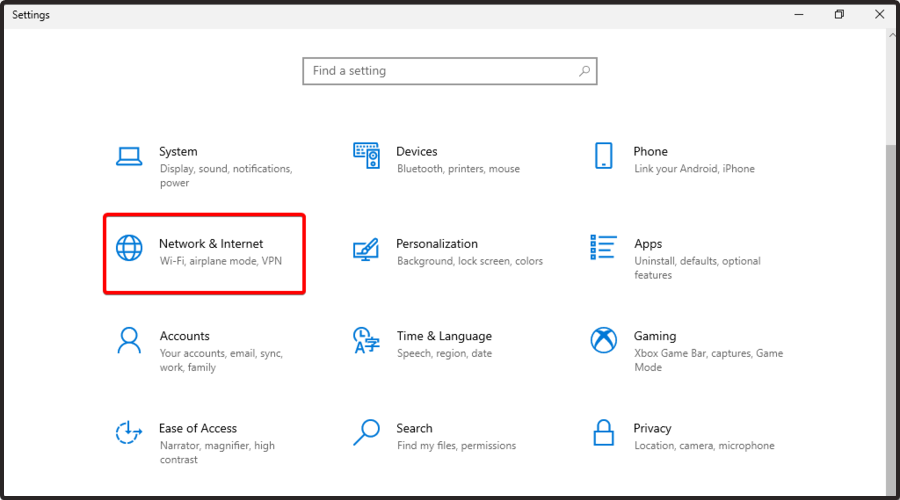


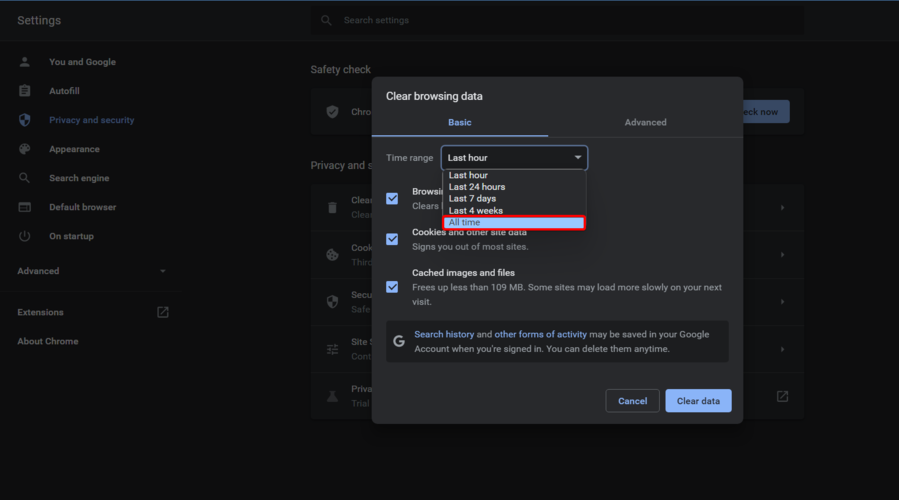


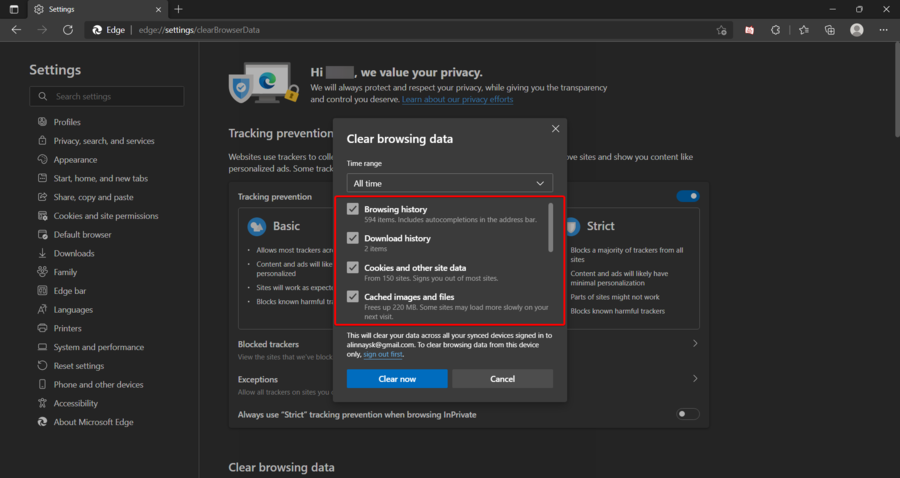
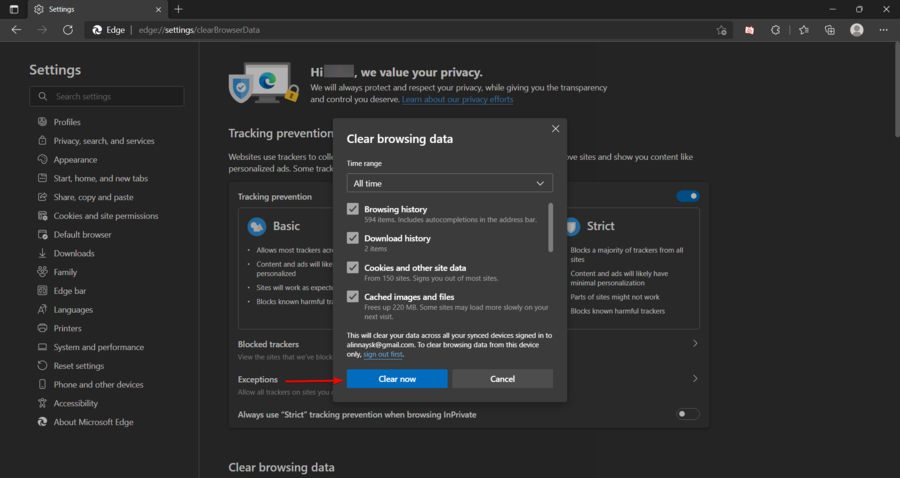
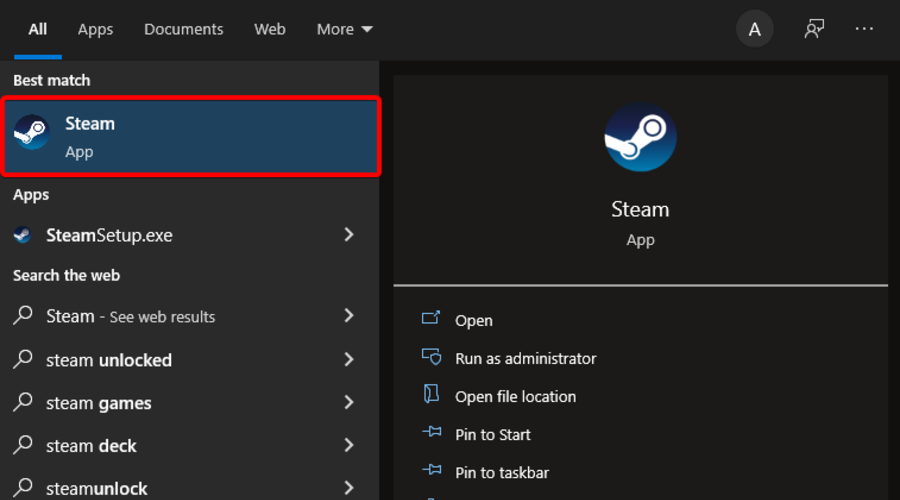
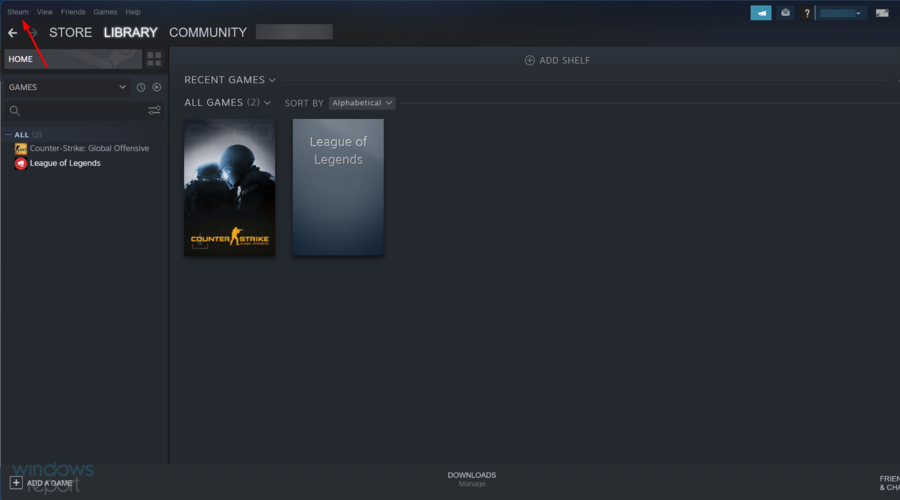
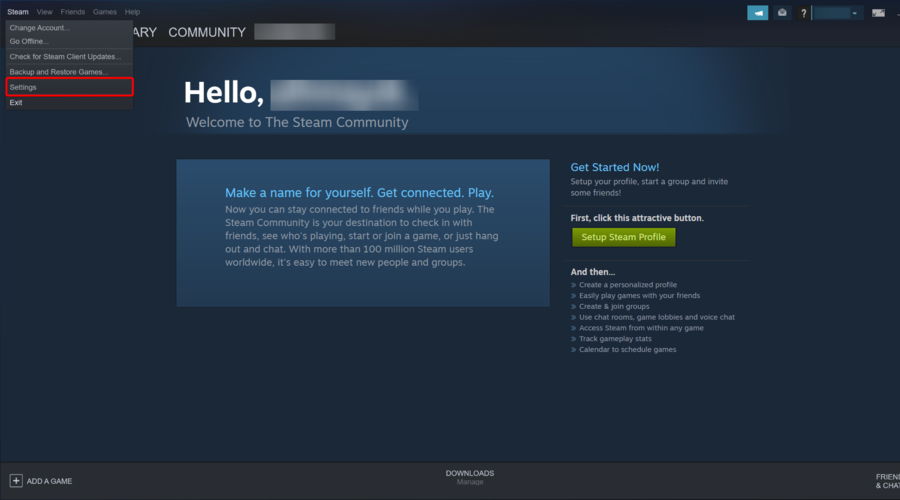
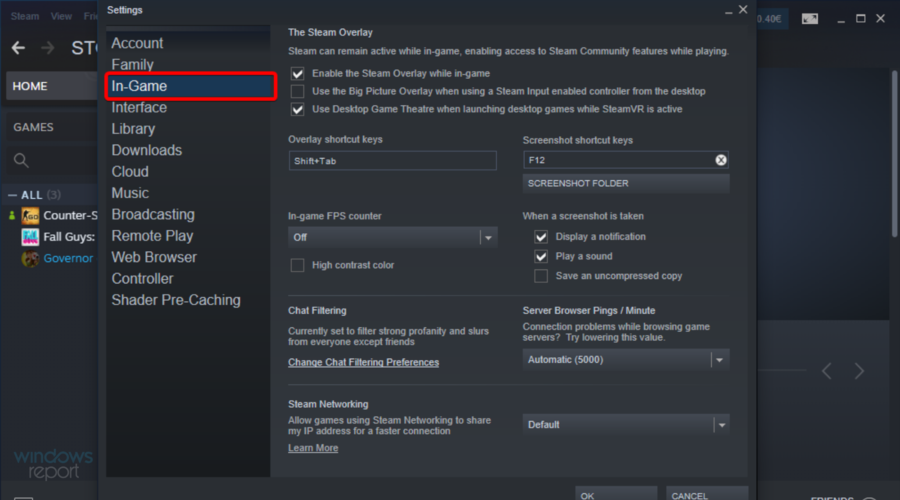
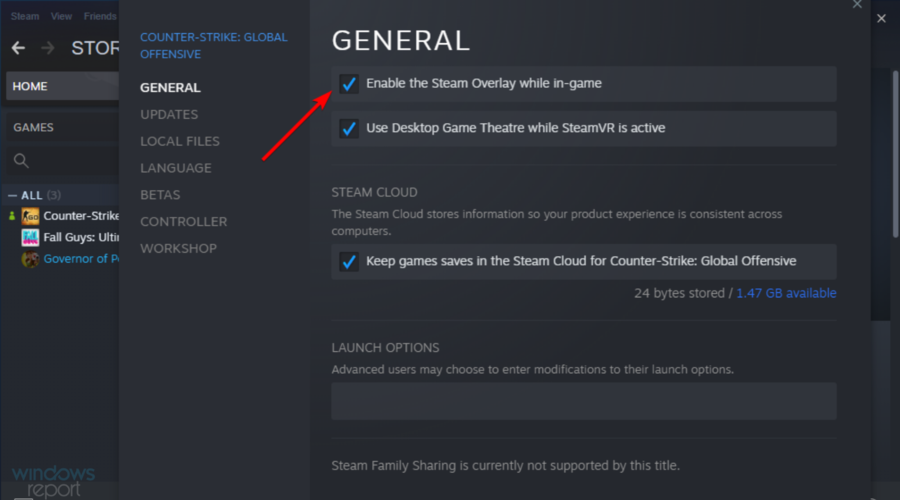
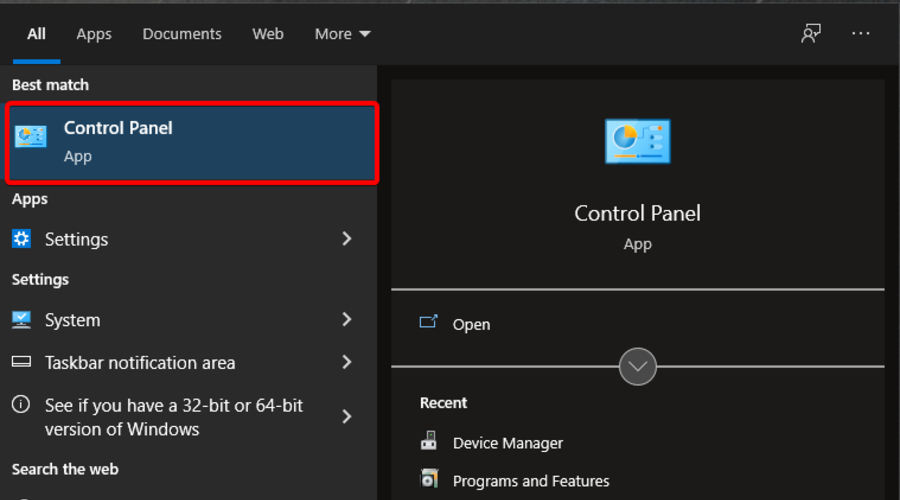
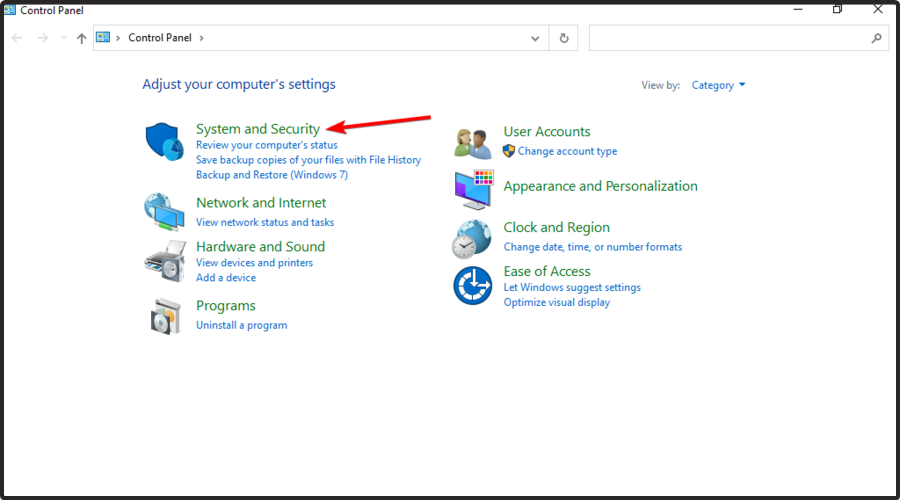
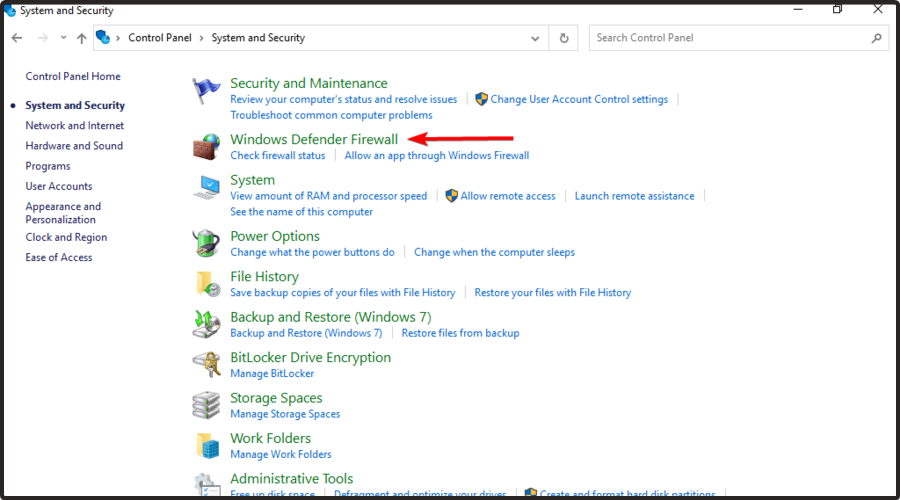
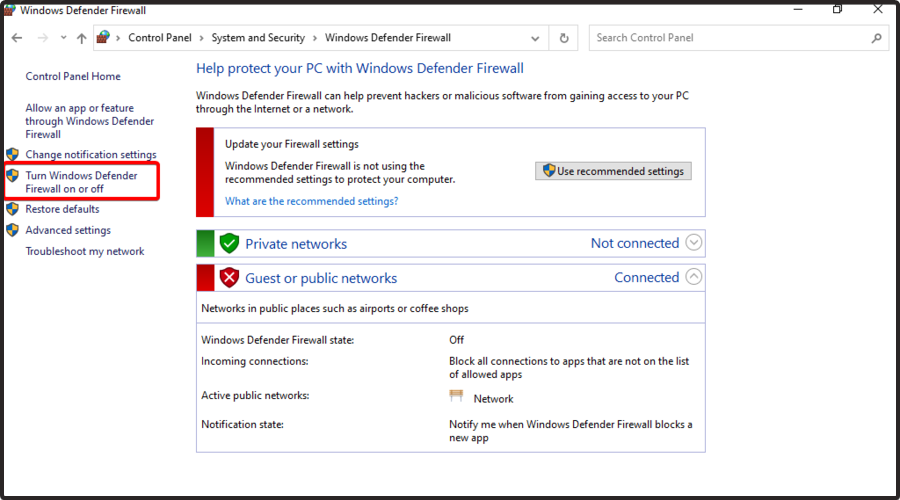
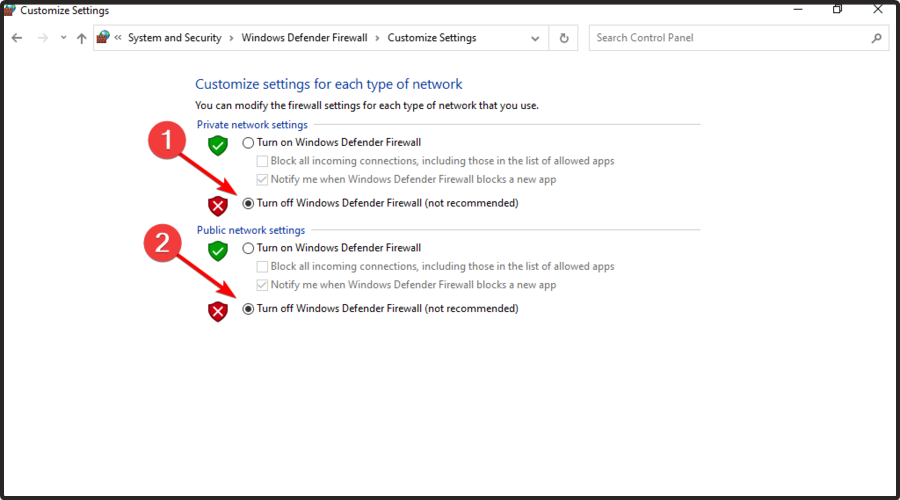
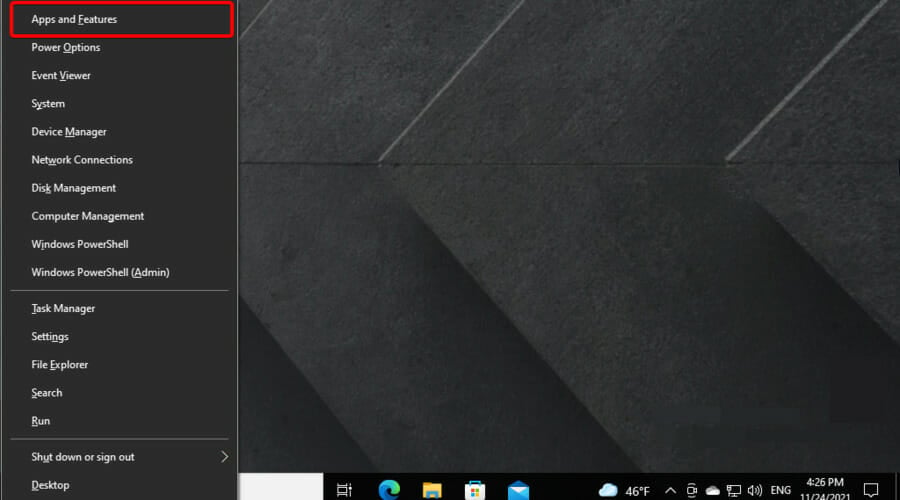

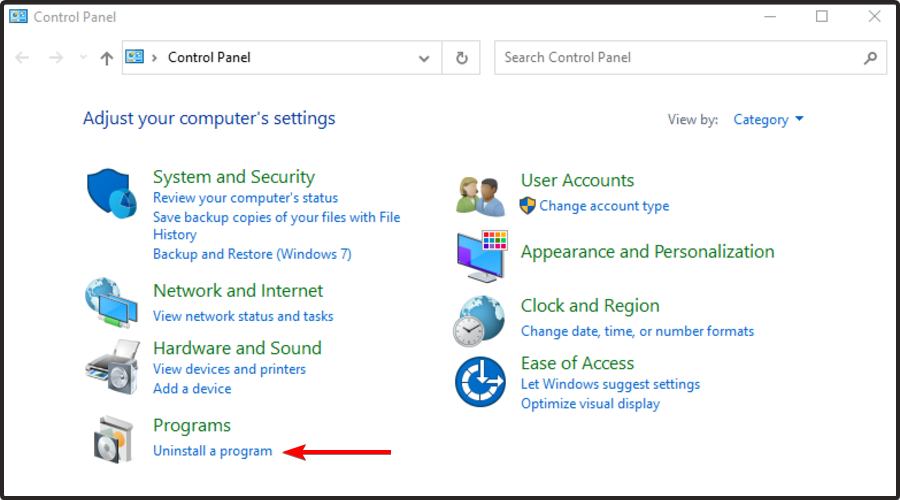
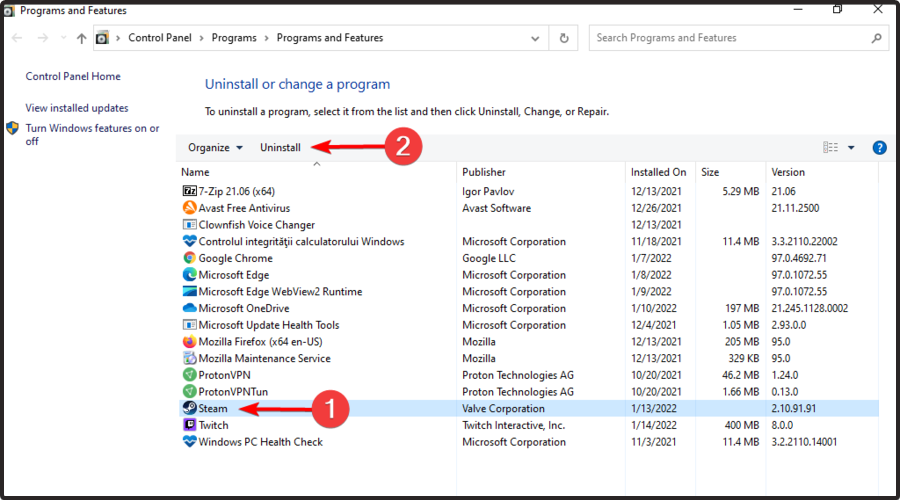
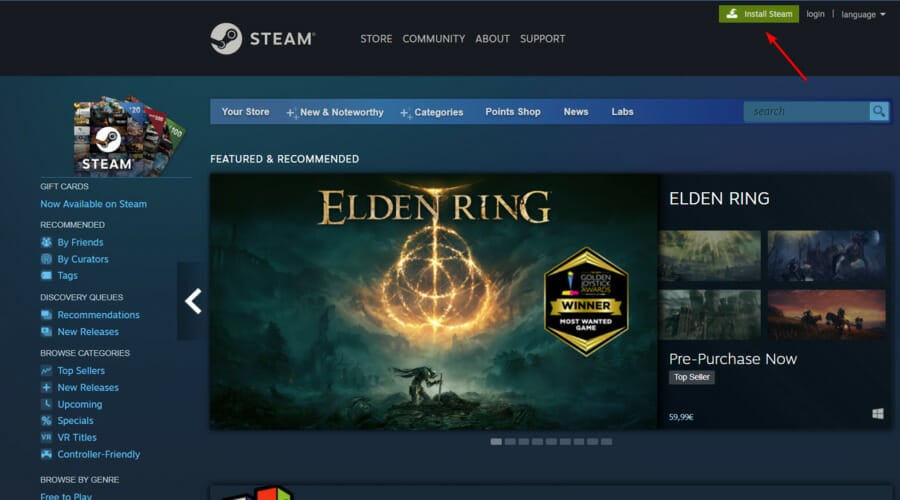
![Fix: Dell XPS headphone jack not working [Quick fix]](https://windowsreport.com/wp-content/uploads/2022/03/dell-xps-headphone-jack-not-working.jpg)
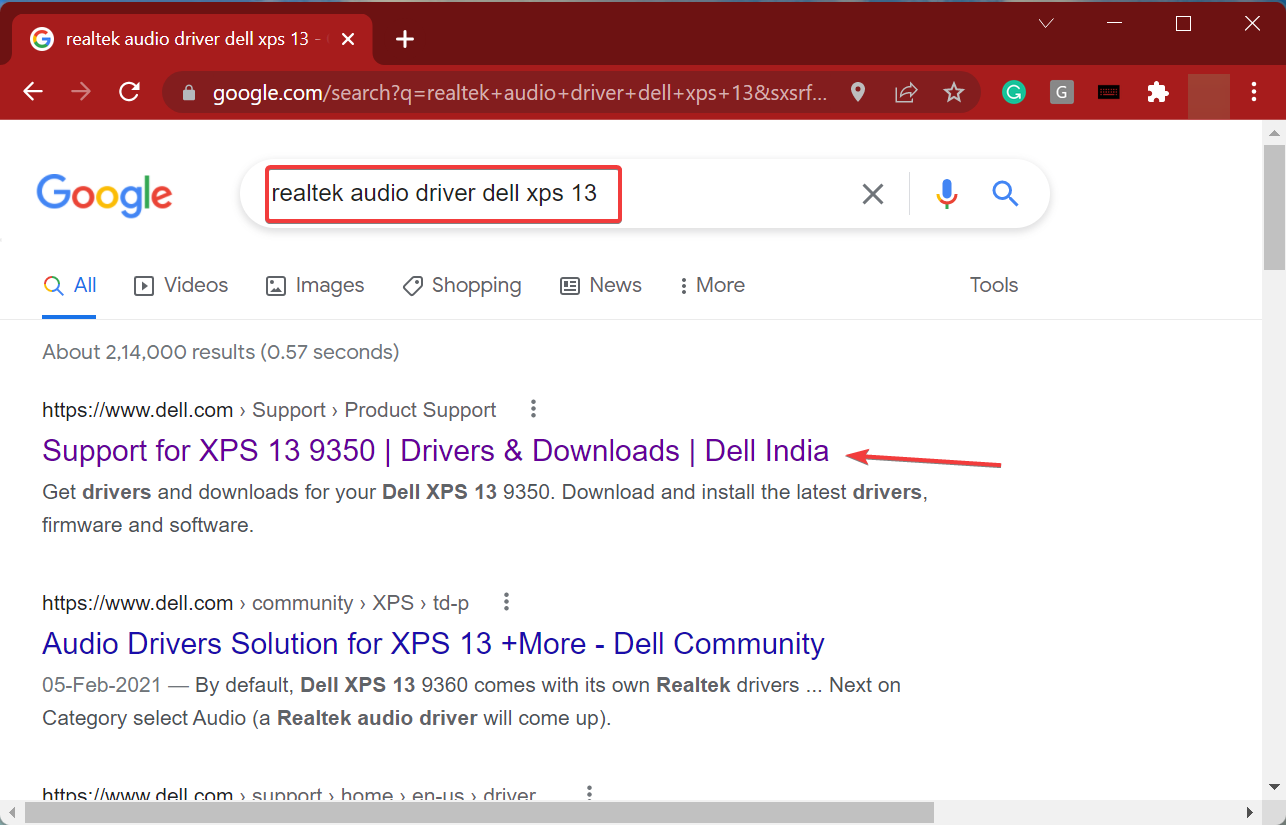
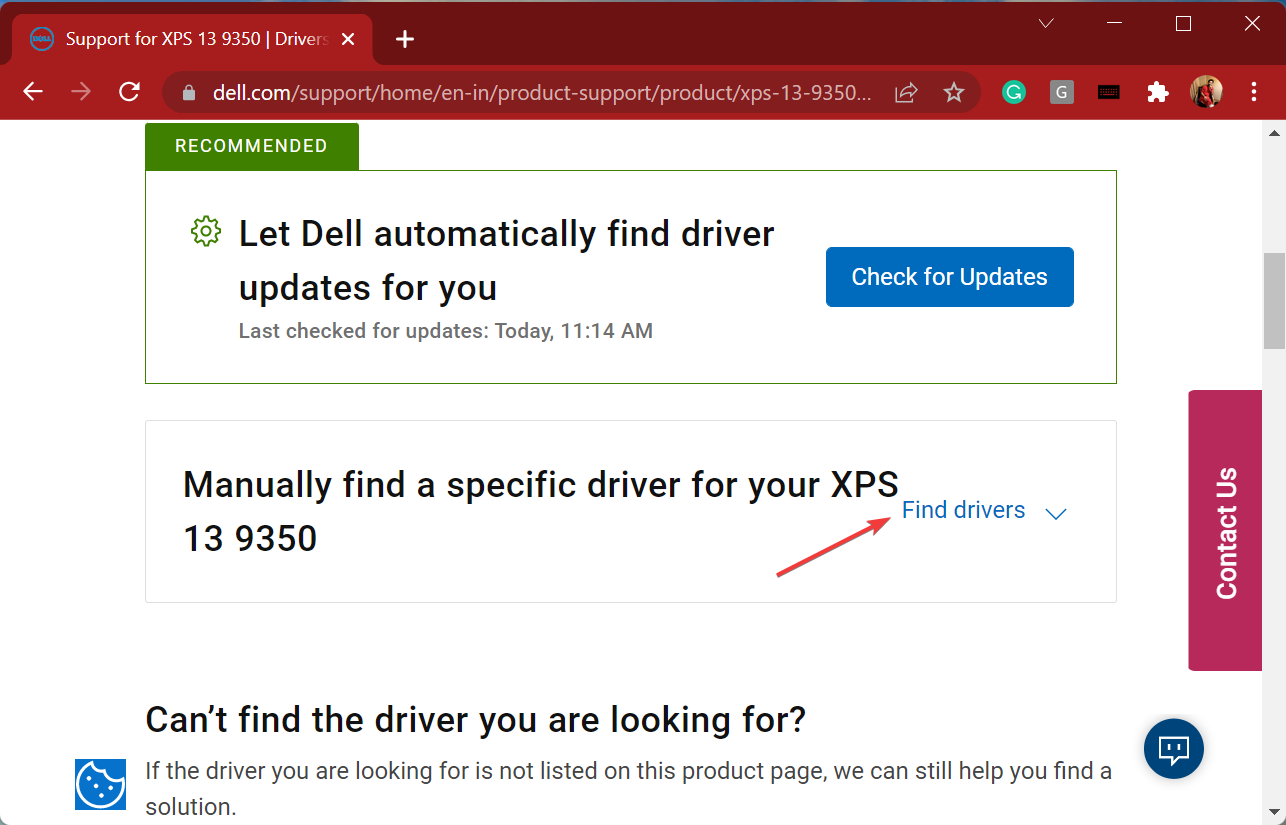
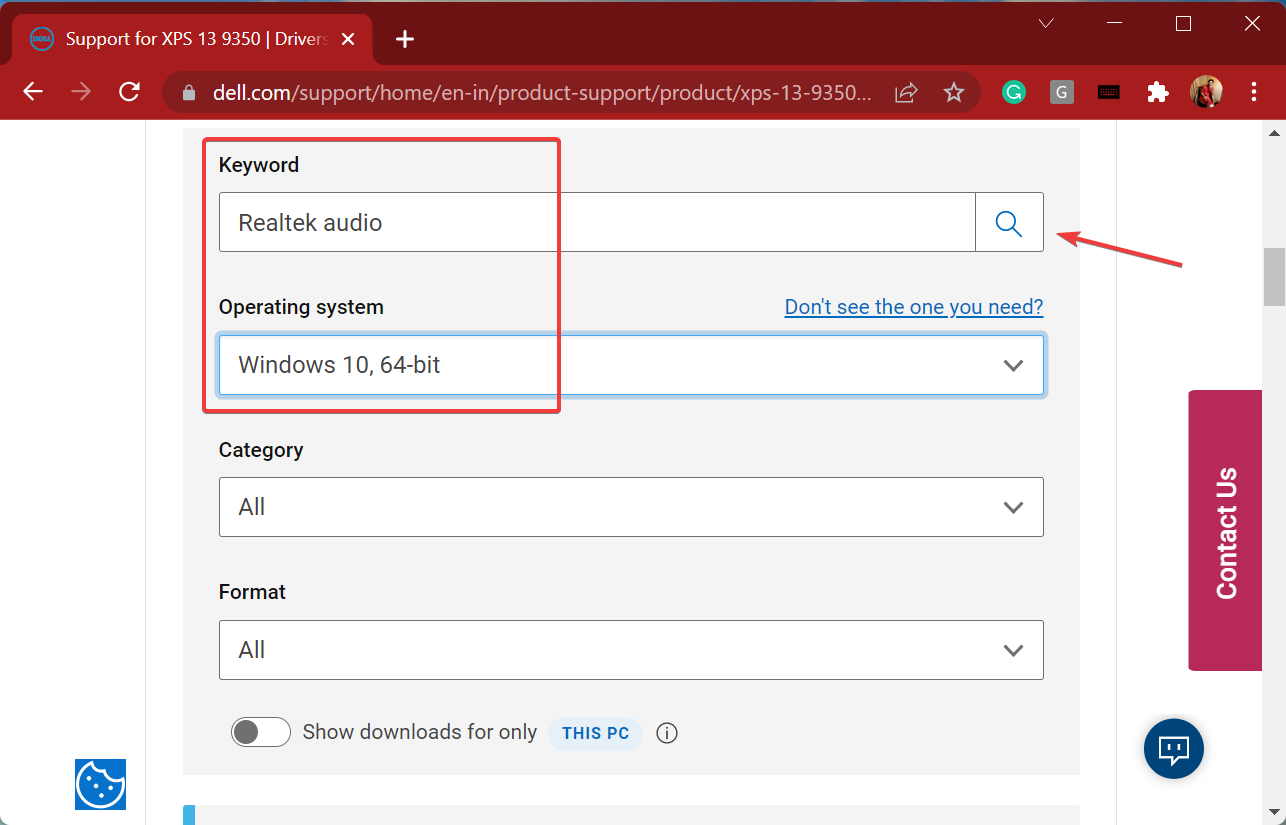
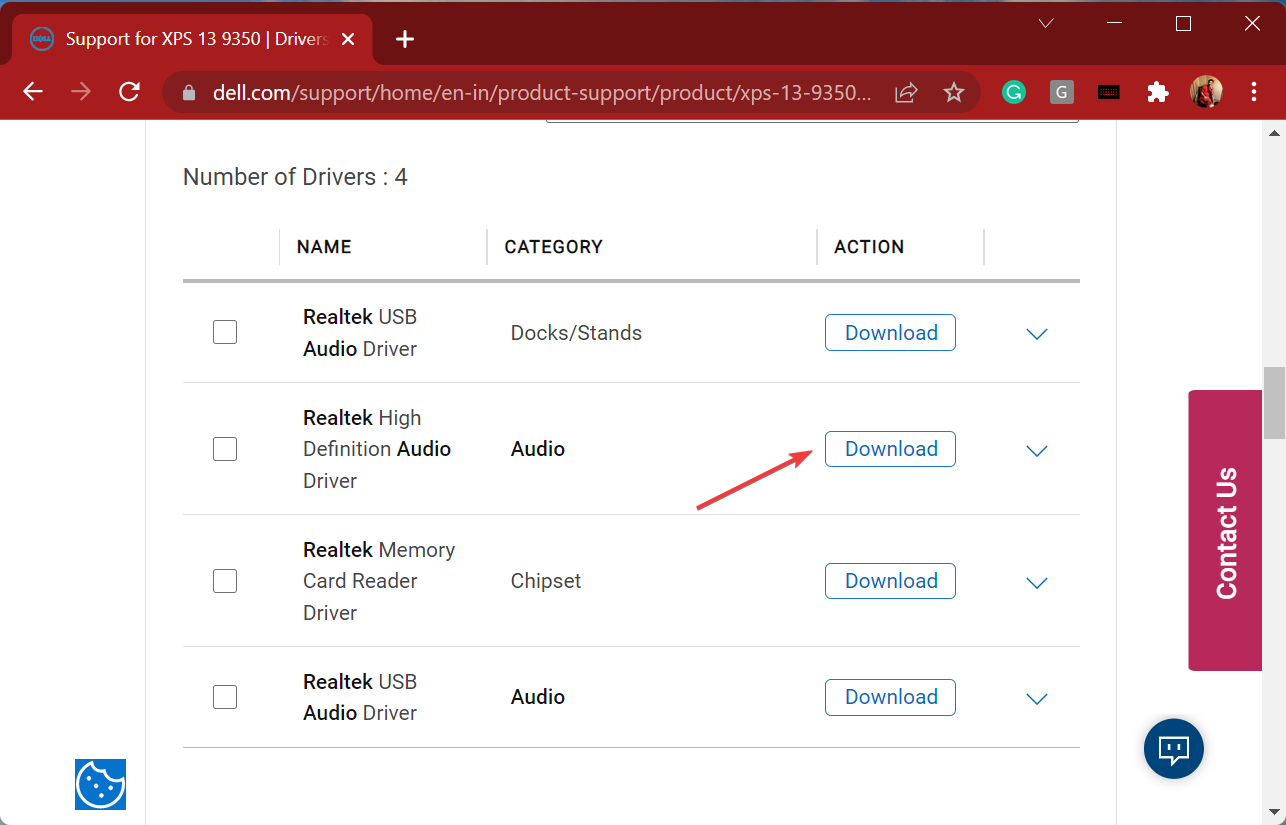
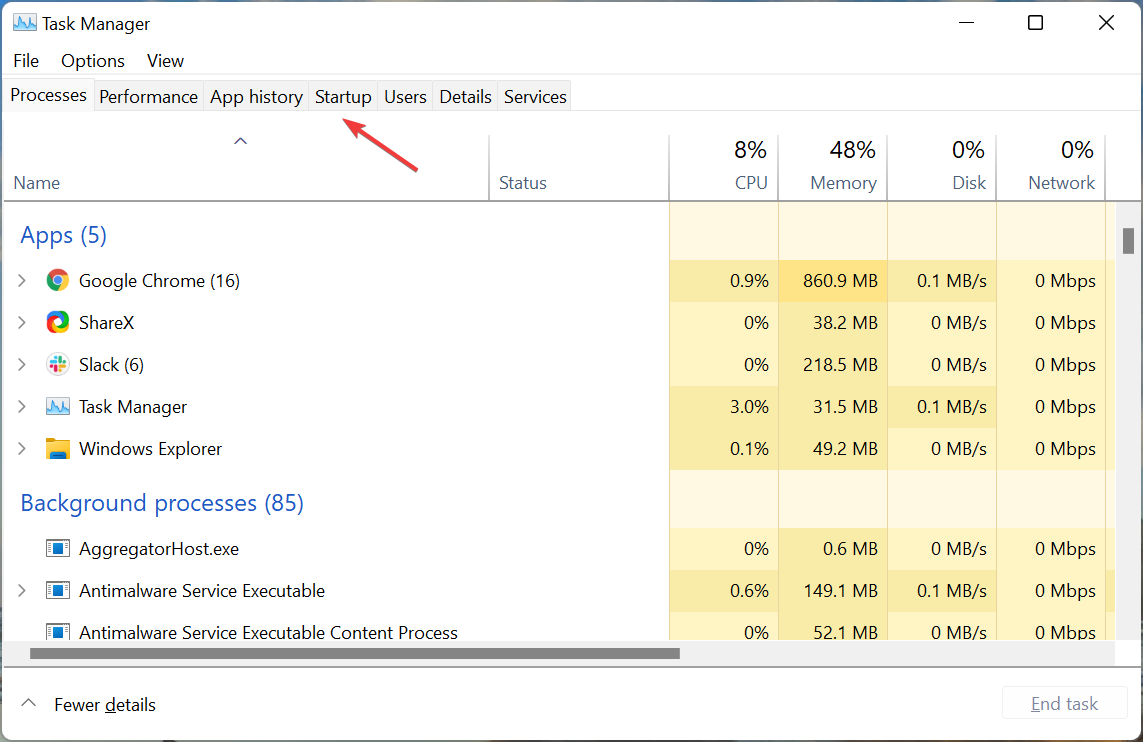
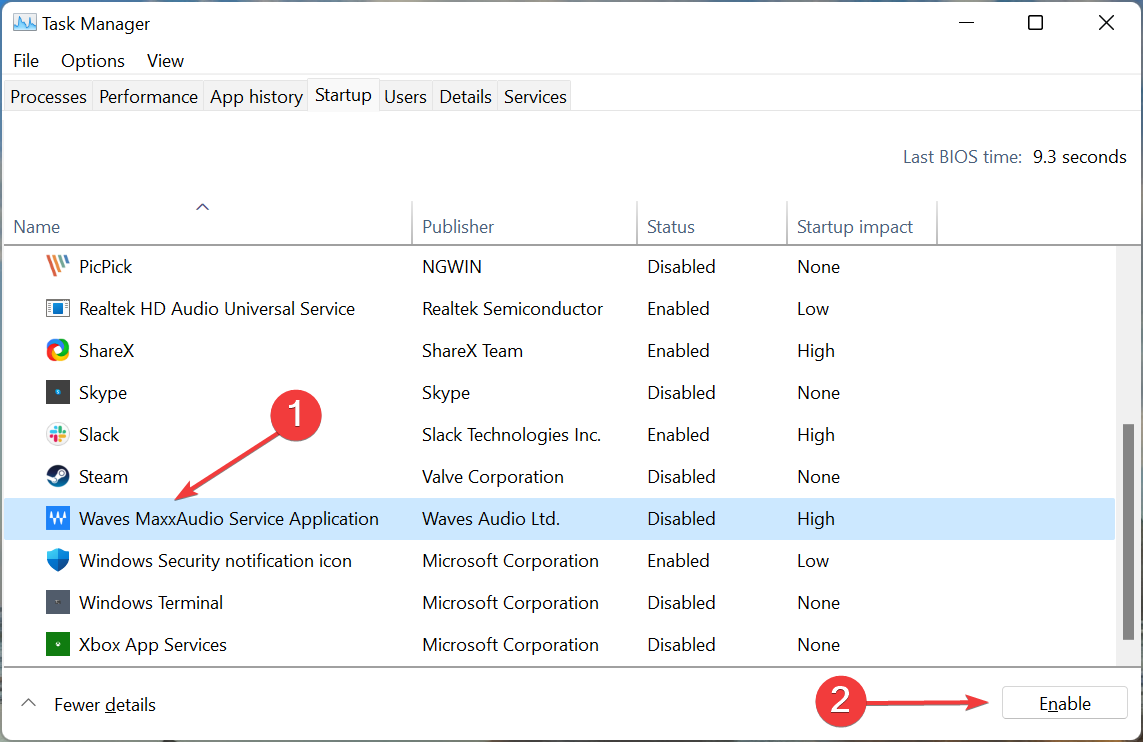

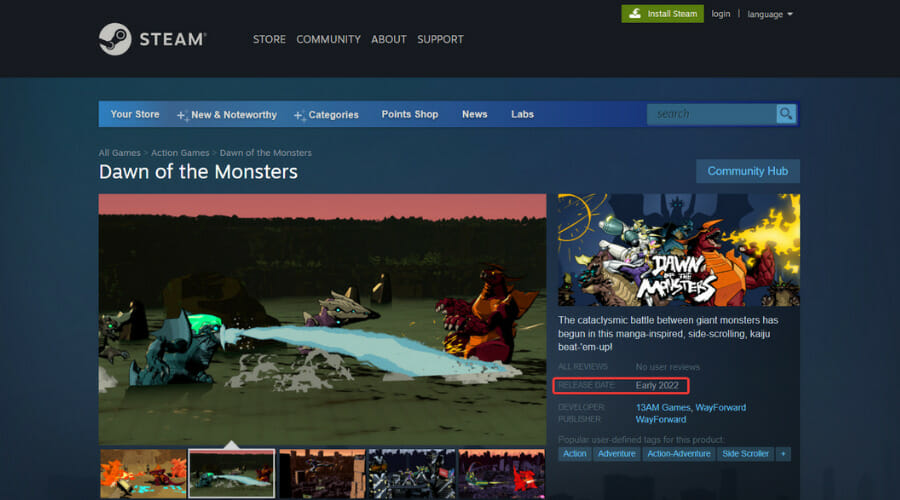



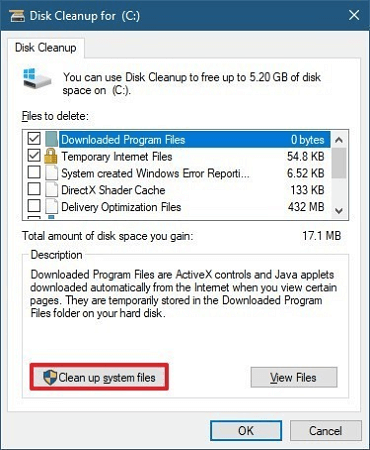


![How to Reset Virtual Memory on Windows 11 [Easy Steps]](https://windowsreport.com/wp-content/uploads/2022/03/How-to-reset-virtual-memory-Windows-11.png)
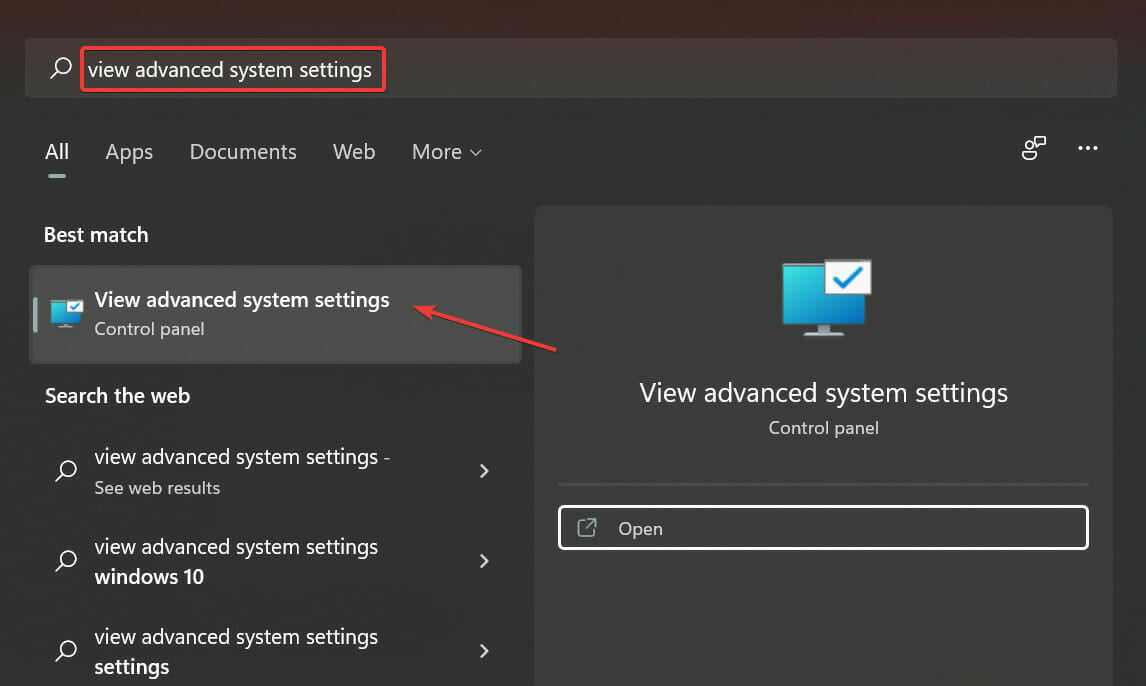
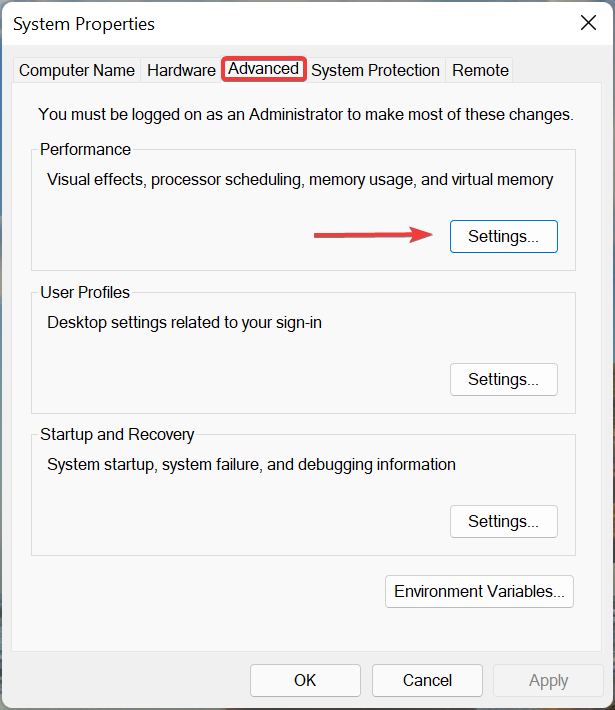
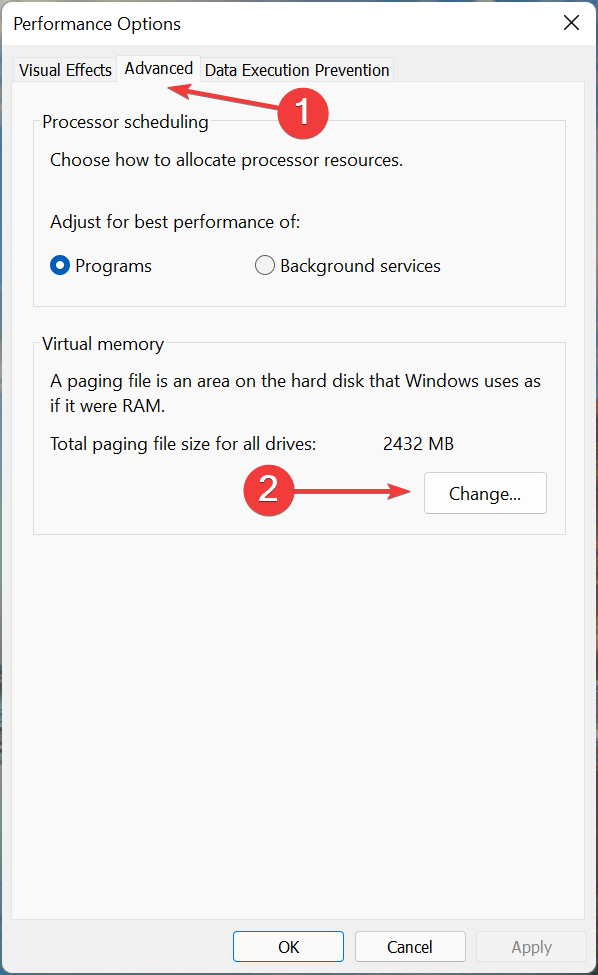
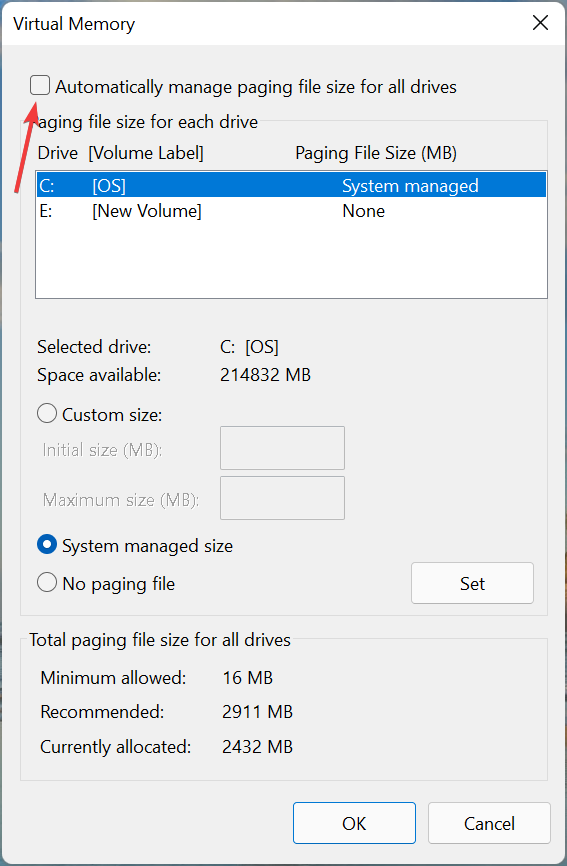
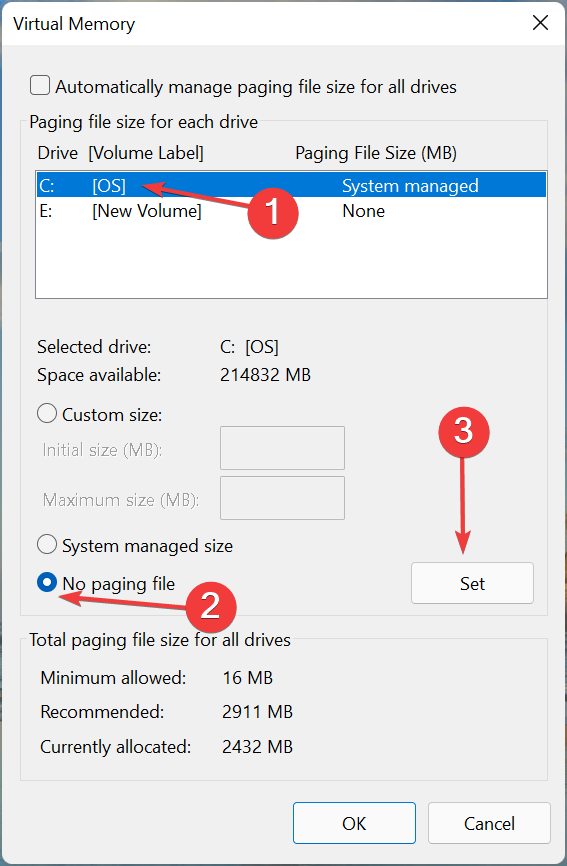
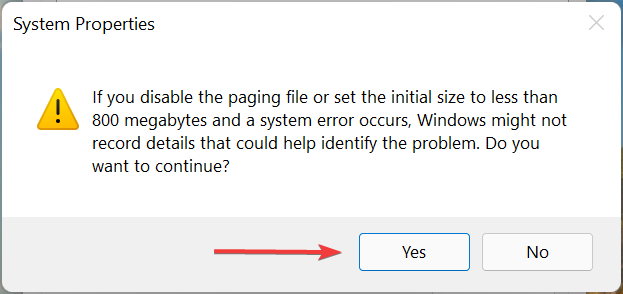
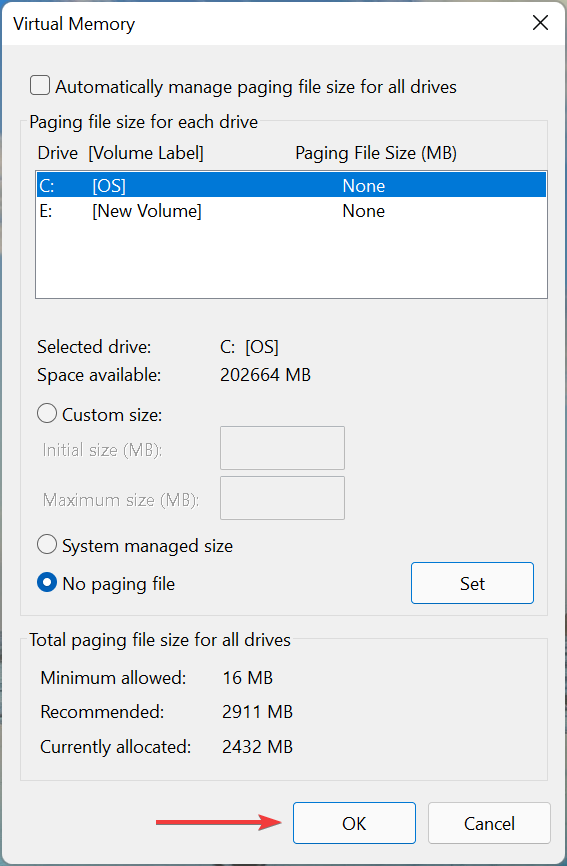
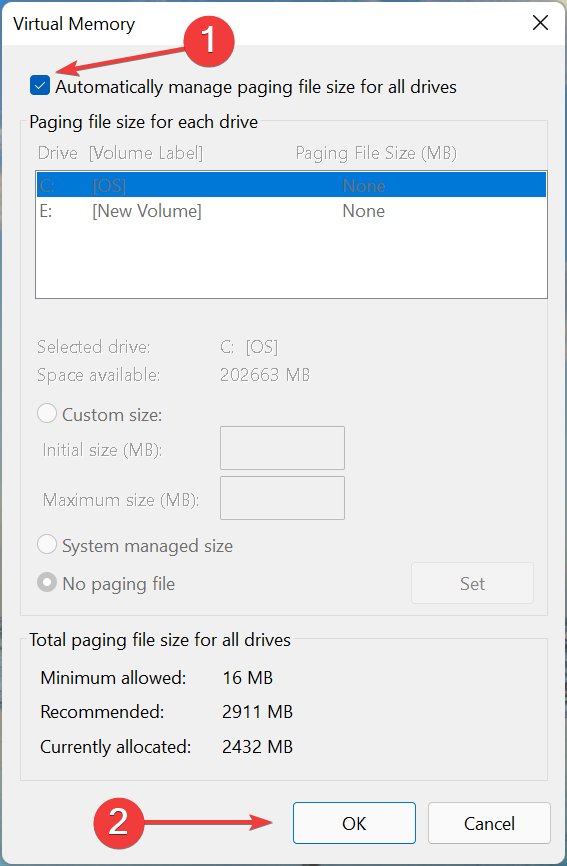
![5 Best WinToUSB Alternatives for Windows 10/11 [2026 Guide]](https://windowsreport.com/wp-content/uploads/2021/05/wintousb-alternative.jpg)


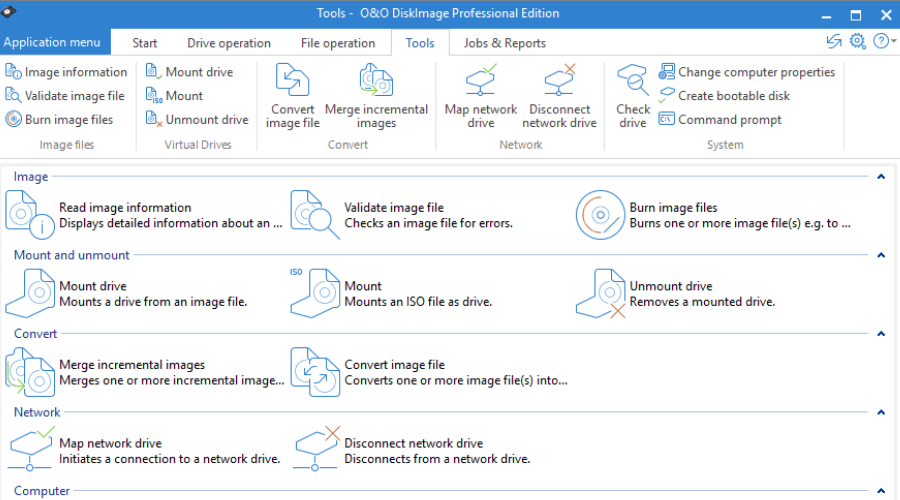

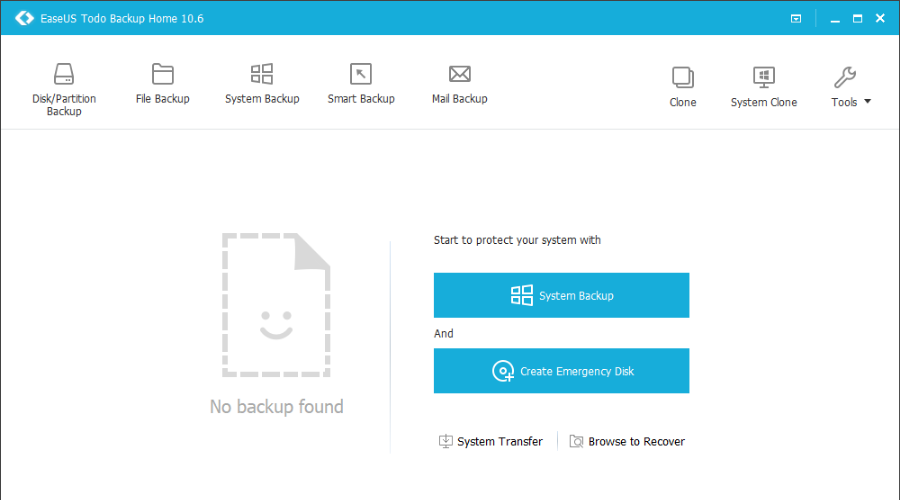


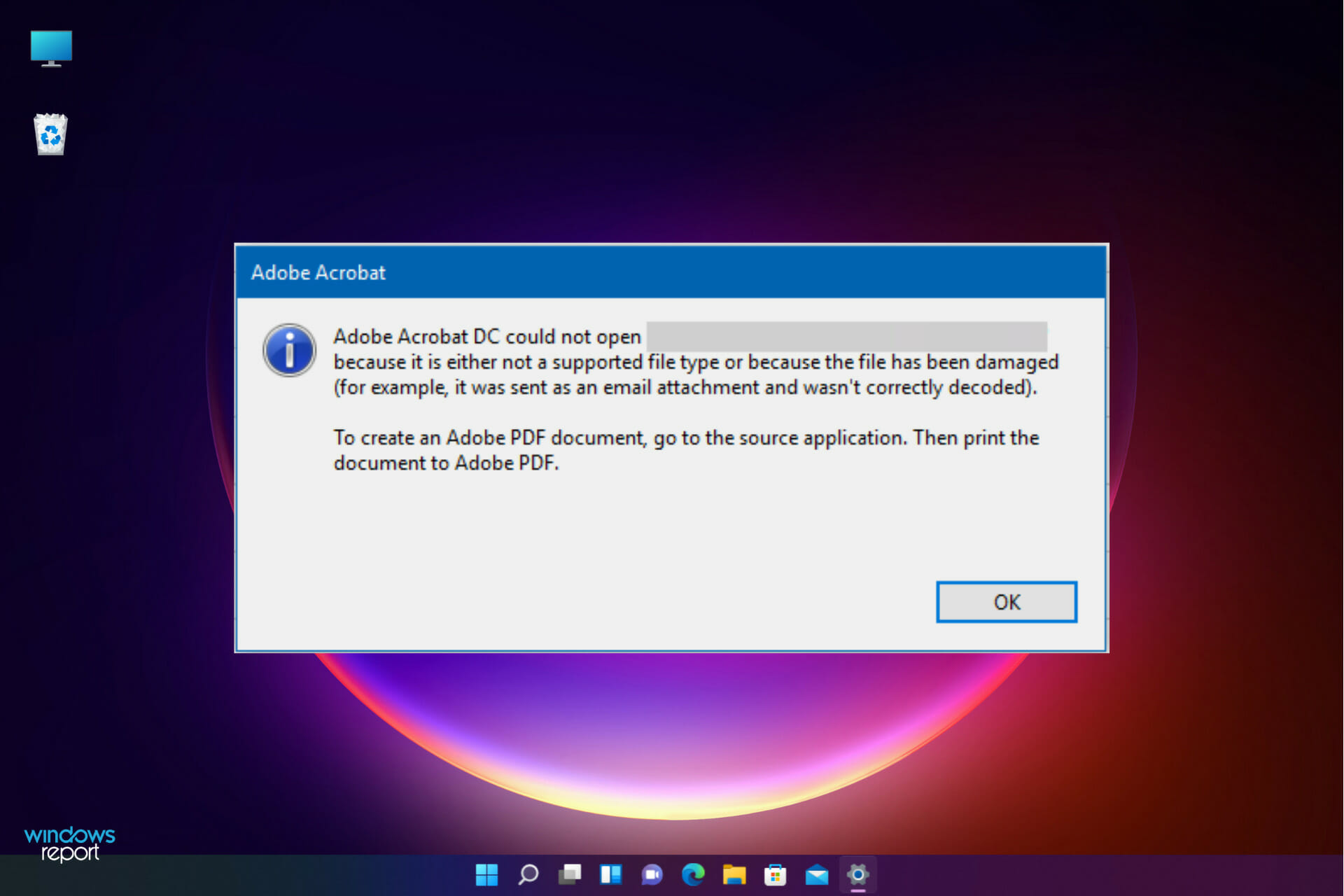


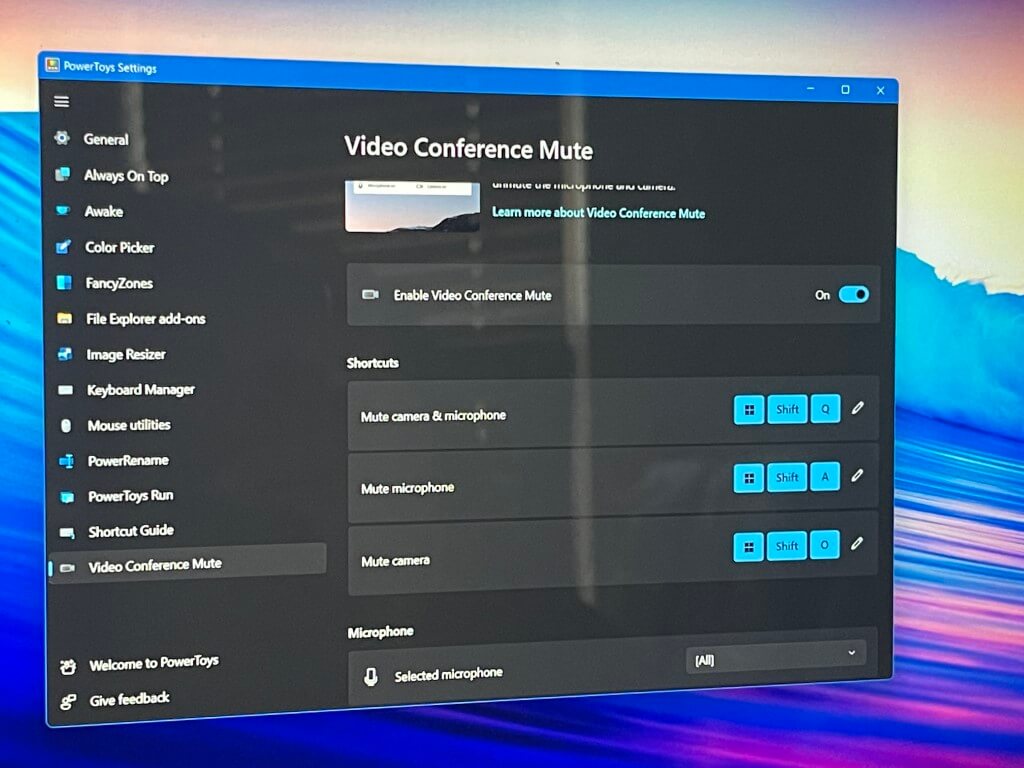
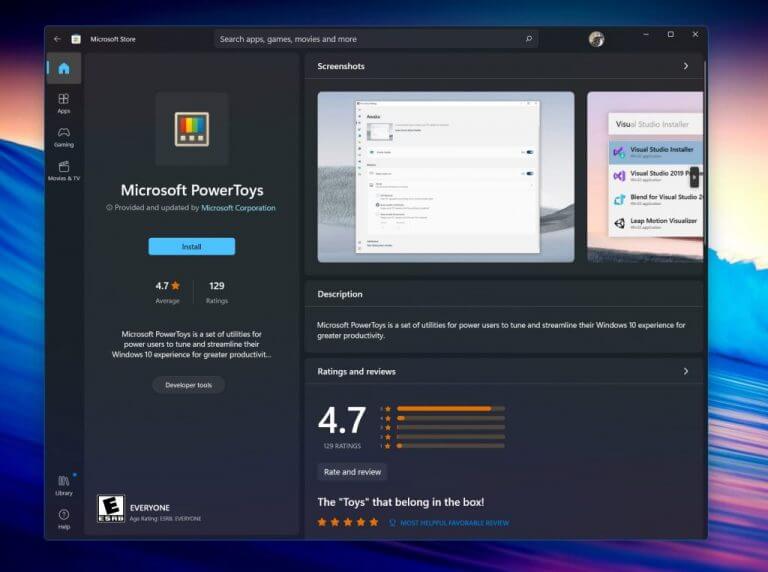


![7 Best Image Comparison Software in 2026 [Free & Paid]](https://windowsreport.com/wp-content/uploads/2020/11/photo-comparison-software.jpg)






![Best Installer Software Package for Windows [2026 Guide]](https://windowsreport.com/wp-content/uploads/2019/11/software-package-installers.jpg)