FPS Boost is great backwards compatibility feature on Xbox Series X|S console that can double or sometimes quadruple the original framerate on select Xbox games from previous generations. There are currently over 130 Xbox 360 and Xbox One games that support FPS Boost on Xbox Series X and Series S consoles, but it could be a while Microsoft adds new titles to the list.
Jason Ronald, Director of Program Management at Xbox appeared earlier this week in the Iron Lords Podcast, and he explained that the Xbox team has hit some roadblocks in its journey to bring FPS Boost support to more backwards compatible Xbox games (via PureXbox). Doubling the framerate can break some games that weren’t designed to run at 60 or 120 FPS, and the Xbox team will need to explore new techniques before more games from previous Xbox generations can benefit from FPS Boost.
You can read what Jason Ronald said about these FPS Boost challenges below, and we’ve also embedded the Iron Lords Podcast episode right after:
“We’re always looking at new ways that we can enhance titles, whether it’s resolution increases, frame rate improvements, things like Auto HDR. I’ll say right now, with the existing technique that we have with FPS Boost, we’ve tried plenty more than [the 130 FPS Boosted titles] and in some cases the vast majority of the game works great, but then we find a game-breaking bug 80% of the way through.”
“We’re going to continue to look for new opportunities and new ways that we can enhance titles, but we don’t have anything in the immediate future… Right now, I think we’re kind of finding where some of the limitations of our current technique is.”
Last week, Microsoft added FPS Boost support for 37 new Xbox One and Xbox 360 games including the original Assassin’s Creed game, Fable Anniversary, and the Gears of War trilogy. On this occasion, the Xbox team also said that there would be no more new Xbox 360 and original Xbox games on the Xbox Backwards Compatibility program “due to licensing, legal and technical constraints.”
Exo One is an amazing-looking indie game in which you travel at sonic speed through alien planets far beyond our own solar system. You’re piloting an alien-technology spacecraft (I think?) that uses gravity to increase its rolling speed and then you jump and glide through the atmosphere, making your way to the nearest transporter that will shoot you off to the next planet.
Its major selling points are the gorgeous visuals and the feeling of serenity as you glide through clouds and take in the wonderful vistas across the universe.
Planet surfing
Exo One uses a unique method of traversal. You’re controlling a spacecraft that can alter its shape and gravitational pull. In practice this means that you’ll be turning into a spherical shape when rolling across the terrain, increasing your gravity on downhill slopes to pick up speed, and then jumping at the right time to gain height and glide long distances.
Rock and roll
It’s a wonderful feeling when you can chain the different techniques together, but at the same time, it can also frustrate you if you mess up somehow and have to regain your momentum from scratch.
What is beyond impressive, however, is the scale of these planets you’re traversing and how carefully planned out all of the hills are, especially in one particular level where they disable your steering and you’ll have to rely on the direction of certain slopes to fling you in the correct direction.
Another level has you use asteroids around a burning star to slingshot you towards the next transporter and it’s truly a sight to behold, but at the same time hugely frustrating if you lose your bearing or can’t succeed to break loose from the gravity pulling you down to the rock you’re on.
It’s all sun and games until you lose track of where to go
Gorgeous sights to behold
Each planet you traverse has its own unique obstacles to overcome and while it may not give you a lot of explanations, it’s usually clear what you have to do, like gathering energy or simply making your way to the shining beacon of light that pierces the sky.
You’d be forgiven if you forget to focus on progression for a second and instead decide to take in the lovely surroundings because there really are some beautiful locations to behold. My personal favorite was the calm water planet that kind of resembles earth. It also helps that this one was the easiest for me to maintain a nice and fast speed because of all the boost gates present.
sea-riously beautiful!
As for the music, there are rare moments when there is a wonderfully composed soundtrack with synth music that is often used in movies about space travel, but the majority of the game is silent and only has you hearing the humming of your spacecraft and the weather effects that hit your ship’s exterior as you blast through the atmosphere.
Interstellar travel
I’ve played through the game twice now and I’m still not entirely sure I grasp what the story is trying to tell. There are flashes of a crew of astronauts and quotes from an expedition to Jupiter that went wrong, or didn’t it?
Are these people still alive? I honestly have no clue.
From what I could gather from the narrated explanations in the game, we’re piloting this unique alien vessel as humans, but I’m also not sure if it’s borrowed technology and how exactly it fits humans inside? It was a bit hard to take in because the narrative elements are often told during moments where the entire screen flashes in all bright colors, and even though I’m not epileptic, I felt the urge to look away.
I was mostly getting the same vibes as when watching the movie Interstellar and it felt like the game was aiming for a similar narrative, but at the same time, I didn’t really feel like it needed a story at all. We’re never really introduced to any characters we should care about and I can’t help but think that simply removing the human element from the game would have left it as a better game.
How long to beat and complete?
How long does it take to beat Exo One? My first playthrough took me around 2.5 hours but I did struggle a lot getting past the asteroid level. It should have unlocked an achievement for beating it under 180 minutes though, but in my case, it didn’t pop.
There is also an achievement for beating it under 30 minutes so I guess that with the right momentum and if you know where you need to be going, you can really blaze through each planet and keep breaking the sound barrier, which is what almost half of the achievements require you to do.
My second playthrough came in just a little over two hours so I guess the controls simply don’t click with me and it might end up being a totally different experience if you’re more fluent than I am. (alas, the achievement for sub 180 minutes didn’t pop again)
All things considered, a great player could probably get the full 1000G in about 1-2 hours total if they can maintain the breakneck speed in one run and manage to find all the collectible energy sources in the next one.
Final thoughts on Exo One
Pros
Absolutely gorgeous vistas to behold
When the different gameplay techniques click, it feels almost meditative
Cons
But when they don't it can feel frustrating and near impossible to progress
The story feels unnecessary and needlessly confusing
Final Score: 3.5/5
Exo One is a unique gaming experience with almost meditative qualities when you’re in the flow of things and masterfully chaining the creative techniques together while taking in the breathtaking sights.
I guess your enjoyment all relies on your skills in doing so because the moments where it truly frustrated me and I felt stuck, also seemed to be caused by my own lack of grasping when to glide and how long to nosedive back to the surface. There is also a story that felt unnecessarily confusing and could have probably been left out altogether.
None of this takes away from its visual qualities however and it’s very much worth playing through at least once for that alone.
Exo One costs around €16 and is available on Windows PC and Xbox consoles. It’s currently also included in Xbox Game Pass.
*Disclaimer: Reviewed on Xbox Series X. Review copy provided by the publisher.
The popular free benchmarking tool is currently under fire as almost two dozen anti-viruses are now flagging Userbenchmark as malware.
According to VirusTotal, 23 anti-viruses are flagging the software as malware with a majority identifying it as a Trojan.
UserBenchmark typically tests your CPU, GPU, memory and storage drives. If it is being flagged as malware, you have to find other alternatives to test your drives.
New case
The 23 anti-viruses flagging the software as malware is a pretty significant number. The issue is totally new and users are still navigating on how to go about the issue.
Joining the list is Microsoft. It is part of the anti-malware programs that also thinks UserBenchmark is a malicious trojan.
Microsoft further terms it as ‘dangerous and executes commands from an attacker’ in the Microsoft Security intelligence version 1.353.1394.0 and labels it as a ‘severe’ threat.
Users on forums have encountered similar problems and are now offering each other fixes. According to this reddit user, the malicious returns are false positives.
A regular install could be the source of this problem instead of a custom install.
The kernel security check failure occurs when the kernel notices the corruption of serious data configuration in your OS, and it can be hard to trace the pathway creating the problem.
However, many Windows 10 users reported the problem to have occurred after they upgraded the RAM. If you are experiencing the same problem, you might want to try the various workarounds discussed below.
But first, here are some more examples of this issue:
Kernel security check failure USB tethering – Users report that kernel security check failure issues usually happen during USB tethering.
Kernel security check failure loop – It’s possible to get into an infinite loop of this BSOD error. In that case, you need to act promptly, and resolve the issue as soon as possible.
Kernel security check failure overclock – Users also report that this issue can happen in PC configurations with overclocked CPUs.
Kernel security check failure after sleep – Another common time for this issue to appear is right after the Sleep Mode.
How can I fix the kernel security check failure error?
1. Scan your PC for viruses
Press theWindows Key + Ito open theSettings app.
Go to theUpdate & Securitysection.
SelectWindows Securityfrom the left panel.
In the right panel, click onOpen Windows Defender Security Center.
Select theVirus & threatprotection, and click onQuick scan.
Viruses are a common cause of various BSOD errors, and it might be the case here, as well.
Make sure to run your third-party antivirus software or at least Windows Defender, and check if your computer is virus-free.
There are many great antivirus tools on the market, but we recommend looking for a security solution that won’t interfere with your system.
Make sure to get an antivirus with a powerful firewall, a large and ever-growing threat database, a well-implemented privacy policy, and multiple layers of protection.
On top of that, you should also look for an antivirus tool with low resource/CPU usage. Many great security utilities offer 100% protection without having a negative impact on your system’s speed rates.
2. Make sure the drivers are up to date
Another common cause of BSOD errors in Windows 10 are outdated or damaged drivers. So, make sure all your drivers are up to date.
We strongly recommend the Outbyte Driver Updater tool to update your drivers in order to avoid damage to your PC by manually downloading the wrong driver versions.
This great program looks for new drivers for your hardware and downloads updates automatically.
It scans your system and lists all existing and possibly missing drivers. The tool also detects if there is already a new version for current records. If necessary, these can be updated directly via Outbyte Driver Updater.
Already installed drivers can also be stored in an archive and used, for example, when the system is restored.
However, we recommend you download this driver updater tool (100% safe and tested by us) to do it automatically. Thus, you will prevent file loss and damage to your PC.
The RAM can be the source of the problem that causes your computer to restart and to display the Kernel security check failure error.
If the problem began after you swapped the RAM with a newer one, try to put back the one you already had. If it works fine with the old RAM, then the problem might be with the recent one.
For almost every motherboard, the manufacturer normally displays a list of RAM that have been tested with that motherboard.
You might want to check whether your new RAM is on the list or use one that is listed. Also, ensure that it is properly fitted in the right place.
4. Check the hard disk for errors
Press the Windows key + R, type cmd, and hit Enter.
Right-click on Command Prompt, and select Run as administrator.
In the command line, type chkdsk c: /r, and press Enter.
Wait until the procedure ends.
A corrupted HDD with bad sectors, can invoke a variety of errors, including the one we’re addressing today. For that reason, we encourage you to check your hard drive for possible errors.
5. Run the System File Checker
Press the Windows key + R, type cmd, and hit Enter.
Right-click on Command Prompt, and select Run as administrator.
In the command line, type sfc/ scannow, and press Enter.
It might take a few second for the scan to complete. Wait patiently till its shows 100% scan is complete.
Restart your PC.
The System File Checker (SFC) is a utility in Windows that can scan and restore corrupted system files.
If at any given time you interfered with the system files or maybe you have replaced or applied some tweaks to the system files while customizing your Windows, and now you find that your OS is misbehaving, you may want to run this utility first.
6. Run the DISM
Press the Windows key + R, type cmd, and hit Enter.
Right-click on Command Prompt, and select Run as administrator.
In the command line, copy-paste the following lines one by one, and press Enter after each: DISM /online /Cleanup-Image / ScanHealth DISM /Online /Cleanup-Image /RestoreHealth
Wait for the resolution.
If the SFC tool fails, we can always turn to DISM. The Deployment Image Servicing and Management tool are similar to SFC.
However, besides the fact it can rebuild the whole system image in case of corruption, there are two ways you can use it.
The first one relies on Windows Update to replace the corrupted files. The second rather use an external installation drive (USB or DVD) to apply fixes.
7. Run the BSOD troubleshooter
Hold Windows Key + S.
Type Settings in the search box, and click on it.
Head over to Updates & Security, and choose Troubleshoot.
Select Blue Screen, and go to Run the Troubleshooter.
Follow further on-screen instructions and let the process finish.
Restart your computer.
If DISM failed to resolve the problem, let’s try Windows 10’s built-in troubleshooting tool. This tool can help you resolve various issues, including BSOD errors.
Don’t forget to tell us whether one of the solutions get you through the problem. If you have any other suggestions or questions, feel free to leave them in the comments section below.
The benefits of the Wi-Fi network over the LAN are obvious.
If you need Wi-Fi connectivity but don’t want cables, the USB Wi-Fi adapter seems to be the best solution for you.
However, a lot of users have had a hard time with those, especially the unbranded ones. Namely, it seems that Windows 10 can’t recognize some of them.
For that purpose, we prepared a list of possible solutions in order to fix this and make your Wi-Fi adapter recognizable for Windows 10.
Make sure to move through the enlisted steps one by one, so we can resolve it together.
What can I do if the USB Wi-Fi adapter is not recognized?
1. Update driver through the system
Right-click the Start button, and open Device Manager.
Navigate to Network adapters.
Right-click on your external USB WI-Fi adapter and Update driver.
2. Try an alternative USB port
After thousands of plug-in and unplug cycles, your USBports must suffer. Over time of extensive use, there’s a good chance that one of the available ports is malfunctioning.
So, make sure to try out multiple ports before you discard hardware as the possible issue instigator. USBports are prone to malfunctions, so this is a common problem.
Luckily, every PC comes with multiple USBports so you’ll at least have a choice. If you have appropriate tools, you can check for the power outage.
3. Install proper drivers
Right-click on Start and open Device Manager.
Navigate to Network adapters.
Right-click on USB Wi-Fi adapter and open Properties.
Choose the Details tab.
Select Hardware Ids.
Copy the first line and paste it into your browser.
Locate the official drivers in results. Download and install them.
Make sure to download and install only official drivers from trusted sources.
Restart your PC and look for changes.
Most of the contemporary USB Wi-Fi adapters come with the support disk with drivers compatible with Windows 10.
It’s uncertain whether the automatically installed drivers will suffice, so it’s of the utmost importance to install the drivers provided by the OEM.
If you’re missing the installation disk, you can find the drivers online. The only thing you’ll need to do is to locate them manually.
Keep in mind that updating your drivers is an advanced procedure. If you’re not careful, you can cause permanent damage to your system by manually downloading the wrong driver versions.
Since updating drivers manually can be a long process, we recommend a professional driver updating tool that will automatically update all your drivers for you.
Once installed, this software will check your installed driver versions against its cloud database of the latest versions and will download the updates automatically.
4. Check Power settings
Right-click on the Battery icon, and open Power Options.
Select your preferred plan and click on Change plan settings.
Choose the Change advanced power settings option.
ExpandUSB settings, and go to USB selective suspend settings.
Disable this option for both On battery and Plugged In alternatives.
Save changes and restart your PC.
A large chunk of power consumption on your PC goes to USBports and dedicated devices you’ve plugged in.
5. Disable the turn off this device to save power option
Right-click the Start button, and open Device Manager.
Navigate toUniversal Serial Bus controllers, and expand the section.
Right-click on each individual USB root hub, and open Properties.
Click on the Power management tab.
Uncheck the Allow the computer to turn off this device to save power box and confirm changes.
You’ll need to do this for each USB hub, respectively.
Restart your PC.
This is a crossover of Power settings and drivers. Namely, every USB hub has it’s dedicated power settings. The idea is to disable certain USBs in order to preserve power.
However, this can affect the devices connected via USB negatively , which can affect the Wi-Fi adapter performance or even trigger the error code 10. Because of that, make sure to disable this option for all USB root hubs.
In case you found an alternative solution for USB Wi-Fi adapter issues in Windows 10, make sure to tell us in the comments below. We’ll be grateful for your valuable insights on the subject.
If you’re using Microsoft Outlook as your leading email service, there’s a big chance you’ve encountered a lot of error messages or bugs. This time, we will talk about an annoying Something went wrong error message in Outlook that prevents users from signing in typically.
The error is encountered while configuring the account for the first time or signing in later. But it’s usually fixable, and that, too, in no time. Let’s find out!
Why can’t I access my Outlook email?
Various factors can cause this error message, like a corrupted file in the browser or errors in Microsoft’s servers. So, here are a couple of solutions for this problem based on the cause of the error message.
The Something went wrong, and we can’t sign you in right now error can appear while trying to access Outlook.
Speaking of issues, here are some similar issues reported by users:
Hotmail, Outlook something went wrong – This problem can occur while trying to access Hotmail or Outlook, and it’s usually related to your browser. To fix the problem, clear your cache and check if the issue is still there.
Can’t login to Outlook email – If you can’t login to Outlook email, you might want to try using a desktop email client. Windows already has a built-in email client, but there are also many other great email clients as well.
Something went wrong Outlook 365 – This issue can also occur with Outlook 365, but you should be able to fix the problem using one of our solutions.
Can’t sign into my Hotmail account – Many users reported that they are unable to sign in to their Hotmail app. To fix the problem, be sure to check your antivirus and make sure that Hotmail isn’t blocked.
Can’t log into Outlook web app – If you’re unable to access Outlook web app, the issue might be your browser. Several users reported that reinstalling their browser fixed the issue, so you might want to try that.
Outlook something went wrong and your search couldn’t be completed – This issue is usually caused by Internet connectivity problems and timeouts.
Something went wrong and Outlook couldn’t set up your account – This issue is something users encounter when trying to add or create an account in Outlook.
Before starting to fix the issue, you might want to enable Outlook logging. By doing so, you’ll be able to analyze every event that occurs in the email client.
How do I fix the Something went wrong Outlook error?
1. Consider using a third-party alternative
Even though the Mail app in Windows 10 works great, for the most part, certain advanced features are missing. If you’re an advanced email user, perhaps you should try another email client from out there.
If you require complete email services that will replace Outlook, there are great options, for example, Mailbird. You can benefit from an intuitive interface with visual customization and features like message encryption or an email snooze button.
Plus, this software will exponentially improve your timing with email tasks and help you better manage your workflow.
It is therefore advised to consider this alternative in order to avoid Outlook errors, so take action and choose Mailbird.
Mailbird
Manage your emails better with the most reliable email service and benefit from an advanced set of features.
2. Clear browser cache, cookies, and Internet history
Click the Menu icon in the top right corner and choose Settings.
Scroll all the way down and click on Advanced.
Now locate Clear browsing data option and click it.
Set Time range to All Time and check all options. Now click Clear data button. The Microsoft Outlook something went wrong issue will be solved.
If something’s wrong with your browsers, like some corrupted file or something, there’s a chance you won’t be able to log into your Outlook account. So, before you try anything else, just clear browsing data on your current browser, and you should be able to connect.
In most cases, the problem is related to your cache, and in order to fix it, it’s advised to clear the cache in your browser. After clearing the cache, try to log in to the Outlook web app and check if the problem is resolved.
3. Check your antivirus
If you get Something went wrong in Outlook when adding the account, the problem might be your antivirus. To fix the problem, be sure to check your antivirus settings and make sure that Outlook and similar websites aren’t blocked.
If everything is in order in terms of settings, disable your antivirus and check if that helps. In case the problem is still there, you might have to uninstall the app completely.
Once you remove the antivirus, restart your PC and check if the issue is still there. If the problem doesn’t reappear, you should consider switching to a different antivirus.
It is recommended to get another antivirus quickly to keep your PC always protected from malware, so the safest way is to consider another option from the best antivirus for Windows today.
4. Check if Microsoft’s servers are down
In case you’re not able to connect from any browser, something’s probably wrong with Microsoft’s servers.
If Microsoft’s servers are down, there’s basically nothing you can do to connect to your Outlook account but to wait for Microsoft to get servers back online.
To check if Microsoft’s servers are down, go to the official Microsoft server status checker, and it shows whether Outlook and Office 365 servers are online or not.
5. Make sure that cookies for Outlook and Microsoft are enabled
Click the Menu button in the top right corner and choose Settings from the menu.
Scroll all the way down and click Advanced to reveal the advanced settings. Select Content settings.
Select Popups from the menu.
In the Allow section click the Add button. Now add both Microsoft and Outlook URLs to the list. The boot result: CDN error will be fixed.
Many websites rely on cookies in order to work properly, and if you block cookies from Microsoft or Outlook, you might encounter certain issues.
Users reported that they fixed Something went wrong and we can’t sign you in right now message simply by making a few changes in their browser.
After allowing pop-ups from these two websites, the issue should be resolved, and you’ll be able to access Outlook once again.
A new tab will open and the browser will check for available updates.
According to users, sometimes this issue can occur if your browser is out of date. If you’re getting Something went wrong and we can’t sign you in right now message, you can try updating your browser and check if that helps.
For the most part, your browser will check for updates automatically. If any updates are available, they will be installed automatically. Once your browser is up to date, the problem should be resolved.
In addition to updating your browser, you might want to try installing the Beta or the Canary version. The Beta version offers new updates, but it’s not fully stable, so you might encounter different problems with it once in a while.
On the other hand, the Canary version offers the latest updates, but it’s less stable than the Beta version, so keep that in mind.
7. Reinstall your browser
If you keep getting Something went wrong and we can’t sign you in right now message while trying to access Outlook web app, there might be an issue with your browser. Users reported this problem in Firefox, and after reinstalling it, the problem was completely resolved.
Keep in mind that this problem isn’t related only to Firefox, and it can appear in any other browser. If you experience this error in your browser, it’s advised to reinstall it and check if that helps.
There are several ways to reinstall the application, and while the usual method might work for most users, sometimes it’s necessary to remove all files and registry entries related to your browser. Any leftover files from your browser might cause this issue to reappear, therefore it’s advised to remove your browser.
There are several ways to do that, but the simplest is by using uninstaller software. Uninstaller software is a special application that will remove all files and registry entries related to the application you’re trying to remove. As a result, the application will be completely removed and it won’t interfere with your system.
There are many great uninstaller applications on the market, so be sure to try it out. Once you remove your browser using this application and install it again, the problem will be resolved entirely.
8. Try using a different browser
If you can’t access Outlook in your web browser due to Something went wrong and we can’t sign you in right now message, maybe you should consider using a different web browser.
We hope this article helped you to solve the Something went wrong and we can’t sign you in right nowOutlook error and you’re now able to connect to your Outlook account without any problems.
This article will focus on how to fix Adobe error 16 on Windows 10 and hopefully, a lot of Windows 10 users using Adobe software suites will find this piece very helpful and instructive.
Adobe error 16 can prevent you from running your favorite Adobe applications, and speaking of this error, here are some similar issues that users reported:
Adobe error 16 please uninstall and reinstall the product – Sometimes this error can appear while trying to run certain Adobe applications. If that happens, completely remove the problematic application and install it again.
Adobe error 16 Windows 10, 8.1, 7 – This error can appear on any version of Windows, and older versions such as Windows 8.1 and 7 aren’t exceptions. Even if you don’t use Windows 10, you should be able to apply almost all of our solutions to older versions of Windows.
Error 16 Adobe Photoshop CS6, Adobe InDesign CS6, Adobe Premiere Pro CC – Many users reported this problem in applications such as Photoshop, InDesign, and Premiere Pro. If you have this problem, try running the applications as an administrator and check if that helps.
Adobe Reader, Adobe After Effects, Adobe XD error 16 – This error can sometimes appear in applications such as Reader, After Effects, and XD. If this happens, try creating a SLStore directory and check if that solves the problem.
How can I fix the Adobe error 16 on Windows 10?
1. Uninstall and re-install Adobe Creative Cloud
1.1 Uninstalling Adobe Creative Cloud
Hold Win+X buttons and click on App and Features
Search for the Adobe Creative Cloud and click on uninstall.
Follow the instructions to complete theuninstallation process.
Click the Download button and follow the instructions.
Having a problematic installation of an Adobe product can be sometimes linked to the Creative Cloud. That is why the first and the safest way is to remove and re-install the Creative Cloud.
2. Launch the Creative Cloud app with Administrator rights
2.1 Use a recurrent method
Locate Creative Cloud application on your PC.
Right-click the application and choose Run as administrator from the menu.
If this method works for you, you’ll have to repeat it every time you want to run Creative Cloud. However, you can force the application to always run with administrative privileges by doing the following step.
2.2 Run Creative Cloud as an administrator all the time
Right-click Creative Cloud application and choose Properties from the menu.
Go to the Compatibility tab and check Run this program as an administrator. Now click Apply and OK to save the changes.
After doing that the application should always start with administrative privileges and the problem should be resolved.
According to users, sometimes Adobe error 16 can appear if you don’t have the necessary privileges. Users claim that you need administrative privileges in order to run Creative Cloud applications.
Deselect Use Sharing Wizard (Recommended) at the bottom of the Advanced Settings section.
Select Show hidden files, folders and drives.
Click Ok.
3.2 Change permissions for Adobe PCD and SLStore
In File Explorer, right-click the Adobe PCD or the SLStore folder, and choose Properties.
Click the Security tab and set permissions:
Adobe PCD
Administrators: Full Control
System: Full Control
SLStore
Administrators: Full Control Power Users: Everything but Full Control and Special
System: Full Control
Users: Read and Special
Perform this procedure two times, once each for the Adobe PCD and the SLStore folders. You can find these folders in the following locations:
SLStore: ProgramDataAdobeSLStore
Adobe PCD: Windows 32 bit: Program FilesCommon FilesAdobeAdobe PCD or Windows 64 bit: Program Files (x86)Common FilesAdobeAdobe PCD
3.3 Change ownership
Click Advanced and, if asked, accept the User Account Control (UAC) elevation prompt.
Click the Owner section, select Change.
Enter the desired username and click Check Names. Now click OK.
Select Replace Owner on Subcontainers and Objects. Now checkReplace all chide object permission entries and click Apply and OK to save the changes.
The instructions above will help you set permissions to the Adobe PCD and SLStore folders in Windows 10.
4. Update your graphics card driver
According to users, sometimes you might be able to fix Adobe error 16 simply by updating your graphics card drivers.
Many users claim that they managed to solve the issue simply by updating their drivers, so you might want to try that.
Updating your graphics card driver is quite simple, and in order to do it, you just have to visit your graphics card manufacturer’s website and download the latest version for your model.
If you don’t want to download drivers manually, you can also use automated software that will download the necessary drivers for you with just a single click.
5. Create a new SLStore folder
Go to the following folder and navigate to the directory of the application you’re trying to run: C:Program FilesAdobe
Now right-click the empty space, and choose New, then selectFolder from the menu.
Enter SLStore as the name of the new folder.
Now try to start the application again and check if the problem is resolved.
According to users, sometimes Adobe error 16 can occur if you don’t have the SLStore directory on your PC.
This directory should be located in the installation directory of your Adobe product, but if the directory is missing for some reason, you might encounter this error.
If you keep getting Adobe error 16, you might be able to fix the problem simply by installing Adobe Application Manager. This is a tool created by Adobe, and you can download it for free from Adobe’s website.
Once you download and install Adobe Application Manager, the issue should be completely resolved and you’ll be able to run applications without any problems.
7. Paste adbeape.dll into the installation directory
Sometimes missing DLL files can cause Adobe error 16 to appear, but you might be able to solve the problem by copying adbeape.dll to the installation directory.
To obtain this file, it’s best to copy it manually from another PC that has Adobe products installed.
Once you copy this file to the installation directory, simply run the problematic application as an administrator and the issue should be resolved.
8. Change the attributes of the SLStore folder
Locate the SLStore folder It should be located in the Adobe CC installation folder.
Once you locate it, right-click SLStore and choose Properties from the menu.
Locate the Attributes section and make sure that the Read-only option isn’t enabled. Now click Apply and OK to save the changes.
After making these changes, try to start the application again and check if the problem is still there.
As we already mentioned in one of our previous solutions, the SLStore directory can sometimes cause the Adobe error 16 to appear.
However, you can fix the issue simply by changing a few attributes from the SLStore folder.
9. Reinstall your Adobe products
If you keep getting Adobe error 16, you might be able to solve the problem simply by reinstalling the application. Sometimes your installation might be corrupted and that can lead to this and many other errors.
To fix the problem, it’s advised to remove the problematic Adobe product from your PC. In addition to uninstalling the application, you also need to remove the following directories:
By removing these directories you’ll ensure that all leftover files are removed. After doing that, simply install the application again and the issue should be resolved completely.
Removing leftover files manually can be a problem, but there are special tools that can help you with that.
If you want to completely remove an application from your PC, including both leftover files and registry entries, you can do that easily with specialized applications.
Uninstaller software are specialized tools that will remove the selected application along with all of its files and registry entries.
Manual uninstallations from the apps GUI or from Windows settings may leave these unwanted files behind, cluttering your PC and preventing you from properly reinstalling the application in the future.
The best uninstaller software available are equipped with forced uninstall features that can remove stubborn or malicious apps without having any negative impact on your system.
After you remove the problematic application with a specialized tool, simply install it again and the issue should be completely resolved.
We’ll give you a little break from Windows 10 and its problems and bugs, because there are still a lot of computers using older Windows OS versions.
In case you just changed your mind and you want to upgrade your OS, check out this step-by-step guide to learn how you can install the latest Windows 10 version.
But in this guide, we won’t be focusing on any special version of Windows, because this problem could appear on any OS release. In this post, we’ll try to help you out if Adobe Acrobat is not printing PDF files.
What do I do if Adobe Acrobat Reader fails to print PDF files?
1. Print other files
Before we proceed to complicated steps, let’s try a couple of simple solutions. First of all, try to print another PDF file. In this way, you’ll be able to see if your previous PDF file is corrupted and Acrobat Reader won’t print it because of that.
Also, try to print some other type of file (.txt for example). If you’re able to print that file, the problem is with Adobe Reader, and updating it should fix the problem.
Another thing you can do is restart your computer and printer. There’s a possibility that your printer‘s memory might be full. If none of this helped you, try some of the following solutions.
This is a simple workaround, but it will help you diagnose why you can’t print PDF files on your computer.
2. Update your printer’s driver
Open the Device Manager
Locate your printer under Devices and printers
Right-click on in and go to Update Drive
If you can’t print your PDF document, perhaps the issue is driver-related. So checking if your printer‘s driver is updated couldn’t do any harm.
If you still can’t print your PDF files after you installed the latest driver update, then your printer is not the problem.
Alternatively, you can update your drivers automatically using driver updater software. These can automatically scan for out-of-date drivers and match your hardware with the proper version of the driver.
These can save you some time as they can update multiple drivers at the same time and you can set them up to do automatic scans regularly.
3. Use another PDF reader software
In many cases, switching to another reader might be the easiest solution to solve this type of issue. The market is full of PDF viewers and editors which will help you.
We recommend looking into up-to-date software like Soda PDF that can provide a good reading experience with not much disturbance. On top of that, you should be able to edit, comment, and convert your PDF documents.
Soda PDF is a solid alternative because it includes lots of advanced features, including OCR, batch editing and opening, online access, and many more.
Try to print with this software and see if the problem persists. If it is fixed, consider keeping this new software as your go-to PDF reader.
Soda PDF
Get the most out of your PDF experience and give Soda PDF a try.
Maybe some part of your PDF file is damaged, like some corrupted text, for example, and that is blocking the printing. That could be solved by printing your PDF file as an image, so it won’t be dependent on the text version.
To print your PDF as an image in Adobe Reader, go to File > Print > Advanced, and choose Print as Image.
That’s essentially all, but if you still can’t print your PDF file from Adobe Reader, you might look for an answer on Adobe Reader Forum.
If you’ve encountered a problem where your printer is listed in the Unspecified device section and can’t run the device, you’re not alone. This issue is usually caused by the system’s inability to detect the printer.
Luckily, it’s easy to fix. Just follow the step by step instructions below.
How to stop my printer from showing as an Unspecified device?
1. Run the Windows Troubleshooter
Type Troubleshoot in the Windows search box > click Troubleshoot in the search results.
Click Printer in the right pane > select Run the Troubleshooter.
Wait for the process to take place and restart your computer to see if it fixed the issue.
2. Update the printer driver
Press the Windows logo key + R on your keyboard > type devmgmt.msc in the Run box and hit Enter to open the Device Manager.
In the top menu, click View > select Show hidden devices.
Expand the Printers menu > Right-click on the available device > select Update driver.
Alternatively, you can select to Uninstall driver, restart the computer and it will automatically reinstall the printer’s driver.
A quicker, and oftentimes safer option is to use dedicated updater software. They can automatically update your drivers and fix the damaged ones.
3. Remove and then install the printer
First, go to your printer’s manufacturer’s website and download the latest driver for your device.
Press the Windows logo key + R on your keyboard > type devmgmt.msc in the Run box and hit Enter to open the Device Manager.
Click View on the top menu > select Show hidden devices.
Expand the Printers menu > right-click on your device > select Uninstall device.
Unplug your printer from the computer
Press the Start button > open Settings
Click Apps > find associated software to the printer and uninstall it.
Open the Control Panel > select View by Large icons.
Select Devices and Printers > right-click on the printer and select Remove device.
Open the setup downloaded from the manufacturer’s website and try running it. When prompted that it can’t find the printer reconnect your device to the computer and the installation should resume.
Alisa is a rare sight. It’s a game that deliberately harkens back to the dawn of the first 3D survival horror titles like Resident Evil and Silent Hill and visually looks the part. The game looks like it could run on the original PlayStation console and in fact, the Belgian solo-dev, Casper Croes, even modded a PC to look like one and used this to great effect at conventions.
A trip down memo-RE lane
A blast from the past
Everything about the title brings back memories from those early 90s survival horror games, including the pre-rendered backgrounds, the short embedded cutscenes, and the 4:3 resolution. It looks pixelated, sure, but not in such a way that you’d think it was a modern 3D title with a lazy filter slapped on.
Sadly for some, including myself, but at the same time an aspect that many would adore, is that it also uses gameplay mechanics from those days. Yes, I’m talking about tank controls and fixed cameras.
Alisa: Wait, there are cameras? *shrieks*
One thing I don’t recall from those days, however, is that once you’re in aiming mode, you also have to aim up and down. And swiftly maneuvering your character around the game world, creating distance, and aiming at the proper position and height of your enemies will be vital to your survival.
Alisa didn’t come to talk
In fact, I don’t think I’ve ever seen an aiming system quite like this. If your gun has a large range, you can shoot enemies off-screen, as long as you can position your aim well enough. The orange reticule icon next to your gun (as seen in the screenshot above) indicates that your shot will hit. (though it’s not 100% accurate)
Enter the dollhouse
But before we dig deeper into the gameplay, let’s set the scene. Alisa takes place in the 1920s and you play as a special agent tracking down a criminal who has stolen something valuable. You’re in a train and agents are getting dropped off at different stops.
This intro serves as a way to get to grips with the tank controls I’ve mentioned earlier, but in a setting without combat. While this does help you figure things out, the glacial pace of the opening scene makes me think it might have been better left out or replaced completely by a cutscene, not unlike the way the first Resident Evil drops you in the mansion at the start of the game.
At the end of the intro, you get knocked out and you wake up dressed in old clothes, all alone in a creepy house full of mechanized dolls.
Be a doll and don’t make a fuss…
It’s a refreshing take on the age-old zombie enemies and it leaves a lot of room for creative enemies to encounter. There is quite a large variety of them that you’ll have to face during the game even, and they all pack quite a punch.
I won’t spoil any of the major story beats here, but I can share that there are interesting boss battles to overcome and alternate ways for some of them to play out, depending on your actions.
This used to be a funhouse – PINK
Satisfying puzzles
Like a true Resident Evil homage, there is also a lot of puzzling and exploration to be done. A lot of the doll house’s doors are locked and you’ll need to acquire keys by solving puzzles, defeating bosses, or exploring every nook and cranny of the creep house.
Using items feels dated, but appropriately so. If a door is locked, you’ll need to open the menu in front of the door and select the correct key from a keychain. The animation on this is a rather nice touch.
Alisa is the master of unlocking
The puzzles themselves are also pretty well-done. From a letter block puzzle that asks you to spell out a word that is hinted at a few rooms away, to placing gears in a doll or arranging books on a shelf.
They’re fun distractions that shake up the main gameplay and rarely cause frustration, though there was one-timed puzzle that leads to certain death if you fail. Upon success, you’ll be rewarded with another Resident Evil meme reference that I could really appreciate though (other than the one in the caption above).
I’m proud that this puzzle only took me 5 minutes. The box said 2-4 years.
Looks and sounds authentic
As you’ve been able to judge by the screenshots included in this review, the game looks the part. You could easily mistake it for a game released in the late 90s, with the only difference being that a full team of developers worked on those titles and this was made by a solo dev from Belgium.
Having Limited resources breeds creativity however and that’s why even some of the voice acting was done by himself and his girlfriend. It sounds a bit campy at times, but it’s endearing and adds to the charm. Again, much like the first Resident Evil game (I’m drawing a lot of comparisons but for all the right reasons)
For all intents and purposes, it takes place in a residence…
Prepare to face some pushback
Fighting the controls isn’t the only hurdle you’ll need to overcome. Alisa isn’t afraid of throwing multiple foes at you, each with their own attack patterns and it’s often best to just run and avoid them instead of defeating them all.
If you do decide to kill an enemy though, you’ll be rewarded with Toothwheels. Not cogs, not gears, Toothwheels. I like how that sounds in English, especially because it’s the literal translation of how we call it in Dutch.
They serve as the game’s currency and you can buy ammo, medkits, or new weapons and dresses with them but the latter ones don’t come cheap so you’ll have to save up money first.
This may sound easier than it is, but there are a limited amount of enemies that appear, and even saving costs you.
Pol is so useful, he’s always on hand…
The merchant selling these to you is called Pol, a funny-looking and sounding hand-puppet that appears in holes in the wall across the victorian mansion (makes you wonder what’s at the other end of the arm) and he’s not here to do you any favors.
I’ve only found two locations where he appears and they are far and few between and he WILL run out of stock, so you better make those medkits count.
And with that comes a confession…
I haven’t beaten the game
This is rare for me. I have a personal rule where I have to beat a game 100% or at least have seen the credits roll before I attempt a review, but sadly, I’ve saved myself into a corner.
Just like the limited amount of ink-ribbons in old Resident Evil titles, I’ve spent too many resources on killing all the enemies, saving too frequently, and buying upgrades too soon. I now find myself between a rock and a hard place: with only a sliver of health left and 0 medkits available, I have to either face projectile firing enemies in the garden maze, or try and defeat a giant trident-throwing squid lady, ironically also hiding at the end of a maze.
Shoot me like one of your french girls.
But there is hope!
Casper has been updating the game non-stop. There is not a week that goes by that the game doesn’t receive a quality of life update, for instance: he just added the option to have modern controls instead of the tank-like ones and it’s now way easier to dance around bosses and avoid getting hit.
With time, I may revisit this game (possibly on consoles if he manages to port it) and with the newfound resolve, I may be able to see the credits roll yet.
Come on, Alisa. You can do this!
Normally this is where I put the How long to beat and complete header, but I don’t really have an idea.
While the version I played can be considered a full release, the game is still being worked on so completion is not an accurate concept, yet a good player should be able to see the end in around five hours I think.
With all my backtracking, failing, and retrying though, I’m 8 hours in and only at the halfway point. Luckily I feel safe enough to make my judgment for this particular build.
Final thoughts on Alisa
Pros
Looks and plays exactly like a 90s survival horror
Fun puzzles and addictive exploration
Impressive result for a solo dev
Cons
Perhaps a bit too punishing
Not 100% finished yet at the time of writing
Final Score: 3.5/5
Alisa is the perfect title for people who are nostalgic for the late 90s survival horror titles. It does interesting things with the old concepts and while its visual style perfectly mimics releases from that time period, it stands on its own and never feels like a cheap knockoff.
The difficulty is a cause for concern however and it’s the main reason I haven’t been able to beat the game. I’m confident that in time, and with even more updates on the horizon, this will soon be a thing of the past, and people who prefer to turn it down a notch will have the option to do so.
With prices hovering at unbelievable levels, Microsoft Office deals seem to be even more attractive than those from past years.
We did some of the heavy-lifting and have gathered some of the trending Microsoft Office deals for those who are looking for hefty savings.
These offers are ongoing after the holidays and are still available for the rest of the year with little changes. Keep an eye open and check what’s new!
NOTE
Deals are subject to change. Sometimes, some of the deals listed in our guides may no longer be available by the time you hit the buy button. So, hurry up and grab them while they’re hot.
This is the Office 365 version for 1 user and it still works on a plethora of devices such as a PC/Mac, tablets including Android, iPad, or Windows, plus smartphones.
Additionally, it’s again bundled together with the regular 1 TB cloud extra storage, so there’s more than enough space for all your important data.
The offer is a 1-year subscription and will provide full access to the best features of the latest versions of Word, PowerPoint, Excel, Outlook, and OneNote.
Microsoft 365 Personal
The best deal for all premium Office apps, 1 TB of cloud storage, plus advanced security for all your devices.
This gives Microsoft Office enthusiasts 15-month access to the all-powerful premium versions of Excel, Word, PowerPoint, Outlook, and OneNote. PC users can also use Publisher and Access.
One subscription can serve up to 6 users with each person getting a bonus of 1TB cloud storage on OneDrive.
The program works on all devices including Macs, multiple PCs, tablets, and phones (Windows, iOS, and Android). It’s also possible to collaborate on work documents with peers online.
Download and installation are quick and straightforward while the software suite works quite well.
It’s a highly recommended option for anybody looking for an Office suite for their multiple computer usage.
Microsoft 365 Family
Get all the Office apps plus 6TB of cloud storage for all your family members with this convenient pack.
This deal is one of the best alternatives for those who are indeed invested in education and succeeding.
It comes with dozens of customizable templates, scintillating color schemes, and immense photo-editing capabilities.
Better still, all tools are very easy to use. Furthermore, those working on a common project can co-author files from their remote offices without any hitch.
This is really useful and will help you simplify your entire process, and also guarantee amazing results.
Microsoft Office Home & Student 2021
Simplify and enhance your entire learning process with the student version of the suite.
Taking advantage of the Microsoft Office Home and Business early deals can be extremely useful, especially if you manage a business yourself.
It can be used at either home or business and includes Word, PowerPoint, Excel, Outlook, and OneNote, all Office 2021 versions.
It makes saving documents online super easy courtesy of the free OneDrive cloud storage and responsive interface.
Other cool additions enable one to harness the power of email using Outlook, event management using calendars, and contacts sorting using contacts tools.
Microsoft Office Home & Business 2021
Manage all the aesthetics of your business more efficiently with this pack that includes everything you need.
As you can see, the Redmond-based tech company provides the opportunity to purchase some of their most popular software for a lower price, prior to the major holiday sales.
The right Office version can work miracles for you so waste no more time, check out the mentioned deals, and tell us which one you prefer.
Insanity is the first big DLC drop for Far Cry 6. It takes a totally different approach from the main game and plays more like a roguelike: Going through the same level over and over again while keeping some form of progression to make a new run slightly easier.
If you think about it, this is actually the perfect genre for a game featuring Vaas. You may recall his famous quote from Far Cry 3: Did I ever tell you what the definition of insanity is? Insanity is doing the exact… same f*cking thing… over and over again expecting… sh*t to change…
Did I ever tell you the definition of insanity? – Vaas
The definition of insanity
The game has five mind levels, each with increased difficulty and even the first one will pose quite the challenge as somehow it seems the enemy AI has received quite the upgrade since the base game: enemies spot you from a greater distance and they shoot with deadly accuracy.
While you lose a lot of things when you perish, you, fortunately, get to hold on to a few permanent upgrades like weapon enhancements and personal traits like a larger health bar or a larger amount of cash that you keep after dying.
Left: weapon upgrades, Right: the mirror for personal enhancements
Anything else is lost upon dying though, including any of the three dagger pieces that Citra, your sister/lover, requires you to gather to escape Vaas’ mind and that you may have gathered during your previous run. This makes dying really demotivating so best try your best to stay alive.
Getting around
Usually, roguelikes have randomly generated levels to keep you on your toes, but in Far Cry 6: Insanity you only have one map layout, and places you’ve visited do get remembered and marked on the map.
While players may have gotten used to fast-traveling and dropping in with a wingsuit and a parachute in the main Far Cry 6 experience, Insanity makes you travel the entire distance on foot. Luckily, the map is not too large and there are a few doors that teleport you across the level.
I a-door you!
As mentioned earlier, you’ll need to find three scattered pieces of Citra’s blade and there will be a difficult challenge waiting for you at each location. To better prepare yourself you should upgrade Vaas’ stats and overcome the trials that give you a 1UP, but even that won’t be easy.
You can also find several weapon challenges on the map that will reward you with a new gun to use when you’ve beaten X amount of enemies. The downside is that these weapons are also lost when you die, but it IS possible to just buy them from the starting Safe Zone if you prefer.
A gun is more fun.
A trip through the mind of Vaas
The DLC takes places moments after Vaas loses to Jason Brody, the protagonist of Far Cry 6. While he obviously doesn’t survive that encounter, it’s like we’re playing in a state of limbo and Vaas has to come to terms with the events in his life that made him his charming criminal self.
The way this is told is masterful, with among others a hotel you visit and each room requiring you to reconstruct a memory from his past life. Because we’re not exactly in the realm of reality, however, the environments are exaggerated and look simply stunning. The supernatural elements really make each location feel distinct and discovering them is almost a reward in itself.
eye see you!
Without a doubt, the true star of Far Cry 6: Insanity is Vaas himself, voiced by Michael Mando. He talks to himself and has funny quips throughout the game like whoops, my hand slipped when performing a takedown on enemies or praising his own writing when he rediscover a letter he once wrote to Citra.
While encountering a hill covered in blood with arms growing out of the soil like the undead are about to walk the earth again, he makes light of the situation with a snappy High five.
High five!
Random elements
Like I’ve mentioned before, it’s usually the random elements in roguelikes that make each new run exciting but these aren’t present in Far Cry 6: Insanity so it may be hard to motivate yourself to go for the higher mind levels after beating the game once. Outside of the achievements and some items you unlock to use in the main game, there is no reason to keep revisiting this content and that’s perhaps the biggest strike against it.
The only thing that truly alters your gameplay are the hearts you find dropped by enemies, in chests around the world, or when you shoot rare golden rodents. These hearts offer bonuses like faster reloading, more ammo dropped by enemies, or getting extra Cash from performing takedowns, to name a few.
Ca-ching!
How long to beat and complete?
How long does it take to beat the Insanity DLC? Not counting all the times you’ve possibly died trying to beat the episode, it should take around 2 hours to beat the game and see the credits roll.
A considerable amount of things to do
If you want to fully complete the DLC, including getting all achievements, however, it will take several playthroughs. There are a lot of additional challenges like getting a specific score, beating mind level 5, or finding all the bobbleheads.
There’s also one for completely upgrading Vaas and his weapon loadout, so prepare to grind it out if you’re a completionist.
How can I acces the Insanity DLC episode?
It’s a bit weird that I even have to include this bit in the review, but it seems like a lot of people have issues with playing the DLC even if they already own it through the Season Pass.
You can start the DLC from the main menu or from any of the TVs in one of the many Home Base locations in the main game, but it won’t be able to trigger the download of the content. Clicking it will only change the message from you own this already to a coming soon. So how do you access the DLC?
You download it. You’ll manually have to search for the DLC episode by browsing to it in the store on the platform you’re playing on and only after it’s fully installed will you be able to play. Makes sense, but it’s weird that the in-game options don’t allow you to do so.
Finding the game is part of the challenge
Final thoughts on Far Cry 6: Insanity
Pros
A roguelike setup perfectly fits Vaas and his definition of insanity
The game looks fantastic and has some really cool locations
It's challenging but each new run makes it more doable
Cons
There are not enough random elements to make you want to replay the episode after beating it
Getting around on foot can feel pretty slow when you're used to the travel options from the main game
Final Score: 4/5
Far Cry 6: Insanity is a perfect example of DLC done right. It offers an entirely new gameplay experience in a fantastic-looking setting that doesn’t feel the need to stay grounded in reality. You’ll visit a few amazing-looking places and Vaas will be narrating the entire time with funny quips and hilarious jabs. If anything, this DLC episode only cements him further as the best Far Cry antagonist of all time.
DLC Episode 1 Insanity can be purchased separately for $14.99 or as part of the season pass. If you want to find out the upcoming content and if the season pass is worth it, be sure to check our Far Cry 6 content Roadmap.
Far Cry 6 is available on PC, Xbox One, Xbox Series X|S, PS4, PS5, Luna, and Stadia. All costing around $59.99 for the Standard edition. For $99.99 you can get the Gold Edition, which includes the Season Pass, which you can now also buy separately for €39.99. You can check our review of Far Cry 6 here.
*Disclaimer: Reviewed on Xbox Series X. Far Cry 6 Season Pass code provided by Ubisoft for the purpose of this review.
It has pretty much become a tradition for Microsoft to celebrate the holiday season with a vintage-looking “Windows Ugly Sweater.” The Redmond giant is apparently sticking with this ritual this year, as it has just teased the upcoming reveal of a new sweater on November 30.
The short video teaser which you can see below is a short succession of Windows 95-style emojis, and that’s pretty much all we have for now. The tweet does say that the new Windows Ugly Sweater will “blow you away,” and the full reveal will happen on November 30 at 8AM ET.
Last year, Microsoft made its Windows Ugly Sweaters available for purchase on the Xbox Gear Store, with the company donating $20 from all sales to Girls who code program. This was a nice way to support an important cause, and we hope to see the company do that again this year.
The previous Windows Ugly sweaters paid a cool homage to Windows XP, Windows 95, and Microsoft Paint, and it will be interesting to see what will be the inspiration behind this year’s sweater. Let us know what you expect to see in the comments below!
Welcome back to our Windows news recap, where we go over the top stories of the past week in the world of Microsoft’s flagship operating system.
Microsoft will be working on improving Windows 11 performance next year
Microsoft has confirmed in a recent Reddit Ask Us Anything, that it is focusing on improving Windows 11 performance next year, particularly with startup and launch performance, saying that it has a dedicated team to tackle performance issues.
Microsoft to roll back new Whiteboard app for Windows following community feedback
Microsoft is bringing back the blue BSOD on Windows 11
Normally in Windows, when a system malfunction occurs, a Blue Screen of Death will be presented with some error information. However, in Windows 11, this changed to a Black Screen. Now, it looks like Microsoft is making a U-turn, and has begun a switch back to a Blue Screen in a Windows 11 Insider Build.
That’s it for this week. We’ll be back next week with more Windows news.
Many users are receiving Windows was unable to complete the format message while trying to format their USB flash drive or an external hard drive.
Some Windows users format USB flash drives to change their file systems. The usual way to format external storage devices in Windows is to select Format on File Explorer’s context menu.
However, some users can’t always format the drives with Explorer’s Format Removable Disk tool, and they get an error message stating, Windows was unable to complete the format.
In this article, we are exploring ways on how you can fix this error, so keep on reading.
How can I fix the unsuccessful format on Windows 10?
As flash drives don’t usually carry any anti-virus software, they’re more likely to include a virus or malware that prevents the drive formatting. As such, an anti-virus scan might fix a USB stick that isn’t formatting.
Some third-party anti-virus software will automatically scan drives when you insert them. Most anti-virus utilities will also probably include a USB/DVD Scan option to scan external drives with.
2. Format USB flash storage with third-party software
There are also various third-party utilities that you can format flash drives with. If you can’t format a storage drive with File Explorer, try a utility that makes the job easier.
Dedicated partition format software help you manage your partition and drives, including removable media such as USB flash. They have a lower error rate than built-in utilities, so they’re definitely worth a try.
On top of that, partition format software come with data recovery options. This means that there is a good chance that you will be able to restore important data even after formatting your USB flash.
3. Run a check disk scan
Open File Explorer in Windows.
Insert the flash drive to scan in a USB slot.
Click This PC and then right-click your flash drive to open its context menu.
Next, select Properties.
Select the Tools tab, and press the Check button.
A window might then open stating, You don’t need to scan this drive. However, you can still initiate a manual scan by selecting the Scan and repair drive option.
4. Remove the USB stick’s write protection
There’s no way you can format a flash drive that’s write-protected. Some USB sticks include a write-protect switch to lock or unlock them with.
Make sure the write-protect switch on your USB storage is switched upwards to turn write protection off.
If you can’t find the write-protect switch on your flash storage device, switch write protection off with third-party software.
5. Format the USB drive with disk management
Open Disk Management by pressing the Win key + R hotkey.
Next, enter diskmgmt.msc in Run’s text box.
Right-click the USB stick on the Disk Management window and select Format.
Press the Yes button.
Then you can select a file system to format the flash storage to.
Press the OK button to format the USB stick.
If the USB stick shows as empty with allocated file space on the Disk Management window, select New Simple Volume from the flash drive’s context menu instead of Format.
Next, format the drive with the New Simple Volume Wizard.
Input diskpart in the Command Prompt, and press the Return key.
First, write list disk and press Return to open a list of drives as below.
Input select disk n in the Diskpart window, and press the Enter key. However, replace n with the actual disk number of the USB stick you need to select.
Enter the clean command, and press the Return key.
Next, enter the create partition primary command in Diskpart.
Finally, input format fs=ntfs quick and press Enter to format the USB drive with NTFS (New Technology File System).
And there you have a few methods that will help you format the drivers on your Windows 10 operating system. If you have other suggestions or recommendations, make sure to let us know in the comments section below.
Many Windows 10 users reported that the Xbox controller is stuck on player 2 on the PC.
This issue becomes annoying when the players are not able to access certain in-game features that are accessible only for player one.
We came up with a series of fixes to help you get rid of this annoying inconvenience, so continue reading.
What to do if the Xbox controller is stuck on player 2 PC?
1. Delete a specific controller driver
Open the Control Panel.
Under the Hardware and Sound section, click View Devices and Printers.
Delete Xbox 360 controller for Windows.
Disconnect the controller marked as Player two.
Connect your controller back and see if it worked.
2. Run the troubleshooter
Open the Control Panel.
Under the Hardware and Sound section, click on View Devices and Printers.
Right-click Xbox 360 controller for Windows, and select Troubleshoot.
Wait for the processes to take place, and see if it made any changes.
The error message Device may have stopped responding could pop up, changing your controller to player one afterward.
3. Use a repair tool
We strongly recommend a repair tool that can improve the performance of your computer. PC repair software are configured to automate time-consuming optimization tasks.
These include advanced scanners that can find and fix damaged system files, broken registry entries, corrupt DLLs, and out-of-date apps and drivers.
Most PC repair tools also have a PC cleaner feature that can remove useless files and apps, clean your browser cookies and temp files, remove duplicate files, and more.
Good PC repair tools are well optimized and tested, so you don’t have to worry about them creating any issues. They can save you a lot of time and hassle, so it’s definitely worth looking into them.
4. Restart your PC and connect your controller first
Restart your PC having the controller connected.
After the system reboots, immediately search for connection with the controller so the 4 lights start blinking.
After Windows starts up, the controller should be connected to the player one.
5. Update Windows
Press the Start button, and open Settings.
Click Update & Security.
Select Windows Update, and click on Check for updates.
If it finds any updates, let it complete the process and restart your PC.
After rebooting your PC, check if updating Windows fixed the issue.
We hope that our guide on how to open the Xbox 360 controller as player one could be of help for you. If you managed to fix this issue, leave us a comment in the comment section below.
Windows Movie Maker is a video editing software created by Microsoft. This software was first released as a part of Windows ME in 2000.
The next two versions of Windows both included Windows Movie Maker as a default application
Both versions saw many improvements and new features such as new transitions, support for Xbox 360 playback as well as support for DVR-MS file format.
In 2009 Microsoft changed the name of the application to Windows Live Movie Maker 2009, adding it to the Live Essentials suite.
Since Windows Live Movie Maker was new software, you couldn’t use it to work with projects created by previous versions of Movie Maker.
The new version removed many features – such as image stabilization and the ability to record voice-overs, and it also didn’t support custom XML transitions like its predecessors.
However, it added a new resigned ribbon toolbar similar to one from Microsoft Office, as well as an ability to export videos directly to DVDs or YouTube.
It’s worth mentioning that Windows Movie Maker captures video from a camera or any other device in one of the supported formats such as WMV/.ASF, .MPG (MPEG-1), .AVI (DV-AVI), .WMA, .WAV, and .MP3.
Formats such as MP4/3GP, FLV and MOV, and AAC are also supported, but in order to use them, you need to have the necessary codecs installed.
The last version of this tool was released in 2012, and since Microsoft isn’t actively developing Windows Movie Maker anymore, we decided to download it and see how it works on Windows 10.
If you’re looking to download Windows Media Encoder for Windows 10, you can do that by following this link.
How do I download and install Windows Movie Maker on Windows 10?
Make sure to select Choose the programs you want to install option.
Make sure to select only Photo Gallery and Movie Maker and click the Install button.
Wait for the installation to finish.
Installing Windows Movie Maker is quite simple, and if you have Windows Photo Gallery installed, you probably have Windows Movie Maker as well since the two are bundled together.
We explained how to install Windows Photo Gallery on Windows 10 and since both applications have identical installation procedures we’ll keep this one brief.
Again, if you have Windows Photo Gallery installed, you most likely have Windows Movie Maker installed as well, so there’s no need to install it.
Once you install the application, you can easily start it simply by double-clicking the Movie Maker shortcut.
Once the application starts, you can add photos and videos to your current project. You can also add music from your computer or from several online services.
In addition, you can also add audio narration, sound files, as well your webcam video. Of course, there’s an option to add titles, captions and credits to your movies.
Another great feature of this tool is its transitions, and we’re pleased to inform you that Windows Movie Maker supports more than 50 different transition effects.
You can set the duration of each transition, and you can even preview the transition effect simply by hovering over it with your mouse.
In addition to transition effects you can also add visual effects as well. Although this tool has barely more than 20 visual effects, these effects should be enough for basic users.
It’s also worth mentioning that you can use multiple effects simultaneously for some interesting results.
You can also easily emphasize narration, video, or music, or choose not to emphasize anything. In addition, you can also change the aspect ratio between 16:9 and 4:3.
Of course, you can easily split or trim your clips, and add a starting or endpoint for them. You can also set sound fade in or fade out as well as the speed of playback.
After you’re done with video editing you can choose between several export profiles or create your own custom profile.
Windows Movie Maker works without any problems on Windows 10. Although it doesn’t have some of the features that other more advanced applications have, it’s still one of the simplest tools to use for video editing.
If you’re having some audio issues in Movie Maker on Windows 10, take a quick look here and you’ll certainly solve them.
Keep in mind that Windows Movie Maker has been discontinued and Microsoft no longer offers support for it. You will have to deal with any issues that may occur on your own.
Does Movie Maker crash on Windows 10? Fix it immediately with these simple steps.
If you are interested in a other capable tools to add some effects to your videos, we’ve prepared a list of Windows Movie Maker alternatives that will certainly do wonders.
We realize that Windows Movie Maker isn’t enough to begin with if you want advanced instruments to express your creativity, therefore we believe this may be essential as well.
Follow our viewpoints on movie maker software and pick one based on your criteria for the type of movie you want to make.
You can make your movies resemble great by using an intelligent interface that will also ease your work lifeline by using pre-generated video templates.
From the minute you enter the raw video into the editor, you may apply dazzling effects, unique animations, and more.
Don’t forget to share your experience with Windows Movie Maker in the comments section below and tell us if in 2019 you’re still using it or you’ve found another video tool that meets your expectations.
There are tons of webcam applications out there offering an excellent set of features for an affordable price. However, not every choice supports multiple webcams.
A multiple webcam software or a multi-camera live-streaming tool allows you to capture video feed from several sources and stream it or save it in your local hard drive in WMV and AVI file formats.
If you are just getting started with live-streaming on Twitch or YouTube and want the best multiple webcam software, this is the article you need.
But first, let’s take into consideration the most important criteria for choosing the right multi-camera live streaming software.
What should I prepare for multi-camera live streaming software?
Whether you’re setting up your personal studio for broadcasting or you’re into the media business, you should consider a few factors before looking for the right software:
➡ Get matching cams
The software we outlined below can handle almost any camera setup but it would be better if all the cams match in performance.
It would also help that they have their own software too. That way it would be easier to set them up and identify within the apps.
➡ Prepare the hardware
Any regular PC can handle a small webcam but if you want to manage multiple Full HD or even 4K cameras, you will need a discrete graphics card to ensure optimal performance.
Otherwise, you can get in a situation of not being able to process the images fast enough, resulting in jitter, stutter, and even crashes.
➡ Make sure you have enough bandwidth
Streaming a Full HD video is pretty demanding for the bandwidth but if you’re adding three or four streams, things get really complicated.
You can either lower the resolution of the recording feed or make sure you have the best and most stable possible connection.
The compression features of the streaming app are crucial at this point so choose wisely.
Now that we know what we’re dealing with, here is our list of top multiple webcam software tools for Windows 10 based on their features and affordability.
What is the best multi-camera live-streaming software?
Whether you want to enhance your live video streaming or participate in a video conference, ManyCam can do it all.
Add multiple camera and video sources, including mobile, PowerPoint, use virtual backgrounds, create layers, and even screencast desktop simultaneously.
The latest version comes with a new applied effects panel with preview and category for ease of use. Additionally, you can export, and import video presets, use virtual backgrounds models with better quality, and a live whiteboard for presentation.
With ManyCam, you will be able to stream to Facebook and YouTube live. In addition, there is a picture-in-picture mode to add a layer on top of your primary video source and a dedicated media source switcher for mixing up different video sources, secondary footage, and multi-camera angle.
It also comes with tons of customization and enhancement features such as 3D masks, effects, graphics, objects, and the ability to add custom digital props for online education.
Key features of ManyCam:
New effects panel with preview and category
Export and import video presents
3D masks, effects, graphics and objects
Whiteboard, virtual backgrounds, and virtual webcam
Support for multiple video sources
ManyCam
Stream live to Facebook or YouTube using this clever app that features multiple effects.
MultiCam Capture is a multi-camera live-streaming software that allows you to capture video across multiple cameras, record your screen and give presentations simultaneously.
This tool can automatically capture video from your camera and synchronize all sources, delivering professional results. If you want to save your live video feed, it can record your screen and webcam along with system audio and microphone sound with its video capture hub.
Feel free to customize the video sources by calibrating the color and brightness for individual cameras for all of your connected devices. MultiCam Capture produces synchronized video clips for each recording device.
You can evaluate the best resolution for your computer system in the recording settings window, change file properties, and set a custom capture area with freehand selection. Also, don’t hesitate to select the audio source in the Camera settings tab and do more customization under Picture settings.
Key features of MultiCam Capture:
Capture training videos, webinars, presentations, product reviews, and more
You may capture video across multiple cameras
Friendly interface
Tons of customization options to tweak capture and recording settings
Automatic synchronization of audio and video from different sources
MultiCam Capture
Make presentations, record your screen, and broadcast at the same time with this great tool.
Whether you are streaming from your home, office, or remote location, Wirecast lets you share your work with the world by live-streaming platforms such as YouTube, Twitch, Facebook, and more.
It is a premium utility and costs a fortune as it is targeted at professional content makers. It is compatible with both Windows and Mac platforms.
Note that it is primarily an encoder, with Multicam streaming being an additional feature. Apart from capturing feed from multiple video sources, it offers professional production features with an intuitive and flexible user interface.
Key features of Wirecast:
Unlimited Inputs and two remote guests via Wirecast Rendezvous conferencing
Maximum output of 4,096 x 3,072 project and encoding resolution
Integrated text, titles, Chroma Key, and built-in transitions
Dedicated to media professionals
Social media integration, stock media library, advanced audio mixer, and more
Wirecast
Get the best professional tool for multi-cam live broadcasting and set up your own studio.
VidBlasterX is an encoding utility to capture, stream and broadcast everything from webcasts and presentations to live gameplay streaming and more. It is a Windows-only compatible tool and comes in three editions.
It can take advantage of multi-core CPU and run on a standard on-GPU system in cloud environments such as AWS, Microsoft Azure, and Google Cloud. Not only that, but it also offers highly customizable multi-camera, multi-channel slo-mo/replay features.
Thanks to the intuitive user interface, it is easy to get familiar with the tool for both beginners and professionals.
Additionally, it features a modular-based user interface, personalization options, including the ability to add overlays, lower thirds and make use of built-in video effects like chroma-keying and a high-quality audio mixer.
Key features of VidBlasterX:
Supports video feed from multiple sources
Available in three editions with a different set of features
Can run in cloud environment
Advanced features like Macros, shortcuts for API in the script language
Ecamm Live is a powerful live-streaming production platform built for Mac. It comes with multiple camera support, Blackmagic integration, HDMI capture device support, and even iOS and Mac screen sharing.
Advanced features offered by the tool include pre-roll in pre-recorded videos, stereo audio mix with automatic echo cancellation, support of DSLR via USB, HDMI encoder support for devices like Elgato Cam Link, and more.
Add saved scenes during a live presentation, and with advanced Camera Effects, you can add green backdrops to videos and more. In addition, it supports digital pan and zoom, image adjustment, and even color LUTs.
It has more customization options. Just insert your logo and graphics with simple drag and drop, animations, titles, countdowns, scrolling ticker, and viewer comments directly to your video. The Guests tool allows you to add up to four guests for an instant split-screen streaming.
Key features of Ecamm Live:
Multiple camera compatible and support for DSLR via USB
If you want an advanced multiple camera live-streaming software that does not cost a fortune, OBS Studio is an excellent alternative to consider.
It is a free and open-source software for video recording and live-streaming. It is backed by some big names in the streaming world, including YouTube, Twitch, and Facebook.
OBS Studio real-time video and audio capturing and mixing. You can enjoy scenes made up of multiple sources, including window capture, images, text, and more.
Create and switch between multiple scenes with custom transitions. The included audio mixer comes with pre-source filters such as noise gates, noise suppression, and more. Further, enhance the functionality with VST plugins.
Key features of OBS Studio:
Multiple camera live-streaming support
A free tool with advanced features
Set up unlimited scenes with custom transition
Modular Dock UI support for rearranging the layout
Streamline settings panel for easier access to configuration options
Whether you are a budding streamer or a professional content creator with an established community, a good multiple webcam software can allow you to capture as much attention as possible.
We have included some of the most interesting multi-camera live streaming software tools, both free and paid with built-in audio mixing, editing, effects, transition, and screen capturing features. Go through the list and let us know your pick in the comments.
Sometimes, the Invalid partition table message can appear while booting your PC. In some instances, this error can prevent your system from booting, but there’s a way to deal with this error.
There are many problems that can prevent your PC from booting, and speaking of problems, here are some of the most common issues that users reported:
Invalid partition table USB boot, on boot, error on startup, external hard drive, SSD – This error can appear if your boot order isn’t correct, so to fix the problem, enter BIOS and ensure your boot priority is correct.
Invalid partition table error loading operating system, no boot device found – This issue can appear due to other USB devices that are connected to your PC. Disconnect those devices and try to boot again.
Invalid partition table (Lenovo, Dell, Toshiba, Asus, Lenovo) – This issue can occur on almost any PC brand, and if you encounter this problem, be sure to try all the solutions from this article.
How do I fix the Invalid partition table error?
1. Convert the drive to GPT and then to MBR type
Several users reported that Invalid partition table error was caused by their external hard drive. To fix the problem, users are suggesting converting this drive to GPT type and then back to MBR type.
There are several ways to do this. You can manually fix the invalid partition table error from the settings, or you can use a partition manager software.
Dedicated tools make the job easier, allowing you to convert your drive to GPT and back to the MBR type without file loss.
In order to be on the safe side, it’s advised that you back up your files just in case.
After you convert the drive to GPT type, convert it again to MBR, and the problem should be resolved.
To manually update convert to MBR: 1. Type cmd, right-click on Command Prompt, and select Run as administrator. 2. Type mbr2gpt /validate and press enter. 3. Type mbr2gpt /convert and press enter. 4. Restart your PC.
To convert your drive to GPT: 1. Type cmd, right-click on Command Prompt and select Run as administrator. 2. Type mbr2gpt /validate /allowFullOS and press enter. 3. Type mbr2gpt /convert /allowFullOS and press enter. 4. Wait for the process to finish and restart your PC.
2. Check your boot priority
According to users, sometimes this issue can occur if your boot priority isn’t properly configured. To fix this problem, you need to enter BIOS and change the boot order manually.
To see how to do this on your motherboard we advise you to check the motherboard manual for detailed step-by-step instructions.
To fix the problem, make sure that you set your hard drive as the first boot device, and you disable USB and other HDD devices from the boot sequence. After doing that, save changes and restart your PC, and your system should be able to boot.
3. Perform a Startup Repair
If you keep getting Invalid partition table message, you can most likely fix the problem by performing a Startup Repair. To do that, follow these steps:
Restart your PC a couple of times while it boots.
This should force it to open Advanced Startup Options.
Select your installation of Windows and then choose your username. If required, enter your password.
The repair process will now start.
Once the process is finished, your problem should be resolved.
If you can’t enter Advanced Startup Options, perhaps you’ll need to use a Windows 10 installation media. To create installation media, you’ll need a working PC that has access to the Internet, a flash drive and Media Creation Tool.
Once you create an installation media, connect it to your PC and boot from it. Now choose Repair your computer option and you’ll see Advanced Startup screen.
4. Make sure that the second hard drive is bootable
If you’re using dual boot on your PC, perhaps the Invalid partition table message appears because your second hard drive isn’t bootable. To fix the problem, you need to boot to any operating system and use a disk managing tool to inspect the second hard drive.
If the second hard drive isn’t configured as bootable, be sure to change this setting, and the problem should be resolved.
5. Turn off Safe Boot in BIOS
If you’re getting Invalid partition table on your PC, the problem might be BIOS settings. According to users, sometimes Safe Boot feature can cause this problem to appear, and in order to fix it you need to turn it off.
Although Safe Boot option can provide extra protection to your PC, several users reported that they fixed the problem by disabling it. To see how to find and disable this option in BIOS, we advise you to check your motherboard manual for detailed instructions.
6. Disconnect other USB devices
If you can’t boot due to Invalid partition table message, perhaps your problem is related to other USB devices. Other devices can sometimes interfere with the boot sequence and cause this problem to appear.
To fix the issue, it’s highly recommended to disconnect all unessential USB devices such as external hard drives and flash drives. If you have a card reader, be sure to remove all cards from it and try to boot your PC again. As a rule of thumb, it’s best to leave only the essential devices connected, such as your keyboard and mouse.
After removing the unnecessary USB devices, check if the problem is still there.
7. Use Command Prompt
Start Command Prompt as an administrator.
To do that, press Windows Key + X and choose Command Prompt (Admin) from the menu.
When Command Prompt opens, run the following commands:
x:
cd/boot
bootsect x:
If you’re getting Invalid partition table message, you might be able to fix the problem by running a couple of commands in Command Prompt.
Note: Replace X with the letter that represents your hard drive. After running these commands, check if the problem is still there. If you can’t access Windows, try running these commands from the Advanced Boot Options screen.
9. Press the Esc key
Sometimes Invalid partition table will prevent your PC from booting and this can be a big problem. However, a couple of users have found a useful little workaround that might help you.
According to them, you just need to press the Esc key on your keyboard and you’ll be able to boot to Windows without any problems.
Bear in mind that this is just a workaround, so you’ll need to repeat it whenever the problem occurs.
10. UEFI boot
According to users, Invalid partition table message appears on their PC while trying to boot from a USB flash drive. In order to fix this problem, users are suggesting to switch to UEFI boot while booting from a USB flash drive. If you encounter problems with UEFI boot, check this guide for quick fixes.
To do that, you’ll need to enter BIOS and change the boot type. After doing that, you’ll be able to boot from the USB flash drive without any problems.
Invalid partition table can be an annoying error and prevent your system from booting properly. The issue is most likely caused by your BIOS configuration or other USB devices, but you should be able to fix the problem using one of our solutions.
Blue Screen of Death errors are troublesome since they restart your computer in order to prevent damage to your PC, and thus there’s the risk of losing work-related progress or school projects.
These types of errors can be caused by problematic software, or in a worst-case scenario, faulty hardware. It is important to keep track of your hardware and software to prevent such problems from occurring.
Since these types of errors are rather serious, today we’re going to show you how to fix the UNSUPPORTED_PROCESSOR BOsD error on Windows 10.
How can I fix UNSUPPORTED PROCESSOR BSoD error
1. Be sure that your processor meets the hardware requirements
Many users reported an UNSUPPORTED_PROCESSOR error while installing Windows 10, and in order to fix this error, you need to be sure that your processor supports PREFETCHW instruction.
According to users, in order to install 64-bit version of Windows 10, your processor needs to have support for PREFETCHW instruction.
If your processor doesn’t support PREFETCHW, you can always install the 32-bit version of Windows 10, and it should work without any problems.
2. Update Windows 10
Press Windows Key + S and type Settings.
Go to the Update & Security section.
Select Windows Update.
On the right, click on Check for updates.
That’s it. Wait for your windows to finish updating any new updates it finds.
As previously mentioned, BSoD errors such as UNSUPPORTED_PROCESSOR can be caused by hardware or software compatibility issues, therefore it’s crucial to run Windows Update frequently.
Many of these updates bring various improvements and fix issues with both hardware and software.
Therefore you can see why it’s important that you update Windows 10 as often as you can in order to avoid BSoD issues.
3. Update your drivers
Press Windows Key + X to open the Power User Menu.
Select Device Manager from the list.
When Device Manager opens, locate the driver you wish to update and right-click it.
Choose Update Driver Software.
Select Search automatically for updated driver software.
Windows 10 will now locate and download the appropriate driver.
Repeat these steps for all drivers that you wish to update.
Drivers are often the cause for BSoD errors since they are used by Windows in order to communicate with your hardware.
If a certain driver is out of date, Windows 10 won’t be able to work with specific hardware, and that will give you UNSUPPORTED_PROCESSOR or any other BSoD error.
In order to avoid these types of problems, it’s recommended to update your drivers.
Updating your drivers is simple, and all you need to do is to visit your hardware manufacturer’s website and download the latest drivers for your hardware.
Alternatively, you can use device Manager to update all the necessary drivers. To update drivers by using Device Manager you need to do the following:
4. Use a third-party restoration tool
One way to definitely get rid of any Blue Screen of Death errors is downloading a specialized tool that can do it for you.
5. Run the BSOD Troubleshooter
Open the Settings app and go to Update & Security section.
Select Troubleshoot from the menu on the left.
Select BSOD from the right pane and click Run the troubleshooter.
Follow the instructions on the screen to complete the troubleshooter.
If none of the previous solutions resolved the issue, let’s try a few troubleshooting tools. The first troubleshooter we’re going to try is Windows 10’s built-in BSOD troubleshooter.
As you can probably tell, this tool can address all sorts of BSOD problems. Hopefully, the UNSUPPORTED_PROCESSOR error is one of them.
Enter the following line and press Enter:sfc/scannow
Wait until the process is done (it may take a while).
If the solution is found, it will automatically be applied.
Now, close the Command Prompt and restart your computer.
The next troubleshooting tool we’re going to try is the System File Checker. This tool scans your computer for potential issues and resolves them automatically (if possible).
So, if the UNSUPPORTED_PROCESSOR error is caused by a corrupt system file, the SFC scan will deal with it.
7. Run DISM
Right-click Start and open Command Prompt (Admin).
Paste the following command and press Enter: DISM/Online/Cleanup-Image/RestoreHealth
Wait until the scan is finished.
Restart your computer and try updating again.
And the third troubleshooting tool we’re going to try is DISM. Deployment Image Servicing and Management (DISM), as its name says, re-deploys the system image, and resolves potential issues along the way.
So, it could also resolve the UNSUPPORTED_PROCESSOR error. We’ll walk you through both standard version, shown above, and the procedure that utilizes the installation media below.
7.1 With the Windows installation media
Insert your Windows installation media.
Right-click the Start menu and, from the menu, choose the Command Prompt (Admin).
In the command line, type the following commands and press Enter after each: dism/online/cleanup-image/scanhealthdism/online/cleanup-image/restorehealth
Now, type the following command and press Enter: DISM/Online/Cleanup-Image/RestoreHealth/source:WIM:X:SourcesInstall.wim:1/LimitAccess
Make sure to change an X value with the letter of the mounted drive with Windows 10 installation.
After the procedure is finished, restart your computer.
8. Check the hard drive
Enter the Advanced Startup (Restart your computer while holding the Shift key).
Choose Troubleshoot > Advanced Options.
Select Command Prompt from the list of options.
When Command Prompt appears, enter the following lines and press Enter after each line in order to run it: bootrec.exe /rebuildbcdbootrec.exe/fixmbrbootrec.exe /fixboot
Some users are also suggesting that you need to run additional chkdsk commands as well.
To perform these commands, you need to know drive letters for all your hard drive partitions.
In Command Prompt you should enter the following (but remember to use the letters that match your hard drive partitions on your PC): chkdsk/r c:chkdsk/r d:
This is just our example, so keep in mind that you have to perform chkdsk command for every hard drive partition that you have.
Restart your computer afterward.
If your hard drive is damaged, BSOD issues are more than possible. To eliminate the doubt, you should run the chkdsk, which scans all your partitions and resolves potential problems (if possible).
So if the culprit of the UNSUPPORTED_PROCESSOR is a corrupt hard drive, this tool will likely resolve the problem.
9. Check for problematic software
Press Windows Key + R and enter msconfig.
Press Enter or click OK.
Once the System Configuration window opens, select Selective startup and uncheck Load startup items.
Navigate to Services tab.
Check Hide all Microsoft Services and then click on Disable all.
Click Apply and OK to save changes.
If you get a window asking you to restart your PC, choose Exit without restart.
Press Ctrl + Shift + Esc to open Task Manager.
Go to Startup tab and right click each item and choose Disable from the menu.
After disabling all applications, close Task Manager and restart your computer.
Check if your PC is working properly.
If the error message doesn’t appear, it means that it’s caused by a third-party application.
Now you can enable all applications and services one by one until you find the one that is causing you trouble.
Often incompatible software can cause UNSUPPORTED_PROCESSOR error and this is why it’s necessary to find the problematic software and uninstall it.
If you installed any new software before this error started appearing be sure to uninstall it. In addition, you can also disable all startup applications in order to find the problematic app.
It’s also worth to note that your antivirus can be the common cause for all sorts of BSoD errors, so be sure to uninstall any third-party antivirus software that you have installed.
Uninstalling antivirus software might not be enough, so you’ll have to download and use a dedicated removal tool such as CCleaner to make sure you wont let any leftover after cleaning uninstalling.
If you are looking for some antivirus software for low-end PCs, look no further. We’ve got an awesome list of the best choices for you.
10. Check for hardware problems
UNSUPPORTED_PROCESSOR error along with many other BSoD errors can be caused by hardware problems.
If you installed any new hardware recently be sure to remove it or replace it and check if the problem is fixed.
If you didn’t install any new hardware, be sure to check your processor, motherboard, and RAM.
To perform this step, you might need some spare components, and possibly some expert help, so you might want to take your PC to the repair shop.
UNSUPPORTED_PROCESSOR BSoD error usually appears when your processor doesn’t support the necessary instructions required for Windows 10 run properly.
So be sure to check if your processor meets the hardware requirements and if it works properly.
We also suggest checking all of your fans for dust and cleaning them accordingly. Overheating is also a cause for system failure, so you need to watch out for clogged fans.
That’s about it for our article today. We strongly encourage you to leave any kind of feedback regarding the subject in the comment section below.
Adobe products are great, but even great products have issues. Speaking of issues, many users reported The author of this form has specified the fields which you can fill message when viewing PDF files.
This can be a problem, and in today’s article, we’re going to show you how to fix this issue once and for all.
How can I fix The author of this form has specified the fields which you can fill message?
1. Use the Print to PDF feature
Open the PDF document that is giving you this error message.
Now click on Print > Print as PDF. Or just Select Print > Microsoft Print to PDF.
Print the document. This will create a new file on your computer.
Open the file and you should be able to edit it and add new fields.
Few users reported a different method:
Save the PDFfile as a JPG file.
Now open the JPG file and save it as a PDF.
You should now be able to open the PDFfile and edit it. Bear in mind that by using these methods other fields won’t be fillable, so you need to fill them in advance.
Also, keep in mind that this method will invalidate any assigned digital signatures, so you might use this method only as a workaround.
2. Try a different PDF software
If you keep getting this message, you might want to try using a different PDF software. Alternative PDF editors support all standard features, and you can easily edit the text in PDF documents or manage pages.
There are many good alternatives that come with a similar user experience and straightforward controls, so you won’t need to take much time to adjust.
The best PDF editors for Windows 10 include digital signature features, advanced search functions with OCR, PDF extraction, conversion, and more.
3. Use the Certificates feature
Open the PDF document that is giving you this error.
Instead of Fill & Sign feature, select Certificates.
Few users reported that this method worked for them, so you might want to try it.
The author of this form has specified the fields which you can fill message can be problematic, and to fix it, it might be best to contact the creator of the PDF document.
If that’s not an option, hopefully, our solutions will be able to fix your problem.
Resident Evil 7: Biohazard is one of the most popular games of all time. The game itself, along with its DLCs and game modes has something for everyone, but one thing is for certain, you’ll get scared!
But unfortunately, not everything goes smooth for some players. Various problems have occurred, and one of the most commonly reported problems is the issue which prevents the game from launching.
This is perhaps one of the most serious game problems you can encounter, and we’ve prepared a couple of workarounds in order to help you to fix it.
How can I fix Resident Evil 7 launching issues?
Here are some similar problems reported by users:
RE7 won’t load, start – If Resident Evil 7 won’t start at all on your PC, you should be able to fix the problem by using one of our solutions.
RE7 stuck on loading screen – In some cases, Resident Evil 7 might get stuck while loading. This can be a problem, but you can fix the issue by installing the necessary components.
1. Check your drivers
If you’re running Windows 10, Resident Evil 7 requires all your drivers to be up to date. That especially applies to your graphics card driver.
So just in case, before you do anything else, make sure all your drivers are updated. Also, we advise you to download drivers from Windows Update, Device Manager, or from the manufacturer’s official website.
Don’t install drivers from DVDs or USB flash drives, because there’s a chance those drivers have become outdated in the meantime.
Keep in mind that updating your drivers is an advanced procedure. If you’re not careful you can cause serious damage to your system by downloading the wrong driver versions.
We strongly recommendOutbyte Driver Updater to automatically download all the outdated drivers on your PC. This great program looks for new drivers for your hardware and downloads updates automatically.
It scans your system and lists all existing and possibly missing drivers. The tool also detects if there is already a new version for current records. If necessary, these can be updated directly via Outbyte Driver Updater.
Outbyte Driver Updater
Let Outbyte Driver Updater automatically install the latest drivers for you to keep your PC safe.
Sometimes your antivirus can cause issues with Resident Evil 7 and prevent it from running. To fix this issue, it’s advised to completely disable your antivirus and check if that helps.
In the worst-case scenario, you might have to uninstall your antivirus in order to fix this problem. If by removing it the problem gets solved, you should consider using an antivirus that has a Gaming Mode feature.
Third-party antivirus software with gaming mode and gaming booster will remove any intrusive notifications or app overlays while you are playing.
On top of that, the booster modes will prioritize your resources for gaming, temporarily disabling apps/processes that are not necessary at that moment.
Keep in mind that a good antivirus software comes with multi-layered protection, a strong firewall, and a transparent and strong privacy policy.
3. Check Visual Studio and redistributables
Open Steam.
Go to SteamApps.
Select common.
Choose ResidentEvil7 and search for _CommonRedist.
Look for vcredist.
Run the vcredist_64.exe file.
This file will automatically update all your redistributables.
Resident Evil 7, just like many other games need redistributables to function properly. That includes Visual Studio C, too. So, if these programs are corrupted, you’ll have problems launching the game.
Sometimes the hardware monitoring software may be interfering with Resident Evil 7.
In this case, the user who reported the issue had to deal with NZXT’s CAM hardware monitoring software, but it can really be any application of this kind.
If you think that a third-party application is causing this problem, we advise you to find and uninstall the problematic application.
This is relatively simple to do, but if you want to completely remove an application, we advise you to use uninstaller software.
In case you’re not familiar, this software is a special application that can remove any program from your PC, even those malicious apps that you will not be able to remove with Windows settings.
In addition to removing the selected application, it will also remove all files and registry entries associated with it. This will ensure a clean reinstallation and prevent you from experiencing errors in the future.
By using uninstaller software you’ll ensure that there are no leftover files on your PC. As a result, the issue with Resident Evil 7 should be completely resolved.
5. Missing .dll files
If your computer is missing a certain .dll file, Resident Evil 7 won’t launch. In this case, the game will show you an error window, that will tell you which .dll file are you exactly missing.
If a certain .dll file is missing, the best way to fix the problem is to copy it from another PC.
If you have a friend that has Resident Evil 7 installed, you can copy the missing file from his PC and paste it into your installation directory.
After copying the missing .dll file, the issue should be resolved. In some cases, you’ll need to copy several .dll files in order to permanently solve the problem.
6. Start the game as administrator
Locate the application shortcut, right-click it and choose Properties.
Go to Compatibility tab and check Run this program as an administrator.
Click Apply and OK to save changes.
Run the game again.
7. Use Compatibility modes
Locate Resident Evil 7 shortcut, right-click it and choose Properties.
Go to Compatibility tab and check Run this program in compatibility mode for.
Choose the version that matches your system architecture and download it.
Run it to install Media Feature Pack.
If Resident Evil 7 won’t launch on your PC, the issue might be Media Feature Pack. Once you install this application, the issue should be resolved and the game will start working again.
European and Korean versions of Windows 10 are missing certain multimedia features, and sometimes those missing features can cause problems with certain games.
9. Restart Steam
If Resident Evil 7 won’t launch on your PC, the simplest fix is to restart Steam. Simply close Steam completely on your PC, wait for a couple of moments and then turn it back on again.
Once you restart Steam, the issue should be resolved and the game should start running again.
10. Install the game on the C drive
Several users reported that they fixed Resident Evil 7 issues on their PC simply by installing the game on the C drive.
For some reason, the game won’t start properly unless it’s not installed on the C drive. To fix the problem, simply reinstall the game and install it to the C drive and your problem should be resolved.
That’s about it, we hope at least one of these solutions helped you to solve the problem with Resident Evil 7 not launching. In case you have any comments, suggestions, or further questions, the comment section is just below.
When you try to connect to a public, unprotected Wi-Fi hotspot on Windows 10, you might receive the Other people might be able to see info you send over this network message.
That’s not an error. It’s just Microsoft’s way of telling you that wireless networks that aren’t protected with a password aren’t safe to use on Windows 10.
Cybercriminals connected to the same Wi-Fi hotspot could intercept your connection to steal your personal information, like the credit card details you input on an HTTP shopping website.
The immediate solution is to disconnect from the public Wi-Fi and connect to an encrypted network instead. But that’s always possible.
For example, you might rely on the airport’s free Wi-Fi to check your booking info.
Not worry since we’re here to show you how to keep protecting yourself online when connecting to public hotspots.
How do I fix the Other people might be able to see info you send over this network error?
1. Avoid HTTP and always use HTTPS
HTTP websites aren’t secured with SSL certificates, which makes it easy for hackers to perform man-in-the-middle attacks and get hold of your sensitive data, such as email login credentials.
You should always use HTTPS websites because they provide end-to-end encryption.
We recommend downloading and installing a browser extension that forces HTTPS pages to load, such as HTTPS Everywhere (for Firefox, Chrome, and Opera).
2. Keep the system firewall active
If Windows Defender is disabled, press the Start button, and type firewall
Click Check firewall status
Then, click Use recommended settings (you need elevation rights)
Your system’s firewall is in charge of your computer’s defenses. It must always be active, especially before connecting to free Wi-Fi. It will protect you from all Internet dangers.
If you have a third-party firewall installed, then it will probably overwrite the Windows Defender Firewall settings.
Make sure to adjust the steps above accordingly and enable the firewall. It’s a great way to fix the Other people might be able to see info you send over this network error.
3. Use a VPN service
A VPN is the next best thing to an encrypted Wi-Fi network when it comes to your online protection.
It creates a secure tunnel from your computer to the outside world to encrypt all data traffic and keep you safe from unlawful interceptions.
Although the Internet is filled with free VPN apps, we can’t stress enough how dangerous they are. It’s actually safer to not use a free VPN.
A premium VPN service, however, is very much worth it. Make sure to pick a legit service that has a big number of servers across the whole world.
On top of that, the best VPNs for Windows 10 have great privacy with no-logs policies, end-to-end encryption, and more.
Along with the great privacy of your data, VPNs nowadays can help you surpass geo-restrictions, overcome game latency, and avoid ISP restrictions such as throttling.
4. Turn off network discovery and file sharing
Right-click the Windows 10 Start button and select Network Connections
Click Sharing options
Expand the Guest or Public menu
Select Turn off network discovery and Turn off file and printer sharing
Click Save changes (you need admin rights)
It’s only safe to keep network discovery, along with file and printer sharing enabled at home or at the office over a private network.
It makes it possible for other computers in your network to access your computer.
However, it’s incredibly dangerous to keep these options enabled on your laptop when trying to connect to a free, unprotected Wi-Fi network.
By following the steps above, you will turn off these features and take one step further toward maintaining your online security when having to deal with the Other people might be able to see info you send over this network message
5. Use Two-Factor Authentication on all your accounts
Two-Factor Authentication (2FA) amps up your online security, so make sure to turn it on on all your accounts: email, banking, website management, and so on.
If an online service doesn’t have integrated support for 2FA, we suggest checking out the best multi-factor authentication tools available for download.
And, if you want to take our advice, Authy is a great place to start (and it’s completely free).
Conclusion
To recap, you can stay safe on public Wi-Fi even when seeing the Other people might be able to see info you send over this network message.
You just have to use HTTPS pages and keep your system firewall turned on.
It’s also wise to disable network discovery and file sharing, as well as to use Two-Factor Authentication on all your critical accounts.
However, one of the best ways to ensure your online security and privacy is by turning to a reliable VPN which creates a secure tunnel and encrypts all traffic.
Many users are using Android emulators in order to run Android games and apps on their PC, but sometimes issues with emulators can occur. One of the popular emulators for Android is Andy, but many users reported that this emulator is laggy, and today we’re going to fix that issue.
Sometimes problems with your Android emulator can occur, and speaking of problems, here are some common issues that users reported with Andy emulator on their PC:
Android emulator slow, running slow – According to users, these types of problems can occur if you don’t arrange your resources properly. To fix the problem, make sure that your emulator has enough RAM and CPU power to work with.
Andy error the operation was canceled – Sometimes this problem can occur if you have VirtualBox already installed. To fix the issue, you need to remove it and then install Andy again.
Andy emulator is not starting – If your Andy emulator isn’t starting, the problem might be your antivirus. Temporarily disable it or turn it off and check if that solves your issue.
Andy emulator is a solid application, but if you’re having issues with it, perhaps you might want to consider an alternative.
Certain emulators might offer better optimization and performance, and we already covered some of the best Android emulators in one of our previous articles.
2. Adjust Andy settings
Firstly, you need to make sure that Andy emulator is completely closed.
Now type andy in the search bar and choose Andy Launcher from the menu.
Click the Andy Options button.
Enable Custom CPU Core Count and click the Done button.
Now click the VM Options Select the number of cores that you want to assign to Andy as well as the amount of RAM that you want to allow Andy to use.
Click the Set button next to the amount of RAM and then click Done.
Optional: Click the Andy Options button and try changing the Virtual GPU settings.
Many users reported that adjusting the Virtual GPU settings improved their performance, so you might want to try that.
In addition, you can also try lowering the resolution in order to get better performance.
If your Andy emulator is lagging, perhaps your configuration is the problem. Sometimes you don’t have enough hardware resources allocated to your emulator, and that can cause this issue to appear. To fix the problem, it’s advised to adjust your settings.
After making these adjustments, try running Andy again and check if the problem is resolved. Bear in mind that you might need to fine-tune your settings and find the perfect amount of RAM and CPU power that you want to allocate to Andy emulator.
3. Check your antivirus
If you’re experiencing any slowdowns on your PC, perhaps you can fix the problem by temporarily disabling your antivirus. Android emulators can sometimes run into problems with your antivirus, and that can cause lag and other problems. To fix these issues, it’s advised that you temporarily turn off certain antivirus features.
If that doesn’t work, you can try disabling your antivirus altogether. In the worst-case scenario, you might have to even remove your antivirus. If removing the antivirus solves the problem, perhaps this is a good time to consider switching to different antivirus software.
There are many great antivirus tools on the market, but if you’re looking for a reliable antivirus that won’t interfere with your system at all.
VirtualBox is a popular virtual machine software that allows you to run various operating systems inside Windows. In case you don’t know, Andy actually runs on VirtualBox, but if you have VirtualBox already installed, it can interfere with your Andy installation.
According to users, Andy will install the required version of VirtualBox and use that version for emulation. In order to prevent any potential problems, users are suggesting removing all versions of VirtualBox from your PC before installing Andy.
You can remove VirtualBox just like any other application simply by doing the following:
Open the Settings app and go to the Apps To open the Settings app quickly, press Windows Key + I.
List of installed applications will now appear. Locate VirtualBox on the list, select it and click the Uninstall button.
Follow the instructions on the screen to remove the application.
Once the VirtualBox is removed, check if the problem is still there. If removing VirtualBox didn’t fix the problem for you, perhaps there are some leftover files and registry entries that are causing the issue.
Sometimes regular uninstall might not completely remove the application, and that can cause problems in the future. To fix this issue, it’s advised to use uninstaller software to completely remove VirtualBox.
In case you don’t know, uninstaller software is a special application that will completely remove the selected application including all of its files and registry entries. By doing so, you’ll eliminate any leftover files and prevent any future issues. After you completely remove VirtualBox, check if the problem is still there.
5. Use ImportOVA feature
Go to HandyAndy > Settings.
In there you should see the ImportOVA option.
Start it and check if the problem is still there.
According to users, sometimes in order to fix lag in Andy emulator, you just need to run ImportOVA.
This is a simple solution, but several users reported that it worked for them, so you might want to try it out.
6. Enable Virtualization
Open the Settings app and navigate to the Update & Security section.
From the left pane, pick Recovery. In the right pane, click the Restart now button.
Navigate to Troubleshoot > Advanced options > UEFI Firmware Settings.
Now click the Restart button.
Another method that might help you fix lags in Andy is to enable virtualization. Many PCs support virtualization natively, and if you want to get maximum performance in Andy, it’s advised to enable it.
This feature is located in BIOS so, you’ll need to enter BIOS and enable it manually. To see how to enter BIOS and enable virtualization, be sure to check your motherboard manual for detailed instructions.
One way to access BIOS on Windows 10, requires you to enter the Settings app and just click a few buttons.
After your PC restarts, you should boot to BIOS. To enable virtualization look for Virtualization, Intel Virtual Technology, VT-x, SMV, or AMD-v feature and enable to.
Once you enable this feature, check if the problem is still there. Bear in mind that not all PCs support this feature, but if you have a newer PC, your hardware probably supports virtualization.
7. Turn off Hyper-V feature
Press Windows Key + S and type windows features. Select Turn Windows features on or off from the list of results.
Windows Features window will now appear. Locate Hyper-V on the list and disable it. After doing that, click OK to save changes.
Restart your PC.
According to users, sometimes certain Windows features can interfere with Windows and that can lead to issues with Andy and other emulators.
As you know, Andy users virtual environment for emulation, and sometimes Hyper-V feature can interfere with Andy’s virtual environment.
To fix this problem, it’s advised that you disable Hyper-V completely.
After your computer restarts, Hyper-V feature will be disabled and problems with Andy emulator will be fixed.
8. Check your PC temperature
If you notice lag while running Andy, perhaps the problem is related to overheating. Sometimes your PC can overheat, and the computer will automatically throttle your hardware in order to reduce the heat emission and protect your hardware.
To fix this problem, it’s advised that you check your temperature while using Andy. If you notice that your temperature is unusually high, especially while using Andy, perhaps this is the perfect moment to clean your PC.
Your PC fans can get clogged by dirt and dust and that can reduce the airflow and cause your PC to overheat. One way to deal with this issue is to open your PC case and use the pressurized air to clean the dust.
After doing that, check if the temperature is back to normal and keep a close eye on your performance.
In addition, to verify your PC heating status, it’s recommended to use the best CPU monitoring software that helps to be aware of both graphics processor and CPU temperature.
9. Switch to the High-performance power plan
In the Search bar enter power settings. Choose Power & sleep settings from the list of results.
Once a new window appears, in the right pane click on Additional power settings.
List of power plans will appear on the screen. Select the High performance power plan.
Sometimes lag in certain applications can be caused by your settings. Some users reported that lag in Andy appears because you aren’t using the High performance power plan.
As you may know, Windows 10 has several power plans, and while certain plans will consume less energy, they will give you reduced performance.
To fix this problem and ensure that your PC is running at maximum performance, you need to switch to the High performance power plan.
After doing that, check if the problem is still there. We have to mention that the High performance plan will use more hardware power and drain your laptop battery faster, so keep that in mind.
10. Make sure that you’re using a dedicated GPU for Andy
Select Manage 3D settings and in the right pane select Program Settings.
Select exe from the list. If it’s not available, add it manually. Now be sure to assign a High-performance NVIDIA processor to work with Andy.exe.
If you’re experiencing slowdowns and lag while using Andy, perhaps your settings aren’t correct. Andy is a demanding application, and in order to run it smoothly on your PC, you need to use dedicated GPU in order to get maximum performance.
To run Andy with a dedicated GPU, you need to change a couple of settings in your graphics card control panel software.
After making these changes, check if the problem is still there. Bear in mind that this solution works only if you have both dedicated and integrated graphics.
If you’re using AMD graphics, you can set the preferred GPU processor from the Catalyst Control Center by following the same steps.
11. Install Andy on SSD
Sometimes your Andy emulator can lag if it’s installed on a hard drive. Hard drives are several times slower than SSDs, and if you notice any slowdown or lag, perhaps this is the problem.
To fix the issue, it’s advised that you install Andy on your SSD drive and check if that solves the problem.
12. Try LD Player as an alternative solution
However, if you’re looking for a good Andy alternative, you might want to consider another efficient emulator like LDPlayer.
This emulator promises fast-paced mobile games while giving you the opportunity to control them via mouse, keyboard, controller, and more.
Therefore it deserves your attention due to its Android games functionalities and fast-speed games that work on your Windows PC.
Andy emulator problems can prevent you from running your favorite applications and games, but we hope that you managed to solve this problem using one of our solutions.
This Microsoft Installer issue surfaced after the company released this month’s Patch Tuesday updates last week, and it’s also affecting the latest versions of Windows 10 in addition to Windows 11. Now that the fix is out for Windows 11 Insiders, it should be long before Microsoft makes it available for non-Insiders as well.
If you’re on the Dev Channel, Microsoft has also released today another servicing pipeline test with the build 22504.1010 (KB5008697). There are no new features in that build, and the Windows Insider team announced earlier this week that due to the upcoming Thanksgiving holiday in the US, there wouldn’t be another flight in the Dev Channel next week.
Microsoft has acknowledged a new issue preventing some Windows apps to open after an update or repair attempt. The bug has been discovered following the release of November Patch Tuesday updates last week, and it currently affects Windows 11 as well as the latest versions of Windows 10, including the just-released version 21H2.
According to the Windows Health dashboard (via Bleeping Computer), “Microsoft Installer (MSI) might have issues repairing or updating apps. Apps that are known to be affected include some apps from Kaspersky. Affected apps might fail to open after an update or repair has been attempted,” the company explained.
While Microsoft is currently working on a fix, the company recommends users unable to open Windows apps to uninstall and reinstall them. Except for the Kasperky apps that the company mentioned on the Windows Health Dashboard, it’s not clear if this Microsoft Installer issue is breaking many other Windows apps.
If you’re running Windows 11 on your PC, the company has also acknowledged a new compatibility issue with Intel SST drivers earlier this week. With some Windows 11 users seeing BSOD errors when using the affected drivers, Microsoft has put an upgrade block in place for Windows 10 users until this issue has been resolved.
Microsoft has released a new update for its Authenticator app for iOS and Android, and the new bits bring new security features for enterprise users and IT admins. The company noted that some of these features are generally available while the rest are currently available in public preview.
Microsoft Authenticator has introduced a new number matching experience in push notifications to enhance user sign-in security and reduce accidental approvals. Once enabled, the feature prompts users to type the 2 digit code that appears on the sign-in screen in order to complete the approval request.
Additionally, the app can now provide additional context directly within mobile push notifications. When enabled, Microsoft Authenticator notifications will display app’s name as well as the sign-in location based on the IP address. This feature complements the number matching feature to help IT admins make the sign-in experience more secure for end-users.
For users in an organization that are already enabled for Microsoft Authenticator but have yet to set it up, this latest update also lets IT Admins run Registration Campaigns. The next time employees complete a multi-factor sign-in using less secure telephony methods, they will be prompted to set up Microsoft Authenticator, which will become their default authentication method going forward.
Last but not least, Microsoft has also introduced a new setting that lets IT Admins restrict resource access to employees residing within a specific geographical location. When enabled, the Microsoft Authenticator app now requires users to share their GPS location during the sign-in process.
These security improvements are currently rolling out to all enterprise customers, and the company is encouraging users to provide their feedback on the new Microsoft Azure Feedback portal. Earlier this month, Microsoft has also released a new logo and enterprise features for enterprise users, and you can find more details in our separate post.
The new tool should be useful for presenters and trainers who want mouse clicks to be visible by their audience. When you’re watching a presentation, it’s easy to lose track of what’s happening on the screen and this new mouse highlighter tool should help to make demonstrations easier to follow.
To use the Mouse Highlighter tool, PowerToys users will simply need to press the Windows+Shift+H keys. It will be possible to customize the mouse highlighter color in Settings, and there are also options for changing the opacity, radius, fade effects, and duration.
Currently, the new mouse utilities section in PowerToys only includes the Find My Mouse tool, and there is currently no ETA on when this new Mouse Highlighter tool will be made available. Let us know in the comments below if you think that the Mouse Highlighter tool will make PowerToys more useful for you.
The Windows 10 November 2021 Update has been released and will be the last feature updates. Windows 10 will now be getting updates annually just like Windows 11.
From the release, it is clear that IT pros will have no choice but to move to Windows 11 sooner rather than later.
What’s new
Wi-Fi 6 support is coming to Windows 10. This means the bandwidth has not improved but the Wi-Fi Protected Access 3 H2E that protects it from Dragonblood attacks on WPA3 encodes passwords for its SAE.
Whereas enterprise Wi-Fi networks are a bit safer, when people are on personal wireless networks in coffee shops or other areas, side channel attacks could have a window of opportunity to steal Wi-Fi passwords and other credentials.
Essentially, if you have Wi-Fi 6 hardware in your PC, H2E would be a more secure option and also efficient.
What you will not be happy about is that USB 4 support will not be coming after all. USB 4 ports are only exclusive on new Surface devices and new PCs that are also available with Windows 10.
Unfortunately, the WSLg feature on Windows 11 will also not be coming to Windows 10. However, in the November 2021 update, if you are using WSL 2 for machine learning or other applications, you can use GPU compute.
Frameworks such as PyTorch and TensorFlow will come in handy in WSL2. Also, any GPU with DirectX 12 drivers will give you DirectML support. If this does not work, your driver may need an update especially if it is an NVidia card to work with TensorFlow in WSL 2.
The cloud trust model will also be coming to Windows 10 that allows you to go without a password.
The feature will be available in 2022 for Windows Hello for Business. Originally, organizations have to go through a tedious process of deploying Azure AD Connect and sync with their AD with writeback. This process could take hours.
Although the cloud trust will still require Azure AD, it will let you run a PowerShell script and establish trust between AAD and AD.
Users can use biometrics such as fingerprint sensors and get authenticated through Azure AD which means less work for theIT team.
How to update
If you have Windows 10 version 2004 or later, you will be able to see the November 2021 Update on their PCs. However, if you are on a 2004 version, you should consider upgrading as of Dec 2021, it will no longer receive updates.
IT pros will have to guide their users on any existing company policies as the update will not roll out to every user immediately. This could be because of a difference in devices so nothing to worry about.
Organizations can already download the update through the Windows Server Update Service, Visual Studio Subscriptions, Windows Update for Business, or the Software Download Center. Do not look for it on the Microsoft Update Catalog.
The update will appear in the WSUS once you configure products and Classifications to Windows 10. It will also be officially named feature Update to Windows 10, version 21H2.
The update is an enablement package since the core OS is similar to that of Windows 10 version 2004. Therefore, if you are running version 2004, the patch Tuesday updates are already included with the new code.
Other earlier versions such as the 1909 Enterprise version will have to download the full package even though it’s still supported.
The 21H2 builds are available in 32- and 64-bit ISOs in the Microsoft Evaluation Center, in 11 different languages, for 90-day tests. Those on Windows 365 Enterprise, can create Cloud PCs using Windows 10 21H2 and will be available for Windows 365 Business soon.
The good news is that the new release is also supported on Azure Virtual Desktop.
New store coming
A new store from Windows 11 is also coming to Windows 10 and should be released by the end of the year. The update will be extended to every Windows 10 version from 2004 upwards. The Windows Subsystem for Android will remain on Windows 11.
Microsoft is tight-lipped on whether the monthly Windows Update packages on Windows 10 will get smaller but so far, users should not expect the EcoQoS feature responsible for improving battery life on newer CPUs on Windows 10. It also follows that 64-bit emulation is not an option and will also be off the table.
“The Pro X is our line in the sand; we’re moving this form factor, this device specifically forward to only be available with Windows 11.”
A bit of confusion
The November 2021 update is very clear on the new roadmap that WIndows 10 will take henceforth. What is a bit foggy is the annual feature updates that do not align with the current lifecycle.
Another update is currently in the works and is expected in the second half of 2022. This could alter the final cutoff date for the OS; October 2025. It is possible the Enterprise version will be supported for a longer time but we’ll see when the time comes.
With the Windows 10 updates, do you feel that this is an incentive for you to remain on the OS or do you want to upgrade to Windows 11? Share your thoughts in the comment section.
Spotify today announced the launch of a new lyrics feature for both its Windows desktop and Xbox console app in addition to the official mobile, smart TV, and PlayStation apps.
The lyrics feature, as you may have guessed, displays song lyrics while a song is playing. Surprisingly, Spotify is making lyrics available to all of its users, both free and paid, in all regions.
The feature appears to be rolling out to users gradually rather than all at once though as, as of the time of this writing, some users still don’t appear to have it on their Windows device or Xbox console.
New Spotify lyrics feature in Windows 11 Spotify app.
To check if you have the new lyrics functionality, simply select the microphone icon on the Windows Spotify app or the Lyrics icon on the Xbox Spotify app while a song is playing. Those using an Android or Apple device can swipe up on the screen while listening to a song to see the lyrics.
In this article, we’re going to discuss instances when the nslookup command works on Windows 10, but ping fails.
In case you’re not familiar, these are two commands that advanced users might use to obtain a domain name or IP address details, and today we’re going to show you how to fix this issue.
Similar problems reported by users are:
Nslookup resolves IP but ping does not – might be caused by your antivirus or firewall;
Nslookup works traceroute fails – might be related to certain services and restarting them might fix the problem;
According to users, if nslookup works but ping fails, the problem might be related to your antivirus.
Several users reported issues with Kaspersky and its firewall feature. The solution would be to disable this tool and check if that solves the issue.
Of course, the problem doesn’t have to be related only to Kaspersky, but to other antivirus tools as well.
Additionally, in some instances, the only way to fix this problem might be to remove your antivirus.
If the issue doesn’t appear afterward, perhaps you should consider switching to a different antivirus solution best suited to work in silent mode.
Various leading antivirus systems now integrate a game mode that suspends notifications and scans when in full-screen mode.
The most practical solution is to keep your system secure while enabling the antivirus’s routine actions to perform as usual, but you need it to function silently.
Choose Command Prompt (Admin) (or PowerShell (Admin) for older OS).
Run the following commands:
netsh winsock reset catalog
netsh int ip reset reset.log
ipconfig /flushdns
ipconfig /registerdns
route /f
After running these commands, check if the problem is resolved.
3. Update your drivers
Another possibility is that the issue is related to your drivers, which might be outdated.
Of course, you can fix the issue simply by downloading the latest drivers and installing them.
To do that, you just need to visit your network adapter’s website and download the latest drivers for your model. After you download and install the latest drivers, the problem should be resolved.
If this method seems a bit complicated to you, perhaps you should consider using third-party tools such as Outbyte Driver Updaterand update your drivers with just a single click.
The tool will scan your system as soon as you launch it, and then offer a list of all vulnerable drivers that need updating, plus recommended software.
You can safely pick from the respective list, as the tools are compatible with your device.
4. Restart the DNS Client service
Press Windows Key + R to open the Run dialog.
Enter services.msc and press Enter or click OK.
Locate DNS Client, right-click it, and choose Stop.
Wait for a couple of moments, right-click the DNS Client again and choose Start from the menu.
If you can’t stop the service, the problem is the dependent services. DNS Client service depends on certain services, and until those services are stopped, you won’t be able to stop the DNS Client service.
To find out on which services DNS Client depends on, do the following:
In the Services window, locate DNS Client and double-click it to open its properties.
Head over to the Dependencies tab, where you should be able to see the services that DNS Client depends on.
Stop these services and then you should be able to stop DNS Client as well.
Once you restart the DNS Client service, be sure to restart the services that DNS client depends on.
This might be a bit complicated solution, especially if you need to disable depending services, but as long as you carefully follow the instructions, you should be able to manage.
5. Add a dot after the searched domain
This is an unusual workaround, but it worked for some users. If nslookup works but ping fails, perhaps you can fix the problem simply by adding a dot after the domain.
For example, if you previously used ping windowsreportcommand, try using ping windowsreport.command and check if that works.
6. Restart the DNS Cache service
As we previously mentioned, sometimes these kinds of issues can occur due to certain services. Most likely, the DNS Cache service is the culprit, and in order to fix it, you just need to restart it.
To do this quickly, just follow these steps:
Start Command Prompt as administrator.
Run the following commands:
net stop dnscache
net start dnscache
After running these two commands, the DNS Cache service will restart and the problem should be resolved.
7. Change the IPv4 settings
Click the network icon on your Taskbar and choose your network from the menu.
Click Change adapter options in the right pane.
A list of all network connections will now appear. Right-click your network connection and choose Properties from the menu.
Select Internet Protocol Version 4 (TCP/IPv4) from the list and click the Properties button.
Now click the Advanced button.
Go to the DNS tab and select Append these DNS suffixes (in order). Now click the Add button.
When the new window appears, enter . as the Domain suffix and click Add. Save changes.
After doing that, the problem should be resolved and everything will start working again.
8. Switch to Google DNS
Repeat steps 1 – 4 from the previous solution.
Then, select Use the following DNS server addresses.
Enter 8.8.8.8 as the Preferred and 8.8.4.4 as the Alternate DNS server. Click OK to save changes.
After doing that, check if the problem is still there. Bear in mind that switching to the Google DNS might slow down your Internet connection a bit.
9. Check your hosts file
If the problem is still there, the issue can be your hosts’ file. If nslookup works but ping fails, it’s possible that the hosts’ file was edited by malware or another application, and that can cause this and similar problems to appear.
To fix the problem, it’s advised to check this file and make sure that everything is in order. Basically, if you see the website you’re trying to ping on the list, it means that the hosts’ files were modified.
Simply remove the entries pointing to the website you’re trying to ping and you’re good to go. If you don’t know how to do that, you can always reset the hosts’ file and that should fix the problem.
10. Disable IPv6
In case you’re not familiar, there are two types of IP addresses, IPv4 and IPv6. The latter is the newer standard, but if you aren’t specifically using IPv6, perhaps you can disable this feature.
As it turns out, several users reported that the ping issues were related to IPv6. So let’s disable it and check if that helps.
Follow steps 1-3 from Solution 7.
Locate Internet Protocol Version 6 (TCP/IPv6) on the list and uncheck it. Now click Apply and OK to save changes.
After disabling IPv6, check if the problem is still there.
Not being able to ping a certain device or an IP address can be a problem, but we hope that you solved the issue using one of our solutions.
Additionally, we also covered the impossibility of ping other computers on Windows 10, so you might want to check out that article as well.
If you have further suggestions on this topic, feel free to share them in the comment below.
EXE files deleting themselves in Windows is often tied to aggressive antivirus actions, SmartScreen filters, faulty updates, or corrupted file associations. It typically affects third-party installers, cracked software, or portable apps.
If you’re encountering this issue repeatedly, especially after downloads or extractions, your system may be auto-quarantining or blocking executables in real time. This guide outlines the core causes and offers precise solutions to stop Windows from silently removing EXE files.
What can I do if the Exe files keep deleting themselves?
If you’re having this problem, be sure to scan your PC for malware. Sometimes malware can infect your PC and start removing exe files on its own.
To be sure that your PC is not infected, perform a full system scan.
If your PC isn’t infected, the problem might be your antivirus settings. If your antivirus keeps removing certain exe files, add that file to the list of exceptions and check if that helps.
Alternatively, you can try disabling certain antivirus features or even disable your antivirus altogether.
If that doesn’t work, perhaps you should uninstall your third-party antivirus. Even if you choose to do so, you’ll still be protected by Windows Defender, so there’s no need to worry about your safety.
Users reported problems with Norton and Malwarebytes, but bear in mind that other antivirus tools can cause this problem to appear as well.
If removing the antivirus solves the problem, perhaps you should consider switching to a different antivirus solution.
There are many great antivirus tools on the market, but if you’re looking for a reliable security tool that won’t interfere with your system, we recommend that you try an antivirus software with low CPU usage.
Modern antivirus are configured to keep you protected in real-time while allowing your PC to work optimally so you can carry out your daily tasks with no issue.
2. Try using Safe Mode
Open the Settings app by using the Windows Key + I shortcut.
Head over to the Update & Security section.
Select Recovery from the left pane and click the Restart now button from the right pane.
Select Troubleshoot, then Advanced options and Startup Settings. Now click the Restart button.
You should now see a list of options. Select the version of Safe Mode you want to use by pressing the corresponding keyboard key.
Note: If the issue doesn’t appear, you can start troubleshooting it. Some users are suggesting to copy or extract the file while you’re in Safe Mode, so you can do that as well.
3. Try running the application as an administrator
Locate the problematic application.
Right-click the exe file and choose Run as administrator from the menu.
Note: If this solves your problem, you’ll need to repeat this process every time you want to run that exe file.
Force the application to run with administrative privileges
Right-click the problematic exe file and choose Properties from the menu.
Head over to the Compatibility tab and check Run this program as an administrator option. Click Apply and OK to save the changes.
4. Create a new user account
Open the Settings app and navigate to the Accounts section.
Select Family & other people from the left pane and choose Add someone else to this PC from the right pane.
Select I don’t have this person’s sign-in information, then Add a user without a Microsoft account.
Enter the username for the new account and click Next.
Switch to the new account and check if the problem is resolved.
Note: If the issue isn’t present on the new account, move your personal files to it and start using it instead of your old account.
5. Use a different file archiver
Some users reported that exe files are deleting themselves when you extract them from a zip archive.
This problem usually appears when using a built-in archiver tool in Windows, and in order to avoid it, users are recommending to switch to a third-party archiver such as WinZip.
This is probably one of the most popular tools on the planet so you probably know a lot of things about it. It features a long list of different archive types and it’s the quickest archiver you can find.
But few probably know that WinZip also protects your data with high-level encryption and it has a lot of other advanced options.
This awesome software has direct integration with your cloud storage accounts on Dropbox, Google Drive, MediaFire, OneDrive, and others so you can send large files quickly.
Open the Settings app and navigate to the Update & Security section.
Click the Check for updates button.
7. Perform a Clean Boot
Press the Windows Key + R combination, type msconfig, and press Enter.
Navigate to the Services tab and check the Hide all Microsoft services box. Click the Disable all button to disable all available services.
Navigate to the Startup tab and click Open Task Manager.
Right-click the first application on the list and pick Disable from the menu. Do this for all applications on the list.
Once you disable all startup applications, go back to the System Configuration window.
Click Apply, OK, and restart your PC.
Note: If the problem is fixed, it’s certain that one of the disabled applications or services was causing the issue. To find the root cause, enable disabled services and applications one by one or in groups.
Keep in mind that you’ll need to restart your PC after enabling an application or service in order to apply changes.
Choose Download and install updates and click Next.
Follow the instructions on the screen. Once you reach Ready to install screen select Change what to keep.
Select Keep personal files and apps option and click Next.
Follow the instructions on the screen to complete the upgrade.
Note: After you complete the upgrade, you’ll have a fresh installation of Windows installed, and all your files and applications should remain intact. If the problem is still there, your next step would be to perform a Windows 10 reset.
Exe files that keep deleting themselves can be a problem, but we hope that you managed to fix this problem with one of our solutions.
RADS errors are some of the most common errors affecting League of Legends. They prevent gamers from actually connecting to LoL‘s servers.
The complete error message is usually the following:
Could not connect to the HTTP Server. Please check that your internet connection is enabled and that your firewall is not blocking access.
If you currently can’t connect to LoL due to RADS errors, you’ve come to the right place. In this article, we’re going to list a series of workarounds that will help you to fix these errors.
Types of League of Legends RADS errors
Many League of Legends players reported that they can’t start the game due to RADS errors. Speaking of this error, here are some similar issues that users reported:
League of Legends RADS error Windows 10, 8.1, 7 – This error can appear on almost any version of Windows and prevent you from running the game.
Could not connect to the http server League of Legends – Sometimes you might get this error message while trying to start League of Legends.
League of Legends RADS error unspecified error occurred, connection lost to http server, game crash – These are some variations of the original error RADS error.
How can I fix the League of Legends RADS errors?
1. Check your antivirus
A common cause for League of Legends RADS error can be your antivirus or firewall.
If you can’t start the game due to this error, it’s rather likely that a third-party antivirus is interfering with your game.
To fix the problem, it’s advised to check your antivirus settings and try disabling certain features such as your firewall. If that doesn’t work, you might have to completely disable your antivirus and check if that helps.
In the worst-case scenario, you may have to uninstall your antivirus entirely. If removing the antivirus resolves the problem, your antivirus was most likely not designed for multiplayer gaming and streaming.
When you switch to a specific gaming antivirus solution, you get a quicker network connection, better monitoring, and you can activate the game mode setting.
The gaming mode enables the antivirus to run discreetly, ensuring that pop-ups, updates, and other distracting messages do not interfere with your games. You may switch to standard monitoring anytime you want.
We understand how sluggish League of Legends may be in the thick of a battle, thus we highly recommend choosing the best solution for the gamer in you.
Furthermore, an antivirus with a built-in gaming mode and an anti-tracker, allows you to surf discreetly on streaming platforms and load screenplays quicker in order to play your favorite game.
2. Run the LoL Patcher as an administrator
Navigate to League of Legend’s installation directory.
Locate LoL Patcher, and right-click it.
Choose Run as administrator from the context menu.
After doing that LoL Patcher should start and the problem will be resolved. This might not be a permanent solution, but if the RADS error ever appears again, be sure to repeat these steps.
Select Allow an app or feature trough Windows Firewall.
Add lol.launcher.exe to your firewall’s exceptions list.
Launch the game again.
Sometimes RADS error can appear due to issues with the firewall. League of Legends might be blocked from accessing the Internet by your firewall, and that can cause this issue to appear.
4. Reinstall the game
If the RADS error still appears, your only option might be to reinstall the game. There are several ways to remove League of Legends, but the best method might be to use uninstaller software.
In case you’re not familiar, uninstaller software is a special application that can completely remove any application from your PC. These applications are great if you want to completely uninstall a certain program from your PC.
If you’re seeking decent uninstaller software, we recommend browsing this list of professional uninstaller tools that can assist you in removing junk and files that remain after removal.
Once you remove the game using a dedicated tool, reinstall it and the problem should be resolved.
5. Change your DNS
Press the Windows key + I, and select Network and Internet.
Go to Network and Sharing Center, and select Change adapter settings.
Right-click on your Wi-Fi/ Ethernet connection, and choose Properties.
Select Internet Protocol Version 4 (TCP/IPv4), and go to Properties.
Choose the Use the following DNS server addresses option.
Enter the following values: on Preferred DNS server: 8.8.8.8, and on Alternative DNS server: 8.8.4.4.
Click OK, close everything, and open League of Legends again.
If you get the same error again, follow the same steps, but select the Obtain DNS server address automatically option.
Your DNS settings can sometimes cause RADS errors to appear in League of Legends. However, many users reported that they fixed the problem simply by switching to Google’s DNS, if you are unable to connect to the authentication center, which is mainly caused by DNS issues, make sure to read this guide.
6. Tweak file hosts
Go to: C:Windows/System32/drivers/etc>
Locate the hosts file, and open it with Notepad.
Add this line to bottom: 67.69.196.42 l3cdn.riotgames.com, and save it.
Launch the game again.
Sometimes your hosts file can cause League of Legends RADS error to appear. To fix the problem, it’s required that you manually make changes to your host’s file.
We have to mention that this is a system file, so it’s protected by your PC.
Remove everything and paste the following lines: DownloadPath = /releases/live DownloadURL = l3cdn.riotgames.com Region = EUW
Save changes in Notepad.
According to users, you might be able to fix the League of Legends RADS error simply by making a few adjustments to the system.cfg file.
After doing that, try running Patcher again and the issue should be resolved.
8. Restart your modem
According to users, this problem can sometimes appear due to problems with your network connection. The easiest way to fix that is to restart your modem. This is quite simple, and you can do it by following these steps:
Press the power button on your modem to turn it off.
Wait for about 30 seconds.
Press the power button again to turn on your modem.
Once your modem is turned off, the network settings will restart and the problem should be resolved.
If you don’t want to turn off your modem, you can try using ipconfig /flushdns command.
Right-click the top result, and select Run asAdministrator.
Run the ipconfig /flushdns command.
After running this command, check if the problem is resolved. Keep in mind that you might have to repeat this solution whenever the RADS error appears.
Go to the Processes tab, and locate any rads process.
Right-click it, and choose End task.
Try to start the game again.
Sometimes you might encounter League of Legends RADS error due to RADS processes running in the background. To fix the issue, you need to manually stop all RADS processes.
We hope that one of these solutions helped you to get rid of the RADS errors and launch LoL.
If you’ve come across other solutions to fix this issue, you can list the troubleshooting steps in the comments section below.
We’re sad to inform you that, well, you probably won’t be able to restore emails you’ve lost due to a transition from Hotmail to Outlook.
A lot, and we mean a lot of users, have experienced this problem, losing years-old items and emails in the process.
The process is seemingly irreversible, and all server-stored items were wiped clean after Outlook replaced Hotmail as a go-to email client.
It’s fair to say affected users are furious about what happened with their emails but can they do something to restore at least some emails?
Use a different email client
If you switched to Outlook email from Hotmail and all the emails are gone, we are very sorry. In case you were using a local email client, it might still have them stored locally, and you can retrieve them from your computer.
If not, it’s a good time to think about using one. We recommend you look into the best Windows 10 email clients and pick your best bet.
The main benefit of a local email client is that it allows you to connect to multiple email addresses from just one Window.
On top of that, many of them include advanced search functions that will help you find any email by entering a few keywords. You can also find them based on images due to the implementations of OCR.
Worthwhile email clients provide really good security and data protection features, including end-to-end encryption and built-in anti-malware tools. Some of them even come with backup features.
Can I get back my old Hotmail emails?
Now, even though Microsoft support has a legal high ground with the license terms and agreements where they dismiss responsibility, users should have been more thoroughly informed about the negative outcome before the transition has been made. The license terms point we mentioned is:
“6. Services disruptions and backup We strive to keep the Services up and running; however, all online services suffer occasional disruptions and outages, and Microsoft isn’t liable for any disruption or loss you may suffer as a result. You should regularly backup the Content that you store on the Services. Having a regular backup plan and following it can help you prevent loss of your Content. We make an effort to provide detailed service status on the Service status website (https://status.live.com).”
Now that the damage is done and there’s nothing we can do about that. Or almost nothing, as there might be something left in the Deleted items or Archive but that’s a long shot.
Also, you can restore even some items or emails which were deleted from the Deleted items folder, but those are preserved up to 30 days after the deletion.
You can also try contacting Outlook support but we would not hold high hopes. That’s just the way it is. We don’t like being the bearers of the bad news, but our educated guess is that retrieving your emails is not a possibility.
And, on that note, we can wrap it up. What are your thoughts on this? Have you found a way to get your emails back? Tell us in the comments section below.
Due to the fact it’s a solution by Microsoft, OneDrive tends to be the most used cloud solution for Office users. However, some OneDrive users reported a certain error that says that The file is open by another program and can’t be synced. This is a major issue and we’ll show you how to fix it with the steps below.
The file is open by another program and can’t be synced on OneDrive
1. Close other applications
In order to reduce the chance that the file is opened in any other program, we suggest closing all applications running in the background.
To do so, just right-click on the Taskbar and open Task Manager.
Once there, kill the processes that might be related to the file at hand. Also, stop the OneDrive and open it again.
In the Startup tab, disable allapplications that start with the system and reboot your PC.
2. Unlink and link OneDrive account again
Right-click on theOneDriveicon in the notification area and open Settings.
Select theAccount tab.
Unlink OneDrive and close the application.
Select the Account tab again.
Select the location of the OneDrive folder.
Sign in with your credentials and you should be good to go.
3. Reinstall OneDrive
In the Windows Search, typeAddand open Add or remove programs.
Double-click theOneDriveSetup.exe file and run the installer.
After the installation completes, log in and look for changes.
4. Try the web-based version
Finally, you can navigate to the web-based OneDrive client and try accessing files there. You can also delete the file that’s allegedly opened by another program and upload it again there. This usually fixes issues with file corruption.
We recommend you use an up-to-date and safe browser to access OneDrive. Even if you have a good antivirus tool, additional protection and security provided by your browser are never a bad idea.
Opera One is a reliable and easy-to-use browser that has a built-in VPN which comes in handy when you want to protect your identity and keep your online activity private. Plus, it also comes with a native AI.
It is lightweight and has good speed rates. On top of that, it integrates all popular social media apps into the browser, and you have the option to install tons of add-ons to easily access your favorite apps and websites in just a few clicks.
Many users use printers almost every day, but some users reported Print Spooler error 0x800706b9 on their PC. As expected, this issue prevents you from printing.
The full error message reads:
Error 0x800706b9: Not enough resources are available to complete this operation
On some occasions, the system warns that it can’t start, or that it doesn’t have enough resources.
Variations of the same error state Print Spooler not enough storage is available to complete this operation.
For all of these instances, we’ve compiled a list of solutions that you can try, and hopefully, the issue will be fixed in no time.
It’s common that Print Spooler error 0x800706b9 appear if your drivers are out of date.
As known, your system drivers are a crucial component, and if your printer drivers are out of date or corrupted, you might encounter various errors.
The easy fix is to update your drivers. To do that, you just need to find your printer model, visit the manufacturer’s website, and download the latest drivers for your printer.
Once you download and install the latest driver, the issue should be completely resolved and your printer will start working.
Bear in mind that downloading drivers manually can sometimes be a tedious task, and many users tend to use third-party tools such as Outbyte Driver Updater.
This way, you can save some precious time when searching for the right software.
Outbyte Driver Updater will recommend only compatible software for each outdated driver. Although you might be unsure which one to choose, any option will be a safe choice.
2. Check your system for malware
Several users reported that Print Spooler error 0x800706b9 was caused by malware infection. To fix this problem, it’s advised that you perform a full system scan and remove all malware from your PC.
You can use any antivirus to scan your PC, but bear in mind that not all antivirus tools are equally effective.
Therefore you make a wise decision in order to protect your system, with a superior antivirus solution might help. Plus, if you need strong malware security you will find many options out there.
So start to protect your digital activity using the best antivirus for Windows 10 PC, and remove multiple threats and system errors in minutes.
Once you scan and remove the malware, the issue should be resolved.
3. Create a new user account
Open the Settings app and go to the Accounts section.
Now choose Family & other people from the left pane.
Click Add someone else to this PC button in the right pane.
Choose I don’t have this person’s sign-in information.
Select Add a user without a Microsoft account.
Type the desired user name and password and click Next.
After creating a new user account, switch to it. If the issue doesn’t appear on the new account, you need to move your personal files to the new account and start using it instead of your old one.
4. Modify your registry
Press Windows Key + R and enter regedit.
Navigate to the following key in the left pane (if you want, you can export this key and use it as a backup in case anything goes wrong after modifying the registry):HKEY_LOCAL_MACHINESYSTEMCurrentControlSetServicesSpooler
In the right pane, double-click the DependOnService.
Now delete http from the Value data field and click OK.
After making these changes, restart your PC and check if the problem is still there.
Several users reported that this method worked for them, so you might want to try it out. Just be cautious while modifying the registry and create a backup just in case.
5. Reset winsock
Press Windows Key + X and choose Command Prompt (Admin) from the menu.
Type the following command and hit Enter: netsh winsock reset
Then restart your PC.
After your PC restarts, check if the problem is still there. A couple of users fixed this issue by performing running this command, so be sure to try it out.
6. Run the Printer troubleshooter
Open the Settings app and go to the Update & Security section.
Select Troubleshoot from the menu on the left.
Go to Printer and click Run the troubleshooter button.
The troubleshooting process will now start. Follow the instructions on the screen to complete it.
After the troubleshooting is finished, check if the problem with your printer is resolved. A troubleshooter might not be the most effective solution, but if you have some minor glitch in your system, you can fix it using this solution.
Locate Print Spooler service on the list, right-click it, and choose Stop from the menu.
Minimize the Services window.
Now open File Explorer and paste the following in the address bar: C:Windowssystem32spoolPRINTERS
When the confirmation message appears, click Continue.
Once you enter the PRINTERS folder, delete all files from it and close File Explorer.
Go back to the Services window, right-click Print Spooler service, and choose Start from the menu.
After doing that, the problem should be resolved and you’ll be able to print again without any issues.
8. Perform a System Restore
Type system restore in the search field.
Now choose to Create a restore point from the list.
Click the System Restore button.
Hit the Next button to continue.
A list of available restore points will appear. If available, check to Show more restore points option. Select the desired restore point and click Next.
Follow the instructions on the screen to finish the restoration process.
After performing System Restore, your problem should be completely resolved and the printer will start working again.
Whatever the cause of the issue was, we hope that you managed to solve the printing error by using one of our solutions. Your feedback is welcome, and you can contact us using the comments section below.








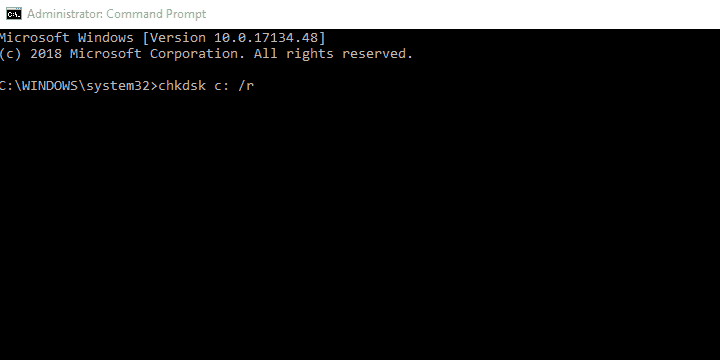
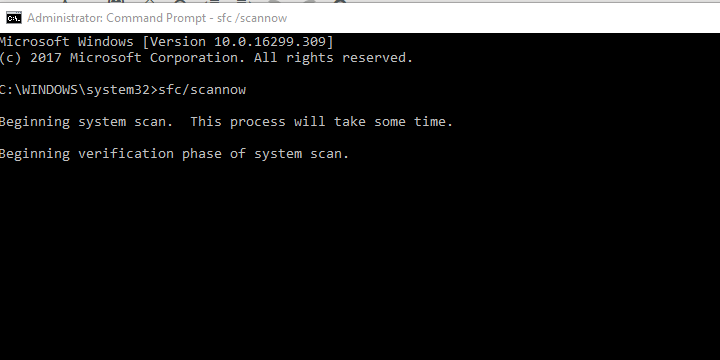
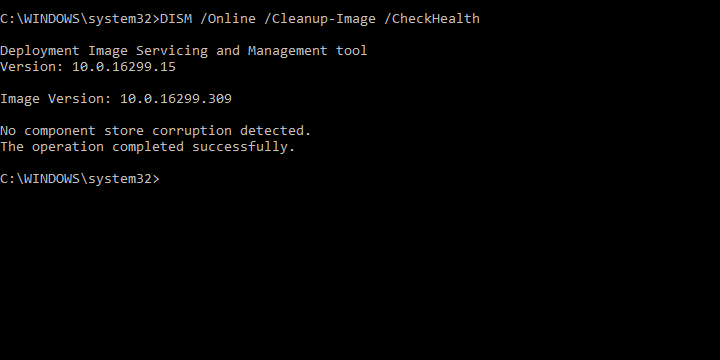


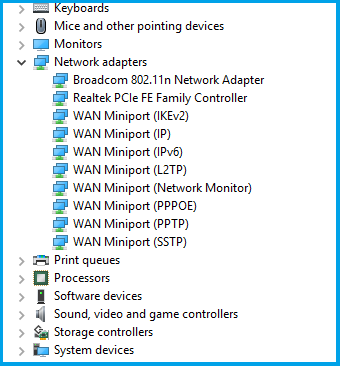


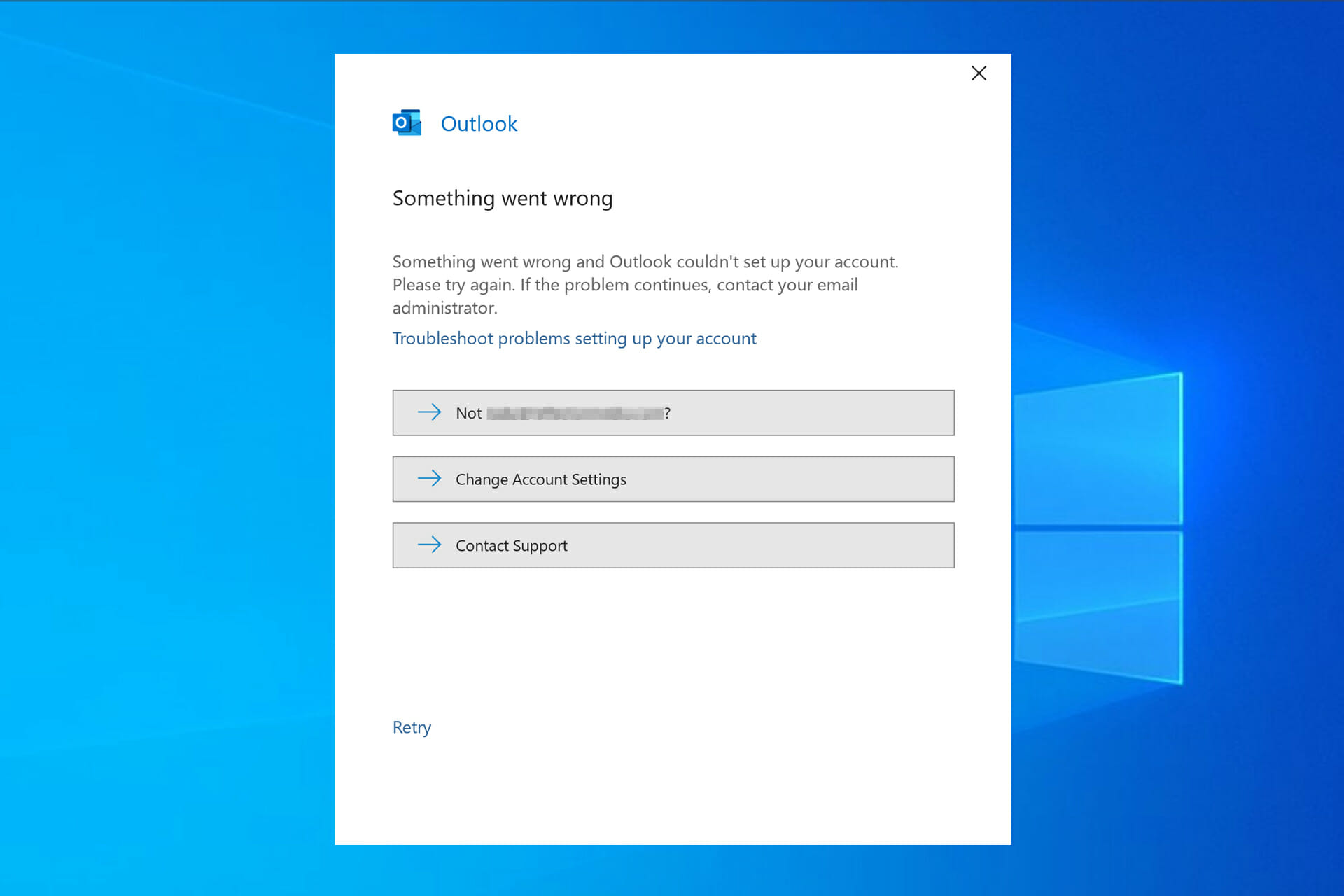

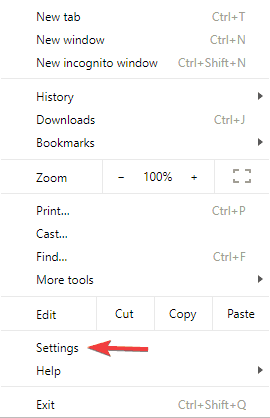


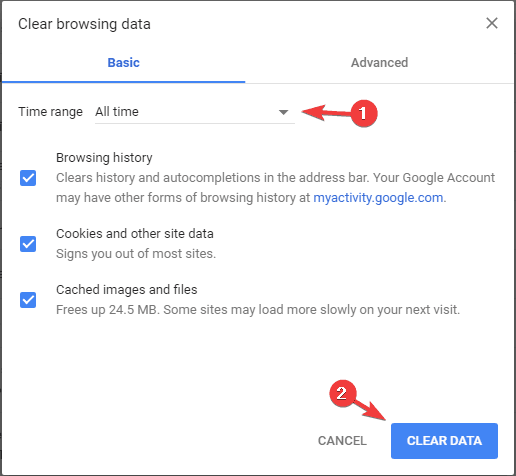
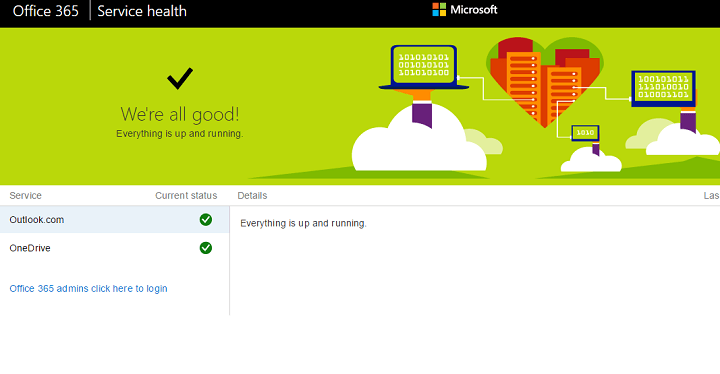
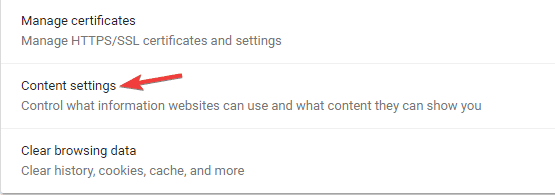


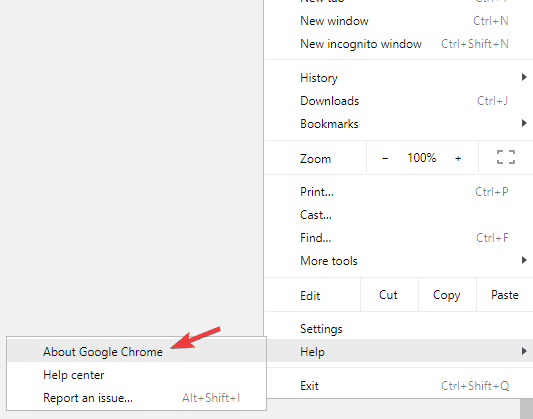
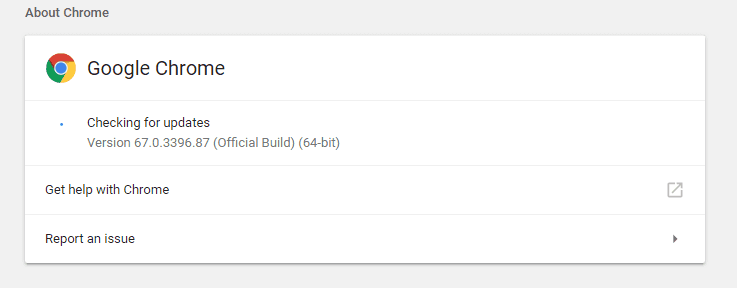






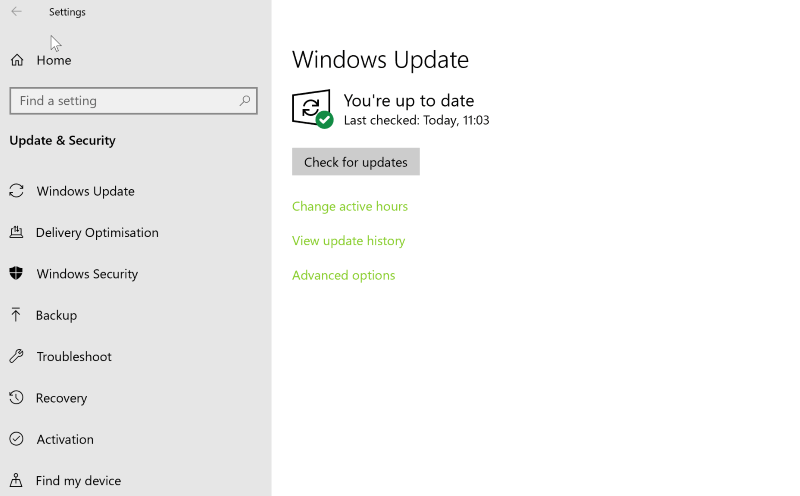

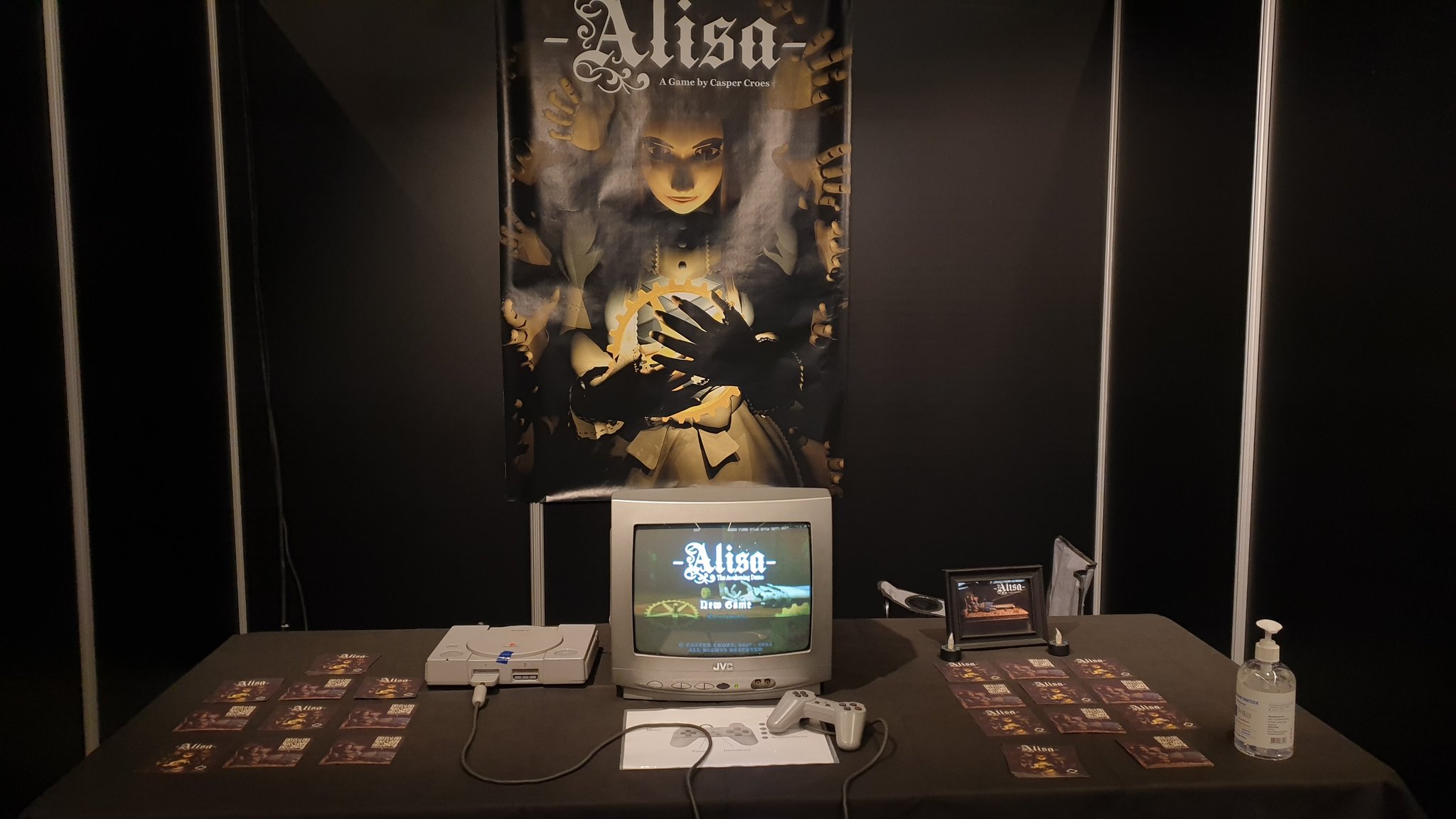

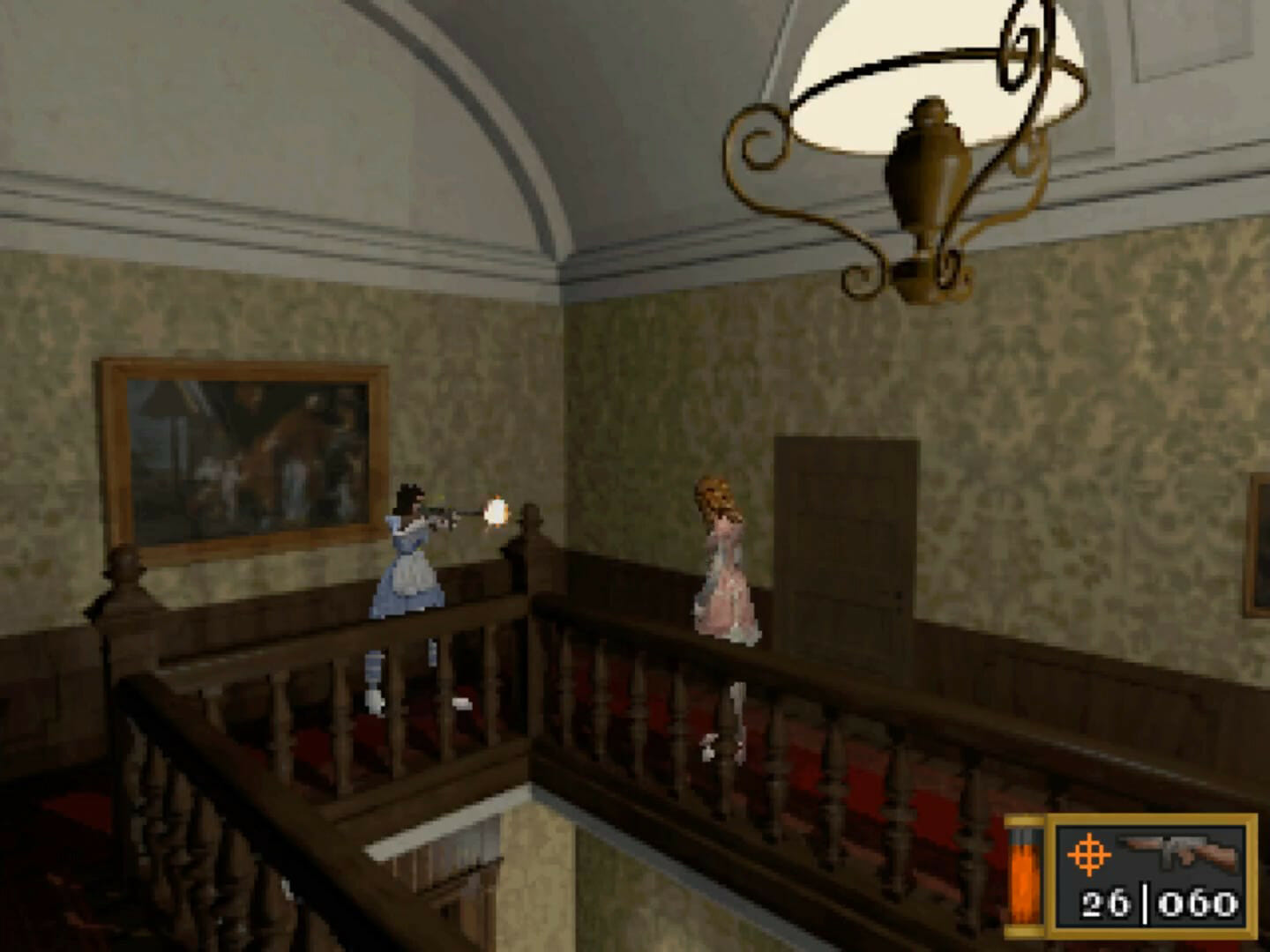

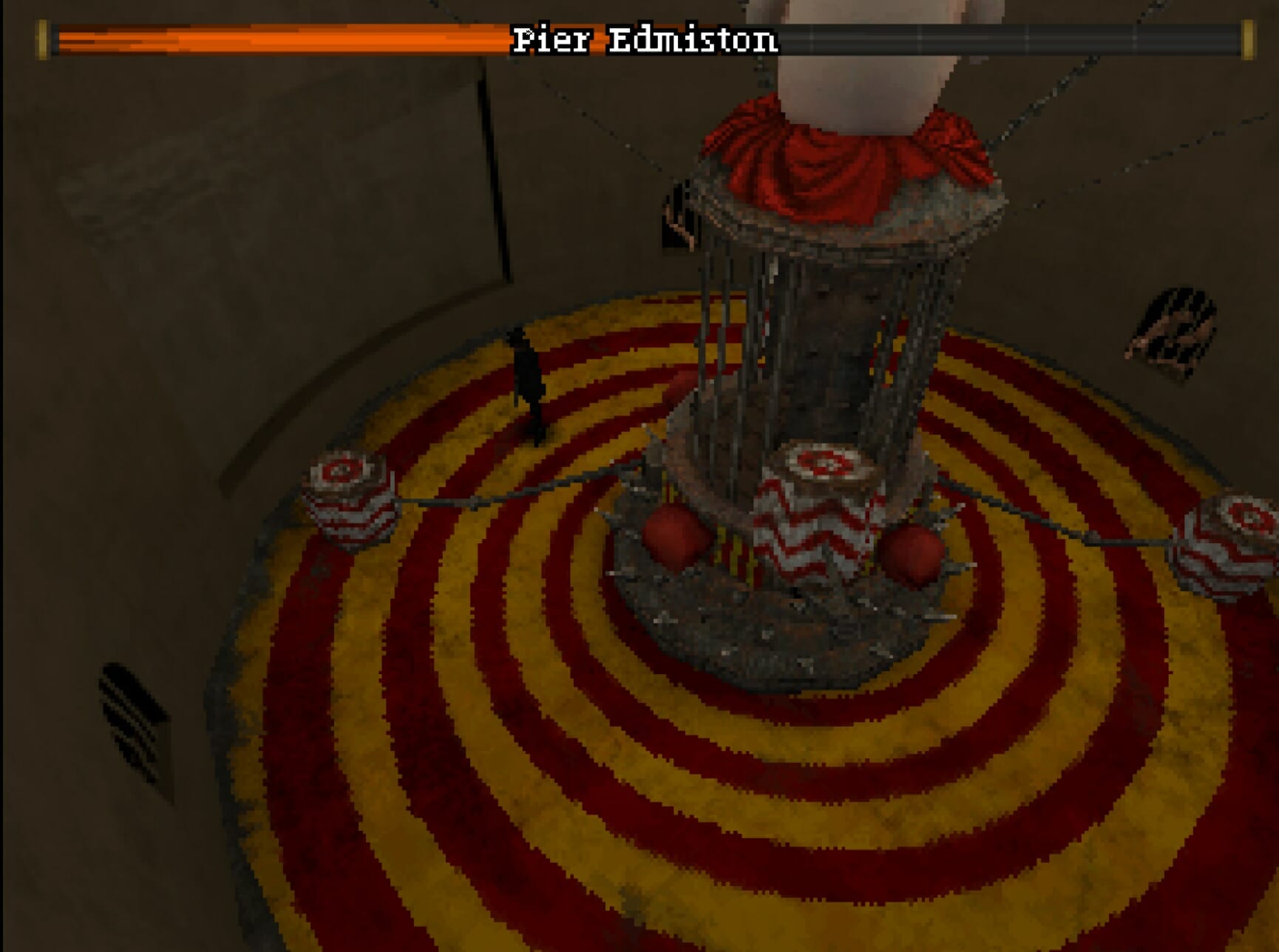
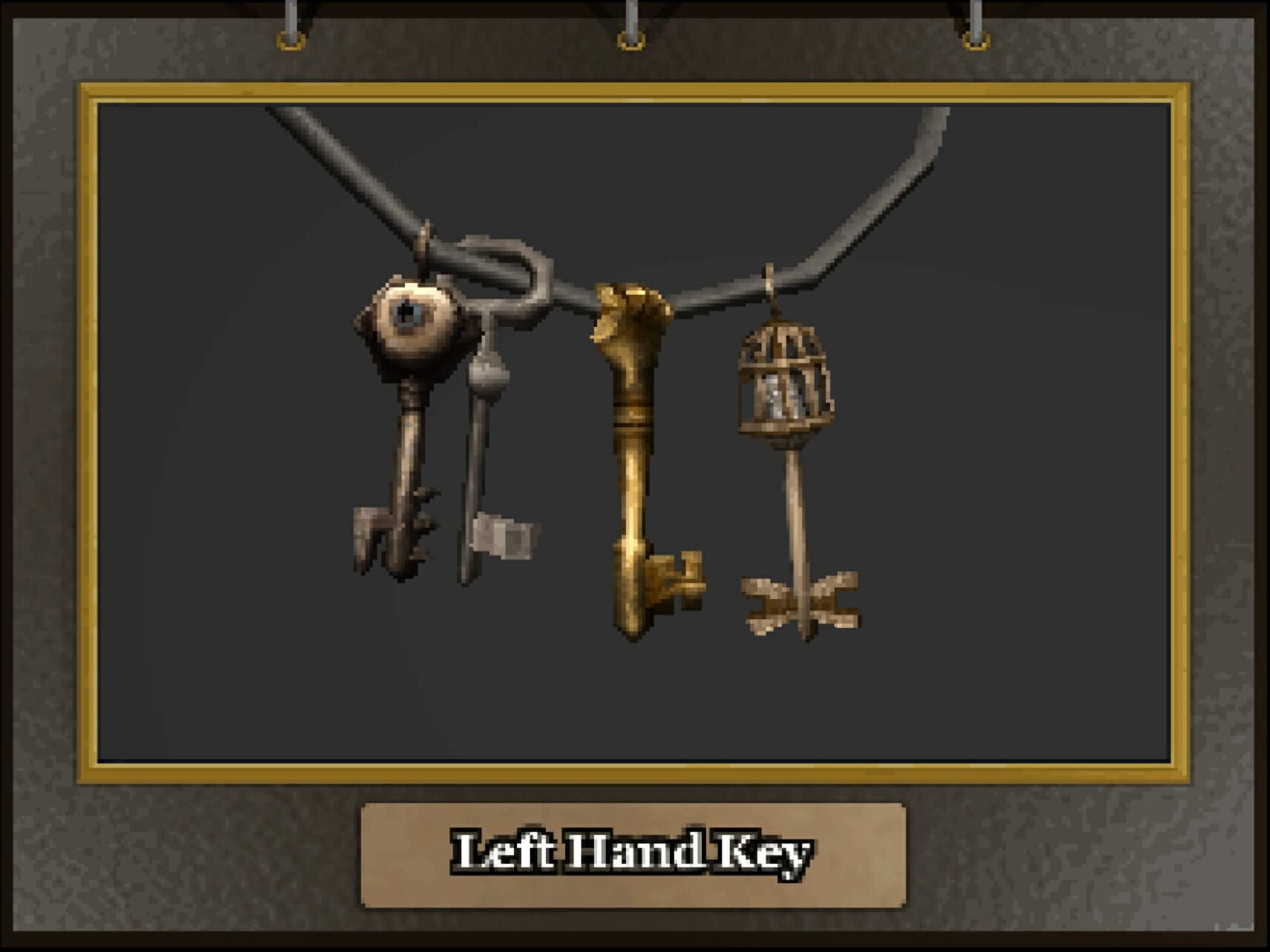
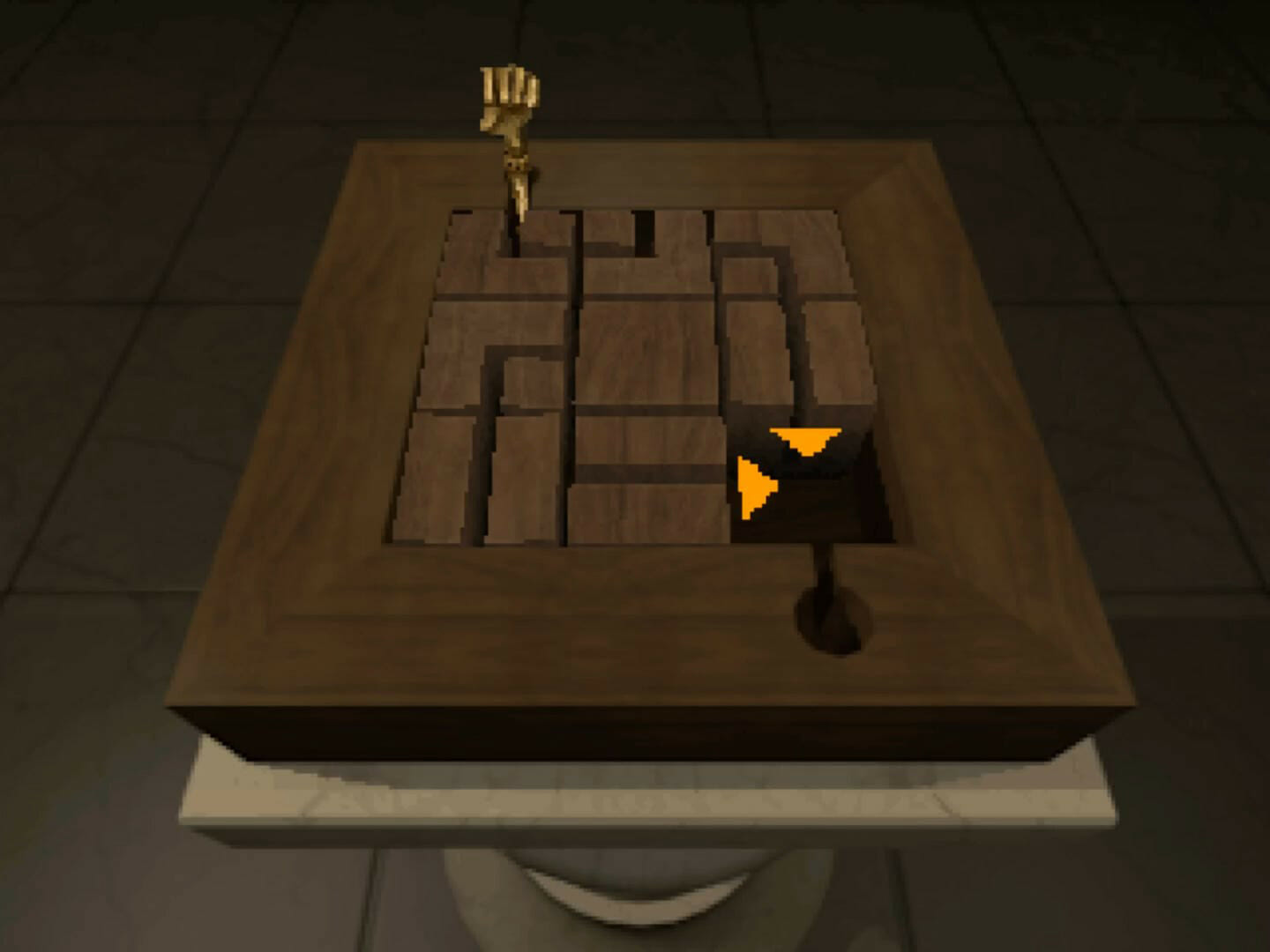
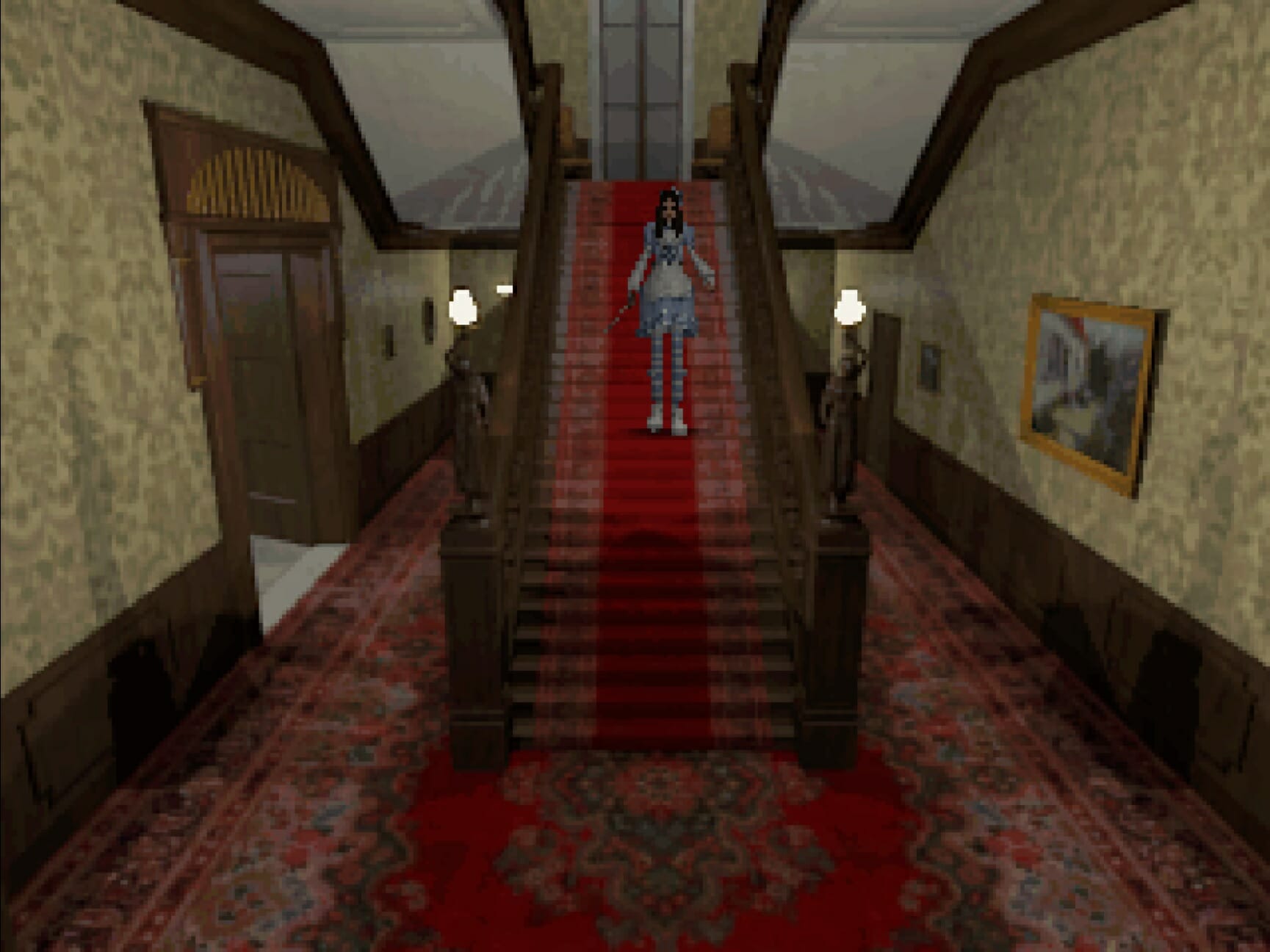
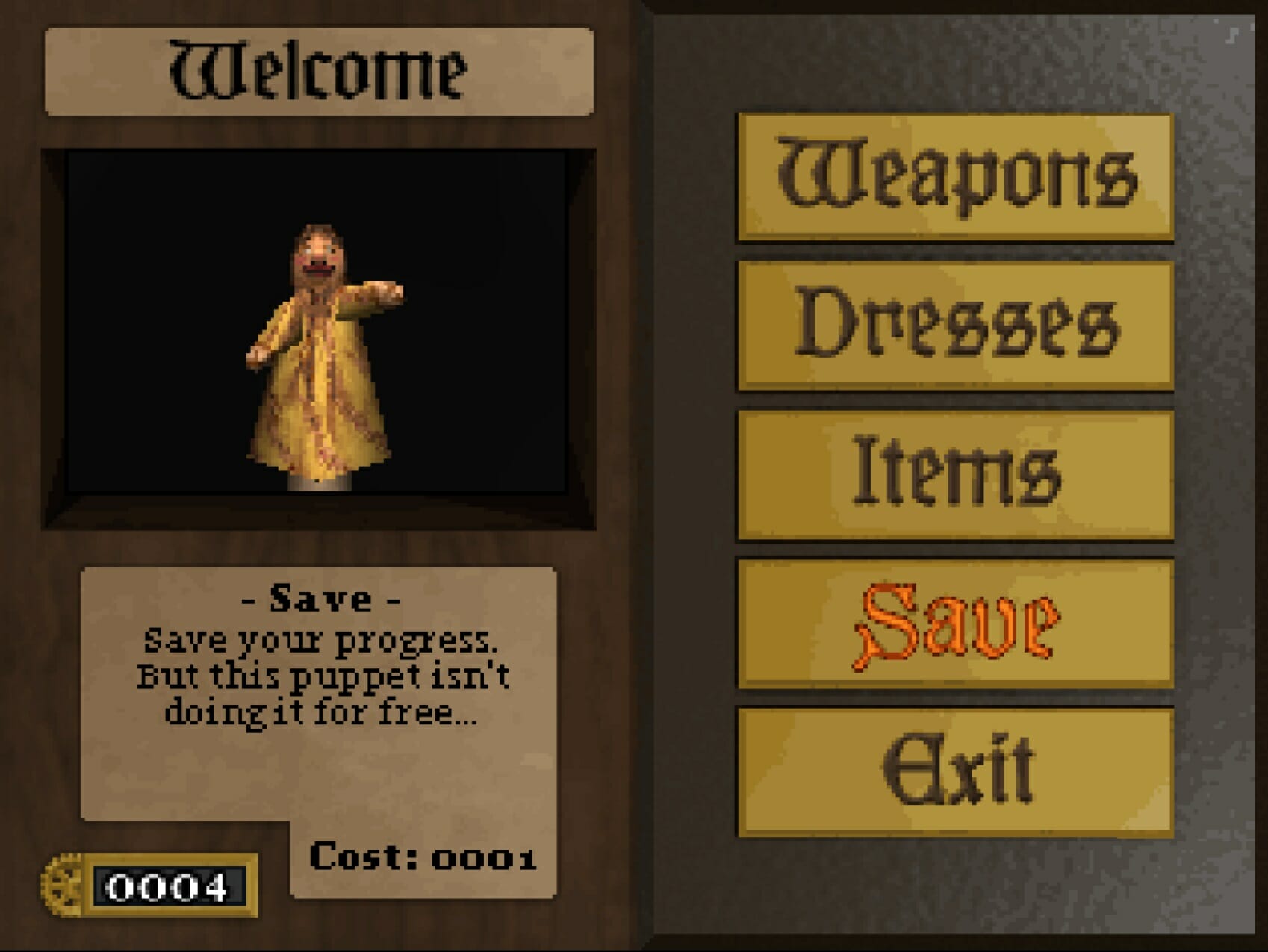
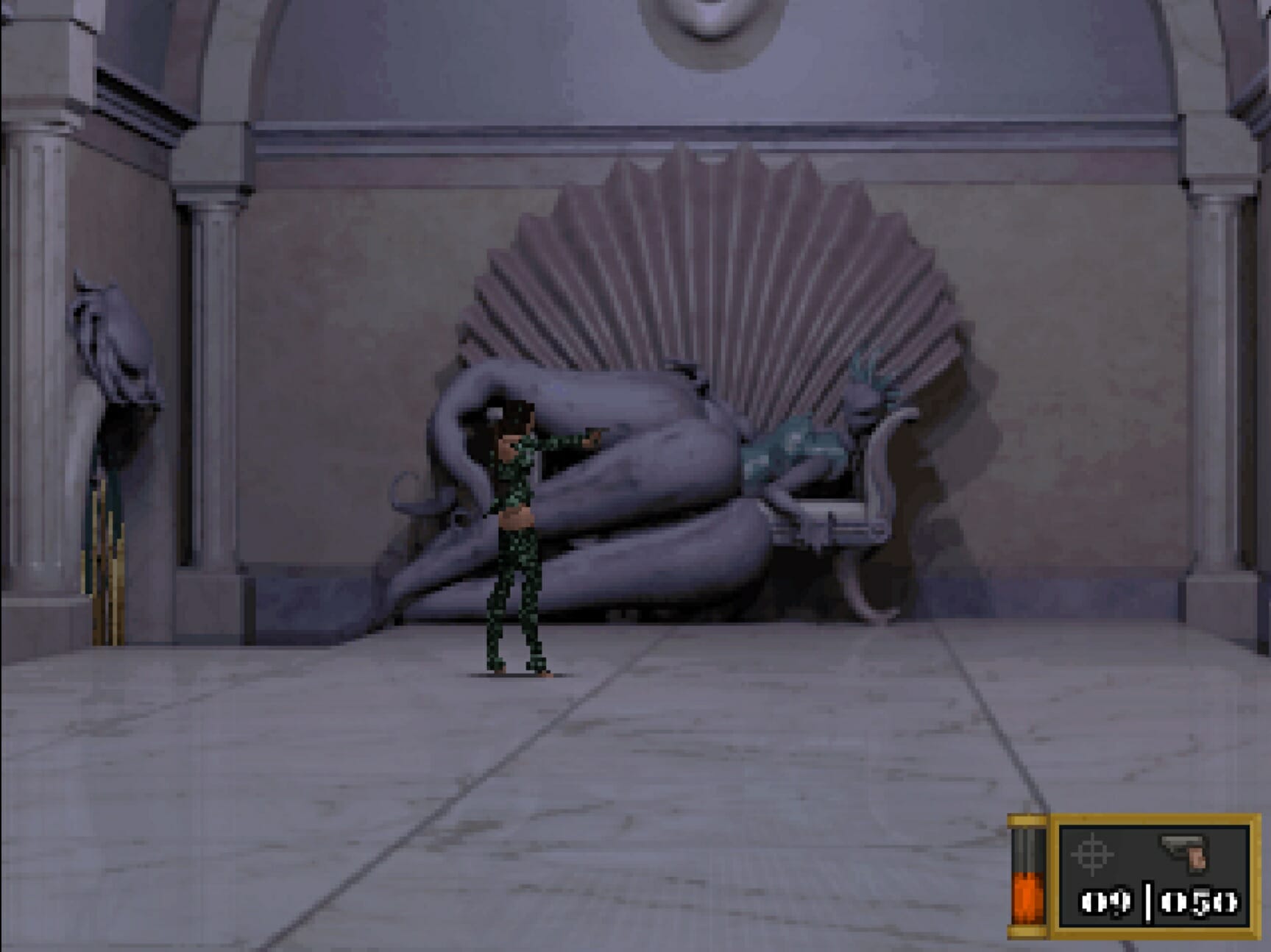
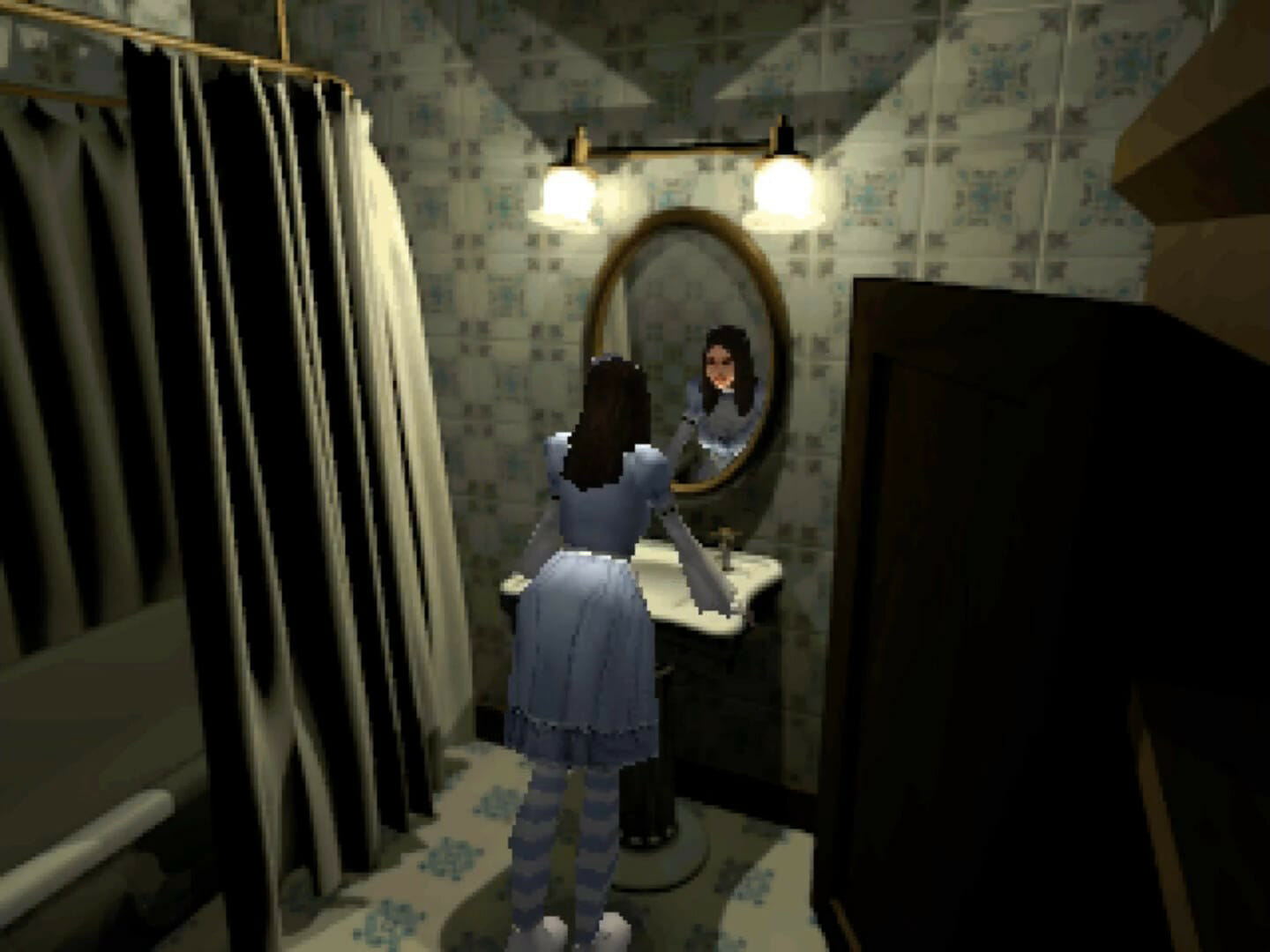


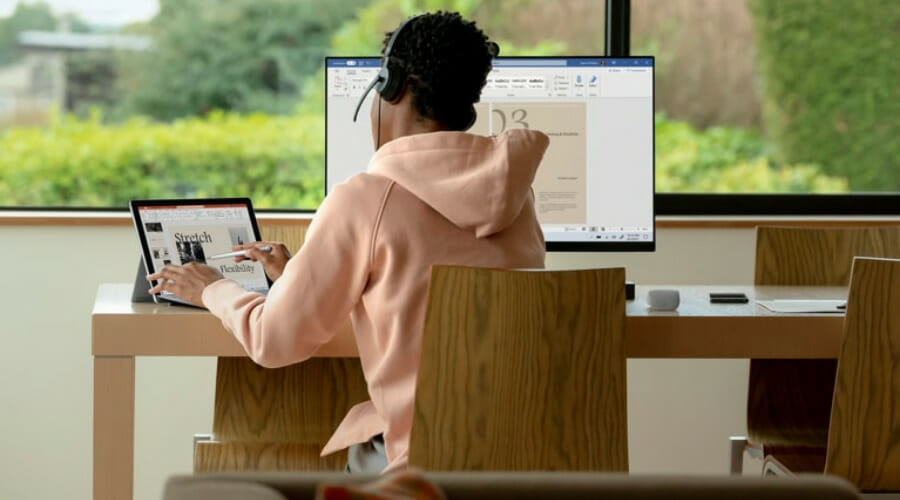
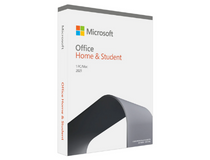

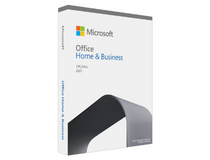


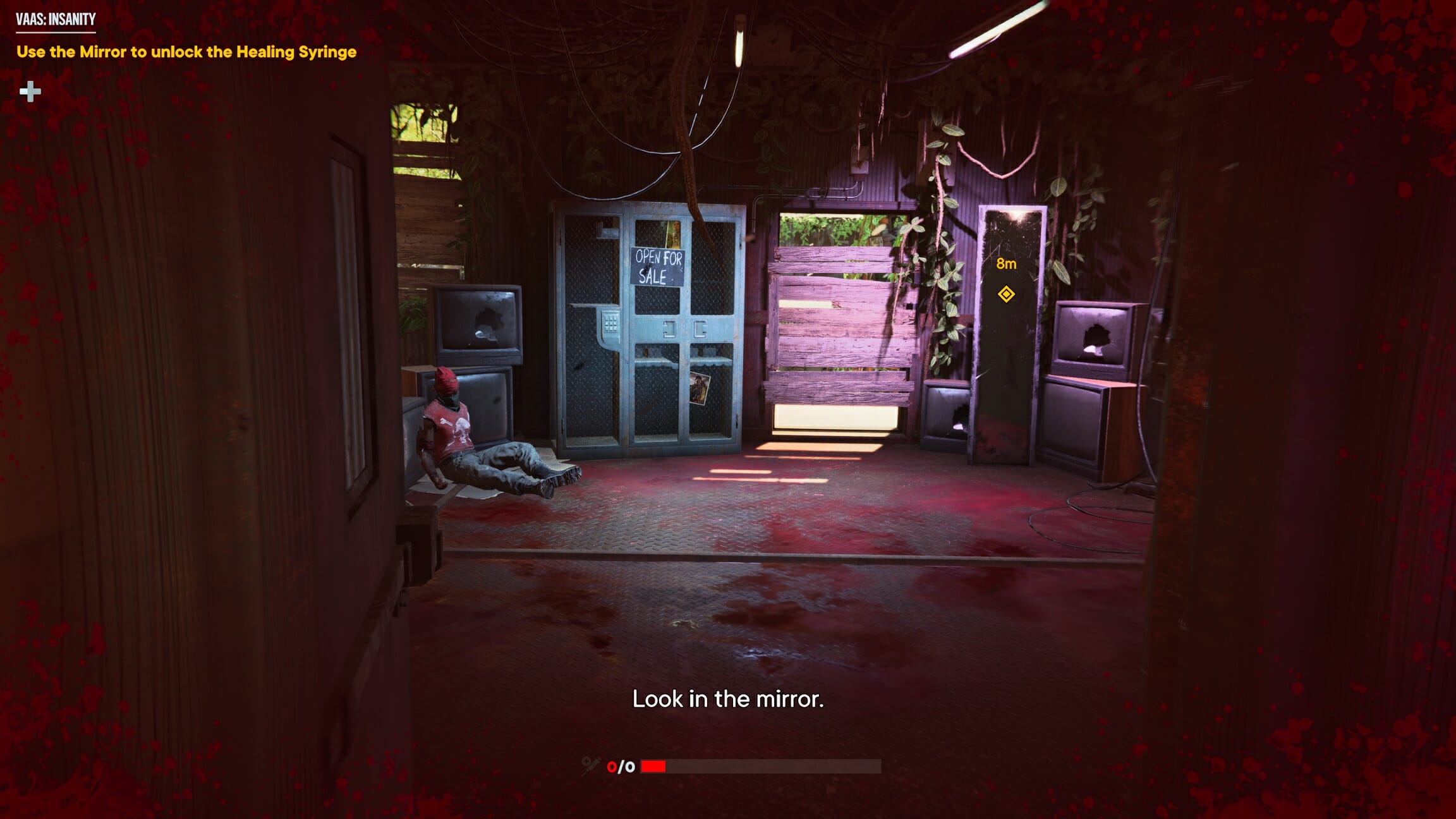
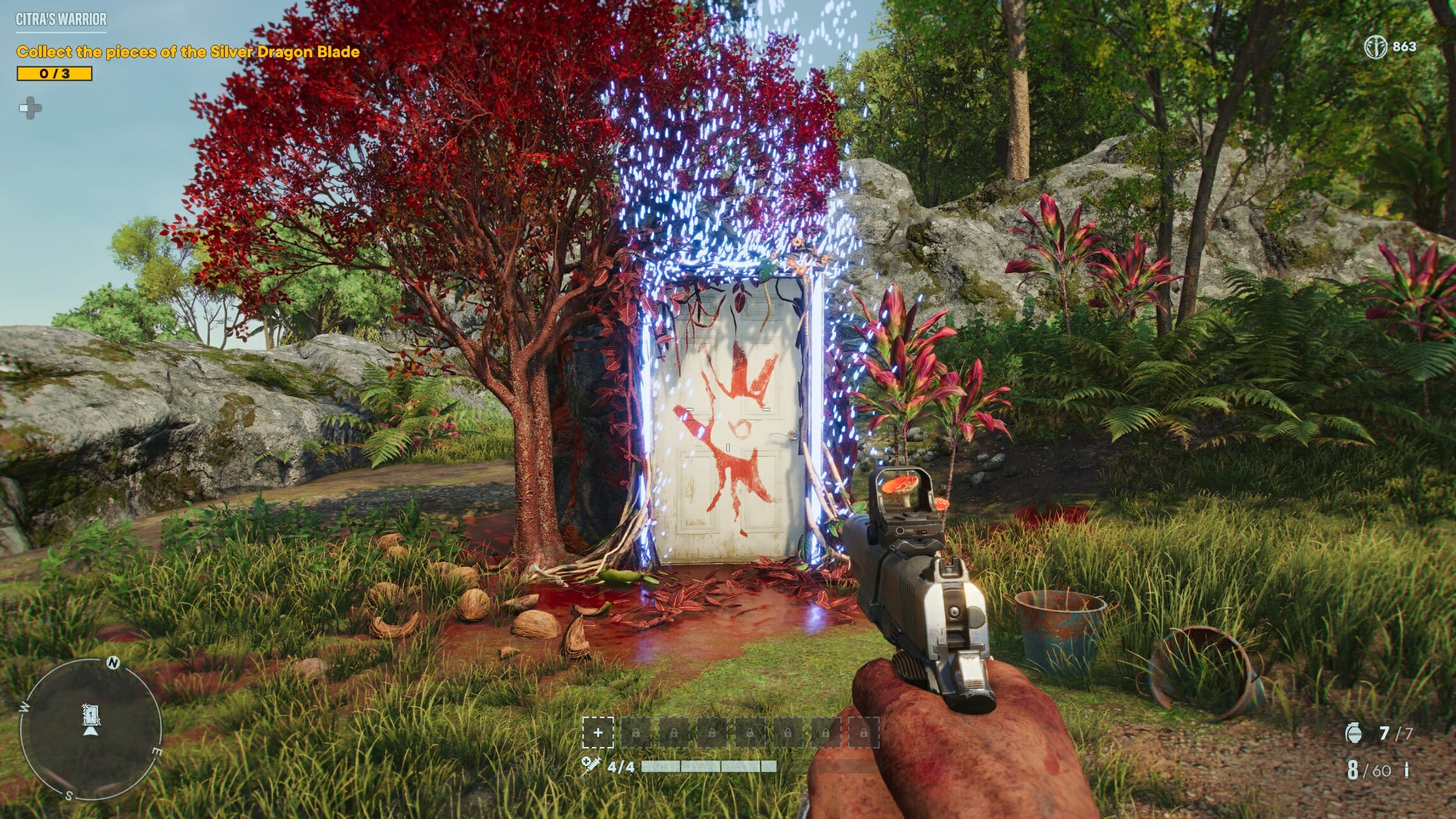
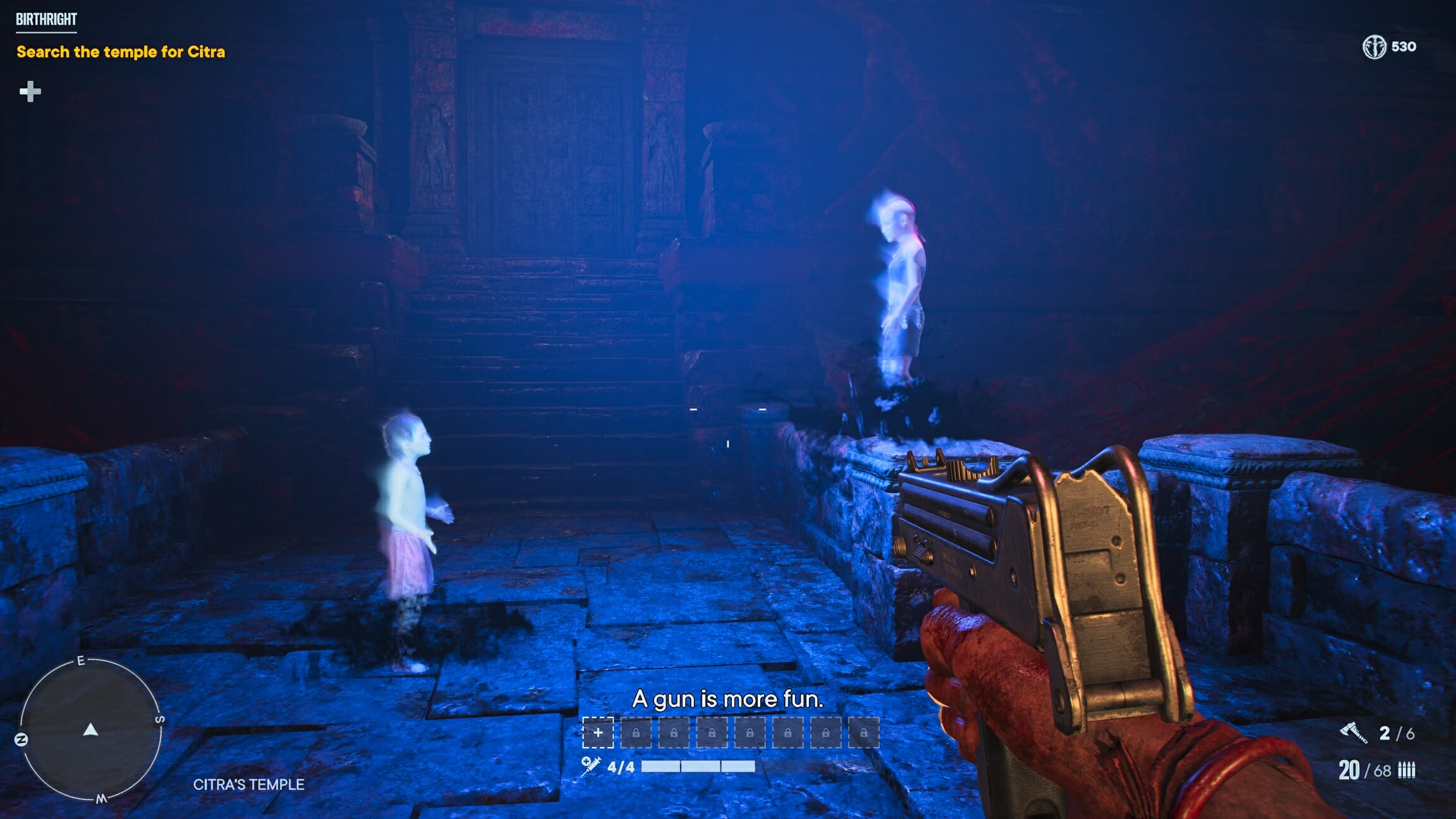

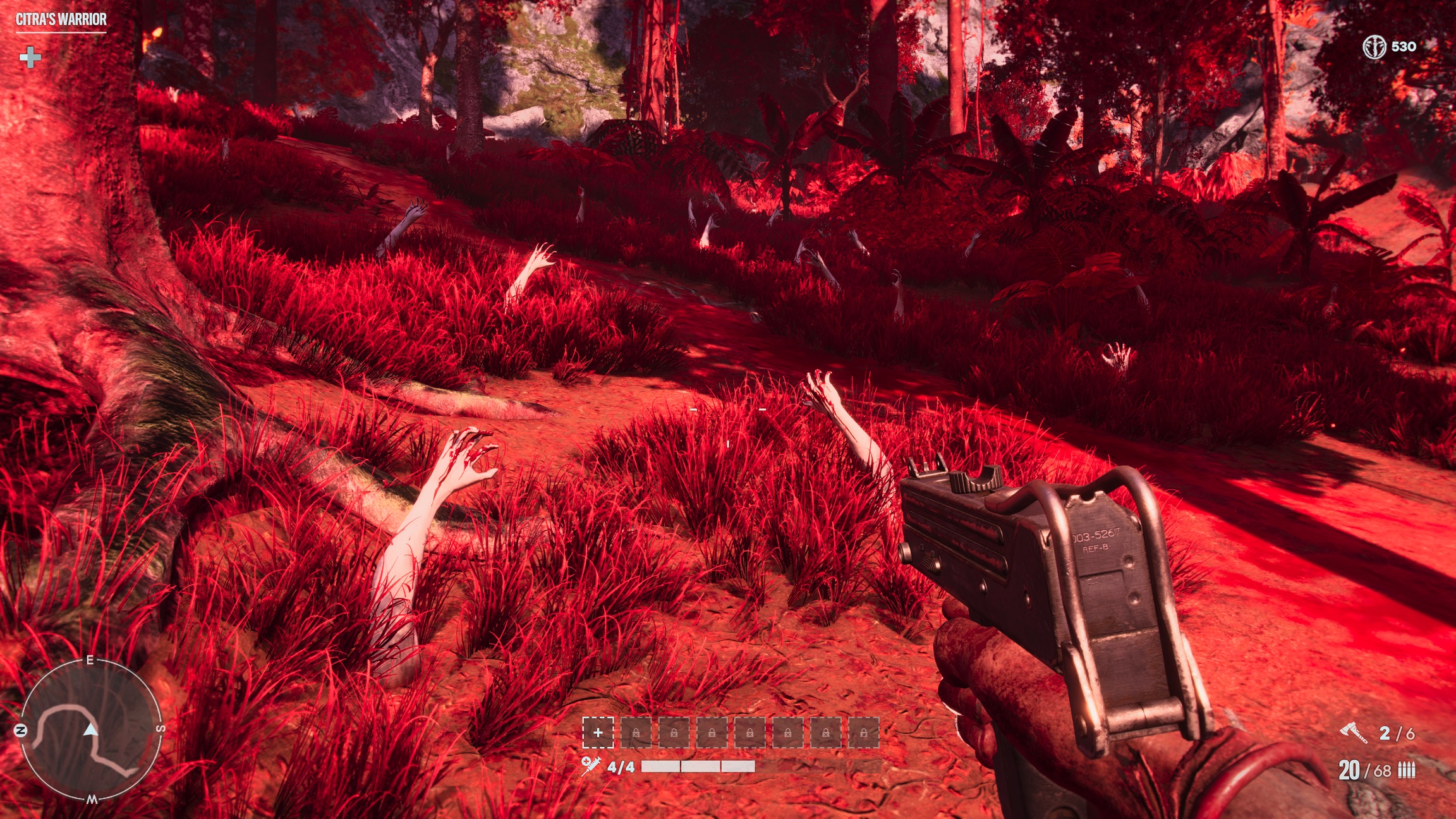
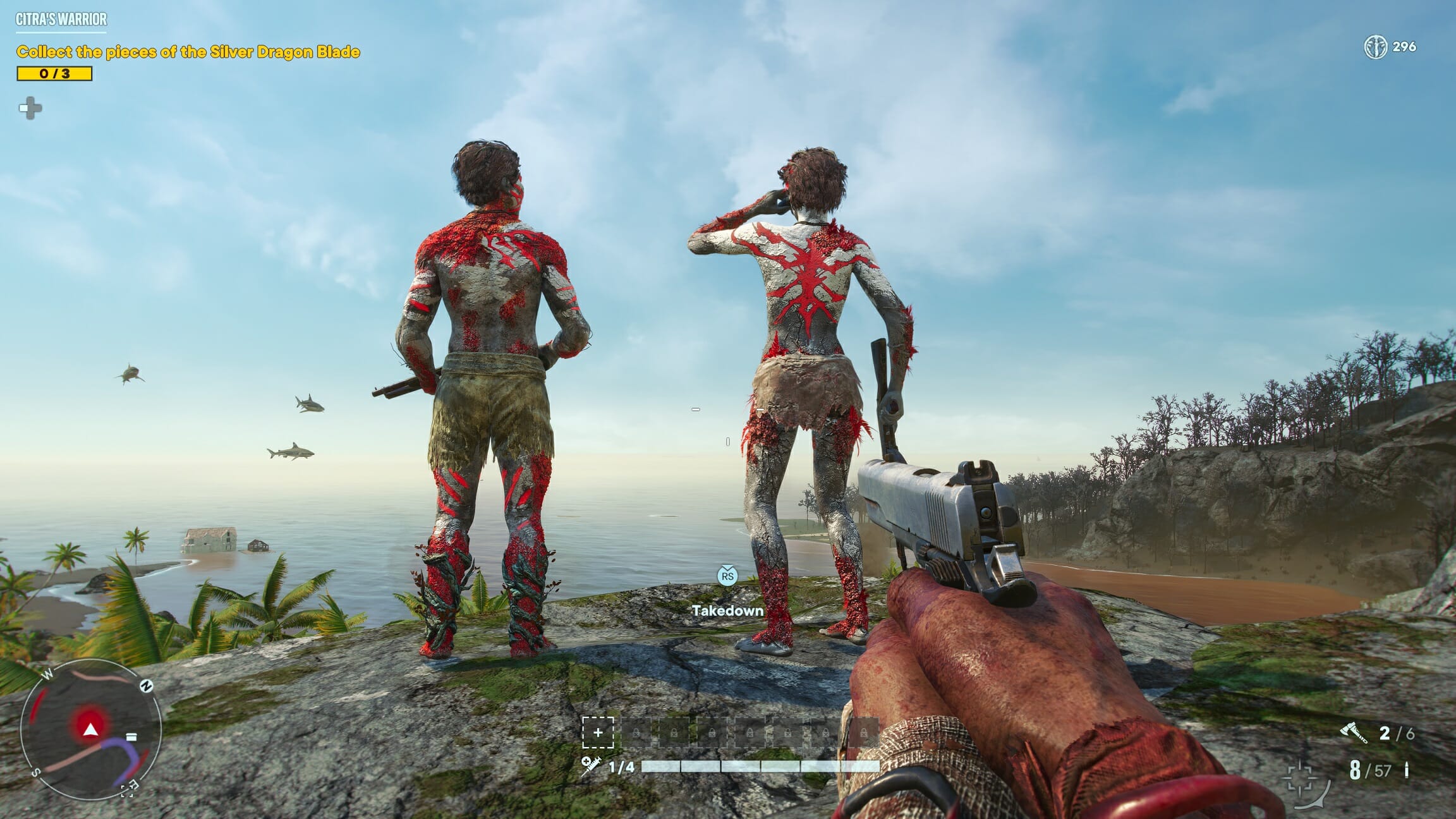
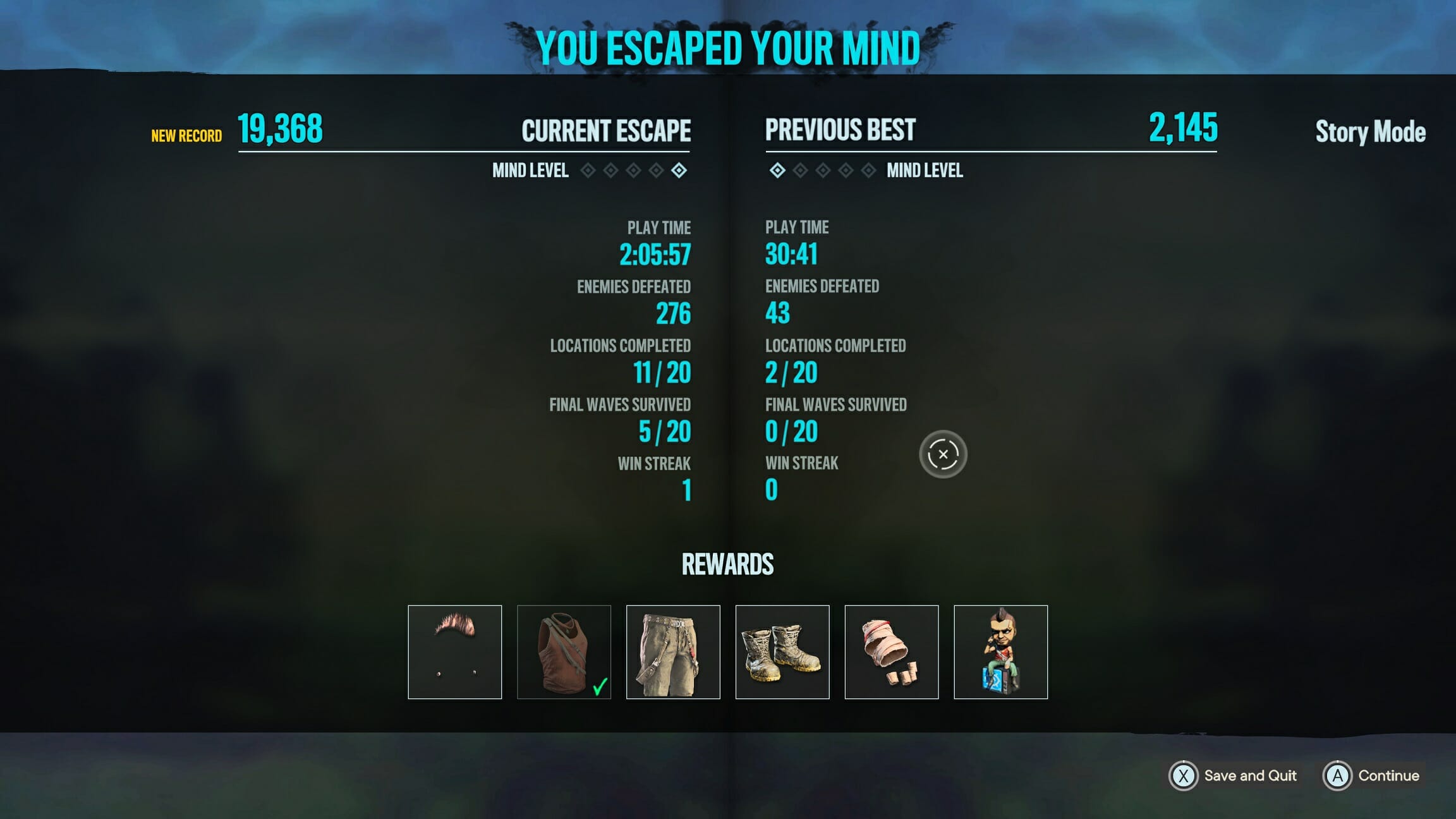
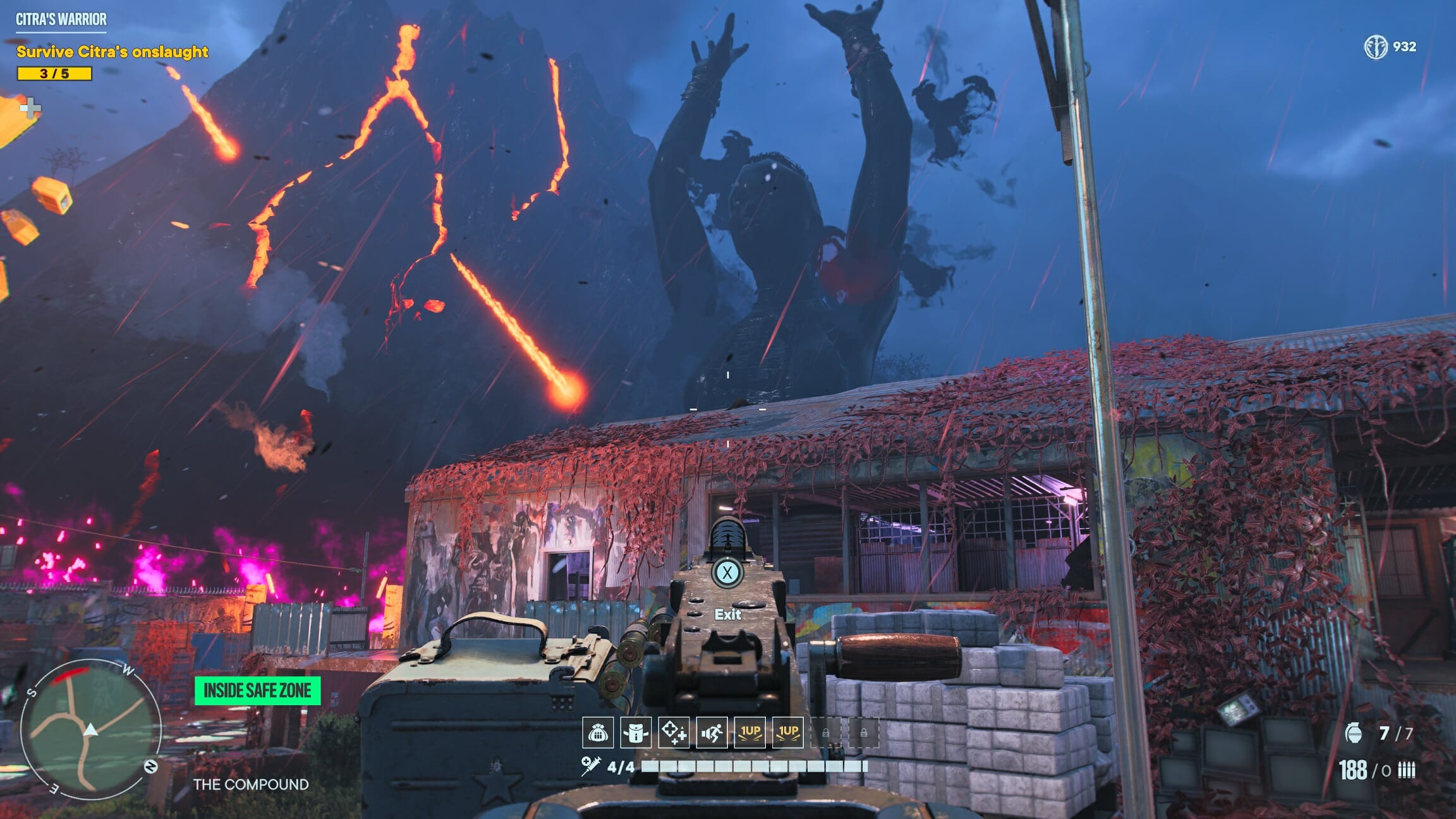

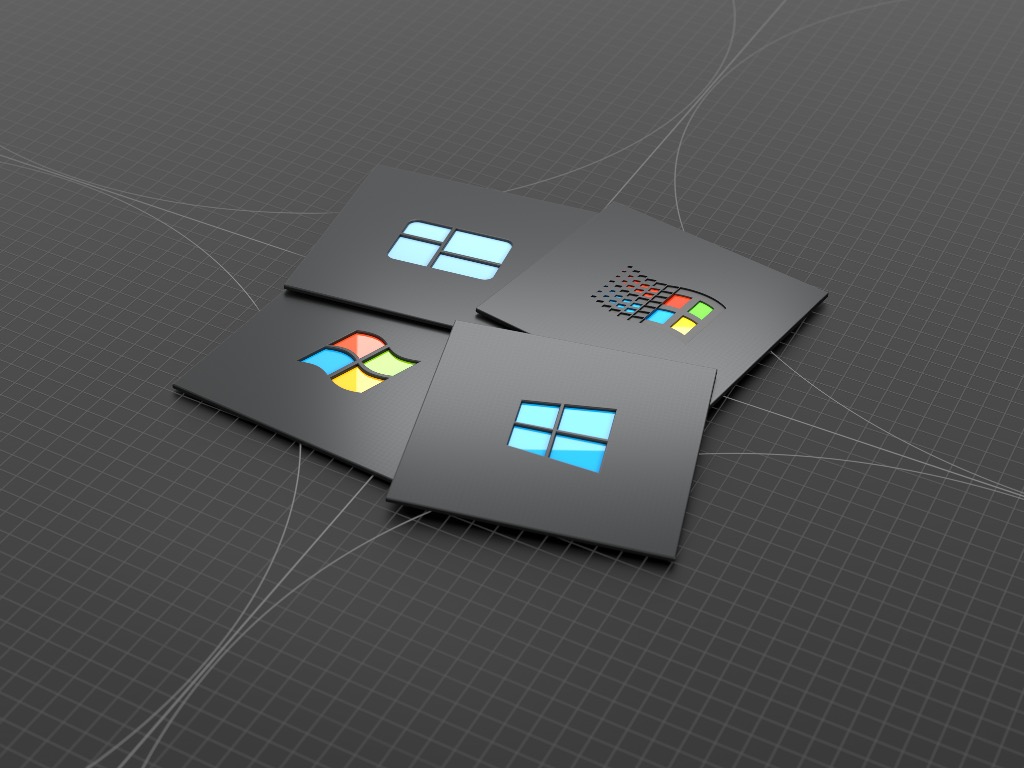
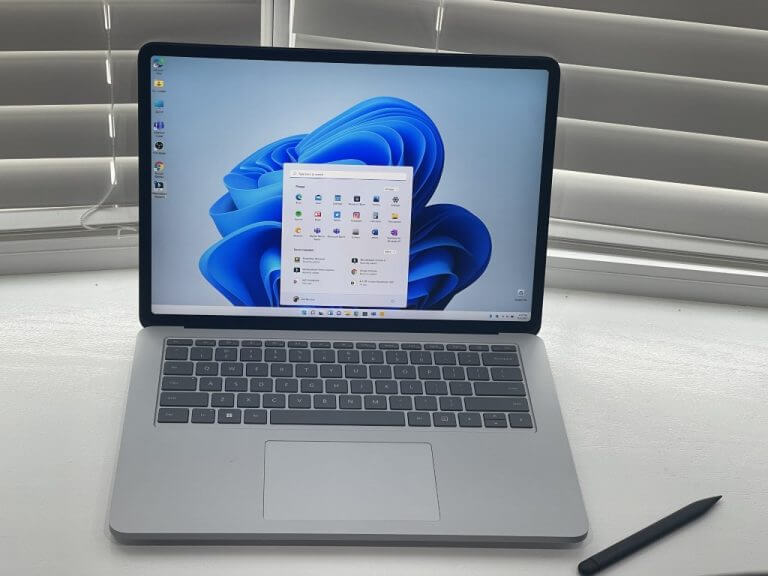
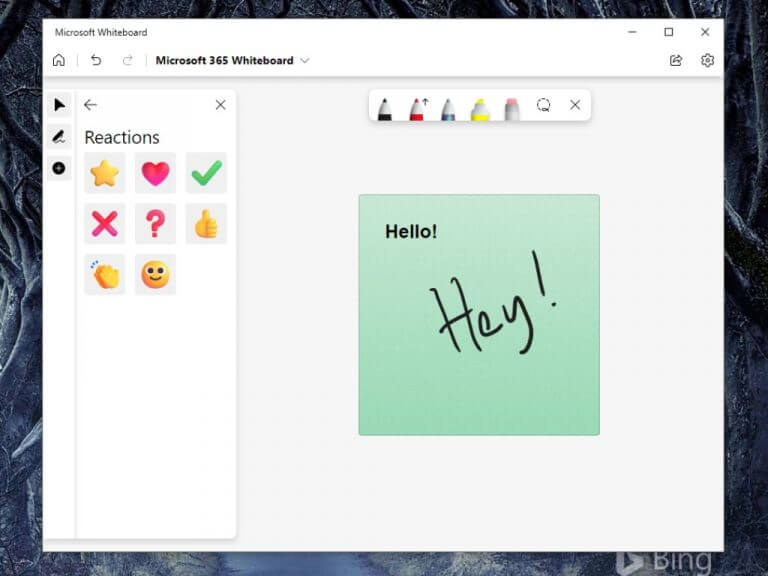
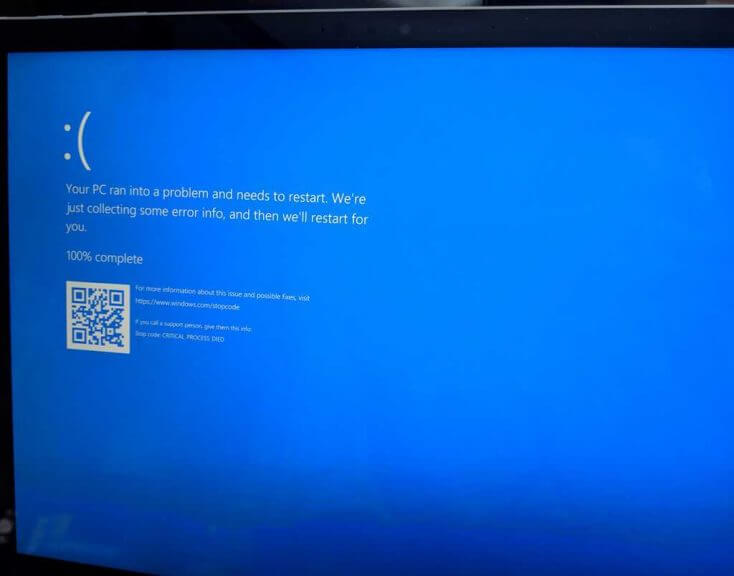
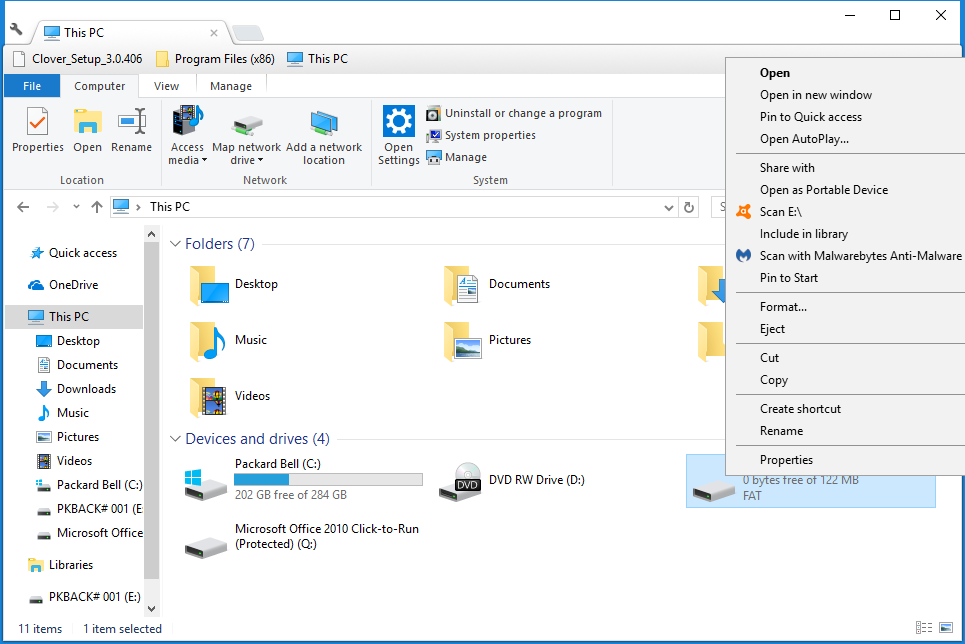
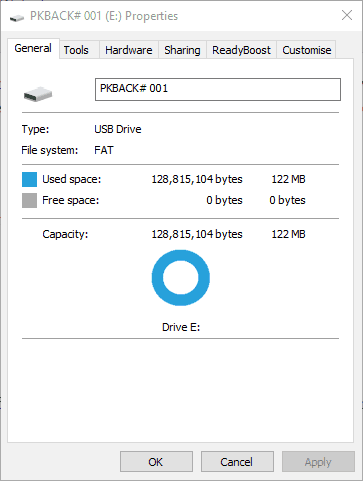
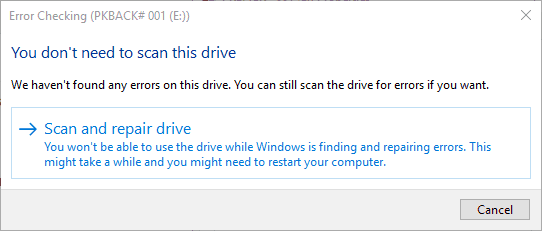
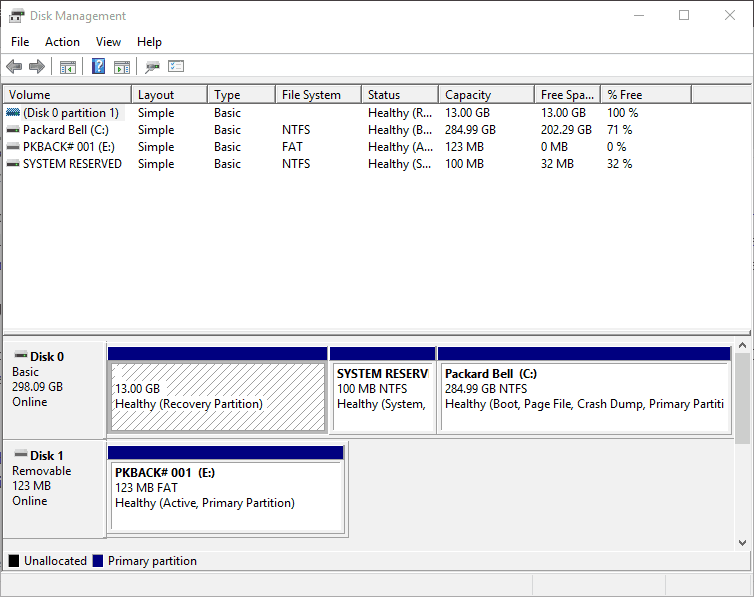
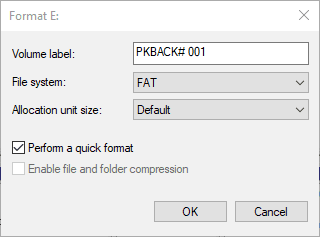
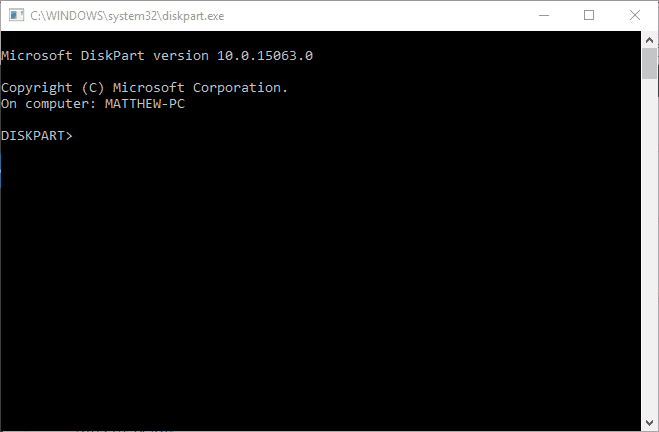
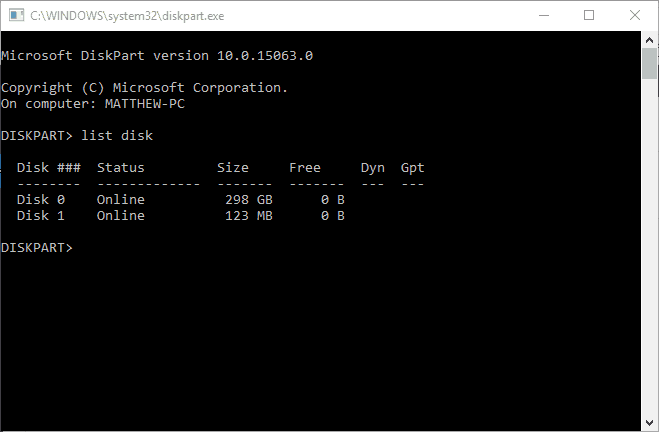
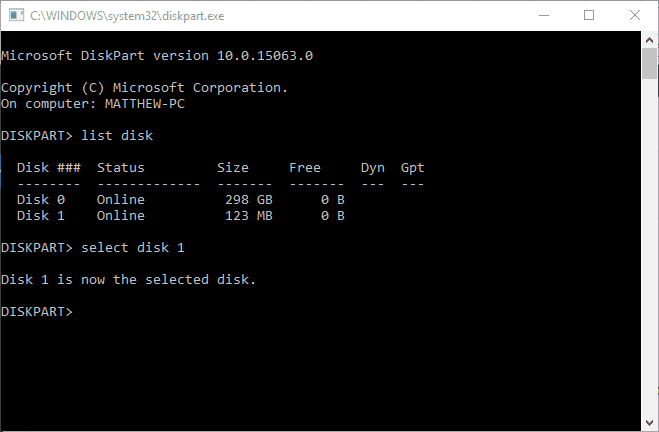



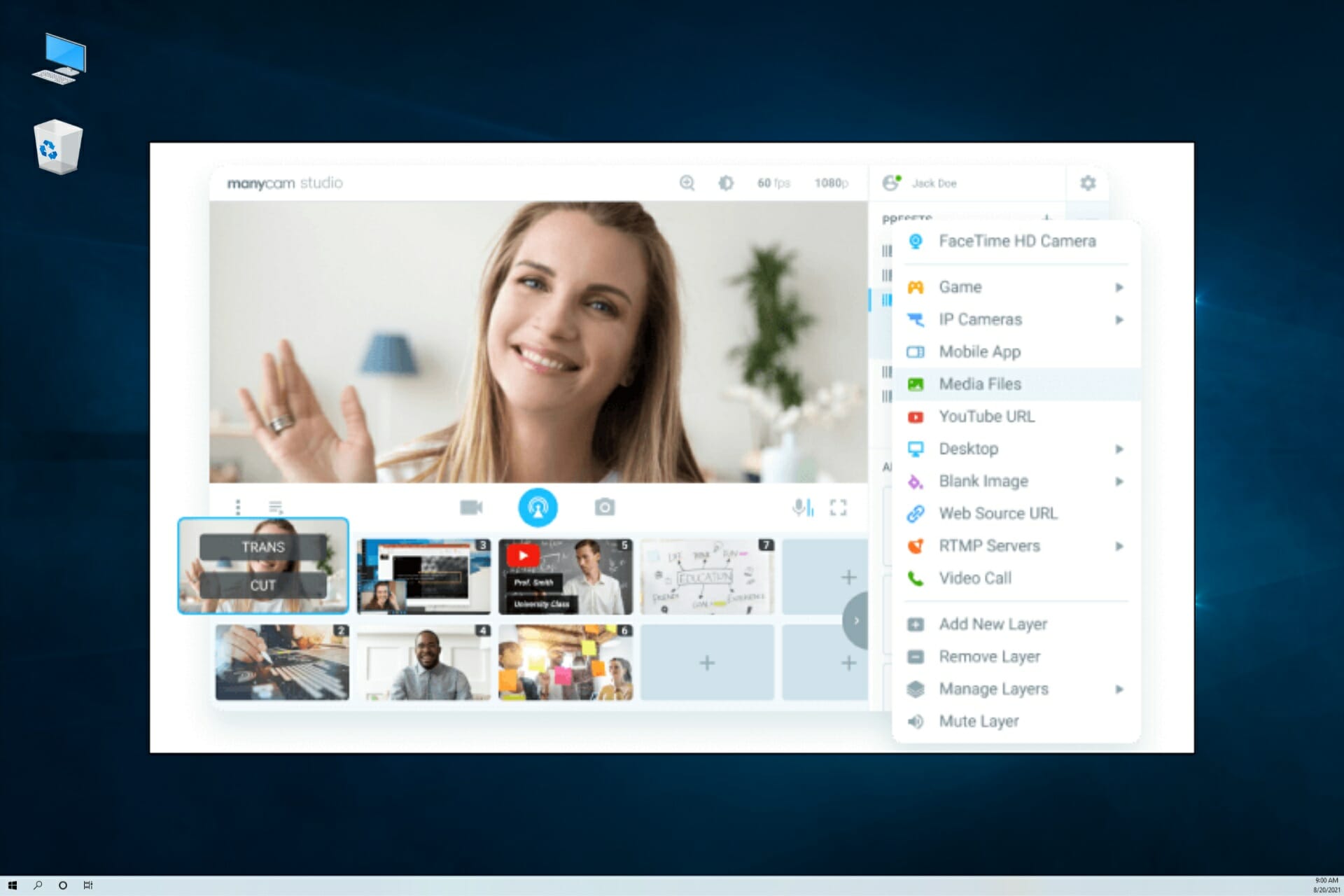
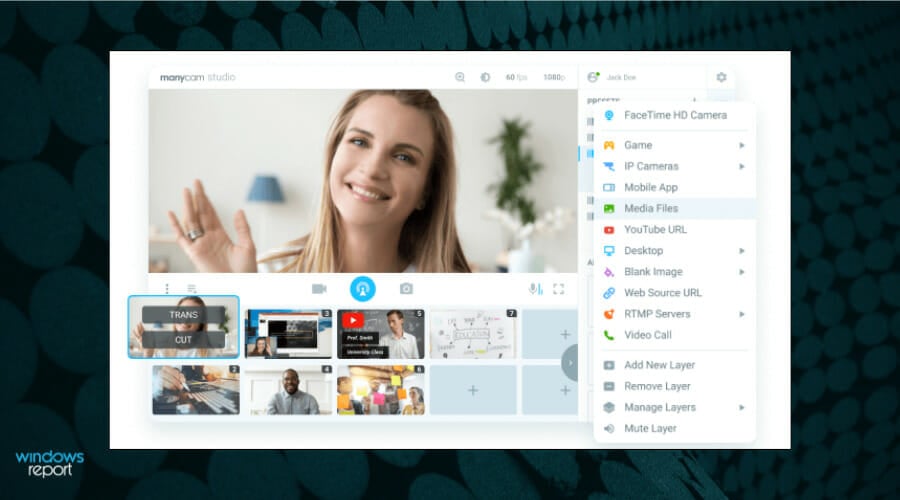

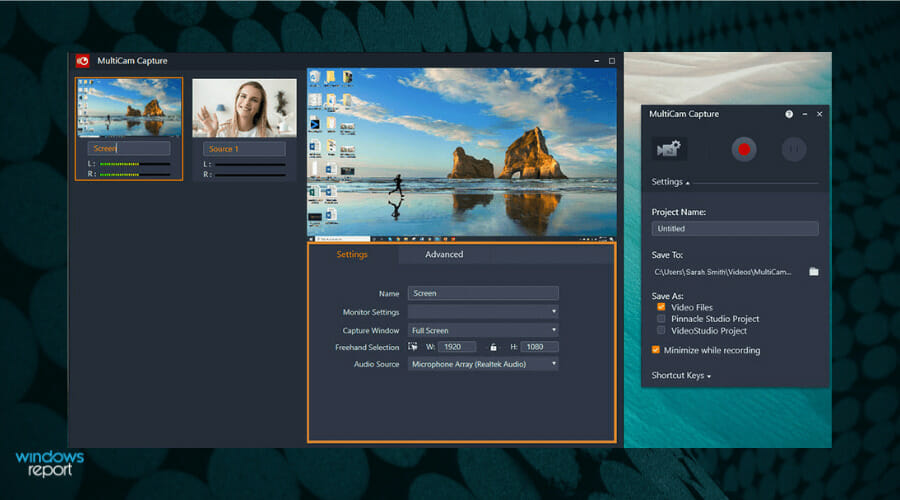

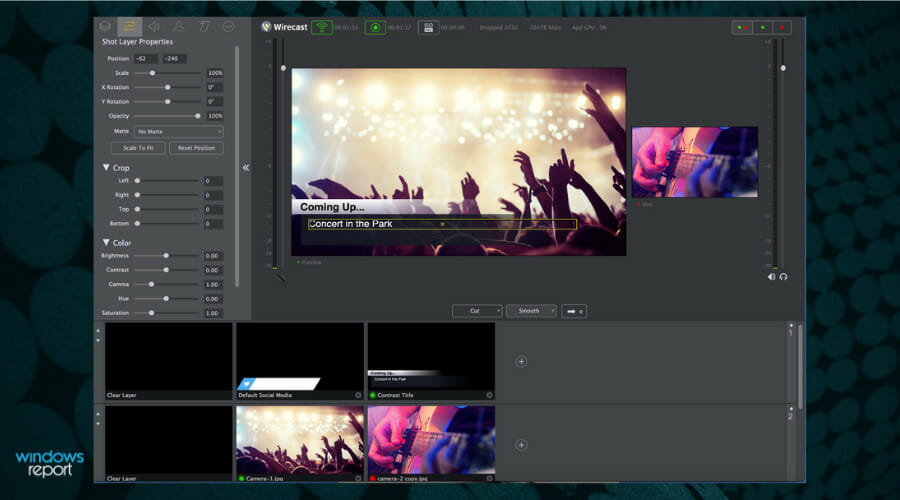


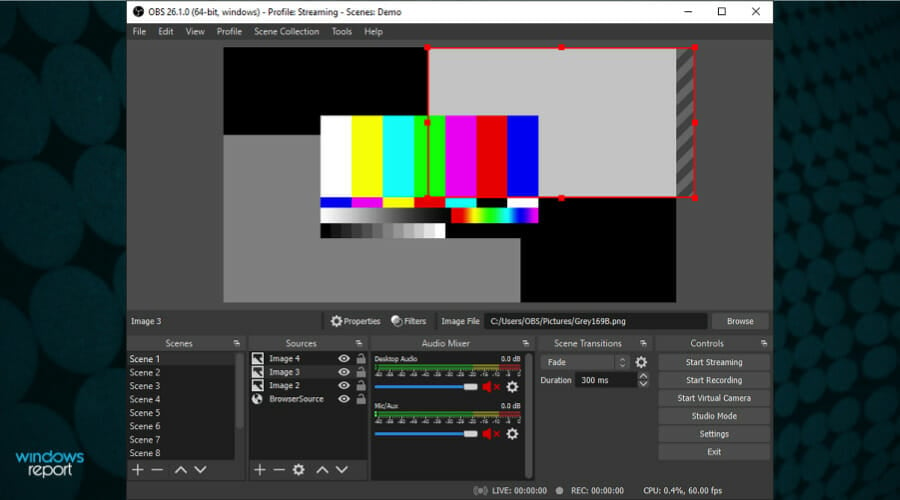

![UNSUPPORTED PROCESSOR error in Windows 10/11 [FULL FIX]](https://windowsreport.com/wp-content/uploads/2020/04/Fix-UNSUPPORTED-PROCESSOR-error-in-Windows-10-1.jpg)

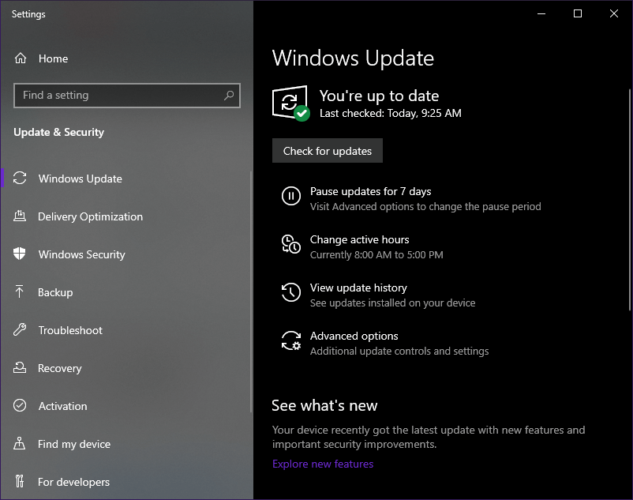
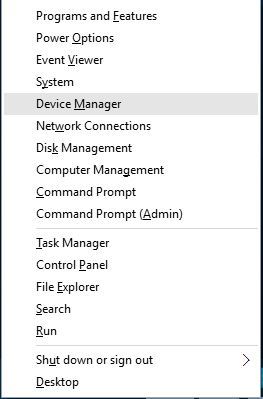
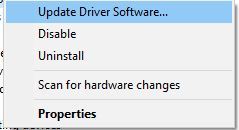
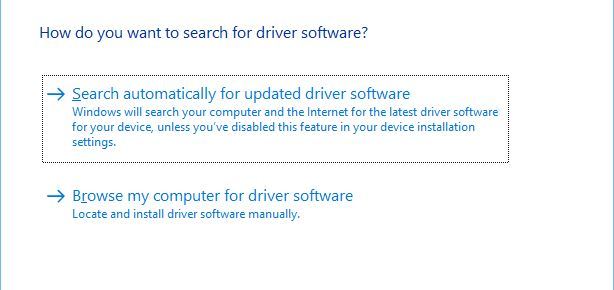
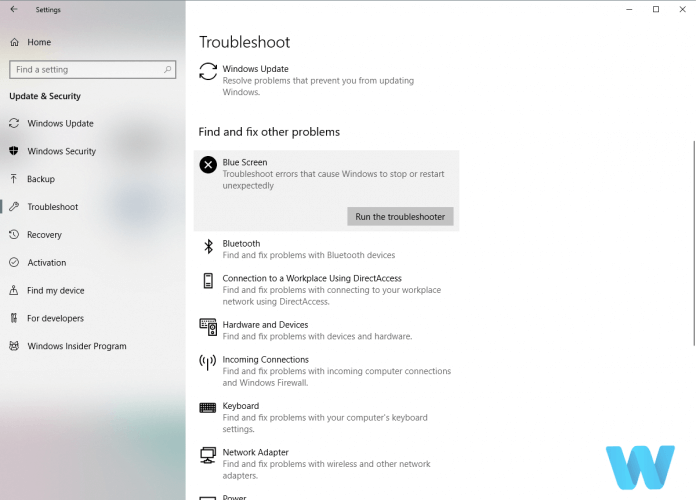
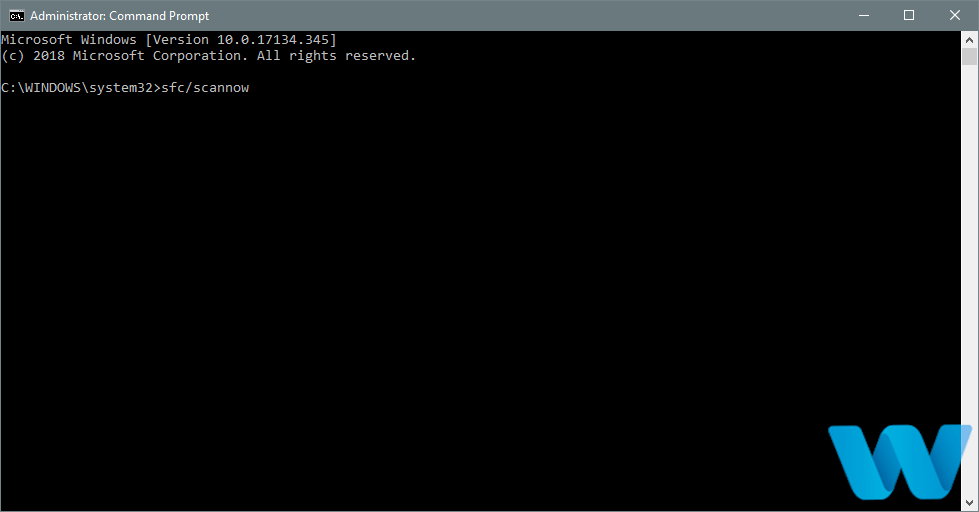
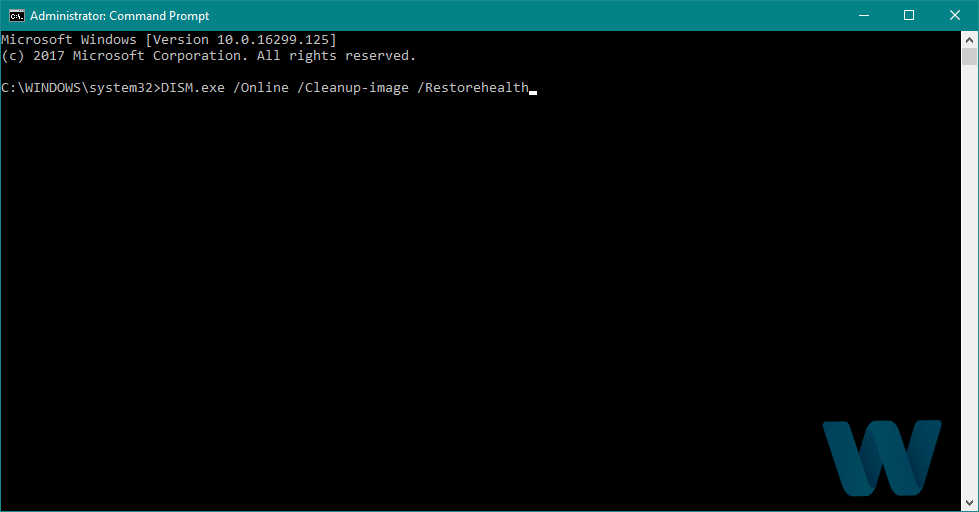
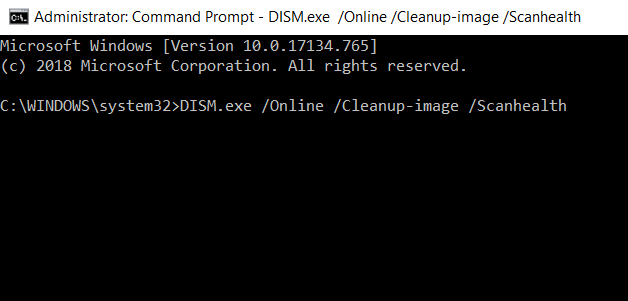
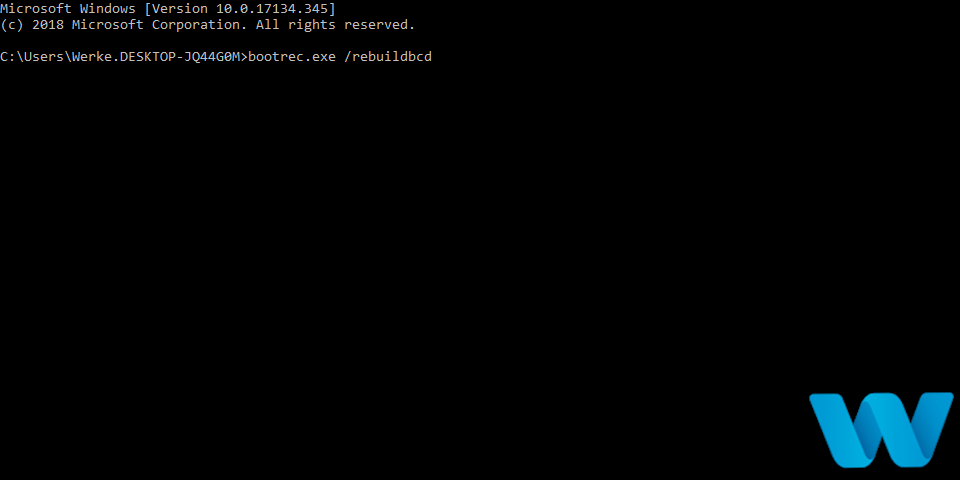
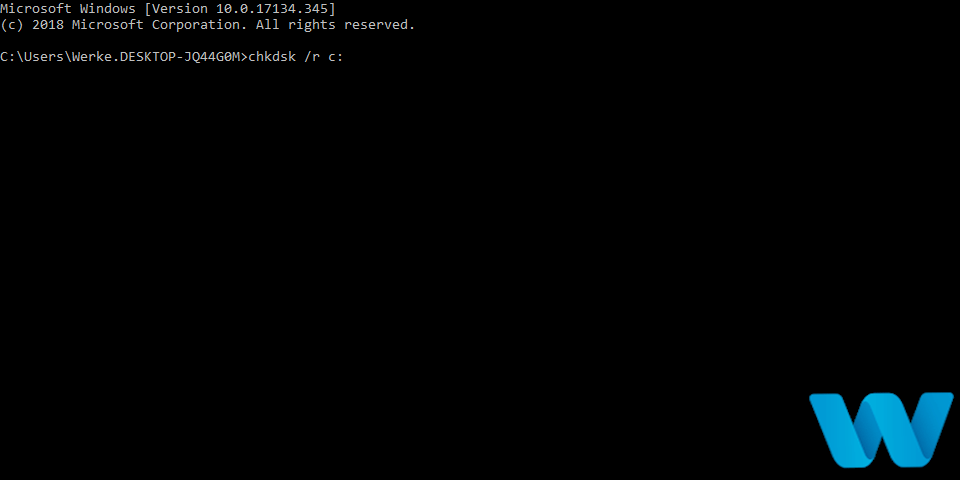

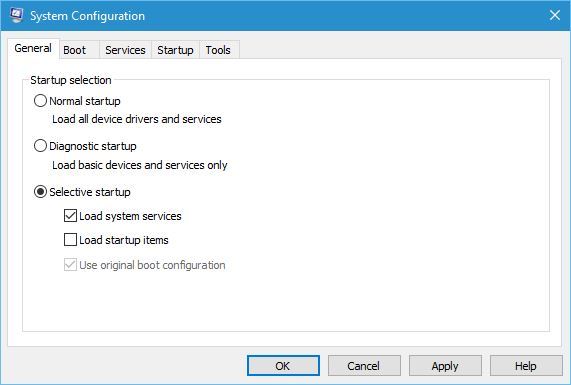




![FIX: Resident Evil 7 not launching on Windows 10/11 [Crash]](https://windowsreport.com/wp-content/uploads/2018/06/FIX-Resident-Evil-7-not-launching-on-Windows-10-Crash.jpg)


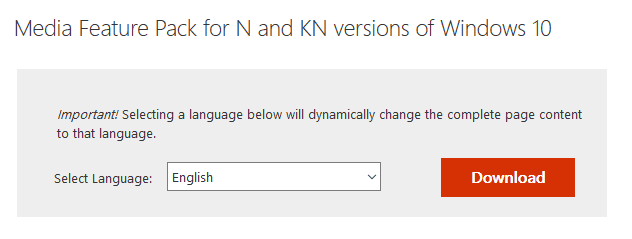

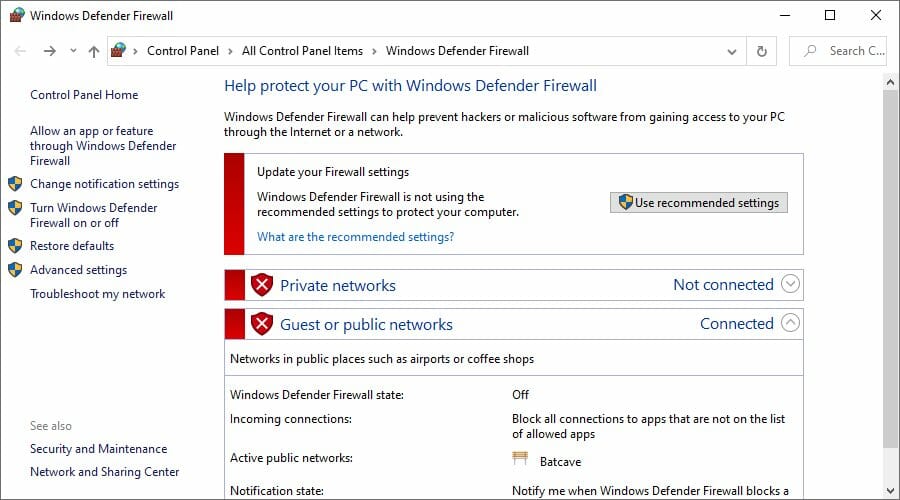
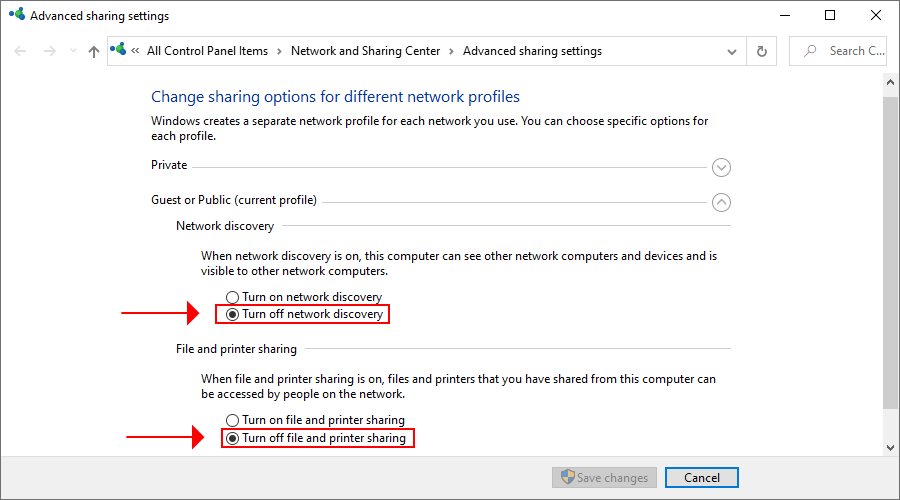



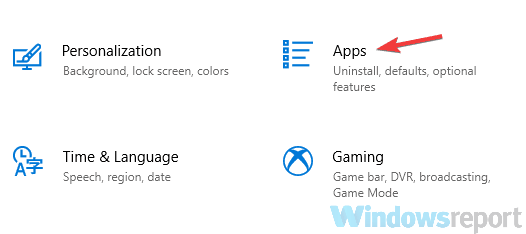
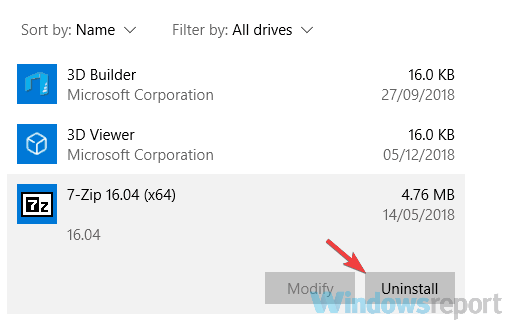

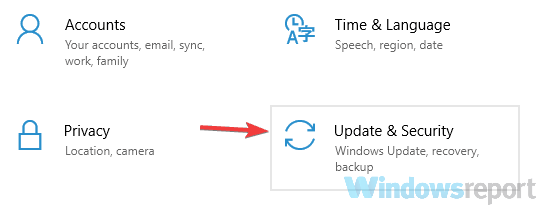
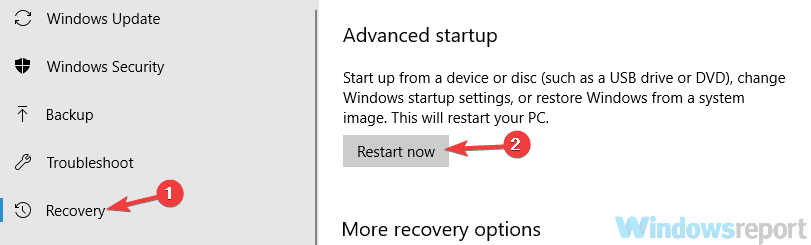
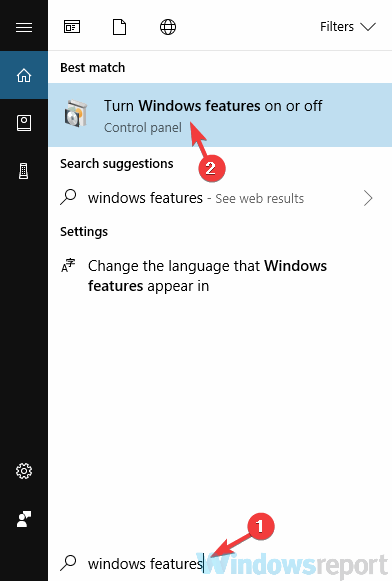
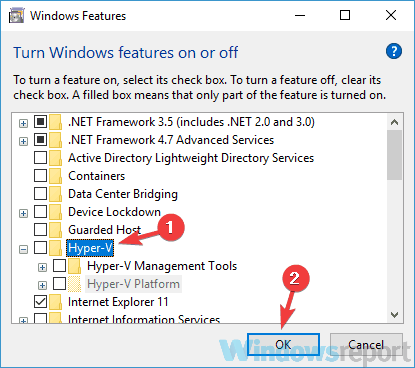

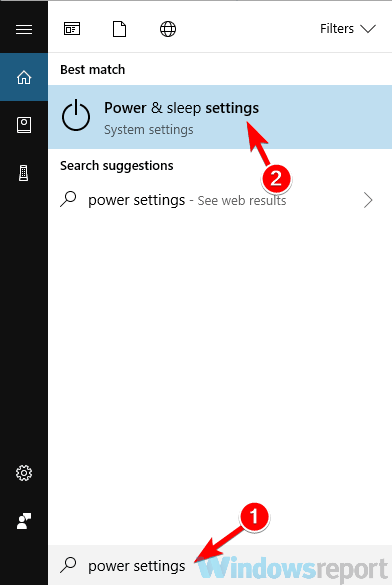
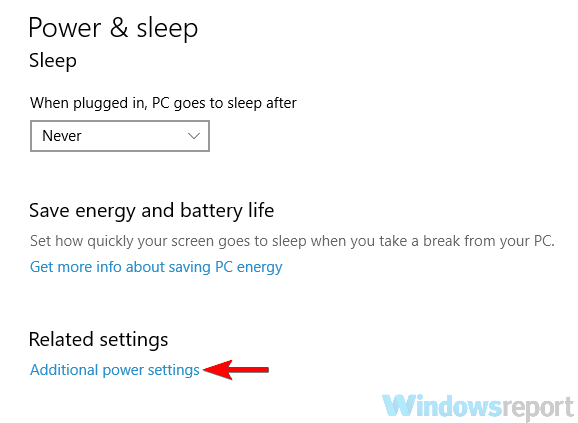
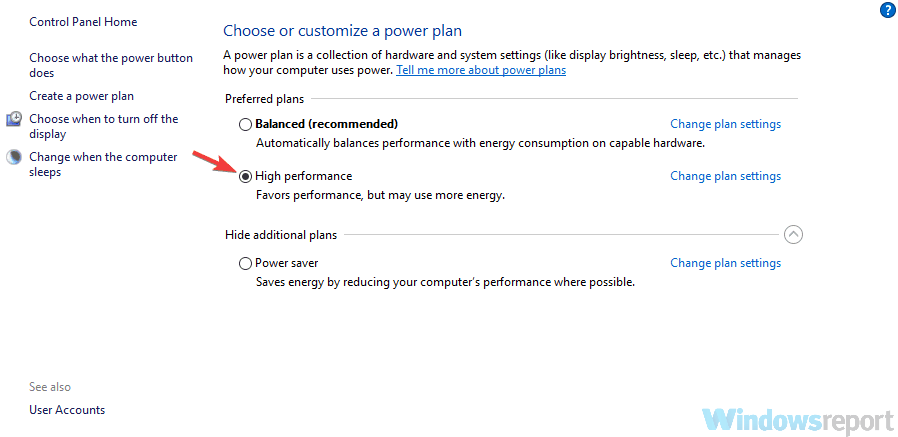
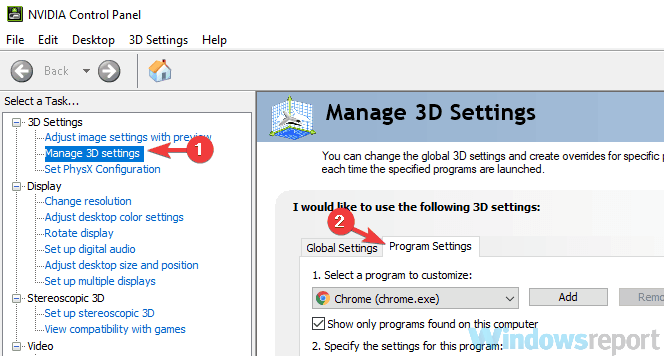


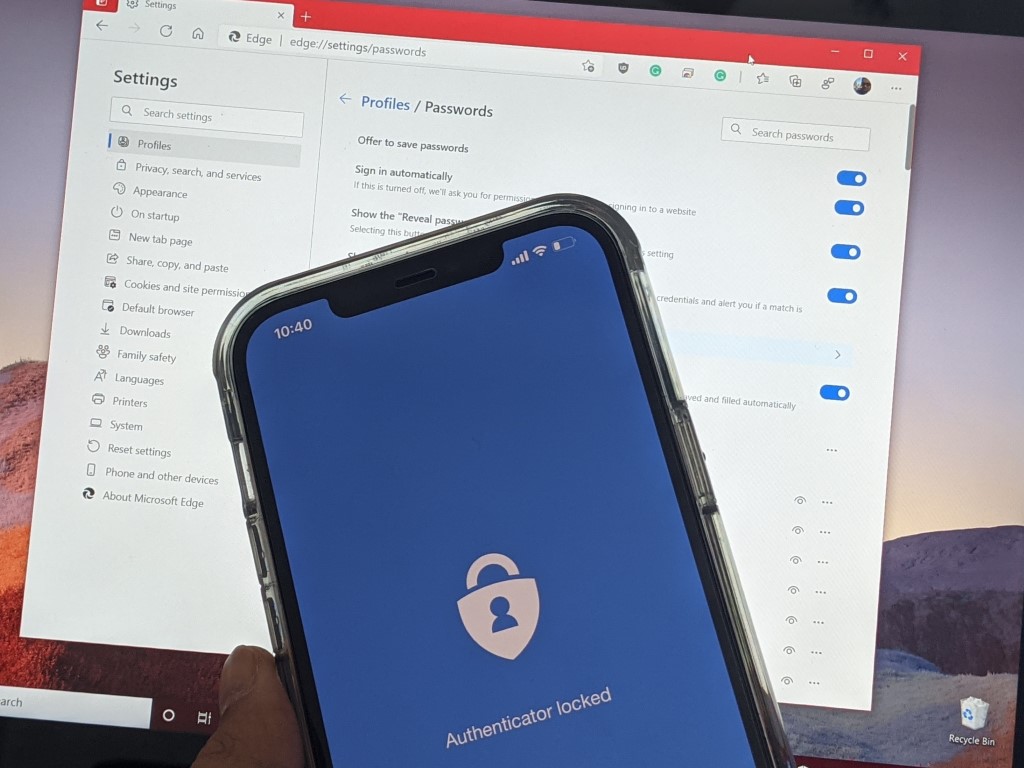


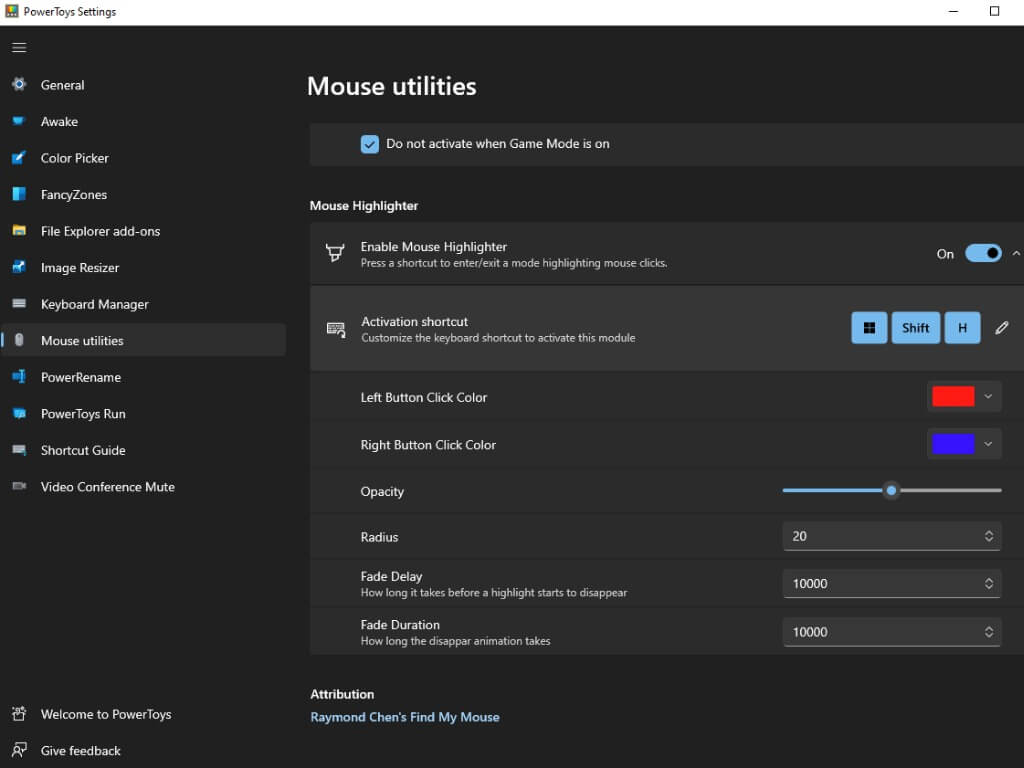








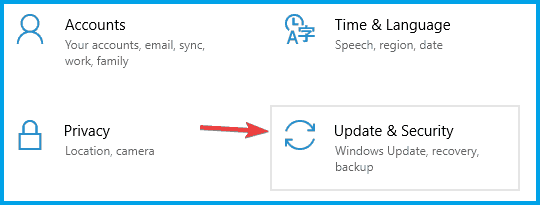


![League of Legends RADS error on Windows 10/11, 7 [FULL FIX]](https://windowsreport.com/wp-content/uploads/2019/04/League-of-Legends-RADS-error.jpg)


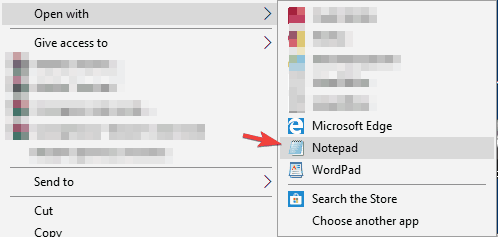


![How to Recover Old Hotmail Emails from Outlook [Answer]](https://windowsreport.com/wp-content/uploads/2018/12/old-hotmail-email-outlook-recover.jpg)