As obsolete versions of Windows no longer receive support from Microsoft, users are forced to upgrade to Windows 10, respectively 11.
There are countless reasons why the latter option is preferred, so many users are treating it as the default anyway.
Of course, migrating to a new OS isn’t all that simple, since you first have to make sure that your hardware can handle it.
While Windows 10 is optimized to run on older systems, it is better to be safe than sorry.
The first thing that may come to mind would be to simply go online and check out what are the minimum system requirements for Windows 10 as well as for Windows 11.
Keep in mind that these slightly change over the years. As hardware gets more affordable and accessible, the prices also fluctuate, therefore newer machines will be equipped with more powerful components.
Since Microsoft said that they’ve decided to continuously update Windows, more features will be added, thus it might affect the system requirements.
How do I use a Windows 10/11 compatibility checker?
To make things easier for you, here is a list of the current system requirements:
While that is indeed a good way to start, there are certain aspects that need to be observed in order to see if your new hardware is fully compatible with Windows 10 or 11 as it was with Windows 7.
Using a Windows 10 compatibility checker is fairly easy and self-explanatory. Microsoft has one, and it is known as the Update Assistant or the Media Creation Tool.
This tool is extremely easy to acquire and use, as you will see from the steps below.
Keep in mind that this is the same set of steps that you need to take when upgrading your PC from Windows 7 to Windows 10.
The only difference here is that you don’t have to go all the way with the process.
How do I check my computer for Windows 10 compatibility?
If you are looking to upgrade your OS to Windows 10, you can use Media Creation Tool from Microsoft. It is compatibility center also known as Update Assistant.
Media Creation Tool can scan your PC and evaluate whether it can run Windows 10, and then it can also help you install it.
2. After the download is finished, launch the program.
3. On the License terms page, select Accept.
4. On the What do you want to do? page, select Upgrade this PC now.
5. If the program detects that your PC is too old to run Windows 10, it will send you a notification, and stop right there. If you don’t get any notification, it means that the system is compatible and that you can upgrade to Windows 10 without worries.
6. Follow the on-screen instructions to upgrade to Windows 10.
Another thing you should remember is that if you want to use the Media Creation tool to upgrade to Windows 10, you will need to also have a Windows 10 license key at your disposal, in order to activate it.
Do you find these methods of checking system compatibility useful? Let us know what other methods you use in the comment section below.
If you want a game that requires almost no effort to play, then you might want to consider trying out clicker games.
These types of games are available on all platforms, but in today’s article we’ll show you how to play clicker games in your web browser, so let’s get started.
What is the best clicker game ever?
That is a subject for a long debate between gamers because there is a clicker game out there for any age and preference.
For instance, for us, one of the best clicker games ever made was Adventure Capitalist. For others, Clicker Heroes or Cookie Clicker are the best.
There are tons of clicker games on different subjects and themes so if you like the genre, you will definitely find the best one for you.
Quick Tip:
Playing games in your web browser is simple and fun, but do you have the right tool for the job? If you’re a gamer, we suggest that you try out Opera GX.
This is the best clicker games browser because it comes with Twitch integration, GX Corner for best game deals, and a built-in VPN with unlimited bandwidth to speed up the website loading time.
Opera GX
Unleash a reign of destruction and mayhem with your mouse in clicker games on this browser!
Click on Start new If you already have an account, choose Log in.
The game should now start.
Clicker games are great if you’re looking for something simple to play, and we hope that you’ll manage to find a perfect clicker game for you after reading this article.
Instagram is a popular social media app for business and non-business folks alik
. Owned by Facebook, Instagram can get addictive without you even realizing it. And if you ever wondered whether you could view your Instagram profile visitors, the answer is both no and yes.
Just like any other social media app, your profiles may get more visits from random users than actual followers you have.
How can I see who viewed my Instagram profile?
That being said, in this article we explore a few ways to show you how to see who views your Instagram profile.
1. See who views your Instagram profile via Stories
You can find out who views your Instagram profile through the Stories feature. If you posted a recent Story in the past 24 hours, all you have to do is click on it and you will see who viewed it.
There is a good chance that the person who viewed your Story also viewed your profile.
1. Open the Instagram app on your phone.
2. Tap on your Profile icon lined up in the bottom left corner.
3. You should see the list of users who have viewed your story/highlights.
4. You can block any user with whom you don’t want to share your stories anymore. Tap the menu button next to the user’s profile and select the Hide Story option.
2. See who views your Instagram profile via Business Accounts
If you are a business or running an official account, you can switch your regular Instagram account to Business Account.
Switching to business accounts allows you to access Instagram analytics to better understand your audience.
From your Instagram profile, tap on Profile.
Select Settings.
Tap on Switch to Business Account/ Professional Account.
Select Whether you are a content creator or a Business.
Once the transition is complete, you can access valuable insights about the users visiting your profile, including the visitor’s location, age, gender, and time of activity.
That said, the insights don’t reveal the names of the users who have visited your profile.
So, switching to a professional account is only useful if you want more insights about your audience and not looking to find the individual users.
Instagram, by default, does not allow users to view who visited their profile due to privacy reasons.
Even if that is the case, you can use the Stories/Highlights section to get a brief idea about who may have visited your profile.
Hearts of Iron IV (HOI4) is a grand strategy game that you can play solo or in multiplayer. Your objective is to pick the military force of any nation engaged in World War II and lead it to victory.
The elaborate game is available for Windows, macOS, and Linux. Regrettably, a lot of users report Hearts of Iron 4 lag in multiplayer mode.
This unfortunate event can hamper the game’s quality and become incredibly stressful for many players out there.
If you’re looking for a simple way to solve the lag issue in Hearts of Iron 4, use a VPN.
The first thoughts you should consider are poor server connection or bad Internet connection. So it’s possible to score high ping levels while playing HOI4 for a number of reasons.
Firstly, the server location of the game is far from your region. That may cause laggy performance and disturb your game sessions.
Another factor is a poor network connection and unstable Wi-Fi signal that can disconnect you and cause much lag or freeze the game.
What are the best VPNs to fix Hearts of Iron 4 lag?
NordVPN is undoubtedly a legitimate leading VPN software that can be used to reduce gaming lag or ping.
You can best use this privacy on your PC in order to improve the game ping difficulties in Hearts of Iron IV. Mainly, you can choose verified servers to connect to many locations and benefit from high-quality gaming.
With double protection support, it’s also possible to change the IP address twice and therefore increase online security.
In addition, there is unrestricted content no matter where you are. You have the SmartPlay feature that lets you see any type of content from around the globe.
How can NordVPN help you with HOI4 lag:
No internet data leaks
Extremely fast servers in 60 countries
Kill switch functionality
Double protection for your IP address
Unrestricted content for games worldwide
NordVPN
Conceive your battle strategies without interruptions or lag using this effective VPN tool.
An alternative way to fix HOI4 late-game lag is by using CyberGhost VPN. A product of Kape Technologies, this VPN service works great when it comes to repairing packet loss on your PC.
CyberGhost VPN is compatible with Windows, Mac, and Linux, so it doesn’t matter where you play the game.
It provides anti-hacker protection and exclusive DNS servers to make your gameplay better by securing your DNS queries.
How can CyberGhost VPN help you with HOI4 multiplayer lag:
You can make use of some workarounds that will boost your gameplay and change your game experience into memorable times with friends.
This is what you can do in order to increase your speed in HOI4 multiplayer:
➡️ Modify graphic options to reduce lag
➡️ Use Map Mods to increase game performance
➡️ Turn off the day/night cycle to reduce lag
➡️ Use a speedy VPN with multiple server locations worldwide
➡️ Remove effects like Fog of War that requires extra resources
To conclude, a fast and secure VPN app can resolve a number of gaming-related issues, including HOI4 lag.
It’s a practical solution when it comes to fixing network congestion and defending your router from hacker attacks.
If you can’t decide between the three options, we suggest going with Private Internet Access, thanks to its superior connection speed and top-of-the-line security features.
Whenever you stumble upon VPN-related errors, visit our VPN Troubleshooting Hub. Plus, you can join our gaming VPN area to find out how to reduce lag and fix packet loss in other games.
The famous Internet Explorer breathed its last on June 15, 2022. Microsoft Edge, which is a Chromium-based browser from Microsoft, was brought about by its successor.
Moreover, being a Chromium browser, you can do everything that you could do on the Google Chrome browser, even run its extensions on the Edge browser as well.
Microsoft Edge also comes with an advanced password manager. It asks its users to save the password when they try to sign in to a website.
Once you save your passwords in the Microsoft Edge password manager, it will automatically fill in the password on that specific website.
Users have the option to either enable or disable the feature at their will. In this guide, we are going to look at the steps that would allow you to enable the password manager and use the functionality in the browser.
Does Microsoft Edge have a password manager?
Microsoft Edge does come with a password manager. It stores all of your entered passwords, if allowed, in this password manager, and they are encrypted on a disk.
The password manager makes use of AES256 encryption and stores the encryption key in the operating system’s storage, which is the local data.
Attackers, even with admin rights or offline access, can get access to locally stored data, but the encryption prevents the attacker from getting the plain text password of the user who isn’t logged in.
On Windows, the storage area is DPAPI
On Mac, the storage area is the Keychain
On Linux, the storage area is Gnome Keyring or KWallet
Irrespective of the storage area used on these platforms, the Microsoft Edge password manager uses AES256 encryption to keep your crucial information protected.
You might have a doubt about why Microsoft Edge encrypts the data locally or stores the data elsewhere. This is because Microsoft Edge isn’t capable of protecting your data from threats that may compromise the entire device.
Quick Tip:
If the built-in browser password manager gives you trouble, you can try a free third-party alternative. We recommend Dashlane for its simple yet secure way to protect all your passwords.
Dashlane brings additional layers of protection by being the industry leader in security. Easily save every password for every site, autofill names, and bank credentials without any fears.
How do I enable the password manager in Microsoft Edge?
1. Using Microsoft Edge
Launch the Microsoft Edge browser.
Click on the 3-dot menu icon.
Select Settings.
From the left side, click on Profiles.
Select the Passwords option on the right side.
Toggle on the Offer to save passwords option.
After you turn on the Offer to save passwords option, Microsoft Edge will offer you to save passwords every time you enter a password for that specific website.
2. Using Registry Editor
Press the Win + R keys to open the Run dialogue.
Type the below command and press Enter. regedit
You can create a Registry backup in case things go south by clicking on the File menu and selecting the Export option.
Now, in the Registry Editor, navigate to the below path. HKEY_LOCAL_MACHINE\SOFTWARE\Policies\Microsoft\Edge
If the Edge key is missing on your PC,
Right-click on the Microsoft key.
Select New > Key.
Rename this key as Edge.
Select the Edge key and right-click on it.
Choose New > DWORD (32 bit) Value.
Name the newly created value as PasswordManagerEnabled.
Double-click on the PasswordManagerEnabled value.
To enable the Microsoft Edge password manager, type the Value data as 1, and to disable it type the Value data as 0.
Press OK.
Restart Microsoft Edge.
This is a much lengthier process to enable the password manager, but it is still one of the ways via which you can do the needful.
Open a website that you aren’t logged or signed into.
Enter your username and password on the website.
A new pop-up message will appear at the top-right asking you if you would like to save the credentials for the future or not.
Click the Save button.
Log in with the entered credentials and your username and password are now saved in the password manager.
Microsoft Edge password manager vs LastPass
Microsoft Edge password manager
LastPass
The Edge password manager can be used from the Microsoft Edge browser on Windows and Mac.
LastPass is available on iOS, Android, Mac, Windows, Android Wear, and Apple Watch. Offers extensions for Google Chrome and Mozilla Firefox.
You need a Microsoft account to sync your passwords.
LastPass requires only a master password to access your passwords.
Microsoft Edge password manager is specifically meant to store passwords.
LastPass lets you keep Digital Records such as passports, driver’s licenses, WiFi Passwords, etc
Microsoft Edge password manager uses AES256 encryption.
LastPass makes use of AES-256 bit encryption with PBKDF2 SHA-256 and salted hashes.
Microsoft Edge password manager does not offer multi-factor authentication.
LastPass comes with multi-factor authentication.
It is clear from the above that the Edge password manager is simply a feature built inside the Microsoft Edge browser that offers its users the opportunity to save passwords so that they don’t have to type them again and again.
On the other hand, LastPass is a dedicated password manager and vault app, that also lets you save your digital records such as passport, driver’s license, Wi-Fi passwords, etc.
You can check out our guide on the best password manager for 2022, which you can use to safeguard your passwords and other data.
Also, if you wish to switch to a different browser, there are a ton available on the market. We have a dedicated guide that will help you choose the best browsers for your Windows PC.
If you are having the error code: STATUS_ACCESS_VIOLATION on Microsoft Edge, go through this article to get all the helpful information and solutions.
The number of browsers that use the Chromium source code is steadily increasing. With Chromium, you have no concerns since you are enjoying all the Chrome pleasures without being limited to the resource-hugging Chrome browser.
However, there is the fear that if a significant flaw was introduced into this source code, it would cause all browsers to become infected at once. And it seems that this is the case with the STATUS ACCESS VIOLATION error on Edge.
When this error appears, you may get the following message:
This page is having a problem.
Error code: STATUS_ACCESS_VIOLATION
Don’t worry. This is not a very critical problem. You can easily get rid of it.
What is this error code Status_access_violation?
The STATUS_ACCESS_VIOLATION is a browser error that usually appears on Chromium-based web browsers like Google Chrome, Microsoft Edge, etc. It happens when your browser tries to access memory with an unspecified program code.
The whole thing can happen due to following reasons:
Third-party extensions which are conflicting with some operations
Incompatible or outdated browser
Corrupted internal files
The good thing is you can easily solve this problem. In the next part of this article, you will find the steps to fix this problem.
Quick Tip:
Though this problem may not be unique to your Microsoft Edge, still, switching to another browser can be a good remedy. Opera One is known for using fewer additional extensions and avoiding incompatibilities.
Moreover, it brings some built-in features that are not found in many browsers, like an ad blocker and unlimited VPN for extra anonymity. Integrated apps like WhatsApp or sidebar access to Twitter and Instagram are a few other features that contribute to a refined experience.
Opera One
A Chromium-based browser with features that will deliver very smooth, errorless web browsing.
How do I fix the error code: Status_Access_Violation on Edge?
1. Rename the Edge executable file
Launch your file explorer and navigate to the following location: C:\Program Files (x86)\Microsoft\Edge\Application
Right-click on msedge and select the Rename icon at the top of the context menu.
Change the name to edge.exe and relaunch Edge.
2. Switch to the beta Edge edition
Microsoft also operates a Beta build in addition to the edition you may be using right now. BETA is mainly intended for testing experimental features; however, it may or may not be affected by problems that the stable release seems to have.
You should try this version before attempting other fixes. To get the beta version of this browser, visit the Microsoft Edge Insider website.
3. Update your browser
Launch your Microsoft Edge browser.
Go to the following location using the Edge address bar: edge://settings/help
Now, it will automatically check for the updates and install any available one.
When using Microsoft Edge, keep in mind that the browser scans for updates in the background at all times. Minor updates are loaded automatically and without prompting, but a significant upgrade, on the other hand, requires a browser restart.
4. Disable your Javascript extensions
Launch your Edge browser.
Click on the extensions icon and go to Manage extensions on Edge.
If you have any extensions that work with Javascript, make sure to toggle them off, then restart the browser.
If removing the extension fixed the problem, you shouldn’t attempt using any of the disabled browser’s alternatives because the issue does not seem to be caused by a specific extension but rather by a JavaScript add-on.
5. Disable your Edge browser renderer code integrity
On your desktop, right-click your Microsoft Edge icon, and from the context menu, select Properties.
Click on the shortcut tab, and under the target field, paste: –disable-features=RendererCodeIntegrity
Apply the changes you made and relaunch your browser from the desktop shortcut.
With that, we’ve come to the end of our guide on how to resolve the STATUS ACCESS VIOLATION error code in Microsoft Edge. We’ve presented five potential approaches that could work to your advantage.
In the normal way, you cannot uninstall Edge. However, there are very technical ways available to do it. Instead of that, we recommend you disable this browser. If you don’t like Edge, you can use other browsers like Opera One instead of fixing problems on it.
This article has featured the best methods to fix the error code: STATUS_ACCESS_VIOLATION on Microsoft Edge.
If none of these fixes work, you should consider using a different browser. The browser market is very saturated, and you will have many worthy alternatives to Microsoft Edge. Our guide on the best browsers should come in handy.
We love to read your comment and learn which of these solutions worked for you.
Windows 10 is a very complex operating system with hundreds of apps and processes running in the background. Some of them came pre-installed, others have been installed by you or whoever uses the PC.
In many cases, Windows keeps its files organized in certain folders. As a result, there is a folder for almost anything, from Windows Updates to Windows Apps.
The WindowsApps folder can be found in C:\Program Files and it contains all the applications and their respective data.
But a lot of users are complaining that this folder has a lot of different versions of the same app that occupy a lot of disk space.
I see a lots of versions of the same app in C:\Program Files\WindowsApps. These are apps that I don’t even have installed. Overall they are taking up about 10GB.
Deleting them through Disk Cleanup had no effect. Also, trying to get rid of them by uninstalling the apps in Windows Settings or in Powershell failed.
How can I get rid of WindowsApps files?
The process of deleting WindowsApps files and folders is quite simple. First, you’ll have to make sure that the administrator account is active or that you have the necessary permissions to delete those files.
The solution recommended by another user is to simply delete them in File Explorer with administrator rights.
The simplest way is to take ownership of the folder. If you don’t know how to do that, we’ve prepared a step-by-step guide that will help you through the process.
After you have administrative privileges, highlight the folders that you want to delete and press the Del key on your keyboard to send them to the Recycle Bin or hold the Shift + Del keys to delete them permanently.
You can repeat the process for all the unnecessary files and folders on your computer.
How to delete the WindowsApps folder
If you are looking to delete all the files in the WindowsApps folder, you can delete the entire folder.
For this, you need administrative rights to make the Delete option visible, and then all you have to do is click on it.
1. Press the Windows + E keys at the same time to open File Explorer.
2. Navigate to the drive that contains the WindowsApps folder.
3. Right click on the folder and select Properties from the options.
4. Access the Security tab and then click on Advanced.
5. Press the Change button.
6. In the menu that opened, type down your admin account’s name or the email associated with it. Afterwards, click on Check Names and press OK.
7. Check the Replace owner on subcontainers and objects box, then click Apply and OK to apply the changes.
7. Go back to the Security tab, in the Advanced section, and click on Change permissions.
8. Press on Add, then click on Select a principal.
9. Type down your account name or its associated email adress once more, then validate the changes by clicking on OK.
10. Go to the Basic permissions section and check the Full control option.
11. Click OK and Apply to save the changes, then close the Properties window.
12. Now you can right click the WindowsApps folder and the Delete option will be visible. Click on it.
Continue with caution. Only delete the files and folders that you’re 100% sure are not used by you or any other user or aren’t necessary for other programs to work properly.
Only proceed with the steps above once you determined it is safe to delete the folder without any repercussions. But what if you can’t? Don’t worry, we got you covered.
Browser security is very important nowadays since there are many malware programs that can infect your computer through a poorly secured browser.
In order to prevent such unpleasant situations, you should use additional tools to enhance your browser’s security level.
There are many reliable antivirus programs for browsers that you can choose from. However, if you prefer a simple solution, you can also install a security extension on your browser.
What is HTTPS Everywhere?
HTTPS Everywhere is an extension that automatically switches the website that you’re visiting from http to the more secure https.
In this manner, the extension protects you against surveillance and account hijacking attempts as well as some censorship.
HTTPS Everywhere encrypts your connection with many major websites, better securing your browsing experience, since there are many encrypted pages that link to unencrypted websites.
The HTTPS Everywhere extension uses special algorithms to rewrite the requests to these sites to HTTPS.
Quick Tip:
The Opera One browser already includes prevention mechanisms and informs you about unsafe pages by comparing the page to a database of known phishing and malware websites.
When you click on the lock in the address bar, Opera One will display the certificate’s issuer, kind of certificate, and if the issuer is publicly recognized and legitimate. Plus, it comes with a native AI.
Opera One
The native ad-blocker and free proxy VPN provide an additional layer of privacy and safety.
What happens when you visit a website using HTTPS?
When you visit an HTTPS website, it will communicate with your browser sending its SSL/TLS certificate for identification.
This is how a HTTPS website certificate looks like
Practically, it shows its passport to validate its authority. The browser verifies the information and acknowledges (or not) the data.
An HTTPS system also encrypts all the data that is transferred between the browser and the website.
This is a measure to protect the exchange of information that this way, it won’t be intercepted by any third parties.
Should I install HTTPS Everywhere?
HTTPS Everywhere is very useful because, as we’ve mentioned above, it automatically transforms any HTTP website into HTTPS.
However, this extension may cause websites to look weird or even break. If a shield button appears in the address bar, this means that Chrome has blocked the insecure portions of the page.
Sometimes, pages will look weird with their insecure portions removed. If this happens, you can disable the extension for that site using the button in the right-hand corner of the address bar.
But this reduces your security and privacy. As you can see in the picture below, HTTPS Everywhere doesn’t display images correctly.
HTTPS Everywhere is the result of joint collaboration between The Tor Project and the Electronic Frontier Foundation, the same NGO that criticized Microsoft’s aggressive upgrade practices and released the Privacy Badger 2.0 extension.
HTTPS Everywhere for Chrome is still a work in progress, but the extension is reliable and stable enough for everyday usage.
So, should you install HTTPS Everywhere? That’s really up to you but we would go anytime with security over graphic details.
However, most browsers nowadays enforce the use of HTTPS so you don’t really need this add-on for them.
HTTPS Everywhere will be deprecated this year because its functions have become redundant.
You can download HTTPS Everywhere from the Google Web Store. You can still use HTTPS Everywhere for Firefox, Opera One, and Safari.
Encountering the Server execution failed error on Google Chrome is quite annoying. Besides some incompatible Windows 10/11 updates that might cause it, the usual suspects are malicious software, PuPs, or something similar.
Chrome, Firefox and starcraft2 will not operate since updating to windows 10. Recieved server execution failed for Chrome also unable to uninstall Chrome to reload.
If you are one of the unlucky users who is currently facing this issue, don’t worry. This article has the solutions you will need.
Why am I getting server execution failed?
It is really hard to tell you what is causing the server execution failed error on your PC without close analysis. However, after doing some research, we have found the followings:
Incompatible version of the Chrome browser
Malware problem
Corrupted registry
Browser misconfiguration
Outdated version of Windows 10 or 11
You may find other reasons as well. But, the main roots of this problem are the things mentioned above.
Fortunately, you can easily get rid of this problem. We have prepared some methods that can quickly solve server execution failed error on Chrome.
The following fixes also deal with these issues as well:
Chrome server execution failed
Server execution failed
Chrome chrome.exe server execution failed
Server execution failed chrome.exe
Server execution failed
Quick Tip:
If this error is unsolvable, switching to another browser could be a viable solution. Opera One has everything Chrome has, but it’s better optimized and has many useful functionalities built in.
Opera One Browser is repellent to threats, thanks to its superior set of features, covering both security and privacy. Opera One comes with built-in Ad Blocker, VPN and AI, you can rest assured that your browsing experience will be faster and more anonymous.
Opera One
Avoid server execution failed errors and enjoy lightning-fast and secure browsing.
We recommend you open your antivirus security utility and run a full PC scan to see whether there are any viruses or suspicious applications in your system.
While the built-in security utility does provide the tools necessary to keep your PC protected at a basic level, dedicated applications are typically able to detect a larger number of threats and block them faster before they get a chance to cause serious problems.
When you pick your antivirus, make sure to look for an up-to-date utility that integrates multi-layered protection. This security method implements more than one type of shield, making sure your PC is protected on all fronts, leaving no weak points.
Another thing to consider is how many resources the AV requires. Thankfully, modern antiviruses are light and able to run in the background even if you have a lower-end PC.
2. Clean your registry
Type regedit in the taskbar and open the Registry Editor.
Expand the HKEY_LOCAL_MACHINE list.
Scroll down to Software and select Google.
Right-click on the Chrome folder and select Delete.
Make sure you do not delete any other key. When the process is complete, try to run Google Chrome again.
If you want to make sure you clean your registry properly and don’t mistakenly delete anything that is to be kept, we recommend you use a dedicated PC cleaner utility.
We recommend CCleaner because it has a dedicated Registry menu that scans your registry and is able to detect every entry that can be removed. It can clean your whole registry or specific folders within it.
After installation, launch CCleaner and then click on the Registry option and select Scan for issues.
After CCleaner has finished scanning, click on Review selected issues. Follow the prompts to enable CCleaner to delete all the leftovers found and fix the Windows registry.
After you finish cleaning, check to see if you are still met with the server execution failed chrome.exe error.
3. Reset web browser
Open Chrome and type the following address in the address bar, and hit enter: chrome://settings
Expand Advanced, click on Reset, clean up, and then Restore settings to their original defaults.
Click on Reset Settings.
This method is ideal if you can open the browser. If you face the server execution failed error before properly opening Chrome; you can ignore it.
On Chrome, click on three vertical dots on the top right corner and Settings.
Go to About Chrome.
Chrome will check for the update and install any available one automatically.
Relaunch Chrome.
5. Run Windows Updates
Press Win + I on the keyboard to open Windows Settings.
Go to Windows Update and then click on Check for updates.
It will automatically install any available updates.
Restart your PC if necessary.
The daily browser and computer usage can lead to common issues like this Server execution failed error on Chrome.
As we’re sure you know by now, it is not very difficult to overcome it, and it can happen to any user. It does not make Chrome any less of a good browser.
Please let us know more about your experience with this error. Which method did you decide to try? Also, for any tips or questions, make sure to comment below.
Discord is a popular online chat room that is used by gamers to communicate with each other. If you have ever used Discord, then you know how important it is to have a good connection. This is because if the network request is not working correctly, then it can cause all sorts of issues.
You are likely to get a message that indicates there was an error in sending data from your computer to the server. The server may have rejected this request for any number of reasons, such as network problems or firewall issues.
Once this happens, your communication is instantly dropped. You may be unable to connect to your friends or receive any messages or notifications at all.
Usually, users are accustomed to experiencing high CPU usage in Discord especially if they have old PCs or running too many programs simultaneously.
Why is Discord saying bad network request?
When Discord is saying a bad network request, you need to check if the problem is only with your PC or if it is also affecting other users. If it’s not working on others’ PCs, too, then your system must have some problem.
Some common reasons include:
Network error – The most common cause of this is that your internet connection isn’t stable, hasn’t been configured correctly or has been interrupted and needs time to recover. Discord has some network requirements, so ensure you have a strong internet connection.
Server problems – Sometimes, the issue is with Discord; their server is not connecting. You can verify from their status page to check if they are having downtime. Usually, Discord will give a timeline when things are likely to revert o normalcy.
Firewall settings – If you’ve recently installed a new antivirus program or updated an existing one, it might have flagged Discord as malware and blocked it from communicating with the server.
Now that you know the common causes, it becomes easier to troubleshoot using the solutions below.
How do I fix a bad network request on Discord?
1. Restart the Discord application
This might seem obvious, but it’s worth trying first. Sometimes, a simple restart is all that’s needed to fix your problem. This will force a new connection to the Discord servers and re-download any files that you’re missing.
If the issue persists after restarting Discord, go ahead and restart your PC. This will reset all of your programs and services to the default settings. It will also clear out any temporary files or corrupted settings that might be causing problems with your connection.
2. Check internet settings
Discord was designed to work with a good internet connection. So, if you’re having trouble with the application, you have to check whether you have enough bandwidth or if there are too many users on the same network.
If so, you need to limit the number of users or change from wireless to wired connection and see whether the error persists.
Make sure your antivirus isn’t killing the connection. Some antivirus software has been known to block certain types of traffic from reaching the Internet (like Discord).
If this is happening to you, try disabling your firewall or whitelisting Discord from being blocked by your antivirus software and see if it makes a difference.
Why is Discord so slow right now?
If you’re getting this error message frequently, you may want to check your internet connection and make sure no other programs are running in the background that could interfere with your computer’s functioning.
Other causes for the slow connection include:
Outdated app version – The first thing to check is that you’re using the latest version. Outdated versions can cause problems with performance and stability. Updates often contain bug fixes that can help reduce lag and increase performance across all areas of your device.
Old OS – If you have an older version of macOS or Windows installed on your computer, it could be slowing down the Discord app.
It’s happened to all of us before. You log in to your computer, click on an icon, and a little box pops up saying that some error has occurred.
The error may come up while playing a game, accessing a website, or trying to read an important email. However, the result will always be the same.
When you run into an error retrieving your data, it feels like your information is lost forever. You may be unsure of what to do next especially if you are unfamiliar with the site.
Users who have reported this issue seem to be from USCIS when they attempt to check the status of their immigration. Granted, the United States Citizenship and Immigration Services is a busy website and it is expected that sometimes things can go wrong.
Why am I getting encountered an unknown error retrieving your data?
Most people who get this message think that their accounts have been compromised but below are some possible reasons:
Your information is unavailable – Sometimes, nothing is wrong with your package, it just means that not all your information is available in the system.
Poor internet connection – One of the most common reasons is that your internet connection is weakened, which could be an issue with your internet connection or with the servers.
Firewall settings – Another cause might be if you have a firewall running on your computer. The firewall keeps you safe by monitoring and stopping unauthorized access to your computer, but it can also interfere with how our website works.
Now that you understand the reasons why you may have encountered an unknown error retrieving your data, below are some possible solutions.
Quick Tip:
Unknown error retrieving your data can also be caused by overlapping cached data or saved cookies. Switching to a browser that optimizes data usage might solve your problem.
Having a built-in ad blocker, Opera One operates with less information by not loading the ads and pop-ups. It also provides an unlimited VPN and a tracker blocker for your privacy, along with a native AI.
Opera One
Browse more and load less to avoid issues with this smart browser.
How do I fix encountered an unknown error retrieving your data?
1. Restart your browser/PC
Try restarting your browser. This will force your computer to re-establish its connection to the internet and close any windows that may have prevented the website from functioning earlier.
If this does not work, try restarting your computer entirely. Try accessing the website again and see if anything has changed.
2. Clear cache and cookies
When you come across an error message that says encountered an unknown error retrieving your data in your internet browser, all you need to do is clear your cookies.
Cookies are small text files that websites use to save information regarding your online preferences and history of where you have been on the website. While they are useful, sometimes they can easily get corrupted.
Hit the Windows button, type Windows Security in the search bar, and click Open.
Click on Firewall & network protection then select Public network.
Locate Microsoft Defender Firewall and toggle the off button.
In some instances, these solutions may not work at all and all you have to do is wait it out. Sometimes, it takes a bit of time for the website to consolidate your data and make it available to you.
If you feel that you have waited for a significant amount of time, you can try reaching out to USCIS. You can do so by submitting a case and selecting the type of feedback you’d like.
Hopefully, you now have a better understanding moving forward of what to do if you ever encounter this error.
You may also find the need to use VPNs on most of these sites so we suggest taking a look at some of our recommendations. We also have a new guide on Error updating the NVD data message, so feel free to visit it.
Feel free to share any other tips that have worked for you in the past down below.
Don’t know what to play on Game Pass? With so many games to choose from (literally hundreds) across just about every genre out there, it can be hard to know where to start. Thankfully, we’ve got you covered with these Game Pass recommendations for kids (and kids at heart). These are some of the best games on Game Pass that are not only suitable for kids, but games that they will love. Let’s dive into them.
Ben 10: Power Trip
Fans of the animated television series will get a blast out of Ben 10: Power Trip from Outright Games. The visual style and humor from the Cartoon Network show is intact here, and the game offers plenty of combat, puzzles and exploration—all playable cooperatively with a friend via local split screen. And there are 12 alien forms the player can transform into.
In this action-roleplaying game from the video game mavens at Double Fine Productions (responsible for such classics as Psychonauts and Broken Age), players take control of Wren and Reynold. These twins are on a quest to stop the evil Dr. Orel white from destroying Halloween forever, and to do it they will need to collect candy and special ability-bestowing costumes along the way in this sequel to the 2010 original Costume quest.
If you don’t know, this game is based on the long-running British animated TV show Peppa Pig. In the game, you get to create your own character and create your own story…with the help of your new friend Peppa Pig, of course. And all your other favorite characters from the show will be there too to make every playtime a new experience. Splash muddy puddles, help Daddy Pig find his glasses, follow the animal tracks in the forest, and more in this exciting adventure.
In this platforming adventure you play as a pair of Yarnys. What is a Yarnys, you ask? A Yarny is a small creature made of yarn. This follow-up to the original Unravel throws a whole new dynamic into the mix by putting you in control of two Yarnys on a simple but poignant quest to chase their spark. Unravel two was the winner of “Family Game of the Year” at the 2019 D.I.C.E. Awards.
So what do you think of our selections for best kids’ games on Xbox Game Pass? We hope this post helps you discover a new favorite. If you don’t already subscribe to Game Pass, you can sign up here. Learn more over on the Xbox Game Pass FAQ page. And don’t forget to check out our other “What to play on Game Pass” posts for other Game Pass recommendations.
Avast is great antivirus software, so it’s no wonder that many prefer it. However, the application has its share of issues as well.
Many users reported Unreputable browser add-ons detected errors in Avast, and today we will show you how to fix this problem.
Why am I getting Unreputable browser add-ons detected message?
As the message suggests, the reason for this error is that Avast has detected one or more problematic add-ons.
So, if you installed an add-on for your browser from an unreliable source, the antivirus identified something wrong with it.
What is the Avast browser extension?
Its complete name is Avast Online Security & Privacy and it’s a free browser add-on or extension that protects your browser.
The software can detect malicious and phishing websites; it also prevents potential intruders from accessing your data and checks your other add-ons.
If you installed this extension, there is even more reason to believe that it’s the source of this message.
Quick Tip:
In some instances, your web browser can be the cause of this problem, so you might want to replace it. Opera One is a great alternative that will automatically block ads and tracking cookies.
The browser is similar to Chrome, and since they share the same engine, Chrome extensions will work with Opera. The browser is also lightweight, and it can handle all types of multimedia with ease.
Regarding security, there’s a built-in VPN with unlimited bandwidth that should give you an extra layer of protection. Plus, this browser is smart since it comes with it’s own AI, be sure to give Opera One a try.
Opera One
Getting the Unreputable browser add-ons detected an error in Avast? Then, it’s time to start using Opera One!
How can I fix the Unreputable browser add-ons detected error?
1. Check the Avast log file
Check the following locations on your drive: C:\ProgramData\AVAST Software\Avast\report or C:\Program Files\AVAST Software\Avast\x64\DATAlog
Open the log file and try to find the problematic add-on.
Many of our readers reported that they couldn’t find anything useful in the log file. If that’s the case, move on to the next solution.
2. Disable problematic add-ons/extensions
Open your browser and check the Extensions menu. For instance, in Chrome, click the three vertical dots from the top-right corner, select More tools and then choose Extensions.
Locate the problematic extensions and remove or disable them.
We have shown you how to do that in Chrome, but the process is very similar in all the other browsers you may use.
After doing that, check if the problem is still there.
Usually, the Avast unreputable browser add-ons detected happens on Chrome and Firefox extensions.
If the issue is still there, you might want to remove the extensions and check if that solves the problem.
3. Disable the Browser Cleanup feature
Open Avast.
Navigate to Settings, select General and click on Troubleshooting.
Disable the Browser Cleanup feature.
Bear in mind that this solution will disable browser scanning altogether, but it won’t fix the core problem. Use this solution only if you’re certain that you don’t have any problematic add-ons installed.
The Avast Secure Browser is certainly not a virus, it is a browser developed by Avast to create a secure environment for banking and online transactions.
It’s a lot safer and faster than other browsers and comes with advanced protection against phishing, fingerprinting, and more.
The PlayStation 4 (PS4) is one of the world’s foremost game consoles. However, it still has a few error codes, such as SU-30746-0.
The PS4 system software update error SU-30746-0 (or system update loop) arises for some players when they turn on their PlayStation 4 consoles.
Instead of starting up, the PS4 displays this error message:
An error has occurred. SU-30746-0
Read on to find out how to resolve this issue once and for all.
What does the system software update error on PS4 mean?
Don’t panic; you don’t have to throw your console in the trash and purchase a new one. All errors have fixes that will restore console functionality.
Know that the System software update has failed (SU-30746-0 PS4 error code) can appear when your PS4 console has been unable to install the latest firmware update.
How do I fix the system software update error on PS4?
1. Update your system software
Use Safe Mode
Power off your PS4 if it’s on.
Next, press and hold the power button until you’ve heard a couple of beeps.
Back up your saved PlayStation game data to a USB device or cloud storage.
Save the system software for PlayStation 4 to a USB drive as outlined for resolution two.
Insert the USB drive that includes the system software for the PS4 into the console.
Start the PlayStation 4 in Safe Mode as outlined for the fixes above.
Select the Initialize PS4 (Reinstall System Software) option on the Safe Mode menu.
Then select OK to confirm.
How do I force update my PS4?
To force update your PlayStation 4 console, please refer to solution 1 in this guide and use Safe Mode.
That is the only way a forced update can be applied to your Sony gaming console, just in case you didn’t already know.
There you go. Now, you will be much better prepared for the next time your PS4 system software update results in an error and it’s frozen.
Throughout time, users have reported dealing with the following error codes:
System software update ps4 error SU-42118-6
PS4 system software update error SU-30746-0
PS4 system software update error SU-42481-9
PS4 system software update error SU-42477-4
PS4 system software update error CE-36329-3
PS4 system software update error CE-43461-8
We also covered SU-41350-3 error in one of our newer guides, so don’t miss it for more solutions.
Those are some of the best fixes for error SU-30746-0. If you still need other fixes, you can discuss the issue further with live chat on the PlayStation 4’s support website.
Some Internet Explorer and Edge users have encountered an error message that states: There is a problem connecting securely to this website. The security certificate presented by this website is not secure.
This invalid certificate issue can occur in any browser, albeit the error messages aren’t always the same. In this case, the error blocks you from opening the web page.
This can be very frustrating, but we have provided the best solutions in this article.
The issue occurs with several other programs as well, as shown below:
There is a problem connecting securely to this website (no option to continue) – This issue usually occurs if your clock isn’t set correctly.
There is a problem connecting securely to this website (Chrome, IE11, Edge) – The cause is usually your antivirus. Disable your antivirus or switch to a different browser to fix the issue.
There is a problem connecting securely to this website (Facebook, YouTube, Outlook, PayPal, Netflix, Wikipedia) – Sometimes, you might not be able to access a specific website due to this error. Add the website to the Trusted Websites section to fix that and check if that solves your problem.
The security certificate presented by this website was issued for a different website’s address – This problem arises when the domain name in the SSL certificate doesn’t correspond to the address in the browser’s address bar.
An application is preventing Microsoft Edge from safely connecting to this site Fortinet – This is another iteration of the same problem, but this time, peculiar to Fortinet.
The host name in the website security certificate differs – This may happen if the certificate you choose has an issue, but you have set up an IIS Site Binding to utilize HTTPS.
Below, we detail each of the solutions mentioned above, so you might want to go directly to the one that applies to your situation.
How can I fix There is problem connecting securely to this website?
1. Try an alternative browser
There is a problem connecting securely to this website message can sometimes be related to your browser, and if you want to fix it, it’s advised that you temporarily switch to a different browser.
If the issue doesn’t pop up, you should permanently switch to the other browser for the time being. On this note, we recommend trying OperaOne as your default browser.
Downloading Opera One takes only a couple of minutes, and settings it up is extremely easy. Besides, you can switch from your default browser to Opera One in only a few steps.
Namely, after downloading it, you can find a Synchronization option in the Settings area that allows you to import bookmarks, pages, and other data from your default browser.
Furthermore, you can customize the browser by adding icons, sidebars, workspaces, and bookmarks for easy access and a better-organized workflow. Unique features also include workspaces, tab islands and a built-in AI.
We should mention that Opera One comes with an integrated VPN to keep your online activity private. Since IP restrictions might cause the mentioned error, the VPN will hide your location, preventing the error message from appearing.
Opera One
Try this highly customizable browser today and enjoy an error-free browsing experience.
In some cases, the mentioned error appears due to your antivirus. Certain security settings can interfere with your system and cause this issue to appear, but you can fix that by disabling certain antivirus features.
We only advise that you do this temporarily until the problem is fixed. Or, better yet, use an antivirus that does not interfere with other programs.
3. Check your date and time
Right-click the clock icon on your Taskbar, and select Adjust date/time from the menu.
Disable the Set time automatically option. After a couple of moments, turn this option back on again.
Check if you can now access the web resource.
This will resynchronize your time and date. Once your date and time are set, the issue should be resolved.
This process is relatively simple, and you just need to disconnect your PC from the power outlet, open the computer case, and carefully remove the battery from your motherboard.
Once you remove the battery, replace it with a new one, and the problem should be resolved.
4. Add the website to Trusted Websites
Press Windows Key + S and enter internet options. Select Internet Options from the list of results.
Navigate to Security, choose the Trusted sitescategory, then click the Sites button.
Enter the URL in the Add this website to the zone section and click the Add button.
Once you add the website to the trusted list, save changes.
After you add the desired website to the Trusted Website zone, verify that the error message there is a problem connecting securely to this website is cleared.
Be sure to add only websites that you truly trust and not some random websites that you’re visiting for the first time.
5. Clear the SSL Cache
Press Windows Key + S and enter internet options. Select Internet Options from the list of results.
Now select the Content tab and click the Clear SLL slate button on that tab.
Verify that the error message there is a problem connecting securely to this website is cleared.
Clearing the SSL cache should erase corrupted certificate data and allow you to access the desired website.
6. Remove OpenDNS
Open the Control Panel.
Click on View network status and tasks.
Select Change adapter settings from the left pane.
Right-click on your adapter and select Properties.
Click on Internet Protocol Version 4 (TCP/IPv4) and select the Properties button.
Delete the listed DNS server address numbers and select the Obtain DNS server address automatically option.
Press the OK button to confirm the new settings.
Since you’ve effectively erased the OpenDNS server addresses, previously blocked sites might open.
This fix is applied mainly when browsing on corporate networks. OpenDNS is a service that enhances the Domain Name System on many corporate networks and blocks more legitimate websites.
You must first get an SSL certificate to remove the not secure warning from your website.
Several providers offer these certificates, including Namecheap, Bluehost, GoDaddy, etc. When someone uses a search engine, an SSL certificate you purchase and install will vouch for the security of your website.
You may buy certificates, like an OV (Organization Validated) SSL certificate, that show your visitors that the website and other material are trustworthy.
What are shared worlds? To quote the developer forum, “Shared Worlds are stored in the cloud and you can share them with any of your friends so they can host that world while you are not online.”
Users can own up to three shared worlds at a time.
Users can have 50 worlds shared with them at a time.
Any standard world can be converted to a shared world through the save/load menu.
Also, shared worlds can be copied to play as a standard world.
Only one person can host a shared world at a time.
Shared worlds are useful in that players can use them to share game saves with friends. And if you happen to own both a Steam copy and Xbox or Windows copy, you can use shared worlds to play the same game save across platforms. And there are other use cases for shared worlds as well.
Note that the shared worlds feature is currently in beta testing right now, and there are still bugs to be fixed before it gets a full public release. Grounded is available on Xbox Game Pass in Game Preview form, and will see a full release on September 27.
As the name implies, smooth scrolling is a recently introduced enhancing feature designed to improve scrolling on the best web browsers. This feature has been adopted by Mozilla Firefox, Google Chrome, Internet Explorer, Edge, and Opera One, among others.
This feature allows you to navigate a page smoothly, regardless of size. While it is now a basic feature on most browsers, many still find it difficult to use/enable.
This guide will show you how to enable the smooth scrolling feature on Windows 10 & 11 for some of the major browsers.
Why is my computer not scrolling smoothly?
As the name implies, the smooth scrolling feature on major Windows 10 and 11 browsers makes scrolling smoother. This feature makes it smoother and more coordinated, unlike the usual scrolling that feels choppy and stops abruptly.
With it enabled, it is easier to navigate pages of different sizes. Also, smooth scrolling on browsers like Chrome and Firefox eliminates stuttering scrolling. So, enabling the feature has many advantages.
Now that you’ve installed the extension, enjoy a better way of navigating your websites.
Speaking of customization, Opera One’s extensions can transform the browser entirely, allowing you to specialize it in whatever direction you want: streaming, gaming, writing in WordPress, etc.
It is an excellent browser to use if you want something modern and efficient.
2. Enable Smooth Scrolling on Microsoft Edge
Open the Run dialog box by pressing the Windows key + R.
In the dialog box, type systempropertiesadvanced and press Enter.
In the list of options, click on the Advanced tab.
Under Performance, click on the Settings… button.
Locate and check the Smooth-scroll list boxes.
Select Apply followed by the OK button.
Click OK again in the confirmation prompt to finish the process.
This is the simple way to enable smooth scrolling on Edge for Windows 10 and 11.
3. Enable Smooth Scrolling on Mozilla Firefox
Launch Firefox.
Type about:preference in the address bar and hit Enter.
Scroll down to the Browsing section and check the box for Use smooth scrolling.
After enabling the feature, you can try and reconfigure the browser’s settings to optimize the smooth scrolling function further.
To do this, go through the step-by-step guidelines below:
Type about:config in the Firefox address bar, and press Enter.
Click the Accept the Risk and Continue button when prompted.
Search for general.smoothScroll.currentVelocityWeighting in the search box.
Double-click on the entry from the results list, and set its value to 0.
Search for general.smoothScroll.mouseWheel.durationMaxMS and set it to 250.
Search for genral.smoothScroll.stopDecelerationWeighting and set it to true.
Lastly, search for mousewheel.min_line_scroll_amount and set it to 28.
Open your Chrome browser and input about:flags or chrome://flags in the address bar, and press Enter.
Type Smooth Scrolling in the search box.
Click the dropdown before Smooth Scrolling and select Enabled.
Now, click the Relaunch button to restart your browser.
Once this is done, you can enjoy an optimized, Smooth scrolling experience on your PC.
Should I enable smooth scrolling?
The advantages of the smooth scrolling feature on the major Windows 10 & 11 browsers are numerous. It also helps to eliminate some scrolling-related issues on your browser.
However, it is not without downsides. With the feature enabled, scrolling feels a bit slower but smoother. But on the balance of things, the pros outweigh the cons.
The smooth scrolling feature on Windows PCs improves user experience considerably. We have shown how to enable the feature on four of the most popular browsers available. So, you have all you need to use it.
Windows 11 has an option to use either dark or light mode on any application. Microsoft has a similar tool available for called the Rendering tool on Edge. The Rendering tool can “emulate dark or light schemes in the rendered page” allowing you to see what a website would look like
So, if you want an option to enable dark or light mode without using an Edge extension like Dark Reader, you can use the Rendering tool on Edge instead.
It is important to note that the Rendering tool on Edge is a web development tool meant to be used by web developers to see what a webpage looks like in different display options or for people with vision deficiencies, such as color blindness.
Developer tools in any browser are for testing only, so it is not possible to save any changes you make in this tool. You can only make changes and save the changes in your code only.
Enable Developer tools
Similar to the Rendering tab on Chrome, you can use the Rendering tool on Edge to see what a website looks like displayed in different color options.
Chris Heilmann, Principal Program Manager for Browser Tools at Microsoft, offered some helpful advice on how to force dark mode for websites where dark mode isn’t an available option.
If you have a web site that doesn't offer a dark mode, you can use the Rendering tool of Chromium based browsers (Chrome, Edge, Brave…) to force a dark mode. pic.twitter.com/Ou6CgzQK5X
1. Right-click on any website using your mouse and left-click Inspect. This option actually takes you to the “Elements” tab under Developer tools (DevTools), but you can always click the “Rendering” tab from there.
2. Go to the three-dot Edge Settings in upper right of an open Edge window. Click More tools > Developer tools.
3. Use the Ctrl + Shift + I keyboard shortcut.
4. Press F12 on your keyboard. You can always turn this keyboard shortcut off later in Edge settings.
Access Rendering tool on Edge
Now that DevTools is open in Edge, you should be greeted by the “Welcome” tab.
The next step is to open the Rendering tab. Here’s what you need to do.
1. Click the DevTools three-dot menu in the upper right.
2. Click More tools > Rendering.
3. Scroll until you find Enable automatic dark mode. Click the checkbox to enable automatic dark mode which sets the prefers-color-scheme to dark.
The change to automatic dark mode is instantaneous, so no need to refresh the webpage for the changes to take effect.
Microsoft recently released a new Edge Dev build, upping it to 106.0.1349.1. The build features the usual round of improvements, but also comes with three new features.
First up is a new capability that will allow users to filter history by date allowing you to easily trace back your steps. What’s more, users will also be able to nickname passwords for easy identification. And finally, there are also new policies from upstream and corresponding downstream changes. You can also check below for the reliability improvements and more.
Improved reliability:
Disabled pinning options in the menu for a specific website, if the website is already pinned to the taskbar
Improved smart history searches (e.g.: “videos from last week”)
Improved camera feature for websites on Android
Changed behavior:
Fixed an issue where certain address bar instant answers were unnecessarily truncated
Fixed Narrator announcements in Settings
Fixed various crashes
Updated a Policy, so when signed into Microsoft Edge with a work or school account (AAD), feedback is associated with account and organization
Fixed an issue where feedback cannot be sent from within the side pane
Fixed an error when attempting to generate a QR code on Android
Fixed a crash when changing profiles on iOS
This isn’t the only Edge news this week, Microsoft Edge Canary on Windows 11 and Windows 10 recently got a consistent dark mode for both Edge and window frame context menus. Microsoft Edge 105 also shipped to the Beta Channel.
The browser industry is a very competitive one. Aside from the well-known browsers for all devices, like Opera One, Chrome, and Firefox, there are still many excellent browsers.
In the heat of the competition, some browsers could not be continued. Among the many excellent browsers that were discontinued is the Flock browser.
This browser was well-known for its unique features and overall performance. Despite its unavailability, some users still want to know how it works.
This guide will take a closer look into how the Flock browser works, what makes it unique, and every other vital information about it.
What is the Flock Browser app used for?
Flock browser was first released in 2005, bringing many Web 2.0 features to the user interface.
The early versions were based on the Gecko rendering engine. But in 2011, the browser switched to the WebKit engine.
The browser was popular because it had a social media integration. With this, you could easily keep track of social networks or your webmail at any time.
Additional features included native sharing of content, the ability to preview online videos, a built-in RSS reader, a built-in blog editor and reader, and synchronization with web-based email.
The browser was available on all desktop platforms but was discontinued in 2011.
Who founded Flock?
The Flock browser was co-founded by Bart Decrem and Geoffry Arone in 2005. The browser was built on the Mozilla Firefox architecture focusing on social media and network integration.
Also, the founders hoped that Flock would improve the user experience. Hence, it packed many unique features.
Quick Tip:
Although the Flock browser was great due to its social media integration, other browsers, such as Opera One, can provide the same functionality.
Opera One has Instagram integration, allowing you to browse your feed and send messages while browsing other websites. It also features integrated messaging apps and a native AI.
Opera One
Get instant social media integration but with the added security layers of a VPN, thanks to Opera One’s clever build.
Immediately you download and install the Flock browser as a new user, it opens a page to log in and activate your favorite social media accounts.
If you have been using Flock for some time, you only need to close and reopen the browser, it will display the page. From here, you can log in and manage your social media accounts.
Is Flock Safe to use?
When it was active, the Flock Browser was very safe to use. It packed some excellent security features that protect users online.
However, with the ever-evolving internet and hackers finding new ways to attack, the same cannot be said about the browser since it was discontinued. This is because it is no more receiving security updates.
So you will be better off trying an alternative browser.
Is Flock Expensive?
The Flock browser is a free browser that costs absolutely nothing. Although it is no more available via official sources, you can still get the Flock browser apk and installer from third-party sites for Mac and Windows 10 PC.
How do you delete a Flock chat?
To delete your social media chats on the Flock Browser, you only need to follow the steps you use for the app’s web version. Flock does not have any special for the apps.
Instead, it only makes it easier to access and manage them.
The flock Browser was excellent in its time. But now, you might need to consider other frequently updated browsers with similar features for security reasons.
There is no doubt about it, Vivaldi is one of the best customizable browsers. Vivaldi themes offer many flexible customization options, along with many powerful features, and the browser has become even more versatile with the latest updates.
You can use the theme scheduling feature to make your browser change your favorite themes according to your needs.
Theme scheduling is exactly what it sounds like. It allows you to choose a few themes for your browser, which will automatically change when you’ve set them.
Joining our myriad of features and functionality, theme scheduling gives you the power to set your favorite theme to your preferred time as no other browser has ever done. After enabling a theme in the Settings, you can set its scheduling.
You can switch a theme whenever you want to match your current mood or time of the day.
So, for example, while you’re at work, you can set a bright theme or choose a dark theme when browsing the internet at home, with lights off.
Quick Tip:
Vivaldi browser has a lot of users who deem it better than Chrome or Firefox due to its great UI design and low resource usage.
However, what if we told you there’s a browser with a variety of customization options that’s also safer and tends to your privacy more than any other browser?
We’re talking about Opera One, of course. But this isn’t your regular, standard version of Opera One browser.
We are suggesting the gaming edition called Opera GX. While even the classic Opera One has personalization options, Opera GX takes things to the next level.
Yes, you can change your colors, wallpaper, and themes. Yes, you can even add multiple wallpapers at the same time. But you can also adjust things like transition animation and sound effects!
Opera
Ultimate control of your PC resources and the look and feel of your browser with Opera GX
How do I set up theme scheduling in the Vivaldi browser?
Open the browser, and go to Settings (a small gear icon in the lower-left part of the window).
Go to the Themes tab.
Scroll down to the THEME SCHEDULE section.
Tick the radio for the Manual Schedule.
Click the Add button.
Select two or more themes to schedule and move the timer as necessary.
There you go. Once you schedule your themes, the browser will automatically switch from one to another when the time comes.
You can choose between themes like Light, Subtle, Redmond, Dark, Human, Olive, and more. So basically, there’s a theme for everyone’s taste.
Where are Vivaldi themes stored?
The background images on Vivaldi are stored in the application. The steps to get to them depends on your operating system.
If you download any theme, it will be stored in Chrome storage in the browser folder. However, if you are wondering how to move them, there is no official way to do it. But you can use developer tools to do it.
Steam users report the Error joining multiplayer session message when trying to play certain games, such as Sid Meier’s Civilization V (Civ 5), Sid Meier’s Civilization VI (Civ 6), and Grand Theft Auto V (GTA 5).
If you’re one of these unfortunate gamers, here’s what you need to do to get rid of this error message.
Quick Tip:
Errors while joining a game can also be created by online browsing. We recommend using a browser that can limit the network usage so you encounter no such issues in your multiplayer experience.
In Opera GX not only you can limit network consumption of the browser, but you can also limit CPU and RAM usage. These features and more others serve only one purpose, to create an enticing gaming experience
Opera GX
Leave joining errors in the past with a new engaging gaming browser.
How can I fix the multiplayer session error in Steam?
1. Repair .NET Framework
Download the Microsoft .NET Framework repair tool, from the Microsoft Store.
Select the NetFXRepairTool.exe and download it
Open the downloaded file and follow the instructions on the screen (you need admin rights)
Once this is done, restart your computer
Launch Steam, your game, and try to join a multiplayer session
Some Steam games require .NET Framework to work properly. If you don’t have this software package installed, it could be the reason why you can’t join online sessions with other gamers on Steam.
However, the Microsoft .NET Framework repair tool should solve any problems related to this dependency, including missing libraries, failure to launch, or an outdated version.
2. Remove the Steam and game cache
Using your file explorer, visit the following address:
C:UsersYOURUSERAppDataLocal
Replace YOURUSER with your PC username
Select and delete the Steam folder
Also, select and delete your game folder in this location
Clearing Steam and game cache is a good way to fix multiplayer issues. If you know the other players, get in touch with them and ask them to do the same on their devices.
3. Use a premium VPN solution
If you want to use a VPN to not only avoid Steam multiplayer issues but also improve your ping by connecting to VPN servers closer to the host, consider investing in a premium VPN service.
The best VPNs for Windows 10 are services that have a large number of servers across the whole world.
This means that they are able to cover any type of connection and let you connect to your game with no issues, regardless of where you are.
Some VPNs have specific gaming features that help you connect to the best possible service for the game you are playing.
You can manually connect as well if there is a server you prefer, but the VPNs are able to detect the best configuration for you.
Just make sure to get a VPN with a strong privacy policy and additional secure network features such as a killswitch.
4. Disable your free VPN service
If you’re using a free VPN while playing on Steam, it could be the reason why you’re experiencing an error when trying to join multiplayer sessions: your IP address changed.
VPN servers might occasionally go down at random or become unreliable, causing you to get kicked out of your game or experience data loss.
It is difficult to tell how well a VPN paid service performs when it comes to gaming until you join up and try it for yourself, most of the providers offer money-back guarantee options or trials.
So, because it’s a free VPN service, you may experience data tracking from whoever controls the VPN and has the ability to see what you’re doing.
You can resolve this problem by turning off your free VPN before firing up Steam, and for good. It doesn’t seem healthy for your activity and private data to use a free VPN service nonetheless.
5. Deny folder permission
Go to Documents > My Games folder
Select any folders that resemble: packageddumps, moduserdat, logs, dumpgs
Right-click each folder and select Properties
Go to the Security tab and select your group of usernames
Click the Edit button
Select the first group or username and check the Deny box
Repeat the previous step for other user groups
Save changes
Restart your Steam games
The instructions above prevent Steam from creating game cache files in those folders, in order to fix the error when you’re trying to join multiplayer sessions.
To recap, if you’re encountering a Steam error message when trying to join your online friends in a multiplayer session, make sure to repair .NET Framework, remove the Steam and game cache, as well as manage permissions for cache folders.
You should also disable any free VPN you’re using. Instead, we recommend opting for a premium VPN service like Private Internet Access.
Our Steam area is dedicated to more awesome guides about this gaming platform, and you can also join our VPN Hub to find out how a VPN can make your digital life better!
You have received the Verify integrity of game files not working message. Let us walk you through all you should know. Steam is a popular online platform where users can play, create, and discuss games. Sometimes you may encounter errors when playing certain Steam games, such as random crashing.
This guide will show you how simple it is to follow a series of steps and solve the situation quickly. When this error occurs, some users see purple checkerboards; often, the weapon or the world models are missing, and sometimes they experience crashes when the game is loading.
If you are no stranger to this issue, don’t hesitate to apply the solutions we will suggest in this article.
Why won’t Steam verify the integrity of game files?
There could be several reasons why Steam needs to verify the integrity of game files. Here are some possible explanations:
Outdated game files – If Steam detects that the game files are not up-to-date, it will not verify the integrity of the files.
Game files in wrong directory – If the game files are not located in the correct directory, Steam may be unable to find them and, therefore, cannot verify their integrity.
Technical issues – Sometimes, Steam may experience technical problems that prevent it from verifying the integrity of game files.
PC requirements – If your computer does not meet the minimum requirements for the game, Steam may encounter this problem.
Corrupted game files – In some cases, the game files may be so corrupted that Steam cannot repair them.
Quick Tip:
Opera GX is a web browser outside the Steam desktop app. However, since Steam’s built-in browser works in the Steam overlay, Opera GX is easier to access and use its perks while playing.
In-game purchases and market functions, game invites through integrated Discord will perform better outside of the Steam client using Opera GX, as it will not get overloaded with cached files.
Opera GX
Avoid cache overload in the Steam client; use Opera GX for other actions you need to perform.
What can I do if verifying the integrity of game files is not working?
1. Clear download cache
Open Steam and select Run as administrator.
Next, click Steam at the top of the window to expand the menu.
Select Settings.
Click Downloads on the left of the Settings window.
Then, press the Clear Download Cache button.
A confirmation window will open, so don’t hesitate to click OK.
Select OK on the Settings window as well.
Restart Steam to keep the changes.
This is an easy way to restore functionality when you receive the Steam verify the integrity of game files not working message.
Regardless of the integrity of game files, you can let Steam check into the problem. The cause of this type of issue is usually a bad cache, so follow the steps described above.
2. Reinstall the affected game
Press Windows + E to open your Windows Explorer, navigate to the common folder using the path below, and rename the game folder. C:\Program Files (x86)\Steam\steamapps\common
Open the Steam application.
Visit the Library section.
Verify your game list and choose the one that has issues.
Right-click on the game, click on Manage, then Uninstall.
Return to step 1 and revert the folder name to its original name.
Finally, find the game on Steam and click on Install.
This solution allows you to set the Steam mechanism to search into your steam-apps folder for any game that displays different errors. Its purpose is to check if there are any missing or corrupted files.
Whenever Steam finds any missing file, the application will automatically download that specific file and complete the game.
Open your browser and enter this line in the address bar: steam://flushconfig/
Then, in the new pop-up dialogue, click on Open Steam.
You will get another pop-up warning from Steam saying that the action will delete the download cache, and you will need to log in again, so click OK.
This will also restart Steam; you must enter your password.
Clearing the download cache will hopefully resolve the problem of verifying the file integrity of your games.
How to verify the integrity of game files without Steam?
You cannot verify the integrity of Steam game files without using Steam. Steam is the distribution platform for the game, and the only reliable way to verify the integrity of the game files is through the Steam client.
When you use Steam to verify the integrity of a game’s files, it compares the files on your computer to those on the Steam servers. If files are missing or corrupted, Steam will automatically download the missing or corrupted files and replace them with the correct ones. This ensures that you have a complete and functioning version of the game.
And that is as much as we will cover. So follow these simple steps and learn how easy and fast you can let Steam analyze the game that gives you errors and fix those issues.
Also, remember that Steam confronts them with an online source to verify the game files. That means you should have a steady and consistent Internet connection.
More often than naught, we uncover a website or a specific page of a website that we like all by mistake, and then we leave it after we are finished with it.
After some time, we can’t backtrack our steps to get to that website or page again.
Thus begins the arduous journey of looking through your history or bookmarks if you’re conscientious. However, if you’re the type with many bookmarks, you’re in for a search.
That is why bookmark managers exist; the best are available for multiple browsers. Because they are many, we’ve decided to compile a list of the ones we think are the best.
Chrome has a decent free bookmark manager; however, you may be tempted to improve on this. On the Web Store, you will find many options that are unique to what the native one offers.
In some ways, many of these are better than Chrome’s built-in Bookmark Manager, and we shall share the very best of them with you, including great open-source bookmark manager options and options for other browsers like Edge.
Evernote Web Clipper is the program you need if you’re looking for a bookmark manager that can be used in almost any imaginable form.
With it, you can save bookmarks through a Web browser extension, mobile apps, email, and desktop applications, access and manage bookmarks through a web-based interface, and more.
This tool is available as a browser extension, mobile app, desktop application, and more. In addition, it is compatible with multiple platforms and devices.
The bookmarks are saved on the cloud or the account, and if you get the premium version, you can benefit from a few extra tools.
If you are interested in just plain old efficiency, then Diigo is the bookmark manager that you need.
One of its key features is that it can collect articles and text snaps from the web and PDFs, which can be useful.
This app allows you to save and tag your online resources for easy access anytime, anywhere. In addition, all of your bookmarks are stored on the cloud, and you can add labels to bookmarks.
If you’re looking to revisit a long-lost website that you may have visited long ago, then Memex is an excellent extension and the best Firefox bookmark manager out there.
It brings new tools to your browser by enhancing the way you bookmark a page and search for entries in your browser history, and it improves the search speed for anything you are searching for.
The sidebar feature enhances how you add and manage bookmarks in your browser. Another perk is that it’s available for Google Chrome and Firefox.
Raindrop.io – Great organization and labeling features
If you’re the type with many bookmarks, finding something in them will still feel like finding a needle in a haystack.
That’s why a bookmark manager extension like Raindrop.io can be handy. It enhances your sidebar with tools that let you better organize and label your bookmarks with icons and tags.
Raindrop.io can be considered, in our opinion, the best Chrome bookmark extension, and you should try it.
This tool will make finding one entry among 500 others feel like a piece of cake. It is also available for Firefox, Opera One, and Microsoft Edge and is highly customizable.
Bookmark Ninja – Great support for PC and mobile browsers
Bookmark Ninja is a more peculiar entry in our list since it is a web app and not a browser extension, but it does offer support for all browsers you may have on your PC or mobile device.
You can also consider it a perfect alternative to a Chrome bookmark manager extension.
This web app is easy to use and offers support for handling and organizing many bookmarks with advanced tag management and an overall dashboard view.
Additionally, the UI is extremely clean, so using it isn’t confusing if you already have many bookmarks to organize.
With the help of this tool, you can share your bookmarks between all your devices, and it also features a Dark Mode to help you save energy.
You can use it for free; afterward, you need to pay a fee for a subscription.
We have discussed bookmark managers, which are the best way to organize your links. However, here are some other options you may want to try.
Pocket on Android/iOS – It helps you conveniently save anything from the internet in one place.
Emailthis – The tool will email all your links to you, giving you a choice to manage them using an email client.
Google Keep – A cross-platform note-taker on the web and also available as a standalone app.
Evernote – Offers a web clipper that makes you copy and save entire web pages.
In addition to that, we tested and managed bookmarks with AVG Secure Browser. Hence, we advise you to organize your web bookmarks and keep track of all your web pages efficiently.
We as humans love having keepsakes of everything we do and all the things we like, even when it comes to digital items.
That’s why the bookmark feature was probably implemented in browsers so that we can quickly revisit our pages of interest.
However, these bookmarks can pile up over time, so having a way of efficiently searching through them seems like something inevitable.
From our recommendations, choose the best bookmark manager that suits your needs. We’d like to hear more from you on this subject, so give us your opinion in the comments section below.
Wait for the download to complete, then launch the app and play.
Note that there are a few paid options, but with this app, you can play Tetris for free on your PC.
We will now show you how to play Tetris on a browser online.
Quick Tip:
Playing games online is simple, but do you have the proper browser for the job? For gaming, it would be best to use a gaming-oriented browser such as Opera GX.
Opera GX offers a GX Control feature that allows you to allocate your resources to your browser and ensure that other processes on your PC can run smoothly.
Opera GX
Play Tetris in an ultra-modern web browser created for gamers.
Once the game loads, press the Play game button to start the game.
Does Tetris have an end?
The player only finishes as many lines as they can before suffering an unavoidable loss; the game will not end with your triumph.
Since 1996, Tetris has established internal standards and requirements that publishers must follow to get a Tetris license.
You can now play away using any of the three recommended websites. Of course, these are not the only places to play the game online, but they are our favorite go-to’s.
You may also try out Tetris browser multiplayer on websites like Tetr. Note that using any of the best gaming browsers will enhance your Tetris experience.
As you can see, playing Tetris in your browser is incredibly simple. If you found this article helpful, let us know by leaving a comment below.
Let us explore Firefox dynamic themes and share all we know with you.
Mozilla Firefox is and will always be a grand adversary to Google Chrome. Its privacy-oriented focus, simplicity, and fantastic personalization features have slowly become a viable choice for the daily driver web browser.
As the cherry on top of the Mozilla Firefox revival, we offer you three excellent themes to improve the experience.
The dynamic theme is, by definition, a theme that vibrates with various colors and patterns instead of sticking with a single solid color or motif.
It’s a great way to enrich your browsing experience without losing focus on what’s important. The only issue is that these are still relatively scarce for Firefox.
Nonetheless, we found our way around the Add-on Store and brought out the three themes (they’re Add-ons) which should serve you justice. So make sure to check them out below.
Quick Tip:
Firefox is not the only browser familiar with dynamic themes. Opera GX does an excellent job on customizability that exceeds the basics and goes for esthetic like no other browser.
With an award-winning design, it gives the user complete control over looks. With plenty of colorful and dark themes already preinstalled, it comes with a great setting that forces web pages to go into dark mode for better night browsing.
Opera GX
Avoid eye strain with this great fully customizable browser.
The best way to make Firefox more appealing to the eye is by using add-ons. There are a lot of them. While we discuss some of the best Firefox dynamic themes in this article, you must note that many other fantastic classes of themes exist.
Browse through the add-ons store to have a feel of the many options you may try out.
Are Firefox themes safe?
Generally speaking, Firefox themes are safe. However, some of them may be engineered to serve malicious purposes. Therefore, we recommend installing only themes you trust in your browser.
This belongs to the group of Firefox dark themes and mimics the color of your Windows system theme. It works great with the latest Firefox release and is a unique little piece of software.
This theme is, of course, dynamic. It’ll change color on Address and Title bars and Tabs, too. So basically, most of your workspace in Firefox will resemble the accent color of a Windows theme.
It sits so well with the Windows background that one might assume that Firefox is the native Windows 10 browser and not Edge. But, of course, these are only aesthetic changes.
But as far as we tested Native Dark, the accent colors are relatively fine, and our only issue is with the vividly light accent color. The font is barely seen if your theme of choice is relatively bright.
Feature-wise, there are multiple tweaks you can take advantage of. For example, you can set a static mode with only one color or change the nuance between the Address bar and the rest of the interface.
This nifty theme for Mozilla Firefox takes the step up and changes the coloring of the browser following the site color.
It primarily focuses on website icons. If you open YouTube, the theme will switch to reddish color. For Twitter, it’ll turn blue, resembling the tweety bird icon. Facebook – dark blue. You catch the drift. Every site has a different color for the Title bar and tabs.
Sometimes it’ll have difficulty determining which color to use, so it’ll stick with the default theme pattern. However, it’ll work most of the time without any issues.
We liked the transition between the tabs; this is our go-to theme. It fits great if you’re multitasking to break the monotonous single-colored user interface.
Keep in mind that this theme is still developing, so it’s far from perfect. This means it’s sometimes slow to load or misses the saturation and hue of the website’s icon. But, of course, this shouldn’t be the dealbreaker.
The browser must be adequately themed for work or play as we spend an increasing amount of our lives on computers, and this extension does a superb job of that.
The gorgeous Solarized Theme, converted to Firefox utilizing its most recent APIs, is used by ZenFox. The overflow, download, and hamburger menus of a browser are examples of menus that follow the theme of the rest of your browser.
The Solarized Dark & Light Themes may be switched using four distinct techniques.
These include Time (change themes automatically at times of your choosing), Manual (toolbar button to alter themes upon pressing), System (automatically changes the themes around the OS light/dark theme), and Weather.
You may also select the accent color applied to the colors of the tab loading, tab line, and icon attention.
Zen Fox doesn’t ask for pointless permissions; all the code is available as open source on GitHub.
League of Legend, most commonly known by its acronym, LoL, is a free-to-play MOBA game that is as contagious as it’s competitive.
There are not many reported issues, but the login problems are quite frequent. Especially since there are a lot of phishing websites creeping on the inattentive players.
Users reported that League of Legends won’t accept their password after several tries.
Why is my Riot client not launching?
There can be many potential reasons for the Riot client for LoL not to start but among the top ones, we need to list the graphics card driver.
Try to update its software too before going into any other troubleshooting steps. Also, check if Windows Firewall is blocking the app for some reason.
Coming back to our problem, if you can’t seem to login into your LoL account, check the steps below and resolve the problem with ease.
How do I fix the Riot client not logging in?
1. Check region settings and the server status
Open the League of Legends client.
Under the Region/Language section, choose your native region server.
How do I know if I got banned from League of Legends?
When the publisher suspects any foul play or there has been any unaccepted activity on your account, you may get banned for a certain period of time.
If you try entering a match, the timer will still be ticking as the pop-up would show. So, you literally can’t join any games within the shown timeframe.
Of course, there are also permanent bans and if this happens you won’t be able to access your account at all.
Can the LoL account be unbanned?
If there’s a permanent ban, you can’t sign in to League of Legends and there is little you can do but for a temporary ban, you can contact Riot support for the login issues.
Basically, you need to access your LoL account and click on the Submit a Ticket button. Then, select the Discuss a personal suspension or restriction option from the drop-down menu.
The only thing left to do is explain and demonstrate your alleged innocence in a compelling way.
These steps, hopefully, addressed the League of Legends not logging in problem and you are ready to storm the Summoner’s Rift. Share the results with us in the comments section below.
As you might know, there are all sorts of great games available in web browsers, but today we’re going to focus on a specific genre of games.
Zombie games have gained massive popularity over the years, and today we’re going to show you the best zombie games that you can play in your web browser.
Quick Tip:
Playing zombie games online is incredibly simple, but for best performance, it’s advised that you use a gaming browser such as Opera GX.
The browser has a built-in ad blocker, so you’ll be sure not to see any ads while playing online games. In addition, by blocking ad scripts, your web pages will load faster than before.
Twitch integration is available as well, so you can keep track of your favorite streamers with ease. In addition, you can view videos in a pop-out window which is perfect for multitasking.
Opera GX
Defend yourself in the zombie apocalypse faster and better by using the world’s first web browser dedicated specifically to gamers.
Whether you decide to go for The Last Stand: Union City or any other online zombie browser games, we’re sure you will find what you need right here.
The best free zombie browser games are small, interactive titles that will give you the adrenaline boost you need, but don’t expect them to look like Days Gone graphics-wise.
There are a lot of FPS zombie browser games to choose from if you got bored of Call of Duty, or your rig won’t support large games.
You can choose between hundreds of 2D zombie browser games, among which is also Apocalypse Z Survival.
And, if you don’t want to play by yourself, we’re sure that there are plenty of zombie browser games in multiplayer that you and your friends will like.
Playing zombie browser games is simple, and you’ll be able to do it by using the methods that we showed you in this article. What is your favorite zombie game? Let us know in the comments section below.
The Nintendo Entertainment System, otherwise the NES, was one of the big N’s first home game consoles. It was the biggest game console of the 1980s for which Nintendo introduced game series that continue to go strong today, such as Mario, Zelda, and Metroid.
The big N even re-released the game console in 2016 with NES Classic Edition. However, you don’t need NES Classic Edition to play its retro games. You don’t even need to install an NES emulator on Windows.
You can play a multitude of classic NES games in your web browser at retro game emulator websites! This is where you can play NES games online.
Playing NES games online free is something we all want to do, especially if you grew up in the ’80s and ’90s, so buckle up and find out where you can play the best SNES games online.
Can I play Nintendo games online?
You should know that, before the Switch Online service launched, the Nintendo company offered free online multiplayer for games like Splatoon 2 and Mario Kart 8 Deluxe.
However, now, you have to have a subscription to use the online features of first-party Nintendo games and most third-party games.
Keep in mind that Nintendo Switch Online members can download and play the online mode of the game at no extra cost.
Stick with us to the end and discover all viable options for NES emulators unblocked online, as well as NES games online for multiplayer.
And, if you aren’t using a PC or a laptop and prefer mobile devices such as phones or tablets, you can also search for NES emulators that are online for mobile.
Quick Tip:
Replaying games from the 80s or 90s makes us want to go through that memory lane once again. That’s why we use a gaming browser like Opera GX.
Opera GX comes with one purpose, to make the gaming experience more enticing. With GX Corner, you can play games right in from the browser and it facilitates finding old titles with ease. It also provides limiters for CPU and RAM usage plus a hot tab killer for the browser.
Opera GX
Experience an amazing gaming session with Opera GX features.
Nintendo Emulator is a website dedicated to NES and SNES games. So, this website has a big collection of NES games you can browse through on its A-Z index.
This site’s emulator includes options for keyboard customization and a full-screen mode. With its Setup Gamepad option, you you can play NES games with a gamepad.
88BBit is an emulator site exclusively for NES games. Here you can play the vast majority of games released for NES. Players can select to play its games with Javascript or Flash Emulator. 88BBit NET provides cheat codes for some of its games.
This website has a novel multiplayer feature for its NES games, which isn’t something many alternative sites include. Registered users on this site can also leave comments under games and gain access to more exclusive parts of the website.
The MyEmulator.Online website includes NES, SNES, Nintendo DS, N64, Game Boy Advance, Neo Geo, and Genesis games on it. It has a very decent catalog of NES games amounting to 139 titles in total.
The good thing about MyEmulator.Online is the additional configuration options its emulator includes. Players can adjust shader, aspect ratio, sound, and image settings for games. In addition, this site’s emulator includes a Save Manager you can save multiple games too.
RetroGames has a massive collection of online NES games. This website’s A-Z index of NES games amounts to 57 pages, which is very big considering there are more than 30 titles on each page.
This site includes different national release versions for its game titles, which inflates the size of its collection.
Aside from its massive A-Z index of NES titles, RetroGames is also based on a good emulator to boot. RetroGames’ emulator includes Shader, Color Palette, Sound Quality, Turbo Enable, 4 Players Support, and Region settings.
Furthermore, the emulator provides a heat option players can click to open cheat lists for games.
Here’s another NES game emulator that many of you will like to try, just to bring back the sentiment of nostalgia and enjoy some of your favorite childhood games.
PlayEmulator is one of the best websites for online retro games generally. It includes emulators for 26 alternative consoles/platforms. Its NES game index amounts to 15 pages, most of which include 39 titles each.
So, this website is packed to the rafters with online NES games and those for other consoles.
Legendary videogames ONLINE is a website museum of retro games. This website includes online game emulators for various retro consoles.
It includes a pretty long list of NES titles for you to play in your browser with an emulator that’s seemingly exactly the same as the one at MyEmulator.Online.
This site also provides more extensive additional details for its retro games from Wikipedia. In addition, Legendary videogames include a collection of offline emulators for players to download.
That being said, if you were on the lookout for NES emulators for online multiplayer, you have everything you need right here.
There are so many entertaining games to play through an NES online emulator, so it’s only natural you want to explore all options.
NES online emulators that are unblocked aren’t that easy but also not that hard to find. This article, however, will filter the best options for you.
These are some of the great websites to play NESgames online on. There, you can play a plethora of 8-bit NES games from a golden era of console gaming.
Firefox 77 brought a whole bunch of functional features and fixes. Chances are you want to find out more about it as well.
Notably, this version pushes WebRender to more users of Firefox for Windows 10. Mozilla is developing the feature to improve browser stability and performance.
What is Firefox’s current version?
We’re glad you asked that and, as always, we have the exact answer for you. Below you will find the current version of Mozilla’s Firefox browser:
Release Edition
Platform
Version
Release Date
Firefox Standard Release
Desktop
103.0.2
2022-08-09
Firefox Extended Support Release
Desktop
102.1.0
2022-07-26
Firefox iOS
Mobile
103.1
2022-08-09
Firefox Android
Mobile
103.0
2022-07-26
How do I download an older version of Firefox?
Before you think about that, know that the latest Firefox version includes security updates so downgrading to an older version leaves you more vulnerable to attacks and most likely doesn’t fix the problem.
Downgrading and using older versions can make the browser insecure and more vulnerable to attacks and scams.
That being said, if you are looking for a Firefox 77 download link, all the information you need is right below.
Quick Tip:
The Opera One browser meets user expectations by maintaining peak accuracy while still supporting earlier versions for Windows XP PCs, for example. This makes it flexible and easy to install and navigate.
It has a different architecture than Firefox, but it is versatile and resourceful. There is no doubt that Opera One is a feature-rich browser. It even comes with a built-in AI.
Opera One
Depending on your PC’s specs, you’ll need a stable and performant browser for personal or business use.
With WebRender, Firefox should offer superior frame rates. In turn, the feature lets applications run smoothly on the browser.
The tech is a work in progress, however, and to date, it’s still not available to all Firefox users.
According to the release notes for Firefox 77, the feature is on by default on Windows 10 laptops with certain models of Nvidia Graphics hardware.
WebRender continues its roll out to more Firefox for Windows users, now available by default on Windows 10 laptops running on Nvidia GPUs with medium (<= 3440×1440) and large screens (> 3440×1440).
Other interesting features
Starting today, Firefox users in the UK will be receiving Pocket’s recommendations for stories and articles. This service is already available in regions and countries like the U.S, Canada, and Germany.
Also, Firefox now offers you a better way to access and manage web certificates. Simply go to the newly created about:certificate page to do that.
Fixes
This stable version of Firefox sports a couple of accessibility updates. While it’s a shame that some visually impaired users couldn’t access the Firefox Options application list via screen readers, the bug is no more.
The update also fixes a problem where certain live regions didn’t register text changes for JAWS screen reader users.
Additionally, for accessibility tools users, date and time entries won’t be missing labels any more.
What are the different versions of Firefox?
You should know that there are five different versions of Mozilla Firefox, as you are about to see below.
First, we will start with the standard version of Firefox, the one that most people use, and you can also see referred to as Firefox Quantum.
The second version is Firefox Nightly, which is for active users who volunteer to test and report bugs. This version is for accessing all the cutting-edge features in development, long before they hit mainstream.
There is also Firefox Beta, the version that allows you to test all of the new about-to-be-released features for the browser.
The fourth one is Firefox Developer Edition, which is pretty much aimed at developers, as you probably noticed from the name.
And, finally, there is Firefox ESR (Extended Support Release), a version that is for organizations that control their client’s desktops, such as businesses, schools, governments, and so on.
You should know that this version doesn’t have the latest features but still gets important security patches.
If you are in need of a Mozilla Firefox 77 offline installer, in order to restore the Firefox browser’s old version, you now know where to get one.
On the official support page for Mozilla’s browser, the one we provided above, you will also find the Firefox 77 32-bit version, as well as Firefox 77 for Mac.
What are your thoughts about Firefox 77? Feel free to let us know in the comments section below.
It is worth mentioning that both The Elder Scrolls Online and Outriders are currently in the Xbox Game Pass library which means that those with an active Xbox Game Pass subscription are able to play these two for free already right now and well after this weekend is over.
Basically, if you have an Xbox Game Pass subscription, it’s recommended that you take advantage of Just Die Already’s Free Play Day promotion this weekend instead of Outriders and Elder Scrolls Online.
Here’s the official description for each title:
Outriders
OUTRIDERS is a 1-3 player co-op RPG shooter set in an original, dark and desperate sci-fi universe. As mankind bleeds out in the trenches of Enoch, you’ll create your own Outrider and embark on a journey across the hostile planet.
With rich storytelling spanning a diverse world, you’ll leave behind the slums and shanty towns of the First City and traverse forests, mountains and desert in the pursuit of a mysterious signal. Combining intense gunplay with violent powers and an arsenal of increasingly twisted weaponry and gear-sets, OUTRIDERS offers countless hours of gameplay from one of the finest shooter developers in the industry – People Can Fly.
The Elder Scrolls Online
Includes The Elder Scrolls Online base game and the Morrowind Chapter. Join over 18 million players in the award-winning online multiplayer RPG and experience an ever-expanding story in a persistent Elder Scrolls world.
ESO COMES TO Xbox Series X|S – Experience the award-winning RPG like never before with game-changing features/enhancements such as 60-fps performance mode, advanced lighting and shadows, improved reflections, shorter loading times and more!
BEGIN YOUR ADVENTURE – Discover Tamriel’s Second Era and enjoy all the epic quests, memorable characters, and dangerous enemies you expect in an Elder Scrolls game.
PLAY YOUR WAY – Battle, craft, steal, siege, or explore. Combine different types of weapons, armor, and abilities to create your own style of play.
TELL YOUR OWN STORY – Experience any story in any part of the world, in whichever order you choose – alone or with friends.
INCLUDES THE MORROWIND CHAPTER – Journey to the iconic island of Vvardenfell and stop a meteor from crashing into Vivec City
Just Die Already
Just Die Already is an old people mayhem sandbox game created by the designers of Goat Simulator. You are an old retired person in a near future where people aren’t having any children. There isn’t anyone to pay for pensions due to those ungrateful millennials who prefer playing video games instead of doing actual work. With no one to cover your living costs, you – just like all other old people in this world – have no other choice but to survive on your own.
How will you survive in a world that wants you to Just Die Already? To make things worse, you’ve just been kicked out of your retirement home, and your only option now is to perform dangerous challenges and explore the world for retirement tickets to qualify for free retirement care. So with society wishing you dead, isn’t it finally time to live a little?
Google Maps is an Android app you can view online that lists the routes and provides accurate directions. It’s gained massive popularity recently, with many wanting to download Google Maps on Windows 10.
The process is not as simple as on Android or iOS devices since the app is unavailable for Windows OS. But one of the best parts of the OS is the ability to install a range of otherwise incompatible apps through emulators.
So, let’s find out how you can download the Google Maps 64-bit full version for free on Windows 10.
Can you download Google Maps on Windows 10?
Yes, you can download Google Maps on Windows 10 desktop. The app’s standalone version is not available on the Windows OS.
Here, you have to either download it through other means or use a reliable and effective substitute for it. Microsoft itself offers Windows Maps, a similar option for users who want to quickly install and get a maps app up and running.
How can I download Google Maps on Windows 10?
1. Download Google Maps within LDPlayer
Open the LDPlayer website in a browser, and download the latest version of it.
Open the LDPlayer setup wizard to install the emulator and follow the on-screen instructions to complete the process.
Once done, launch the emulator, and click on System Apps.
Click on Play Store in LDPlayer.
Sign in with your Google Account. If you don’t have one, set up an account and then sign into it.
Search for Google Maps, and click on the Install button next to the relevant search result.
Once installed, you can open and access the app from the LDPlayer emulator’s home screen.
Now, you can utilize Google Maps within the emulator’s window.
That’s it! This is how you can download Google Maps for Windows 11 and the previous iterations of the OS. Also, if you are wondering how to update Google Maps on PC, check for a newer version on the emulator itself.
2. Add Maps App Discovery to Windows 10
Maps App Discovery is a Windows 10 app that utilizes the Google Maps API. It is also based on the Google Material Design language. So, Maps App Discovery is the closest thing to a native Google Mapsapp for Windows.
You can download Maps App Discovery from its MS Store page. Click the Get button there to add it to Windows 10. Then you can open the app from the Start menu.
3. What’s the Windows alternative?
The alternative to Google Maps is Windows Maps. That’s Microsoft’s alternative to Google Maps which has its own UWP app. Windows Maps has many features comparable to G Maps, such as its Streetside and 3D Cities views.
Click the Get in Store app button on the Windows Maps app page to download it. Once done, you can launch the app and look for the desired locations in it.
How do I set Google Maps as my default in Windows 10?
Unfortunately, there’s no way you can set Google Maps as the default app in Windows 10 or other iterations. Still, you can always add Google Maps or any other website to the Taskbar in Windows for easy access.
Or, you could download Google Earth Pro and set it as the default application for launching map files on the computer. These are the only two options available to users right now. We will update the article accordingly if and when more methods are available.
Users understand how multiple displays make your life easier. One benefit of using multiple displays is that it improves the viewing experience and increases your work efficiency. This is why it can be frustrating when one faces issues with Windows 11‘s second monitor flickering or being blurry.
The good news is that there are ways that you can deal with this frustration. We will be providing you with different fixes that you can apply to your Windows 11 PC.
Your first step might be to double-check the second display connection. If this doesn’t work, you can restart your computer and retry connecting the second monitor. If the problem persists, read on to find different fixes that you can try.
What could go wrong when using two monitors?
Aside from the flickering issue that has been noted with the second monitor in Windows 11, other errors relating to the second monitor have been observed by our users.
Fortunately, we have addressed all of them today, with a list of solutions provided in the section below. But first, let’s take a look at the problems that are associated with it:
Windows 11 second monitor blurry –Like its counterpart, blurrness can occur due to driver issues to which we provided a solution below.
Windows 11 second monitor not detected –When an external device, including monitors, aren’t being detected, it can be solved by either performing a detecting scan or by changing the port that you had plugged the monitor in.
Windows 11 second monitor not working –This broad mention reported by our users will be fixed by updating the drivers and/or operating system.
Windows 11 second monitor taskbar icons missing –When you set your native monitor as primary, the second one will not be occupied by taskbar icons, nor desktop ones.
Windows 11 second monitor lag– Lag can occur due to CPU overload, viruses or incompatibility. To adress this, you need to also google your computer’s performance and see if it’s sustainable for a second monitor.
Windows 11 second monitor issues – This is another general complaint that we have heard from the crowd and that will certainly not pass by without any attention from us.
Before we dive into the list of solutions, let’s have a look at why you should utilize multiple monitors, who they are intended for, and what advantages they provide. Follow along!
Why use multiple monitors?
Multiple monitors are used for one simple reason: additional screen space. More space allows you to run multiple programs at once without switching between windows or making endless mouse clicks.
If you need to engage with an application, you can effortlessly move your mouse between the displays, or simply leave them open for reference–tremendous assistance when writing an essay or an article. You might even watch a movie or a TV show while working on the main screen from time to time.
Assume you’re the company’s social media manager. You can monitor what’s going on on Twitter with Tweetdeck open on one display.
Meanwhile, on your primary screen, you can be working on a report with a web browser open to your company’s analytics dashboard on one side and Microsoft Word open on the other.
If you’re a writer, you may use half of one monitor for a text editor, the other half for notes, and the secondary monitor for research.
Having all of these programs open at the same time demands that your PC has sufficient processing capacity, but most mid-range PCs with a Core i5 CPU or higher should suffice.
However, if you want to run a video editing tool like Photoshop alongside some other apps, you’ll need a lot of RAM to avoid the system stalling.
Multiple displays aren’t the only option. For example, you could buy a massive 4K panel and then utilize Windows Snap to divide your screen into quarters, thus generating four smaller 1080p places.
However, as compared to using numerous monitors with greater window widths, this can be a little uncomfortable.
What can I do if Windows 11’s second monitor is flickering?
1. Find the missing display
Click on Windows and type settings.
Select System.
Choose Display under System.
Scroll down to Multiple displays.
Click Detect under the Detect Other Displays section.
It will recognize the second monitor in your setup.
2. Update the display driver
If your monitor is flickering, then updating your display drivers is very likely to solve the problem. Most display-related issues are caused by faulty or outdated drivers.
1. Press Windows + R together to open the Run dialog.
2. Type devmgmt.msc and hit Enter.
3. Navigate to the Display adapters section and click on it.
4. Right-click on the display driver and click on Update driver.
5. Chose the Search automatically for drivers option.
6. Allow Windows to install the appropriate driver for your computer.
7. Check if the issue persists.
Updating your drivers will solve 99.99% of your computer issues. We cannot stress enough how important it is to bring your drivers up-to-date. To make the task easier, for now, you should try using software that performs automatic updates to your drivers such as Outbyte Driver Updater.
3. Rollback the display driver
Click Windows and type Device Manager.
Click on the Display adapters section to expand it.
Double-click on the display driver to modify it.
Head to the Drivers tab.
Click on the Rollback driver option.
Your computer will restart automatically.
Is there an HDMI splitter for dual monitors?
An HDMI splitter splits a device’s HDMI video output, such as a Roku for instance, into two distinct audio and video streams. After that, you can send each video feed to a different display.
Unfortunately, the majority of splitters are terrible. Due to a built-in anti-piracy feature called High-Bandwidth Digital Content Protection, many don’t work (HDCP).
HDCP is an anti-piracy feature that can be found in streaming devices, televisions, and cables. It safeguards content by enforcing a verification step between the video player and the display.
This anti-piracy feature encrypts the signal when it creates a confirmed connection to prevent unauthorized recording of the content. This approach also makes it impossible for content owners to see their own work.
The video won’t play if it’s HDCP-protected yet one aspect of your setup isn’t HDCP-compliant (sometimes with an error message). As a result, many users with older equipment will be unable to view legally purchased content.
If the equipment isn’t HDCP-compliant, HDCP-compliant video will fall back to a lower resolution (typically 720p) if it isn’t HDCP-compliant. Devices other than a splitter rarely cause fallback mode, which is why splitters are such a good solution to this problem.
By accident, some low-cost splitters completely avoid HDCP. They shouldn’t be able to play protected video at all because cheap splitter makers didn’t bother paying for an HDCP license.
Because they activate Fallback mode, however, the content is lowered to a lesser resolution and continues to play normally. At least most of the time.
Alternatively, if the split screen is not working in Windows 11 and you need it urgently, take a look at the article linked in order to learn how to solve the issue.
Feel free to leave us a message in the comments on how these solutions have worked for you. You can also share opinions on a different method that you think might work.
Xbox is one of the most popular gaming consoles, and it’s been around for a while. However, playing Xbox games in the comfort of your home is very interesting but can’t be compared to having one or two other players to play.
Nonetheless, some players complain about encountering issues while trying to play with other users. This error is known as the “you do not have permission to play with other users.”
Furthermore, several reasons can be responsible for this error ranging from privacy issues, network connection issues, banned account issues, etc.
Nonetheless, we’ll discuss the cause and some easy ways to fix the multiplayer issues on your Xbox.
Why does my Xbox say I don’t have permission to play multiplayer?
Multiplayer is blocked in Settings: The other player’s privacy settings may be intercepted, resulting in the “you don’t have permission to play multiplayer” error. However, this error may erupt in your or the recipient’s settings. Therefore, your friend needs to toggle settings.
Network connection issues: Though the multiplayer problem seems complicated to get by, it can be a network connection issue that poor or unstable internet connections may cause. When your network is wrong, it can make some game features inaccessible.
Account set up as a Minor issue: Another reason you may encounter the “this Microsoft account does not have permission to play multiplayer” problem is the account settings. Some features like multiplayer won’t be available if your console is a minor account because of the age restrictions.
How do I fix you do not have permission to play with other users’ errors?
1. Toggle your game settings to allow multiplayer games
Select the child’s account profile and click on the Xbox Series X|S, Xbox One, and Windows 10 devices Online Safety option.
Tap on Allow for the “You can create and join clubs” and “You can join multiplayer games” options.
Doing this only affects your console and doesn’t affect your friend’s settings. Hence, ask your friends to follow the steps above to allow multiplayer features for their console.
2. Check your network connection
Using a wired router that requires a cable connection to your computer can affect your network and make it slow. Hence, we recommend that you switch to a wireless network connection. It will help you connect to the internet faster and more smoothly. Furthermore, performing a power cycle of your router can fix some issues.
3. Banned/suspended account
If your live performance is banned or suspended for something, it can prevent you from accessing some features like multiplayer. However, the Microsoft service agreement violation can result in your account being stopped by the Xbox Live Policy & Enforcement Team.
Nonetheless, users can check their account status to know if they are suspended and understand why.
The new Windows 11 operating system that Microsoft announced towards the end of the year has made big waves in the IT world and especially among Windows users.
Although you need to meet certain requirements to enjoy the new OS, it already brings many functional and aesthetic changes designed to make your work more efficient and your life easier.
If you download the Windows 11 Insider Preview Build 22000.51 update on your Windows 10 PC, you can already notice one of the features that stands out as soon as you start the new interface -Snap layouts.
While most users are usually happy with the change, well, some of them are not only indifferent to the new feature, but perhaps even it gets in their way.
As a result, there is already interest among users to disable Snap layouts because it is a feature they will probably never use, even if the American giant wanted to help them get organized more easily.
This is by no means a problem, because Microsoft is certainly making something available to every tech-savvy user through the new operating system.
How can I turn off the Snap layouts feature on Windows 11?
If you do not enjoy using the Snap layouts feature, you can easily remove it using the system’s built-in settings. All you need to do is navigate to the Multitasking menu and manually turn the feature off.
1. Click on the Start button to open the Settings app.
2. Select the System category.
3. Click on the Multitasking tab.
4. Uncheck the box next to the Show snap layouts when I hover over a window’s maximize button option.
5. Close the Settings app.
6. The Snap layouts feature is now disabled on your device.
By following the above steps, you will no longer see the Snap layouts feature on your new Windows 11 operating system.
But if you change your mind and want to enable the Snap layouts feature again, you can follow the full steps in our detailed guide to make sure you don’t do anything wrong.
If you have second thoughts and want to give this useful feature a chance, it’s also good to know that older monitors with a resolution lower than 1920 pixels don’t allow you to take full advantage of it.
But once you activate it and start creating layouts to your liking, you can save and access them later in Snap Groups in the taskbar.
With this move featuring the new operating system, Microsoft will offer users significant enhancements in terms of security, design, and performance.
If you want to make sure you get a holistic view of Windows 11 compared to Windows 10, take a closer look at our comprehensive guide and stay informed.
For more suggestions or other questions about the new operating system that Microsoft is rolling out soon, visit the comments section below.
It’s not uncommon to have a whole mess of tabs open on Firefox whenever you’re researching something or stumbled upon a really interesting topic. And in midst of this information binge, you find that you don’t want to lose the information that you found.
So you wonder if there is a way to save all of these tabs at once so you can get back to them at a later date. On Firefox, there is certainly a way to do to this by bookmarking all these tabs.
This guide will show how you can save all of your tabs on Firefox at the same time. We’ll also show you how you can restore them all at once.
How do I bookmark all tabs at once?
1. Bookmarking all tabs and then restoring them
Right-click one of the tab and a context menu will appear.
Choose Select all tabs.
Once highlighted, right-click the tabs again and select Bookmark tabs.
Name the folder and choose a location in the Location drop-down menu. This guide will stay on Bookmarks Toolbar.
Click Save to finish.
If you want to only bookmark specific tabs, hold the Ctrl key on your keyboard and then click on the tabs you don’t want. Then repeat the earlier steps to save the bookmarks.
To restore the tabs, click the folder you created. On this guide, it’s on the Bookmarks bar.
Click Open All in Tabs to restore the session.
Feel free to leave a comment below if you have any questions on other apps or if you have some that you recommend. Also, feel free to leave comments about guides you’d like to see or information on other web browsers.


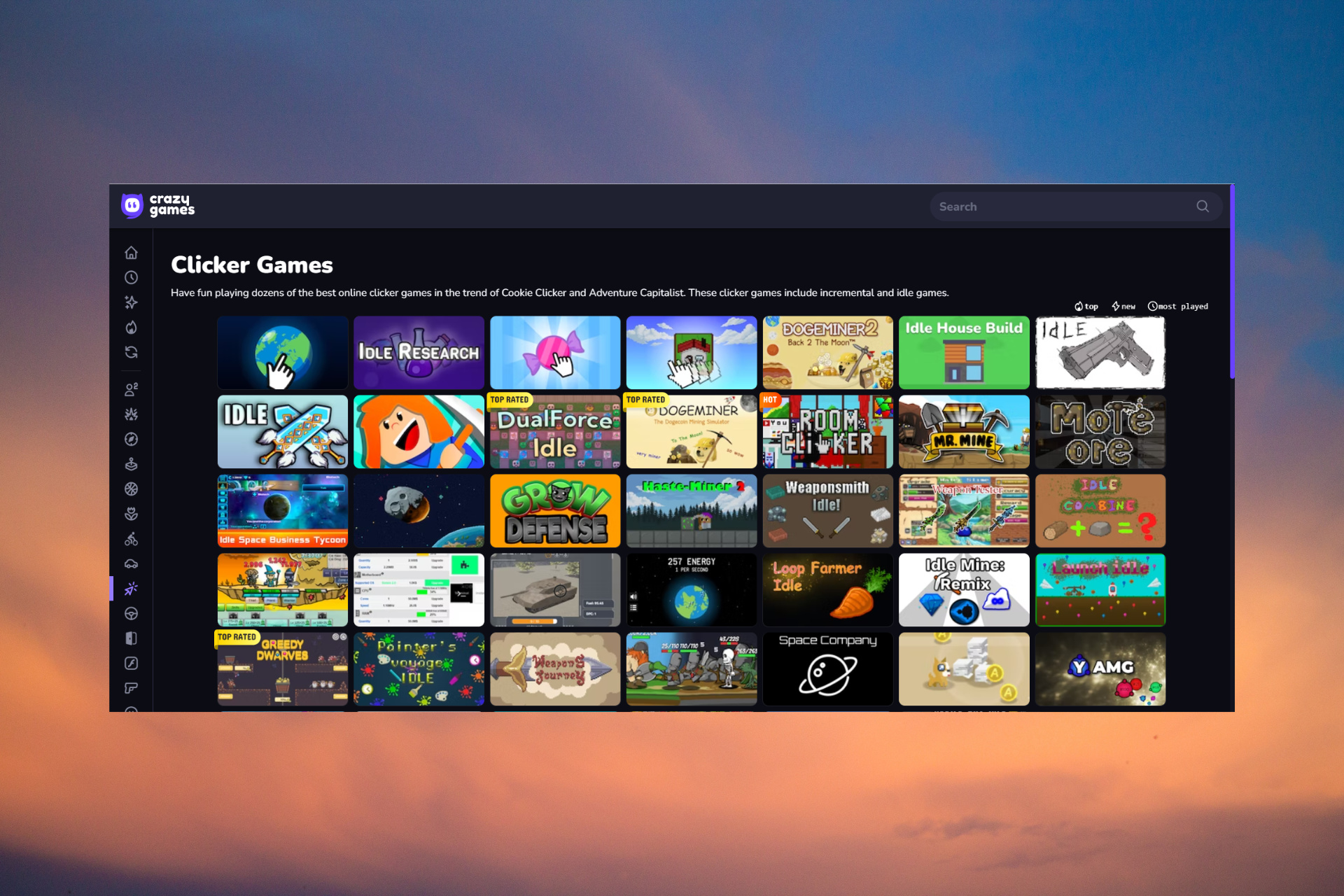



![How to See Who Views Your Instagram Profile [Quick Guide]](https://windowsreport.com/wp-content/uploads/2020/08/How-to-see-who-views-your-Instagram.jpg)


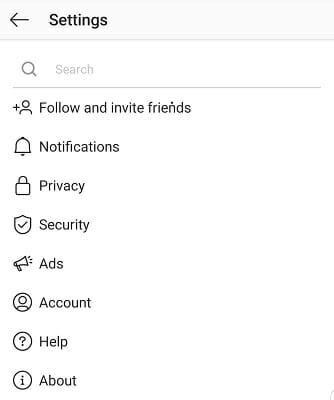



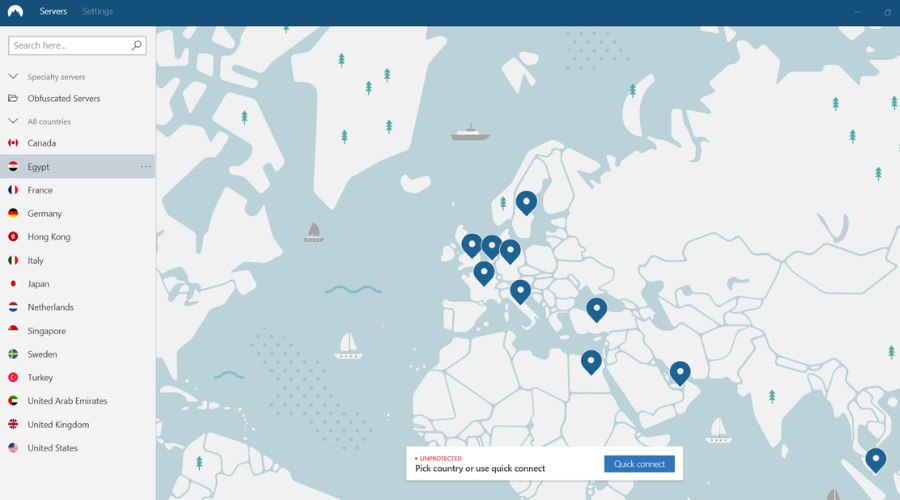

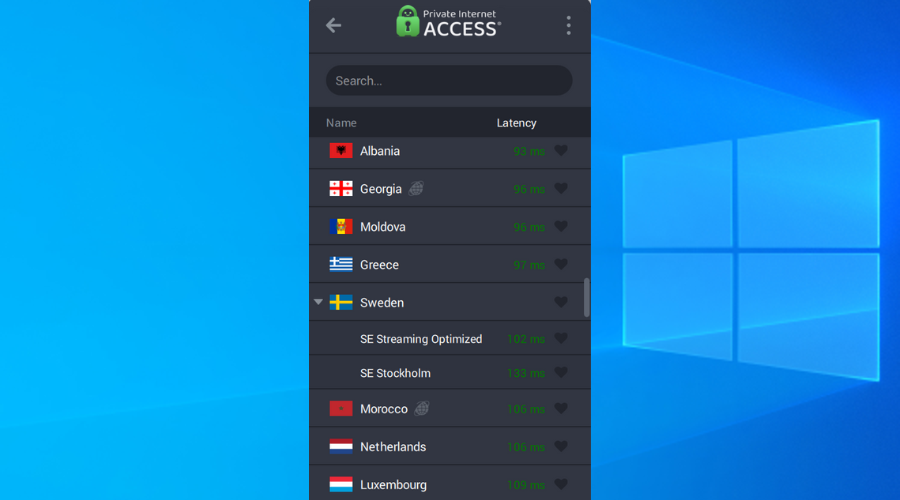

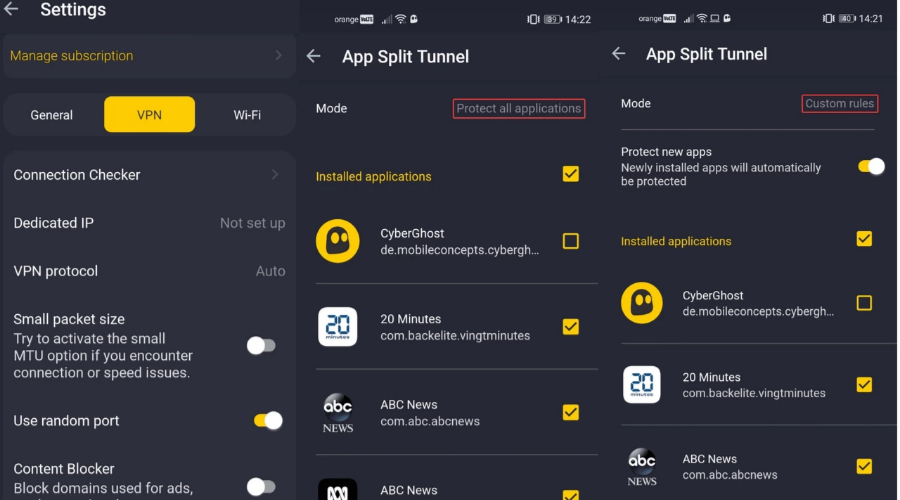




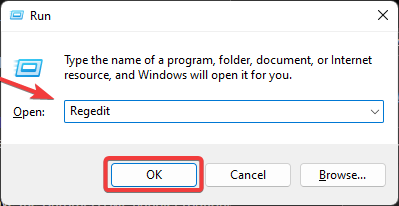


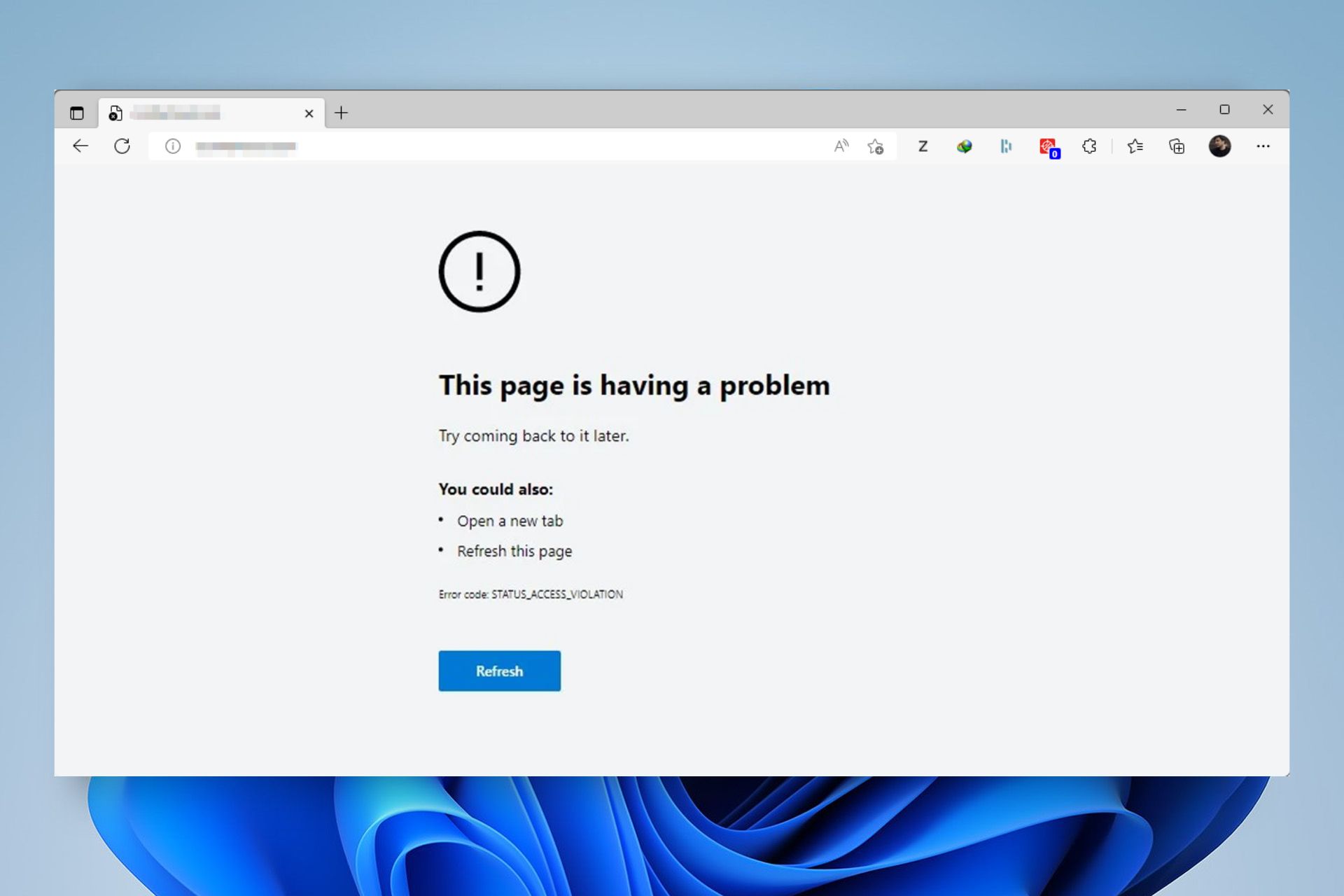


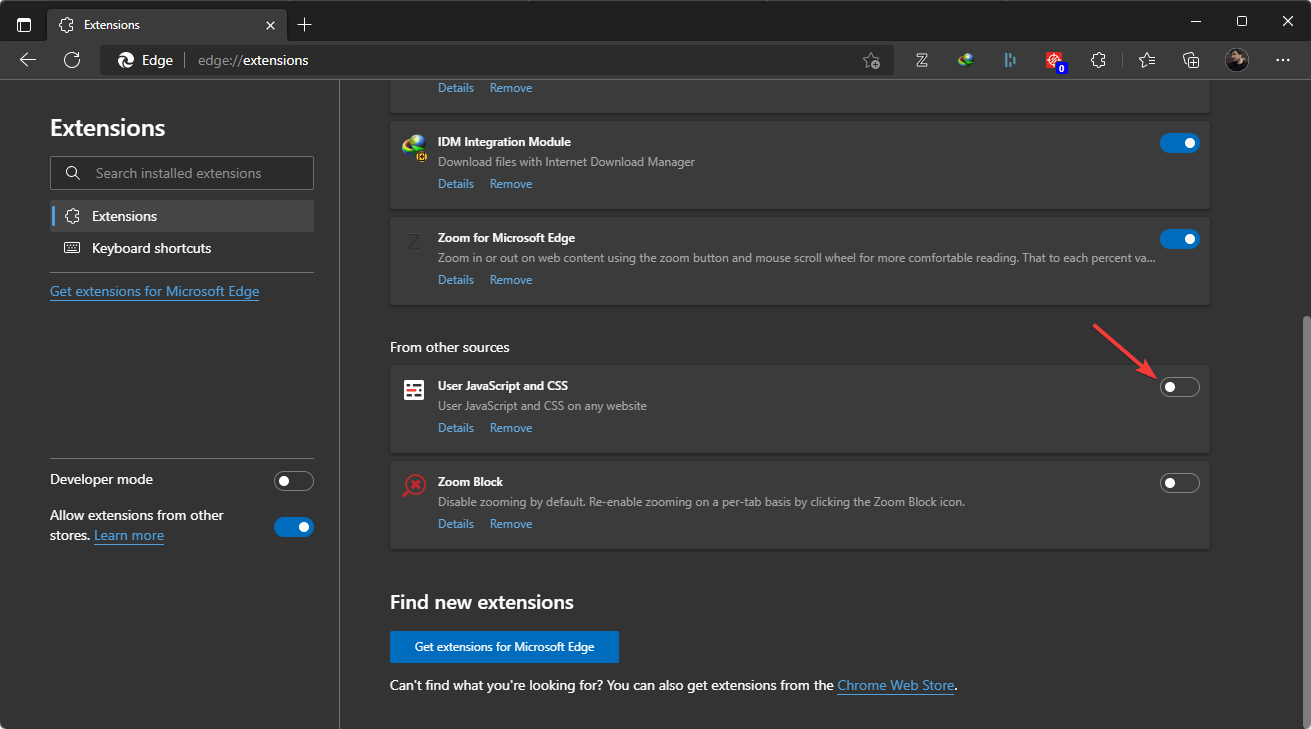

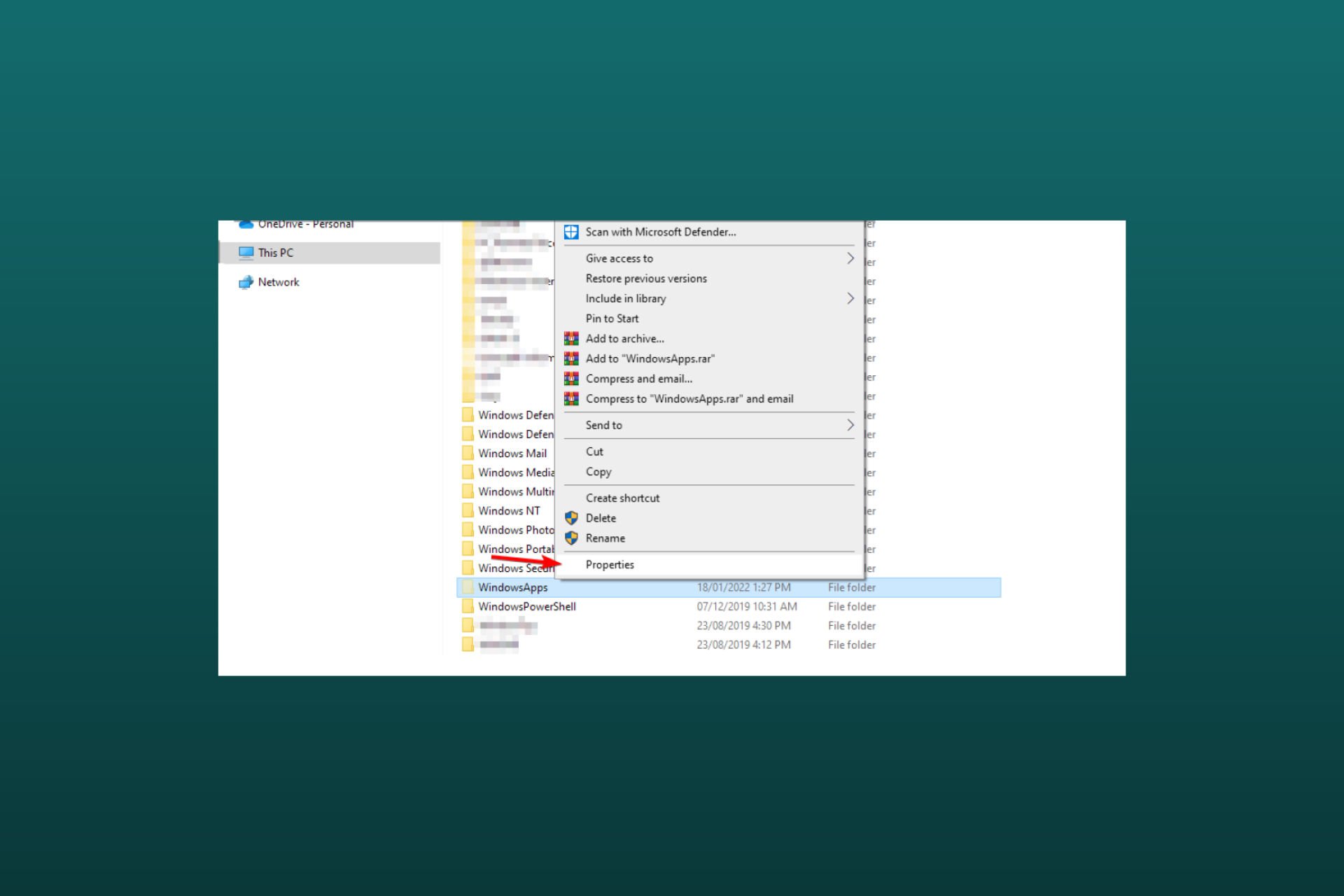


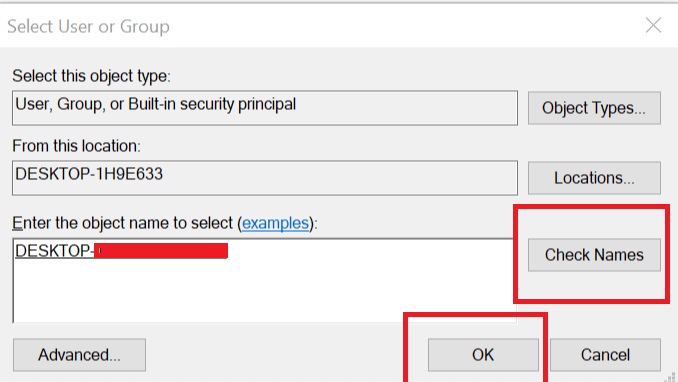

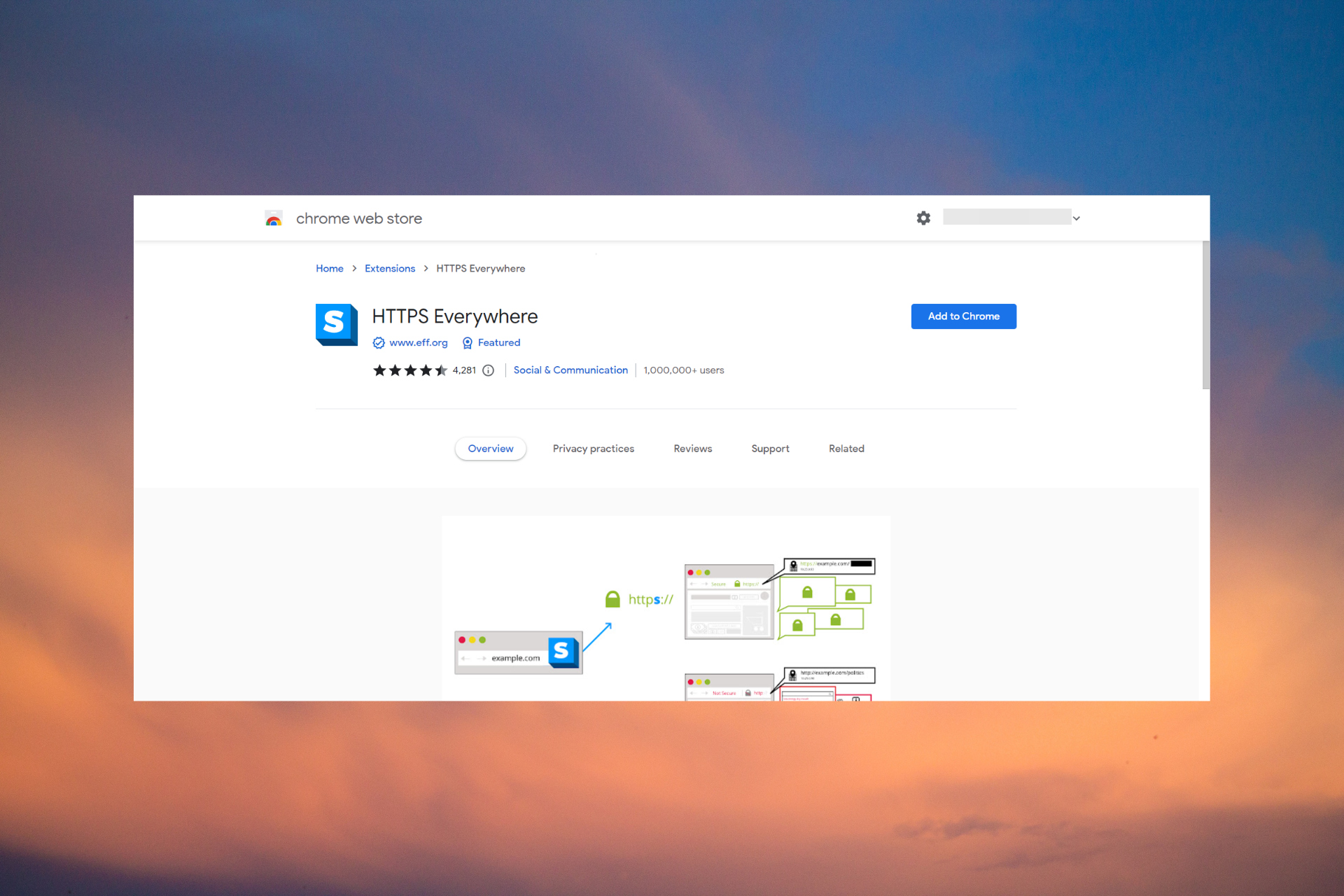


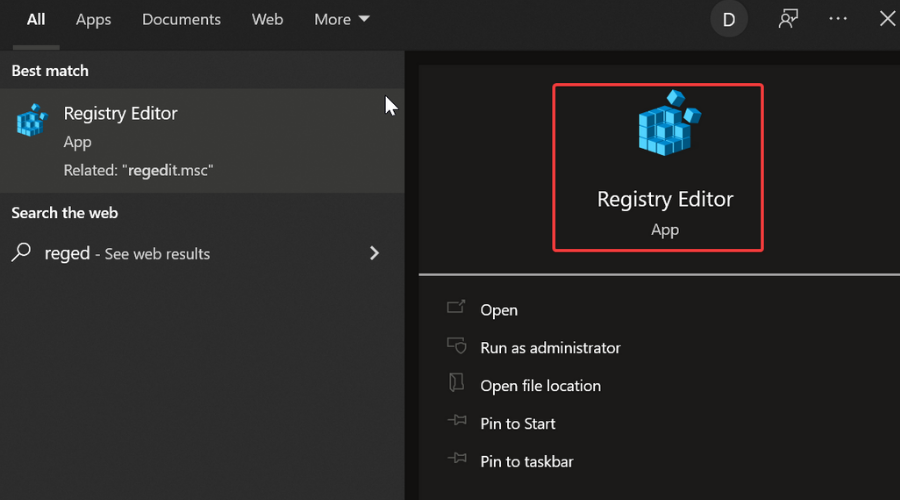
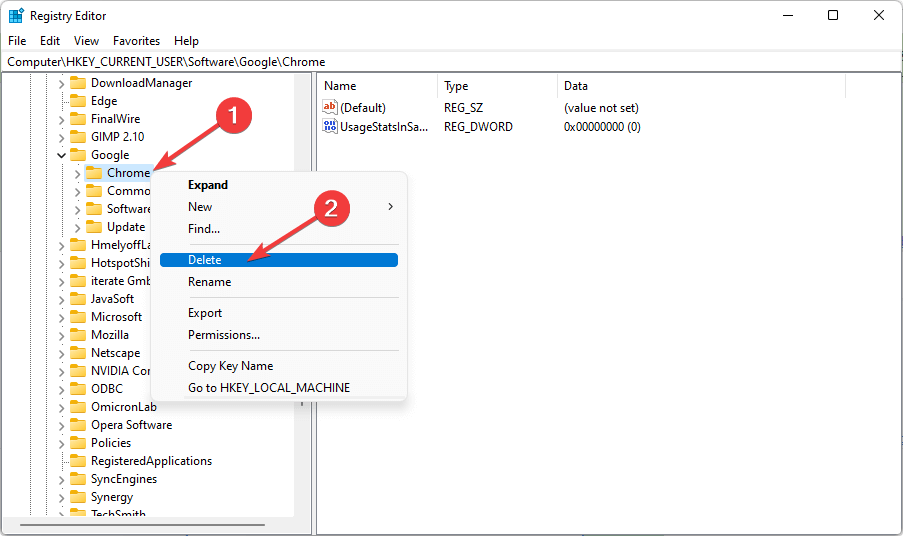
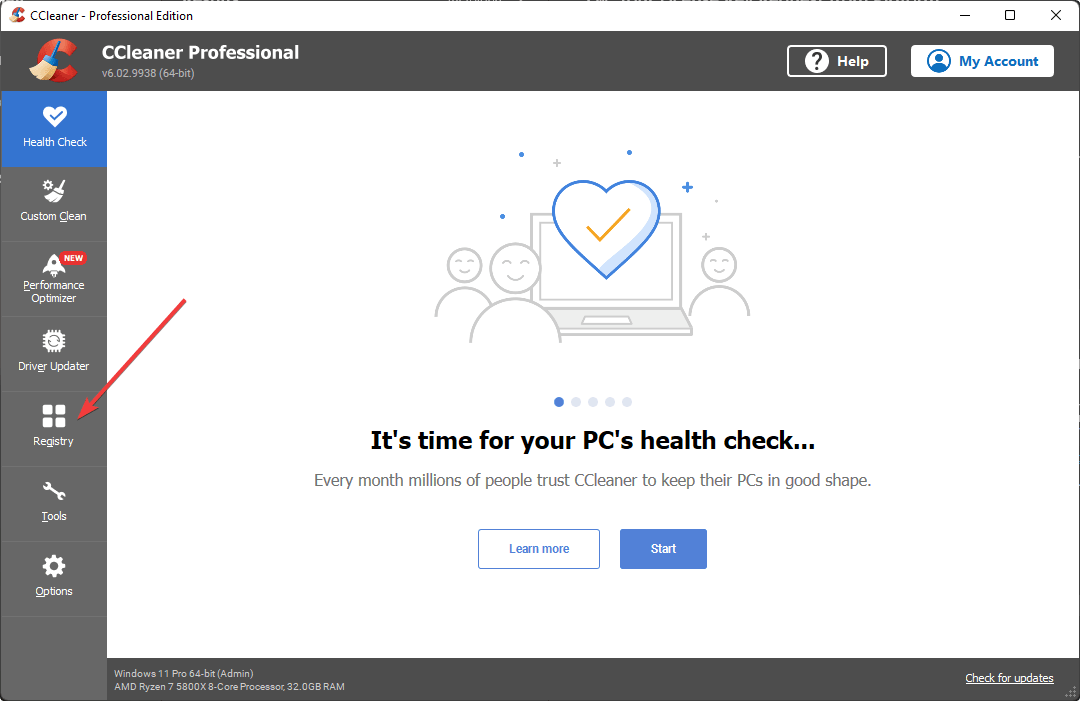
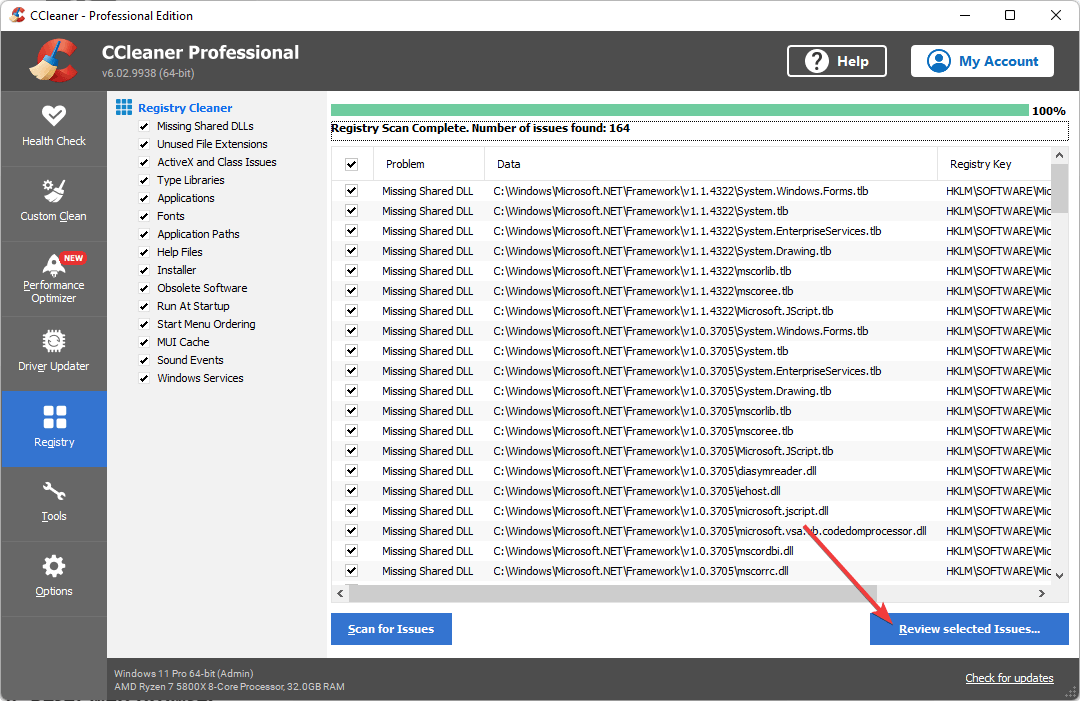
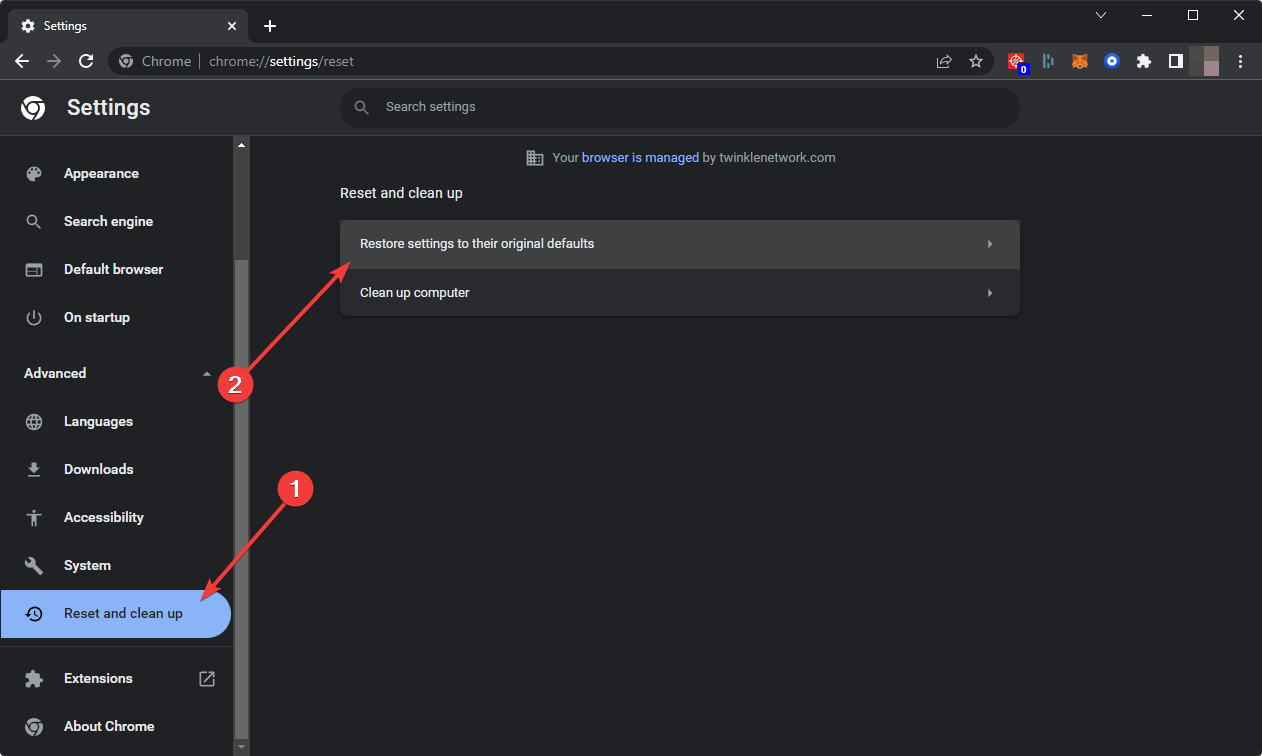
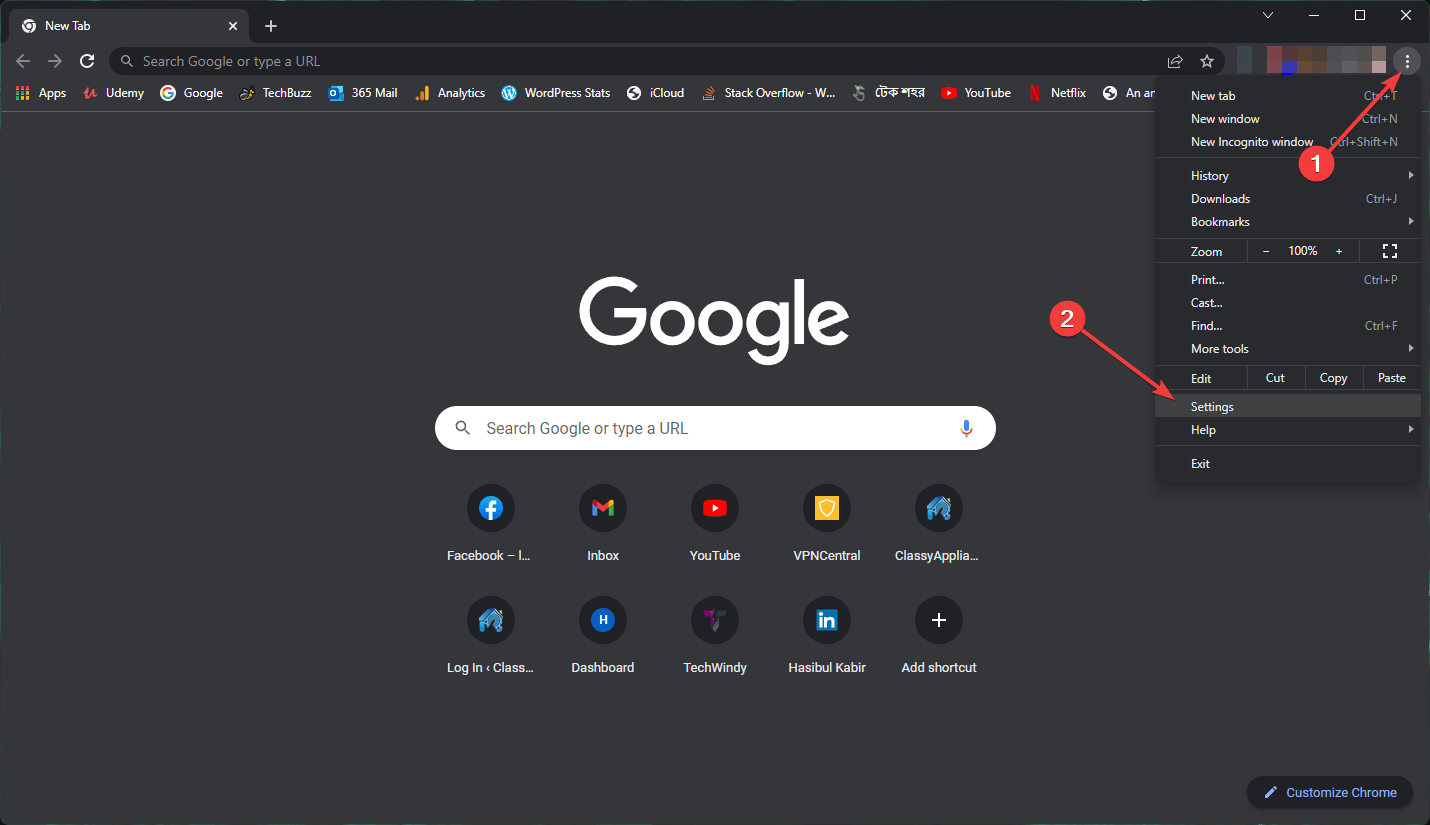
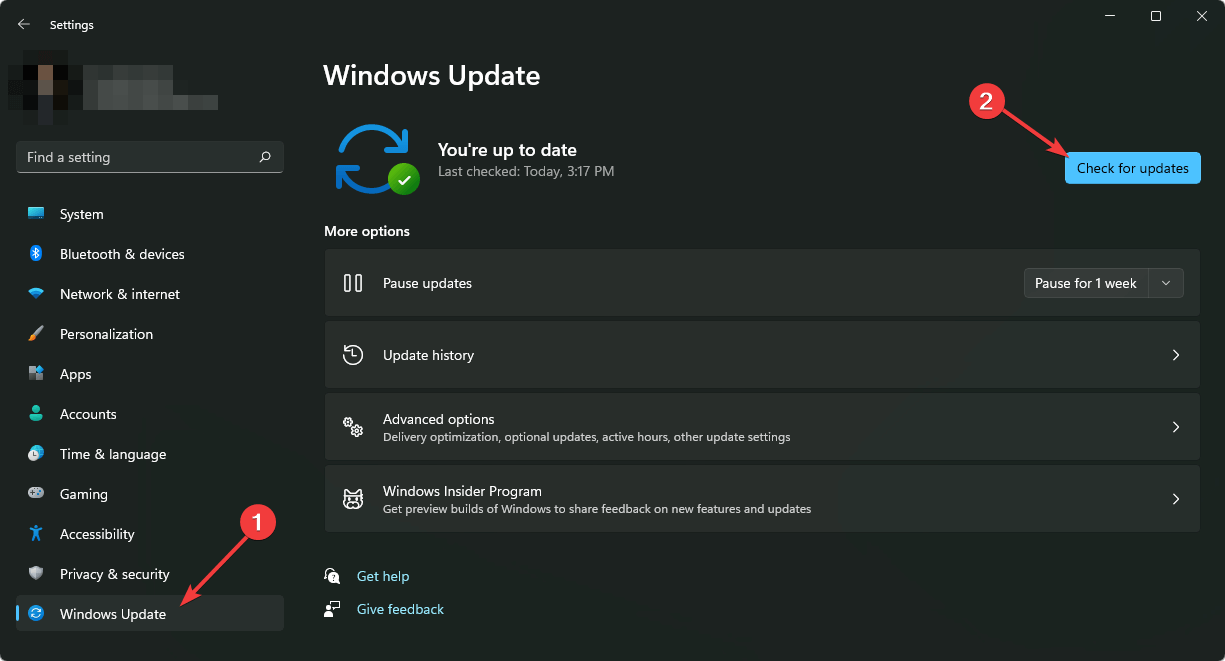
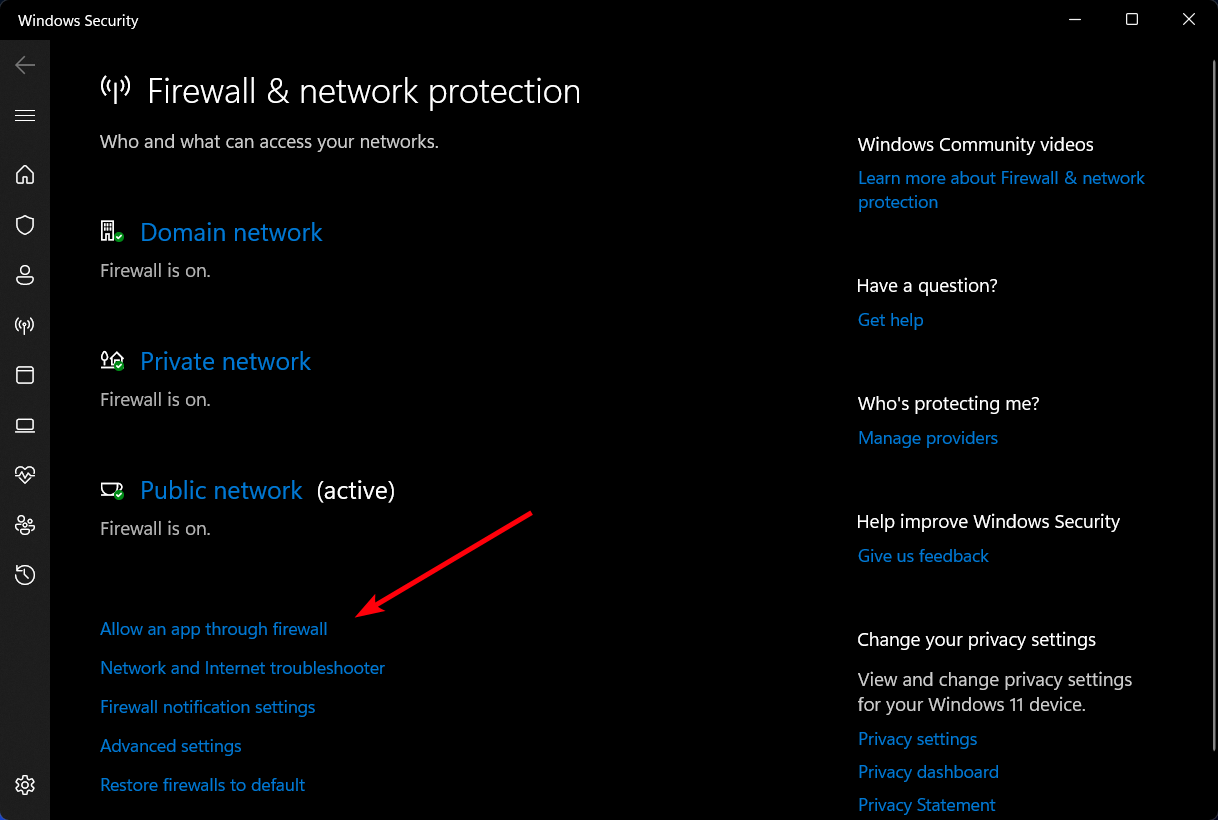
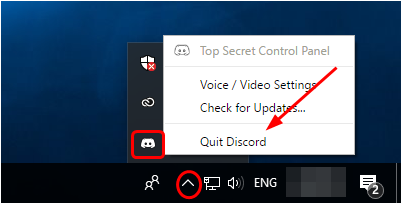
![Encountered an Unknown Error Retrieving Your Data. [Fix]](https://windowsreport.com/wp-content/uploads/2022/08/USCIS-error.jpg)
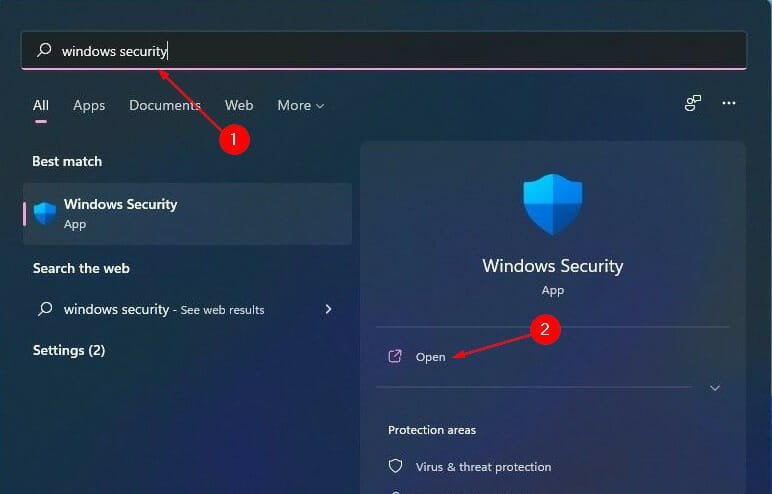
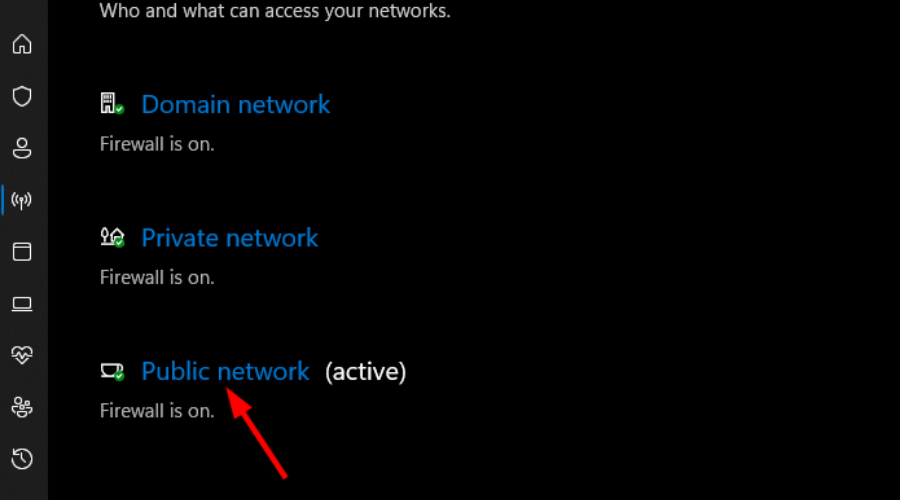



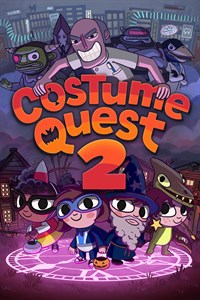



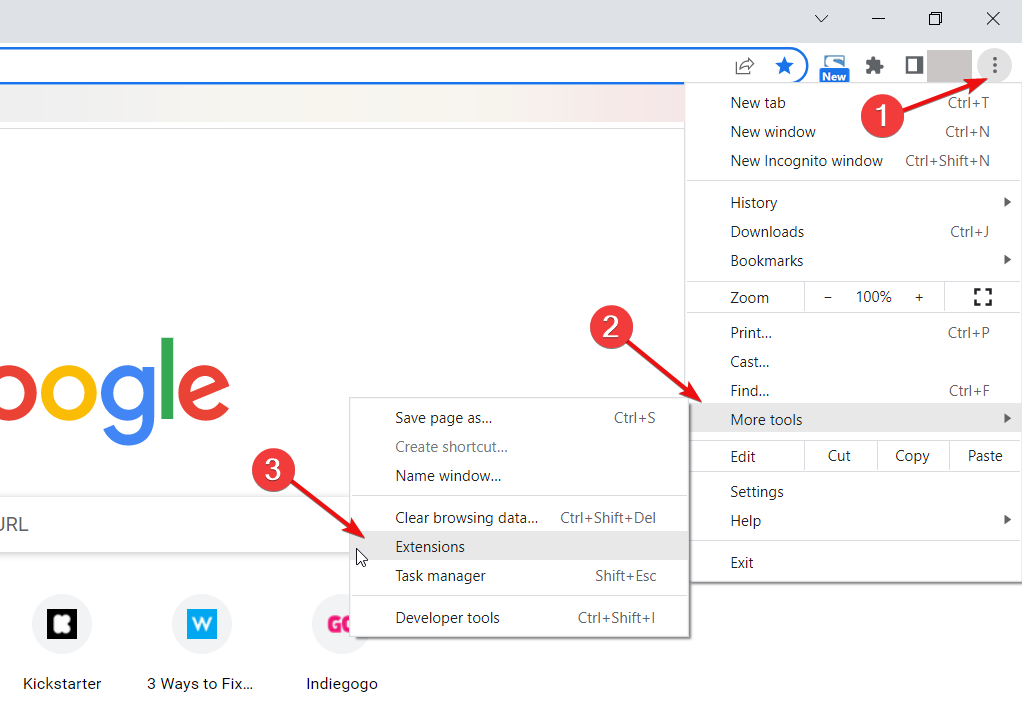
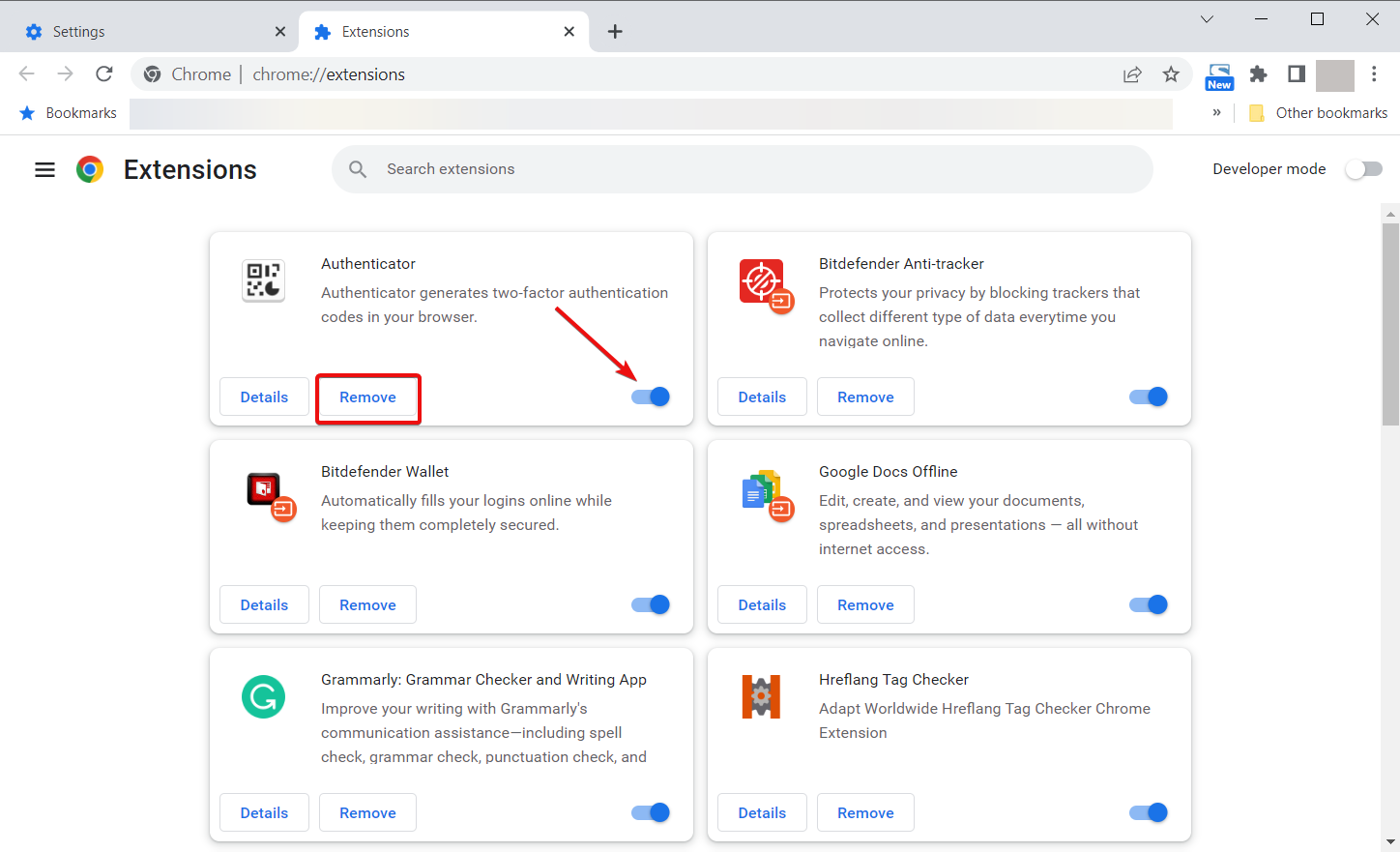
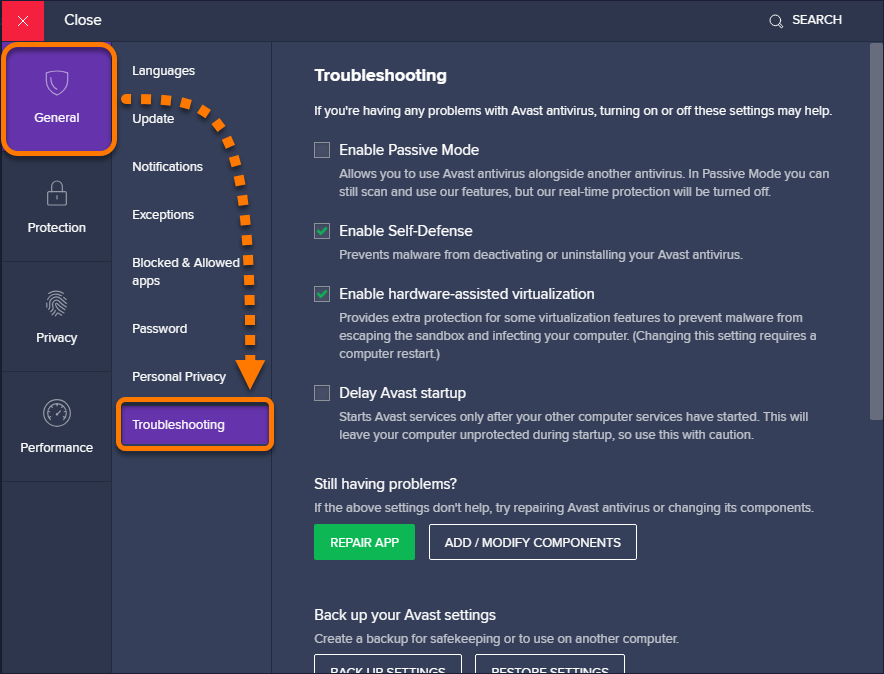

![The Safe Mode menu ps4 update error [system software]](https://windowsreport.com/wp-content/uploads/2020/07/safe-mode-menu-in-playstation-4.png "The PlayStation 4's Safe Mode menu")
![The PS4 System Software Update page ps4 update error [system software]](https://windowsreport.com/wp-content/uploads/2020/07/playstation-4-system-software-update-7.51.png "The PS4 System Software Update 7.51 page")
![Move to button ps4 update error [system software]](https://windowsreport.com/wp-content/uploads/2020/07/the-move-to-folder.png "The Move to button")
![The PlayStation 4 ps4 update error [system software]](https://windowsreport.com/wp-content/uploads/2020/07/playstation-4-console-min.png "The PlayStation 4 console")
![Default Settings option ps4 update error [system software]](https://windowsreport.com/wp-content/uploads/2020/07/restore-default-settings-option.png "The Default Settings option")
![Initialize (Reinstall) option ps4 update error [system software]](https://windowsreport.com/wp-content/uploads/2020/07/Intialize-PS4-option.png "The Initialize (Reinstall) option")


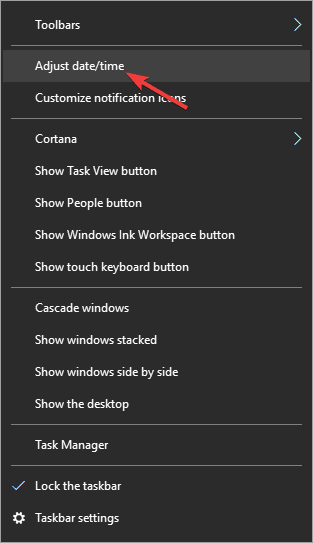
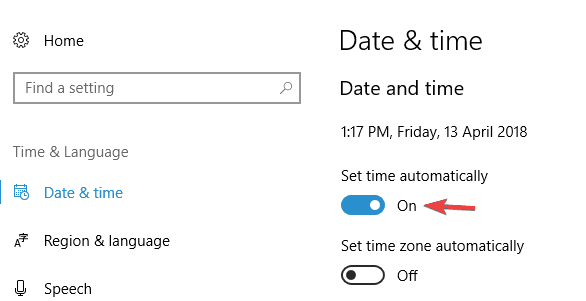

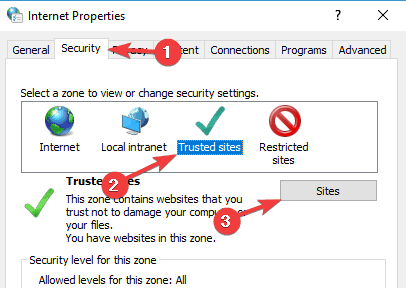

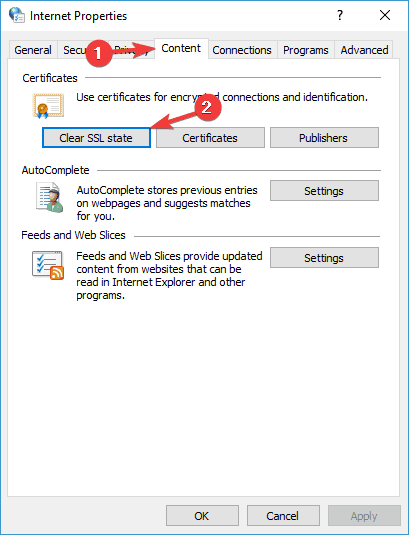



![What is Smooth Scrolling & How to Enable It [Edge, Chrome]](https://windowsreport.com/wp-content/uploads/2022/08/smooth-scrolling-windows-10.png)


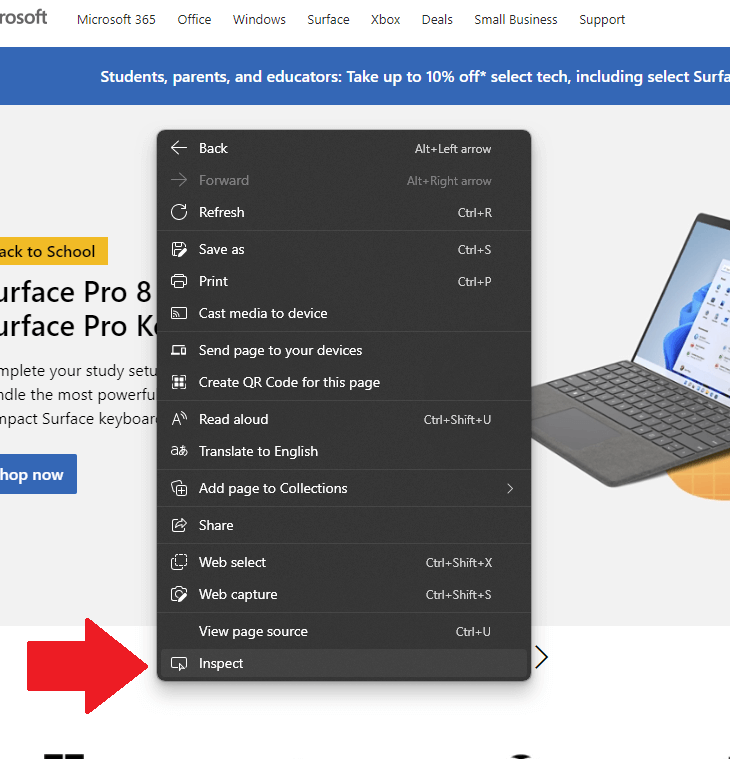
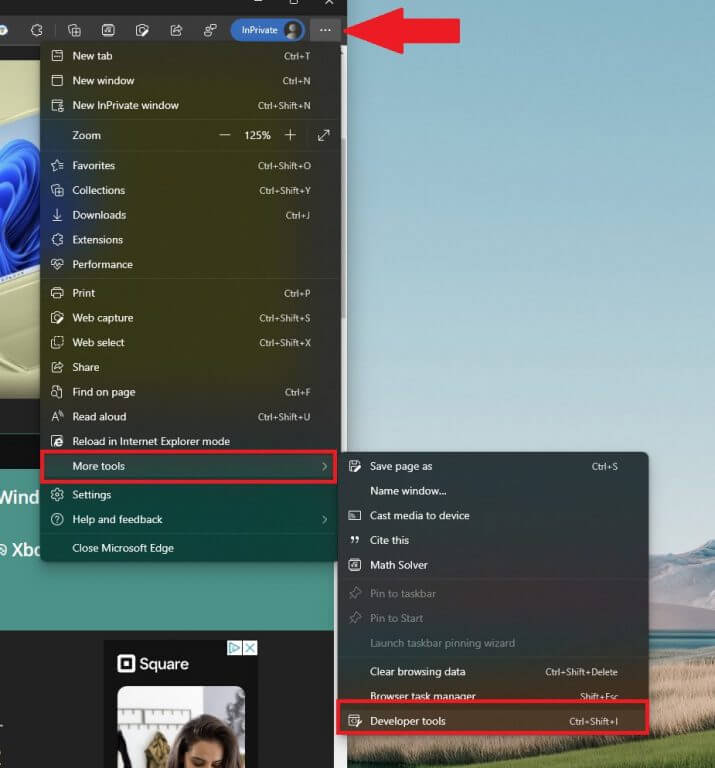
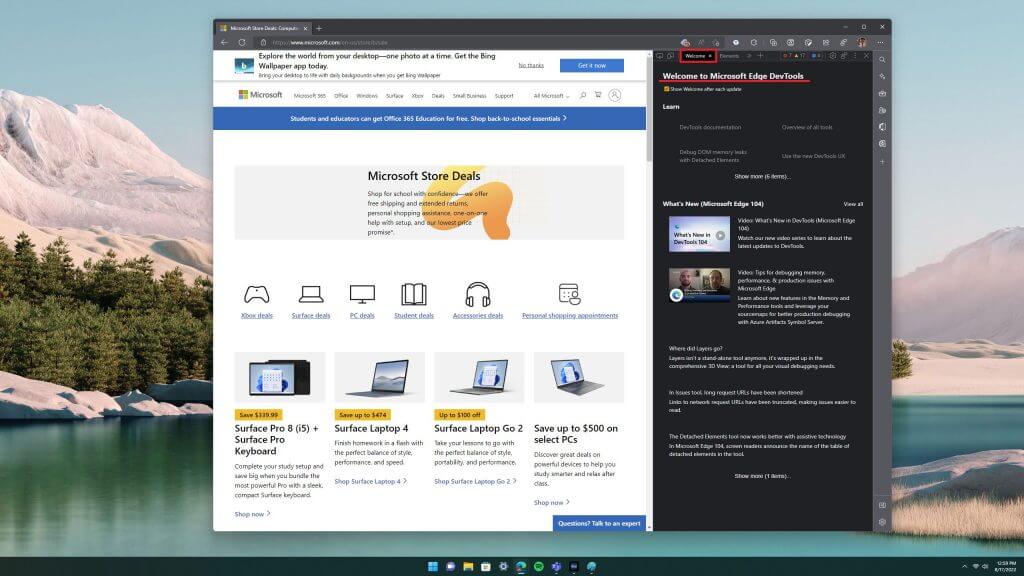
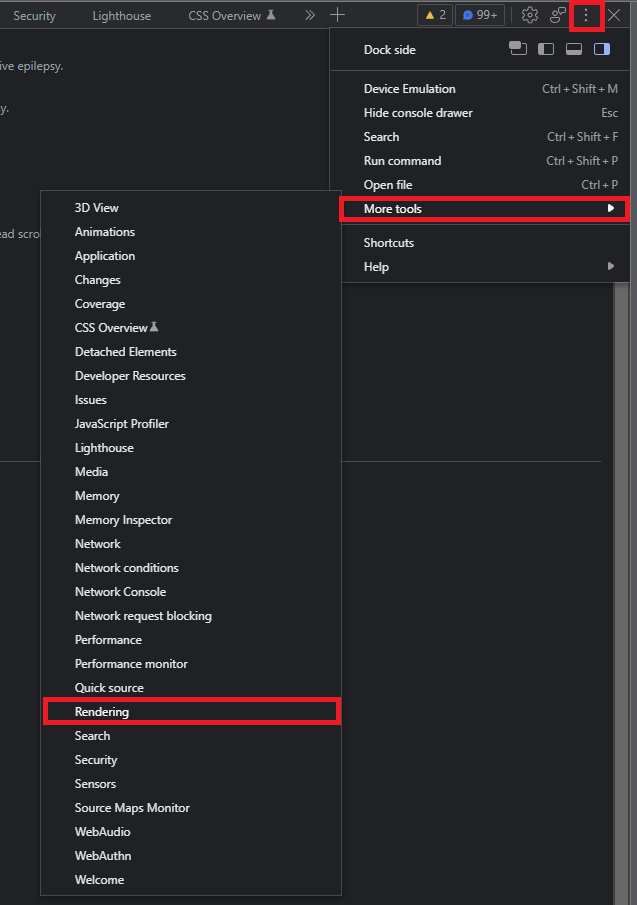
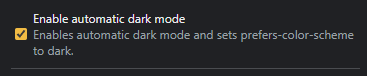



![How to Schedule Themes in Vivaldi Browser [Bonus Tip]](https://windowsreport.com/wp-content/uploads/2022/08/vivaldi-theme-schedule.png)


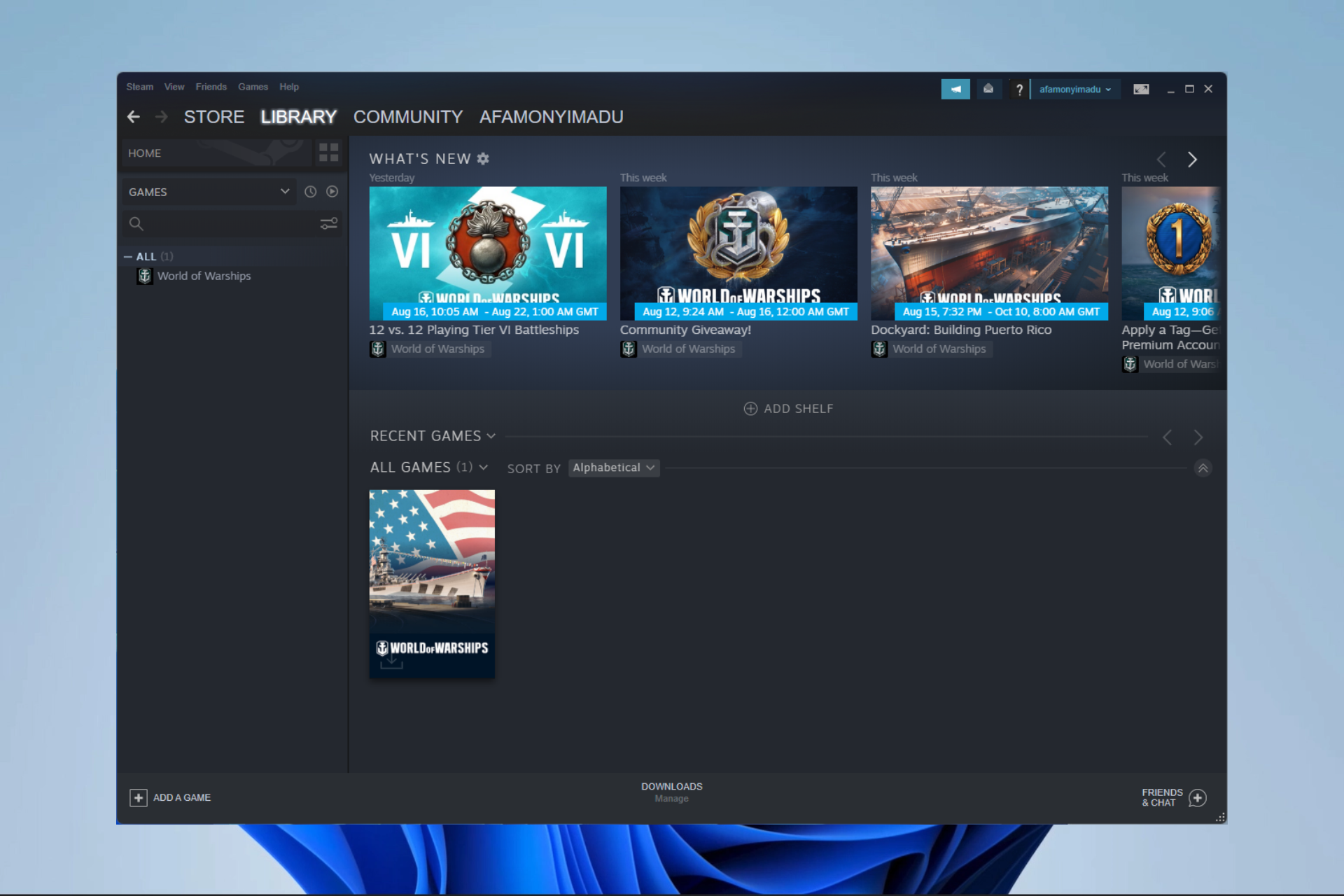



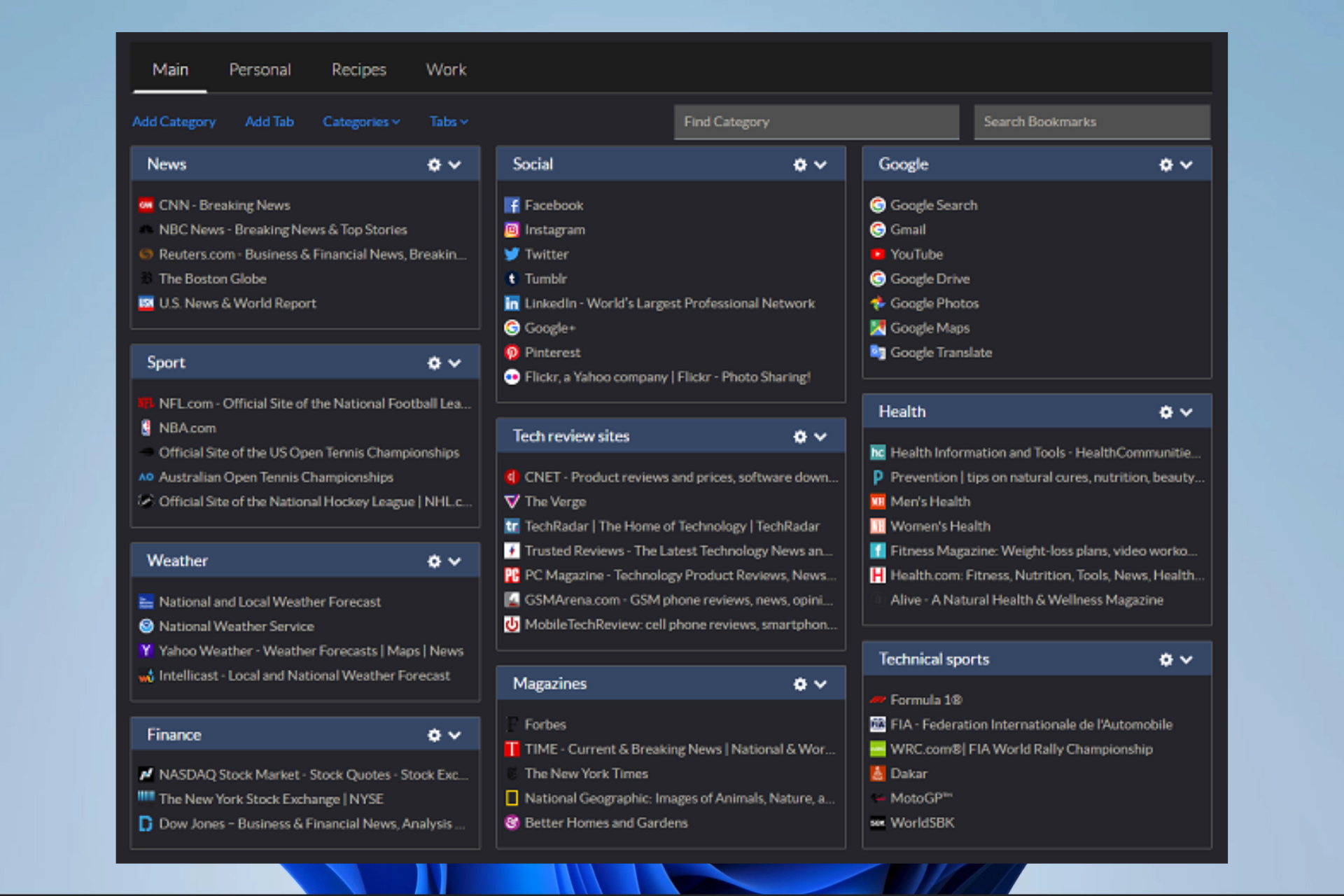
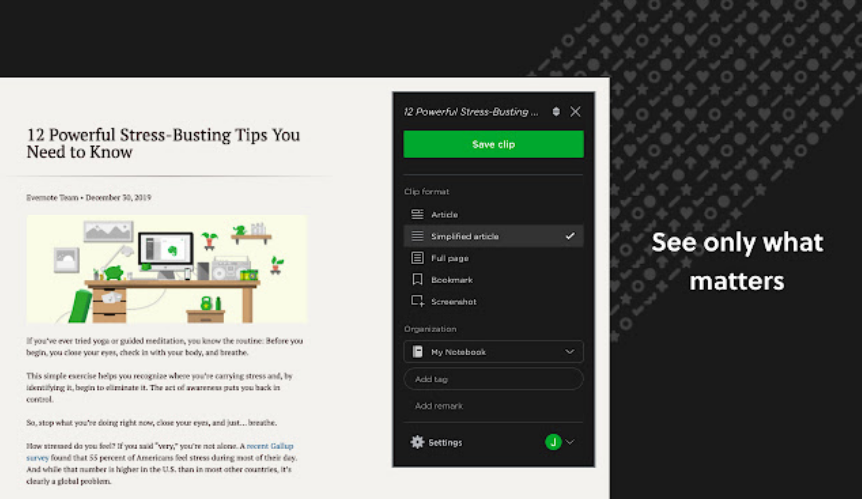

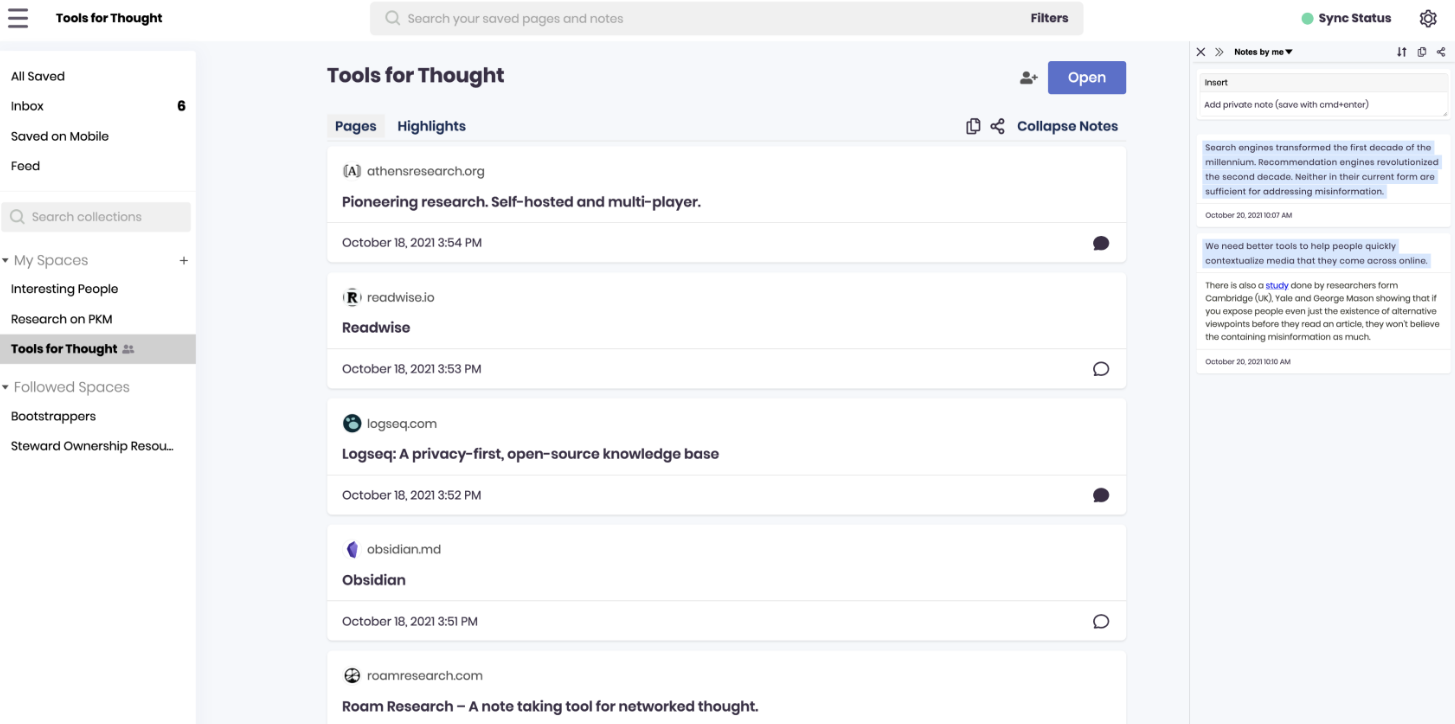
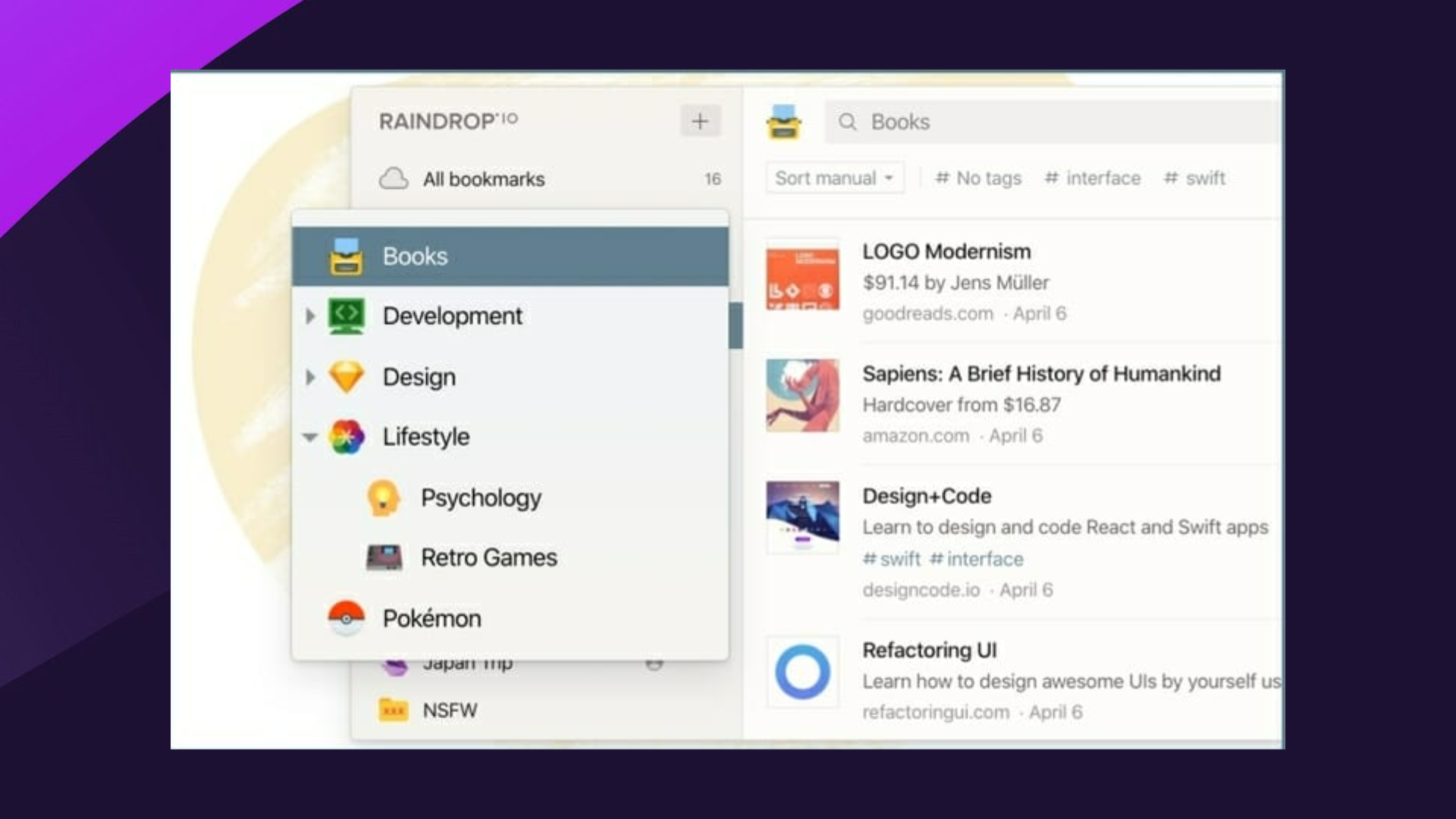
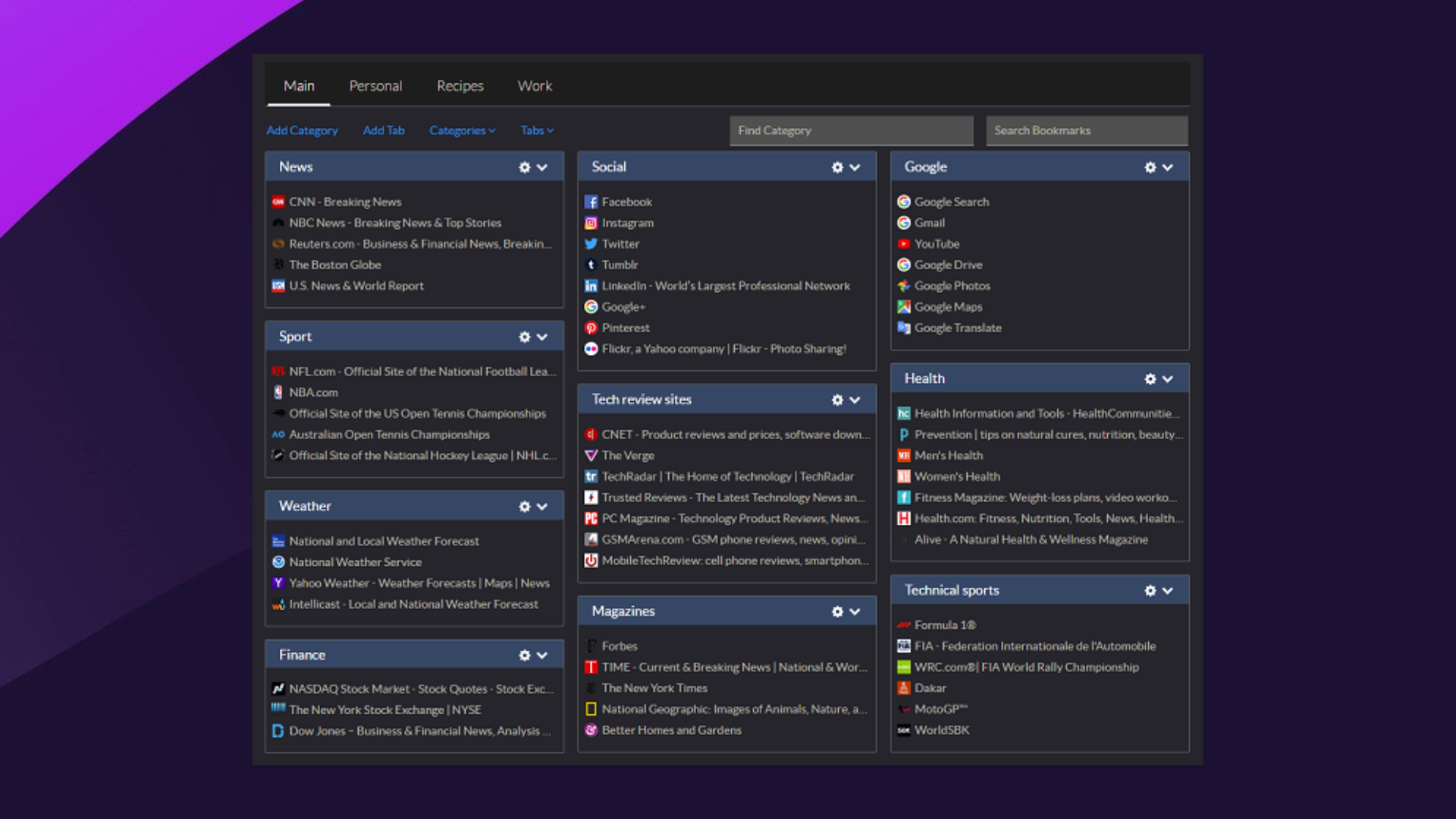




![4 Best Zombie Browser Games To Play [Free & Paid]](https://windowsreport.com/wp-content/uploads/2022/08/zombie.jpg)
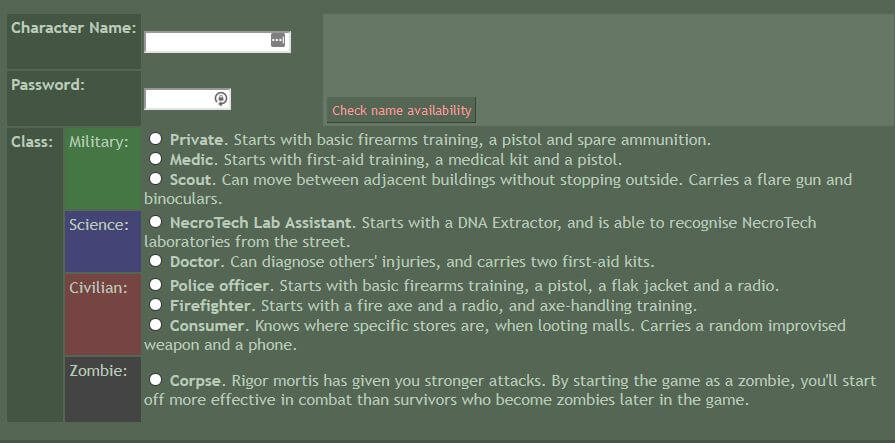

![How to Play NES Games Online with Friends [Free]](https://windowsreport.com/wp-content/uploads/2022/08/nintendo.jpg)