The MSI Dragon Center gaming mode helps take your gaming session to a new level. It optimizes your PC’s performance to the game’s requirements to give an optimal experience.
However, it can stop working for outdated or buggy apps, operating system compatibility, and driver problems.
Fortunately, as we have made fixing the MSI Driver and app center not working issue simple, we have done the same with this Dragon Center app problem too. So you only need to follow the instructions, and you will be fine.
Should I use MSI gaming mode?
The MSI gaming mode is a good feature that helps gamers get the best out of their PCs. In addition, it can help optimize PC resources like graphics cards and cooling systems.
Also, it helps you to control the RGB effects of your PC. All these give you an unmatched gaming experience.
How do I turn on game mode in Dragon Center?
Launch the MSI Dragon Center app.
Click the Gaming Mode option on the left pane.
Finally, toggle the switch before Gaming Mode forward to activate it.
What can I do if the gaming mode is not working in MSI Dragon Center?
1. Update Windows PC
Press the Windowskey + Ito open the Settings app.
Select the Update and Security option.
Click the Windows Update option on the left pane. This will automatically check for updates on your PC.
Click the Install now button and wait for the process to complete.
Press the Windows+ Xkey and select Device Manager.
Click the arrowhead before each driver.
Right-click on the drivers displayed and select Update driver.
Choose the Search automatically for drivers option.
This will display the latest driver available. Follow the simple on-screen instructions to complete the process.
The MSI Dragon Center gaming mode needs your PC drivers to communicate and optimize its performance. If the drivers are outdated, the app might not work as expected or may fail to recognize your hardware.
3.2. Update drivers automatically
You can automate the process with a driver updater instead of updating all your drivers one after the other. And there is none better than Outbyte Driver Updater.
Outbyte Driver Updater is a top-notch software with over 18 million drivers from trusted and original developers worldwide. It scans, recommends, and installs drivers with little to no effort from you.
Whether outdated, broken, or missing drivers, this software will get them all to speed effortlessly.
You might not have known this if you’re just an everyday Edge user, Microsoft Edge Canary Insiders received an update that has introduced a tightly requested feature.
We know there still are a lot of other requests to also fulfill, but this latest software brings one of the most sought-after accessibility features, and that is double-clicking in order to close a tab.
It took the Redmond company quite a while, but after a long wait, the feature is finally available, although currently only in the Canary channel.
Double click to close tabs feature comes to Edge Canary
As discovered by Canary Insiders, the above-mentioned option that allows us to close a tab with a double click is available in the accessibility settings.
Keep in mind that it will be disabled by default, so you need to navigate to Edge Settings, select the Accessibility tab and turn on the Use double-click to close browser tabs option.
Immediately after doing so, you can simply double-click any open tab with the left mouse button to instantly get rid of it.
We remind you that you can also use other shortcuts for closing a webpage, such as the middle mouse button or the Ctrl + W shortcut.
Now, as much as we know you would enjoy already testing this latest feature, remember that you are still on the Canary channel, meaning that double-click to close a tab is available for a limited number of Insiders.
But you shouldn’t worry about that, as it will soon become available to all Insiders, and eventually to the Stable Release Channel when it is deemed ready
Are you among the lucky Edge Canary Insiders that got to test this feature? Share your experience with us in the comments section below.
Minecraft and Roblox: two mega-popular sandbox video games each with a legion of players across the globe. While there are key differences between the two, both games offer open-ended gaming experiences that A) encourage player creativity and B) are generally kid-friendly.
In our previous Minecraft Vs. Roblox feature we took a brief glance at these two titans of sandbox games, with an introduction to each and a cursory comparison of how the games stacked up against each other. And as we stated then, both Minecraft and Roblox are terrific games that can be enjoyed by anyone, and there is certainly no reason anyone can’t be a fan of both.
Today we take a look at the educational aspect of each game, which in each case is considerable given that both games have robust educational programs, complete with tools and resources for teachers and students alike.
Minecraft Education Edition is, as one might guess, a version of the game specifically designed for the classroom. Developed by Xbox Game Studios and Mojang Studios, it was released in 2016, supplanting Minecraft Edu, with which it is not to be confused.
In contrast to Roblox Edu, Minecraft Education Edition has lesson plans covering a gamut of subjects ranging from History & Culture, Art & Design, even Climate & Sustainability to Computer Science. This latter has an emphasis on coding.
Minecraft Education Edition also makes use of tutorial worlds in its lessons, in addition to a companion app called Classroom Mode for educators, who can use the app to monitor student activity. Minecraft Education Edition is designed for easy classroom collaboration, and a class of up to 30 students can play together.
Roblox Education was launched in 2018, with a dedicated website for Roblox Education rolling out the following year. And in November of 2021 Roblox announced the Roblox Community Refund (RCR), which is geared toward expanding Roblox’s educational program. To this end it was also announced that Roblox would be giving out $10 million in funding to support educators using Roblox Studio in their classrooms, as part of the RCR.
Since Roblox is essentially a game-making platform rather than a game in and of itself, the focus of Roblox Edu is to teach coding. The program has three resource sections for educators: Lesson Plans (of which there are 4, and were designed for easy classroom setup), Series (5 easy to follow step-by-step lessons available under the Creative Commons License), and Standalone Modules (21 in number, they are encouraged for use of “individual concepts or as part of a larger project series”).
COMPARISON
As you have seen, Minecraft Education Edition and Roblox Education both offer a great learning platform, with plenty of lessons and resourced for teachers. For those looking to learn through either of these platforms, it really comes down to two things: pricing and curriculum.
Pricing:
Minecraft Education Edition—Qualified educational organizations can purchase it for $5 per user/year. Individuals can purchase for $12 per user/year. Note that a Microsoft 365 account is needed.
Roblox Education—Free, although there are microtransactions for certain content (typically 1$).
Curriculum:
Minecraft Education Edition—A variety of subjects: History, Digital Citizenship, Math, Equity & Inclusion, Computer Science (including coding) and more.
Roblox Education—The curriculum focuses on coding and game development skills, with a wealth of resources on these topics.
Conclusion
Educators really can’t go wrong with either Minecraft Education Edition or Roblox Education. For teachers of computer science Roblox Education presents an excellent teaching platform with a price that can’t be beat (free).
But Minecraft Education Edition is the clear choice for a more rounded lesson curriculum, although the cost may be something to take into account.
Epic Games has launched a new crossplay tool for game developers. The first in a series of “plug-and-play crossplay services,” Crossplay for PC is the first step in Epic Games’ efforts to help developers port their games to multiple storefronts. What this will ultimately mean for gamers is that the ability to play with friends who own different releases of the same games will become more common.
Presumably Epic Games will bring its Epic Online Services crossplay to other platforms in the future. The crossplay service currently works seamlessly on Steam and Epic Games Store, with an overlay that merges the two stores’ friends list into a single one, allowing gamers to search for friends, send and receive friend requests, and join multiplayer games across stores.
The new Crossplay for PC tool includes features that make it easier for developers to create a seamless crossplay experience, such as plug-and-play SDK – a toolset that allows developers to implement the services they choose and leave the rest.
Developers looking to get started with Crossplay for PC can download Epic Online Services SDK 1.15 configure it in the developer portal at dev.epicgames.com.
This is an exciting new tool not only for game developers, but also for those who love playing online multiplayer with friends. Senior Director of Online Services at Epic Games Simon Allaeys says of the new tool:
“Crossplay gives all friends the opportunity to come together and create fond memories across interactive experiences. We are in the fortunate position to drive change in the industry with crossplay tools for all developers and we believe that connecting friends and communities will take the gaming industry to its next major growth spurt and its next billion players.”
About one billion of the world’s population are persons with disabilities, yet they still remain “invisible in the global development agenda”. This could be attributed to the fact that the data available is insufficient, which makes it difficult to get a clear picture of the “true scale of the living conditions and development outcomes for persons with disabilities, and to get clarity on the degree to which persons with disabilities continue to be underserved.”
The disability divide as World Bank refers to it, is the gap created when persons with disabilities miss out on development programs, which sets them back significantly. And the COVID-19 has not made it any easier for them to cover their tracks as it has exposed them to more challenges that they might have been shielded from had they been included in these development programs.
Although most governments use the data collected during the census to address some of these issues, at times they fail to cover all the bases. This is why Microsoft and World Bank have come together with the help of the Disability Data Initiative at Fordham University to enhance “access to and the use of demographics and statistics data to ensure representation of disability” specifically in low and middle-income countries.
This has necessitated the launch of a disability data hub, which is set to provide comprehensive data on persons with disabilities across all spheres. The hub’s key principles include the provision of a user-friendly and accessible interface for a wide range of users, availing data analysis, and enhancing accessibility of visualization tools among others.
The launch of the disability data hub is part of the World Bank’s institutional commitment to persons with disabilities. As such, World Bank has introduced “cross-sectoral analytics” which are in place to ensure that their needs are well catered for. “These analytics have provided action-oriented direction for government officials and decision-makers in the areas of disaster risk management, water, and education. Progress on disability data collection has also informed policy commitments in IDA19 and IDA20 – the World Bank Group’s most recent funding cycles for the poorest countries – to strengthen the collection and use of disability disaggregated data.”
This partnership is geared toward ensuring that persons with disabilities are not overlooked. As such, the authorities at the helm will use the data and statistics to make policies so that they are not disadvantaged.
Disability is a growing demographic, and COVID-19 has acted as a mass disabling event, growing the base of people with disabilities worldwide. The disability divide has been a reality for decades. This new disability data hub is a step forward in wrapping our arms around the demographics of disability in a more strategic, long-term way. Through partnership, we think we can make a tangible difference.
Hopefully, this new disability data hub will help narrow the gap created and create a sense of inclusion for people with disabilities which will go a long way in curbing any unforeseen challenges that may arise in the future.
High latency can ruin your multiplayer experience, and this is why many gamers are wondering how to lower ping when playing Fortnite. This is simpler than you think, and this guide will show you how to do it.
How can I lower ping when playing Fortnite on PC?
1. Use an Ethernet connection
Wi-Fi is great. But, it is not faster than a wired connection. There will always be a few milliseconds difference, at least.
So, if possible, use a direct connection rather than Wi-Fi while playing Fortnite on PC or Xbox.
2. Choose the best Fortnite server
Click on the three horizontal lines icon on the top left corner.
Click on the gear icon with three horizontal lines, as shown in the screenshot.
Choose Settings.
Click on the tab with the Gear icon.
Find the MatchedMaking region under the Language and Region section.
Change to the region with the lowest ping.
Click on Apply to save the change.
When picking a server, remember to always test Fortnite latency and pick the server that has the lowest ping.
3. Use faster gaming VPN
Sometimes, VPN can improve ping with specific game servers. However, it happens only when your current Internet has issues communicating with that server.
Private Internet Access (PIA) is a top example of a gaming VPN. If your regular Internet shows excessively higher ping, connect to a VPN location closer to a Fortnite server.
It may improve ping in Fortnite and give you a better gaming experience.
Click on the Edit next to the DNS server assignment.
Type your preferred DNS server addresses. Usually, 8.8.8.8 and 8.8.4.4 (Google DNS) is best for all-purpose.
Click on Save.
4.2 Change DNS Server for Wi-Fi
Open Windows settings like before.
Choose Network & Internet as shown before.
Go to Wi-Fi.
Click on Hardware Properties.
Click on Edit next to the DNS server assignment.
Choose Manual under Edit DNS settings.
Enable IPv4 or IPv6, depending on your preference.
Give your preferred DNS addresses.
At last, Click on Save.
4.3 Flush DNS
Open Start Menu, type cmd, and enter to open the command prompt.
Please type the following command and press enter to run it.ipconfig /flushdns
5. Reduce background bandwidth usage
Press Win+ Ito open Windows settings.
Click on Network & Internet.
Go to the connection you are currently using (Wi-Fi or Ethernet).
Toggle the switch next to the Metered connection to set it on.
Setting your connection as metered will reduce most background bandwidth usage, which improves your connection’s latency.
Also, some PC optimization tools like IObit Advanced SystemCare have a feature like an internet booster. These also can help to reduce the ping when playing Fortnite on PC.
How can I lower ping on Xbox?
1. Use Direct Connection
Wi-Fi won’t be the best for ping than a direct connection like a PC or device. Use an ethernet connection rather than Wi-Fi in your Xbox if you have the scope.
2. Pick the best region
Do the same as shown in method 2 for PC.
3. Change DNS in Xbox
Open Settings in Xbox.
Go to General.
Tap on Network settings.
Go to Advanced settings.
Next, go to DNS settings.
Click on Manual.
Set the primary and secondary DNS servers.
Google DNS (8.8.8.8 and 8.8.4.4) is one of the fastest public DNS servers. You can use it on Xbox.
If there is little or no scope to use a direct connection, set your router or Xbox closer to each other. It will improve connection quality and lower the ping in the Fortnite game.
5. Use Xbox VPN
If the above methods don’t help, a VPN is the best way. As usual, Private Internet Access is the best gaming VPN available.
To lower ping when playing Fortnite, this VPN can be an ideal option, particularly when your internet routing suffers various issues.
What are the ideal ways to use a VPN on Xbox?
Xbox doesn’t have a common way to set a VPN as you do on PC, Mac, or Smartphones. It is an inconvenient thing. But, you can still configure the VPN by following two ways.
The first one is a hotspot. On your smartphone, connect to a VPN and enable hotspot. Then, connect your Xbox to that Wi-Fi.
If your PC has a Wi-Fi adapter, you can also turn on the hotspot and connect to a VPN.
The second method is the VPN settings in your router. Configuring the VPN in router settings is the best way to ensure the best connection quality in Xbox because you can connect Xbox with the router directly with an ethernet cable.
Unfortunately, not all Wi-Fi router has built-in VPN settings. If your router has an option for VPN, follow the official manual to configure the VPN.
Why is ping important for online games like Fortnite?
In gaming, each command is transmitted online. The longer it takes for the command to reach the server, the longer will take your character to respond, and this can put you at a severe disadvantage.
However, The above methods help reduce ping when playing Fortnite on PC or Xbox. But, A proper internet connection is a must. Without it, nothing will help.
Do you know any other way to improve the network latency in the Fortnite game? If yes, you can share it in the comment box.
If you are a Blizzard games fan, then you surely remember the moment when the company announced the release of Diablo Immortal, back at BlizzCon 2018.
The crowd booing the newly announced title was only the beginning of this massive fiasco, as die-hard Diablo fans still loathe the idea, even after the official launch.
But, the fact that people are unhappy with only getting 2 hours of PvP per day, and the pay-to-win mess that Diablo Immortal proved to be is not the issue here.
We’re here because some of you are constantly experiencing technical issues when trying to launch Diablo Immortal, after installing it.
Don’t worry, you don’t need to change the device you are trying to run it on, provided it is compatible with the game itself.
There are a few issues that can lead to this situation, so we are going to examine them and provide solutions, so you can go back to exploring the darkness of Diablo Immortal.
Why won’t my Diablo Immortal connect to Battle.Net?
This issue can be the result of your internet not working properly, or being very slow, the game itself not being updated, or other programs getting in the way.
Keep in mind that this is still a new game, and developers are still working out all the issues as players stumble upon them.
It could also be that the Diablo Immortal servers are down, in which case a connection will be impossible, so the problem doesn’t necessarily have to be on your end.
We know that many of you have probably asked the question that is on everyone’s lips right now: Can Diablo Immortal be played offline?
The short answer is no,players will not be able to play Diablo Immortal offline. Given that Diablo Immortal is an MMORPG, Blizzard’s servers cannot be accessed without a stable internet connection.
That being said, let’s get right into it and fix this issue as fas as possible, so you can go back to slaying demons and saving the world.
What can I do if Diablo Immortal won’t connect to Battle.Net?
1. Troubleshoot your internet connection
Test if yournetwork connectionis working
Restartyour router (make sure you unplug the power cord and leave it for 30 seconds switched off)
Right-clickthe network icon in the Taskbar and selectTroubleshoot problems
Open aCommand Promptand type the following commands (one by one):
ipconfig/release
ipconfig/all
ipconfig/flushdns
ipconfig/renew
netsh winsock reset
2. Allow Diablo Immortal through the Windows Firewall
If Diablo Immortal isn’t in the list, clickChange Settings, thenAllow another app.
Click theBrowsebutton, locate your game and press theAddbutton.
3. Keep Diablo Immortal updated
Open the Battle.Net app.
Select Diablo Immortal.
Click the Options button and select Check for updates.
4. Uninstall/Re-install Diablo Immortal
Press the Options button and select Uninstall.
Click on Yes, Uninstall.
After uninstalling the game, click on the Install button and go through the setup.
5. Update your Network driver
Press theWindowskey, search forDevice Managerand click on Open.
ExpandNetwork Adapters, right-click on the one you use and select Update driver.
SelectSearch automatically for drivers.
Gaming is relaxing and fun, and surely you can do without all the crashes, lags, or freezes by keeping all drivers up to date and error-free easily.
Sometimes, manual checks are hard to perform, that’s why we recommend using an automated assistant that will scan for fresh driver versions daily.
In case you’re a beginner, you don’t have to worry! Outbyte Driver Updater is smart, simple, engaging and its user interface was built to make your life easier.
If you are playing Diablo Immortal on your Android/iOS mobile phone or tablet, be sure to also clear the game’s cache before you start.
Navigate to the Diablo Immortal app settings, press Clear Cache then relaunch the app. If the problem remains, move to step 2.
Updating your device’s firmware will also help with this problem so make sure you also keep that in mind if you run into trouble.3
This is what you can do if your Diablo Immortal game won’t connect to the Battle.Net services. Has this guide been helpful to you? Let us know in the comments section below.
SMTP or Simple Mail Transfer Protocol could be understood as a set of communication guidelines that allow the software to transmit an electronic mail over the Internet.
An SMTP server will have an email address set by the mail client or application. Generally, the SMTP email server address can be found in your mail client’s account or settings section.
But recently, many users have had trouble connecting their email accounts through the SMTP method. While trying to do so, they have encountered an SMTP authentication error.
If you’re also facing this issue, keep reading to know how you can fix it.
What is the use of SMTP authentication?
Using an SMTP client, users can log in using any authentication mechanism supported by the server. Mainly, submission servers use this as authentication is mandatory to access the data.
SMTP authentication is a method by which ISP users identify themselves to the email server to send the mail. No person can send email via any mail server they choose; mail servers will only allow the sending of email by authorized users.
Do I need SMTP authentication?
Nowadays, privacy is a primary concern people consider. Everyone using an email server aims to stay anonymous, and SMTP authentication does that.
If you don’t use SMTP authentication, it’s possible that a potential hacker can spoof you. They can access your email server, send unauthorized sales emails, and request personal information from the recipient for identity theft.
How do I authenticate my SMTP server?
Open Gmail, click on the Gear icon at the top, and select All Settings.
Navigate to Accounts & Import and click on Add another email address.
Enter your name and the email address and uncheck the option Treat as an alias.
In the next screen, enter the SMTP server included in your AuthSMTP confirmation email, Enter your AuthSMTP username and password, Check Secured connection using TLS, and click on Add Account.
You’ll now receive an email with a confirmation code. Enter the code and click on Verify.
And it’s done! You’ve now successfully authenticated your SMTP server. The new sender account is listed under the Send mail section.
How do I fix SMTP authentication error?
1. Check your email credentials
The SMTP authentication error 535 can occur if the user has entered the wrong login credentials on their email service providers portal. Usually, people use the same username and password as their email address to log in to their email server.
But some SMTP servers ask for a different set of credentials than the email account. To resolve this, enter the correct login credentials or try resetting your password.
2. Check if your account is disabled
Issues like spamming and payment dues can sometimes disable your account. A disabled account could be the reason why an SMTP authentication error occurs.
As a result, you should verify the status of your account to confirm if it is active. If you encounter any problems, please contact your server support staff.
3. Check if the SMTP connection is disabled by your email service provider
This can happen very rarely but sometimes service providers can disable the SMTP connection due to some errors in the server. In this case, try reaching out to your email service provider to re-enable SMTP authentication.
On what platforms can the SMTP authentication error occur and how to fix them?
Below is a list of all the platforms where the SMTP authentication error scan to email occurs and methods to fix them:
SMTP authentication error in Office 365: Uncheck SMTP Authentication in Office 365 and then re-enable it. Allow 10 minutes for the adjustments to take effect.
SMTP authentication error in Outlook: The most probable cause is an improper SMTP configuration. Hence, in most cases checking the configuration can fix this issue.
SMTP authentication error in Gmail: This issue can occur when connecting a mailbox for incoming mail or sending outgoing mail using external SMTP. Check if you have typed the proper password and if you’ve activated two-factor authentication.
SMTP authentication error in Python: Google prevents sign-in attempts from applications that do not adhere to contemporary security requirements. Consider signing in through your browser and try running your code again if you are able to access your account.
SMTP authentication error in Canon printer: This might occur if the account you’re using to connect to the SMTP server lacks the authorization to send as the email address entered as the sender.
SMTP authentication error in Jotform: Check that your Office 365 account has SMTP enabled. You may confirm this with your service provider or use a check tool to ensure that the SMTP is functioning properly.
This was how you can fix the SMTP authentication error while logging into your email service provider.
If the troubleshooting methods didn’t solve this error, this could be a SMTP Port problem. Rest assured our guide can help you fix it.
If you still have any issues, feel free to drop a comment below. We’re eager to hear from you.
There are a bunch of services and drivers running on the computer for optimal functioning but these often malfunction. A related issue that several users reported was that their computer shut down and the error log for it read Intel SST Parameter Service service terminated unexpectedly.
Microsoft has acknowledged the problem and recommended users install the latest version of the corresponding driver, but things don’t seem that simple.
So, we went through several forums to find out what worked for users who came across the Intel SST Parameter Service service terminated unexpectedly error log, and have listed the most effective solutions.
What is the Intel SST Parameter?
The Intel SST Parameter gives you a lot of control over the CPU along with the ability to make modifications to the sound. Its driver ran into compatibility issues with Windows 11 which lead to the computer crashing every once in a while.
The problem was more prominent when users had their laptops on battery power but could happen to the ones plugged into a power source or even a desktop. And, this particular error was encountered in the previous iterations of Windows as well.
Also, if you haven’t yet upgraded to Windows 11, it’s recommended that you first update the driver using the method listed here, and only then upgrade to the latest iteration.
Now that you have a fair understanding of the Intel SST Parameter Service service terminated unexpectedly error, let’s walk you through the solutions for it.
What do I do if the Intel SST Parameter service terminated unexpectedly?
Click on the Inter Smart Sound Technology (Intel SST) Driver result here.
Click on the Download button.
Now, click I accept the terms in the license agreement to start the download.
Once the file is downloaded, go to the location where it’s stored, right-click on it, and select Extract All
Click on Browse to choose a location other than the one selected by default for the extracted files, tick the checkbox for Show extracted files when complete, and then click on Extract.
Once done, press Windows + S to open the Search menu, enter Device Manager in the text field, and click on the relevant search result.
Now, double-click on the System devices entry.
Right-click on Intel Smart Sound Technology (Intel SST) Audio Controller, and select Update driver.
Click on Browse my computer for drivers.
Click on Browse to locate and select the version you just installed.
Now, navigate to the location where the extracted files are stored, select the folder, and click OK.
Click Next and wait for the latest version of the driver to be installed.
When updating the driver, make sure that you are installing version 10.30.00.5714 and later or 10.29.00.5714 and later.
The driver version is the last four digits here. While we installed version 10.29.00.6367, a more recent one might be listed in the future when you try these steps.
Once done with the steps, check if the Intel SST Parameter Service service terminated unexpectedly error is fixed.
Please be careful when installing the driver version because a mismatched driver can lead to serious errors like a BSoD. If you want to make sure you install the correct driver, use Outbyte Driver Updater.
It’s a light and simple tool that uses a huge driver database to identify your hardware and its corresponding drivers. It downloads and installs them automatically and updates them regularly.
Press Windows + S to launch the Search menu, enter Terminal in the text field, right-click on the search result, and select Run as administrator.
Click Yes in the UAC (User Account Control) prompt that pops up.
Press Ctrl + Shift + 2 to launch Command Prompt in a new tab.
Paste the following commands one at a time and hit Enter after each to run the DISM tool:DISM.exe /Online /Cleanup-image /ScanhealthDISM.exe /Online /Cleanup-image /Restorehealth
Once done, execute the following command to run the SFC scan:sfc /scannow
The DISM (Deployment Image Servicing and Management) tool and SFC (System File Checker) scan can help fix corrupt system files, one of the reasons behind the Intel SST Parameter Service service terminated unexpectedly error. If these don’t work, head to the next method.
3. Update Windows 11
Press Windows + I to launch the Settings app, and select the Windows Update tab from the left.
Click on Check for updates on the right.
Now, if an update is listed, click on the Download & install button to get it.
4. Turn off audio enhancements
Press Windows + I to launch Settings, and click on Sound on the right in the System tab.
Select the speaker you use from the list.
Scroll down and turn off the toggle for Enhanced audio.
Audio enhancements rely on Intel Smart Sound Technology for effective functioning. Disabling audio enhancements did the trick for many users. So, try it and check if the Intel SST Parameter Service service terminated unexpectedly error is fixed.
Press Windows + R to launch the Run command, enter services.msc in the text field, and click OK.
Locate the Intel SST Parameter Service, right-click on it, and select Properties from the context menu.
If the service is currently running, click on the Stop button.
Next, click on the Startup type dropdown menu, and select Disabled.
Once done, click on OK at the bottom to save the changes.
An easier way to fix the Intel SST Parameter Service service terminated unexpectedly error is to disable the very service. This fix has worked for many users, but remember that it might slightly affect the functioning of the computer.
6. Scan for malware
Press Windows + S to launch the Search menu, enter Windows Security in the text field, and click on the relevant search result.
Click on Virus & threat protection from the options here.
Next, click on Scan options.
Select the option for Full scan and click on the Scan now button.
Another reason why users encountered the Intel SST Parameter Service service terminated unexpectedly error was the presence of malware or virus on their computer. So, run a full scan of your drive to identify and eliminate any malware.
In case of nothing yet has worked, you are left with no option but to perform a System Restore. Here, any changes made to the computer, for instance, the settings or apps downloaded, will automatically be reverted. However, the personal files stored on the computer won’t be affected.
No matter what’s causing the error, a system restore would fix it. Just make sure to choose a restore point created before the error was first encountered.
These are all the ways you can fix the Intel SST Parameter Service service terminated unexpectedly error in Windows 11 and prevent your computer from crashing.
Stanley Parable is a unique game, but many reported that their mouse is not working in Stanley Parable.
With its fantastic gameplay, Stanley Parable is witty, with a sense of humor that competes with Monty Python, and affords you multiple endings. However, the mouse and the Stanley launcher need to work to enjoy the game.
This isn’t the only issue you can encounter and we already covered what to do if Stanley Parable isn’t launching in a separate guide.
Why does moving mouse cause stutter in Stanley Parable?
There are many reasons why there will be a stutter in the game when you are playing it. Some of the reasons are:
When there is a quick movement of the mouse in the game
When the copy of Stanley Parable you have is not a genuine copy from Steam
Have other accessories like wheels and pedals plugged into your device
What can I do if the Stanley Parable mouse is not working?
1. Check the mouse connection
Check if your mouse is properly connected.
Pull out the cable and put it back into the device.
Start the game again and check if the problem is still there.
This is a simple workaround, but it can help if the mouse is not working in Stanley Parable.
2. Unistall on your device or through Steam
Go to Steam.
Right-click on the game and select Delete local content.
Click on Uninstall.
Install the game again.
3. Exit the current tab
Click on Ctrl+Tab to exit the Stanley Parable tab.
Wait for a few moments.
Select Ctrl + Tab to go back to the Stanley Parable tab.
In conclusion, if you are playing with a mouse, you can enable what the manufacturers call one-handed walking auto-walk by pressing both the left and right mouse buttons.
The design enables you to play through most of the game with one hand. They call this coffee mode internally.
Stanley Parable Ultra Deluxe has no mouse in game, then be sure to try these steps and see if they help you fix the problem.
However, if you did and are still having mouse troubles, do not hesitate to visit our lagging mouse on Windows guide. Also, if these methods work for you, let us know too in the comments area below.
Microsoft Edge is an advanced browser as part of the Windows 11 OS. It has been operating since Windows 10 and remains one of the most robust browsers to use with the operating system.
That said, like most apps that are part of the OS, you would be able to access them by opening up the Start menu. Here, Edge will be listed among your other apps.
Unfortunately, it is not always easily accessible from the Start menu. In this article, we point out all the steps to take when you can not quickly locate the Edge browser.
Regardless of if you have just installed the Edge browser or if it has come as part of the Microsoft OS, it will usually be located alongside other programs on your computer’s Programs file.
This implies that by searching through your program’s file on the hard disk, you will be able to access and use the MS Edge browser.
Why can’t I find Microsoft Edge in Windows 11? (causes)
There are a couple of reasons why you may not be able to find the browser on your computer. A few common reasons include:
Microsoft Edge is not listed in apps and features
The shortcut has been deleted.
It has been deleted from your desktop or Taskbar
The application has been uninstalled from the PC
A malware has attacked your PC
Whatever the care is, we will show you what to do when the app goes missing.
What can I do if Microsoft Edge isn’t in Windows 11’s apps and features?
1. Find Edge from the Programs file
Click on the File Explorer on the Taskbar.
Click on This PC on the left pane. Then open your primary drive on the right pane.
Double click on the Programs Files (x86) folder.
Next, navigate to the following location: Microsoft>Edge>Application
Finally, you can double-click on the msedge application here to start it.
If you do not find Edge in this location, likely, you do not have it installed, so proceed to the next solution.
2. Double check and reinstall Edge
2.1 Check if Edge is installed
Click on the Start menu, type Control Panel, and then select the Uninstall a program option.
Check through the list of installed programs, and if you do not see Microsoft Edge, you will need to install it, so proceed to step 2.2.
Double click on the downloaded file and follow the instructions to install it.
Once the installation completes, you should have Edge on your apps and features or your desktop again.
3. Pin to Start menu
Follow the steps in solution 1 to open Edge in the Programs file.
Right-click on the msedge icon.
Select the Pin to Start option.
This solution will correct the problem of Microsoft edge not being listed in apps and features. When you click on the Start menu, you will find the Edge program among your program list.
Let us know in the comment section if you have found this helpful article. Remember that on Windows 11, you can also follow a few easy steps when Microsoft Edge disappears.
Microsoft Teams is a cloud-based collaboration platform that helps businesses achieve more by enabling team members to connect and collaborate more effectively.
The platform includes chat, video conferencing, file sharing, and more features. But do you need a VPN to get the best out of Microsoft Teams?
This is what I’ll be exploring in this blog alongside a quick look at the seven best VPNs for Microsoft Teams.
Can you use Microsoft Teams with a VPN?
Yes, you can use Microsoft Teams with a VPN. This can be useful if you need to connect to your team from a different location or if you want to keep your team’s communication private.
However, a few things to remember when using Microsoft Teams with a VPN exist.
Make sure that the VPN connection is stable and fast. Otherwise, you may experience lag or other issues while using Microsoft Teams.
Remember that your team’s communication will be encrypted when using a VPN. This means that if someone intercepts your team’s traffic, they would not be able to read it.
Does Microsoft Teams need a VPN?
While Microsoft Teams does not require a VPN to function, there are some benefits to using a VPN with the platform.
VPNs help teams avoid surveillance and allow them to bypass censorship in countries that may have banned Microsoft Teams.
Does VPN affect Microsoft Teams?
Yes, VPN can affect Microsoft Teams. Connecting to a VPN can change your IP address and cause problems accessing certain websites or online services.
Additionally, VPNs can encrypt your traffic, making it difficult for your ISP or network administrator to see what you’re doing online. However, most VPNs will not impact the performance of Microsoft Teams.
NordVPN is a highly secure and reliable VPN service with robust encryption. This makes it perfect for use with Microsoft Teams, as security is always a top priority when using this collaboration tool. In addition, NordVPN offers fast speeds and stable connections.
Again, this is important for Microsoft Teams users, as the tool requires a solid and stable internet connection to function correctly.
Pros
NordVPN is very easy to use
It has a user-friendly interface that makes it simple to connect with Microsoft Teams.
NordVPN has reliable security and privacy.
It packs enough speeds for bandwidth-intensive activities
Cons
NordVPN is a paid VPN service. You have to pay to access premium features
It doesn’t have a dedicated app for Microsoft Teams
NordVPN
To avoid regional blackouts imposed by the NHL, UFC, and MLB networks, connect to a specific city provided by NordVPN.
Surfshark is another excellent option and one of the best VPNs that will work perfectly with Microsoft Teams in 2022. The features that make Surfshark perfect for Microsoft Teams include its strong security and privacy protection.
It also offers fast speeds that make conferencing via Microsoft Teams smooth. There’s also the ability to unblock geo-restricted content in heavily-censored regions.
Surfshark offers a 30-day money-back guarantee, so you can try it out risk-free.
Pros
Surfshark encrypts your traffic with AES-256-GCM encryption for extra protection.
It offers fast speeds for HD video calls and file sharing
It provides unlimited simultaneous device connections, ideal for large teams
Cons
It may be cheap, but it still isn’t free
It doesn’t have a dedicated app for Microsoft Teams.
Surfshark
Bypass websites and apps as a clean web service free of trackers, ads, malware, and phishing attempts.
CyberGhost offers several features ideal for use with Microsoft Teams, including military-grade encryption, 24/7 customer support, and a user-friendly interface.
In addition, CyberGhost offers a 45-day money-back guarantee, so you can try it out risk-free. These combine well to give any business the smoothest and most secure experience on Microsoft Teams.
Pros
Reliable encryption and privacy
Round-the-clock customer support
A 45-day risk-free trial
Cons
The trial is limited. You have to pay the total amount to enjoy the complete services.
It lacks an app dedicated to Microsoft Teams.
CyberGhost
Numerous servers that are optimized for torrents and streaming, feature-rich, and user-friendly.
IPVanish offers several features that make it ideal for use with Microsoft Teams. First, IPVanish has excellent speeds, essential for good video quality in online meetings.
Second, IPVanish is very reliable and has a robust network infrastructure. Finally, IPVanish offers excellent security features that protect sensitive data, especially company files.
Pros
Incredible connection speeds for stable video calls and meetings
A vast server network
Reliable military-grade encryption and privacy
Cons
It lacks a native app dedicated to Microsoft Teams
You have to pay for a subscription plan to get the full benefits
IPVanish
It protects your privacy and security while providing the best services for browsing safely.
PrivateVPN is another excellent alternative for people looking to secure their Microsoft Teams channels. Some features that make PrivateVPN perfect for Microsoft Teams users include its strong encryption, which will protect your data from being intercepted by third parties.
It also features a strict no-logs policy, which means your privacy will always be protected. Furthermore, it is one of the fastest VPNs around, which will ensure that you can always stay connected to your team.
Pros
Reliably fast speeds for smooth performance
Industry-standard encryption and privacy
Superb usability with a fantastic interface
Cons
It lacks a native app dedicated to Microsoft Teams
You have to pay a subscription fee to unlock the full features
PrivateVPN
It’s not the fastest VPN, but it’s speedy enough to stream, download files, and encrypt insecure WIFI networks.
Last on the list is VyperVPN. It’s one of the most business-oriented VPNs, making it the perfect fit for Microsoft Teams. So, for businesses that rely heavily on Microsoft Teams for communication and collaboration, VyprVPN is an excellent option.
VyprVPN is a reliable and secure VPN service with over 700 servers in 70+ locations worldwide. It offers fast speeds and excellent security, with 256-bit encryption and a no-logs policy.
VyprVPN also has a unique feature called Chameleon, which scrambles OpenVPN metadata to prevent deep packet inspection.
Pros
Incredible connection speeds for online meetings and presentations
Robust security and privacy for sensitive exchange of data
It features a protocol called Chameleone that adds an extra layer of protection
Cons
VyprVPN is a paid service, so there may be an additional cost for businesses using it.
It doesn’t have a dedicated app for Microsoft Teams.
VyprVPN
Advanced protocols such as WireGuard offer 256-bit encryption and don’t leak IP, DNS, WebRTC, or IPv6 data.
There are a few things you can do to improve your Microsoft Teams connection:
First, check your internet connection and make sure it is stable.
If you are using a laptop, check to see if the battery is low or needs to be plugged in.
Close any applications that you are not using.
Restart your computer.
Try using a different browser.
Finally, make sure you have the latest version of Microsoft Teams installed.
If you are still having trouble, contact your IT department or Microsoft support.
So, have you decided on the VPN for your Microsoft Teams needs? Each VPN mentioned above was tested, so the choice comes down to your personal preferences.
Hopefully, these tips will help you improve your Microsoft Teams experience. Also, check our website for more in-depth reviews or troubleshooting Ms. Teams VPN issues.
Krunker is one of the world’s most popular First Person Shooter (FPS) .io games. It’s free and straightforward to play. However, for the best Krunker experience, use a browser that allows Fullscreen and provides optimal FPS. Here’s a look at the five best browsers to play Krunker.io.
Users can play free or create an account and unlock different weapons and mods for customizable gameplay.
Can you still play .io games?
Yes, .io games are alive and well. Most .io games are built on HTML5 and can be played using any browser. In addition, many variations of .io games typically offer multiplayer and are free-to-play.
What is Krunker.io? Krunker.io is a popular First-Person Shooter (FPS) .io game that is free to play in any browser. Users do not need to register to play, and no download is required, although there is a downloadable client if players want.
Can I play Krunker.io on Fullscreen? You can play Krunker.io in Fullscreen by pressing F11 on the official website. If you are playing on a third-party website, like Crazy Games, then there is usually a Fullscreen button offered in the bottom right corner.
Opera GX is THE gaming browser, so it’s no surprise that it makes the top of our list. The free and unlimited VPN allows users to game online with peace of mind. It also allows players to change location in Krunker.io if they want to play on a different server.
The cyberpunk interface of the browser is highly customizable and gives users an immersive gamey feel while surfing the web.
Key features of Opera GX:
Free and unlimited VPN
Cyberpunk interface and customization
GX Corner provides the latest gaming news
Opera GX
Play Krunker securely using Opera GX’s built-in VPN.
Brave is another highly secure browser that is also perfect for gaming online. This browser values user privacy and doesn’t sell user data. It also includes features typically installed as addons in other browsers, including an ad, script blocker, and cryptocurrency wallet.
However, if users want to add extensions to enhance their Krunker gaming experience, Brave has access to the Chrome Web Store because it is a Chromium-based browser.
Edge has come a long way since its initial release. After some criticism, Microsoft completely redesigned the browser with the Chromium framework, significantly improving its speed and performance, making it perfect for Krunker.io.
Users can sync their browser data, like passwords and bookmarks, across their other devices. With sync enabled, all devices with Edge will have the same settings and browser data for seamless browsing.
Firefox is one of the most tried and true browsers on the market. With default tracker blocking and fingerprint prevention, users can play Krunker.io securely.
The snapshot feature allows users to take screenshots quickly and easily from their browser. In addition, users can install themes from Mozilla’s add-on library for a more personalized interface.
Chrome is an excellent browser for both personal and professional use. In addition, its remarkable speed and performance make it a popular browser among gamers as it doesn’t tend to lag or stutter as much as other browsers.
However, there are some privacy concerns with Chrome and reports of Google profiting off user data that they collect and sell for personalized ads. Although, users can adjust their privacy settings to opt out of data collection.
Krunker.io allows users to adjust settings like graphics if players are experiencing lags. For example, lowering the resolution in the display settings may help the game run smoother.
Another issue may be your network connection. Again, try using a VPN to switch to a server with the best performance to prevent lags. Check out our recommendations for the best VPNs for Krunker that fixes lagging if you’re having this issue.
Let us know what you think of our list of the best browsers to play Krunker and which browser you use to play .io games.
There are many browsers that you can download and install on your device. However, most of these browsers have a lot of issues that affect their productivity. Users complain of the error communicating with the remote browser; it may have died
Many cases can occur with remote browsers, including firewall and network problems. There are several causes for this issue, and we will observe them in this article.
If you experience some browser errors, don’t panic. We will go through the most common issues and some easy fixes for them.
What are some of the most common browser errors?
1. Can’t connect securely to this page errors
Also, similar to the error communicating with the remote browser, this error pops up when users try to open some web pages. It indicates that the site uses outdated or unsafe TLS security settings.
2. Certificate warning
This error occurs when the browser can’t verify who is using the SSL certificate for the site. Sites like this are always malicious and dangerous, so you should avoid visiting them.
3. Unauthorized error
It is known as error 401. It indicates that you need authorization for the site you’re trying to reach. Most times, websites like this require valid login information.
4. Err internet disconnected
This error indicates that there is no internet connection available. However, it is possible that your Wi-Fi is not in range, or you have a bad reception.
It is true that all browsers can run into trouble sometimes, but you can pick one that offers more stability and safety on the web.
Opera One is the experienced browser that it’s utilized by +350 million users due to high-speed results, integrated apps on the homepage, or VPN and Adblocker security. Plus, it comes with it’s own AI.
Opera One
Avoid any “Oops” moments on your browser and have more secure and faster navigation using this modern option.
How can I fix the error communicating with the remote browser issue?
1. Update your browser
Open your browser and click the menu button on the top right-hand corner.
Below the screen, click on the help sign.
On the help page, select About Firefox and then check for updates.
After checking for updates, click on the Update button to install the update on your device.
Click the Restart Firefox button to complete the update.
Updating your browser is one of the most efficient ways to fix errors communicating with the remote browser; it may have died on Firefox. If this fails, check out the other fixes below for different browsers.
Click internet options, then select Advanced settings.
Click the reset button and wait till it resets to default.
Restart Internet Explorer.
These will fix the error communicating with the remote browser; it may have died in Internet Explorer. Likewise, an error communicating with the remote browser it may have killed Firefox.
However, if by trying these fixes, and you’re still unable to solve the errors, uninstall your browser. It will clear all the issues. Visit our page for more information on this topic.
We’ve all had those unfortunate system or hardware failures that crippled our data but iBoysoft Data Recovery is there to help.
It doesn’t even need to be such a dreadful event. If you delete some important files by mistake and empty the Recycle Bin afterward and the data is gone.
So, unless the space allocated for those files was used for writing other data, your files can be recovered.
Nevertheless, if you’ve lost your data, you can still recover them by using the iBoysoft Data Recovery app for Windows.
How can iBoysoft Data Recovery help me recover my data?
As you guessed, iBoysoft Data Recovery is a smart tool that helps you retrieve data that was not overwritten.
It can rescue documents, photos, videos, and many other files safely, easily, and most importantly, quickly.
So whether you want to recover data from a PC, a troublesome HDD or SSD, an SD card, or a USB flash drive, this software will help you.
And the most important quality of iBoysoft Data Recovery is its friendly interface that accommodates both pros and inexperienced users alike.
What are iBoysoft Data Recovery’s best features?
1. 99% recovery success rate
This solution identifies, categorizes, and retrieves any data unless they have been overwritten.
As we’ve mentioned above, when you delete a file from a storage media, the data itself is only logically deleted.
But in fact, it is still there unless the system has used that particular space to write other information, or in case of bad sectors or malicious attacks damaging it.
iBoysoft Data Recovery can recover 99% of the lost data and it does it faster than other traditional tools.
2. Easy partition recovery
Losing a partition can be devastating and if you’ve wrongly used some partitioning tools, don’t panic yet.
This partition recovery software will scan the whole disk with pinpoint accuracy. Then, it will rebuild the correct and complete partition table and recover all data from missing, wiped, or damaged partitions.
iBoysoft Data Recovery supports GPT, MBR, primary, logical, extended, and PC partitions. That means you’re covered in any situation.
3. RAW Drive Recovery
The RAW Data Recovery feature is great if your partition has a RAW file system because the built-in CHKDSK tool in Windows can’t handle it.
iBoysoft Data Recovery will change any RAW drive into an NTFS, FAT32, or exFAT without any losses and recover the data from it.
On a closing note, we point out the fact that this tool is extremely easy to install and use.
With just three clicks we started scanning our 240 GB drive and in only about five minutes it was over.
However, a deep scan requires a bit more time and patience to complete than our quick one. Even so, we found a lot of files we deleted by mistake a while ago without even realizing it.
To prevent further damage to your system and data, we recommend getting some useful maintenance software to keep your PC in shape.
If you’ve worked with iBoysoft Data Recovery software, share your experience in the comments section below.
Many users complain that the SonicWall global VPN client slows down internet issues. As a result, it threatens the strength of your internet connection and makes you less productive.
A VPN has to encrypt your internet connection and put you through a secure server. However, because the VPN employs some measures to protect your internet connection, it slows down your internet speed.
Using a different VPN provider or a split tunnel can be of help. Here are tips on what to do when Global VPN slows down your internet speed.
Can SonicWall Global VPN slow down the internet?
Yes, that is the simple answer to your question. The global VPN slows the internet. It can make your connection speed go from 70-80mbs to less than 1mbs.
Moreover, this occurs because VPN uses extra steps to secure your connection, which is outrageous with SonicWall.
Why does VPN slow down my computer?
Distance to a server – The distance between the user and the VPN server sometimes affects the speed. For instance, a person in Australia connects to a UK server. This is a long-distance for a data packet to travel smoothly.
Server load – The connection speed will slow if many people connect. This issue is relevant to users of free VPN servers because many people have access to it. Unlike paid VPNs, few people will have access to the VPN server. Consequently, this will make the server speed faster.
Internet speed offered by your ISP – However, VPNs alone aren’t the cause of slow internet; the internet provider tampers with their bandwidth.
What can I do when Global VPN slows down my internet?
1. Choose a different VPN server
Because the interaction between the VPN server and the client-server matters how far the server is; hence, you can improve your connection speed by opting for a VPN server closer to your location.
Also, server load is a very dominant problem that affects VPN users. So, using a paid VPN will be of great help.
2. Use a different VPN service
Many VPN providers are not competent enough when it comes to speed. Hence, get another VPN provider. Likewise, opting for a paid VPN goes a long way in increasing your internet speed.
VPN browser extensions can increase your browser’s RAM usage, thus slowing it down. Running a dedicated VPN app typically requires fewer resources, so it’s the recommended way to go.
A standalone VPN app can also secure all your online activity, not just your browser. A reliable VPN that works well both on PC and mobile and supports demanding online tasks like streaming or gaming is Private Internet Access.
Run the file to automatically detect the errors and fix them.
Restart your router and VPN.
By disabling this RSc, your internet connection should not be hindered. Also, the download speed will significantly be higher than the upload speed.
Also, restarting your router/modem helps if none of the options works in fixing the SonicWall global VPN client slows down the internet. Another issue users complain about is that SonicWall global VPN client frequently disconnects. Check our page for more tips on how to improve your VPN productivity.
Microsoft has just released Windows 11 Build 22000.776 (KB5014668) to Insiders in the Release Preview Channel on Windows 11 (the original release). This build brings four new features, with the notable one being search highlights, and here’s the scoop.
First up, new features. Microsoft has now introduced Search Highlights to Windows 11, which is a feature that presents notable and interesting moments in the search box for what’s special about each day. These include holidays, anniversaries, and other educational moments in time both globally and in your region. To see search highlights, click or tap on the search icon on your taskbar. This feature will also hit regular Windows 11 customers over the next several weeks. Other new features can be seen below.
New! We added IP address auditing for incoming Windows Remote Management (WinRM) connections in security event 4262 and WinRM event 91. This We fixed an issue that fails to log the source IP address and machine name for a remote PowerShell connection.
New! We added Server Message Block (SMB) redirector (RDR) specific public File System Control (FSCTL) code FSCTL_LMR_QUERY_INFO.
New! We made the SMB client and SMB server cipher suite order configurable using PowerShell.
As usual, the build brings a ton of fixes. The biggest one is a fix for where Windows 11 upgrades won’t work. Other fixes involve Cloud Clipboard, group policies, video playback, and more.
We fixed an issue that displays Japanese characters incorrectly in PowerShell.
We fixed an issue that affects the Cloud Clipboard service and prevents syncing between machines after a period of inactivity.
We fixed an issue that fails to hide the Windows Sandbox startup screen after Sandbox starts to run.
We fixed an issue that causes a device that has a Japanese system locale to stop working when you disable end-user-defined characters (EUDCs).
We enabled the InternetExplorerModeEnableSavePageAs Group Policy. For more information, see Microsoft Edge Browser Policy Documentation.
We provided the ability to use a network proxy during Universal Print operations.
We fixed an issue that might cause playback of consecutive video clips to fail in games that use DirectX 12 (DX12).
We fixed an issue that causes certain games to stop working if they use the XAudio API to play sound effects.
We fixed an issue that affects some certificates chains to Root Certification Authorities that are members of the Microsoft Root Certification Program. For these certificates, the certificate chain status can be, “This certificate was revoked by its certification authority”.
We fixed an issue that prevents the use of Encrypted File System (EFS) files over a Web-based Distributed Authoring and Versioning (WebDAV) connection.
We fixed an issue that causes a domain controller to incorrectly write Key Distribution Center (KDC) event 21 in the System event log. This occurs when the KDC successfully processes a Kerberos Public Key Cryptography for Initial Authentication (PKINIT) authentication request with a self-signed certificate for key trust scenarios (Windows Hello for Business and Device Authentication).
We fixed an issue that prevents Bluetooth from reconnecting to some audio devices after you restart the devices.
We fixed an issue that occurs when the Active Directory Lightweight Directory Service (LDS) resets the password for userProxy objects. The password reset fails with an error such as, “00000005: SvcErr: DSID-03380C23, problem 5003 (WILL_NOT_PERFORM), data 0”.
We fixed an issue that causes Microsoft NTLM authentication using an external trust to fail. This issue occurs when a domain controller that contains the January 11, 2022 or later Windows update services the authentication request, is not in a root domain, and does not hold the Global Catalog role.
We fixed an issue that causes the LocalUsersAndGroups configuration service provider (CSP) policy to fail when you modify the built-in Administrators group. This issue occurs if the local Administrator account isn’t specified in the membership list when you perform a replace operation.
We fixed an issue in which malformed XML inputs might cause an error in DeviceEnroller.exe. This prevents CSPs from being delivered to the device until you restart the device or correct the XML.
We fixed an issue that might cause Windows 11 (original release) to stop working when you install an application and there is no network connectivity.
We updated the Start menu to display Windows PowerShell when you right-click (Win + X) the Start button after you have uninstalled Windows Terminal.
We changed the name of the Your Phone app to Phone Link on the Settings page.
We fixed an issue that caused the Microsoft Surface Dial customization settings page to stop working.
Happy downloading, and as always, remember to submit your feedback to Microsoft on this build! Feedback helps make Windows 11 great for everyone!
Just because Call of Duty is one of the most popular and successful games in the world, doesn’t mean that you will always have a smooth ride while playing it.
And we’re not talking about skill levels here, we’re actually referring to glitches and all sorts of Warzone error codes that can ruin one’s experience.
And there’s such a wide variety of problems affecting these popular shooters, that you’re almost bound to run into one of them at some point during gameplay.
However, you don’t need to worry too much, as there’s always a workaround or a fix for every software-related issue you might encounter.
For example, many Call of Duty users have been reporting having to deal with Warzone error code blzbntbgs, which are related to the BatleNet app.
Why does Warzone keep giving me an error?
This immense cluster of letters is a glitch that’s been an issue in the community recently, where Warzone gets stuck in a recurring loop of scan and repair.
Needless to say, you will be unable to open and play Warzone while you get this error, so it can get pretty darn frustrating.
Note that this usually happens if you delete Battle.net or files that make it up off your PC, but it can still happen regardless.
The quickest way to fix the problem is to uninstall the Battle.net app and re-install it. That being said, be sure to delete any %LOCALAPPDATA% folders related to it before you re-install.
How do I fix Warzone error code blzbntbgs00004666?
1. Disable Additional command line arguments
Open the Battle.Net app.
Select Warzone.
Click on the Options button and select Game Settings.
Untick the box next to Additional command line arguments.
Launch Warzone.
2. Run Warzone as an Administrator
Locate the folder where Warzone is installed.
Right-click on the Warzone executable and click on Properties.
Select the Compatibility tab and check the Run this program as administrator box.
Run Warzone.
3. Uninstall/Re-install Call of Duty Warzone
Open the Battle.Net app.
Click on the Options button and select Uninstall.
After the process is complete, click the Install button.
Run Warzone.
These are the solutions you are looking at if you are unfortunate enough to run into error code blzbntbgs00004666.
The process is really simple and shouldn’t take you more than a few minutes, provided you don’t have to reinstall the game, in which case it depends on your internet speed.
We all love things when they work correctly 24/7. But there’s nothing more annoying when they suddenly stop. It has gotten to the point where people are so spoiled by working tech that a bug can feel like the end of the world.
This is especially true when it comes to YouTube. A massively popular video platform, YouTube has every single type of video under the sun, from music to video games to the random comedy skit.
It has provided an infinite amount of entertainment that the world hasn’t seen before. However, the platform isn’t perfect, and you may run a random bug or glitch.
These glitches may cause the video never to load correctly, refuse to connect to YouTube servers or force the user interface to mess up. Whatever the case, they’re always very annoying to deal with.
This guide will show you how to fix the most common YouTube bugs on Mozilla Firefox. Please don’t misunderstand and think that Firefox has poor compatibility with the platform; it’s the opposite.
Firefox is compatible with YouTube and has unique extensions that enhance the experience. It’s just that sometimes YouTube developers overlook bugs in the features that they roll out.
Why is YouTube not working properly on Firefox?
There could be multiple reasons YouTube is not working right on Firefox, but the main three are extensions, corrupted data, and a bad internet connection.
Extensions are a great way to enhance YouTube viewing, but you have to ensure that you get them from a legitimate place. So don’t go around downloading whatever extensions you find on the internet.
Mozilla has an Add-Ons store on their website where everything is vetted and stamped with the company’s seal of approval. You won’t find any malicious extensions here. Get extensions from their store.
Corrupted data can occur from old data caches and cookies collected in the browser. After some time, all that excess data will cause performance problems translating to weird YouTube glitches.
And for lousy internet connections, double-check your internet. There may be a problem with your connection. Other times, YouTube may be suffering its connection problems. This is highly unlikely, however.
Lesser problems involve you not having downloaded the latest version of Firefox. You must stay up to date, so everything works as smoothly as possible.
Quick Tip:
In case you need a shorter road to resolve YouTube glitches on your browser, maybe a change will suit you better.
Opera is a skilled browser that provides integrated apps for everyday use like YouTube or social media messengers right on your homepage. This way, you simply avoid Firefox issues and watch your videos without any errors.
How to fix the most common YouTube bugs in Firefox
The most common fixes are to restart your computer or refresh the page. Those are the easiest things you can do to fix YouTube compatibility issues with Firefox. Refreshing the majority of computer problems.
It would be best if you also tried closing the YouTube tab on your browser and opening a new one. Or you can go straight to closing the window and opening a new one.
If none of these solutions work, try out any of the following.
1. Check for outages
The first thing you can do is to check your internet connection. See if any issues or outages in your area are causing network interruption. It’s also possible, if unlikely that YouTube might be down.
There’s a website called Down Detector that checks if there are any websites down in real-time. It will also check if there are any internet outages affecting internet service providers.
2. Check your internet speed
You should check if you have a slow connection. Google has a browser app for this which you can access by typing “internet speed test” into the search bar. Once you search for the test, you can start it by clicking the “RUN SPEED TEST” button.
There’s also Speed Test from Ookla, which gives you a detailed report on your internet speed. Just make sure you’re in a private place because the test shows your IP address.
3. Clear Cache and Cookies
Click on the three lines in the upper right-hand corner of Firefox to open the menu.
In the menu, click History.
Under History, select Clear recent history.
A small window will appear in the middle of Firefox. Ensure that Cookies and Cache are selected.
Click the drop-down window next to Time range to clean and select Everything.
Click OK to erase everything in the cache and all the cookies.
4. Uninstall Firefox Extensions
Click on the menu icon in the upper right-hand corner and select Add-ons and Themes.
Under Manage Your Extensions, select an extension to uninstall. For this guide, Bypass Paywalls Clean will be chosen.
First, you can disable an extension by toggling it off by clicking the blue switch on the right.
To remove the extension, click the three dots to the right.
In the small window that appears, select Remove.
A window will appear afterward. Select Remove.
If the extension was obtained from a less than reputable source, it’s recommended you check Report this extension to Mozilla.
5. Turning off hardware acceleration
Open the Firefox menu again, and this time select Settings.
Under the General tab, scroll down to the Performance tab.
Uncheck Use recommended performance settings to disable it.
Another option will appear. Disable Use hardware acceleration when available by deselecting it.
6. Update Firefox
Click on the menu button in the upper right-hand corner to bring down the menu.
Select Help.
Then select About Firefox in the following menu.
Immediately, Firefox will scan for any new versions of the browser.
The Firefox browser will let you know if you’re up to date.
If you’re not up to date, Firefox will automatically download any new changes.
Afterward, you must click the Restart to Update Firefox button to finish the installation.
7. Reinstall Firefox
First, you will need to uninstall Firefox, so click on the Start menu and select the Settings icon.
In the left-hand search bar, type in ‘uninstall’ and then select Add or remove programs when it appears.
Scroll down the Installed apps list and locate Mozilla Firefox.
Click the three dots to the right of Mozilla Firefox and select Uninstall.
The Firefox setup file will be automatically downloaded.
Go to where the setup file was downloaded and double-click it to begin the installation.
A window may appear asking if you want to make any changes. Select Yes.
The installation will begin immediately. Give it a few moments.
Firefox will open automatically after installation is finished.
8. Update Drivers
You’ll need to update your video drivers if the past solutions don’t work.
Click on the magnifying glass icon to bring up the search bar.
Search for the Device Manager.
Click the first entry that appears.
In the Device Manager, click the arrow next to Display adapters. These are the graphics cards you’ll need to update.
Right-click the graphics cards (or one of them if you have multiple) and select Update Drivers.
In the new window, select Search automatically for drivers.
The newest drivers available will automatically be installed onto your computer.
9. Close with the Task Manager
Click on the magnifying glass icon in the bottom left-hand corner.
Search for the Task Manager and click the first entry that appears.
Find Firefox on the Task Manager and right-click it.
Select End Task to force close the browser.
Then restart Firefox by opening it up again.
How do I make YouTube better in Firefox?
You can make YouTube on Firefox better with extensions, and there are three highly recommended ones. Each of them is available on Mozilla’s Add-On store.
The first one is Enhancer for YouTube. It adds new mouse and keyboard shortcuts to YouTube, customizable dark themes, and a mini pop-up player. That way, you can turn a video into a small window and watch it while doing something else.
Next is AdBlocker for YouTube. Pretty straightforward extension; it removes those annoying ads from YouTube videos. It also has the added benefit of loading YouTube and the videos faster.
Plus, there’s a version for Android devices as well. AdBlocker for YouTube has over 700 reviews with a 4.2 average rating. It has on hundreds of thousands of computers. It’s beloved by many.
And the final highly recommended extension is Video DownloadHelper. As the name suggests, it lets you download YouTube videos. To be transparent, this extension is not exclusive to YouTube videos.
It also works on other platforms, like Facebook, Twitch, DailyMotion, and many other obscure video sites. Regardless of its support, it’s still one of the best extensions for the website.
There’s even a tutorial video to teach you how to download YouTube videos.
You can always try opening a private window on Firefox as a final effort. If that happens, it’s recommended that you contact Mozilla via its support page, and hopefully, they will roll out a fix soon.
Feel free to comment below if you have questions about web browsers. Also, feel free to leave comments about guides you’d like to see or information on browsers and their features.
In this article, we discuss how to fix Permission denied. Error code:3 Error message from server: permission denied when trying to transfer files.
The message is either a SFTP error 3 or a WinSCP network error that signals you don’t have the necessary rights to access or transfer a directory or file.
Here’s how to fix it:
How do I fix the denied permissions error?
1. Check account
Make sure you’re logged into a Windows account with admin rights. This error often means you cannot move files because you don’t have permission to.
2. Change file permission to read/write
2.1. Using a SSH Client
Type in this code to give read permission: sudo chmod -R 755 /remote-dir/
Type in this code to give write permission: sudo chmod -R 777 /remote-dir/
Try the file copy or transfer again and see if you have the permission denied error message.
Changing the file permission to RXW for everyone could pose a security risk. Hence, if this is your adopted method, you should undo it once the transfer is completed.
2.2. Using Powershell/CMD
Press Win + X and select “Command Prompt (Admin)” /”Windows PowerShell (Admin)”/”Terminal (Admin)”.
Type the following command: icacls "C:\path\to\directory" /grant Everyone:(OI)(CI)F /T
Press Enter.
NOTE
C:\path\to\directory represents the full path to a specific directory on your Windows system. Replace it with the actual path of the target directory when changing permissions. For example, C:\Users\Username\Documents\Project specifies the Project folder in the Documents directory
Changing the file permission to RXW for everyone could pose a security risk. Hence, if this is your adopted method, you should undo it once the transfer is completed.
This is a rookie mistake, but not one to be ignored. You may have just typed in the wrong resource path. In this case, your access will be denied.
All you need to do is confirm the correct path and re-input it. If you still do not have access, skip to the next solution.
With any of these three fixes, you should have been able to resolvethe permission denied. error code: 3 error message from server: permission denied on your server.
You mainly have to pay attention to user rights, and you will be able to avoid this issue in the future.
We know there are a lot of WhatsApp users out there, and this one goes out to all of you, since you were kind of expecting this.
We don’t always have time to reply in text to the messages we receive, so having an easier way to let others know how we feel is a great addition.
Message reactions for WhatsApp have actually been in the developing phase for months, now, leaving many to wonder how long was it going to take.
Now, we can finally say that the feature was launched to the general public last month for Android, iOS, and web users.
Spice up your WhatsApp chat with cool reactions
Even though another month has passed, the company responsible for the software has decided to bring support for reactions to its UWP-based beta app on Windows 10 and Windows 11.
Thus, WhatsApp Beta UWP is finally getting support for reactions with the latest update, so your wait has finally come to an end.
We hope you aren’t expecting some 2077-style upgrades, as this is no different than what you’ve already seen on Android and iOS.
Basically, you’ll see an emoticon beside every message received, and you can react to it using classic emojis such as hearts, thumbs up, laughter, crying faces, and the classic praying hands.
Obviously, WhatsApp also allows users to see who reacted to their messages, which is extremely helpful when you’re messaging on various groups.
And, you can see the number of people who reacted to your messages just by clicking on the emojis in the chat.
Keep in mind that this is not a phased rollout, which means anyone running WhatsApp Beta version 2.2223.11.0 can react using the above-mentioned emojis.
The Meta company will also introduce more emojis and skin tones sometime in the future, and it’s quite likely that they will be available to Android and iOS users first.
And, as you’ve already guessed, you can download the WhatsApp Beta UWP app from the Microsoft Store for free.
Have you already tried the new WhatsApp reactions? Share your experience with us in the comments section below.
If Comodo antivirus is not updating issue occurs on your computer; this article will help you eliminate this problem.
Comodo is a freemium Antivirus software that has recently gained popularity among many users. However, even though it is considered one of the best Antivirus software for Windows XP today, significant users have complained about not updating problems with this Antivirus program.
Though there are several reasons behind this problem, in this article, we will focus only on the solutions and the critical information.
How often should I update my virus definitions?
You should update the virus definitions at least once a day. In this way, you will get the latest protection benefits. This rule applies not only to the Comodo Antivirus but also to other security programs.
Is Comodo Antivirus worth it?
Comodo is indeed a good antivirus program. It has a free version that you can use at no cost. However, other AV programs may be better for you unless you use an outdated version of Windows.
For example, TotalAV and Bitdefender Antivirus are better in terms of features and performance. If we compare Comodo with these AV tools, particularly the premium ones, Comodo Antivirus is not worth a shot.
How do I manually update my Comodo Antivirus?
1. Manually tap on the update
Open the Comodo Antivirus.
Click on the Update.
2. Configure Proxy and Host settings
Go to Comodo Antivirus Settings.
Under General Settings, click on Update.
Next, click on Proxy and Host Settings.
Click on Add and add the following entries one by one. https://cdn.download.comodo.com/ https://downloads.comodo.com/ https://download-cn.comodo.com/
Microsoft continues to make improvements to the Xbox App on PC, rolling out a number of new features for the month of June in addition to general performance and reliability enhancements on the backend.
Search and navigation improvements
This latest June update brings navigation improvements such as a more accurate search function, which now includes search results from EA Play and Ubisoft Connect. Navigation is now on the sidebar, and a new games queue has been implemented on the bottom left corner of the app. New collections have also been added to the Home screen, including a “Games to play together” collection for when you feel like teaming up with friends, as well as a “Side-scroller” collection and a “Point and click” collection.
Game Performance Fit Indicator
This new feature is aimed at helping users determine how well a game might run on their PC before downloading it. When you click on a game’s details you’ll be able to see a prognosis of how the game might perform on your machine by comparing it to that game’s performance on computers with similar specs. If your PC can’t handle the job, you will see the game’s system requirements along with details of what you’ll need to run the game.
Bear in mind that this new feature is being rolled out, and performance checks won’t be available for all games.
This latest update to the PC Xbox App makes for a more user-friendly experience. You can check out the release notes here for more info.
The Xbox Free Play Days lineup is live right now with three more games for Xbox Live Gold members (and by extension those subscribed to Game Pass Ultimate, which includes all the benefits of Xbox Live Gold) to install and play for free. Lets take a look at the three games available to play this weekend from June 16—19.
The landmark franchise takes players all the way back to Ancient Egypt in Assassin’s Creed Origins, to discover the beginnings of the Assassin’s Brotherhood.
Play as four fish friends in this charming physics-based adventure game. Brave, cheerful Goldfish; Pufferfish who can puff into a ball and roll across land; loud, wild Piranha who pack a mean bite; and finally Flying Fish, who can glide through the air.
These games are discounted right now, with the exception of I Am Fish, although that game and Assassin’s Creed Origins are both available on Xbox Game Pass right now.
Xbox Free Play Days is another perk of Xbox Live Gold and Game Pass Ultimate. You can learn more about the program by visiting the FAQ page.
Clearing cookies on Netflix is a maintenance practice that will improve performance and get rid of all sorts of errors, such as Browser not supported or Error Code S7706, and in this guide we’re going to show you how to do that.
Click on the Start menu and open the Settings app.
Click on Apps on the left pane, then Apps & Features on the right.
Scroll down the app list to Netflix, click on the ellipses and select Advanced Options.
Scroll down and click the Reset button.
After clearing the Netflix cache on your laptop, you can go back into the app and pick up where you left off. If you want more details on how to clear Netflix cache, keep on reading to learn how to do that in the browser.
Browser
Launch your browser.
Open Settings and go to Privacy and security.
Scroll to Site Settings, go all the way down, and click on View permissions and data stored across sites.
Find netflix.com in the list and click on the recycle bin to delete stored cookies and data.
2. On mobile (iOS & Android)
iOS
Tap on your Settings app.
Scroll down and tap on Netflix.
Toggle on the Reset switch.
Restart the application.
Android
Open Settings.
Scroll down to Apps.
Find Netflix in the list and tap on it.
Scroll down and select Clear Data.
Confirm and wait for the process to complete.
3. On Smart TV & Streaming devices (Android, Apple TV, Roku, Amazon Fire Stick)
Click on Settings and navigate to the Apps option.
Scroll down till you get to Netflix, then click on it.
Scroll and select the Clear cache option.
Click OK if prompted.
Whether you are on mobile, desktop, or a TV device, the steps above cover how to clear Netflix cache alongside cookies, giving you a clean start for error-free viewing.
Experiencing issues on Amazon Fire TV Stick after clearing cache and cookies? Check our dedicated guide on Netflix not working on Firestick for troubleshooting steps that fix streaming errors fast.
Wrapping up
The cache can cause various Netflix issues, such as Netflix unexpected error and many more. So keeping it clear is essential if you want hitch-free streaming.
The process varies based on what device you’re using and whether you watch through the Netflix app or via a web browser, so use one that matches your platform.
We hope this article has successfully shown you how to clear cookies on Netflix.
Still having persistent errors and want to stop billing? Learn how to end your plan safely with this quick guide: Cancel Netflix Subscription.
To clear Netflix watch history in a browser, head to the Netflix website and select Account. Then, pick your Profile> View Activity. From here, you can hide individual shows/movies or select Hide All to clear everything.
How do I delete “Continue watching” on Netflix on my laptop?
You can’t remove the section itself, but you can remove individual items from it. In a web browser, go to Netflix, pick your user, and hover your mouse over the show you want to delete. An “x” will appear in the corner. Just click on it and the respective title will be removed from your “Continue watching” list.
How do I edit cookies on the Netflix app?
Netflix cookies can not be edited on the app; they can only be edited on the Netflix website, and you usually will need a 3rd party plugin to accomplish this.
Does clearing Netflix cache delete my account or watch history?
No, clearing the cache only removes temporary data. Your account details, profiles, and watch history remain intact.
In this article, we discuss the best browser for Arch Linux.
Arch Linux uses a rolling-release methodology to give most software the most recent secure editions. Its default installation is a stripped-down basic system that the user can customize only to include what’s needed.
On the Arch Linux installation, just like every other OS, you will need a gateway to the internet or the World Wide Web (WWW), and this is why you need to get the most compatible browser to use on this OS.
Can I install Chromium browsers on Arch Linux?
Google Chrome and Chromium browsers can be installed on the Arch Linux OS. To install Chromium-based browsers, you will have to use the code: sudo pacman -S chromium
Note that some browsers may not be found on Arch Linux repositories by default. This is usually the case for commercial closed source browsers like Google Chrome.
These can still be installed, but you must use an AUR helper.
Opera One is a lightweight and safe-free web browser that is also noted for being the first to provide efficient browsing capabilities.
Tabbed browsing and built-in search become standard features in all web browsers over time. Although Opera One is cross-platform, it can be easily integrated into a variety of Linux desktop environments.
Tab cascading and tiling modes are native to Opera One. By activating the Main toolbar or dragging and dropping the buttons wherever wanted, appropriate buttons may be discovered.
Arch Linux users get access to all of the primary features present in Opera One for Windows and Mac. The built-in sidebar integrations and proxy VPN are the biggest advantages of using Opera One on Arch Linux.
Additional features:
Speed Dial
Battery saver for laptops
Bookmarks and bookmark sharing
Themes
Extensions
Opera One
The lightweight, secured, organized browser that can be managed easily on Arch Linux.
If you want to install opera-developer for Arch Linux simply download and install it using the secured link and use the command provided in your Linux OS.
Links – The most lightweight
Links is a text-only navigator that integrates a pull-down menu system; also, it is open source. The browser can handle monochrome and color terminals, render complicated pages, and scroll horizontally.
It’s also geared for visual users who want to keep numerous GUI elements like pop-ups and menu windows in a text-only space.
It’s ideal as an internet navigator for internet cafes, low-end terminals in libraries, and other places because of its focus on intuitive usage. As a result, it’s ideal for Arch Linux.
Lynx is another text-based browser and was first launched in 1992. The web navigator is still under development, with the most recent version issued a few years ago.
The lack of images is very obvious to new users of this web browser. But although the browser cannot show videos or pictures, it can start external programs for increased support.
However, you must note that there is no compatibility for JavaScript, which means that certain pages will not load. Lynx has few privacy concerns because it doesn’t support many new technologies or graphics.
This browser is compatible with macOS, Unix, VMS, Windows 95/98/NT, and DOS386+.
On Arch Linux, you can install the Firefox browser using the Firefox package. Also, you can use alternatives such as Firefox Developer Edition, Firefox Extended Support, Firefox Beta, Firefox Nightly, and Firefox KDE.
There are a lot of configuration options for Firefox on Arch Linux, and you will be able to explore all of them using this script: about:config
Also, it is the best Linux browser for use with an old PC since it is backward compatible. So, even if you do not use the fastest of computers, there would be a Linux package that is lightweight enough for you.
Here is an excellent option for Arch Linux and also about the best browser for Manjaro.
It’s a fork of Opera One that inherits and amplifies its best features. It has a lot of capabilities that you’d generally find in an extension; for privacy’s sake, it doesn’t collect much information on you.
Tabs can also be adjusted, with four different places to pick from and the option to show a tab preview.
Page tilling is also supported, allowing you to display open tabs side by side, which is ideal for productivity and high-resolution monitors.
Chromium is an open-source, free web navigator created and mainly maintained by Google.
This source contains most of the coding for Google Chrome, a proprietary piece of software with a few extra capabilities.
It is easily compatible with Arch Linux OS because it is free and open source. However, you must note that it does not have a stable version maintained by Google since it is predominantly intended for developers.
Halo Infinite’s first Drop Pod update is now live on Xbox One and Xbox Series X console families and Windows PC.
Drop Pod updates are a new type of update that are designed to roll out in between major seasonal content updates with a focus on important bug fixes, accessibility improvements, and UI improvements. Having said that, some new content will also occasionally be added with these updates.
This first Drop Pod update improves loading times, improves the Battle Pass and event rewards menus, enables a more consistent background music experience when transitioning between menus and games, and increases stability when playing on an Xbox One console.
Here’s the full release notes:
RESOLVED ISSUES
The following changes were made in the June 14, 2022 Drop Pod.
GLOBAL
Season 2 artwork has been added to loading screens across the game.
All changes to Target Frame Rate in the Settings tab are now reflected in-game for Xbox Series X and Series S users.
Load times for the Battle Pass, Challenges, Customize and Shop menus have been improved.
The volume of the Disruptor’s supercombine has been reduced when heard from a distance.
When both Battle Pass and Event rewards are unlocked in the same match, all unlocked rewards will now appear in the same post-match notification menu. Additionally, these menus will now consistently show all unlocked items.
CAMPAIGN
Weapon racks and ammo crates in the Warship Gbraakon mission are now available consistently.
Music now plays consistently in the mission Conservatory and in the main menu.
MULTIPLAYER
The Ranked Arena matchmaking playlist is now unlocked by completing 25 matches in other non-Ranked playlists. This change will not apply to players who have already completed 25 non-Ranked matches prior to this update.
Due to this change, some players on older versions of Halo Infinite will receive an “Unknown error” when searching in the Ranked Arena playlist. Download this Drop Pod update to continue playing Ranked Arena in matchmaking.
A new Fireteam Competitive Skill Ranking (CSR) limit has been implemented for Ranked matchmaking. For more information, please see the Fireteam CSR Limit article.
Xbox One stability has been improved to reduce instances of players not entering matchmaking sessions normally.
Alterations have been made to increase the durability of light vehicles (Wasp, Banshee, Mongoose) and medium vehicles (Warthog, Chopper, Ghost, Shade). Please see Halo Infinite Weapon, Vehicle, and Equipment Inventory for more information.
Unique icons have been added to the Custom Game menu to represent Land Grab and Last Spartan Standing modes.
Grenades exploding, respawning, and other effects will no longer repeatedly occur during gameplay.
Enemies can no longer be pinged when a wall or another obstacle is blocking them. A direct line of sight is now needed to ping an enemy’s location.
ACCESSIBILITY
Various issues tied to the User Interface (UI) Narration option in the Accessibility tab of the Settings menu have been resolved. For example:
All sent messages in the chat window will now be read aloud as the user scrolls up or down through chat history.
Players will now be informed when the chat window has been opened and closed.
Narration now indicates where to invite players in the social menu.
Instances of blank messages when text-to-speech is enabled have been resolved.
The text chat window will now consistently show the latest messages received.
This issue may still occur if Speech-to-Text is enabled in the Accessibility tab of the Settings menu.
KNOWN ISSUES
With this update, the team has added one new issue to our Known Issues list. Visit the Known Issues & Workarounds section for more information.
Launching Halo Infinite while disconnected from the internet or while Halo services are offline will result in multiplayer modes such as Academy and Custom Games being inaccessible. This issue will not occur in sessions where Halo Infinite is able to connect to the required services and then is later disconnected from the internet.
Campaign is still accessible when this issue occurs.
In a bit of a surprise move, Microsoft has redesigned several Gamerpic avatar images from the Xbox 360 console era and made them available on modern platforms.
The redesigned Gamerpics, which include the popular panda and bubble-gum boy images, now seem to be available when editing an Xbox profile’s Gamerpic on Xbox Series X and Xbox One console families and on the iOS and Android Xbox apps.
Who else used the bubble gum Gamerpic? ????♀️????♂️
Upgrade your profile with some reimagined Xbox 360 Gamerpics (and a few new additions), available on your Xbox dash. pic.twitter.com/GEysvf0SoN
These new images don’t yet seem to be live within the Windows Xbox app, at least for me here in Australia. Regardless, they should be available on Windows soon.
Microsoft is announcing VIva Sales. This new seller experience application is designed to bring customer relationship management technology into and from Microsoft 365 and Microsoft Teams. Powered by artificial intelligence, the end goal of it is also to help provide personalized recommendations to sellers, and better help then connect to customers.
In total, there are three core themes to Viva Sales, many of which target Microsoft’s rival, Sales Force. The first of those is to help sellers do their jobs, while also providing insights that sales leadership needs. With the second theme, VIva Sales can recommend the next steps to progress a customer through a sales funnel, and help them take the next steps. Third up, Viva Sales can provide AI-driven recommendations to enable sellers to enhance their customer engagement. Microsoft provides the following examples of how this works and how Viva Sales can integrate with other Microsoft products.
As sellers are working, they can tag customers in Outlook, Teams or Office applications like Excel, and Viva Sales will automatically capture it as a customer record, layered with all relevant data about the customer.
Real-time customer insights provide a deeper understanding of where each customer is in their purchase journey, and how to guide the relationship.
Viva Sales is using Context IQ, announced last fall, to ensure relevant content is connected across Microsoft apps and services — like Dynamics 365 and Microsoft
365 — so sellers save time and stay in the flow of work.
As you can tell, Viva Sales builds heavily on Microsoft Viva, which already provided an integrated employee experience platform. Viva now includes common cores like communications, knowledge, learning, goals, insights, as well as sales. “Viva Sales is a new modern way of selling. As a smart CRM companion, Viva Sales makes sellers’ lives easier while enriching their CRM,” explained Microsoft in a blog post.
Google Photos is a pretty easy way to back up your photos or videos, access them across devices, and share them with others. But, several users reported that Google Photos is not processing the video they are trying to upload or already had.
Google Photos allows users to upload and store up to 15 GB of photos and videos, and this also includes emails on Gmail or data stored on Google’s other services.
Let’s find out why Google Photos is not processing videos, and how you can fix the problem.
Why does it take so long to process a video on Google Drive?
When you upload a video to Google Drive, it makes the necessary modifications while processing the video to make it accessible across devices.
Now, this depends on a few factors, the size of the video, the number of changes to be made, Internet speed, and the device used for uploading. So, if Google Drive has to make several changes over a slow connection on a large enough video, the processing time would be long.
Why is my video not processing on Google Photos?
When Google Drive is not processing your video, it could be a problem with your Internet connection or Google’s server. There are times when the servers are down and Google Photos wouldn’t be processing videos.
Also, it could have to do with a corrupt browser cache, so make sure to fix that as well. If you are unsure how to get things up and running again, try the methods listed in the next section.
?️Quick Tip:
Opera One is a Chromium-based browser that shares a lot of code with Google Chrome. The main difference is that Opera One includes a feature called Video Pop-Out. Also, it comes with a native AI.
When you use it, you can watch an online video in a floating window that you can position above the web page you’re viewing. This can aid in faster video processing and avoid sluggish or interrupted video load distribution.
What can I do if Google Photos says video is still processing?
1. Re-login to Google Photos
Go to Google Photos, click on the Profile icon near the top-right, and then click on the Sign out button.
Once you have been logged out, re-enter the login credentials to sign back into Google Photos.
If you see that the video is being processed on Google Photos for a long time, try re-logging into your Google Account.
2. Increase the Internet Speed
In many cases, it’s a slow Internet speed that leads to Google Photos not processing videos on your device. Whenever you try to add a video to Google Photos, certain changes are made to it, and the better the upload speed, the quicker it will be.
The steps listed here to clear the browser cache are for Google Chrome, though the concept pretty much remains the same for all browsers. To find out the exact steps for another browser, check their official website.
Press Ctrl + H to launch the Browser History, and click on Clear browsing data on the left.
Now, click on the Time range dropdown menu, and select All time.
Tick the checkboxes for Cookies and other site data, Cached images and files, and then click on Clear data.
Once done, relaunch the browser for the changes to come into effect and check if the problem is fixed.
4. Update the browser
NOTE
The steps listed are again for Google Chrome. You can check the FAQ section on the official website to find out the steps for other browsers.
Click on the ellipsis near the top-right, select Help from the menu, and then click on About Google Chrome.
Now, if an update is available, it will automatically be downloaded and installed.
After updating the browser, make sure to relaunch it and then check if the video not processing issue in Google Photos is fixed. If not, head to the next method.
5. Watch the video on VLC
Open the problematic video in Google Photos, and click on the ellipsis near the top-right.
Select Download from the menu or press Shift + D.
Once the download starts, cancel it since we don’t need to file but the link to it.
Now, press Ctrl + J to head over to the downloads page in Google Chrome, right-click on the video, and select the Copy link address option.
Open VLC Media Player, click on the Media menu at the top-left corner, and select Open Network Stream.
Next, press Ctrl + V to paste the link you earlier copied, and click on the Play button.
That’s it! If there’s the Your video will be processed soon message in Google Photos, you can always play the video in the VLC Media Player.
How can I speed up Google Drive uploads?
There are several ways you can speed up Google Drive uploads, and we have listed the most practical ones here:
Upgrade your Internet plan and choose one that offers a higher speed
How long does it take Google photos to process a video?
Google Photos is one of the reliable cloud storage platforms that allows videos to be quickly uploaded and processed. If you are wondering why the videos are not playing Google Photos, it’s likely that they are being processed.
Though there’s no fixed time for processing videos since there are several critical factors at play here. So, it can take anywhere from a few seconds for smaller videos, to a few hours for large videos if several changes are to be made.
That’s about it! You now know what to do if Google Photos is not processing your video, and how long it takes to process videos on both Google Drive and Photos.
The Safari browser has sold itself as being a privacy-conscious browsing alternative. Many dedicated users will agree with this, but you may want to tune down in privacy for some reason. So here we discuss how to get rid of the Privacy Report on Safari.
Note that your privacy report will include cross-website tracking that the browser has blocked, and turning off the feature means you no longer have access to this blocked statistic.
If this is what you hope to achieve, then let’s get into it.
Why am I getting a privacy report on Safari?
This report was created to offer you a better understanding of how applications use your information. You can alter your privacy settings or remove authorization if an application looks to be viewing your information in an unexpected way or at an unexpected time.
Additionally, you can review the application’s Privacy Nutrition Label, read its privacy policy, or email the app dev for further details should you need more info about why the application seeks access to specific data and how it uses the key.
How do I view privacy reports in Safari?
Launch Safari.
Navigate to the website whose privacy report you seek.
Hit the aA icon at the bottom left of the browser.
Tap the Privacy Report option.
Now let’s show you how to disable the privacy report on Safari.
?️Quick Tip:
We recommend trying Opera One, one of the browsers with built-in VPNs and an ad blocker for additional privacy and security. Also it comes with built-in AI and modular AI-ready design.
When you enable the tracking blocker, a shield icon appears in the address bar, displaying the number of trackers blocked as well as a list of those trackers. Individual sites can have the feature turned on and off, so you may avoid this privacy report on trusted websites.
Forge of Empires is an award-winning browser game where users build a city and progress through history. For an optimal gaming experience, use a fast and secure browser. Here are our picks for the five best browsers to play Forge of Empires.
It’s 100% free to create a Forge of Empires account and play; however, there are some perks that users can purchase with real money, but it’s not required to progress.
Can you play Forge of Empires online?
Yes, Forge of Empires can be played online. The browser version was the default way to play when the game was first released. In addition to PCs, Forge of Empires is available on iOS and Android devices.
Can you play Forge of Empires single-player? There is a Solo Campaign where players can build their city and advance through the ages. Instead of battling other players, users attack provinces run by NPCs.
What are the best browsers to play Forge of Empires?
This Opera browser was designed with gamers in mind. In addition to its customizable gamey interface, it also has GX Corner for users to stay updated on the latest gaming news and features.
Opera GX is secure, with a built-in ad and tracker blocker and a free, unlimited VPN that protects your location and connection.
The GX Control panel allows users to control resources. It also has a Hot Tabs Killer, which will let users know which tabs are consuming a lot and can close them to make your game run smoothly.
Key features of Opera GX:
GX Corner provides gaming news
Built-in ad and tracker blocker
GX Control Panel
Opera GX
Stay up to date on all of the latest gaming news with the GX Corner.
Vivaldi is not as well known; however, this browser is perfect for gamers because it’s fast while being lightweight.
Features like Notes, Screen Capture, and more give users access to tools they may need without having to open another app or install an extension, thus using fewer resources. Users can also choose which features they use and disable the ones not needed for a seamless Forge of Empires gaming experience.
Chrome is excellent for gamers who value speed and want fast-loading games. As one of the most popular browsers in the world and with a minimalistic interface, it’s simple and functional for all. Furthermore, with an extensive addon library, users can customize which features they want to enhance their in-browser gaming.
While Chrome is a powerful browser that provides lag-free gaming, it consumes many PC resources, like memory, to optimize its performance.
Although not a Chromium-based browser, Firefox is still open-source and has one of the most impressive extension catalogs, including a gaming library addon that gives users access to countless browser games.
The protection features block trackers from collecting user information. Firefox also has built-in blockers to protect user privacy and prevent pages from getting weighed down, so they load faster.
If security is a top priority, Brave is the perfect browser. Brave is one of the most secure browsers on the market while also being lightweight.
Brave provides a built-in ad and tracker blocker with malware and phishing protection. Additionally, with Tor integration, users can game with an anonymous network connection making it perfect for playing Forge of Empires for hours.
Several different PvP modes exist in Forge of Empires, including PvP Fight, which is unlocked once players research Military Tactics in the Iron Age.
PvP Tournaments take place weekly in a neighborhood using a PvP tower acquired by conquering a province with a corresponding building.
The PvP Arena gives players access to a server where they compete with others. This is unlocked after researching Mercenaries in the Early Middle Ages.
Check out our list of browser games like Clash of Clans and Forge of Empires if you want some recommendations. We hope you enjoyed our list of the fastest browsers for playing Forge of Empires. Let us know down below what browser you use to play browser games.
MSI Afterburner is one of the best overclocking software for graphics cards, but unfortunately, many users reported that the MSI Afterburner download is not working for them.
This can be a problem, especially if you were planning to get the maximum performance out of your graphics card by overclocking.
Luckily, there are ways to fix this problem, and in today’s article, we’re going to show you how to do it.
Where can I download MSI Afterburner from?
You can download Afterburner from the official website by doing the following:
After the file is downloaded, run the setup file and follow the instructions on the screen.
If for some reason the download afterburner button is not working, you should be able to fix that with steps from this guide.
Can I use MSI Afterburner without graphics card?
If your PC uses an on-board graphics chipset instead of a discrete graphics card, MSI Afterburner won’t be of much use.
Users of the software use it to control the settings of dedicated graphic cards, even if the card is not from MSI.
Without a graphics card, you can only adjust your core speed and memory clock.
?️Quick Tip:
When you download a file from a website, a download message appears below the right side of the combined address and search bar in the Opera One browser.
This message displays a download progress bar and disappears when the download is complete. Opera One has built-in security measures to scan your downloads before installing them. Plus, it comes with a built-in AI.
This is the best workaround if the MSI Afterburner download link is not working. Sometimes there’s an issue with the website, and using a third-party website might be the only option.
NOTE
Third-party websites usually aren’t safe to use when downloading files, however, Guru3D is a reputable and trusted source, so you don’t have to worry about your files.
Right-click the clock and select Adjust date/time.
Locate the Time zone setting and change it to something else.
Now check if the download is working.
Test several different timezones until you manage to fix the problem.
If MSI downloads are not working, the issue can be related to your date and time, so adjusting them can sometimes help.
3. Check anti-virus program settings
Anti-virus programs might prevent you from downloading files. Although the MSI Afterburner setup file is in the form of a ZIP file, it has the actual EXE file included in it. This might trigger warnings from some anti-virus programs.
If your anti-virus program makes use of white-listing, add the MSI website to the white-list. This will make the program consider the download to be safe.
As a last resort, you may also try temporarily turning off the real-time scanning feature of the anti-virus program.
In case the MSI Afterburner download link is not working, be sure to check your antivirus settings and make sure nothing is interfering with it.
Is MSI Afterburner safe to download?
Due to some recent changes in the official MSI website, many third-party websites host their own copies of the MSI Afterburner setup file. However, only the ZIP file obtained from the official website should be considered safe.
The program itself is safe to run. But you should be careful to overclock the graphics card within safe limits. Not doing so can drastically affect the lifespan of the card and might also end up damaging it.
If you are unable to download MSI Afterburner from the official website, avoid going for third-party links. These copies might contain malware which can put your system’s security at risk.
For securing downloaded files, some programs go beyond the basics and provide enhanced features. Such programs are often included under the Internet security category.
Wondering which is better, iCloud vs Google Drive vs OneDrive vs Dropbox? Then this post will clear up your confusion about the best cloud storage service providers to choose from.
When talking of cloud service providers, the first few names that come to your mind are Dropbox, Google Drive, OneDrive, and iCloud.
But, with a plethora of cloud service providers in the market, from big names to small players, it can be tough to pick the right fit.
In the meanwhile, how do you select the best cloud storage services in 2022?
What is the most important requirement when selecting a cloud service provider?
The best cloud storage providers earned your trust on the basis of reliability, security, amount of storage offered, and pricing.
But, what’s the most important requirement when selecting a cloud service provider?
Considering that storing your data is the primary concern, the security and the privacy of the data are what should be on your priority list.
Usually, a platform using AES 128-bit encryption and above is considered to be the most secured.
Who is the biggest cloud provider?
While the AmazonWeb Services (AWS) stands out as the biggest cloud provider in 2022, the best choices for personal use remain as:
IDrive
Google Drive
Microsoft OneDrive
iCloud
pCloud
Dropbox
But, if you want to choose between iCloud, Google Drive, OneDrive, and Dropbox, here’s a comparison to help you pick the one that suits you the best.
iCloud vs Google Drive vs OneDrive vs Dropbox
Google Drive, iCloud, OneDrive, and Dropbox are among the top cloud storage platforms with their own pros and cons.
So, if you are looking for a cloud storage service, but are not sure which is the best, here’s a quick comparison to help you make a choice.
iCloud – Best-paid cloud storage service at the lowest price
Designed specifically for Apple users, iCloud boasts an outstanding interface, and connects and creates a backup of all your device applications, seamlessly.
Storage
iCloud offers a cloud storage service which is called Files on iOS and iCloud Drive on macOS and Windows.
It offers free storage space for up to 5GB only for Apple users. Paid storage option starts from 50GB and goes up to 2TB.
Privacy & Security
iCloud is known for its balanced approach when it’s to convenience and security. It employs SSL encryptions, AES 128-bit encryption, and two-factor authentication for enhanced security.
Also uses the iCloud keychain with 256-bit encryption for passwords and other private data.
Compatibility
The access is limited to web, macOS, iOS, and few options with Windows. The app is not available for Android users.
Usability
Available across all your Apple devices, iCloud allows you to access and store all your data, including media, calendar, iWorks documents, etc.
You can also access iCloud files from the web if you are using Windows 10 or Android.
Pricing
After the 5GB free storage allowance, you can buy extra cloud space for $0.99/month for 50GB and that goes up to $9.99/month for 2TB.
Whether you want to create documents, store them online, or backup your files on your PC, Google Drive is much more than just a cloud storage service.
Storage
Talking of its free cloud storage plan, it leads the pack with three times more space compared to OneDrive and iCloud, and about 7.5 times more than Dropbox.
Having said that, you can also add extra storage space with a paid plan. The paid storage option also comes with additional perks and proves to be a great value for money.
Privacy & Security
When talking about security, Google Drive offers HTTPS for all its services. Moreover, it also provides enhanced security for your data with SSL encryption and dual-factor authentication.
However, it could have done better with a 128-bit AES encryption for the unused data.
Compatibility
One of the best parts about Google Drive is that it integrates with all platforms including Web, Mac, iOS, Android, and Windows.
Moreover, it works seamlessly with other Google apps like Gmail, Google Docs, Google Sheets, etc., and smoothly integrates with third-party services.
Usability
Apart from helping you to save space for all your Google files, it also doubles up as a file syncing and storage solution.
If you set up the Google Drive desktop client, it can save and sync files easily, across all platforms, whenever you want.
You can then access these files or download them from the Google Drive website on any device.
Pricing
After the 15GB of free storage space, you can add extra cloud storage for $1.99/month for 100GB and go up to 30TB of additional space.
When comparing the iCloud vs Google Drive pricing, Google CDrive definitely wins the race.
Being a Microsoft product, OneDrive works best with other Microsoft apps and is known for its ease of use.
Storage
OneDrive offers free storage of up to 5GB with a file size limit of 15GB. However, you can add up to 6TB of storage with paid plans.
When comparing OneDrive vs Google Drive, the latter offers much more free storage allowance in comparison.
Privacy & Security
OneDrive uses TLS encryption and directs you to HTTPS. Besides, it uses a unique AES256 key to protect your network, applications, and content from unauthorized access.
Moreover, it boasts the Personal Vault feature with two-factor authentication as an added security measure for your sensitive data.
Compatibility
While it comes built-in with Windows, OneDrive is also available as an app on other platforms, and access its web version as well.
Due to its integration with Microsoft 365 and Windows 10, it allows you to use the complete range of Microsoft apps.
Moreover, it also integrates with Google products and 3rd party apps.
Usability
Known for its slick functionality and design, OneDrive is extremely easy to use and reliable. Along with its wide range of features, it also boasts an equally easy-to-use web and mobile interface.
OneDrive is available on different clients like PC, web, or mobile where you can sync, view, play, and store data (documents, photos, video, music, or settings).
Pricing
Once you have used up the 5GB free storage space, you can pay to add more storage. Plans start from $1.99/month for 100GB and go up to 6GB for $9.99/month.
Dropbox – Best cloud storage service with a digital signing feature
An excellent choice for online storage, it flaunts the digital signature service (HelloSign) that allows you to digitally sign documents and request e-signatures from others.
Storage
While you can download all the Dropbox apps for free, it offers only up to 2GB of free storage. Hence, to download and save more apps or files, you would need to pay and add up to 16GB more.
You can earn another 500MB of storage space through referrals.
Privacy & Security
Dropbox uses the usual SSL/TLS for file transfer and 256-bit Advanced Encryption Standard (AES) for data at rest.
You can also opt for multi-factor authentication using an authenticator app on your smartphone, or through text messages.
Compatibility
You can download its app on almost all platforms including Windows, Mac, Linux, iPhone, iPad, Android, Kindle Fire, Windows tablets, and the web.
Moreover, it also integrates easily with all Google and Microsoft apps, except Gmail, which has to match your Dropbox email.
Usability
You can easily download Dropbox as a desktop application and it’s equally easy to install the same. It detects your OS and recommends the appropriate client, automatically.
Once installed, you can access it from the system tray and simply drag and add files in the Dropbox folder. Rest, everything else like the file syncing, storage, etc. is all automatic.
Pricing
Once you have used up the free 2GB storage, you can add up to 2TB for $9.99/month.
Our iCloud vs Dropbox vs Google Drive vs OneDrive comparison should help you make the right pick, but if you still have doubts, do leave a comment in the comments box below.
The annoying An unknown network error on Instagram can appear when you attempt to log in to your account on a smartphone.
This error appears mainly due to network reasons, but it could also signal other more deep-seated issues, and in some cases, users can’t log in to Instagram at all.
Since this error has no specific cause, we resolve it by following the quick steps in this guide.
Why does unknown network error appear on Instagram?
In most cases, the cause is with your device, but that’s nothing a quick restart won’t fix. Your network connection can also lead to all sorts of problems, so be sure to check it.
For the service to work properly, your date and time must be correct, so it’s recommended to ensure they are properly set.
Instead of using the app, you can access Instagram directly from a web browser. Opera One is recommended because it has a built-in instant messaging and social media quick-access feature.
You don’t have to download or install any add-ons. Sign in, and you can check your feed and messages from the browser’s sidebar without switching between tabs.
Opera One
Keep track of your feed & respond to messages while browsing the web with this new fluid browser.
How do I fix the unknown network error on Instagram?
1. Restart the device
Press and hold the Power button on your phone.
Now select Restart from the list of options.
Wait for your phone to reboot.
Generally, restarting can help you fix Unknown network Instagram error during login on Android. However, if it does not, continue to the next solution below.
2. Troubleshoot your network connectivity
Open the quick settings menu and tap on the Airplane mode.
Go to your router and press the Power button to turn it off.
Wait for a few moments and press the Power button again to start the device.
Connect to a different Internet network.
Restarting your network is a simple way to fix Unexpected error occurred message on Instagram, so we encourage you to try it.
3. Update the phone’s date and time
How to set date and time in iOS
Open the Settings app.
Next, tap General.
In the General settings menu, select Date & Time.
Finally, you could update the time manually, but it’s better to Set Automatically by tapping this option.
How to set date and time in Android
Open the Settings app.
Open General management next.
In Settings, tap Date & Time.
Next, tap Automatic date & time to update it automatically according to your detected timezone.
After adjusting the date and time, check if Unknown network error appears when logging into Instagram.
From the list, find the Instagram app and tap Update.
How to update Instagram on iOS
Open the App Store.
Tap on the icon of your profile.
Finally, scroll down the screen to the pending updates and release notes area and tap Update next to the Instagram app.
For this solution, we update the Instagram app. If you can’t log in to Instagram due to an unknown network error, it may be because the app is outdated.
The Sorry an unknown error occurred; please try again can affect both Facebook and Instagram, and this is why it’s important to keep your apps updated.
To recap, this message usually comes up when you try to log in to Instagram on mobile.
There’s no way to know the cause of this error, and if you still are having issues, we suggest reading our something went wrong Instagram error guide for more information.
Fortunately, when you can’t log in to Instagram because of an unknown network error, these methods above are straightforward and effective. You can complete them within minutes.
WhatsApp Web is a web version of WhatsApp and it allows you to chat with your friends using your browser. In order to use WhatsApp for Web, all you need to do is scan the QR code on your screen and you will have access.
The only downside is that sometimes, it may happen that when you’re trying to load the QR code in Firefox, it does not load.
You can use WhatsApp for Web on any device where you can access the Internet, including your computer. It works in any browser, including Google Chrome, Mozilla Firefox, and Safari on macOS or iOS devices such as an iPhone or iPad.
Quick Tip:
WhatsApp is already integrated into the Opera One browser for convenience, allowing you to do more in one place without having to download Whatsapp Web.
To pair your phone’s WhatsApp account with your computer, simply scan a QR code. You can always mute WhatsApp message notifications, or simply log out if you want to take a break.
Opera One
Chat easily on WhatsApp on this future-ready browser with AI capabilities.
If your WhatsApp Web QR code is not loading on Firefox, it could be because of one or more of the following reasons:
Poor Internet connection – A poor Internet connection could be the reason behind the issue. You can use one of the best Internet speed testers from our list. If it’s slow, then that may be why the QR code isn’t loading.
Faulty camera – Check that your camera is working properly by taking a photo of something else. If the camera doesn’t work then it could be an issue with your device or the operating system itself.
You have WhatsApp running on another browser – If you are using WhatsApp on multiple devices, then there are chances that you will face problems with the QR code. This is because the QR code is locked to a particular browser or device.
Using a third-party QR code scanner – If you are using a third-party application to scan your WhatsApp QR code you may also face this issue. The problem is that WhatsApp may not be compatible with the QR code reader.
You’re using an outdated app/browser – If you’re using an outdated app or browser, you might experience errors when using WhatsApp’s QR code feature. To fix this problem, update your app or browser to the latest version.
Should you encounter any of these problems, proceed to try the below solutions to resolve the issue.
What can I do if the WhatsApp Web QR code is not loading in Firefox?
1. Log out from all devices
The first thing you should do is log out from all devices on WhatsApp. If you are using multiple devices at the same time, then it’s possible that you might be logged in with more than one device at a time.
Check from your phone all active sessions and log out of all of them then try and reload the QR code again and see if it works.
Launch your Firefox browser and click on the three horizontal ellipses in the top right corner.
Select Help.
Click on About Firefox.
3. Clear cache and cookies
Launch your Firefox browser and click on the three horizontal ellipses in the top right corner.
Select Settings.
Click on Privacy & Security then under Cookies and Site Data, hit Clear Data.
Can I log in to WhatsApp web without scanning the QR code?
Yes, you can log into WhatsApp Web without scanning the QR code by using an Android emulator. If you don’t fancy emulators, you’re in luck as the latest WhatsApp version does not need you to scan a QR code.
All you need to do is update to the latest version and each time you log in to WhatsApp Web, your account will load automatically.
You may also face issues on WhatsApp Windows 10 but our step-by-step guide clearly outlines how to bypass this problem.
Let us know of any other workarounds that you may have tried that worked out for you in the comments section below.

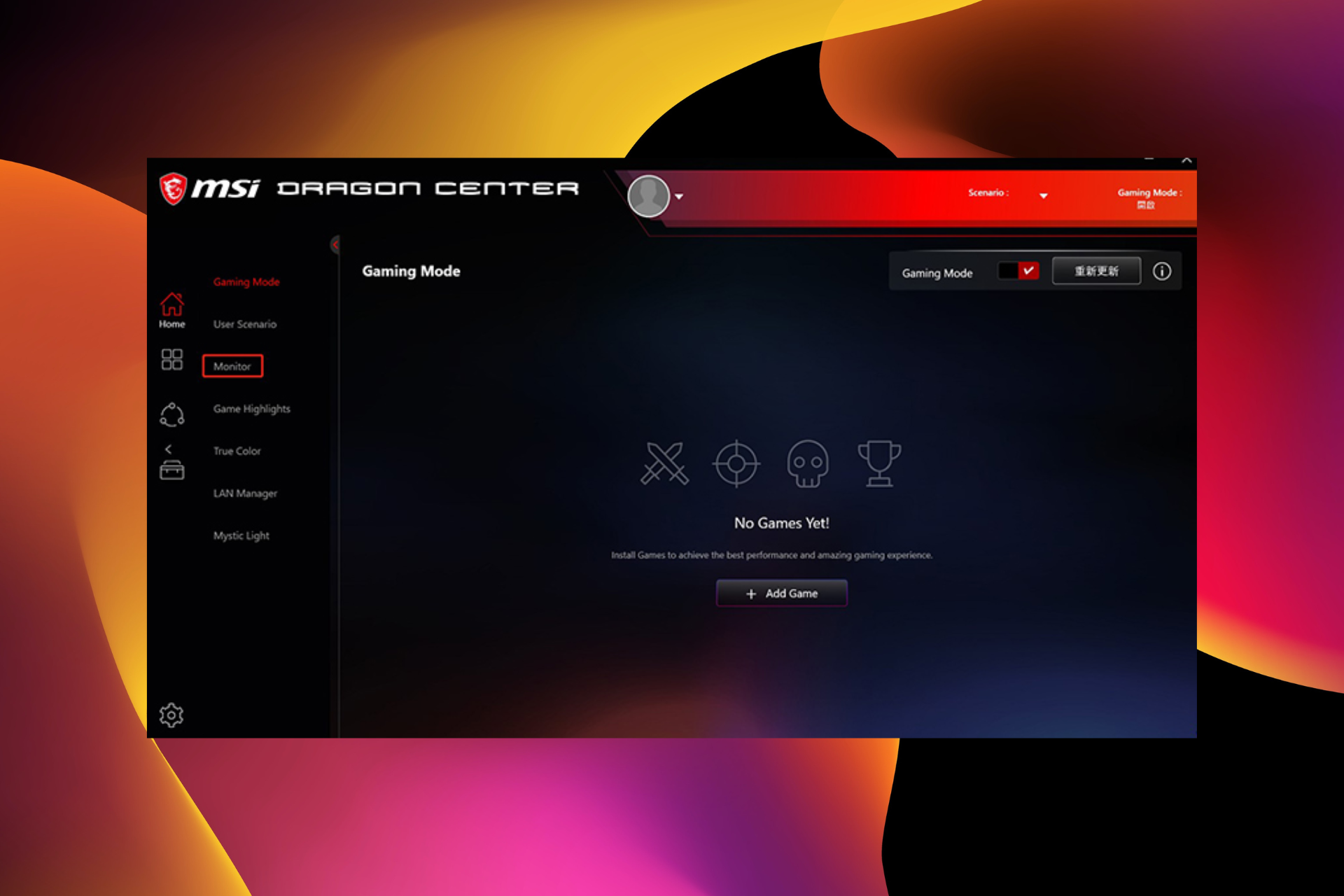
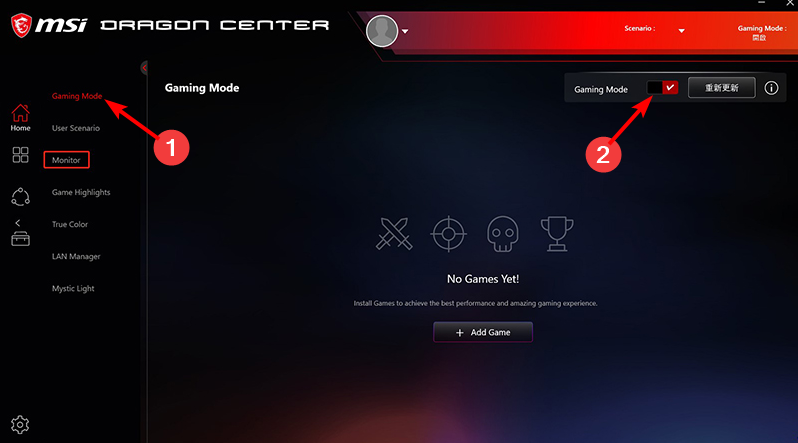
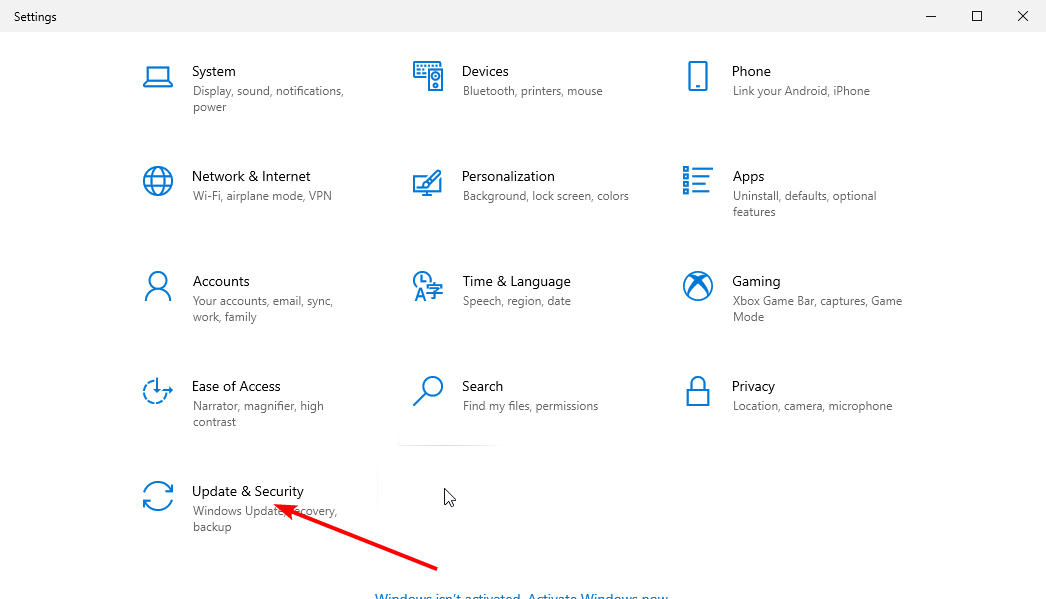
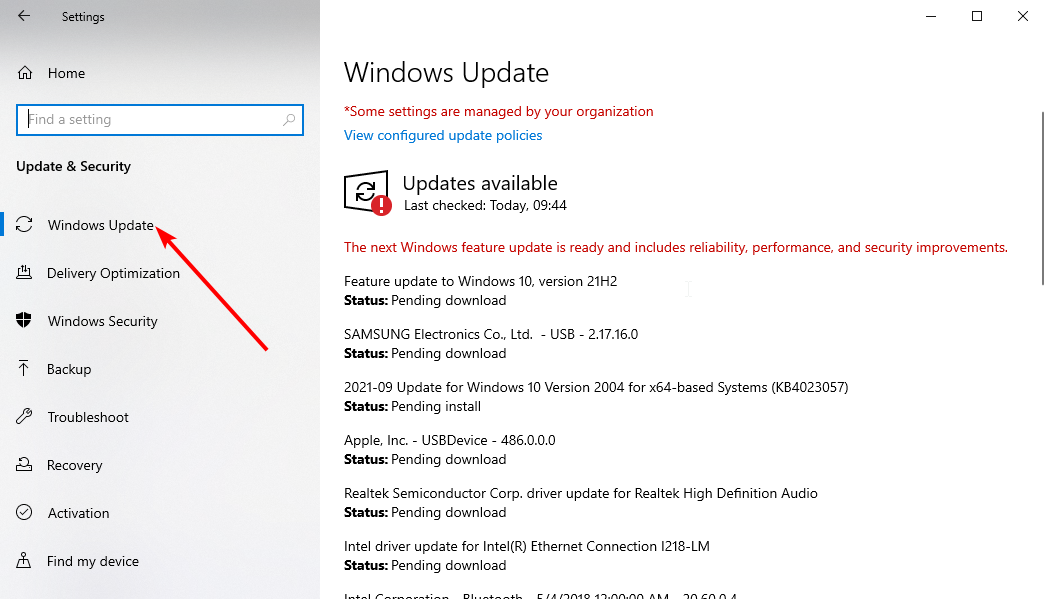
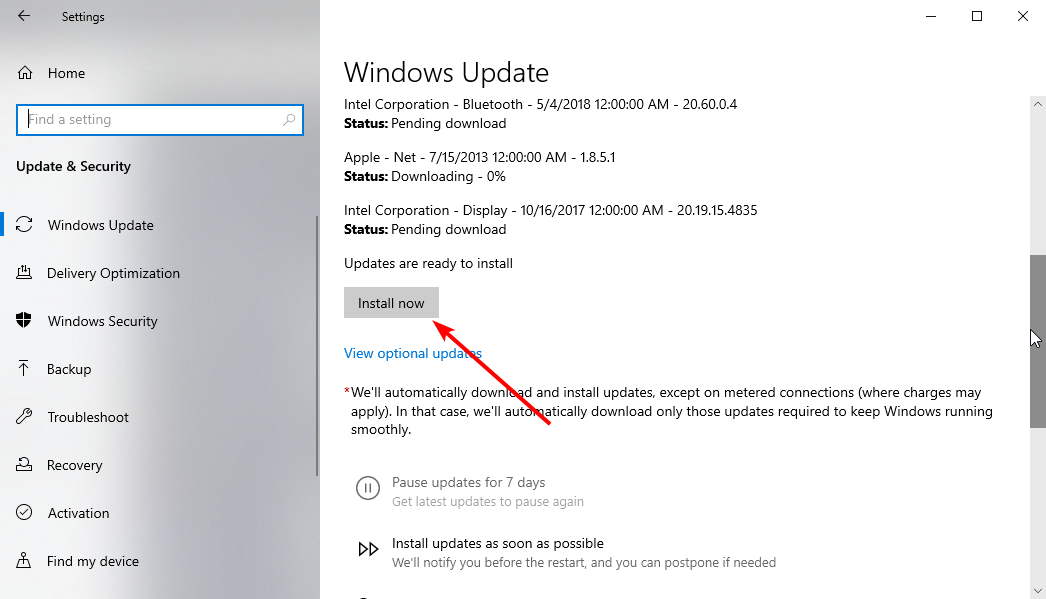
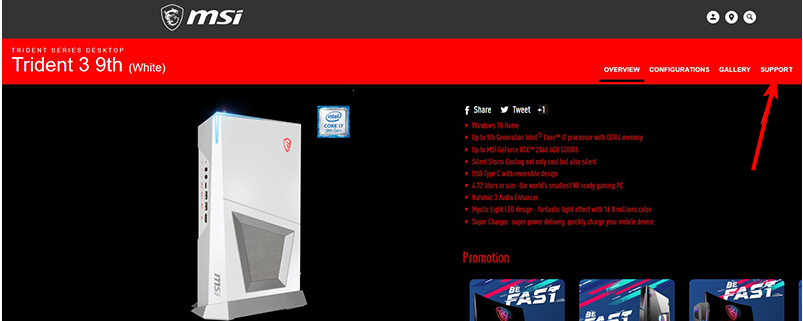
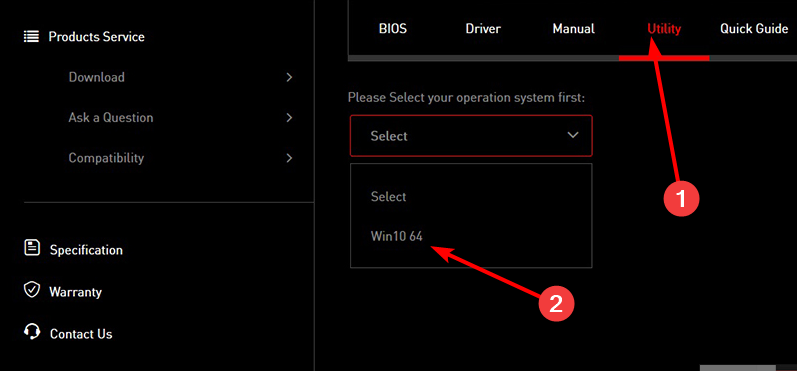
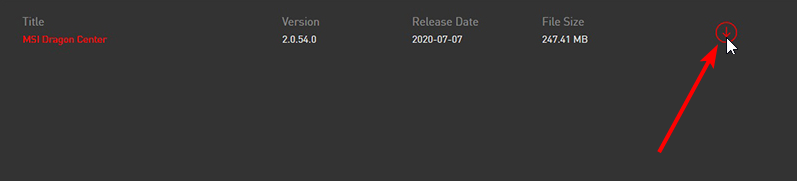
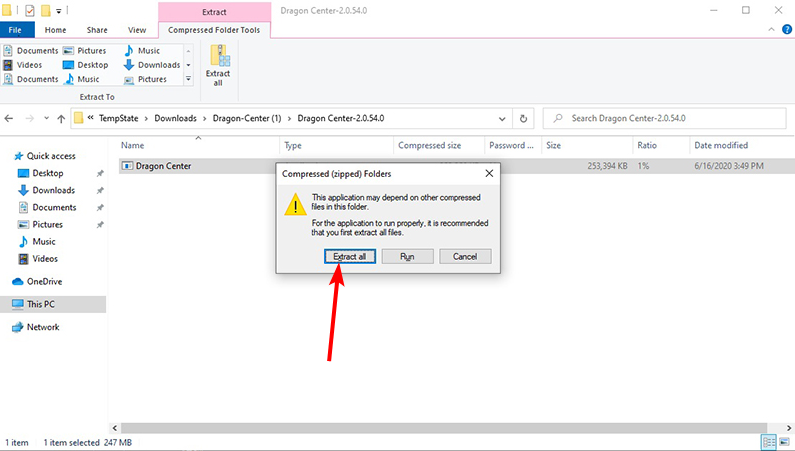
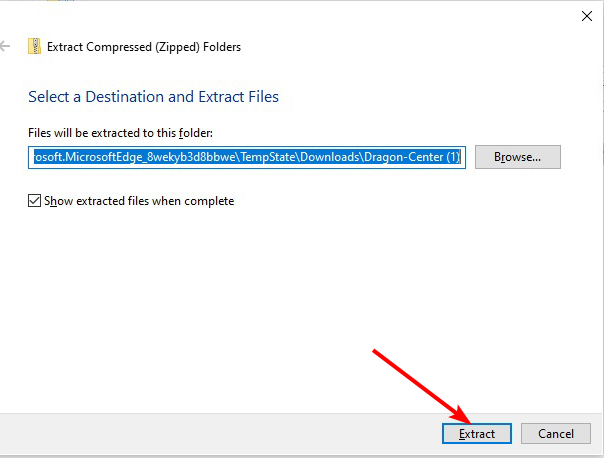
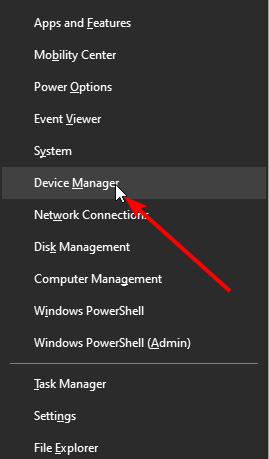
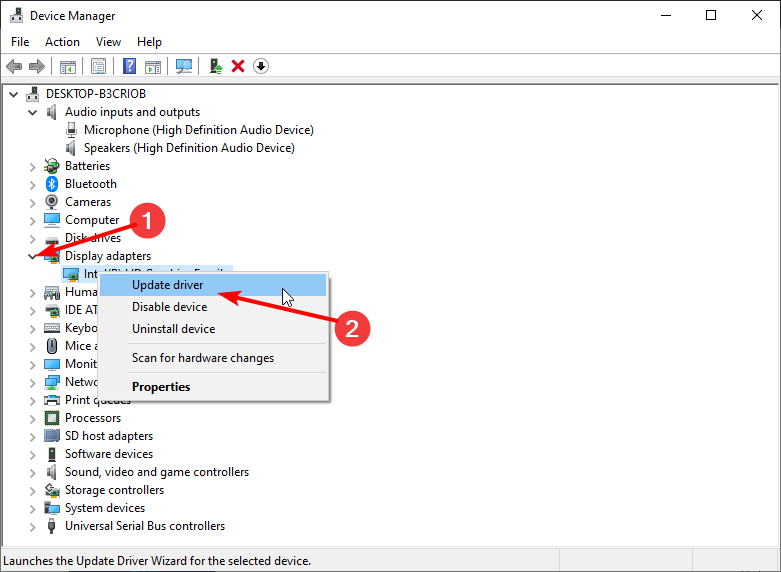
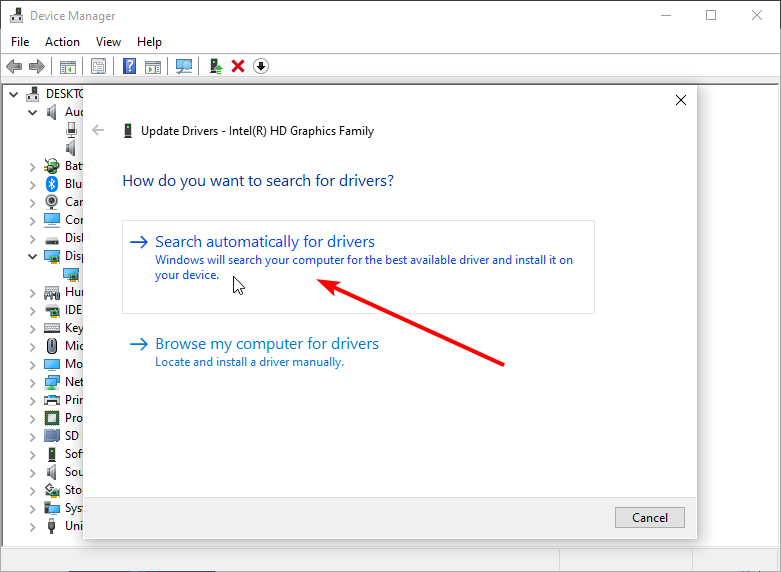





![How to Lower Ping When Playing Fortnite [PC, Xbox]](https://windowsreport.com/wp-content/uploads/2021/12/fortnite-ping-featured-in-tv.jpg)
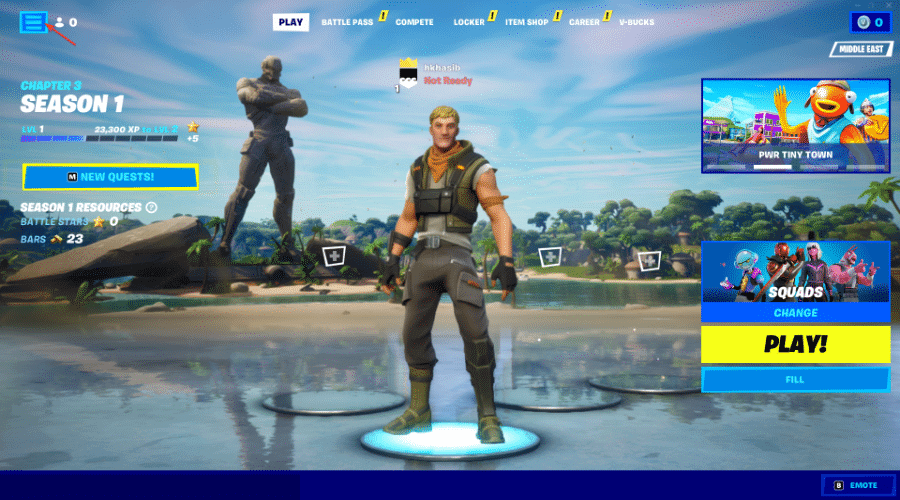
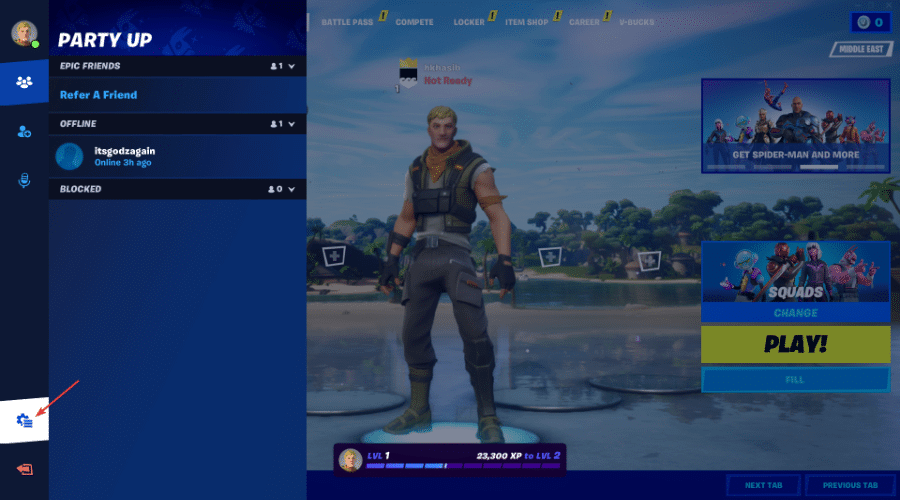
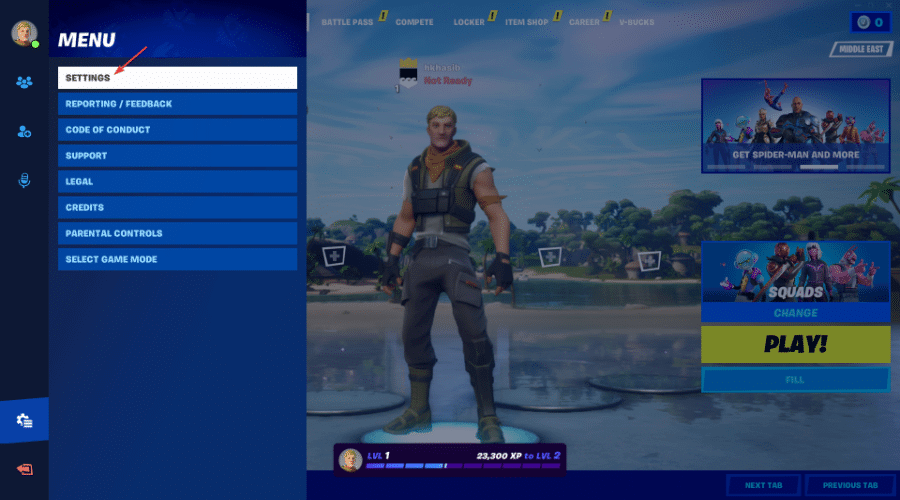
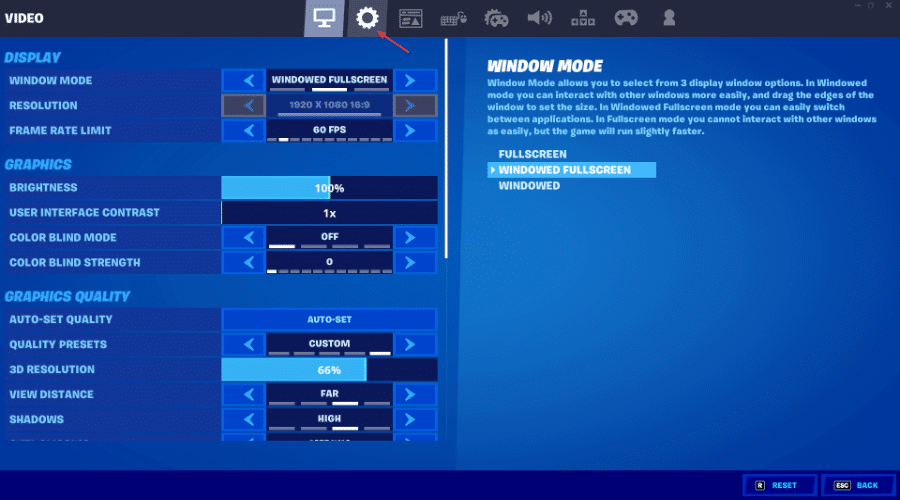
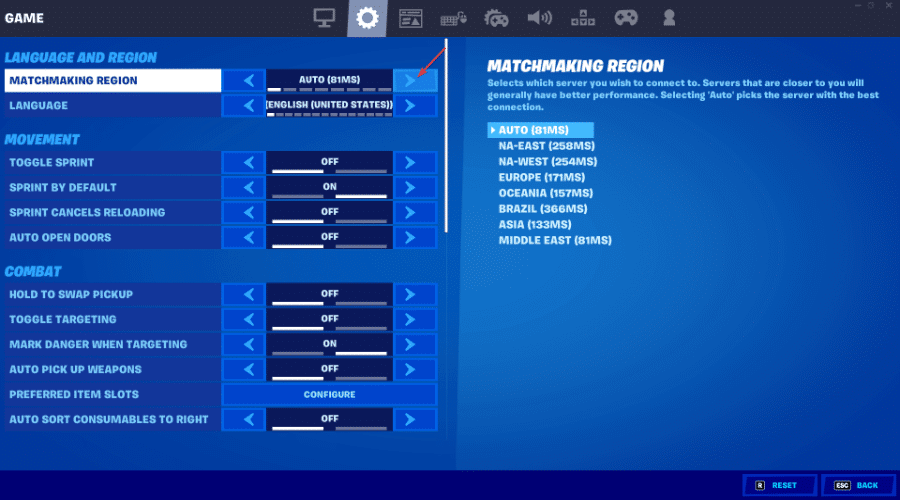
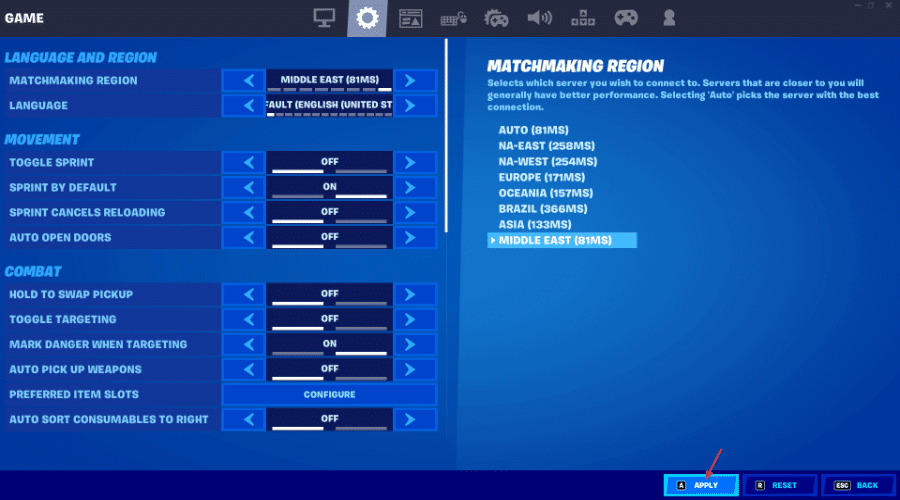
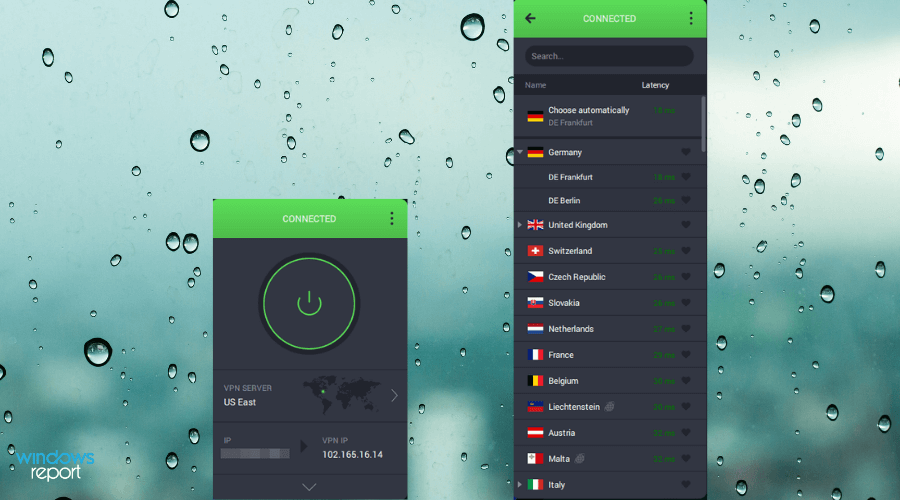
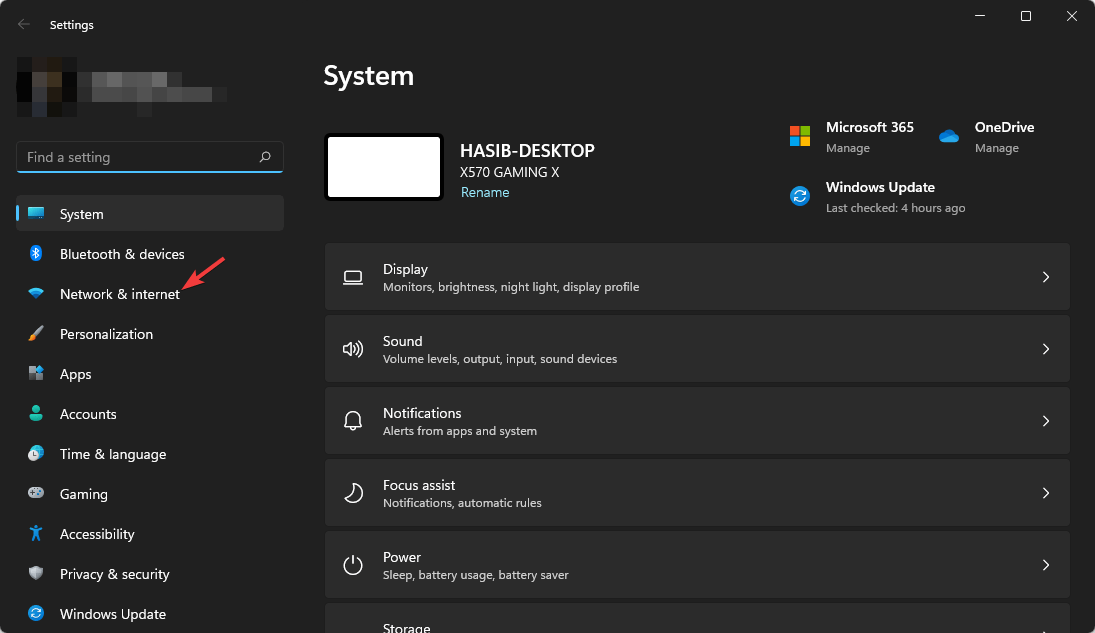
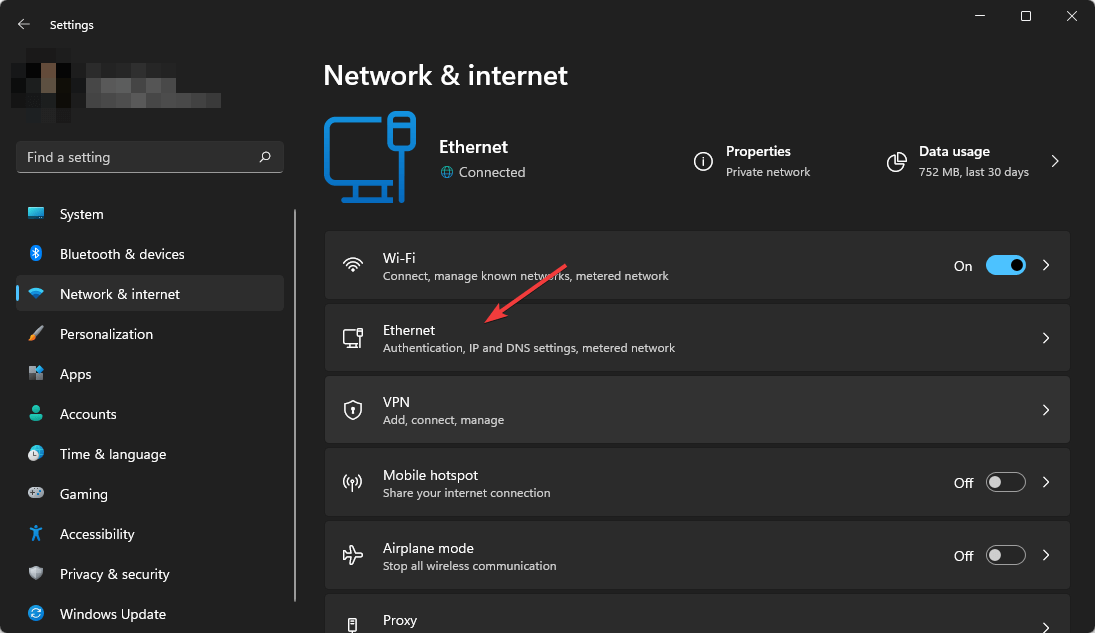
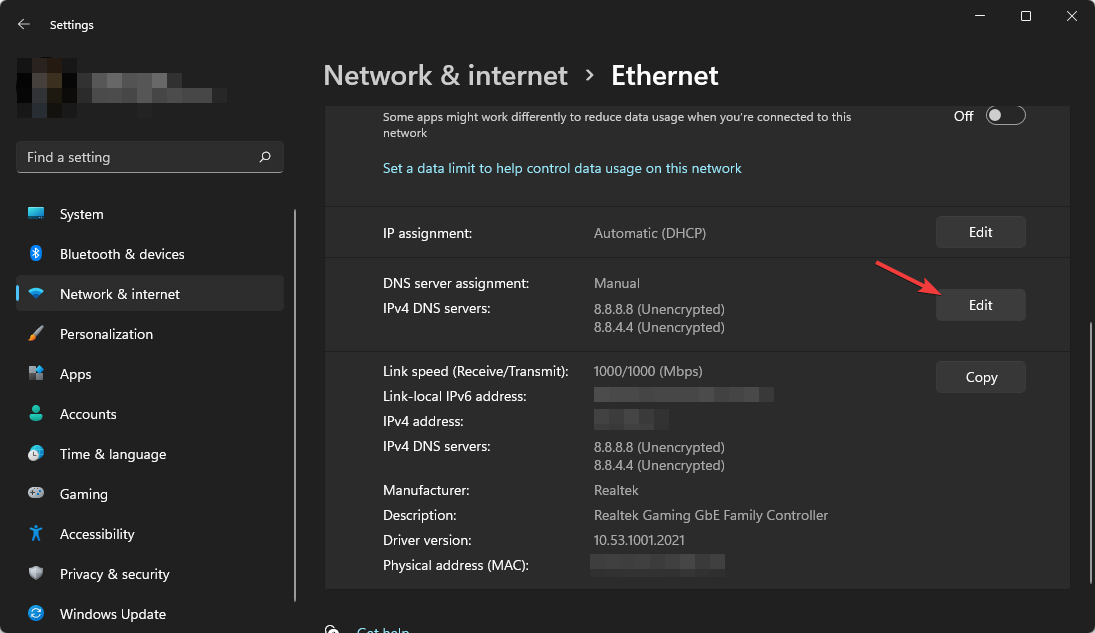
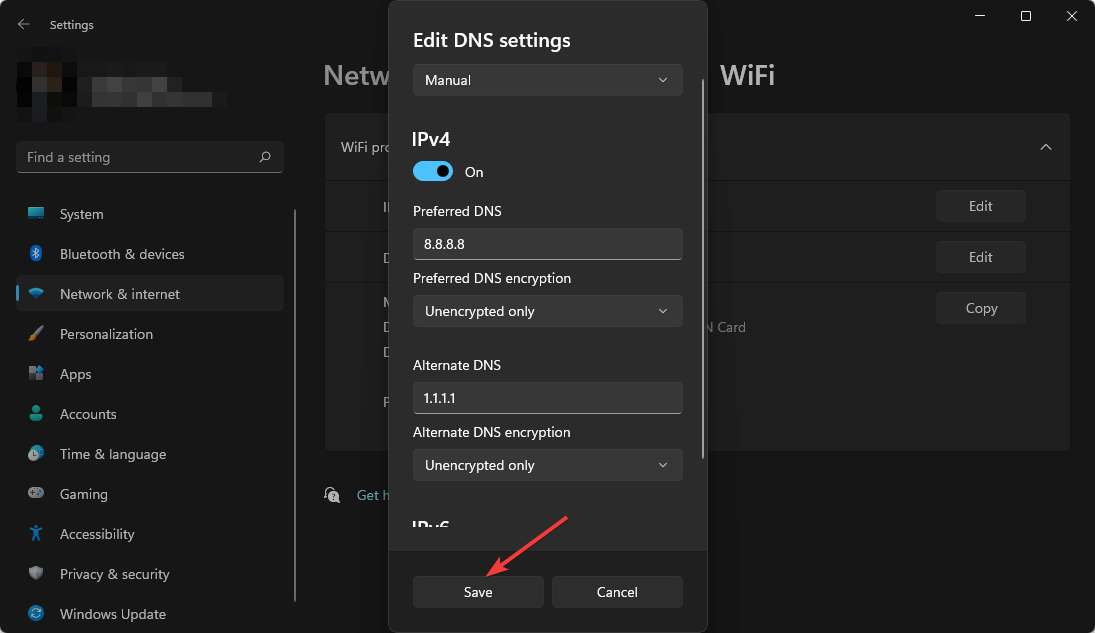
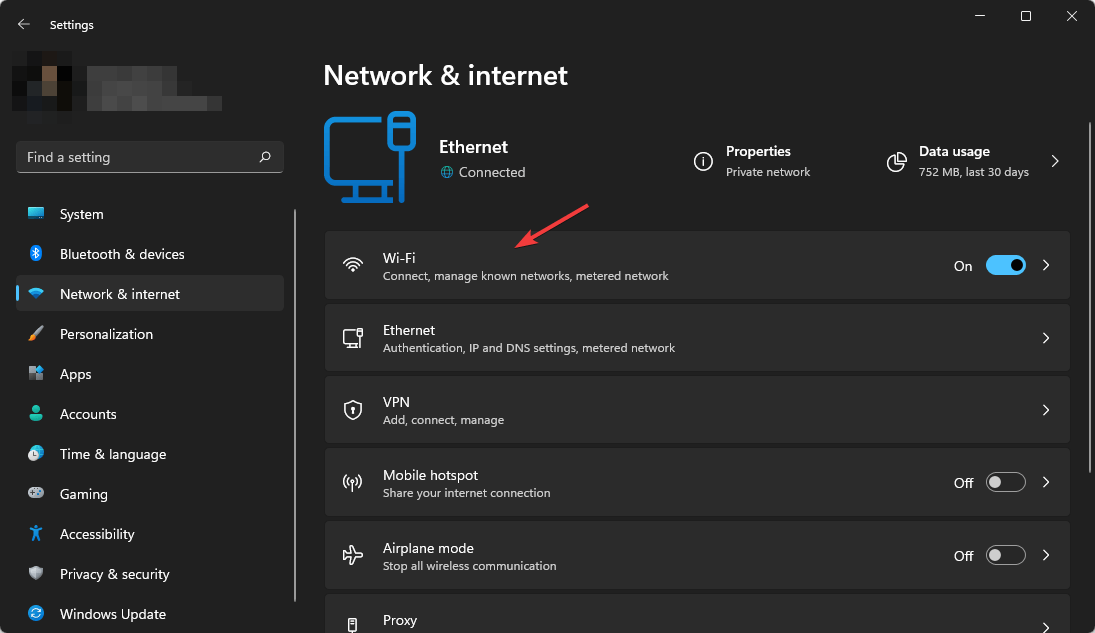
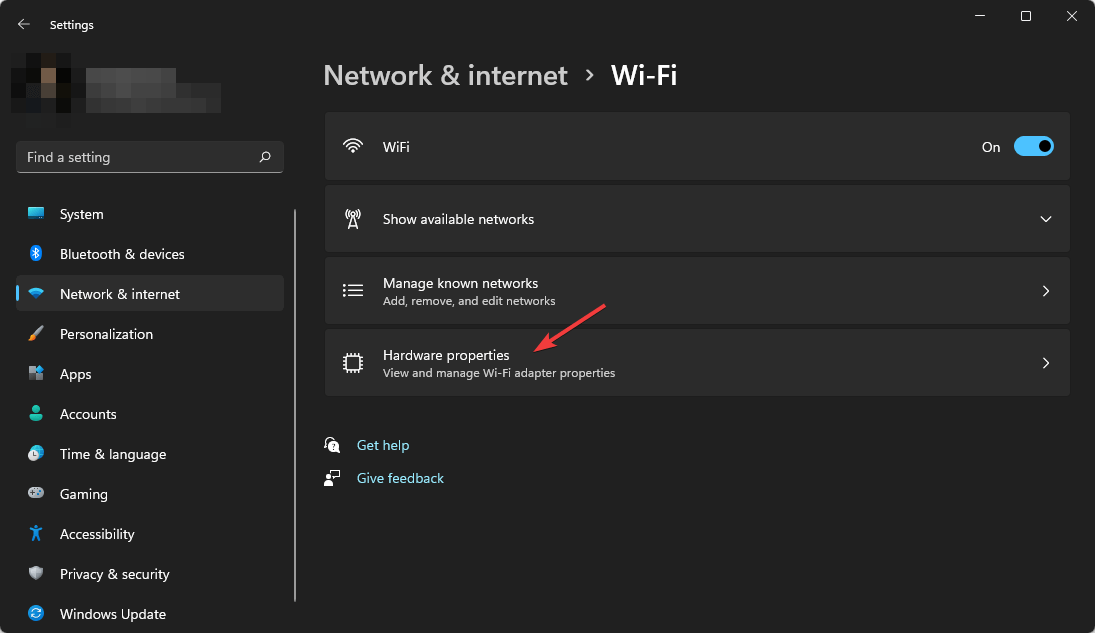
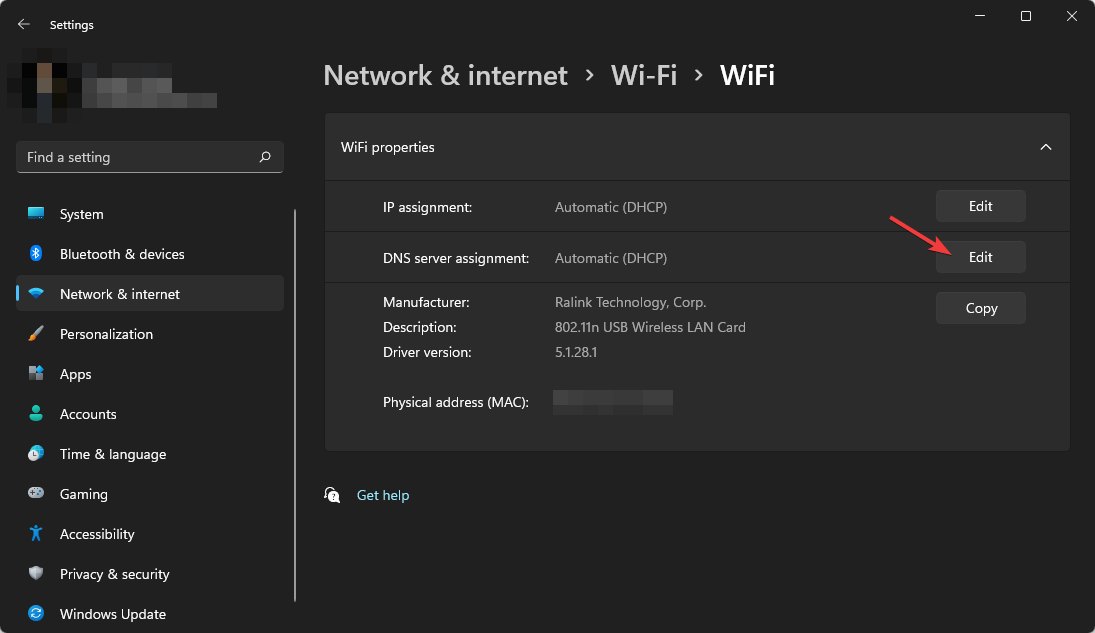
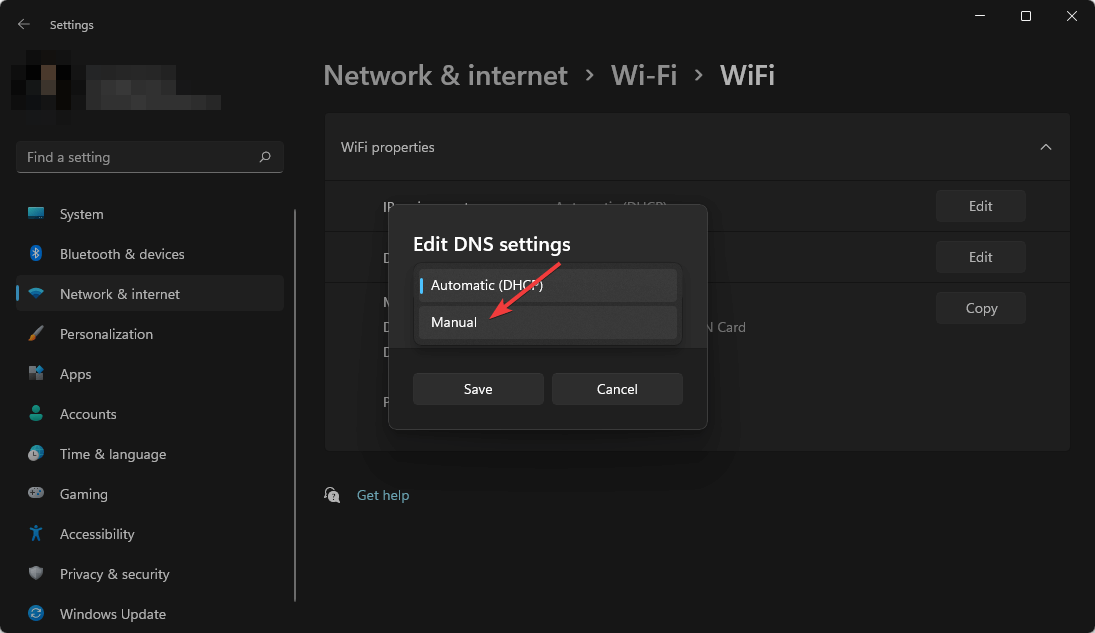
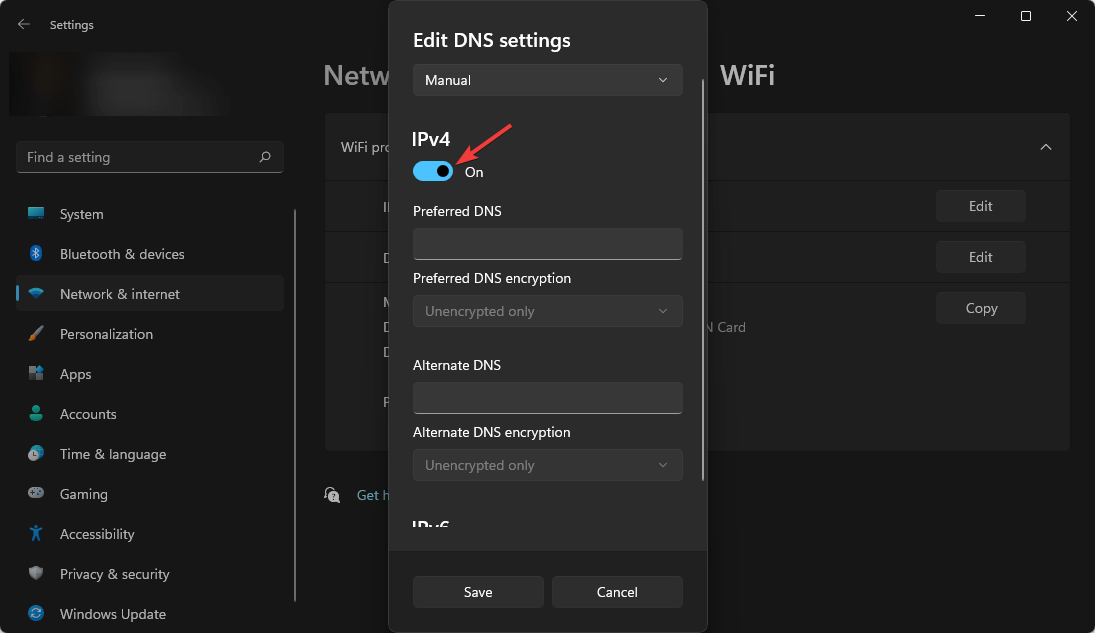
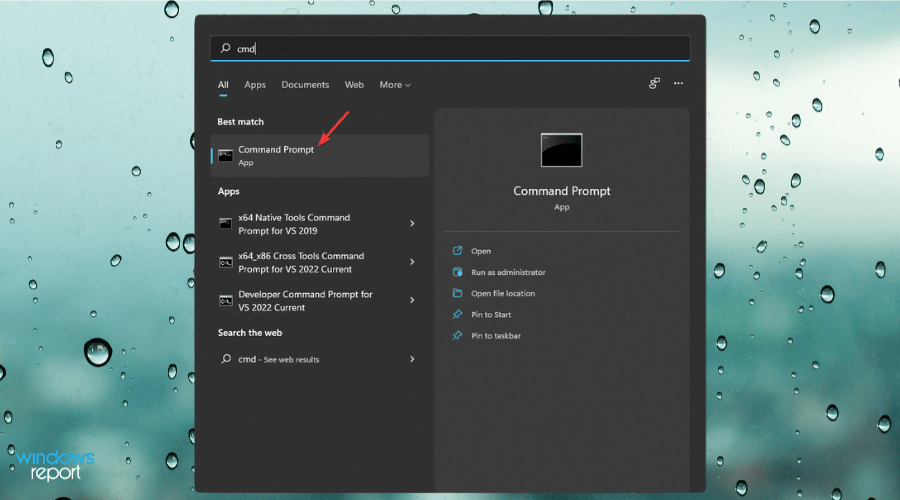
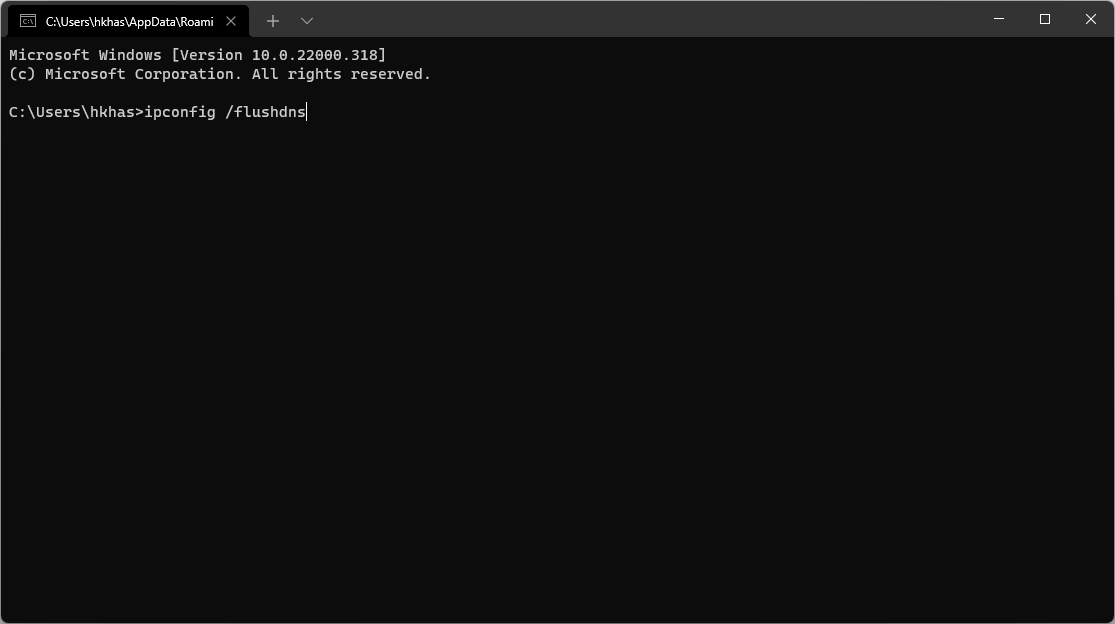
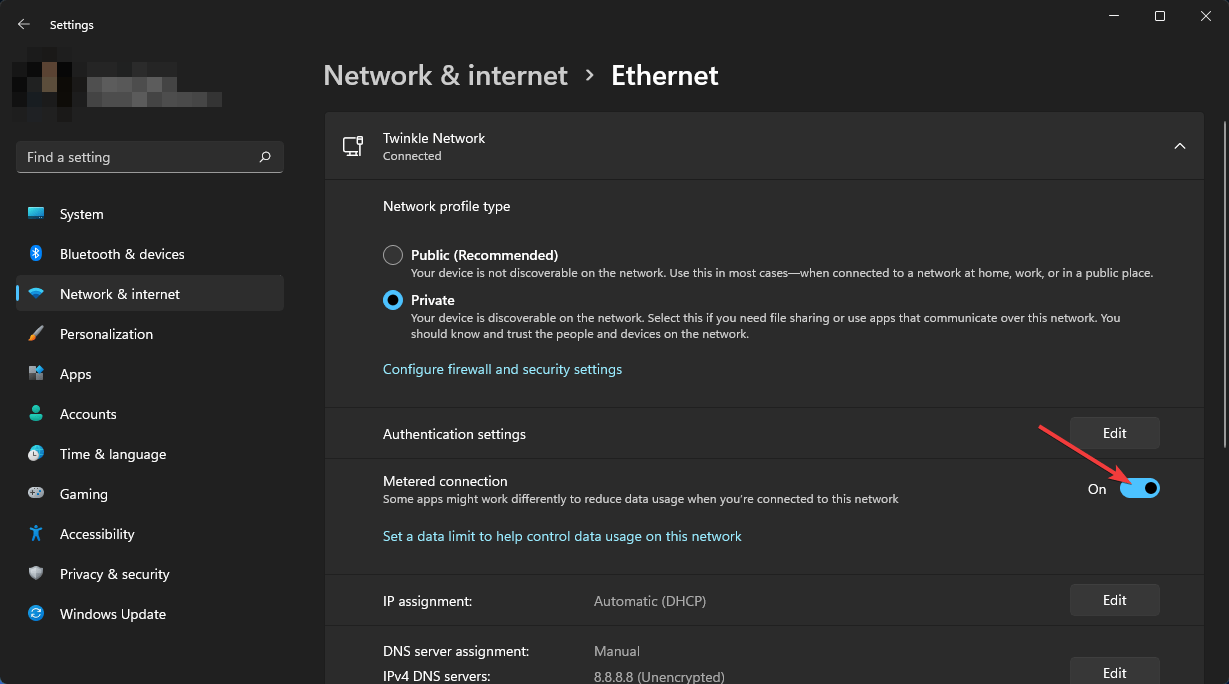
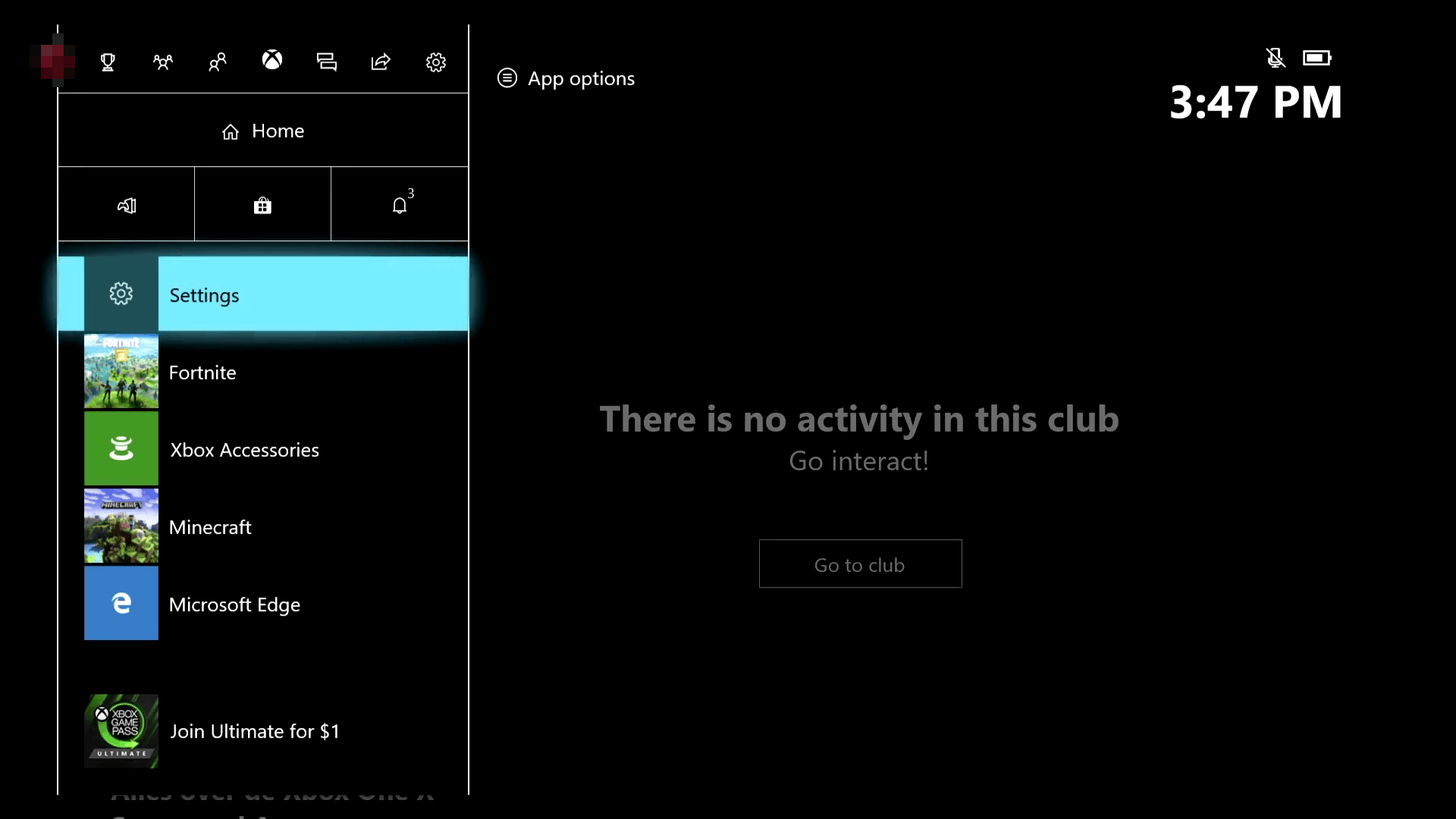
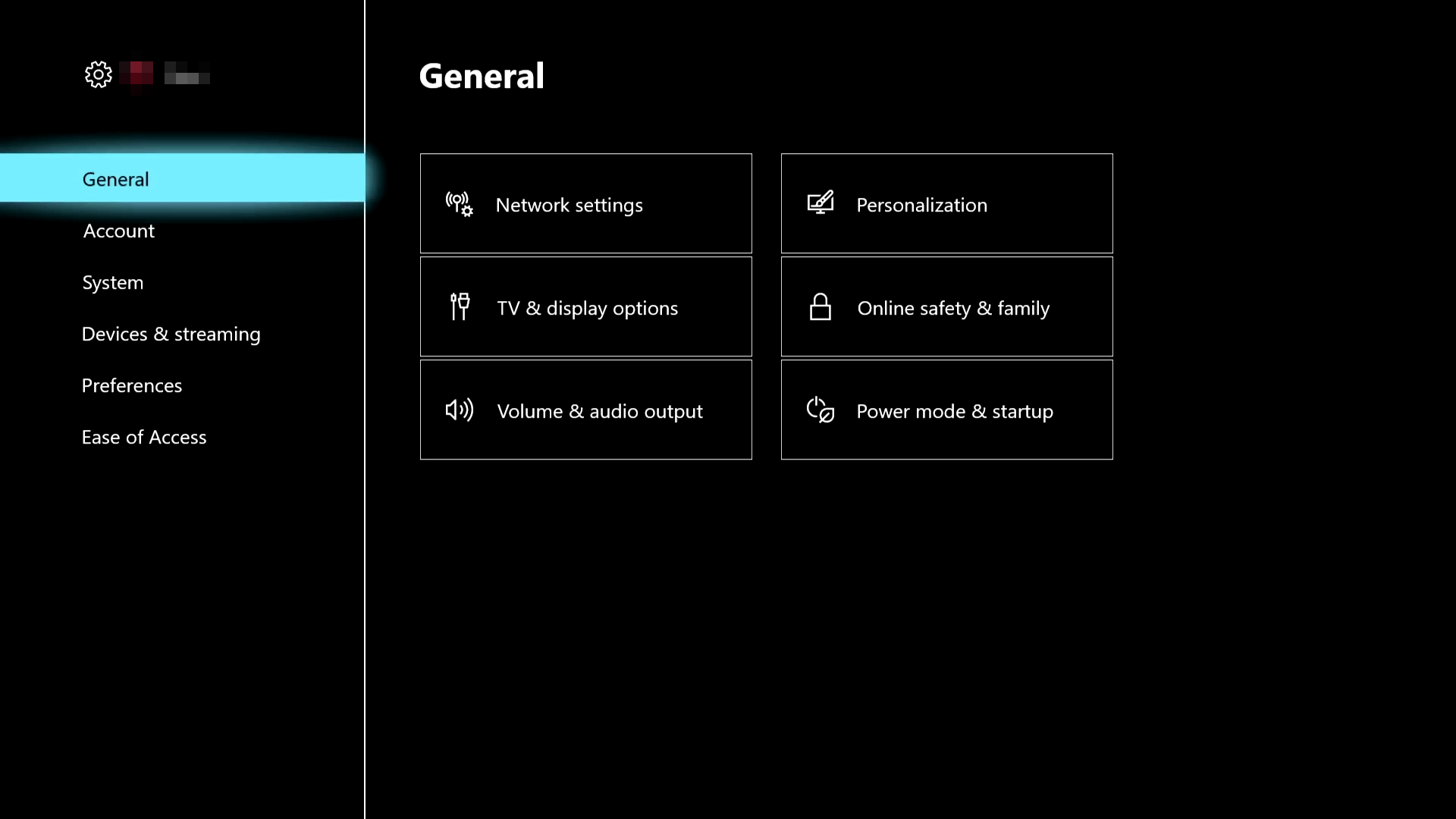
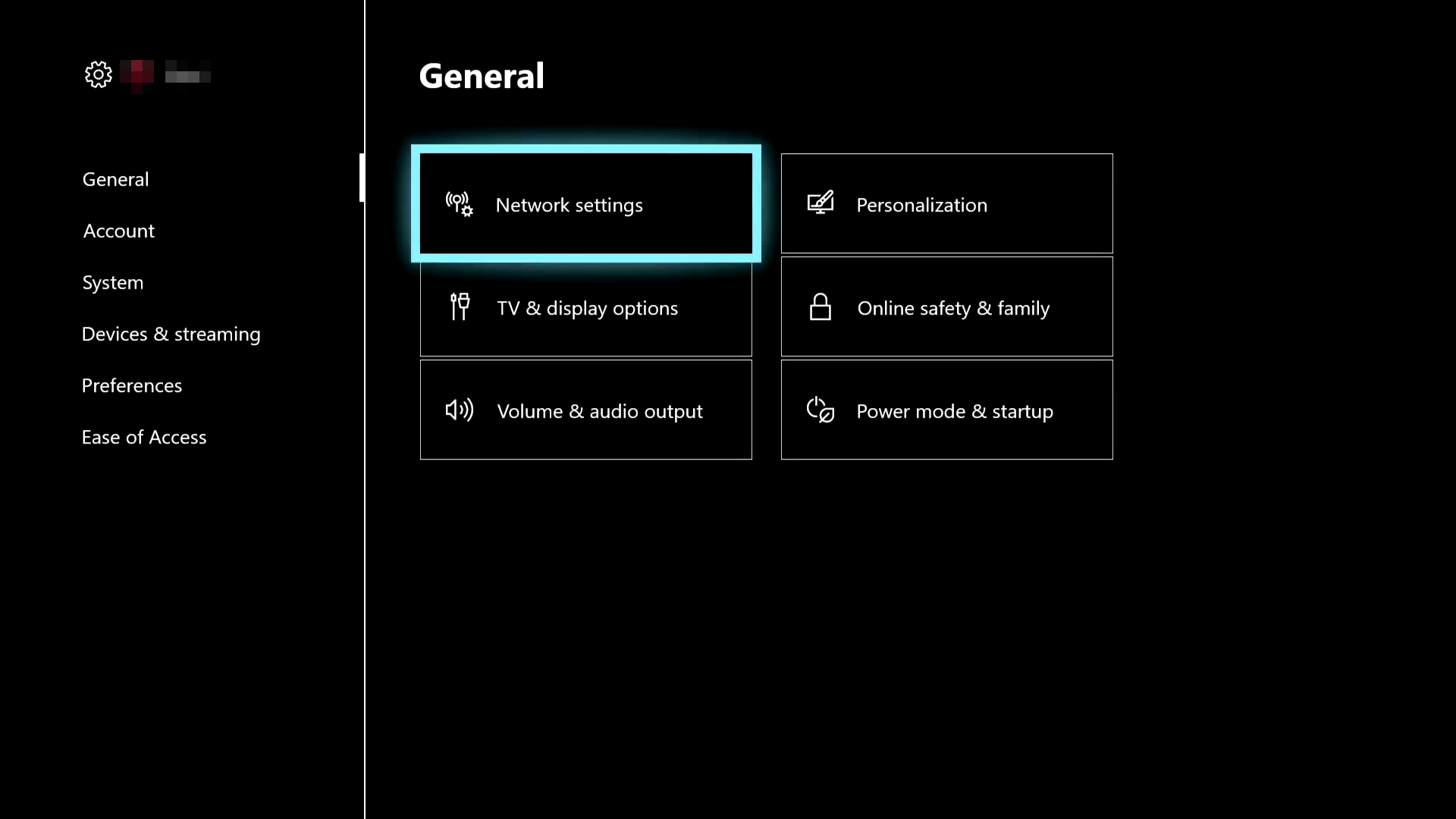
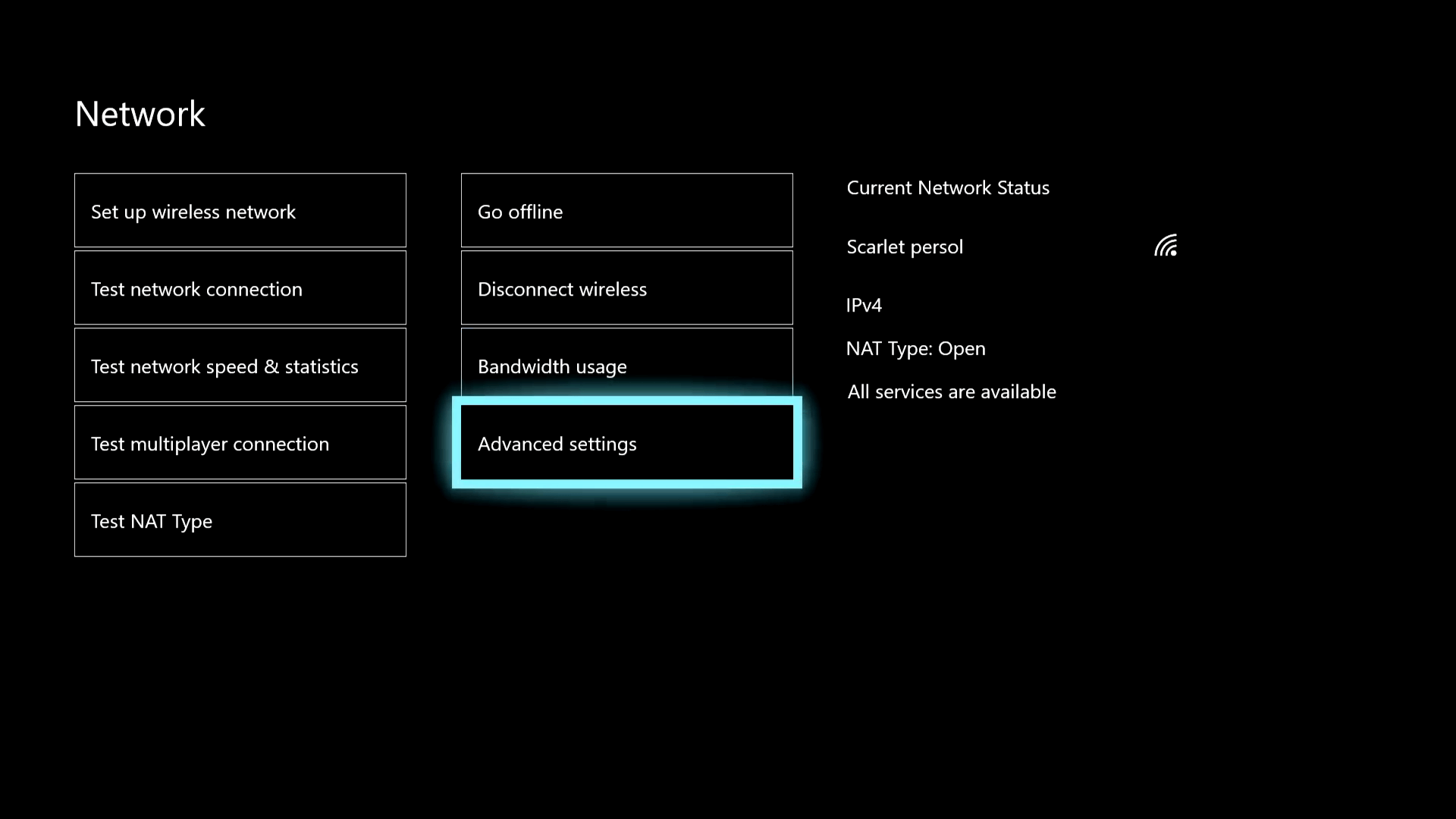
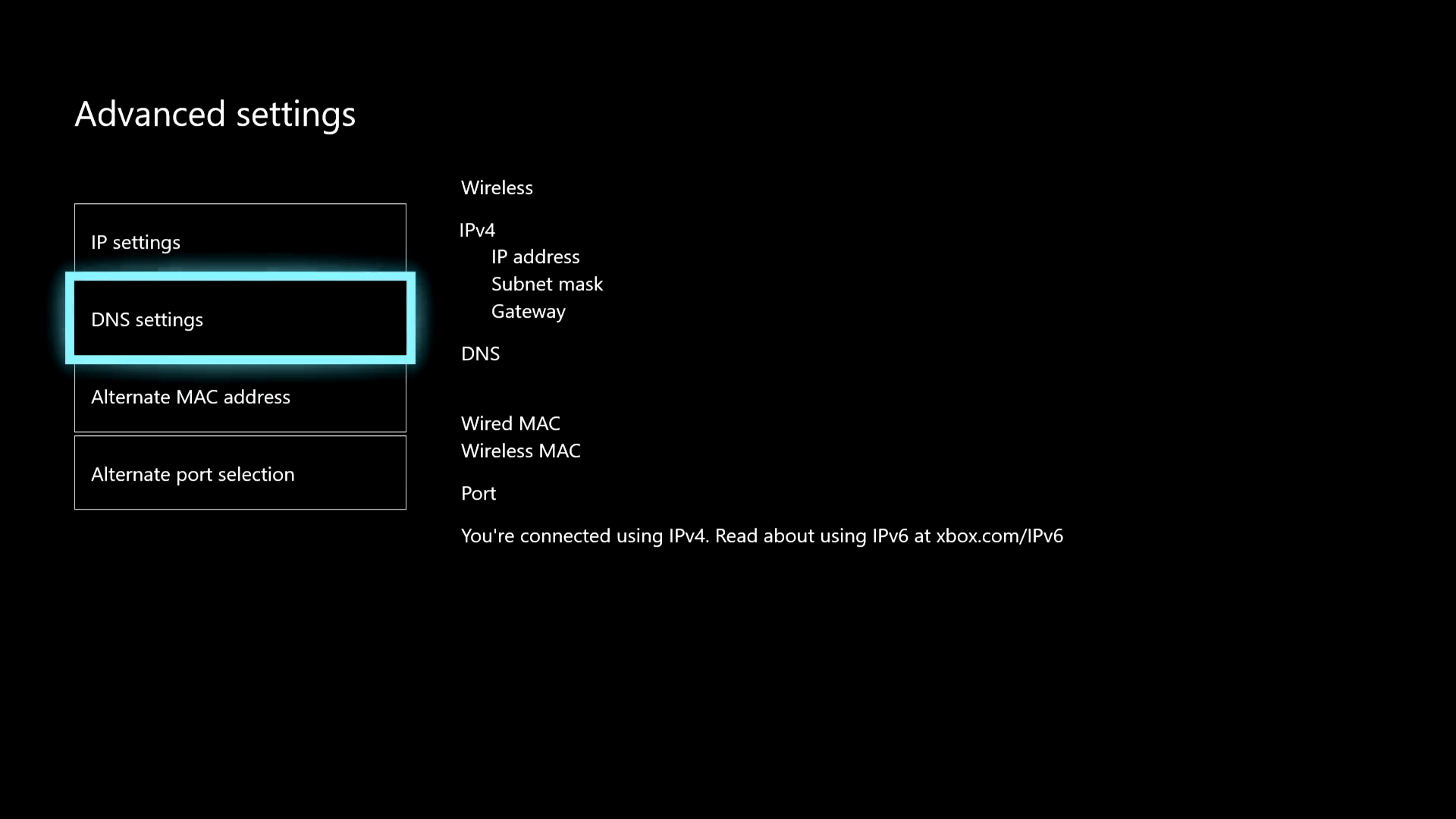

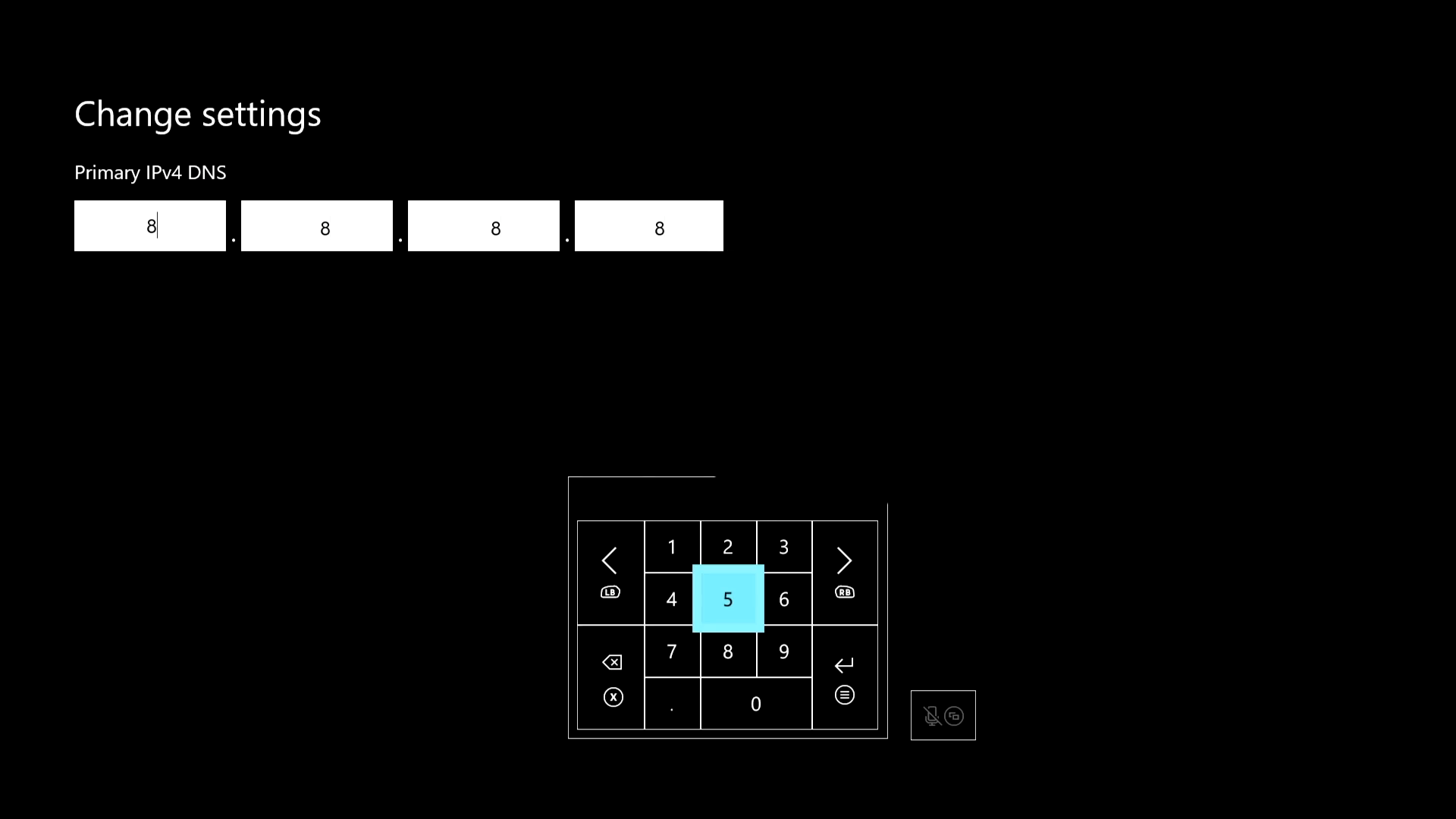
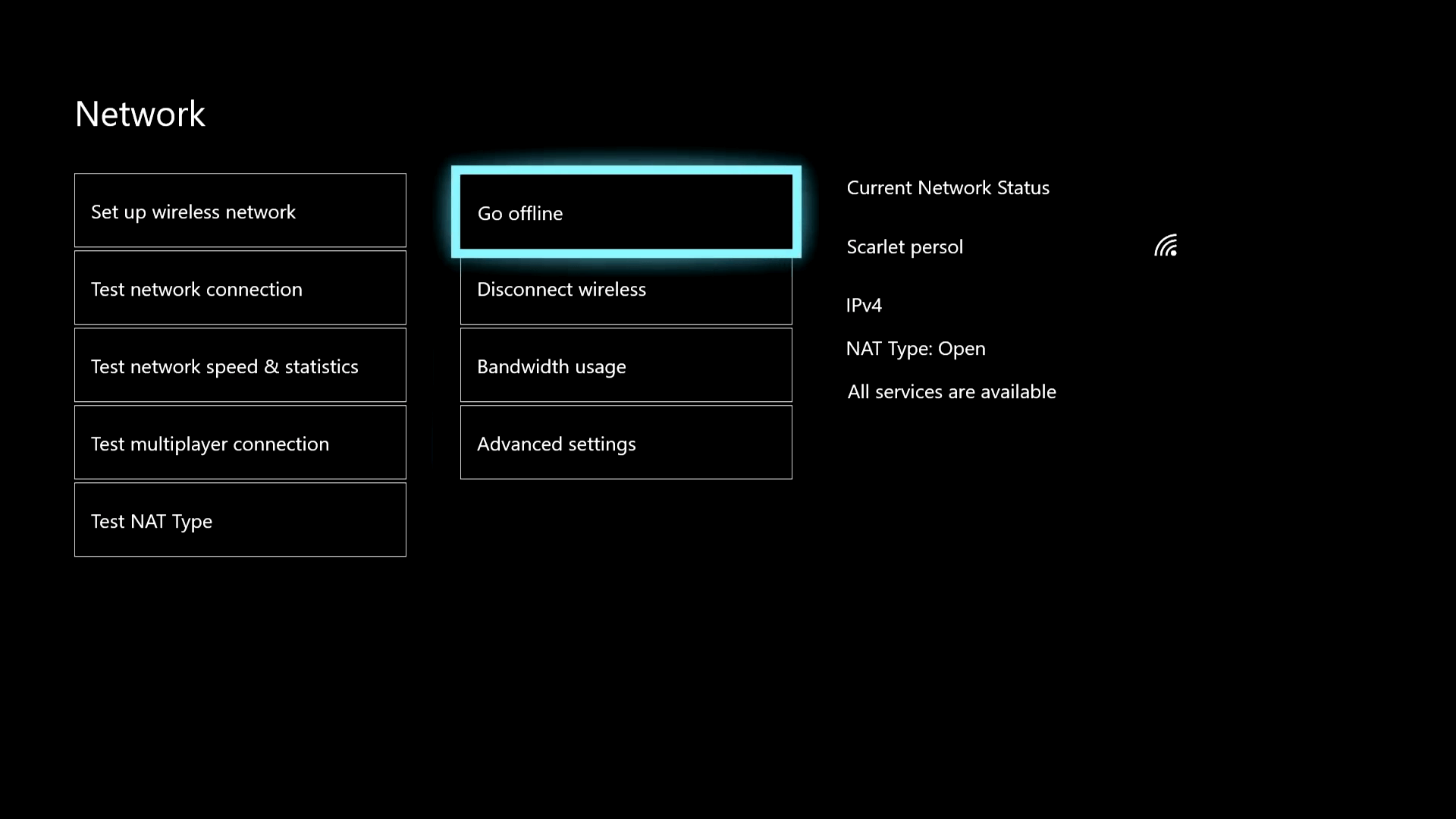
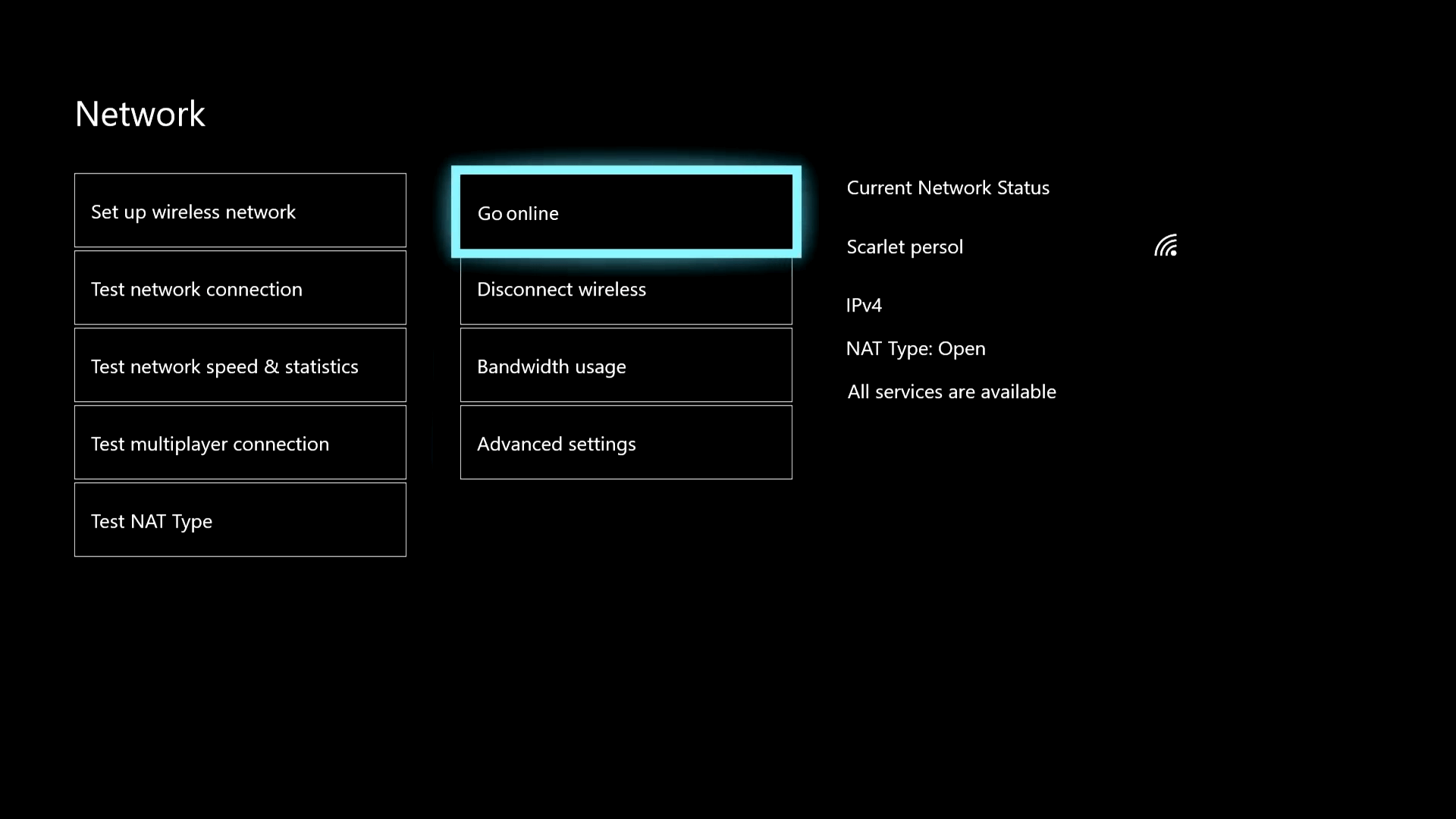

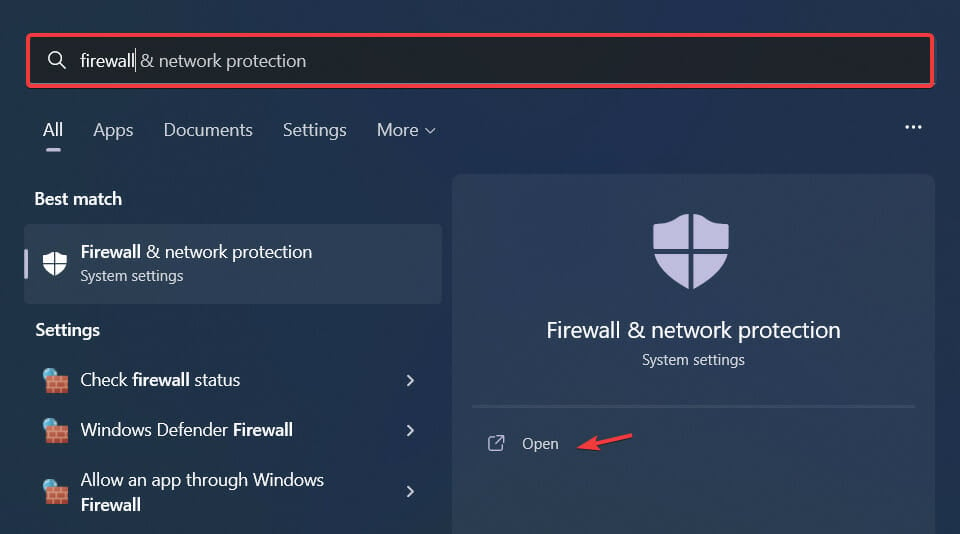
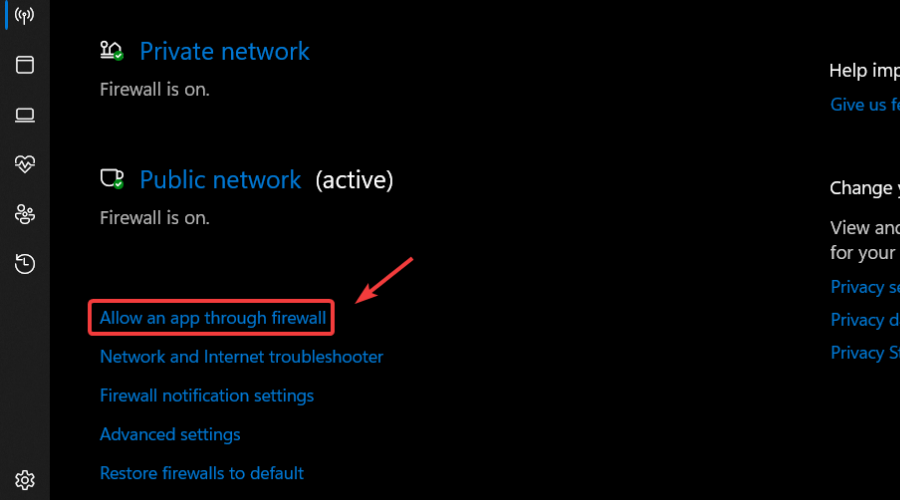
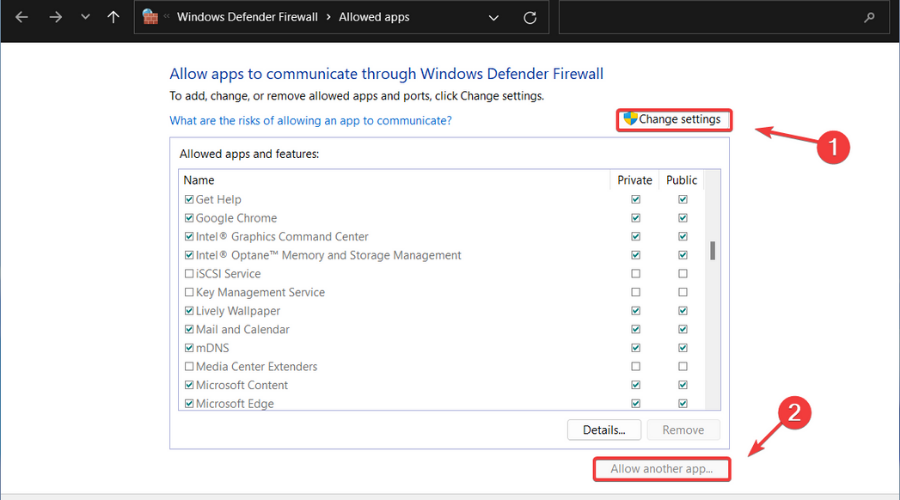
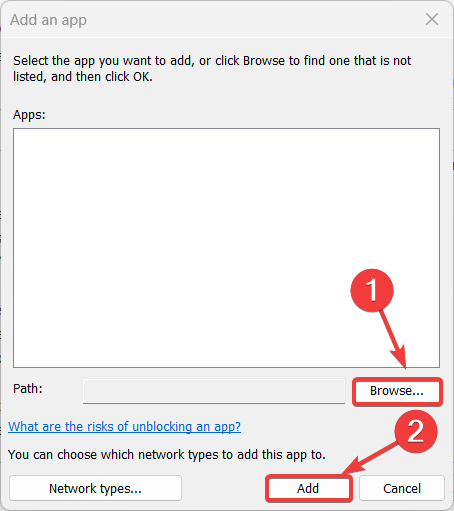
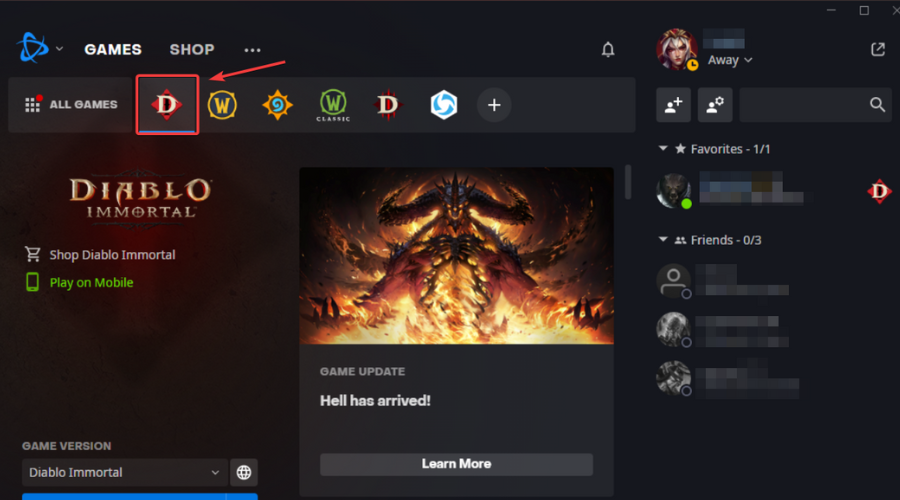
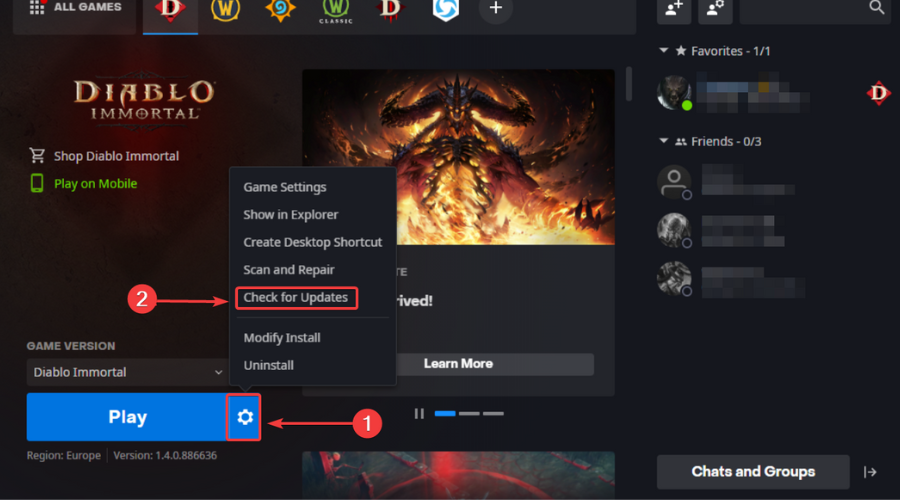
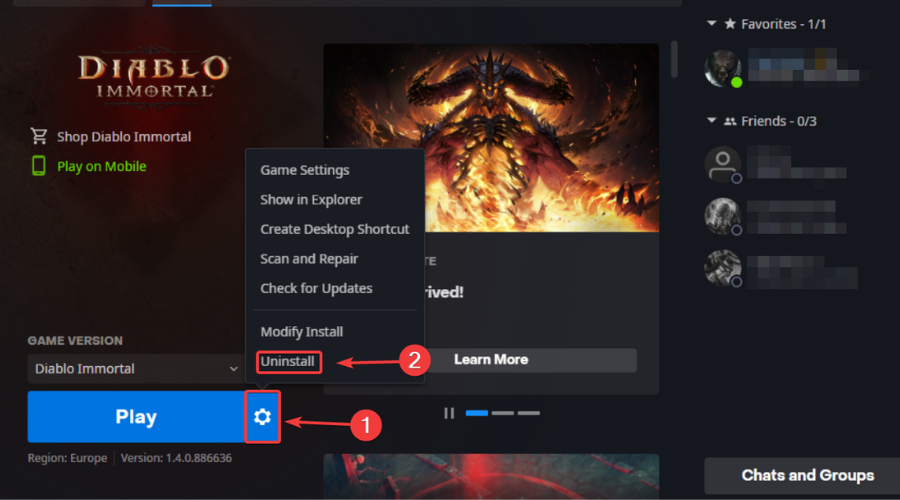
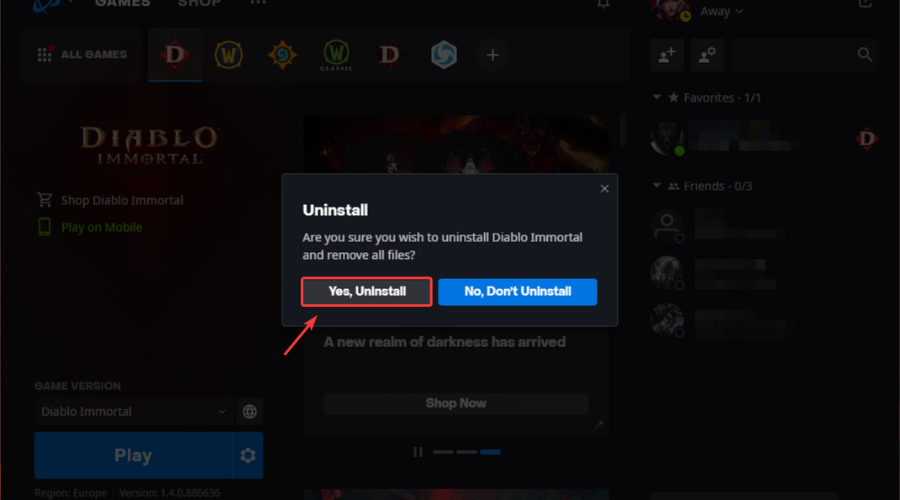
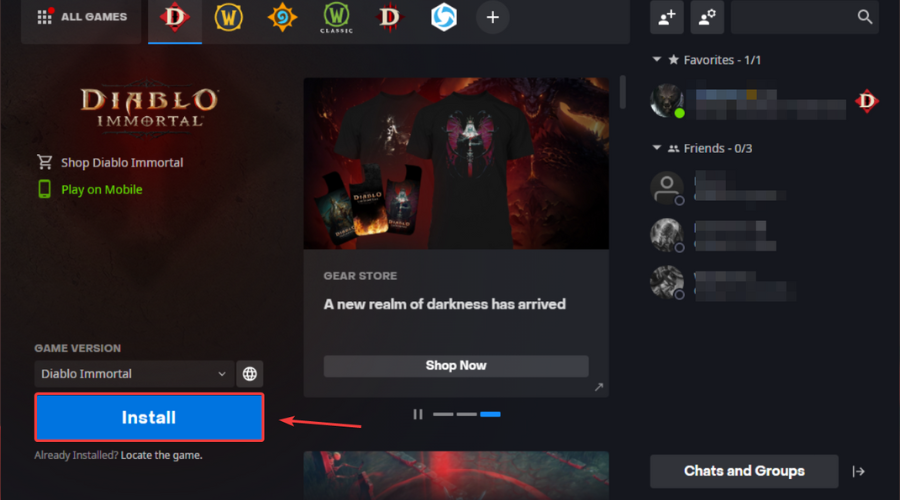
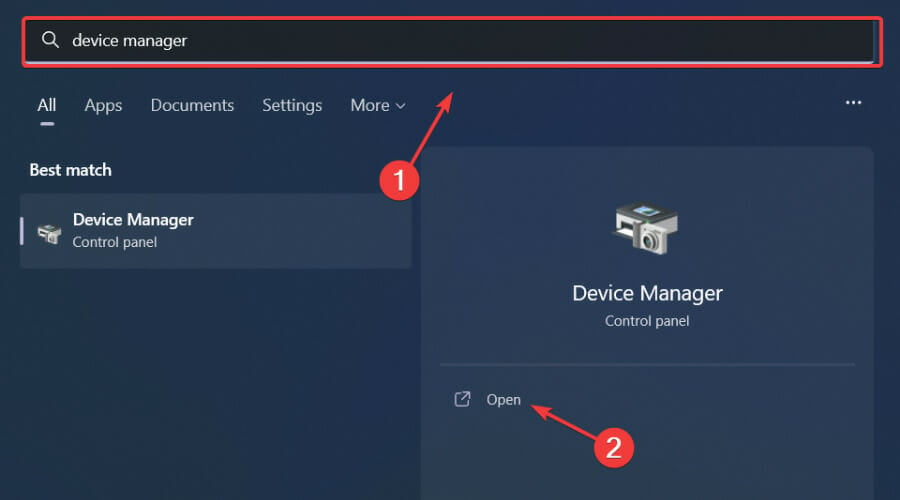
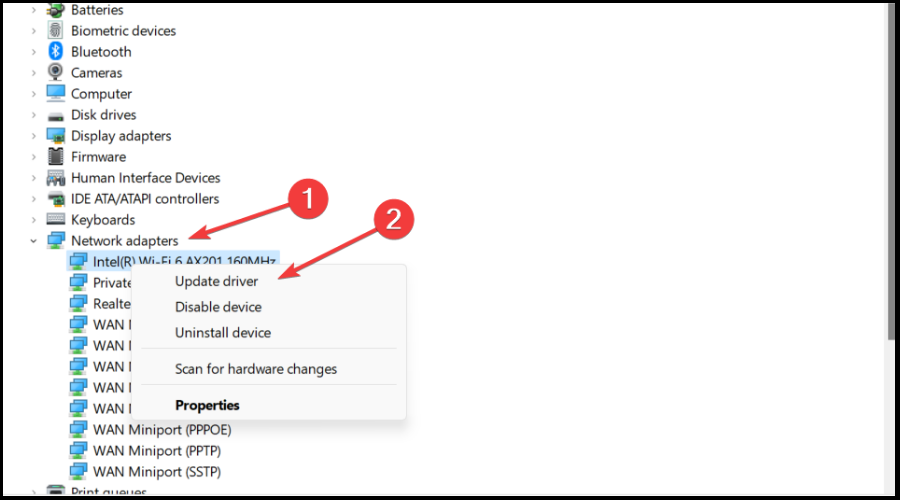
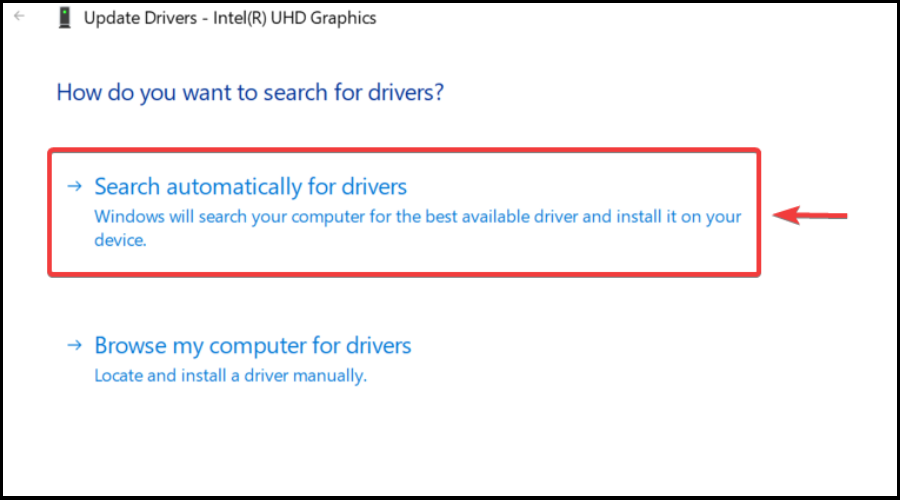
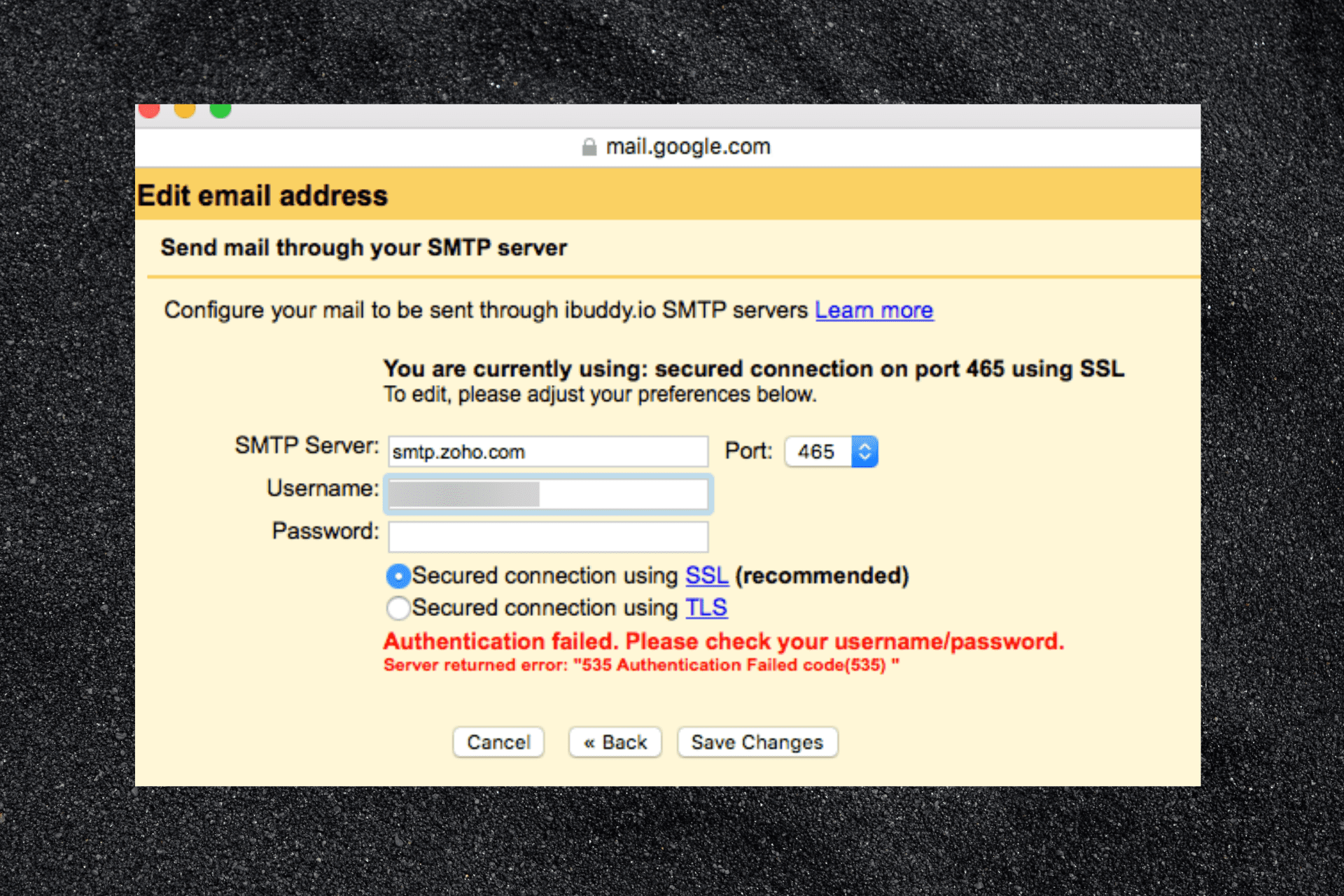


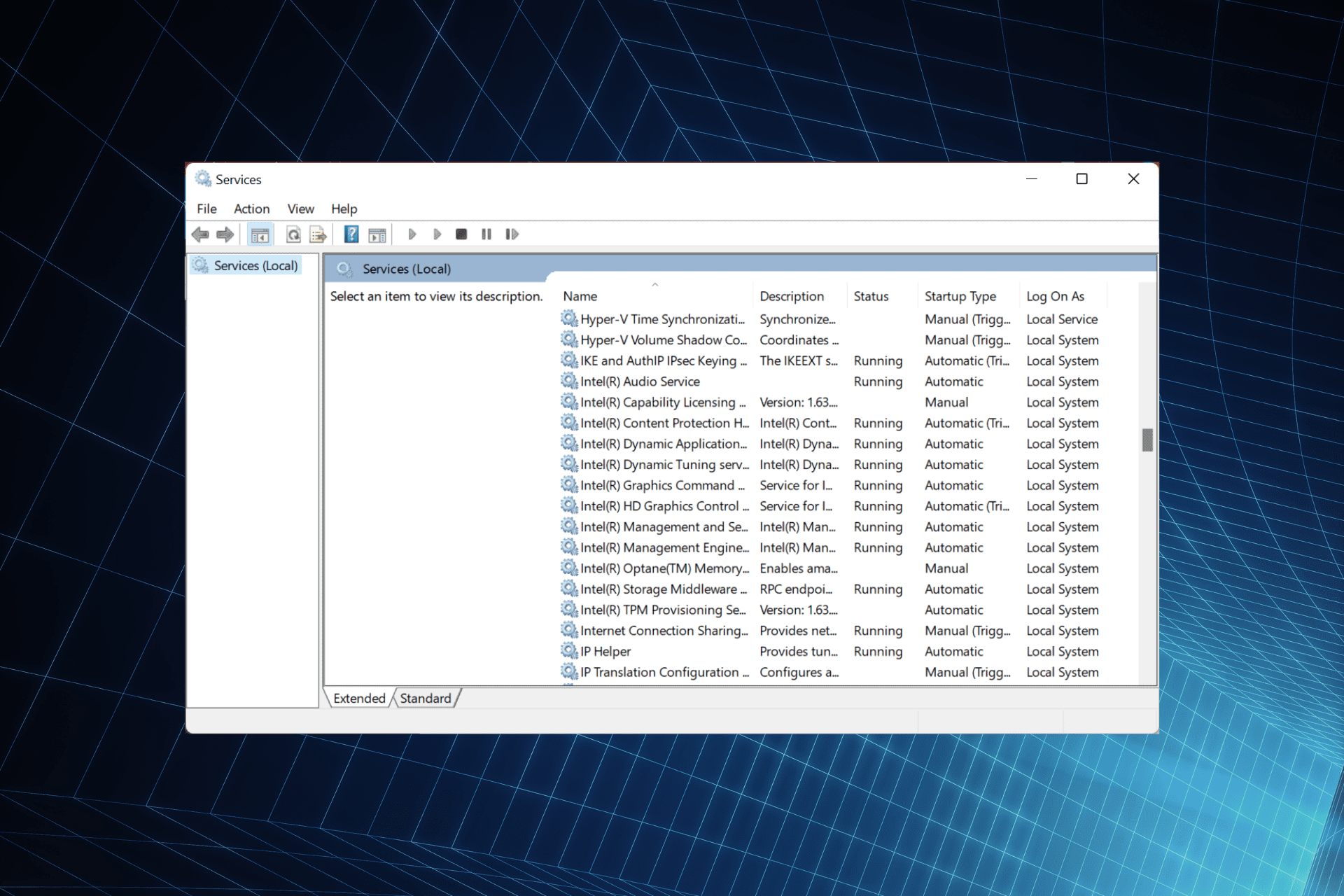




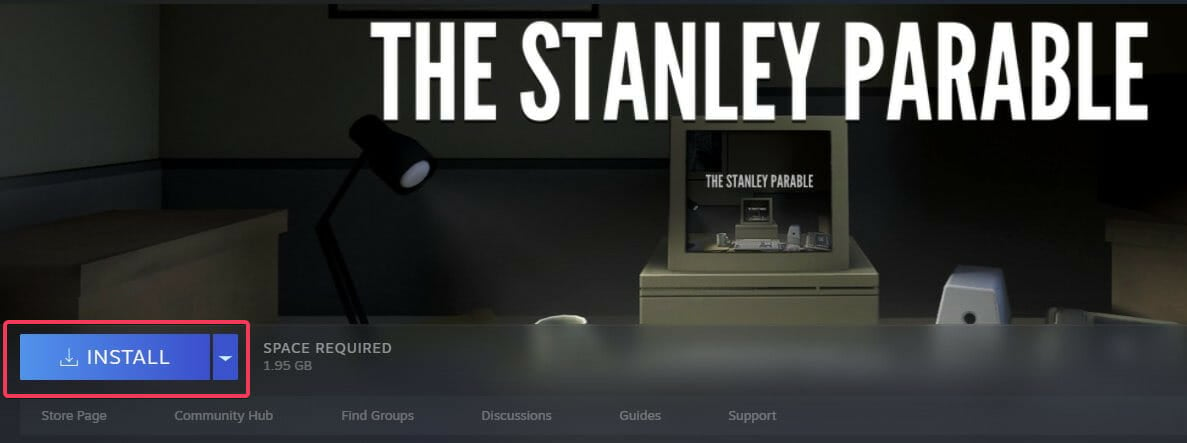
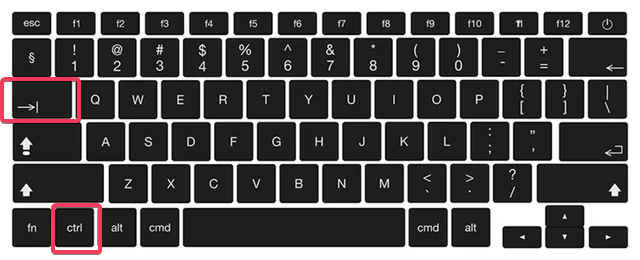
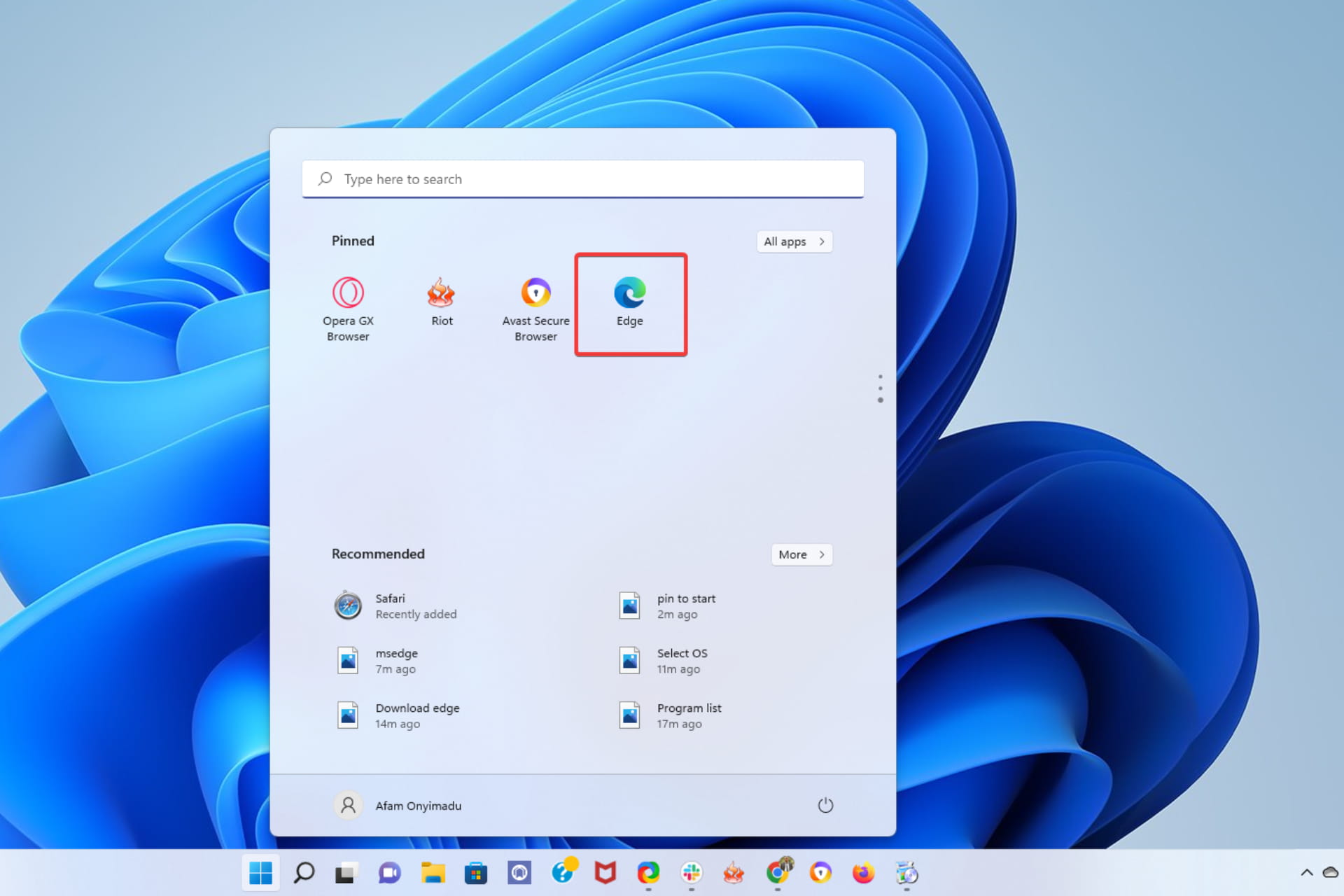
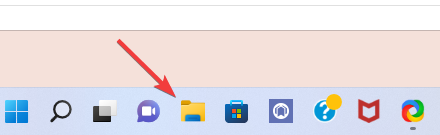
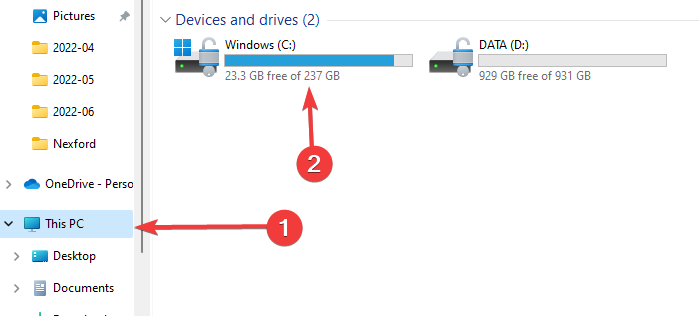
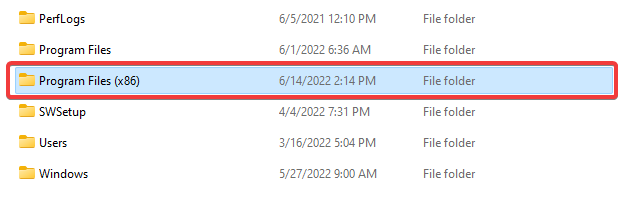
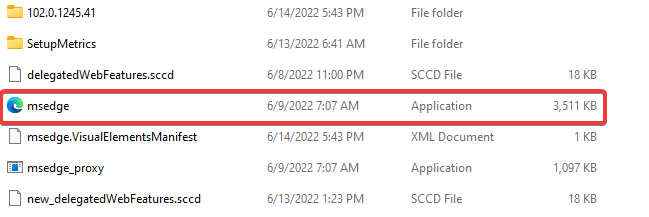
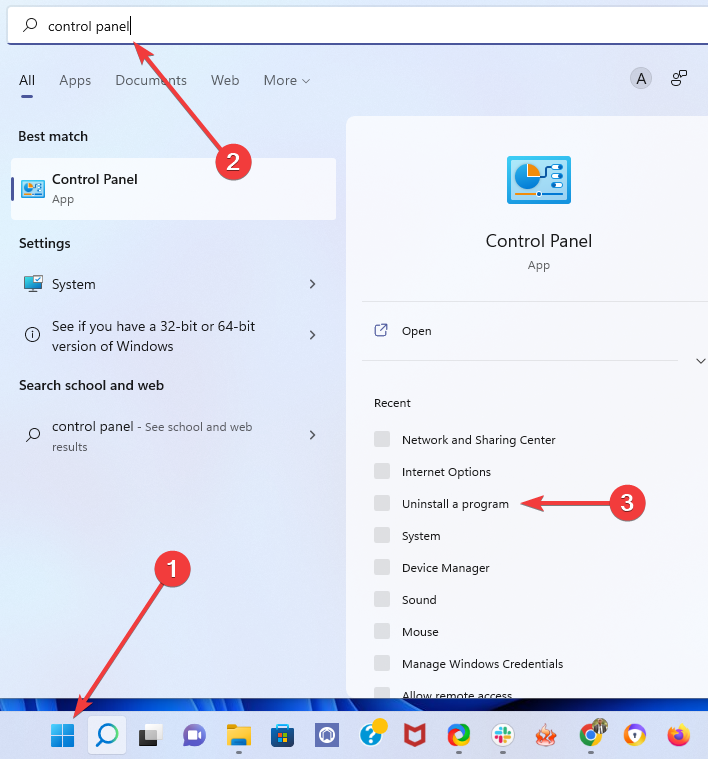
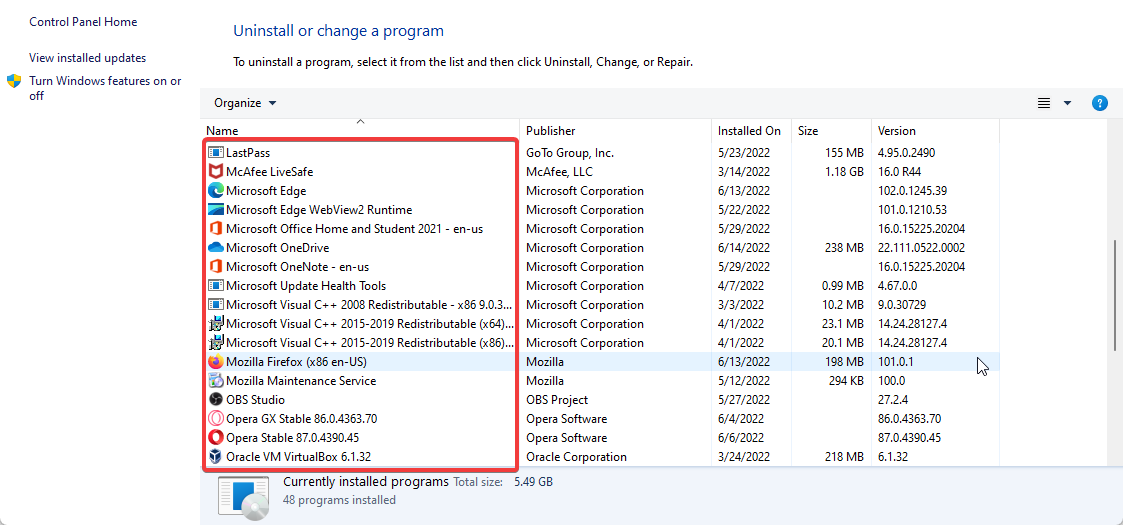
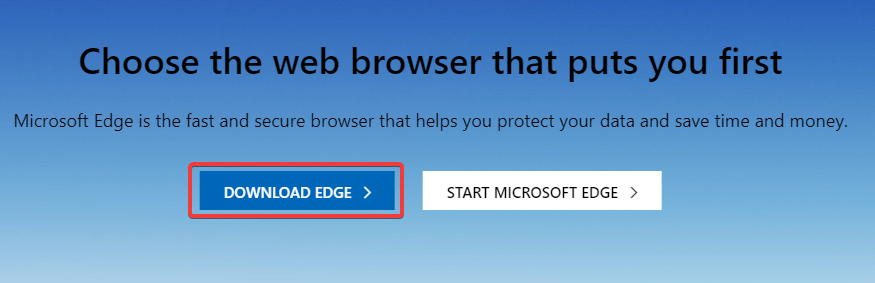
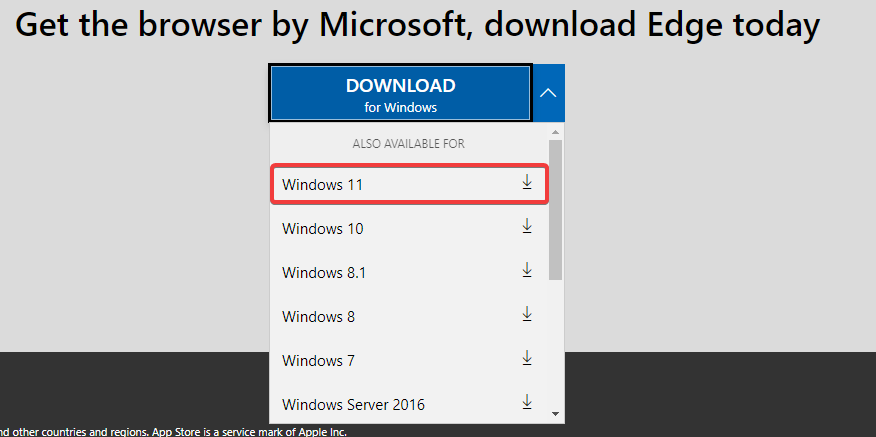
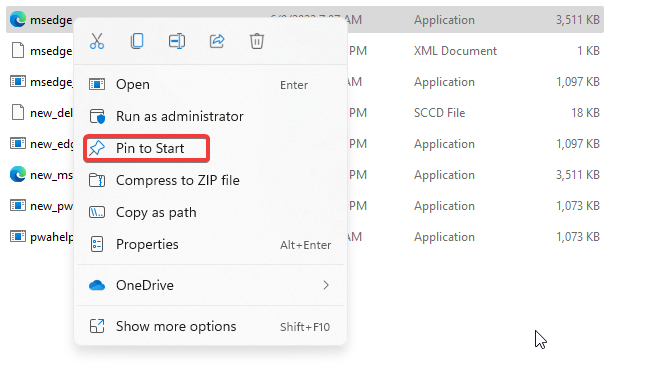




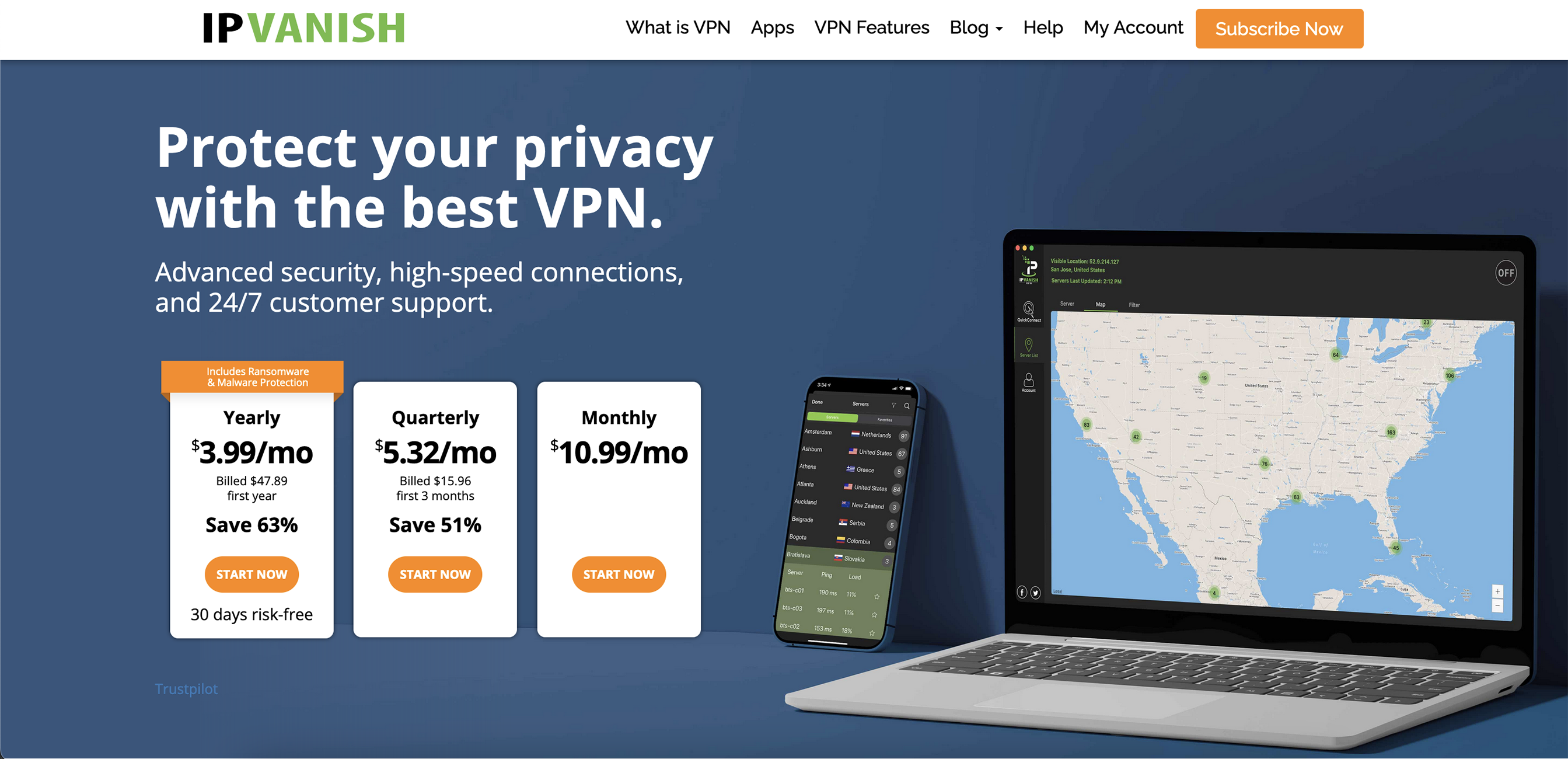

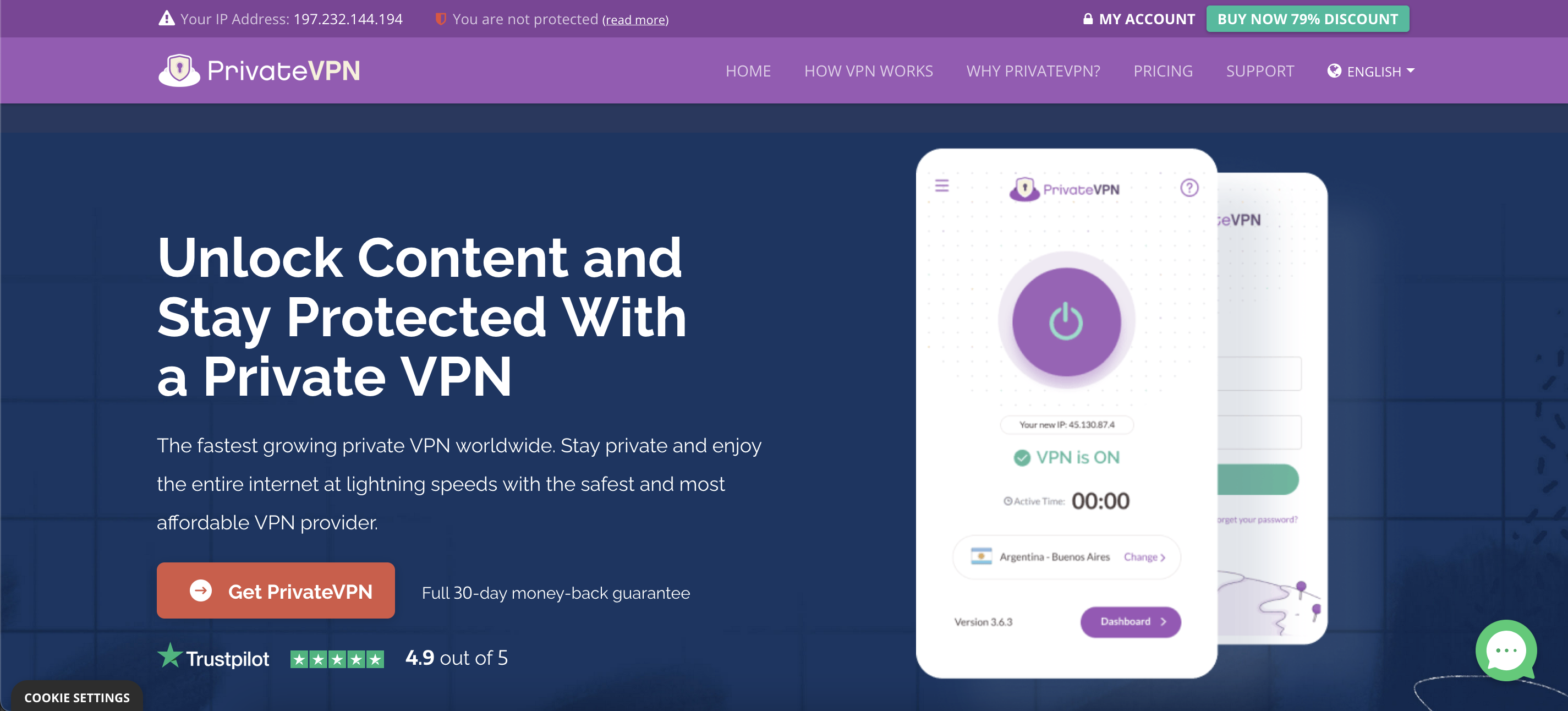

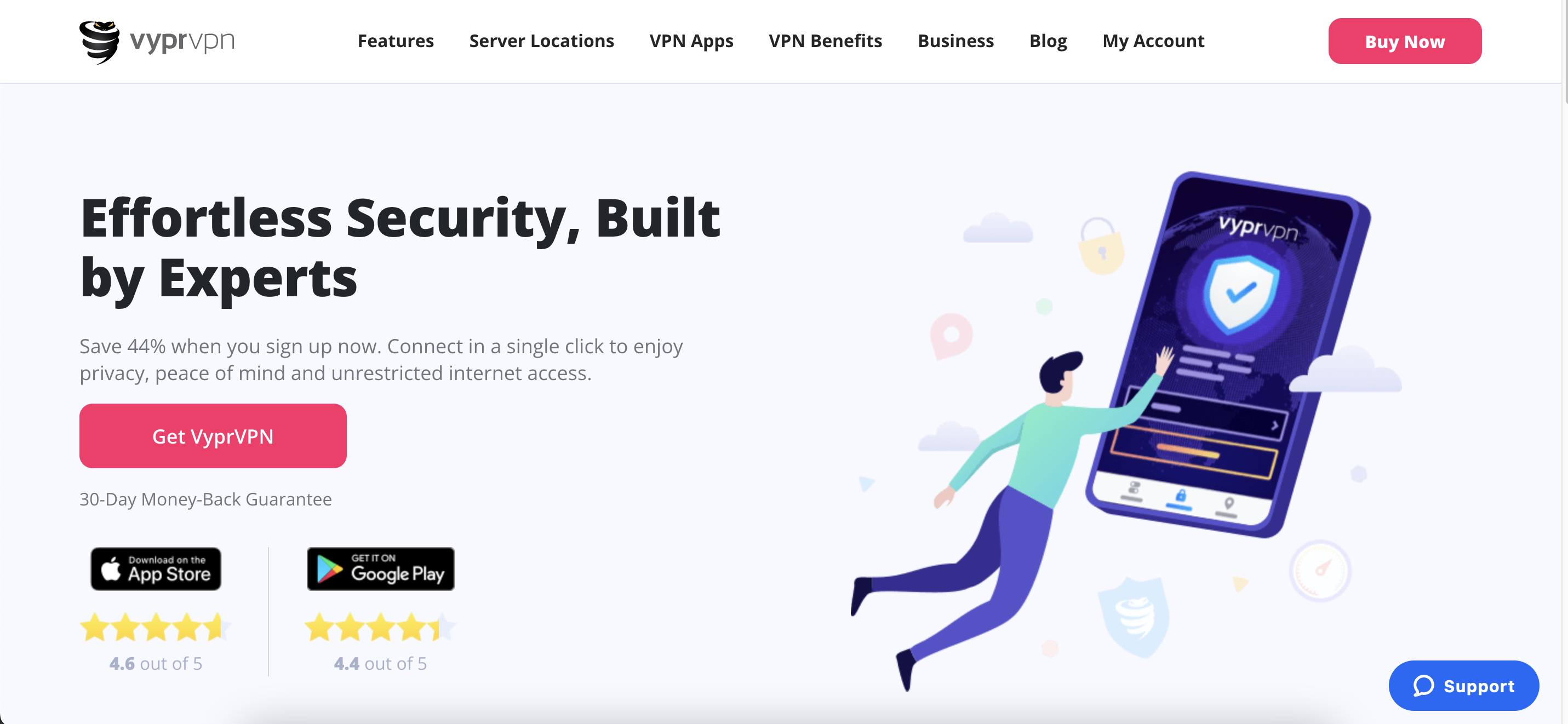

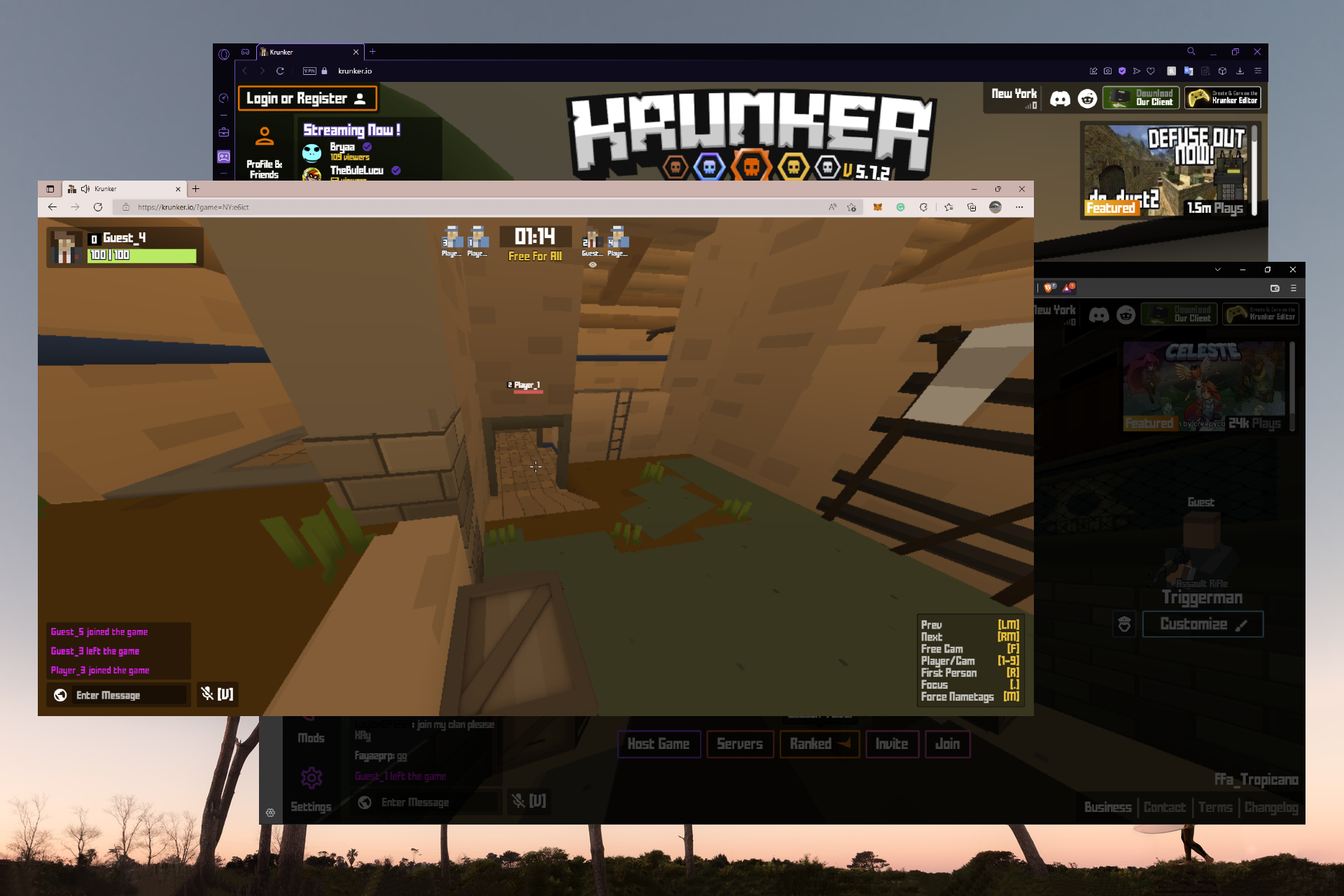
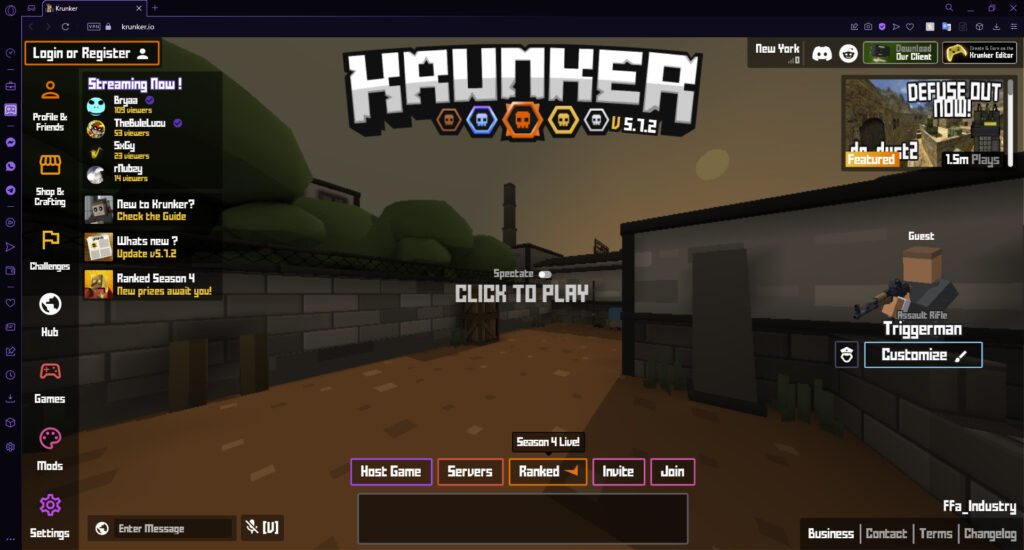
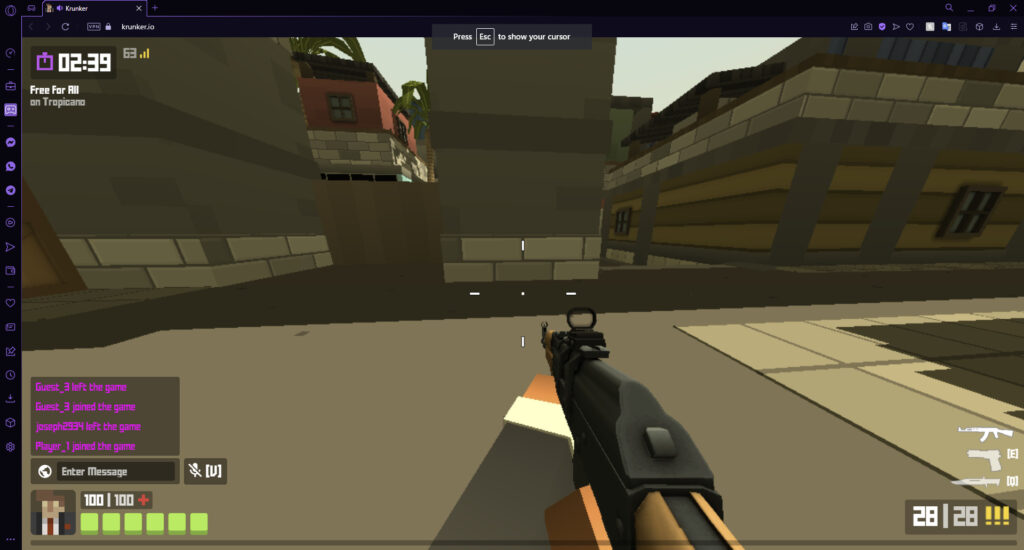

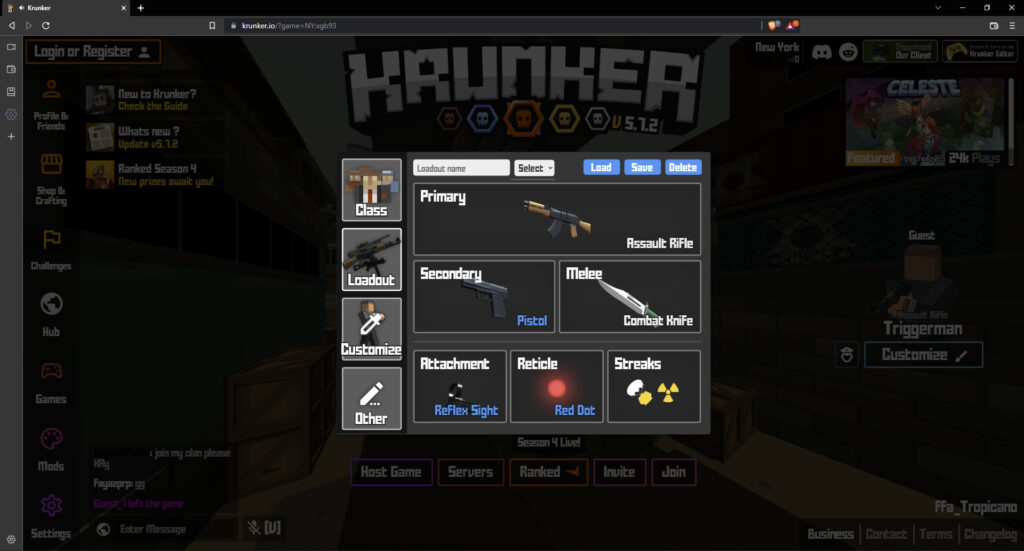

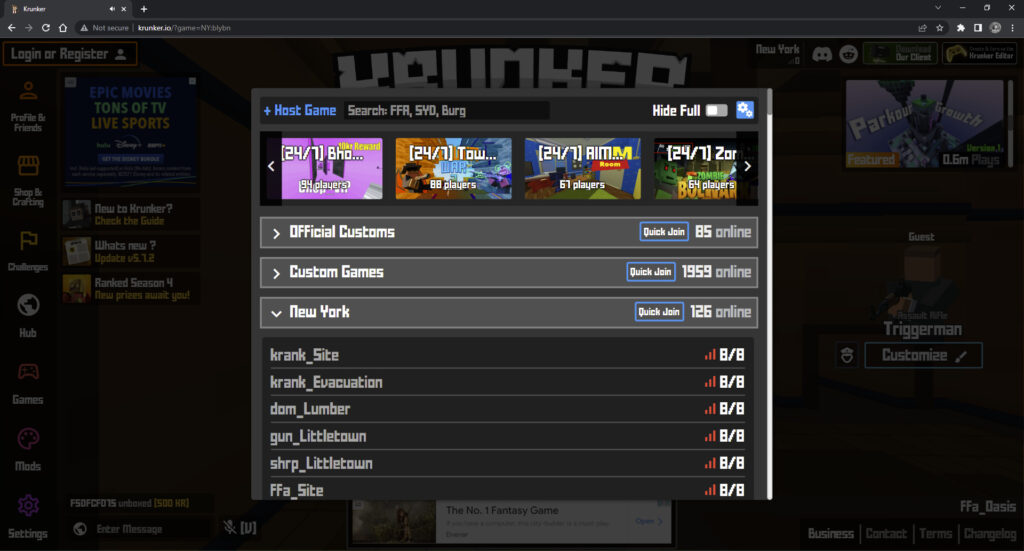


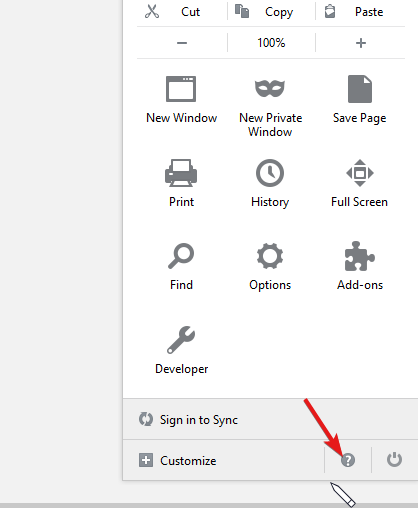
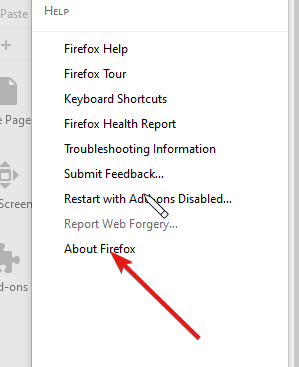
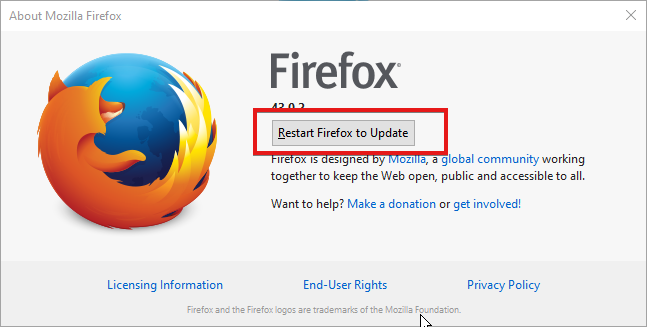
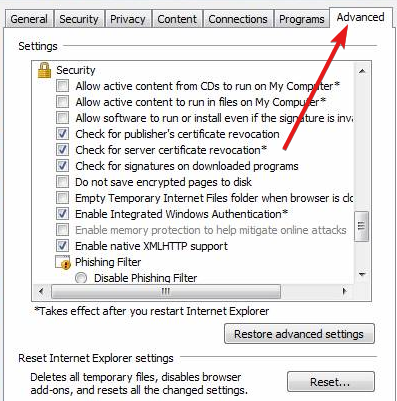
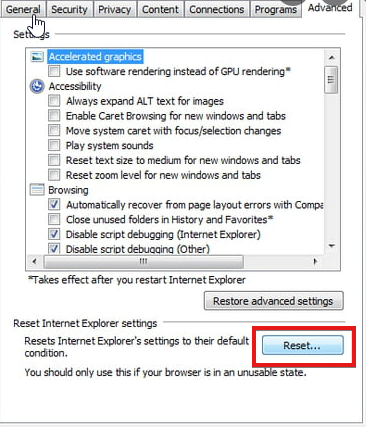
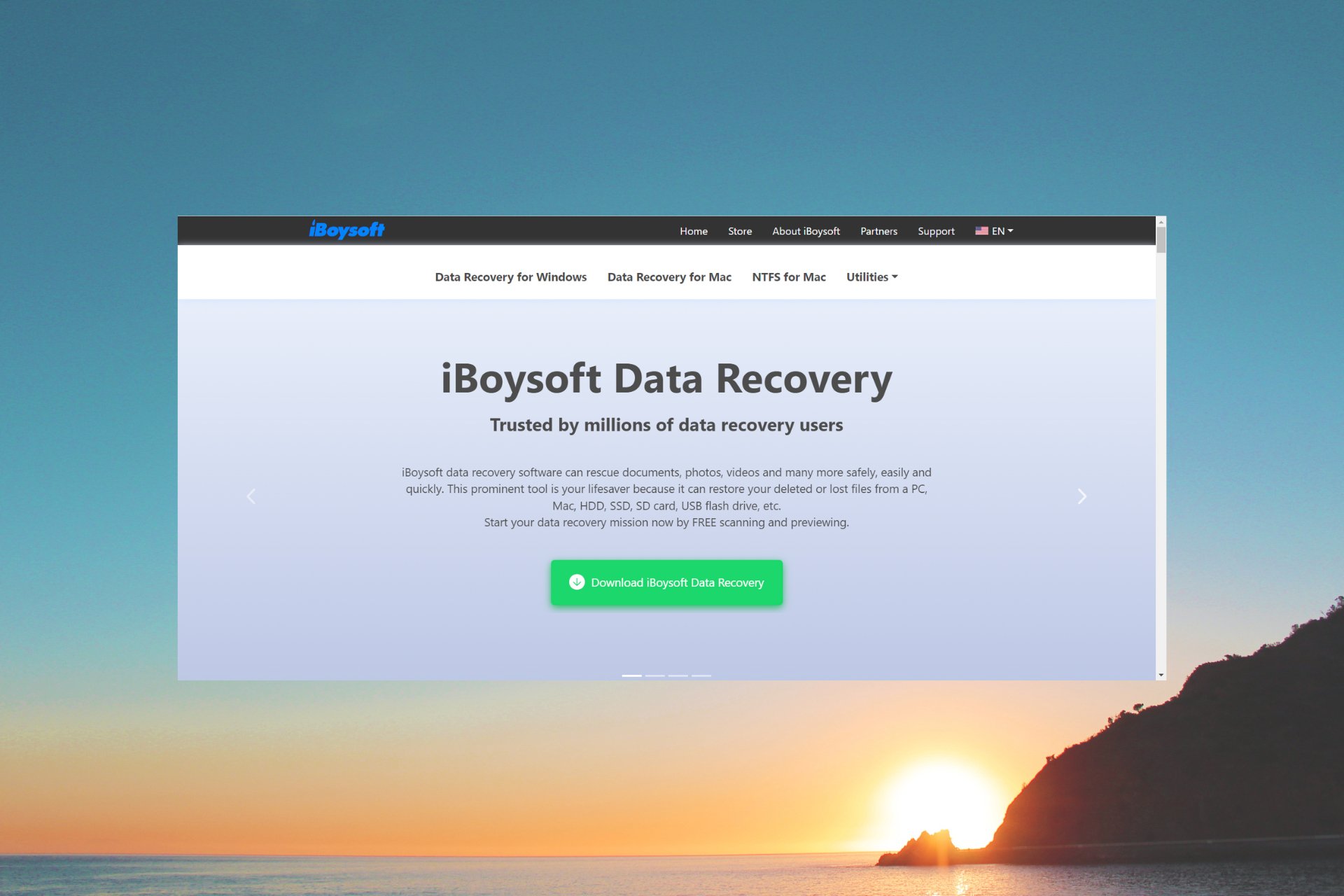







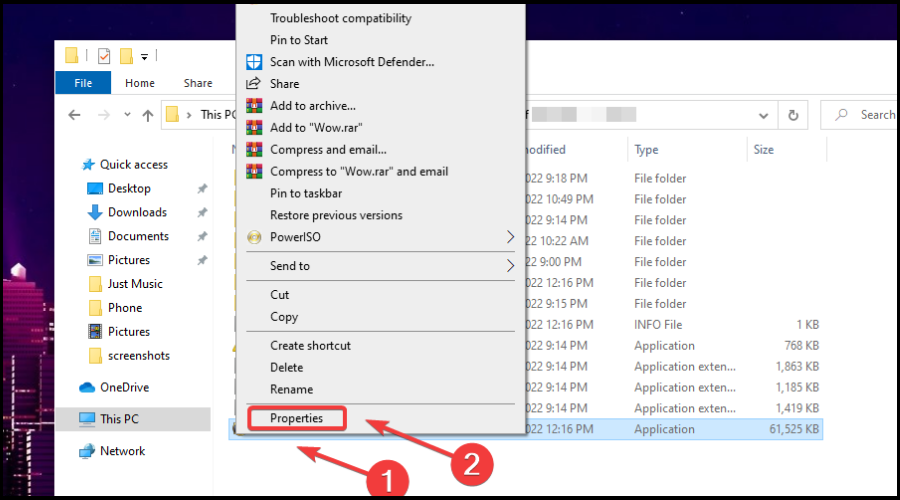
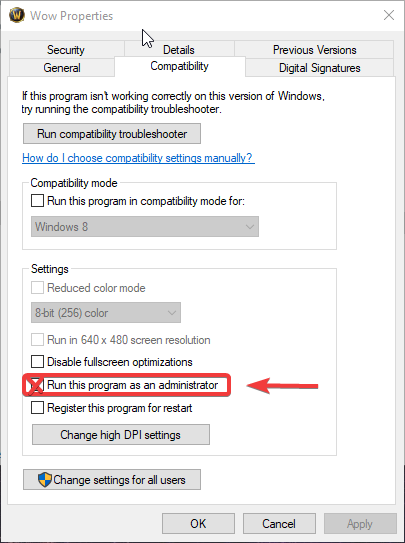


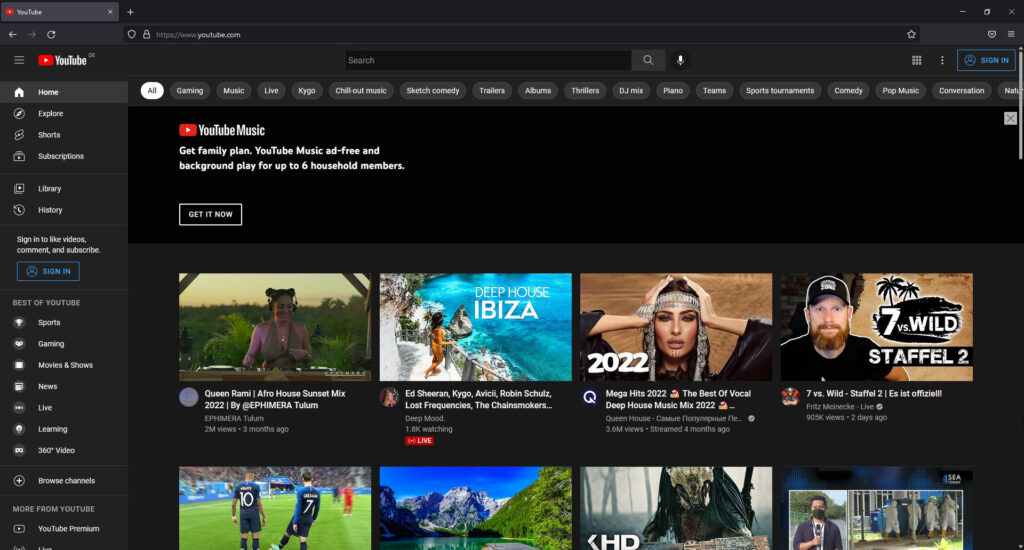
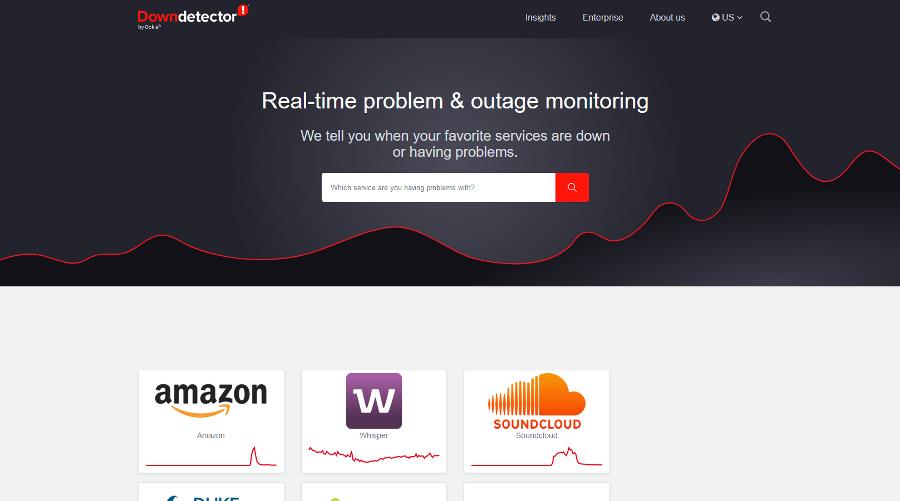
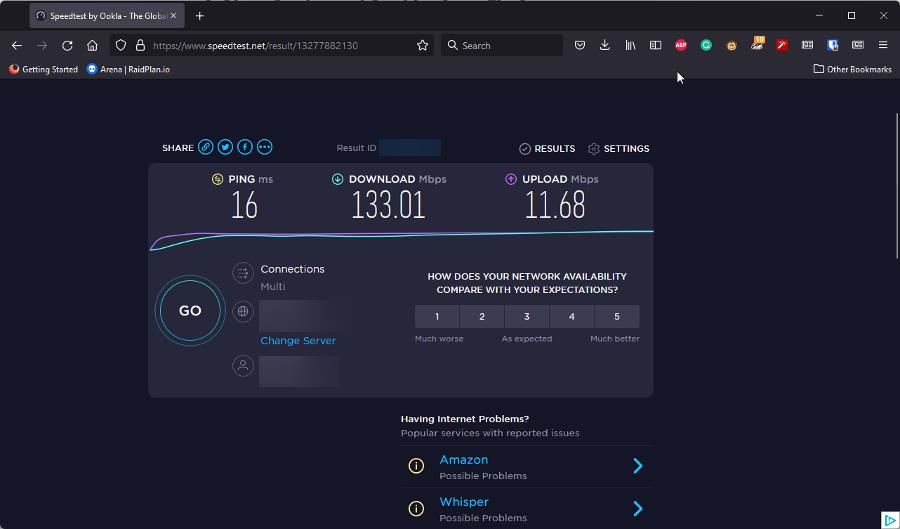
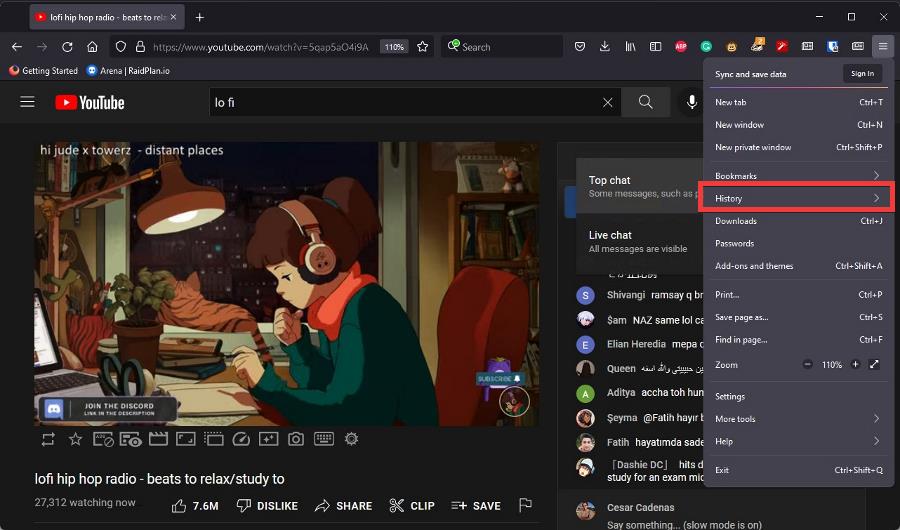
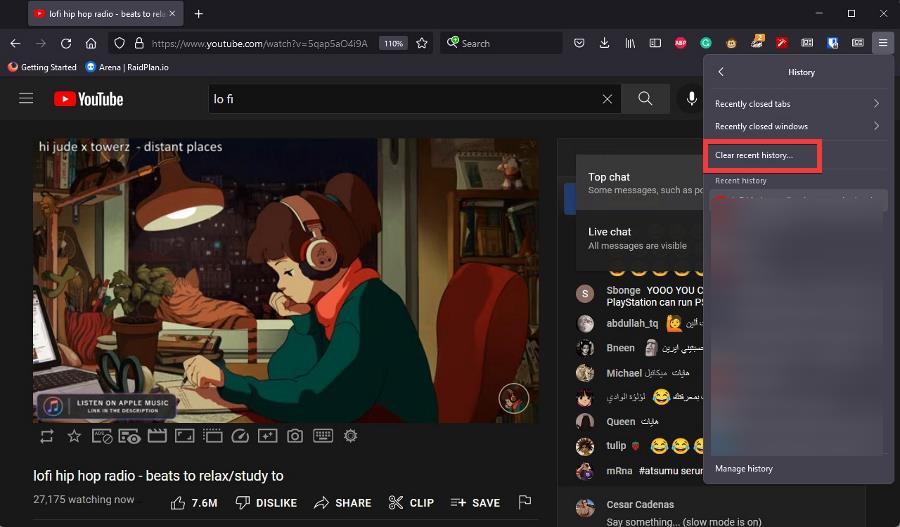
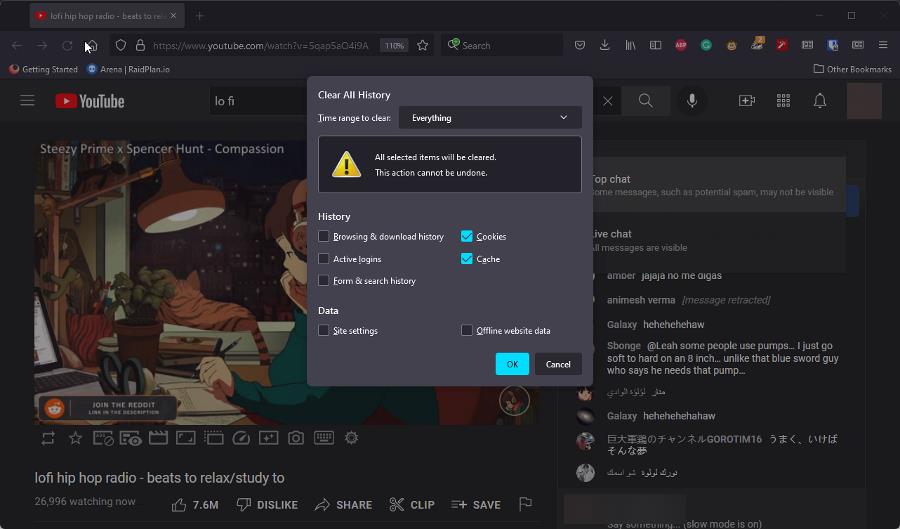
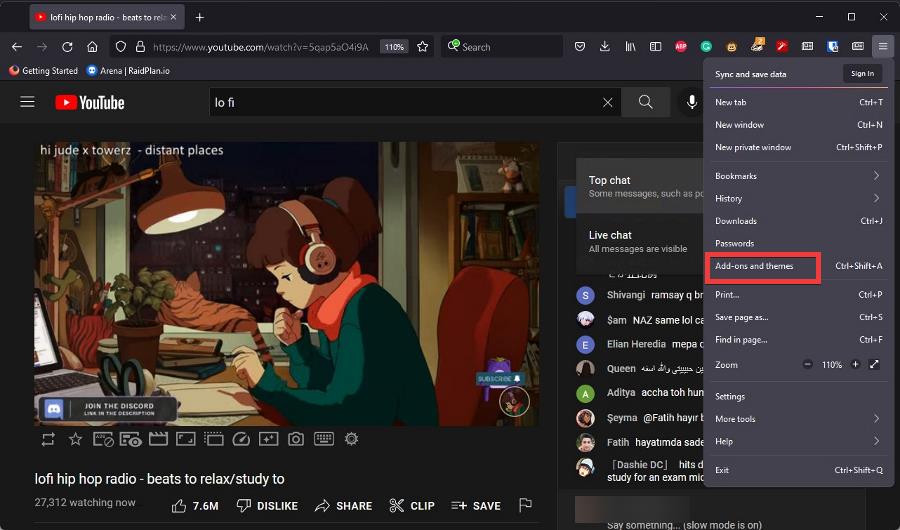
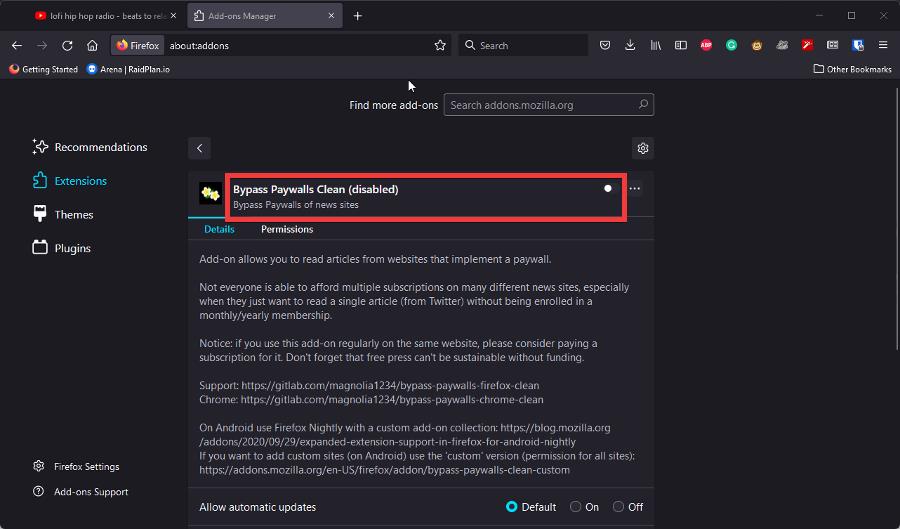

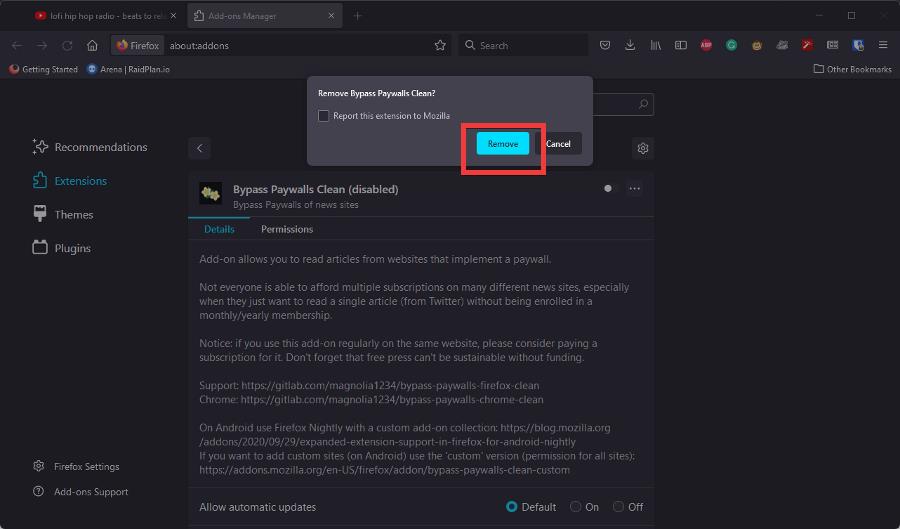
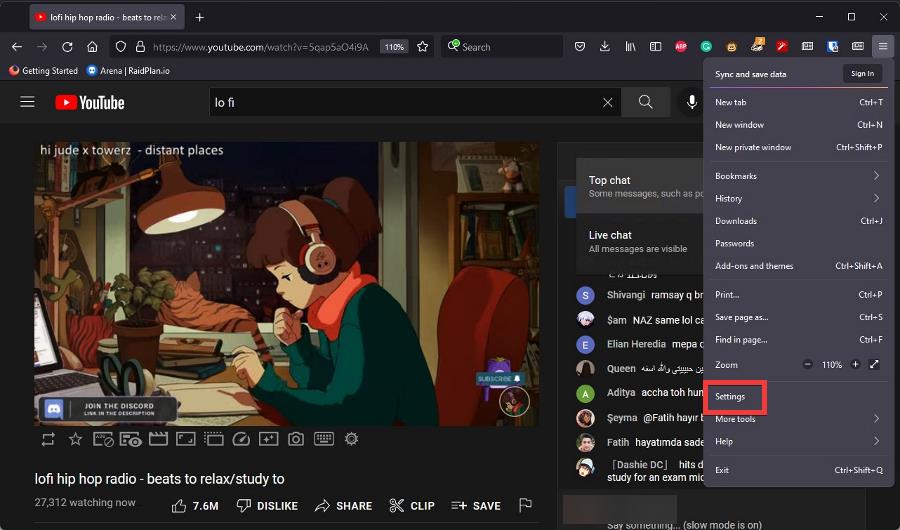
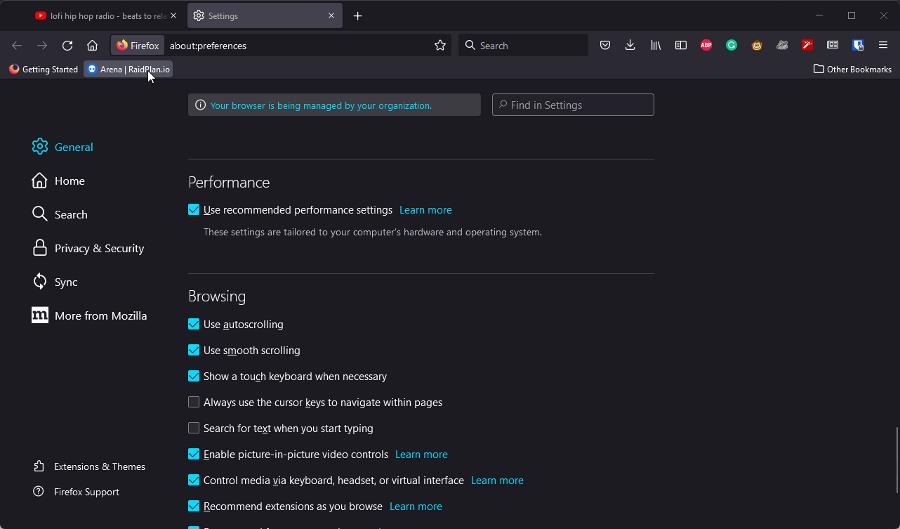

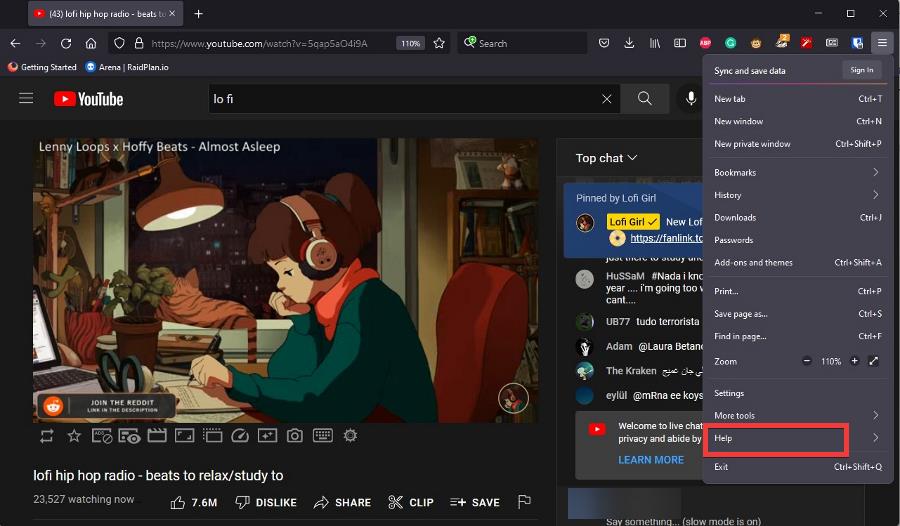
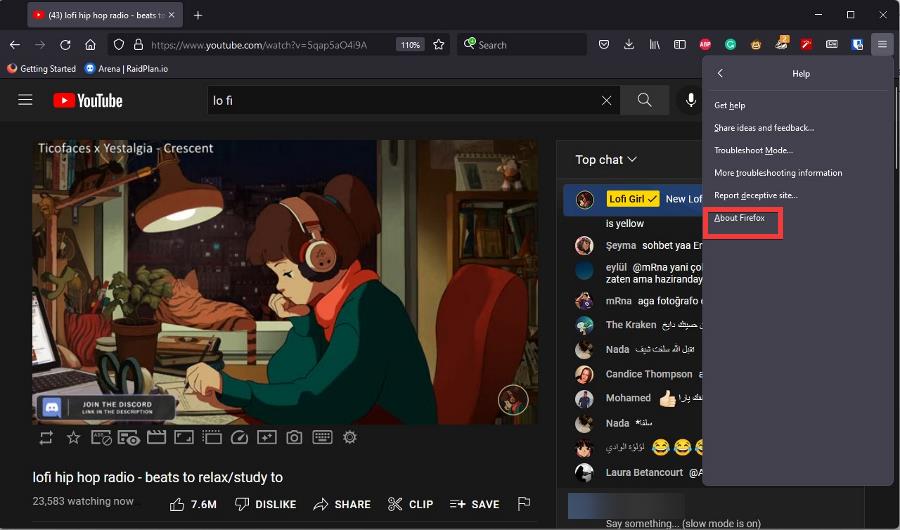
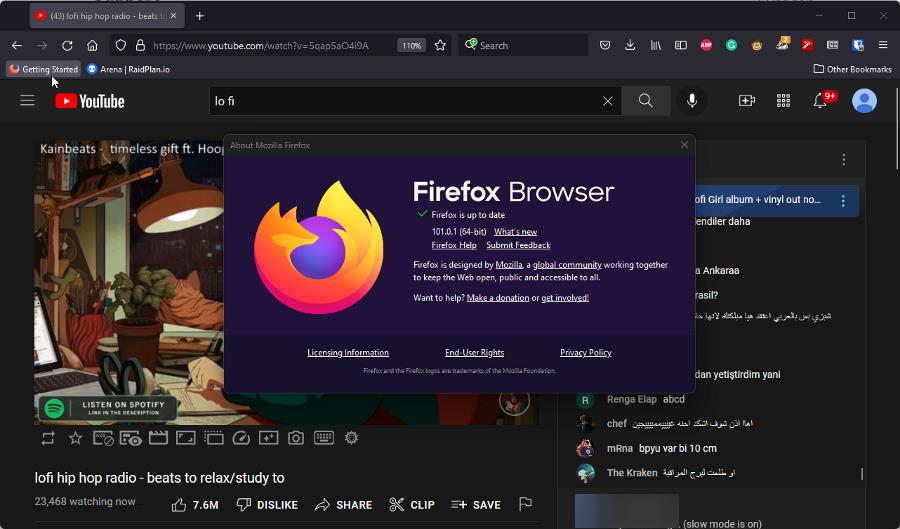
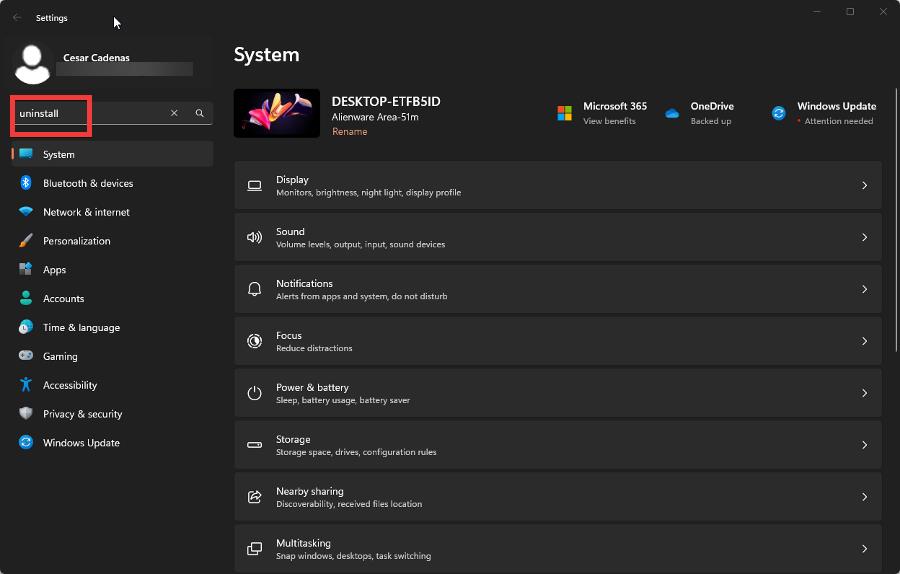
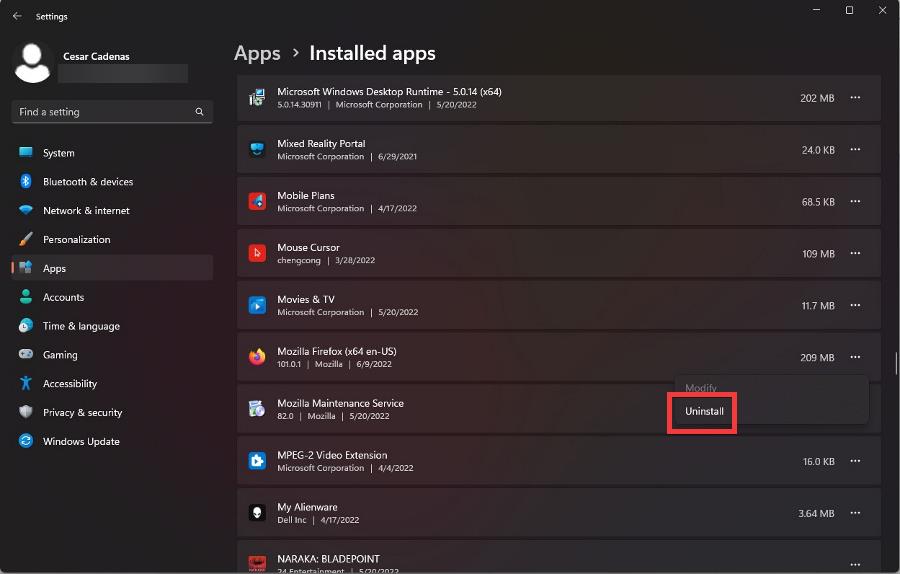
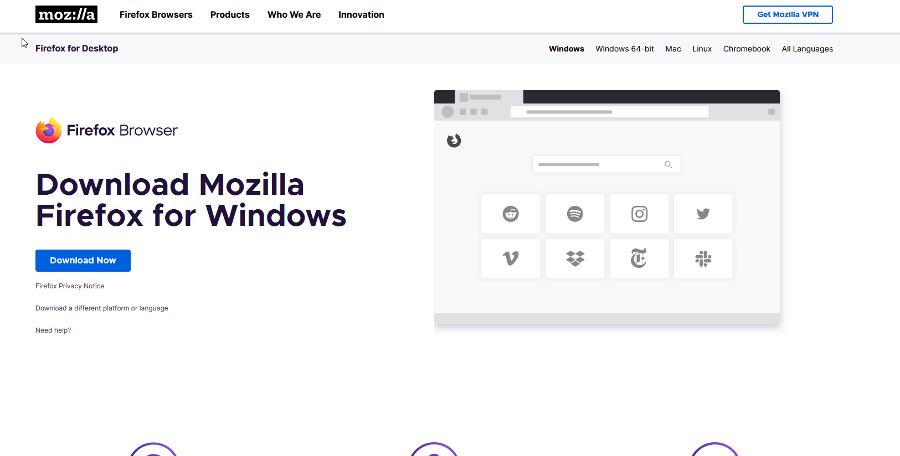
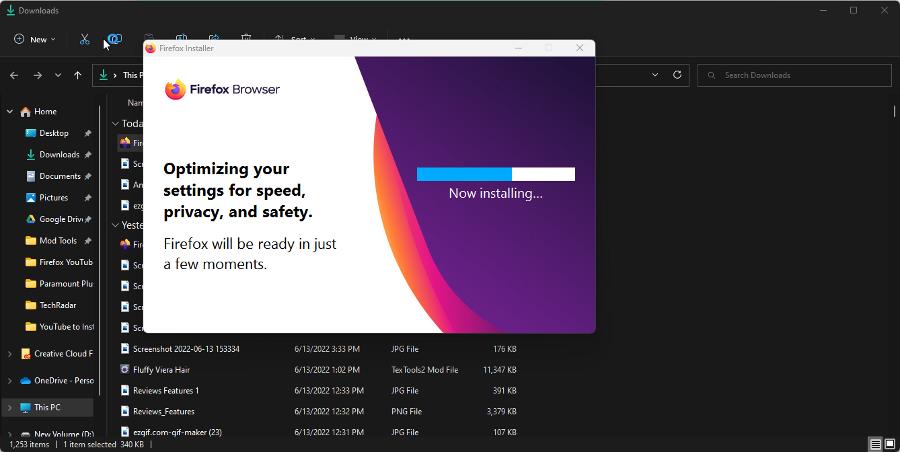
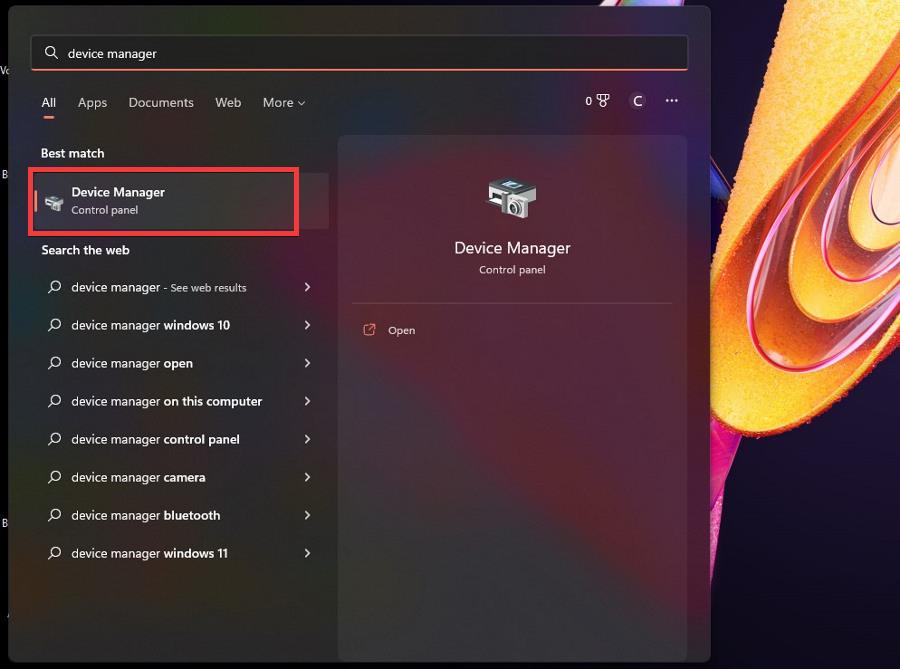
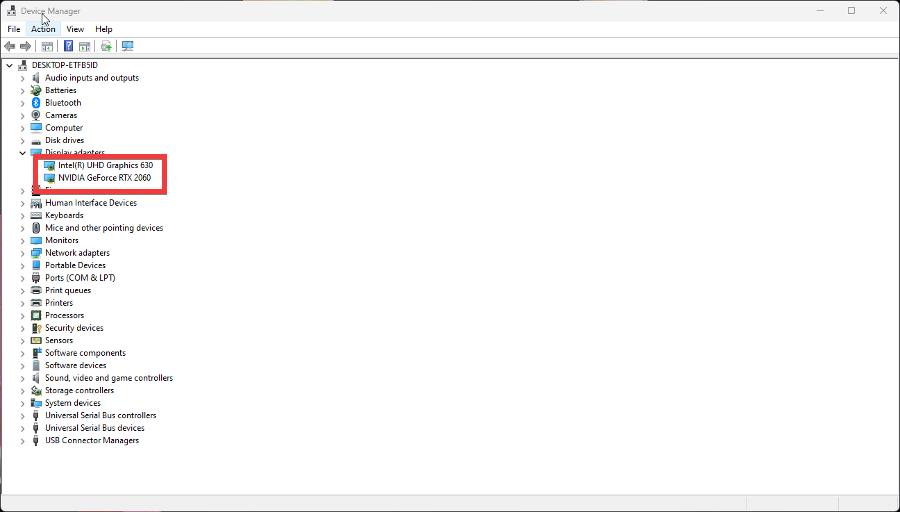
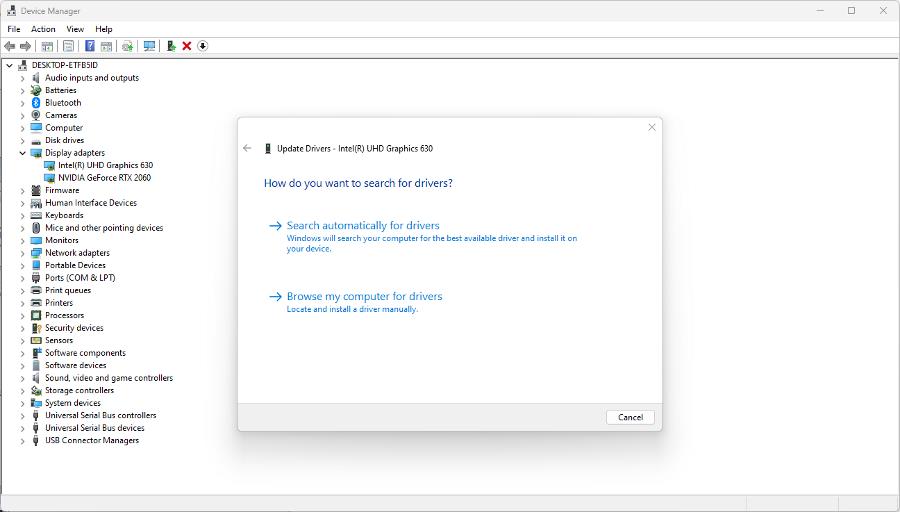
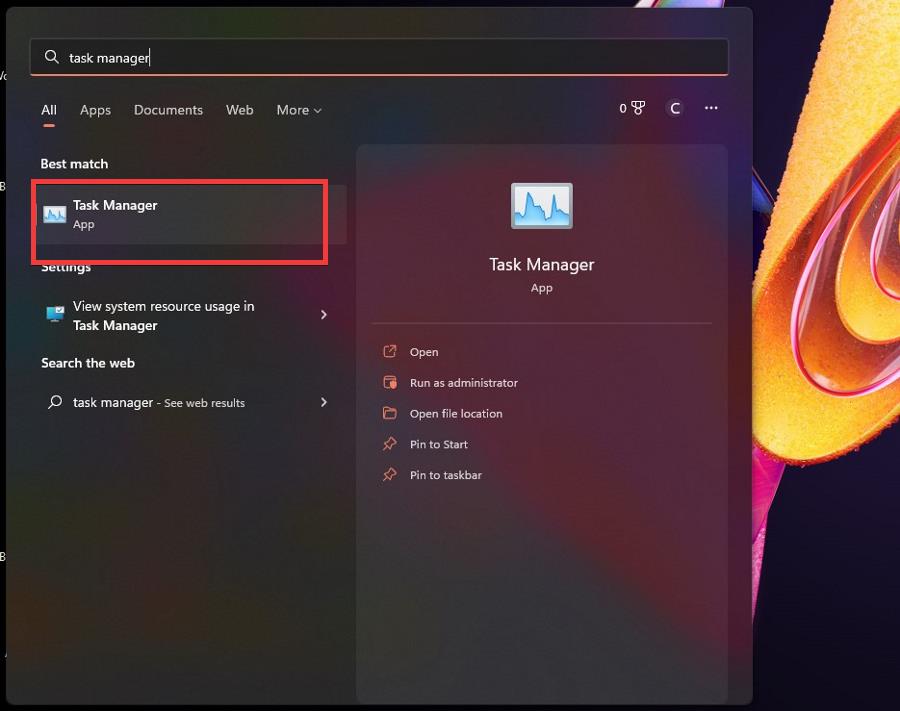
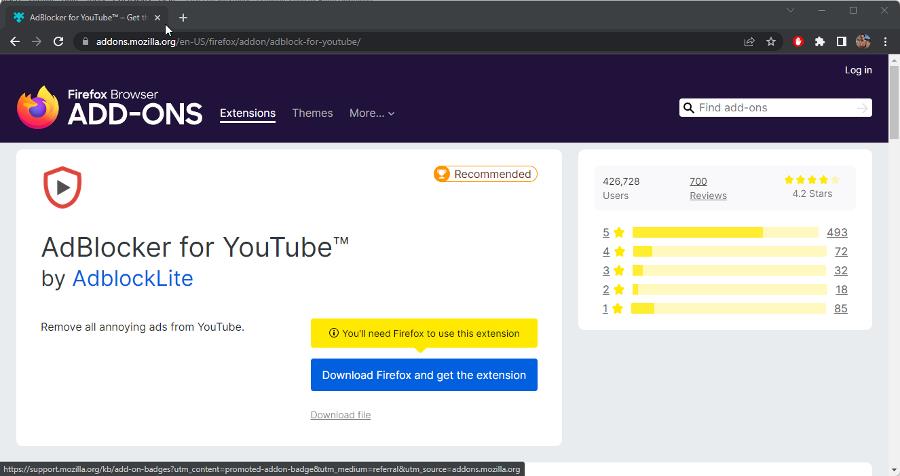



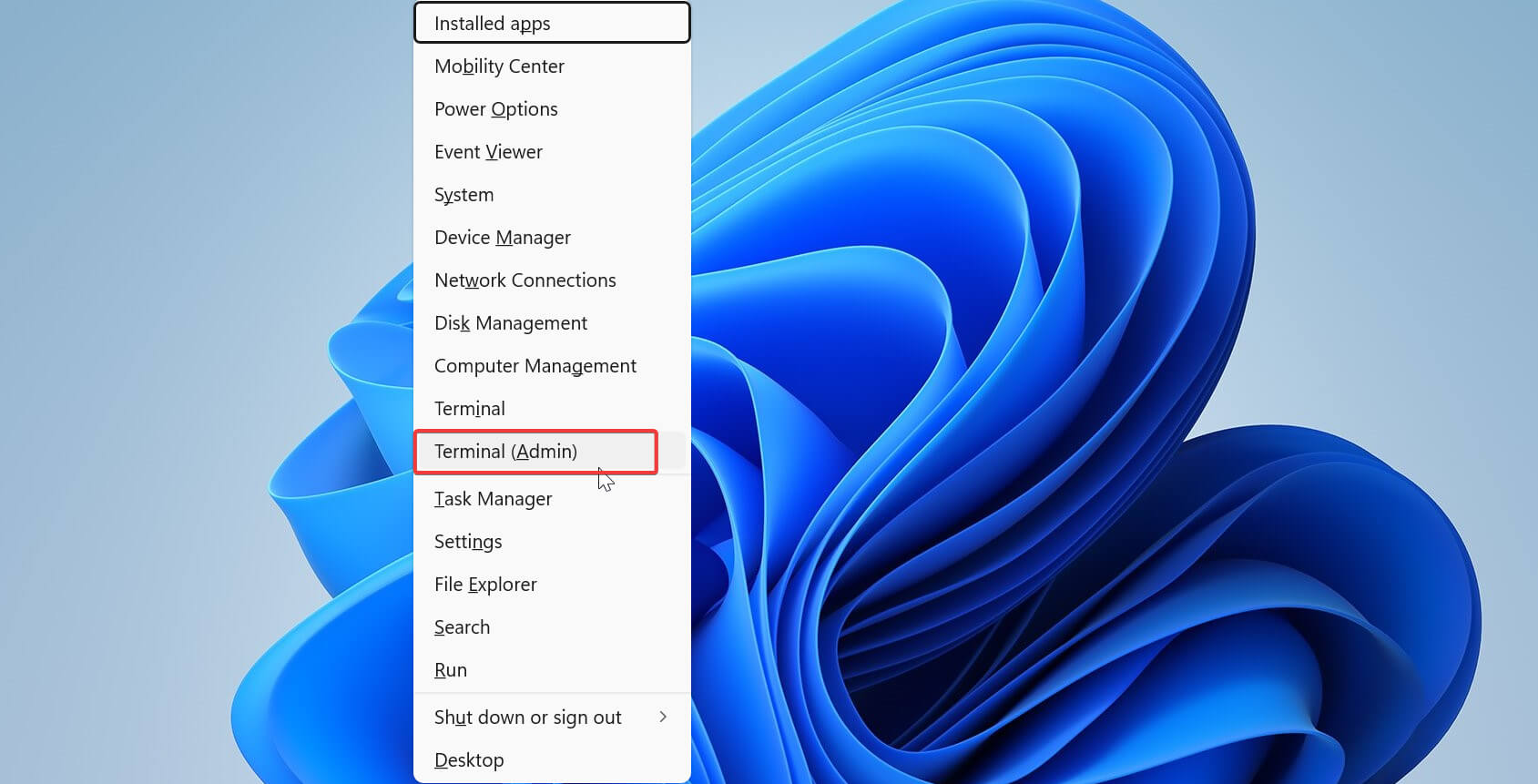



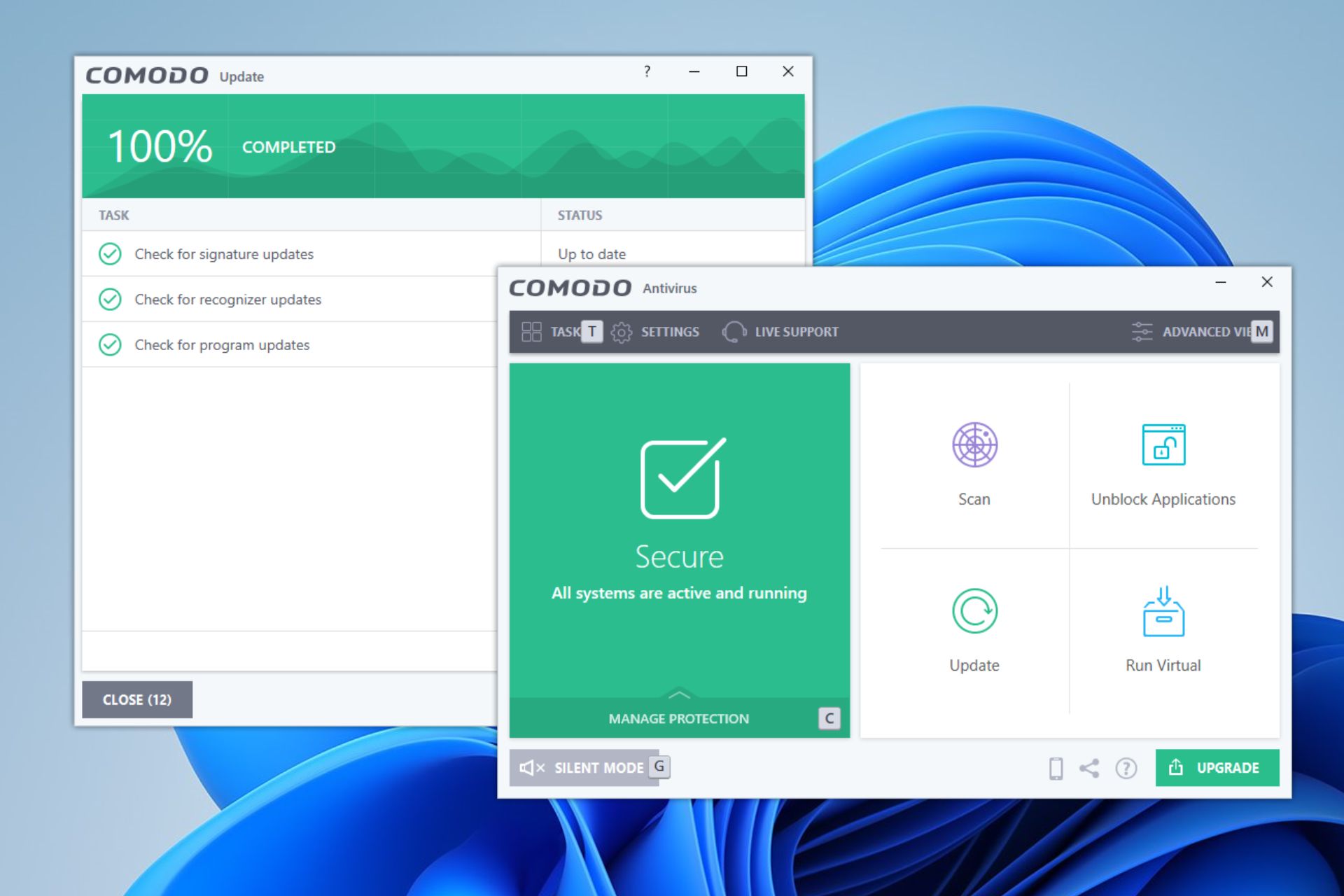



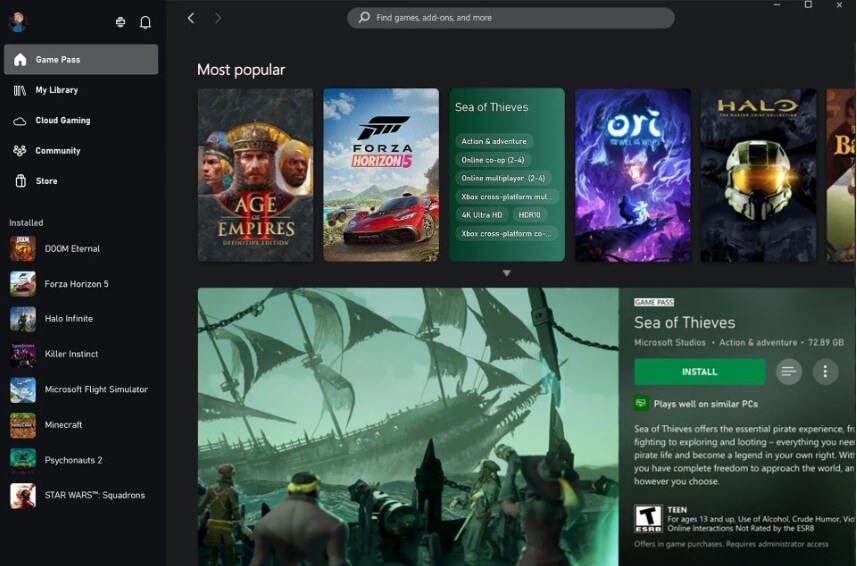

![How To Clear Cookies on Netflix [Laptop/PC, Browser, Mobile, Smart TV]](https://windowsreport.com/wp-content/uploads/2022/06/netflix-streams.jpg)


![6 Best Browsers For Arch Linux [Lightweight & Safe]](https://windowsreport.com/wp-content/uploads/2022/06/Arch-linux.png)







![How To Get Rid of Privacy Reports on Safari [Tested Solutions]](https://windowsreport.com/wp-content/uploads/2022/06/safari-2.png)
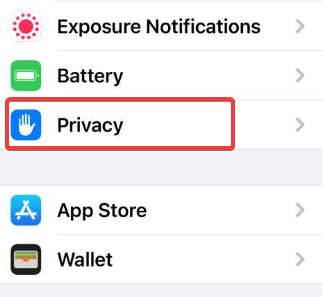
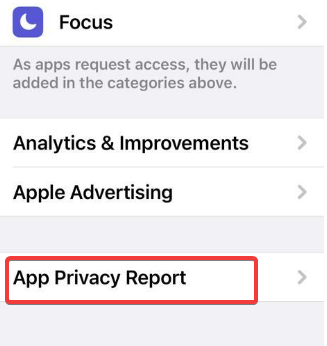
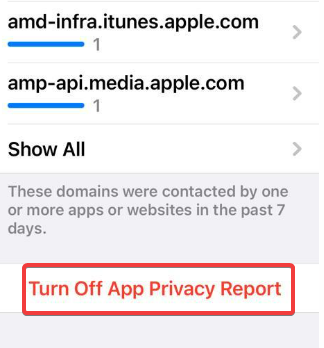
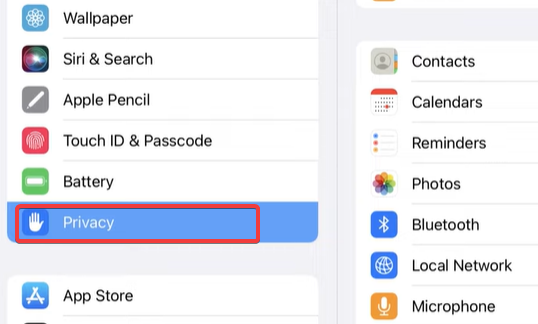
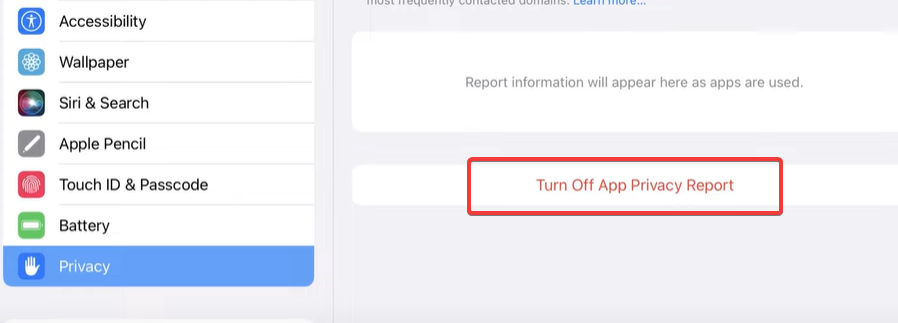
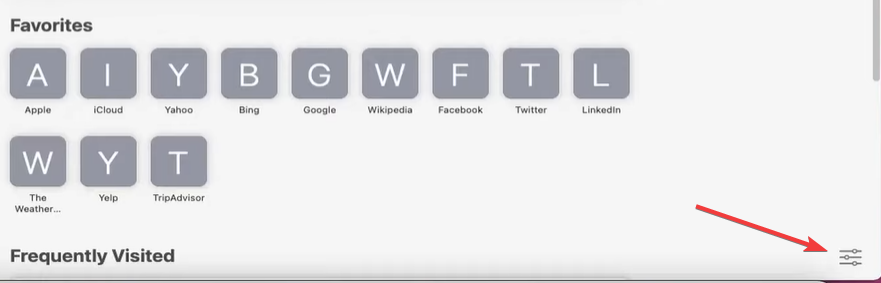
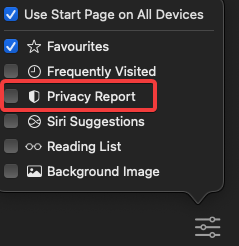
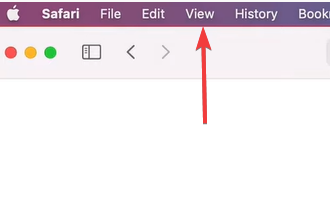
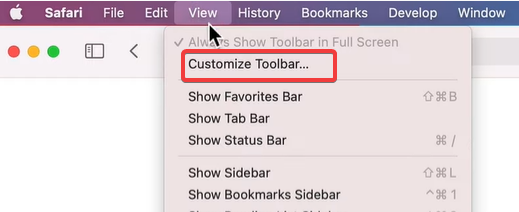
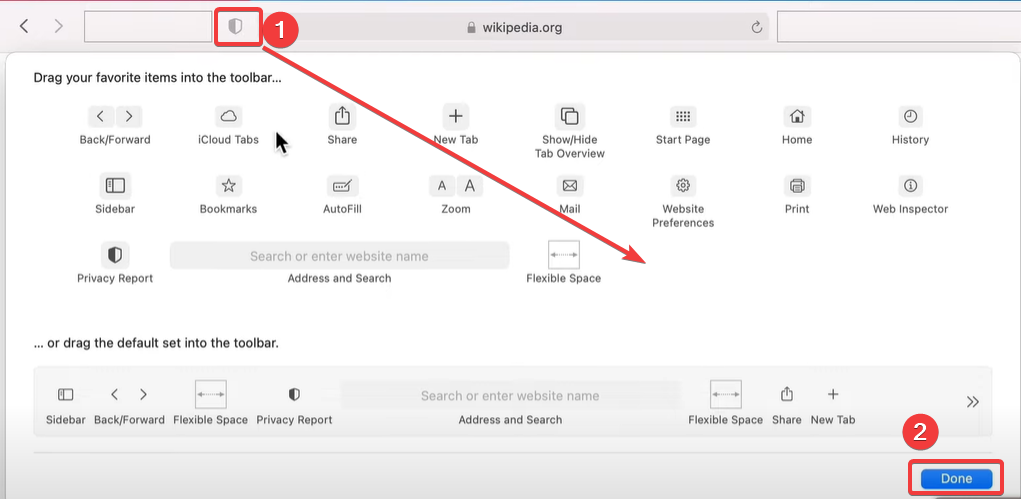
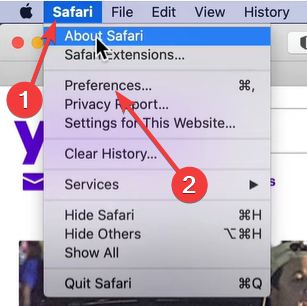
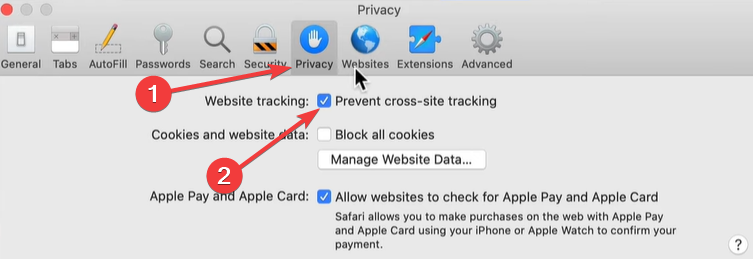
![5 Best Browsers to Play Forge of Empires [Fastest Ones]](https://windowsreport.com/wp-content/uploads/2024/02/feature-image-best-browser-to-play-forge-of-empires.jpg)
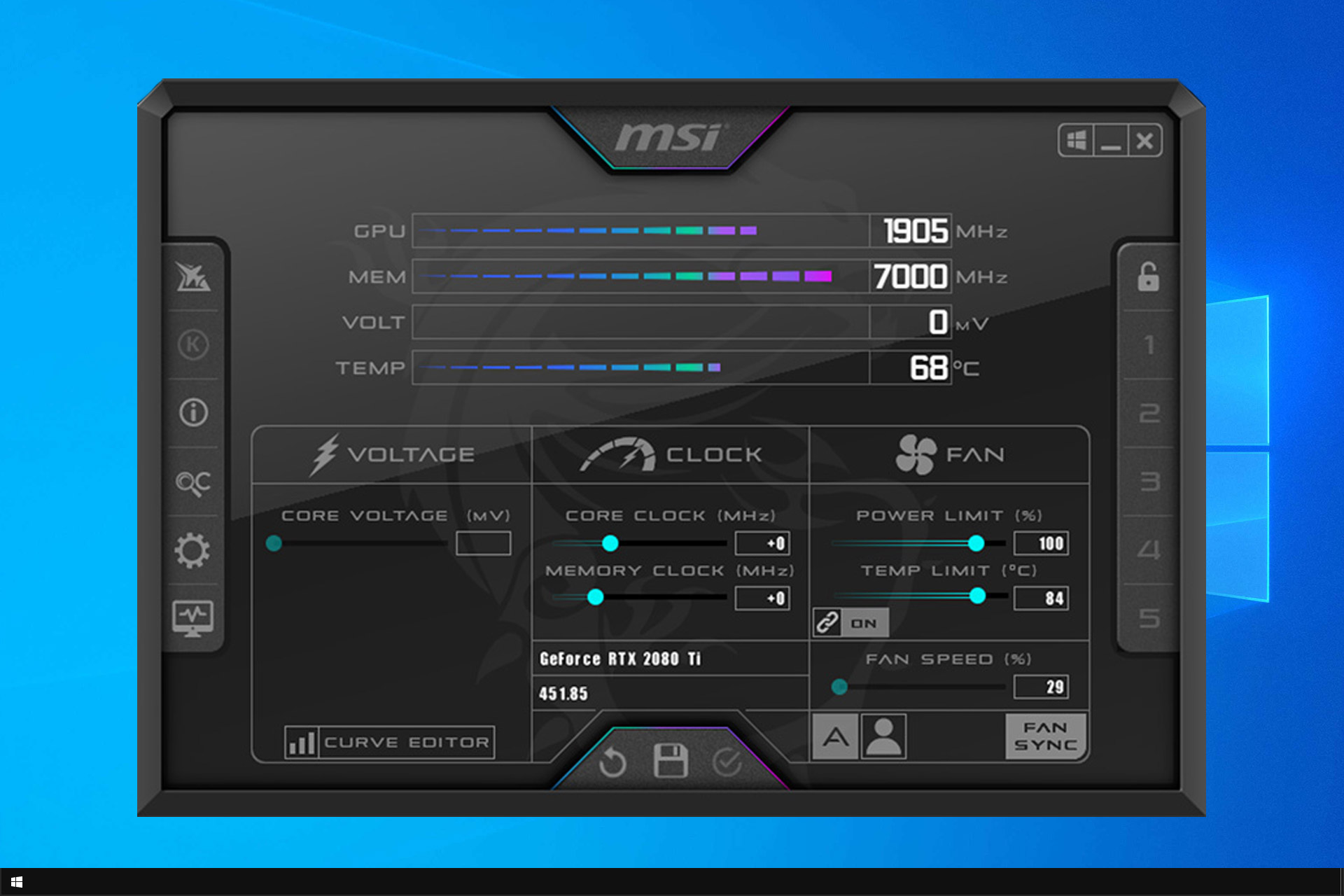
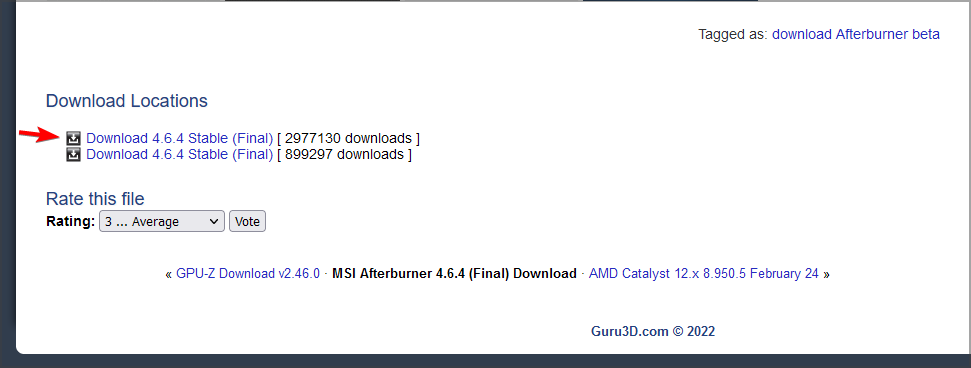


![An Unknown Network Error has Occurred on Instagram [4 Fixes]](https://windowsreport.com/wp-content/uploads/2022/05/An-Unknown-Network-Error-has-Occurred-instagram.jpg)