Interconnectivity among devices and platforms has only improved through the years.
It has improved the quality of our work and online activities, but it has also exposed us to a greater likelihood of data breaches and theft.
Since browsers and search engines are one of the primary mediums by which we communicate with the internet, it has become increasingly important to stick with the ones that offer the most security and privacy protection.
Therefore, we bring you our expert picks as we share our recommendations for the best browser and search engine for privacy.
Your data and personal information should be confidential.
Hence, private search engines are important because they offer non-tracked use and will not share your history or search patterns. Unfortunately, this means that the only parties that understand your user habit or have access to your data are those you willingly share it with.
Is there a genuinely private browser?
There may not be a concept like complete privacy, but search engines are increasingly embracing privacy and improving at it.
What search engine is untraceable?
A few search engines make it extremely hard to trace; we will be sharing some of them in this article, but one that quickly makes the list is MetaGer.
Let’s now discuss the best browser and search engine for privacy.
Opera One offers the best choice if you need to block out third parties and maintain data privacy.
The tracker blocker, built-in ad blocker, and VPN are the key privacy-friendly characteristics of the browser.
Its ad blocker identifies and stops ad scripts, resulting in faster page loading times. Furthermore, the program safeguards your PC by preventing unwanted ad attacks.
Additional features:
Messaging and social integration
Native AI and modular AI-ready design
Built-in VPN and Ad blocker
Tab islands and workspaces
Opera One
Perform all your online tasks using a browser with leading privacy ability.
Tor Browser – Best with HTTPS-Everywhere integration
Tor is primarily concerned with anonymity and includes HTTPS-Everywhere and NoScript. The browser is built on a reworked Firefox ESR.
Tor keeps users’ browsing messages, location, history, and other online personal information safe from individuals or bots who analyze network traffic.
You don’t have to be concerned about saved passwords, browser history, or auto-completion data when using Tor.
UR Browser was designed by AdaptiveBee for privacy and security and is an excellent option for keeping your data safe.
Anti-fingerprinting, a built-in VPN, an ad and third-party cookies blocker, and an anonymous Ninja Mode are just a few of UR Browser’s security features.
It redirects HTTPS to protect your data, which is a very security-conscious approach. Also worth mentioning is that UR hosts databases on its servers.
It also guarantees private website and content publishing using Onion services.
DuckDuckGo privacy browser – Best for mobile devices
Unlike many browsers discussed, this one works on your mobile devices and remains a great way to secure your online privacy.
Its easy data clearing and management options, Smarter Encryption technology encryption upgrades, and built-in tracking protection make it an easy pick for mobile privacy.
For mobile options, it is the most secure browser in 2022.
While this browser focuses on privacy and security, its lack of telemetry is pronounced, a massive contrast from Firefox. However, this missing feature means that you can expect much faster speeds.
For privacy, sponsored tiles, startup profiling, data collection, and tracking are omitted.
The search engine allows you to conduct untraceable, private searches that generate no trail.
MetaGer includes a proxy server, allowing you to anonymously open any URL from the search engine result pages while hiding your IP from the target server. Additionally, it does not keep track of the keywords used.
This prevents third-party advertisers from targeting you and reduces the chances of malicious attacks. Also, note that the default language of the engine is German, but it can be changed.
Mojeek – Best for Independent and unbiased results
Mojeek permits you to search without compromising your privacy. It provides you with unbiased and objective search results using modern search technology.
Additionally, the search engine indexes countless pages from multiple sources on every possible topic. Furthermore, your queries are never traced, and Mojeek stores no information about your search history, IP address, or other personal data.
Swisscows was first released in 2014 and professes not to keep user data. Instead, the search engine employs semantic data identification to provide faster replies to inquiries.
It maintains a rigorous zero-tracking philosophy, so it will not keep track of your search history or habits.
Swisscows is also family-friendly and will not display explicit content. Furthermore, all of Swisscow’s searches rely on their indexing and are unbiased.
The DuckDuckGo search engine is about the most secure options, and it is never tracking your queries yet enhancing your user experiences.
The most significant feature of DuckDuckGo is the Privacy Essentials browser plugin.
This search engine is designed specifically for people who value their privacy, and it provides rapid search results without the use of targeted adverts on search engine result pages.
We recommend using a private browser and search engine. A combination of any on this list will suffice. Also, it would help if you always used any of the best VPNs when connecting to the internet.
This list of private search engines and private browsers will set you well on the way to internet data security. Also, note that the article serves as excellent education before making a privacy browser or search engine choice.
Lastly, we have included a few unfiltered search engines to help you make better internet searches.
Twitch has many users around the globe, and it records countless numbers of streams daily. As a result, using Twitch alongside other platforms has become more common. Unfortunately, it results in errors like the error source code 0 on Twitch.
Using Twitch with other casting platforms like Chromecast can be annoying sometimes because of the errors.
Nonetheless, this error is prominent, but it is not unsolvable. It can be possible by finding where the issue is from and tackling it. As we go into this article, we shall give answers to the question How can I fix the twitch error source code?
What is error source code 0?
This error indicates that Twitch Chromecast is not working. Generally, you can get this error when you try to cast a stream from Twitch.
Different things can be responsible for this error, source code 0. It can be a server problem, network problem, or something else.
Why is Twitch Chromecast not working?
Your Chrome version is not up-to-date – If your Chrome version is old, it can prevent it from working. However, new updates and patches are usually available to help you experience smoothness and quality. Also, an essential feature may be missing in the old version.
Using a separate network for Chromecast and other devices – Chromecast and the other devices you need for casting are to connect to the same WiFi network. However, this isn’t necessary if you are on Guest mode. It is a common mistake people make
Poor internet connection – The router might cause the issue
To have a better Twitch experience, try accessing it from a specifically optimized browser. Opera GX is configured to reduce RAM usage & offer maximum performance when streaming Twitch.
It has a pre-installed Twitch integration. You just have to enable it and connect to your account. You get quick access from the sidebar and get real-time notifications about your subscribed channels’ activity.
Opera GX
Meet a fully optimized gaming browser and watch your favorite streams on Twitch without any errors.
Whenever you want to stream content from Twitch on Chromecast, use Chrome as the best option. It will help you cast smoothly without encountering errors.
This browser will ensure that no compatibility issues can be the cause for encountering this problem. Please follow the next methods if the solution doesn’t fix the issue.
2. Update the Chrome browser
Launch Chrome on your PC and click the more button.
Go to Settings and click About Chrome.
Click Update Google Chrome.
If there’s an update available, install it and relaunch the app.
3. Connect Chromecast and your devices to the same network
Open Network & Internet settings from the lower right side of the Taskbar and connect to the WiFi.
Connect your Chromecast, open the Google Home app and click the settings icon.
Select WiFi network and connect to the same WiFi.
Connecting Chromecast to the same network as your devices will help it cast better.
4. Restart the Chromecast device
You can do this by unplugging your Chromecast device from its power source and plugging it in after a while.
Using a browser like Chrome that Chromecast supports is important. They are both by Google and work better together than any other browser.
Finding the best browser for Acer laptop can make a noticeable difference in how fast pages load, how secure you feel online, and how smoothly your device runs. Whether you use your Acer for work, study, or entertainment, the right browser will match your performance needs and personal preferences. Below, we review the top options and explain why they’re a great fit for Acer laptops and tablets.
Built-in AI tools, ad blocker, free VPN, modular sidebar apps
Why It Works Well on Acer
Adaptive resource management ensures smooth performance, even on older laptops
The Opera One browser is the fastest and most efficient available browser. It uses the Chromium engine and provides fast performance without consuming a lot of system memory.
Despite not being as prevalent as Google Chrome, Opera One uses less RAM, is just as customizable, and includes a built-in VPN.
Opera One also has built-in messengers you can use to communicate with your friends and associates. This integration means it’s no longer necessary to switch across tabs to accomplish this.
All your devices that use the Opera One browser can be synchronized. The sync includes extensions, bookmarks, and customizations.
If that wasn’t enough to persuade you, Opera One also comes with an integrated adblocker to keep those pesky advertisements at bay.
Additional features:
Fast loading speeds
Improved battery optimization
Sync option
Opera One
The most-wanted browser for Acer laptops with battery saver, speed dial, and lots of integrations.
Massive extension support, Google account sync, fast performance on modern hardware
Why It Works Well on Acer
Runs best on laptops with good RAM and SSD storage, delivering top-tier web app speed
To begin, Google Chrome does not require any special introduction. It is the undisputed market leader in web browsers, which speaks for itself.
The benefits of utilizing Google Chrome on an Acer device are also evident.
Chrome’s multiplatform design makes it an excellent alternative for individuals who want to have their browser up to date across multiple devices. In addition, switching devices is a breeze with just one Google Account.
While it’s a terrific alternative for everyday browsing on your devices, tracking and profiling are topics that get a lot of attention, and rightfully so, since they expose Google’s rules.
Optimized for low memory usage, allowing smooth multitasking on mid-range laptops
Firefox’s stability is essential, and its customization capabilities guarantee that it feels like it’s made just for you.
Firefox uses fewer resources than Chrome, Safari, and Edge, allowing you to run more applications simultaneously. In addition, because each opened tab isn’t treated as a separate running process, it maintains a more resource-efficient system.
Concerning add-ons, Firefox has dozens of alternatives, ranging from feature enhancements to performance benefits.
Having so many customizing choices might be beneficial, and with the incredible capacities of many modern Acer laptops, you can accomplish a lot.
Quick startup, smooth scrolling, Collections, vertical tabs, Microsoft 365 support
Why It Works Well on Acer
Native to Windows 10, offering peak battery life and performance
Finally, we must include Microsoft Edge, which comes preinstalled on any Windows-based Acer PC.
By replacing the clunky IE browser with a sleek Edge, Microsoft has kept up with the competition of established browsers.
The fact that the Edge browser will now have access to Chrome’s library of extensions is enough for optimism.
Furthermore, there will always be benefits to operating a first-party program on a device because it integrates better with all the system’s capabilities.
Hence, it makes our list of the best browser for an Acer laptop & tablet.
Aggressive blocking reduces CPU and memory usage, great for lower-spec laptops
Brave is an open-source browser built on the Chromium Engine.
It’s a privacy-focused browser that blocks online advertisements and other monitoring measures. In addition, the browser is unique and lets you use Tor, the world’s most private and secure search engine, from within its tabs.
It is also more memory effective than several browsers on this list, utilizing fewer resources than Chrome.
Because it requires less energy and fewer resources, it is an excellent resource-saving alternative for Acer devices.
What is the safest Internet browser for laptops and tablets?
With features like the integrated VPN, anti-tracking, anti-phishing, and a host of customization options, the Opera One browser is the safest internet browser.
It adds more features than security, making it one of our top-recommended options.
Any of these browsers on the list of the best browser for Acer laptops & tablets would be a great choice. However, we must note that they will also be great choices among several other devices and makes.
Digital pre-orders have now opened for the LEGO Brawls video game on both Xbox One and Xbox Series X console families ahead of its September 2nd launch.
LEGO Brawls is a fighting game in the vein of Nintendo’s Smash Bros franchise and boasts a massive variety of family-friendly LEGO minifigs to play as and against due to the ability to customize and create your own character.
The game will support online matches with up to eight players playing simultaneously and will feature cross-play with other platforms.
Here’s the official game description and trailer:
Dream up the ultimate Minifigure brawlers and bash your way through all of your favorite LEGO® themes in the first team action brawler set in the LEGO universe. Play with friends at home or around the world and see how you stack up against the competition.
BUILD THE ULTIMATE BRAWLER
Design your ultimate LEGO Minifigure hero with unique style, strategy and personality. A cactus with an attitude? A scrappy janitor ninja who happens to have fighting chickens? A sledgehammer-swinging clown with a few scores to settle? Sure! Build the ultimate brawler and level them up with unlockable content!
BATTLE THROUGH EPIC LEGO THEMES
From the swashbuckling shores of Barracuda Bay, to the waterlogged caverns of Ninjago® Seabound, to a dusty wild west saloon and the mythical Monkie Kid jungle, all of your favorite LEGO themes are brawlable! Collect unlockable minifigures, power-ups, and emotes along the way.
CROSS-PLAY WITH FRIENDS ACROSS PLATFORMS
Team up and brawl 4v4, party with friends, or play a battle royale-style game mode where it’s “every-player-for-themself”. With multiple game modes, levels have unique challenges and win conditions.
BATTLE AND BUILD YOUR WAY TO THE TOP OF GLOBAL LEADERBOARDS
How tough are you? Battle to the top and track your rank against everyone else in the world! Do you have what it takes to be the best?
Roblox is known to be one of the dominant platforms for online virtual gaming. However, it is plagued by the issue of Roblox verification not working.
Also, over 63 million users access it monthly across different devices. Hence, Roblox has become one of the most sought-after in the virtual gaming world.
However, users are facing many problems while using the platform, like the issue of Roblox verification not working.
Why is Roblox verification taking so long?
This bug is associated with the inability to verify a user’s account during the sign-in phase.
This process can be annoying because it can lead to an endless loop of Captcha verification, so the Roblox human verification is not working.
Other times it will just take forever, without any hope of passing the verification process.
Hence, this article will provide some effective troubleshooting fixes to solve the verification problem on Roblox. For optimal results, follow the instructions carefully.
Quick Tip: If you are stuck on an endless loop when logging in, try accessing the website from a reputable browser like Opera GX. Make sure to enable cookies, Roblox needs them in order to function properly.
Opera GX is optimized for gaming. It has a CPU limiter feature, customized themes, a Discord integration, and other nifty features that boost your gaming experience.
Go to the official site of Roblox and sign in to your account through the web since it requires no captcha verification.
Also, you can download the app via the official site rather than through third-party sites.
Sometimes, the captcha interface gets stuck and doesn’t allow you to go further. This is beyond your control. Hence, leaving you helpless in the captcha loop.
The Wacom drawing tablets stand out for their unique quality, but even Wacom tablet pen nibs can get worn out after a while.
Although there are several types of nibs to choose from, a bib pack is advised, as it contains different nibs for different purposes. The different kinds of nibs vary depending on the type or version of the Wacom tablet.
Some types of pen nibs for Wacom tablets include the standard nibs, felt nibs, stroke nibs, and flex nibs.
Do all Wacom pens use the same nibs?
If your Wacom tablet pen nibs need changing, you should know a few things about compatibility first.
Some pen nibs are cross-compatible, while others are not. When buying pen nibs for your Wacom, you should consider the following points:
Wacom pen nibs are forward-compatible and not backward-compatible. This means that pen nibs can be used for generations higher than they are but not lower.
New pen nib models are cross-compatible with Wacom tablets across their generation but not across other generations
A pro pen nib can work with other pro devices, and certain non-pro nibs cannot be used with other devices except the ones they’re made for.
For example, WACOM CTL-472, CTH-480, and CTL-672 pen nibs are similar, but others might not work well with these models.
When should I replace my Wacom pen nib?
Knowing when to replace your Wacom pen nib is as important as finding the right nib for your Wacom pen. Although you won’t need to replace your Wacom bib often, knowing when a change is due is very important
It’s best to replace your Wacom pen nib once it becomes too short or measures about 1 mm in length. Also, when your pen nib has a sharp edge, it is due for replacement.
How long does a Wacom pen nib last?
A Wacom pen nib can last as long as 2 or 3 years. However, it depends on how well you take care of your pen nib or how much you use them.
Pen nibs that are often used tend to wear out faster than those that don’t get frequent use. Either way, they have a long lifespan.
In case you’re looking for high-quality nibs, you might want to consider these models. This pack comes with 10 pieces, so it’s perfect if you’re a heavy stylus user.
Replacing the nibs is easy thanks to the included tool that allows you to quickly and easily remove or insert the new nib.
Regarding compatibility, these nibs are compatible with the following models: Wacom Bamboo Stylus Pen, Intuos Cintiq 13HD/22HD, Touch 27QHD, Touch Pro, and others.
If you’re looking for Wacom Bamboo stylus nibs, then this might be the right model for you.
This package comes with 10 standard nibs that you can easily replace. Regarding compatibility, these nibs are intended for Wacom Pro Pen 2 and Wacom Pro Pen 3D.
Of course, these aren’t the only models that can work with these nibs, and you can also use them with Cintiq pens, Intuos Pro, and Pro Pen models.
Overall, these are great Wacom Intuos Pro Pen nibs, and they are easily replaceable, so you should consider them if you own a Wacom device.
In case you use your stylus regularly, then this model might be just what you need because it comes with 20 nibs, allowing you to easily change them.
According to the manufacturer, this is the best replacement for the standard Bamboo black nib. Regarding compatibility, this model is compatible with Bamboo, Intuos, CTL, CTH, CTE, and MTE series.
As for the length, these nibs are 2.7cm, so if you need a Wacom pen nib replacement, these models are just what you need.
In case you need something a bit different, you might want to consider these nibs from Wacom. They are made from carbon fiber, and they can be easily attached to any pen.
Regarding compatibility, they work with 3rd Generation Bamboo Solo and Duo Stylus. Since they are durable, you won’t have any issues with them even after hours of use.
Overall, these are great nibs, and if you own compatible pens, be sure to consider them.
How do I change the nib on my Wacom pen?
Remove the pen nib using the bib removal tool to expose a hole in your pen case.
Insert the replacement nib into the barrel through the exposed hole.
Slowly push the nib in until you feel resistance and your Wacom pen is ready for use.
Pay attention to the model and specs of your Wacom tablet so that you can get the right replacement nibs for them. Most Wacom pens come with replacement nibs, so you have an idea of what kind of replacement nibs to get when you have to shop for one.
How long your pen nibs last depends on how you use them and how well you care for them. Things like a rough tablet surface will also wear your nibs out quickly.
Hopefully, this article has answered all your questions about the Wacom pen nibs, their replacements, and how to replace them properly. Now that you know all this, you might want to check the best drawing software for Wacom tablets.
MSI Afterburner is a trusted software that allows you to control your PC hardware. It helps optimize your gaming PC by controlling your GPU core features.
Despite its effectiveness, it is not free from an error like every other software. One widespread problem is the MSI Afterburner is stuck on installation.
This issue is sometimes due to problems with the installer or glitches on your PC. But it is easy to fix, as we will show in the subsequent sections of this article.
Is MSI Afterburner worth installing?
MSI Afterburner is a reliable free tool. It is currently the most-used graphics card software, thanks to its efficiency.
It allows you to control and monitor your PC hardware in real-time. Also, it works on just about any graphics card, even those not from MSI.
How do I get the latest version of MSI Afterburner?
To get the latest version of the MSI Afterburner, you need to check the official website. Note that there are fake versions of the app from dangerous websites online.
Hence, you must be careful and download the app from official sources.
What can I do if MSI Afterburner is stuck on Install?
1. Restart PC
The first fix if the MSI Afterburner is stuck on install is to kill the installer and check if some components are saved on your PC. If the icon is on your desktop, try opening it and see if it works.
If you can’t find it, restart your PC and install it again. This should clear all glitches or conflicting programs that could prevent it from installing.
Click Windows Update on the left pane and wait for it to check for updates automatically.
Finally, click the Install now button and wait for the installation to complete.
Sometimes, MSI Afterburner might be stuck on installation because of compatibility issues with your current version of the operating system. In this case, you need to update your OS and restart your PC afterward to solve the problem.
Does running MSI Afterburner affect performance?
MSI performance doesn’t have any negative impact on performance. It takes up little space and uses fewer system resources which are not noticeable.
It can only positively affect your performance, like enhancing your GPU, among other benefits.
The problem is not usually far-fetched if the MSI Afterburner is stuck on install. However, the fixes are generally simple and sometimes only require a few tweaks.
Brave is a fast web browser that offers privacy protection and blocks ads, trackers, and malware. The browser is open source, and it’s based on Chromium. Brave has its own built-in ad blocker and anti-tracking technology that helps to protect you from malicious websites.
However, like any other web browser, Brave can affect battery life if it’s not configured correctly. One of the more prominent issues users have reported is that Brave appears to be draining their PC’s battery life.
A good web browser can help conserve precious battery power by limiting the number of times your device needs to refresh or reload pages and other background processes that could drain power when you’re not using them.
Your battery health could be at risk if you don’t address the issue. You must regularly check your PC’s battery health to avoid your PC suddenly dying on you.
Does the Brave browser consume a lot of battery?
Brave is designed to block third-party ads and trackers when browsing the web. In addition, it has some unique features that common browsers lack, making it one of the top contenders for browsing activities.
Whereas users may enjoy the built-in VPN, ad-blockers, and in-built playlists, all these come at a cost – your battery life. If your processor is old, you may want to do away with the Brave browser because it can consume your system resources and cause lag.
The general rule of thumb is that the more you use your browser, the more battery it will consume. However, some tips you can apply will help you squeeze the most juice out of your battery.
You may find yourself wondering: What browser drains the least battery? There are many factors in play here — your hardware, your operating system, and your browser itself all have a role to play.
Using minimal battery power without compromising on performance is where the Operabrowser excels. The battery saver prioritizes active tabs, stops animations, pauses unnecessary plug-ins, and more, allowing you to browse freely without plugging in for hours.
Opera
Save power without compromising on vital features and surf the web freely with the battery-saving mode in Opera!
If you are using Brave as your default browser, then you should disable any unnecessary background services so that it doesn’t drain too much battery power when running in the background.
Although the tracker feature may be useful, you certainly don’t need it if you will be using the in-built VPN since it will mask your online identity and make it hard for trackers to locate you.
2. Uninstall third-party extensions
Brave is an open-source browser with many extensions available for download on its website. If you recently installed a third-party extension, then it could be causing your PC to run slower and even drain your battery life.
Navigate to your extensions page and disable any that may be the culprit. While you are at it, you might as well disable any that you have not used in a long time.
3. Disable hardware acceleration
Brave uses hardware acceleration by default, which means it uses your computer’s graphics processor (GPU) to speed up specific tasks in the browser.
Disabling hardware acceleration will help save on battery life and improve performance in other applications that use GPU acceleration.
And that’s how you can stop your Brave browser from eating into your battery. We also have tips to help you control your UC browser from draining your battery, so be sure to check that out too.
Let us know whether our recommendations have been resourceful in the comments section below.
Pale Moon is said to be one of the most privacy-oriented browsers, thus making it a favorite amongst users. Though several of them reported that Pale Moon is not responding, and this happens frequently.
Over the last few years, problems with Pale Moon have been on a rise with several users switching to other available options. But, you don’t have to do it just yet!
Go through the following sections to understand why Pale Moon is not responding, and find out the solutions for it.
Why is Pale Moon not responding?
This could be due to various reasons. For many users, it was the problematic extensions that caused the problem, while for some, it was their profile.
Corrupt cache too sometimes causes Pale Moon to stop responding, but that’s generally rare. Also, many tech-savvy users pointed out that the error had something to do with javascript, and there ain’t much you can do here except update the browser or not use the conflicting website for a while.
So, now that you have a basic understanding of the problem, let’s head to the solutions for it.
Quick Tip:
But before digging into the solution let’s have a look at Opera One, another great privacy-focused and fast browser. It makes use of add-ons such as the VPN and built-in ad-blocker.
These elements, together with streamlined shortcuts and a variety of other features, can help you navigate the internet faster, as well as native AI and modular-AI ready design.
Opera One
Opera One makes your browsing safer and more secure without sacrificing speed.
Launch Pale Moon, and press Ctrl + Shift + A to launch the Add-ons Manager.
Now, click the Remove button next to the problematic extension.
Click on Restart now for the changes to come into effect.
If you started encountering the problem after installing an extension in Pale Moon, there’s a good chance that it’s conflicting with certain or all websites. So, it’s best that you remove it and check if Pale Moon now starts responding.
That’s it! These are all the ways you can fix things if Pale Moon is not responding on your PC. In case the problem persists, you may switch to other secure browsers that don’t save history and personal data.
If you have any other queries or know of a method that’s not listed here, drop a comment below.
Pale Moon, an open-source browser, has gained a lot of popularity in recent years, owing to the fact that it’s more secure and stores the data on the computer rather than on a server. But, many users reported that Pale Moon is not saving passwords on their PC.
This could be due to several reasons. There is a possibility that you might have disabled the feature, the browser cookies are corrupt, or a bug in the installed version of Pale Moon.
So, if Pale Moon is not saving passwords on your computer, try the solutions listed next to get things up and running.
Quick Tip:
If testing another browser that has a password manager is a better option for you, we recommend Opera One.
It allows you to manage your stored passwords completely, including editing and removing them, and it informs you when you have too many similar saved passwords. Plus, it comes with built-in AI.
What do I do if Pale Moon is not saving passwords?
1. Check if Pale Moon is allowed to save passwords
Launch the browser, click on the Pale Moon menu at the top-left corner, and select Permissions.
Next, click on the Store Passwords dropdown menu, and select Allow from the list of options.
2. Verify if passwords are disabled for a particular website
Click on the Pale Moon menu, and select Permissions.
Now, search for the website where you don’t receive the prompt to save passwords, and then select it.
Next, select Allow from the Store Passwords dropdown menu for that particular website.
Oftentimes, users inadvertently select the Never Remember Password for This Site option on the first visit, and later wonder why Pale Moon is not saving passwords. So, check the settings for individual websites where you are facing the problem.
3. Update Pale Moon
Click on the Pale Moon menu, hover the cursor over Help, and select Check for Updates from the flyout menu.
It will now look for updates, and if any are available, they will automatically be installed.
4. Delete cache and cookies
Press Ctrl + Shift + Del to open the Clear Recent History box.
Select Everything from the Time range to clear dropdown menu.
Next, click on the option for Details.
Now, tick the checkboxes only for Cookies and Cache, and click on Clear Now at the bottom.
Once done, restart the browser, and Pale Moon should now start saving passwords. If it still doesn’t, head to the final method.
We know, there’s nothing more annoying than technology not cooperating with us, so something definitely has to be done.
And we’re not even going to talk about hardware this time, we are instead going to focus on some software issues this time.
Have you ever been in a situation where you are simply trying to update your most-used software, but it simply won’t happen?
Well, know that you are not alone, as thousands of other users are fighting the same problems on a daily basis, so we’re decided to lend a helping hand.
If you are trying to update your Opera GX gaming browser but find yourself unable to successfully complete the process, for whatever reasons, you came to the right place.
Why is Opera GX not updating?
This can happen for various reasons, so don’t get alarmed and start thinking about selling your device, because it has nothing to do with it.
It can be simple things such as a weak or no Internet connection, other processes getting in the way of the update, or simply corrupt files.
Anyway, this can be easily solved, and we are about to show you how to do just that without taking up to much of your time.
How do I know if my GX is up to date? You can easily find that out by going to Update & Recovery and checking the browser’s status.
Click on the Opera button in the top left corner.
Select Update & Recovery.
Check the available information about your Opera GX version.
How do I update my Opera GX?
1. Terminate all other Opera processes and try to update again
In your search bar, type Task Manager and open the app.
Look for any other Opera-related processes, click on them, and press End Task.
Try updating Opera GX again.
2. Close all other background processes
In your search bar, type msconfig and open Microsoft Configuration.
Select the Services tab.
Select Hide all Microsoft services, and then click on Disable all.
Select the Startup tab, and click on Open Task Manager.
Choose all the startup processes you want to disable and press End Task.
Restart your PC and try updating Opera GX again.
3. Use the Opera GX installer
Download the Opera GX installer from the official page.
Run the Opera GX installer and press the Accept and Upgrade button.
4. Disable the Battery Saver feature
Press Windows + I to open Settings.
Select the System tab and click on Power & Battery.
Scroll down to Battery Saver and set it to Never.
Try updating Opera GX again.
5. Uninstall/Re-install Opera GX
Press Windows + I to open Settings.
Select the Apps tab and click on Installed Apps.
Click on Opera GX and select Uninstall.
Download the Opera GX installer from the official page.
Run the installer and go through the setup.
These are the steps you need to go through if your Opera GX simply refuses to update. A simple process that will take 5 minutes of your time.
Has this guide been helpful to you in solving this browser issue? Let us know in the dedicated comments section located below.
Recently, most browsers have begun to offer a built-in way of syncing data between different installations. If your Firefox bookmarks are not syncing, this guide will tell you how you can fix the issue.
Firefox Sync is a feature that lets you transfer profile-related data between different installations. However, users should not use the feature for backing up their bookmarks.
If you’re looking for something more reliable, then a specialized syncing software tool is what you need.
You should add at least two devices for syncing so that even if you lose access to your Firefox account, or worse, to the device itself, you can still access your data.
Why are my Firefox bookmarks not syncing?
Using the Sync feature of Firefox requires you to have a Firefox account. However, merely creating an account won’t begin the syncing process automatically. The account needs to be verified before syncing can begin.
Since users should not use the feature as a permanent backup service, it works as a buffer for transferring account-related data such as bookmarks and passwords.
If you have not signed in to the browser on the device where you want to have your data synced, you won’t be able to access your data.
Quick Tip:
Opera One Sync makes it simple to sync your browser bookmarks, Speed Dials, history, passwords, and active tabs across numerous devices.
When you sign in, the browser saves all of your browsing histories to your Opera One account. The same thing will happen if you login in on a new computer, phone, or tablet. This browser also brings it’s own AI.
Opera One
Opera One combines the bookmarks and bookmark folders from each device and syncs everything under one account.
In Firefox, press Ctrl + Shift + A to open the addons page.
Now click the switch icon next to the extension to disable it.
Repeat this for all extensions.
After disabling them, check if the problem is still there.
If the Firefox iCloud bookmarks not syncing, you can use specialized extensions such as iCloud Bookmarks to circumvent this issue.
Why are Firefox Bookmarks not syncing on Android?
On mobile devices, you have the option to sign in to your Firefox account by scanning a QR code.
This code will be presented when you visit this official Firefox page in a browser that is already signed in to your Firefox account.
Alternatively, you can force the Firefox to sync by doing the following:
Click the Menu button in the top right corner and choose Settings.
Click on Sync in the left pane. In the right pane, click on Sync now.
Wait for the syncing process to finish.
Why are Firefox bookmarks not syncing to iPhone?
Similar to Android, Firefox for iOS too allows you to sign in using either a QR code or by manually entering your account credentials. When you open Firefox for the first time after installing it, you will be asked for an account.
If you’re having issues syncing, then reinstalling Firefox on your iOS device and PC will help.
Can I sync Firefox bookmarks between computers?
Yes, one can use the Sync feature to sync bookmarks between two PCs/Macs. They just need to be signed in to the same Firefox account.
So if your Firefox bookmarks toolbar is not syncing, start by making sure that you are signed in to a verified Firefox account. Disable any conflicting plugins.
If Firefox is not syncing passwords, make sure you have chosen that in the list of data that you want to sync. This isn’t the only problem, and many reported that they can’t log in to their Firefox account due to Your account has been locked for security reasons Firefox message.
In case the problem is still there, visit our Firefox Sync not working guide for more useful solutions. What solution did you use to fix this issue? Let us know in the comments below.
Before that, let’s understand what is a legacy device and where can you find the add legacy hardware option.
What does legacy device mean?
Legacy means something which is outdated, and in the case of a legacy device, it was hardware manufactured previously.
However, this hardware is now an older version of the current one and is less functional.
So, for instance, if you upgraded your modem from V.90 to the latest V.92 version, the V.90 in this case is the legacy hardware.
Legacy drivers do not come with the plug-and-play option, and hence, the ones available, are used only for legacy hardware.
For the legacy devices, you would need to install the drivers manually through the Device Manager.
Where is the Add legacy hardware menu?
The Add legacy hardware option is present in the Device Manager in the Action tab menu along with Scan for hardware changes, Devices and Printers, etc.
But, what if the Add legacy hardware is not available in the Device Manager? Then, follow the below method to fix the issue.
What can I do if Device Manager Action only shows help?
Right-click on the Start button and select Device Manager.
As the Device Manager window opens, select a device.
For example, if you want to add legacy hardware for Bluetooth on Windows 10, select Bluetooth and click on Action.
In the menu, you can now see the Add legacy hardware option.
You can also see the other options like Add drivers, Scan for hardware changes, etc.
So, the Add legacy hardware was missing in Windows 10 because you need to select a device or category.
If the Add Legacy Hardware option is not accessible in the Device Manager, you might try utilizing a third-party driver updating tool to look for missing drivers automatically. Without up-to-date drivers, your computer will not perform correctly, and you may see error codes.
For any other issues related to the Device Manager, do leave a comment in the comments box below.
Comodo Security Solution Inc. is a cybersecurity company also known as Sectigo. The brand has a wide array of tech products like the Comodo Dragon and Comodo IceDragon browsers, Comodo Internet Security, and Comodo System Utilities.
Microsoft Windows trusts and supports Comodo products and uses the Comodo CA Certificate Manager to enhance Microsoft’s CA abilities.
You might encounter specific errors on your computer while using the Comodo antivirus or other Comodo products. Read on for more information on how to fix them.
What are the most common Comodo errors?
As in the case of most software, a set of common errors or a set of most-encountered errors will be evident across time.
The situation is no different in the case of Comodo, so here are some of the most common errors to plague this software:
Error 2 (net::ERR_FAILED): Unknown error
Error: 000004c0: The format of the specified password is invalid
Error 200: User limit exception
Error 1002: Alias already exists
These issues can most likely be solved by following the methods described in this guide, so check them out.
➡ Unable to find previously installed app or extension
This Comodo error is displayed when the browser cannot see an app or extension. For example, this error can occur because the app has been uninstalled or removed from the site for one reason.
Another cause could be a corrupt Comodo user profile. You can fix this by creating a new profile using the following steps:
First, press the WIN+ R key combination.
When the Run dialogue opens, enter the directory for your system version.
Click OK, and a new window will open.
In the new window, rename the Default Folder to Backup Default.
Relaunch the app, and a new default folder will be created.
Replace the default folder with the backup details.
➡ Comodo won’t open at all
Due to the interference of another antivirus or firewall application, the Comodo Antivirus may be prevented from opening on your computer.
To fix this, first, disable the antivirus and firewall application. Then, change the antivirus and firewall applications settings to safelist Comodo.
Finally, reactivate the antivirus and firewall applications, and you should be able to use your device usually.
How can I fix the error while loading resources in Comodo?
Another fix is to update your app to the latest version, as a system bug may be the problem. Also, you should consider whether the Comodo Antivirus has its functionality set as on-demand or serves as the primary firewall.
If your controller is not working on Diablo Immortal, then you are not alone. It appears to be a common problem among game lovers, especially with the Xbox series X and the PS5 controllers.
However, there are situations when the gamepad for PC works fine, but you may notice a lag during the game.
But, despite being compatible, if Diablo Immortal still does not detect it, then the controller support for the PC could be completely non-functional.
Does Diablo Immortal have controller support?
So, can you play Diablo Immortal on PC with a controller? Yes, you can use a game controller to play Diablo Immortal on both PC and mobile (iOS/Android).
That being said, not all controllers are supported. So if your Diablo Immortal controller is not working on PC, this could be one of the major reasons.
What controllers can you use to play Diablo Immortal?
Below is an exhaustive list of controllers that players can use to play Diablo Immortal, but that varies for different PC and mobile.
PC Wired
PC Wireless
iOS Controllers
Android Controllers
Xbox One Wireless Controller
Xbox One Wireless Bluetooth Controller
Backbone One Controller
Xbox One Wireless Bluetooth Controller
Logitech Gamepad F510
SteelSeries Stratus Duo (via Bluetooth)
Razer Kishi
Xbox Series X/S Bluetooth Controller
Logitech Gamepad F710
Sony Dualshock 3 (via 8 Bitdo Bluetooth Adapter)
Rotor Riot Controller (Mfi)
SteelSeries Stratus Duo
Sony Dualshock 3
Sony Dualshock 4 (via Bluetooth)
SteelSeries Nimbus (Mfi)
Sony Dualshock 4
Sony Dualshock 4
Sony DualSense Controller (PS5)
Sony Dualshock 4
Sony DualSense Wireless Controller (PS5)
Sony DualSense Controller (PS5)
Nintendo Switch Pro Controller (via Mayflash Magic NS)
Sony DualSense Wireless Controller (PS5)
Xbox Elite Controller Series 2
Nintendo Switch Joycons (via Grip and USB C)
–
Xbox Elite Controller Series 2 (iOS 15+)
Xbox Adaptive Controller
Nintendo Switch Pro Controller (via USB C)
–
Xbox Adaptive Controller (iOS 14+)
Razer Kishi
Xbox Adaptive Controller
–
Xbox One Wireless Bluetooth Controller
8bitdo SN30 Pro Controller
Xbox Elite Controller
–
Xbox Series X/S Bluetooth Controller
–
Xbox Elite Controller Series 2
–
–
–
If your controller is listed and it still does not work with Diablo Immortal, you can try the below methods to troubleshoot the issue.
What do I do if my controller doesn’t work in Diablo Immortal?
1. Switch to the controller from game settings
Open Diablo Immortal and click on Settings.
Here, click on Controller.
Change to Controller from Keyboard.
Now, relaunch your game for the changes to be effective and check if the controller is now working.
Now, navigate to the right and go to the FPS section.
Here, next to FrameRate, select Uncapped, and turn off Vertical Sync and Image Sharpening.
At the same time, turn off any other 3rd party FPS software running on your PC.
Once done, restart the game and check if the Diablo Immortal controller lagging issue is resolved.
3. Remap controller buttons In Diablo Immortal
Diablo Immortal not just allows you to use supported controllers, but also allows you to remap the button layout.
Here’s a quick view of the default controls for the Diablo Immortal for each button on an Xbox control.
You can remap the controls accordingly to fix the Diablo Immortal not working issue on Xbox. Besides, for some users, increasing the Deadzone in the game options helped fix the issue.
At some point, we have all been in a situation where password recovery was the only option. To reset the password, most platforms send an email. But, the problem arises when users see the Error occurred while sending your reset password mail message.
The problem can go on for a long time depending on the underlying cause, so you will have to manually troubleshoot it to quickly reset the password.
Let’s see why you see the Error occurred while sending your reset password mail message and the solutions for it.
Why is my password reset email not sending?
When the password reset email is not received, it’s most likely a server-related issue at the platform’s (one sending the email) end. Or, your email service could be down as well. Other than that, you may have a spam filter installed that is filtering out the password reset emails.
Some other similar error messages include:
Cannot send mail. An error occurred while delivering this message
Unable to reset password due to an unknown error. Please try again
How long is a password reset link valid?
Every platform sets a different timeline regarding the validity of the password reset link. For most, this time is set to 24 hours. But the more secure ones keep the validity between 1-4 hours. Whatever be the case, the email will always mention the validity of the password reset link.
Now, let’s head to the solutions for Error occurred while sending your reset password mail message.
What can I do if my email password recovery doesn’t work?
1. Check if the email address entered is correct
First, check if the email address entered by you is correct. In most cases, it’s an incorrect email address that causes the issue.
While most platforms would identify and inform that the entered address is incorrect, some do not, and instead throw the Error occurred while sending your reset password mail issue. Also, you may try re-logging into your email account.
2. Check the Spam folder
As discussed earlier, the filtering system in your email service might have identified the password reset email as spam, and sent it to that folder instead of the inbox.
So, head to the Spam folder and check if the email lies there. In case you still can’t find it, try the next method.
3. Try another method to reset the password
Most platforms offer more than one method to recover your password. If you have set security questions while creating the account, use it as a recovery method.
Trying other recovery options on Google
Also, check if the platform offers account recovery through the configured phone number by sending a text message with the link or code. This is why it’s always recommended that you set more than one recovery method when registering on a portal.
If none of the methods work, it’s likely that the platform’s server is down. Here, your only option is to wait for it to start working again.
For big corporations like Facebook, Twitter, or Google, such issues are fixed within a few hours. In case it’s a relatively smaller platform, the time period might be slightly more. It’s best that you get in touch with their support team to fix the Error occurred while sending your reset password mail issue.
Also, do not hesitate to discover the best password managers that safely store your passwords, thus negating the very need for recovery.
Finally, tell us which fix worked for you in the comments section below.
Users are more likely to come across errors when playing a game that requires a stable Internet connection to connect to the client’s server. It was quite evident when many users reported encountering the Calabrese error code while playing Destiny 2.
The error appears during several missions and quests and prevents you from making any in-game progress. Though Bungie, the game developer, releases regular updates, none have been able to eliminate the Calabrese error code completely.
So, let’s find out how to fix Calabrese in Destiny 2 and get the game running.
What is error code Calabrese?
The error code Calabrese points to a problem with the game server or the Internet connection at your end, though in most cases, it’s the former. And, it’s been observed that the error generally goes away on its own. So, wait for a few hours before you proceed with the troubleshooting.
Users have reported encountering the error in several quests on Destiny 2. Here is a list of them:
Reclaiming Europa Error Code Calabrese
Grasp of Avarice Error Code Calabrese
Dares of Eternity Destiny 2 Calabrese
Why do I keep getting error codes in Destiny 2?
If you keep getting error codes in Destiny 2, it’s likely a problem with the Internet connection, the presence of a conflicting application, or issues with the game installation itself.
Let’s now head to the most effective solutions for the Calabrese error code.
How do I fix error code Calabrese Destiny 2?
1. Check your Internet connection
The first thing that you must do when faced with this error is to check if the connection is running fine. Use an online tool like Speedtest to check the connection speed.
Speedtest result
In case the Internet speed is low, make the necessary modifications to the settings, terminate resource-consuming processes, or limit the bandwidth for Windows Update. Also, you may restart the modem or router, as the case may be.
If the Internet speed is fine, check the dedicated Destiny 2 forums to find out whether the servers are down. In case you don’t find anything, head to the next method to fix the Calabrese error code.
2. Add an exception for Destiny 2 in the Firewall
Press Windows + S to launch the Search menu, enter Control Panel in the text field, and open it.
Click on System and Security from the options here.
Click on Allow an app through Windows Firewall under Windows Defender Firewall.
Now, click on Change settings.
Click on Allow another app at the bottom.
Click on Browse to locate and select Destiny 2.
Navigate to the folder where Destiny 2 is stored, select its launcher, and click on Open.
Now, click on Add.
Finally, click on OK at the bottom to save the changes.
In many cases, it was the Firewall that blocked the game’s attempt at connecting to the servers, thus leading to the Calabrese error code. In case you use a third-party firewall instead of the built-in Windows Defender Firewall, check its official website for the exact steps.
If you reached this page, you’re likely looking for an alternative to Microsoft Office but which one is going to be? So, here’s our ONLYOFFICE vs LibreOffice vs OpenOffice comparison.
For years, Microsoft Office has been the benchmark for word processing, tables, and presentations and the Redmond giant has set the rules for the file formats.
Their doc, xls, and ppt formats were binary and strictly closed but the open-source community created an alternative, the ODF (Open Document formats) which was XML-based.
This paved the way for a lot of more affordable or even free alternatives like ONLYOFFICE, LibreOffice, and OpenOffice which we’re discussing here.
Microsoft changed the game again in 2007 when they introduced the OOXML (Office Open XML) formats docx, xlsx, pptx.
And although ODF and OOXML are both XML-based, they are very different and not compatible at all.
So, this is where we need to start if we want to know which of the three alternatives is closer to Microsoft Office.
Which one is better, ODT or OOXML?
So, basically, when you open a docx file in OpenOffice or LibreOffice, both ODT-based processors, you will lose the initial formatting.
That also happens when you work with an .odt file in Microsoft Word and that can be fine if you’re willing to work a little bit more and adapt it again but if you’re handling important documents, things will get complicated.
Even if OpenOffice and LibreOffice became old players in this game, Microsoft Office and its OOXML remained the choice for the majority of users.
The obvious reason here is that businesses and organizations all over the world already adopted the Microsoft format and were not willing to switch to an open standard, especially if they are not compatible.
Does that mean that docx is better than odt? Not at all, but it’s the mainstream format, and that won’t change too soon if not ever.
After clearing this up, let’s see which one is better in an ONLYOFFICE vs LibreOffice vs OpenOffice duel of the open-source office suites.
ONLYOFFICE vs LibreOffice vs OpenOffice: which is the best?
If we’re only looking at the number of formats that these tools can open, the results are pretty tied up.
However, while LibreOffice and OpenOffice have decided not to play by Microsoft’s rules, ONLYOFFICE was constructed from the bottom up to work with docx, xlsx and pptx files.
So, as they say, all the objects inside were created according to the Microsoft Office format specs and that ensures the best compatibility with those formats.
The bottom line is that yes, all the software from our comparison can open the OOXML formats but with ONLYOFFICE you will get the least formatting errors.
In fact, ONLYOFFICE converts the documents automatically in the OOXML format although you can still save them in the ODT formats.
The conclusion is that although OpenOffice can open the most formats from the trio when it comes to compatibility with Microsoft documents, ONLYOFFICE takes the lead.
2. User interface
ONLYOFFICE – version 7.1.0.215
We like ONLYOFFICE a lot because it has a neat and clean design that is also familiar with Microsoft Office.
And that is an important aspect if you’ve spent a lot of time in Word and you want to cross over and adopt another software.
We’ve highlighted the Document editor, but the same layout and appeal extend to all the products, including the Spreadsheet, Presentation, or Form Template apps.
From the main dashboard you can access all you recent files and opened documents
And this solution integrates all the products under a single interface that lets you access all your opened documents in a clean, tabbed fashion.
But if you don’t like the interface as it is, this software has a lot of customization settings under its sleeve.
For instance, you can display or hide the Chat menu, the Feedback & Support menu and the Help menu buttons change the Header and a lot more.
You can access many plugins, including a photo editor and an OCR scanner
We’ve especially enjoyed the Plugins section where you already gave a lot of interesting apps like the OCR scanner, a photo editor, and even a YouTube clip import feature.
LibreOffice – version 7.7.3.2
LibreOffice’s interface looks like an older version of Microsoft Office but although all the icons in the toolbar look quite familiar, you will need a little bit of adjustment to grasp them.
The icons are small, crowded and you will have to hover your mouse pointer over them to get their names, hoping that they will get you to the desired result.
Also, the drop-down menus from the top have way too many elements in their lists and they are small.
In the latest version of Microsoft Office, the software giant managed to solve this exact problem that we see in LibreOffice.
The LibreOffice main dashboard looks a lot cleaner and here we salute the presence of a few templates for all their products.
Going further, we must admit that the Calc Spreadsheet and Impress Presentation apps are a lot less cluttered than Writer Document although have the same outdated design.
An annoying feature is that if you’re trying to open the main dashboard from the Windows Start menu, it will just open the latest document, not the dashboard itself.
OpenOffice – version 4.1.12
With OpenOffice, it’s like we’re back in 1997 and we’re not kidding even for a bit. The menus look almost the same as the ones on Office 97.
There’s also a good part there because if you’re still using Windows XP, this tool will fit right in and you won’t miss a beat switching from that old Office version.
Moreover, the tool is only 136 MB and there is only a 32-bit version that requires a restart after the installation so we’re really in the time machine here.
We have to admit that the main dashboard looks a lot better and, just like with LibreOffice, you have access to all the products, templates, and open recent documents.
Being the first open-source word processor, OpenOffice also has a pretty neat base of extensions you can add like data forms, spell checkers, and more.
All the features are there but we just couldn’t get over that last century’s look and feel of the software but hey, it’s free.
Overall, the clear winner in the interface chapter is clearly ONLYOFFICE. The fact that it’s the newest app from the three also makes it look fresher and neatly organized.
ONLYOFFICE is the most recent office suite of the three and obviously has the least products within its suite.
However, the obvious modern build is based on effectiveness and functionality. The publishers have stripped down its features to cover the most essential aspects.
That’s why it’s very fast, very easy to use and in our tests, it managed to open and edit all our .docx documents without any errors in formatting.
Also, when saving a .docx document, you get to save it in its original format, without any ODT suggestions, just like you would do in Microsoft Word.
ONLYOFFICE has decided to stick only to the most popular tools users really need nowadays. The big difference is the Form template tool.
It’s similar to the Microsoft Office content controls and Adobe forms but ONLYOFFICE forms are not used for collecting data.
The feature is built into the Document app and you can use it to create quizzes, polls, and surveys.
However, it offers all the basic elements you need to create such a form such as combo boxes, drop-down menus, radio buttons, checkboxes, images, and text.
But that doesn’t only mean that you can create a form, but also complete forms in the .docxf format.
It’s also important to mention that once you connect to your dedicated cloud service in ONLYOFFICE, you unleash a whole suite of other options.
Not only that your documents will be saved safely, but you will be able to collaborate with your peers.
If you get the Startup or Business plans, you will even have chat, CRM, mail aggregator, and even Twitter and Facebook integration among others.
Let’s see what are the products available in the ONLYOFFICE suite:
Document – Word processor – Microsoft Word equivalent
Spreadsheet – Tables and charts editor – Microsoft Excel equivalent
Presentation – Presentations, banners – Microsoft Powerpoint equivalent
Form template – Surveys, quizzes, and polls – Microsoft Forms alternatives
LibreOffice has six products within its suite and although it’s pretty slow and it consumes more resources than Microsoft Office, we’ve found some good things to write about.
For instance, you can open PDF documents in the Draw app and edit them. After that, you can export them back as PDF and even compress the images.
Also, if you’re writing a math book or need to insert some formulas, the Math app has some pretty nice functionalities although there are a lot better tools out there for this.
LibreOffice has a lot of features but they are stacked and crowded under a lot of badly designed menus so you will need minutes to get to the one you really need.
Let’s see the list of products included in the LibreOffice suite:
Writer – Word processor – Microsoft Word equivalent
Calc – Tables and charts editor – Microsoft Excel equivalent
Impress – Presentations, banners – Microsoft Powerpoint equivalent
Draw – Flowcharts and drawings
Math – Formula editor
Base – Database editor – Microsoft Access equivalent
OpenOffice has the same products and functionalities as the LibreOffice. In fact, it’s the other way around because this one is the older model.
Even if it has all that it takes, this suite is stuck in the past and every time you open a simple document, it takes extra seconds compared to the other two word processors.
About formatting, sometimes it’s way off from the original and you can’t save the documents in their original .docx format.
Although it comes with a database creator and editor, the app crashed a few times. After we started the Writer app, it wouldn’t close with a simple click on the X button.
Overall, the poor performance and 20th Century design don’t recommend it for installation although it occupies less on your hard drive than the other two solutions.
Take a look at the products included in the OpenOffice suite:
Writer – Word processor – Microsoft Word equivalent
Calc – Tables and charts editor – Microsoft Excel equivalent
Impress – Presentations, banners – Microsoft Powerpoint equivalent
Draw – Flowcharts and drawings
Math – Formula editor
Base – Database editor – Microsoft Access equivalent
We took the time to compare the three office suites on G2, a website that provides information on different products based on their online reviews.
The website also provides statistics from the feedback they found from business users all over the world.
As we can clearly see, OnlyOffice comes winning in almost every department although we have to take note that being a relatively new product compared to the other two, it accumulated less feedback.
However, the differences in the overall level are not so impressive although we can’t ignore the quality of the support section.
The huge difference comes from the cloud collaboration feature, where ONLYOFFICE excels over the other two products.
In fact, the difference in all the aspects of collaboration and management is overwhelming in favor of OnlyOffice.
5. Pricing
All three software are free at least the desktop apps. However, ONLYOFFICE also has cloud features and mobile apps for Android and iOS available.
When it comes to the cloud features of ONLYOFFICE, they are also free for a single user but if you need it for business, you will have to invest 5$ per user.
You don’t need to make up your mind right now because it also has a free trial for the Business plan so you can test it.
So, which one is better between ONLYOFFICE, LibreOffice, and OpenOffice?
All our final thoughts lead to the same conclusion, that ONLYOFFICE is the superior suite, with a 21st Century build and modern features.
Unfortunately, all the extra features you can find in LibreOffice or OpenOffice are antiquated and not very reliable anyway.
Moreover, if we consider the Microsoft Office file compatibility ONLYOFFICE is alone the sole winner.
Microsoft said many times that, with Windows 11, its main and pretty much only concern was enhancing security for the OS.
But, as many users know, this goes both ways and they feel like their privacy is under attack by the same company that provides their services.
In fact, Microsoft has long been accused of using Windows 11 to spy on users by gathering telemetry and other information.
However, after all this time and endless talks, Microsoft is finally introducing a new feature that places users in control.
Microsoft is working on Privacy Audit feature
Apps secretly spying on users through cameras and microphones is nothing new really, but rather something that tends to be thought of in relation to mobile apps.
With that in mind, know that it can also be a problem on your desktop, just in case you considered yourself untouchable.
That being said, Microsoft is testing a new Privacy Auditing feature that will make it possible to see which apps have been accessing such devices.
New Windows 11 Privacy Auditing features allow you to see history of sensitive device access like the Microphone pic.twitter.com/vq3IJkAIMO
— David Weston (DWIZZZLE) (@dwizzzleMSFT) June 16, 2022
It is referred to collectively as Privacy Auditing, and the feature not only lets you see which app have access to sensitive devices such as your microphone but also reveals which have actually accessed them and when.
As far as we know, Android and iOS have comprehensive permission settings that make it possible to control precisely what tools, features, and data apps are able to access.
Privacy Auditing will pretty much do the same for Windows 11 users, which is why this feature will surely be one of the most appreciated ones yet.
There isn’t a lot of information on the subject for the time being. but we will share updates with you as soon as they become available.
What are your thoughts on this new feature for Windows 11? Share your opinions with us in the comments section below.
Avast Antivirus has a Wi-Fi inspector feature that scans routers. If that scan detects a vulnerability, it will warn users with messages like your router is infected or your wireless network is not secure.
Such Avast Antivirus messages highlight that your router may have been hacked somehow.
What’s the big deal about a hacked router?
It’s a big deal when somebody has hacked (breached) your router. When a hacker has breached your router, that person can collect data you enter into HTTP websites, such as passwords and numbers. Thus, website login details can potentially be compromised as a consequence.
Furthermore, the router hacker can also change your DNS settings. By doing so, your internet traffic can be rerouted to fake data-grabbing (pharming) websites. From such pharming websites, you can also download all kinds of malware.
The Tell-tell signs of a compromised router
However, don’t immediately panic if Avast Antivirus or other security software says your router is vulnerable (not secure). Sometimes such a warning might be a false positive (false alarm). These are some of the signs of an infected router:
Slower than usual browsing (connection) speed
Unknown device connections
Modified DNS settings
Favorite sites include more ads than usual, URL additions, or lack of HTTPS certification.
Your browser gets redirected to unknown websites
Unfamiliar apps and programs on your PC
When Avast Antivirus, or other software, raises router alarm bells, you can’t afford to ignore such warnings if the tell-tell signs above are also apparent. So these are some things you should do when your Wi-Fi router internet connection has been compromised.
What should I do when my router is vulnerable?
1. Run a malware scan
Run a malware scan to check for and eradicate any malware that might have been planted on your PC due to a compromised Wi-Fi router.
Malwarebytes is one of the best-dedicated malware scanners available. Furthermore, there’s also a freeware Malwarebytes version you can utilize.
Malwarebytes incorporates an advanced scanner that can detect and purge five types of malware.
The premium package packs in a real-time scanner that automatically detects malware. Its users can also schedule regular scans for specified times.
Other Malwarebytes features
It includes light and dark themes
Malwarebytes integrates with File Explorer
The Play Mode feature in Malwarebytes enables users to disable notifications for games
Users can also set up exceptions with Malwabyte’s Allow List tab
First, unplug your router’s internet cable – but keep the router plugged in and turned on.
Next, find a paperclip or pin with which you can press the router’s reset button.
Look for the reset button’s hole at the back of your router.
Then press the reset button with your pin or paperclip for about 30 seconds.
After that, release the reset button.
NOTE
Not all routers have reset buttons. If you can’t find a reset button on your router, you’ll need to select a reset option from your router’s firmware settings.
3. Change your router’s password and SSID name
To open a search tool, press the Windows and S keys simultaneously.
Next, input cmd within the search utility.
Click Command Prompt within your search tool’s results.
Enter this text within the Command Prompt: ipconfig
Press the Return key to execute the command.
Note down the IP address for your router, which is listed for Default Gateway within the Command Prompt.
Open your browser.
Type the noted IP address within your browser’s URL bar, and hit the Enter key. Your browser
Then log in to your browser’s firmware settings page. If you don’t know the login details for it, select the manufacturer for your router on the Router passwords website and click Find now.
Next, look for your router’s Wi-Fi settings, which might be on a Wireless or Wi-Fi tab.
Change your router’s name in the SSID box.
Then look for the network key or password box, and change the router’s password there. Finally, you can utilize a strong random password generator web app to input a better one.
Click the Apply or Save button.
NOTE
Users must also change their router firmware console login passwords.
4. Update your router’s firmware
Open your router manufacturer’s website.
Then enter your router’s model in the search box on the manufacturer’s website.
When you’ve found your router, click the download firmware option for it.
Press the Windows key + E hotkey to bring up File Explorer.
Open the folder you saved the firmware’s ZIP archive to.
Then click the Extract all button to open an Extract Compressed window.
Select a folder to extract the ZIP to by clicking Browse.
Click the Extract option.
Next, open your router’s firmware settings in a browser as covered within the previous resolution.
Look for and open a router upgrade or update section within the firmware settings.
Click the Choose file button.
Select the router firmware file from the extracted ZIP archive.
After that, click the Apply or Update option of some description to initiate the firmware upgrade.
NOTE
Some routers automatically update their firmware.
5. Switch to Google DNS
First, open the search utility in your Windows platform.
Type the keyword view network within the search tool.
Click View network connections to open the Control Panel applet in the screenshot below.
Then right-click Wi-Fi and select Properties.
Double-click Internet Protocol Version 4 to open an IPV 4 properties window.
Click the Use the following DNS server addresses option.
Input an 8.8.8.8 value within the Preferred DNS server addresses text box.
Change the Alternative DNS server value to 8.8.4.4, as shown directly below.
Click OK to save the new settings.
6. Disable Remote Desktop
Bring up the search box in Windows.
Type the keyword allow remote in the search utility to find an Allow Remote Assistance applet.
Click Allow Remote Assistance invitations to be sent from this to open the window below.
Then deselect the Allow Remote Assistance connections to this computer checkbox.
Remember to click Apply.
Click OK to close the System Properties window.
What precautions should I take?
To ensure your router remains secure in the first instance, there are additional preventive measures you can take. First, ensure your router has WPA2/WPA3 encryption enabled. You should also activate Stealth Mode if your router has one.
Your router might also have a built-in firewall. If so, you should enable that firewall. To do so, you’ll need to find firewall settings within your router’s firmware configuration page.
So, that’s how you can fix a vulnerable (hacked) router in Windows. It’s also recommended users with compromised routers contact their ISPs (internet service providers). Your ISP can provide further advice and guidance when your wireless network is not secure.
Last week, Microsoft rolled out its traditional second-Tuesday-of-the-week update for all servicing Windows operating systems known colloquially as Patch Tuesday, while also adding that it would release an Autopatch service the same time next month. Speculation quickly erupted online as many believed Microsoft would be replacing a traditional Patch Tuesday release with this new Autopatch service, effectively making June’s update the last Patch Tuesday update for users.
If Microsoft were to replace Patch Tuesday updates with a new Autopatch Service, how would it do so? How would the new Autopatch service differ from the old Patch Tuesday release, and what would be in the drop?
Fortunately, Microsoft cleared the air relatively quickly by issuing a response to Security Week, where the company pointed to an April post about Windows Autopatch.
When will Windows Autopatch be available? Windows Autopatch will be released in July 2022. Stay up to date by bookmarking the Windows IT Pro Blog.
How much does Windows Autopatch cost? Windows Autopatch is offered as a feature to Windows 10/11 Enterprise E3 at no additional cost.
Will Windows Autopatch be available for state and local government customers? (New: April 29, 2022)
Windows Autopatch is available for all Windows Enterprise E3 customers using Azure commercial cloud. However, we currently do not support government cloud (GCC) customers.
There are several other details covered in the Autopatch FAQ that include Intune Only and Co-Management prerequisites, licensing requirements for Education (A3) and Frontline workers (F3) and whether or not a device even has to reimage to Autopatch.
To Microsoft’s point. Autopatch is meant to live alongside Patch Tuesday with greater granular control over system admin functions for enterprise devices.
The Avast Antivirus utility incorporates an integrated Mail Scanner feature for scanning inbound and outbound emails.
However, some users have said on Avast’s forum Avast Antivirus doesn’t scan emails. This leaves some users’ PCs vulnerable to email attachment viruses.
What’s so important about the Mail Scanner in Avast Antivirus?
One thing to note about Avast Antivirus’ Mail Scanner feature is that it’s for email client software. That means it’s only intended to scan messages handled by email applications like Outlook and Thunderbird. So naturally, web-based mail services like Gmail have their shields.
However, the Mail Scanner shield in Avast Antivirus is more critical if you utilize Outlook and other email client software. It’s not uncommon for malware authors to spread viruses with email attachments. Therefore, Mail Scanner is one of the four core shields in Avast Antivirus.
How can I fix Avast Antivirus not scanning emails?
1. Check out alternative antivirus software
Remember that other notable antivirus utilities incorporate comparable email-scanning features to Avast Antivirus. For example, ESET HOME Security Essential is a highly-rated antivirus utility with email protection. In addition, that utility’s email protection supports the Outlook, Windows Mail, and Live clients.
ESET HOME Security Essential is also a more internet-orientated antivirus utility than many alternatives. It incorporates network features, such as the Connected Home Monitor. The Connected Home Monitor lets users view connected network devices and identify router vulnerabilities.
Other useful ESET HOME Security Essential features
It incorporates a built-in firewall.
Secure browsing mode feature for Chrome, Edge, Explorer, and Firefox
Enables users to encrypt photos
Users can store and save passwords
ESET HOME Security Essential
Integrates with well-known antivirus technologies to protect against ransomware other forms of malware, and phishing websites.
First, launch Run by pressing the Windows and R keys simultaneously.
Then type the following command into Run and hit Enter: services.msc
Double-click the Avast Antivirus service listed to open its properties window.
Click the Stop option.
Make sure Automatic is selected within the Startup type drop-down menu.
Next, press the Start button.
Select the Apply button, and click OK.
5. Remove conflicting antivirus software
If you have a secondary antivirus utility installed along with Avast Antivirus, it’s recommended that you remove it. This is because two or more antivirus utilities can conflict with each other.
You can uninstall a secondary antivirus utility within Programs and Features as outlined within the resolution below.
6. Reinstall Avast Antivirus
Right-click the Start menu button to select Run.
Next, type in this command within Run’s Open box: appwiz.cpl
Finally, press the OK button to open Windows’ uninstaller.
Select Avast Antivirus in Programs and Features, and click its Uninstall option.
Click Yes to confirm.
Restart Windows 10 after uninstalling Avast Antivirus.
Then open the Avast Antivirus website, and download the latest version of that software from there.
Reinstall Avast Antivirus with the downloaded installer.
There are additional antivirus alternatives accessible at a glance if you feel the need to change the antivirus to help you scan your emails. Read about each one and pick the one most suited for email scanning, based on your daily activities and email routine.
Can I manually scan single email attachment files with Avast Antivirus?
Yes, you can select to scan single attachments with that antivirus utility. To do so, save the email file attachment in a folder first. Then right-click the extension in File Explorer and select a Scan Avast context menu option.
Of course, it’s much better to have the Mail Scanner shield enabled for automatic email scanning. However, when that feature isn’t working, you can still manually scan email file attachments with Avast Antivirus.
So, give those potential resolutions a try whenever the Avast Antivirus utility’s Mail Scan feature doesn’t work. If you need more potential fixes, click Contact Us on the Avast support page to contact Avast’s customer support.
Launched back in 2003, Steam has become a behemoth. Moreover, they have a wide range of game categories for everyone, from free to some of the most expensive games on Steam.
It hosts over 50,000+ games from various developers and is unshakable in the industry.
If you ask, why is Steam simply so popular? The answer is that they have a vast library of games; they offer mod support; you can add non-steam games to your library; backup your game saves on cloud and external storage devices; and more.
Plus, Steam doesn’t only sell games; it also sells both paid and free software, like a wallpaper engine, particle effects creator program, parametric image editor, and so much more!
But the question is, what are the most expensive games on Steam? Let’s find out!
What are the most expensive items on Steam?
Even though the list we compiled is nowhere near holding all of the most expensive items found on Steam, it will still provide you with helpful information.
Now that we covered the most expensive items found on Steam in 2022, let’s move on to the essential element: the most costly games found on Steam this year.
What are the most expensive games on Steam in 2022?
The Ascent Free-Roaming VR Experience is undeniably the most expensive game on Steam. However, it offers one of the most immersive and premium V.R. experiences, where up to five players, including you (1+4), will have to remove the infestation from the FuriCorp research facility.
With additional hardware such as a bodysuit and an omnidirectional treadmill, you can include special effects in your gameplay by having it give haptic feedback and shake the floor.
You can play in multiplayer mode as well as a single-player mode.
This game costs $999.00, which sounds surreal, but provided the experience the game offers, it’s up to the individual to determine if they want to experience this unique experience or want to pass.
Strata Spaces V.R. is an immersive V.R. game that launched in October 2017. This app is aimed at designers and modelers who are in the world of designing and are passionate about it.
Strata Spaces V.R. allows the designers and the modelers to play around with the digital world by creating structures, interior designing, and more.
Strata Spaces V.R. allows the designers and the modelers to bring their creativity to life.
Sharecare YOU VR Pro is another V.R. app on today’s list. This app is a fully immersive human body simulation that allows anyone passionate about medicine and the human body to explore.
With a single button press, you can dive deeper, learn about an organ, and visualize its functioning in 360 degrees.
This application has even more features where you can learn more about the body and physiology by simulating diseases.
This V.R. application is built for medical students who aspire to be physicians or anyone in general.
The Super Fight is priced at almost $200, and this fighting game is popular amongst gamers for all the wrong reasons.
Firstly, the price tag! Unfortunately, most users have found that they were cheated, as this game offers only one level, and the background feels like a static jpg photo.
It is unknown why it is priced so exorbitantly, but if you are a Richie-rich and want to build a collection of owning the most expensive games on Steam, this one deserves to be on the list.
Fight is a first-person shooter (F.P.S.) game published by a Chinese company called Rongyou. It’s the only game this company has so far produced and is priced at $199.99.
There are three reviews on this game, with two users recommending it and one not suggesting it.
The game looks rather dull, and the asking price can be too much for regular folks, except if you are a collector or want to try your hands on this game.
The answer is no if you’re wondering if this game has any DLC content.
The Island of Dr. Yepstein is a first-person action shooter game. The story takes place on a mysterious island where you kill the enemies and solve its secrets.
A 12-year-old made this game. And the reviews on Steam are split into two camps, where a few players say it’s an excellent game, but the other half disagree.
Also, this game is a non-DLC content game priced at an exorbitant price of $199.99.
Do you have glossophobia? Meaning, are you afraid of public speaking? Or having trouble speaking correctly? Then the Virtual Orator is for you!
It creates a V.R. experience that helps people overcome their glossophobia or helps them with their speech.
You can change the crowd size, behavior, and more by adjusting the game’s settings. Start with small crowd size and gradually increase it when you think you can handle it.
This game is fantastic for people with speech challenges, but it costs a steep $199.99, and that can be expensive for most unless you genuinely want to overcome your challenges and conquer them.
Just as the name of the game sounds, you play as a thief in the game. You steal a plot against the emperor and are on the run, hence the name Run Thief.
The entire game revolves around you avoiding all of the traps that have been set for you. It has the potential to be a fantastic game, but the graphics are inadequate for the $199.99 asking price.
The game has two reviews in total, and both are voted as not recommended; plus, this game doesn’t come with any DLC content.
W.H.A.L.E. is an educational V.R. game for Water and Hydrogeological Analysis Laboratories Enterprise, and players learn about sustainable water development in this game.
Unfortunately, this game has no user reviews on Steam at the time of writing this article, although it was launched in October of 2019.
Z.L.M. Crafter is an RPG game where you are a scientist whose name is Lachlan Lawrence, but who wakes up as a robot one day.
When you wake up as a robot, your only mission is to stay alive, explore, and decode the mysteries. If you die, you can restart, but every time the details won’t be the same as the first time.
If you like games where everything is not the same as last, and the details keep changing, then this one is definitely for you.
Arcade Drift is an early access indie racing game launched in June of 2021.
Currently, three cars and five maps are available to try out, with more in the pipeline once the full version of the game launches.
This game has six reviews in total, with five positive ones, where one user said that it’s a pretty good game and the graphics are excellent for an early access game, and it doesn’t have any DLC content for the same reason.
Is the price justified? It’s on you to make the call to purchase this game or not to purchase it.
The Earthquake escape is a simulation game, and the gameplay is unique, where you play as a boy who is left alone at home and has to move to a safe place in case of an earthquake.
The graphics look okay for this kind of game, and there is only one review available, which is a positive review, where the user mentions that they previously bought the same game for $500 and marked the study as Recommended.
Also, this game doesn’t come with any DLC content.
1000 Stages: Adventure!!! It is an indie game that was launched way back in 2018.
This game nowhere looks like it’s one of the most expensive Steam games, but it surprisingly has that price tag. Also, the user reviews for this game are mostly positive.
Marriedbook is an early access game for all couples, and it encourages you to form an intimate bond with your spouse and promotes the idea of teamwork and its importance.
The game also offers unique couple activities to bring them closer and help them understand each other better.
This game is available for Windows users that use XP up to Windows 10, and the recommended spec to run this game is Core 2 Duo 1.8 GHz or higher and 4 G.B. of RAM.
VR-CPR is all about providing C.P.R. in V.R. The graphics are impressive, but the price tag, which is $119.99 for this game, can be questionable for most.
When writing this article, there were no reviews for this game.
Atelier Ryza 2: Lost Legends & The Secret Fairy is an RPG game developed and published by the Japanese company KOEI TECMO GAMES CO., L.T.D.
This game is the sequel to Atelier Ryza: Ever Darkness & the Secret Hideout; the story starts three years after the prequel and is about how Ryza and her friends reunite and face new challenges.
For a price of $109.99, this game comes with Atelier Ryza 2: Lost Legends & the Secret Fairy Digital Deluxe Edition and a season pass with 12 DLCs that have been launched in stages since March 2021.
Plus, this game has DLC content that you can download.
It is impossible to talk about games and not mention Call of Duty. The Digital Hardened Edition of Call of Duty: Ghosts offers exclusive digital content, such as a season pass, player card, official Call of Duty: Ghosts soundtrack, and more.
The Digital Hardened Edition of the Call of Duty Ghosts has mixed reviews, and it can be purchased for $99.99
The Dynasty Warriors are based on the Chinese novel of the same name that talks about three kingdoms called the Romance of the Three Kingdoms.
It is an open-world RPG game where you and your army invade and protect other kingdoms’ invasions.
Overall, the game is okay, but it is repetitive, just like the previous Dynasty Warriors games, but the price for the complete edition is a good deal to grab, and it also has DLC content for download.
The season pass unlocks new maps, enemies, weapons, bosses, and more.
Most of the games mentioned in today’s most expensive games on the Steam list can feel like outright rip-offs for what they offer. But there are quite a few games that can be a solid deal.
Let us know what games you will be buying from this list.
It isn’t easy to imagine a modern-day world without computers. But unfortunately, society has become so indebted to these machines that we are constantly afraid of computers suddenly failing. Because of this fear, we’re fiercely protective of them.
With how much we depend on these devices, one can’t help but wonder just how many computers there are in the world? There could be millions, if not billions, of computers worldwide, and that’s what this resource guide aims to answer.
This resource guide will answer just how computers are in the world, give some other helpful tidbits of information, and ponder what the future will hold.
Computer history: a short timeline
Before we answer the main question, it would be a good idea to give a brief overview of computer history. But first, what is a computer? People use them daily but most probably can’t answer what they are.
A computer is a machine that processes information according to a set of instructions. With that concept in mind, you can argue that old abacuses from ancient times. They were used for calculating mathematics.
Then there were analog computers that processed information using some physical properties, like the weight of an input, temperature, and other forms of pressure.
But of course, the first thing that comes to mind when you hear ‘computer’ is programmable, digital computers. The first of this kind of machine is ENIAC or Electronic Numerical Integrator and Computer, built in 1945.
Credit: Encyclopedia Britannica
ENIAC was massive. It took up the 50-foot by 30-foot basement of the Moore School of Electrical Engineering at the University of Pennsylvania.
According to Encyclopedia Britannica, its purpose was to calculate firing tables for artillery as ENIAC was built in the middle of World War II. Back then, the keyboard wasn’t invented, so it took instructions via plugboards.
So you have a giant machine with wires coming out every which way that you would have to take out and plug into another hole to tell ENIAC what to do. For the time being, it was incredibly fast, especially when other devices required paper cards.
If you had to enter a new problem, you’d have to rewire the entire thing. Plus, ENIAC was never turned off and generated immense heat, so it required its air conditioning system.
Adjusting for inflation, it cost the United State Government well over $6 million to construct and used its calculations to build the first hydrogen bomb.
After the war ended, people began to refine computers and make them much more manageable. The first transistors were invented in the early 1950s to replace the giant tubes that old computers such as ENIAC had.
Now there were tiny switches in computers that controlled electrical signals. Things proceeded to get smaller with the invention of the integrated circuit, or microchips as they were later called, in the 1950s.
Credit: Brian Kostiuk/Unsplash
Then those microchips proceed to get smaller and more potent with the creation of silicon semiconductors and microprocessors. Eventually, room-size computers become small enough to put into your home.
The world sees the creation of PCs, and some of the biggest computer companies come from this brief period. Companies like Commodore and Apple come out with their earliest machines, like the Apple II.
Credit: National Museum of American History – Behring Center/Smithsonian.edu
Then there’s a shift with portability being a primary focus. The first laptops came out in the 1980s, putting batteries into computers so people could take them anywhere.
Although, those old laptops had very tiny screens compared to today. New condensing tech advancements make computers more efficient and even smaller.
Those powerful microchips move on to the telephone to become the first iPhone and Android devices in the early 2000s. Tablets soon came after and, alongside smartphones, became the most dominant computing device in the world.
Credit: Josh Sorenson/Pexels
Microchips undergo another significant change with SoCs (system on a chip) that put most, in some cases, of the most critical parts of a computer into something barely more significant than a coin.
Modern computers have drastically evolved and changed so much in one century than most other inventions in the past.
How many types of computers are there?
It all depends on how you classify a computer and define precisely what it is. Many different types of computers do things vastly and come in various sizes.
There are two main classes of computers: one is based on application, and the other is on size. Of course, there is some overlap between the two classes, but that’s pretty much the basics.
The first classification, as an Application, can be thought of as what a computer can do and how they work. There are types under this class: analog, digital, and hybrid.
Analog computers are a strange bunch because, on the surface, they don’t look like computers. As briefly mentioned, analog computers work on physical inputs – things that can be measured, not numbers.
Credit: Jay R/Unsplash
This includes voltmeters, thermometers, the speedometer on your car, and even the analog clock you see in schools. Analog computers take information from the world and show that data in a way people can understand.
You know how fast your car goes by looking at the speedometer or how bad your fever is with a thermometer. Digital computers are what most people think of. PCs, Macs, laptops, Chromebooks, smartphones, all these are digital computers.
They work on data usually expressed in binary code or letters and then process that information at high speed. Hybrid computers, as the name suggests, combine the two.
These machines take information from the outside world and digitize it into code that a computer can read to turn into a legible form. Think of a gas pump, for example.
It measures the quantity of gasoline left in a pump and feeds that information to the people inside. Various medical devices are also hybrid computers.
Credit: Maxim Tolchinskiy/Unsplash
A heart monitor measures the patient’s heartbeat and displays that data on its screen. X-ray machines scan a person’s body and digitize what it sees on a computer screen.
The other classification is based on size. For this class, all the machines are considered to be digital computers.
The bigger the computer in this class is, the more it can do. There are five types: PCs, Workstations, Minicomputers, Mainframe, and Supercomputers.
Personal computers are exactly what you think it is; machines that do a general-purpose job are explicitly designed to be used by one person. Construction is simple too.
Credit: Sigmund/Unsplash
You have a CPU, memory hardware, input via keyboard and mouse, and outputs from a screen or speakers: Macs, desktops, video game consoles, tablets, and more. Almost everyone has one in their pocket in the form of a smartphone.
Next are Workstations, computers built with a specific purpose, usually technical or scientific. Think of something like video game development or engineering, which is pretty powerful.
Credit: Douglas Lopes/Unsplash
Workstations are usually better performing than PCs, but that line is often blurred with so many powerful consumer-level parts. Still, however, these machines have lightning-fast CPUs and SSDs with a ton of space on them.
In animation, they may be used to render a movie overnight or for data analysis in other industries. Then there are minicomputers, which have an admittedly confusing name.
Don’t confuse minicomputers with PCs, as they are entirely different things. They’re more like small servers. Minicomputers have all of the features that a giant mainframe would have but on a smaller scale.
These machines are a type of multi-user computer that a business may use for inventory management or accounting. For example, you may see minicomputers supporting up to 200 users simultaneously and doing the calculations for all these people.
Compared to mainframe computers, minicomputers are much slower, with lower processing power and less storage space, which is fine if they don’t have to handle a lot of information simultaneously.
These machines are great for small businesses, but if you’re a large company like Google, you will need something much bigger and more powerful. And those are mainframe computers.
Credit: imgix/Unsplash
Mainframe computers are those big towers with racks in a giant room at a data center. These machines are made up of smaller computers that can perform as servers for a video, for example.
If you play a game like World of Warcraft, this is what you’re connecting to. However, don’t misunderstand and assume that mainframe computers are only for video games. They have a lot of usage.
Telecommunication companies or banking institutions use mainframes to process a massive amount of data quickly. And you better believe these gigantic machines are expensive to build and maintain.
Mainframes have fantastic performance and an enormous amount of storage inside of them. Because these machines are crucial to a business function, they last a long time. Planned obsolescence is not a thing with them.
And as you can imagine, these types of computers aren’t meant for everyday consumers, not that they would be able to use them anyway. Speaking of which, the final computer type is the world-famous supercomputer.
Credit: RIKEN Center for Computational Science
Supercomputers are those giant towers of multiple systems working together for a singular purpose. They’re the fastest processing power, designed to handle trillions of data in a few seconds.
Computers are used to analyze data from space probes or make weather forecasts. In addition, governments worldwide use these behemoths to help in nuclear research and for their spy agencies to break down data.
Machines of this magnitude are costly, with the low end being several thousand of dollars. But it’s not unheard of to learn about supercomputers costing many millions of dollars. Governments are more than willing to foot the bill.
The data obtained from this is invaluable. The world’s fastest supercomputer changes almost yearly, as even the slightest tweaks can make a massive difference.
The current fastest is the Supercomputer Fugaku at the RIKEN Center for Computational Science located in Kobe, Japan. It has over seven million processing cores and over five million GB of memory.
The Japanese government paid around $1 billion to build the Fugaku. It’s a marvel of human engineering.
How many computers are sold each year?
Computer sales fluctuate yearly due to various circumstances, and to keep things simple, this section will be using shipping information from the IDC or the International Data Corporation.
The IDC is significant market research, tech analysis, and consulting firm for the technology industry. They provide information from around the world to help IT professionals and corporations make technological decisions.
The IDC is one of the best sources for sales figures, so they’ll be referred to. And there will be two separate sections: one on traditional computers and the other on smartphones.
In 2022 there were 286.2 million units shipped, a 16.2 percent decrease. This can be attributed to the global recession, increased inflation, and high interested rates.
The pandemic is another factor, and many users purchased new PCs during it, so there was no incentive for them to purchase a new computer after it.
As for the most sold brands, almost all brands shipped fewer units than the previous year, except for Apple, which got a small increase.
On top of the list is Lenovo, with 68 million shipped units in 2022, however with a 16.9% decrease compared to the previous year.
Next is HP, with 55.3 million units and a surprising 25.3% drop in sales. Dell shipped 49.8 million units worldwide which is 16.1% less than the previous year.
Apple sold 28.6 million units, and it shipped 2.5% compared to the previous year. Next, there’s ASUS, with 20.6 million units and a drop of 5.7%. Lastly, there’s Acer, with 18.7 million devices sold and a 22.9% decrease in sales.
As for other brands, their combined sales are around 70.1 million, 17.8% less than the previous year.
As for the smartphone market, the number of shipments looks slightly different according to IDC.
Samsung sold 260.9 million units, currently holding 21.6% of the market. This is a 4.1% drop in sales from the previous year.
Next is Apple, with 226.4 million units sold and a 4.0% decrease in sales. As for market share, Apple holds about 18.8%.
Xiaomi shipped 153.1 million units, and it has suffered a 19.8 decrease in sales. However, the brand still holds 12.7% of the market.
Next is OPPO, with 103.3 million shipped devices. That’s 22.7% less than the previous year, but OPPO holds 8.6% of the market despite the lower sales.
Lastly, there’s Vivo, with 99.0 million units sold in 2022. The company achieved 22.8% fewer sales than in the previous year, and it still holds 8.2% of the market.
As for other brands combined, they sold 362.7 million units which is 9.1% less than in 2021. Currently, other brands hold 30.1% of the market.
How many computers are there worldwide?
Over two billion as of 2007. This number is provided by Worldometer, a real-time statistic website that includes information on various topics, like economics and media.
And this information has been collected from the IDC and other research organizations like Forrester Research and Gartner Dataquest. Forrester states that most of the two billion computers are being actively used.
Remember that this number has drastically increased over the years, and it’s impossible to give a correct estimate.
According to the predictions, the global shipments of PCs and tablets will be around 403.1 million units in 2023. This is a significant drop from December 2022, which estimated the shipment of 429.5 million units.
The reason for this is the declining demand and challenging macroeconomic conditions. This means that the shipping rate will be lower than in 2019; however, the recovery is expected in 2024.
This coincides with the release of Windows 11 and the end of support for Windows 10, so it’s likely to see more shipments as users upgrade their hardware for the new operating system.
Do keep in mind that this estimate involves only personal computers and not servers, workstations, etc.
Now, if you take mobile device users, that number jumps dramatically. According to information collected by BankMyCell, there are 7.26 billion mobile phone users worldwide, or 91.54 percent of the global population.
This includes both smartphones and regular mobile phones. Of the two types, there are more smartphones with 6.64 billion users.
It’s estimated that the number of mobile phones will increase to 7.33 billion, while the number of smartphones will go up to 6.92 billion in 2023.
What percentage of the world has computers?
The number of users depends on what is considered a user, so it’s not easy to determine how many computer users are in the world. Owning a computer may not make you a user if you aren’t connected to the Internet. It’s entirely possible that someone could own a computer and never connect to the internet.
They could use it to run calculations. Supercomputers aren’t connected to the internet of things, so would the people who run them be considered users? Again, it depends on your look at things.
Statista revealed how many households worldwide have a computer at home, and it’s about half of the global population at 47.1 percent. People in developed countries are likelier to have not than those in still developing countries.
But that still doesn’t the question of who is using these computers. After all, you can have a computer and never use it. The best metric to decide who can be considered a user has an internet connection.
Using this metric, there are 5.16 billion Internet users worldwide, making up around 64.4 percent of the global population. This finding comes from DataReportal, a website similar to Worldometer in that it tracks global trends.
DataReportal also reveals some interesting tidbits, like the fact that the average user spends around seven hours using the internet, and the number of people on there is steadily growing.
From 2022 to 2023, the total Internet users increased by 100 million. This is a grow just under 2% making it a bit slower compared to the few years prior.
Credit: Creative Christians/Unsplash
It really cannot be understated how the advent of smartphones and mobility changed the game’s name. Those high numbers have only been possible thanks to mobile devices.
What will computers be like in the future?
It’s difficult to say what computers will be like in the future, but there are clues. The biggest one, of course, is the ever-increasing push toward making stronger and faster mobile devices for consumers.
Imagine a world where you see real-time information displayed in front of you. Google did something similar with its Glasses device from years back, but now imagine not needing a pair of those glasses.
Wearable computers can be helpful in an assembly line or for maintenance specialists as they can keep their full attention on the task and still access important information.
Credit: Jessica Lewis/Unsplash
Smartphones will still be a thing but will have better processing. If anything, mobile devices will become further integrated. Augmented reality is the wave of the future.
Supercomputers will reach new heights as well. There are still many mysteries about space and the problems plaguing the health of humanity that need to be solved. With improved quantum computing, scientists might discover a new medical field.
If not a new scientific field, quantum computing may discover a new drug or better predict natural disasters. Or perhaps the field of artificial intelligence will continue massive growth.
What if the world could have an AI straight from a science fiction movie? Inklings of this exist in Siri and Cortana, who is named after the AI character from the Halo video game series.
It may seem farfetched, but many things do at first glance. But that doesn’t mean classical computers like desktops will go away. In a world with so many digital communication methods, pen and paper still exist.
Physical options will always have a place in the world. The future of computers will be exciting to see unfold. However, the increasing number of devices has also raised the number of electronic equipment discarded; check the latest e-waste statistics and the importance of proper disposal of a product.
Avast Antivirus is known to have compatibility issues with Windows 10. Therefore, some users need to uninstall that utility because of those compatibility issues.
However, an Error occurs during uninstallation error can arise for some users when they try to uninstall Avast Antivirus.
Why can’t I uninstall Avast Antivirus?
There are various potential factors behind Avast Antivirus uninstall errors. Those factors can be more general or pertain to the Avast Antivirus utility.
These are the more probable causes for Avast Antivirus uninstall issues:
Avast Antivirus settings: Certain selected settings in the antivirus utility can stop it from uninstalling
Problems with the Windows uninstaller: There might be a more general issue with Windows’ uninstaller utility
Background processes: Third-party processes might be interfering with the uninstall process
Registry key corruption: Corrupted registry keys can block users from removing specific software
Let’s move on to the details of this issue, and discuss the methods that will resolve it once and for all.
How can I resolve an Avast Antivirus uninstall error?
1. Uninstall Avast Antivirus with a cleaning tool
If you can’t remove Avast Antivirus with the default Windows uninstaller, consider utilizing third-party cleanup software.
A good pick for this issue would be CCleaner because it can delete or uninstall any applications on your PC.
It’s possible to perform easy uninstallations without errors for any software in your system, including Avast Antivirus.
More than this, you have a custom cleaning tool that can be used to erase temporary files left in your drive after uninstalling the antivirus.
Other useful CCleaner features
Erase all the accumulated browsing data from cookies and cache
Run PC health checks for a good system maintenance
Registry cleaner to erase unused files from the registry
Software updater feature to upgrade all your programs with 1 click
Avast Clear is a utility designed specifically for uninstalling Avast software. So, that’s one of the best tools for uninstalling Avast Antivirus. It’s recommended that users utilize Avast Clear when the standard removal method via the Programs and Features applet fails.
When downloading and installing Avast Clear, right-click that program’s EXE and select the Run as administrator option. Next, select the Yes option on the dialog prompt that recommends running the utility in safe mode. Then click Yes again to confirm.
When you’re in safe mode, launch the Avast Clear utility. Next, select the Uninstall option to remove the software. Then click Restart computer to erase the remaining leftovers.
3. Uninstall Avast Antivirus with the Command Prompt
Click the search box on Windows 10’s taskbar (or the magnifying glass button).
Input cmd to find the Command Prompt.
Select the Run as administrator option for the Command Prompt to open it with elevated rights.
First, input this command and press Enter: wmic
Next, type in the following command and press Return: product get name
Input this command and press Enter to execute: product where name="Avast Free Antivirus" call uninstall
Press the Y and Enter keys to confirm.
Note: If you’re not utilizing Avast Antivirus Free edition, don’t enter that title within the uninstall command. Enter the product name specified for your Avast Antivirus software within the product name list for the uninstall command.
4. Run the Microsoft Program Install and Uninstall troubleshooter
Open Microsoft’s Program Install and Uninstall troubleshooter page in your browser.
Click the Download troubleshooter button there.
Next, open File Explorer.
Open the folder that includes the Program Install and Uninstall troubleshooter.
Click MicrosoftProgram_Install_and_Uninstall.meta.diagcab to open the window shown directly below.
Then click Advanced and select the Apply repairs automatically checkbox.
Click Troubleshooting, and scroll down to the bottom of that tab.
Next, click Open old settings.
Select the Troubleshooting tab shown directly below.
Finally, deselect the Enable Avast self-defense module option if it’s selected.
Click the Yes option to confirm further.
6. Try uninstalling Avast Antivirus in Safe Mode
Open Windows 10’s Start menu.
Next, click the Power button.
Select Restart while pressing down the Shift key.
Click Troubleshoot on the blue menu that appears.
Then select Advanced options and Startup Settings.
Next, click the Restart button.
Press the F5 key to select the Enable Safe Mode with Networking option.
Press the Windows key + R hotkey when you’re in safe mode.
Type this command within the Open box: appwiz.cpl
Click the OK option.
Select Avast Antivirus in Programs and Features, and click the Uninstall option for it.
7. Repair Avast Antivirus
Right-click the Start button to select Apps and Features.
Next, select Avast Antivirus in the Apps & Features tab.
Click the Uninstall button.
Select the Repair option in the window that opens.
Click the Yes option to confirm the repair.
Select the Done button when the repair is complete.
After that, restart Windows.
Try uninstalling Avast Antivirus after the restart.
Who to contact for further potential resolutions
Contact Avast Support for other potential resolutions. To do that, open the Avast Support web form page in a browser. Then fill out the details on the web form, and press the Submit request button.
Alternatively, you can post about your issue on the Avast support forum. You’ll need to register and then log in to that forum. Forum agents there might be able to help you fix the uninstall error for your Avast Antivirus software.
In most cases, the potential resolutions above will likely resolve the Error occurred during uninstallation issue for Avast Antivirus. Some of the solutions in our Windows uninstaller is not working guide might also be useful for fixing this issue.
ARK: Survival Evolved is an action-adventure game for which players sometimes need to configure graphical and audio settings.
However, that game doesn’t save single-layer settings for some players. Instead, ARK’s settings reset after players restart the game.
How come ARK’s single-player settings keep resetting?
There are two significant causes for games not saving settings. One of those causes is read-only file and folder attribute settings. When specific game configuration files are read-only, matches can’t edit them as required.
Antivirus utilities are another significant factor behind game settings not saving. Both Windows Security and third-party antivirus software can incorporate features that block games from changing required configuration files for saving options. Consequently, game settings players try to adjust keep resetting.
So, it’s often the case that ARK’s options keep resetting because of specific files’ attribute settings or antivirus utilities. Some players have confirmed they’ve needed to change the attribute options for specific ARK files to resolve the issue. These are some potential fixes for ARK not saving settings.
1. Check the game.ini and gameusersettings.ini attribute settings
Launch File Explorer by clicking its folder taskbar button.
Next, open this default Steam folder path in File Explorer: Steam/Steamapps/common/ARK/ShooterGame/Saved/Config/WindowsNoEditor
Right-click the GameUserSettings.ini file and select Properties.
Now uncheck (deselect) the file’s Read-only attribute option if selected.
Click Apply to save the new attribute settings.
Press the OK button to close the window.
Right-click the Game.ini file in the WindowsNoEditor folder to select its Properties option.
Is the Read-only setting selected for the Game.ini file? If so, click the Read-only checkbox to deselect it.
Select the Apply option to save the settings.
Then click OK to exit.
2. Check if Ark’s installation folder is set to Read-only
Bring up File Explorer’s window.
Open Steam’s game installation folder in File Explorer. The default Steam installation folder path for ARK is: C:\Program Files (x86)\Steam\steamapps\common
Right-click ARK’s installation folder and select its Properties option.
Deselect a selected Read-only (only applies to files in this folder) option.
Select the Virus and threat protection tab in Windows Security.
Click Manage settings to open the options in the screenshot directly below.
Toggle off the Real-time protection option.
After that, try adjusting ARK game settings with Windows Security disabled.
Users with third-party antivirus software installed should disable them. You can usually turn off most antivirus utilities’ by right-clicking their system tray icons and selecting disable shield settings. Select temporarily disable your antivirus utility for an hour, and then try saving ARK game settings again.
Note: Controlled folder access is a more specific Windows Security feature that blocks games’ saving their settings. You can disable Controlled folder access by clicking Manage Ransomware on Windows Security’s Virus & threat protection tab. Then toggle off the Controlled folder access option.
4. Clean-boot Windows 10
Open Run’s window by right-clicking the Start button and selecting Run.
Type in this Run command: msconfig
Click OK to open the MSConfig tool.
Now select the Selective startup radio button.
Next, uncheck the selected Load selective startup checkbox.
Instead, select the Load system services and Use the original boot configuration checkboxes if they’re not already selected.
Click the Hide all Microsoft services checkbox to select it on the Services tab.
Press the Disable all button.
Select the Apply and OK options.
After that, click Restart on the dialog box.
Who to contact for more troubleshooting guidance
You can send a support ticket to ARK’s customer support for more potential resolutions. To do that, sign in to your ARK account from the game’s customer support page. Then you can click the Submit a Request option to fill out a ticket.
However, give the resolutions above a try first before submitting a support ticket. There’s a good chance one of them will fix ARK’s settings not saving. Then, with that issue resolved, you can configure the game’s single-player settings as required.
Deathloop, a first-person shooter game released in 2021, has received a tremendous response from the gaming community. However, many users reported that Deathloop crashes on their PC every once in a while.
For some users, Deathloop crashed at startup and they couldn’t play the game altogether. Here, the problem could lie with the game, Steam (if used to play Deathloop), or the computer itself.
In case Deathloop crashes on the PC have become more frequent, try the solutions presented in the following sections.
Why is Deathloop not loading?
If you see that Deathloop is stuck on the loading screen on your computer, chances are that your PC doesn’t meet the minimum requirements for the game. Also, it could be a conflicting application behind the issue. For most users, simply restarting the computer did the trick here.
Some other Deathlop errors include:
Deathloop DirectX 12 error
Deathloop crashing 0xc0000005 error
Void Engine error in Deathloop
How do I fix a Steam game that keeps crashing on startup?
There are various ways to fix a Steam game that crashes instantly but verifying the integrity of game files worked for most. Also, you can install the latest version of Steam and the game.
If there’s a third-party antivirus installed on the PC, disable it since these are known to lead to Deathloop and other game crashes in Windows 11.
How do I fix Deathloop crashes?
1. Run as administrator
Locate the Steam or Deathloop launcher, right-click on it, and select Properties. The Steam launcher is stored at the following location:C:\Program Files (x86)\Steam
Navigate to the Compatibility tab from the top.
Now, tick the checkbox for Run this program as an administrator, and click on OK to save the changes.
Often, programs need certain permission to run, and the app may crash in their absence. So, run Steam and/or the game as administrator and check if it fixes the Deathloop crashes issue on your PC.
2. Verify integrity of game files
Launch Steam, and go to the Library.
Right-click on Deathloop near the left, and select Properties.
Navigate to the Local Files tab.
Click on Verify integrity of game files.
Wait for the process to complete.
If it’s a problem with Deathloop itself, Steam offers a built-in option to verify the game files, and replace the corrupt ones. Once done, Deathloop crashes should stop on your PC.
3. Update the graphics driver
Press Windows + S to launch the Search menu, type Device Manager, and open it.
Double-click on the Display adapters entry.
Right-click on the graphics adapter, and select Update driver.
Next, select Search automatically for drivers.
Once the driver is updated, things should work fine, and Deathloop wouldn’t crash on your PC anymore. In case this method doesn’t work, you can try other ways to update the graphics driver in Windows 11.
If Windows fails to identify drivers, or you simply want to speed up the process, use Outbyte Driver Updater. This driver software keeps track of all new releases and is able to quickly download and install them for you.
Is Deathloop a demanding game?
Deathloop is a demanding game when it comes to the GPU, while the CPU requirements are quite similar to the other games. An average PC will be able to run Deathloop, but the graphics, frame rate, and speed won’t be optimal.
So, make sure that your computer meets the recommended requirements for the best gaming experience.
How many GigaBytes is Deathloop?
Deathloop requires at least 30 GB of free storage in order to install and optimally run. However, we recommend that you have more free storage to prevent the PC from slowing down after installing Deathloop.
Can you play Deathloop offline?
The director of Deathloop has confirmed that the game can be played offline. All you have to do is switch to a single-player mode where you will play with the AI, instead of the multi-player mode where you play with others.
Can you play Deathloop with 8GB RAM?
The minimum system requirements for Deathloop state 12 GB RAM while the recommended settings require 16 GB RAM. Though you might be able to run the game after making certain tweaks, we wouldn’t recommend that.
That’s about it! Deathloop shouldn’t crash anymore on your PC. In case it still does, you can try other ways to fix issues with Steam games.
Google Meet has been making steady improvements over the years. It is easy to use and versatile.
However, users are starting to complain about the inability to use this feature. This guide will take you through practical and simple ways to fix the issue and help you get back to applying effects on Google Meet.
How do I enable visual effects?
➡ Before the call
Open Google Meet on your browser and click select a meeting.
Click Apply visual effects in the bottom right corner.
Make the necessary changes.
Select Join Now.
➡ During the call
Click the more button (three vertical dots) at the bottom of the page.
Select Apply visual effects.
Make the necessary changes with the tools available.
What can I do if my browser won’t apply visual effects?
1. This browser doesn’t support visual effects Firefox
Open Firefox and click the menu button at the top right corner.
Select the Help option.
Choose the Troubleshoot Mode… option.
Click the Restart button when prompted.
Before applying any fix for this browser that doesn’t support visual effects error on Firefox, you need to ensure you are running the latest version.
After that, you should try using visual effects for Google Meet with all Firefox extensions and add-ons disabled. This fix helps you restart your browser without these plugins and themes.
2. This browser doesn’t support visual effects Safari
While Safari is a supported browser for Google Meet, it doesn’t meet the requirements for visual effects. Your only option, in this case, is to switch to a supported chromium-browser like Opera One.
However, you must ensure you use the 64-bit version and have hardware acceleration enabled. This is because Google Meet can’t provide visual effects in a 32-bit browser.
There are various reasons you can’t apply visual effects on Google Meet. And this is primarily down to your browser or PC not having the required features as stated by Google.
Below are the requirements to apply visual effects on your browser:
A browser with background, styles, and immersive effect support: Chrome version 91 and above on Windows, Mac, or Linux, Edge (Chromium) 91 upward for Windows and Mac, Version 91 or above on Chromebook.
Activation of Hardware acceleration.
A 64-bit operating system.
A browser that supports WebGL. You can check the WebGL Report site to know if your browser is supported.
With these requirements, using the latest Chrome version is safe to avoid error messages like something went wrong, and the visual effects cannot be applied.
Finally, if you use a school, company, or other managed account on Google Meet, the meeting Admin can stop you from using visual effects.
This browser doesn’t support visual effects issues is not usually down to an error on your browser. Instead, it is usually just about your browser’s compatibility and can be fixed quickly, as shown.
The answer is you should use both since each has certain benefits over another. Let’s go over the benefits of GPU scaling:
It works with older games.
Fully supported by AMD and Nvidia graphics cards.
Easy to use.
Intended for older games that don’t use a modern aspect ratio.
On the other hand, we have display scaling:
Available natively in Windows.
Easy to configure.
Affects only visual elements in Windows.
Recommended to use on high-resolution displays.
Both features have their differences and different uses. If you’re a gamer, you might use GPU scaling, but remember that certain games might not look as good when using this feature.
Display scaling isn’t intended for games, and it should be used if your PC is using a high resolution and you can see visual elements such as buttons and/or text clearly.
We hope that this guide helped you learn everything there is to know about GPU and display scaling. Also, visit our article on how to fix AMD GPU scaling issues if you find yourself in this situation.
Are you using any of these features? If so, let us know in the comments below.
Path of exile is an action video game by Grinding Gear Games. It has millions of players across the world.
However, Path of exile’s popularity doesn’t mean it doesn’t have shortcomings. One of the errors players encounter with the game is the Path of Exile, not enough memory error.
Nonetheless, Path of Exile is a top-rated game. Over time, Grinding gear game developers release new update patches to fix the bugs they discover in the game.
In this article, we’ll discuss the ‘not enough memory error in the Path of exile and solutions for it.
What is the most common Path of Exile errors?
The Path of Exile Timeout Error: You have to log in again to the game. This usually occurs when players are trying to log in, and for some reason, Path of Exile sends an error message.
The Path of Exile failed to connect to instance error: this error occurs when players try some new features or actions in the game. However, when the error pops up, it is not straightforward to know what is wrong with the game. So, you need to understand more about it.
Path of Exile unable to connect to patching server: sometimes, the Path of Exile can encounter some issues with patching. It is when this error pops up.
These are some of the most common Path of Exile errors players encounter in the game. You can get easy fixes for them in the links above.
How can I fix the not enough memory error in Path of Exile?
1. End unnecessary programs
Press the Windows key, input task manager, and launch it.
Select the CPU and Memory usage in the task manager.
Click on the applications consuming the space and select End task.
Encountering the DocuSign envelope not being accessible when you want to use it isn’t new. Most users have complained about this error.
It can be annoying to receive an electronic signature document through DocuSign and cannot open it because it changes DocuSign envelope statuses to unavailable.
This error usually occurs when the sender is correcting the earlier sent documents. It restricts the recipient from accessing it until the sender is through with it and then resends.
However, we will go through what you can do to fix the envelope not an accessible error on DocuSign.
?️Quick Tip:
Avoid this problem by using Adobe Acrobat, which allows you to safeguard numerous documents by embedding them in a PDF envelope. Encrypting envelopes prevents unauthorized users from accessing the contents, while certifying them provides evidence of provenance.
Authorized receivers can open the envelope and extract the files to examine them, eliminating the possibility of a dispute if someone want to edit a previously transmitted document.
Can’t create an envelope because my New button is missing error – People encounter this error while trying to make an envelope on DocuSign. There is a possibility that the user can only view envelopes and not a sender.
Do not have the option to create a new envelope on my drop-down error – This error indicates that the user cannot create or send envelopes to a recipient. When you don’t have the ‘Create a new document’ option in your drop-down, you can’t use it.
Unable to create the envelope when using a template error – You encounter this error when you try to make an envelope while using a template. It can occur due to different reasons. It means that something is wrong with the account or the template properties.
Can’t create document error – There is no create button on the screen. This can happen for different reasons.
Can you access a DocuSign with an envelope ID?
You need a DocuSign account to be able to access a DocuSign. It ensures that you are on the viewer’s list for the envelope. However, you can create a temporary account to open the envelope or a standard one.
How can I fix the envelope not accessible error on DocuSign?
Contact the envelope sender to save the changes and attempt to reaccess the envelope.
Ask your DocuSign administrator to update the signing group. This is because you may not be on the signers’ list.
Contact your account administrator to resend or create a new envelope if the error persists.
The error codes are not hard to fix especially when following the solutions for the Docusign envelope not accessible error.
The Logitech keyboard is one of the best in the market. In addition, it is the first to state the amount of climate-warming carbon used in its products.
However, there are some shortcomings you can come across when using the Logitech keyboards. An example is the Logitech k780 not working.
Moreover, this doesn’t mean it is not as good as it claims to be. This article will address the common issues of Logitech wireless keyboard and their causes.
Also, we’ll provide fixes for the issues and other issues you may encounter with Logitech.
Why is my Logitech wireless keyboard not working?
The Logitech wireless keyboard connection problem – It is possible that the Logitech keyboard gets stuck or stops working because of issues with the connection.
Function keys not working – It can happen because you have tampered with the keyboard function settings or configurations.
Keyboard getting stuck or not working – This issue can occur when you have outdated drivers. Also, when your PC does not have the requirements for the Logitech keyboard, it causes issues. This can lead to errors like Logitech k780 keys not working.
Logitech battery not working – Some users complain that the Logitech keyboard suddenly becomes unresponsive and doesn’t last long. This can be because of a bad battery or low battery health.
Logitech receiver issues – The receiver issue occurs when it is not functioning properly. This will result in an error like the Logitech k780 unifying receiver not working.
Where is the reset button on a Logitech keyboard?
On the Logitech wireless keyboard, the reset button is under the keyboard. It is unconventional, but it works just fine.
What can I do if the Logitech k780 keyboard isn’t working?
1. Update Logitech keyboard driver
Press the Windows key, input Device Manager, and launch it.
Locate Keyboards and click to expand.
Select Logitech keyboard and click Update driver.
Click the search automatically for the drivers to update the driver.
After the search is complete, install the latest and restart your computer.
Check that you have the most recent versions of your drivers. There are third-party programs, such as Outbyte Driver Updater, that can do this automatically for you.
Installing, repairing, and backing up your keyboard drivers in case you make future changes is critical to avoiding performance issues with your PC.
But this is a task for a professional tool if you feel in need you can use one to save some time and you are not an avid technician. With a few clicks, Outbyte Driver Updater will scan your PC’s hardware and peripherals for potential driver updates, and install them accordingly.
Press the Windows + I keys to launch the Settings app.
Select Ease of Access and click on the keyboards.
Tap the switch at the front of the Filter keys option to turn it off.
These are the quick fixes for the Logitech k780 not working problem. However, you must update your keyboard driver to avoid similar errors like Logitech k780 stopped working and Logitech k780 paired but not working.
A prominent Azure error is the specified CGI application encountered a mistake, and the server terminated the process.
However, this is known as a timeout error. It means that the ASP.NET that is hosting the app has stopped responding.
When the Azure web app takes so long to load, you can get the azure app service CGI error. Complaints from some users show that the azure app can suddenly crash and respond with an error message.
Hosting Net Core on Azure is easy, but some issues plague it. However, the most common issue is with the versions, so you must keep it updated. This can help with the specified CGI application encountered an error problem.
What is the CGI application error?
This error can occur due to different circumstances. The CGI application error occurs when the CGI script does not get a response quickly enough from the web engine. The error pops up if you load the command for too long on the web browser with no response.
Also, the CGI application error can occur due to missing UseIISIntegration in the startup code of the web host builder. The need for IISIntegration is because Azure web apps run on it. However, a missing Azure app service certificate can trigger the Azure app service CGI error.
How can I fix the specified CGI application that encountered an error?
Click on the search bar for the Diagnose and solve problems option.
Click the Diagnostic tools option and select the Auto-Heal option and custom auto-heal rules.
Save the configuration and restart your app.
Configuring Auto-heal will help it collect data and trace where the error is. This will, however, support the auto-heal fix of the issue.
2. UseIISIntegration() on the WebHostBuilder
Because Azure web apps operate on IISIntegration, it is necessary to include it in the web host builder. Include the code below:
public static void Main(string[] args)
{
var host = new WebHostBuilder()
.UseContentRoot(Directory.GetCurrentDirectory())
.UseKestrel()
.UseIISIntegration() // Necessary for Azure.
.UseStartup<Program>()
.Build();
host.Run();
}
Also, using another browser can help decipher what the issue is. For example, browsers with the TLS/SSL certificates like Google Chrome can be an excellent alternative.
Try if “the specified CGI application encountered an error and the server terminated the process in Chrome pops up. Feel free to check our page for more intriguing details about the Azure web app errors.
Like other streaming apps online, the Spectrum TV app has errors plaguing it. A common one is spectrum error gen-1016. It can be annoying to encounter errors when you are trying to watch some movies with your friends.
However, the Spectrum error gen-1016 occurs when the Spectrum TV app cannot connect with the DVR. As a result, it prevents the app from launching on the TV.
There are other Spectrum app error codes that you can encounter. Don’t panic because this article will take you through what they are. Also, we will guide you through how to fix these errors in no time.
What are the Spectrum error codes?
Error Code WLI-1010: This error code indicates that you have input the wrong Spectrum login details. It means either the username or the password is incorrect.
Error Code WLC-1006: This error code means that the show you want to watch is unavailable over the internet. Some shows or channels are available only for your Home Wi-Fi.
Error Code WLI-1027: You will need to type your login details again because of some login issues. So, you manually input the correct login parameters.
Error Code WLI-9000: Whenever you encounter this error code, the show you want to see is unavailable. The solution is to try again later or select another show to watch.
Error CodeWLP-1035: This error code means you should choose a different program or try again later.
Error Code WLP-999: This error code indicates that you try again after a few minutes.
Error Code WVP-999: It means that you should try again later
Error Code WUC-1002: It means unavailable; try again later
Error Code WPC-1005: This error code means you should log in to Spectrum using an Admin account. Parental control restrictions usually prompt it.
Error Code WVP-3305: This code means you must try again after a few minutes.
Spectrum error Gen-1016 indicates that the Spectrum TV app can’t open the app TV because it is not connected to the DVR. Code gen-1016 references DVR (digital video recorder) issues.
How can I fix the Spectrum error gen-1016?
The first thing to do whenever you encounter any problems with Spectrum is to restart.
Reset the cable connections.
Get a new DVR at a nearby Spectrum store.
You can also press the On-demand button on your remote.
As stated earlier, you can fix most Spectrum errors by restarting your Spectrum cable. Another common problem is Spectrum error code RLC-1000 on Roku, and you can fix it using our guide.
There are countless browser attack types these days, and it isn’t uncommon for anyone to encounter them. Understanding what constitutes these attacks might be worthwhile considering the high cybercrime rates.
Usually, most browser attack types are geared toward exploiting vulnerabilities in the browser to gain information. This information can then be diverted or infected with malicious malware to cause data breaches or loss.
However, there are several ways of preventing these browser attacks. Today, we’ll go through the preventive measures and means of checking. However, before diving into this, let’s examine the popular types of web browser attackers that are common.
What is a browser attack?
In a browser attack, attackers find and take advantage of the security weaknesses in a browser or software. It can lead to the loss of valuable information and also money.
These attacks can make your PC and stored data vulnerable to editing, deletion, and even copying by third parties. This, in turn, can cause havoc in your personal life, as sensitive information like credit card details might be saved in the attacked browser.
Preventing this from happening will ensure that you can use your device on any browser without worrying about your data being stolen or copied.
Before we reach that part of our journey, let’s first look at what shape browser attacks take in day-to-day life.
What are the different types of web attacks?
1. What is a brute force attack?
It is a method of hacking that is very straightforward, and it is one of the simplest. The whole concept of brute force attack is trial and error.
The assailant forms passwords and login credentials by guessing. However, cracking passwords and encryption codes with brute force can take a long time.
It happens because the assailant needs to try countless probabilities before gaining access. Sometimes, it can be a futile effort to use the brute force attack, depending on how logical the password is.
2. What are active attacks?
An active attack happens when an infiltrator changes the data sent to the target. This attack uses compromise to deceive that target into believing he’s got the information.
However, the assailant interferes with the system or network by sending in new data or editing the target data.
An active attack can sometimes employ an attack known as a passive attack. This attack takes precedence over an active attack. It involves gathering information about the hacking, known as spying.
Also, hackers edit packet header addresses to redirect messages to their desired link. It gives them access to information going to someone else, such as account details and credentials.
3. What is a spoofing attack?
A spoofing attack occurs when an infiltrator pretends to be another person to have access to someone else’s data. This attack steals classified information, data, files, money, etc.
However, the victims must fall for the fake information for a spoofing attack. In short, spoofing is when a cyberattacker impersonates another person by sending simulated data for illegal access.
4. What is a backdoor attack?
A backdoor attack is when an attacker uses external agents like viruses or malware to penetrate the root of a system. Then, it targets the core parts of your system or application, like servers. Why they do this is to be able to bypass every security measure.
However, the concept is attacking the backdoor or backend will give you access to every other door before it. After the backdoor attack is successful, the infiltrators can control the whole system.
Malware like spyware, ransomware, and crypto-jacking are tools for this kind of attack. When malware is in the system or application, it will be possible for the attacker to break the security protocols.
5. What is a repudiation attack?
This type of attack occurs when a user denies performing a transaction. The user can deny that he is unaware of any action or transaction. Therefore, it is necessary to have a defense system that tracks and records all user activities.
6. What is a Man-in-the-middle attack?
An example of a Man-In-The-Middle Attack is using public Wi-Fi. Assuming you connect to Wi-Fi and a hacker hacks the Wi-Fi, he can send malware to the connected targets.
As the name implies, this kind of attack is not direct. Instead, it comes between the client and the server like a middle-man. It is common for sites with no encryption on their data to travel from the client to the server.
Furthermore, it gives access to the attacker to read login credentials, documents, and bank details. The Secure Sockets Layer (SSL) certificate blocks this kind of attack.
7. What is cross-site scripting (XSS)?
This attack targets the users who visit any website already infected with malware. The attacker infects the website with malicious code, then creeps into the site’s visitors system. This code allows the attacker to access the site and change website contents for criminal intentions.
8. What is a malicious browser plugins attack?
Plug-ins are small applications you download on your browser to add more features. If a malicious plug-in gets into your browser, it can go through your history and password chain. That’s why questions like whether BTRoblox is safe should always be on top of your mind before installation.
9. What is a broken authentication attack?
This type of attack hijacks user login sessions after a broken authentication session.
10. What is a SQL injection attack?
The hacker injects malicious codes into the server and waits for a victim to execute the code on their browser. It is a simple way for hackers to steal valuable data from your system.
11. What is a DNS Poisoning attack?
When a DNS Poisoning attack is injected into your browser, it’ll get redirected to a compromised website.
12. What are Social Engineering attacks?
This type of attack uses deceptive means to trick the user into performing actions that’ll be dangerous for them. An example is spamming and phishing. This method often focuses on presenting too much to be real opportunities as bait.
13. What is a botnet attack?
This type of attack uses devices you pair with your computer to get into your browser. Also, it gives them access to your whole system.
14. What is a path traversal attack?
Hackers inject disturbing patterns into the web server, giving them access to user credentials and databases. It aims to access files and directories stored outside the web root folder.
15. What is a local file inclusion attack?
This type of attack forces the browser to run a specific injected file that has been laced in the local file.
In case the assault is effective, it will disclose touchy data and, in severe cases, can prompt XSS and remote code execution.
16. What is an OS command injection attack?
This browser attack type deals with injecting an operating system OS command into the server. The server runs the user browser, so it is vulnerable, and the attacker can hijack the system.
17. What is a lightweight directory access protocol (LDAP) attack?
This kind of software authorizes anyone to access the data in the system. However, if a hacker injects such software, he’ll be able to reach the data.
18. What is an Insecure Direct Object References (IDOR) attack?
It is a browser attack-type of access control vulnerability that arises when an application uses user-supplied input to access objects directly via the browser. This involves the attacker manipulating the URL to gain access to the data on the server.
19. What is security misconfiguration?
There will be loopholes when developers make mistakes or omit some necessary changes. This security misconfiguration makes the browser vulnerable. Hence, it can leave the browser open to various attack types.
20. What is a Missing Function-Level Access Control attack?
Attackers exploit the weakness, which is the missing function. This kind of Missing Function Level Access Control gives the attacker access to classified data. Also, it allows them to exploit tasks that are not available to an ordinary user.
What are some measures you can take to help prevent web attacks?
➡ Always use strong passwords
It will be hard to infiltrate your data if you protect it with a strong password that intruders cannot decipher. The use of multiple characters, upper and lower case alphabets and numbers should be employed.
Another effective solution is the use of multifactor authentication. MFA allows you to protect your account with more authentication methods. So, peradventure a hacker cracks your password, and your account will demand additional proof.
➡ Make use of a random session key.
This kind of security allows you to generate new passwords and IDs for every session attempt. A random session key works like a token software that generates a new password for every transaction or login.
It will prevent intruders from accessing the previous session with the last login credentials. Additionally, this measure contains the session replay active attack.
➡ Use an Anti-Exploit Program
Anti-Exploit Programs protect your web browsers and software from misbehaving or giving room for threats. In addition, they strengthen the security system of your browser to fight the browser attacks trying to get in.
However, anti-exploit programs prevent external interference with your browser. These programs are good to run alongside an antivirus for more security.
➡ Be cautious of browser extensions
There are tools you can download on your browser for more productive features. However, some browser extensions can be malicious and dangerous for your browsers.
Carefully investigate the extensions you want to install on your browser to avoid detrimental effects.
➡ Use a 64-bit Web Browser
Browsers like Google Chrome and Microsoft Edge operate on 64-bit. They have strong protection and resilience against browser attacks. The 64-bit version web browser has an advanced security system preventing attacks.
➡ Install an Antivirus
Antivirus can help detect malicious activity and also prevent intruders into your system. Depending on how deep the security of the antivirus software goes, it contains software from penetrating your device.
Antivirus software will scan your device to detect malware and select them. There are lots of Antivirus software out there. Go to our page for the best antivirus for you.
➡ Keep your system updated
Browsers and software are always vulnerable one way or the other. It is why developers make updates to fix the loopholes in the previous version.
However, when your software is not up-to-date, it leaves room for attacks to penetrate your system. Hackers sneak through these vulnerabilities to exploit your data and access your account. Employ patch management software to keep your applications up to date.
Almost everybody in this present age connects to Wi-Fi every day. Unfortunately, it is dangerous because hackers can tap into the network. However, a security code on your Wi-Fi will prevent unauthorized persons from joining it.
What are the different types of web application attacks?
1. Injection Attacks
This type of web application attack affects the server’s database. The hacker will insert malicious code into the server, get access to user inputs and credentials, and allow modifications.
2. Fuzzing
Fuzzing is a type of attack that uses fuzz testing to find the vulnerability of the software. To find these loopholes, hackers input several corrupted data into the software to crash. Then, they use a fuzzer to detect where the loopholes are. These loopholes are the entry points for hackers to exploit the software.
This type of web application attack temporarily renders the site inaccessible or offline. When you enter countless numbers of requests to the server at once, it will crash or become unavailable.
However, the DDoS attack does not inject malware into the system. Instead, it confuses the security system, giving the hacker time to exploit the software.
4. Using unverified code
Almost every piece of code has a backdoor that makes it vulnerable. If this is not well secured, a hacker can inject malicious code into it. Peradventure, such infected code is incorporated into your site, it will serve as an entry for attack.
5. Phishing
Phishing is a web application attack where a hacker pretends to be someone else. It is to get the victim to share important information and data. Assailants use spoofed emails to lure victims into the trap of sharing valuable information.
Preventive measures for web application attacks
Always take your time to investigate emails and messages before replying or even opening them.
Before implementing any code into your application, make sure your developers check. If there is a third-party code in the piece of code, remove it.
Install a Secure Sockets Layer (SSL) certificate on your site. The SSL will encrypt data transfer from the client to the server and vice versa.
Use a Content Delivery Network (CDN). It monitors and balances the traffic and load that goes through sites.
Install an Antivirus on your system to scan, detect, and delete malicious data.
Hackers are coming up with new ideas for infiltrating applications and software daily. So, you need to keep your security system up to date.
Browser attacks all have one thing in common, and it is the fact that they find weaknesses in software. Apps like Ungoogled Chromium are susceptible to such attacks.
These weaknesses give them access to exploit your system and steal valuable data. Following the measures mentioned above can help prevent web attacks.
Microsoft news recap is a weekly feature highlighting the top Microsoft news stories of the past week. Sit back, grab some coffee, and enjoy the read!
Microsoft Teams reportedly working on adding casual games
According to a new report, Microsoft is working on bringing casual games into Microsoft Teams, with the aim being to allow meeting participants to play against each other.
Microsoft announces Viva Sales, connecting Microsoft 365 with sales CRMs
Viva Sales is Microsoft’s latest tool, aiming to connect Microsoft 365 with sales CRMs. It has three core themes which, essentially, target Microsoft’s rival, Salesforce.
As sellers are working, they can tag customers in Outlook, Teams or Office applications like Excel, and Viva Sales will automatically capture it as a customer record, layered with all relevant data about the customer.
Real-time customer insights provide a deeper understanding of where each customer is in their purchase journey, and how to guide the relationship.
Viva Sales is using Context IQ, announced last fall, to ensure relevant content is connected across Microsoft apps and services — like Dynamics 365 and Microsoft
365 — so sellers save time and stay in the flow of work.
Microsoft acquires Milburo to bolster foreign threat detection and response solutions
Microsoft has entered into an agreement to acquire Milburo, a specialist in foreign threat and research detection. The aim of the acquisition is to help bolster foreign threat detection and response solutions, backed up by Microsoft’s plan to roll the company into its Customer Security and trust organisation.
That’s it for this week. We will be back next week with more Microsoft news.

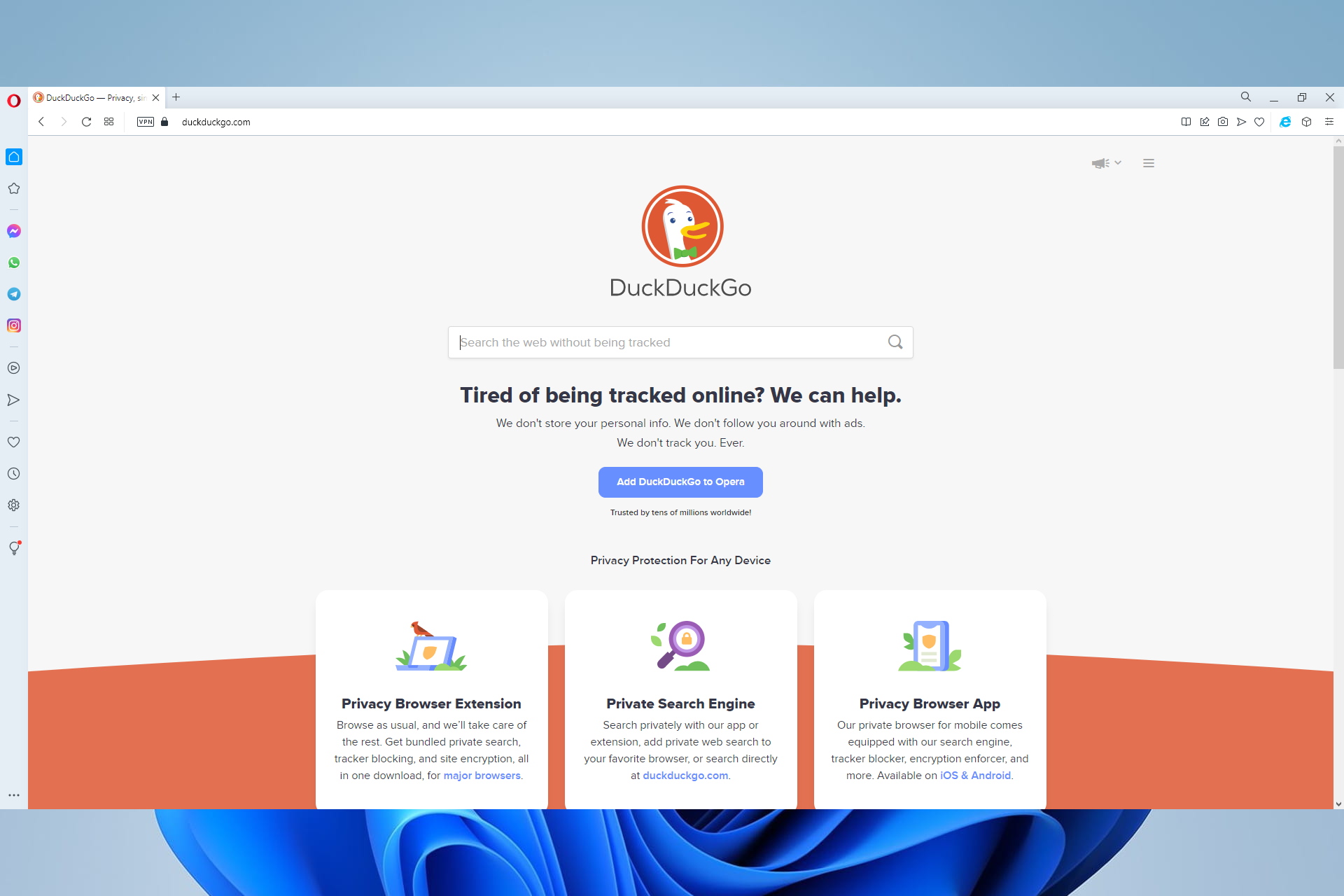





![How to Fix Error Source Code 0 on Twitch [Broadcasting Fixes]](https://windowsreport.com/wp-content/uploads/2022/06/Untitled-design-32.jpg)



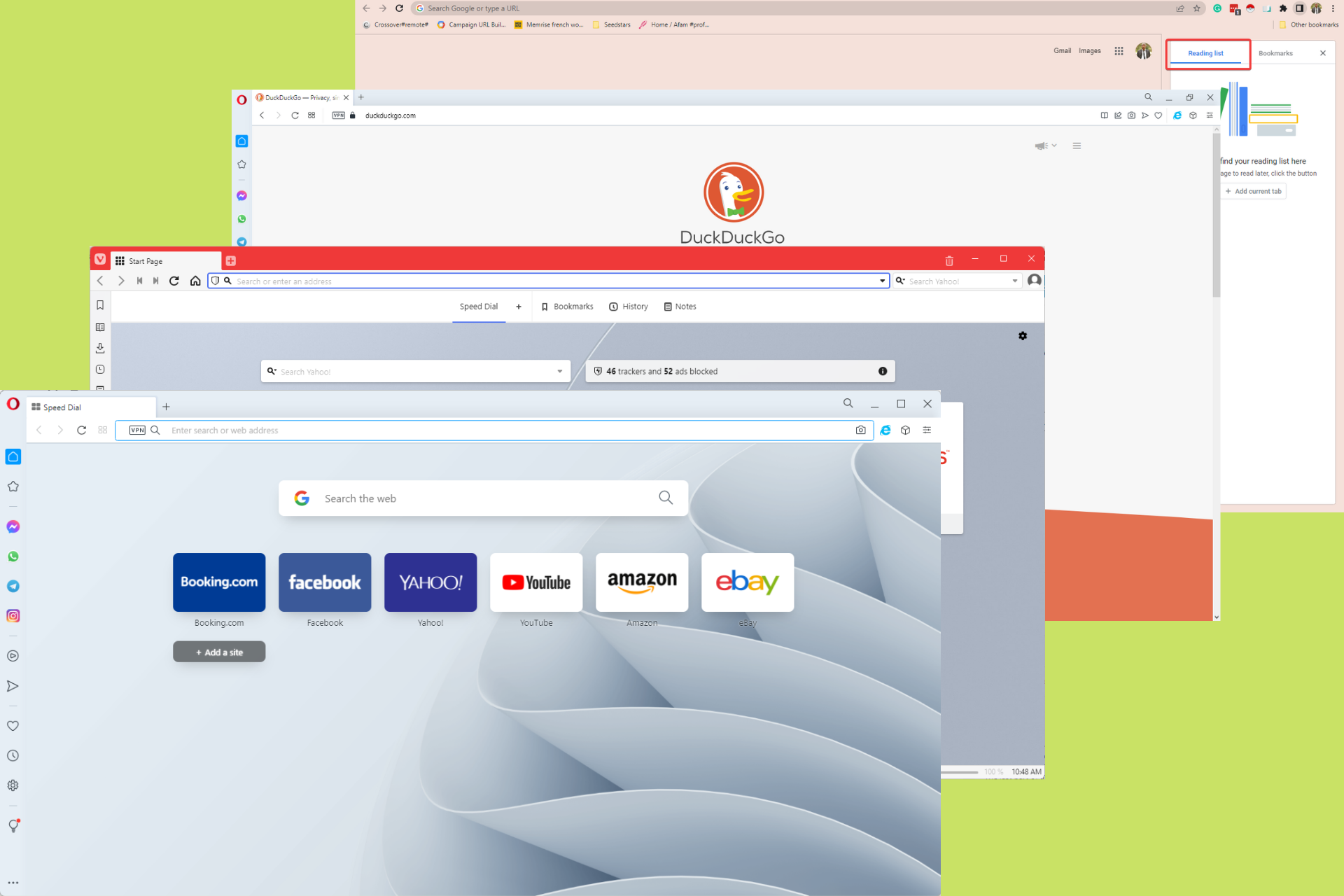







![[Solved] Roblox Verification Not Working – Roblox Guides](https://windowsreport.com/wp-content/uploads/2022/05/Untitled-design-38-1.jpg)
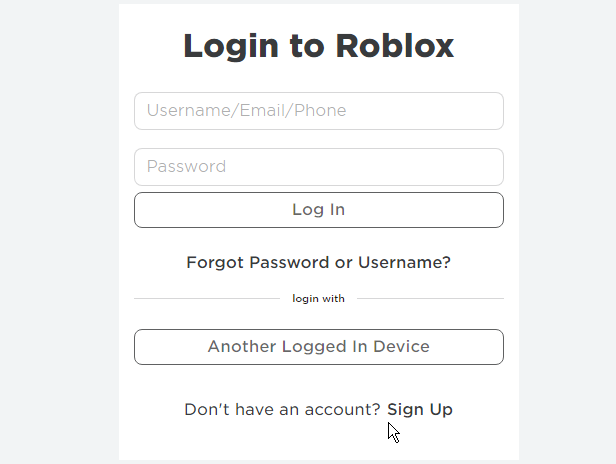




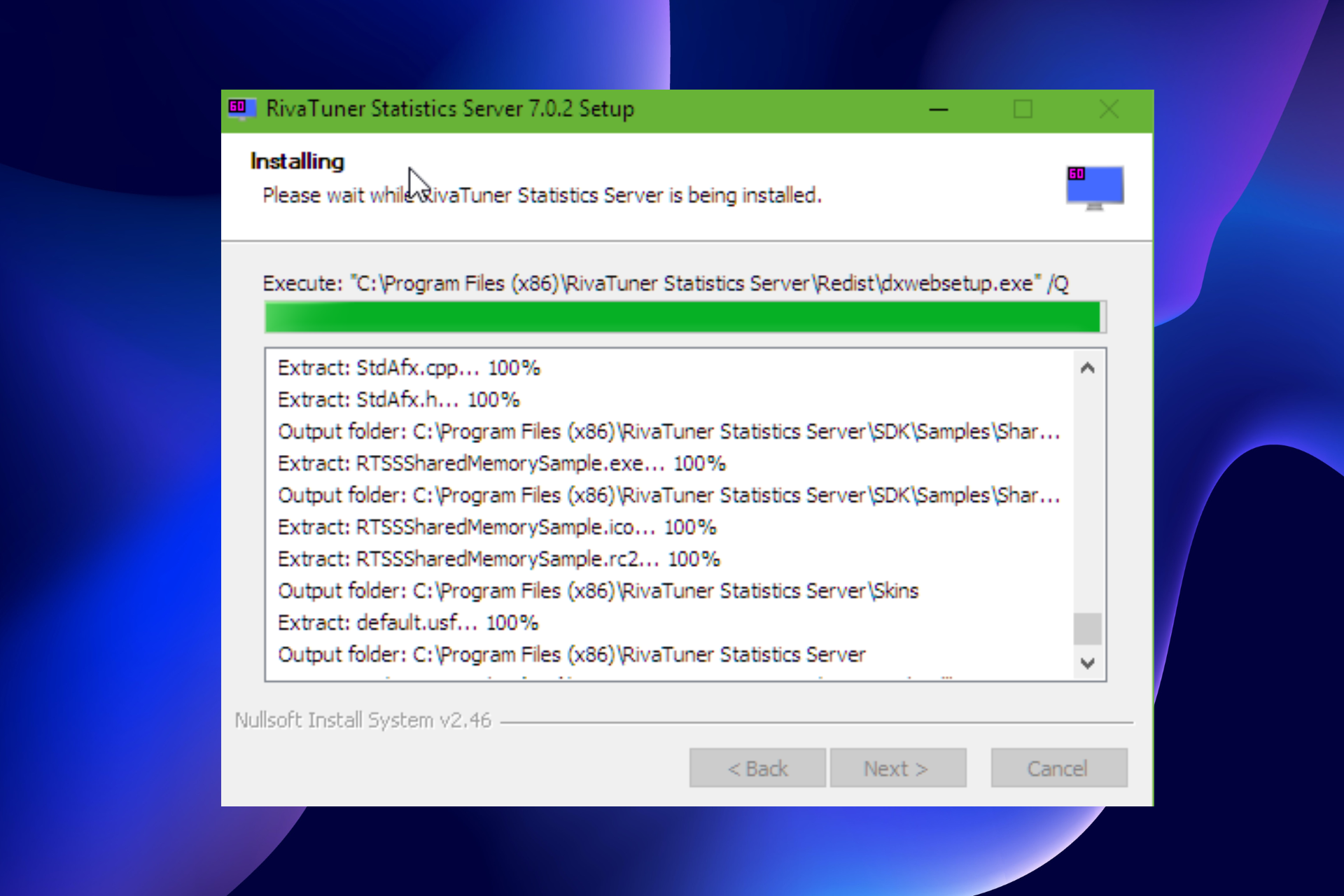




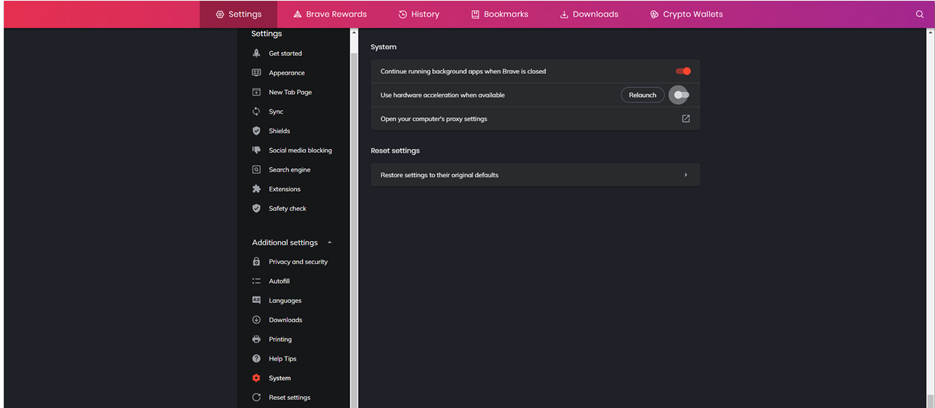
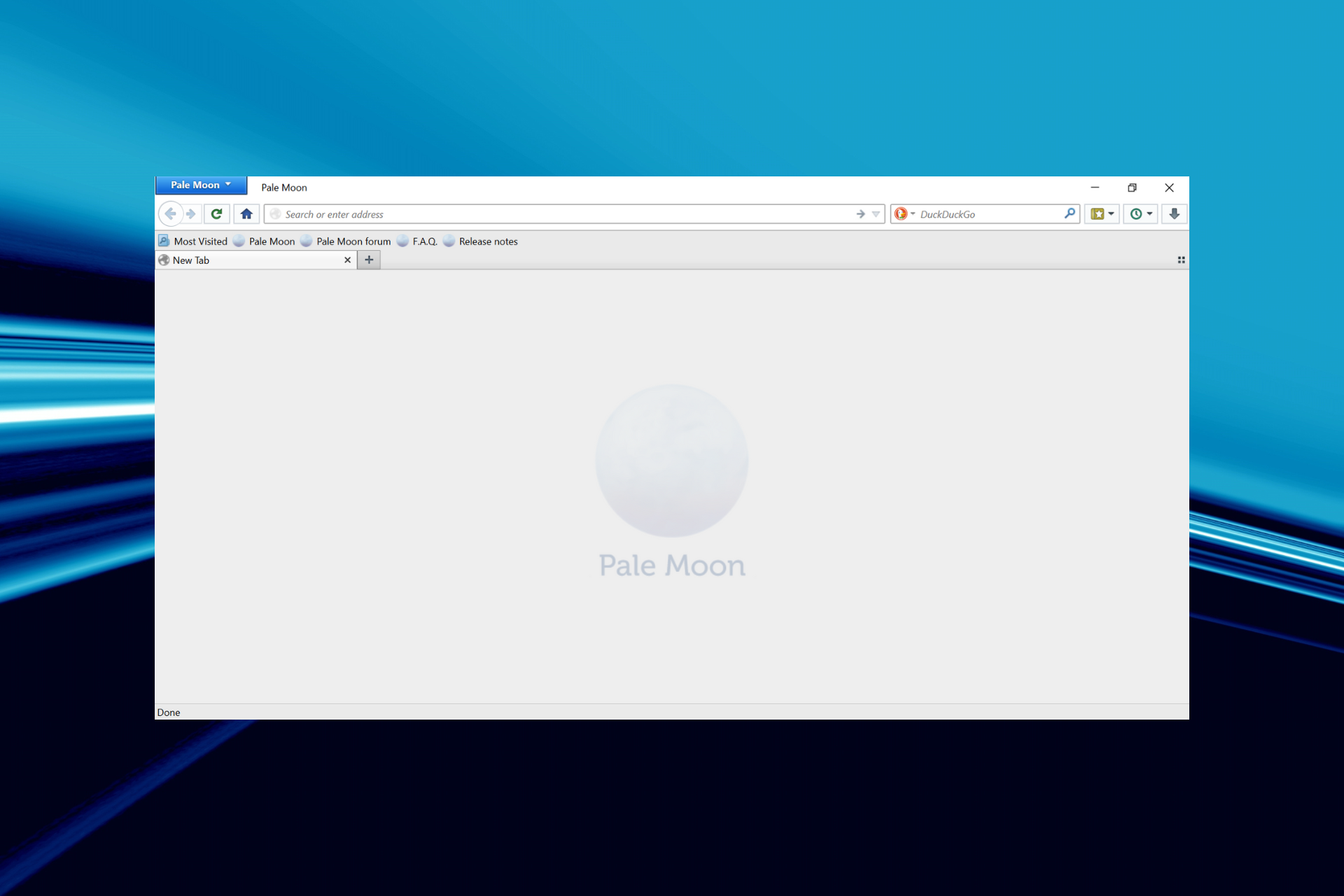
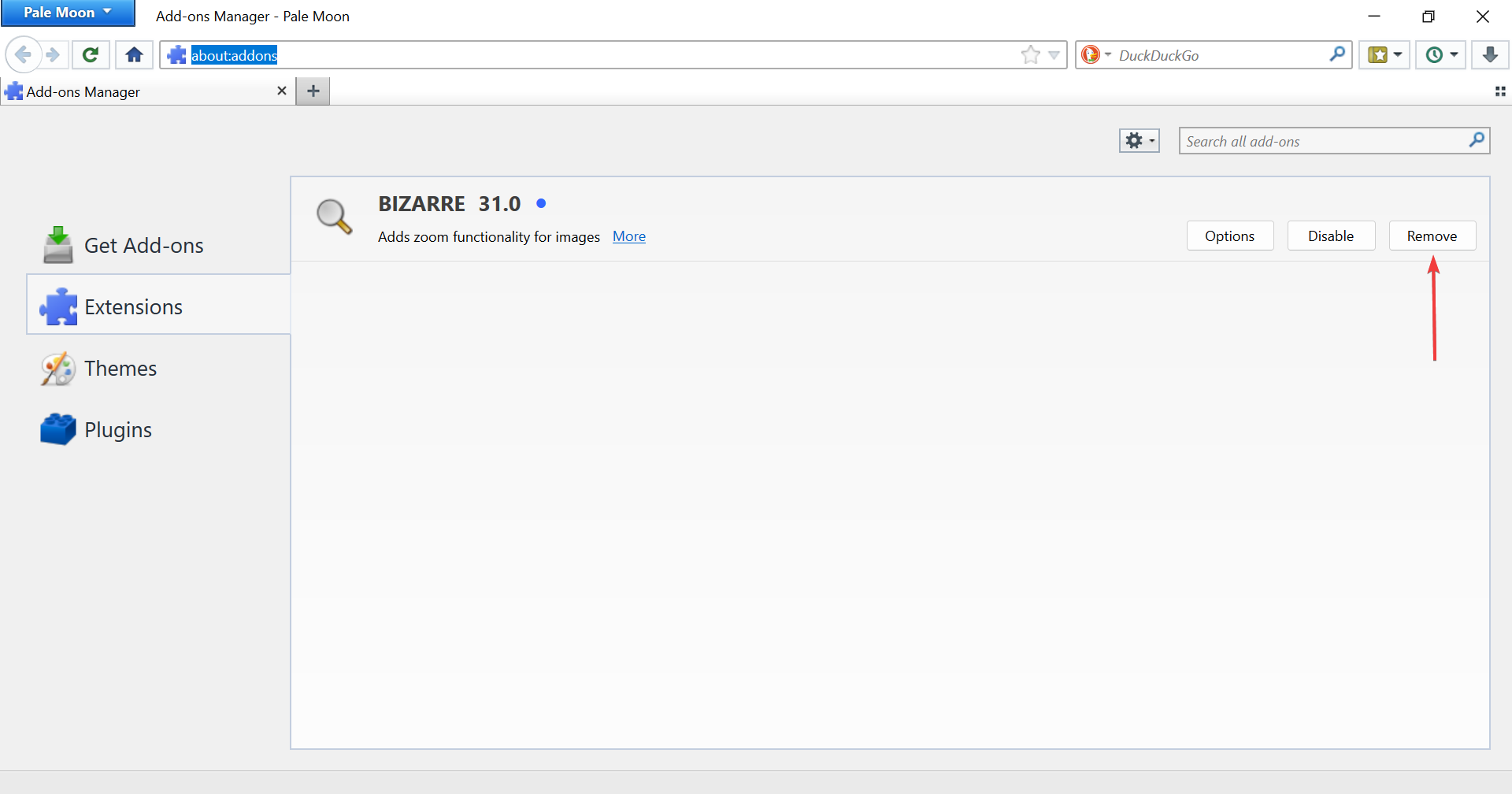
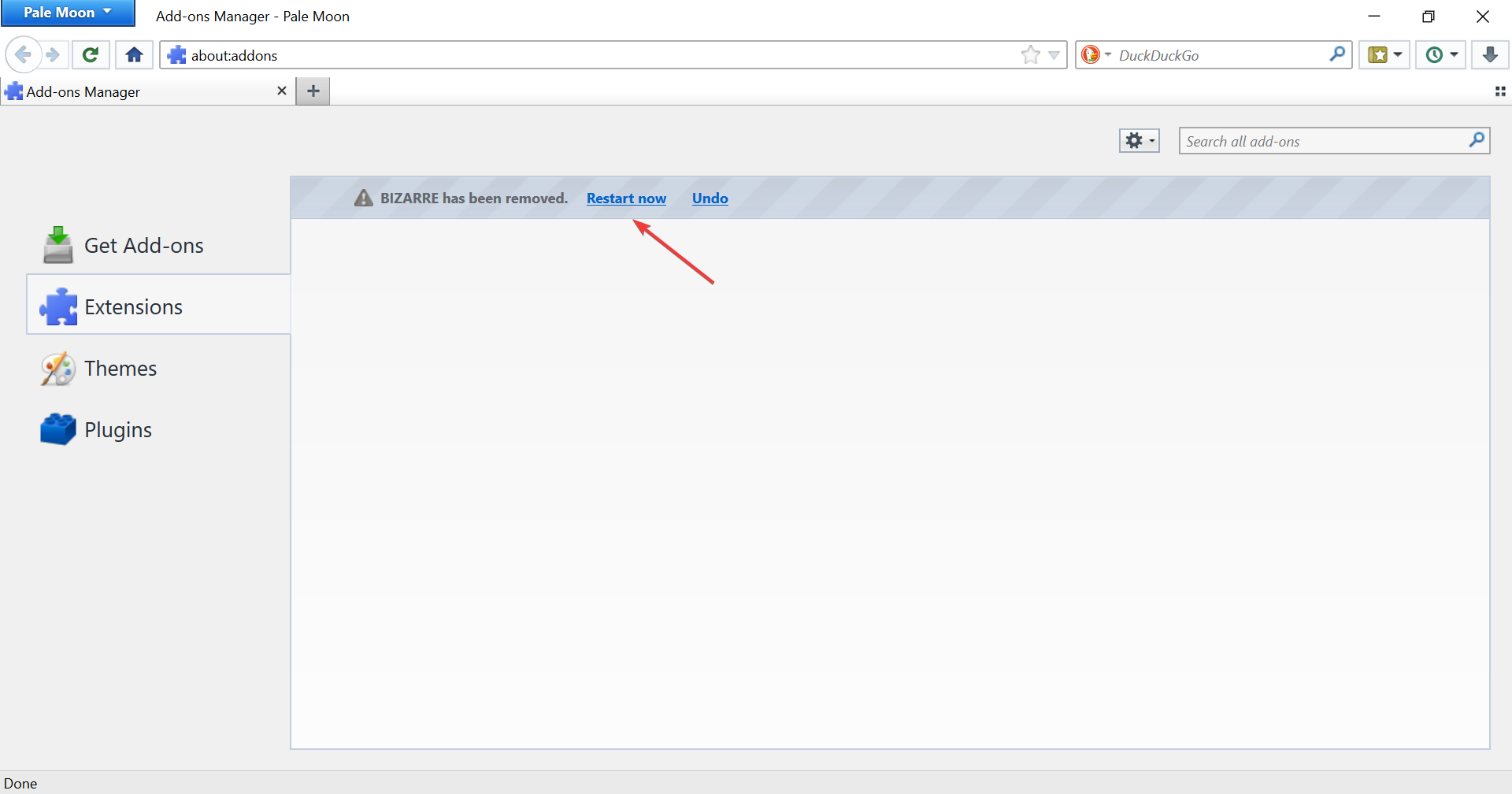
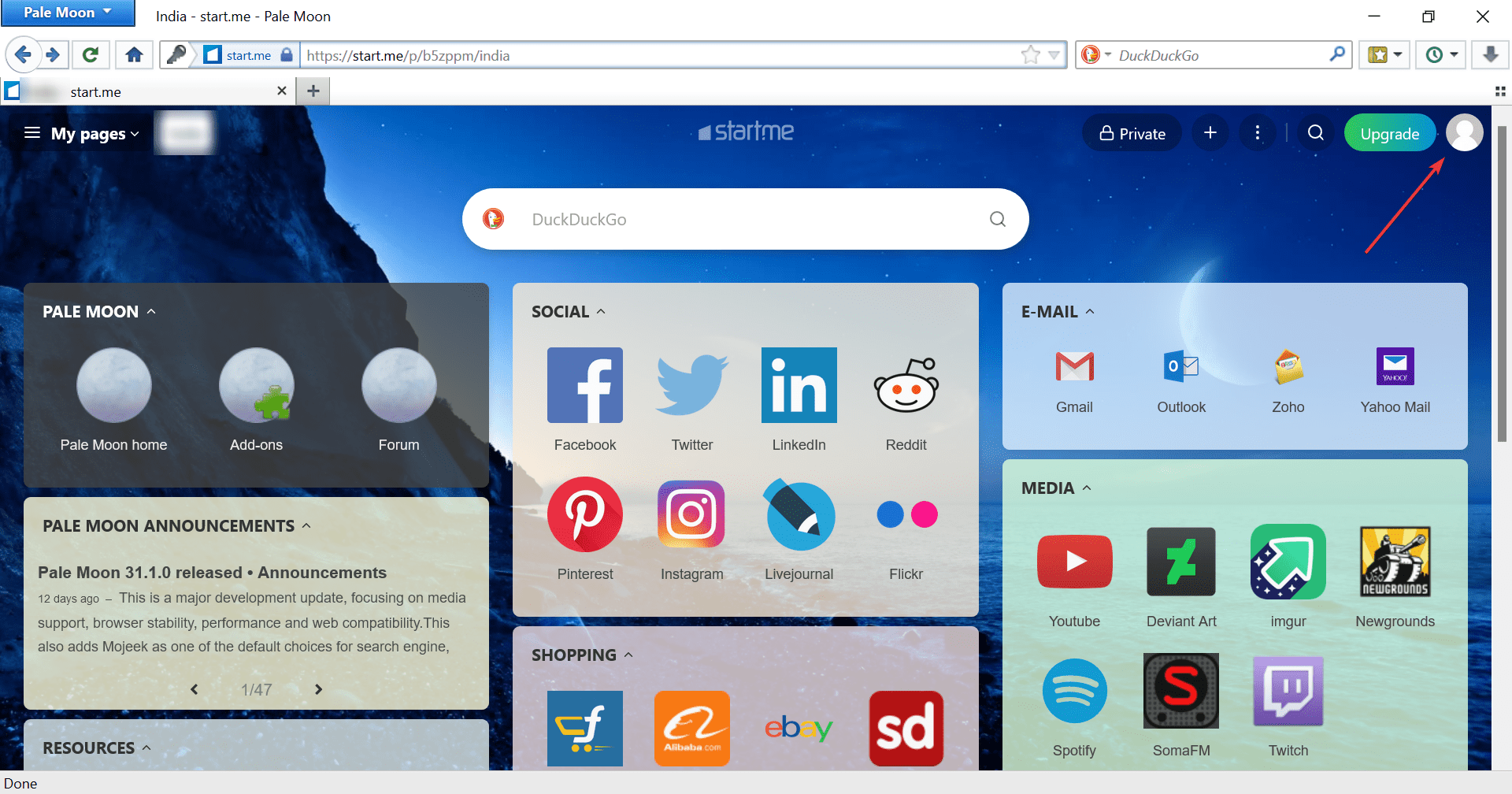
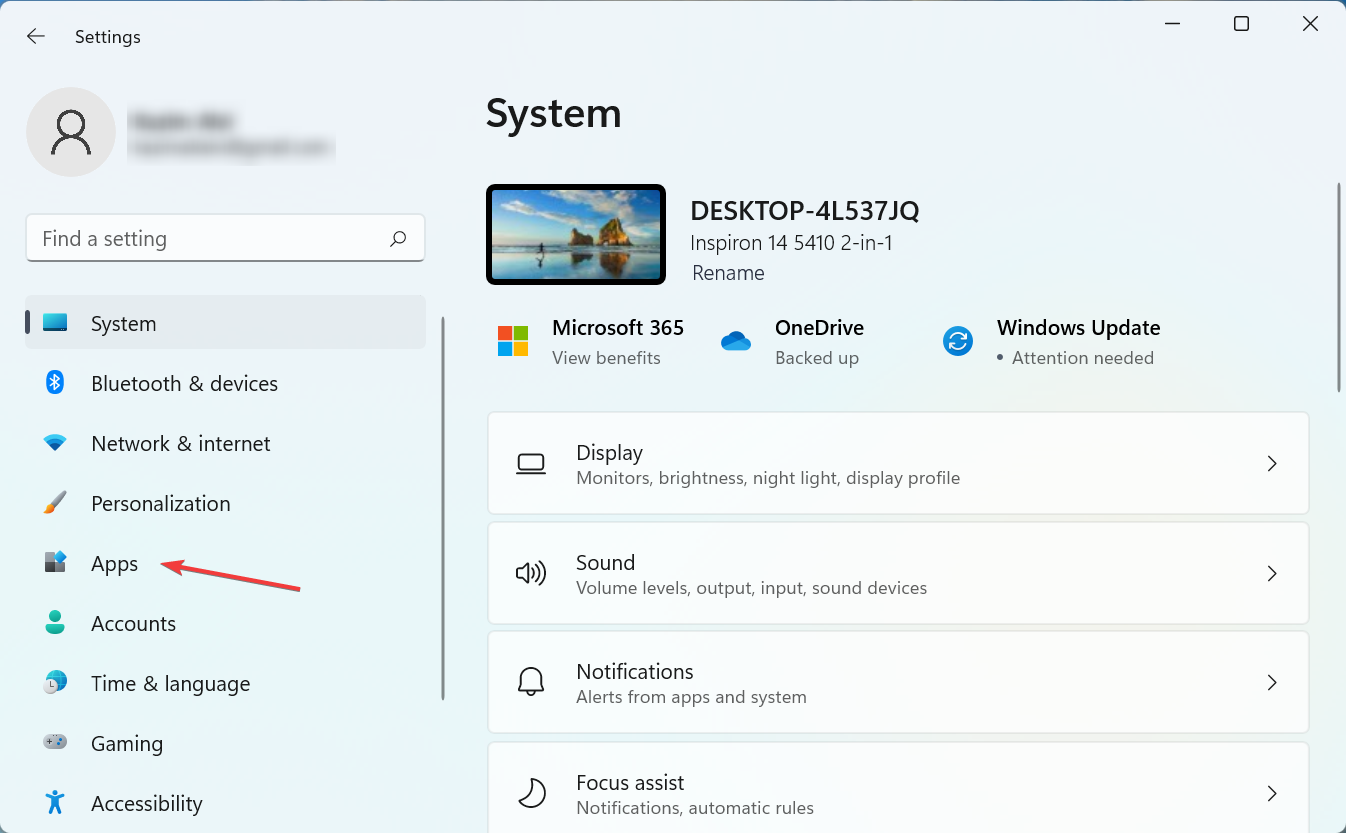
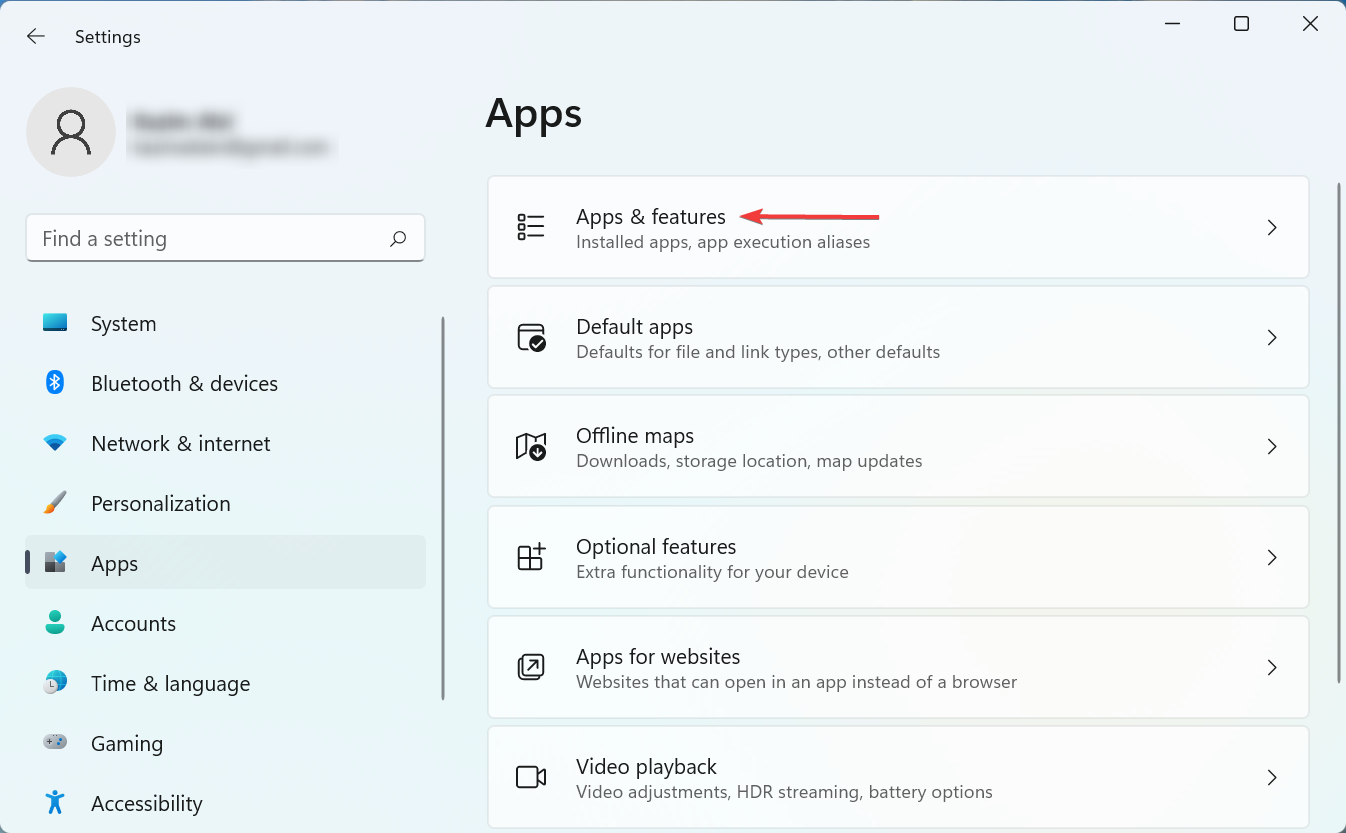
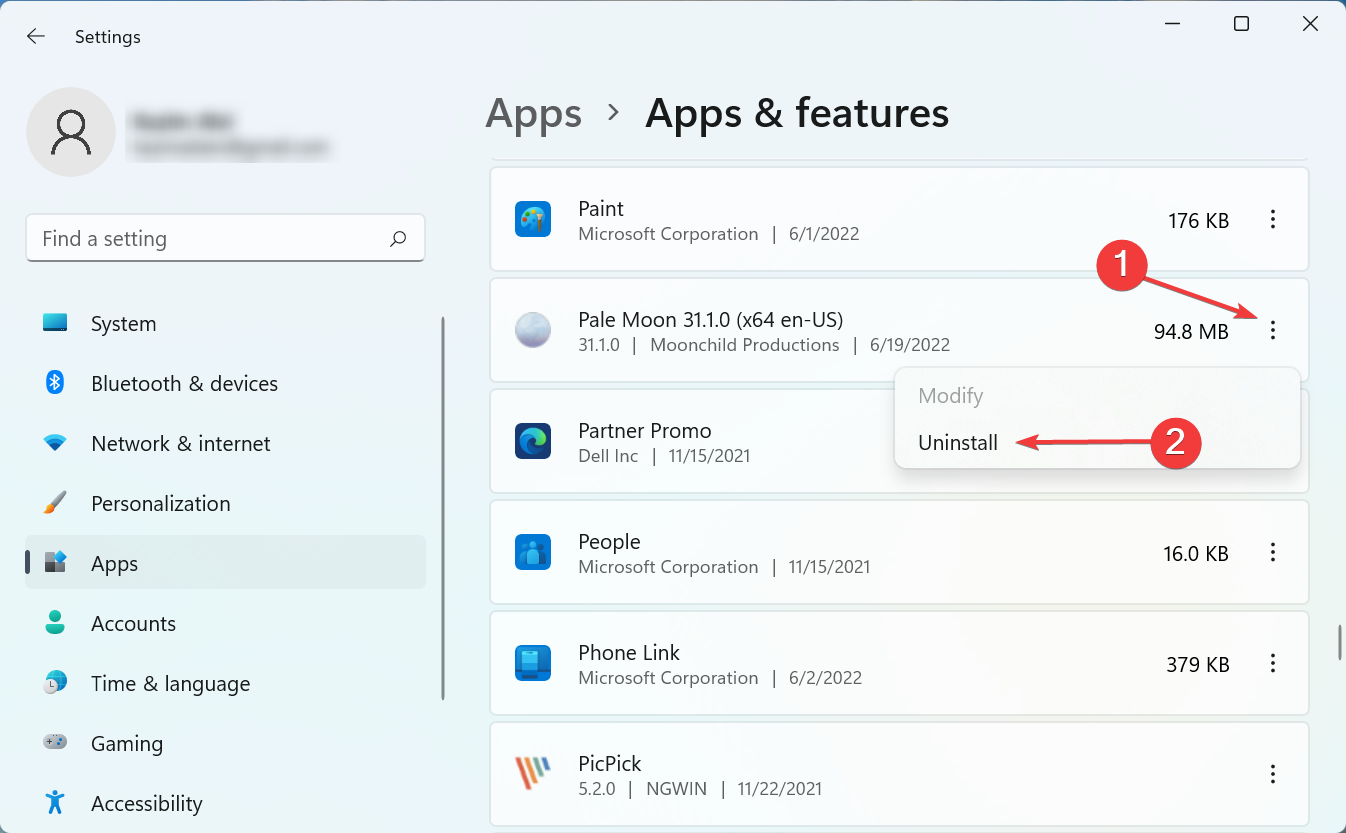
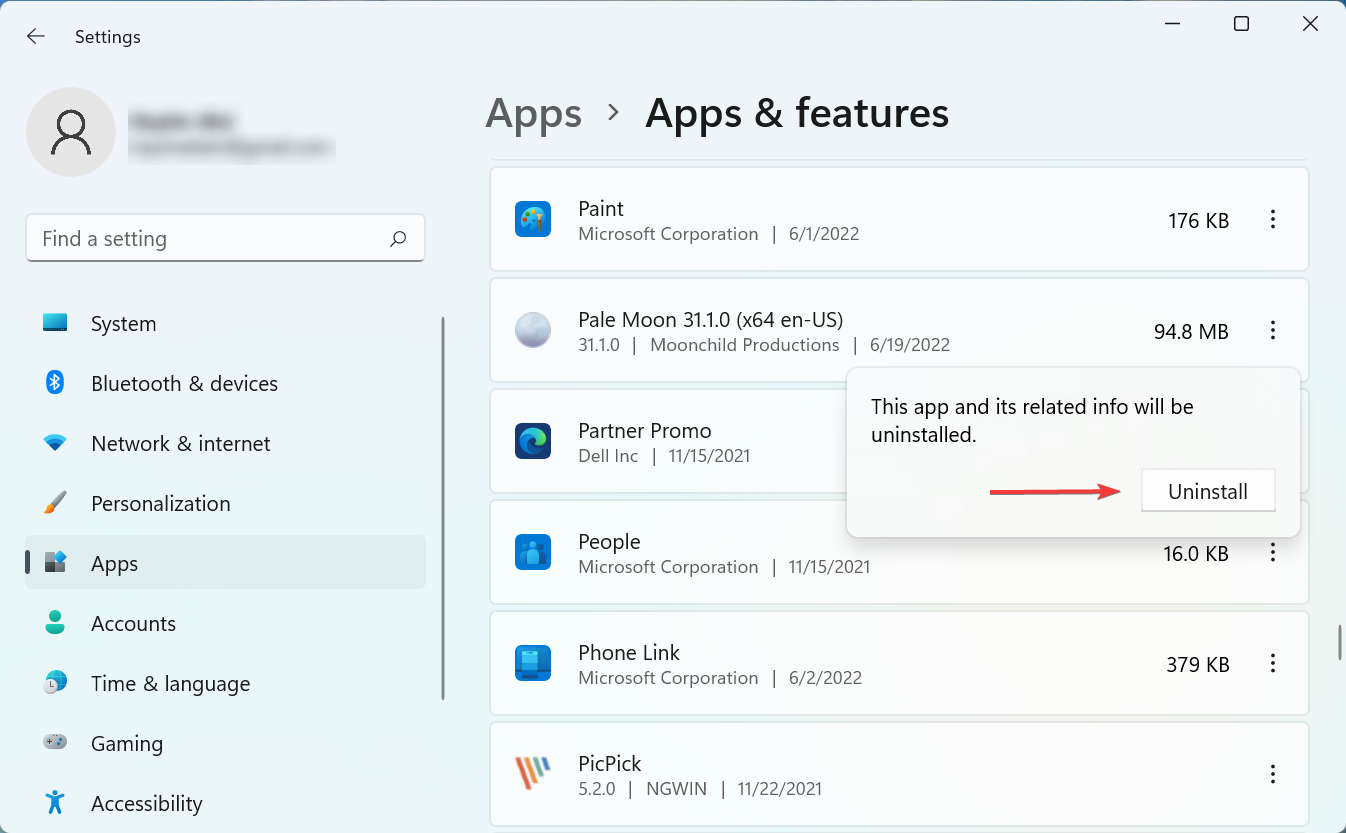
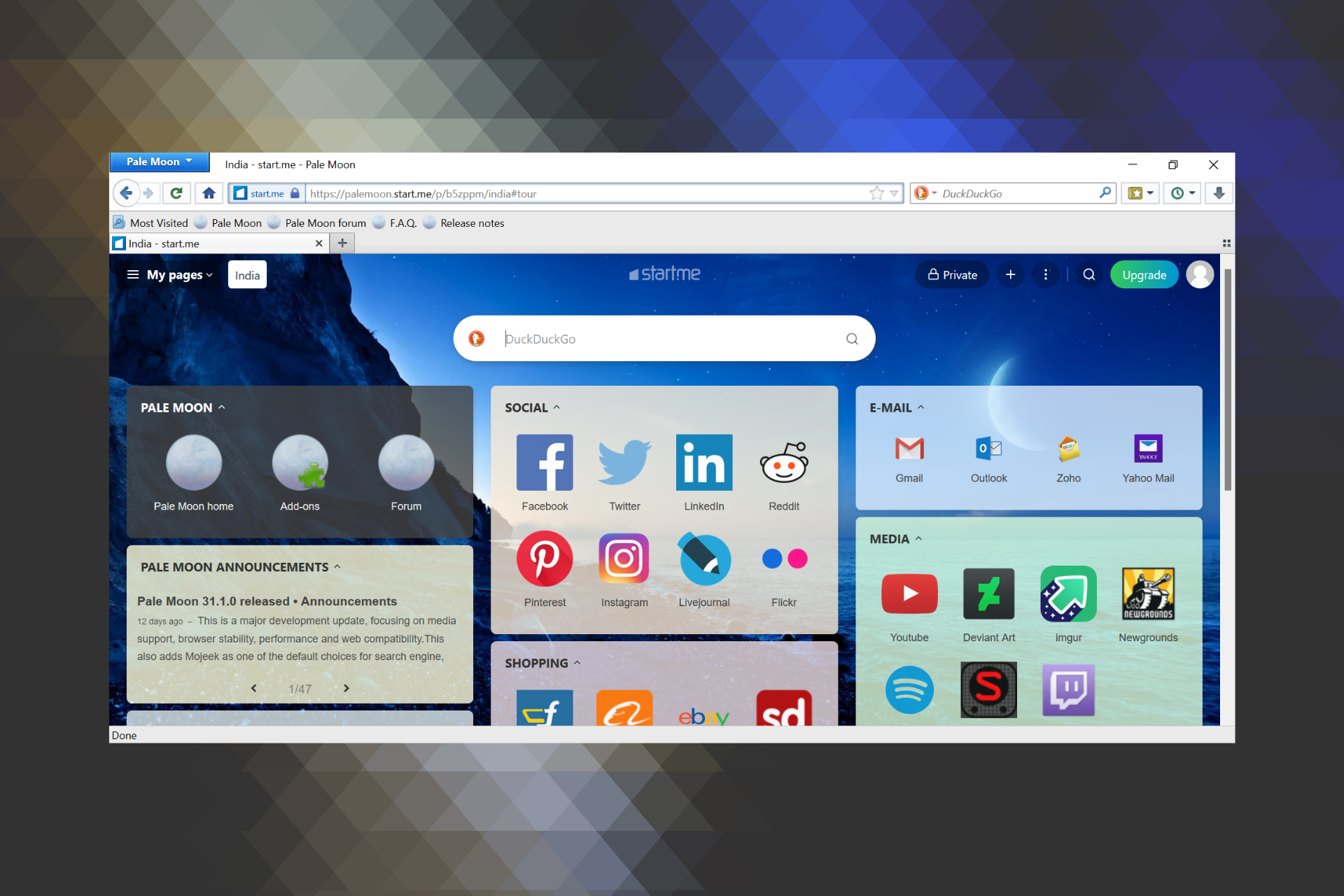


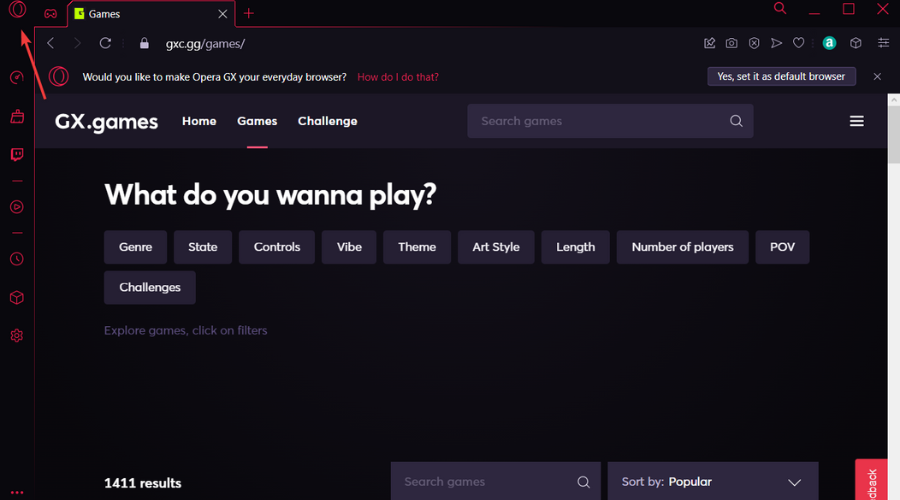
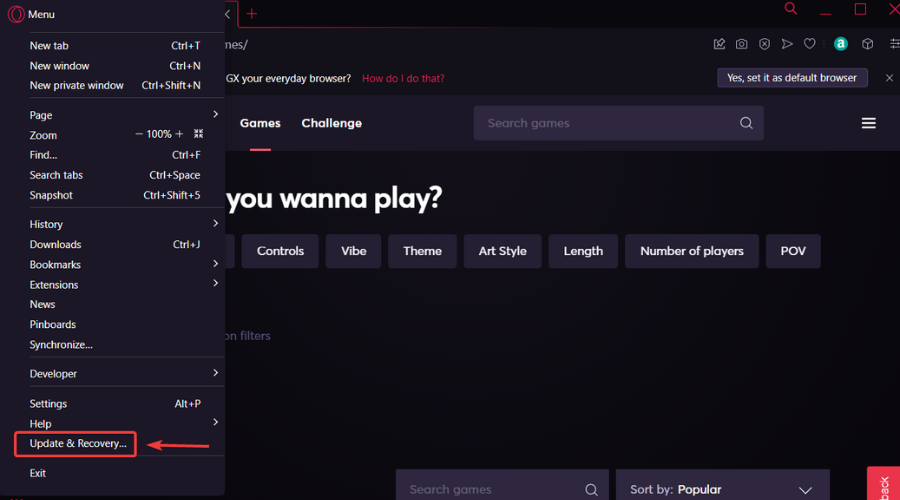
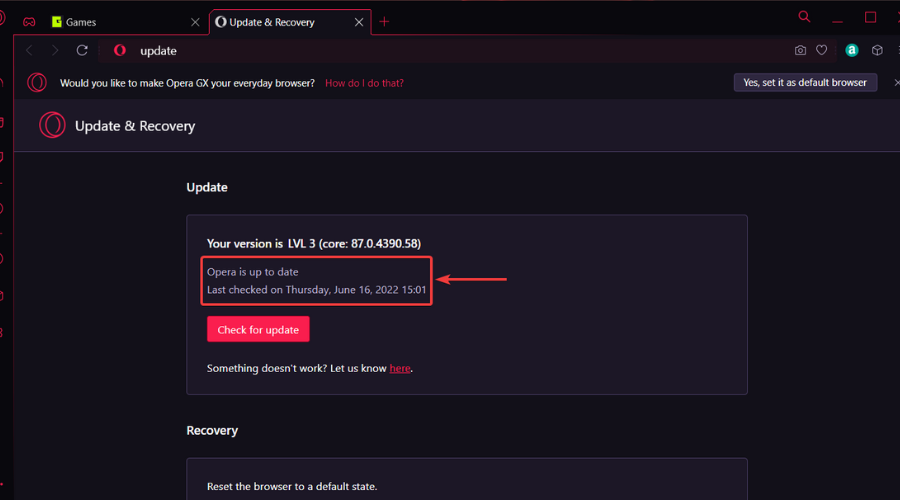
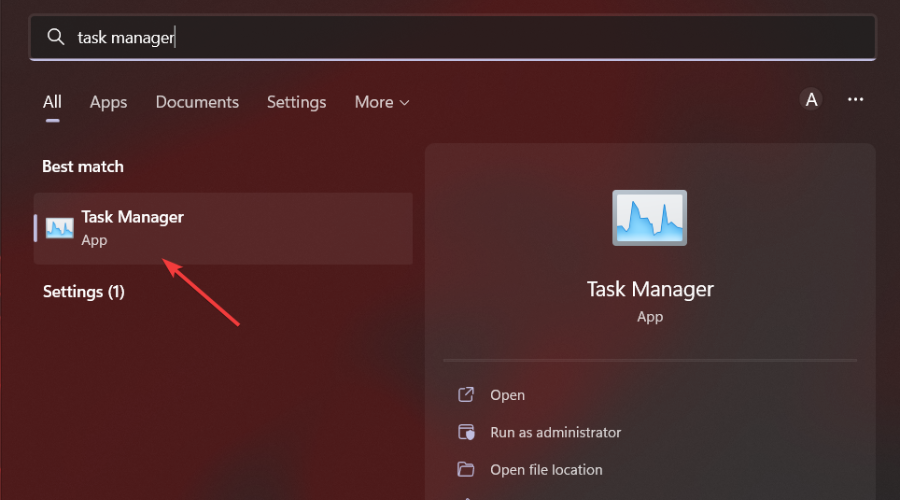

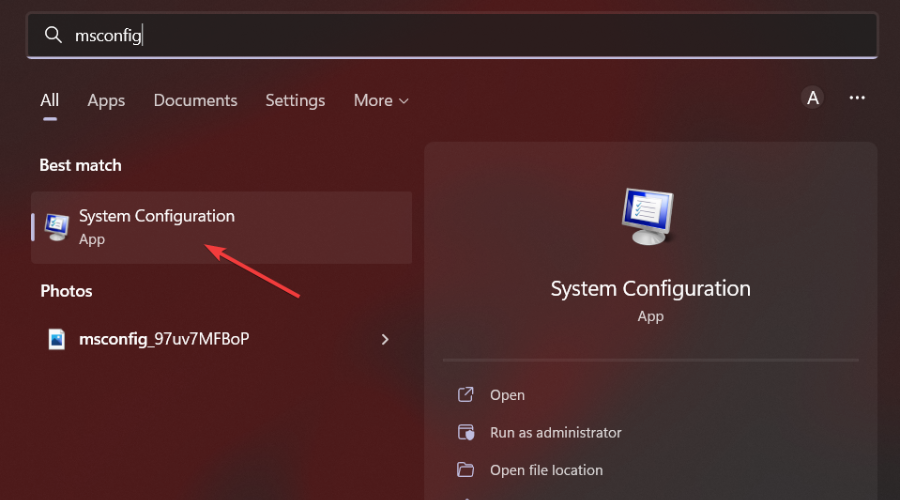
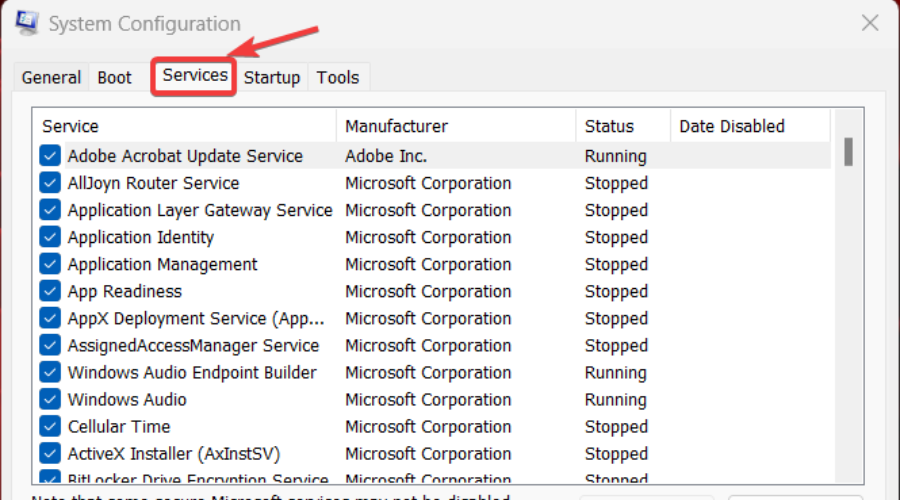
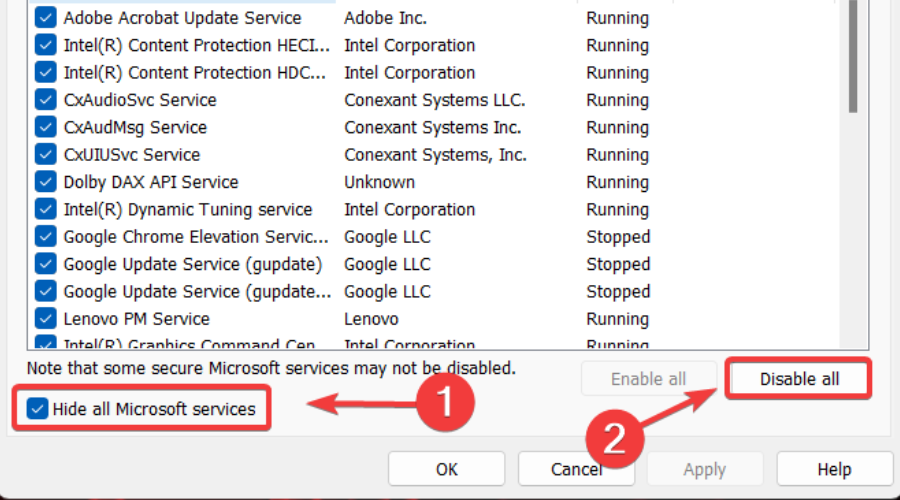
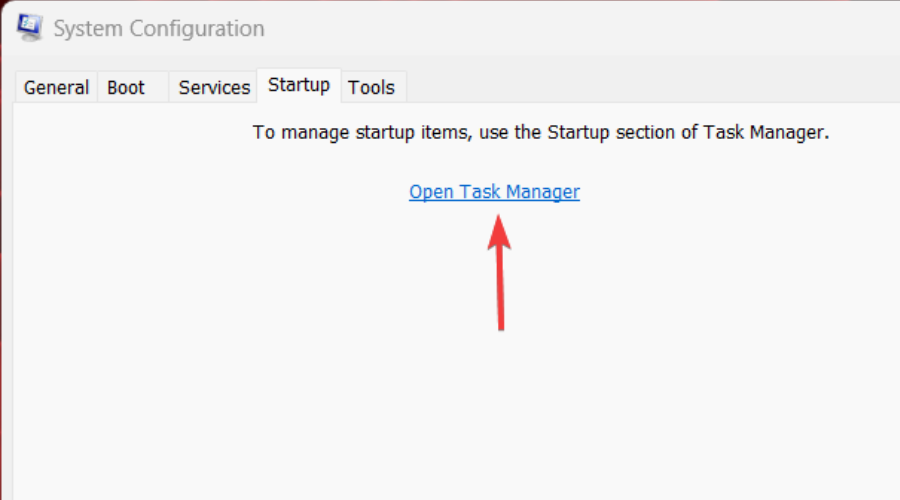
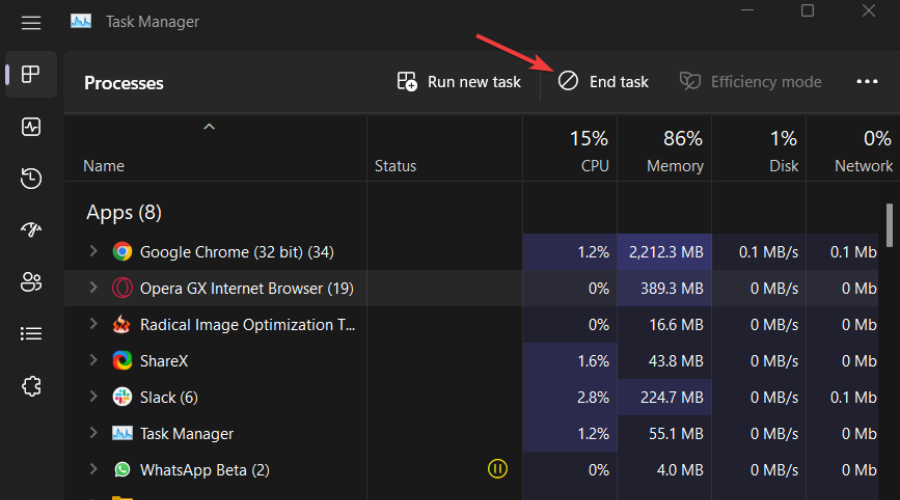
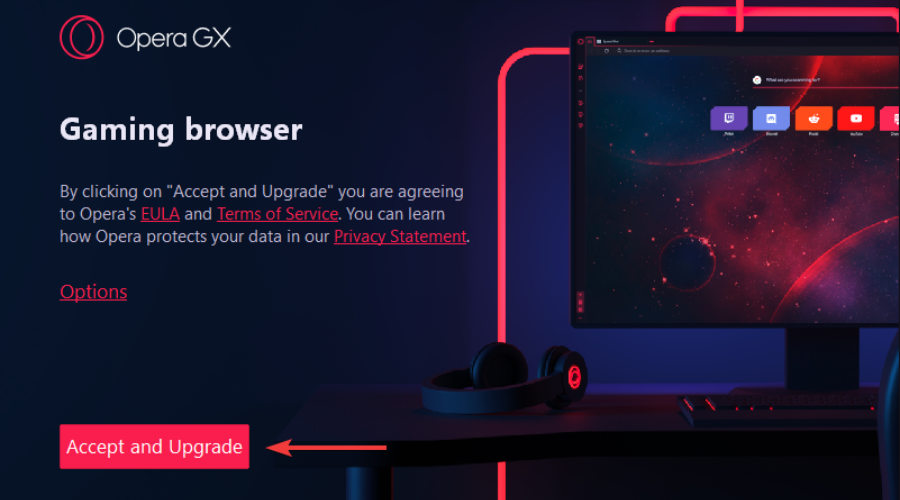

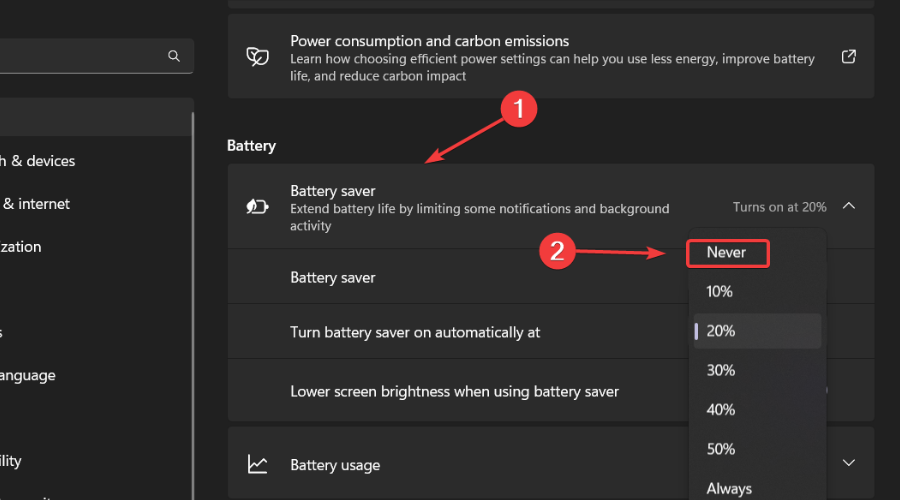
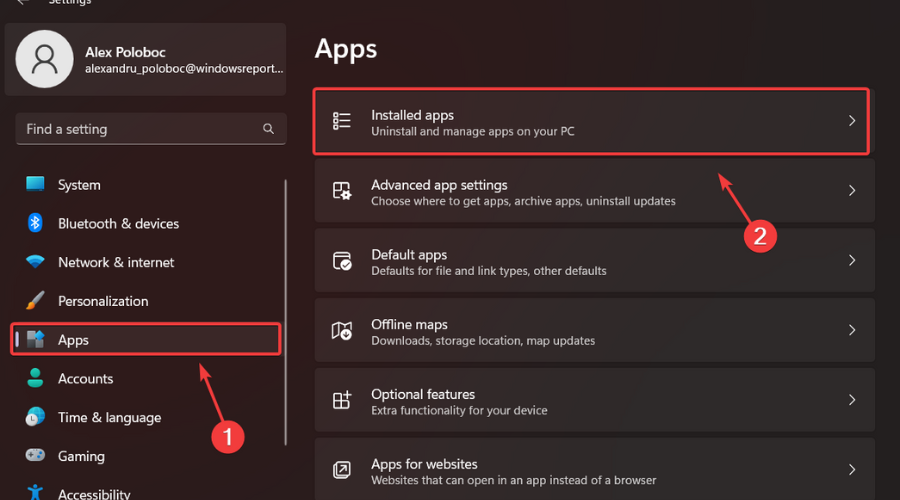
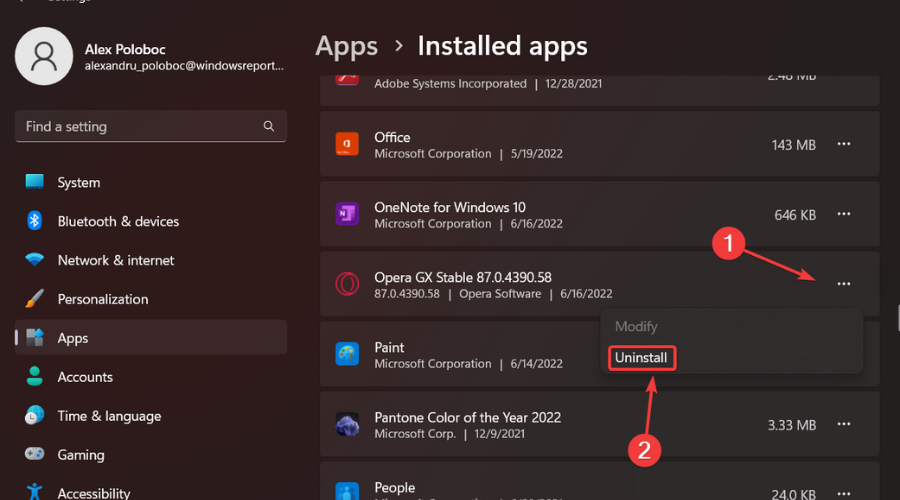
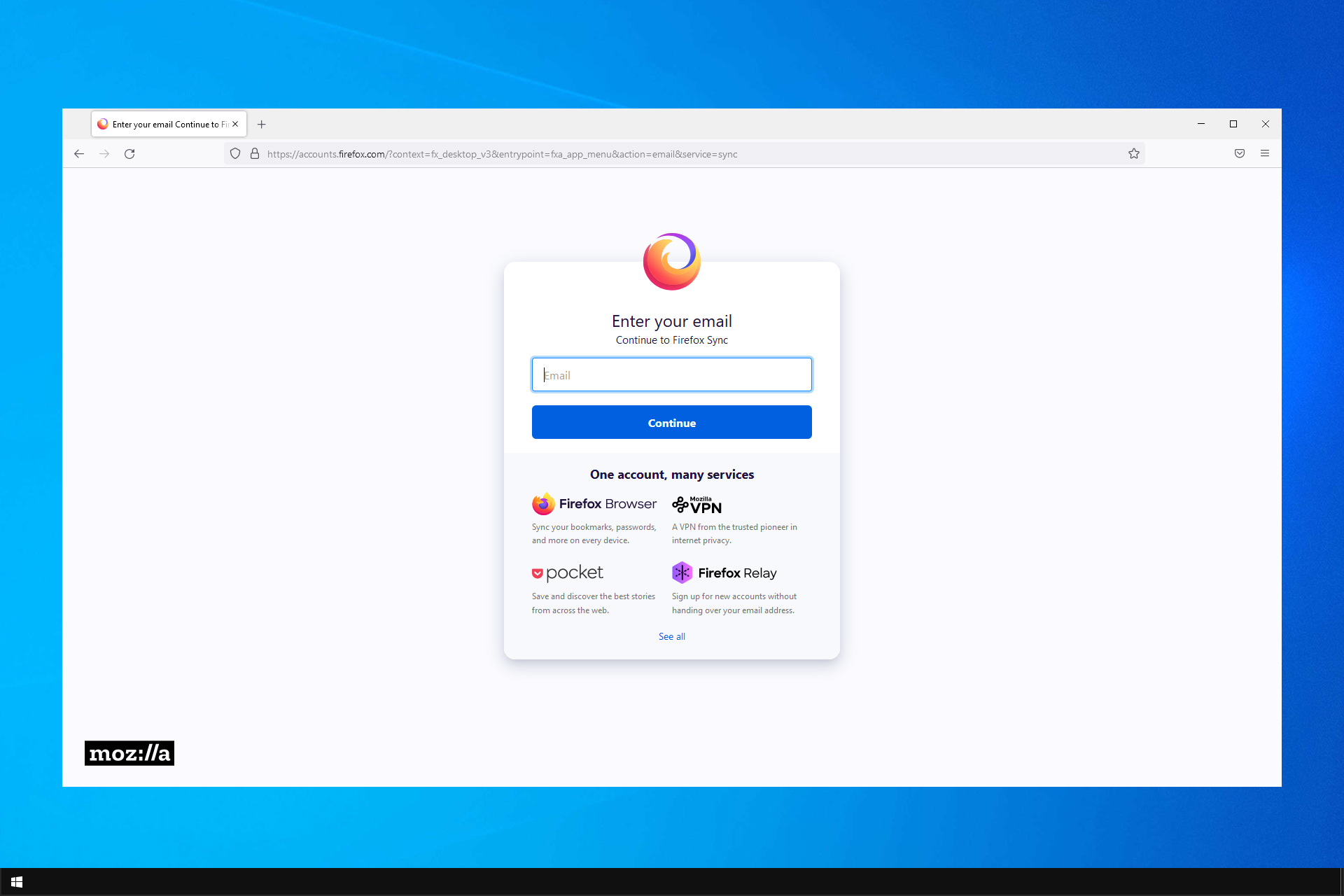


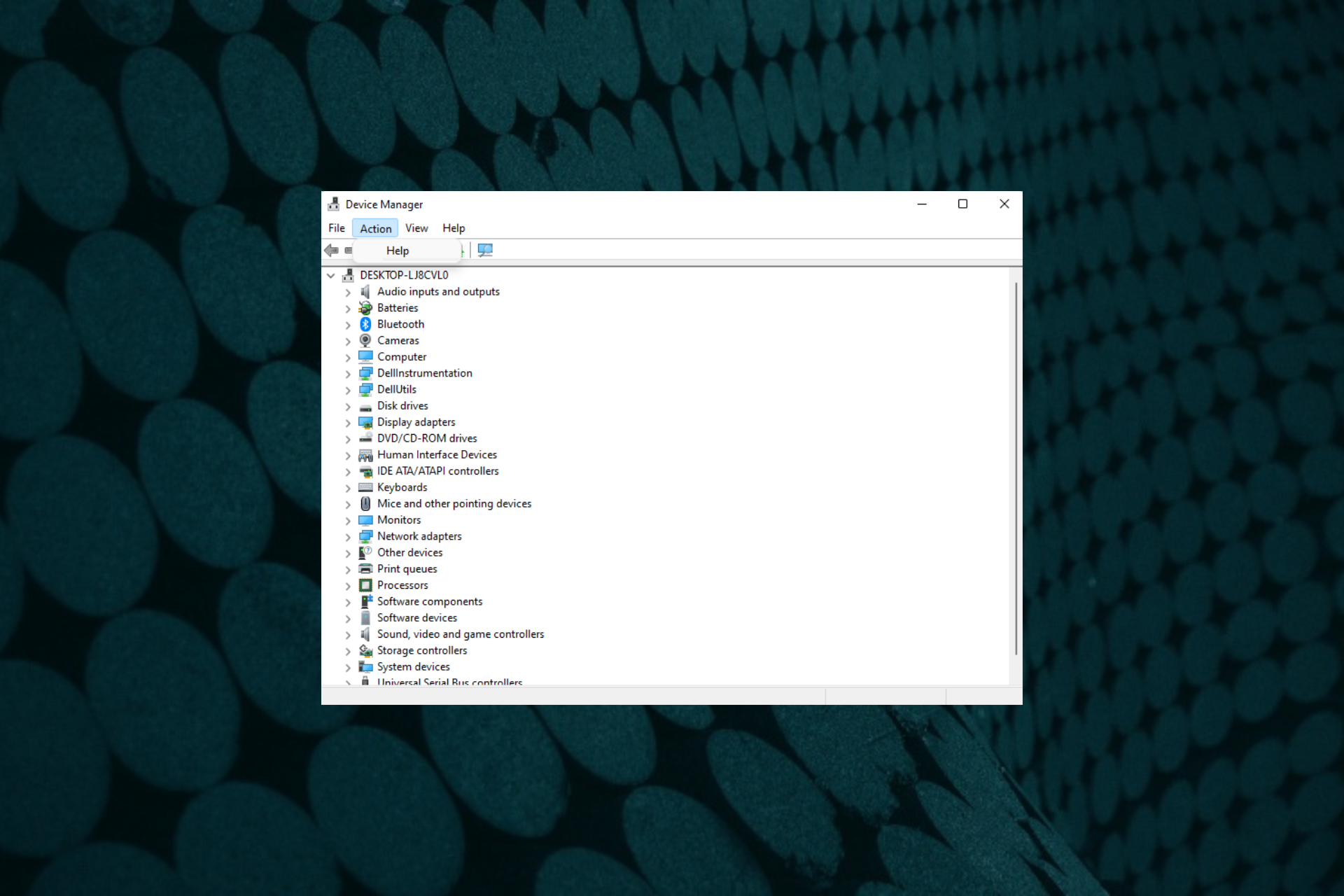
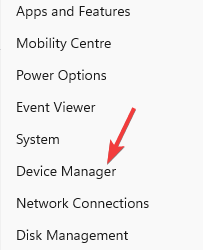


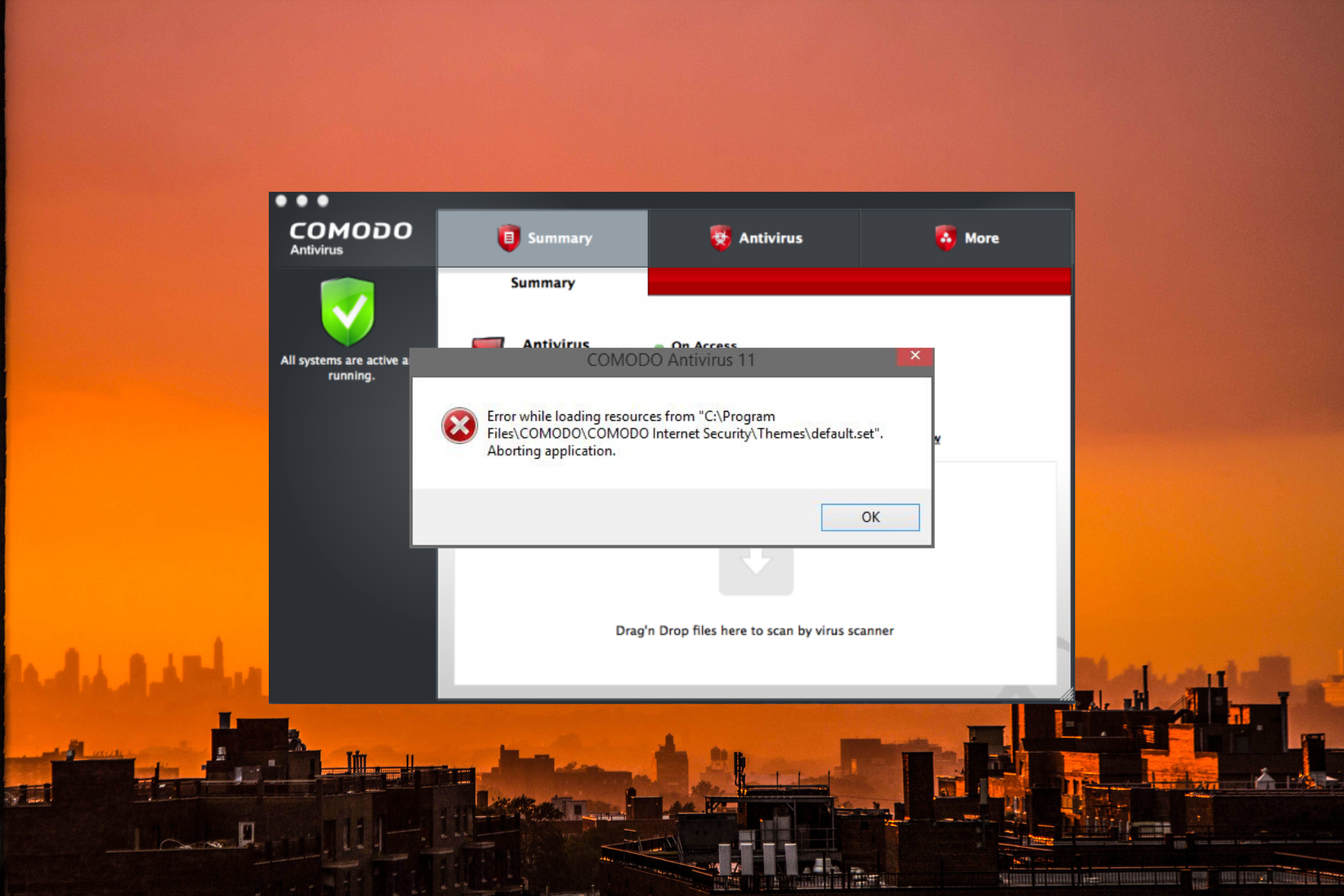


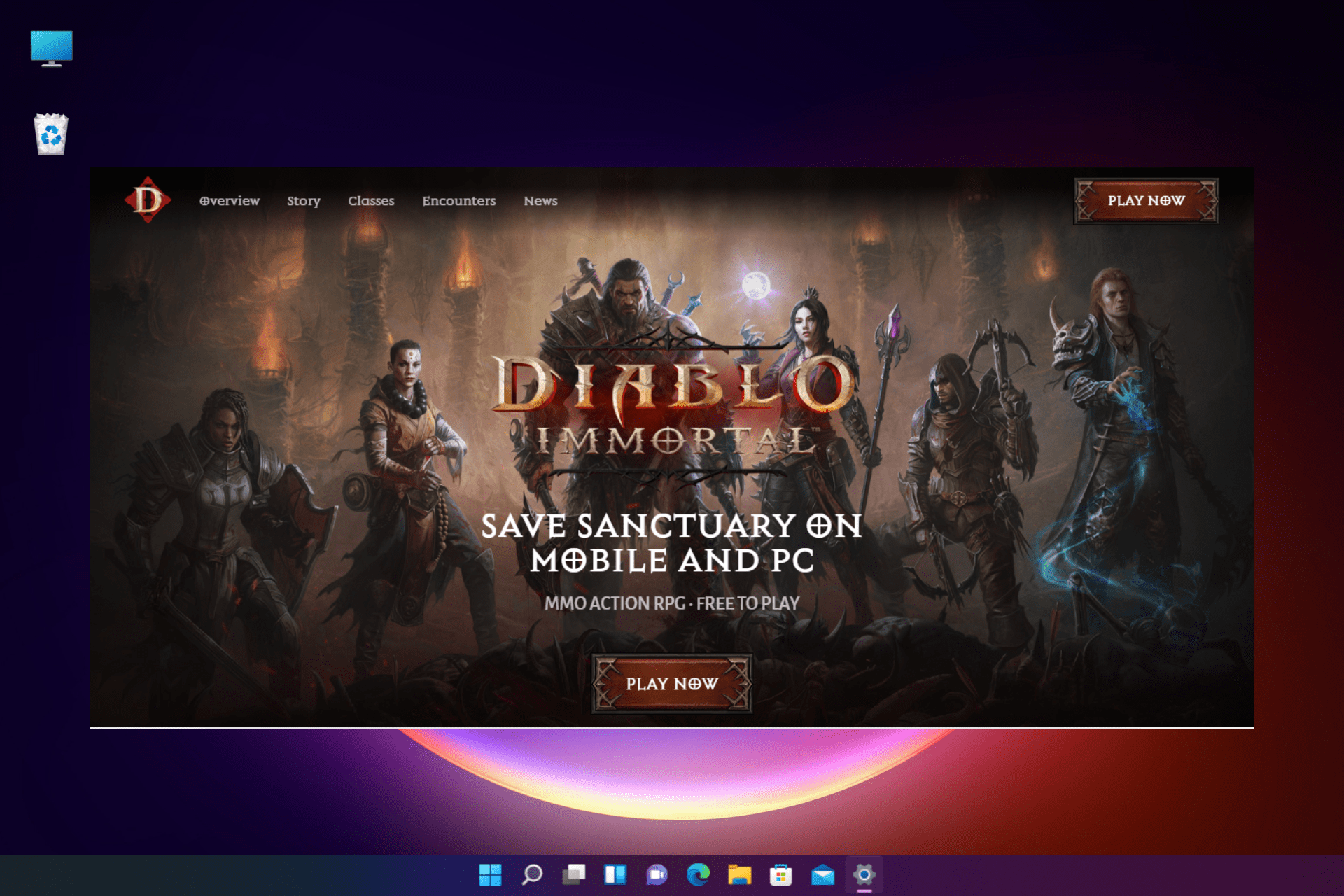




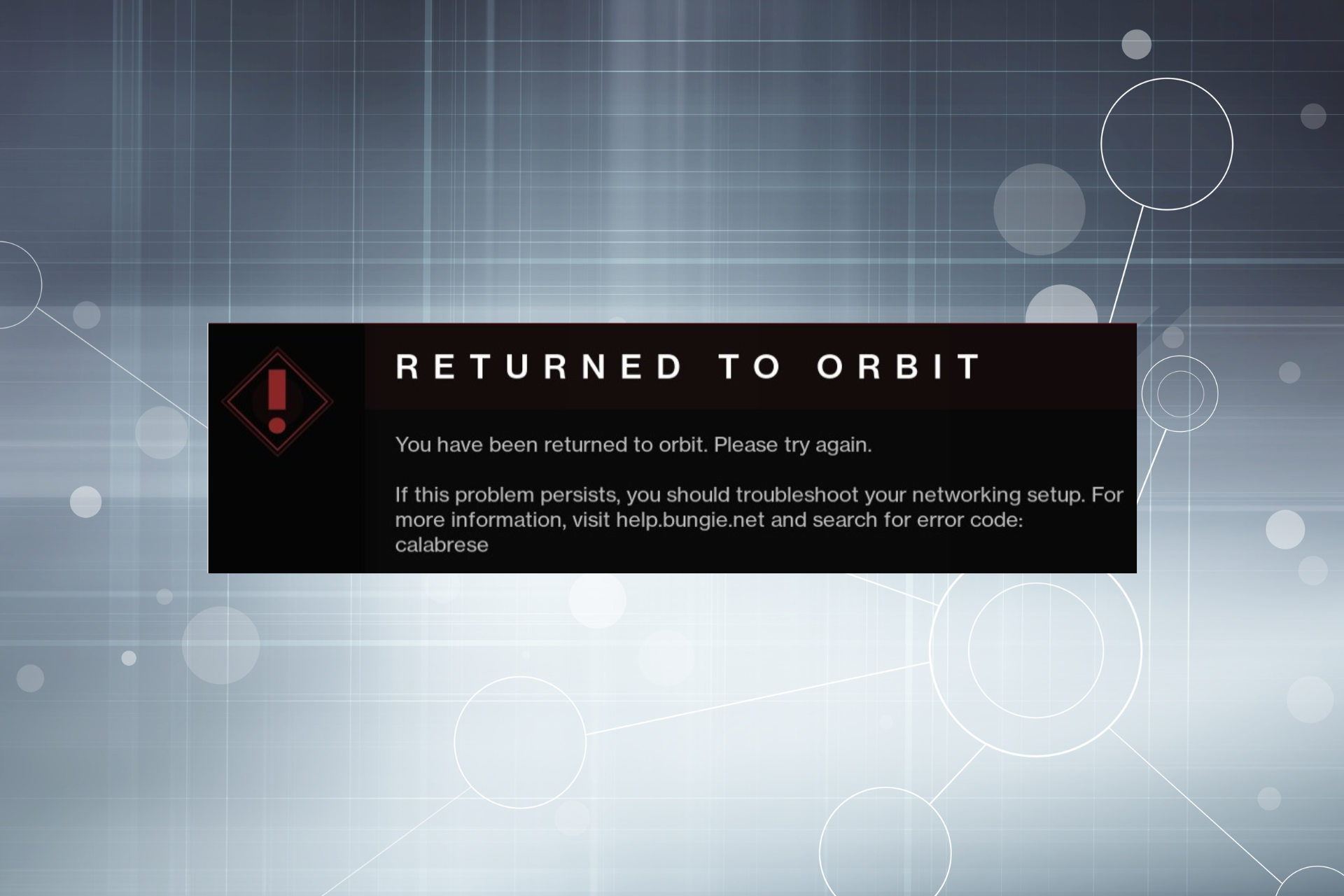


![ONLYOFFICE vs LibreOffice vs OpenOffice [Tested Side By Side]](https://windowsreport.com/wp-content/uploads/2022/06/onlyoffice-vs-libreoffice-vs-openoffice-comparison.jpg)
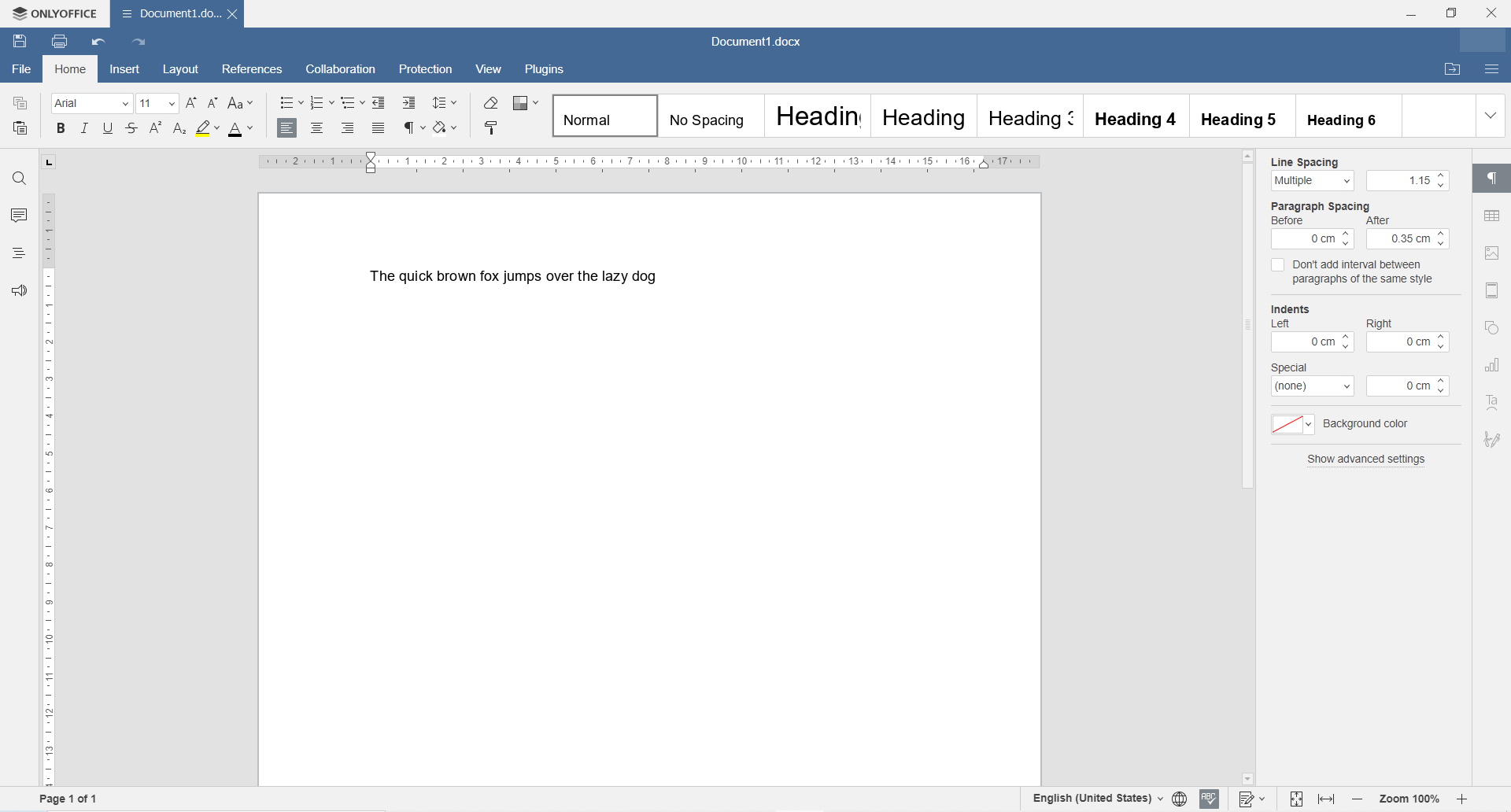
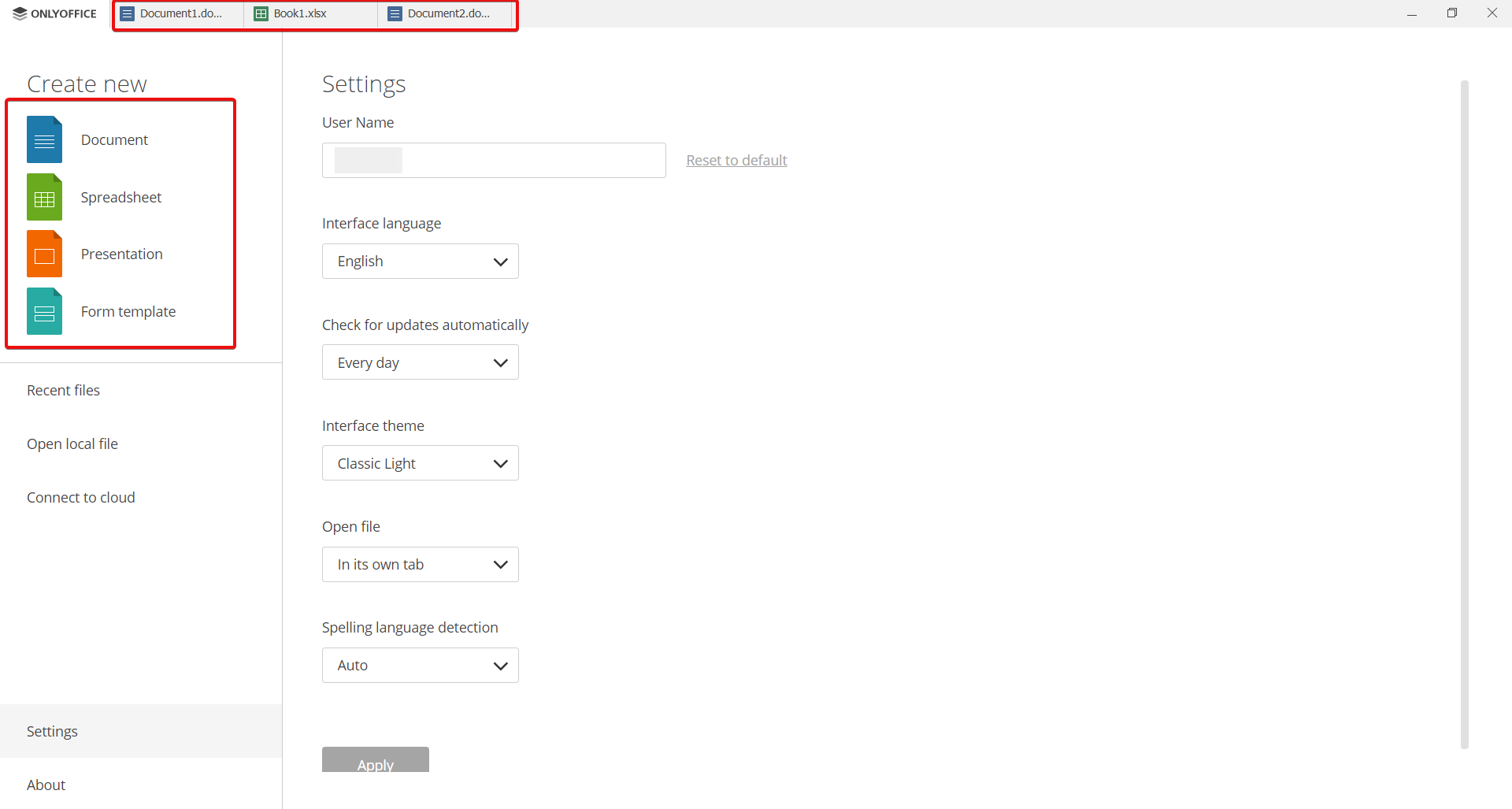
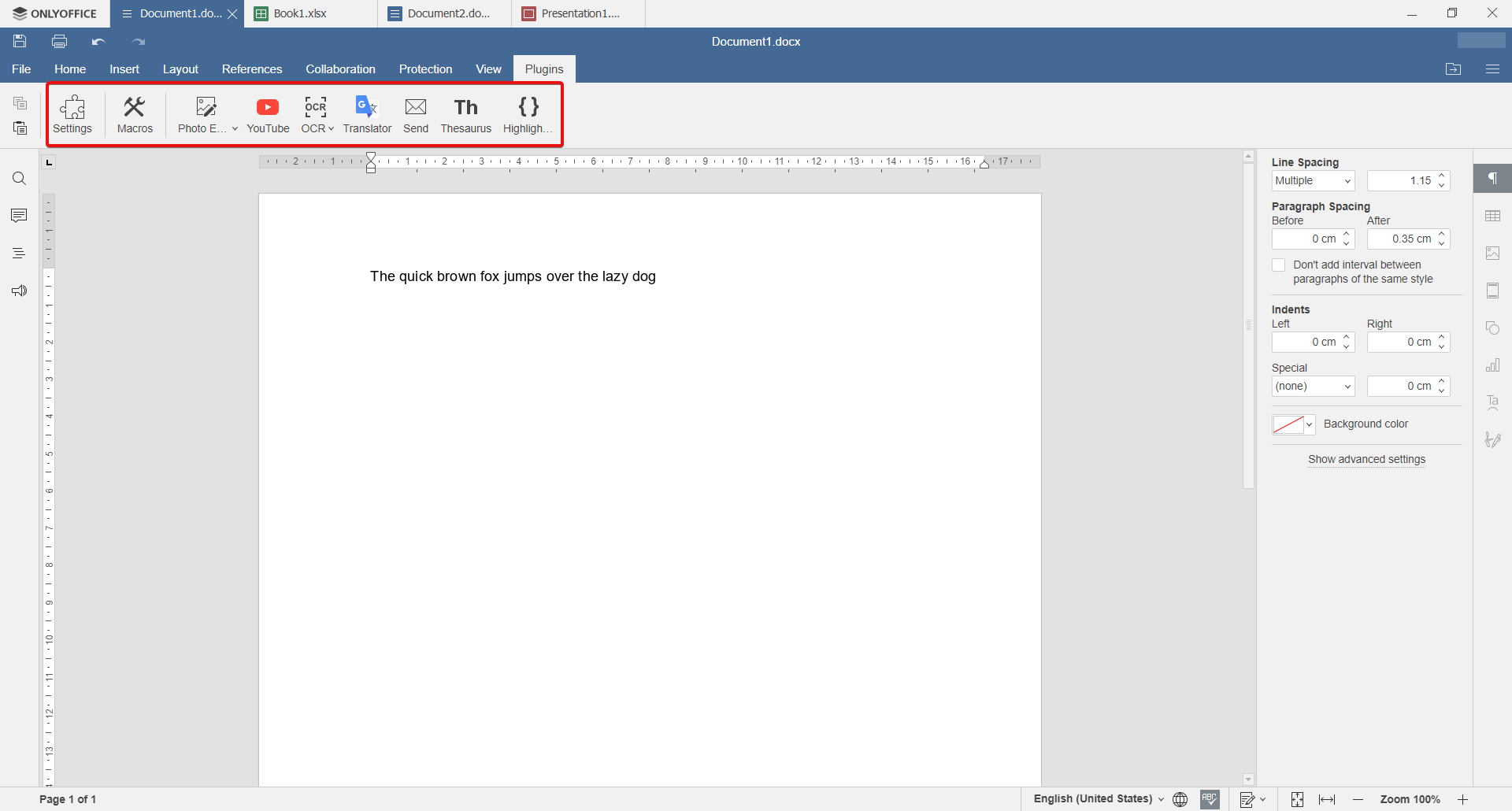


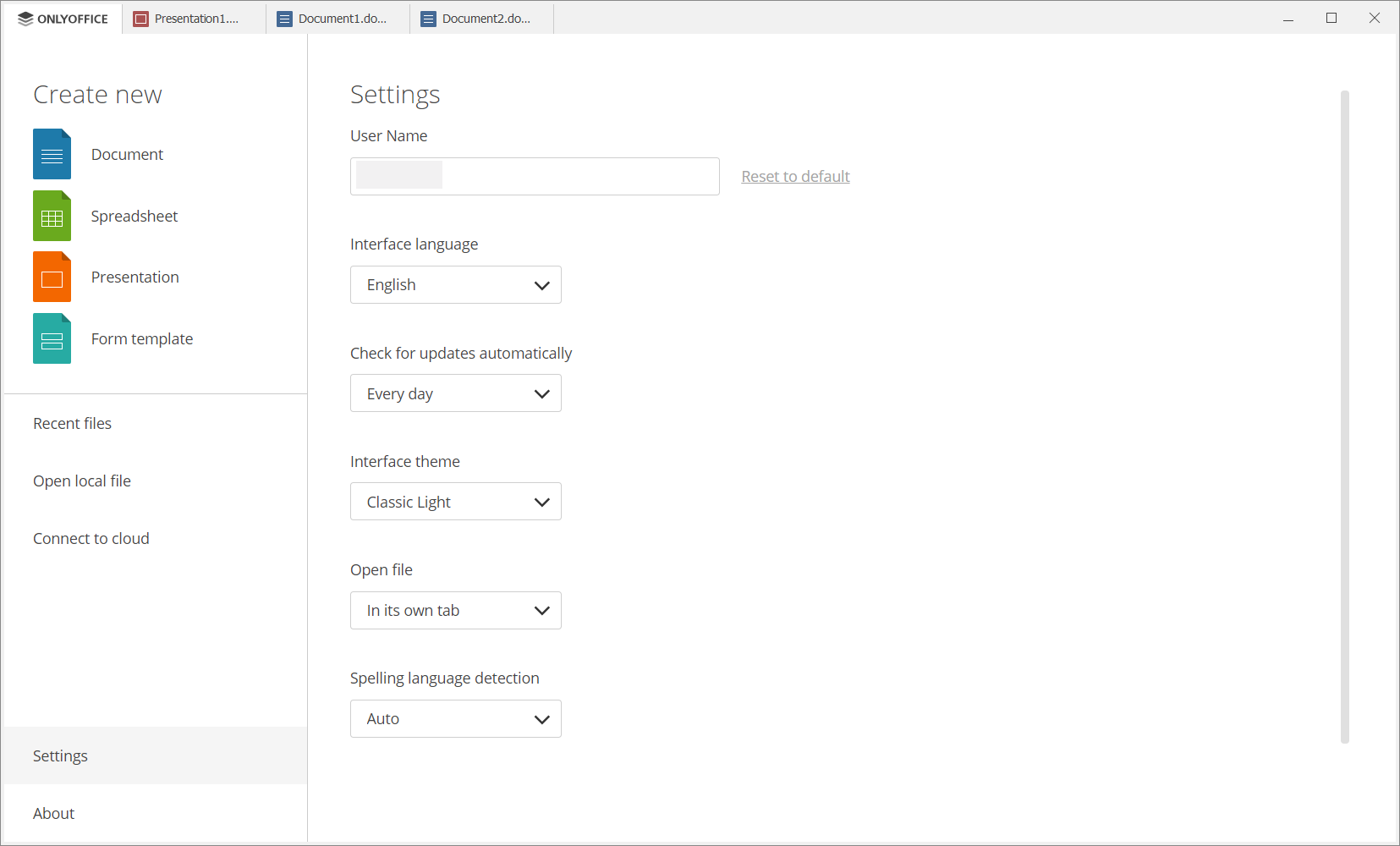
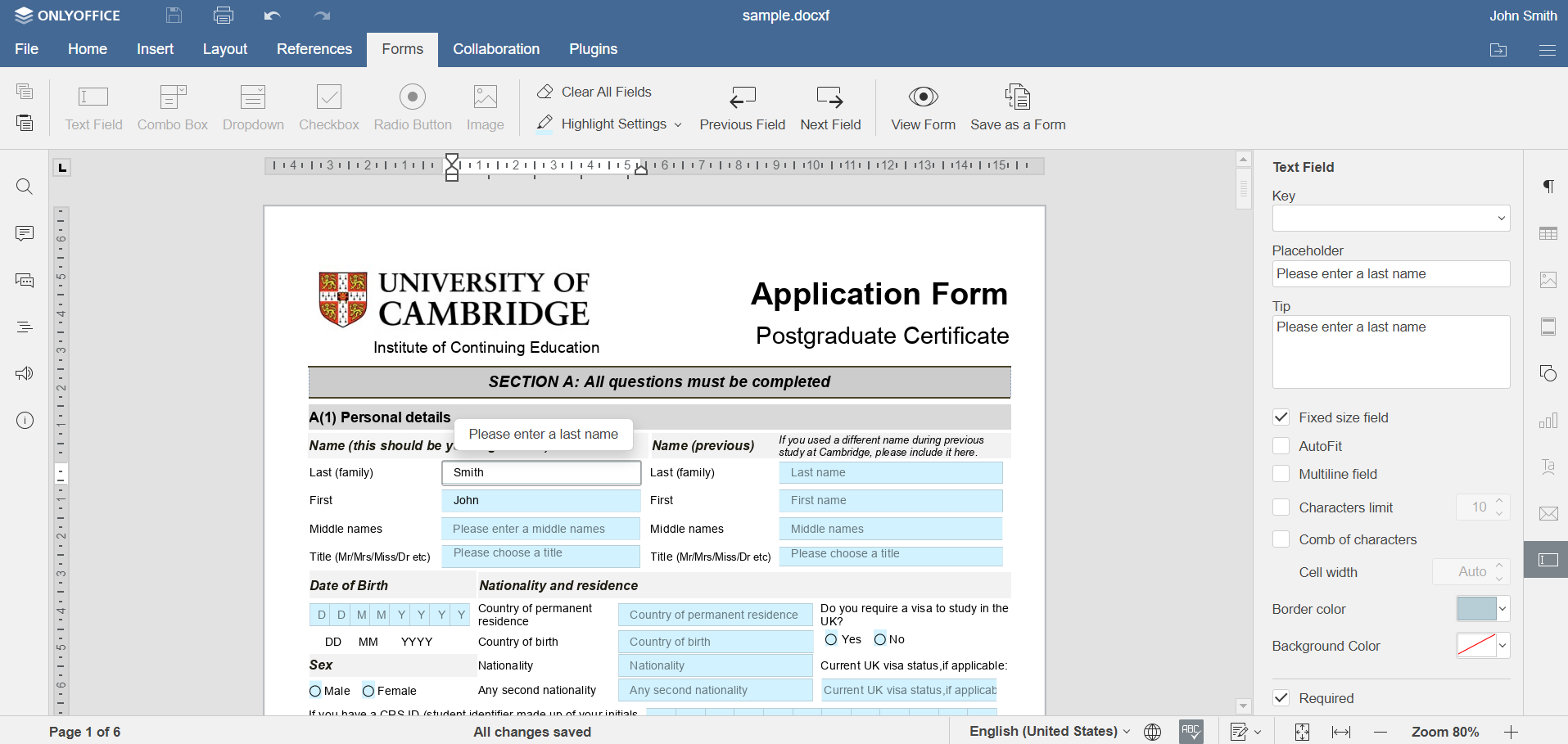
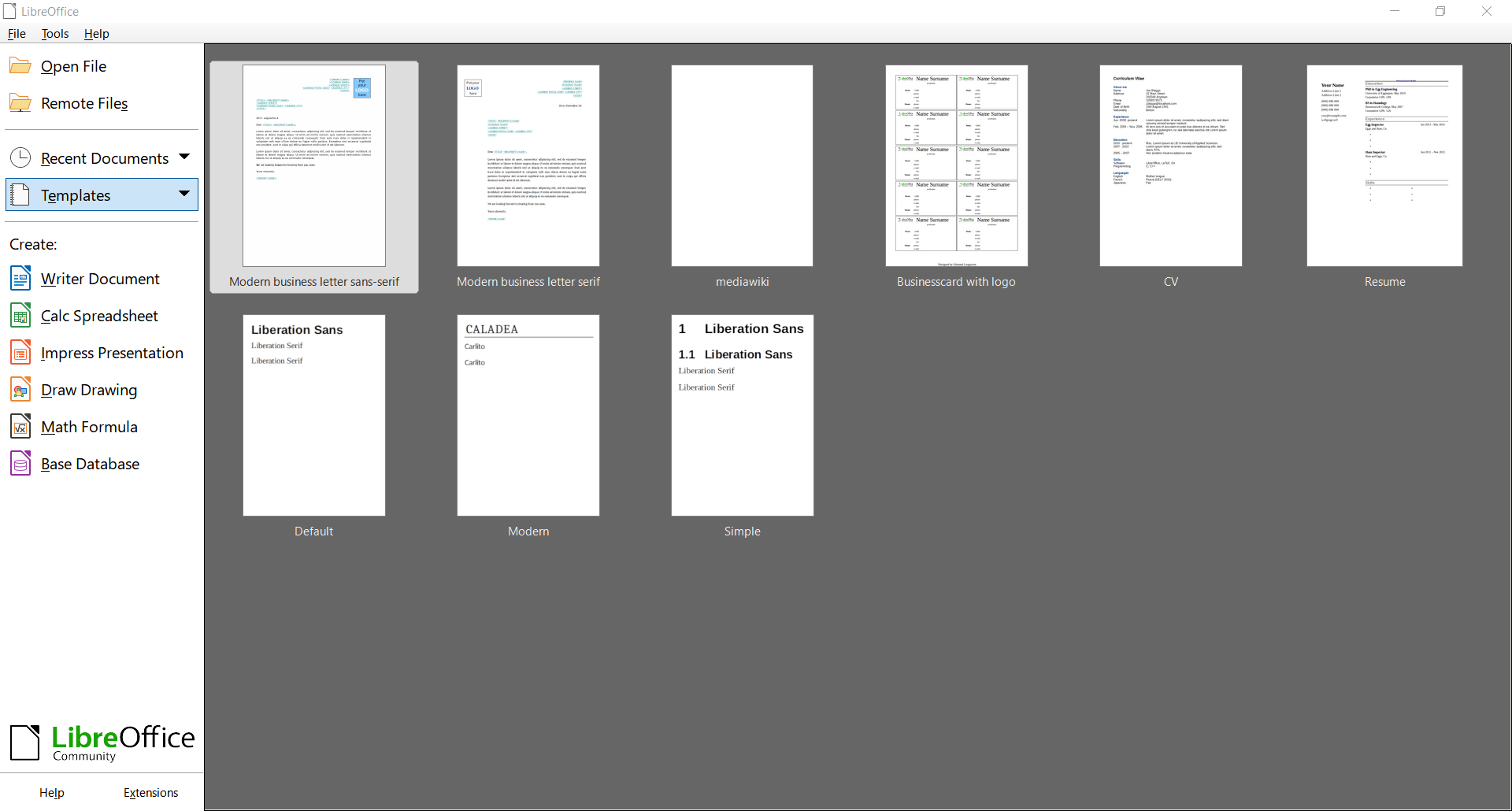
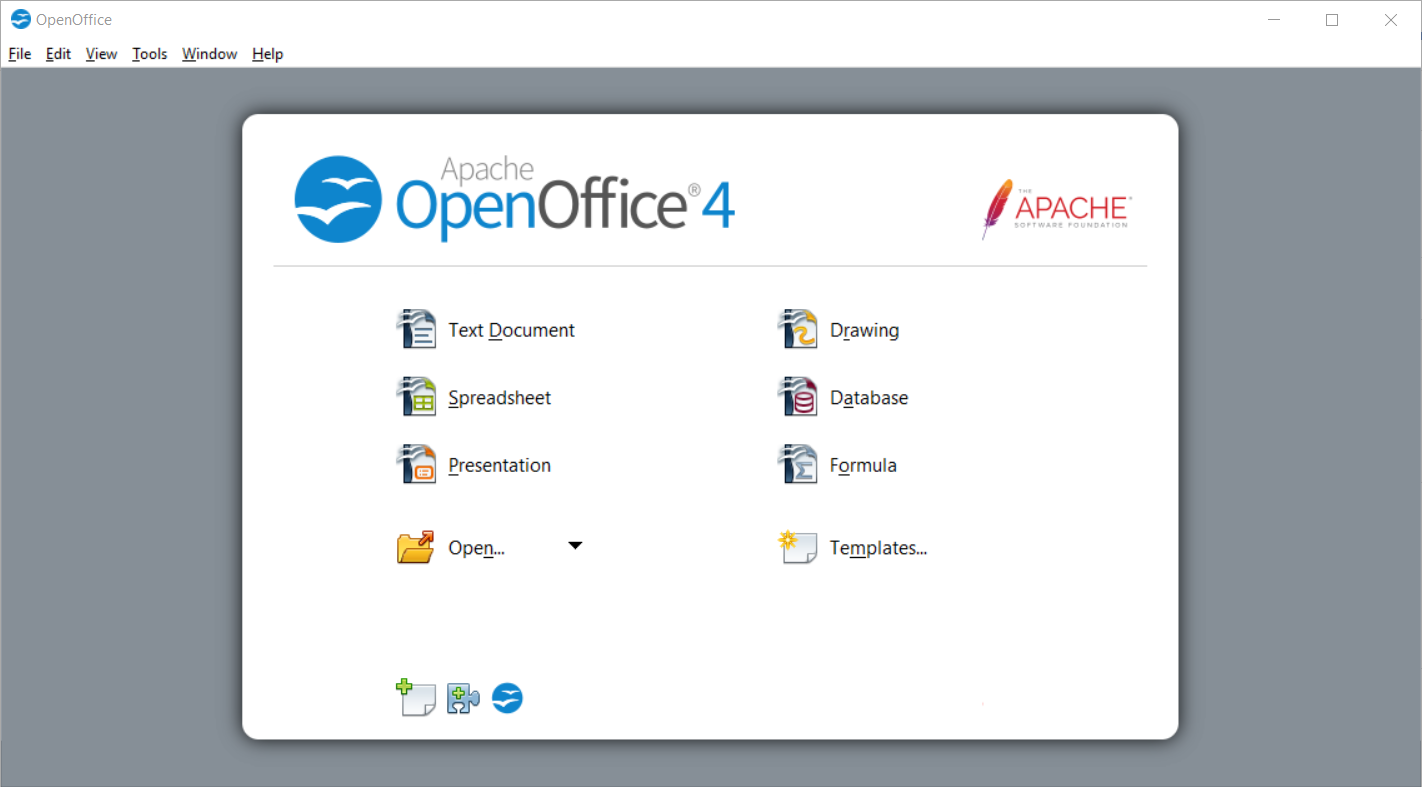
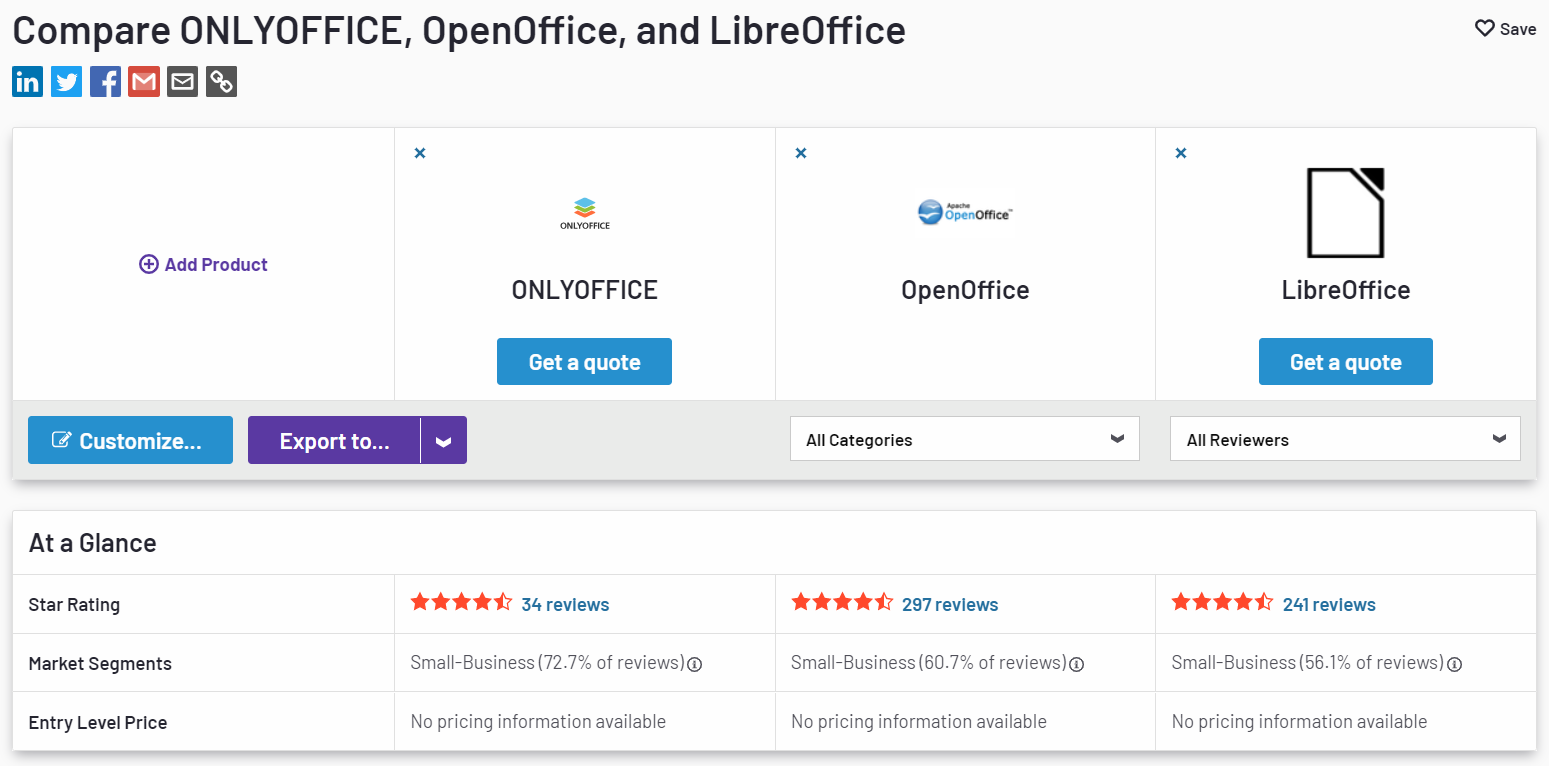
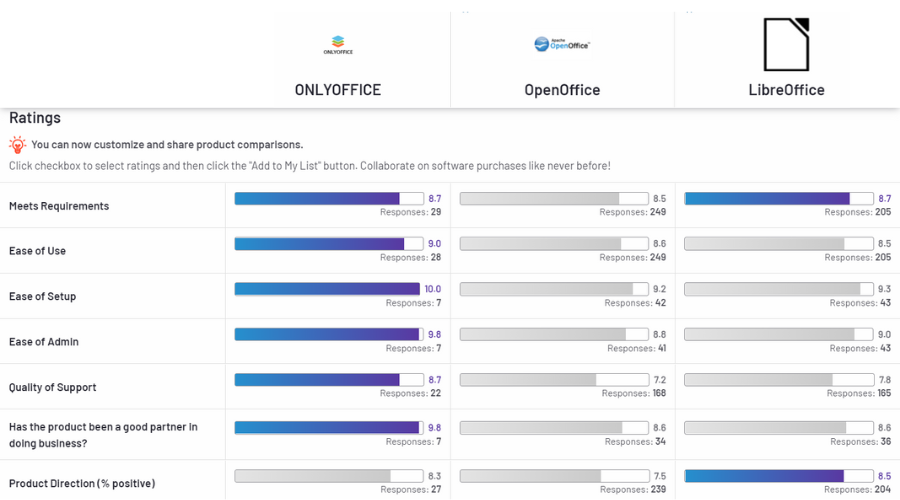
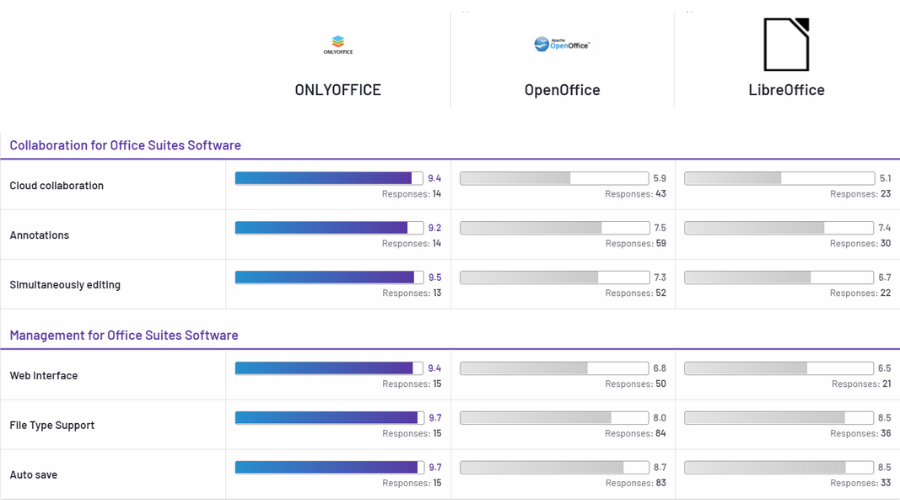
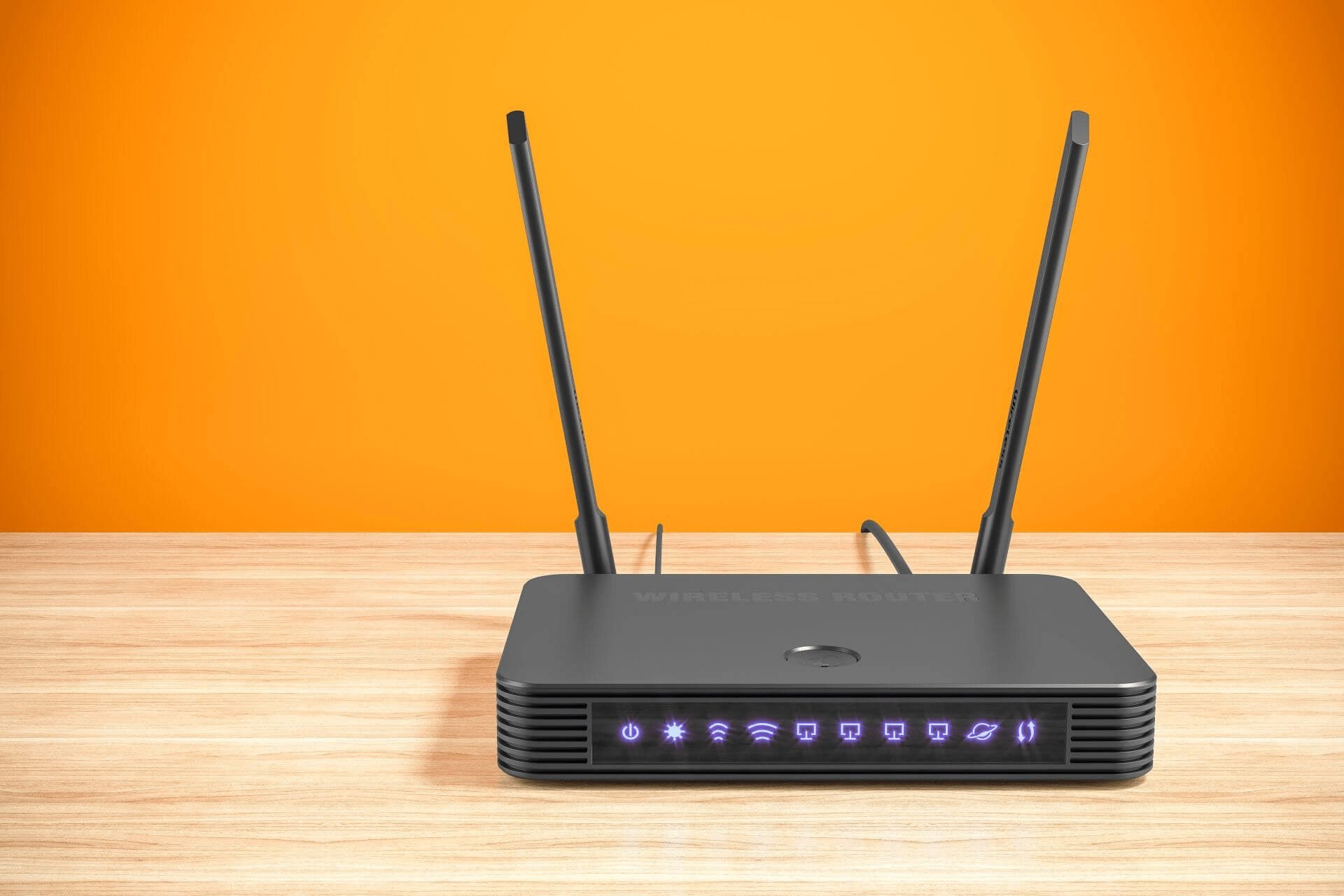
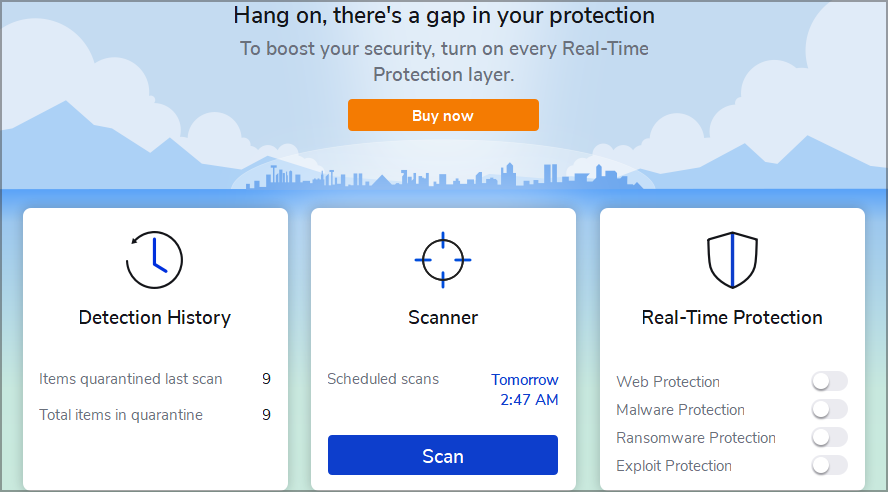


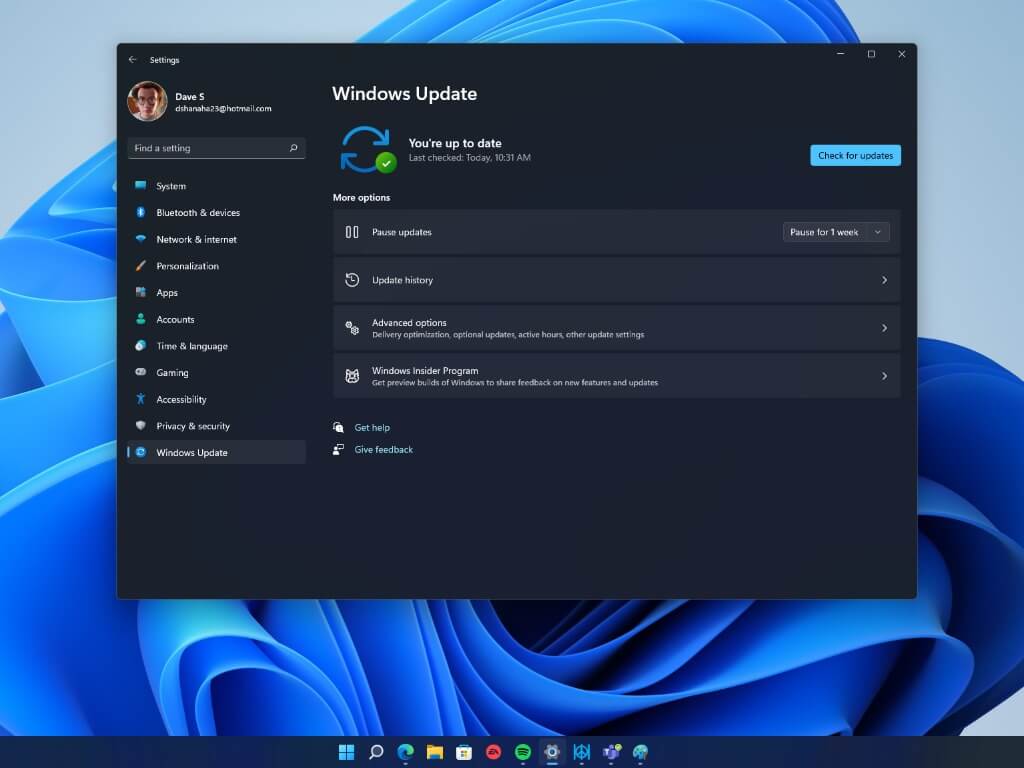

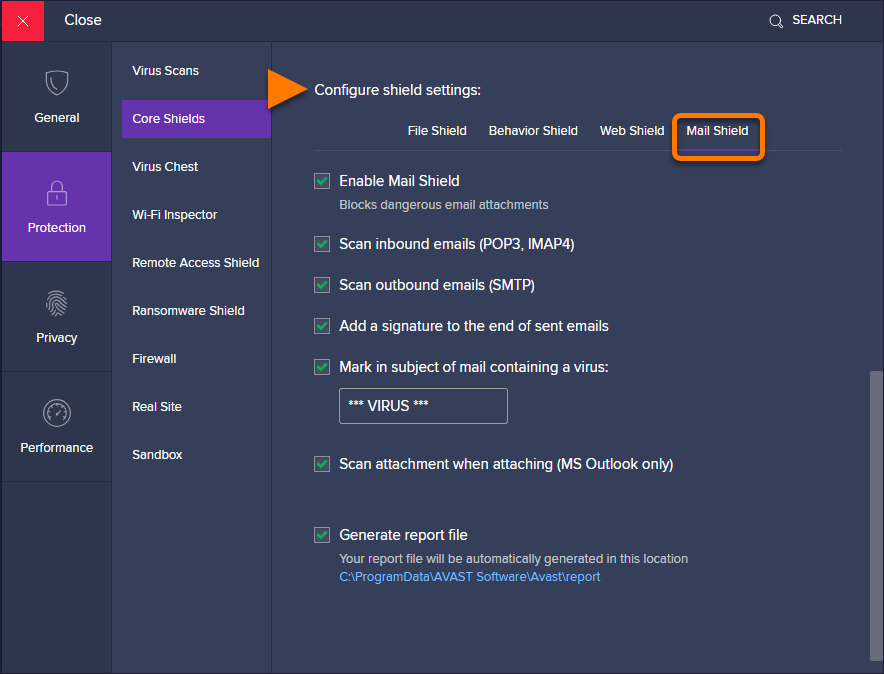
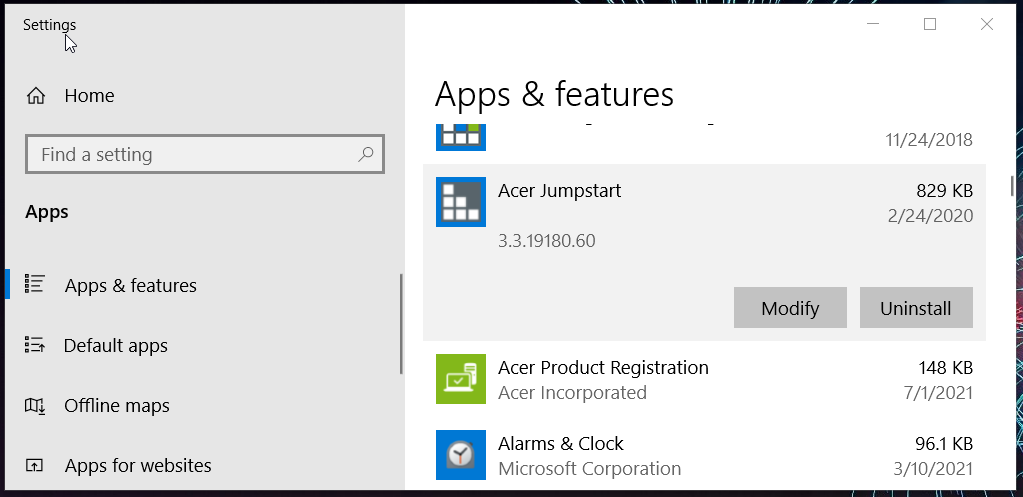
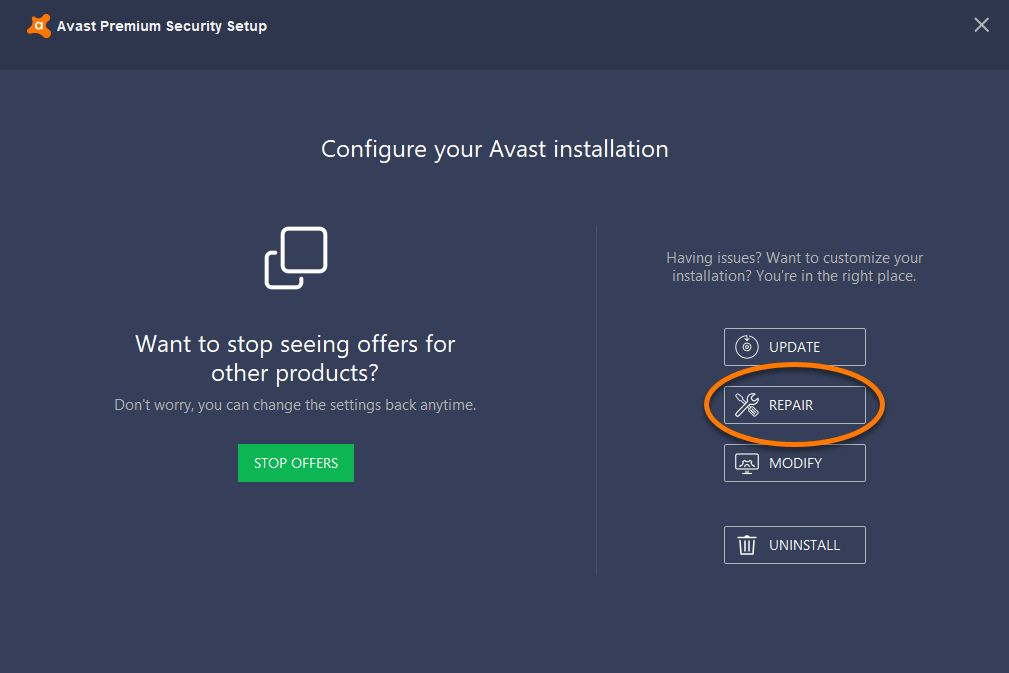
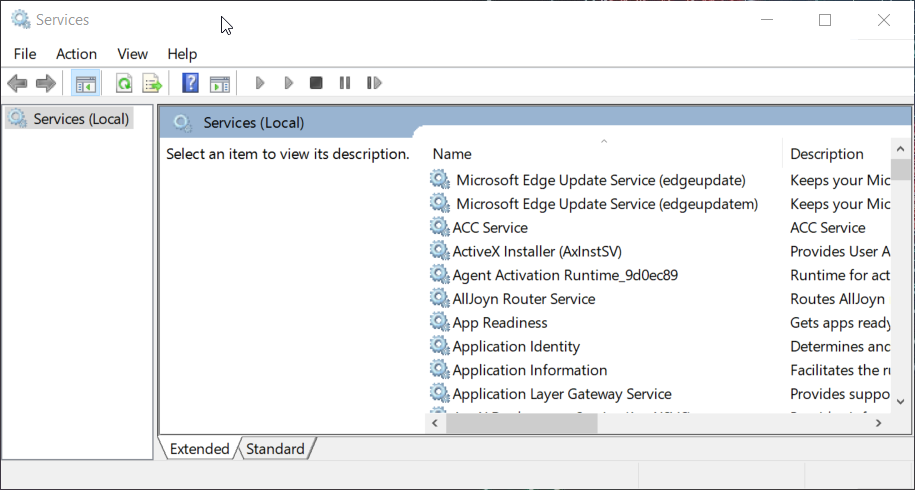
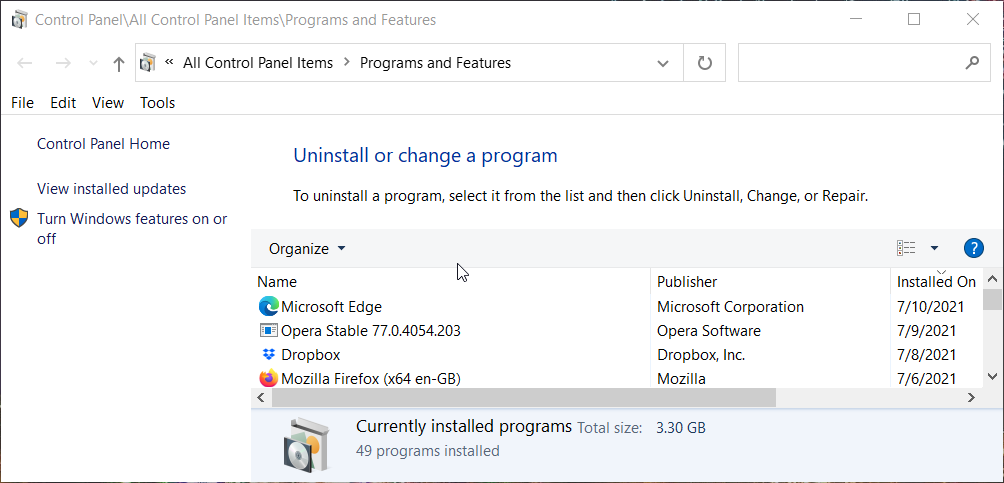
![20 Of The Most Expensive Steam Games In 2026 [Worth It?]](https://windowsreport.com/wp-content/uploads/2022/05/steam-store.jpg)

















![How Many Computers Are In The World? [Up-to-Date Stats]](https://windowsreport.com/wp-content/uploads/2022/04/Untitled-design45-min1.jpg)























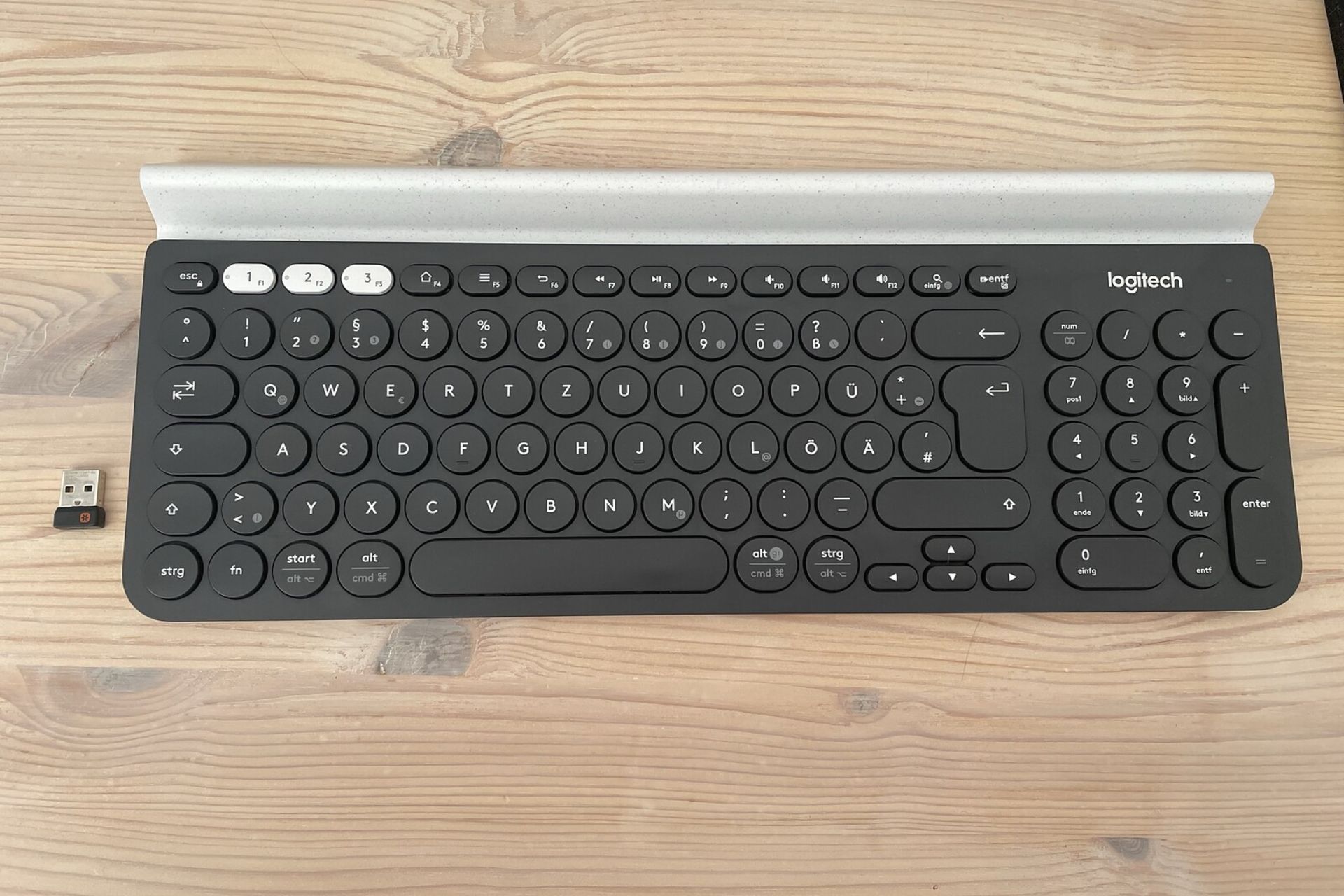





![What are Browser Attacks & How to Avoid them [20 Different Types]](https://windowsreport.com/wp-content/uploads/2022/06/Untitled-design-22.jpg)