ARK: Survival Evolved’s Patch 2.79 fixes save issues

Who hasn’t heard about Studio Wildcard’s Ark Survival Evolved game by now? Pretty much everyone has tried this awesome title at least once since hearing about it.

These types of games are highly enticing to all sorts of players for a multitude of reasons, about which we’re sure you want to hear more.

What’s not to like about players having to survive while being stranded on one of several maps filled with roaming dinosaurs, fictional fantasy monsters and other prehistoric animals, natural hazards, and potentially hostile human players?

Now, we’re about to take a closer look at the latest game update, version 2.79, and see what tweaks the developers have decided to make.

What’s new with Update 2.79?

Note that Ark Survival Evolved update 2.79 was released today for PS4, PC, and Xbox One and we’re about to review the changelog together.

The previous patch brought a new free DLC to the game, but it also led to some problems including issues with the save data on the PS4.

Now, developers made some changes that users will surely welcome with open arms since the tweaks were a must.

PS4 v704.7 (704.6 client) – 06/14/2022 – Minor version for clients

  •  Fixed save issues on Playstation

PS4 v704.7 – 06/13/2022 – Minor version for servers

  •  Fixed a cooldown on defecation
  • Server administrators can enable and disable the biome teleport in Fjordur with the server config option:
    UseFjordurTraversalBuff=true/false

PC v346.12 – 06/13/2022 – Minor version for servers

  •  Fixed a cooldown on defecation
  • Server administrators can enable and disable the biome teleport in Fjordur with the server config option:
    UseFjordurTraversalBuff=true/false

Xbox v948.7 – 06/13/2022 – Minor version for servers

  •  Fixed a cooldown on defecation
  • Server administrators can enable and disable the biome teleport in Fjordur with the server config option:
    UseFjordurTraversalBuff=true/false

These are the changes implemented with the release of Update 2.79 for the Ark: Survival Evolved game, as developers informed us.

We’ll keep an eye open and keep you posted on any incoming changes that will directly impact your favorite game.

Have you discovered any other bugs after installing the latest patch? Share them with us in the comments section below.

3 Ways To Fix Destiny 2’s Error Code Chicken

Destiny 2 is a thrilling multiplayer first-person blaster when you can play it. But unfortunately, some players can’t play Destiny 2 because of the chicken connection error. The chicken error message says:

Your connection to Destiny 2 character servers has been lost… For information on resolving this issue visit help.bungie.net and search for error code: chicken.

That error can occur on Windows PCs and consoles. Below are some potential error code chicken fixes for Windows Destiny 2 players.

What is the Bungie error code chicken?

The Bungie error code chicken is a server connectivity issue that stops players from signing in. Players can’t access characters to play Destiny 2 when that error occurs.

Error code chicken can sometimes be a server-side issue. So, there might not always be much you can do to resolve the issue. However, the chicken error can still occur when there isn’t a server outage.

How do I fix the error code chicken?

1. Reboot Your Router/Modem

  1. Firstly, unplug the power cable from the back of your internet router.
    Unplugged router bungie error code chicken
  2. Leave the router unplugged for about one to two minutes.
  3. Plug your internet router back in, and press its power button if it doesn’t come back on automatically.
    Router plug bungie error code chicken
  4. Wait approximately five minutes until all the internet connectivity lights turn on.
  5. Try playing Destiny 2 again.
Note icon NOTE
The instructions above are for rebooting routers that incorporate modems. If you’ve got a separate modem, you’ll also need to unplug that. Then, plug the modem back in before the router.

2. Run the Internet Connections troubleshooter

  1. Open Settings in Windows 11 or 10 by right-clicking the taskbar’s Start button and selecting the shortcut for that app.
    Settings option bungie error code chicken
  2. Then click the Troubleshoot navigation option from the System tab in the Settings app.
    Troubleshoot option bungie error code chicken
  3. Select Other troubleshooters to bring up a list of available troubleshooting wizards.
    Other trouble-shooters option bungie error code chicken
  4. Click Run for the Internet Connections troubleshooter.
    Run option bungie error code chicken
  5. Select the Troubleshoot my connection to the internet option, and apply any suggested resolutions.
Note icon NOTE
In Windows 10, select Update & Security > Troubleshoot within Settings. Then you’ll need to click the Additional troubleshooter’s navigation option to access them.

3. Clear the download cache (Steam fix)

  1. Open the Steam client software.
  2. Click the Steam menu to select the Settings option.
    The Settings option bungie error code chicken
  3. Select Downloads on Steam’s Settings window.
  4. Press the Clear Download Cache button.
    Clear Download Cache button bungie error code chicken
  5. Select OK on the Clear Download Cache confirmation window that pops up.
    The OK button bungie error code chicken

Download and install a program like CCleaner if you want to clear your cache with a few clicks. Add a shortcut to your desktop and run CCleaner at any time to thoroughly clean your PC.

When you want to delete a downloaded cache, having a professional tool to assist you can be useful. The intelligent scan allows you to precisely specify what you want to delete from Steam’s cookies and cache.

⇒ Get CCleaner

How can I check the server status for Destiny 2?

Bungee has a maintenance schedule for the Destiny 2 server. Sometimes the chicken error can occur during a maintenance period. Players can view the maintenance schedule on this Destiny Server page.

To check for unscheduled server outage issues affecting Destiny 2, open the Bungie Help page. That Twitter page usually reports most general server-related outage issues for the game.

Aside from that, Downdetector is a good site to check for outages. The Destiny page there will tell you if there’s a more general server outage issue for the game.

If there’s a server-side issue, you might need to wait a day or two for Bungie to get it sorted. First, try applying the above potential fixes for Destiny 2’s chicken error when there isn’t a server issue.

Note that Bungie also recommends playing Destiny 2 with a wired connection. If a wired internet connection is available to you, try playing the game with that alternative connection option.

You can discuss Destiny 2’s chicken error by adding comments below this post. Also, let us know if you have further questions about fixing that issue.

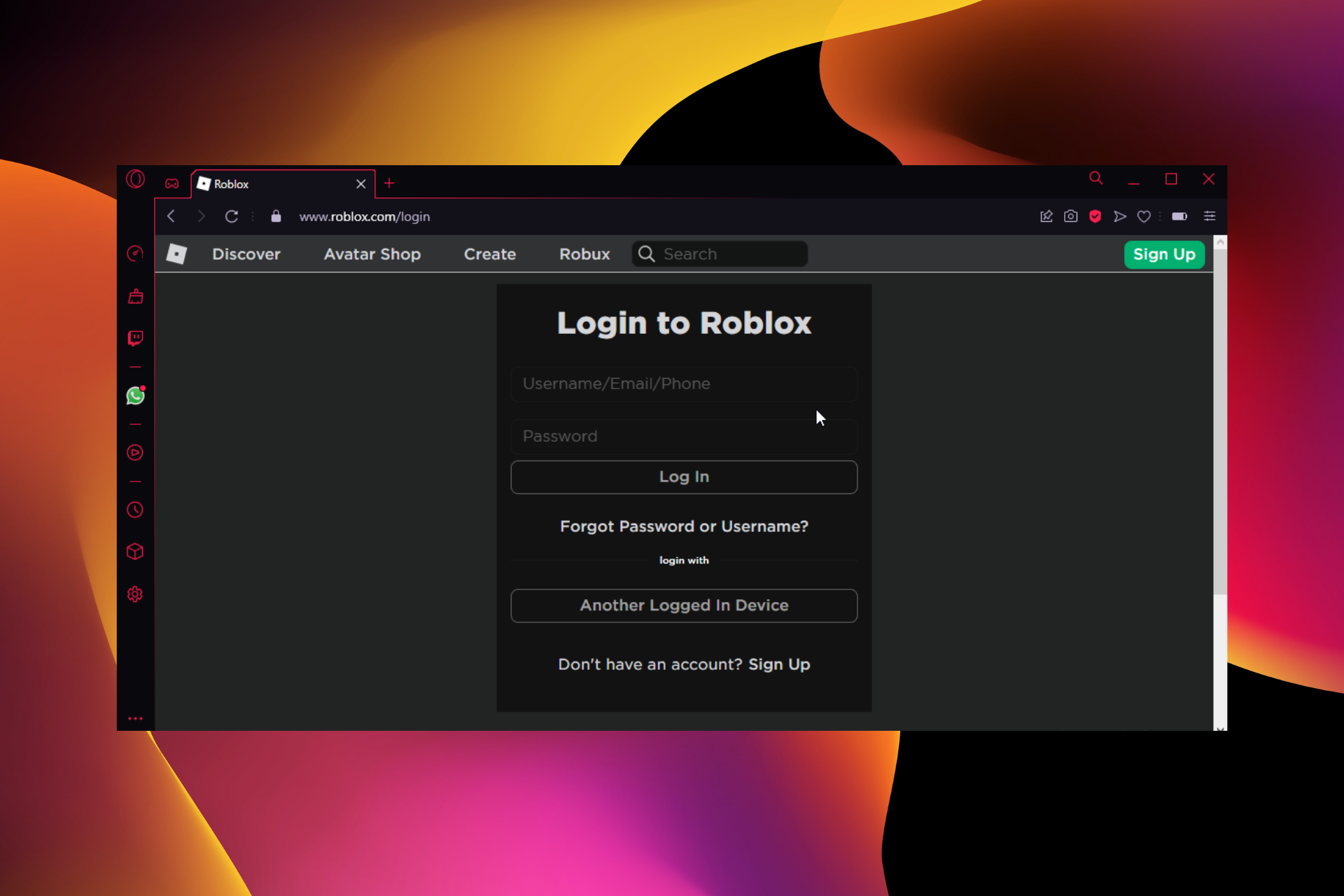
7 Best Roblox Browser Extensions That You Can Use In 2026

Roblox is an excellent online gaming platform with a lot of features. The games are free and can be played in multiplayer.

Although the website is exceptional, you can install extensions to add more features. The creative capabilities are endless when these extensions are paired with the best browsers to play Roblox. 

But with the number of insecure add-ons, selecting the ideal ones might be a real headache.

As always, we have curated a list of seven of the best Roblox browser extensions available in trusted stores for you. So, you have nothing to worry about.

What is the Roblox extension?

Roblox extensions are browser-based tools that help to improve the functionality of the online gaming platform. They add more features, like an extra search button, a colorful friends list, and a display of hidden stats.

These extensions are generally safe and free. Lastly, they only affect the website and not the Roblox games. 

Are Roblox extensions allowed?

Roblox extensions are permitted since they are strictly browser-based. In addition, they don’t affect the gameplay and only focus on website customization.

However, it would be best if you were careful, as there are a few dangerous ones. Only download the extensions from trusted locations like the Chrome Web Store to keep your PC safe.

Which browser is best for Roblox?

While there are a series of supported browsers for Roblox, the pick of the bunch is Opera GX.

Opera GX is the first browser designed specifically for gamers. It boasts a clean and stunning interface built to take your gaming experience to a new level. 

What’s more, it has a feature called the GX Control. This feature allows you to limit your browser’s RAM, Network, and CPU usage so that it will not consume resources meant for gaming.

Lastly, you can install and use Chrome extensions on Opera. The steps are the same for the GX version too. Hence, you are not missing out on the functionality of all the Roblox extensions listed below.

⇒ Get Opera GX

What are the best extensions for Roblox?

BTRoblox – Best Firefox browser Roblox extension

btroblox browser roblox extension

BTRoblox is a safe and secure top-notch extension that allows you to customize the looks of the Roblox website. It is available on the Chrome Web Store but has since established itself as probably the best Roblox browser extension for Firefox. 

One of its endearing features is allowing users to hide ads. It also displays the real-life price of an item after the in-game cost.

Other features:

  • Allows users to change the profile page layout.
  • Comes with different themes.
  • Available on Chrome Web Store and Mozilla add-ons store.

⇒ Get BTRoblox

Roblox+ – Best Chrome Roblox extension

roblox plus

Roblox Plus is another stunning browser extension that modifies the looks of the gaming website. It is designed by a former Roblox staff member and is known to be one of the best Chrome Roblox extensions. 

It comes with a lovely dark theme that is gentle to the eyes. Also, it allows you to modify your profile page to your liking. Be it your Avatar or the trade notifier, you can design anything with its numerous features.

Other features: 

  • Has a trade notifier.
  • Safe and free.
  • Has different themes.

⇒ Get Roblox+

RoPro – Best for in-game traders

ropro roblox browser extension

If you are looking for a Roblox extension that eases your trading, RoPro is everything you need and more. It has an avatar sandbox feature that allows you to try out items before buying them. 

The deals/trade notifier also notifies you of the best deals. Add its feature for customizing your profile, and you will see why it is considered one of the best Roblox browser extensions.

Other features: 

  • Has a trade calculator.
  • Packs in animated wallpapers for customization.
  • Quick item search function.

⇒ Get RoPro

Roblox Server Finder – Best for searching game servers

server finder

The Roblox Server Finder is a top-notch browser extension that helps you search for gaming servers. It eliminates the stress of going through many servers to find the right one.

It allows you to use simple information like the number of players to get a fitting one. Despite the Roblox API changes to limit server finder addons, this extension still does well.

Other features:

  • Fast algorithm. 
  • Takes different parameters as input.
  • Easy to use.

⇒ Get Roblox Server Finder

RoSearcher – Quick game joiner

rosearcher roblox browser extension

RoSearcher is a valid Roblox browser extension for avid gamers who like to explore. It allows you to play a game with a friend who has deactivated the join feature. 

This is especially important if you want to play games with a famous person who rarely allows users to join. Then, you only need to request their current game, and you are good to go.

Other features:

  • Works with the latest Roblox API.
  • Can search for players in the game servers.
  • The process is fast.

⇒ Get RoSearcher

Better Roblox Friendslist – Efficient friends list organizer

better roblox friendlist

This function-specific Roblox browser extension allows you to view and manage your in-game friends. It gives you a clean and efficient menu that shows online and offline friends.

This menu is added to the bottom right corner to prevent it from disturbing your gaming activity. It replaces the built-in Roblox default friends list with a simple yet effective one.

Other features: 

  • Frequently updated. 
  • Easy to use.
  • It has a feature for joining friends on the menu.

⇒ Get Better Roblox Friendslist

Roblox Friend Removal Button – One-click friend remover

roblox friend remover

The last on this list is an extension that allows you to remove friends with a single click. It displays a red button on each friend’s card. 

This button is all you have to click to remove just about anybody. Notice that it only works on your friends list and nowhere else.

Other features:

  • Light on system resources. 
  • Easy to use.
  • Helps to organize friends list.

⇒ Get Roblox Friend Removal Button

There you have it: a list of practical and secure Roblox browser extensions. These add-ons cover different functions and can be used on the same browser.

If the BTRoblox extension is not working after installing it for some reason, you should check our detailed article on how to fix it.

In the comments section below, feel free to let us know the extension you enjoy using most.

Microsoft rolls out new Windows 11 Validation OS

You might have missed this one because Microsoft hasn’t quite made a big deal out of it. In fact, you might even think it was trying to keep it a secret.

The Redmond tech colossus recently released a new lightweight version of Windows 11. Don’t get excited just yet, as we’re not talking about any gaming version or anything like that.

In fact, this new lightweight OS is not meant for the general end-user, so keep that in mind as we move on with describing it.

New Windows 11 Validation OS is now available

This new Microsoft software is actually based on the Command-Line and is called Microsoft Validation OS, in case you were wondering what we’re talking about.

Note that it has been designed for hardware or software vendors, developers, and technicians to help diagnose and mitigate issues.

The new OS version will basically help to build hardware and software around Windows 11 without installing the full thing.

As the company itself stated, the Validation OS is a lightweight, fast, and customizable Windows 11-based operating system that you can use on the factory floor to diagnose, mitigate and repair hardware defects during Windows device manufacturing.

Furthermore, the Validation OS boots into a Command-Line environment to increase reliability on the factory floor and supports running Win32 apps.

This will help in smoothing the transition from early hardware bring-up to the retail OS and app development.

Before you ask, we will tell you that that’s because the Win32 API provides direct access to the system hardware and has various tools for diagnostics.

Have you already tried the new Windows 11 Validation OS? Share your experience with us in the comments section below.

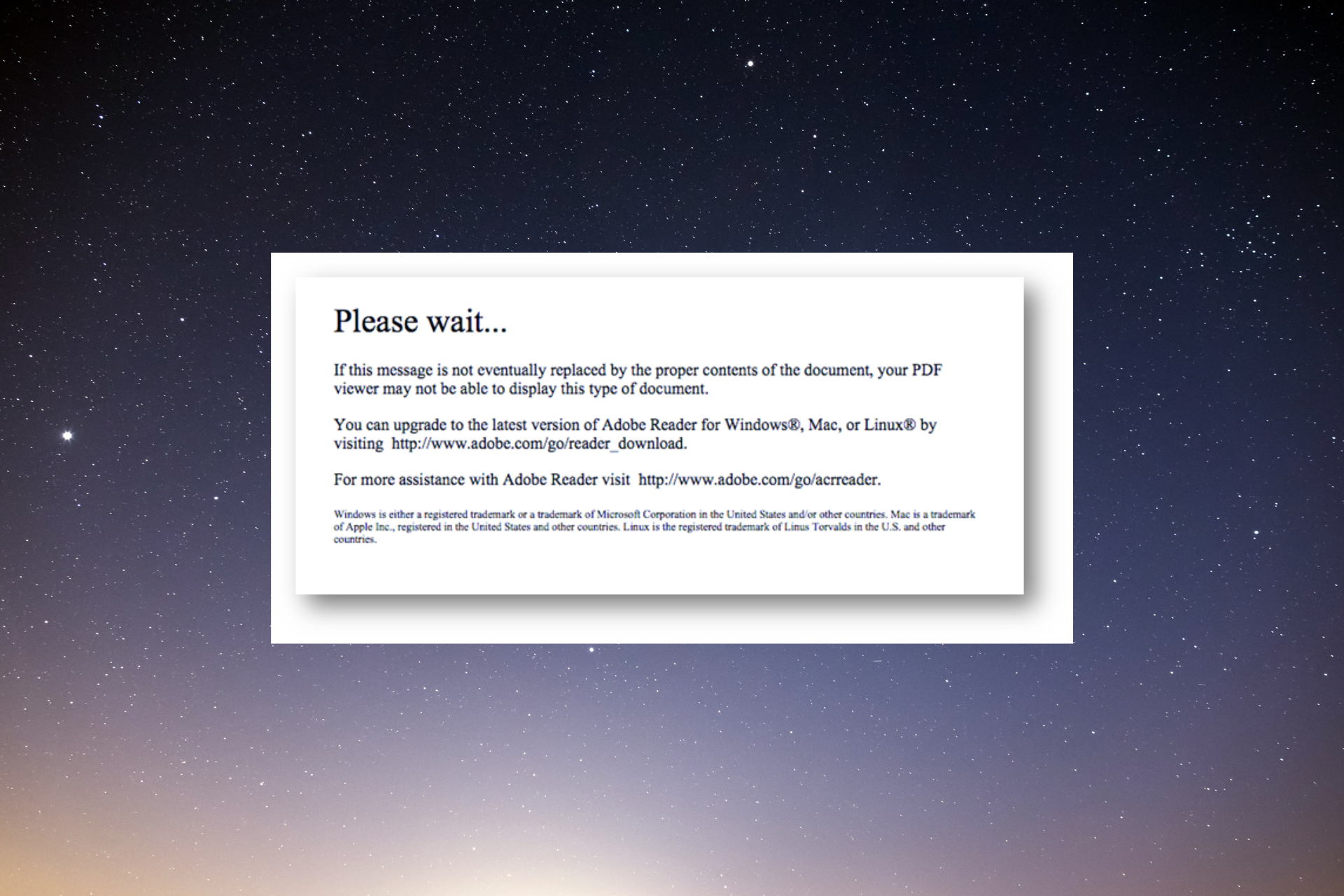
Please Wait if Message is Not Replaced Adobe Reader Error: 3 Fixes

Some utilize their web browsers to open PDF documents. However, users can’t open PDF XFA form documents with browsers that don’t support that type of dynamic form.

Adobe Acrobat is one of the most commonly used applications to open Portable Document Format files, but some users have encountered issues with it.

Some browsers display this error message when users try to open dynamic PDF form documents with them:

Please wait… If this message is not eventually replaced by the proper contents of the document, your PDF viewer may not be able to display this type of document.

In today’s guide, we will explore this issue in-depth, and discuss the best methods to apply in order to fix this pesky issue once and for all. Read on for more details.

How can I open a PDF document if the Please wait error occurs?

1. Configure Firefox to utilize Adobe Acrobat Reader

  1. Download and install Acrobat Reader.
  2. Next, open Mozilla Firefox.
  3. Click the Menu button from the top right and select Settings.
  4. Scroll down to the General tab’s Applications section and find Portable Document Format (PDF).
  5. Click the Action drop-down menu and click the Open in Firefox option.
  6. Then restart Firefox.

In the same way, you can also proceed with any other browsers. For instance, in Chrome, you will find the same feature within the Site settings option.

2. Open the PDF with Adobe Acrobat Reader

  1. Right-click the download link for the PDF you can’t open with your browser.
    Save link as option Please wait if message is not replaced by proper contents
  2. Select the Save link as option.
  3. Enter a title for the PDF in the File name box.
    Save As window Please wait if message is not replaced by proper contents
  4. Choose a folder to save the PDF.
  5. Click the Save option.
  6. Download and install Acrobat Reader.
  7. Open the software.
  8. Click File and Open.
  9. Choose the PDF document you downloaded.

3. Open the document with Internet Explorer’s Adobe PDF Reader plug-in

  1. Press the Windows key + S keyboard shortcut, type edge, and click on Microsoft Edge from the results.
  2. Click on the three vertical dots from the top-right corner and select Extensions.
  3. Select Manage Extensions.
  4. Find the Adobe Acrobat extension and toggle the switch to on to enable it.

Here we have shown you how to enable the Adobe Acrobat extension in Edge but you can do the same in any browser from its add-ons or extensions menus.

Those are three methods for opening PDF form documents that you can’t open with browsers’ default PDF viewers.

You might also be interested in our selection of the best PDF reader apps for Windows & Mac that might also help you open the PDF documents.

All users can download the PDF documents with their browsers’ Save as options for links.

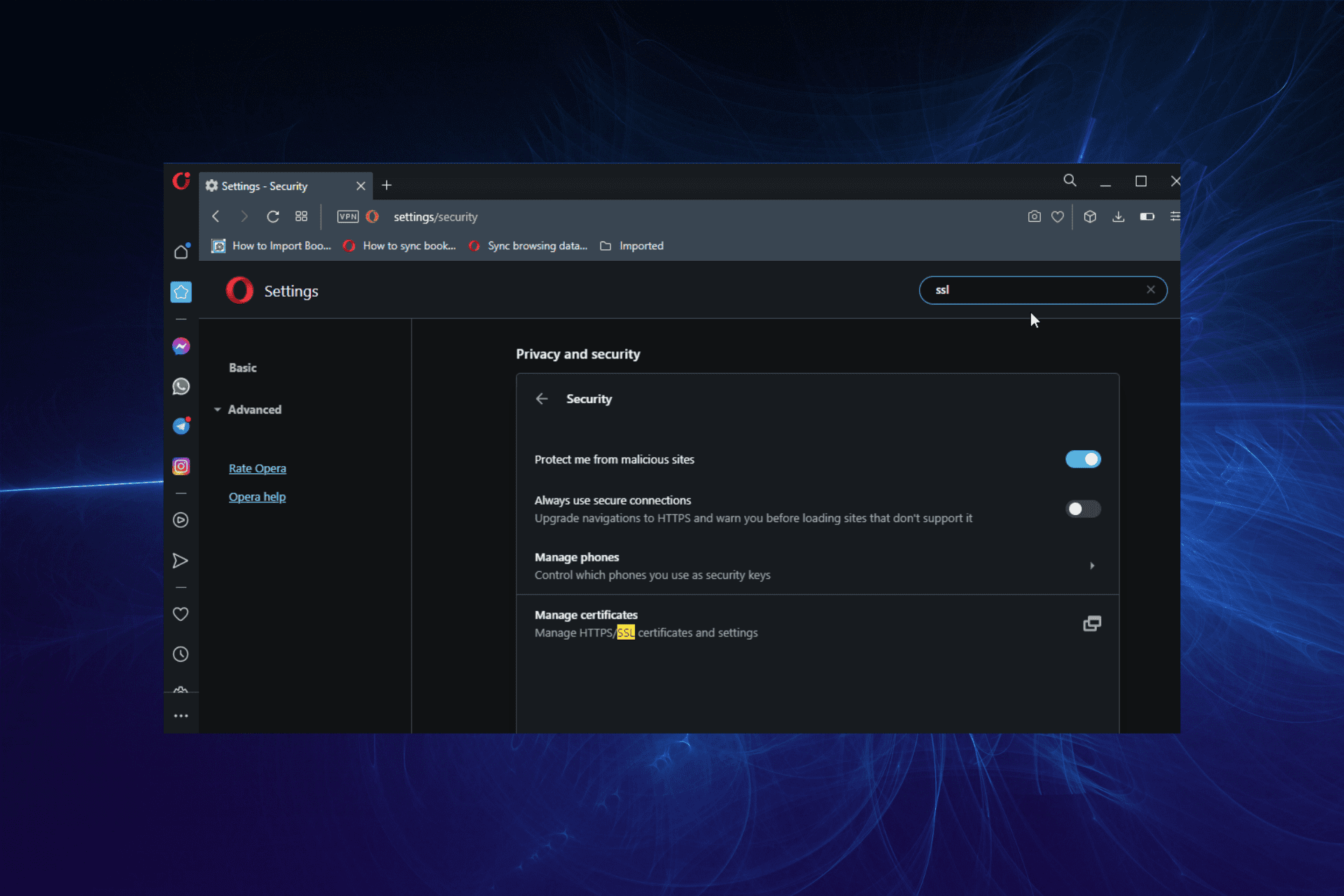
3 Best Browsers With SNI Support To Use

TLS is the standard security protocol for protecting websites and some other web services. It is available on most web servers and, as such, is supported by the vast majority of browsers.

The TLS handshake occurs between a browser and the web server where a website is hosted to keep users’ data secure on the internet. His process requires the hostname of the page to match that on the certificate provided by the server. 

But this became increasingly difficult as users now host more than one certificate on a single IP address on a server. As a result, the server might provide a wrong certificate, leading to problems like handshake failed returned SSL error code on browsers.

SNI was introduced to indicate the certificate’s name needed in the handshake process. He solved the problem, as the server now knows the certification to provide for verification. 

However, not all browsers have this feature. Thankfully, we have gathered the best browsers with SNI support that you can use on all your devices. 

What is SNI & when do you need to use it?

Server Name Indication (SNI) is a TLS security protocol extension. It allows you to use a single IP address to host multiple SSL certificates.

SNI is needed when hosting multiple websites with SSL certificates on a single IP address on a web server. It specifies the certificate’s hostname that the server should supply for the TLS handshake process.

Hosting multiple websites on a single Internet Protocol (IP) address is a common feature due to the limited number of addresses available and the cost involved. Hence, it would be best if you mostly used it.

Is web SNI required?

SNI is required if each website won’t have an IP address to itself. As explained above, only SNI allows the browser to indicate the hostname being contacted on the server.

However, if a website has its unique address, SNI is not needed.

What is the difference between SAN and SNI?

Subject Alternative Name (SAN) is a part of the X509 certificate spec, allowing multiple host names to use a single certificate. This certificate provides a field where you can fill alternative titles of the primary hostname.

This alternative names field is where you fill in the hostnames of your other websites. It saves you the cost of having different security certificates for all your websites.

On the other hand, SNI is a TLS extension that sends the name of the security certificate needed to verify a web page to the server.

While SAN allows you to use a single certificate for many websites, SNI helps simplify having many security certificates on a single IP address.

What are the best browsers with SNI support?

Opera One

browsers with sni support opera

Being one of the most secure modern-day browsers, Opera One has long since provided SNI support. However, not all its versions have this feature.

It is available on Opera 8.0 (2005) and above on desktops. Note that you need to enable the TLS 1.1 protocol to use it. 

The SNI feature is available on mobile starting from the Opera 10.1 beta version on Android. 

⇒ Get Opera One

Google Chrome

google chrome browsers with sni support

Google Chrome is also one of the leading browsers in terms of security. It provides the SNI support on Chrome version 6 and newer on Windows XP and above.

Also, the feature is available on Chrome version 5.0.342.1 and above on macOS X 10.5.7 and later.

⇒ Get Chrome

Mozilla Firefox

mozilla firefox

Firefox has been providing SNI support since its 2.0 browser versions. As a result, his feature is automatically enabled out of the box.

It works on all devices, including Windows, macOS, or mobile versions. The only condition is that it has to be Firefox 2.0 and above.

⇒ Get Firefox

Which TLS version supports SNI?

TLS 1.2 is the widely accepted version that offers SNI support. Though all TLS versions mostly have the SNI extension unless stated otherwise, you can sometimes encounter errors on TLS 1. 

Hence, you should upgrade to TLS 1.2 to fully enjoy the features.

Browsers with SNI support allow you to visit all secure websites irrespective of their IP address. e has curated four of the best to ensure you never get unnecessary error messages on valid websites.

Are you facing issues like Windows Server could not create an SSL/TSL secure channel? Then check our guide on how to solve it.

Feel free to let us know any worthy browser that misses our list in the comments below.

9 Best VPNs from the Microsoft Store [Free and Paid]

Looking for the best free VPN in the Microsoft Store? We’ve compiled a list of reliable options to help you secure your data, maintain privacy, and access restricted content effortlessly on your Windows device. 

Let’s check them out.

Which are the best VPNs on the Microsoft Store? 

1. ExpressVPN – Best for beginner-friendly setup

expressvpn download page

ExpressVPN is a polished, premium VPN service with an official Windows App available in the Microsoft Store. Ideal for users who want fast, easy installation and intuitive controls.

It supports the exclusive Lightway protocol for ultra-fast connections and secure browsing. Compatible with Windows 10 and 11, including ARM64 devices

Other features:

  • One-click connect button with global server selection
  • Strong 256‑bit encryption and built‑in leak protection
  • 30‑day money‑back guarantee; though rated higher cost than alternatives

⇒ Get ExpressVPN

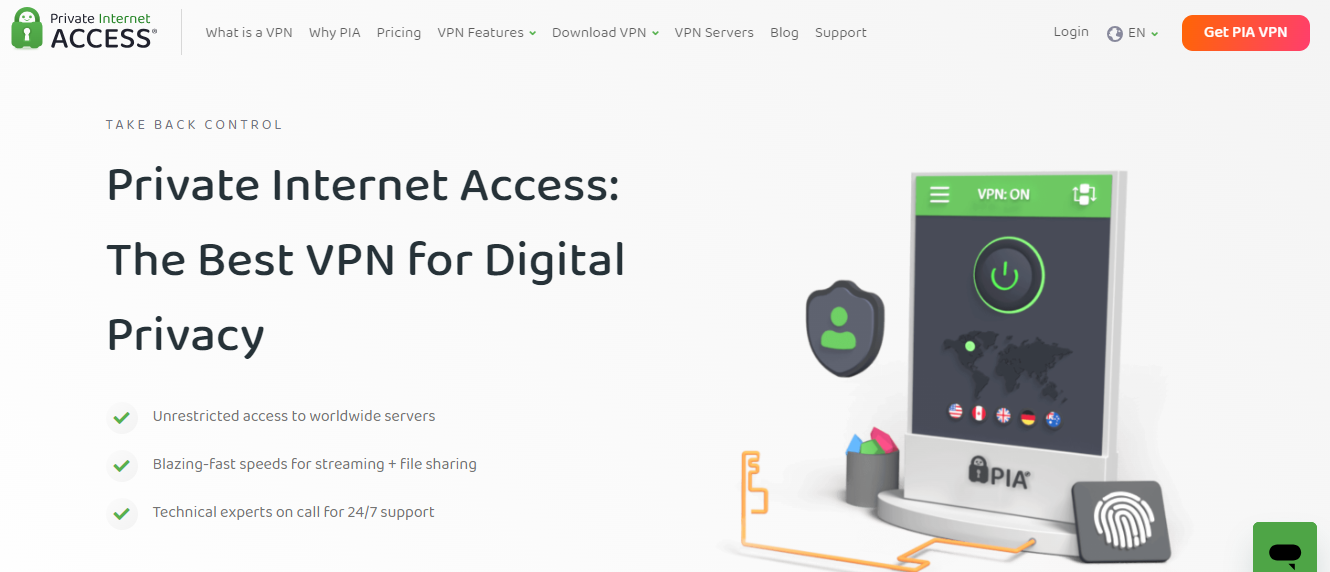
2. Private Internet Access (PIA) – Best for customization & advanced users

Private Internet Access (PIA) delivers a Windows app with deep customization for power users. Installable via the Microsoft Store or directly from PIA’s site, compatible with Windows 10/11. 

Features include multi-hop routing, split‑tunneling, and choice of AES‑128 or AES‑256 encryption. The app is fully open‑source, with advanced settings and support for up to 10 simultaneous connections.

Other features:

  • RAM-only servers enforce strict no-logs
  • Integrated malware/ad blocker (PIA MACE)
  • P2P allowed across servers; live chat support

⇒ Get Private Internet Access

3. CyberGhost VPN – Best for streaming & server coverage

CyberGhost VPN now offers its full Windows app directly from the Microsoft Store, making installation and updates seamless with Microsoft-verified security standards.

It boasts over 11,500 servers in 100+ countries, optimized for streaming (Netflix, Disney+, HBO Max) and high-speed usage up to 950 Mbps via WireGuard protocol support.

Other features:

  • Strict no‑logs policy audited by Deloitte
  • Automatic kill switch and DNS/IP leak protection
  • 24/7 live chat and a 45‑day money‑back guarantee

⇒ Get CyberGhost VPN

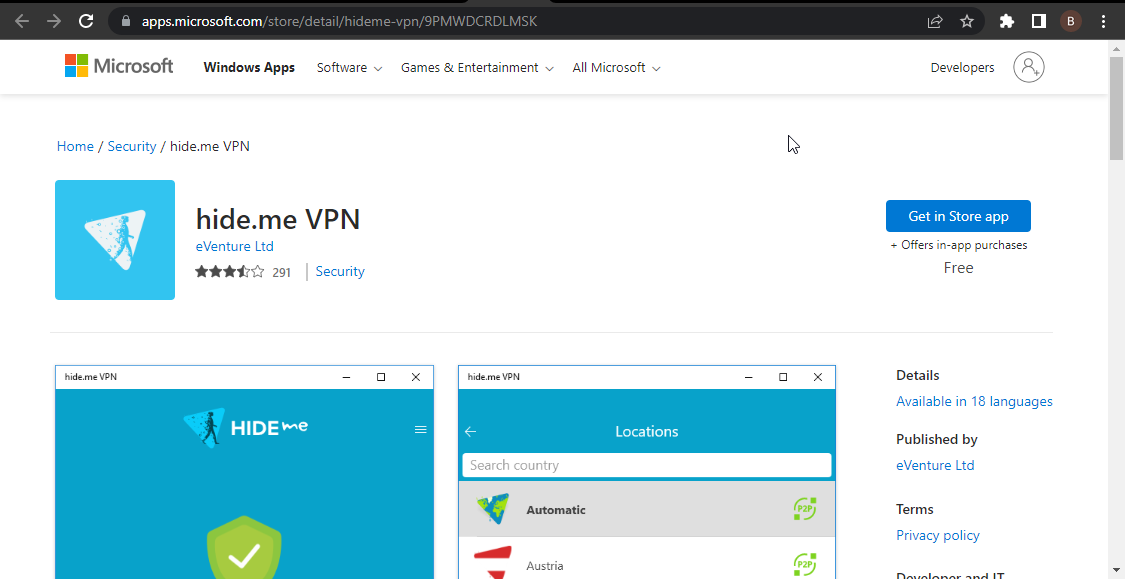
4. Hide.me VPN – Best for data management

hide me

HideMe is a reliable free VPN for Windows that you can download straight from the Microsoft Store.

It boasts the renowned 256-bit encryption for protecting your data online. Speaking of data, Hide.me VPN gives you a whopping 10GB per month.

Other features:

  • Has no strict no-logs policy.
  • Offers 24/7 live support chat.
  • It does not require registration to use.

⇒ Get Hide.me VPN

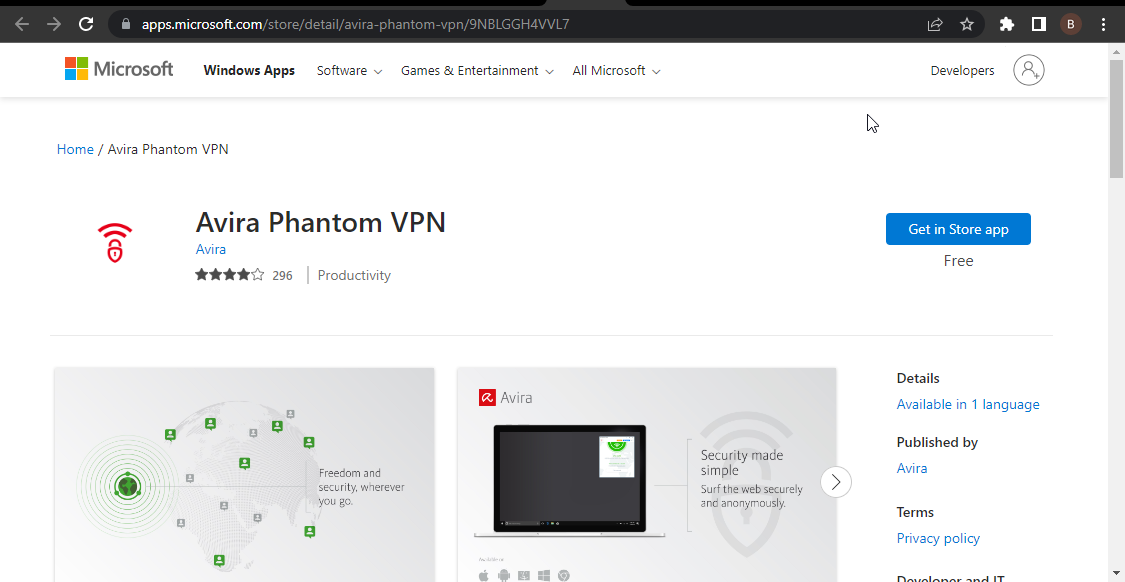
5. Avira Phantom VPN – Best free VPN for Windows 11

avira phantom microsoft best store vpn

Avira Phantom VPN is one of the most effective free security apps on the Microsoft Store. It is easy to set up, and even newbies can activate it in a few minutes. Also, It allows you to connect an unlimited number of devices simultaneously.

The only caveat is that you only have 500MB to use monthly without registration and 1GB with registration. However, this is still more than some other free VPNs offer.

Other features:

  • Incorporates military-grade AES 256-bit encryption. 
  • No IP, WebRTC, and DNS leak.
  • Has no kill switch.

⇒ Get Avira Phantom

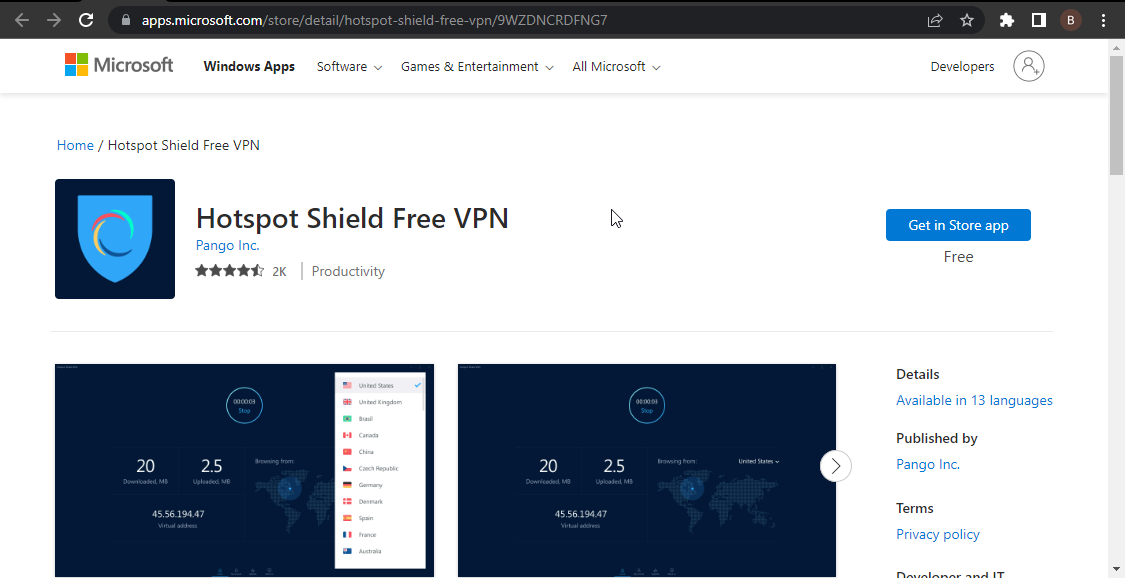
6. Hotspot Shield Free VPN – Easy to set up

hotspot shield vpn microsoft best vpn store

Hotspot Shield VPN is one of the best free privacy software on the Microsoft Store for Windows. It has an intuitive and eye-catching interface that is easy to use.

Unlike most free VPNs, Hotspot Shield allows you to connect to over 70 locations. This protects you at all times against cybercriminals. 

Other features:

  • Smart VPN feature for auto server picks based on location.
  • Well-functioning kill switch.
  • Military-tier encrypted traffic. 

⇒ Get Hotspot Shield Free VPN

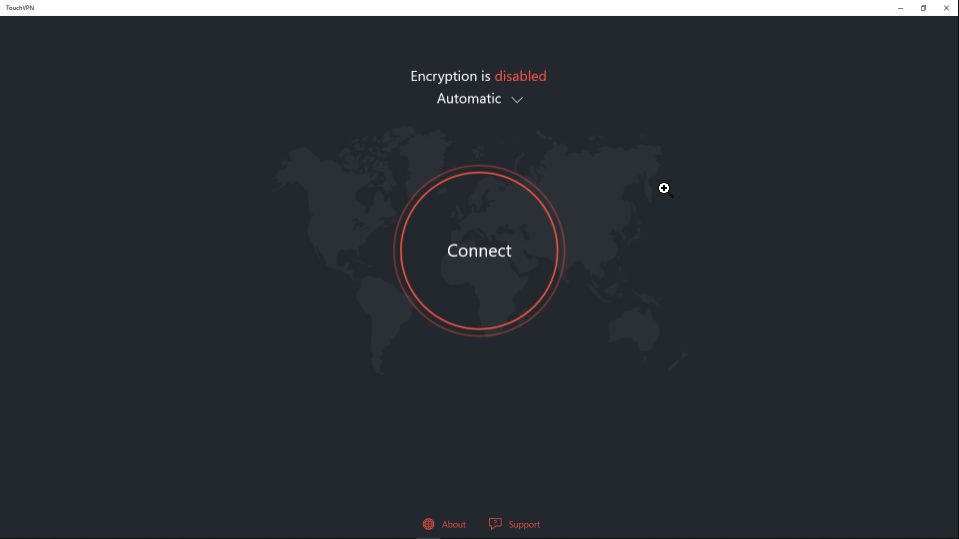
7. Touch VPN – Free Unlimited VPN for Windows 10

touch vpn

Touch VPN is the actual definition of a free app by all rights. All its features require no registration or credit card details at any point of usage.

It offers completely unlimited resources to give users the best experience. There is no limit to the number of sessions you can use as a free user, nor is there any caveat on the speed and bandwidth.

Other features:

  • Completely free, with no trial period.
  • Offers strong SSL encryption. 
  • Has a kill switch.

⇒ Get Touch VPN

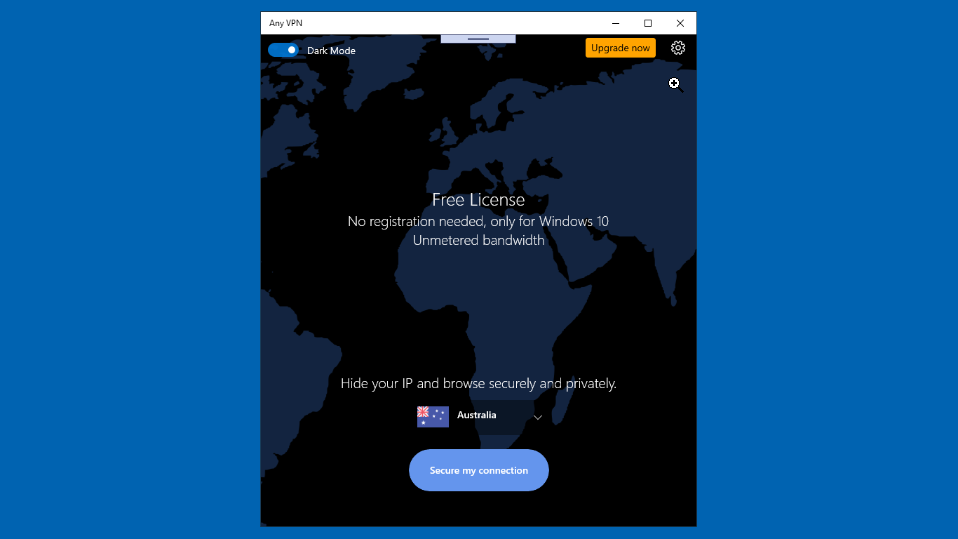
8. Any VPN – Unlimited free monthly bandwidth

any vpn

If you need a VPN app on Microsoft Store that guarantees your anonymity online without paying a dime, Any VPN might be all you need.

It offers an entirely encrypted connection that keeps your data and identity hidden. However, this free version is a bit slow as the transfer speed is limited.

Other features:

  • Hides IP address effectively.
  • It prevents ISP from recording traffic.
  • Easy to use
  • Unlimited data

⇒ Get Any VPN

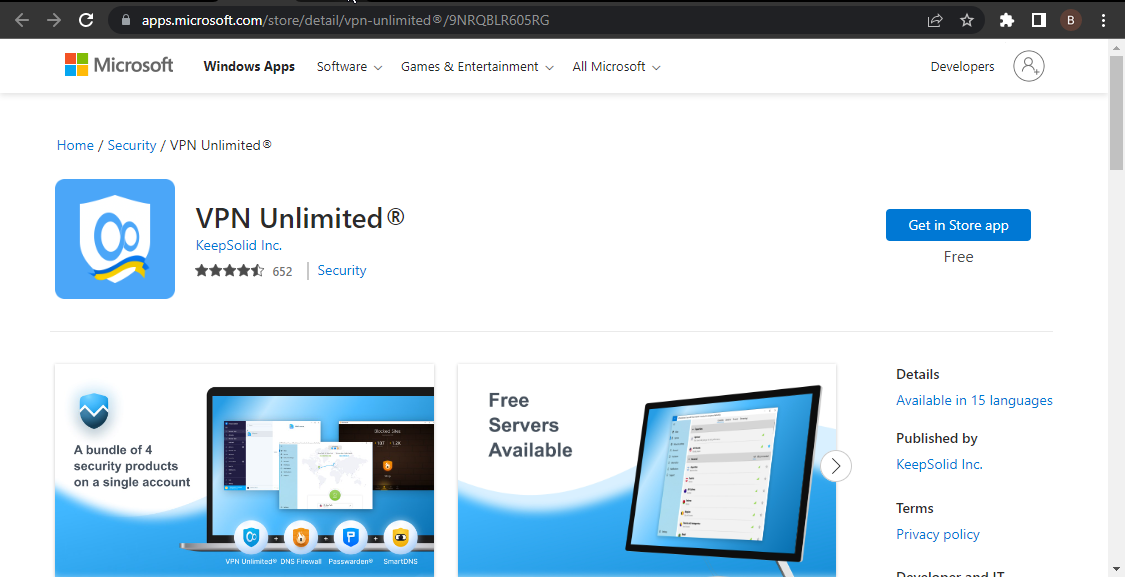
9. VPN Unlimited – Strongest encryption protocol

unlimited vpn

VPN Unlimited is one of the top-rated security apps on the Microsoft Store. It allows you to visit any website from any location without getting caught.

It offers a military-grade AES-256 encryption protocol to ensure your privacy is assured. This app also allows you to choose between different protocols like OpenVPN, IKEv2, and WireGuard. 

Other features:

  • Over 500 high-speed servers in 80+ locations.
  • Maximum of 5 devices per account.
  • Fast connection speed.

⇒  Get VPN Unlimited

This means that only a client requires you to add a VPN service from a third-party company. This is unlike the best VPN apps in the Microsoft Store that have their client and server.

We have reached the end of this guide on the best VPNs to download and install from the Microsoft Store. This list contains juicy options you can use without paying a dime or registering.

Note that the apps in this guide are not arranged in any particular order.

You can check our guide for trusted and interesting picks if you need a more streamlined list like the best free Windows 11 VPNs.

Feel free to let us know if there is any VPN app from Microsoft Store that should have made this list in the comments section below.

5 Best Browsers For Axie Infinity & Other NFT Games

Axie Infinity and other NFT games are quickly taking over the gaming industry. That is understandable, as nobody will say no to the possibility of earning while having fun.

While the apps for these games are well-built, there are times when you might need to play on your browser for a change. To prevent issues like Axie Infinity is not working, you need the browsers suitable for this purpose. 

We have selected five of the best browsers for NFT games to ensure you match your opponents blow-by-blow.

What are the best play-to-earn NFT games?

A series of play-to-earn NFT games can lay claim to being one of the best. Games like Axie Infinity and The Sandbox will always make the list.

Other games like the Gods Unchained, Splinterlands, and Pegaxy are among the most played play-to-earn NFT games. Hence, you are not short of options to choose.

How do I choose the best Infinity Axie?

Choosing the best Infinity Axie depends on many factors. Foremost, you must consider characteristics like health, speed, skill, and morale.

Also, you need to consider the classes, body parts, and battle cards. Only when you have the right combination and balance between these factors can your Axie thrive on the battlefield. 

What are the best browsers for Axie Infinity?

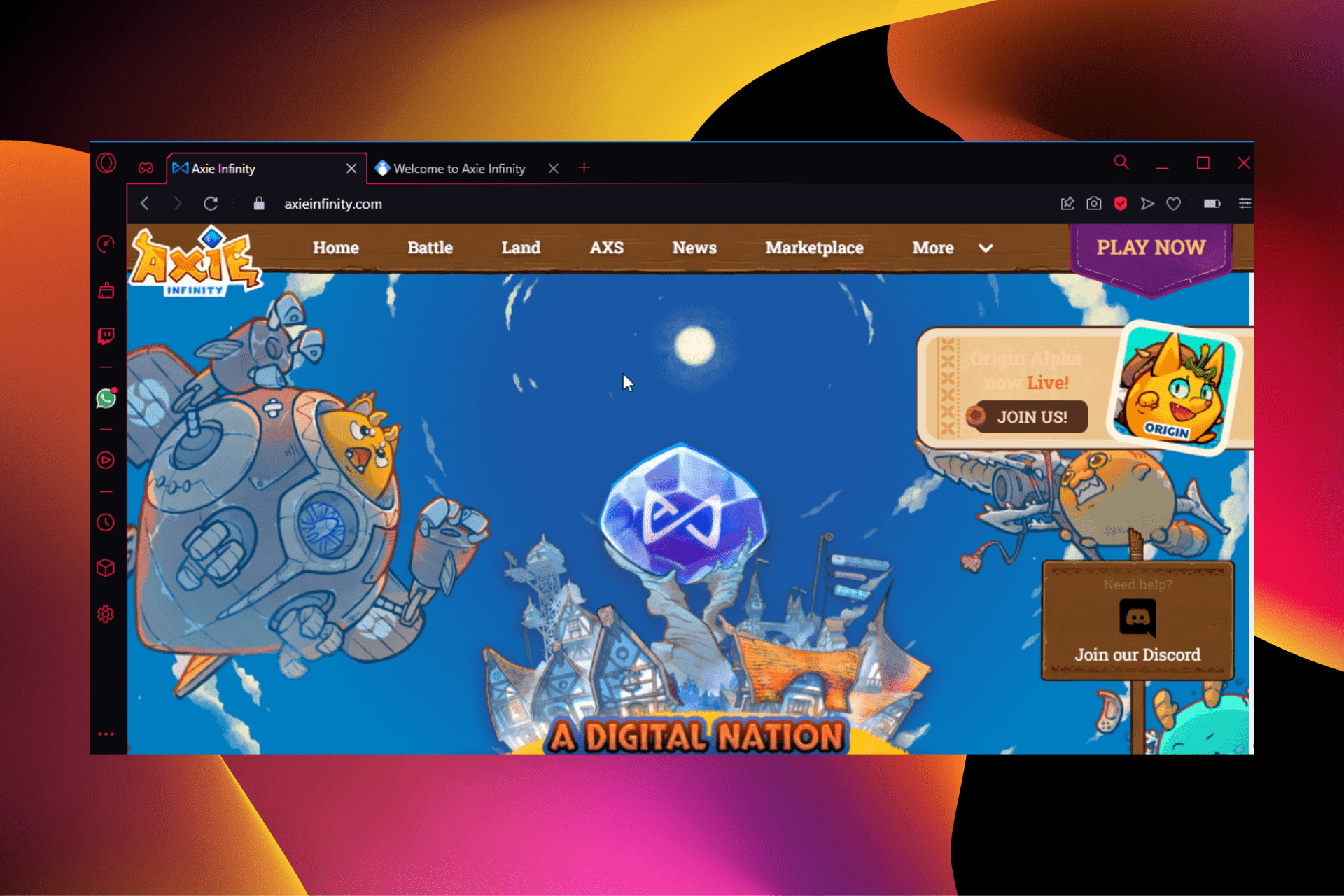
Opera GX – Overall best browser for gaming

opera gx best browser for axie infinity

Opera GX is undoubtedly the best browser for Axie Infinity and other forms of gaming. It has a feature called GX Control that allows you to limit your browser resource usage. 

Also, you can install and use the best Chrome extensions on Opera with the same process for the GX version. This allows you to take advantage of the Axie extensions from the Chrome Web Store. 

What’s more, it has blockchain-gaming-related integrations like Discord and Twitch. 

Other features:

  • CPU, RAM, and network limiter.
  • Built-in adblocker and VPN.
  • Themes and interface perfect for gaming

⇒ Get Opera GX

Brave – Browser with NFT games support

brave browser

The Brave browser has come leaps and bounds and represents most things that are good in modern browsers. Thanks to its lightness on system resources, it has a claim for being the best browser for Axie Infinity. 

It has a built-in ad blocker that ensures you enjoy your game without distractions. Add its few to no lag and incredible speed, and you are sure of the best gaming session.

Other features:

  • Offers NFT games support.
  • Built-in cross-site tracking blocker.
  • Tor feature for anonymous browsing.

⇒ Get Brave

Chrome – Browser with most Axie extensions

chrome browser best for axie infinity

Chrome needs no introduction as it has firmly established itself as one of the best browsers in the industry. It has a simplistic design that aids gaming.

Also, it is one of the fastest browsers and, as such, offers the perfect platform for multiplayer games like Axie Infinity. More importantly, it has Axie extensions like AxieDeX in its Web Store to improve your gaming.

Other features:

  • Series of extensions for gaming functionality.
  • Little to no lag time.
  • Familiarity in the gaming world.

⇒ Get Chrome

Firefox – Highest gaming library

firefox mozilla

While this might be a different browser from the speedy Chromium-based browsers mentioned above, it is no slouch for NFT gaming. It is a browser suitable to play Axie Infinity, thanks to its load time and lightness.

It is a browser that’s been familiar with gaming in the past, as shown by its robust library extensions for games. This has laid the required groundwork for speed, flexibility, and other resources to play the new NFT games.

Other features:

  • Integrated anti-tracking feature. 
  • Impressive gaming speed.
  • Cookies blocker that prevents access to your info.

⇒ Get Firefox

Microsoft Edge – Quality gaming projection

edge best browser for axie infinity

Microsoft’s default browser is well-versed in gaming. Edge supports a 4K projection, giving you the best gaming view possible. 

Also, it has a spatial sound feature for a fully immersive gaming experience on your browser. This, plus its incredible speed, makes it one of the best browsers for Axie Infinity. 

Other features:

  • Themes and visual upgrades for gaming. 
  • Built-in anti-tracking feature.
  • Extensive extension library.

⇒ Get Microsoft Edge

The best browsers for Axie Infinity and other NFT games ensure you have a competitive advantage over your opponents. We have gathered five that you can download and start earning while playing.

Are you looking for the best software to create NFT Art? Take time to check our detailed guide for the quality options available.

Let us know the browser that allows you to operate at your best on Axie Infinity in the comments section below.

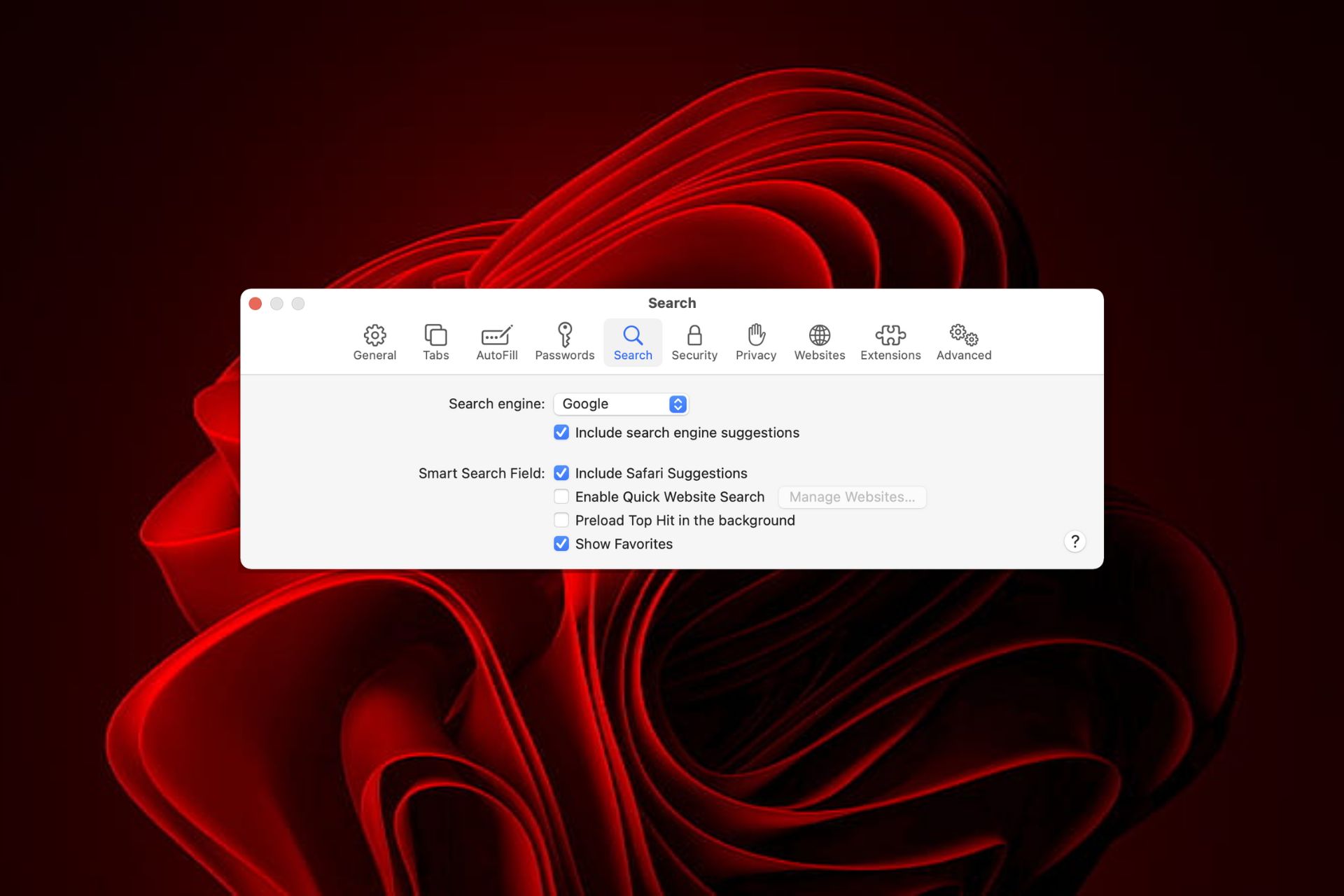
5 Ways to Stop Safari’s Search Engine From Changing to Yahoo

The Apple Safari browser is a great way to browse the web on your iPhone or iPad. However, there are many things that can go wrong with this app, including a bug that causes Safari’s search engine to change to Yahoo instead of your preferred search engine.

Safari’s built-in search engine is Google by default. If you are not getting redirected to your preferred search engine, it can be annoying. The problem not only happens to Safari but other browsers switch to Yahoo too.

This is because you have to go into the settings menu and change it back every time you open up Safari. Whereas Yahoo is also a great search engine, everyone has preferences on what works for them.

Quick Tip:

Avoiding this problem and remaining on the default search engine is possible if you use a different browser.

The unique keyword system in Opera allows you to use a custom search engine for a query without changing the default search engine. Furthermore, it is very lightweight, and with the free VPN, you can be confident that you will not be attacked by any spyware that could hijack your browsing.

⇒ Get Opera

Why does my browser keep switching to Yahoo? 

Some of the common causes why your browser is redirecting you to Yahoo include:

  • Adware programs – An adware program may have found its way onto your computer. Usually, they are pre-installed and can be downloaded in other cases. They’re often very sneaky and hard to get rid of.
  • Malicious extension – If your browser is automatically switching to Yahoo search, it’s possible you have installed a toolbar or extension that overrides your default search engine.
  • Fake/unknown profiles – Fake profiles are designed in such a way that they can be used to steal your personal information, thus making it easy for them to hack into your account and modify your settings.

At some point, you may be wondering: Is Yahoo Redirect a virus?  Yahoo Redirect is a browser hijacker that acts as an adware program.

It is an unwanted program that can take control of your computer without your consent. While it may not be harmful, you need to be cautious especially if you are not sure of its source.

How do I stop Safari from switching to Yahoo? 

1. Uninstall unknown programs 

  1. Click on the Finder and go to Applications.
  2. Check for any unknown or suspicious app that you have not installed.
  3. Right-click on it and select Move to trash.
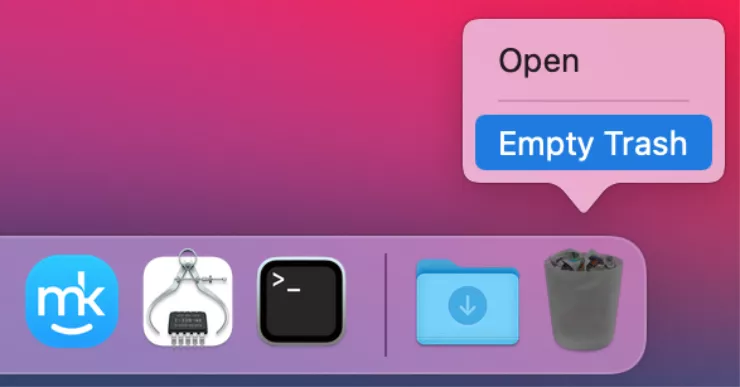
  4. Next, right-click on the Trash icon and select Empty Trash.

2. Remove unknown/fake profiles

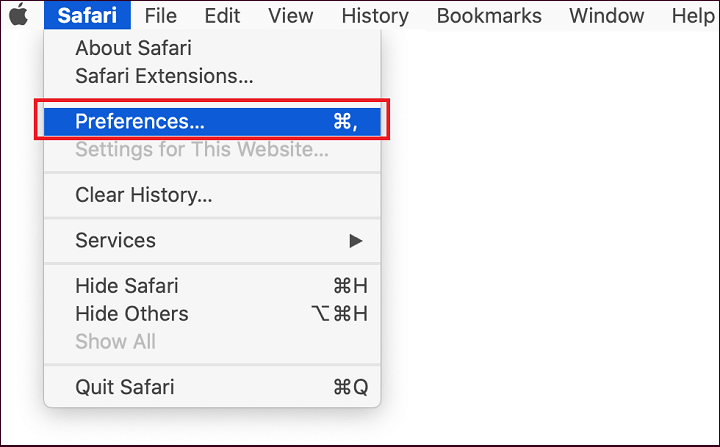
  1. Navigate to Safari on the menu bar and select Preferences.
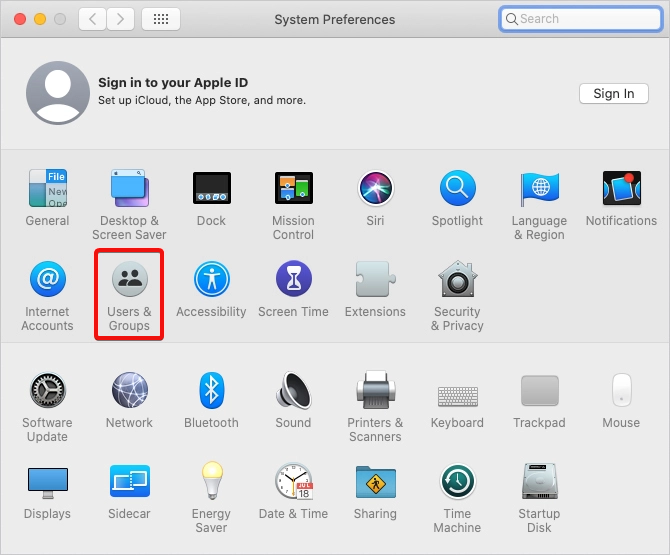
  2. Select Users & Groups.
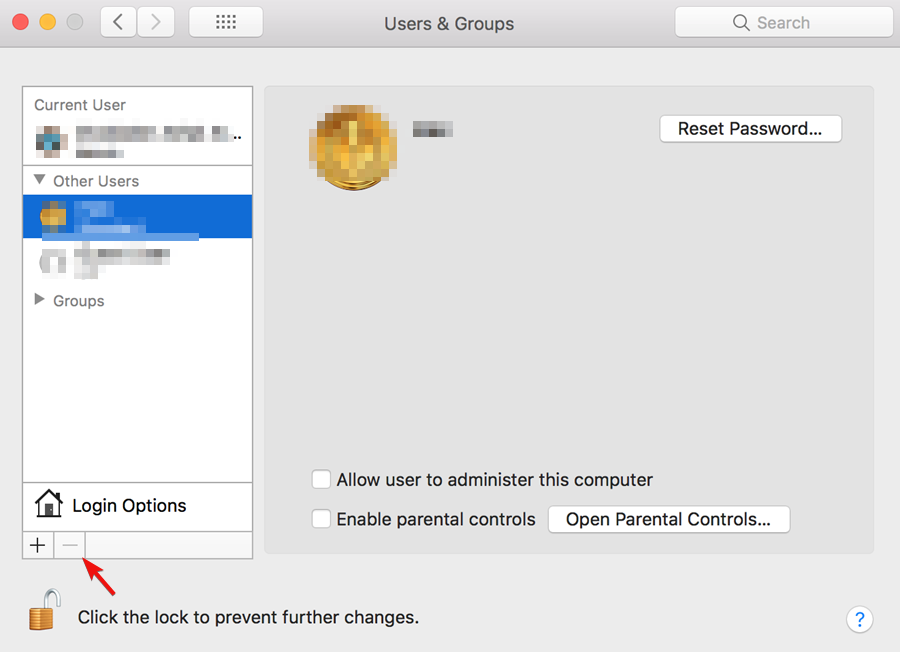
  3. Navigate to the profile you wish to remove and click on the minus button.

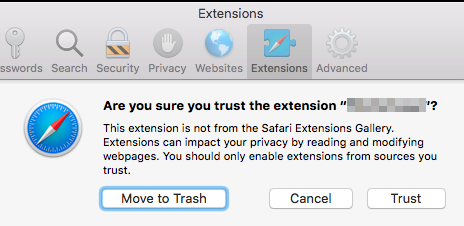
3. Disable extensions

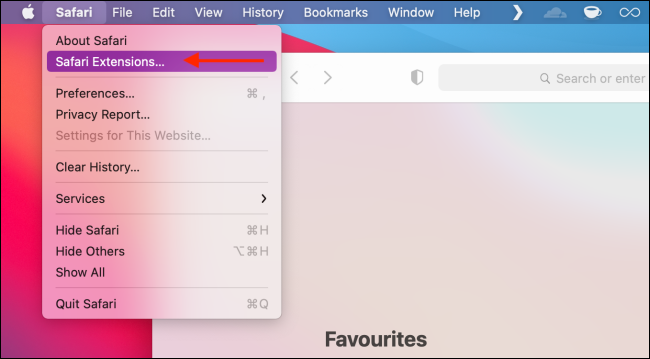
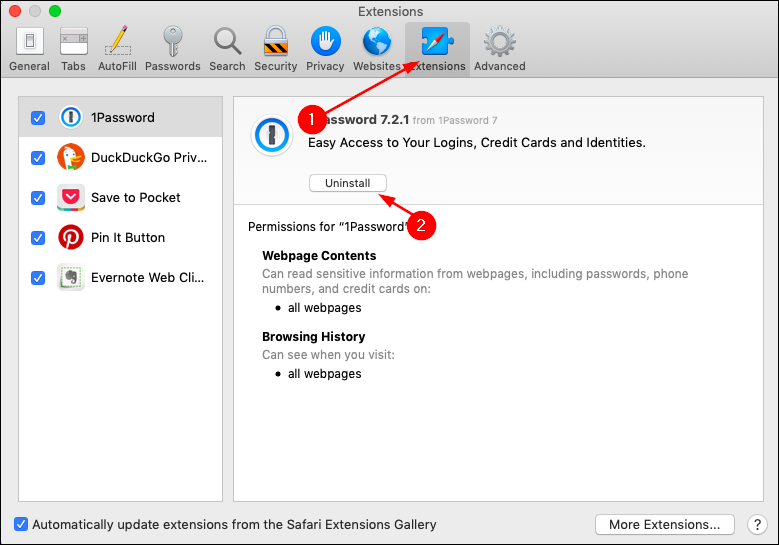
  1. Navigate to Safari on the menu bar and select Safari Extensions.
  2. Select the extensions you wish to remove and click on Uninstall.Extensions Safari

4. Reset browser settings

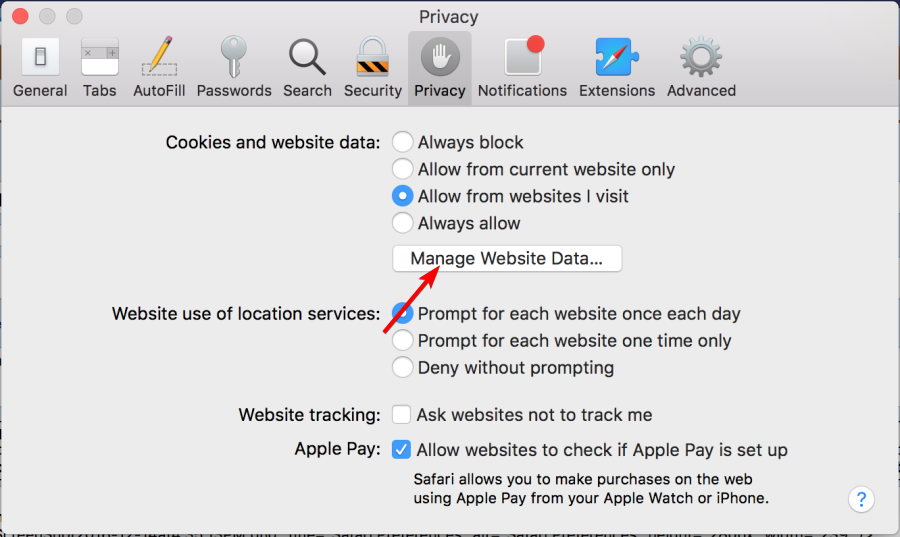
  1. Navigate to Safari on the menu bar and select Preferences.
  2. Select the Privacy tab and click on Manage Website Data.
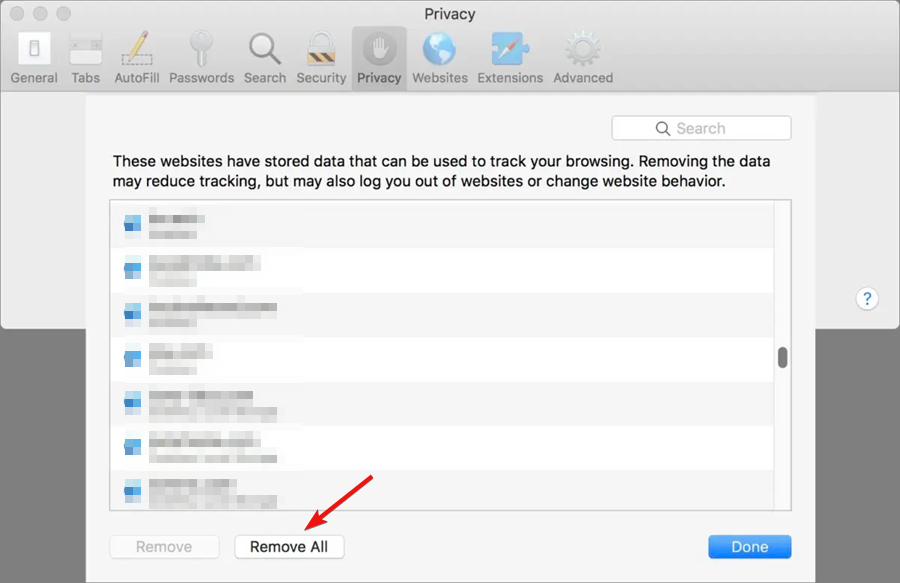
  3. Hit Remove All then click on Done.
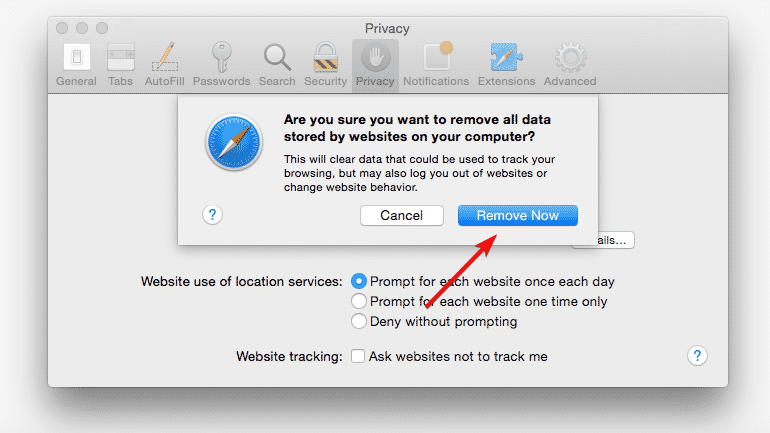
  4. Confirm Remove Now in the next dialog box.

5. Manually change the default homepage

  1. Navigate to Safari on the menu bar and select Preferences.
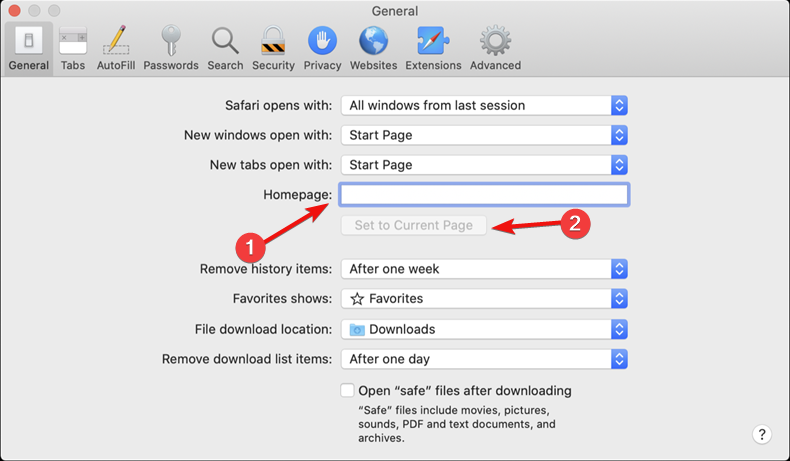
  2. Select the General tab and under Homepage, delete Yahoo and set your preferred site then click on Set to Current Page.

Hopefully, if you were facing this issue, one or more of our recommended solutions was able to help you get back to your preferred search engine.

In case you encounter any other issues such as Safari not downloading files, refer to our expert guide and follow the steps.

Be sure to let us know which solution worked out for you in the comments section below.

3 Tips on What to do When Brave Ads are not Showing

Despite being one of the best browsers with a built-in ad blocker, Brave still has an option that allows users to view ads. In addition, the Brave Rewards feature will enable you to earn tokens when you click on some personal ads.

However, you might stop seeing ads without disabling the Rewards on your browser. This might be due to problems with your browser or some settings on your PC.

In this guide, we have shared some tips to use if Brave is not showing ads for you.

Why are my Brave ads not Showing up?

There are many reasons why your Brave Rewards is not showing ads on Windows 10/11 PC and other devices. Below are some of the common ones

  • VPN usage on PC.
  • Using the browser in full-screen mode.
  • System notifications are turned off.
  • Brave Rewards user wallet marked as fraudulent. 
  • Activation of Focus Assist on Windows

How do I see ads on Brave?

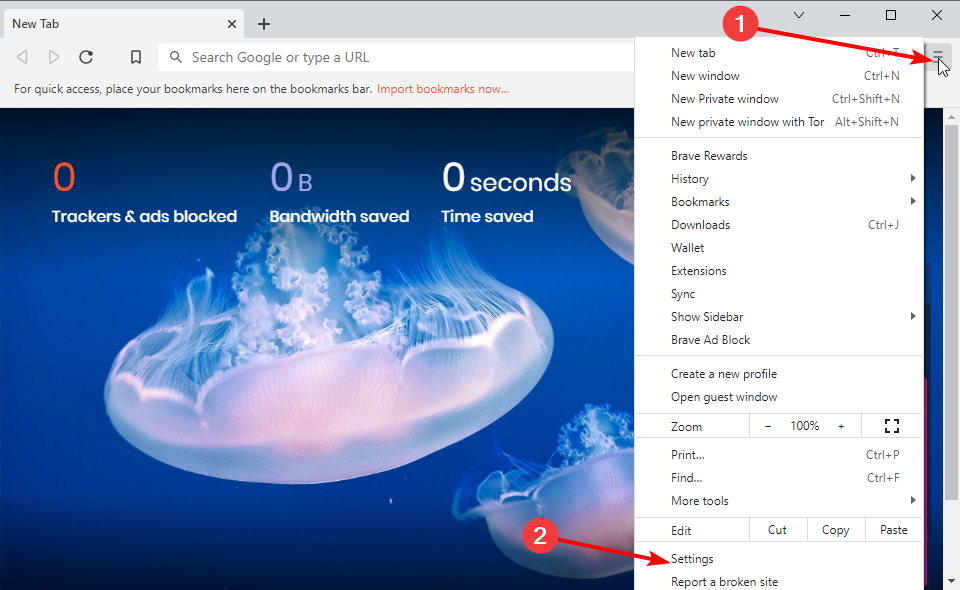
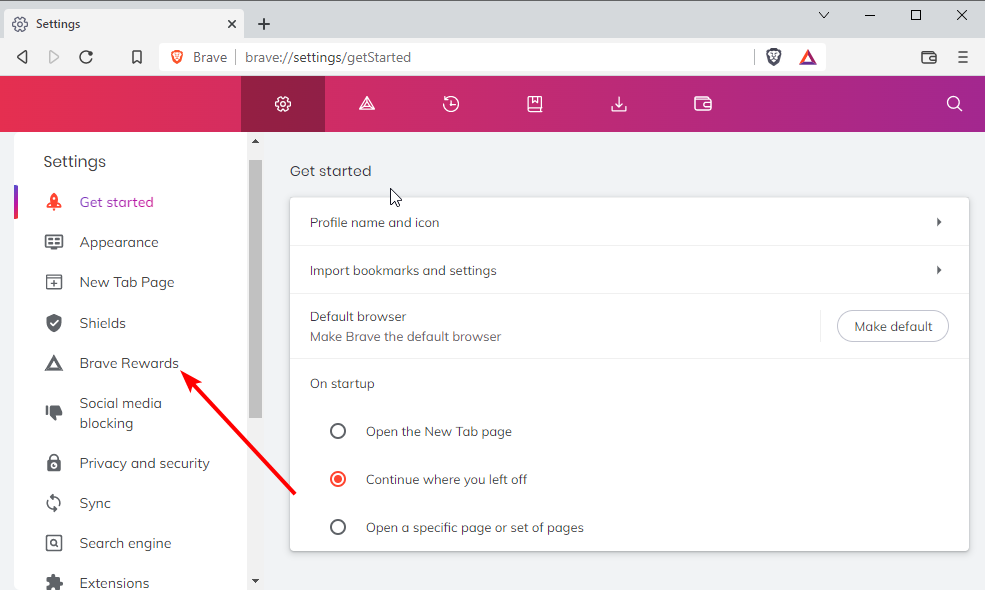
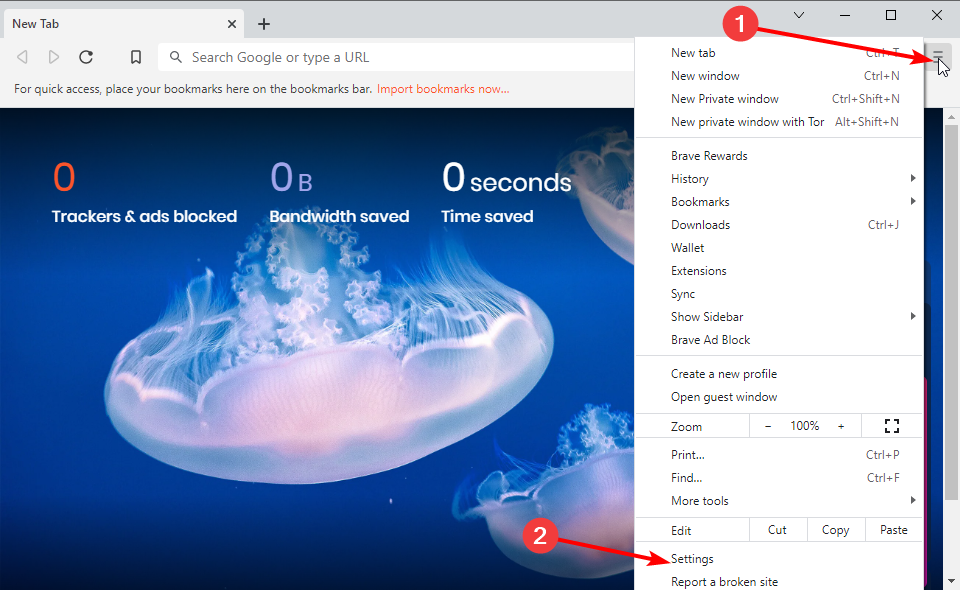
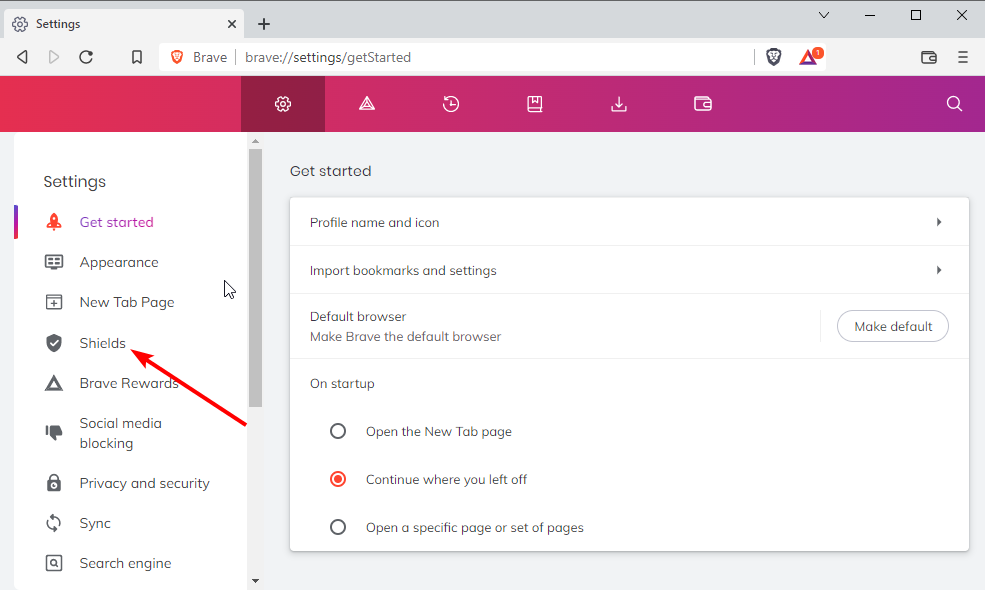
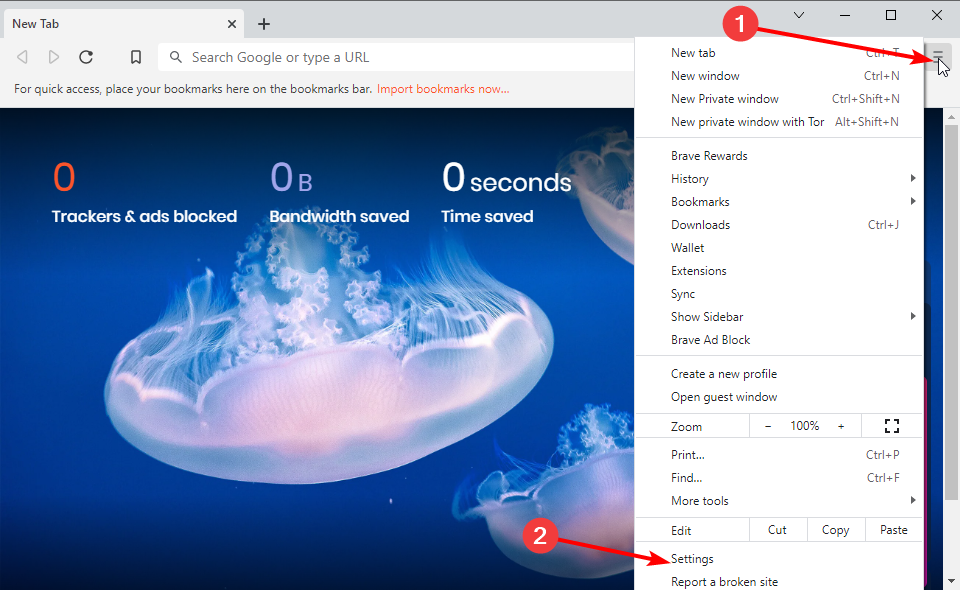
  1. Launch Brave Browser and click the menu button (three horizontal lines) in the top left corner.
  2. Click the Settings option.
    home settings brave ads not showing
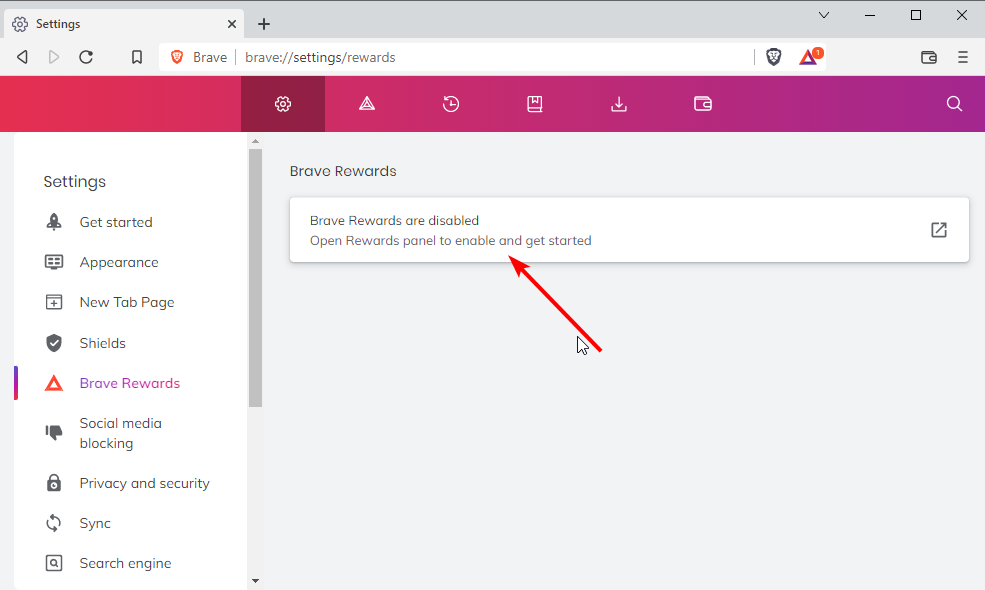
  3. Select Brave Rewards on the left pane.
    brave rewards
  4. Click the Brave Rewards are disabled option.
    rewards disabled brave ads not showing
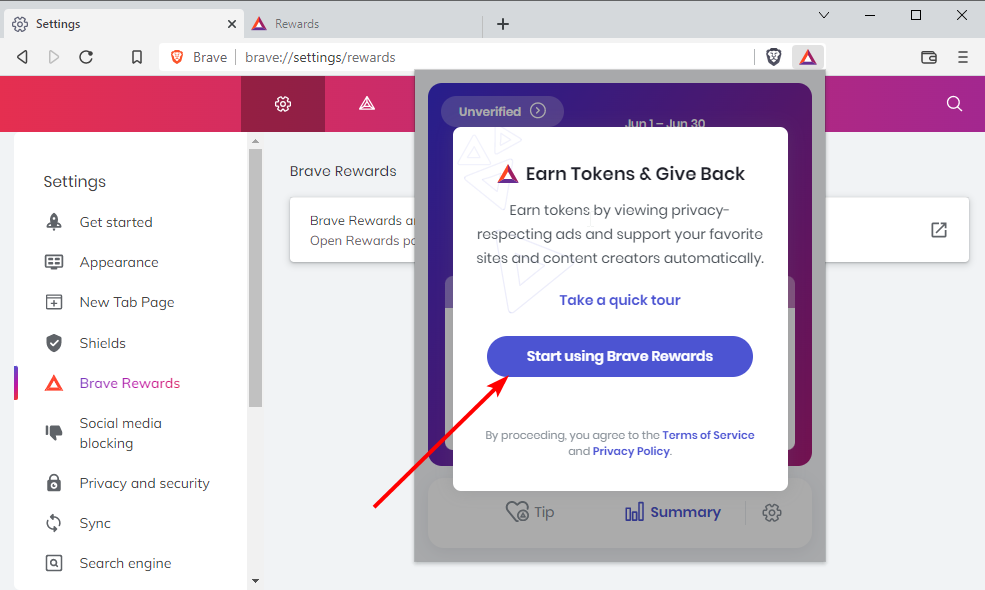
  5. Now, click the Start using Brave Rewards button. This will enable ads for you automatically.
    start using brave ads

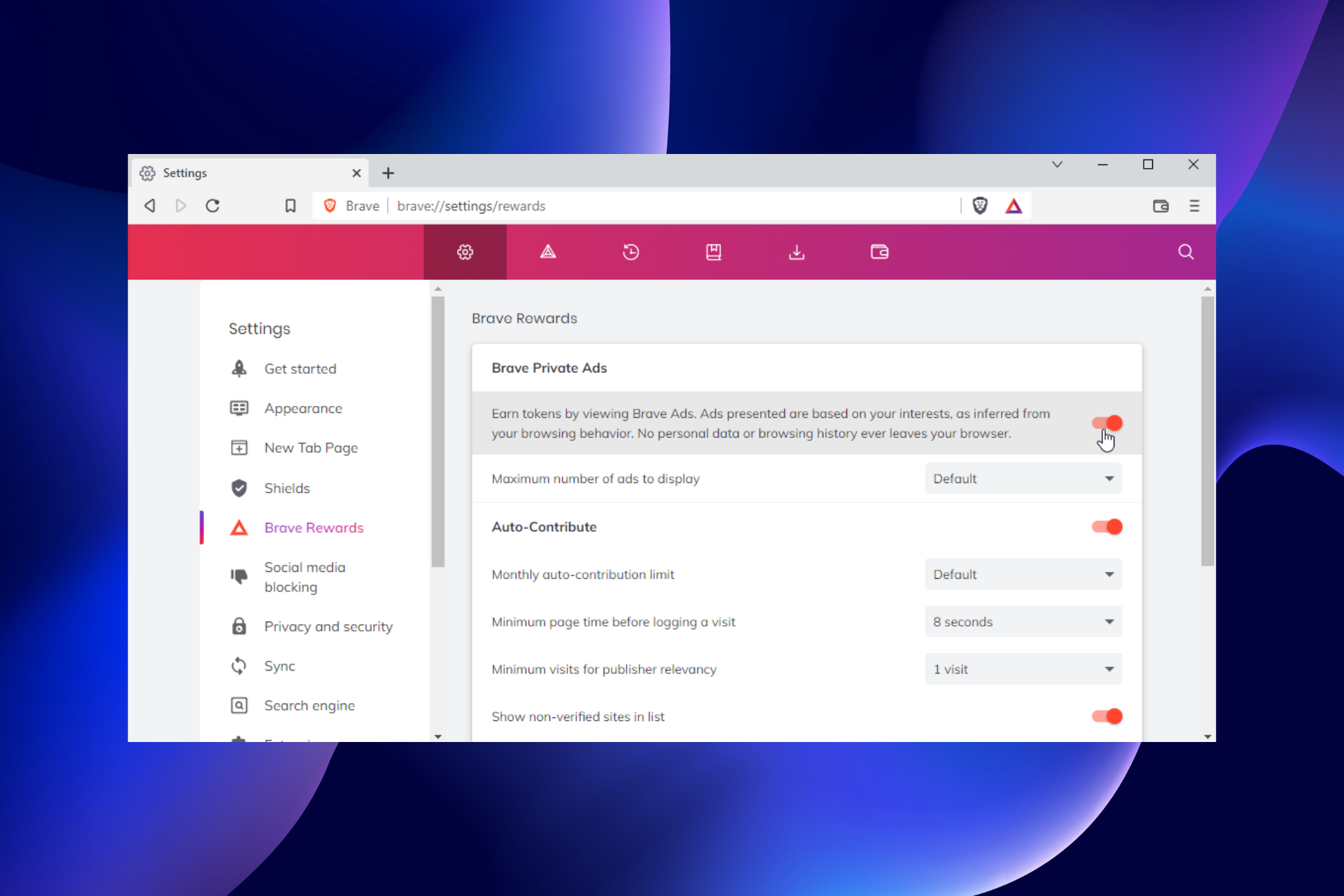
That is how to enable ads on Brave with the Rewards option. To turn it off, enter brave://rewards in the address bar to open the Rewards page and toggle the switch back.

How do I disable ad-block in Brave Browser?

  1. Launch Brave Browser and click the menu button.
  2. Select the Settings option.
    home settings brave ads not showing
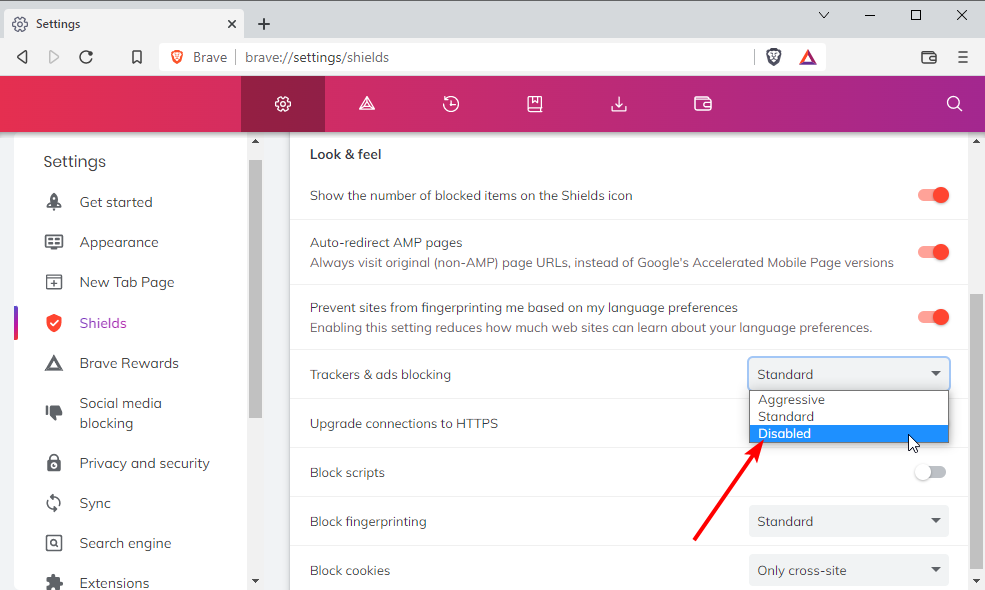
  3. Choose Shields on the left pane.
    brave shield
  4. Click the dropdown before Trackers & ads blocking and select Disabled.
    disable

That’s how to turn off the built-in ads blocker on Brave. With this, you will start seeing ads on any page you visit.

How do I get more ads on the Brave app?

  1. Click the menu button and select Settings.
    home settings
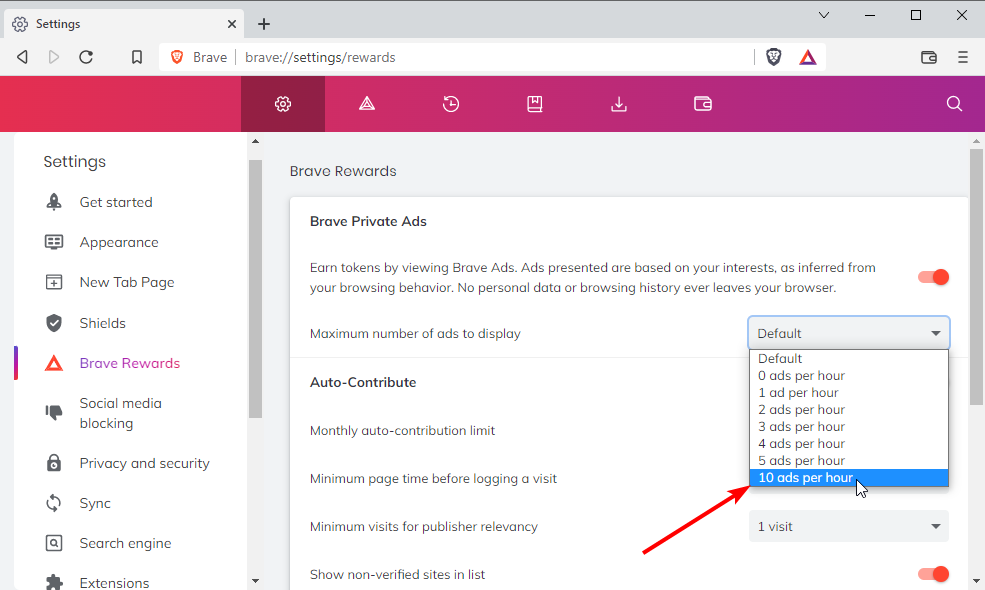
  2. Select Brave Rewards on the left pane.
    brave rewards ads not showing
  3. Click the dropdown before the Maximum number of ads to display at the top.
  4. Now, select any option of your choice.
    more ads brave not showing

Note that different locations have a maximum allowed number of ads per hour. If you choose a higher number than allowed for your zone, you might face issues like Brave Rewards is not working. 

Brave ads not showing can be frustrating, as it prevents you from earning through the Rewards feature. But with the tips above, you can get things working back usually.

Are you facing issues like Brave Browser not opening or crashing? Then, check our guide on how to fix it.

Feel free to let us know if you got ads showing again on your browser in the comments section below.

Here’s what Microsoft wants you to know about IE 11 retirement on Windows 10

Internet Explorer 11 (better known as IE 11) is hitting the end of support today, June 15 on Windows 10. The moment has been coming for some time, and Microsoft is providing somewhat of an update on how this might impact you, and what moves are being made to port people over to Microsoft Edge.

First up, you’ll notice in the next few months that if you open Internet Explorer 11, you’ll be redirected to use Microsoft Edge in IE mode. You’ll still see the IE icon in your taskbar or Start Menu, but clicking to open IE will open Edge in IE mode instead. Heading down the future, Microsoft will permanently disable IE 11 with a patch in Windows Update, but for now, it’ll still be around.

Naturally, though, data like your favorites, passwords, and settings from IE 11 will be imported as part of the redirection process. Other tweaks Microsoft will be making to ease the transition to Edge are below.

  • To help users get started with IE mode, the redirection process will add a “Reload in IE mode” button to their toolbar in Microsoft Edge. That way, if they encounter a website that may not work correctly— or if they visit a website that asks them to open the site using Internet Explorer—they can easily click the button to open the page in IE mode.
  • Microsoft Edge will also check in with the user every 30 days to make sure they still need IE mode for the site. As more and more sites get updated to modern standards, users will need to use IE mode less and the modern rendering engine more
  • If you’re an IT professional and your organization uses older, legacy sites as part of your normal business processes, you can easily automate IE mode so that those pages launch in IE mode automatically for your users.
  • You can set up IE mode to use a site list, where you can catalog those sites that require Internet Explorer and have them load automatically in IE mode. You can store this site list locally, or in the cloud through the Microsoft 365 admin center.

Note that IE mode in Microsoft Edge will be supported through 2029. Internet Explorer 11 is also only being retired on all currently supported versions of Windows 10 Home, Pro, Enterprise, Edu, and IoT. Retirement doesn’t impact certain versions of Windows currently in support and used in critical environments. That includes Windows 10 LTSC releases (including IoT) and all Windows Server versions, as well as Windows 10 China Government Edition, Windows 8.1, and Windows 7 with Extended Security Updates (ESUs). Future versions of these editions, though, will not include Internet Explorer.

Where is the Brave Browser’s Cache Location & How do I Clear it?

Brave Browser is one of the most secure browsers with a built-in ad blocker. In addition, it prides itself on not storing users’ data except in specific cases.

One of the components of the Brave Browser that makes it easy to use is the cache. It significantly improves your experience on sites you have visited in the past. However, users are wondering where the file is located as they can’t find it on their PC.

This guide will show your Brave cache location and how you can clear it effectively. 

Where is the Brave Browser cache?

  1. Open File Explorer on your PC.
  2. Click the Local Disk(C:) option on the left pane.
  3. Select the Users option.
    users brave cache location
  4. Select your username.
    username
  5. Choose the AppData option.
    appdata brave cache location
  6. Double-click the Local folder to open it.
    local
  7. Now, select the BraveSoftware folder.
    bravesoftware cache location
  8. Open the Brave-Browser folder.
    browser folder
  9. Select User Data.
    userdata brave cache location
  10. Choose the Default folder.
    default
  11. Open the Cache folder followed by Cache_Data.
    cache folder

You will find different Brave caches in this location.

How do I clear my Brave Browser cache?

  1. Click the menu button (three horizontal lines) in the top right corner.
  2. Select the Settings option.
    home settings
  3. Select the Privacy and security option on the left pane.
    security brave cache location
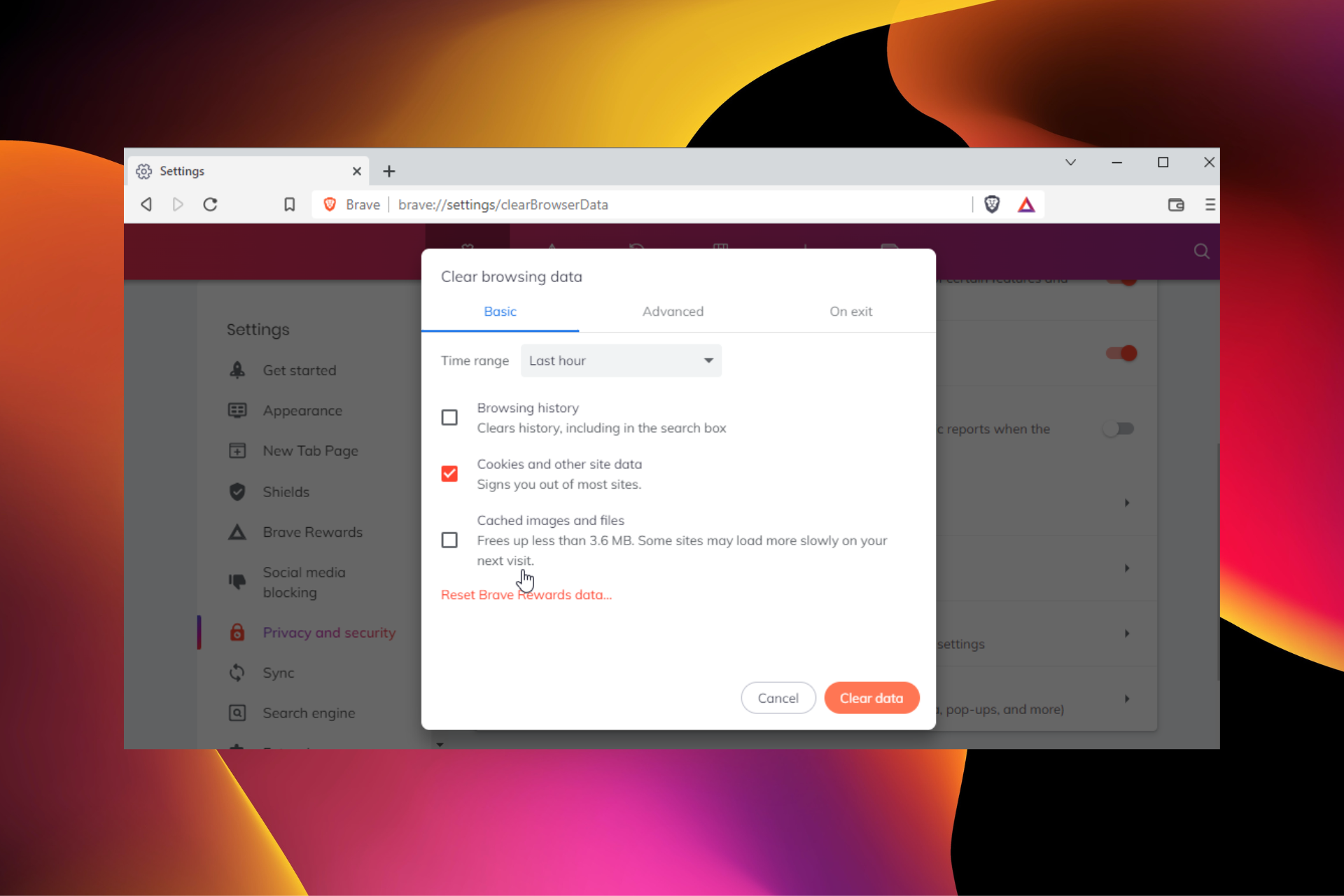
  4. Choose Clear browsing data.
    clear browsing data
  5. Click the drop-down next to the Time range at the top and select your preferred duration.
    time range
  6. Check the checkbox for Cached images and files.
  7. Click the Clear data button.
    clear button

After the process is complete, relaunch your browser to effect the changes.

Does the Brave Browser store data?

Brave Browser does not store any user data. Instead, it keeps Cookies, profiles, cache, browsing history, and personal data on the user’s device.

Brave stores your data only when you activate Sync or Rewards. You can read the full Braver Browser privacy policy to know how it uses your data.

Where are Brave profiles saved?

default

The Brave Browser saves profiles on your PC. You can find them on your hard disk by following the path below: C:/Users/Username/AppData/Local/BraveSoftware/Brave-Browser/UserData 

The default folder where the cache file is located is an example of a profile. You will only find other profiles there if you create new ones.

Where are Brave cookies stored?

You can find Brave cookies in the profile folder. They are stored as a file, not a folder, and can be found at the bottom of the page.

If you delete this file, your cookies will not work in your browser.

The location of your Brave Browser cache is not the most difficult to access, as shown above. So, it is up to you to do what you want to with it.

If your Brave Browser is not syncing for one reason or another, check our guide on how to restore normalcy.

Please let us know if you encounter any problem locating your browser cache in the comments section below.

Pre-orders open for Teenage Mutant Ninja Turtles: Shredder’s Revenge on Xbox and PC

The highly-anticipated Teenage Mutant Ninja Turtles: Shredder’s Revenge video game is finally up for digital pre-order on Microsoft’s Xbox One and Xbox Series X console families and PCs running Windows 10 or Windows 11.

Teenage Mutant Ninja Turtles: Shredder’s Revenge is a modern beat ’em up title that’s heavily inspired by the classic TMNT video games from the 80s and 90s and the original Teenage Mutant Ninja Turtles cartoon series. Several voice actors from the OG cartoon series have also returned to record dialogue for this game.

The game’s evolved quite a bit since it was originally announced and now supports local and online multiplayer with up to six players playing simultaneously. The roster of playable of characters has also grown with Splinter, April, and Casey Jones now being selectable in addition to the iconic four turtle brothers.

Teenage Mutant Ninja Turtles: Shredder’s Revenge launches tomorrow on June 16th on all supported platforms and supports Xbox Play Anywhere which means that buying it on an Xbox console will unlock it for free on a Windows PC using the same Microsoft account and vice versa.

Cross-play is also enabled for multiplayer games across PC and Xbox consoles.

Need more Xbox gaming news in your life? Give us a follow on Twitter and Facebook.

3 Ways to Fix Cookies are Blocked or Not Supported by Your Browser

The cookies are blocked or not supported by your browser error when you want to log in to your WordPress site. It prevents you from accessing your website until it is resolved.

It is usually not because your browser does not support WordPress cookies. Instead, it occurs due to switching hosting providers and installing caching and security plugins on your website.

Irrespective of the cause, we will show you how to fix this problem just like we did with the common WordPress hosting issues.

How do I ensure cookies are enabled?

  1. Launch your browser and click the menu button (three vertical dots) at the top right corner.
  2. Select the Settings option.
    settings cookies are blocked or not supported by your browser
  3. Choose the Privacy and security option on the left pane.
    privacy and security
  4. Select Cookies and other site data.
    cookies and other data are blocked or not supported by your browser
  5. Finally, tick the radio button for Allow all cookies.
    allow

With this enabled, cookies will always work on your browser. And you can be sure the cookies are blocked or not supported by your browser issue is not from your end.

?️Quick Tip:

The Advanced settings in the Opera One browser allow you to manage favorite sites and cookies with a few mouse clicks. The Allow sites to save and read cookies setting determines whether websites can set cookies.

In general, you should probably keep this enabled, but this is easily manageable in Opera One and you may allow whatever cookies you want or trust to be favorable.

Opera One

Easy manage third-party cookies, set preferred websites you mostly visit, and avoid blocked access.
Free Download Visit website

How do I fix blocked cookies?

1. Disable caching and security plugins

If the cookies are blocked or not supported by your browser error started showing up after installing a caching or security plugin on your site, you might have to disable it to restore normalcy.

This is because these plugins cache and minify your site, leading to cookies not being generated or not working. Hence, you need to disable the plugin to log in to your browser.

2. Clear browser cookies

  1. Open your browser and click the menu button.
  2. Choose the Settings option.
    settings
  3. Select the Privacy and security option.
    security cookies are blocked or not supported by your browser
  4. Choose Cookies and other site data.
    cookies and other site data
  5. Select the See all cookies and site data option.
    see all
  6. Finally, click the Remove All button.
    remove all

The cookies are blocked or not supported by your browser error might be because you changed your hosting provider. Changing your provider while keeping your domain the same might cause existing cookies not to work on your website.

So, if your WordPress cookies are blocked after migration, clearing the cookies and allowing another to be generated should do the trick.

3. Edit your website’s function.php file

  1. Open your website’s function.php file.
  2. Copy and paste the code below into it: setcookie (TEST_COOKIE, 'WP Cookie check', 0, COOKIEPATH, COOKIE_DOMAIN);
    if ( SITECOOKIEPATH != COOKIEPATH ) setcookie (TEST_COOKIE, 'WP Cookie check', 0, SITECOOKIEPATH, COOKIE_DOMAIN);
  3. Lastly, Save/upload the functions.php file.

This technical fix should only be used as a last resort if the two fixes above fail. You will require a bit of coding/technological know-how to do this.

This code will check if your browser has cookies by setting the WordPress test cookie. It has proved to work for other users, so you should give it a try too if all options fail.

The cookies are blocked or not supported by your browser error, and preventing you from logging into your WordPress site can be annoying. However, as shown, it can be fixed with the correct info.

If you want to fix security issues on your WordPress website, check our comprehensive guide on how to get it done effortlessly.

Finally, let us know which fixes helped resolve the problem in the comments below.

5 Best Browsers For Academic Research

Gone are the days of reading a series of complex papers in the library while doing academic research. Nowadays, academic research browsers or search engines have taken the role and simplified the process.

Some of these tools provide citations, references, and links to text that would usually be unavailable to you. And thankfully, these tools are free, unlike some of the best survey software for academic research.

However, there are too many of them. So, choosing the best one might be a real headache.

This article simplifies that process by selecting the five best academic browsers you can use.

Can Google Scholar be used for academic research?

Google Scholar is one of the leading, if not the best academic research browsers available. It has excellent coverage and a lot of resources for just about any literary work.

Its primary purpose is to function as an academic research engine. So, it will always do the job well.

Is Google Scholar credible?

Being the academic research wing of a tech giant, it’s safe to say that Google Scholar is credible. Moreover, it has a lot of reliable sources, with citations to boot.

Also, with its excellent coverage and reach, you can lay your hands on the best academic papers in your field. 

What can I use other than Google Scholar?

The academic research browser industry is not a monopolized one. There are other trusted research search engines aside from Google you can use.

There are also many websites where you can find the best research papers needed. Hence, you are not short options, as we will show in subsequent sections of this guide.

What are the best research browsers?

Google Scholar – Easiest to use

google scholar academic research browser best

This tool carries the power of the Google search engine to find the best research papers. It has a coverage of over 200 million articles. 

The good thing about this academic research browser is that the papers are free for all fields. Also, it mainly provides links to the full text in PDF format for you to download. 

Other features:

  • Provides only a snippet of the abstract.
  • It shows related articles.
  • Numerous export formats.

⇒ Get Google Scholar

Microsoft Academic – Engine with results overview

microsoft academic

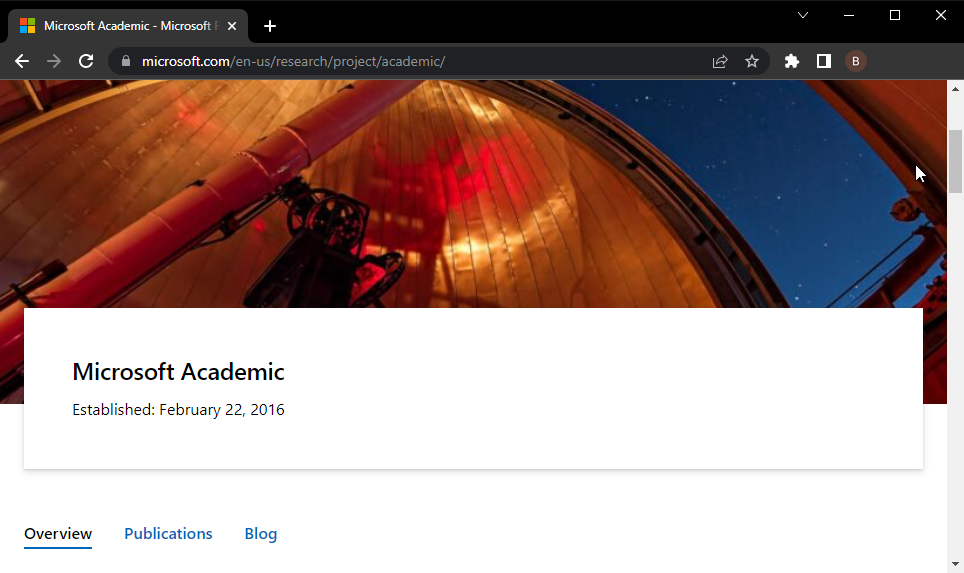
Thanks to its dynamism and coverage, Microsoft Academic is an excellent research browser. It covers over 210 million articles. 

One of the significant differences between this search engine and Google Scholar is the overview page for each indexed paper. This allows you to easily see the top citing articles without reading the entire document.

Other features:

  • Provides a complete abstract. 
  • Provides references.
  • APA, MLA, and BibTeX export formats.

⇒ Get Microsoft Academic

BASE – Highest coverage

base best browser academic research

BASE (Bielefeld Academic Search Engine) is a research browser hosted by the Bielefeld University in Germany. It provides resources from the combination of entries from many institutional repositories. 

What’s more, it is free and open-source. BASE allows you to search for everything for free, whether images, journals, abstracts, or articles.

Other features:

  • Over 240 million documents.
  • Contains duplicate articles.
  • Does not provide references.

⇒ Get BASE

Semantic Scholar – AI-powered engine

semantic scholar

Semantic Scholar is one of the newest browsers for academic research. It is driven by Artificial intelligence algorithms to provide results with more relevance and impact.

This is done by finding hidden links between topics. Also, you can stay updated on the latest articles in your field with the Semantic Scholar email alert.

Other features:

  • BibTeX and Endnote export format.
  • Provides links to the full text.
  • It shows related articles.

⇒ Get Semantic Scholar

Science.gov – Highest number of research websites

science gov browser academic research best

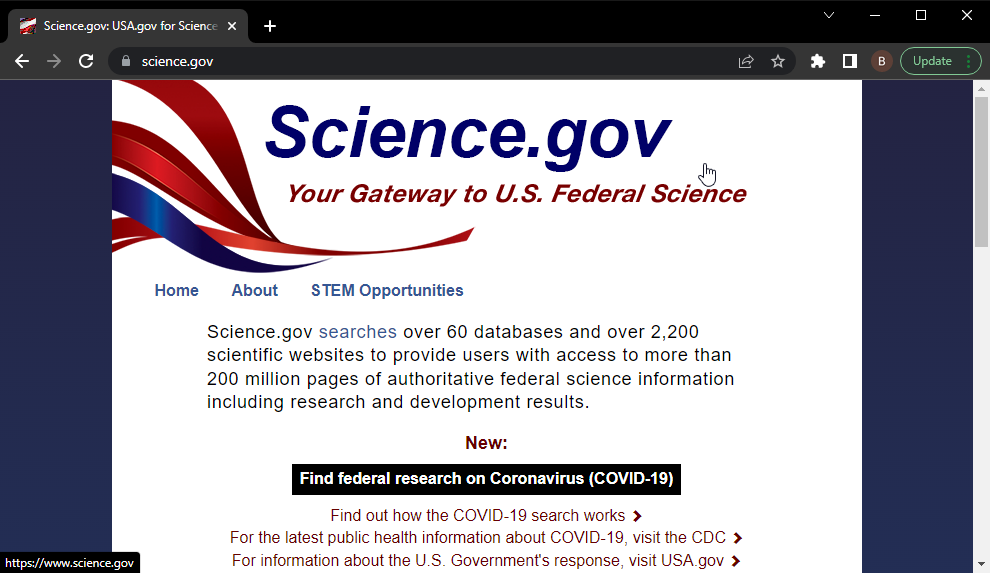
Science.gov is an excellent tool that provides users with reliable scientific research results. In addition, it allows you to access the best websites for research papers available online.

The articles provided by Science.gov are entirely free. Moreover, it covers over 200 million reports from more than 15 US agencies.

Hence, you are not short of credible materials to use for your research.

Other features:

  • Over 2200 research websites.
  • APA, and other export formats.
  • Provides the full abstract.

⇒ Get Science.gov

The best academic research browser should give you access to reliable resources. This is what the search engines in this guide provide, and you should find them helpful.

You can check our guide for some juicy top picks if you need a list of the best academic writing software.

Feel free to let us know which of the searches above you enjoy using in the comments section below.

Download the June 2022 Adobe Patch Tuesday updates

No doubt, many of you are waiting for the Patch Tuesday monthly batch of security updates and we’re here to make it a bit easier for you to find what you’re looking for.

It goes without saying that Microsoft isn’t the only company that has such a rollout on a monthly basis. So, in this article, we’re going to talk about Adobe and some of the patches for their products.

As we’re pretty sure you know by now, we will also include links to the download source, so you don’t have to scour the internet to find them.

Adobe releases a batch of fixes for 46 CVEs

May 2022 was a pretty light month for Adobe, with five updates addressing 18 CVEs in Adobe CloudFusion, InCopy, Framemaker, InDesign, and Adobe Character Animator.

Out of all the updates in last month’s rollout, the largest one is the fix for Framemaker, with 10 CVEs in total, out of which nine are Critical-rated bugs that could lead to code execution.

However, for June 2022, This month, the company released six patches addressing 46 CVEs in Adobe Illustrator, InDesign, InCopy, Bridge, Robohelp, and Animate.

By far the largest update belongs to Illustrator, which addresses 17 total CVEs, with the most severe of these bugs allowing code execution if an affected system opens a specially crafted file.

Vulnerability CategoryVulnerability ImpactSeverityCVSS base score CVSS vectorCVE Numbers
Out-of-bounds Write (CWE-787)Arbitrary code executionCritical7.8CVSS:3.0/AV:L/AC:L/PR:N/UI:R/S:U/C:H/I:H/A:HCVE-2022-30637
Improper Input Validation (CWE-20)Arbitrary code executionCritical7.8CVSS:3.0/AV:L/AC:L/PR:N/UI:R/S:U/C:H/I:H/A:HCVE-2022-30638
Out-of-bounds Write (CWE-787)Arbitrary code executionCritical7.8CVSS:3.0/AV:L/AC:L/PR:N/UI:R/S:U/C:H/I:H/A:HCVE-2022-30639
Out-of-bounds Write (CWE-787)Arbitrary code executionCritical7.8CVSS:3.0/AV:L/AC:L/PR:N/UI:R/S:U/C:H/I:H/A:HCVE-2022-30640
Out-of-bounds Write (CWE-787)Arbitrary code executionCritical7.8CVSS:3.0/AV:L/AC:L/PR:N/UI:R/S:U/C:H/I:H/A:HCVE-2022-30641
Out-of-bounds Write (CWE-787)Arbitrary code executionCritical7.8CVSS:3.0/AV:L/AC:L/PR:N/UI:R/S:U/C:H/I:H/A:HCVE-2022-30642
Out-of-bounds Write (CWE-787)Arbitrary code executionCritical7.8CVSS:3.0/AV:L/AC:L/PR:N/UI:R/S:U/C:H/I:H/A:HCVE-2022-30643
Use After Free (CWE-416)Arbitrary code executionCritical7.8CVSS:3.0/AV:L/AC:L/PR:N/UI:R/S:U/C:H/I:H/A:HCVE-2022-30644
Out-of-bounds Write (CWE-787)Arbitrary code executionCritical7.8CVSS:3.0/AV:L/AC:L/PR:N/UI:R/S:U/C:H/I:H/A:HCVE-2022-30645
Improper Input Validation (CWE-20)Arbitrary code executionCritical7.8CVSS:3.0/AV:L/AC:L/PR:N/UI:R/S:U/C:H/I:H/A:HCVE-2022-30646
Use After Free (CWE-416)Arbitrary code executionCritical7.8CVSS:3.0/AV:L/AC:L/PR:N/UI:R/S:U/C:H/I:H/A:HCVE-2022-30647
Use After Free (CWE-416)Arbitrary code executionCritical7.8CVSS:3.0/AV:L/AC:L/PR:N/UI:R/S:U/C:H/I:H/A:HCVE-2022-30648
Out-of-bounds Write (CWE-787)Arbitrary code executionCritical7.8CVSS:3.1/AV:L/AC:L/PR:N/UI:R/S:U/C:H/I:H/A:HCVE-2022-30649
Out-of-bounds Read (CWE-125)Memory leakImportant5.5CVSS:3.1/AV:L/AC:L/PR:N/UI:R/S:U/C:H/I:N/A:NCVE-2022-30666
Out-of-bounds Read (CWE-125)Memory leakImportant5.5CVSS:3.1/AV:L/AC:L/PR:N/UI:R/S:U/C:H/I:N/A:NCVE-2022-30667
Out-of-bounds Read (CWE-125)Memory leakImportant5.5CVSS:3.1/AV:L/AC:L/PR:N/UI:R/S:U/C:H/I:N/A:NCVE-2022-30668
Out-of-bounds Read (CWE-125)Memory leakModerate3.3CVSS:3.1/AV:L/AC:L/PR:N/UI:R/S:U/C:L/I:N/A:NCVE-2022-30669

You should also know that the big majority of these bugs fall into the Out-Of-Bounds (OOB) Write category.

If you are a Bridge user, then you should definitely acknowledge the fact that the update for Adobe Bridge fixes 12 bugs, 11 of which are rated Critical.

Next, we get to talk about the InCopy update, one that brings fixes eight Critical-rated bugs, all of which could lead to arbitrary code execution.

Moving on to the InDesign app, the patch fixes seven Critical-rated arbitrary code execution bugs, just in case you were wondering.

That being said, for both InDesign and InCopy, the bugs are a mix of OOB Read, OOB Write, heap overflow, and Use-After-Free (UAF) vulnerabilities.

There is only one bug fixed by the Animate patch, and it is also a Critical-rated OOB Write that could lead to arbitrary code execution.

We haven’t forgotten about Robohelp, where Adobe released a patch that fixes a Moderate-rated privilege escalation bug caused by improper authorization.

This is what you are looking at in terms of Patch Tuesday releases for Adobe for the month of July 2022, so hurry up and get the software.

What’s your take on this month’s release? Share your thoughts with us in the comments section below.

3 Tips on How to Easily Enable Dark Mode in Control Panel

Sitting in front of a computer with bright light all day can be tiring and cause eye pains. One remedy to this problem is enabling the dark mode setting on your computer. 

The dark mode setting turns the bright screen of your computer darker. The result is white text over a dark background, although some applications allow accent colors that change the text color over the dark background. 

Studies show that setting your screen to dark mode increases focus and reduces tiredness. So it’s no surprise that many users put their computers in Dark Mode. If you’re looking for ways to optimize the dark mode feature on your computer, here’s how to go about it. 

Why is the Control Panel not dark?

It is normal to set your computer to dark mode and notice that the control panel is not dark. However, changing your display settings to dark mode will affect the public display of your computer, including applications. 

However, this setting does not affect the control panel. To change the control panel display settings to dark mode, you must manually change the specific settings. 

Is there a Dark Mode for Task Manager?

The Windows 11 Task Manager has the system accent color and dark mode feature. You can select accent colors to match the background of your task manager. 

Is there a Dark Mode for File Explorer? 

The dark mode is becoming very popular for several devices and applications, including the built-in PC File Explorer. You can also change the accent colors to match the background of your file explorer. 

How do I turn on Dark Mode in the Control Panel? 

1. From Settings

  1. Press CTRL + ALT + S to open settings.
  2. Click personalization.
  3. Select colors.
  4. Go to the choose your default app mode and click the dark button. 

2. Using Windows Search

  1. Click on the Search icon in the taskbar.
  2. Enter color settings.
  3. Click on open.
  4. Click on Colors.
  5. Go to the choose your default app mode and click the dark button. 

3. Use the Run Command

  1. Press the Win + R keys.
  2. Enter control into the dialog box and click on OK.
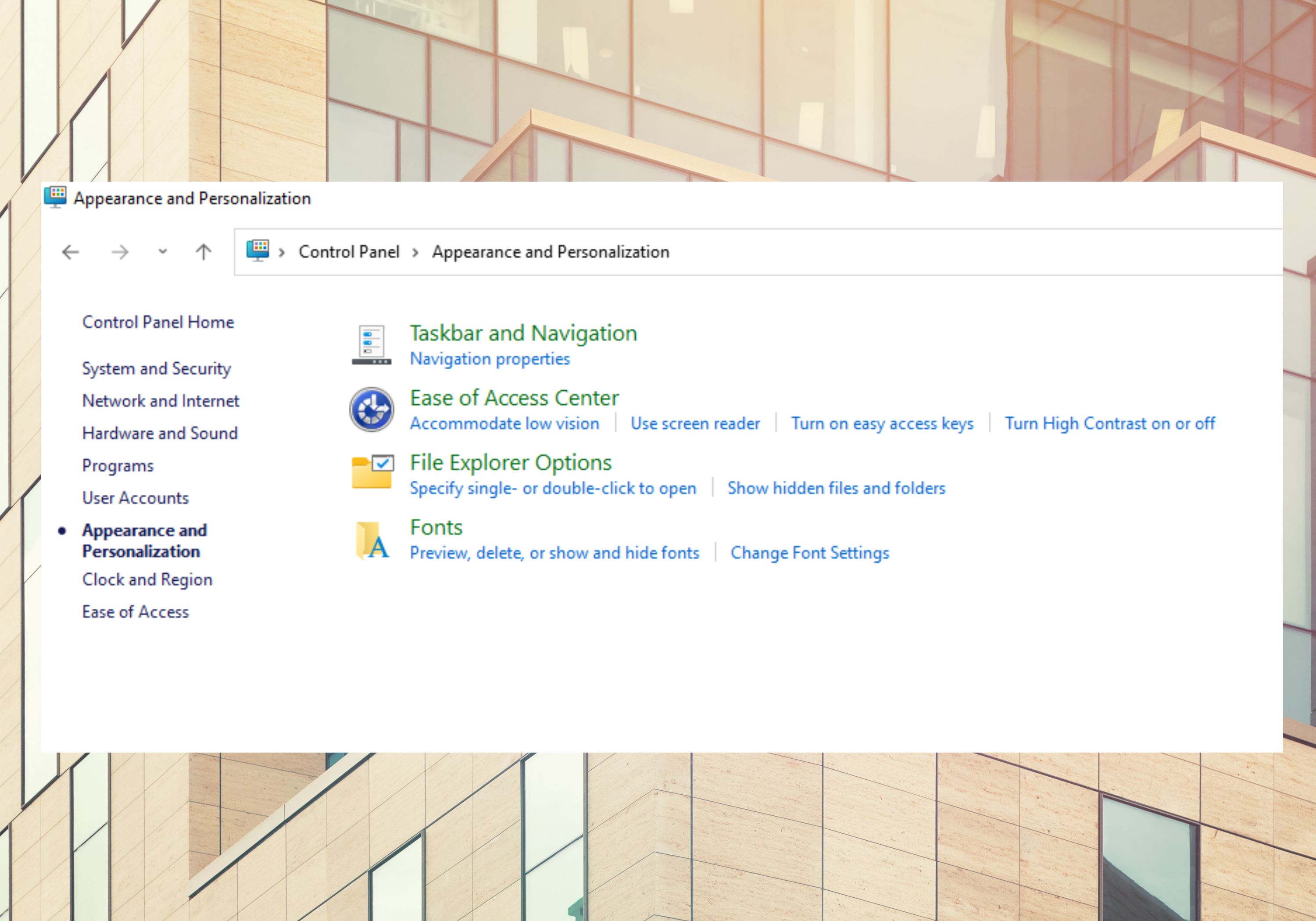
  3. Select Appearance and Personalization.
  4. Click on Taskbar and Navigation.
  5. Go to colors.
  6. Go to the choose your default app mode and click the dark button. 

An essential tip is to ensure that you update your Windows to the latest version.

The dark mode gives your device a mature and cool look while providing a better workspace. You can also turn on dark mode on your Microsoft Word.

I hope this article has helped you set up the dark way in the control panel on your device. 

How to Easily add PS5 Emojis to Your Discord 

Anyone can easily add PS5 emojis to communication platforms like Discord. Discord provides members with a safe space to mingle verbally and textually.

Emojis are a big part of visual language on the internet and media such as Discord. Just like other applications, Discord permits the use of emojis through text chat channels. In addition, the platform supports, allowing far more flexibility than regular emojis.

To enhance your Discord experience, download gaming emojis to your Discord server with these simple steps. 

Keep reading!

Does the PS5 keyboard have emojis?

Emojis are a core part of virtual texting today and are supported across several platforms, including Sony’s renowned line of sleek gaming consoles, the PlayStation.

The PS5 gaming console has numerous emojis, and the keyboard supports this through its customized emoji font.

Also, the PS5 supports all 3,521 emojis approved by Unicode, including those from September 2020’s Emoji 13.1. Also, the PS5 has better emoji support than what is obtainable on popular smartphones.

How can I get emojis on PS5?

The PS5 has custom Sony emoji designs, one of the most updated emoji platforms. In addition, players can send messages via the PlayStation home button while using the Messages function.

Access the emoji keyboard by pressing the L3 button when sending a direct message to another user. 

How to add PS5 emojis to Discord?

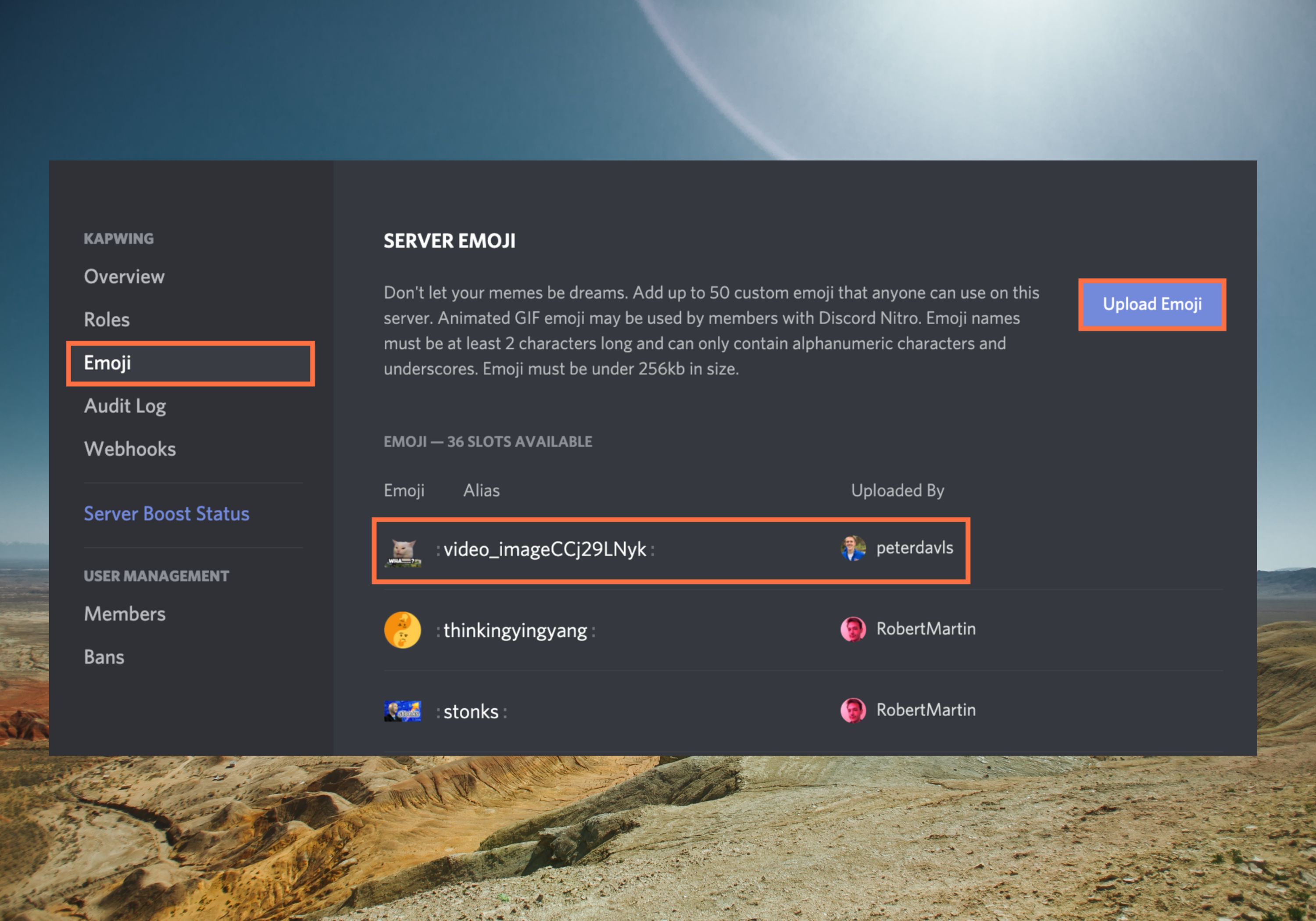
  1. Open the server you want to upload an emoji to, and then click the dropdown arrow next to the server’s name in the top-left corner of the screen.
  2. Select Server Settings.
  3. Click on the emoji tab. 
  4. Download your image and add it to your server. 

To add PS5 emojis to Discord, you’ll need to use a browser or desktop version of Discord. 

One option to get emojis would be to type the name of the emoji you want. Every emoji comes with associated names like Playstation, Nintendo_Switch, Joystick, Television, Swords_DPS, and so on, which you can find via the emoji menu.

You may also consider uploading your custom emojis gaming to your Discord account. An alternative is copying and pasting PS5 gaming symbols and emojis to your keyboard.  

Get your custom and gaming emojis with the steps listed above. If you have additional questions, let us know in the comments box.

How to Download and Install Safari for Chromebook: Step-by-Step

Looking to use Safari on your Chromebook? While Safari isn’t officially available for Chrome OS, there are some workarounds that let you download and install the Safari web browser on your Chromebook.

Whether you want to test websites on Safari or simply prefer its browsing experience, this guide will show you how to get Safari up and running on your Chromebook quickly and safely.

How can I download and install Safari for Chromebook?

Can I run Safari on my Chromebook?

Unfortunately, Safari is a macOS and iOS exclusive and it’s not available on other platforms. This means that you can’t download Safari on Chromebook.

safari open wikipedia page

Can you get a different browser on Chromebook?

Yes, it’s possible to get a different browser on Chromebook, but only on models that have Play Store or Linux available.

How do I install a new browser on a Chromebook?

If your Chromebook has access to PlayStore, you can download third-party browsers and use them. Alternatively, if you’re using Linux on Chromebook, you can install other browsers with Terminal.

To learn more, our gaming browsers for Chromebook article has all the information you need.

What is the fastest browser on a Chromebook?

Chrome is integrated into Chromebook, and it’s the fastest browser you can use. In case you’re having any performance issues with it, using a lightweight browser might help.

Can you install Edge on a Chromebook?

Yes, it’s possible to install Edge on Chromebook, and we have an entire guide dedicated to this, so don’t miss it.

If you’re on a different platform, we also have a great guide on how to install Safari on Windows 11, so don’t miss it.

If you’re interested in using Safari across different devices, you can find step-by-step guides to download Safari on Windows 10 and also learn how to install Safari on a Chromebook for a smooth browsing experience.

In the comments section below, let us know if you were able to download this browser for your Chromebook.

Vendor ID: What is it & How to Find it in Device Manager

What would you do if there’s an unknown entry in the Device Manager and you can’t recognize it? An unknown device doesn’t work unless you install a driver, and you can’t find the driver until the device is identified. This is where the Vendor ID in Device Manager comes into the picture.

Device Manager is an app that lists out all the devices, components, and peripherals connected to the computer, both internal and external. It also allows you the option to perform a bunch of functions, and find information about the device.

So, let’s understand what the Vendor ID is and how you can find it in the Device Manager.

What is the vendor ID?

Vendor ID is an identifier allotted to the device manufacturer to help track them down for various reasons, including finding the relevant driver.

Though, using the Device ID is a quicker and more straightforward approach. If you plan to lookup the Device ID in Windows, the process is pretty much the same as for Vendor ID.

How do I find the vendor ID of a device?

  1. Press Windows + S to launch the Search menu, enter Device Manager in the text field, and click on the relevant search result.device manager to find vendor id
  2. Locate the unknown device, right-click on it, and select Properties.Properties to find device manager vendor id
  3. Navigate to the Details tab.Details
  4. Click on the Property dropdown menu, and select Hardware Ids from the list of options.Hardware IDs
  5. Now, the number next to VID or VEN is the Vendor ID.Vendor Id
  6. You can also right-click on it, select Copy, and directly search for the Vendor. Copy to get device manager vendor id

How do I locate a Vendor using the Vendor ID?

Once you have the Vendor ID or the whole Identification Number (the string of characters from which we extracted the Vendor ID), locating the Vendor won’t be a difficult task. Simply search for the Vendor ID using a reliable search engine.

Just look through the search result and you will find a reliable website with a list of Device IDs Vendor ID. Look through it to identify the unknown device, and then install the drivers for it.

That’s how you can find the Vendor ID in Device Manager, and use it to identify both the Vendor and the Device, even if the computer does not recognize it.

Also, find out how to check the Device Manager logs in Windows 11.

If you have any other queries or want us to cover a certain topic, do not hesitate to drop a comment below.

7 Ways to Easily Fix Bluetooth Mouse Lag in Windows 11

The mouse is one the most vital devices connected to the computer, and problems with it, or even minor disruptions, can drastically impact your workflow. Several users encountered a similar issue when their Bluetooth mouse started to lag in Windows 11.

Bluetooth mice are generally more prone to issues due to wireless connectivity but offer several benefits over their wired counterparts. And the problems encountered with the former are easily fixable.

So, let’s find out what’s causing your Bluetooth mouse to lag in Windows 11, and the best solutions for the problem.

Why is my mouse lagging in Windows 11?

Connectivity issues are generally found to be behind lag on a Bluetooth mouse. It’s also likely that the mouse is kept far apart or its adapter is not plugged in properly.

Other than that, it could have to do with mouse or Bluetooth drivers. The driver is a critical piece of software that help relay commands between the device and the OS, and issues with it can cause the associated device to malfunction.

Besides, misconfigured settings or conflicting applications too have been found to lead to Bluetooth mouse lag in Windows 11.

How do I fix Bluetooth mouse lag in Windows 11?

1. Some basic checks

When using a Bluetooth mouse, make sure that it is in range. You can try turning off the mouse using the switch, waiting for a few moments, and then turning it back on. Also, restart the computer in case it’s a trivial bug that causes your Bluetooth mouse to lag in Windows 11.

In case you haven’t replaced the mouse batteries in a while, do that, and see if the lag problem is gone. If none of these work, try using a mouse pad as smooth surfaces affect the cursor movement.

2. Change the mouse pointer speed

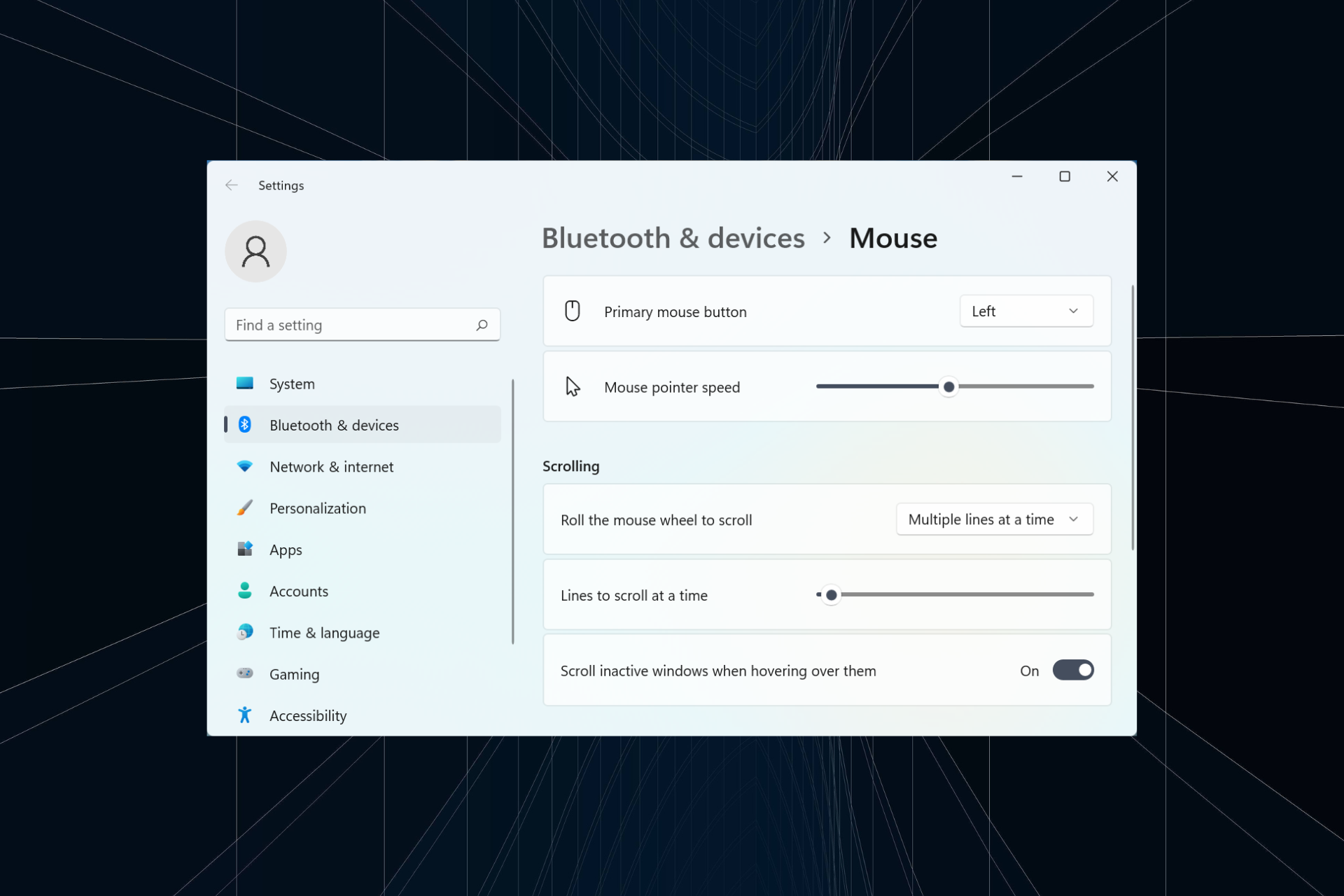
  1. Press Windows + I to launch the Settings app, and select Bluetooth & devices from the pane on the left.Bluetooth and devices to fix windows 11 bluetooth mouse lag
  2. Click on Mouse on the right.Mouse
  3. Now drag the Mouse pointer speed slider to the right to increase the cursor speed and set it at the desired level.Change pointer speed

If the Bluetooth mouse lag in Windows 11 started after you made some changes to the settings, do check the pointer speed. Also, increasing the pointer speed can act as a temporary solution for mouse lag.

3. Run the Bluetooth troubleshooter

  1. Press Windows + I to launch Settings, and click on Troubleshoot on the right in the System tab.Troubleshoot
  2. Click on Other troubleshooters.Other troubleshooters to fix windows 11 bluetooth mouse lag
  3. Now, locate the Bluetooth entry, and click on the Run button next to it.Bluetooth
  4. Follow the on-screen instructions and choose the appropriate response, when prompted, to complete the process.wait

4. Update the drivers

  1. Press Windows + S to launch the Search menu, enter Device Manager in the text field, and click on the relevant search result.Device Manager to fix windows 11 bluetooth mouse lag
  2. Now, double-click on the Mice and other pointing devices entry here.Mice and other pointing devices
  3. Right-click on the mouse that lags, and select Update driver from the context menu.Update driver to fix windows 11 bluetooth mouse lag
  4. Next, select Search automatically for drivers from the two options.Search automatically for drivers
  5. Wait for Windows to search for the best available driver and automatically install it.

If the above methods have not helped resolve Bluetooth mouse lag in Windows 11, updating the drivers might do the trick. In case the automatic method didn’t work, you may try manually installing the driver.

Similarly, update the Bluetooth driver and the graphics drivers as well on your computer.

If updating drivers is not your personal favorite task, there is an automatic solution. A driver updater tool such as Outbyte Driver Updater will scan your system for any problems or missing drivers and it will provide a report in just a few seconds. 

This is actually more efficient and faster than looking for drivers every time you have a problem with your Bluetooth devices. What if you have multiple Bluetooth devices installed?

When your Windows PC fails to find the proper driver, you may have to search for them yourself, which takes time and understanding of missing or outdated drivers. Save time and call in for an automatic, tested solution.

⇒ Get Outbyte Driver Updater

5. Turn of the Pointer Trails feature

  1. Press Windows + I to launch Settings, and select Bluetooth & devices from the left.Bluetooth and devices
  2. Next, click on Mouse on the right.Mouse
  3. Click on Additonal mouse settings at the bottom.Additional mouse settings to fix windows 11 bluetooth mouse lag
  4. Navigate to the Pointer Options tab.Pointer options
  5. Untick the checkbox for Display pointer trails, and click on OK at the bottom to save the changes.Disable display pointer trail to fix windows 11 bluetooth mouse lag

Pointer trails, as the name suggests, is a feature in Windows where you can track the movement of the pointer/cursor, as it moves across the screen. But, given the way this feature works, it might look like the cursor is lagging.

After disabling the pointer trail, check if the Bluetooth mouse lag problem in Windows 11 is fixed.

6. Uninstall conflicting applications

  1. Press Windows + S to launch the Search menu, enter Control Panel in the text field, and click on the relevant search result.Control panel
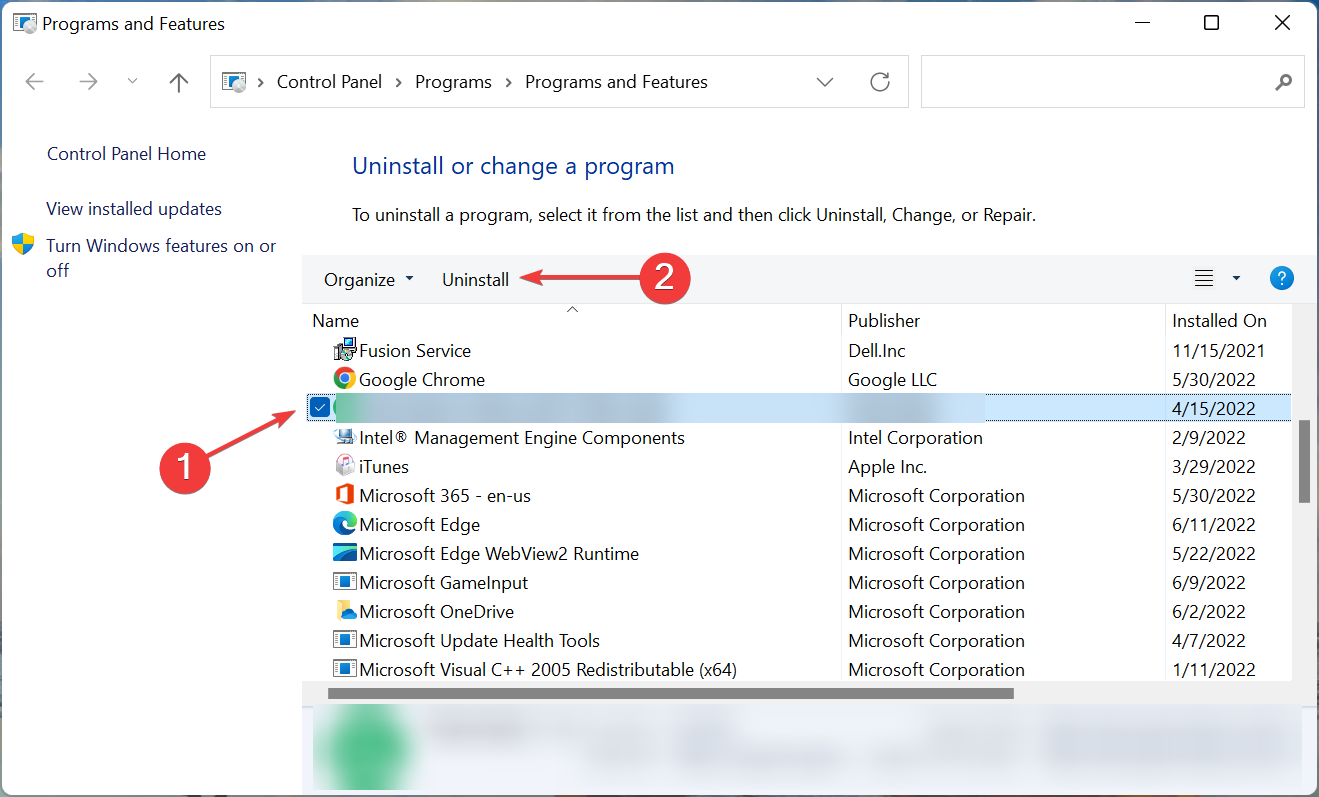
  2. Click on Uninstall a program under Programs.Uninstall a program to fix windows 11 bluetooth mouse lag
  3. Locate the conflicting application, select it, and click on Uninstall.Uninstall to fix windows 11 bluetooth mouse lag
  4. Click Yes in case a confirmation prompt pops up.Yes
  5. If a dedicated uninstaller appears, follow the on-screen instructions to complete the process.

Many users started encountering Bluetooth mouse lag in Windows 11 after installing a performance booster software or a tool that modifies/amplifies the cursor movement. If that’s the case, uninstall the app, and the mouse stuttering in Windows 11 would be fixed.

7. Run a malware scan

Note icon NOTE
We will be listing the steps to run a scan using the built-in Windows Defender. You can use an effective third-party antivirus as well to scan for malware and virus.
  1. Press Windows + S to launch the Search menu, enter Windows Security in the text field, and click on the relevant search result.Windows Security to fix windows 11 bluetooth mouse lag
  2. Click on Virus & threat protection.Virus & threat protection
  3. Now, click on Scan options to view all the available types of scans.Scan options
  4. Select the Full scan option and click on Scan now at the bottom.Full scan to fix windows 11 bluetooth mouse lag

The scan will take a few minutes to half an hour, or in some cases even more, depending on the number of files to be scanned. And, if it’s a malware or virus that was causing Bluetooth mouse lag in Windows 11, things should work fine now.

Should I disable Enhance Pointer Precision in Windows 11?

First, you need to understand what the Enhance Pointer Precision feature basically does. In simple words, it detects how fast you move the mouse and accordingly moves the cursor/pointer on the screen. So, the cursor would cover a different linear distance if the pace of mouse movement is altered.

For most, this feature actually brings more trouble than enhances precision because there is no clarity as to how far the cursor would go every time you move the mouse. This is particularly a problem for gamers where precision is critical.

By disabling the Enhance Pointer Precision feature, you would be able to assess the cursor activity beforehand since it does not depend on how fast or slow the mouse is moved.

Though the feature is enabled by default, users who are into gaming should disable Enhance Pointer Precision. Others who have never had a problem with the pointer can keep it enabled.

That’s all there is to the Bluetooth mouse lag issue in Windows 11 and the most effective solutions for it. Many also reported encountering lag when dragging windows in Windows 11, and the methods here should work for that as well.

By the time you reach this part, the problem should be long gone. In case it persists, the issue lies with the hardware, and you should consider buying a new and handy mice with long life.

Tell us which fix worked and the mouse you were having trouble with, in the comments section below.

3 Ways to Get Rid of You Are Logged On as a Standard User Popup

A Windows computer has two types of user accounts, Standard and Administrator. If you using a Standard account, the You are logged as a standard user. You can view device settings in Device Manager popup will appear when launching the Device Manager.

However, this does not mean that users cannot make any changes in the Device Manager. All they need is the password for the Administrator account on the computer.

Let’s see what you can do if you receive the You are logged as a standard user popup in Windows 10/11 on opening the Device Manager.

What does standard user mean on Windows 10 and 11?

Standard User accounts are basic and you can’t make any major (administrative) changes without authentication, though you can run applications and perform other tasks.

This account works fine for most users but has certain restrictions for Device Manager in Windows 11, and other administrative apps.

What can a standard user do?

A standard user can make changes pertaining to that particular account only. This includes changing the account password or picture, applying a new desktop wallpaper, viewing files, running applications, and accessing the Internet.

How do you fix You are logged on as a standard user?

1. Enter the password for the Administrator account

Note icon NOTE
We have listed the steps to access the various functions in the Driver tab. This should provide a basic understanding of the concept and help you perform other tasks as well.
  1. Click OK on the error box.OK
  2. Right-click on the device that you want to modify, and then select Properties from the context menu.Properties
  3. Click on the Change settings button.Change settings to fix device manager you are logged on as a standard user
  4. Enter the Pin/Password or use the biometrics to authenticate.Enter pin

None of the options will now be greyed out, as was the case earlier, but you will still receive the You are logged as a standard user popup on successive attempts.

2. Run SFC scan

  1. Press Windows + X and select Windows Terminal (Admin).Windows Terminal (Admin)
  2. Authenticate using any of the listed options.Authenticate
  3. Now, press Ctrl + Shift + 2 to open Command Prompt.
  4. Paste the following command and hit Enter to run the SFC (System File Checker) scan: sfc/scannowSFC scan to fix device manager you are logged on as a standard user

Check if the You are logged as a standard user popup stops appearing on opening Device Manager.

3. Switch to an Administrator account

  1. Press Windows + R to open Run, type netplwiz, and click OK to open User Accounts.netplwiz
  2. Authenticate using the method set by the Administrator.Authenticate
  3. Now, select the Standard user account, and then click on Properties.Properties to fix device manager you are logged on as a standard user
  4. Go to the Group Membership tab, select Administrator, and then click on OK at the bottom to save the changes.Administrator to fix device manager you are logged on as a standard user

If you want to access the Device Manager without encountering the You are logged as a standard user popup, switching to an Administrator account would do the trick.

Also, find out what to do if the Device Manager keeps flickering in Windows.

Tell us which fix worked for you in the comments section below.

Guild Wars 2: How to Fix not Authorized to Create Account Error

Guild Wars 2 is a popular, free-to-play MMORPG developed by ArenaNet; however, players have reported receiving an error in Guild Wars 2 that they are not authorized to create an account.

This can be a particularly frustrating issue as the game is becoming more and more popular, especially after the Guild Wars 2: End of Dragons graphics update, which enhances gameplay.

With over 16 million players, users can play for free, although there are upgrades that users can purchase. The game offers several expansions to buy; however, if you want to download Guild Wars 2: End of Dragons, we have a guide.

If you are receiving the error: Account creation failed, or There was an unspecified error, keep reading to find the solution.

Are Guild Wars and Guild Wars 2 accounts the same?

Guild Wars accounts are not the same.

An ArenaNet account allows users to have all of their accounts and games in one place and under one login.

An account on Guild Wars is not the same as Guild Wars 2, even if they are linked in ArenaNet, and thus players cannot continue using a Guild Wars character in Guild Wars 2.

Is Guild Wars 2 region-locked?

Yes and no; users can play on both EU and NA servers without creating a new account. However, if players with an EU account are in the US, they will not be able to use their EU account and need an NA copy.

When faced with geolocation restrictions, a reliable VPN service may provide you with the quickest access to unblocked content. It not only unblocks multiple types of content, but it also grants access to a large number of servers, allowing you to avoid network congestion.

When it comes to gaming, Private Internet Access is our most trusted VPN, so give it a shot and let us know how it goes.

⇒ Get Private Internet Access

What to do when you can’t create an account on Guild Wars 2

1. Try a different email

Try registering with a different email if you're getting the error that you're not authorized to create an account in Guild Wars 2.

Users have reported that they get an unspecified error when trying to create an account on Guild Wars 2. This is likely because the email is already associated with another account, including a Guild Wars 1 account.

Try using an email that is not a .edu or Gmail account.

2. Disable ad/script blockers

  1. Click on the menu button in your browser, usually located in the top left- or right-hand corner. open preferred browser menu.
  2. Click on Extensions or Manage extensions. Click on Extensions or Manage extensions.
  3. Locate any ad blocker or script blocker addons and disable them. Disable ad/script blockers to fix unspecified errors in Guild Wars 2.
  4. Restart your browser.

If you have ad/script blocker addons installed on your default browser, try disabling them.

3. Disconnect from WiFi on a mobile device

If you’re having issues, try disconnecting from Wi-Fi. This can be done by disconnecting from Wi-Fi and using mobile data. You can also try using a VPN.

This issue is likely the result of too many people in your area creating multiple accounts from an IP address.

Try creating a Guild Wars 2 account using mobile data instead of wifi if you're getting the error that you are not authorized to create an account.

How do I make a Guild Wars 2 account?

  1. Open up your browser and go to the Guild Wars 2 homepage. Visit the Guild Wars 2 homepage.
  2. Click Play for free.
  3. Input your information, then click Sign up. Input your information and click Sign up.
  4. Activate your account via email. Check your email for the activation link.

After creating your account, you can download Guild Wars 2 and begin playing for free!

Hopefully, you no longer receive errors in Guild Wars 2 telling you that you are not authorized to create an account. However, if you’re having issues with Guild Wars 2 crashing in Windows 10/11, we offer some solutions.

Let us know which solution worked for you in the comments below if there is a solution that worked for you that is not on our list, comment!

20 Most Expensive Xbox Controllers you can get your Hand on

Xbox controllers are an essential component of every console, and in today’s guide we’re going to show you the most expensive Xbox controllers that you can get.

Microsoft has largely been a computer software developer and vendor. However, this changed in 2001 when they released their first gaming console. At this time, companies such as Sega, Sony, and Nintendo dominated the market.

Several things define the gaming experience with Xbox, key among them the Xbox controllers. Over the years, the industry has seen an evolution in the controllers used with the Xbox console.

Brief history of Xbox controllers

The first Xbox controller, also known as the Duke, came with two analog triggers, six face buttons, a d-pad with eight directional pointers, two analog sticks, and two slots used for add-ons such as memory cards.

The controller had a bulky design, and the following year Microsoft introduced The Xbox Controller S which came with a slimmer form and rearranged face buttons.

Next came the Xbox 360 controller in 2005, with some major design changes. This controller was the first one to feature shoulder buttons and the guide button, which became stable for all future controllers.

This model is also the first one that had a wireless variant, which is something that all future models would follow.

The Xbox One Controller was similar to its predecessor, but it brought better haptic feedback for shoulder buttons along with more responsive controls.

After it came the Xbox Elite Controller which was an improvement of the previous model. It featured rubberized grip, customizable d-pad, interchangeable analog sticks, and programmable paddles.

Xbox One S Controller was similar to the original version, but it brought Bluetooth support. This allowed users to sync with PCs without having to use additional adapters.

Xbox Elite Wireless Controller Series 2 was an improvement over the previous Elite controller. It came with added Bluetooth support and the ability to adjust tension and pressure for each analog stick.

The latest entry is the Xbox Series X Wireless Controller. It comes with a dedicated screenshot button, and it also has a hybrid d-pad, textured triggers, and bumpers, as well as button mapping.

It’s worth mentioning that there are many limited versions of controllers, and they are usually game-specific. It’s also worth noting that you can also customize your own controller through Xbox Design Lab.

However, this service isn’t available at the moment, but there are many third-party services available that you can use to design your controller.

What is the most expensive Xbox One controller?

Some Xbox controllers have been quite expensive over the years especially due to the evolution witnessed in the same period.

Do you know the most expensive Xbox One controller ever? If you’re looking for one, you might want to consider getting the golden controller.

This has happened with the previous versions of the Xbox console and controllers. Linus Sebastian, an influencer, has made the most expensive Xbox controller ever from solid gold.

It cost about $87,500 to make the controller, which makes it the most expensive Xbox controller.

So, how much is the most expensive controller in the world? It will cost you about $87,500 to get a controller similar to the one discussed above.

You can also opt for the Thrustmaster TS-XW Servo Base controller which costs about $372.

What is the rarest Xbox controller?

The rarest Xbox controller is the Xbox Series X Launch Team controller. It was issued to Xbox employees who were involved in the development of the Xbox Series S and X.

These controllers are the rarest Xbox controllers we have today because they were never sold.

This controller comes with a design that looks like the one employed in the Robot White Xbox Wireless controller. It also comes with a white D-Pad, menu, view, and thumbsticks. The A, B, X, and Y buttons are fully green.

It also features a black line pattern covering the faceplate and launch dates for all Xbox consoles scripted within the line pattern. This controller has the words Project Scarlett and Launch Team written on the controller.

Other rare Xbox controllers include the Halo 5: Guardians Master Chief and Spartan Locke of 2015.

There’s also Deep Blue, Military Green, and Storm Gray of 2016, X018 Sugar Skull of 2018. For Start Wars fans there’s Razer Boba Fett wireless controller and The Mandalorian Giveaway of 2020.

How we chose the most expensive Xbox controllers?

Our team of expert testers has made sure to try out all the devices that were worthy of mention to create the results presented in this guide.

The team, with an added experience of more than 15 years in the field of testing hardware, has meticulously chosen the finalists for this list after rigorous testing on a variety of levels.

Tip icon Tip
Editor’s tip:

To pick the best Xbox controller, you need to consider the following elements:
➡ Programmable buttons
➡ Changeable thumbsticks and D-pad
➡ Design
➡ Wireless capability

The following guide takes all these factors into consideration in order to provide you with the most accurate results.

What do consider when choosing the most expensive Xbox controllers?

Programmable buttons

Many high-end controllers have programmable buttons at the bottom that you can remap any way you like.

By doing so, you can use them to perform certain actions in games that you wouldn’t be able to otherwise.

Replaceable components

Being able to replace thumbsticks and D-pad is important because you can customize the controller, and ensure that your user experience is completely optimized.

Some models allow you to completely replace analog sticks and D-pad, which is great especially if you start having issues with either of them.

Design

When it comes to design, users should pay attention to the ergonomics and the over design. Controllers with rubberized grip will always fit better in your hand, so they are usually a better choice.

Visual design is also important to some users, and you’ll be pleased to hear that there are amazing design choices available so you’ll surely find what suits you.

Wireless

Wireless capability is important since it will allow you to enjoy in gaming sessions from any distance, so you won’t have to worry about your cables.

Of course, some controllers don’t have this feature, but they make up for it with other features.

Tip icon Tip
Buyer’s tips:

➡ If you’re looking for the most expensive controller, then Thrustmaster TS-XW Servo Base is the perfect choice for you.
➡ As such, it’s a perfect choice for racing games with its precise force feedback.
➡ On the other hand, if you need something that is closer to a regular controller Microsoft Elite Series 2 Controller is a must-have.
➡ With its customizable D-pad and analog sticks, you can customize your controller any way you want.

What are the most expensive Xbox controllers in the world?

TS-XW Servo Base controller

  • Compatible with various ThrustMaster add-ons
  • Powerful force feedback
  • Smooth and quiet performance
  • Compatible with Xbox One, Series X/S, and Windows
  • No major complaints

The Thrustmaster TS-XW Servo Base controller is a powerhouse composed of different technologies with a bid to provide users with cutting-edge performance.

It comes with a host of features, among them a brushless servomotor that provides users with dynamic torque and powerful force feedback effects.

It also features an axle that is mounted on its metal ball bearings. This is important for linear and balanced performance, something enhanced by its T-LIN technology.

Its responsive and smooth action remains silent when playing games, making sure users have an amazing experience when playing games.

It also comes with a built-in cooling system whose purpose is to maintain the dynamic performance of the controller’s motor while remaining silent and without overheating.

If you’re looking for the most expensive Xbox One steering/racing wheel, then this model is the perfect choice for you.


Elite Series 2 Controller

  • Adjustable-tension thumbsticks
  • Changeable thumbstick and paddle shapes
  • Custom button mapping
  • 40 hour battery life
  • Small for some gamers
  • Minor Bluetooth issues on PC

The Elite Wireless controller is among the most comfortable Xbox controllers we have today. It beats most of its competitors when it comes to its features as well as customization.

This controller allows users to customize its triggers, the D-pad and sticks to match their gaming needs. It also comes with back paddles for the ultimate gaming experience. Gamers also get an Xbox Elite app for advanced customization. This app allows them to remap all the buttons on the controller.


Instinct Pro

  • Remappable paddles with 16 different functions
  • Adjustable instant triggers
  • Ergonomic design and high-performance grip
  • Customizable thumbsticks and faceplate
  • Too small for some users
  • Back paddles are too close

If you are a gamer who enjoys eSports, then this is the Xbox controller for you. This is because of the ability of gamers to customize the controller in a bid to get the best performance when gaming. It comes with a host of features such as custom triggers. Users can also choose from different color options, analog sticks, and buttons, among others.

The Scuf Instinct Pro comes with regular triggers that are placed around the rear grips. This ensures that gamers do not struggle to press the buttons, especially in the heat of the moment when competing with other online gamers.

This might not be the most expensive SCUF controller, but it’s certainly one of the best.


Revolution X Pro Controller

  • Interchangeable stick tops and bases
  • Weight compartment for additional adjustment
  • 4 shortcuts
  • Compatible with Xbox Series X/S, Xbox One and PC
  • Slight stick wobble
  • Lower two buttons are hard to push

Even though the Nacon Revolution X Pro is a wired Xbox controller, it is one of the best controllers for gamers who want to experience full control over their style of play. It takes its inspiration from the original Xbox controller but features extra customizations such as an RGB ring on the right thumbstick and backlighting features.

It comes with large buttons at the back and an extra button whose purpose is to allow gamers to switch from one profile to another. You can have a maximum of four profiles. Using the Revolution X Software on Windows OS or Xbox, you can customize these profiles to match your requirements.


Wolverine Tournament Edition

  • 4 remappable buttons
  • Razer Chroma lighting support
  • Hair-trigger mode with trigger stops
  • Ergonomic rubber grip
  • No audible or touch feedback on bumpers
  • Xbox is required to remap buttons

The Razer Wolverine Tournament Edition is known for its advanced customization capabilities. This controller comes with four remappable buttons with two of them acting as back paddles that gamers can easily access even when in the heat of the moment during a game.

It also comes with hair-trigger locks whose sole purpose is to reduce the stress gamers experience when looking for the right button during a game, especially in shooting games. It features a non-slip rubber grip for enhanced handling so it will remain in your hands even during intense gaming sessions.


Xbox Adaptive Controller – Designed with accessibility in mind

  • Optimized for gamers with limited mobility
  • Highly customizable with accessories
  • Supports button remapping
  • Compatible with Xbox and PC
  • Bulky
  • Support from Microsoft could be better

Players with physical disabilities might find it difficult to use traditional controllers when playing games. The Xbox Adaptive Controller is the best for these people. It comes with a fully customizable hub that enhances its accessibility. 

For instance, it features input ports on its side that represent every button on the traditional Xbox controller. Using a USB device, users can control its functions to ensure that the controller meets their requirements.

In addition, it comes with the capability to customize different profiles that can be switched easily depending on the requirements of the players.

Night Ops Camo Special Edition – Best for its design

  • Great visual design
  • Customizable button mapping
  • Compatible with Xbox Series X, Xbox One, Windows 10/11
  • Etched trigger grip
  • No rubber gripping on the back
  • Controller feels slippery

Microsoft launches special controller editions designed for Xbox users who want something extra from the normal controller. The Night Ops Camo Special Edition was released in 2021 and its design features a black and gray camo pattern.

It comes with the latest controller features such as a hybrid D-pad, textured grips on bumpers and triggers, a share button, and others. It works well with Xbox One and can also be used as an Xbox Series X controller as well.

MAYFLASH Arcade Stick F500 Elite – Intended for fighting games

  • 9 highly responsive buttons
  • 4-way precision joystick
  • Customization support
  • Compatible with various gaming consoles
  • Doesn’t work with USB hubs and extension cables
  • Buttons are too sensitive

Playing with a fight stick is one of the best ways of enjoying fight games. The best fight stick controller available is the MAYFLASH Arcade Stick F500 Elite. It features an amazing build quality with high-end components. Its buttons are quite responsive and come with a precise joystick.

Gamers can add many customizations to the fight stick to match their requirements, giving them control over their style of play. This controller works well with Xbox One but is also compatible with Xbox Series X.

Thrustmaster T-Flight Hotas One – Optimized for flight games

  • Ergonomic design
  • Detachable, full-size throttle
  • 5 axes
  • 14 action buttons, 1 rapid-fire trigger, 1 multidirectional hat switch
  • Short cable between the throttle and stick
  • No headset port

If you are a fan of flight games such as Star Wars Squadrons or Ace Combat, then the Thrustmaster T-Flight Hotas One is the best controller for you. This is because it comes with a flight stick that will leave you feeling like you are on an actual flight. 

It provides gamers with a hands-on throttle and sticky feel. These elements come together in an affordable package, compared to what they do. This controller connects the joystick and throttle with a sturdy base. Gamers can also pull them apart if they want to. This ensures that they can place the elements the way they would like to.

Thrustmaster ESWAP S PRO CONTROLLER – Zero-lag choice

  • Great design
  • Highly responsive
  • Easily replaceable analog sticks
  • Compatible with Xbox Series X|S, Xbox One and Windows
  • No wireless
  • Too large for some gamers

This is a modular gamepad, and it lets you change and replace the analog sticks easily, without having to use any additional tools.

The controller comes with near-zero latency, so you can enjoy high-intensive games without skipping a beat. It’s important to mention that the mechanical D-pad is ergonomical, and it offers enhanced precision.

Lastly, the 2 additional rear buttons can be remapped, allowing you to assign different functions or disable them completely.

Xbox Elite Controller Series 2 Limited Edition – Visually impressive

  • Replaceable analog sticks and D-pad
  • Rubberized grip
  • Great two-sided design
  • Hydro-dip painting
  • Minor issues with paddles
  • Artwork could be better on some models

This is an Xbox Elite Series 2 Controller, so it shares the same functionality such as programmable buttons, adjustable tension thumb sticks, short trigger locks, and a rubberized grip.

Of course, paddles and the D-pad can be easily replaced for optimal performance. However, this controller comes with front and back prints, and it has tens of different designs available.

Using the hydro-dip painting, the colors won’t ever fade, so your controller will look great even after months of heavy gaming.

HexGaming Esports Advance Controller – Great design

  • Interchangeable thumbsticks
  • 3 different heights, four designs
  • Can work in wired or wireless mode
  • Great artwork
  • No major complaints

This controller is highly customizable and it comes with interchangeable thumbsticks, and you can choose between 3 heights and 4 grip designs.

Remapping is available allowing you to assign a maximum of 14 buttons to the rear buttons for easier access. Hair triggers are also available, so you’ll experience a lightning-fast response time.

Lastly, we have to mention the design, and the controller has artwork on both sides, thus spicing up its appearance. Of course, you can choose between many different designs and find the one that works best for you.

Thrustmaster eSwap X PRO Controller – Extensive customization

  • Replaceable analog sticks and D-pad
  • Next-gen sticks with great precision
  • Physical locking for triggers
  • Different modules to choose from
  • Sticks can get loose
  • Noisy bumpers

In case you’re looking for a modular controller, then this model might be just what you need since it comes with replicable analog sticks and D-pad, and you can even swap their position for optimal performance.

Speaking of customization, you can easily adjust the travel range of the triggers, so you can achieve the best performance.

Programmable buttons are available at the bottom, and you can remap them any way you want. Speaking of customization, you can get different color modules and achieve some impressive results.

Razer Wolverine V2 Chroma – Great RGB support

  • Highly responsive mecha-tactile action buttons and D-pad
  • Interchangeable thumbstick caps
  • Ergonomic design
  • Extensive RGB support
  • Feels slippery for some users
  • No wireless support

If you want to make your gaming session more immersive, you can do that with this controller since it comes with 16.8 million colors and various lighting effects.

The controller has four additional triggers and two remappable buttons that you can configure any way you want.

The controller is ergonomic with its modified L-shaped handgrips and non-slip rubber. It’s worth mentioning that thumbstick caps are interchangeable, so you can between short and extended ones.

Wordene Series X|S – Advanced features

  • Mod chip installed
  • Compatible with Xbox One, Series X|S , PC and mobile
  • Vibrant design
  • Abundance of features
  • Random rare drops when using the controller
  • Trigger response is sluggish for some users

Custom controllers offer unique designs, and this is why some users might be interested in Wordene Series X|S controller.

The controller comes with a mod chip installed, and it supports various features including rapid fire, quick scope, sniper breath, drop shots, sniper breath, and many others.

Regarding the design, it has a vibrant look, so if you need a controller that will stand out from the others, this one might be what you need.

Bottom runners

There are many controllers that didn’t make it to our list, so we’ll cover them briefly in this section.

⇒ Numskull Next-Gen Pro Racing Wheel

If you’re a fan of racing games, then this controller might be perfect for you. It comes with analog pedals with anti-slip pads and a 23cm diameter wheel.

The controller is compatible with the latest version of Xbox, but keep in mind that headphones and headsets aren’t supported, so this is why we didn’t include it on our list.

⇒ Xbox Core Wireless Controller – Forza Horizon 5 Limited Edition

This controller comes with a textured trigger grip and bottom and side dimple grip patterns, so it will remain steady in your hands during gaming sessions.

Regarding the design, it comes with a vibrant design that looks great, but some users might not like it, so we decided to include this model in this section.

⇒ Hyperkin Duke Wired Controller for Xbox Series X|S

For retro gamers, we have a special retro controller inspired by the original Xbox Duke controller. The button layout is the same as on the original model, so it’s almost the same as playing on an original controller.

Regarding the design, it comes with Cortana on the front, so it looks visually appealing, and it’s perfect for retro gamers and Halo fans.

⇒ Enhanced Wireless Controller for Xbox Series X|S

The controller comes with four mapping buttons that can easily configure. You can also find four rumble motors for immersive feedback.

The built-in battery can last up to four hours on a single charge, so you can enjoy intense gaming sessions without any worries.

⇒ PowerA FUSION Pro 2 Wired Controller

With the programmable buttons, you can take your game to the next level and enjoy haptic feedback with dual rumble motors.

There are four programmable paddles that you can map to any button, and there are also three-way trigger locks, so you can adjust the depth of the triggers as you like.

How much is the most expensive Xbox?

Now that we have seen some of the most expensive controllers, some gamers might want to get an expensive Xbox as well. If you’re interested, you might want to acquire one of the hundred Xboxes launched by Gucci in 2021.

The fashion company released a limited version of the Xbox Series X console, with each one of them numbered. This is the most expensive Xbox Series X and comes with a lot of extras at $10,000. They come with two controllers with red and blue strips to show the colors of the fashion company.

Imagine the gaming experience you would have if you acquired this Xbox Series X as well as one of the most expensive Xbox controllers such as the Thrustmaster TS-XW Servo Base controller!

Now that you know what are the most expensive Xbox controllers, why not consider some Xbox NFT games to play?

What is the best Xbox controller in your opinion? Let us know in the comments section below.

Elden Ring patch 1.05 comes with fixes for PC Xbox, and PS [Patch Notes]

Since Elden Ring is all that everyone can talk about these days, we’re here to tell you that the game just got a new update this week for two of the three platforms the game’s available on.

The new update is relatively small in size, but effective, as it takes care of a couple of issues that players on PlayStation, Xbox, and PC have been experiencing.

Let’s dive in together and find out all of the latest changes and fixes that are coming to your new favorite game, written by George R.R. Martin.

What changes does patch 1.05 bring to Elden Ring?

This time around we are looking at a pretty hefty rollout for Elden Ring, as From Software had a lot of ideas on how to improve its latest masterpiece in patch 1.08.

Most of the tweaks and fixes are addressed to all the platforms that support the game, but there are some that only target PC players, as follows:

  • Added keyboard/mouse operations that can be input in PRESS ANY BUTTON on the title screen.
  • Added Return to Desktop to the system item on the main menu for exiting the game.
  • Changed so that mouse click input is not reflected when switching windows to active.
  • Fixed a bug that slowed performance when changing Screen Mode and Resolution in a special procedure.

Now, as far as the changes that will impact Elden Ring for Xbox, PlayStation, and PC, while transactioning with the Twin Maide Husk NPC, the following Bell Bearing items have been changed so that their liberated status will be carried over to the NG+ play:

  • Bone Peddler’s Bell Bearing
  • Meat Peddler’s Bell Bearing
  • Medicine Peddler’s Bell Bearing
  • Gravity Stone Peddler’s Bell Bearing
  • Smithing-Stone Miner’s Bell Bearing
  • Somberstone Miner’s Bell Bearing
  • Glovewort Picker’s Bell Bearing
  • Ghost-Glovewort Picker’s Bell Bearing

From Software also added emphasis to the choice of the Sacred Flask and several other options that can be strengthened in the grace menu.

You will also be pleased to know that developers have also added sound effects when other players’ summon signs appear, making the experience even more entertaining.

Fixes

  • Fixed a bug where equipment could be changed from the equipment menu during the use of a skill under certain circumstances.
  • Fixed a bug in the “War Cry” skill where the effect was applied to a weapon that was not the target of the skill.
  • Fixed a bug where some actions of the “Barbaric Roar”, “War Cry”, and “Troll’s Roar” recovery time was longer than expected.
  • Fixed a bug where the effects of the “Determination” and “Royal Knight’s Resolve” skill does not always wear off with certain weapons.
  • Fixed a bug in which some attacks of the “Ice Spear” skill are unguardable.
  • Fixed a bug that caused the attack power of some skills to be reduced when using the “Golden Vow” skill.
  • Fixed a bug that the light wave of the “Moonlight Greatsword” skill sometimes does not aim at the locked-on target.
  • Fixed a bug that caused damage to allies when using the “Seppuku” skill under certain circumstances.
  • Fixed a bug that caused the increase in attack power of the “Seppuku” skill to be higher than expected for some attack motions.
  • Fixed a bug in which a status effect was applied when using the “Hoarah Loux’s Earthshaker” skill.
  • Fixed a bug where the “Waves of Darkness” skill would not hit the enemy with a spinning cleave.
  • Fixed a bug that caused unintended motions to be played when switching to a different sorceries or incantations while using a sorcery or incantation.
  • Fixed a bug that the FP consumption increased when using the sorceries “Magma Shot” and “Roiling Magma” while riding a horse.
  • Fixed a bug where the “Claw Talisman” effect was not applied when jumping with the “Starscourge Greatsword” in both hands.
  • Fixed a bug that the power of two-handed attacks except jump attack of the weapon “Golem’s Halberd ” is different from expected.
  • Fixed a bug that when using the weapon “Pulley Crossbow” with the left hand while the right hand weapon was given an attribute by magic or item, the effect was given to the “Pulley Crossbow” as well.
  • Fixed a bug in which arrows and bolts that did not match the type of long-range weapon could be released in certain procedures.
  • Fixed a bug in which guard boost was reduced when some weapons were strengthened to the maximum.
  • Fixed a bug in which the attributes of weapons could be changed while the inventory had reached its maximum capacity and the ashes of war could not be changed.
  • Fixed a bug that caused the boss “Malenia, Goddess of Rot” to have low HP under certain circumstances.
  • Fixed a bug that allowed enemies to be attacked from outside the fog in certain areas.
  • Fixed a bug in online multiplayer where, when a boss is defeated in the host’s world as a cooperative player, the same boss may not appear in your world.
  • Fixed a bug that prevented the battle with the boss “God-Devouring Serpent” from progressing under certain circumstances.
  • Fixed a bug that prevented hostile NPCs from appearing under certain circumstances.
  • Fixed a bug that prevented the event of the NPC “Alexander, Warrior Jar” from progressing under certain circumstances.
  • Fixed an issue where the item “Sacred Flask” is not restored after destroying a group of enemies under certain circumstances.
  • Fixed a bug that under certain circumstances, after defeating the boss “Starscourge Radahn”, the user could not move from the map to the grace.
Note icon NOTE
If you cannot move from the map to the grace, you can move to the grace by touching the grace “Starscourge Radahn”
  • Fixed a bug that prevented found sites of grace from registering on the map under certain circumstances.
  • Fixed a bug that prevented some graces from being able to be touched when approached under certain circumstances.
  • Fixed a bug that allowed hostile guests to enter boss areas under certain circumstances.
  • Fixed a bug that prevented a critical hit from behind from hitting in hostile multiplayer.
  • Fixed a bug that caused performance to slow down when the “Sentry’s Torch” weapon was equipped under certain circumstances.
  • Improved stability of online multiplayer between PS4 and PS5
  • Improved loading times for the Xbox Series X|S version
  • Fixed a bug that the master volume setting was not reflected in some cutscenes
  • Improved stability of online multiplayer.
  • Fixed a bug that caused sounds to play differently than expected in some situations.
  • Fixed a bug that caused the player to become inoperable and die in certain locations.
  • Fixed a bug in which the drawing and hit detection were different than expected in some maps.
  • Fixed a bug in some maps that allowed players to reach unexpected locations with certain procedures.
  • Fixed some texts.
  • Several other performance improvements and bug fixes

Have you noticed any other problems that need a quick fix in Elden Ring? Share your experience with us in the comments section below.

Microsoft acquires Milburo to bolster foreign threat detection and response solutions

Microsoft continues to beef up its cyber threat analysis and response solutions portfolio with the acquisition of Milburo, a company specializing in foreign threat and research detection.

Today Microsoft announced via its Official Microsoft Blog that it has entered into an agreement to acquire Milburo, to specifically roll the company and its resources into the Microsoft’s Customer Security and Trust organization.

According to Microsoft’s corporate vice president of Customer Security and Trust, Tom Burt, the company is looking for Milburo to step in and help mesh its current threat detection platforms while also expanding its abilities to counter new cyber threats and state sanctioned information operations.

Working in close collaboration with the Microsoft Threat Intelligence Center, our Threat Context Analysis team, our data scientists and others, the new analysts from Miburo will enable Microsoft to expand its threat detection and analysis capabilities to address new cyber-attacks and shed light on the ways in which foreign actors use information operations in conjunction with other cyber-attacks to achieve their objectives. Miburo has become a leading expert in identification of foreign information operations.

As part of Milburo’s mission statement, the company has set out to help “protect democracies and the free information environment from malign influence and extremism.”

Microsoft may be looking to leverage Miburo’s robust language portfolio as well as its expansive foreign information operations knowledge to help bolster Redmond’s solutions for private, public, military, research, and law enforcement sectors in international markets.

The announcement comes about a month after Microsoft publicly acknowledged its role in combating state-sanctioned cyber-attacks and disinformation campaigns aimed at Ukraine by Russia.

Microsoft Teams reportedly working on adding casual games

According to Tom Warren from The Verge, Microsoft is currently working on getting casual games to Microsoft Teams. Microsoft aims to leverage this inclusion as a way of enhancing Teams’ user experience, where the meeting’s attendees will get to play these games against each other.

Based on The Verge’s source, users can expect entries such as Solitaire, Connect 4, and Wordament making their way to Microsoft Teams.  As we speak, Microsoft is currently testing this out internally, and there is a chance that these games might actually not make it to Microsoft Teams as they refused to comment on the matter when the Verge reached out for clarification.

According to the blog post by The Verge:

Alongside testing casual games in Teams, Microsoft also envisions virtual spaces inside Teams where colleagues can network and socialize with games. These virtual spaces are part of Microsoft’s broader metaverse plans, and the company has previously detailed its ambitions for 3D avatars and immersive meetings that are expected to arrive in Microsoft Teams this year.

Microsoft has been updating and making improvements on the platform to help users embrace the remote and hybrid work arrangement more. While it is not yet clear, if and when Microsoft will be rolling out these casual games to Teams, it would be quite interesting to see the effect it has on its user experience.


Improved AI-powered features coming to Microsoft Teams

You might have not heard anything about Teams for a while, but that doesn’t mean that Microsoft has given up on one of its most successful applications.

In fact, the Redmond-based tech giant just released a long list of new features for Teams to improve audio and video on the service.

The Teams app now uses artificial intelligence to make meetings and calls feel more natural, which will be a significant improvement.

What’s coming to Microsoft’s Teams?

We know you want specifics, so we’re actually talking about echo cancellation, de-reverberation, background noise suppression, and real-time optimization for content sharing.

The Vice President for Microsoft Teams, Nicole Herskowitz, has actually outlined the new features, mentioning that disruptive echo effects, poor room acoustics, and choppy videos are some common issues that hinder the effectiveness of online calls and meetings.

Thus, through AI and machine learning, Microsoft has identified and is now delivering innovative enhancements in Microsoft Teams that improve such audio and video challenges.

This means that, even if you’re using one of the best webcams, a room with poor acoustics can drastically reduce audio quality.

Microsoft’s above-mentioned AI features for the Teams software should alleviate this to some extent by canceling echoing, reducing reverberation, and allowing two people to speak at once.

That last feature should also make it less awkward when trying to hold a normal conversation that involves back-and-forth communication.

If you want to check the complete list of improvements, this is what’s coming:

  • Echo cancellation
  • De-reverberation adjusts for poor room acoustics
  • Interruptibility for more natural conversations
  • Background noise suppression
  • Real-time screen optimization adjusts for the content you’re sharing
  • AI-based optimization ensures your video looks great, even under bandwidth constraints
  • Brightness and focus filters that put you in the best light

So, if you are a Teams user, you will surely be delighted to know that all of these changes are being implemented to your favorite app.

What other features do you feel Teams is missing? Share your opinions with us in the comments section below.

Weekly Planner Software: 9 Best to Use in 2026

To make the most of every day, you need to be organized. In this way, you will have almost everything under control. Using a schedule makes it easier to find free time to dedicate to your favorite activities.

Organizing each task within the week is crucial if you want to make sure that nothing is neglected, and you reach your goals.

You definitely need a user-friendly and efficient calendar if you want to stay organized all week long. Well, you’ve come to the right place. This article highlights the best software that you can use to plan your week.

This article aims to give you a valuable guide to pick the best software that suits your needs.

What is the best weekly planner software to use?

Monday.com – Ideal to run multiple workflows on a single platform

Monday.com is a cloud-based Work OS designed to help users organize and track their projects. You can use it for free or purchase the most convenient package in case your team has more than three members.

What differentiates Monday.com from other planner software is the possibility to run multiple workflows on a single platform.

There are 200+ options, including Task Management, and you can build custom applications for all of them. Alternatively, if you want to start planning right away, access the template center.

The interface is clean, aesthetically pleasing, and compact. All the important data you want to track is stored on boards.

To add one, click the Add button next to the + symbol in a circle, located on your left panel, or use a ready-made board template.

You can use charts, insert files, links, or interactive elements. Monday.com has a great interactive calendar that allows you to track deadlines and have a clear timeline of your weekly responsibilities.

You may activate it by integrating your Google Calendar or by adding it to your dashboard from the widgets tab.

Monday.com uses OneLogin’s secure single sign-on (SSO) integration, saving you time and keeping your data safe.

Check out other important features of this advanced planner software:

  • Real-time data insights
  • Fast and customizable automation
  • Various integration options, including Zoom, Google, Excel, Outlook, and more
  • Simple and secure file sharing solutions
  • Kanban boards and Gantt charts
  • 24/7 Customer Support
  • Multiple budgeting and collaboration features

Monday.com

Organize your tasks and track your progress with Monday.com, a fully customizable and versatile Work OS!
Check price Visit website

Efficient Calendar – Great calendar app

Efficient Calendar features an easy-to-use interface that allows you to organize your week to every detail.

The calendar is packed with the most important functions such as calendar, reminder, holidays, events, and tasks. You can prioritize your tasks, and easily add attachments to them.

Graphically speaking, you can think of the Efficient Calendar as a minimal version of Microsoft Outlook, which has fewer features but it’s more minimalist.

The most important con related to this software is the impossibility to integrate it with your email. Because of that, you cannot invite people to attend a meeting or understand if they will participate in your meeting.

The software is compatible with all Windows versions up to Windows 10, Android, and iOS. More so, it comes with a wide variety of language options.

Here are some of the app’s main features:

  • Sync all of your devices
  • Multiple calendar views
  • Powerful document editor
  • Reminders
  • Encrypted information

Efficient Calendar

Monitor and set up your schedule in an effective and efficient way!
Check price Visit Website

Assignment Calculator – Most simple online tool

If you just have an assignment you need to track, the Assignment Calculator web app from StudyBounty can be an excellent choice.

The tool has a very simple mechanism for keeping things on track following seven steps of achieving your goal.

All you need to do is to enter the starting and ending date of your assignment, then outline it.

Then, Assignment Calculator tracks your progress as you perform each task, one by one until the end.

The app is created especially for writing essays and papers and at the bottom of the page, you will find other tools to help you get through.

You will see a title page generator, a conclusion generator, a words-to-page converter, and more.

The tool is free to try and follow on the website but if you want to receive notifications of your progress, you will have to create an account on the website.

Check out its key features below:

  • Free to use
  • Very simple and intuitive usage
  • Go through seven steps to achieve your goal
  • Notifications for your progress
  • Guidance throughout the whole process

Assignment Calculator

Track your assignment all through your designated time by following seven major steps to get to your goal.

Todoist – Best project planification

This online task planner offered the needed help for millions of people to fulfill their daily tasks and complete 150+ million projects.

First of all, in case you want to take out the stress and put everything on your list carefully, step by step, and resolve it accordingly, this platform is made for you.

You’ll be able to organize your day-to-day tasks easily by adding them to your inbox and setting up time and priorities.

More so, you can separate it all into sections and organize it between your personal and business life.

Plus, the platform offers great functionalities to stay on top of a multitude of tasks with a quick add button, subtasks, or project management tools.

Let’s say you already are overwhelmed with your busy work and tasks keep coming, becoming harder to prioritize what really matters.

Summarize time management tactics in one button that can set up priority levels.

With that being said, this popular and very useful platform it’s the most suited solution for every employee or human being with too much to do.

Here are some of its key features:

  • Organize your day-to-day tasks
  • Set duration and priority for tasks
  • Great organizing tools
  • Friendly user interface
  • Create sections and color-code your projects and assignments

Todoist

Manage your duties day by day, month by month with this professional online tool and stay on top of your work.
Check price Visit website

AnyTime Organizer Deluxe – Very well structured

AnyTime Organizer Deluxe is user-friendly and well-structured software. Contrary to the software listed above, you can integrate AnyTime Organizer Deluxe with Google Calendar.

This software represents a good option for very organized professionals.

The concept at the base of AnyTime is that a nice calendar is not enough for busy people. It includes to-do lists, notebooks, budget templates, address books, maps, due dates, and reminders.

Additionally, you can upload photos of your contacts, alert for overlapping events and, security options with the possibility to keep all your passwords.

AnyTime Organizer has a clean interface with a useful guide that can help you in case of trouble. Moreover, the company’s website has well-rated customer service and useful FAQs to respond to your needs.

You can move the undone tasks directly to the next day. To remember your task, there is a built-in schedule ticker at the top of the program which recaps them. You can also schedule all your future events, holidays, and birthday.

The software will even pop up reminders if you organize a birthday party so that you know when your guests are coming to your house. Are you passionate about a specific sport?

The software allows you to download the season calendar of several sports (e.g. NBA, Nascar).

AnyTime Organizer Deluxe lets you create a personal letter template to print and send via traditional mail.

It is quite easy to take notes via the software and to organize them as you wish. As far as numbers are concerned, if you need to remember and organize your expenses, AnyTime Organizer Deluxe is a good tool.

Nevertheless, do not expect the tool to calculate any total or import your bank account expenses — the software does not allow that.

You can import and manage data from other software, but it is not always easy. It depends on what software you’re using.

If you are importing from AnyTime previous versions, Sidekick or you synchronize your Google data, the process will be fast.

Vice versa, if you want to import from Microsoft Outlook, you might have some limitations, especially in the file format.

Despite its pros, AnyTime Organizer Deluxe has no dedicated app and the software is not cloud compatible. Those disadvantages narrow its potential.

Let’s see the software’s main features:

  • Organize and switch between different calendars
  • Schedule events, calls, and tasks
  • Add reoccurring and repeating events
  • Drag-and-drop to reschedule
  • Print or e-mail PDFs

Anytime Organizer Deluxe

A powerful tool for organizing your daily timetable with more than 3,000 different calendar layouts.
Check price Visit website

C-Organizer – Good cloud integration

C-Organizer is a planner software to take into consideration if you are a professional or a very organized person. C-Organizer is a strong organizational tool that provides many options to organize your week.

Contrarily to the previous tools described, it supports access to cloud services and devices (e.g. Google Drive, Dropbox, Windows Smartphones).

The software provides a clear interface and a powerful and customizable built-in notification system. The latter can alert you anytime via email or screen alerts.

You can also move an event easily within the application, which, by the way, has a high level of protection.

As AnyTime Organizer Deluxe, the software gives the possibility to manage all your IDs and passwords. Unlike AnyTime Organizer Deluxe, C-Organizer Pro can also help you to generate strong and quality passwords.

You can write notes, address books (adding a lot of information such as email, photo, job), create to-do lists, generate contact lists, and organize your calendar.

Nevertheless, you cannot make any calculation for your expenses. It is possible to categorize tasks and subtasks, prioritizing them.

C-Organizer Pro has well-structured data storage. You can back up your database both manually or automatically to do not lose any important information.

Speaking of data backup. If you are interested in the subject you can dive deep into it by reading about other qualitative data backup software that keeps it safe.

In case you have deleted a file unintentionally, you can always recover that file via the Recycle Bin.

There are other ways to recover files as well thus you can check out recovery software for your PC files and see how to restore them.

The customer service is well-rated. You can find both FAQs and user guides on the website.

C-Organizer PRO allows you to synchronize its calendar with the Google one and to export data in many formats but not in PDF.

Here’s a list of the software’s best features:

  • Multiple languages
  • Cross-linking
  • Flexible printing
  • Portable
  • File sync

C-Organizer Pro

C-organizer Pro is an easy-to-use and well-structured program that can assist you in getting the most out of your planning!
Check price Get it now!

Do it – Very good design

The simplicity of this application is its main characteristic. Its motto is Do not leave for tomorrow what you can do today. Therefore, it only allows the organization of the day and the next day.

Basically, it is an app created for all those who prefer the old-school agenda. Its interface is indeed based on that: a page for today and another for tomorrow.

You can pass to the next day all the tasks that you could not carry out within the day. Comparing it with a common agenda, with this software you will always have the list of activities updated.

The completed activities are deleted with a single touch and you can also access the software from multiple devices.

There is a mobile app available and it is free only for the Android operating system, but it is also available on iOS.

When it comes to aesthetics, this app is over the top. The user interface is nice to look at, and intuitive as well! If you want some eye candy, this app is for you.

⇒ Get Do it (Tomorrow)

Any.do – Great organizer software

Any.do is a daily work organizer software for anyone who must track their day-to-day tasks. 

If your day gets busier as it goes you probably need a good tool to stay productive and resolve your tasks stress-free.

With this solution, you have included an efficient to-do list, conversational reminders, or complex calendars to sustain your daily workflow. 

Using this weekly planner will improve your organizational skills by keeping you updated with your busy day. For example, if you can’t keep the rhythm by yourself try to include to-do lists or smart reminders. 

The smart features offered by this planner are quite simplistic and can be useful for anyone who needs to keep track of their work.

Meaning, regardless of your intent or status you can use plain functions like smart calendars or lists to better stay in touch with your duties.

Also, any technique you may choose to be in the loop based on your style, this tool sure can provide practical benefits. With that being said, do not hesitate regarding your improving workflow and choose to be settled.

Here are the key features of Any.do:

  • To do’s lists with colors or categories
  • Smart calendar for time block
  • Conversational reminders
  • Share tasks or projects with other colleagues
  • Easy to use user interface

⇒ Get Any.do

Trello – Great interface

If you want to organize your week, and that of your collaborators, check their agenda or share yours with them, Trello is the software you are looking for.

With Trello, you can manage any type of project, and it is probably the most customizable application on our list.

You can set deadlines for work delivery, organize them by color and monitor the tasks belonging to any team member.

In Trello, each member can add the tasks in which they are involved. The project leader can mark the work to do.

The other participants can choose which activity they prefer to carry out. The interface will show who is carrying out what task.

The application has a free version, very efficient for a person or a small team, and a premium version, BusinessClass. The app has user-friendly and free mobile apps available on iOS and Android.

The latter can provide a greater storage capacity than the free version. However, the free version has all the necessary functionalities, and you will not miss any kind of tool.

⇒ Get Trello

Other weekly planners worth mentioning

This article provides a view on the best software able to organize your week, which comes from third-party companies.

We have purposely avoided describing the main organizers provided by Google (Google Calendar), Microsoft (Microsoft Outlook), and Mozilla (Mozilla Thunderbird).

In fact, those are already highlighted when you open a Google or Microsoft account or when you use Mozilla’s browser.

The aim of the article is to provide fresh and interesting options for users who want a classical agenda, professionals who want to plan well their week, or people who are working in a small team.

Increase productivity

There are many ways to increase productivity in your life, or at work. The main thing you need to do is to stay on track with your activities.

Hence why we created this awesome list of software. We’re busy people, we have lots of things that we need to remember, so why shouldn’t we use a tool to help us.

Since you will always be prepared for the scheduled events, you will have plenty of time to think about speeches, presentations, and ideas.

Benefits of weekly planner apps

The greatest perk of having a weekly planner is the amount of stress you lose from constantly having to remind yourself of events.

You would be surprised how much time we waste thinking about stuff we’re going to do and trying to create a mind map of our schedule.

Once you start using these apps, and the weight gets removed off your shoulders, you will also notice that you can focus on other activities and hobbies.

Interested in more software that can create agendas? Then don’t hesitate to visit our article on efficient agenda management tools for your PC.

Let us know if the article has been useful to you. More so, feel free to give us any feedback or suggestions regarding the subject in the comment section below.

Check the new Windows 11 Build 22621.160 (Beta)

Last week we discussed the new File Explorer tabs feature that was made available for the Windows Insiders that conduct their testing on the Dev Channel, through Build 25136.

Well, don’t feel bad if you’re on the Beta Channel instead, because Microsoft has just released Build 22621.160 to the Windows 11 Insiders on the Beta Channel.

And you would be pleased to know that this new Build brings improvements to the File Explorer in the form of Tabs, as well as some navigation updates.

File Explorer tabs are available on the Beta Channel

As far as File Explorer is concerned, the tech giant introduced a refreshed layout of the left navigation pane which makes it easy for you to switch between folders.

This update actually provides easy access to your pinned and frequently used folders (Quick access) and your OneDrive cloud profiles added to Windows.

Windows folders that are available by default in the navigation pane are no longer displayed under This PC to keep that view focused on your PC’s drives.

In addition to seeing live content from the weather widget, you’ll also start to see live updates from the sports and finance widgets, along with breaking news alerts.

However, you should know that you might not get to test this feature right away, as the Redmond tech company has stated in the official blog post.

We are beginning to roll this feature out, so it isn’t available to all Insiders in the Beta Channel just yet as we plan to monitor feedback and see how it lands before pushing it out to everyone.

That’s pretty much all that can be said about the new Beta Channel Build, with the exception of the one known issue that has been also listed in the same post.

And by that, we mean that the up arrow is misaligned in File Explorer tabs, and it will be fixed in a future update, according to Microsoft.

Have you installed this latest Windows 11 Beta Channel update? Share your experience with us in the comments section below.

HTTP Security Header Not Detected? Here are 4 Great Fixes

Firstly, HTTP security header not detected is an alarming issue that leaves your site vulnerable to hackers. Security headers determine whether a set of security precautions should be blocked or activated on the web browser.

Security headers direct and instruct web applications on how to handle your request and rely on responses from HTTP headers.

It depends on the responses obtained from the metadata in the HTTP request to determine if the HTTP security header is not detected.

Also, new browsers have a built-in protection system known as the XSS filter. However, it could be turned off by default, which leads to this problem.

This isn’t the only error that you can encounter, and many reported HTTP 401 unauthorized error on their PC, but that can be easily fixed.

What causes the HTTP security header not to be detected?

Cross-site scripting (XXS) occurs when malicious and dangerous code is sent by the attacker to a different end-user. Hence, if your header lacks any of these during the attack, it could cause HTTP security header not detected.

  • X-frame options (Strict transport security): X-frame options help with improving the security of web applications against the threats and attacks from clickjacking. Clickjacking happens when an attacker uses different tricks to lure users into clicking on an unintended link.
  • X-content type options: This reads or rather, allows the web application to sniff the MIMEtype to stop the browser from loading the styles and scripts from an incorrect MIMEtype.
  • HTTP Strict Transport Security: This header deals with the browser’s built-in Cross-Site Scripting (XSS) filter, and prevents communication with illegitimate web servers.  It instructs your browser direct traffic to secure and legitimate HTTPS sites.
  • X-XSS-Protection HTTP: This allows you to whitelist content sources. It can prevent all the XSS attacks and reduces the damage from those that get through.

Many reported HTTP security header not detected on port 80, and we’re going to show you how to fix that issue on several different platforms.

How can I fix the HTTP security header not detected?

1. Implement X-Frame-Options in the server

1.1 Apache

  1. Open your virtual host configuration file. Next, input the following: $ sudo nano /etc/apache2/sites-available/example.com.conf
  2. Add the following to the configuration file. Afterwards, restart the server: Header always append X-Frame-Options DENY

1.2 Nginx

  1. Open your Nginx virtual host configuration file and place this in the directory: /usr/local/nginx/conf
  2. Add this to the configuration file: add_header X-Frame-Options DENY

1.3 IIS

  1. Open IIS server host Manager.
  2. Go to HTTP Response Headers.
  3. Click Add and enter X-Frame-Options in the name entry, and DENY in the value.
  4. Select OK to effect change.

2. Implement X-XSS-Protection

2.1 Apache

  1. Open virtual host configuration file and input $ sudo nano /etc/apache2/sites-available/example.com.conf
  2. Add this to the configuration file: Header set X-XSS-Protection "1; mode=block

As you can see, it’s pretty simple to fix HTTP Security header not Detected vulnerability in Apache.

2.2. Nginx

  1. Open your Nginx virtual host configuration file and place this in the directory: /usr/local/nginx/conf
  2. Input the following in the conf file and restart the server: add_header X-XSS-Protection1; mode=block

2.3 IIS

  1. Open IIS server host Manager.
  2. Go to HTTP Response Headers.
  3. Click Add and enter X-XSS-Protection in the name entry, and nosniff in the value.
  4. Select OK to effect change.

3. Implement X-Content-Type-Options

3.1 Apache

  1. Open your virtual host configuration file using this directory: $ sudo nano /etc/apache2/sites-available/example.com.conf
  2. Add the following to the configuration file, then restart the server: Header set X-Content-Type-Options nosniff

3.2 Nginx

  1. Open your Nginx virtual host configuration file and place this in the directory: /usr/local/etc/nginx
  2. Add the following in the nginx.conf file, then restart the server: add_header X-Content-Type-Options nosniff;

As you can see, it’s pretty simple to fix HTTP Security header not Detected vulnerability in Nginx with this method.

3.3 IIS

  1. Open IIS server host Manager.
  2. Go to HTTP Response Headers.

  3. Click Add and enter X-Content-Type-Options in the name entry, and nosniff in the value.
  4. Select OK to effect change.

4. HTTP Strict Transport Security

4.1 Apach

  1. Open your virtual host configuration file using this directory: $ sudo nano /etc/apache2/sites-available/example.com.conf
  2. Add the following to the configuration file, and restart the server: Header set Strict-Transport-Security "max-age=31536000; includeSubDomains; preload

4.2 Nginx

  1. Open your Nginx virtual host configuration file and place this in the directory: /usr/local/etc/nginx
  2. Add the following in the nginx.conf file, and restart the server: add_headerStrict-Transport-Security 'max-age=31536000; includeSubDomains; preload';

4.3 IIS

  1. Open IIS server host Manager
  2. Go to HTTP Response Headers.
  3. Click Add and enter HTTP Strict Transport Security in the name entry, and max-age=31536000; includeSubDomains; preload in the value.
  4. Select OK to effect change.

This is one way to fix HTTP Security header not detected vulnerability in IIS, so be sure to try it out.

HTTP strict transport security header (HSTS) is supported across all browsers. As such, the issue should be fixed after this.

These are the best solutions for the HTTP security header not detected issue. Also, it is advisable that you follow these fixes carefully to input the right information into the configuration file.

HTTP Security header not detected issue has been reported on SonicWall, Windows 2012 R2 and, Fortigate, but the solutions for these platforms are similar to the ones from this guide.

In addition, using these HTTP security headers will improve your server security and enable them on your sites.

Check out our guide to solve HTTP error 400 that users have complained about aside from security.

Petition to cancel Hideo Kojima’s new game picks up steam following Xbox announcement

One of the hottest reveals to come out of the Xbox & Bethesda Game Showcase broadcast on Sunday was the announcement of a new partnership between Xbox and Kojima Productions to create “a brand new experience like we’ve never seen before.” The clip featured legendary game creator Hideo Kojima himself, who went on to describe the project – which at this point has no official title – as a “never-before-seen concept.” He also made mentioned of “Microsoft’s cutting-edge cloud technology.”

What this exciting new proposition could entail is anyone’s guess at this point, but suffice it to say that the project sounds somewhat experimental in nature, and promises to deliver something groundbreaking in terms of play mechanics. Nonetheless, this announcement has drawn the ire of some longtime fans of Kojima’s work, who have taken to Change.org in an effort to cancel the project.

The petition reads as follows:

“Kojima is betraying his loyal fans. He has been blinded by greed. We must help him come back to the winning side. PLEASE SHARE THIS PETITION EVERYWHERE.

Not everyone has good enough internet to stream games. Not everyone has enough money to buy a new console or build a new pc. Please Kojima, dont (sic) leave us.”

The petition, which at the time of this writing has nearly 1,700 signatures and counting, was apparently started last year in response to then-rumors that Kojima’s next game would be an Xbox exclusive. Kojima has been largely associated with PlayStation consoles throughout his storied career, most notably as the mastermind behind the Metal Gear Solid franchise during his long tenure at Konami – a franchise which was for a time a PlayStation exclusive. Not to mention Kojima Production’s first game, the Sony-published, award-winning Death Stranding. Clearly there are many PlayStation fans who are unhappy with Kojima’s partnership with Xbox.

The petition is unlikely to have any real impact on how Xbox and Kojima decide to move forward with the project, and it has largely been the subject of ridicule. However, there may be a valid point about the game’s accessibility, as the hinted-at cloud features would require a fast internet connection, which unfortunately is something not everyone has access to.

While there are no doubt many PlayStation fans who are angered and disappointed by the news, Kojima Productions took to Twitter following the announcement to remind everyone that the company still maintains a good relationship with Sony.

And while Sony fans may be irked by this partnership, it certainly does not spell the end of Kojima games on PlayStation consoles.


Get the Windows 10 & 11 June Patch Tuesday updates today

You are indeed right, another month has passed since we received the last batch of security updates from Microsoft. And the time is upon us again, so buckle up for another security software rollout.

Today marks the Patch Tuesday release for the month of June, which means that the major vulnerabilities and flaws will finally be fixed. Well, most of them at least.

While we wait for this rollout to begin. let’s take a look at last month’s patches and see what can expect from this release.

What were the highlights of the May Patch Tuesday release?

Microsoft has been hard at work on security improvements in pretty much everything that has to do with software security for the Windows operating system suite.

Last month, for example, the 74 new updates that were deployed during the Patch Tuesday rollout addressed CVEs in:

  • Microsoft Windows and Windows Components
  • .NET and Visual Studio
  • Microsoft Edge (Chromium-based)
  • Microsoft Exchange Server
  • Office and Office Components
  • Windows Hyper-V
  • Windows Authentication Methods
  • BitLocker
  • Windows Cluster Shared Volume (CSV)
  • Remote Desktop Client
  • Windows Network File System
  • NTFS
  • Windows Point-to-Point Tunneling Protocol

What can we expect this month?

There’s no denying that the great majority of users are surely hoping to see a fix for CVE-2022-30190 in this month’s operating systems updates.

As you would have imagined already, the rollout should include updates for Office and Sharepoint Server as well.

Furthermore, Exchange Server and .NET framework were updated last month so probably won’t see anything new here.

However, it has been quite a while since Microsoft delivered a SQL Server update on Patch Tuesday, so we should also be open to this possibility.

Although the untrained eye might have a look and think that everything works as it should, experts actually anticipate another large set of CVEs addressed in the OS updates.

Only a few hours separate us from this software rollout, so we might as well just wait and see with our own eyes. Hopefully it’s only standard stuff.

What do you think will get patched this month? Share your predictions with us in the comments section below.

How to invite someone to a Teams Meeting

Microsoft Teams has emerged out as one of the most popular team collaboration app in the global communication tools market. Effective video meetings, quality collaborations, user chat options, Teams offers it all.

If you’re a regular Teams user, sooner or later, you’re going to have to invite people to your Teams meetings. In what follows, we’ll discuss how exactly you can do that. So let’s get started.

How to invite someone to a Teams meetings

On the Microsoft Teams app, there are two ways you can invite someone to a Teams meeting. First, when you’re inside a meeting, and second, when you’re yet to start a meeting but would like to add people beforehand. Here’s how you can get started.

Invite someone during a meeting

When you’re in a meeting, click on the Show participants to see the people who were sent an invitation but who haven’t joined in yet. Then, to invite them in to join, click on Request to join. That’s it. Do this, and you’ll be able to add new folks while your meeting is going on.

In contrast, to invite new people to your meeting—people that you hadn’t added earlier—you can look them up by their names or email addresses, and then send an invite.

Invite someone before a meeting

But if you’re looking to add someone to your meeting beforehand, then you’ll be taking a different approach. Here’s how.
To add someone to your Teams meeting beforehand, click on the Add required attendees or Add optional attendees option. This will let you search and invite people to your meeting.

If you need help in setting up the Teams meeting itself, then give our guide on creating Teams meeting a go.

Inviting someone to a Teams Meeting

So that’s about it, folks. Inviting someone to a Teams meeting doesn’t have to be complicated. And thanks to the Teams developers, it isn’t. We hope this article helps in your goals.

Windows 11 Controller Not Working: How to Quickly Fix it

Gaming on Windows has long been a favorite amongst the community, particularly because users don’t have to purchase a new device and because of the ease of access. However, several users have reported that their Windows 11 controller is not working.

This could happen both with the Xbox and PS4 controllers, and we will take up both separately to help you identify and eliminate the underlying cause.

So, let’s find out why the controller is not working in Windows 11 and how you can fix things.

Why is the controller not working in Windows 11?

There are various reasons why the controller is not working. If the problem started right after you upgraded to Windows 11, chances are it’s either a connection issue (with the Bluetooth controllers), an outdated Xbox accessories app, or problems with the installed driver.

Several users also reported that their antivirus blocked the controller, which doesn’t happen often. Make sure to verify this by disabling/uninstalling the antivirus. Some PS controller users reported that it was the AMD chipset driver that led to it not working in Windows 11.

If you are using a wired controller, it could be the USB port malfunctioning, or the port might be disabled from the BIOS.

Now that you have a basic understanding of the concept let’s head to the solutions. We have Xbox and PS4 fixes under different sections, so head over to the one relevant in your case.

What do I do if the controller is not working in Windows 11?

1. Xbox

1.1 Restart the system and controller

  1. Press Alt + F4 to launch the Shut Down Windows box, click on the dropdown menu, and select Restart.Restart to fix windows 11 controller not working
  2. Now, click on OK to restart the computer.OK

The first thing you should do when the Xbox controller is not working in Windows 11 is to restart the computer and the controller itself. This will eliminate any trivial issues and get things up and running in no time.

1.2 Update the USB driver (for wired Xbox controllers)
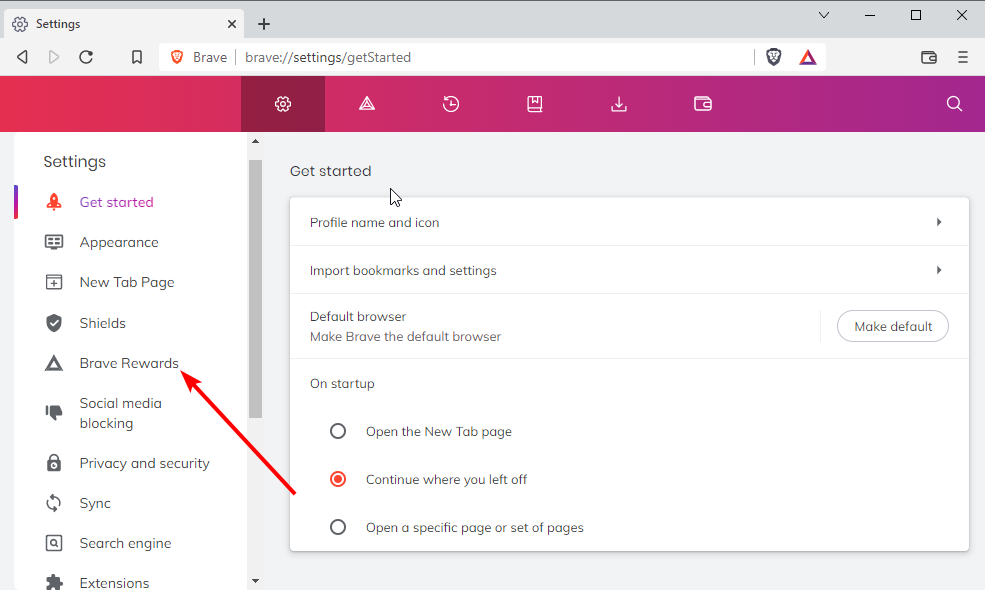
  1. Press Windows + S to launch the Search menu, enter Device Manager in the text field, and click on the relevant search result.Device Manager
  2. Now, double-click on the Universal Serial Bus controllers entry to view the USB ports.Universal serial bus controllers
  3. Right-click on the port here, and select Update driver from the context menu.Update driver to fix windows 11 controller not working
  4. Next, select Search automatically for drivers.Search automatically for drivers
  5. Wait for Windows to find and install the best available driver for the controller.

Problems with the driver are another common reason behind your Xbox controllers not working in Windows 11. No matter what the issue is, installing the latest version should fix things.

Also, if you couldn’t find a newer version using the Device Manager, try manually installing the latest version of the driver. Besides, if a wireless Xbox controller is not working, update the Bluetooth drivers.

To speed things up, use a dedicated utility to take care of both your USB drivers and Bluetooth drivers. It can identify and fix any corrupt drivers and update outdated ones.

⇒ Get IObit Driver Booster

1.3 Uninstall third-party antivirus

  1. Press Windows + R to launch the Run command, enter appwiz.cpl in the text field, and click on OK to launch the Programs and Features window.appwiz.cpl
  2. Now, locate the third-party antivirus, select it, and click on Uninstall.Unistall app to fix windows 11 controller not working
  3. Click Yes in the confirmation prompt.Click Yes
  4. In case a dedicated uninstaller appears, follow the on-screen instructions to complete the process.

If you don’t want to install the antivirus right away, try disabling it first. But, remember that the built-in Windows Security is more than capable of keeping your computer secure.

1.4 Update the Xbox Accessories app

  1. Press Windows + S to launch the Search menu, enter Microsoft Store in the text field, and click on the relevant search result.Microsoft Store
  2. Click the Library option at the bottom-left corner.Library
  3. Now, click on the Get updates button.Check updates to fix windows 11 controller not working
  4. If a newer version of the Xbox Accessories app is available, it will be downloaded and installed automatically.Wait for update

1.5 Install the latest controller firmware

Note icon NOTE
Before you proceed, make sure to connect your Xbox controller to the Windows 11 PC using a cable and not Bluetooth. Also, read the instructions provided on each page to not run into any errors.
  1. Press Windows + S to launch the Search menu, enter Xbox Accessories, and click on the relevant search result.Xbox accessories
  2. The Update required button will be visible in case there’s a newer version of the firmware available, click on it.Update required to fix windows 11 controller not working
  3. Click on Continue.continue
  4. Wait for the firmware update to complete.Wait

Using outdated firmware can also lead to problems and your Xbox controller might not work in Windows 11. The Xbox Accessories app can help quickly update the firmware, and by this time, the problem would be eliminated. Besides, it will also help when the controller only works in Steam.

You can now start using the Xbox controller on Windows 11 without encountering any further problems.

2. PS (Play Station)

2.1 Download and install DS4Windows

  1. Open a fast web browser, go to the DS4’s official website, and click on the Download button near the top-right.Download to fix windows 11 controller not working
  2. Again, click on Download.Download
  3. Once the tool is downloaded, go to the folder where it is located, right-click on the DS4 Windows file, and select Extract All.Extract all to fix windows 11 controller not working
  4. If you want to change the location of the extracted files, click on Browse and select another path, or go with the path selected by default. Then tick the checkbox for Show extracted files when complete, and click on Extract at the bottom.tick checkbox
  5. Now, open the extracted files and double-click on DSWindows.exe to launch the tool.Open DS4 Windows
  6. You may then receive a prompt saying that .NET is required to run DS4Windows, in case it’s not preinstalled on the computer. Click on Yes to download it. Yes
  7. Now, click on the Download x64 version, or as the case may be on your computer.Download .NET to fix windows 11 controller not working
  8. Once downloaded, double-click on the file to launch the installer.Launch installer
  9. Next, click on Install in the setup window.Install to fix windows 11 controller not working
  10. Click Yes in the UAC prompt.Click Yes
  11. After the installation is complete, again launch the DS4Windows tool.
  12. Select the desired location to save the profiles and settings.Location
  13. Once DS4Windows is launched, follow the on-screen instructions to complete the basic app setup.

DS4Windows is a critical tool that allows users to connect their Play Station controllers to their Windows PC since there’s no native support with many. So, install the software and check if the Windows 11 controller has now started working.

2.2 Uninstall AMD chipset software

  1. Press Windows + R to launch the Run command, type appwiz.cpl, and click OK.appwiz.cpl
  2. Now, locate any entry that goes by the name AMD software, select it, and click on Uninstall.Uninstall to fix windows 11 controller not working
  3. Follow the on-screen instructions to complete the process.
  4. Restart the computer once the uninstall is complete.

Many reported that the AMD chipset driver caused the problem in their case, and simply reinstalling it did the trick and fixed things when the Windows 11 controller was not working.

If you encounter any issues after the uninstall, head to the AMD Drivers and Support page, search for the package you removed earlier, and install it.

2.3 Install the latest version of Windows 11

  1. Press Windows + I to launch the Settings app, and select the Windows Update tab from the left.Windows Update to fix windows 11 controller not working
  2. Click on Check for updates on the right.Check for updates to fix windows 11 controller not working
  3. If an update is listed after the scan, click on the Download & install button.Download & install to fix windows 11 controller not working

2.4 Disable Driver Signature Reinforcement

Driver Signature Enforcement is a feature in Windows that allows only the drivers that have been verified and signed by Microsoft to be installed on the computer. But often, manufacturers don’t submit the driver to Microsoft and upload it directly on their official website.

If you or a third-party tool has installed any such drivers for the controller, the feature will block it. Disabling the Driver Signature Enforcement has worked for many users and fixed things if the Windows 11 PS4 controller was not working.

2.5 Run DS4Windows as administrator

  1. Locate the DS4Windows launcher, right-click on it, and select Properties from the context menu.Properties
  2. Go to the Compatibility tab.Compatibility
  3. Now, tick the checkbox for Run this program as an administrator, and click on OK at the bottom to save the changes.Run this program as an administrator to fix windows 11 controller not working

Many times, if the DS4Windows app does not have the necessary permissions, it might run into trouble and lead to your PS4 controller not working in Windows 11. Configure the program to launch with administrative privileges in this case, and things should be working again.

These are all ways to fix issues when the controller is not working in Windows 11 for Xbox or PlayStation.

Also, check the best game controllers for Windows 11 that are smooth and do not throw any errors.

To get the most out of your Dualsense Edge controller while playing FPS, you must change the settings; learn all about them in this guide.

In the comments section below, tell us which fix worked and which controller you struggled with.

The big winner from Sunday’s Xbox & Bethesda event?: Game Pass

Given the absence of E3 in 2022, Sunday’s Xbox & Bethesda Game Showcase was one of the most anticipated gaming events of the year. And with more than 30 games shown throughout the stream (and not just “fillers,” but mostly games that are truly representative of next-gen gaming), it is safe to say that the event did not disappoint, at least for most, and the event’s reception has been generally positive.

The event focused on games coming to Xbox in roughly the next 12 months. We got a look at some upcoming AAA titles like Redfall, the new Forza Motorsport, and of course the star of the show (pun not intended), Starfield, which was showcased with an extended gameplay reveal to the delight of Xbox and Bethesda fans everywhere.

And there was also the big announcement from Riot Games unveiling the League of Legends creator’s new partnership with Xbox that will bring these five games (with noted perks) to Game Pass:

  • League of Legends (PC): All Champions Unlocked
  • League of Legends: Wild Rift (Mobile): All Champions Unlocked
  • Legends of Runeterra (PC & Mobile): Foundations Set Unlocked
  • Teamfight Tactics (PC & Mobile): Select Little Legends Unlocked
  • VALORANT (PC): All Agents Unlocked

And really, that was the overarching theme of the showcase – “coming to Game Pass.” Almost all of the games featured in the event were titles that were coming to Microsoft’s gaming service in the next year, and a great many of them were day one Game Pass additions. Just judging from everything that was announced during Sunday’s event – and bear in mind that that isn’t even close to everything – it is clear that Game Pass Subscribers will have their hands full throughout the next 12 months.

While the Xbox & Bethesda Game Showcase for 2022 left us with plenty to be excited about, now that we’ve had a few days to take it all in it’s obvious that the real winner from the event was Game Pass, and by extension Xbox and Windows gamers. It’s pretty impressive to see how the best service in gaming continues to fortify itself, and one really can’t help but be excited for the coming year in Xbox.