Internet Explorer has a feature called InPrivate Browsing. It allows you to browse the Web without leaving a trail of cookies and other information behind.
You may be wondering why anyone would want to wipe off their history and delete cookies when they come in handy especially when you have forgotten an important site.
Well, when using shared computers, it is important to clear your browsing history as your personal information could land in the hands of unauthorized parties.
Granted, there may be times you want to turn off InPrivate browsing on Internet Explorer. When monitoring kids or employees, you may want to keep tabs on their online activities for safety purposes.
InPrivate is a feature of Internet Explorer that allows you to browse the web without leaving any records on your computer or in your history. Incognito mode provides a similar experience in Chrome, Firefox, and Safari.
In essence, they all have different names but serve a similar purpose of providing privacy modes that prevent your browsing history from being recorded.
How do I turn off InPrivate browsing?
1. How do I turn off InPrivate browsing in Windows 10?
Use the Registry
Hit the Windows + R keys simultaneously to open the Run command.
Type Regedit in the dialog box to open the Registry.
Navigate to the following location: HKEY_LOCAL_MACIHNE\Software\Policies\Microsoft/Internet Explorer/Privacy
Right-click on Privacy and select New DWORD (32-bit) Value.
Set the value to 0.
2. How do I turn off InPrivate browsing in Windows 11?
Use Group Policy Editor
Press the Windows + R keys to open the Run command.
Type in gpedit.msc in the dialog box and press Enter.
Navigate to the following location: Computer Configuration/User Configuration/ Administrative Templates/Windows Components/Internet Explorer
Select Privacy, right-click on Turn off InPrivate browsing, and select Edit.
Toggle on the Disabled button in the next window that pops up.
We hope you have been able to turn off InPrivate browsing on your Internet Explorer browser. In case switching on and off is a hustle for you, perhaps you may want to consider installing private browsers without tracking.
Do you use InPrivate browsing or incognito mode? Let us know your top reasons in the comments section below.
The S3 Browser can be an essential tool for managing your Amazon S3 account. But, it can also be a bit sluggish at times.
It is a very useful tool if you want to access your data from any location. However, sometimes this application may stop responding and not work properly.
If you find that your S3 Browser is not working, there are a few things you can do to troubleshoot and resolve the issue.
What is the use of the S3 Browser?
S3 Browser enables you to quickly set up an Amazon S3 account, create buckets, upload data, and configure permissions.
It is a free tool that helps you browse, search, and manage your data in Amazon S3. You can use it to perform basic file transfer operations, such as uploading, downloading, and deleting files.
The easy-to-use interface allows you to view information about your buckets and objects, such as the number of bytes stored in each object and the date each object was last accessed.
But, one question that every user always asks is the following one: Is the S3 Browser secure? The S3 Browser is very secure. It uses a variety of security mechanisms to protect your data.
S3 Browser uses end-to-end encryption (E2EE) to ensure that only you can read the data stored in your bucket. This makes it impossible for anyone else to access your data by accident or on purpose.
So, how do you access the S3 browser? First, you need to have signed up for Amazon S3 and then download the S3 Browser. You will be prompted for your S3 credentials and then you will be able to access your files.
Quick Tip:
When everything else fails, there are always other options. Browser errors can happen for a variety of reasons, but if you need a better way to manage Amazon S3 from your browser, you should try the Opera browser.
Amazon Assistant is Amazon’s official product that assists you in discovering products available on Amazon and comparing prices as you shop online. You can find personalized product recommendations for you by clicking on the extension icon in your browser.
First, check to see if the browser is responding. If you are using a desktop computer, open up another browser and see if you can access your account with no problems.
The cookies and cache on your computer may be causing issues with the S3 Browser. Simply clear and delete them then check if the problem persists.
2. Send a diagnostic report
Launch your S3 Browser, click on Tools, and select Diagnostics.
Once the Diagnostic Report dialog opens, enter the error and click Send.
3. Restart your PC
If your browser is not responding and you have tried everything, then you should simply restart your PC. This is the most common solution to any problem, especially when it comes to software.
Your computer could be running slow and taking too long to open files. This means that your computer needs to be restarted.
We hope that with this article, you have been able to resolve issues with your S3 Browser not responding. While you are still here, check out our list of the best S3 Browser applications for Mac.
Let us know of any other solutions that worked for you if you were faced with this issue in the comments section below.
Microsoft has gained yet another set of allies in its long road of approvals for its Activision Blizzard $68 billion buyout as it wins over the Communications Workers of America (CWA) with a new Labor Neutrality Agreement.
While Microsoft and Activision Blizzard are legally barred from certain levels of communication with one another as their potential merger remains under investigation, the two have followed similar paths on unionization efforts over the past two weeks.
Microsoft first announced it would adopt more pro-union policies at the beginning of the month as it looks to steer conversations around potential unionization efforts from partners, vendors and certain employee classes; roughly a week later Activision Blizzard settled its long public battle with developer studio Raven’s Quality Assurance department’s call for a union by starting collective bargaining negotiations, as well.
Starting this week, efforts from both Microsoft and Activision Blizzard will coincide with the announcement that Microsoft and the CWA have entered into “a ground-breaking” labor neutrality pact.
Specifically, Microsoft and the CWA’s agreement will apply at Activision Blizzard starting roughly 60 days after the acquisition is made official and what it does is provide a pathway for Activision Blizzard employees to organize and democratically start the process for collective bargaining if they chose so.
Based on the following five provisions, Activision Blizzard employees, who soon become Microsoft employees, will be able take a seat at the negotiation table for fairer employee labor practices, wages and communications.
Microsoft will take a neutral approach when employees covered by the agreement express interest in joining a union.
Covered employees will be able to easily exercise their right to communicate with other employees and union representatives about union membership in a way that encourages information sharing and avoids business disruptions.
Employees will have access to an innovative technology-supported and streamlined process for choosing whether to join a union.
Employees can maintain confidentiality and privacy of that choice if they wish.
If a disagreement arises between the CWA and Microsoft under the agreement, the two organizations will work together promptly to reach an agreement and will turn to an expedited arbitration process if they cannot.
As noted in the announcement, this agreement doesn’t take hold for former, current or even future employees of Activision Blizzard pre-Microsoft-acquisition. The agreement should also not be confused with the recent collective bargaining agreement struck by Activision and its gaming studio Raven, as that applies to a specific department within the studio, and not all Activision employees.
However, it does appear the new commitment between Microsoft and CWA will apply to all Activision Blizzard employees and goes a long way to assuage fears the CWA had about Microsoft’s bid for the publisher.
“The agreement addresses CWA’s previous concerns regarding the acquisition, and, as a result, we support its approval and look forward to working collaboratively with Microsoft after this deal closes,” according to CWA president Chris Shelton.
Microsoft still has over a year to get the other regulatory approvals from state, government and international boards to conclude its acquisition of Activision Blizzard, but winning over the CWA early is probably a very smart move.
There are many ways you can be productive at work or school, and one of them involves general multitasking. Sure, you can stack your windows side by side on your laptop or monitor screen or even use tools like PowerToys, but that only does so much. To truly unlock your potential, you need a large and expansive screen.
That’s where a product like the Dell 34 Curved USB-C Monitor (S3423DWC) comes into play. This curved monitor sports ultra-wide WQHD (3440 x 1440) resolution, USB-C connectivity, built-in speakers, and a USB port under the chin. There’s even AMD Adaptive-Sync technology on board too. The combination of those features on this monitor can help you truly stay productive, and immerse yourself in work, school, or whatever you may be using it for.
Specs & Price
The Dell 34 Curved USB-C Monitor (S3423DWC) can be purchased at Dell.com for $770, or when on sale, for around $575. That sale price makes it an affordable option if you’re looking to buy a curved monitor for the first time.
The screen size is 34 inches, with a resolution of 3440 x 1440, tuned at 100 Hz. The aspect ratio comes in at 21:9. The display supports AMD Freesync. According to our colorimeter, the display hits a contrast ratio of 3000:1, and 99% of the sRGB spectrum. The response time is 4ms gray to gray on extreme. Curvature on the display comes in with an 1800 radius. Brightness is around 300 cd/m2, and the panel type is VA.
Since this is a curved display, you can’t fully rotate it vertically. Tilt angle is rated at -5 to +21 degrees, and height adjustment goes up to 3.9 inches. With the stand at the lowest position as I reviewed, the measurements come in at a 31.8-inch width, 8.5-inch depth, and 15.3-inch height. This monitor also has a KVM switch, as well as picture-in-picture support, or picture-by-picture support. All of this means you can fit the monitor in with almost any setup, and there’s a lot of room for adjustment.
Design
In the past, I’ve reviewed similar curved monitors from Dell. Dell’s new 2022 curved monitors keep the same minimalist design as 2021’s. That means you’ll get a textural white-colored back panel, that’s designed to fit in with your office. Oh, and the stand has a place for routing your cables for better management. The monitor can even be attached to the wall with a VESA-compatible mount. And as always, setup is quick and easy, just requiring you to screw a stand into the base, and then hook the monitor in. No tools are required!
You’ll also find Dell’s signature three-sided narrow bezels on this monitor, with a tiny bottom chin where the Dell Logo is. Dell mentions in a product listing that these bezels have been shrunk down a bit between generations for an improved viewing screen-to-body ratio. As far as the curve comes to the design, it’s rated at the 1800 radius. This hits the sweet spot, as it’s not too extreme of a curve, and won’t be too hard on your eyes since there’s less distortion. It feels natural to use when sitting on your desk.
Finally, there are the speakers. Like past curved monitors from Dell, there are two 9-watt speakers at the bottom of this monitor. They’re downwards firing, so don’t expect the best quality. I thought the sound emitted was decent enough for Teams calls, but definitely not for watching movies. I hooked up my external speakers since there’s an audio line out port (which is appreciated, not all curved displays have one.)
Ports & Buttons
The mix of ports on this monitor is pleasing. No matter what I wanted to connect to this monitor, it worked. From left to right, there’s the power connector, HDMI 2.0 port, another HDMI 2.0 port, then USB-C upstream (with up to 65 watts of power delivery.) There’s also an audio line out power, a Super Speed USB-A 3.2 Gen 1 Type B upstream port, and a Super Speed USB 3.2 Gen 1 downstream port. Then, under the chin, you get a USB-A port with up to 10 watts of power charging.
The real highlight of this monitor, though, is USB-C. That means you have a single cable for everything, which is great for productivity. One cable for data and charging meant that using my Surface Pro 8 with the monitor was a charm. No need to use my Surface Connect charger, as the monitor provided enough power for charging. I was even able to plug in my Logitech Bolt adapter into the monitor and use my keyboard and mouse, without taking up a port on my Surface. It’s truly a space saver and time saver, as I spent less time worrying about dongles and more time on my actual PC. A second or third USB-A port or another USB-C port on the chin would have been appreciated, though. But I see why it could have been omitted to help keep the price down.
As far as buttons go, you won’t find joystick controls here. Instead, there are four buttons that are used for navigation of the menus, switching inputs and color profiles, or changing settings. This means you’ll have to be super careful and be attentive to what button you’re pressing as you go between menus to switch inputs. I wish Dell would make joystick controls standard on all of its displays as joystick controls are so much simpler. The menus, though, are in-depth as always, with lots of image controls
Display Performance
As usual, to test the performance of this monitor I put it through my usual workflow. That includes gaming on it using my Xbox Series X, and usual productivity on my Surface and Mac Mini.
For console gaming, I would not depend too much on this display. HDMI 2.1 is not supported here, and neither is 4K. Next-gen gaming consoles won’t make the most out of it, not to forget how the image will be stretched, too.
I did, however, do some light PC gaming on the display with Fortnite. I’d say that performance is decent, there wasn’t much lag. I still think that 100Hz and the 4ms response time aren’t ideal for a monitor of this size for games. If you’re looking for something for gaming, the recently reviewed Dell 32 4K UHD Gaming Monitor is better.
This is a monitor for casual gaming, at best. But at least the image quality is there. The colorful outfits of Fortnite characters looked very vibrant and lively. Even the scenery when I peeked through a scope in one of my guns looked great, too. This monitor does a good job with color replication and shading.
As for productivity, this is where the monitor is best. I already mentioned the benefits of USB-C, but thanks to this resolution and size, I was able to fit four full-sized Edge windows side by side by side on this display. There even was room left for my Teams chat and WhatsApp. Combined with the really good contrast ratio, web pages looked very crisp and lively on this display. Unfortunately, though, videos on this monitor will play in lettered box mode, so movie watching can’t be that immersive. The colors, though, are still accurate and sharp, which is surprising considering this is a VA panel that usually has slow black to gray pixel transition speeds on lower refresh rates. I guess that’s where the 100Hz kicks in to make Windows 11 and other content come to life.
PIP Mode & more
As someone who owns both a Mac Mini and multiple Windows PCs, there’s sometimes I wish I could have them both on the same screen at the same time. This is one thing that the Dell 34 Curved USB-C Monitor (S3423DWC) helped me do. The monitor has a picture-in-picture or picture-by-picture functionality, and a KVM switch.
You typically don’t find that in other competing curved monitors, so to see it here is a huge plus. With one monitor, you can control multiple inputs at the same time. Just go to the menu to activate it, and then select which inputs you want to see on the screen. I used USB-C with my Surface and HDMI with my Mac Mini. It was really cool seeing the two operating systems side by side.
Note that this monitor also supports Dell’s Easy Arrange technology. This can give you ways to tile your open windows, similar to PowerToys. It is basically all about snapping windows into templates of your choice, though Windows 11 now does a good job with this thanks to Snap Layouts.
Immersive & Productive
There are plenty of alternative curved monitors that you can buy right now, but the Dell 34 Curved USB-C Monitor (S3423DWC) is one of the best. With USB-C connectivity, a USB-A port on the chin, KVM and PIP modes, as well as in-built speakers, this is a monitor that you must buy if you want to be productive at work or school.
The business-focused professional networking platform LinkedIn has proved itself vital for working professionals. Whether working as an employee, employer, recruiter, sales professional or business owner, the social networking platform can help you extend your reach and connect with the correct people who can help you advance your career.
Since its launch in May 2003, the business networking platform has evolved into a powerhouse of networked connections where over 810 million professionals interact to share business and related career information. But with all the major brands on the platform, how can LinkedIn benefit the small business owner? Here are some of the top reasons why you should seriously consider creating a personal LinkedIn profile, a company page, or adding some of the new features and changes released in 2022 to your existing profile to take advantage of some of its new features available for free.
What are the top reasons why LinkedIn is important for your business?
Extending your personal brand online. You can manage the professional image you want to display to your customers. A carefully crafted profile showcasing your skills, experience, testimonials and work history can bring you business. Your profile will also appear when people are searching for a particular skill or experience. Having your business value proposition displayed on your profile can bring inbound clients to you with minimal effort on your part. Having a great profile will bring your credibility and allow you to tell your story to bring your work to life.
Showcasing your professional brand with Company Pages. Having a company page, which shows your business expertise in your industry, the products you produce and news about the company can really enhance your brand. You can advertise jobs available at the company and post white papers. In short, if used correctly and updated frequently, a LinkedIn Company Page can eliminate the need for small businesses to actually have a paid-for website.
Finding work on LinkedIn. Contractors or teams of ad-hoc workers can use LinkedIn to find suitable employment in their area of the country or find work online. LinkedIn’s search and tagging features can showcase roles which are tailored to your skills. If you are open to finding a new job, your profile will show up when recruiters search for your specific skill set, location, or even if you want to work remotely. You can show whether you want to work as a part-time contractor, a full-time employee and when you want to work. You can even specify the audience for the profile setting so that recruiters are the only group of people who will see this new information
Generate Leads. You can collect leads from LinkedIn members who visit your Company page by creating a lead generation form to capture member information so you can close the deal. LinkedIn’s data shows that using LinkedIn to generate leads can increase conversions by two to three times compared to standard campaigns using sponsored content. These forms can not only be used to connect LinkedIn members to your brand, but also enable you to promote your whitepapers or encourage signups to a webinar.
Showcase your skills. You can add specific skills gained to each work placement you have done. Any recruiter who is performing a skills search will see your name listed under that specific skill. You can also add your skills and ask for and receive recommendations about your work. These endorsements will be visible to others who view your profile and will further validate your expertise on your profile
Update your job-specific skills. You can search LinkedIn’s online courses to enhance your knowledge about any topic you want. LinkedIn Learning courses vary in length and complexity and cover a plethora of topics. Many are free courses and are offered in six languages. You can follow structured learning paths, or browse the videos on offer. The courses range from beginner to advanced levels and several courses lead to certifications.
LinkedIn is a fabulous networking tool that, when used properly, can really enhance your ability to grow your connections and advertise yourself or your business to gather new business opportunities and advance your career. Over the next few weeks, I will be drilling down into many of the free features of the platform that you can adopt to create a LinkedIn presence to be proud of. So What are you waiting for?
Everyone in the gaming world is pretty much familiar with Elden Ring by now. The Dark Souls-like action role-playing game was developed by FromSoftware and published by Bandai Namco Entertainment.
It’s available for different platforms such as Microsoft Windows, PlayStation, and Xbox. Since the title was first released, we’ve seen a lot of things go wrong with it, some of which aren’t fixed yet.
Another problem that drives gamers crazy is Elden Ring not updating, thus rendering them unable to enjoy their new favorite game.
What can you do when faced with such a predicament? Fixing this problem is easier than you think and we are about to guide you through the troubleshooting process.
What can I do if Elden Ring won’t update?
It’s important to know that this can happen for quite a several reasons. A glitch in the Steam client could be the main one, but there are other scenarios as well.
The game’s auto-update feature might not be set, there might be corrupt files inside it, or the internet could also play its part in this story.
Here’s what you need to do to restore game functionality and keep on building your legend and your legacy in Elden Ring.
1. Force close Steam
Right-click on the Start menu and select Task Manager.
Find the Steam process, select it and press the End Task button.
2. Enable the Elden Ring auto-updates
In Steam, right-click Elden Ring and select Properties.
Select the Updates tab.
Under Automatic updates choose Always keep this game updates.
3. Verify game file integrity
Find Elden Ring and right-click it, then select Properties.
Click on Local Files.
Press the Verify integrity of game files… button.
4. Allow Elden Ring through your Firewall
It is well known that the operating system’s security measures can sometimes interfere with our games, especially online ones.
Thankfully, we can add exceptions in our Firewall, which will stop Windows from preventing games from going online or receiving updates. Here’s how you too can do that:
Search for Firewall and open the app.
Click on Allow an app or feature through the Windows Defender Firewall.
If Elden Ring isn’t on the list, click Change settings and then Allow another app.
Click on Browse and look for Elden Ring on your device.
Select the game’s folder and press Open.
Click the Add button.
5. Update graphics drivers
When we talk about gaming, the main thing we should always consider when encountering any sort of issue is updating the GPU drivers.
Doing this will spare you a lot of problems in the long run and contribute to the smooth, uninterrupted gameplay you long for.
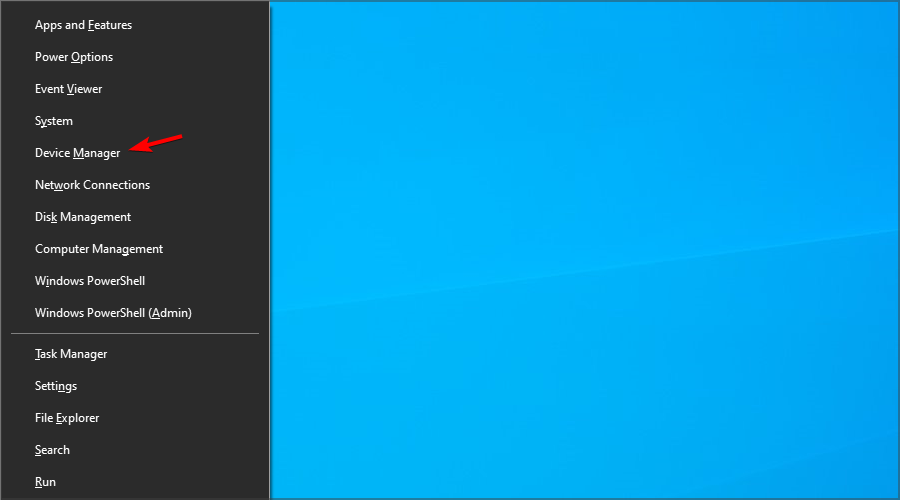
Search for Device Manager and open the app.
Open Display adapters, right-click your GPU and select Update Driver.
It’s also worth checking your internet connection, just to be sure that the problem doesn’t originate from there. No internet or an extremely slow connection speed can prevent updates from being installed.
If none of the above-mentioned steps work for you, another solution to consider is reinstalling Elden Ring entirely, as this solved the issue for some players.
In the lack of official fix patches, we will have to rely on these temporary workarounds for now. Hopefully, From Software will hurry in eliminating these annoying problems once and for all.
SpaceX does this by having thousands of low orbiting satellites as a constellation above the Earth. The internet provided via Starlink is a low-latency and high bandwidth service. It’s pretty impressive what the company managed to do in a few short years.
Companies are trying to do the same thing, such as Viasat and HughesNet, launching many low-hanging satellites. But Starlink has a decent headstart above them.
Expect to see Starlink pop everyone in the coming years. The company is hard at rolling the service out worldwide, starting with more rural areas first.
Right now, you can purchase a connection for a residential house, a business, or an RV. However, be aware that the service is relatively expensive because you’ll have to buy the dish and pay a monthly subscription.
Be prepared to pay several hundred dollars upfront. But once you do, you’ll get access to some pretty fast internet.
Where can I get Starlink internet?
Starlink rolls out first to rural areas and countries with either poor connections or that are small. Large portions of the European Union have access to Starlink internet and large areas of the United States.
But in the United States, a large portion of it still doesn’t have access to Starlink. For example, the Appalachian mountains don’t have Starlink or some of the biggest cities.
For example, Los Angeles and New York, the two largest American cities, won’t get Starlink internet until 2023. You can check out Starlink’s global map to see which countries do or eventually will get Starlink internet.
You even see countries that will probably never get Starlink internet. So those countries are greyed out, while the countries with Starlink are light blue.
The reason why those countries will never get Starlink internet is probably due to global politics. Unfortunately, Russia is one of those countries, and they’re currently involved in an unpopular conflict.
China and North Korea are on that list due to other political problems. However, Cuba and Venezuela are on there, although they’re not currently involved in any wars or closed off as others.
Regardless of political standing, below is a brief list of the countries and regions slated to get Starlink over the coming year.
Q2 2022
Q3 2022
Q4 2022
2023
Countries
Columbia
Ecuador
Panama
The entire continent of Africa
Dominican Republic
Peru
Paraguay
Central America
Albania
Bahamas
Argentina
Brazil
Jamaica
Bolivia
Peru
Uruguay
Serbia
Greenland
Japan
Scandinavia
Southeast Asia
South Korea
Saudi Arabia
Kazakhstan
Turkey
As you can see, most of the world is slated to get Starlink connectivity sometime in 2023. This list doesn’t list every country out there, but it gives you a pretty good general idea of where things are going.
Some notable countries that weren’t listed include Australia, Chile, and Canada. They don’t have 100 percent Starlink coverage but will see expansion during 2023.
Starlink speed test: device vs. router
Testing the speed between your device and a Starlink router is tricky because you need to access Starlink’s internet and purchase the equipment. One, the equipment is costly.
It’s almost $1000 for the whole thing. This guide is being written in a place where there is no Starlink access. The company hasn’t brought its service everywhere across the United States.
Fortunately, the YouTube channel All Media Services has provided a sample of what people can expect from Starlink and its internet speeds. However, don’t look at this data as definitive and the standard for Starlink.
It’s only a sample of what Starlink can do. All Media Service has a video and a post on the Starlink Community Forums detailing their experience with the service. It’s recommended that you check out both to get the complete picture.
The speeds are discovered by using the Starlink app, and there are three tests it conducts. Test one checks the connection speed between a device and router, which obstacles can influence.
Test two checks the speed from the router to the satellites in orbit, providing you with the internet. Finally, test three shows you the bandwidth limit of your connection; think of it as the possible full potential of your relationship.
Don’t think this is how fast your internet is because that’s not what the test tells you. Just how fast you can go. Before showing the results, it’s important to point out that All Media Services did two types of tests.
One was done with a 2.4 GHz Wi-Fi connection and the one with a 5 GHz. The 2.4 GHz is slower than the 5 GHz but has a farther reach. 5Ghz has a strong signal up close but can be quickly interrupted.
This first graph is done under the 2.GHz Wi-Fi and ignores the third test; it’s irrelevant. As you can see, the connection between the device and router has an average of 90 Mbps. From the dish to the satellite, it’s 139 Mbps.
According to All Media Service, this is a little slower than expected, but they mention seeing results over 100 Mbps. They also remind people that Starlink satellites are constantly moving and switching.
This can result in varying levels of connectivity. Under the 5 GHz network, things got a little bit better for the device to router test.
The test shows that the device to router connection got a bit better with a faster Wi-Fi connection. On the other hand, the router to the satellite connection got worse than before. But, again, these satellites are moving and quickly interrupted.
Don’t obsess over these numbers too much. These are simply examples of what Starlink is capable of using two different Wi-Fi connections.
The main thing to take from this example is that your connections may be slower than expected, but that’s normal and to be expected. Starlink is still a new service and working through the problems right now.
Starlink speed and latency
Now let’s take a look at how Starlink stacks up with other satellite internet providers and a personal connection. It would be unfair to compare Starlink directly to broadband internet service providers.
These companies have been in the business of providing internet for much longer than Starlink and have been established for much longer.
But even then, Starlink still offers a pretty good service comparable to broadband which is why a personal connection will be included in the graphs. Full disclosure: the personal connection will be through Spectrum, and it’s the base plan.
The other satellite internet providers will be Viasat and HughesNet, which are the biggest rivals to Starlink. And as you will see in the graph, Starlink has the fastest speeds.
The information comes from Ookla, an online service that provides a free internet performance analysis looking at download speeds, upload speeds, and latency. They’re also the owners of Speed Check.
As you can see from the download and uploads alone, Starlink is compatible with a base plan from Spectrum. However, this information comes from a report published in February 2022, so the speeds may have improved.
Currently, Starlink is in beta as it’s still rolling out and fixing any bugs that may appear in its service. After all, it’s not a perfect service, but it’s still doing a pretty good job. A 104.97 Mbps download speed is on average with other ISPs.
It wouldn’t be surprising to see Starlink become even better in 2023. However, one more critical speed stat hasn’t been mentioned, and that is latency. This is where Starlink truly shines.
Don’t let the bars fool you. The higher the bar is, the worse the latency. HughesNet and Viasat do terribly when it comes to latency. High latency can cause your connection to lag and move at a snail’s pace.
One of the most annoying aspects of having lousy internet. Starlink’s fantastic performance with latency alone makes it worth the subscription. Imagine going out to a rural area and having fast internet.
It’s even faster than the personal connection. Starlink’s latency is on par with premium connections. Also, be aware that this information is based on the average according to all the data Ookla had.
This information comes from the United States, with a pretty uneven internet infrastructure. For example, if you look at that Ookla report, the fastest speeds in the US are in the state of Maine and the western portion of the country, namely the southwest.
States like Colorado, Minnesota, Washington, and Michigan have zones where Starlink speeds are fast, whereas other states are slower. And what’s more, is that Starlink is continuously getting better.
Starlink’s latency comes from Speed Check, which conducted multiple tests to keep track of Starlink’s performance during 2021. And as you can see, Starlink’s connection has been steadily getting better.
The same thing happens to the download and upload speeds: steadily getting better over time. Again, Speed Check’s results come from an averaging of the rates. These numbers are consistent throughout all of Starlink’s networks.
We are as curious as you are about whether Starlink can be used for gaming. Fortunately, we were able to undertake some tests on gaming platforms in order to answer this question, and the results were quite promising.
Things are always subject to change. Hopefully, Starlink will become even faster and provide lightning-fast internet throughout.
Feel free to leave a comment below if you have any questions on other Windows 11 apps or if you have some that you recommend. Also, feel free to leave comments about guides that you’d like to see or information on other Windows 11 features.
Safari is one of the cleanest and fastest browsers out there. It boasts superb performance and has many endearing features.
The browser was enjoyed on the earlier versions of Windows before Apple stopped releasing updates for it on the Operating System. While it is still possible to install Safari on Windows 10, users have found it difficult to update it.
However, this guide will show how to update Safari on Windows 10 and 11 to the latest version available. You only need to follow the instructions, and you will be fine.
Can the Safari browser be updated?
There is no way to update the Safari browser on Windows 10 and 11. This is because Apple stopped providing updates for the browser on Windows in 2012 due to a lack of interest from users.
The browser update is no longer supported and can’t be downloaded. However, if you have a version later than the last one released, there is a way to update it.
This will be discussed in the subsequent sections of this article.
What is the latest version of Safari?
The latest version of Safari generally is 15.4, released in March 2022. However, it is only available on macOS and iOS devices.
For Windows 10 and 11, the latest version is available in Safari 5.1.7. This is not available on any official platform. You can get it on third-party sites for installation.
?️Quick Tip! Alternatively, you can use a browser with up-to-date Windows apps. Just like Safari, Opera One offers top-notch web security, including anti-tracking, adblockers, and built-in VPN.
Opera One also brings features like workspaces, tab islands and native AI to help you better organize your browsing sessions . The browser also has a modular AI-ready design for integration with the current AI options but also future ones.
Opera One
Browse privately with this Windows-supported browser, enable VPN, and create your customized workspace with tons of add-ons.
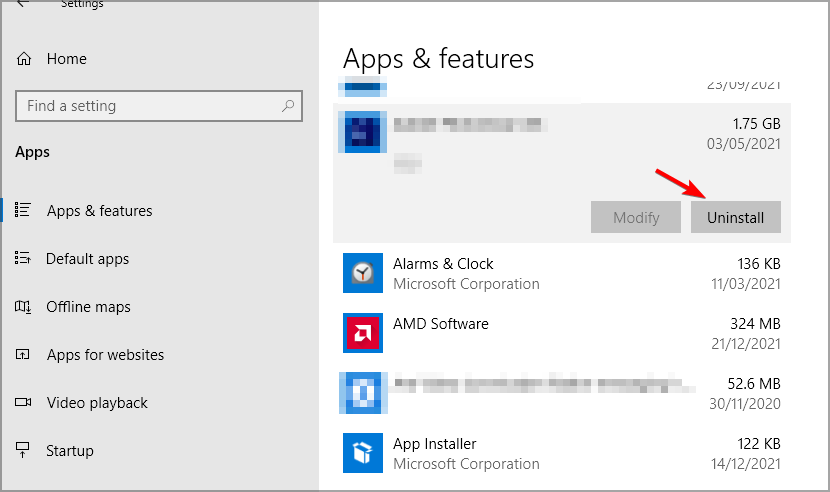
Please scroll down to the Safari browser and click on it.
Select the Uninstall option.
To install the updated version of Safari for Windows 10 and 11, you need to uninstall the previous one on your PC. This is especially useful if you installed the browser with an installer from a later Windows version like XP.
Safari is one of the most coveted browsers on Windows due to its impressive speed and performance. It also boasts a simple yet stunning design that is easy on the eyes.
However, Apple stopped supporting it on Windows a long time ago due to a lack of interest from users. Thankfully, just as you can install Safari on Windows XP, there are ways to do it on other versions.
This guide will show you how to download the latest version of Safari, whether 32 or 64-bit, for Windows 7.
Can I download Safari on Windows 7?
Despite Apple discontinuing Safari on Windows, you can still download Safari on all operating system versions. For example, the browser installs and runs fine on Windows 7 without hiccups.
The only caveat is that you can only get on a third-party website. We usually advise against this due to the security risks involved.
But if you need Safari on your Windows PC for one reason or another, this is the only option available.
Is Safari for Windows free?
Since its inception, Safari has always been a free browser, which has not changed on Windows. It is also accessible on third-party websites where you can download the installer.
So, it is free whether you download the latest version of Safari in 32 or 64-bit on Windows 7.
?️Quick Tip:
Opera One is another free lightweight browser that works great on Windows 7. Because of its advanced ad blocker, encrypted security, and built-in VPN, this browser is ideal for Windows 7.
You can open a large number of tabs, which works flawlessly thanks to the turbo mode, and loads only the important parts of web pages. Furthermore, you may import everything from your current browser with just one click.
Opera One
Advanced built-in features to help you browse faster and in a secure environment on Windows 7.
Select the radio option next to I to accept the terms in the license agreement and click the following button.
Check the Automatically update Safari checkbox and click the Next button.
Lastly, click Install and wait for the process to complete.
You have it: a complete guide on downloading Safari for Windows 7. This article also contains valuable information on the availability of the browser and some of its other endearing features.
Safari vs. Firefox vs. Chrome: Which works faster?
One of the strongholds of Safari is its incredible speed and performance. Where other browsers pack in numerous features that users might never use, Apple has designed this browser with little but powerful features.
This, plus its Javascript engine, makes it compare favorably with some of the leading browsers in Chrome and Firefox in terms of performance.
Safari extensions are a great way to help you get more out of the browser. They work on both Macs and Windows PCs. But there are some differences in how you get them on each platform.
Extensions let you add new features to Safari without having to download any software or learn how to code. They’re super easy to install, and they come in thousands of different varieties.
The question is why would you want to download Safari for Windows 10 or 11 and install extensions when there are so many other browsers available? Safari has some amazing features that are just not available in other browsers.
What does the Safari accounts extension do?
The Safari accounts extension adds an icon to the menu bar that allows you to sign in to your accounts. You can use this extension to sign in without having to enter your credentials every time you want to use a service that requires authentication.
When the user signs in to Safari on Windows, they will be asked if they want to allow your app to use their account. If they agree, the extension takes care of all the details and handles signing them in automatically when necessary.
At this point, you may be wondering how to get Safari extensions on Windows 10/11. Safari extensions are also available for Windows users, but installing them isn’t as easy as it is on macOS.
The extensions are not available on the App store or web store say for Chrome. You will have to get them from third-party sites. While you are downloading files from untrusted sites, always check to ensure that the file extension ends in .safariextz.
Any other type may be malware or a virus that has been morphed to look like the legitimate extension you are trying to download and infect your computer.
How can I install the Safari accounts extension on Windows 10 and 11?
What can I do if the Safari extension is not showing up on Windows?
If you’re using Windows and the Safari extension isn’t showing up, there are a few things you can try. You can restart the browser and see if the extension will appear. If not, you may need to clear the browser cache and cookies.
To clear Safari cache and cookies, follow the steps below:
Launch Safari and click on the gear icon.
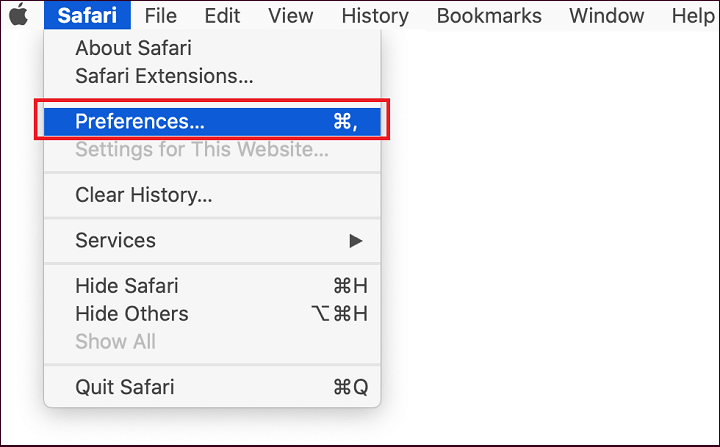
Select Preferences.
Click on Privacy.
Select Remove All Website Data next to Cookies and other website data.
Click on Remove Now.
Refresh the browser and see if you can locate the extension.
We hope you have been able to install the Safari accounts Extension on Windows 10/11 without any issues.
If you encounter any other related errors such as Safari not working on Windows 10, we have plenty of fixes you can try to resolve the issue.
Several users have reported that they are facing Warzone update not enough free space error and aren’t able to install the latest COD Warzone update on their consoles.
This has irked many Call of Duty Warzone fans, and they are constantly looking up to the internet for solutions. If you are among such users, you have landed in the right place.
Because here in this guide, we will give you 5 clear solutions that can help you fix the Warzone update not enough free space error. Let us get right into it.
Why can’t I update COD Warzone when I have enough space?
This error doesn’t apply to just COD Warzone alone; other COD games have suffered from the same problem.
Some users have mentioned that the PS4 console requires double the amount of space as the actual size of the game. But that doesn’t hold for other games, except for COD Warzone.
So, the best bet that you are facing Warzone update not enough free space error could be because of a bug. Unfortunately, there is no clarity on what is causing this problem, but by following the below-mentioned solutions, you will hopefully be able to fix the problem.
How can I fix the Warzone update not enough free space error?
1. Delete and install only required add-ons
Open the PlayStation Library.
Select All.
Select COD Warzone and hit the Options button.
Choose Delete.
Press OK to confirm.
Deleting the entire COD Warzone game will help you free up a significant amount of space on your console, but it also facilitates one more thing.
The next time we will be downloading COD Warzone, we will only download the required components of the game. If you wish only to play multiplayer, you would only have the multiplayer part of the game.
Follow the steps to download the specific add-on of the game.
Head to the Library.
Scroll down and select the Purchased option from the left pane.
Search for COD Warzone.
Select the PlayStation Store button.
Choose Your Add-Ons.
Download the specific add-ons you wish to play the game with. For example, only download the multiplayer mode for COD Warzone.
Now, download the game from the PlayStation Stor.
2. Delete games and applications
Head to Settings.
Scroll down and select Storage.
Press X on your controller to open System Storage.
Go to Application.
Start deleting unwanted applications and games from your console.
3. Delete game data from Gallery
Head to Settings.
Scroll down and select Storage.
Press X on your controller to open System Storage.
Select Capture Gallery.
Now delete all the game data, such as screenshots, screen recording, etc., files that might be filling unnecessary space on your console.
Choose COD: Warzone game to access the game’s saved data.
Select Options and hit Delete.
Choose the saved data files to delete, then select Delete.
5. Clear cache on your console
Turn off your PlayStation 4 or 5.
Wait till the lights of the PlayStation 4 or 5 turns off completely.
Unplug the power cord from the socket.
Wait for about a minute or two.
Plug the power cord back into your console.
Turn on your console.
Why do I need so much storage to update COD Warzone?
The answer to this question comes in two folds. The first is that PS4 always downloads the entire game and any new updates that you install on your console.
If you already have COD Warzone installed on your PS4 and want to install the update, you should have free space totaling the game size + the size of the update.
That is, unfortunately, how the PS4 stores’ games. It creates a second copy of the game, installs the update and the new version of the game, and later deletes the older version.
What can you do to prevent this issue? Sadly, all you can do is follow the above steps to clear up space on your PS4 console. Alternatively, you can attach bigger hard drives and SSDs, or plug in a USB external hard drive to expand the storage.
To avoid facing a Warzone update not enough free space error, we recommend you clear up space on your console before you proceed to download an update.
Once upon a time, browsers were nothing more than access to the internet. While this still holds, they have evolved through the decades and do much more than connect you to the internet.
They have become very robust engines and can carry out complex functions such as gaming, streaming, etc. Modern browsers pack a lot of features and functionality and have become a one-stop shop for all internet activities.
With the expansion in the use case of browsers, there has been a need for more interaction with this user. However, this comes with the downside of exposing the user to privacy violations. Hence many modern browsers incorporate many privacy and security features to ensure you stay safe while browsing.
Unless your PC is only for typing, using a browser is as routine as drinking your morning coffee. Identifying the features that stand out the most and the benefits different browsers offer is vital to choosing the right browser.
The following are critical elements to consider:
Compatibility – Selecting an optimized web browser for your OS or computer is critical. So, for example, Edge may be ideal for Windows PCs, Safari may be suitable for Macs, Chrome may be the most HTML5-compatible, and so on.
Load Time – The speed with which a web browser retrieves, shows, and traverses information resources is called the load time. When your material takes a long time to load, you spend more time waiting for it to load than reading or using the content.
Security – Regarding a safe and enjoyable Internet experience, protecting and maintaining your identity and data integrity are significant priorities. It would help if you leaned more towards a browser that offers the most online protection.
Design – The design determines how easy it is for you to get around. How accessible are your favorite features? A great design will significantly increase your browsing experience.
?️Quick Tip:
Even though we’re here to discuss Chrome, Firefox, and Brave browsers, it’s worth noting that Opera One is another excellent option.
You can use all of the browser extensions discussed today and still have something additional advantages, like a built-in VPN and Ad Blocker. Another unique feature of Opera One is its built-in AI and modular AI-ready design, for other AI technologies integration.
Let’s go to the Brave Browser vs. Chrome vs. Firefox comparison without further ado.
Brave Browser vs. Chrome vs. Firefox
➡ Design
Brave
You can check statistics on the effectiveness of the browser at blocking trackers and adverts and saving time and bandwidth in the top-left corner. Also, you can view news that populates as you scroll down the dashboard.
You can switch between what you show in the larger space beneath. For example, if you choose binance.com, that info will appear where the Brave Rewards information appears.
Cards by Brave are the names of the connections, and you can conceal them individually by editing cards.
The browser has a pretty dashboard overall, and you can customize it more by navigating to the Settings button in the bottom-right corner of the page. For example, stats, background graphics, headlines, top sites, and the clock may be customized.
Chrome is unremarkable in its appearance. But then again, it’s a tool made to show websites, and the sites should take precedence over the browser.
That said, Chrome does a fantastic job blending into the backdrop — it’s stunningly simple.
Daily, you’ll only need to worry about a few settings, but hiding or showing the bookmarks toolbar, altering your default search engine, and managing cookie and browser history storage is simple.
With its support for parental control and multiple users, the Chrome browser is suitable for the whole family and remains a great option to download today.
Firefox has a clean white background with larger-than-normal, easy-to-read black lettering for most of its font.
You will see a top article list from Pocket on newly launched tabs. You are allowed to customize the page by clicking the Settings button in the top-right corner.
Additionally, it’s possible to turn off or on sponsored content, and Pocket Recommended stories, add extra rows of shortcuts, and turn off or on recent snippets and activities.
The remainder of the browser options is as simple to navigate. There are many of these so that you can experiment.
Brave’s servers are reported not to see or keep your surfing data and invariably will not be able to sell your information to any third parties. Your information is confidential and will remain on your local device till you erase it.
You can also change the privacy settings for individual sites or across your entire browser.
Do Not Track, Cookie Control, Script Blocking, Password Manager, Fingerprinting Prevention, and Tracker Blocking are some other privacy and security tools available.
Chrome
Regarding security, Chrome has set the bar high. Internally, its program architecture is sandboxed to prevent site code from infecting the remainder of your system.
Safe Browsing from Google offers the same anti-phishing and anti-malware capabilities as Firefox. In addition, if you visit a bad site, you’ll get a red warning screen identical to Firefox.
On the other hand, Chrome no longer issues warnings regarding sites with mixed content, which means some elements on a website are protected by HTTPS, and some are not. Firefox continues to flag this.
Chrome was the most recent major browser to offer a Do Not Track privacy setting, but it’s still hidden under the Advanced Settings.
Firefox
According to its website, the browser captures very minimal information about you. True, but your email address is used to set up your account after downloading Firefox.
The tracking protection blocks websites and ads that attach hidden trackers to capture your browsing data. Trackers will not see your online fingerprints if you use the ad blocker.
Its DOH (DNS over HTTPS) feature prevents ISPs from revealing your information. You can also manage the password keeper with a primary password. In addition, you’ll need to create separate main passwords for each device.
Firefox also features breached website alerts, automatic updates, fingerprint blocking, a built-in password manager, individual protection reports, encrypted data, and third-party cookie blocking.
➡ Performance
Brave
Brave’s browser performance results from its unique method of approaching Internet privacy. Brave speeds up the loading of websites by blocking third-party advertisements and trackers.
With reduced connection speed or older machines, this enhanced speed is undeniable.
Removing third-party advertisements from the page eliminates the need to load extra content because less bandwidth is needed, or less data is taken from the connection when fewer items are packed. Lower bandwidth also implies a speedier experience on each page.
While browsing a website, Javascript automatically runs as the base that most pages work with. Brave does not delete Javascript, but it executes less of the javascript.
Many people may be astonished to learn that Google Chrome no longer ranks #1 in many performance tests. This is because Chrome swept the browser industry when it first launched, thanks to its lightning-fast JavaScript speed.
That benefit was a big part of why it was so popular initially. It’s still quick, although rival browsers like Brave have since caught up to it, if not surpassing it, in terms of speed.
Firefox
Firefox is the slowest of the three browsers on desktop, coming in just below Brave and Chrome but outperforms Microsoft Edge. However, it beats Chrome in speed on mobile devices, but not by much.
Firefox has a significant initial footprint regarding system resources because it uses a lot of RAM even when a few tabs are open. However, it is more efficient than its competitors with more available tabs, utilizing substantially less RAM than the Google Chrome browser.
➡ Unique features
Brave
Unique features are the last metric we will consider in this Brave browser vs. Chrome vs. Firefox comparison, and here is what you must know.
You can begin by importing your favorites, bookmarks, autofill data, and history into Brave from Firefox or Chrome. Additionally, you may import an HTML file from the Settings menu.
You can decide what search engine to use from seven options: Google, Qwant, Bing, Startpage, DuckDuckGo, Brave, and Ecosia.
One of Brave’s notable features is the Playlist feature. You may import video and audio from various sources into your Playlist and listen to them offline or online.
You can earn tokens by seeing Private Ads on the browser. These can be used to assist content creators.
Chrome
Given exciting new entrants like Brave and notable upgrades in Firefox, Chrome has not been very innovative in terms of features of late.
However, it has recently been updated to address security flaws, increase coding functionality, and improve reliability. Unfortunately, it has also removed some features like the Notification Center. Unfortunately, these aren’t particularly eye-catching improvements, but they are nonetheless significant.
Chrome has integrated bookmark syncing for a while. Passwords, tabs, themes, preferences, extensions, auto-fill entries, web apps, and Omnibox history are synced in Chrome.
Firefox
Regarding security features, Firefox thrives but does not offer much that stands out in terms of standard functionality. While you generally won’t choose Firefox based on standard features, all of them are nice.
Users will also enjoy blocking auto-play of video and audio and seeing picture-in-picture pop-outs, among other features. Custom themes and dark mode are also available, as are pinned tabs, a built-in screenshot tool, form autofill, extensions, reader mode, and word check.
➡ Conclusion
Brave may be the way to go if you are interested in unique features, as it has innovated the most in recent years in this metric. However, we generally will stick to Google Chrome because while its design seems minimalist, it is the most robust and boasts the most extensive extensions library.
This implies that you will be able to carry out much more functions by using rich plugins specific to tasks you need to accomplish.
A UR Browser Review may open your eyes to more privacy features to look out for in a browser.
Microsoft’s Windows 10 is the most recent version of the operating system. This operating system includes a slew of features and apps, such as dark mode, Cortana integration, and a default browser, Microsoft Edge.
Windows 10 has a completely refined user interface that users enjoy. One of the most significant differences between Windows 10 and previous versions of Windows is the addition of a Settings App.
This Settings App is also known as the new Control Panel in Windows 10 because it contains the majority of the options and settings found in the native Control Panel.
There are lots of ways to access the Settings app in Windows 10:
Click on the Settings icon in the Start menu.
Clicking on the Settings tile in the action center.
Use Windows Icon + I Shortcut key.
Search the Settings app in the Start menu search bar.
However, most users prefer to open the Settings app from the Start menu. The issue now is that many users are reporting that the Settings app is missing from the Start menu in Windows 10.
It’s possible that this is happening because you accidentally set the Windows 10 operating system to hide the Settings app icon from the Start menu.
Is the Settings icon missing from your Windows 10 Start Menu? No worries, in this article you will learn how to restore it to the Start menu.
What to do when the Settings Icon is missing in Start Menu in Windows 10?
1. Restore the Missing Settings
As the Settings app is missing in the Start menu, you can directly search the Settings app in the Start menu search bar.
In the Settings app windows, you will see different settings, click on the Personalization settings.
Under Personalization, on the left pane, click on the Start tab.
Now on the right pane, scroll down and click on the link labeled Choose which folders appear on Screen.
Here you need to Turn on the Settings option to restore the missing Settings to Windows Start Menu.
By using the above method you can also add documents, file explorer, downloads, music, pictures, network, and homegroup to Windows 10 Start Menu.
2. Use the Windows troubleshooter
If the method discussed above does not work for you, you can utilize Microsoft’s troubleshooter to detect and resolve the Settings not appearing in the Start Menu issue.
Type in Troubleshooter in the Start Menu.
Click on the Other troubleshooter option.
Find the needed troubleshooter in the menu.
Simply launch the troubleshooter by pressing the Run button and allowing it to scan for and resolve the problem.
Follow the instructions from the wizard menu to finish the process.
We hope you find the above-mentioned method useful and that you are successful in restoring the missing Settings icon to the Windows 10 Start Menu.
If you have any difficulties doing this or have any questions about it, please leave them in the comments section. We would be delighted to assist you.
Browsers have come a long way from what they used to be in the 90s. Then, most web resources were made out of minimal graphics, static text, a few graphics, and the odd looping MIDI music clip.
However, the Internet has become more sophisticated over time. For example, websites today can incorporate sound, animation, video, and other interactive elements.
Developers needed to design new programs to examine, build, and engage with these new functionalities, and Microsoft’s Silverlight is one of these programs.
It is comparable to Adobe Flash in several aspects, and a client must be downloaded because browsers cannot handle Silverlight content without it.
This client allows Web designers to include streaming videos, music, and animation on their sites. Silverlight will enable programmers to develop sophisticated, user-interactive Web applications.
These programs are referred to as RIAs or Rich Internet Applications.
The image below shows techs that support Silverlight.
Officially you can not. But even though the official Silverlight download page is no longer functional, certain websites still need it.
This will make it hard to access Silverlight-enabled material now that it’s been removed from the internet? You will only be able to get access to it if you download it via an unofficial 3rd party.
Since October 12, 2021, Microsoft no longer offers support for Silverlight. Internet Explorer (IE) 11 is the only browser that supports the Silverlight programming framework since support for Internet Explorer 10 expired on January 31, 2020.
Also, Firefox, Chrome, and other browsers that run on the Mac OS are no longer supported.
However, if you have it already installed and have problems, let’s talk about some of the best fixes.
Quick Tip:
Since Silverlight can no longer be officially downloaded and installed on Microsoft, your best bet is to use a modern browser that allows for all Silverlight’s functionality.
We recommend installing and browsing with Opera One on Windows 10 and 11. This browser offers support for multimedia content. It is an excellent option for streaming videos on Twitch, YouTube, and other platforms.
Opera One
Browse the web securely with this up-to-date browser with integrated multimedia apps.
In recent Chrome editions, you will not need Microsoft Silverlight. But unfortunately, it can no longer be officially downloaded is a sign that it has outlived its usefulness.
Enrich your multimedia experience on Chrome by updating the browser and using extensions from Chrome’s vast extension library.
➡ Silverlight not working in Edge
Edge is an upgrade and a replacement on Internet Explorer 11. It is the favorite browser for Windows 10 and 11 and does not need Silverlight technology.
On Microsoft Edge, you will be able to access almost any kind of multimedia content without the need for extensions. However, in rare cases, you will find helpful add-ons in the extension library.
➡ Silverlight not working in Firefox
Just like many modern browsers, Firefox also has disabled support for Silverlight. Unfortunately, this means you will not be able to run the plugin anymore.
You will not be missing much as current versions of Firefox have features that make Silverlight obsolete. The browser also has a large community, and you will find different add-ons to improve the multimedia content experience.
➡ Silverlight not working in Internet Explorer 11
Launch Internet Explorer.
Click on the gear icon at the top right corner of the browser.
Select the option to Manage Icons.
Click the Currently loaded add-ons dropdown menu and select All add-ons.
Under the Microsoft Corporation menu, click on Microsoft Silverlight, then at the bottom of the windows, click the Enable button.
Go ahead and close the Windows, which should have resolved the problem. If not, try the next solution.
Reset Internet Explorer
Launch Internet Explorer.
Click on the gear icon at the top right corner of the browser.
Select Internet Options.
Click on the Advanced tab.
At the bottom of the windows, click the Reset button.
Tick the Delete personal settings checkbox, then click on the Reset button.
Restart the browser, and Silverlight should be back working.
There you have it.
If you have not installed Silverlight, you will probably not have any need for it. And any solutions that resolve issues on silver light in outdated browsers may no longer work on recent updates of your browser.
If you still use an old Windows OS, it will be wise to learn all you need to know about the Silverlight tech on Windows 8.
Please let us know if you found this helpful guide.
It looks like you are someone who is a fan of Avengers Endgame. Well, there is no denying the fact that Marvel never lets its fans down.
They do an excellent job of teasing people with their new episodes and series. Well, Avengers Endgame is one of the hottest and the most popular topic at the moment around the world.
People are going crazy to watch the Avengers Endgame and see what will it bring.
Anyways, a lot of Marvel fans like to personalize their devices with Marvel fan art. It looks like you are someone who is looking for the Marvel Avengers Endgame wallpapers for Windows 10 PC.
All of the wallpapers you see below are handpicked from a pool of Avengers Endgame Wallpapers. Also, all these wallpapers are in Full High Definition resolution.
These wallpapers will look good on almost every Windows 10 PC. With that being clear, that being said, let us now take a look at our first wallpaper on the list.
Well, that’s exactly what we will be covering today in this post. If that sounds interesting, let us top it.
What are the best HD Avengers Endgame wallpapers for Windows 10?
AFTER ‘THAT’ PAGE
Do you remember the scene of Avengers Infinity War when Nick Fury urgently sends a page to Captain Marvel?
Well, this wallpaper, which we should say looks beautiful features almost every character of the Avengers Endgame. The background of the wallpaper is sick, the colors look good too.
At the office, when we set this as wallpaper on our machine, it just gave our rig a completely new and sick look which was liked by many.
Anyways, we will highly recommend you download this wallpaper and set it. See if it goes well with your theme and setup.
You can download this wallpaper completely free on your Windows 10 PC from here. Didn’t look too good? Well, don’t worry, try our next wallpaper.
WILL HE WIN?
Continuing with the list of 5 Best HD Avengers Endgame wallpapers for Windows 10, we have another great-looking Avengers Endgame Wallpaper.
Do you remember the Thanos from the Avengers Infinity War? Well, he is one of the most powerful villains from Marvel. He wants to collect all the infinity stones for his good.
This wallpaper has a galaxy theme which might be liked by many. It does look like some setup. Anyways, you can download this wallpaper in Full High Definition for free from here.
THE COMEBACK
With the previous Avengers, we have seen a lot of characters from the Avengers being snapped. Right? Well, guess what, some of these characters are making it back to the Avengers in the Endgame.
The most hyped one is the comeback of Hawkeye aka Clint Barton as Ronin.
Well, the character is coming back with a brand new look which is quite amazing. Looking at the preview of the wallpaper above, you must have already got an idea about how good the character looks now.
In case, the wallpaper looks pretty good on almost every desktop. You can download it for free on your Windows 10 PC from here.
WHERE ARE THE OTHERS?
Moving on with the list of 5 Best HD Avengers Endgame wallpapers for Windows 10, we have the fourth wallpaper.
This wallpaper has a pretty great background which features sky and a lot of lightning. We can find the most powerful characters of the Avengers in the wallpaper upfront.
There are some really vivid colors on the wallpaper. The facial expressions of the characters on the wallpaper also look pretty good too.
We will highly recommend you download and try out this amazing wallpaper for Windows 10 PC. You can download it for free on your PC from here.
THE SNAP
THE SNAP! Yes, as you might already know, Thanos is the most powerful villain of the Avengers Infinity war. He is on the earth to wipe all the humans on the earth and get the Infinity Stones.
This wallpaper features Thanos with his gems. If you are someone who likes the Villains more than the Heroes, then the chances are that you will like this wallpaper.
Anyways, this wallpaper too like every other wallpaper on the list is in Full High Definition and can be downloaded completely free on your Windows 10 PC.
So that’s it guys, this was our take on 5 Best HD Avengers Endgame Wallpapers for Windows 10. We hope that you found this post useful.
Let us know your pick for the best Avengers Endgame Wallpaper in the comments section down below.
Plagiarism checker software helps you verify the quality of your writing to make sure it’s original content. These tools are indispensable to SEO marketing, journalism, research, and academics.
For example, you need professional software to detect plagiarism if you’re a freelance writer. Otherwise, copied materials can become your downfall.
In this article, we selected what we think is the best plagiarism checker software for PCs. Here it is:
QuillBot is known for its spellchecker and paraphrasing tools and it’s no surprise that it also offers a worth-trying plagiarism checker.
To check your documents for plagiarism, you have to upload them to Quillbot. It supports multiple types of formats including txt, docx, pdf, and HTML.
The tool will then use its algorithm to check whether your document is similar to other documents in its database.
It will then offer easy-to-follow feedback, letting you know where you lack proper citations or whether your text has been copied/paraphrased from somewhere else.
The report gives you an accurate plagiarism score, letting you know how much of your data corresponds with data found in other sources at which point it is time to take action and change it up.
Another tool worth mentioning for our international readers is Quillbot, which can check for plagiarism in over 100+ languages, including Spanish, French, Japanese, Chinese, and Arabic.
For those of you worried about uploading the documents, Quillbot has a transparent privacy policy that can be read on its website.
It states that they only store your data up until the algorithm checks it. Once you are done adjusting your document, it will be permanently deleted from their database.
One setback if you plan to check large-sized documents is that the app only lets you scan 20 pages per month. If you need more, you will have to pay an extra fee.
The plagiarism checker is a premium tool of Quillbot, so you must purchase a subscription plan to use it.
However, the monthly fee is not much, and premium users get additional benefits that include faster processing speeds, compare modes, and advanced grammar rewrites.
Other key features of QuillBot Plagiarism Checker include:
Cross-checks with web pages, books, research publications, and academic papers
Fix the issues found with the Quillbot Citation generator
High-accuracy detects paraphrased plagiarism
User-friendly and cross-platform app
QuillBot Plagiarism Checker
Use QuillBot’s powerful algorithm to check your documents against thousands of resources thoroughly.
Plagiarism Checker X is one of the best plagiarism software options. It has an intuitive interface and straightforward options, and it uses a large database to check for text similarity and original content.
This is another great choice, regardless of your field. It provides assistance to students, teachers, writers and journalists, and digital marketers.
Plagiarism Checker X supports multiple formats, including MS Word Documents (.docx, .doc), .rtf, .pdf, and plain text. You can easily upload your files and get a plagiarism report right away.
If you suspect a document is similar to another specific document, you can use the Side by Side Comparison feature. This analyzes and finds similar and duplicate content within two particular files.
This can save you a lot of time as you won’t have to go through the whole document again and only check the report provided by the software.
Another feature that is especially useful for teachers is the Bulk Comparison. You can import multiple documents and run a plagiarism scan across all of them in just a few minutes.
Plagiarism Checker X also has options for digital creators. If you blog, you can use this software to scan across the web for content that is similar to your text. This can save you from getting banned from search engines as you can quickly adjust your text for better originality rates.
Plagiarism Checker X has a free fully functional edition with limited features. It also has premium options that come with a lifetime license.
Other key features include:
Offline side-by-side comparisons
Copy/paste option for text insertion
Keyword analyzer
Percentage reports of similarities
Plagiarism Checker X
Take your writing to the next level and always stay authentic with Plagiarism Checker X!
ProWritingAid is more than a grammar checker – it’s an all-in-one writing mentor designed to enhance your writing through unique suggestions presented in a fun and interactive manner.
Just as writing is more than grammar, ProWritingAid stretches its focus beyond basic punctuation and conjugations. It covers your style, tone, and approach to help you deliver an original, unique, and consistent piece of content.
This tool gives in-depth reports beyond grammar, spelling, and syntax. It can analyze your style, check for overused words and phrases, identify alterations, and more.
Regarding plagiarism, this tool performs advanced scans across the web. It looks for similarities in over a billion web pages and articles to ensure your text is original and well-cited.
Another smart and helpful feature of Pro Writing Aid is the Cliches and Redundancies Report. Good information often gets lost in too many phrases.
Redundant pieces of text can drive away even readers who are genuinely interested in the topic of your text. This feature ensures the creation of quality, engaging content.
Pro Writing Aid can also detect the writing style of your text and make sure that you follow it across the whole piece.
It detects any tense inconsistencies, bad wording, overuse of the passive voice, and more. It helps you create an easier-to-read text, whether you are an academic, blogger, or student.
This software integrates many popular tools such as Google Docs, Microsoft Office, Scrivener, and Essay Checker.
Pro Writing Aid is a paid service. You can either get a subscription with monthly or annual charges, or a lifetime license with all updates included. It does provide a free trial upon an email request.
Let’s quickly look at its key features:
Automatic suggestions on style improvements to accelerate your editing
Eliminate style inconsistencies (vague expressions, passive voice, repetitiveness, and more)
Check and address spelling and grammar errors instantly
Contextual adaptation through the word explorer and thesaurus
Intelligent pattern detection to eliminate common mistakes
Highest privacy standards and fully GDPR compliant
ProWritingAid
Become a better writer while still staying true to your style with ProWritingAid!
Grammarly needs no introduction. It’s the most famous grammar checker tool to this date, ideal for work, personal projects, and academic writing.
However, few know that Grammarly includes powerful plagiarism checker software that verifies over 16 billion web pages. The only issue is that it’s only available for Grammarly Premium users.
Grammarly’s plagiarism checker uses ProQuest databases to detect major similarities between your text and thousands of published works from various academic fields.
It also scans the internet for plagiarized content, verifying over 16 billion websites to ensure that the work you want to submit is as original as possible.
Grammarly can be your go-to software solution for writing, regardless of the type of text. Besides the spellchecker and plagiarism checker, it offers plenty of useful features that help you improve your work. It detects text style and suggests adjustments based on your specific goals.
The software has an extensive dictionary database to detect spelling mistakes and syntax problems. Grammarly can suggest style improvements to avoid repetition, cluttered phrases, and other similar issues.
Regarding minor errors such as typos, the tool detects them within seconds and automatically suggests in-text improvements. This way, you can focus on your work’s content without stressing too much about easily detectable and fixable problems.
Grammarly Premium provides a comprehensive toolset that writers of all types can use. The software also has a free version with some limitations.
Copyleaks prides itself on being plagiarism checker software powered by AI and machine-learning technology. It can detect paraphrased and similar text.
The tool reaches out to academic and educational environments as well as the business and enterprise industry.
Copyleaks can compare two different specific websites. You can get full reports of all individual pages on these two websites and quickly find possible copyright infringement.
On that note, the software also allows you to compare different types of documents. You can upload and compare files in different formats, such as .docsx, .pdf, .xls, or .ppt.
With advanced optical character recognition technology, Copyleaks can also detect plagiarism in image files. The software can understand the written content in an image and report when it finds risks of plagiarism.
Another really useful feature provided by Copyleaks is the multiple language support. The software can scan for plagiarism across different languages.
Copyleaks is a paid product offering two plans: Academia & Education and Business & Enterprise.
Let’s quickly look at its key features:
Compare any two files for text similarity
Offline mode to find duplicate files
Stores your data in the cloud but doesn’t expose it
Download reports with plagiarism detection results
If you’re looking for a fast way to check your text for duplicate content, use the Free Plagiarism Checker app from Study Crumb.
It is so easy and quick to use that you will be amazed because the results will come in just a few seconds.
Just type a title of at least two words, paste your text of between 100 and 500 words, and hit the Check for Plagiarism button.
The web tool detects accidental plagiarism and exact-match content but ignores commonly used phrases and citations.
And the best part is that you can check as many texts as you like for free and unrestricted.
It confronts your writing with billions of online resources, including academic periodicals, so you will be sure that you won’t have any trouble submitting it.
Moreover, your document will not be stored anywhere and it will be deleted as soon as you leave the page.
Check out its key features:
Fast and easy to use
Complete confidentiality
A huge database of online resources
Free to use, without any restriction
100 to 500 words check at a time
Free Plagiarism Checker
This amazing web tool will confront your text with billions of resources to ensure no duplicates.
Turnitin is one software that focuses on integrity which is one of the reasons it’s so amazingly popular in academic environments.
The tool quickly identifies plagiarism by comparing content sets against the largest collection of digitalized academic materials and highlighting similarities.
The Similarity tool provided by Turnitin checks offers comprehensive plagiarism reports. It compares your text against active and archived web pages, works included in the Turnitin repository, periodicals, journals, and other publications.
The reports generated by this tool give in-depth information about the plagiarism scan results. The similarity score is the percentage of the plagiarized content in your paper.
Turnitin Similarity categorizes plagiarized content into two categories: matches and sources. Matches are texts that are not entirely identical but very similar. Sources are identical pieces of text that come from other papers.
These can greatly help because you need different solutions to fix your paper. For example, a source can be fixed with the right citation, while a match requires further reading and more original content.
Turnitin Similarity is an excellent choice for students because it is compatible with multiple learning tools, such as Blackboard Learn, Brightspace, MS Teams, and Moodle.
Turnitin is a licensed-based software that targets academic institutions. You can’t get it as an individual user if your school doesn’t use it.
If you represent an institution and want to use it, you can request it by filling out a request form.
Let’s quickly look at its key features:
Effective plagiarism detection solution
Implement authorship based on data-driven insights
Feedback and grading features to facilitate instructional dialog
Educational, creative resources to enhance academic skills (blogs, guides, white papers, and more)
Scribbr is an education-oriented tool that compares your document to an impressive database. It scans across over 91 billion active and archived web pages and millions of other publications.
Besides that, users can also add their own sources to the checker. If you used small independent publications or unpublished papers as your source materials, you can upload them into the checker and compare them with your paper.
It has up-to-date technology that fights fake plagiarism alerts. AI-generated scans are never foolproof, and there is always a risk of a false positive. The software scan ignores commonly used words and phrases and reference lists.
Moreover, you can tweak the settings to exclude specific papers or databases, change the threshold for small matches, or ignore certain similarities.
The report provided by Scribbr offers an overall percentage of similarity and a list of all the sources found in your text. The plagiarized paragraphs are highlighted; you can click them to compare them side-by-side with the source text.
This software is also a great option because it has clear confidentiality policies. Some plagiarism software automatically enrolls any text within their database to improve their scores. Scribbr does not do that and lets you delete your document after receiving your report.
Scribbr is a paid service that charges based on document size. It has three different options and also custom plans for institutions.
Plagramme is a similarity checker with an ever-growing customer base. It is greatly appreciated for features such as paraphrase detection, quote correction, and the extensive source database.
This tool is mainly targeted toward students and teachers. Still, it can be used with no issues by other professional writers because it has the tools to check for similarities across all fields and types of sources, including web-based content.
Plagramme offers to users detailed reviews of their texts. Its up-to-date detection technology gives you separate scores for similarity, plagiarism risk, paraphrase score, improper citations, and matches. The similarity score is the overall percentage, while the others are more specific.
Users can easily identify these issues within their text because the tool highlights them in different colors. You can also get links and side-by-side comparisons with the sources found during detection.
Palagramme has a very large multi-language database that covers over 129 languages. It can easily detect translated text, paraphrases of the translated text, and other similar issues. It is reportedly recognized as the national anti-plagiarism tool in multiple countries.
Improper citations can also create problems with your paper. Palagramme takes care of these as well. It detects all citations and uses highlights for feedback.
Green highlights mean that your citations are correct, and purple means that you need to adjust them.
Plagramme is a paid service. It charges based on the size of your text. You get to try it for free for a limited-sized text.
Dupli Checker is web-based anti-plagiarism software. It is intuitive and easy to use and offers multiple options for inserting text.
You can either paste text from your original document and insert it in the textbox on the main page, upload a text file (supports .tex, .txt, .doc, .docx, .odt, .pdf, .rtf), or insert a webpage URL.
Dupli Checker works similarly to the other software in this list. It searches its database for similarities between your text and previously published content. It can be used for all text types, including academic papers, blog posts, or essays. It provides percentage-based results.
This software also vows to protect your privacy. It does not save the documents you upload and deletes any trace of them once you check the results.
This tool also has a grammar checker feature highlighting misspellings or errors.
It can detect text similarities across seven different languages. It can detect translations and risky paraphrases on the web and across multiple publications.
Dupli Checker has an automated feature that can help you improve your text. The Make it Unique feature can rewrite your text in a plagiarism-free manner. This can be a really good time-saving option.
Dupli Checker is a free tool that can be used immediately without registration. You only need a good Internet connection.
Other key features include:
Super fast detection
Highlights plagiarized paragraphs with color-coding
Copyright laws are very strict in most places, and if you don’t focus on the originality of your content, you risk harsh consequences, such as being discredited as an academic or being banned from search engines if you work online.
Even though you try your best to cite your sources and produce original content, the smallest errors, such as a bad citation, can recognize your text as plagiarism.
Since your career depends on writing genuine content and search engine rankings, you will definitely enjoy the perks of using such tools to facilitate your work.
Anti-plagiarism software is a great time saver and can often provide better reviews than human proofreaders, as their AI-based technologies don’t miss as many important details as we do.
In the tech age, a plagiarism checker software tool is necessary for copyright protection. Plagiarism can result in lawsuits, criminal charges, and sometimes even imprisonment.
Even if you commit unintentional plagiarism, it will still be viewed as plagiarism in the eyes of the law, and this is very important to remember.
Use one of these trusted tools according to your needs to eliminate the risk of being penalized for plagiarism.
By using plagiarism software, you will be able to make sure that your content is 100 percent original.
Looking for the best HD Marvel Wallpapers for your Windows 10 PC? Alright, so it looks like you are someone who likes Marvel. Well, Marvel does have some great superheroes.
Now, there are really a lot of fans of Marvel out there who like to set the Marvel Wallpapers on their devices. Well, that’s great! It’s good to follow something which you really like.
Anyways, you might be looking for some good Marvel Wallpapers for Windows 10 in HD.
If you go out on the Internet looking for the Marvel HD Wallpapers the chances are that you will not be able to make a choice.
The reason is there are quite a lot of options out there to choose from. Anyways, you might not want to waste time going through a lot of wallpapers.
All of the wallpapers you see below are handpicked from a pool of Marvel Wallpapers. Also, all these wallpapers are in Full High Definition.
Today, in this post, we would be covering the 5 Best Marvel wallpapers for Windows 10.
What are the best HD Marvel Wallpapers for Windows 10?
Avengers Wallpaper
There is no denying the fact that the Avengers is one of the best series by Marvel. Now, speaking of the Avengers, we cannot forget the Avengers Infinity War. Right?
Well, this is a wallpaper which features all the characters together on a big screen. In the movie, they have faced all the villains along with the Thanos who is here to get the Infinity stones and destroy the universe.
This wallpaper looks pretty good on the big screen. You should definitely download and set this as your PC’s wallpaper and see if it looks good on your Setup. You can download this wallpaper for free by clicking here.
Thanos Wallpaper
Are you someone who likes Villains more than Heroes? Well, if that’s you, then the chances are that you already know about and like Thanos.
Well, there is no denying the fact that the Thanos is a supervillain in Marvel’s Cinematic Universe. Thanos is appeared to be one of the most powerful villains of the Avengers so far.
Anyways, if you love villains or Thanos, then you should consider checking out this amazing wallpaper. You can download this amazing Thanos wallpaper for free on your Windows 10 PC by clicking here.
Captain America Wallpaper
Captain America is another great character from the Marvel courtesy. He is one of those characters who symbolize dedication, hope, and power. He loves justice and is a really powerful character.
Just in case you don’t already know or just can’t really remember, Captain America was born through a scientific program that Marvel called the “Rebirth” and holds an iconic shield to fight against the enemies.
The Wallpaper features Captain America holding the shield with a really nice background effect. You should definitely try out this amazing wallpaper on your Windows PC. Download it for free from here.
Iron Man Wallpaper
Iron Man is one of those Superheroes of the Marvel courtesy who is a techie. If you are here looking for Marvel Wallpapers for Windows 10 PC, then the chances are that you are also tech-savvy.
Anyways, the Iron Man acquires most of his powers from the Iron suit which is heavily loaded with the gadgets and benefits from a true AI assistant, Jarvis.
This wallpaper has some really good colors which can turn out pretty sick with a nice Windows 10 PC setup. That being said, you can download the Iron Man Wallpaper on your Windows 10 PC from here.
Thor Wallpaper
And finally, last but not the least, we have the Thor Wallpaper coming in at number 5 on our list of 5 Best Marvel Wallpapers for Android Device. Thor is someone who is the Asgard and the God of Thunder in Marvel. He has a lot of abilities.
For instance, he can bench press mountains, fly through the cosmos, and can compete with any villain with this hammer.
The wallpaper has a dark side on the left where the icons go. You can download this wallpaper on your Windows PC for free from here.
So that’s it guys, this was our take on 5 Best HD Marvel Wallpapers for Windows 10. We hope that you found this post useful, let us know your pick for the best Marvel Wallpaper in the comments section down below.
We frequently experience issues with Chrome, particularly with Internet connectivity. Chrome frequently displays errors on the screen, and today we’ll discuss how to fix the Err_Connection_Closed error in Chrome, so let’s get started.
Open the command prompt window by typing on the Start Menu and clicking on the Run as Administrator option.
Type in the following command and hit enter afterward: netsh Winsock reset
Try using Chrome after this. If the error pertains, type in the following lines of the command followed by a press of the enter button after each line:
After executing the above commands make sure to restart your system. These commands clear the DNS cache for the system and renew the connection with the ISP. If it does not fix the Err_Connection_Closed error then follow the next solution.
2. Clear Chrome cache
Another viable option would be to clear your Chrome browser cache and cookies to fix Err_Connection_Closed.
Open Chrome and click on the three dots in the upper right corner.
Go to Settings.
Click on the Advanced Settings option. You will find it after scrolling to the bottom.
Go to Privacy and security, and click onthe Clear browsing data option. A pop-up window will appear.
Select the Cookiesand Plugin Dataand Cached Imagesand Files checkboxes and click on Clear Browsing Data to proceed.
After deleting the cache files the Err_Connection_Closed in Chrome error should be resolved. In case you are still facing the error, follow the method given below.
If you’re not sure about erasing browsing data manually from your browser, there is automated software that can unclutter your system in a few moments.
That said, CCleaner will find useless browsing data on your PC and erase any cookies or cache data in any browser you may use.
3. Assign DNS Address Manually
If both the above methods fail, there’s this method that you can fall back on that requires you to manually reassign the DNS address. Here’s how it is done.
Right-click on the network icon from the notification tray on your computer. This could be the Wi-Fi icon or the LAN icon.
Click on the Open Network and Sharing Center.
Click on your connection.
A pop-up window will appear. Proceed to click on Properties.
Select the Internet Protocol Version 4 (TCP/IPv4) option and again click on Properties.
Select the radio box next to Use the following DNS server addresses.
Proceed to enter the values 8.8.8.8 and 8.8.4.4 in the Preferred DNS Server and Alternate DNS Server fields respectively.
Select the Validate Settings Upon Exit checkbox, then click OK.
4. Consider an alternative browser
To avoid all the connection and server errors on your Chrome browser, it’s easy to change this browser and import all your data as well.
Opera One browser is the go-to browser that offers very useful features to use in your day-to-day online activities.
You can browse your websites way faster without interruptions, benefit from VPN privacy and ad blocker tools, or make use of the native AI or of other AI’s dues to it’s modular AI ready design.
Opera One
Forget about connectivity problems on Chrome and enjoy the browsing experience and features in this skilled browser.
This error appears when your browser can’t connect to a website because the connection was unexpectedly closed, often due to network settings, VPNs, or firewall interference.
How do I fix the ERR_CONNECTION_CLOSED error on Chrome?
Clear your browser cache, disable extensions, reset your network settings, and ensure no proxy or VPN is blocking access.
Can antivirus software trigger ERR_CONNECTION_CLOSED?
Yes, some antivirus programs may block SSL connections or secure websites, leading to this error. Temporarily disable or adjust settings to test.
Does using a VPN help with ERR_CONNECTION_CLOSED?
Sometimes. If your ISP blocks a site, a VPN can help bypass restrictions, but if the VPN itself fails to connect, it might cause the error too.
So this was our tutorial on how to fix the Err_Connection_Closed error in Chrome. We hope the guide proved helpful to you. Have any queries? Get back to us in the comments section below and stay tuned for more useful articles.
There are lots of users complaining that when they try to search for Internet Explorer in the Start menu search bar of Windows 10, Internet Explorer is missing in Windows 10.
Even the worst part is that it’s also not available in the Windows Accessories folder. Strange right?
Is Microsoft hiding Internet Explorer (IE) so that users can use the Microsoft Edge, the new default browser for Windows 10? The answer to this question is a mystery.
So for whatever reason, if you’re not able to launch Internet Explorer with Windows 10 Start menu search bar or by any other method, then you can follow the instruction to launch the missing Internet Explorer in Windows 10.
NOTE
Starting with June 15, 2022, the Internet Explorer browser has officially gone out of service. Thus, IE 11 will be retired for Windows 10 client SKUs, version 20H2 and later, and Windows 10 IoT, version 20H2 and later.
Please note that the products not affected by this retirement are:
– IE Mode in Edge – IE 11 desktop on Windows 8.1 – Windows 7 (with Extended Security Updates) – Windows Server LTSC (all versions) – Windows Server 2022 – Windows 10 client LTSC (all versions) – Windows 10 IoT LTSC (all versions)
How can I fix Internet Explorer Missing in Windows 10?
1. Search it on your PC
If Internet Explorer does not appear in the Start menu search result, then you can find it under the Windows Accessories folder:
For that, click on the Start button, Scroll down until you see the Windows Accessories folder.
Click on the down arrow and here in the list, you will definitely see the Internet Explorer.
If the Internet Explorer icon is appearing in the list of Windows Accessories, then this confirms that there is an issue with the Search feature.
You can fix Internet Explorer not appearing in Windows 10 search by rebuilding the search index in Windows 10. For that, you can check the tutorial on how to rebuild the search index in Windows 10.
In case Internet Explorer is not appearing in the Windows Accessories folder keep following the next steps:
You need to navigate to the following location: C:\Program Files (x86)\Internet Explorer If you’re using a 64-bit version of Windows 10, then you need to navigate to the location below: C:\Program Files\Internet Explorer
In the Internet Explorer folder, you will see different files and folders. Here you need to look for the “iexplore” (it is a .exe file)
Make a right-click on iexplore file -> Send to -> Desktop (create shortcut) and this will create a shortcut of Internet Explorer on your desktop.
To launch the browser, you can use this shortcut of Internet Explorer.
To add Internet Explorer back into the Windows Accessories, launch the Run dialog box by pressing Window + R keyboard shortcut.
Paste the path mentioned in the upcoming line and press Enter key to launch Windows Accessories. %ProgramData%\Microsoft\Windows\Start Menu\Programs\Accessories
In the folder, you need to paste the Internet Explorer (iexplore icon). When you see the confirmation dialog, click Continue to complete the process.
From now, you will see the Internet Explorer in the Windows Accessories folder.
3. Try an alternative browser
There is another method you can use to save all your time from fixing Internet Explorer issues, namely to change your browser to a more efficient one.
You have the opportunity to switch to Opera One and benefit from future-proof improvements like sidebar app integrations, reliable VPN protection, and sharing files easily using the Flow tool.
In addition, this browser includes more current features like built-in VPN, Ad Blocker and even a native AI.
Ultimately, this is how you need to add Internet Explorer back in the Windows 10 Start Menu.
Windows 10 Start menu search feature will not show you the Internet Explorer in the results as you have just added a new shortcut of Internet Explorer in the Windows Accessories folder and it takes time to automatically index the shortcut in the same search results.
If you want the Internet Explorer icon to appear in the Search result immediately, then you can manually rebuild the search index in Windows 10.
Let us know if you found this guide useful. Also, were you able to find the missing Internet Explorer (IE) in Windows 10?
You have probably just gotten a new MacBook Air, and you are wondering if to go ahead using Safari or what is the best browser for MacBook Air. So, we will give you the best education on this topic.
Browsers have become an essential tool in fulfilling our daily tasks. It does not matter if you are working or playing; they serve the all-important role of connecting you to the internet.
They were very limited in the early browser days, but now, their use remains invaluable, from gaming to more essential tasks like financial transactions.
However, you want to be sure what browser will serve you the best on your MacBook Air & M1 chips.
The best browser combines and finds the best blend between speed, power consumption, security, etc.
Also, note that if you use an older laptop, any of these browsers for slower computers should be better options for you.
What browser can I use on MacBook Air?
The browser market is highly competitive, and many browser manufacturers will not thrive if their products can not function properly across different platforms.
Hence, the modern browser will almost always have support for Windows, Mac, and Linux OS, meaning that most of them would work well on MacBook Air.
The best browser for MacBook Air in 2023 may be subjective to the criteria you feel is most important, but here are a few that will work seamlessly on this computer:
Safari
Google Chrome
Opera One
Edge
Brave
Firefox
The list goes on, but we will be showing you why some of these are the best browsers for MacBook Air running the M1 chip.
Is Chrome or Safari better for MacBook Air?
First, these are the biggest giants in the browser industry, and both are great fits for the MacBook Air. After that, however, the favor tilts slightly in favor of Safari. For the apparent reason that it is the only browser made specifically for Mac OS.
This makes it highly flexible and adaptable to the browser.
Opera’s splash screen allows you to switch on the Crypto Wallet, utilize the built-in VPN, switch on its ad blocker, and activate in-browser chatting from the side panel before you launch it.
For gamers, though, we recommend Opera GX, which is intended exclusively for gamers and includes Razer Chroma support and Twitch integration.
Since 2013, the Opera One browser has used the Chromium engine, giving it access to an extensive and comprehensive extensions repository.
One of the browser’s most significant and enticing features is the ability to integrate social apps without the need for plugins. In addition, most key platforms are instantly available and may be used as needed.
These features make it one of the best for MacAir and any Mac OS device.
Additional features:
Sidebar extensions
Animated themes
Integrated ad blocker
Opera One
End-to-end encrypted browsing and suitable to send notes, images, links, and other important data.
Including the Safari browser in this list is a no-brainer, and Mac OS users will almost always pick it as their favorite browser, and with good reason.
Firstly, it is a browser made specifically for the OS and works seamlessly on every MacBook Air device. You probably will find it hard to switch to any other browser after getting used to Safari.
Secondly, it is a leader in online privacy thanks to critical features like intelligent tracking avoidance and its privacy report.
Additionally, the Privacy Report displays information detailing how your online privacy is protected. Hence, you’ll notice a list of site trackers that the browser won’t let profile you.
Lastly, if you have missing credentials, you can benefit from its password manager, which helps you store and manage your data.
Using the AVG browser, you will get speedy and secure navigation on all your Mac devices due to encrypted engines.
This browser is built cross-platform and can be easily used on Mac devices, providing you with a confidential mode to surf the web.
You can also enjoy lightning-fast browsing without slow times and privacy tools like the Privacy Cleaner to erase browsing history or tracking cookies.
Plus, AVG is quite light on resources and it doesn’t drain your battery life. Not only that, there is an automatic ad-blocker to remove ads instantly.
More exactly, it can block third-party trackers from collecting personal data about you, ensuring completely intimate browsing without cyber threats.
Additional features:
Stealth mode for tracking issues
HTTPS encryption rule
Digital fingerprint masking
No tracking scripts
AVG Secure Browser
Look no further and try the AVG browser for stress-free digital life.
The Firefox browser remains the internet’s Swiss Army Knife and one of our favorite browsers.
Its version 90 is explicitly great for Macbook Air users since it can notify you of data breaches involving your email address.
Additionally, it prevents browser attacks caused by fingerprinting, it stops those awful notifications pop-ups, and for Mac OS, it adds picture-in-picture video mode.
It remains one of the most customizable browsers and offers flexibility with extension and appearance.
Notably, its recent update significantly augmented its efficiency and performance, lagging behind competitors like Opera One and Chrome.
Additionally, Firefox had a significant add-on problem in 2019, but assuming nothing else goes wrong, it will remain the best browser for Macbook Airs with the M1 processor.
Chrome is a powerful Google browser that rivals Firefox and Safari as a top Mac browser.
It’s one of our favorites since it’s easy to use, has a robust security feature, and follows industry standards.
It may hug on your computer resources, but its Tab Freezing feature aims to solve this by dynamically freezing your background tabs so they don’t use resources needlessly. However, Chrome still consumes a lot of help. On a MacBook Air, this may not be so obvious.
Chrome 91 has strong autofill capabilities, cross-platform compatibility and sync, a great add-on library, and terrific web development tools.
Lastly, the browser includes a safe DNS lookup on Mac OS; it can report if your email has been hacked and prevent much harmful mixed material.
This browser is former Opera One engineers’ brainchild, and it, like Opera, deviates from most mainstream browsers.
It’s the browser for personalization and customization, and you can change almost everything from how navigation functions to the appearance of the UI.
Toolbars may be placed anywhere you choose, sites can be pinned to the sidebar, and page typefaces and color palettes can be changed; whatever customization you need, you should be able to do.
You may even look at your history in a graphical format to improve how you see and understand elements like time spent on websites.
Finally, it’s ideal for Mac OS users who like tinkering with interfaces. However, it would help if you were cautious not to spend the whole day tinkering instead of working.
There you have it. Our complete list details the best browser for MacBook Air. We believe all the browsers will make a great fit, and you should choose based on personal preferences.
Lastly, note that you will have to make a separate download to be able to use all the browsers on the list on a Mac OS device except for Safari.
Please let us know if you have found this helpful article; we would love to hear from you in the comments.
Here we will discuss the best browser options for Mac battery life, but before we go into details it is important to note the evolutions of browsers.
In the early 90s, most browsers were only capable of displaying static content. That meant that today’s rich data types would have been wasted on the early browsers.
However over the years, a lot has changed, and there has been great progress in the browser industry. Browsers are real powerhouses now, capable of performing incredible tasks such as video streaming and gaming.
The downside to this evolution is that they have become very resource-intensive. They now take up much more memory space and require more processing power than ever. These downsides also take a toll on the battery of your machines.
Hence to stay longer while running on battery, you must use the most battery-efficient option.
You must note that to a wide extent, battery efficiency depends on what tasks you are running. For example, reading text on the web will consume far more battery power than streaming.
This is because while streaming in itself is memory-consuming, it also makes use of other computer hardware, ie, your speakers.
That said, Microsofts Edge has been a great option for battery efficiency, and the good news is that you can install and use it on your Mac computers. Hence, it is about the best browser for battery life.
Does Chrome use a lot of battery on Mac?
Of course, anyone that has had to surf the internet has used Chrome at some point. At initial deployment, battery conservation may not have been its fundamental goal, but with recent updates, it is easily becoming a fast contender for the most efficient battery use.
It gives options to stop Chrome from running in the background which goes a long way to economize on battery use.
Does Firefox use more battery than Safari?
If you are using a Mac, your go-to browser should be Safari. Because it is built specifically for Apple devices, you can expect that it offers the best options for customization and efficiency. This is true even for battery use, as it offers more efficiency on Mac computers.
That said there is not much to tear the two apart and Firefox is always still an energy-efficient option on most computers.
Opera has been running on the Chromium engine since 2013, which gives the advantage of a very expansive and complete web extension library.
Social and messaging app integration that doesn’t need extensions is among the browser’s most valuable and appealing features. Most major platforms are immediately accessible and may be accessed as required.
Compared to competing browsers like Microsoft Edge and Chrome, it claims to operate up to 35 percent longer on battery saver. This may offer you an additional hour of browsing on your Mac.
We prefer the Opera browser since it has an inbuilt VPN, allowing you to mask IP addresses when necessary.
Additional Features:
Snapshot tools
Workspaces
Ad blocker
Opera
Using Opera’s power-saving mode, you can extend battery life and still get the most of performance and fast browsing.
If you have not used another browser before, you’ll probably find other browsers too tricky to master after the Safari browser use becomes second nature. This is because it is significantly different from most browsers in design.
But we love it because it is built with power conservation in mind, especially with its more recent upgrades. It is central to the Mac experience, and on an M1 MacBook, you may get as much as 17 hours of browsing.
Thanks to features like its intelligent tracking prevention and privacy report, it is a pacesetter for privacy on the internet.
You probably will be doing more in this browser than ever before and will fulfill all kinds of tasks, ranging from work and school to entertainment. Its tabs are very compact, lightweight, and modern, and it offers Tab Groups; a whole new way to use tabs.
AVG is the most private browser with great compatibility for Mac devices and enhanced security features.
You can primarily use this straightforward UI browse to navigate faster online and preserve your Mac battery life.
The main features of the AVG browser contain privacy guard functionality to block ads or trackers while you navigate on any page.
Another benefit you should know about is the Privacy Cleaner which can erase browsing history and cookies data. Plus, the Hack check will always warn you about phishing threats while you’re online.
Additional features:
One-click integration with AVG Antivirus and VPN
Stops tracking scripts
Mask browser traces
HTTPS web encryption
AVG Secure Browser
Browsing on this secured engine ensure the Mac battery life optimization.
Chrome is a robust Google browser that competes for battery efficiency with Internet Explorer, Safari, and other modern browsers.
To ensure the browser does not hug the battery, you should keep it updated. It also comes with power-saving options, and you will be able to stop it from running in the background if you need more battery time.
Chrome is our favorite browser because it has a simple interface, has robust security features, is fast, and adheres to industry standards. However, it isn’t the fastest browser and may not have some features that some competition provides.
Yes, you are right to think that this is a for Windows browser. It, however, offers seamless compatibility across platforms, including the Mac.
It’s the default Microsoft browser but also one of the most efficient with battery usage. We love it because its efficiency does not come at the cost of speed, as it also is one of the fastest available browsers.
It is a secure and safe browser and will allow you to perform sensitive tasks like financial transactions confidently.
Additionally, you will be able to get the best out of it even when you run into bugs because the browser is regularly updated. This is also a plus for dev teams who will be able to test the most recent browser features.
This is a very new browser that takes a different philosophy to the Internet. The browser automatically disables all trackers, allowing you to surf at lightning speed.
Its’ Shields eliminate trackers and every unsolicited advert while giving you a choice to see certain ads via an opt-in method that keeps your data safe.
Compared to Chrome and many other browsers, it outperforms and may extend use on your Mac by an hour on battery in terms of energy usage.
There you have it, our list of the best browsers for Mac battery life. Please note that this list has not been made in any particular order, and we expect that your final choice will come down to personal preferences.
That said, Safari is the go-to Mac browser. Still, if you want to experiment with different browsers on its OS, our recommendation will be Opera because of its flexibility and easy integrations.
We hope you find this helpful article. Please drop us your comments and let us know your preferred browser option. Also, most of these are among the best browser choices for Mac M1.
Since the day Microsoft released Windows 11 and 10 the Windows update section has been consistently populated with timely updates. However, unlike previous versions of Windows, there is no setting in Windows 11 and 10 OS that allows you to check the size of the update.
As a result, users never know how long it will take the system to complete the update process. This can be enraging at times because you never know when the update installation will begin and end.
If you want to know the size of a Windows 11,10 update, the Windows Powershell is the utility you can use.
Do you want to check the size of Windows 11 and 11 updates before downloading them? Actually, it is possible, and you will learn how to do so in this article.
How do I check the size of the Windows 11/10 Update before download?
Utilize Powershell service on the PC
Click on Start Menu and type PowerShell, and choose Run as Administrator.
Execute the next command in the admin Powershell tab: Install-Module -Name PSWindowsUpdate -Force Using the -Force flag will help you install any requiring modules without additional warnings.
Use this command to change the execution policy from Restricted to Remotesigned. Set-ExecutionPolicy RemoteSigned
Type the letter A and Enter to confirm the execution policy change.
When the execution change is finished, type the next command to import the PSWindowsUpdate module. Import-Module PSWindowsUpdate
As a final step, add the next command to see the list with all the Windows updates size on your PC. Get-WUList
Keep in mind that this useful application only aids in the resolution of issues with the Windows Update feature in Windows 11 and 10.
Because there is no official way to check the size of Windows 11,10, you can use third-party software to determine the size of the update before downloading and installing it.
Why don’t you give this guide a shot and let us know how it works for you in the comment area below?
If you really want to protect your Windows 10 PC from malware and unknown executive files, then the best solution is to create an Application Whitelist Policy. In this guide, you will check out a detailed article on how to do it.
Application whitelisting is one of the best practices which is used by IT administrators to prevent their systems from running unapproved executable programs or files on their system.
Even the home users can also take advantage of the whitelisting feature to ensure full protection from malware or ransomware.
The whitelisting feature was first introduced in Windows XP and following the tradition, this feature is also available in Windows 10, a recently launched operating system by Microsoft.
If you’re the one running Windows 10 on your computer or laptop, then you must check the following options which you must consider employing on your PCs.
How do I create an Application Whitelist Policy in Windows 10?
1. Manually create an application whitelist policy
Type secpol.msc in Windows 10 Start Menu search bar.
Under Security Settings, navigate to Software Restriction Policies and click on it.
Right-click on Software Restriction Policies and click on New Software Restriction Policies to create a new policy.
You can double click on Enforcement, Designated File Type, and Trusted Publishers.
With the help of Software Restriction Policies. You can do the following things:
Whitelist Applications or Programs
Fight Malware
Regulate which ActiveX controls can be downloaded
Run only digitally signed scripts
Enforce that only approved software is installed on system computers
Lockdown a machine
Once done with all these steps, you need to head over to the Security Level folder under Software Restriction Policies.
Under the Security Level folder, you will see the following three options:
Disallowed
Basic User
Unrestricted
Our requirement is to whitelist the applications or programs and for that, make double-click on the Disallowed option and click on the Set as default button on the new window.
2. Use Windows AppLocker for whitelisting application
Go to Local Security Policy,
Under Security Settings click on Application Control Policies.
Choose AppLocker.
Suppose you want to create a rule for the Packaged app, then Packaged app Rules and make right-click on the “Create New Rule” and fill the preferences according to your requirement.
Windows AppLocker, allow or block particular users from installing or using a particular program. You can accomplish this result by using whitelisting rules.
It provides administrators to have full control over which programs and files users can run. These include scripts, executable files, DLLs, Windows Installer files, Packaged app installers, and Packaged App
With the help of Windows AppLocker, you can block Windows Store apps and block legacy. But this feature only exists in the Pro and Enterprise editions of Windows 10.
3. Create Whitelist Application using third-party software
Third-Party software is also available to whitelist the application. Some of the popular names are CryptoPrevent and VoodooShield.
If you’re a home user, then you must install Enhanced Mitigation Experience Toolkit, it is a freeware tool that helps administrators to have full control over third-party plugins or apps.
Why don’t you give a try to this guide and let us know if you have any queries related to it by leaving a comment below.
Microsoft recently introduced the Dev Box service, which offers a cloud workstation to create development environments in Windows virtual machines.
In the usual situations, a developer needs to be fast and flexible. However, that is possible only if he has access to the latest hardware with all the additional features.
But, irrespective of how fast the PC is, installing and configuring a project toolchain is time-consuming.
Therefore, Microsoft introduced a cloud-powered developer workstation to improve the overall turnaround time and productivity.
Here’s a quick brief on the Dev Box and how it works.
What is the Microsoft Dev Box?
The Dev Box provides developers with ready-to-code developer workstations in a secured environment and for hybrid teams of any size.
Microsoft Dev Box will virtualize yourdevelopment PC (Windows) in a browser.
These cloud workstations come preconfigured (by Dev teams) out-of-the-box for specific projects and tasks.
This helps the devs to stay in control of their Dev Boxes through a developer portal. Here, they can create and delete their Dev Boxes for any tasks.
Moreover, with the help of Windows 365, the cloud-based developer workstation integrates with Intune and Microsoft Endpoint Manager.
Besides, Microsoft Dev Box is your development workstation on Azure. This is because it comes with the Azure Active Directory integration.
Additionally, the Microsoft 365 integration helps the IT administrators to manage Dev Boxes in association with the Cloud PCs in Microsoft Intune and Microsoft Endpoint Manager.
While the Dev Box is a useful proposition for developers, dev teams, and IT administrators, here’s how it works.
How does Microsoft Dev Box work?
As a user, you can access the Dev Box through a simple web link. You need to click on the link to open it on a Remote Desktop.
This will spin a virtual machine running a preconfigured image that offers all the required tools for the project.
The Dev Box provides you more rights over your images than what a regular user gets with Windows 365. This allows you to install tools as per your need.
However, the device’s capabilities connected to a Dev Box are unrelated to the virtual environment.
So, even if you use an old device to evaluate some code from another location, you would experience the same performance in your office.
But how do you register for the Microsoft Dev Box private preview?
How to sign up for the Microsoft Dev Box?
At the moment, the Dev Box is in private preview and will be available for public preview in the next few months.
To learn more about Microsoft Dev Box and watch demos of the service, you can visit the Microsoft Build website.
You can also sign up for the Microsoft Dev Box using this sign-up form, and you will be on the waitlist to analyze the Microsoft Dev Box.
Microsoft has been planning to give developers more freedom for a long time, and the new cloud-based workstation seems to be the answer. Besides, users getting into app development for Windows should read more about the Windows Software Development Kit.
Every time Microsoft releases a new version of the Windows operating system, it comes with new features to improve the user’s experience. Windows 11 options are excellent with a lot of new things.
Windows 11 has optional features that users or businesses can choose to turn on and install if they need them.
These features give users more functionalities and control of their PC. Most of the features are for businesses, IT firms, and server administrators who may need extra features to achieve what they want.
You can control most of the features through the Control Panel or Settings because most of them are off. Some of these features include the appearance of the taskbar, auto HDR, snap layouts, etc.
One can opt in and out of these optional features and functionalities to the extent allowed by the service description.
Additional benefits and functions come with these features on Windows 11, making the user experience even better. The benefits are for online and offline uses, depending on users’ wants.
A person’s niche determines what to install and what not to. Business features are different from educational ones; some need general ones.
Those categorized as optional include some from Windows legacy tools like Internet Explorer, Windows Media Player, and WordPad.
In this guide, we will look at some of the best Windows 11 optional features and how to turn them on.
For optimal performance, you should take caution not to enable every feature so as not to slow down the system’s performance. It also helps for security reasons.
Since there are many optional features available, they take a lot of space, and so the hard drive fills whether they are enabled or not.
The process of enabling and disabling can be done offline because the features are stored on the computer already. There are other notable features like Windows 11 themes.
Optional features give you more power and control of your machine so if you like to tweak the system, they will come in handy.
The majority of the features like RAS Connection Manager Administration Kit (CMAK), Microsoft Message Queue (MSMO) Server, Internet Information Services (IIS), Data Center Bridging enable you to manage servers and networks using your PC.
They help in improving productivity. You can multitask by enabling features that support your work, e.g., turning on multiple Windows.
It also gives you the chance to improve the user experience of your PC. You can turn on several features like the change taskbar and desktop interfaces to improve the user experience.
How do I enable optional features in Windows 11?
Click the Search icon on your taskbar, type windows features, and click on Turn Windows features on or off.
Now, select the features you want to enable and click the OK button.
Some of our readers experienced a problem where the list of Windows 11 optional features is empty or not loading.
In this case, you will need to set the Windows Modules Installer service to start automatically.
What are the best Windows 11 optional features?
1. The classic File Explorer: How to restore it
Press Windows + R to open the Run window, type regedit, and hit Enter or click OK to open the Registry Editor.
Navigate to the following path: HKEY_LOCAL_MACHINE\SOFTWARE\Microsoft\Windows\CurrentVersion\Shell Extensions
Now if you see a subkey called Blocked, click on it to open. In our case, and if it’s the same for you, right-click anywhere on the right pane, select New, then Key to create a new subkey and name it Blocked.
Now click on the Blocked subkey, right-click on a free space on the right pane, then select New and choose String Value.
Name the value {e2bf9676-5f8f-435c-97eb-11607a5bedf7} and leave it just like that, without modifying its value.
Now go to the following path in Registry Editor: HKEY_LOCAL_MACHINE\SOFTWARE\WOW6432Node\Microsoft\Windows\CurrentVersion\Shell Extensions
Again, if you don’t have a Blocked subkey, create it just like in the previous steps, then add the same string value {e2bf9676-5f8f-435c-97eb-11607a5bedf7} exactly the same.
Close the Registry Editor and restart your PC.
If all works fine, when you open File Explorer again, you should see it with the Classic ribbon.
In Windows 11, most of the options are behind dropdown menus. To get rid of that and display all the commands as a ribbon, we use the steps stated above to achieve that.
However, we need to mention that this method removes the Share command from File Explorer so if you want to use it, think twice about using the solution.
It’s not really a problem because you can always perform the steps again and remove the string value and back to how it was before.
You have to be careful when editing your Registry Editor, and it can cause you to lose data and force you to install Windows afresh.
2. Auto HDR to improve the gaming experience
Press Windows + G on the keyboard and select the Settings icon to access the gaming features.
Click on the Edit more preferences in the Windows Settings. It will direct you to the settings.
Choose the System settings.
Navigate to the Display settings and choose the HDR option.
Toggle the Bar to turn it on.
Click on the HDR page to bring up more settings. Select the AutoHDR option and turn it on.
Auto HDR improves the gaming experience when you configure it well. It will help users benefit from over the 800 games enhancement, each looking vibrant and detailed.
However, you should know that not all devices support the HDR feature so if your device doesn’t show this option, you will not be able to turn it on.
3. Use Snap Layouts to split the screen into multiple areas
Click on the Start Search box, type settings, and hit Enter to open the Settings app.
Select System and choose the Multitasking option.
Turn the Snap windows button ON.
Check the Show snap layouts when I hover over a window’s maximize button option.
For the maximize option to show, hover over the window’s Maximize button.
You can choose from several options when arranging the pages with other apps. The layout also depends on the PC’s display, i.e., some are 16:9, 3:2, etc.
If your display has 1920 pixels or below, you won’t be able to enjoy these features due to the Windows 11 requirements.
4. Different backgrounds for virtual desktops
Hover your cursor on the Taskbar button.
Click on the Plus sign to add a new desktop.
Right-click on the new desktop and select Choose background.
It will direct you to the Personalization settings. Select a new background, and the new desktop will look different.
5. New keyboard shortcuts
Although Windows 11 inherited all the Windows 10 shortcuts, the new OS has some additional keyboard shortcuts that give you access to some of its features:
Press Windows key+ Alt + Up arrow – To snap active Windows to the top half of the screen.
Hit the Windows key+ Alt + Down arrow – To snap active Windows to the bottom half of the screen.
Press Windows key + W – to open the widgets.
Hit Windows key + Z – to open snap layouts.
Press Windows key + H – to initiate voice typing.
6. Taskbar size – How to change it
Head over to the Start Search box, type regedit, and hitEnter.
Navigate to the following path: HKEY_CURRENT_USER\Software\Microsoft\Windows\CurrentVersion\Explorer\Advanced
Right-click on the Advanced folder. Select New, and then DWORD (32-bit) Value to create a new key.
Name the DWORDS value as TaskbarSi.
Double click on the value created to open the key properties.
Enter numbers 2 or 0 in the Value data box – 2 increases the size while 0 reduces the size. Select the base to Hexadecimal and click OK to save the changes.
Close the Registry Editor and restart your PC to apply all the changes.
When the PC restarts, it applies all the changes according to your choice. You can play around with the values and maintain the size you like.
Is it safe to work with Windows 11’s optional features?
There is no problem with turning Windows 11’s optional features on. As they help you improve and maximize your results to meet the set goals.
But you have to ensure that the features you turn on, you can control and limit them. We have a detailed article on how to better manage your optional features.
For some users, turning a lot of the features on can affect your PC’s storage and memory, leading to slow performance that can affect your daily duties. It can also make your PC vulnerable. If you turned an optional feature on and aren’t using it, it’s good to turn it off.
If you plan to install Windows 11 on your PC, make sure that it meets the system requirements and if you face any issues, try to troubleshoot the problem and how you can overcome them.
Which optional features of Windows 11 do you use? Let us know in the comments section.
The Fi VPN is a service that works for devices in the United States. However, with a few tweaks, you can use it across borders. Here are a few reasons why Fi VPN may not work:
Service outside the US and calls are disabled.
Out of date Google apps.
Out-of-date device OS.
Is Google Fi VPN always on?
The Project Fi cellular service is a VPN that is constantly on. Therefore, users will have no downtime unless there are issues with their devices or new software upgrades and releases.
Quick Tip:
As a practical workaround, we suggest switching to another VPN software that offers effective digital privacy and faster internet speed.
You can have a try with PIA (Private Internet Access) and obtain an incredibly fast connection and advanced protection compared with the free VPN security by other VPNs.
Private Internet Access
Have comprehensive privacy with this VPN and eliminate functionality issues from other unstable tools out there.
New versions of the Google Fi VPN may no longer be compatible with outdated software. By updating your OS, you can use the latest features of the VPN and avoid bugs caused by older software.
3. Restart the device
Restarting helps in clearing the RAM and enhances the phone’s efficiency well. However, apps typically run in the background, which can result in slowness, battery depletion, heat, and other issues.
Rebooting a device is a general fix you will apply to a different computer. However, it forces many troublesome processes to shut down.
After a restart, you should check to see if Google Fi VPN works.
It would help if you now had your Google Fi VPN up and running. Note that you follow the same process to turn off Google Fi VPN. The only difference is that you toggle off the Privacy & Security option.
We believe you should have your Google Fi VPN up and running. In some extreme cases when none of these solutions work, users have remarked that a reset of their devices helped in resolving any problems with the VPN.
Let us know your thoughts and send us your questions if you have any via the comment section.
Security forms a vital part of the trust that visitors place on a website. This is even more relevant when dealing with confidential information, such as health records or payment method data. Those who have a WordPress site that is not secure will benefit a lot from reading this article.
The more measures website owners can take to keep their websites secure, the better. While there are ways to bypass security-related warnings faced when visiting a website, the annoyance spoils the user experience. Fortunately, there are many steps that one can take to make amends, free of charge.
Search engines, too, have begun to emphasize secure websites more while deciding the latter’s ranks. Security issues often create a feeling of panic among website owners. However, keep reading to find out how to fix such issues on a WordPress website.
Why is my WordPress site not secure?
Being a flexible and feature-filled CMS makes WordPress a lucrative target for hackers because there are many vulnerabilities and endpoints.
Visitors may see a warning about a WordPress site not being secure for various reasons. One of them is a missing SSL certificate. Sometimes, a misconfigured or expired certificate, also results in warnings issued by the browser.
Not all such certificates renew automatically. So, if one forgets to renew them manually, they will expire and will lead to warning.
How do I make my WordPress site secure?
A WordPress website often involves third-party code used in the form of themes, language packs, and plugins. These are in addition to the core files of the CMS. Website owners need to keep all of these up-to-date. Newer versions of plugins and themes often include patches that fix security loopholes.
There are also many tools available that can scan the website for security-related issues and suggest remedial measures.
Why is my WordPress site HTTP, not HTTPS?
It is not sufficient just to have an SSL certificate installed. One needs to force HTTP traffic to use HTTPS instead. The steps to do so will vary depending on the underlying software.
However, there are also plugins available that can help to set up the necessary redirection quickly. Using plain HTTP will make the website traffic more prone to eavesdropping by hackers.
How do I fix the WordPress site not secure?
1. Install an SSL certificate
If the website hasn’t installed an SSL certificate, one can obtain it by applying for fresh registration. Many domain name providers and web hosting agencies supply digital certificates as well.
Free SSL certificates are also available from sources such as Let’s Encrypt, GoGetSSL, ZeroSSL, Sectigo, etc. Hosting providers usually have better support for paid certificates.
2. Renew the installed SSL certificate
Free SSL certificates usually expire after 90 days, and paid ones after about a year, depending on the validity chosen while purchasing. Not all hosting providers support the automatic renewal of the certificates.
3. Force all traffic via HTTPS
If the browser is expected to use HTTPS automatically but instead uses plain HTTP only, the browser will consider the WordPress site not secure.
In this case, it is very likely that the traffic is not being forced through HTTPS, leaving visitors free to use plain HTTP if they wish to. This can be corrected by redirecting all HTTP traffic through HTTPS.
4. Make sure that the certificate is installed for the correct address
If there is a mismatch between the address mentioned in the certificate and the website where it is installed, the browser will take that as a warning.
Multi-domain and wildcard certificates can be used to cover more than one address in one go.
5. Get a certificate from a trusted provider
If the website had a Symantec digital certificate, Chrome will not trust it anymore. Consider getting an SSL certificate from another vendor.
Even Mozilla Firefox won’t consider such certificates as trustworthy, including Symantec’s other brands like Thawte, GeoTrust, and RapidSSL.
6. Adjust the clock of the system
If the system clock is not accurate, the browser will likely consider a valid SSL certificate invalid. Set the correct date and time in the system clock to correct this.
This will apply even to portable devices. If the clock in the phone/tablet is not set accurately, the browser in the OS too, might fail to recognize a valid SSL certificate.
7. Update the operating system and/or browser
Newer versions of operating systems and browsers contain code that can recognize trustworthy SSL certificates more reliably.
Even if visitors use a browser that has a slow update cycle, such as Firefox ESR, it is better to make sure that it is the latest version available.
Is the WordPress site not secure even with SSL?
Even if SSL is active on the website, visitors may still get a Not secure warning in the browser. One of the leading causes for this is content on the page that the server fetches from external sources. If that data is fetched without encryption, the browser will consider it insecure.
Visitors tend to get annoyed when they see an error on the website. Security-related errors may even create a feeling of panic.
When choosing to go for an SSL certificate, it helps to check what verification level it involves. Some certificates check who owns the domain, whereas others will require documents about the business.
Wolfenstein: Enemy Territory was first released way back in 2003. It is objective-based multiplayer first-person shooter featuring a WWII setting. Up to 32 players can choose to play as either Axis Powers or Allies, across 6 maps based on real-world battlefields.
How to join:
Sign in on your Windows PC and launch the Xbox Insider Hub application.
Go to Previews > Wolfenstein: Enemy Territory.
Select Join.
Once registration is complete you’ll be directed to the Store. From there install the game.
Note that the preview is only available on Windows PC, and you must be a participant in the Xbox Insider Program.
All #XboxInsiders on PC are invited to join Wolfenstein: Enemy Territory. Originally released in 2003, Enemy Territory is an objective-based multiplayer World War 2 first-person shooter. Check the Xbox Insider Hub app to participate! Learn more: https://t.co/0KKdkdeFUcpic.twitter.com/AteIAcTLLR
If you aren’t already part of the Xbox Insider Program but would like to join, you can do so here. Or you can learn more about it by visiting the Xbox Insider Program FAQ. Members looking to provide feedback can do so by visiting this page.
The Xbox Insider Program is a great way for passionate Xbox fans to get in early access to new features and even games, while providing vital feedback. And the best part is that it is free to join.
The weekend is looking pretty grim with this week’s Xbox Free Play Days lineup. Three great games will be available to play from Thursday, June 9 through Sunday, June 12 for Xbox Live Gold and Xbox Game Pass subscribers.
If you haven’t had a chance to try out this critically acclaimed horror game, now is the perfect time to partake in the many thrills Dead by Daylight has to offer. The game’s 6th anniversary is coming up, and it will be celebrated with a special in-game event titled “Twisted Masquerade” from June 16-20. The game is also part of the Deals Unlocked sale that is currently ongoing, and offers big discounts on the game and DLCs.
Join the more than 65 million gamers that have delved into the world of the now-legendary Diablo III since it first launched just over a decade ago. With the Reaper of Souls and Rise of the Necromancer expansions included, this is the definitive Diablo III experience.
The weekend takes a slightly lighter turn with this block-style survival game, set in an zombie-ravaged open-world sandbox. Join up to 24 friends online (or play split-screen co-op) as you scavenge for food, weapons and supplies while fending off the zombie hordes in the ruins of modern society.
This week’s Xbox Free Play Days offering definitely delivers for fans of the dark and macabre. Note that you can purchase the games at a discount during the event, while keeping your progress and earned achievements. You can learn more about the Xbox Free Play Days here.
Blink by Amazon offers inexpensive and compact security systems. The security cameras by Blink come with customizable motion detection alerts, two-way audio, 1080p full HD video recording, temperature monitoring, etc.
They also work with Amazon’s Alexa, allowing users to view video feeds and motion announcements on any Alexa device. Also, these cameras allow users to access their security camera footage from anywhere in the world.
But recently, many users have complained about the Blink unknown Tulsa error. This mainly occurs due to some server errors. However, other factors may be responsible for this issue.
If this error is troubling you, keep reading to learn how you can fix it.
Why is the Blink app not working?
The Blink app allows users to check what is happening in their homes from anywhere. This application enables accessing your Blink security camera directly from your smartphone.
You need to connect the Blink security camera and your smartphone to the internet to use this feature. But this could arise several issues like live view failure or the Blink unknown Tulsa error.
These Blink error messages appear if the sync module isn’t able to communicate with the camera. However, sometimes an unstable internet connection can be blamed, so here’s what to do if your Internet access is blocked.
How can I fix the unknown Tulsa error on Blink?
1. Move your camera closer to the sync module
If your sync module or Wi-Fi is placed far away from the camera, consider relocating it somewhere nearby.
You need to have three bars of signal strength for the camera to work with the Wi-Fi or sync module.
2. Power cycle your router and camera
Turn off and/or unplug the router and camera.
Now, wait for at least 30 seconds.
Plug in the device and/or turn it back on.
You’ve now successfully power cycled both your devices; make sure that it’ll take a few minutes to start functioning. Check if the Blink camera unknown Tulsa error is fixed once the router and the camera start.
If none of the above-mentioned steps were able to fix the Blink system not working, try a different power source.
Remove the batteries and connect a micro USB cable and USB power adapter to your camera. Doing so will allow your camera to run without any batteries.
How do I refresh the Blink app?
If you are not receiving motion alerts or video doorbell notifications on your Blink app, refreshing the application might help resolve Blink error codes. The Blink app provides notifications on your smartphone to know what is happening with your Blink account and systems.
Below mentioned are the steps to refresh the Blink app.
On Android
Close the Blink App and open Settings.
Click on Apps followed by Manage Apps.
Scroll down and click on Blink.
Now select Clear data at the bottom.
On iOS
Close the Blink app.
Double click the Home button and all the apps you’ve been using should pop up.
Flick the Blink app upwards until it disappears from the screen.
Restart your device and reopen the app.
Well, that’s all from our side on how to fix Blink’s unknown Tulsa error, and we hope that our solutions helped you solve this issue.
If the troubleshooting methods didn’t solve this error, try reinstalling the Blink app. But this should be only a last resort. And if you still have any issues, feel free to drop a comment below. We’re eager to hear from you.
Die-hard fans of the MMOARPG video game genre will forever remember February 11 2022 as the day their new favorite game was released.
That is, users in Europe, North America, and South America, as fans in South Korea started playing Lost Ark back in December 2019, when the title was initially released.
Hype for this awesome game has been building for quite a while, and a lot of people have downloaded and played Lost Ark since.
This reflects in the numbers that the title has been stacking up since its second release, but you shouldn’t always trust what the naked eye can’t entirely see.
Gamers have started slowly realizing that many of the players they run into while playing are not really what they seem at first.
And we’re not talking about dealing with shady individuals or shapeshifting wizards, but about the large number of AI (bots).
Not everybody you encounter in Arkesia is a human player
You didn’t think that everybody you met while adventuring throughout Arkesia was a real player, did you? In fact, you would be shocked to find out how many actually aren’t.
Yes, the bots have been a real handful for both Tripod Studio and Smilegate, the two companies that put their heads together and created Lost Ark.
Bot accounts, as you would imagine, can be used for a multitude of things, including farming, camping, or trading, or maybe even simply to overcrowd servers.
Yesterday I was playing at 4 AM and I have encountered several bots in the game leveling up. I decided to follow them and make a research. It turns out that in almost every channel, every zone of the map, in every continent, there are massive ammounts of bots that are chain questing.
Forums dedicated to the ultra-popular game are buzzing with fans complaining about the massive bot community in Lost Ark and what it does to the game.
Note that Lost Ark players have been quitting the game since shortly after launch due to the proportions of this botting problem.
Furthermore, those that decided to keep playing have been begging the developers for a solution to this entire situation.
As a consequence, it can prove hard for a game to sustain itself when the number of new players that stick around is small.
Not to mention that the players that leave will be less likely to express any type of game-related opinion or feedback, thus decreasing the feedback pool that developers have at their disposal.
We’re about to take a look at some numbers which will make you better understand the magnitude of the above-mentioned situation.
How many bots are there in Lost Ark?
Players that noticed this abnormality have started tracking the numbers since early release, back in February, and have compiled pretty interesting statistics.
Sure, maybe you thought that 20% of characters in the game are bots, but it goes much higher than that. as you are about to see.
If we take a look at the above-mentioned period, you will get a general understanding of how massive the bot population really is.
As you can observe from the screenshot above, which was taken from the Lost Ark forum, the number of bots is staggering, compared to the actual human players.
Apparently, bot classes are mostly Berserker and Sorceress according to the people that took the time to study this, and it was discovered that bot routines currently use these two classes.
We’ll remind you that Lost Ark features five playable classes, and each splits into Advanced Classes. As such, we have:
The disproportionate increase in percentage in the charts regarding classes such as Berserker and Sorceress is from the actual bots.
It wasn’t hard to read the differences, considering the Warrior subclass made an initial jump from 38.5% to 41.9%. The mages, on the other hand, had a more steady growth from 23.2% to 25.4%.
Now, we know you might ask why, and we’re more than happy to provide the answer for you. It is simply because of a little thing we like to call reliability.
You see, bot accounts made for farming or trading need to first level up, and then provide reliable services in a relatively low amount of time, constantly.
And what other classes are better fit to carry out these important tasks, if not Berserkers and Sorcereses? If you take a look at our guide to pick the best starting class in Lost Ark, we told you the same thing.
Which thing? That the Mage, a subclass of the Sorceress, and the Warrior, a subclass of the Berserkers, are the best for players starting Lost Ark for the first time.
That means that they are perfectly suited for this line of work, due to their resilience and ease to achieve high damage in whatever farm scenario they might be in.
Don’t get us wrong, all of the other classes can do just fine on their own, but they are not suited for botting because of the complexity required to be efficient.
So, back in February 2022, when the game was released in Europe, as well as in North and South America, only half the total population were in fact human players.
Needless to say, the information that 49.05% of Lost Ark players are bots did not sit well with the remaining fans and the situation got worse.
Later reports, recorded in May 2022, point out that what fans were appalled by was only the tip of the iceberg. As the months went by, bot numbers increased dramatically.
Posts on the same Lost Ark forum were already depicting a reality that many refused to believe at first, showing that the bot population had actually increased to a head-spinning 73%.
You don’t have to be a math genius to figure out that 27% is a ridiculously low number for such a popular MMOARPG title.
That being said, this number will also probably grow smaller and smaller due to the players that are still leaving on a daily basis.
What’s the solution?
Well, Smilegate did acknowledge the situation and provided a reply for its gaming community on the 13th of May 2022, also detailing measures being taken as a consequence.
We know that bots have been causing frustration within the community, and we share in that frustration. Over the past few months we’ve made a number of changes to Lost Ark in order to combat bots.
The company responsible for what is considered a gaming masterpiece confirmed it has been fighting a war against the bots infiltrating Arkesia.
Developers explained that combating bots can be especially challenging in free-to-play games because it’s so easy to create an account and enter the game.
As a result, Smilegate confirmed taking the following actions against bot accounts:
Permanently banned several million accounts that participated in botting, hacking, or gold selling.
Level-gated area chat to keep brand-new accounts from spamming gold-selling advertisements.
Actively updated the game’s automatic chat moderation with lines and phrases that we know are commonly used by gold sellers.
Changed the reward structures of quests and events to add a stronger deterrent against using bots to farm gold.
Updated and improved Easy Anti Cheat detection capabilities to better identify and act against bots.
Enabled a native detection system to help quickly identify bad actors and take action against them.
Improved reporting tools in-game to help our players report bots and our support staff act more quickly on reports.
Blocked IP from regions where we do not have publishing rights that have shown large amounts of bot activity.
Blocked VPNs to stop bad actors from working around IP bans.
But don’t go thinking that this battle has been won just yet. In reality, developers are still working out clever ways to try and keep this from happening.
Each of the above tactics has shown some measure of success in removing bots from the game but you can still run into them around every corner.
Smilegate confirmed working closely with Easy Anti Cheat to improve their support of Lost Ark and with Smilegate RPG to improve the native bot detection system.
Furthermore, creators will also be tuning events and rewards to prevent or remove paths for further future bot abuse.
The community has been adamant with requests for tools such as Captcha or two-factor authentication in order to thin out the bot population.
However, all of these changes would require a sizeable platform and architectural changes that developers are not yet ready to make.
Note that real-world account owner identification is another method used in some regions, however, certain important factors make this a less realistic solution for the time being.
What’s the all-time situation of Lost Ark?
Seeing how Lost Ark is played through Steam, it’s not hard to find out what’s left of the Lost Ark community by looking at the numbers.
According to the Steam Charts, the peak of players engaged in Arkesian adventures reached 1,324,761, and this was back in February 2022.
Since then, the numbers started slowly declining each passing week, with only a peak of 907,696 players, which is 36.47% less, recorded just the following month (March 2022).
April was Lost Ark’s worst month to this date, with a further decrease of 20.09%, bringing the remaining players down to 569,729.
A lot of players, many of them bots, returned to the game in May 2022, when Steam reported a 37.79% increase in the population.
Another 7.17% increase has been reported for June 2022 as well, as Steam experts presented a statistic of 828,728 active accounts.
And, as you now know, the number of real players in those 828,728 is less than half. We’ll just have to keep an eye on the meters and see what happens with Lost Ark in the future.
Lost Ark Twitch streams have also dropped dramatically throughout the months, with people less and less interested in spending their time watching clips of the popular game.
This is reflected in numbers monitored by websites such as Twitch Tracker, where we can see just how bad the game is doing stream-wise.
Whatever the situation may be, Lost Ark still remains a really well-made game, with diverse classes and combat system, and it’s also very pleasant on the eye.
The intricate PvE scenarios and the entertaining PvP you can engage in while playing Lost Ark have fascinated many and continue to do so to this day.
And, you would also be pretty enticed by it, especially if you are a fan of games series such as Diablo, Torchlight, or Sacred.
We’ll leave it up to you to decide whether to remain a resident of Arkesia or not. All that really matters, in the end, is that you have a good time and enjoy what you do.
Lost Ark is still a fun game, it’s just harder to do things now that almost three-quarters of the entire population is made up of AI.
Sad, but now tragic, considering that Smilegate is still putting in the effort to eradicate bot accounts. Pretty soon, hopefully, Arkesia will only be populated by real users.
Are you still playing Lost Ark on Steam? Share your experience with us in the comments section below.
Allocating your computer resources is necessary; sometimes, certain applications can use more resources than you would like.
As a result, your performance will be negatively impacted, and you’ll experience slowdowns, stuttering, freezes, and other issues.
To prevent this, you need to set limits or resource usage, and in today’s guide, we will show you how to limit CPU usage on your Windows PC.
How do I check my CPU usage?
Windows 10
Press Ctrl + Shift + Esc.
In the Processes tab, look for the CPU column and you’ll see CPU usage for each process.
To see overall CPU usage on a graph, go to the Performance tab.
Windows 11
Start Task Manager by pressing Ctrl + Shift + Esc.
The Processes tab should automatically open. Look for the CPU column to see the CPU usage for each application.
Navigate to the Performance tab to see overall CPU usage on a graph.
How can I improve my CPU performance?
Use faster RAM
To get the maximum performance out of your CPU, it’s essential to use RAM with a higher clock rate. Using a faster RAM, your PC and memory will exchange data faster.
This might not be a noticeable change while performing everyday tasks, but there will be a performance boost when performing more intensive hardware tasks, such as gaming.
To find out the maximum RAM speed your CPU can handle, be sure to check your processor’s hardware specs page.
It’s also advised to check your motherboard manual and see what are the maximum RAM speeds that it can handle, so ensure that it can handle it at maximum frequency.
For more information regarding this subject, read our guide on what happens if your RAM is faster than a CPU.
Overclock your CPU
You might have to overclock it if you want to get the maximum performance out of your CPU. By doing so, you’ll be raising its speed and improving your performance.
Do keep in mind that overclocking is not without its risks, and by overclocking you’ll increase the temperature output which can reduce the life expectancy if you’re not careful and you don’t have sufficient cooling.
You need to check your PC’s temperature to ensure it’s running smoothly. We wrote a helpful guide on how to check CPU temperature on Windows 11, so you can check it out for more information.
Alternatively, you can use one of many CPU monitoring software to check the temperature of your processor.
If the temperature exceeds normal, you might have to change the fan speed or invest in additional cooling.
How to limit the CPU usage of a program?
1. Use Task Manager
Press Ctrl + Shift + Esc. The Task Manager window will now appear.
Navigate to the Details tab.
Locate the application whose resource usage you want to limit and right-click it.
Navigate to Set priority and set it to Below normal or Low.
Keep in mind that these settings apply only until you turn off your PC. Once you turn it off, the settings will revert to the default values.
You can also adjust the processor affinity to limit the CPU usage by doing the following:
Start Task Manager and go to the Details tab.
Locate the desired application, right-click and choose Set affinity.
Uncheck processors threads that you don’t want to use with that software and click on OK.
Keep in mind that the fewer processor cores the application uses, the less CPU power it will require, but by disabling available cores, you might affect the performance and the stability of that software.
From there you can adjust both CPU affinity and priority with a few clicks.
You can also use the CPU limiter feature to reduce the number of available cores to an app if the CPU usage exceeds certain values.
How to limit CPU usage in Windows 11?
Disable background apps
Press Windows key + I to open the Settings app.
Navigate to Apps and select Installed apps.
Click three dots next to the app’s name and choose Advanced options.
Set Background app permissions to Never.
Keep in mind that this method only works for Windows Store apps, and it will prevent them from running silently in the background.
By managing the background app power usage, you can also enable Power throttling, thereby limiting power usage.
Disable Superfetch
Press Windows key + R and enter services.msc. Press Enter.
Locate SysMain on the list and double-click it.
Click on Stop to stop the service.
Set the Startup type to Disabled and click Apply and OK.
The methods mentioned in this guide will affect all apps on your PC and lower the CPU usage in general.
If you want to limit CPU usage for individual apps, the process is almost identical on Windows 11, and you can use all the solutions from the previous section, and they should work without any problems.
Regarding CPU usage problems, here are a few common ones that these solutions should address:
According to users, you can reduce the CPU usage in Minecraft by using mods that will optimize the game or replace the rendering engine.
The two most popular mods for this purpose are Lithium (Fabric) and Sodium, so feel free to download and try them both.
How to limit Apex Legends CPU usage?
1. Change the client affinity
Start the game on Steam or Origin.
Minimize the game.
Press Ctrl + Shift + Esc to open the Task Manager.
Now go to the Details tab. Right-click Steam or Origin client and choose Set affinity.
Make sure that only the first and the last CPUs are selected. Click OK.
If this method doesn’t work, do the same for the Apex game client and check if that works.
2. Change V-Sync settings
Navigate to Settings.
Now go to Video.
Set the V-Sync to Disabled or Dynamic.
Save changes.
How to limit Battlefield CPU usage?
1. Make sure the game is up to date
If the game is having any CPU usage problems, it’s rather likely that bad optimization is the cause. You can fix this by installing the latest updates.
Once the game is up to date, check if the CPU utilization is still high.
After your GPU drivers are updated, check if the issue is still there.
3. Adjust your power settings
Press Windows key + S and enter power plan. Select Choose a power plan from the list of results.
Locate your select power plan and choose Change plan settings.
Now navigate to Change advanced power settings.
Go to Processor power management and locate the Minimum processor state. Set it to around 20% and save changes.
How to limit Dota CPU usage?
1. Change affinity
Start the game.
Once the game starts, minimize it.
Now press Ctrl + Shift + Esc to open Task Manager.
Navigate to the Details tab. Right-click dota process and choose Set affinity.
Try disabling one or more CPU cores and check if that solves the problem.
Users reported that disabling CPU 0 fixed the issue for them, but you might have to experiment with different settings to fix the problem.
2. Remove MSI drivers and software
Press Windows key + X and select Device Manager.
Now locate any MSI drivers that you have, right-click, and choose Uninstall device.
Check Delete the driver software for this device and click on Uninstall.
Do this for MSI drivers that you have installed.
Now you need to remove the MSI software by doing the following:
Press Windows key + X and select Apps and Features.
Locate the MSI software that you have installed.
Select it and click on Uninstall.
Follow the instructions on the screen.
After you’re done, restart your PC. Once your PC restarts, the default drivers will be installed for your motherboard. Do not update them and check if that solves the problem.
Keep in mind that this solution can be applied to other motherboard brands and not just MSI.
How to limit Fortnite CPU usage?
1. Change the video settings
Navigate to the menu in the top right corner and select Settings.
Go to the Video.
Set Window mode to Fullscreen and set the resolution so it matches your screen resolution. Lastly, set the Frame rate limit above your monitor’s refresh rate.
2. Add Fortnite to your antivirus whitelist
Press Windows key + S and type windows security. Select Windows Security from the list.
Navigate to the Virus & threat protection and select Manage settings.
Select Add or remove exclusions.
Select Add an exclusion and then choose Folder.
Add Epic Games, BattlEye, and EasyAntiCheat directories to the list of exclusions.
Navigate to Visuals and set Max FPS to 60 or even 30.
Now locate Video Quality and set it to a lower value.
Save changes.
2. Use high-performance mode
Open Nvidia Control Panel.
Navigate to Manage 3D settings and then choose Global Settings.
Now make sure that the Preferred graphics processor is set to a High-performance NVIDIA processor.
Save changes.
How to limit Rainbow 6 Siege CPU usage?
1. Modify the game files
Navigate to the following directory: C:\Users\Documents\My Games\Rainbow Six - Siege\
Open GameSettings.ini with Notepad.
Locate FPSLimit and set it to FPSLimit=60. You can also use any value higher than 30.
Save changes.
2. Change the game priority
Start the game.
Once the game is running, minimize it by pressing Alt + Tab.
Now press Ctrl + Shift + Esc.
Go to the Details tab.
Locate Rainbow Six Siege on the list, right-click it and expand Set priority. Set it to Low.
Now, check if the problem is resolved.
What are the best tools to monitor CPU usage?
By closely monitoring CPU usage, you can easily detect if any process is using more resources than it should and stop it to ensure there aren’t any slowdowns on your PC.
Using such software, you can ensure that your PC is working at peak performance by finding and stopping any apps with high CPU utilization.
Speaking of which, here are some of the best applications you can use for CPU monitoring.
PRTG Network Monitor
If you’re a system administrator and want to manage your server or a PC, PRTG Network Monitor is one of the best tools you can use.
The software can monitor all your available applications and files, and thanks to advanced logging, you can see problems on your PC or server as soon as they appear.
This software is for professional users, but you can also use it on your home PC to have a full overview of your system’s performance.
ManageEngine OpManager
Another professional tool for resource monitoring is ManageEngine OpManager, and this software can be used for real-time network monitoring, allowing you to easily measure packet loss, latency, speed, and more.
The ability to monitor CPU, memory, and disk usage is also there, and you can use this software to monitor both Windows and Linux servers or even virtual machines.
It’s also important to mention that this software can monitor processes locally and remotely, so you can rest assured that no apps are using more resources than they should.
SysGauge
If you need dedicated CPU monitoring software, SYSGauge might just be what you need. The software can provide you with information such as CPU usage and kernel CPU usage.
You can also view additional information, including CPU interrupt time, interrupt rate, frequency, and C1-C3 power states.
The software is incredibly simple to use in its GUI version, but there’s also a command-line version available for more advanced users.
HWiNFO
This software is designed to give you in-depth hardware information, and at the same time, it allows you to monitor all your components.
Using this software, you can see your CPU information, including its speed, utilization, voltage and other information.
Thanks to the real-time monitoring, you can also keep a close eye on your system temperature, so you can easily detect any overheating and performance issues.
Wise System Monitor
If you need software to monitor CPU usage, then Wise System Monitor might be the perfect choice for you. Using this application, you can view the list of all active processes, as well as their CPU and memory usage.
To ensure that your PC is running smoothly, you can quickly close any applications that are using more resources than they should with a single click.
The app also has a floating window that shows you all the important information, such as your network speed, memory, and CPU usage, as well as your PC temperature.
What is the most power-efficient CPU?
When it comes to power efficiency, the Ryzen 5000 and 4000 mobile series has an incredible performance at 15W TDP.
CPUs with the best power performance (Source: CPUBenchmark)
If you’re looking for a desktop CPU, then you should consider models from the Ryzen series since their TDP ranges from 65W to 95W.
Regarding the APUs, the power consumption is even less, and you can get 35W-65W consumption depending on your model.
If you’re looking for a new power-efficient CPU, check our CPU guides for more information.
As you can see, limiting the CPU usage on your Windows PC is pretty simple. It comes in handy for processes like WbemCons.exe, and it can be done with the Task Manager or with specialized software.
If you’re still having issues with high CPU usage, you might want to check our list of software to fix high CPU usage for more ways to deal with this problem.
How do you limit CPU usage on your PC? Let us know in the comments section below.
If you are curious about the facts that we have found after comparing Windows 11 vs. Windows 7 and want to know if you should upgrade or not, go through this article.
Microsoft released Windows 11 on October 5, 2021. Since then, this OS has given mixed experiences to many users. However, despite having a strict hardware requirement, it has achieved a significant market share in the past few months.
When Windows 11 is gaining its userbase, many people are still using Windows 7 and are not sure whether they should upgrade or not.
Windows 7 was indeed an excellent operative system and a massive success for Microsoft, especially after getting so much criticism for Windows Vista; it was overdue.
This company also got massive success for Windows 11’s immediate predecessor. So even though the new OS is considered a replacement for Windows 10, we want to focus on the other side for a specific group of people.
We have used Windows 11 and 7 to find out the differences and some other precious answers. The article is based on our research and the feedback from different users worldwide.
Windows 11 vs. Windows 7 – Key differences
➡ System requirements
Compared to other Windows operating systems, Microsoft maintains strict system requirements for Windows 11. They even have a PC Health Check tool to check the compatibility of your PC with this new system.
Though this new OS is compatible with most recent PCs, there may be a slight incompatibility for some specific systems because of the TPM requirements.
Unlike previous Windows versions, the new one requires TPM 2.0 enabled or the Microsoft Pluton as a security processor.
Here are the critical hardware requirements for Windows 11:
Processor: 1 GHz or faster with two or more cores 64-bit processor
RAM: 4 GB or better
Storage: 64 GB
Security Processor: TPM 2.0 or Microsoft Pluton
Graphics Card: DirectX 12 compatible or later with WDDM 2.0 driver
Display: 720p with 8 bits color support or better
The PCs built within the last four years should be capable of running this new operating system. But, many users have not been able to install it due to the strict security processor requirements.
On the other hand, the Windows 7 system requirements were very straightforward. Therefore, anyone could run this OS if they have a PC with the same or better configurations as the following specs.
Processor: 1 GHz or faster 32 or 64-bit processor.
RAM: 1 GB for 32 bit and 2 GB for 64 bit.
Storage: 16 GB for 32 bit and 20 GB for 64 bit
Graphics Card: DirectX 9 compatible GPU with WDDM 1.0 or higher driver
When Windows 7 came out, people did not have to face difficulties running this OS like now when people are facing problems running the current Windows OS.
➡ Features comparison
Design and UI
When you compare these two different Windows operating systems, the first difference is the design and UI.
On Windows 11, Microsoft has eliminated many legacy designs and introduced new UI types with a different appearances. For example, even though Windows 7 also had the rounded corner, for its successors Windows 8, 8.1, and 10, MS did not follow this design pattern.
After a long time, Microsoft brought back the rounded corner in UI elements. But, it is very different than the past operating systems.
Windows 7 used a frosted glass effect for transparency on some parts of the UI. In contrast, Windows 11 transparency effect is very different. It uses a blurry effect in the UI using the colors of your desktop background.
This is called Mica material which is a part of Microsoft’s fluent design language.
When you move a Window that uses this modern UI element, it changes the color based on the position compared to the desktop background using the blur technique.
This is primarily to make it look fresh and modern without reducing performance and battery life.
This new fluent design is visible in most built-in Windows 11 apps, settings, file explorers, context menu, etc. Though some of the apps are still using legacy designs, these will get a new look over time, like the Notepad got its fluent design a few weeks ago.
Built-in apps, start menu, and settings.
Windows 11 has a very new and different Start Menu than Windows 7. Microsoft has moved the start menu to the middle instead of the left side for the first time. However, you can quickly move it to the left.
The new start menu may cause inconvenience to the legacy Windows users. However, Microsoft has made it this way to make Windows more comfortable for the latest Windows users familiar with the smartphone UI.
Windows 7 start menu had the traditional XP/VISTA-like layout where the app list was visible. Though, you could disable it from the settings. On Windows 11, it’s like a smartphone UI where the app list becomes visible after an additional click.
In the new OS, you also can pin and unpin apps in the start menu, while it was not possible in this way in the old Windows versions.
The Control panel is the center of Windows 7, where users can tweak certain things on the operating systems. But, Windows 11 has a dedicated Settings app which is very different than the control panel.
Users can do most things from this new settings app. Nevertheless, this modern Windows OS still has that control panel as some features are not available in the Settings yet. Once it is sorted out, MS will eliminate the Control Panel.
Most Windows 11’s built-in apps are not significantly different from Windows 7’s ones. The main difference you will notice is in the UI. Also, there are some additional and completely built-in apps you will find like Mail and Calendar, Photos, etc.
Widgets
Both operating systems have Widgets as a built-in feature. But, there are many differences. Windows 11 has a dedicated panel for widgets that appear when you click on the specific icon on the taskbar. These widgets are like Windows 10’s live tiles with more details.
On the other hand, Windows 7 widgets are constantly visible on the desktop. Unfortunately, these also look very different and have some limitations in terms of functionalities and performance.
If you miss the live tiles of Windows 10’s start menu, you should look into the Windows 11’s widgets, as this new feature replaces these live tiles. If you need, you can easily disable the devices by tweaking a simple function.
Multi-Tasking
Windows is traditionally very compatible with multi-tasking. However, the latest version of this OS has brought some significant changes that can take your experience to the next level.
To work on multiple windows simultaneously, you had to organize each of them manually on Windows 7.
However, on Windows 11, 6 predefined layouts automatically organize each opened app and window. This feature is called snap layout. It has more to offer than this automatic window management.
One of the best things is that it remembers which apps were opened last time, particularly layouts that make it easier to do your work more conveniently.
Dual or multiple monitor setup, switching between desktops, everything has got much more improvements on the latest OS. But, remarkably, when you connect the second monitor, Windows will restore the layout style you used last time with that display.
The new File Explorer on the latest OS has the long waited tabs feature. Now, it is more convenient to interact with multiple folders.
Touch Support
In the early days, Windows was not that touch-friendly. Windows 7 had pen & touch support. It was not as convenient to use as the modern versions of Windows.
Since Windows 8, Microsoft has focused on touch screen devices aggressively. In Windows 11, it has received significant improvements.
On both touch-supported laptops and tablets, the new os can give an excellent experience as there are new gestures aimed to navigate between apps and interact more conveniently.
The new touch keyboard is also very much tablet friendly. Now, you can type without facing difficulties due to the large size of your screen.
App support
Windows 7 supports only legacy Windows apps, including the Win32 ones. But, Windows 11 has a dedicated app store, and it supports different types of apps, including the modern UWP apps.
The new app store, known as Microsoft Store, has got a new design. Now, it is easier to find out your desired apps.
Various software makers are releasing their apps on this store. So, the new OS has been rich in in-app support and availability.
Windows Subsystem for Android
One of the best features of Windows 11 is the Windows Subsystem for Android. It allows you to run an Android app on your PC or laptop without requiring a third-party emulator.
You can only install apps using the Amazon app store though it is also possible to sideload Android apps using an unofficial medium like ADB tools.
The Android app support is yet to be available as an entire release. However, according to the various sources, it will be within the next few weeks.
One of the things is that not all PCs are compatible with this feature. So, if you think the third-party emulators will be irrelevant, that’s not correct.
There are some differences between Windows 11 vs. Android emulators. However, many users will still use these tools to run Android apps on PCs.
Windows Subsystem for Linux
Unlike legacy operating systems, Windows 11 is very advanced and flexible. If you want to use some parts of Linux, mainly Ubuntu, Windows 11 has its support. You will not need to install a separate operating system for this. The Linux Sub-system will do the job perfectly.
On Windows 7, there are no such features. As a result, it has no way to use anything of Linux within this Windows OS except the virtual machines.
This feature was first introduced in Windows 10 that has been carried out for Windows 11.
Collaboration features
When MS started building Windows 11, it considered the needs of business users with high priority. That’s why the latest OS gets many collaboration features.
Microsoft Teams has come as a built-in feature for this OS. Else, many features help users share and discuss things quickly with the team members.
Windows Sandbox
If you know about the virtual machine, you will like the Windows Sandbox feature of Windows 11. It was first released on Windows 10. The Windows Sandbox allows you to open a virtual Windows system isolated from the main OS.
It helps test various software and do some critical tasks where security matters. Unfortunately, there are no such features for Windows 7. You will need to rely on third-party tools that may not be as good as the built-in one for that OS.
➡ Windows 11 vs. Windows 7 – Performance
Both Windows 11 and Windows 7 are excellent operating systems from Microsoft. Though these are from two completely different eras, they are still comparable in many ways.
When we talk about performance, it is tricky to compare these two versions of Windows. Windows 7 was one of the best-performing operating systems of its time. Anyway, it is the best performing Windows OS for the old systems till now too.
However, due to various reasons, the Windows 11 performs better on modern computers with decent specifications.
This latest variant has many performance-boosting features that utilize modern hardware more robustly. So, users see noticeable performance differences compared to the ancient Windows 7.
Compatibility
One of the critical things about the performance of both operating systems is their compatibility. You can use Windows 7 on old and modern devices. But, some drivers of the most current devices may not be available for this OS.
So, this operating system works best on old PCs. Windows 11 performs excellently on the latest hardware. If your computer doesn’t have TPM 2.0 or the Microsoft Pluton, this version will not work. Though, when TPM or Pluton is there, it will work best.
➡ Windows 11 vs. Windows 7 – Gaming
The old Windows 7 was a prime choice for gamers a decade ago because of its performance, latest DirectX support, etc. Microsoft always focused on gaming with high priority.
With Windows 11, this company has shown its willingness to provide an outstanding experience to gamers. It has got several gaming features that make gaming even better on PCs. We have found that Windows 11 can provide more FPS while gaming in many cases.
The most significant gaming features this OS has brought are the following ones:
DirectStorage
This new technology makes NVMe SSDs transfer game data directly to the GPU rather than to the CPU. As a result, it reduces the rendering time significantly faster.
You may notice a little difference in the actual gameplay for this feature if you already have a decent system. But, when your system loads a game or specific game levels, you will notice a significant improvement.
To utilize this feature, a user must use PCIe 3.0 or 4.0 SSDs. Microsoft also has planned to bring this feature to Windows 10.
Auto HDR
Auto HDR is another excellent feature that is very appealing to gamers. It makes the older game titles look better on Windows 11 PCs. However, it requires the developer to create an HDR-compatible release.
When you launch a compatible game and have a compatible device, it will automatically prompt you to enable Auto HDR.
Game bar and Gaming tab
Windows 11 has a dedicated gaming tab in the Settings app where you can tweak various settings related to games. For example, you can enable game mode from there, configure screen capture settings, and tweak options for the Game bar.
The game bar was first introduced in Windows 10. In the latest OS, it has received significant improvements.
Xbox Game Pass
This latest Windows also has a dedicated Xbox app to access specific titles if you have an Xbox Game Pass subscription.
➡ Windows 11 vs. Windows 7 – User experience
When we talk about the user experience, Windows 11 will always do better than Windows 7, except in some situations.
In low-end devices, Windows 7 may perform better. But, in the actual usage, you will face many issues. Most of the flagship software makers have already stopped supporting this ancient operating system. Web browsers do not work well on this OS as well.
Though Google Chrome will support this old Windows OS for a few more weeks, it will stop working. We have personally tested Chrome and other compatible browsers on this OS and found that many websites show security warnings.
So, even if you notice slightly better performance in some specific cases, Windows 7 is not very good in terms of user experience in 2022.
On the other hand, Windows 11 is the latest OS from Microsoft. The industry is focusing on this OS more than previous MS operating systems. In modern compatible devices, Windows 11 works very smoothly.
There are many built-in features, including some for gamers; always put this OS on the top.
Windows 11 will always be a better choice for security and compatibility with modern software, at least for the next few years.
However, Users still complain about a few things. For example, the new start menu looks better. But, it is missing some features that we saw in Windows 10. For example, the taskbar doesn’t support drag and drop yet.
Else, by default, the start menu and the start button are in the taskbar’s middle. So when you pin a lot of apps in the taskbar, it will look weird and does not give an enjoyable experience to the power users.
Fortunately, you can always put the start menu and pinned apps on the left, like Windows 7.
Microsoft has been taking users’ feedback seriously. As a result, we see that the preview builds are getting some changes. The missing features, mainly the start menu tweaks and drag and drop, will be landed on the full release of Windows 11 within a few months.
In terms of user experience, Windows 11 will always do better and get regular improvements. On the contrary, it will not happen with the old Windows 7 as it has already passed its lifecycle.
➡ Dual boot Windows 11 and Windows 7
You may need to use both operating systems for some reason. For example, some older software did not get an update for a long time and may not work on the latest Windows OS.
In this case, you may want to use Windows 7 and your preferred modern OS. Then, it is possible to do the dual boot easily.
We already have a dedicated guide to dual boot Windows 11 and 7. You can see the instructions from there and do it at your convenience.
➡ Should the Windows 7 users finally upgrade to the latest OS?
The answer is primarily positive. Windows 7 is obsolete in this era. So, it is not a good idea to stay with this legacy OS anymore. However, if you do not have a plan to build or buy a new computer, you can stay with this OS a few more times.
However, if you plan to upgrade your hardware, it’s the right time to choose the latest Windows 11. After being released, it was a bit less performing. But, over time, this OS has gained significant performance improvements.
➡ Can you make Windows 7 look like Windows 11 and vice versa?
Yes. You can. Several themes and tools are available to make your older Windows OS look like the latest Windows 11. For this, you can use Windows 11 Skinpack.
There is also Windows 7 Skinpack that will make any modern Windows look like the Windows 7.
However, installing such themes and tools may come with a minor performance penalty depending on the system you have been using. Nevertheless, if you want, you can get the vibe of the different operating systems by using such tools.
Windows 11 has solved many limitations that we saw in its predecessors. Microsoft is also improving this OS with each new update.
For some fantastic features, better capability to utilize modern hardware, and game-changing features in terms of both performance and security, Windows 11 is the ultimate choice for PC lovers.
Not only the Windows 7 users but also any other Windows users should consider upgrading to Windows 11. It is worth it.
After going through this Windows 11 vs. Windows 7 comparison, what’s your thought? We want to hear from you if you have any opinions or ideas on this topic and have decided to upgrade. Write down in the comment box to let us know.
Application errors are the ones that either crash an app while it’s running or prevent it from opening. Several users reported encountering the RdrCEF.exe application error accompanied by the message, The application was unable to start correctly (0xc0000001), on Adobe Acrobat Reader.
But, even when the app runs just fine for you, there could be several errors in the background, just not as severe.
Though that’s not the case with the RdrCEF.exe application error because it prevents Adobe Acrobat Reader from working.
What is RdrCEF.exe?
The RdrCEF.exe is a vital process for Adobe Reader, and is responsible for several critical functions, including but not limited to, cloud services and network interaction.
There are a bunch of errors that you might encounter with this process and some of these are listed below:
RdrCEF.exe application error 0xc0000142
RdrCEF.exe application error 0xc06d007e
RdrCEF.exe application error 0xc00000001
How do I disable Adobe RdrCEF?
Since RdrCEF.exe is an inseparable process, users can’t disable it without affecting the functioning of Adobe Reader DC. But, if you are willing to let go of some of the functionalities, renaming the RdrCEF.exe file to RdrCEF_old.exe, stored at the following address might help.C:\Program Files (x86)\Adobe\AcrobatReaderDC\Reader\AcroCEF
In case the program is consuming high system resources, as reported by many, there’s always the option to uninstall it, and switch to a low-resource consuming PDF viewer.
Let’s now find out what to do if you encounter the RdrCEF.exe application error when opening Reader.
How do I fix AdobeARM.exe application error?
1. Run as administrator
Right-click on the Adobe Acrobat launcher, and select Properties from the context menu.
Head to the Compatibility tab.
Tick the checkbox for Run this program as an administrator, and click OK to save the changes.
Once done, check if the RdrCEF.exe application error is fixed. In case it persists, head to the next method.
2. Check the permissions
Right-click on the Adobe Acrobat Reader launcher, and select Properties.
Go to the Security tab.
Click on the Edit button.
Select your user account, tick the checkboxes to provide all the relevant permissions, and click OK to save the changes.
3. Update Adobe Acrobat Reader
Open Adobe Acrobat Reader, and then click on the Help menu at the top.
Select Check for Updates, and if one is available, wait for it to install.
Since the RdrCEF.exe application error has been encountered by many, it should be addressed in one of the updates. So make sure to update the app.
Launch Adobe Acrobat Reader, and then click on the Help menu.
Select Repair installation from the list of options.
Click Yes in the confirmation prompt.
Now, wait for the repair process to complete and restart the application. Once done, the RdrCEF.exe application error would be eliminated. This would work if there was a problem with the app installation itself, or another intricate issue, that basic troubleshooting couldn’t identify.
These are all the ways you can fix the RdrCEF.exe application error and get things up and running in no time. Also, the methods listed here might work for other Adobe Acrobat Reader errors as well.
Also, find out what to do if Adobe Reader is not printing PDF documents. Users also reported an AcroCEF.exe application error, but we have a dedicated guide that addresses it.
If you have any other queries or know of a method that’s not listed here, drop a comment below.
Safari can be a great browser, but it can also be very annoying. One of the most common errors you might encounter is that Safari cannot download a file. This is usually caused by a corrupt or damaged data file being downloaded.
The problem with this error is that it doesn’t give you much information on how to fix it. You might have to try different methods to uncover the underlying problem.
Sometimes, when a browser doesn’t work properly, there’s no choice but to switch to another one temporarily until you get things working again. You can download Safari for Windows 10 and try whether it works out.
Aside from Mac, users have also reported that they experienced similar problems with:
Safari cannot download this file on iPhone – This happens mostly to phone users who are trying to download from the Safari mobile version.
Safari cannot download this file on iPad – This happens to users who use are on their iPads while using the Safari browser.
Safari cannot download this file wallet on ticketmaster – This normally happens when you try to save a file to an Apple wallet but can’t because the ticketmaster merchant does not support passes.
Safari cannot download this file on pkpass – This normally happens when you don’t use the correct version of your certificates. When the passes don’t match, the file fails to download.
You can try accessing the same website in another browser and see if it works. If it does, the problem is with Safari not downloading and not the file itself.
Why can’t Safari download a file?
Some of the common causes why Safari can’t download a file include:
Slow Internet connection – If there’s no Internet connection or too slow, your downloads will be pending or get canceled before completion.
The website does not allow downloads – Many websites have security settings that prevent people from downloading files, so you will keep getting a download error. If you are wondering: Why can’t Safari download a file to Apple wallet? You must save it on your phone for your antivirus to scan for any malware first.
Corrupt download file – If the file you’re trying to download is not a standard web page, and instead, it’s an application or other type of file, then it may be a corrupt download.
The file is too large for your device – If you get a message that says Safari cannot download this file because there is not enough disk space, consider deleting some files that aren’t important to you until there’s enough space for downloads to complete successfully again.
A browser extension is blocking the download – Some browser extensions can interfere with downloading files in Safari. Check which extensions are enabled in Safari’s preferences and disable any that don’t need to be activated while downloading files.
You are using an unsupported app or browser version – You may not be able to download files if your web browser is older than the latest release. Your device may also have an unsupported version of the Safari app installed. Check your device’s Settings app and see if there are any updates available.
You may also ask: Why can’t Safari download a file on my iPad? Well, the OS only supports specific file formats, so you need to verify that the file you want to download meets the requirements.
How can I allow Safari to download files?
1. Disable extensions
Navigate to Safari on the menu bar and select Safari Extensions.
Under the Extensions tab, select the extensions you want to uninstall and click Uninstall.
2. Clear cache
Navigate to Safari on the menu bar and select Preferences.
Click on the Advanced tab and check the Show Develop menu in menu bar box.
Select Develop on the menu bar and click Empty Caches.
As a practical option for cleaning your browser cache, you can rely on cleanup software such as CCleanerto delete cookies or browsing data in seconds.
3. Allow downloads from other sources
Navigate to Safari on the menu bar and select Preferences.
Select Security & Privacy then check the App Store and identified developers box under Allow apps downloaded from.
Remember, if you allow apps from unidentified developers, you’ll be allowing any app to access your entire device when installed. This includes applications that could potentially steal data or take over your phone.
Ensure you trust the site where you are downloading files to prevent exposing your system to vulnerabilities. As a safety tip, we recommend you install a VPN to secure your identity as an extra layer of protection.
In the world of PC gaming, there are many advantages of using a frontend emulator over a traditional gaming console. Frontend emulators aren’t the most popular choice. However, they can still be useful and worth using.
The program acts as a middleman between the game and the console, allowing you to play your favorite game on your PC. The software emulates the console’s controller and allows you to play with a controller or keyboard and mouse.
There are many frontend emulators hence it can be a daunting task to settle on one that accurately meets your needs. The good news is that most of them are free to download and use.
You can also try Opera GX, another desktop web browser for Windows PCs.
This browser is primarily designed for gamers. A gaming-inspired theme with Razer Chroma integration, gaming news and deals built-in, a Twitch panel, and sound effects by a game soundtrack designer.
An emulator frontend is a piece of software that simplifies the use of emulators. It offers the possibility to control your retro gaming console from one place, without having to switch between different systems.
They can often be used to add features that aren’t included in the original emulator, such as better video filters or improved compatibility with different input devices.
It is easy to confuse them with emulators but there is a difference. Emulators are programs that replicate the hardware of another system. This makes it possible to run software made for that system on your computer.
Frontends on the other hand are programs that allow you to easily launch multiple emulators at once and switch between them easily.
Although there are many frontend emulators out there, we settled on Arc Browser and Retrox. So, which one has the better gaming hub?
What is the best emulator frontend?
1. Arc browser
Arc Browser is one of those simple frontend emulators gamers opt for because of its simplicity. You will not be bombarded by complicated features but it does its job pretty well.
Simple UI – Arc browser has a very simple UI, with just a few options on its home screen. Its minimalist design lets you focus on what matters most.
Cloud storage – Another fan-favorite feature is its cloud storage system. You can upload files to your cloud account and access them anywhere, even when you’re offline. Storage is a key feature for most gamers given the number of games being updated on a daily basis.
Speed – Its speed and performance are also unmatched. You can have a long list of games and the speed remains impeccable. You can scroll over a thousand games in seconds with no lag. This feature is definitely a winner for people who get easily annoyed when stuck in the same position for a while.
2. Retrox
Retrox is one of those easy to set up frontend emulators. You only need to install it and it will do the rest of the work for you.
Automated – Retrox will automatically download and install the corresponding emulator required to play your selected game.
Cloud storage – This feature saves your gameplay and allows you to pick up exactly where you left off. What’s even better is that you can play from anywhere.
Supports cheats – Gamers will tell you that having unique cheats for certain games makes it worth playing. With Retrox supporting cheats, it puts it among the top contenders for the best frontend emulators.
Themes – If you are the kind of person who likes to change up the look of your UI, Retrox has support for themes to make your games more interesting.
Arc Browser
Retrox
No cheat support yet
Supports cheats
Simple UI
Custom themes
Offers cloud storage
Offers cloud storage
Saves gameplay
Saves gameplay
How do I add games to my frontend?
It all depends on the emulator you are using. Each has its own set of instructions but the general rule is that you will import or upload your game to a given menu and the emulator will do the rest for you.
Aside from the two frontend emulators discussed here today, you can also check out our other list of lag-free Android emulators if you were not satisfied with the selection.
If you are looking for something more inclusive, you can opt for all-in-one emulators to play both retro and arcade games.
Feel free to share some of your favorite frontend emulators and what features make them stand out in the comment section below.

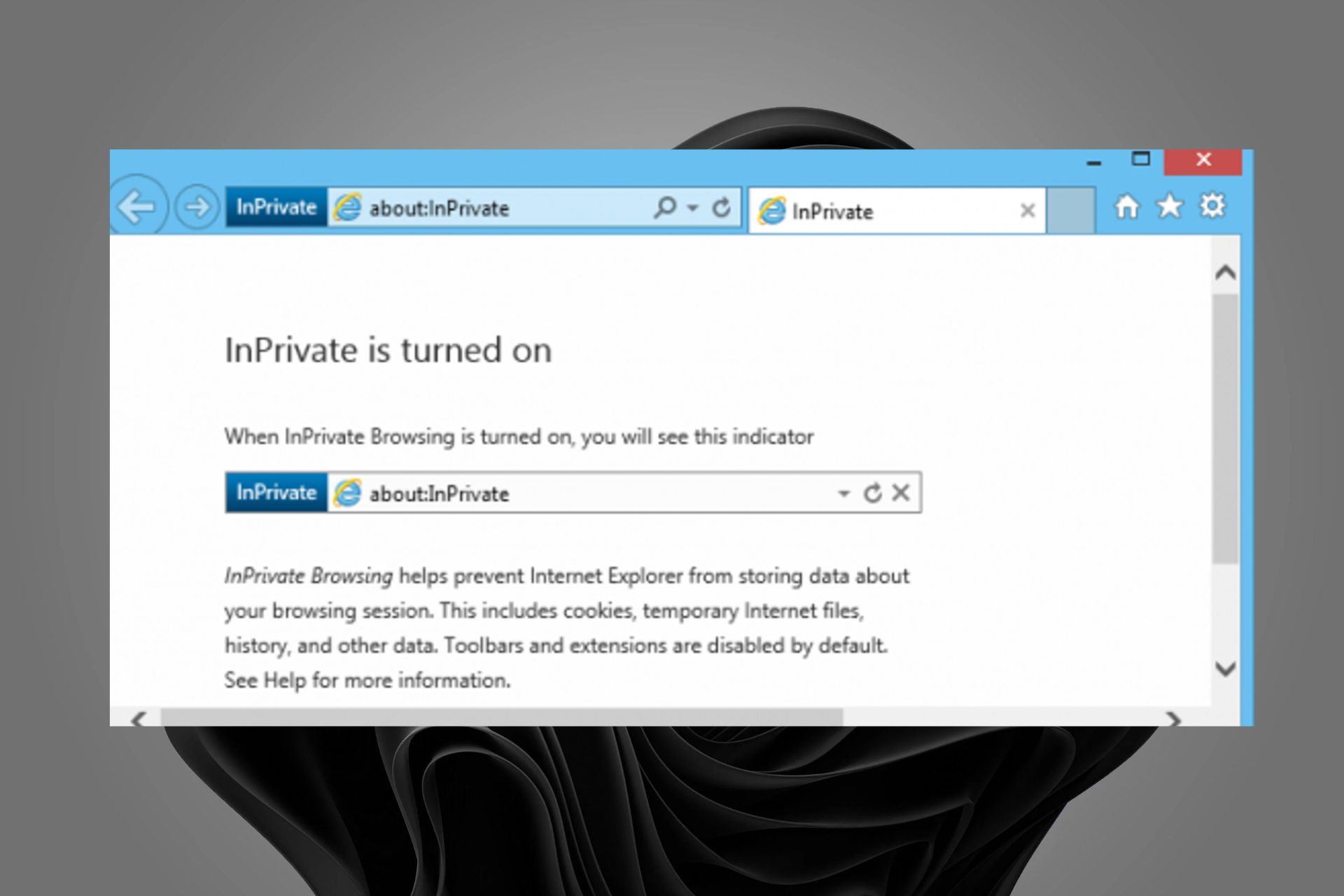
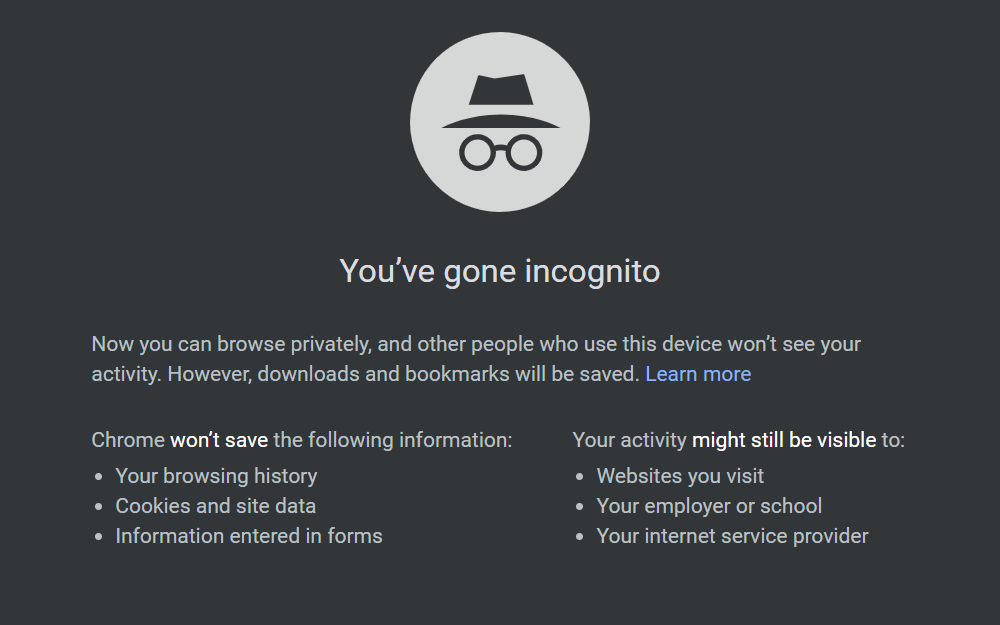
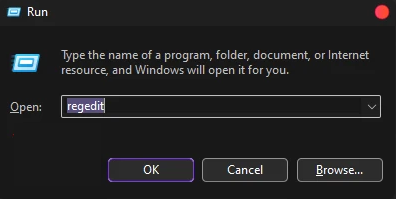

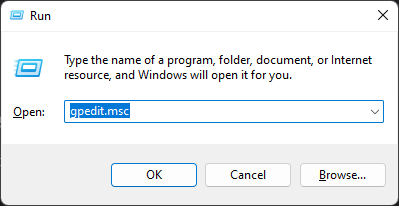
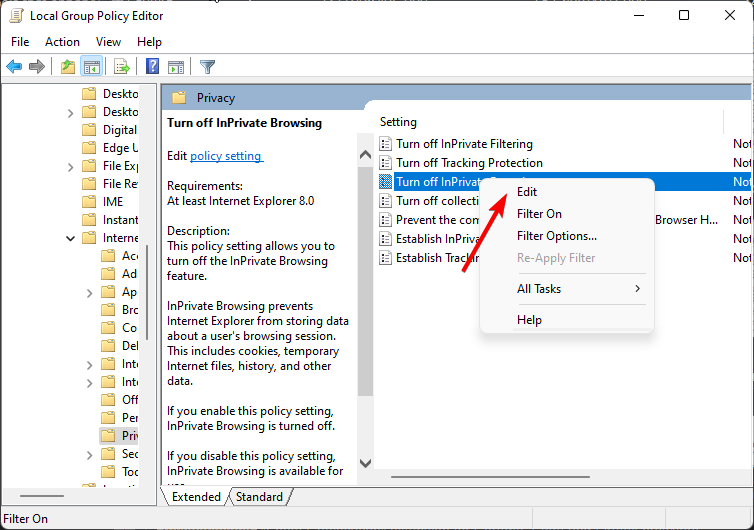
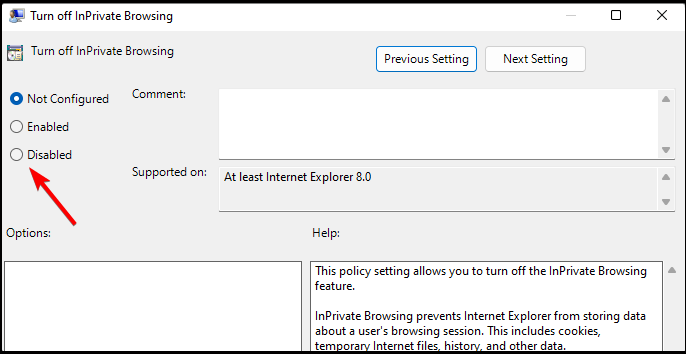

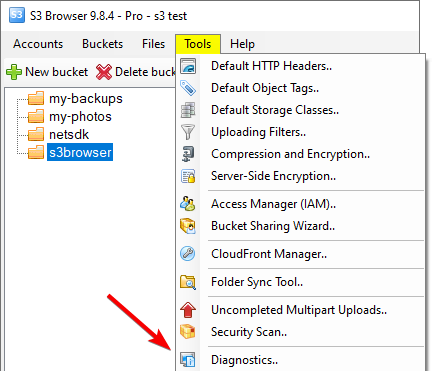
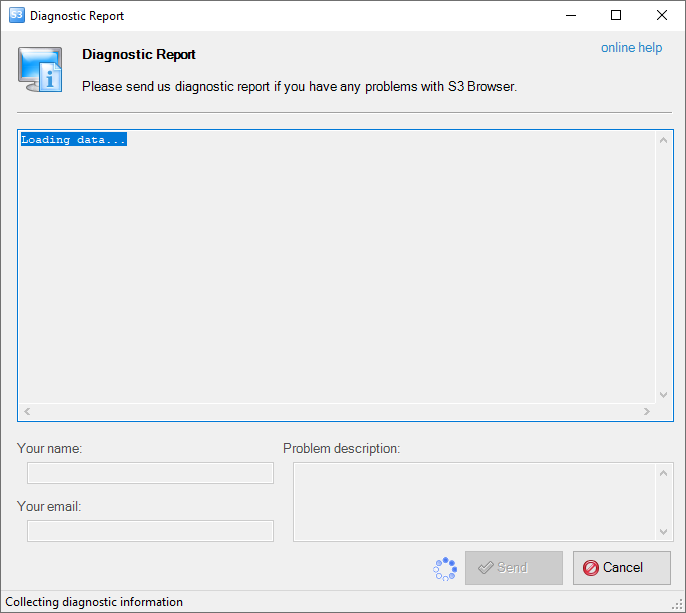


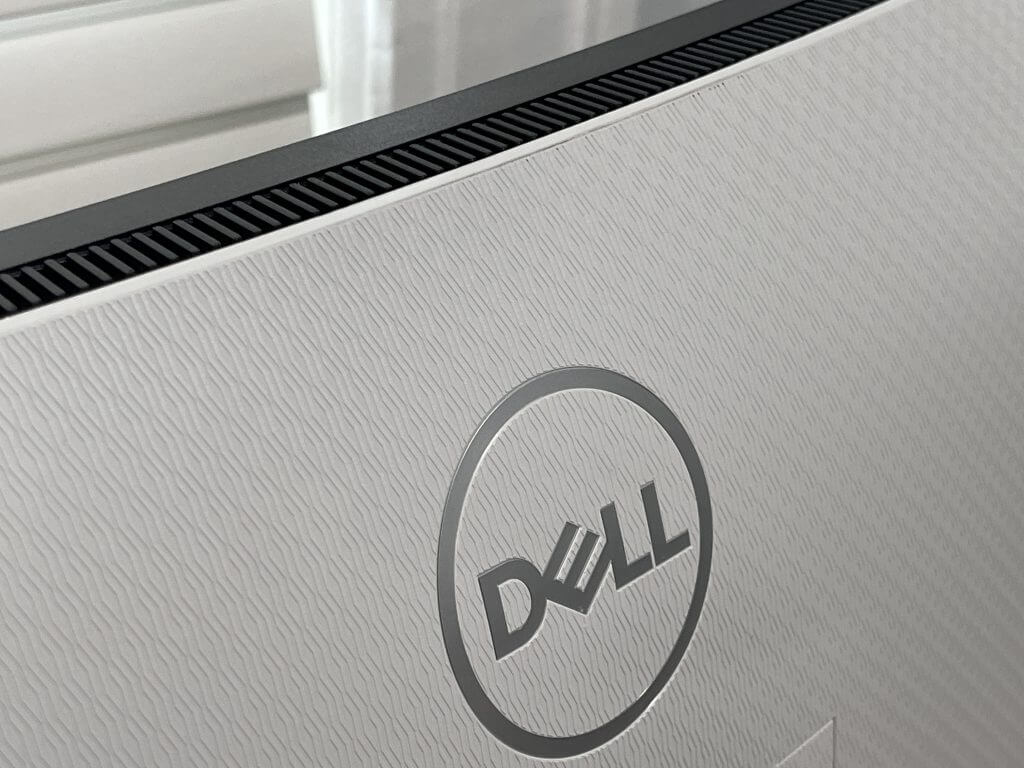
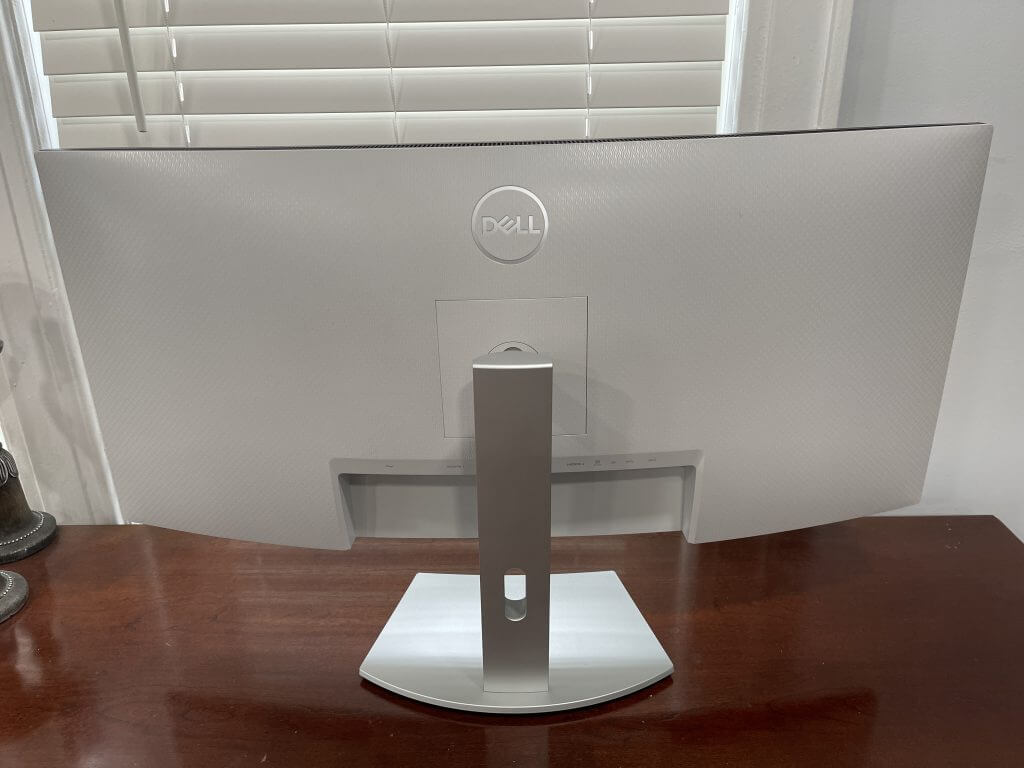
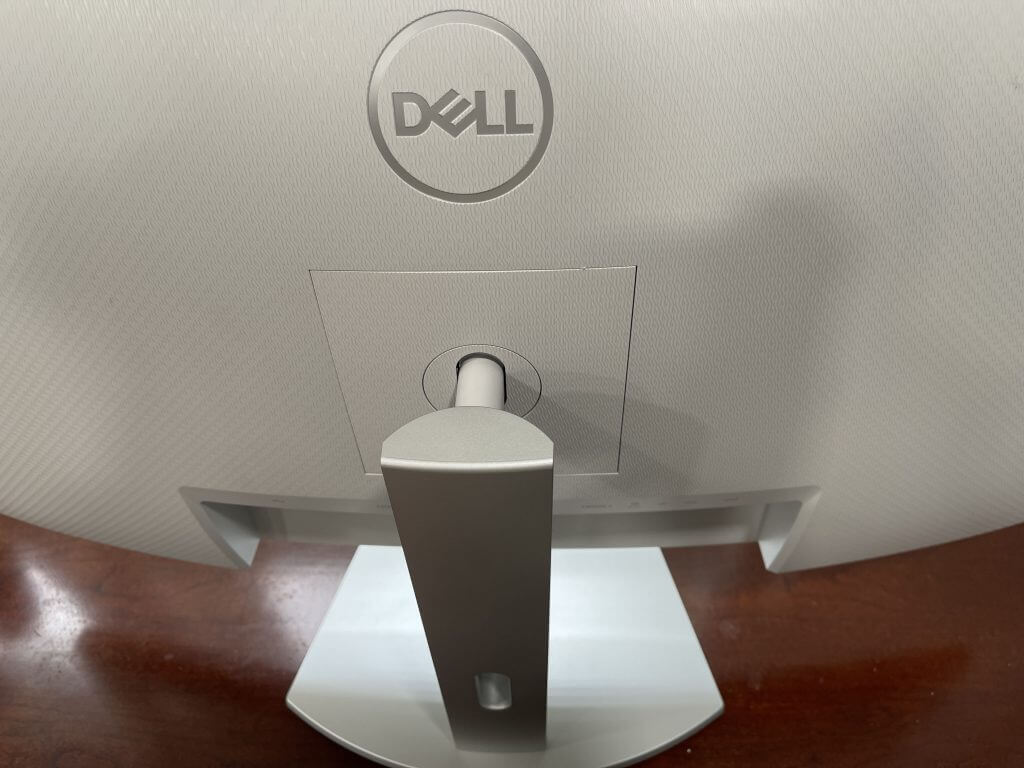
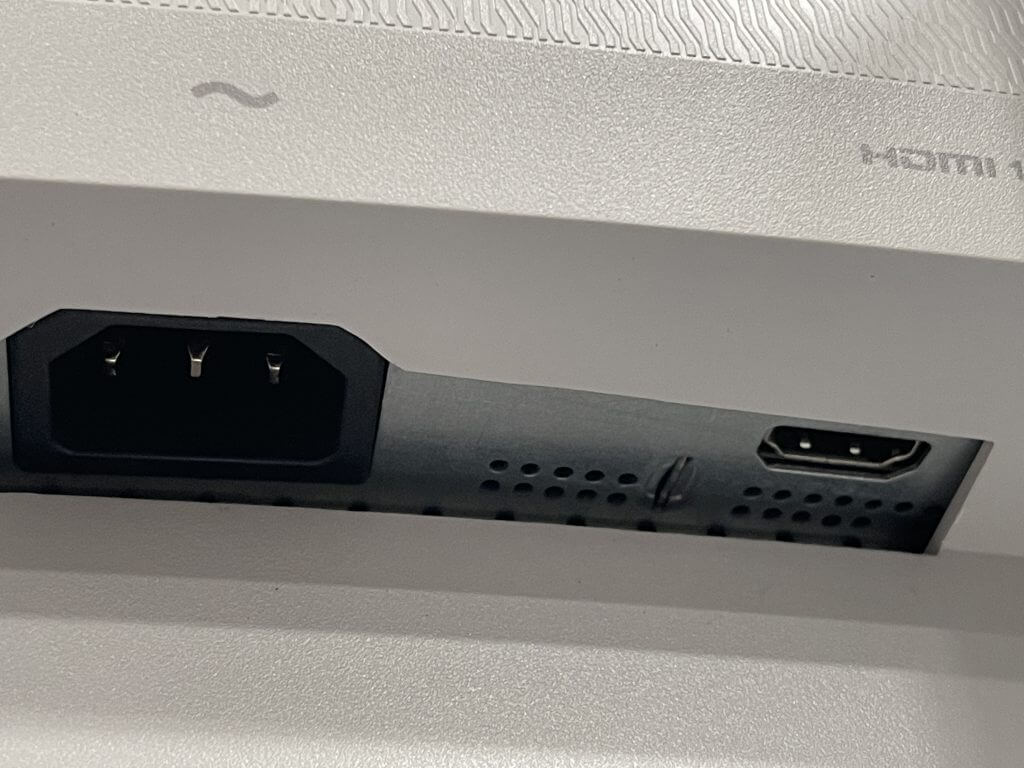
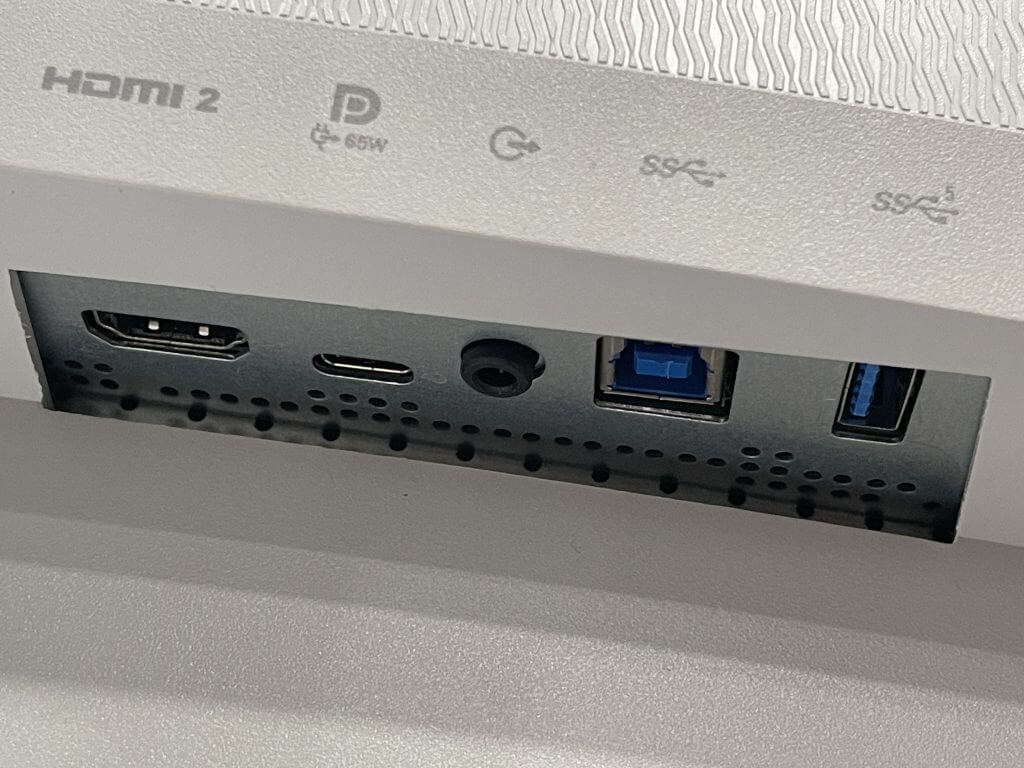
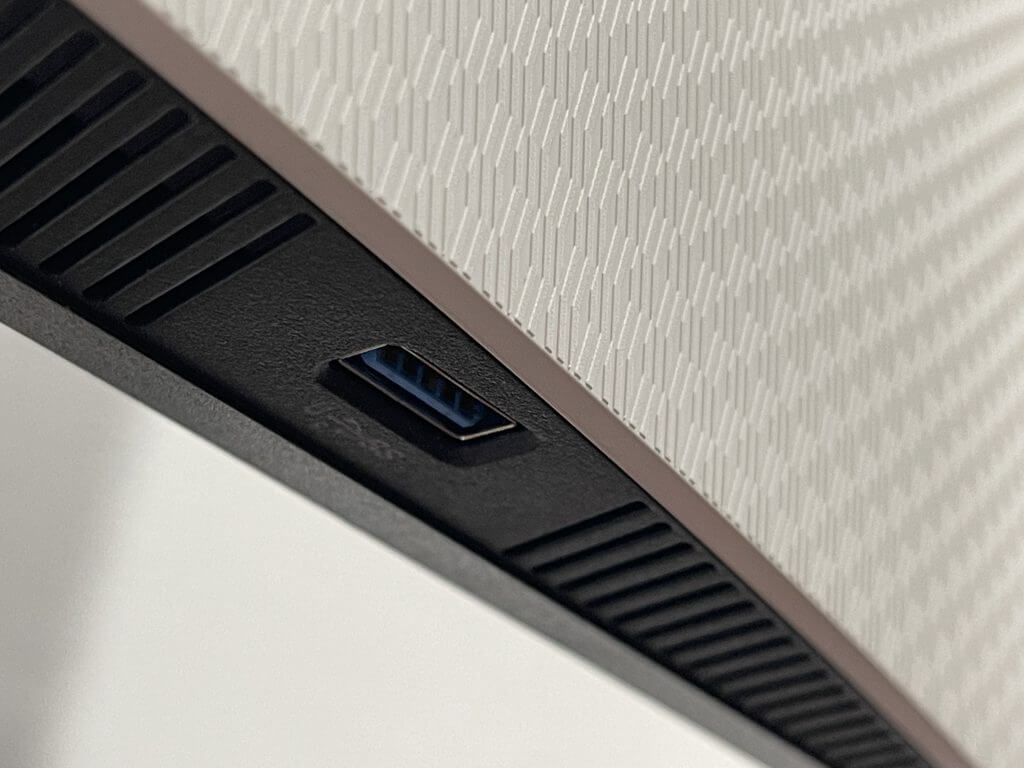
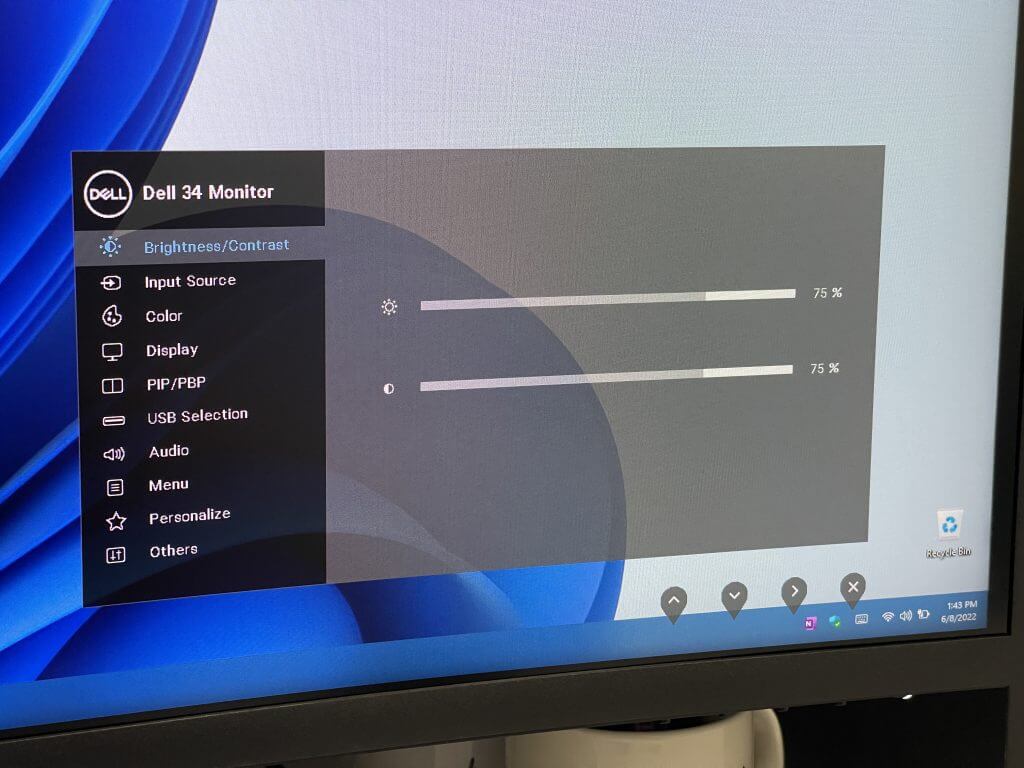
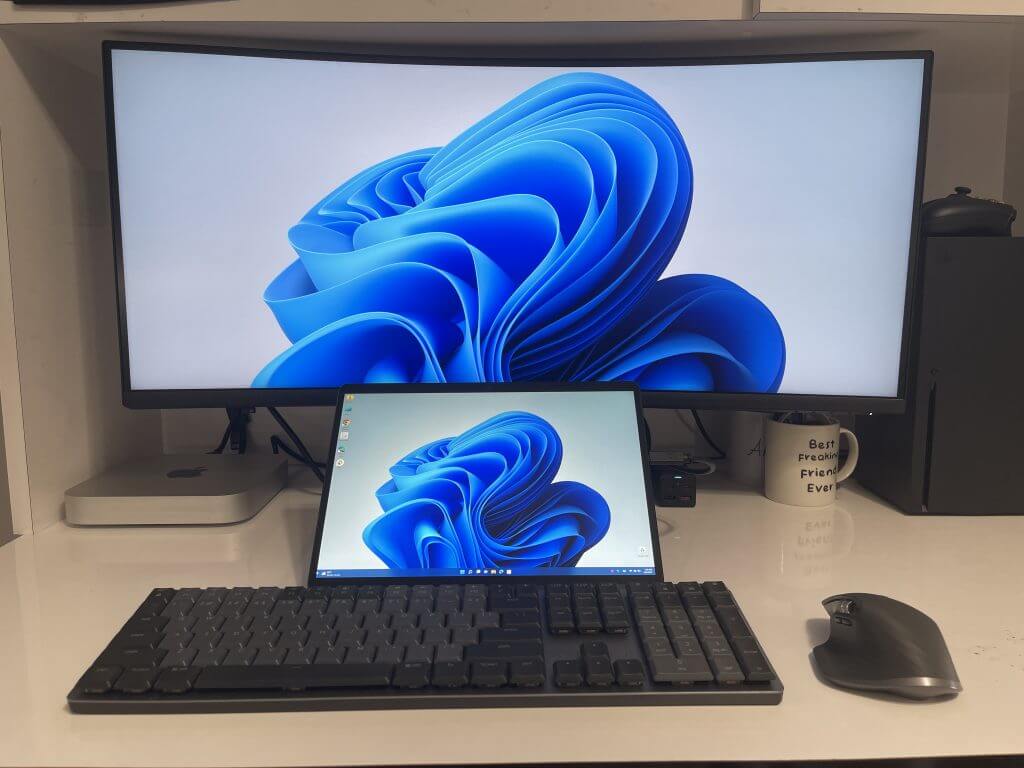
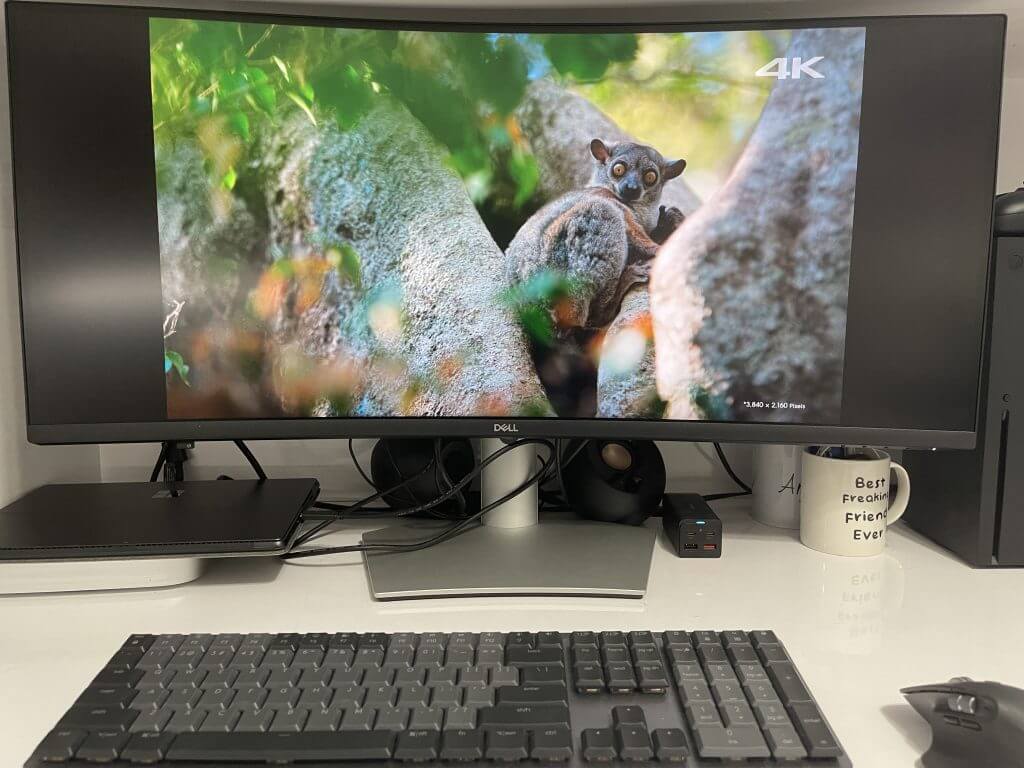
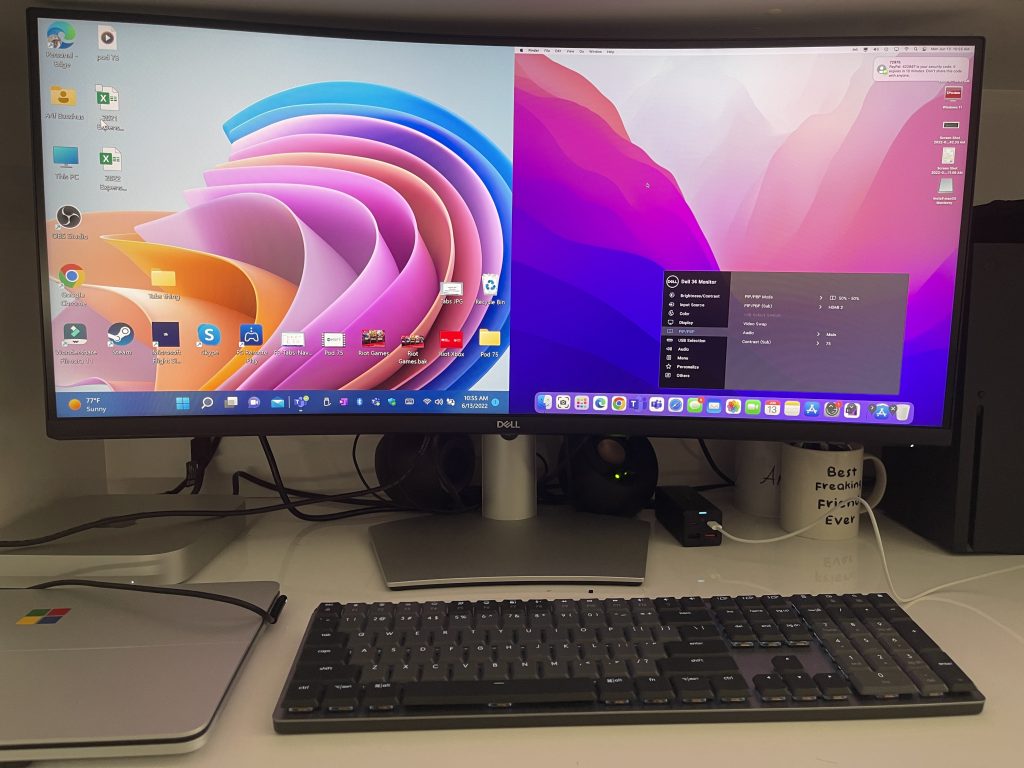

![How to Update Elden Ring if it’s Not Working [5 Steps]](https://windowsreport.com/wp-content/uploads/2022/03/elden-ring-2.jpg)


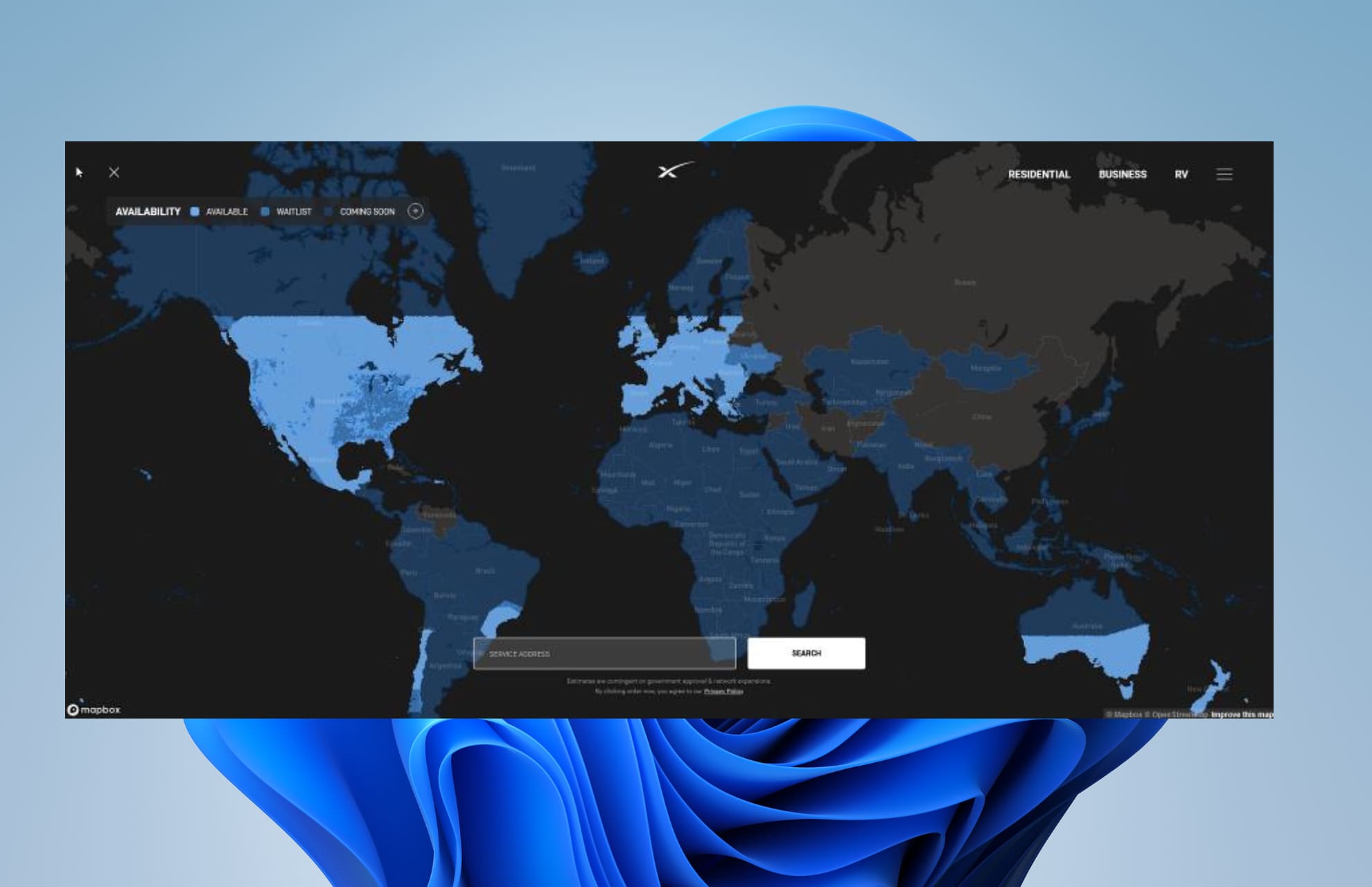


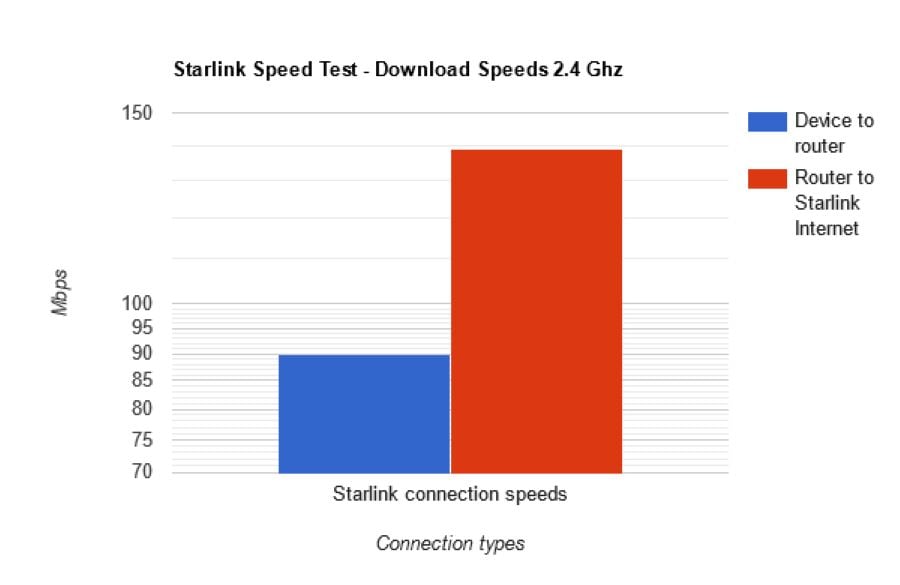
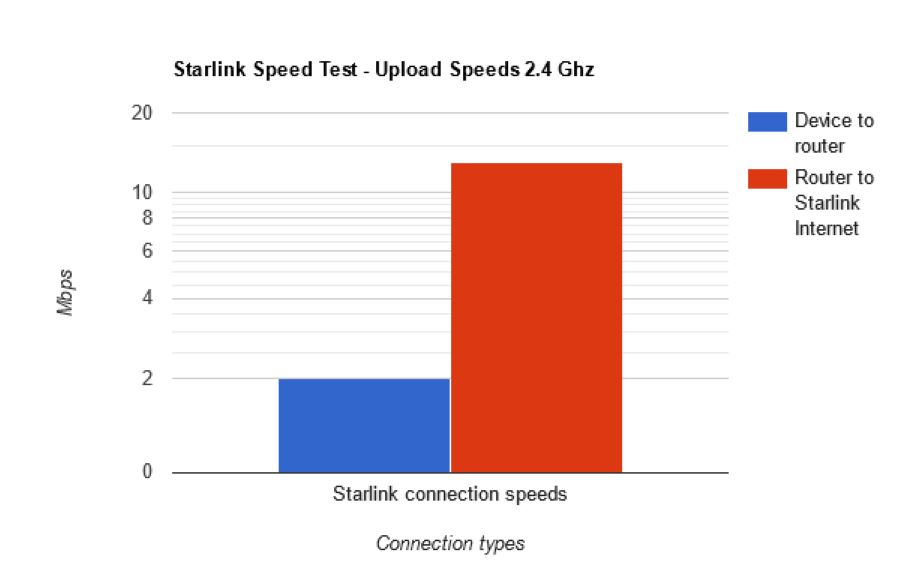
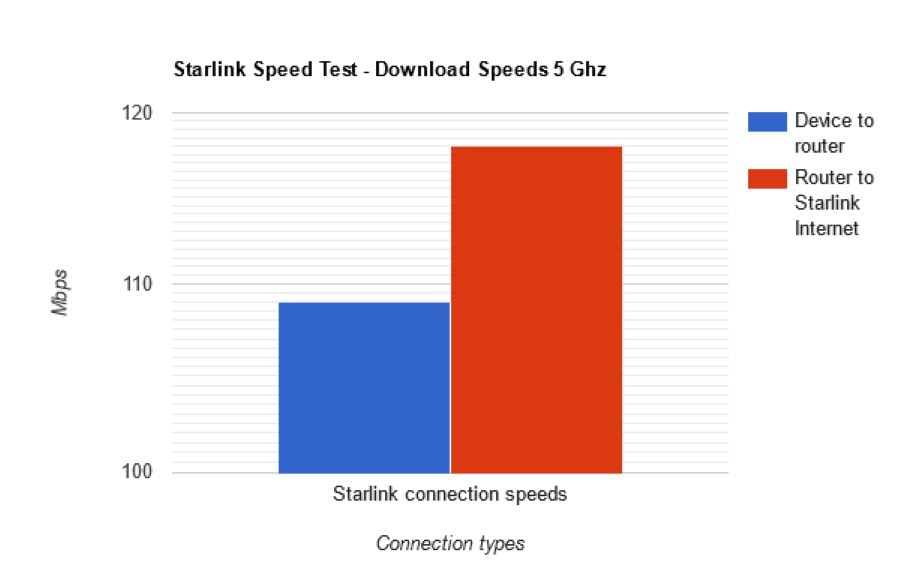
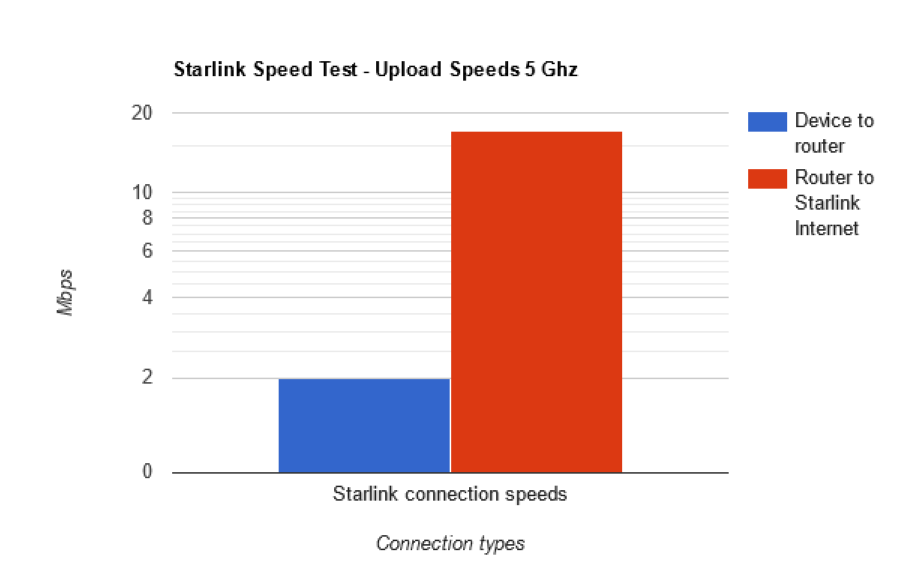
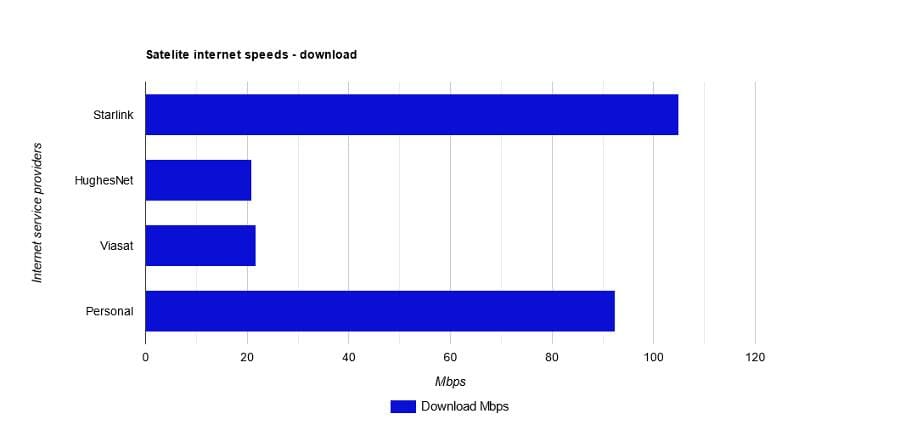
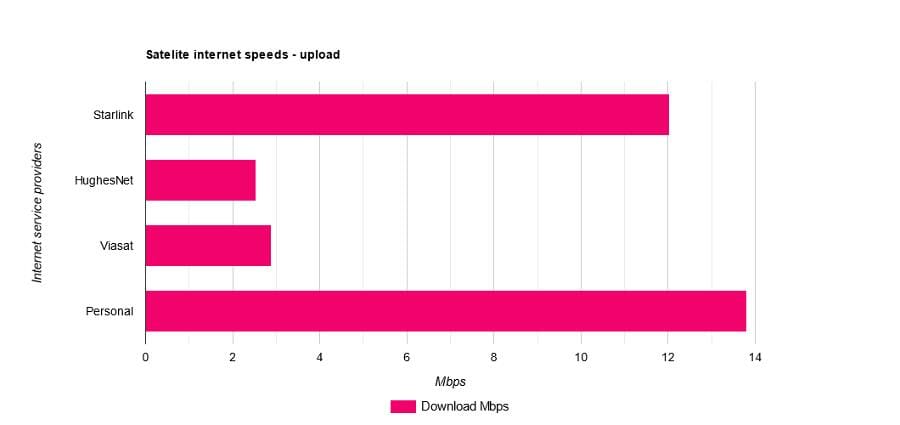
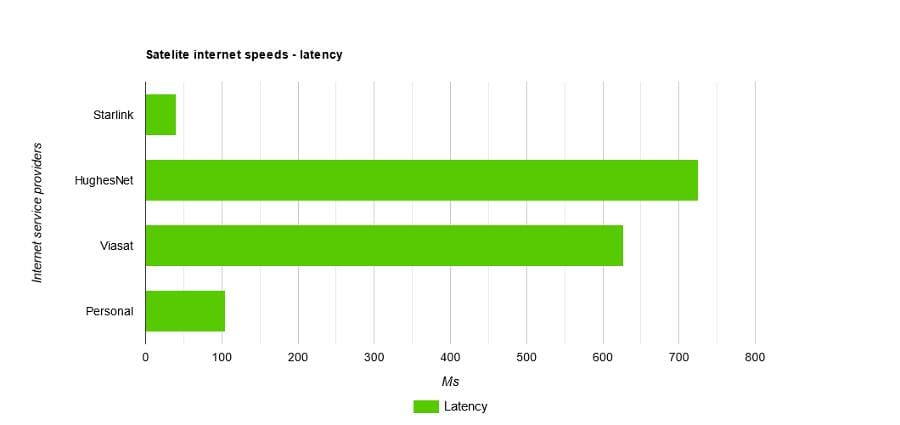

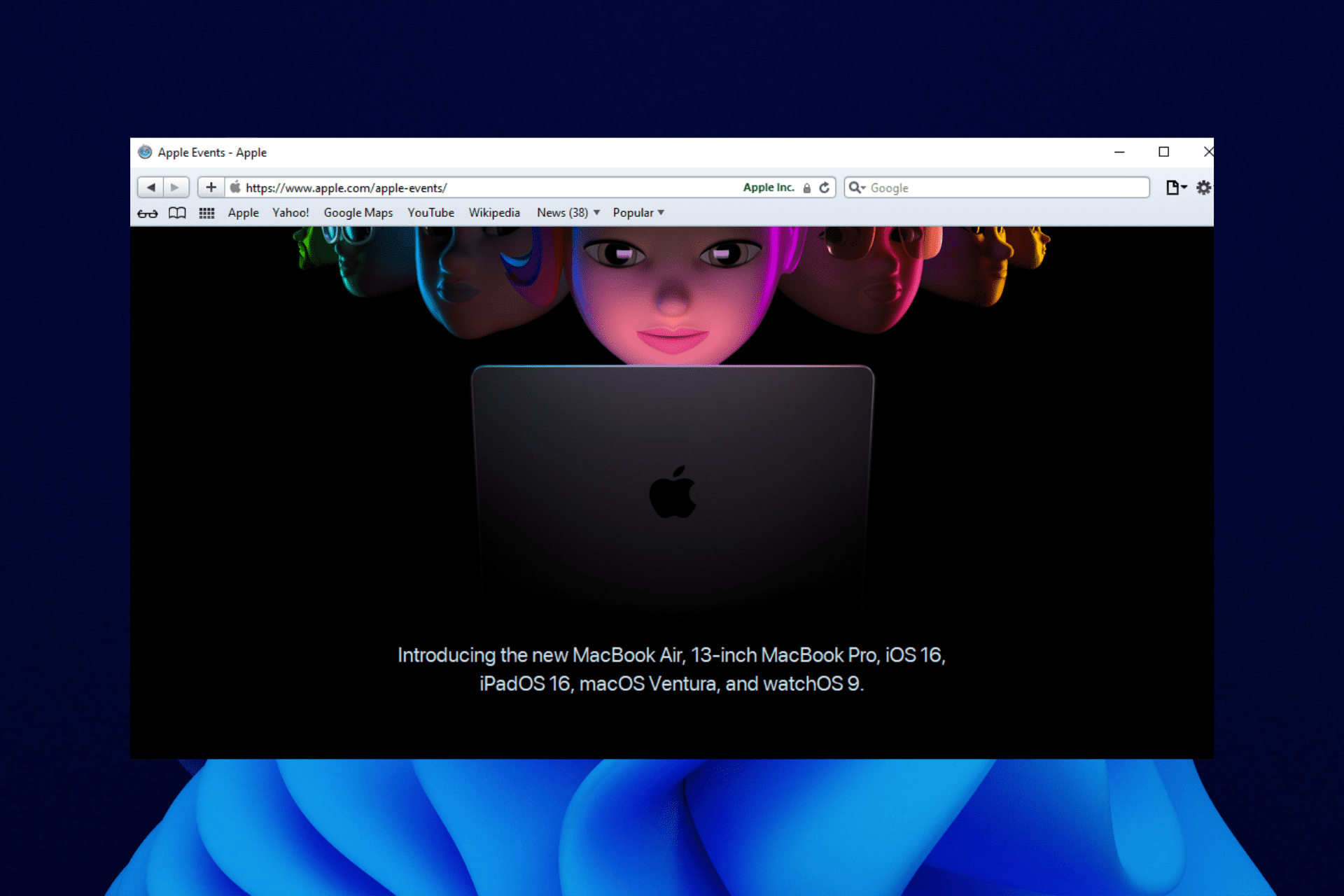


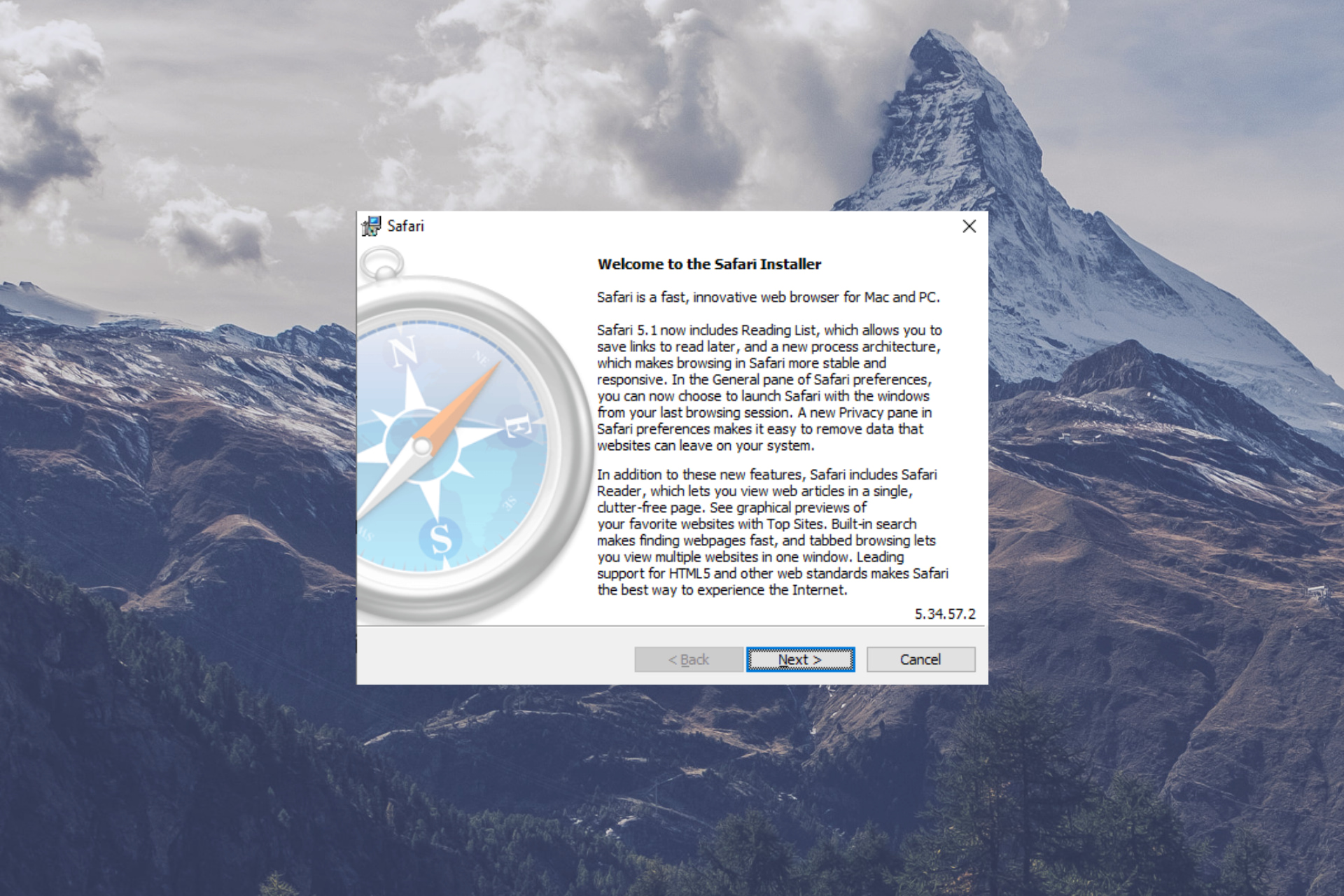


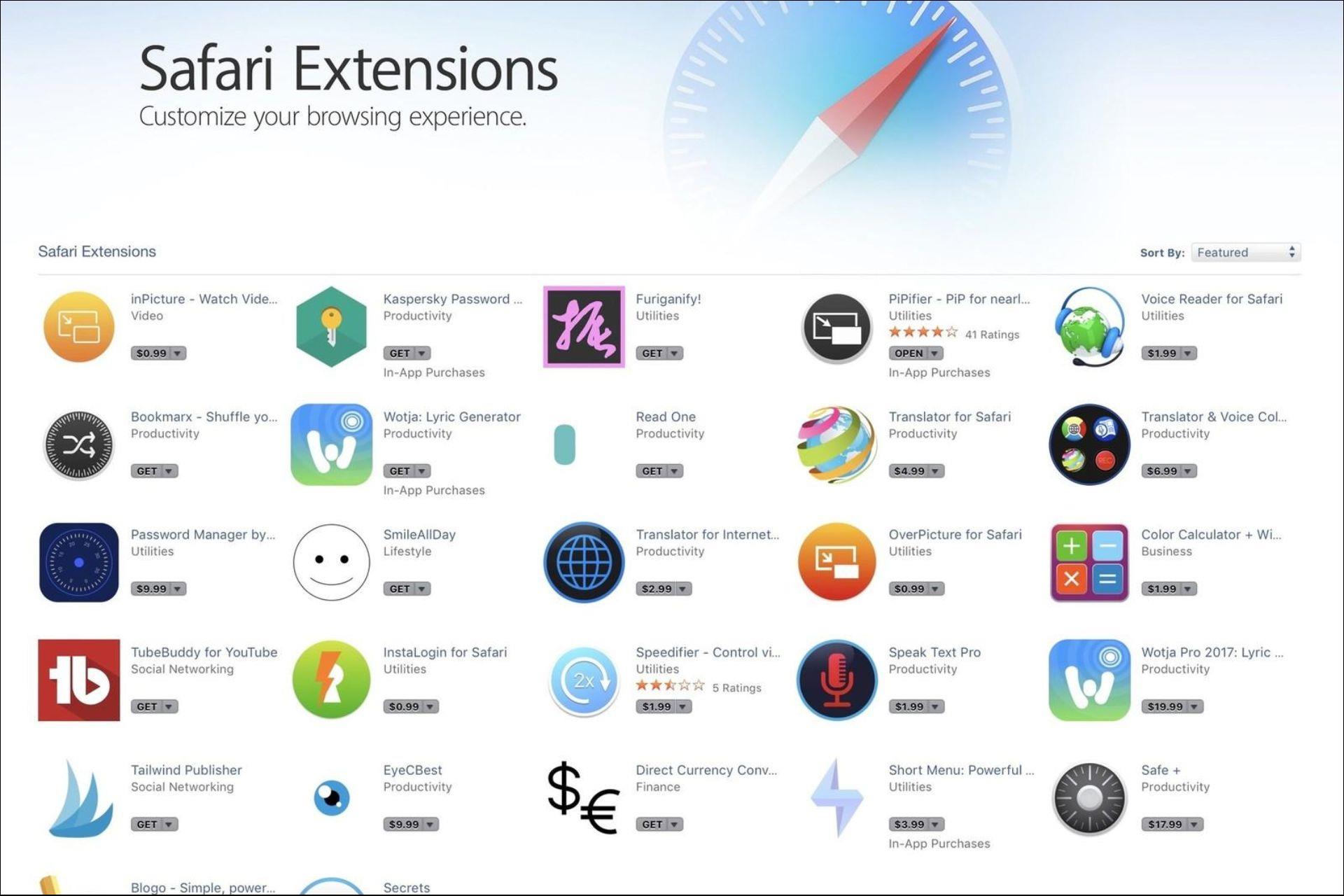




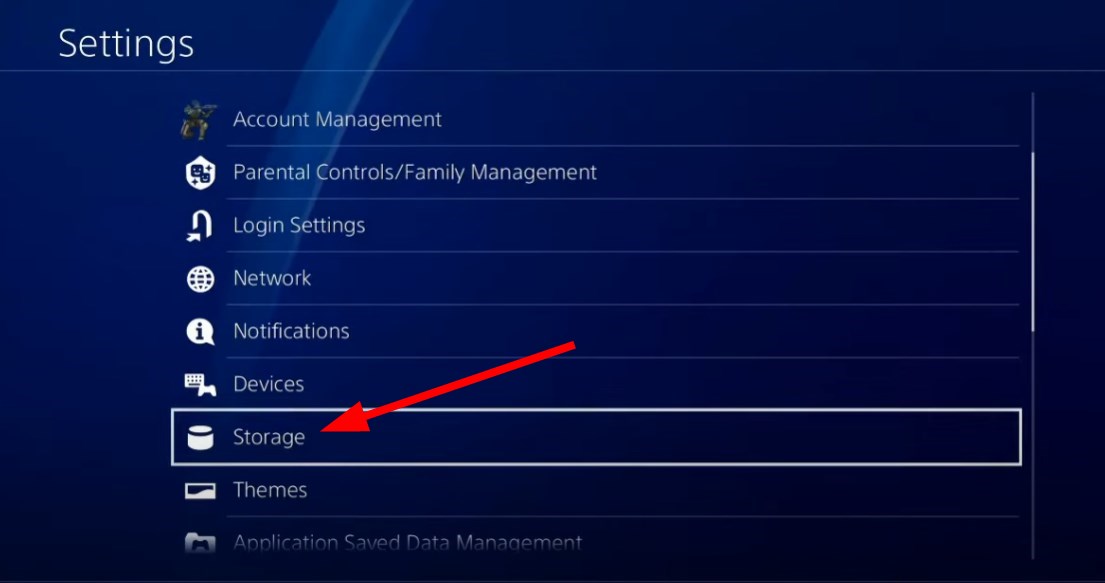
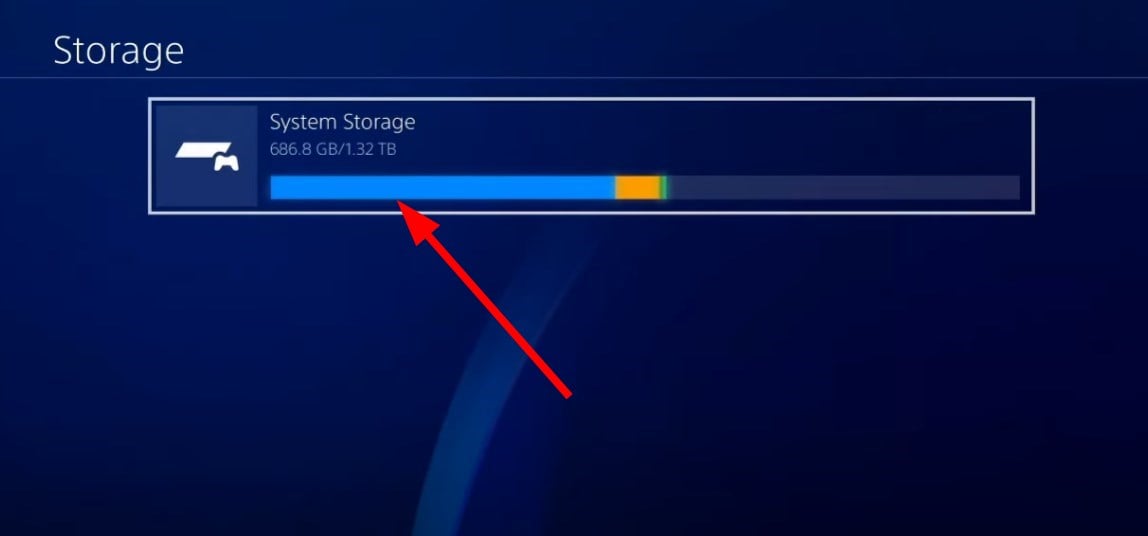
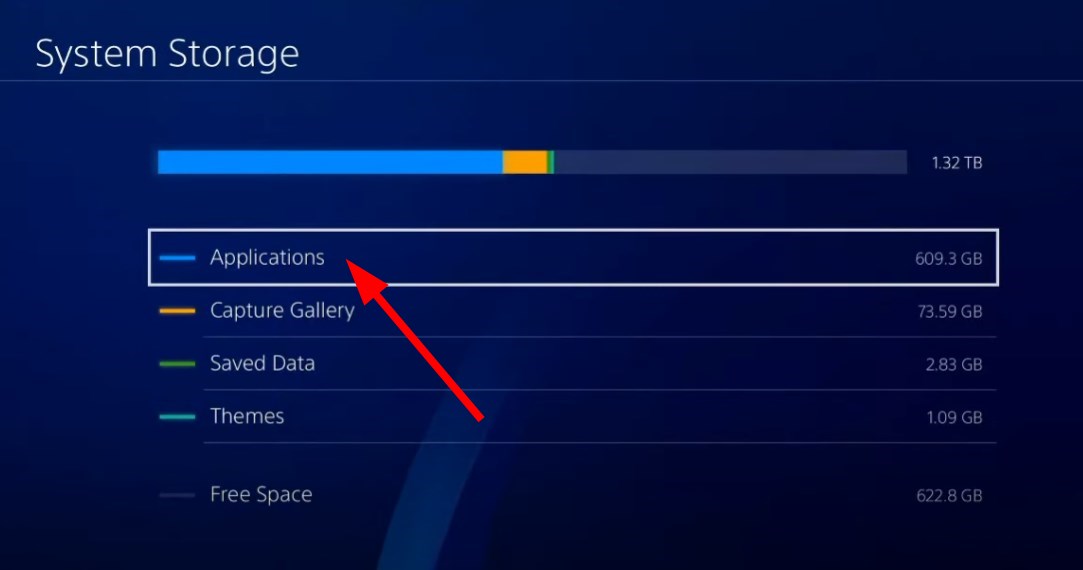
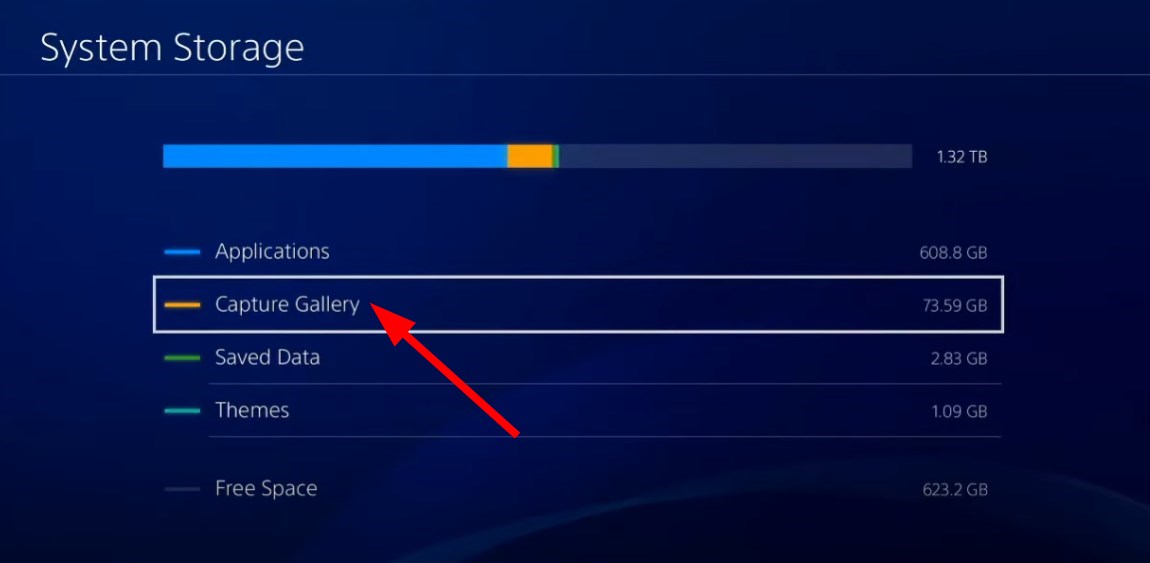
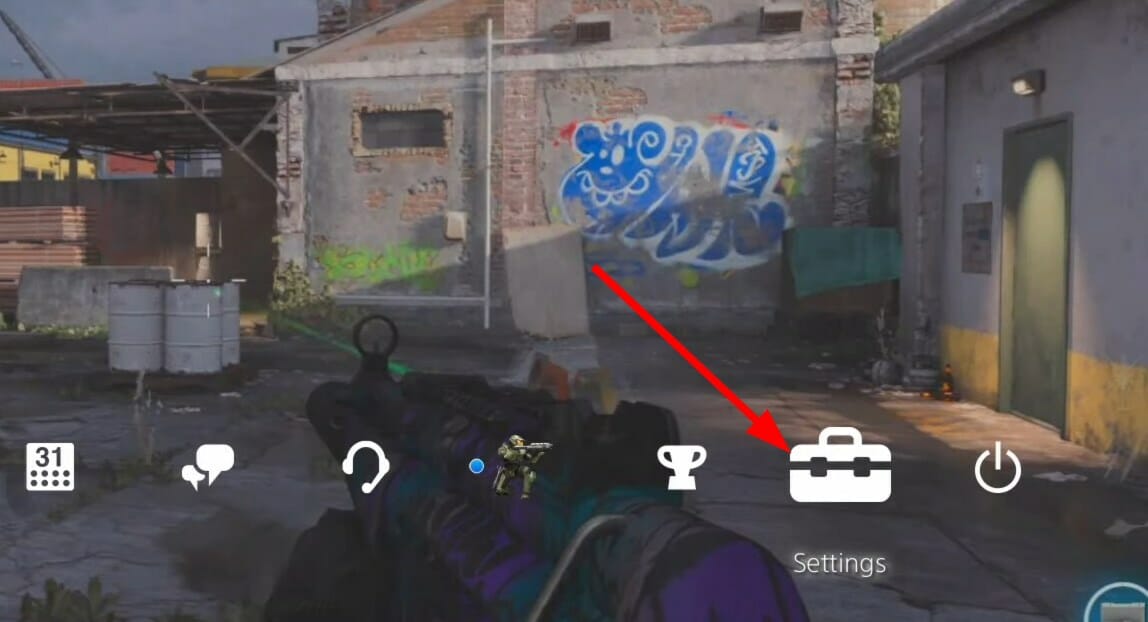
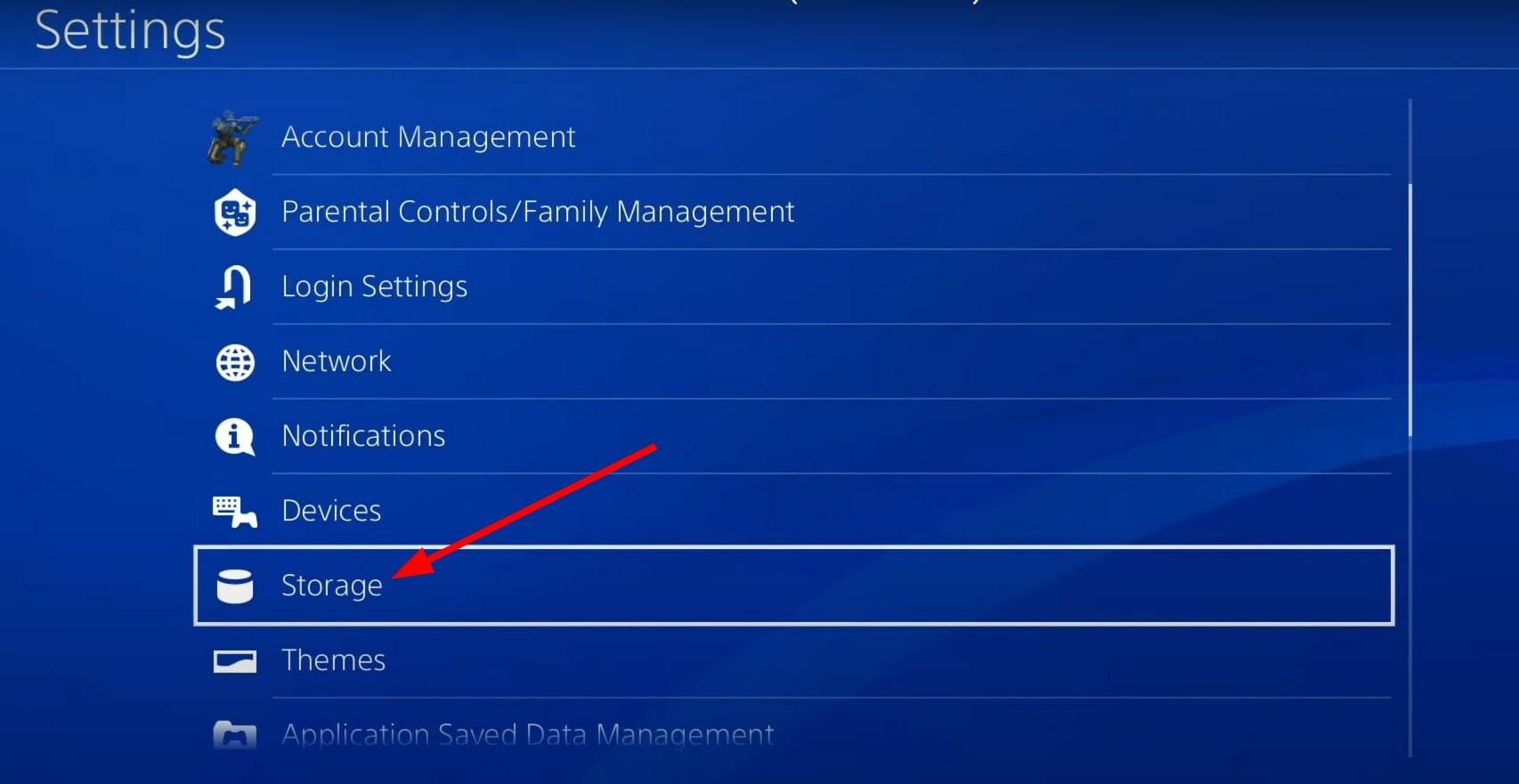
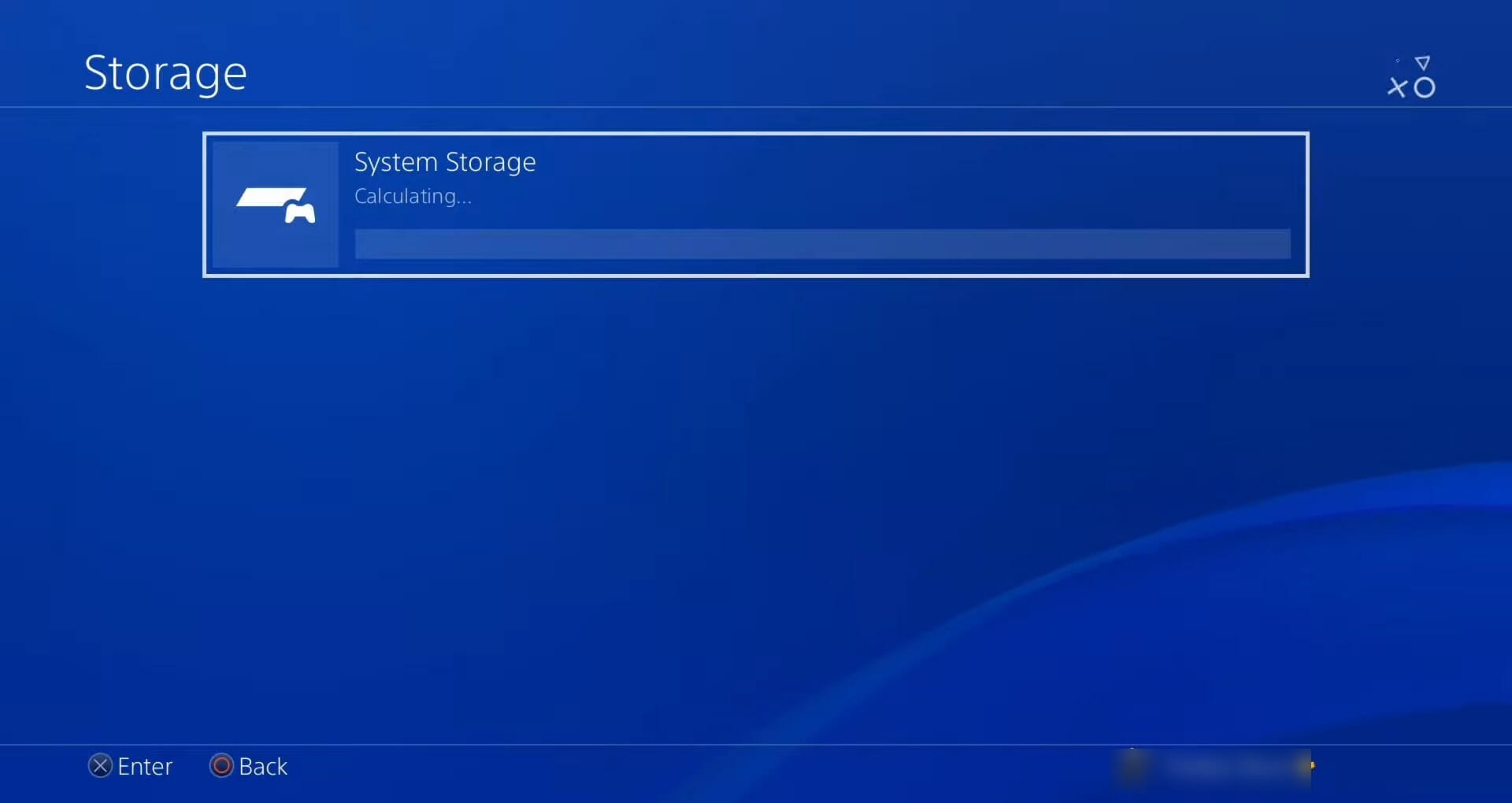
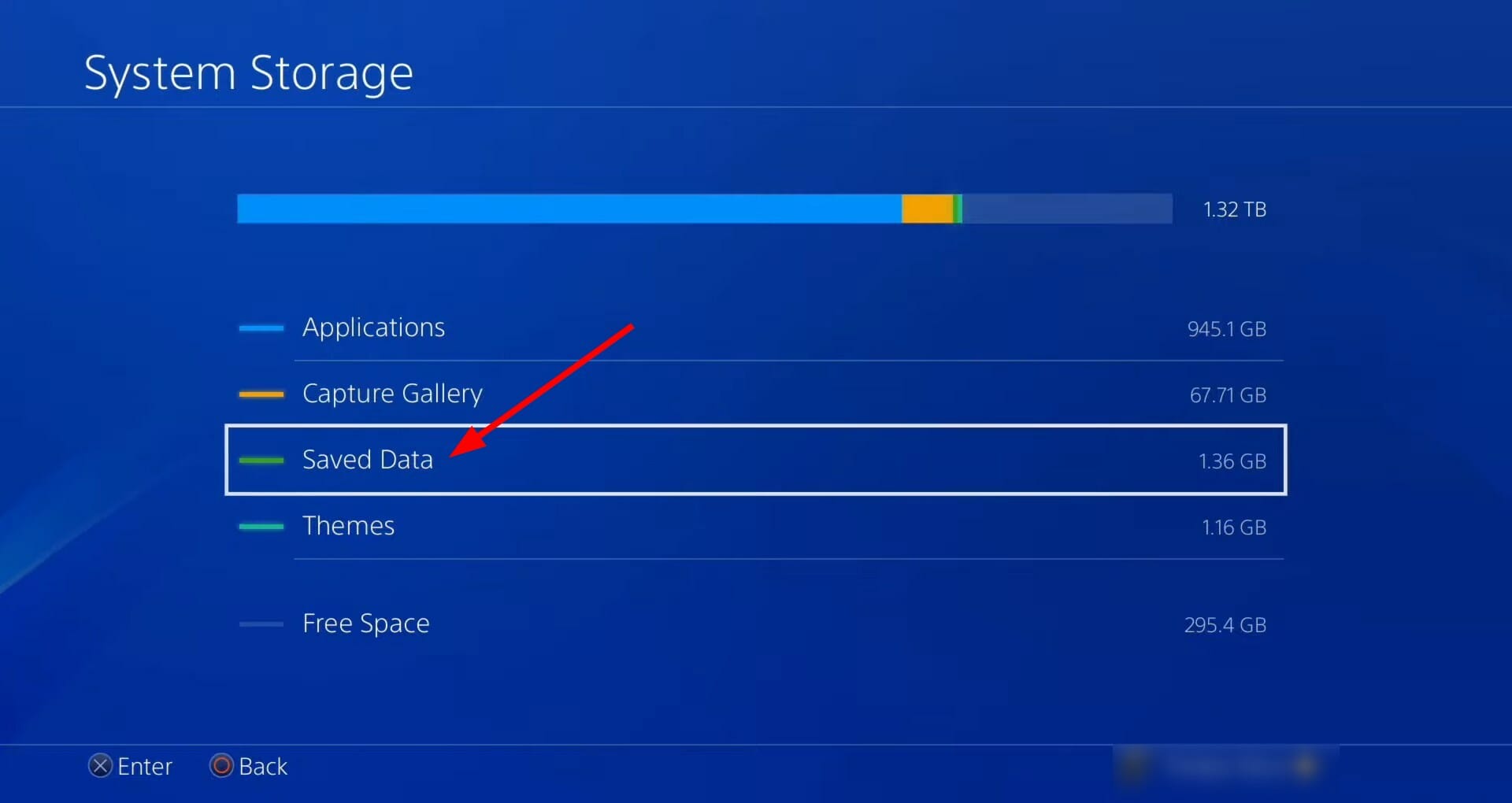
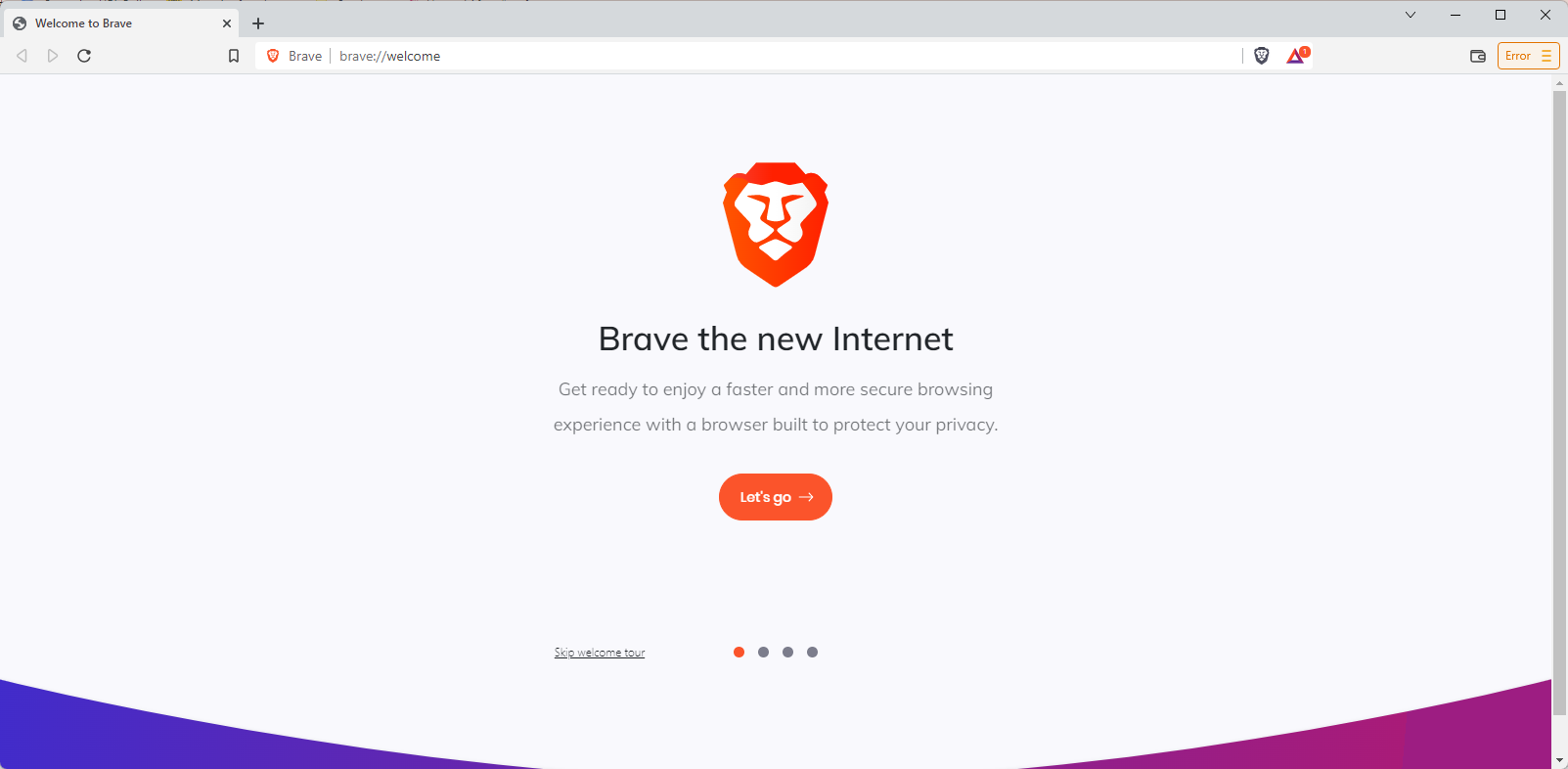
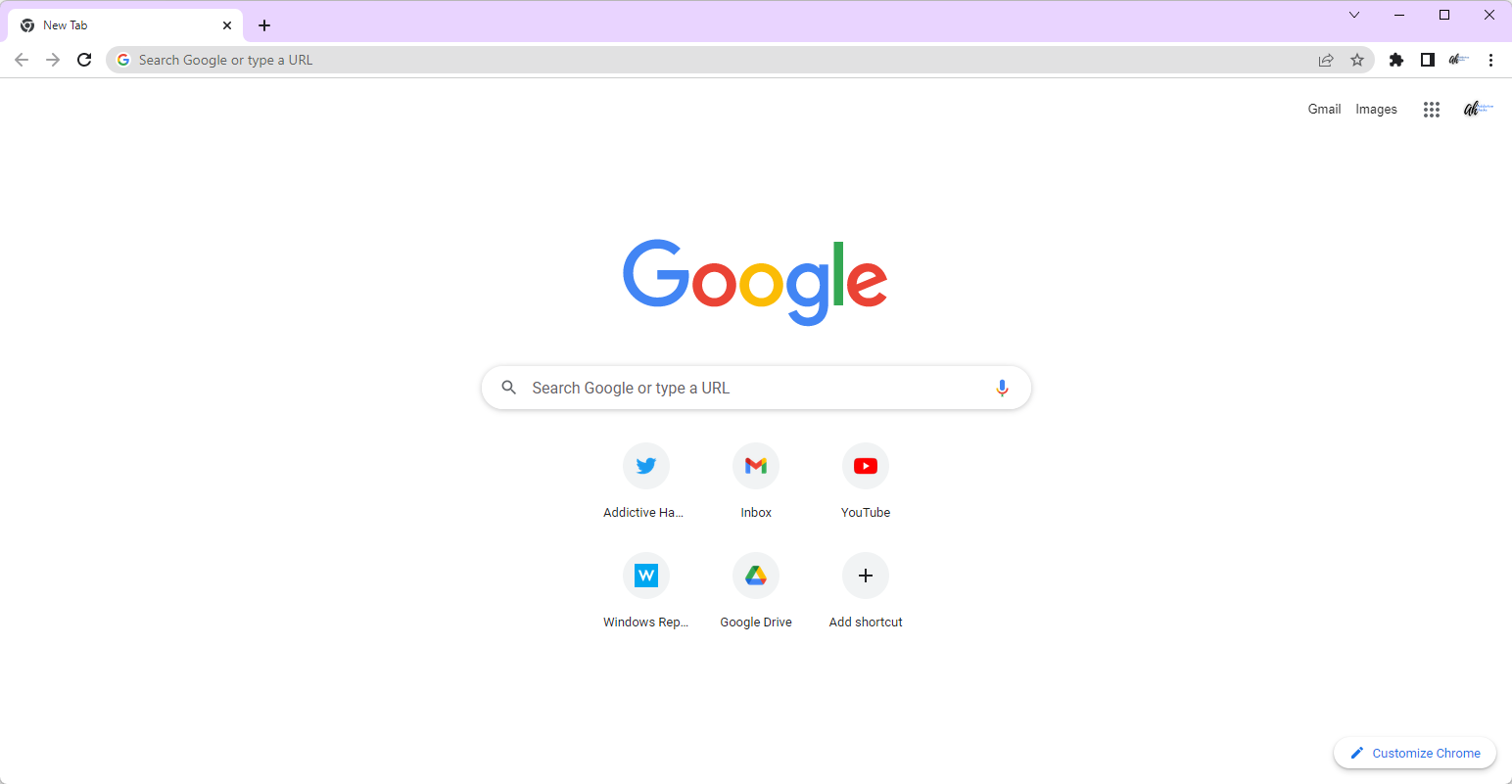
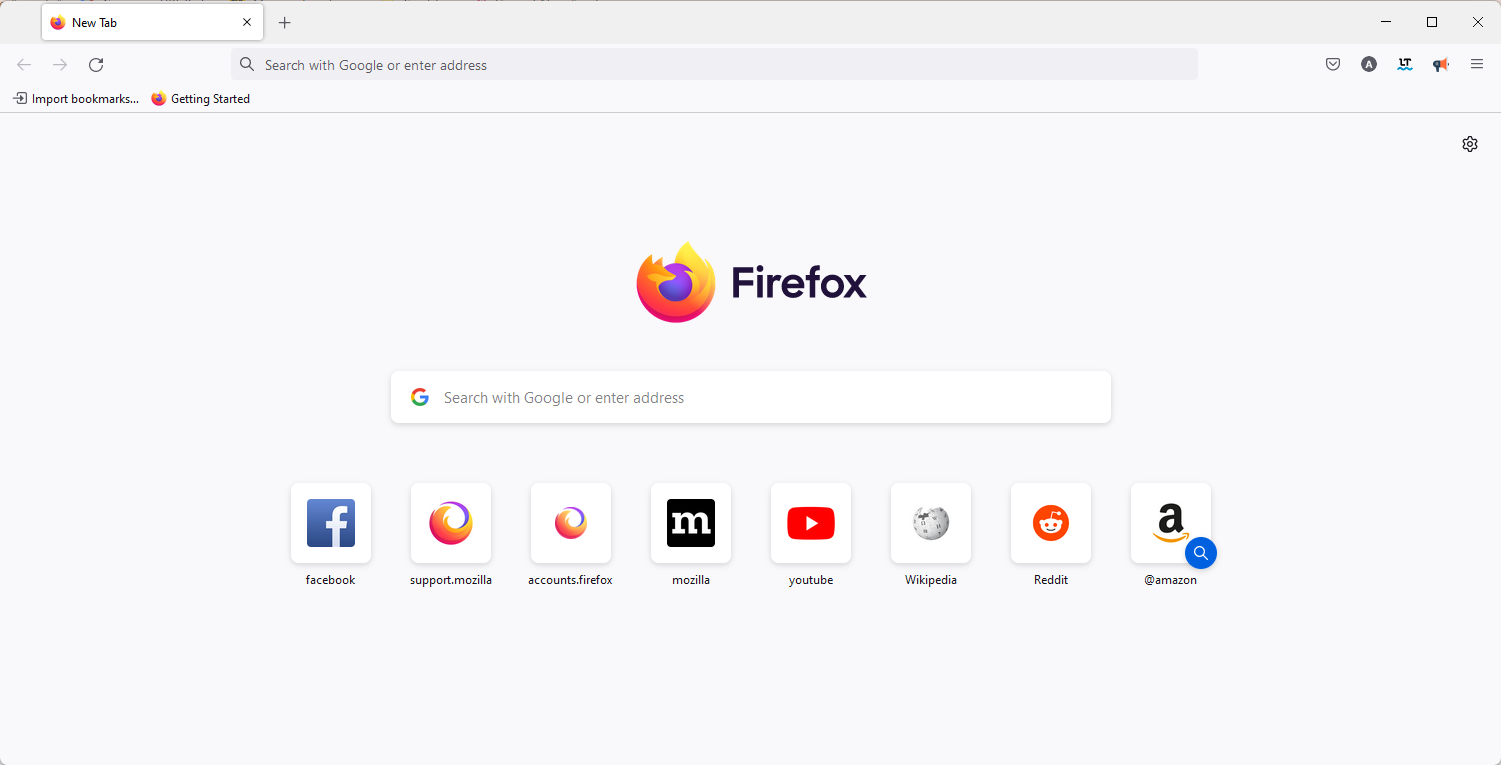
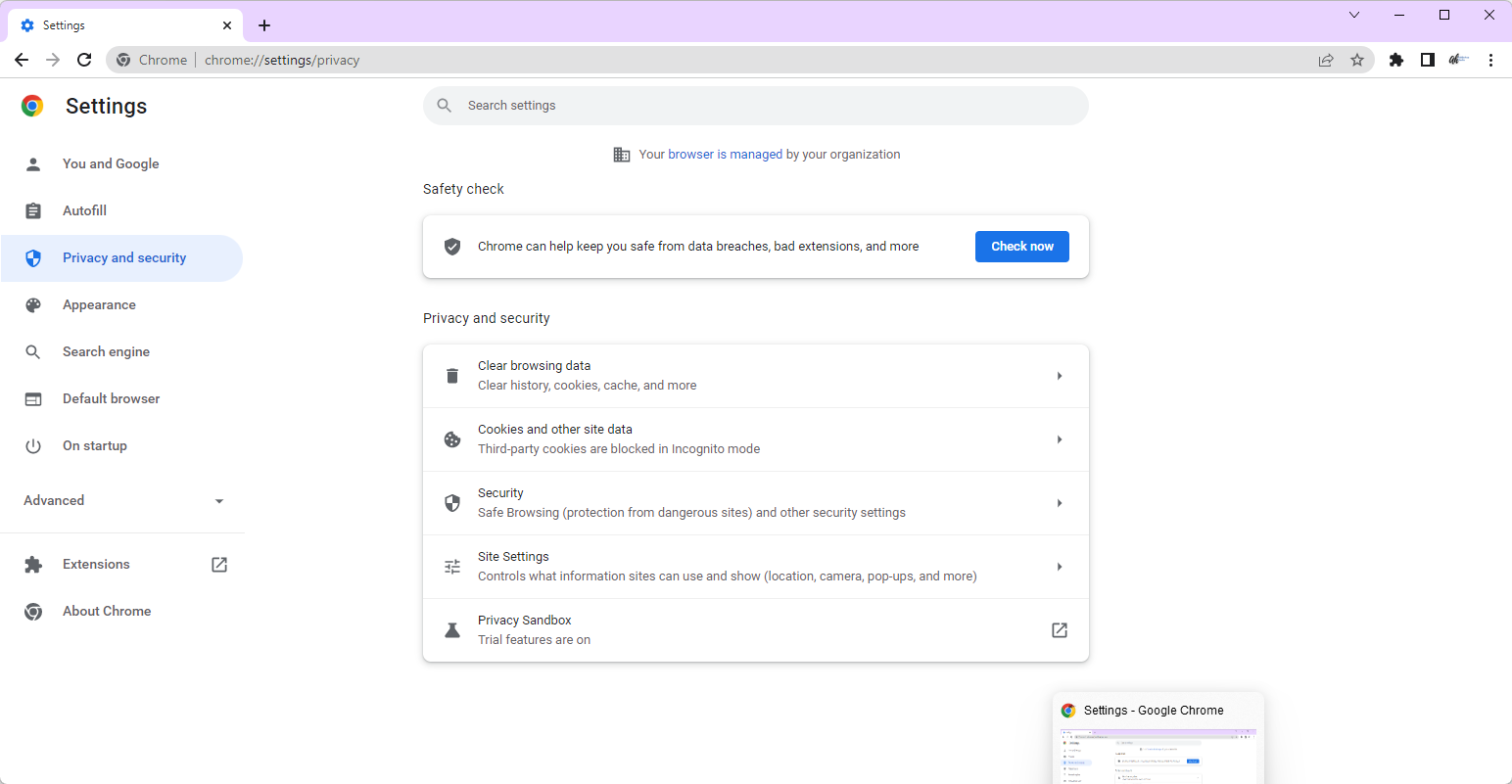
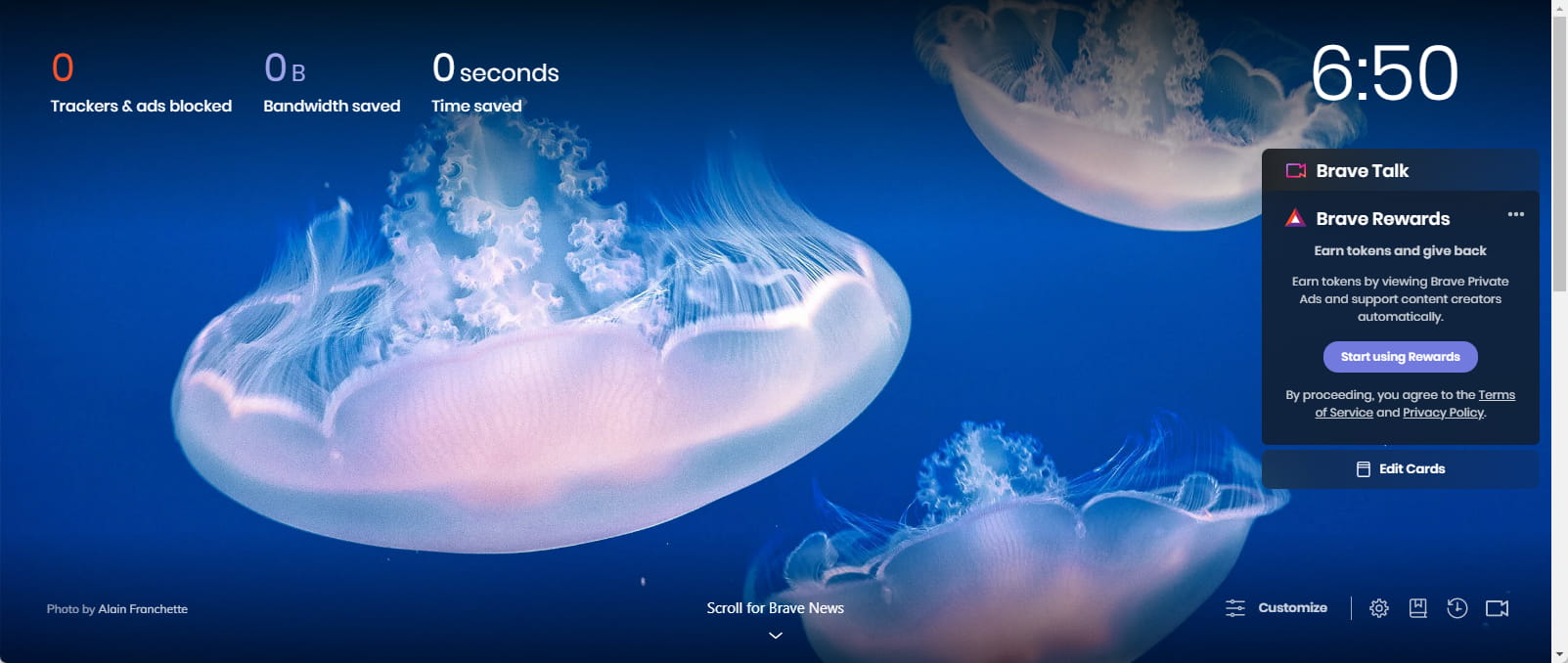
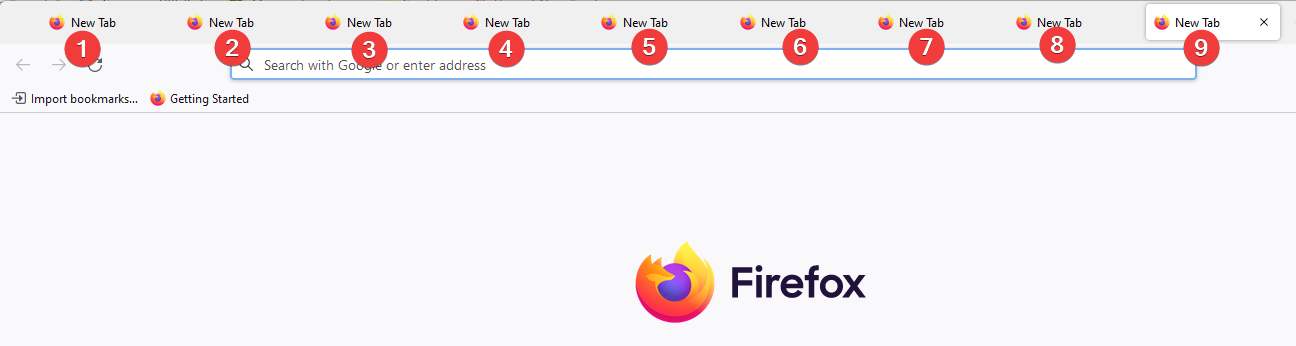
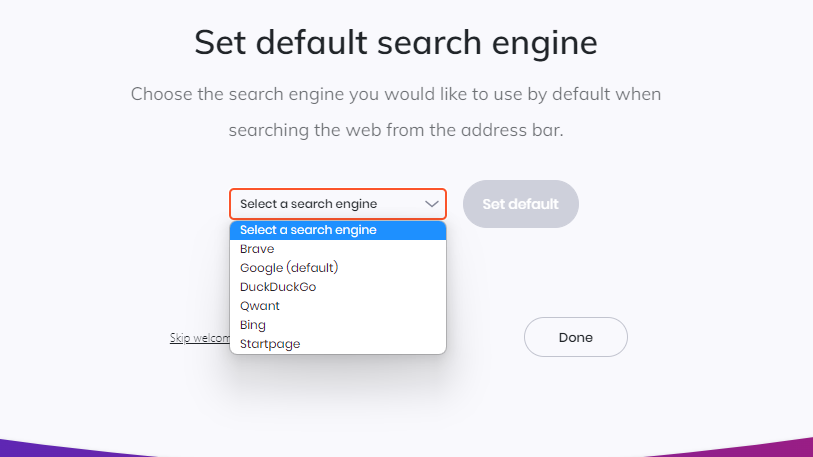
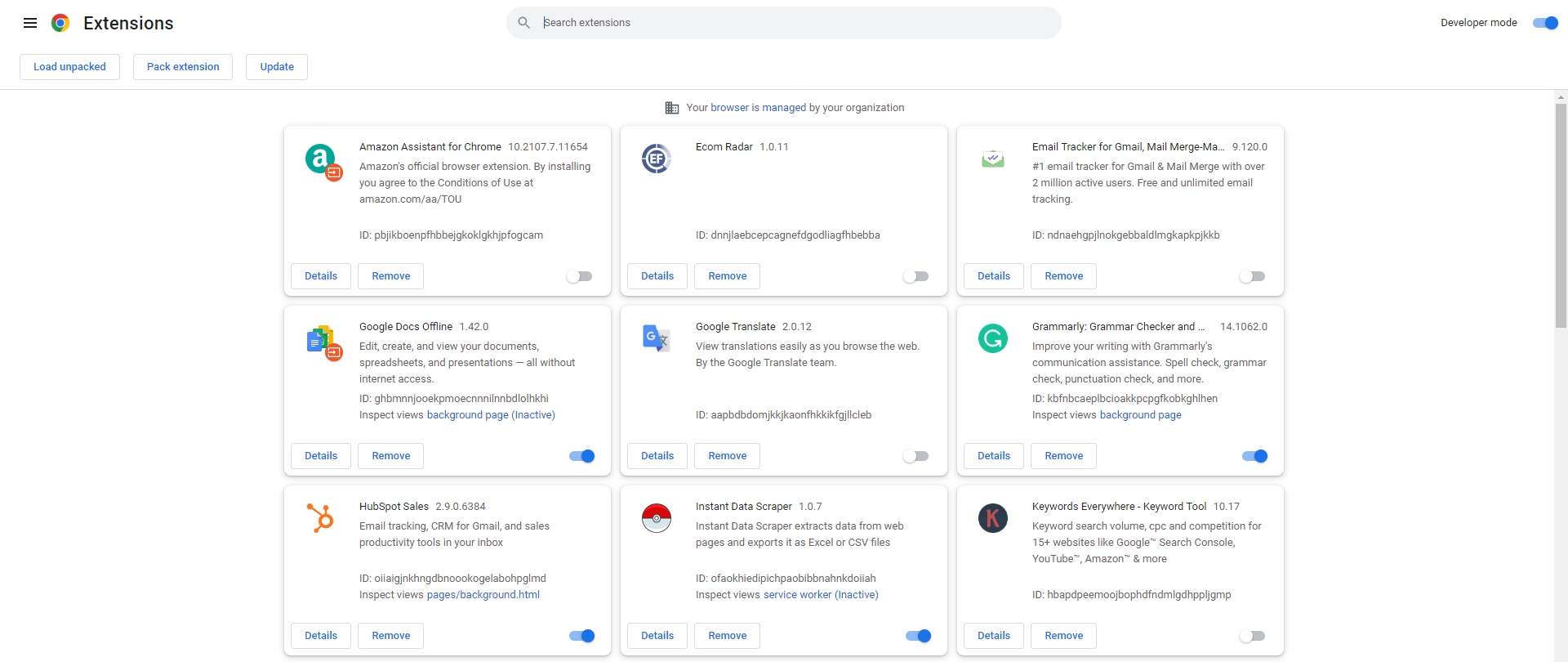
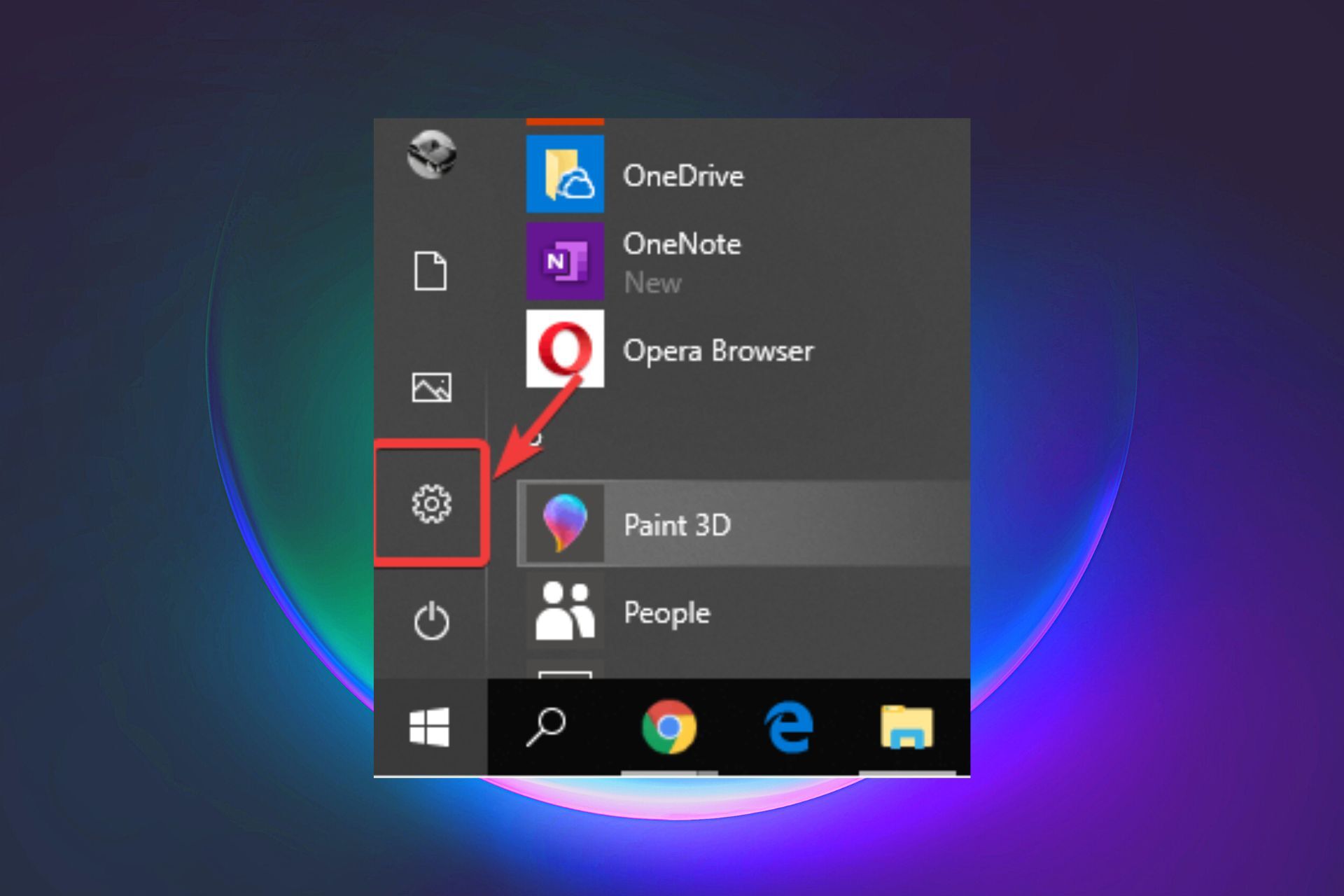


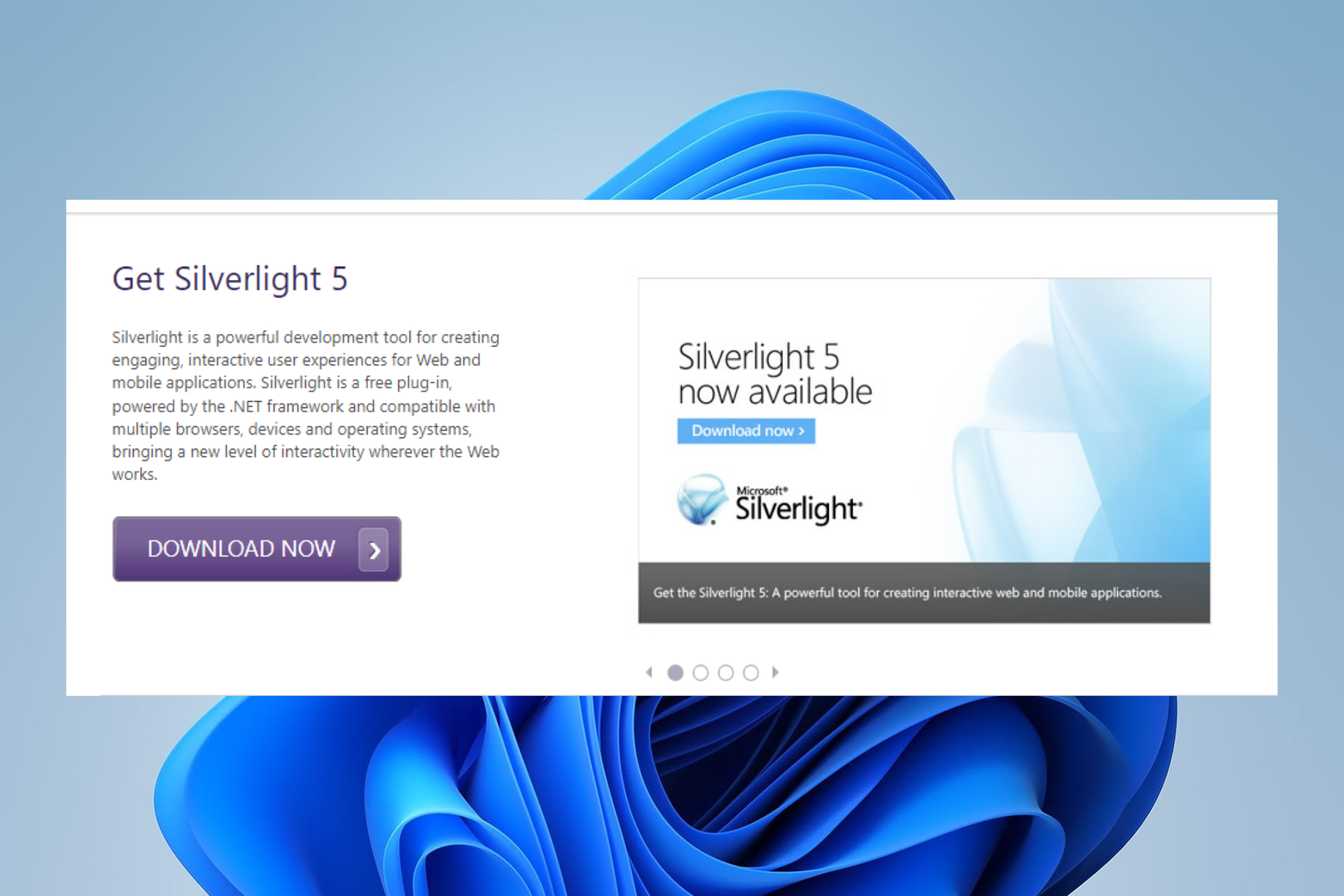





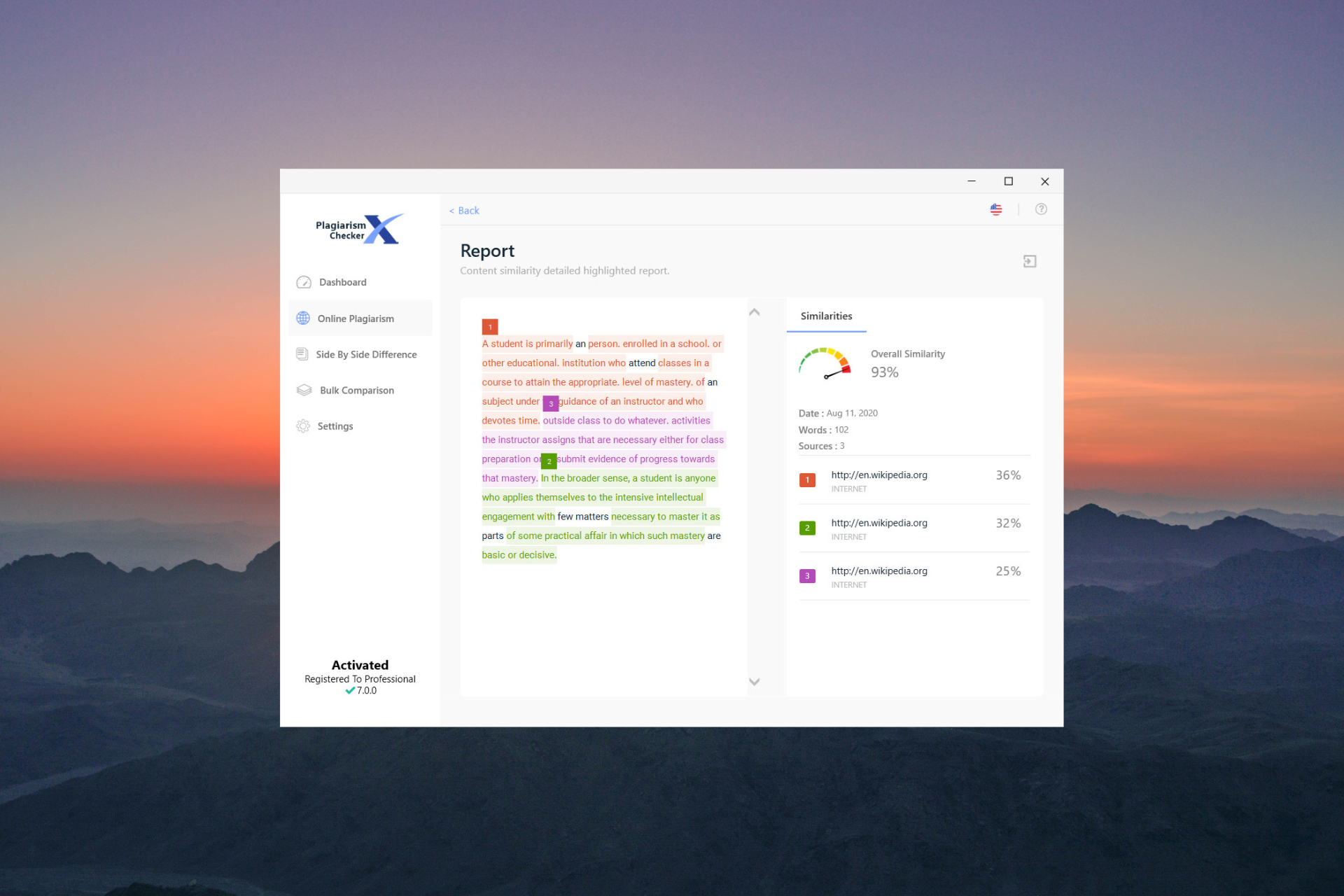
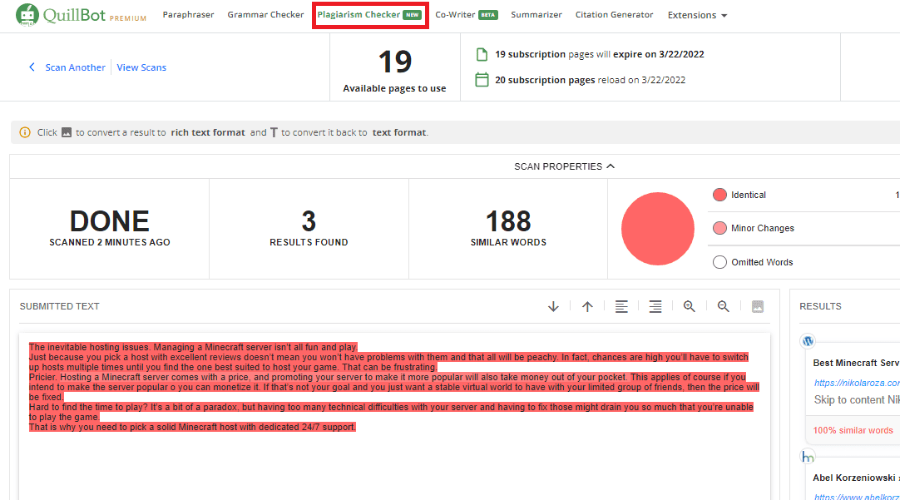






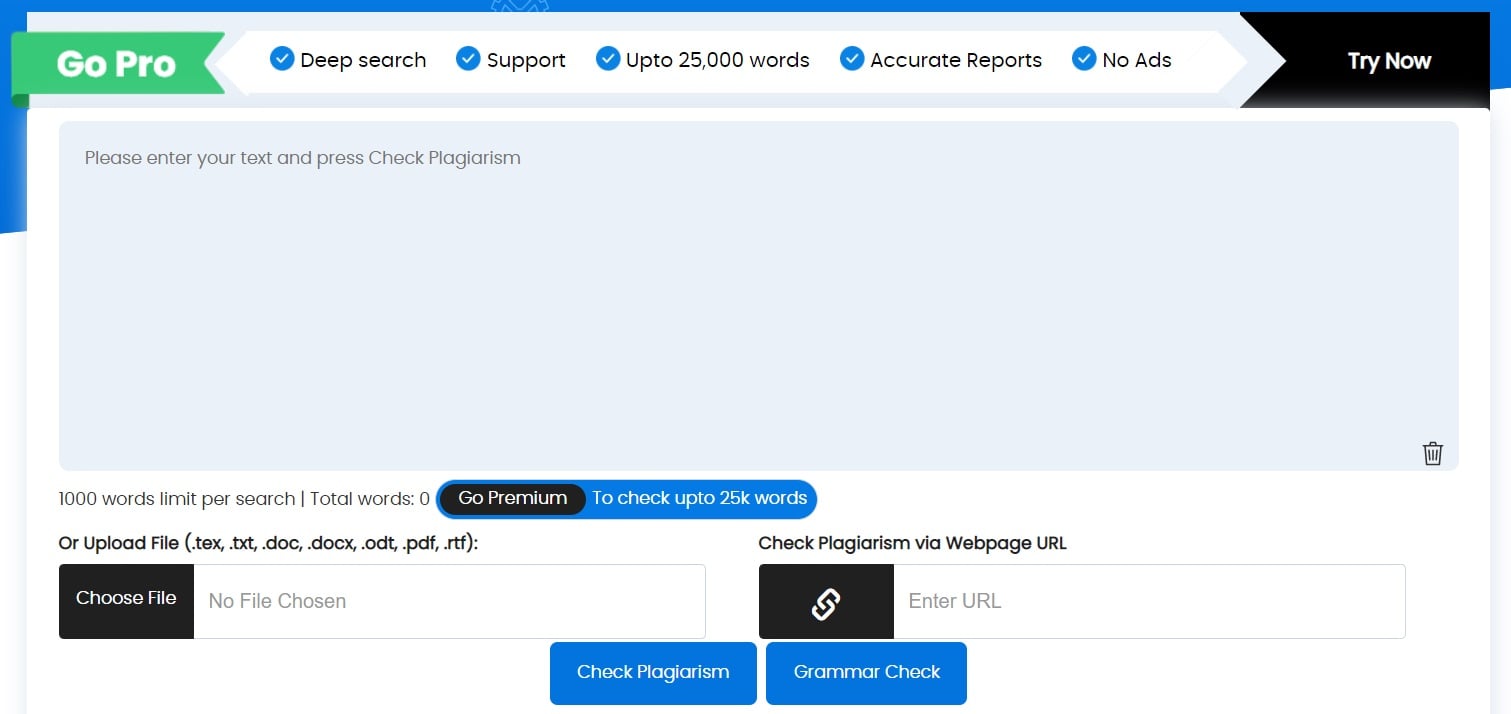
![5 Best HD Marvel Wallpapers for Windows 10 [Free Download]](https://windowsreport.com/wp-content/uploads/2022/06/5-Best-HD-Marvel-Wallpapers-for-.png)



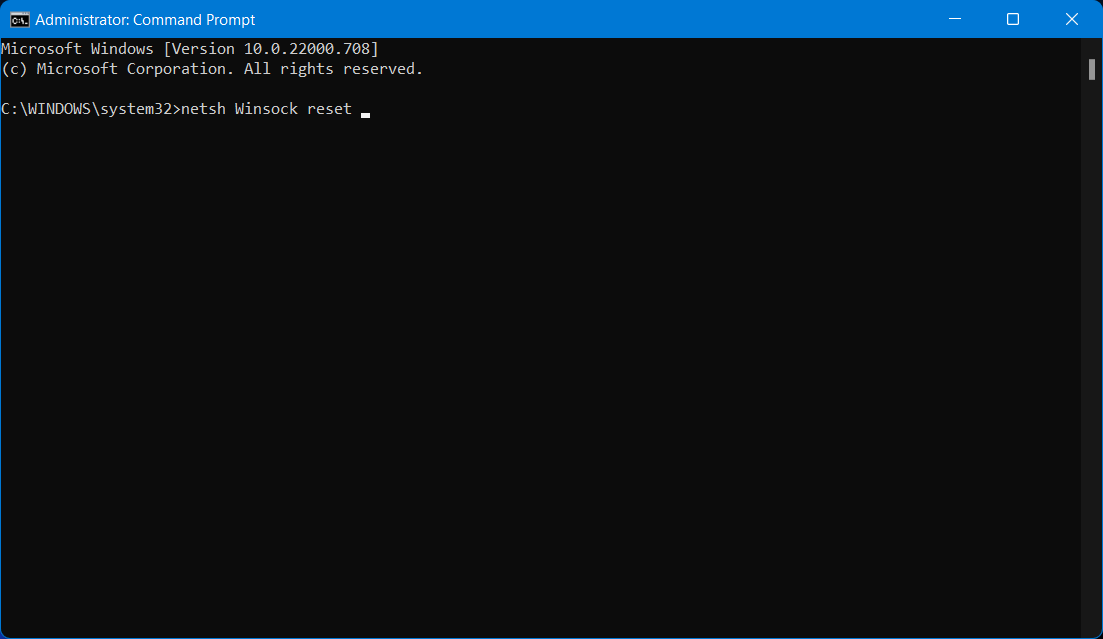
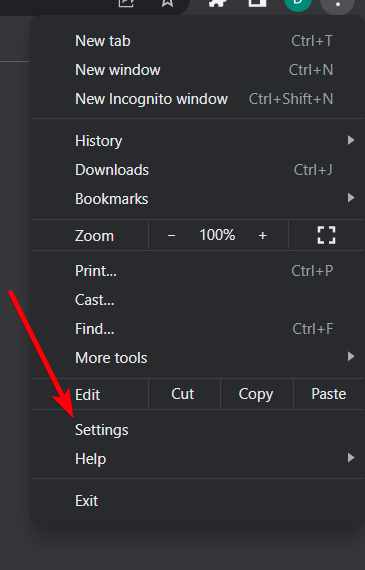
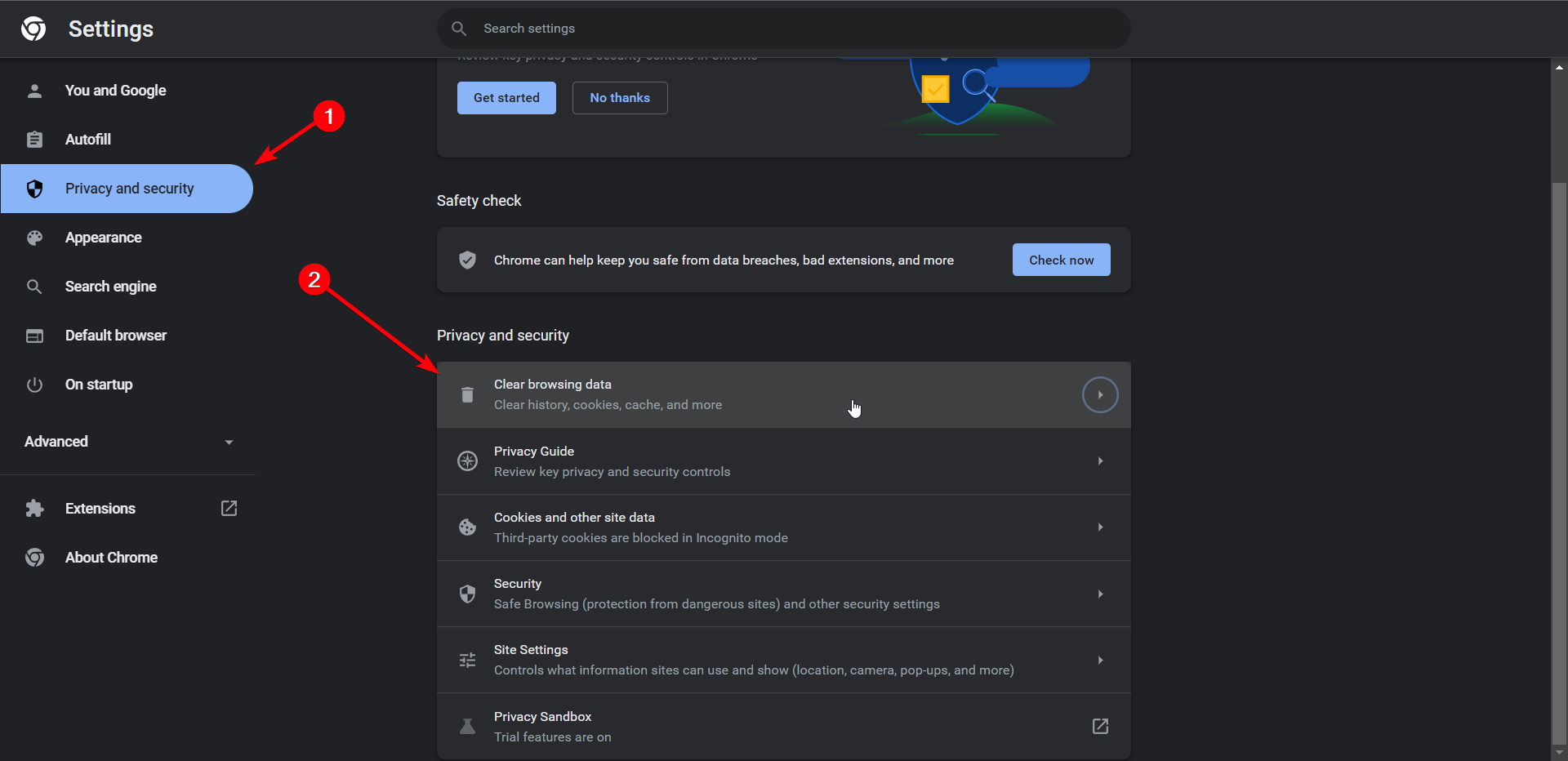
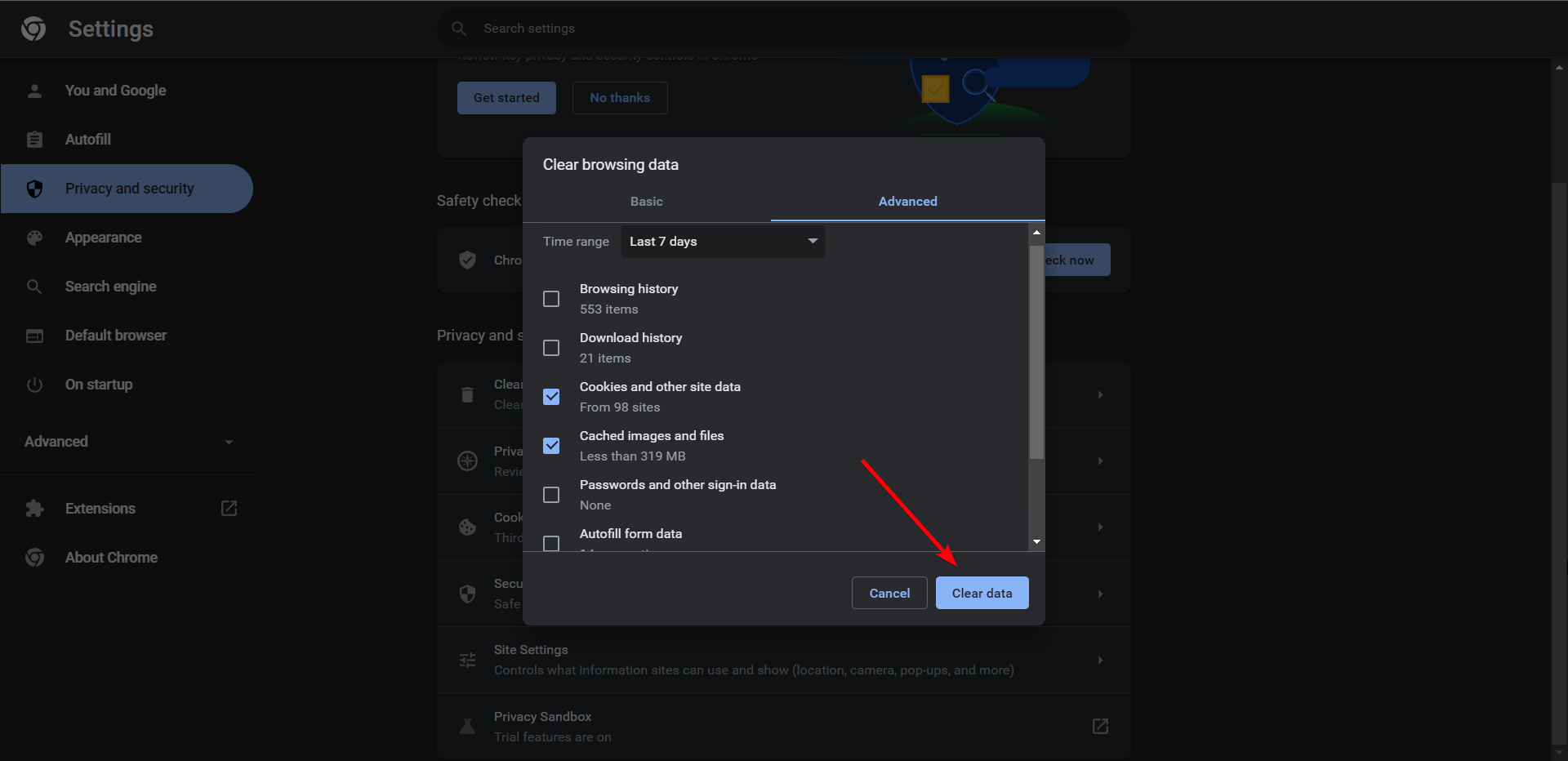
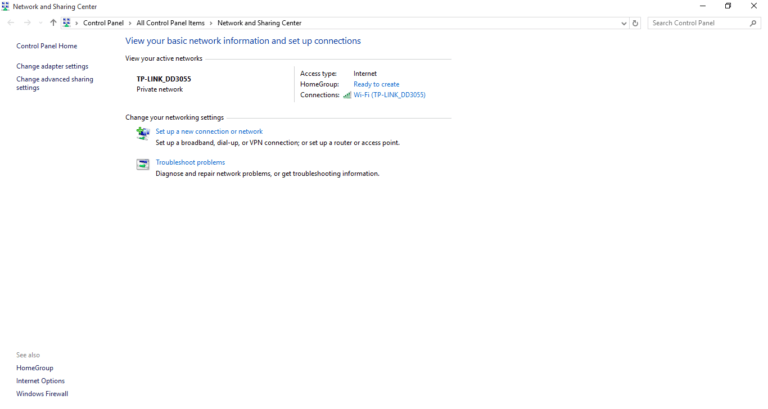


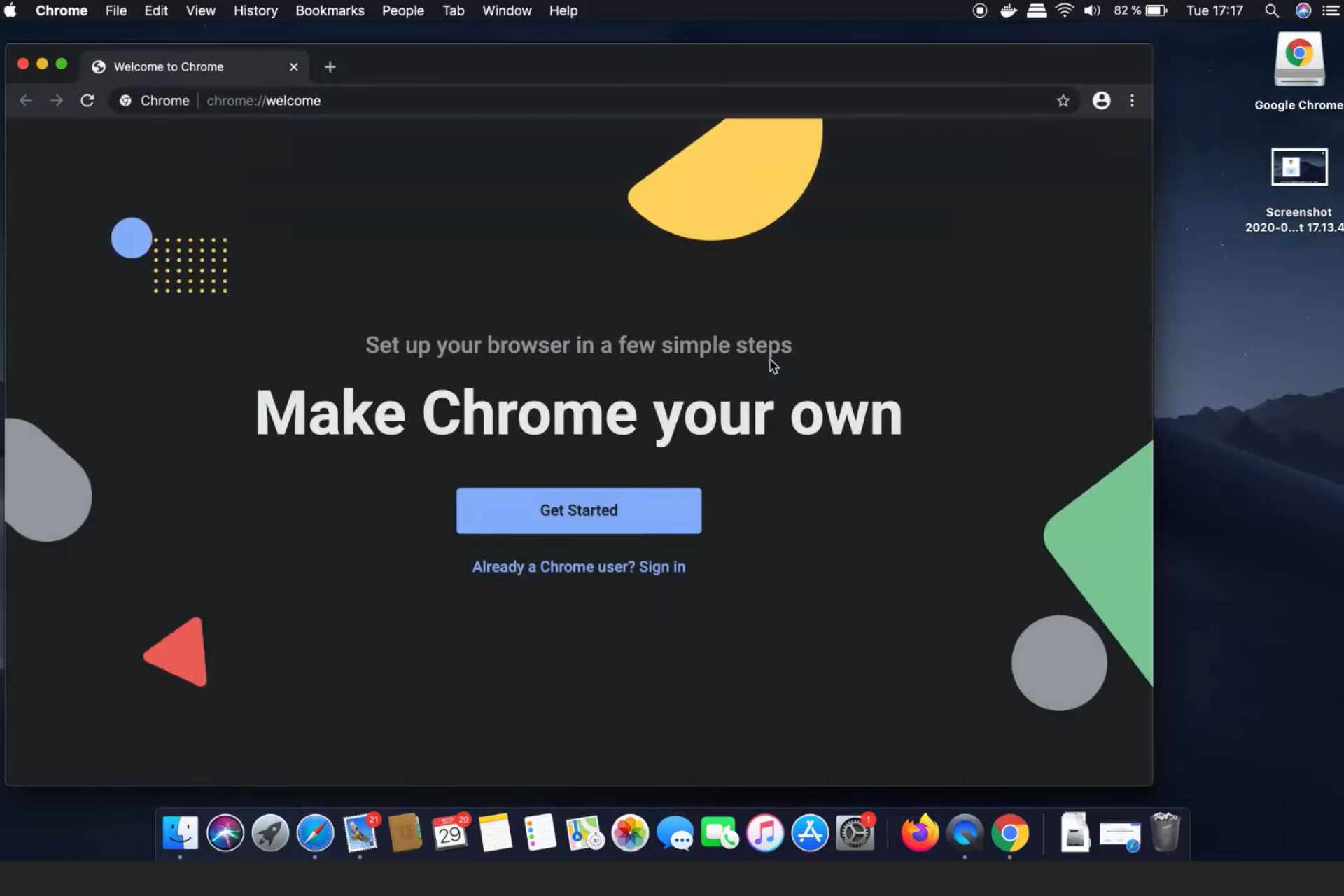
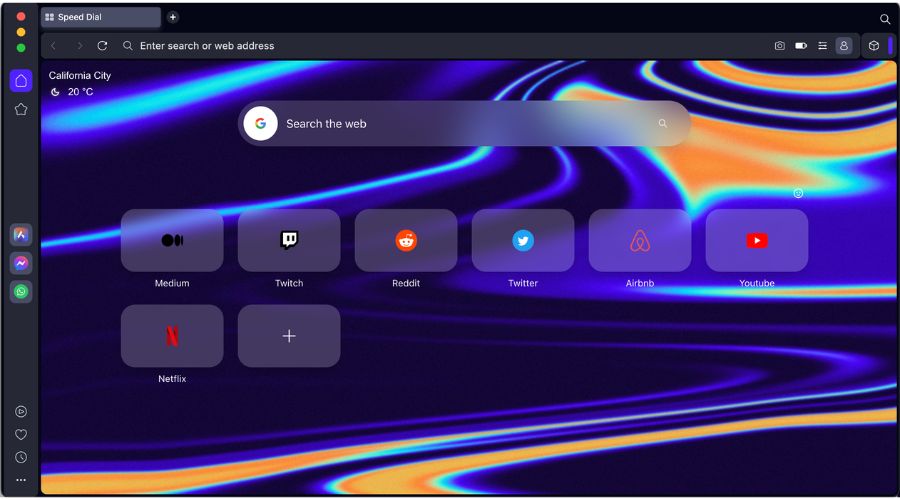
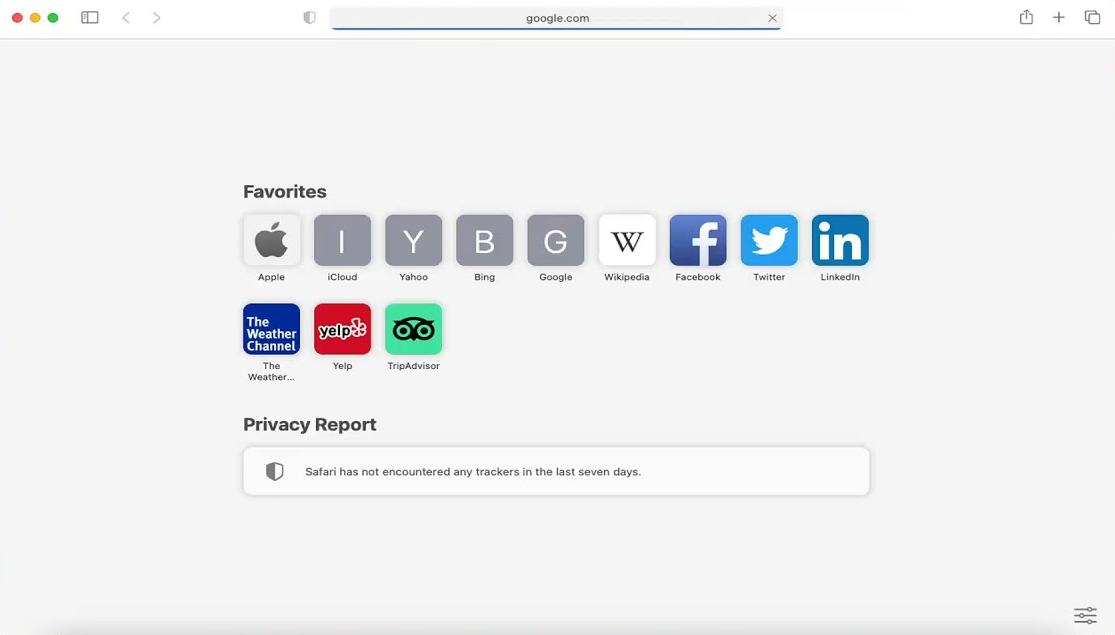
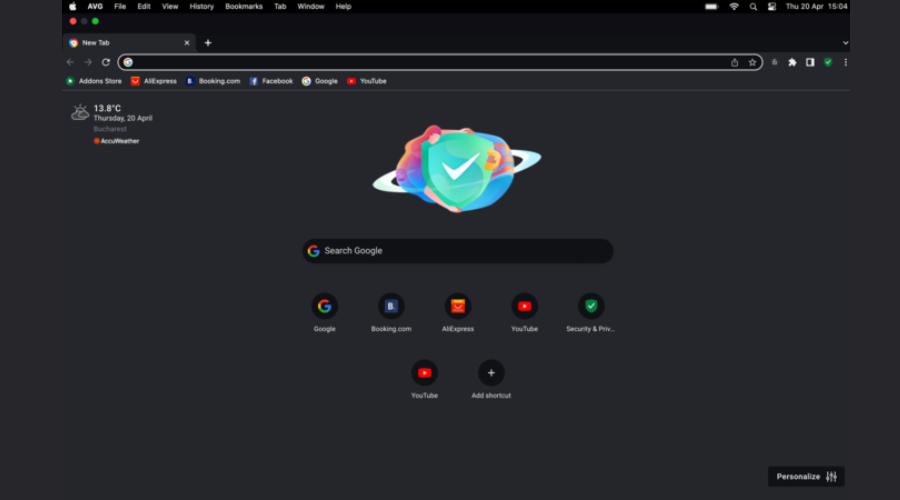


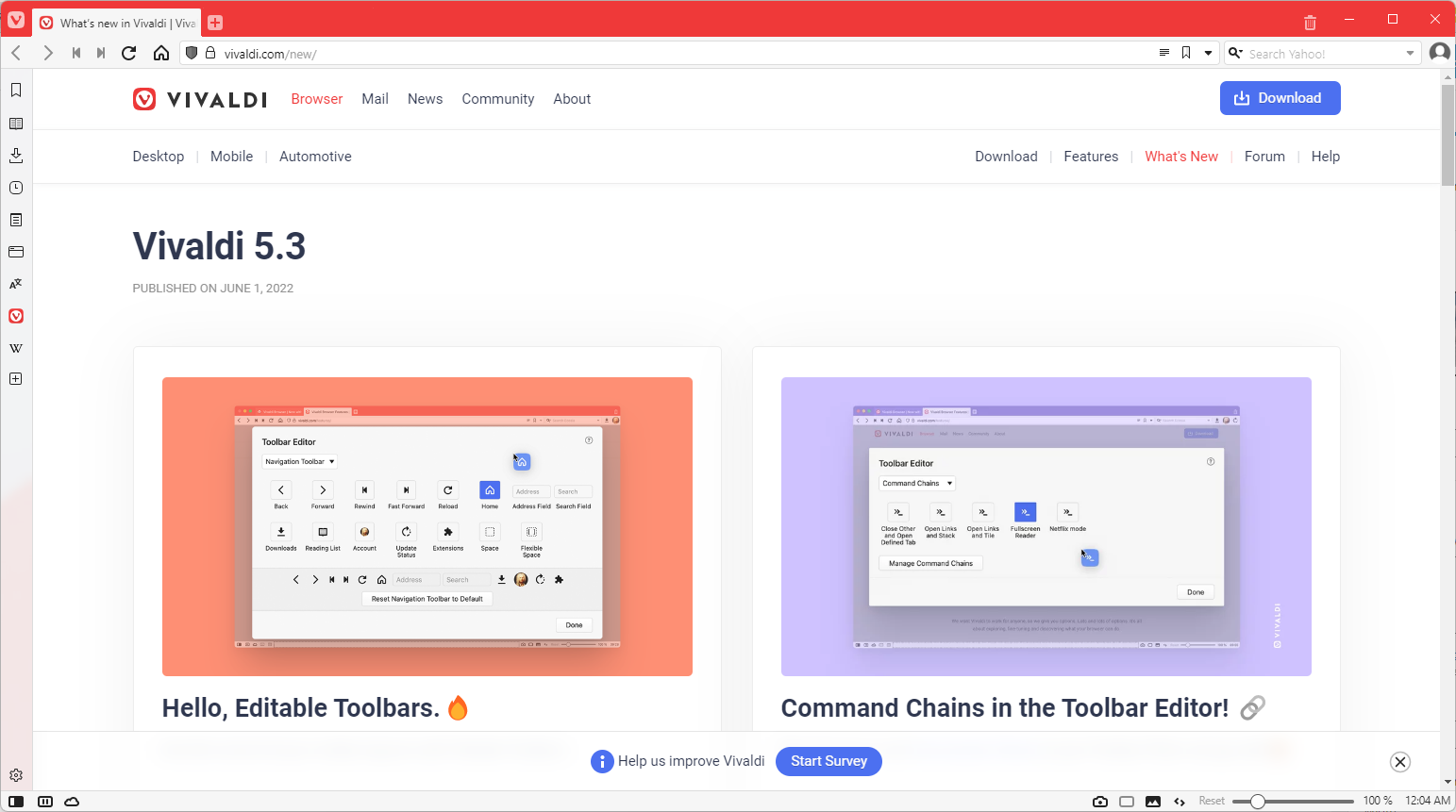
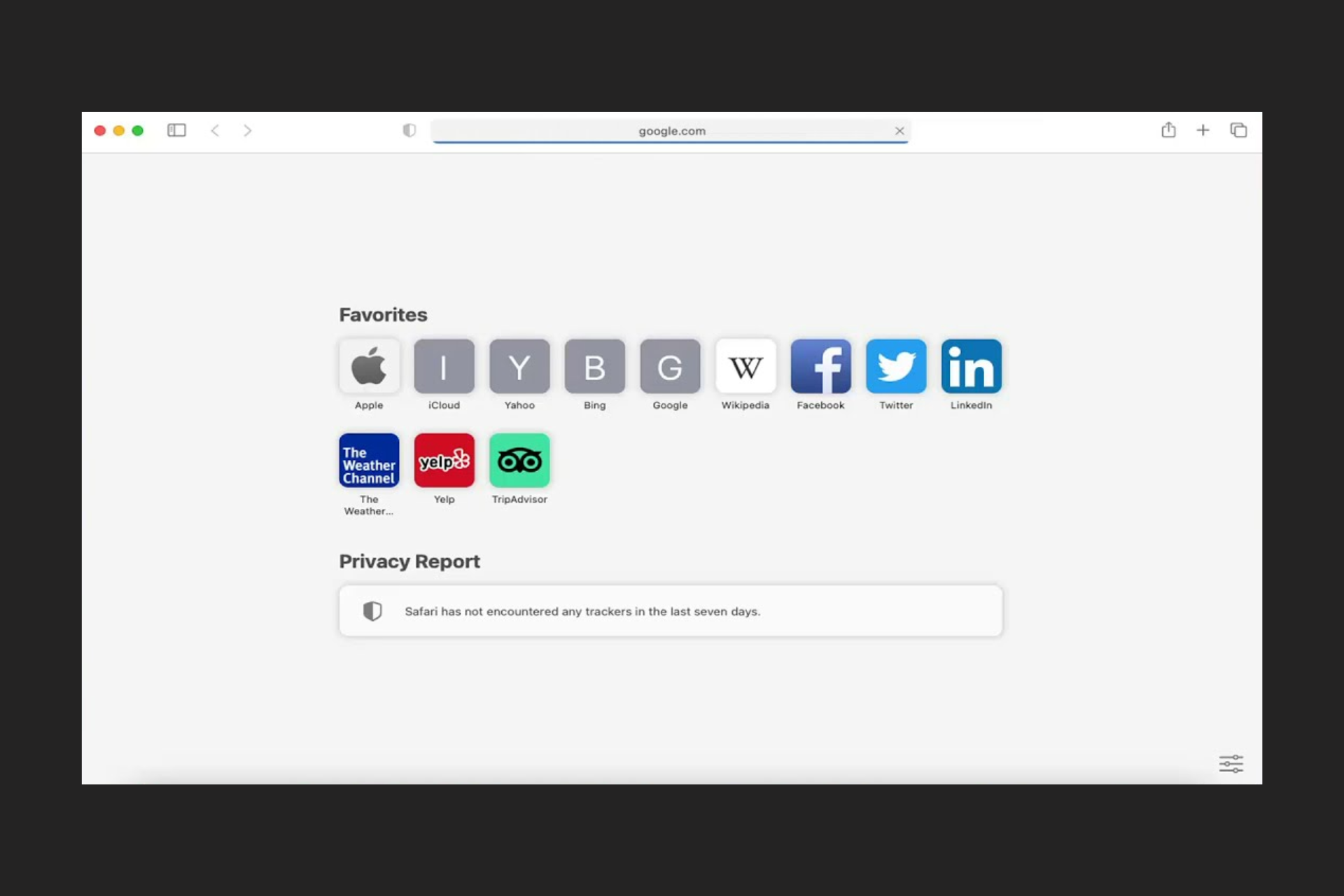
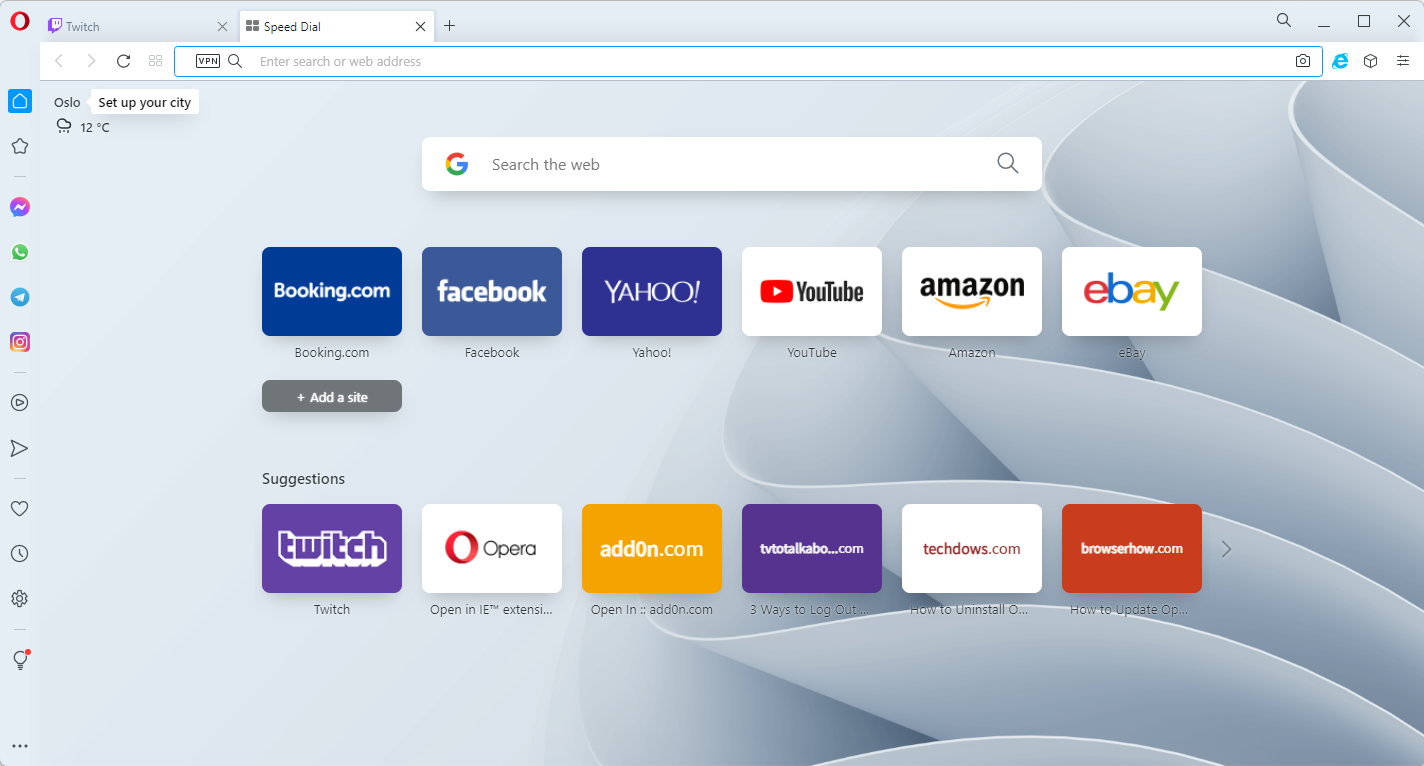

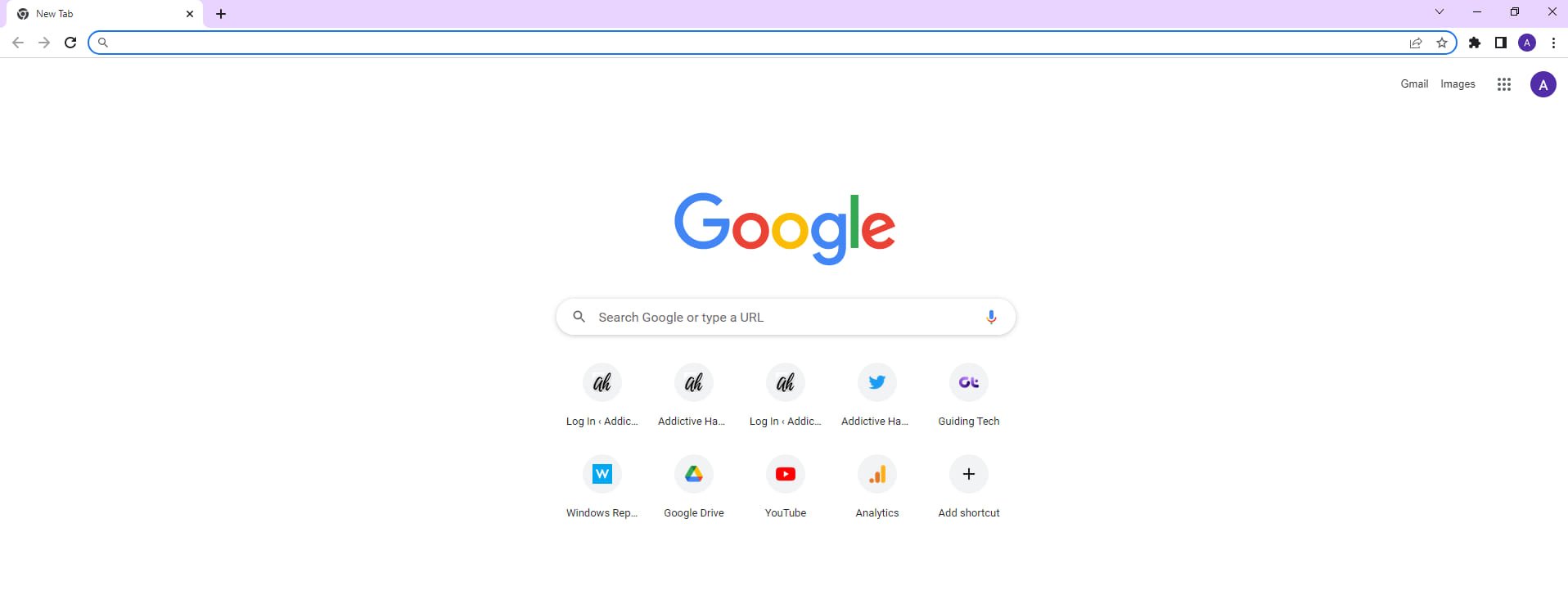
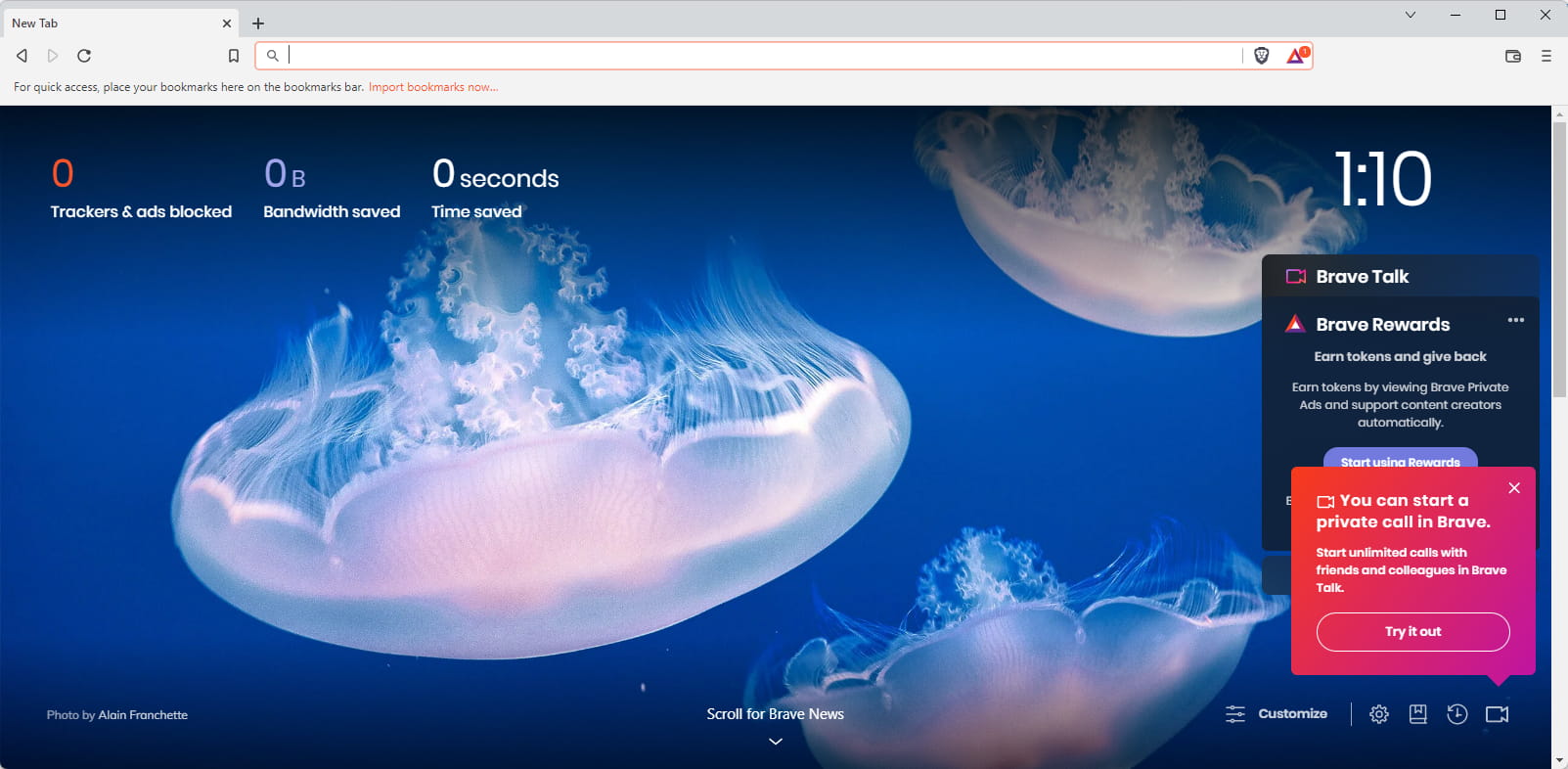

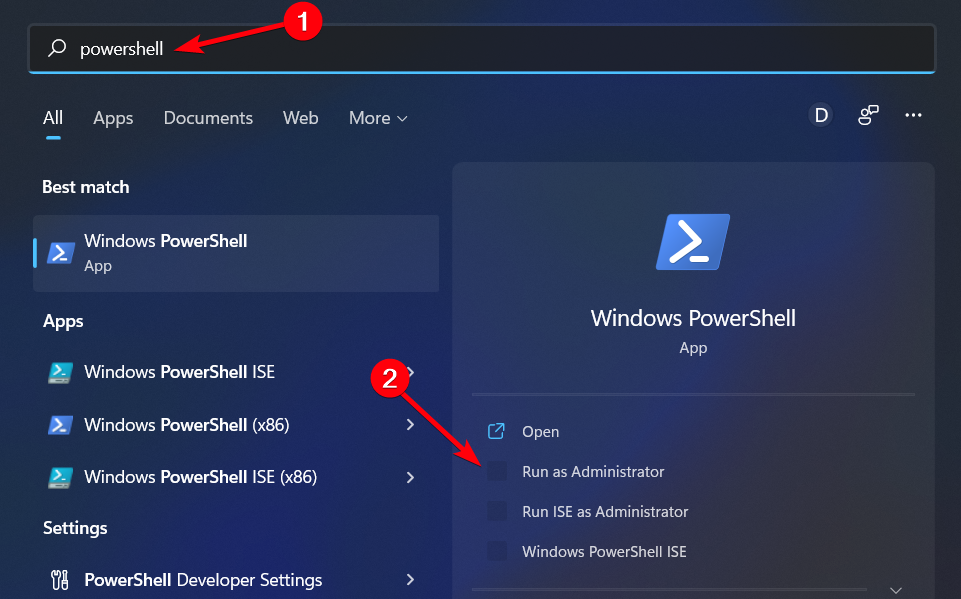
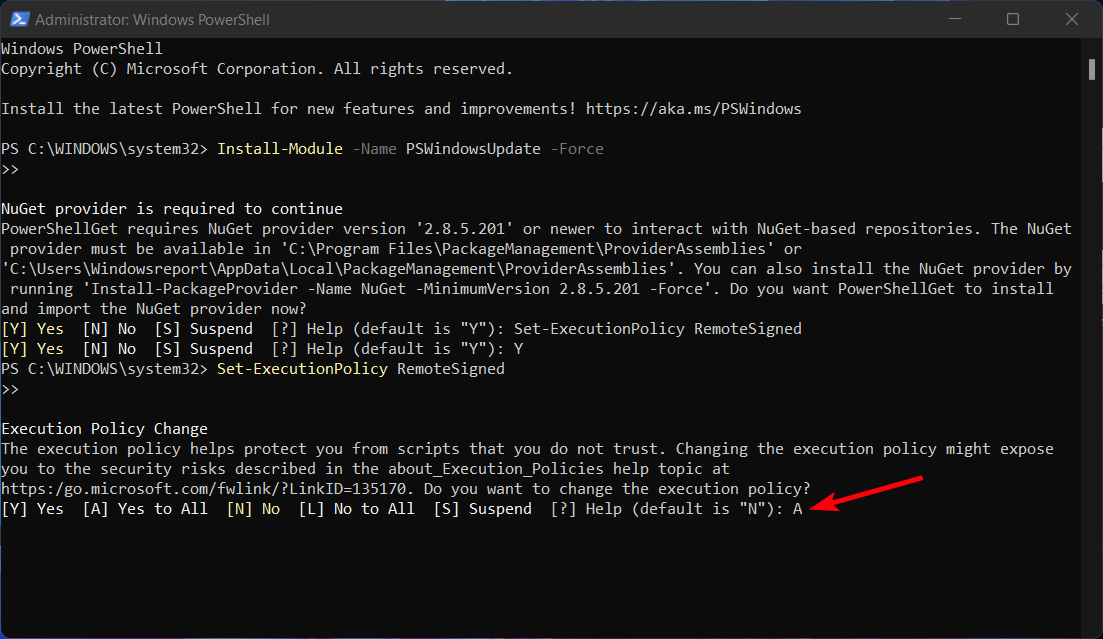
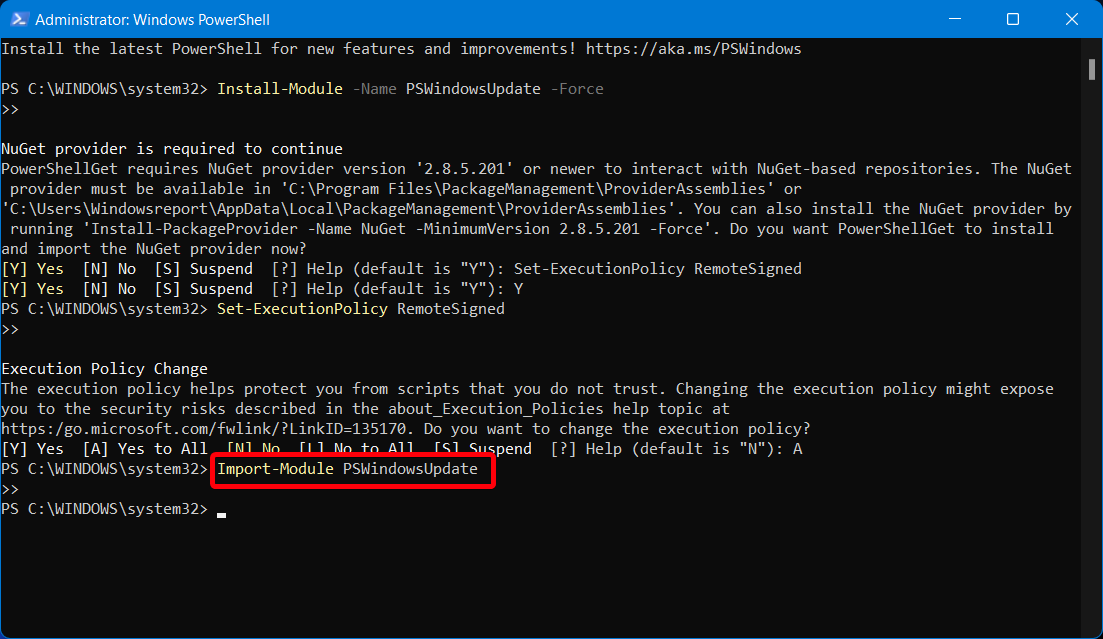
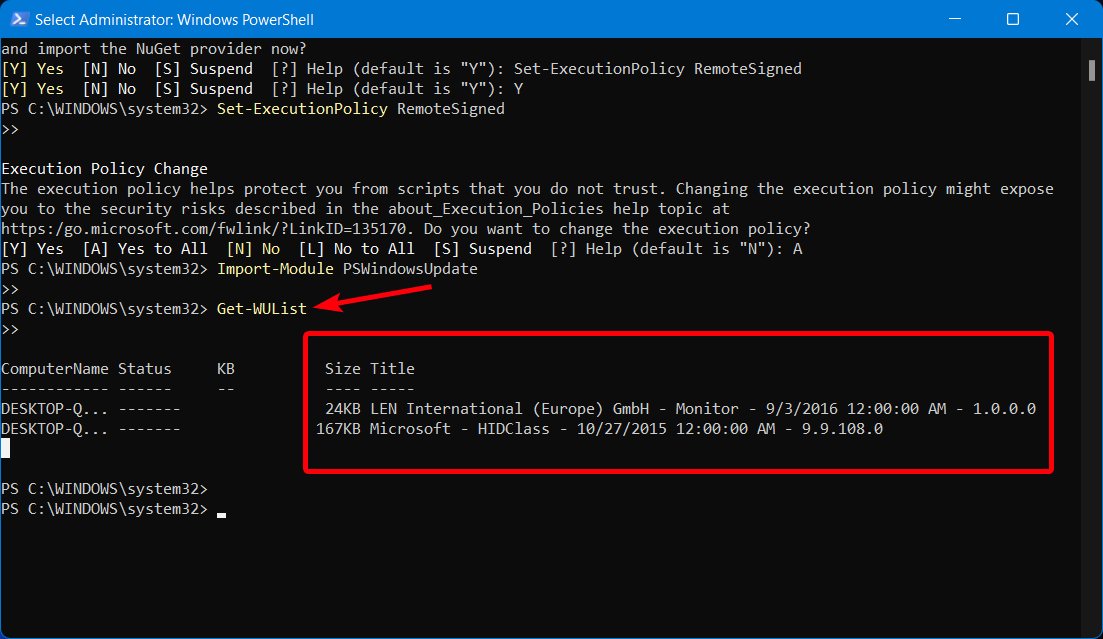


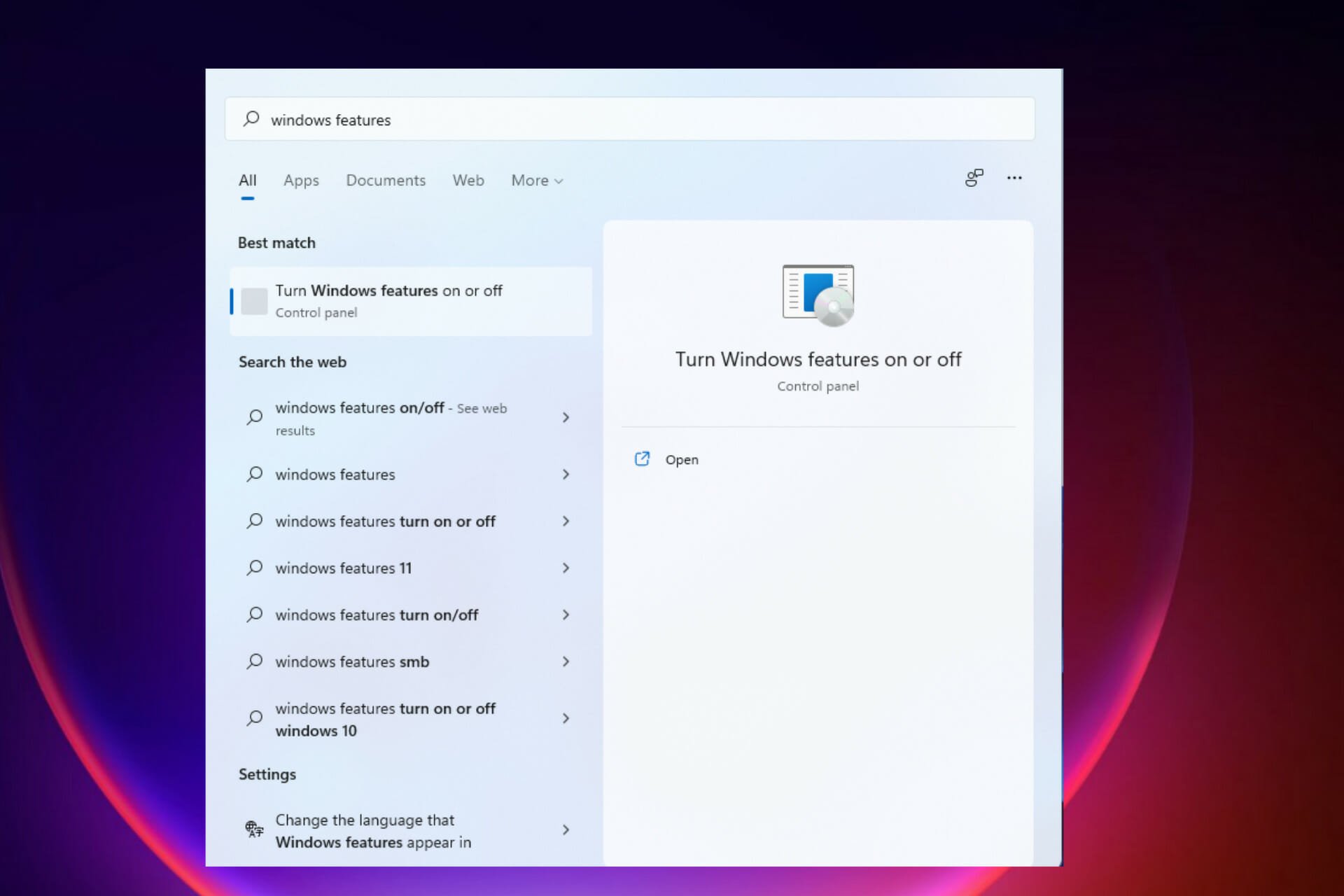


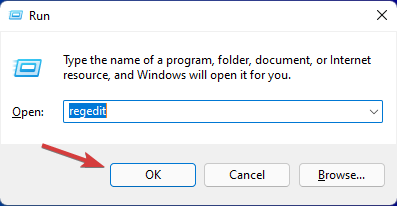





![7 Ways to Fix Security Issues on WordPress Websites [SSL, HTTPS]](https://windowsreport.com/wp-content/uploads/2022/06/Screenshot-2022-06-09-131826.png)