Windows 7 Gadgets for Windows 11: 7 Best to Download

Here’s an interesting idea: Windows 7 Gadgets for Windows 11. Many of us loved Windows 7’s gadgets.

They were a great way to extend the power of your desktop and get quick access to information and tools that might otherwise take several steps to find.

But is it even possible to get that retro look and feel of the good old Win 7 into the brand new Windows 11? Do gadgets work in Windows 11?

Fortunately, most of the Windows 7 gadgets and tools can be used as Windows 11 widgets – small cards that display relevant, dynamic, and personalized content based on your account history, interests, and usage.

Tip icon Tip
Previously known as gadgets in Windows 7 and Vista, they were deemed insecure and banned from Win 8 and 10 only to make a strong comeback in Windows 11.

But do you really have to be signed in to your Microsoft or local account to get everything neatly organized at a glance? As always, we have a nifty workaround to help you use Windows 11 widgets without signing in.

Now, Windows 11 is a true game-changer and an amazing OS in many ways. But for nostalgics, there can only be one true master of all operating systems.

That is no other than the much-beloved pioneer, Windows 7 which is still going strong after all this time.

Can I make Windows 11 look like 7? That’s the question we get too often and yes, we’re pleased to confirm that you can resuscitate pretty much anything from installing the Classic Shell on Windows 11 to getting Aero themes, enabling the old taskbar in Windows 11, and so on.

On this note, you can also get genuine Windows 7 gadgets for Windows 11 with no more than a couple of clicks.

Where are the gadgets in Windows 11?

The Windows 7 gadgets were displayed in a sidebar, but now they have their own dedicated menu on the Windows 11 taskbar.

Thus, the new widgets bring together everything you need to stay on top of your daily routine without losing focus. From productivity apps to weather, traffic, and news – everything is available in a unified location, the widgets board.

How do I install widgets on Windows 11?

  1. First of all, you need to open the Widgets board. You can do that either by pressing the live weather icon in the left corner of your taskbar or by hovering over the widgets’ icon.
  2. Next, Click the Add widgets button in the top right corner of the board.
  3. Add your chosen widget by clicking on the + button next to the widget’s name.
Tip icon Tip
➡ If the widget button is not visible, simply right-click your taskbar to open the Taskbar Settings. Turn on the Widgets option under the Taskbar items section.

➡ Alternatively, you can use this path Settings => Personalization => Taskbar and toggle Widgets to On.

You can easily port these beloved gadgets from Windows 7 as widgets to Windows 11 and use them exactly as they were. However, some other gadgets might take a little maneuvering to work in Windows 11.

What are the best Windows 7 gadgets to use on Windows 11?

Weather – Track the weather of your location

The new and improved weather gadget or widget in Windows 11 will help you keep track of the weather at home, work, or on vacation.

No matter where you are in the world, with the Weather Gadget you can get an updated forecast for your current location. It also lets you know more detailed information like humidity, visibility, and wind.

To Do – Arrange your daily tasks

The To-Do gadget or widget in Windows 11 is a handy gadget that allows you to quickly and easily create a personal To-Do list.

You can get a total summary of your day at a glance by checking out the To-Do gadget. It helps you organize your tasks and check them off one by one.

You can also rearrange your tasks according to priority, and upgrade your daily efficiency.

Calendar – Keep track of the date 

A calendar provides a way for you to keep track of dates more visually. The widget offers countless options to customize the calendar in an esthetic and functional manner that best suits your needs.

Thus, you can easily adjust the date format, colors, font size and style, calendar day title, month title display order, and more.

You can launch and use this gadget using the Widget Launcher in Windows 11.

Calculator – Calculate away

If you need to do calculations at the drop of a hat, you might miss the calculator the most out of all the Windows 7 gadgets. It’s pretty much just a calculator and looks like one, just as the name suggests. 

You can install the Widget Launcher from the Microsoft Store and use it to get this gadget. It features a standard calculator layout with an optional scientific mode, memory functions, and more.

Currency Converter – Calculate foreign currencies

If you’re trying to convert one unit into another, you have to go through several steps and then wait for the conversion process to finish.

The Unit Converter gadget allows you to convert any unit into any other in just a few clicks. 

This gadget is perfect for anyone who works with different types of measurements daily.

Unit converter – Measure in multiple units

If you’re trying to convert one unit into another, you have to go through several steps and then wait for the conversion process to finish.

The Unit Converter gadget allows you to convert any unit into any other in just a few clicks. 

This gadget is perfect for anyone who works with different types of measurements daily.

CPU meter – Monitor CPU performance

A CPU meter gadget might not be for everyone, but it is highly useful as it shows how much your processor is being used.

It also allows you to see if any programs are using up your CPU power, which can help you pinpoint the problem in performance.

Can you add widgets to the desktop on Windows 11?

As you can see, your widgets board is highly customizable – you can pin or unpin widgets to the board, rearrange and resize, add or remove them as you go, and set them to reflect your personal interests.

What you cannot do, however, is to add the widgets directly to your desktop as you would with Windows 7 gadgets. In order to do that, there is an additional (yet quick and easy step) required.

  1. Simply download and install a third-party app called the Widget Launcher from the Microsoft Store.
  2. Launch this third-party app on your Windows 11 PC and select a widget from the middle panel.
  3. Next, click on Launch Widget in the right panel and you’re all set!

Since Windows 7 gadgets still have plenty of fans it’s only natural to seek the best ways to get them back into your life.

Another interesting (third-party that is ) alternative app to help you install Windows 7 gadgets for Windows 11 is Desktop Gadgets/Gadgets Revived.

Widgets and gadgets are small applications that run on your desktop or laptop screen. They are easy to access and use, allowing you to quickly find the information you need while you work. 

They are highly convenient, but they put a strain on the computer and affect its performance. But you can easily customize and fix widgets’ high CPU usage in Windows 11. So why not give it a go?

Device Manager is Flickering? 3 Quick Ways to Fix it

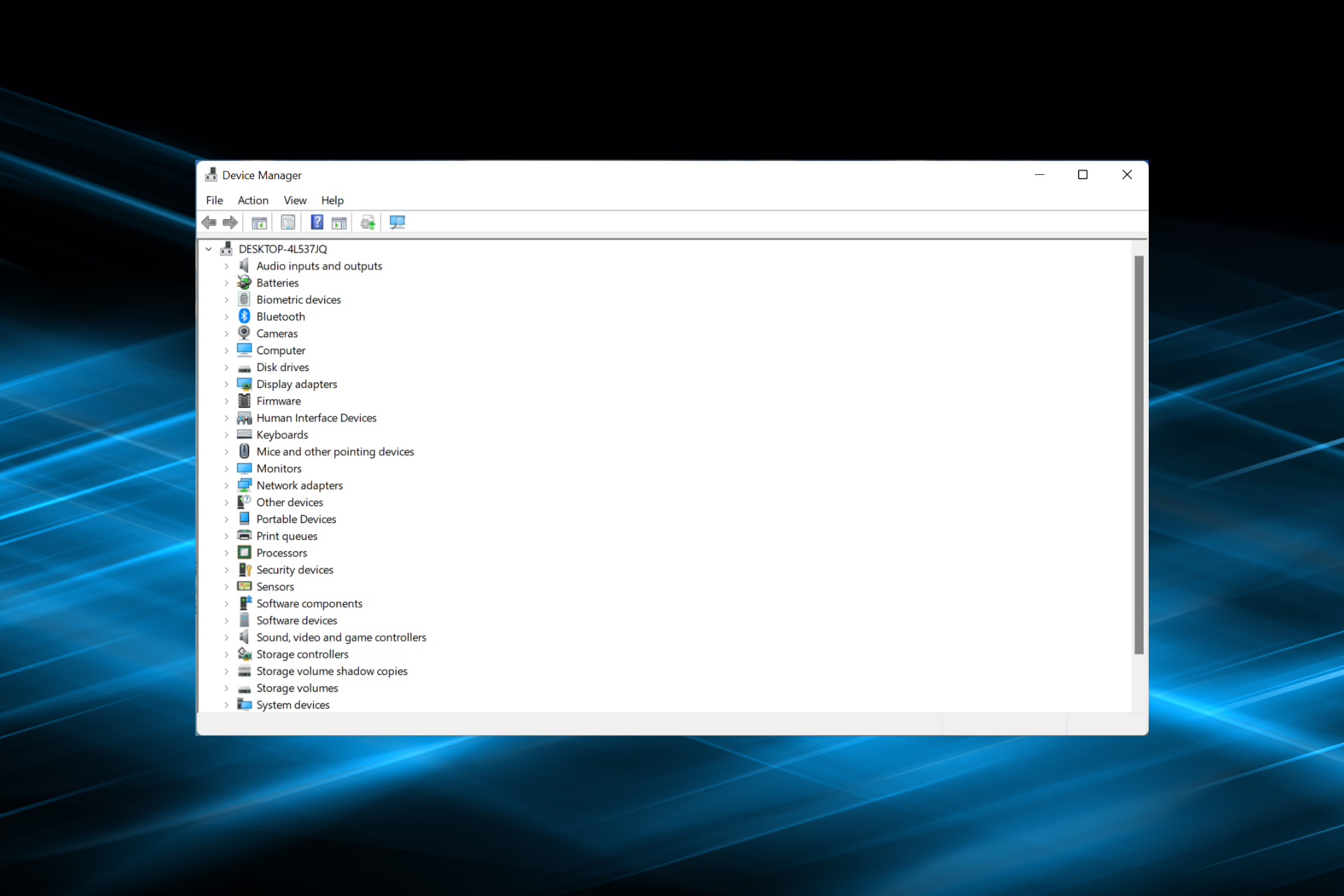
Device Manager is a useful component in Windows that not just allows us to view the connected devices, but also perform several functions. Though many reported that Device Manager keeps flickering on their PC.

In this case, the Device Manager becomes pretty much inaccessible and you can’t update drivers, perform basic troubleshooting, or modify the device properties anymore.

Read the following sections to find out what you can do if Device Manager keeps refreshing in Windows 11.

Why is my Device Manager flickering?

Here’s a list of reasons why the Device Manager is flickering on your computer:

  • Issues with the connection or malfunctioning device
  • Problematic driver
  • Conflicting applications or processes
  • Corrupt system files

How do I find Device Manager errors?

  1. Launch the Device Manager, right-click on the relevant device, and select Properties.Properties
  2. Navigate to the Events tab and click on View All Events to have a look at all the errors.view all events

How do I stop Device Manager from flickering?

1. Update the problematic driver

  1. Launch the Device Manager, right-click on the device that keeps disappearing and reappearing, and then select Update driver.Update driver to fix device manager flickering
  2. Next, select Search automatically for drivers in the Update Drivers window.Search automatically for drivers

If this doesn’t work, you can try to manually install the latest driver version in order to fix the flickering on Device Manager.

In any case, there is a more suitable method you can utilize in order to update the display driver on your PC without using Device Manager at all.

With the specialized tool named Outbyte Driver Updater, you’ll get a complete scan of your system to detect outdated device drivers automatically. In this way, the Device Manager flickering problem will be easily resolved.

⇒ Get Outbyte Driver Updater

2. Uninstall conflicting applications

  1. Press Windows + R to launch Run, enter appwiz.cpl, and then click on OK.appwiz.cpl to fix device manager flickering
  2. Next, select the conflicting application, and then click on Uninstall.Uninstall app to fix device manager flickering
  3. Click Yes in the confirmation prompt.Yes
  4. Now, follow the on-screen instructions to complete the process.

Once done, restart the computer and check if Device Manager flickering in Windows 10/11 is fixed. If not, head to the last method.

3. Perform a System Restore

In case you are wondering why the device manager is blinking, there are a lot of things that could have gone wrong, and instead of identifying that through some extensive troubleshooting, you could simply perform a system restore.

System Restore basically takes your system back in time by reverting recent changes and removing apps. Just, make sure to select a restore point that was created before the Device Manager flickering issue was first encountered.

Also, find out what to do if biometric devices are not showing up in Device Manager.

Tell us which fix worked for you in the comments section below.

Fix: Device Manager this Operation has Been Cancelled:

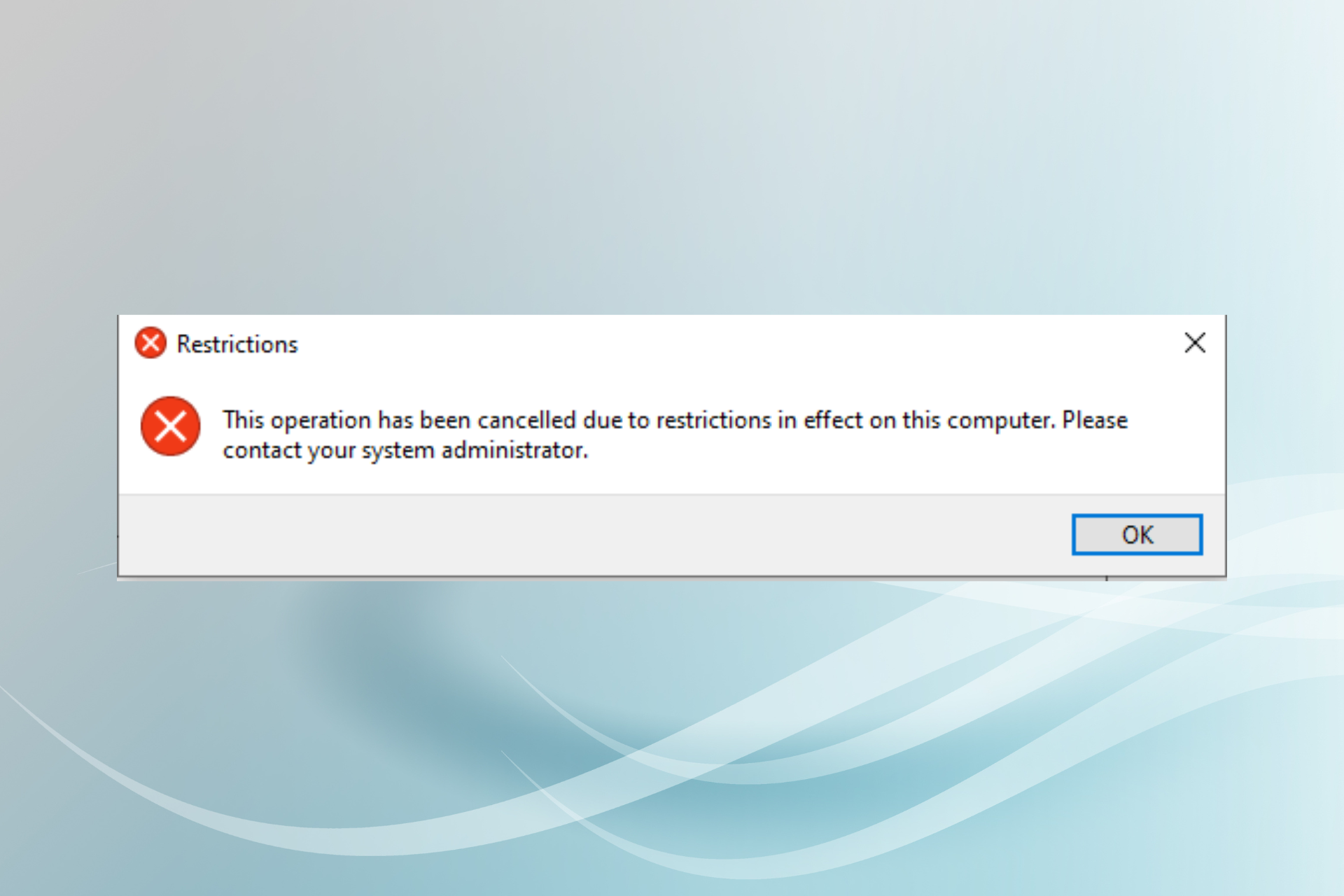
Many users have reported encountering This operation has been cancelled due to restrictions in effect on this computer. Please contact your system administrator error while opening Device Manager in Windows 11 and 10.

The error is primarily seen on computers that are controlled by organizations and not the end user, with several restrictions in place.

So, let’s find out how you can fix the This operation has been cancelled error in Device Manager.

What happens when your operation is cancelled in Device Manager?

When you encounter the error while launching the Device Manager, it points to the fact that you have not been provided permission to access it. If an organization or your employer owns the computer, contact them.

In case it’s your personal computer, it could be misconfigured settings or some inadvertent changes to the Registry. Try the methods below to fix the This operation has been cancelled error in Device Manager.

How do you fix This Operation has Been Cancelled?

1. Modify the Registry

  1. Press Windows + R to launch Run, type regedit, and click OK.registry to fix device manager this operation has been cancelled
  2. Click Yes in the prompt.Yes
  3. Paste the following path in the address bar and then hit Enter: Computer\HKEY_CURRENT_USER\Software\Microsoft\Windows\CurrentVersion\Policies\ExplorerPaste address
  4. Locate the DisallowRun key, right-click on it and then select Delete.Delete key to fix device manager this operation has been cancelled
  5. Click Yes in the confirmation box.Yes

Check if the This operation has been cancelled error in Device Manager is resolved.

2. Make changes to the Group Policy Editor

  1. Press Windows + R, type gpedit.msc, and then click OK.gpedit.msc to fix device manager this operation has been cancelled
  2. Expand Administrative Templates under User Configuration and then double-click on System.system
  3. Double-click on the Don’t run specified Windows applications on the right.Don’t run specified Windows applications
  4. Select Not Configured and then click on OK to save the changes.disable to fix Don’t run specified Windows applications

Restart the computer and check if the This operation has been cancelled error in Device Manager is fixed. If not, head to the last method.

3. Reset Windows

In case none of the methods listed here have worked, you are left with no option but to reset the PC. Make sure to wipe everything while resetting.

When you reset the computer, all the installed applications and configured settings are lost, and if any of these were behind This operation has been cancelled error in the Device Manager, things should work fine now.

How do I take restrictions off my computer?

  1. Press Windows + S, and search for View advanced system settings.view advanced system settins to fix device manager this operation has been cancelled
  2. Go to Computer Name tab and then click Change.Change
  3. Select Workgroup, and then click OK to save the changes.Workgroup

That’s it! By now, you should have the This operation has been cancelled error fixed in the Device Manager.

Also, find out the best alternative tools for Device Manager.

Tell us which fix worked for you in the comments section below.

How to Fix Failed to Connect to Multiplayer Services in AoE2

Age of Empires 2 is a real-time strategy video game set in the middle ages with playable civilizations.

All the players get the resources to build towns and create different enemies. There are five historically-based campaigns and three additional single-player modes and multiplayer support.

But recently, many users have complained about Sorry, failed to connect to multiplayer services in AoE2. Errors like these mainly occur if the server certificate authentication fails.

If you are also among the people facing this error, keep reading this post to learn how you can fix it.

How do you enable multiplayer in Age of Empires 2?

It’s very easy to enable the multiplayer mode in Age of Empires 2. Follow the steps mentioned below to do so:

  1. Open Age of Empires 2 and click on Multiplayer icon on the left of the home screen.
  2. Select Host game to create your own match with the options available.
  3. Click on Create lobby to finish the process.
    Create Lobby
  4. You can now set additional settings for your match while you wait for other players to join.
  5. Once all the players have joined the game and all slots are filled click on Start game to begin the match.
    Start Game

What can you do if you can’t connect to online multiplayer services in AoE2?

1. Verify the integrity of game files

  1. Open Steam and click on Library.
  2. Right-click on Age of Empires 2 from the list.
  3. Click on Properties and then on Local Files.
    sorry failed to connect to multiplayer services aoe2
  4. Then click on Verify Integrity of Game Files.
    Verify (1)
  5. Restart Steam and check if it fixes the failed to connect to multiplayer services AoE2 error.

Several users complain about the fact that they are unable to verify the integrity of game files on Steam. Rest assured that our guide shows you what to do in case that happens.

2. Check your Internet connection

As Age of Empires 2 is an online multiplayer, it needs a stable Internet connection to run efficiently. Check your Internet connection by performing a speed test.

Try switching to mobile data if using a Wi-Fi connection and check if the game runs on your device. Also, disable VPN if you’re using one.

3. Flush DNS Cache

  1. Click on Start, search for Command Prompt, and select Run as Administrator.
    sorry failed to connect to multiplayer services aoe2
  2. Type the following commands one by one and hit Enter:
    ipconfig/flushdns
    ipconfig/renew

    flushdns
  3. Restart your device once done and check if the unable to connect to online services platform token authentication failed error is fixed.

4. Check Network Card settings

  1. Open the Control Panel and click on Network and Internet.
  2. Navigate to Network and Sharing Center.
  3. Select Change Adapter Settings, then right-click on the adapter connected to the Internet, and select Properties.
    sorry failed to connect to multiplayer services aoe2
  4. Select Internet Protocol version 4 (TCP / IPv4) and click OK to save the changes.
    Select TCP IP and OK

Well, that’s all on how to fix sorry failed to connect to multiplayer services AoE2 error on your device. We hope the methods mentioned above were able to help you.

If this guide was helpful, do let us know in the comments below.

Xbox set to launch five first-party games in the coming year

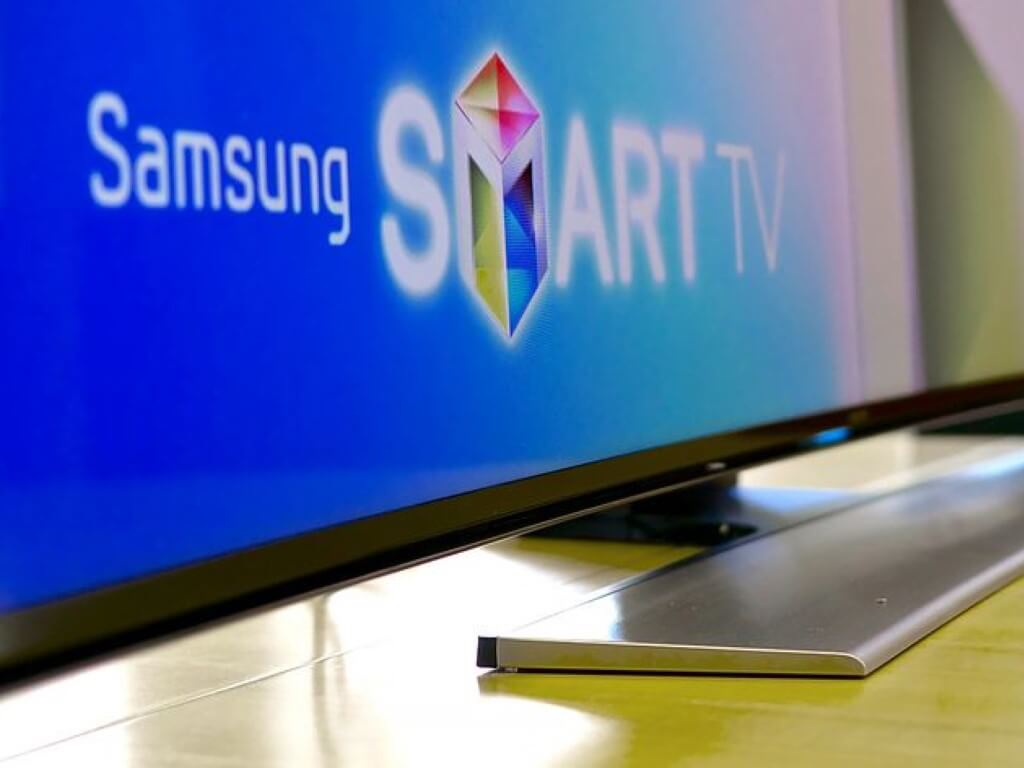
Ahead of the Xbox and Bethesda Game Showcase which is set to take place in June 12, Xbox confirmed that Xbox Cloud Gaming is going to receive its first TV apps, starting with  Samsung 2022 smart TVs. Microsoft has had quite a busy year where they got to launch Halo Infinite, Forza Horizon 5, Psychonauts 2, Age of Empires IV, and Flight Simulator across all Xbox gaming platforms.

Also, users should also soon expect to have the capability of streaming games not featured in the Xbox Game Pass library. Moreover, Microsoft also plans to add exclusive game demos to the library as they continue to expand their reach to new countries.

With that said, through a press statement as spotted by the folks at Windows Central. Microsoft intends to “meet or exceed” the number of games that it launched this fiscal year. However, it is yet unclear what entries will make it to Xbox. But remember, both Redfall and Starfield were delayed and set to be released probably sometime this summer, therefore, it is quite likely that they will be part of the entries making their debut.

On top of these two entries Windows Central speculates that “highly likely candidates for other games launching between now and next summer include RPG Avowed, from the developers of Pillars of Eternity. We could also see sim racer Forza Motorsport 8 emerge too. There are other potential candidates, such as leaked Project Belfry from Stoic, or Obsidian’s Pentiment.”

But in the meantime, we will have to wait for Microsoft to disclose the titles that they plan to release during this period. Keep it OnMSFT.com for this and more gaming updates.

Dell follows up its XPS 13 Plus with a remodeled 5th Gen XPS and new Surface Pro competitor

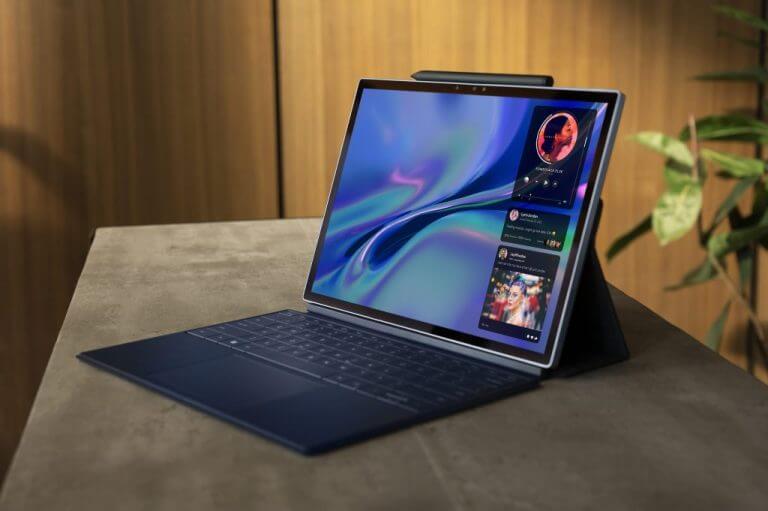
Dell is following the announcement of its polarizing XPS Plus laptop by bringing Intel’s 12th Gen Intel Core processors to its redesigned XPS 13 and its new Surface Pro competitor the XPS 13 2-in-1.

Dell XPS 13 (5th Generation)

Starting at $999 US $1,249 CAD

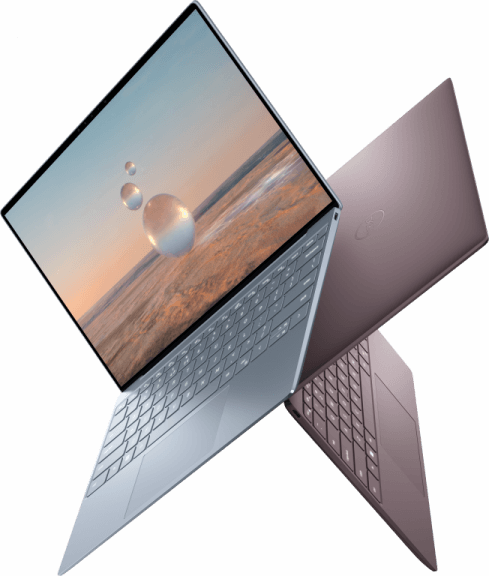
Starting today, June 9, 2022, customers in the US and Canada can snag the all new and redesigned XPS 13 that combines a thinner and lighter chassis with improved battery performance claims as well as tweaks to the audio profile while maintaining all of the productivity standards of previous models.

Specifically, Dell has tweaked its 4-side InfinityEdge display for a fifth generation by upping the level of brightness to 500 nits and adding an anti-reflective, anti-smudge layer. The 13.4-inch XPS 13 display can be ordered at FHD, FHD+ and 4K UHD configurations.

Surrounding the impressive screen is a new chassis that comes in more vivid tinted aluminum options such as Sky (steel blue) and Umber (metallic brown) inspired colors, which all sit atop a refined CNC machining process. The interior of the laptop also crafts a tone-on-tone aesthetic by offering Platinum or Graphite color schemes.

xs9315nt-xnb-04-bl-pu

Things remain sparse but streamlined when looking at the port selection on the Flanking either side of the XPS 13 are 2x Thunderbolt 4 Type) ports, 1 USB-C to USB-A v.30 ports, 1 USB-C to 3.5mm headset jack converter.

As for what goes under the hood, Dell managed to shrink the motherboard on the XPS 13 by 1.8x smaller which led to an enlarged area for bigger speakers and a lighter design overall.

For anyone banning the use of Windows on their PC purchases, Dell will be offering an Unbutu configuration with the new XPS 13 for the open-source community as well.

Dell XPS 13 2-in-1

Starting at TBD

Moving on to the more exciting news from the company, is the all-new Dell XPS 12 which is now better reserved as the Surface Pro lineup competitor.

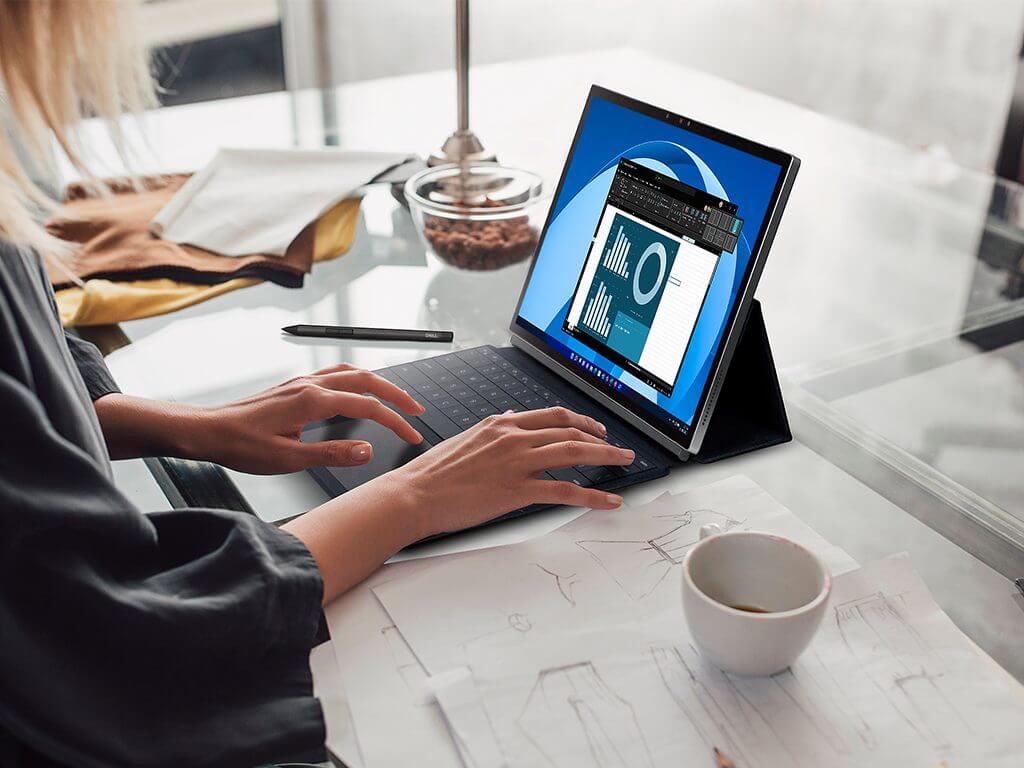
The XPS 13 2x 1 represents yet another push for OEMs to join the efforts to expand tablet-computer productivity with fresh new Surface-like design.

XPS 13 2-in-1 (3)

Dell repeats its use of a new CNC machining when crafting the tablet computer that weighs a little over 1.8 lbs. or 1.23 lbs. with the new Folio cover and keyboard?

However, unlike Microsoft and its Surface Pro device, Dell will be including a stylus in-the-box We also killed some time at a stylus’s well as 12th Gen Intel Core processors for configurations. Other notes for the 2-in-1 include 5G connectivity, 3K resolution, 16GB of LPDD4x Dual channel memory, up to 1TB of PCIe 4 storage.  Iris Xe GPUs, 49.5 WHr battery among other features.

XPS 13 2-in-1 (2)

As with most Pro competitors, Dell is selling its proprietary keyboard to make use of more granular and precise workflow, thus validating earlier mockery

The XPS 13 2-in-1 will be available in select markets the that include the US and Canada, later this summer.

New in Gaming: Xbox Design Lab adds new countries, new colors

Customization is an integral part of the console or PC gaming ecosystem, which is why Xbox Design Lab is ever-evolving. Microsoft first introduced the capability of tailoring your controller to meet your expectations back in 2016. The main objective that they hope to achieve with this is to have the players express their personalities with the wide array of combinations that are available.

Today, Microsoft is launching Xbox Design Lab in 11 new countries which include New Zealand, Australia, Japan, Korea, Singapore, Norway, Hungary, Greece, Czech Republic, Switzerland, and Slovakia. They have further added that Taiwan will also be included later on in the summer.

As far as the range of customization and colors is concerned, Microsoft is unpacking Soft Pink, Soft Orange, and Soft Purple. On top of that gamers will also get new camo Top cases with matching side caps, that is, Mineral Camo, Arctic Camo, Blaze Camo, Sandglow Camo, and Forest Camo.

Microsoft is continuously effecting these changes and improvements to the Xbox experience with the aim of enhancing joy across the globe to the entire gaming community. With that said be sure to catch the Xbox and Bethesda Games Showcase on June 12, to get more updates

New in Gaming: Xbox app coming to 2022 Samsung Smart TVs

The Xbox mission has always been simple: to bring the joy of gaming to as many people as possible. And to achieve that goal the team at Xbox has endeavored to allow gamers to play precisely what they want, when and how they want, and with whom they want.

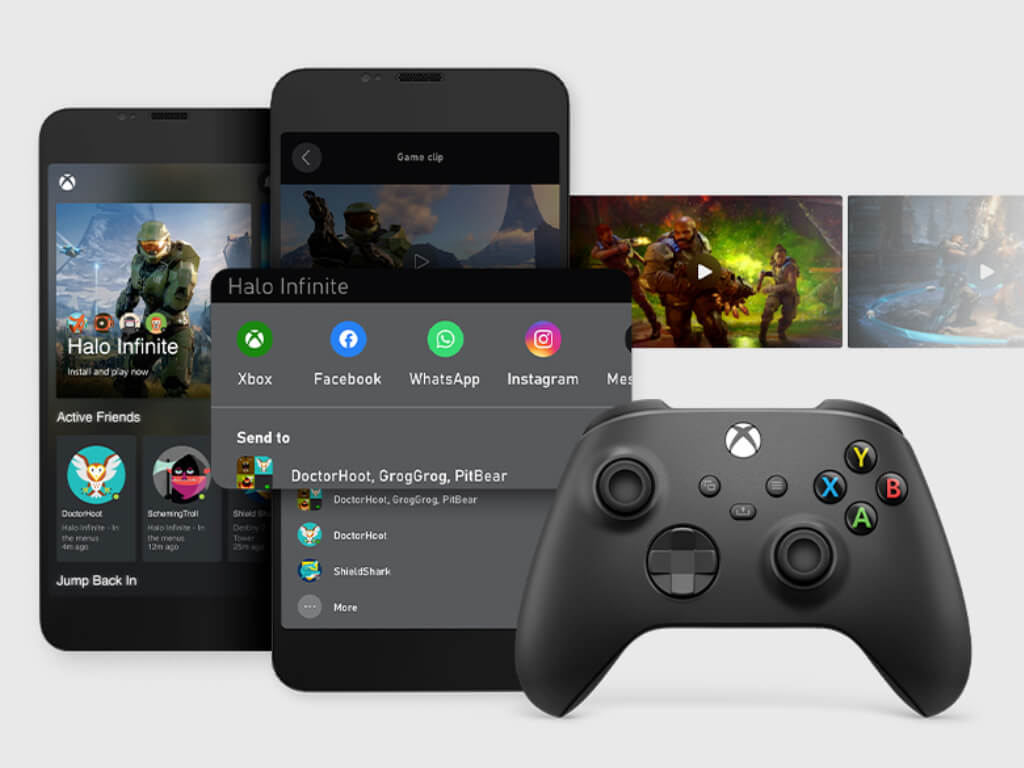
Enter the Xbox app, which at present is available not only on Xbox consoles but also on Windows 8, 10, and 11 PCs as well as on Android and iOS. This covers a whole gamut of devices: consoles, desktop and laptop PCs, mobile smartphones and tablets. Now it looks like we can add smart TVs to the mix courtesy of a new partnership with Samsung that will bring the Xbox app to new Samsung smart TVs.

The new smart TV app will join the mobile Xbox app to bring Xbox to a wide range of devices.

If this news sounds familiar, it should – Xbox and Samsung have partnered before to bring Xbox Game Pass to millions of Samsung Galaxy smart phones. Also, it was stated a year ago in an Xbox Wire post that Xbox was working to bring the app and Game Pass to more screens. This latest announcement is, in part, the fruition of that promise, with the Xbox team also working on a streaming device that will utilize cloud gaming to bring Xbox to even more devices and users.

The Xbox app will be coming to new Samsung 2022 smart TVs, and for those who are new to gaming it will present an excellent entry point without needing to buy a gaming PC or Xbox console. Xbox has said that they intend to expand to other TV partnerships in the future.

Apparently using the Xbox smart TV app will be as simple as launching the app, logging into your Microsoft account, connecting your controller, and launching your digital game of choice to play from the cloud. With Game Pass Ultimate gamers have over 100 great titles to choose from, and those who aren’t already a member can join right inside the app. This new way to play offers an exciting choice for new gamers and those looking to declutter their living room without giving up their Xbox gaming.

Chrome Bookmarks Disappeared: 5 Ways To Get Them Back [2026 Guide]

Chrome bookmarks help to improve your browsing experience. They store essential sites and allow you to access them easily.

However, users are starting to complain that the Chrome bookmarks disappeared on PC. This can be caused by a series of factors, from user mistakes to browser faults.

Thankfully, you can quickly solve this problem, just like other Chrome bookmarks issues.

This guide contains five simple yet effective fixes to help you restore your favorite missing links. Irrespective of the cause, we have a solution for you.

Where are Google Chrome bookmarks stored?

bookmarks file location chrome disappeared

Chrome bookmarks are stored on a folder created for your browser. To locate this folder on Windows, Open File Explorer and follow the path below: C:UsersusernameAppDataLocalGoogleChromeUser DataDefault

Note that the username in the path is the name of your profile on your PC. 

mac bookmarks location

On Mac, open the Finder app and follow the path below: MacintoshUsers/usernameLibraryApplication SupportGoogle ChromeDefault

The username in the path should be replaced with your profile name. 

?️ Quick Tip!
If you don’t want to deal with such problems in the future, use a more stable browser like Opera One. You can even import all your Chrome bookmarks and settings.

It’s often updated and has a modern interface, with quick access to social media platforms. Opera One also includes an adblocker, a VPN, and more.

⇒ Get Opera One

Where did my Chrome bookmarks go?

If your Chrome bookmarks disappear, chances are they are somewhere on your PC. Below is are some of the reasons you can’t find them on your browser:

  • Accidental deletion: You might mistakenly delete your Chrome bookmarks yourself. In this case, you should quickly press the Ctrl + Z keys to undo the action.
  • Chrome bookmarks bar disappeared: Sometimes,  Chrome bookmarks bar that is missing and not your favorites disappearing. You can restore the bar by pressing Ctrl + Shift + B keys on Windows and Command + Shift + B on Mac to restore it.
  • Browser update.
  • Turn off sync while the profile is in use.

How do I recover my bookmarks on Google Chrome?

1. Use the Chrome folder

  1. Open File Explorer and follow the path below: C:UsersusernameAppDataLocalGoogleChromeUser DataDefault
  2. Locate the files name Bookmarks and Bookmarks.bak. The Bookmarks option is the default file currently used by chrome while bookmarks.bak is the latest backup.
    bookmarks file chrome disappeared
  3. Close all Chrome windows.
  4. Rename the bookmarks file to a different name like bookmarks.out.
    rename bookmarks
  5. Rename the bookmarks.bak to Bookmarks. The goal is to set it as the default for Chrome.
    rename second bookmarks disappeared
  6. Now, relaunch Chrome.

This generic fix is effective for the Chrome bookmarks that disappeared after sync, update, or reboot issues on Windows and Mac.  
You can also use a Chrome bookmarks recovery tool for this fix on Windows. Again, the instructions have been detailed on the website.

2. Recover from previously backed up file

  1. Open Chrome and click the menu button (three vertical dots) at the top right corner.
  2. Click the Bookmarks option.
  3. Select Import bookmarks and settings.
    import bookmarks option
  4. Check the checkbox for Favorites/Bookmarks.
    favorite bookmarks chrome disappeared
  5. Click the dropdown at the top and select Bookmarks HTML File.
  6. Click the Choose File button.
    choose file button
  7. Select the bookmarks file you backed up in HTML format in the past and click the Open button.
    select saved bookmarks chrome disappeared
  8. Click the Done button when prompted that Your bookmarks and settings are ready.
    bookmarks success

This fix only works if you have backed up your favorites in a folder in the past. It is especially effective if your Chrome bookmarks disappear after an update or sync.

3. Import bookmarks from other browsers

  1. Open Chrome and click the menu button.
  2. Select the Bookmarks option followed by Import bookmarks and settings.
    import settings option
  3. Click the dropdown at the top and select the browser to import from. We will use Mozilla Firefox as an example here.
    choose firefox chrome disappeared bookmarks
  4. Check the box for Favorites/Bookmarks.
  5. Click the Import button.
    import  firefox bookmarks chrome disappeared
  6. Click the Done button when prompted.
    importation success chrome bookmarks disappeared

This fix works for all Chrome bookmarks disappeared scenarios like after update, reboot, or sync. The only caveat is that you must have exported the bookmarks to another browser before they went missing.

4. Restore from browsing history

  1. Launch Chrome and click the menu button.
  2. Select the History option.
    history option
  3. Click the History option at the top to open the entire browsing history.
    full history chrome bookmarks disappeared
  4. Now, select the links you have bookmarked to open them. 
  5. Click the star icon in the Address bar to add it to bookmarks again.
    bookmark link

5. Recover bookmarks with Google Activity

  1. Open Chrome and type my Google activity in the address bar. 
    my activity search chrome bookmarks disappeared
  2. Click the Welcome to My Activity option.
    welcome to my activity
  3. Scroll down the page to locate the link to the sites you bookmarked. Then, click on them to open them again.
    the activity page bookmarks chrome activated

In a case where you have cleared your browser history, you can recover your missing Chrome bookmarks via Google. But you need to have signed in to your Google account, Chrome and enabled the history sync settings before the links disappeared.

We have come to the end of this detailed guide on how to recover your Chrome bookmarks after they disappeared. The fixes provided are primarily general and work for Mac and Windows alike.

If Chrome is not syncing bookmarks, passwords, and other info on your PC, you can check our guide on how to fix it.

Let us know the solution that helped you restore your Chrome bookmarks in the comments section below.

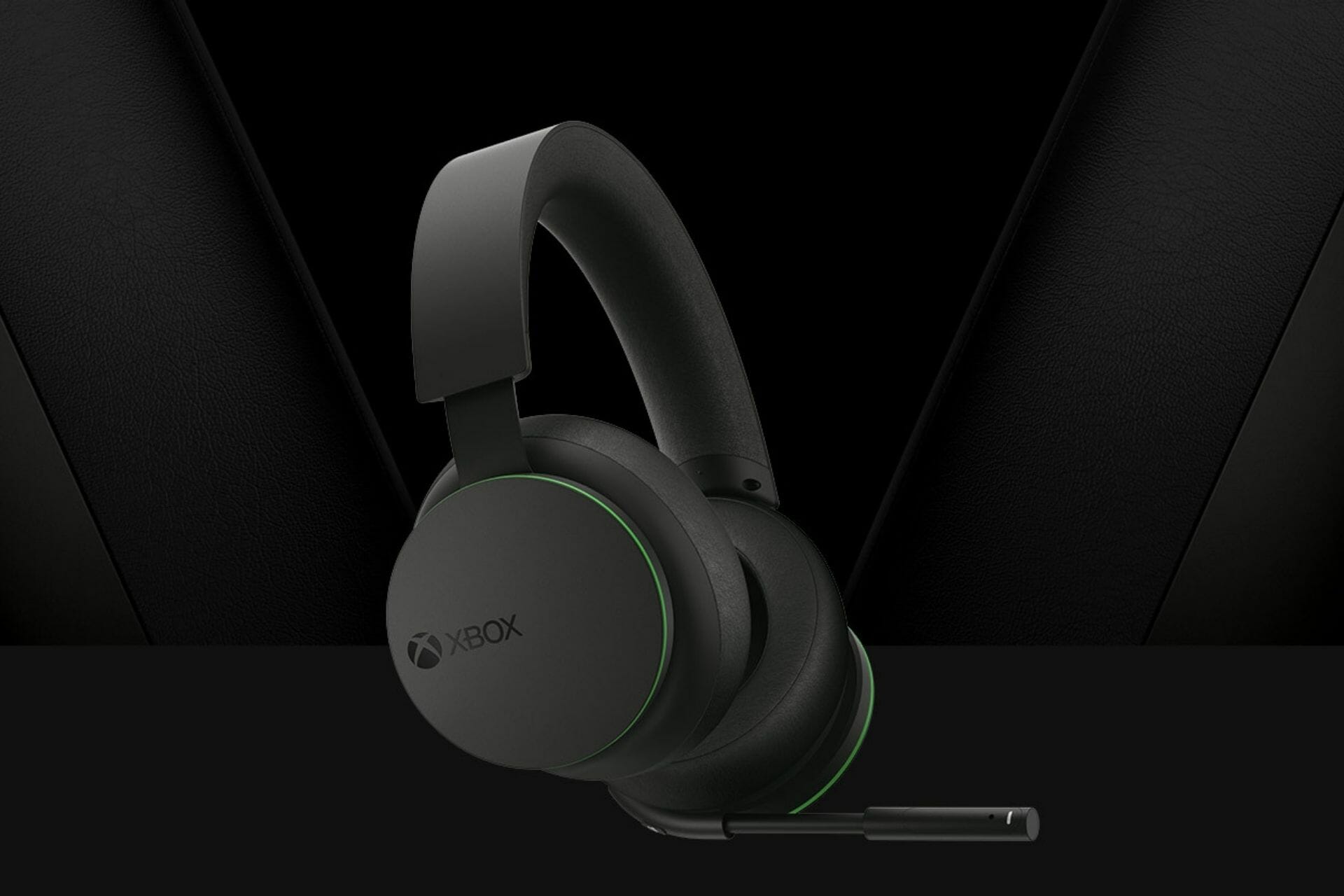
4 Most Expensive Xbox Headsets that are Worth the Money

You get what you pay for; isn’t that how it goes? More often than not, a hefty price tag acts as a quality benchmark. Hence, it’s only natural for gaming fans with a thing for Microsoft consoles to want to put their hands on the most expensive Xbox headsets.

Price plays a vital role in determining the quality of features in a gaming headset. Nevertheless, there are many factors to consider apart from the price, and the ultimate goal is to achieve an improved gaming experience. 

So, why are gaming headsets so expensive in the first place? These elements increase the cost of a gaming headset, from durability to comfort, noise-canceling, multi-connectivity, clear microphone, and broader frequency. 

Furthermore, the most expensive gaming headset for Xbox that delivers high quality must be fully equipped to accommodate all versions of the famous console.

With compatibility being such a big deal, you need to ensure that the most expensive Xbox One headset you pick will also be the best premium Xbox Series X or S headset that your money can buy.

Our selection includes not only the most expensive Xbox headsets but, overall, the best headset in the world for Xbox with excellent both extended compatibility and great features.

What is the world’s most expensive gaming headset?

When writing this article, the most expensive and best gaming headset in the world is the Bang & Olufsen Beoplay Portal, currently selling for $499.

It is crafted to improve the immersive gaming experience on consoles and is ideally suited for PC and even mobile gamers, with tailored modes for each device. 

Its most appealing features include crystal clear sound and advanced noise-canceling with lower latency. Using the Dolby Atmosphere technology, the audio quality it boasts is unmatched. 

Furthermore, its dual-mode compatibility enables smooth wireless connectivity and a USB-C dongle. If you’re looking for the most expensive wireless headset for Xbox, PlayStation, or PC, the Beoplay Portal is a worthy investment that will level up your gameplay thanks to its fine-tuned features.

What are the most expensive headsets for Xbox?

K712 PRO Over-Ear

  • Ergonomic design for enhanced comfort
  • High-quality materials (soft velour pads)
  • Sophisticated Open Technology for precise sound
  • Flat-wire voice coils for improved performance
  • Powerful sound imaging and spacious soundstage
  • The ear cups' straps are a bit flimpsy.

The AKG Pro Audio K712 Pro offers the most comfort for a fatigue-free gaming session with maximum wearing.

If you were wondering what is the best headset in the world for Xbox, you just struck gold as this product crafted from genuine soft leather will guarantee a comfortable and lightweight fit.

Its compatibility with all Xbox consoles and more makes it a fan favorite. What’s more, its sophisticated open technology ensures an improved and powerful sound quality with excellent performance.

The flat wire voice recall coupled with the 3 DB guarantees bass reproduction and impulsive response. This helps perfect the immersive gaming experience.


QuietComfort 35 Series 2 Gaming Headset

  • Fully compatible with all Xbox generations
  • Acoustic noise-canceling technology
  • Advanced controls for mic volumes
  • Comes with a Discord-certified mic
  • Detachable gaming module
  • Sound-cancelling does not apply when the battery is drained (wired mode).

What headset do pro Xbox gamers use? You wanted to know; we’re here to deliver – it’s this 2-in-1 Xbox headset with options for wireless gaming or wired experiences and excellent battery life.

You can game freely and go unplugged for up to 40 hours in wired gaming and 20 hours for wireless connection gaming sessions. What more can you ask for?

Also, this headset’s noise-canceling feature is second to none. The headset and the built-in mic have a noise-canceling feature that ensures a clear and crisp gaming experience.

It eliminates all external noise that may disrupt your gaming session, and that’s just one of the reasons why pro gamers appreciate this headset so much.

Last but not least, the lightweight materials used and the soft-padded earpads ensure enjoyable and comfortable long hours of gaming.


Kraken Tournament Edition THX 7.1

  • Adjustable mic volume, noise sensitivity, and more
  • Accurate THX Spatial Audio for the ultimate surround sound realism
  • Custom-tuned drivers for immersive gaming
  • Comfortable oval design with heat dissipation and anti-pressure cushions
  • No Razer staple lighting effects

If you’re after the best surround-sound experience, the Kraken THX Tournament Edition cannot go unnoticed.

This is head and shoulders above other headsets in terms of audio quality. It delivers an enhanced ultra-realistic gaming sound beyond imagination that immerses you completely in the gaming world.

The Kraken THX 7.1 is universally compatible with all devices. From the latest Xbox series S and Ps5 to the old gens. All gamers can use it. Although, the new gens are guaranteed much-improved quality in use.

Its soft padding makes it suitable for medium to long hours of comfortable gaming without wear out or pain.

Extra tip: which is the no one gaming headset? While it does not provide the most expensive Xbox headset, Razer is one of the most potent manufacturers out there with a focus on gamers’ needs.

If the THX 7.1 Tournament Edition is not you’re cup of tea, the Razer Blackshark V2 – arguably the best headset Razer has yet produced – will catch your eye (or should we say your ear?)


Cloud Flight S - Wireless Gaming Headset

  • Sturdy build + breathable leather material
  • Best battery life (30 hours wireless gaming) + wireless Qi-charging
  • Custom-tuned virtual 7.1 surround sound
  • HyperX Ngenuity software with ear cup controls
  • The app does not allow much sound editing and mostly serves for ear cup adjusting.

This could easily be the most expensive Xbox headset based on battery life and backup. It back sets a 30 hours battery life when used for wireless connections.

HyperX Cloud Flight S’ surround sound feature is powered with a custom-tuned 7.1 sound for a surreal gaming experience. It’s compatible with all Xbox series and PlayStation consoles.

The mic features crystal clear sounds with noise cancellation and a LED mute indicator, and the Qi wireless charger provides a comfortable charging option.

Speaking about comfort, you will enjoy its large ear cups made of plush memory foam.


These are the most expensive Xbox headsets that you can get your hands on for an equally immersive gaming experience. Each has particular features that make it stand out from the rest, so don’t be shy to take a closer look.

How about the most expensive Turtle Beach Xbox One/S headsets? You can always expand your area of interest and dig deeper into what the market has to offer.

As always, we’re more than glad to help out, so don’t miss out on our best Turtle Beach headset selection. On this note, we wish you a happy gaming and crystal-clear sound!

3 Ways to Fix COD Warzone Update Requires Restart Error

Call of Duty Warzone, when released in 2020, was arguably one of the most bugged games to be released that year.

One of the most common and reported errors that Call of Duty Warzone players have come across is the never-ending Warzone update that requires restart error.

Notably, the error has not only afflicted COD Warzone players on the PlayStation console but Xbox users as well.

Activision came up with a solution for this, which we will be discussing in this guide. But along with Activision’s answer, we will give you a couple of more solutions that you can apply and possibly fix the Warzone update requires restart error and get back to gaming. So let us get right into it.

Why does COD: Warzone keeps saying update requires restart?

As already mentioned, COD: Warzone players coming across a glitch or bug isn’t something surprising, but this Warzone update requires restart error is accompanied by a bug that prevents players from playing the game.

Restarting the game doesn’t fix the problem, and resetting the internet connection hasn’t worked for players, which hints that this is not an ordinary bug or related to the server.

The actual reason you might come across this Warzone update requires restart error loop is unknown. Thankfully, we have the solutions for you in this guide that will surely help you fix the problem at hand.

How do I fix the COD: Warzone update requires restart error?

1. Clear cache on your console

➡ PlayStation 5/PlayStation 4

  1. Turn off your PlayStation 4 or 5.
  2. Wait till the lights of the PlayStation 4 or 5 turns off completely.
  3. Unplug the power cord from the socket.
  4. Wait for about a minute or two.
  5. Plug the power cord back into your console.
  6. Turn on your console.

➡ Xbox Series X

  1. Press the Xbox button on your controller.
  2. Scroll to the right and select Profile & System.
  3. Select Settings.
  4. Choose Devices & Connections.
  5. Select Blu-Ray.
  6. Select Persistent Storage.
  7. Tap on Clear Persistent Storage.

➡ Battle.net

  1. Close all Blizzard programs.
  2. Press Ctrl + Shift+ Esc on the keyboard to open the Task Manager.
  3. Click on the Processes tab.
  4. End process for agent.exe or Blizzard Update Agent.
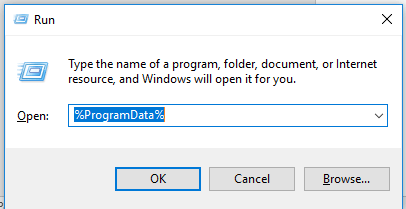
  5. Press Win + R to open the Run dialogue.
  6. Type the below command and press Enter. %ProgramData%Origin error code 9:0
  7. Right-click on the Blizzard Entertainment folder and select Delete.
  8. Restart the Battle.net desktop app.
  9. Relaunch the game.

The above method has been shared by Activision themselves after carefully examining the COD: Warzone update requires restart loop error.

2. Delete save game data

➡ PlayStation

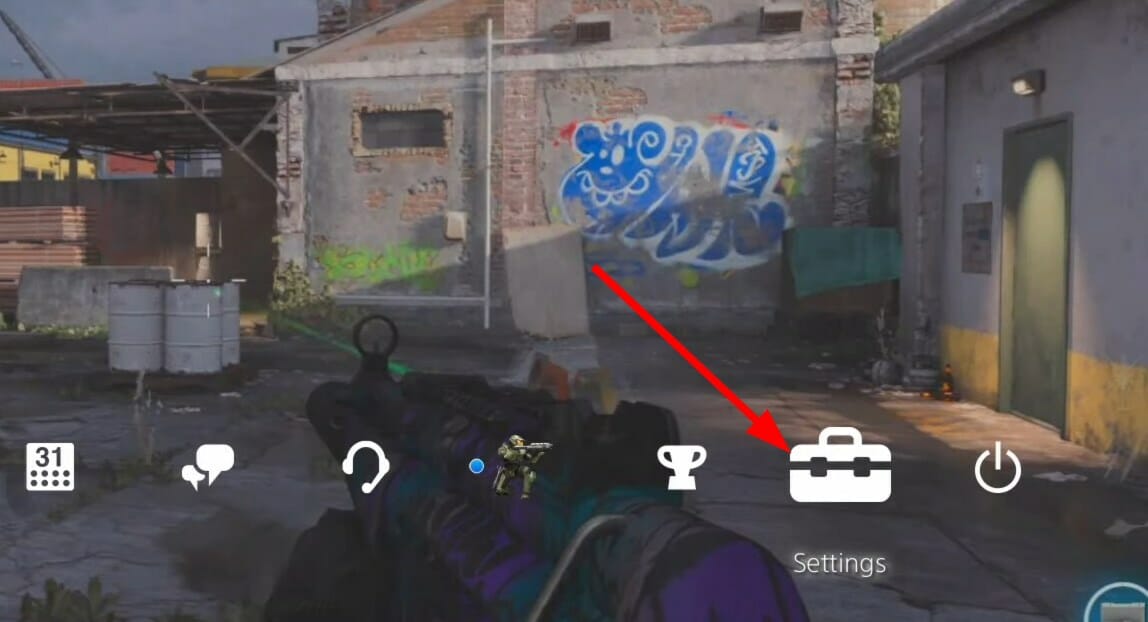
  1. Open the Settings.
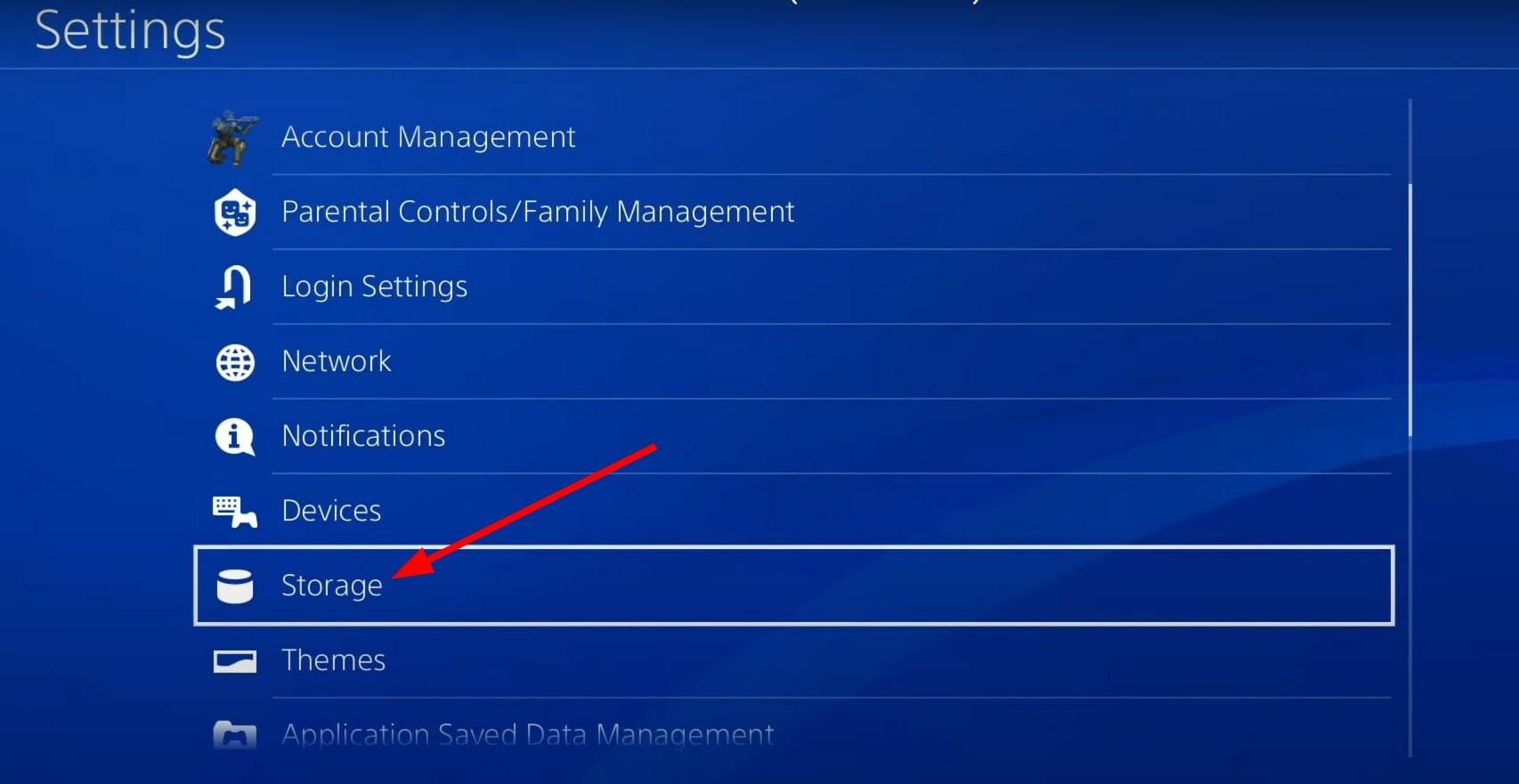
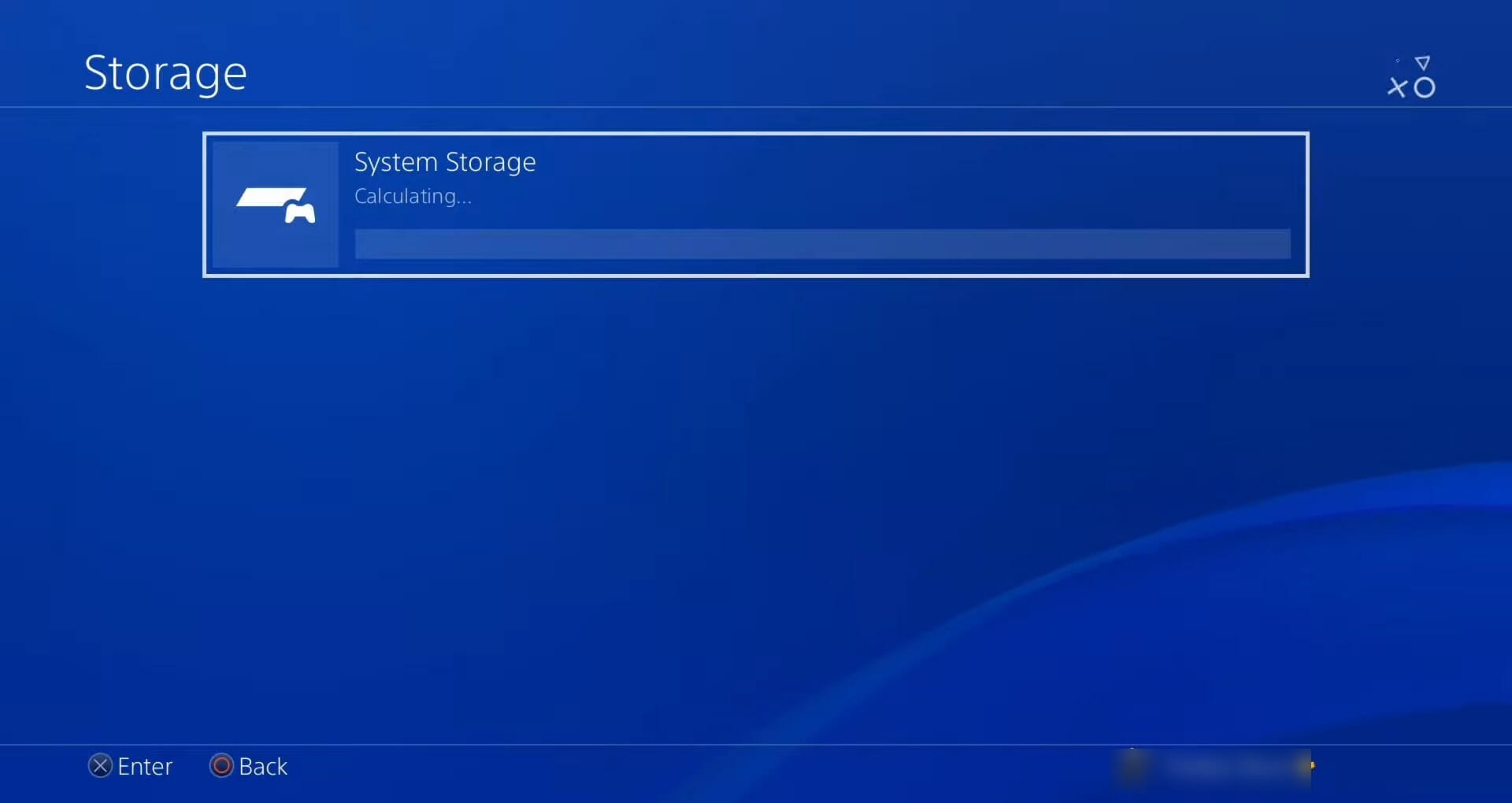
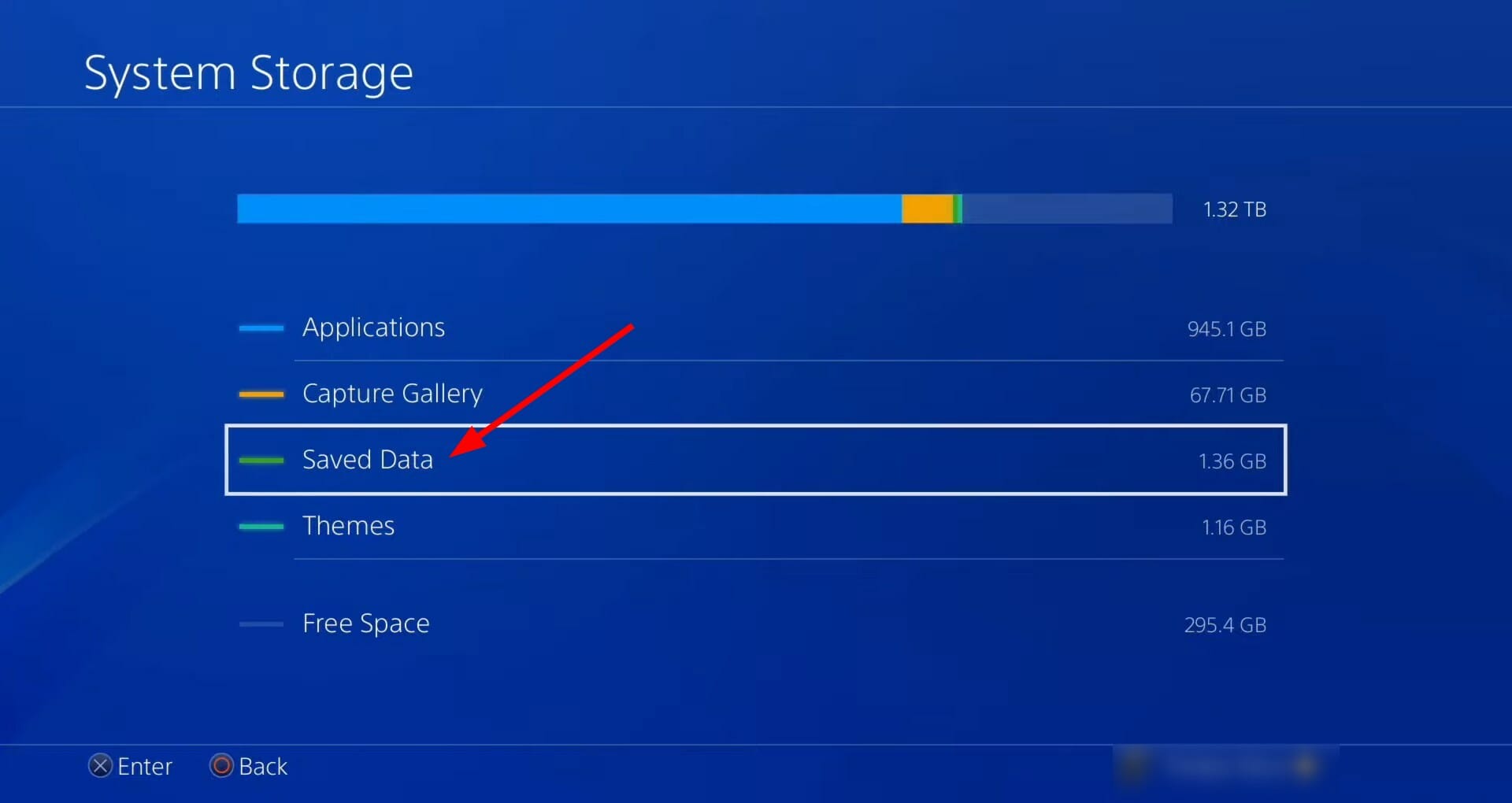
  2. Select Storage.
  3. Choose System Storage.
  4. Select Saved Data.
  5. Choose COD: Warzone game to access the game’s saved data.
  6. Press the Options button and select Delete.
  7. Choose the saved data files to delete, then select Delete.

➡ Xbox One

  1. Press the Xbox button.
  2. Select My games & apps.
  3. Choose See all.
  4. Highlight the game and press the Menu button on your controller.
  5. Choose Manage game & add ons.
  6. Select Saved data on the left-hand side of the screen.
  7. Choose the game to access the game’s saved data.
  8. Use the Options menu and select Delete saved data.

3. Install all of the COD Warzone game content

  1. Load the game.
  2. Go to the DLC Management screen from the main menu.
  3. Install all game content, including the Campaign and Special Ops packages.

How can I fix the Warzone update requires to restart black screen issue?

The Warzone restart Black screen issue has mainly affected the COD: Warzone players on PC. For them, we have a list of some handy solutions below:

  • Install the latest Windows updates
  • Disable GPU overclocking
  • Update graphics driver
  • Check your internet connection

Let us know in the comments below which one of the above-mentioned methods helped you fix the COD: Warzone update requires a restart loop error.

Xbox Console Companion: What is it & how to enable/disable it

Have you heard of the Xbox Console Companion app? This article will tell you everything about it.

Modern Windows 10 and the 11 have many built-in applications. Unfortunately, Microsoft often adds or removes these native apps with major Windows updates. Sometimes, you may not find some apps on your PC by default.

The Xbox Console Companion is one of the official apps from Microsoft. But, what is it exactly? How does it work? In the next part of this post, you will learn about it.

What is Xbox Console Companion?

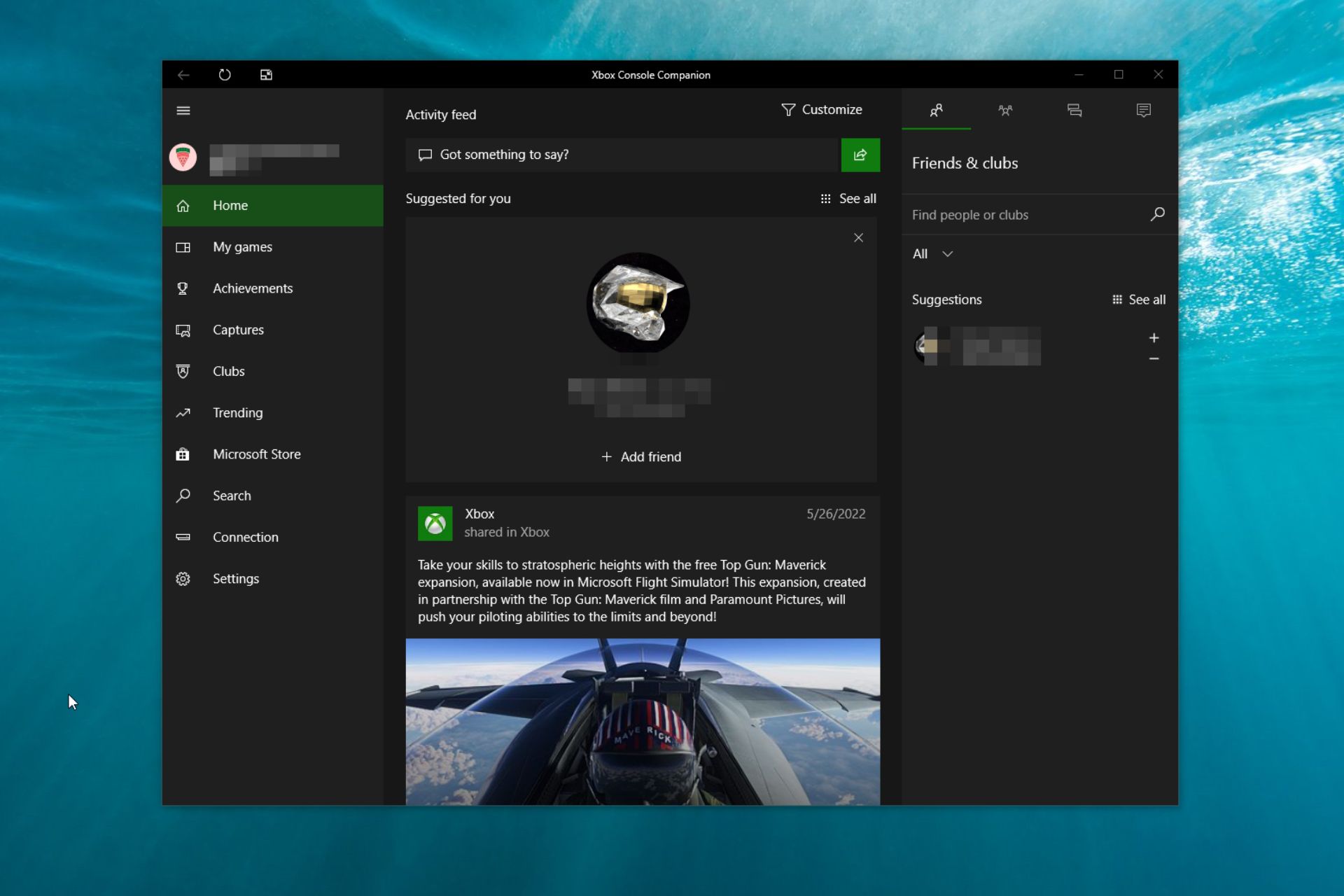
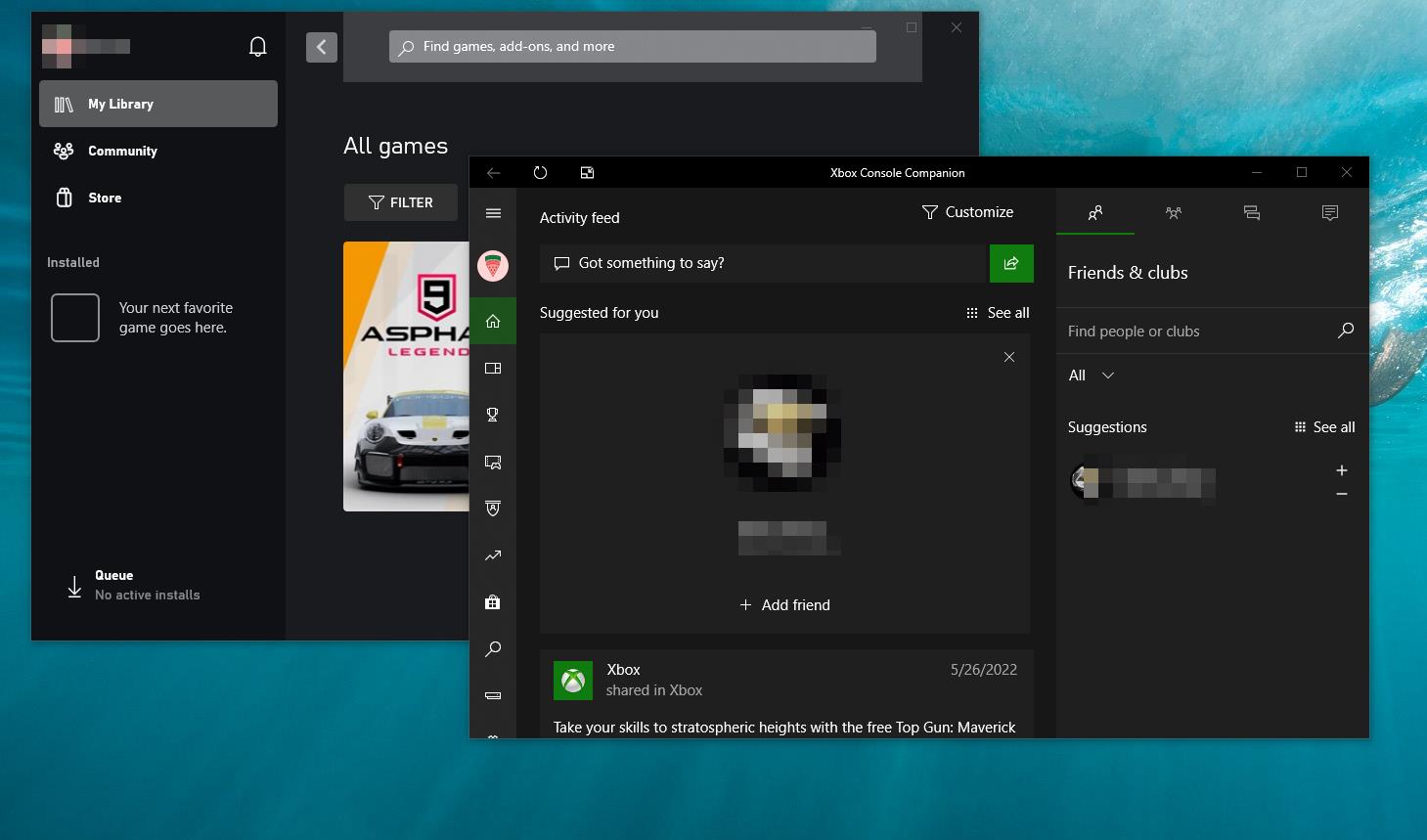
This is an official app from Microsoft for the modern Windows operating system. It helps users purchase and manage Xbox One games, capture gameplay, view achievements, control the Xbox One console, and interact with the community.

This app is somehow similar to the Steam app, but there are some differences in features. It also has Steam Link-like features and many other useful ones.

How do you get the Xbox Console Companion?

This application should be there on some versions of Windows 10 by default. You can open the Start Menu and search for it. If you don’t see this app, you will need to install it yourself.

To install it, you can follow these instructions:

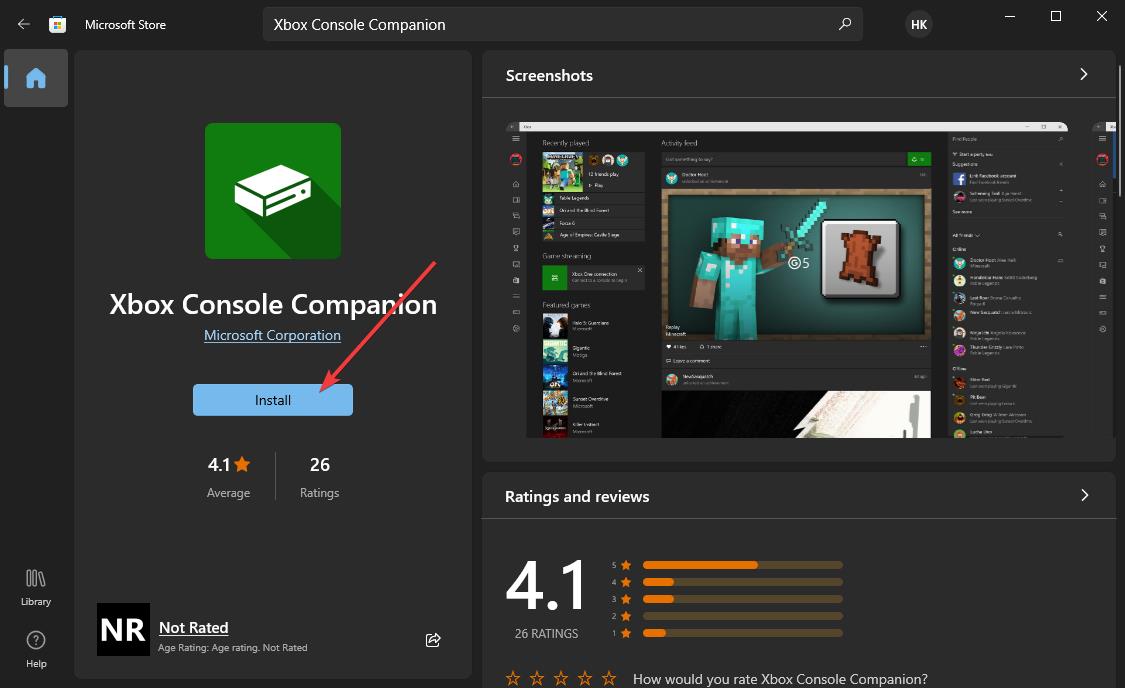
  1. Open or visit the Microsoft Store.
  2. Search for Xbox Console Companion.
  3. Click on that app.
  4. Click on Install.installing Xbox Console Companion

Windows will take a few seconds to install this application on your computer, depending on your internet speed.

What does Xbox Console Companion do?

This Xbox app helps users manage their PC and Xbox One game library from one place. Else, it has features that allow you to interact with the Xbox community.

Featurewise, it is more than a combination of Steam and Steam Link. Apart from managing the game library, you can even capture gameplay for both PC and Xbox games.

If you have an Xbox One console in your home, you can easily connect it with this app on Windows 10 and 11. Then, you can start streaming your Xbox on your PC.

This is a handy feature for users who want to play any unsupported Xbox games on their computers.

Why do I have Xbox Console Companion on my computer?

Some versions of Windows 10 computers have this Xbox app by default. In 2016, this app replaced the Xbox One SmartGlass. It was the only app that allowed you to connect your Xbox One to your PC.

Even though Microsoft has been encouraging users to use the new Xbox app, the Xbox Console Companion is still a favorite choice for many users. 

It is no longer a built-in app for the latest Windows 10 and 11 builds. However, if you see this tool on your computer, you are using an old version of Windows 10. If not, you may have manually installed the app from the Microsoft Store.

Is Xbox Console Companion necessary?

This application is necessary for Xbox gamers, particularly if someone has the Xbox One console. There are reasons why this app is required.

If we list the things that the Xbox Console Companion can do, we will see the followings:

  • Streaming Xbox One games and entertainment items to Windows 10 PC.
  • Managing PC and Xbox games.
  • Capturing gameplay and managing them efficiently.
  • Giving instant access to Game DVR, achievements, parties, etc., across PC and Xbox One.
  • Allowing users to create, join and manage clubs.
  • Helping users interact with the community and explore the games of players with a similar mindset.

The Xbox Consone Companion is used for the above things. However, using this app, you can do even more that enhance your gaming experience effectively.

If you need the above benefits, you must need this app. Otherwise, you may consider getting rid of this application.

Can I remove Xbox Console Companion from Windows 10?

You can easily remove or disable the Xbox Console Companion app from your Windows 10 computer. This is not a challenging task. If you are confused about whether you should remove this application from your computer or not, you can think about a few things.

Do you need the features it has? Many of its features are available separately on both Windows 11 and 10. For example, Xbox Game Bar is there for gameplay capturing, which is a built-in app. You only need your PC’s Console Companion app for Xbox remote play.

If remote play from anywhere is not necessary, you may consider removing this application.

How to disable Xbox Console Companion?

You can disable this app by uninstalling it from your Windows 10 computer. You don’t need to follow any other technical steps.

There are several ways to uninstall this application. We are featuring all of them. You can follow the one that fits your situation.

1. Uninstall in the standard way

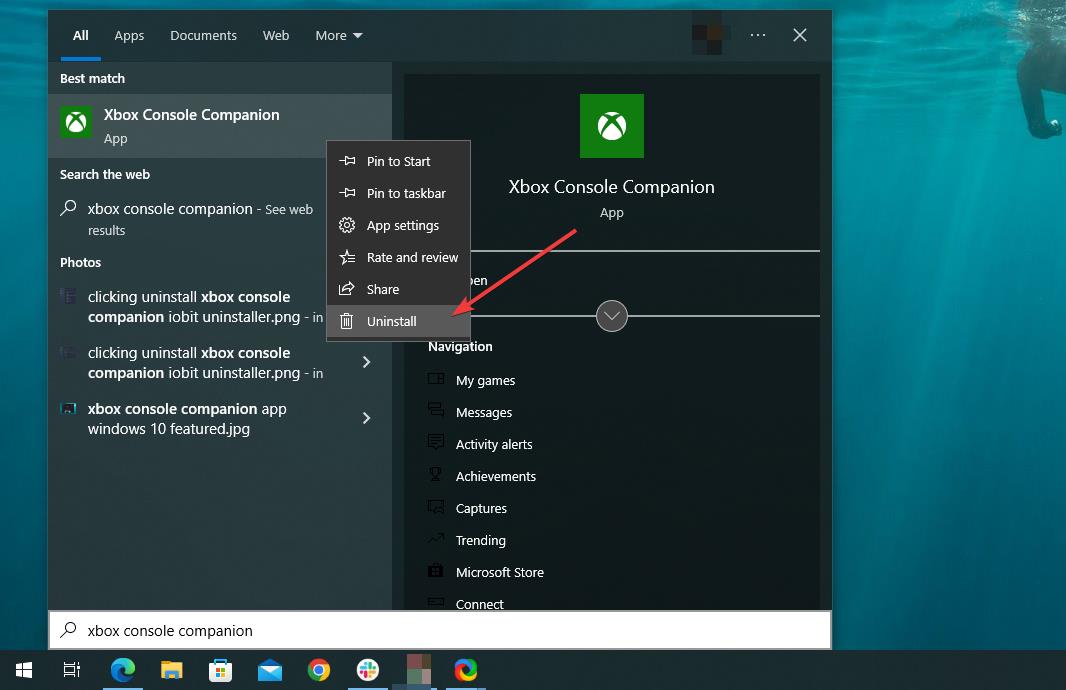
  1. Open the Start Menu and search for the Xbox Console Companion app.
  2. Right-click on it and choose Uninstall.uninstalling xbox console companion start menu

2. Remove Xbox Console Companion using PowerShell

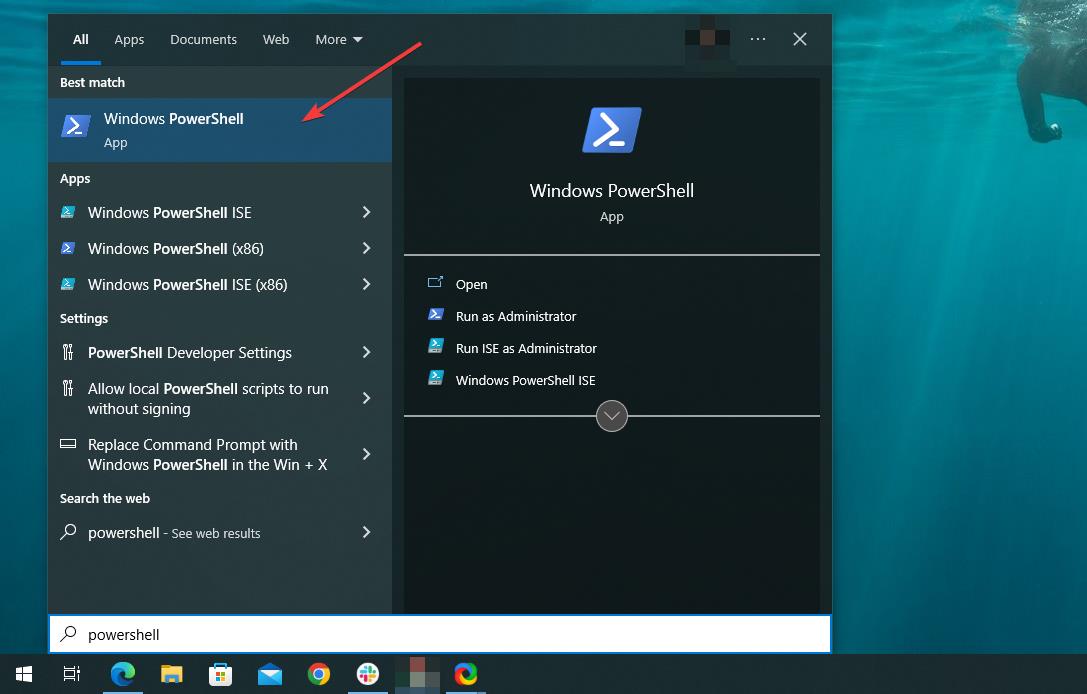
  1. Open the Start Menu and search for PowerShell.
  2. Launch the Windows PowerShell.opening windows powershell
  3. Type the following command and hit enter: Get-AppxPackage *xboxapp* | Remove-AppxPackageunintstalling xbox app powershell win10

3. Remove using a third-party uninstaller

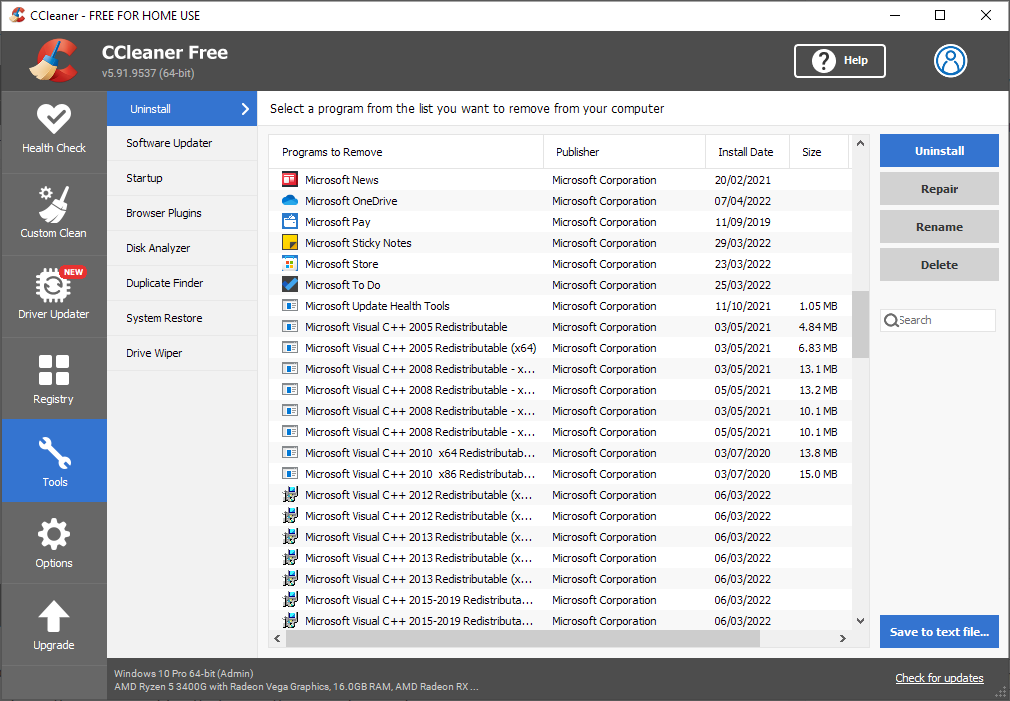
  1. Download the CCleaner Uninstaller or other third-party tools that serve a similar purpose.
  2. Open this application.
  3. Click on the Tools and Uninstall.
  4. Search for the Xbox Console Companion.
  5. Click on the Uninstall button.

How to enable this app?

If you have already uninstalled the application, you will need to install it again to enable the benefits on your computer.

You can follow the steps shown in the first part of this article.

How do I stop my Xbox Companion app from opening on startup?

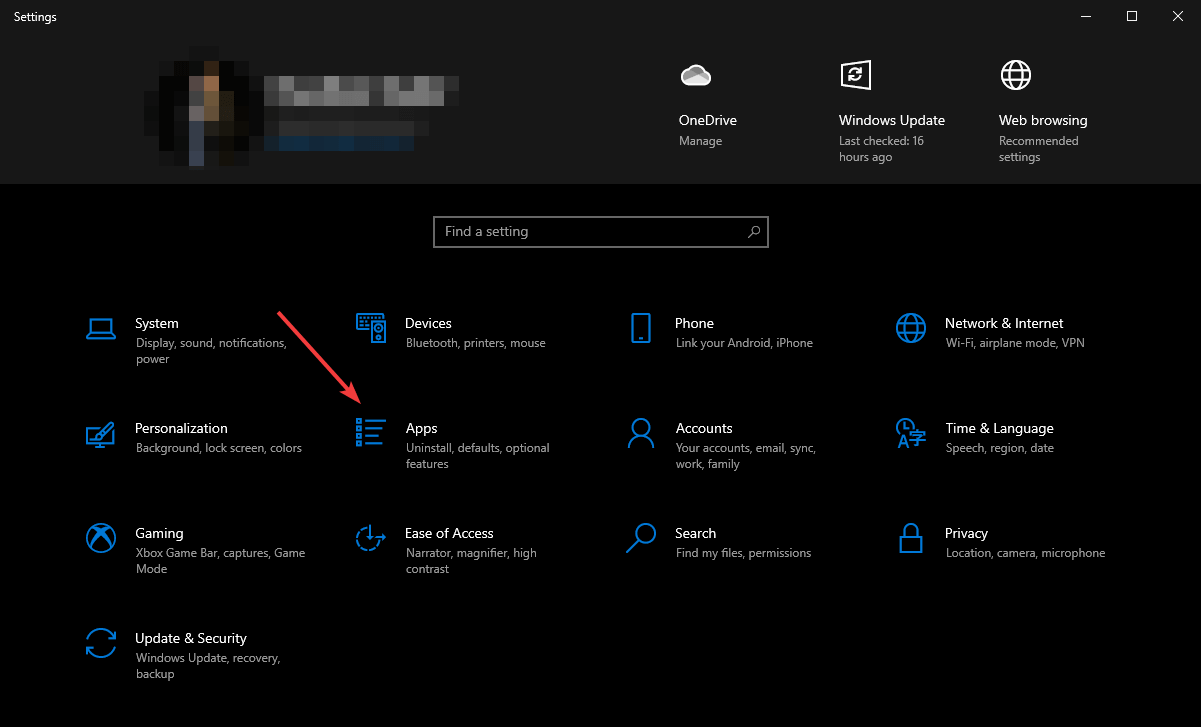
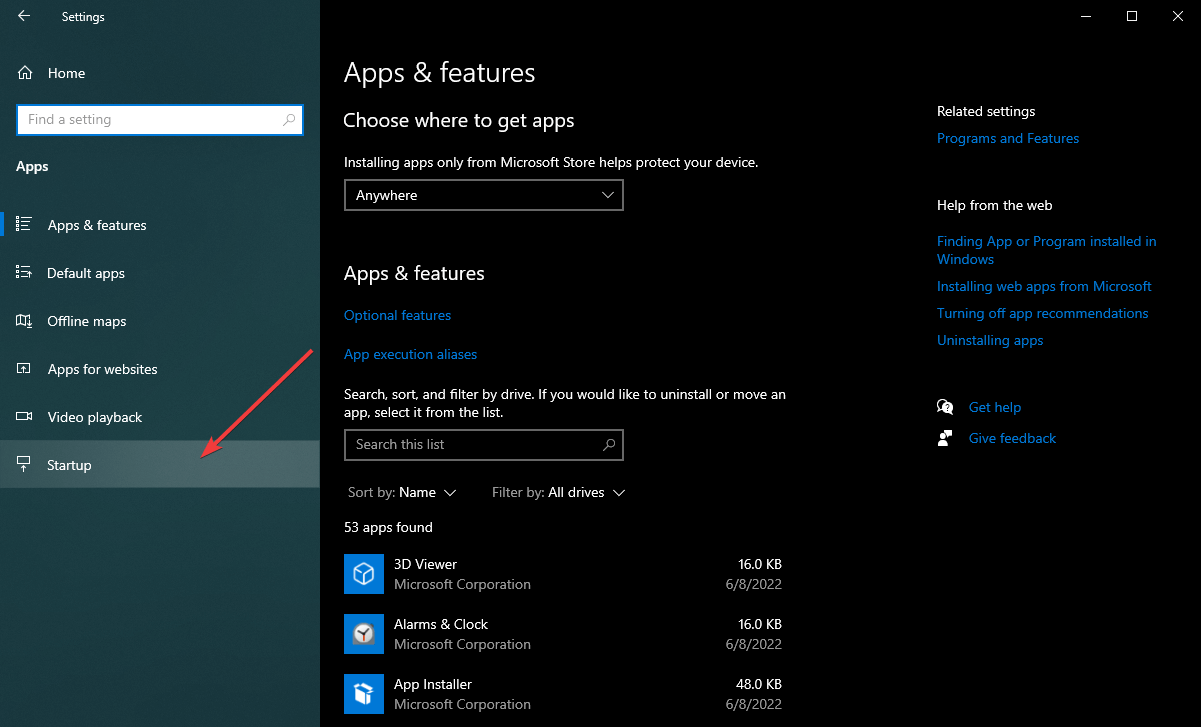
  1. Press Win + I to open Windows 10 settings.
  2. Click on Apps.clicking apps win10 settings
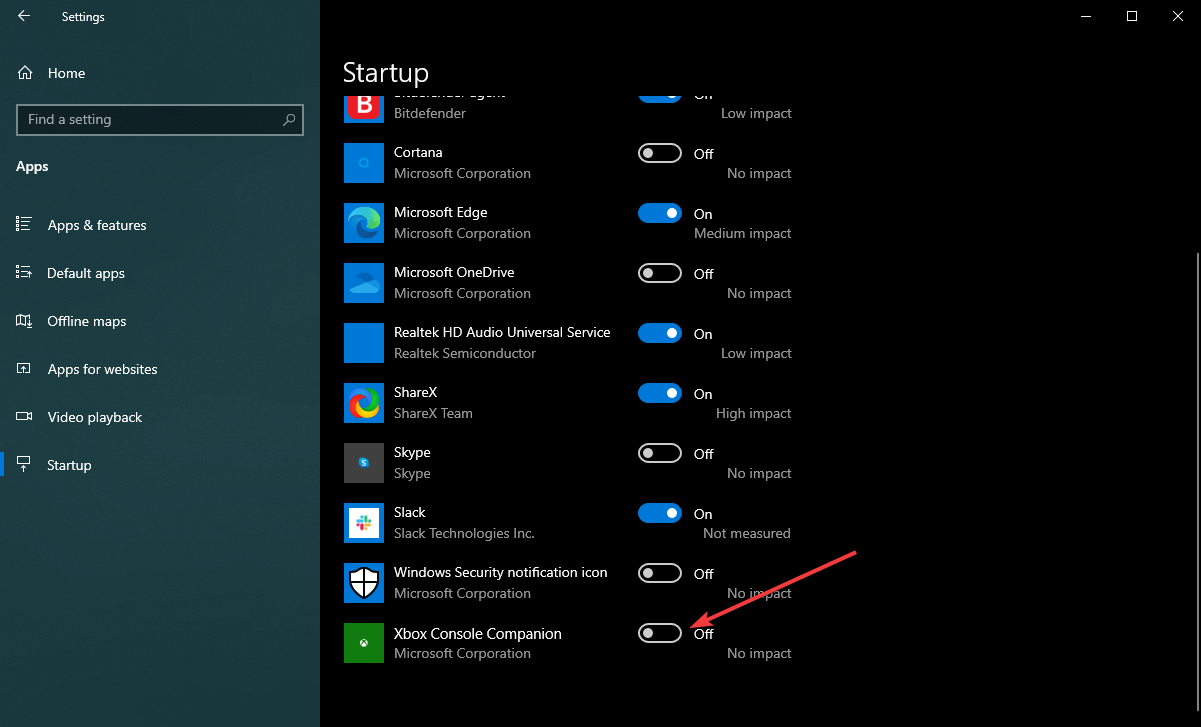
  3. Go to Startup.clicking startup win10 settings
  4. Find the Xbox Companion app and toggle the switch to off.disabling Xbox console companion startup

Xbox console companion vs. Xbox app

If you open the Xbox Console Companion app on the latest Windows 10 or 11, you will see it promotes installing the Xbox app on your PC.

However, you may have a question: Are these two apps the same? Or there are differences.

Both are different apps. There are differences and similarities.

The Xbox Console Companion is an old and mature app from Microsoft initially introduced for Windows 10. On the other hand, the Xbox app is relatively new, and it is yet to show its potential as Microsoft has been improving it with new features and performance improvements.

The Xbox Console Companion has console control, game capture, library management, and social features. However, the Xbox app has basic social and game library management features.

The Console Companion app is ahead of the new one in terms of functionality and features. Microsoft has planned to keep the Xbox Console Companion for console controlling only. On the other hand, the new Xbox app will gradually get more features.

This article has described the Xbox Console Companion app and has featured much necessary information about this application. If you have been using this app and have an opinion, please let us know in the comment box.

Bluetooth is Greyed Out in Device Manager: 3 Tips to Fix it

Bluetooth allows quick connectivity with peripherals, be it, microphones, speakers, or other accessories. But, several users reported that the Bluetooth is greyed out in Device Manager.

When this happens, it would affect the computer’s ability to connect to external peripherals, and your experience would be affected.

So, let’s find out the best ways to fix things when Bluetooth is greyed out in Device Manager.

Why is the Bluetooth device greyed out?

Whenever you see a greyed-out device, it points to two things. The device was previously connected to the computer but currently isn’t (or isn’t powered on) though it exists in the hardware profile. Or, it could be a duplicate of a device that is not connected anymore.

In most cases, the Bluetooth device option is greyed out due to connectivity issues. It could also be a software-related problem, something to do with the driver, or a conflicting application.

Why is there no Bluetooth option in Device Manager?

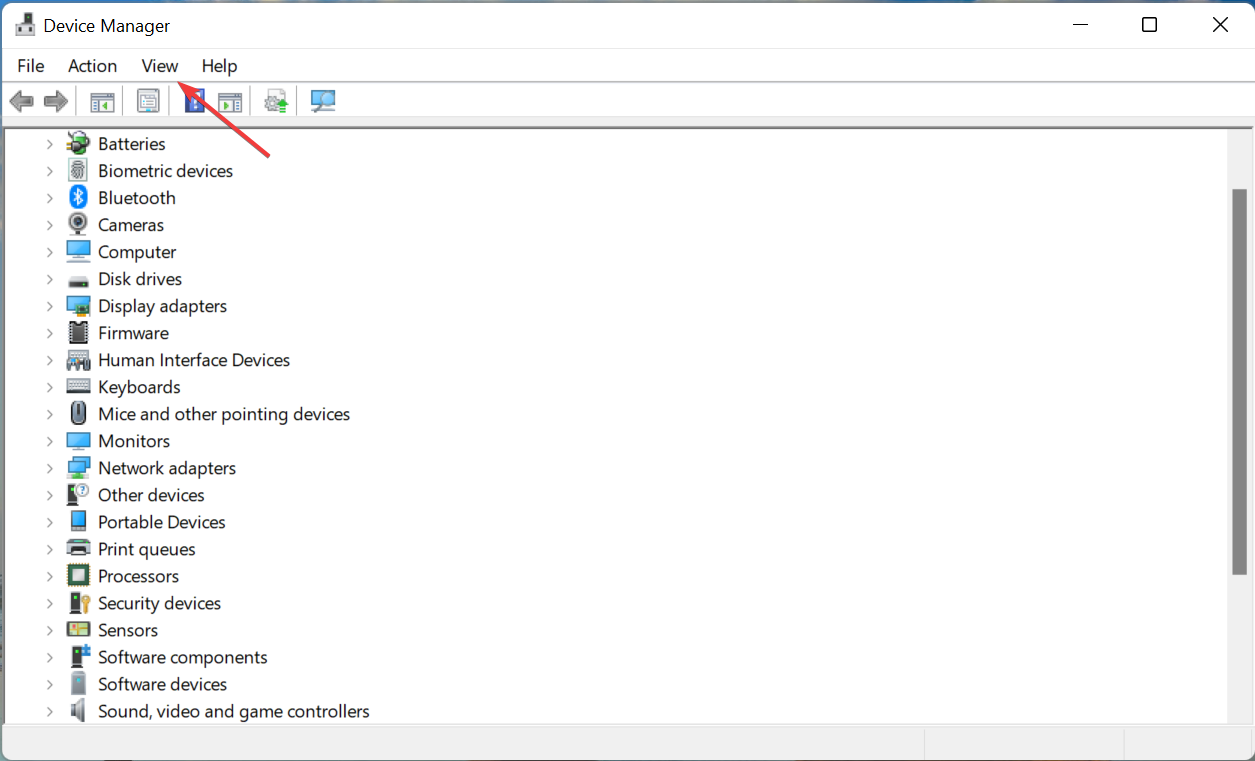
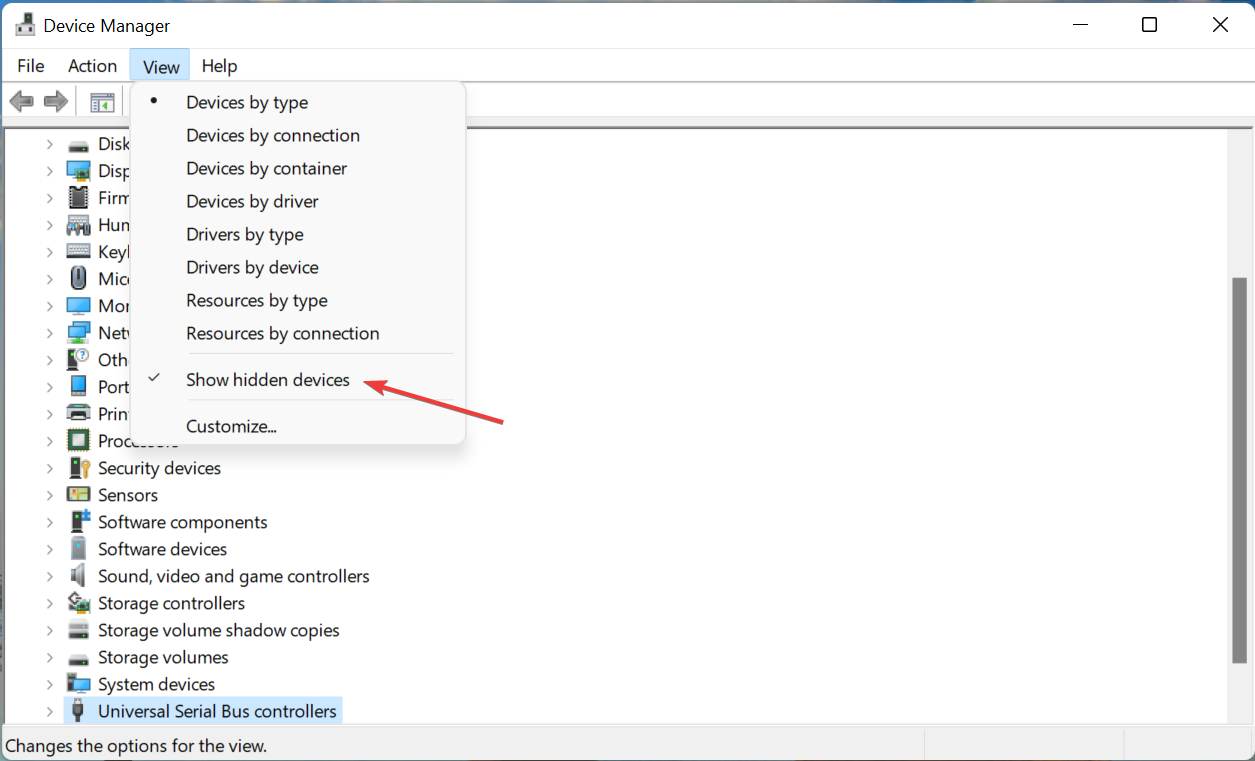
First, if your computer doesn’t support Bluetooth, there wouldn’t be an option for it in the Device Manager. Or, the Bluetooth may be hidden in the Device Manager and you need to view the hidden devices.

  1. Launch the Device Manager, and click on the View menu at the top.View menu to fix device manager bluetooth greyed out
  2. Select Show hidden devices from the list of options that appear.Show hidden devices

How do I fix a greyed out Bluetooth device?

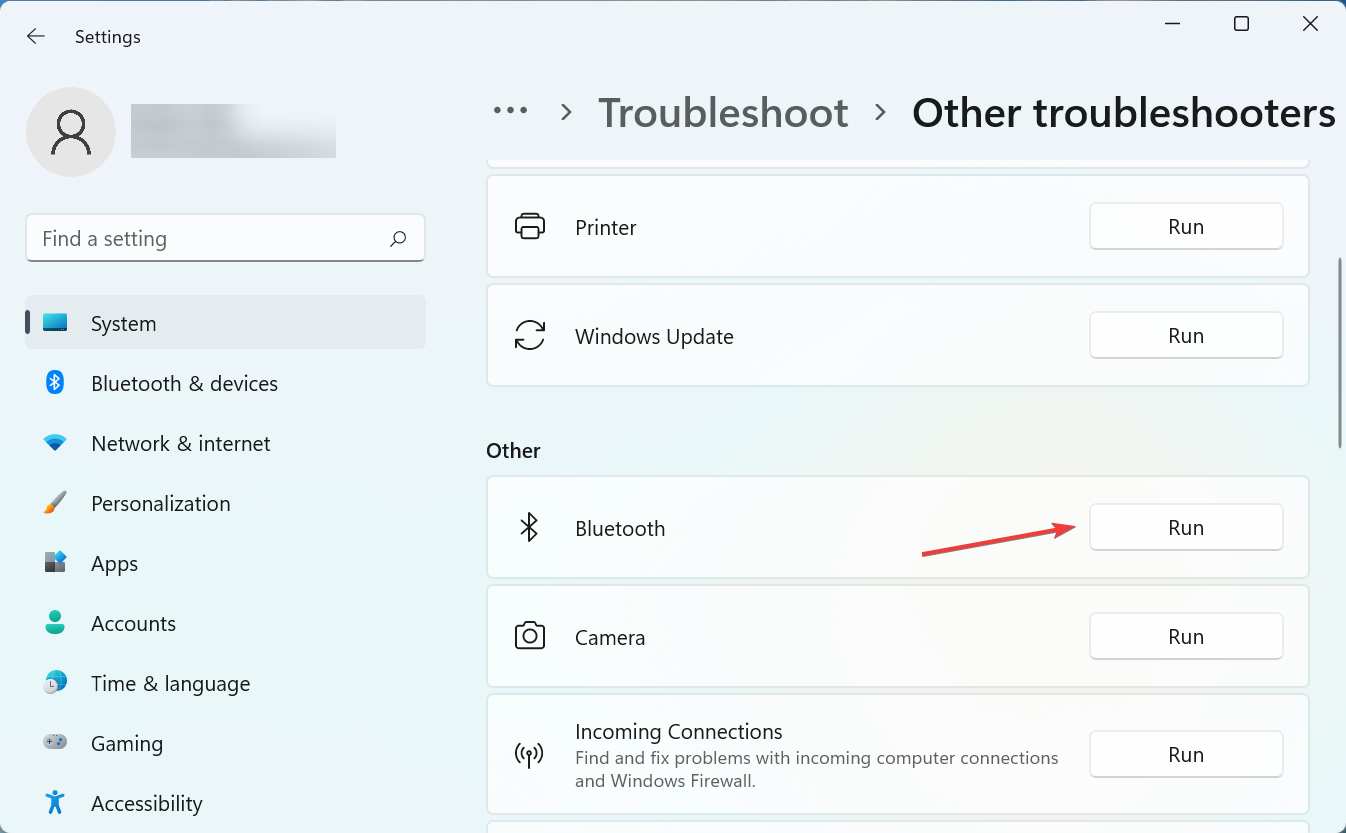
1. Run the dedicated troubleshooter

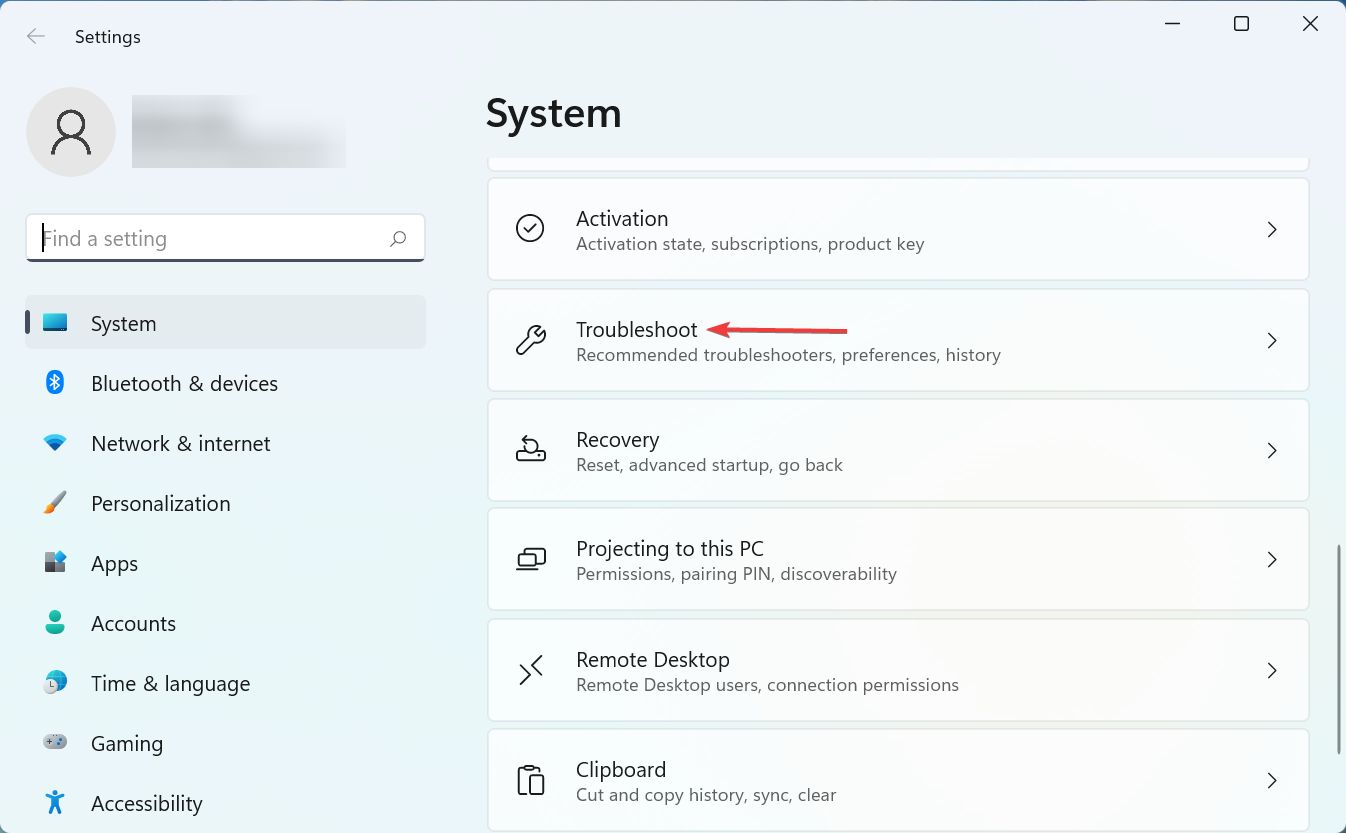
  1. Press Windows + I to launch Settings, and click on Troubleshoot.Troubleshoot to fix device manager bluetooth greyed out
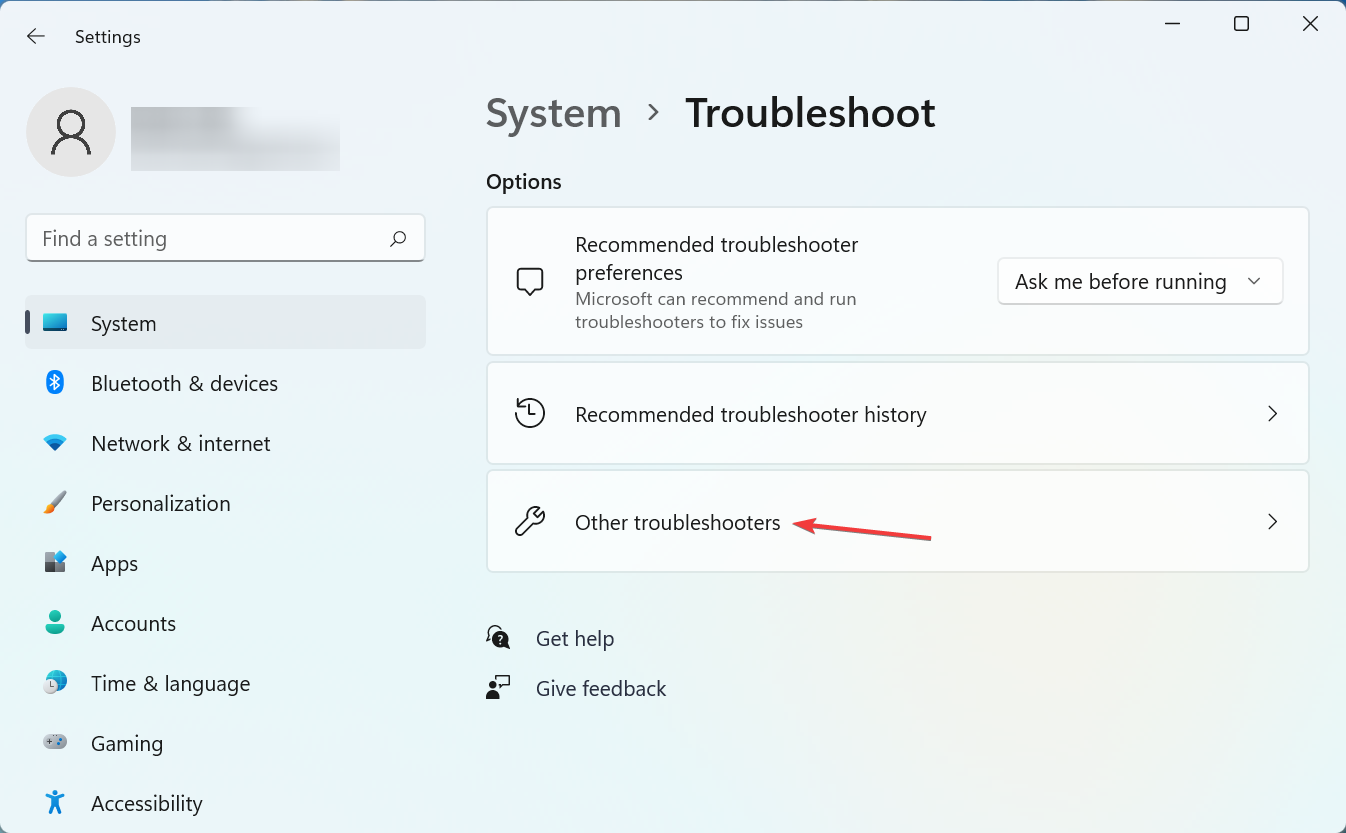
  2. Next, click on Other troubleshooters.Other troubleshooters
  3. Click on Run next to Bluetooth.Run

If Bluetooth is missing or greyed out in Device Manager, running the dedicated troubleshooter might help.

2. Update the driver

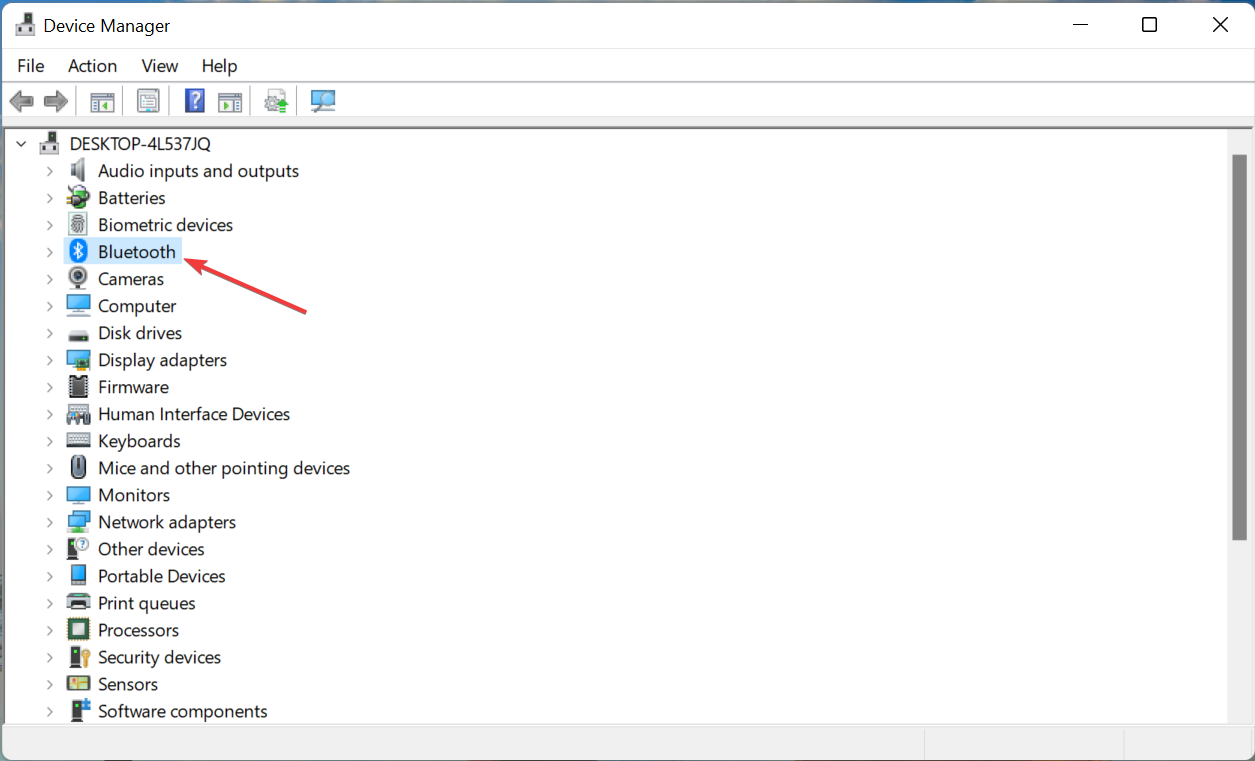
  1. Launch the Device Manager and double-click on the Bluetooth entry here.Bluetooth
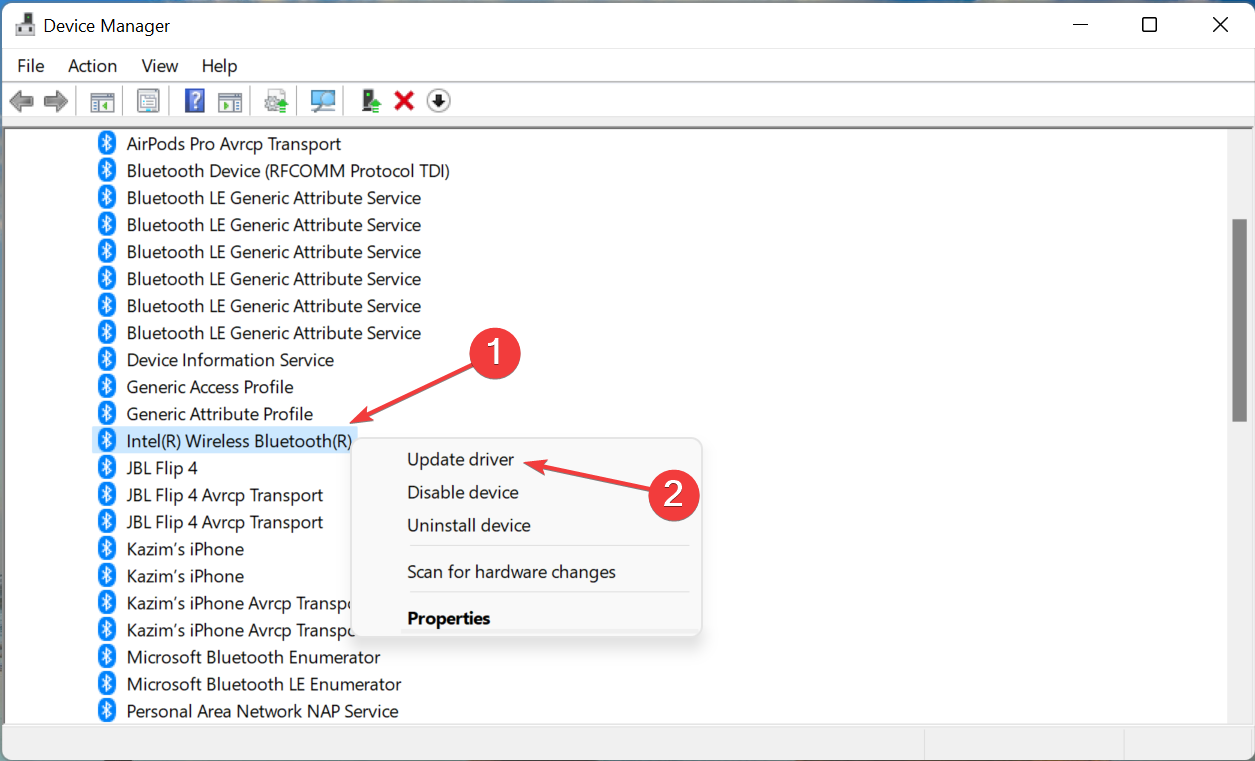
  2. Now, right-click on the Bluetooth adapter and select Update driver.Update driver to fix device manager bluetooth greyed out
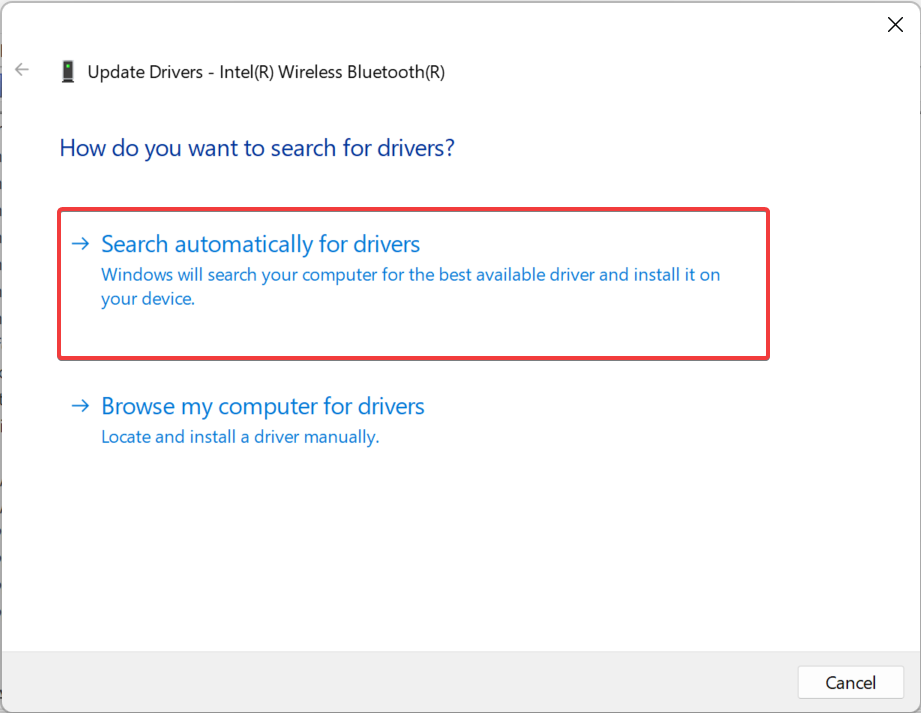
  3. Next, select Search automatically for drivers.Search automatically for drivers

In case you see an exclamation mark next to Bluetooth in Device Manager, simply reinstall the driver.

Another option for updating Bluetooth drivers so they appear in Device Manager is to use an automatic solution that can prevent serious damage if the wrong driver is installed.

The driver updater software we tested is Outbyte Driver Updater which will quickly scan your computer and list any hardware devices that have outdated drivers. The scan report from Outbyte Driver Updater may indicate that the Bluetooth driver needs to be updated.

⇒ Get Outbyte Driver Updater

3. Uninstall the recent Windows update

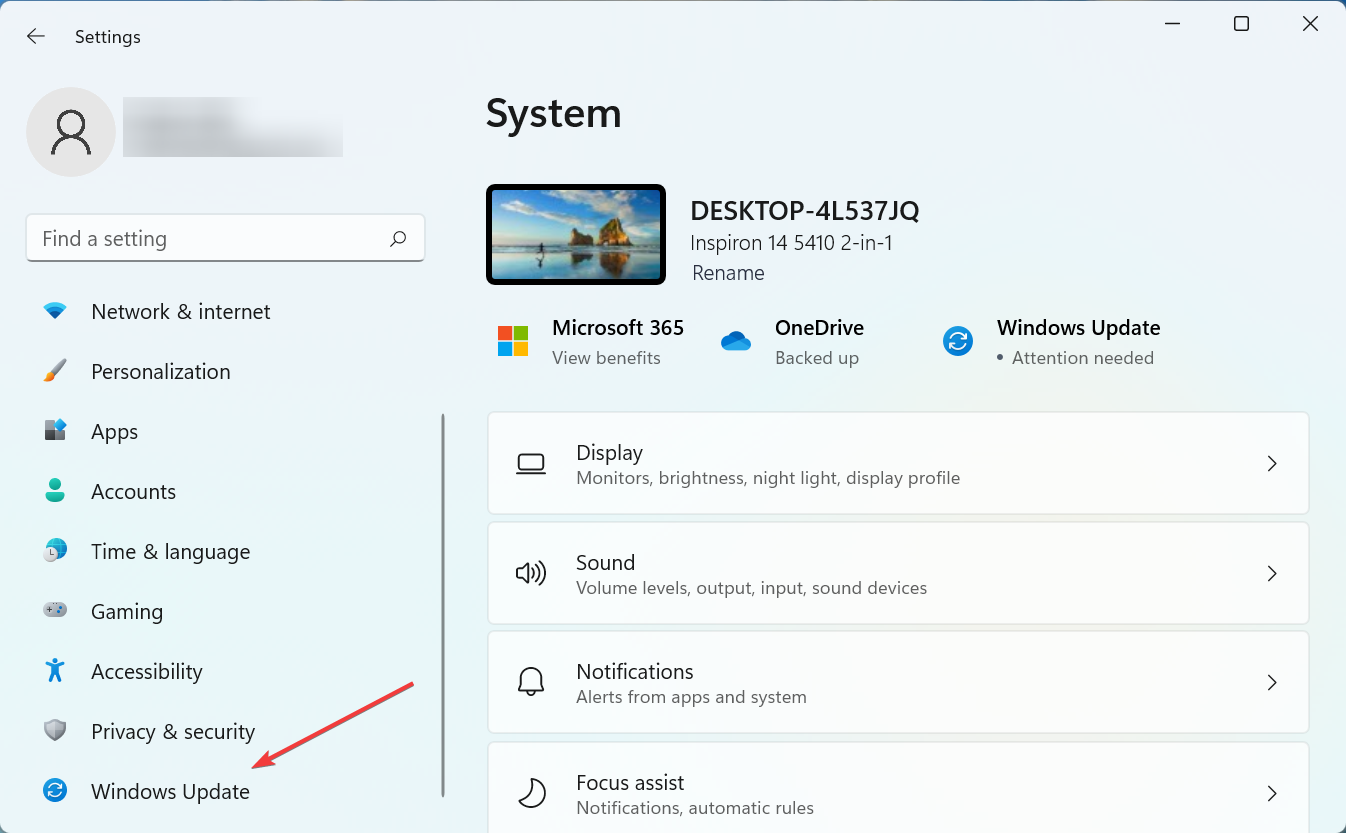
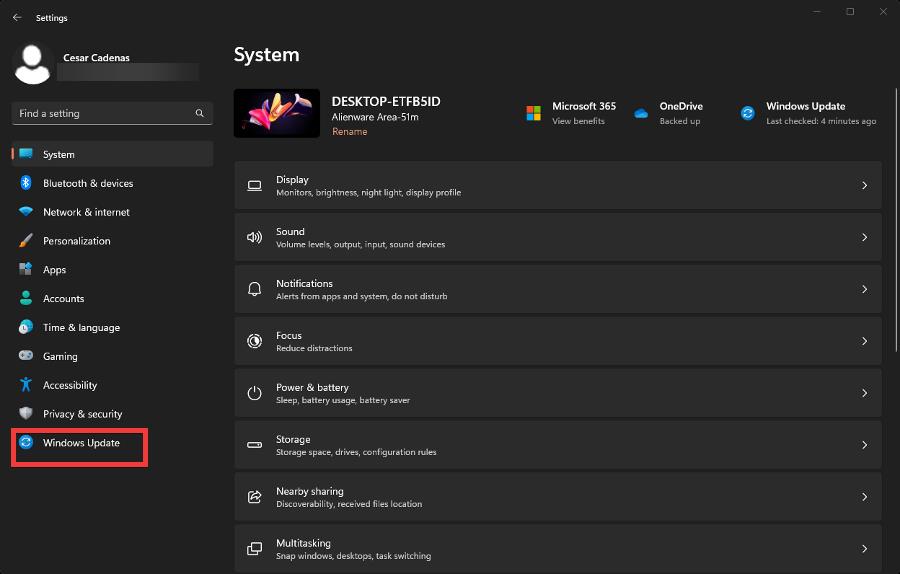
  1. Press Windows + I to launch Settings, and select Windows Update.Windows Update
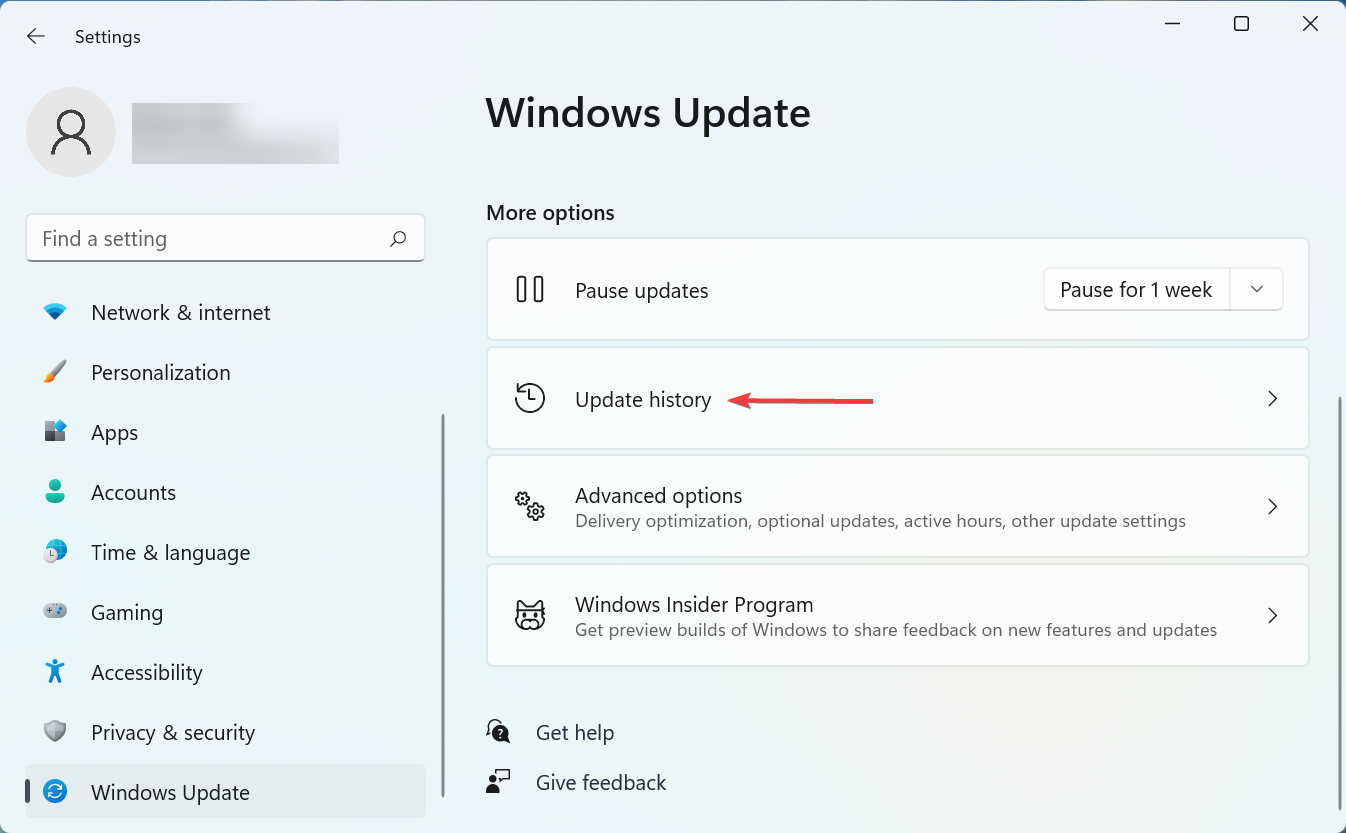
  2. Now, click on Update history.Update history
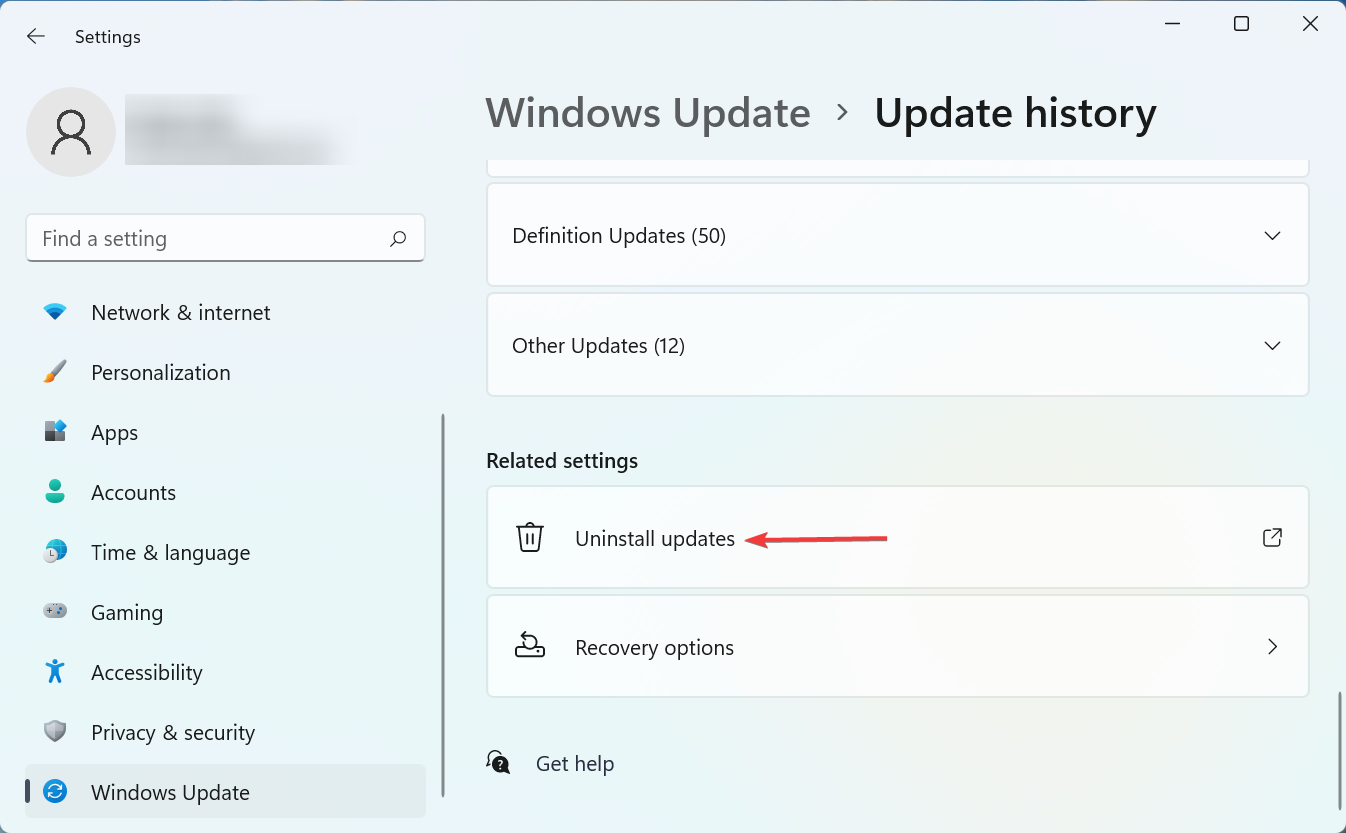
  3. Click on Uninstall updates.Uninstall updates to fix device manager bluetooth greyed out
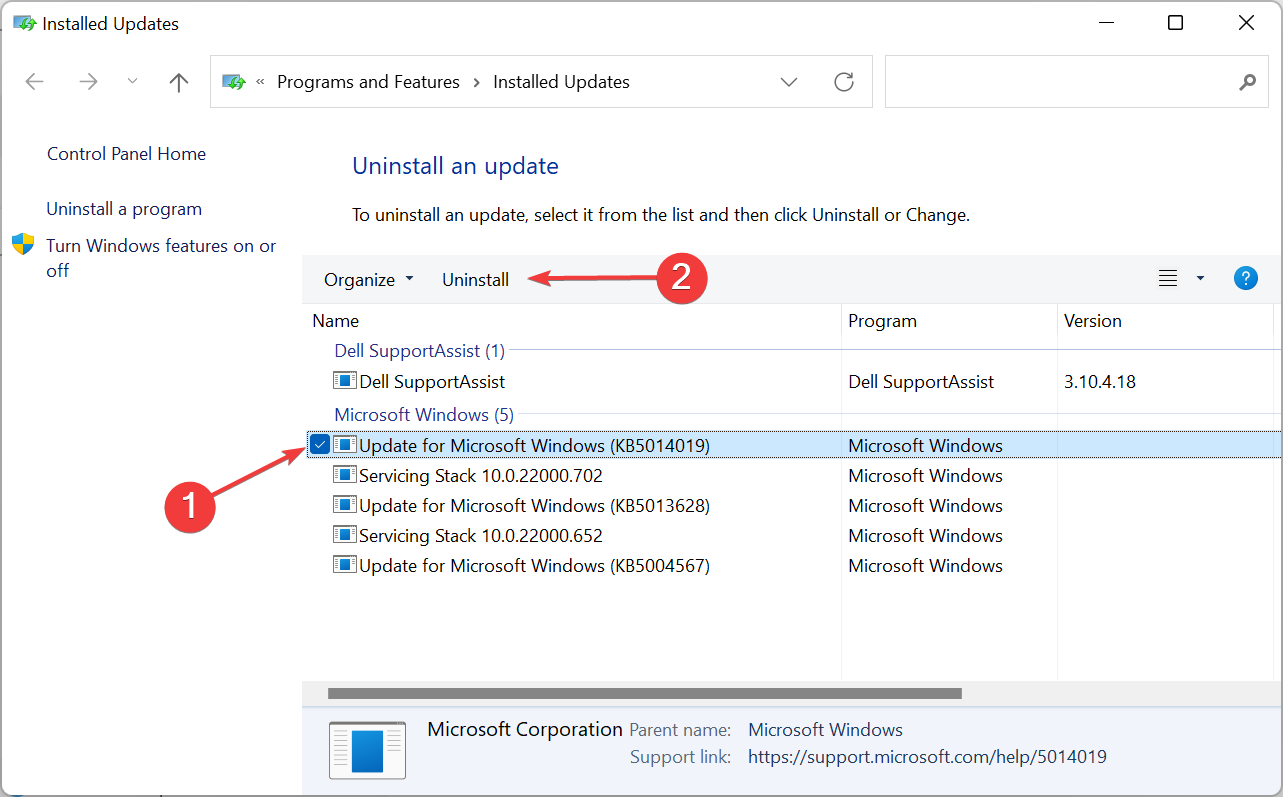
  4. Select recent Windows Update, and click on Uninstall.Uninstall to fix device manager bluetooth greyed out
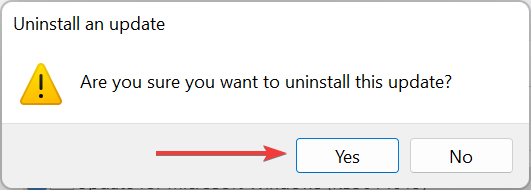
  5. Finally, click Yes in the confirmation prompt.Yes

These are all the ways you can fix things if Bluetooth is missing in Device Manager on your computer. Also, find out what to do if Bluetooth is not detecting devices.

Tell us which fix worked in the comments section below.

Canon MX310 Scanner Not Working? 5 Ways to Fix It

You are just about to scan an important document and all of a sudden you realize that your Canon MX310 scanner is not working.

This can be frustrating, especially if you notice that the Canon scanner is not working but the printer is.

Also, if you come across a Canon printer that won’t scan in Windows 10/11 issue, we have a detailed guide to help you troubleshoot the problem.

If your scanner is not working, you can turn the scanner off and detach the power cord to perform a hardware reset.

Alternatively, you can also visit the Canon support page or contact their customer service to check if the scanner model is compatible with your system configuration.

The good news is, that we have effective ways to fix the issue on both Windows 10 and Windows 11.

So, what causes the Canon scanner not working issue on your Canon printer?

Why is my Canon printer not scanning?

Whether it’s the Canon MG3620 scanner not working or MX310 not working issue, the scanner issue mostly arises due to:

  • A new Canon scanner, which may not be compatible with your operating system (OS)
  • An issue with the connectivity, for example, the USB cable is not connected properly to the PC
  • A recent upgrade to Windows 10/11 may require you to update your printer/scanner driver
  • Canon scanner is not connected to your WiFi, hence, check if the WiFi is active and connected
  • Outdated, missing, or corrupted device drivers for the Canon scanner
  • Virus or malware attack or if the system is hacked, causing it to freeze, crash or restart unexpectedly

The first thing you can do is to restart your computer, shut down your scanner for a couple of minutes, and then turn it on the back again.

This trick helps correct a lot of issues related to PCs and devices in some cases.

If it fails to work and you wonder how I get my scanner to work on my Canon printer, check below for resolutions.

How do I fix the Canon mx310 scanner?

1. Update the Canon MX301 driver

If you have recently upgraded to Windows 10 or 11, you must know that after the update you lose any 3rd party drivers along with the generic drivers.

This could be the reason why your Canon MX310 driver is missing on Windows 11 and the scanner is not working. In this case, you can try updating the scanner drivers manually.

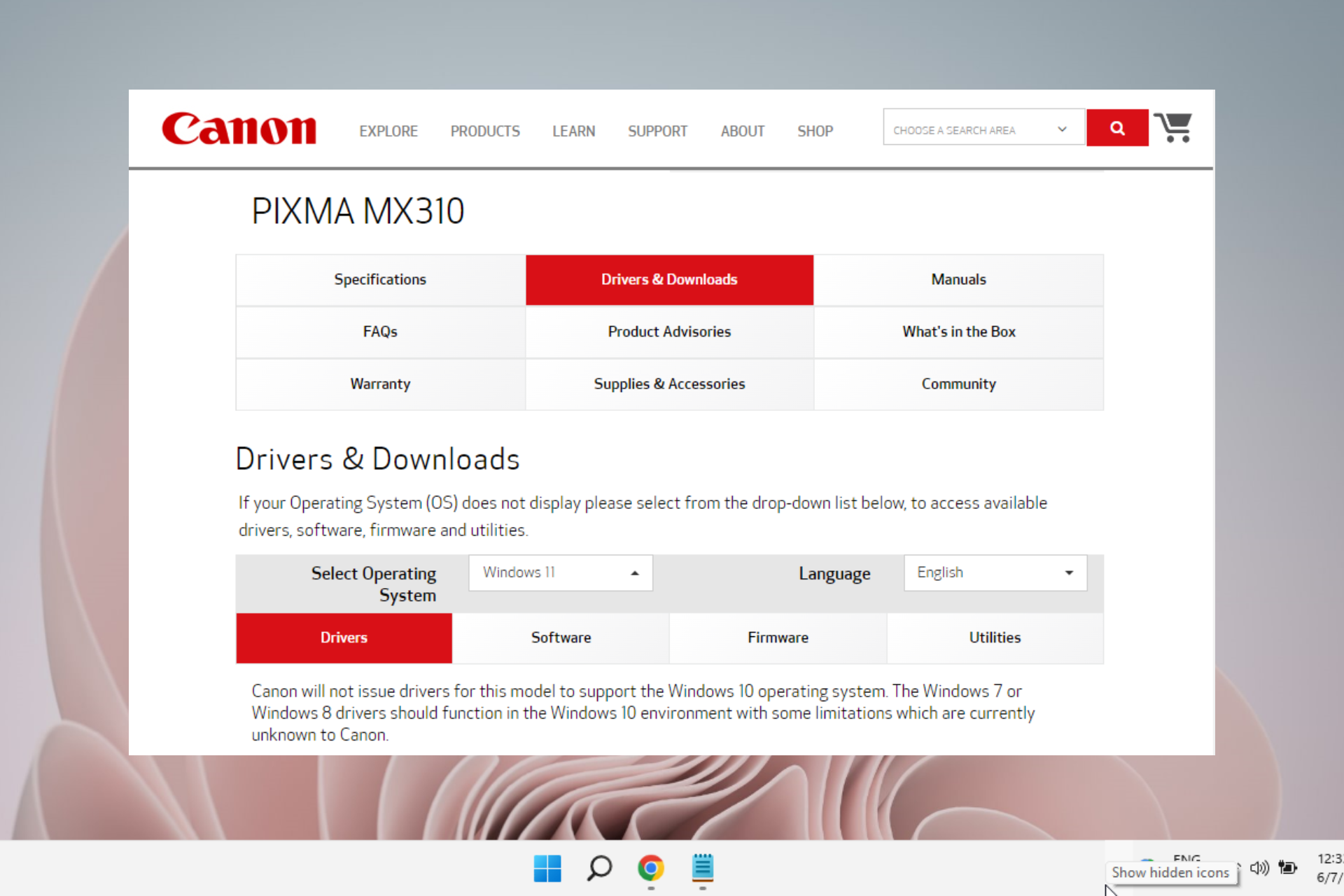
For this, you must visit Canon’s official web page for driver downloads, and look for the required drivers. Once you find what you need, simply download and install them manually.

A trustable driver installer tool can also be used to automatically update the Canon MX301 driver. Outbyte Driver Updater is one such program that our software experts tested. It will help you automatically update drivers and prevent PC damage caused by installing the wrong driver version.

In addition, you will receive a fully detailed report detailing the exact status of your Windows missing, damaged, or outdated drivers.

⇒ Get Outbyte Driver Updater

This should help your scanner start working again.

2. Set it to run in the Compatibility mode

  1. Go to the scanner in its location, right-click on it and select Properties. Click on Properties if scanner mx 310 not working
  2. In the Properties dialog, select the Compatibility tab.
  3. Here, go to the Compatibility mode field and check the Run this program in compatibility for. Run this program in compatibility for
  4. Press Apply and then OK to save changes and exit.

Now, check if the Canon MX310 scanner is working and it’s scanning documents normally.

3. Run the Hardware and Devices troubleshooter

  1. Press the Win + R keys simultaneously to launch the Run dialog.
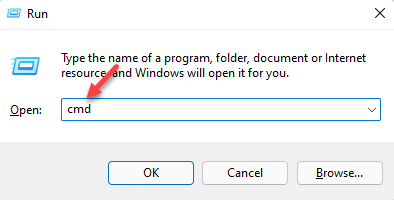
  2. Type in cmd in the search field and press the Ctrl + Shift + Enter keys together to open the elevated Command Prompt. open elevated command prompt by pressing Ctrl + Shift + Enter together
  3. Now, copy and paste the below command in the Command Prompt (admin) window and hit Enter: msdt.exe /id DeviceDiagnosticRun command in command prompt to open hardware troubleshooter
  4. Click on Advanced in the Hardware and Devices troubleshooter.Expand Advanced in Hardware and Devices
  5. Now, select Apply repairs automatically and press Next.
  6. The troubleshooter will now start detecting any issues with the scanner and if any are found it will apply the fix automatically.

Once done, try scanning with your Canon printer and check if it works.

4. Check the status for the required Windows services

  1. Open the Run console by pressing the Win + R keys together.
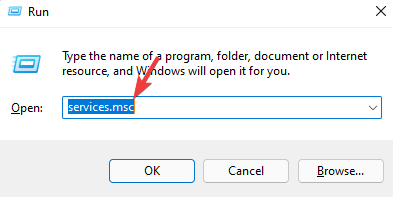
  2. Then type services.msc in the search box and press Enter. Open service manager
  3. Look for the Windows Image Acquisition (WIA) service on the right side of the Service manager.
  4. Right-click on it and select Properties. Open Windows Image Acquisition (WIA) properties
  5. In the Properties dialog, under the General tab, go to Startup type and set this field to Automatic.
  6. Now, go to Service Status and check if it’s running. check if Windows Image Acquisition (WIA) running - canon mx310 scanner not working
  7. If not, press Start to run the service. Start WIA service to fix canon mx310 scanner not working
  8. Repeat steps 3 to 9 for the DCOM Server Process Launcher, Shell Hardware Detection, Remote Procedure Call, and RPC Endpoint Mapper services as well.

Now, check if your scanner not working problem is fixed.

5. Perform a clean boot

  1. Press the Win + R shortcut keys to open the Run console.
  2. Type msconfig in the search bar and click OK.type msconfig in run console
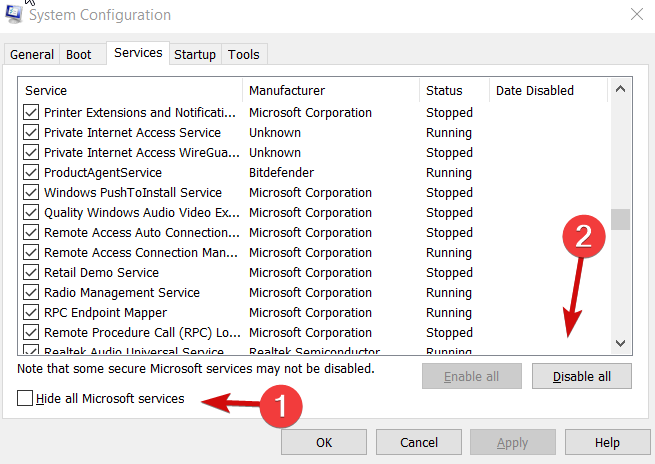
  3. Go to the Services tab in the System Configuration window, select Hide all Microsoft services and click the Disable all button.check Hide all Microsoft Services
  4. Now, navigate to the Startup tab and click on Open Task Manager.Open Task Manager from Startup tab in system configuration
  5. Under the Startup tab in the Task Manager, right-click on the first service on the list and select Disable.Disable all services one by one in task manager under startup
  6. Repeat step 5 for the rest of the services on the list.
  7. Close Task Manager and return to the System Configuration window.
  8. Press Apply and OK to save changes.

Now, restart your PC, connect the scanner again and check if the issue is resolved.

What else can I do to fix the scanner if it’s not working?

If the above methods fail to work, and you are wondering why is my Canon printer not scanning, here’s what you can do:

➡ Make sure to run a full virus scan at regular intervals, using the built-in or the 3rd party antivirus. This will block any virus or malware intrusion.

➡ Make sure that you connect the USB straight to the PC and not through the USB hub.

➡ Invest in a USB cable that is less than 1 meter in length.

➡ Uninstall the software and install it correctly, if it’s not already.

➡ Try another USB cable, or connect it to a different USB port.

➡ Cross verify the error message on the scanner panel to check for any hardware problem.

This method seems to have resolved the Canon scanner not working issue on Windows 11, and also on Windows 10 for many users.

Besides, you can also check for any pending Windows Update, which is often the reason for many of the system or device issues.

But, if it’s an issue with all the scanners (Epson/HP/Cannon) that is, if your scanner is not detected in Windows, here’s what to do.

However, if it’s any other issue you face with the Cannon scanners or any other scanners, you can let us know in the comments box below.

Corrupt Active Directory Database [Technician Fix to Apply]

A number of users have reported getting an error message saying Corrupt active directory database whenever they try to boot a server running Windows Server 2008 or 2008 R2.

This issue can cause companies a wide range of problems, as it stops them from accessing and modifying data inside the database.

In this article, we will explore the best troubleshooting steps you can take to fix this problem. Please follow the steps carefully to avoid any unnecessary complications.

How can I fix a corrupt active directory database?

1. Check Microsoft Active Directory database problems

  1. Reboot the server and press the F8 key and choose Directory Services Restore Mode.
  2. Check the location of the Winnt\NTDS folder and verify its permissions.
  3. Make sure thatthe following folder is shared: Winnt\Sysvol\Sysvol
  4. Look inside the Sysvol folder and see if there is a folder labeled with the name of the domain.
  5. Press the Windows + X keys and select PowerShell (Admin).
  6. Type the following commands and hit Enter after each one:
    • NTDSUTIL
      Files
      Info
  7. Rename the edb.chk file and try to boot to Normal mode.
  8. If this method doesn’t allow you to boot into Normal mode, follow the next step.

As you see, this is not a very easy task and it’s easy to get the commands wrong. Sometimes, it won’t even work.

The easier way out is to use a dedicated tool called Stellar Repair for Active Directory that will repair your Active Directory database automatically.

This amazing software restores all AD objects to a new AD database having the same domain name on another machine in minutes without any effort on your part.

⇒ Get Stellar Repair for Active Directory

2. Check the integrity of your database

  1. Reboot into Directory Service Restore mode again.
  2. Inside the Command Prompt type the following command: ESENTUTL /g "<path>\NTDS.dit" /!10240 /8 /v /x /o
  3. Replace <path> with the actual path of the file. The default one is C:\Winnt\NTDS\ntds.dit
  4. The results of this command will tell you if the database is corrupted.
  5. To recover the database, type these commands and press Enter after each one:
    • NTDSUTIL
      Files
      Recover
  6. If this procedure shows you an error message type Quit, then use the following command (replace <path> with the actual path): ESENTUTL /p "<path>\NTDS.dit" /!10240 /8 /v /x /o
  7. Delete all log files inside the NTDS directory but do not move or modify the ntds.dit file.
  8. Inside the Command Prompt, type the following commands to check the files’ integrity:
    • NTDSUTIL
      Files
      Integrity
  9. If the check is completed successfully type these commands one by one and press Enter after each one to run them:
    • NTDSUTIL
      Semantic Database Analysis
      Go
  10. The results will tell you that the Analysis process has been completed successfully.
  11. Type Quit to close the Command Prompt window.
  12. Reboot the server to Normal Mode.

In this article, we explored some of the best troubleshooting steps to take in order to fix the Corrupt active directory database error.

You might also be interested in how to repair a corrupted database in SQL Server because it might come in handy if you run into trouble.

Please let us know if this guide helped you solve your issue by using the comments section below.

PowerToys version 0.59.0 is now out with native ARM64 support

We know it’s probably been a while since you’ve heard any updates about Microsoft’s PowerToys software, so we’re here to inform you about recent changes.

The Redmond-based tech giant has pushed out PowerToys version 0.59.0, and you will want to read these release notes for sure.

There are many goodies included in this latest version of the utility collection, not least of which is the completion of adding ARM64 support.

Let’s dive right into it and find out together what changes are in store for all of us, the Microsoft PowerToys users.

What’s new with version 0.59.0 of PowerToys

Some of the important changes and improvements are addressed to vital components including Keyboard Manager, Power Rename, and the much-loved FancyZones.

Microsoft said that, with the v0.59 release cycle, it is mainly focused on wrapping up building for native ARM64 and releasing the first experimental build.

This wrapping up of native ARM64 support is the main highlight, but there is more. Power Rename now runs on WinUI 3, and Keyboard Manager now allows up to four modifier keys for shortcuts.

Highlights

  • The work for running natively on ARM64 has been wrapped up and a build is released.
  • Power Rename now is running on WinUI 3.
  • Keyboard Manager now allows up to 4 modifier keys for shortcuts and has received some quality fixes.
  • Upgraded the Windows App SDK runtimes to 1.1.0, fixing an issue where Settings wouldn’t start with UAC off and improving performance.
  • The Windows App SDK runtime binaries are being shipped with PowerToys which should resolve the installations issues reported with WinAppSDK.

Known issues

  • There are reports of users who are unable to open the Settings window. This is being caused by incompatibilities with some applications (RTSS RivaTuner Statistics Server and MSI AfterBurner are known examples of this). If you’re affected by this, please check the linked issue to verify if any of the presented solutions works for you.

General

  • Some typos were fixed.

ARM64

  • ARM64 support now fully added!
  • Fixed PowerRename to work on ARM64.
  • Fixed File Explorer tools to work on ARM64.
  • Made changes for the installer projects to build ARM64 installers.
  • Configured the CI and Release pipelines to build for ARM64.
  • Added ARM64 build status to the README.

Always on Top

  • Fixed an issue where the borders where sticking around when a window was minimized with Win+D.

FancyZones

  • Fixed a bug that was consuming CPU cycles when the default layout was set.
  • Fixed a bug where apps were not opened in their last known zones due to Virtual Desktop ID changes.
  • Fixed a bug that was snapping popup menus opened by applications.
  • Fixed a bug causing windows not to be snapped under some configurations.

Image Resizer

  • No longer tries to change metadata on files that were not actually resized.

File explorer add-ons

  • Fixed a bug where modules depending on WebView2 would be limited to opening files smaller than 2 MB. Now the resulting html is generated into a temporary file before presenting it.
  • Add a viewBox attribute to svg files that don’t have one so that the preview tries to show the whole image.
  • Remove scrollbar that was showing when rendering svg thumbnails.

Keyboard Manager

  • Now up to four modifier keys can be used in shortcuts. This will allow you to use the Office key (which sends Win+Ctrl+Shift+Alt), for example.
  • Fixed a bug locking Keyboard Manager when two shortcut mapping were pressed at the same time.
  • Removed event spam for certain telemetry events.

PowerRename

  • Ported to use WinUI 3 instead of WinUI 2.

PowerToys Run

  • The Services plugin is able to search for parts of the name, display name or the service type or state.
  • The Services plugin now supports the startup type ‘Automatic (Delayed Autostart)’.
  • The Services plugin now has tooltips for large service names and other UI improvements.
  • The TimeDate plugin gave results for queries containing just numbers on global queries. This has been fixed.
  • We’ve introduced a throttle before a query is done to ensure typing is done to increase performance.
  • Fixed a crash in WebSearch when there’s an empty pattern setup for the system’s default browser.
  • Fixed a bug where VSCodeWorkspaces was not finding portable installations of VSCode.
  • The Calculator plugin reacts better to invalid input and internal errors.
  • The Calculator plugin can now be configured to use the US number format instead of the system one.
  • The Folder plugin supports paths containing “/”.

Settings

  • Now the UI for adding excluded apps for FindMyMouse is disabled when the module is disabled.
  • Text was improved in the Settings UI for File Explorer.
  • Settings won’t try to launch if everything runs elevated in the machine, and a warning message is shown instead.
  • Some minor UI fixes.
  • The Settings screen should now open correctly if the OOBE screen was opened first.
  • The rounded corner settings for FancyZones now only show on Windows 11.
  • Fixed a UI freeze when entering the Keyboard Manager page with clean settings.
  • Fixed a UI glitch where a message was being shown that all PowerToys Run plugins were disabled when using the search function.
  • Upgraded the Windows App SDK runtimes to 1.1.0, fixing an issue where Settings wouldn’t start with UAC off and improving performance.

Runner

  • Auto-update takes into account if it’s running on x64 or arm64 to download the right installer.

Installer

  • Updated the .NET dependency to 6.0.5.
  • The installer is now built using a beta version of Wix 3.14 for arm64 support.
  • Added the VC++ Redistributable binary as a requirement.
  • The Windows App SDK runtime binaries are being shipped with PowerToys instead of running its installer. This should fix most of the install issues with 0.58.

Development

  • New action added to GitHub to publish the winget package to PowerToys.
  • New action added to GitHub to publish for the Microsoft Store
  • Documentation for installing the Windows App SDK dependencies and building the installer was updated.
  • FxCop removed from the PowerToys Run TimeZone plugin and was replaced with NetAnalyzers.

If you want to download this version and take advantage of all it has to offer, make sure to visit the official page.

Any thoughts on this recent PowerToys release? Share your opinions with us in the comments section located below.

E3 to return as both digital and in-person event next year

The Electronic Entertainment Expo has long been the biggest press event in video gaming, or at least it was until the COVID-19 pandemic upended it starting in 2020. There has been no physical E3 event for three consecutive years now, and not even a digital event in 2022. This has led some to speculate whether the event would even return.

That speculation seems to be laid to rest as of today, however, as it has reportedly been announced that E3 will return in 2023 (via Thurrott.com). According to a Washington Post interview with Entertainment Software Association (ESA, parent company of E3) President and CEO Stan Pierre-Louis, the trade show will make a return in 2023 as both a digital and in-person event.

According to Pierre-Louis, “As much as we love these digital events, and as much as they reach people and we want that global reach, we also know that there’s a really strong desire for people to convene — to be able to connect in person and see each other and talk about what makes games great.”

While the games industry is doing an admirable job of filling the E3 void with events such as the upcoming Summer Game Fest and the Xbox & Bethesda Game Showcase, many will no doubt welcome the expo’s return.


2 Ways to Get Back the View Permission on Microsoft Forms

Microsoft Forms you don’t have permission to view this form error implies that you are denied access to the form. It can become confusing if you do not know what to do.

This web app allows users to create any form they want, for instance, a survey or quiz. You can also invite others to respond to it, and see real-time results as they’re submitted.

But this error has rather easy solutions, which would help you get rid of it; you just need to follow every step to recognize the issue and then solve it.

How do I allow others to edit a form in Microsoft?

  1. First, sign in to Office.com.
  2. Choose Forms or Apps.
  3. Then, open the form on which you want to collaborate on.
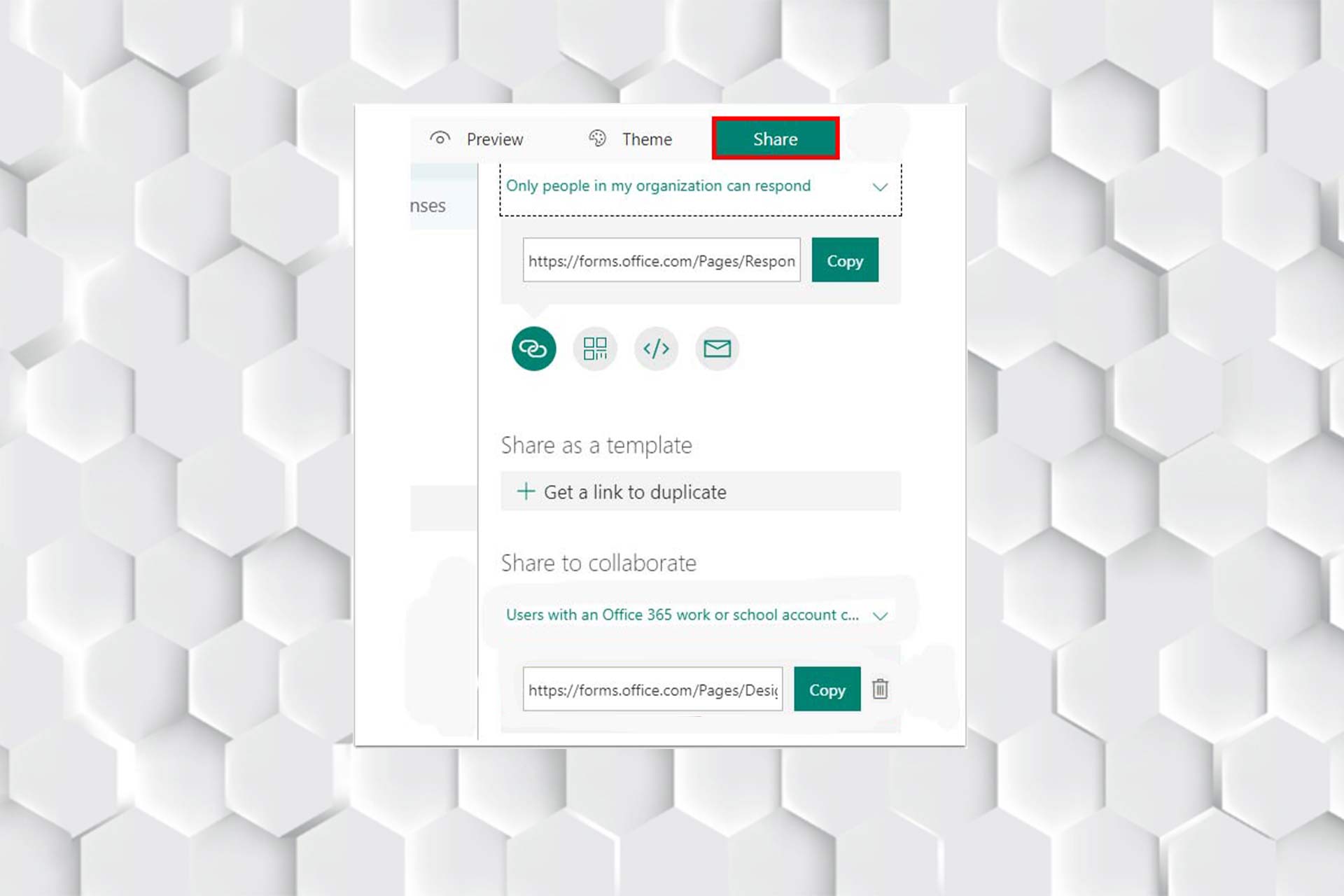
  4. Now, tap on Share.
    Share
  5. Afterward, click on the More options and choose Collaborate or Duplicate.
  6. Select + Get a link to view and edit to create a link that you can use to invite others to add and edit the form, response, or view or even share it with others.
    Get a link to view and edit
  7. Next, set the accessibility.
  8. Finally, select + Get a link to duplicate to share a link with anyone.

After enabling collaboration on your form, enhance feedback collection by adding a free text field—see this guide on how to add a comment box in Microsoft Forms.

How can I fix Microsoft Forms when getting the don’t have permission to view this form error?

1. Try another browser

Sometimes you may encounter sudden errors in browsers, or the current browser that you’re using crashes; the best way is to try another browser to ensure that Microsoft Forms works correctly.

Opera One is the browser that we tested and fully recommend. This browser is one of the most user-friendly and compatible with web applications and AI improvements.

⇒ Get Opera One

2. Check the Microsoft Forms link accessibility

You need to set the accessibility right; this means ensuring that you give permission to anyone with a link.

Also, make sure that the users have the right link; otherwise, you’ll end up looking for the problem elsewhere.

It is worth noting that users may get a similar issue, such as a Microsoft Forms error you don’t have permission to view or respond to this form, but the solution is relatively similar.

If all the solutions above don’t work for you, the best way is to contact the Microsoft team and report the problem; they will quickly help you resolve the error.

You can’t reactivate a collaboration link after you’ve removed it. You can create a new collaboration link and share it if you need.

If you run into Microsoft Forms you don’t have permission to edit this form or you don’t have permission to add a form to this shared workbook, you can test the abovementioned solution as well.

If you encounter the file upload option is not visible in the Microsoft Forms issue, follow the steps in this article which involve fixes like adjusting sharing preferences.

In the comments section below, let us know if you were able to solve the issue.

Microsoft to “significantly scale down operations” in Russia

Microsoft has updated its response to the ongoing Russian invasion of Ukraine. After the company initially suspended all sales of its products in Russia, it now has said that it will “significantly scale down” operations in the nation, via a statement seen in Bloomberg.

As a result of this move, about 400 employees will be affected, but Microsoft is working closely with them to ensure that “they are treated with respect.” In the meantime, though, Microsoft is still planning to fulfill existing contracts with Russian customers. The company’s full statement is below.

As a result of the changes to the economic outlook and the impact on our business in Russia, we have made the decision to significantly scale down our operations in Russia. We will continue to fulfill our existing contractual obligations with Russian customers while the suspension of new sales remains in effect

We will continue to fulfill our existing contractual obligations with Russian customers while the suspension of new sales remains in effect

Microsoft is just the latest U.S. technology giant to make such a move. IBM suspended operations and business there, and Apple and Nike have also stopped sales in Russia.

Open source, cross platform .NET MAUI achieves performance improvements

The dream of build it once and run it everywhere is finally here for Microsoft with .NET MAUI recently being promoted to production ready status. This was a very ambitious and complex project which is still evolving and improving. For those unfamiliar, this project allows developers to target Windows, macOS, Android and iOS from a single codebase. As you can imagine this was not easy to achieve, and compromises have to be made in order to make this a reality; such as performance in some cases. The good news is that some of those compromises are temporary as the team now focuses on performance improvements.

MAUI’s predecessor Xamarin.Forms had gotten to a very comfortable place in terms of stability, footprint and performance. For MAUI to be successful it must match and exceed the performance and stability of the platform it aims to replace. As Jonathan Peppers explains:

To arrive at where we are today, it was a collaboration of several different teams. We improved areas like Microsoft.Extensions and DependencyInjection usage, AOT compilation, Java interop, XAML, code in .NET MAUI in general, and many more.

– Jonathan Peppers

Its incredible to see so many different areas come together to support this initiative. The level of collaboration here is nothing short of amazing. Now let’s get to the good stuff.

Where things were

Things were not in a great place a couple of months ago when it came to startup time and application size. As you can see below MAUI was lagging behind Xamarin.Forms. On average it was 37% slower to start up.

Application Framework Startup Time
Xamarin.Forms Xamarin 498ms
dotnet new maui .NET 6 Preview 683ms


Where things are

Things are in a much better place now. As you can see the team achieved considerable improvements which directly translate to a much better user experience. As an early adopter of Xamarin.Forms I was very worried about the abnormally slow startup times, however over time things improved. The same is happening here, but at a much quicker pace.

Application Framework Startup Time
Xamarin.Forms Xamarin 498ms
dotnet new maui .NET 6 GA 464ms

The new platform went from being over 30% slower to being 7% quicker. This is incredible.

How was this made possible?

The changes to make the above possible were substantial. I could not possibly do a better job of outlining and explaining how these improvements were realized. You can read all about it by checking this post by Jonathan Peppers on the official Microsoft DevBlog. What are your thoughts? Are you already using MAUI? was performance a factor holding you back? Sound off in the comments below!

Krispy Kreme releases a new batch of Xbox and Forza donuts

Krispy Kreme has once again partnered with Microsoft to release official Xbox-branded donuts. Available both online and in supermarkets in the United Kingdom, these official Xbox donuts (or ‘doughnuts’ as any civilized country spells them) include The Game Changer and The Forza Festival.

The Game Changer donut is filled with brownie batter and topped with green and white icing and an Xbox plaque.

The Forza Festival donut, on the other hand, is filled with raspberry and cream and is topped with orange and white icing and a Forza plaque.

These two new donuts are available in The Taste Adventure 3-Pack, which includes one of each and a regular plain donut, and The Taste Adventure Dozen, which features two Game Changers, two Forza Festivals, two Strawberry Iced Rings, one Lotus Biscoff, one Nutty Chocolatta, two sprinkles, and two plain glazed donuts.

Each purchase comes with a code which can be entered on the official Krispy Kreme UK website and gives the entrant a chance to wine one of 140 Xbox Series S consoles.

After more Xbox content? Give us a follow on Twitter, Pinterest, and Facebook.

5 Ways to Fix Amazon Prime Gaming When it’s Not Working

Prime Gaming is a treat for game lovers, with a plethora of popular titles and a straightforward interface. In addition to the games, it also offers in-game content such as skins, currency, and even season passes. But many users reported that Amazon Prime Gaming was not working.

This could be due to several reasons but the most common is still regional restrictions. Prime Gaming is not available in all countries yet, and if you reside in one of these, it wouldn’t work. Other than that, problems with the payment or using a VPN too can lead to the issue.

So if you have been trying to use Amazon Prime Gaming but it’s not working, here’s everything you need to know in order to solve the problem.

Is Prime Video and Prime Gaming the same?

Amazon Prime is a subscription from Amazon, that offers a range of services, including Prime Video, Prime Gaming, Prime Reading, and Amazon Music, amongst others. There are two packages available, the monthly subscription priced at $14.99 and the annual subscription priced at $139.

While Prime Video is a streaming service where users can watch thousands of movies and series, Prime Gaming offers a plethora of game titles and in-game content to choose from. Also, in Prime Gaming, the games that were claimed remain accessible even if the Prime subscription ends.

How do I activate Prime Gaming on Amazon Prime?

Note icon NOTE
Before you proceed with the steps here, make sure to purchase an Amazon Prime membership and create a Twitch account.
  1. Go to the Prime Gaming website, and click on the Sign in button near the top-right.
    Sign in
  2. Click Continue if the country detected matches the one you reside in or click on Change Country and select the correct one.
    Continue to fix amazon prime gaming not working
  3. Now, enter the login credentials for your Amazon account, and click on Sign-In.
    Sign in
  4. Next, click on Link Twitch Account from the options on the left.
    Link twitch account to fix amazon prime gaming not working
  5. Click on Link accounts, and follow the on-screen instructions to complete the process.
    Link accounts

Is Prime Gaming free with Amazon Prime?

Yes, Prime Gaming is free with Amazon Prime, given that your Prime subscription is valid. Once you log into Prime Gaming, all the titles and in-game content would be accessible, though some of these would be chargeable.

But, there are a plethora of free games available on Prime Gaming. If you are unsure about the subscription, go with the Amazon Prime 30-day free trial, and once convinced, buy the monthly or annual subscription.

What can I do if Amazon Prime gaming doesn’t work?

1. Verify Prime Gaming is available in your country

As stated earlier, Prime Gaming is not available in every country yet, and there is a likelihood that you reside in one of these if Amazon Prime Gaming is not working. To verify, just head to Prime Gaming’s official website.

If the screen reads, It looks like you’re in an unsupported country, you wouldn’t be able to access the games. Here, all you can do is wait and hope that Prime Gaming soon comes to your country or region.

So the Amazon Prime gaming content is restricted, so now what? There is always a perfect workaround for this scenario. Bypassing geolocation restrictions is an ideal task for a reliable VPN service like Private Internet Access.

Its extensive server network will provide you with access to content you were unaware was even available on Amazon Prime games.

⇒ Get Private Internet Access

2. Check the payment method

If you recently subscribed to Amazon Prime, and Prime Gaming has not been working ever since, it’s likely that the payment method was not accepted, even if it’s the 30-day free trial. Here, users come across the message Oh no! We can’t enable Prime Gaming on your account.

Some users add a card with zero balance to avail of Amazon services for free. To combat this issue, Amazon now debits a small amount when the card is added, which is automatically credited back, to make sure that there wouldn’t be payment issues in the future.

In this case, a simple solution would be to add some money to your card or bank account, as the case may be. If the problem persists, try using a different card altogether. Also, there are certain restrictions on prepaid cards, so it’s best that you avoid using one.

3. Disable the VPN

If you are using a third-party VPN to bypass regional restrictions or access titles available in another country, chances are that it’s the VPN behind the problem.

If Prime Gaming is available in your country, disable the VPN and try accessing the platform directly. In case you relied on a VPN to enhance the performance, try using an effective game booster software.

4. Re-login to your Amazon account

  1. Click on Accounts & Lists near the top-right corner, and select Sign out from the list of options.
    Sign out to fix amazon prime gaming not working
  2. Now, enter the login credentials for Amazon and sign in.
    Sign in to fix amazon prime gaming not working

If it’s a minor issue, re-logging into the platform might do the trick. Also, if you have a teen account and noticed that Amazon Prime Gaming is not working in 2022, try now since there was a bug earlier causing the issue, which has now been removed.

5. Check the Internet connection

Many users reported that Prime Gaming is loading forever, which is generally due to an unstable Internet connection. In this case, you will have to increase the Internet speed on your system.

There are a bunch of ways you can do so by modifying the system settings or uninstalling applications. Also, try updating the network drivers. If these methods don’t work, you are left with no option but to upgrade the Internet plan to switch to a more reliable ISP.

Can you use Prime Gaming on mobile?

At the moment, the Amazon Game app is available only for the computer. Though, you can perform several other functions through the website using your mobile.

Prime Gaming has been a hit eversince it partnered with Twitch, but nothing concrete can be said about when the mobile app would be launched or if it ever would be.

These are all the ways you can fix the issues behind Amazon Prime Gaming not working, and get things up and running in no time.

In case the problem persists, try contacting Amazon Support, since it could have to do with your account settings or a problem from Amazon’s end.

Looking to tidy up your streaming experience too? Learn how to remove Continue Watching on Amazon Prime in a few quick steps. Want to make the most out of your subscription? Here’s a complete guide on how to share Amazon Prime with family members so everyone can enjoy the benefits together.

Tell us which fix worked and your review of Amazon Prime Gaming, in the comments section below.

2 Ways to Bypass Error Code 11 on Disney Plus

Disney Plus is one of the most popular video streaming platforms and has an excellent collection of our favorite movies and shows. However, several users have reported encountering Error Code 11 on Disney Plus, and are asked to contact the support.

When the error is encountered, you won’t be able to play the video and will be stuck. But, the problem isn’t as intricate as it appears and can be resolved with straightforward troubleshooting.

So, to find out what’s causing it and the solutions for Error Code 11 on Disney Plus without having to contact support, read the following sections.

What is an Error Code 11?

Disney Plus is accessible both through the website and app, and the chances of encountering Error Code 11 on both channels are pretty much the same. You come across this error when trying to view a video that’s not available in your region.

As is the case with other platforms, Disney Plus also has some titles that are available for viewing only in a particular country or region, though the number is small. And if you try to view any of these, Error Code 11 shows up.

Why do I keep getting error codes on Disney Plus?

Here are a few reasons why you keep getting error codes on Disney Plus:

  • Content not available in your region
  • Low Internet speed
  • Disney’s servers are overloaded
  • Issues with payment or login

Let’s now head to the solutions for Error Code 11 on Disney Plus.

How do I fix error code 11 on Disney Plus?

1. Check if the video is available in your region

The first thing to do is verify if the video that you are trying to view is available in your region. To do that, search for the title inside Disney Plus and not a search engine. The title is unavailable if it’s not listed in the search result.

If you find it in the search results, head to the next method to fix Error Code 11 on Disney Plus without support.

You can also use a VPN to connect to a location where the video you want to watch is available. We recommend Private Internet Access because it has +35 000 worldwide servers and is very secure.

In a simple Google search, you can find the countries where the content you want is listed in the Disney Plus library. Then, open your VPN app and connect to a server location from one of those countries.

⇒ Get Private Internet Access

2. Re-login to your Disney Plus account

  1. Click on the Profile icon near the top-right corner.Profile icon
  2. Select Log Out from the list of options that appear.Log out to fix disney plus support error code 11
  3. Now, re-enter your login credentials to sign in to Disney Plus.

In most cases, the issue behind Error Code 11 on Disney Plus is trivial and simply re-logging into your account should fix it.

If none of the methods listed here work, you have no option but to reach out to Disney Plus support to fix Error Code 11.

The problem now either has to do with the server or your account, and the support team would be able to assist you better.

Also, find out what to do if Disney Plus login is not working or when faced with authentication error code 1026.

Tell us which fix worked and the title you had trouble viewing in the comments section below.

Microsoft reorgs Alex Kipman out of the company following reports of “toxic business culture”

HoloLens creator Alex Kipman is leaving Microsoft, and Microsoft is reorganizing its mixed reality / metaverse operations, according to multiple reports including from GeekWire, who published Scott Guthrie’s internal email detailing the changes.

Kipman, instrumental in Microsoft’s mixed reality efforts, was a subject of a recent Business Insider report detailing a continuing “toxic business culture” at Microsoft, where he was said to have watched what was described as “VR porn” in front of members of his team, with some members walking out on the meeting.

Rumors of troubles with the HoloLens program have been rampant since well before the BI report, however, including problems with the US Army contract to develop HoloLens for military use and the cancelling of the HoloLens 3 project.

According to the Guthrie email, “(w)e have mutually decided that this is the right time for him to leave the company to pursue other opportunities.” Kipman will remain at Microsoft to help with a transition for the next two months.

Along with the resignation of Kipman, a number of other changes are occurring to accelerate and align Microsoft’s metaverse work going forward. The Mixed Reality Hardware team, including HoloLens and IVAS (the military HoloLens project) will join Windows + Devices under Panos Panay.

The Mixed Reality Presence and Collaboration teams, which includes Microsoft’s Mesh initiative, will move to the Teams organization (in the Experiences + Devices division) under Jeff Teper.

How the moves will affect the already beleagured future of HoloLens remains to be seen, but Microsoft seems committed to the metaverse, including the Microsoft Mesh SDK, the IVAS project, and building out features of a metaverse in Teams.

Download and Install Safari Browser for Windows XP

Safari is a heralded browser for its many stunning features. Windows users particularly enjoy using it, thanks to its impressive speed and overall performance.

However, it is no news that Apple has stopped providing updates for Safari on Windows. Also, with most browsers like Chrome and Firefox withdrawing support for old machines like Windows Vista, you might be wondering if you can use the Safari browser on your XP version.

Fortunately, just as you can download and install Safari on Windows 7, you can effortlessly do the same for XP. And we will show you how in this article.

Will Safari run on Windows XP?

run safari download for windows xp

While it is true that Apple has made Safari unavailable for download and update on Windows since 2012, the browser still works effectively on all versions of the OS.

However, you can only get the installer on third-party websites. Therefore, we usually do not recommend doing this due to the risks involved.

But if you need the Safari browser for one reason or another on Windows XP, rest assured that the browser will work after installing it.

What is the best browser to use with Windows XP?

There are a fair few browsers that still work on Windows XP. However, most of them have stopped providing support for their apps on the OS, which makes them insecure. 

The only browser that still provides some of its latest features for Windows XP and other old operating systems is Opera One.

Opera One ensures users are safe online on older machines, thanks to the frequent bug fixes and other security updates. It also packs extra features like the Turbo mode, sidebar extensions, and visual bookmarks.

It is, without a doubt, the best and most secure browser you can use on Windows XP.

⇒ Get Opera One

How do I download and install Safari on Windows XP?

  1. Download the latest version of the Safari installer.
  2. Click the downloaded file to launch the installer, followed by Run when prompted.
  3. Choose the Next option when the welcome info shows up.
    welcome page
  4. Tick the radio button next to I accept the terms in the license agreement and click Next.
    agree terms safari download for windows xp
  5. Mark the Automatically update Safari checkbox and click Next.
    auto update
  6. Now, select a location to save the app and click the Install button.
    install safari location for windows xp download

And with that, you will have the browser installed on your PC. The method is the same whether you want to download the Safari browser 32 or 64-bit Windows XP PC.

Are you looking to install Safari on Windows 10 instead? Then, check our article on how to do it quickly.

Feel free to let us know if you face any problems with the installation in the comments section below.

Dying Light 2 Statistics: 5 Facts That Support Its Massive Success

What else is there to say about the masterpiece that is Dying Light 2? The game was an absolute smash since its February 2022 release and it continues to be a fan favorite.

Now, when it comes to popular opinion, people either think that Dying Light 2 Stay Human is a hit, or an utter disappointment, each for their own reasons.

For those of you that didn’t know, Dying Light 2 Stay Human is an action role-playing survival horror video game, featuring a zombie apocalyptic-themed open world.

The title’s action is set 22 years after Dying Light, the game’s prequel, and it stars a new protagonist named Aiden Caldwell, who is equipped with various parkour skills.

Players can perform multiple exciting and breathtaking actions such as climbing ledges, sliding, leaping off from edges, and wall running to quickly navigate the city.

In fact, the massive zombie outbreak in Harran actually ended with the death of all of the city’s citizens, with no reported survivors whatsoever.

However, the Global Relief Effort is able to finally develop a strong vaccine for the Harran Virus, ending the threat of the zombie pandemic.

The character you will be controlling, Aiden, makes his way to the city of Villedor after being notified that there is an informant that knows the whereabouts of Dr. Waltz, a doctor who experimented on Aiden and Mia when they were children, in hopes that Dr. Waltz knows Mia’s location.

Dying Light 2 Stay Human is developed and published by Techland, whose developers actually intended to invoke a sense of loss and dread.

But how did this title become such an astounding success and gather such an impressive number of fans in such a short time?

While some say that it’s only because the prequel enticed them to try out this one, others think that it’s extremely well made, despite the bugs and glitches they had to deal with.

We’re about to break down some of the most iconic features in the game and figure out the answer together, but also look at when can be slightly improved.

What makes Dying Light 2 Stay Human so appealing to fans?

1. Parkour mechanics

Now, throughout the years, game creators have put in unbelievable amounts of work in order to make characters move more fluently and naturally.

A lot of brainstorming had to be done in order to find the ideas behind the projects that delivered some of the best games we’ve ever played.

With Dying Light 2, Techland wanted to take the movement bar and set it so high that it would be monumentally hard to replicate the results.

Yes, we’re actually talking about the parkour element of the title, which makes moving through this post-apocalyptic wasteland a lot more entertaining.

People that played the game went on a limb and said it’s the best parkour they’ve seen since Mirror’s Edge 2. But not even that compares to how you will be moving in Dying Light 2 Stay Human.

Weaving and tumbling through the rooftops and stairwells as you navigate the open world is more than any player that bought the game bargained for, as it is very entertaining.

A safe bet would be that, even without all the other intricacies of the game, we could imagine this mechanic being enough to grip players.

It goes without saying that practicing the parkour mechanics as much as possible is imperative. Because Dying Light 2 is an RPG, the more you use your abilities, the more skills you can unlock.

Beginners should really avoid fighting the undead unless it’s absolutely necessary and there’s no better way to escape.

We can even show you how to get double parkour XP in Dying Light 2 by using a tiny glitch that allows you to gain skills faster.

2. The constant thrill

If the world we live in should ever come to be in such a predicament as the one depicted in Dying Light 2, surely all of us would like to be safe, and out of harm’s way.

And, since we brought up parkour, a sport that would be priceless in such a survival situation, we’re sure that many would learn this invaluable skill in order to better their chances at survival.

However, even after learning how to effortlessly move through the city, it’s easy to get lured into a false sense of security that could prove fatal, in some cases.

Remember that you are in what’s left of a zombie-infested world, and nowhere is really safe until the threat has been completely dealt with.

One second you are simply cruising through the neighborhood, next thing you know you are desperately trying to escape a horde of flesh-eating undead.

Trying to complete objectives or access some easy loot could prove to be the last mistake you will ever make, so being aware of everything around you is paramount.

Exploring every nook and cranny might actually lead you to some serious treasure finding, a reward that will further shift the balance in your favor.

That being said, you might stumble upon a building full of sleeping infected, in which case you better make a hasty, silent exit.

Remember that you cannot play safe forever and inevitably you are going to find yourself in sticky situations, with your heart rate going up and every moment becomes an extreme lesson in time management.

Going out during nighttime will almost always guarantee a situation at the end of which you are gasping for air or looking over your shoulder.

It’s exactly this constant shift between safety and extreme danger that caught the attention of so many players worldwide.

Thrillseekers will always try to get the most out of such experiences, and this is yet another fact that contributed to the game’s massive success.

3. Impressive combat

You can’t outrun your enemies forever, so rising up to the challenge is another element that heavily appealed to the Dying Light 2 fans.

Don’t get us wrong, the combat in the first Dying Light game was pretty nicely made as well, but the sequel brought more essence to this critical aspect.

In this dog-eat-dog, or a rather human-eat-human world, everything and everyone you encounter could very well be your last.

Thus, learning the proper methods to defend yourself is a must, and Techland made sure that this too would be an impressive experience.

As far as weapons go, although you get a pretty fair selection, you won’t find any repair kits this time around, which means you have to be more careful, as most weapons are highly disposable.

Weapons can be found literally everywhere and they’re mostly intended to use until they completely break, because of the lack of a traditional repair system like there was in the original game.

You should definitely know that, when you install a Gear Mod to your weapon, the action will also repair said weapon.

Thus, seeing how you can install more than one Gear Mod per weapon, you’re basically looking at least two repairs for each weapon.

Combat is a lot more intuitive now, allowing you to make more choices and outsmart your opponents before they get you.

The dropkick is one of the most popular melee actions used by players, especially when fighting on rooftops, as you can send your enemy falling to their death.

As your level grows, so will your enemies. At higher levels, enemies will vary their strikes and evasions, making the combat more challenging.

Yes, it is really tempting to block and counterattack everything, especially since the window for perfect blocks is more than generous.

Keep in mind that blocking still consumes a lot of stamina and can leave you with little room for a counterattack if you’ve been parrying a large enemy.

You should know that kicking enemies away is just as useful as a block, especially if you’re on a rooftop, which means you’ll send them falling towards their demise.

Dodging is yet another essential perk for your Dying Light 2 character. It staggers enemies when you dodge them, meaning heavy enemies and those using power attacks can be set up for vault kicks.

And, combining parkour with the combat skills you acquire will make the game feel like a movie, a rollercoaster ride you won’t want to get off soon.

And, the fact that the game is first-person, takes you even deeper into the action due to the POV nature of the events unfolding in front of your eyes.

4. The choices you make will shape who you become and affect others

This highly-acclaimed game contains a lot of different dialogue choices and conversations you can have with many different people who live in Villedor.

And, while there are many types of conversations you’ll have in Dying Light 2, many of them won’t actually affect how the direct mission or even the overarching story resolve.

There’s a lot more crucial decision-making going on and there are certain times when your vision gets blurred and you are presented with two choices.

These actually represent the major choices Aiden will have to make in the story, but even then some of these choices can be reversed at a later date.

Yes, in case you didn’t know, you will be given second chances for some of the decisions you made, in order to remedy them, sometimes throughout the game.

We, as gamers, get bored really fast with simple, dry storylines that never change, regardless of actions or decisions you made during gameplay.

As many players would concur, nothing is quite as disappointing as going on an epic adventure only to turn around and see that nothing has changed.

In Dying Light 2, your actions and the things you do will severely influence the world around you and everyone in it.

5. The infected

You might have seen this one coming from a mile away, but it’s the truth. What would a zombie-themed game be without any actual zombies?

The infected look a lot better than they did in the first Dying Light game, with more details that accentuate the condition they are in.

All these differences are somewhat astounding when comparing models from the previous title with the ones you currently have to face.

They are also a lot more dangerous and alert, and move a lot more realistically in different situations, giving players an experience worth their while.

But even though the infected interactions provide the spectacle and thrill that people bought the game for, many would argue that they sort of took the back seat in Dying Light 2 Stay Human.

Now, Techland focused a bit more on human enemies throughout the story, making fans wonder why would they even consider that, provided this is a role-playing survival horror that revolves around the zombie infestation.

That being said, don’t think you’ll only see a zombie every other hour. You will be drowning in swarms of infected before you know it, so don’t let your guard down, not even for a second.

⇒ Get Dying Light 2 Stay human from Amazon

⇒ Get Dying Light 2 Stay Human from Kinguin

⇒ Get Dying Light 2 Stay Human from G2A

Remember that you might also run into some bugs or errors while playing, but we got you covered. We can show you how and where to download Dying Light 2, or what to do when you get the Unable to initialize Steam API error.

We can also help if you aren’t getting any skill points in Dying Light 2, or if you want to get double parkour XP.

You could also encounter problems such as the game not launching at all on Steam, and we can show you how to deal with that as well.

And, if you want to make the most of this experience, we’re prepared to guide you through activating ray-tracing for some astonishing visuals while in-game.

If you are having trouble deciding what to pick between Dying Light 2 Stay Human and Horizon Forbidden West, we will assist you in making a choice.

What is, in your opinion, another fact that strongly contributes to Dying Light 2 Stay Human’s massive success? Share your thoughts with us in the comments section below.

Ad Supported Streaming Services: 15 Best to Use

Gone are the days when you used to download a song, video, etc., on your phone, only to listen to it when you want to.

Now is the age of streaming, and everything from your favorite songs, movies, TV shows, sports, news, etc., is live-streamed using different streaming services.

All you need to do is download an app for the streaming service provider, and that’s it! You can take your content anywhere you go, and you need to have an active internet connection.

While there are multiple paid streaming services available, not everyone wants to go that route and shell out money only to stream their favorite song, video, movie, or sports event.

Fortunately, many streaming services let you enjoy all your favorite content, audio or video, in exchange for some ads. That’s fair enough.

This guide will show you the 15 best ad-supported streaming services that you can opt for and continue to enjoy your favorite content on the go, free of cost, with some ads.

What is ad-supported streaming?

Generally, when people think of or even talk about streaming services, the first thing that comes to mind is the subscription-based streaming services such as Netflix or Amazon Prime Video.

Subscription-based services will charge you a specific amount monthly or yearly and provide you access to all of its content ad-free.

On the other hand, when we talk about ad-supported streaming, it essentially means a video or audio streaming service that serves ads to its customers in exchange for accessing content on the platform.

Examples of ad-supported streaming services include YouTube Music, Pandora, Spotify, Crackle, Peacock, Hulu, Tubi, Roku Channel, etc.

But there are other trade-offs also attached to ad-supported streaming services that you should be aware of. Let us understand this by comparing ad-supported streaming services with ad-free streaming services.

Ad-supported streaming services

  1. You get to hear your favorite content free of cost.
  2. You will be served ads very often during your streaming session.
  3. The content library is often small on ad-supported streaming services.
  4. Ad-supported streaming allows consumers to explore the platform before paying any fee upfront for the ad-free experience.

Ad-free streaming services

  1. You need to pay a subscription fee to access all of the content.
  2. You can enjoy your music or video with no ads, interruption-free.
  3. The content library is massive, with some exclusive content as well.
  4. You have to purchase a subscription-based plan to view content on ad-free platforms.

Which countries have ad-supported streaming?

Since ad-supported streaming is present in every country, the latest analysis by Morning Consult suggests that consumers in every country prefer ad-supported streaming services over ad-free services because of only one reason, they do not go heavy on your pocket.

Consumers in major countries such as South Korea, the United States, Russia, India, France, etc., all prefer ad-supported streaming services because they don’t add to their monthly bills.

Significant services, including HBO Max, already have introduced ad-supported streaming options, with news hinting that Disney+ and Netflix might also join the bandwagon.

Which are the highest-rated ad-supported streaming services?

1. Crackle

Crackle, previously owned by Sony, is now under Chicken Soup for the Soul Entertainment. It consists of original as well as acquired programs.

There are multiple popular shows that you can watch on Crackle, such as Barney Miller, The Dick Van Dyke Show, Sherlock starring Benedict Cumberbatch, The Imitation Game, etc.

Crackle is available in 21 countries and can be streamed on mobile, tablets, smart TVs, desktops, and gaming consoles. Some of its original content includes Les Norton, The Uncommon History of Very Common Things, etc.

Pros:

  • Available for free.
  • Decent collection of on-demand content.
  • Reliable streaming performance.

Cons

  • Be prepared for tonnes of ads.
  • Mobile and web interface could improve.
  • The availability of new content is scarce.

⇒ Visit Crackle

2. Spotify

Spotify needs no introduction. It is the best music streaming platform that you can opt for. It has all the tracks you wish for and even curated playlists to feed your changing moods.

The interface across platforms is super modern and smooth. You can create unlimited playlists in the free version as well.

It can be played on a web browser, Android or iOS, or even as a desktop application on your macOS or Windows PC.

Pros:

  • The best collection of music.
  • It lets you create unlimited playlists even in the ad-supported version.
  • Available across all platforms.
  • Streaming quality is the best among its competitors.

Cons:

  • You need to create a user account.
  • You will come across a good number of ads now and then.
  • Some features are locked behind a paywall.

⇒ Visit Spotify

3. YouTube Music

Another popular platform that will give you access to almost all songs that you can think of is YouTube Music.

YouTube Music is a version of YouTube where you can stream audio. There are so many ways you can search for your favorite track, subscribe to your famous artist’s channel, create new playlists, and much more.

You can also upload any music track and find playlists for specific genres, decades, activities, moods, etc.

Pros:

  • You can easily switch between audio and music videos.
  • Search among thousands of playlists.
  • Search for your favorite songs using lyrics.
  • Allows you to subscribe to a channel so that you do not miss out on new content.

Cons:

  • Lacks Hi-res audio streaming.
  • You will be bombarded with ads.

⇒ Visit YouTube Music

4. Peacock

Peacock is NBCUniversal’s streaming service, which gives you access to one-third of its massive library content in the free plan.

You can stream shows, movies, news, sports, and exclusive original programming, without paying a penny, but just viewing ads, which are a lot. You miss out on live sports events and blockbuster programs with the free tier.

It also includes content from its parent companies, including NBC, Universal Studios, USA Network, Syfy, Bravo, Telemundo, and Universal Kids.

You can use Peacock on all platforms, including Apple devices, Google Android TVs, phones, tablets, Chromecast, Roku, Xbox, PlayStation consoles, etc.

Pros:

  • The free tier has no significant limitations.
  • The free tier lets you stream 1080 content.
  • The ad-supported plan gives you access to over 13,000 hours of content.
  • Offers three concurrent streams on the free plan.

Cons:

  • Not much.

⇒ Visit Peacock

5. Plex

Plex has a decent collection of free movies and shows that you can watch for free. You need to sign up or sign in using Google or Facebook account, and you are all set.

The ad-supported streaming service provides access to thousands of free movies, TV shows, documentaries, musicals, etc.

It also comes with a free TV service that features over 80 channels, most of which are good enough to skip. There is also kids programming, live sports from Fubo Sports Network, etc.

Plex is available on Android, iOS, Android TVs, Amazon Fire TV, Apple TV, Chromecast, Roku, Xbox, and PlayStation gaming consoles.

Pros:

  • The free version is decent.
  • The interface across the platform is clutter-free.
  • Setting up is easy.
  • Offers Live TV.

Cons:

  • Lack of new content.
  • There is no original programming.

⇒ Visit Plex

6. HBO Max

The ad-supported plan of HBO Max comes at a price tag of $10/month, which is $5 less than the ad-free plan. Annual ad-supported programs start at $100.

Unlike most other free ad-supported streaming platforms, HBO Max has a good collection of content to watch for. The ads or commercial breaks are also less intrusive than other free platforms.

However, there are no ads on HBO original series, including Mare of Easttown, Game of Thrones, or The Wire. Your streaming will be limited to 1080p.

Pros:

  • Great collection of content.
  • Ads aren’t intrusive.
  • The interface is user-friendly.

Cons:

  • You have to pay for the ad-supported version.
  • You do not get same-day theatrical releases.
  • Viewing is capped at 1080p.

⇒ Visit HBO Max

7. Pandora

You will find all the tracks from your favorite artists on Pandora. Moreover, when you search for a specific artist, genre, or composer, it automatically creates a playlist based on what you like.

Pandora lets you create over 100 custom stations based on the tracks or genres you like. But, of course, if you aren’t sure what to listen to, you can always opt for the reliable Top Stations or Genres page to get going.

Pandora works on almost every device, and all the music is always free to listen to. Moreover, you can skip tracks as many times as possible with the ad-supported version.

It also serves you podcasts, lyrics of the song you listen to, displays artist tour and ticket information, etc.

Pros:

  • Free for life.
  • It offers unlimited skips if you watch ads.
  • Shows you lyrics and other details about the artist’s tour, etc.
  • Works on multiple devices.

Cons

  • You have to watch ads to select specific tracks.
  • Does not support Hi-Res audio.

⇒ Visit Pandora

8. Jango

Jango Radio is the best option available to listen to songs with fewer interruptions and commercials.

Jango works on a desktop, laptop, or smartphone and allows you to stream your favorite track without creating an account.

You can select from various genres or pick your favorite band or singer and start listening to their songs. There is a good amount of customization on offer. There is no limit to the number of tracks you can skip.

Pros:

  • Listen without creating an account.
  • No skip limit.
  • Available on all devices.
  • Very few commercials.

Cons:

  • It doesn’t let you play a specific track.
  • Also, you cannot share your custom stations.

⇒ Visit Jango

9. Sling Free

Sling Free is the new-kid-on-the-block, and it offers you access to over 5,000 shows and movies free of cost. Moreover, it does not require you to enter your credit card number or register to use the platform.

Some popular shows that you can watch on this ad-supported Sling Free platform include Rick & Morty, Hell’s Kitchen, Forensic Files, etc.

The collection of the free movies is decent at best, but that is what the free version is all about. In addition, sling Free offers a bit of free live news programming with shows such as Good Morning America and Anderson Cooper 360. There are some kids content to watch also.

Pros:

  • Available on a variety of devices.
  • Offers about 100 live TV channels.
  • You do not need to sign in or enter credit card details to use the platform.

Cons:

  • Video streaming is a bit laggy.
  • Also, the content collection is not that exciting.

⇒ Visit Sling Free

10. TiVo+

If you are ok with buying hardware and watching content for free, you should consider TiVo+. First, however, you need to purchase either a TiVo DVR or TiVo Stream 4K to stream ad-supported content on TiVo+.

It features over 160 channels and offers older TV shows, including 3rd Rock From the Sun, America’s Funniest Home Videos, 21 Jump Street, Hell’s Kitchen, TMZ, Outside TV, PowerNation, FailArmy, and more.

You can also watch free live news from NBC News Now, USA Today, and Sky News. In addition, there are some free sports channels.

Pros:

  • It is more affordable than ad-free platforms.
  • Also, the free content collection is decent.

Cons:

  • You have to purchase TiVo hardware to stream free content.
  • Confusing interface.
  • Limited customization option.

⇒ Visit TiVo+

11. Tubi TV

Tubi TV is a popular name that has been around for quite some time now. The ad-supported version comes with the support of libraries from Lionsgate, MGM, Paramount Pictures, and Warner Bros.

You will find content right from old classics to new-gen movies. There are a few Tubi TV originals on offer as well.

It supports multiple devices such as Roku, Amazon Fire TV, Samsung and Sony TVs, Android, Apple devices, Xbox, PlayStation, etc.

There are many categories to choose from, giving you access to your favorite genre pretty quickly. In addition, it doesn’t require you to sign in to start watching content.

Pros:

  • Offers a vast collection of free content.
  • Provides content from the libraries of Lionsgate, MGM, Paramount Pictures, and Warner Bros.
  • It does not require you to sign in to use the platform.
  • Modern interface.

Cons:

  • Streaming is capped at 720p.
  • Lack of ad-free option.
  • Does not feature live TV.

⇒ Visit Tubi TV

11. Vudu

Owned by Walmart, Vudu is now merged with the FandangoNow service, bringing a growing ad-supported content collection.

You can quickly find all the free content available on the platform via the Free section on the tap navigation bar of the home page.

TV and movies are categorized nicely, and you can hop on to the specific genre pretty quickly. In addition, you can watch older films and some recent ones, including content from other free services as well.

Pros:

  • Do not require your card information to use the free service.
  • An extensive library of content with over 10,000 free movies and TV episodes.
  • Some more notable titles may occasionally appear for free viewing.

Cons:

  • You have to watch ads, a lot of ads.
  • The free library maxes out at 1080p.

⇒ Visit Vudu

12. Pluto TV

If you want a service that can serve you free TV, Pluto TV is a good option. It supports multiple devices such as Amazon Fire TV, Android, Apple devices, Chromecast, Roku, web browser, etc.

Viacom-owned Pluto TV offers a dedicated TV guide, allowing you to know the currently running show and upcoming shows.

You can watch from over 250 live TV streams, with the entertainment category shining the brightest with Comedy Central, Fuse, MTV Pluto TV, Paramount Movie Channel, etc. You can also tune in to news channels such as CNN, NBC News, Sky News, etc.

Pros:

  • Best for free live TV watching.
  • It does not require you to create an account.

Cons:

  • Not much on-demand content on offer.
  • Live channels stream at 720p.

⇒ Visit Pluto TV

13. Roku Channel

If you purchase any Roku device, you get automatic access to Roku Channel, but it can be easily downloaded on smartphones and tablets or used on a web browser.

To watch content on Roku Channel, you do not need to register for an account. However, signing up unlocks the perk of continuing to manage content on another device.

You can stream the first episode of premium shows such as Game of Thrones, Billions, Outlander, and Watchmen. In addition, it has over 10,000 free concerts and movies and offers some original shows.

Pros:

  • Offers a decent collection of live TV, Roku originals, movies, etc.
  • Access to the first episode of premium shows.
  • You don’t have to create an account to watch free content.

Cons:

  • Limited control over video quality.
  • Mostly older content.

⇒ Visit Roku Channel

14. Freevee

Formerly known as IMDb TV, Amazon Freevee has an impressive collection of on-demand free content. You can your favorite shows for free, movies, and some originals.

You can access Freevee via the Amazon Prime Video app or the web browser. Moreover, you do not need an Amazon Prime subscription to access Freevee.

Amazon Freevee is available only in the US and the UK. However, there are reports that it might debut in Germany by the end of this year. You can binge-watch series such as Schitt’s Creek, Mad Men, Chicago Fire, Lost, The X-Files, and movies like Knives Out, The Invisible Man, etc.

Pros:

  • Good collection of free content.
  • The user interface is easy to understand.
  • Easily accessible on multiple devices.

Cons:

  • Has older titles.
  • Originals aren’t that impressive.

⇒ Visit Freevee

15. Kanopy

Last but not least, we have on our list of best ad-supported streaming services is Kanopy. It is an excellent platform with content for everyone, without ads, and accessible.

Thousands of on-demand films and shows are available in good quality, giving you access to Kanopy Kids content.

Besides, there is no limitation on concurrent streaming from a single account. Some of the unique content you can watch on Kanopy includes Moonlight, I Am Not Your Negro, and shows from History, A&E, PBS, Bleecker Street, HBO Documentary Films, and Paramount.

Do note that to access the Kanopy library, and you need to have a library card or a university email address to sign up for the service.

Pros:

  • Thousands of free content.
  • No ads, and it is free of cost.
  • No limits on simultaneous streaming.

Cons:

  • You cannot use the platform without a library card or university email.
  • Does not support offline downloads.
  • Does not feature original shows or anime.

⇒ Visit Kanopy

What is the most popular streaming service in 2022?

Cutting it short, with over 200 million subscribers, Netflix is the king of video streaming services. On the other hand, Spotify is the most famous music streaming service, with over 400 million subscribers.

No wonder these platforms offer and are investing in a tonne of original content, attracting new users and keeping subscribed users glued to these services.

However, one would argue that they find content on other platforms such as Disney+, HBO Max, Hulu, Amazon Prime Video, or even Pandora more entertaining than the most popular ones. It depends on personal choice.

The one important thing to note here is that these streaming services require a subscription to unlock all the platform’s features. So, if you do not want to shell out money, you can go with the list of best ad-supported streaming services presented above.

Let us know in the comments below which one of the ad-supported streaming services you use and which one you find the best in terms of content and user interface down in the comment below.

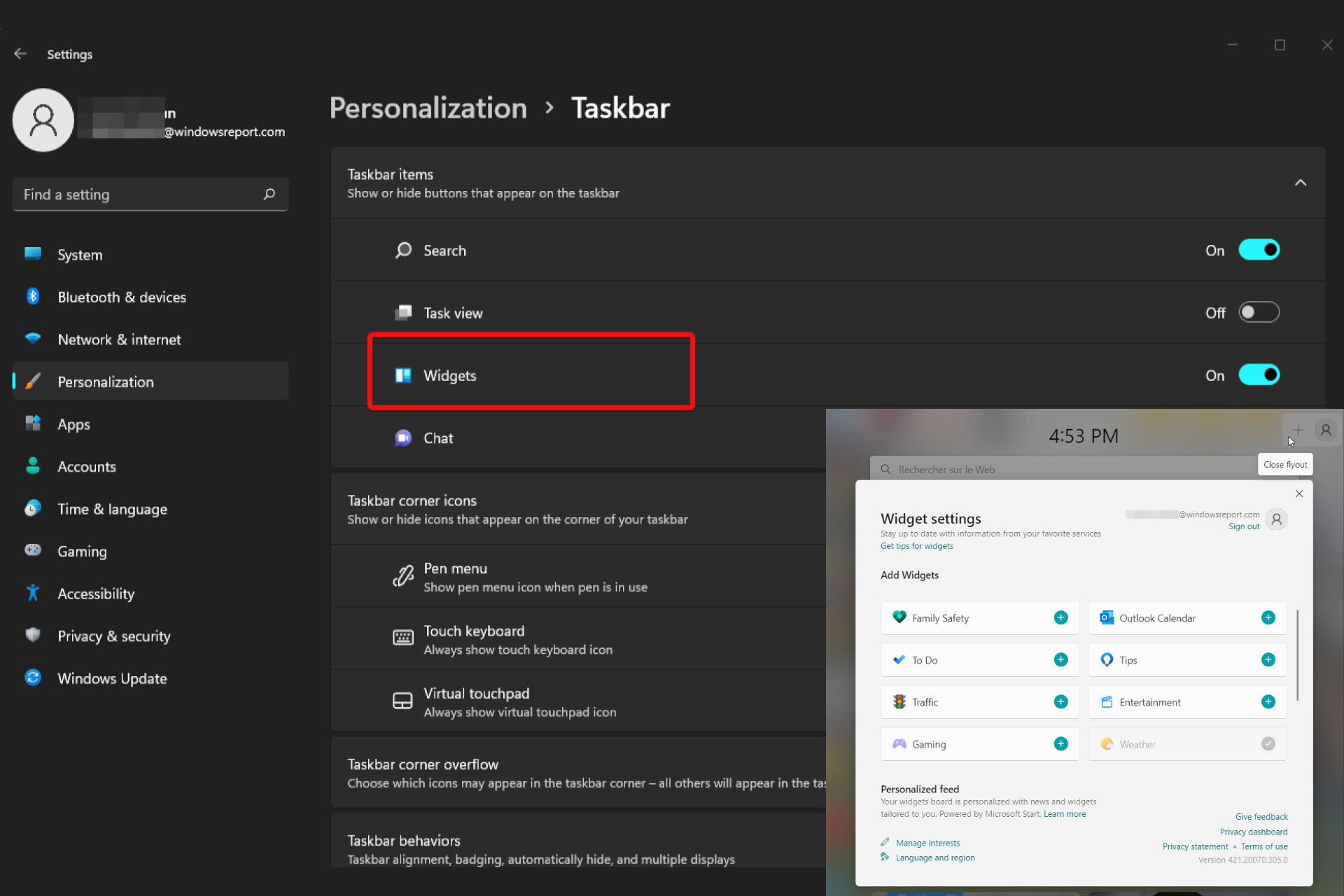
Qt5Widgets.dll: How to Download & Fix it if it’s Missing

Do you get a qt5widgets.dll not found error and are unable to resolve the problem? Then this is the article for you.

Microsoft Corporation’s shared libraries for Microsoft Windows are DLLs (Dynamic-Link Libraries).

DLL files are as crucial as EXE files, and all DLL files archives could not be implemented without the .exe extension.

Dynamic Link Library is a collection of functions or instructions that other programs can use. DLL files save disk space by allowing access to code and data required for some applications to function.

The advantage is that instead of keeping data in files, apps use a shared DLL, which makes your computer function faster.

What are the most common qt5widgets.dll errors?

Qt5widegts.dll-related error messages show that the file has been installed incorrectly, corrupted, or removed. This problem reveals itself with the following messages:

  • qt5widgets.dll is missing: This issue occurs when the qt5widgets.dll file on your computer is missing, as the error message indicates.
  • qt5widgets.dll error loading: This problem happens when this DLL file is either not meant to operate on Windows or includes a bug.
  • qt5widgets.dll crash: Unintentionally deleting Qt5widgets.dll causes this problem, which in turn causes the DLL file to crash.
  • qt5widgets.dll was not found: If the qt5widgets.dll file is missing, this error message will appear.
  • qt5widgets.dll could not be located: This problem occurs when a DLL file on your computer is unable to be located, as suggested by the error message.
  • qt5widgets.dll Access Violation: This issue may occur when you launch an application that utilizes Qt5 dll files and there is an incompatibility.
  • The procedure entry point qt5widgets.dll error: Software bugs or missing DLL files may be the blame.
  • Cannot register qt5widgets.dll: This error happens when your computer can’t find the DLL file.

How do I fix the qt5widgets.dll not found issues?

1. Download and install qt5widgets.dll manually

  1. Choose the correct version of qt5widgets.dll based on the language and architecture of the troubled program (64- or 32-bit) and download it.
  2. Copy the DLL file to C:\Windows\System32 folder.
  3. Then, click on the Start menu, type Command Prompt in the search box, and select Run as administrator.CMD run as administrator
  4. Type the following command and press Enter.
    regsvr32 qt5widgets.dllregsvr32 qt5widgets

You can search for the qt5widgets.dll file on the internet, download and install it manually. If you can’t decide which version to use, follow the steps above to find the correct file. 

2. Fix the DLL error automatically

To fix qt5widgets.dll error automatically you may use a third-party PC repair tool that will search for any corrupted or troubled file or program. After that, such an app will download and install the correct version of it to fix the issues.

These troubleshooters will also solve DLL issues, such as qtwidgets.dll. not found error. Besides fixing errors, they can boost PC performance.

3. Scan your computer for malware

  1. Click on the Windows icon and type Windows Security in the search box.Windows Security
  2. Choose Virus & threat protection.Virus & threat protection
  3. Select Quick scan.

Sometimes, malware or malicious software can cause qt5widgets.dll not found error and damage DLL files.

If you don’t have an active Windows security system, you have to scan and activate your Windows Defender or install a third-party anti-virus program. 

4. Use System File Checker (SFC)

  1. Click on the Windows icon, type Command Prompt in the search box, and select Run as administrator. CMD run as administrator
  2. Type the following command and hit Enter.
    sfc / scannowsfscannow

If you want to fix DLL missing or not found error, you can use sfc / scannow command, which automatically checks and fixes protected Windows system files.

After typing the command, the system will check; corrupted files will be found and repaired. 

5. Run System Restore

  1. First, press Windows + R keys to launch the Run dialog box. 
  2. Type rstrui and click OK.rstrui
  3. Choose a recovery point you’re sure the qt5widgets.dll file was valid and click Next. Recovery Point

System Restore is one of the most valuable features for solving different Windows errors, including the qt5widgets.dll error.

After system restore, your computer will boot up with the restored version of Windows, and the issue would be resolved. 

It is also worth mentioning that methods discussed in this article, can fix Genshin Impact qt5widgets DLL, qt5widgets.dll Filmora X, and qt5widgets.dll missing issues.

The qt5widgets.dll is not found error may occur for several reasons. You can solve this problem using the abovementioned solutions.

Additionally, if you’re looking for qt5widgets.dll download for Windows 7, and qt5widgets.dll Windows 10 fixes, the methods mentioned above can still be used.

If you’re looking for the best DLL repair software tools, check out this article.

Scanning your system for malware can solve your problem. Restoring your Windows and fixing the missing qt5widgets.dll file with System File Checker (SFC) are the solutions you can use.

Let us know which method you used to solve the qt5widgets.dll is not found issue in the comments section below.

DVD Drive Not Showing Up In Windows 11? Do This! [External & Internal]

Many users reported that Windows 11 does not recognize the DVD driver. It’s usually happening after a Windows update or after upgrading from Windows 10 to Windows 11.

But there’s a way to fix your Windows 11 DVD/CD drive, and this guide will show you how to do it.

How can I fix Windows 11 not recognizing the DVD drive?

1.  Reset the DVD drive using the Registry Editor

  1. Click on the Windows button from the Taskbar.
  2. Type regedit into the Search box and click on the first result. open Registry editor from start menu
  3. Navigate to HKEY_LOCAL_MACHINE\SYSTEM\CurrentControlSet\Services\atapi\
  4. Now, Create a new key named Controller0 by right-clicking on atapi.Create key controller0
  5. Select Controller0 and then right-click on an empty spot on the right side to create a new DWORD EnumDevice1.Create DWORD Value
  6. Set its Value Data to 1 and restart your computer.assign EnumDevice1Value

If Windows 11 still does not recognize your DVD, proceed to the next method.

2. Remove IDE/ATAPI Drivers

  1.  Press Windows + R at the same time to open the Run window.
  2. Type devmgmt.msc into the box and press Enter.open device manager
  3. In Device Manager, expand IDE ATA/ATAPI controllers, then locate Standard Dual Channel PCI IDE Controller.
    navigate to IDE controllers
  4. Right-click the device and select Uninstall device. Follow the instructions to uninstall the driver.Uninstall IDE controller driver
  5. Restart your computer when prompted.

After doing this, check if DVD/CD-ROM drives are still missing from the Device Manager.

3. Remove the UpperFilters / LowerFilters registry key

  1. Click on the Windows button at the bottom-left of your screen.
  2. Type regedit into the Search box and hit Enter. open Registry editor
  3. Navigate to HKEY_LOCAL_MACHINE\SYSTEM\CurrentControlSet\Control\Class\{4D36E965-E325-11CE-BFC1-08002BE10318}navigate to control class
  4. Right-click on UpperFilters and LowerFilters. Next, delete them by pressing Delete. If you do not find this variable in the given registry, skip to step 6.
  5. Close out of the Registry Editor and restart your computer.

If your DVD/CD drive is not reading the disc, be sure to try this solution.

4. Update DVD driver using device manager

  1. Open Device Manager by pressing the Windows + R. Type devmgmt.msc and press Enter.open device manager
  2. In the Device Manager, Select DVD/CD-ROM drives and right-click on your driver name. Select Update driver or Uninstall device.update or uninstall DVD drivers
  3. Proceed with the process and restart your computer.

Now you just have to test your drive. If you’re wondering how to check DVD if the drive is working or not, simply try reading a couple of discs and see what happens.

5. Download the driver from the manufacturer’s website

Identify the make and model of your DVD drive. You can find this information in Device Manager under DVD/CD-ROM drives.

For example, if your DVD drive is listed as “Lenovo CDDVDW SH-224DB”, “TSSTcorp” is the manufacturer, and “SH-224DB” is the model number.

Visit the manufacturer’s website and search for the exact driver and model.

Download the latest driver specific to your DVD drive model and follow the manufacturer’s instructions to install the driver. This usually involves running an executable file (.exe) and following the prompts.
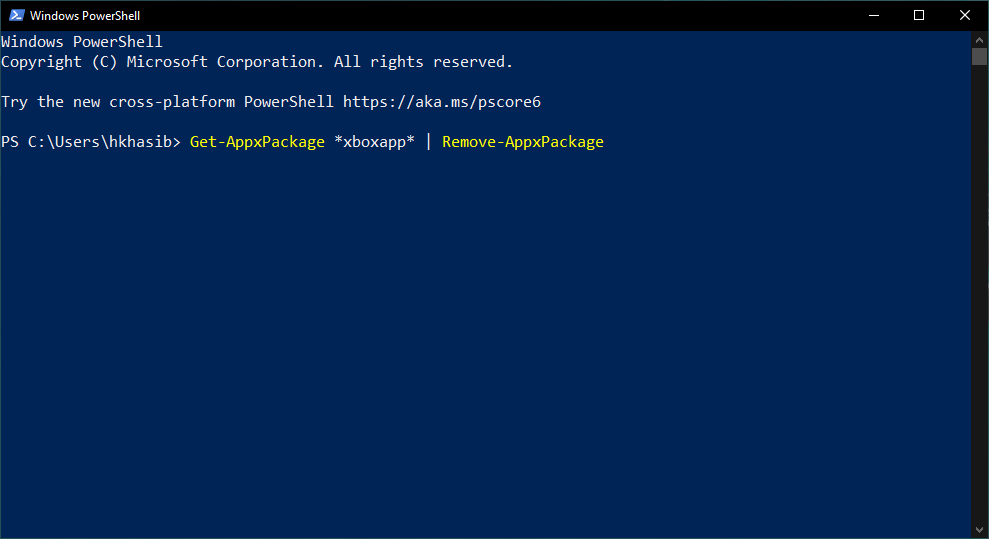
Alternatively, if this looks like too much of a hassle, you can install a third-party driver updater. A tool like Fortect will automatically detect the hardware and automatically find and install drivers for them.

⇒ Get Fortect Driver Updater

Summary

In fact, this issue affects almost every version of Windows, and we wrote about it in our DVD player not working after upgrade guide.

When dealing with drivers, it’s important to have them updated no matter what you want to achieve with your devices. This is where a driver updater tool comes in handy, to avoid significant issues and errors in the future.

The Windows 11 issues with recognizing the DVD drive can be fixed easily by using the above methods.

If you are still having DVD-related issues such as DVD not working, check out our other guides to fix them. You can also find out how to set up a default DVD player on Windows 11.

Which solution worked for you? Let us know in the comments below.

5 Ways to Fix Microsoft Forms When It Isn’t Opening

Microsoft Forms not opening is a frustrating error that can happen in different ways. To this day, nobody knows what causes it and how exactly it is solved.

Forms is a survey creator, built by Microsoft as a part of Office 365. Users can benefit from automatic marking and Microsoft Excel export.

In this article, we will talk about the solutions you can follow to solve this problem. We will also tell you how to access this service and how to give permissions on Microsoft Forms.

How do I give permission to access a Microsoft Form?

  1. First, open the form or quiz you want to give access permission on Microsoft Forms.
  2. Then, click on the Share button.Share forms
  3. Tap on Get a link to view and edit.Sharing Microsoft forms
  4. Next, choose the collaboration permission you are looking for.
  5. Finally, click on Copy.

Microsoft Forms not loading in Chrome is not the only problem you can run into while using Microsoft Forms. Access issues can confuse you if you do not know how to deal with them too.

If you ever see Microsoft Forms – Please make sure you have permission to access this form, you should know that you do not have access to the corresponding form.Microsoft Forms - Please make sure you have permission to access this form

Unfortunately, Microsoft Forms not working does not have a certain fix. However, there are some steps you can take to increase the chance of solving this error.

What can I do if Microsoft Forms is not opening?

1. Re-log into Microsoft Forms

You may address the problem of Microsoft Forms not opening in Teams by logging out and then back in again. This will reset your session.

A simple relog into your account usually fixes most web app difficulties, so try that first before moving on to anything more involved.

2. Clear browser cache

  1. Open browser.
  2. Go to Settings.Chrome Settings
  3. Search Clear browsing data and click on it.Clear browsing data
  4. Then clear cache.

3. Disable extensions

  1. Click on the three-dotted menu icon.
  2. Select More tools then Extension.Extensions menu
  3. Now disable your active Extensions.

If Microsoft Forms not opening in Chrome has turned into a problem, you might want to disable all your third-party extensions to see if the issue is alleviated or not.

4. Edit URL

Microsoft Forms not opening in Excel has a clearer fix. You need to change false to true, at the end of the URL:

https://forms.office.com/Pages/RedirectToExcelP…; forceReExport = false

⇒

https://forms.office.com/Pages/RedirectToExcelP…; forceReExport = true

5. Use an alternative survey creator

When all else fails, there is always the choice of using alternative platforms to create your desired survey on the spot. The Forms On Fire platform offers a fully customizable mobile form and workflow system that is both reliable and secure and can be used offline or online.

It enables you to replace paper forms and poorly maintained data collection processes with cloud-enabled tablets, smartphones, and desktops. Forms On Fire provides expertise in form design, integration, workflow, and form analytics, so it’s more than just technology. It’s all-in-one solution for getting the best analytics on the market.

⇒ Get Forms on Fire

Which browser is best for Microsoft Forms?

Microsoft Forms can be opened by all browsers, including Edge, Chrome, Firefox, Safari, and Opera. You should consider that all these browsers must be updated to their latest version.

However, of all the available browsers, the Opera browser has proved to be the better choice. It offers the best support for Microsoft Forms and is more stable than the others.

Please note that Microsoft 365 Apps and Services have announced that they have stopped supporting IE 11 since August 17, 2021. This is why you should not use IE 11 to open Microsoft Forms.

Microsoft Forms not opening is not always a problem that has happened because of your PC. It can happen due to problems with the servers of Microsoft.

For this reason, you can also try waiting it out if you are not in a hurry. The issue might be resolved on its own.

You might want to contact Microsoft Support and explain your issue in detail so that they can help you figure a way out to solve it quickly.

If Microsoft Forms is not showing all questions, check out this article, which includes solutions like signing out and back in.

Besides the Forms not opening issue, you may run into Microsoft Forms not showing in PowerPoint. This error happens due to many reasons such as connection issues.

If you run into your account not being enabled for the Microsoft Forms problem, follow the steps outlined in this article. 

Furthermore, the problem with Microsoft Teams Forms not working may be resolved by just logging out and back in.

In the comment section below let us know if you were able to fix the issue.

Bing search tool coming to Microsoft’s Whiteboard this month

It’s safe to say that a lot of us have used Microsoft’s Whiteboard at least once since this software was first released by the Remond tech company.

In case you aren’t really that familiar with Whiteboard, it’s a free digital canvas that helps people create and visualize ideas and share them with others.

It is available across nearly all platforms, including Android, iOS, Windows, Mac, and Teams, and it receives some pretty interesting features from time to time.

This month’s rollout will interest and intrigue you at the same time, as it provides a search option that users will make the most of.

Microsoft makes it easier to search for images in Whiteboard

After digging a bit through the Microsoft 365 Roadmap logs, we discovered that there’s an interesting new addition coming to Whiteboard in June 2022.

According to the above-mentioned website, Microsoft is working on the ability to integrate Bing image search with Whiteboard for Surface devices, web, desktop, and Teams.

Needless to say, this will allow users to search images online through Bing inside the aforementioned Whiteboard clients.

Note that, if you don’t like this new feature, you can easily deactivate it from the Settings menu, so don’t even worry about that.

Just as it says on the Roadmap page, the service can be controlled by an optional connected experiences policy, so technically, there is an option to control which users have access to the functionality.

The tech giant is currently working on the feature and has promised to bring it to the public this month, but delays are expected.

What are your thoughts on the utility of this upcoming Whiteboard feature? Share your opinions with us in the comments section below.

Update Windows and Office through the Microsoft 365 Admin Center

We suggest you have a set before reading this, as the news we’re about to share with you might overwhelm you with happiness.

On the off chance you are an IT admin managing software updates for your organization, you’ll find it interesting that Microsoft has released a new software updates page in the Microsoft 365 admin center.

You should know that this dashboard is supposed to give you a high-level overview of the update status and health of your Windows and Office software in a unified view.

Manage your updates better and a lot easier

For those of you that keep an eye on the subject, you will surely remember that this feature was initially touted for release in April 2022.

This highly requested software updates dashboard will provide admins with a lot of metrics including information about how many devices have installed the latest security updates for Microsoft 365 Apps.

You will also get a breakdown of security vulnerabilities, the number of machines running unsupported versions of Windows, and details about PCs with Windows versions reaching end of service.

At the time of writing, the software updates webpage only provides details regarding Microsoft 365 apps and Windows.

That being said, Microsoft will be expanding it later this year to include on-premises Exchange Servers too. Exchange Server 2019 will get a similar experience early next year as well.

Another important aspect to take away is that the software updates dashboard is currently in preview so expect some rough edges here and there.

Redmond officials also stated that the above-mentioned dashboard is fed by best-effort diagnostic data so counts could be off and there could be latency in updates too.

If you need any further information or instructions on the matter, be sure to check out the dedicated help pages provided by Microsoft.

Fix: Adobe’s required browser update not supported error

Adobe is a well-known software company that changed how creating art on a computer was done forever. Photoshop alone changed how people talk about editing images because it was so revolutionary.

Now people often refer to editing images as Photoshopping them. Of course, there are other noteworthy apps like Premiere Pro, Dreamweaver, Illustrator, and the list goes on and on.

It’s also essential to note that you keep your Adobe updated. The reason is that you want to make sure your Adobe products work correctly. An app that isn’t updated frequently may not work correctly.

Plus, Adobe frequently rolls out security updates to its services. So if there’s at least one reason to update your Adobe, it’s security. That said, you may encounter problems with your apps.

What does it mean when Adobe doesn’t support your browser?

Sometimes you may encounter an error from Adobe that says something about your browser or operating system is no longer supported. At first, the words may seem harsh, but it’s no big deal.

It’s not that Adobe is no longer supporting Windows 11 suddenly. But, you may ask yourself, Why did I get a warning to update my operating system or browser?

You got this warning because you failed to update your browser, causing a compatibility issue with the Adobe apps. But don’t worry, as there are multiple methods to fix this problem.

How do you fix Adode not supporting browser or OS?

1. Update your operating system

  1. The easiest thing that you can do by far is to update your Windows 11 computer.
  2. Start by opening the Start menu on your computer and click on the Settings menu icon.
  3. On the left-hand side of the Settings menu, click the Windows Update tab.
  4. The Settings menu may start to search for any new updates automatically.
  5. If it finds something, your computer will automatically download the update and install it right then and there.
  6. Once updated, you can close the Settings menu window.

2. Update your Adobe app

  1. You can also update Adobe apps individually.
  2. Open the Adobe app you want to update.
  3. Locate the Help entry on your Adobe app interface. Help should be on the top bar at the far right.
  4. A context menu will appear. Click Updates at the bottom of this menu.
  5. The Adobe Application Update window will appear. Here you can select which Adobe apps you want to update.
  6. You can do it one by one by clicking the blue Update button.
  7. You can also select Update All to download and install every Adobe app update.

3. Download registry files

  1. If the error persists, Adobe recommends creating registry entries for their apps.
  2. You can also do this by creating registry entries for Acrobat, but there’s an easy way.
  3. Go to the Update your operating system to with Adobe apps web page.
  4. Scroll down until you see a section called Updated your browser or operating system but still see a warning or error?
  5. Hover over Get file and right-click it.
  6. In the context menu, choose Save Link As.
  7. Save the text file that is downloaded to your computer.
  8. Open your Windows 11 search bar and type in Registry Editor. Next, click the entry that appears.
  9. In the top bar of the Registry Editor, type in HKEY_LOCAL_MACHINE\SOFTWARE\Microsoft\Internet Explorer\Main\FeatureControl\FEATURE_BROWSER_EMULATION.
  10. Open the file you downloaded from Adobe in the Notepad. You will see a list of Adobe app registries that you can add to your computer.
  11. Find the app that you have trouble with. For this guide, “Photoshop.exe” will be chosen.
  12. Go back to the Registry Editor and to under FEATURE_BROWSER_EMULATOR.
  13. Right-click on the right side of the window to make a context menu appear.
  14. Hover over New, then select DWORD (32-bit) Value.
  15. Name the new value as the selected Adobe app. In this case, it’s Photoshop.exe.
  16. Double-click the value to open it.
  17. Under Value data, enter the dword number from Adobe’s text file. In this case, it’s 00002af8.
  18. Click OK and close the registry editor.

What browser works best with Adobe?

Adobe has a list of the four best browsers that work with its software: Google Chrome, Apple Safari, Mozilla Firefox, and Microsoft Edge. Other browsers like Opera do work but may encounter problems.

Feel free to leave a comment below if you have any questions on other Windows 11 apps or if you have some that you recommend. Also, feel free to leave comments about guides that you’d like to see or information on other Windows 11 features.

Windows 11 version 22H2 now up for wider testing in Release Preview channel

The first featured update for Windows 11 is hitting a new moment in the journey to being final. Microsoft’s just confirmed that Windows 11 version 22H2 is now heading out to wider testing in the Release Preview Channel with Windows Insiders.

To be specific, there are two sides to the story here involving build 22621. With the first, Commercial devices configured for the Release Preview Channel via the Windows Insider Program Settings page or via Windows Update for Business policy will now be offered Windows 11, version 22H2 as an optional update. This is along as those devices meet the requirements.

With the second, this Windows 11 version 22H2 build 22621 is now available to any Windows Insider in the Release Preview Channel via the “seeker” experience in Windows Update. Again, this is as long as you meet the hardware requirements.

In both cases, once you update to Windows 11, version 22H2 you will continue to automatically receive new servicing updates through Windows Update as usual. Do also note that Windows 11, version 22H2 is also now available via Windows Server Update Service and Azure Marketplace.

Microsoft is clearly making gains in finalizing the first major Windows 11 update, and it should not be too long before things become official. We’ll be keeping an eye on the news for you, as always. Until then, happy downloading, Windows Insiders!

Is Revolut Login Not Working? 4 Best Ways to Fix it With Ease

Revolut is a popular banking app offering financial services for smartphone users. Sometimes while using the app, you may see that the Revolut login is not working.

The service officers features like a pre-paid debit card, currency exchange, peer-to-peer payment, and more.

Several users have reported Revolut login problems, with the error showing the following message:

We’re sorry, something has gone wrong. Please try again later error.

The problem is usually caused by network issues as well as bad cache. Several users have reported similar issues on the Revolut community forum.

Keep in mind that if you’re having problems with the app, you can always use Revolut web app instead.

What are the advantages of using Revolut?

Depending on your exact circumstances, Revolut can be extremely useful. For example, if you’re a traveler, and want to have a card with you that will work everywhere, with Revolut you can convert your money and withdraw from the majority of ATM in the world.

Even more, you can easily use the app to transform your funds into any currency. You can also create a virtual card to use at your destination.

A virtual card is, exactly as it sounds, a temporary card that is only created inside the Revolut app and doesn’t have any physical form.

You can use a virtual card to pay for everything from online shopping to in-store shopping.

Another important aspect is the great currency exchange rates offered by the service, thus giving you a clear advantage over using your home bank or an exchange office in the area.

Quick Tip:

When accessing public networks for online banking, it is necessary to allow the connection in a safe environment. With its built-in VPN, the Opera One browser can safeguard your login and spoof your location. Not only that, Opera One comes with a built-in Crypto Wallet and AI, if needed.

Furthermore, it is available for your phone, allowing you to use Revolut through Opera One at any time. If it’s no issue with your account, give this a try and see if the server error can be bypassed.

Opera One

Log in with the VPN on, and test a different server location with Revolut.
Free Download Visit website

What can I do if I can’t login to Revolut?

Note icon NOTE
It is worth noting that the exact steps will vary depending on your device. Even though mobile phone operating system menus are similar, you will need to adapt the steps depending on your platform.

In this case, for visual aid, we used an Android-based phone that is running version 10 of the OS.

1.  Check the Revolut services

At times you may not be able to log in to your Revolut account due to the Revolut service issues. Services are usually down during maintenance.

To make sure the servers are up and running optimally, simply check out the Revolut Status Centre.

As you can see from the image below, if every aspect of Revolut is running optimally. If it’s working properly, you will see green checkmarks next to all the services.

Revolut Status Centre – All systems operational

If you can’t sign up to Revolut, then it’s likely there’s an issue with one of its services.

Issues with the servers are usually resolved quickly, so it shouldn’t take more than a couple of hours until you will be able to log into your Revolut account.

2. Force close the Revolut app

  1. Open the Revolut app and leave it running in the background.
  2. From the Home Screen, tap on Settings.
  3. Scroll down to Apps section.
  4. Locate and click on the Revolut app.
  5. At the bottom of the screen, tap on Force stop button.
  6. Select OK.
  7. Relaunch the Revolut app and check for any improvements.

In case Revolut login is not working on new phone or even iPhone, you can try this quick workaround.

3. Clear the app cache and data

  1. Pull the App Drawer down and tap on the Settings cogwheel.
  2. Click on Apps.
  3. Locate and tap on the Revolut app.
  4. Choose Storage.
  5. Select Clear cache.
  6. Press the Clear data button as well.
  7. Relaunch the app and check if the log-in issue is resolved.

Clearing the cache is quick and easy method to use if Revolut login is not working.

4. Fix the Revolut error 28 by updating and reinstalling the app

4.1 Update the Revolut app

  1. Open the Play Store app.
  2. Search for Revolut.
  3. Click on the app from the search results to open its page.
  4. If you see the Update button instead of Open, click on it.
  5. Wait for the process to be completed.
  6. Try to see if you can log into your app again.

If the Revolut app is not working Android, then updating the app might help. Alternatively, can try to reinstall it.

4.2 Uninstall and reinstall the app

  1. From the home screen, tap and hold on the Revolut app icon, and select Uninstall.
  2. Tap on Yes to confirm.
  3. Open the Play Store app.
  4. Search for Revolut.
  5. Download it and install it again.

The Revolut error 28 is related to the login problem as well. However, to fix the issue, you may need to reinstall the app. Reinstalling the app won’t delete your data, so it is not an issue.

I can’t log in to the Revolut Business app

Because Revolut offers its users the capability to choose between consumer and business options, it is very important to cover this topic as well, as there are some important differences.

The business version can also be used to manage your family’s expenses, so, despite the name, it has more functionality than one would assume.

If you find that you can’t log into your account on Revolut Business, you should try the steps described in this guide as well.

Moreover, no matter if you are an employee or a business account owner, you should make sure that the account is still active, and that you used the right credentials when logging in.

What is the difference between Revolut Business and Revolut Consumer accounts?

➡ The consumer version only allows using 2 debit cards, so if you plan on using more, or you want to manage the accounts of your company or family, it is best that you try the Business version.

If you decide to go with Revolut Business, you have the possibility to create an unlimited number of debit cards, so no matter how big your company (or family) is, you won’t have issues.
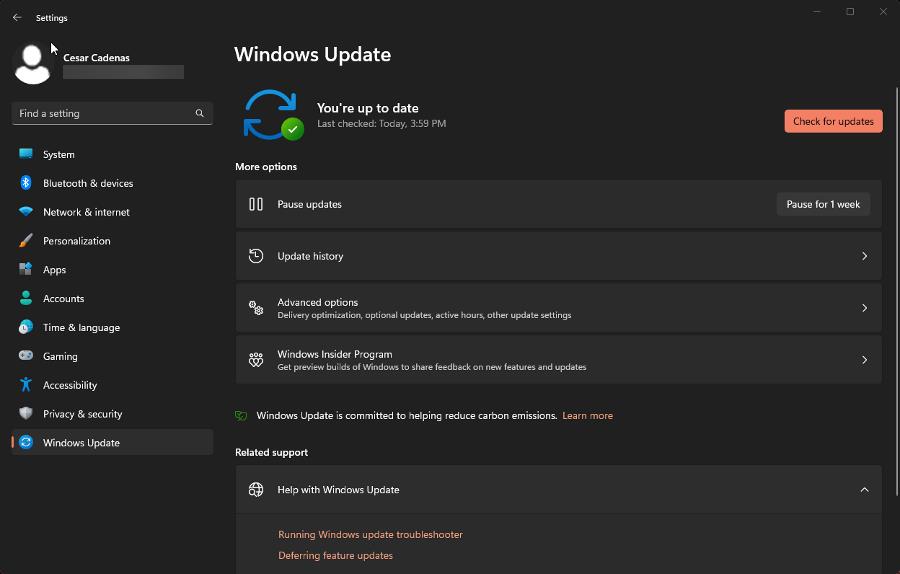
➡ Revolut Business allows you to have full access to the expenses and spending limits of the connected accounts, while the consumer version accounts will be usable only with the credentials of a specific person.

Being able to control these elements comes even more useful in case of fraud, as with the business Revolut account, you would be able to cancel payments, refuse access rights, and have an overview of where in the world the card was used.

What are the best banking options for travelers?

As there is a variety of banking options, both online and physical that are competing for this title, making a choice can be difficult.

For the sake of this guide, we will have a look only at the online banking options, physical banks depending very much on their location and your citizenship.

Chart based on bank account versatility for travelers

As you can see from the image we produced, our top pick when it comes to traveling the world by using your card is Revolut. This great app provides better exchange rates, a stable and versatile application, and other useful features that the other options do not.

After Revolut, the next contender with good scores is the N26 Germany-based online banking system but has only taken second place because of higher and fluctuating transaction fees based on your location, and the ATM you’re using.

Close behind N26, we have Payoneer, which has proven to be a good option as well, even though the application and service speeds are well below the values registered by the first two positions. That being said, it is still a good option in some cases.

No matter which banking transactions apps you use, it is always recommended that you don’t forget to protect your device with the best antivirus software for online banking and stay secure at all times.

Do keep in mind that these solutions can be applied if Revolut Junior app is not working, so don’t hesitate to try it out. You can also check our can’t use Revolut card online card for more solutions.

We hope that our solutions helped you fix all the login problems with your Revolut app that is not opening. If you have any other suggestions, leave us a note in the comment section below.