Fix: Windows Mail App keeps crashing

If you’re running Windows 10, and you are having issues with the Mail app, we’ll help you fix them. Well, your troubles are over — after you follow the tutorial below, you’ll be able to solve your Mail app in Windows 10, 8.1 so that you can get going with your work.

The Mail app can fail for several reasons and you might have to uninstall the app and install it back on your Windows 10, PC or just follow the troubleshooting steps below.

You’ll also check your Registry as shown below in order to fix missing or corrupted Registry keys. As a reminder for you, before attempting any steps listed below, it is always safe to back up your important files, folders, and documents.

How do I fix a Windows Mail app that keeps freezing?

  1. Run SFC scan
  2. Run the Windows App Troubleshooter
  3. Use the Update & Recovery option
  4. Disable Windows Firewall
  5. Update your Store apps
  6. Uninsall the Mail app
  7. Reset Mail app settings
  8. Use a different email client

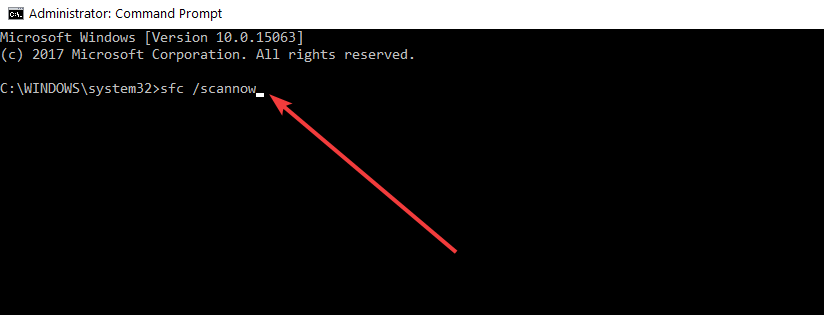
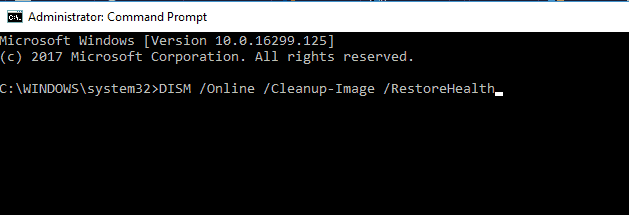
1. Run SFC scan

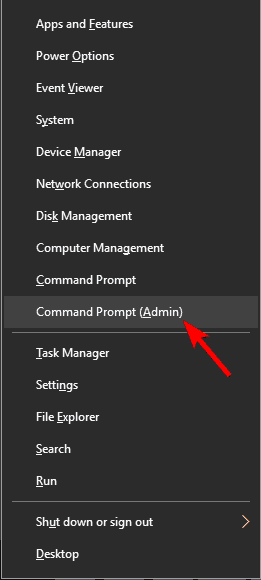
  1. Move the mouse cursor over to the lower right side of the screen.
  2. From the menu that appears left click or tap on the Search feature.
  3. In the search dialog box write the following: Command Prompt without the quotes.
  4. After the search has finished right click or hold tap on the Command Prompt icon.
  5. From the men that appears left click or tap on the Run as Administrator option.
    • Note: If you are prompt by a user account control you will need to write in there the administrator account and password.
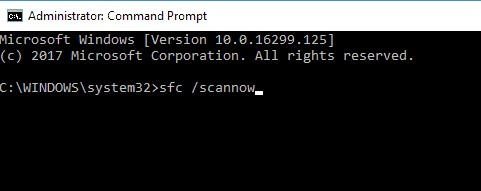
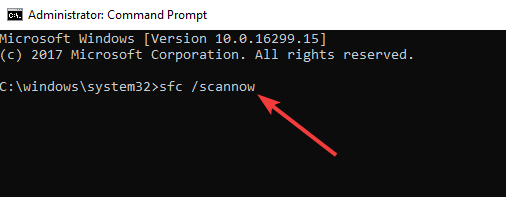
  6. Now that you have the black window in front of you write in there the following without the quotes:
    • sfc /scannowSFC scan
  7. Press the Enter button on the keyboard in order for the command above to execute.
    • It will take up to 10 minutes to complete the process but after it finishes you will have to write the following in the command prompt window:
      • Exit
  8. Press the Enter button on the keyboard.
  9. Reboot your Windows 8.1 operating system.
  10. When the device starts you will need to check again your Mail app if it is working as it should.

2. Run the Windows App Troubleshooter

  1. Left-click or tap on the link posted below to download the Windows App Troubleshooter.
  2. Your browser should open a window where you will need to left click or tap on the Save File feature.
  3. Then left-click on the OK button.
  4. The download should start and, depending on your internet connection, it might take up to 10 minutes.
  5. After the download has finished, go to the directory where you downloaded the executable file.
  6. Double click or double tap on the Troubleshooter executable app.
  7. Follow the instructions on the screen to finish the troubleshooting process.
  8. Reboot your operating system.
  9. When the device starts check again to see if your Mail app is still causing troubles.

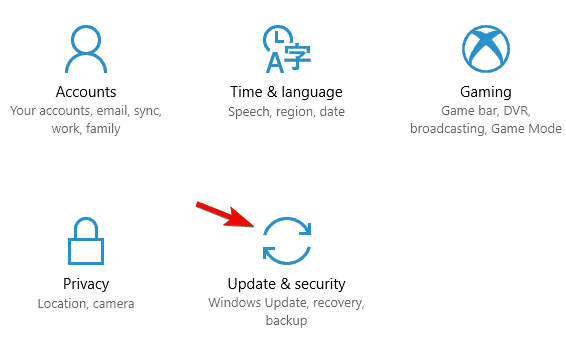
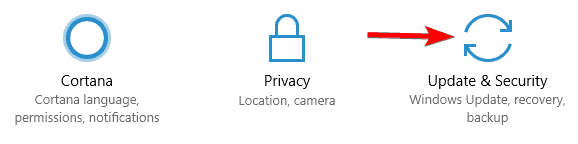
If you’re running Windows 10, you can also launch the Microsoft Store Apps Troubleshooter from the Settings page. Navigate to Settings > Update & Security > Troubleshooter > locate and launch the troubleshooter, as shown in the screenshot below.
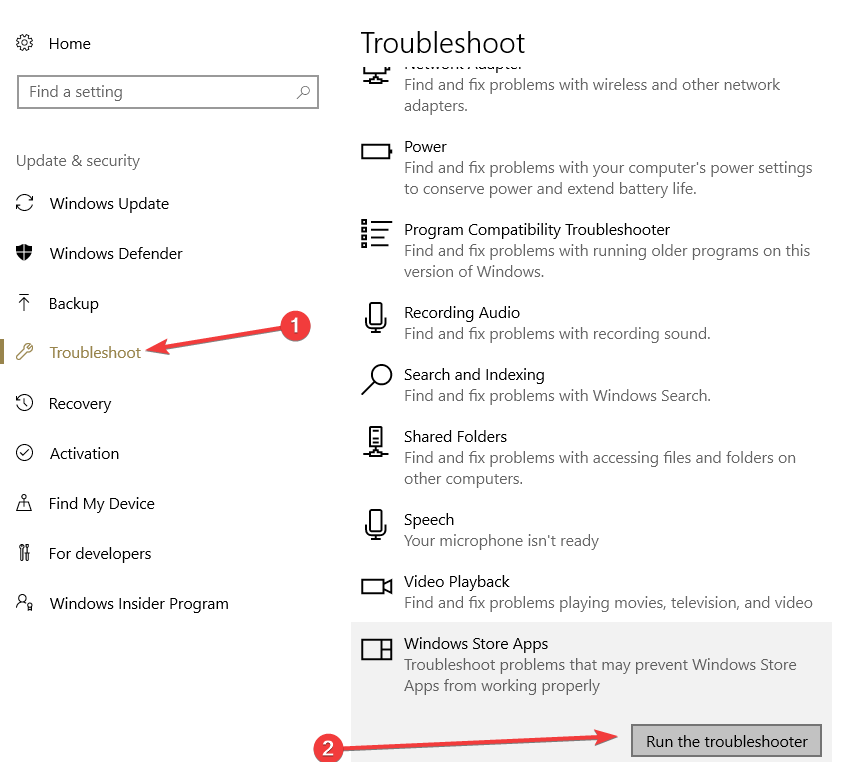
windows store apps troubleshooter

3. Use the Update & Recovery option

  1. Move the mouse cursor over to the lower right side of the screen.
  2. From the menu that appears left click or tap on the Settings option.
  3. From the Settings sub menu left click or tap on the Change PC settings feature.
  4. Now left click or tap on the Update and Recovery option.
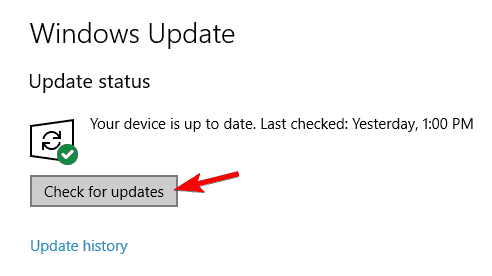
  5. Left click or tap on the Check now button situated in the Update and Recovery page.
  6. Now a process will begin and when Windows finishes, it will tell you what updates are available for you to do.
  7. To do the required updates, just left click or tap on the Install Now button.
  8. A license term page will pop up in most of the cases and you will have to read it and accept the agreement in order to proceed with the updates.
  9. Then left click or tap on the Finish button.
  10. Reboot the operating system after you installed the recent updates.
  11. Check again if your Mail app works.

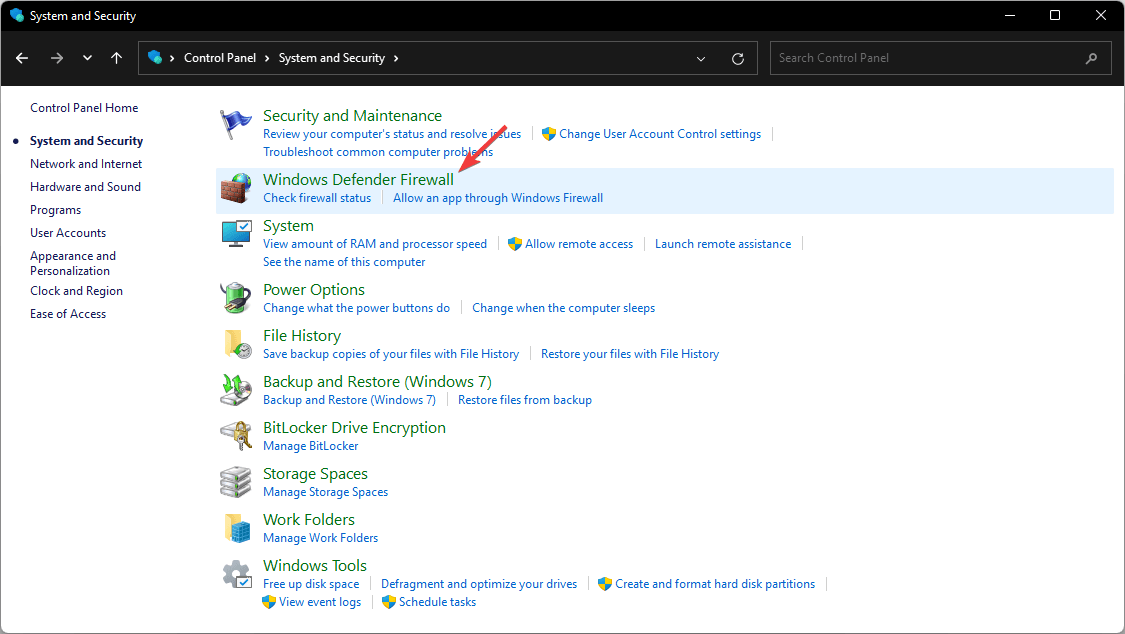
4. Turn off Windows Firewall

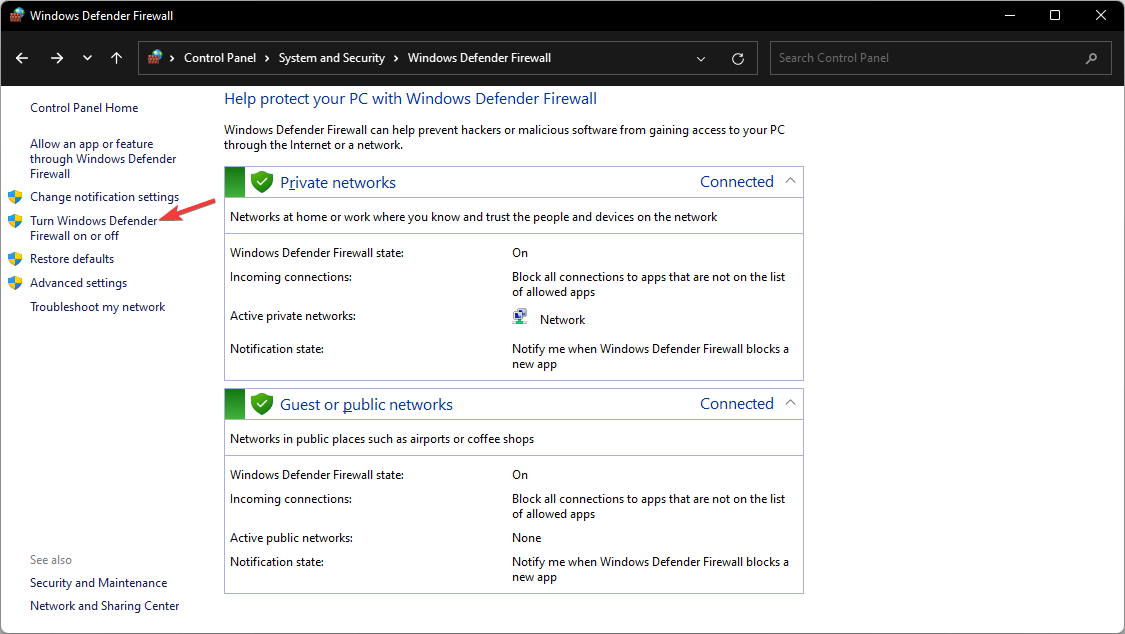
In some cases, the Windows Firewall may block your Mail app preventing you from sending or receiving mails.

  1. Move the mouse cursor over to the upper right side of the screen.
  2. From the menu that appears left click or tap on the Search feature.
  3. In the search dialog box write the following: firewall without the quotes.
  4. After the search has finished left click or tap on the Windows Firewall icon.
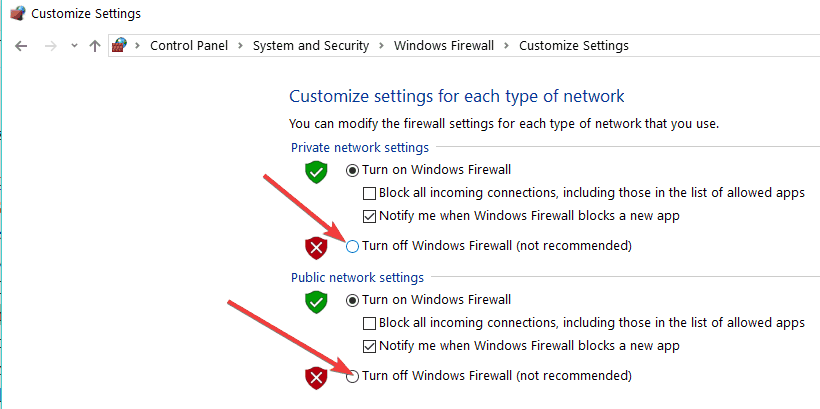
  5. Left click or tap on the Turn Windows Firewall on or off  option.Turn off Windows firewall
    Note: If you are not the administrator on the device you will get prompted to enter the administrator account and password.
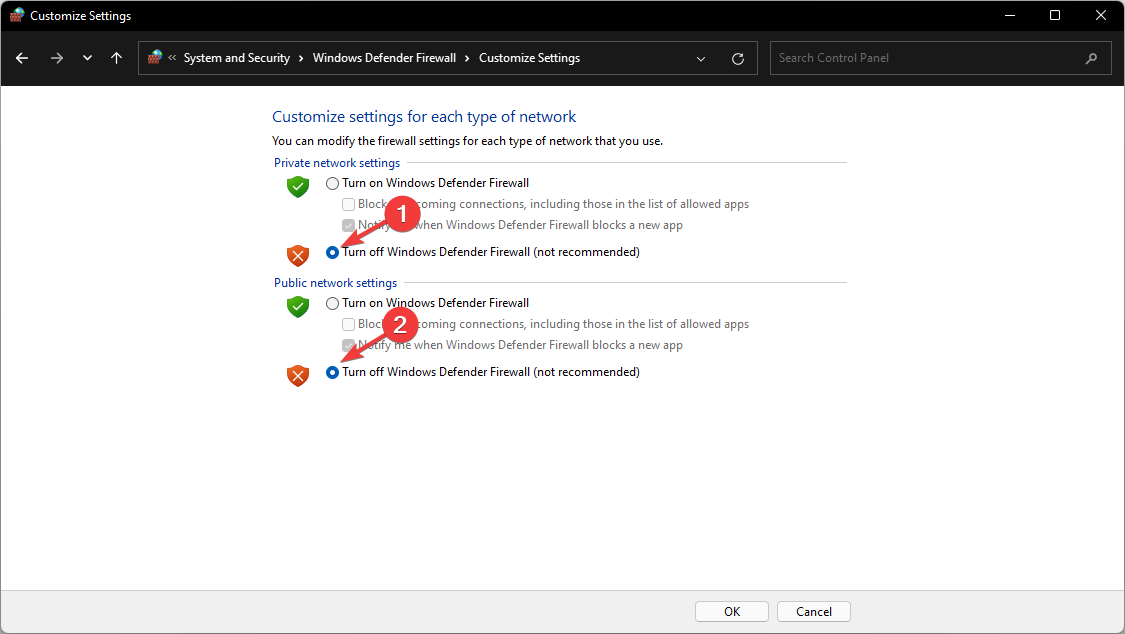
  6. Now under each network in this next window, you will need to choose the Turn off Windows Firewall (not recommended) option in order to disable the firewall.
  7. Left click or tap on the OK button to save your changes.
  8. Check again your Mail application and see how it works.

5. Update your Store apps

  1. On your Start screen of the Windows 10, operating system you will have to left click or tap on the Store icon.
  2. Now that you have the Store window opened move the mouse cursor over to the lower right side of the screen.
  3. From the menu that pops up left click or tap on the Settings button.
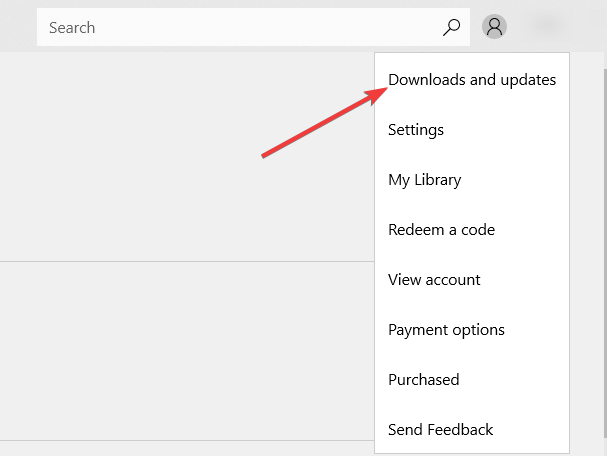
  4. You will have there an option called App updates and you need to left click or tap on it .update windows store apps
  5. Change the Automatically update my apps feature to Yes.
    Note: If you would like to do it manually you can always left click or tap on the button Check for updates.

6. Uninsall the Mail app

  1. On the Start screen of your Windows 10, operating system, right click or hold tap on the Mail app icon.
  2. From the menu that appears left click or tap on the Uninstall option.
  3. Left click or tap again on the Uninstall button.
  4. Next you will need to left click or tap on the Store icon situated in your Start screen.
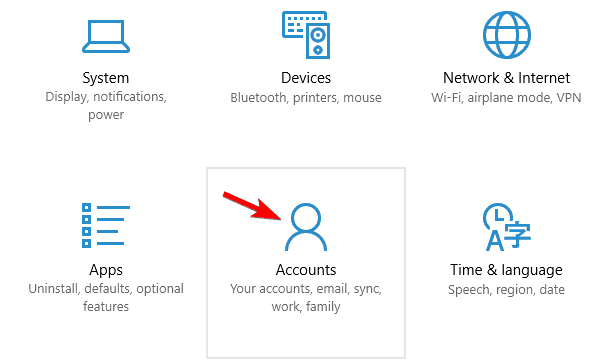
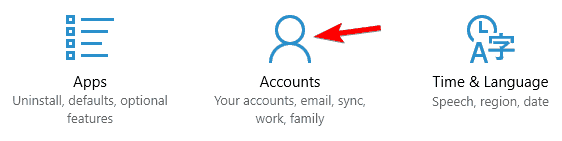
  5. Left click or tap on the Account option.
  6. Left click or tap on the My appslink.
  7. Find your Mail app in there and just right click or hold tap on it and select the Install button.
  8. Check again the Mail app if it works.

7. Reset Mail app settings

If you don’t want to reinstall the Mail app, you can try to reset its settings. Hopefully, this quick workaround will solve your problem. Here are the steps to follow:

  1. Open the Settings app > go to Apps.
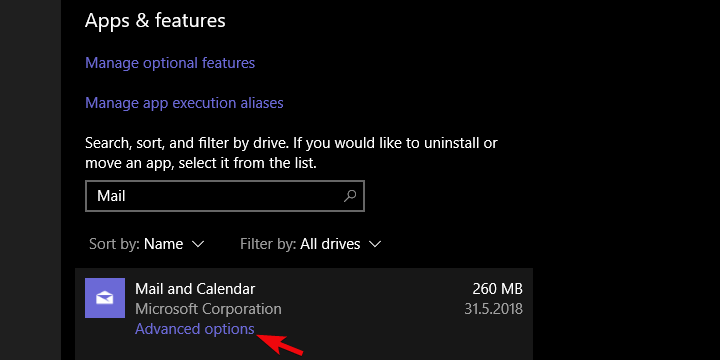
  2. Select Apps & features > Mail and Calendar app.
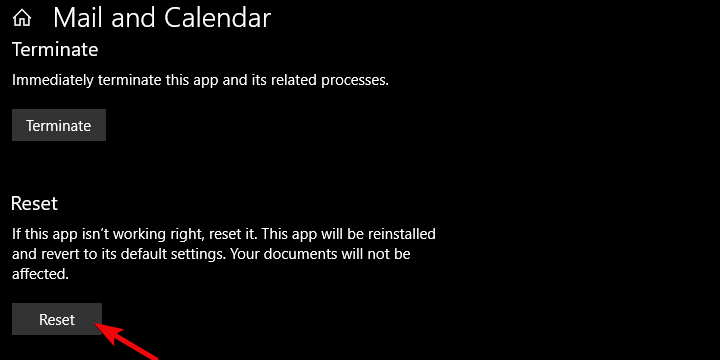
  3. Expand the Mail and Calendar app > go to Advanced options.windows 10 mail app stuck in outbox
  4. Hit the Reset button.windows 10 mail app stuck in outbox
  5. Sign in and check if the problem persists.

8. Use a different email client

If the problem persists, maybe it’s time to switch to a different email client – at least temporarily. Some of them have similar designs to Windows Mail, and some of them may even become your new favorite tools after a few uses.

You can find reliable alternatives that provide a similar user experience. Plus, most modern email clients come with additional features such as translation tools and email templates.

If you want to keep using a unified inbox, customize your layout, integrated apps, and easily access your social media accounts, we suggest you look into Mailbird.

Following the steps above will surely fix your Mail application in Windows 10. If you do run into other technical issues, you can always write to us in the comments section below and we will help you further.

This article is just one of many articles that are part of our hub dedicated to fixing Email issues, so check it out if you have other similar problems.

Take a look at our dedicated Email page for more interesting articles on the subject.
Fix: No Action was Taken as a System Reboot is Required

ERROR_FAIL_NOACTION_REBOOT is a system error, and it’s usually represented with No action was taken as a system reboot is required message.

This error can affect any Windows operating system, and Windows 10 is no exception, so today, we will show you how to fix it properly.

What does No action was taken as a system reboot is required message mean?

The message No action was taken as a system reboot is required typically means that a software update or installation has been completed, but the changes made will not take effect until the system is restarted.

This is often a sign that your computer has undergone an update and needs to complete the process.

However, sometimes, it could be a sign of an installation error where the process is incomplete or stuck. And in such cases, even a restart will not be sufficient. At these times, you may get the message ERROR_FAIL_NOACTION_REBOOT.

Let us now explore the best fixes.

How can I fix No action was taken as a system reboot is required?

1. Check and disable your antivirus

  1. Click on the hidden access arrow in the Taskbar.
    no action was taken as a system reboot is required
  2. Click on your antivirus icon, hover over Avast shields Control and select Disable for 10 minutes (This step varies for different antivirus software).
    no action was taken as a system reboot is required

If you want to keep your PC safe from online threats, it’s essential to have a proper antivirus tool installed. However, third-party antivirus software might enforce specific policies that interfere with your system and cause this and other errors to appear.

In most cases, disabling some of its problematic features may help. However, if you can’t find the problematic feature, you can disable your antivirus entirely and check if that solves the problem.

Lastly, you can also try to remove your antivirus as a potential solution. However, leaving your device unprotected also comes with many risks, so choosing a more trustworthy antivirus like TotalAV is safer.

This antivirus will provide browsing security and protection from malware or serious hacking attacks.

2. Remove problematic apps

  1. Press Windows + R, type appwiz.cpl, and hit Enter.
    no action was taken as a system reboot is required
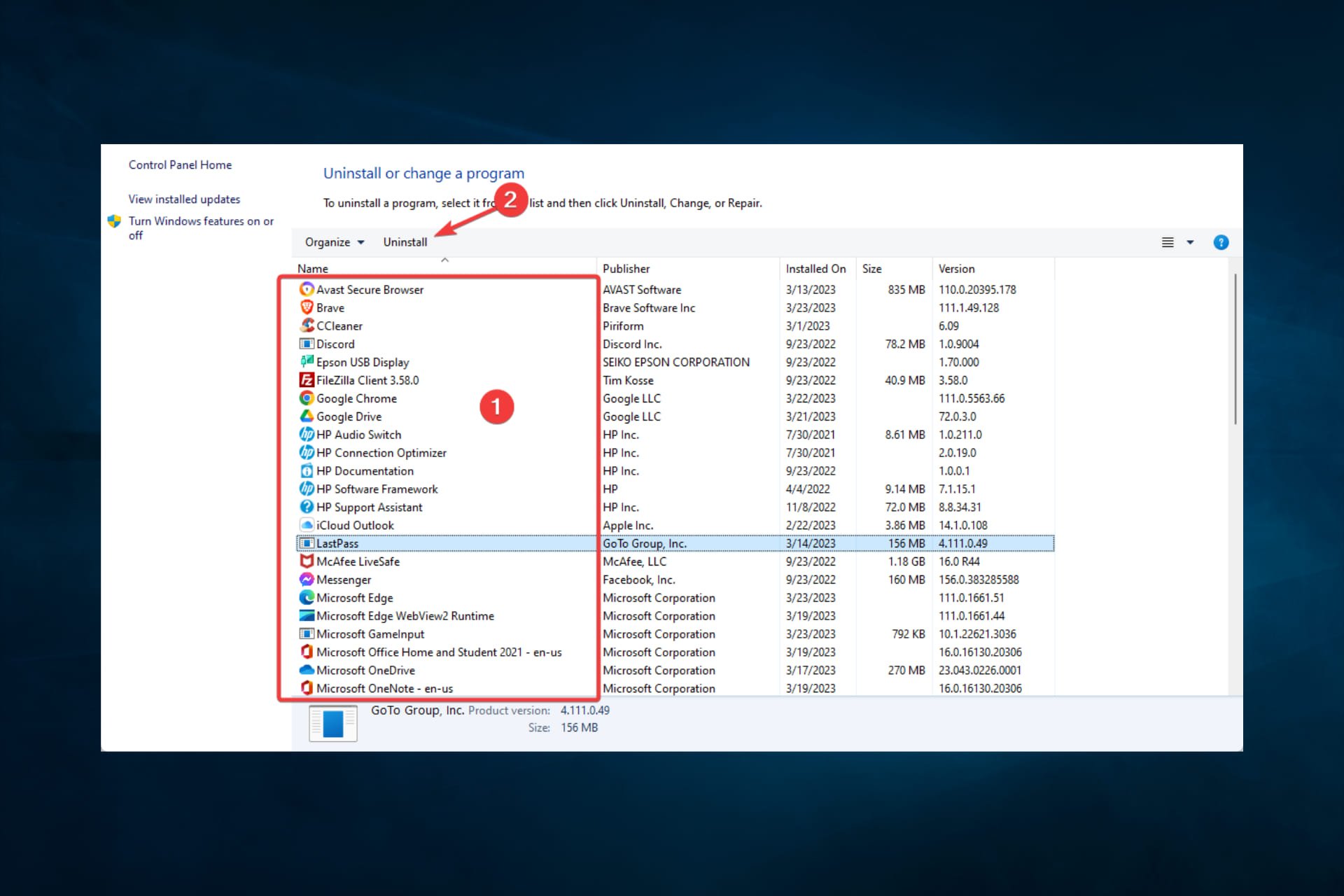
  2. From the program list, click the problematic application and select the Uninstall button.
    no action was taken as a system reboot is required
  3. Lastly, follow the wizard to complete the uninstallation.

Several users reported this error message while using Plex. According to them, they fixed the problem by removing the application using a professional uninstaller solution.

Using such dedicated tools will remove all files and registry entries associated with the application. Then, after completely removing the application, you can install it again and check if the problem appears.

The main reason for using uninstaller software to remove problematic apps is the residual files they leave behind if you delete them manually from Windows.

Remember that this error can also appear with other applications, so remove them by employing efficient uninstaller software and then reinstall them.

3. Keep your system up to date

  1. Press Windows Key + I to open the Settings app.
  2. Navigate to the Update & security section.
  3. Now click on the Check for updates button.

Windows will now check for updates. If any are available, Windows will download them in the background and install them once you restart your PC. After updating your PC, check if the problem persists.

Windows 10 usually automatically downloads updates in the background, but sometimes you can miss an important update. This is why you must check for updates manually.

4. Reinstall Visual C++ Redistributables

  1. Press Windows + R, type appwiz.cpl, and hit Enter.no action was taken as a system reboot is required
  2. Click on Microsoft Visual C++ from the program list and select the Uninstall button.
  3. After the uninstallation, download Visual C++ Redistributables and install them.

Many Windows applications require Visual C++ Redistributables to work. Sometimes system errors such as this can occur if you don’t have the necessary Redistributables installed.

Remember that different programs use different versions of Redistributables, so you might have to download and install more than one version.

5. Use Microsoft Fix it application

  1. Download the Microsoft Fix it app.
  2. Double-click the downloaded file.
  3. Click on Next.
  4. Click on Installing, then follow the wizard to resolve the issue.

Microsoft offers a free troubleshooter that you can download and fix corrupted registry keys or other problems related to installing or removing other software.

In addition, you might want to check for any leftover files in the installation directory and remove them manually.

After that, you should be able to reinstall the faulty app without problems.

6. Create a new user account

  1. Press Windows + I to open the Settings app and navigate to the Accounts section.
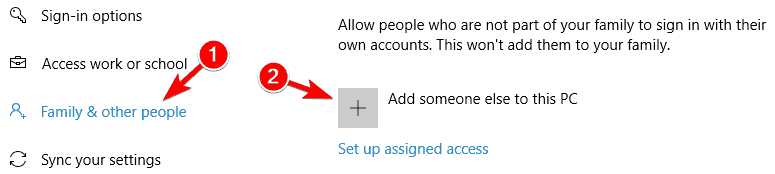
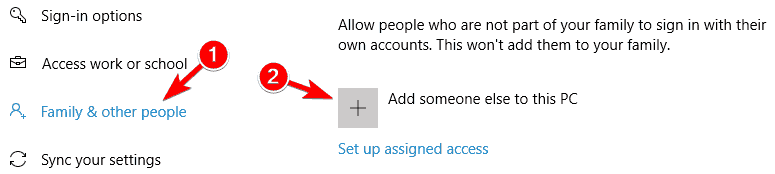
  2. Navigate to the Family & other people in the menu on the left. Then click on Add someone else to this PC.
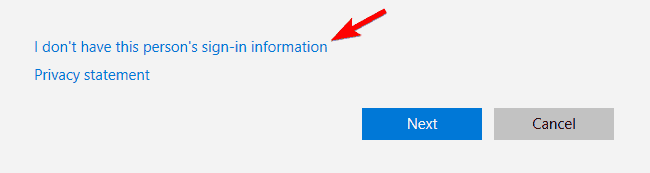
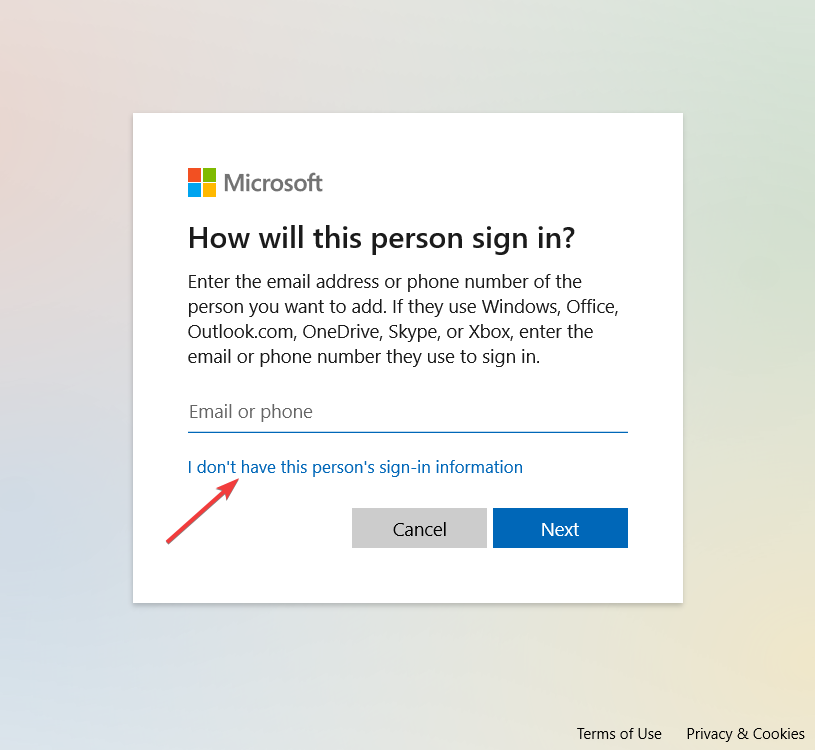
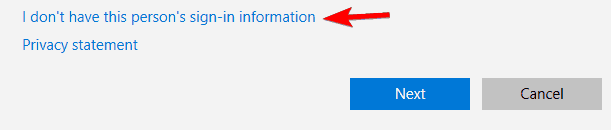
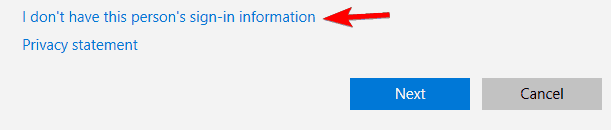
  3. Click on I don’t have this person’s sign-in information.
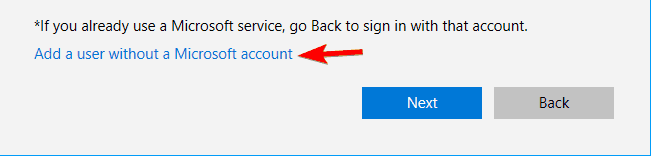
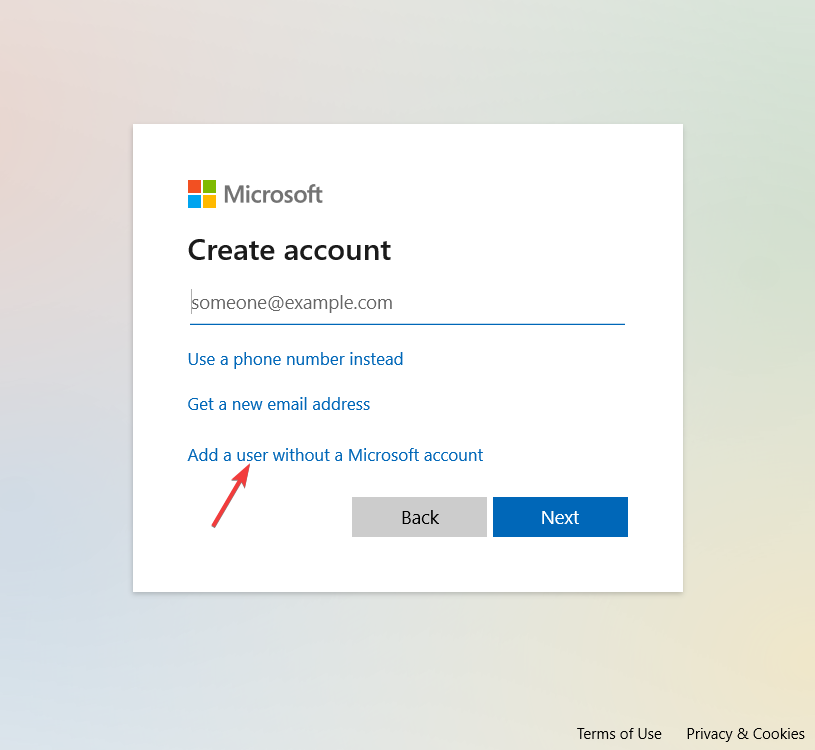
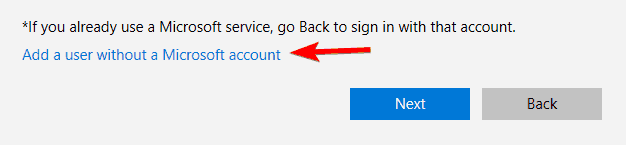
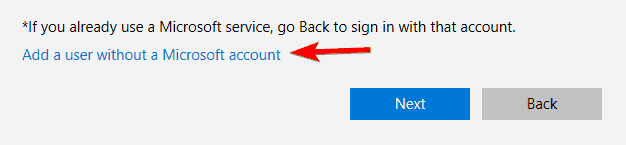
  4. Select Add a user without a Microsoft account.
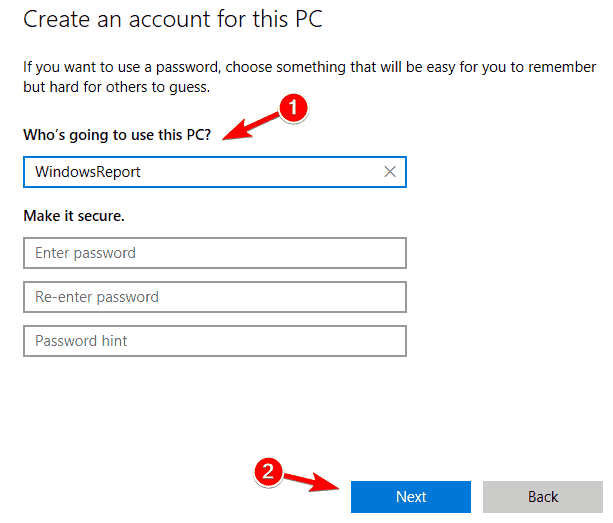
  5. Enter the desired user name and click on Next.

After creating a new user account, switch to it and check if the error still appears.

If it doesn’t, you might try removing any recently installed applications and check if that solves the problem on your main account. Alternatively, you can switch to the new account and use it as your main one.

7. Perform a System Restore

  1. Optional: Back up recently saved files before using System Restore.
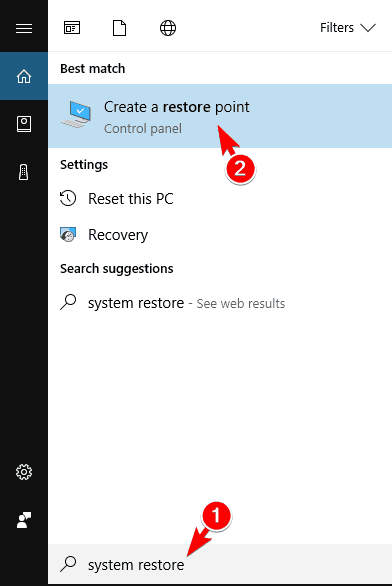
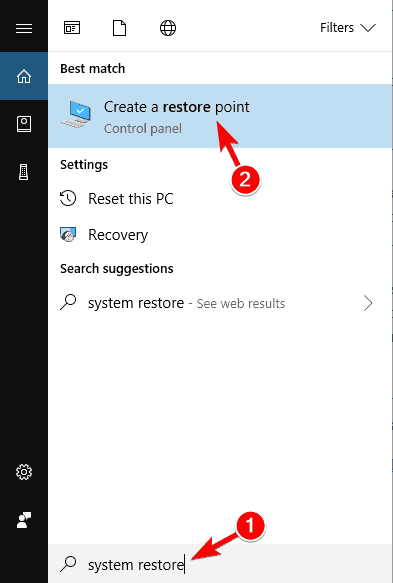
  2. Press Windows Key + S and choose Create a restore point from the menu.
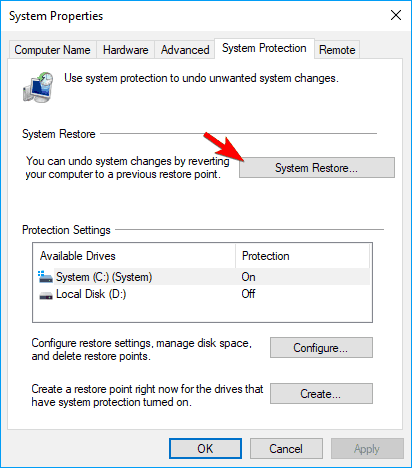
  3. Click on the System Restore button.
  4. When the System Restore window opens, click on Next.
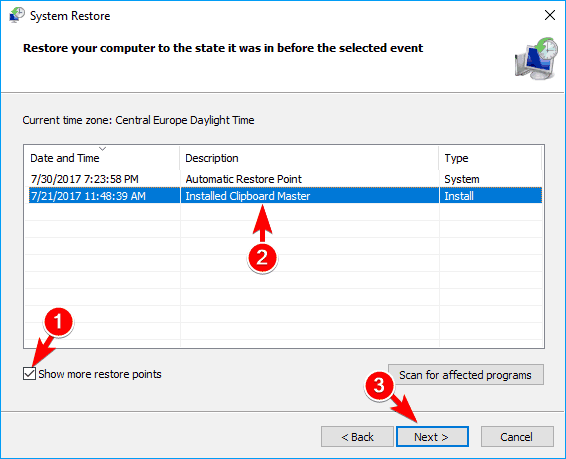
  5. Check the Show more restore points option, select the desired restore point, and click Next.
  6. Follow the instructions to complete the restoration.

After restoring your system, check if the error still appears. System Restore is a fast and straightforward way to fix computer problems, so try it out.

We hope you fixed the ERROR_FAIL_NOACTION_REBOOT issue with one of our solutions. We’d like to hear what worked for you, so use the comments below.

A new phishing campaign is targetting Office 365 users with spam alerts

It really hasn’t been that long since we last spoke about phishing campaigns actively being ran by malicious third parties, that target Office 365 users.

Either in the form of an urgent response type alert, or by adding QR codes to some emails, hackers will stop at nothing to get their hands on your sensitive data, money, etc.

Recently, a persuasive new series of phishing attacks are using fake Office 365 notifications asking the recipients to review blocked spam messages, with the end goal of stealing their Microsoft credentials.

Careful when opening Spam emails

If you were windering what exactly makes these phishing emails especially convincing, we will answer your question.

Shady third-parties are actually using of quarantine[at]messaging.microsoft.com to send them to potential targets and the display name matching the recipients’ domains.

Furthermore, the attackers have embedded the official Office 365 logo and included links to Microsoft’s privacy statement and acceptable use policy at the end of the email.

It’s actually a very elaborate scheme, urging the targets to review the quarantined messages in maximmum 30 days, by accesing Microsoft’s Security and Compliance Center from the embedded link.

And, of course, instead of the victims being redirected to th Office 365 portal, they are sent to a phishing landing page that will ask them to enter their Microsoft credentials to access the quarantined spam messages.

Upon entering their credentials in the form located on the phishing page, their accounts’ details get sent to attacker-controlled servers.

If you do fall victim to such schemes, your Microsoft credentials will later be used by the cybercriminals to take control of their accounts and gain access to all their information.

As spotted by MailGuard, providing your Microsoft account details to cybercriminals means that they have unauthorised access to your sensitive data, such as contact information, calendars, email communications, and more.

Needless to say what could happen once malicious third-parties have access to your personal info. That’s why we always urge our readers to exercise safety when online.

Have you also received such phishing emails? Let us know in the comments section below.

Voice Changer Software: 5 Best to Use in 2026

Voice changer software programs are incredibly entertaining! You can’t deny that you haven’t pictured how it would be to sound different. And each person has their reasons.

Some wish to play pranks on their friends or complete strangers. Others believe in online privacy and protecting their identity at all costs.

Many audio manipulation services are ready to morph your voice and broadcast it over the Internet, like during Skype calls.

A power like this is certainly practical, but it can also lead to harm if used for illegal or immoral reasons.

How to choose the perfect voice changer?

Before choosing a voice changer software you might have some questions about it, like:

  • Can this voice changer be used while calling a contact?
  • Can I upload my own library to it?
  • Can I use it on my phone?
  • Does it have pitch control or more features?
  • Is it user-friendly?
  • Can I export the audio files to other formats?

That being said, let’s take a look at the best voice changer software solutions that give you the possibility to record, disguise, and fake your voice.

 Rating (1 to 5)Free/PaidUse while callingAdvanced featuresMobile VersionCustomizable effects
MorphVox5Paid(has trial)YesYesYesYes
Voxal Voice Changer4.5FreeYesYesNoYes
Voice Changer Software Diamond4Paid (has trial)YesYesNoYes
Virtual Personality+3.5FreeYesYesNoNo
Fake Voice3.5Paid(has trial)NoYesYesYes
Viscom Voice Changer3FreeNoYesNoYes
Skype Voice Changer3FreeYesYesYesYes
All-in-one Voice Changer3FreeYesYesNoYes
Voice Master4FreeYesNoNoYes

What is the best free voice changer?

Voxal Voice Changer

Voxal Voice Changer is a free voice morphing software that can modify your recordings in real-time, as you speak.

It is one of the most popular software of this kind because it has a friendly user interface that doesn’t require much getting used to.

The time saved in that regard can be used to directly jump into voice editing and make yourself sound like someone else.

The software is reportedly compatible with all existing applications that work with voice recording or real-time streaming. Besides its own voice effects library, it also allows you to create your own.

The software is also popular because it has a low CPU usage, allowing users with any type of device to modify their voices.


The effects are extensive and include robot, girl, boy, alien, atmospheric, echo, and many more. On top of that, this is a great male to female voice changer software for pc (and vice versa).

Voice Changer Voxal is compatible with Windows operating systems starting with Windows XP and MacOS X 10.5 or above. The software has a premium version as well. You can get a license online.

Let’s quickly look at its key features:

  • Morph your voice in real-time (great for when you can’t use a recording such as a live phone call for instance)
  • Allows users to change recorded messages
  • If you want to change your voice in an already existing recording, it’s as easy as supplying the file
  • Rich library of voices available from human to alien
  • Classic pitch change options, for when you only need a slight adjustment

Voice Changer Voxal is compatible with Windows operating systems starting with Windows XP and MacOS X 10.5 or above. The software has a premium version as well. You can get a license online.

Voxal Voice Changer

Choose what type of audio you want to morph and turn it into anything from human to alien voices – Voxal definitely nails diversity.

AV Voice Changer Software Diamond

AV Voice Changer Software Diamond is an extremely easy-to-use program that displays all the basic features you’ll need to work with on the main menu.

Starting from there, you will not have any problems in changing voice settings while you are in a real-time chat.

The software has an impressive sound effects library. It is suitable both to make your conversation a little more fun, but it is a good, professional voice changing software that can help you increase the quality of your recordings.

It can be used to create audiobooks, voiceovers, audio messages, and more. If you need more effects, you can download them from the add-on store.

They are easy to use, but if you need guidance on how to install/use them, you can find a bunch of tutorials on YouTube. This is a useful tool for audio projects, especially when it comes to recording.

This is a full feature voice changer for PC with an integrated voice recorder, voice editor, and file conversion utility. You can connect it to all major VoIP apps, including Skype and Twitch.

Let’s quickly look at its key features:

  • Display adjustments
  • Record and export to mono files without glitches
  • Pause button enabled so you can take breaks
  • Various minor bugs fixed so you can have the best experience

AV Voice Changer Software Diamond is a licensed-based software. It does however provide a free trial version, so you can try it out before committing to make a purchase.

AV Voice Changer Software Diamond

AV Voice Changer Software Diamond

Professionally alter voice recordings for your projects or change your output voice in real-time for an amusing video conference with your friends.
Free trialVisit website

MorphVOX

MorphVOX is a voice changer for PC that follows a pretty basic principle, specifically that a person will usually have one of three voice tones: man, woman, or kid.

Based on that little principle, this voice-changing software provides that basic experience that provides the main voice-changing options to anyone that is looking to either trick or mislead someone into thinking they have a different gender or a different age.

Morph Vox can be used during live conversations which makes it a great pick for when you need to have a different voice for a certain phone call or even when chatting with people online.

Since it’s not as varied as some of the other picks, Morph Vox might be better intended for comedic or entertainment purposes than serious or sensitive calls.

But the voice modulation software will do its job nevertheless and change the user’s voice per their settings.

The software has additional comedic sound effects such as drumrolls that you can play in real-time while in a voice call. 

The sound library also includes background sounds that can make it sound like you are, for example, in a traffic jam. On top of that, it has a powerful background noise cancellation that will generate a very clean sound.

Other key features include:

  • Optimized to online games
  • Man to woman and vice versa
  • Intuitive UI with content organizer
  • Live vocal visualizer
  • Voice parsing detection

Morph Vox is a license-based software for Windows and Mac. It comes with a free trial version for Windows users.

⇒ Get MorphVOX

Clownfish Voice Changer

Clownfish Voice Changer is another solid option for real-time voice morphing software. It can be used with any app that connects to your microphone and it is proven to work well with all major VOIP apps including Steam, Skype, Hangouts, Teamspeak, and Discord.

This software has a sound effect library with some preset voice filters such as a robot, alien, helium pitch, and more. On top of that, you can change your voice from male to female and vice versa. 

Along with the presets, the software has a custom pitch tool that lets you create your own unique voice effect which you can integrate in your real-time conversations or add on top of your recordings. You can save any filter you create for further use.

The Clownfish voice changer app for PC also has an integrated music player that supports multiple media formats. It has advanced audio controls and a playlist creator.

In order to use the software as a real-time voice changer, you need to install it on the capture device you want to modify. This can be down from the Clownfish UI.

Open the Voice Changer setup panel and you will find a list of all detected audio input devices. Select the microphone you want to use and click on the install button.

Clownfish also includes a text-to-speech feature. You can select and use any voice in your sound library.

Other key features include:

  • VST plugin support
  • Incredibly simple user interface
  • System level installation
  • Can play over your microphone
  • Downloadable plugins

Clownfish is a free voice modulation software. It is compatible with Windows operating systems starting with Windows 7.

⇒ Get Clownfish Voice Changer

Fake Voice

Fake Voice s the best voice changer app for PC if you value simplicity. When it comes to functionality, this app surely knows how to kick it as there isn’t much to the Fake Voice interface.

The app jumps right into its features and that can be really useful for a situation when timing and speed are key.

It definitely makes changing your voice easy as it provides a lot of options on the matter. It has a varied selection of voices ranging from a little kid to a very old person and everything in between, including cartoonish voices.

You can make real-time voice adjustments to the pitch, formant, base pitch, and noise threshold. You can also add a robot or echo effect to your recordings.

You can also use this software to change male voices into female-sounding voices and vice versa. 

If you’re dedicated to coming up with a unique voice you can really have fun with this one and completely take friends and family by surprise.

Let’s quickly look at its key features:

  • Nice and simple voice changing mechanic (sliders-based)
  • Users will be able to hear the changes take effect in real-time
  • Users can combine multiple sliders

This voice altering software is completely free and includes free upgrades with no restrictions whatsoever.

⇒ Get Fake Voice

These are the most popular and efficient voice-changing programs that you can find.

How can I record my voice in Windows 10 and 11?

Some of the above-mentioned software also includes voice recording gear along with the voice changing features and there are many voice recording software on the market.

However, the built-in voice recording utility is a really good and simple tool that you can use to start recording right away.

To start recording:
1. Type record in the taskbar.
2. Click on the Voice Recorder icon in the results list.
3. Click the microphone button to start. To stop recording, click on the stop button.

Your recordings are automatically saved and you can easily access them from the left sidebar. The Windows Voice Recorder comes with some editing features as well.

If you want to trim your recording, just open it and select the trim option. Just drag the timestamps as you please and then click on the Save button to apply the changes.

You can also rename your recordings and share them directly from the app.

Whether you are uncomfortable with how your voice sounds in real life or want to pretend you’re someone else in a call, or maybe just want to know how you might have sounded like if your voice was just a bit deeper or lighter, there are some great apps out there.

You can take it even further and experiment with what it might have been like if you came from a different planet or were a robot.

Microsoft bumps Teams Phone Service Level Agreement to 99.99% uptime

If you are a Teams user and actively check out our articles about the Redmond company’s communications app, you surely know there’s always something new in Microsoft Teams.

All the way from innovative user experiences designed for workplace flexibility and collaboration, to behind-the-scenes improvements in dependability, resiliency, and call and meeting quality.

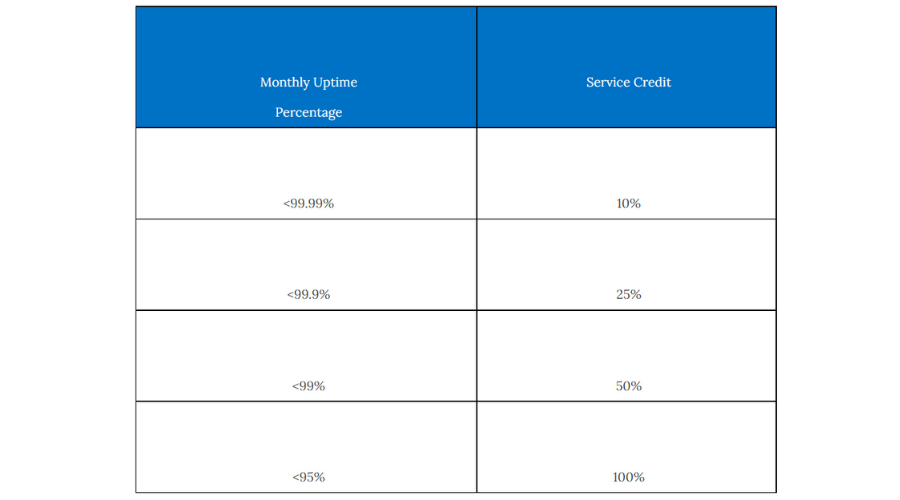
Since launching the SLA for Microsoft Teams has been 99.9% uptime. However, Microsoft updated their Service Level Agreements (SLA) for Online Services to change that to 99.99% uptime.

These modifications have been specifically tailored for Calling Plans, Phone System and Audio Conferencing. And, just in case you weren’t aware, the Teams service is actually covered by three SLAs:

  • Microsoft Teams (Core service) – Presence, Chat Messaging, and Online Meetings
  • Calling Plans, Phone System, and Audio Conferencing.
  • Voice Quality – If impacted by the Microsoft network and only if the user is using a wired Teams IP Phone

SLA and Voice quality core services SLA remain at 99.9%. 

Furthermore, in addition to creating anywhere, any device calling experiences, Teams Phone provides a reliable PSTN service through proactive network monitoring.

It also brings automated system optimization, and fault-tolerant redundancy to the table, all these features supported by the tech giant’s infrastructure.

Each of these elements play an important role in developing service level agreements (SLAs) that reflect our commitment to the continuity of your operations.

This service also covers Microsoft’s of Direct Routing and elements of operator connect. Aditionaly, it also covers calls with Call Queues or Auto Attendant.

In both those cases, Microsoft specifically does not take responsibility for third parties, saying that this SLA does not apply to outages caused by any failure of third-party software, equipment, or services that are not controlled by Microsoft.

If customers also have direct routing or operator connect, they will have to consider the SLA of their operator to get a complete picture of the SLA for their users.

However, while the Calling Plans, Phone System, and Audio Conferencing SLA went to 99.99%, the core service SLA and Voice quality SLA remain at 99.9%. 

This is actually up to 43 minutes 49.7 seconds of downtime per month before it’s breached, in line with most of the other Office 365 services that also offer a 99.9% SLA.

What is your opinion on this change made by Microsoft? Share your thoughts with us in the comments section below.

Msftconnecttest redirect error on Windows: 4 Sure Fixes

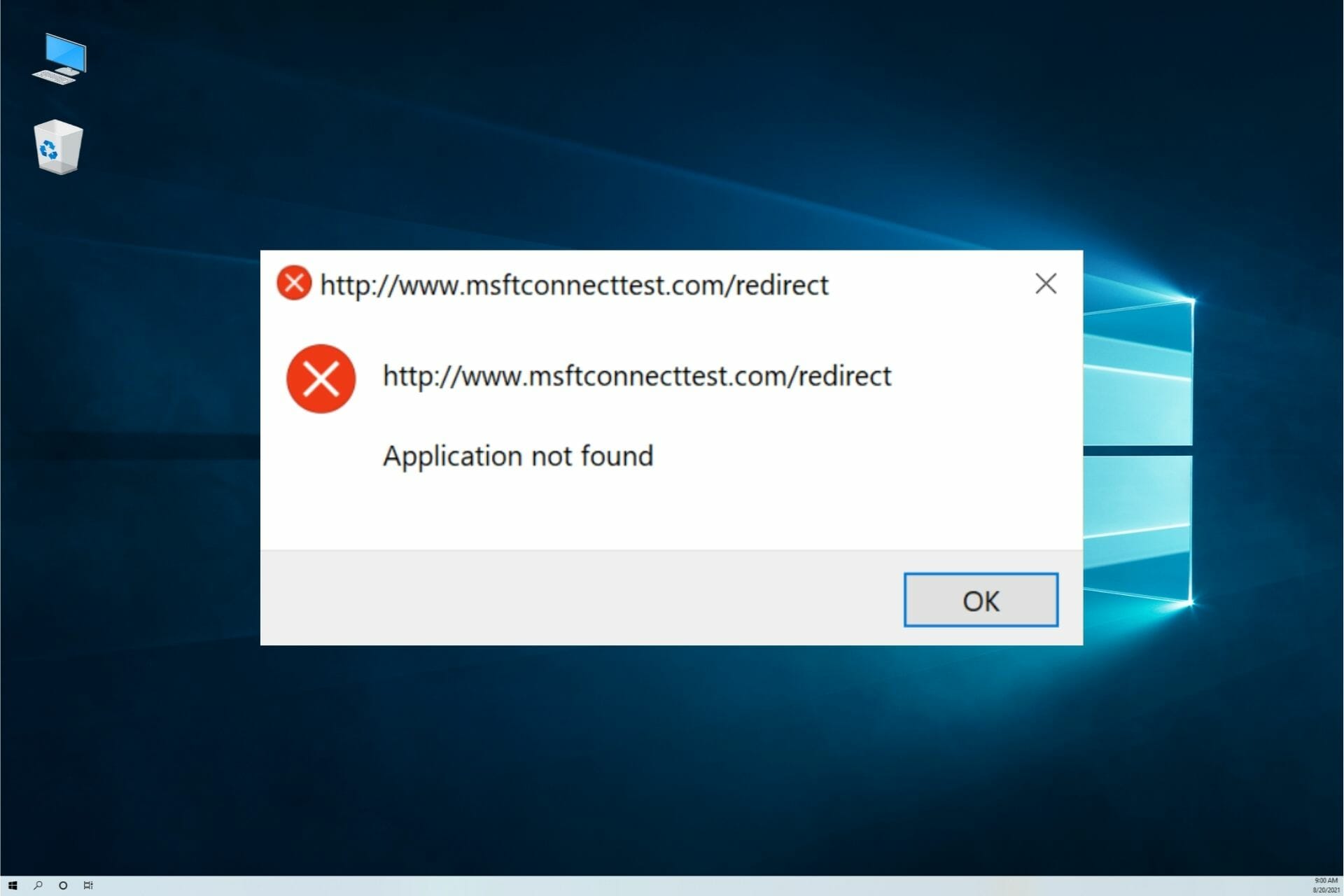
Many of our readers reported that msftconnecttest.com/redirect is restricting them from connecting to the Internet. The msftconnecttest redirect error mainly occurs when you’re connecting your device with the Ethernet cable and not with Wi-Fi.

This problem usually appears due to connection problems or there is no default application for the HTTP or HTTPS protocols. There’s also the possibility of a malware or virus infection.

How do I fix the msftconnecttest redirect error?

1. Reset the network

  1. Open the Start menu and select the Settings app.
  2. Navigate to Network and Internet.
  3. Click on Status, scroll down and select Network Reset.
  4. Click Reset now from the Network Reset screen. Click Yes to confirm the changes but take note that your PC will also restart so save any work if necessary.
  5. After rebooting, check to see if you can still see the error.

2. Disable the connection test

  1. Press the Windows + R keys to open the Run dialog.
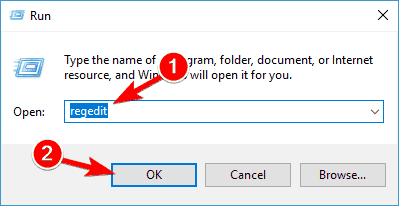
  2. Type regedit and hit the Enter button to open Registry Editor.
  3. Go to the following Registry item:HKEY_LOCAL_MACHINE\SYSTEM\CurrentControlSet\Services\NlaSvc\Parameters\Internet
  4. Navigate to the right pane and search for the EnableActiveProbing entry.
  5. Double click on it and enter 0 in the Value Data option and click the OK button to save it.
  6. Close the windows and check if the changes resolved the issue.

3. Change the HTTP/HTTPs configuration

  1. Click the Start button and select Settings.
  2. Navigate to the left pane and click on Apps.
  3. Select Default Apps and click on Choose default apps by protocol available under the Reset button.
  4. Look for the Select a Default option available for HTTP. In our example, we already had a default app set up but if you see the gray square, set up an app.
  5. You will see a list of browsers installed on your system. Choose your browser and click Select a Default browser for HTTP.
  6. Select your browser again from the list of available options.
  7. Finally, reboot your system to apply the new settings.

4. Reset your browser

  1. Click on the three dots button from the top right corner in Google Chrome and select Settings.
  2. Select the Advanced option to expand it, then choose the Reset and clean up option.
  3. Click on Restore settings to their original defaults.
  4. Confirm the option by selecting Reset settings.

Is the msftconnecttest error caused by a virus?

If you get redirected to the https://www.msftconnecttest.com/connecttest.txt website with the string Microsoft Connect Test, you are the victim of an attack.

What happens is that instead of connecting to the Microsoft IP address 13.107.4.52 which is legitimate, the malicious DNS server redirects you to another IP, 176.113.81.159, which is under the attacker’s control.  

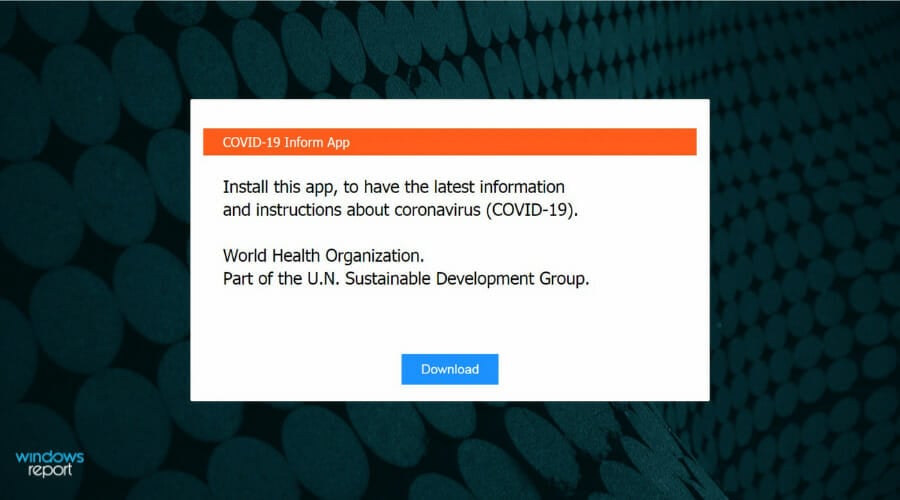
You will be prompted to get a fake app called Emergency – COVID-19 Informator or COVID-19 Inform. Useless to say, you should not do that.

If you install the application you will not get any COVID-19 data but instead, your PC will be infected with the Oski information-stealing Trojan.

This malware app will start stealing a lot of information from your browser including autofill information and login credentials about all your accounts and upload them on a server for the attacker.

What can I do to prevent the msftconnecttest attack?

First of all, by any circumstances, do not download and install the wrongdoer’s app. After you get redirected, stop everything and connect to your router.

Once you’re in, you will need to change the DNS configuration that was changed by the attacker with the data provided by your ISP.

Each router has a different way of DNS configuration so we can’t give you a straight solution for this problem. However, we can provide an example:

  1. Login to your router by using its IP address or its web address.
  2. Look for the DNS settings in your LAN settings. If you find the 109.234.35.230 and 94.103.82.249 IP addresses, change the DNS server to automatic configuration or change them with the ones provided by your ISP.
  3. Save the settings and exit.

Now, reboot or restart the PC to get the right configuration from your router. Also, change the router password and check and disable its remote administration if possible.

If you downloaded and installed the app, perform a malware and virus scan and after you eliminate the threat, change all your passwords on your accounts.

That’s it! We hope that our solutions helped you fix the msftconnecttest redirect error and now the problem is history.

If you can’t use the network at all, here’s what to do to fix your Internet connection on Windows 10 and resume your browsing.

For any suggestions or questions, don’t hesitate to use our comments section below and we will get back to you as soon as possible.

System Requirements for Windows 11 SE: All You Need to Know

Windows 11 SE, a cloud-first OS particularly meant for K-8 students, is finally out. But, you can’t install it on any device that had Windows 10 previously installed, or even the devices that currently run the latest iteration.

Therefore, to clear the air around the subject, we have dedicated this article that details the system requirements for Windows 11 SE.

The idea behind a new, simpler, and advanced OS, though with more restrictions, is to provide an optimal environment for the students to learn. Only the IT administrators can install apps and configure certain settings on the devices running the SE edition of Windows.

Let’s now take a detailed look at the student-oriented OS, and understand what it’s all about.

What does SE in Windows 11 SE stand for?

While speculations were running rife that SE stands for either Simpler Edition or Student Edition, Microsoft has made it clear that it does not signify anything but is only added to differentiate the edition from the others.

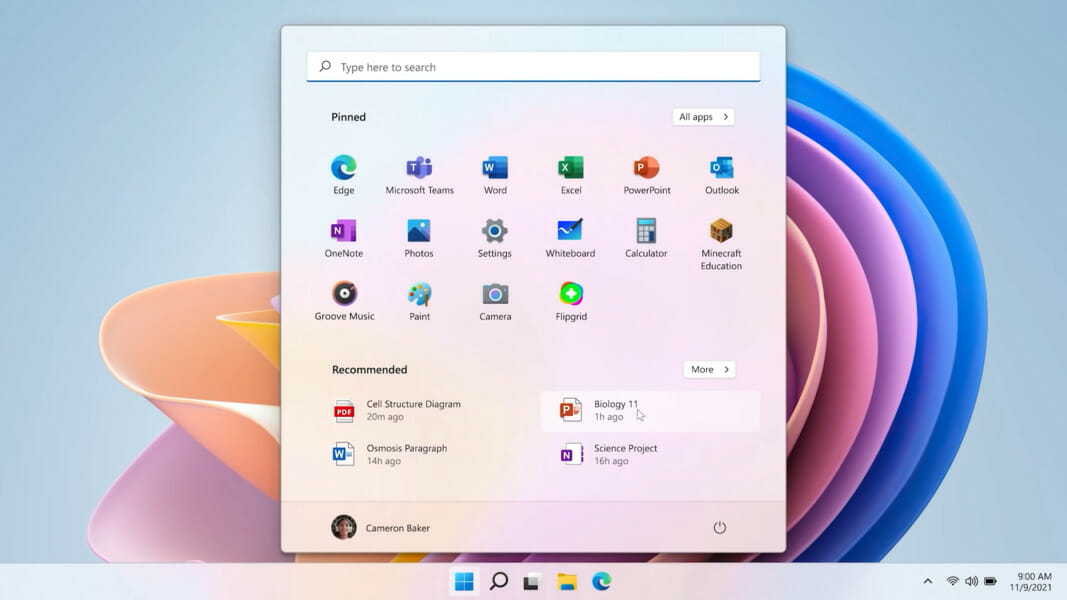
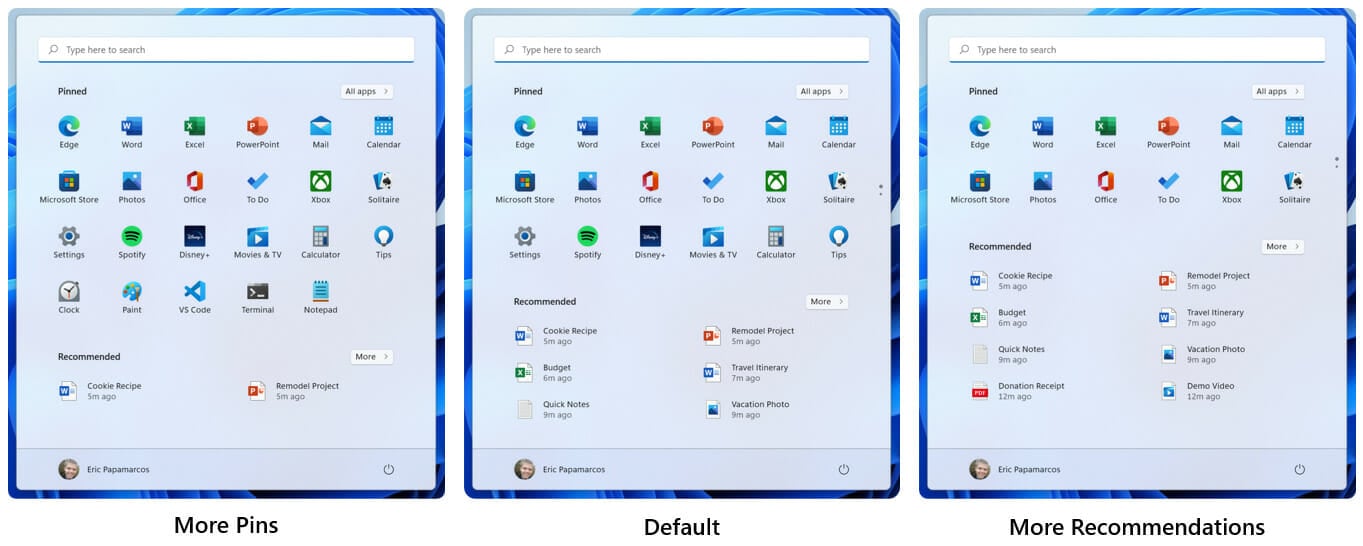
Windows 11 SE Start menu (Source: Microsoft)

What are the system requirements for Windows 11 SE?

Though Windows 11 SE is being touted as a toned-down version, it has the same system requirements as those of Windows 11, since the two are built on the same core.

  • Processor: 1 GHz (or faster) with 2 or more cores
  • Memory: 4 GB or more
  • System storage: 64 GB or more to install Windows 11
  • Graphics card: Compatible with DirectX 12 (or later), WWDM 2.0
  • TPM (Trusted Platform Module): TPM 2.0
  • Firmware: UEFI
  • Internet: An Internet connection is required to set up Windows 11 Home edition, and to download updates
  • Display: 9″ or greater monitor, 720p HD

Do remember that these are the minimum system requirements for Windows 11 SE and not the optimal ones. Also, you wouldn’t be able to install the OS even if the device meets these minimum requirements, as discussed in the next section.

Why can’t I install Windows 11 SE, though my device meets the requirements?

You can’t install Windows 11 SE on every device that meets the minimum system requirements for it. It will only work on devices that come preinstalled with it, and can’t be upgraded to from Windows 10 or installed using media.

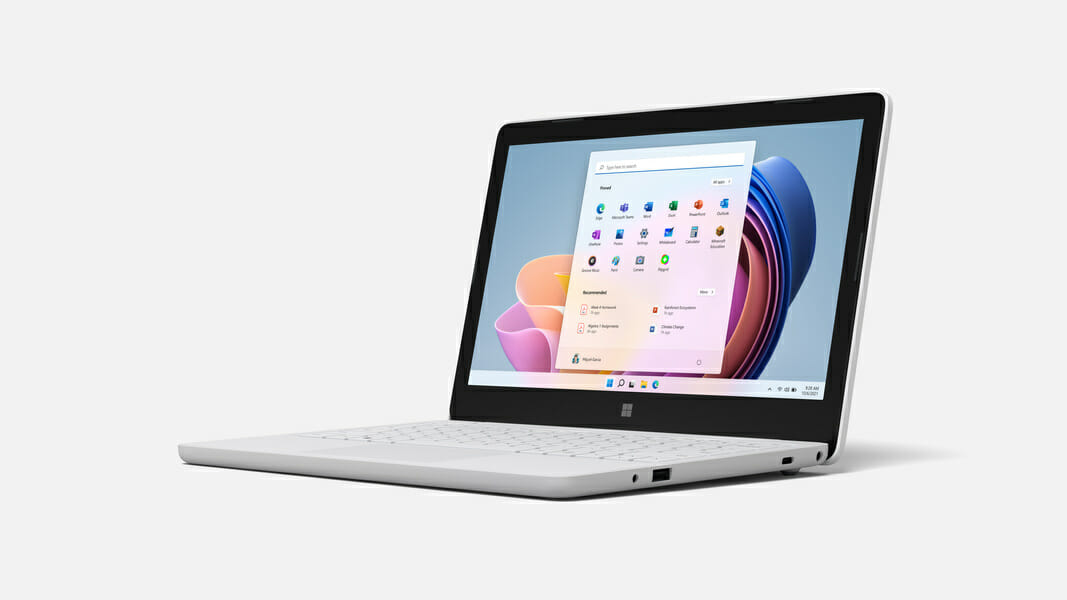
One of the prominent devices that come preinstalled with Windows 11 SE is the Surface Laptop SE starting at $249.99. We have other manufacturers too coming up with devices compatible with this Windows 11 SE. While some of these have already been released, others are slated to hit the market by mid-2022.

Surface Laptop SE (Source: Microsoft)

Can I install any app on Windows 11 SE?

The answer would be No. Also, Windows 11 SE doesn’t ship with the Microsoft Store, so the options would be limited. Though, you can install prominent apps like Google Chrome and Zoom, since these enhance the learning experience.

The whole idea behind Windows 11 SE is to provide an optimal learning environment to students with minimum distraction. In case you are wondering about the apps that can be installed, there are basically six different categories:

  • Accessibility apps
  • Effective classroom communication apps
  • Browsers
  • Test-taking solutions
  • Diagnostics, management, connectivity, and supportability apps
  • Content-filtering apps

If the app you are planning to install falls under any of these categories, check if you can get it on a Windows 11 SE device. Microsoft came up with this category based on feedback from educators and others in the related fields.

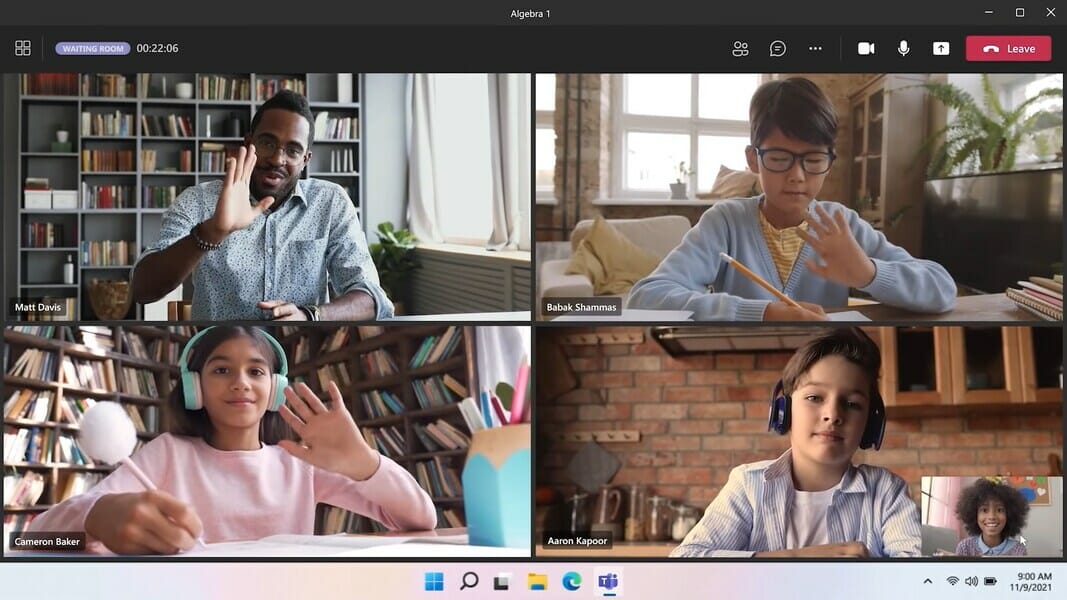
Microsoft Teams in Windows 11 SE

How does Windows 11 SE compare to Windows 11?

While the interface for the two may look similar, the operating systems are different in a lot of aspects. Windows 11 SE offers a restricted environment where the permissions to install apps or configure critical settings rests with the IT administrator.

Prominent apps that can’t be installed include YouTube, Spotify, and most third-party Win32 apps.

Windows 11, on the other hand, offers full control to the end-user who can install the desired apps that are compatible with the OS. Along with that, a user can configure the settings as they please for a wholesome experience.

Coming to the features aspect, Microsoft launched Widgets with Windows 11, but it’s not available on the SE edition. The primary cause behind it, as discussed earlier, is to offer a distraction-free environment to users. Though, if you don’t use the feature often, learn how to disable Widgets in Windows 11.

Another stark difference between the two editions is that while Windows 11 offers up to six snap layouts (depending on the display size), Windows 11 SE offers only two. This can also be attributed to the fact that the devices running the latter edition will have relatively smaller displays.

Snap layouts in Windows 11 SE

Can I install another Windows OS or edition on a Windows 11 SE device?

The permission to install another operating system or edition does not lie with the end-user. So, you basically can’t do it.

However, the IT administrator may install a genuine and licensed copy of the Windows OS, but once Windows 11 SE has been removed, it cannot be reinstalled.

So, before making the decision, weigh the pros and cons since it would be irreversible.

This is based on the currently available resources and the information shared by Microsoft. If and when a workaround or hack is discovered, we will update the article to include it. Bookmark this webpage to stay up-to-date with the latest Windows 11 SE news.

Which is better for me, Windows 11 or Windows 11 SE?

There is no definite answer to this question, and it all comes down to your requirements. Firstly, if you are running Windows 10 on the computer, upgrading to Windows 11 will be a cakewalk, while you will have to purchase a Windows 11 SE compatible device.

Other than the cost factor, Windows 11 SE is primarily meant for K-8 students and offers a restricted environment as discussed earlier. Windows 11, on the other hand, is for universal use and caters to everyone’s requirements.

So, if you are planning to upgrade, go with Windows 11 SE only if you are a student and on-board with the lack of permissions, the inability to install the desired apps, along with missing out on a bunch of other features.

For all others, we recommend looking for Windows 11 compatible devices.

That’s all there’s to Windows 11 SE, its system requirements, along with the other relevant information. You are now in a far better position to decide whether to go for this particular OS.

Also, check out our guide on Windows 11 SE and learn how to install wallpapers.

Tell us your experience of Windows 11 SE and the device you are running it on in the comments section below.

OneDrive sync client for Windows on ARM and M1 Macs is now available in preview

Microsoft has released today a preview version of its OneDrive sync client for Windows on ARM devices and Macs with Apple M1 processors. A native OneDrive app for these ARM-based devices has been a top-requested feature from users, and the new client should bring performance improvements compared to the emulated version for x86 processors.

To try the new native OneDrive sync client, you’ll need to join the Office Insider program on your Windows on ARM PC or Apple Silicon Mac. Then, you’ll need to opt in to get pre-release versions of the OneDrive in Settings > About, and the option to download the OneDrive app built for Apple Silicon or Windows on ARM will appear at the bottom.

thumbnail image 2 captioned Opt-in available for Windows devices

“We will be rolling out this feature to the Insiders ring over the next few days,” the OneDrive team said today. Office for Mac has already been recompiled for Apple Silicon Macs, but OneDrive was the missing piece from Microsoft’s productivity puzzle on macOS. If you have a Windows 11 on ARM device, an ARM64 version of Office for Windows was also released in preview earlier this summer.

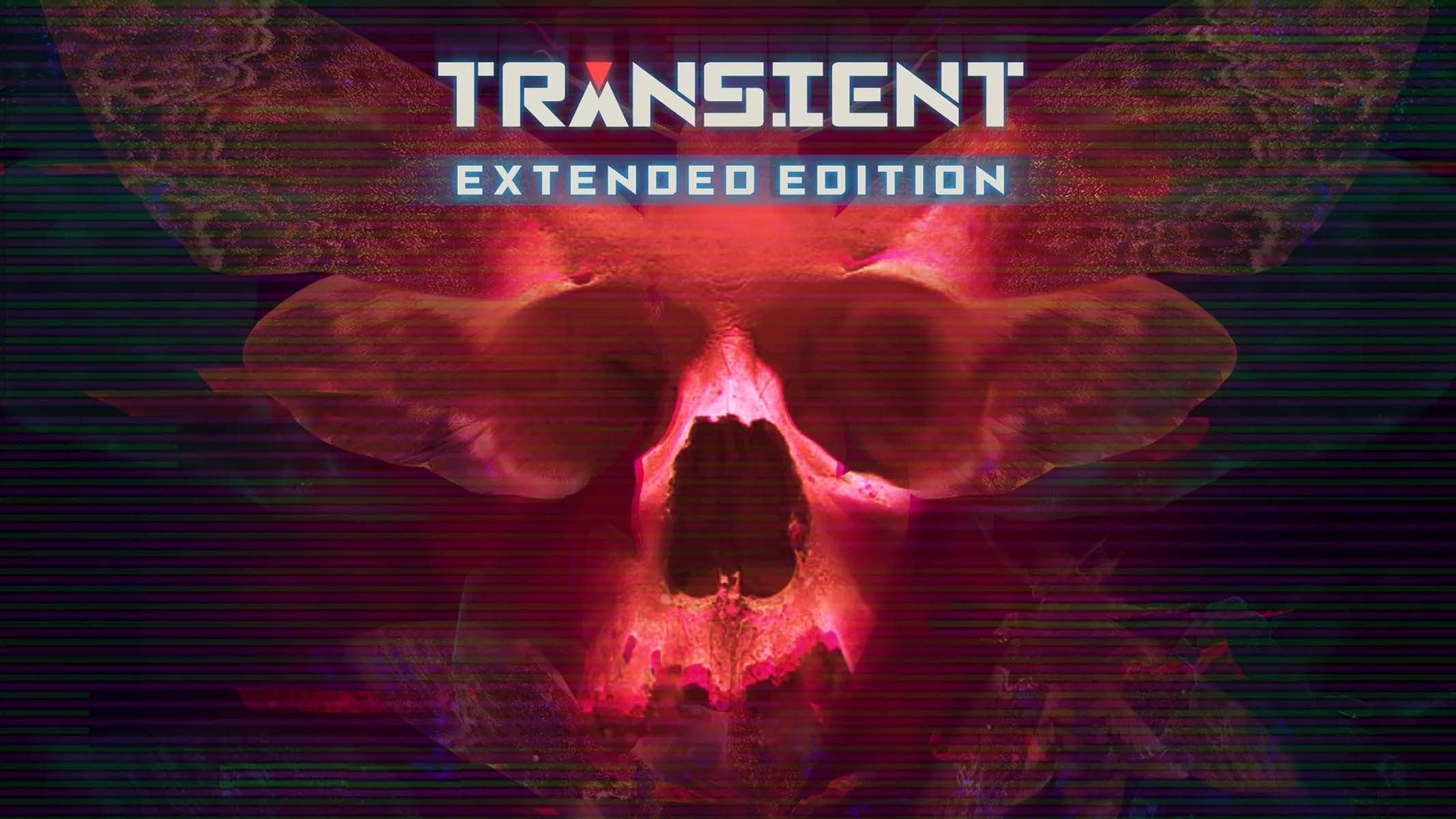
Transient: Extended Edition review – Cyberpunk Lovecraft

Now here’s a genre I can always appreciate: narrative walking sims with a good story that also rewards exploration and have a few interesting puzzles. Transient: Extended Edition offers just that and it bathes it all in a cyberpunk Lovecraftian sauce.

I played the previous game in the series not so long ago, but Conarium didn’t quite have the same appeal. While the Lovecraftian theme was super interesting and had me asking a lot of questions, they never really seemed to answer them in a satisfying way and the game got progressively less entertaining towards the end. I also recall a horrible chase sequence and for me, games like these don’t need an enemy that can kill you.

Luckily, Transient has learned from this mistake and there are no monsters roaming the halls to slow down the pace of exploration and it instead focuses on telling a thought-provoking story in an interesting neon- and rain-drenched post-apocalyptic city.

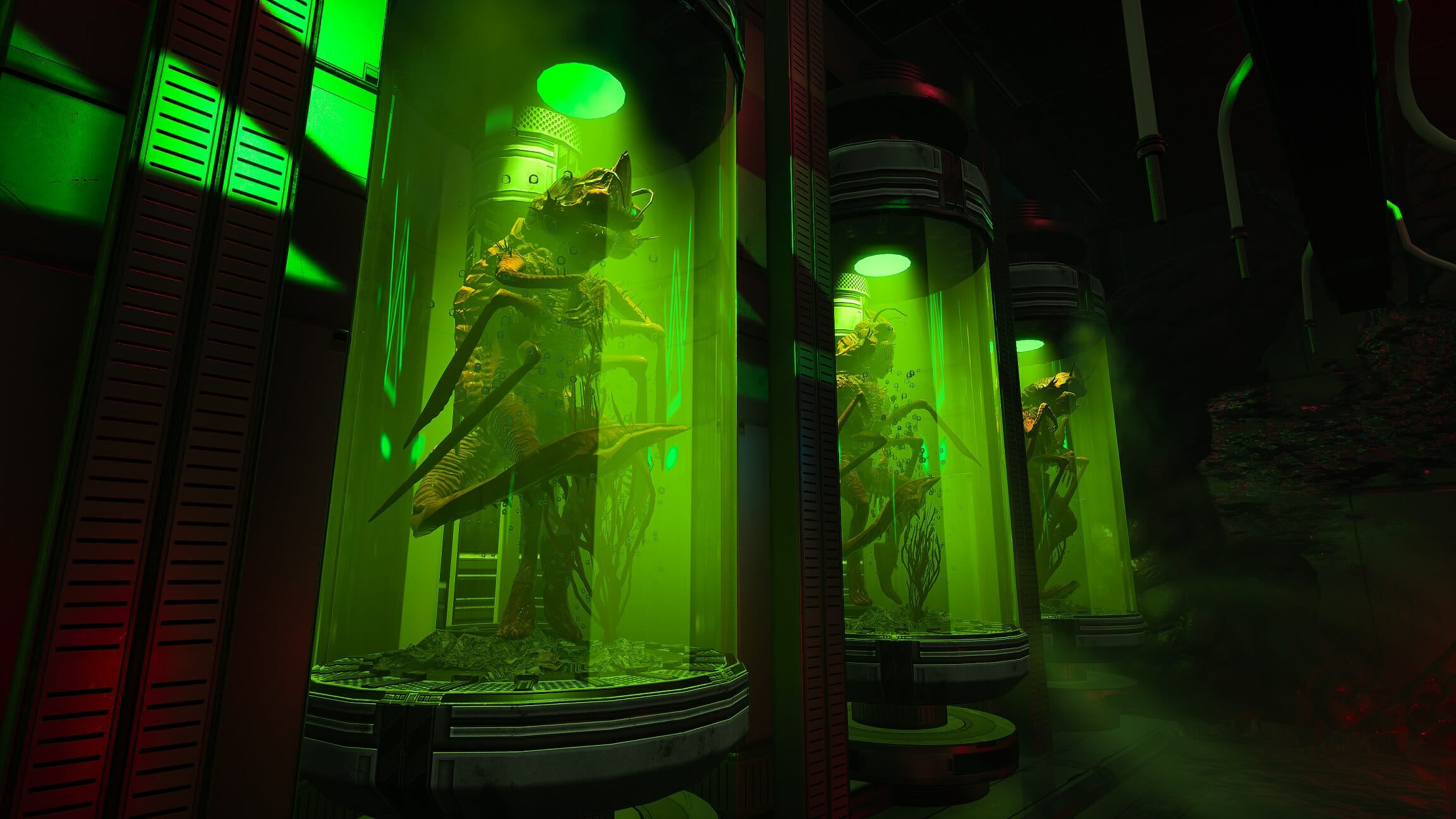
Lovecraftian Horror

I could tell a Cthulhu joke, but it’s an Old One

I’ve mentioned Lovecraftian a few times but for those in the back who are wondering what this means: H.P. Lovecraft was a famous writer who penned stories about giant slumbering creatures, lying in wait in the depths of the ocean, like Cthulhu himself.

A lot of his stories aren’t just about body horror or mutilation, but also about losing your sanity as even knowing about the Old Ones and seeing their true shape would be enough to drive you crazy. It’s in this realm of “there is something greater than all of us” that the games from Stormling Studios take place.

In Transient, we find ourselves in the far future, after catastrophic events made most of the planet Earth inhabitable and the remaining humans had to retreat in a huge city to shield them from mother nature. Technology has progressed quite a bit and the majority of survivors spend most of their time in a sort of VR world, leaving the digital universe only for the bare minimum of bodily necessities.

Gorgeous world

If future media has taught me anything: better invest in Neon now!

I can’t blame them because the world of Transient can be truly beautiful at times. There are a ton of locations that made me pause to take in the fantastic lighting or world design and because of the Inception-like diving into different digital or metaphysical realities, I often lost track of which level of reality I currently found myself in.

While the game is drop-dead gorgeous when you’re standing still, there is an annoying HDR issue that makes lit surfaces and reflections way too bright when you’re moving around. So you might want to consider turning HDR off altogether. (the recording below was done in SDR for that very reason)

The Story

We play as Randolph Carter, a notorious hacker-for-hire, and the AI that rules this city is out to kill you and the other members of your group. Spending time in cyberspace is risky, but you’ll need to delve deeper if you want to uncover the terrifying truth about the world you live in.

You dive in and out of different digital worlds and recordings of your own memory, just to find clues that will help you remember what has happened and how you can prevent your own demise. Luckily you have augmentations that help you investigate your surroundings and an advanced Perception Heightening Implant, or PHI for short will highlight objects to interact with.

PHI: “she’s dead”

That’s the surface story at least, but you soon discover there are more cosmic powers involved and humanity is faced with a choice between annihilation and evolution, but the end result may not be entirely desirable. There is a constant tug of war between the two parallel narratives fighting for your attention and it often raises more questions than it answers.

Without going into spoiler territory, I was a bit bummed about Transient’s ending leaving too many of those questions unanswered, and even having seen both outcomes, I’m unsure of what happens next and it seems like too many story threads never come to a satisfying conclusion.

Cyber sleuthing, hacking and playing games

Next to exploring, reading found documents, and talking to people, there are also a few interactive gameplay elements that spice up the experience. Even though Transient is already a rather short experience, it was still very welcome when I had to dive into a hacking minigame, pilot a drone down a vent, or play games within the game.

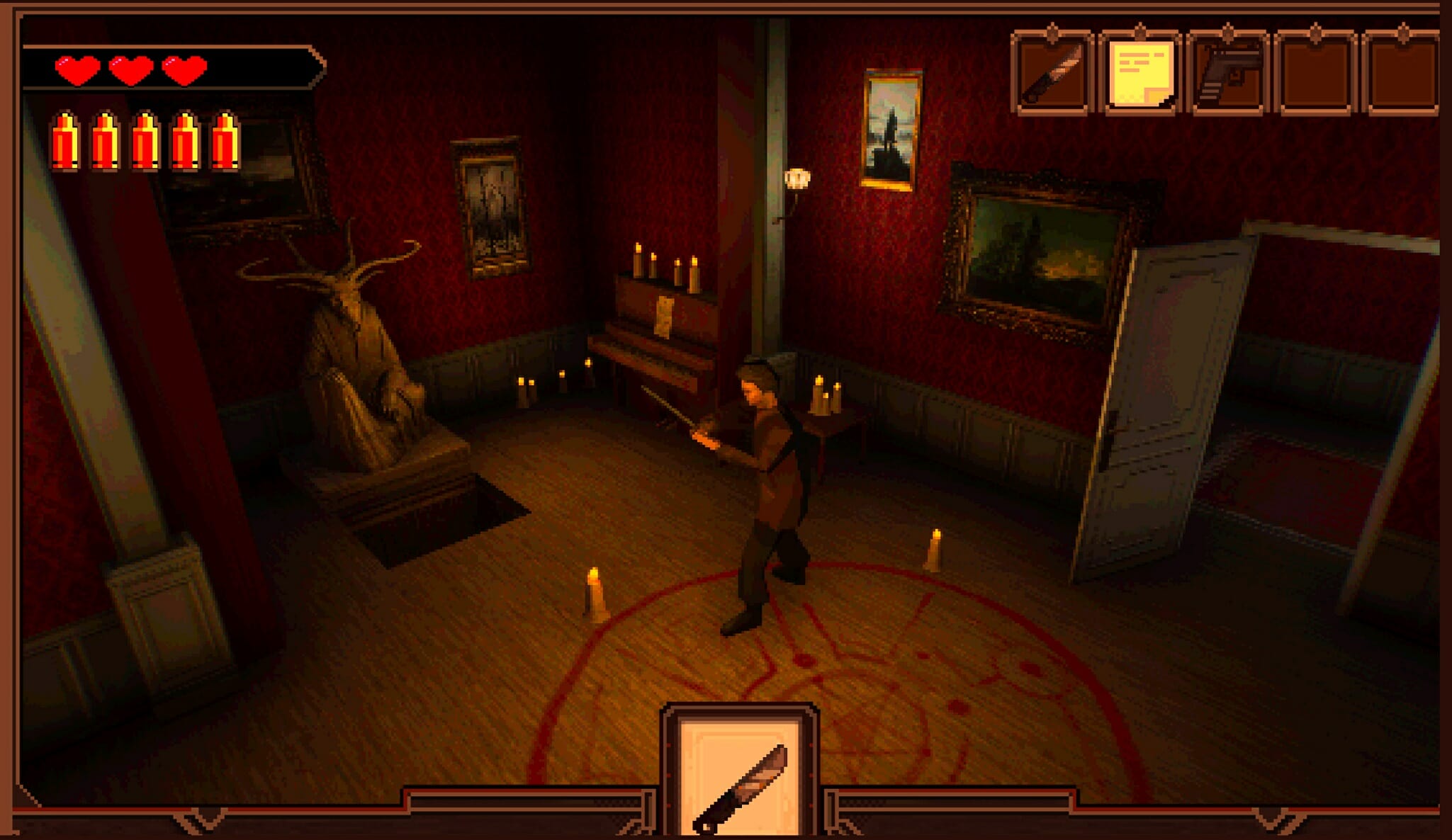
That’s right, one of your fellow hackers has hidden clues in videogames he has made and you get to play them! The first one looked like a Playstation one Era Resident Evil tribute (much like Alisa, which I reviewed not so long ago).

Tank controls and all!

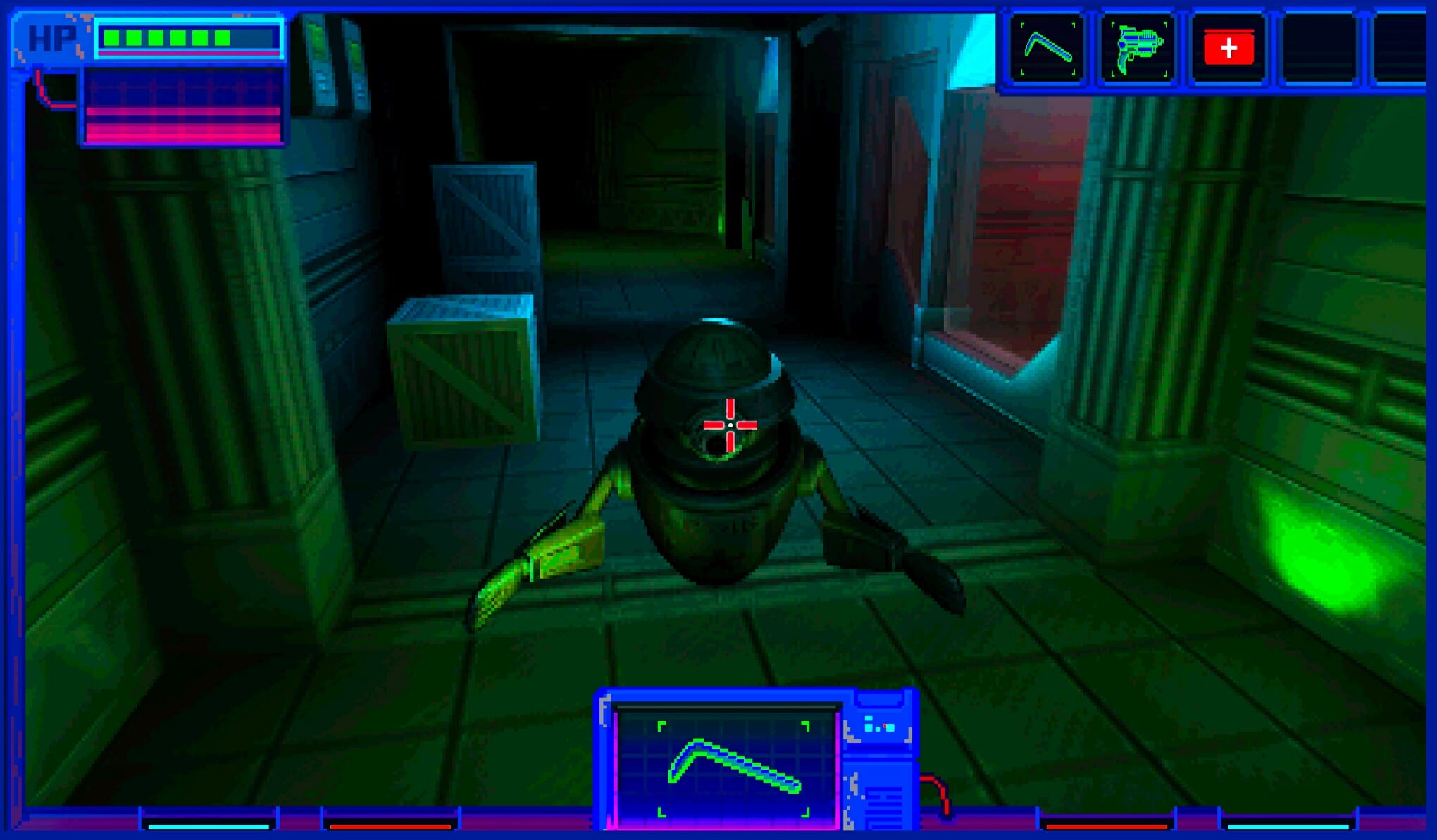
And a few moments later you’re picking up a digital crowbar and wacking robots in the next game that evokes a mix of System shock and Half-life. They’re fun distractions and there are even a few achievements for things like not dying or only using your melee weapons.

it’s Half-life, Jim, but not as we know it!

What’s new about the Extended Edition?

It’s hard to tell just why they named this the Extended Edition. I haven’t played the first version but found myself using a walkthrough of the original game to avoid missing too many achievements and noticed that 95% is easily the same as it has ever been.

Time to point out the things that have been added!

*points*

There has been some quality of life improvements, like being able to load any of the separate chapters making it easier to go for the speedrun achievement or go back for missing collectibles, though beware: at least one of them has changed location so older guides may need to be updated.

There is a new puzzle that has been added at the end of the game that resembles the old Pipe Mania games; you need to remove blocks, place them and rotate them to unlock a few doors. This happens while a countdown has started and failing it will trigger an alternative ending that strangely has more information than when you succeed and see the “happy” ending if you can call it that.

How long to beat and complete?

Transient is not a long game and the Extended Edition doesn’t add a lot of content. My first playthrough clocked in at 3 hours and 10 minutes, and while I was using a guide for a large part of it, I also frequently stopped to look at the pretty environments. A first-time player that isn’t using any outside assistance can count on beating this in 3-4 hours.

Mapping out the missing achievements

There’s a fun list with 27 achievements, however, which prolongs the experience somewhat. You can reload chapters to find missing collectibles or try to attempt the minigames with more success if you failed at them or took too long the first time.

There is also a final speed-run achievement that tasks you with beating the game in 90 minutes, something that strikes me as odd for a narrative game but I guess it doesn’t reward knowing the game inside and out. Getting the full 1000G will probably take you around 5 hours.

Gotta catch them all!

Final thoughts on Transient: Extended Edition

Pros
Fantastic looking world
Blends Cyberpunk and Lovecraft in an interesting way
Lots of gameplay variation
Cons
Rather short and leaves many questions unansweredHDR issues when moving through the game world

Final Score: 3.5/5

Transient: Extended Edition is a narrative adventure that combines a cyberpunk setting with Lovecraftian lore and succeeds at creating an interesting blend that will keep you guessing for its entire runtime. It’s just a bit disappointing that it leaves so many questions unanswered and that the Extended Edition doesn’t truly bring a Next-Gen experience, with HDR ruining the experience, rather than augmenting it.

It does improve in many ways on its predecessors and gives me hope for new games by the developer if they keep building on the formula and making a better game each time.

Transient: Extended Edition costs around $19.99 and is available in Windows PC, Xbox consoles, Playstation consoles, and Nintendo Switch.

*Disclaimer: Reviewed on Xbox Series X. Review copy provided by the publisher.

FIX: MSCOMCTL.OCX or one of its dependencies not registered

Your PC has many files that are required to work properly, and some of them come along with Visual Basic 6.0.

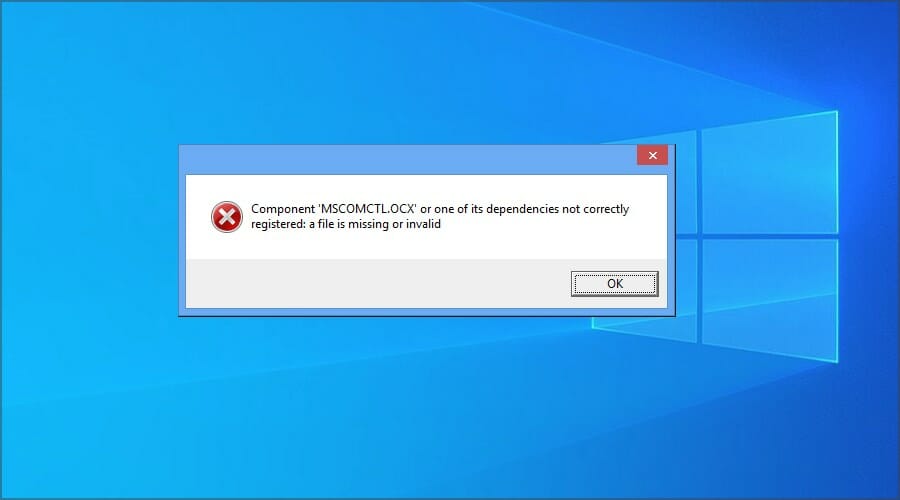
If there’s an issue with it, you’ll encounter MSCOMCTL.OCX or one of its dependencies is not correctly registered error message.

The error will prevent the software from running properly, and in many cases, you won’t be able to use it at all until you resolve the problem.

This is why it’s important to fix this issue, and in today’s guide, we’re going to show you the best ways to do that.

How does MSCOMCTL.OCX work?

MSCOMCTL.OCX is an ActiveX control file that’s a part of the antiquated Visual Basic 6.0. However, older software might still need this file in order to work. You’ll also need this file to enable Microsoft Date and Time Picker Control on Word, Excel, etc.

If you get this error message, it means that the required file for the software isn’t registered or is missing, and the desired application won’t be able to run.

What is Visual Basic 6.0 used for?

Visual Basic is an object-oriented programming language developed by Microsoft. It was used to create software, but in order to utilize it, you need to have the proper components installed.

If your PC doesn’t have the necessary files installed, the application created in this language won’t be able to start and you’ll most likely get an error message.

How can I fix MSCOMCTL.OCX is missing error?

  1. Check the system details
  2. Register the MSCOMCTL.OCX File on 64-bit Systems
  3. Register the MSCOMCTL.OCX File on 32-bit Systems
  4. Reinstall the software that is giving you this error

1. Check the system details

  1. Press the Windows key + S hotkey.
  2. Enter the system information in the search box. Click on System Information.
  3. Then select System Summary, and check the System Type detail there. An x64 system type is a 64-bit system.

2. Register the MSCOMCTL.OCX file on 64-bit systems

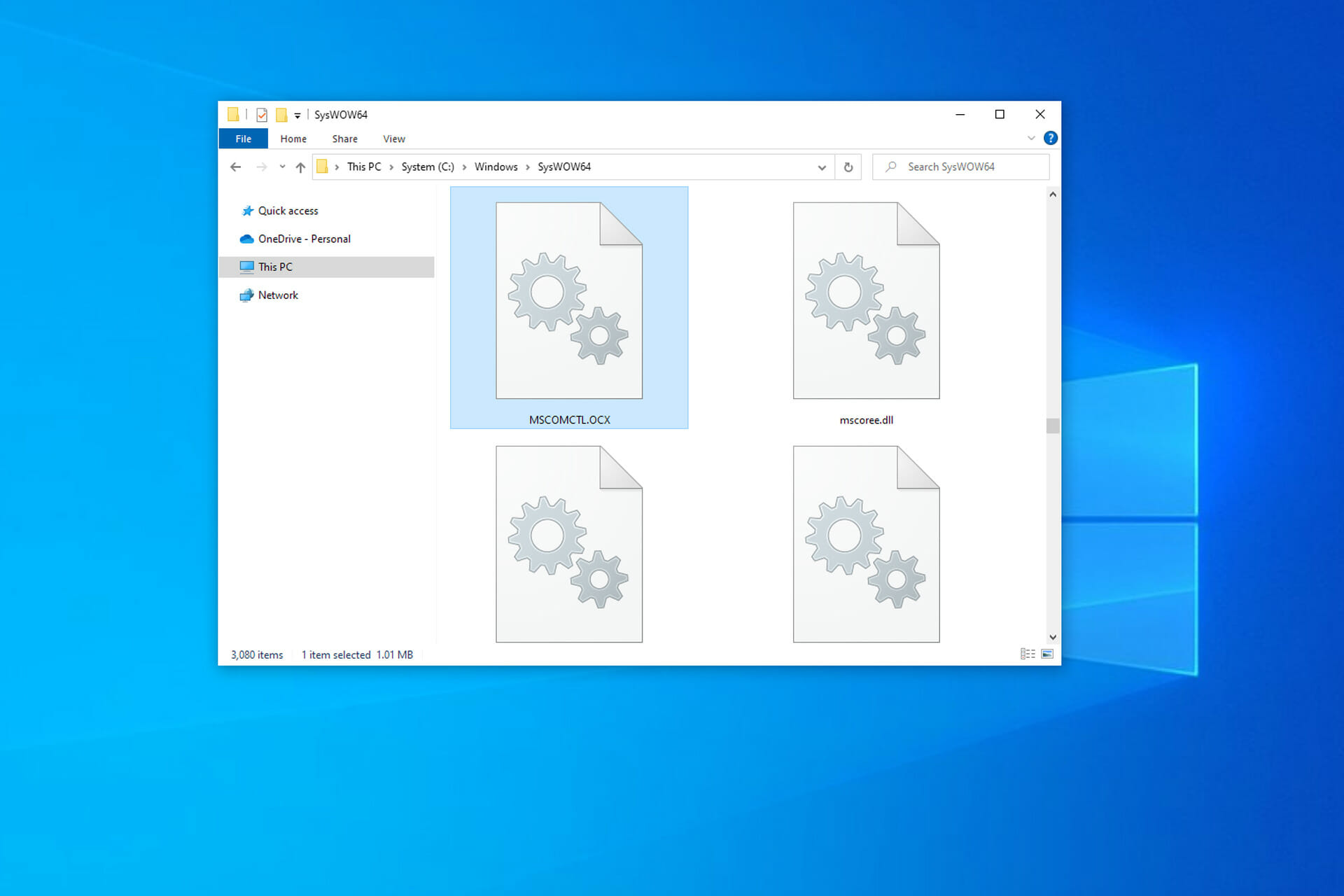
  1. Open File Explorer and go to C:\Windows\SysWOW64
  2. Check if MSCOMCTL.OCX is available. If not, you need to get one from another PC or by installing the necesasry components.
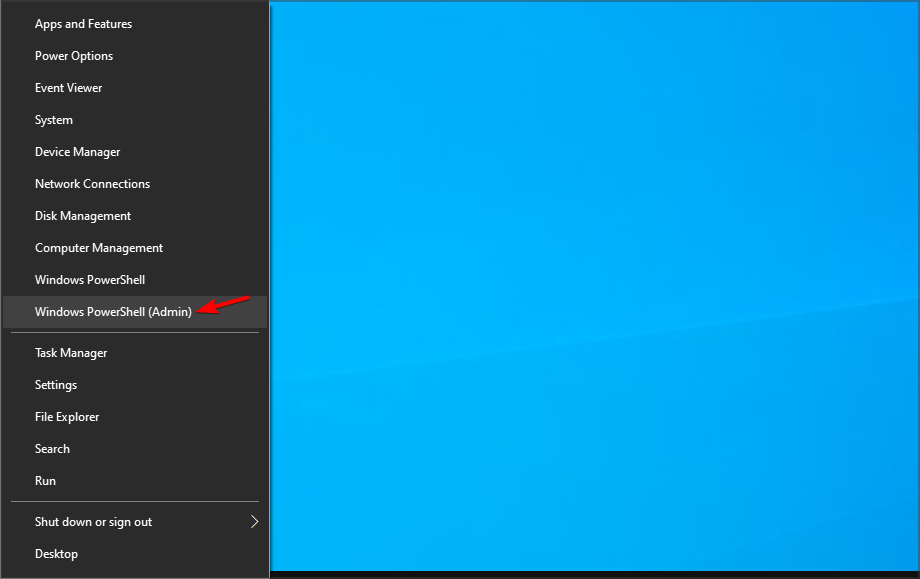
  3. Press Windows key + X and choose Windows PowerShell (Admin) from the menu.
  4. Enter the following command and run it: cd C:\Windows\SysWOW64
  5. Now run the following command: regsvr32 mscomctl.ocx

3. Register the MSCOMCTL.OCX File on 32-bit systems

  1. Check if the MSCOMCTL.OCX is avilable in C:\Windows\System32
  2. Press Windows key + X and select Windows PowerShell (Admin).
  3. By default you should be inside of System32 folder, but if you’re not, run the following command: cd C:\Windows\System32
  4. Run: regsvr32 mscomctl.ocx

4. Reinstall the software that is giving you this error

  1. Press Windows key + I to open the Settings app.
  2. Navigate to the Apps section.
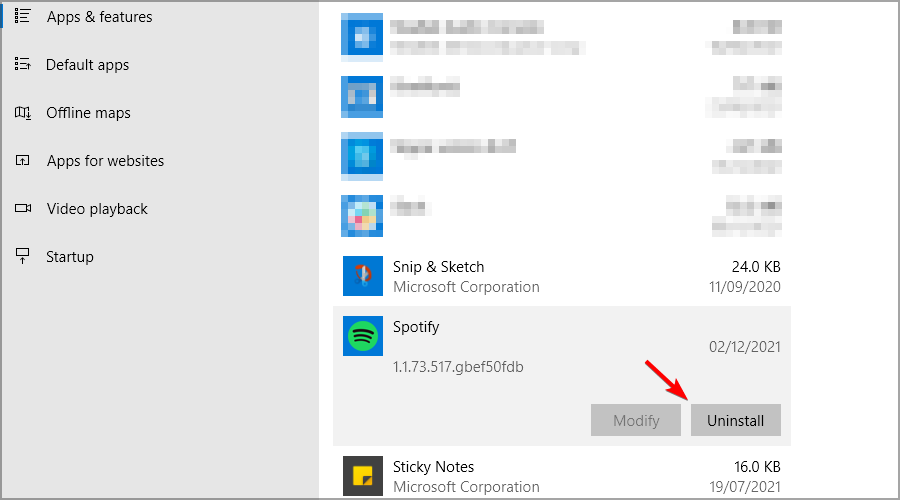
  3. Select the software that is giving you this error and click on Uninstall.
  4. Follow the steps on the screen to uninstall it.
  5. After uninstalling the software, install it again.

Can I just copy MSCOMCTL.OCX to my PC?

Yes, copying the file should do the trick, but this is just a workaround and not a reliable solution. Plus, it can be a security risk.

If you plan to copy this file to this PC, be sure to get it from a reliable source, or better yet, download all the necessary components from Microsoft.

How can I download MSCOMCTL.OCX?

  1. Visit the Visual Basic 6.0 download page.
  2. Now click on Download.
  3. Run the downloaded file.
  4. Wait for the application to install.

So, that’s how users can fix the MSCOMCTL.OCX error message in Windows to kick-start certain programs. Fixing the issue is simple, and the quickest method is to use the best uninstaller software to reinstall the problematic app.

The issue can occur due to missing files, and to see how to fix that, visit our missing DLL files guide for more in-depth information.

Did you find a solution to this problem on your own? Let us know in the comments section below.

Windows 11 DHCP Not Working? How to Properly Enable

DHCP, or Dynamic Host Configuration Protocol, is a protocol that is used to automatically assign IP addresses to your computer. It can also be used to configure other aspects as well such as the subnet mask, default gateway, and DNS server information.

A computer or device must connect to a DHCP server to get a unique IP address and configure its other network information. The majority of the time, a network router serves as the DHCP server, but a computer can do this job as well.

It’s not just computers that use DHCP, but also switches, video game consoles, and smartphones. The process starts as the device requests an IP address from the DHCP server which then assigns an IP address so that the device can communicate with the network.

What is DHCP used for?

Internet service providers (ISP) use DHCP to provide IP addresses to their customers and there are multiple reasons for which they do this. Dynamic IP addresses are more flexible than static addresses and are easier to set up and administer.

A dynamic IP address will change after a set period, usually a few months. If static addresses were the norm, you would have to sign in every time to use a network rather than just automatically connecting.

And if they were assigned manually, ISPs would have to manually give out the address to a new device and other devices in that network must then change over to the new one.

This would make connecting a device to a router very time-consuming and having to manually change everything would increase the likelihood of errors occurring.

With that said, this guide will show you how to multiple ways connect to a DHCP server. The guide will also show how to disable DHCP if you wish to create a static IP address instead.

How can I connect my computer to a DHCP server?

1. Enable DHCP using the Control Panel

  1. Click on the magnifying glasses icon on the bottom bar to bring up the Search bar.
  2. In the Search bar, type in Control Panel.
  3. Click Control Panel when it appears. You will be taken to the Windows 11 Control Panel.
  4. In the upper right-hand corner, you see a selection called View By. Click it and select Large Icons.
  5. Locate and select Network and Sharing Center.
  6. In the middle of the new window, locate the Network section.
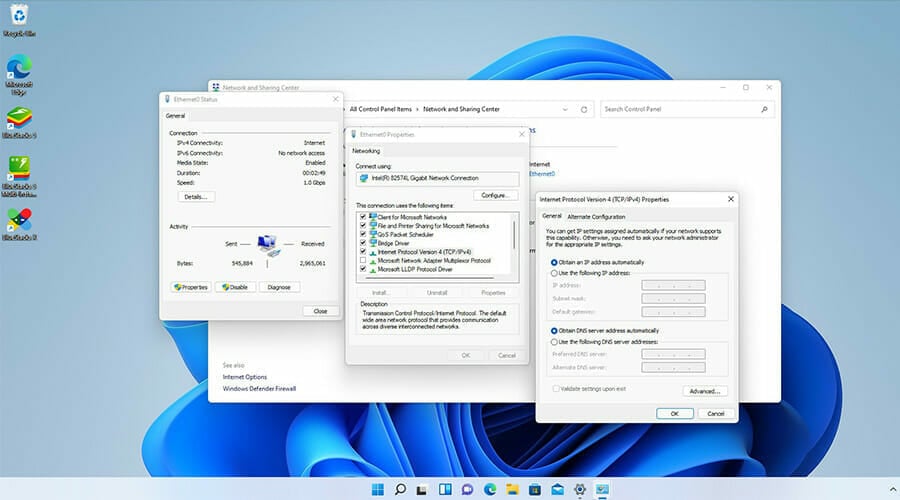
  7. Click on the Ethernet0 connections option.
  8. A small window will appear. Select the Properties button located near the bottom of the window.
  9. In the new Properties window, select Internet Protocol Version 4 (TCP/IPv4).
  10. While Internet Protocol Version 4 is highlighted, select Properties and you will be taken to another window.
  11. Check and make sure Obtain an IP address automatically and Obtain DNS server address automatically are both selected.
  12. If they are already active, you don’t have to do anything else. If no, click on them to activate them.
  13. One done, click Ok at the bottom to save everything and exit after.

This options should help if you get errors like DHCP not enabled for Ethernet or DHCP not enabled for WiFi.

2. Disable DHCP Using the Control Panel

  1. On the same Internet Protocol Version 4 Properties windows, select the Use the following IP address option to disable DHCP.
  2. Then select Use the following DNS server addresses option below to disable access to a provided DNS server.
  3. From here, you can type in your own IP address, subnet mask, and default gateway for your network.
  4. Below that you can connect to your preferred DNS server.
  5. After you’re done, click the Ok button at the bottom to save.

3. Enable via the Settings menu

  1. Open the Start menu by either clicking on the Microsoft logo on the bottom of the screen or hit the Windows key on your keyboard.
  2. In the Start menu, click the Settings icon to open the Settings menu.
  3. Click on the Network and Internet tab.
  4. Click on the Ethernet tab. In other Windows 11 computers, it may say Wi-fi network.
  5. Scroll down until you see DNS server assignment.
  6. Click the Edit button next to IPv4 DNS servers.
  7. A small window will appear with the words Edit DNS settings above. If the tab in the middle states Automatic (DHCP) then you have nothing else to do.
  8. However, if it states Manual instead, disable the IPv4 tab by switching it over to off.
  9. Then click on Manual to open the drop-down menu and select Automatic.
  10. Hit Save when you’re done.
  11. Once done, click on the Edit button above DNS server assignment next to IP assignment.
  12. A small window appears called Edit IP settings. If it says Automatic (DHCP) you have nothing to do.
  13. If it states Manual, do the same as before and disable Ipv4.
  14. Then select Automatic in the drop-down menu and hit save.

4. Troubleshooting DHCP issues

  1. Open the Start menu again and type in Settings.
  2. Go to the Network and Internet tab and scroll down to Advanced network settings.
  3. In Advanced network settings, scroll down to Network reset.
  4. Select the Network reset tab and go to the next window.
  5. Press the Reset now button.
  6. A window will appear asking if you want to reset the settings. Select Yes.
  7. A window appears stating that you will restart in a few minutes.
  8. Close the window and manually restart by opening the Start menu and click on the Power button.
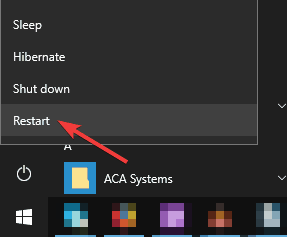
  9. Select Restart on the menu.
  10. After restarting, any issues with a DHCP should be resolved.

What if I want to use a static IP?

As the name suggests, a static IP address does not change. It consistently stays that way. Once a computer has a specific address tied to it, a DHCP server can be set up to forward inbound requests to that computer.

These types of IP addresses are useful if you host a website from home, have a file server on your network, and many other situations.

Outside of these situations, it’s recommended that you stick to a dynamic IP address and DHCP. A static IP can be difficult to use because there is a lot of upkeep that goes along with it and a lot of things could go wrong if you’re not an expert.

An IP address is something incredibly important to protect and hide. If a bad actor somehow gets access to yours, that could spell a lot of trouble for you and your devices. Using a VPN is a great way to protect your IP address while you surf the internet.

It’s also recommended that you hide your IP address while on a LAN. There are multiple ways of doing like a VPN as mentioned or you could use a proxy server instead.

Before leaving, find out what to do when DHCP is not enabled for Wi-Fi. We also have a guide on what to do if you can’t react DHCP server, so don’t miss it.

Feel free to leave a comment below if you have any questions on other DHCP, IP addresses, or other issues. Feel free to leave comments about guides that you’d like to see or information on other Windows 11 features.

How to Unblock Microsoft Store in Windows 10

Some users have stated in forum posts Microsoft Store is blocked and some of them also received the error code 0x800704ec when they tried to access the app.

This problem may be caused by many causes. For instance, maybe your system administrator blocked the app from Group Policy or by editing the registry.

Another possible reason would be that some program is blocking the app. Your antivirus might also be responsible for that.

Anyhow, we will provide all the possible solutions to fix the Microsoft Store is blocked issue and you will soon find a resolution.

Quick Tip:

You should also try using a browser to visit Microsoft Store. Before creating these solutions, we undertook troubleshooting into the Opera One browser to check if there are any other issues whatsoever.

We tried it on Opera One because it has a VPN and can unblock restricted applications, games, and other content. You may also check your login credentials and if you have limitations placed by your ISP.

Opera One

Login through the web crawler and check for restricted access or blocked content.

How to fix the Microsoft Store if it’s blocked?

1. Open the Windows Store Apps troubleshooter

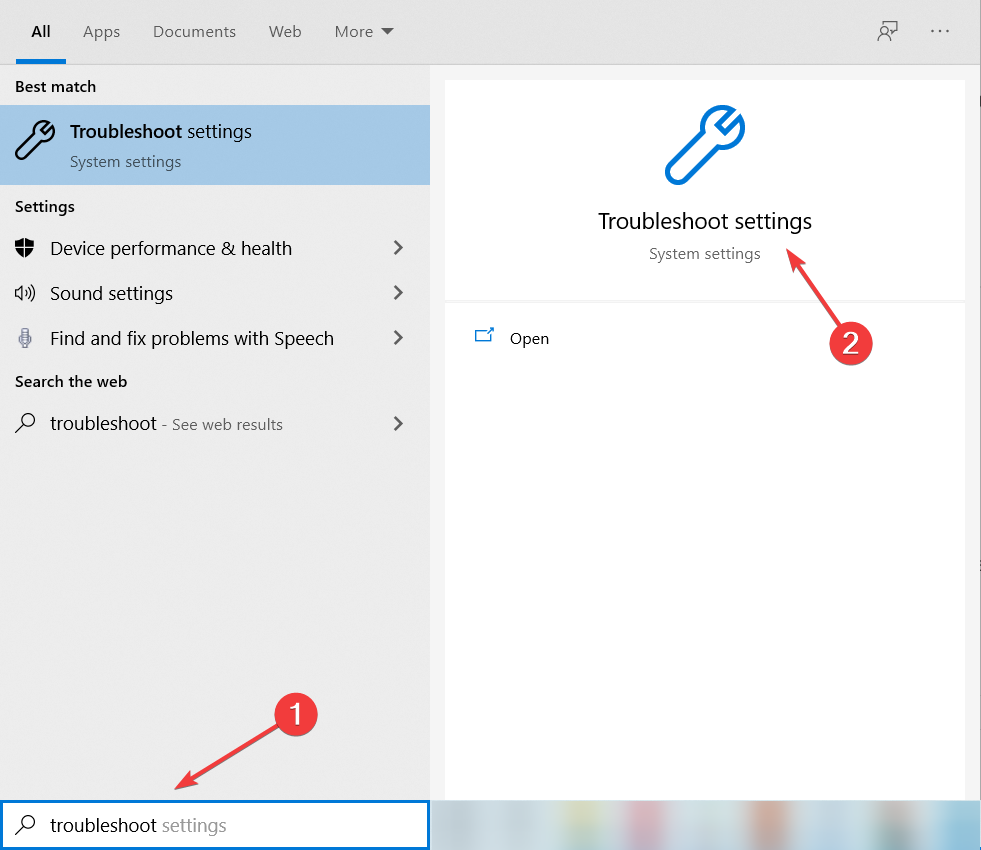
  1. Type troubleshoot in Windows search and select Troubleshoot settings from the results.
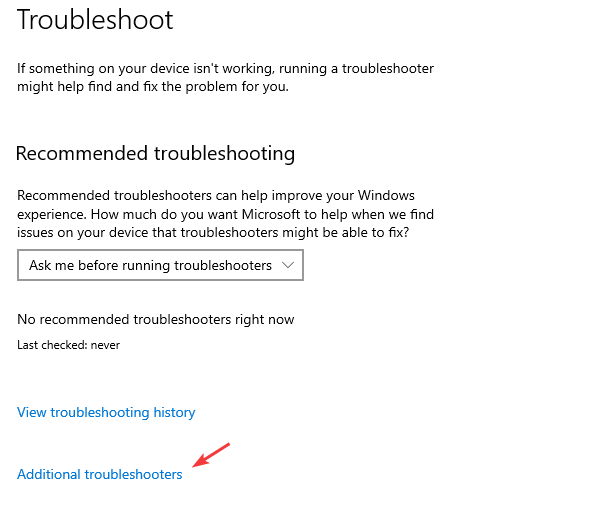
  2. Click on Additional troubleshooters from the right pane.
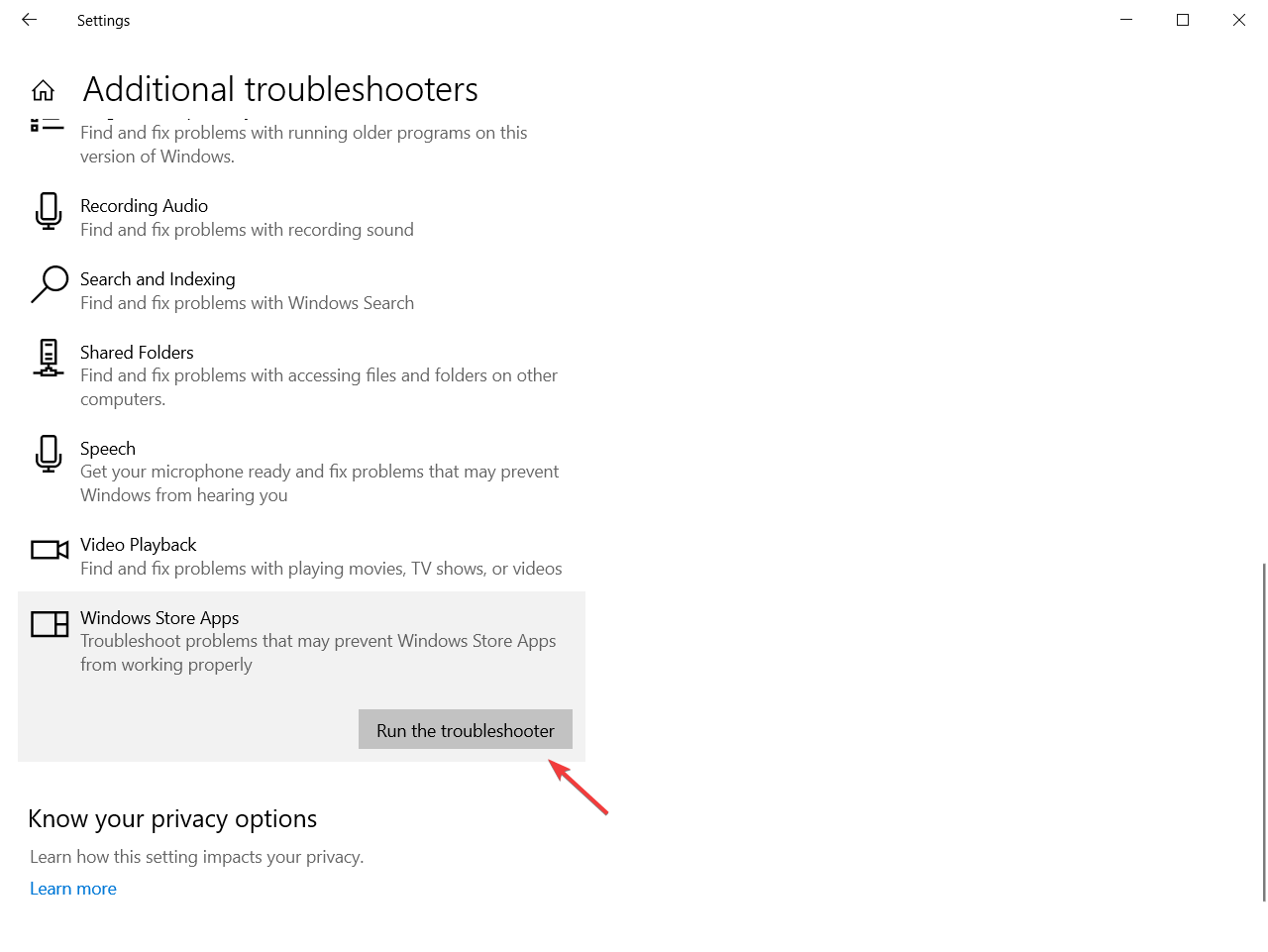
  3. Select Windows Store Apps to press its Run the troubleshooter button.
  4. Thereafter, users can go through resolutions suggested within the Windows Store Apps troubleshooter.
  5. Perform the additional steps required to complete the troubleshooter.

First, try opening the Windows Store Apps troubleshooter in Windows 10. That troubleshooter can resolve all sorts of UWP app issues.

Follow the guidelines above to open the Windows Store Apps troubleshooter.

2. Clear Microsoft Store’s cache

  1. Press the Windows key + R to start the Run app.
  2. Type wsreset.exe and press Enter or click OK.
  3. The reset will take a few settings and then the Store will open again.

The Microsoft Store is blocked bypass issue might be due to a corrupted MS Store cache.

Users can fix that cache by clearin it. It’s very easy to do that if you follow the easy steps described above.

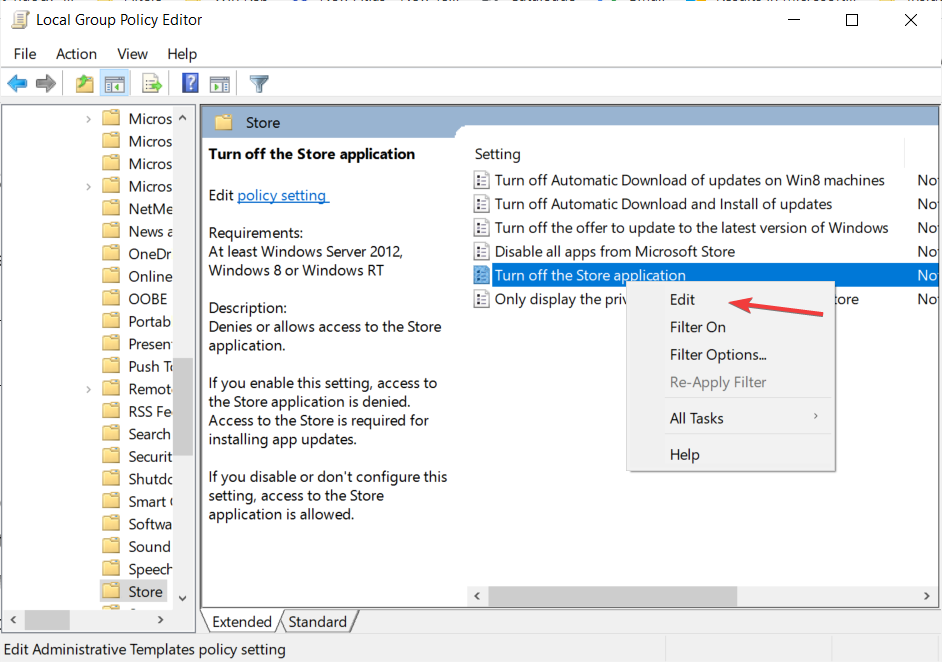
3. Enable Microsoft Store from the Group Policy Editor

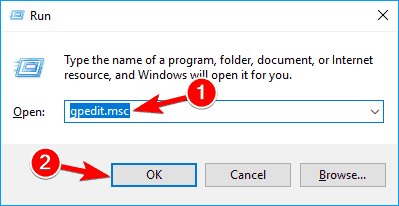
  1. Press Windows + R, type gpedit.msc and click OK or press Enter.
  2. Navigate to the following path on its left sidebar: Computer Configuration\Administrative Templates\Windows Components\Store
  3. In the right pane, locate the Turn off the Store application policy.
  4. Right-click on it and select Edit.
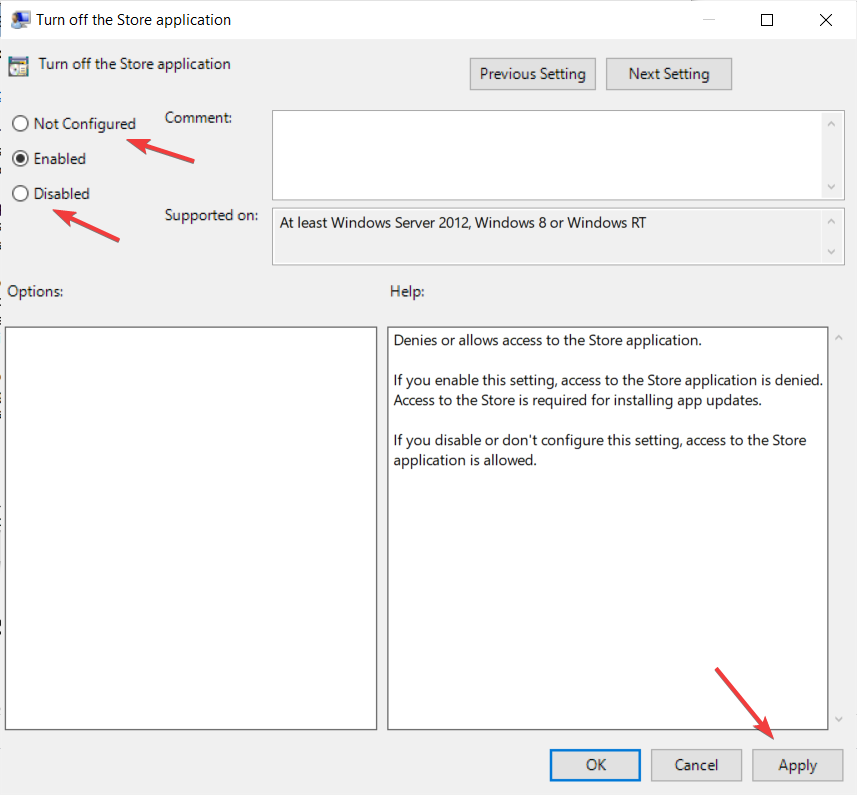
  5. If the setting is Enabled, then modify its feature to Not Configured or Disabled, then hit the Apply and OK buttons.
  6. Restart the computer for the changes to take effect and open the Store app again.

If you got the Microsoft Store message that This app has been blocked due to company policy, you can also use your expert guide on how to unlock an app from Group Policy.

If you received the Microsoft Store is blocked. Contact your administrator or Microsoft Store This app has been blocked by your system administrator the steps above will help you clear the issue.

We also have another great guide that will help you if the administrator has blocked a program on your PC.

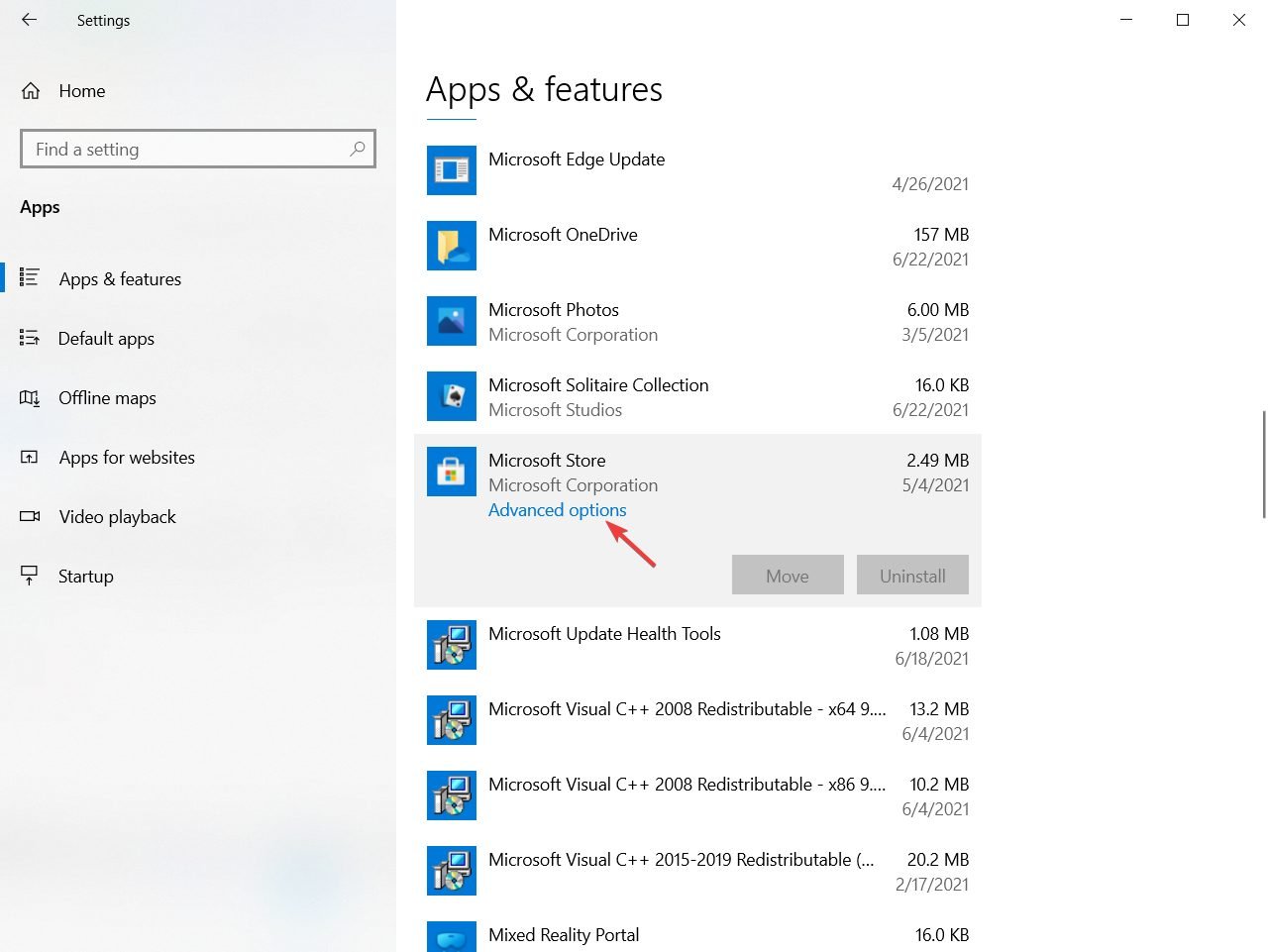
4. Reset the Microsoft Store app

  1. Press the Windows key + I to start the Settings app.
  2. Click on Apps.
  3. Locate the Microsoft Store app, click on it and then select Advanced options.
  4. Scroll down and click on the Reset button. Keep in mind that this will erase all the app’s data, preference, and sign-in details.

Resetting the Microsoft Store will basically clear all its data so it’s like you reinstall it fresh.

However, if you get the Microsoft Store is blocked code: 0x800704ec in Windows 10 you might also check our full guide on how to fix all Microsoft Store error codes.

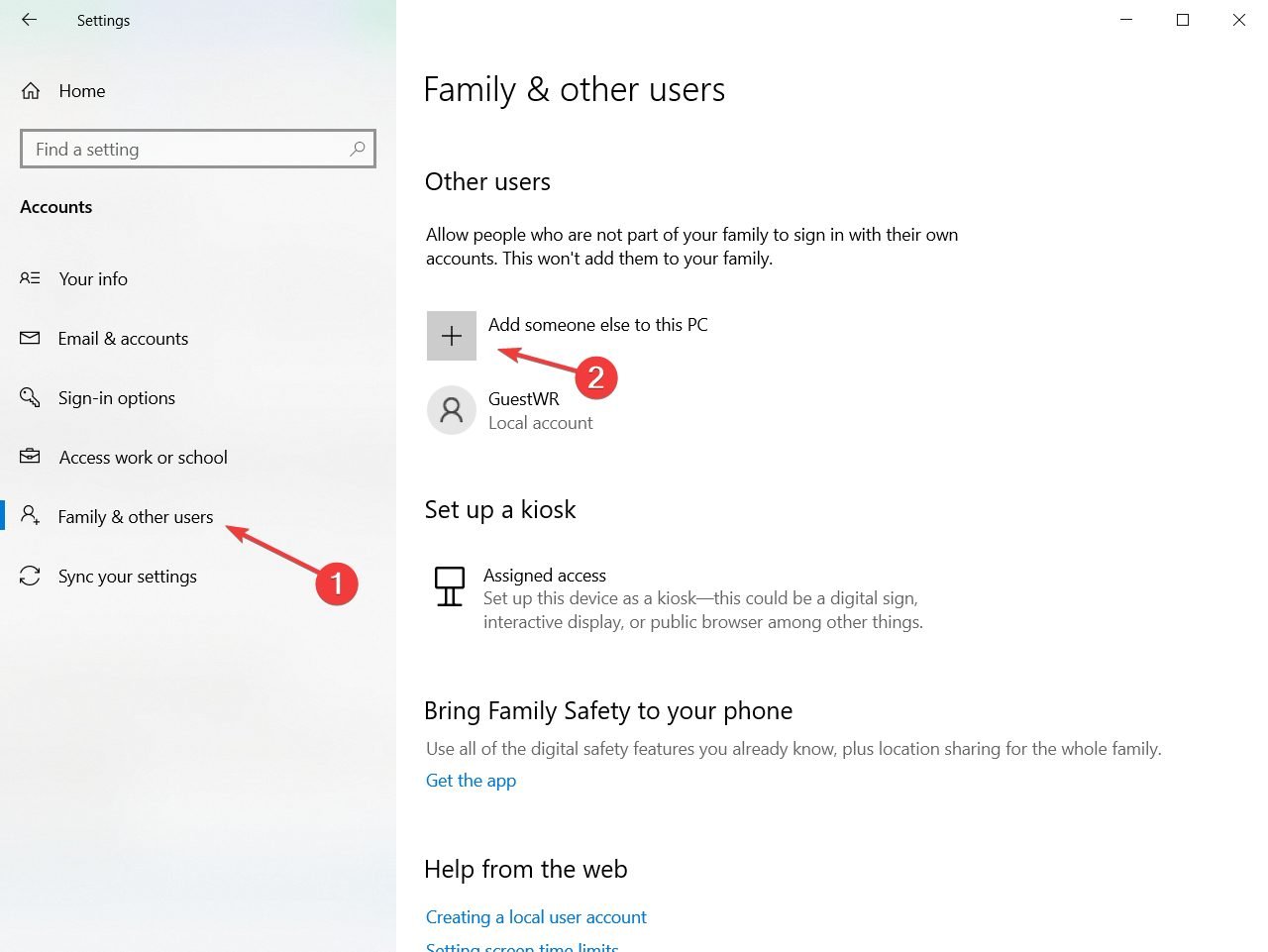
5. Try using a different user account

  1. Press the Start button and click the Settings option.
  2. Select Accounts and click Family & other users.
  3. Select the Add someone else to this PC option.
  4. Click I don’t have this person’s sign-in information.
  5. and the Add a user without a Microsoft account option.
  6. Then enter the required account details in the text boxes, and press the Next button.
  7. Restart Windows after setting up the new account.
  8. Log in to the new user account.

If you have an alternative user account that you can log in to, try downloading it within that account. The app might download ok within another account.

Alternatively, users can set up a new user account. The steps above will help you set up new Windows 10 account.

6. Check for Windows 10 updates

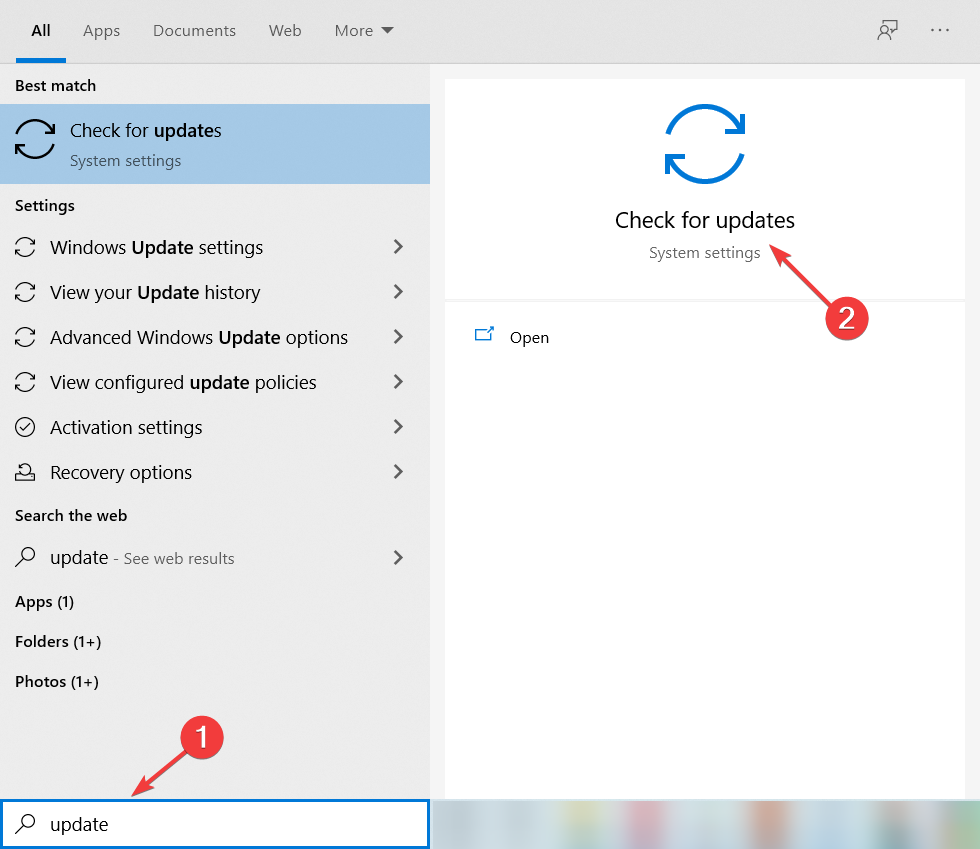
  1. Type update in Windows search and click on Check for updates.
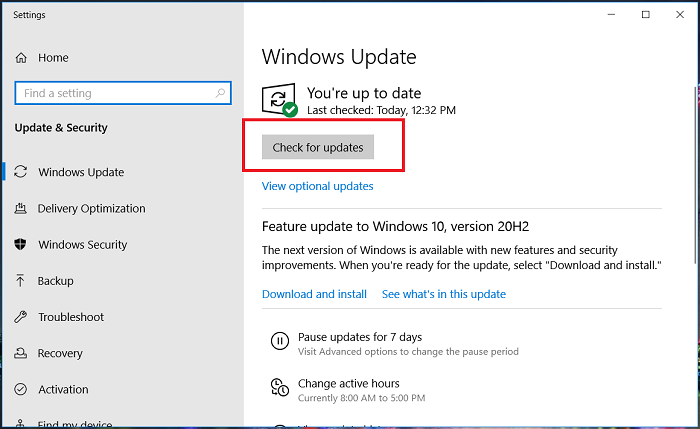
  2. Click the Check for updates button.
  3. Press the Install now button if updates are available.

Some users have confirmed that Windows updates fixed the error for them so it might be worth checking for and installing updates.

7. Turn off third-party antivirus software

Third-party antivirus software could be another potential factor behind the Microsoft Store blockage error. To ensure that isn’t the case, disable third-party antivirus utilities.

The system tray on the right of the Windows 10 taskbar includes antivirus utility icons that users can right-click to open context menu options for the installed software.

Those context menus usually include a disable setting of some description that users can select to turn off the antivirus utilities.

Those resolutions might resolve the error for some users so they can use Microsoft Store once again.

In the unlikely event that the app is still not working, you can check out our article about other general Microsoft Store fixes.

If you have any other questions or advice, we’re waiting for them in the comments section below.

Your computer is configured correctly but the device isn’t responding [FIX]

DNS server issues, which are otherwise net connection errors, are not entirely uncommon. Some users will run the Internet Connection troubleshooter in Windows when there’s a DNS server error.

Then they might see this error message within the troubleshooter:

Your computer appears to be configured correctly, but the device or resource (DNS server) is not responding.

What to do if your internet doesn’t work as the device or resource (DNS) isn’t responding on Windows?

The first step is to reset your router. Occasional IP conflict might be at hand and this step should resolve it.

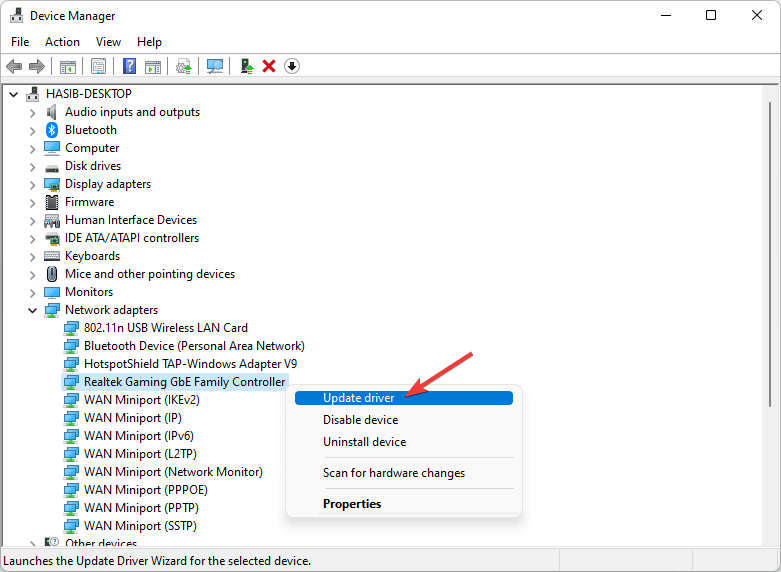
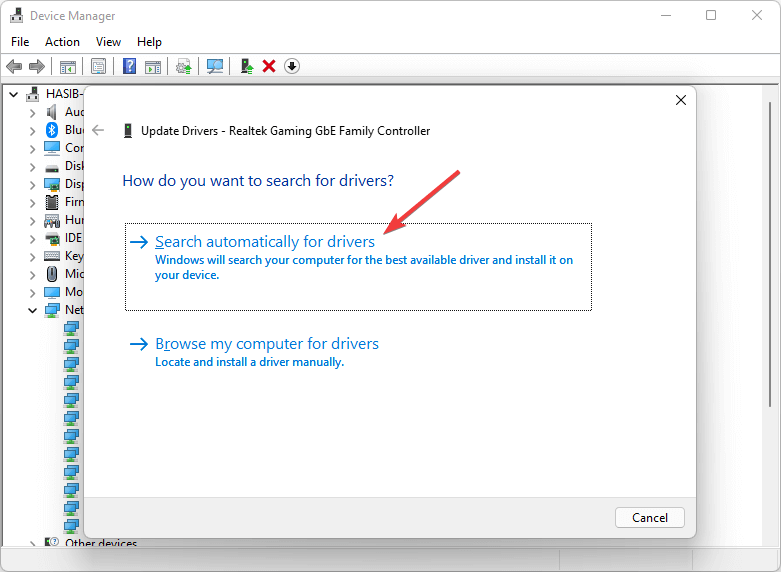
Alternatively, try switching to Google’s DNS server, flushing the DNS cache, or updating the Network Adapter driver.

A detailed explanation of each step can be found below.

How do I fix the device or resource not responding error?

  1. Reset the Router
  2. Switch to Google DNS
  3. Flush the DNS Cache
  4. Update the Network Adapter Driver
  5. Turn Off the Windows Defender Firewall

1. Reset the router

First, try resetting the router. Users can do that by unplugging the router or turning it off. Wait a few minutes, then plug the router back in or turn it on.

2. Switch to Google DNS

  1. Press the Windows key + X keyboard to select Run.
  2. Enter ncpa.cpl in the Open box and click OK to open the Control Panel applet shown directly below.network connections windows 10
  3. Right-click your active network adapter and select Properties.
  4. Select the Internet Protocol Version 4 (TCP/IPv4) and click Properties to open the window in the snapshot directly below.wifi properties
  5. Then select the Obtain an IP address automatically radio button.
  6. Select the Use the following DNS server addresses automatically option.
  7. Enter ‘8.8.8.8’ in the Preferred DNS server address box.
  8. Input ‘8.8.4.4’ in the Alternative DNS server addresses box.
  9. Click the OK button to exit the window.

Changing the DNS server might fix the “device or resource (DNS server) is not responding” error. Users can switch to the Google DNS service as an alternative to their current DNS.

3. Flush the DNS cache

  1. Users have confirmed that flushing the DNS cache can fix the “device or resource is not responding” error.
    • To do that in Windows 10, press the Windows key + S hotkey.
  2. Enter Command Prompt in the search box.
  3. Right-click Command Prompt to select its Run as administrator option.
  4. Enter these separate commands in the Prompt, and press Return after entering each one.
    • ipconfig/flushdns
    • ipconfig/release
    • ipconfig/release6
    • ipconfig/renew
  5. Then close the Command Prompt’s window.

4. Update the Network Adapter driver

The device or resource is not responding error can also be due to an antiquated network adapter driver. So, some users might need to update their network drivers.

For all kinds of driver-related issues, you should always opt for a third-party utility to fix them for you, and we recommend you give Outbyte Driver Updater a shot.

This simple product does one thing: update your old drivers, and fix the ones that are broken or missing, all with minimal input from the user, and an even smaller impact on your system performance.

5. Turn off the Windows Defender Firewall

  1. Open Cortana’s search box with the Windows key + S hotkey.
  2. Enter the keyword ‘firewall’ in the search box.
  3. Select Windows Defender Firewall to open that Control Panel applet.windows firewall
  4. Click Turn Windows Defender Firewall on or off to open more options.disable windows firewall
  5. Then users can select both the Turn off Windows Defender Firewall options to turn off the WDF.
  6. Select the OK option.

DNS server errors can also be due to Windows Defender Firewall blocks. So, it might be worth turning off the WDF to check that’s not blocking the connection.

Those are some of the resolutions that might fix the Your computer appears to be configured correctly, but the device or resource (DNS server) is not responding. error to restore the Internet connections.

Users who have discovered alternative fixes for that error are welcome to share them below.

[wl_navigator]

Microsoft.Windows.ShellExperienceHost error on Windows 10 [COMPLETE GUIDE]

Windows 10 is a great operating system, but some users are having certain problems with it.

According to them, they are getting Microsoft.Windows.ShellExperienceHost needs to be installed correctly error message, so let’s see how to fix this problem.

How can I fix Microsoft.Windows.ShellExperienceHost?

Microsoft.Windows.ShellExperienceHost needs to be installed correctly error can be problematic since it will prevent you from opening Start Menu. Speaking of Microsoft.Windows.ShellExperienceHost, users reported the following problems as well:

  • Microsoft.Windows.ShellExperienceHost has stopped working – This is a relatively common problem that can occur on Windows 10. If you encounter it, your user profile might be corrupted, so you’ll have to create a new one.
  • Microsoft.Windows.ShellExperienceHost and Microsoft.Windows.Cortana not installed correctly – Sometimes this issue can affect both Start Menu and Cortana. To fix the problem, you might have to re-register Start Menu using PowerShell.

2. Update your graphics card driver

According to users, sometimes Microsoft.Windows.ShellExperienceHost needs to be installed correctly error can appear if your graphics card driver is out of date.

Users reported this problem while using Nvidia graphics, and in order to fix the issue, they had to update their driver.

Updating the graphics card driver is rather simple, and in order to do it, you just have to visit your graphics card manufacturer’s website and download the latest driver for your graphics card.

After downloading the driver, install it and the issue should be resolved.

If you don’t know how to update your driver manually, we wrote a detailed guide on how to update your graphics card driver, so be sure to check it out for more instructions.

We also must inform you that downloading drivers manually is a process that carries the risk of getting the wrong driver installed, which may lead to serious malfunctions.

The safer and easier way to update drivers on a Windows computer is by using an automatic tool such as Outbyte Driver Updater.

Using is far easier, as it does the scanning, downloading, and repairing of the drivers for you, and all you need to do is decide which needs fixing and wait for a bit.

The tool is made to be all the more accessible by the fact that the UI is oversimplified, so even if it is your first time using it, there’s no way you can get it wrong.

2. Check for updates

  1. Open the Settings app and navigate to Update & Security section.
    Microsoft.Windows.ShellExperienceHost and Microsoft.Windows.Cortana not installed correctly
  2. Now click on Check for updates button.
    Microsoft.Windows.ShellExperienceHost has stopped working

If you’re having this problem, the cause might be a missing update. New updates fix various bugs and glitches, so it’s always a good idea to keep your PC updated.

Windows 10 usually installs the updates automatically, but you can also check for updates manually.

If any updates are available, they will be downloaded automatically in the background. Once your PC is up to date, check if the problem still appears.

If you can’t open the Setting app, take a look at this article to solve the issue in just a couple of steps.

3. Uninstall Dropbox

Dropbox is a popular cloud storage service, but it seems that Dropbox has certain issues with Windows 10.

According to users, Dropbox is the main cause for Microsoft.Windows.ShellExperienceHost needs to be installed correctly error message, and so far the only solution is to remove Dropbox.

Users confirmed that uninstalling Dropbox fixed this error, so you might want to try that. If you rely heavily on Dropbox, you might have to wait until Dropbox updates its client and fixes this error.

It’s worth mentioning that there are several ways to uninstall Dropbox, but the best one is to use uninstaller software.

The best uninstallers on the market will remove every file and registry entry related to the app you want to uninstall.

They can also force uninstall malicious apps and notify you when you are about to install bloatware.

This makes it so that nothing is left behind that may cause the Microsoft.Windows.ShellExperienceHost error.

4. Enter Safe Mode

  1. Hold the Shift key on your keyboard and click the Restart button.
  2. Alternatively, you can just restart your computer a few times during the boot.
    Microsoft.Windows.ShellExperienceHost has stopped working
  3. Choose Troubleshoot > Advanced options > Startup Settings. Click the Restart button.
  4. Once your computer restarts you’ll see a list of options. Select any version of Safe Mode by pressing the appropriate key on your keyboard.
  5. Once you enter Safe Mode test it for a while and check if the same error message appears.

Some users claim that you can fix Microsoft.Windows.ShellExperienceHost needs to be installed correctly error message simply by entering the Safe Mode.

If there’s no error message, restart your computer and start Windows 10 normally. According to users, just by entering Safe Mode, the issue should be automatically resolved, so be sure to try that.

Most Windows users don’t know how easy is to add Safe Mode to the boot menu. Find out how you can do it in just a couple of steps.

5. Perform DISM scan

  1. Press Windows Key + X to open Power User Menu and select Command Prompt (Admin).
    Microsoft.Windows.ShellExperienceHost has stopped working
  2. When Command Prompt opens enter DISM.exe /Online /Cleanup-image /Restorehealth and press Enter.
    Microsoft.Windows.ShellExperienceHost and Microsoft.Windows.Cortana not installed correctly
  3. Wait for the process to finish.
  4. After the process is completed restart your computer and check if the problem is resolved.

Users reported that you can fix this error by performing the DISM scan.

If you’re having trouble accessing Command Prompt as an admin, then you better take a closer look at this guide.

6. Perform System Restore

  1. Press Windows Key + S and enter restore.
  2. Select Create a restore point option from the list of results.
    Microsoft.Windows.ShellExperienceHost has stopped working
  3. Click the System Restore button.
    Microsoft.Windows.ShellExperienceHost and Microsoft.Windows.Cortana not installed correctly
  4. System Restore will start. Click the Next button.
    Microsoft.Windows.ShellExperienceHost has stopped working
  5. Select the restore point you want to revert to and click Next.
    Microsoft.Windows.ShellExperienceHost and Microsoft.Windows.Cortana not installed correctly
  6. Follow the instructions on the screen to perform the restore.

According to users, this error can be caused by a problematic update, and the simplest way to fix this problem is to perform System Restore.

If System Restore fixes the issue, you might have to stop certain updates from installing automatically in order to prevent this error from appearing again.

If you’re interested in more info on how to create a restore point and how would that help you, take a look at this simple article to find out everything you need to know.

7. Re-register Start Menu by using PowerShell

  1. Start PowerShell as administrator.
  2. To do that press Windows Key + S, enter PowerShell, find PowerShell in the list of results, right-click it and choose Run as administrator.
    Microsoft.Windows.ShellExperienceHost has stopped working
  3. Once the PowerShell opens enter the following and press Enter to run it:
    • Get-appxpackage -all *shellexperience* -packagetype bundle |% {add-appxpackage -register -disabledevelopmentmode ($_.installlocation + “appxmetadataappxbundlemanifest.xml”)}
      Microsoft.Windows.ShellExperienceHost and Microsoft.Windows.Cortana not installed correctly

PowerShell is an extremely useful and powerful tool, and sometimes you can use it to fix certain errors. Bear in mind that PowerShell is a potentially dangerous tool and by using this tool you can cause damage to your system.

Most users don’t know what to do when the Windows key stops working. Check out this guide and be a step ahead.

8. Create a new user profile

If you’re having this error, the issue might be a corrupt user profile. File corruption can occur for many reasons, and since repairing the corrupted files is a long and tedious process, it’s usually better to just create a new user account.

  1. Press Windows Key + I to open the Settings app.
  2. When Settings app opens, navigate to Accounts section.
    Microsoft.Windows.ShellExperienceHost and Microsoft.Windows.Cortana not installed correctly
  3. In the left pane, select Family & other people. In the right pane, choose Add someone else to this PC.
    Microsoft.Windows.ShellExperienceHost has stopped working
  4. Select I don’t have this person’s sign-in information.
    Microsoft.Windows.ShellExperienceHost and Microsoft.Windows.Cortana not installed correctly
  5. Now choose Add a user without a Microsoft account.
    Microsoft.Windows.ShellExperienceHost has stopped working
  6. Enter the desired user name and click on Next.
    Microsoft.Windows.ShellExperienceHost and Microsoft.Windows.Cortana not installed correctly

After doing that, you should have a new user profile available. Switch to the new user account and check if the problem still persists. If not, it means that your old user account is corrupted.

If you want, you can move your personal files from the old account to the new one and continue using it instead of your main account.

9. Restart Windows Explorer

  1. Press Ctrl + Shift + Esc to open Task Manager.
  2. When Task Manager opens, navigate to Processes tab, right-click Windows Explorer and choose Restart from the menu.
    Microsoft.Windows.ShellExperienceHost and Microsoft.Windows.Cortana not installed correctly

If you’re getting Microsoft.Windows.ShellExperienceHost needs to be installed correctly error message, the problem might be a certain bug with Windows Explorer.

In case you don’t know, Windows Explorer is in charge of your user interface, and it’s one of the first applications that start with Windows.

According to users, you can temporarily fix this problem simply by restarting Windows Explorer.

After doing that, Windows Explorer should restart and the problem will be temporarily fixed. Keep in mind that this is just a workaround, and the issue will most likely reappear as soon as you restart your PC.

Even though this is just a workaround, it’s a solid workaround until you find a permanent solution.

Most users have no idea how to deal with a slow Task Manager. Don’t be one of them and read this quick guide to learn how to make it faster!

10. Remove registry entries

  1. Press Windows Key + R and enter regedit. Press Enter or click OK.
    Microsoft.Windows.ShellExperienceHost has stopped working
  2. When Registry Editor opens, navigate to this key in the right panel:
    • HKLMSoftwareMicrosoftWindowsCurrentVersionAppxAppxAllUserStoreUpdatedApplications
      Microsoft.Windows.ShellExperienceHost and Microsoft.Windows.Cortana not installed correctly
  3. Optional: Modifying the registry can be dangerous and cause new problems if you’re not careful, so before we delete any entries, it’s advised to back up UpdatedApplications key.
  4. To do that, simply right click UpdatedApplications and choose Export.
    Microsoft.Windows.ShellExperienceHost has stopped working
  5. In Export range, choose Selected branch. Enter the desired name and click the Save button.
    Microsoft.Windows.ShellExperienceHost and Microsoft.Windows.Cortana not installed correctly
  6. If anything goes wrong after modifying your registry, you can always use this file to revert changes and restore registry to its original state.
  7. Now expand UpdatedApplications key and delete all of the available subkeys.
  8. To do that, simply right click a key and choose Delete from the menu.
  9. Click Yes when confirmation dialog appears.

Sometimes Microsoft.Windows.ShellExperienceHost needs to be installed correctly message can appear due to certain registry entries. In some cases, these entries can interfere with Windows and cause this and other errors to appear.

If you can’t edit your Windows 10‘s registry, read this handy guide and find the quickest solutions to the issue.

After deleting all subkeys, the problem should be resolved. If deleting the subkeys manually seems like a long and tedious task, you can also delete all subkeys using PowerShell. To do that, just follow these steps:

  1. Start Powershell as administrator.
  2. When Powershell starts, run this command:
    • Remove-Item HKLM:SOFTWAREMicrosoftWindowsCurrentVersionAppxAppxAllUserStoreUpdatedApplications*
      Microsoft.Windows.ShellExperienceHost has stopped working

After using this command, all subkeys from your registry will be deleted automatically and the issue should be resolved.

11. Perform in-place upgrade

  1. Download and run Media Creation Tool.
  2. When Media Creation Tool starts, accept the terms of service.
  3. Now select Upgrade this PC now and click on Next.
  4. Windows 10 Setup will now prepare. This can take a while, so you might have to wait a bit.
  5. Now choose whether you want to install the important updates. This isn’t mandatory since you can always download these updates later.
  6. Now you should see Ready to install screen. Click on Change what to keep and choose Keep personal files and apps.
  7. After doing that, the upgrade process should start.

According to users, Microsoft.Windows.ShellExperienceHost needs to be installed correctly error usually appears due to file corruption, and in some cases, you might be able to solve the problem by performing an in-place upgrade.

If you’re not familiar, an in-place upgrade will reinstall your Windows 10, but it will keep all your files and installed applications.

This process can take a while, so be patient. Once the in-place upgrade is finished, you should have the latest version of Windows 10 installed with all your files and applications still in place.

If you can’t upgrade to the latest Windows 10 version, take a look at this dedicated article to find the best solutions to the problem.

Microsoft.Windows.ShellExperienceHost needs to be installed correctly error can be problematic, but we hope that you managed to fix it by using one of our solutions.

If you have any other questions or suggestions, or maybe you’re aware of an alternative solution, share the info in the comments section below and we will surely check it out.

OneDrive upload failed? How to fix problems uploading files

Some Windows Windows 10 users have been complaining that their OneDrive folder won’t upload, and the sync folder options have been greyed out.

While the exact message may vary – for some, it’s OneDrive can’t upload folders or empty files, for others it may be You’re out of storage or even This file is too big, the root cause seems to be the same. And we found some solutions that may help you fix your OneDrive upload issues.

Follow the steps listed below and let us know if these methods worked for you.

What can I do if OneDrive can’t upload this file to this location?

  1. Sign in again and upload the file
  2. Check for permission restrictions
  3. Check the file’s size
  4. Get more storage
  5. Check the file path

1. Sign in again and upload the file

Sometimes, you can quickly fix OneDrive upload errors by simply signing in again. So, sign out of your OneDrive account, sign back in, check your connection and try to upload the problematic files again.

2. Check for permission restrictions

If you don’t have permission to access and edit particular files, you won’t be able to upload them to OneDrive either. So, make sure that your account has all the necessary permissions to upload files.

3. Check the file’s size

If the file that you’re trying to upload has over 20 GB in size, the process will fail. Moreover, if you’re using old browsers, such as Internet Explorer, you can only upload files that are up to 300 MB.

4. Get more storage

If you don’t have enough storage space on OneDrive, you won’t be able to upload new files. In this case, you can either delete some of the files already stored on OneDrive or get more storage by going to the Storage page.

A quick tip: You can also increase storage space by adding a secondary tool. There are many cloud-based solutions that provide good storage space for a low price or even for free.

The best cloud storage software are easy to use and come with end-to-end top-level encryption, password protection, and good data management tools to help you stay organized.

5. Check the file path

The file path must contain no more than 442 characters. If you’re trying to upload a file that has a long path, try to shorten the of the respective file or subfolders. Also, make sure that the file name doesn’t contain any restricted characters such as: / < > : * ” ? |

Did you manage to solve this issue using one of the solutions above? Perhaps you know of other workarounds you would like to share? Feel free to do so by reaching for the comments section below.

Full Fix: Ghost Recon Wildlands lags, stutters, disconnects

Tom Clancy’s Ghost Recon Wildlands is a fun and challenging game to play. Unfortunately, sometimes the game can be affected by many issues, as players report. It appears that the most common issues involve lagging, stuttering, and constant disconnects.

If you’re experiencing such issues, follow the troubleshooting steps listed below.

Fix: Ghost Recon Wildlands lags, stutters, disconnects

Ghost Recon Wildlands is a great open-world game, but many users reported that the game lags, stutters, or disconnects. Speaking of problems, here are some similar issues that users reported:

  • Ghost Recon Wildlands keeps crashing, keeps freezing PC – This is a common problem with many games, and if you’re having this issue, be sure to install the latest updates and see if that helps.
  • Ghost Recon Wildlands bad performance – If you’re having performance issues with the game, the issue might be your drivers, so be sure to update them.
  • Ghost Recon Wildlands fps lag – Your antivirus can interfere with your game and cause it to lag, so in order to fix the problem, be sure to allow the game to go through your antivirus and firewall.
  • Ghost Recon Wildlands disconnected from server, co op disconnect – There are various network issues that can occur with Ghost Recon Wildlands, but you should be able to fix most of them by using one of our solutions.

1. Restart your network hardware

If you have any network issues with Ghost Recon Wildlands, the first thing that you need to do is to restart your network hardware. Sometimes there might be a glitch with one of your network devices, and in order to fix it, it’s advised to restart your hardware. You can do that by following these steps:

  1. Shut down all the devices connected to your modem or router.
  2. Power down and unplug the modem or router and wait for a couple of minutes.
  3. Plug in and turn on the modem and router. Wait until the connection is fully re-established.
  4. Start the computer or console again and allow it to completely boot up.

2. Eliminate software conflicts

Software conflicts may cause various technical issues when playing games. To stop software conflicts, make sure that Uplay PC is not set to run in offline mode:

  1. Click on the menu icon of the Uplay PC client > go to Settings.
  2. Click on the Network tab > Always Start Uplay in Offline Mode should be unchecked.

3. Use third-party game optimizer software

Another viable solution would be to install safe software that optimizes your PC performance in real-time.

You can use this type of program to increase the CPU resources utilized by Ghost Recon Wildlands and boost their performance.

Moreover, by applying specific tweaks, you can change the default behavior of important settings, such as your Internet connection or the in-game visual effects.

Game booster software help you achieve the best gaming experience by temporarily disabling unnecessary apps and background processes while you are in-game.

This means that you will have more system resources to use up in your game, which will decrease latency and disconnection issues. You will be able to play Ghost Recon Wildlands with higher FPS.

These tools also include computer health check features that scan your CPU usage, disk temperature, and clock speed. They can help you improve these stats by providing safe settings tweaks.

4. Perform a Clean boot

If you have any network issues with Ghost Recon Wildlands, the problem might be a third-party application that is running in the background. Certain applications tend to start automatically with Windows, and in order to check if those applications are the problem, you need to perform a Clean boot.

This process is relatively simple, and you can do it by following these steps:

  1. Press Windows Key + R and enter msconfig. Now press Enter or click OK.
  2. When System Configuration window opens, go to Services tab. Check Hide all Microsoft services and click the Disable all button.
    Ghost Recon Wildlands fps lag
  3. Go to the Startup tab and click Open Task Manager.Ghost Recon Wildlands disconnected from server
  4. When Task Manager opens, right-click the first entry on the list and choose Disable. Repeat this step for all startup items.
    Ghost Recon Wildlands keeps freezing PC
  5. Once you disable all startup items in Task Manager, go back to System Configuration window and click Apply and OK. Restart your PC to apply the changes.
    Ghost Recon Wildlands bad performance

Once your PC restarts, check if the problem is still there. If not, you can try enabling applications and services one by one until you find the cause of the problem.

5. Port Forwarding

Configure the relevant network ports within your router. For more information, visit your router’s manufacturer’s website, use the router’s manual or contact your Internet Service Provider for assistance. You can also go to Microsoft’s support page to learn more about how to configure ports.

These are the ports you need for Ghost Recon: Wildlands:

  • Uplay PC
    TCP: 80, 443, 14000, 14008, 14020, 14021, 14022, 14023 and 14024.
  • Game ports
    UDP 3074 to 3083

If you are seeing connection errors like Tarija 00019 or 00014, follow our dedicated guide to fix Ghost Recon Wildlands error Tarija 00019 and 00014.

6. Check your antivirus

According to users, one of the most common causes for Ghost Recon Wildlands issues can be your antivirus software or firewall. Your antivirus can sometimes block certain applications from accessing the Internet, so you need to add Ghost Recon Wildlands to the exceptions list. The same goes for your firewall, so make sure that Ghost Recon Wildlands is allowed to go through it.

If that doesn’t help, you might want to try disabling certain antivirus features or disabling your antivirus completely. In case that disabling the antivirus doesn’t work, you’ll need to uninstall your antivirus and check if that helps.

If removing the antivirus solves the problem, this might be a perfect time to consider switching to different antivirus software.

There are many antivirus tools available that offer high protection. In addition, we suggest using an antivirus software with a built-in gaming mode.

They offer real-time protection without interrupting gameplay with intrusive notifications. On top of that, they have a low CPU usage and won’t interfere with your PC’s overall performance.

7. Reset your hosts file

The host file is a small text file of the Windows operating system used to route online traffic or sometimes block a website. Clear the host file to make sure it’s not blocking your game. For a step-by-step guide on how to reset the host file on Windows 7, 8, and 8.1, go to Microsoft’s Support page.

If you’re using Windows 10, you be pleased to hear that we wrote a detailed guide on how to reset your host file, so be sure to check it out for step-by-step instructions. Keep in mind that many users encounter the Access Denied message while editing the host file, but we already covered that issue, so you should be able to edit the host file without too many problems.

8. Flush DNS

The DNS cache stores the IP addresses of web servers that contain web pages that you have recently viewed. Sometimes these will contain obsolete information or bad results and may limit server communication. To flush your DNS cache, you just need to do the following:

  1. Press Windows Key + X and choose Command Prompt (Admin) or Powershell (Admin) from the list.
    Ghost Recon Wildlands fps lag
  2. When Command Prompt opens, type the command ipconfig /flushdns and hit Enter.
    Ghost Recon Wildlands co op disconnect

9. Switch to a wired connection

Sometimes network issues can occur due to your network connection. If you have problems with Ghost Recon Wildlands, it’s advised to switch to a wired connection and check if that solves your problem. In addition, it’s also a good idea to check your latency and see if you have similar issues in other games.

If you have a high ping outside the game, or if you have network issues with other games, the problem might be related to your ISP or to your network configuration.

10. Keep your game up to date

In some cases, you can fix various problems with Ghost Recon Wildlands simply by updating the game to the latest version. If the game isn’t up to date, it’s possible that there might be some bugs that are causing these issues to appear.

To make sure that everything is running smoothly, update your game to the latest version and check if that solves your problems.

If your game still fails to launch after updating, this may indicate a startup conflict such as error 0xc00007b. You can follow the complete Ghost Recon Wildlands 0xc00007b fix guide to resolve DLL and Visual C++ issues.

11. Close problematic applications

According to users, sometimes certain applications can cause issues with Ghost Recon Wildlands to appear, and in order to fix them, it’s advised to find and remove the problematic applications.

One application that can cause this issue is LG OnScreen Control, so be sure to disable or uninstall this application. In addition, be sure to remove/disable any overlay software that you might have. Users reported issues while using certain dictionaries with overlay features, so keep an eye for those apps.

If you want to remove the problematic application from your PC, the best choice would be to use uninstaller software. This is a special application that can remove any application from your PC along with all of its files and registry entries.

There are many uninstaller applications for Windows 10 that will completely remove any trace of an unwanted app. They can remove stubborn software that can’t be removed from Windows settings, so we encourage you to give them a try.

Before you leave, don’t miss our guide on Ghost Recon Wildlands is not launching if you’re having any problems starting the game.

If you’ve come across other solutions to fix Ghost Recon Wildlands’ lag and stuttering, list the troubleshooting steps in the comment section below.

Posted in Fix

FIX: iTunes has invalid signature on Windows 10/11

iTunes is one of the most popular music players in the world, but many users reported getting the error iTunes has invalid signature on Windows 10.

Usually, this error message appears when your computer cannot detect the digital signature in order to download the application or program.

The purpose of the digital signature is to authenticate the applications or programs in order to protect users from malware. Usually, Windows faces some difficulties with iTunes updates and shows the error message every time you’re trying to update the software.

The good thing is that we have some great solutions on how you can solve this issue.

How to fix iTunes invalid signature error on Windows 10?

  1. Uninstall and reinstall iTunes
  2. Use the Apple Software Update tool
  3. Change security settings

1. Uninstall and reinstall iTunes

  1. Press Windows key + R, type in appwiz.cpl and press Enter.
  2. Uninstall the following programs accordingly (If you’re required to restart your computer after each uninstall, please do so. Then continue with uninstalling the others):
    • iTunes
    • Apple Software Update
    • Apple Mobile Device Support
    • Bonjour
    • Apple Application Support 32-bit/64-bit
  3. Go to Common Files – Apple and delete the following directories:
    • Mobile Device Support
    • Apple Application Support.
  4. Empty the Recycle Bin.
  5. Download the latest version of iTunes.
  6. When the download is complete right-click it and select Run as administrator.
  7. Follow the instructions you receive on the screen to complete the installation.

Attention: Make sure that you download the correct version of iTunes that fits your computer, a 32-bit or a 64-bit version, respectively.

You should use a dedicated uninstaller to ensure that all files related to these applications are completely removed. This way, you also make sure that they won’t interfere with the latest app.

Leftover files and registry entries may cause an installer wizard error because it may wrongfully detect that the software is already installed on your PC.

Uninstaller software can also remove stubborn or malicious apps that won’t simply be uninstalled from Windows settings.

They are very easy to use and install. Typically, uninstaller utilities are lightweight and use a minimal number of system resources.


On top of that, some of these tools also include some PC optimization features that will enable your device to run at full potential.

2. Use the Apple Software Update tool

  1. First, you’ll have to press Windows + R. Enter appwiz.cpl in the box and press Enter. This will open Control Panel.
    appwiz itunes has invalid signature
  2. Select Apple Software Update from the list. Right-click it and choose Repair.
  3. Now Windows should complete the repair process.
  4. Restart your computer and Update iTunes again (it might be necessary to disable your antivirus software when you’re trying to update iTunes).

The Apple Software Update is the main application that manages updates for all of Apple’s apps installed. So, it is possible that the updated software has become corrupt, and that’s causing the error iTunes has invalid signature.

3. Change security settings

  1. Enter Windows + R and enter inetcpl.cpl in the dialog box. Press Enter.
    inetcpl itunes has invalid signature
  2. You’ll get to the Internet Options. Go to the Advanced tab, scroll down to Security category.
  3. Check the box for Allow software to run or install even if the signature is invalid.
    internet properties advanced invalid signature windows 10
  4. Press Apply to save changes and close this window, then Restart your computer.
  5. Open the iTunes app and log into your account. Press  Help on the top of the window -> choose Check for Updates.  Now check if the error message is showing up again, but hopefully, it won’t.

ATTENTION: After you have tried this solution, please make sure that you always turn this feature back off. It may be very harmful to your computer to download everything without any security checking.

As you might have noticed, the error iTunes has an invalid signature error can be problematic, but we hope that you solved it by using one of our solutions.

If so, we’d like to hear what worked for you. Use the dedicated section below to stay in touch with us.

Eight new games will be added to the Xbox Game Pass in December

The holidays are almost upon us and December is going to be a great month for users that are subscribed to the Xbox Game Pass.

Starting with the 2nd of December, Microsoft added eight new games to the Xbox Game Pass lineup, including some day-one releases and other highly-anticipated classic games.

In addition to all this, there are also some titles that will be leaving the service and will no longer be available via the subscription.

Archvale and Final Fantasy 13-2 coming this December

When the December lineup for the Xbox Game Pass was announced, there were only seven games featured. Microsoft later added Townscraper, which is basically a city builder.

And while Townscraper comes as a surprise for fans, the other games were announced prior to the release and we all knew about them already.

The titles that will be added this month are ANVIL, Archvale, Rubber Bandits, Warhammer 40,000: Battlesector, Stardew Valley, Lawn Mowing Simulator, and Final Fantasy 13-2.

Furthermore, later this December, Xbox Game Pass subscribers actually have even more games to look forward to.

Microsoft plans to add Space Warlord Organ Trading Simulator, on December 7th, as well as the long-awaited Halo Infinite, on December 8th. 

The next day, which is the 9th of December, One Piece Pirate Warriors 4 will also be joining Xbox Game Pass, followed by Among Us and Aliens: Fireteam Elite on the 14th.

As we previoulsy mentioned, there are some games that are leaving the Game Pass Roster before this month is done.

Fans will have to say goodbye to Beholder, Guacamelee! 2, Yooka-Laylee and the Impossible Lair, The Dark Pictures Anthology: Man of Medan, Wilmot’s Warehouse, Unto The End, and Destiny 2.

However, even though the free version of Destiny 2 will continue to be available for console and cloud users, the game’s paid expansions through the service will only be available for Xbox Game Pass subscribers on PC.

To to things off, the Redmond-based tech company has confirmed that The Gunk will indeed be a day one Xbox Game Pass release.

Which of the new Xbox Game Pass games are you the most excited about? Let us know in the comments section below.

H1Z1 you have been disconnected [Proven solutions]

If you are looking for an effective way to fix H1Z1 you have been disconnected, go through this article.

H1Z1 Battle Royal is one of the most popular multiplayer games out there. Recently the new management changed its name to just Z1 Battle Royal. 

Due to its popularity and glory in the gaming world, some people still refer it as H1Z1 Battle Royal. For being a free game, anyone can play it.

Even though this game has been trilling the gamers for years, some server connectivity problems can interrupt the experience.

Some gamers often get disconnected from the multiplayer server and get a message, You have been disconnected. Sometimes, It can ruin your day by appearing repeatedly.

What elements can cause the You have been disconnected in H1Z1 Battle Royal?

Any type of tools that give you unethical advantages in H1Z1 can be the major reason behind this problem. Not only in the H1Z1 Battle Royal, but this type of tool can also be the perfect reason you have been banned from any game server.

A flagged or banned account will always experience you have been disconnected or other similar errors. Besides the hacking tools, there can be more reasons behind this problem in H1Z1.

After doing research, we have found the following things that are the known and most common reasons behind H1Z1 server connection interruption.

  • Faulty Network Adapter
  • Cheat Engine or any other third-party Hacking tools
  • Proxy network
  • Internet Connection problem
  • Poor VPN
  • Security programs
  • Abnormal activity in your network
  • You have been flagged/banned

It is effortless to fix h1z1 you have been disconnected error. So, If you are one of the users who have been experiencing this problem, don’t worry.

How do I fix the H1Z1 you have been disconnected error?

1. Update Network Adapter

  1. Open the Start Menu.
  2. Type device manager and press enter to open Windows Device Manager.opening device manager
  3. Expand Network Adapters.expand network adapters
  4. Right-click on your network driver and choose Update Driver.choose update driver network driver
  5. Click on Search Automatically for drivers.search automatically for drivers
  6. Now, Windows will try to find the latest driver and install it automatically.

The best way to update the network driver is by using Outbyte Driver Updater as it has a better detection rate. If the Windows device manager cannot find the updated driver, this tool will help.

After updating the network driver, restart your computer and try to relaunch the game. Then, start playing. It should fix you have been disconnected problem in H1Z1/Z1 Battle Royal game.

2. Disable any hacking tool

Many gamers tend to use various hacking tools like Cheat Engine or anything else to get unusual advantages in multiplayer games. If you use one, disable it while playing H1Z1.

All popular game makers are using various techniques to catch those gamers. When they are caught, the game server removes them automatically.

3. Disable Proxy

  1. Press Win + I to open Windows 11 or 10 settings.
  2. Click on Network & Internet.clicking network internet win11
  3. Then, Click on Proxy.clicking proxy win11 settings
  4. Toggle off the Automatically detect settings.disable automatically detect proxy settings
  5. Click on Edit next to the Use setup script.click edit use setup script
  6. Toggle off the Use setup script.disable automatic setup script proxy
  7. Save the settings.save proxy setting changes win11
  8. Then, click on Edit next to Use a proxy server.click edit manual proxy setup
  9. Toggle off Use a proxy server.disable manual proxy win11 settings
  10. Save the changes.

After completing these steps, rerun the game. You should no longer face that disconnect problem again.

4. Disable Firewall

  1. Open Start Menu.
  2. Type Control Panel and press enter.opening control panel
  3. Go to System & Security.clicking on system & security
  4. Then, Go to Windows Defender Firewall.clicking on windows defender firewall
  5. Now, click on Windows Defender Firewall on or off.click turn off windows firewall
  6. Next, check Turn off Windows Defender Firewall for both public and private networks.turning off windows firewall
  7. Click on OK to save the changes.

If you use a third-party security program that has a firewall, these options may not be visible to you. In this case, you should disable the third-party firewall.

After that, follow the above steps again. It will fix h1z1 you have been disconnected.

5. Scan for viruses

An infected PC can cause various abnormal behavior. A game server may remove gamers if it finds any odd things from the gamer’s end.

So, Scan your PC with a good antivirus program like ESET HOME Security Essential. It will automatically remove the malicious things from your PC.

After that, relaunch the game. You will not be disconnected again.

6. Verify the Integrity of game

  1. Open Steam.
  2. Right-click on Z1 Battle Royal and go to Properties.going z1 battle royale properties steam
  3. Click on Local Files.clicking local files z1 battle royal steam
  4. Next, click on Verify integrity of game files.verify integrity of game files z1 battle royal steam

It will take a while to complete the check. If steam finds any corruption of files or cache, it will automatically solve it.

After that, relaunch Z1 Battle Royal. You won’t face you have been disconnected error again.

7. Re-install the game

7.1 Uninstall

  1. Open Steam.
  2. Right-click on Z1 Battle Royal.
  3. Hover the cursor over Manage and then click on Uninstall.uninstall z1 battle royal steam
  4. Then, Click on Uninstall.confirm uninstall z1 battle royal steam

7.2 Install Again

  1. Open Steam.
  2. Find Z1 Battle Royal in the game library.
  3. Click on Install.install z1 battle royal steam

Re-installing is one of the best working methods to fix h1z1 you have been disconnected. Many gamers have reported that this method has worked for them.

8. Use a different network (A gaming VPN)

Suppose your ISP’s connection is the reason you have been facing this problem. In that case, there is no other way except to use a different network. A VPN can be the best solution here.

private internet access (PIA) VPN desktop app

Private Internet Access (PIA) or any other gaming VPNs can help you. Especially, the PIA is a proven VPN for any multiplayer games as it has a port-forwarding feature.

9. Use a different account

If you still encounter the same problem even after trying the above methods, it may be different. It may happen because your account has been flagged.

In that case, you should try a different account to play this game. Then, see if it fixes h1z1 you have been disconnected issue or not.

How can you avoid this disconnect problem in the future?

There is no doubt any error can hamper any online gaming experience. For a game like H1Z1 Battle Royal, it is even more true.

To make the gaming experience worse, Z1 Battle Royal may crash right after disconnecting for some gamers.

So, To avoid this type of issue, you can take a few steps.

You never should get your account flagged. Once an account has multiple violations, the disconnecting problem will often occur.

Make sure you have an excellent internet connection with good ping. A stable connection is a must to play H1Z1 smoothly.

Keep your PC virus-free with a good antivirus. Also, Update the game to the latest version.

Don’t use any hacking tools like CheatEngine. If you do, you can be disconnected anytime. Even it can lead your account to a permanent ban.

However, The above troubleshooting methods will always help get rid of H1Z1 you have been disconnect issue.

If you know anything else that can fix this problem, you can share it in the comment box.

Microsoft apps are blurry? Here’s how to fix them

If you’ve ever tried a monitor of a newer built or multi-display mode on any Windows OS, you’ve probably run into issues with display scaling and third-party apps.

In most cases, the interface is either too small or visible but blurry. However, some users report issues with Microsoft’s own UWP apps, as well.

Even though those are much better optimized for Windows 10 workflow, sometimes the scaling is wrong, and they come out blurry.

How can display scaling incluence blurry apps?

Display scaling is a more complex subject. Unfortunately, there is no single fix to resolve all such DPI Scaling problems, and is not only a system issue but also concerns third-party developers.
In earlier OS versions before Windows 8.1, there was a single scale factor, mostly based on the primary display settings.

For Windows 10 and Windows 11 there was a dramatic revolution and the desktop UX usually does a great job even when you’re using devices that need docking and undocking.

However, display scaling can still cause some problems, most often with third-party apps that are not adapted to the OS.

We made sure to give our two cents on this topic, along with the best possible solutions. If even the Store apps look blurry, check the steps we provided below.

How can I fix blurry Microsoft apps in Windows 10?

1. Enable the built-in troubleshooter

  1. Right-click on the desktop and open Display settings from the contextual menu.
  2. Click on Advanced scaling settings.
  3. Under the Fix scaling for apps section, toggle on Let Windows try to fix apps so they’re not blurry.
  4. Restart your PC and look for improvements.

From the beginning, there were issues with Windows and DPI scaling on large-resolution monitors, especially when the screen size is on the lower side.

For example, on the 15.6-inch monitor with Full HD resolution, the displaying interface will get blurry. This targets standard desktop (win32) programs that are outdated.

Outdated in the sense that the developer hasn’t optimized them for Full HD or even 4K UHD resolutions at the time.

Reasonably, since those were introduced in the last couple of years, and a lot of common applications are out of support for ages.

Albeit, all new UWP apps mostly regulate DPI and avoid blurriness, older apps (developed for Windows 8) still have issues on high-res screens.

For that reason, Microsoft introduced a special troubleshooter which tackles this issue. It fixes blurry apps by automatically scaling the interface.

2. Change the DPI in Compatibility mode settings

  1. Right-click on the blurry application and open Properties.
  2. Choose the Compatibility tab and select the Change high DPI settings option.
  3. Now, you can either stick with the fix from the previous solution or check the Use this setting to fix scaling problems for this program instead of the one in Settings box. You can select whether the optimization applies after the system boot or when you open the app in the drop-down menu.
  4. Additionally, in the same dialog box, you can override the high DPI scaling. You can enforce app’s scaling or system scaling. Just check the box and experiment with the options.

Some users tried to replace the blurry UWP app with a Win32 alternative. But, if the app fits the ‘legacy’ tag, you can be almost certain that it won’t work as intended on newer displays with ultra-high resolutions.

Besides the aforementioned built-in fix, we can also recommend tweaking the compatibility mode settings. This opposes the previous solution, as the Compatibility mode overtakes the screen DPI scaling.

Also, UWP apps can’t be tweaked this way, so this applies only to Win32 apps. We also have a great guide on how to fix HiDPI issues in Windows 10 so if you have that problem, you will know what to do.

3. Manually regulate display scaling in Display settings

  1. Right-click on the desktop and open Display settings from the contextual menu.
  2. Click on Advanced scaling settings.
  3. Under the Custom scaling section, insert any value from 100 to 125 and apply the changes.

The issue is self-explanatory, but the solutions might differ. Basically, all of them are just workarounds, and only a certain resolution would be a better-coded display scaling.

And even Microsoft can’t do that with its native Office applications. With that said, more times than not, you’ll need to trade the visibility for quality and vice versa.

The built-in values include 100% and enlarged 125% scaling. However, maybe the 125% is too blurry and, say, 115% is just a right fit. You can tweak this manually just like in the steps above.

4. Enable ClearType for blurry fonts

  1. Type ClearType in the Search bar and open Adjust ClearType text.
  2. Enable it and follow the further steps until you successfully configure everything.
  3. Restart your PC and look for changes.

Sometimes the blurriness mostly affects fonts, making reading much harder. Yes, you may enlarge the fonts and they’ll just be larger, but this will probably lack any aesthetic.

What you can do, on the other hand, is use the Ease of Access settings and enable ClearType mode. This should make letters much more legible and reduce the blurriness in the legacy app.

If you can’t look for the Adjust ClearType text option, learn what to do if the Cortana search box is missing in Windows 10.

5. Download the latest driver

  1. Navigate to the graphics card product manufacturer website and look for the driver download section. We picked NVIDIA for our example.
  2. Complete the form with the information about your graphics card and hit the Search button below.
  3. Once you have found the correct driver for your card and system, select the Download button. Depending on your card, you will also get the NVIDIA GeForce Experience app.

This is rarely the case, but the faulty display drivers might cause the in-app blurriness. Thing is, Windows 10 and its generic drivers provided via updates are too often subpar.

They just won’t cut it. What you’ll need to do is to get the official driver for your GPU. Those can be found on the official support website, provided by the OEM.

Here are the links for the 3 main GPU OEMs:

Just navigate to one of those links and download the official display driver for your graphics card. If your GPU is older, there’s a chance that the support for Windows 10 is discontinued. In that case, look for legacy drivers.

Also, we have a complete guide on how to update your graphics card drivers that will help you get this done in just a few steps.

6. Lower the resolution

  1. Right-click on a free space on your desktop and select Display settings from the context menu.
  2. Click on the menu and select a lower resolution from the drop-down list of options. Pick some values that will keep the aspect ratio, otherwise, your desktop will not look so great. You can try with a few options, you can always go back to the original settings.

Finally, even though this isn’t a solution, we must mention it. By lowering the resolution on your small-sized screen, you’ll reduce the blur in apps.

The DPI will drop, and the look of the interface should improve. That’s just something we users need to deal with, as the legacy apps are just not adjusted for high-resolution displays.

Some of them might get updated and optimized, but only Microsoft’s UWPs (Store apps) will always fit perfectly. Sadly, they’re still far from perfect and the majority of users still favor win32 applications over them.

If you don’t like the presets from the Display settings menu, you can also create a custom resolution in Windows 10.

How to fix blurry fonts in Windows 10?

Additionally from blurry apps, our readers also experienced problems with blurry fonts in Windows 10 so we’re going to provide a quick solution for that issue.

The most common cause of this occurrence is that the font itself is not installed properly so you will need to reinstall it. Here’s how to do that easily from the Fonts folder:

  1. Go to Search, type control panel and open the app from the results.
  2. Click on the Fonts option.
  3. Now drag-and-drop your font file to the Fonts folder and wait until the installation is complete.

If this solution didn’t solve the problem, read our guide on how to fix blurry fonts in Windows 10 and you will find a lot more.

With that said, we can wrap up this article. In the end, we encourage you to share your ways to deal with screen scale causing blurriness in apps.

As we mentioned at the beginning of this guide, this problem is pretty complex, and it concerns DPI scaling, screen resolution, and the app’s adaptation to the system.

In case you can’t disable the background blur of the login screen on Windows 11, read this guide to learn the solutions.

However, we hope that our solutions helped you fix this issue completely and now everything looks fine on your desktop.

You may also be interested in learning how to fix blurry legacy apps in Windows 10 with DPI scaling because it might also help you.

The comments section is below so feel free to post your thoughts or inquiries and we will get back to you as soon as possible.

More than 8% of Steam users have upgraded to Windows 11

Needless to say, almost all gamers that use Steam as their main platform are playing from Windows 10 powered PCs.

However, Microsoft’s new operating system is starting to rise through the ranks and find its way into more devices each day.

The latest data collected during November 2021’s Valve Steam Hardware Survey reveals that we might look at even bigger numbers in the near future.

Windows 11 finds its way into more gamers’ PCs

Windows 11 is currently installed on 8.3% of all surveyed PCs, up by almost 2% in October. Not bad, considering that the new operating system only came out two months ago.

Many predict this number to increase throughout 2022, as more people upgrade their setups or on the off-chance Microsoft provides a workaround to some of the requirements, although highly unlikely.

In terms of graphics cards, Nvidia’s GTX 10-series remain the most popular GPUs so far, followed by the GTX 16-series, RTX 20-series, and RTX 30-series.

Not surprisingly, the most popular GPUs are still the GTX 1060, GTX 1650, GTX 1050 Ti, and the RTX 2060.

If you’re more of a fan of AMD, their most popular GPU series among Steam users is still the RX 500, which basically matches Nvidia’s GTX 900-series in terms of market share.

Coming back to Windows 11, it’s nice to see that more people are embracing the new operating system and are comfortable in using it when gaming.

There have been mixed feelings when it comes to the latest OS and gaming after at first it was said that it will be a huge improvement for games, and shortly after that it might not actually be the case after all.

We’ve seen many issues that users reported after trying a wide variety of games on Windows 11, but most of them have already been fixed.

And given the fact that we’re talking about a Windows operating system, surely gaming studios will make compatible titles from now on.

If you’re also interested in what the gaming experience is when using Windows 11 through Parallels 17, we got you covered.

What OS are you using when playing on Steam? Let us know in the comments section below.

Microsoft releases servicing pipeline update for Windows 11 Insider Dev Channel build 22509

Microsoft has released another one of its “servicing pipeline” updates, this time for Windows Insider Dev Channel build 22509. The Cumulative Update, marked 22509.1011 (KB5008918) is mean to test the servicing pipeline, and does not include any new features or fixes.

However, Dev Channel Insiders may run into an error when trying to update to this latest build:

Some Insiders may encounter an error (an 800F0823 error is shown under update history) trying to install this Cumulative Update. A subsequent retry of installing this Cumulative Update is expected to complete successfully.

You can read about the latest updates coming earlier in the week with Dev Channel build 22509, including Microsoft’s backtracking on setting a default browser, as well as changes to the Start Menu, Taskbars, and Settings, all right here at OnMSFT.com.


Is Xbox All Access worth it? Here are the pros and cons

Xbox has had quite the year with the number of releases and newly added features that have the fans hurrying up their boots to secure one of the Xbox Series X/S.

A few days, the cloud gaming feature was released and adds to the number of reasons why one would want to get their hands on the Xbox Series X. 

However, the Xbox Series X is almost always out of stock at major retailers which leave fanatics no other choice but to go for the Xbox All Access. Well, is it worth it?

Xbox All Access: What is its worth

Xbox All Access is basically a financing option that charges you $35 a month for two years.

Pros

  • You get access to Series S and X consoles if you are short of cash and have 24 months to pay for them.
  • You will not incur any additional costs if you miss the $35 monthly payment for any of the 24 months in the contract.
  • You get a discount as the Xbox All Access rounds up to $840 while an Xbox Series X 
  • plus the subscription adds up to $860.

Cons

  • Whereas you will not be charged for failure to pay on time, you risk losing promotional incentives.
  • Not everyone will qualify for the Xbox All Access especially with a bad credit score.
  • In the long run, 24 months of Xbox Game Pass Ultimate Pass doesn’t seem like the deal of the year and is certainly not cost-effective.
  • The games are frequently rotated so you may get bored easily. It is better to purchase the games you need on Xbox Series S.

Ultimately, if you are not ready to commit to two years of monthly deductions, you may want to reconsider making such a significant purchase.

Would you purchase the Xbox All Access just to get the Xbox Series S? LEt us know in the comment section below.

There is a surge in Linux gamers with the release of Windows 11

In the last seven months, Linux adoption has grown tremendously. Active Linux gamers on Steam keep increasing judging from the latest survey carried out by Valve.

Windows 11 has also been curated to accommodate gamers with a much smoother experience. The percentage so far has passed the 1% mark and is expected to grow even more in the coming months.

The Steam Deck effect is part of the success and more and more people are warming up to it as an alternative gaming platform.

The only way is up

This is the first time that Linux has exceeded the 1% mark of OS adoption on Steam since the last time was during the release of Proton.

The way things are looking, Linux may soon enter into a moment where it is competing with macOS.

Although a vast majority of users are running Windows 10, more and more are warming up to Windows 11.

In a survey carried out in October, the results showed usage of 1.82%. Fast forward to this month and the figures have skyrocketed to 8.28%.

You may recall Microsoft became a bit more lenient a few weeks ago and made the OS available to more PCs. 

With the holidays creeping in, the January Steam hardware survey could easily get to 20% on WIndows 11 but let’s wait and see what the results will be.

What gaming platform are you drawn towards? Let us know in the comment section below.

Full Fix: Cortana Search Box Missing on Windows 10/11

One of the biggest additions to Windows 10 is its virtual assistant Cortana. Although Cortana has a lot to offer to Windows 10 users, certain users report that the Cortana search box is missing from Windows 10.

This isn’t a serious problem, and it can easily be fixed by following our solutions.

Cortana Search Box Missing Windows 10

Many users use the Search feature in order to find files or applications on their PC, but some users reported that the Cortana search box is missing.

Speaking of search problems, users reported the following issues:

  • Cortana disappeared Windows 10 – Many users reported that Cortana simply disappeared from Windows 10. This is unlikely, and if you’re having this problem, be sure to check if you’re not using small Taskbar icons.
  • Windows search bar missing – According to users, sometimes Windows search bar can become missing. If that’s the case, check your Search settings and make sure that the search bar isn’t hidden.
  • Cortana and search settings missing – If you’re having this problem, the issue might be your Cortana settings. To resolve this issue, check if the Cortana is enabled.
  • Search box Windows 10 not working – This is a relatively common problem that can appear on Windows 10. This issue can be caused by a corrupted user profile, but you can fix the problem by migrating to a new user profile.
  • Cortana search box not working, showing – If the search box isn’t working or showing at all, the problem might be file corruption. However, you can fix this problem by performing an SFC and DISM scan.
  • Cortana search box disabled – If the search box is disabled on your PC, the problem might be a third-party application. Simply remove the problematic application and check if that solves the issue.

1. Make sure you’re not using small icons in Taskbar

Users reported that the Cortana search box isn’t working if you use small Taskbar icons (this is how to make them bigger, it’s really easy!), but you can change that by following these steps:

  1. Right click the Taskbar and choose Taskbar settings.
  2. Make sure that Use small taskbar buttons isn’t checked.
    Cortana search box disabled

After you’ve turned off small Taskbar buttons, the Cortana search box should automatically appear on your Taskbar.

2. Make sure that Cortana isn’t set to Hidden

If the Cortana search box is missing on your computer, it might be because it’s hidden. In Windows 10 you have an option to hide the search box, display it as a button or as a search box.

If for some reason search box is set to hidden, you won’t be able to use it, but you can easily fix that by following these steps:

  1. Right click the Taskbar.
  2. Choose Cortana > Show search box.
    Cortana search box not showing

3. Remove problematic applications

Users tend to install various applications on their PC in order to customize their user interface.

Although this allows them to achieve some interesting results, certain applications can interfere with Windows and cause the Cortana search box to become missing.

If you’re using any application that customizes the look of Windows 10, you might have to remove it in order to fix this problem. There are several ways to do that, but the best one is to use uninstaller software.

If you’re not familiar, uninstaller software is a special application designed to remove applications from your PC. It’s worth mentioning that these applications will remove all files and registry entries associated with the application you want to remove.

As a result, you can completely remove any application from your PC and make sure that it doesn’t cause any more problems in the future.

4. Create a new user account

Sometimes in order to fix problems with the missing Cortana search box, it’s best to create a new user account.

Creating a new user account is the last resort, and before you do that, we strongly advise trying different solutions.

Bear in mind that you’ll have to move all your personal files and folders if you create a new user account. To create a new user account, do the following:

  1. Go to Settings > Accounts.
    Cortana and search settings missing
  2. Navigate to Family & other users and click Add someone else to this PC.
    Search box Windows 10 not working
  3. Choose I don’t have this person’s sign-in information.
    Cortana disappeared Windows 10
  4. Next, click on Add a user without a Microsoft account.
    Windows search bar missing
  5. Enter the username and password for the new user and click Next.
    Cortana and search settings missing
  6. After you’ve successfully created a new user account, switch to it. Cortana search box should be working without any problems.

5. Make sure that your Taskbar isn’t extended

According to users, this problem can sometimes appear if you’re using duplicated displays. In some cases, the toolbar and search box can be moved to a second display.

However, you can fix this problem by doing the following:

  1. Right click the Taskbar and choose Taskbar settings from the menu.
    Windows search bar missing
  2. Scroll down to the Multiple displays section and make sure that Show taskbar on all displays option is turned off.
    Cortana and search settings missing

Keep in mind that this solution only works if you’re having two or more displays. If you’re using a single display, you can just skip this solution.

6. Use the Search shortcut

Many users reported that the Cortana search box is missing on their PC, however, that doesn’t mean that the search feature isn’t working.

If the search box is missing, you can still activate the search simply by opening Start Menu and typing your search query.

Alternatively, you can use Windows Key + S shortcut to open the Search menu instantly. These are useful workarounds, and they work according to users, so we encourage you to try them out.

7. Make sure that you’re not using Tablet mode

According to users, the Cortana search box might become missing if you’re using your PC in Tablet mode. You can sometimes activate this mode by accident, but you can always disable it by following these steps:

  1. Open the Action Center. You can do that by clicking the Action Center in the bottom right corner or by using Windows Key + A shortcut.
    Cortana disappeared Windows 10
  2. Now click the Expand button and click Tablet mode to disable it.
    Windows search bar missing

After doing that, the Tablet mode will become disabled and the Cortana search box should appear again.

8. Move the Taskbar to the bottom of the screen

Some users tend to change their Taskbar position in order to customize the look of their Windows 10. However, by changing the Taskbar position you can cause certain features to become missing

If the Cortana search box is missing, the problem might be your Taskbar position.

Simply move your Taskbar to the bottom of the screen and the issue should be resolved. Several users reported that this solution worked for them, so be sure to try it out.

9. Perform an SFC scan

Sometimes Cortana search box can become missing due to corrupted system files. File corruption can occur for various reasons, but you can fix it simply by performing an SFC scan.

This is rather simple and you can do it by following these steps:

  1. Press Windows Key + X to open Win + X menu. Now choose Command Prompt (Admin) from the menu. If this option isn’t available, choose PowerShell (Admin) instead.
    Search box Windows 10 not working
  2. When Command Prompt opens, enter sfc /scannow and press Enter to run it.
    Search box Windows 10 not working
  3. SFC scan will now start. This process can take about 15 minutes, so don’t interrupt it.

Once the SFC scan is completed, check if the problem still persists. If it does, or if you couldn’t run or complete an SFC scan, you might have to use a DISM scan instead.

To do that, just follow these steps:

  1. Open Command Prompt as administrator.
  2. Now run DISM /Online /Cleanup-Image /RestoreHealth command.
    Cortana search box not working
  3. DISM scan will now start. We have to warn you that this process can take 20 minutes or more, so don’t interrupt it.

Once the DISM scan is finished, check if the problem still persists. If the issue is still present, or if you couldn’t run an SFC scan before, repeat the SFC scan and check if that solves your problem.

10. Re-register Cortana

If you’re still having this problem, the cause might be corrupted Cortana components. This problem can cause the Cortana search box to go missing, but you can solve the issue simply by re-registering Cortana components.

This is relatively simple, and you can do it by following these steps:

  1. Start PowerShell as administrator. You can do that simply by pressing Windows Key + S and entering powershell. Now right click Windows PowerShell from the list of results and choose Run as administrator.
    Cortana search box disabled
  2. Run the following command: Get-AppXPackage -Name Microsoft.Windows.Cortana | Foreach {Add-AppxPackage -DisableDevelopmentMode -Register “$($_.InstallLocation)AppXManifest.xml”}
    Cortana disappeared Windows 10

After the command is executed, the problem should be resolved and the Cortana search box should appear again.

Cortana is useful, but you can experience some problems with it from time to time. Speaking of Cortana problems, users reported that Cortana isn’t turning off, or that Cortana is disabled by company policy.

We’ve covered these and many other Cortana-related issues before, so make sure that you check them out.

Printer port in use, please wait: Here’s how to fix it

Printers turning hostile when you need them the most is indeed frustrating. And one common error that often gets associated with them is port in use please wait.

Getting to see this when you need some quick prints done can be taxing on your patience though things can be turned around fast enough and with just a few steps.

How do I fix the port in use errors?

1. Update USB drivers

  • Go to Device Manager. Simply type Device Manager in the Cortana search box and select accordingly from the search results.
  • Locate Universal Serial Bus controllers which usually are towards the bottom of the list.Device Manager USB controller
  • Expand the same to reveal all USB controller present on your system and see if there are any yellow exclamation mark associated with any of those.
  • If yes, right-click on the particular USB and click on Properties.
  • In the Properties dialog box, select Drivertab > Update driver.
  • If it prompts to get online to seek the updated driver, consent to it.
  • You can also visit the home page for the USB and download any updated driver that might be available.

Sometimes an outdated Universal Serial Bus driver can also be the culprit, hampering normal printer functioning in the process.

If you want to prevent driver-related issues in the future, we advise you to use Outbyte Driver Updater software.

This application will automatically find outdated drivers and update them, so if you want your PC to run smoothly, be sure to try this application.

It will also keep your system safe from permanent damage by manually downloading and installing the wrong driver versions.

Alternatively, you can also uninstall the USB and install it again.

  • To do so, right-click on the USB that might be showing the yellow exclamation mark and select un-install. Consent to any prompt that pops up.
  • Restart your PC. The drivers for the particular port gets installed again.
  • Check if this solves the problem.

⇒ Get Outbyte Driver Updater

2. Unplug the printer

  • To start with the more simple stuff, check to see if there is any printing job in the pipeline. If that be the case, there should be a small printer icon towards the bottom left in the taskbar.
  • Open the same and see if there are any printing job in the queue.
  • If yes, right click each of those and select Delete.
  • Once that is done, power off the printer and unplug it from your PC.
  • Turn on the printer and connect it to the PC.
  • Se if you are able to print successfully.

3. Re-install the printer

Uninstalling Printer

If the issue persists, another option for you will be to uninstall the printer from your PC and re-install it again. Here are the steps.

  • Got to Start > Settings > Devices
  • In the Devices page, select Printers & scanners from the left column.
  • The printer installed on your PC should be showing under Printers & scanners section on the right.
  • Click on it and select Remove device.
  • Follow on-screen instructions to un-install the device from your PC.

Meanwhile, go to the printer manufacturer’s website and check to see if there are any updated drivers available for the particular model of the printer.

This is especially important if say, you have upgraded to Windows 10 while the printer originally came with drivers for a previous version of Windows.

Find out if the manufacturer has come up with updated drivers that match the Windows version on your PC.

  • Download the drivers and install on your PC
  • Connect the printer and switch it on.

It should now be able to do all printing jobs efficiently. Lets us know which solutions helped you by leaving some feedback in the comments section below.

FIX: Windows Update Service registration is missing/corrupt

Windows Update should be an essential aspect for every user of the Windows Operating System.

If the system does not get updated on time, it might face all kinds of problems such as security issues, performance issues, etc.

Quick tip:

Most computers get their updates automatically but sometimes, although the Update Service is set on the Automatic Mode, the system is not able to install the available updates.

If this happens, please try to run the Windows Update Troubleshooter first. Go to Settings, then to Update & Security, and click on Troubleshoot to launch the troubleshooter.

If this doesn’t fix the problem, you can use one of the methods described below.

How can I fix the Windows Update Service registration problem?

  1. Disable the antivirus software
  2. Check Windows Update Related Services
  3. Run Windows Update Commands
  4. Run a SFC scan
  5. Turn off and on the Windows Firewall

1. Disable the antivirus software

You can also try to turn off the antivirus software temporarily. Sometimes, your antivirus tool may prevent your computer from installing the latest updates.

As a result, simply disabling your antivirus may help you fix this problem. If it doesn’t you will need to remove your antivirus completely.

We say completely because by using the regular uninstalling technique, many programs leave some leftover files behind. In time, that file accumulation may lead to system slow down and other problems.

It’s extremely simple to use and once you run it, you will be amazed at the free space you will regain after the operation.

When you’re done with uninstalling the old antivirus and performing the OS updates, you shouldn’t leave your PC unprotected so we recommend switching to a safer and unobtrusive antivirus.

You can find Windows 10 compatible antivirus software that won’t interfere with your system or the update process, while also being light on your PC.

Make sure to get an antivirus software with a large and frequently updated threat database, multi-layers of protection, a powerful firewall, as well as a transparent privacy policy.

2. Check Windows Update Related Services

1. Press the Windows key + R shortcut.
2. Type services.msc and press Enter.

services.msc windows 10

3. Locate the Windows Update Service, Background Intelligent Transfer Service, and the Cryptographic
Services.
4. Right-click on each of the services and select Properties.
5. In the Startup type field, please select Automatic from the list.

windows update service automatic


6. Click Start under the Service status.
7. Click OK.

Make sure you follow the above steps for all three mentioned services.

3. Run Windows Update Commands

1. Search for command and click on Run as administrator to open Command Prompt.
2. Copy and paste the commands below one by one:
net stop wuauserv net stop cryptSvc net stop bits net stop msiserverren C:WindowsSoftwareDistribution SoftwareDistribution.old ren C:WindowsSystem32catroot2 catroot2.old net start wuauserv net start cryptSvc net start bits net start msiserver

3. Wait for the process to complete and then close the Command Prompt. Restart your computer and check if the issue persists.

4.  Run an SFC scan

1. Open Command Prompt as an administrator as shown in the previous solution.
2. Type sfc /scannow and hit Enter

sfc scannow


3. Wait for the process to complete and then check if you can install the updates.

5. Turn off and on the Windows Firewall

1. Open Control Panel
2. Click on Windows Firewall
3. Select Turn Windows Firewall on or off (in the left pane)

4. Check the button next to turn off Windows Firewall (not recommended) then click the OK button
5. After the Windows Update error is solved, don’t forget to turn back on the Windows Firewall performing the same steps.

This issue can lead to 0x8024001e error in Windows Update and other problems, so be sure to address it as soon as you can.

We hope that one of the methods listed above helped you fix the problem. If you come across other solutions to fix this issue, let us know in the comments below.

How to play a DSS file on Windows computers

DSS stands for Digital Speech Standard. Developed by the Internation Voice Association, DSS files are generated by the digital voice recorders or speech recognition software.

If you try to play a DSS file on a Windows computer using any of the media players like VLC or Windows Media Player, the players cannot play the files.

There are two ways to play a DSS file on Windows. You can either convert the DSS file to a more common format like WAV using an audio converter or download a third-party tool that is compatible with the DSS files.

How can I play a DSS file on Windows?

1. Use a third-party audio converter

Before starting searching for codecs, players, and problems on your OS, we would recommend you to let third-party software do the job for you.

You can find various audio converter software that will surely help with DSS files and play your speech files effortlessly.

By using specialized software it’s more efficient to convert digital voice recorder files and then play them without any problems.

Therefore, if you need a valuable solution to handle DSS files easily then benefit from the best audio converter software.

2. Play DSS file on Media Player Classic – Home Cinema

  1. Go to MPC-HC project page.
  2. Click on MPC-HC Download Now button to begin the download.
  3. Once the download is complete, run the installer. Click Yes when prompted by the UAC to grant permission. Wait for the player to be installed.
  4. Launch MPC-HC media player on your PC.
    play a DSS file on Windows
  5. Click on File and select Open File.
    play a DSS file on Windows
  6. Click the Browse button and select your DSS file. Select Open.
  7. That’s it. the MPC-HD player should start playing the DSS file now on Windows 10.how to

MPC-HC is an extremely lightweight media player. Being an open-source project, it is free to download and use.

Although the developers have stopped working on the project since 2017, MPC-HC is fully capable of playing any DSS file.

Apart from the ability to play a DSS file, MPC-HC is fully compatible with most of the other video and audio formats as well. You can also customize the player to fit your needs.

3. DSS to Audio File Converters

If you want to convert the DSS file to import it to your mobile device that does not support the format or the player to play the file, you can transcode a DSS file in WAV format.

There are three popular DSS file converters that you can use. These tools come with either free or paid license, so, pick your tool depending on your needs.

iWisoft Free Video Converter 

  1. iWisoft Free Video Converter is a powerful and multi-functional video converter.
  2. It supports file formats like AVI, WMV, FLV, MP4, MPEG, MKV, RM, RMVB, SWF, MOV, M4V, 3GP, DSS, MP3, WMA, WAV, OGG, M4A, AC3, AAC, FLAC, APE and more.
  3. You can download the tool from here.

Switch Audio File Converter

  1. Switch Audio File Converter is another powerful audio converter available for Windows OS.
  2. It comes in both free and paid versions depending on the use.
  3. To convert the DSS file, download Switch Audio File Converter.
  4. Install the converter.
    play a DSS file on Windows
  5. Click on Open File and then select All files in the browser window.
  6. Select a DSS file that you want to convert.
    play a DSS file on Windows
  7. Select the Output format and then click on Convert.
  8. Wait for the tool to download any necessary codec to convert the file.

4. Use an Audio Editing Software

Another viable solution is to employ an effective audio editing tool that can play infinite audio formats, including DSS files.

There are plenty of professional audio editors that can manage all kinds of audio files and help you acquire the best sound of all time.

An audio editing tool will provide complete recording and editing services, as well as playback of various audio formats, allowing you to listen to everything without compatibility issues.

To see for yourself, it is recommended to consider the best audio editing software available now on the market.

DSS files are really not that common, however, you might come across them. If such is the case, feel free to use MPC-HC or WavePad to open them or use dedicated software to convert them first.

What will be your choice? Let us know in the comments section below.

How to fix The request was blocked for security reasons error

The request was blocked for security reasons message can sometimes appear in your browser and prevent you from downloading attachments or visiting certain websites. However, there’s a way to fix that problem, and today we’re going to show you how to do it.

Sometimes when you switch to another browser, your info won’t sync correctly. This can lead to various issues due to security reasons. The cause for this problem are certain file types that are blocked in common email services or faulty plug-ins. However, there’s a way to fix this problem.

How can I fix Blocked for security reasons message in Gmail

  1. Check the email attachment file type
  2. Disable add-ons
  3. Disable your VPN

1. Check the email attachment file type

Certain attachments may be blocked by your email service. For example, Gmail doesn’t allow attachments that contain compressed files, such as gz or .bz2. We already covered this issue in-depth in our RAR email attachments blocked for security reasons in Gmail article, so be sure to check it out.

2. Disable add-ons

In this case, the actual culprit is most likely a security setting from an add-on you’ve installed at some point. You can disable plug-ins one by one till you’ve found the one responsible for your troubles.

For Internet Explorer 11

  1. Open Internet Explorer, and click on the Tools icon, next to the Tools button.
  2. Now click Manage add-ons.
  3. Under the Show panel, click on All add-ons, and then select the add-on you wish to disable.
    Request Was Blocked For Security Reasons Internet Explorer
  4. Click Disable to disable the add-on;
  5. Restart Internet Explorer.

For Mozilla

  1. In Firefox click the menu button and choose Add-ons, then click the Extensions panel.
  2. Select the add-on you wish to disable.
    Request Was Blocked firefox
  3. Click the Disable button(or Remove if you wish to permanently discard the extension).
  4. Click Restart now if it pops up. Your information will be saved and restored after the restart.

For Chrome

  1. In Chrome click on the Menu icon at the top right of the browser window.
  2. Now choose More tools and select Extensions.
    chrome Request Was Blocked For Security Reasons
  3. Uncheck Enabled to disable an extension.
  4. Restart Chrome.

3. Disable your VPN

If you’re using a VPN to mask your IP, Mozilla will restrict your access to websites you’re trying to browse. Disable your VPN and try accessing the website again. Also, you might be able to fix the problem by changing the URL from https:// to https://.

If this issue is caused by your VPN, you may be able to fix it by switching to a different service.

Some of the best VPNs for Windows 10 PCs will not interfere with your browser. They generally come with zero-logging policies, killswitch protection, and split tunneling.

We recommend you get a stable VPN with a large number of servers and good worldwide coverage. Stable and worthwhile VPNs are configured to allow you to browse securely and surpass all restrictions without causing any errors in the process.

We hope these solutions could help, in the meantime, what problems have you encountered while using your browser?

Firewalla vs Bitdefender Box: Pick the best home firewall

Firewall is a must-have on any PC since it will prevent unauthorized applications from accessing the Internet and sending data without your knowledge.

However, what if you want to protect your entire network? If that’s the case, you’ll need to rely on your router or any other device that can block network traffic.

When choosing a firewall device for a home network, most users can’t decide between Bitdefender Box and Firewalla Red.

Both have their own advantages and drawbacks, and in today’s guide, we’re going to compare both Firewalla and Bitdefender Box and help you choose the best device for your needs.

Firewalla vs Bitdefender Box, what’s the best home firewall?

How does Bitdefender Box work?

Note icon NOTE
At the time of writing, it seems that Bitdefender BOX isn’t currently available in stock, and we found no information about its future availability.

Bitdefender Box is a hardware firewall for your home that protects all your network devices from online threats including malware, phishing attacks, and identity theft.

Using the dedicated mobile app, you can configure the firewall and monitor your network remotely. Thanks to the parental control feature, you can monitor your children’s online behavior or block certain content or websites.

You can also limit their Internet access so they won’t spend too much time online. For extra security, there’s even a VPN included, so you can browse the web privately in your home network.

Bitdefender Box

Bitdefender Box

Do not hesitate to protect your home network against all online threats with Bitdefender Box.
Check priceVisit website

How does Firewalla work?

Firewalla is a compact hardware firewall for your home that will protect your network against cyberattacks and provide you with advanced network insights.

The device will constantly monitor your network for security vulnerabilities and any abnormal behavior in the network. Firewalla works as an IPS, IDS, and firewall thus ensuring your online safety.

With the dedicated app and parental controls feature, you can easily block harmful content or specific activities on any device. If needed, you may also limit Internet access completely for any device.

Firewalla can even work as a VPN server, and protect your entire network. Feel free to use Firewalla VPN outside of your home too, which is a major plus.

Last but not least is the built-in Adblock feature, so you won’t ever encounter any ads on your home network devices.

  • Offers up to 100Mbps bandwidth
  • VPN server
  • Built-in adblocker
  • Parental control
  • Can block all malicious threats
  • Can’t replace a router

How to setup Bitdefender Box?

  1. Open the dedicated Bitdefender Central app, tap on More, and choose Set up Bitdefender Box.
  2. Tap on Start Setup and connect the Bitdefender Box to the power outlet.
  3. When the light on the device starts spinning, tap Next on your phone.
  4. Disconnect your ISP modem from the power outlet.
  5. Connect to the Bitdefender Box Wi-Fi network on your phone.
  6. Enter the password that is printed on the device.
  7. Connect your router to the power outlet and tap on Next.
  8. Use the Ethernet cable and connect it to a port that has a circle icon with two arrows on Bitdefender Box.
  9. Connect the other end of the cable to your modem. Now tap Next.
  10. When Bitdefender Box connects to the Internet, tap on Finalize Setup.
  11. Finally, when the front light stops spinning your device is ready to use.

Depending on the type of router that you use, you’ll need to choose the appropriate option in the app and follow the instructions on the screen. Once you’re done, you need to disconnect your router.

Setting up Bitdefender Box is simple since the dedicated app will guide you through the setup process.

The setup process does get a bit complicated if you’re using a personal Wi-Fi router since you have to configure it to work in AP or Bridge Mode.

How to setup Firewalla?

  1. Connect Firewalla to the power source and to your router.
  2. Wait for about 5 minutes for Firewalla to boot and update.
  3. Start the Firewalla app on your phone and tap the + icon.
  4. Scan the QR code on the box and tap on Continue.
  5. Firewalla will now automatically set up everything. This can take few minutes, so be patient.
  6. And that’s it, Firewalla is paired and ready to use.

Pairing up Firewalla is incredibly simple, and since it’s not designed to replace your router, the pairing process is straightforward, and you don’t have to disconnect any network hardware.

Is Bitdefender Box worth it?

Bitdefender Box offers great features, and it’s relatively simple to set up. The product is subscription-based, and although the first year is free, you’ll need to renew your license to continue using it.

However, the license also includes Bitdefender Total Security software that you can install on an unlimited number of computers and mobile devices.

Is Firewalla worth the money?

Firewalla doesn’t come with any monthly fees, and it’s incredibly simple to set up, so it’s definitely worth your time and money.

There are several versions of Firewalla available, and the most affordable one, Firewalla Red, is limited to 100Mb bandwidth.

If you need higher Internet speed up to 500Mbps, region blocking, site-to-site VPN, and Web access, you can always get the Firewalla Blue model.

For advanced users, there’s Firewalla Gold that can replace your router while offering speeds up to 1Gbps, multi-WAN, and other advanced features.

Firewalla or Bitdefender Box, what is the better choice for you?

Firewalla:

Firewalla is more affordable, easier to use, and to set up, plus it offers an ad-blocking feature which is always welcome. It doesn’t have any fees or subscriptions which is a major plus.

However, only the high-end model can work as a router replacement, so if you don’t want to replace your router, Firewalla would be our pick.

Pros
Easy to set up
Built-in ad blocking
No subscription fees
Will protect your home network
Cons
Doesn't work as router
Entry models lack certain advanced features

Bitdefender Box:

Bitdefender Box has been present for a while, and while it can work as a router replacement, it comes with a yearly fee, and this isn’t something that many users are looking for.

However, that fee includes an antivirus solution for an unlimited number of devices, which can be a plus.

Pros
Can replace your router
Comes with software antivirus
Protection for entire home network
Cons
Has a subscription fee
No adblocker

If we had to pick one, we’d go for Firewalla because it’s simpler to use, and it offers almost the same features without any additional fees, and it’s easier to set up and manage.

A hardware firewall is a great solution since it offers protection for your entire network, but it does require a bit of setup and technical knowledge.

This is why many users are opting in for software firewall solutions, since they are easier to manage, but they don’t offer the same level of protection.

What is the choice for your network? Let us know in the comments below.

New Dev Channel build for Windows 11 tackles taskbar and Start menu issues

Yes, you guessed it! Microsoft is back with another Windows 11 Insider Preview build for the Dev Channel.

Build 22509 features a handful of notable new changes and improvements that are the result of direct feedback from Insiders testing Windows 11 since June.

The tech giant is finally adding a more adaptive layout to the Start menu and bringing back the ability to display the clock on secondary monitors.

So, a lot to look forward to, and we are about to take a closer look at these changes and they will impact the new OS.

Microsoft introduces new ways to customize the Start menu

Needless to say that some of the most criticized aspects of Windows 11 were the taskbar and the Start, with their lack of functionality.

However, with this new build, that’s all going to change. Users can now configure the Start menu to show either more pinned apps or more recent documents by increasing the size of each area of the menu.

That means you can right-click on Start to quickly access Start settings and choose the More pins or More recommendations layout option to show an extra row of either pins or recommendations, respectively.

Another notable change is that, when a secondary monitor is connected, your clock and date will now also be displayed on the taskbars of the secondary monitor or monitors for glanceability.

Microsoft only just started to roll out this change, so it isn’t available to all Insiders just yet. Other changes and improvements brought to Windows 11 with this build also include:

  • For apps that send notifications for calls, reminders, or alarms that leverage Windows notifications in the OS, 3 high priority notifications will now be shown as stacked and shown at the same time. This means at any given time, you might see up to 4 notifications at the same time – 3 high priority notifications and one normal priority notification. [We are beginning to roll this change out, so it isn’t available to all Insiders just yet as we plan to monitor feedback and see how it lands before pushing it out to everyone.]
  • As part of ongoing effort to bring over settings from Control Panel into the Settings app:
    • Moved the advanced sharing settings (such as Network discovery, File and printer sharing, and public folder sharing) to a new page in Settings app under Advanced Network Settings.
    • Made some updates to the device specific pages under Printers & Scanners in Settings to show more information about your printer or scanner directly in Settings when available.
    • Some of the entry points for network and devices settings in Control Panel will now redirect to the corresponding pages in Settings.
  • Added a new option to the Installed Apps page in Settings to sort the list from Name (Z to A), and accordingly, updated the previous “Alphabetically” option to now be called Name (A to Z).
  • The system will remember if you turn on Bluetooth or Wi-Fi while in airplane mode. Next time you use airplane mode, the radios will reflect your preference and stay on to make it easier to keep listening to headphones and remain connected while travelling.
  • Windows Sandbox now supports reboot inside of its virtualized environment (for example, if you were to click the Restart option under the Power button in Start).

Fixes

Of course, we had to get to the Fixes section, where we learn about the fact that the Start, Search, Task View, Widgets, and Chat icons in the Taskbar should no longer be unexpectedly large when the system scaling is set to 125%.

This isn’t all that Microsoft took care of via this release. The rest of the fixes are as follows:

[Taskbar]

  • Pressing the Windows key plus (the number corresponding to an app icon’s position in the Taskbar) should cycle now through the app’s windows if you repeatedly press the number instead of stopping at the last window.
  • When Narrator focus is set to the Task View button and the Desktops flyout appears, Narrator will now let you know information about the Desktops.
  • Fixed an explorer.exe crash some Insiders were experiencing in recent flights related to updating badges in the Taskbar.

[Input]

  • Handwriting should be working again now when the language is set to Chinese.
  • Mitigated an issue related to the mouse that was causing some Insiders to experience a bugcheck during hibernation sometimes in recent flights (making it appear as if the computer had rebooted).
  • Updated the Chinese Simplified IME candidates to be center aligned with the candidate window height has been customized.
  • Fixed touch keyboard invocation in PowerShell so it should work now.

[Windowing]

  • Hovering your mouse back and forth between different desktops in Task View will no longer result in the displayed thumbnails and content area unexpectedly shrinking.
  • CompactOverlay should be working again in this build (aka the option that some apps use to create a small always on top window).
  • Fixed a race condition that was causing explorer.exe to crash sometimes when closing a snap group of 3 or more windows in Task View.
  • Removed the unexpected tilt animation when clicking down on a corner of the New Desktop button.
  • Made a tweak to address an underlying issue that was causing the context menu to animation down to the mouse instead of away from the mouse when right clicking a Desktop in Task View.
  • Fixed a high hitting DWM crash in recent flights.

[Settings]

  • Fixed some overlapping text for certain languages on the Installed Apps page in Settings.
  • Clicking the Uninstall button when using the Installed Apps page in grid view will now show a confirmation dialog.
  • Changed the new ms-settings:installed-apps URI to now be ms-settings:appsfeatures, to address scenarios where existing links expect the latter to lead to the list of installed apps, for example, when selecting the App Settings option after right clicking a UWP app in Start.

[Other]

  • Fixed an issue that was causing some Insiders to see error 0x8007001f when trying to upgrade to recent Dev Channel builds.
  • Fixed an issue where some PCs are unable to install new builds, or other updates with an error code 0x80070002.
  • Fixed an issue causing some devices to roll back with error code 0xc1900101-0x4001c when installing new builds.
  • Did some work to help address an issue leading to the Wi-Fi connection getting lost after resuming from sleep.
Note icon NOTE
Some fixes noted here in Insider Preview builds from the active development branch may make their way into the servicing updates for the released version of Windows 11 that became generally available on October 5th.

Known issues

[General]

  • Users updating from Builds 22000.xxx, or earlier, to newer Dev Channel builds using the latest Dev Channel ISO, may receive the following warning message: The build you are trying to install is Flight Signed. To continue installing, enable flight signing. If you receive this message, press the Enable button, reboot the PC, and retry the update.

[Start]

  • In some cases, you might be unable to enter text when using Search from Start or the Taskbar. If you experience the issue, press WIN + R on the keyboard to launch the Run dialog box, then close it.

[Taskbar]

  • The Taskbar will sometimes flicker when switching input methods.

[Search]

  • After clicking the Search icon on the Taskbar, the Search panel may not open. If this occurs, restart the “Windows Explorer” process, and open the search panel again.

The Redmond tech company has also been working on a collection of improvements to web browsing with Microsoft Edge and Narrator.

Specifically, typing in edit fields should now be faster, when navigating around the web more useful information is provided, and lastly, you will have a more consistent navigation experience with Narrator.

What is the most notable change to Widows 11 in your opinion? Share your thoughts with us in the comments section below.

FIX: Windows can’t find one of the files in this theme

Some users have stated that an annoying Save a Theme error message pops up on their Windows desktops.

The full error message states: Windows can’t find one of the files in this theme. Do you still want to save the theme?

That error message pops up randomly and is mainly due to missing theme files and elements.

What are the causes of this Windows theme error?

A theme can contain lots of elements like an image, an icon, a cursor, or even a sound file and if any of them are missing, the system won’t be able to identify it properly.

The error message is produced by a service called SettingSyncHost. By default, the Syncing Themes option is activated, and when this process is trying to synchronize your theme to your Microsoft account, it fails.

One possibility is that you downloaded a third-party theme that has problematic elements or that points to non-existent components.

There’s also the chance you added some elements yourself that are not compatible with the theme or you deleted some files from the theme.

Knowing about the causes that trigger this problem, let’s look at the resolutions for the Save a Theme error.

What can I do if Windows can’t find one of the theme files?

1. Change the theme

  1. Right-click the desktop and select the Personalize option.
  2. Then, select Themes on the left of the window, and choose another theme from there.

Alternatively, you can click Get more themes in Microsoft Store to download a new theme and then add that one to the desktop. Luckily, we have a list that includes some of the best Windows 10 themes.

2. Delete the theme and install it again

  1. Right-click the Windows 10 desktop to select Personalize.
  2. Click Themes on the left of the Settings window.
  3. You can’t delete the active (currently selected) theme. Thus, you’ll need to select an alternative theme first; and then right-click the theme you need to reinstall and select Delete.
  4. If you got your theme from the Microsoft Store site, click Get more themes in Microsoft Store.
  5. Then search for your theme there, select it, and click Get.
  6. Click Open to add the theme to the theme menu. Then you can select to apply the theme from there.
  7. If your deleted theme came from another website, open the site you originally got it from to download it again.

If you prefer to retain your current theme, try deleting and reinstalling it instead. Downloading the theme again should ensure there are no missing elements.

It’s not very complicated but if you don’t know, learn how to install third-party themes on Windows 10 that will help you do that quickly.

3. Switch the Theme Background setting to Picture

  1. Right-click the desktop and select Personalize.
  2. Click on Background from the left pane.
  3. Then, select Picture on the Background drop-down menu, and click the Browse button to select a wallpaper.
  4. Now select a picture from your storage drive and select Choose picture.
  5. The image will be added to the backgrounds list. The only thing left to do is to select it and to choose a fit option below.

If the theme is a slideshow, and most are, switching it to one background might fix the Save a Theme error.

4. Disable your custom screen saver

  1. Right-click on an empty space on your desktop and select Personalize.
  2. Select Lock screen from the left pane, then click on the Screen saver settings option from the right.
  3. Click the drop-down menu from the Screen saver option and select None, then hit the Apply and OK buttons to accept the settings.

This error can also occur because you probably installed a screensaver that is not compatible with your theme and removing it may solve the problem quickly.

5. Switch off the Theme Sync setting

  1. Enter sync your settings in Cortana’s search box and click the option from the results.
  2. Toggle the Theme setting to off.
  3. Alternatively, you can toggle Sync settings off to turn off all the synchronization.
  4. Then restart Windows 10.

Windows 10 includes a Theme sync setting that’s selected by default for those signed in with Microsoft accounts.

That option synchronizes (or matches) the desktop theme across all the Windows 10 devices a user might utilize with the same Microsoft account.

Users have confirmed that switching the Theme sync option off fixes the Save a Theme error. You can toggle that setting off as described above.

Some readers have also confirmed that toggling the sync option off and then back on can also fix the issue. As such, you might not need to leave syncing off.

So you may try toggling the theme syncing back on after restarting Windows to keep the device synchronization.

This problem can also appear because one of the images in the theme was deleted or it was moved to another location on your PC.

If you know what image is missing, search it by using the File Manager app. However, there are slim chances you will remember its exact name.

Those resolutions will help you fix the Save a Theme error message in Windows 10. We also have a huge list of over 160 best free Windows 10 themes to download and change the old one.

Do you have another solution for this issue? If so, feel free to share it below.

Hextech Mayhem: A League of Legends Story game review

Releasing beside Ruined King, Riot Forge’s second somewhat experimental collaboration seems a slightly odd choice. Compared to the other game’s semi-serious tone and deep, involving RPG mechanics, Hextech Mayhem: A League of Legends Story feels a little incongruous.

It’s pretty far removed from the ghostly invasion of Bilgewater, instead of focusing on the rather upmarket, steampunk-flavored city of Piltover – coincidentally the setting of Riot and Netflix’s incredible Arcane TV series.

It also has nothing to do with role-playing games, turn-based or otherwise. Rather, Hextech Mayhem follows the exploits of Ziggs, a maniac explosive expert intent on reducing Piltover to a pile of smoldering rubble for kicks and giggles. Attempting to stop him is League Champion Professor Heimerdinger (also a prominent character in Arcane, by the way), who keeps popping up to try to talk some sense into the little pyromaniac.

Master blaster

Hextech Mayhem takes the form of an endless runner/rhythm game hybrid developed by Choice Provisions, no less. The team behind the Bit. Trip Runner series is a solid get here as Airship Syndicate was for Ruined King. Riot have spared no expense, it seems – and it has paid off, too.

While Ziggs moves forward, his other commands are down to the player. It’s a 3-button game best played on a controller and with headphones strapped on the bonce (as the game itself helpfully suggests). While that sounds remarkably straightforward, it’s anything but. Choice Provisions do an awful lot with those three buttons, and there’s a surprising amount to get to grips with.

For example, A causes you to jump, which is easy, right? Just press A when Ziggs is level with the green prompt. Hitting down on the D-pad will make Ziggs slam down into the ground, while X tosses a bomb. All very, very simple. But in practice, it’s anything but. The prompts come fast, and you’re timing needs to be nigh on perfect. Some you can afford to miss, while others will cause you to his a hazard. Walls, traps, Piltover Enforcers, explosive barrels – these all stand in your way and must be circumnavigated safely and swiftly.

Bomb-voyage!

Later, Hextech Mayhem mixes in a few other mechanics, such as Super Bomb Jumps, where you’ll need to hold down the A button to charge your jump. Not only this but there are visual prompts everywhere that you can utilize if your timing is right. A vent, for example, can be ground-slammed, while tossing bombs at enforcers or slamming through chests can reward you with even more golden cogs, the currency with which you open up levels. There are also collectibles to be found, including new skins for Ziggs.

More than this, though, the extra actions you perform all feed directly into the Mayhem Meter, which acts as a score modifier and affects the overall rating for each of the 30-plus levels. Boss fights (three in total) break up the action and do things like change the color of your action prompts, forcing you to intuit on the fly. Even simply following the instructions can be tricky in the later stages, and so this can really push you.

Once or twice, though, I found the button presses just didn’t register correctly. It wasn’t a case of me missing a prompt, either, as it would be during a sequence of buttons that I was confidently nailing that one would simply fail to register.

‘Splosion fan

I’d also argue that the prompts command your focus so much that you simply won’t see most of what’s actually happening on-screen. Ziggs will be leaping, bombs will be bursting and enforcers will be flying all over the place, but you’ll be hard-pressed to hit every prompt and still keep up with where Ziggs even is on-screen half the time.

There’s just an awful lot to like here for a game that’s ostensibly about jumping over obstacles and blowing things up. It has an almost retro feel, an old-school charm that comes through in the amazing soundtrack and over-the-top visuals. It’s bright and colorful and zany, with Ziggs embodying that early-Noughties charm that games have all but left behind. Even the cutscenes, which only feature Ziggs and Heimerdinger, have a distinct air of Crash Bandicoot about them.

Choice Provisions have taken their own simple concept and injected it with its own personality. The League of Legends dome that covers Hextech Mayhem casts its shadow, no doubt about it, but as with Ruined King – and even Arcane – you don’t need prior knowledge of the greater franchise to enjoy the content. It’s just a ton of fun to blow things up.

Completion and Achievements

Being primarily made for PC and Nintendo Switch, Hextech Mayhem: A League of Legends Story doesn’t have a suite of trophies or achievements to unlock. There are nine skins to find for Ziggs, which requires the collection of a special white cog from each level. Finding them will take a considerable effort and a lot of exploration – you’ll also need to deviate from the set rhythm somewhat, and hit those hidden prompts.

You could blast through your first playthrough of Hextech Mayhem in just a few hours, but then you’d be missing out on a lot of stuff. With 36 stages, including 3 boss fights, all the hidden cogs, and a secondary, maximum Mayhem mode unlocked when you finish the game, there’s a surprising amount of content.

Final thoughts on Hextech Mayhem: A League of Legends Story

Pros
Colourful and zany art style
Ziggs and Heimerdinger are great
Lots of replayability
Cons
Button presses occasionally fail to register
The screen gets super busy

Final Score: 4.5/5

When held alongside Ruined King it would be easy to regard Hextech Mayhem as a piece of throwaway fun. But as with the RPG offering, Riot Forge has done a fantastic job of selecting the right developer for the job. Choice Provisions are arguably the masters of the endless runner, and this League of Legends-themed adventure is more proof of that if you needed it.

A simple concept in almost every way, Hextech Mayhem is given greater legs by its smattering of collectibles and easy replayability, making it a superb way to kill a few hours whether you’re a fan of the grander franchise or completely new to it.

Hextech Mayhem: A League of Legends Story is available on PC via Steam and the Epic Store, and Nintendo Switch.

*Disclaimer: Review access provided by the publisher.

7 Best Bitdefender Vault Alternatives To Protect Your Privacy

As you already know, as of July 2020 File Vaults are no longer part of Bitdefender products, alongside Safe files, Startup Optimizer, Disk Cleanup, and Rescue CD.

This nifty feature provided by the antivirus permitted you to create encrypted, password-protected logical drives on your PC where you could securely save your confidential and sensitive files.

From big companies to any PC user that wants to protect his device against various users or even hackers, using a file encryption tool has become a necessity, so we’ve compiled a list of solutions that reviewers voted as the best Bitdefender Vault alternatives.

How do I know what encryption software suits me best?

With the development of technology and software, the number of threats we may encounter is continuously increasing, so consumers are always demanding more.

For some people, perhaps it’s essential to have an open-source solution. For others, it’s more important that files can be shared with people who do not use encryption software. 

Some appreciate the work in the vault, while others get along better with encryption software designed for cloud storage. 

One person would like to be able to take photos in the encrypted app, the next one not so much.

When looking for encryption software, it very much depends on if you own a company and you want to keep privileged information confidential or just care about the security of your own PC.

The encryption solutions can be quite similar, but there are small, relevant differences that will make you go one way or another.

What are the best Bitdefender Vault alternatives?

ESET PROTECT Advanced

ESET is one of the top contenders among antivirus providers that for over 30 years has developed industry-leading IT security software and services to protect businesses and consumers worldwide from any kind of digital threats.

In an always-changing industry like digital security, this kind of longevity is really worth something.

But besides the multilayer protection, ESET PROTECT Advanced is a cloud-based, multifunctional remote network security management program that supports full disk encryption, so it will protect your sensitive information from data breaches or theft.

Basically, with ESET you get the best of both worlds: Antivirus and Full Disk Encryption. Compatible with both Windows and Mac OS, you can’t get this kind of protection elsewhere.

Here are some of its best features:

  • Protects against ransomware
  • Blocks targeted attacks
  • Prevents data breaches
  • Stops fileless attacks
  • Detects advanced persistent threats
  • Intuitive interface
  • Available to use on multiple servers
  • Manages encryption on Windows and Mac OS devices
  • Encrypts system disks, partitions, or entire drives
  • Deploys, activates, and encrypts devices in a single action

ESET PROTECT Advanced

Complete and advanced encryption solution for system disks, partitions, or entire devices!
Check price Visit website

Folder Lock

Best for Encryption Enthusiasts, Folder Lock can lock access to files for quick, easy protection, and also keep them in encrypted lockers for serious protection. It combines a wide range of features with a bright, easy-to-use interface.

Aside from protecting assets on company computers, it is also very important to add protection to any device that stores vital data.

For instance, the smartphones of employees need to be protected because they store vital company data such as emails and other company documents. Folder Lock is good for adding encryption to mobile devices.

The app also protects photos or videos, personal files, contacts, wallet cards, and audio recordings stored in your handset.

Folder Lock gives you the option to enable a decoy password, log unauthorized login attempts, hacker deterrents, back up all your passwords and get notifications whenever there is a potential brute-force attack.

Let’s see what some of its best features are:

  • Safely and effectively encrypts any files
  • Remote server options
  • Compression
  • Continuous data backup
  • Local server options
  • Secure data storage
  • Backup protocol
  • Multiple systems support
  • Hidden security features
  • Free to download
  • Compatible with Windows, Android for mobile, and Linux

Folder Lock

The software to use to make your data inaccessible to anyone but you!
Check price Visit website

NordLocker

NordLocker has become very popular since its release in 2019 due to the fact that it’s a user-friendly, easy-to-use file encryption tool that secures your data with powerful end-to-end encryption.

You can take advantage of it to store all your data quickly and easily, just like in a small safe directly on your hard drive, but also in the cloud.

As far as encryption is concerned, the tool is really unbeatable. On the one hand, the files themselves are encrypted with AES-GCM, while the names of the files are encrypted separately, with EME. 

Your encrypted files are ultimately protected twice: once with your user data, but also with the so-called master key. For this, the NordLocker makers used the hyped XSalsa20-Poly1305 MAC algorithm, which has been tested by many encryption experts and researchers.

It offers coverage for almost any type of information, from photos, word files, and videos to banking details, accounts, and secret company documents.

Let’s see what are some of its best features:

  • Offers backup and recovery
  • 24/7 live support
  • Compatible with Windows, Mac Os, and Linux
  • Advanced encryption methods
  • Supports a wide variety of files for protection
  • Easy-to-use
  • Includes cloud data syncing for the protection of your online files as well
  • Allows safe file sharing
  • Comes with a 5 GB free trial
  • Long-term plans are extremely affordable

NordLocker

Modern, powerful cryptosystem that runs fast, so securing your data won’t burn your productive time.

Kaspersky Endpoint Security

Since its establishment in 1997, Kaspersky Endpoint Security has been protecting users from malicious programs like viruses, worms, trojans, hackers, spam, and any other forms of intrusion.

It operates behind the scenes with smart scanning and quick, regular updates, while proactively shielding you against established and emerging threats to the Internet.

Kaspersky Endpoint Security for Business provides flexible security for mixed environments, incorporating a full stack of building blocks to deliver automated threat defense and systems hardening.

Besides its strong web controls, encryption management, and patch management, Kaspersky also offers mobile protection with anti-virus, web protection, password protection, and application controls.

Have a look at some of its best features:

  • Detects new, emerging, and unknown threats
  • Identifies suspicious websites and phishing websites
  • Automatic download and installation features
  • Minimal impact on PC performance for a range of usage scenarios
  • Optimized antivirus databases
  • Easy-to-use interface
  • Antivirus and Encryption
  • Application security 
  • Reporting/analysis
  • Real-time monitoring
  • Device management
  • Correction Management
  • Management guidelines
  • Vulnerability Scanning

Kaspersky

Protects your data against the latest security threats and includes real-time monitoring!
Check price Visit website

Sophos SafeGuard Encryption

Sophos SafeGuard Encryption is powerful encryption software for laptops that provides strong encryption of the entire hard disk according to internationally recognized standards.

Simple to install and use, Sophos SafeGuard Encryption doesn’t require any complex server or network infrastructure.

The app provides data protection across multiple platforms and devices, and thanks to its high-performance and transparent encryption in the background, offers no disruption of the usual work processes.

Although the app is not free, it does come with an online demo where you can explore all their solutions, including endpoint, email, mobile, and server protection, and experience the efficiency of managing all your cybersecurity from a single platform.

Some of its best features:

  • Secures data without slowing down your workflow
  • Without end-user involvement, the software can be deployed onto endpoints and with Intel’s AES-NI instruction set, encryption can be accelerated
  • Encryption of hard disks with Microsoft’s BitLocker, Apple’s FileVault 2, and Opal self-encrypting drives
  • The authentication system of the software supports cryptographic and biometric tokens
  • Multiple users can share encrypted computers without sharing passwords
  • Quick password recovery thanks to a challenge/response system accessed over the phone or via a web portal

Sophos SafeGuard Encryption

Complete encryption and data protection solution for PCs, networks, and the cloud!
Free trial Visit website

McAfee Complete Data Protection Advanced

Multi-layered identity protection platform that includes premium antivirus, safe browsing, ID theft protection, and secure VPN.

McAfee Complete Data Protection comes in two quite similar options for you to choose from, the standard version and the advanced option.

Both suits keep your data safe with enterprise-grade drive encryption, have access control, and offer user behavior monitoring but the advanced suit also offers you device control and data loss prevention.

Their enterprise-grade endpoint encryption solution is FIPS 140-2 and Common Criteria EAL2+ certified, thus protecting your data from loss and theft.

Some of its best features are:

  • Encrypt files to cloud storage services such as Box, Dropbox, Google Drive, and Microsoft OneDrive
  • Control over data
  • Advanced reporting and auditing
  • Centralized data security management
  • It makes use of the instruction set of Intel’s AES-NI for faster encryption operations
  • McAfee’s ePolicy Orchestrator (ePO) management suite and other products of McAfee endpoint manage encryption
  • ePO regulates policy and patch management, recover lost passwords and demonstrate regulatory compliance
  • It synchronizes security policies with Novell NDS, Microsoft Active Directory, PKI, and other systems

McAfee Complete Data Protection Advanced

Powerful endpoint encryption integrated with centralized management to prevent unauthorized access!
Check price Visit website

Symantec Endpoint Encryption

Symantec Endpoint Protection is designed to address encryption challenges with a layered approach to endpoint security.

The solution goes beyond traditional antivirus tools to include firewalls, IPS (Intrusion Prevention System), and advanced protection technologies based on the largest civil threat intelligence network.

The software is very user-friendly, offering a fast and effective solution that protects against viruses and malware.

Doesn’t require you to install any additional hardware or have any special IT skills to get up and running.

Symantec Endpoint Encryption software provides full disk encryption for Windows 7, 8, 8.1, and 10.

Here are some of its best features:

  • Antivirus
  • Risk assessment
  • SSL security
  • Security checks
  • Two-factor authentication
  • Incident management
  • Self-recovery password
  • Help-desk support
  • Compatible with Microsoft Windows 7, 8, 8.1, and 10

⇒ Get Symantec Endpoint Encryption

How does encryption work?

The three components of any good encryption system are as follows: the data, the encryption engine, and the key management.

Note that the encrypted message is created by applying the key to the information to be encrypted in accordance with the regulation. In addition, there is another regulation to decrypt the encrypted message again using the key.

In general, one would like to achieve the following minimum goals:

  1. The encryption and decryption of texts have to be easy for a suitably programmed computer if the key is known.
  2. Without knowledge of the key, it should not be practically possible for an attacker to decrypt messages even if he has considerable resources and knows the method.

What makes ESET PROTECT Advanced the best file encryption software?

We did the research, we did the testing and we looked at what other people had to say about it, and the end result is that ESET PROTECT Advanced is the best file encryption software available.

It offers a wide array of features such as cloud-based console, endpoint security, file server security, full disk encryption, and cloud sandbox.

Besides the fact that it covers all the popular desktop and smartphone operating systems, it also backs its extensive platform coverage with an impressive and intuitive interface that includes different administration benefits.

What also makes it a good option for all kinds of networks and especially for businesses is the combination of spam filters, anti-malware scanners, and anti-phishing that protects companies against email-based attacks and malware.

ESET PROTECT Advanced also offers you a full 30-day free trial, you just have to create an account and try a full license, no commitment is necessary, but as far as overall paid services go, you’ll have a hard time finding something better.

For more product lists picked by our experts, check out our best FIPS 140-2 encryption software for Windows 10. 

Because a lot of people can profit from your private information, it is necessary to use a method that does not discover your data and protects it against attacks.

So, there you have it, the best Bitdefender File Vault alternatives for you to choose from and our top recommendation. For any questions or suggestions, feel free to use the comment section below.

Qualcomm teams up with Razer on the Snapdragon G3x handheld gaming developer kit

Qualcomm and Razer unveiled yesterday the Snapdragon G3x handheld gaming developer kit, a Nintendo Switch-like device powered by Qualcomm’s new Snapdragon G3x Gen 1 gaming platform. The handheld device is designed to play Android games and access cloud gaming services such as Xbox Game Pass, and it’s currently available exclusively for developers.

Overall, the Snapdragon G3x handheld gaming developer kit is pretty large with a 6.65-inch OLED 120Hz Full HD display surrounded by A 5MP/1080p60 webcam on the top, and built-in Xbox-like controls on the sides. Under the hood, the Qualcomm Adreno GPU can run games at 144 frames per second, and the built-in Qualcomm modem supports 5G mmWave and sub-6 and Wi-Fi 6E for the fastest connectivity for low latency gameplay.

the Snapdragon G3x handheld gaming developer kit also comes with two microphones, 4-way speakers, a 6000 mAh battery, and a USC-C port for multi-screen experiences. This is quite an impressive device on paper in an era where the Nintendo Switch continues to dominate the console market despite its outdated specs.

With Valve planning to launch its Steam Deck handheld device in February 2022, there’s definitely a growing interest for more open and powerful alternatives to the Nintendo Switch. Qualcomm and Razer explicitly highlighted Xbox Cloud Gaming and Steam Remote Play as a use case for the Snapdragon G3x handheld gaming developer kit, and the built-in support for ultra-fast 5G connectivity is right on point.

“Together, Qualcomm Technologies and Razer will lead the way with new and innovative solutions that push the boundaries of fidelity and quality available in portable gaming, transforming the way these games are experienced,” said Min-Liang Tan, Razer co-founder and chief executive officer. While the Snapdragon G3x gaming developer kit will be just for game developers, it will be interesting to see if Razer and other manufacturers could soon use Qualcomm’s new mobile gaming platform to create Android-based handheld gaming consoles for consumers.

Microsoft’s Paint app has a new look for Windows 11

Nothing rejuvenates an app getting a facelift and some new improvement features, and that is exactly what has happened to Microsoft’s Paint app. As one of the most neglected apps, this is some good news.

Microsoft had made an earlier announcement about the coming changes and assured the users that it would be worth their while.

The new look breathes life into the app, and the additional features are something you have been looking forward to.

New features

The newly added features on the top of the list include a refreshed ‘edit color’ and ‘resize and skew.’

However, the features are only available on the Dev Channel to Insiders on Windows 11 before rollout to the public.

Microsoft was getting ready to kill the Paint app, but it seems the users persuaded the company to keep it alive.

There is also a new user interface, rounded edges, and toolbar updates. All these features are supposed to give the app a modern feel.

No pre-installations

The Paint 3D app will not be coming to Windows 11 pre-installed. This is because Microsoft aims to optimize performance by limiting the number of pre-installed apps that come in the OS.

This is also not the end for the Paint app, as more features are still to come. Since it follows Windows 11 design, users can expect dark theme support and a centered canvas.

Among other apps that got a refresh include the Calendar, Mail, and Calculator apps. 

Which new Paint app features can you not wait to try out? Let us know in the comment section below.