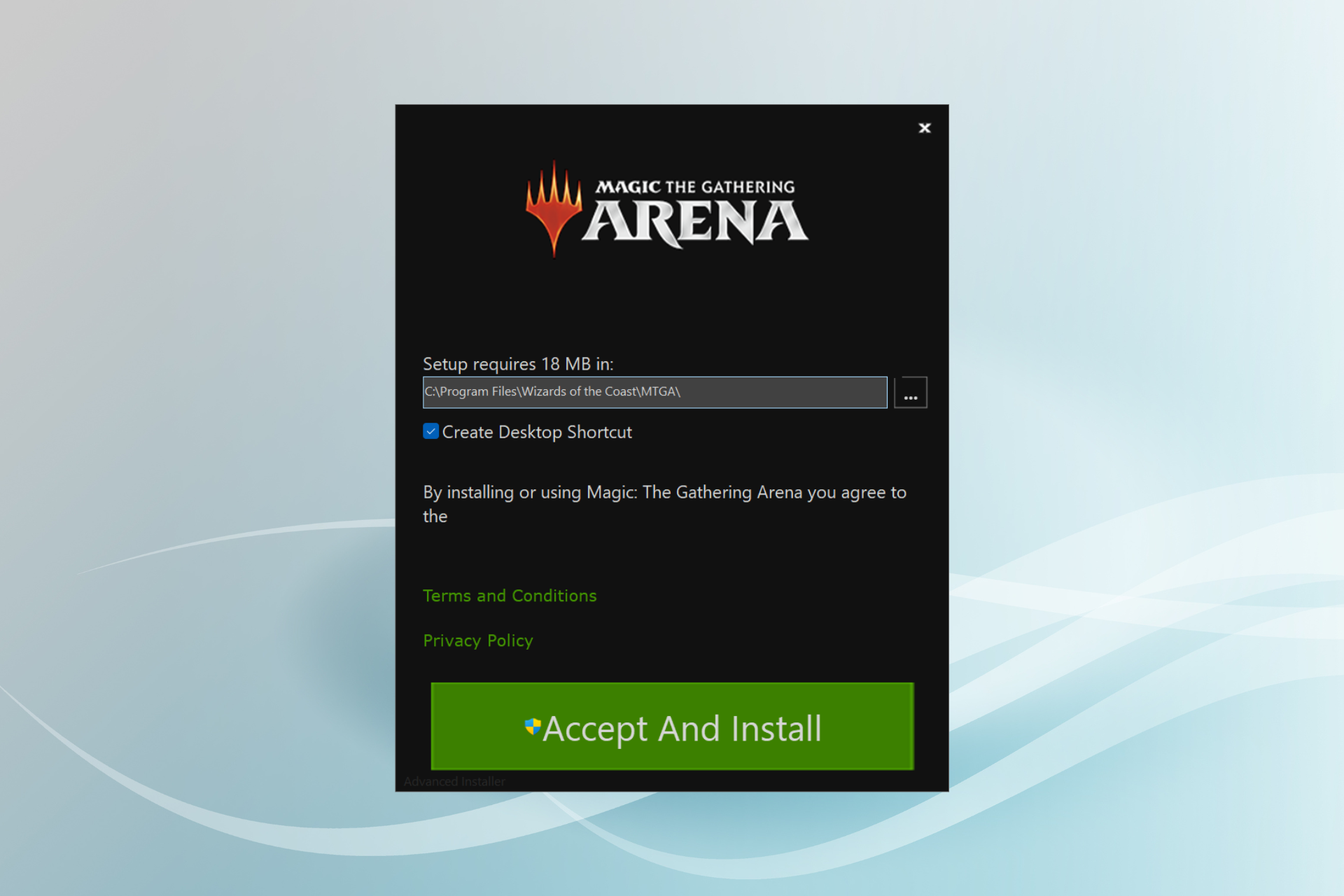
Please stay online while Office downloads

Under normal circumstances, after you’ve purchased Office 365, the installation process takes 5 to 10 minutes, the sign-in process before and after the installation included.

On some occasions, though, the installation gets stuck and the process prompts certain messages. The most common ones include freezing when the installation is almost complete or stating Please stay online while Office downloads.


Why is the Office 365 installation stuck?

Of course, it is mandatory to stay online if you’re using the web installer. It is the easiest method, after all. Only that this sometimes gets stuck.

Fortunately, your PC is still usable when this happens as the process doesn’t block the entire OS.

It is advisable to reboot your device at this stage and see if Office isn’t already installed. The frozen message might have been only deceiving.

If otherwise, the solution that works in most cases of this type is to uninstall Office 365 folder altogether and resume the process but using the offline installer.

How to use the Office 365 offline installer?

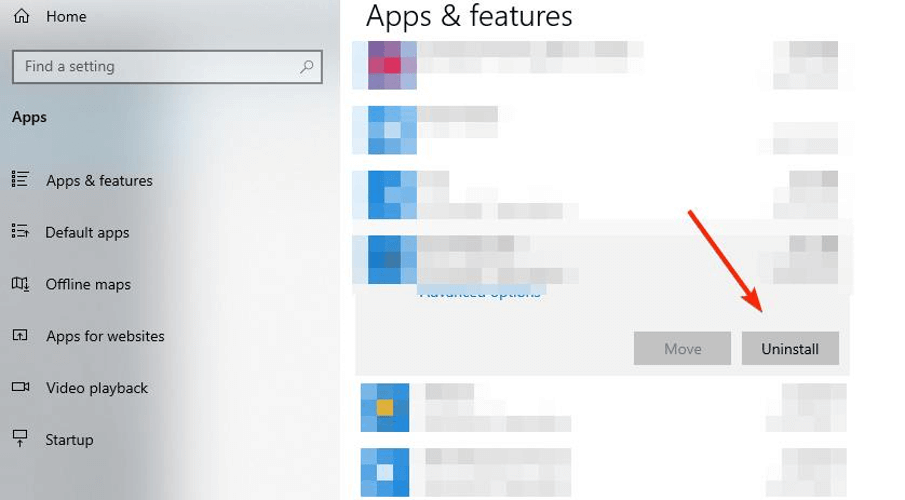
  1. First, uninstall whatever Office 365 files you have on your device. Open Settings, go to Apps, find the Office package, and right-click on it. Then click on Uninstall.uninstall office app
  2. Next, go to the Office website. Sign in with your Microsoft account associated with the Office purchase, if you haven’t already done that.
  3. Click on the Install Office button on the home page.
  4. In the Download and install window, select Other options.
  5. Check the box Download an offline installer and select the language you want to install Office in. Select Download.
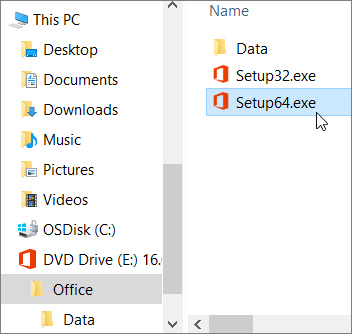
  6. Save the installation file on your device then open the virtual drive in its location.
  7. Choose the version you want to install (32bit or 64bit, depending on your system).how to install office manually
  8. The process should run smoothly from now on, and you just need to activate Office after the installation is complete.

And that’s about it. Offline installation usually fixes whatever an online installation couldn’t. The online process can get stuck even when the Internet connection is good, but it’s never a bad idea to check this aspect before starting.

We hope that this guide was useful; if so, please give us your feedback in the comments section below.


[wl_navigator]

Microsoft doesn’t want Xbox One to Xbox Series X video game upgrades to be paid DLC

According to a report by VGC, Microsoft is hold a fairly firm stance when it comes to how they want current and next gen Xbox video games handled going forward.

While there will be numerous titles that will be getting both an Xbox One and Xbox Series X release, the company is apparently restricting developers, or at least strongly discouraging them, from charging gamers for an upgrade to the Series X version as a separate fee or some kind of downloadable content (DLC) purchase.

Game developers will still be able to release separate Xbox One and Xbox Series X versions of their titles and ask players to buy each one and they’ll also be allowed to sell both versions as part of a bundle. Microsoft is, of course, encouraging everyone to take advantage of their Smart Delivery system though which will give gamers the Xbox Series X version of a game for free if they own the Xbox One version and vice versa.

As it stands right now, numerous third-party video games have been confirmed to be using Smart Delivery for their Xbox Series X release in addition to all of Microsoft’s first-party titles but some games, such as NBA 2K21, will need consumers to buy both outright.

It is important to emphasise that almost all Xbox One video games will work on the Xbox Series X console and many will even load faster and play better on it. The Xbox Series X versions will boast superior graphics however, so gamers wanting the best-looking version of their games will have to upgrade one way or another.

Interestingly, this report also confirms that those Xbox games using Smart Delivery will register as the same title on Xbox Live and share the same save data and Xbox Achievements. Video games that don’t support Smart Delivery and release two console versions will actually show up as separate games, similarly to how there are Xbox 360 and Xbox One versions of some titles.

Is a free upgrade important to you or will you be buying two versions of some games? Share your thoughts with the community in the comments below and then follow us on Pinterest and Twitter for more gaming content and check out all of the latest Xbox Series X news here.

Fix: Error code 0x80070032 in Win 10 [Backup, Mail, Login]

Many users have switched to Windows 10, however, the operating system isn’t perfect.

There might be errors from time to time, and many have reported error code 0x80070032 popping out when trying to use Windows Mail on Windows 10, so let’s see what can we do about it.

Error code 0x80070032 is related to Windows Mail and the Microsoft Store, and it occurs when users can’t sync their email folders on their PC with Microsoft’s servers. When trying to sync their emails users would see this message:

Something went wrong…
We can’t synch right now. But you may find more information about this error code at www.windowsphone.com

Error code: 0x80070032

How to fix error 0x80070032 in Windows 10 after update or startup?

1. Download the latest Windows 10 updates

Error 0x80070032 has affected millions of users worldwide, and Microsoft did its best to fix the issue through updates.

The best solution is to download the latest patches available using the Windows Update feature.

2. Try switching from local to Microsoft account

If the previous solution didn’t work for you, you might want to try switching from local to Microsoft account.

First, we need to switch from Microsoft to a local account:

  1. Open Settings and go to Accounts.
  2. Go to Your Account and click on Sign in with a local account instead.
  3. Type your current Microsoft account password.error code
  4. Add user name, password, and password hint for a new account.
  5. Now click Sign out a finish.

Now you need to switch back to Microsoft account:

  1. Go to Settings > Accounts > Your account.
  2. Click Sign in with a Microsoft account instead.
  3. You’ll be asked to enter the password for your local account.
  4. Enter your Microsoft account username and password and click Next.
  5. Click Switch to switch back to Microsoft account.

That’s it, performing the mentioned update should solve the problem, but you can try the second solution, as well. However, if you consider that it causes too many troubles for you, we suggest you simply switch to another email client.

Install Mailbird

With Windows Mail being your first choice, it’s safe to assume that you might not be a fan of third-party apps.

The beauty of Mailbird resides in its simplicity and dare we say, its resemblance to the native webmail in terms of ease of use.

The main difference resides in its stronger and more complex capacities since Mailbird is one of the most high-rated email clients at the moment.

This email client features an uncluttered and very intuitive interface that will allow you to easily manage your emails, attachments, and contacts in one unified Inbox.

Designed to complement the Windows structure to the point where it seamlessly blends with the OS’s architecture, Mailbird will cover all your emailing needs and never obstruct your update process.

Something went wrong code 0x80070032 is something you can simply forget about the very moment you decide to install this email client.

By adding integrations to the table (and Mailbird surely does allow you to connect all your favorite email, calendar, task, and messaging apps into one), you will enjoy a plethora of functionalities to cover all your communication needs.

Firstly, you can have simple emails and contacts management from a unified Inbox or customization options like numerous free color themes or Windows-adapted layouts.

More so, benefit from a practical snooze feature to separate and prioritize your emails every time you get busy. Plus, you have custom Sounds notifications for incoming and outgoing emails.

It’s worth mentioning that Mailbird offers seamless app integrations (Facebook, Twitter, Whatsapp, Dropbox, and more). Also, using intuitive keyboard shortcuts for archiving, composing, replying, or forwarding.

If you have any questions or suggestions, just reach for the comments section below.

Microphone Test: 5 best online tools

Perhaps you don’t use your device’s microphone on a daily basis. And perhaps you already heard stories about your conversations being listened to by most apps, since you accept permissions for them to access your location, mic, and webcam. Still, there are times when the microphone is necessary: online meetings, Skype calls, network games, personal or business sessions via all kinds of dedicated apps, online workshops, online classes, and so on. And there’s nothing more frustrating than going online for such an occasion and finding out that your mic is not working. So you’d better test it beforehand to make sure that it works and that the sound is good. You can do a quick test for your microphone either using the default testing option in Windows 10 or using an online app. None of the tests involve downloading third-party apps, they are free to use and some of them also offer additional features.

Test microphone online with these tools

Online Mic Test

Online Mic Test is a plain testing app in which you just have to click the Play button, record something, and then listen to the recording.

What you also need to do, though, is to allow the app to use your microphone. Namely, when you push the Play button, a small window will pop up in the upper-left corner of your browser, requesting permission. Choose Allow.

If you block permission, you won’t be able to take the test. If you block permission by mistake, just reload the page and try again.

With this app, you can do similar tests for your keyboard, mouse or webcam, by going to the Tools menu.

⇒ Try Online Mic Test

MicTests

With MicTests.com, the recording process is similar. You press the Test mic button, allow the site to use your microphone, then record something.

Besides just testing the mic, the app also shows a lot of technical information such as its name, number of audio channels, latency, sample size, and sample rate.

You can save all these details by submitting a review of your mic using the form to the right of the page. You will get a unique sharable URL.

If the app detects a problem with the mic, it will display troubleshooting options.

⇒ Try MicTest


Your built-in mic isn’t working? Try these easy troubleshooting steps

Online Voice Recorder

Unlike the previous apps, this tool comes with some useful features.

  1. After allowing it to use the mic, press the red button to start recording.
  2. You can pause anytime, then resume recording if you like. The tool will not cut the piece in two.
  3. When you’re done, just press the Stop button.
  4. Save your recording by pressing the same name button to the left. The piece will be automatically downloaded on your device.
  5. The app will show the entire recording on the screen. From here, if you want to listen to it on the spot, press Play.
  6. Additional features allow you to crop the recording and cut the silence, or keep just what you need, by moving the sidebars.
  7. By pressing Save again, you will download the edited piece.

⇒ Try Online Voice Recorder

SpeakPipe

SpeakPipe is another free online voice recorder, just perfect to test your microphone. The tool works not only on Windows but also on Android or iOS devices.

The testing steps are the same: you start recording, you allow the app permissions and then you listen.

Additionally, you can save the recording in the SpeakPipe cloud server,  and get a link to it, so you can send it via email or use on the web. For this feature, you will also have to sign up/sign in to the app.

⇒ Try SpeakPipe

Vidyard

Online video platform for business Vidyard offers a free mic testing tool that anyone can use. You don’t have to create an account to use it.

With this tool, you can record something and save the file to listen for it in your browser.

The platform has a similar webcam testing tool.

⇒ Try the Mic tool on Vidyard


On a general note, mic testing is the same whether you are using your device’s built-in microphone or a USB microphone. Troubleshooting might be different, though, in case something isn’t working as it should.

We hope you found these recommendations helpful. If you have any suggestions related to this topic, use the comments sections below.


[wl_navigator]

FIX: Can’t send attachments in Windows Mail app

Are you having email attachment problems in the Windows 10 mail app? First of all, you need to double-check that the attachments you are trying to send have not passed the maximum sending capacity limit.

There are a few bugs with the Windows 10 mail app but the important thing is that you can fix them very quickly.

Usually, when sending multiple attachments in one email, the first attachment will be sent correctly but the other ones will go to your draft folder or you will just receive a message telling you that the mail did not go through.

By following the guidelines below, you will be able to fix this problem in just a few minutes of your time and properly send attachments in your Windows 10 mail app.

Windows 10 can’t attach files to emails? Here’s how to fix it:

Windows 10 mail app not showing attachments

  1. Run the Mail app troubleshooter
  2. Update your Mail app
  3. Disable your antivirus
  4. Use a different mail app
  5. Turn off your firewall
  6. Reinstall the Windows Mail app
  7. Check network permissions
  8. Reset Mail app settings

1. Run the Mail app troubleshooter

We will need to run the Windows 10 mail app troubleshooter and let it fix any errors you might have with your mail account or just with the mail app.

After you installed the troubleshooting app, open it, and wait for it to finish the scanning and repair process on your Windows 10 system.

2. Update your Mail app

Check to see if the latest Mail app updates are installed on your Windows 10 PC. Running outdated Mail app versions may prevent you from using all the app’s features and even block outgoing emails.

3. Disable your antivirus

Check and see if your antivirus is allowing the Windows 10 mail app to run properly.

The best way to do this is to disable the antivirus and try sending the attachments. If it works, then you have to set the permissions in your antivirus to allow the mail app to work correctly.

4. Use a different mail app

Since simplicity is usually the key to solving all issues, we suggest you switch for a different email app that can perform this task easily.

You might not be a fan of third-party apps, but we dare say that our recommendation below is quite similar to the Windows native emailing solution in terms of ease of use, the only difference residing in its stronger and more complex capacities.

We suggest you using MailBird, this email client features an uncluttered and very intuitive interface that will allow you to easily manage your emails, attachments, and contacts in one unified Inbox.

Speaking about that, the incredible Attachment Search feature allows you to quickly and effortlessly track down even year-old attachments.

By adding integrations to the table (and Mailbird surely does allow you to connect all your favorite email, calendar, task, and messaging apps into one), you will enjoy a plethora of functionalities to cover all your communication needs.

Let’s quickly look at its key features:

  • Easy emails and contacts management  from a unified Inbox
  • Customization options (numerous free color themes, different Windows-adapted layouts and more)
  • Seamless app integrations (Facebook, Twitter, Whatsapp, Dropbox, Google Calendar, Asana and more)
  • Snooze feature to separate and prioritize your emails
  • Custom Sounds notifications for incoming and outgoing emails
  • Intuitive keyboard shortcuts for archiving, composing, replying, and forwarding
  • Multi-language 24/7 free support

⇒ Get Mailbird

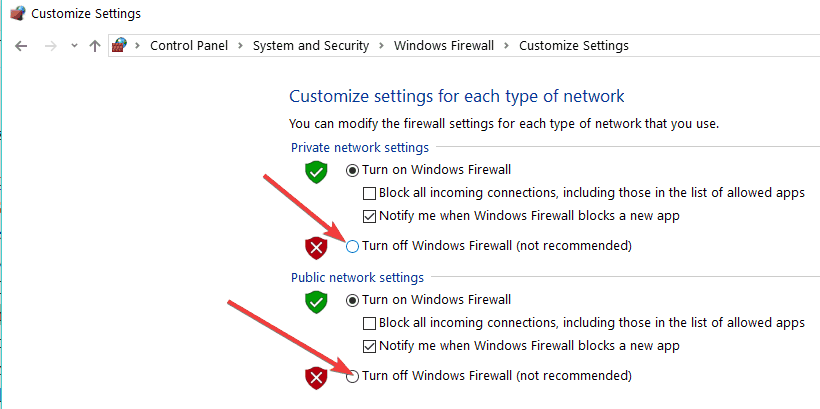
5. Turn off your firewall

Double-check if the Windows 10 mail app is blocked by your Windows Firewall. If it is, it might prevent you from sending mail attachments.

Try turning off the Windows 10 Firewall and send the attachments again. If you can, then you will have to set the necessary permissions to allow your mail app to work correctly.

6. Reinstall the Windows Mail app

If you still have this issue after trying the three options above, then we are going to reinstall the app by following the steps posted below.

  1. Log in to the Windows 10 mail app as you normally do.
  2. Press and hold the buttons Windows and C in order to open the Charms bar.
  3. Left-click on the Settings icon situated in the upper right corner of the charms bar.
  4. Left-click on the Accounts icon.
  5. Left-click on your account.
  6. Left-click on Remove all accounts on the lower side of the window.
  7. After performing the steps above, you can go ahead and add again your account to your mail app in Windows 10.

7. Check network permissions

If you are using your email at work and you have a VPN network, then maybe you should talk to the network administrators as they can set permissions that might prevent you from sending email attachments.

8. Reset Mail app settings

If you don’t want to reinstall the Mail app, resetting its settings may help you fix the email attachment problem. Here are the steps to follow:

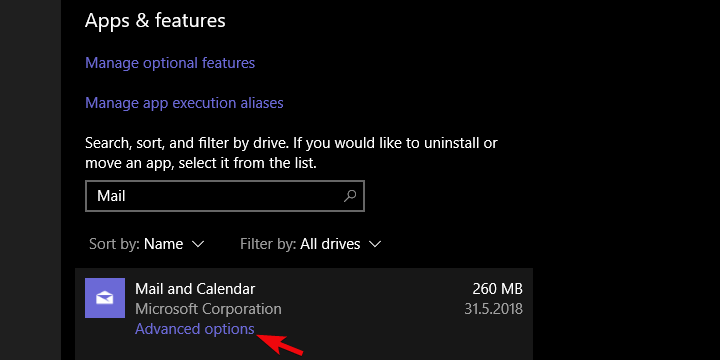
  1. Open the Settings app > go to Apps > Apps & features > Mail and Calendar
  2. Expand the Mail and Calendar app >select Advanced options.windows 10 mail app stuck in outbox
  3. Click on the Reset button.windows 10 mail app stuck in outbox
  4. Sign in and try to send a new email attachment file to check if the problem persists.

There you have a few options you can try in order to fix your Windows 10 Mail app issues.

For any new ideas on the subject and additional troubleshooting solutions, feel free to reach for the comments below.

An object could not be found Outlook error [FIX]

Are you getting a The attempted operation failed, an object could not be found error when sending emails in Outlook?

Or maybe you’re getting the error when replying or forwarding emails using the app?

If that’s the case, here are some potential ways you can fix the issue for Outlook. Note that these fixes might also work not only with the latest version but also with earlier ones.

Fix: The attempted operation failed. An object could not be found

  1. Check that Outlook is not configured to run in Compatibility Mode
  2. Set up a new Outlook Profile
  3. Use third-party Outlook Recovery Tool
  4. Repair Outlook via Programs and Features tab
  5. Repair the Outlook account
  6. Switch off the anti-virus software

1. Check that Outlook is not configured to run in Compatibility Mode

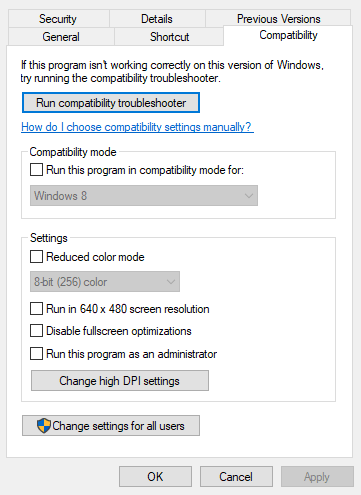
  1. Open the folder that includes Outlook with File (or Windows) Explorer.
  2. Then, right-click the Outlook.exe and select Properties from its context menu to open the Properties window.
  3. Now click the Compatibility tab, which includes the Run this program in compatibility mode for checkbox.compatibility tab program properties
  4. If the Run this program in compatibility mode for checkbox is selected, deselect that option.
  5. Press the Apply button and click OK to close the window.

2. Set up a new Outlook Profile

  1. First, type Control Panel in the search box and open it.
  2. Click the Mail icon to open the Mail applet.
  3. Next, press the Show Profiles button on the Mail Setup window
  4. Now press the Add button on the General tab to open a New Profile window.
  5. Enter a new name for the profile and click OK.
  6. Click the Add Account link to open the Add Account wizard window. Now you can fill out the required files in that wizard to set up the account.
  7. Send the email to the new account profile.

3. Use third-party Outlook Recovery Tool

There are also numerous third-party programs that you can repair Outlook with. Not all of them are freeware, but most have a trial package you can add to Windows for a few weeks and potentially fix the error.

On this note, we recommend Stellar Phoenix Outlook PST Recovery Tool.

The tool is just the perfect thing to restore your Outlook mailbox data – including deleted and missing emails – lost due to PST file corruption, which might be the cause of the mentioned error.

The installation is pretty easy and using the tool, similarly simple. What’s more, the recovery process is done in just 3 simple steps.

Basically, after installing, you only indicate the PST file that needs scanning and the Stellar Pheonix will do the job, recovering all mailbox items (emails, attachments, contacts, calendar items, journals, notes, etc.). The new PST file it creates is readily importable in Outlook.

⇒ Get Stellar Phoenix Outlook PST Recovery Tool

4. Repair Outlook via Programs and Features tab

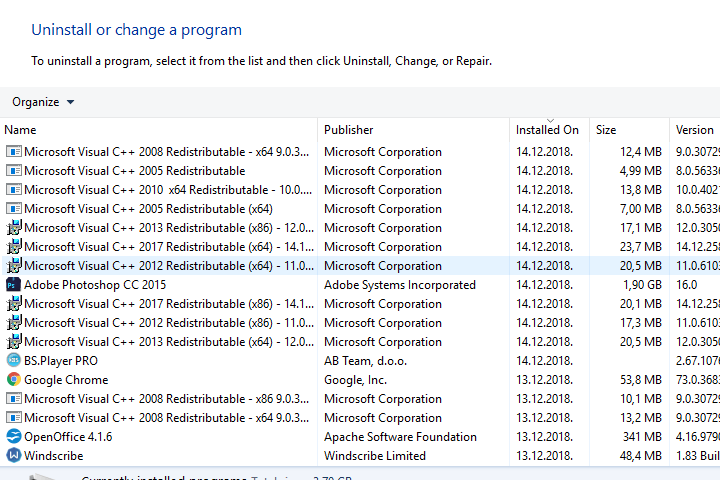
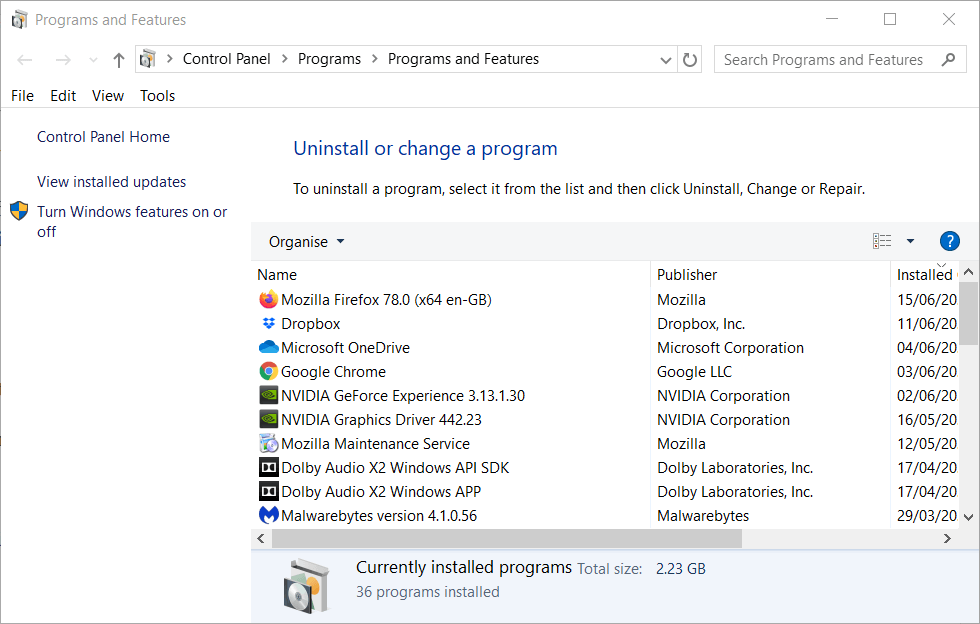
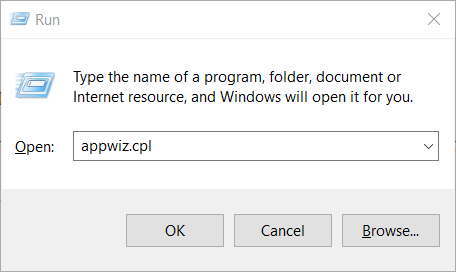
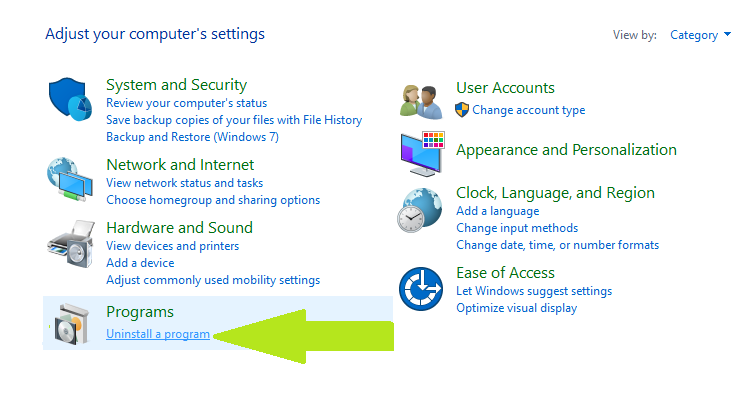
  1. You can repair Outlook’s configuration via the Programs and Features Control Panel tab. First, press the Win key + R keyboard shortcut and input ‘appwiz.cpl’ to open the tab in the shot below.uninstall a program
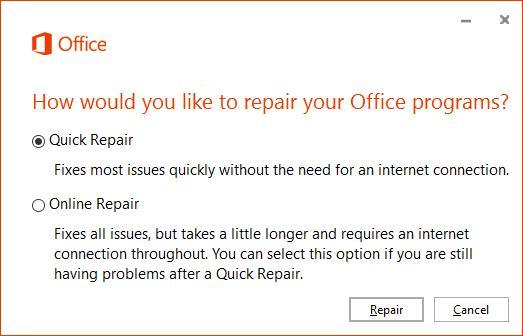
  2. Next, you should right-click Microsoft Office or Outlook and select Change from the context menu.
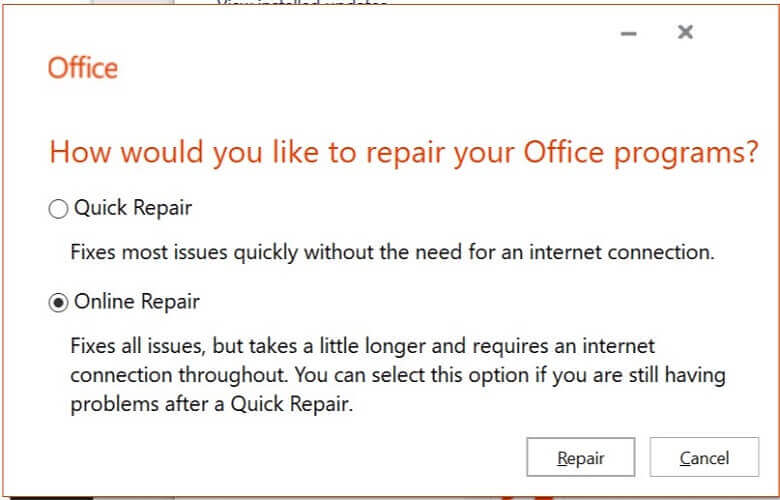
  3. Select the Quick Repair radio button on the window that opens, and click Repair. Alternatively, you can select the Online Repair option, which is more thorough.
repair office installation

5. Repair the Outlook account

  1. Open Outlook and click its File tab.
  2. Select Info and click Account Settings from which you can open the settings for the specific account that needs fixing.
  3. Click the Email tab on the Account Settings window, choose an account to fix, and press the Repair button.
  4. A Repair Account window will open from which you can repair the selected account by pressing Next.
  5. When the email account is repaired, restart the software and send an email with that account.

6. Switch off the anti-virus software

Anti-virus software integrates with Outlook to scan emails which can generate errors when you send them. As such, you should also switch off third-party anti-virus software.

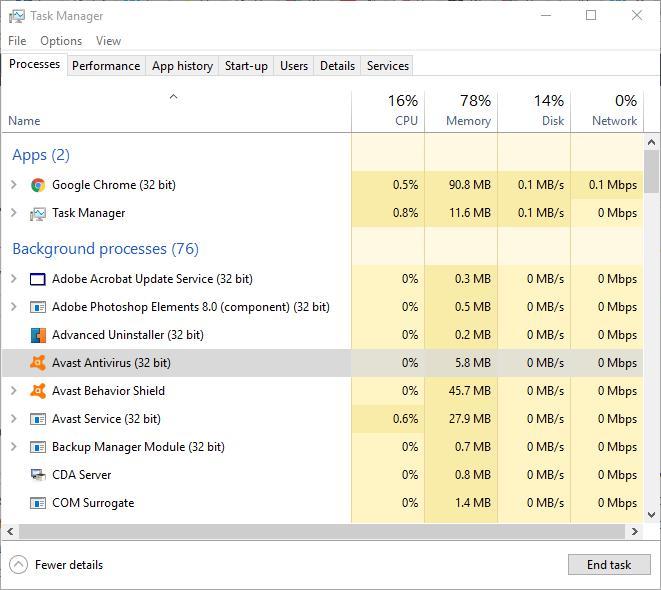
You can close anti-virus utilities in Windows by right-clicking the taskbar and selecting Task Manager.

Here, you can select the anti-virus software under Background processes. Press the End task button to close the program.

task manager

Alternatively, you can disable the anti-virus software from its system tray context menu if it includes the required options. Then, open Outlook and send an email to check if that fixed the error.

Any of those fixes could feasibly resolve The operation failed… which is an error that’s blocking your emails. There’s a good chance that at least one of those fixes will do the trick!

Dead by Daylight connection issues: How to fix?

Dead by Daylight is a survival game but with a spin. You can play as either a killer or a survivor and fulfill your one true objective, which is to keep survivors from, you know, surviving, or escaping the killer.

It’s a blast and we bet you’ll have hours of fun if you’re a fan of the genre. Each killer is inspired by popular horror movie stars such as Michael Myers, the Demogorgon, Freddy Krueger, or the Executioner from Silent Hill.

Dead by Daylight connection issues

It’s the same old same. Every online game has its fair share of connection issues, ranging from moderate ping to downright disconnections, which can obviously ruin your fun.

Take packet loss for instance. Regardless of where you may encounter it, is annoying on all levels. It can quickly take a pleasant gaming experience with your peers and turning to an absolute nightmare.

And we’re not talking about the nightmare-inducing heart-pumping chases of Dead by Daylight while playing survivor. We’re talking about de-syncs, jitters, high ping, that kind of thing.

Other Dead by Daylight connection issues include:

  • Dead by Daylight can’t connect to online services
  • No network connection in Dead by Daylight
  • Dead by Daylight disconnected from host

Just to make sure we’re on the same page: packet loss and high ping aren’t actually the same thing. To clarify even further, packet loss can cause high ping, but not all high ping situations are caused by packet loss. Hope we didn’t throw you off too much.

How to detect packet loss in Dead by Daylight?

First thing’s first, you’ll need to ask yourself: is Dead by Daylight down? But instead of asking yourself this question, you could head to the downdetector website and check Dead by Daylight’s status.

Once you’ve ruled out that the server is indeed up and all systems operational, you’ll need to troubleshoot the connection manually. As a side note, things weren’t so bad when DBD used P2P servers. Dedicated servers can’t seem to handle network congestion too well.

Anyway, while you’re connected to a Dead by Daylight server, use a packet sniffer or CMD’s netstat to identify the IP address of the DBD server.

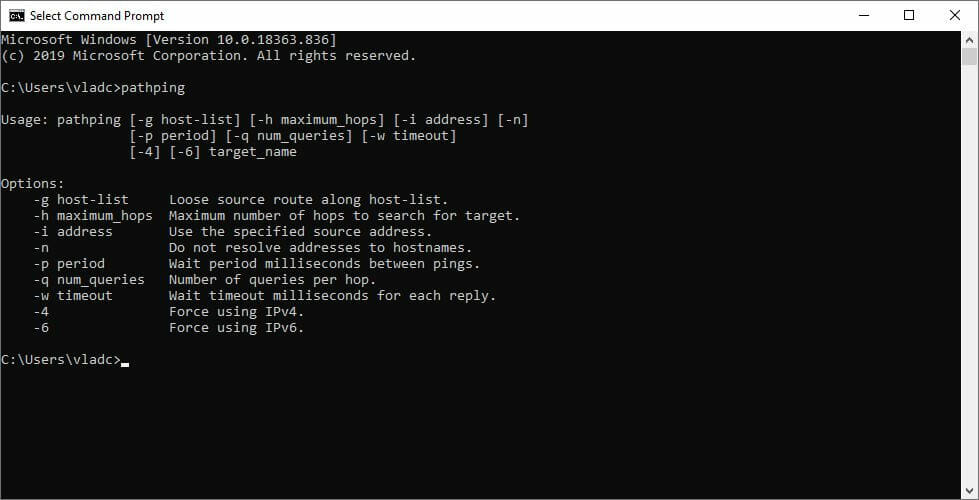
Once you’ve got it, use pathping x.x.x.x (replace x.x.x.x with the server’s address) to run a packet loss test.CMD pathping
Check each node and identify the location of the leaks. The node with the highest packet loss percentage is the culprit, just to be clear.

How to fix packet loss in Dead by Daylight?

1. Use a VPN

  1. Download Private Internet AccessPIA Dead by Daylight
  2. Install it on your computer
  3. Launch it
  4. Log into your PIA account
  5. Choose a fast server
  6. Launch Dead by Daylight
  7. Check if the problem still persists

Usually, using a VPN with Dead by Daylight should take care of your situation as easy as pie. You just install the VPN, connect to a random fast server and your traffic should be re-routed to avoid packet loss.

However, note that if you’re the one leaking packets, or if the game server is experiencing problems, using a VPN will actually do more harm than good.

Private Internet Access

Private Internet Access

Dead by Daylight connection issues are bugging you? Try PIA to fix them.
$2.85/mo. Buy it now

For this reason, you need to make sure that your ISP is the one causing the problem. If you know for a fact that it throttles your bandwidth or experience packet loss frequently at certain hours (peak hours), you can safely use a VPN.

2. Perform a bit of manual troubleshooting

  • Check if the Dead by Daylight server is up and running without an issue
  • Try using a wired connection instead of a wireless one (Wi-Fi packet loss occurs frequently)
  • Connect your PC straight to your modem or home line (bypass your router)
  • Try restarting your router and/or modem
  • Check and fix/replace any faulty component on your side of the connection (PC, drivers, cables, router)
  • Update your router to its latest firmware
  • Call your ISP and ask them if they can look into the issue
  • Contact Dead by Daylight’s support team and inform them if they seem to be leaking packets
  • Try to avoid peak hours

It’s worth mentioning that while these steps might sound ridiculous, there are a lot of factors that weigh in on packet loss occurrence. Note that even upgrading your CAT 5 Ethernet cables to CAT 6 ones can improve packet loss dramatically.

Dead by Daylight connection issues can be fixed

All things considered, if you’re experiencing packet loss, high ping, or any other connection issues on Dead by Daylight, you might consider waiting it out.

If that’s out of the question, there are several ways that you can improve your connection without breaking a sweat. As we’ve stated above, merely restarting your router, or changing your Ethernet cables can have a huge impact.

However, you should first make sure that the game server isn’t facing any difficulties and it’s, in fact, up and running before trying anything else.

Last, but not least, know that using a VPN can fix both packet loss and high ping, but only if the issue is on your ISP’s side.

How to watch MSNBC online [Safe Streaming]

MSNBC is a US-based cable TV channel that mostly shows political news. If you live in the United States, you don’t need help with watching MSNBC online since you can sign up for an account for free by referencing your cable provider and start watching MSNBC live streaming. However, if you live in any other part of the world, you can’t watch MSNBC online since it’s restricted to US residents only. It only shows a free daily preview of 10 minutes. Unfortunately, this also applies to US citizens who are living or traveling abroad. We’ve done the hard work and looked for the best ways to help you watch MSNBC online outside of the United States, no matter where you are. Here are the 4 best solutions and tools.

How can I watch MSNBC live streaming from anywhere?

Use a VPN

PIA is the best VPN for streaming

  1. Download Private Internet Access (PIA).
  2. Install PIA on your computer.
  3. In the PIA main window, press VPN Server.
  4. Search for United States and choose the first shown city (lowest latency).
  5. Click the power button to connect to the US VPN server.
  6. If you have an account with one of these TV providers, sign in to watch MSNBC live.
  7. Otherwise, you can sign up for Hulu + Live TV, SlingTV, AT&T TV or YouTubeTV.

Made by Kape Technologies, Private Internet Access can unlock live streaming services so that you can watch MSNBC and live TV from any part of the world. You just have to connect to a US VPN server.

PIA has an impressive network of VPN servers as well as tons of security features. It can defend your router from hackers as well as protect your DNS queries using exclusive DNS servers.

You can even disable VPN encryption if you need a speed boost, although this shouldn’t be necessary. And, if you ever stumble upon technical difficulties with this tool, you can turn to 24/7 live chat support.

More about PIA:

  • +3,300 VPN servers in 48 countries
  • 10 simultaneous connections
  • No logs
  • 30-day money-back guarantee (no free trial)
Private Internet Access

Private Internet Access

Watch MSNBC from any part of the world using this fast and secure VPN for streaming.
$2.85/mo. Buy it now

Use Mobdro

use Mobdro

  1. Download and install Mobdro on your Android*.
  2. Launch the app and tap the search button.
  3. Type MSNBC and look for this TV channel.
  4. Select MSNBC from the list of results.
  5. Start watching MSNBC live.

*To install Mobdro on Windows PC, download BlueStacks.

Mobdro is a better choice for users who are looking for a totally free solution to watch MSNBC. There are no hidden costs when using this tool, and you don’t need to spoof your IP address to connect to US.

The downside is that Mobdro isn’t built for security, so it shouldn’t be used by privacy-concerned users. For instance, it’s not available in the Play Store, so Google can’t vouch for the Mobdro APK when it comes to malware.

On top of that, you have to jump through some hoops to set up Mobdro on any device that doesn’t support Android. And you can’t get rid of the in-app ads unless you’re willing to share your device’s resources with a third party.

Use IPTV software

use ProgDVB

  1. Download ProgDVB and set it up on your computer.
  2. Fire up ProgDVB and select the FreeWorldTV tab.
  3. Search for MSNBC and double-click its entry.
  4. Start watching MSNBC live.

ProgDVB is one of the best IPTV software tools, which can be installed on Windows, Android, and iOS. You can use it to watch TV and radio channels from all over the world, without having to conceal your true location.

However, unlike a VPN, ProgDVB doesn’t support safe streaming, so you can only use it to watch TV.

Use an Internet circumvention tool

use Psiphon

  1. Download Psiphon and install it on your PC.
  2. Launch the app and go to Settings > Psiphon Server Region.
  3. Select United States and click Apply Changes.
  4. If you have an account with any of these TV providers, log in and watch MSNBC live.
  5. If you don’t, you can sign up for Hulu + Live TV, SlingTV, AT&T TV or YouTubeTV.

Psiphon is a proxy tool that can hide your geographical position and connect you to US to lift geo-restrictions. It’s totally free to use and can be installed on Windows, Android, and iOS. It’s a great solution to watch MSNBC live (with or without cable).

But Psiphon and other Internet circumvention tools don’t act exactly like a VPN, in the sense that they don’t use encryption to secure your Internet connection. As such, if you’re looking for a safe streaming method to watch MSNBC, you should stick to the VPN.


Can’t connect to proxy on Windows 10? Our quick guide shows you how to fix it.


Taking everything into account, these 4 solutions can help you watch MSNBC live streaming online, no matter where you are.

If you have trouble deciding what’s the right fit for you, choose a VPN like PIA if you’re looking for a safe streaming method.

Otherwise, if online privacy and security are not your top priority, go with Mobdro since you don’t have to pay for anything.

[wl_navigator]

Fix Windows 10 Mail app stuck in outbox in 7 quick steps

Even though the ways we communicate are changing, emails are still a massive part of our everyday lives.

Microsoft included the UWP Mail and Calendar app in Windows 10 to meet those needs, but the app is far from perfect, and even intrusive.

Some of the issues are minor, while others render it completely unusable. The one we singled out today prevents sending emails. All sent messages are stuck in the outbox.

Since this is the main purpose of the given app, we decided to tackle the issue in detail. If you’re unable to send emails with Windows 10 Mail app, the steps below should help you overcome the error.

How can I fix Windows 10 Mail app stuck in outbox?

  1. Sign out and sign in again
  2. Try out a different email client
  3. Run the dedicated troubleshooter
  4. Reset Mail app settings
  5. Re-register Mail app with PowerShell
  6. Allow Mail and Calendar app through Windows Firewall
  7. Update Windows
  8. Tweak Privacy settings

1. Sign out and sign in again

  1. Open the Mail app.
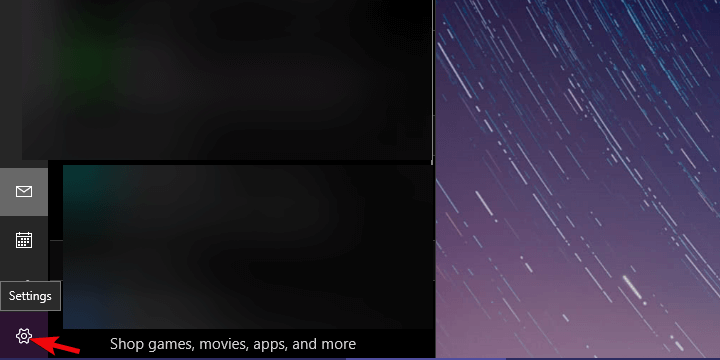
  2. Click on the cog-like settings button at the bottom.windows 10 mail app stuck in outbox
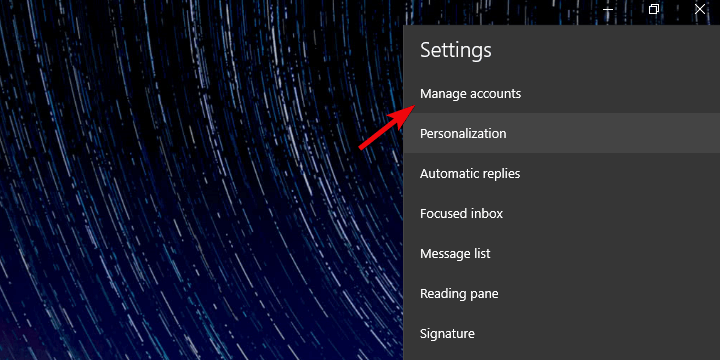
  3. Choose Manage accounts.windows 10 mail app stuck in outbox
  4. Select the troubled account.
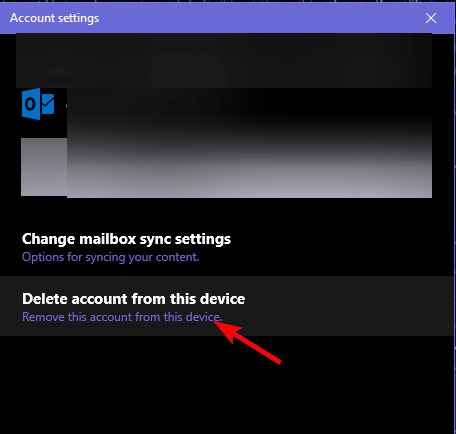
  5. In the next dialog box, click Delete account from this device.windows 10 mail app stuck in outbox
  6. Restart your PC.
  7. Navigate to the same destination and, within the Manage accounts section, add a new account.windows 10 mail app stuck in outbox
  8. Enter your credentials and try sending emails stored in the outbox again.

First things first. Before we move to more complex solutions, we suggest trying to sign out and sign in with the affected account.

Sometimes, the bug-ridden nature of the Mail app for Windows 10 comes to light. And the best way to resolve these minor stalls is to simply sign out of the affected account.

After that, restart your PC and sign in again. That should help and the outbox messages should finally get sent. Also, deleting the account and re-establishing it might help.

As a side note, don’t forget to check the Internet connection and confirm that everything works as intended. If your messages are still stuck in the outbox, continue with the steps below.

2. Try out a different email client

Luckily enough, there’s no rule saying that you need to stick with applications Microsoft forced upon you.

Quite the opposite, there are so many third-party alternatives and one of them will most likely end up checking most of the boxes you need, if not even all of them.

If you’re not sure what third-party e-mail client to use, factors that need to be considered are ease of use, if it integrates with apps like WhatsApp, and Response Management features.

When it comes to functionality, we recommend getting a lightweight email client, because these will most likely work smoothly even if you use them to manage multiple accounts. 

3. Run the dedicated troubleshooter

  1. Press Windows key + I to open Settings.
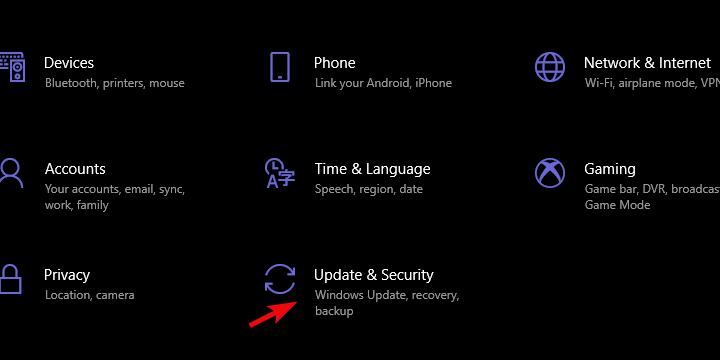
  2. Choose Update & Security.windows 10 mail app stuck in outbox
  3. Select Troubleshoot from the left pane.
  4. Scroll down until you reach Microsoft Store apps.
  5. Expand the Microsoft Store apps troubleshooter and click Run the troubleshooter.

Windows 10 is, for all intents and purposes, packed with various features. Some of them are rather useful and perform admirably.

Others, like the aforementioned Mail app, is just a pale shadow of Windows Live Mail. And a lot of its lackluster nature it owes to its UWP nature.

Luckily, amongst those numerous features, there are more than a few dedicated troubleshooting tools. And, in this case, the one intended for Microsoft apps should help you fix the outbox bug.

Use the above steps to run this troubleshooter.

4. Reset Mail app settings

  1. Open the Settings app.
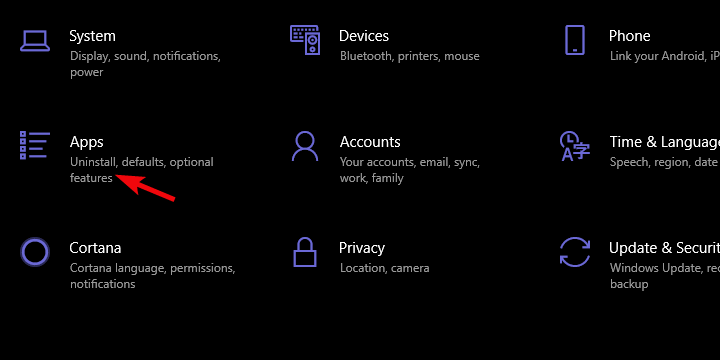
  2. Choose Apps.windows 10 mail app stuck in outbox
  3. Under the Apps & features, search for the Mail and Calendar app.
  4. Expand the Mail and Calendar app and open Advanced options.windows 10 mail app stuck in outbox
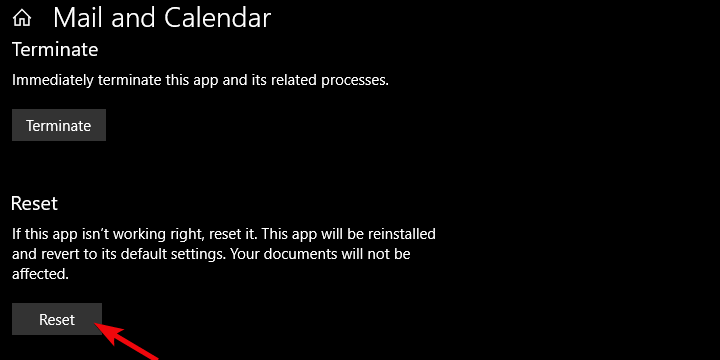
  5. Scroll down and click on the Reset button.windows 10 mail app stuck in outbox
  6. Open the Mail app and sign in with your credentials.

As with any other app, the Mail and Calendar app stores cache in order to speed up the loading process. Besides that, it keeps locally all your emails so you can access them offline.

This might, over time, even slow down the performance and cause some inexplicable behavior.

The inability to send emails is a good example. In comparison to standard Windows 32 apps, you can reset the Mail and Calendar app within the System settings interface.

Have in mind that you’ll need to re-establish your account as this action restore it to factory values.

5. Re-register Mail app with PowerShell

  1. Right-click Start and open PowerShell (Admin).
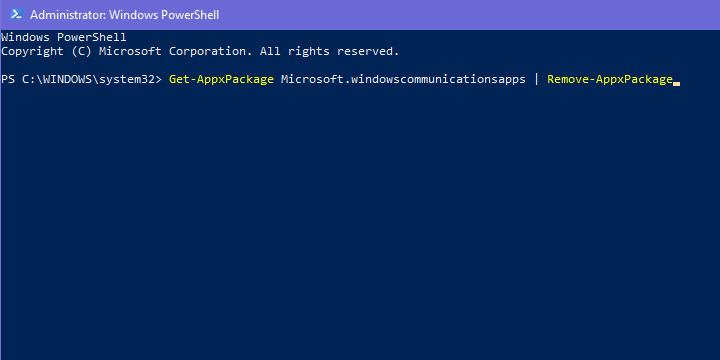
  2. In the command-line, copy-paste the following command and press Enter: Get-AppxPackage Microsoft.windowscommunicationsapps | Remove-AppxPackagewindows 10 mail app stuck in outbox
  3. Wait until the procedure ends and restart your PC.
  4. Run the Mail app and access your account.
  5. Open Outbox and try resending the messages.

The reinstallation of the Mail app is not an option. At least not in a standard way. It’s a built-in part of Windows 10 and thus can’t be removed.

You can, on the other hand, re-register the Mail app and, hopefully, it’ll finally allow you to get the messages out of the outbox. In order to do so, you’ll need to use the PowerShell elevated command-line as admin.

Follow the above steps to reinstall the Mail and Calendar app with PowerShell.

6. Allow Mail and Calendar app through Windows Firewall

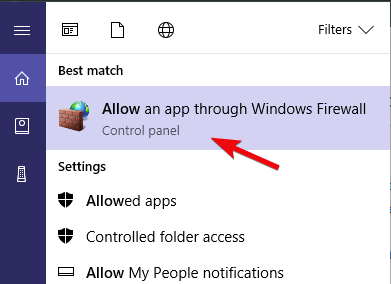
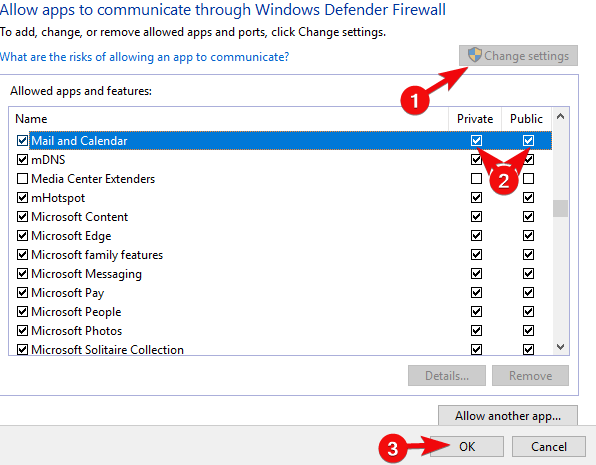
  1. In the search bar, type Allow and open Allow an app through Windows Firewall.windows 10 mail app stuck in outbox
  2. Click on the Change settings button. You’ll need the administrative permission to access settings.
  3. Scroll down and confirm that Mail and Calendar can freely communicate through Firewall. Make sure both Public and Private networks are enabled.windows 10 mail app stuck in outbox
  4. Confirm changes if needed, and try sending emails again.

It’s well within our expectations for a Windows 10 native app to freely communicate through Windows Firewall. And more times than not that’s just the case.

However, we advise you to navigate to the list of allowed programs and confirm that the Mail app indeed has unobstructed traffic to public networks.

Additionally, if you have a third-party antimalware suite that includes an active firewall, make sure to allow Mail the safe passage, too.

7. Update Windows

  1. Open Settings.
  2. Open Update & Security.windows 10 mail app stuck in outbox
  3. Under Windows Update, click Check for updates.

Windows Updates on Windows 10 cover everything. Besides the common security patches and various fixes, they cover all built-in applications.

For that reason, if something’s wrong with the current Mail iteration, the update might fix it. Chances are that you already keep your system up to date, but checking for updates manually won’t cost you a thing.

In addition, try navigating to Microsoft Store and updating the app from there. Follow these instructions to check for updates in Microsoft Store.

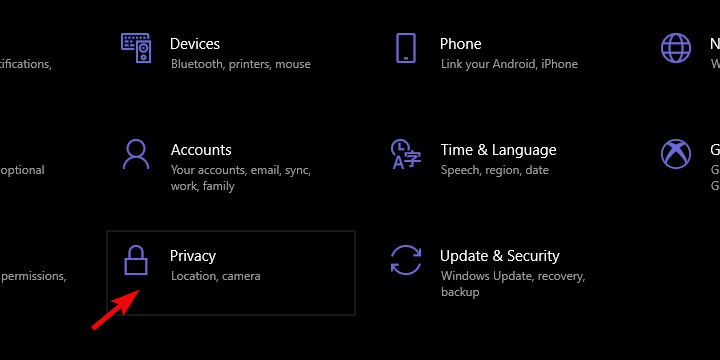
8. Tweak Privacy settings

  1. Open Settings.
  2. Click Privacy.windows 10 mail app stuck in outbox
  3. Select Email from the left pane.
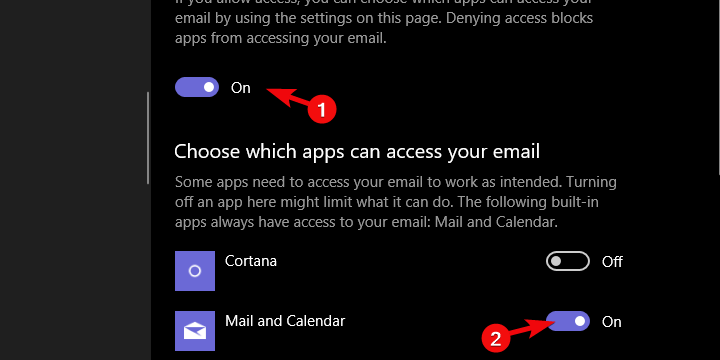
  4. Under the Allow access to email on this device, click Change and confirm that the option is enabled.windows 10 mail app stuck in outbox
  5. Same for the Allow apps to access your email.
  6. Under that section, make sure that the Mail and Calendar app is toggled on.windows 10 mail app stuck in outbox

Finally, the last thing we need to mention is Privacy settings permission. In order to allow the system and respective third-party apps to access your sensitive data, you need to grant them permission.

For emails, for example, these are granted by default. However, it’s worth checking those out and confirming everything is as it’s supposed to be.

If these are, for some reason, revoked you won’t be able to use the Mail app fully. Follow the above instructions to inspect the email-related Privacy option.

With that, we can call it a wrap. Hopefully, one of those steps works out for you, so you can send emails again. Also, don’t forget to comment on this matter in the comments section below.

Before leaving, do note that the above guide contains instructions to fix the following errors too:

  • Windows 10 Mail not sending emails – The Windows 10 mail working poorly and not sending emails comes as no surprise. In case you’re keen to try out alternatives to the rather subpar Mail app, check out the best Windows 10 email clients.
  • Windows 10 mail app won’t send – If facing this issue, our mission is to walk you through professional fixes. You’ll find them all listed above.

Visit our Windows 10 Mail section with no hesitation for other tips and full solutions to your issues.

For similar comprehensive guides, feel free to bookmark this Windows 10 Apps Hub.

PowerToys for Windows 10 gets memory leak fix and more with latest update

It’s been almost a week since Microsoft released PowerToys version 0.19, but today the company is following up with the version 0.19.1 is out. The focus of this release is to deliver a few critical fixes to improve the overall stability of the app.

The incremental patch specifically aims to address existing issues affecting the FancyZones and PowerToys Run tools, and it brings some usability improvements to ensure easier navigation through the search suggestions.

Here’s the full list of improvements and fixes in PowerToys version 0.19.1:

  • #4578 – WinKey for PT Run throws a lot of false positives
  • #4646 – FancyZones: When “Hold Shfit key” is deactivated, Shift key should deactive FancyZones
  • #4625 – [Run] Search text not updating on up/down navigation
  • #4432 – Mitigated the race condition in os detection
  • #2047 – Memory leak in PT Run
  • #4647 – Fix remapped shortcuts not getting activated in succession

Besides the aforementioned issues, Microsoft has also acknowledged another bug that is currently preventing users from opening PowerToys Settings when it’s minimized in the taskbar. The company has promised to address this issue in the full PowerToys v0.20.0 release.

If you are interested, you can download the latest version from the GitHub releases page, and feel free to check out our previous post about PowerToys v0.19 to learn more about the latest version.

Watch CBC in USA: Ultimate streaming guide

CBC is a popular broadcasting company from Canada that serves as the country’s public radio and TV broadcaster. CBC, which is short for Canadian Broadcasting Corporation, is also known as Radio-Canada and is owned by the Government of Canada.

Currently, you can only watch CBC if you’re on Canadian territory. Thus, you might not be able to watch CBC even if you’re a Canadian expat living in the USA.

Which is perfectly understandable, but what if, as a Canadian living in a foreign country, you’re missing out on important broadcasts?

What is geoblocking?

Fortunately, this situation isn’t exactly unheard of and can be easily bypassed. As in this case (CBC), when a certain service or website is not available outside of a certain region or is only available in specific countries, we call it geoblocking.

There are several reasons why certain services can get blacklisted in certain regions, and politics usually play a huge role in this kind of decision. Censorship is another factor that heavily influences the outcome of these situations.

How can I watch CBC online outside Canada?

1. Use a VPN

  1. Download Private Internet Access
  2. Install it on your computer
  3. Launch it and log into your account
  4. Choose an appropriate server (*)

(*) – if you want to watch CBC, which is only available in Canada, you should choose a Canadian server. For the best results, make sure you select a fast (low ping) server.
Private Internet Access is a great VPN service offered by Kape Technologies. You can think of it as the multi-tool of VPNs, as it can help you tackle various challenges.

Private Internet Access

Private Internet Access

Want to watch CBC online outside Canada? Try PIA.
$2.85/mo. Buy it now

For instance, you can use it to bypass geo-restrictions, anonymize your online identity, and secure your connection. Additionally, PIA can help you curb packet loss and improve ping, which is ideal when it comes to multimedia streaming.

Private Internet Access has more than 200 servers (246 at the moment) in 4 locations on Canadian territory. You can connect to any servers in Ontario, Toronto, Vancouver, and Montreal.

Thus, even if one of the servers and/or locations doesn’t work, you can just disconnect and pick another server.

2. Use a Smart DNS service

If using a VPN doesn’t sound ideal to you, there’s another approach to watching CBC in the USA. You can use a Smart DNS service, which in some cases proves to be better than using a VPN.

First of all, there’s absolutely no encryption. As a result, you won’t lose speed over the service while streaming your favorite CBC content.

However, that’s good news and also bad news, since the lack of encryption opens up your connection like a book to potential attackers. Your IP won’t be masked and none of the traffic will be encrypted.

Therefore, anyone who would decide to spy on your online activity (hackers, your ISP), won’t be bothered by any encryption obstacle.

Smart DNS services simply replace your ISP-assigned DNS with one of their own. The newly-assigned DNS is stripped of all metadata that would reveal your real geo-location to any server you interact with.

More so, a Smart DNS also routes your traffic through its own dedicated server, which is located in the country you chose.

3. Use a proxy server

Proxy servers are similar in nature to VPNs. Using such a service will hide your IP address in order to bypass geographical restrictions. However, when it comes to encryption, proxies are not exactly ideal, since this feature may not be as strong, or be available at all.

Additionally, given that many proxy servers are public-access-based, you’ll be sharing the same servers with potentially hundreds of other users. In order to curb congestion issues, many proxy server administrators throttle the bandwidth, so that everyone could get a piece.

Furthermore, proxy traffic is usually extremely easy to detect. As a result, many services block your attempts to even access them if they detect you’re connecting through a proxy.

You can watch CBC outside of Canada effortlessly

To wrap it up, even if you’re not currently on Canadian territory, you can easily enjoy CBC. Whether you choose to connect to this service through a VPN, a Smart DNS, or proxy, is a matter of choice, but you should be aware that some of them are better than others.

For instance, proxy servers are usually free but might not work at all or throttle your bandwidth, whereas VPNs such as PIA are paid services, but offer you great speed and unmatched protection.

How to remove duplicate contacts from Windows Live Mail

Now we’re going to talk about one common and really annoying problem for users of Microsoft’s Windows Live Mail: duplicate contacts.

There are a couple of reasons for duplicating your contacts, as well as a couple of solutions for this problem, so let’s take a look at this detailed guide.

The only solution that we managed to confirm is to remove them (manually or not). This is not a hard task but could be very boring and time-taking.

This happens especially if you have many duplicated contacts that you want to get rid of, so don’t say that you haven’t been warned.

How to clean up duplicate contacts in Windows Live Mail?

1. Delete duplicate contacts manually

  1. Sign in to your account.
  2. On the menu bar click Manage and then go to Clean up contacts.
  3. Check duplicate contacts you want to remove and click on Clean up.

But if you don’t have that many duplicate contacts in your People list, then this solution might be good for you. Use the above steps in order to delete duplicate contacts manually.

2. Clean up your duplicated contacts directly from Windows Live Mail

  1. Log in to your Windows Live Mail.
  2. Go to Contacts on the left bottom side of the window.
  3. Go to Clean up contacts and do the same thing as above.

Many Windows Live Mail users are not satisfied with this method because it is very time-taking and requires a lot of work.

Because of that, they constantly demanded from Microsoft to include features of deleting duplicate contacts in the further versions of Windows Mail.

QUICK NOTE: Since the writing of this guide, Microsoft discontinued Windows Live Mail. In order to use a reliable email service, then probably the best solution is to ditch Windows Live Mail completely.

If you don’t know what email software to install on your computer, we can give you a helping hand with an intuitive email client for Windows PCs.

Mailbird is a complete email program that can be used to manage all emails and contacts from multiple accounts in one place.

Just get started with your account and Mailbird will set up folders for received emails, archiving, drafts, and more, along with any custom folders that you’d love to use.

If you have a more effective solution, please share it with us in the comments and we will update this article with it immediately. Even more, our readers will be thankful to you.

How to watch German TV in the US [Streaming Guide]

You can watch German TV in the US and any other part of the world on any device as long as you have the right tools for the job. It doesn’t matter if you’re a German citizen living or traveling in the US, or a US citizen who wants to learn a foreign language by watching German TV. We’re showing you the complete steps to help you watch German TV online in four ways: with a VPN, Mobdro, IPTV software, and an Internet circumvention tool.

How can I watch German TV in the US?

Use a VPN

PIA is the best VPN for streaming

  1. Download Private Internet Access (PIA).
  2. Set up PIA on your device.
  3. Click PIA’s systray button and press VPN Server.
  4. Look up Germany and select the first displayed city (lowest latency).
  5. Press the power button to connect to the German VPN server.

Once connected to an IP address from Germany using PIA, you can use your web browser to watch live TV streaming, such as ZDF, which is only available for German users. Plus, if you have a Netflix account, you can log in to unlock German exclusive movies and TV series.

Developed by Kape Technologies, PIA is the best VPN for streaming. You can use it to watch TV online in the USA and any other part of the world by connecting to one of its high-speed servers to bypass geoblocks.

PIA has private DNS servers, OpenVPN and WireGuard protocols, together with SOCKS5 and Shadowsocks. It’s compatible with all major devices, supports 10 simultaneous connections, and comes with 24/7 live chat support.

More about PIA:

  • +3,300 VPN servers in 48 countries, even Germany
  • Unlock Netflix DE and other Netflix libraries
  • No identifying logs
  • 30-day money-back guarantee (no free trial)
Private Internet Access

Private Internet Access

Watch German TV in the US and other countries using the high-speed VPN servers of PIA.
$2.85/mo. Buy it now

Use Mobdro

use Mobdro

  1. On your Android*, allow apps to download from unknown sources.
  2. Download and install Mobdro.
  3. In the Mobdro main screen, tap the search button.
  4. Enter the name of a German TV channel.
  5. Select its entry from the list and watch TV.

*Although Mobdro is only available for Android, you can download BlueStacks and use the Android emulator to set up Mobdro on Windows PC.

Mobdro is the best way to watch German TV online for free. It’s completely free to download, install, and use. And you can find many German TV channels without having to change your geographical position.

However, you might occasionally run into buffering issues. When that happens, use a VPN like PIA to connect to a German VPN server before using Mobdro. It could speed up your Internet connection.

Use IPTV software

use ProgDVB

  1. Download ProgDVB and install it on your PC.
  2. Launch the tool and switch to the FreeWorldTV tab.
  3. Search for a German TV channel and double-click it.
  4. Start watching live streaming.

There are a few great IPTV software solutions, and ProgDVB is one of the best. You can use it to watch TV in German and other languages without having to resort to a web browser.

On the other hand, ProgDVB can’t be used to unblock Netflix DE and other streaming services since it’s limited to IPTV.

Use an Internet circumvention tool

use Psiphon

  1. Download Psiphon and set it on your computer.
  2. Launch Psiphon and go to Settings > Psiphon Server Region.
  3. Select Germany and click Apply Changes.

Psiphon is one of the best proxy tools available. It’s completely free to use and can be installed on Windows, Android, and iOS. You can use it to unblock websites and watch German TV in the US or any other part of the world.

However, unlike a VPN, Psiphon can’t encrypt your network traffic. So it’s not an ideal choice for privacy-concerned users who want to not only watch German TV in the US but also secure their browsing sessions.


Trouble with proxy connections on Windows 10? This article shows how to quickly fix it.


In conclusion, you can use any of these 4 solutions to watch German TV in the US or any other part of the world.

If you can’t make a decision about which solution is the best, we suggest using a VPN like PIA. It can not only circumvent geoblocks and give you unrestricted access to German television but also secure your browsing sessions, protect you from hacker attacks, and help you find cheaper flights.

[wl_navigator]

How to reverse a string in JavaScript [Step-by-step]

A palindrome is a word or list of characters that read the same when reversed. A good example of this is the word ‘RADAR’.

The easiest way to check for a palindrome in JavaScript is to create a copy of the original string, reverse it, and then compare it. If you want to build an algorithm that does this effectively, you’ll need to learn how to reverse a string in JavaScript. In this guide, you’ll learn how.

How do I reverse a string with JavaScript?

1. Convert it into an array and reverse it

  1. Split your string into an array of substrings using the split() method from the String object class. The split method requires a string as its argument. In this case, you’ll use an empty string. So the method should look like this:
    split("")
  2. Reverse the order of the array using the reverse() method.
  3. Convert the array back into a string using the join() method. Much like the split method, the join method requires a string as an argument. Once again, you’ll use an empty string:
    join("")

The best way to implement the above steps is through a function. Here’s a quick source code example that you can copy, test, and modify:

<!DOCTYPE html>
<html>
<body>
<H2> The Great Reverso! </H2>
<p>Current String: "Reverse this String!"</p>
<button onclick="myFunction()">Reverse</button>
<p id="demo"></p>
<script>
function myFunction() {
var str = "Reverse This String!";
var res = str.split(""); //Split the string into an array of characters
res.reverse(); //Reverse the order of the array of characters
str = res.join("");
document.getElementById("demo").innerHTML = str; //Attach the string to the HTML demo
}
</script>
</body>
</html>

In the above example, we create a function that reverses a hard-coded string and then sets a document element to it.  The function is then called from a button labeled ‘Reverse’.

There are numerous ways you can shorten and modify this code. For instance, instead of assigning the joined string to the str variable, you can reassign it to to the res variable and then point the  demo HTML document element to it i.e.

res = res.join("");
document.getElementById("demo").innerHTML = res;

Alternatively, you can condense all three steps into a single line:

var res = str.split("").reverse().join("");

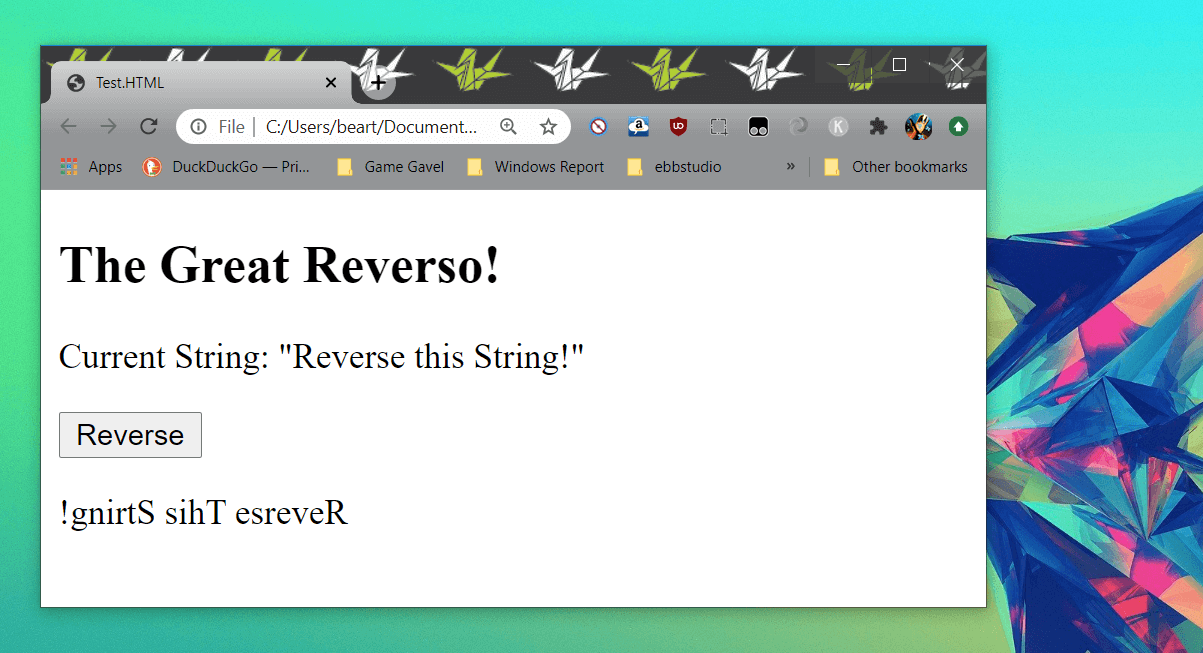
Either way, the results should be the same:

reverse-javascript-string-example


Want to learn JavaScript even faster? Learn why you should download JavaScript Code by reading this article!


2. Reverse the string in JavaScript using a for loop

  1. Create a new empty string variable that will house the reversed string.
    var reverseString = "";
  2. Construct a for loop with the following characteristics:
    • Initializer: initialize a counter whose value is the length of the string to be reversed subtracted by 1.
    • Condition: make sure that the counter is greater than or equal to 0.
    • Iteration: the counter should decrement with every successful loop.
    • The body of the for loop should add a character from the original string to what will become the reversed string while using the for loop counter to set the character position.
      for (var i = fwdStri.length - 1; i >= 0; i--) { 
             reverseString = newString + fwdStr[i]; 
      }

Once again, you should apply the above operation in a function within scripting tags. Whether you want to include the JavaScript as an external file or embedded code is up to you. Here’s how the above solution looks in action:

<!DOCTYPE html>
<html>
<body>
<H2> The Great Reverso! </H2>
<p>Current String: "Reverse this String!"</p>
<button onclick="myFunction()">Reverse</button>
<p id="demo"></p>
<script>
function myFunction() {
var fwdString = "Reverse this String!";
var reverseString = "";

for (var i = fwdString.length - 1; i >= 0; i--) {

reverseString += fwdString[i]; //Alternative to newString + fwdString[i]

}

document.getElementById("demo").innerHTML = reverseString;

}
</script>
</body>
</html>

The above code works by looping through your original string in reverse and clones it character by character. If you’re not interested in explicitly casting your string into an array, then you may find this solution more suited to your goals.


3. Reverse the string in JavaScript using recursion

  1. Create a new function with a string as its parameter e.g.
    function reverseString(str) {
  2. Within the body of the function, create an if statement that checks if the string passed to the function is empty. If true, it should return an empty string e.g.
    if (str === "")
    return "";
  3. Add an else statement.
  4. In the body of the else statement, return a recursive call to the current method with a substring of the method’s string parameter, starting from the second character i.e str.substr(1). Append the first letter of the new substring e.g.
    else
    
    return reverseString(str.substr(1)) + str.charAt(0);

You should call this method from another function that’s responsible for displaying the results. The complete code should look something like this:

<!DOCTYPE html>
<html>
<body>
<H2> The Great Reverso! </H2>
<p>Current String: "Reverse this String!"</p>
<button onclick="myFunction()">Reverse</button>
<p id="demo"></p>
<script>


function myFunction() {

var str = this.reverseString("Reverse this String!");
document.getElementById("demo").innerHTML = str;

}

function reverseString(str) {
if (str === "")
return "";

else

return reverseString(str.substr(1)) + str.charAt(0);


}
</script>
</body>
</html>

Recursion works a lot like a for loop, but you’re tricking JavaScript‘s logic to work for you. Instead of appending characters to the end of the string, it attaches it to the front with each loop. Nevertheless, the results are much the same.

The above examples can be tested by using Windows Notepad and a web browser. However, we suggest using a cross-platform code editor or an integrated development environment to save yourself some time.

How to reverse a string in a Javascript is a common interview question. Therefore, understanding it may be imperative to your success as a software developer.

Nonetheless, let us know which method worked best for you in the comments below. As always, thank you for reading.

[wl_navigator]

Gmail won’t download attachments [QUICK SOLUTIONS]

A few Gmail users have found that they can’t download files attached to their emails on Windows 10. The documents stop downloading after selecting to save them to HDD.

So if that’s a familiar scenario, this is how you can fix Gmail attachments that aren’t downloading.

What can I do if Gmail attachments won’t download?

  1. Check that Gmail supports your browser
  2. Use Mailbird email client
  3. Update the browser
  4. Uncheck the Do not save encrypted pages to disk setting
  5. Switch off the Gmail Labs setting
  6. Switch off antivirus software
  7. Clear browser cache

1. Check that Gmail supports your browser

First, check you’re opening Gmail emails in one of its supported browsers. Gmail works in Chrome, Firefox, Safari, Internet Explorer and Edge, which are its supported browsers.

As such, Vivaldi, Maxthon, and Opera are not among Gmail‘s supported browsers. Also note that Gmail requires JavaScript and cookies switched on in browsers.


If you want the latest and greatest browser available right now, check out our best picks.


2. Use Mailbird email client

Switching to an email client has some considerable advantages.

First of all, Gmail and others are quite heavy web apps, which means that the browser will consume more memory and CPU to display the content. Since we use email all the time, most likely there’s always one or two tabs permanently open for emails.

Using an email client offloads that effort from the browser, making it snappier. It also means better offline support. Using Mailbird, the winner of most popular Mail alternative 2020 as your primary email client is even better.

Why? Because you can connect your Gmail account and have all your attachments readily available on your computer. You can also connect other providers for increased productivity.

Going one step further means you can connect your other favorite calendar apps or messaging apps (Whatsapp, Facebook, WeChat, etc.) and have them all in one central place. No more tab switching with the websites you visit.

Other powerful features:

  • Snooze messages to focus only on the important emails
  • Connect with LinkedIn to quickly see details about a sender
  • Search through your attachments to find anything faster

Easily and safely connect Gmail to Mailbird using IMAP port 993 for SSL and SMTP port 587 for TLS.

⇒ Get Mailbird

3. Update the browser

Perhaps you are unable to download attachments from Gmail in Chrome. Make sure that your browser is the most updated version.

You can update Google Chrome by pressing the Customize Google Chrome button and selecting Help > About Google Chrome.

The browser will then automatically update if it’s not the latest version. You can also ensure that any browser is the most updated version by downloading its installer from its website and then reinstalling the software.


4. Uncheck the Do not save encrypted pages to disk setting

  • Press the Cortana taskbar button and entering the keyword internet options in the search box.
  • Select to open the Internet Options window shown directly below.
  • Then click the Advanced tab in the snapshot directly below.
  • Now uncheck the Do not save encrypted pages to disk option if that’s selected.

Some Gmail users have fixed Gmail email attachments that aren’t downloading by deselecting the Do not save encrypted pages to disk set.


5. Switch off the Gmail Labs setting

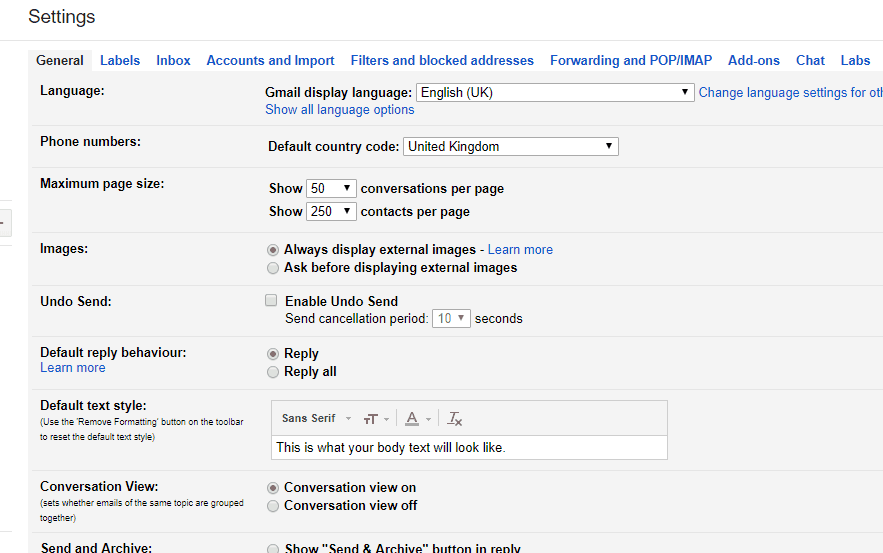
  • Press the Settings button in Gmail and select Settings from its menu to open the General tab below.
  • Click the Labs tab to open the Gmail Labs options in the snapshot directly below.
  • Now you can disable those options by selecting the Disable radio button for each one.
  • Press the Save Changes button to confirm the new settings.

Gmail includes a variety of experimental settings in Gmail Labs. However, they are only experimental settings that might not always work. If you have lots of Gmail Labs settings selected, switching off those options off might fix Gmail attachments.

The quick way to switch those options off is to add ‘labs=0’ to the end of Gmail‘s URL.


Your Gmail settings are out of date? Don’t worry, we’ve got you covered.


6. Switch off antivirus software

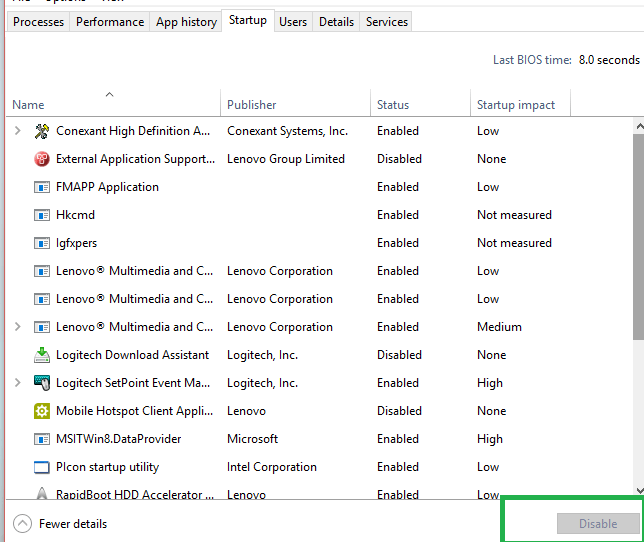
  • Right-click the taskbar and select Task Manager on the context menu.
  • Select the Start-up tab shown in the snapshot below.
  • Now select the anti-virus utility and press its Disable button.
  • Then you can restart Windows.
  • Thereafter, open Gmail email and download an attachment.

Antivirus software can hamper both email client software and webmail. To ensure that isn’t the case, switch off third-party antivirus software.

You can usually do that by right-clicking anti-virus utilities’ system tray icons and selecting a disable or exit option from their context menus.


Can’t open Task Manager? Don’t worry, we’ve got the right solution for you.


7. Clear browser cache

  • Press the Customize Google Chrome button at the top right of the browser to open its menu.
  • Select Settings to open the tab below.
  • Click Advanced to expand the Settings tab.
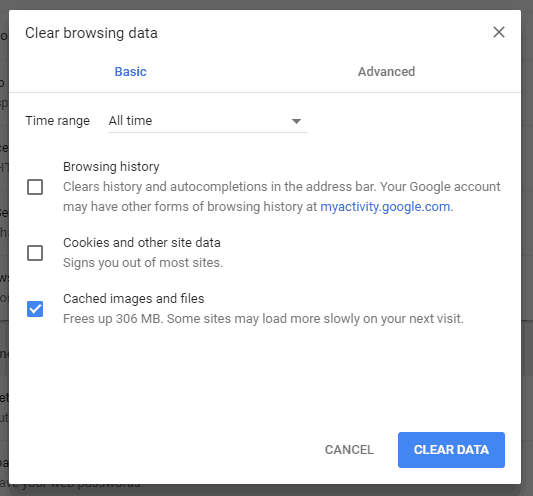
  • Select the Clear browsing data option to open the window in the shot directly below.
  • Select the Cached images and files checkbox, and then press the Clear Data button.
  • Restart Chrome after clearing the cache.

Clearing browser caches can often be an effective resolution for a variety of web issues and frees up hard drive space. How you clear the cache varies from browser to browser.

If you have any other suggestions or questions, leave them in the comments section below and we’ll surely take a look.


[wl_navigator]

Outlook won’t connect to server & Gmail [Solved]

Outlook is the defacto email service used by most businesses and individuals, and just like other programs, this too can have issues in performance, among other technical issues.

One of the common and known issues is Outlook not responding or won’t connect, which usually happens for one of the reasons below:

  • Latest updates have not been installed
  • Outlook is being used by another process
  • Outlook is loading external content in an email
  • An installed add-in is interfering with the program
  • Mailboxes are too large
  • AppData folder is redirected to a network location
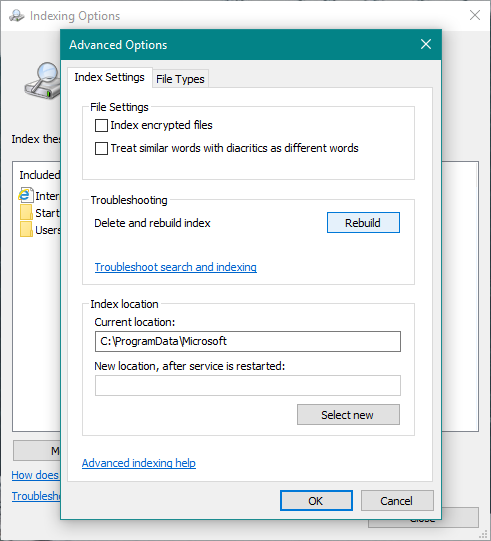
  • Office programs need repairing
  • Data files are corrupted or damaged
  • Security software is outdated or in conflict with Outlook
  • Your user profile is corrupted

Other causes have to do with software and hardware like insufficient computer specifications, insufficient write performance for Outlook files, search indexing issues, incomplete file (PST/OST) closure, and many RSS feeds, among others.

Similar issues that can be solved the same way:

  • Outlook not connecting to exchange server – since the error is not related to the type of server, the solutions will fix this issue as well.
  • Outlook won’t connect over VPN – it might be possible that SMTP is blocked by the VPN. See how to fix Outlook if it won’t connect via VPN.
  • Outlook won’t connect to Office 365 account – if the credentials are all right, apply the solutions from this article.

Whatever the case, if you find Outlook not responding or won’t connect, try the solutions below to resolve it.

How do I fix Outlook not responding or not connecting?

  1. General fixes
  2. Fix PST file
  3. Disable AppData directory redirection
  4. Cancel Outlook integration with Microsoft Office Communicator
  5. Disable antivirus software add-ins installed in Outlook
  6. Create a separate send/receive group for your RSS feeds
  7. Create a new Outlook profile
  8. Close any open dialog box
  9. Repair Office programs

1. General fixes

  • Ensure your computer meets system requirements for the Office suite you’re using – minimum system requirements don’t give optimal performance
  • Check that you’re running the latest Outlook build
  • Check that your PST/OST files are not large as size may cause performance issues like the app pausing during typical operations in Outlook like reading, moving, or deleting emails.
    • A size of up to 2GB will give a good user experience.
    • More than 4GB is where pauses start, and as it increases to 10GB or larger, you’ll get Outlook not responding or won’t connect.
  • Check that your computer has a first-gen SSD or slow rotational HDD s these will cause Outlook not responding or won’t connect issue due to performance in the operations
  • Check that you don’t have too many items in one folder as these will affect performance. move several items to separate folders in one store or an archive store, and use Arrange By: Date
  • If you connect to Exchange in Online mode, it affects Outlook’s performance and overall user experience
  • If you have nonessential add-ins installed, remove them from Outlook.
    • To view the installed add-ins, click Trust Center>Tools>Add-ins.
    • Outlook can also use Microsoft Exchange Server client extensions that may cause performance issues.
      • To see these extensions, click
        Exchange Client Extensions > Managelist > Add-ins > click Go.
      • The Add-In Manager dialog box will display these extensions.
  • Run Outlook in Safe Mode to determine if the performance problem is caused by add-ins.
    • In Safe Mode, Outlook’s COM add-ins and Exchange Server client extensions are disabled.
    • If the problem goes away in safe mode, then probably one of the add-ins is causing the performance issue.
    • Disable any items that you do not use regularly, then restart Outlook, or, disable the remaining add-ins one by one.
    • If that does not fix Outlook not responding and won’t connect issue, then it may not be caused by an add-in.

2. Fix .PST file

Use Stellar Repair for Outlook to perform a repair operation on the .pst file.

Since the .PST file is crucial for how Outlook performs, keeping it in a good shape is critical. Microsoft Outlook already performs some cleanup operations in the background.

A combination of factors, however, can prevent the cleanup to perform and the file to get corrupted.

IT technicians usually repair damaged pst files in order to fix a number of issues with Outlook such as low response time from the app, Outlook search not working, and connection issues.

This tool has low system requirements and is compatible with all Windows versions. It supports MS Outlook 2019, 2016, and earlier.

3. Disable AppData directory redirection

  • Exit Outlook.
  • Right-click Start and select Run, then type regedit.exe and then press OK.
  • In Registry Editor, locate and then click the following subkey:
    HKEY_CURRENT_USERSoftwareMicrosoftWindowsCurrentVersionExplorerUser Shell Folders
  • Locate and then double-click AppDataappdata windows 10
  • In the Value data box, type %USERPROFILE%AppDataRoaming and then click
  • Exit Registry Editor.

If your AppData folder is redirected to a network location, this can affect Outlook’s performance, as some data like email signatures and dictionaries are stored in that folder, which it must wait for reading and write operations in the directory to finish.

4. Cancel Outlook integration with Microsoft Office Communicator

  • In Outlook, click Options under Tools
  • Click Other tab, and uncheck the Display online status next to a person name checkbox under Person Names
  • Click OK.
  • Restart Outlook.

5. Disable antivirus software add-ins installed in Outlook

If your antivirus includes Outlook integration, performance issues may arise. You can disable the integration or antivirus software add-ins installed in Outlook.

You may have to contact the antivirus manufacturer on how to configure the antivirus software to exclude any integration or scanning in Outlook.

6. Create a separate send/receive group for your RSS feeds

Outlook won’t respond or won’t connect if you’re synchronizing many RSS feeds into Outlook.

By default, the RSS feeds are automatically synchronized at set intervals. If you have too many feeds, Outlook may become unresponsive.

A separate send/receive group for your RSS feeds will allow you to sync them on-demand compared to set intervals.

7. Create a new Outlook profile

  • Close Outlook.
  • Open Control Panel
  • Choose User Accounts
  • Click Mail
  • Click Show Profiles.
  • In TE103999994, open the Apps menu, choose Control Panel > Mail > Show Profiles.
  • Choose Add, and in the Profile Name box,
  • Type a profile name, and click OK.
  • Enter an email address and a password for the primary email account you use in Outlook and then follow the steps to create the profile.
  • Go to Show Profiles dialog
  • Choose Prompt for a profile to be used.
  • Start Outlook and choose your new profile.

Your Outlook messaging profile may be misconfigured, so creating a new profile may fix Outlook not responding or won’t connect.

If this fixes Outlook not responding or won’t connect problem, return to Show Profiles dialog and delete your old profile.

8. Close any open dialog box

There are times Outlook won’t respond until you close an open dialog box. Check for these and see which ones may be stopping Outlook from responding.

If there isn’t any, check that Outlook isn’t working on a large or long process as this causes performance issues.

9. . Repair Office programs

This resolves issues with Outlook not responding or won’t connect.

  • Quit any running Office programs
  • Open Control Panel
  • Choose Programs and Features.
  • In the list of installed programs, right-click Microsoft Office (your version) and then choose Repair
repair microsoft office

Did any of these solutions help fix Outlook not responding or won’t connect? Let us know by leaving a comment below.

Op-Ed: Now that Microsoft Stores are shut down, will it be harder to service Surface devices?

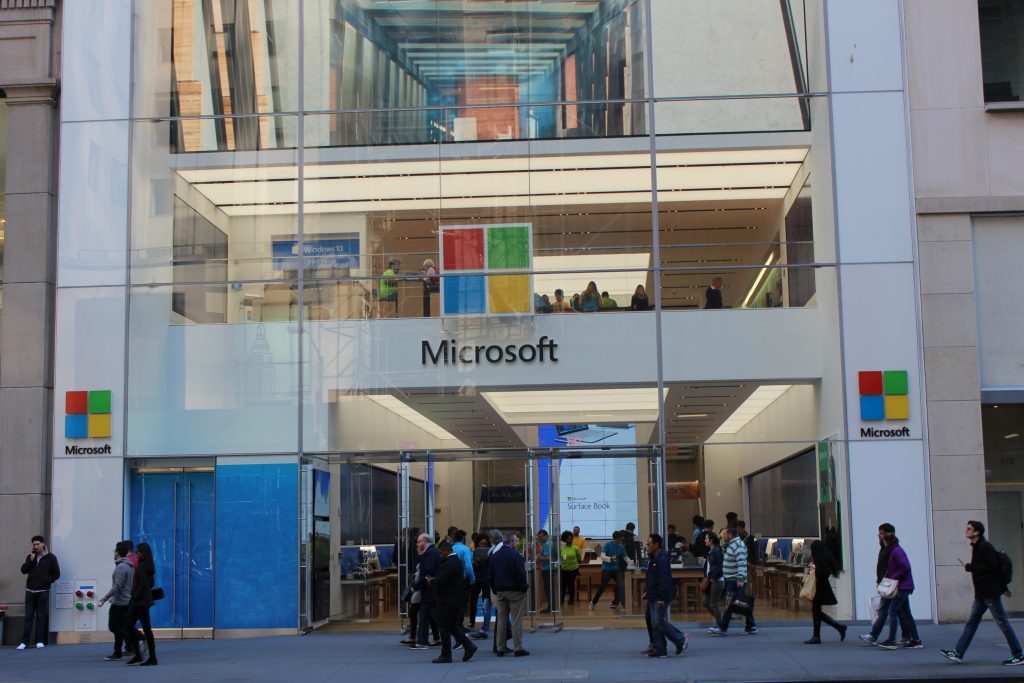
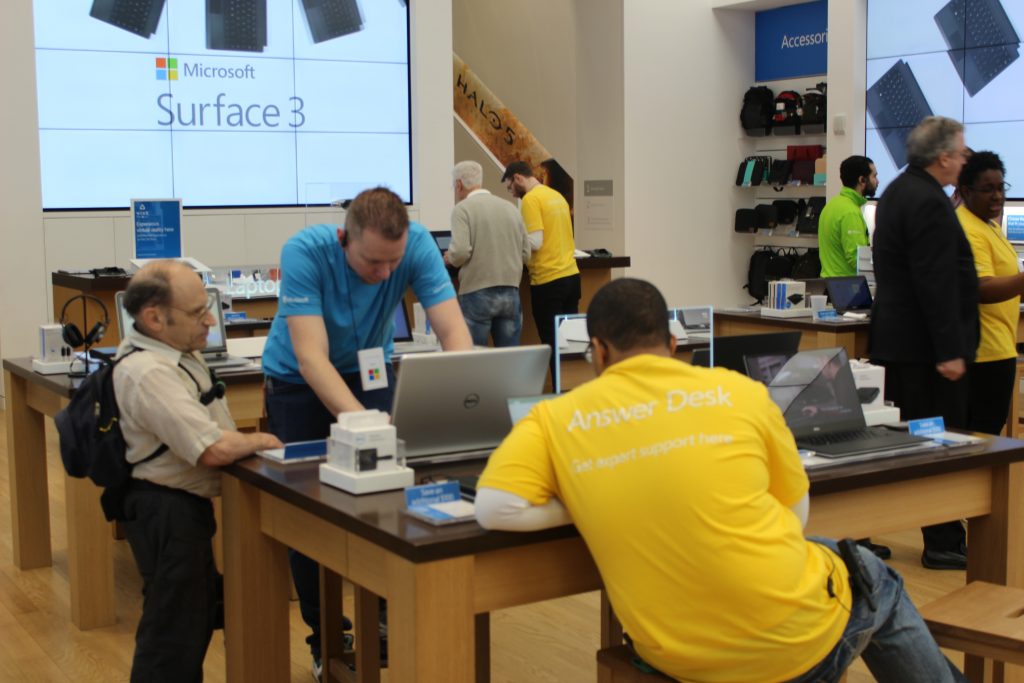
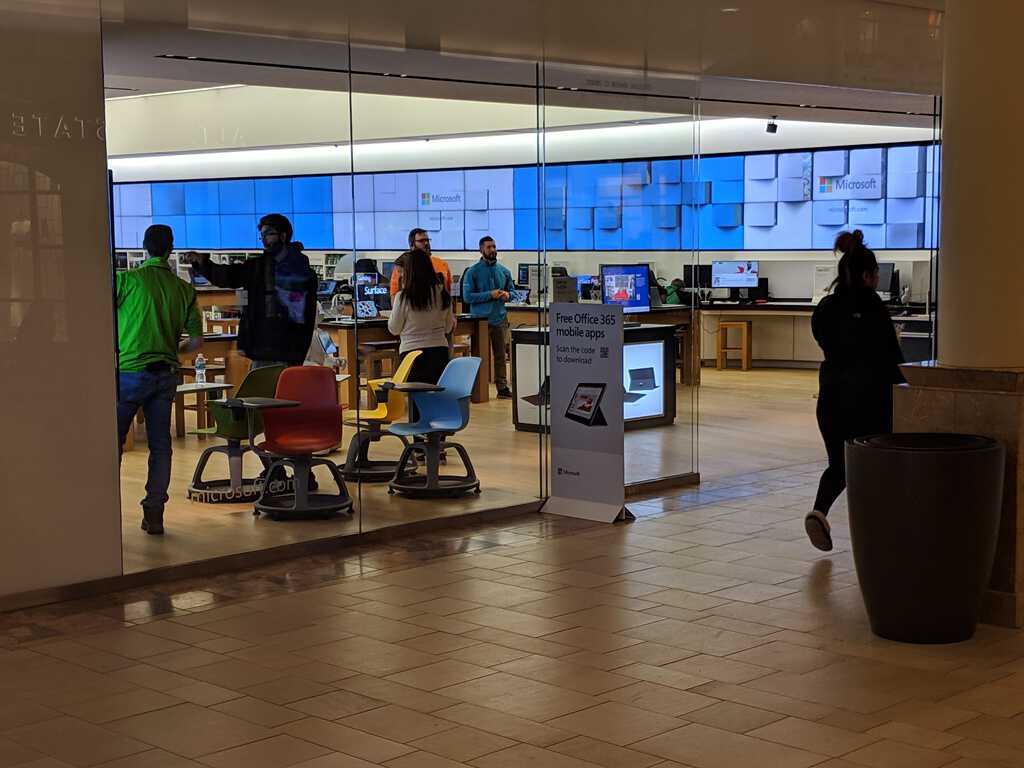
Microsoft Stores had always been a great way to experience the company’s latest products. You could have walked right into a physical store, played with a Surface or Xbox, and then purchased one right on the spot. And, if you later suffered from device failures or other technical problems, you would have had the support of the Microsoft Answer Desk to help you out.

That experience, though, is now changing. As someone who once frequented the Flagship 5th Ave Microsoft Store in New York City, I now have one lingering thought. With Microsoft Stores shutting down, service options for Surface devices will be limited — so will it impact sales or make Surface devices a risky buy?

No more friendly Microsoft Store helpers

Going back to the start, one of the benefits of physical Microsoft Stores was the in-store service. If your Surface or Microsoft Product went bad, you could have scheduled an appointment online, go into the store, and meet someone face to face to resolve your problem.

Even if you didn’t have an issue, but curious about Surface, you could have still chatted with someone in the store, and have them find you the right PC for you. Microsoft Store employees were truly respectable, knew how to help, and had the patience and people skills to walk you through your issues or curiosity.

It’s something I experienced many times. My Surface Pro 4 suffered from Flickergate, and an employee in the Microsoft Store walked me through the process of replacing it (for free) with a Surface Pro 2017 model. When I wasn’t happy with the Surface Pro X, I walked into the Microsoft Store, spoke with an associate about why I didn’t like it and he helped/suggested me to exchange it for a Surface Laptop 3, which is now my daily driver. Finally, after returning home from a vacation in Los Angeles, my Surface Headphones stopped working. I walked right into the store and got a free replacement with almost no questions asked.

In all three of these situations, the physical Microsoft Store was there to help me. I didn’t have to mail in a device, wait weeks to get it back, or deal with people on a phone call or chat. I got the service I needed, right away, and came out as a happy customer. Not to mention, there were also cool demos of Microsoft products in the store, like HoloLens, and Surface Hub 2 to keep me engaged with Microsoft experiences.

While it is true that some Flagship Microsoft Store locations in London, NYC, Sydney, and Redmond campus will retain this customer experience, this still isn’t something that everyone will be able to experience. From what we know, these will only be at flagship stores, and Microsoft will instead train Microsoft Store employees from other store locations to do remote service.

That’s a problem, as Surface devices are sold worldwide, and across the USA.  With only two stores in the US, folks will have to deal with all-online support, which just isn’t the same. In fact, some people have said it is “god awful,” having to “go through hoops to get hardware replaced” with “hours of hours of documentation, multiple reimages, etc.”

Nothing beats face-to-face interactions, and with stores closing, getting Surface devices fixed might end up being a pain. If your Surface breaks, you’ll lose access to it while you ship it, and you’ll have to deal with shipping services. You’ll also have to explain your problem in words by typing it out on a keyboard or speaking over the phone, which isn’t something that isn’t as easy as just showing someone your problem. It’s a legitimate worry, especially for folks who aren’t as technology savvy.

With Surface troubles, things can only get more troubling

Microsoft, Surface, Windows, Xbox, Microsoft Store

I won’t lie, Surface products are not perfect. Surface Pro 4 suffered from Flickergate and the Surface Book from issues of its own. Consumer Reports at one time dropped their recommendation to buy Surface products, too, though they later restored it.

That in mind, this makes me worry. It is true that Microsoft has since fixed these issues (and even made it easier to repair devices) but if newer Surface products do have more reliability issues going forward, would it even be worth buying for some people?

If you purchase a Surface, it’s supposed to be a long term investment. And, without a proper place to go to get support, getting a device fixed would be a huge pain (as I said above.)

I may be overreacting, but people are used to Apple Care, where you can go to a store to get your product fixed. Without Microsoft having its own version of this, it would become a frustrating experience for most people, and make them never want to buy a Surface again.

The community is concerned, and I am too

I am just one Microsoft fan, writing an op-ed, but I am not alone. On the Surface subreddit, many other Microsofties share my concerns. There are over 211 comments in a thread about the store closures, and most of them are not good. If this doesn’t show why closing Microsoft Stores is a problem, then I am not sure what will.

“Will be picking up the Duo, but I’m not really sold on owning another tablet/laptop having experienced just how bad their customer support is outside of the stores,” said one user. “That’ll probably be the end of me with surface then. I only made the switch from Mac to PC due to the Apple Store-quality service you received in Microsoft Stores. Not gonna risk having to deal with online service,” said another.

Another user also makes are fair point. Surface devices are not really meant to be “repairable.” In most cases, Microsoft would just swap your unit out for another one. You used to be able to do this at a physical Microsoft Store right away, but now, you’ll have to wait.

On the business side, Microsoft obviously knows what it is doing by closing its retail stores, but for consumers, it could end up being a huge loss.

Fix: Word isn’t your default program for viewing and editing

Some MS Word users have posted on Microsoft’s forum about a dialog box that says, Word isn’t Your Default Program for viewing and editing Docs.

The dialog box window keeps opening for some users when they try to open document files with Word. That issue can still arise even when users have configured the selected file type for Word.

Microsoft Word isn’t your default program for viewing and editing documents

Disable Word’s default program dialog box

  1. Select the File tab in Word.
  2. Click Options to open a Word Options window.
    Word Options window microsoft word isn't your default program for viewing and editing documents
  3. Select General on the left of the Word Options window.
  4. Scroll down the window until you get to Startup options.
  5. Deselect the Tell me if Microsoft Word isn’t the default program for viewing and editing documents option.
  6. Click the OK button.

Repair Word’s Office Installation

  1. Open the Run dialog by pressing its Windows key + R keyboard shortcut.
  2. Type appwiz.cpl in the Run box and click OK to open the uninstaller Control Panel window.
    The Programs and Features window microsoft word isn't your default program for viewing and editing documents
  3. Select your MS Office suite listed there.
  4. Click the Modify button to open repair options.
    Online Repair option microsoft word isn't your default program for viewing and editing documents
  5. Select the Quick Repair or Online Repair radio button.
  6. Press the Repair button.
  7. Restart Windows after repairing Office.

Check the default apps by file type settings

  1. Check that all the file types for Word are configured to be the default ones. To do so, click Windows 10’s Type here to search taskbar button.
  2. Next, enter the keyword default in the search box.
  3. Click default apps to open the window in the shot directly below.
    The Apps & features tab microsoft word isn't your default program for viewing and editing documents
  4. Click Set defaults by app to open a list of software.
    Set defaults by app list microsoft word isn't your default program for viewing and editing documents
  5. Select the Word software, and click the Manage button for it.
  6. Then you’ll see a list of file types Word can open. Select Word for all file types its not the default app for.
  7. Select Word again for file types its already the default for just to refresh.
  8. Thereafter, restart your laptop or desktop.

Uninstall old Office suites

  1. Open the Run dialogue box.
  2. Then you can open the uninstaller by entering appwiz.cpl in Run and clicking OK.Run accessory microsoft word isn't your default program for viewing and editing documents
  3. Next, look for an old Office installation listed in the Programs and Features.
  4. Select an old Office installation (not your current one), and click its Uninstall button.
  5. Click Yes on uninstall confirmation prompts.
  6. Restart Windows after uninstalling your old Office software.

Select Notepad and then Word as the default file type

  1. Right-click the file the dialog box opens for to select Open with.
  2. Select Choose another app > More apps > Notepad.
  3. Select the Always use this app checkbox.
    The app selection window microsoft word isn't your default program for viewing and editing documents
  4. Click the OK button.
  5. Then right-click the same file again to select Open with > Choose another app > Word.
  6. Select the Always use this app option again, and click the OK button.

Those are some of the most probable resolutions for fixing the Word isn’t your default program dialog box.

If you still need further resolutions, you can get in touch with Microsoft support agent via the Contact Office Support page.

[wl_navigator] 

Public preview of Microsoft Defender ATP web content filtering is now free for enterprise users

Microsoft Defender ATP Web Content Filtering, a new feature allowing security administrators to regulate access to websites based on specified content categories, will now be free to use for enterprise customers during the public preview that kicked off earlier this year. In a recent blog post, Microsoft explained that they decided to make the feature free during the public preview as a result of customer feedback.

“We have heard your feedback and are excited to share that going forward, web content filtering will be offered as part of Microsoft Defender ATP without any additional partner licensing. Now you get the benefits of web content filtering without the need for additional agents, hardware, and costs,” explained the Microsoft Defender ATP Team.

Until this announcement, enterprise customers needed an active 60-day trial subscription with a partner license in order to use Web Content Filtering with Microsoft Defender ATP. The feature will continue to be in public preview for the time being and will allow system admins to set access policies based on device groups, monitor and block certain online tools, and certain websites. Notably, the tool supports all browsers including Microsoft Edge through SmartScreen, Firefox, and Chrome through Network Protection.

enable Microsoft Defender ATP web content filtering tool

Enterprise customers who have preview features turned on can check out web content filtering in Microsoft Defender ATP today. If you haven’t yet opted in, follow the process mentioned in Microsoft’s support article to turn on preview features in the Microsoft Defender Security Center. You can also read the official documentation to learn more about the new security feature.

MTG Arena Installer Not Working: 3 Fixes if It Won’t Install

MTG Arena is one of the popular collectible card games for Windows, Mac, and mobile platforms. Several thousand users play the game daily, but many trying to get it for the first time reported that the MTG Arena installer is not working.

The problem has been encountered on different operating systems, though it’s most prominent on Windows, with some even receiving the MTG Arena Invalid drive error. So, let’s see how you can work things out in this case!

Why won’t MTG Arena install?

Here are a few reasons MTG Arena is not installing:

  • Network issues: Often, it’s a slow Internet or loss of connectivity, so the MTGA installer is not working.
  • Installed apps conflicting with the installer: Several antiviruses and firewalls, including the built-in Windows Defender Firewall, can conflict with the process, and as a result, you can’t install MTG Arena.
  • Missing permissions: For some programs to work or install, they need administrative privileges. And for that, you will need to run the app as an administrator.
  • Running an outdated version of the OS: Some users even found out that their version of the OS was outdated and became the reason the MTG installer was not opening.

What can I do if the MTG Arena installer is not working?

Before we start with the major changes, here are a few quick things you can try:

  • Check the dedicated MTG Arena Status Page to determine whether the servers are operational. If they are not, wait a few hours and run the installer again.
  • Run the installer with administrative privileges. All you have to do is right-click on the installer, choose Run as administrator, and then click Yes in the prompt.
  • When running the installer, proceed with the default settings and verify whether the process goes through.
  • Install any available Windows updates.
  • Make sure you don’t have a slow Internet connection.
  • If you have a reliable VPN on the PC, connect to a server based in the United States and then run the installer.
  • Disable any third-party security software installed on the PC, and check whether the MTG Arena installer is still not working. In case it does, we recommend you switch to a more effective and OS-friendly antivirus.
  • For those who previously had MTG Arena, use an uninstaller software to clear any leftover files or Registry entries, and then retry the installation.

If none work, move to the solutions listed next.

1. Disable the firewall

  1. Press Windows + S to open Search, type Windows Defender Firewall in the text field, and click on the relevant search result.windows defender firewall
  2. Click on Turn Windows Defender Firewall on or off from the navigation pane.turn windows defender firewall
  3. Select the Turn off Windows Defender Firewall (not recommended) option under both Private network settings and Public network settings, and then click on OK.disable firewall to fix mtg arena installer not working
  4. Now, run the MTG Arena installer, and check whether the process goes through.

In some cases, the built-in Windows Firewall led to the MTG Arena installer not working. For those using a third-party firewall software, make sure to disable it as well. And remember to re-enable the firewall once done with the installation.

2. Use the MSI installer

  1. Open a browser, and download the Windows Installer Package for MTG Arena.
  2. Once done, double-click on the downloaded file to launch the setup and follow the on-screen instructions to complete the process.MTG arena

The MSI installer did the trick for some who were unable to install MTG Arena with the regular setup. So, do try it once when the other methods fail.

3. Get MTG Arena on Epic Games

Tip icon Tip
Use this solution only when all else fails because you will have to run MTG Arena through Epic Games and, therefore, can’t remove the latter.
  1. Go to the official website, and download the Epic Games Launcher.epic launcher
  2. Run the setup and follow the on-screen instructions to complete the installation.
  3. Complete the sign-up process. It shouldn’t take more than a few minutes to complete the initial setup.
  4. Now, search for Magic: The Gathering Arena in the Epic Games Launcher, and click the Get button to purchase the game. Fret not, it’s free!download to fix mtg arena installer not working
  5. Click on Place order to proceed.place order
  6. Finally, click on Install Now in the notification prompt that appears, and once done with it, you can play MTG Arena.install now to fix mtg arena installer not working

One of these solutions should have helped when the MTG installer is not working. However, many users don’t prefer playing the game over Epic Games Launcher, so we recommend you raise a support ticket at MTG Arena’s Submit A Request page.

Before you leave, check some quick tricks to optimize the PC for gaming and get the best performance.

For any queries or to share more solutions with us, comment below.

Search Protocol Host Process Failed: How to Restart it

Some users have reported to the Microsoft forums that they’re getting Search protocol host process failed very often.

This can be a problem, and it can even cause File Explorer search to stop working, so it’s important to fix it as soon as you can, and this guide will show you how to do that.

What is the search protocol host process?

  • This process is a core Windows process used by Windows Search Indexer.
  • Windows uses it to perform searches and render search results.

What can I do if Search Protocol Host process has failed?

1. Check if Windows Search service is enabled

  1. Go to Search and type administrative tools.
  2. Open Administrative Tools, and go to Services.
  3. Find Windows Search service and check if it’s enabled.searchprotocolhost.exe application error Windows 10
  4. If the service is not enabled, right click on it and choose Start.

Restarting this service can also help resolve issues with the searchapp.exe process if it’s consuming excessive system resources.

2. Check indexing settings

  1. Go to Search, type control panel, and open Control Panel.
  2. Go to Indexing options.
  3. Click on Advanced tab.Microsoft windows search protocol host Windows 10
  4. Click on Rebuild tab, under Troubleshooting section.

Now check if your search works again after rebuilding the index. If you still can’t search your files normally, try some of the following system solutions.

3. Perform a clean boot

  1. Press Windows key + R and type msconfig.
  2. On the Services tab of the System Configuration dialog box, tap or click to select the Hide all Microsoft services check box, and then tap or click Disable all.
  3. On the Startup tab of the System Configuration dialog box, tap or click Open Task Manager.
  4. On the Startup tab in Task Manager, for each startup item, select the item and then click Disable.
  5. Close Task Manager.
  6. On the Startup tab of the System Configuration dialog box, tap or click OK, and then restart the computer.

4. Use System File Checker Tool to repair damaged files

  1. Go to Search, type cmd in the Search box, and then right-click on Command Prompt.
  2. Click on Run as administrator. (If you are prompted for an administrator password or for a confirmation, type the password, or click Allow).
  3. At the Command Prompt, type the following command, and then press Enter: sfc /scannowSearch protocol host process failed Windows 10
  4. Wait for the scan to complete.

After doing that, check if the problem is gone.

5. Perform Disk Cleanup

  1. Go to Search, type disk cleanup, and choose Disk Cleanup from the list of results.
  2. Select your Windows 10 hard drive, by default it should be C. Click OK.Microsoft Windows search protocol host popup Windows 10
  3. Disk Cleanup will scan your computer. When the scan is completed, make sure that the Temporary files option is checked on the Files to delete list.
  4. Click OK to clean your disk.

To learn more, we have a great guide on how to use Disk Cleanup, so be sure to check it out.

6. Run DISM

  1. Go to Search, type cmd, and open Command Prompt as Administrator.
  2. Enter the following command on the command line:
    DISM.exe /Online /Cleanup-image /RestorehealthMicrosoft windows search protocol host asking for credential
  3. In case the DISM can’t obtain files online, try using your installation USB or DVD. Insert media and type following command:
    DISM.exe /Online /Cleanup-Image /RestoreHealth /Source:C:Repair/Source/Windows /LimitAccess
    Make sure to replace the following with the path to your installation media C:Repair/Source/Windows

Performing one of these four solutions should solve your problem with the Windows Search service.

But, if you’re still getting the Search Protocol Host processes failed message, try reading out Quick Search not working guide for more solutions.

What method did you use to fix this error? Use the comments section below, and let us know.

5 best email clients for seniors to start emailing today

So, you have gifted your grandparents a computer on their birthday, or maybe they treated themselves to a new one.

For seniors, learning to use computers and the internet is not only to kill boredom but also a way to stay connected to their family and friends. And let’s not forget the grandchildren.

In this age, learning computer skills is not a difficult task especially when all the software are created keeping usability in mind. The same applies to internet services such as for example, emails.

Web-based email services are easy to use for many. You can set up an email address and teach seniors how to use it, and they will catch it faster than you can. However, web-based email services have their own cons.

This is where email clients make it easy for everyone. From beginners to seniors to professionals, email clients are a great way to send and receive emails on your computer without the need of opening the web browser every time.

Email clients can keep your inbox organized, filter out spam and phishing emails, and offer the flexibility to manage multiple emails from a single window.

There is no dearth of email clients for Windows. However, when it comes to email for elderly citizens, you need to choose the client that offers an intuitive interface and doesn’t overwhelm the new user with tons of features.

Let’s take a look at the best email for seniors to learn and use single or multiple email accounts from their computers in no time.

All of these email clients are free to use. If you need more features, you can always upgrade to the premium version for commercial use.

Simple email programs for seniors

Mailbird

MailBird

From managing your multiple email accounts, filtering out spam and bad emails to offering business app integration, Mailbird can do it all.

It is a free email client that also comes in a Pro version for business users and commercial purposes.

Mailbird’s integration with a business apps like WhatsApp, Google Calendar, Dropbox, Twitter, EverNote, Slack, Facebook, and more makes it an ideal solution for corporate and commercial use.

However, for casual users, Mailbird offers enough to keep you seated.

Let’s quickly look at its key features:

  • Unified inbox (manage emails from your multiple email accounts in one place)
  • Customization options (change color, themes, and make it look the way you want to match your mood or desktop theme)
  • Prioritizing emails based on their importance (you can snooze any email for later)
  • Speed Reader feature to fly through your email
  • Custom sounds for incoming emails and notification
  • Linkedin Lookup allows you to connect to the service directly from your inbox
  • Attachment search (similar to Gmail)
  • Dark Theme will enable you to work freely in the silent hours of the night
  • Multilanguage support with translation features

If you are wondering, the free version does not support unlimited email accounts, or features like Snooze email, Speed Reader, attachment quick preview, etc.

Mailbird is a robust, fast, stable, email with no-frills. The free version is enough for most people while the premium version offers a great number of features for business owners and organizations.

Mailbird

Mailbird

Emailing made simple for seniors to harness the internet and enjoy family time.


eM Client

eM Client

eM Client is a multi-platform email client available for Windows and Mac users. For most people, the free version with support for two email accounts is sufficient. If you want more, there is a Pro version of the same.

The user interface is intuitive, and even for first-time users, it doesn’t feel overwhelming. For security, it has PFP encryption support to send encrypted emails. You can also back up the offline emails while working on your emails.

Let’s quickly look at its key features:

  • You can connect any email service provider supporting IMAP, Exchange, Office 365, POP, and SMTP email technologies
  • Supports several business apps including Google Talk, Jabber, or any other XMPP based service
  • Extensive contacts management options (categorization, exhaustive field, contacts merging, and automatic deduplication to remove duplicate contacts)
  • Calendar management feature in the email client allows you to customize the interface, sync calendar data from services like Gmail and iCloud, and send invitations for meetings

eM Client is an excellent email client for both casual users, professionals as well as seniors looking for a simple yet effective solution that can offer more when needed without cluttering the user experience.

eM Client

eM Client

Enjoy a unique combo of simple UI and powerful features for effortless emailing.

Thunderbird

Formerly known as Mozilla Thunderbird, Thunderbird is an open-source email client which is among the most popular free email clients in the world for Windows users.

Thunderbird has all the features you need from an email client, and if you want more, there is always a plugin to extend the functionality of the email client.

The email client is easy to use for many. However, for senior citizens or for the people who haven’t used an email client before, a few instructional lessons may be needed.

The good news is that the users can customize the looks of the program to match their tastes.

Let’s quickly look at its key features:

  • You can set up unlimited email accounts with Thunderbird as long as they support IMAP, SMTP, and SSL/TLS settings.
  • Add and operate custom email addresses from the dashboard
  • Easy contacts management contacts (edit old contacts or add a new one with personal details such as photo, birthday and other contact information to keep it up to date)
  • Attachment reminder features
  • In-app chat service integration that works with Facebook, Google Talk, IRC, Twitter, and any other XMPP based chat service
  • Powerful search and archive options (search the web without leaving the email client, search all the downloaded email, archive messages)
  • Filter emails with Quick Filter Toolbar
  • Add-on manager to manage third-party add-ons
  • Robust privacy and Do Not Track feature, protection from phishing attacks, and more
Thunderbird

Thunderbird

Easy setup, generous customization, and loads of features for simple and efficient emailing.

Outlook

Microsoft Outlook is probably well-known for the fact that it is the default web email client for Windows 10 users.

In fact, there is also a Business version available to those that have an Office 365 subscription.

What makes this program so accessible, and therefore worthy of recommendation is how simple the UI is, and how intuitive it seems t first-time users.

As long as you are perfectly capable of understanding the language in which Outlook is displayed, controlling it will not be a problem at all.

Another neat feature about Outlook is that it is not just an email client, but it can also double as a personal information manager, allowing you to gain better control over your free time and activities, and enhancing the way you can plan future endeavors.

All in all, Outlook is very good for seniors, and since it is free anyway, why not give it a try?

⇒ Get Outlook

Windows Mail

The Windows 10 running machines come pre-installed with Microsoft’s own email client Mail. It is a simple email client that is built-in and allows you to connect multiple email accounts with it.

The user interface is simple yet elegant. Mail has a Focus Inbox option that allows you to separate important emails from social and promotional emails. You can read social and promotional emails in the other tab.

Let’s quickly look at its key features:

  • Calendar and Contact management features
  • Personalization options to change theme colour, background images and folder and messaging space
  • Set up automatic replies to a selected account, add a signature, change email security and notification settings
  • Focus Inbox option that allows you to prioritize important emails

Windows Mail is the right choice if you don’t want too many features in an email client or don’t want to download a new email client and can compromise a little with not so good organization features.

Whether you are a beginner or looking for an email for seniors, all the email clients in this list offer extremely user-friendly UIs.

While selecting any email client for new users, you should consider the security features on offer to prevent phishing attacks and spam emails from reaching users who are vulnerable to cybercrimes.

Let us know what’s your favorite pick by reaching for the comments section below.

Fix Snapchat notifications not working [iOS & Android]

Many users have complained about Snapchat notifications not working, and like every app, you won’t keep up with your connections without prompt notifications.

Snapchat sends notifications for many actions, not only when you receive a Snap or message; it also alerts you when a screenshot is taken or even when a close friend posts an update.

Fixing the Snapchat notification challenge is not as tough as it looks, because the options are all in your settings. In this guide, we’ll go over the various issues that may cause Snapchat notifications not to work, as well as how to repair the problem.

What to do if you’re not getting Snapchat notifications?

1. Restart your smartphone

Before going into more complex troubleshooting steps, we first need to rule out temporary issues as the cause of Snapchat notifications not working. For this, you should end all services, processes, and applications by restarting your device.

If Snapchat notifications are not working because of a minor software malfunction, rebooting the phone will fix the problem. Having restarted your device, if you still don’t get Snapchat notifications, continue to the next step of this guide.

The troubleshooting steps on this page are for Snapchat notifications not working. If you don’t get notifications from any apps on your Android device.

Find out how to enable Android phone notifications and messages on a PC.

2. Enable Snapchat push notifications

  1. Launch Snapchat on your iOS or Android device.
  2. Log in to your account if you are signed out. Tap LOG IN, type in your username and password and hit the LOG IN button.
  3. Next, tap on your profile picture or icon to reveal a menu. Without a Bitmoji profile picture, your icon will be a white ghost on a yellow background.
  4. At the top right-hand corner of the phone screen, tap on the gear icon, to enter Snapchat settings.
    snapchat-notifications-not-working-settings-icon
  5. Here, in the My Account section, scroll down to Notifications and select that. For Android devices, the option is called Notification Settings, and it’s located in the Advanced section of the Settings page.
    not-getting-snapchat-notifications-open-settings
  6. On this screen, you will find switches to enable/disable notifications of stories from friends,  friend suggestions, mentions, and other notifications.
  7. Enable the Snapchat notifications that are not working by tapping the toggle to turn green.
  8. If you Snapchat notifications are not working for specific friends and subscriptions, tap the Manage Story Notifications option to enable notifications from them.
  9. Exit the Notifications settings screen by tapping the Back button. Doing this saves your settings.

3. Enable Snapchat notifications on your device

How to enable Snapchat notifications on iOS

  1. Open the Settings app from your home screen.
  2. Next, select the Notification option.
  3. On this next screen, you will find a list of apps installed on your iPhone or iPad in alphabetical order. Here, tap on the Snapchat icon.
    select-snapchat-notifications-not-working
  4. From the previous screen, you would already tell if notifications for Snapchat are off because Off will be indicated beside the Snapchat icon.
  5. Next, tap on the toggle next to Allow Notifications to enable notifications from Snapchat if that was disabled. On toggling this switch on, it turns green.
  6. You may also modify other notification settings on this screen. These include the notification sounds, number badges, lock screen notifications, and the placement of Snapchat notifications.

How to enable Snapchat notifications on Android

  1. Open your device’s Settings app.
  2. Scroll down the options and select Apps. You will see all the applications installed on your Android. This option is labeled as Applications on Samsung smartphones and tablets.
  3. Next, find the Snapchat app and tap on it.
  4. At around midway through the screen, you will locate the Notifications button. Select it and you’ll be taken to the Snapchat notification settings.
  5. Next, tap on the toggle next to Allow Peeking to enable it. This option lets you see quick notifications on received snaps.
  6. Also on this screen, you can modify how you want your Snapchat notifications. You can opt to Treat as a priority. This option lets the notifications come through even if your device is in the Do Not Disturb mode.
  7. You may also like to disable the Block all option here.

Why are event notifications not working?

The most common reason for event notifications not working on your device is because the notifications have been turned on.

Even though the steps required to resolve this problem will vary depending on the device you’re using, here are some steps you can take:

  1. Restart your device.
  2. Re-install the Snapchat application.
  3. Make sure no antivirus software is blocking access.
  4. Navigate to the phone settings on your phone, and make sure that the notifications are turned on for events.

How do I turn my notifications back on?

iOS

  1. Open the Settings app.
  2. Tap Notifications.
  3. Find Snapchat in the list and select it.
  4. Toggle the Allow Notifications button.

Android

  1. Open the Snapchat application.
  2. Click your profile picture.
  3. Click the gear Settings icon found at the corner of the screen.
  4. Open Notifications.
  5. Activate the notifications you want to receive.

Basically, there’s no reported general issue of Snapchat notifications not working. So, if Snapchat is not sending you notifications, the problem is either from your device settings or from your Snapchat notification options.

Thankfully, you can get your notifications up and running in only a couple of minutes if you follow this guide correctly.

Feel free to leave comments and ask questions if your Snapchat notifications are still not working after using these fixes.

How to fix FIFA 18 bugs on your Windows PC

Players around the world finally have the opportunity to play FIFA 18! However, not everything goes smoothly for all of them, as there are already some issues, which certainly kills the hype.

In that manner, we’ve conducted a list of the most common problems that occurred (or may occur) in FIFA 18. So, if you’ve experienced at least one of these problems, check the solutions below.

How do I fix the most common FIFA 18 problems?

1. Invisible players in online mode

This issue hasn’t occurred yet, but based on our experience, it eventually will. The invisible players issue in the online mode will probably be caused by some patch. So, the best solution, in this case, is to simply update the game, as EA will definitely release a proper fix.

2. FIFA 18 unexpectedly exits Ultimate Team

Same thing here. If you encounter unexpected exits while playing the Ultimate Team mode, just update your game.

If updating doesn’t solve the problem, try disabling some background apps that may interfere with FIFA 18. Most of the time the apps you’re looking for are Skype and your antivirus program.

If the problem still occurs, try disabling the Origin in-game feature. Here’s how to do that:

  1. Start Origin desktop client.
  2. Open MyGames. 
  3. Right-click on FIFA 18 and choose Game Properties.
  4. Select Origin In Game and uncheck the box.
  5. Save your selection and start the game.

For a better gaming experience, we recommend downloading Game Fire for free. It will help with various gaming issues, such as low FPS, lags, and slow PC.

3. FIFA 18 controller doesn’t work

If your controller doesn’t work in FIFA 18, there are two things you can do. You can delete your profile, and create a new one. Or you can just update your controller’s drivers.

Here’s how to delete your FIFA 18 profile:

  1. Start the game.
  2. Go to preferred mode where issues occurred.
  3. Move on to Customize.
  4. Select Profile.
  5. Delete it.
  6. Start a New game mode and go to Controller settings.
  7. You should see that the issue is gone.
  8. Move on until you are able to load an old game.

4. Game crashes when launched

Here’s what you need to do if your FIFA 18 crashes on launch:

  1. Go to the FIFA 17.exe file, right click it, and select Properties.
  2. Select the Compatibility tab > check the option “Compatibility Mode” > select Win7.

If your computer has two graphics cards, use this solution:

  1. Go to Control Panel and run your graphics card.
  2. Go to Add > make profiles for fifaconfig.exe and fifa15.exe
  3. Launch regedit > change the value of the following two keys from 1 to 0
    • HKEY_LOCAL_MACHINESOFTWAREMicrosoftWindowsNTCurrentVersionWindowsRequireSignedAppInit
    • HKEY_LOCAL_MACHINESOFTWAREWow6432NodeMicrosoftWindowsNTCurrentVersionWindowsRequireSignedAppInit

5. Black screen

The best solution in case of a black screen issue is to update your graphics card drivers. Here’s how to do that:

  1. Go to Device Manager. You can access it quickly by typing the Device Manager in the Search bar.
  2. Now navigate to Display Adapter section.
  3. Find your display driver and right click it.
  4. Choose Uninstall driver…
  5. Check the Delete the driver software for this device and click OK.
  6. Restart your computer to complete the process.

Alternatively, you can update your graphics card driver automatically with dedicated software such as Fortect Driver Updater. You can set it up to do regular scans and updates while you take care of more important tasks.

It is a time-saving utility that identifies outdated and damaged drivers and installs the best versions available. Fortect Driver Updater always matches your hardware with the corresponding drivers, so you don’t have to worry about that.

6. FIFA 18 won’t connect to EA servers

Here’s what you need to do:

7. The game won’t start

If FIFA 18 won’t start, try running it as Administrator:

  1. Right click on the FIFA 17 desktop shortcut.
  2. Select Properties.
  3. Click on the Compatibility tab, and check the box at the bottom under Privilege Level where it says Run this Program as an administrator.
  4. Click OK.

Also, you can try with updating your display drivers and checking if your computer meets system requirements.

8. VC++ runtime error

  1.  Go to Origin GamesFIFA 17__Installervcvc2012Update3redist
  2. Run the vcredist_x64.exe file
  3.  Immediately go back to your Origin Library and install the game.

9. Issues with saving the resolution option when starting the game

Here’s what you need to do:

  1. Go to: C:DocumentsFIFA 17, open the fifasetup.ini file
  2. Add your customized resolution at the RESOLUTIONHEIGHT and RESOLUTIONWIDTH options
  3. Save the file and go back to the game.

10. FIFA 2018 doesn’t start; the game never worked

[wr_responsive_video_embed url=’https://www.youtube.com/watch?v=WJfPchEDe54&feature=youtu.be’]

This problem can be caused by various factors, therefore multiple solutions can be applied to it. Here are some of the most common workarounds:

  • Start Origin as Administrator
  • Use CCleaner to clean your registry.
  • Delete the Origin cache files.
  • Check your hardware for potential issues. You can do that by running the chkdsk command in Command Prompt.
  • Make sure your antivirus software/firewall are not the culprits. Adding the game to the exceptions’ list doesn’t always solve the problem. Nevertheless, add the following programs to your exception list: authorizationUI, TS4.exe, Origin.exe.
  • Start the game in windowed mode. If the game runs, lower the settings and then put it back to full-screen.
  • Reinstall Origin and the game and make sure they are on the same drive.
  • Repair the game through Origin
  • Clean boot your PC
  • Make sure that you don’t have programs with known conflicts with Origin.
  • Update your graphics drivers.
  • VPNs can lead to potential conflicts with the game. Turn off your VPN and check if this solves your problem.
  • Update your Windows version.
  • Update FIFA 17: right-click on the game in Origin and select Search for Updates.
  • Flush the DNS Cache.

11. Fix graphics issues

  1. Update your graphics drivers.
  2. Turn down shadows and adjust graphics settings.
  3. Disable third party background apps and then set FIFA 17 in High Priority in Task Manager.
  4. If your computer is equipped with a Nvidia GPU, go to Settings and set Power Management Mode to Maximum Performance.

12. Transfer Market Purchase – Listing expired error

A lot of players recently encouraged a strange Listing expired error while making purchases in the Transfer Market.

Unfortunately, EA hasn’t released the solution yet, but ‘technicians’ recommend unlinking your profile and linking it once again.

“Thanks for the continued reports on this. Getting an expired error when trying to purchase something on the market is being looked into, you don’t need to unlink accounts to get this to work, we’re looking into a fix.”

13. We are sorry but there has been an error connecting to FIFA 18 Ultimate Team

“We are sorry but there has been an error connecting to FIFA 18 Ultimate Team” is another common FIFA 18 error that bugs too many players.

This was a serious issue some time ago, but EA has been working on the fix. So, you probably just need to update your game in order to fix this problem. If it doesn’t get fixed right away, try again in a few days.

14. EAS FC experience stuck at 86.324/86.700

This is perhaps one of the most serious issues players of the FIFA Ultimate Team have faced so far. Apparently, experience points are just stuck at some point, and no matter what you do, you can’t get them up.

More than one hundred players have reported this issue on the EA forums so far. But unfortunately, there’s still no solution, and we’re clueless about what you should do in this case.

When/If EA releases the solutions, we’ll update the article accordingly. Also, if you know something we don’t know, please share it with us in the comments.

15. Pro Clubs – no opponent found

If you’re not able to find any opponents in Pro Clubs, try the following workaround:

  1. THE CAPTAIN must enable the in-game voice chat (a headset icon will appear next to his name)
  2. The captain must set formation and put himself into his playing position (nobody else should be in the match lobby while the captain is setting formation). Stick to this strictly!
  3. Once the captain sets formations, others can join the lobby.
  4. Now, search for the game, and it should work.

Unfortunately, this is only a temporary solution. Hopefully, some future game update will fix the issue for good.

16. Match won’t start, stuck in pre-match training

This problem was caused by some of the previous squad updates, which messed up boot ids and players. We’re not going to get into details here, if you want to find out more about this issue, visit this forum thread.

To resolve this issue, you basically need to delete your current squad and let the game download new squad files. If you’re not sure how to do that, follow these instructions:

  1. Go to Documents > FIFA 18 > settings.
  2. Delete all the files that begin with MatchDay and Squads. 
  3. Now, open FIFA 18.
  4. Go to Kick-off, and make sure the Live Form is enabled on the team selection screen.
    • This will download the latest Game Day squads.
  5. After that, go back to the Main Menu > Customize > Edit teams > Update latest squads. 
    • This will download the latest offline squads.

After doing this, you should be able to start the match without any problems.

That’s about it, we certainly hope you managed to solve the problem that’s been bothering you with these workarounds. If you have any comments, questions, or suggestions, let us know in the comments below.

This post has been updated to account for the increasing amount of bugs but also with their respective fixes, when applicable.

[Fix] Windows 10 Creators update causing 100% disk activity

One of the good sides of Windows is that the system requirements are not overdemanding. You can run Windows 10 even on an outdated PC and still manage to use resource-hogging programs.

However, it’s not unusual to see a sudden increase in CPU or RAM usage depending on the processes you run. On the other hand, this isn’t exactly a common occurrence for HDD.

Or it did not use to be, at least. Some users reported that, after they obtained the Creators Update, their HDD activity hit sky-high values for no apparent reason. And to make things even worse, that affected the performance radically.

Since this is a grave problem for a lot of users, we compiled a list of solutions. So if you have major HDD issues after the update, check the workarounds below.

How to fix 100% disk usage caused by the Creators Update

1. Use Ashampoo WinOptimizer

Keeping your CPU consumption under control has never been easier, nor has disk space optimization and these two major resource-hogging culprits are easily manageable with the WinOptimizer.

What’s more, you can monitor all running background processes, identify bottlenecks and get a clear overview of all HDD health parameters in just one place with enhancement and optimization recommendations and a system maintenance plan included.

Let’s quickly look at its key features:

  • Accurate and comprehensive dashboards presenting valuable details on all system components in one single location
  • SSD-ready next-gen Defrag tool (merge free space, automate drive analysis and defragmentation)
  • Sophisticated algorithms to detect junk files more efficiently
  • Reclaim precious disk space by eliminating web browsing traces, redundant files, and useless Registry entries
  • monitor all running background processes and get instant notifications on bottlenecks plus potential enhancements
  • Auto-Clean function to reduce clutter before it impacts your system automatically
  • Live Tuner to provide a smart launch boost to all applications and allow custom fine-tuning 
  • Integrated Browser Extension Manager

Ashampoo WinOptimizer

Ashampoo WinOptimizer

Keep CPU usage and disk space under control at all times with this one-of-a-kind system optimization software.
$29.99 Visit website

2. Check the HDD health and inspect hardware

In order to move on to the system inspections, make sure that your HDD is in good shape and not defective. Namely, it may come as a surprise but HDD is the least durable PC component. Except for the SSD drives, those things are as tough as a nail.

So, if you are even mildly accustomed to hardware tweaks, open up your PC case and check out the cables that are connecting your HDD to the motherboard. SATA cables are prone to malfunction so make sure everything is well-connected.

Additionally, you can download any 3rd-party software to check your HDD health, fragmentation levels, and bad sectors.

If you’re keener to use a built-in tool, Windows offers you just enough to start with. This is how to check for errors and perform defragmentation on your PC:

  1. Open This PC, right-click on the system partition, and open Properties.
  2. Under the Tools tab, you’ll see Error Checking and Defragmentation tools.
  3. After you’ve checked your HDD for errors and defragmented it, restart the PC.

The defragmentation part goes only for standard disk drives. SSD drives shouldn’t get fragmented and defragmentation of those can cause a lot of problems.

3. Find the process that hogs on your HDD

Occasionally the rogue system process can be the culprit for this issue, like with some earlier updates. However, sometimes the initiator of the HDD burn might be a 3rd-party program.

And there’s a way to locate and prevent that program from feasting on your resources without control.

Follow these steps to locate the resource-hogging applications:

  1. Under Windows Search, type resource, and open the Resource Monitor.
  2. Open the Disk tab.
  3. Sort the processes by total bytes usage.
  4. At the top of the list, you should see the process that consumes the most bytes.
  5. If the process belongs to a 3rd-party application, navigate to a Control Panel, and remove it.

Have in mind that this goes only for the 3rd-party applications. Don’t make any rash actions with the system processes, since that may lead to a lot of issues and even break your system apart.

4. Disable demanding applications from starting

Another action you should take to considerably decrease HDD activity is related to startup. Namely, as you’re probably aware of, certain applications can start with your system in order to make things easier.

However, that may heavily impact your PC performance, increase startup time, and even, in the worst-case scenario, affect your HDD activity.

In the previous Windows versions, users were compelled to use a dubious application in order to disable certain programs from starting. Luckily, that’s not the case with Windows 10. You can easily select the startup programs within the Device Manager.

And this is how to do it:

  1. Right-click the Taskbar and open Device Manager.
  2. Under the Startup tab, you should see all of the applications that start with the system.
  3. Make sure to disable all except the essential ones.

That should increase your startup loading time and, hopefully, decrease HDD activity.

5. Disable Windows Search from indexing

Another thing worth checking is related to Windows Search indexing. Namely, some users reported that the HDD issues were gone after they disabled Search Indexing.

As you already know, in order to speed up the search process, Windows may index your searches. That is quite practical, but, apparently, it may inflict an issue or two.

This is how to disable the Windows Search index and decrease the HDD usage to standard values:

  1. Press Windows key + R to bring out the Run console.
  2. Under the command line, type services.msc and hit Enter.
  3. Navigate to Windows Search service, right-click, and open Properties.
  4. Under Startup Type, choose Disabled.
  5. Click Stop to stop the service.
  6. Restart the PC and look for changes.

That should do it. We hope this was helpful. Still, if you weren’t able to resolve the issue with all of those steps, your best bet is the clean reinstallation. You can find a detailed explanation in this step-by-step guide link.

Moreover, if you have any alternative solutions or questions regarding the subject, make sure to share them with us. The comments section is just below.

[wl_navigator]

Windows 10 v2004 update clashes with certain PC settings

Microsoft started releasing Windows 10 v 2004 on May 27, 2020. While a lot of users expected to download and install the new OS right away, some haven’t managed to do that to date.

A broad range of issues, such as hardware/driver incompatibility, caused Microsoft to place affected PCs on a compatibility block. As you might imagine, that means these PCs couldn’t update to Windows 10 version 2004 until the underlying problems were resolved.

Such is the situation now for some users that have unsuccessfully tried installing the May 2020 Update. This time around, they’re getting an error message along the lines of incompatible PC settings.

Inability to get Windows 10 v2004 due to PC settings issue

It appears that Microsoft recently put some PCs on a Windows 10 version 2004 upgrade block due to a PC settings problem. Therefore, affected users can’t update to the latest version of the Windows OS in the meantime.

In response, the users headed on over to the Microsoft answers forum to express their frustration with the OS update block.

One of them wondered why they’re unable to upgrade to Windows 10 v2004 despite having some high-end processing and graphics hardware on their PC. They’re getting this error message instead:

This PC can’t be upgraded to Windows 10. Your PC settings aren’t supported yet on this version of Windows 10. Microsoft is working to support your settings soon. No action is needed. Windows Update will offer this version of Windows 10 automatically when these settings are supported.

It seems that you can’t do anything about the PC settings issue yet.

Previously, some users reported receiving the error message that their device wasn’t ready for the Windows 10 v2004 update. If you’re still experiencing this kind of trouble, try our guide, and you might be able to upgrade to the latest version of Windows 10 OS.

Meanwhile, you can share your experience with the Windows 10 v2004 update in the comments section below.

Bell Canada Blocking Websites? 4 Tested Solutions & Tools

Bell Aliant is a Canadian telecom company that also provides Internet services.

Unfortunately, many users report that Bell Canada is blocking websites, which prevents them from accessing their favorite online content.

There was even a case proposed against Bell Coalition’s website blocking plan.

If you’re one of these users, you can bypass Bell website restrictions and watch IPTV with the help of a virtual private network service. The role of a VPN is to hide your IP address and encrypt your traffic to ensure your online privacy and security.

However, a VPN can also be used to circumvent geo-blocks and access restricted websites. And it can help with getting around the Bell Canada block, too.

How to work around Bell Aliant blocking your favorite websites?

ExpressVPN – fast servers that can bypass online blocks

ExpressVPN is one of the best VPNs to bypass Internet restrictions. Its strong encryption can help you browse the web without leaving any trace.

You can connect to one of its over 3000 servers located in 94 countries and get access to any website you want without limitations.

The VPN has strong servers all over the world, including in Canada, so if you want to keep up with local websites and media, you can do so without being tracked or having your traffic restricted.

ExpressVPN stops ISP throttling and has unlimited bandwidth. Long story short, you can browse the web completely anonymously without being tracked, for as long as you want.

Other key features of ExpressVPN include:

  • Supports multiple VPN protocols, including OpenVPN, L2TP/IPsec, and Lightway
  • Military-grade AES-256 bit encryption
  • Multi-device support
  • Free trial (for mobile)

ExpressVPN

Use ExpressVPN to unblock restricted websites, protect your private data and improve your connection!
Free trial Visit website

NordVPN – biggest server coverage

Created by Tefincom & Co., NordVPN has something that the other VPNs on this list don’t: obfuscation mode. If your VPN connection gets blocked by Bell Canada, you can connect to NordVPN’s obfuscated VPN servers to hide the fact that you’re using VPN.

This virtual private network solution has CyberSec, an exclusive malware blocker that protects your browsing sessions from phishing attempts and other Internet dangers. It uses OpenVPN to encrypt your data traffic.

Additionally, NordVPN allows up to 6 connections at once, which you can use to lift geo-restrictions if your Bell router blocks websites. Besides unblocking, NordVPN is ideal for streaming, torrenting, traveling, and gaming.

More about NordVPN:

  • +5,100 VPN servers in 59 countries
  • Works with all major platforms
  • No data logs
  • 30-day money-back guarantee (no free trial)

NordVPN

If Bell Aliant is blocking websites you’re trying to access, turn to this reliable VPN for assistance.
Check price Visit website

Private Internet Access – largest server network

Developed by Kape Technologies, Private Internet Access (PIA) is the best VPN that can help you bypass Bell website restrictions and watch IPTV. It supports numerous VPN servers all over the world, and it can also defend your router from hackers.

PIA can encrypt your Internet connection using OpenVPN or WireGuard, speed it up with private DNS servers, as well as reroute it through proxy servers using SOCKS5 or Shadowsocks. It also features a kill switch, split tunneling, and port forwarding.

Up to 10 devices can connect to the same PIA account to fix issues with Bell Aliant blocking websites. Furthermore, if you need technical assistance, you can resort to 24/7 live chat support.

More about PIA:

  • +3,300 VPN servers in 48 countries
  • Compatible with all major platforms
  • No logs
  • 30-day money-back guarantee (no free trial)

Private Internet Access

Stop Bell Canada from blocking your websites with the help of this unrestricted VPN connection.
Check price Visit website

CyberGhost VPN – easiest to use

An alternative virtual private network solution is CyberGhost VPN, which is also operated by Kape Technologies. It has the largest network of VPN servers and it’s the only free VPN on this list.

CyberGhost VPN has servers optimized for streaming, gaming, torrenting, and secure browsing. It also comes with private DNS servers, OpenVPN, split tunneling, and DNS leak protection. You can use it to evade geoblocks.

Moreover, CyberGhost allows 7 simultaneous connections, which means that up to 7 devices can connect on the same VPN account to fix the problem with Bell Aliant blocking websites.

More about CyberGhost VPN:

  • +6,500 VPN servers in 89 countries
  • Can be installed on all major platforms
  • No identifying logs
  • 45-day money-back guarantee (1-day free trial)

CyberGhost VPN

Easily bypass Bell website restrictions and watch IPTV channels with this fast and secure VPN.
Check price Visit website

In conclusion, you don’t have to worry about Bell Aliant blocking the websites you’re attempting to access if you get equipped with a powerful VPN with high-speed servers and plenty of features to preserve your online anonymity.

Windows 10/11 Calendar to get improved search function

What a mess your life would be, at home or in the workplace, without a digital calendar! The utility comes in handy in the management of your tasks, appointments, or assignments.

In fact, there’s hardly a productivity or collaborative tool that doesn’t require calendar integration if it doesn’t offer the tool out of the box.

For desktop users, Windows 10 Calendar proves its value in the management of schedules, including meetings, and much more. And now the app is currently undergoing a transformation that will give it improved features, for example, a better search experience.

New Windows 10 Calendar search

According to a Tweet by Alumia_Italia, an improved search is one of the new features that Microsoft is developing for the Windows 10 Calendar app.

The function, which is currently in preview, looks much better in the GIF that Alumia_Italia shared.

To search any event on your Calendar, simply type it in the search box to yield a list of events. You may then click on any of the items in your search results to view additional details.

A while back, Microsoft announced that it would overhaul the entire Calendar experience on Windows 10. Also, the company revealed multiple features it would be adding to the app each month.

We’re updating the Calendar app for Windows 10 with improved features, new themes, and a cleaner interface that’s easier to use. The Calendar preview is an early look at this update. It will initially include a subset of the features currently available in Calendar today, and we’ll be adding more features each month.

Besides an improved search feature, the Calendar app is getting 34 new themes and a better month view. Microsoft is also redesigning account navigation and offering a better way to add events.

All these features are currently undergoing beta testing though.

Are you excited about the upcoming Windows 10 Calendar feature improvements? Feel free to share your opinion in the comments section below.

[wl_navigator]

FIX: Stuck at making sure you’re ready to install Windows 10

Microsoft has made transitioning from old Windows versions to Windows 10 easier. However, some Windows users experience problems when upgrading to Windows 10.

A common error is that the installation gets stuck at Making sure you’re ready to install prompt while upgrading.

This could be attributed to many causes. Sometimes upgrading problems could be caused by antivirus software and bloated software.

Therefore, we have come up with applicable workarounds to fix the upgrade to Windows 10 problem.

How to fix the ready to install Windows 10 prompt

  1. Preliminary fixes
  2. Run SFC command
  3. Run CHKDSK
  4. Turn off Windows Defender and firewall
  5. Turn off automatic updates
  6. Rebuild Boot Configuration Data
  7. Clean install Windows 10

1. Preliminary fixes

First of all, get your PC ready for the installation of the new OS with a full clean-up, maintenance, and optimization process.

After the quick installation, use the One-Click Optimizer option that you can find under System Maintenance. The tool will help you find web browsing traces, hidden data junk, superfluous Registry entries, and system vulnerabilities that might interfere with other processes.

The tool will also remove unwanted software installations, plus it will scan all of your system components to make sure your drivers are up-to-date.

Its improved Defrag option merges free space on your device and retrims used space to make sure your drive is used to its full capacity.

Additionally, you can also check the following preliminary details:

  • Disconnect any unnecessary peripherals such as external hard drive, SSD, etc.
  • Ensure that drivers for Printer, Ethernet/Wireless webcam, SATA/RAID controller, Chipset, and sound chip are fully updated.
  • Don’t only disable your antivirus but uninstall it.
  • Uninstall any motherboard or OC utilities such as MSI Afterburner, Speedfan, Motherboard Overclocking tools, etc.
  • Uninstall software for peripherals such as mouse, keyboard, USB drives, webcam, etc if you have any.
  • Ensure you have at least 20GB free space on your local disk.

Some Windows users reported quick success by try out any of the preliminary fixes we mentioned above. On the other hand, you can proceed to other solutions for ready to install Windows 10 problem.

2. Run SFC command

  1. Go to Start, type Command Prompt in the search bar and open as administrator.
  2. In the command line type sfc /scannow.ready to install windows 10
  3. Wait for the process to be completed.
  4. Afterwards, close the Command Prompt

Sometimes, important system files might be corrupted or modified due to several reasons such as malware infection, program uninstallation, old Windows updates, and many more. The corruption of the system files damages the Windows Registry.

This is why we recommend you to run the System File Checker (SFC), which checks for and repair corrupt system file violations.

If SFC scan did not fix the ‘ready to install Windows 10’ problem, you might want to proceed to the next method.

3. Run CHKDSK commandrun chkdsk command to fix windows installation

  1. Go to Start, type Command Prompt in the search bar and open as administrator.
  2. Now, type chkdsk c: /f.
  3. Then, type chkdsk c: /r and hit Enter.
  4. After the process completes, restart your PC.

The CHKDSK command verifies the file system integrity of a drive and fixes detected system errors.

4. Turn off Windows Defender and firewall

The antivirus program can prevent Windows upgrade to Windows 10 resulting in the ready to install problem. So, you have to disable the antivirus protection, uninstall it, and then proceed to upgrade your Windows PC to Windows 10.

However, Windows Defender cannot be uninstalled because it is a built-in software by Windows. But you can turn off Windows Defender completely and prevent it from flopping your Windows upgrade.

  1. Go to Settings, then to Update & Security.
  2. Open Windows Defender.
  3. Now select Virus & threat protection.ready to install windows 10
  4. Navigate to Virus & threat protection settings.ready to install windows 10
  5. Now locate Real-time protection and disable it.ready to install windows 10

In addition, you can also switch off Windows Defender Firewall as well. Follow these steps to do that:

  1. Open Run with the Windows key + R.
  2. Enter Control Panel in the text box, and click the OK button.
  3. Then enter firewall in the search box, and click Windows Defender Firewall to open further options.
  4. Click Turn Windows Defender Firewall on or off.Turn off Windows firewall
  5. Select both the Turn off Windows Defender Firewall options, and press the OK button.

5. Turn off automatic updates

  1. Go to Start, and open Control Panel
  2. Go to System and security, then to Windows Update
  3. Choose Change settings
  4. Make sure Recommended updates checkbox is unchecked

This prevents your Windows PC (running older Windows 10 versions) from downloading and installing updates meant for newer Windows 10 versions.


6. Rebuild Boot Configuration Data

  1. Insert the Windows 7 bootable media (USB stick or DVD) and restart your PC.
  2. Set USB/DVD as the primary boot device. Either by entering the Boot menu (F10, F11, or F12) or from the BIOS settings.
  3. The loading process of the installation file should commence.
  4. Select the language, time/format, and keyboard input of choice and click the Next button.
  5. Choose Repair your computer from the bottom left corner.
  6. Open the Troubleshoot option.ready to install windows 10
  7. Select Advanced Options.
  8. Open Command Prompt. Select your account and enter the password if asked.
  9. Copy-paste the following commands and press Enter after each and reboot after the process finishes:
  • bootrec /FixMbr
  • bootrec /FixBoot
  • bootrec /ScanOs
  • bootrec /RebuildBcd

Note: After rebuilding BCD using Windows 7 installation disk, you can proceed to the next solution in order to clean install Windows 10 OS just as intended.

The BCD (Boot Configuration Data) is rarely affected, but it still can get corrupted. Incomplete OS installation, incompatible OS updates, malware, ransomware, and many more might affect the BCD getting you stuck at making sure you’re ready to install Windows 10 screen.

7. Clean install Windows 10

Clean installing Windows 10 prevents you from being stuck while upgrading to Windows 10 with the Making sure you’re ready to install prompt.

Before you proceed, you should ensure that you backup all your important files on an external drive or USB flash drive. Also, you should create an ISO file with the media creation tool, and burn it on DVD or create a bootable USB drive with it.

Note: The proposed USB drive for the Windows 10 installation must be at least 6GB and it’s preferable to be a 2.0 instead of 3.0 or 3.1.

Here’s how to clean install Windows 10:

  1. Download the Media Creation Tool.
  2. Plug in the USB flash drive with at least 4 GB.
  3. Run Media Creation Tool and accept the License Terms.ready to install windows 10
  4. Select the Create installation media (USB flash drive, DVD, or ISO file) for another PC option.ready to install windows 10
  5. Pick the preferred language, architecture, and edition and click Next.
  6. Choose USB flash drive and then click Next.ready to install windows 10
  7. Media Creation Tool will download the setup and copy the installation files onto the USB flash drive.
  8. Finally, restart your PC.
  9. Plug in USB and start the Setup.

In conclusion, any of the aforementioned solutions should be able to prevent you from being stuck at Making sure you’re ready to install Windows 10 prompt.

Have you tried any of our fixes above? We do appreciate it if you share your experience with us. Let us know in the comment section below.

Microsoft’s recent reorg creates new consulting arm while focusing on field sales

A recent July tradition over at Microsoft has become the announcement and implementation of some sort of structural reorg within the company. Back in 2016, there was the Nokia/Microsoft shakeup, followed by a new division classification for fiscal reporting in 2018, then a reorg within the Azure and Windows divisions in 2019, and in 2020, the company is shifting chairs on its decks to focus on field sales.

According to a report from journalist Mary Jo Foley over at All About Microsoft highlights a recent change within the walls at Microsoft where the company is looking to improve its customer use and engagement across its product and services portfolio.

Microsoft officials are shooting for more support-role clarity and improved “right-sizing” of customer support plans with these latest moves.

In addition to shifting titles and daily work focus of current employees, Foley also believes that Microsoft is also on the brink of establishing a new Microsoft Consulting arm that will presumably expand its field sales teams product offerings.

However, unlike in 2017 where thousands of employees were let go, the new reorg doesn’t appear to be accompanied by the customary downsizing Microsoft reorgs have been known for. From what Foley has deduced from sources, not much more beyond the usual churn will be expected of employee loss during this most recent transition.

Microsoft should be discussing the details of this new reorg as soon as its next investors call later this month.

How to watch IPTV Australia channels from anywhere? [Answer]

If you’re looking for solutions to watch IPTV in Australia from anywhere in the world, we’ve got you covered. Australian residents have access to numerous exclusive TV channels, including ABC, Seven Network, Nine Network, SBS, and Foxtel. If you’re living or traveling abroad, or if you’re just interested in watching Australian TV channels online, here are the best solutions to watch TV on Windows 10 and other devices.

How can I watch IPTV channels in Australia?

Use a VPN

Private Internet Access is the best VPN service

  1. Download Private Internet Access (PIA).
  2. Set up PIA on your PC.
  3. In the PIA main window, click VPN Server.
  4. Search for Australia and click the first city (lowest latency).
  5. Press the big power button to connect to the Australian VPN server.

Now you will be able to access live streaming websites that are exclusively available to Australian residents, thanks to the fact that PIA can bypass geoblocks.

Made by Kape Technologies, PIA is the best VPN for streaming, thanks to its impressive network of VPN servers worldwide, together with its superior connection speeds.

PIA comes with private DNS servers, static and dynamic IP addresses, OpenVPN and WireGuard protocols, SOCKS5 and Shadowsocks proxy servers, as well as 24/7 live chat support.

More about PIA:

  • +3,300 VPN servers in 48 countries, including Australia
  • Works with all major platforms, including Windows, Mac, Linux, Android, iOS
  • Up to 10 devices can connect using the same PIA account
  • Unblock Netflix AU, Netflix US, and other Netflix libraries
  • 30-day money-back guarantee (no free trial)
Private Internet Access

Private Internet Access

Watch IPTV channels in Australia using the fast and secure VPN servers of PIA.
$2.85/mo. Buy it now

Use Mobdro

the Mobdro developer logo

  1. Using your Android*, allow apps to install from unknown sources.
  2. Download and set up Mobdro.
  3. In Mobdro, tap the search button and type the name of an Australian IPTV channel.
  4. Select the entry from the search results.
  5. Once the stream is loaded, you can start watching the TV channel.

*Instead of watching IPTV channels in Australia using an Android device, you can download BlueStacks and use this Android emulator to set up Mobdro on your Windows PC.

NOTE: If Mobdro takes a long time to load the stream or if the stream buffers, use PIA to connect to an Australian VPN server before using Mobdro. This should help reduce buffering.

Mobdro is a great idea to watch IPTV channels in Australia, no matter where you are. It’s completely free to use and, although it’s exclusively made for Android smartphones and tablets, you can get it up and running on other operating systems like Windows, Mac, or Linux with an Android emulator.

However, it currently doesn’t support many Australian IPTV channels, so you might not find what you’re looking for. On top of that, it takes longer to prepare an Android emulator. And you can’t remove the in-app ads unless you agree to share your device’s idle resources with a third party.

Use IPTV software

use ProgDVB

  1. Download ProgDVB and set it up on your computer.
  2. In the main application window, go to the FreeWorldTV tab.
  3. Search for an Australian TV channel and double-click it.
  4. You can now watch live streaming.

ProgDVB is one of the best IPTV software tools, even when it comes to watching IPTV channels in Australia. It definitely has more choices than Mobdro, and you can also use it to unlock Australian radio stations.

However, you can’t use ProgDVB to unblock Netflix AU, for example. And the software program is prone to errors and crashes.

Use an Internet circumvention tool

use Psiphon

  1. Download Psiphon and install it on your PC.
  2. Fire up the tool and head over to Settings > Psiphon Server Region.
  3. Select Australia and click Apply Changes.

Once connected to Psiphon, you should be able to access some live streaming services and watch IPTV channels in Australia.

Psiphon is one of the best proxy tools that you can use to unblock websites, bypass geo-restrictions, and enjoy exclusive streaming content. It’s incredibly fast, too.

On the other hand, Psiphon doesn’t encrypt your Internet traffic like a VPN. So if you’re looking for a complete solution for both IPTV streaming and secure browsing, Psiphon is not for you.


Can’t connect to a proxy server on Windows 10? Check out this article to fix it easily.


To summarize, these 4 solutions should set you on the right path if you want to watch IPTV channels in Australia, no matter where you are.

And, if you have trouble deciding which of the 4 solutions is ideal, we recommend a VPN like PIA because it comes with tons of benefits that outweigh the disadvantages.

If you’re considering a free VPN like Hola VPN, keep in mind that these solutions aren’t actually free. Although they don’t ask for money in exchange for their services, they are usually filled with adware, compromise your online privacy by leaking your IP address, share your VPN traffic with third parties. But a premium VPN tool is worth it.

[wl_navigator]

AT&T IP address compromised or hacked? Here is what to do

If you’re an AT&T customer, you’ve probably heard about compromised or hacked IP addresses. If it never happened to you, it might’ve happened to one of your acquaintances, or you might’ve seen it on a forum online.

The gist goes something like this: you’re at home, minding your business when suddenly you receive a phone call. Then the person on the other end or a recorded message informs you that your IP address has been hacked or compromised.

Although it may sound terrifying, this situation is actually way less threatening than it sounds. First of all, you must understand that there’s no such thing as hacking one’s IP address.

It’s exactly the same as someone telling you they’ve hacked your home address. The real danger here is associating your IP address with you (figuring out who’s behind the IP address), since from that point onward you can be targeted by attacks.

It’s more like a privacy invasion if you’d like. Just as you don’t want random strangers to know where you live, letting your IP address be associated with you is best to be avoided. Here are some scenarios you might face.

Possible scenarios of the compromised IP situation

1. You get a call from a tech employee

This one can swipe you right off your feet if you’re not exactly tech-savvy. You receive a call, there’s a voice at the other end informing you about your IP being hacked or compromised. This can be either a real person or a pre-recorded message.

They then give you a fake AT&T phone number you can call and check for yourself. If you do call, you will reach a second person, confirming that the situation, is indeed dire.

Now, this is where things get a bit tricky, as it can go several ways from here. The number could be a premium rate one, and even one minute of conversation can cost you a lot of money.

Another method used by these scammers is requesting money from you so that they can take care of your hacked IP. A red flag you should be aware of is the scammer’s preference towards cryptocurrency.

Note that most of the time, you will be referred to as sir or madam. You can also mark this immediately as a red flag, since companies you signed with usually have your full name, and won’t shy away from using it in a conversation, especially an official one.

2. You receive a mail/message from tech companies

Many scammers will send emails in bulk informing random users about their IP being hacked or compromised. This Hail Mary type of attack is very efficient, as it increases the chances of someone actually buying into the scam.

The content of the email may vary since there’s not just one scammer that will try to pull this off. They might trick you into believing they’re from Microsoft or AT&T, and that there’s something very wrong on your end.

You might be offered a phone number with an invitation to call it and check for yourself. Again, you should steer away from this situation, as the number might be a premium-rate one, and even a minute’s worth of conversation might cost you a lot of money.

Another scenario is when the scammer demands a ransom disguised as payment for tech services. Long story short, they help you un-compromise your IP in exchange for money.

Last, but not least (and this is the most dangerous, believe us), the scammer might request access to your PC. They will even walk you through the process of lowering your defenses (turning off your firewall, enabling remote access, forwarding ports, and so on).

Once they have access to your PC, they can virtually do anything from there, such as plant bugs, infect your device with a remote trojan (RAT), and even leave backdoors to your entire network.

Thus, it leaves your device vulnerable and the perpetrator able to steal credentials, payment details, and even spy on you and blackmail you.

Here is what to do if your IP address is compromised

Like we said before, this is not a real situation. Your IP can’t be hacked or deleted or whatever the scam may say. However, these creepy phone calls and/or messages are very real and they can put you at risk if you don’t exercise caution.

Here’s what you can do to avoid these situations:

  • Don’t answer unknown callers and let them go to voice mail if possible
  • Never try calling the number the scammers will give you
  • If you have doubts, always hang up and try calling AT&T using one of their public numbers displayed on their website
  • Remember that IP addresses can’t be hacked, they can only be used as means of targetting you
  • Never grant anyone access to your computer, no matter how convincing they sound
  • Don’t send money to shady technicians who can magically solve your compromised IP situation
  • Make sure that you’re using a trustworthy firewall/antivirus combo
  • If you’re not hosting a server or something similar, don’t forward (open) ports on your network
  • Change passwords frequently
  • Try not to use the same password for multiple accounts
  • Use a password manager such as LastPass
  • Don’t be afraid to report shady calls/messages to the authorities
  • Check support forums or groups online for problems that might be similar to yours
  • Use a VPN service such as PIA to hide your IP address

Private Internet Access

Private Internet Access

Want to keep your IP private? PIA can help.
$2.85/mo. Buy it now

Your AT&T IP address can’t be hacked

All things considered, your IP address can’t be hacked, much like your home address can’t be compromised. Worst case scenario, someone makes it public and random strangers can use it to target you.

But that’s not exactly AT&T’s responsibility, to make sure your IP address is not made public. Therefore, if you want to protect the privacy of your IP address, you can mask it by using a trustworthy VPN service.

If possible, you could ask AT&T if they can assign you a different IP address (if you’re using a static one and fear that someone could target you through it).

[wl_navigator]

The Device Does Not Recognize the Command [Error 0x80070016]

If you’re getting the ERROR_BAD_COMMAND error code with The device does not recognize the command description, follow the troubleshooting steps listed in this article to fix it.

ERROR_BAD_COMMAND is often accompanied by error code 0x80070016 and usually occurs when users attempt a backup, install a new app, or update existing apps. This error affects all Windows versions.

Various elements are triggering this issue:

  • Damaged or corrupted files and folders.
  • Missing EXE, DLL, or SYS files.
  • Deleted registry values.
  • Malware infection.
  • Outdated or incompatible software versions, etc.

How can I fix the device does not recognize the command error?

1. Use third-party software

Some underlying system issues likely cause this bad command error. Oftentimes, these issues are not very easy to identify.  The Windows operating system is complex, and due to regular use, it is expected to have some corrupt or missing files.

The issue itself is not major, but to detect and repair it, we recommend you use a dedicated PC repair and optimization tool.

The process is simple. These tools scan your PC and detect any issues that may cause errors or other performance problems, and automatically remove faulty system files and install new ones.

2. Install Visual C++ 2015 Redistributable Packages

Many users confirmed fixing this error code by installing or reinstalling Visual C++ 2015 Redistributable Packages. The role of this tool is to install run-time components that are required to run C++ applications built using Visual Studio 2015. As a result, app compatibility is enhanced, allowing users to install and deploy apps smoothly.

⇒ Get Visual C ++2015 Redistributable Packages

3. Run a full system scan

  1. Go to Start > type defender > double click Windows Defender to launch the tool
  2. In the left-hand pane, select the shield icon
  3. In the new window, click the Advanced scan option
  4. Check the full scan option to launch a full system malware scan.

Malware may cause various issues on your computer, including errors. Performing a full system scan to detect any malware running on your computer is a good way to start. You can use Windows’ built-in antivirus, Windows Defender, or third-party antivirus solutions.

4. Repair your registry

1. Go to Start > type cmd > right-click Command Prompt > select Run as Administrator

2. Now type the sfc /scannow command

3. Wait for the scanning process to complete and then restart your computer. All corrupted files will be replaced on reboot.

The simplest way to repair your registry is to use a dedicated tool, such as CCleaner. Don’t forget to first backup your registry in case anything goes wrong. If you haven’t installed any registry cleaner on your computer, check out our article on the best registry cleaners to use on PC.

You can also use Microsoft’s System File Checker to check for system file corruption. However, this utility is only available on Windows 10.

5. Update your OS

Make sure that you’re running the latest Windows OS updates on your machine. As a quick reminder, Microsoft constantly rolls out Windows updates in order to improve the system’s stability and fix various issues.

To access the Windows Update section, you can simply type update in the search box. This method works on all Windows versions. Then go to Windows Update, check for updates and install the available updates.

6. Run the Windows Troubleshooter

  1. Go to Settings > Update & Security > select Troubleshoot in the left-hand pane
  2. In the new window, go to the section Find and fix other problems > select the troubleshooter that you need depending on the tool affected by The device does not recognize the command error > Run the troubleshooter

If you run an older Windows version, you can download the Microsoft Easy Fix tool to troubleshoot various software and hardware issues. The tool is compatible with

  • Windows 10 Version 1607
  • Windows 8.1, Windows 8
  • Windows 7 Enterprise
  • Windows 7 Home Basic
  • Windows 7 Professional
  • Windows 7 Ultimate

Go to the official Microsoft Easy Fix tool webpage, and scroll down to select the troubleshooter that best suits your needs, depending on the tool affected by The device does not recognize the command error. When you select the respective tool, your PC will download the troubleshooting software.

Once the tool has been downloaded, double-click it to launch it. Then follow the on-screen instructions to fix your problem.

7. Check your disk for errors

Start Command Prompt as administrator and type the chkdsk C: /f command followed by Enter. Replace C with the letter of your hard drive partition.

As a quick reminder, if you do not use the /f parameter, chkdsk displays a message that the file needs to be fixed, but it does not fix any errors. The chkdsk D: /f command detects and repairs logical issues affecting your drive. To repair physical issues, run the /r parameter as well.

On Windows 10, go to hard drives > right-click the drive that you want to check  > select Properties > Tool. Under the Error checking section, click Check.

8. Clean your temporary files and folders

  1. Go to Start > type Disk Cleanup > launch the tool
  2. Select the disk that you want to clean > the tool will them tell you how much space you can free up

3. Select Clean up system files.

The simplest and quickest manner to delete your temporary files and folders is to use Disk Cleanup. As you use your computer or browse the Internet, your PC accumulates various unnecessary files.

These so-called junk files may affect your computer triggering various error codes, including the ERROR_BAD_COMMAND error code. Clean your temporary files and then retry the action that first triggered this error.

9. Remove recently installed software

If the ERROR_BAD_COMMAND error code occurred after you installed new software on your computer, try uninstalling it.

Go to Start > type Control Panel > select the program(s) recently added > click Uninstall. Then restart your computer, and see if the issue has been solved.

10. Boot into Safe Mode

  1. Hold down the shift key and click the on-screen power button.
  2. Select the restart option while holding the shift key.
  3. Select Troubleshoot > Advanced options > Startup Settings > hit Restart.
  4. Wait until Windows 10 reboots, and select Safe Mode.
  5. Retry the action that initially triggered the ERROR_BAD_COMMAND error code> restart your computer > check if the problem still persists.

11. Clean boot your computer

hide all microsoft services windows 10
disable start up items windows 10

  1. Type System Configuration in the search box > hit Enter
  2. On the Services tab >  select the Hide all Microsoft services check box > click Disable all.
  3. On the Startup tab > click on Open Task Manager.
  4. On the Startup tab in Task Manager> select all items > click Disable.
  5. Close the Task Manager
  6. On the Startup tab of the System Configuration dialog box >click OK > restart your computer.

A clean boot starts Windows by using a minimal set of drivers and startup programs to eliminate software conflicts that may occur when you install a program or an update or when you simply launch a program.


12. Check the permissions on the drive

  1. Log in as Admin > select the problematic drive > right-click it
  2. Go to Properties > select the Security tab >click on the Advanced button
  3. In the new window, click on Users > click on the Change permissions button

4. Select Users one more time > go to Edit. 5. Under basic permissions, check Full control > OK.

In this manner, you’ve changed the permissions to allow full control for all users. This should solve the problem. However, keep in mind that if you restart your computer or switch users, these settings will revert to default.


13. Reset the Windows Update components

If the ERROR_BAD_COMMAND error code occurs when you try to update your OS or a particular app, reset the Windows Update components. Follow the steps listed below and then check if the issue persists.

1. Go to Start > launch Command Prompt as Administrator

2. Type the following commands and hit Enter after each one:

net stop bits
net stop wuauserv
net stop appidsvc
net stop cryptsvc

3. Type the following command to delete the qmgr*.dat files, and press Enter:
Del “%ALLUSERSPROFILE%Application DataMicrosoftNetworkDownloaderqmgr*.dat”

4. Type the cd /d %windir%system32 command to repair the corrupted repository.

5. Reregister the BITS files and the Windows Update files by typing the following commands in Command Prompt. Hit Enter after you type each command.
regsvr32.exe atl.dll
regsvr32.exe urlmon.dll
regsvr32.exe mshtml.dll
regsvr32.exe shdocvw.dll
regsvr32.exe browseui.dll
regsvr32.exe jscript.dll
regsvr32.exe vbscript.dll
regsvr32.exe scrrun.dll
regsvr32.exe msxml.dll
regsvr32.exe msxml3.dll
regsvr32.exe msxml6.dll
regsvr32.exe actxprxy.dll
regsvr32.exe softpub.dll
regsvr32.exe wintrust.dll
regsvr32.exe dssenh.dll
regsvr32.exe rsaenh.dll
regsvr32.exe gpkcsp.dll
regsvr32.exe sccbase.dll
regsvr32.exe slbcsp.dll
regsvr32.exe cryptdlg.dll
regsvr32.exe oleaut32.dll
regsvr32.exe ole32.dll
regsvr32.exe shell32.dll
regsvr32.exe initpki.dll
regsvr32.exe wuapi.dll
regsvr32.exe wuaueng.dll
regsvr32.exe wuaueng1.dll
regsvr32.exe wucltui.dll
regsvr32.exe wups.dll
regsvr32.exe wups2.dll
regsvr32.exe wuweb.dll
regsvr32.exe qmgr.dll
regsvr32.exe qmgrprxy.dll
regsvr32.exe wucltux.dll
regsvr32.exe muweb.dll
regsvr32.exe wuwebv.dll

6. Reset Winsock by typing this command:
netsh winsock reset

7. Restart the BITS service, the Windows Update service, and the Cryptographic service. Type the following commands and hit Enter after you type each command:
net start bits
net start wuauserv
net start appidsvc
net start cryptsvc

8. Go to Windows Update and install the latest updates.
9. Restart your computer and make sure that the latest updates have been installed.

We hope that the solutions listed above helped you fix The device does not recognize the command error. If you’ve come across other workarounds to fix this problem, you can help the Windows community by listing the troubleshooting steps in the comments below.

Before you leave, you might want to read our guide on how to resolve AHCI Port0 device error.

Bookmark our System Errors Page and stay updated on the latest fixes and solutions.

Visit the Windows 10 Errors Troubleshooting Hub to learn more.

You can now copy Planner plans into Microsoft Teams groups

If you use Microsoft Teams to facilitate collaboration on projects, then you most probably appreciate the importance of task management within your workflows. Fortunately, Teams requires no third-party app integration to help with this aspect of your work.

That’s because Microsoft Planner, which boasts extensive Office 365 integrations, is available to Teams users. Recently, the app got an update for Teams that lets you copy plans into existing groups or teams.

Microsoft Teams plans update

Microsoft Planner is something of a Teams. So now you can simply pick any existing group or team into which you wish to copy a plan.

Moreover, you don’t have to copy the entire plan because Microsoft Planner allows you to choose specific items.

The integration of Microsoft Teams and Planner is one of the most natural in Office 365, considering that the two are project/task management tools. Even before this update, you could create new plans or view existing ones in Teams. You could also add existing plans in channels.

But with the copy update, you may now quickly replicate a plan across a team. The copied plan includes all the pertinent information on tasks, including late, in progress, and completed assignments.

What’s your experience with Planner in Microsoft Teams? Kindly share your views or any concerns via the comments section below.

[wl_navigator]

FIX: Hard drive missing after Windows 10 update

Well, we are in a bit of a pickle: if you update your operating system to the latest Windows 10 version, you might lose the connection to one or more partitions in your system.

But you don’t need to worry because we can fix this issue in the shortest time possible and bring back your Hard Disk if it disappeared after the update to the latest OS version.

Even if you update to the latest build in Windows 10 version, there are still some bugs that need fixing and one of them being the hard drive disappearing issue.

But with the help of an application, you will manage to find your hard drive partitions again and continue working in Windows 10 as usual.

What to do when hard drive disappears after Windows update?

  1. Run the Hardware and Devices Troubleshooter
  2. Initialize your disk
  3. Update your Disk driver
  4. Connect your hard drive to a different USB port
  5. Run MiniTool Partition Wizard

1. Run the Hardware and Devices Troubleshooter

If you don’t want to download a third-party tool on your computer, you can also try to run the built-in hardware troubleshooter.

Go to Settings > Update & Security > Troubleshooter > locate and run the troubleshooter.

windows 10 hardware troubleshooter

2. Initialize your disk

  1. Go to Start > type disk management > double click on the first result to open Disk Management (Create and format disk partitions).
  2. A list of all your hard drives and partitions should appear on the screen. If you find a disk listed as Disk 1 or Disk 5 (or other similar names), you’ll need to localize it.Internal hard drive not showing up Windows 10
  3. Right-click on that partition > select Initialize Disk.Can't see hard drive Windows 10
  4. Select the GUID Partition Table (GPT) option > hit OK.
  5. The partition should now be listed as Basic and Online but won’t have any unallocated space. To fix this minor issue, right-click on the box > click on New simple volume.External hard drive not showing up
  6. Click Next, and assign a drive letter and then format your new drive. Choose the NTFS file system, and run a quick format.Hard drive won't show up in BIOS

For more ways on how to initialize your drive, check out our detailed article.

3. Update your Disk Driver

Another common reason why your hard drive disappeared after updating your Windows 10 computer is due to missing or incompatible drivers. To fix this problem, you need to install the latest driver version.

The safest and quickest way is to use dedicated driver updater software such as Fortect Driver Updater. It will automatically identify missing, outdated, or damaged drivers and fix them within minutes.

You can also update your disk driver manually, from the Device Manager. Follow the instructions below:
1. Type device manager in the taskbar and open the panel.
2. Select the Disk drivers category from the driver list.
3. Right-click on your driver and select Update Driver.

Windows will automatically search for the newest version of your driver and install it.

If it does not find any new driver, find the name of your hardware and look it up on the manufacturer’s website and follow their specific instructions.

When you finish installing your new drivers, reboot your computer and check if the hard drive is now visible on your machine.

⇒ Get Fortect Driver Updater

4. Connect your hard drive to a different USB port

External hard drives may disappear because of faulty USB ports. You can quickly fix this issue by connecting your hard drive to a different port.

5. Run MiniTool Partition Wizard

  1. Tap on the link posted below in order to download the application necessary for this tutorial.
  2. After the download has finished, go to the directory where it was downloaded.
  3. Double click on the executable file in order to start the installation process.
  4. Left-click or tap on the Yes button if you are prompt by a user account control message telling you to allow access.
  5. Follow the instructions on the screen to finish the installation.
  6. Now double click or tap on the executable file of the MiniTool Partition Wizard Free application.
  7. Once you open the application, your partitions should appear on the screen.
  8. Now, just change the letter assigned to them using this application.
  9. Save the changes and close the application.
  10. Reboot your Windows 10 operating system.
  11. After the system starts you can check if you have your hard disk visible again and ready to use.

MiniTool Partition Wizard Free is the best disk partition software that you can find. That’s why it comes as a top recommendation to solve hard drive missing issues.

With the partitions on the screen, your only task is to just change the letter assigned to them using this partition manager. Results are always guaranteed.

There you have a few simple ways to bring our Hard Disk back if it disappeared after you updated your Windows 10 system.

If you have any additional questions, we remain at your disposal (you can contact us by using the comments section below).

If needed, refer to this article dedicated to Troubleshooter has stopped working issues.

  • How do I fix a missing hard drive?

It is fairly annoying to face this issue. However, this guide on how to fix a missing hard drive will tell you all about initializing your disk, updating the drivers, and other tips.

  • Can you recover data from a dead hard drive?

Yes, you can. Just use any of these recovery software tools for damaged hard drives to retrieve your precious data.

6 Best Browsers for Trading [Stocks, Crypto]

Today we’ll show you the best browsers for trading and what they can do. We picked options with strong cybersecurity features as well as trading-friendly features.

Let’s check them out.

What is the best browser for trading?

Opera – Integrated crypto support

opera one dashboard

Opera has a built-in wallet feature that you can easily enable in just a few clicks. You can easily manage your digital assets right from the browser’s sidebar.

For privacy, Opera has a built-in VPN with unlimited bandwidth. This will add a layer of encryption over your connection, protecting sensitive data.

Overall, if you do a lot of stock trading or crypto trading, or even any kind of online trading, the Opera One browser is the best choice right now. It makes buying, selling, and swapping a breeze.

Opera

Trade and make bank payments safely and securely by using this extremely protected and reliable Internet browser.

AVG Secure Browser – Antivirus shield

avg secure browser dashboard

AVG Secure Browser can guarantee you highly private online transactions and HTTPS web encryption for each cryptocurrency platform.

You can make use of anti-phishing security, web tracking prevention, and data theft attacks while navigating trading and stocks websites.

In addition, this browser works cross-platform so you can sync your mobile and PC trading, making it a great option if you are often on the go.

AVG Secure Browser

Secure your financial data online using cutting-edge private browsing.

Microsoft Edge – Secure navigation

microsoft edge dashboard

Microsoft Edge works with Microsoft Defender SmartScreen keeping security threats at bay when you do trading.

The new Edge is built on Chromium, and it works with Chrome extensions. This version also offers performance improvements, so websites will load faster than before.

It also gives you solid control of your data, and it will automatically block trackers while browsing the web.

⇒ Download Microsoft Edge

Mozilla Firefox – Improved privacy tools

mozilla-firefox-browser dashboard

Using the Enhanced Tracking Protection feature, Firefox will automatically block tracking cookies. The feature will also block most of the ads out of the box, making trading more seamless and even more secure.

Its memory usage is very low, so it’ll offer great performance. You can pay attention to your trading activities without having to constantly wait out for pages to load.

For stock trading or crypto transaction, Firefox is a very safe browser. It also supports extensions, so if you need any dedicated add-ons for your trading or crypto platforms, you can easily install them.

⇒ Download Mozilla Firefox

Google Chrome – Private and speedy

Google Chrome dashboard

Google Chrome has built-in protection features such as site isolation, sandboxing, and predictive phishing protection to keep you safe.

To keep your online accounts secure, Chrome has its own password manager that will generate a secure password for each website that you use.

Chrome also supports extensive customization with thousands of available extensions, and the built-in ad blocker is just icing on the cake.

⇒ Download Google Chrome

Brave Browser – Next level privacy

brave browser dashboard

Brave Browser is another security-focused browser that won’t sell your data to advertisers. It blocks ads, tracking scripts, and cookies, so you can rest assured that all your trading sessions are private.

Brave Browser also has Tor integration in a private mode, meaning that your private sessions are confidential, even from your ISP.

It also has a built-in password manager, so you can rest assured that each website uses a unique and secure password.

⇒ Download Brave Browser

Finding a secure and reliable browser isn’t easy, but we hope this article helps you pick the best browser for trading.

If you are using any of these browsers for online trading or have an opinion, feel free to let us know in the comment box.