Artificial Intelligence might soon take over the everyday asks, thanks to a new UK government initiative. The plan is to trial AI agents that can manage everything from filling out forms to booking appointments, cutting down the time people spend on routine tasks.
The project, first outlined in the AI Opportunities Action Plan, marks the world’s first national push to use agentic AI at scale. The government will invite frontier AI labs to work alongside Whitehall experts on prototypes, with initial trials focused on jobs and skills support.
These trials will test whether AI can provide tailored guidance to help young people find apprenticeships, career advice, or take the next step in education. If successful, the system could expand to cover bigger life milestones.
For example, an AI agent could help someone moving house by updating their driving licence, registering them with a new GP, or even ensuring they are added to the correct constituency to vote. The goal is to make interacting with government smoother, faster, and less time-consuming.
UK Technology Secretary Peter Kyle said the move could “reshape how public services help people through crucial life moments.” He stressed the rollout would only progress if the technology proves safe and reliable. The government also confirmed the tool would be entirely optional.
The trials will use a “Scan, Pilot, Scale” approach, with the pilot stage lasting six to twelve months. If everything goes to plan, AI agents could be available nationwide by the end of 2027.
This announcement comes just ahead of the Prime Minister’s unveiling of several AI Exemplar projects, including tools to streamline planning processes and cut thousands of hours of manual work across departments.
File Explorer in Windows 11 has been getting bunch of upgrades lately. The company continues to test small but useful updates, aiming to make the app more practical for everyday users.
Well, The latest discovery comes from reliable Windows tipster @phantomofearth on X, who revealed that new hover buttons are on their way to File Explorer.
File Explorer in Windows 11 has been getting useful upgrades from time to time, and this one focuses on reducing unnecessary clicks. Per the tipster’s post on X, when you hover the cursor over a file in the Home page, you will soon see quick-action buttons appear.
These buttons include Open file location, Ask Copilot, and a More actions (three-dot menu), which replicates the existing context menu. In the current design, users need to right-click a file to access these options, but the update will make them instantly available.
Phantomofearth also shared a preview screenshot of the feature in action, showing how the buttons appear in the Recent, Favorites, and Shared sections of File Explorer. While the changes are still in testing, this improvement seems to target both speed and convenience for daily navigation.
Image: X/@phantomofearth
Microsoft hasn’t officially announced the rollout timeline. However, these buttons are expected to rollout in upcoming Windows 11 Insider builds before expanding to all users.
Microsoft has been quite generous towards Snipping Tool in the last few months. The company has pushed new updates, making the tool much more versatile and beneficial for anyone who relies on it daily.
Last week, Microsoft added a new window mode screen recording option to the Snipping tool, allowing you to record just one app instead of your entire desktop. Now, another big addition is on the way.
The upcoming feature is called Live Annotation, and it was first spotted by phantomofearth on X. Fior now, annotations in Snipping Tool only appear after you capture a screenshot, but Live Annotation changes that completely.
Once the feature is live, you’ll be able to draw or highlight directly on your screen before taking a capture. No wonder this gives you more flexibility in marking what matters most. You will be able to access Live Annotation through Snipping Tool’s flyout after pressing Win + Shift + S.
Once enabled, it allows you to highlight, underline, or draw on areas of your choice in real time. Microsoft is also testing deeper integration, with options to search the highlighted section using Bing or even ask Copilot about it. However, since this is still a work in progress, many of those tools are not functional just yet.
While Live Annotation isn’t officially available, Microsoft’s recent history with Snipping Tool suggests it may not be too far off. Over the past year, the app has gained features like GIF recording, smarter handling of tables, and the ability to refine screenshots with more precision.
For now, you’ll need to wait for Microsoft to announce a rollout, but the feature already looks promising.
Microsoft is changing how app updates work inside the Microsoft Store on Windows 10 and 11. The latest update removes the option to pause updates indefinitely, forcing automatic updates to resume after a set time.
Folks over at Deskmodder first spotted this change and reported that you can now only pause automatic updates for anywhere between one and five weeks. After that, the Store will scan again and install updates for all apps, similar to how Windows Update already works.
What’s surprising is that the attempts to bring back the permanent toggle through registry edits also failed, suggesting the change is intentional. Microsoft’s reasoning likely comes down to security.
As you may know, outdated apps are a common target for hackers, who can exploit vulnerabilities to break into systems. Automatic updates ensure that apps receive security patches on time, protecting PCs from threats. But while this may be good in theory, not everyone will welcome the change.
Some people see this as a loss of control. The inability to stop updates entirely feels restrictive, especially for those who prefer to manage apps on their own hardware without interference. Another worry is stability. Even well-tested updates can cause problems, as seen in July 2024 when a flawed CrowdStrike patch triggered a global IT outage.
As of now, the change hasn’t appeared on all systems. If you want to check, open the Microsoft Store, click your profile picture, and head into Settings. Under App updates, toggling the switch off now brings up a pop-up asking how long you want to pause updates, up to a maximum of five weeks. After that, updates resume automatically.
Till now, when a file, especially a PDF, is downloaded and automatically opened from a Private Browsing session, Firefox deletes it once the private window is closed. This happens even though the file is saved in the regular Downloads folder, where users expect files to remain.
Users often assume the file is permanent, since it looks no different from a normal download in both the Downloads folder and the Downloads panel. This behavior has been reported on Windows, Linux (including Ubuntu), and across multiple versions of Firefox.
Why It Worked This Way
Automatic deletion was designed to protect your privacy and keep your Downloads folder clean. The goal was to make sure files you downloaded during a private browsing session didn’t stick around, and to prevent temporary files from piling up. Previously, the main focus was on keeping your information private, even if it sometimes confused why files were disappearing.
Firefox 143 Lets You Decide: Keep or Auto-Delete Private Downloads
After reviewing feedback, Mozilla’s product and engineering teams have decided to change the behavior.
Firefox will no longer automatically delete downloaded PDFs and other files from private windows. Instead, users will be prompted to choose whether they want to keep or delete a file when downloading in Private Browsing mode.
Firefox Nightly now shows a prompt in Private Browsing mode, warning that downloaded files will stay on the device unless users choose automatic deletion. Image Credit: Venkat | WindowsReport.
When downloading in Private Browsing, Firefox now shows a prompt that warns: “Files stay on your device. Anyone using this device can see downloads, even when you close all private windows”. Users then see two options: “Got it” or “Delete files automatically”.
Users can also change this in Settings > General > Downloads, where there’s an option “Delete files downloaded in private browsing when all private windows are closed” to turn automatic deletion on or off. Advanced users can adjust it further in about: config.
New setting in Firefox Nightly > General > Downloads gives users the option to delete files automatically when all private windows are closed. Image Credit: Venkat | WindowsReport.
Other browsers like Chrome and Edge keep downloads from Incognito or InPrivate windows, removing only history and cookies. PDFs are saved normally, while in Firefox, they’ve been treated as temporary files that vanish when the session ends.
As a gamer, you never want anything within your computer or gaming device to get in the way of you and the gaming experience.
It can be hard to decide between maintaining a shield against threats and your computer’s health, or the ultimate, immersive gaming experience.
But, thanks to the best antivirus software with gaming mode, your gaming and security issues are no longer in the crosshairs.
Gaming mode makes it possible for you to play games without losing any performance, yet still get the full advantages of state-of-the-art Internet security while you’re at it, regardless of whether you are gaming, doing online banking, or whatever it is you’re doing.
For gamers, frustrations include the typical heavy machine resource consumption, and firewall popups which result in lower performance and deteriorated gameplay, not to mention the update processes initiated while you’re totally immersed in the game.
In fact, some gamers don’t use any kind of internet security or protection while gaming, all the while complaining about their security software interrupting the gaming experience.
Here are the best 9 antivirus tools with gaming mode software that will ensure you continue with your gameplay uninterrupted, but still totally protected.
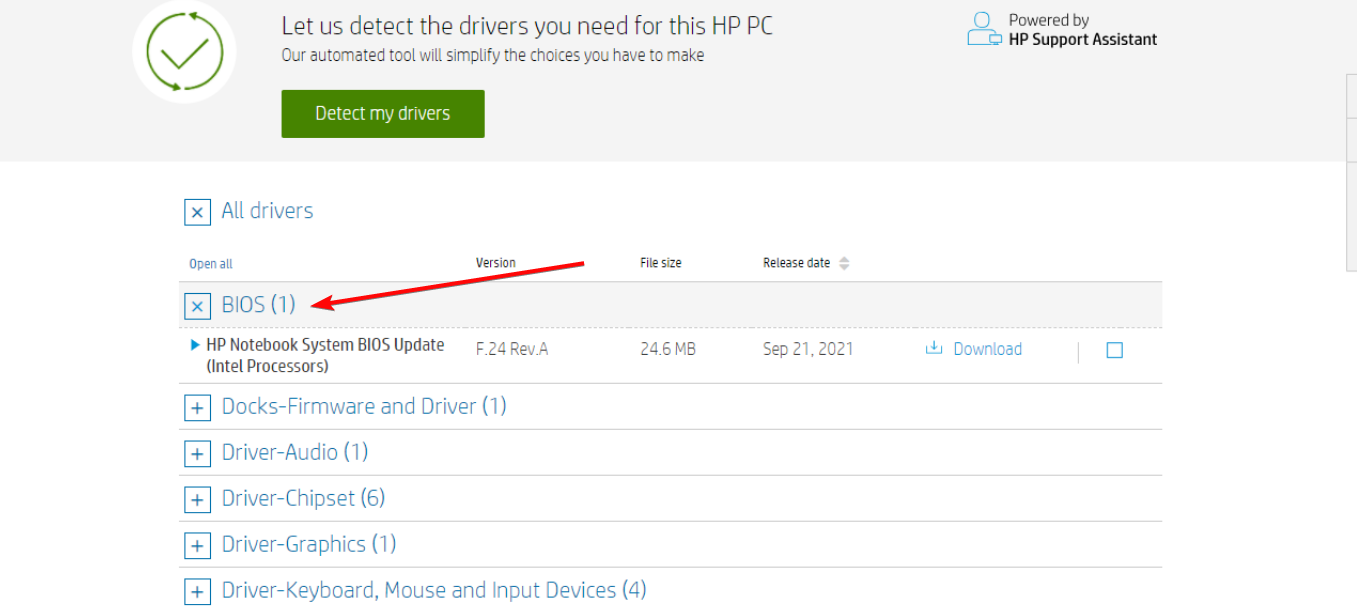
TotalAV is an outstanding antivirus program for not only common use but for gaming as well. It helps you keep your computer fast and clean with the System Tune-Up tool that finds and deletes duplicate files, removes junk files, and uninstalls unused apps.
TotalAV doesn’t have just antivirus characteristics, but also a wide range of cybersecurity features. You can store all your passwords securely in one space.
Furthermore, you can encrypt your browsing data, and become impossible to track or even hack with the built-in VPN.
It offers a Browser Cleanup feature to manage your data by controlling history and cookies. You can also browse more safely and securely thanks to its Web Shield which safeguards your device, security, and personal information from harmful sites such as phishing and scam websites.
With this impressive software, you can also check your downloads, installs, and executables for threats and viruses every time your PC accesses them.
TotalAV
Boost your gaming experience and protect your PC against all types of cyber threats.
While this antivirus is set to autopilot by default for completely silent security, some activities like games or movies need increased system responsiveness and performance, without interruptions of course.
Bitdefender has three special operation modes to cater to the activities you do that need such extra or added responsiveness: Work, Movie, and Gaming profiles.
No gamer wants to be interrupted while immersed in their favorite game, so Bitdefender’s Game profile temporarily modifies protection settings to reduce the impact on system performance.
This means that when a known game in full screen is started, Bitdefender automatically detects it using behavioral heuristics and a list of known games, then boosts performance. It does this by disabling all Bitdefender alerts and popups, disabling special offer notifications and Search Advisor, and postponing scheduled scans and automatic updates.
This way, once you’re done, Bitdefender simply switches automatically to the previous settings. It’s easy to see why this is one of the best antivirus solutions with gaming mode.
Bitdefender Total Security
One of the world’s top antivirus tools in terms of sheer protective features also caters to gamers.
Topping off our list is an antivirus tool that not only will protect your PC from all manner of cyberattacks but will also allow you to game efficiently while doing so.
Uninterrupted gaming and videos will be a new norm for you since with ESET antivirus there will be no system updates or annoying pop-ups while you play games or run a program in full-screen mode.
Besides, the program itself is pretty lightweight, even during full system scans, so you can have it protect you from the background while you are gaming intensely in the foreground without worrying too much about FPS drops.
Of course, even if gaming isn’t the only thing on your mind, ESET Antivirus can easily handle all types of malware, from viruses, ransomware, worms, and spyware.
Gaining access to its features will also be easy since the installation process is made to be easy to comprehend, while the interface’s complexity is kept to a minimum so that you know precisely what needs to be done.
ESET NOD32 Antivirus
You can game without FPS drops and keep your PC protected at the same time with ESET NOD32 Antivirus!
Although the Game mode is only available in Avira antivirus Pro, this antivirus with gaming mode still takes the crown as the best free antivirus solution for gamers.
Avira lets you enjoy the pleasures of a full gaming experience without leaving the door wide open to potential dangers sneaking in.
The Avira Internet Security Suite does more than just computer protection, it covers your gaming experience as well.
Through Game mode, Avira suspends unnecessary notifications while you play, once you enable the game mode feature.
Other functions that happen in game mode include the quiet running of antivirus and firewall, alerts kept for later, and updates made at the appropriate time.
Once you’re done playing, you can switch on Avira protection again to enjoy the full capacity of the suite.
Avira Antivirus
You can’t start gaming if you’re worried about malware. Get Avira to enjoy the first and forget about the latter.
This tool is another great solution, easy to use that ensures complete, real-time protection for your device system.
Vipre is extremely efficient in protecting your device and has a lot of helpful features that can increase your computer’s health and your gaming experience too.
It has high-detection rates and keeps your device safe from viruses, malware, worms, Trojans, and any other threats.
It also has Gaming Mode, which prevents Vipre from running any resource-concentrated background activity, including file scans, patch scans, or update tasks. Thus, the video games you’re running can use as many resources as necessary to give you an improved experience.
Vipre protects you from web threats, including malicious web pages and drive-by malware downloads. Moreover, it lists the tracking attempts it blocks, so you can identify which sites exactly are trying to track and steal your personal data.
VIPRE Antivirus
Get the best protection for your device against common threats with this complex and extremely efficient tool.
Whether you intend to play for hours on end or just a few minutes, this antivirus will not interrupt your gameplay with annoying popups or updates.
Instead of taking the risk and playing without any antivirus protection so as to avoid such annoyances, thereby putting your identity, data, and computer at risk of losses brought about by malware, get Panda antivirus with gaming mode.
Panda automatically detects when your computer is running a multimedia app, through the Multimedia mode, which can be switched on or activated on demand when needed.
Plus, when you are in trouble, you can use Panda’s Rescue kit, and enjoy playing games with zero interruption. Later on, when you need to buy some things online, you can do so knowing Panda’s got your back with fraud protection.
Panda Security Essential
Scan your device and keep it safe against digital threats by using the Panda antivirus solution.
Any gamer knows they need to stay protected when gaming or streaming online because hackers are always on the prowl for home networks and online accounts of gamers and streamers. Luckily, is a wide array of antivirus software for streamers to choose from.
This is why Symantec’s Norton antivirus with gaming mode was created – with gamers in mind – so your gameplay isn’t interrupted while you play.
Besides having the best-in-class internet security and cyber defense, Norton also offers performance management tools useful for optimizing your computer’s performance.
Norton can be configured for gaming, plus provides features to suspend alerts and background tasks while you play or stream, ensuring minimal effect on the computer’s performance.
You can go into two modes: Silent (with Full-screen detection) or Quiet mode.
In Silent mode, you can configure Norton to stop sending alerts and suspend background tasks that slow down your computer’s performance. The full-screen detection helps you turn on Silent mode automatically when the antivirus detects full-screen apps.
Quiet mode is automatically enabled when you’re doing tasks that need higher system resource utilization, during which Norton suspends the background activities so that the task at hand uses maximum resources for better performance.
Norton 360
Enjoy a virus-free gaming experience with Norton 360 antivirus software.
This is one of the most popular tools for computers with low specs or slow computers, and unlike some applications, this antivirus won’t slow down gaming. Why do we recommend Emsisoft Anti-Malware?
Simply because this tool will not charge your PC and will not use lots of resources that are necessary for your gaming sessions.
This anti-malware software will keep clean your PC and will prevent any threats by using a dual-engine scanner that monitors all the files on your PC and a Behavior Blocking system that keeps away from your machine any undiscovered threats and unknown signatures.
Daily updates and scans will keep your PC or laptop working without being bothered by any trojans, PUPs, or backdoors.
You will find this tool at a great price on their official website (link below). You will also be able to get a free trial for a 30-day period.
Emsisoft Anti-Malware
Let Emsisoft keep your device clean and prevent any threats that can affect your gaming experience.
This is one of the leading antiviruses with gaming mode, in fact, users have touted it as the antivirus for gamers.
Webroot delivers security for your data and computer without any impact on gameplay.
Other benefits include optimization of your gaming system, playing games at warp speed with full protection, playing without lags or interruptions, and no need for a ‘Gamer’, or ‘Silent’ mode option that turns off protection to avoid slowdowns.
This antivirus comes with a performance guarantee so if you’re not convinced about its abilities, you get a refund on your purchase within 70 days – they’re that good!
Salient features include secure browsing with real-time antiphishing, webcam protection from spying threats, network protection for incoming and outgoing traffic, lightning-fast scans with no interruptions, plus it installs super fast with no need for signature updates.
Webroot
Increase your gaming performance by letting Webroot protect you from any kind of cyber threats.
Another great antivirus that doesn’t affect your gaming performance is Kaspersky Anti-virus. Just like other entries on our list, this antivirus uses Gaming Mode, but it also comes in three different versions, and each version has some unique features.
Kaspersky offers advanced protection against viruses, malware, and ransomware. It ensures that your PC is running smoothly at all times with optimal performance.
It is incredibly simple to set up the application and use it as well. It provides an amazing set of features that secures your PC, Mac, and mobile devices. It also has a webcam, browsing, and phishing protection so you can browse the internet more safely and securely.
Enjoy your gaming experience thanks to Kaspersky which turns on automatically in full-screen mode, suspending notifications and scans.
Furthermore, it has a File Protection feature that allows you to back up your important files. You also get the ability to block harmful content online.
Kaspersky Standard
Choose this advanced protection app and keep your PC safe to enjoy your gaming time.
This next antivirus has a long history of protecting users from all sorts of cybersecurity threats, and it seems that it continues to evolve in order to include features that appeal to a wide range of users.
This includes gamers since they’ve renamed Game Mode and overhauled it to include some nifty new features as well.
Game Mode is now called Do Not Disturb Mode, and it blocks distracting popups whether you’re gaming, watching movies, or presenting on full-screen.
As an added bonus, Avast Free Antivirus has become more and more lightweight, focusing on being as less of a burden for your system as possible, without sacrificing any of its protective powers.
Besides, the product is available completely free, with no strings attached whatsoever, so if you’re looking to be budget-friendly, Avast Free Antivirus is a good way to start.
Avast Free Antivirus
Try this lightweight antivirus program to have the benefit of a distraction-free gaming experience.
So, are you ready for a great gaming experience with full security coverage? Let us know your favorite antivirus with gaming mode in the comments section below.
Using antivirus (AV) software remains a best practice in computer maintenance. It keeps viruses at bay and signals you when there is an intrusion into your computer.
In this day and age, you dare not browse the internet without some form of protection. Browsing the web means you have to interact with other connected devices, you may share files and resources, and you might have a malicious user try to compromise your network and steal critical data. These and more are reasons why you need an antivirus.
But from a developer’s viewpoint, an AV is not always the white angel. In many testing scenarios, they may stop critical programs from running, or increase the testing duration. False positives become a nightmare, and shutting the AV may be the solution to running a smooth software test. Learn more on our guide for best antiviruses without false positives.
In this article, we like to explore some of the best antivirus software for developers.
Should developers have antivirus software on their machines?
There are no reasons why software engineers shouldn’t have antivirus software installed on their computers, and there are compelling arguments for this.
However, for this protection software to not be a bother during development, keep the following in mind:
Set up your antivirus software to recognize the development folder (the one associated with the code repository) as a trustworthy folder.
Ensure that files transmitted through email have a different extension to get past most email clients’ attachment regulations. Many antivirus programs will warn you if you open an executable file.
For development, use a virtual machine. This has a performance cost, but the benefit is that if anything goes wrong, all you have to do is delete the VM or restore it to a week-old snapshot and execute a git pull. It’s a lot simpler to accomplish this than to retain actual machine snapshots, particularly when the hardware is changing.
If these elements apply to your situation, then having good antivirus software will surely have a great impact in the long term.
TotalAV is a sensible pick for a developer who wants protection that stays out of the way. Real-time scanning and WebShield run in the background, and adding exclusions for build folders or test binaries takes a couple of clicks, so it does not fight your toolchain.
It is deliberately simpler than TotalAV, which cuts both ways: fewer knobs to turn, but also fewer to configure. The tune-up tools keep a busy machine tidy, the password vault in the higher plans is handy for the pile of service logins, and one subscription covers Windows, Mac and mobile.
Real-time protection with easy exclusions
WebShield for phishing and malicious sites
Junk cleaner and startup manager
Password vault in the higher plans
Windows, Mac, iOS and Android
TotalAV
Get the latest security solution to protect your computer at all times.
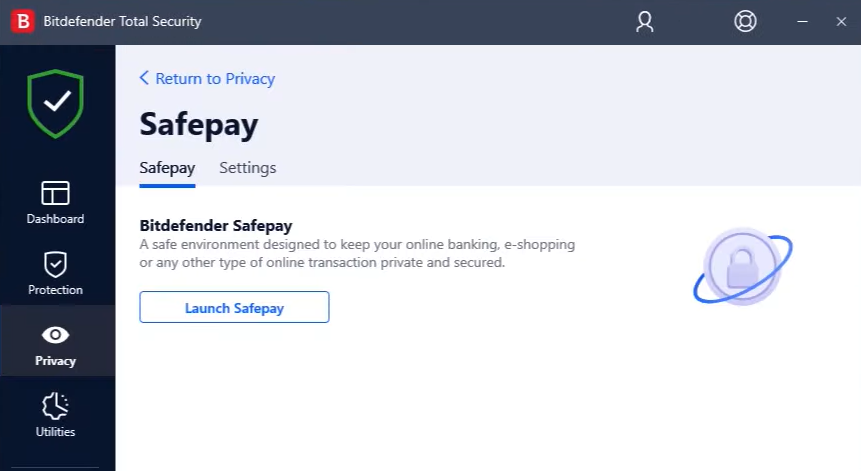
To begin with, the overwhelming number of functions included in Bitdefender is quite astounding. Even if you get Bitdefender Antivirus Plus, you will receive online banking protection with Safepay, which is a secure browser that protects you from all perspectives.
A vulnerability scanner, password manager, and a high-quality VPN with a daily limit of 200MB are also included in this package.
Bitdefender is very user-friendly, with a professional and well-balanced UI that’s appropriate for total novices as well as specialists looking to adjust things. This flexibility is ideal for a developer who has to alter settings to enable specific applications.
The antivirus includes all of the above and capabilities to increase PC speed and locate lost mobile devices.
Bitdefender Total Security is the company’s flagship product. It includes various PC maintenance tools and support for Android and iOS devices, Mac, and Windows PCs – in other words, it’s a one-stop shop for your whole family’s online security requirements.
Regardless of the Bitdefender edition, you select, you’ll receive a lot of value for your dollar, especially if you have a lot of devices.
Additional features:
Fast scan
Configurable interface
Advanced threat defense
Bitdefender Total Security
Get the fastest scan to detect and remove all cyber threats that may affect your PC.
After installation, there is not much to do; Malwarebytes operates in the background to protect you without you having to do anything.
Just double-click its system tray icon, choose Scan, and wait for the results to appear to perform a scan. It’s straightforward, which is great for experienced developers, but even tech beginners will feel right at home.
Malwarebytes’ primary Scan tool swiftly scans your startup items, RAM, and essential file system regions.
A distinct Custom Scan lets you choose which objects to scan, including individual files, and allows you some flexibility over how they function (such as whether to scan within archives and what to deal with possibly harmful applications). This feature is essential for the developer who will want to mark some folders as safe.
Malwarebytes also includes basic URL filtering, detecting and blocking fraudulent link attempts. This secures all of your applications at the network level and does not need browser add-ons.
Its Settings dialog is primarily for turning the features on and off (updates, notifications, malware protection, web filtering, etc.), but it also allows you to fine-tune Malwarebytes’ exploit protection. This is great as you can shut down the antivirus during testing in very few clicks.
Microsoft Defender antivirus does not seem to get the respect it deserves for its security features. This tool has constantly evolved since its release in Windows Vista.
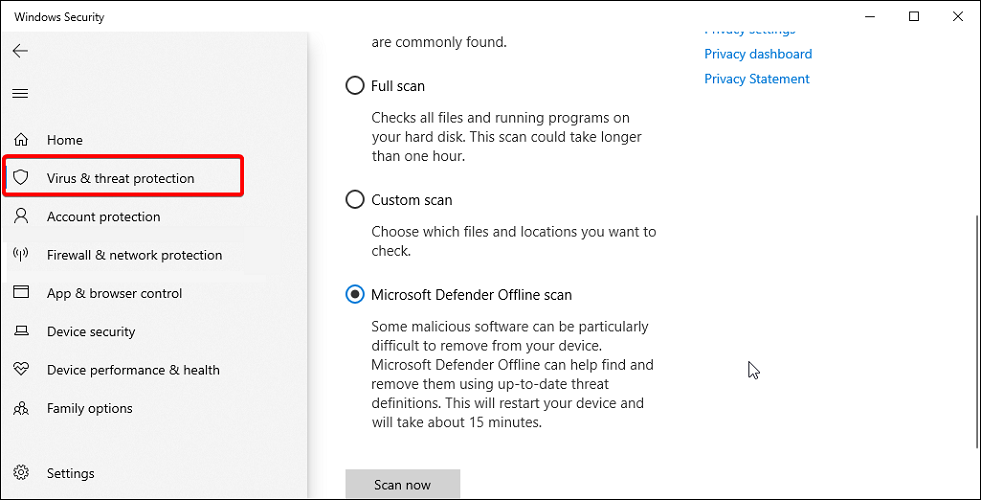
Microsoft Defender offers a comprehensive variety of options for scanning, including a full system scan, a fast scan, a custom scan to examine specific folders and files, and a boot scan to eliminate the most persistent threats before Windows completely boots.
Defender’s Controlled Folders function adds a second degree of security. When you enable this feature, it automatically prevents unauthorized applications from reaching essential folders (these folder lists can always be updated). This is a practical method of safeguarding test software.
Antivirus isn’t the only thing to look at when it comes to Windows Defender; there are plenty more. The firewall is most likely at the top of the list.
This firewall performs an excellent job of defending you from incoming network threats, but it’s less concerned with managing outward access; if a program has administrator privileges, it may tweak the firewall by adding its own rules.
You may wish to create unique rules for some of your test applications.
Regardless of your computer use habits, we recommend you employ an antivirus to keep you safe. However, we understand that it may come with some drawbacks for a developer, notably the considerably slower times it takes to test and run applications. Still, these do not outweigh the many benefits.
We have not made this list in any particular order, but we have shed some light on some of the antiviruses that allow flexibility and customization. These are great for developers who may need to tweak some settings to run programs.
The big advantage of Bitdefender is its use of system resources. After the antivirus is fully integrated into your system, you won’t notice much of a change in system performance.
If system resources are not an issue, running a System Scan in high-priority mode may be a useful option for scanning the PC. By conforming to this requirement, the antivirus will allocate equal system resources rather than competing with other programs directly.
Here are the best features of Bitdefender:
Improved PC vulnerability assessment
Real-time system shield
Cyber threats prevention
Web-filtering technologies
Autopilot security advisor
OneClick optimizer tool
Bitdefender Total Security
Fortify your defenses without lifting a finger. Get Bitdefender today.
ESET HOME Security Essential provides all-around protection against spyware, viruses, worms, adware, and rootkits.
Another valuable functionality is the SysInspector diagnostic tool that captures a snapshot of system changes in order to track system changes and for tech support purposes.
Some of the main key features of ESET are:
Advanced protection against new threats
Password manager included
Military-grade encryption for sensitive data
Webcam protection
Ransomware shield
Parental control features
ESET Home Security Essential
Protect your PC with low CPU usage. Explore ESET today!
Kaspersky Standard has great features and does not slow down your laptop or desktop, nor is it memory hungry, with a low CPU and resource usage.
For laptops, the security tool includes the option to deactivate scheduled processes when on battery power, and to enable balance protection on startup.
Kaspersky Standard
With few resources, it provides complete protection against information security risks, network and phishing attacks, and spam.
The VIPRE Antivirus Plus tool uses very few resources and offers maximum protection against ransomware and other emerging threats, viruses, Trojans, and more.
It’s easy to use, and quickly selects or schedules scans, it checks for current definition updates and customizes how patches are applied.
Here are the key features of VIPRE Antivirus Plus:
Real-time Protection
Anti-tracking
Ransomware Protection
Unlimited VPN for All Devices
Automatic Updates
VIPRE Antivirus Plus
VIPRE Antivirus Plus helps you to provide total protection for your PC against malware threats with few resources.
Guard.io isn’t your mainstream antivirus. It comes as a lightweight browser extension with the same capabilities as a normal antivirus. It focuses on everything you do on the web.
The security methods include using deep learning models to protect your browsing session in advance, so it can prevent attacks even before reaching you without compromising privacy, bandwidth or security.
Using Guard.io offer the benefits of:
Machine Learning, Big Data, and Cloud Infrastructure for state-of-the-art protection
Minimal impact on your system’s resources with full antivirus effectiveness
Total ecosystem coverage for full browser protection
Smart detection of suspicious sites from visual elements using client-sided deep learning models
Guard.io
Smart protection, zero interruptions. Try Guardio for safer browsing.
Norton’s Performance Monitoring tool closely monitors your computer and informs you when there is an unusually high amount of CPU or resource usage.
If you’re seeking a solution to a specific problem, suspect that your computer is being illegally watched, or have keyloggers installed, this functionality is quite useful.
It is not unusual for Norton to use resources while background programs are running. As for the full scans, if you have them configured to run only when the system is idle if you never leave the system inactive long enough, Norton will ultimately take over and execute the scan anyhow.
Norton Antivirus
When a virus, worm, or other potentially harmful software is found, it promptly isolates it and notifies you.
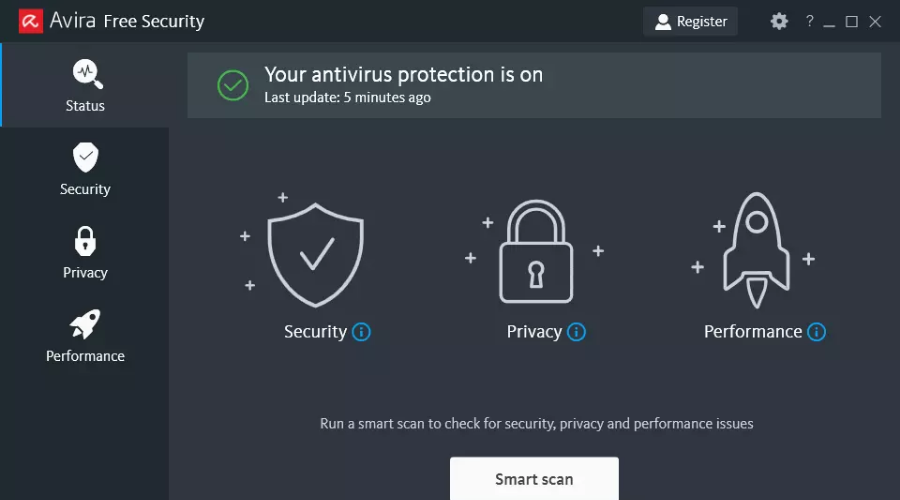
Avira is a free antivirus solution for Windows computers. It protects you from major threats with little use of system resources.
Besides being a reliable and comprehensive cybersecurity app, it protects your privacy thanks to its free VPN. Additionally, it has a tool to help you clean your PC.
Furthermore, you can use the Password Manager tool to easily secure your online accounts with strong, unique passwords you don’t need to remember.
Some important features:
Free VPN included
Speed booster to improve your PC performance
Identity protection
Anti-Scam protection tool
Avira Free Antivirus
Shield your PC for free and power up your performance with Avira.
F-Secure SAFE is the best for browser protection and also has one of the best antivirus software for Windows. This security software utilizes only a small part of your computer’s resources.
In addition, it can protect your devices from ransomware, Trojans, and viruses and keeps all your banking connection secured.
Other features are:
Instant notification immediately viruses are detected
Device finder to locate, lock or erase the missing device
It effectively manages users and devices
F- Secure
From ransomware to viruses – F-Secure handles it all.
Avast Free Antivirus is another antivirus with low resource utilization. This antivirus software is very good for your PC and other devices. In addition, it is free antivirus software.
This antivirus removes all sorts of viruses and other malware. In order to achieve maximum security, Avast Free Antivirus will also analyze unknown files in order to prevent malware infection.
Key features include:
Do Not Disturb Mode for gaming
Behavior Shield keeps an eye on your software to make sure they don’t suddenly change
Lightweight antivirus
Protects your home network against intruders
Avast Free Antivirus
Big protection in a lightweight package. Avast it now!
360 Total Security is an ideal antivirus for low-resource devices and well as for older systems running on Windows OS, Vista, 7, 8, and 8.1, 10.
It makes use of several engines to provide the best protection against Trojans, viruses, and rootkits.
Key features include:
Comes with four predefined settings: performance, security, balanced, and custom.
The interface is simple and easy to use.
It offers protection for three main sections: Internet browsing, privacy, and system vulnerabilities.
It scans multiple potentially vulnerable areas such as the main applications, system settings, the running processes, the startup items, and the system’s critical files.
This Indonesian antivirus security software is good for slow computers and is compatible with Windows OS. It is a low-resource antivirus.
Smadav uses only a small part of your computer’s resources. This software offers additional Protection for your PC and is compatible with other antivirus products.
The main features include:
Detecting and cleaning viruses, thereby improving security on your PC
Protection for USB Flashdisk
Cleaning the USB Flashdisk, and restoring the infected files in the USB Flashdisk
Trend Micro Maximum Security provides dependable malware protection against both known and undiscovered threats.
It expressly guards against various types of ransomware, which is a major worry right now. At regular intervals, Trojans and viruses are prevented. It has spam filtering and detects dangerous URLs in browsers, so you may navigate securely and protected.
Overall, it is a solid anti-virus solution with a few small flaws. Having said that, the resource utilization might be a little high at times, but it can be changed in the settings.
This table contains the smallest rates registered. As you probably know, these numbers oscillate as the process progresses. Some antiviruses used up a little more resources for the first 1-2 minutes of the scan, and then they became more stable and dropped to the rates presented above.
We must also mention that ESET HOME Security Essential does not have an inbuilt quick scan option, but we used the Custom scan to create a profile that uses similar parameters as quick scan options in other antiviruses. It scanned the Operating Memory, Boost Sectors, System Registry, and the WMI Database.
Modern-day antiviruses have plenty of security features to make sure your machine stays protected at all costs. It is subsequently essential that these features don’t impact your PC’s performance.
A good security utility should be able to offer real-time protection without interfering with your system. For this reason, a tiny antivirus with a small file is recommended if you want to secure even low-end PCs that don’t have many resources, to begin with.
It is important to test out your antivirus and make sure that it is the best choice for you. When it comes to performance and system resource usage, the most important assets to look for are:
If you’re wondering what’s the best antivirus for your Windows 10 64-bit PC, look no further. We’ve compiled a list of the best antivirus programs for the 64-bit version of Windows.
First thing first, since the 64-bit architecture is widely used today, all major antivirus programs work great on it. So, the choice is going to be hard.
Let us mention that there is a variety of antivirus programs, but these are the most efficient in our opinion. The list has something for everybody’s taste, and your choice will depend on your priority.
Whether that’s malware protection, Internet security, or ease of use, we’ll just tell you about their most important features, and differences. So, you can choose the best option for yourself.
What are the best antivirus tools for Windows 64-bit PCs?
TotalAV – Best system maintenance and browsing security
TotalAV is the ultimate inline security and privacy solution for personal or business computers. With great features on either side, it will protect your workstation from any threats.
Experience a cleaner browsing experience with WebShield. These features will block all harmful websites, links, and downloaded files from infecting your PC.
Also, with TotalAdblock enabled you won’t see any of those pesky ads anymore. No ads, notifications, and pop-ups mean less data to be loaded so it will make your browsing faster than ever.
It comes with great real-time protection and prevention of all types of viruses, with their definitions regularly updated. Eliminate anything that might pose a threat to your system.
Some of the key features of using TotaAV:
Multi-device protection for Windows, Mac, Android, and iOS
Password manager and vault
Ransomware protection from accessing your data
PUA protection and zero-day cloud scanning
With a built-in VPN, you gain access to geo-blocked content such as web pages and streaming platforms. Using a VPN is completely safe and enhances your privacy.
TotalAV offers system tuning tools to improve system performance and free up disk space by removing junk files and unnecessary folders.
TotalAV
An amazing tool that will keep your system secure and optimal.
People tend to believe that premium antivirus solutions perform better than their free counterparts. Whether that’s true or not, we’re not going to discuss it here.
But if you’re among those who believe that they’ll be safer if they purchase an antivirus, BitDefender is definitely the best value for money.
Don’t get us wrong on this one, an affordable price is not the only thing BitDefender has to offer. This software indeed is one of the best on the market, regardless of its price.
It’s way above the industry average in almost every important category, according to AV-Test. BitDefender performs equally well with both Internet security and keeping your system safe as a whole.
It will prevent you from visiting all shady websites, and block, with high precision and efficiency rate, every suspicious application on your computer before you execute it.
The latest updates have also made BitDefender a strong tool against ransomware attacks, in accordance with recent events. But its defense mechanism against ransomware is also its only real downside.
Namely, you may encounter some false positives along the way, as BitDefender tends to sometimes register legit files or programs as a threat. But that can be resolved with whitelisting.
Check out its top features below:
Perfectly adjusted for Windows 10 PCs
Multi-layered protection to fight against the newest online threats
Efficient anti-phishing protection
Easy to install and use
Safe online banking protection
Bitdefender Total Security
Trust this antivirus software built on advanced technology for real-time security even on a slow PC.
When it comes to the best protection for 64-bit Windows 10 platforms, ESET HOME Security Essential is one of the most reliable options out there.
Thanks to the advanced technology that this tool is based on you’ll benefit from enhanced security against phishing and ransomware in order to keep your personal data safe.
You’ll definitely enjoy the fact that this antimalware tool is very lightweight which means that it uses minimal power so that you can keep your device unplugged longer, using battery-saving mode.
Another excellent feature that you’ll definitely find very useful, is the anti-theft function that can track and locate your device in case it gets stolen or lost.
Take a look at some of its best features:
Remote security check of your devices
You can use a single license for multiple devices
Free, U.S.-based tech support
30-day free trial
Advanced banking protection
ESET HOME Security Essential
Get the best protection for your 64-bit Windows 10 PC with this professional antivirus.
Let us start by saying that Emsisoft Anti-malware fits perfectly on all x64 PCs and laptops. This is an anti-malware and antivirus tool that was created for low-spec machines.
It can easily run a scan even on an older configuration so you can try it without any problems.
It comes with a bunch of cool features that will improve your security such as the Behaviour Blocker function that blocks unknown signatures.
The dual Engine Scanner is a tool that can analyze all your downloaded or modified files that could be a potential threat. In addition, it comes with real-time surfing protection.
It is one of the most popular ransomware and malware protection (hourly updates that could prevent over 300,000 daily attacks).
Top features of Emsisoft Anti-Malware:
Hourly updates
Behavior Blocker blocks unknown signatures
Anti-phishing and anti-ransomware protection
Command-line scanner for advanced users
Runs on Windows desktops and servers
Emsisoft Anti-Malware
Not only that Emsisoft’s solution works on 64-bit PCs but it can also run on older configurations.
If BitDefender is the best value for the money, and Norton is a more expensive option, Kaspersky Antivirus comes right in the middle.
And it’s another elite, worldwide known antivirus solution that’s been right at the top for years.
As you’ve probably noticed by now, this article is mainly based on AV-Test results, and Kaspersky absolutely edged them.
This antivirus achieved perfect scores in all three important categories of the test – Performance, Protection, and Usability.
It surely deserves these scores, if nothing else but for usability, where both Norton and BitDefender fell short.
We’ll give Kaspersky the title of the most usable antivirus on this list. But when it comes to actual protection (on contrary to its AV scores), it gives slightly less accurate results than BitDefender or Norton.
But in Kaspersky’s defense, these are various tests where hundreds of malware samples were put to work. In reality, Kaspersky is as accurate as you need it to be.
Also, you’re very unlikely to encounter a false positive using Kaspersky, which is truly positive (I know where the door is).
Take a closer look at some of its best features:
Very simple to use and manage
Protects against viruses, spyware, phishing, and dangerous websites
High performance with low resource consumption
Parental control features
Password storage
Kaspersky
When it comes to an antivirus that does a great job even when you’re offline rely on Kaspersky.
Norton Securit Standard is the total opposite of Bitdefender. But only when it comes to pricing. This product is more expensive than the industry average, but we can say it’s worth the money.
It’s one of the most complete antivirus packages you can get right now and will provide you with a bunch of features, and respectable precision.
But enough about pricing, let’s see what you actually get for the money. According to the trustworthy AV-Test, Norton’s scores are among the highest in the industry.
Of course, you get great security against malware and virus attacks. But if you’ve ever heard of Norton, you already know that.
There are two defense stages that Norton implies to malicious software. First, it will automatically detect malware and instantly delete it.
But if the threat somehow manages to slip through, Norton will immediately block it on launch. All that with very high accuracy.
The best thing about Norton Security actually lies in the details. For example, as soon as you download and install it, you’ll get the latest virus definitions, and it also features great security features for browsing.
So, you can freely browse the Internet, open emails, and download everything you want. Norton will let you know if you’re at risk.
The biggest downside of Norton Security, besides its relatively high price, is that it doesn’t have legitimate support services. So, if you have any problems, you’ll have to look for the solution yourself on online forums.
Also, the initial system scan upon installation may take more time than it should. However, Norton has a feature that allows it to memorize good files, in order to speed up future scans, so we can’t say this is a real issue.
Take a look at a few of its top features below:
Cloud backup for PC
SafeCam feature that secures your webcam against high jacking
Built-in firewall for PC and Mac
Password management
Anti-spyware, antivirus, malware, and ransomware protection
Norton Security
Ensure the protection of your 64-bit device and your webcam with this amazing software.
Avast Free Antivirus is perhaps the most affordable option on this list, simply because you can get it for free! The free version offers so much, that you’re basically paying just for bonus features in the Pro version.
Avast Free Antivirus offers a respectable level of protection for a free antivirus. It even has better scores than some paid solutions.
Actually, these results are not better than any antivirus from this list, but the other abovementioned antiviruses are elite premium security solutions, so we can say that Avast hangs in there quite well.
As for the bonus features, there’s the Wi-Fi Inspector feature which, obviously, scans nearby networks for any security problems.
There’s also a simple password manager that should help you organize your passwords, and keep them secure.
Additionally, the Pro option brings the Online Security browser extension, which should keep you safe while browsing. We’ll leave it to you to judge whether the Pro version is worth the money or not.
Let’s see what are its key features:
100% free antivirus
Great network security inspector
Password manager for securing all your accounts
Very easy to use and maintain
Passive mode to be used as a secondary security solution
Avast Free Antivirus
Don’t miss putting in this great antivirus software that works wonders on your Windows 64-bit PC.
Let’s get this one straight first. Windows Defender is by no means in the conversation for the best antivirus for Windows. So, why would we even put it on the same list with all these beasts from up there?
Well, simply it’s a built-in Windows feature, and millions of people prefer it over any of the flashy, advanced antivirus programs.
Windows Defender is an integral part of the conversation that has been on for ages – whether you need an antivirus on your PC or not.
We’re not going to discuss it here, but for people who believe that antivirus is actually unnecessary, Windows Defender is an obvious (and only) choice.
The level of protection you get with Windows Defender is rather basic, but it’s still enough to keep you relatively safe.
Even though Microsoft knows a lot of people use Windows Defender instead of third-party antiviruses, the company actually doesn’t sit on its hands when it comes to developing Windows Defender.
In fact, each major update for Windows 10 makes this feature better. There’s even a rumor that suggests Microsoft will implement some artificial intelligence into Windows Defender.
64-bit means that something is 64-bits wide, regardless of Windows, apps, processors, or simply memory addresses or other units of data. They are all 64 bits wide and are used for computational power.
For computers, I run 64-bit Windows because it works better with current processors, which are also 64-bit. Windows and processor manufacturers only make 64-bit products because they are the most affordable today.
So, this is our comprehensive guide to the best antivirus for Windows 10 64-bit platforms. We hope our recommendations will help you benefit from some excellent Internet security.
Pop-up notifications are employed by several antivirus software in order to serve two major purposes: alert you about threats and run advertisements.
The real-time alerts force users to take action right away and are generally useful features that can prevent cyber attacks.
The promotional pop-ups are mainly used by free antivirus software in an attempt to advertise other tools by the same developer or to convince you to upgrade to their premium software.
In many instances, you will be able to stop these pop-ups directly from the setting panel of your antivirus or from the Windows setting. Otherwise, consider switching to a less perturbing antivirus utility.
Are antivirus pop-ups harmful?
Legitimate antivirus pop-ups are not harmful. If you use a good security utility that is created by reputable developers, you should not worry.
However, cyber attackers frequently use very similar pop-ups to make download malicious apps to your computer.
Malicious web pages send messages like Your computer is at major risk in an attempt to make you download threatening applications that pose as antivirus utilities or extensions/add-ons.
Unfortunately, many users fall for this trick and get major PC infections. For this reason, we advise you always double-check every pop-up you get and make sure to only download software from legitimate websites.
How to stop antivirus pop-ups on Windows 11 and 10
Although most of us hate ads, nagging screens, and promoted software, this is the only way for antivirus companies to make money, especially if they are offering their software for free.
Many freeware and shareware apps cease displaying advertisements once you register or purchase the product. However, some apps include third-party adware tools.
Legitimate adware is created by a wide range of developers, including well-known ones. It’s a legitimate and legal way of giving users a free antivirus without pop-ups.
NOTE
We must mention that adware and add-ons are not the same things. Add-ons are smaller applications that are made to run on an Internet browser. While some software developers do try to make you get their browser add-ons by including them in the installer wizard of different applications, not all add-ons are adware.
To deactivate all types of pop-ups follow these easy steps:
Type in the Search Bar Internet Options and open it.
Select the Privacy tab.
Check the Pop-up blocker box.
Click on Settings next to Turn on the pop-up blocker.
Set the Blocking level to High: Block all pop-ups.
Today we’re going to show you security tools with a free trial and free antivirus without ads that allow you to use them without being pestered by add-ons of any type.
What is the best antivirus without ads?
Employing an adware removal tool will aid in the resolution of advertising issues such as annoying pop-ups and hidden malware.
Manual removal does not ensure that you will locate all of the components blocking your daily routine and browsing experience.
For a dependable solution, cybersecurity software such as an antivirus without ads can assist you in cleaning anything you would not locate on your own.
To avoid any unwanted or time-consuming program, choose only the antivirus with no pop-ups on Windows 10 and 11 that we listed in this article.
Total AV – Best browsing security and system maintenance
TotalAV is antivirus software that comes with a full package of features. It will not only keep your system protected but it will also be optimized for smooth running.
As an award-winning antivirus, it protects every aspect of your PC. Don’t worry about any attempts on stealing your data when you are surfing the web.
Eliminate malware, and check installs, downloads and executables for viruses every time you access them. Moreover, with multiple-device compatibility, all data is protected across platforms.
One of the main features of TotalAV, which not many antiviruses come with, it has a VPN and an ad blocker integrated with it. You will never see ads or pop-ups again and your data will be anonymous every time you enter the web.
WebShield is another amazing feature that will make internet browsing safe for you and anyone using your computer. Search results will be verified in real time so you will know what web page to trust. Also, it will block any fraudulent site before you access it.
TotalAV takes system maintenance into consideration by providing users with tune-up tools to optimize their operative systems.
Delete junk files, and duplicate files and uninstall applications down to their last roots so your system is clean every time you use it. Clean up the browser of malicious extensions and easily manage all browsing history, cached data, and cookies.
TotalAV comes as a full first defence package against any threats that want to gain access to your private data, banking details, and any other sensitive information.
Note: TotalAV comes with 3 subscription plans, if you want all the features mentioned above, you must choose the most complete subscription plan.
Total AV
Gain a smart and powerful system assistant to aid your computer and enhance it.
Bitdefender is currently one of the best antivirus tools on the market without ads and is rightfully ranked so. This application offers full system protection and advanced threat defense to keep your PC safe from malware.
The free version is powered by the same antivirus engine as the commercial versions and offers real-time protection against known virus signatures.
The free edition of Bitdefender is relatively swift and responsive, and it does not consume a lot of your system resources so you may use your computer without the anxiety of having a slow PC.
Bitdefender’s free version is exceptionally well-rated for providing great gaming and streaming experience without slowdown or scanning interruptions.
You can activate the Virus Shield and Auto Scan capabilities, sign in to an optional My Bitdefender account, and browse the Logs, which also managed Events and Quarantine lists.
The disadvantage is that it lacks customizability, choices, and additional features. Its security is adequate, and the application can scan a hard disk at record speed. It’s more of an install-and-forget program that silently works in the background.
Note: Older versions of Bitdefender may lack settings options and display more ads and pop-ups. Make sure you get the up-to-date version from a reputable source.
To turn off ads and pop-ups in the current version, head to Settings> General and deactivate the Special Offers and Recommendation notifications.
Bitdefender Free Antivirus
Get Bitdefender now on your device and add an additional level of security against malware.
One of the greatest antivirus without ads is ESET HOME Security Essential, offering antivirus and anti-spyware protection and will protect you from various threats such as viruses, rootkits, etc.
The application also has anti-phishing features that will protect you from hackers that want to steal your online credentials.
ESET also has ransomware protection as well as an exploit blocker that can detect malware that tries to evade antivirus software. There’s also a UEFI scanner feature that will protect you from hidden malware that can affect your UEFI.
It’s also worth mentioning that this tool is rather simple to use, so it’s perfect for first-time users. Of course, advanced settings are also available for any advanced users that want to customize their security settings.
ESET HOME Security Essential offers a built-in firewall and parental control if you need more security. This version also has a Home monitor feature that scans your devices for vulnerabilities.
If you frequently shop online, you’ll be pleased to know that this version offers banking and payment protection.
There’s also a webcam protection feature that will prevent malicious users from spying on you.
It’s worth mentioning that this version also has a laptop protection feature that allows you to track your laptop based on nearby Wi-Fi networks.
There’s also an anti-theft optimization that can prevent thieves from changing system settings. Lastly, there’s an activity watch feature that allows you to take screenshots and webcam pictures remotely.
Note: ESET’s default settings allow some pop-ups. To deactivate them, open the main window and press F5 to open the Advanced Setup window. Click User interface > Alerts and notifications and select Display only notifications requiring user intervention.
ESET HOME Security Essential
Enjoy the safest antivirus without worrying about ads with ESET HOME Security Essential.
Another solid antivirus that doesn’t come with ads is Panda Dome Antivirus without ads. The basic version offers protection for both Windows and Android devices.
The application comes with real-time protection that will automatically quarantine any suspicious application in order to protect your PC.
Panda Antivirus comes with no ads, and it’s a great antivirus in general. There are several versions available, and the most basic version is free and it offers solid protection.
You also receive a free VPN with a daily limit of 150MB to browse anonymously from a single virtual location if you connect to public Wi-Fi to make payments or utilize sensitive information.
Panda’s free antivirus is one of the best free PC antiviruses we’ve tested. It only contains real-time antivirus protection for Windows PCs and uses the same antivirus engine as the premium version.
It offers a clean, simple user interface and conducts practically all functions transparently. You also don’t have to re-register it every 12–14 months as you do with another third-party antivirus because it automatically updates itself.
Note: Make sure that your Panda Antivirus is up-to-date. To turn off pop-ups, click the 3 lines at the top, select settings, and then Turn the news off.
Panda Dome Antivirus
It uses little RAM, has robust security, can secure USB drives, and is ad-free with feature-rich customization.
Next, we have yet another renowned security software that proves to be very efficient in detecting and removing malware.
This antivirus is appreciated for its simple user interface. You can find everything you need directly from the main Windows.
It follows the multi-layered protection principle, implementing various ways to fight against all sorts of cyber threats such as viruses, malware, and hackers.
The Windows application implements a Two-Way Firewall. This means that you can get a more in-depth view of every device connected to your network.
It detects both incoming and outgoing network connection activity. It also has a strong anti-ransomware monitor that uses specific algorithms to detect suspicious app behaviour.
Kaspersky Internet Security also has a Do-Not-Disturb mode, which will temporarily pause any pop-ups and notifications.
This does not mean that the antivirus stops, it will keep protecting your system in real-time, but you will be able to enjoy games and movies without interruptions as long as this feature is enabled.
The application has a powerful scanner that is able to conduct full PC scans, as well as custom and quick scans.
Note that this is the paid version of the software. Kaspersky Free, whilst still being a solid security software, does, unfortunately, load ads onto your system.
Kaspersky Standard
Web security with automated updates and no advertising or tracking of user behaviour and activities.
Intego Antivirus is a great trustworthy tool for advanced defence against dangerous malware out there.
This user-first antivirus comes with a plethora of benefits designed to secure your Windows or Mac PC for good.
To start with, the real-time monitoring tools keep you away from risky digital threats such as DDoS or zero-day attacks.
Besides this, your device can benefit from 24/7 virus protection and recurrent alerts every time you access malicious websites or even programs.
You should also be aware of the adware defence that blocks online compromised websites with spyware tools.
To be more specific, Intego ONE is developed to prevent diverse virus types such as malware, phishing attempts, or hacking methods to steal your web information.
It’s worth mentioning you have a quick-speed interface and intuitive security menus. Plus, it uses fewer system resources to preserve your OS performance.
Note: If you want to disable pop-up ads on this antivirus, you can deactivate the real-time protection by going to Settings > Security and looking for Real-time protection > Turn it off.
Intego ONE
Cover adware and spyware attacks from Windows & Mac with this valuable antivirus.
Guardio – Best for blocking browser adware and phishing attempts
Guardio is not your usual antivirus software, but a browser extension that uses antivirus-like technologies to keep online threats at bay.
It is capable of preventing malicious software from infecting your system by blocking it as soon as it reaches your browser.
The app blocks invasive browser notifications regardless of whether they come from the websites you visit or from suspicious third-party extensions.
The web is the most common place where cyberattackers harvest their malicious attacks, but this app is able to detect them with high accuracy.
Guardio excels in anti-phishing technologies, being able to detect and alert fraudulent attempts to get your private data.
These include suspicious website forms, emails, as well as sneaky browser extensions that keep track of your online activity and can potentially hack into your private accounts.
The browser extension is very quick and easy to set up. You can download it directly from its official website, or from your browser’s respective app/extension store.
Other important benefits provided by Guardio include the fact that it checks your browser for privacy violations and monitors current data breach information.
Guardio is available for Edge, Google Chrome, and Mozilla Firefox browsers.
Note: Some users report still getting pop-ups when browsing the web. This indicates that Guardio is not properly installed or configured. Open the dashboard and make sure that Real-Time Protection is activated for Unwanted Notifications.
Guardio
Disable annoying ads and protect your browser against phishing attacks, malware, and more!
One of the new emerging antiviruses you should check out is Emsisoft Anti-malware. With a redesigned interface, significant improvements, and a great price, it definitely stands out in the top security software.
This is a reliable tool that protects the most important parts of your system.
An important aspect to note: it’s designed to run smoothly even on computers with low specs. It is highly compatible with Windows 10 running on both x32 and x64 platforms.
Through the most notorious features, we will count dual-engine scanners, 4-layer protection, cleaning, restoration features, and user-friendliness.
The Anti-Ransomware protection layer can prevent ransomware attacks by detecting their behavioral patterns. That means your files are safe and intact from these attacks that can encrypt them.
You can enjoy this anti-malware tool without ads and for a really good price now. Check out the link below and give it a go.
Emsisoft Anti-Malware
Enjoy ad-free malware and 4-layered protection with Emsisoft Anti-Malware!
Sophos Home – Best choice for multi-device protection
Sophos is a well-known security provider in the antivirus industry and one of the best free antiviruses without ads. If you’re seeking a good antivirus to safeguard your computer from cyber dangers, we recommend you give it a shot.
It is an excellent choice if you have a large family because it can protect up to ten devices at the same time. Another advantage of the Sophos antivirus is its low cost, including the free trial.
It also covers numerous systems, including Windows, Mac, iOS, and Android.
Sophos Home is enterprise-grade software that, in addition to all of the other antivirus functions, provides for a remote checkup and remote scanning.
Sophos Home Premium goes well beyond typical antivirus to provide powerful, real-time protection against the most recent malware, viruses, ransomware, malicious software, hacking attempts, and other threats.
It also offers parental online filtering, remote administration, and mobile management for up to ten devices.
Sophos Home Trial protects up to three devices and includes all Premium features until the trial period expires in 30 days.
Note: This is a premium software. The free version of this AV does display upgrade pop-ups.
Sophos Home
One of the best security tools suited for users that want an ad-free experience, and top-notch security!
Avira Antivirus is hands-down one of the best free antiviruses out there. What’s even better is that it doesn’t include any ads, it is completely free and ad-free.
Besides costing you no pennies, the software packs quite a punch when it comes to cybersecurity, being equipped with strong security features for both your PC and your network.
In addition, Avira comes with a free VPN with a really good connection speed, and another free PC cleaner meant to optimize your software.
Avira Free Antivirus protects you from viruses, adware, spyware, dialers, fraudulent programming, and phishing.
One of the finest features of Avira Free Antivirus is the breadth of coverage, which includes everything from ancient modem dialers that used to eat up your phone bill to the most advanced Trojans.
While it may look strange to mention it, the layout wizard, which we categorized as a pro, is quite useful as long as you know what you’re doing.
For example, one option allows you to choose whether to start Avira Free Antivirus right away during the Windows boot process, providing you more visible security, or later all the time, offering you slightly less protection but speeding up your boot.
Note: Older versions of Avira did run ads and pop-ups. For the current version, you can set up your notifications if you head to Settings > General > Warnings. These are, however, security-related notifications.
Avira Antivirus
Completely free and lacking any ads and pop-ups, Avira will take care of your PC and privacy.
Windows Defender is the default antivirus in Windows PCs and one of the best free antiviruses without ads that does a great job protecting you and your PC offline and online.
Windows Defender provides powerful malware detection capabilities, including protection against ransomware.
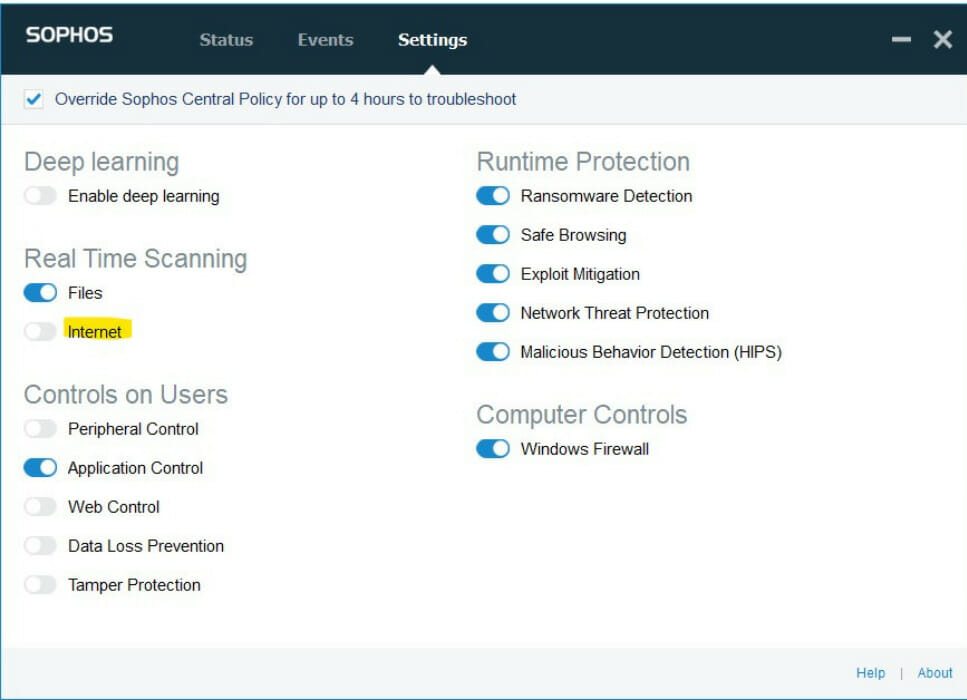
In addition to the ability to completely prevent the execution of known and previously unknown ransomware variants, Windows Defender AV has a ransomware-specific functionality known as controlled folder access (CFA).
CFA prevents unknown and low-reputation processes from writing to disk. Because it cannot encrypt data, this basically renders any ransomware variation ineffective.
Windows Defender has the extra benefit of being a hassle-free solution that comes pre-installed with Windows, as well as being free.
This built-in tool from Windows Security is all you need if you only want basic protection that works. However, the added protection and privacy features provided by other third-party antivirus programs can make them quite appealing in their own right.
Your computer is protected with Windows Defender, but if you want extra peace of mind, it’s probably worth trying the top-rated antivirus engines, additional anti-ransomware capabilities, and other features.
As you can see, there are many great antivirus tools that don’t have nagging screens or ads. In most cases, free antivirus tools will offer ads or promotions in order to earn money.
On the other hand, if you want solid protection without any ads or nagging screens, you’ll have to purchase a license. You have plenty of premium options to choose from above.
Feel free to comment about your experience with these antivirus programs and give us any suggestions in the comment section below.
You’ve undoubtedly read how important it is to safeguard your computer against viruses a thousand times.
Every day, you interact with hundreds of websites infected with malware and viruses, which are capable of infecting the computer without your knowledge.
They are a persistent menace to everybody who uses the internet. They infiltrate your computer and often disable it. Installing an antivirus application or even an antimalware tool is the best approach to safeguard your devices against viruses and other threats.
This article looks at the best combination of anti-malware and antivirus.
You should note that a virus is malware, but the reverse is not true; viruses exist as a subset of malware.
More broadly, a virus is a self-replicating software that may damage information systems and computers. It spreads by infected email attachments, files, malicious downloads, and documents.
On the other hand, malware is a catch-all word for software with a malevolent aim. Worms, adware, ransomware, Trojans, and viruses are examples of malware.
Can I have an antivirus and antimalware at the same time?
Yes, it is possible to have both on the same device. Antivirus and antimalware applications are compatible and complementary and should be able to coexist without issue.
If compatibility challenges emerge, they should be traced back to the configuration and specs of each of the products, and you may need to consult with support care of the different apps.
The term antivirus first arose a few years ago to defend electronic devices from viruses that plagued early computers.
The name stuck, and antivirus software is now used loosely to represent antivirus and antimalware. It now protects users against increasingly sophisticated online threats such as spyware, rootkits, ransomware, trojans, botnets, and phishing attempts.
Most of the tools you have today are a combo of antivirus and antimalware.
What tool is the best combo of antivirus and antimalware?
Bitdefender features a quick, cloud-based virus scanning that keeps your devices safe without slowing down CPU performance.
The Bitdefender Antivirus Plus is the first product in the consumer line. As it is suggested by the name, it offers a slew of privacy and security features, including Wi-Fi security scanning, ransomware protection, secure file deletion, banking protection, a password manager, and a vulnerability scanner.
Bitdefender VPN is also included in the Antivirus Plus package, even though it’s restricted to 200MB of bandwidth per day.
Interface
When you first start Bitdefender, it takes you on a quick tour of the UI, emphasizing major features and explaining what they accomplish.
Experienced users will most likely figure it out without a tour, but it’s helpful to have this information accessible if you need it.
Bitdefender’s well-designed dashboard allows you quick access to the features you’ll use the most, like the VPN and Quick Scans, which are just a click away.
Antivirus and antimalware
It comes with a variety of scanning options. Quick Scan will examine the most usually contaminated regions, while System Scan scans the whole system.
Additionally, File Explorer integration allows you to scan things from the right-click menu in Explorer, and there’s an option for a bootable rescue environment to help you clear up the most obstinate threats.
Create new scans to examine specific folders and files and configure the scan’s operations to run on-demand only or on a schedule using the Manage Scans tool.
A Custom Scan is also available, which checks specified system areas where possible dangers may exist. In addition, a Vulnerability Scan will be performed to look for privacy issues in program settings and any necessary software upgrades.
Additional features:
Advanced threat defense
Web attack prevention
Multi-layer ransomware protection
Bitdefender Total Security
Complete antivirus, anti-spyware, anti-malware, and identity theft protection with file encryption and online backups.
ESET was created 30 years ago by some friends and now offers a diverse product offering that spans most platforms. Millions of consumers utilize it throughout the globe.
Its home user line starts with ESET Antivirus, a stripped-down version that concentrates on anti-phishing, antivirus, and anti-ransomware fundamentals. It supports Mac, Linux, and Windows devices.
Interface
ESET’s UI is similar to most antivirus programs, including a basic dashboard, a sidebar that allows you to browse the program’s numerous tools and capabilities, and a complete system scan that can be launched with a single click.
The panels will alter their layouts, making the best use of its UI since the dashboard is resizable. It’s an excellent addition that cuts down on scrolling, making it simpler to read lengthy reports.
Antivirus and antimalware
ESET’s scan types are fewer than most competitors; only Full System, Custom, and Removable Devices scans are available.
There is no such thing as a typical Quick Scan. You can build scan profiles to do more restricted tests, but it’s not straightforward, and you may not notice it exists until you start digging through ESET’s menus.
ESET Antivirus has two URL filtering layers. One protects you against phishing sites, and the other employs various methods to combat more broad internet threats.
You will not need any browser extensions since anything that connects to the internet is automatically secured.
Additional features:
Persistent threats detection
MDM and mobile protection
Targeted attack blocking
ESET Endpoint Protection
You can safely manage an unlimited number of client workstations, create policies and rules, and many more.
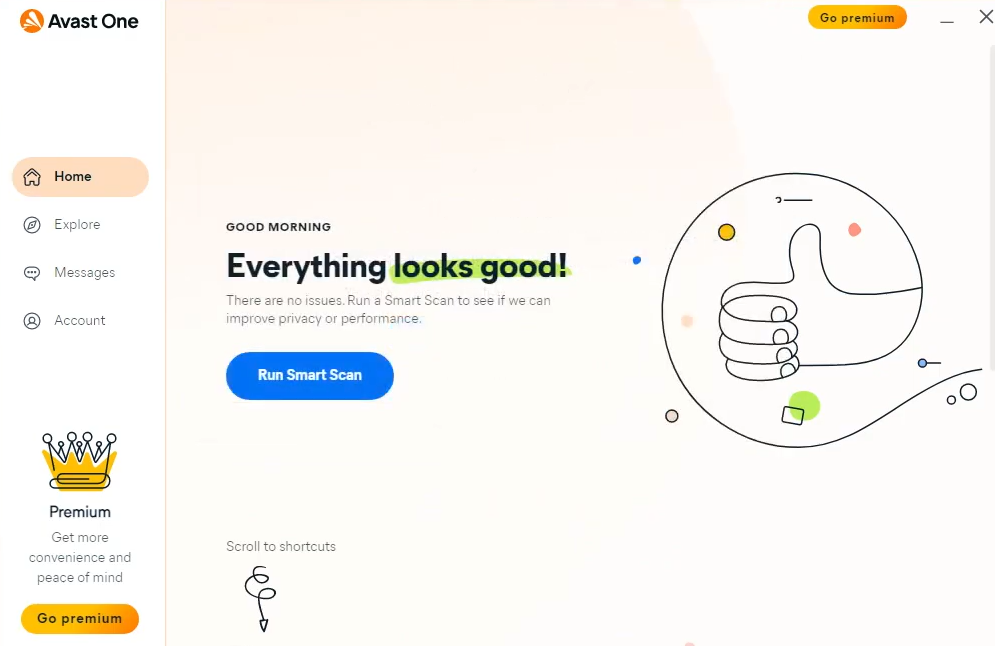
Avast One is Avast’s overhauled consumer security suite, which includes antivirus and antimalware, as well as VPN, privacy, and security solutions.
Anti-phishing, ransomware protection, antivirus, and a minimal firewall are all included in Avast One Essential, which is available for Mac, Windows, iOS, and Android.
A limited VPN, data breach detection, and easy device speedup tools are among the new features.
When you upgrade to an Avast One Individual account, you get a strong disk cleaner, anti-tracking, a sophisticated firewall, webcam monitoring, complete VPN, and automatic app upgrades.
Interface
Avast One’s interface has been completely revamped, with friendlier aesthetics and quick access to its essential functions.
To perform a scan, just scroll down to the scan shortcuts. You’ll get access to the VPN and other features as well. All of them can be run with only a few mouse clicks. Also, the Explore button brings up a list of all of its features.
Overall, its interface is attractive, and user-friendly, and makes it easy to find and utilize the suite’s more complex capabilities.
Antivirus and antimalware
Most dangers should be detected by its Smart Scan and real-time protection, but the package contains lots of additional features. A Deep Scan analyzes your whole system, a Boot-Time Scan examines particular files or directories before Windows completely boots and a Targeted Scan examines specified folders and files.
You may choose which disks to scan, such as the system drive alone, all hard drives, archives, or portable devices. You may also decide how to handle any risks and adjust scan priorities to improve speed.
Additional features:
Data breach monitoring
PC speed optimizer
Shopping and banking privacy
Avast One
Keep intruders out and gain more privacy while browsing, banking, and using Wi-Fi, and protect your identity with the VPN.
Any antivirus and antimalware combinations discussed will be perfect for protecting your system.
We have not made this list in any particular order, and the aim has been to expose you to the best options available. You should be able to make the most educated choice for your computer after going through our article.
We always recommend you start with a trial to allow yourself to experience each antivirus before committing to a paid plan.
This tool can help you bypass content blocks and evade censorship.
PIA has a vast network of 35 000 VPN servers. All of them are optimized for streaming, torrenting, gaming, and safe browsing.
Moreover, you can use its exclusive DNS servers for better online security.
It also supports set native port forwarding for safer remote access.
Not only is it great for Lenovo, but PIA also scored as a top VPN for ASUS notebooks. Its compatible and fully functional on all devices.
It also has a killswitch. This feature will protect your data in case the VPN disconnects.
For your protection, PIA makes use of highly secure protocols, including OpenVPN and WireGuard. Additionally, for proxy, it uses SOCKS5 and Shadowsocks.
Surfshark is the most affordable VPN for your Lenovo notebook. It’s also one of the best VPNs for Dell laptops.
It can be installed on all major operating systems and devices.
Moreover, it includes OpenVPN, WireGuard, Shadowsocks, and obfuscation mode. All of these contribute to safer browsing.
Additionally, it a has kill switch that prevents data leaks. Plus, its split tunneling feature lets you select which apps connect to VPN.
What’s more, Surfshark has exclusive DNS on each VPN server.
Also, it offers manual configuration. This means you can install it on your router. This will provide VPN access to devices that don’t have native support.
No, the Lenovo laptops do not come with pre-installed VPNs.
But given most of the run on Windows, you can setup the OS’s built-in VPN.
However, for optimal privacy, a dedicated VPN is the recommended way to go. The inbuilt app doesn’t include as many servers and privacy features.
How to setup a VPN on Lenovo laptops?
Get a VPN subscription for a client of your choice. We use Private Internet Access (PIA). It has a huge server network and military-grade encryption.
Download the dedicated app for PC and install it.
Launch the application and enter your credentials.
Click on the power button to connect to a VPN server.
If you want to use a specific location, click on the VPN Server option and browse through the list of all PIA VPN locations.
Now your traffic is protected. You can use your Lenovo to browse the web securely.
Is Surfeasy VPN free for Lenovo?
No, Surfeasy is available under subscription, with two significant plans available (depending on the number of devices).
It offers dedicated support for Lenovo laptops, with built-in Wi-Fi protection, encryption, and 2000+ servers.
It’s a decent VPN option, but it doesn’t have as many server locations as the clients recommended above (only 31 countries). It also lacks advanced anti-tracking features like a killswitch or double VPN.
Wrap up
All aspects considered, you can use a VPN to strengthen the security of your Lenovo laptop, especially while traveling.
In fact, a VPN grants you complete Internet freedom on, whether you’re interested in browsing safely, downloading or uploading torrents, making secure transactions, or something else.
You can bookmark our Lenovo section to stay in touch with the company’s products and services. Also, join the Traveling Hub for more tips on using a VPN on the move. Remember that this versatile tool work well with other manufacturers too, including HP laptops.
It can be challenging to download the right VPN for Lenovo laptops, but based on our taste and experience PIA is hands down the best option.
Zebra ZD421 driver download on PC is straightforward if you use the official Windows driver and Zebra’s setup tools. Follow the quick steps below to install on Windows 11 or 10 and solve common detection or label issues.
Identify your model and resolution: ZD421 203 dpi or 300 dpi
Check print language your app expects: ZPL is most common; some legacy setups use EPL
Use a direct USB cable and a USB-A port on the PC for first-time setup
If the printer was plugged in before, remove any generic Windows driver from Devices and Printers
Method 1: Install the official Zebra Windows Printer Driver v10
Download the driver package
Close label apps, unplug the printer’s USB, and run the installer as admin
Choose ZDesigner Windows Driver v10 when prompted
Select ZD421 and the correct dpi variant, then continue
When the wizard asks, plug in the USB cable and power on the printer
Finish and print a Windows test page
Why it works
The v10 driver includes the latest USB, network, and status-monitor components for Link-OS desktop printers like ZD421, ensuring reliable detection and print quality.
Method 2: Use Zebra Setup Utilities (guided wizard)
Install Zebra Setup Utilities for Windows
Launch it and click “Install New Printer”
Pick ZD421, select ZPL or EPL, then follow the prompts
When asked, connect via USB or select a network option
Print a configuration/test label from within the utility
Why it works
Zebra Setup Utilities streamlines queue creation, language selection, and a first calibration so labels feed correctly.
Method 3: Add a network ZD421 by IP
Make sure the printer shows an IP on its label or config printout
In Windows, go to Settings – Bluetooth & devices – Printers & scanners – Add device – Add manually
Choose “Add a printer using a TCP/IP address” and enter the IP
When asked for a driver, pick ZDesigner ZD421 from the list you installed earlier
Open the printer’s Properties – Ports and confirm RAW 9100 is selected
Why it works
Direct TCP/IP with RAW 9100 is Zebra’s standard network print path and avoids flaky WSD discovery.
Calibrate and set media correctly
Open Printing Preferences for the ZD421
Set Media Type (gap, black mark, or continuous) and Label Size to match your stock
Click Tools – Action – Calibrate or run a manual feed/calibration from the utility
Print a test label from your app
Why it works
Correct media type and size prevent skipped labels, misalignment, and half-prints.
Fix common issues fast
Printer not detected over USB
Unplug USB, uninstall any “USB Printing Support” or generic “Zebra” queue, reboot, then reinstall the v10 driver and reconnect
Wrong print density or faint prints
In Printing Preferences, raise Darkness a bit and match speed to label material
Labels drifting or skipping
Recalibrate and verify the correct media sensor setting (gap vs mark)
Prints gibberish
Your app expects ZPL but the queue is set to EPL (or vice versa). Reinstall the queue with the proper language
Windows auto-updated a driver and jobs fail
Roll back the driver from Device Manager or reinstall the Zebra v10 package, then disable automatic driver updates for that device if needed
203 dpi vs 300 dpi mismatch
Recreate the queue with the exact dpi model that matches your physical printer head
Tips
Use a high-quality, short USB cable for first install
Name queues clearly, e.g., “ZD421-203-ZPL-Shipping”
Export driver settings from Printing Preferences to clone consistent setups across PCs
For label apps like BarTender or NiceLabel, select the ZDesigner ZD421 queue you created, not a generic text driver
FAQs
Is ZD421 compatible with Windows 11? Yes. Install the ZDesigner Windows Driver v10, then add the printer via USB or IP.
Which driver should I choose: ZPL or EPL? Most modern apps use ZPL. Choose EPL only if your software specifically requires it.
How do I know if my ZD421 is 203 dpi or 300 dpi? Check the product label or the configuration printout. Use the matching driver model.
Can I install the ZD421 over Wi-Fi or Ethernet? Yes. Add it with a Standard TCP/IP port at RAW 9100 after installing the v10 driver.
My labels are offset. What should I check first? Run a calibration and verify the correct media type and label size in Printing Preferences.
Summary (ordered steps)
Install ZDesigner Windows Driver v10
Run the wizard with the printer unplugged and powered off
Select ZD421, correct dpi, and language (ZPL/EPL)
Connect USB or add by IP (RAW 9100) when prompted
Calibrate, set media size, and print a test label
Conclusion
With the official Windows driver and a quick calibration, Zebra ZD421 driver download on PC takes just a few minutes. Set the right dpi and language, then add via USB or IP for reliable, crisp labels on Windows 11 or 10.
I“Please update your AMD Radeon driver” usually appears when a game or app detects an outdated or mismatched driver – often after Windows replaces Adrenalin with a generic update, or when a laptop launches the game on the wrong GPU. Follow the steps below in order for the quickest win.
Reboot to Safe Mode and run AMD Cleanup Utility to remove leftover drivers.
Restart normally and install the latest WHQL (recommended) Adrenalin for your exact GPU.
Reboot again, open AMD Software → check the driver version under System.
You can explore more solutions for driver conflicts by checking this detailed AMD Radeon graphics problem guide that covers additional fixes.
Why it works
A clean slate removes mixed or preview drivers (often pushed by Windows) that can break version detection in games.
2) Stop Windows Update from overwriting your AMD driver
Windows 11 Pro/Enterprise/Education
Press Win+R, type gpedit.msc.
Go to Computer Configuration → Administrative Templates → Windows Update.
Enable Do not include drivers with Windows Updates.
Optional: In Device Installation Restrictions, block installs for your GPU’s hardware ID.
Windows 11 Home
Pause Windows Update for a few days after you install Adrenalin, then resume once stable.
If a specific driver keeps reappearing, temporarily roll back or uninstall it (see Step 5), then pause updates.
Why it works
Preventing automatic driver delivery stops Windows from replacing Adrenalin with a generic or preview build that triggers the message.
3) Force the game/app to use the discrete AMD GPU (laptops)
Go to Settings → System → Display → Graphics.
Find the game (or browse to its EXE) → Options → set to High performance (your discrete Radeon).
Restart the game.
Why it works
Some laptops launch on the iGPU with an older driver, making the game think your Radeon driver is “outdated.”
4) Repair bad installs without a full wipe
In Device Manager → Display adapters → AMD → Properties → Driver, try Roll Back Driver if available.
If you see multiple “AMD Software” entries in Installed apps, remove all, reboot, then install Adrenalin once.
Why it works
Rolling back dodgy preview builds or removing duplicates fixes mismatched components that fail game checks.
5) Battlefield/Open-beta style prompts: fix version detection
If the game still insists you’re “out of date” even after a clean WHQL install, it’s likely a false version check:
Close the game and AMD Software.
Open Registry Editor and back it up.
Navigate to HKEY_LOCAL_MACHINE\SYSTEM\CurrentControlSet\Control\Video\{GUID}\0000.
Export the key, then verify ReleaseVersion matches your installed Adrenalin version.
If it doesn’t, correct it to the exact installed version string, apply, and restart Windows.
Launch the game again. If the developer patches their check, restore the original value using your export.
Why it works
Some early game builds hard-check the ReleaseVersion string rather than the actual driver capability, causing false “update” prompts.
6) Quick stability passes
Reset Shader Cache in AMD Software → Graphics.
Disable overlays/recorders (ReLive, Discord, Afterburner) and relaunch.
Toggle the game’s renderer once (e.g., DX12 → DX11) if it’s a beta with known detection quirks.
Update your AMD chipset driver on Ryzen systems for better device stability.
7) If nothing works
Try the previous WHQL driver (one step back), then the latest Optional driver only if the game lists it as required.
Test on a different Windows user profile to rule out profile-bound corruption.
For managed PCs (work/school), ask IT to allow the AMD driver install and block Windows from force-pushing a different one.
Tips
After a clean install that works, export your AMD settings profile so you can restore quickly.
Keep Windows Feature Updates paused during new game betas; update once the vendor posts a “game ready” WHQL.
Avoid stacking multiple tuners/overlays—one at a time.
FAQs
Why did this start today if I didn’t change anything? Windows Update can silently replace your GPU driver with a preview/generic build, confusing games.
Is the registry edit safe? Yes if you export the key first and only adjust the ReleaseVersion string. Revert once the game patches its check.
Do I need the Optional driver? Use WHQL unless the game release notes explicitly call for a newer Optional build.
Can I use DDU instead of AMD Cleanup Utility? Use AMD Cleanup Utility for AMD-to-AMD swaps. Reserve DDU for vendor switches or persistent issues.
Summary (ordered steps)
Clean uninstall and reinstall Adrenalin.
Block Windows Update from installing drivers.
Force the game/app to use the discrete Radeon GPU (laptops).
Roll back or remove duplicate/preview drivers.
Fix false prompts by verifying the ReleaseVersion registry value.
Reset shader cache, disable overlays, and update chipset.
Fall back to the previous WHQL or contact IT if managed.
Conclusion
In most cases, the message disappears after a clean Adrenalin install and blocking Windows from pushing a conflicting driver. For beta games that misread the version, confirm the ReleaseVersion string and keep playing while you wait for an official patch.
Research notes (skip copying into WordPress): Early reports point to Windows pushing preview AMD drivers and game betas (e.g., Battlefield 6) performing strict version checks; clean installs and blocking Windows’ driver delivery resolve it for most users. Some players fixed persistent prompts by aligning the ReleaseVersion registry string to their installed Adrenalin version, while others had to force discrete GPU use on laptops. (Hardware Canucks, Reddit, EA Forums, PC Guide, pcforum.amd.com, amd.com, learn.microsoft.com)
Seeing “Your request has been blocked due to a network policy” on Reddit usually means Reddit’s security layer flagged your browser, IP, or request pattern. It’s not a ban. Use the steps below to quickly restore access and prevent it from coming back.
Confirm you can open other sites (to rule out local internet issues).
If you’re on a school/office network, try mobile data once (to rule out firewall policies).
If you’re using a VPN/proxy/DNS filter, note it (you’ll test with it off in Step 4).
1) Hard-refresh Reddit
Press Ctrl+F5 (Windows/Linux) or Cmd+Shift+R (macOS) on the blocked page. This forces a clean fetch and often clears the block immediately. If it works, sign in and browse normally.
If refreshing does not fix the issue, check out this dedicated Reddit server error guide for more solutions.
2) Clear Reddit cookies (site data) and retry
Delete cookies/cache only for reddit.com (and old.reddit.com if you use it), then reload. Corrupted cookies can trip Reddit’s security checks.
3) Disable extensions that modify pages or requests
Temporarily turn off ad-blockers, privacy tools, userscripts, and “Old Reddit redirect” add-ons. Then refresh. Many reports trace the block to these. If it fixes it, re-enable one by one to find the culprit.
4) Test without VPN/proxy/DNS filters
Turn off your VPN or proxy, and disable custom/private DNS or system-level blockers (AdGuard/NextDNS) for a minute. Reddit frequently blocks traffic from shared/VPN IP ranges. If access returns, switch to a different server/region or your normal IP.
5) Try a different frontend or browser
Open old.reddit.com and log in, then switch back to reddit.com.
If the issue is browser-specific (Firefox, Opera GX, Samsung Internet), test Chrome/Edge/Safari. Many users can access Old Reddit or another browser while the main UI is blocked.
6) Reset your IP (or change networks)
If your IP is flagged, restart the router (dynamic IP), switch to mobile data, or tether temporarily. This immediately tells you if the block is IP-based.
7) Restore a normal User-Agent
If you use a custom User-Agent (extensions, privacy tools, niche browsers), switch back to the default browser UA and reload. Reddit’s block page explicitly warns about empty/odd User-Agents.
8) Mobile app fixes (Android/iOS)
Force close the Reddit app → clear app cache/storage (Android) or reinstall (iOS/Android) → retry on Wi-Fi and mobile data. If Samsung Internet is affected, use Chrome temporarily or disable built-in blockers.
9) Corporate/school networks
If the error only happens on a managed network, it may be a firewall/WAF rule (Akamai/CDN) tripping on Reddit traffic. Ask your admin to review logs and allow the traffic; your home/mobile network should work meanwhile.
Why this works
Cache/cookies: Clears bad tokens that trigger security checks.
Extensions/VPN: Removes request changes and shared IPs that look risky.
Frontend/browser swap: Circumvents UI- or browser-specific blocks seen by many users.
IP/User-Agent reset: Aligns with Reddit’s own block-page guidance.
Tips
If hard-refresh works, sign in immediately so your session stabilizes before re-enabling extensions.
Keep one privacy/ad-block extension active at a time to avoid layered conflicts.
If you must use a VPN, prefer residential or low-abuse servers and rotate regions sparingly.
FAQs
Is this a ban? No. It’s usually an automated security block, not an account ban. Fixes above typically restore access.
Why only in Incognito/Private mode? Stricter privacy settings or blocked storage can break Reddit’s checks, triggering the block. Use a normal window or allow site data for Reddit.
Why does Old Reddit work but new Reddit doesn’t? Different frontend and routing; logging in via Old Reddit often unlocks the new UI for that session.
Opera GX/Firefox only? Some builds/extensions in those browsers trip the block; Chrome/Edge usually work while you troubleshoot.
Who can fix network-level blocks at work/school? Only the network admin. Share the time and your public IP; they can adjust firewall/CDN rules.
Summary (ordered steps)
Hard-refresh.
Clear Reddit cookies.
Disable extensions (incl. Old Reddit redirect).
Test without VPN/proxy/DNS filters.
Try Old Reddit or another browser.
Change IP/network.
Restore default User-Agent.
App: clear cache/reinstall.
Corporate networks: ask admin.
Conclusion
This Reddit error is almost always a temporary security trip tied to cookies, extensions, IP reputation, or browser quirks. Work through the steps in order; the combination of cookie reset, extension check, and IP/User-Agent normalization resolves it in most cases.
Google is testing new features in Chrome Canary to make it easier to manage tabs and use AI. These include quickly reopening recently used tab groups from the New Tab page, automatically adding new tabs to active groups, and a new address bar cue for Google’s AI Mode.
Tab groups on the New Tab Page
Chrome is working on a feature that displays your recently used tab groups on the New Tab page, allowing you to quickly reopen an entire group without needing to search your history.
Your tab groups” promo card on Chrome’s New Tab Page introduces users to tab grouping with a “Create new tab group” button. Image Credit: Venkat | WindowsReport.
The “Your tab groups” card displays saved groups with their titles and colors, includes a button to create a new group, and offers controls in its three-dot menu to hide it for 12 hours or turn it off entirely. You can also disable it in Customize Chrome → Cards, and the “About this card” option explains that it’s shown to help you easily pick up where you left off.
New Tab Page card in Chrome offering quick access to create or recall tab groups. Image Credit: Venkat | WindowsReport.
Auto-add new tabs to the active group
Another experiment makes tab groups smarter. If you’re working in a group, any new tab you open will automatically join it. This keeps related pages together and avoids clutter.
The new flag’s description reveals: “Add new tabs to active tab group. If enabled, and a tab group is focused, then new tabs will be added to the focused tab group.”
Image Credit: Venkat | WindowsReport.
New AI Mode cue in the address bar
Google is improving AI Mode access in Chrome. The address bar now shows a “Press Tab then Enter to ask AI Mode” message when focused. Pressing Tab highlights the AI Mode chip, and pressing Enter opens AI Mode in the same tab, replacing the current page with Google’s AI search that includes a prompt box and suggested queries. This builds on the earlier @aimode Tab shortcut we reported, making the feature easier to notice and use.
Chrome’s address bar now prompts you to press Tab, then Enter, to start AI Mode. Image Credit: Venkat | WindowsReport.
Overall, Google is experimenting in Chrome Canary with tab group recall, auto-add for new tabs, and a shortcut to open AI Mode in the same tab. These features are hidden behind flags in Chrome Canary and aren’t enabled by default. There’s no timeline yet for when they might roll out to everyone.
PowerToys version 0.93 is here, and it’s one of the biggest updates in the the recent time. You’re getting a redesigned dashboard, a faster Command Palette, and some handy new tools that make the whole experience feel more polished.
In the latest version, the first thing you’ll notice is the new dashboard. The old interface made it tough to see which utilities were on, which were off, and where to find shortcuts. Now, the homepage has a clean, card-style layout, looking a lot like the Windows 11 Settings app.
Image: Microsoft
Quick launching, shortcuts, and utility toggles are neatly split into sections. This makes it easier for you to see and control everything at a glance, and yes, you can launch tools directly from there.
However, the notable change brought in by the update is the improved Command Palette. Microsoft says it worked closely with the community to iron out performance issues.
Thanks to Ahead of Time (AOT) compilation, the installation size is now 55% smaller, startup memory usage is down 15%, and load times are 40% faster. The built-in extensions also load up to 70% quicker. Over 99 bugs have been squashed, and the Palette now has command history, pinned apps, Clipboard History, and even keyboard shortcuts in context menus.
If you do screen sharing or tutorials, you’ll also like the new Spotlight mode in Mouse Highlighter. Instead of just an ellipse around your cursor, the screen dims except for the area around your mouse, letting you direct attention exactly where you need it. You can even tweak the dimming color and transparency.
Other small but welcome changes include instant previews for Binary G-code files in Peek, and Quick Accent now supports Vietnamese vowels and the letter “d.” You can grab the update from the Microsoft Store or GitHub. If you haven’t tried PowerToys yet, now’s the perfect time to start.
Google has announced two new AI-powered image editing features for Google Slides and Google Vids, designed to give users more creative control without requiring advanced design skills.
Powered by Gemini, the new features let you replace image backgrounds with AI-generated visuals and intelligently expand them for better framing and impact.
Replacing backgrounds goes beyond the old “remove” function. Now, you can select an image, click the “Generate an image” icon in the sidebar, choose “Edit,” and then pick “Replace background.” You can check how things work by clicking here.
From there, type a prompt, like Minimalist product shot in studio, and Gemini will instantly generate a fitting new background. Google says the feature is perfect for contextualizing product shots, creating consistent headshots, tailoring presentations to clients, or making training materials more engaging.
The second feature is background expansion. It allows users to resize and reframe images without stretching or losing quality. If you have a smaller image that needs more presence on a slide, Gemini can fill in the missing space, matching the original style and context. You can simply pick your aspect ratio, preview the AI-generated options, and insert the one you like.
With these tools, Google aims to make presentation visuals look polished and professional, even for users without design experience. They are available to end users in Google Workspace Business Standard and Plus, Enterprise Standard and Plus, and Gemini Education tiers, as well as Google AI Pro and Ultra.
The company says that rollout for Rapid Release domains began July 28, 2025, with Scheduled Release domains starting today, August 14, 2025.
Worth noting that the update may take several days to appear for everyone. Once available, you can access it by right-clicking an image and selecting “Edit image” or using the “Generate an image” icon in the sidebar.
This means that Xbox Game Pass and Game Pass Ultimate subscribers on Arm devices suddenly have access to a much larger library of playable titles.
In the announcement post, the Xbox and Windows teams say they’re working together to make sure as many games as possible run smoothly. Well, they’re not stopping here; more updates are planned in the coming months to release even more titles into the “fully compatible” category.
As of now, the feature is available only to Windows Insiders who are also signed up for the PC Gaming Preview via the Xbox Insider Hub. It’s easy to join, by the way.
You can install the Hub from the Microsoft Store, log in with your gaming account, opt into “PC Gaming” under the Previews tab, then check for app updates. If you’re in, you should see version 2508.1001.27.0 or higher.
Microsoft says the rollout will happen in stages, so not everyone will see it at once. If you do get it, they want your feedback; just use the “Feedback” option in the app’s settings. For Arm-based Windows 11 users, this is a big step toward finally making these devices proper gaming machines.
Battlefield 6 is gearing up for its second Open Beta weekend, running from August 14 through August 17, with new changes based on feedback from the first round.
The developer says player participation across PC, PlayStation 5, and Xbox Series X|S made the first test “unforgettable,” and they’re aiming to make the October 10 launch even smoother.
One major addition this week is Custom Search. This new feature lets players pick their favorite map and mode combinations, for example, Conquest on Siege of Cairo, and matchmaking will prioritize those picks when possible.
While this is not a full server browser, it should give players more control over how they jump into matches. The updated playlists also bring more variety.
Additionally, modes like Breakthrough, Conquest, and Rush will now rotate within the All-Out Warfare playlist, with daily changes planned throughout the test. This will help the developers learn what the community enjoys most while keeping popular modes active.
Weekend 2 Playlist Highlights:
Thursday, Aug 14: Conquest, Rush, Attack & Defend, Close Quarters, Closed Weapons All-Out Warfare
Friday, Aug 15: Conquest, Squad Deathmatch, Close Quarters, All-Out Warfare, Closed Weapons All-Out Warfare
Saturday–Sunday, Aug 16–17: Conquest, Close Quarters, All-Out Warfare, Closed Weapons All-Out Warfare
Training Grounds and Initiation Mode remain available, offering tutorials and AI soldier matches for new players. The developer stresses that rotating playlists daily is purely for the Open Beta and won’t be part of the launch experience. Again, Battlefield 6 Open Beta Weekend 2 begins today at 08:00 UTC.
Microsoft is gradually updating its Notepad app for sometime now, and the latest release adds another welcome change to the mix.
In version 11.2507.26.0, the company has reportedly introduced a revamped context menu alongside recent formatting improvements, giving the lightweight editor a modern look.
The updated context menu, first spotted by Deskmodder (via Neowin), takes cues from Windows 11’s File Explorer. It offers a cleaner, more organized layout and even includes separators.
For now, the feature is rolling out in the Canary channel, but Microsoft has made it possible for retail Windows 11 users to get it right away.
Those who don’t want to wait can manually install the update by grabbing the package from the Microsoft Store’s backend. The process is straightforward, check it below:
Visit store.rg-adguard.net.
Select ProductId in the dropdown.
Enter the code: 9msmlrh6lzf3.
Choose Fast in the next dropdown, then click the check mark.
The context menu revamp follows other recent Notepad upgrades, such as text formatting options. No wonfer, these new additions make the app more versatile for casual editing and quick note-taking.
While Notepad remains one of Windows’ simplest tools, Microsoft’s gradual improvements are making it a handy app to work with.
Microsoft has announced that it’ll introduce a new pricing update for its Online Services purchased through volume licensing programs. Starting November 1, 2025, the company will standardize costs across all Price Levels (A-D) for a broader range of products.
In the announcement blog, Microsoft says that this will affect the Enterprise Agreement (EA), including the Online Services Premium Agreement (OSPA) unique to China, as well as the Microsoft Products and Services Agreement (MPSA).
In other words, this means pricing for the aforementioned services will now align directly with rates published on Microsoft.com. The company hopes that it will create a more consistent buying experience for customers.
The company further mentions that the upcoming move builds on its existing unified pricing model used for services like Azure. It is, in fact, a part of an effort to improve transparency and simplify licensing.
“This update reflects our ongoing commitment to greater transparency and alignment across all purchasing channels,” the company said. The updated pricing will apply when customers renew an existing agreement or purchase new Online Services not already listed on their Customer Price Sheet after November 1.
Remember, on-premises software pricing will remain unchanged, and U.S. Government as well as worldwide Education price lists will be excluded from this adjustment.
Microsoft recommends that organizations review their upcoming renewals or new Online Services purchases with their account team or partner of record. Moreover, this will avoid surprises when the new pricing takes effect.
Microsoft is running a time-limited promotion that could help Xbox players grab twice the fun for the same price, but there’s a small catch.
As spotted by TrueAchiements, the “Buy One, Get One Free” offer is part of the ongoing Simulator Sale on the Xbox marketplace. You won’t find it on the web store; it’s buried in the “Deals” section on Xbox consoles.
While it sounds generous, the usual trade-off applies; most games are listed at their full retail price during this offer. In some cases, you might find steeper discounts if you buy them individually in other sales.
That said, with prices ranging from £4.19 to £64.99, you still have the opportunity to snag a bargain if you choose wisely.
Here’s the full lineup of games included in the deal:
SnowRunner
Bus Simulator 21
Ace Combat 7: Skies Unknown Top Gun: Maverick Edition
House Flipper
MudRunner
Park Beyond Complete Edition
Monster Energy Supercross 2 – Special Edition
Drug Dealer Simulator
Firefighting Simulator: The Squad
Construction Simulator
Gas Station Simulator and Airstrip DLC Bundle
Moonshine Inc
Tram Simulator Urban Transit
Police Shootout
Thief Simulator 2
Motorcycle Mechanic Simulator 2021
Deadliest Catch: The Game
Orbit Industries
Simulator Pack: Gas Station Simulator and Barn Finders
Weedcraft Inc & Moonshine Inc – Risky Business Bundle
Monster Energy Supercross 2 – The Official Videogame
Construction Simulator 3
Ace Combat 7 (Standard)
Terraformers: Deluxe Bundle
Ship Graveyard Simulator
I Am Your President
Barn Finders
Weedcraft Inc + Crossroads Inn – Weed and Greet Bundle
Ship Graveyard 2 Simulator
Totally Reliable Delivery Service Dress Code DLC
Police Patrol Simulator
Weedcraft Inc + Heliborne – Fly High Bundle
Motorcycle Mechanic Simulator (Other Editions)
Totally Reliable Delivery Service CyberFunk DLC
Construction Simulator 2
Gray Dawn
Expedition: A MudRunner Game
My Cozy Room
The promotion runs until August 19, 2025. Therefore, you have a few days to decide which simulators deserve a spot in your library, and which you’re happy to grab for free.
We’d love to hear what you decided to pick. Don’t forget to drop your selections in the comments below.
PUBG: Battlegrounds is finally moving on from the last-gen hardware. Starting November 13, the popular battle royale will run natively on PS5 and Xbox Series X|S, leaving PS4 and Xbox One players behind.
As you may know, PUBG has been playable on current-gen consoles for years. However, it was doing so in backward compatibility mode, essentially running a last-gen build.
That setup kept the game accessible to more players, but it also meant bumping up against performance ceilings that modern hardware could easily surpass.
Now the true current-gen versions promise a smoother, more stable gameplay environment and better support for future updates.
In the announcement post, the developer says that on PS5, the game will hit 1440p at 60fps. Whereas PS5 Pro and Xbox Series X users can expect Dynamic 4K at 60fps.
Meanwhile, Xbox Series S owners will get a choice: 1080p at 60fps or 1440p at 30fps. PlayStation players will need to download a new PS5 version on launch day, while Xbox Series X|S owners will get the upgrade automatically via Microsoft Smart Delivery. Worth noting that game progress and purchases will carry over for everyone.
When the cutoff date arrives, the game will be completely unplayable on PS4 and Xbox One. Krafton even issued a bittersweet farewell to last-gen players, recalling “epic battles” and “heart-stopping moments” from the past eight years.
Microsoft has been quietly updating the Xbox experience lately. Yesterday, we reported about Xbox insiders testing a “Free with Xbox” tab in the dashboard’s Full Library view.
This new section automatically separates game demos and time-limited trials from owned titles, giving the main collection a cleaner look without the need for constant manual curation.
Now, there’s more good news for all Xbox players, not just Insiders. Yesterday, Microsoft released a fresh system update for Xbox One and Xbox Series X|S consoles with OS version 10.0.26100.5362.
The update adds Xbox Play Anywhere filtering, letting you quickly find games that support play across console and PC via a new “Capabilities” filter.
There’s also a Play History feature, which groups titles you’ve recently played on other devices right on your Home screen. This eventually makes it easier for you to jump back into cross-platform sessions.
No wonder these aren’t major upgrades. But it’s a sign that shows Microsoft is putting more focus on practical usability upgrades, which make daily Xbox life smoother.
It’s been over two months since Microsoft gave us our first glimpse at the Asus ROG Xbox Ally and Ally X during the Xbox Games Showcase 2025. Everyone is quite eager to get their hands on these devices, given that it’s one of the most anticipated releases.
If you’ve been eagerly anticipating this handheld, there’s some good news and some bad.
The good news is that the Asus ROG Xbox Ally briefly appeared on Amazon, spotted by Tom Warren on X, hinting that pre-orders could open soon. The listing included an infographic of the upcoming handheld, which we’ve shared below.
Well, the bad news is that the Amazon listing has already been pulled, suggesting it went live too early.
Image credit: X/@tomwarren
Microsoft hasn’t officially confirmed prices or pre-order dates yet, so fans will have to wait for a formal announcement, likely at Gamescom 2025. Leaks suggest August 20, coinciding with Gamescom 2025, as the likely start date.
Previous rumors have also suggested a price tag ranging from $499 to $599 for the standard Ally and $799 to $899 for the Xbox Ally X. That puts the upcoming handhelds above the Nintendo Switch 2 but in line with the previous Asus ROG Ally X.
The release date for both models is rumored to be October 16, 2025, giving players a little over two months to get ready for launch.
As announced, these handhelds promise a more console-like experience in a portable form factor, complete with Xbox Game Bar integration, cross-platform compatibility, and access to both Xbox Cloud Gaming and Windows 11 libraries.
The Asus ROG Xbox Ally handheld allows players to boot directly into a version of the Xbox dashboard. From there, you can launch games from multiple storefronts like Steam and Epic, and take advantage of Xbox Play Anywhere, granting free PC versions of compatible games.
Mozilla has been adding new features to Firefox lately, including smart tab grouping, AI link previews, and Web GPU Support on Windows. Now, the company is working on bringing long-awaited image search support to Firefox through integration with Google Lens.
New “Search Image with Google Lens” option appears in Firefox’s right-click menu for images. Image Credit: Venkat | WindowsReport.
The upcoming native option will let users right-click an image, choose “Search Image with Google Lens,” and see results on the Google Lens site. This works not only for images embedded on a webpage but also for standalone images opened directly in a new tab via their URL. In both cases, Firefox will open a new tab with the Google Lens interface, showing sections such as Visual matches, Products, and About this image.
Google Lens results page opens in a new tab within Firefox, showing tools like Visual matches, Products, and About this image. Image Credit:Venkat | WindowsReport.
The Google Lens Image Search option appears alongside existing items like Open Image in New Tab, Copy Image, and Take Screenshot.
Right-click menu option for an image URL opened in a new tab, highlighting the ‘Search Image with Google Lens’ feature. Image Credit: Venkat | WindowsReport.
The feature is expected to work for most online images, though Google may still filter searches for sensitive or restricted content.
Interestingly, the option also appears when browsing in Private Mode, meaning users will be able to perform visual searches without leaving a record in Firefox’s history.
There is no set release milestone yet, but this change removes a long-standing gap with rival browsers and makes visual search far easier for Firefox users.
Are you worried about missing out on running workloads on older versions of MySQL after the community ends official support? Well, there’s finally some good news for you. Microsoft today announced a new Extended Support program for Azure Database for MySQL.
The company says that the new program will help customers facing application dependencies or upgrade constraints maintain stability and security without rushing migrations.
Originally, MySQL 5.7 support on Azure was set to end in September 2025, in line with its community end-of-life (EOL). However, customer feedback reportedly showed that many organizations still rely on the version for compatibility reasons. Worth noting that MySQL 8.0 will face a similar situation when it reaches its own EOL in 2026.
What the “Extended Support” program includes
Customers enrolled in the Extended Support will continue to get:
SLA-backed availability to ensure uptime guarantees
Security updates for critical vulnerabilities
Technical support from Azure engineers
Automatic enrollment into Extended Support once a version reaches EOL
Grace period of one month before billing begins
Pay-as-you-go pricing billed per vCore per hour
Automatic exit once upgraded to a supported version
Here’s the support timeline for MySQL 5.7 and 8.0
MySQL Version
Community Retirement
Azure Standard Support End
Extended Support Start
Extended Support End
5.7
Oct 31, 2023
Mar 31, 2026
Apr 1, 2026
Mar 31, 2029
8.0
Apr 30, 2026
May 31, 2026
Jun 1, 2026
Mar 31, 2029
What are the alternative upgrade options
If you are not willing to enroll in the Extended Support program, Microsoft recommends the following in-place upgrade options:
In-place upgrades via Azure portal, CLI, or ARM templates
Replica-based validation to test upgrades before production
PITR-based validation to restore from backups and verify stability
Microsoft has also advised users to follow best practices, which include backing up data, reviewing release notes, and monitoring application performance closely after upgrading. As far as pricing of the Extended Support is concerned, Microsoft noted that it will be revealed in Q3 2025 via the Azure pricing calculator.
Microsoft has just announced a major upgrade to Python in Excel, allowing you to directly analyze and manipulate images within your spreadsheets. The feature is available for Excel on Windows, Mac, and the web.
The company says it is designed to make visual data analysis simpler and faster without extra tools. You can simply drop an image into a cell and run Python scripts on it, enabling tasks like image sharpness detection and metadata analysis.
That’s not all; it can also help you with transformations, such as adding watermarks or adjusting brightness.
How it works
To test the feature, Microsoft provided an example for detecting whether an image is blurry or sharp:
1. First, insert an image into a single cell by going to Insert > Illustrations > Pictures > Place in Cell, and select your image source (device, stock library, or online).
Image: Microsoft
2. Then, make sure the image is entirely inside one cell, as Python references it directly.
Image: Microsoft
3. Next, in an empty cell, type =PY( to start a Python formula. Now, copy and paste the script provided by Microsoft below:
4. Finally, run the code by pressing Ctrl + Enter, and the cell will display either “Sharp” or “Blurry” based on the analysis.
Image: Microsoft
It’s worth noting that you can also experiment with other image tasks, such as brightness adjustments, color changes, logo overlays, and metadata extraction.
To manage performance, Excel offers a setting under File > Options > Advanced > Python in Excel that lets users choose image input sizes ranging from actual resolution down to 320×240.
Microsoft further says this feature opens the door to “a whole new class of data analysis workflows” inside Excel. that the feature is now rolling out to:
Windows: Version 2509 (Build 19204.20002) or later
Microsoft is cracking down on how game bundles appear in the Xbox Store, as it’ll soon start blocking developers from flooding the storefront with repetitive listings. The update comes after a rise in “bundle spamming,” a practice where the same title is repackaged in multiple platform-specific bundles to grab more visibility.
The news comes via folks over at TrueAchievements, who saw an email sent to developers detailing the issue. Microsoft has told developers that numerous complaints from players and other studios have been recived in this matter. Adding further, the company says these tactics, often involving undifferentiated platform versions of a game, not only confuse customers but also crowd out other releases.
The company’s revised guidelines suggests that bundles containing the same game across different SKUs, such as Xbox Series X|S, Xbox One, and PC, will only be permitted if there’s genuine content differentiation.
That could mean unique editions like Deluxe or Ultimate, or meaningful platform-specific changes such as higher resolution or performance upgrades.
That’s not all; other rules crack down on excessive use of similar bundles in search results or new release lists, and ban tactics meant to bypass discount cooldown periods or manipulate Store discovery algorithms.
In short, visual and content differences need to be clear, or the bundle risks being delisted. Microsoft hopes the new rules will simplify browsing, making it easier for players to find what they want without wading through near-identical offers.
While the policy doesn’t directly address the flood of easy Gamerscore titles, it may reduce the storefront clutter they create. Developers releasing cross-platform versions are being encouraged to use Smart Delivery or Xbox Play Anywhere to keep things unified.
In a related news, Microsoft is also testing a “Free with Xbox” tab, which could further streamline players’ libraries.
Microsoft is officially testing a small but a handy update for Xbox Dashboard, which aims at making large game libraries less cluttered. The update is currently rolling out to members of the Alpha Skip-Ahead ring of the Xbox Insider program.
As detailed on the Xbox Support site, the latest Insider build introduces a “Free with Xbox” section inside the Full Library menu. The new category automatically separates time-limited trials and game demos from your owned titles, giving the main collection a cleaner look.
Previously, players could manually hide these tiles using a “Hide from list” option, but the new section removes the need for constant curation. Other tabs in the Full Library, such as Games with Gold, Game Pass, and apps, remain unchanged.
Beyond this addition, the build also includes the standard stability and performance improvements that accompany most Insider updates.
The Alpha Skip-Ahead group traditionally receives features months before general release, with four additional Insider rings gradually testing them ahead of public rollout.
While there’s no confirmation that the “Free with Xbox” section will arrive on the Xbox PC app, that platform has seen its own improvements recently.
In June, Microsoft added unified library support for games across multiple storefronts. July’s update followed with the option to stream console games directly to a PC, both features were also tested first by Insiders.
Every now and then, we hear about some other AI-heavy company poaching another’s AI talent. Well, that trend doesn’t seem to stop, as top tech giants like Google, Meta, Microsoft, OpenAI, and others are racing to be the best when it comes to AI.
According to insiders and internal documents seen by Business Insider, the company has compiled a “most-wanted” list of Meta’s engineers and researchers, complete with names, roles, and locations. These targets aren’t random; they’re from highly qualified teams like Reality Labs, GenAI Infrastructure, and Meta AI Research.
To reel them in, Microsoft has rolled out a new fast-track hiring process that flags candidates as “critical AI talent.” This label gets them in front of top executives, who respond with Microsoft’s best possible offer within 24 hours.
Microsoft has reportedly set up a special recruiting team within its AI division, led by industry veterans Mustafa Suleyman and Jay Parikh, to draft multimillion-dollar offers, sometimes with hefty on-hire bonuses.
This tailored approach goes beyond Microsoft’s usual pay bands. The reported document also offers a quick look at how the company handles that process. Apparently, recruiters provide “offer rationale” reports and tap into private “compensation modelers”, and even bring in pay consultants to come up with a pay range.
While the company has cut thousands of jobs this year, it insists on keeping the headcount low, possibly to compensate for aggressive AI hiring elsewhere. All that said, the AI talent war is heating up, and for Microsoft, Meta’s AI talent group is looking like its prime recruiting ground.
Many users who tried to upgrade to Windows 11 reported that they couldn’t complete the upgrade due to a series of 0xC1900101 errors.
Various driver-related factors trigger these errors: users haven’t installed the latest driver updates on their computers, some drivers are incompatible with Windows 11, and more.
Driver errors occur quite often when users try to upgrade their OS. So let us help you resolve this one.
What does 0xC1900101 mean?
The universal rollback code 0xC1900101 typically denotes the presence of an incompatible driver or some underlying driver issue. An incompatible driver can lead to system hangs, blue screens, and unforeseen reboots.
The entire error message reads There were some problems installing updates, but we’ll try again later. If you keep seeing this and want to search the web or contact support for information, this may help: (0xc1900101).
What errors can I encounter when upgrading to Windows 11?
0xc1900101 installation error on Windows 11 occurs when there’s an issue with Windows Update. Thus running the troubleshooter might be helpful. Please refer to the article linked for more solutions to this issue.
Luckily, this guide will help you fix the driver error and many similar issues on multiple Windows platforms, so be sure to keep on reading.
Here are the driver-related errors that you might encounter when upgrading to Windows 11:
The 0xC1900101 – 0x2000c error
0xC1900101 – 0x20004 error
0xC1900101 – 0x40017 error
0xC1900101 – 0x30017 error
A 0xC1900101 – 0x30018 error
0xC1900101 – 0x30004 error
0xC1900101 – 0x4000D error
What causes Windows Update Failure?
Inadequate space on the drive – During this process, downloads of vital update files are initiated, and the computer must have enough space for these downloads.
Missing or corrupt system files – Your system files may have recently been destroyed or corrupted, which is why Windows Update failed.
Outdated device drivers – If drivers that handle some third-party components are obsolete, they could interfere with your OS update.
Let’s jump into the solutions you can implement to fix the driver error in Windows 11 and 10.
How do I fix error code 0xC1900101?
Before you explore any complex fixes, we recommend you do the following:
Remove any external components connected to your computer peripherals.
Check your available upgrade space and make sure it is sufficient. Run Disk Cleanup if necessary.
1. Manually update or uninstall any corrupted drivers
1. Right-click on the Start icon and choose Device Manager.
2. Locate the problematic device in the list. The device causing the 0xC1900101 error will likely appear with a yellow exclamation mark.
3. Right-click the driver and select Update Driverto install the latest updates.
4. Lastly, click on Search automatically for drivers.
5. Alternatively, click Uninstall device to remove it and reboot your PC to reinstall it automatically.
After this, the 0xc1900101 SYSPREP_SPECIALIZE error should be solved.
If you’re encountering the error code 0xc1900101, you should, first of all, manually update or reinstall the corrupted device drivers.
You can find the problematic device in Device Manager, from which you can proceed to remove the old drivers and replace them with newer and safer ones.
2. Update your device drivers
Open Device Manager on your desktop.
In the open window, expand the device driver category.
Right-click on the problematic drivers and select Update driver.
Now, pick the Search automatically for drivers option to continue.
Follow the next instructions to complete the process.
If the steps above didn’t solve this Windows update issue, don’t run out of hope. There is an alternative you can simply use.
Namely, you should know that using reliable driver update software will improve your PC functionality by fixing or updating old drivers 100% automatically.
3. Run the SFC scan
Click on the magnifying glass icon and enter cmd. Next, right-click on the top result and choose Run as administrator.
Type thefollowing command and hit Enter, then wait for the scan process to complete: sfc /scannow
Sometimes the 0xC1900101 driver error can appear due to corrupted system files, but you can quickly fix them by running the SFC scan.
Once the process is finished, the problem should be resolved, and you should be able to perform the upgrade. If you’re having trouble accessing Command Prompt as an admin, change the administrator account on your Windows 11.
Regardless of that, you could truly solve the issue automatically with a secure PC repair solution that will scan your Windows OS and replace corrupted files in minutes.
4. Remove your antivirus
Go to Start and type Control Panel and open up the app.
Click on Uninstall a program.
Select the antivirus from the program list and click the Uninstall button.
Finally, follow the on-screen instructions, which will vary by the type of antivirus.
5. Remove problematic or recently installed applications
Go to Start and type Control Panel and open up the app.
Click on Uninstall a program.
Lastly, select a recently installed app from the list of applications and click the Uninstall button (repeat the process for all recently installed apps).
Sometimes third-party applications can interfere with the upgrade process and cause the 0xC1900101 driver error to appear. Users reported that applications such as Acronis True Image and Trusteer Rapport are the leading causes for this.
Choose a laptop or desktop, depending on the type of computer you’re using.
Enter your exact serial number or your exact computer model.
Click on All drivers and then expand BIOS to see available updates.
Click the download icon.
Install the .exe file, following the on-screen instructions.
Finally, restart your PC, and you can select Apply Update Now during the startup.
The 0xC1900101 driver error can be severe and prevent you from installing specific updates, but you should be able to fix it using one of our solutions.
Lastly, if you have any other suggestions or encounter difficulties, leave us a comment in the dedicated section below.
FAQ
What does the error code 0xC1900101 indicate during a Windows 11 upgrade?
The error code 0xC1900101 indicates an incompatible driver or underlying driver issue. This can lead to system hangs, blue screens, and unexpected reboots.
What common issues trigger the 0xC1900101 error?
Users often encounter the 0xC1900101 error due to outdated driver updates or incompatible drivers with Windows 11. These driver-related factors frequently cause installation problems during the upgrade.
How can I resolve the 0xC1900101 error when upgrading to Windows 11?
To resolve the 0xC1900101 error, ensure you install the latest driver updates and check for any incompatible drivers. Running the Windows Update troubleshooter may also help identify and fix issues.
This update focuses on stability, security, and fixing a frustrating issue that stopped some users from signing up for Extended Security Updates (ESU).
For the unitiated, the ESU enrollment wizard would simply crash after clicking “Enroll now,” leaving systems stuck without the extra protection. With KB5063709 update, the process finally works as intended.
It’s worth noting that this update is mandatory because it also brings July 2025’s Patch Tuesday fixes, including one zero-day vulnerability and 136 other vulnerabilities. You can check for updates in Settings, the download will begin automatically.
After installing, Windows 10 22H2 jumps to build 19045.6216, and 21H2 moves to 19044.6216. You can also grab it manually from the Microsoft Update Catalog by clicking here.
Beyond the ESU fix, KB5063709 makes several under-the-hood improvements. Those include updated operator profiles, new Secure Boot anti-rollback protections, and a patch for rare stability problems caused by the May 2025 update.
That’s not all; it also fixes broken emoji searche and phonetic keyboard glitches for Hindi and Marathi. With Windows 10 support ending in October 2025, these updates are less likrly to big features. Microsoft rather wants the OS to run smoothly until the very end.
Let us explore some of the best PC maintenance software.
Do you feel like your computer is getting slower every day? Do the programs that usually ran immediately take a long time to load? Does it feel like forever while waiting for your Windows operating system to boot? If so, then a clean-up of your PC is required.
If that’s the case, it is recommended that you clean up your PC’s hard drives regularly, just like we clean our homes.
We will show you some of the best tools for this.
What is computer maintenance software?
These are tools that help your computer remain at optimum efficiency. They do not give the device new superpowers, but they ensure that elements that may reduce productivity or lead to damage are eradicated from the computer.
They may come in different categories, including:
Registry cleaners – These are a category of third-party utilities created for Microsoft Windows OS to delete unnecessary objects from the Windows Registry.
Antimalware – This computer program is intended to prevent, identify, and eliminate malware and is also known as antivirus software.
Repair tools – PC repair tools are pieces of software that assist in fine-tuning your operating system by focusing on certain problems it could run into and eliminating these problems to fix or enhance the PC’s overall user experience.
In some cases, they may blend these categories and exist to do basic housekeeping on your devices.
So let us explore them and show you the best PC maintenance software you must try.
Fortect is one of the greatest maintenance tools on the market because it has an intuitive interface and numerous helpful features.
Firstly, it helps you scan your computer comprehensively to establish its condition and find out which components are outdated or missing and is causing a slow performance.
The scanning process takes approximately five minutes and it consists of an advanced OS technology that offers a comparison between your operating system and a healthy one to rectify any damage.
You can effortlessly clean up your PC and free up space in a second by deleting all junk files, build-ups, and other broken files from your folders, disk, and hard drive.
Fortect is also able to keep your device safeguarded by checking for malware and viruses to erase further the damaged files caused by these digital threats and replace them with healthy components.
Furthermore, you can optimize your Windows Registry by letting Fortect check for invalid or corrupted registry entries that are left behind by different apps.
Otherbest features:
Thorough scanning diagnostic
60-day money-back guarantee
Windows damage repair
Browser Cleanup
Real-time software monitoring
Fortect
Maintain your computer clean and in optimal health state by clearing all junk files and cyber threats with this tool.
Here is another PC maintenance software you want to have in your toolbox that allows you to make your PC run faster. This software can repair your system and allows real-time PC optimization, Windows registry cleaner optimization, etc.
Iobit Advanced is a powerful software and a good competitor for Iolo System Mechanics Pro. The optimization results from our tests showed that the software from Iolo is a bit better than the Iobit software.
Even though it doesn’t offer the same results as the Iolo software, Iobit Advanced still has a powerful engine and a wide range of features that will help you refresh your computer.
The software benefits from advanced AI-powered scanning that scans modules and finds those most likely slowing down your device.
Dramatically boost your browsing speed by up to 300%. The tool will optimize your browser settings to make everything flow faster.
Besides being a great software, IObit is also quite comprehensive and easy to use, having an intuitive design and a nice-looking interface.
Lastly, the Free and Pro option contains different but essential functions.
CCleaner is a free PC optimization software with incredibly powerful and efficient tools designed to help slow PCs.
With this program, you can easily remove unnecessary files, fix registry errors, and shred files. You can also optimize the software already installed on your computer to make it run faster.
We love it because it can clean all known internet browsing software like Firefox, Google Chrome, Opera, etc., and the process is done automatically by CCleaner.
Furthermore, it can delete your browser cookies, internet history, download history, cache, and even clear the log of your last session’s activity.
CCleaner has been released in 3 different versions, the Free, Professional, and Professional Plus packages. Each of these offers different capabilities ranging from standard privacy protection, complete cleaning, and file recovery to a Defraggler to keep hard disks healthy and running efficiently.
This is a great and easy-to-use PC optimization tool developed by one of the leaders of the antivirus market. You can get Avast Cleanup by buying their antivirus or separately.
Firstly, this software is very user intuitive and can help you improve your computer’s speed and performance.
Even though Avast Cleanup is not such a powerful tool as the other programs presented in this article, the features included in Avast Cleanup cover all the clean-up tools needed to make your computer come back to life.
Besides cleaning up your PC, Avast Cleanup will also clean your browser, removing traces and temporary data from over 25 different browsers.
Additionally, you will keep your registry files clean and benefit from automatic maintenance. You don’t even need to do anything! The program will keep everything tidy for you.
Furthermore, Avast Cleanup has an automatic software updater that ensures your apps are updated with the latest versions.
This is great since updates bring more than just features. They improve security and remove bugs.
This great PC maintenance software can help you make your PC run faster by deleting unnecessary files, blocking bloatware, cleaning out RAM, or deleting your browsing history and caches.
System Mechanic Ultimate Defense offers two ways of scanning your PC. The Quick Scan feature allows you to quickly scan your PC for any errors.
Additionally, the Deep Scan feature covers all the nooks and crannies of your computer, delving into the C partition system files to check for any registry errors, corrupt files, etc.
The software increases the available speed of your components, including CPU and GPU. Cleaning the storage, it also speeds up your HDD/SDD.
Additionally, the software wipes sensitive browsing history and other data from your browser to keep you safe and secure.
Lastly, the program will identify and remove over 50 types of junk files from your device to make more room for your multimedia.
Other features:
Malware blocking
Privacy protection privacy
Data recovery.
Bloatware removal
Repair function
System Mechanic Ultimate Defense
This trusted optimizer software will ensure your PC stays clean and runs like it’s brand new.
Under the hood of WinOptimizer, a powerful engine offers advanced maintenance options besides regular PC cleanup tasks like those for clearing caches and temporary internet files.
One of the best features of WinOptimizer is that you can declutter hard disks, repair invalid shortcuts and delete browsing history and cookies by clicking the One-Click Optimization button.
This software will help you manage or disable redundant Windows tasks and take up system resources.
Furthermore, it will manage your cookies, deleting the ones you don’t need and removing other temporary files. So, you do not have to worry about the changes that will be made on your hard drive and get you fast results.
Other features:
Runs hard drive benchmarks
Manage and customize context menus
Complete control over startup programs and services
Microsoft has a long history of trying to move Chrome users to the Edge browser. We’ve previously reported on some of its efforts. Now, the Redmond giant has come up with a new way to nudge Chrome users toward Edge, and it’s happening inside the browser’s Canary build.
The news comes via Windows Latest, which reported that the latest Edge Canary update includes experimental “growth” flags tied to a campaign that prompts users to pin Edge to the Windows taskbar. Unlike previous attempts to move every Chrome user to Edge, this campaign specifically targets people with high Chrome usage.
Per the report, one flag, called msOptimizeChromePBSignalForPinningOnCloseCampaigns, includes a clear hint in its “PinningOnClose” label. The “PBSignal” element is an internal behavior trigger designed to determine exactly who should see the pop-up.
Additionally, another flag, msPinningCampaignChromeUsageGreaterThan90Trigger, seems to activate only when Chrome usage exceeds a certain internal threshold, potentially around 90%.
For now, these flags don’t actually work, and they may never reach the general public. That’s because Microsoft often tests features in Canary that never make it to stable builds. That said, this tactic is notable especially for its timing. As reported, the prompt appears after you close Edge, not while you’re using it.
If the experiment moves to the roll-out phase, there could be some concerns for Microsoft. That’s especially after Opera sued it in Brazil for its anticompetitive behaviour of promoting Edge on Windows 11 devices. All in all, Microsoft is trying every bit to chip away at some of the global browser market share, which is currently dominated by Chrome.



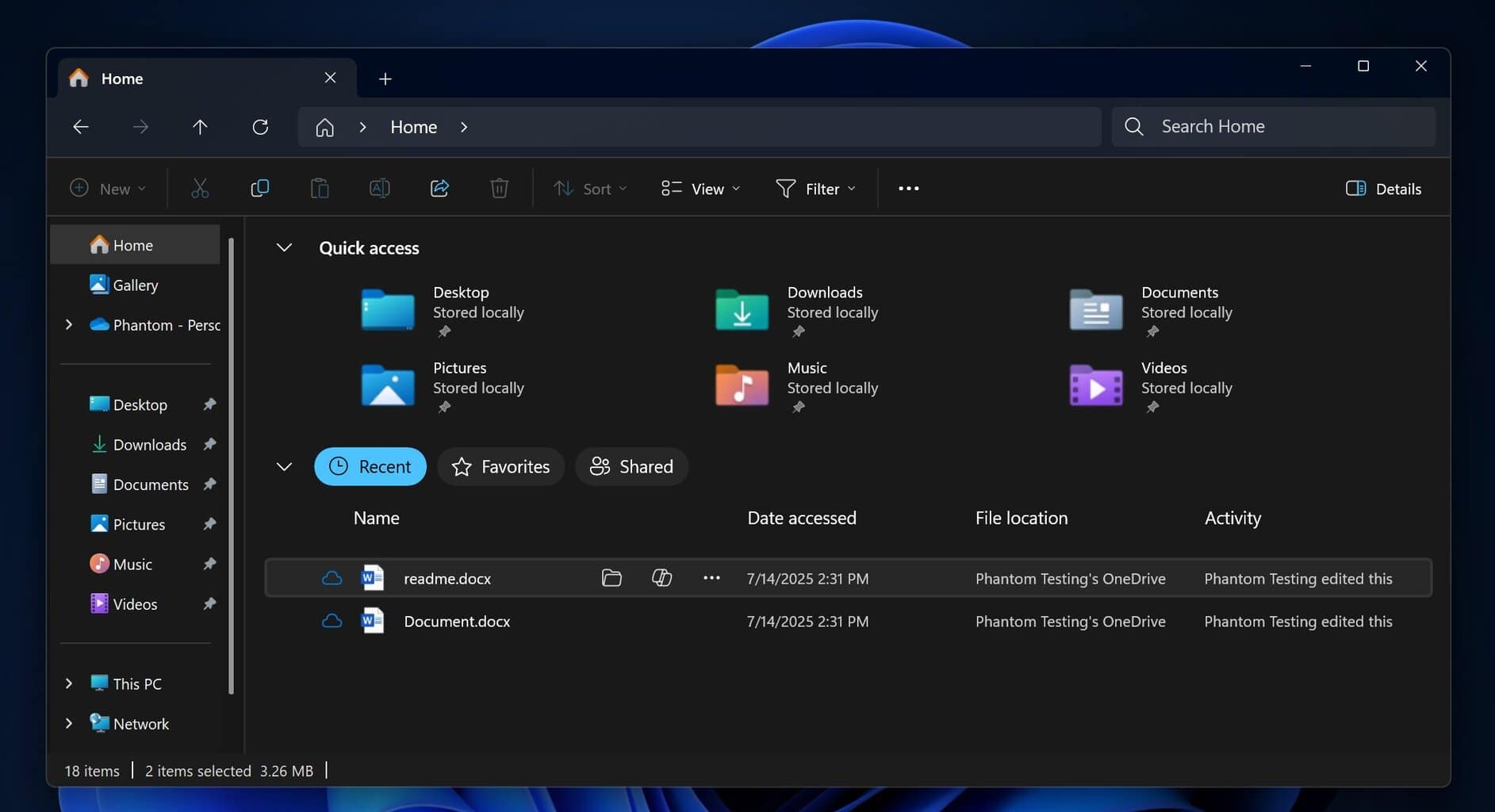


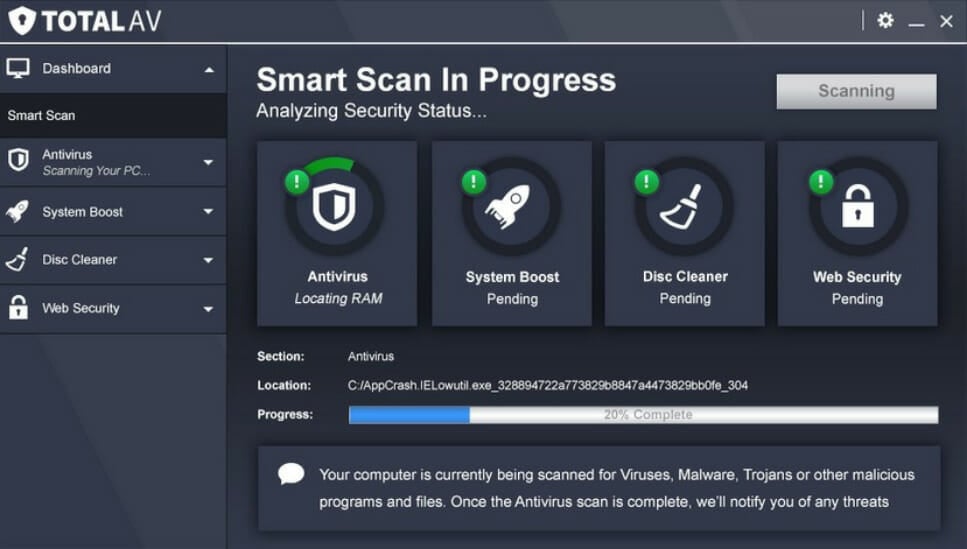


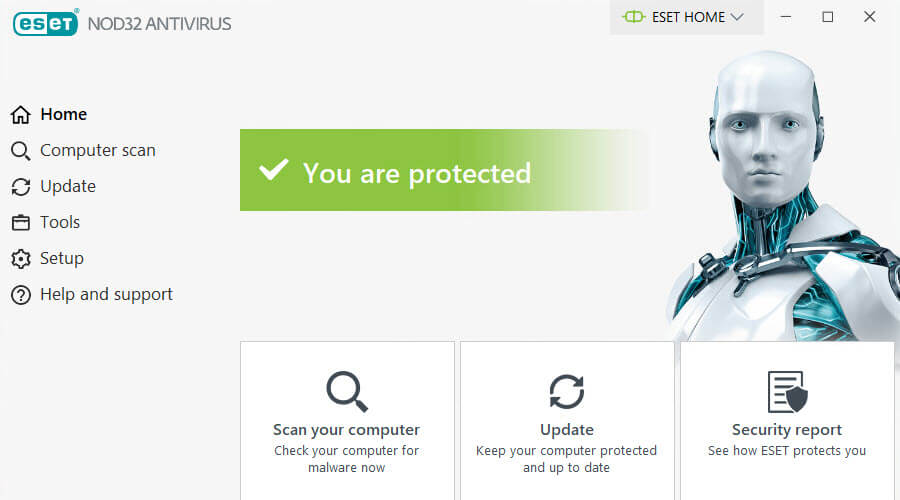
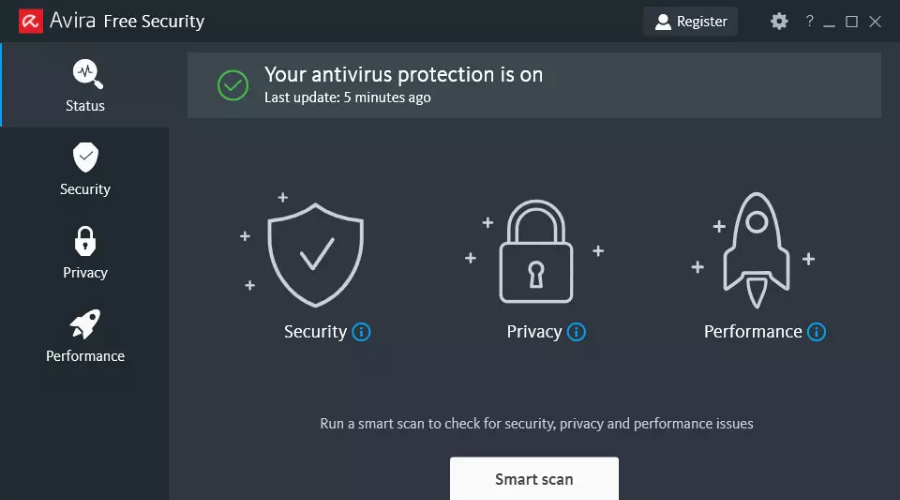

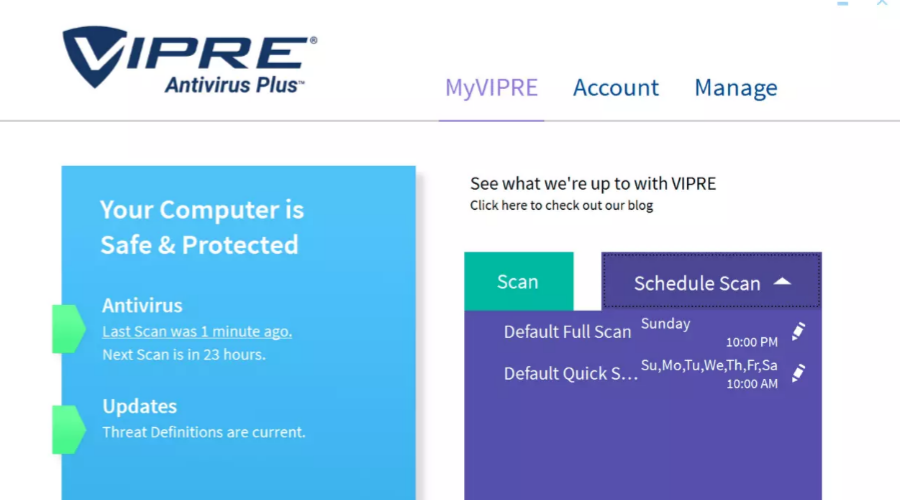

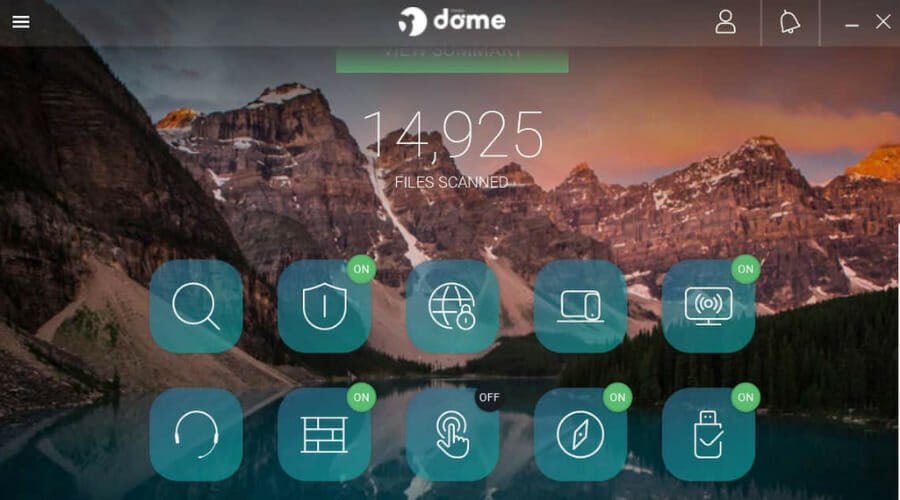

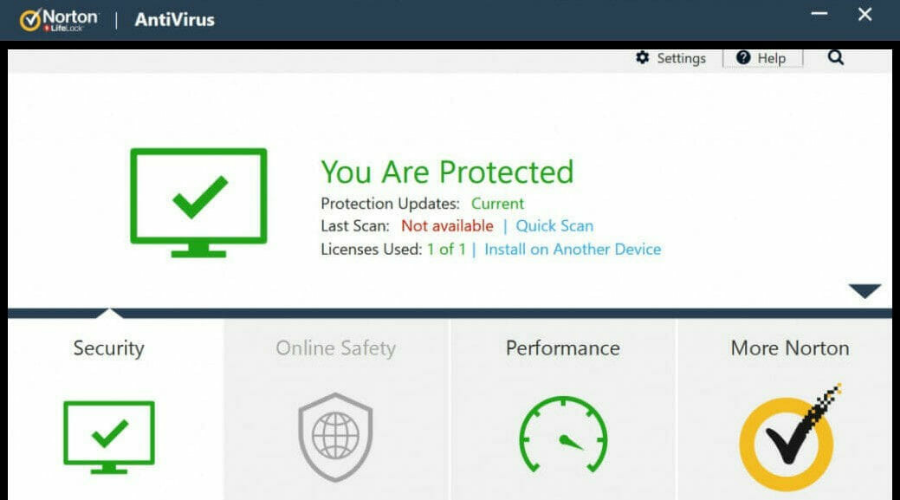

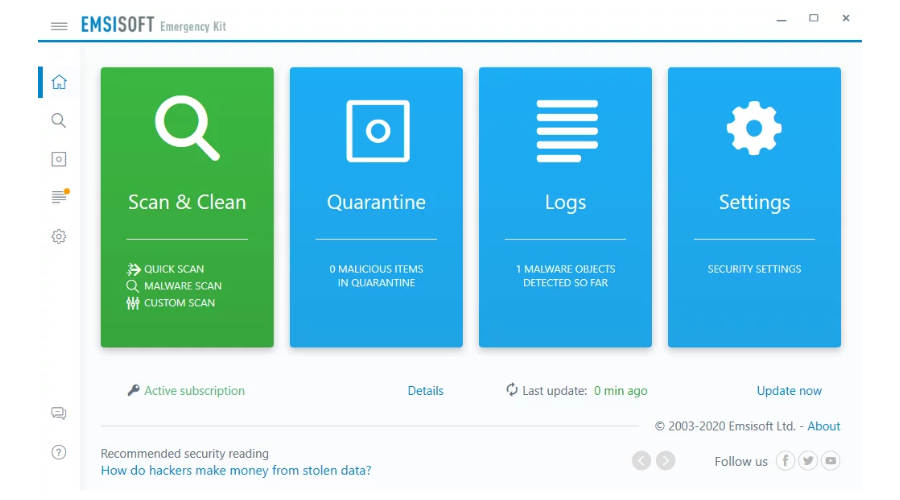
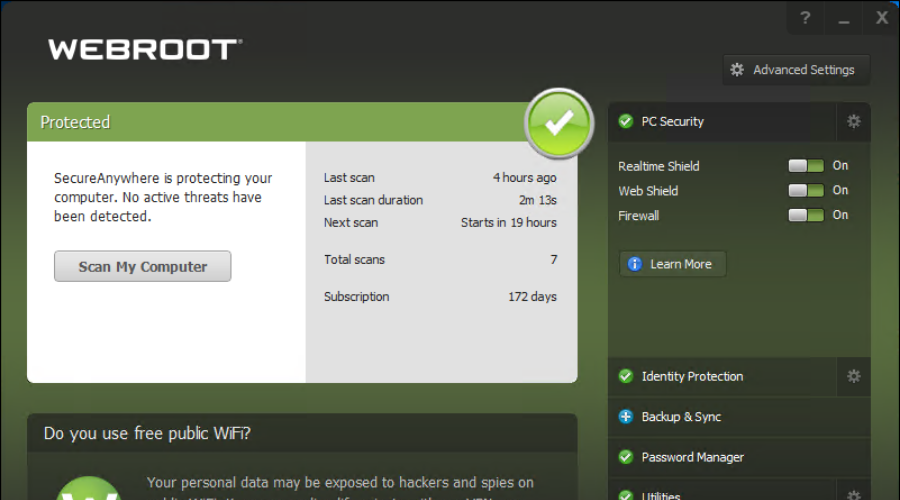

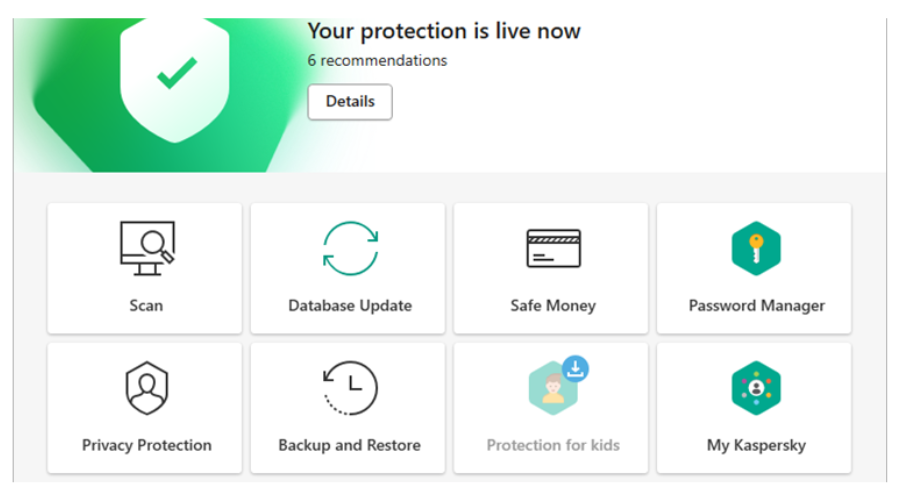

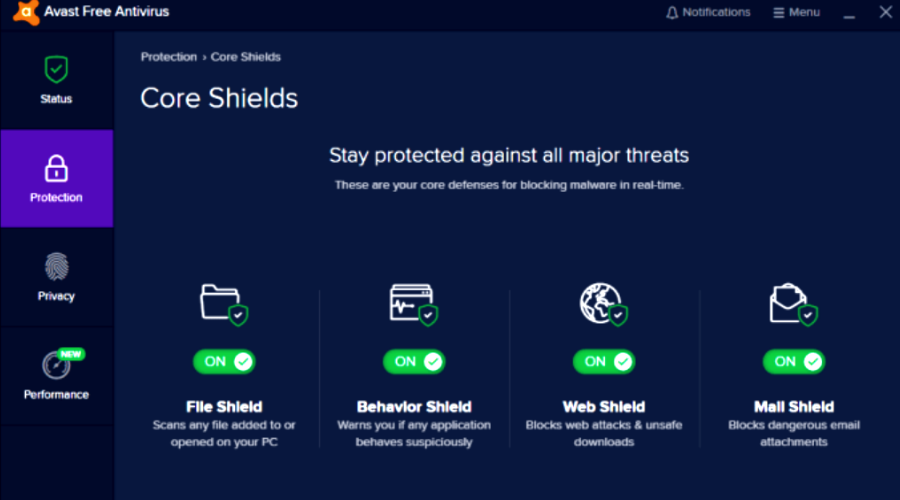

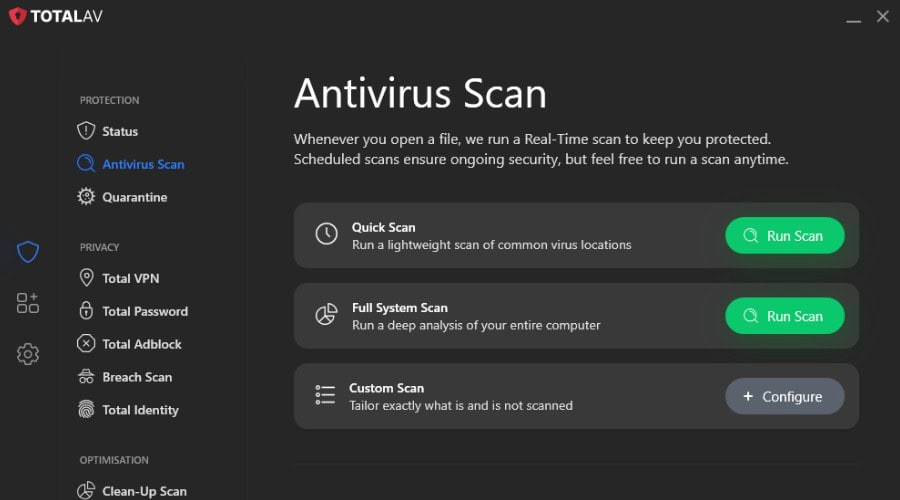
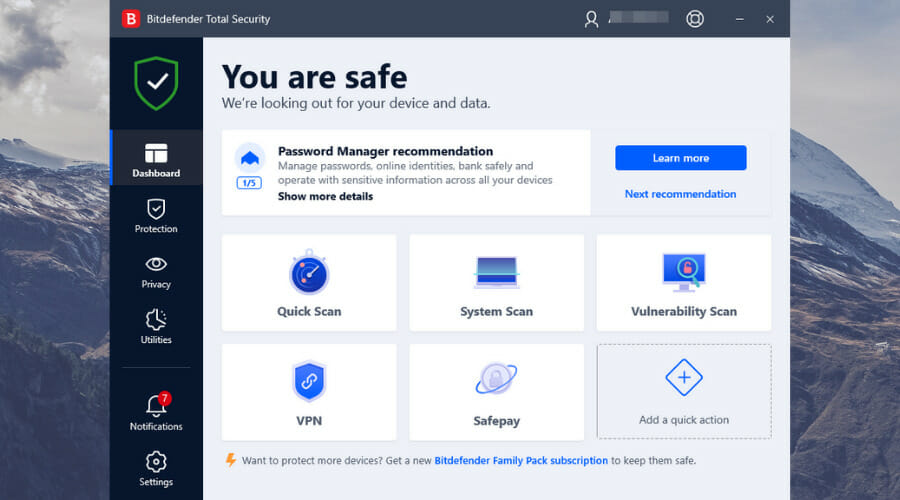

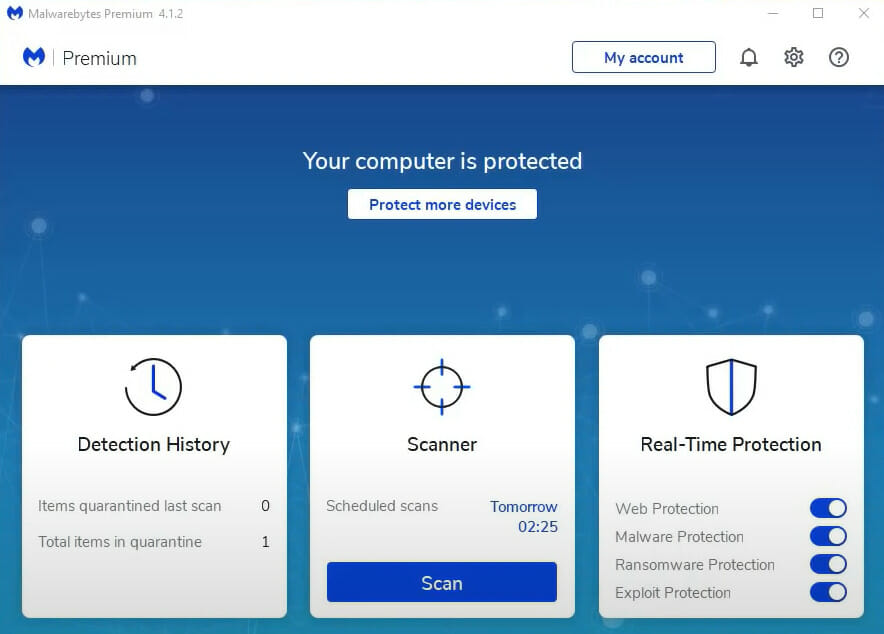



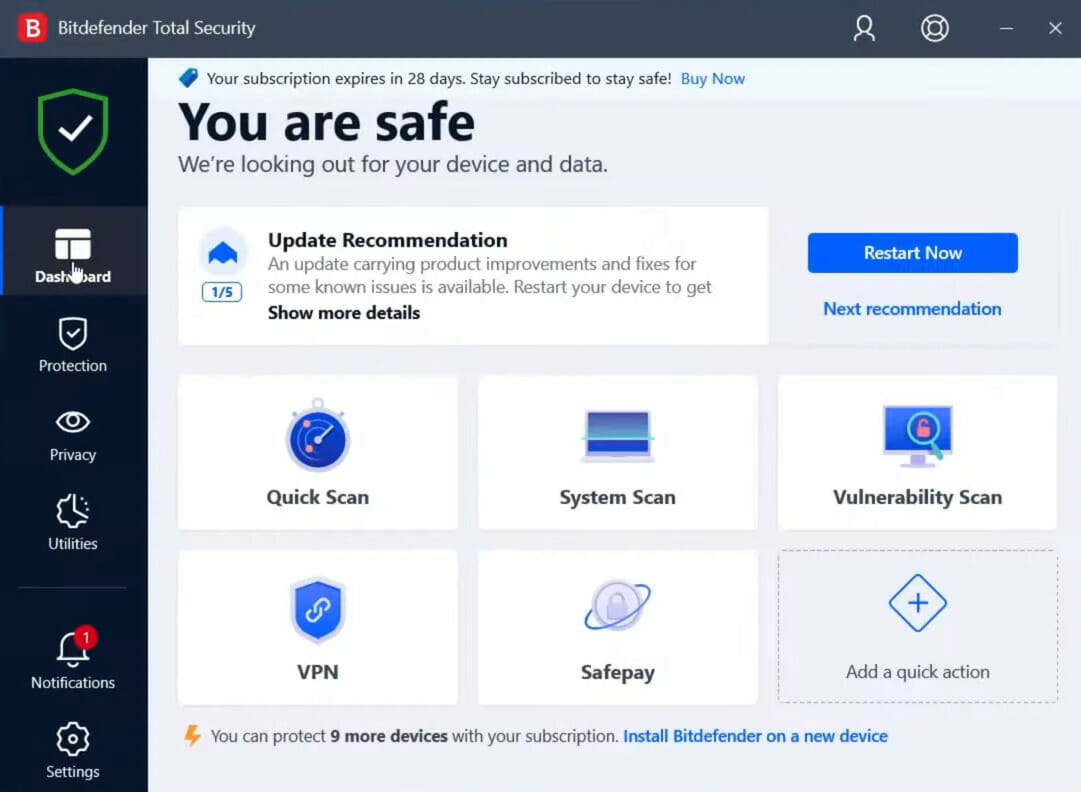

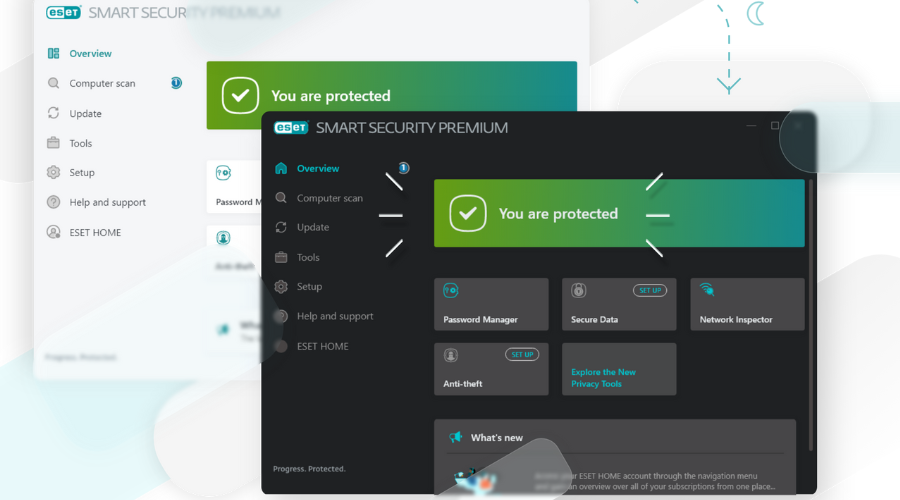


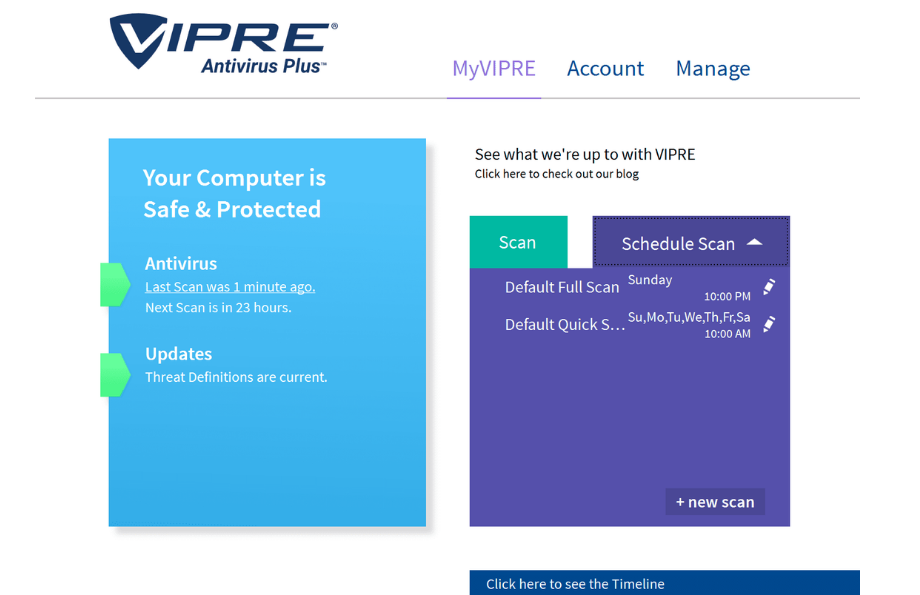
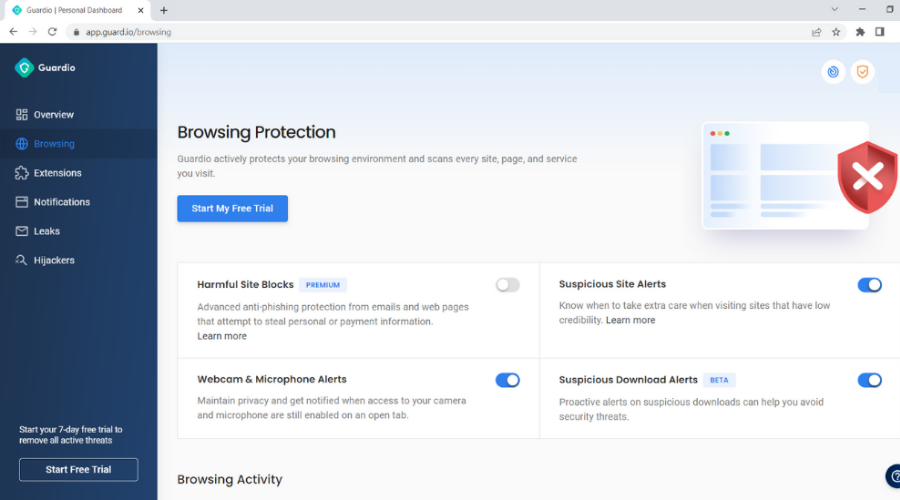

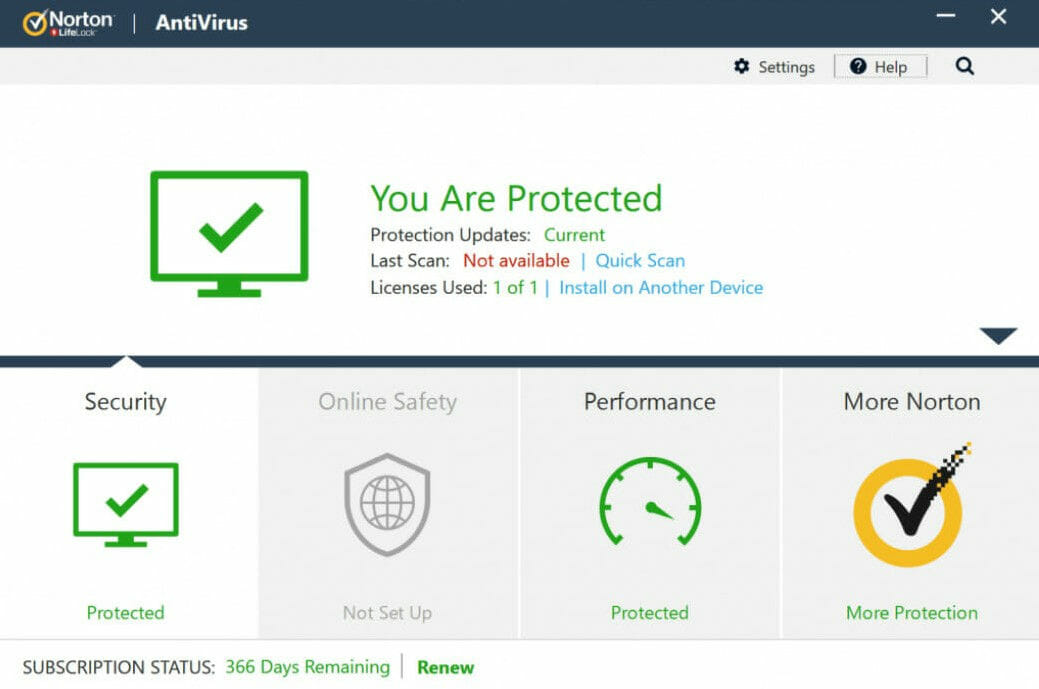

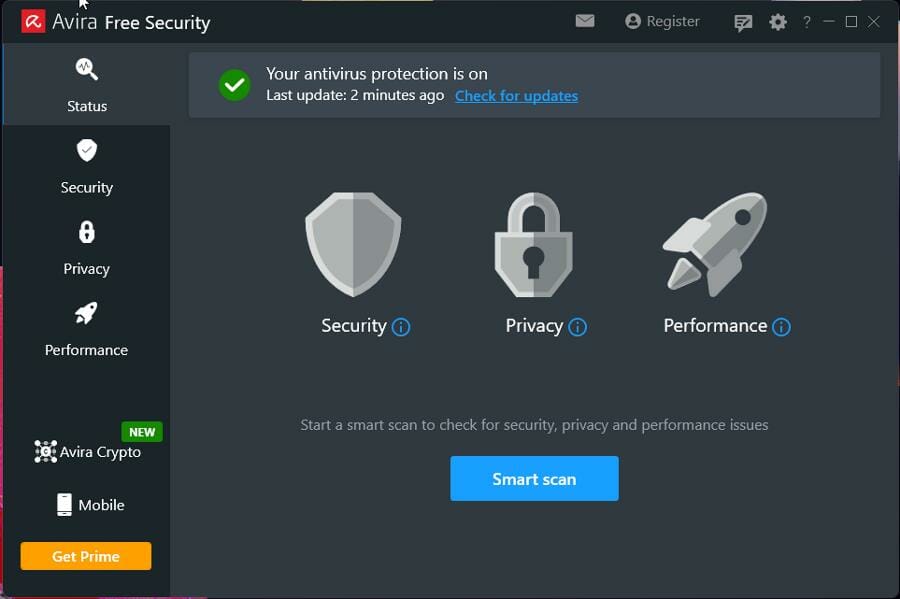
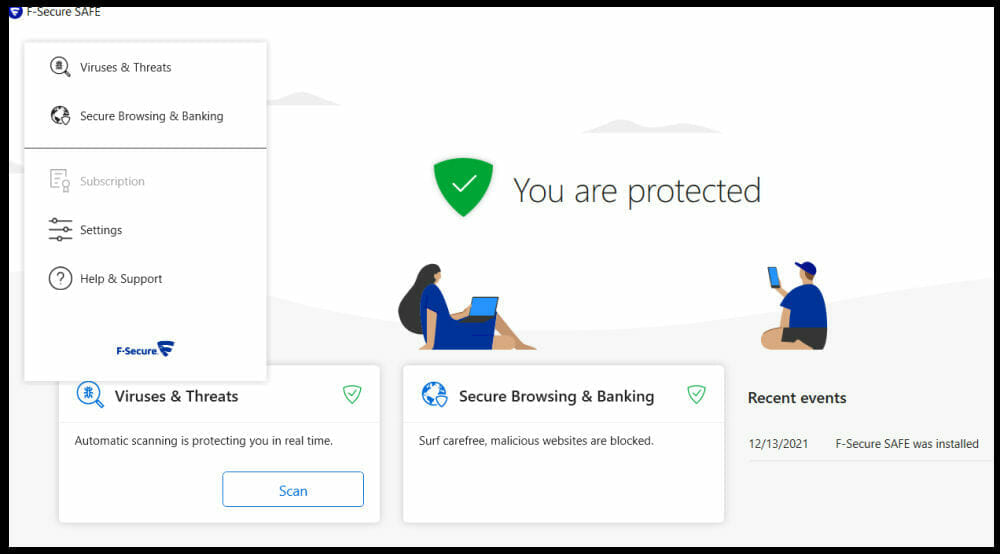

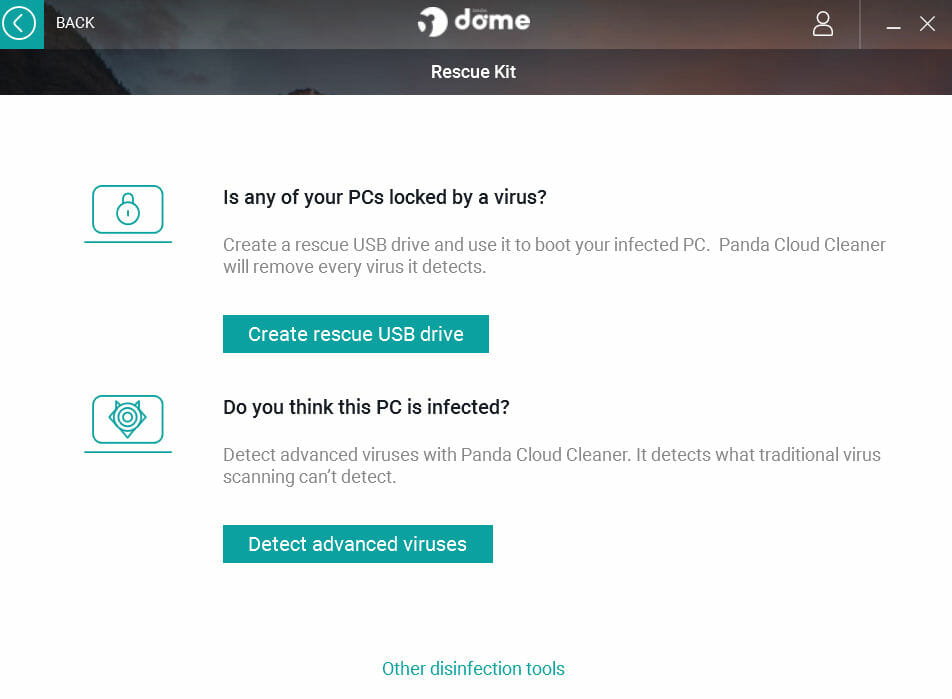
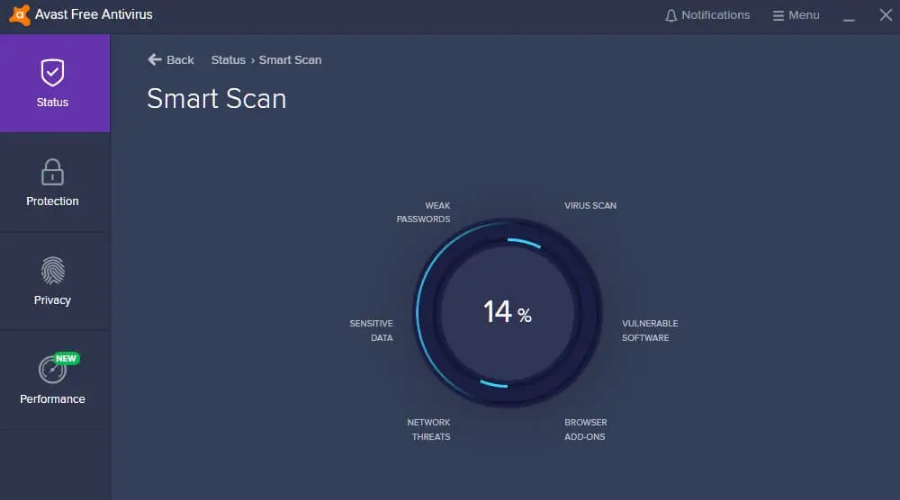

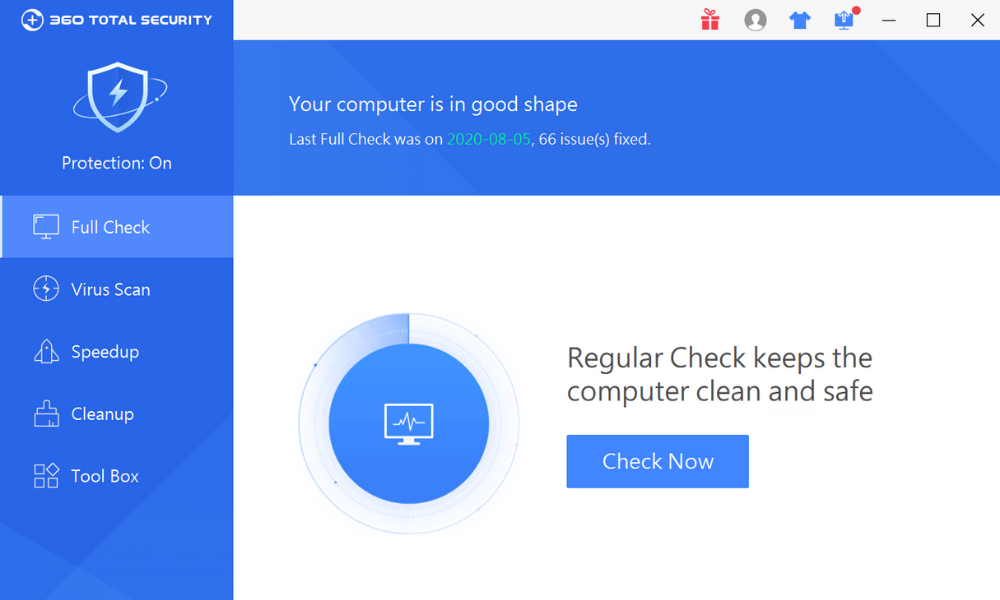
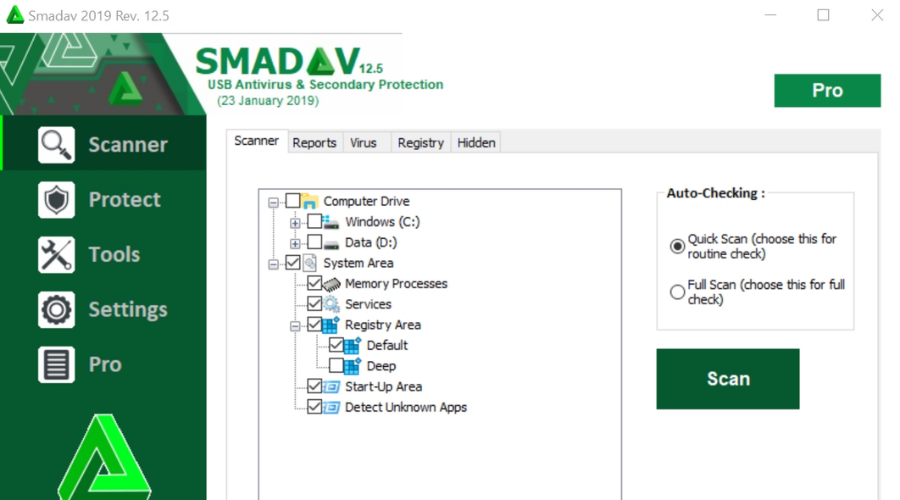
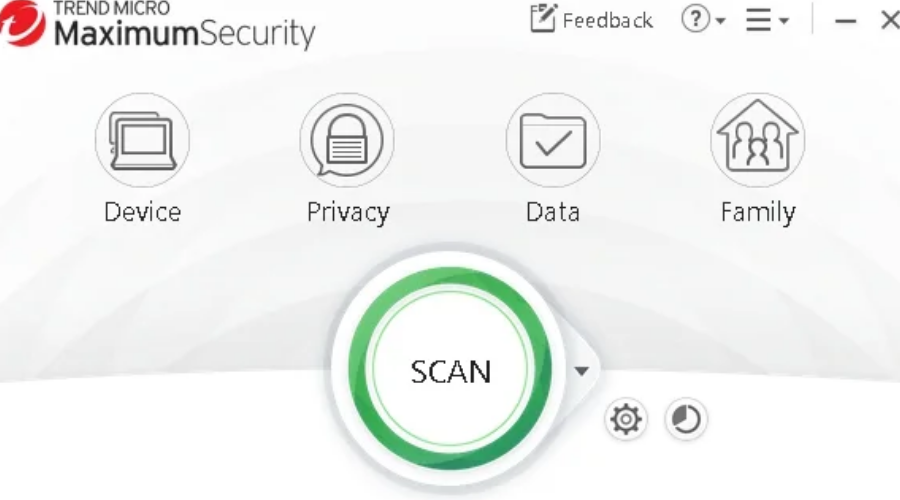


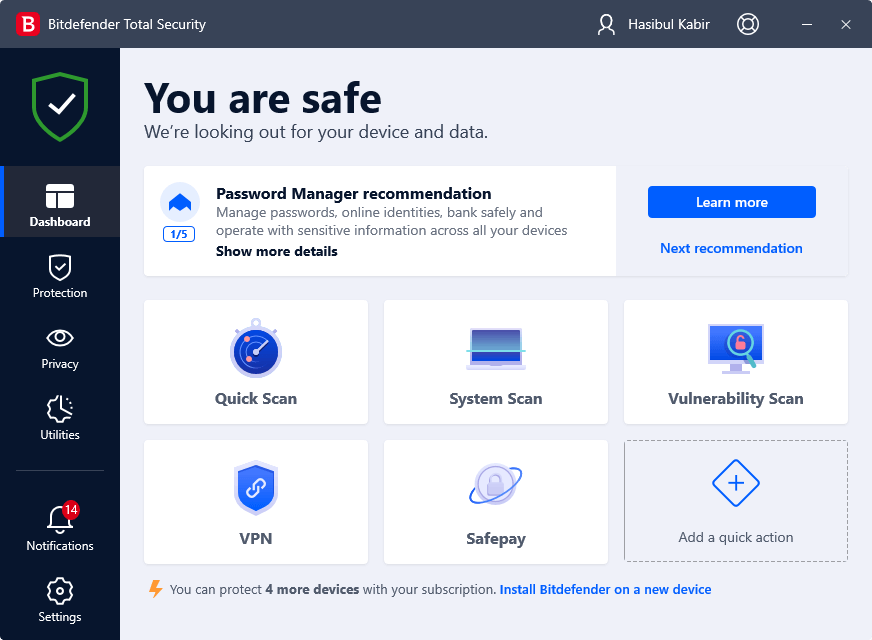

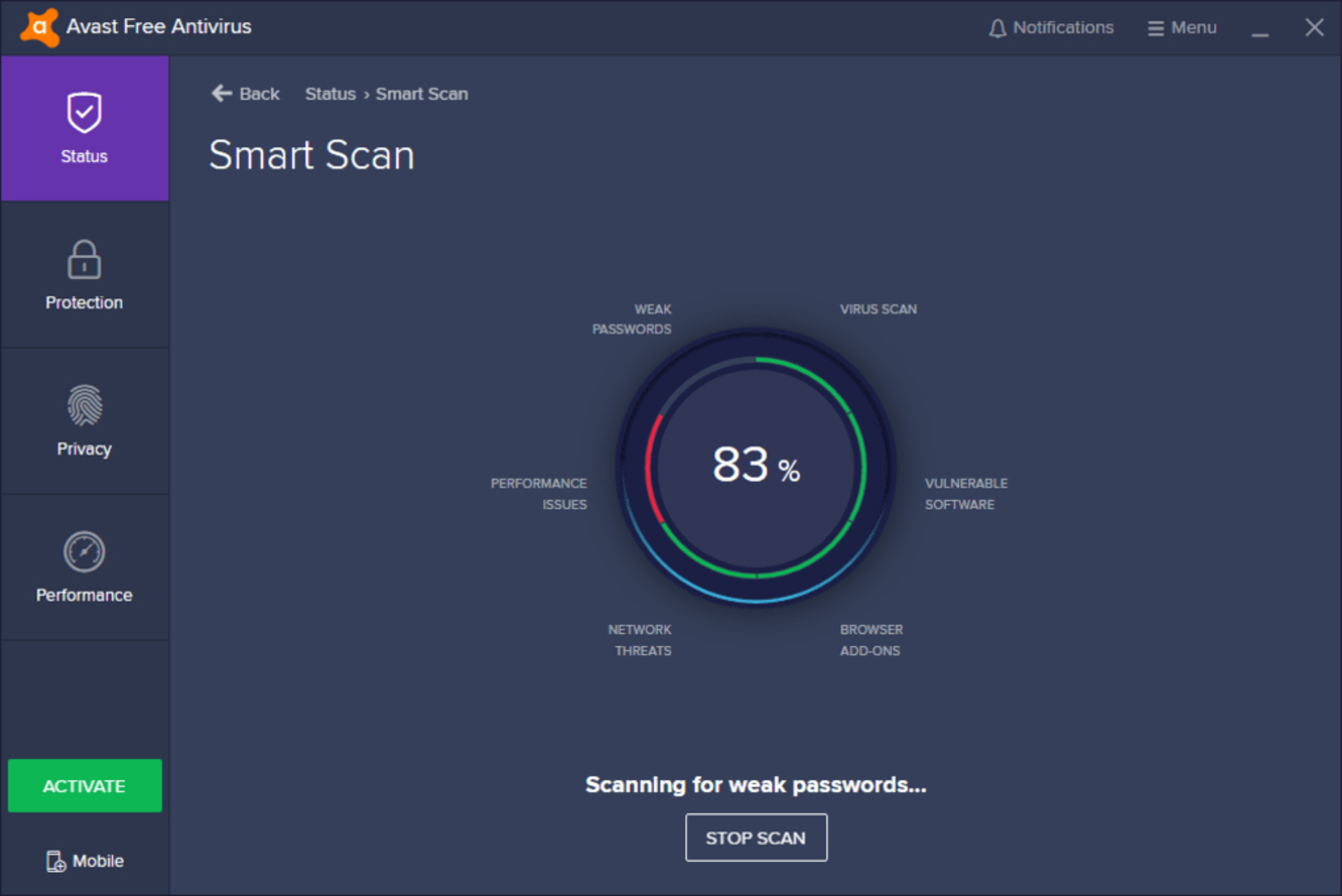


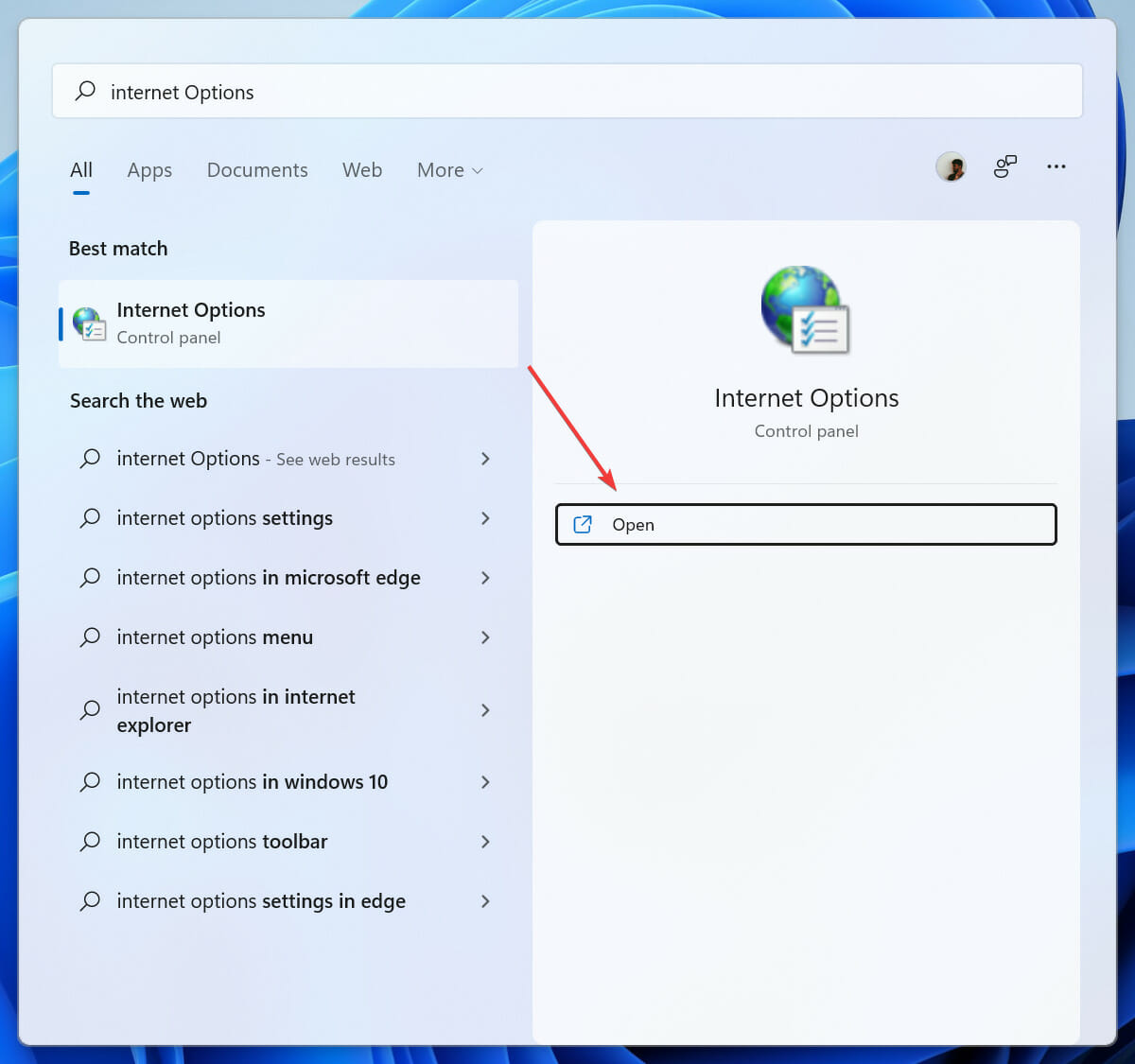
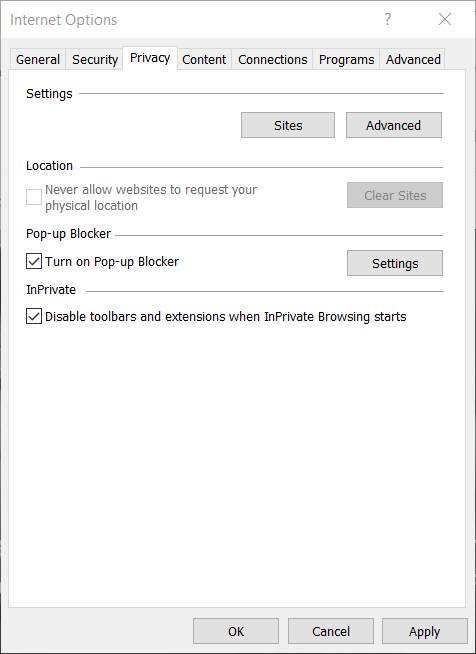 Check the Pop-up blocker box.
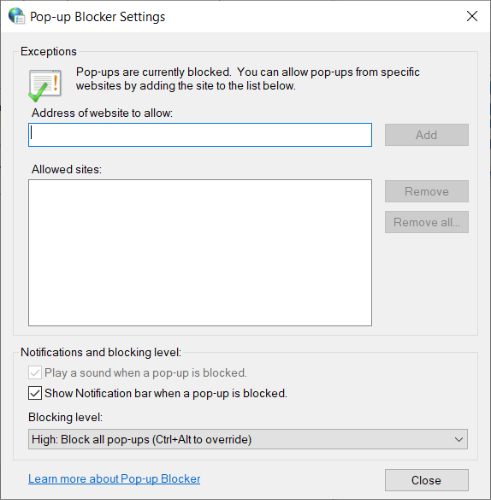 Set the Blocking level to High: Block all pop-ups.