Google Docs is a popular word processor and is one of the preferred choices for many. But frequently, users found that they are unable to load a file in Google Docs, a problem that has been present for quite a while now.
After users report the problem, a new prompt reads, This error has been reported to Google, and we’ll look into it as soon as possible. Please reload this page to continue, but the issue doesn’t disappear. So, let’s find out all about it.
Why is Google Docs unable to load files?
Here are a few reasons Google Docs or Google Drive was unable to load your view:
A third-party extension is causing a problem: Frequently, an extension can conflict with the effective functioning of the browser and trigger the error.
Corrupted browser cache and cookies: Sometimes, you may get the Google Apps Script Unable to load file. Try to load it again or send an error report message due to corrupt browsing data.
What can I do if I’m unable to load a file in Google Docs?
Before we start with the slightly complex solutions, here are a few quick ones:
Switch to a different browser and check if you can now load the Google Docs.
Go to the Google Workspace Status Dashboard and check whether the services are down especially Google Docs. If they are, wait for a few hours, and things will automatically be up and running.
Use the browser’s Incognito or Private mode. In Chrome, you can open an Incognito window by pressing Ctrl + Shift + N.
Sign out of your Google account and then sign back in.
If none work, head to the solutions listed next.
1. Disable extensions
Open Chrome (non-incognito).
In the address bar, type: chrome://extensions
Disable all extensions by clicking the switch icon next to them.
Now try to open Docs again and check if the problem is still there.
Paste the following path in Chrome’s address bar and hit Enter:chrome://settings/reset
Next, click on Restore settings to their original defaults.
Click Reset settings to confirm.
5. Reinstall the browser
Press Windows + R to open Run, type appwiz.cpl in the text field, and hit Enter.
Select your browser from the list, and click Uninstall.
Follow the on-screen instructions to complete the process.
Now, head to the official website, download the setup, and reinstall the browser.
That’s it! If the previous solutions didn’t help when you were unable to load a file in Google Docs, reinstalling the browser would have got things running.
According to a report by Business Insider, Microsoft is apparently laying off team members from Modern Life Experiences. The report indicates that approximately 200 employees will be affected by this move, however, they have the option of seeking other open positions within the company or taking a severance pay settlement. (via The Verge)
Back in 2018, Microsoft formed the Modern Life Experiences team to lay more emphasis on professional consumers. Specifically focusing on coming up with products and services that resonate with the clients.
A LinkedIn post by Erynn Hesler who serves as a Microsoft senior designer sort of confirmed that there was indeed a shake-up taking place within the Modern Life Experience team and termed it as “hard news” though Microsoft is yet to make an official statement regarding the matter. “To all my colleagues who faced hard news today, please let me know if there’s anything I can do. The culture we created inside a giant company on our small Modern Life Experiences team was so special. Thinking of you all today,” Erynn explained.
We will be sure to keep an eye out and keep you posted as this story unfolds. Remember, Microsoft recently broke its own hiring record, adding 40,000 employees over the year bringing the total number of employees at the company as of June 30, 2022 to 221,000. Microsoft also indicated that it was slowing down the hiring process across Windows, Teams, and Office teams back in May.
Let’s discuss PC golf games for windows 10 and 11. Here is what you must know.
In the gaming arena, nearly all racing games, tank games, and action-survival games get all the digital attention while some of the best gaming experiences – like golf, for example barely get a pinch of the media pie.
Well, we are not going to let this happen anymore. Some excellent golf titles have ultra-realistic graphics on PC, Android, iOS, Nintendo 3D’s, and even on PS Vita.
You don’t need to go to a golf field to play the actual game itself. All you need is to grab a couple of these golf games and immerse yourself in the evergreen world of golf gaming.
In this article, we bring you 5 of the best golf games for Windows 10 that you should consider playing.
What is the best online golf game for PC?
There is so much to pick from in this genre, but we like to recommend Shot Online. It is a golf MMO you can play on your browser with an RPG twist.
You will find it very exciting. You can learn about it and other online golf games in our online golf game guide; these are free golf games for PC with no download needed.
What is the most realistic golf game?
Jack Nicklaus Perfect Golf is the most realistic game we have seen on the market. We talk more about it in this article.
We like to suggest PGA Tour 2K21 in this category. It has been praised as one of the greatest golf games, and a big reason is its realistic nature. It is a game worth playing since it has impressive visuals, complex and realistic gameplay, and adjustable difficulty.
Quick Tip:
If you want the freedom to tweak your in-browser gaming setup in order to get the best performance, even on lower-end PCs, use Opera GX, a dedicated gaming browser.
Opera GX
Boost speed with CPU and RAM limiters and get access to restricted gaming servers using the free VPN feature!
Described as the most realistic golf game the market has ever seen, Jack Nicklaus’s new golf game provides a truly immersive experience geared to replicate a life-like scenario.
The game offers 20 different modes, including match, stroke, and skins, and also has some team-based variants like Foursome, Greensome, scramble, and better ball.
Perfect Golf has a lineup of 12 courses with varying difficulty levels, and all the courses are geo-referenced to the real world.
Full controller support ensures that almost everything you do with a mouse in the game, from aiming to moving the ball on the tee, can also be done using the game controller. The game also has an integrated multiplayer lobby, making it easier to find online players to play against.
Mini Golf Mundo is an exciting golf game with four challenging courses suitable for rookies and experienced gamers. Your goal is to putt the ball to each of the 18 holes available in each level (72 holes to complete the four strenuous courses with varying difficulty levels).
Unending obstacles such as warp holes, jumping fish, and bouncing pads add to the difficulties while making the game fun. This is why we recommend it as one of the best PC golf games for windows 10 and 11.
Rookies may start in Woodland Falls, where they learn the basics, and later progress to Meadowland Plains and the Highland Hills to pursue the challenging courses. Being a multi-player game, you can choose to play alone or invite up to 4 friends in a turn-based tournament.
Initially released in 2002, Sid Meir’s Sim Golf has captured the minds of many golf lovers due to its strategic moves and resort management features.
While playing through premade or self-designed courses, you will enjoy a good combination of management, course play, and colorful graphics that will keep you engaged for hours.
You can be the CEO, course designer, or resident of your golf resorts around the globe. Get the rare opportunity to grow your golf empire from a small public entity to a magnificent network of 5-star resorts.
Dangerous Golf is a game of angles, velocity, and leisure, all mixed to create a deeply satisfying game. However, this is not your traditional golf game; it is played indoors, and to score big, you will have to put long shots to cause massive destruction to property.
The game aims to impact maximum damage to objects, over 100 holes. You must mess up the kitchen, smash toilets, destroy expensive antiques, and more.
The more expensive the objects you destroy, the higher the score. Once you have done enough destruction, you earn a SmashBreaker. After that, your ball becomes like a fireball capable of causing more chaos and destruction. Visually the game is beautiful with a lot of explosions.
Super Golf Land is an exciting game that combines engaging gameplay with good presentation and lasting value to create a fun golfing experience. You get to golf across eight beautifully designed yet tricky courses, develop skills, and collect all the eight unique power-ups.
The aiming system is well designed, and you control the angle and velocity of your shots. The levels are pretty challenging, but with precise shots, navigation becomes fun. Plus, the leading game lasts over 2 hours; after that, you can play the mini-games, which open up new challenges.
There you have it, our top recommendations of PC golf games for Windows 10 and 11.
Today, we’ve so many golf games that are exciting and fun to play, and some of these apps replicate the actual game experience. However, only a few of them are compatible with Windows.
In this article, we have highlighted 5 of the best golf games for Windows. Our list has included incredible Microsoft golf games for windows 10 and 11; however, you may opt for golf games for PC that are free to download and have a full version.
I hope you will find these games fun to play. Feel free to comment and share.
Game of Thrones is a popular series, and with the popularity of the show, it’s no wonder to see many Game of Thrones video games.
In today’s article, we’ll show you how to play Game of Thrones in your web browser, so without further ado, let’s get started.
Is the Game of Thrones browser game free?
If you want to pursue the road to becoming the next ruler of Westeros, know that fame and glory await you in Game of Thrones: Winter Is Coming.
And, to answer your question, this officially licensed browser game based on the epic fantasy series by George R.R. Martin is free-to-play.
Quick Tip:
For the best gaming experience, it’s advised to use a specialized browser like Opera GX. This browser has low hardware requirements, so it should be able to handle multimedia and games with ease.
The network limiter feature is also available, allowing you to limit your bandwidth in a web browser. It’s also worth mentioning that the browser has Twitch integration, so you can easily follow your favorite streamers.
Opera GX
Fight the battles of Westeros in the official GOT game using the best gaming web browser as your gateway to that fantasy world
How do I play Game of Thrones, the browser game version?
Go to Game of Thrones: Winter is Coming website.
Click the Join Battle button.
Choose the sign-in option or create a new account. We chose to use a Google account in this instance.
After entering your login credentials, the game will start loading. If you’ve returned to the main screen, just click the Join Battle button again.
Wait for the game to load. This can take a while, especially if you’re playing the game for the first time.
After a while, the game will load completely and you should be able to play it.
Game of Thrones: Winter is coming is a browser game, and it should work on all browsers. However, not all web browsers are optimized for gaming, which may cause your gaming performance to vary.
Is Game of Thrones game safe?
If you are a parent and want to let your kids play this game, you need to know that Game of Thrones frequently depicts brutal battles and graphic, detailed acts of violence, clearly including those against children and women, as well as lots of nudity and no-holds-barred sexuality.
But, from the device safety point of view, you have nothing to worry about. The only things getting infected are the people traveling through old Valyria, not your PC.
That is pretty much all you need to know about Game of Thrones Winter is Coming online, in case you wanted to pick up this game.
Know that the Game of Thrones game on PC can be played either through your browser or on Steam, where it can be downloaded.
If you want to play Game of Thrones in your web browser, this is the best way to do it. If you found this article helpful, let us know in the comments below.
Gamescom 2022 is just a few weeks away, running from Wednesday, August 24 through Sunday, August 28. The event will be held once again in Cologne, Germany. And once again, Xbox will have a presence there…only this time it will be a live one.
That’s right: Gamescom 2022 will be live and in-person (as well as online for those who can’t attend)! For the first time since 2019, Xbox will be able to have live booth at the event—in Hall 8 of the Koelnmesse Exhibition Centre, to be precise. The booth will include 36 stations offering hands-on time with some of the most anticipated games coming to Xbox in the next 12 months.
Playable titles will include Pentiment, Age of Empires IV, Microsoft Flight Simulator, Sea of Thieves, and Grounded from Xbox Game Studios. And from third-party publishers the following,
A Plague Tale: Requiem (Asobo Studio/Focus Entertainment)
Disney Dreamlight Valley (Gameloft)
Gunfire Reborn (Duoyi Games/505 Games)
Inkulinati (Yaza Games/Daedalic Entertainment)
Last Case of Benedict Fox (Plot Twist Games/Rogue Games)
Lies of P (Neowiz)
Lightyear Frontier (Frame Break)
Planet of Lana (Wishfully/Thunderful)
You Suck at Parking (Happy Volcano)
Visitors to the Xbox booth will also be able to get hands-on with the new Xbox App for 2022 Samsung Smart TVs. And if all this isn’t enough to get you on a flight to Cologne, well then…you’ll still be able to attend digitally. Xbox will host a live stream event starting on Thursday, August 25. Follow all the Xbox social media channels to get more info on viewing details as they become available.
And for those who can attend, there will be a special after hours booth event as part of Xbox FanFest@Gamescom. Held on Wednesday, August 24, the event will include a meet & greet with game creators. And on Friday there will be a virtual meet & greet with Sea of Thieves and Park Beyond via Microsoft Teams, which anyone can join in.
Gamescom 2022 promises to be an exciting celebration of gaming, and one you don’t want to miss whether in person or online.
However, like other browsers, it is not free from occasional errors. As reported by users, one of the most problematic issues is the SafarI randomly closes tabs problem.
This issue can be frustrating, as you need to open a tab multiple times to get the info you need from it. Thankfully, we have provided surefire fixes to the problem in this guide to help you get your browser working normally again.
Why do my Safari tabs keep closing?
The well-known cause of the Safari randomly closes tabs issue, especially on Mac, is iCloud syncing. This is because the automatic sync sometimes interacts with the tab groups on your browser.
Another reason the auto tab closing issue occurs is outdated Mac OS. This denies you many upgrades to your system and could mess with your browser.
Quick Tip:
While Safari is the built-in browser for Mac and other Apple devices, there are alternatives, and a great options is Opera One. Like Safari, Opera One is optimized for speed and excellent all-around performance.
It includes many built-in features and integrations, such as a native AI. Also, Opera One is one of the most secure and private browsers you can ever use thanks to its VPN and adblocker.
Opera One
Use this performance oriented and light browser to open as many tabs you want!
Click the Apple icon in the top right corner and select the System Preferences option.
Select Apple ID.
Unmark Safari.
If Safari closes your tabs randomly, the fastest fix is to disable the iCloud syncing for Safari. With this, the poor connection between the sync and your tab groups should be eliminated.
Remember to enable the sync again when you finish browsing to save your changes.
2. Update Mac
Select the System Preferences option from the Apple menu.
Choose the Software Update option.
Click the Update Now or Upgrade Nowbutton.
An outdated Mac OS causes all sorts of issues, including Safari randomly closes tabs. The update now option on the software update page helps to install the latest updates for your currently installed OS version.
On the other hand, the upgrade now option installs another version entirely to the one you have.
If your tabs keep disappearing on your Safari browser, it might be caused by the auto close tabs feature. This is especially true on iPhone devices.
Also, it might be down to a bug that makes the tabs disappear without a trace.
The Safari closes tabs randomly issue can be frustrating, making you lose vital information. Thankfully, it is not the most difficult problem to fix, as shown in this guide.
Some Google Chrome users have encountered Rats! WebGL hit a snag error message when opening certain website pages. That’s an error message that usually appears on JavaScript-heavy websites.
A yellow bar with Reload and Ignore buttons usually includes the error message. Then reloading the page doesn’t always fix the issue.
As the error message suggests, this is primarily a WebGL issue. WebGL, otherwise Web Graphics Library, is a JavaScript API that helps the Chrome browser render 3D and 2D graphics.
However, when WebGL has an error or is not supported, you’ll get a WebGL snag error message.
What causes WebGL to crash?
To tell you the truth, there are two possible reasons why your browser may not support WebGL. The first one is because your current GPU might not be powerful enough to run WebGL without some performance loss.
The second scenario involves your current browser, with Chrome being the most likely culprit, which has blocked your graphics card to avoid possible crashes and freezing.
What is a snag error?
There’s no secret that, occasionally, you might come across this error message that reads while using your Google Chrome browser.
Keep in mind that you will get this error if your WebGL content is not compatible with the browser or if it contains an error.
So, get ready to find out how to deal with the Rats, WebGL hit a snag for Chrome. Get all the information you need right here, in this article, including WebGL game examples.
Quick Tip:
Before proceeding with the troubleshooting steps below, we would like to present a web browser that you can use as an alternative to Opera One.
It is extremely lightweight and has no problem running WebGL. You just go on the browser settings, access Show advanced settings to check the Use hardware acceleration when available checkbox.
Opera One
Run WebGL without any more issues with the help of this extremely stable and reliable web browser.
First, input chrome://flags in the browser’s URL bar to open the flags page below.
To find the setting, press the Ctrl + F hotkey. That will open a search box where you can enter WebGL 2 as below.
Now click the WebGL 2 drop-down menu and select Disabled from there.
Press Relaunch Now to restart Google Chrome.
Chrome includes a WebGL 2.0 setting that you can configure via the chrome://flags page.
3. Reset the flag settings
Resetting Chrome’s flag settings to default can potentially resolve the WebGL hit a snag error. You can do that by pressing the Reset all defaults button at the top right of the chrome://flags page.
Then restart the browser by pressing the Relaunch Now button.
How do I know if WebGL is enabled?
You don’t need to go through some lengthy process to find out the answer to this question, as you are about to discover in a second.
All you need to do if you want to find out if WebGL is enabled in your browser is open the software and go to:
https://get.webgl.org/
If you want to enable WebGL on your Chrome browser, just type about: flags in the address bar, then search for WebGL and activate the option.
Now that you have the WebGL hit a snag meaning, you will be more prepared to deal with this annoying error code.
WebGL hit a snag can be ignored or reloaded, but you should just rather get to the bottom of it. This article covers all you need to know about the Rats, WebGL hit a snag error.
Those are a few remedies for the WebGL snag error in Google Chrome. The Chrome://GPU page, which you can open by entering chrome://gpu in the URL bar, highlights GPU-related errors for Chrome and might also help fix the WebGL error.
Many users have issues with Windows 10 because some of the best browsers do not support output device selection. This means that all your open software will use the same default output device to play sounds.
Having the option to choose which output device will be used for a specific software would be an incredibly useful feature. This option is extremely handy, especially for allowing multiple people to use the same computer simultaneously.
For these reasons, in this article, we will discuss the best way to solve the browser does not support output device selection error on Windows 10. Read on to find out more.
What does a browser not support output device selection mean?
The browser does not support output device selection issue, as the name implies, which means your browser will not allow you to change the audio output to play sound.
With this, you have to use the same default output device used by all your devices for your browser.
How do I change the audio output on my browser?
Press the Windows key + I to open the Settings app.
Select the System option.
Choose Sound on the left pane.
Click on App volume and devices preferences under Advanced sound options.
Click the dropdown before your browser and select the output device to use.
Note that your browser must be currently playing sound to use the above steps to change the audio output.
Quick Tip:
If you’re having this problem with your current browser, consider switching to a different browser, such as Opera One.
This browser is based on the Chromium engine and includes helpful features like workspaces, tab islands, search-in tabs, integration with messaging apps, VPN and a native AI.
Opera One
Choose a modern browser in the market focused on speed, privacy, and productivity.
What do I do if my browser doesn’t support device selection?
1. Make sure to update your version of Windows 10
Click on the Cortana search box, type in Update,and select Windows Update Settings.
Inside the Update window, select Check for updates.
Wait until Windows 10 searches and installs any updates.
Follow the on-screen instructions and restart your PC.
2. Change Windows output settings for individual apps
Right-click on the Soundicon found near your Windows clock and select Open Sound Settings.
Inside the Sound settings window, scroll down to the section named Other Sound Options and selectApp Volume and Device Preferences.
At the top of the page, you can choose the default Master volume, Output,and Input settings.
Below you can find a list of all the applications installed on your PC.
Scroll down and select volume, output, and input devices for the browsing application that you use.
Changing the Windows output settings for individual apps is one of the quick ways to fix the browser that does not support output devices selection issues. Relaunch your browser after applying this fix and check if the problem is solved.
Chrome has audio settings within the browser. Though not a full-fledged audio setting, it is used to grant and restrict sound access to sites.
This is available under the Site settings section on your browser.
In this article, we explored a quick and easy method to avoid encountering issues when changing the output device for specific browser software or any other Windows 10 applications
First, you need to make sure that your version of Windows 10 is updated, and then you can use the newly added options to change the output settings.
It’s important to fix this problem since it can lead to other issues, such as no sound in Opera, or any other browser.
Please feel free to let us know if this guide helped you solve your issue by using the comment section found below.
Spectrum is a well-known US-based ISP that provides its customers with a variety of communication services.
When you get the Spectrum error RGE-1001 or DGE-1001, the first thing you should do is check the Internet connection. Restarting also fixes these problems.
However, you can’t always solve these with a mere restart. Read this guide to the end for the recommended fixes for the Spectrum errors RGE-1001 and DGE-1001.
How do I fix RGE 1001 and DGE 1001 Spectrum errors?
1. Reinstall the Spectrum app
Click the Start button and select Settings.
Choose Apps.
Find the Spectrum app in the list, click on it, and hit the Uninstall button.
Next, restart your device after uninstalling the Spectrum app. You may also need to delete cached files, depending on your device.
When your device comes back on following the restart, reinstall the Spectrum app.
Like the uninstallation process, the installation steps vary based on your device and operating system. You could get it off an application store or download the installation file and execute it.
Either way, reinstalling the Spectrum app is a standard first step in troubleshooting the Spectrum error RGE-1001.
2. Get support to reset your Spectrum account
Navigate to the Spectrum website, click the Contact Us tab, and select one of the contact options to get in touch with the technical support representative of Spectrum. There is also a Chat With Us button below to get live support.
Let them know that you are facing the Spectrum error RGE-1001 or Spectrum error DGE-1001. Make sure you tell them what you tried to do before getting the error and the steps you have taken already.
The support staff would likely delete your Spectrum account and recreate it from scratch.
It may seem extreme to go all the way to reset your account. While it may take some time and be inconveniencing, resetting your Spectrum account would most likely fix the Spectrum error RGE-1001 and DGE-1001 issues.
3. Wait it out
At times, the issue of Spectrum error RGE-1001 could be a fault from the server-side. If this is what happened in your case, then there’s nothing you can do to resolve it.
Spectrum on the Downdetector website
Usually, the company will know about this issue, and in no time, they will get it fixed. For example, if the connection was not from your network but probably down from the server end.
In this instance, you have to simply exercise patience until they restore the server connection.
4. Contact customer service
For many Roku users, this problem will persist after you have followed all of these solutions. Spectrum’s customer support is quite helpful and responsive, so you can go ahead and get in touch with them.
Support links on Spectrum website
You can either call or email Spectrum’s customer support. Make sure you indicate the error you are receiving. Specify the Spectrum error RGE-1001 or DGE-1001.
Spectrum also has a guide on how to reach out to a dedicated customer support representative.
The Spectrum error RGE-1001 and DGE-1001 indicate that you have an issue with your network connectivity. We have gone through the methods for repairing the issue.
In many cases, the problem is from the server-side, so you can wait it out or even talk to Spectrum’s customer support.
Even more, if you see the Spectrum error code RLC-1000 on Roku, a corrupt DNS cache and an outdated Channel app are often the culprits. Don’t hesitate to take action and correct the problem right away.
We hope you’ve managed to fix the issue by using one of our solutions. Tell us what worked in your case in the comments section below.
Prince of Persia was one of the most popular Ubisoft games available on the Windows platform, which was then replaced by the Assassins Creed series.
However, as Windows modernizes to match new-gen games’ demands, backward compatibility has never been the priority for Microsoft. That said, with a few workarounds, you can still play old games on Windows 10.
This leaves many DOS gamers questioning whether they can play Prince of Persia on a Windows 10 PC. Yes. An Independent developer has made available the classic Prince of Persia and Prince of Persia 2 on Windows 10 platform.
You can download and play the game without figuring out all the workarounds required to play old games on Windows 10.
Alternatively, you can also run the Prince of Persia game using the DOS emulator. We have discussed all these methods in the article below.
Is Prince of Persia available on PC?
Prince of Persia is very much available on PC despite being an old game. There are different ways of downloading and installing the game.
We will explore all the possible methods in the subsequent sections of this article.
How do I install Prince of Persia on Windows 10?
1. Download Price of Persia from the Microsoft Store
Click the Get button followed by Install. The game will download and install on your computer.
Once installed, launch it from the Recently Installed section by clicking the start button.
This game runs in a sandbox and consists of Prince of Persia Classic, Prince of Persia 2, and some popular fan-made game modifications.
The default gameplay controls are set to the keyboard. However, you can download and use a third-party app to play the game using your Xbox controllers.
2. Run PoP using DOSBox
Download the DOSBox emulator from the official website. Run the installer to proceed with the installation.
Once installed, create a shortcut to the DOSBox executable. Right-click on the DOSBox.exe and select Create a Shortcut.
Move the new shortcut to where you want to open your game.
Next, right-click on the shortcut and select Properties.
Open the Shortcut tab, and in the Target box (leave a space after the existing text), type the full directory path of your game’s executable files in the quote.
It will look something like this: C:Program Files (x86)DOSBox-0.74DOSBox.exe" -userconf "C:UsersTashreefDownloadsprince-of-persiaPrince.exe
Click OK to save the changes.
Rename the DOSBox shortcut to the name of your game.
You can also change the game icon in the properties window if you want. Double-click on the newly created shortcut to run the game. You should have the classic Prince of Persia DOS game running your Windows 10 system.
If you don’t have the Prince of Persia executable file, you can legally find it using the old games forum and websites.
Note that you can access the original Prince of Persia controls from the game’s menu. For the first method, launch the Prince of Persia PC app, click the Menu icon, and select Controls.
Extract the Zip file and copy the files to a folder of your choice.
Next, navigate to the folder where you have extracted the Zip file contents.
Double-click on Prince.exe to start the game.
If you don’t want to install the original Prince of Persia video game using DOSBox, you can directly play using SDLPoP.
SDLPoP is an open-source port of Prince of Persia that runs natively on Windows and Linux systems. It is based on a disassembly of the DOS version and uses SDL.
If you want to play the newer gen Prince of Persia games, such as Prince of Persia Warrior Within, Sands of Time, and the Forgotten Sand, check out GoG (Good Old Games).
GoG offers an excellent collection of classic Windows games at a discounted price. However, GoG does not feature the original Prince of Persia and Prince of Persia 2 in their collection.
Can I run Prince of Persia Warrior Within on Windows 10?
Windows 10 is one of the supported operating systems for Prince of Persia Warrior Within. The minimum OS requirement for the game on PC is Windows 2000/XP.
So, you can easily play the game on your Windows 10 PC.
Prince of Persia is one of the first games we played on a PC. Many of us have fond memories, often in monochrome colors.
We have listed three methods to play the classic PoP games on your Windows 10 PC.
Once you have installed the game, don’t forget to tell us your favorite PoP game in the comments below.
Website creation can be a complicated process that requires a certain level of programming knowledge. In most cases, developers tend to use HTML editors or even text editors to create websites.
However, these tools can be a bit complicated to use for average users, so many of them tend to use web authoring software.
How can a web authoring tool help me?
HTML editors usually don’t have a live preview, so you can’t see how your web page looks without opening it in a browser.
In addition, web authoring programs allow you to create a website by simply adding elements to a visual interface.
This makes the website creation similar to editing a Word document since you can add all the necessary elements without writing any code.
Of course, you can always switch to HTML view and make the necessary adjustments using HTML code.
Web authoring software is relatively simple to use and if you’re interested in such tools, be sure to check some of the following software.
What is the best web authoring software for Windows 10?
Adobe Dreamweaver is a very powerful and easy-to-use website creator that provides the full range of features needed in order to make the creation process user-friendly and efficient.
This software’s best features include a wide range of site templates, fast coding options, and the capability to showcase your creation in different formats, depending on the devices you choose to preview your work in.
Here are some other notable features found in DreamWeaver:
Live view editing with instant preview features that allow you to observe how your website looks with just a few clicks
Multi-monitor support for Windows
Redesigned user interface for easy access to all the tools and options
Full Git support
Bootstrap 4.4.1 integration
Adobe Dreamweaver
The best website creator is easier to work with than you have imagined – why not give it a go?
Website creation may be tricky and tedious but if you have a smart cloud-based tool like Slickplan on your side, things couldn’t be easier.
With this tool, producing a website is like playing with Legos thanks to its easy-to-use editor that uses dynamic blocks.
You will be able to create and upload any type of content keeping everything organized no matter the size of the library.
Not only that, but you can also organize your whole team by assigning pages, setting due dates, and overseeing the workflow.
All that is possible because the single dashboard allows multiple accounts and comes with advanced collaboration features.
You will find plenty of pre-built templates in Slickplan’s library but you may create custom ones by dragging and dropping new content blocks.
The built-in SEO planner will help you define rich meta descriptions, titles, URLs, and keywords.
Not only that, but it will additionally optimize all that to be displayed properly on all the important search engine result pages.
With Slickplan, you can export your projects into formats such as HTML or DOCX and use an existing CMS plugin to connect it to WordPress, Drupal, Joomla, and more.
You can test the tool because it’s available as a free trial and there is no need for a credit card to do so.
Take a look at its best features:
Single cloud-based dashboard for easy access and collaboration
Dynamic blocks, easy-to-use editor
Built-in SEO planner
Simultaneously construct website structure and page content
Export content directly to a supported CMS platform
Slickplan
Build your website fast with an easy-to-use authoring tool that connects directly to your CSM platform.
If you want to create websites without writing a single line of code, you might want to consider Corel Website Creator.
This application allows you to create interactive and modern websites simply by dragging and dropping the desired elements.
There are also various templates that you can customize any way you want.
The application supports HTML5 video and audio, and you can even add YouTube or Vimeo videos to your website.
In order to speed up website creation, the application relies on CSS3 grid system. There’s also support for various effects and gradients so you can create eye-catching designs quickly and with ease.
Corel Website Creator offers support for web fonts, but it also has a SiteStyles feature. Thanks to this feature you can add typographical and graphic elements to your page in a matter of seconds.
If needed, you can also create your own styles and add them to future projects.
There’s also a Site Safe feature that creates an automatic backup of your files. Using this feature, you can back up your projects to an external hard drive, network drive, or a web host.
The application supports a wide range of web development technologies thus allowing you to create interactive websites with ease.
Thanks to the WYSIWYG editor you can see changes in real-time, but you can also inspect your HTML and CSS code if needed.
We have to mention that the application has a simple graphics editor so you can perform image adjustments right from this application.
Let’s review some of its key features:
Supports HTML5 video and audio
Drag-and-drop functionality
Creates an automatic backup of your files
WYSIWYG editor
Excellent customer support
Corel Website Creator
Excellent website authoring tool with WYSIWYG based editor and plenty of integrations.
Creating websites from scratch isn’t a simple task, but you can make this task a lot simpler and faster by using Xara Web Designer.
This web authoring program allows you to create visually appealing websites without any coding skills.
Creating a website with Xara Web Designer is as simple as creating a text document.
This web authoring tool gives you the option to create your own designs from scratch or to use the templates included.
There are over 250 website themes and many hundreds of templates for individual elements like buttons and NavBars. It also offers photo editing features, so you won’t have to rely on third-party tools.
To create a website you just need to drag and drop elements to the page and the application will generate the code.
Xara Web Designer is a WYSIWYG application, and your website will look identical in both editor and browser.
Xara Web Designer follows the latest standards, and all your websites will be compatible with all major browsers.
In addition to cross-browser compatibility, your websites are also mobile-friendly, so they will work perfectly on any iOS and Android device.
This application supports cloud storage so you can easily collaborate with your coworkers.
Xara Web Designer is a powerful tool that you can use to create modern websites without writing a single line of code.
The application has some great features:
Advanced text options such as hyphenation and full Open Type support
Easily add HTML elements to your website
Ultra-editable smart elements including tables, text and photo panels, arrows, and charts
Support for the latest animation effects such as parallax scrolling
Create thumbnails and mouseover effects
Support for various widgets
Drag and drop MP4, FLV, MP3, or PDF files to your project
Another web authoring software that we want to show you is WebSite X5 Evolution.
This application lets you create your website without writing a single line of code. Instead of writing code, you can create your website simply by dragging and dropping the desired elements.
Recently, the company released a brand new update of the software.
With the new version, they’ve made the user interface friendlier and placed great emphasis on revising the templates included within the program.
You can create an online store website that supports credit card payments using this tool. Of course, you can also create a static website, blog, or even a guestbook.
All websites are mobile-friendly, so they will work perfectly on any tablet or mobile device.
This tool creates SEO-friendly code so your website will be indexed quickly and without any issues.
You get to see the statistics of your website in the application. This allows you to see the number of visitors, orders, or comments with ease.
WebSite X5 Evolution supports Parallax and other various effects that you can use to enhance the look of your website.
In addition to effects, you can easily import photo and video galleries and the application will automatically generate the required code.
If needed, you can also view the code at any time and make the necessary changes.
The application also has a built-in graphics editor thus allowing you to edit images and customize templates without using third-party solutions.
Lastly, there’s also a built-in FTP client so you can easily upload your website online.
Here are some of its best features:
Extensive library of templates
Drag-and-drop functionality
See the statistics of your website in the application
Built-in graphics editor
Built-in FTP client
WebSite X5 Evolution
Create your modern website fast, with a tool that even provides an FTP client for upload.
This is a web authoring tool that allows you to create websites by writing your own code.
To make the creation process faster, you can use various toolbar icons to add elements to your page.
The application also offers code helpers and generators that simplify the creation process.
There’s also support for revisions, and you can revert to older versions of your web page without configuring the server.
Another extremely useful feature is the ability to preview your page in its editor. Preview supports two modes: a full-screen or split-screen preview.
In addition, you can preview your page in another window or on a different monitor.
HTML-Kit also supports preview on multiple browsers and external devices such as smartphones and tablets.
The application comes with a built-in HTML Tidy feature you can use to find and replace invalid markups with ease.
In addition, there’s full support for HTML and CSS validators. HTML-Kit also has simple features that can make the development process simpler. For example, you can see the color below each color code with ease.
This tool also supports highlighting matching blocks simply by clicking them. If you want to enhance the functionality of this tool, you can do that by using a wide range of available plugins.
Let’s go through some of its key features:
Find and replace invalid markups with ease
Full support for HTML and CSS validators
Preview your page in another window or on a different monitor
Use various toolbar icons to add elements to your page
Another web authoring software that we have to mention is the First Page. The application has a simple user interface with which you can see a live preview of your page as well as your code.
If needed, you can switch to preview mode to better examine your page. In addition, you can use Design mode if you’re not familiar with HTML.
In Design mode, you can edit your page as a standard document without code. To do that, you can just insert all the necessary elements right from the toolbar menu.
The application has a SmartHistory feature that will help you during coding, remembering all the values and attributes you used so you can easily add them later.
There’s a CSS insight feature to help you with CSS code, allowing you to easily position any element or change its properties.
First Page remembers CSS classes, so you can easily assign the desired class to any object. Of course, there’s also a syntax highlighting feature that helps you organize your code.
In order to make changes to your page, the application offers a tag selection tool. With it, you can easily view element hierarchy and modify any element with ease.
If you’re a webmaster, you’ll be happy to hear that this application supports a wide range of webmaster tools.
As a result, you can easily add your website to search engines, check accessibility, validate documents, check the number of links, etc.
The application offers a tag inspection feature that allows you to modify tags with ease.
First Page auto-completes tags as well, a feature that will help you write code while ensuring all your tags are properly closed.
If you’re a novice user, we’re happy to inform you that this application has a reference guide so you can easily learn more about any tag.
To speed up website creation, the application offers an asset management feature allowing you to manage and reuse your snippets and templates.
To ensure your website follows certain standards and practices, the application offers Tidy HTML Power Tools.
Using these tools, you can perform various actions to ensure your code follows certain standards. The application supports color themes, and you can change the color of your website in a matter of seconds.
First Page comes with its own Popup maker, and there’s also an Image Mapper that allows you to create clickable regions on images.
Another useful feature is the ability to check the validity of your links. The application offers file management tools and allows you to view and add multiple images simply by clicking their thumbnail.
Speaking of images, you can create rollover images with ease, too. It’s worth mentioning that the application has a built-in photo album gallery generator.
Thanks to this feature, you can easily create and customize your own photo album.
Take a look at its most important features:
Edit your page as a standard document without code
If you’re looking for a free web authoring tool, you might be interested in KompoZer. The application is simple to use, so even basic users will be able to create websites using this app.
KompoZer is based on the Gecko layout engine, so it offers a high performance to its users. The application offers a simple interface with which you can easily see your code at any time.
In addition, the application supports page previews, and the ability to add new elements to the page without writing any code. Thanks to this feature, website creation is as simple as editing a text document.
The application supports FTP, so you can easily publish your website online. There’s also an extended color picker that allows you to adjust the amount of red, green, and blue with ease.
You can set hue, saturation, or brightness right from the color picker.
This tool works with CSS stylesheets, and you can see changes from these stylesheets instantly in the preview window.
As for styles, you can easily assign a style to any element simply by right-clicking it from the hierarchical toolbar at the bottom.
KompoZer also has a built-in code cleaner that can remove unnecessary code and validate your page.
By validating your page, you’ll ensure that your code is following the latest standards and practices.
We also have to mention that this tool has a built-in spellchecker that will automatically highlight misspelled words.
Another great web authoring software that we want to highlight is openElement.
Offering a great user interface, you can easily create a website from scratch along with support for layers and reusable styles and elements.
The application offers cross-browser support, support for HTML5 and CSS3 technologies, and support for multi-language responsive websites.
You can also easily integrate your own scripts using this application. There’s support for databases and you can even run local web servers on your PC for PHP and database projects.
In order to optimize your code and website for the web, openElement offers support for both image and code optimization.
The application allows you to add any element simply by choosing it from the menu on the right.
There’s also a live preview that allows you to freely move your elements on the page and organize them any way you want.
If you’re familiar with programming, you can view the source code of your page and edit it as you like.
You will benefit from the following key features:
Support for layers and reusable styles and elements
Built-in live preview feature
View and edit the page source code directly
Freely move your elements on the page with your mouse
If you’re looking for web authoring software with a sleek user interface, you might want to consider Coffeecup HTML Editor.
Besides its visually appealing user interface, the application allows you to create both HTML and CSS files from scratch. If you prefer, you can also use various designs and templates.
This application can work with files stored locally on your PC as well as open and edit files from your web server.
Thanks to the Open from Web feature, you can even open any website from the web and use it as a template.
The Coffeecup HTML Editor also has a useful Components Library feature that you can use to save different elements, allowing you to reuse the same elements on different pages or projects to speed up your work.
In fact, simply by updating the element in the Components Library, you’ll update it throughout your project.
The application has a Tag Reference feature and thanks to the Code Completion, you’ll automatically get code suggestions as you type.
In order to ensure your code is completely valid, there’s a built-in Validation Tool that can check your code.
There’s a split-screen preview mode so you can view live preview alongside your code. If needed, you can also display the preview on a different page or even on a different monitor.
The preview is updated in real-time, so you can see even the slightest changes.
Let’s see some of its most important features:
Built-in Validation Tool to check your code
Split-screen preview mode for live preview
Reuse the same elements on different pages
Allows you to create both HTML and CSS files from scratch
If you’re looking for a tool that will allow you to create websites with ease, you might want to consider the Free Website Builder.
This application requires no coding knowledge and can be used to create modern-looking websites with ease, offering a minimalistic and simple user interface so that even the most basic users can use it.
This application can create mobile-friendly websites, so your websites should work on any screen size when complete.
It comes with a set of building blocks; you just need to drag and drop those blocks to your page in order to create a website.
After adding a specific element, you can change its properties like in any text document.
Each element comes with a wide range of options so you can customize your blocks any way you like.
As previously mentioned, the application creates mobile-friendly websites so they should look perfect on any screen.
In addition, you can switch between tablet, mobile, and desktop views to see how your website will look on different screen sizes.
This Free Website Builder has more than 400 blocks available. You can easily add sliders, galleries, articles, accordions, videos, contact forms, lightboxes, and other elements.
All templates are based on Bootstrap 3 and Bootstrap 4 technology, ensuring your website looks perfect on any browser or device.
The application supports FTP, but you can also host your website on Amazon S3, Google Cloud, and Github Pages.
Another free web authoring application you need to check out is Amaya. The application works as a web browser, but you can also create your own websites with this tool.
Unlike most applications on our list, you can edit any online website with this tool.
In order to create a website, you just have to choose elements from the right pane and add them to your project.
Amaya fully supports CSS and Math ML with the ability to customize all the elements by adding various styles to them.
There’s also support for SVG and many SVG-related functions such as transformation, transparency, and animation.
Amaya is a simple web authoring software that offers limited features. The project hasn’t been updated in a while, which is why Amaya lacks modern features and interface.
Despite this flaw, it’s a decent tool and is available for macOS, Linux, and Windows. In addition, the application is completely free, so you can use it without any restrictions.
Another free and powerful web authoring software that we would like to mention is Bluefish. This application is released under the GNU GPL license and it’s available for most major computer platforms.
The application is lightweight and fast, and it should work without issues on any PC.
Like many other tools on our web authoring software list, this one has a project manager so you can easily switch between different projects.
Bluefish has multi-threaded support for remote files, and it also supports FTP, SFTP, HTTP, HTTPS, WebDAV, and CIFS.
The application has a powerful search and replaces feature that supports regular expressions. In addition, you can perform sub-pattern replacing and even replace files on your hard drive.
It’s worth mentioning that you can open multiple files that match a specific pattern using this tool.
Bluefish also has a snippets sidebar thus allowing you to quickly reuse parts of your code. In order to write your code faster, you can assign shortcut key combinations to your snippets.
The application offers in-line reference information for functions and tags as well as code block folding.
In order to organize your code, Bluefish will highlight the start and the end of a selected code block. Of course, there’s also an autocomplete feature that will offer coding suggestions and close open tags.
It’s worth mentioning that you can fully customize each element’s attributes right from the wizard. In addition, there’s also image insert dialog and the ability to create thumbnails.
Another web authoring software that we want to show you is EditPlus. The application has a simple user interface and it can work as a Notepad replacement or a web authoring tool.
We have to mention that this tool supports syntax highlighting for HTML, CSS, PHP, ASP, Perl, C/C++, Java, JavaScript, and VBScript.
The application works as a seamless web browser, and you can preview your web page right from this tool. In addition to local files, you can also view any website right from this tool.
EditPlus also has a built-in FTP feature so you can easily upload files over FTP.
In addition, you can also edit remote files directly which can be rather useful. In order to keep your code organized, the application supports code folding and you can easily hide certain lines of code based online indention.
The application has an auto-completion feature, and you can use it to transform abbreviations into a string with ease.
This feature supports Perl and C++ by default, but you can also create your own auto-completion file for other programming languages.
EditPlus also has a Cliptext window thus allowing you to easily access your text clips.
We have to mention that this tool also has a powerful search and replace feature, support for multiple undo and redo steps, and hex viewer.
Another application that can help you create websites is PSPad. The application works with various programming languages and also offers syntax highlighting.
In addition to coding, you can use this application to write plain or rich text. PSPad allows you to work on multiple projects and documents at the same time, and you can also save desktop sessions for later use.
There’s also a built-in FTP client so you can upload and download your files with ease. In addition, you can also edit files directly from the web.
Since website creation can be tedious at times, you can speed up the process by using macros.
The tool also offers a search and replace feature as well as the ability to see text differences between two files. In addition, the application also has an internal preview so you can see all changes with ease.
In order to ensure that your code is properly formatted, there’s a TiDy library available that will check and optimize your code.
Speaking of additional features, the tool also has a TopStyle Lite CSS editor available. The application also has a code explorer for many languages such as C++, HTML, and PHP.
If you’re looking for a powerful web authoring software, you might want to consider UltraEdit.
The application has a modern and sleek user interface and you can choose between several available themes. If needed, you can also create unique themes from scratch.
UltraEdit supports multiple selections so you can edit your document in several different locations simultaneously.
The application offers an extensive search feature and you can search multiple files with ease.
In addition, you can even use regular expressions in order to customize your search. The application also supports column mode and you can select text along Y-axis which can be rather useful in some cases.
UltraEdit has a built-in FTP feature so you can upload or download your projects or even edit them on the server. There’s also support for SSH and Telnet.
The application is perfect for web developers because it supports syntax highlighting for any coding language.
Another useful feature is a file comparison tool that allows you to compare two or three files and see the differences between them.
Organizing multiple projects in UltraEdit is also simple so you can easily manage your files and projects.
The tool also has a function listing feature, and you can easily locate any function, variable, class, or macro right from the list.
If you’re not familiar with HTML, you can easily insert HTML elements right from the menu.
Another great web authoring software that we want to show you is Pinegrow Web Editor.
The application offers a sleek user interface so you should be able to create websites with ease.
All elements are available in the right pane, and you can easily move, delete, copy, or edit them. In this regard, the application feels more like Photoshop than a web authoring software.
The application supports live editing so you’ll see your changes in real-time. There’s no preview option and you can test and edit your page at any time. As a result, website creation feels more natural and streamlined.
It’s worth mentioning that this application supports Bootstrap, Foundation, AngularJS, and plain HTML. It’s also worth mentioning that all elements will be optimized for mobile devices, so your website should work on any display.
Since many users tend to use tools such as WordPress, Pinegrow Web Editor also allows you to create WordPress themes. Simply add WordPress actions to HTML elements and set the required parameters.
Pinegrow Web Editor lets you create websites by combining different blocks, thus making website creation simple and straightforward. Of course, you can customize every block that you add to the website.
If you’re a developer, you can also view the code of your website and adjust it at any time.
As for CSS, you can edit it visually or use code. It’s worth mentioning that you can add variables and expressions in order to create custom themes with ease.
Thanks to the Stylesheet manager you can easily clone, attach, and organize your stylesheets. The application also has a Media query helper tool so you can add custom breakpoints with ease.
Another great feature of Pinegrow Web Editor is the ability to edit any online website. Simply enter the website URL and you’ll be able to change any element.
This is rather useful if you want to update your website and save changes locally.
If you’re a beginner, NetObjects Website Design software will be perfect for you. The application uses the drag and drop method thus allowing users to create websites in a matter of minutes.
Thanks to an intuitive user interface and built-in wizards you can upload your website online with ease.
It’s worth mentioning that this application supports E-Commerce and popular payment processors.
To make website creation easier, the application offers access to an online library of free templates, photos, and styles.
Creating a website is rather simple, just need to drag and drop elements into your page and the application will generate the code automatically.
This means that you can create a website without writing a single line of code.
If you’re an advanced user, you can view the HTML code at any time and make the required adjustments.
NetObjects Website Design supports HTML5 audio and video, and you can add videos to your website by using drag and drop method.
Speaking of videos, you can also embed YouTube and Vimeo videos with ease.
The application has a custom CSS Framework and Grid System thus allowing you to create a multi-column website easily.
There are even visual aids in the Page View that can help you align your content. The application supports image carousels so you can easily highlight specific pages.
Another web authoring software that we want to show you is WebEasy Professional. The application offers thousands of professional templates, so you can create a website without any programming knowledge.
There’s a template gallery available and you can easily browse through the available templates.
In addition to templates, there’s also a style gallery so you can add various fonts, colors, links, and backgrounds to your website with ease.
The application also supports Google Maps and you can add a map to your website in a matter of seconds.
The application supports drag and drop method, so you can easily organize all your elements and create unique layouts.
It’s worth mentioning that WebEasy Professional supports e-commerce and you can easily add PayPal Shopping Cart to your website.
In addition to an e-commerce website, you can also create a personal blog or create podcasts right from this tool.
WebEasy Professional can create cross-browser and mobile-friendly websites that will work on any device and platform without issues.
There’s also support for YouTube videos and social media websites. The application supports online photo albums, but you can also generate a photo album from your own pictures.
Creating a website isn’t hard if you have the proper tool for it. We covered some of the best web authoring software on our list, so you should be able to find the proper tool for you.
If you reset Windows 10 to factory settings or if you perform a clean install, all your files and applications will be removed. This means that you have to install all your applications all over again.
Choosing the most suitable applications isn’t always easy, and today we’re going to show you some of the best freesoftware for a new Windows 10.
Can I download Windows 10 for free?
Funny you should ask that, as we were just about to touch on this very subject. Now that you did, know that Microsoft actually allows users to download Windows 10 for free and install it even without a product key as it usually works.
And rest assured that this will definitely keep working for the foreseeable future, with only a few small cosmetic restrictions.
Furthermore, you can also even pay to upgrade to a licensed copy of Windows 10 after you install it, if you choose to do so.
What is the best must-have free software for a new Windows 10 PC?
A web browser is unquestionably one of the first software that should be installed on a Windows 10 computer. Opera One is a redesigned and secure browser with built-in VPN and AI language tools.
Opera One is lightning-fast with the Turbo function and dependable with a tracker-blocker when it comes to features that improve navigation and protect your data. If you want to ensure that your privacy is protected, the Incognito mode is a great option.
It instantly builds a search engine with the website’s name using the built-in Chromium engine for safe navigation and a malware-free experience.
These are the key features of Opera One:
Licensed for use in set-top boxes, the Wii and DS, and on smart TVs
Integration with AI tools like Chat GPT or ChatSonic
Syncs with your mobile devices through Opera Mini
Data compression technology to avoid crashes and freezes when the Internet connection is slow
Integrated ad blocker
Embedded email client and newsreader
Modular design – tab islands for saving RAM space
When you pick Opera One, you chose high-speed performance with few data resources for uploading and downloading traffic.
Opera One
VPN and built-in ad-blocker will provide quick and safe browsing, plus fluid navigation on the web.
If you are looking for a free web browser for Windows 10 that has a built-in Chromium engine and offers you different levels of privacy when navigating, UR Browser is your call.
UR Browser is dedicated to keeping your personal information and search history secret. When you visit dangerous websites, the built-in virus scanner notifies you and sends you to a secure zone.
Besides, after installation, with the Import feature, you can add your Chrome extensions to it. If you want to change your search engine, there is UR Secure Search so you can have all the privacy you need.
Here are the most notable features of this browser:
2048-bit RSA encryption for extra security
Automatic blocking of third-party cookies and trackers
Uses privacy-based search engines by default
Built-in adblocker
Built-in VPN for enhanced privacy
Faster download thanks to the parallel downloading technology
Furthermore, whenever you visit a website, UR Browser scrambles your digital fingerprint to ensure that you are not identified in the eyes of unwanted trackers.
UR Browser
With the integrated Chromium engine, you get faster browsing and the best privacy and security.
When it comes to security, TotalAV is one of the finest software for a Windows 10 laptop or desktop.
TotalAV provides everything you need for cybersecurity, whether you need it for your personal PC or for your business.
This antivirus works in the background to improve the performance of your PC as you browse, work, download, or play games, thanks to its advanced technology. It requires much less power, so you may use the battery-saving mode to keep your laptop unplugged for longer.
Here are the key features of the software:
Spyware, worms and ransomware protection
Safeguards attacks from web browsers and third-party apps
Scans while downloading, even when the PC is in sleep mode
Advanced machine learning to detect any malware
Blocks any copying to an external device without permission
Scans for corrupted files
Automatically runs scripts to constantly prevent any damage
All in all, TotalAV is a perfect match for a new Windows 10 PC, and the AI-enabled technology ensures that you have antivirus protection 24 hours a day, seven days a week.
TotalAV
No more slowdowns during gaming, presentations, or movie viewing, thanks to security that has been fine-tuned to preserve resources for your most pressing demands.
It is critical to have a VPN installed on your new Windows 10 PC when browsing and spending time on the internet.
The VPN software protects your data and uses a random IP generator to keep you anonymous as you browse the web secretly.
Furthermore, be assured that your financial information is safe with PIA while you shop.
These are the key characteristics of Private Internet Access VPN:
Open-source transparency for PIA client code
OpenVPN and WireGuard encryption protocols
Split tunneling and kill switch to avoid unwanted traffic to access your PC
Email branch scanner to keep your email safe
Browser extensions to block unwanted trackers and advertisers
24/7 customer support
30-day money-back guarantee
With all of this protection provided by Private Internet Access VPN, you are one step closer to protecting your privacy and navigation. But don’t just take our word for it; try it for yourself!
Private Internet Access
Discover PIA’s cutting-edge features for extra security, uncompromising anonymity, and breach of internet restrictions.
A password manager such as LastPass is a must-have software for Windows 10 since your accounts can be easily hacked if you’re using a weak password.
To avoid keystrokes theft or payment information leaks, save and manage your passwords together in one safe place.
Here are a few notable features of LastPass:
Ability to generate strong, hard-to-hack passwords
Stores all your passwords in a single place
An auto-fill feature that makes signing up for services faster
Ability to store secure notes
Available on all major platforms
Multi-factor authentication
AES-256 encryption
All data is encrypted on your device
Available browser extensions
Because there are numerous threats on the internet, LastPass applies a range of techniques to protect your private information in a secure location that you can trust.
Your PC will get filled with various junk files over time, and this is why CCleaner is one of the best apps to download on the computer. This software will remove unwanted files from your PC and speed it up.
Regarding the features, here are a few notable ones:
Ability to clean temporary files, cookies, and history from all your web browsers
Can clean Recycle Bin, temporary files, log files, clipboard, DNS cache, and more
Built-in registry cleaner feature that removes old or unsaved registry entries
Ability to remove temporary and recent files for many third-party applications
When the PC starts, CCleaner will operate in the background and monitor the computer without user intervention.
CCleaner
Using this effective cleaning program, you can eliminate all unnecessary temporary files and keep your PC healthy.
HWMonitor is a free hardware monitoring program for Windows 10 that allows you to easily read your computer’s health. CPUID’s system utility application notifies you about your computer’s voltages, temperatures, and fan speed.
It is backward compatible with the vast majority of common sensor chips and modern CPUs on the market.
This application, on the other hand, is simply for monitoring PC data and cannot solve any problems, such as if a component is overheating.
These are the key features of HWMonitor:
Hardware crash prevention
Readouts for temperature, voltage, fan speed, and power
Shows information about CPU, battery, hard drive, monitor, and video card
Easy UI and simple navigation
Compatible with ITE® IT87 series and Winbond® ICs
HWMonitor also has a portable version, which means you don’t have to install it and can simply run it from the executable.
Leave your work at the office and prepare to leave the dusty, loud metropolis. On a beautiful summer day, Lake Tree 3D Screensaver will allow you to experience the wind blowing and the sun beaming on the sparkling lake surface.
Is there anything better than a trip to the beach in the summer? A journey that will transport you back in time to the ancient and small alleys that will bring you to the patio right by the seaside where you will be able to appreciate the breathtaking sea view in front of your eyes.
VLC is another must-have software for Windows 10, especially if you play multimedia files frequently. Regarding the features, here’s what VLC has to offer:
Ability to play multimedia from sources such as files, webcams, devices, streams, etc.
Plays almost all file formats without the need to install additional codecs
Available on all major desktop and mobile platforms
Advanced control for video, subtitle synchronization, audio, and video filters
Windows 10 comes with a Photos app that works as a default image viewer. Even though the Photos app is decent, some users prefer applications that provide more features.
Many third-party apps allow you to edit your images and organize them by assigning tags to them.
In addition, some third-party applications are faster than the Photos apps, so be sure to try them out.
With the world’s number 1 zip tool, you can compress, protect, share, and manage all of your files quickly and effortlessly. All main file types must be unzipped.
These are the main features of WinZip:
Zip files are used to decrease the size of email attachments.
Encrypt your data using banking-level encryption.
Access and manage files on your computer, network, and on the cloud.
Connect to Dropbox, Google Drive, OneDrive, and other storage services
Overall, WinZIP is your assistant for compressing all types of files and even applications.
The free Adobe Acrobat Reader DC software for Windows 10 is the industry standard for viewing, printing, signing, sharing, and annotating PDF documents.
It’s the only PDF reader that can open and interact with any PDF file, including forms and multimedia.
It’s now it’s linked to Adobe Document Cloud services, allowing you to work with PDFs from any device, anywhere.
Download manager is a useful tool especially if you don’t have a fast or reliable Internet connection. Sometimes it can occur that your Internet connection drops, and that can make your downloaded file corrupted.
To prevent these types of problems, many people use download managers. These tools will often speed up your download, and they will allow you to resume it at any time.
Another useful feature of download managers is the ability to limit download speed.
By using this feature, you can ensure that you have enough bandwidth for other needs such as music or video streaming.
Microsoft Office is the most used office suite in the world, but it’s not available for free. If you don’t want to purchase Microsoft Office, you might want to consider a free alternative such as LibreOffice.
Both suites come with basic apps such as Writer, Calc, Impress, Draw, Base, and Math that should replace popular Microsoft applications such as Word, Excel, PowerPoint, etc.
Both suites are completely free and they can be installed on different computers without any limitations.
The last entry on our list is clipboard managers. We use copy and paste functions on a daily basis, but by default, you can only copy and paste one entry. By using Clipboard Manager you can see all your copied data.
This data includes text, images, or even files.
By using clipboard manager you can quickly search for any copied data and paste it again with just a few clicks.
If you copy data frequently and you need to keep it organized and easily accessible, these types of programs are irreplaceable.
Steam is a gaming platform with a large library of popular games such as Counter-Strike, so it is highly recommendable to have it installed on your new Windows 10 PC to have access to all new games on the market.
Steam is the finest online platform for discovering new games that you could come across.
The Steam Library can store any Steam game and give you all of your game stats as well as connections to the game’s community hub, shop page, manual, and support page.
You may also build custom game categories and switch between detail, game list, and tile views. You may also create a shortcut to any non-Steam game/program and display it in your library, however, you won’t be able to view Steam-related information such as hours played or links.
Discord, a free social network and communication software, allows you to interact with your peers while playing online video games. In a nutshell, it’s the game chat equivalent of Skype or Slack and fits perfectly with Windows 10.
The software is a joy for all gamers since the dependable voice chat function is absolutely free and has strict restrictions on the number of users in a group chat.
Discord allows you to join themed servers that may be created by anybody who is logged in to the program. You can join the same servers as long as you are granted an invite or a participation link.
The admin of the group can host text, voice, or video channels that members can utilize to talk about a certain topic related to the game.
Discord is a messaging software designed for the ease of 21st-century gamers. It combines all of the functions into a single program and includes various customization options to fit your preferences, and it goes very well with the Steam gaming platform.
You are, of course, going to find various software developer websites out there, where you can download your choice of Windows 10-specific apps.
With that being said, however, we strongly recommend that you get all these software solutions from the Microsoft Store, or on the official Microsoft website.
These are some of the best free applications that you should install on a fresh installation of Windows 10. Keep in mind that it’s not necessary to install all of these applications.
In our opinion, the most important applications are antivirus tools, web browsers, and multimedia players, so be sure to install them as soon as you can.
On the other hand, if you need a specific software solution, simply use the search bar available on WindowsReport.
We reviewed hundreds of products and we’re sure you’ll find useful information on this website.
On the other hand, if you need more information about a specific tool, let us know in the comments below. We’ll do the heavy lifting for you and do in-depth research.
Just remember that, when dealing with this operating system, you will need free antivirus software for Windows 10.
Free backup software for windows 10 is also something we recommend, so keep that in mind as well.
Windows 10 is a secured OS thanks to its built-in features that can help you detect and remove malware.
Additionally, the browsers you use are also pre-loaded with certain security settings that are there to secure your web browsing activity.
So, when you receive a security alert, such as This website does not supply identity information, you need to make the best decisions in order to keep everything safe and secure.
What does This website does not supply ownership information mean?
This message represents a security alert that is usually displayed on Mozilla Firefox. The alert is displayed in the form of a yellow exclamation mark located near the address bar.
If you select it, you receive the message mentioned above which is trying to let you know one thing: the webpage that you try to access is not entirely secured.
Shortly, even if there is a valid SSL certificate, some files and data from the website are still not properly protected.
In fact, the site still includes HTTP resources – usually, it’s about images or videos which are directed to the same HTTP address even if the site itself received the SSL certificate.
Therefore, this alert should not scare you. It is there only to tell you that the webpage still has HTTP resources.
So, if you are not asked to provide authentication details, you can safely resume the navigation process. Anyway, you can try to remove the alert using the solutions listed below.
Quick Tip:
As This website does not supply identity information is a typical problem for Firefox, a reasonable step would be to change your browser. Opera One is faster than any other alternative.
It’s more secure, and it comes with a lot of extra features that other browsers are missing. For instance, native VPN support is included for free and unlimited use and the same goes for the built-in AI.
Opera One
Ditch any navigation errors that appear in other browsers using Opera One.
If you own the webpage that causes This website does not supply identity information alert, you should consider buying and setting up the EV SSL certificate.
This is an extended validation certificate that can be added to HTTPS websites.
This is a business solution and the certification process will be more complex than the one required by the regular SSL operation.
However, this extended protection should resolve the problems related to the identity information alert.
Moreover, this certificate will add a plus of protection for all the pages included on your website.
2. Manually redirect HTTP resources
As already explained, the reason why you receive this security alert is because of the HTTP resources that are still left on your website. So, the solution is to fix these URLs manually through dedicated redirects.
After you redirect each HTTP to the associated HTTPS address you will see how the identity problem is resolved.
Of course, depending on how many HTTP resources are left on your webpage, this operation might take a while.
3. Add the website to the trusted list
Open the Firefox browser.
Click on the three horizontal lines located in the upper right corner and display the Menu list.
Click on Options.
Go to Security from the left side of the Settings window.
Click on Exceptions and enter the URLs that you want to include in the trusted list.
Since this website does not supply identity information the error is related to the SSL certificate, you need to turn off HTTPS Scanning or the HTTPS protection feature within your antivirus programs.
So, let’s see how to do that for the most common antivirus software currently used on Windows 10.
BitDefender:
Access BitDefenderSettings and find the Privacy Control.
From there, go to the Antiphishing tab.
Just set Scan SLL to Off.
Hint: these settings might be different from one version of BitDefender to another.
AVAST:
Open Settings and pick Active Protection.
Select Web Shield and go to Customize.
Just uncheck the Unable HTTPS Scanning option.
Kaspersky:
Access the Settings menu.
From Settings select Extend and navigate towards Network Settings.
The SSL scan settings will be displayed.
Choose the one that lets you navigate on all browsers.
5. Disable SSL check on Firefox
Run Firefox on your computer.
In the address bar, enter about:config.
Confirm the alert message in case you get one.
Try to find the security.ssl.enable_ocsp_stapling entry.
Double click it and set its value to false.
The steps from above should help you better understand This website does not supply identity information security alert and how to fix it, depending on your own particular situation.
Don’t forget to double-check any security changes you make, as it’s more than recommended to use an encrypted connection all the time
How to view certificate ownership information
Open Firefox.
Visit the website for which you want to check certificate ownership information.
Click on the tiny padlock icon, then on the arrow from the dropdown.
Now, press the More information button.
Here is all the information you need.
That’s the only way in which you can protect your data and your Windows 10 system.
This guide can also fix the following issues:
This website does not supply ownership information, lets encrypt
SSL info this website does not supply ownership information.
This website does not supply ownership information Firefox
Throughout time, many users have complained about receiving such errors, and we’re about to share with you some of the most popular searches made in this regard.
Keep in mind that this error code can show up for a multitude of sites, so remember that when you come across it:
This website does not supply ownership information on Nginx
This website does not supply ownership information on Apache
This website does not supply ownership information on OpenSSL
This website does not supply ownership information on IIS
This website does not supply ownership information on GoDaddy
This website does not supply ownership information on WordPress
Cloudflare This website does not supply ownership information
We hope this article was of help to you and that all your problems are now in the past. Share your opinions with us in the comments section below.
Do you want to know which are the best must-have software and tools for Windows 10? This article will cure your curiosity.
A computer is a mere hardware till you put it to smart use with some useful Windows 10 software.
Whether it’s about setting up a new PC or resetting Windows, there are certain types of software that are simply a great idea to be added.
As easy as it may sound, it can be challenging to choose from the wide number of such software available online.
What is the most important software the computer must have?
If you ask which one is the most important software for your computer, the answer always will be the operating system (OS). It is because, without a proper OS, you cannot enjoy a computer. All other software, programs, and tools are also installed on an OS.
If the main operating system is problematic, no other software will work perfectly. Right now, Windows is the most popular and usable operating system, without any doubt. Windows 10 and 11 are the most modern editions of this OS.
Thus, we have curated a list of some of the must-have software that brings new life to Windows 10.
Which is the best software for PC?
Fortect – Very easy-to-use Windows repair software
Fortect is a helpful PC health solution and cleanup tool designed to help the user first by repairing Windows 10 issues.
So, because we regularly download content, copy, transfer, and delete data, our computers get crowded, fragmented, and cluttered with time. Luckily, this standalone solution has your back.
This third-party tool is secure in the sense that it won’t corrupt your Windows PC, and we have not heard of any reports of it damaging a system in any manner.
Plus, Fortect will check your Windows 10 device for every imaginable system issue, including corrupted system files, large-size junk files Registry troubles, or malware-related programs.
However, you should know that throughout our testing, there are different limitations such as pop-up ads in case you’re choosing the free version. That is the single disadvantage in terms of user experience and safety.
Therefore, the software positions as an all-in-one PC damage repair solution and optimization tool for complex and particular Windows errors and OS troubleshooting support.
Fortect
Repair any corrupted entries, system files, and data that clutters and defrags on your Windows PC.
Outbyte Driver Updater is an Windows application that you may use to resolve any driver difficulties if your PC’s drivers are outdated and no longer work.
It works just as well when certain drivers are added to your PC; so you may use this tool to maintain the usable drivers on your PC.
If you have correctly updated drivers but they are not working, you may resolve these issues using the software if you wish to replace drivers. Then, you will not need to go to another site, but you can also discover the drivers that you want from this site and install them in a matter of seconds.
The benefits of using Outbyte Driver Updater as your sidekick for drivers:
Intuitive user interface
Multilanguage support
System Tweak functionality
Health check for drivers
Large library of backed-up drivers
Keeping your drivers patched and up to date for maximum performance does not need you to scan your system. To reduce over-scanning, it is advised that you plan your scans using a scheduling option inside Outbyte Driver Updater’s interface.
Outbyte Driver Updater
Keep your drivers up-to-date and back them up with this intuitive easy-to-use software!
Most Windows 10 users don’t really agree with Microsoft when the company says Edge is the best browser for the OS.
Granted, Edge has been optimized for the Windows 10 architecture and consumes less battery compared to other browsers – but it still remains a limited browser in terms of features and speed.
What’s the alternative, you may ask? It’s Opera One. This is perhaps the best browser you can install on your Windows 10 PC. It’s fast, versatile, packs a plethora of features, and protects your privacy. Let’s see what exactly makes it such an amazing browser.
Opera One loads webpages faster thanks to its built-in ad blocker, which automatically blocks ad scripts. Less stuff to load equals more speed.
Also, the browser’s processing architecture is perfectly optimized so that it does not strain your CPU or RAM.
There’s also a free built-in VPN that you can use to further protect your user data, hide your IP, and access geo-restricted content. If you considerOpera One, you’ll no longer need to use additional VPN software to get the job done.
Opera One knows just how important social media and sharing content with your friends and colleague is.
The built-in messengers allow users to stay in touch with their contacts without switching between various apps.
Opera One
Ready to test brand-new browsing and see what it can do? Try it now, you will not be disappointed.
TotalAV is a security suite that covers the basics well without asking much of you. Real-time protection stops malware, ransomware and spyware as they arrive, WebShield blocks phishing and malicious sites before they open, and downloads and attachments are scanned automatically.
What makes it a good fit for a must-have list is the extras: a junk cleaner, a startup manager and a browser cleanup tool keep a Windows 10 machine running smoothly, and the higher plans add a VPN, an ad blocker and a password vault. The dashboard is clear enough that you rarely need to open the settings.
Real-time protection against malware, ransomware and spyware
WebShield for phishing and malicious websites
Junk cleaner, startup manager and browser cleanup
VPN, ad blocker and password vault in the higher plans
Covers Windows, Mac, iOS and Android
TotalAV
Having this powerful AI in your Windows PC prevents zero-day attacks.
Private Internet Access (PIA) is the most popular VPN service on the market today. It was founded in August 2010 by London Trust Media, INC. Is it good enough for serious usage despite being one of the cheapest VPNs and having thousands of users? We’ll find out right now.
PIA server network speed, the usability of their VPN client, and the technology underlying their VPN service (OpenVPN + 128-bit encryption) have all been evaluated by our software specialists over the years.
The download speed of a VPN is one of its most crucial features. If you sign up for a sluggish VPN, you’ll wind up with terribly poor speeds, making it kind of pointless to utilize it. We ran the speed test and it’s suited for streaming, and downloading large files thanks to its vast number of stable servers you can connect to.
Here is what you’ll benefit from PIA VPN:
Premium Security and Safety
Military AES 256-bit encryption
Split Tunneling
Support for Torrenting
Unblocks streaming content
This service’s exceptional flexibility pairs nicely with its low cost. This fact is enhanced by how well it worked in certain instances such as torrenting. If you want something really functional and well worth the money, PIA is now one of our top suggestions.
Private Internet Access
Trusted VPN service of millions of users, recommended by our software experts.
Optimizing a Windows 10 PC time and again is a healthy practice. Hence, having a PC optimizer software for Windows 10, like IOBit, will keep the PC clean and run faster than a new one.
What’s more? It also protects the PC from malicious attacks and maintains the online privacy of the user.
Among its major advantages are:
Keeps driver updated and the PC in balanced performance
Improves the speed of the PC considerably and deletes any junk files or confidential data
Provides enhanced game experience with more popular elements
A huge driver list helps to find and update more drivers in a single click
Enhances the speed of the internet while keeping it secure from any virus or malware
Protects PC from over 2,000,000 malware, virus, spyware, ransomware, or other online dangers ensuring secure browsing and safe PC
As an extra – IOBit captures an image of any unauthorized person trying to spy on a PC using the PC camera
Advanced System Care
Caring for your PC without being intrusive and heavy on resources.
Paragon is a Windows 10 software that deals in providing security to data and storage management solutions for computers, networks, and servers.
While it offers solutions for both home and business, it is especially helpful for IT professionals by keeping their sensitive data safe and confidential.
For home users, the software offers a hard disk manager for Windows that assists both beginners and professionals with the same efficiency.
Among its major features are:
Helps users manage their disks and systems, secure their data, making sure that the PC is running properly
Users can also read or write files on HDD, SSSD, or flash drive in APFS format
Offers professional-level backup and recovery options that help protect the Windows system and data
Allows users to shift data or home OS from one device to another
Improves Windows performance using the native file system link. Allows users to read or write macOS HFS+ files, Linux Ext2/3/4, and read Btrfs/XFS on Windows
Allows users to shift their Windows OS to the new disk in a jiffy
Manages partitions on internal and external disks and media, safely
For business users:
Support for Windows server and saves time by changing and automating the usual backup jobs
Users can also read or write files on HDD, SSSD, or flash drive in APFS format
Automated backup and restore facility using VDI
Allows users to shift data or home OS from one device to another
Deployment manager for the recovering system, disk wiper to clean storage devices, access to extFS storage systems to read, copy, or modify, and the option of cross-platform high-speed data exchange are some other major features
Backup & Recovery
Always have this at hand, you’ll never know when those documents need backup.
AID6A4 is a hardware monitoring software that caters to home users, corporate engineers, and businesses.
This Windows 10 software currently offers four products catering to the specific users mentioned above, such as AIDA64 Extreme (for home users), AIDA64 (for engineers), and AIDA64 Network Audit (for business users), and AIDA64 Business (for business users).
From diagnosing hardware, auditing network, or benchmarking to offering remote control or change management capabilities, this software offers simplified diagnostic and network management solutions.
Some of its major features include:
External display support for the power users that allows them to customize each of the details in both the layouts and the group of visible values
It helps you keep a watch on the hardware details at all times, even when you are watching a movie on the full screen or playing a game
Offers detailed information for over 1,85,000 hardware devices
Helps detect new drivers and BIOS updates
Keeps a check on the voltages, temperatures, and thermal capabilities of the system while the stress test is still on;
It helps measure your system’s performance with various calculations that compare it to the other systems accurately or to defeat their (user’s) own scores during overlocking
Allows users to manage business remotely, gather big-scale network audits, and monitor any changes in the software and the hardware
Helps users measure and compare the overall performance of the servers of the dual and quad processors and also of the workstations
AIDA64 Extreme
Advanced PC rendering for hardware and performance monitoring.
Recuva is a powerful file recovery software for Windows 10 that helps users recover files from external drives, hard drives, CDs or DVDs, and memory cards.
The software is especially known for retrieving files from hard drives and recovering photos by looking up unreferenced information.
It can also recover lost directory structure while it renames two files with the same name as it carries out the data recovery process.
Some of its major features are:
High-grade file recovery
Superior deep scan mode
Safe overwrite option that utilizes industry and military level removal methods
Option to retrieve files from impaired files or from those that have been freshly formatted
user-friendly interface
Option to preview before the final retrieval
Compatible with both FAT and NTFS formats
Recuva
Worried about those files that you lost? No need to hassle, Recuva is here.
Essential software is a piece of a computer program that is extremely necessary for your personal or professional needs. Usually, all of the software mentioned above are essential for most users. In addition to that list, any office software like Microsoft Office is a must-have for Windows 10 and 11 users.
However, it varies from person to person. A student may have a different demand for must-have software for Windows 10 and 11. A business person may have different requirements.
This thing also may depend on the device type. Must have software for Windows 10/11 laptop, desktop, gaming PC are not same as these may be used for different things. In most cases, it totally depends on one’s personal needs and requirements.
While there are hundreds of other software that enhance your experience with Windows 10, these seven types of software boost the overall performance of your system while keeping it secure from any vulnerabilities.
These are some basic yet, essential software that is a must to be loaded on your Windows 10 and 11. So, load your PC with the must-have software today for a super Windows experience.
Earlier today, Twitter user Knoebel spotted Xbox Cloud Gaming pages for Elden Ring, GTA V, and Soul Hackers 2.
While these games didn’t appear to be playable via Microsoft’s cloud gaming platform at the time, their listings, which have since been taken offline, are notable as these titles aren’t currently available to play as part of the Xbox Game Pass subscription service. Currently only Xbox Game Pass games are playable via Xbox Cloud Gaming.
Seems like #Xbox is ramping up their plans to bring Games that are not a part of #XboxGamePass to Xcloud.
The addition of player-owned, non-Game Pass, games to Xbox Cloud Gaming isn’t news, as plans for this kind of support was confirmed by Microsoft a couple of months back, but the sighting of these listings does seem to suggest that this evolution of Xbox Cloud Gaming is set to finally happen sometime in the near future.
Either that or GTA V, Soul Hackers 2, and Elden Ring are coming to Xbox Game Pass soon.
Also today, another Twitter user, Jadson, was shown an ad for Game Pass Ultimate featuring Elden Ring. However, it’s unclear if this ad is just for Xbox Cloud Gaming support being added to Elden Ring for those that already own the game or if Elden Ring will also be added to the Xbox Game Pass library.
The latest update for the Halo Infinite video game is now available on Xbox consoles and Windows PCs. This latest update, named the August Drop Pod, makes visor cosmetics available for all Armor Cores, expands support for Mark VII helmet attachments with more Mark VII helmets, and adds Challenge progress to the Pause menu.
In addition to the above changes, a variety of fixes and adjustments were also made. Here’s the official list of changes made with the Halo Infinite August Drop Pod Update:
RESOLVED ISSUES
The following changes were made in the August 9, 2022 Drop Pod.
MULTIPLAYER
The volume of a nearby player’s shield recharging has been lowered, especially when the recharging player is out of the line of sight.
Choppers will no longer continue boosting after being disabled by a Dynamo Grenade’s EMP effect.
The M41 SPNKR’s damage radius has been improved and now more consistently damages enemies.
A fully charged shot from the Plasma Pistol will now correctly deplete all Shields, including active Overshields.
Mark Assists and medals related to the Mark system will now appear correctly when the Superintendent AI is equipped.
Players can no longer mark enemies who are obscured behind waist high cover.
Headshots more consistently register on enemies without shields when using precision weapons such as the Mk50 Sidekick or the Stalker Rifle.
In Custom Games, King of the Hill now goes to Overtime when both teams have the same score as time runs out.
In Free-For-All King of the Hill matches, the mini scoreboard near the bottom of the screen no longer shows unused meters and the full scoreboard shows the following stats:
Points
Score
Kills
Deaths
In Custom Games, Attrition rounds now consistently end when a team is fully eliminated.
While spectating a player in Observer Mode on PC, player weapons will no longer shake when the camera moves up or down.
Resolved an issue where dropped Equipment could not be picked up near the lower light bridge on Catalyst.
Observers will no longer be counted as a member of the enemy team in Attrition Custom Games.
The outline of the Danger Zone’s final circle will no longer appear early in Last Spartan Standing Custom Games.
Dropped weapons will no longer accumulate during Tactical Slayer matches.
MENUS
The fourth Challenge slot will now always be enabled when a Premium Battle Pass is equipped.
Visor colors will now appear correctly when using the following helmet and attachment combinations:
Cambion helmet with the UA/Februus attachment
AKIS II-GRD helmet with the TAS/Lantifrid attachment
Land Grab and Last Spartan Standing now have unique Game Mode icons in various menus.
In the Ranked Arena playlist menu, changing the Ranked Queue type now correctly updates the Estimated Wait tooltip.
Error messages now consistently appear in matchmaking playlist menus.
BALANCE CHANGES
GRAPPLESHOT
To maintain multiplayer balance, players will no longer be able to exit a vehicle to cancel an enemy’s Grapplejack.
LIGHT AND MEDIUM VEHICLES
Non-tank vehicles, such as the Ghost or Warthog, are now more resistant to small arms fire. All of these changes apply to Multiplayer and a few apply to Campaign as well. See the Developer Notes for a full breakdown of the changes in each mode.
WARTHOG
The Warthog can now be knocked around more easily by players using weapons such as the M41 SPNKR or the Repulsor Equipment.
KNOWN ISSUES
With this update, the team has added one new issue to our Known Issues list. Visit the Known Issues & Workarounds section for more information.
In Last Spartan Standing Custom Games, bots do not level up after gaining enough score to improve their loadout.
The Xbox app or Microsoft Store app version of Halo Infinite may download extra data upon launching the game.
Sorry, this video is not available in this region due to license errors is an error message that many Internet users receive when they try to watch specific clips, movies, or TV shows on the web.
Any video-sharing service, including Netflix, Prime Video, and YouTube, can display this error message or its variations. There’s nothing wrong with your computer or Internet connection. It’s just an error caused by geo-restrictions and copyright laws.
If you want to get rid of Sorry, this video is not available in this region due to license errors to watch any clip in your area, you can use a VPN. Stumbling upon a video unavailable in your country notification is not uncommon either, but this solution is also available in this case.
It also hides your IP address and geo-location, making it seem like you’re connecting from another part of the world. The best part is that you can decide your new IP by connecting to a VPN server from another country.
How do I bypass geographical licensing restrictions?
We suggested using ExpressVPN in our example above because, out of all the VPNs we tested and reviewed, this is the best one for unblocking videos from any country by eliminating licensing restrictions.
This VPN can circumvent geoblocks, bypass firewalls, and load videos from any region, thanks to supporting thousands of servers in 160 cities and 94 countries.
What’s more, ExpressVPN has exclusive DNS servers to protect your DNS requests. It supports OpenVPN, dynamic IP addresses, port forwarding, a kill switch, and a split-tunneling feature.
ExpressVPN
Get this fast and secure VPN service to easily unblock videos and eliminate licensing restrictions.
In conclusion, if you want to watch videos from any country and get rid of the Sorry, this video is not available in this region due to license error messages. Use a reliable VPN like ExpressVPN.
Besides, a VPN can protect your network traffic from hackers, especially when connecting to public, unprotected Wi-Fi hotspots. You can also watch Netflix libraries from all over the world, reduce your ping while gaming, and find cheaper flights online.
According to specialized publications, the licensing restrictions mean that any website with copyrighted products can’t be copied or displayed on the Internet without the publisher’s permission.
In addition, users complain about being unable to access Paramount Plus due to licensing restrictions with Paramount Plus fatal errors 5408, 5402, and so on.
Not only that, it’s possible to encounter licensing restrictions on multiple web platforms or services as follows:
CBS, Amazon Prime, and Crunchyroll licensing limitations
Due to licensing restrictions, this song cannot be skipped
Due to licensing restrictions, this video cannot be played over wifi
Sorry, this video is not found or is no longer available due to date or rights restrictions
Due to licensing restrictions, we cannot serve players from your country. If you’re using a VPN, please deactivate it and try again.
All being said, you can also join our VPN Troubleshooting Hub if you’re experiencing any VPN-related errors.
Otherwise, return to our Unblocking section to find out what kind of videos you can unblock.
Factorio is a construction and management simulation game where you must build factories and infrastructure, harvest resources, and research technologies, automate production, and fight various enemies.
It’s available on Windows, macOS, and Linux (Steam and GOG). Unfortunately, many users report Factorio multiplayer lag when trying to enjoy the game with their friends in co-op mode.
If you’re looking for a fast and easy way to take care of this issue, you can reduce your ping with a VPN. So if you have Factorio multiplayer lag, it’s best to consider a market-leading VPN.
A VPN service is not only useful for spoofing your IP address and encrypting your Internet traffic. You can also use a VPN to improve packet loss and optimize your network connection for gaming.
But this requires a powerful VPN app with high-speed servers and top-notch security features.
Why is Factorio Multiplayer so laggy?
The main causes of experiencing lag on Factorio are high background activity and network congestion.
More exactly, if you run other processes in the background or use the same ISP as your friends, you’ll get a laggy performance.
Additionally, other players reported different lag issues on Factorio Multiplayer as it follows:
Factoriolan LAN lag
Factorio Multiplayer input lag
Factorio space exploration multiplayer lag
Factorio Multiplayer lag spikes
Factorio lag when shooting
Factorio Multiplayer latency
Furthermore, you can employ effective VPN software that is capable to reduce high lag on your gameplay.
What are the best VPNs to fix Factorio multiplayer lag?
NordVPN offers a fast and easy solution to reduce Factorio server lag so that you can go back to enjoying the game with your friends.
Made by Tefincom & Co., this VPN service can fix Xbox packet loss. Plus, it has something the others don’t: obfuscation mode.
If your VPN connection is refused by the remote host, you can get around this problem by connecting to NordVPN’s obfuscated servers to make it look like a regular HTTPS connection.
It’s the preferred solution to turning off your VPN and having to deal with Factorio multiplayer lag.
So, if you need to play Factorio multiplayer with a VPN that doesn’t get blocked, you can trust NordVPN.
It has many servers worldwide, uses the OpenVPN protocol to redirect your network traffic, and optimizes your connection for gaming.
More about NordVPN:
+5,400 VPN servers (59 locations)
Can be installed on Windows, macOS, Linux
Strict no-logs privacy policy
An ideal Factorio VPN for fixing lag and high ping
30-day money-back guarantee (no free trial)
NordVPN
Play Factorio with no interruptions by connecting to the best server for your configuration.
Surfshark is another good option for users that want to reduce lag and ping issues. It is also compatible with all major platforms, so it is suitable for various types of games.
This VPN service has over 3,000 servers worldwide which means that it allows you to connect to the best server configuration for your game.
Latency issues can significantly decrease if you connect to a location that’s closer to the servers you play on.
Plus, this VPN lets you hide your IP address so if you have an internet service provider that checks your traffic and places limitations on it, when your IP is hidden, this is not possible.
None of your online activity will be visible. Surfshark has a strict no-logs policy so no information about your identity or traffic will be stored nor by them, or by any third parties.
On top of that, this VPN has a split-tunneling feature that you can easily access from the UI. It is called Bypasser and it lets you prioritize traffic towards the app of your choice.
This can increase speed rates even more and allow you to connect your game through VPN servers and get traffic through your actual IP at the same time.
Other key features of Surfshark include:
OpenVPN
Anti-tracking
Adblocker
Anti-malware
Powerful AES-256-GCM encryption
Surfshark VPN is a subscription-based service. You can try it for free in the 7-day trial and see if it caters to your needs.
Surfshark VPN
Connect to an optimal VPN server and enjoy seamless gaming regardless of where you are located.
An alternative solution for dealing with Factorio multiplayer lag is by using CyberGhost VPN (by Kape Technologies).
It’s a secure virtual private network solution that can fix network congestion for gaming.
CyberGhost VPN gives you the possibility to connect to numerous VPN servers worldwide. You can use its split tunneling mode to set up whitelists or blacklists, protect your device from DDoS attacks, and defend your router from hackers.
Moreover, you can use CyberGhost VPN to minimize Wi-Fi packet loss, which is a huge help to handle Factorio lag spikes through a wireless network connection. Besides, it’s the only free VPN on this list.
More about CyberGhost VPN:
+6,400 VPN servers (89 locations)
Compatible with Windows, macOS, Linux
Zero logs
Handles Factorio multiplayer lag without any issues
45-day money-back guarantee (1-day free trial)
CyberGhost VPN
Use this Factorio VPN tool to quickly reduce high ping, lag spikes, and latency problems.
Another great option to eliminate lag and ping and fully enjoy Factorio is ExpressVPN.
It has 160 servers in 94 countries and it ensures that you are always connected with the best possible configuration. The software automatically scans and connects you to the fastest server location for your network.
Safety is one of the biggest concerns for Internet users of all kinds. ExpressVPN ensures that your browsing is secure at all times.
It uses advanced AES-256 encryption which is recommended by most security experts.
Moreover, it doesn’t keep any logs of your browsing activity, users of ExpressVPN are guaranteed complete anonymity.
You can simply display the Factorio check ping by pressing the F5 button and see the level of your ping in the game.
According to different other players, you should have a 150 ping score for the same continent as the game server.
To summarize, if you can no longer enjoy the Factorio multiplayer due to lag spikes, high ping, and latency problems, use a fast VPN to resolve all these issues without any stress.
A VPN can help you fix packet loss and speed up your Internet connection for gaming.
eM Client is one of the most popular email clients and the first choice for many. Despite the great features that eM Client offers its users, some reported that eM Client is not sending emails.
The problem has been present for long but has been reported extensively in the last few months. So, if you recently started having issues sending emails on eM Client, many others are in the same boat. So, let’s find out how they managed to get things up and running.
Why is eM Client not sending emails?
Here are a few reasons you are unable to send emails through eM Client:
A buggy update: The eM Client SMTP error could appear after updating either the OS or the email client itself if there’s a bug in the current version.
Misconfigured settings: Sometimes, the ISP or the email service provider can change the critical settings, which, unless appropriately modified on eM Client, would trigger errors.
Services are down: In some cases, there’s also the likelihood that the services are down, though it doesn’t last more than a few hours.
Conflicting third-party software: For many users, it was the antivirus or firewall blocking the program, and adding an exception fixed things.
What can I do if eM Client is not sending emails?
Before we start with the major changes, here are a few quick things you can try:
Restart the computer.
Make sure you can access the email provider’s website. If that’s down, you now know why eM Client is not sending emails.
Use a different network, say switch to a wired network if you are currently on Wi-Fi. Or you could try the mobile data pack by enabling the hotspot.
Try eM Client on another device.
Disable any installed VPN software. A user reported that Norton Secure VPN was responsible when eM Client was not sending emails.
Check with your email service provider or the ISP about any network or security settings changes.
If none work, move to the solutions listed next.
1. Use a different email client
If eM Client still isn’t receiving emails, you might want to try using a different email client. There are some other just as reliable email clients with built-in productivity features that may not cause as many issues as eM Client.
Most worthwhile email clients on the market allow you to log in to an unlimited number of email accounts and easily access them from one main window.
A good replacement for this eM Client is Mailbird, which includes similar contact management features. These features will allow you to sync all contacts from all your email accounts in one decentralized platform.
You will be happy to find that Mailbird includes email templates, signatures, translation, and spellchecker features, as well as integrations with popular productivity apps and social media.
Mailbird
Try this email app as an alternative to eM Client, it’s a good choice to get back on track.
The values listed here work best with Gmail. In case you are using a different email service provider, check the values for them.
Launch eM Client, click on the Menu option near the top left, and select Accounts from the list.
Head to the SMTP tab and use the following values, and click on Save and Close:
Port: 587
Security policy: Force usage of SSL/TLS
According to users, eM Client might not be sending emails if your email configuration isn’t correct. So, check that and make the necessary corrections. This will also help in case the eM Client Cannot send message (Email recipient not accepted by the server) error.
3. Update eM Client
Launch eM Client, select the Menu option, and click on Check for updates.
If any updates are available, wait for them to install, and then relaunch eM Client.
Oftentimes, when eM Client is not sending emails, it’s a problem with the software itself, and the developers soon release a patch for it, which can be installed in the subsequent updates.
4. Use the Registry workaround
Tip
EM Client shared this workaround after the recent changes by Microsoft, which affected all its email services, for instance, Outlook and Hotmail. The registry entry will configure your account with a previous version of the OAuth login method.
The steps listed here are for Windows Defender Firewall. If you use a third-party firewall, check the official website for the exact process.
Press Windows + S to open Search, type Allow an app through Windows Firewall, and click the relevant search result.
Click on Change settings.
Click on Allow another app at the bottom.
Now, click the Browse button.
Navigate to eM Client’s install location, select the launcher, and click Open.
Click on Add.
Finally, make sure both the Private and Public checkboxes are ticked for eM Client, and click OK to save the changes.
A few users found out that it was the firewall that led to eM Client not sending emails, and either disabling it or adding an exception for the client worked. We recommend the latter since the firewall is critical from the security point of view, and disabling it puts the PC at risk.
6. Reinstall eM Client
Press Windows + R to open Run, type appwiz.cpl in the text field, and hit Enter.
Select eM Client from the list, and click Uninstall.
Click Yes in the confirmation prompt.
Once the uninstall is complete, restart the computer for the changes to come into effect.
Now, go to the official website, and download eM Client again.
Run the setup, follow the on-screen instructions to complete the installation, and then set up your account.
If nothing previously worked, reinstalling eM Client should work when it’s not sending emails. Though if it’s a bug in the latest version or an issue with the network or service provider, reinstalling the client won’t help, but we have already covered the fixes for these earlier.
There are all sorts of browsers on the market, and while Chrome and Firefox dominate the western market, QQ Browser has gained massive popularity in China.
So, what is the QQ Browser, how does it work, and what features does it have? So, today we’re going to try to answer all these questions.
Is QQ spyware?
It is known that Tencent has been caught spying on users’ web browsing history with QQ Messenger.
Yes, you heard correctly, QQ Messenger, a popular Chinese instant messaging app by Tencent, was caught scraping web browser history with their desktop client.
So, you can say it is spyware if you want to put it like that. However, facts speak for themselves, and many have stopped using the QQ browser immediately.
What is QQ Browser, and should I use it?
1. What is QQ Browser?
QQ Browser was first released in November 2000 by Tencent and was called Tencent Explorer. What makes this browser unique is the fact that it uses two engines, WebKit and Trident.
QQ Browser is available on all major platforms, including macOS, iOS, Android, Windows, and Linux.
The browser is available for download from the official website, but you might have minor difficulties navigating it since it is in Chinese.
According to users, both Windows and Android versions of QQ Browser seem to transmit your data to the QQ without encryption or by using weak encryption.
The Android version sends the user’s IMEI, IMSI, nearby Wi-Fi access points, visited URLs, Android ID, and search queries.
The Windows version sends the list of visited websites, hard drive serial number, MAC address, and machine hostname to QQ servers.
In addition, the software updating process has vulnerabilities on Android and Windows versions that can be exploited easily.
QQ Browser has privacy issues, and if you want a good alternative, we recommend Opera One.
The browser is available on all desktop and mobile platforms and allows you to sync your data across platforms easily.
As for privacy, tracking protection will block tracking scripts and cookies and make your web pages load faster. Opera One also has a free VPN with unlimited bandwidth for an extra layer of privacy
In addition, there’s a built-in ad blocker, so you won’t have to deal with ads anymore.
Opera One comes with a built-in AI and a modular AI-ready design for other AI technologies intergration. The browser is based on Chromium, and it should work with Chrome extensions without problems.
Overall, Opera One is a great browser that protects your privacy, so consider it.
Opera One
If you’re sick of data leaks and want to go to the opposite end of the spectrum, then Opera One is your most secure option.
To answer this, we’re going to say that the popular QQ web browser has significant security flaws that could leak personal user data.
This can include web and search history and other personal data you might want to hold on to. Again, it’s your decision, but we’d recommend you choose another browser.
There are different browser versions, so you can get a QQ Browser for PC if you are a Windows user.
People that rely on mobile devices can find QQ Browser for Android, and other versions of QQ Browser mobile, so keep that in mind.
QQ Browser offers decent features, but you might want to consider using a different web browser due to various privacy concerns.
Opera VPN Pro adds some handy features to the already-amazing built-in VPN that this browser includes by default.
This VPN service, coupled with all the fantastic features that Opera and Opera GX offer, will improve your online experience considerably, whether you’re a regular user or an avid gaming fan.
The creators of this powerful VPN version for Opera that works on any device had this to say about it:
Recently, we were spotting the increasing interest in trusted entire-device protection based on our users’ requests. That’s why launching a trusted VPN Pro solution was a logical further step for Opera.
Stefan Stjernelund – Product Manager at Opera
In today’s guide, we will dive deep into analyzing this new Opera VPN release, find out what makes it tick and if it’s worth your time.
Read on to find out!
What is Opera VPN Pro?
Opera VPN Pro is a new version of the Opera VPN we’ve all grown to love, but with a twist: More privacy and online security!
Opera VPN Pro
Different from the free built-in VPN with more security and enhanced privacy.
Opera VPN Pro offers a better-quality service than the free option, ensuring you access over 3000 private network servers and more than 30 virtual locations across the globe.
Accessing all these servers will ensure that your Opera VPN Pro will ensure that it happens no matter what content you want to watch online.
The new premium VPN offer from Opera offers a service that will cover your entire device, not only the browser activity, making it far more capable and secure than before.
As a bonus, you can also run the service in data-saving mode, ensuring that your mobile phone internet plan is not too affected.
Is Opera VPN Pro free?
No, Opera VPN Prois not a free service, but you can try it out freely for 30 days if you subscribe. Depending on the exact duration of your subscription, the prices will vary.
What are the features of Opera VPN Pro?
➡ Unique features
– Enhanced security on multiple devices
Whether you’re using an Android device or PC, your online traffic will be secured by the powerful Opera VPN Pro.
The same principle applies no matter what application you’re using; the VPN service will ensure that it’s private.
– Privacy boost as there is a no-log policy
As in the case of the regular version, the service shield used by Opera VPN Pro has a no-log policy, meaning that absolutely no activity (both local and online) will not be logged into the Opera servers.
This not only ensures that your personal information will remain private, but no third party will be able to collect or share your data.
– Amazing browsing speeds
The 3000+ VPN servers provided by theOpera VPN Prowill allow you to stream high-quality content online, no matter where you are in the world, what content you want access to, and what kind of security level it has.
Additionally, the large number of servers improves privacy and security features and allows fast browsing speeds with unlimited bandwidth.
➡ Other features
– Protects up to 6 devices at once
With Opera VPN Pro, you can have up to 6 different devices connected to the same subscription, allowing you to ensure your protection and privacy online and your family’s.
– Live VPN support
Access to 24/7 chat support can be handy, especially if you encounter any issues during setup. The experts behind the help chat will help you resolve any problems quickly.
Opera VPN Pro – Pros & Cons
Pros
More than 3000 private network servers
30 virtual locations situated across the globe
Privacy protection for the entire device, not just the browser
Built-in data-saving mode
Cons
Not free
Final Score: 5/5
How does Opera VPN Pro compare with other VPN options?
Now that we covered all the aspects of the powerful Opera VPN Pro, let’s have a look at how it compares with other VPN options on the market:
Opera VPN Pro
ExpressVPN
CyberGhost
Private Internet Access
3000+ servers
3000+ servers
7,700 servers
35.000+
30 virtual locations
160 locations
91+ countries
78+ countries
Device-wide protection
Device-wide protection
Device-wide protection
Device-wide protection
Up to 6 devices/subscription
5 simultaneous connections
7 simultaneous connections
10 simultaneous connections
Live VPN chat support 24/7
Live VPN chat support 24/7
Live VPN chat support 24/7
Live VPN chat support 24/7
As you can see from the table presented above, Opera VPN Pro is in line with all the biggest VPN providers on the market and is the only one that comes packed with a handy and versatile browser: the Opera browser.
Combining these two elements will ensure you will never have to worry about your online privacy again.
Opera VPN Pro price
When it comes to the price you need to pay to get all the benefits of Opera VPN Pro, the price will depend on the subscription choice and the device you’re using.
You can try out Opera VPN Pro for 30 days free by subscribing to the service for a limited time. However, as you can see from the image above, the price of a yearly subscription paid per month is impressive, especially considering what the subscription brings to the table.
Yes. Opera VPN Pro is a service offered by the Opera Limited software company, located in Norway and founded in 1995.
Why do I need Opera VPN Pro?
Opera VPN Pro was created for people who want to take their VPN security and privacy levels to the next threshold, as this service now covers the entirety of all network transfers performed on that device.
This ensures that any third parties cannot affect your privacy, no matter what kind of attack they use.
What do you think about the new Opera VPN Pro? Will you try it out? Please inform us of your decision and reasoning using the comment below.
Waterfox is one of the best alternative browsers to Firefox that you can use today. It’s a browser that’s very fast and light on resources, and it doesn’t track your activity.
Sometimes, however, Waterfox won’t open or work properly, and this can be frustrating if it happens to you.
In most cases, you can restart your PC and solve the issue but sometimes, your PC won’t open any browser. If you encounter such an issue, refer to our expert guide on how to resolve it.
Why is Waterfox not working?
If you are trying to access Waterfox but it is not launching, it could be due to one or more of the reasons listed below:
Corrupt extensions – If the problem with Waterfox not opening has started after installing an extension, you need to examine your extensions closely and check whether they are causing the problem. This is because some extensions don’t play nicely with Waterfox and may cause it to crash or not load properly.
Viruses or malware – If you have not updated your anti-virus software to its latest version in a while, your system may have been compromised. Update your antivirus and scan your system.
Incompatible OS – Waterfox may not be compatible with your operating system or other programs running on your computer. You can check on the official Waterfox website whether your device meets the requirements to run the program.
Insufficient RAM – You may not have enough memory (RAM) available on your computer to run multiple programs at once; RAM usage depends on how many tabs are open in each browser window, so if you’re using too many tabs at once it can cause problems when switching between them.
Should any of the above be causing Waterfox not to load pages, try one of the below solutions to resolve the problem?
Quick Tip:
If you want the quickest approach, switch to the Opera One browser, which is more versatile. You may always return to Waterfox if you picked it as a temporary solution.
Besides, you’ll be impressed at how extensions function in Opera One. Moreover, there are built-in Ad blocker, VPN and AI. It even comes with modular AI-ready design which let’s you integrate other AI’s
Opera One
Its functions are balanced, and its options and customization are quite fun and enjoyable.
Click on the gear icon in the top-right corner of your screen and select Help from the dropdown menu.
Select About Waterfox.
If your browser is up-to-date, you will get the following dialog box.
2. Scan for viruses
Press the Windows key, search Windows Security and click Open.
Select Virus & threat protection.
Next, press Quick scan under Current threats.
Wait for the process to finish and restart your system.
3. Free hard disk space
There are many ways you can free up space in your device. You can choose to uninstall unnecessary apps and programs from your system or use a third-party uninstaller.
A disk cleanup can also do the job or you can use Storage Sense. Storage Sense is great at automatically detecting temporary files and suggesting to you to remove them to create space.
The first thing you’ll notice about Waterfox is that it looks just like Firefox so it is expected that the security level will also be similar.
Security is a major concern for most users so it makes sense why this question would suffice. As with any browser, you’ll want to keep your personal data safe.
While Waterfox does a good job at not tracking your activity across websites or spying on you, it is still lagging behind in terms of security.
The biggest concern about Waterfox is that it doesn’t receive as frequent updates as Firefox. Security patches are important because they can fix vulnerabilities in your software before hackers can exploit them.
Browsers are constantly being targeted by hackers and other malicious actors who want access to your data. This can be extremely dangerous if you’re using an outdated browser that hasn’t been updated in months or years.
Still, the browser does a great job if your internet activities are not as heavy and you are using another antivirus program for browsing.
However, if security is a priority for you, and you’re looking for a browser with enhanced privacy protection features, Waterfox may not be worth checking out. You may benefit from browsers with the best virus protection features.
Do not hesitate to let us know which solution worked for you in the comments section.
This is a security feature; as such, it’s not something that most users will ever use on their PC. By enabling it, you may reduce the security of your device, so this is why this option is hidden.
Should Developer Mode be on or off?
As previously mentioned, this option is hidden for a reason. You should only enable it if you’re developing or debugging a Windows Store application.
If you still have some questions or even suggestions for us, do not hesitate to let us know by using the comments section below, and we’ll get back to you as soon as possible.
MSN Explorer can sometimes freeze or become unresponsive while you are using it. This can be frustrating if you are trying to use the application for an important task or conversation.
If MSN Explorer stops responding while you are chatting with friends or logging in, then you may have encountered some issues with your computer. This could be due to a software conflict or hardware problem that has caused Windows to stop responding completely.
The first thing you should do when trying to prevent freezing is to free up space on your hard drive. If there isn’t enough room for all of the programs running on your computer at once, then one of them may stop working properly or shut down completely.
Why does MSN keep freezing?
There are a number of reasons why MSN keeps freezing. Some of the common causes include:
Outdated program – The most common reason why MSN will freeze is because of an old version of the program installed on your computer. If this is the case, then updating the software should solve your problem.
Too many active programs – Another reason why MSN may freeze is if there are too many programs open at once on your computer. This will overload it and cause it to crash. Closing some programs down may help prevent this from happening again in the future.
Insufficient memory – Your computer might be running low on memory or resources. If your computer has just a few megabytes of free memory (RAM) or is too old, it may not have enough memory or processing power for the task at hand.
Virus infection – It is possible that you may have been infected with a virus or spyware. This can happen if you are not careful when downloading files from the Internet. You should not download anything from an unknown source because there could be a virus in the file that will infect your computer.
Other reasons include an outdated OS which you can easily update to the latest version.
Quick Tip:
The Opera One browser is an excellent alternative to MSN Explorer because it includes mail, a player for audio and video in the sidebar, and a password manager.
When MSN Explorer fails to respond, switch to Opera One, with all of your bookmarks and stored passwords. Opera One comes with the new tab islands and a native AI.
Opera One
Sidebar integrations for email, chats, and a Player for media files at your fingertips.
Make sure that your computer isn’t running any other programs when you try to open MSN Explorer. Too many programs running in the background will affect the performance and speed of your computer.
If another program is running at the same time as MSN Explorer and uses up too much memory or CPU power, it could cause problems with the browser hence the need to close them.
2. Update MSN
Simply uninstall and reinstall the program. This usually fixes any problems that might arise from an update or just starting up the computer.
You can uninstall it from the Control Panel and then go back to the official MSN website to download it again.
Press the Windows key, search Windows Security and click Open.
Select Virus & threat protection.
Next, press Quick scan under Current threats.
Wait for the process to finish and restart your system.
Are Internet Explorer and MSN the same thing?
The answer is no. Internet Explorer is a web browser that comes with Windows, but MSN is an online service that allows you to chat with friends, play games, and check email. You can use MSN without having to install Internet Explorer.
Because of this difference in functionality, Internet Explorer and MSN can be used at the same time. For example, you can use Internet Explorer to surf the web while also using MSN Messenger to chat with friends.
It is worth noting that Internet Explorer has since been discontinued and replaced by Microsoft Edge but you can still continue using Internet Explorer if you wish to.
If you’ve tried logging into Twitch and you couldn’t see the content of any channel you’re following even though you managed to sign in, you came to the right place.
This error is pretty common among users of Twitch, and once it had been reported enough, the developers at Twitch Interactive intervened and solved the issue.
Their reports suggest that a server-side issue caused the error. However, even though this issue was fixed, it is recommended that you follow this guide if the error pops up again because of its random nature.
Why does it say error while following on Twitch?
Before discovering the best solutions to solve this annoying issue, let’s take a look at some causes that can lead to it.
Wrong privileges – To load the following channels without problem, you must sign in with administrator privileges.
Temporary and random glitches – In this case, uninstalling and reinstalling Twitch proved to fix our presented error.
Browser-related issues – Twitch might generate the loading followed channels error due to some problems related to your browser. To ensure you’ll never get this error again, use our recommended alternative solution.
For any of the reasons mentioned, you may get a message that reads – error while following please try again. We will share a few troubleshooting steps that helped other users in the past.
Does Twitch have a follow limit?
Yes, Twitch has a follow limit. In the earlier days, it was 100, then the devs did an upgrade and made it 2000. Sadly, from following user feedback, this seems not to suffice as you will quickly max out on 2000 followers after a while using Twitch.
Let’s keep our fingers crossed and see if that will change soon.
Quick Tip:
The simplest and quickest option you have is to switch up browsers. Among the most stable browsers out there is Opera GX. Twitch is most likely to perform at its best capacity on this browser.
Opera GX offers a Twitch Speed Dial that you can quickly access from the startup page. You will permanently know when the channels you follow go live if you set up notifications from Twitch.
Opera GX
Easily follow Twitch channels, and manage them in the dedicated browser for gamers.
How can I fix the Twitch error while loading followed channels?
1. Run Twitch as an administrator
Right-click the Twitch shortcut on your PC’s desktop.
Click on Run as administrator.
Confirm by selecting Yes.
If you’re getting an error while viewing followed channels, you might want to try running the application as an administrator.
Are things any better? If not, move on to the next solution.
2. Use Twitch Studio
Use hotkeys Windows + I to open Windows Settings.
Navigate to Apps.
On the right side of the window, scroll down until you find Twitch.
Click on it, select Uninstall, then confirm by clicking Uninstall again.
Wait a bit until the process is done.
Visit the Twitch Studio download page and click on Download Now.
Click on the downloaded Twitch Studio installer and wait for the Wizard to complete the installation.
In some instances, an error while loading followed channels can appear if your installation is corrupted. To fix that, do as described above.
You can remove Twitch completely from your PC using dedicated uninstaller software. Unlike a regular uninstallation, these tools will detect and remove all leftover files related to the app you want to delete.
All it takes is a free download of this utility, and you’ll ensure that all files and registry entries related to Twitch are wholly removed from your PC.
Removing unnecessary files will enable you to perform a clean reinstallation, and it will also save memory space and increase your device’s overall performance.
Therefore, you’ll prevent future issues from appearing once you reinstall the application.
What other Twitch loading errors should I be aware of?
Twitch failed to load module – This one seems to be pretty popular among worldwide users. Fortunately, we’ve compiled a series of solutions that will fix it in a few minutes.
Twitch chat is not loading – When you stream, it is essential to interact with others; this issue might stop you from going through a complete experience. So, if you’re in the same boat, check our dedicated guide.
The app won’t load in-browser – Some users also reported that Twitch wouldn’t load on Chrome or Firefox.
This article explored some of the best troubleshooting options to try when Twitch won’t load the following channels.
Note that this is not unique to desktop users; in fact, Twitch error while loading followed channels have also been reported by iPhone users. In this case, an app update or reinstallation may be your best bet.
Please let us know in the comments section below if this guide helped solve your issue.
Even though Redmond officials continuously state that Windows 11 is all about quality, no operating system can be perfect and problems sometimes appear when you expect them the least.
Microsoft has just issued a notification for both Windows 10 and 11 users about a new known issue in the OS.
XPS files won’t open on Windows 10 and Windows 11
Judging from what we read on the Windows Health Dashboard documentation page, Windows currently struggles with opening specific XPS documents (Microsoft’s alternative to Adobe PDF, which has nothing to do with the Dell XPS lineup).
After installing KB5014666 or later updates, XPS Viewer might be unable to open XML Paper Specification (XPS) documents in some non-English languages, including some Japanese and Chinese character encodings.
Note that the above-mentioned issue affects both XML Paper Specification (XPS) and Open XML Paper Specification (OXPS) files.
When encountering this issue, you may receive an error like This page cannot be displayed within XPS Viewer or it might stop responding and have high CPU usage with continually increasing memory usage.
The Redmond tech giant also said that, when the error is encountered, if XPS Viewer is not closed it might reach up to 2.5GB of memory usage before closing unexpectedly.
Besides the inability to open XPS and OXPS documents in non-English languages, XPS Viewer stops responding and starts hogging CPU and RAM resources until it crashes upon reaching 2.5GB of RAM usage.
Microsoft officials stated that the problem originates from KB5014666 and KB5014666 (Windows 10 19044.1806 and Windows 11 22000.778), which were released on June 26 and 28.
The tech colossus is now busy investigating the bug and promises to release a fix in the upcoming releases. Unfortunately, there are no temporary workarounds.
Please keep in mind that the problem will not even bother the vast majority of regular Windows 10 consumers in any way, shape, or form.
GIMP is a multi-platform open-source image editing/manipulation tool that offers an advanced set of editing tools found in more expensive software like Photoshop.
The text editing tool allows you to add text to your project. Apart from the type of text, you can also choose the alignment of the text.
In this article, we walk you through the steps required to center text in GIMP.
How to center text in GIMP
You can easily center text in GIMP using the built-in Align tool. The Align tool is useful to align the image layers with various image objects. GIMP offers a decent set of tools to align texts as per your preference.
1. Launch GIMP.
2. Open a project a file where you want to add the text.
3. Select the text tool. You can access it by clicking on the A icon.
4. Click anywhere on the image and type the text.
5. Once done, highlight all the text (Ctrl + A ).
6. Click on Tools (toolbar).
7. Select theTransform Tool.
8. Select Align from the context menu.
9. From the left pane, chooseAlign middle of the target.
Note:You can also change the alignment to left or right using the same steps. Simply change the alignment in step 9.
By following the steps in the article, you can center text in GIMP. Follow the steps to learn how to use the alignment feature in GIMP. Do let us know if you have any GIMP related queries in the comments.
Throughout August Microsoft is adding organizations that support indigenous communities to the Microsoft Rewards Program on console, meaning users in the U.S. and Canada can donate earned Microsoft Rewards points to those organizations. Here are the three orgs listed below.
In celebration of indigenous artistry, Xbox will be featuring a slew of Xbox logos designed by artists of indigenous heritage, with more following during the month. You can check back in the see more of them on the Xbox Wire page linked above at the beginning of the post.
Check out these Xbox games curated by indigenous communities
Tell Me Why
Raji: An Ancient Epic
Never Alone
Button City
Check out indigenous streamers on the Xbox Twitch channel
Throughout the week Xbox Plays will be featuring indigenous streamers on the Xbox Twitch channel. Scheduling is listed below. Be sure to check them out.
Tuesday, August 9 at 9:30 a.m. (PDT) – Chief Sweet
Wednesday, August 10 at 9:30 a.m. (PDT) – BloodieKnux
Thursday, August 11 at 9:30 a.m. (PDT) – Gunade
Thursday, August 11 at 3:30 p.m. (PDT) – Cuzb0T
Friday, August 12 at 9:30 a.m. (PDT) – Hiosik
New gamerpics, profile themes and avatar items inspired by indigenous communities
Also, there will be a slew of new items that you can check out here. These will be available throughout the month and will include gamerpics, profile themes, and avatar items.
If you’re planning to switch to Opera GX, you’re probably wondering how to transfer data from Opera to Opera GX. This guide will show you how to do it properly.
How do I transfer data from Opera to Opera GX?
1. Choose the import option
Launch Opera GX and navigate to the below path: opera://settings/importdata
Next, on the right, scroll down and under Synchronisation, click on Import bookmarks and settings.
In the Import bookmarks and settings pop up, select Opera 15+ from the dropdown.
Check all the boxes Browsing history, Favourites/Bookmarks, Saved passwords, and Cookies. Click on Import.
This will automatically import all the Opera One settings to Opera GX effortlessly.
Now, scroll down and go to Paths. Here, copy the profile path next to it.
Next, press the Win + E keys simultaneously to launch File Explorer.
Paste the profile path copied in step 2 in the address bar and hit Enter.
Next, copy everything under the Opera Stable folder and keep the File Explorer open.
Now, open Opera GX and repeat steps 1 and 2 to copy its profile path.
Next, in the File Explorer window, paste the copied profile path and hit Enter.
Paste all data you copied in step 5 in Opera GX‘s profile folder.
Once done, relaunch Opera GX to find all the data from your Opera One browser. If you have any issues following these steps, we have a guide on how to find Opera’s browsing history location that can help you.
If you don’t want to copy files, you can just rename the directories:
Make sure that Opera and Opera GX are closed.
Press the Windows key + R and enter the following: %appdata%\Opera Software
Locate the Opera GX Stable folder and delete it, or rename it to something else.
Next, rename the Opera Stable folder to Opera GX Stable.
NOTE
This process won’t transfer your extensions or saved passwords, so you’ll need to export them manually.
All methods listed above will import your browsing history to Opera GX.
Whether you choose Opera One or Opera GX, as a user you are in a win-win situation as most of the useful features like the built-in VPN, ad-blocker, or crypto wallet are common in both browsers.
We’re pretty sure that at least some of you remember us talking about Parallels Desktop, which is one of the most popular virtualization tools available now.
The last time we mentioned this software it was to announce that you could actually use Windows 11 ARM on M1 devices, with Parallels.
Now, it’s time to take a step forward and discuss the new version of Parallels Desktop and say that the company has released the latest generation of Parallels Desktop, popular virtualization software for macOS that allows users to run Windows or another operating system inside macOS.
Mac users get a lot of Windows 11 improvements
You should know that Version 18 of Parallels Desktop is now available with several notable improvements and new features, such as easier Windows 11 installation and gaming enhancements.
You are probably more than curious about what these improvements are, so let’s get straight to the point and answer this question.
Many of you then wondered how the Windows 11 gaming experience was with Parallels 17, to which we provided a trustworthy answer at the time.
However, now, gaming is going to be so much better on Windows 11 through the Parallels Desktop virtualization tool, as you are about to see.
Here are the improvements that the company announced, designed to enhance the Windows 11 experience on your macOS device:
Single-click Windows 11 installation. Parallels Desktop 18 provides the ability to download, install, and configure Windows 11 with just one click. Besides, the app can download a free set of ready-for-use Linux distros.
Better gaming using Windows inside Mac. Users can pair a compatible Xbox or DualShock controller to their Macs, fire up Parallels Desktop 18 and start playing. Performance improvements also result in higher FPS and smoother Windows UI.
Better performance on M1 Ultra. Parallels Desktop 18 comes with optimizations and performance improvements on Apple Silicon devices, especially on M1 Ultra, delivering up to 96% faster speeds in Windows 11 compared to the previous release.
Improved USB 3.0 support provides access to streaming devices, such as Elgato HD60, Startech USB 3.0 Video Capture, and others.
Improved x86 apps in Windows 11. x86 applications running in Windows 11 on ARM now benefit from improved compatibility and performance improvements, especially when saving and reading files from the Mac disk.
Yes, you are getting the whole package, which is yet another reason to be even more excited at the prospect of having another OS at your fingertips.
Some of the other improvements in Parallels Desktop 18 include Apple’s ProMotion display support, networking improvements (custom network conditions, network isolation, network boot on Linux), and optimizations for the upcoming macOS Ventura.
Please keep in mind that some features are only available in Parallels Desktop 18 Pro or Business Edition, and you can learn more about Parallels Desktop 18 in a press release on the official Corel website.
Share with us, in the dedicated comments section below, if you have enjoyed, or not, the Parallels 18 Windows 11 experience.
Your opinion is valuable to us and we’d like to know just how much better, or worse, your entire experience got after trying this new version of the software.
Parallels Desktop 18 for Mac, the latest version of the popular virtualization software for macOS is available today with several new features under the hood. First up is the enhanced support for the macOS Venture. The gameplay experience has also been enhanced where users will be able to connect controllers to their Macs. Moreover, users will also be able to run Windows applications easily on Parallels Desktop 18 as it has simplified the process and enhanced workflows. It also features enhanced support for ProMotion displays.
Parallels Desktop 18 comes in three different variations, so let’s dive in and see what’s in store for you.
First up is the Standard Edition
which comes with enhanced compatibility of Intel (x86) when you want to run Windows on ARM when saving and reading files from the Mac Disk. The standard edition comes optimized for the macOS Ventura release, this way it is able to support new features and enhance functionality. What’s more, is that it also includes full support for Apple’s ProMotion display with automatic refresh rate changes and increased Apple M1 Ultra performance which allows the users to make use of the available resources effectively, ultimately allowing them to run Windows 11 up to 96% faster. As for the gamers, they will now be able to share Xbox or DualShock Bluetooth game controllers with Windows and Linux automatically. And finally, Parallels Desktop 18 comes with enhanced USB 3.0 support for live data streaming devices such as Startech USB 3.0 Video Capture. That said, once macOS Ventura reaches general availability, users will be able to access the Windows app via Stage Manager.
The second variation is the Pro Edition,
which features a network conditioner on Apple M1 Macs that is in place to assist users to adjust various network conditions such as packet loss and delay for the virtual machine on both Windows and Linux. With this edition, you will be able to isolate the VM network from Mac on Apple M1 Mac computers for better security and start a Minikube cluster with Parallels Desktop as a virtualization provider. You will also be able to analyze the performance of an application using the enhanced Parallels plugin for Visual Studio in a separate VM.
And finally, the Business Edition
comes with all the features presented in the Standard and Pro Edition. On top of that, it also features SSO/SAML authentication where employees will be able to sign in and activate Parallels Desktop with a corporate account. Admins will also be able to deploy, provision, and transfer a Windows 11 VM across the staff’s Mac computers, thus making the provisioning of licenses easier. Last up, is the ability to manage Parallels Customer Experience Program participation from a convenient point, Parallels My Account.
Parallels Desktop 18 for Mac is available
today at $99.99 for a perpetual license, you can also opt for a perpetual license for $129.99. As for the Pro Edition and Standard Edition they are available as a perpetual license for $129.99 and $149.99 per year respectively. Owners of a previous Standard edition can upgrade for just $69.99 while the Pro Edition upgrade can be made at $69.99 per year. If you made the upgrade to Parallels Desktop 17 you can also check out their Tech Guarantee to see if you qualify for a free upgrade. If you’ve never tried Parallels Desktop before, Parallels also offers 14-day trials for Mac users.
Windows 11 has seen a much larger crowd embracing it since it first came out, even though people were reluctant to make the switch at first.
Even though your average user still prefers to use Windows 10 on a daily basis, Microsoft has made huge efforts to transform Windows 11 into the stable experience that it is today.
When the latest operating system was first announced last summer, there was a lot of frustration among users due to the strict system requirements for running it.
Back then, only modern processors from AMD and Intel were supported because they were said to have enhanced security support compared to previous generation CPUs.
We are, of course talking about Intel 7th Gen Kaby Lake and AMD Zen (Ryzen 1000) or older processors, just so there is no confusion.
However, even though the Windows 11 operating system is a lot more reliable now, that doesn’t mean that it is 100% problem free, as you are about to see in a moment.
Microsoft acknowledges VAES CPU issues through KB5017259
All that being said, the Redmond tech giant has found that there are issues with the supported CPUs which come with Vectorized AES (VAES) instruction.
Microsoft stated that such Windows 11 and Windows Server devices are susceptible to data damage as the Advanced Encryption Standard (AES) instruction is meant to accelerate data encryption and any bugs in this are bound to adversely impact device data.
Windows devices that support the newest Vector Advanced Encryption Standard (AES) (VAES) instruction set might be susceptible to data damage.
The affected Windows devices mentioned in the Microsoft statement actually use one of the following on new hardware:
AES XEX-based tweaked-codebook mode with ciphertext stealing (AES-XTS)
AES with Galois/Counter Mode (GCM) (AES-GCM)
Under symptoms, Microsoft stated that AES-based operations might be two times slower after installing the Windows update for the May 24, 2022 preview release or the June 14, 2022 security release.
Apparently, this is happening because the tech giant added new code paths to the Windows 11 (original release) and Windows Server 2022 versions of SymCrypt to take advantage of VAES (vectorized AES) instructions.
Some of you might already know that SymCrypt is the core cryptographic library in Windows. These instructions act on Advanced Vector Extensions (AVX) registers for hardware with the newest supported processors.
There is some good news here, which is that Microsoft has resolved the issue via previous Windows Updates KB5014746 and KB5014019.
Affected users are therefore expected to have a performance impact on BitLocker, TLS, and also disk throughput upon installing the workaround updates.
Microsoft has not yet provided an official list of CPUs that are affected, but from what we can tell, Intel CPUs starting from the 10th Gen Ice Lake 10nm mobile chips are affected.
These were actually the first CPUs that introduced the VAES instructions for the first time with their new Sunny Cove design.
How can I fix this problem?
Install the June 23, 2022 preview release for your OS:
Some of you might remember that this isn’t even the first time that users have faced performance issues with supported Windows 11 processors.
Last year, it was revealed that Virtualization-based Security (VBS) was causing a crippling impact in games even on supported chips.
We’ll see what the future holds for us but just remember that Windows 11 is still a young OS and many things can still go wrong with it.
Have you also experienced problems such as the ones described in this article since installing Windows 11? Share your experience with us in the comments section below.
However, if you want more control over how the process is handled and get extra perks like detailed reports, SSD optimization, and disk cleanup, consider getting a third-party defragmenter software.
How do I check my defrag schedule?
To check your defrag schedule on Windows 11, open the Defragment and Optimize Drivers software and take a look at the Scheduled Optimization section at the bottom. If scheduling is on, you’ll be able to see the frequency it’s set to weekly, daily, or monthly.
What is Disk Defragmentation?
Disk defragmentation organizes fragmented data on a computer’s hard disk or solid-state drive, enhancing performance.
Over time, files become scattered across the disk, slowing read and write speeds. Defragmentation rearranges data to group related pieces together, reducing access times.
Wrapping up
That’s it! Now know exactly how to schedule disk defragmentation on Windows 11. After going through this process you don’t have to worry about this aspect of your computer’s performance.
Was this article helpful to you? Let us know in the comments section below.
Konqueror is a free open-source browser and file manager developed by KDE. Unfortunately, Konqueror is only readily available for Linux devices. However, we have some solutions to work around this. Here’s how to download Konqueror browser for free for Windows 7.
Does Konqueror work on Windows 7?
While developed for Linux and optimized on KDE desktop environments, users can get Konqueror on Windows 7. Konqueror uses KHTML to render its browser and is compatible with HTML, JavaScript, CSS, and others.
What’s the latest version of Konqueror?
The latest version of Konqueror is version 22.04.3. However, users can download an earlier version for Windows 7 if they wish. If you don’t want to go through the hassle of downloading and installing Konqueror for Windows 7, consider using Opera.
Users can install the latest version of Opera and enjoy its unique features like the built-in VPN and integrated messaging system. Check out our guide on how to download and install Opera for Windows 7.
Opera Browser
Explore all Opera’s unique features and functions on Windows 7.
How do I download and install Konqueror on Windows 7?
1. Via third-party source
The easiest and quickest way to get Konqueror for Windows 7 is to download it from a trusted third-party website. Users can ensure a website is credible by doing some light research to ensure there are no reports of scams or viruses from that site.
Most of these sources will offer either a 32 or 64-bit installation depending on your PC. However, remember that Microsoft discontinued security updates for Windows 7 in 2020, so proceed with caution when downloading anything to your Windows 7.
A Linux emulator allows users to launch a Linus OS on a Windows OS via a virtual machine. Basically, an emulator projects Linux over Windows and allows users to use Linux applications and features.
Users can use a Linux emulator to install some of the most well-known distros like Linux Mint, Ubuntu, Fedora, and more.
3. Dual Boot Linux
Users can install Linux on their Windows 7 in a dual-boot configuration. That way, when users start up their Windows 7 PC they can start it as a Linux and use Konqueror that way.
Users can choose a Linux distro they want to dual boot on their Windows and install the OS without needing to get rid of their Windows 7 OS. Each time you turn on your PC, you will be given the choice to start it either as Linux or Windows 7.
However, if you are only interested in running Konqueror and do not use other Linux apps, then It’s better to use an emulator via a virtual machine or download the app from a third-party source.
KDE has maintained Konqueror since its release in 1996, however, after KDE 4 the file manager has since become Dolphin. KDE still releases updates for the browser portion of Konqueror, but not for the file manager, which is maintained by Dolphin.
Hopefully, you were able to download and install the Konqueror browser free for Windows 7. Let us know in the comments if you run into any issues or if you use Konqueror as your default browser.
Microsoft Store has to face an old bug that limited review counts, and had a tough time counting past 2000. In the past, the old technical limit issue prevented the Microsoft store from showing more than 2000 plus reviews per product. But now, Microsoft Stores’ Principal Architect Rudy Huyn has officially confirmed that the limitations are finally gone.
An old technical limitation prevented the #MicrosoftStore from displaying more than 2,000 reviews per product in the past, this is something we had to fix and we are now very glad to announce that this limitation is finally gone! pic.twitter.com/tjJT5lCl9w
With fixing that bug now the Microsoft store shows an accurate number of reviews for particular games and apps. As noted by Neowin.net, the Microsoft Store recently received more enhanced editions discoverability, and improved price tags. Also, the Microsoft store changed some policies about its paid and open source apps.
For more latest and exclusive tech news follow us on Google News.
If you’re going back to school or live in a dorm in school, and even schooling from home, then a monitor is essential. You can increase your screen real estate and fit more things on the screen. In some cases, monitors even have webcams and built-in speakers, too, unlocking your best video conferencing experiences.
In our latest entry to our back-to-school series, we’ll be looking at the best premium Dell monitors you can use for school. Note that our guide focuses on Dell products specifically. Based on listings from our reviews catalog, you’ll find that our back-to-school guides are also similar. These guides feature products we’ve spent quality time with and products that we’ve put through our tests.
At the top of our list is the Dell Ultrasharp 32 4K Video Conferencing Monitor. This monitor is priced a bit high but has everything you need to be a single solution with your PC for your Teams, Zoom, Slack, or Skype calls. for school The display is bright and vibrant, it has an amazing built-in webcam and speakers, daisy chain support, a USB hub, and even can work with HDMI devices. Our full review has more on why we enjoyed this monitor.
Second on our list is the Dell-32-4K-UHD-Gaming-Monitor. This is an all-rounder monitor that’s perfect for a dorm. It’s great for gaming at 4K resolution, has a fast 144Hz refresh rate, and has a really great design. Check out our full review for more on why we loved this display so much.
At number three on our list is the Dell 27 4K USB-C Hub Monitor P2723QE. This is a monitor that’s all about the conveniences of USB-C connectivity, HDMI, and its 4K resolution. There’s even an optional speaker bar that can help boost your experience. We have this on our list, as this is one of the more affordable premium monitors we’ve come across, priced at $730. We reviewed it back in March.
Rolling down our list, we now land at the Dell UltraSharp 38 Curved USB-C Hub Monitor. This monitor is an older one in Dell’s lineup, but it’s for those who must get one of the best curved monitors on the market for productivity. The natural comfortable curve, high resolution, and great design with integrated speakers make this a great pick for us. We reviewed it last year in April of 2021, so check out full review for more.
The last pick on our list is another curved monitor. This time it’s the Dell 34 Curved USB-C Monitor (S3423DWC). This curved monitor sports ultra-wide WQHD (3440 x 1440) resolution, USB-C connectivity, built-in speakers, and a USB port under the chin. There’s even AMD Adaptive-Sync technology on board. We really found this curved monitor as one of the best in 2022. Our full review has more.
Dell has all kinds of monitors
We’ve focused our guide on monitors that we’ve already reviewed. However, the best place to buy and select new monitors is Dell.com. You can filter monitors by screen size, resolution, pricing, features, response time, and more. If there’s a monitor you want, then Dell has you covered!




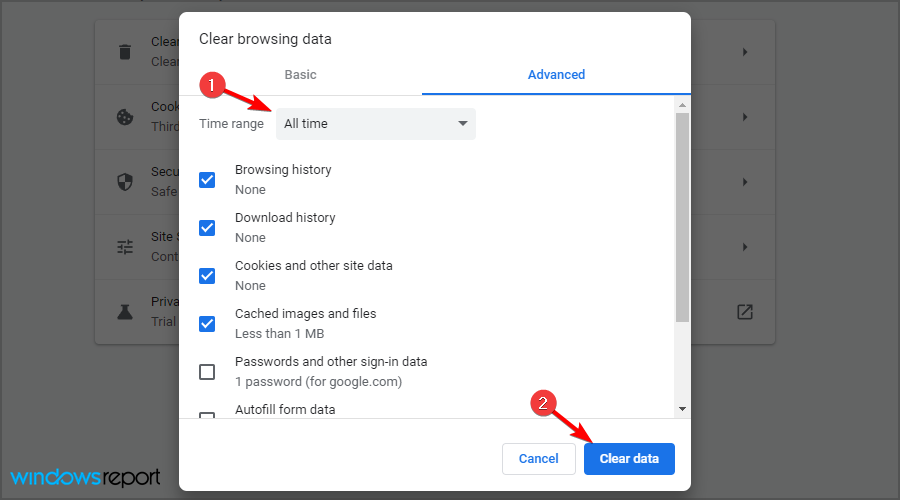
 NOTE
NOTE



![5 Best PC Golf Games for Windows 10 [2026 List]](https://windowsreport.com/wp-content/uploads/2022/07/Gulf-games.jpg)







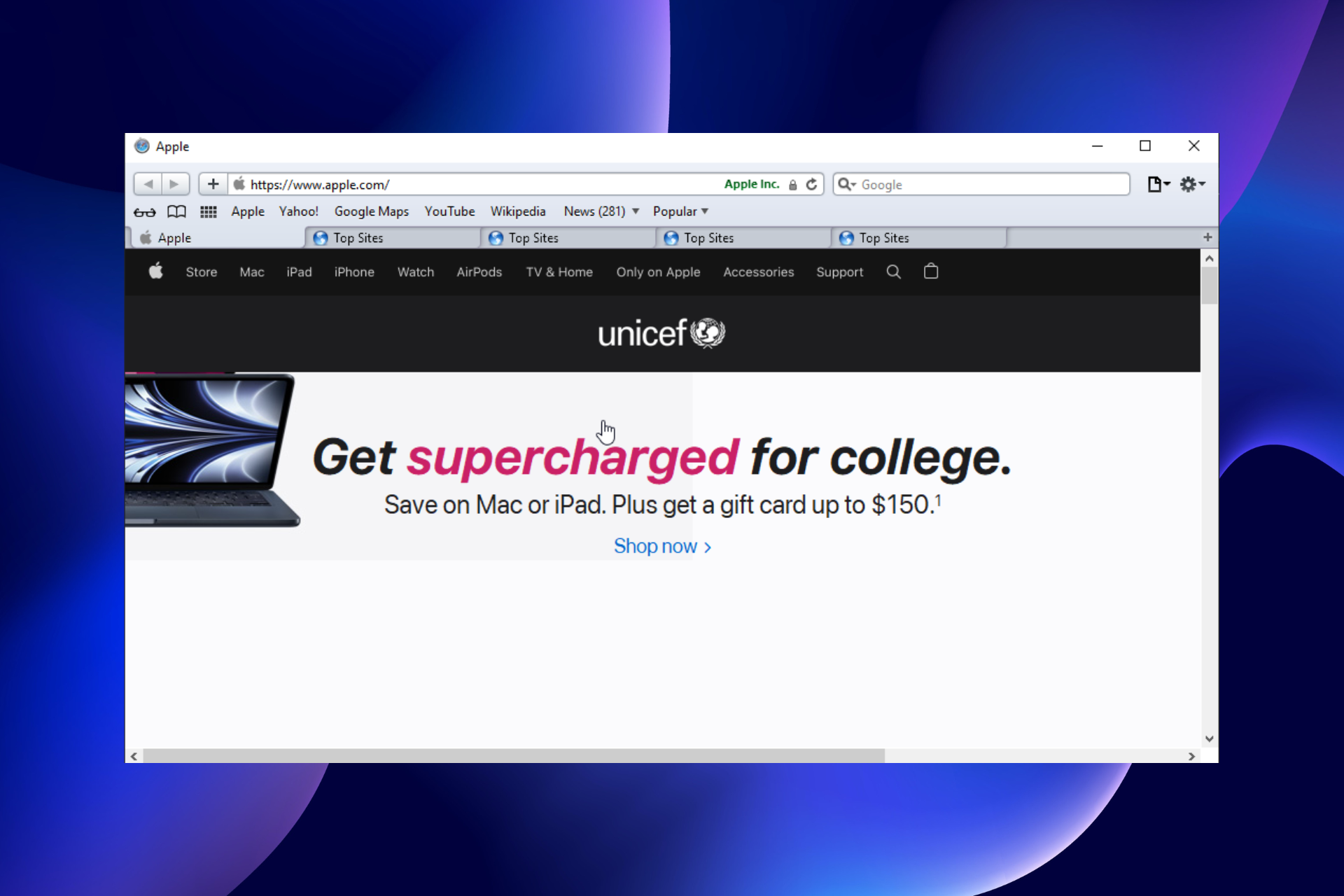


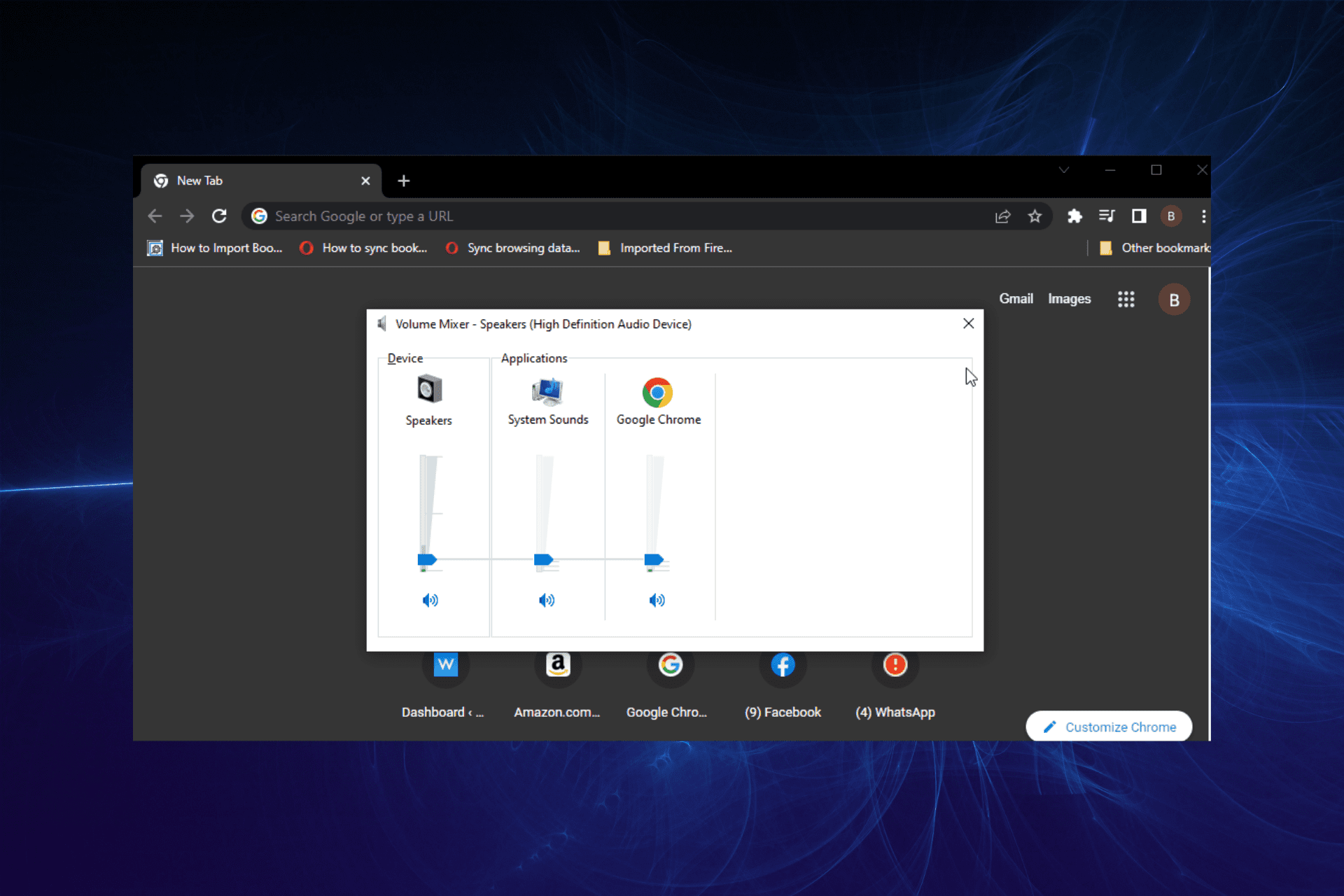


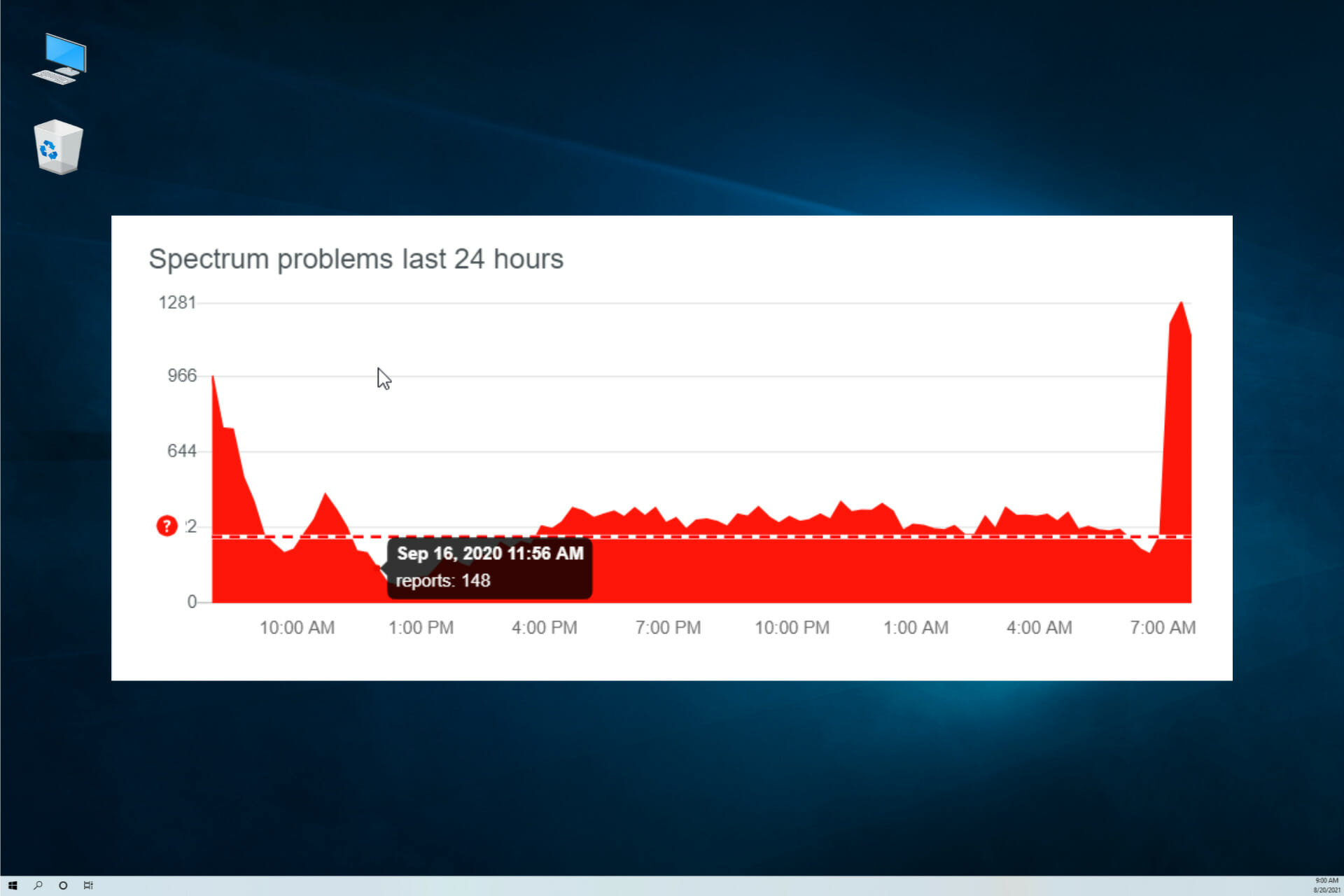


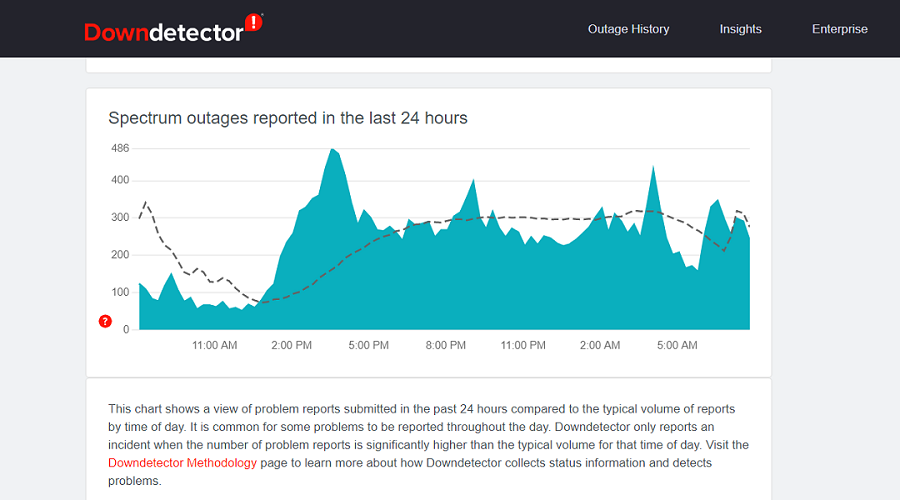

![4 Ways to Play Prince of Persia on Windows 10 [Easiest]](https://windowsreport.com/wp-content/uploads/2020/12/How-to-play-Prince-of-Persia-on-a-Windows-10-PC-2021-Guide.jpg)

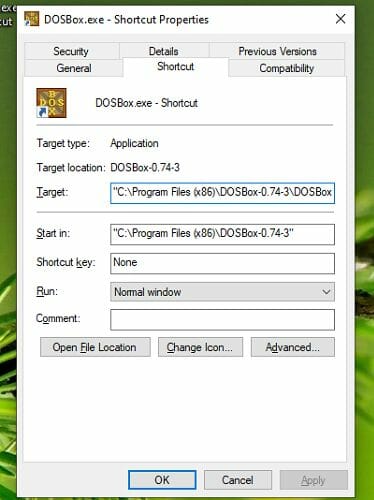


![19 Best Web Authoring Software [Free to Download]](https://windowsreport.com/wp-content/uploads/2022/08/Best-Web-Authoring-Software.jpg)





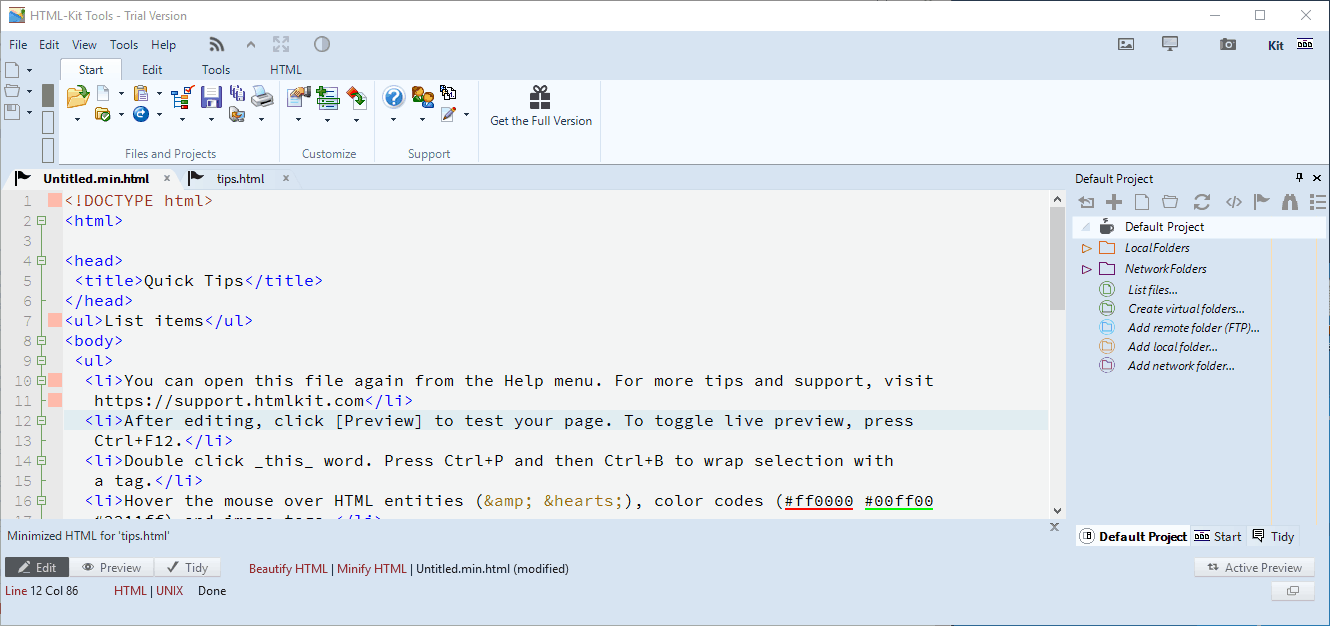

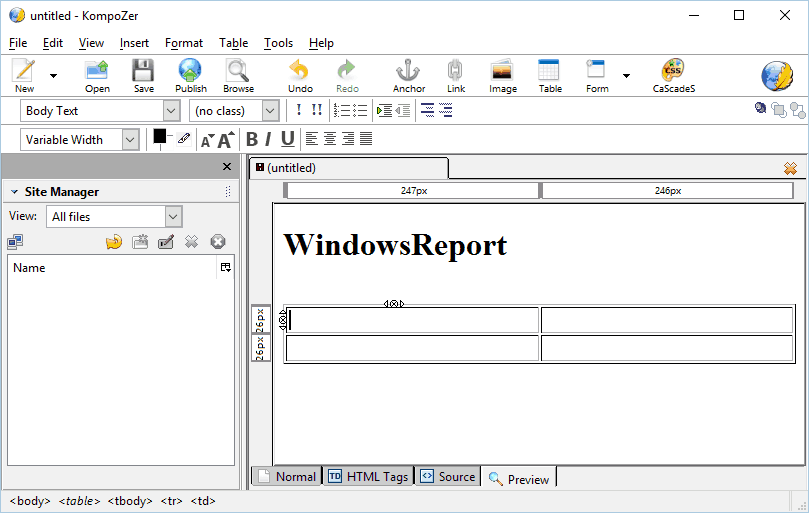


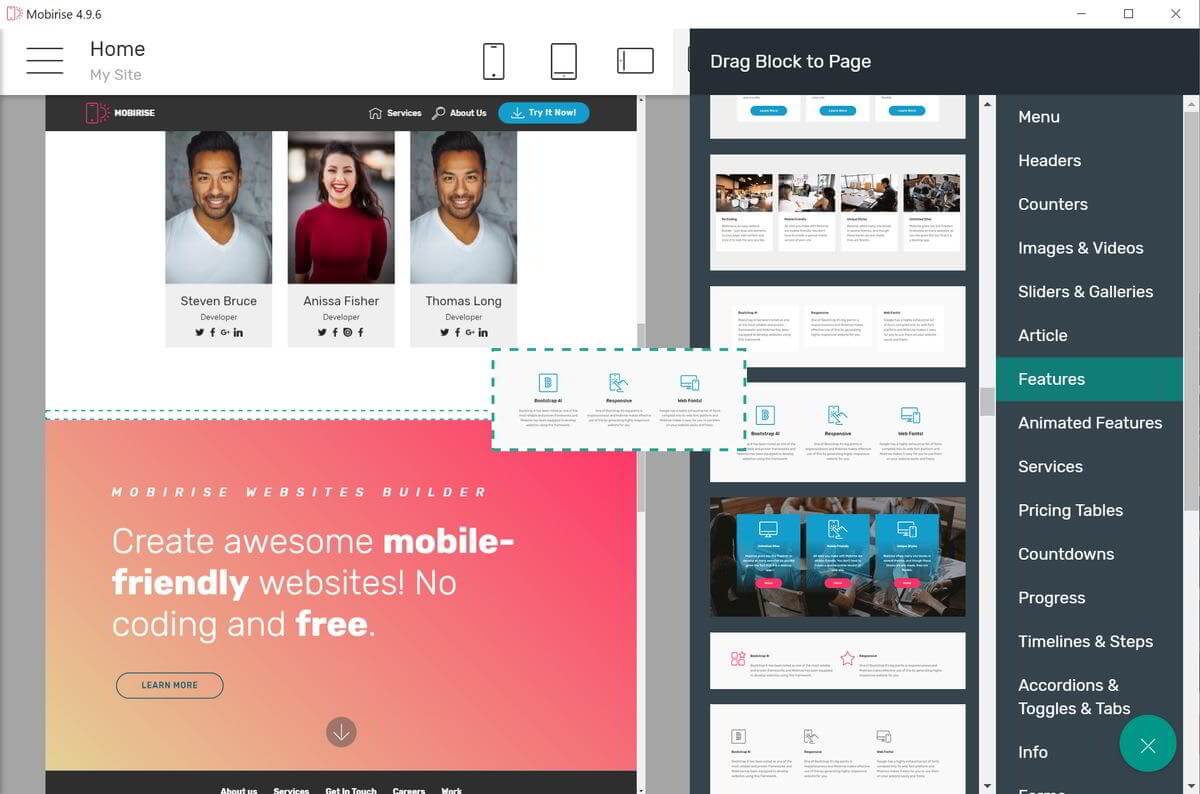
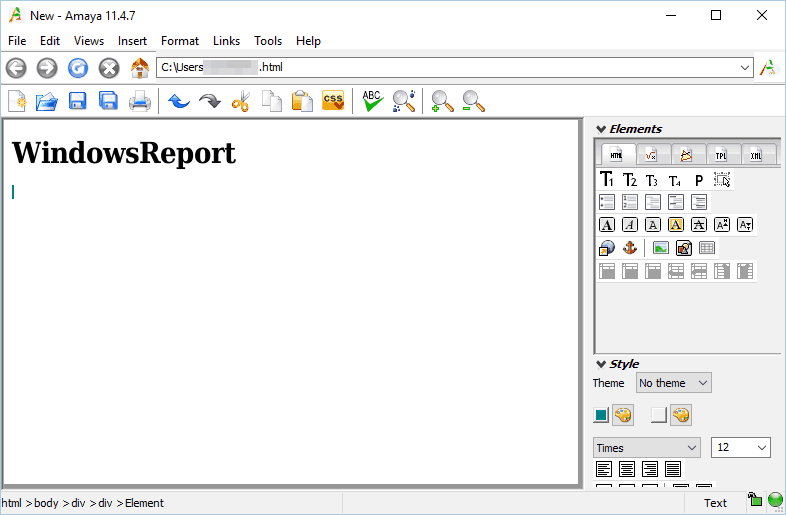


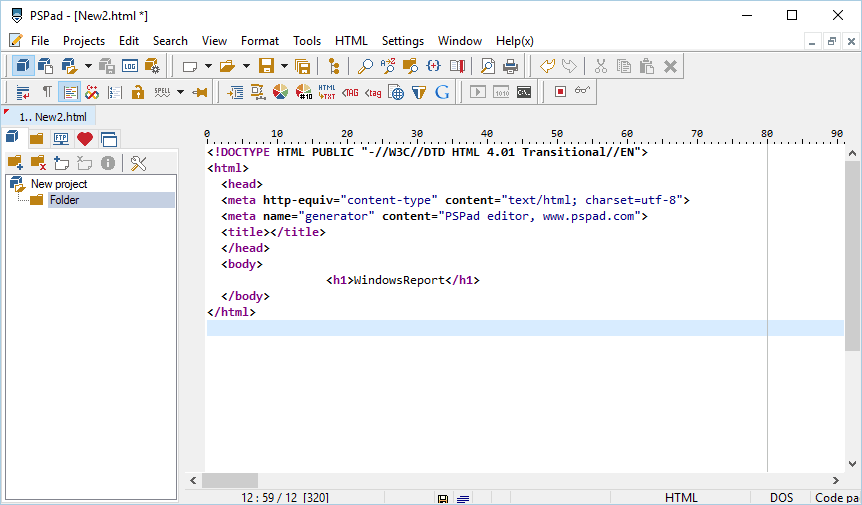


![22 Best Free Software for Windows 10 PCs [Security & Utility]](https://windowsreport.com/wp-content/uploads/2019/01/free-windows-10-software.jpg)




















![This Website does not Supply Ownership Information [5 Fixes]](https://windowsreport.com/wp-content/uploads/2017/10/This-website-does-not-supply-ownership-information.jpg)
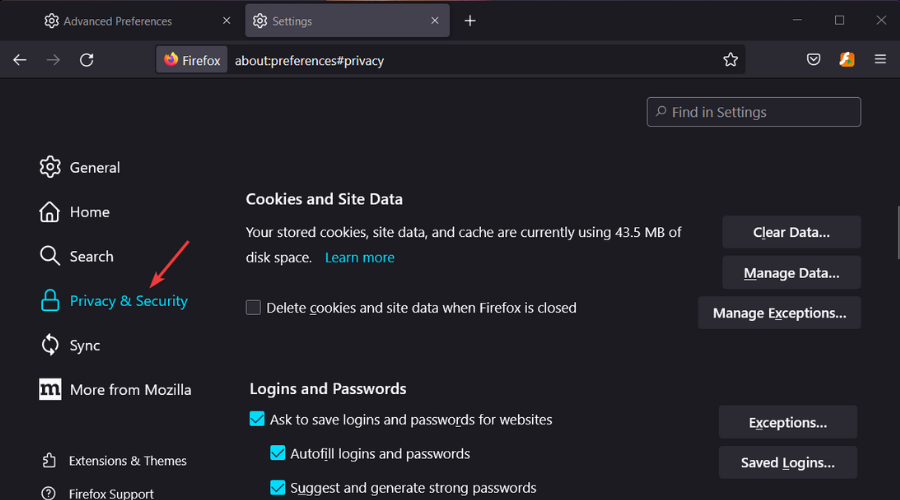
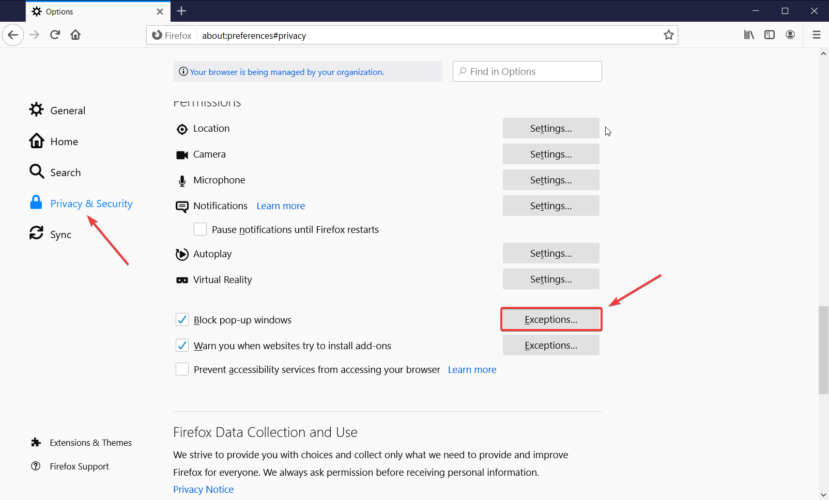
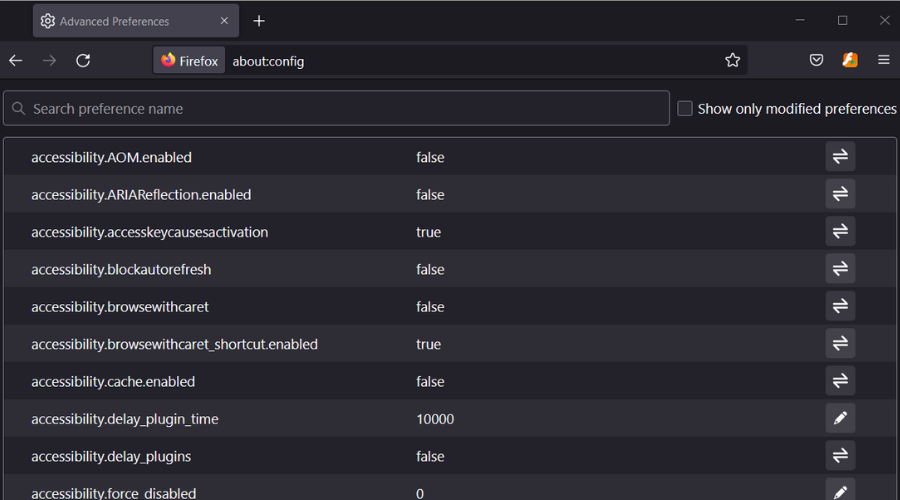
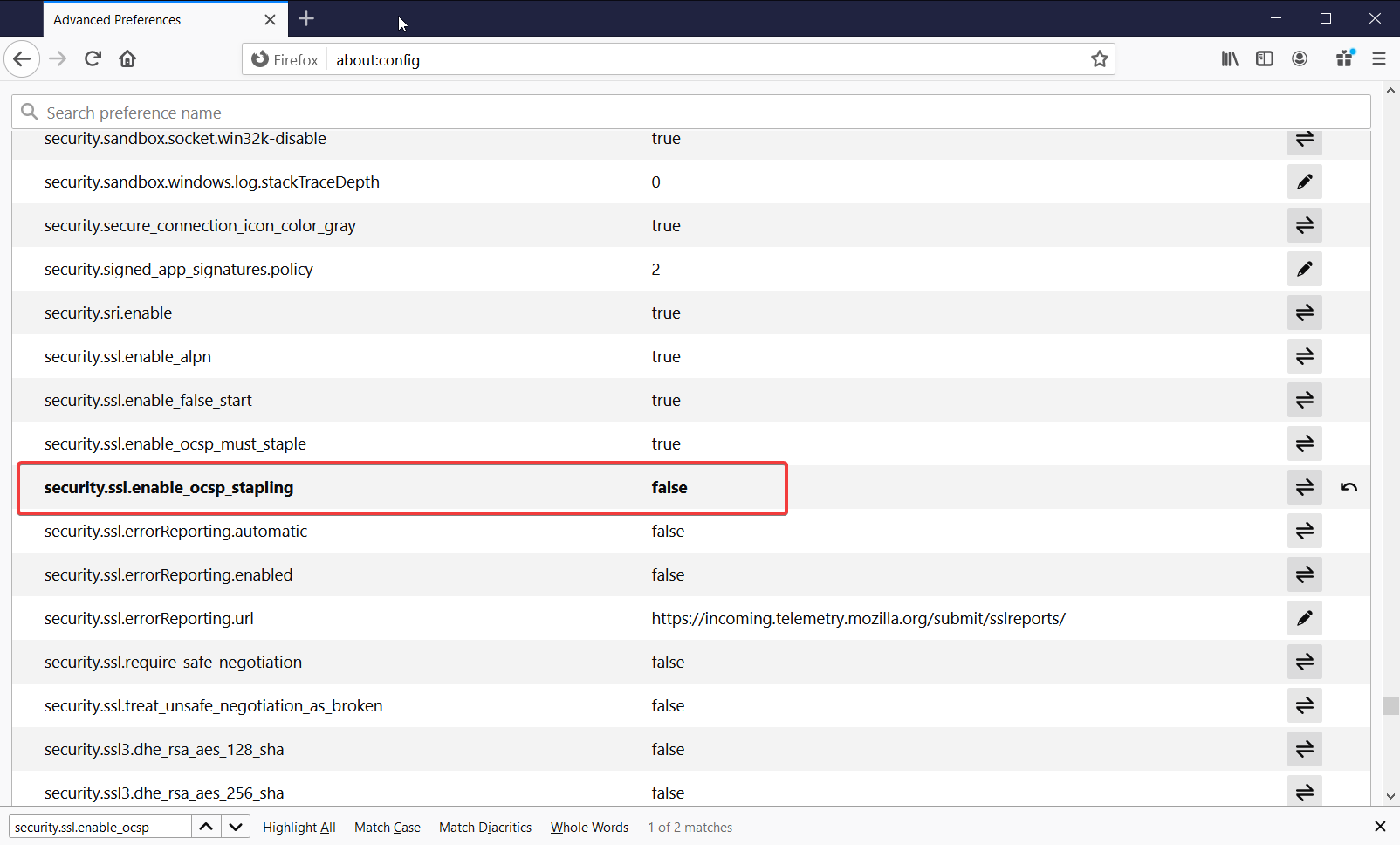
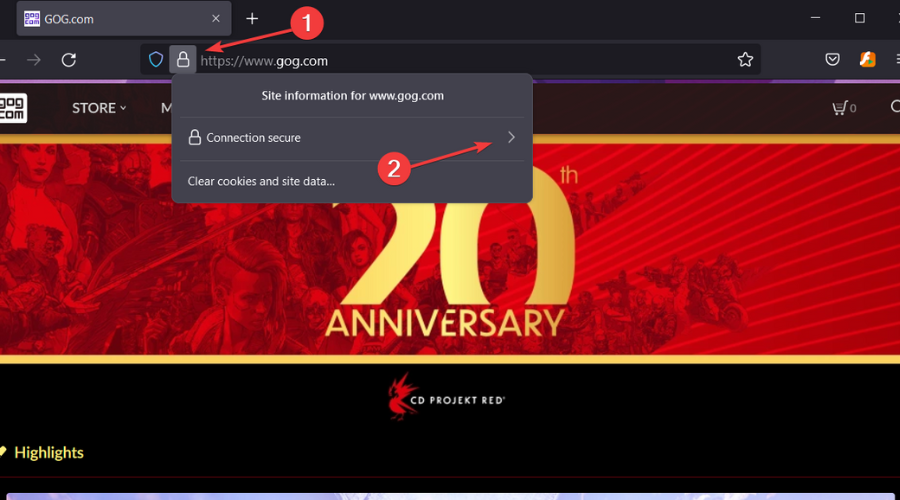
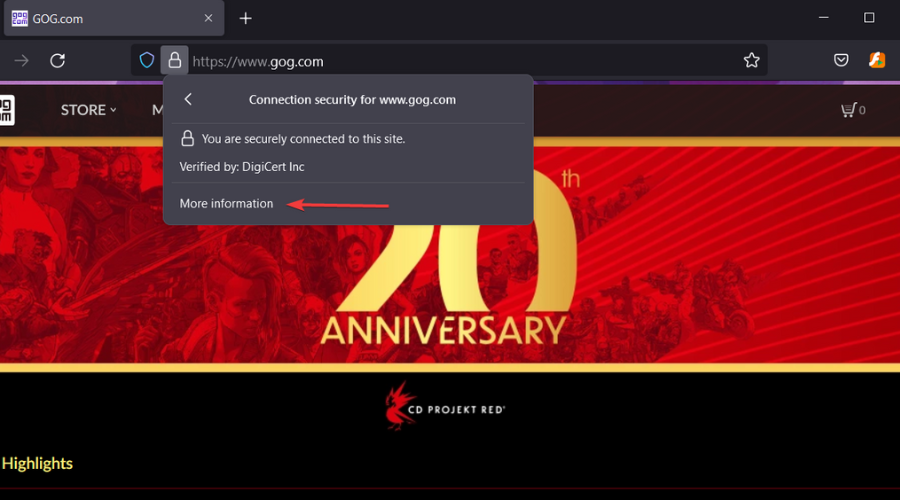
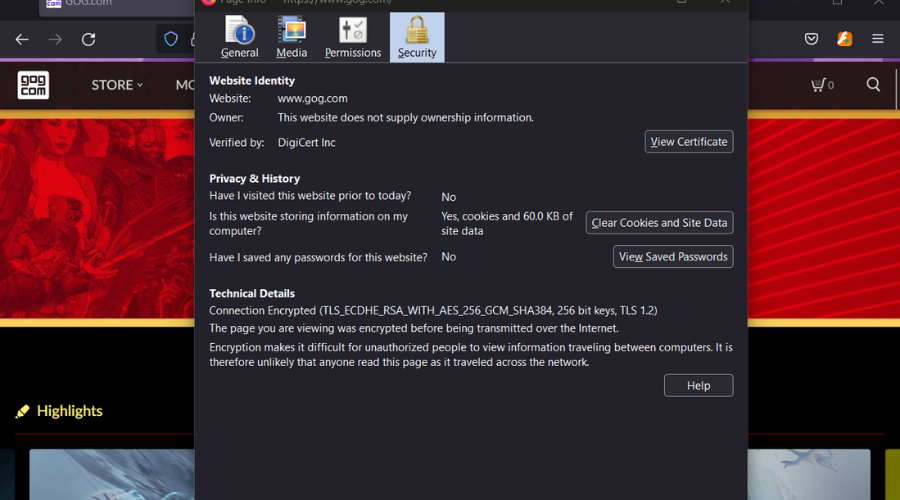

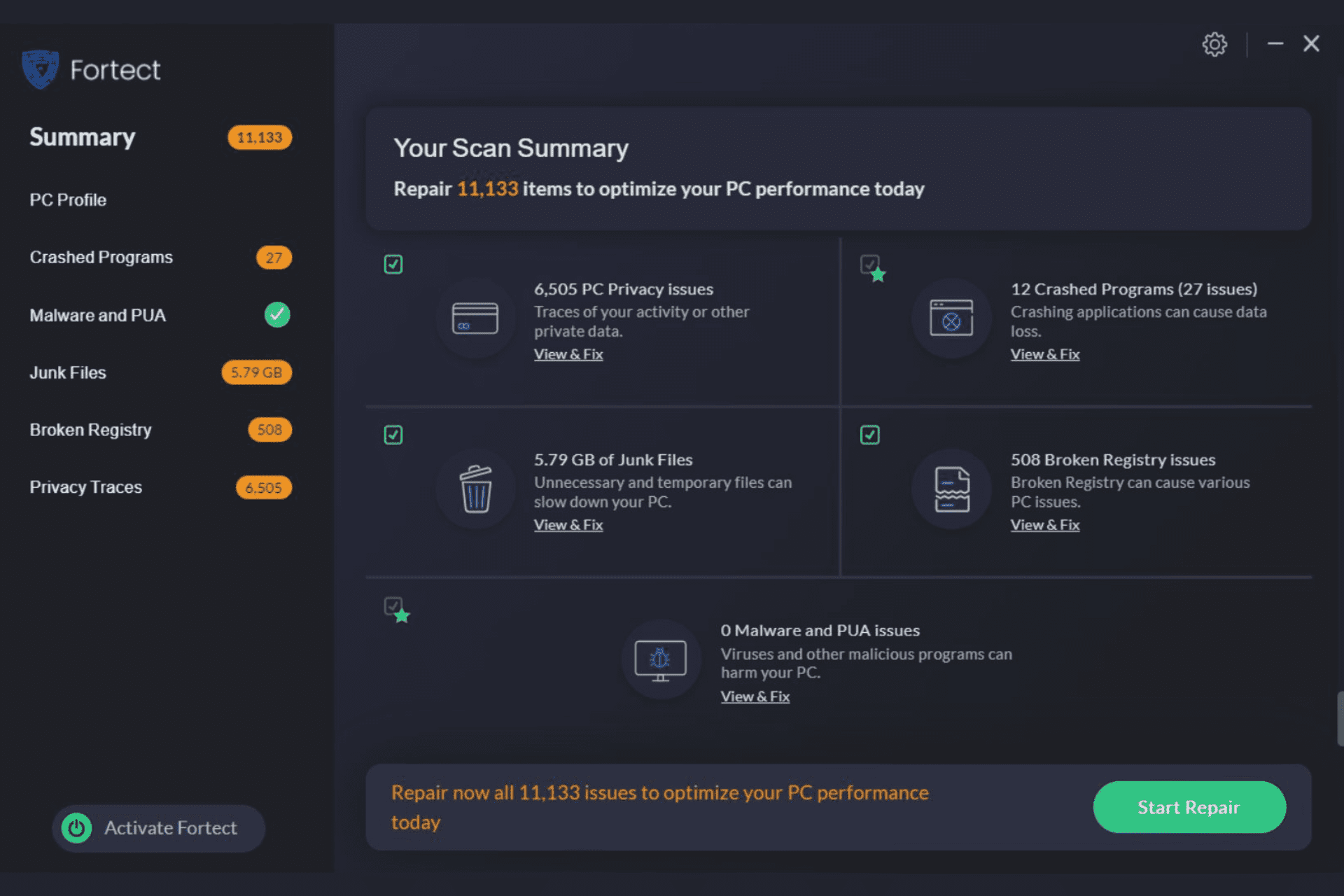


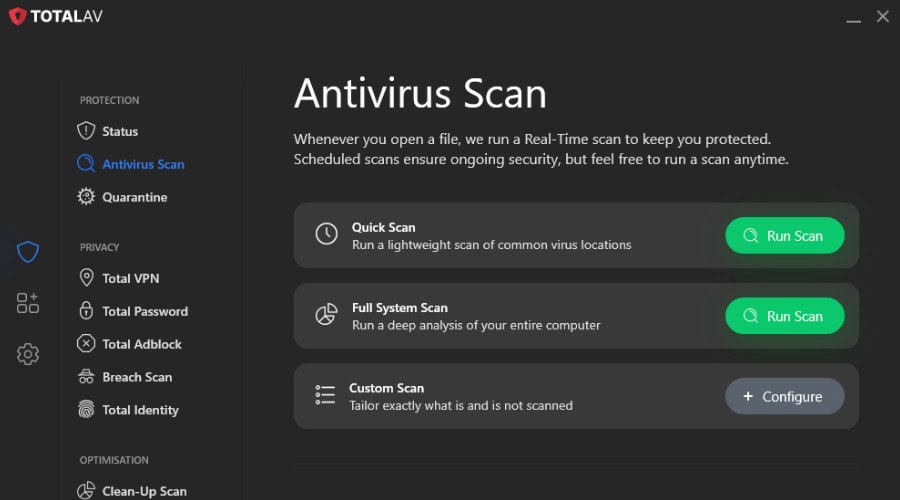
















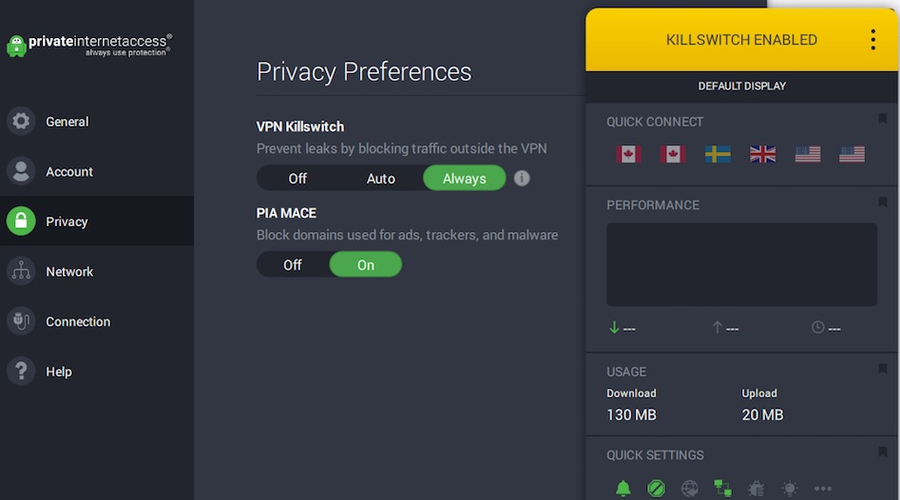





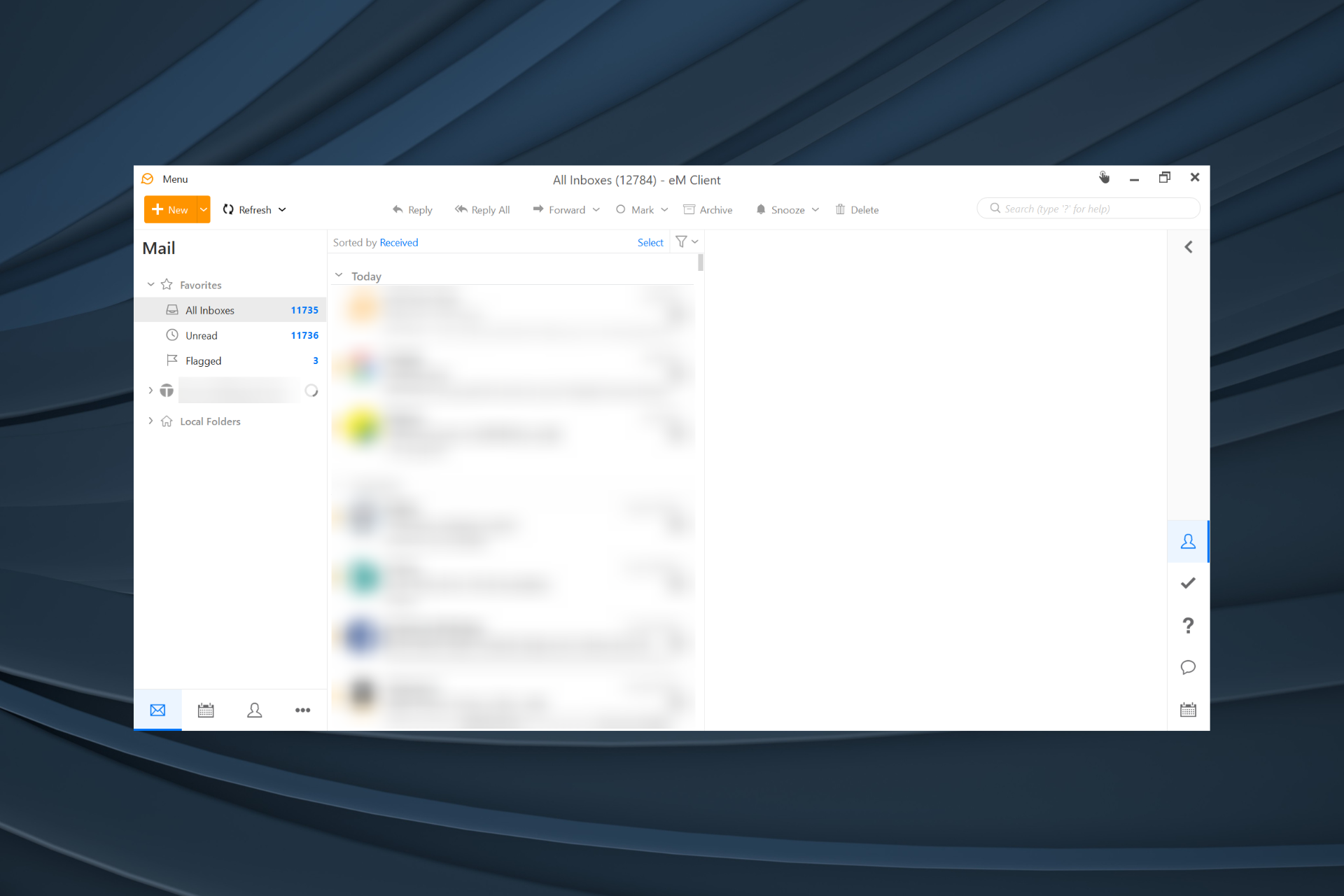

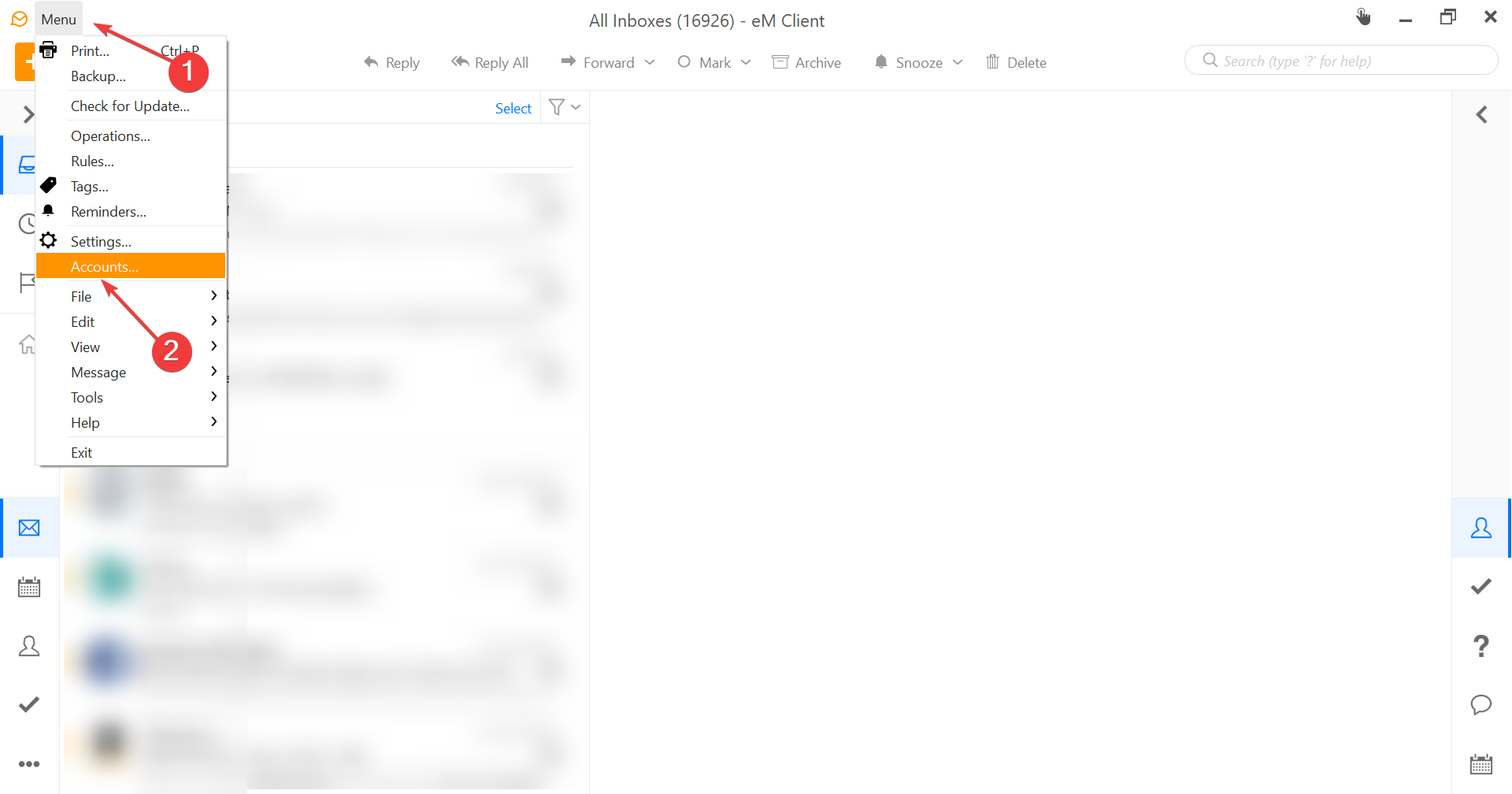
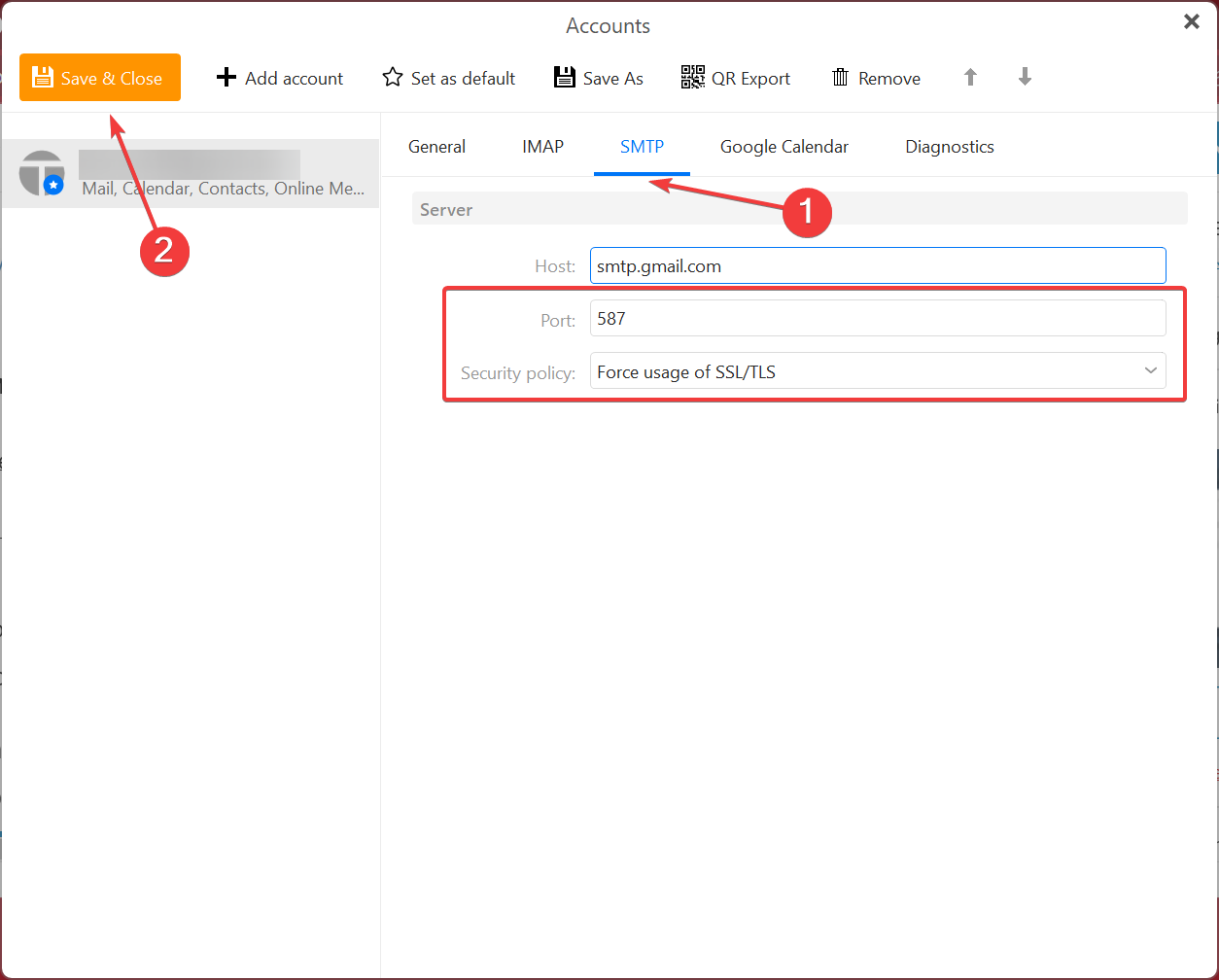
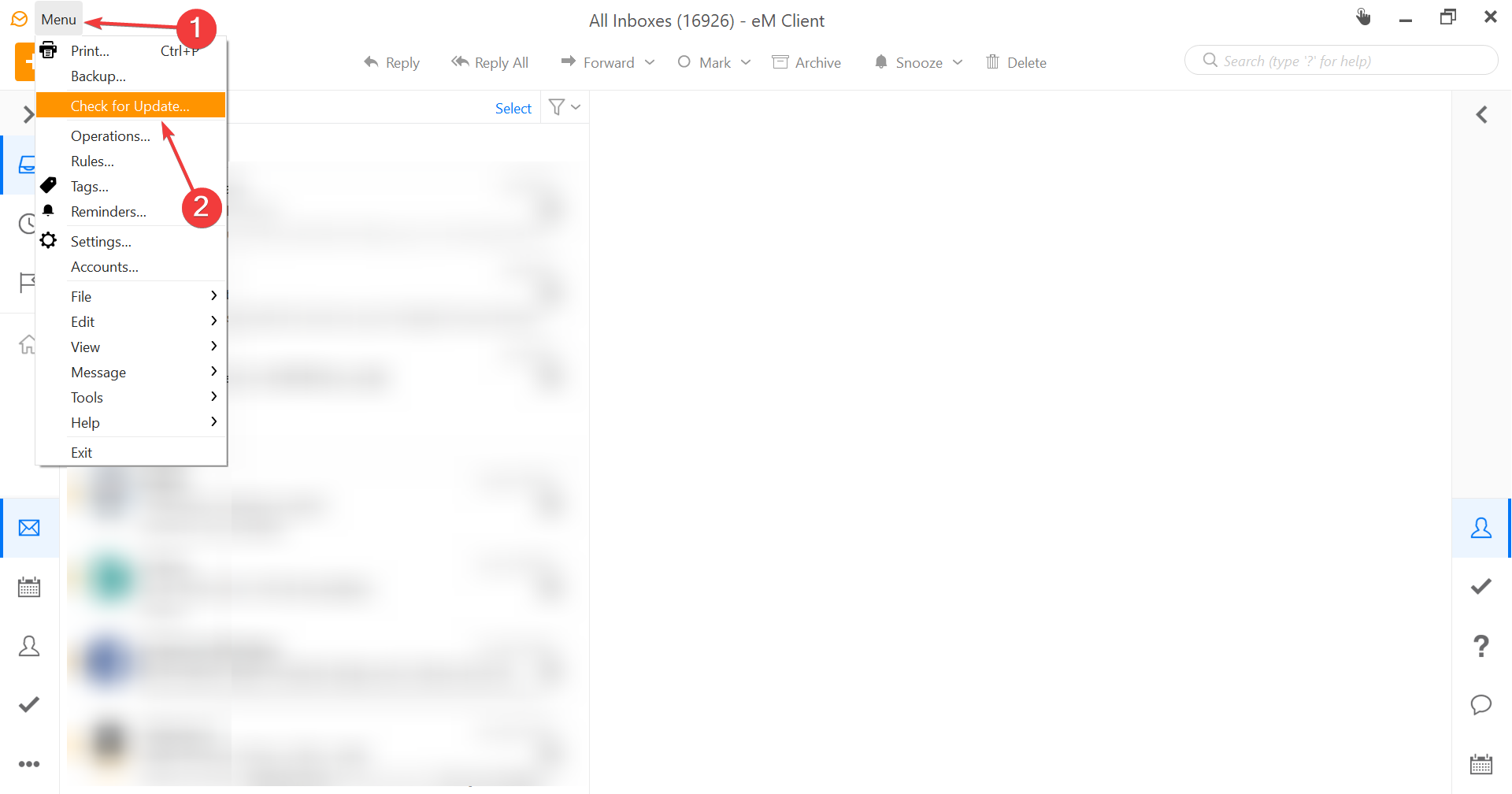

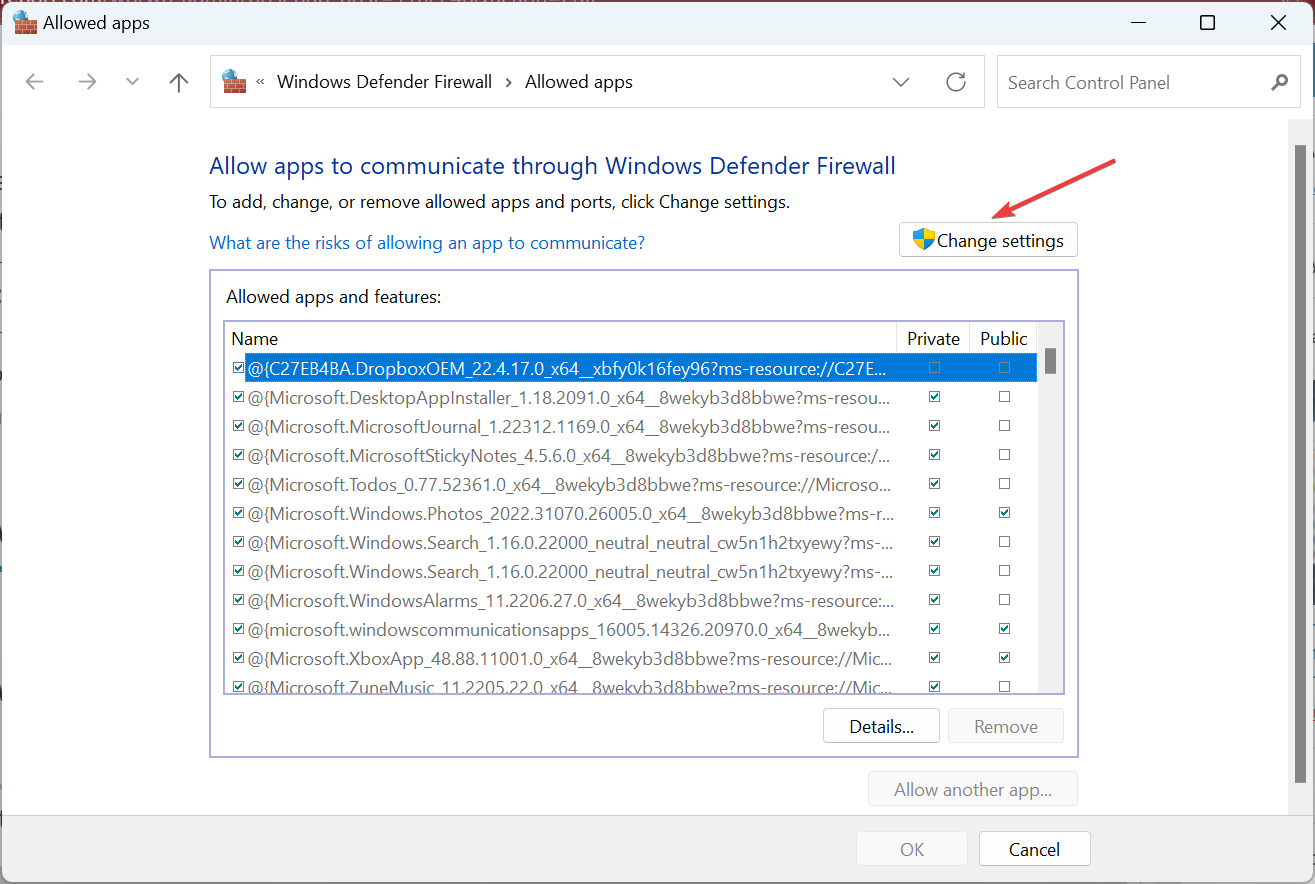
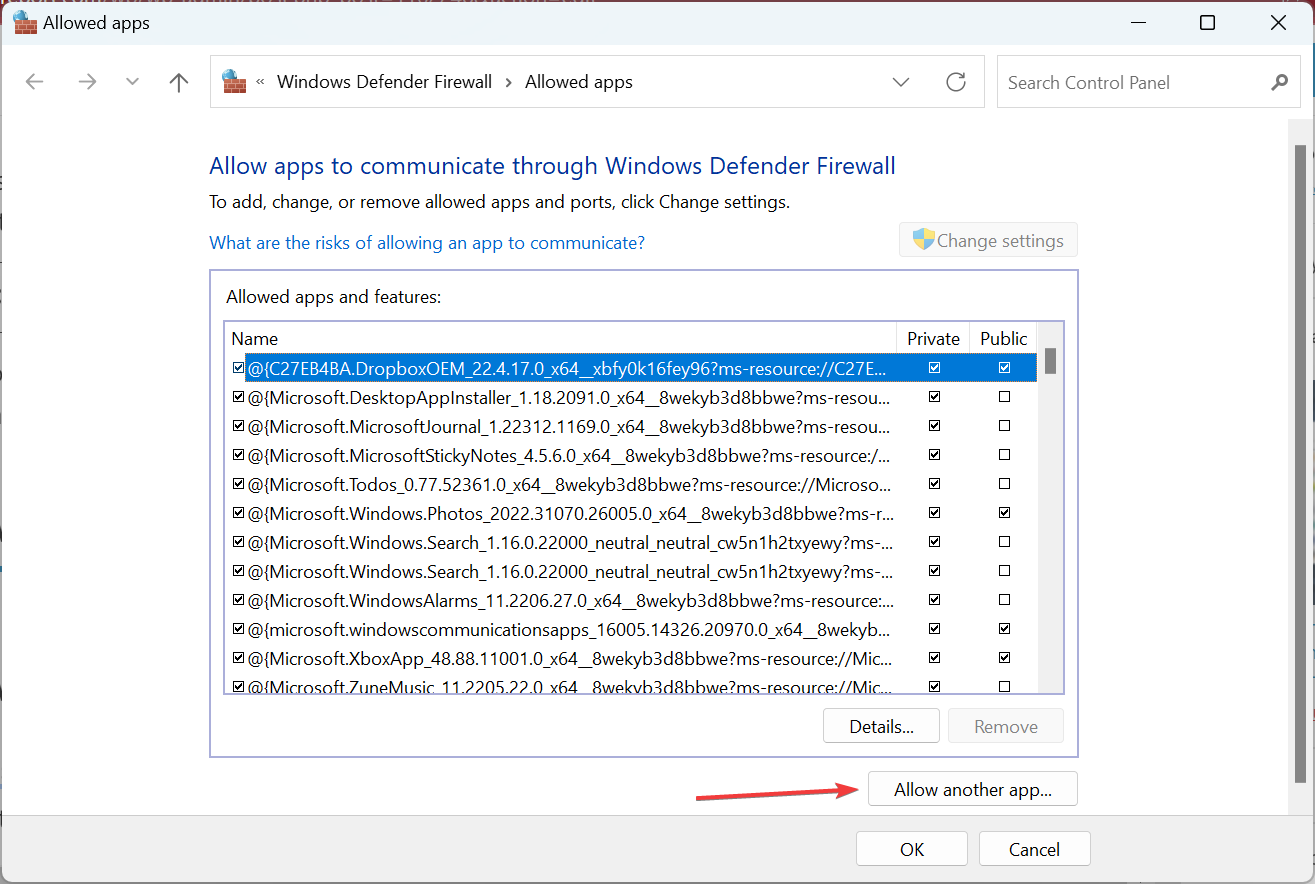
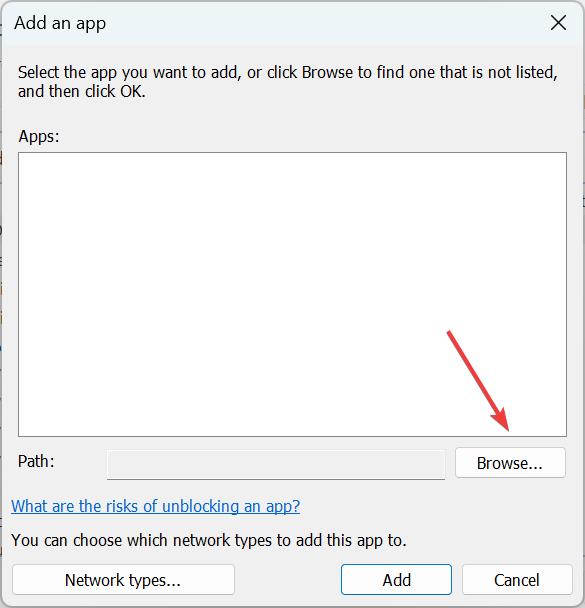
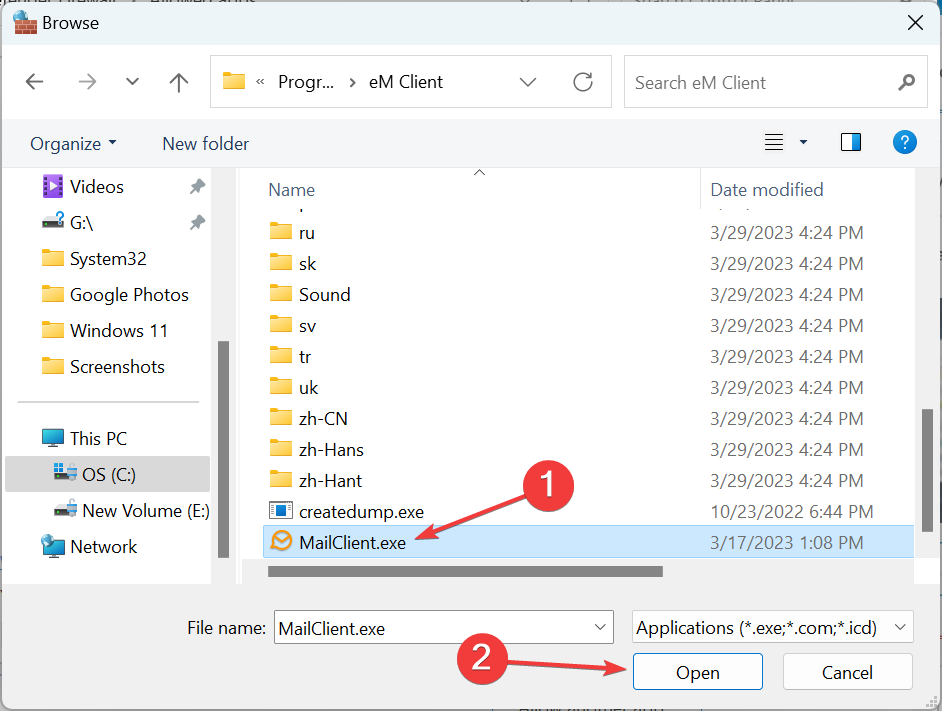
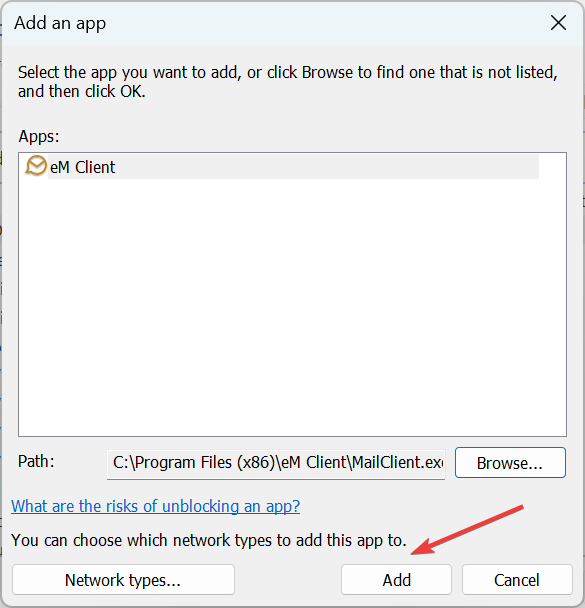
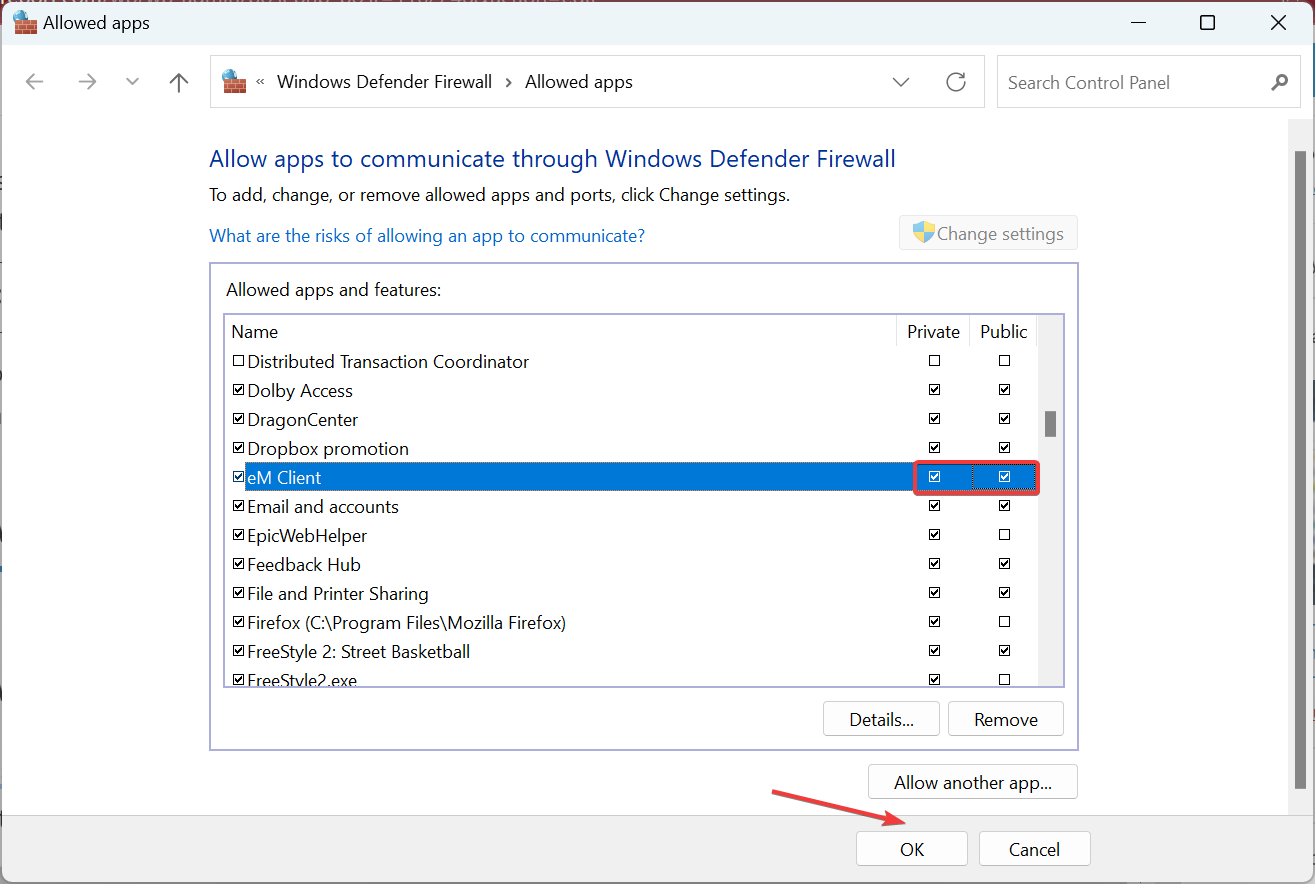
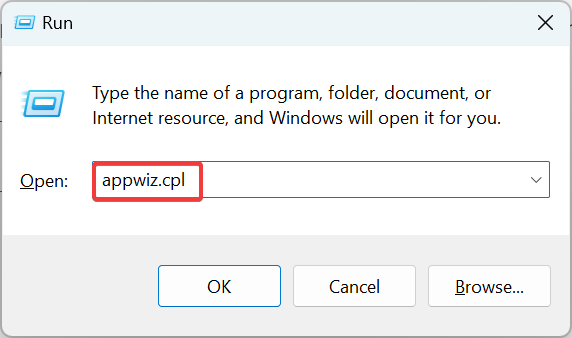
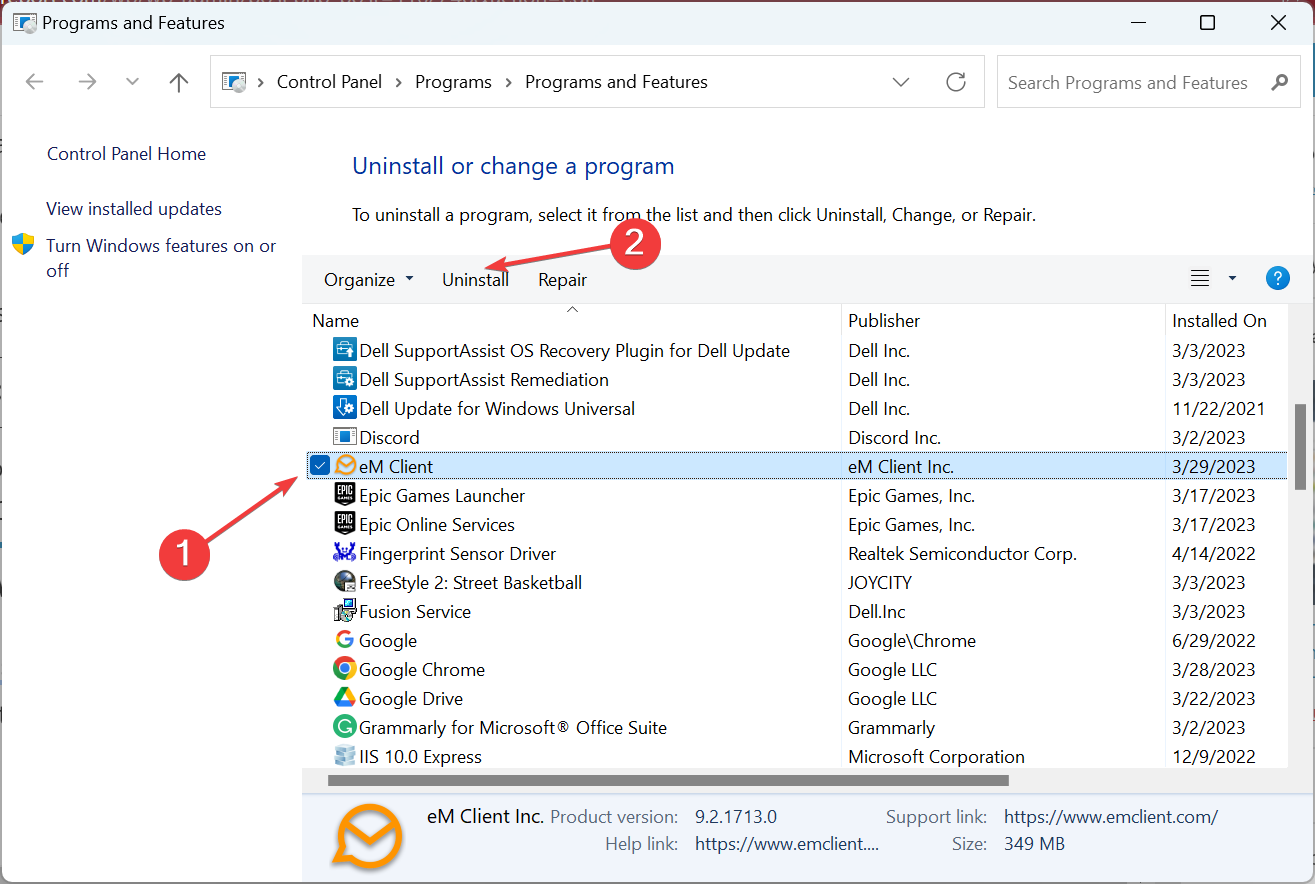




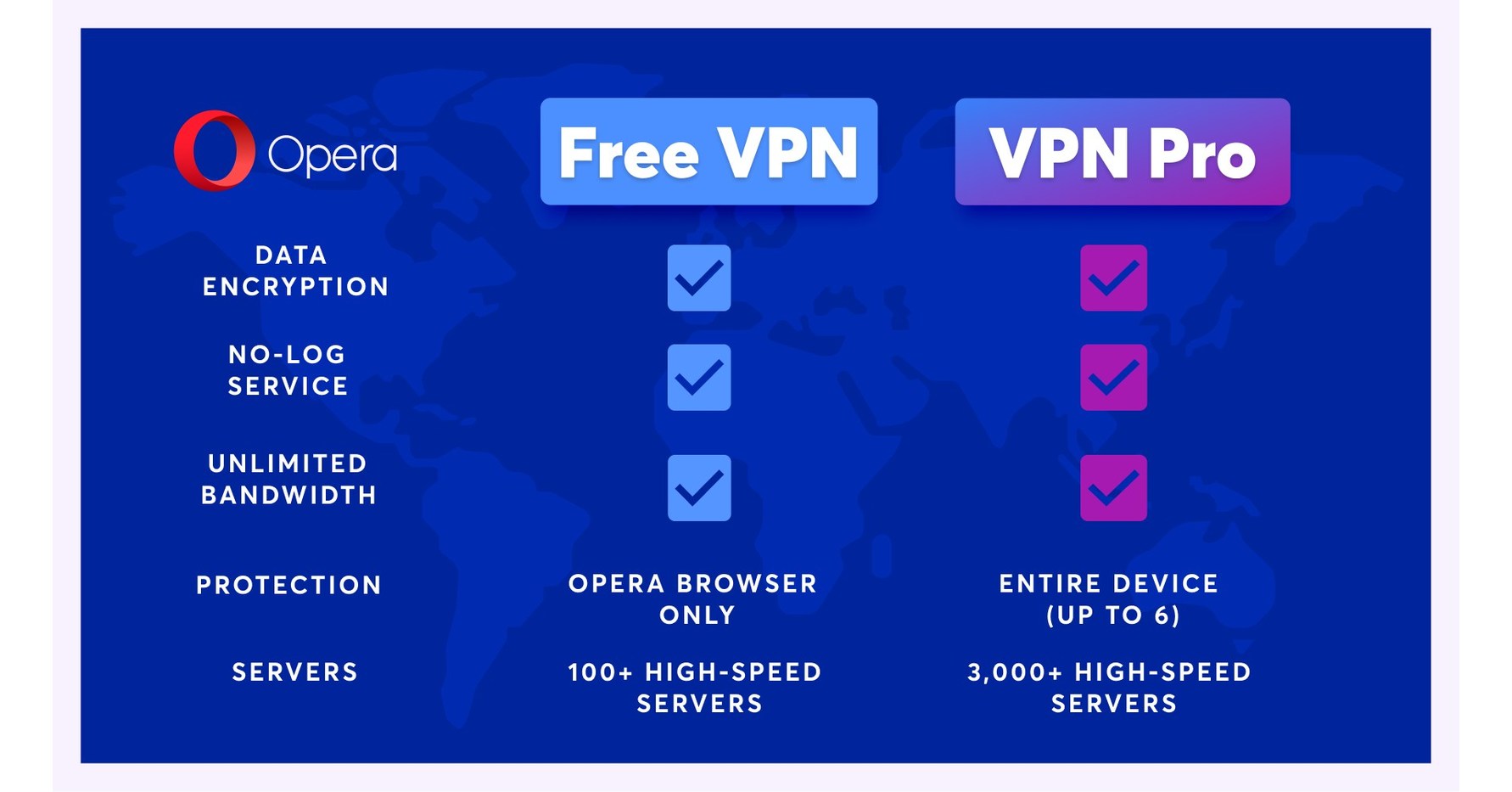
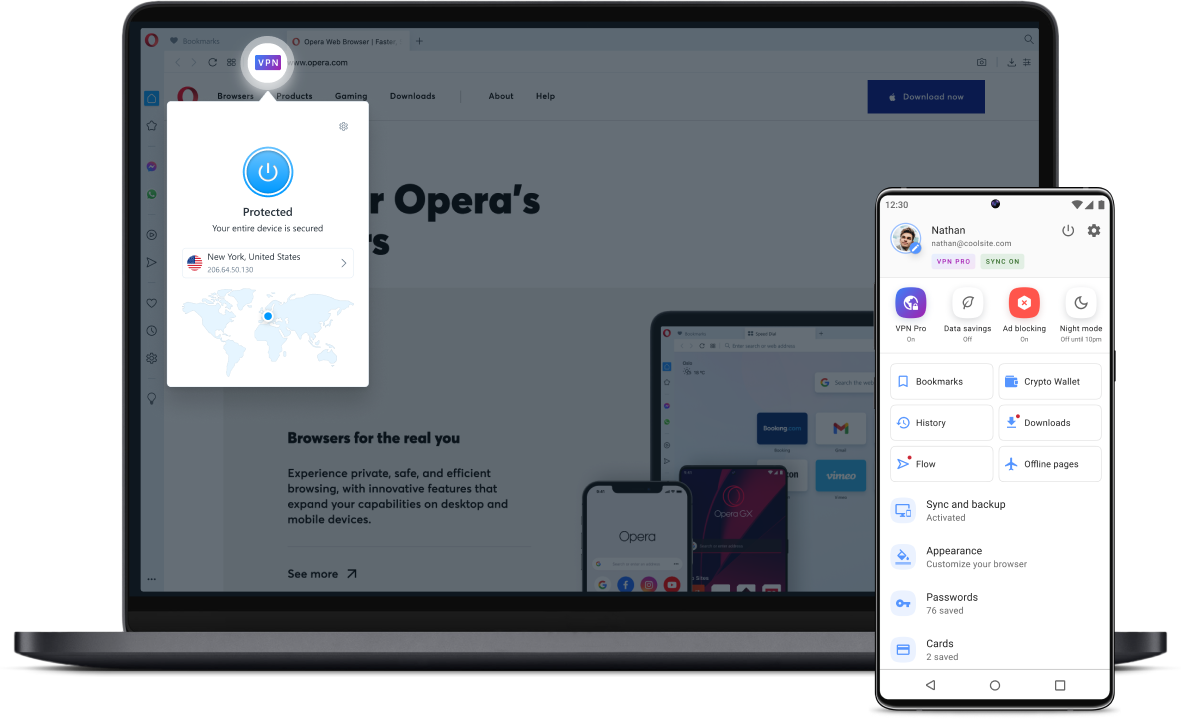

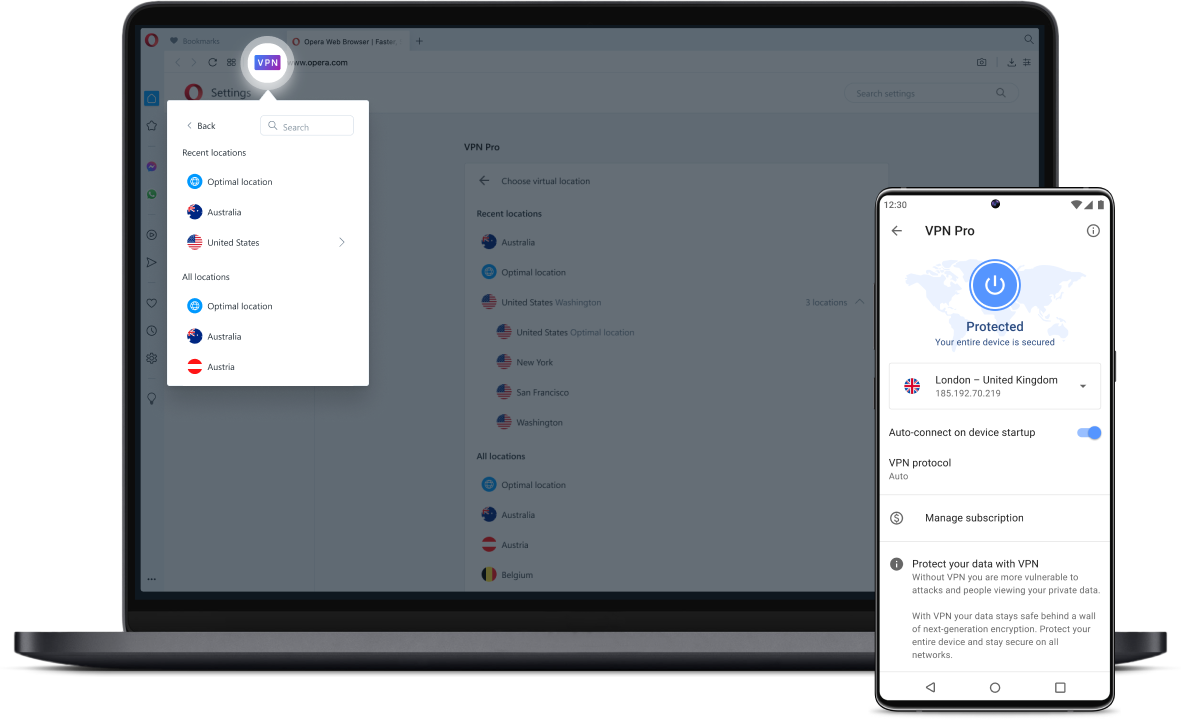
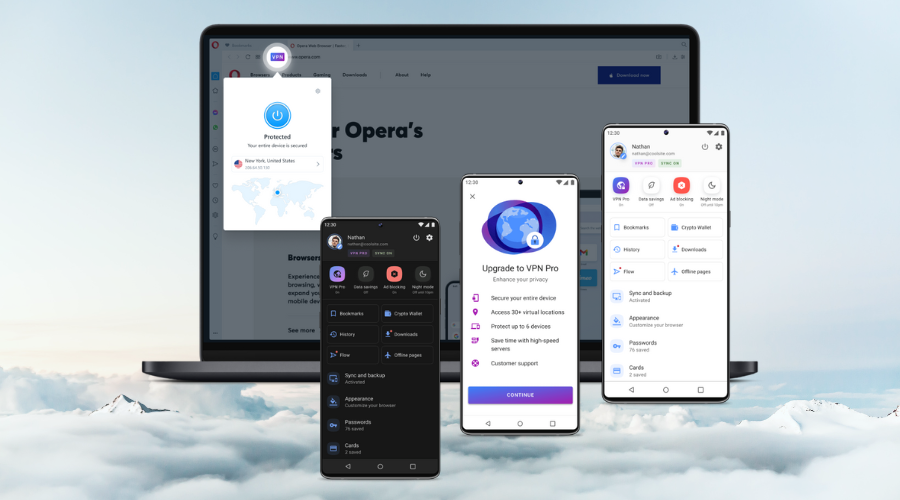



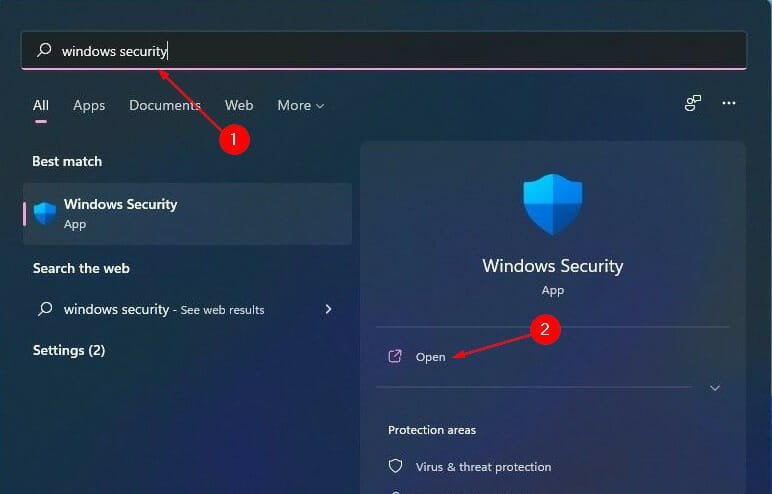
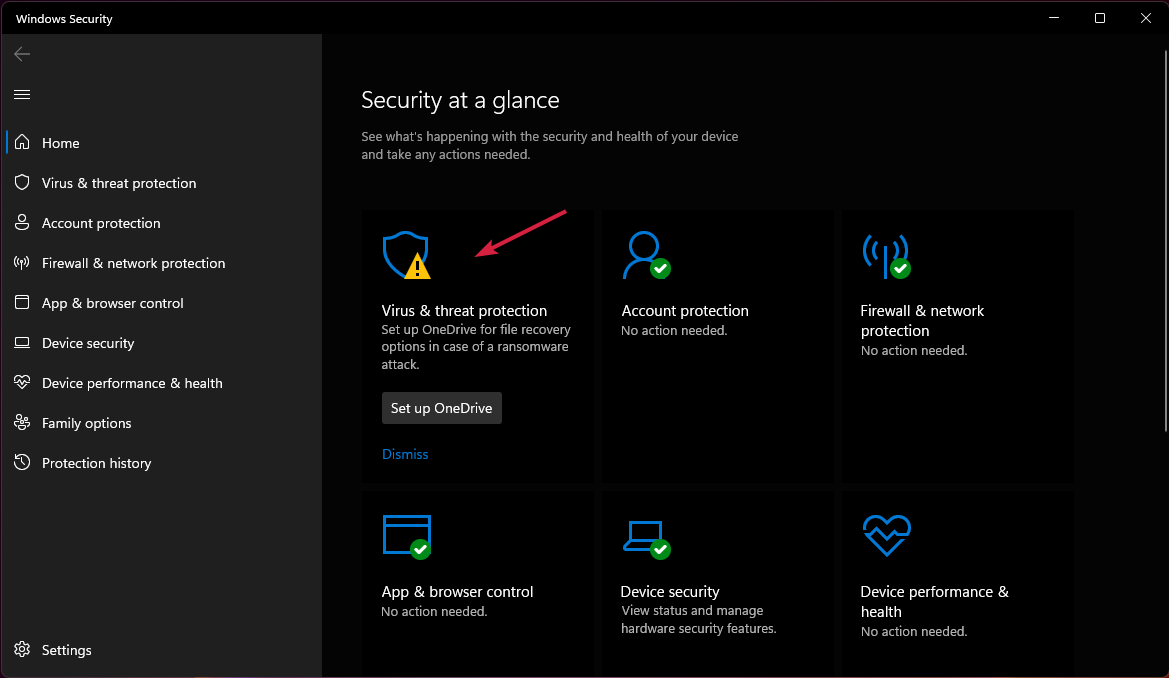


![Twitch Error While Loading Followed Channels [Easy Fix]](https://windowsreport.com/wp-content/uploads/2022/01/Twitch-browser-1.jpg)




![How to center text in GIMP [Quick Guide]](https://windowsreport.com/wp-content/uploads/2020/07/How-to-center-text-in-GIMP-.jpg)




![Transfer Data From Opera to Opera GX [How to]](https://windowsreport.com/wp-content/uploads/2022/08/Untitled-design-2022-08-08T183103.208.png)


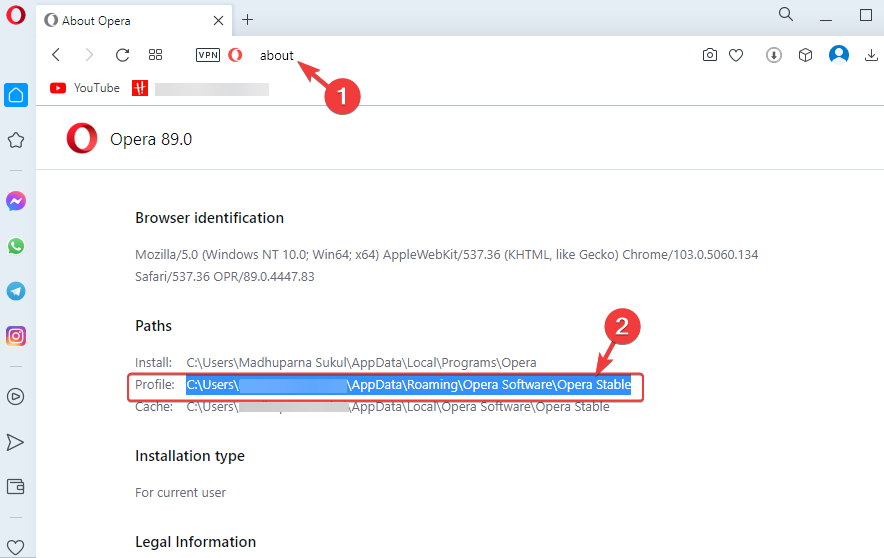
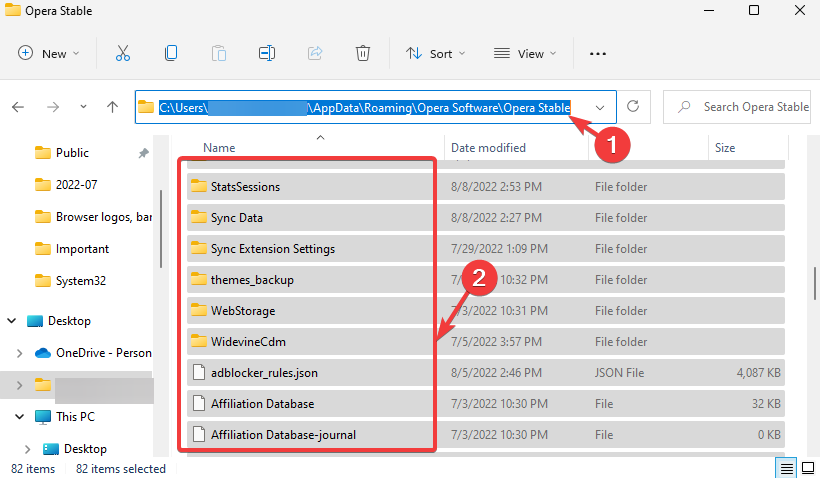

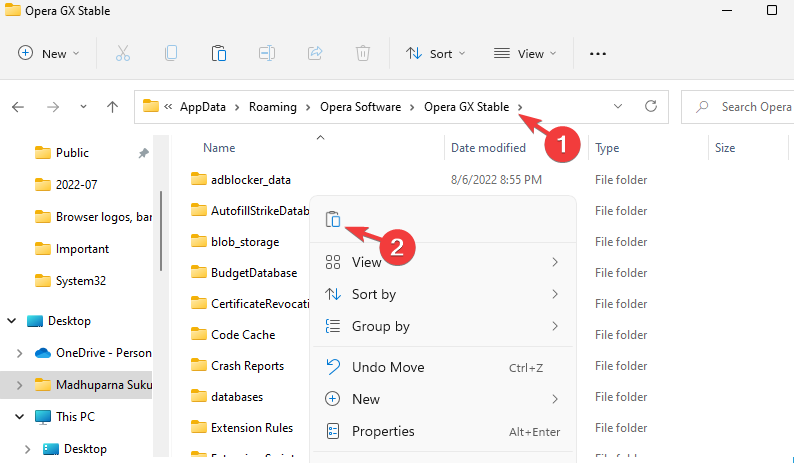




![How to Schedule Windows 11 Defragmentation [2 Ways]](https://windowsreport.com/wp-content/uploads/2021/10/defragmentaion-windows-11.jpg)

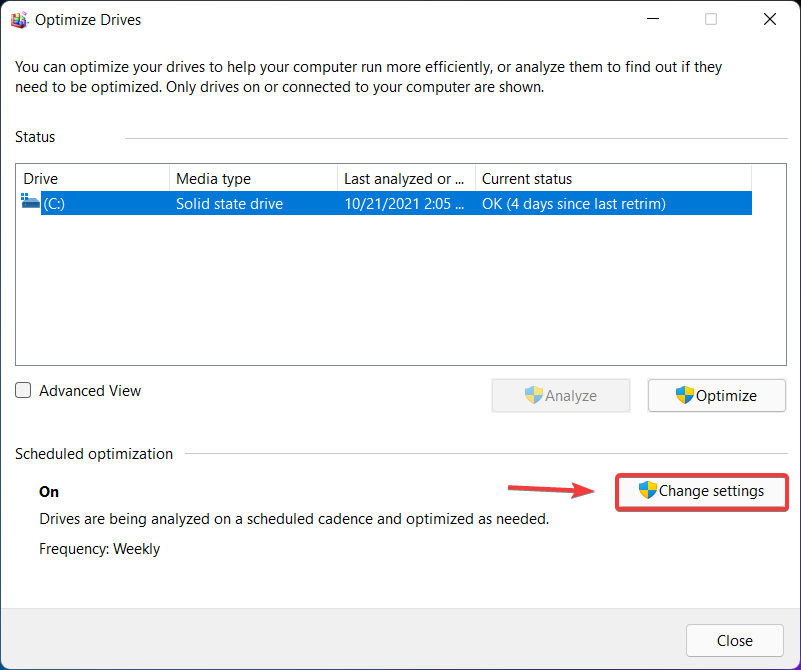
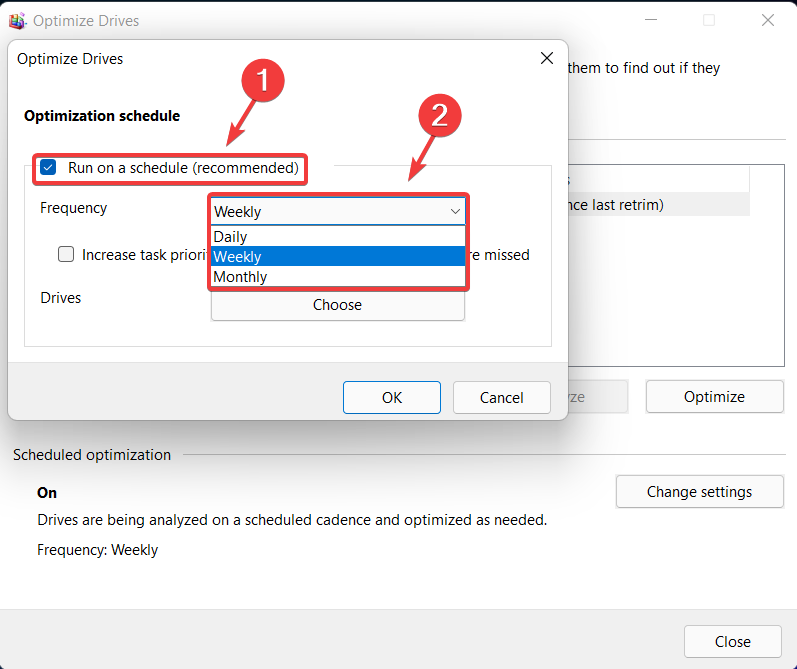
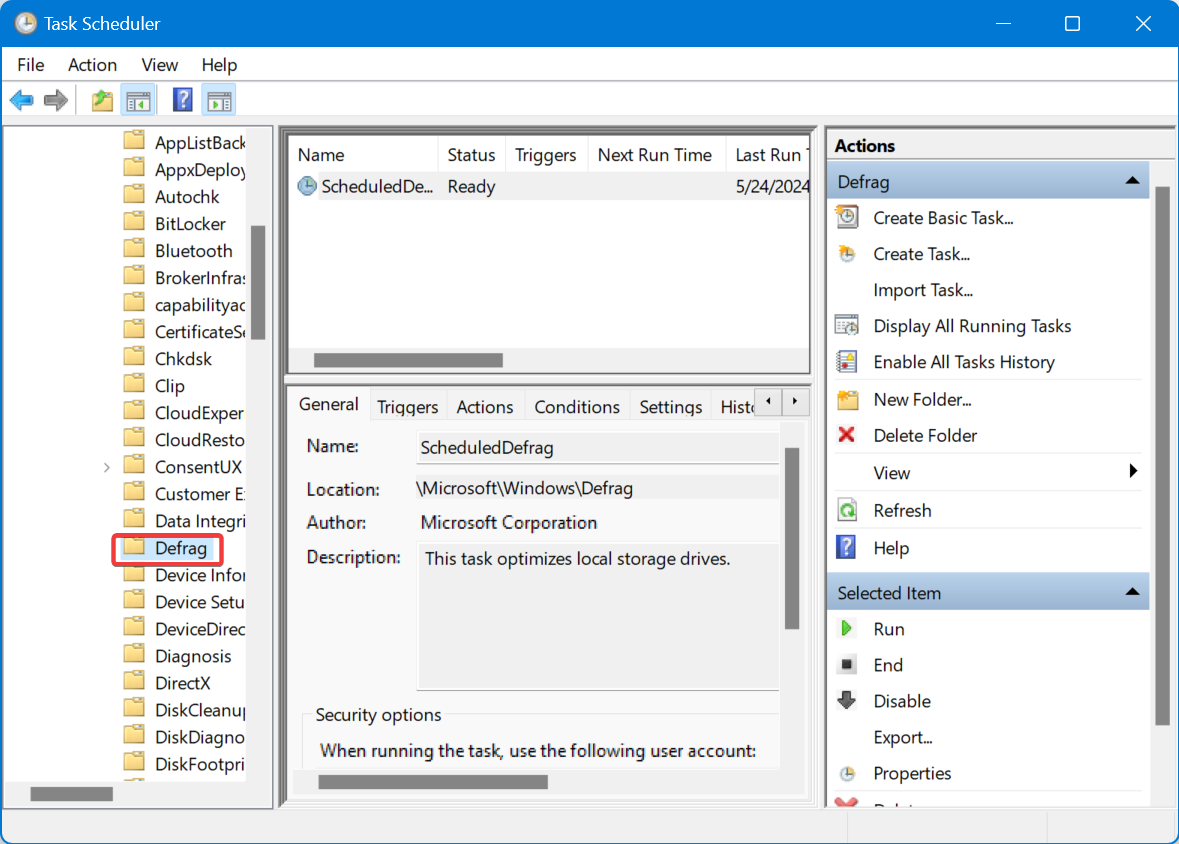
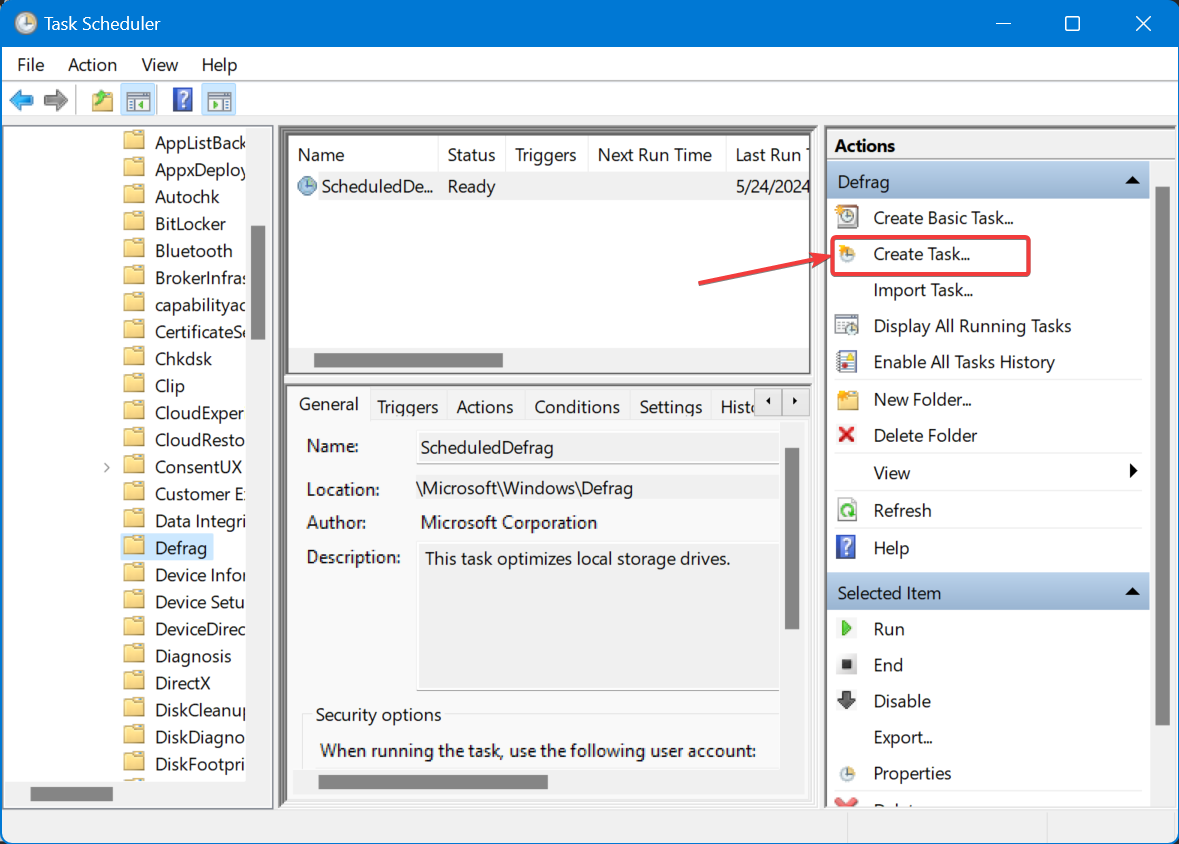
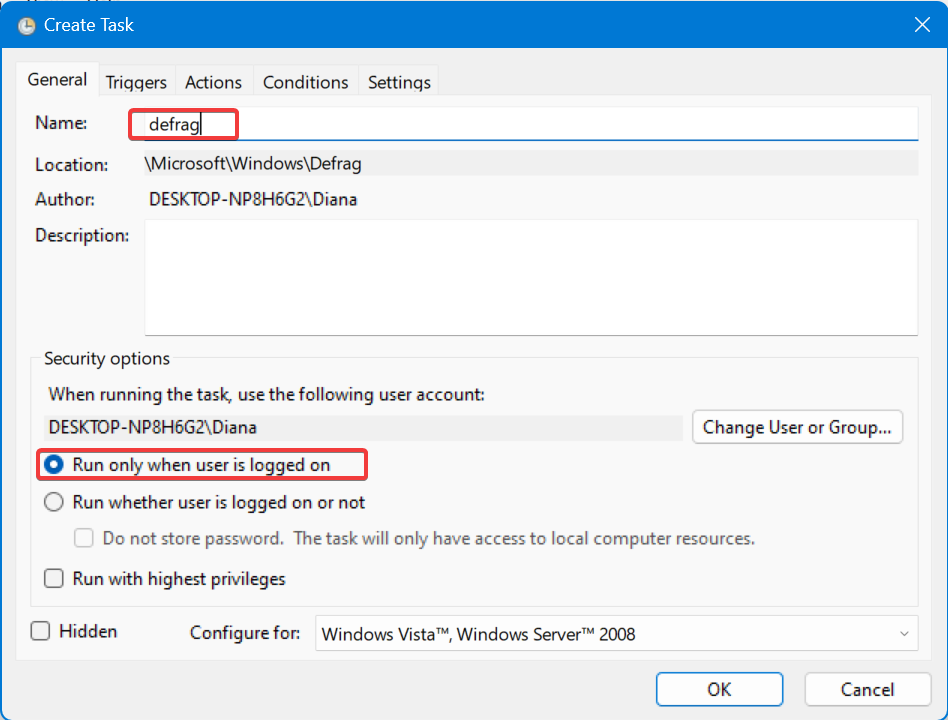
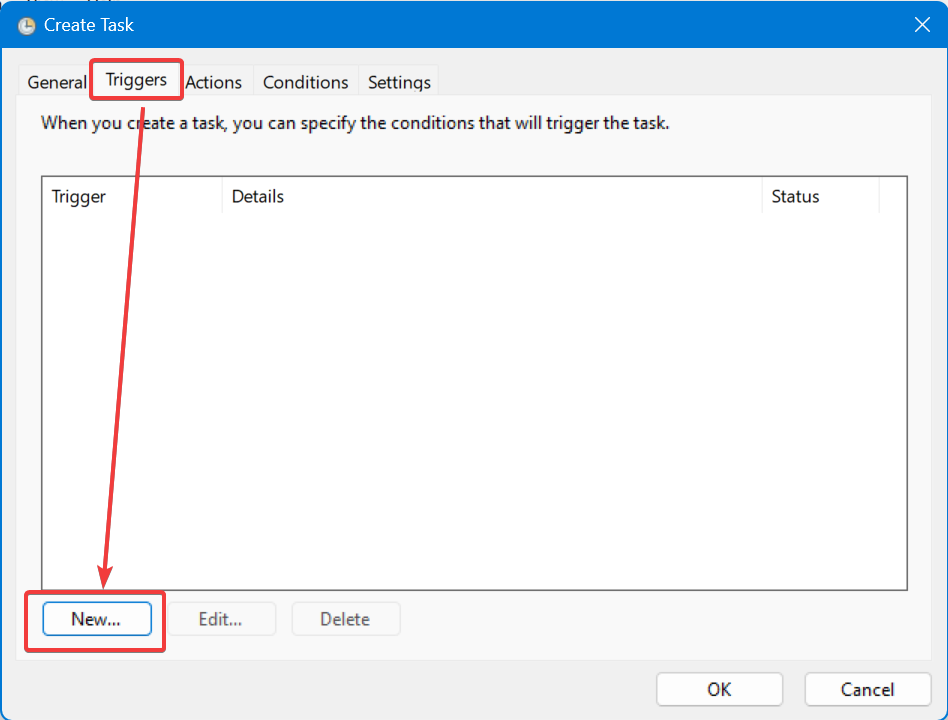
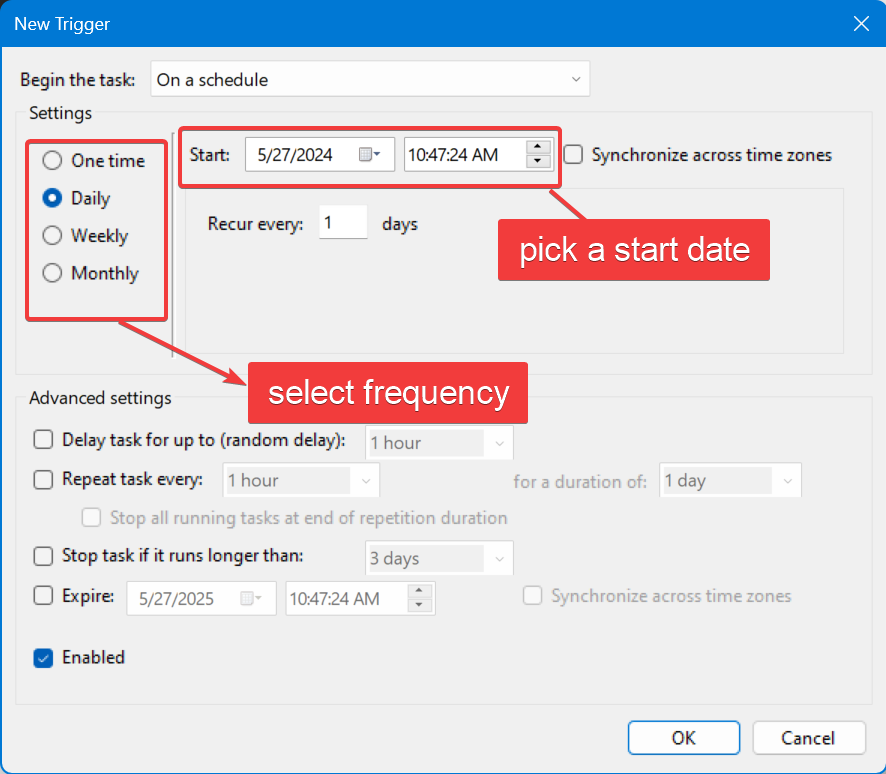
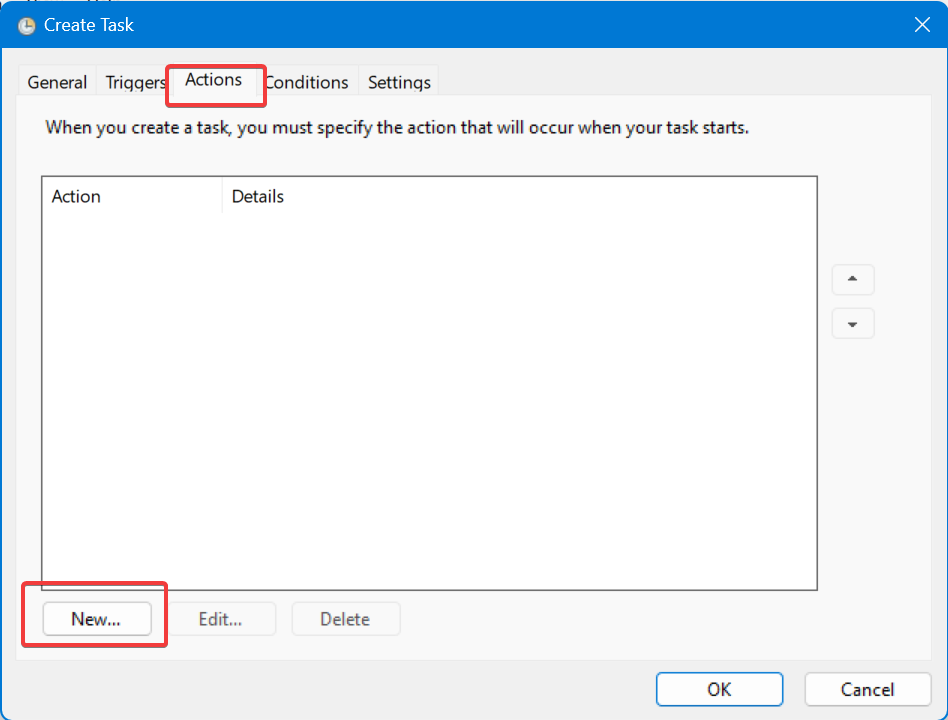
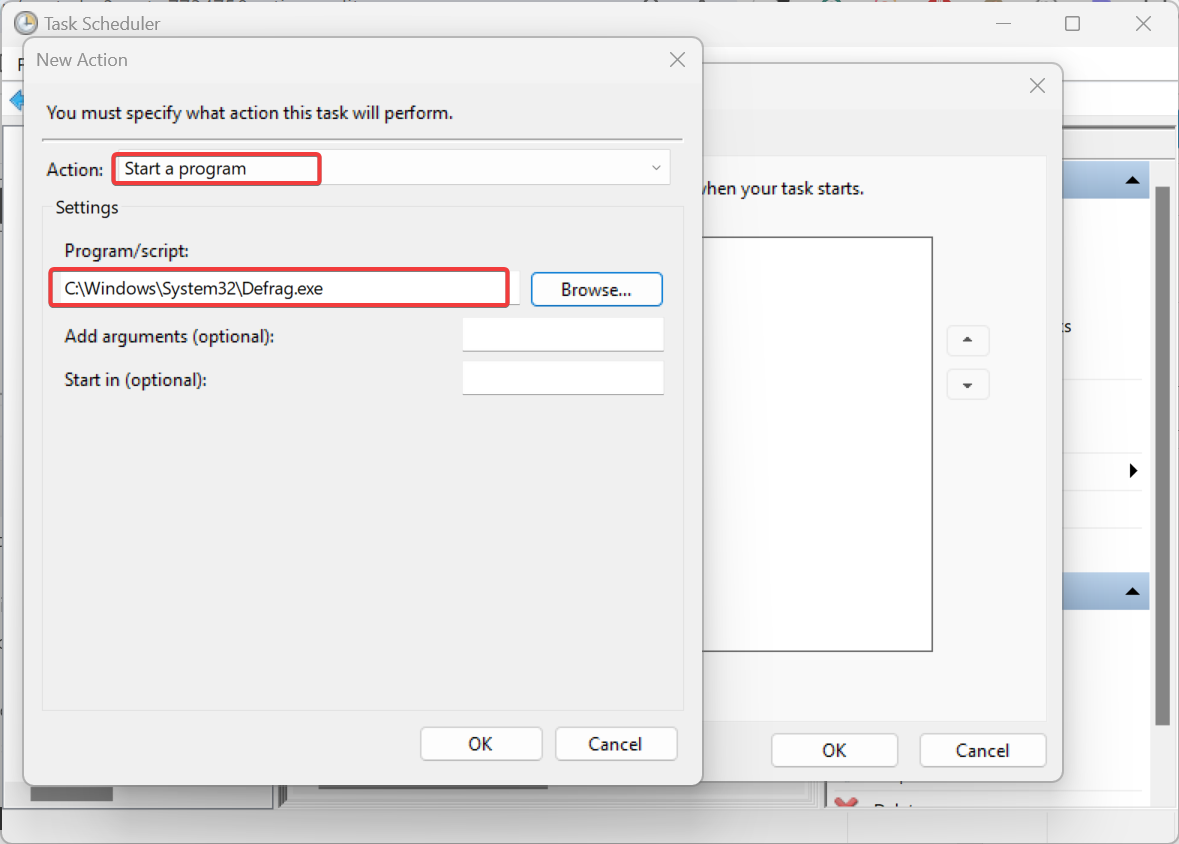
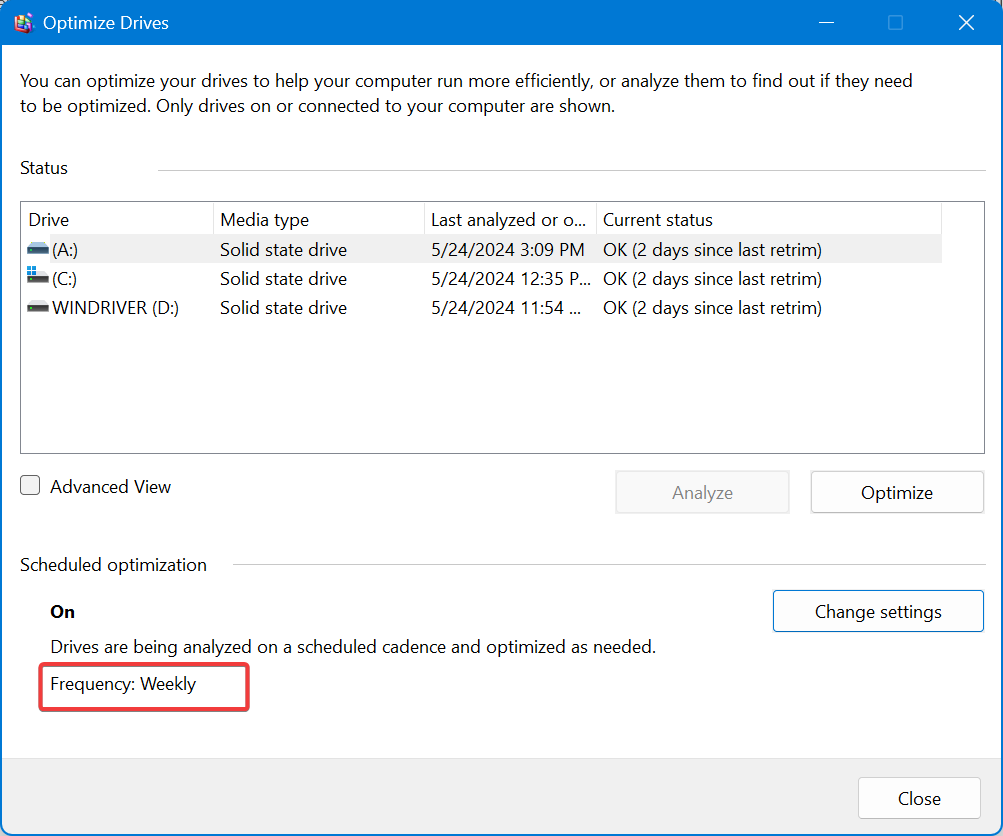
![Download Konqueror for Windows 7 [32/64 bit]](https://windowsreport.com/wp-content/uploads/2022/08/feature-image-download-konqueror-windows-7.jpg)