Microsoft Edge is one of the best browsers for Windows and the first choice of many, along with being Microsoft’s recommended browser. But it still found to bump into issues from time to time. One of the common ones is the Couldn’t download Network issue error in Edge.
Despite the fact that Edge has significantly improved since its initial release, it is not error-proof. And you may have a variety of problems, including the inability to download files. So, let’s find out all about the problem and the solutions that should work.
Why am I getting Couldn’t download network issue in Edge?
Here are a few reasons you are encountering the error:
Corrupt browsing data: The problem could arise due to corrupt browsing data, and the only viable solution is to clear it.
Switch to a different network. Also, if you are using a wireless connection, switch to a wired one.
Disable any third-party antivirus or firewall software installed on the PC and verify whether the Couldn’t download Network issue in Microsoft Edge is fixed.
Ensure the website you are downloading the data from is safe and reliable because Edge might be blocking the download for security reasons.
Check for any pending Windows updates and install them all.
In case you are downloading the file on a public network or at work, administrator policies might be in place to prevent downloads over a given file size. So, check for that.
If none work, move to the solutions listed next.
1. Update Microsoft Edge
Launch Microsoft Edge, click on the ellipsis near the top-right, hover the cursor over Help and feedback, and select About Microsoft Edge.
Now, if an update is available, it will automatically be downloaded.
After the update is installed, click on Restart for the changes to come into effect.
After updating the browser, check whether the Microsoft Edge Couldn’t download – Network issue message in Windows 11 is gone. If not, move to the next solution.
2. Reset the network settings
Press Windows + I to open Settings, choose Network & Internet from the navigation pane, and click on Advanced network settings on the right.
Click on Network reset.
Now, click the Reset now button.
Click Yes in the confirmation prompt.
3. Try a different browser
When trying to download files and Edge is making it difficult to do everyday tasks and view your files, you could try another browser.
One of the trustworthy browsers is OperaOne, a well-known multiplatform web browser with a long history of providing the greatest surfing experience to millions of users worldwide. Opera One is an all-rounder web browser for everyone, offering a range of functions as well as being secure, quick, and safe.
Opera One is your perfect light and fast browser, whether you are managing the built-in capabilities like Ad Blocker, VPN, AI or you are looking for more organization with features like workspaces, tab islands or faster access to social media and messaging apps.
In comparison, Microsoft Edge is more difficult to manage your downloads and requires more storage, and the speed can sometimes be a nuisance.
Opera One
Make your browsing experience more secure and organized with Opera One.
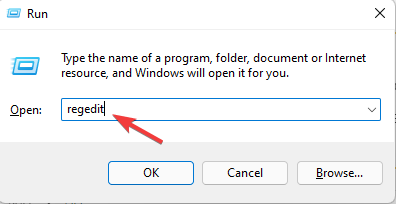
Press Windows + R to open a Run window and type regedit inside the search bar.
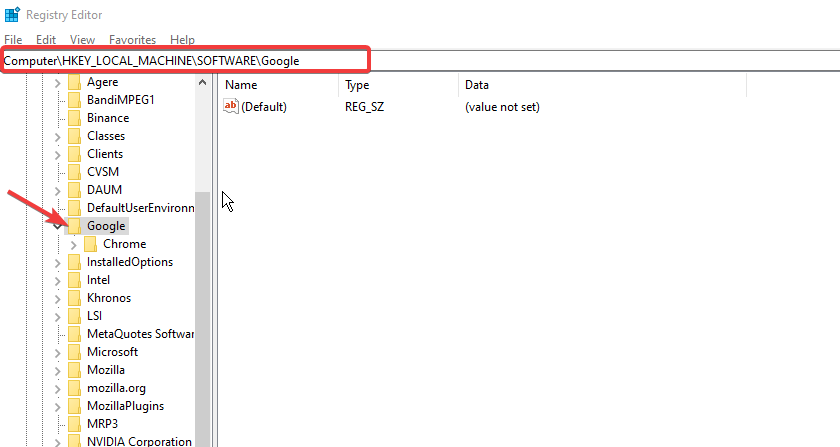
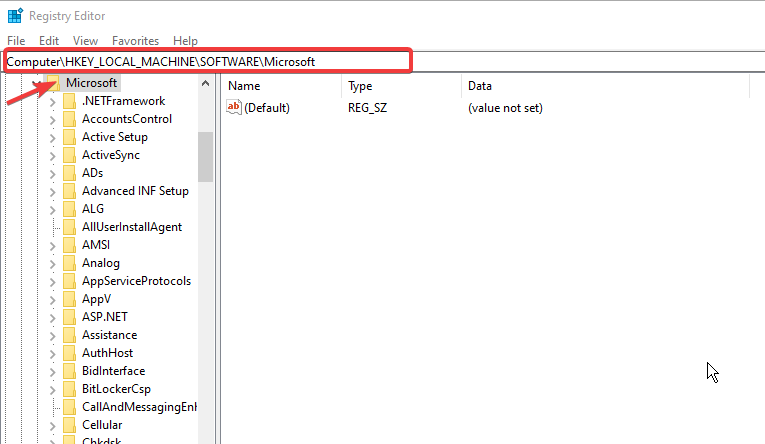
After you enter Registry Editor, navigate to the following location: Computer\HKEY_LOCAL_MACHINE\SOFTWARE\Microsoft\Windows\CurrentVersion\Policies\Attachments
Now, double-click on the ScanWithAntiVirus key and set its value to 1, and click OK in order to stop it from scanning the Edge download.
A tangle of seemingly incomprehensible character combinations makes up the Windows registry, making it one of the scariest aspects of your computer.
Press Windows + I to open Settings, go to Apps from the left, and click on Installed apps.
Locate Microsoft Edge, click on the ellipsis next to it, and select Modify.
Click Yes in the UAC prompt.
Click on Repair.
Waif for the repair process to complete.
That’s it! If the previous solutions didn’t work, repairing Microsoft Edge should get things up and running when you are getting the Couldn’t download – Network issue message for files over 20 GB or, in some cases, even less.
A strong pitch is made to youths to join OnlyFans as a quick and easy method to get money, with the caveat that some do not actually need to be naked in order to make easy money from the site. However, the website might sometimes experience issues such as internal errors.
There’s also the allure of the possibility of earning as much as $40,000 per month as a Creator, despite the fact that only a very small number of Creators actually earn that much.
OnlyFans announced a new account verification method, in which a Creator must now upload a selfie with their ID in it to demonstrate their authenticity.
However, according to our research, underage users have successfully made accounts using other people’s IDs, indicating that the age verification process is not rigorous enough as of now.
Follow along as we will show you how to address different OnlyFans internal error messages, right after we respond to one of your most asked questions.
What is the real OnlyFans?
OnlyFans is an online platform and mobile application that was launched in 2016 that allows users to pay for material (pictures and videos, as well as live streams) by subscribing to a monthly membership.
YouTubers, fitness trainers, models, content creators, and public celebrities are the primary authors of content in order to monetize their respective professions.
The site, which is situated in the United Kingdom, has become increasingly popular among those who have lost their jobs as a result of the coronavirus outbreak, but it is also popular among sex workers.
Several recent BBC documentaries, including #Nudes4Sale, examined the rise of underage people selling sexual content on sites such as OnlyFans as well as Twitter and Snapchat Premium.
According to facial analysis technology developed by Yoti, as many as a third of Twitter users advertising sexual photographs with hashtags nudes4sale or buymynudes are under the age of 18.
Unfortunately, a big number of young producers are using social media to sell nudes in exchange for money and gifts, which is extremely concerning.
How do I fix the OnlyFans internal error?
1. Check your payment method
If you are having difficulties making a payment, the first thing you should do is determine whether your card is 3D Secure or not. If your card does not have 3D Secure, you should consider upgrading it, due to the fact that OnlyFans accepts only 3D Secure Cards.
2. Wait for account approval
If you have submitted all relevant papers and are over the age of 18, you will almost probably be approved for a credit card account.
OnlyFans is a very popular website that receives millions of visits per month from individuals throughout the world, thus it can take some time for your account to be approved.
However, if your account hasn’t been approved in 24 hours then it might be a server error just like the 500 internal server error OnlyFans. Since these are errors on their side only they can fix them. Thus, further patience will be needed until developers address the issue.
An array of customer services designed to assist clients in making the most cost-effective and correct usage of a product are known as customer support.
It entails assisting with the design, installation, training, troubleshooting, maintenance, updating, and disposal of a product, among other things.
When it comes to providing web-based assistance to your consumers, phone calls and emails are the most common methods of communication. Email-based communications have a number of advantages, including the fact that they are low-cost, non-intrusive, and accessible from any location.
Thus, we recommend that you contact customer support as they will let you know whether the OnlyFans chat internal error, or any of the others mentioned above, you are facing is due to their servers and when it will be fixed.
Ever since COVID-19, there has been an influx of information, specifically about the shipment of vaccines and their availability. As such, Microsoft used this premise to come up with a platform where people could easily access credible information in one convenient location.
This is where Microsoft capitalized on the Bing Maps platform. They used it to create a “one-stop website” where individuals could easily get precise visualized information in regards to worldwide cases, vaccine distribution plans, and vaccination deliveries.
To tackle the challenge, Microsoft Bing leveraged the versatility of the Bing Maps Web control to power the Bing Maps COVID-19 Tracker. This comprehensive tracker was built around the philosophy of promoting action by democratizing information through sharing of the Bing Maps COVID Tracker Data set.
The COVID-19 tracker has provided insight on the virus’s case distribution and vaccination plans of multiple countries at a glance. The data provided here is sourced from credible entities such as the CDC and WHO. The tracker also relies on Location Intelligence resources like Location Recognition API and Spatial Data Service Geodata API to incorporate vital features. Bing Maps is effective and efficient, hence its extensive use when providing aggregated COVID-19 and vaccination information.
Bing Maps uses AnimatedTileLayer events to enhance the visualization of vaccine availability and the current predicament of each state. AnimatedTileLayer helps developers come up with map tiles that are updated at predetermined intervals. The tracker is integrated with Power BI and Excel which are helpful especially when it comes to the automation of data visualization and presenting real-time graphs for any region.
These facilities are still available for use and have proven to be quite effective when it comes to providing reliable information about the distribution of vaccines and has also helped people isolate in regions with a high infection rate.
Three more Xbox games will be available for Xbox Game Pass and Xbox Live Gold members to install and play this weekend from Thursday, May 5 to Sunday, May 8 as part of the Xbox Free Play Days feature.
In Call of the Sea, you’ll take on the role of a young woman named Norah as she explores a beautiful tropical island in search of her missing husband. Along the way you will encounter remnants of a lost civilization and unravel a series of mysteries in this award winning first person puzzle adventure.
The latest installment of this legendary turn-based strategy game series has you assuming the role of one of 24 different leaders from around the world including Cleopatra and the Roman Emperor Trajan. Discover new lands, build new technology, and build the greatest civilization ever known to man.
With the inclusion of 4K resolution, cooperative cooking has never looked so good. This follow-up to Overcooked 2 also introduces online functionality for its multiplayer aspect, for the first time in the series. All You Can Eat features new chefs to play as and all-new levels.
Xbox Free Play Days is another perk of having a subscription to Xbox Game Pass or Xbox Live Gold. New games are introduced each week for players to install and play. It is a great way to try out something new and maybe even find a new favorite.
It’s no secret that Microsoft is working on a new desktop version of the Outlook app on Windows 11, known as “One Outlook,” or the current internal code-name of Project Monarch. We’ve seen leaks in the past, and today, a fully working version of the app has shown up online (warning, direct download!) as shared by the folks at Windows Central. This working version of the app only supports work / school accounts at the moment, but it offers a great first look at what we can expect when Microsoft fully reveals the app when ready. Yet, is it just a glorified PWA? Let’s dive deeper with this hands-on look.
The interface & first boot
When you install the One Outlook Client on Windows 11, you’ll be guided to import your settings from the existing Outlook app on Windows. This could be a confirmation that One Outlook isn’t meant to replace anything, but rather live alongside the desktop app for the time being. Our theme settings, and density settings were just a few things that were imported from the existing Outlook app. Changing the theme in the One Outlook also changes it in the Outlook Web App too, so there seems to be some cloud syncing going on here.
Once you boot up into this One Outlook client you should notice that it is basically the same as Outlook.com. The only difference we noticed is a ribbon at the top, which looks more like Outlook desktop with a “View” and “Home” buttons. It also carries the theme color you choose. Additionally, the “Chat” button in the One Outlook doesn’t work just yet either and it doesn’t open Teams as it does on Outlook.com
In other areas of the interface, there are the usual theme settings, as well as notifications, To Do, and OneNote links at the top right side of the app. Settings has a toggle for dark mode, focused inbox, desktop notifications, conversation view, a reading pane, and everything you’d expect from the Outlook web experience. There’s nothing different there.
The performance and creation emails
One big difference between One Outlook and the regular Outlook.com experience is the way the app handles opening windows. Creating a new message in One Outlook opens it in a new window that you can float around. This is exactly like what would happen in the old and existing desktop app.
Overall, the One Outlook app does seem to boot a lot faster than the desktop app, too. This is because it is based on Edge. Deleting messages, and switching between various parts of the new app is snappy. Even creating messages is a quick task, with the window popping up right away. Otherwise, this does feel exactly like Outlook.com would. Some things are missing though, as we weren’t able to add a connected calendar.
A glorified PWA
Overall, this One Outlook experience is quite nice but is also very similar to the Outlook.com experience. That’s not a problem, either, as most people are familiar with Outlook.com as it is.
The ongoing rumor is that this app might eventually replace Mail & Calendar in Windows, and also ship on MacOS as well as Linux. Yet, it looks like that might still be well off in the future. There’s still some work to do, and Microsoft could announce this One Outlook experience at Build 2022, then give Office Insiders a chance to send in feedback on the app. Let us know what you think of this app in the comments below.
Apex Legends is one of the most thrilling games on the market. Initially released in March 2019, it now has a considerable fan following and a high user base. But, several users reported that game chat is not working in Apex Legends.
The game is available on various platforms and gamers across these faced issues with the game chat. This likely indicates that the problem lies with the game itself, but in most cases, it is a malfunctioning microphone to be blamed.
And if you search the web for it, there isn’t a lot of information available. Read the following sections to understand all about the problem, find out the fixes and by the time you are done, the problem should be long gone.
Why is my Apex Legends game chat not working?
When Apex Legends game chat is not working on PC, it is likely that the connected microphone is not working, the game settings have been configured incorrectly, the necessary permissions have not been granted, or there are issues with the driver.
On Xbox, the problem most likely lies with the network settings, or MAC address to be precise. For some users, it was also an outdated controller firmware, and installing the latest version did the trick.
For PS4, it was generally a low Audio Microphone Level that caused that problem. Other than that, if you have selected the wrong devices for audio input and output, the other players would be able to hear you in Apex Legends.
If you can identify the problem, just head to the relevant fix and execute it. Otherwise, you can try the methods in the listed sequence to quickly fix the Apex Legends game chat not working issue. We have first listed the solution for PC followed by the ones for Xbox and PS4.
What do I do if game chat is not working in Apex Legends on PC?
1. Check if Apex Legends has access to the microphone
Press Windows + I to launch the Settings app, and select Privacy & security from the tabs listed in the navigation pane on the left.
Scroll down and click on Microphone under App permissions on the right.
Now, locate the Apex Legends app, and check if it has access to the microphone. If not, click on the toggle for it.
After making the changes, restart the computer once for these to fully come into effect. If the Apex Legends game chat not working issue persists, head to the next method.
2. Reconfigure game settings
Launch Apex Legends and click on the gear icon near the bottom-right corner.
Select Settings here.
Now, navigate to the Audio tab from the top.
Select the desired modes for Voice Chat Record Mode from the two options listed next to it.
For voice chats, there are two modes available to users, Push to Talk and Open Mic. In the former, you will have to press and hold the T key to turn on the microphone and chat, while in the case of the latter the mic is always enabled.
Choose the desired setting here, restart the game for the changes to come into effect, and check if the Apex Legends voice chat not working issue is fixed.
3. Make your microphone the default device
Press Windows + S to launch the Search menu, enter Change system sound in the text field at the top, and click on the relevant search result.
Navigate to the Recording tab from the top.
Right-click on the microphone you use for in-game chat, and select Set as default device from the context menu.
Next, click on OK at the bottom to save the changes.
If the device is not set as default, there’s a chance that it may not be detected, though that’s rare. But, to be on the safe side, try setting it as the default device and check if the Apex Legends mic not working issue is resolved.
Press Windows + S to launch the Search menu, enter Device Manager in the text field at the top, and click on the relevant search result.
Next, double-click on the Audio inputs and outputs entry to expand and view the devices under it.
Right-click on the microphone, and select Update driver from the context menu.
Select Search automatically for drivers from the two options that appear in the Update drivers window.
Now, let your system scan and install the best driver for the microphone.
If you haven’t updated your microphone drivers in a while and don’t have any driver updater software installed, it’s time you do either one of these things.
With each update, various new features along with patches for previously known bugs are introduced which may help eliminate the problem.
However, if you want to be certain that you’re updating the correct driver for your Windows device, you can use a reliable third-party program like Outbyte Driver Updater. This tool, not only will identify, replace, and update the microphone driver, but it will also update any other drivers that your computer requires.
After you are done updating, the Apex Legends game chat not working problem should be fixed. If not, head to the last method.
5. Reinstall Apex Legends
Press Windows + R to launch the Run command, enter appwiz.cpl in the text field, and either click OK it hit Enter to launch the Programs and Features window.
Select the Apex Legends app,, and click on Uninstall.
Click Yes in the UAC (User Account Control) prompt that pops up.
Again, click Yes in the confirmation box, and wait for the process to complete.
Now, reinstall Apex Legends, as you did earlier.
If nothing else has worked, you are left with no other option but to reinstall the game, since the problem most likely lies with the game files or the installation did not go through successfully.
What do I do if game chat is not working in Apex Legends on Xbox?
1. Restart Xbox
In most cases, it’s a minor bug that causes the text chat to stop working in Apex Legends on Xbox series X. If that’s indeed the case with you, restarting the Xbox console should help fix the problem.
This is probably the simplest and quickest of all the fixes, and you should try it first before moving on to the more complicated ones. After restarting the Xbox, check if the game chat now starts working.
2. Clear the MAC address
Press the Xbox button, click on the Settings icon, and then select All Settings.
Go to the Network tab on the left and then select Network Settings on the right.
Select Advanced settings.
Next, select the Alternate MAC address option on the left.
Select Clear.
Finally, select Restart for the changes to come into effect.
Issues with the MAC address have also been found to be a common reason behind game chat not working in Apex Legends on Xbox. The MAC (Media Access Control) is a unique number assigned to every device and can be found in the NIC (Network Interface Controller).
Simply clearing the MAC address should do the job and help eliminate the problem. If this too doesn’t work, head to the last method.
3. Update the Xbox controller
Press the Xbox button, navigate to the Settings (gear icon) tab from the top, and select the Settings option.
Next, select Devices & streaming from the options listed on the left.
Select Accessories on the right.
Now, click on the ellipsis (three dots) under the problematic controller.
Select Firmwareversion.
Finally, select Update now and wait for the process to complete. It may take a few minutes for the update to go through successfully.
If the Xbox controller has not been updated in a while, chances are that it’s the outdated version of it that is causing the problem. Manually updating the controller should help when Apex Legends game chat is not working on Xbox.
Also, make sure to check if your controller can be updated wirelessly or has to be connected via a cable. Different models have different requirements, but you should be able to find this information on the official website.
What do I do if Apex Legends game chat is not working on PS4?
1. Restart your PS4
The easiest thing to do here would be to simply restart the PS4. Turn it off, unplug from the power source, wait for a minute or two, and then plug it back in. Now, turn on the device and you should be able to use Apex Legends game chat on PS4.
This method has worked for a lot of users and thus, should be your primary approach. In case it doesn’t work, the problem lies with the microphone level or the game settings, so try the other two methods.
2. Adjust the microphone level
Go to the Settings option.
Locate and select Devices from the options here.
Next, select Adjust microphone level.
Select Adjust Microphone Level.
You can now adjust the microphone level by dragging the slider. Moving it to the right will increase the level and dragging the slider to the left will decrease the level.
In most cases, it’s the microphone level that’s causing the problem. If you have it set at low, just make sure to increase it a bit. It’s recommended to keep the slider somewhere near the middle for best results.
After you are done making the changes, check if Apex Legends game chat now starts working on PS4.
3. Verify that the audio input device is right
Open the Settings on your PS4.
Go to Devices.
Now, select Audio devices from the options here.
Next, make sure that the Input Device and Output Device are correctly configured.
After making the required changes, save these, and you shouldn’t face the game chat issue on PS4 anymore.
4. Reset Apex Legends on PS4
Go to Settings on your PS4.
Select Storage from the various options here.
Wait for the PS4 to calculate the total storage, and then select Saved Data.
Next, select Apex Legends from the list of games.
Tick the checkboxes for the entries here, and select the Delete option.
Select OK to confirm the reset.
If the methods listed earlier didn’t work, there might be a problem with the game itself. In which cases, resetting it seems to be the only viable option. Once the game files are deleted, restart Apex Legends, and game chat should now be working on your PS4.
These are the most effective methods to fix Apex Legends switch voice chat not working, be it on the PC, Xbox, and PS4. One of these must help you eliminate the error and use the in-game chat feature.
A week has passed since we were talking about the new Safe Mode bug that affected users who installed KB5012643 for Windows 11.
This nasty issue was not present on the known issues list that Microsoft published on the day of the release, so it caught everyone by surprise.
Well, just when you thought the situation couldn’t get any worse, Microsoft drops another bomb for the users that installed this cumulative update.
Windows 11 Build 22000.652 is causing more problems
The tech company has therefore warned Windows 11 users that they might experience issues launching and using some .NET Framework 3.5 applications. Sounds familiar?
Don’t be alarmed, however, as this known issue only impacts systems running Windows 11, version 21H2, after KB5012643 has been downloaded and installed.
The affected software uses optional components such as Windows Workflow (WWF) and Windows Communication Foundation (WCF).
How can I fix this problem?
The short answer is you can’t. That being said, know that the tech giant took it upon itself to remedy this issue as soon as possible.
In the meantime, Microsoft kindly asked affected users to uninstall KB5012643 while it works around this issue and restore their .NET Framework 3.5 apps’ functionality.
Users that find themselves unable to immediately uninstall this cumulative update can actually mitigate the known issue by re-enabling .NET Framework 3.5 and the Windows Communication Foundation from the Windows Features dialog.
Furthermore, IT Admins can accomplish this using an elevated Command Prompt, which they launch as administrators, by running these commands:
Battlefield 2042 was released not long ago, and gamers are definitely raving about it. The game is available for players on PS 4, PS 5, Xbox One, Xbox Series X/S, and Microsoft Windows, among other platforms.
However, several players have already reported problems with this game. A common problem is a 2002g error code encountered when connecting to the game servers.
This article will explore all the best ways to resolve this issue on Battlefield 2042, and get back to your gaming sessions.
This has been a recurring question among players of the game. While we will dive into detailed solutions later in the article, it is good to note that the game has very good support and a great online following.
You will be able to confirm the status of the game online on their social media handles, or via the support input on the official website.
It’s also advised to check with other members of the community and see if they are experiencing the same problem.
When servers are down, you usually can only wait for them to be restored.
Why do I keep getting error codes on Battlefield 2042?
Error codes indicate that there has been a malfunction in software. The reasons will always depend on specific error codes.
This 2002g error might be caused by network connection problems that prohibit your PC from connecting to Battlefield servers. In rare cases, your firewall may be responsible for obstructing the connection to the game servers, resulting in the error.
The error was also reported by certain players who had the Crossplay functionality activated in their game settings. Whichever is the case, this tutorial will assist you in resolving it using a variety of methods.
Let’s have a look at these fixes.
What should I do to fix a 2002g Battlefield 2042 code?
Select your platform from the list of gaming platforms.
Next, filter through the posts listed below to see if there are any mentions of a down server.
Another way of knowing if there are server problems is from the official Twitter handle. Here, you will typically get the latest news and updates surrounding the game.
We suggest that you verify whether Battlefield 2042’s servers are offline before trying other solutions. For example, you may encounter disconnection or login troubles on the servers due to the latest patch changes. In this case, you can only wait for the server to come back on.
2. Relaunch Battlefield 2042
One of the first things you must try is relaunching Battlefield 2042 to see if that resolves the issue because a brief glitch or fault might generate the error within the game.
In such situations, you may try closing and relaunching the game. First, make sure that the platform you’re using is completely shut off (Steam or Origins).
After doing that, start the game and check if the issue is still there. This is just a workaround, but sometimes even the simplest solutions can work, so feel free to try this one.
3. End the Battlefield 2042 task
Right-click on the Start menu and select the Task Manager.
Click on the Processes tab and check through the least of processes for any related to Battlefield 2042.
Right-click on the Battlefield processes, and select End task.
Once you’ve completed these actions, restart the game to determine whether the 2002g error still exists. This solution will be only helpful on PCs.
4. Restart your router and internet connection
Unplug your router from the source, wait for three minutes and replug it.
Plugin your Ethernet cable, or click the Wi-Fi icon on your Taskbar for a wireless connection.
In the pop-up window, click on the arrow beside your Wi-Fi icon.
Click on your internet connection and click on the connect button.
Restarting the router can help resolve network connection issues that may be generating the error code. It will compel your router to establish a fresh, more efficient connection with the ISP servers.
Additionally, if you do not use a static IP, the router will give you an IP, which should help resolve the 2002g Battlefield 2042 error code.
5. Disable Crossplay in the game settings
Launch the game.
Click on the Options tab and the General tab, then scroll down and toggle off Cross-Play.
6. Launch the game on a different platform
If the server controlling your Battlefield 2042 platform is down, try launching it on PC or other platforms. This is a good solution as long as the other platforms are also not down.
This solution will also require that you own a console and a PC or two different kinds of consoles that run the game.
On your Start menu, type Windows Defender and select the Windows Defender Firewall option.
On the left pane, select the option to Allow an app or feature through Windows Defender Firewall.
Click on the Change settings button.
Scroll through the list of applications and check the option for Battlefield 2042/Origin and click OK at the bottom of the window.
8. Restart your PC or console
Click on the Start menu, and click on the power button.
Select Restart, then wait for your PC to turn off and come back on.
If this does not fix the 2002g Battlefield 2042 error code, you should try the final solution.
9. Launch the game through Origins
You may test whether the problem is repaired by running the game straight from Origins. Battlefield 2042 is available on a variety of platforms, including Steam.
However, to play the game, you must first install Origins. It runs automatically in the background once you launch Battlefield 2042 through any client.
A couple of the players impacted by this error have resolved the issue by running the game using Origins. You may want to try this.
What error codes may I get if I can’t connect to the server?
This article explores the single error, but that’s not the only one that you can get. Many users reported Battlefield 2024 error code1004G, 1300P, and 1302P when trying to connect to the server.
While it is the most common server-related error code, there are very similar errors that could be triggered when you can not reach the servers.
While all the fixes in this article may not apply, you must first double-check to see if the server is down before trying any other complex solutions.
There you have a roundup of our top recommended fixes. These have been potent solutions for many players.
If none of the solutions work, you’ll need to wait for an official patch to be provided. The game developers have already identified the issue, and they are working to resolve it.
Keep in mind that 2002g Battlefield 2042 error code can also appear PS5 and Xbox since it’s a server-side problem. This isn’t the only issue, and we wrote about Battlefield 2042 error code 1 8600 1S in our latest article.
We know you’re always curious to find out new stuff about Windows 11, and we have some great news about the new operating system.
Apparently, the 22H2 version of Windows 11 will also bring with it a completely overhauled Task Manager interface, which is much more intuitive.
This information surfaced during a recent webcast, where Microsoft explained the new design and features coming to the Task Manager.
Dev Channel Insiders can already test the new Task Manager
If you grew fond of the current Task manager, you better start preparing for the future, because the tech giant plans to ditch the tabbed-based interface for a hamburger menu.
Redmond developers said they wanted the Task Manager to follow the design principles that were set by the modern UI framework and Windows 11.
The general idea here was for Task Manager to also feel lighter and decluttered, just the way that the tech giant plans to approach version 22H2.
Furthermore, by performing this switch to the hamburger menu, Microsoft is also hoping to declutter the navigation system and align the legacy areas with the Windows 11 look and feel.
Navigation is really simple, as you can click on the hamburger menu and flip through the pages or use the Ctrl + Tab keys to flip through the pages as well.
This keyboard friendliness will surely please many users that would rather navigate through the Task Manager pages without the mouse.
Another interesting feature is the fact that the original tab area now has common actions that are unique to each page of Task Manager.
By using this, you can perform actions such as creating or running a task without opening any additional menu as the options are displayed in the command bar.
Also, the new settings page which can be used to toggle between dark and light mode, and the set default landing page as well
Microsoft continued by saying that it decided to actually replace the suspended icon with a pause icon, in order to further reduce the confusion.
But wait, there’s more. Since we were speaking of new features, there’s a new addition called Efficiency Mode, which will help you bump up or slow down CPU resources for a particular process.
You can actually use efficiency mode to not only throttle your CPU resources but also improve your UI responsiveness.
You should know that, for the time being, Task Manager’s Efficiency Mode can only throttle CPU-intensive apps.
That being said, know that Microsoft is also exploring support for memory and network usage which could be enabled in a future release.
Google Earth is a computer application that creates a three-dimensional picture of the Earth using satellite images as its primary source. Thus, today we will show you how to download Google Earth for free.
By superimposing satellite pictures, aerial photography, and geographic information system (GIS) data onto a 3D globe, it maps the Earth allowing users to view cities and landscapes from a variety of perspectives.
Users can travel around the world by inputting addresses and coordinates, or by using a keyboard or mouse to navigate the map.
The program can also be downloaded and used on a smartphone or tablet, with the navigation being accomplished through the use of a touch screen or stylus.
But now, let’s see what the difference between Google Earth and Google Earth Pro is, and note that the method we have shown below also lets you download Google Earth for Windows 10.
What is the difference between Google Earth and Google Earth Pro?
In addition to displaying a 2D map of the Earth, Google Earth Pro now displays a 3D model of the planet. This software enables its users to both study and record information about the Earth’s geographical features.
Just to put it another way, Google Earth Pro is a step up from Google Earth because it is packed with extra capabilities that may be used for professional applications.
In fact, Google Earth Pro used to cost $399 a year precisely for this reason. Fortunately, since 2015, it has been available to anyone for no charge.
The Pro edition of the software has all of the same basic features as the free version. With this in mind, you may utilize Google Earth Pro for practically every task you normally perform with Google Earth itself.
There are some significant changes, however. Google Earth Pro provides its customers with comprehensive measurement capabilities that can be used to measure land projects, parking lots, and other such things.
It is clear from the examples above that Google Earth is an excellent starting software that anyone can use to investigate the Earth, learn more about our globe, or navigate to a certain location.
Google Earth Pro, on the other hand, is intended for more serious and professional applications. Of course, you can make your own judgment in this matter. It all depends on what you want to accomplish and what you want to use the tools for.
How can I download Google Earth for Windows 11?
If you wish to get Google Earth, navigate to their official website and click on the Agree and Download button. Note this will download Google Earth Pro for Windows 11, as it is the latest version available.
Alternatively, follow the link to Google’s website and click on the Download Earth Pro on desktop button. Note this Google Earth download is for Windows 11 64-bit as well.
The Desktop version will work on all Windows iterations that are higher than Windows 7, on Mac computers as well as Linux-based ones.
The desktop program of Google Earth has a number of different capabilities, including a measure distance tool, additional globes for the Moon and Mars, and a tool for observing the night sky.
Moreover, a flying simulator game is offered, the ability to browse images from various locations published to Panoramio, and information about specific locations supplied by Wikipedia, among other things.
For a more immersive flying experience, try the free Google Flight Simulator, which allows you to explore the world in a whole new way.
If you find that Google Earth is not working or responding, check out the article linked in order to learn how to fix the issue.
Microsoft just announced that they’ve partnered with Epic Games to bring Fortnite to Xbox Cloud Gaming. The popular game is now going to be available on supported browser-enabled devices for free in 26 different countries. This should benefit gamers who might not have been able to play on lower-end devices and also marks the return of the title to iOS and Android after Epic game’s battle with Apple and Google over app store fees.
To get started, you’ll just need a Microsoft Account and an iOS, iPadOS, Android phone or tablet, or Windows PC with internet access. You won’t need to install anything or subscribe to any of Microsoft’s Game Pass tiers. All you need to do is go to Xbox.com/play on your web browser and sign in and then select Fortnite.
Funny enough, in a Tweet, Tim Sweeney, Epic Games’ founder, and CEO played fun with the announcement. He added a “No 30% Apple Tax,” to his tweet calling the Xbox Cloud Gaming moment “monumental news.”
Monumental news everyone! Fortnite is now available to play FOR FREE streaming to web browsers on iPhone, iPad, and Android via Xbox Cloud. No subscription required, no 30% Apple tax.https://t.co/eHs1Xvh6D2
Microsoft is also planning to add more Free-to-play games to the Xbox Cloud Gaming catalog heading into the future. The company, in a separate post, detailed Xbox Cloud Gaming’s growth and evolution. The service went from Android-only Xbox One S servers, now supports iOS, Windows, and Xbox One, and is powered by the Xbox Series X server blades. Microsoft claims that players in 26 countries have played on more than 6,000 types of devices.
If you are experiencing the Sling TV error 4-310 when watching a show or movie from the guide, it can be due to the content being no longer available for you to watch.
The Sling TV error 4-402, on the other hand, can occur due to a bug in the software, causing the content not to play correctly. A Reddit user reported a similar error in the community forum as well:
Error 4-310 unable to watch recordings of games until the next day Does anyone else have this problem? I can’t watch any of my recorded soccer games until at least 24 hours later.
This isn’t the only error, and many have reported TV too many devices Sling error, and we wrote about that one in a separate article.
In this article, we explore how to resolve the Sling TV error 4-310 and the Sling TV error 4-402, so be sure to check it out below.
What are some common Sling TV error codes?
Sling temporarily unable to load content 9-400, 27-1: These types of errors are usually caused by issues with the persionalization services.
Sling temporarily unable to load video 6-9: Server-side errors are the common cause of this issue. If you encounter it, it means that video isn’t able to reach you from the server.
Sling TV error 16 109, 5-423: App problems can cause this issue, so it’s advised to restart the app to fix it.
How do I fix the Sling TV errors 4-310 and 4-402?
1. Use the Search
Search the program by using the built-in search function to find your favorite show, movie, or game.
Click on the Search bar in the top right corner.
Enter the name of the show and open it.
Click on Play to start playing the selected show.
After using this method, Sling TV error 4-402 should be gone.
2. Play directly from the thumbnail
On your PC, log in to your Sling TV account.
On the main page, click the Play button on the thumbnail.
Sling TV should play your recorded shows without any error.
At times, simply starting a recorded program from the app will clear the error in the browser.
After doing this, check if Fix Sling TV error 4-310 is gone.
2. Relaunch the app
For Android smartphone
Open Settings.
Go to Apps.
Open Sling TV from the list of installed apps.
Tap the Force Stop button. Tap Yes to confirm the action.
Close Settings and relaunch the Sling TV app.
Check if the error is resolved.
For Windows 10
Right-click on the Taskbar.
Select Task Manager.
In the Process tab, locate the Sling TV app process.
Select the process and click on End Task.
Next, look for the other Sling TV process that is running and close it as well.
Relaunch the app and check for improvements.
For Android TV
From the Home screen, open Settings.
Select Apps, then the Sling TV app from the option.
Press the Force Stop button to terminate the application.
Relaunch Sling TV.
For Apple TV
Press the Home button on your Apple TV remote.
Scroll through the app, and swipe up when you see the Sling TV app.
You can reinstall the Sling TV app from the Roku Channel Store.
Uninstalling and reinstalling the Sling TV app can help you fix any error that is triggered due to a glitch or bug in the app.
A newer version of the app usually comes with bug fixes and performance improvements, so be sure to always check it out.
The Sling TV error 4-310 & error 4-402 are common errors and can be resolved by performing some troubleshooting steps provided in the article.
Many users also reported Sling TV authorization error 8-12, and we covered this problem in a separate article, so you might want to check it out as well.
We hope you found our recommendations from above helpful. For more suggestions, please access the comment section below.
When executing CHKDSK on a drive, you may have encountered this error message: disk does not have enough space to replace bad clusters.
Most impacted people tried to perform the procedure but repeatedly had the same result, and unfortunately, this problem isn’t limited to a single Windows version.
In layman’s terms, this error message implies the hard disk is possibly degraded and could crash. Many also reported that Windows was unable to repair the drive.
You might also check our guide on how to recover the data from a hard drive with bad sectors.
In this article, we explore all possible fixes and share some enlightenment on the possible reasons this may happen.
How does chkdsk replace bad clusters?
First and foremost, you must realize that the CHKDSK program’s free space is not the same as your regular disk space. Every hard drive has some unutilized space reserved for replacing defective sectors if they occur.
Even though every sector is given a unique number, your drive has extra sectors at the end that aren’t numbered. These additional sectors are employed if a sector fails and needs replacing.
Here is how CHKDSK replaces the bad clusters:
It corrects defective sectors by deleting the number allocated to them and reallocating it to sectors with no number. If the utility displays the bad clusters error notice, this means that the amount of the identified bad sectors exceeds the number of extra sectors.
What causes bad clusters on my computer?
There are a few possible scenarios that can result in this CHKDSK error warning:
A hard disk drive that is failing: Multiple failed sectors indicate that your hard disk is beginning to fail. If CHKDSK finds new bad sectors regularly, your hard drive will soon be unusable. If so, you should make a backup and replace your hard disk.
A crash of the littoral disk: You may be experiencing this problem because of a catastrophic disk crash caused by an unplanned computer shutdown or a power outage. In this case, patiently waiting for the CHKDSK scan to finish will ensure what’s left of the drive is in good working order.
Tip
Hard disks are engineered to never run out of additional sectors within their intended lifetime. However, for newer hardware encountering this problem, something is undoubtedly causing the hard drive to have many damaged sectors. In this instance, we recommend creating a backup to prevent data loss.
There may be a few minor reasons for this error other than the two major causes above, but regardless of these the solutions proffered in the next section should be effective enough to rectify the problem.
Note that this cluster error is different from the A disk read error occurred c0000483 error, even though they are both very similar.
How do you fix a disk that says there is not enough space?
1. Allow the CHKDSK process to complete
Do not close the CHKDSK dialog when you see the error that says your disk does not have enough space to replace bad clusters. Doing this will cause an unfinished procedure to be interrupted.
The CHKDSK utility will continue to attempt to repair your drive, although this operation could take up to 4 hours.
With too many sectors to repair, the duration of this process may be extended by an additional 1 or 2 hours. However, the faulty sectors should be resolved when the CHKDSK utility scan is performed.
Try implementing any additional solutions listed below if you’re still having the disk problem.
Right-click on the installed app and select Run as administrator.
From the Choose drive to Process menu, double-click on the disk to be repaired.
Type 2 and press enter for a full scan of the selected drive on the terminal that appears.
In the following prompt that appears, type 1 and click enter to scan and repair the drive.
Type 1 and hit enter to start the scanning from the first drive sector.
Each time a damaged sector is encountered in your disk, the program prompts you to repair it. You should have successfully repaired all damaged sectors at the end of the scan.
Right-click on the victoria EXE and select the option to Run as administrator.
Select your hard drive from the top-right pane, then click on the SMART menu at the top to begin the analysis.
If the threshold of the reallocated sector number is more than 10, you have bad sectors on your drive.
Click on the Test & Repair tab, then click scan on the top-right pane.
Once the scan is complete, restart the PC, and you should have successfully regenerated your drive. This should suffice in correcting errors in the bad cluster file on your disk.
Click on the start menu, type Computer Management, and select the first option that appears.
On the left pane, select the Disk Management option.
Right-click on the drive you want to extend and select the Extend volume option.
Click next and follow the prompts from the extension wizard.
5. Decongest the disk
5.1 Uninstall unnecessary programs and apps
Click on the start menu, type Control Panel, and select the option to Uninstall a program.
Search for redundant or unused apps from the program list. Click on the app to be uninstalled and select the uninstall option at the top of the programs window.
Follow the prompts from the wizard to complete the process and restart the PC if required.
5.2 Clean up your desktop
Many people save to the desktop by default, but this is not a good practice. These files occupy working memory since they are constantly displayed. This increases the number of memory places that are unavailable to be reallocated.
You should remove unnecessary desktop files from the computer and save the rest in the Video, Documents, and Photos folders. You’ll create some extra space on the hard disk when they are deleted.
5.3 Save to the cloud
It’s possible that you won’t be able to fit all you need on your laptop or desktop.
We recommend backing up crucial files to a cloud storage account regularly. Google Drive and One Drive are two common storage examples you may try.
It will free up space and serve as a way to secure your data in the event of loss or if your hard drive eventually fails.
All these methods that help decongest the drive are effective solutions for when your disk that says there is not enough space.
If you want a central workstation that will help you take care of all disk cleaning tasks, CCleaner is the way to go. The app helps you delete redundant files, has a built-in uninstaller, and can also clean your registry.
Does formatting fix bad sectors?
All files on that volume are deleted, and the drive is checked for faulty sectors when you perform a full volume. A Quick format removes the partition’s files but does not examine the disk for damaged sectors.
A soft or logical sector is a storage cluster on a hard disk that seems to malfunction. They may be indicated as faulty sectors, but they can be fixed by conducting a low-level format or overwriting your drive with zeros.
Do bad clusters mean failing hard drive?
Bad clusters may sometimes mean that your drive is failing. This could be normal if you have had the drive for a while.
If you’re still having problems after trying the solutions above and your faulty sectors persist, your drive is likely approaching the end of its life cycle, or the disk does not have enough space to replace clusters.
In this case, you must instantly start backing up your data. If there is still time on your warranty, you should claim it.
You should now be able to resolve any problems associated with your disk being unable to replace bad clusters.
Remember that the primary tool on Windows to help with disk-related problems is the CHKDSK utility. Your best bet is to wait patiently for a scan to complete and only proceed to other solutions if the scan is unsuccessful.
This error also indicates that your disk may have served you well and long enough. Every disk has an estimated lifespan, and as that time approaches, you can expect it to malfunction more often than usual.
This isn’t the only cluster error you can encounter and we wrote about Error 1460 cluster shared volume recently in a separate guide.
In this case, or if you have insufficient disk space to correct errors, you should purchase a new HDD or a large SSD hard drive.
MKV files are associated with high-quality video content on Blu-ray that can reach 4K resolution. But to play back these videos, you will need a dedicated player.
The good thing is that there are many apps out there that can do the job and there are both free and paid MKV players.
If you are just going to watch movies or TV shows on your laptop, a free MKV player will probably do just fine, and you will actually find a great one below.
But you may want to splash out on one of the paid players for more features and options. They don’t cost a fortune, and you do get some smashing add-ons for the money.
What should I know about MKV videos?
Before we start talking about the best MKV players, we should just make clear what an MKV file is.
You might think that there are only some video files, but in fact, MKV files are actually multimedia container formats.
In other words, besides the audio-video file, an MKV container can also have embedded subtitles, and the audio and video can have various formats.
Just to offer an example, the video might be encoded in H.264, and the soundtrack could be an MP3 or an AAC file.
So, it’s also very important to ensure your machine has all the latest video and audio codecs for playback.
This will ensure that if you have any problems playing back MKV files, or any video file for that matter, at least you will know that it is not a codec issue. Your player should tell you if you need any codecs.
If your player lacks the necessary codec, you will receive a message like this one
Most of the media players nowadays come with the latest codec packs but if you miss some, you can visit a dedicated website and download the pack you need.
If one of the players below has problems playing the content, make sure that the MKV file is not damaged. In that case, the highlighted guide will help you fix it.
Now that all that has been cleared up, let’s look at the best MKV players for Windows 10 to watch your favorite videos.
Of course, there are other options, and if you don’t mind paying a bit more, then CyberLink’s PowerDVD is also a great option.
PowerDVD is one of the best MKV players for Windows 10. Sadly, there is no free version, but you can try it out for 30 days to see if you like it.
It also has three different options, Standard, Pro, and Ultra, so you must see which one best suits your needs.
In a nutshell, PowerDVD can do many things but downloading YouTube videos is not one of them. However, you can stream Chromecast, Apple TV, Roku, and Fire TV, which is a very nice bonus.
This tool also steps up the resolution scale because it can even play 8K videos and comes with HDR10 support.
That means that you can finally put that big screen TV or monitor to the test and actually feed it some really quality content.
If you want a video player that will give you everything you need in a video player, then you could do a lot worse than PowerDVD.
Take a look at some of its best features:
4K and even 8K playback with HDR10 support
Chromecast, Apple TV, Roku, and FireTV streaming
DTS HD Audio and Dolby True HD Audio output
Support for all major file formats
360° video, VR video playback, and spatial audio
CyberLink PowerDVD
Share and stream with your family the best TV movies and audio files. Get the best deal now!
The next tool that will help you play MKV files with no issues is a media file converter software with a built-in media player.
UniConverter by Wondershare supports over 1,000 media file formats, including MKV. This application gives you the possibility to upload your MKV file and play it as it is directly on its built-in media player.
However, if you prefer, you can also convert it to a more universal file type, such as MP4, in case you want to use it on other platforms in the future.
This media player can effortlessly replay high-quality video formats, including 4K/8K/FHD and any DVD.
It has a minimalistic and modern user interface gives you quick access to all the options you need.
You can select and switch up subtitles and even change audio tracks for video files/movies that allow that.
Other key features of Wondershare Uniconverter include:
Take snapshots in one click
Edit, compress, and convert your videos
Merge multiple video files
Burn video files to removable media
UniConverter combines simplicity and ease of use with great performance and integrates tons of features that will help you take control of your media files.
Wondershare UniConverter
Play MKV files in 8K ultra HD with no interruptions or easily convert them to other file formats for more convenience.
GOM Player has been around for some time now, and it seems that its hold on the free video player market has only increased, and for good reason.
The tools look sleek and modern, and regarding video format compatibility, there should be no problem for GOM to run MKV files.
In fact, the player is so popular mostly because it can play any video file you would throw at it, and it’s highly customizable.
Moreover, if you use it on your Windows PC, it helps you find any missing codecs, it can play damaged files, and even allows you to preview a file that is being downloaded.
View all of your favorite movies in style and enjoy many video playback features such as image and sound enhancements, subtitle search, and more.
And about the subtitles, GOM has collected them in a huge database for over ten years, so there is little to no chance of finding the right one for your movie.
To top it all, you can also enjoy 360 degrees and VR videos to get that immersive feeling you were looking for.
Let’s review a few of GOM Player’s most important features:
Impressive library of subtitles
Great file type support
Simple to use and customizable interface
Automatically searches and syncs subtitles for the movie being played
GOM Player
A sleek and lightweight video player that can easily handle HD video file formats such as MKV without issues.
Aiseesoft’s Blu-ray Player is one of the best MKV players for Windows 10, and you can acknowledge that when you look at its list of supported formats.
We will list them for you: MP4, H.264/MP4 AVC, H.265/HEVC, MPG, M4V, TS, MTS, M2TS, MXF, RM, RMVB, WMV, ASF, MKV, AVI, 3GP, F4V, FLV, VOB, 4K/HD videos in MP4, H.264/MPEG-4 AVC, H.265/HEVC, TS, MKV, AVI, MOV, FLV, and WebM.
That is probably one of the reasons why Aiseesoft’s Blu-ray Player is very popular among users all over the world.
It loads videos quicker than many other players, has great effects to enhance your viewing experience, and has many easy-to-understand features.
Additionally, with such good reviews and a price that is hard to beat, this should be one of your top choices when looking for the best MKV player for Windows 10.
For this player, there is a free version and a paid version. Of course, its primary purpose is to play Blu-ray videos, but it can also deal as well with a DVD, a file, or an ISO image.
Let’s have a look at some of its best features:
It can play a lot of file formats alongside MKV
DTS-HD Master Audio and Dolby TrueHD sound output
Audio and video playlist creation and management
Super-fast loading speed especially for onlline videos
Quick captioning during movie watching
Aiseesoft Blu-ray Player
Your MKV movies and classic media will never look better with this complex software.
If you’re looking for a 100% free alternative to play MKV movies, don’t look further than the Leawo Blu-ray Player.
This software is close to reaching 3.5 million downloads and will probably not stop there because it has all that it takes to play all kinds of multimedia files.
Apart from the 4K videos in MKV format, this beauty can also handle the same huge 4K files in the MP4, and TS formats.
Of course, it’s also friendly with 1080P and 720P videos in HD MP4, HD MKV, HD MOV, and many other files.
And if you have some BDAV movie folders on your PC or other media, this app will play them seamlessly.
Can it play your camcorder recordings or the videos you got online? The answer is yes, and it will play almost any media you come across.
It can even become your music player of choice because if you trust it with your playlists, it will do a great job managing them.
The cherry on top is that this free 4K Blu-ray player is fully customizable. You can change its skin, language, and background as you desire.
Let’s review some of the best features of Leawo Blu-ray Player:
Watch 4K movies in MKV, MP4 and TS formats
Also compatible with 1080P and 720 videos in HD MP4, HD MKV, HD MOV and many more
Built-in online video recording features
BDAV movie folder playback
New, modern interface
Leawo Blu-ray Player
Play your MKV movies even in 4K with this great free player that will become your movie pal!
One of the biggest problems with writing review articles is that there are only a few possible choices.
Hence, while there are many MKV players that we could have included in this last position, we have decided to go for Kodi.
Firstly, we chose it because it is available in the Microsoft Store, so it is easier to use for those who are not so confident when it comes to downloading and setting up software.
Like all the other video players above, Kodi plays all the usual video formats. It is also very easy to use and plays back videos in great quality.
Clicking the link below will take you to the Kodi download page. Click on the Windows logo and you will be taken to the Microsoft Store.
The short answer to this question is no, Windows Media Player doesn’t support MKV video natively. However, you can play them back if you install the proper codecs. Here’s how to do that:
If you try to open an MKV file, you will get an error message that your player might not support the codec.
Open a browser, navigate to a codec dedicated service like Codec Guide and look for a pack that includes the codecs for MKV.
Install the codec and next time you will be able the MKV video.
These are the best MKV players available to you. Our usual advice is that the best MKV player for you is the one that suits you best.
So, you’ve probably got your player now, but you probably understand that you also need a good graphics card and screen to support 4K and a display that is MKV goodness.
First, ensure your graphics card has a 4K output and get a proper HDMI or DisplayPort cable to connect your monitor.
You can hook it up to your PC if you have a great 4K TV. You can also look at our updated list, including the best 4K monitors with HDMI 2.0.
What is your favorite MKV player? Let us know in the comments section below.
Network switches come with a wide variety of port numbers, some supporting only five, while other commercially-bought ones can take up to 24.
However, 8-port network switches are the most widely used in smaller offices. That’s why we compiled a list of the ones we consider the best, so you know which to buy for a more efficient workflow.
Note: Deals are subject to change. Keep in mind that the price tag often varies. We recommend going on the vendor’s website to check the price.
Some of the products may be out of stock by the time you’ve made your purchasing decision. So, hurry up and hit the buy button.
What are the best 8 port network switches that I can buy?
If you’re looking for a simple and stable way of providing 8 devices with a wired Internet connection, then the TP-Link TL-SG1008D is just the right network switch for you.
The fanless quiet design makes it a treat for office environments where the focus is needed, and it doesn’t consume much power either.
With this trustworthy port network switch, you will expand your network speed and resources using minimum power consumption due to energy-saving Gigabit.
You also have advanced technology that manages network traffic and offers qualitative video or voice data transmission. Plus, you don’t need other software installation to set up the device.
When looking for a network switch, you need to make sure that it meets several criteria.
It needs to be able to handle the load of having all of its ports filled out, it needs to efficiently distribute the bandwidth depending on how it is used, and it needs to have a few connection drops as possible.
If you do manage to find such a router, you should get it right away, even if it means spending some extra money on it.
Let’s be honest. Basically, almost everyone used Facebook, Twitter, or Instagram at least once in their lives. And, if you know how stories work there, you won’t have any trouble using them here.
That being said, stories in the Xbox app will work very similar to how they do on social media, so we won’t need a tutorial for using them.
You can click on the + icon on the Gamertag in your stories channel and then select the clip, screenshot, or achievement in your gallery that you want to share with your friends.
Choose captions and preview your story before you post it. Once you do, it will be posted in your stories channel as well as your activity feed and will be visible to your friends for 72 hours.
But wait, there’s more. The other feature that is being introduced this month is Quality of Service (QoS) priority tagging for outbound content that is latency-sensitive.
It includes party chat, multiplayer, and content streaming. QoS is designed to optimize your experience during periods of network congestion.
How do I activate QoS on my Xbox?
Go to Settings, then select General.
Select Network settings, then click on Advanced settings.
Under QoS Tagging Settings, select either: DSCP Tagging Enabled or WMM Tagging Enabled.
However, before you get all excited, we have to share another aspect with you all. Xbox app stories for Android and iOS are now only available in Australia and will be coming to more regions soon.
On the other hand, QoS priority tagging is now generally available. Nothing left for us to do than enjoy the new features and have fu.
Have you already tried QoS or stories? Share your experience with us in the comments section below.
The locksmith industry, like many others, has undergone a major transformation in recent years. Gone are the days when locksmiths relied on manual bookings, phone calls, and handwritten records to run their business. Today, technology is playing an increasingly significant role in helping locksmiths streamline their operations, improve efficiency, and enhance customer satisfaction. One of the key ways they are doing this is through automated software solutions for scheduling appointments, managing customer data, and keeping track of inventory.
In this article, we’ll explore how locksmiths are embracing automation to simplify their workflows, minimize errors, and ultimately provide a better service to their clients.
The Role of Automated Scheduling in Locksmith Services
Managing appointments efficiently can be a headache for any locksmith business, especially during peak hours or emergencies. Automated scheduling software is changing the game, allowing locksmiths to easily organize their day-to-day operations. With just a few clicks, businesses can schedule appointments, allocate time slots, and even send reminders to both locksmiths and customers.
Automation reduces the risk of double-booking and missed appointments, ensuring that locksmiths can work more efficiently and avoid unnecessary delays. On top of that, customers get real-time updates about when the locksmith will arrive, making the whole experience more transparent and less stressful for everyone involved.
This technology also allows locksmiths to manage their time better, so they can handle more jobs in a day without feeling overwhelmed. It’s a win-win for both the business and the customer.
Managing Customer Data with Automation
In any service-based industry, keeping track of customer data is crucial. For locksmiths, knowing details such as the types of locks installed, previous service history, and specific customer preferences can significantly improve the level of service provided.
Automated software solutions for customer data management help locksmiths securely store and access this information at any time. Instead of sifting through paper records or manually inputting details into spreadsheets, locksmiths can rely on software that organizes customer profiles in an easy-to-navigate system. This not only saves time but also helps locksmiths provide personalized service by quickly referencing past work or understanding the specific needs of returning clients.
Furthermore, integrating customer data management with scheduling systems makes it easier for locksmiths to have all the information they need for each job in one place, creating a seamless experience.
Efficient Inventory Management: Keys, Locks, and Tools
Another area where automation shines is inventory management. For locksmiths, having the right tools, locks, and key blanks on hand is essential for providing fast and reliable service. However, manually tracking inventory can lead to problems such as overstocking, running out of key items, or ordering unnecessary supplies.
With automated inventory management software, locksmiths can monitor their stock levels in real time. When supplies run low, the software can trigger automatic reorder processes, ensuring that the business never runs out of essential items. This not only saves time but also prevents the loss of business due to stock shortages.
Additionally, automation makes it easy to track which items are most frequently used, helping businesses make more informed decisions about what to keep in stock. It ensures locksmiths are always equipped with what they need to complete their jobs efficiently.
Enhancing Operational Workflows with Software Solutions
Bringing scheduling, customer data, and inventory management together into a unified software solution creates a highly efficient operational workflow. Automated systems reduce the need for manual entry, minimize human error, and allow locksmiths to focus on what they do best—providing high-quality service.
Instead of juggling multiple tasks and manually inputting data, locksmiths can rely on their software to handle much of the background work. This not only reduces the risk of mistakes but also speeds up operations, allowing locksmiths to respond more quickly to client needs and make better use of their time.
With streamlined operations, locksmiths can handle more jobs, ensure better accuracy in their work, and reduce stress, all while maintaining excellent service standards.
Improving Customer Satisfaction Through Technology
At the end of the day, happy customers are the key to any successful locksmith business. Automation plays a huge role in improving customer satisfaction by ensuring faster, more reliable service. Clients appreciate being able to book appointments online, receive timely updates, and trust that their locksmith will arrive on time with the right tools for the job.
Additionally, customer-facing features like automated reminders for upcoming appointments or easy online payment options further enhance the customer experience. When locksmiths are organized, efficient, and communicate well, it leads to higher satisfaction rates, repeat business, and positive word-of-mouth referrals.
Conclusion: The Future of Locksmith Services is Automated
As locksmith businesses continue to grow and evolve, embracing automation is no longer just an option—it’s a necessity. Automated scheduling, customer data management, and inventory tracking are essential tools that help locksmiths stay competitive in an increasingly digital world. These solutions lead to better-organized operations, reduced errors, and a smoother experience for both locksmiths and their customers.
By integrating these technologies, locksmiths can ensure they are well-prepared for the future, providing a more efficient, reliable, and customer-friendly service.
Even though Xbox is one the most favoured video gaming brand by many gamers, it doesn’t fail to deliver some dose of headache. One of the frustrations encountered by these players is the Xbox profile picture (pfp) not changing.
Likewise, some of our readers who were able to change their pfp also complained that their Xbox custom pfp is not working because it changes for a few minutes, then reverts back to the old one.
Surprisingly, there might be nothing wrong with your Xbox app. It may take some time before the changes are effected in the pfp showcase. If it still doesn’t change, then you may want to check our next guide. It would only take a few minutes to implement.
For readers asking how long does it take for Xbox gamerpic to change? The answer is that it may take as long as 24-72 hours.
What can I do if my Xbox pfp is not changing?
1. Check the image size
Microsoft recommended that the image size for custom gamerpic should be at least 1080 x 1080 pixels. Check your preferred image to ensure it complies with this requirement.
It is also worthy to state that Xbox only allows the use of JPG or PNG photos. GIFs and other photo file formats will not work.
2. Confirm if custom pfp is not disabled by Microsoft
It is very possible that Microsoft may have disabled the feature to change your Xbox pfp at the time you are trying to.
For instance, in March 2020 when there was a spike in gaming for social connection due to the coronavirus pandemic, Micorost announced on the Xbox support page it would temporarily turn off the ability to upload custom gamerpics, club pics, and club backgrounds.
This was however reinstated around June of the same year. So, before you start getting mad at your computer, read through comments on Microsoft community and check reputable gaming news websites for the latest updates.
There would be a prompt asking if to Reset and remove everything or Reset and keep my games & apps. Choose your choice, but before that check the next instruction.
Resetting your console may erase all accounts, saved games, settings and home Xbox associations. Here is our guide on how to create a backup for your files.
Wait for the Console to prepare and reset.
How long does it take to change Xbox pfp?
The time it will take you to change Xbox pfp will be determined by the solution you are trying. If it would be to only resize the image to fit Xbox recommendation, it shouldn’t take more than 5 minutes.
Resetting the console might take longer but should only take a few minutes for gamers who know their way around or have a quick grasp of the steps we explained above.
After trying any of the quick fixes highlighted above, you may want to restart your computer to ensure all changes are effected by Xbox. We also have a guide on how to fix issues with Xbox Live connection on the console.
Let’s know the result you got after trying these methods. We would also love to hear in the comment section below any other method you were able to use to resolve the issue.
Forza Motorsport 8 was first announced all the way back in July of 2020, and it has been widely thought that it will be a next-gen only title when it does finally arrive. However at this time no release date has been set, and there has been no word from Turn 10 Studios on whether there will in fact be a last-gen version of their newest sim racer.
The purported leaks al least give hope to those who haven’t made the next-gen leap. The leaked images of the game are apparently from the Xbox One build of the game, from around sometime last summer. The post’s content has been verified by the subreddit’s moderators.
Even if the newest Forza Motorsport is made available on last-gen hardware, you can rest assured that the Series X|S version will be optimized for that platform with 4K resolution, ray tracing, and most likely 120 fps. For the meanwhile this “leak” should be taken with a grain of salt until there is official word from the studio on possibility of an Xbox One version.
In anticipation of the inaugural Formula 1 Miami Grand Prix, PC Game Pass has teamed up with the BWT Alpine team to launch a special challenge for racing fans to earn a chance to win up to six months of PC Game Pass.
The Fast Track to PC Game Pass Challenge will run through the race weekend from May 6 to May 8. During the event, QR codes will be placed on the BWT Alpine team’s A522 race cars (driven by Fernando Alonso and Estaban Ocon), which viewers of the various race-related events throughout the weekend can scan with their mobile devices for a chance to win. Those interested can follow the BWT Alpine team’s Instagram channel for more info.
The Challenge begins on Friday with practice sessions for the Miami Grand Prix, during which one lucky participant will win a month of PC Game Pass. During Saturday’s qualifying session viewers can scan a QR code for a chance to win 3 months of PC Game Pass, and during Sunday’s Grand Prix a 6 month subscription to PC Game Pass will be up for grabs for those fast enough to catch a winning QR code.
PC Game Pass has over 100 high-quality PC gaming titles that subscribers can install and play, representing a wide range of genres and game types.
Wondering how to change Script Hook V controls? You are not alone. Some of our readers have complained about not being able to change the controls to their preferred keys, especially those using a keyboard with a number pad issue.
This is why we have taken our time to compile easy steps to get this done with ease.
Generally, the Script Hook V is designed specifically for mods that use the .asi plugins. The main idea behind its development is that it compiled script plugins such that when the Grand Theft Auto V (GTA V) game developer releases new updates, the user will only need to update the script hook runtime to get it working again.
Choose the .zip file and make sure to have a compatible app to open it.
Open the file with Win RAR or any other compatible app.
Look for a file with the .ini extension. In case the display is collapsed, expand the Name column.
Change the variable values such as ReloadKey=None to ReloadKey=Insert and ConsoleKey=F4 to your desired control.
Save the newly edited Notepad file. Copy the file and paste it to your game directory; this is the folder where the GTAV file is stored. You can do a search in Windows Explorer to find it.
Open the zip file with Win RAR or any other compatible application.
Click on the trainerv.ini to display its content in Notepad. Repeat this to have two opened documents of the same content.
Scroll the document to the ////KEYBINDINGS SECTION////
Scroll to the Key Code part of the document (probably in the second opened document) to interpret the Key Code. For example, MenuKey=114 in the Key Code, 114 is F3.
After completing all preferred changes to the Controls save the file.
Copy the TrainerV.asi and trainerv.ini files. Paste them in the Game Directory. You may ignore this it you prefer the have and prefer the enhanced native trainer controls.
How do I use trainer without numpad?
Open the Trainer file which is usually in .zip format. Use WinRAR to access this kind of file.
Click on the trainerv.ini twice and place the documents side by side.
Scroll to the ////KEYBINDINGS SECTION//// section. Locate the keys and interpret their corresponding key in the Key Code section.
For instance, in the screenshot below, the MenuKeyUp keybinding is 104.
Checking the Key Code, Numpad 8 is 104. You can change this to any other key present on your keyboard.
Changing it to 13 as in the screenshot below means pressing Enter will now act as //Make Menu go up.
When done with preferred changes, save the file. Copy and paste it to your Game Directory.
GTA 5 trainer with controller support – all the controls
Open the Trainer file.
Click on the readme.docx file.
Scroll through the document to see all the controller support for the GTA 5 trainer.
At this juncture, you should be able to enjoy the Grand Theft Auto V game with your preferred controls without any issue. For readers asking how do I change controls on the native trainer? The highlighted methods above is all you need.
In case your GTA V is unable to launch or acting abnormally, we have article specially written on how to fix it. Comment on your experience using these fix methods. For readers who are able to solve the issue with another method, don’t hesitate to share.
We’re living in dangerous times, where threats are lurking around every corner of the Internet and it’s getting harder to stay ahead of the wrongdoers.
Ransomware and phishing are causing havoc on personal machines but when it comes to businesses, things can get a lot more serious.
Thankfully, Eset has launched a campaign, offering a huge 20% discount on the Eset PROTECT Advanced bundle that is dedicated to protecting all businesses against any threats.
Save money and protect your business today!
With Eset PROTECT Advanced, you will benefit from advanced security for all the endpoints, including PCs, laptops, mobile devices, and file server protection.
Everything is managed through a cloud-based console so it can be controlled from anywhere in the world and from any device capable of running a browser.
The best part is that this solution comes with multi-layered protection and sandboxing technology that will render ransomware and zero-day exploits futile.
Moreover, the features include a full disk encryption capability that will protect your data seamlessly.
As for the reporting part, you have lots of templates you can use or create your own for any possible situations, including those on Audit and Licence Management.
You will even have access to a complete list of hardware inventory and the possibility of grouping them into the categories of your choice.
As we mentioned above, you will benefit from a 20% discount if you get this limited offer for Eset PROTECT Advanced.
For instance, the one year license for 5 devices is now $248.40, down from $310.50 saving you $62 but if you multiply that with the total of devices in your inventory, that will turn out to be a huge saving for your company.
Eset PROTECT Advanced
This solution will protect all the business devices, including the servers, and save you 20% in the process.
The Script Hook V is a free utility library that helps players of Grand Theft Auto games to make any preferred modification, customization and diversification such that the gaming experience is manipulated to suit personal taste.
Gamers usually ask questions on how to update the Script Hook V. This is because GTA V developers are not completely comfortable with the changes the script effect on the game.
For every Grand Theft Auto update, the developer of the game includes a patch that could affect the functioning of the script. Therefore, to get the script working again and enjoy the personalization, the Script Hook V will need to be updated.
Is Script Hook V safe?
The safety of Script Hook V is dependent on the platform you are downloading it from. If it is downloaded from the mod’s developer’s website, you are safe.
Also, to avoid getting banned, only use the script while playing GTA V offline. It doesn’t work online and it can get you a strike from the developer.
Does Script Hook V still work? The answer to this depends on the version of the Script Hook V you are using. Some versions will prevent you from going online with the modded files.
You can also remove the installation from the game directory before going online to avoid any issues. This also applies to multiplayer gaming.
How can I install the script hook V in GTA 5?
Download the Script Hook V. Make sure it is not the Script Hook V old version.
Locate the GTA V game directory by typing any of the pathways below into the Search Box of your PC File Explorer: C:\Program Files (x86)\Steam\steamapps\common\Grand Theft Auto V\ C:\Program Files\Rockstar Games\Grand Theft Auto V\ C:\Program Files\Epic Games\GTAV\
Copy the ScriptHookV.dll file to the game directory. Do the same for the dinput8.dll file.
That’s it. The Script Hook V has been successfully installed. Launch your game to see the effect.
If for any reason there’s a problem with the script, here’s how to uninstall Script Hook V:
Open GTA V Game Directory.
Locate the Script Hook V files which are typically the ScriptHookV.dll and dinput8.dll files.
Open the downloaded .zip file with WinRAR. Check out our article, specially written on how to do that.
Locate your Game Directory by searching for it using the Windows search; press the Windows key + Q. Right-click on the search result and select Open file location.
Copy and paste the dinput8.dll, NativeTrainer.asi and ScriptHookV.dll to the folder.
Select Replace the file in the destination to move the copied extensions into the folder.
Everything ought to have been set. By now, you should be able to enjoy your game provided you indeed downloaded the most recent version of the Script Hook V.
To avoid getting banned whenever you want to play online or participate in multiplayer, delete the Script Hook V files.
Another way to use the Script Hook V without getting a strike is to remove the dinput8.dll from the game folder. Scroll up to check the highlighted methods earlier explained to do this in case you don’t know how to do it.
How long does it take to update Script Hook V?
Logically, the time it would take you to update the Script Hook V is dependent on your internet speed, computer processor, and understanding of the method we have highlighted above.
These files that needed to be downloaded are not large. With a fast internet speed and quick grasp of the guides we explained, Script Hook V can be updated within 5-7 minutes.
For optimal enjoyment of your GTA V game check to confirm that all peripheral hardware drivers such as that for the gaming pad and mouse are of the most recent version.
Share what you think about this guide in the comment section. Did it work for you? Were you able to solve your problem using another method? If you have a related issue we didn’t cover in this article, we will like to hear you.
In celebration of May The 4th (aka Star Wars Day, May The Force be with you) Microsoft, Lucasfilm, and LEGO have joined forces to produce a series of 12 official Star Wars LEGO Xbox Series S consoles.
Each Xbox Series S console spotlights an individual LEGO Star Wars character from across the Skywalker Saga and is accentuated by a unique color scheme that covers the entirety of the video game console.
Star Wars characters featured on these extremely limited edition Xbox consoles include Darth Maul, Darth Vader, Boba Fett, a First Order Stormtrooper, Luke Skywalker, Rey Skywalker, BB8, R2D2, Chewbacca, Yoda, and Finn.
LEGO Star Wars Xbox Series S consoles.
Xbox and Star Wars fans can win one of these consoles by following the official Xbox Twitter account and retweeting the recent competition tweet that contains both the #LegoStarWarsXboxSweepstakes and #Maythe4th hashtags.
In addition to entering the above competition, Xbox gamers can also celebrate May The 4th by watching Star Wars films and series via the Microsoft Store or Disney Plus app and playing the rather large library of Star Wars video games from the original Xbox console, Xbox 360, Xbox One, and Xbox Series X and S such as LEGO Star Wars: The Skywalker Saga, Star Wars Battlefront II and its predecessors, Star Wars Squadrons, and Jedi: Fallen Order.
Halo Infinite Season 2 is now live on Microsoft’s Xbox One and Xbox Series X console families and PCs running either Windows 10 or Windows 11.
The Season 2 update is pretty substantial and contains a massive amount of content ranging from minor gameplay fixes and adjustments to new levels, skins, and even a fresh cinematic experience. Of course, the coolest change is the addition of Microsoft’s Clippy.
The storyline for Halo Infinite’s second season is focused on a group of Spartans referred to as the Lone Wolves. All of their various cosmetics will be available to unlock within the Season Pass which also includes a healthy dose of filler content such as XP boosts and challenge skips, etc.
In total there are around 180 items in the Season 2: Lone Wolves Season Pass, 100 of which will require the purchase of the Season Pass to unlock.
Halo Infinite players who have also purchased the Season 1 pass can switch between both seasons from the game’s menu and choose to unlock whichever season’s items they choose. Unlike other season pass games like Fortnite, there’s no time limit on these passes.
The two new maps, Catalyst and Breaker, should now be live within the map rotation while three new modes have also been added alongside them. These modes are called King of the Hill, Last Spartan Standing, and Land Grab.
Of particular note is Last Spartan Standing which is essentially a battle royale type game mode though only with a group of 12 players as opposed to the 100+ seen in dedicated battle royale games. Having said that, Last Spartan Standing could very much be a type of early test for a much larger, and heavily rumored, battle royale mode that’s set to launch later this year or sometime in 2023.
Another noteworthy change with the Season 2 update is the addition of support for new refresh rates on current-gen Xbox consoles. Xbox Series S consoles have been given a 120hz refresh option while Xbox Series X owners can now choose a 30Hz refresh if they choose.
Two full official and incredibly dense blog posts are available here and here which go into more detail on all of these features and all of the minor changes that hardcore fans will appreciate.
C++ is a widely used object-oriented computer programming language that underpins most of the applications and websites you interact with.
You’ll need compilers and Integrated Development Environments to develop C++ applications, and since you’re here, I’m guessing you’re searching for one.
We’ll look at some of the top recommendations of C++ compilers for Windows 11 in this article.
Many of the compilers reviewed will be primarily for C++, but there are also many universal compilers you may want to try.
Does MinGW work on Windows 11?
In this article, we have not discussed MinGW as a stand-alone compiler but if features in some of the IDEs discussed, and is the compiler of choice for Dev C++ compiler for example.
It however works on Windows 11 and can be used as a standalone compiler. You will have to follow these steps:
With the Microsoft Visual C++ compiler and VS 2022, you can design and create Universal Windows apps or Standard Windows desktop applications for PC, Surface Hub, HoloLens, and Xbox.
It allows you to remotely access a codebase and perform any coding or edits. Its compiler, which is one of the most effective, is what makes it unique. However, you will need to install an extension to make it function.
You’ll also be able to manage code written for Linux using Clang, GCC, or another compiler with the help of advanced debugging and coding tools. With GDB, you can debug Linux programs while they are running remotely.
Eclipse is one of the most popular integrated development environments for C and C++. The program is based on an Eclipse platform and comes with a powerful C++ compiler.
It provides a managed structure that helps project development activities. There are various tools that may be used to work with source code. Browsers for macro definitions, folding, and grading are just a few examples.
It operates on a variety of operating systems, including Mac OS X, Windows, and Linux. The graphical user interface is fantastic, and it allows you to drag and drop pieces to arrange them.
The IDE is open source and free, and PHP, C, C++, and JavaScript are among the supported languages.
It is mainly intended for use with Node.js. It’s compatible with Mac OS X, Windows, and Linux, and, of course, it has a superb C++ converter.
Bookmarks may also be created, and quick debugging operations can be performed. By changing the tool’s options, you may have it show line numbers.
The tool also has auto-complete, and when saving files, the program streamlines the available lines. Bookmarks and hotkeys may be changed and assigned. Colors and fonts for the backdrop may also be changed.
The QT Creator is an excellent IDE. It has a great and swift compiler, making it a practical option for an IDE. This cross-platform IDE comes with a cutting-edge C++ code editor.
A forms designer, a GUI designer, navigation tools, and other features are included in the package. Its APIs and libraries are very popular among programmers. They’re simple to use, thorough, and adequately documented.
It comes with a comprehensive collection of tools. These tools are used to construct a UI and an application. They may then be used on mobile and desktop OS and other platforms.
The most pleasing thing is that it has an intuitive and responsive UI. In the code editor, autocompletion and syntax highlighting are available. In addition, it includes profiling and visual debugging capabilities and drag-and-drop UI development.
This IDE supports C++ and other C++ languages. It utilizes the GCC Mingw port as a compiler. Consoles and graphical user interfaces are produced as local executables. Cygwin may also be used in conjunction with Dev-C++.
Rather than complex programming capabilities, this application has many fundamental programming features. It’s straightforward to set up, so you may start using it immediately with all its choices nicely organized.
The program can produce and modify a range of standard source file types. The utility may also be used to handle header files. Resource scripts, .RC, in particular, may also be used.
The techniques used by different compilers for analyzing source code and transforming it into output code differ. Regardless of their variances, they usually follow the same steps and this holds true even for C++ online compilers:
Lexical analysis: It divides your input code into bits of lexemes. These are little code chunks that reflect certain patterns. After that, the fragments are tokenized to do syntactic and semantic analysis.
Syntax analysis: According to the rules for the input code, the compiler ensures that there is a correct code syntax. Typically, abstract syntax trees are constructed to reflect the conceptual frameworks of particular code parts during this stage.
Semantic analysis: The compiler analyzes to ensure that the logic of the code is correct. This stage is more than a syntax analysis. For example, the analysis examines if variable types are properly assigned here.
IR code generation: IR stands for Intermediate Representation. When the code is passed through this stage, the format is changed. And the new format must match all the functionality of the old one.
Optimization: The IR code is optimized to prepare for the final code’s output. The compiler determines what kind of optimization is required and how much of it should be applied.
C++ is a very powerful language, and now you have the best tools at your disposal to compile your code. It is also an easy language to learn, and by using some of the best C++ learning software, you will be compiling your applications in no time.
You must note that this list is made in no particular order but includes the best free Windows 11 compilers.
Also, remember that every C++ compiler download must be done on the official site of the manufacturers to avoid introducing malware to your PC.
Be sure to let us know your experience using any of these tools.
Firefox was once the biggest name in the browser market. That was not to last forever, as, in more recent years, Google Chrome has been the go-to for most users. As Firefox started to drop in the pecking order, there have been a few break-offs.
The Pale Moon browser is one to note. It is a fork from the Firefox code and it is built as an open-source Goanna-based browser. It is primarily for Microsoft and Linux OS and focuses on customization and efficiency.
This article will dive into this browser and answer some key questions, such as if it is safe for you to use.
Note that whenever browsing the Internet, it’s advised to use a VPN for maximum data security and privacy.
Is Pale Moon browser safe?
This browser is open source and has a very active user and developer community. This implies that security flaws and other bugs are constantly reported and corrected.
It also emphasizes privacy and will not sell out any of your data. For example, your credentials, user names, and passwords are encrypted on your PC and are never permanently stored on the browser servers.
While it is a safe browser, you should always take care to protect yourself on the internet. It is a best practice to use a VPN while browsing.
?️ Quick Tip:
Despite Pale Moon’s emphasis on privacy, it is still crushed. Switching to a different browser, such as Opera One, may be just what you need.
This browser it’s one of the world’s fastest, safest, and ad-free mobile and desktop browsers available today.
Opera One
Use its free VPN to surf the web in complete anonymity!
You can download Pale Moon browser for Linux distributions and Windows. A portable edition also exists that you can use from any removable media like your USB stick.
You should not mistake a portable version for a moblie edition, especially since there isn’t any official mobile compatibility for this browser (there have been a few ported Android versions, but these have not been the most successful projects).
Furthermore, Pale Moon does not need an installation to operate on the Linux platform. Instead, it’s similar to an app image in that it runs from an extracted tarball. You will have to install Pale Moon browser for Windows.
Requirements for Windows
Windows 7 SP1 or later
SSE2 CPU support
1 GB RAM
300 MB uncompressed Disk Space
Requirements for Linux
Any modern Linux distribution
SSE2 CPU support
1 GB RAM
GLib 2.22 or higher, GTK 2.24 OR GTK 3.22, libstdc++ 4.6.1 or higher, Pango 1.14 or higher Libraries
User Interface
After downloading the browser, it opens to a start.me page where you will have to log in to optimize its features.
You will be able to make as many pages as you like on start.me. For example, you may create different pages for students, your job, or recipes. You can also choose different backgrounds to make every page unique.
Using the plus symbol in the upper right corner, you may add different content to your just created Pale Moon page. This menu is where you’ll find options for RSS feeds, bookmarks, and other widgets on your website. To add a URL, search for it, then copy and paste it.
The browser comes with a feature that allows you to share a page. On start.me, all pages are set to private by default, which means your start page is only accessible to you. You may, however, share them with friends or make them public.
You may discover the user preferences by clicking on your icon in the upper right corner. Here you will configure how start.me works for you.
You’ll also have the option of changing your language preferences, choosing how new searches or pages are opened, or changing the theme to a light or dark mode.
Widgets take up the center pane of the start page and represent the blocks that appear on your pages. A simple drag and drop is used to move them around. You may alter the widget’s layout, or remove it from the widget menu.
Features
NPAPI and XUL plugin support
Pale Moon, surprisingly, still allows support for several NPAPI plugins, and many current browsers don’t support these plugins.
Some of the supported plugins include:
Microsoft Silverlight
Unity Web Player
Java applet
Adobe Flash
Please keep in mind that just because Pale Moon offers support for these plugins doesn’t guarantee they’re all safe.
Add-on Store
Pale Moon has an add-ons website, separate from the Chrome Web Store for Chromium-based browsers and the Mozilla Add-ons website for Firefox users.
It also allows you to create your unique themes.
Later versions of this browser no longer support legacy Firefox add-ons that haven’t been migrated to Pale Moon.
Pale Moon browser Flash support
The most notable feature was its Flash Protected Mode tool that allows you to disable or enable protection in flash. This used to be achieved using a simple secondary tool written for the browser.
Now, the tool has been rendered redundant and since the browser’s 27 edition you will be able to tweak this setting right from within the browser.
You must register an account to utilize the sync service. To establish an account, you need your email address and your password.
During this procedure, you’ll also generate your recovery key. This key is exclusively saved on your PC, as per the Pale Moon Sync Privacy Policy. They will only receive your key when or if you decide to link another device.
The browser collects and utilizes your login credentials, IP address, browser version, operating system, and device date and time, but none of this information is saved or permanently kept.
All data is encrypted through end-to-end encryption tech, and your data will be encrypted on the client before it is uploaded to any server.
Pale Moon assures you not to share or sell personal information to third parties. They, however, cooperate with the law and government mandates within reason, and this may not be a huge red flag. This service also has its own set of privacy policies.
Permissions Manager
Pale Moon is equipped with its own permissions manager.
You may use this functionality to configure permissions for the different URLs you have visited. You can determine the following elements for each domain:
Load images
Store passwords
Store cookies and site data
Install extensions and themes
Display notifications
Share location
Allow pop-ups
The permissions manager is properly designed and encouragingly user-friendly, particularly when it comes to handling individual domain site data and cookies.
This functionality is not unique to Pale Moon; however, other browsers do not permit you to control specific site settings to the same extent.
Chrome, for example, lets you define cookie policy on a global level, and you can keep a list of websites that aren’t authorized to store site data. However, such unique site or cookie data handling rules cannot be defined for the individual domains.
Location Service API
Pale Moon conspicuously does not utilize the Location Service API of Google for its browser location-based actions.
This is significant since many browsers utilize this Google service, albeit sometimes proxied or otherwise enhanced, to improve the privacy of the end-user.
Even Firefox uses a tweaked version of this Google service. On the other hand, Pale Moon employs ipapi for location services. If you have not trusted Google with your location data, this is a big plus for Pale Moon.
Security
Updates
Pale Moon is updated frequently, and this holds for Goanna, the browser’s engine.
These updates repair problems, enhance general quality and add or build on new features in the engine and browser regularly.
It also features a vibrant community of users and devs who are committed to keeping the project active with regular updates.
Browser Engine
Although a clone of Firefox, Pale Moon does not use the Gecko engine.
There have been other Firefox forks, but Pale Moon opted for a separate custom Goanna browser engine, a fork of the Gecko engine.
Goanna is built on an independent Unified XL Platform, a derivative of Mozilla’s dead XUL language.
Despite being cloned from ancient Gecko and Firefox code, Pale Moon’s use of the Goanna engine distinguishes it as more than simply an obsolete version of Firefox. This also makes it a very safe and secure choice.
Positives and Negatives of the Pale Moon browser
The Positives
It is optimized for new processors
A constantly growing support for web standards
Privacy-conscious, with no ads or telemetry
Full non-profit support for a user community
Speedy script processing
The Negatives
No support for mobiles devices
No official Pale Moon browser for Mac
No in-browser PDF reader
No Support for WebRTC
Is Pale Moon still supported?
This is the last point to end with. Support determines if a project is viable and should be used.
This project is open-source, which means there will be continuous contributions and evolution of the code. It also means there are high chance its support is extended to other third-party applications.
In the future, expect more integrations with extension libraries and the like. We never can tell, there may be an official Pale Moon browser for download on Androids.
If you have read to the end of this article, you are probably convinced to try this browser. With a few simple steps, you will download Pale Moon and have it running on your PC.
Pale Moon is not as mainstream as many other browsers, but it stands out in customization, which is why many people may want it as a browser option.
We hope this article serves you in making a more educated decision on your choice for Pale Moon. Do not hesitate to drop your comments; we will like to interact more with you there.
In a world where hacking, surveillance, tracking, and data theft are the order of the day on the internet, a safe app like the Globus VPN Browser is a more than welcomed development. It is a secure browser with built-in VPN protection.
This VPN feature eliminates the need to use a separate service to protect your identity online. But that is not all the browser has to offer. Like other browsers with built-in VPN, it also has some other endearing features.
In this in-depth review, we will look at what the Globus VPN browser brings to the table and if it’s worth the noise.
How to download and use the Globus VPN Browser?
Interface
The Globus VPN Browser has a sleek-clean interface that is easy to navigate. The interface is also great for first-time users thanks to its simplicity.
What’s more, the appearance can be easily cutomized. Though not fully customizable like some modern browsers, the interface is still intuitive and simple.
Speed and performance
Globus browser is a chromium-based app that offers users a respectable connection speed. It is pretty reliable with a smooth and lag-free browsing experience.
However, it might slow down when you are doing many things on it. Hence, to enjoy premium speed, you need to keep your activities on it to a minimum.
Privacy and security
This is the major selling point of the Globus browser. It packs many features that rank it highly in the privacy and security section.
Aside from its well-advertised VPN feature, it has a solid traffic encryption system to mask your presence online. Instead of having your device as the traffic source, Globus substitutes your network address for its robust server address.
It also features a solid firewall that protects you from malware, viruses, and cyber attacks. The developers did well in incorporating an anonymizer that safeguards your data from third-party access.
Although the default IP on Globus VPN Browser is the UK, it allows you to change to a country of your choice. This free VPN agent will enable you to bypass regional restrictions effortlessly.
In terms of safety, Globus Browser is as safe a free app as you can get.
Compatibility
The Globus VPN Browser is available for Windows PC. However, there has been no update or improvement to it in years.
So, you shouldn’t be surprised by the old-school features and properties.
The Globus VPN browser works similarly to the earlier versions of Chrome except with an integrated VPN. Like other browsers, the homepage houses the Address bar and other normal shortcuts for easy access.
The VPN feature is automatically connected and there is no way to disconnect it. While this can be an advantage, it can also be a problem when you need to visit a website without having VPN activated.
Lastly, it has a feature that allows you to choose the features you need or all the browser to choose the best settings for you automatically.
Is the Globus VPN Browser still available for download?
Unfortunately, there is no official way to download the Globus VPN Browser. This is because the website has been down for some time with no activity.
However, you can download the app from third-party websites, which is not advisable for the safety of your PC.
Is there a Globus VPN Browser alternative?
While Globus Browser is a nice private web browser, it is still some way off the modern-day browsers. One browser that matches the security of Globus VPN with the best features found in modern apps is Opera One.
Opera One is a secure browser with a built-in VPN feature that allows you to surf the web anonymously. It protects your data online and ensures nobody can track you.
In terms of interface, it is one of the best available. The interface is easy to navigate, and you can customize it any way you like. Also, unlike the Globus VPN Browser, which has not been updated for years, Opera One keeps releasing better versions.
It is just everything the Globus browser is intended to be and more.
Globus VPN Browser is a very secure browser that will surely be handy for avid web surfers that prioritize privacy. However, it has some catching up to come near the best browsers in terms of other features.
Also, if you are looking to use the Globus VPN browser for Mac or Android then you are out of luck as, it is only available for Windows.
Lastly, being a browser that is only compatible with Windows PC, the VPN has lots of areas to improve compared to the best free VPNs for Windows 11 available. But it is still a good, secure browser nonetheless.
Feel free to share your experience with this browser in the comments section below.
Chrome is one of the best browsers with adblocker currently available. While the adblocker helps to improve your browsing experience, it is proven to be one of the causes of Chrome error blocked by client.
This is because it checks every URL you try to load on your browser and runs it through its filters. If the URL matches the ad blocker’s flagging requirements, it automatically blocks it. Hence, the error blocked by client prompt.
This guide will help you solve this error, displayed as ERR_BLOCKED_BY_CLIENT, and allow you to revisit your valuable websites without restrictions.
How can I solve the blocked by client error on Chrome?
1. Disable extensions
Click the menu button (the three vertical dots) in the top right corner.
Select the More tools option.
Choose Extensions from the options displayed.
Now, toggle the switch of the Extensions backward to disable them.
Finally, close and relaunch Chrome.
Your target extensions to be disabled should be the adblocker and other security-related ones since they are the chief causes of the failed to load resource: net::err_blocked_by_client issue.
But you can also disable all the extensions and check if the issue is solved. If Chrome works fine, you can start enabling them one after the other to know the one causing the problem.
2. Clear browsing data
Click on the menu button and select the More tools option.
Select the Clear browsing data… option.
Check the checkboxes for Browsing history, Cookies and other site data, and Cached images and files.
Now, click the Clear data button and restart Chrome.
If the net::err_blocked_by_client image still appears after attempting all the fixes above, you might want to try out another browser in Opera One.
Opera One is a versatile browser based on the same Chromium engine as Chrome. Hence, it boasts the speed and other performance features associated with Chrome.
It has an intuitive interface that you can customize to your taste. Thanks to its free VPN and other privacy and security features, it is also one of the most secure browsers.
While it is true that Opera One has a built-in ad blocker, it is fully customizable and can be disabled to allow you to visit any website.
Opera One also brings some unique features that will make your browsing experience more organized, like workspaces, tab islands, social media and messaging buttons, and built-in AI.
It just gives you the security and speed you need without facing errors frequently.
Being unable to load a popular page like YouTube due to the ERR_BLOCKED_BY_CLIENT can take the fun out of your browsing session. Though it can be pretty annoying, the solutions are simple and direct. This issue affects other browsers, and many also reported This page has been blocked error in Brave.
You can attain the best sound possible when listening to Spotify by using an equalizer combined with a quality stereo system. Spotify comes with an inbuilt option that allows users to set the sound to their preferences.
You can also gain more control over the quality of the sound by switching to third-party Spotify equalizer PC software. One that offers more advanced features and customization options. However, most are premium. If that’s out of your reach, then stick to the Spotify equalizer to enjoy high-quality audio on your PC right out of the box.
I’ll guide you on how to set up Spotify equalizer on your Windows and troubleshoot the problems that arise. Furthermore, I’ll also briefly look at the best 4 third-party equalizers for Spotify that you can use.
Read on for more.
Is there an equalizer on Spotify PC?
No. Spotify doesn’t have an in-built equalizer for the Windows app, but it has one for Android and iOS. If you want an equalizer, you’ll be better served by more advanced third-party options. They have better control over the adjustments.
The Spotify equalizer on Android and iOS comes with 12 sound options, bass boost, and surround sound.
How to download & use the Spotify equalizer on a PC?
Find a compatible 3rd-Party equalizer for Windows PC (you can find some suggestions below).
Download and install. If it’s a premium version then create an account and choose the appropriate price plan.
Select one of the presets or customize your own EQ settings manually by moving the sliders up or down.
Once you have set your preferred settings, click Apply to save your changes and start enjoying your music with better sound quality.
What are the best Spotify equalizer apps to download for my PC?
Boom 3D is a comprehensive equalizer application for PC, Mac, and mobile. It offers both pre-made presets for a quick setup, and advanced manual sound tweaking settings.
It is a standalone application that works as a settings panel for all your other apps with audio output, including Spotify.
Changes you make in Boom3d are automatically applied to Spotify and you can tweak the sound in real-time while listening.
The Windows application has a modern interface that’s easy to navigate. You get quick access to all the features available.
You can use the equalizer feature to fine-tune your audio or browse around presets. The app has plenty of genre-specific settings that include dubstep, jazz, rock, and electronic music.
The effects and setups of the equalizer let you adjust the pitch, the 3D soundscape, ambiance, and more. Besides the equalizer, Boom 3D also includes a media player. You can use it to manage and organize downloaded audio files.
Boom 3D
Make the best out of your playlist with this powerful audio-equalizer app!
Bongiovi DPS is a powerful audio processor. It has become an increasingly popular option for PC users looking to improve sound quality. Especially for music streaming services like Spotify.
It is designed to mimic the effects of expensive hi-fi equipment and studio mastering. Bongiovi DPS uses advanced algorithms to optimize your computer’s sound output. This effectively reduces distortion and improves clarity and detail.
It has an easy-to-use interface and a wide range of settings and customizations. Bongiovi DPS makes it simple to enhance your listening experience on Spotify or any other music service you use.
Therefore, if you’re looking for more bass, a better balance between different frequencies, or just smoother overall sound quality, Bongiovi DPS delivers.
Equalify Pro is a powerful and popular equalizer for PCs. It allows you to customize your listening experience on Spotify. With its intuitive interface and wide range of features, it’s an ideal choice for anyone looking to take their music listening to the next level.
Some of the key features of Equalify Pro include customizable EQ presets, multi-channel control, manual adjustment capabilities, and more. Whether you’re a casual listener or a serious audiophile, Equalify Pro has something for everyone.
A potential drawback of Equalify Pro is that it doesn’t work with the web version. Therefore, if you’re using Spotify primarily through your browser, this isn’t the right equalizer for you.
EqualizerAPO is a popular music equalizer for PCs. It is implemented as an Audio Processing Object (APO) introduced with Windows Vista. A system effect can be applied globally to all audio playback on the computer, or individually to specific programs.
It offers a range of different presets and customization options. They allow users to fine-tune their audio experience and get the most out of their music. Additionally, it’s easy to use and works seamlessly with Spotify. This makes it a great choice for anyone looking to enhance their listening experience.
However, it can be quite resource-intensive at times. It may cause slowdowns or other performance issues on your PC.
Is Spotify equalizer PC not working? Troubleshooting guide
➡ Outdated Spotify version
One possible reason why the Spotify equalizer is not working on your PC is that you don’t have the latest version of Spotify installed. Most times, Spotify automatically updates itself the moment a new version drops. However, it doesn’t hurt to check that to rule it out.
➡ Outdated sound drivers
Another possible reason why the Spotify equalizer is not working on your PC is that your sound drivers are out of date. To check if this is the case:
Open up the Device Manager.
Expand the Sound, video, and game controllers section.
Right-Click on each sound driver and choose the Update driver option.
Equalizers enhance the music experience. Spotify has a vast library of music, and using a reliable equalizer will make things more fun for you.
We hope this article helped you troubleshoot why the Spotify equalizer might not be working on your PC. Feel free to check out our website for more tips and tricks for solving common Windows issues.
It can be frustrating to find out that your internet connection has stopped working or is having a problem connecting to the router.
This is often too common in every household. It could be a problem on your Internet Service Provider’s end, a small outage, or your router could be damaged.
But there is a fix for every problem, and we’ll go over them briefly and help you restore your internet connection in no time!
Most common situations in which this issue occurs:
Router not connecting to the internet after reset: If you’ve pressed the reset button on your router, you have reset the router to its default settings. This means that you have erased all the configurations, and you have to re-set it up to connect to the internet.
The routerwon’t connect to the internet after the power outage: Unplug the router from the power outlet and plug it back in after a few seconds. Once it turns on, try visiting any website and see if your router is working correctly now.
Unable to use the internet with the current settings: Open the task manager and check if any program consumes extremely high bandwidth in the network tab. If so, you should terminate it and scan your computer for viruses.
What are some of the most commonly affected platforms?
Spectrum Internet is not connecting with the router: It could be due to a glitch in the router that can be fixed by restarting it.
Xfinity Internet not working with my router: If you are an Xfinity user and cannot connect to your router, restart the router and check if the Ethernet cable is properly attached. If nothing helps, you should immediately call your ISP.
Does this issue appear on multiple devices?
The answer is yes, as routers are no different from each other, and they are all the same. But, it can be fixed as most of the time, it is due to a minor glitch since they run 24/7 nonstop.
Netgear and Netgear Nighthawk routers couldn’t connect to the internet: It could be due to outdated firmware, overheating, misconfigured settings, or an internet outage. To fix this, first, reboot your router, then confirm that the settings are properly configured.
Asus routers couldn’t connect to the internet: If your Asus router couldn’t connect to the internet, it could be for the same reasons as a Netgear router, such as outdated firmware installed, overheating, etc.
TP-Link router not connecting to the internet: If your TP-Link router has trouble connecting, follow the troubleshooting steps below to fix the issue.
TalkTalk router not connecting to theinternet: Restart your Wi-Fi router.If this didn’t help, connect your computer to the router using the Ethernet cable and check if it works now.
What can I do if my router won’t connect to the internet?
1. Check to see if your router’s internet connection is active
The first step is to confirm if all the LED indicator lights are glowing green.
If any of the LED indicator lights are glowing red or orange, restart your router.
To restart, turn off your Wi-Fi router by unplugging it and wait 20–30 seconds.
Now, plug it back in and allow 15–30 seconds for the router to power back on and detect the internet connection.
2. Try connecting with an Ethernet cable
Try connecting the Ethernet cable and confirm if the internet is working.
Connect one end of the Ethernet cable to your computer and the other end to your router.
Confirm now if you can access the internet connection using the Ethernet cable.
Mostly, the issue could be with the Wi-Fi, but the LAN can be functional. Hence, by connecting your computer with the Ethernet cable, you can confirm if it is only your Wi-Fi that isn’t working, or the router itself.
If this still doesn’t help, you should try troubleshooting the internet connection.
3. Troubleshoot the Internet connection
Press the Start button and search for Settings.
Now, scroll down under System and locate Troubleshoot.
Click on Other troubleshooters.
Now locate the Internet connection and run troubleshoot.
Allow a few moments for the troubleshooter to detect the problem and fix it.
4. Check your computer for viruses and malware
From the Start menu, search for Windows Security.
Click on Virus & threat protection.
Now, click on Quick scan.
Use the Windows built-in antivirus software, Windows Defender, to scan your computer for any viruses or malware. If your computer is infected with a virus or malware, it could eat up a lot of bandwidth or block the internet connection completely.
Alternatively, you can also install a standalone and superior antivirus program such as TotalAV to block all malicious threats from your PC.
Press the Start button and search for the Command Prompt.
Type ipconfig/flushdns and press the enter key.
6. Use other devices
When your PC fails to connect to the internet, and your router doesn’t show any problem with the internet connection, connect to the internet using your mobile phone, or another PC or computer.
If your device connects to the internet but your main PC can’t, the problem could be with your PC.
If you tried all the above solutions and the router won’t connect to the internet, you should contact your ISP and let them know you are having trouble accessing the internet.
Maybe you could be facing some downtime, or something might have gone wrong. When you report, you raise an issue, and the team will work on diagnosing and fixing it.
How can I fix my new router if it’s not connecting to the internet?
1. Check if your internet connection is working
Suppose you already have an internet connection at home and have decided to upgrade your router. In that case, you should first confirm if the internet connection is working on the previous router before you install the new one.
There is a possibility that the new router won’t connect easily without proper configuration. It is best to confirm if the internet connection is working on your old router before you fiddle with your PC or your new router’s settings, complicating the process further.
2. Turn on your router
Connect the LAN and power cable to your router.
Press the power on/off button on your router.
Allow a few moments for it to boot.
Once you turn on your router, the indicator lights will blink a few times and also change colors while you are setting them up. Also, During the setup process, the indicator lights will blink multiple times.
After 1-2 minutes, the internet connection light should light up in green, suggesting the router is recognizing the internet connection and it is ready to be used. If it shows orange, it means the router recognizes the internet connection but has trouble connecting to it. If the color is red, it means your router is failing to connect to the internet or the internet is not working.
But, if your router is failing to connect to the internet, it can be because it is not configured properly.
3. Configure your network
Connect your PC to the router using an Ethernet cable.
Open the browser that you use and enter your router’s IP address. You can find the IP address on the label that is attached to the bottom of the router.
Alternatively, you can also confirm the IP address by opening the command prompt and typing ipconfig. You will find your IP address under Default Gateway.
Go to your router’s login window. To do that, check the router’s manual for the login windows link.
Enter the username and password of the router (you should also find this information in the manual).
Check if your router is properly configured.
If you corrected the settings, save the changes by clicking on save and exit.
Restart your router to reconnect your PC and other devices to the internet.
4. Configure Wi-Fi
Now that you have set your router up, you will need to set up your Wi-Fi now.
Download the router manufacturer’s app on your smartphone and log in to your router.
Create a password for your 2.4 GHz and 5 GHz networks.
Wherever possible, make use of auto-configuration tools.
Enable firewalls and web filtering. Use access controls to safeguard yourself against malicious traffic.
Once you have completed the setup process, you can now connect your devices to the router.
Your router can at times stop working. It could be due to various reasons, such as downtime, your router malfunctioning, and more.
This isn’t the only issue that can be caused by your router, and many reported that only Google works on their Internet, but we tackled that issue in another article.
You can fix the issue by following the above steps, if it doesn’t help, you should immediately call your ISP for help.
Sometimes, when you try to create a form with a business account, you may come across an error with the message – Your account is not enabled for Microsoft Forms.
Usually, a specific user can have access to and even edit your Microsoft Forms in an organization. However, it’s a common scenario when you come across the account not enabled error.
This can be a bit frustrating, especially for people working for an organization who may not be the admin. If you are the admin, then it becomes easier for you to set up Forms and have control over it.
At the same time, the admin should ensure that the user has the correct Microsoft Forms license and that the feature is enabled for the user.
Since, as an admin, you have special permissions for the Microsoft Forms, you can disable it and then enable it back again for the entire organization or just an individual.
But, if you are not the admin, you may need to speak to your admin to allow access to Microsoft Forms.
So, if you are wondering why is Microsoft Forms not working on Windows 10 or Windows 11, this post will help you with your quandary.
How do I enable a Microsoft Forms account?
Forms is enabled by default for everyone in the organization. However, sometimes, you may encounter the error message – Your account is not enabled for Microsoft Forms.
This message can also come up when you recently updated Windows and Microsoft Forms need to be set up before you get access to it.
So, if you want to know how to enable a Microsoft forms account when you update windows, firstly, you must have access to Microsoft Office and should be the administrator.
Once the update is applied, boot into Windows and follow the setup process mentioned on Microsoft’s official page to configure Microsoft Forms.
Microsoft Forms is available for Office 365 Education customers, Microsoft 365 Apps for business customers, and customers with a Microsoft account (Hotmail, Live, or Outlook.com).
However, if you are wondering how to enable Microsoft Forms for a user in Office 365 or for everyone in the organization, follow the below methods.
How do I fix Your account is not enabled for Microsoft Forms?
1. Enable Microsoft Forms account for specific people in your organization
Expand the portal menu on the left side of the pane and click on Azure Active Directory.
Next, on the left side again, click on Enterprise applications.
On the right side, go to the Application Type, click on it and you will see a drop-down list.
From the drop-down select CollabDBService.
Next, select CollabDBService in the search results list.
Again, from the Application Type drop-down list, select Microsoft Applications.
Under the Application Type drop-down list, type Microsoft Forms in the search field.
In the search results list, select Microsoft Forms.
Now, for both CollabDBService and Microsoft Applications, follow the process below.
Go to the left side and under Manage, click on Properties.
Next, on the right side, go to the option – Enabled for users to sign-in? Move the toggle switch to No.
Press Save when done.
Now, the account is enabled for everyone in your organization and the Microsoft Forms error should disappear.
3. Deselect and select Microsoft Forms
Go to MicrosoftForms and deselect the box next to it. Press Save changes.
Now, select it again and click Save changes.
Wait for some time for the changes to take effect.
So, if the Microsoft forms was not opening still for everyone in the organization, they should be available to everyone now.
NOTE
For this method, firstly, check if the Microsoft Forms option is already selected. If it’s already checked and you are still receiving the error message, then follow the above steps.
What can I do if the Microsoft Forms account is still not enabled?
There are situations when even after you have enabled the feature for everyone in the organization or for an individual, the error still comes up. This could be due to:
➡ Too many admin privileges
Your Microsoft Forms may not be working if your organization is offering too many admin privileges.
In such cases, the admin can remove all privileges except the global admin account. This will give you all the privileges by default and so, the other accounts don’t need to be disabled separately.
You can then restart everything and should not come across the message – Your account is not enabled for Microsoft Forms anymore.
➡ Enable SharePoint service
At the same time, make sure that the SharePoint service is also enabled for the organization. This will automatically allow all users in your organization to access Microsoft Forms.
➡ Wait for at least 24 hours
Moreover, in most cases, waiting for 24 hours after the initial failure seems to resolve the issue on its own. So, having patience might be a virtue after all.
Microsoft Forms is an essential Office 365 app for most organizations these days. While it’s common to come across different Microsoft Forms errors we hope that our solutions helped you clear them. You can read our comparison with Google Forms to see which service fits your needs best.
If you encounter any other issues and want to know how to access Microsoft forms, then let us know in the comments box below.
The new Xbox Wireless Controller now comes in another color. This time around, it’s a Deep Pink option, joining the lineup of five other colors that you could already buy.
As the name of the controller suggests, this new controller has a pink thumbstick, as well as pink A, B, X, and Y buttons on top of a clear black finish. The body is also all pink in the front, with white grips in the back. The D-bad and triggers, or bumpers, meanwhile, are all black, but the main pink color is a first for Microsoft, from outside the Xbox Design lab, according to Thurrott.com.
Many users have reported that they encountered Err_blocked_by_Administrator while trying to access some sites on their Chromium browsers.
Getting a restriction in using your device to surf the internet due to administrator settings can be quite frustrating. However, some administrators take this measure for controlled access to what the device can be used for.
Different reasons could cause this error message to pop up. Hence, before providing the solutions, we will explore the potential causes of this error.
What are the most common causes for getting this error?
This error could be prompted by a web filtering mechanism set up by your company’s admin to limit access to some websites viewed as improper.
It could also be a result of using a domain network with blocked access to port and web application programs.
In the case that you are the administrator, the error could stem from policy settings within your browsers and devices.
The troubleshooting fixes provided below are grouped to provide solutions depending on the device you are using. So, follow the instructions strictly for optimal results.
What can I do if I get the Err_blocked_by_Administrator error on my PC?
➡ Browsers
Chrome
Press Windows + R to launch the Run box, input Regedit in the box, and press OK.
Navigate using the following directory or paste it to the search space above and press enter: Computer\HKEY_LOCAL_MACHINE\SOFTWARE\Google
Expand Google.
Locate Chrome and right-click, then press delete.
Restart PC to take effect.
This will empty all your previously stored data on Chrome. So it is advisable to backup your Chrome before trying this fix as it will restore everything to factory default.
Edge
Press Windows + Rto launch the Run box, input Regedit in the box, and press OK.
Navigate using the following directory to open Registry Editor: HKEY_CURRENT_USER\Software\Microsoft\
Expand Edge, right-click the folder inside, and click delete.
Restart PC to take effect.
Similar to chrome’s approach, by clearing this, your previous administrator’s limitation will be lifted and you can access the previously barred sites.
➡ Devices
Mac
Press Option + Command +Spaceto open the Finder search window.
Select go to the folder, and input the following directory or navigate using this: Go ~/Library/Application Support/Google/
Select Chrome folder, then move it to trash
Windows 11
Press Windows + R to open the Run box, input gpedit.msc and click OK.
Expand using the following: Computer configuration>Windows settings >Security Settings > Local policies.
Open Security options, double click User Account Control: Run all administrators in Admin Approval Mode.
Choose disable and click OK.
Windows 10
Press the Windows key, type the control panel, and press Enterkey.
Choose Uninstall a program under the Programs section.
Locate Google Chrome or Microsoft Edge from the list and select it.
Select User account & family safety and double-click Add or remove user accounts.
Click on Manage another account, and click Change account type.
Choose Administrator and click OK
Restart PC to take effect
Once you have changed your account to the Administrator, it will overwrite all other previous administrator settings to default. Hence, the error message should stop.
Chromebook
Launch Chrome, click the three dots, and choose Settings.
Expand Advanced, and click open proxy settings.
Choose the Security tab, then click Restricted sites and press Sites.
Select the websites, click on Remove and choose OK.
Restart Chrome to take effect.
Often, when sites are blacklisted on Chromebook, it can lead to the error message blocked by the administrator. Hence, by manually removing the site from the restricted list, the error should be resolved.
These are the best solutions to fix the Err_blocked_by_Administrator error based on the device or browser you encounter the error from.
Also, our guide on what to do if your IT administrator has limited access is worth checking out for additional information on administrator-related problems.
Tell us what worked best for you from the options provided above in the comments section. We’d love to hear from you.
Often, when sites are blacklisted on Chromebook, it can lead to the error message blocked by the administrator. Hence, by manually removing the site from the restricted list, the error should be resolved.
However, if you already have enough points and still the Microsoft rewards Robux are not showing up, it can be frustrating.
In this post, we offer a few solutions that Microsoft rewards users found useful. This may help resolve your concern too.
What happened to Robux on Microsoft rewards?
Many Windows users ask this question – Is Microsoft Rewards Robux real? To answer this, yes, it’s real and it’s the only legitimate way to earn Robux gift cards.
However, there could be many reasons why you can’t find them in Microsoft Rewards. Here, we will outline the most important causes of this issue:
➡ No more Robux codes
In some cases, Roblux runs outs of the Robux codes temporarily. So, they remove the stocks till they re-stock.
That means you have to be patient and wait for a new batch of Robux and redeem your card.
➡ Someone else used the Robux
If you have a family account or someone else has access to your account, there is the possibility that they’ve used it already.
So, you could pop the question to whom you gave access or check the latest purchases and see if that’s the case.
➡ Server issues
If the server is hit by an outage right when you redeem your code, there is the possibility for your transaction to be stuck or postponed.
Therefore, you should wait a few minutes and refresh your app or website again later and check what happens.
There have also been cases with hijacked accounts so if you have reasons to believe that this happen, change your password as soon as possible.
That being said, let’s see what you can do if the Robux rewards are not showing up.
What can I do if the Microsoft Rewards Robux is not working?
1. Make sure you logged into the correct Microsoft Rewards account
If you are not using the same account to buy Robux on the Microsoft Store as the one you used to redeem the Microsoft gift card, then the gift cards may not show up.
This can happen more often than you think, especially if you have more than one account.
Therefore, it’s recommended to log in using the same account and you should see the Robux gift card options.
2. Roblox Digital Code back in stock with bigger amounts
Next, download Roblox on Microsoft Store. All your activities on this app are automatically transferred to the Roblox app or the web version.
You can now purchase Robux on your Roblox account using the Microsoft gift card balance.
So, this is how to redeem a Microsoft gift card on the Roblox app and have fun using them.
NOTE
Make sure that you sign with the same account that you use to buy Robux on the Microsoft Store app and that you used it to redeem the Microsoft gift card.
5. Buy Robux with Microsoft Gift Card on the Xbox store
Once done, go to the Roblox website and click on the hexagon icon at the top right side and select Buy Robux.
On the Buy Robox page, select the subscription amount.
The payments page will offer a payment option that shows your Microsoft account and the balance.
Select it and click Confirm.
The Robux credit should be in your Roblox account and your Microsoft Rewards Robux not working issue should be resolved.
NOTE
To log in to the Roblox website, you must only use the Microsoft Edge browser. Also, make sure that to access the Microsoft Rewards on the Xbox Store, you have downloaded Roblox for Xbox.
Peripheral Component Interconnect or PCI is the local computer bus needed to connect hardware devices to a computer’s motherboard, like an audio card. If the installation goes well, then you will see the PCI device in the Device Manager.
However, problems may arise. The PCI drivers may be corrupted or outdated which will cause those components on your PC to stop working. This is why you should keep your drivers updated.
Where do I find PCI drivers?
PCI drivers can usually be found under Other devices or System devices in the Device Manager app and may appear with a specific name or called Unknown device. The latter is because your computer doesn’t recognize it.
This guide will show how to recover your Unknown device and ensure they work on your Windows 11 computer. These solutions will also solve problems with the PCI Serial Port.
Windows 10 users have also run into the same problem in the past. For the older system, the solutions are similar to this guide as they both may require downloading drivers from the manufacturer.
How to recover my Unknown devices and update PCI drivers?
1. Download and update PCI drivers
Click on the magnifying glass icon to bring up the search bar.
Search for the Device Manager and click the entry that appears.
You will have to search for the PCI drivers. They’re usually found under Other devices or System devices.
For this guide, the PCI drivers are found under System devices so that will be selected.
Scroll down and locate the PCI drivers.
Right-click it to make a context menu appear. Select Update driver.
A new window will appear with two choices: Search automatically for drivers and Browser my computer for drivers. Click the first one.
Doing so will automatically update the PCI driver. If everything is up to date, you’ll get a message stating the best drivers are already installed.
If the problem still persists, go to the Settings menu.
Click on the Windows Update tab found in the left hand menu.
If there’s an update available, install it.
After installation, restart your PC as that should fix the problem.
It’s recommended that you don’t select Browse my computer for drivers as all the choices there will be older drivers. You need new ones.
If the problem still persists or a yellow exclamation mark appears signifying that it isn’t recognized, then you’ll have to download the driver from the manufacturer.
Return back to the Device Manager and locate the problematic driver, might be called Unknown driver.
Right click it to make the context menu appear and select Properties.
In the Properties menu, click the Details tab.
Click the drop down menu under Property.
In the menu, select Hardware Ids.
You will need to get the Hardware ID of the problematic driver which are the numbers after VEN_ and DEV_.
VEN stands for Vendor ID and DEV stands for Device ID. The numbers will vary depending on your computer, but in this example, the numbers are 8086 and 15DA.
Once you have those numbers, open a web browser and search for PCI Lookup. It’s a website telling you where you can find the PCI drivers that you need.
Click the PCI Lookup result and you’ll see two bars where you can enter in the Vendor ID and Device ID numbers.
Enter the ID numbers and hit Submit.
Next, you will see the hardware that has the faulty driver. In this case, it’s the JHL6340 Thunderbolt 3 Bridge by Intel.
Now that you know the specific name of faulty piece of hardware, search for its corresponding drivers in a web browser.
As an example, “jhl6349 thunderbolt 3 driver” was typed into the search bar and the results show Intel’s page for the drivers.
Click the corresponding result for your computer’s faulty driver and download it.
3. Update the PCI device driver automatically
There are third-party tools like Outbyte Driver Updater that can automatically update PCI drivers without the need for manual intervention.
Follow these steps to set up Outbyte Driver Updater to do this task for you:
Install and launch Outbyte Driver Updater.
Wait for the software to perform an initial analysis of your PC.
Select the PCI device driver to update or fix.
Wait for Outbyte Driver Updater to download and install the missing PCI drivers.
Follow the PCI individual driver’s install instructions.
Reboot your PC for the changes to take effect.
Otherwise, as seen in prior solutions, doing it manually takes time and needs extensive knowledge of the drivers you are looking for.
The two solutions above will solve the majority of your problems with faulty PCI drivers. However, there are still a few solutions that you can try out if the previous one don’t work out.
Run Hardware and Device Troubleshooter
The Troubleshooter has a good chance of solving driver problems by locating and fixing them automatically.
Run antivirus software
Malware may be getting in the way of your PCIs. It’s recommended that you run antivirus software to get rid of it.
Run SFC Scan
A System File Checker scan will zero in on the faulty driver and repair the problem right after with DISM.
Perform a Clean Boot
A Clean Boot will restart your computer with the bare bones set of apps and drivers, and should be a last ditch effort.
Contact technical support
When all else fails, contact the manufacturer’s technical support for further support.
What I do if I run into other installation issues with the PCI drivers?
You may run into the infamous Blue Screen of Death. Errors like these may be caused by the PCI BUS DRIVER INTERNAL error. It’s an annoying problem that can be easily solved by updating drivers, but you may have to check your hardware.
Another failing may be attributed to the device needing further installation. This can be caused by poor driver management. Fortunately, the solutions for this problems are simple.
Feel free to leave a comment below if you have any questions on other Windows 11 apps. Also, leave comments about reviews that you’d like to see or information on other Windows 11 features.




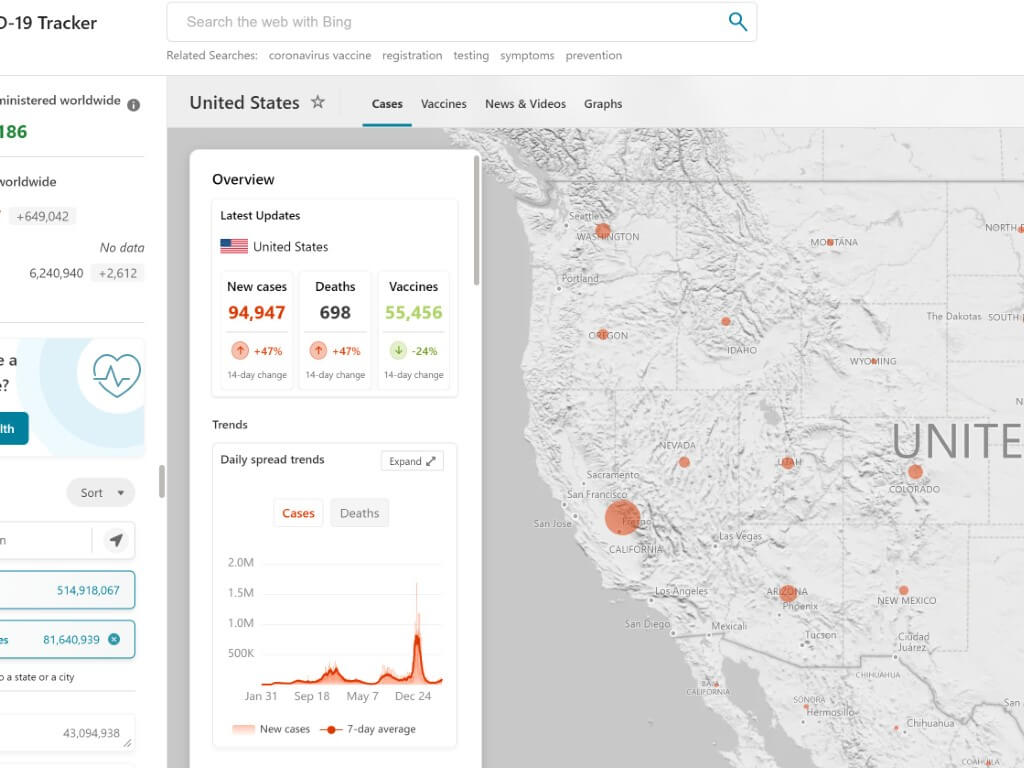

![[Video] Hands-on with the leaked “One Outlook” Windows 11 client: A glorified PWA?](https://windowsreport.com/wp-content/uploads/2024/04/Oneoutlook-4.jpg)
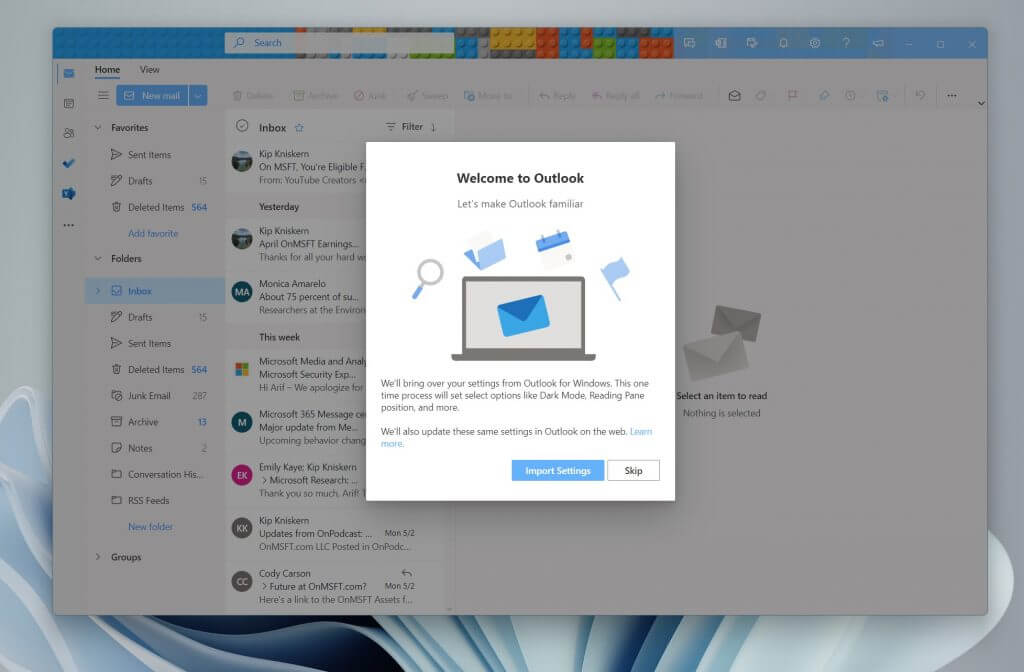
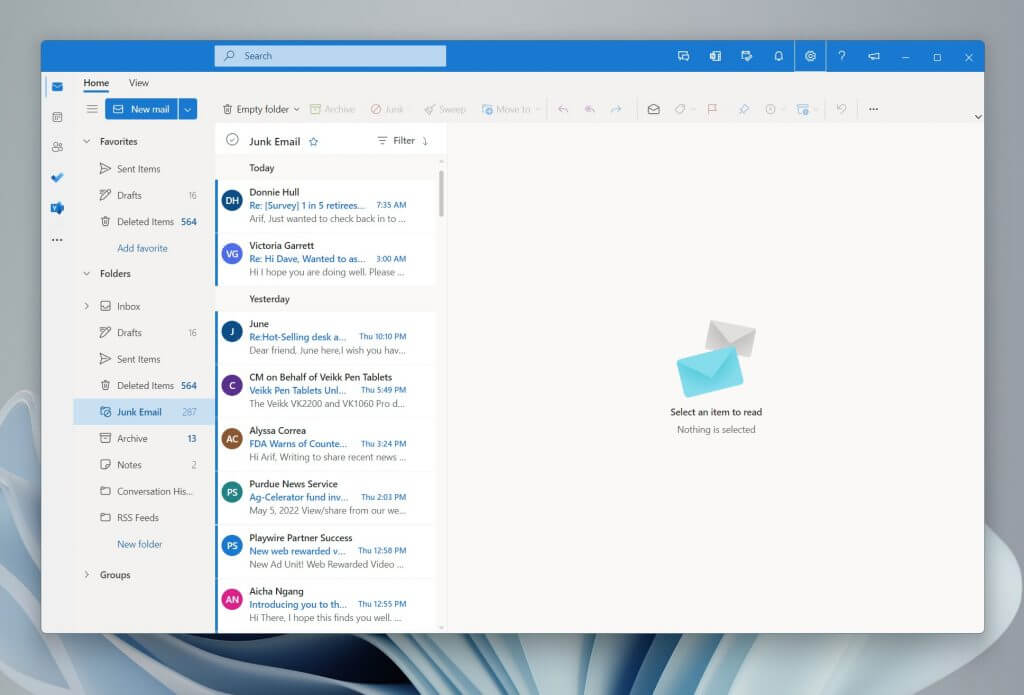
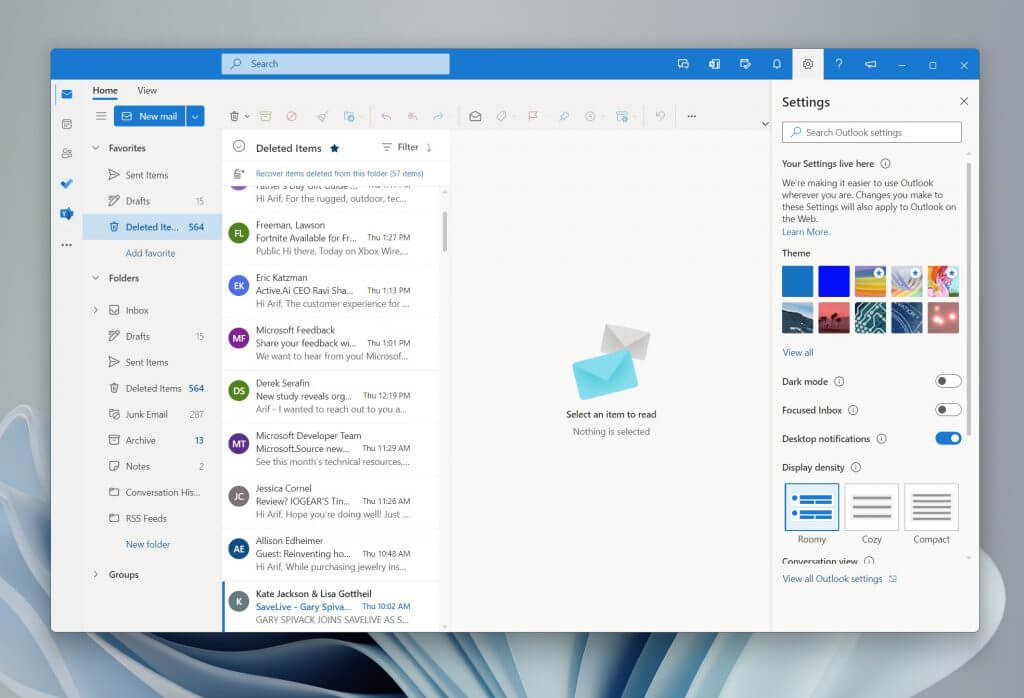
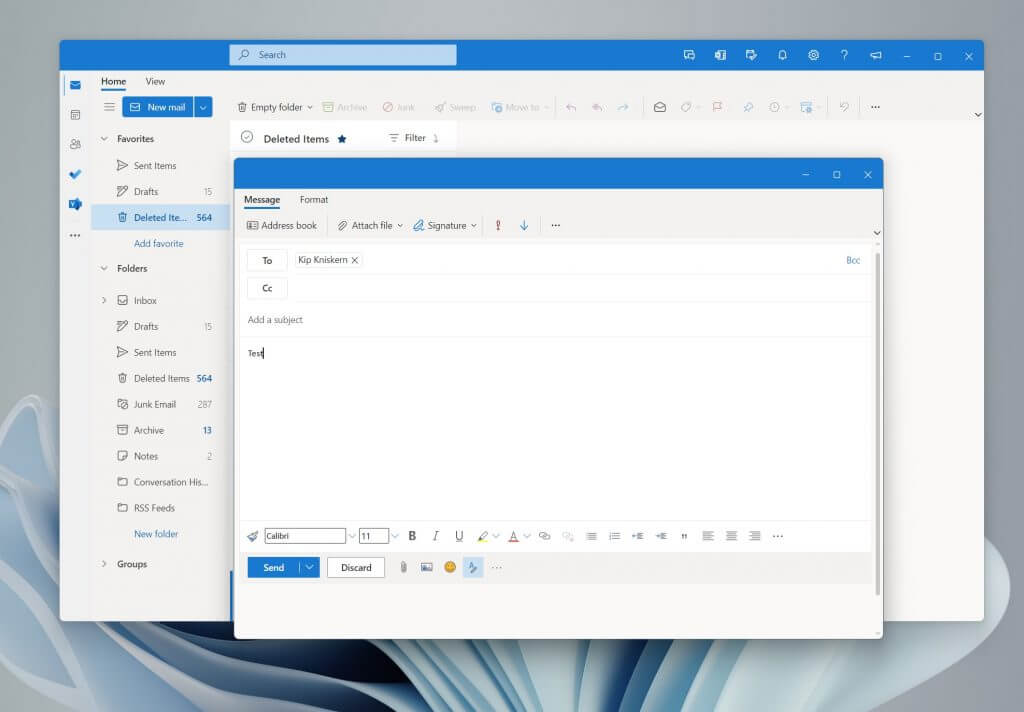
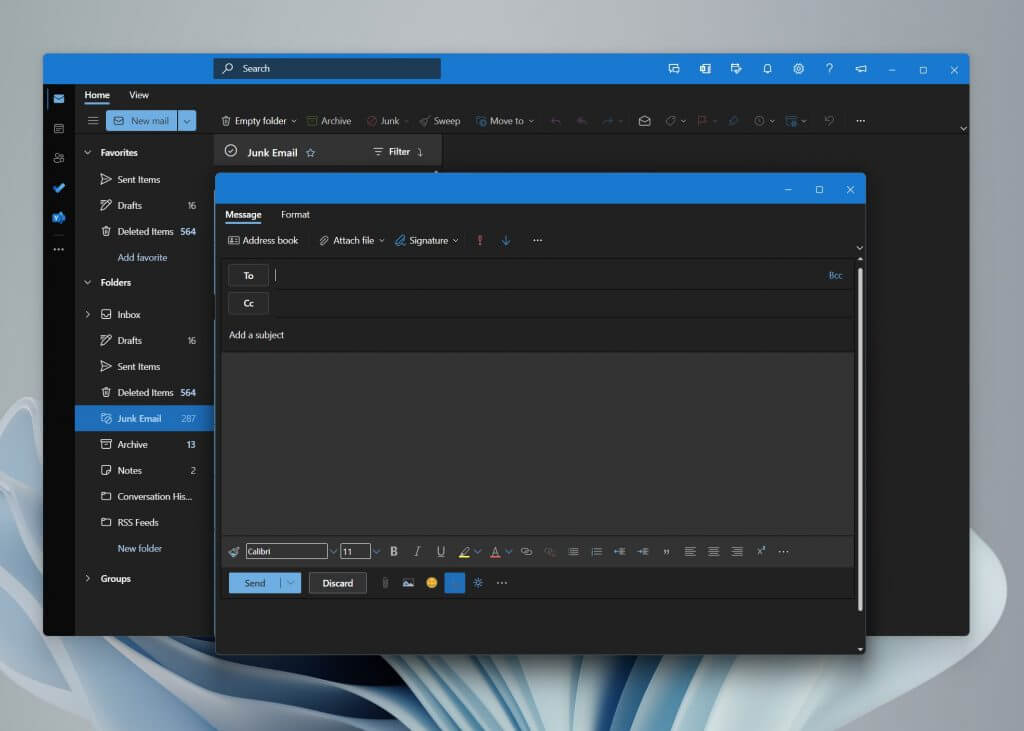
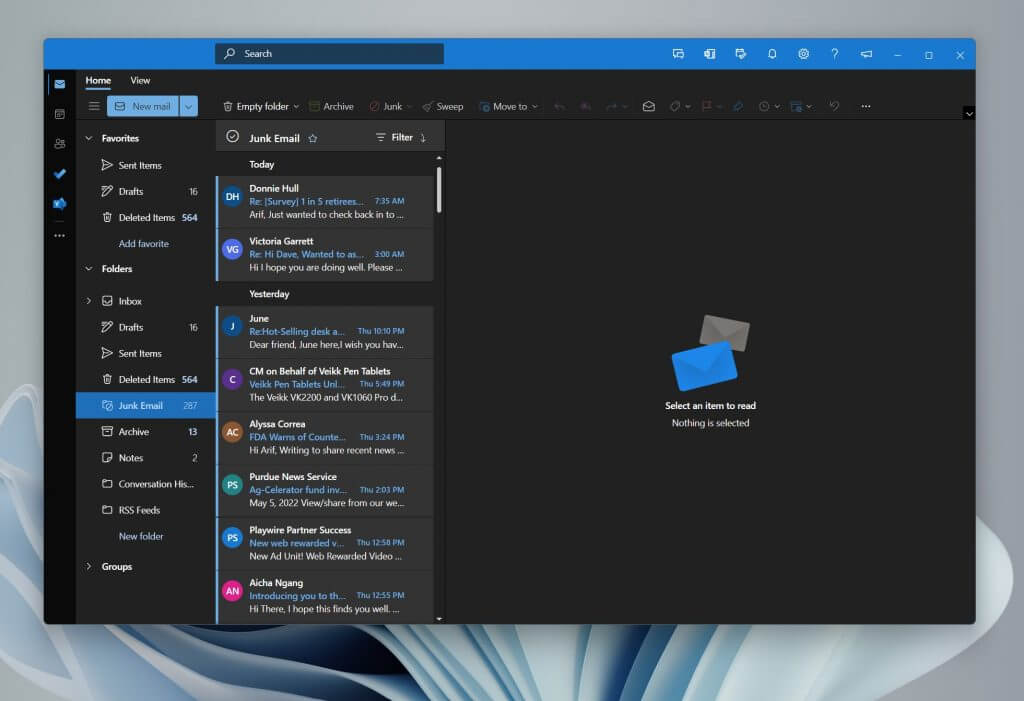
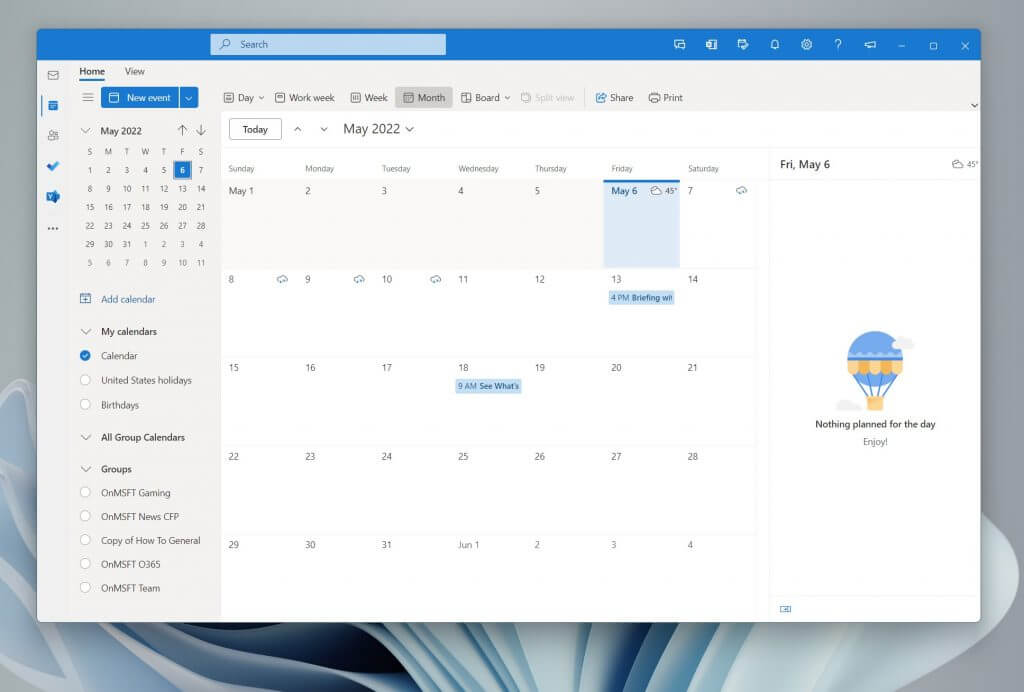
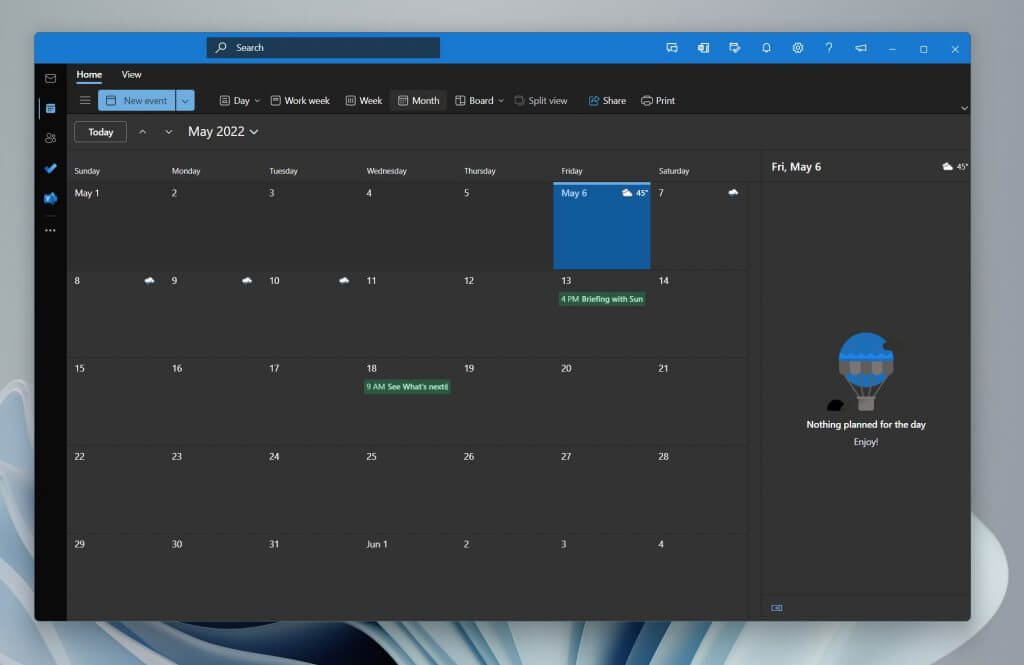
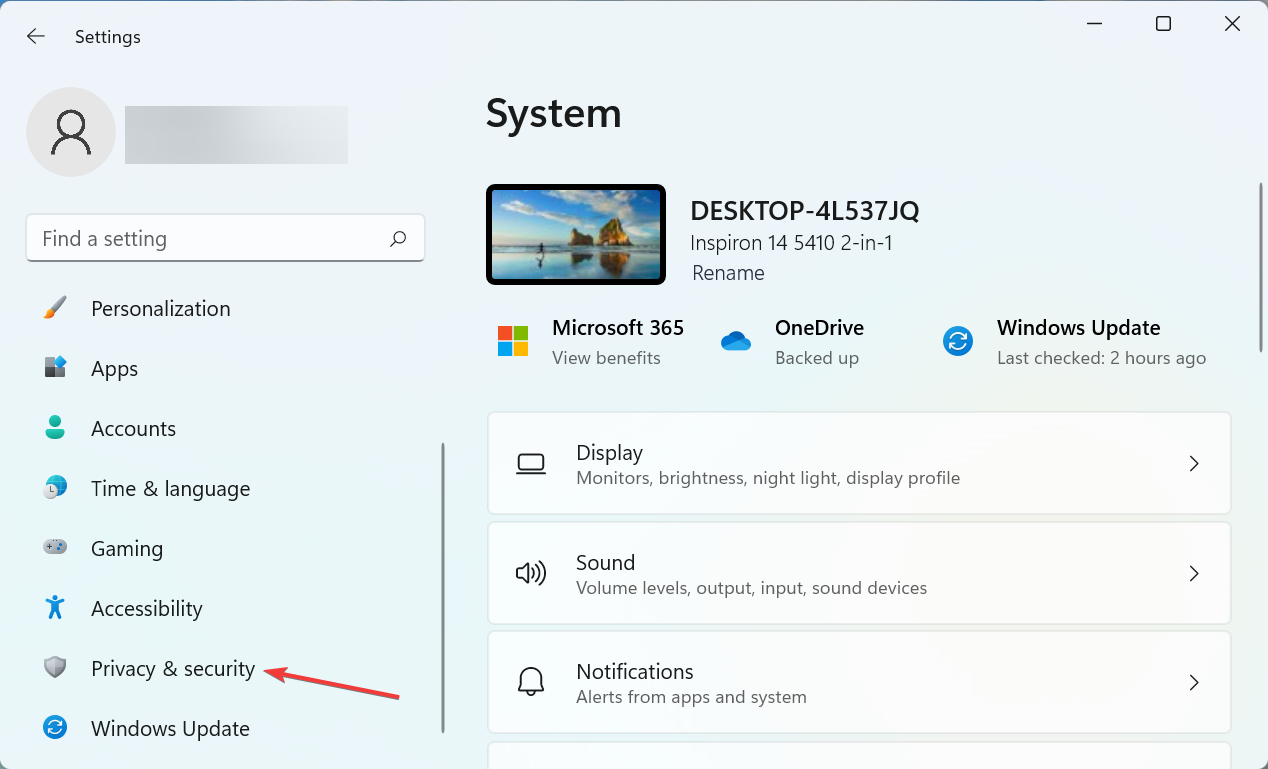
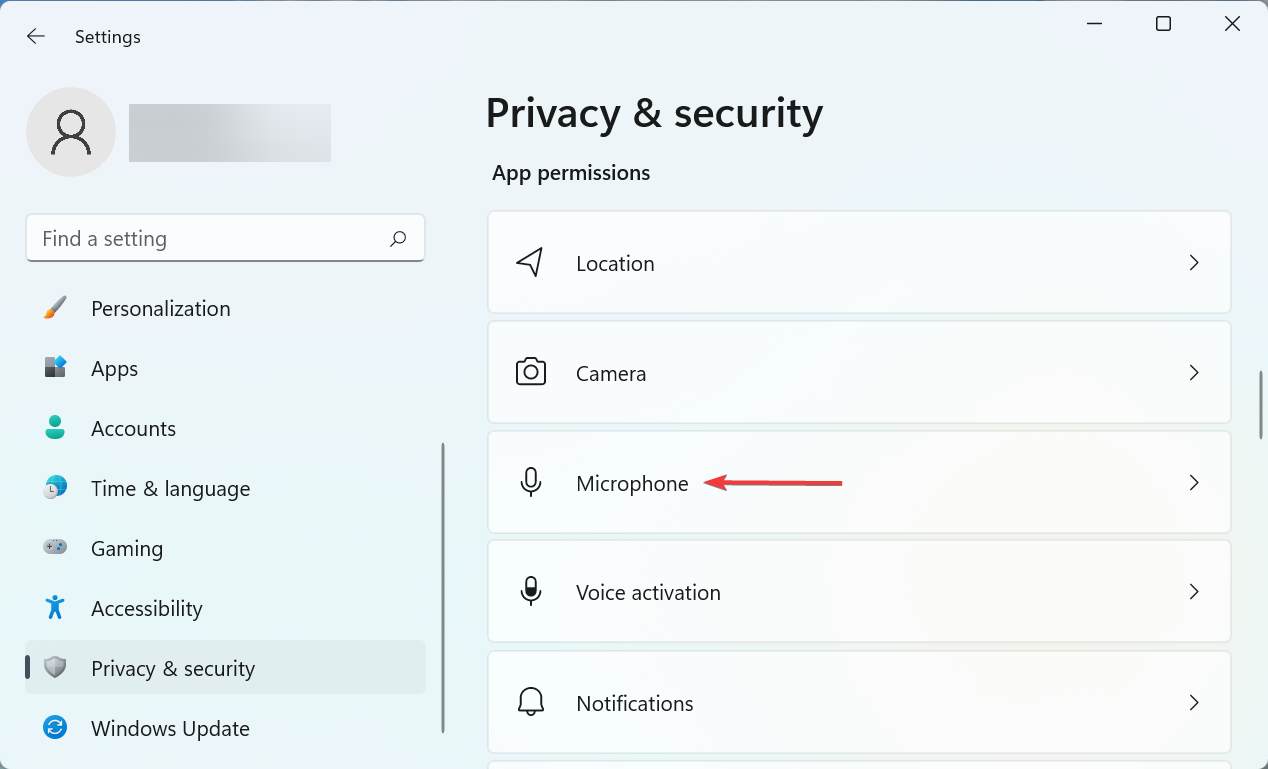
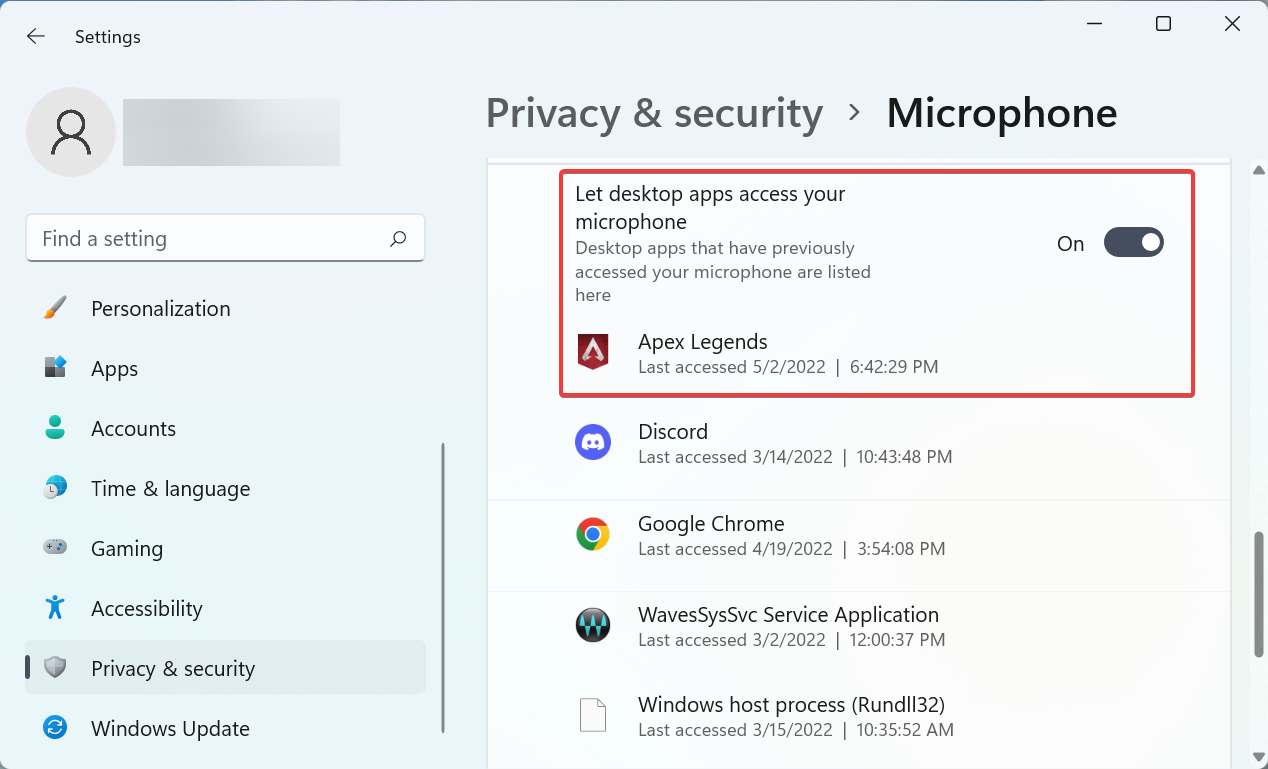
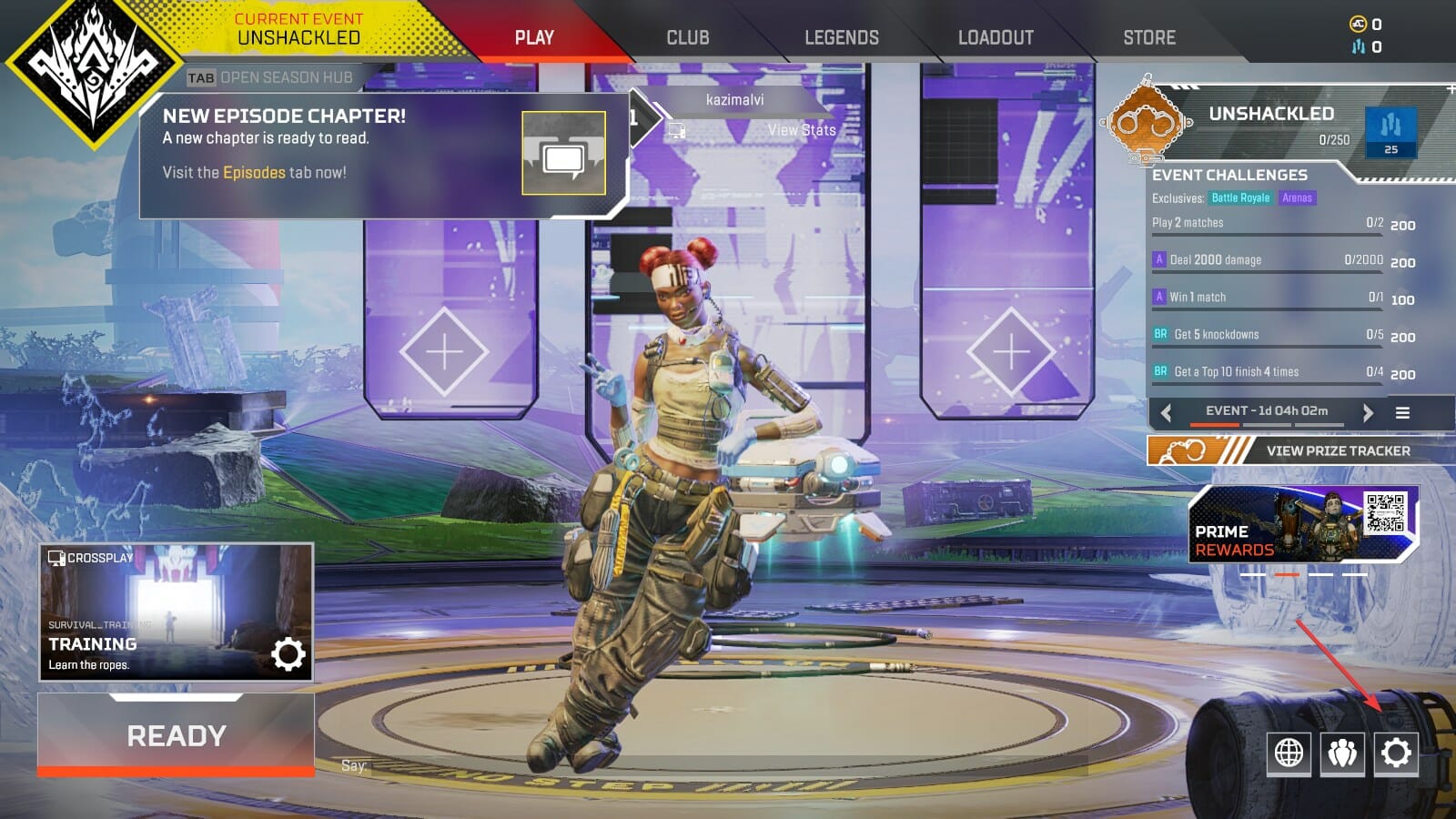
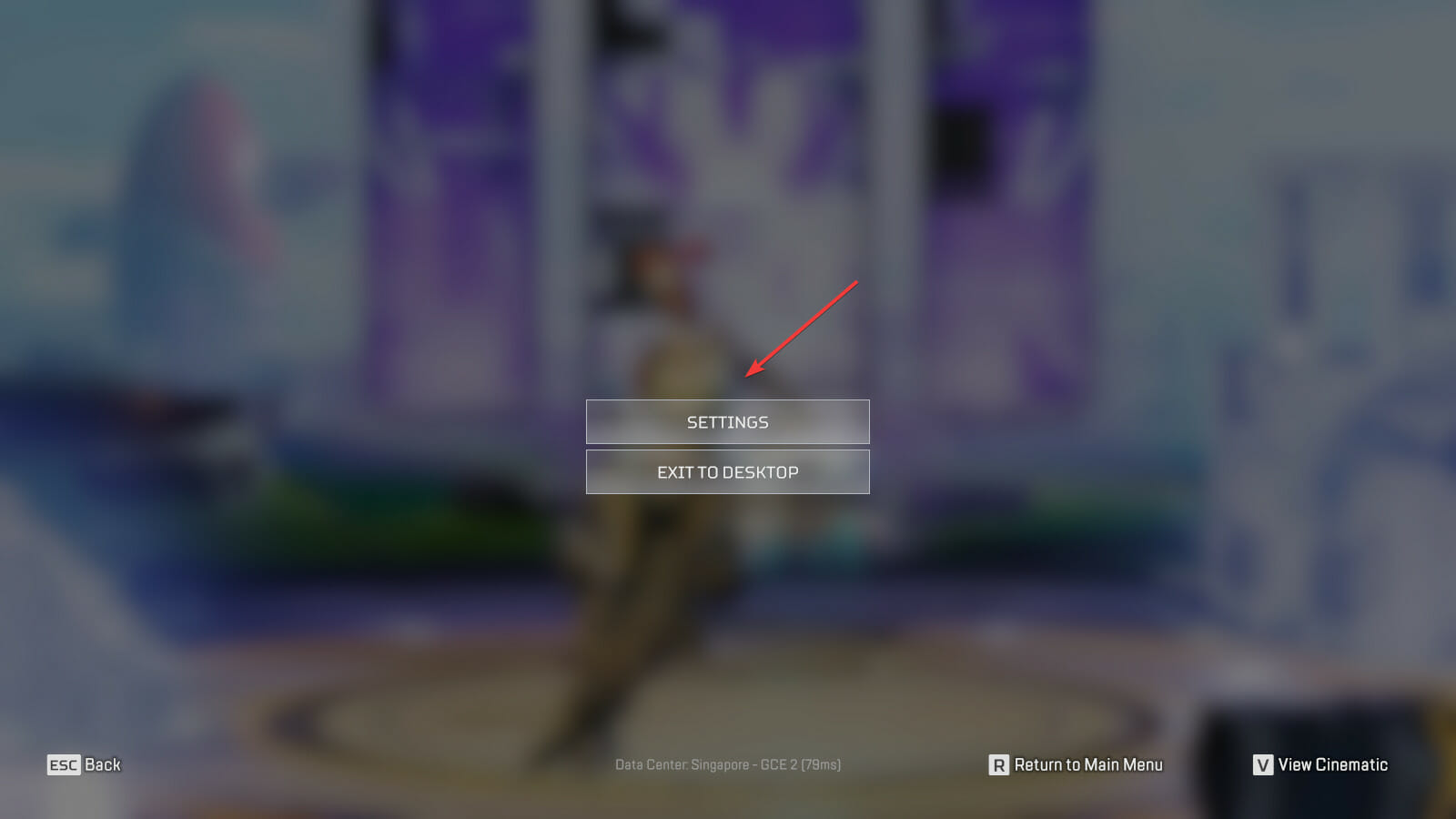
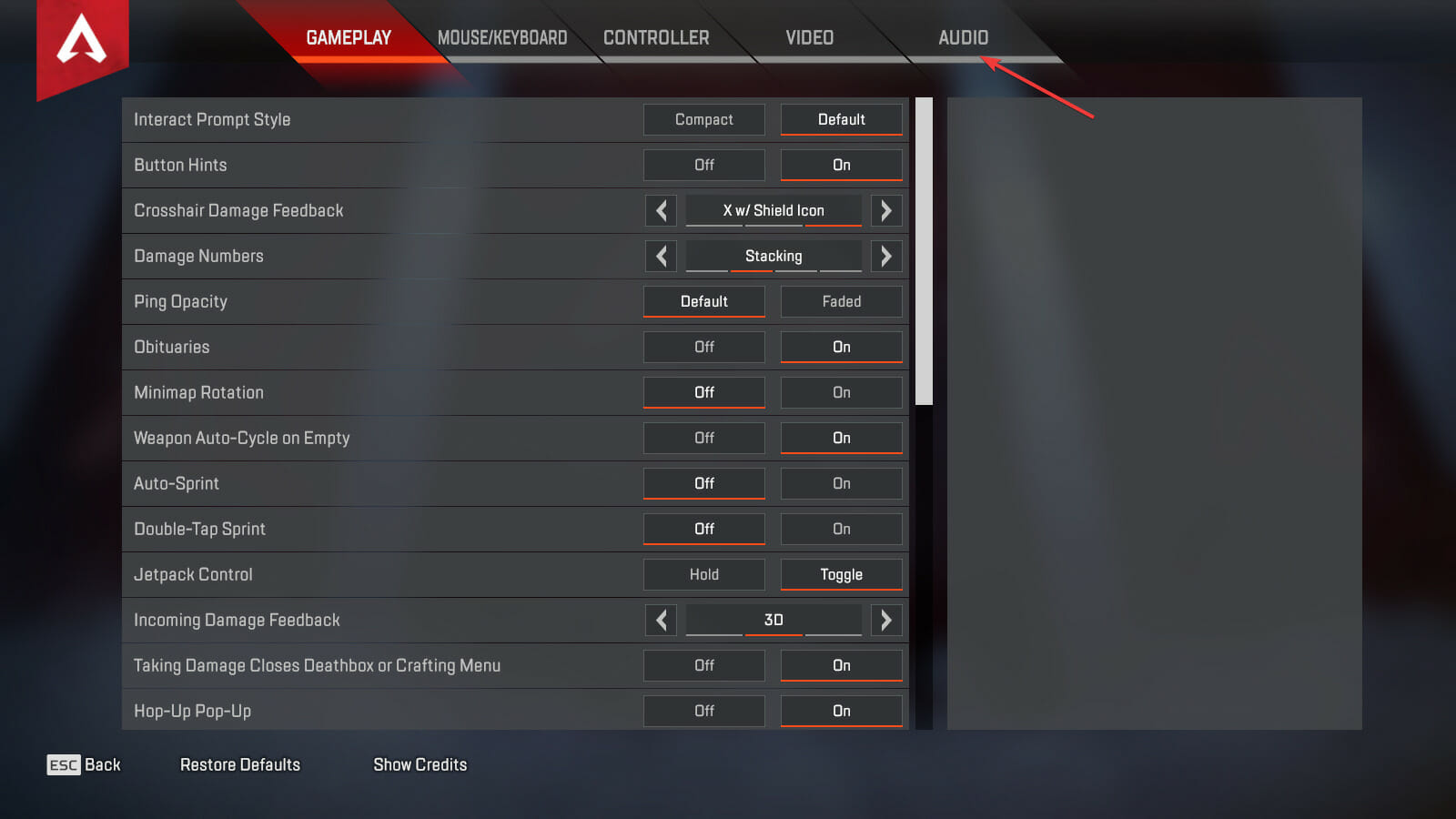
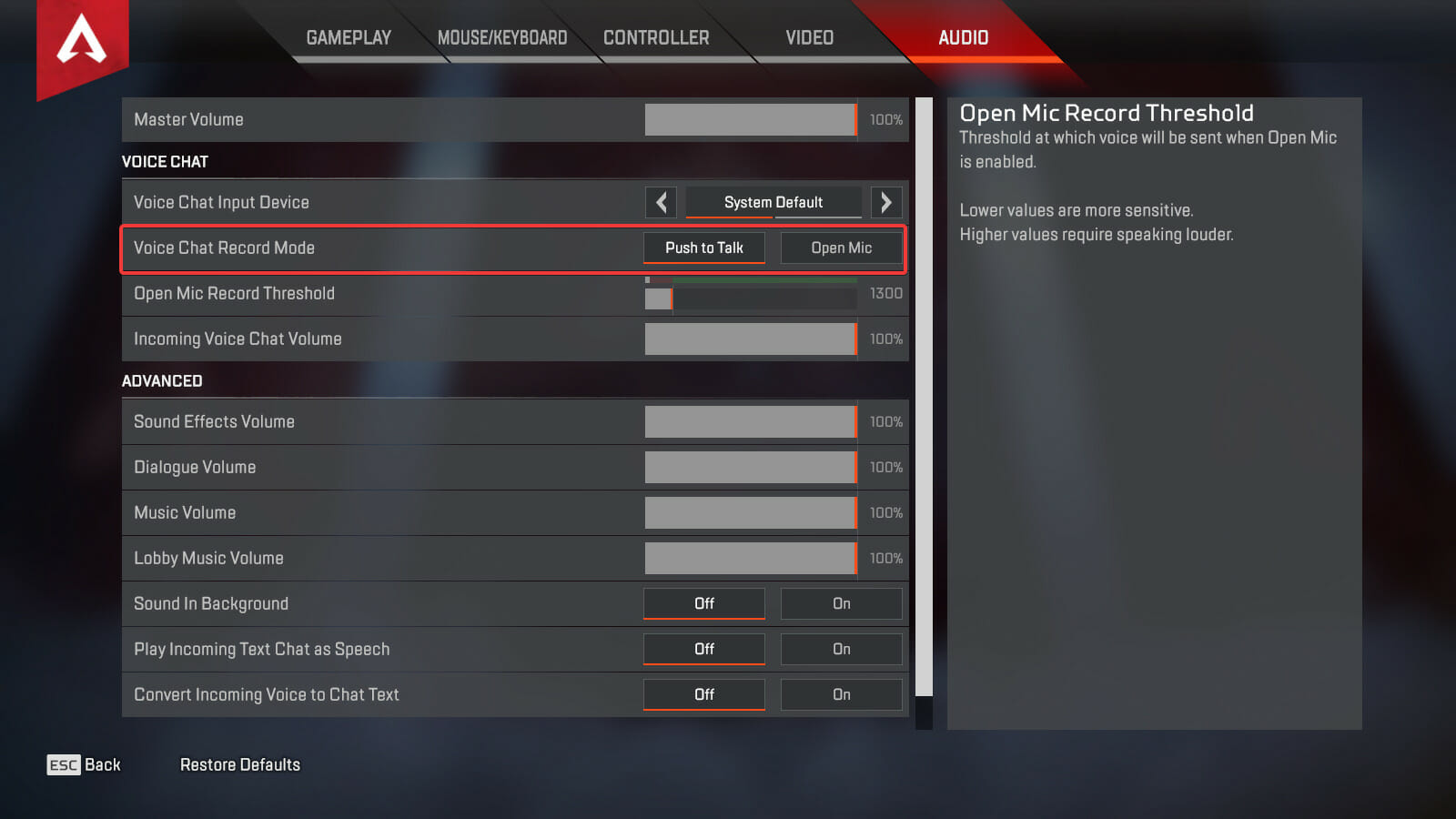
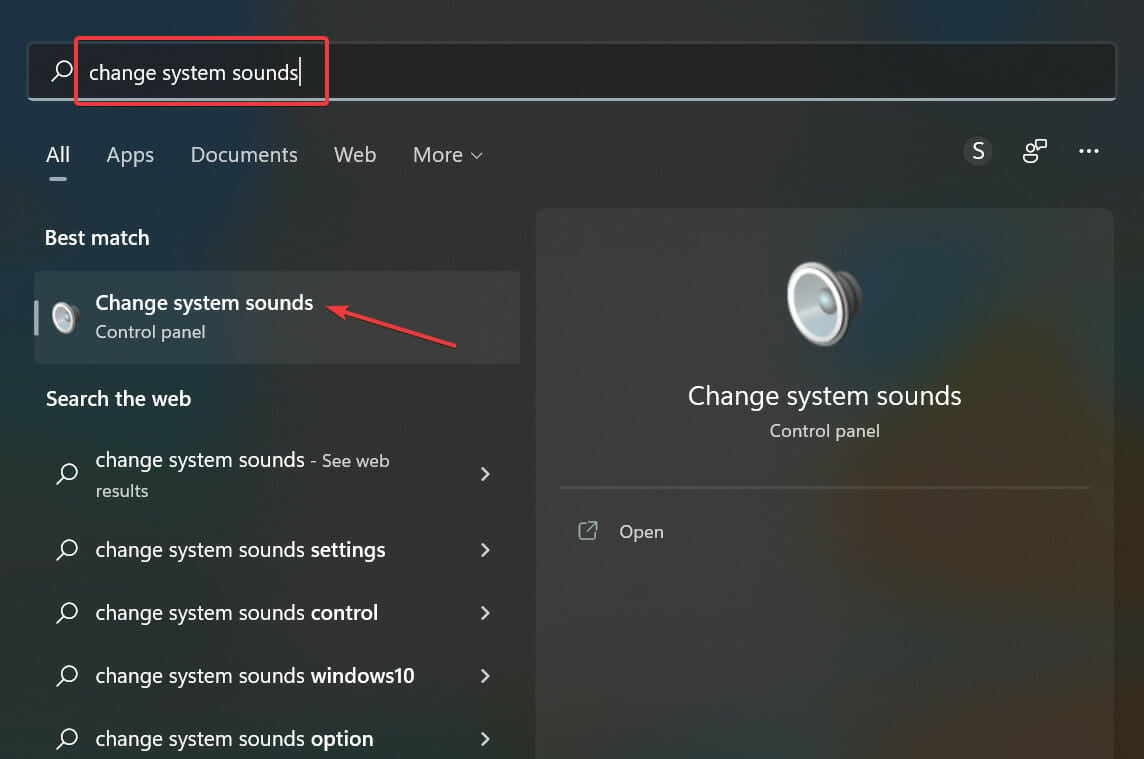
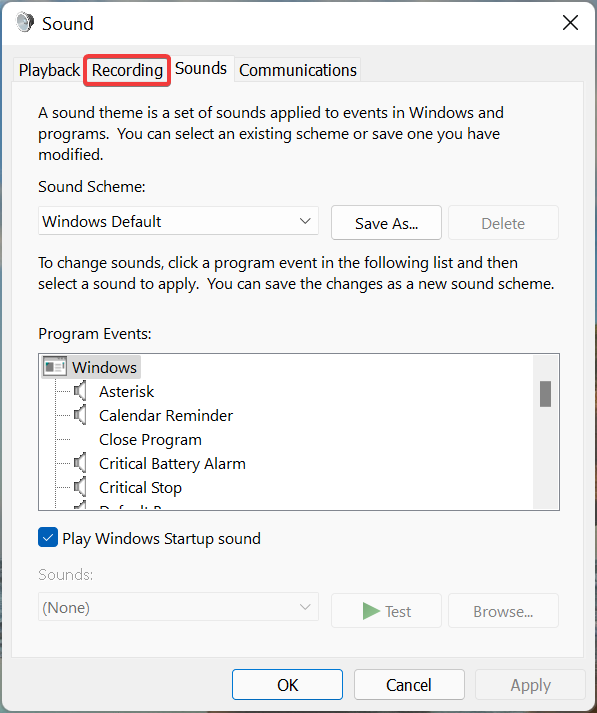
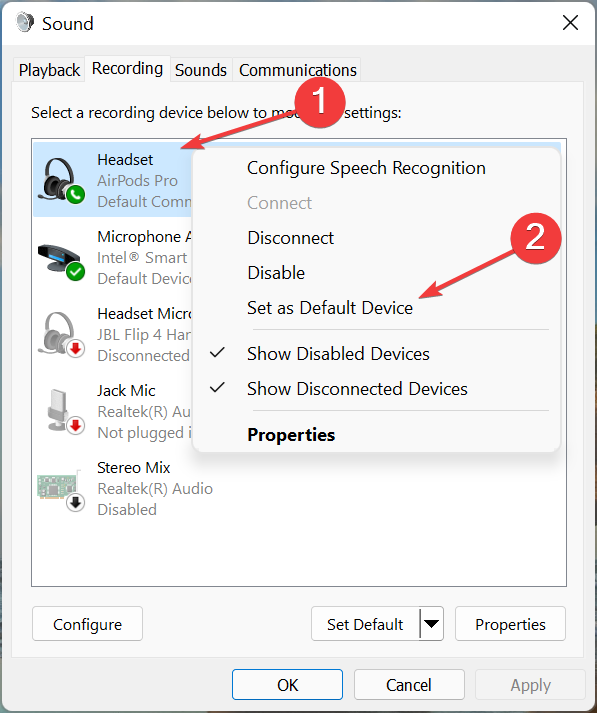
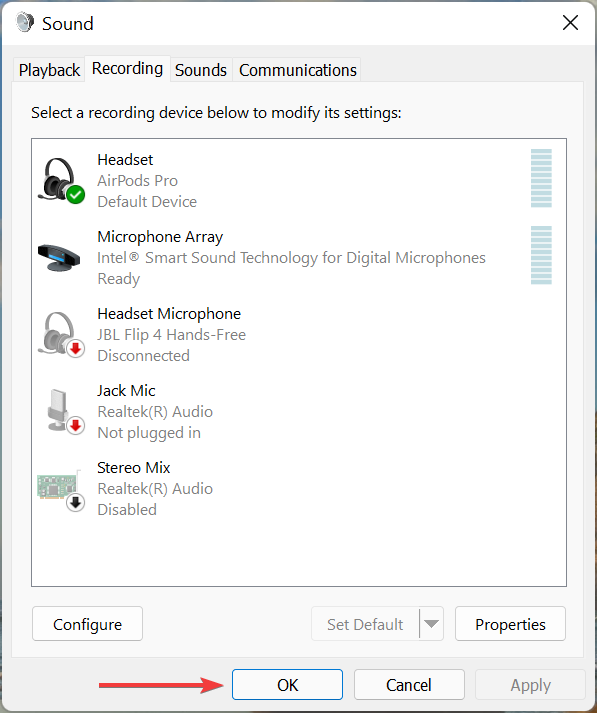

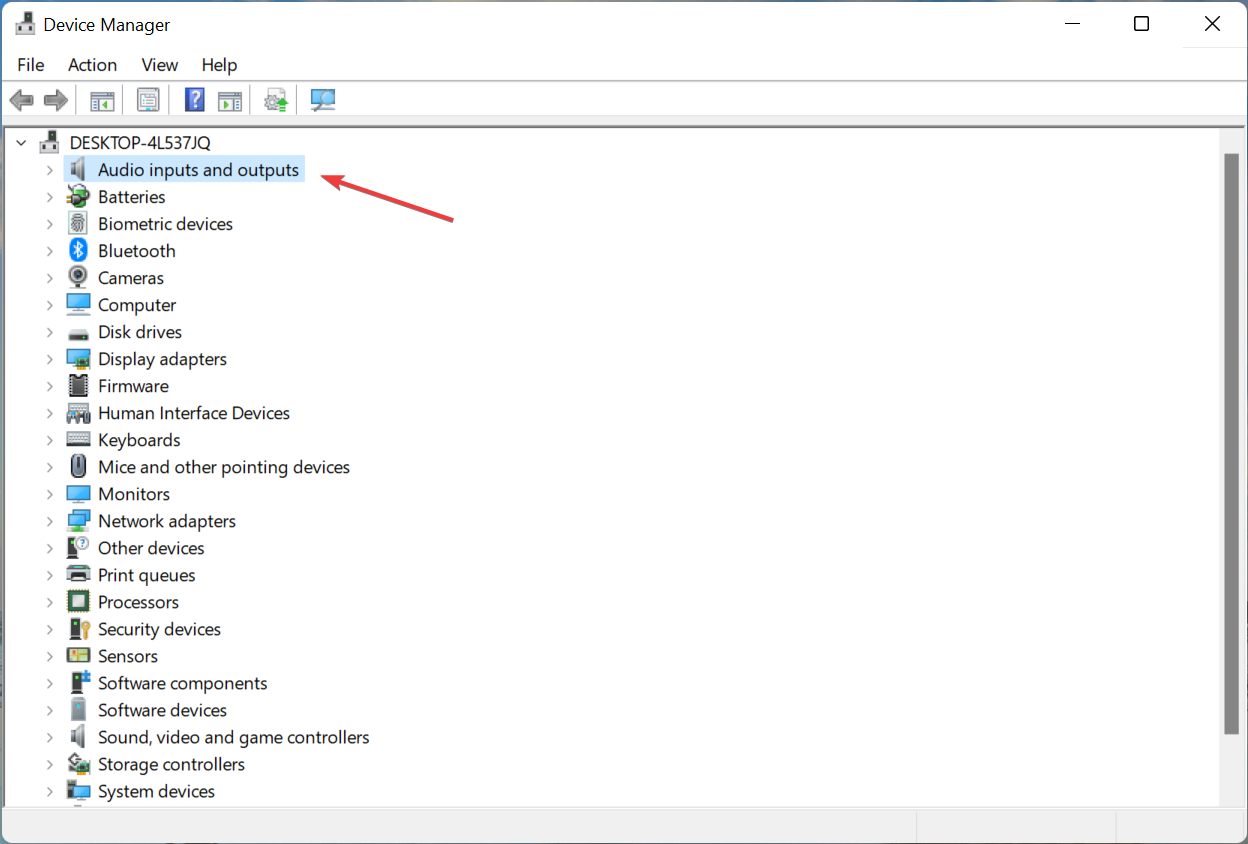
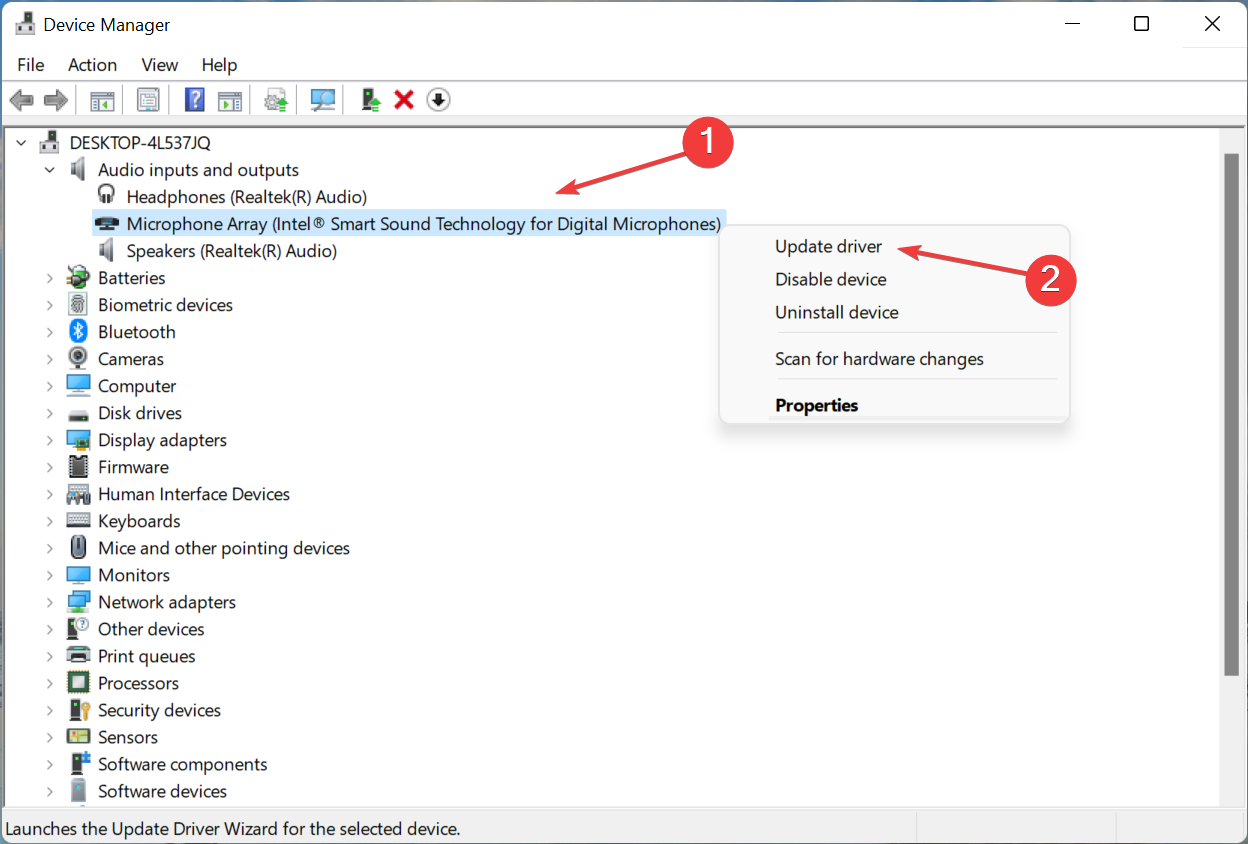
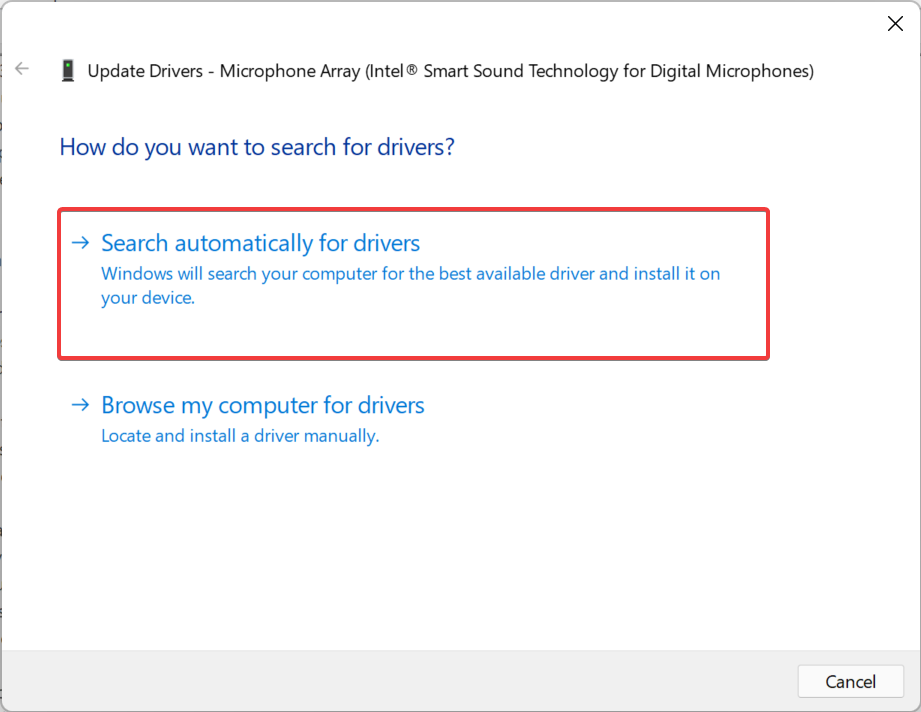
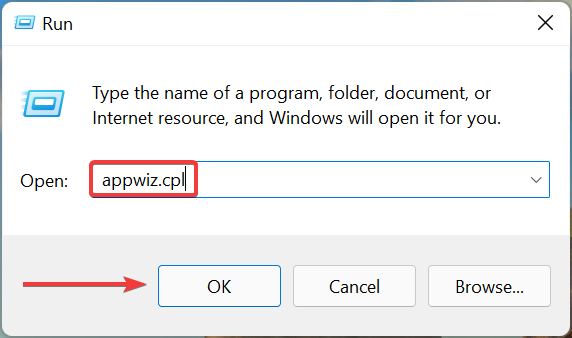
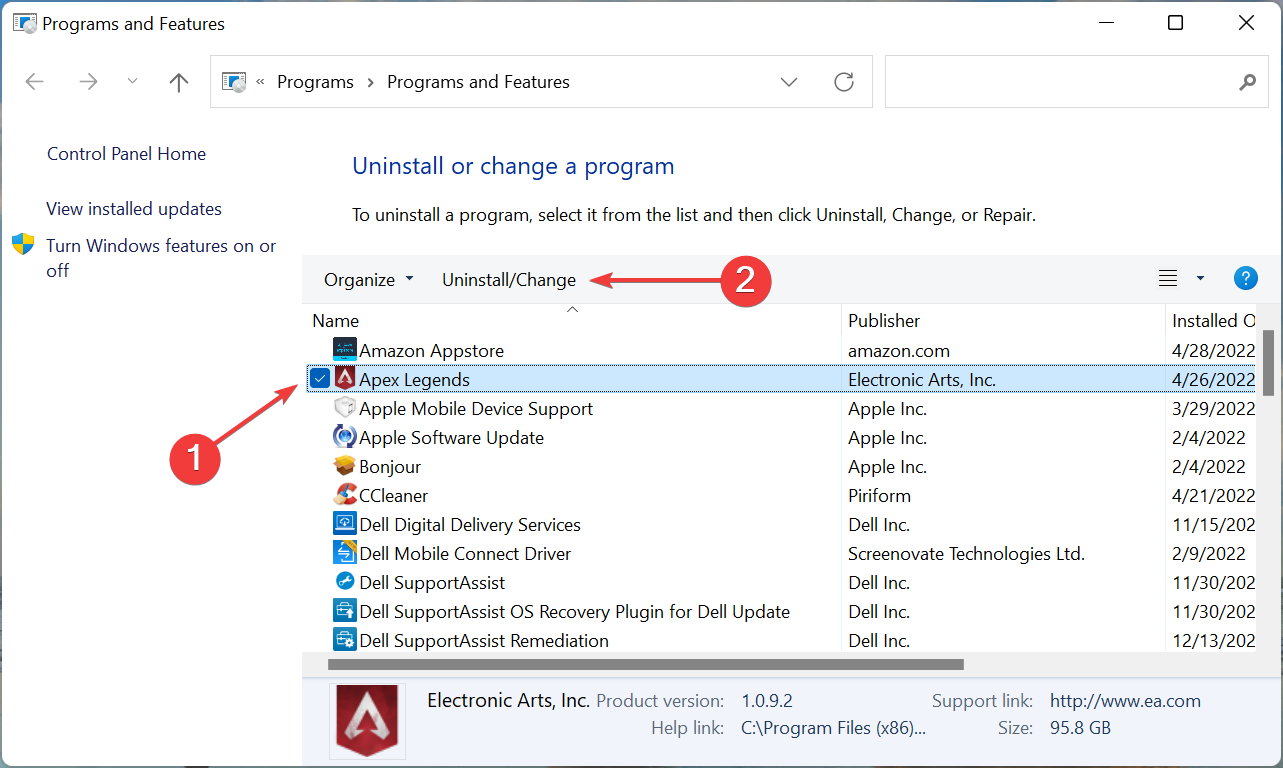
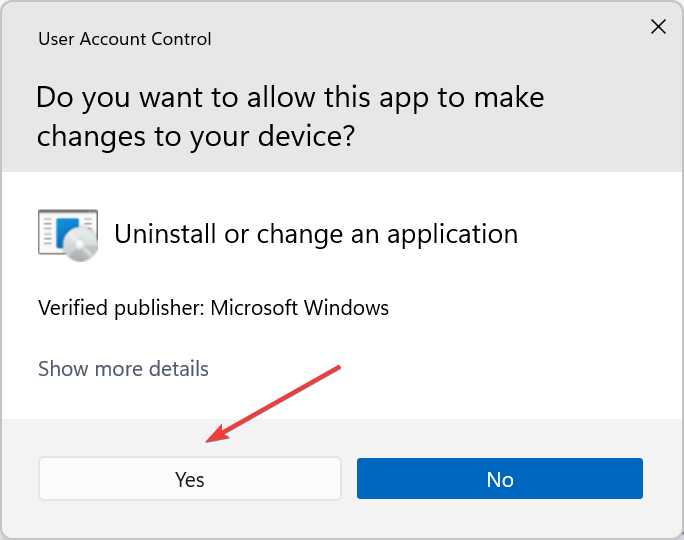
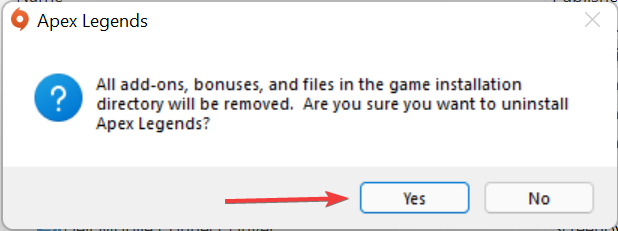

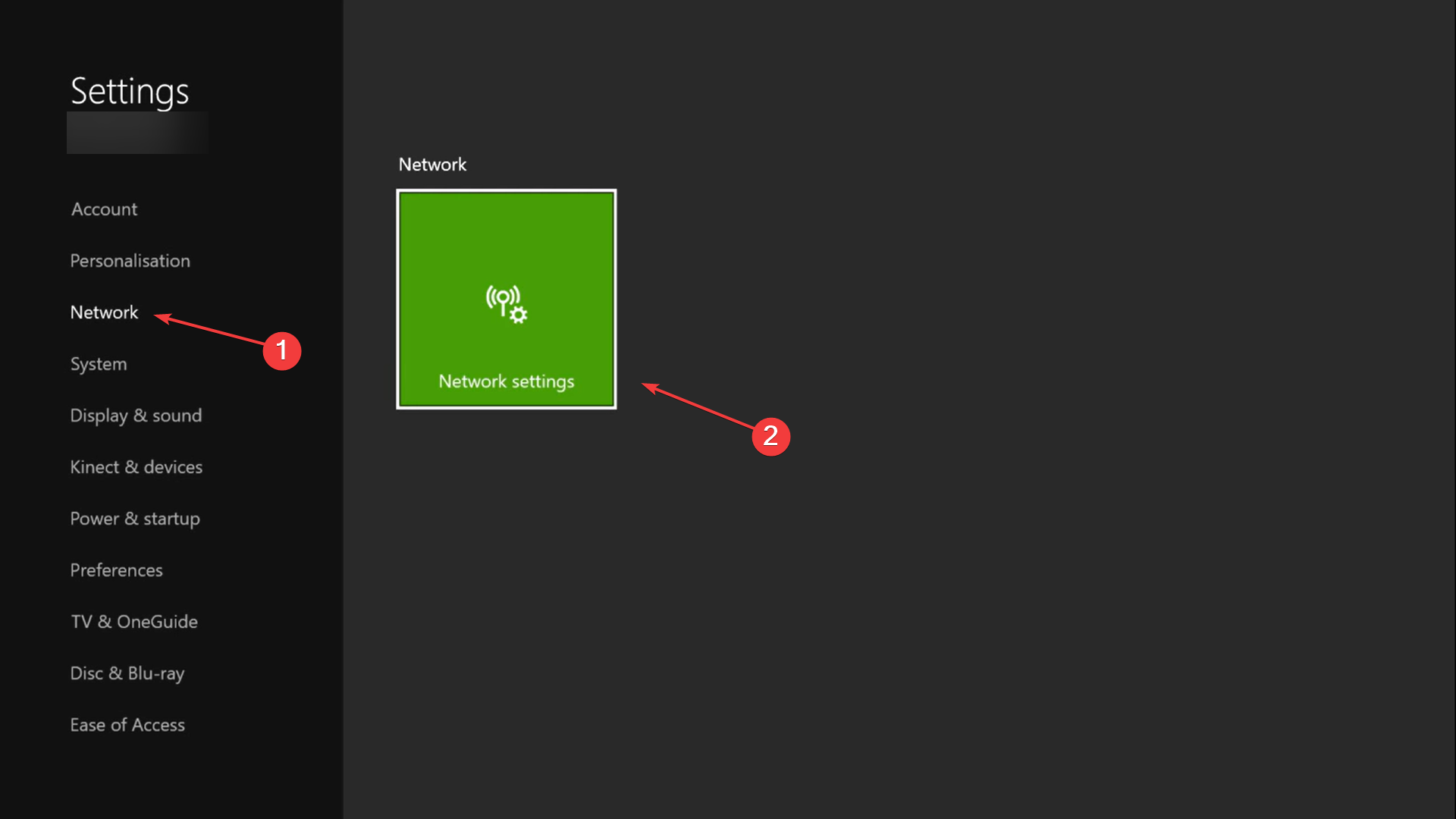
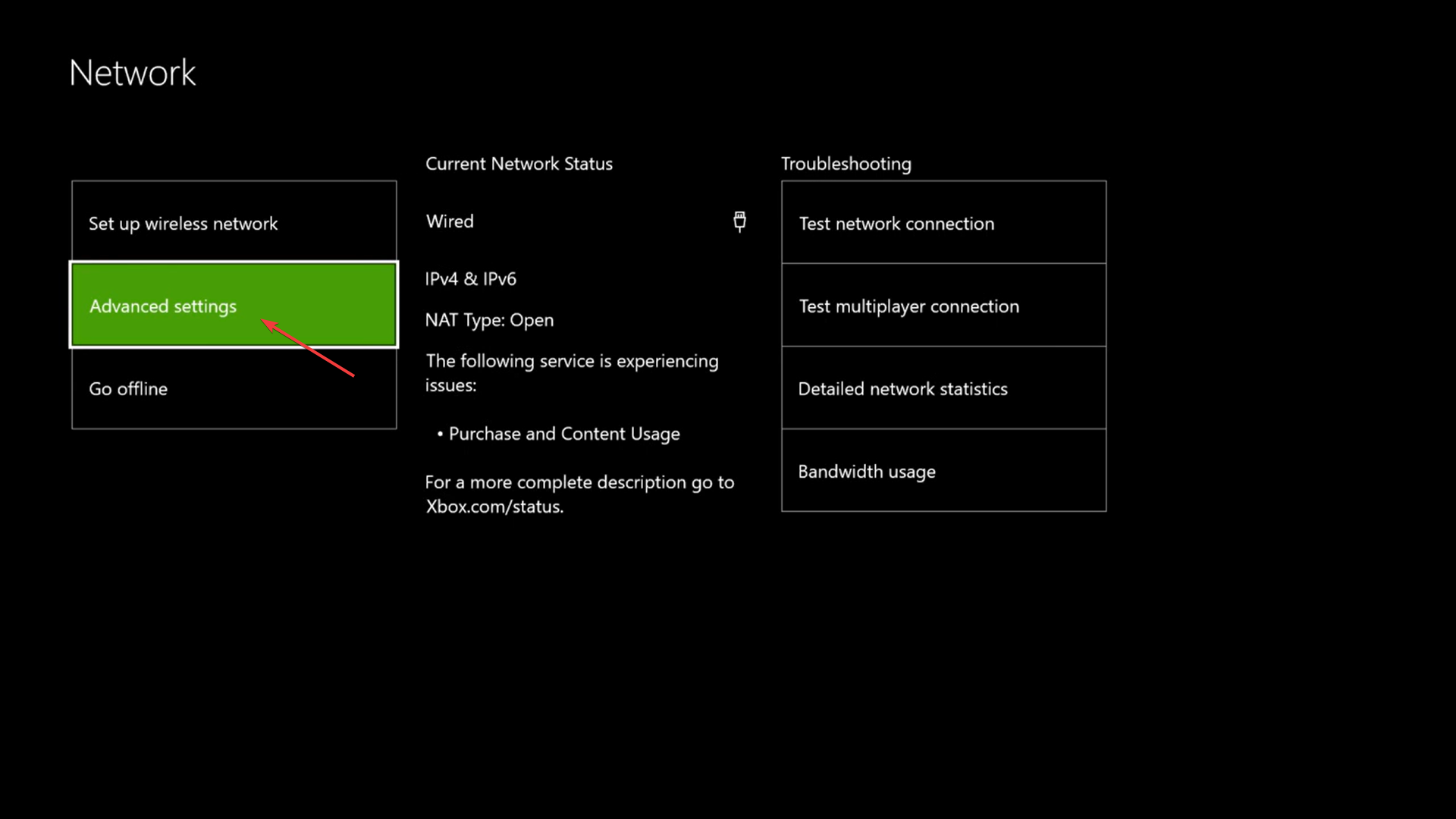
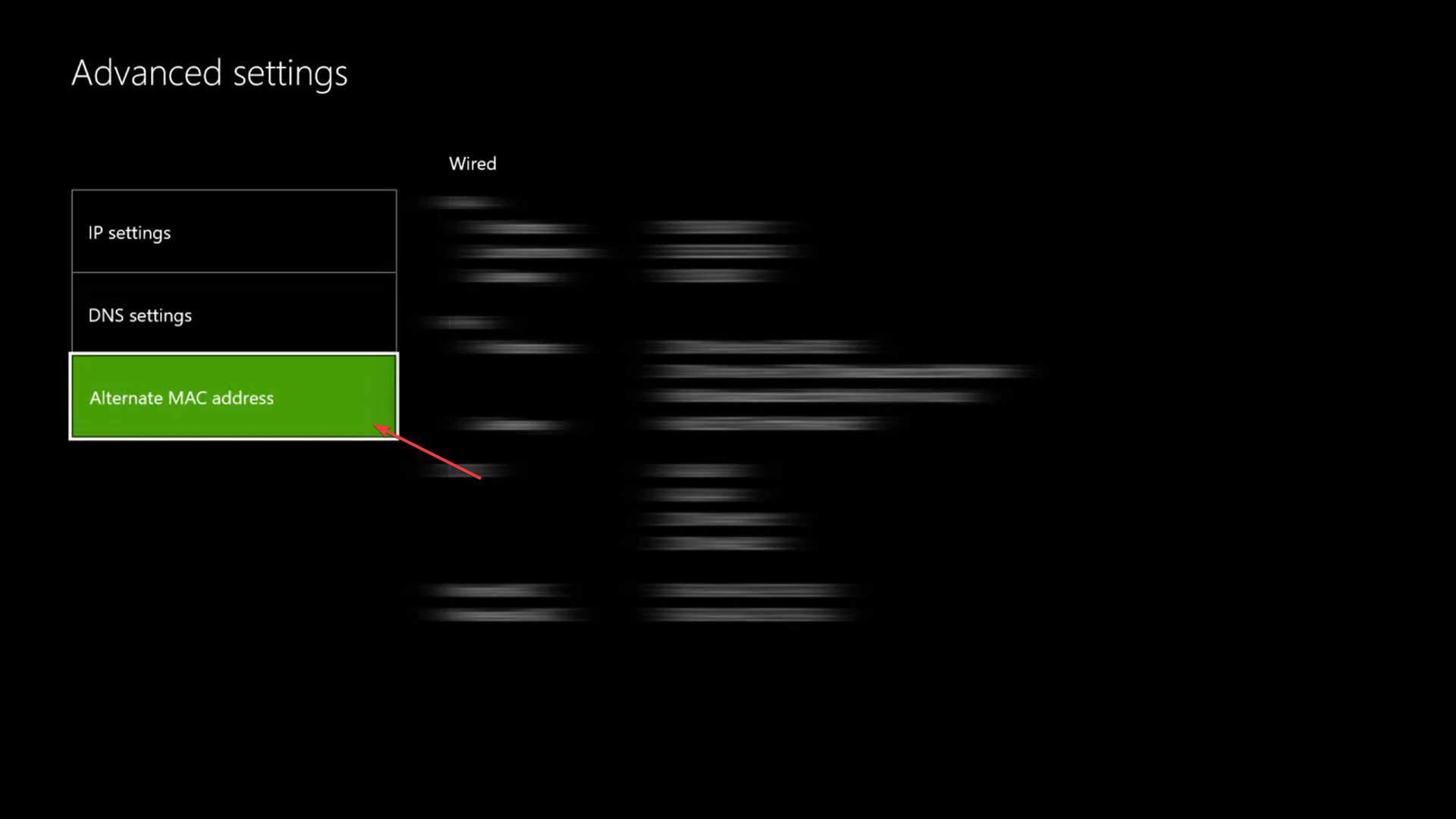


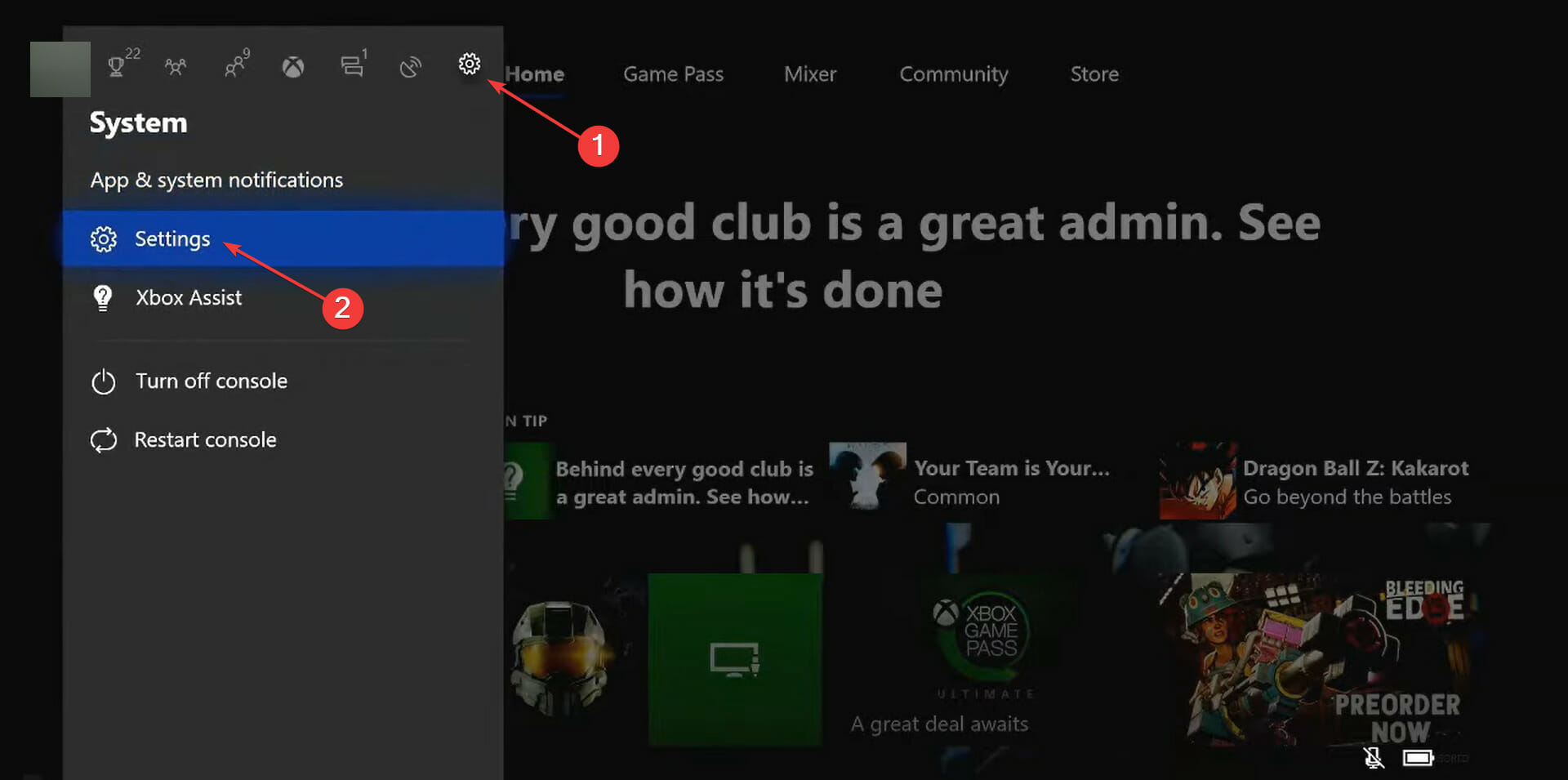
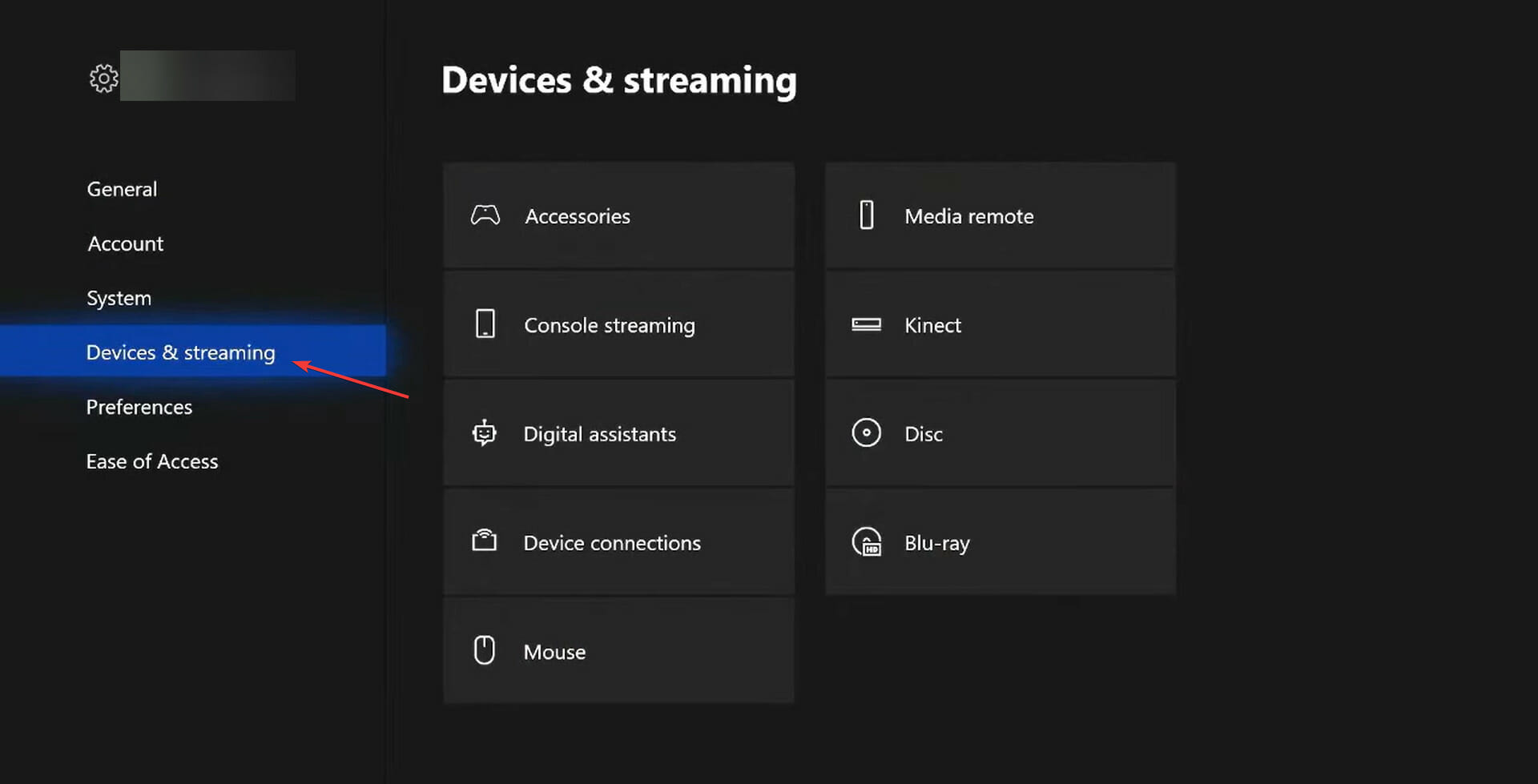
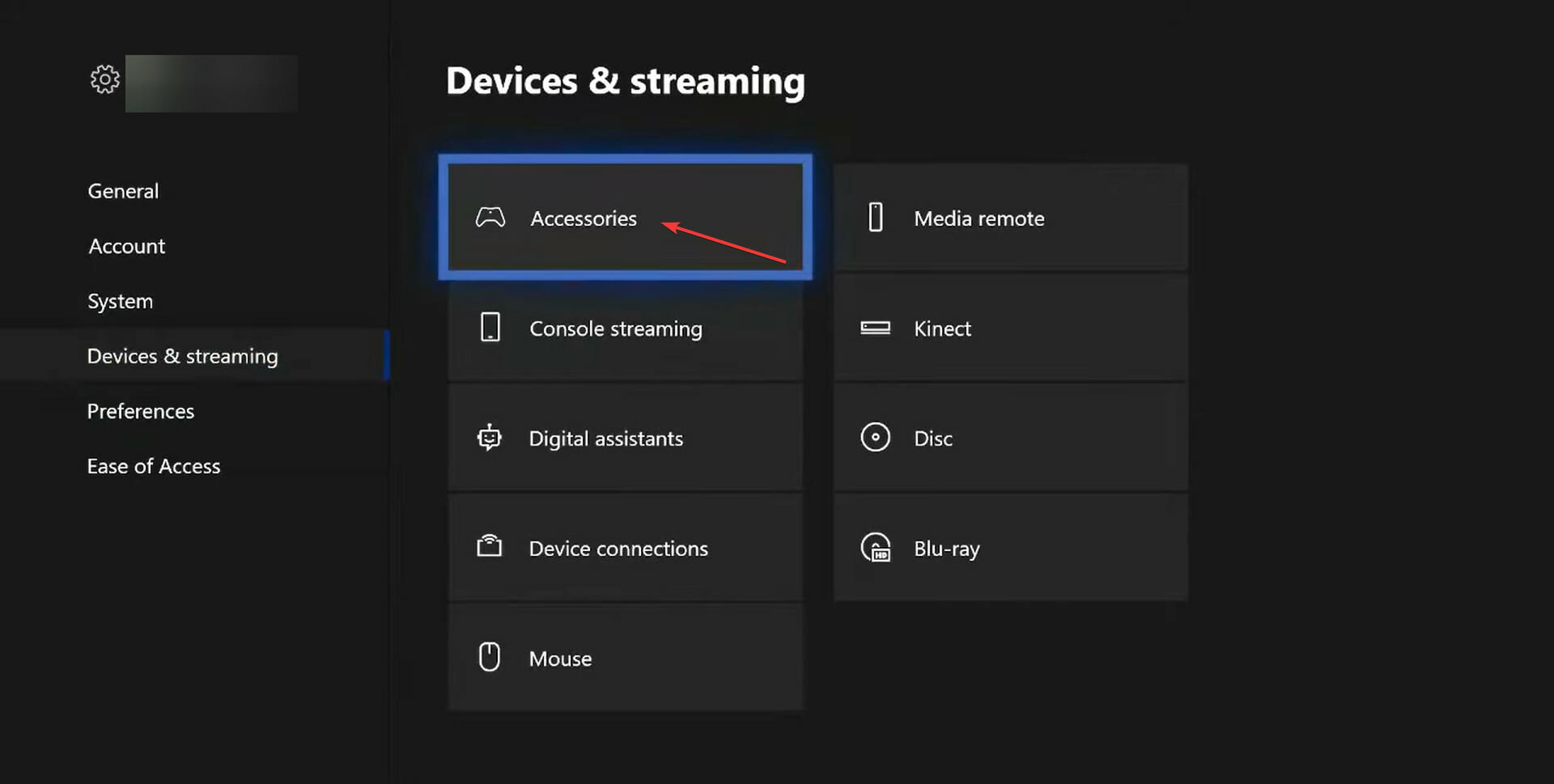
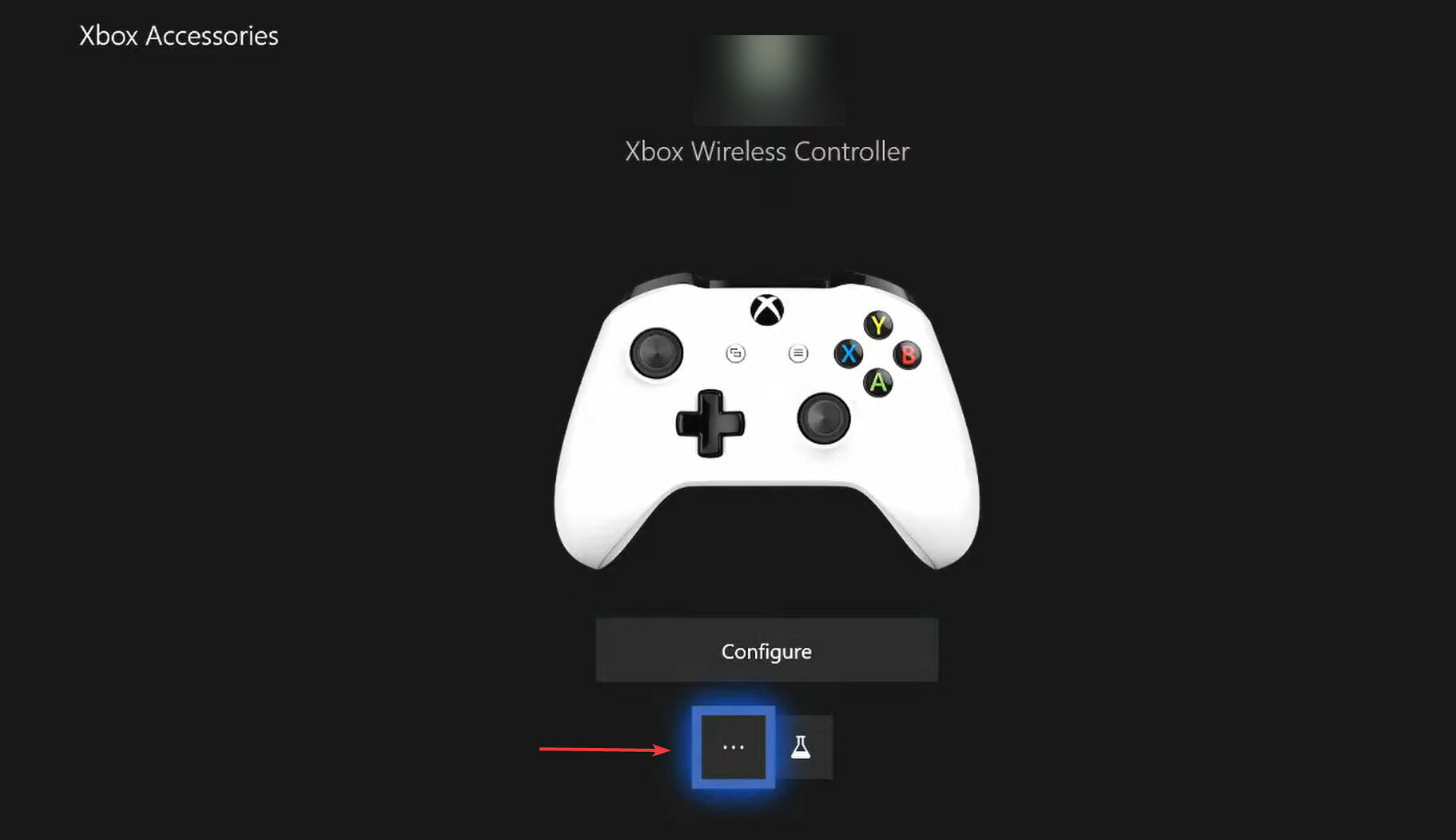
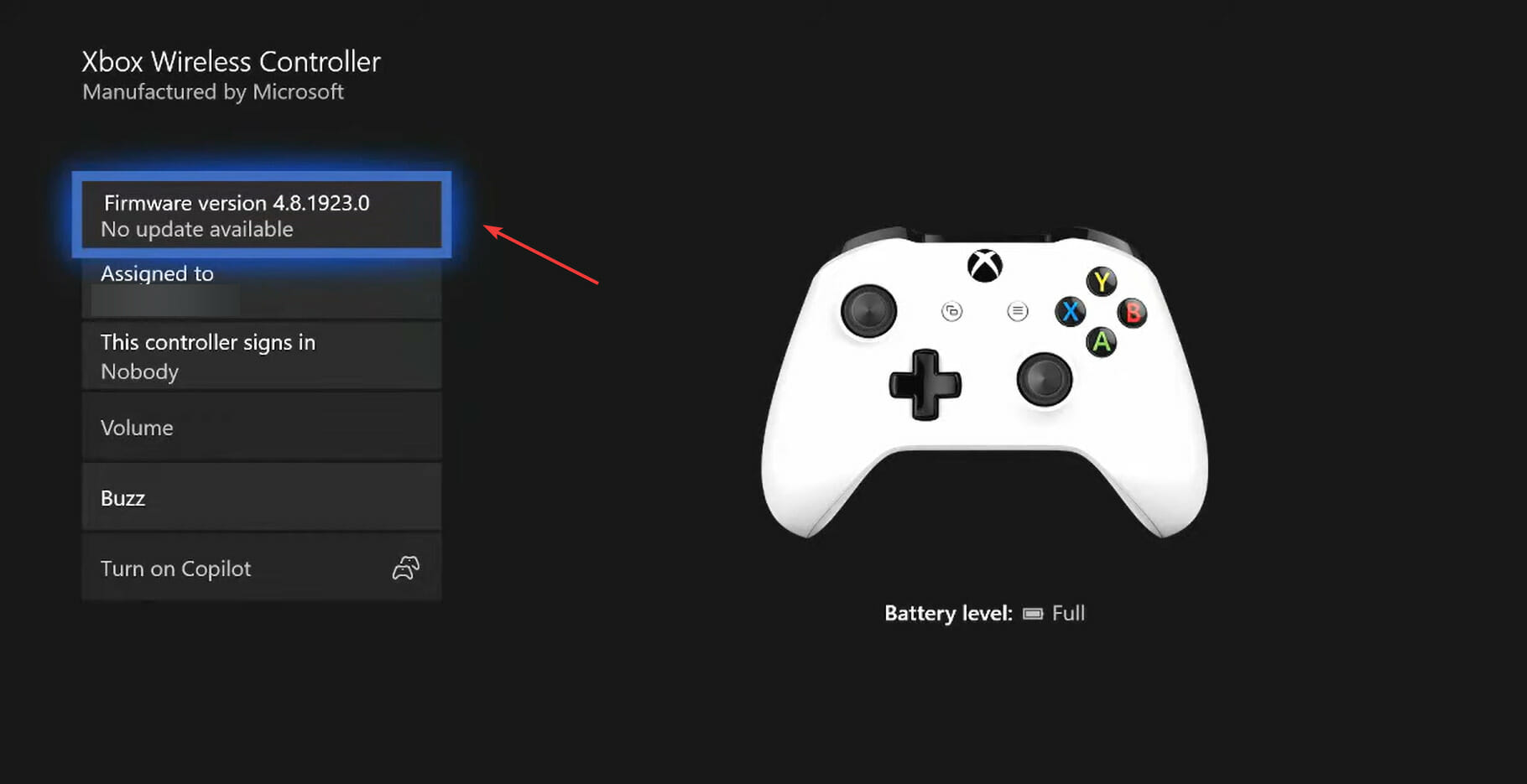
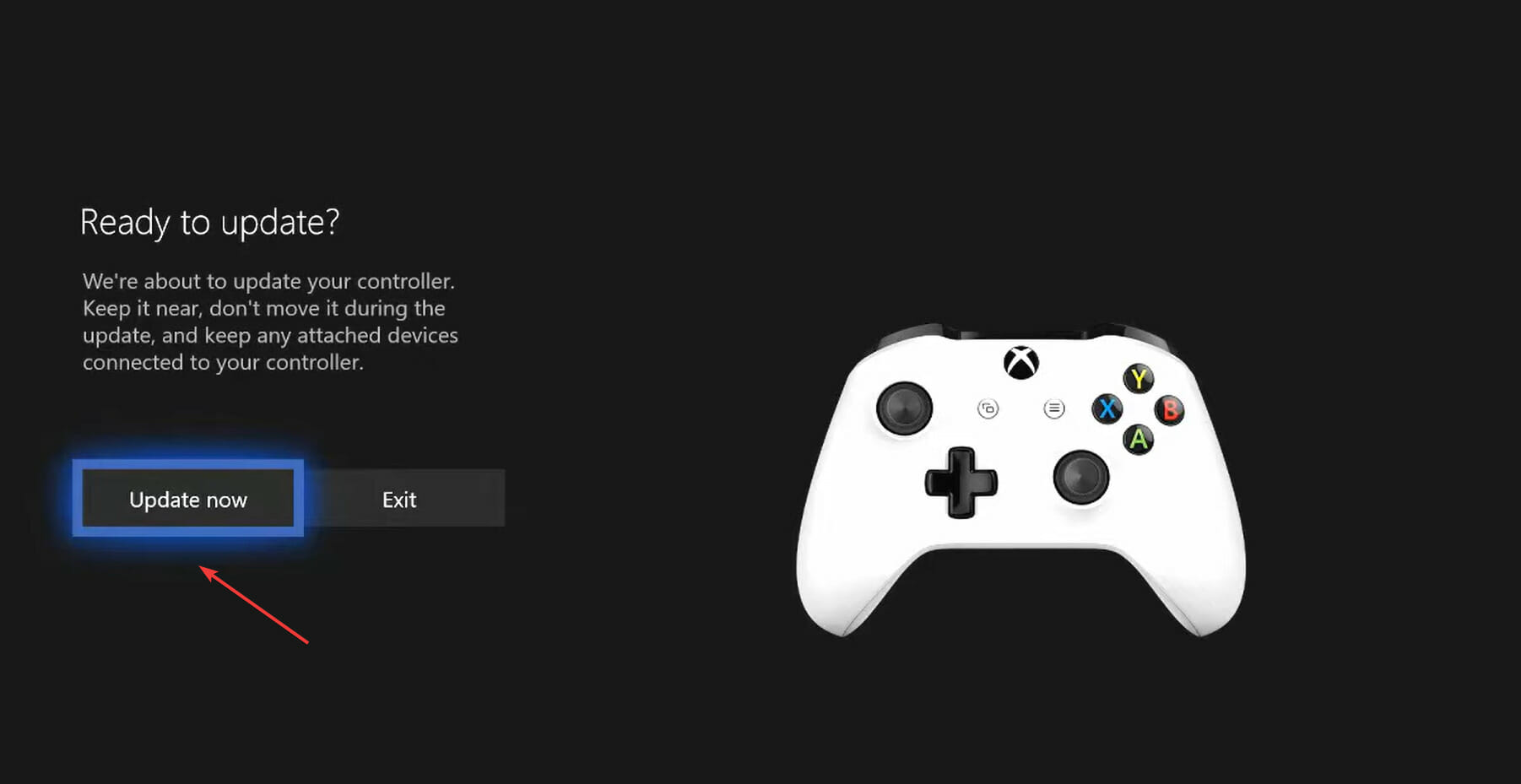
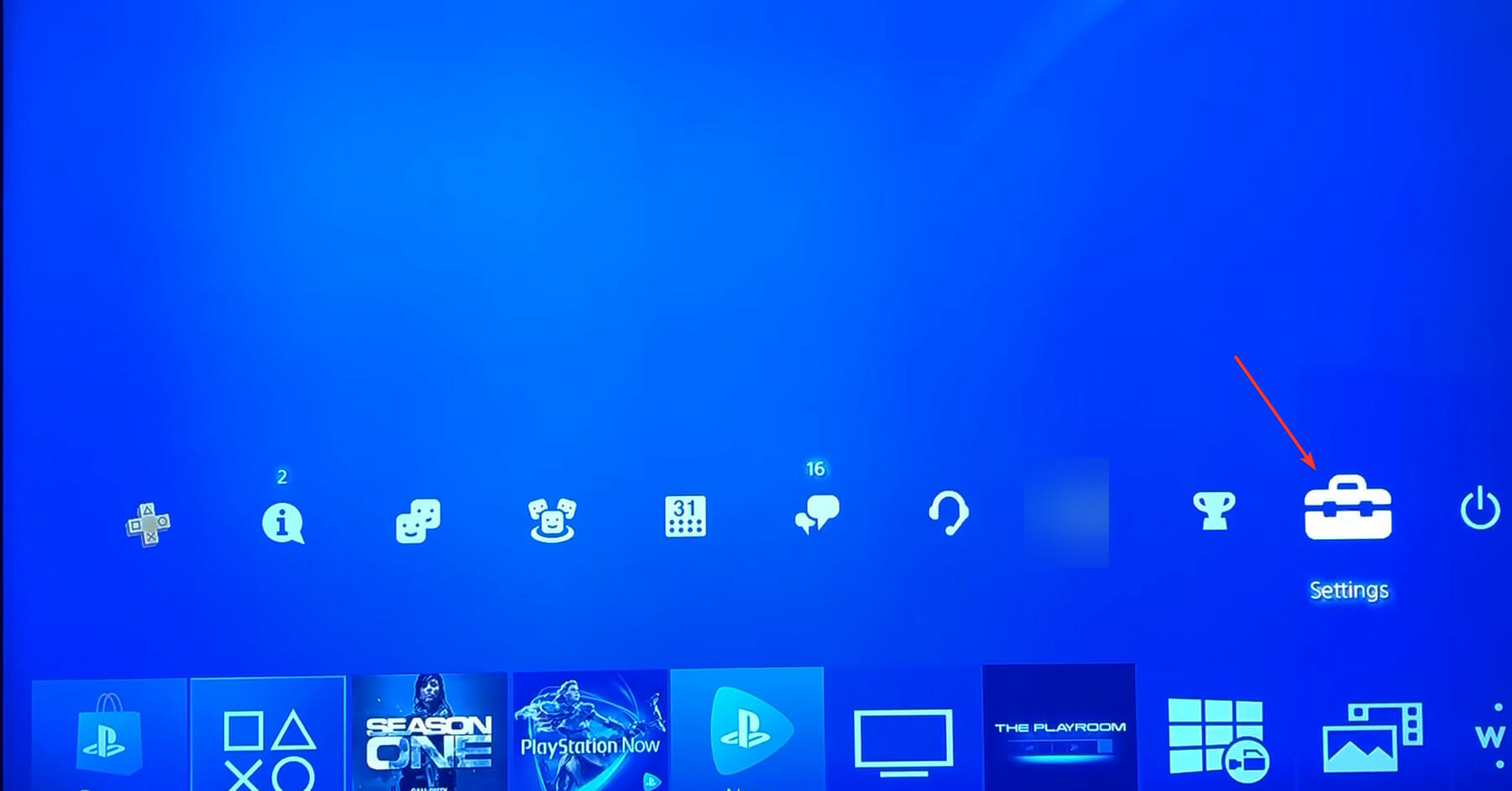
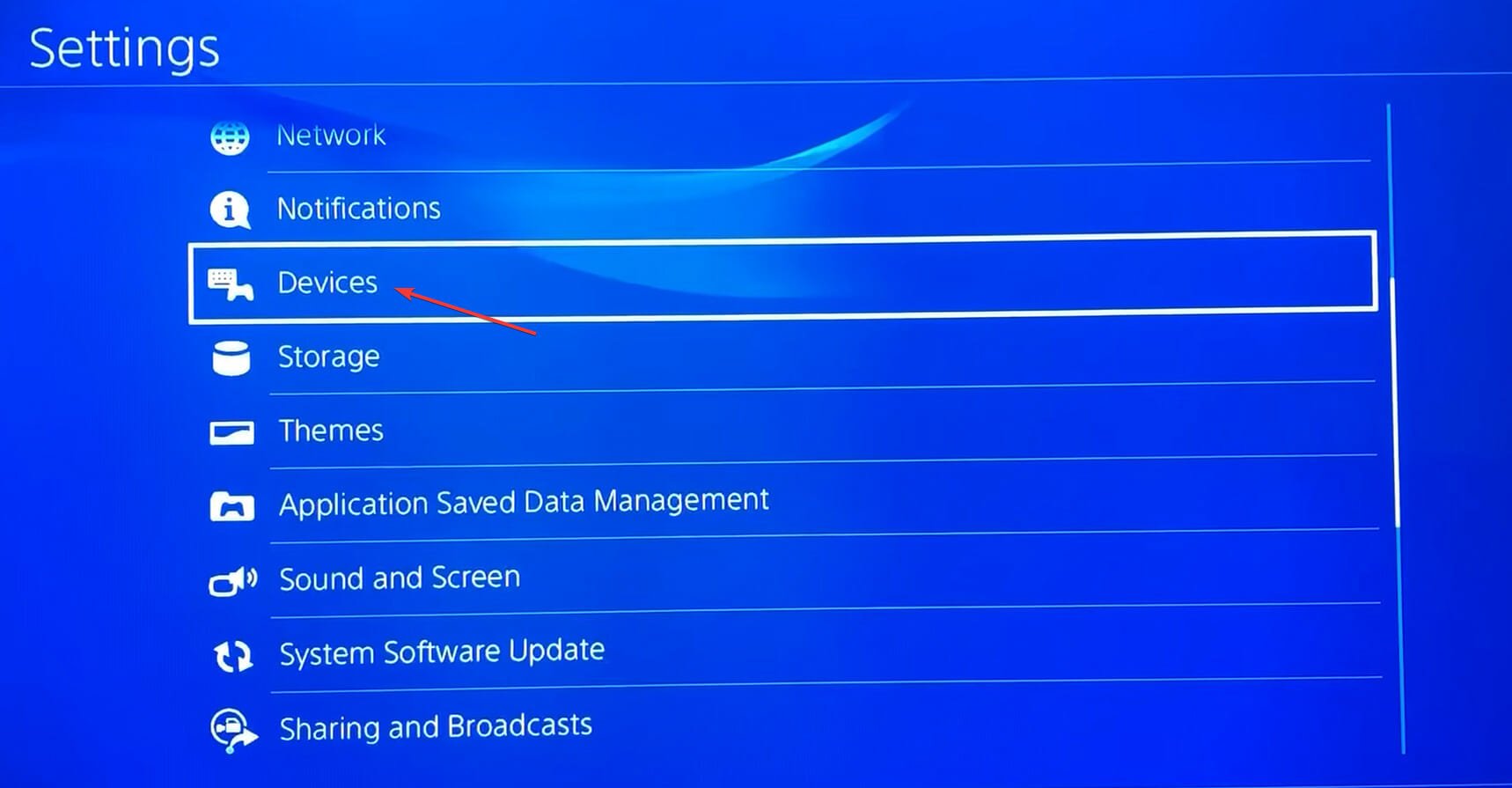
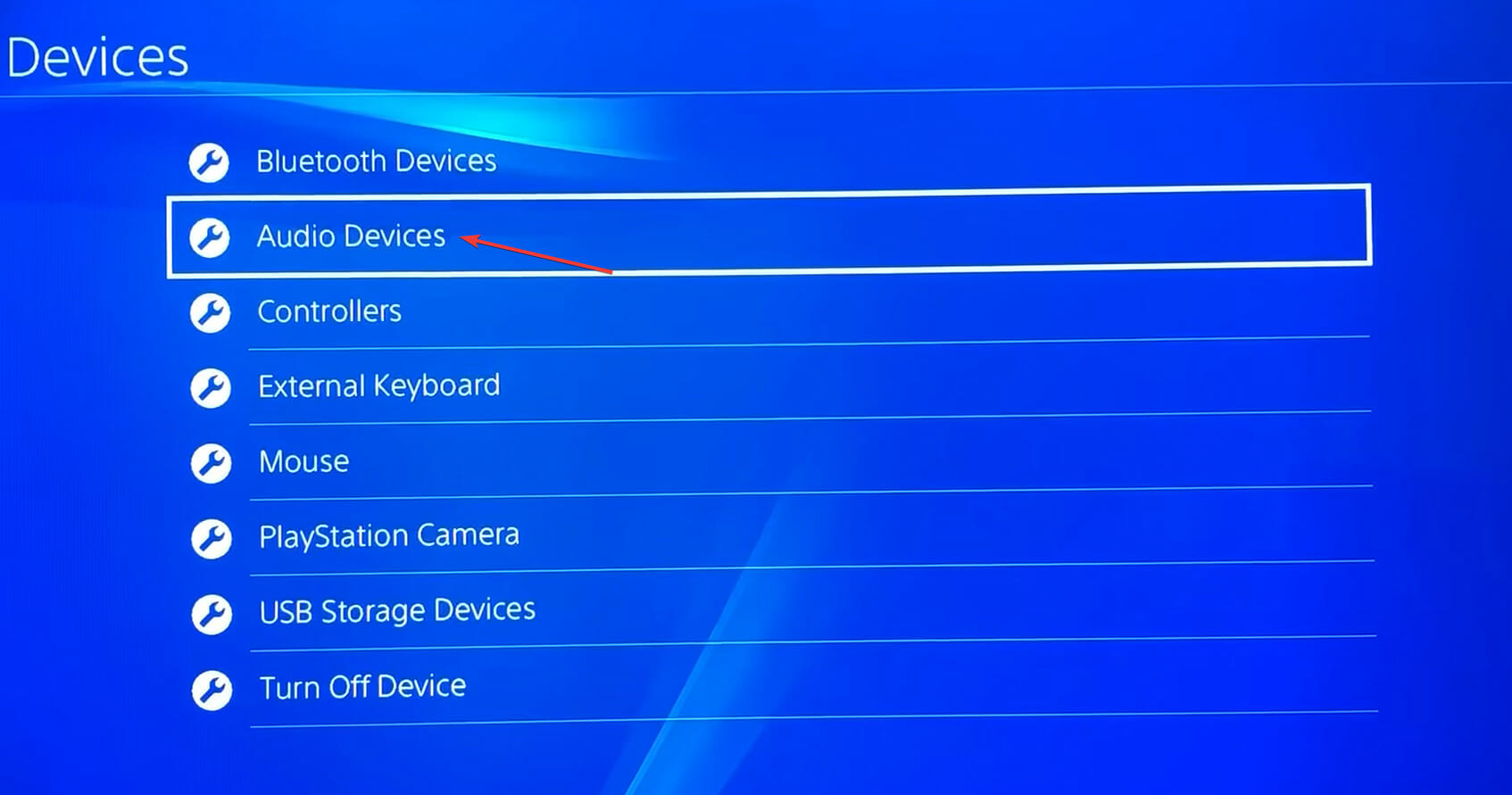
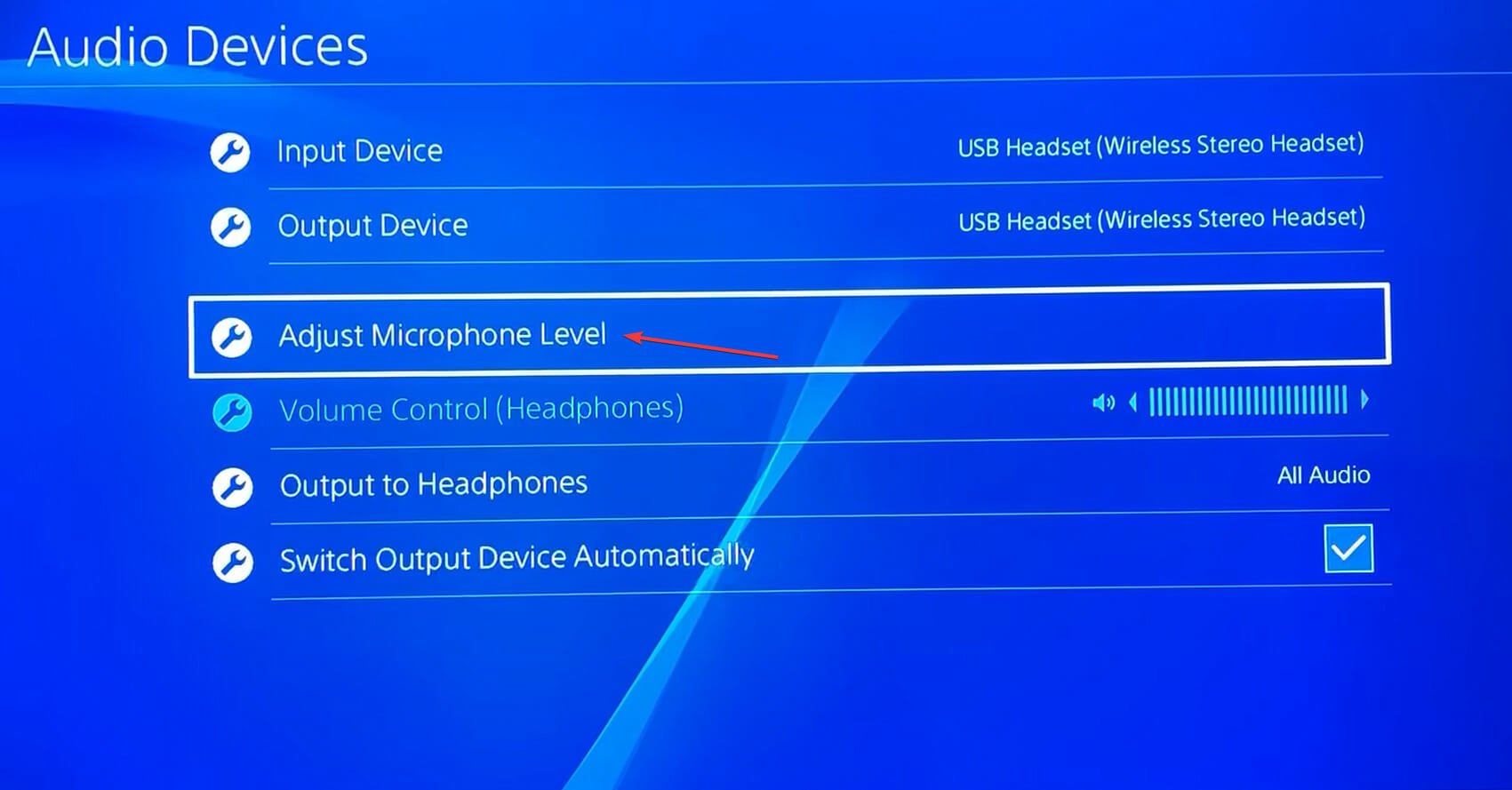
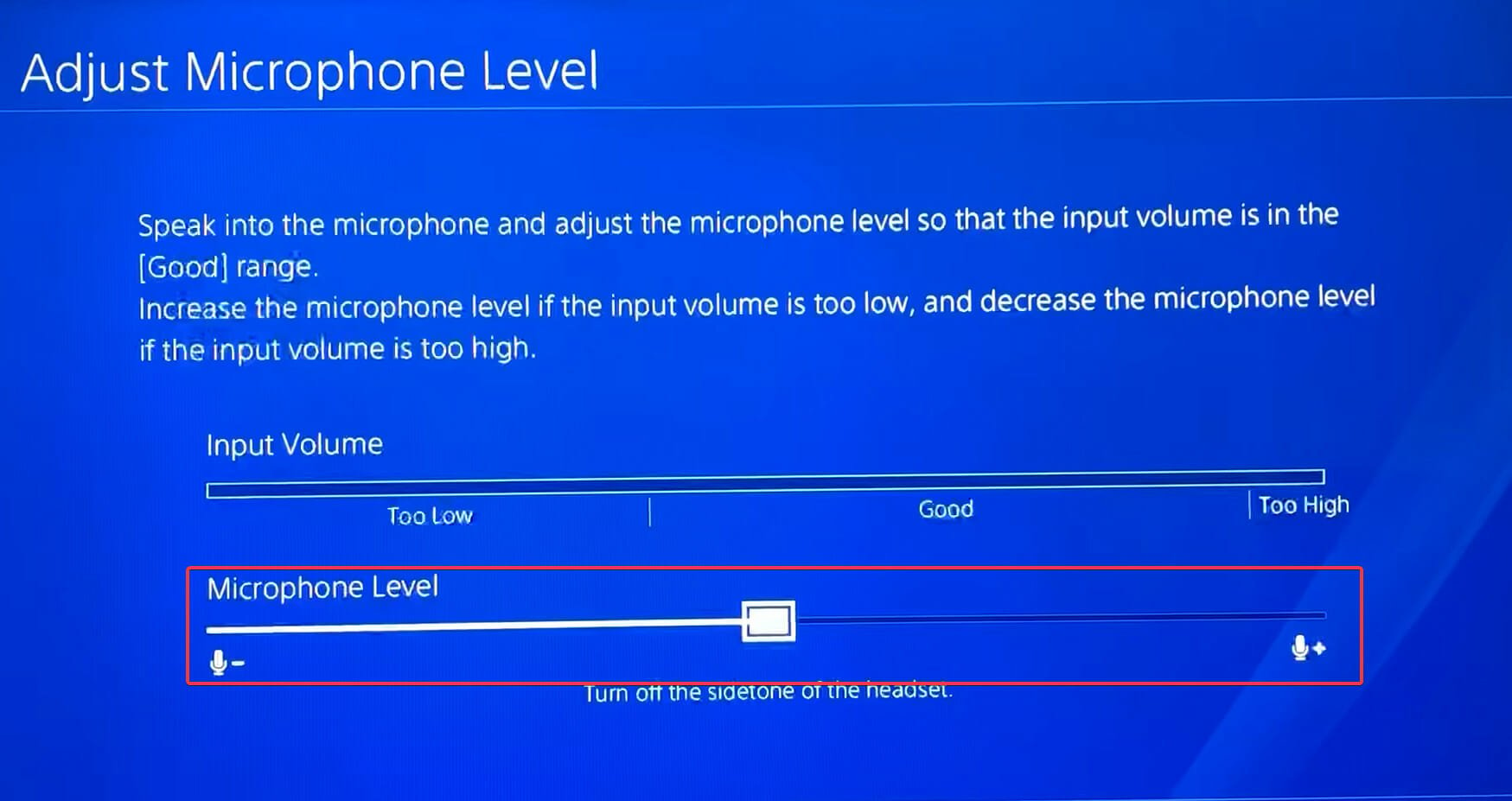
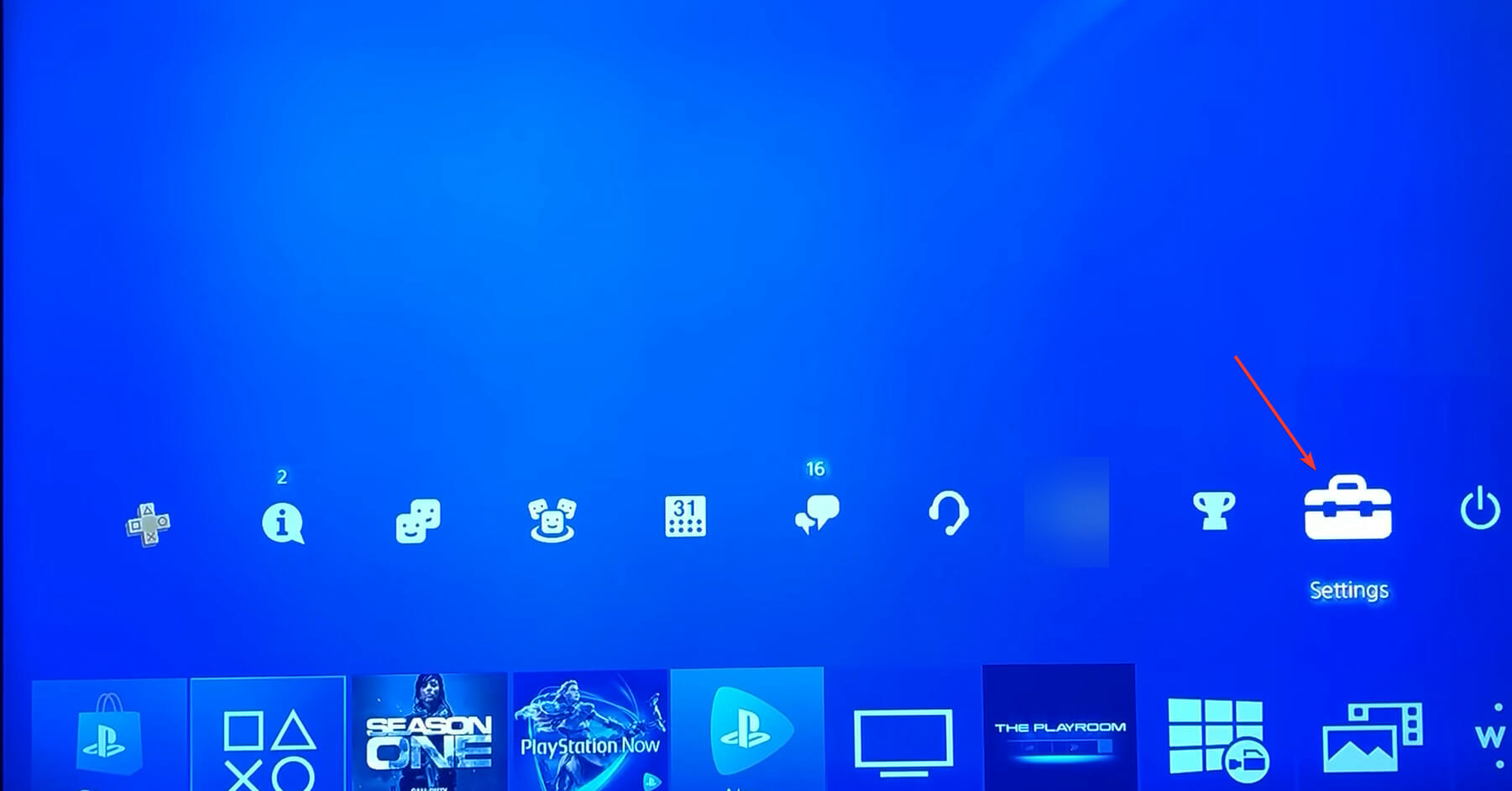
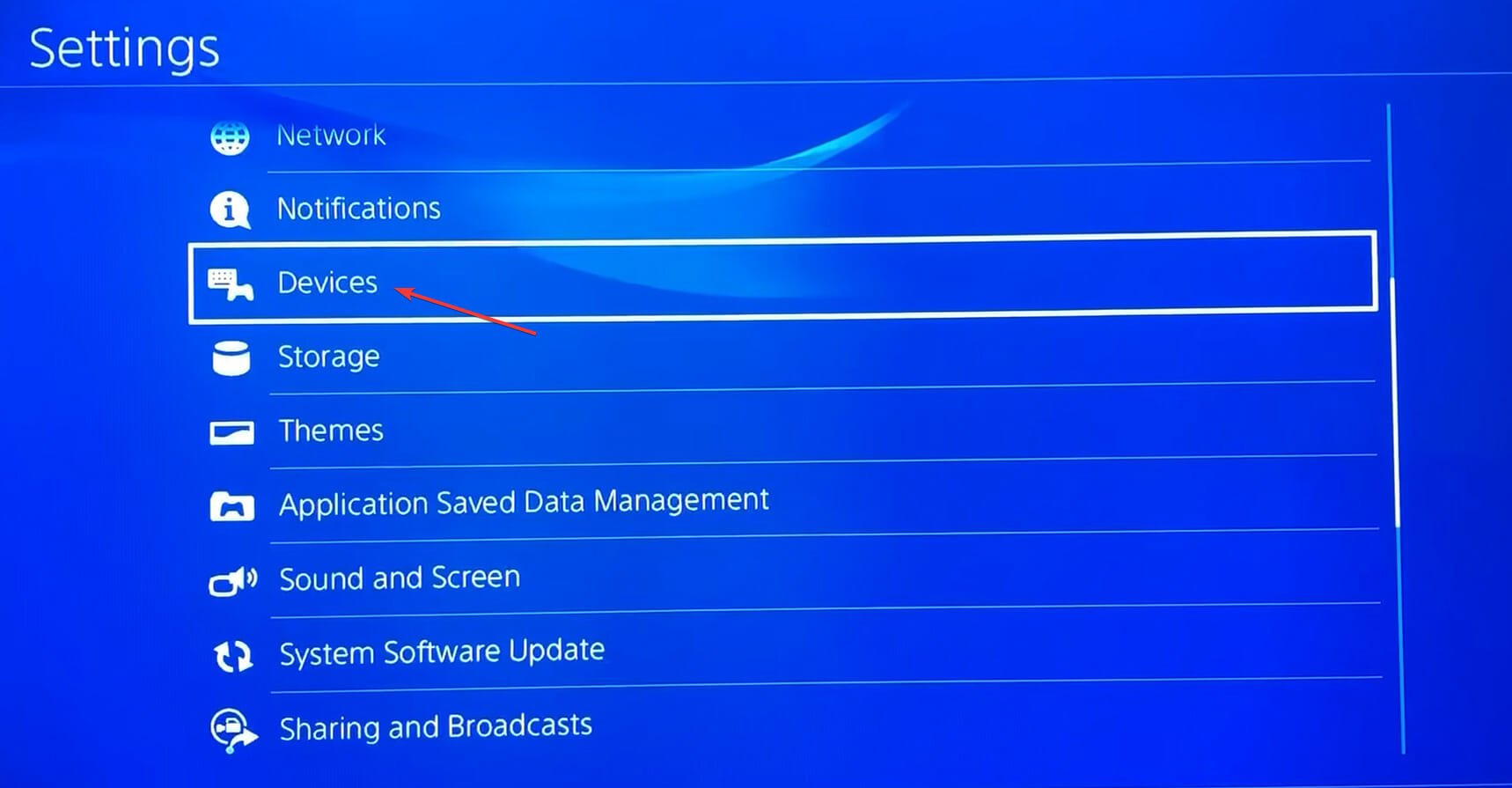
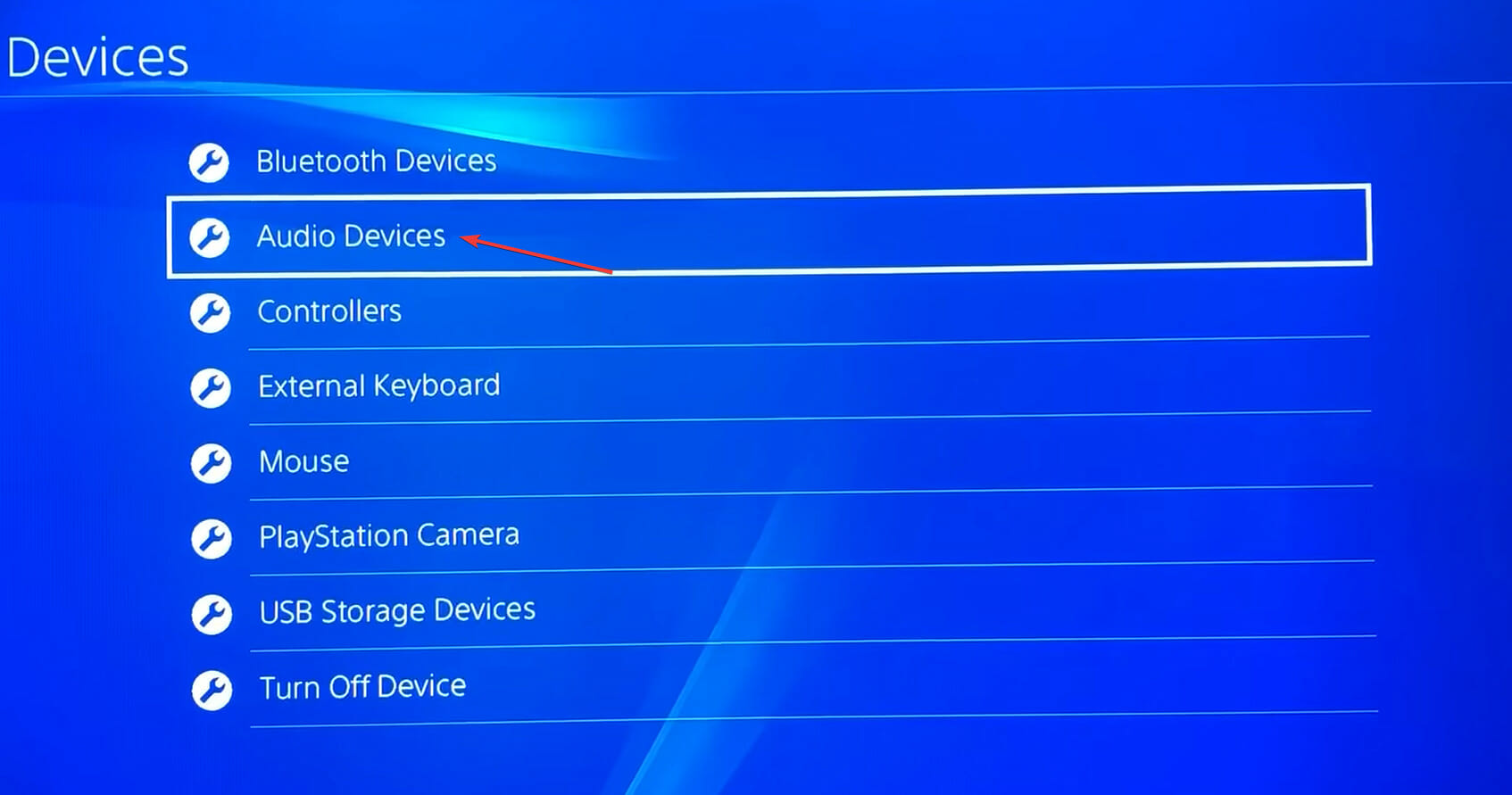
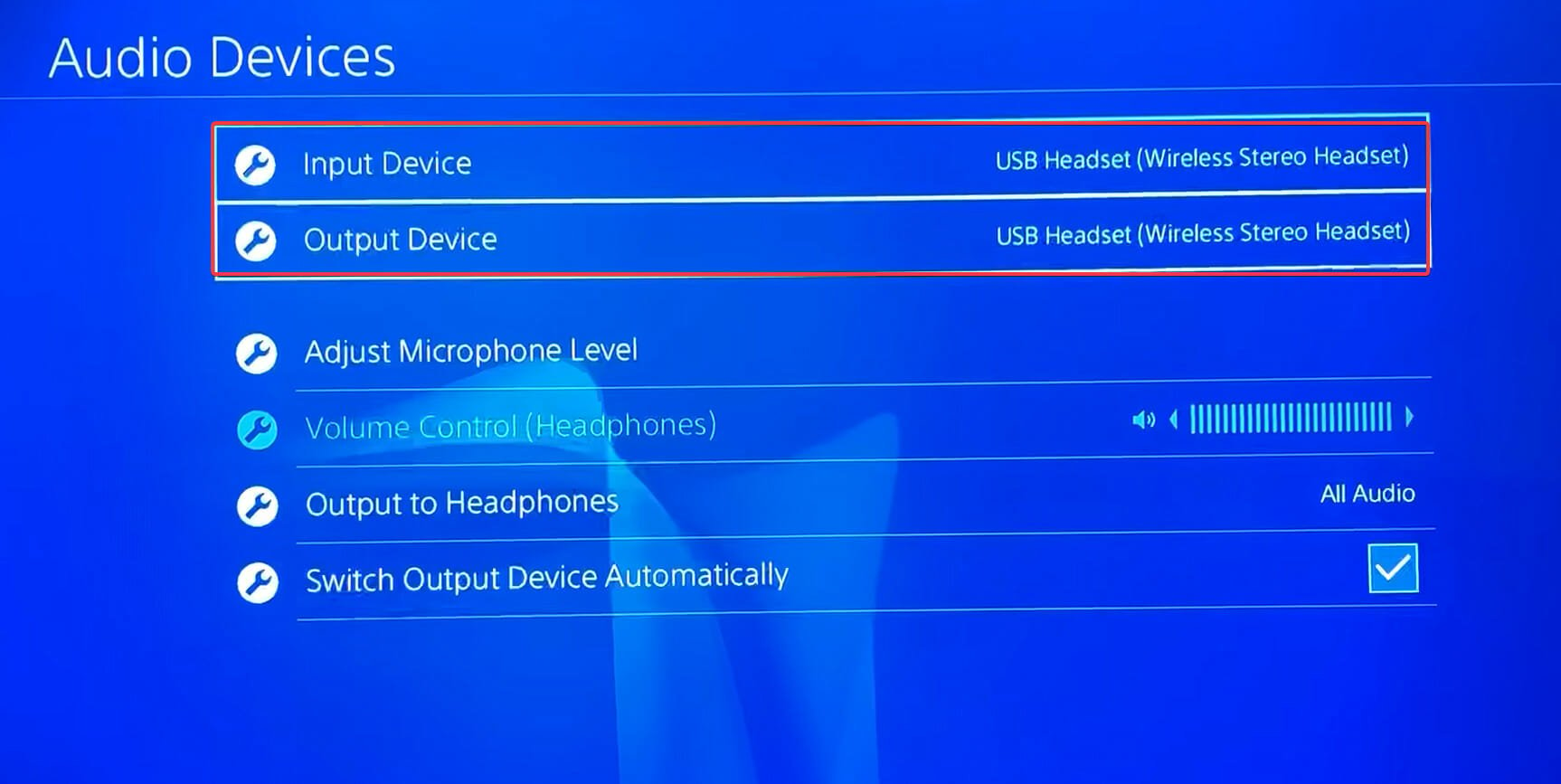
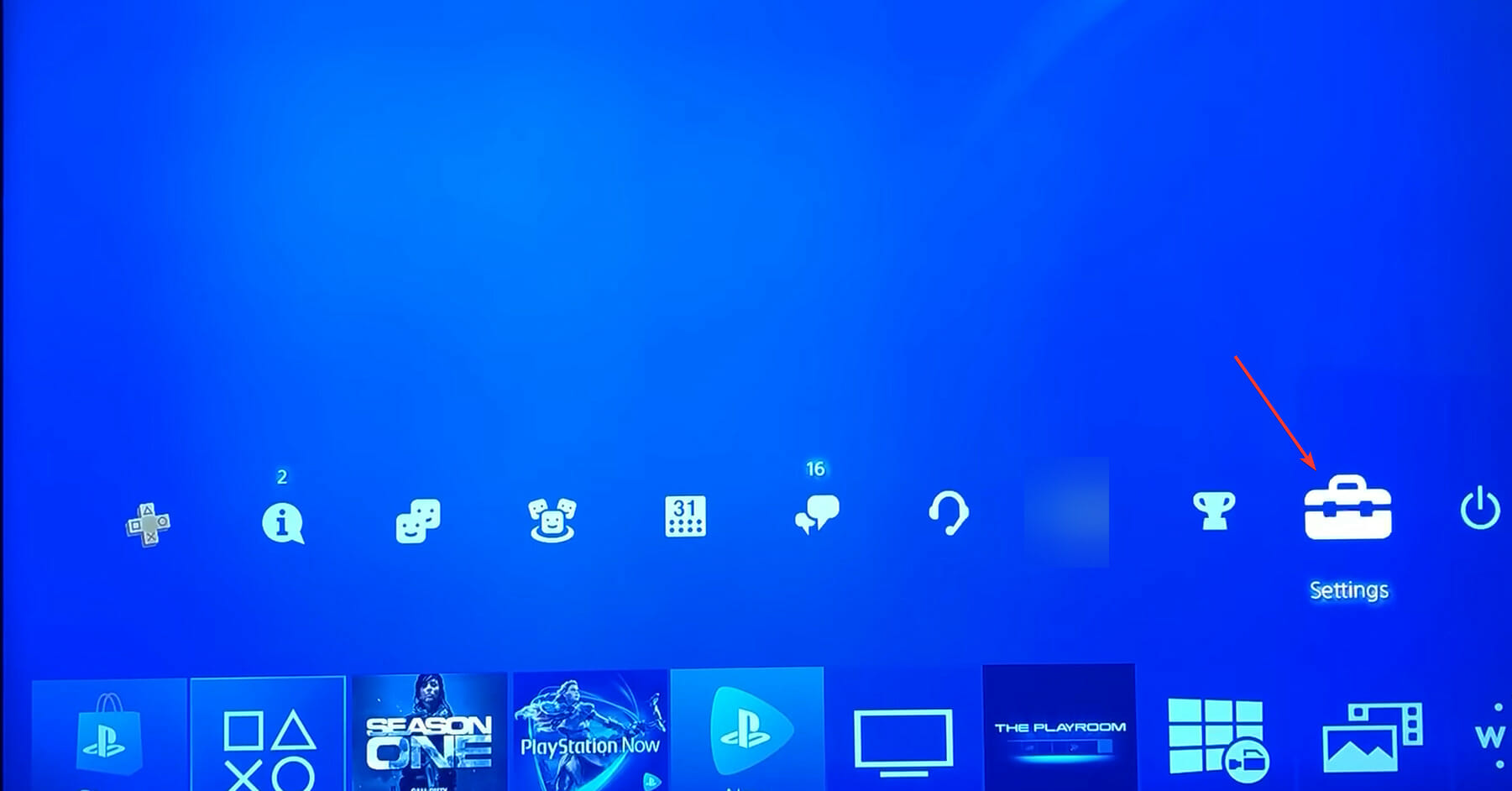
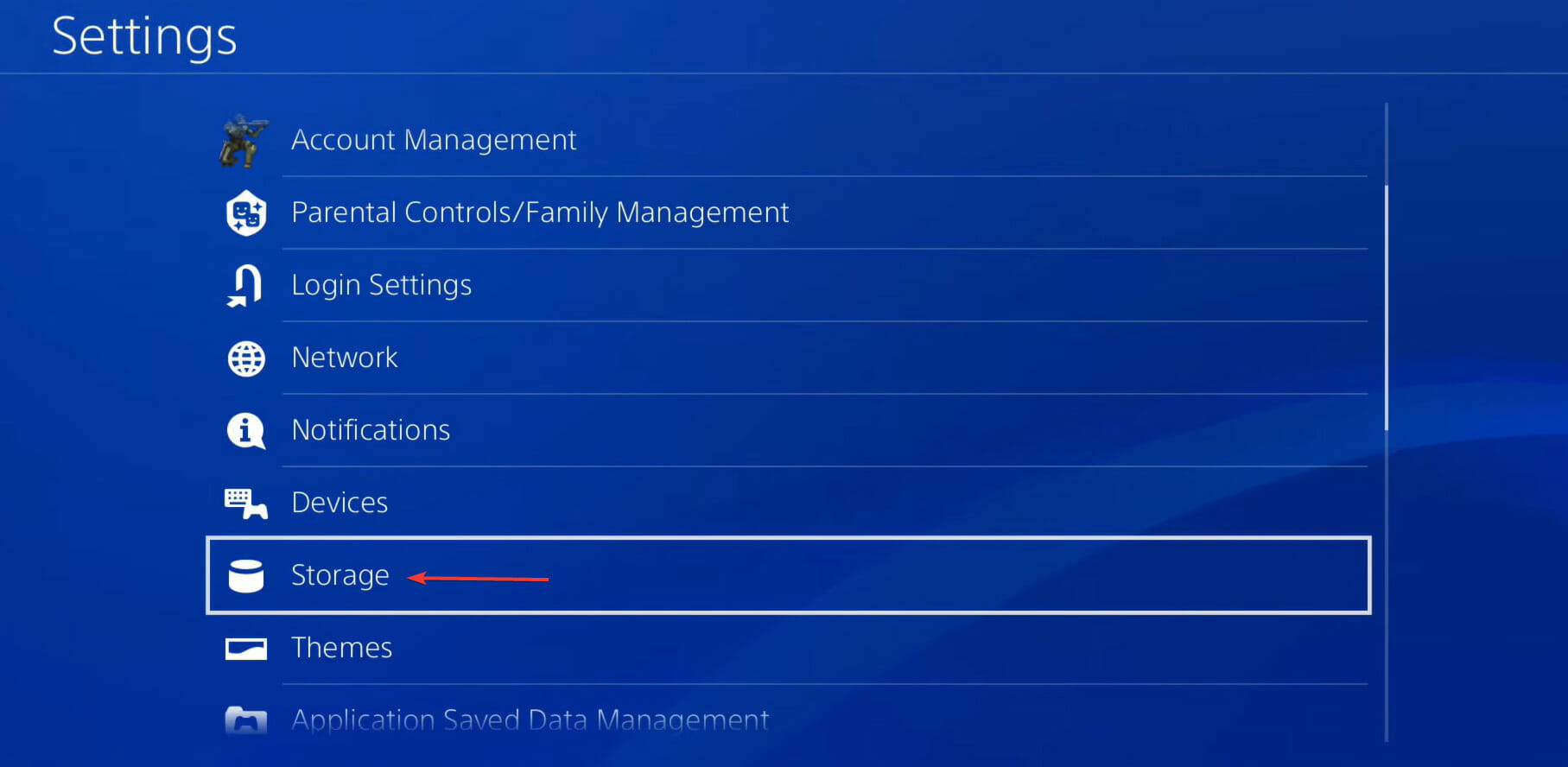
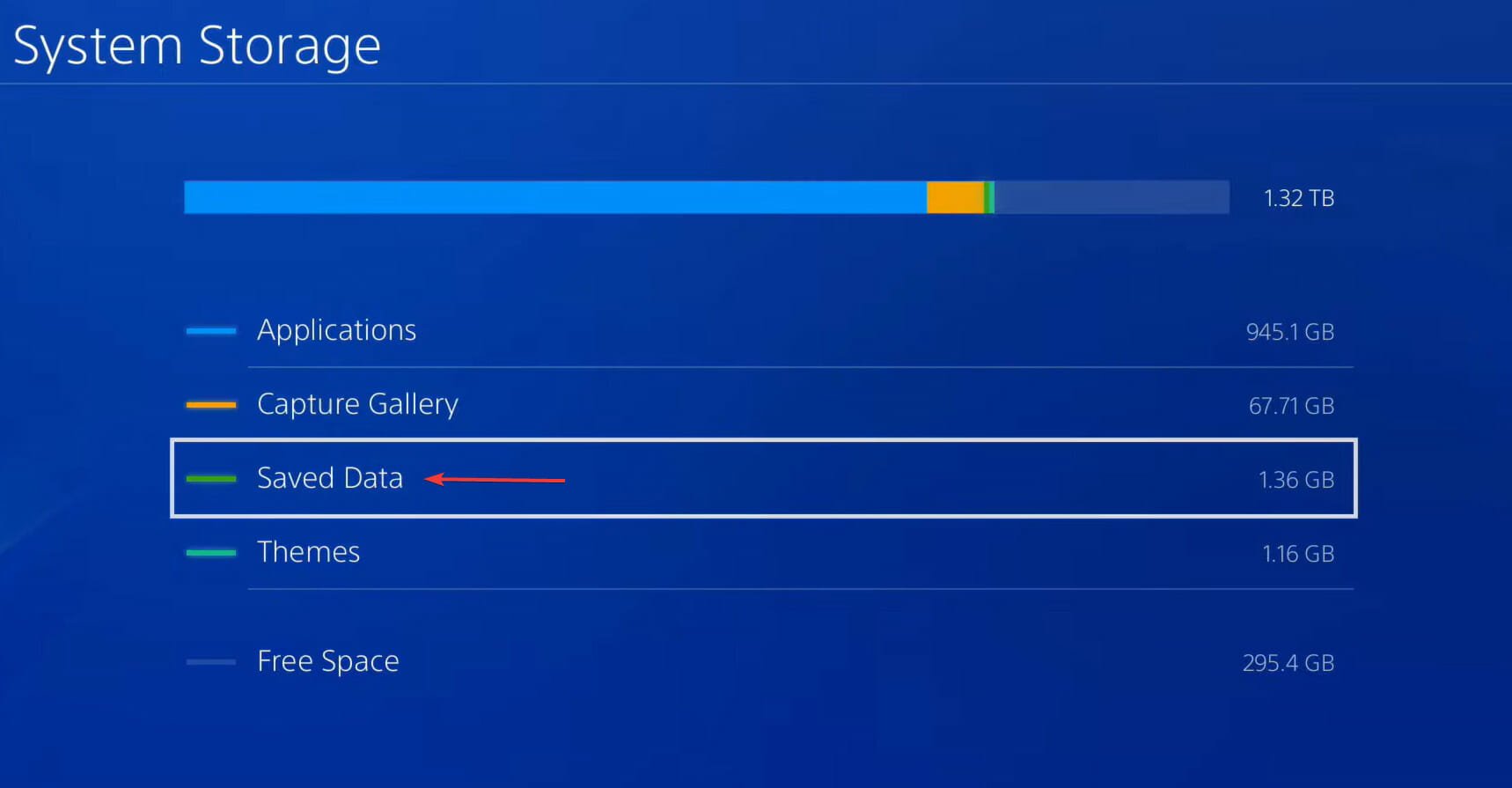
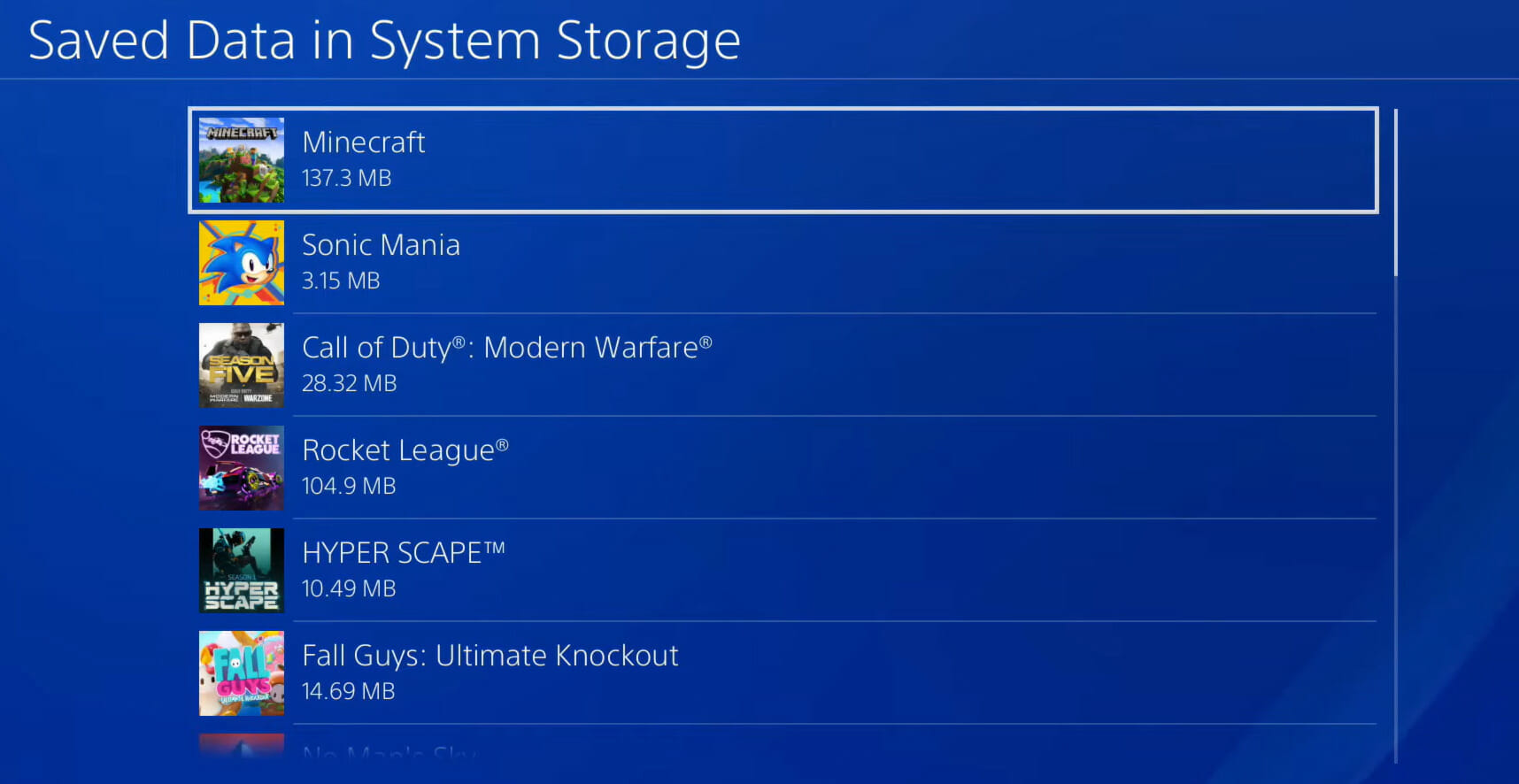
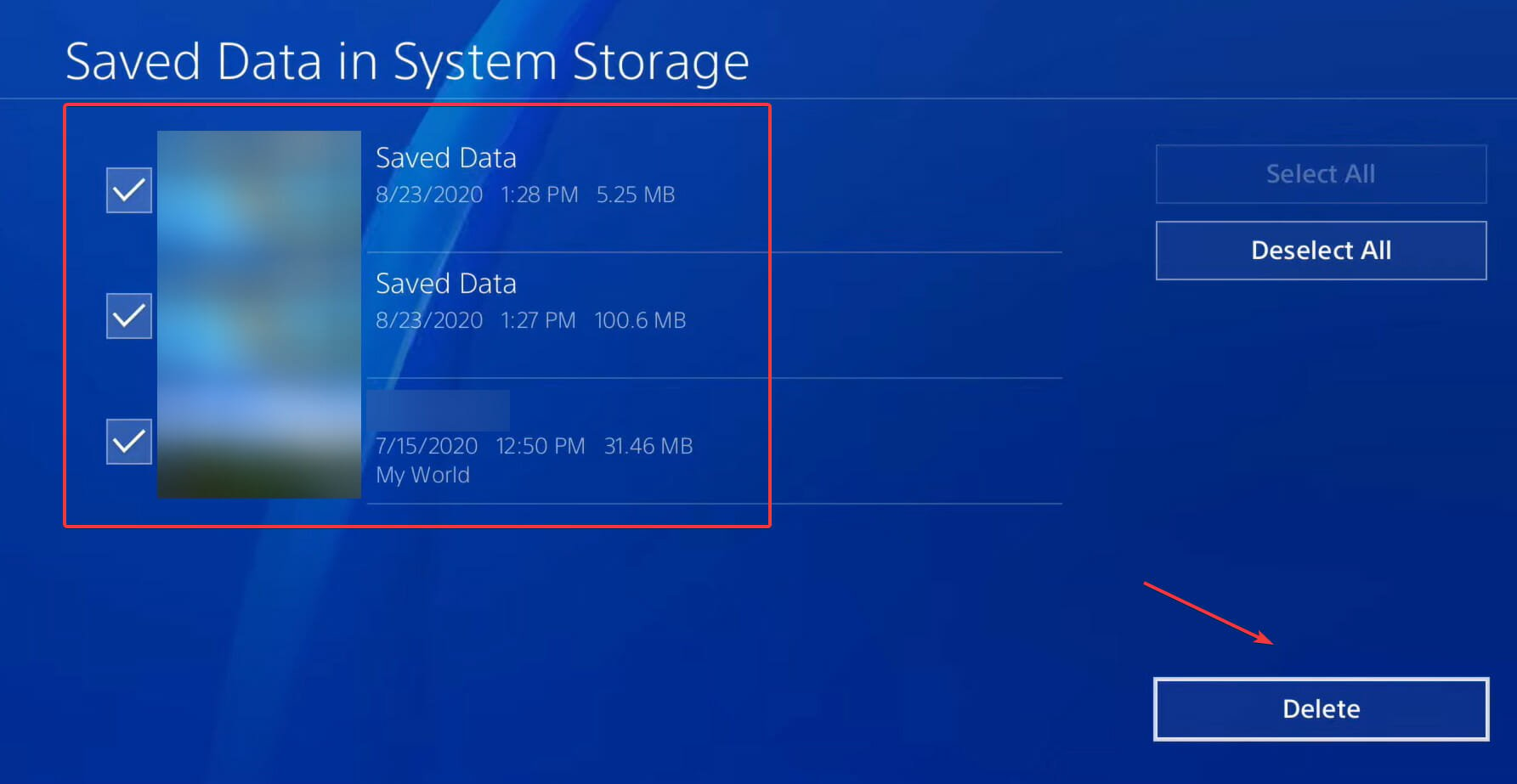
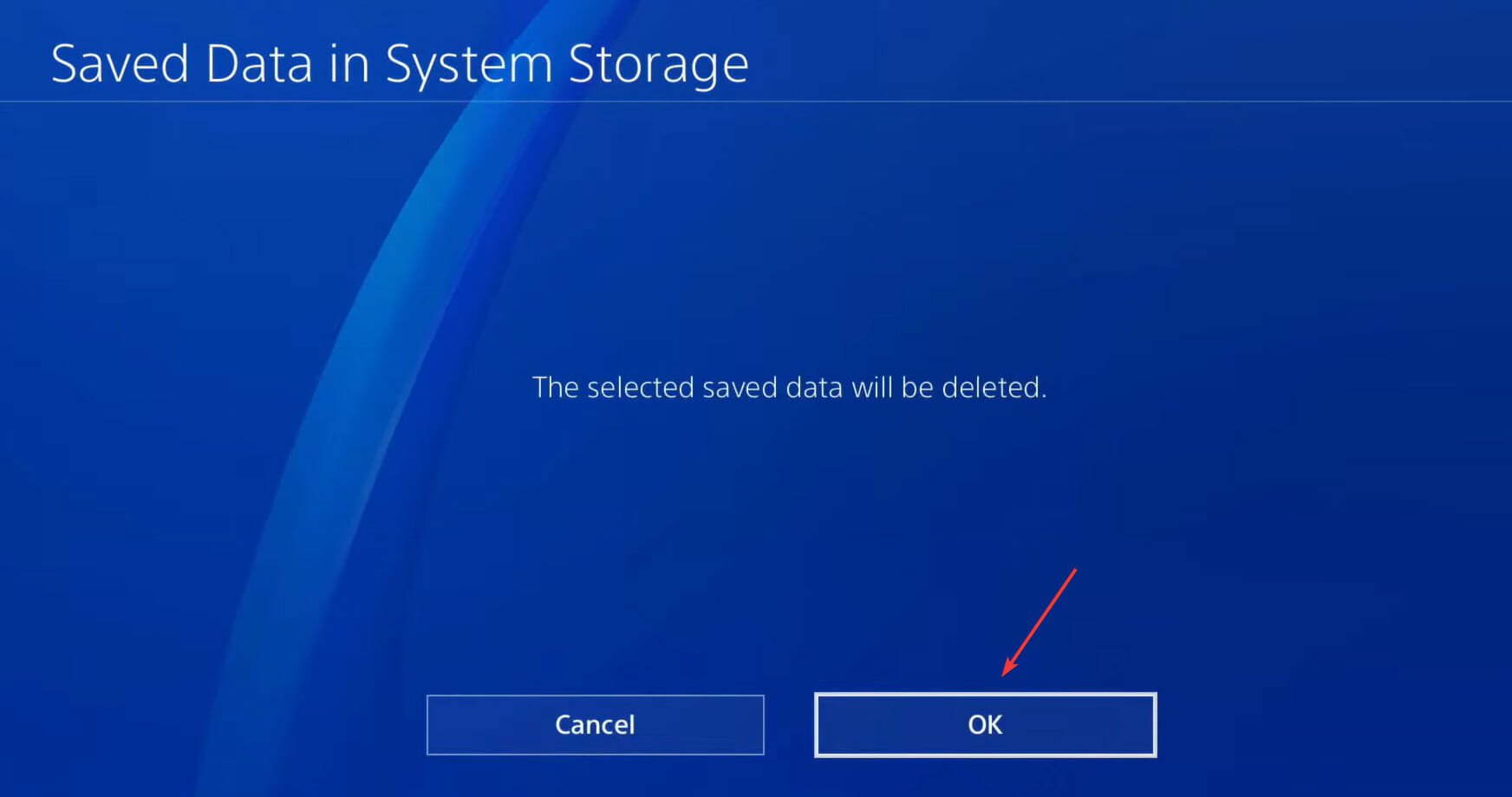
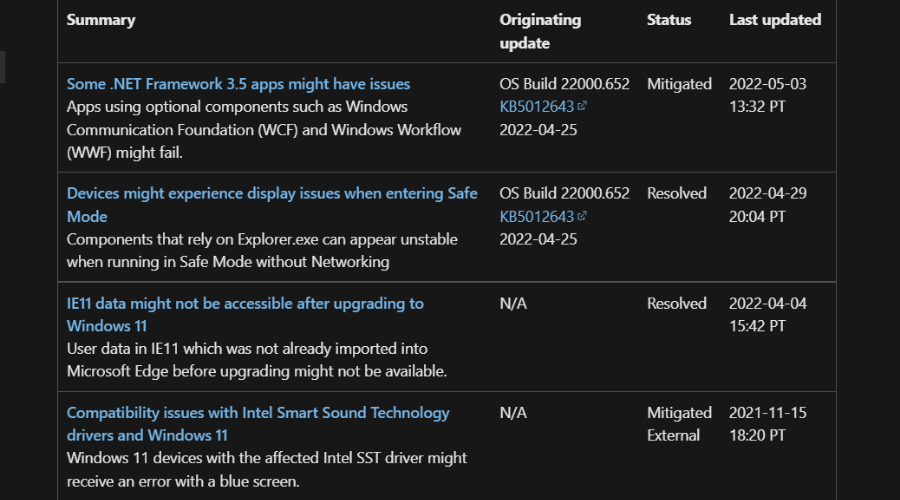


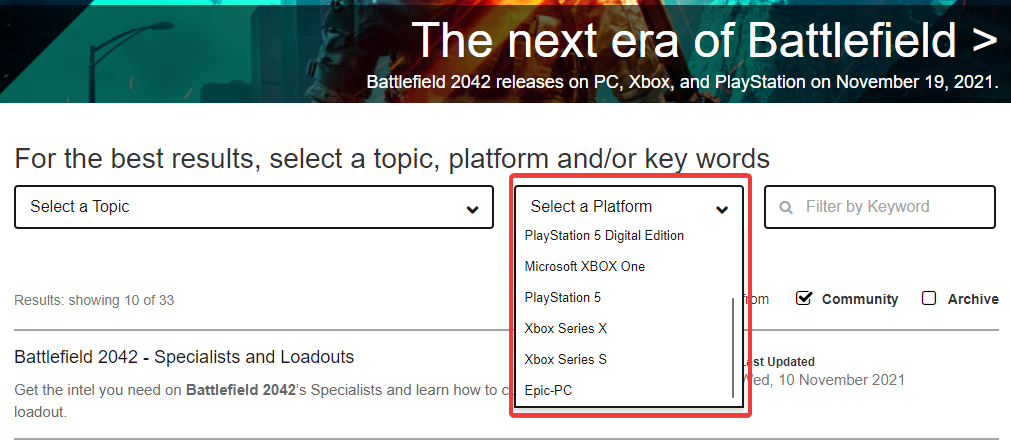
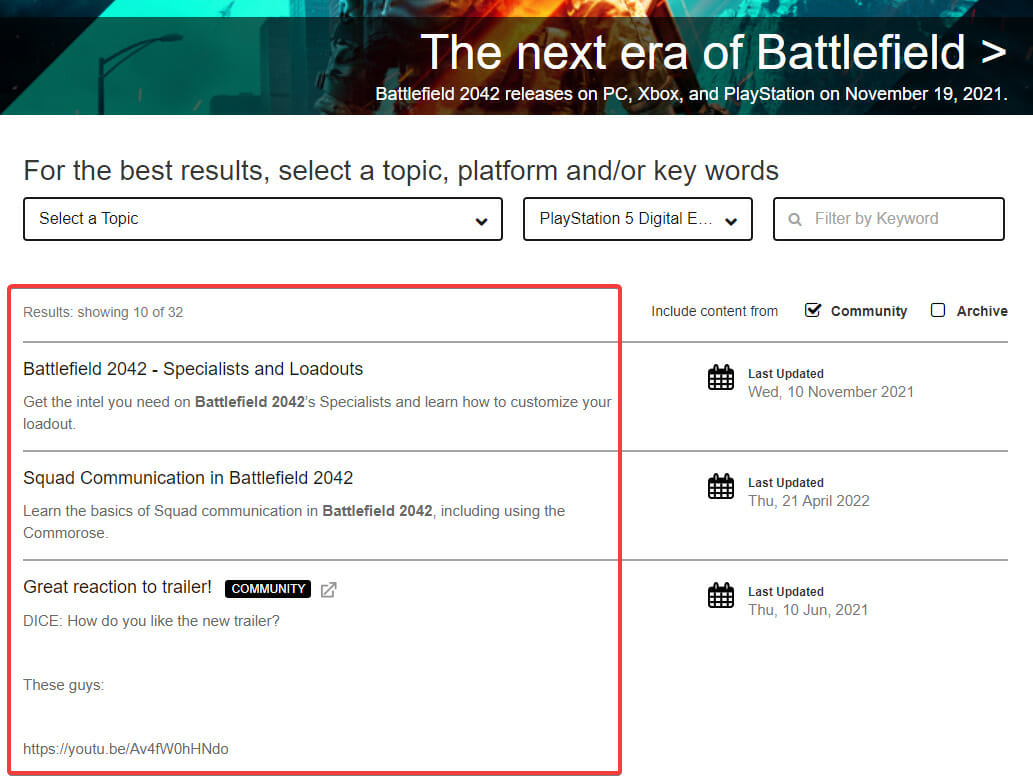
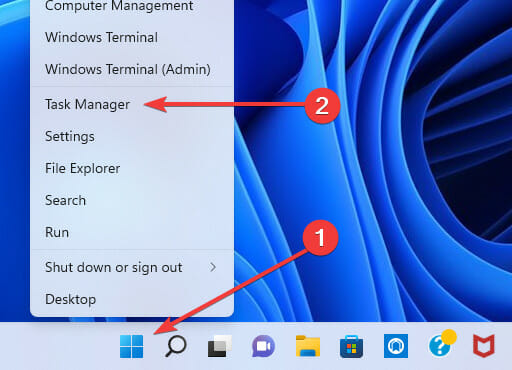
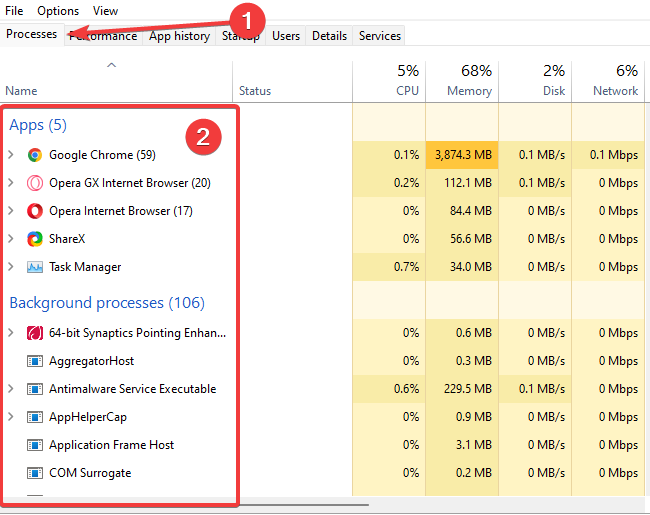
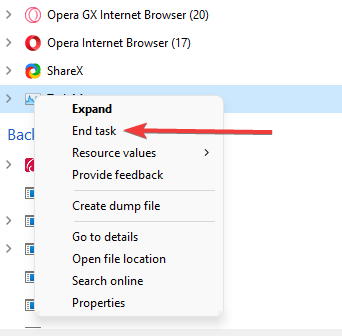
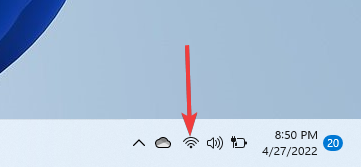
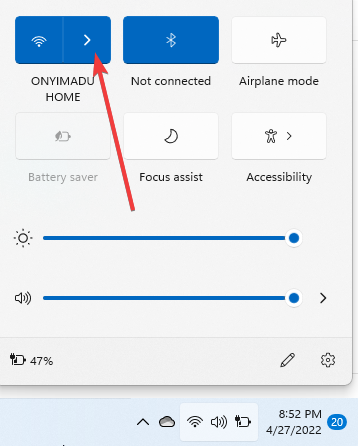
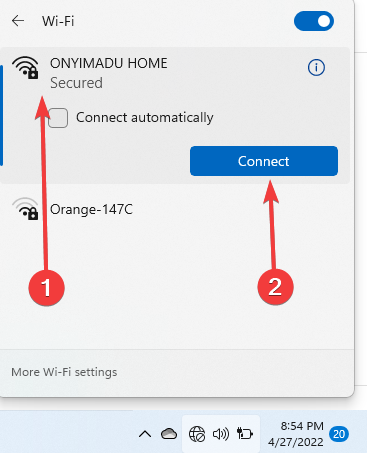
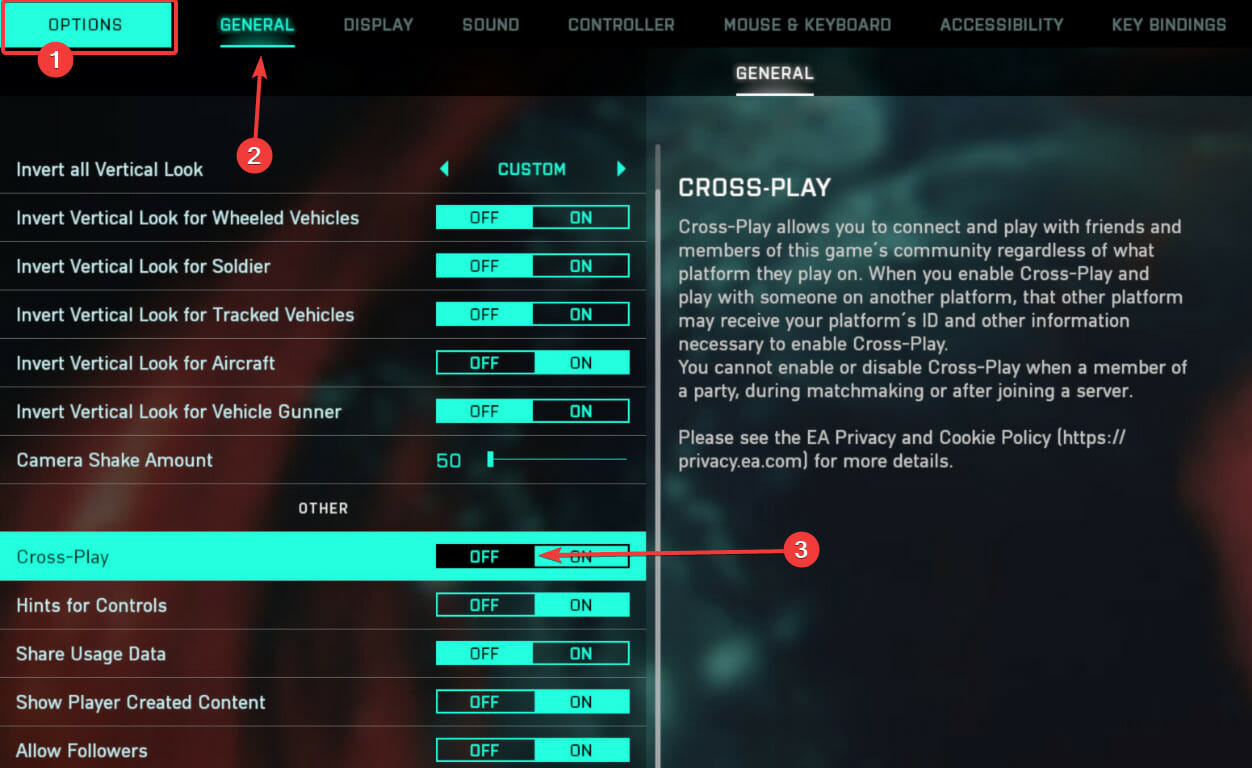
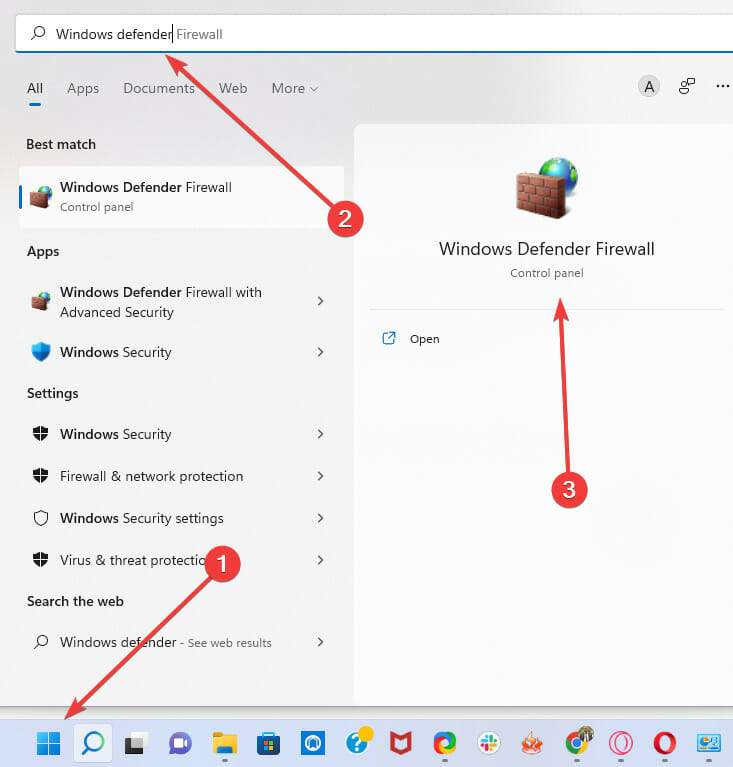
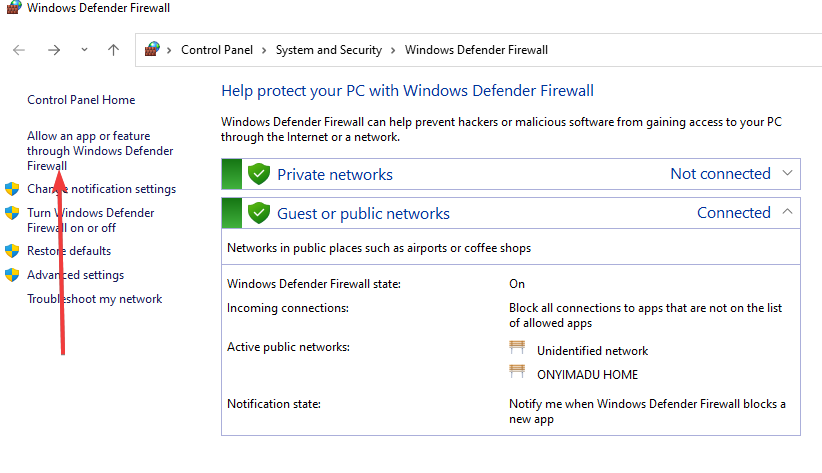
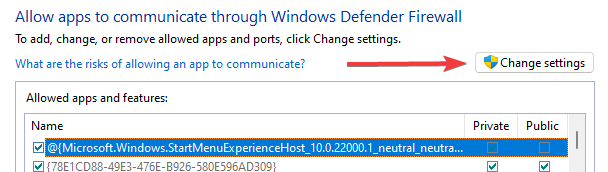
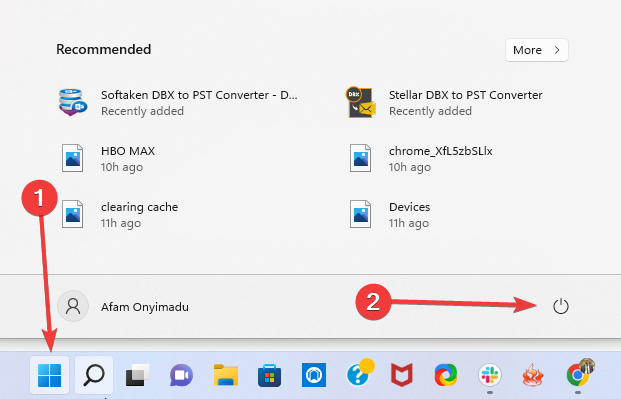

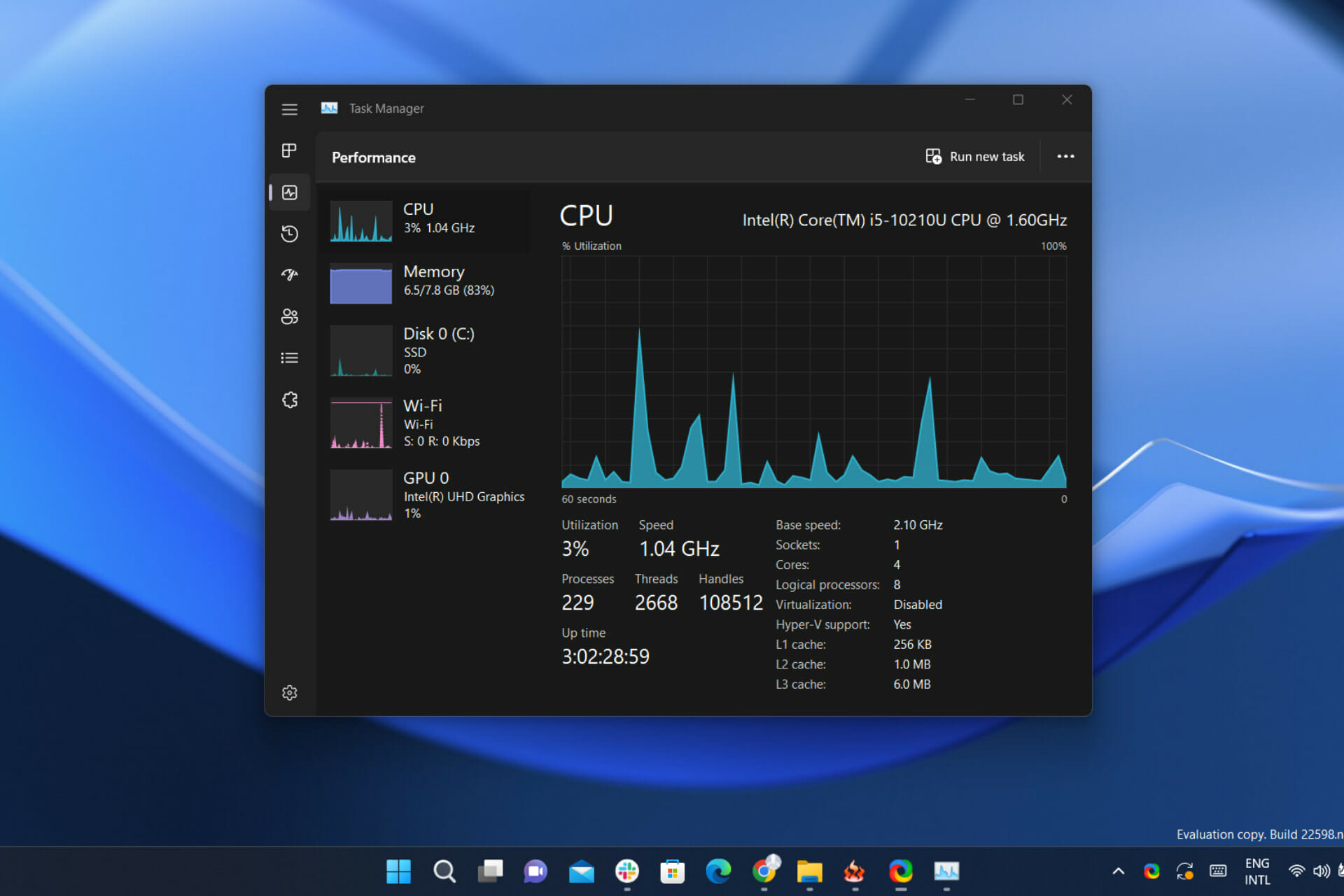
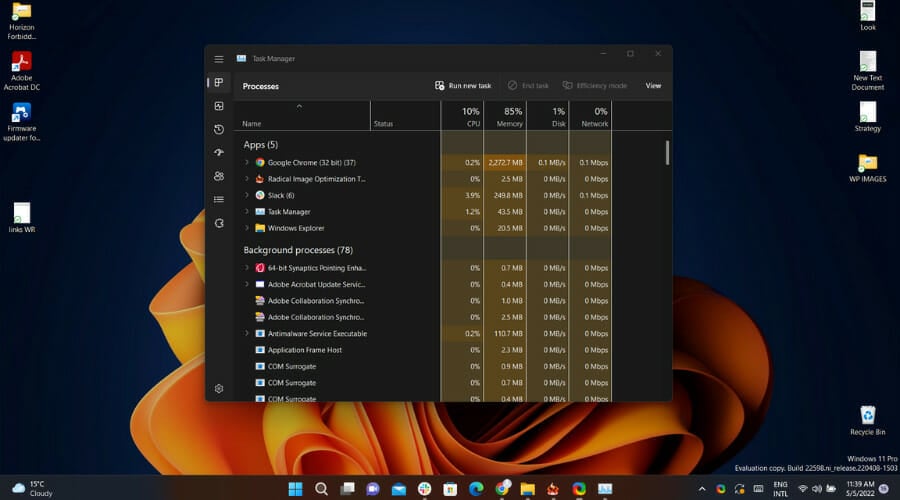
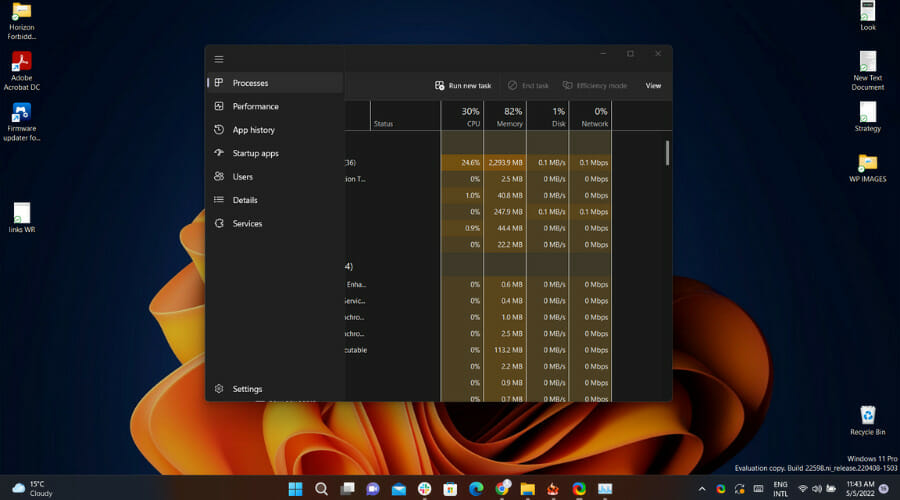
![Google Earth Download for Windows 11 [64 Bit Pro]](https://windowsreport.com/wp-content/uploads/2022/05/google-earth-desktop.jpg)
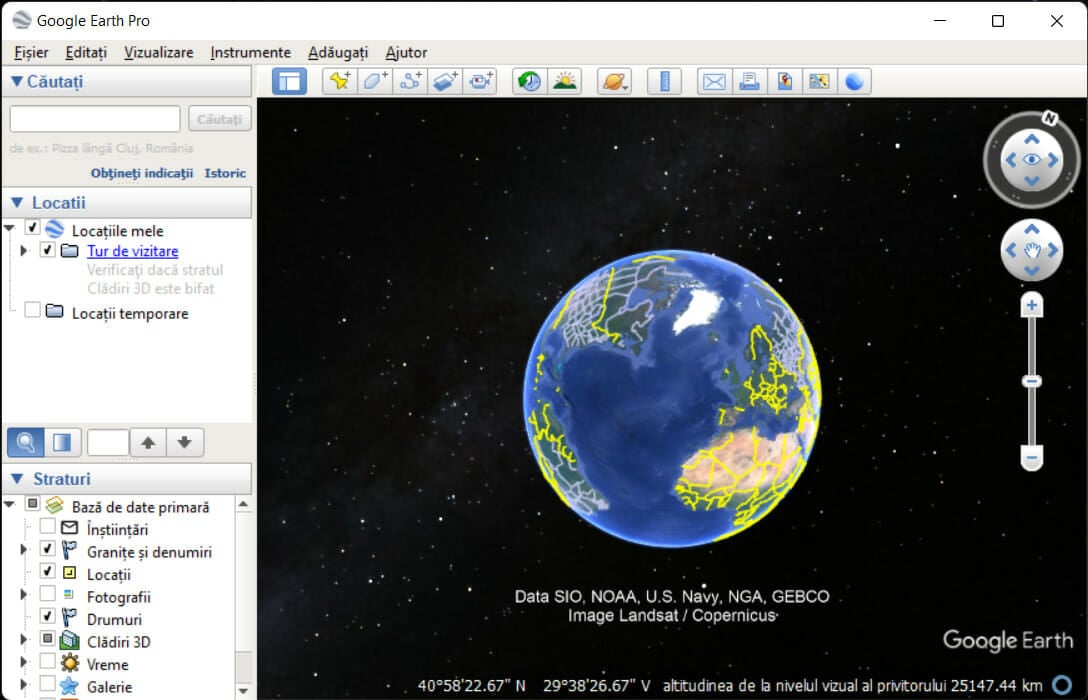


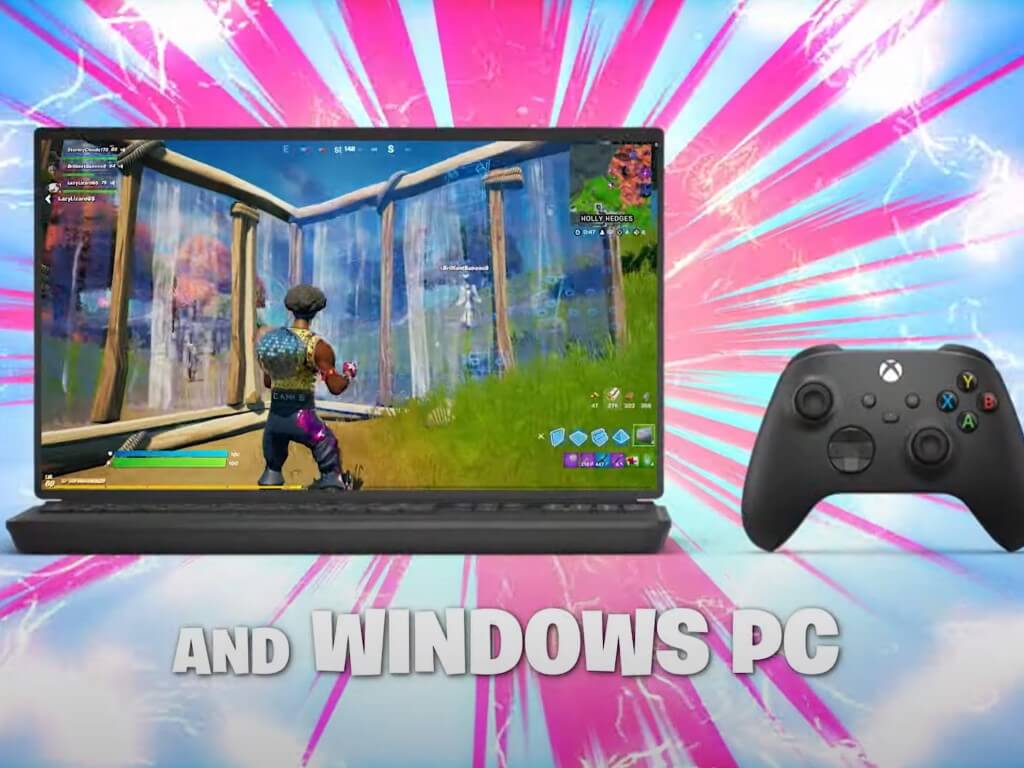
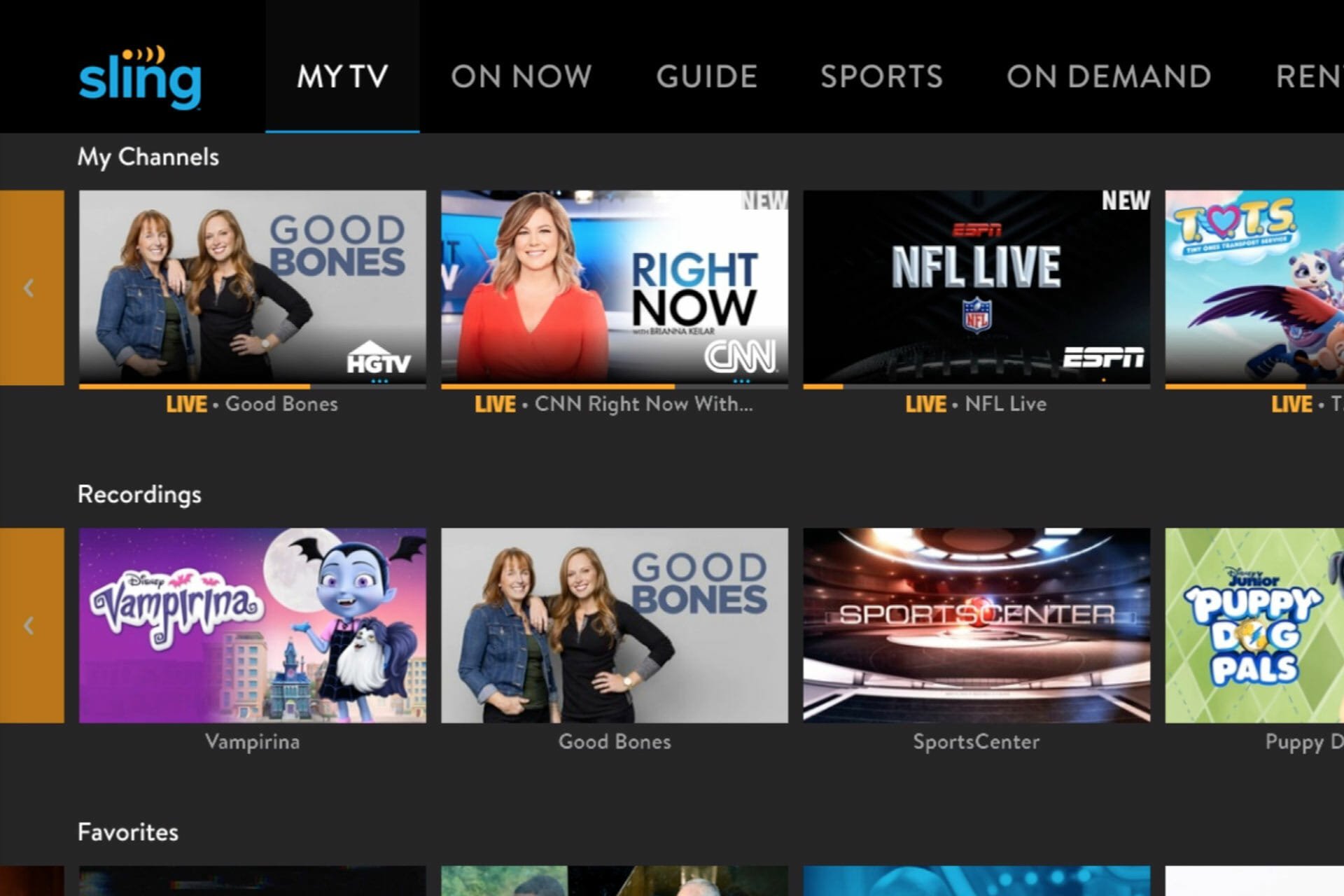


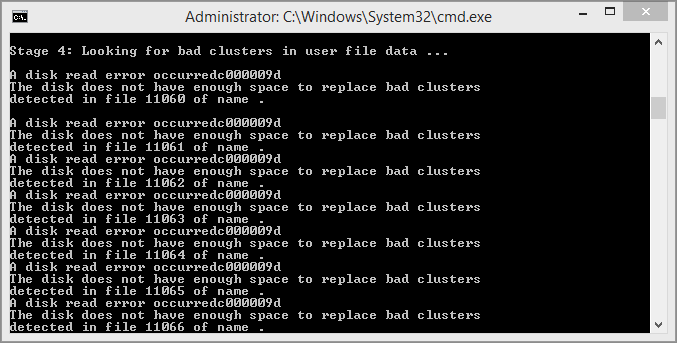


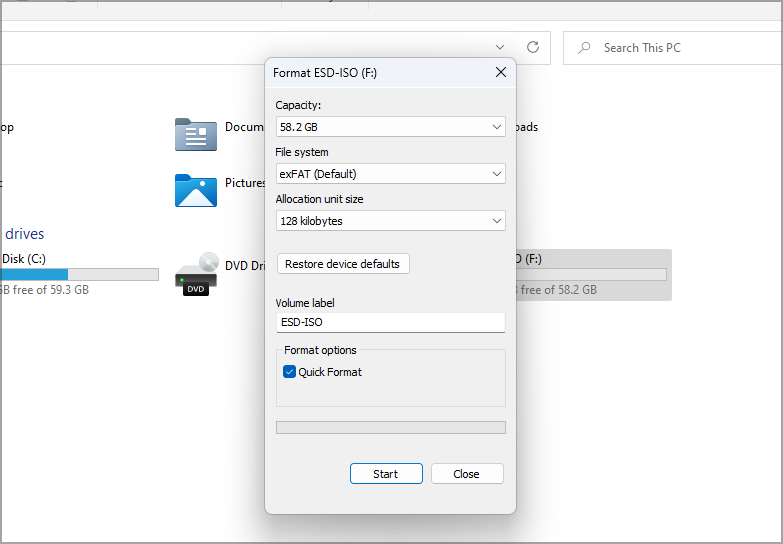
![Best MKV Player for PC & Mac [Out of 15 We Tested in 2026]](https://windowsreport.com/wp-content/uploads/2021/10/Best-MKV-players-for-Windows-10.jpg)
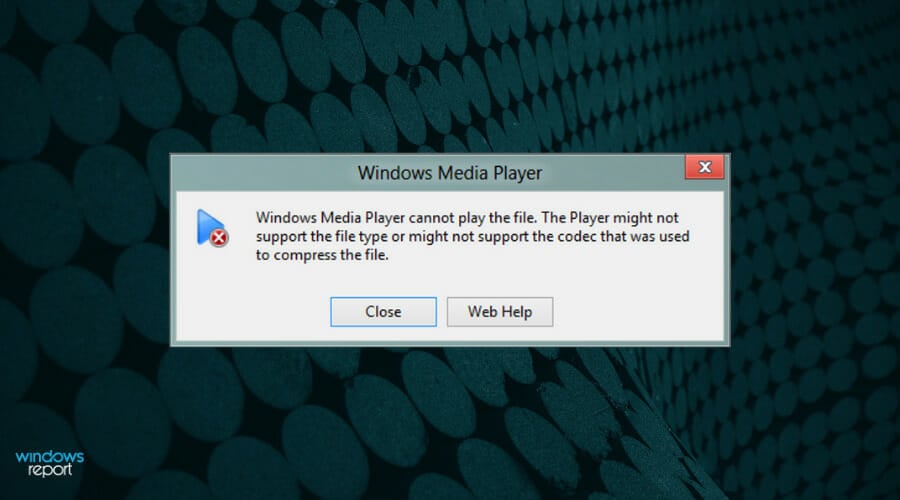
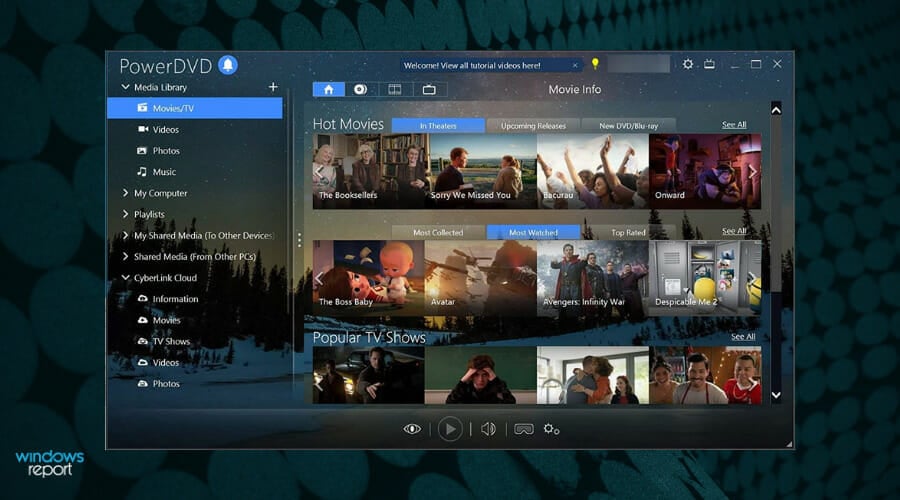



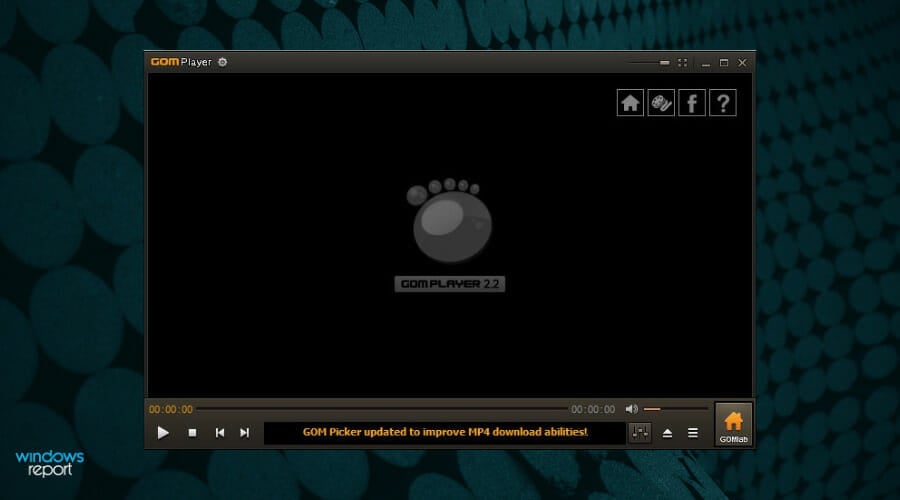

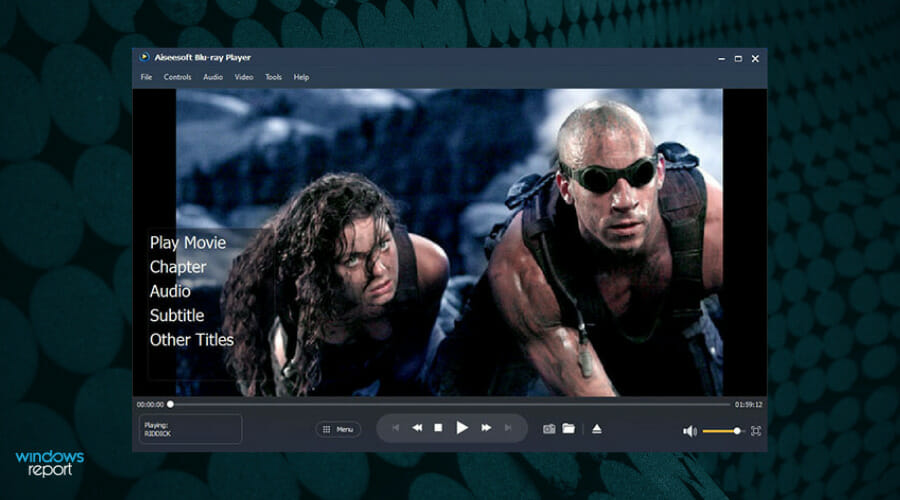

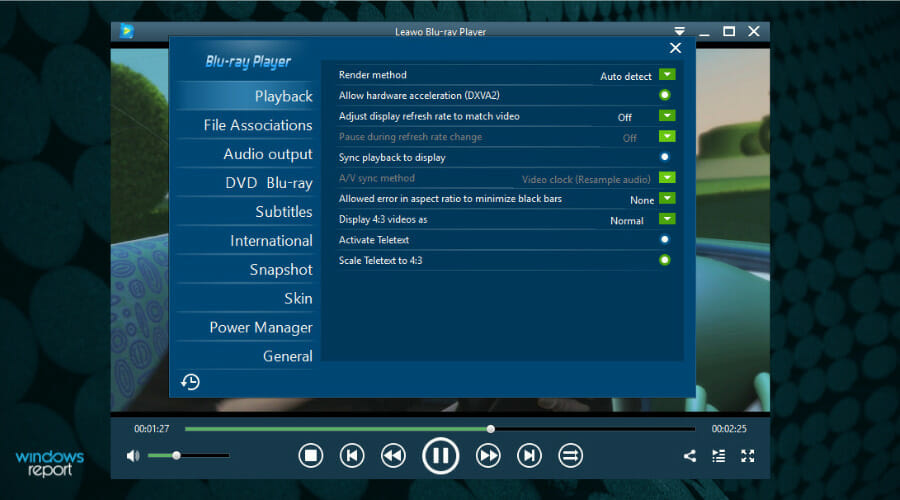

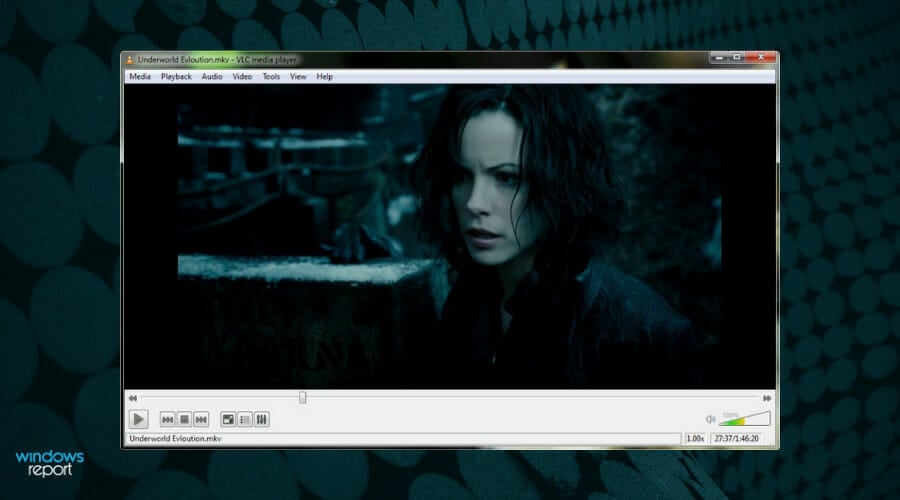
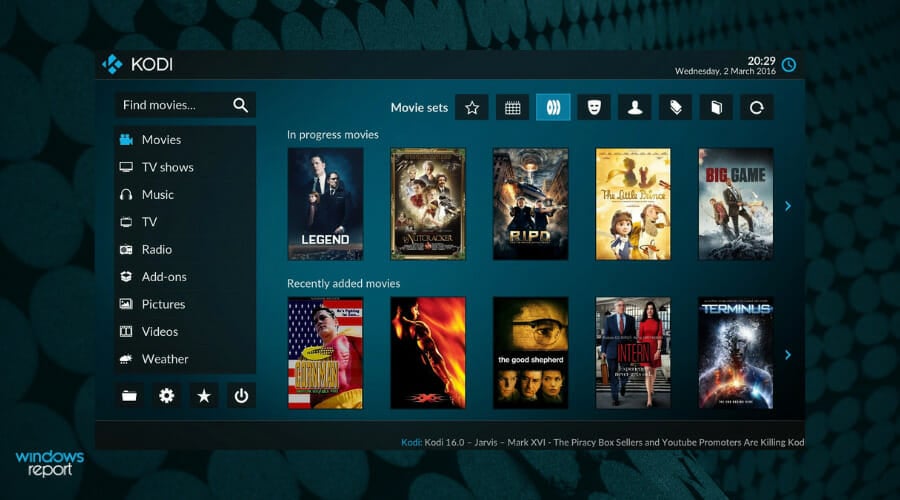


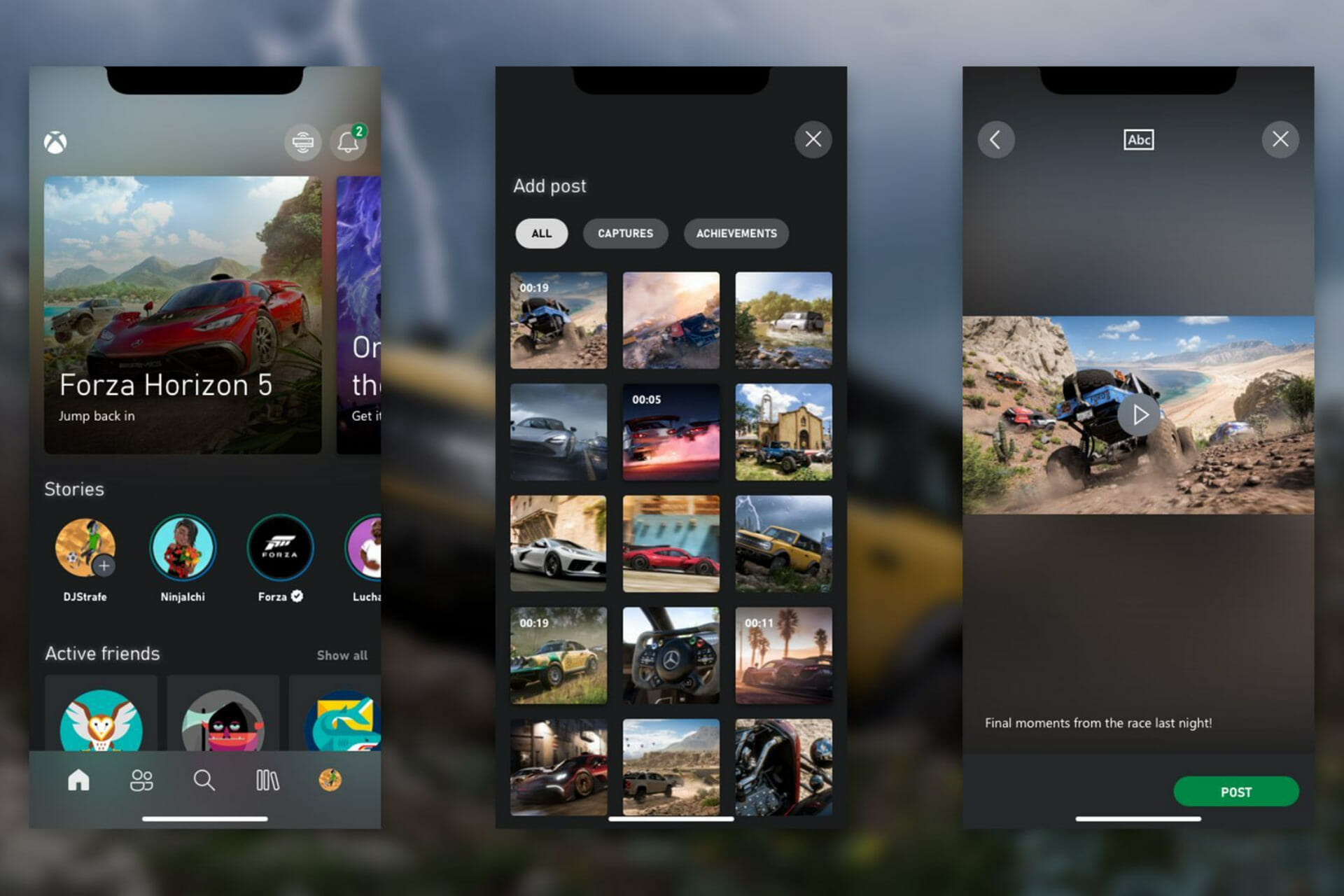
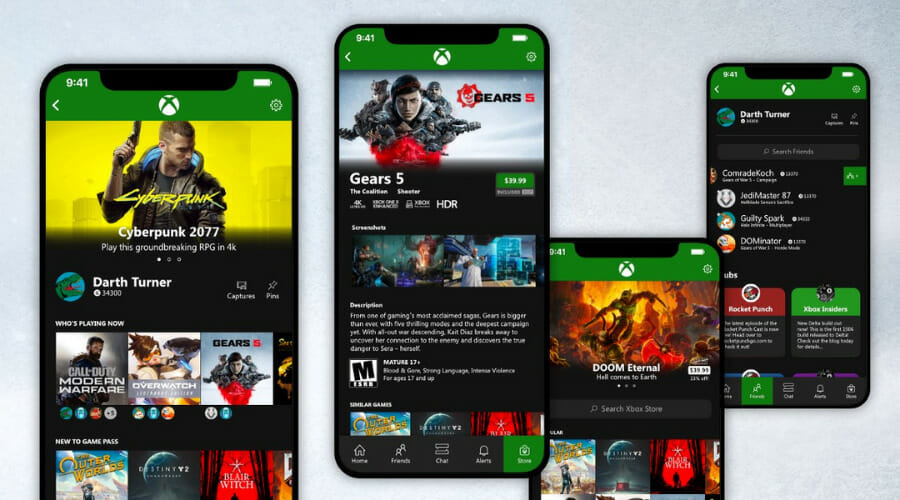


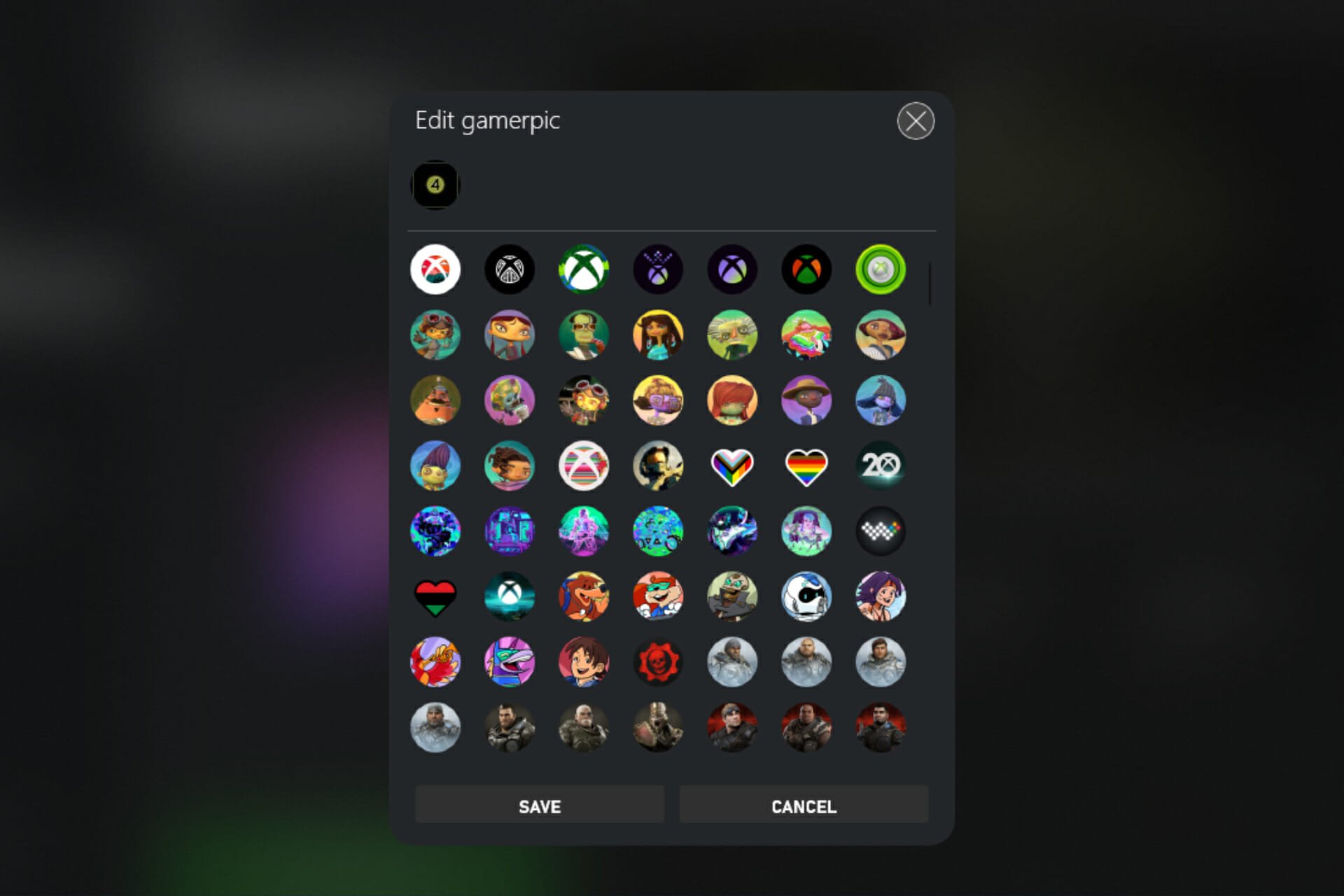




![How to change Script Hook V & Native Trainer controls [Latest version]](https://windowsreport.com/wp-content/uploads/2022/04/How-to-change-Script-Hook-V-controls.jpg)


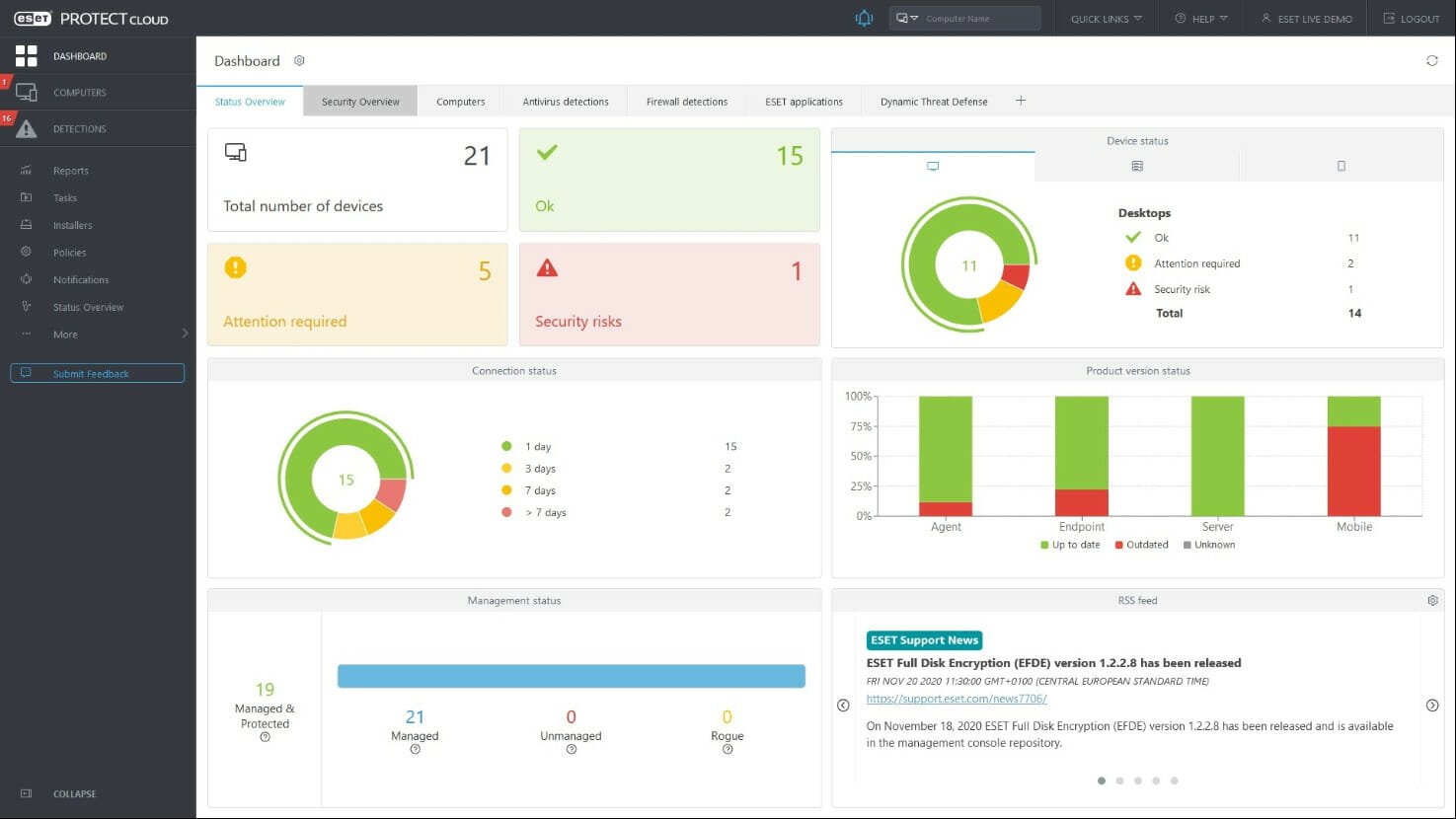

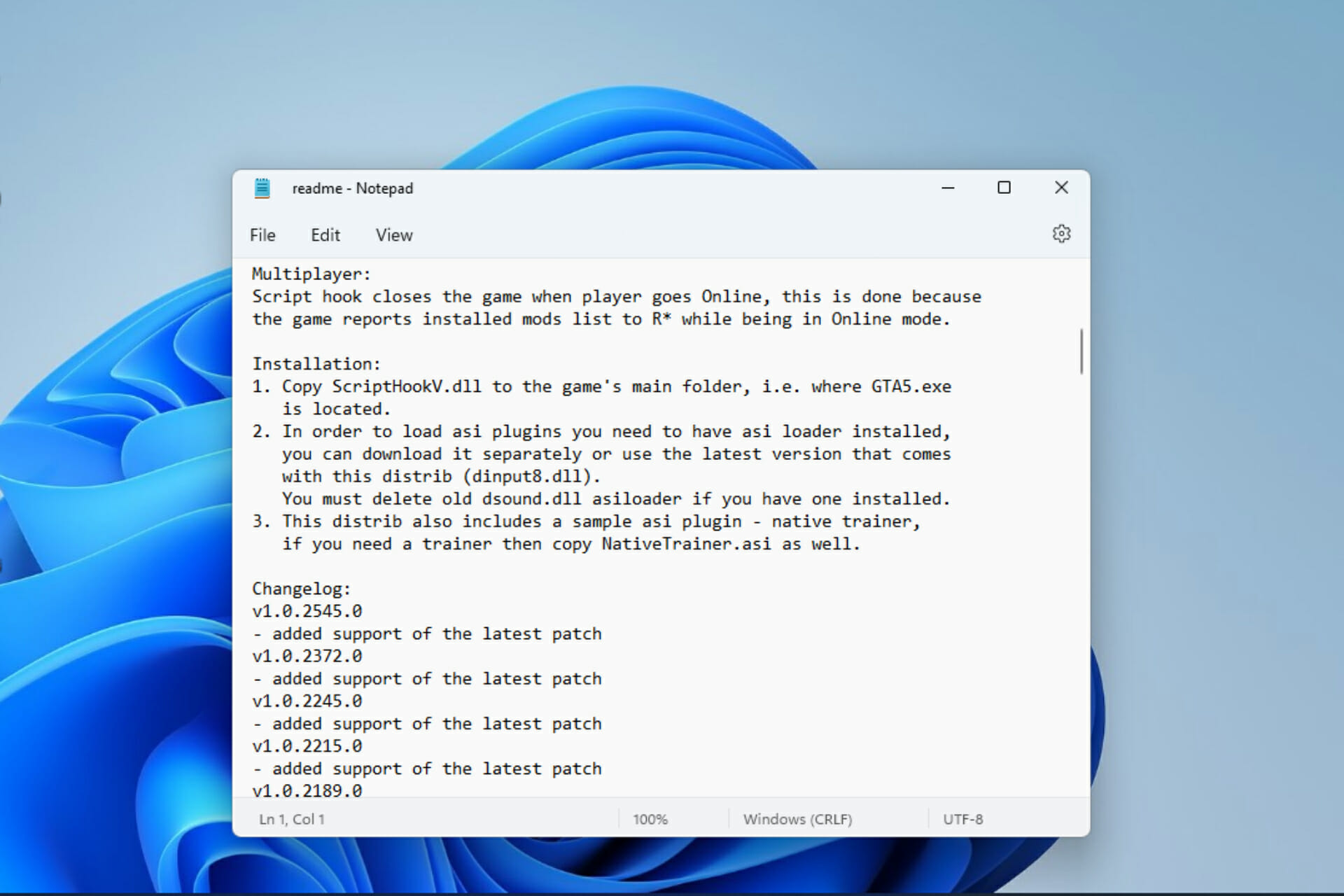



![C++ Compiler Download for Windows 11 [Best 5 Picks]](https://windowsreport.com/wp-content/uploads/2022/05/Compiler-feature-image.jpg)