If you use Microsoft Authenticator, you can even sign into your Microsoft account without using a password at all. If you want to make a more secure Windows 11, follow this guide.
Secure Windows 11 using Microsoft Authenticator
For security, the Microsoft Authenticator app can use a fingerprint, face recognition, or a PIN. And don’t worry if you forget your PIN, your password will still work if you need to sign into your Microsoft account.
If you need even more security, you can require a password to use along with a fingerprint, face recognition, or PIN. This is called two-step verification. For personal Microsoft accounts, you can turn two-step verification on and off and reset your password.
For a work or school account, your IT administrator will decide if your organization will use two-step verification, and there may be additional registration steps required.
The Microsoft Authenticator also supports the industry standard for time-based, one-time passcodes, also known as TOTP or OTP. As a result, you can add any online account that supports this standard to the Microsoft Authenticator app.
Two-step verification is more secure than just using your password. Two-step verification requires something you know (a Microsoft Authenticator code) plus something you have (your Android or iOS device). Two-step verification makes it much harder for hackers to gain access.
Turn on two-step verification
Regardless of which mobile device you use, you need to turn on two-step verification on your Microsoft account first. Here’s what to do.
2. Go to Advanced security options and click Get started
3. Go to Additional security and click Turn on next to Two-step verification. Alternatively, you can also manage Two-step verification by clicking Manage at the top of the page.
4. From here, you will see a “Set up two-step verification” setup screen, click Next.
5. Follow the “Set up your smart phone with an app password” instructions as shown on your Android or iPhone. When you are finished, click Next.
At the final screen, you will see apps that may require an app password. You can set up app passwords and devices for these apps now or later. However, without an app password, these apps might not function properly until you do.
6. Click Finish to complete the two-step verification setup process. Now that two-step verification is turned on, you’ll get a security code sent to the Microsoft Authenticator app on your phone every time you sign in on a device that you isn’t trusted.
When two-step verification is turned off, you will need to verify your identity with security codes periodically, when they might be a risk to your Microsoft account security.
Another way you can have a more secure Windows 11 is by going passwordless on your Microsoft Account.
2. Under Additional security, click Turn on under “Passwordless account”
3. A window will pop up that you want to go passwordless on your Microsoft account, click Next to set it up.
4. Open Microsoft Authenticator on your Android or iOS device to approve the request. On your browser, you should see a screen like this one, waiting for you to approve (or deny) the request on your phone.
5. Once you approve the Microsoft Authenticator request on your phone, you will see the following confirmation on your browser.
Now that your password is removed, you can approve (or deny) access requests using Microsoft Authenticator on your Android or iOS device.
Did you know that you can create a bootable Windows 10 USB on Linux? It might sound crazy to create a bootable USB for a different operating system, but the process isn’t that complicated. In this article, we’ll dive into the exact process of creating a bootable Windows 10 USB on Linux.
Creating a bootable Windows 10 USB on Linux
The first thing we need to have, even before we get started with the mounting process, is a Windows ISO file. For that, you will need to head to the official Windows 10 downloads page to get the ISO in Linux.
Once it’s downloaded
Mounting the ISO file on your USB stick
Now that you have the ISO file with you, all you now need to do is mount the .iso Windows file on your USB disk in Linux. Before you do that, though, it’s best to format your USB stick first. Insert the USB stick into your PC. Then go to the search menu, type in ‘disks,’ and select the best match.
In the disk tool, right-click on your USB disk and select Format Partition…
Choose either of the partitioning scheme and hit Format…
Your USB will be formatted in a few seconds.
Right-click on the earlier downloaded ISO file, and select ‘Open with other application’. From the applications list, select the Disk Image Mounter. This will mount the ISO file. If you can’t find it, click on Other Locations, and you’ll see the content of ISO file.
Copy all files from there and paste them onto the USB drive. Now you have created a bootable Windows 10 USB. From here onwards, the process is quite straightforward. Insert the USB into the PC you want to use, then restart and boot up from the USB stick to proceed with the installation.
Creating a bootable Windows 10 USB on Linux
If you’re thinking of switching to Windows 10, then there’s perhaps no easier method than using a bootable USB stick. All you need is a formatted USB stick and the Windows 10 ISO file, and you’ll be set.
The Snip & Sketch or Snipping Tools allows users to quickly and easily capture screenshots in Windows with a dedicated keyboard shortcut. But, several users reported that the Windows + Shift +S is not working in Windows 11.
While there are a bunch of third-party snipping tools available, many still rely on Snip & Sketch due to the very fact that it’s easily accessible, offers a bunch of ways to capture screenshots, and provides the option to annotate and edit the screenshot.
However, when hitting the keyboard shortcut does not launch the tool, users are left perplexed due to the lack of available information on the subject. So, read the following sections and find out what to do when Windows + Shift + S is not working in Windows 11.
Why is Windows + Shift + S not working in Windows 11?
There could be a few reasons behind the problem, but the most common still are minor issues with the keyboard. It doesn’t require the whole keyboard to malfunction, but if any of the three keys in the shortcut stopped working, you wouldn’t be able to use it.
Other than that, misconfigured settings, issues with the Registry, conflicting external devices, and internal applications too could lead to the issue.
Many users also reported that Windows + Shift + S is not working after update, which is likely due to a bug in the latest version.
No matter what the underlying cause is, just follow the methods listed in the next section to get Snip & Sketch/Snipping Tools up and running in no time.
What do I do if Windows + Shift + S is not working in Windows 11?
1. Some basic checks
The very first thing you must check is that the keyboard is properly connected and that there’s nothing stuck under the keys. Press the keys and identify if it feels different than the others. Because, if that’s the case, there’s something stuck under them.
You can blow light air to dislodge the stuck particles or use a can of compressed air for the purpose. Also, verify that the Windows key has not been disabled unintentionally, since certain manufacturers provide a shortcut for that.
In case these tricks don’t work, connect a different keyboard to the computer and check if the Windows + Shift + S is now working in Windows 11. If it does, the problem was with the previously connected keyboard and you should get it repaired or replaced.
But, if the issue persists, it’s the system settings to be blamed, and you should try the methods listed next.
2. Restart the Windows Explorer process
Press Ctrl + Shift + Esc to launch the Task Manager.
Now, locate the Windows Explorer process, right-click on it and select End task from the context menu.
Next, click on the File menu near the top-left, and select Run new task.
Enter explorer.exe in the text field, and click on OK at the bottom.
While executing these steps, the background and the Taskbar may go black momentarily when the Windows Explorer task is terminated. But don’t worry, that’s a part of the process. Once done, check if the Windows + Shift + S not opening Snip and Sketch problem is resolved.
3. Turn on notifications for Snip & Sketch
Press Windows + I to launch the Settings app, and click on Notifications on the right in the System tab.
Now, locate the Snipping tools entry, and make sure that the toggle for it is enabled.
If the notifications for Snipping Tool are disabled, it may appear as if Windows + Shift + S is not working in Windows 11, but that’s not the case. The screenshot will still be copied to the clipboard. To avoid any confusion, turn on the notifications for the tool.
Press Windows + S to launch the Search menu, enter Device Manager in the text field at the top, and click on the relevant search result.
Double-click on the Keyboards entry.
Right-click on the problematic keyboard and select Update driver from the context menu.
Select Search automatically for drivers from the two options.
Now, wait for Windows to locate the best available driver on the system and install it.
Outdated drivers are one of the primary reasons behind issues with devices. Whether it’s a trivial issue or one that prevents the device from working altogether, updating the driver should do the trick.
If you are unable to find an update using the Device Manager, try the other methods to manually install the latest driver version in Windows 11. Some manufacturers directly release the driver updates on their official website and you have to manually get them.
If you think that is too much work, you can also use a dedicated driver updater like Outbyte Driver Updater. The tool keeps track of all new driver updates and automatically installs them to your PC as soon as they become available.
5. Repair and Reset the tool
Press Windows + I to launch Settings, and select Apps from the tabs listed in the navigation pane on the left.
Next, click on Apps & features on the right.
Locate the Snipping Tool program, click on the ellipsis next to it, and select Advanced options from the menu.
Now, click on the Repair button and wait for the process to complete.
Once done, restart the computer and check if the problem is fixed.
In case it persists, again head to Advanced options for Snipping Tool and click on Reset this time.
Click Reset in the confirmation prompt that pops up.
The reset and repair process can quickly help eliminate issues with any app on the computer. So make sure to run two, and check if Windows + Shift + S not working sometimes in Windows 11 error is fixed.
6. Uninstall the recent Windows update
Press Windows + I to launch the Settings app, and then select the Windows Update tab from the left.
Next, click on Update history on the right.
Scroll down to the bottom and click on Uninstall updates.
Now, locate the last installed update, and click on Uninstall at the top.
Click Yes in the confirmation prompt that pops up.
If the Windows + Shift + S started not working after an update, it’s time you uninstall the current version and revert to the previous stable build. Oftentimes, bugs in the latest releases can introduce instability and cause conflict with the apps and programs.
7. Perform a system restore
If none of the methods listed here have worked, you are left with no option but to perform a system restore. It’s an effective way to revert all recent changes on the PC, including app installations and changes in settings, though the stored file won’t be affected.
The process would take 15-60 minutes depending on the files stored, changes to be made, and the system configuration. But, if System Restore is taking a long time, try running an SFC scan or using a different restore point.
These are the seven most effective ways you can fix the problem. Also, remember that these methods would help resolve Windows + Shift + S not working on Windows 7, as well as on the other later iterations of the OS.
Windows Defender order scams are a common way for crooks to get your money. Cybercriminals have devised this method to steal your personal information.
Once they access your details, they gain unauthorized access to your computer or use your computer to distribute malware. It’s a way they get you to do what they want so they can get what they want.
Although Microsoft has made significant strides in the security of Windows with advanced technology, scammers are also getting more creative with their methods. It is important to stay vigilant lest you fall for one of these scams and end up losing some money or personal data.
What does a Windows Defender order scam mean?
A Windows Defender order scam is an attempt to trick you into paying for a subscription to Microsoft Defender Antivirus software.
This normally happens if you’re not running a genuine version of Windows on your PC. You may also fall victim if you’re running an older version of Windows that doesn’t include built-in virus protection.
Windows Defender is a free in-built program for Windows computers that helps protect your PC against viruses, spyware, and other malicious software.
The scam can be very hard to spot, especially if you’re not familiar with how Microsoft and its products work. You can find out more about Windows Defender in our comprehensive article to be better prepared.
Quick Tip
Phishing scams rely on collecting personal information like name, date of birth, social security number, and others to steal your identity which leads to massive financial consequences.
To protect you from that, you can try an automatic data removal program that helps you delete your data from numerous databases to fully secure your privacy.
Incogni
Let Incogni handle your removal requests and save you a lot of time and effort.
A Windows Defender scam can manifest itself in various ways. It can be in the form of a fake antivirus. You may also be duped into downloading and installing a program on your computer.
Scam techniques can be broken down into three categories:
Trick you into giving them access to your computer. For example, you might receive an email about a software update for your computer, and when you click the link it takes you to a page that asks for administrator privileges on your device.
Trick you into downloading malware. For example, someone may send you an email with a malicious attachment that looks like it’s from someone you trust, such as your bank or a family member. Once you click on the link, your PC becomes infected with malware. Microsoft products are available on the official website or Microsoft Store. You can only download Windows Defender from trusted platforms.
Trick you into revealing personal information. For example, someone may call claiming to be from Microsoft and saying there’s a problem with your computer. The scammers then use this information to access your personal computer, emails, or even bank accounts.
How do tech support scams work?
Tech support scams work in various ways. However, the end goal is always to get you to buy something that you don’t really need. It could be a tool, an upgrade, or a service that’s being sold.
While some tech support scams are run by phone alone, others use pop-up messages on your computer.
Some of these messages seem to come from legitimate companies like Microsoft. They always say that you need to call their support line immediately. These messages often freeze your computer so that you can’t close them unless you restart your system.
The best way to spot a scam is to know what it should look like in the first place. Here are a few tips to spot a Windows Defender order scam:
How can I spot a Windows Defender order scam?
1. Unsolicited orders
If you did not order for anything, anyone calling or emailing you about a Windows Defender order is obviously a scammer. Windows Defender cannot be bought because it is free.
2. Grammar mistakes
One of the most obvious signs is bad spelling and grammar. Spammers often don’t have native English speakers writing their emails, which can lead to mistakes that could give them away. Check for typos and weird-looking sentences.
3. Fake URL
Another red flag is the URL of the website in the email. Scammers like to use URLs that look very similar to legitimate ones. Usually, they will only change a single letter or number to differentiate it from the official company’s email.
Examine each letter closely and compare it to the one given on Microsoft’s website since they can be easy to miss at first glance.
4. Wrong website names
Hover over any links using your mouse to see what web address will be displayed. Microsoft links will always show a preview of the official website with the correct website name. If you notice any suspicious characters, the email could be a scam.
5. Suspicious pop-up ads
If you’re getting pop-up ads online that tell you to call a number to get help with your Windows Defender order, there’s a good chance it’s a scam. The scammers will try to trick you into calling the number and giving up your personal information.
6. Unsolicited phone calls
If you receive an unsolicited email or phone call. The scammer will tell you that they’re from Microsoft. They will also claim that they need remote access to your computer to cancel your Windows Defender order because there’s something wrong with it.
The scammer might also tell you that if you don’t let them access your computer, your device will be disabled or even that it was hacked by someone else.
What can I do if I have already fallen victim to a Windows Defender scam?
If you think you may have fallen victim to a Windows Defender scam, there are a few things you can do:
The first thing you should do is change the passwords on all your accounts. This is to prevent someone from accessing your accounts and taking your money or credit cards. Your bank and credit card companies will be able to help you if this has already happened, but it’s best to be safe and change your passwords right away.
Report the scam to your local police department immediately. There is no guarantee that they will be able to help, but it is important to have a record of the crime in case additional victims come forward.
If any of your bank accounts were compromised, it would be a good idea to call the financial institution to disable your account or block any transactions until they can verify it is you. That way, if the scammers try to access them again they’ll be denied. It is also important that you unplug the computer from the internet while performing this scan and throughout this process. This will reduce the chances of the scammer causing more damage.
Your computer may have been infected by malware as a result of the scam. In this case, use an anti-virus program such as ESET HOME Security Essential to scan it for viruses and other malicious software.
Call your phone company and ask them to block future calls from the number that made the call. This will ensure the scammer doesn’t contact you again.
Inform Microsoft of the Windows Defender order scam or report it via their report scam page. They may take it upon themselves to inform their users so that they can be aware of such scams.
What can I do to protect myself from Windows Defender order scams?
In the future, you will need to stay vigilant so that you don’t fall prey to such scams. Below are some tips to help you protect yourself:
Never provide payment information to someone contacting you through unsolicited phone calls or emails. If someone contacts you and claims to be from Microsoft and they ask for your credit card number under the pretense of verifying your identity, this is a scam. Microsoft will never ask for personal information in such a way.
Don’t pay for a product or service without checking it out first. It’s important to do your research on any product or service before you pay for it, especially when it comes to your computer. Check if the said product is available on the official website before making a purchase.
One of the best ways of protecting yourself from a scam is to ask lots of questions. If a scammer says they’re calling from Microsoft and want to work on your computer, ask them for their name, department, and company ID number. Chances are they will hesitate or hang up.
Avoid clicking on suspicious links. Do not click links in emails or text messages that purport to be from Microsoft Windows Defender. Always manually type in the URL for Windows Defender’s website and log into your accounts directly.
Don’t download any files or programs that someone emails or sends over an instant message unless you trust the sender – even if they say they work for Windows Defender or Microsoft.
Set up two-step verification or two-factor authentication on all of your online accounts that offer it. This helps protect your account even if someone else gets hold of one of your passwords.
As seen, it is really easy for criminals to make it look like you’ve been hit with a Windows Defender order.
The internet is a wild and dangerous space especially if you don’t know basic scam checks. In the end, these con artists are really just trying to steal from the unsuspecting.
It’s common for scammers to use the trust of a well-known brand or popular product to trick you into visiting a website and handing over your information.
Back in 2004, the browser market was pretty much a one horse race. Microsoft had come to dominate with Internet Explorer after quashing Netscape Navigator some years before, and IE6 had some 95% of PC market share. But Firefox 1.0 was released to give the monopolist some competition, eventually reaching some 32% share of its own before Google’s Chrome (released in 2008) began to take over.
Firefox released Picture-In-Picture in 2019 with version 71, and has continued to enhance the feature, making it available across Windows, Mac, and Linux, and adding support for multiple Picture-In-Pictures. Today, Firefox is adding subtitles and captions to Picture-In-Pictures, a request coming from Mozilla Connect, a feedback and ideas hub for Firefox.
Picture-In-Picture subtitles and captions will be initially be available for videos on YouTube, Prime Video, and Netflix, and websites that support the WebVTT format, including Twitter.
New mobile browser wallpapers
To celebrate version 100, Firefox is making two new mobile wallpapers, originally released for Android and iOS in the United States, globally. You can get the new wallpapers, Beach vibes and Twilight hills, by checking the wallpapers feature in your Settings.
Clutter-free tabs and history on Android and iOS
Firefox 100 is introducing a new simplified and clutter-free way to organize your tabs and history:
For clutter-free history, instead of an endless sea of URLs leaving you feeling overwhelmed, we’ve organized it for you in an intuitive way. One of the ways we’ve done this is by grouping history items by the original item, for example if you’re looking for shoes and you’ve looked at several models, you can find them grouped in one folder under your search term. Another way we’ve organized your history is removing duplicate sites thus reducing the visual clutter. Lastly, you can now search within your history. Keep in mind that we are doing this in a privacy preserving way so you can rest assured that your data isn’t being sent back to Mozilla.
Clutter-free tabs and history are available for Firefox on Android today, and will roll out on iOS later this week.
HTTPS-only mode on Firefox for Android
Firefox first introduced HTTPS-only mode in their companion privacy-first Firefox Focus app, and now their bringing it to Firefox for Android. The feature automatically converts urls to https:// whenever available, meaning you’ll get the most secure connections to websites you visit, regardless of whether you used an https url or not.
More features: first-run language switcher, and credit card autofill to more countries
Firefox 100 is making it easier to set your default language when you first set up the browser, allowing you to choose from over 100 languages if your browser default language and your device’s default language don’t match.
The new browser version will also bring credit card autofill to more countries; first introduced in North America, the feature is now coming to the UK, France, and Germany.
There have been several complaints from users about using OBS Studio. Like OBS Studio not picking Discord audio, and so forth.
OBS Studio is arguably the most popular live-streaming encoder. It is completely free and open-source, and it has lots of useful features to help you stream OBS to Discord with audio.
Regardless, if after installing it on your PC it is not working naturally as expected, then you need to tweak your PC or OBS Studio settings to fix it.
If OBS Discord audio is quiet, worry less. We have covered a few useful fixes to help you solve the problem.
You don’t need to try them all; just work your way down the list until you find the one that fixes the Discord audio low OBS issue.
What can I do if OBS Studio is not picking Discord audio on PC?
1. Unmute OBS in the Volume Mixer
Right-click the Speaker icon at the Taskbar and click Open Volume Mixer.
Select the Speaker iconunder OBS to unmute the applications.
If your OBS Studio application is muted in the Volume Mixer, there’s no way you’d hear a sound when using it on Discord.
Hence, after unmuting OBS, check if the OBS audio is back on your Discord recording. Also, try this same step and see if your Discord application is muted. If it is, unmute it.
2. Modify the OBS Studio audio settings
Launch OBS.
Click File at the upper left corner and click Settings.
Click Audio on the left pane. Then, select Stereonext to Channels.
Scroll to Global Audio Devices and select the actual device you’re using for Desktop Audioand Mic/Auxiliary Audio.
Alternatively, you can select the Default options on those drop-down menus to configure the software for your default sound devices.
Restart OBS studio and launch Discord to check.
Selecting the proper devices in the audio settings on the OBS application can fix the OBS studio not picking Discord audio problem.
3. Turn off the microphone’s Exclusive Mode
Click the Start button and select Settings.
Now, choose System.
Click on the Sound tab from the left, then look for the Input section on the right and select Device properties.
Click on Additional device properties.
Select the Advanced tab and uncheck the Allow applications to take exclusive control of this device feature.
If Obs is not picking up the mic sound, this solution will restore things to normal and it will also clear the microphone problem with Discord.
Also, it might be worth learning the best OBS settings for recording on PC. This can be helpful in getting optimal performance when recording your discord voice chat.
Feel free to use the comment section if you have further questions or suggestions on this article.
The number of users experiencing the TikTok profile picture won’t change issue keeps increasing by the day. While this could be pinpointed to a stricter profile photo review from TikTok, some users still find it difficult to upload simple pictures.
Considering that some people need to unblock TikTok in their countries to use it, facing problems with simple tasks like uploading a profile picture becomes more frustrating.
As always, we have gathered workable fixes that will solve the problem and allow you to get back to displaying some of your best and updated pictures to your followers.
What are the common TikTok profile picture issues?
There are different forms of profile picture issues on TikTok. They are caused by various reasons, all leading to the profile picture not changing. Below are the common problems faced by users:
TikTok keeps displaying No internet connection prompt when trying to upload a new profile picture. This could be due to problems with your internet connection.
The account keeps displaying the default photo despite uploading a new one. This could be due to corrupted app data.
TikTok keeps displaying Profile photo/video updates are possible at this time. Thanks for your patience! prompt. Problems from TikTok’s end usually cause this.
How can I fix the TikTok profile picture won’t change issue?
1. Check TikTok server
Open your browser and type tiktok server status in the Address bar.
Select one of the first options like the Downdetector website.
It will display a live TikTok status update for you.
Server downtime might be the reason you can’t change TikTok profile picture. Unfortunately, there is no official way to find out, as TikTok does not provide server status updates.
Also, you can find out on Twitter by typing keywords like #tiktokdown, #tiktokserver, and #tiktoksupport in the search box.
If the problem is due to the server, there is little to nothing you can do than wait for it to be resolved.
2. Restart the app
On Android
Open the Settings app and select the Apps option.
Locate TikTok and tap on it.
Tap the Force stop option.
From here, relaunch TikTok and try changing your profile picture.
On iPhone
Swipe up slightly from the bottom of your phone’s screen to launch the App Switcher. If it is an iPhone with a home button, double-tap the button.
Locate the TikTokapp and Swipeup on it to stop it.
Now, relaunch TikTok and try changing your profile picture.
3. Try a different picture
TikTok has recently introduced a stricter profile picture review system. This is because numerous bots are starting to use obscene pictures as their profile photo.
This has led to problems with some of the usual pictures that users could use in the past. And this might be the reason your TikTok profile picture won’t stay.
If TikTok won’t upload a profile pic, you should try a different picture with different characteristics. If it fails, you can proceed to the next fix.
Press the Windows + I keys to open the Settings app.
Select Network & Internet.
Choose VPN on the left pane.
Select the VPN service you want to disable and click the Disconnect button.
If you are using VPN and a TikTok profile picture won’t save on Windows PC, you should try to disable it temporarily. Your VPN might be preventing you from using some features of TikTok.
This may be due to the current location it is routed to or other privacy features. After disabling VPN, you can try to access TikTok. If it works fine, you can activate your VPN again.
5. Clear browsing data
Click on the menu button (the three horizontal lines) in the top right corner. And choose Go to full browser settings.
Select the Advanced option on the left pane.
Select Clear browsing data.
Check the boxes for Browsing history, Cookies and other site data, and Cached images and files.
Click the Clear data button.
Sometimes, the reason TikTok won’t upload a new profile pic on your PC is because of corrupt browser data.
While this data improves your navigation and general experience when using TikTok on your browser, it can lead to different problems if it is faulty.
Note that you need to restart your browser after clearing the data to effect the changes.
You can use an efficient method to clear out browsing data and cookies using a well-known cleanup software like CCleaner.
Using this tool, you’re able to scan your PC and detect additional or broken Internet data that may cause this issue, and erase all browsing data with a single click.
Afterward, you should be able to change your TikTok profile picture from your browser without any problems.
6. Uninstall and reinstall TikTok
On iPhone
Go to the Home screen, press, and hold the TikTok app.
Select the Delete App option.
Tab on the Delete option when prompted to confirm the action.
Open App Store and search for TikTok.
Select the app and tap the Get button.
Finally, verify your ID as required to start downloading the app.
On Android
Go to the app menu and long-press the TikTok app logo.
Select the Uninstall option.
Open Google Play Store and search for TikTok.
Tap on the app followed by the Install button.
Wait for the process to be complete and launch the app again.
Being unable to change your profile picture on TikTok can be an annoying experience. Thankfully, we have discussed five effective fixes to this problem.
We hope you can get back to displaying updated pictures to your users on one of the liveliest apps.
If you would like to use TikTok on your browser instead of dealing with the problems that come with an app, you check our extensive guide on the topic.
Feel free to discuss the fix that solved the problem for you in the comment section below.
The avastui.exe is an executable file part of the avast antivirus that launches the software’s user interface. A corrupted file can cause the avastui.exe error to interfere with your computer’s usage.
A bug in the latest Avast update can cause an error like Avast error 42102. It’s also possible for third-party software to cause a conflict with the antivirus software.
You’ll get many error messages when avastui.exe isn’t working correctly. Here are some of the more common errors:
Avastui.exe bad image: This happens when errors are in the latest Avast update.
Avastui.exe application error: You’d see this message when the registry entries are corrupt.
Avastui.exe cannot start correctly: It’s primarily because of bad registry entries.
Avastui.exe high CPU usage: The Avast software performs many background operations, which can consume high CPU power.
Avastui.exe is missing or corrupt: It means Avast couldn’t find a necessary file at startup.
Windows failed to start Avastui.exe: An error that results from Avast’s incompatibility with Windows.
Avastui.exe is not running: When you see this error, it’s usually the interference of other software.
How can I fix the avastui.exe application errors?
1. Uninstall and reinstall the Avast antivirus program
Press Windows + I to open the Settings app.
Click on the Apps from the Settings app.
Locate Avast and click on it.
Select Uninstall or Repair.
Follow the instructions on the screen to uninstall.
You can often resolve the Avastui.exe application error by uninstalling and reinstalling it. After uninstalling, go to the Avast official website and download the latest avast antivirus. Then install the software.
2. Repair Avastui.exe entry point not found
Press Win + I to open the Settings app.
Click on the Apps from the Settings app.
Locate Avast and click on it.
Select Modify.
Follow the instructions on the screen to repair.
Usually, repairing the software will remove the error message. However, if that doesn’t work, check the next solution.
Other executable files can experience issues as well, and we suggesting reading our nvwmi64.exe errors guide if you want to learn more.
3. Using Avastclear.exe to fix the avastui.exe error
Download avastclear.exe from Avast’s website.
Type System Configuration into the search box and Enter.
Select Boot.
Click on Safe Mode.
Click on Apply, then OK.
Click on Restart.
Running the avastclear.exe in safe mode
Open avastclear.exe as Administrator.
Make sure the Directory shows the Avast folder.
Select your Avast version.
Click on Uninstall.
Click on Restart later.
Type system configuration into the search box on the taskbar.
If you can’t uninstall the software the standard way, use a specialized tool like CCleanerto automate the process.
4. Perform a Windows update
Press Win + I to open the Settings app.
Select the Update and Security icon.
Select the Windows update on the left side of the screen.
Click on the check for updates button to download the latest version of your Windows 10 OS.
Sometimes outdated Windows 10 operating system can cause the avastui.exe application error.
5. Restore from a system restore point
Type control panel into the search box taskbar and click Enter.
In the Control Panel search box, type recovery and press Enter.
Select Recovery.
Select Open System Restore.
In the Restore system files and setting box, click Next.
Select the restore point you want to use in the results list and select Scan for affected programs.
You’ll see a list of items that will delete if you remove the restore point. Suppose that’s Ok select Close.
Click on Next, then Finish.
The system restore point should be the last resort since it can cause a lot of the software and files to be deleted. If you want to use this solution, it’s essential to back up your files.
The above methods can help you resolve the avastui.exe application errors. If you’re facing other Avast antivirus errors, like the Avastip.dll missing, there are articles on this website that will help you troubleshoot the problems.
Did you find a different solution for this problem? Share it with us in the comments section below.
Every League of Legends enthusiast is well aware of this error. You’re having fun playing the game, and from nowhere, an error message pops up – PvP.net patcher kernel has stopped working.
Crashes in the game are a result of this error. To put it mildly, it is very irritating. Additionally, the client program would not reopen after the crash and reinstalling it will not always work.
This is a very random error, and there is not one particular circumstance that causes it. It frequently occurs when patch files get corrupted, or the program is launched as an ordinary user rather than an administrator.
As a result, there are numerous options for resolving this PvP.net patcher kernel problem. In this article, we’ll walk you through the best solutions.
This isn’t the only error that users encountered, and many reported League of Legends error 004 on their PC as well.
How can I fix PvP.Net patcher kernel if it’s not responding?
1. Launch League of Legends as an admin
Locate the application on your computer, right-click on it and select the Run as administrator option.
If the problem disappears, exit the game and proceed to the next step.
Right-click on the game icon and select the Properties option.
Click on the compatibility tab, under the Settings menu, check the option for Run this program as an administrator, then click the OK and Apply buttons.
This is the simplest solution to the error. While you give a program administrator rights, it can conduct its activities without being hampered, bypassing the system’s checks and firewalls that would have been mandatory while running it in the regular mode.
2. End the task
Right-click on the Start menu and select Task Manager.
Look for the League of Legends processes in the Task Manager, right-click on them and select the End task option.
Restart the program again to see if the problem is fixed.
Another fast solution that has been effective for many customers is stopping and restarting the games’ app and processes on Windows 11’s Task Manager. When this is done, it closes all of its windows and deletes all the data stored in the PC memory.
On your PC, locate the League of Legends’ directory and open the RADS folder.
In this folder, navigate: projects/lol_air_client/releases
Now delete the releasemanifest and S_OK files.
Finally, double-click on the Deploy folder and delete the logs, META-INF, LoLClient.exe, and lol.properties files.
If the first two fixes did not work, you should try deleting certain League of Legends game patch files. It’s conceivable that the patch files have been corrupted or their defaults have been altered.
Whenever a patch file is deleted from the game, the program will download it again in place of the created space.
All three solutions are easy fixes to apply.
However, suppose you are adopting the third fix, we recommend paying close attention to deleted files or folders because you would want to avoid deleting folders that are integral to starting the game’s processes.
Note that relaunching the game will not work when you have a pvp.net patcher kernel error, and you will need to take different steps if League of Legends won’t launch.
We hope you can now play League of Legends without a recurring PvP.net patcher kernel error. Let us know which of these solutions have been most helpful in the comments.
Are you facing the Scribd error 1001 repeatedly? To solve this problem, you will find some amazing instructions in this article.
Scribd is a very popular e-book and audiobook subscription service that includes countless titles for its subscribers. However, the problem begins when you face unexpected issues while accessing any of your favorite titles.
One of the most common errors is #1001. When it appears, it may show you the following message:
This title failed to load (error #1001 ). Please try again later or contact Scribd support.
This error appears mostly when you try to access an audiobook using the Scribd app. It has apps for smartphones and tabs only. Though its competitor Audible has apps for Windows and Mac too.
However, if you want to fix the problem we are talking about, there are some excellent ways given below.
How can I fix the Scribd error 1001?
1. Clear cache and data
Go to Settings of your Android device.
Navigate to Apps.
Find Scribd and tap on it.
Go to Storage.
Tap on Clear Data. It will erase both cache and data.
If you are using iOS, re-installing the app will do the same. In case you are encountering this problem on a desktop, using a different browser may help.
If you are an Android user, you can install and use CCleaner for more options. The tool will scan your phone and give you a report on your app data for each app.
Find Scribd and select everything you want to remove, then press the Finish Cleaning button. If you want to clean up your PC, they also have a desktop app.
2. Update the app
Scribd audiobooks often suffer from playback issues on outdated apps. To get rid of this issue, updating the app to the latest version is the only way.
On smartphones and tabs, you can easily update all apps on your device using the app store. Then, try to access the problematic title. You will not face error #1001 again.
Restarting smart devices does many things, including freeing up occupied memory and CPU resources and clearing many temporary data. It helps to solve problems related to any apps or services like Scribd.
4. Use a VPN
VPN is probably one of the most effective ways to fix Scribd error 1001 on both smartphone/tab and desktop. However, a wrong virtual private network may create additional issues.
We recommend Private Internet Access (PIA) for Scribd. This service has countless powerful servers in different locations in different countries that can provide solid performance for any purpose.
If your existing network has issues with Scribd, the PIA’s premium VPN network will surely help.
Private Internet Access
Private Internet Access is one of the best VPN services you can use for any purpose, including reading ebooks and listening to audiobooks.
Restarting the router and modem of your home network will release the current IP address and lease a new one. This method can solve the problem if the Scribd error 1001 appears due to some connectivity issues.
These are the most effective ways to solve this Scribd error 1001. If you know any other methods to troubleshoot this problem, you can write them down in the comment box.
Are you trying to watch your favorite shows on ABC but can’t due to an annoying ABC error 400-2?
ABC, also known as American Broadcasting Corporation is among the most popular platforms entertainment platforms in the US and around the world.
Its collection of TV series, movies, and endless Live stream recordings of sports, documentaries, and more make it a worthy entertainment option for many.
Therefore, when you experience such an error when trying to catch up with your favorite shows, it can be a little disappointing.
What causes the error 400-2 on ABC?
Error 400-2 is an authorization error that’s usually generated when trying to view locked content or live streams on TV.
Your TV provider is responsible for this error due to reasons such as
Incorrect credentials.
System errors on their end.
An unauthenticated fire stick.
Luckily, it is easy to solve this error and go on to watch your favorite TV shows.
Here are a few options if you are planning to watch your favorite shows on the ABC platform but can’t because of error 400-2.
How can I fix the error 400-2 on the ABC app?
1. Connect and Reconnect your TV provided from the ABC app
Go to the menu and select settings.
Click on the Disconnect provider link.
Force close your app after disconnecting the TV provider.
Restart the app and go back to the Menu.
You should see a Connect your TV provider now.
Click on it and then click on “Allow” before entering your credentials.
Check whether the error is resolved.
2. Re-authenticate ABC on Firestick
Go to the ABC app and click on the Account option.
Click Sign out under your TV provider.
Confirm that you want to sign out again by clicking Sign out and OK to confirm.
Force quit the app.
Once done, restart your app and activate it.
If your app stops working for any reason after this process, clear the app cache and data.
Restart the Firestick.
Uninstall and reinstall the app before restarting your Firestick.
Press and hold the Select and Play/Pause buttons for a couple of seconds and check whether ABC error 400-2 is gone.
Experiencing problems with League Of Legends is no longer something new, and some players are so fed up that they just feel like giving up sometimes.
But don’t think that it’s all that bad. It’s just that, from time to time, the game tends to drive players crazy due to some pretty obnoxious technical issues.
Let’s get right into it, take a closer look and determine how you can get back to playing your favorite game in no time.
Why do I get the 0U error code in League of Legends?
The League of Legends error code 0U indicates that the PBE client is not loading, which implies that the game location on your PC is unable to locate new features and updates for your game.
When you encounter this problem, you may notice a black loading home screen, no summoner icons, rumbled client tabs, or a missing friend list.
Apart from patching, it appears that anything they modified broke all client connectivity when this bug started worming around.
The PBE enables you to eliminate any bothersome bugs you come across along the way, ensuring that new content is well-tuned and glitch-free before it goes live. In a nutshell, you should open a ticket to inform the player support staff of the error code 0U.
The earliest mentions of the error go back to 2020, and Riot Games was quick to acknowledge the issue and confirmed that it’s working on a fix.
However, that could take some serious time, and we want to play right now. Luckily, there are some workarounds that you can use to restore game functionality.
The League of Legends PBE desktop client should be reinstalled to resolve the error number 0U. Simply giving it a chance to fresh restart it may increase the likelihood of avoiding glitches and in-game issues.
Because the client Public Beta Environment is hosted on a League server that is constantly filled with new upgrades and content, fresh versions of the setup files are uploaded with each patch.
Reinstalling League of Legends from these files will result in a completely updated version of the game.
Every third-party program or application that you install on your computer leaves a significant trace in the Registry after removing it.
When you remove all traces of the PBE client from your computer’s Registry, you completely remove League of Legends files and leftovers. This is where a third-party uninstaller like CCleaner can come in handy, as it can remove all traces in the Registry and smooth the way for a new reinstall of the League of Legends PBE client.
Obviously, if you have any doubts, you can leave us a comment and we will be happy to assist you in any way that is necessary.
That’s all you can do for the moment, as far as the 0U error code for League of Legends is concerned. Everyone is still waiting on Riot to solve the problem.
Until then, players that ran into this problem said they fixed it using the two above-mentioned methods.
If you are a tech person affected by Parkinson’s disease, you need to have the best computer mouse for Parkinson’s to be able to work without any issues.
Parkinson’s disease is a disorder that happens in the brain. It leads to trembling, rigidity, and hardship in balance and coordination. Unfortunately, those affected have problems using a normal mouse. Accidental clicks and unwanted mouse movements are just some of their issues.
This article explores the best computer mouse for Parkinson’s sufferers to help you use the computer without worrying about accidental clicks and other actions that hamper the flow and experience.
How can I use my normal mouse and keyboard when I have Parkinson’s?
Many may want to explore other options before purchasing a new mouse. And we have listed a few quick changes you can make to help exercise better control over the mouse:
Change the mouse speed: Adjusting the mouse speed on your computer can help personalize it for your degree of control and minimize unwanted mouse movements.
Modify the keyboard configuration: Customizing the keyboard configuration can help optimize your experience when using the keyboard.
Customize click times: Determining the length of each click and the timing of your double clicks can prevent accidental clicks and opening the wrong applications.
Use a third-party application: Applications such as Steady Mouse remove the excessive shakes and trembles and block unintentional mouse taps.
NOTE
Remember, these tips will only fine-tune your experience to a certain degree but won’t deliver the optimal experience. For that, we recommend purchasing a new mouse.
BIGtrack 2.0 is a USB type A mouse that can be easily plugged into the computer and has a large 3-inch trackball. The larger the trackball is, the less skill and control it needs to operate, making it the best computer mouse for hand tremors.
With its oversized left and right-click buttons, you can ensure you never press the wrong click again, and there will be no accidental taps.
Using the drag-lock feature implemented in this mouse, you can lock onto an object on the screen and drag it with your mouse without continuously holding its button down.
Kensington’s Orbit trackball mouse is a high-quality, reliable, and innovative accessory and is often the first choice for Parkinson’s disease computer mice.
The 40-mm trackball is designed for those with Parkinson’s disease because its internal red optics technology precisely tracks this trackball’s movements.
Accuracy, productivity, efficiency, and the ambidexterity that comes with this mouse, combined with the cursor and scrolling speed customizability, diminish the consequences of dealing with Parkinson’s.
Kensington Orbit is a wireless mouse that helps you put it in the desired position without worrying about your distance from your computer.
ELECOM 2.4GHz is another one of the best computer mice for Parkinson’s, which was made for gamers originally. However, due to its features and designs, it is a great choice for the affected people.
This mouse is similar to the ELECOM wired finger-operated mouse DEFT series 8. However, this one is wireless which is a better option for people with Parkinson’s because they can put the mouse where they want.
Its fabulous optical tracking technology provides precise cursor movement and increased accuracy. This leads to less hand movement, more efficiency, and productivity.
Furthermore, you can easily change the speed of your cursor to suit your needs. The DPI is adjustable between 500, 1000, and 1500.
Wondering what product is best for those who are passionate about art but are affected by Parkinson’s? 3Dconnexion SpaceMouse is the answer.
3Dconnexion has patented a 6-Degree-of-Freedom (6DoF) sensor. This sensor manipulates digital content or camera positions into CAD applications.
You can push, pull, twist, or tilt its controller to pan, zoom, and rotate your 3D project. Plus, SpaceMouse is so compact that it fits any desk. It comes with a brushed steel base that ensures stability.
ELECOM wired finger-operated trackball is another item on our list for Parkinson’s that has been designed for gamers originally.
ELECOM designed this trackball after conducting extensive research on different types of hand muscles and bone structures. This design will not fatigue your hands at all.
The optical tracking that comes with this mouse is optimal due to the high accuracy that the red color sensor provides. This mouse uses a red ball to achieve that.
Furthermore, customization buttons and a DP switch (that lets you alter the cursor movement speed between 750 and 1500 counts) enable you to choose what suits you best.
The last item on our list of best computer mouse for Parkinson’s is the Kensington Orbit scroll ring optical trackball, which focuses on the comfort of its users more than anything.
The ergonomic, ambidextrous design of this mouse helps those affected with Parkinson’s use the mouse without worrying about having pain in their hands.
Also, the high precision that comes with this mouse due to optical technology and the low effort you need to put into using it, turns this mouse into a suitable candidate for those with Parkinson’s.
Finally, it is worth mentioning that this trackball does not need to be cleaned at all. This, in turn, helps people with Parkinson’s take their minds off of going the extra mile to keep their mice in perfect condition.
In addition to using the best computer mouse for Parkinson’s, affected people can also use voice recognition to perform actions on their computers seamlessly.
Also, the head mouse and foot mouse received negative ratings because they felt alien to the users since many preferred the common mouse options to be there.
Windows 10 offers many useful features and user-personalized services, all by collecting huge amounts of data about you: what websites you visit, your location, the files you access, what you search for on search engines, and much more.
However useful these personalized services may be, there has got to be a clean line between data usefulness and privacy.
How many of you are aware of how much information Microsoft knows about you?
How many of you know what kind of data the tech giant is continually storing about its Windows 10 users? Here is a list of such data just to give you an idea:
1. Windows 10 has a built-in keylogger which means Microsoft can record everything you type on the keyboard. Of course, this is not a malicious keylogger but nevertheless, the thought of Microsoft knowing what you’re typing is just scary.
2. Passwords — the company collects passwords, password hints, and similar security information you use to access your account. Bad news: somebody else knows your password 123456789 now.
3. Content from emails, files, chats, and so on. This could be the most annoying, privacy-breaking practice of all but all this is thoroughly explained in Microsoft’s Privacy Statement:
We collect content of your files and communications when necessary to provide you with the services you use.
[…]Examples of this data include: the content of your documents, photos, music or video you upload to a Microsoft service such as OneDrive, as well as the content of your communications sent or received using Microsoft services such Outlook.com or Skype, including the:
subject line and body of an email,
text or other content of an instant message,
audio and video recording of a video message, and
audio recording and transcript of a voice message you receive or a text message you dictate.
4. Contacts and relationships: this is done if you use a Microsoft service to manage contacts or to communicate or interact with other people or organizations.
5. Location data via GPS coordinates.
6. Usage data such as the items you purchase, the web pages you visit, and the search terms you enter, data about your device and the network you use to connect to their services, including IP address, and device identifiers (IMEI number for phones).
7. Payment data, like the payment instrument number and the security code associated with it.
8. Interests and favorites: the teams you follow in a sports app or the favorite cities you add to a weather app.
The data collected can be divided into two categories: general, non-intrusive data, and highly intrusive personal data.
Luckily, there are dedicated apps that allow you to limit the kind of data Microsoft can collect about you.
What are the best privacy protector software for Windows 10?
On the very top of our list is a VPN created by Kape Technologies the most efficient at what it does: protecting your privacy.
How? By providing state-of-the-art, multi-layered security with advanced privacy protection using VPN tunneling.
Private Internet Access is extremely efficient at changing your IP address with a personally generated one. Your location will also change and you will get to choose one yourself.
Changing your location means that you will be able to access any content throughout the world without any restrictions.
This means that you will benefit from anonymous browsing. Your virtual IP address will make you untraceable, even location-wise.
Not even your Internet Service provider will be able to detect your activity or the fact that you use a VPN.
Here are some real advantages of using Private Internet Access:
You can install it on many possible operating systems
Mobile applications
Super-fast connection speeds
10 devices simultaneously
3303+ servers in 48 countries
Private Internet Access
With this amazing VPN, your browsing remains private, now at a discounted price for a limited time only!
Incogni is one of the most reliable software when it comes to protecting your digital identity from all kinds of malicious threats.
Data brokers typically collect your sensitive information in order to sell it to other parties, exposing your identity at danger.
As a result, Incogni handles this scenario by negotiating with data brokers and permanently erasing your data from their databases.
It is totally automatic, which means you will save a lot of time and work in keeping hackers, invasive profile shadows, and cyber-attacks like phishing or identity theft at bay.
Other best features of Incogni include:
Counterbalance all broker types
Considerable time saver
Completely automated
Intuitive interface
Incogni
Shield your online privacy and safety by using the Incogni software.
Nord VPN -Threat Protection is a newly popular feature of NordVPN source for data privacy that has the capability to safeguard your digital activity.
You don’t actually need to connect to a VPN server to enjoy the performance of this feature, all you need to do is to enable it from the settings tab.
Once Threat Protection is enabled, you can browse the internet safely and securely, as all intrusive ads, trackers, or malicious URLs will be blocked instantly.
Alongside this feature, you have included a bulletproof internet connection, high-end confidentiality, or unlimited bandwidth to be completely free online.
Other key features of NordVPN include:
Split tunneling lets you use both VPN and local traffic at the same time
Automatic killswitch in case the connection drops
DNS leak protection
DoubleVPN to make sure you stay undetected
More so, choosing NordVPN implies a very simplistic experience of securing your data, while also offering the most efficient service of all.
NordVPN – Threat Protection
Protect your online identity and access everything securely using NordVPN Threat Protection.
DeleteMe is a program that comes in handy when you want to keep your privacy intact and safe from data brokers.
Data brokers are companies that collect your personal information such as name, address, email, photos, social media, and other details to incorporate profiles or listings with them, which puts your identity in danger.
The effect of DeleteMe in this context consists of experts reviewing your request for personal information removal and automatically deleting your mentioned details from numerous databases.
It offers a detailed report of the removal process and will continue to delete your data every three months, guaranteeing that your identity will remain safe and secure.
Other best features of DeleteMe include:
Very efficient and accurate reports
Excellent customer service
Intuitive interface
In-depth process of deletion
DeleteMe
Ensure a successful information removal and try DeleteMe for automated procedures.
TotalAV pairs its antivirus engine with a set of privacy tools, which is why it belongs on a privacy list. The higher plans include a Safe Browsing VPN that hides your traffic on public networks, an ad and tracker blocker, and data-breach monitoring that warns you if your email address turns up in a leak.
The browser cleanup tool clears cookies and tracking data, the password vault keeps logins out of your browser, and the antivirus side handles malware, spyware and phishing sites through WebShield.
Safe Browsing VPN in the higher plans
Ad and tracker blocker
Data-breach monitoring for your email address
Browser cleanup for cookies and tracking data
Password vault
TotalAV
Choose wisely when it comes to your personal identity online thus you need this effective privacy shield.
It should come as no surprise that most cybersecurity attackers are hosted by the web, which is why a browser security tool can make a world of a difference.
Guardio is a browser extension that acts as an antivirus but on the web. This means that attackers are blocked from the get-go before they get a chance to reach your PC.
Although it’s not software in the classical sense, Guardio proves to be a very helpful prevention tool. The web is full of unsecured websites that can lead to malware infections, phishing attacks, and data leaks.
If your browser is compromised, chances are that all accounts you access from it will suffer as well. Hackers may access your browsing history, cookies, bank information, email, and even personal documents.
Guardio uses cloud-based technologies to protect you against these concerning risks. It detects malicious scripts and websites, removes suspicious browser extensions, and is able to detect data breaches.
Not only that, but this tool can identify phishing attacks and not allow you to provide your private information to suspicious emails or web pages.
Other key features of Guardio include:
Indexes Chrome extensions to easily identify malicious extensions
Scheduled scans and real-time monitoring
Restore hijacked browser settings in one click
Guardio is a great addition to your security system. It’s available for Chrome, Firefox, and Edge and it can work well side by side with your antivirus for unbreakable security.
Guardio
Stop attackers from the get-go with this secure anti-malware and anti-phishing browser extension.
This premium software comes with a 10-day free trial period, then you will have to pay if you want to keep it. Given its plethora of options, the price is just fair.
It blocks or removes more than 37 tracking services, disables the keylogger, and disables Cortana to prevent background collection and transmission of data recorded with your microphone and webcam.
It also lets you uninstall a series of non-removable Microsoft apps among many other things. Plus, it has a very easy-to-use interface.
It is fair to say this is one of the best Windows privacy protection software out there and comes with a price tag that reinforces this idea.
Other key features of Windows 10 Privacy Protector include:
Clears and disables DiagTrack Log
Prevents Cortana from collecting data
Lets you uninstall OneDrive
Creates automatic restore points before making a change to the system
Compatible with Windows 11 too
Quality always comes with a price tag and we guarantee that Privacy Protector for Windows 11 will not let you down.
Windows 11 Privacy Tool
Using this data privacy software you can control what information Windows can store about you, so check it out today!
GiliSoft Privacy Protector is designed as a very powerful privacy software that encrypts sensitive files on your computer in order to keep them safe from unauthorized users.
Just get ready to invest a little effort to get it up and running and you won’t regret it. You’ll get the chance to clear your browsing history or even the entire Windows history, along with any third-party software traces.
This privacy software will not only ensure your files are read-only or invisible, but it provides a secondary layer of security for your documents, photos, videos, or audio files.
They remain private and no hackers or malicious software can reach them.
Other key features of Gilisoft Privacy Protector include:
Password protect files and folders
Secure file shredder
Compatible with Windows 7, 8, 10 and 11
This combination of effective protection and a variety of features makes Gilisoft Privacy Protector an ideal privacy utility you can download today.
GiliSoft Privacy Protector
Recover the rights for your own digital presence from companies that require sensitive data. All using this powerful software.
This free software receives constant updates in order to provide the best privacy protection experience. With O&OShutUp10 you decide what data are collected digitally.
New features are added constantly. It comes in a portable version, there is no installation required.
With a lively interface, it allows you to choose what data-collecting apps you want to disable.
More so, another attribute that helps the user to protect confidential data are related to security settings, location control, or simply privacy protection.
As you may know, Microsoft requires sensitive personal data like addresses in order to deliver efficient services to users.
Other key features of O&O ShutUp10 include:
Control location services
Portable version
Disables user data and diagnostics
Multi-language support
Hence with such antispy software, it’s very simple to control which data you want other applications to track about yourself.
O&O ShutUp10
This privacy protection tool helps every user to get complete security regarding personal or confidential data, so try it out now!
This free software lets you configure security settings, disable location services, and prevent Windows 10 from sending diagnostics and usage data to protect your privacy.
The user interface is very simplistic featuring a list of privacy settings and a short description for each. You can enable privacy settings individually or all at once.
You can use Ashampoo Antispy to fully cover your data circulation within Windows 10 services and applications.
For instance, if you want to use a personal assistant like Cortana while organizing your activity, you clearly need control over personal data.
Other key features of Ashampoo Antispy include:
Webcam protection controls
Block advertising ID
Disable WiFi Sense trackers
Hence it is recommended to carefully disable reporting actions for intrusive services that may use sensitive data, and you can perform it with one click thanks to this software.
This protection tool was launched on September 14, 2015, and has been constantly updated ever since. The developers added new languages and features to protect both users and data.
SODAT uses a combination of the most powerful encryption, access control, and user-behavior monitoring tools currently available.
It does not require installation, you download it and the tool will do its magic right away. It’s a reliable portable solution, you can easily add it to removable media and use it whenever needed.
The tool has an easy UI that can be easily configured by any user. You can select which tracking functions you want to disable.
This includes Cortana, and Bing in the start menu, your webcam, microphone, and many more.
This protection tool features:
Disable Telemetry and Data Collection
Disable Autologger and Diagnostic Tracking
Disable WAP service
Multilanguage support (5 languages)
This application is compatible with all Windows operating systems starting with Windows 8.1 and higher. It supports both 32-bit and 64-bit systems.
This is the most popular Windows 10 privacy software with more than 250K downloads. With optimized and elaborated algorithms, it runs smoothly on your OS.
The software lets you choose whether you want to enable or disable updates, hides your IP address, and removes spying apps and METRO applications.
It also gives you the possibility to uninstall native Windows apps such as Solitaire, OneDrive, and Calendar and clean host files.
The app allows users to customize a few features and is rather suited for beginners since they can simply launch it without settings specific parameters.
Therefore, you can choose this solution if you’re searching for an efficient antispy protector. You thus assure data privacy and eliminate all services that track your persona.
This app is also able to remove Office 2016 telemetry and other similar inbuilt trackers that collect data about your activity.
Other key features of Destroy Windows Spying include:
Open-source
Available for Windows 7, 8 and 10
Lightweight
It is important to mention that as of late this app has not gotten any updates and it may not be as relibale and secure as it used to be. It may also not work on newer, upgraded versions of Windows 10.
DoNotSpy 10 offers a straightforward solution in terms of online privacy. The most surprising fact about this software is the long list of privacy features it supports.
It disables automatic system updates, biometrics, the Lock Screen Camera function, location, OneDrive, Cortana, web search, application access to certain computer functions (camera, calendar, microphone), and others.
With its new features, Windows 11 needs data from users in order to perform good service in return. Upgraded versions of Windows 10 have similar requirements as well.
Other key features of DoNotSpy10 include:
Multi-language support
Manage targeted ads
Simple UI
Uses System Restore before applying changes
This tool can practically help the user to choose what personal data are allowed to be tracked by different services, or even Microsoft.
Chances are your antivirus might block this software from downloading, so you need to turn it off during installation.
This free software is developed by a volunteer team that has been working in the internet security industry for many years. It is a standalone tool and is very simple to use.
All you have to do is click on the Immunize button and the app disables all tracking features Microsoft included in the operating system.
If something goes wrong, you can quickly undo the changes by clicking the Undo button.
The mission stated by Spybot is to prevent Windows users from regarding their tracked data by powerful companies like Microsoft.
The tool has a simple and modern user interface. It works like a scanner that identifies privacy and tracks related vulnerabilities within your system.
It displays them in a list view of everything found and you can choose whether you want to update your settings or keep them as they are.
Other key features of Spybot Anti-Beacon include:
Browser telemetry block
Stops Google Analytics from storing your data
Multi-language support
Thus you can use the features of this software and immunize your system from complex strategies to store confidential data on your Windows 10 PC.
Although this software offers only eight privacy settings, it still remains a very useful app. We recommend it to those Windows 10 users who are mainly interested in blocking various tracking apps.
If you want to also block Microsoft from collecting data via other means such as your laptop’s camera or your computer’s microphone, choose one of the privacy tools listed above.
This application is focused on the trackers that are built within the operating system.
These are for the most part harmless, in the sense that they do not impose risks as malware does, but if you want to keep your data more private, it’s best you remove them.
Key features of this app include:
Disables Windows Defender automatic sample submission
Stops credential share and open-ness from WiFiSense
Disables the registries that keep OneDrive pinned in Windows explorer
The tool offers you the possibility to either delete or disable tracking services. By disabling them, you temporarily stop them and can turn them back on, whereas deleting them permanently removes tracking services.
This app is one of the best privacy software available taking into account the number of issues it can fix. The program is developed by a German company and comes in English as well.
According to its developers, the primary focus is on Windows 10 settings and Windows 10 apps, especially on its Edge browser. The program will be expanded to Windows 8 in the future.
Moreover, if you get an alert from your Windows Defender or firewall regarding the activity of the software, that is because of changing various PC settings.
The explanation is simple and it’s because of adjusting certain settings in the registry or other system-relevant areas.
Other key features of W10 Privacy include:
Easy-to-navigate interface
Useful step-by-step assistance online
Compatible with Windows 10 and 11
Therefore, the virus topic is stated by the software developers as nonexistent, reassuring users that W10Privacy is completely secure for download.
You can select the options you want for several categories such as microphone, speech & typing, contact, calendar, messaging, account info, and other devices.
Unlike other privacy software that simply blocks updates, by manually personalizing the native privacy settings you choose how updates are delivered and installed.
No matter which Windows 10/11 privacy software you choose, remember that as annoying as Microsoft data collection practices might be, the company does not use it maliciously.
The information collected from all Windows 10/11 users helps the tech giant to improve its products. The choice is yours.
This article will also help you with the following 3 problems:
Windows 10 & 11 are great operating systems and they come with a pack of useful features, one of them being the Calendar app.
While the native Windows Calendar serves its purpose well, some of us may want more customization options and extra features. Others may want it simpler, perhaps with striking looks and fancy live tiles.
Whatever the case, there are a lot of calendar apps for Windows to choose from out there.
What Microsoft app is best for calendars?
Although Windows comes with its own Calendar app, it has basic features and it’s not as advanced as the third-party apps.
However, if you really want a Microsoft calendar app, the best is the one included in the Outlook email client.
We didn’t include it in our list below because it’s so popular that everyone knows already about its features.
However, we did research the market and outlined the best ones, which come with additional options, are highly customizable, and offer various view options.
Some of these apps are available on Windows PC as well as on mobile devices, giving you all the flexibility you need in and out of the office.
In this article, we will discuss the best calendar apps for Windows 10 and 11 that give you extra options to play with.
Efficient Calendar will impress you with its intuitive interface. You will find the most important features you need in this type of tool on the left side of the dashboard.
The calendar, tasks, or events are easily accessible. You also have an assistant-like tool that pops up so you can select the dates of your planned events.
The app helps you prioritize your tasks in order to simplify the decision-making process, especially during working hours.
This calendar allows you to invite others to join your events and to manage their acceptance. You also can add documents and files to your meeting events, to have them handy at any time.
Time Doctor – Best calendar with multiple integrations
Time Doctor is a very efficient productivity app with CRM functionalities that can be perfect for work-from-home teams. It is primarily used as employee-racking software.
Besides the basic time-tracking capabilities, the app includes distraction alerts or offline tracking tools, to make the most of one’s working hours.
At the same time, a few basic project management features help to bring in one spot actions such as creating tasks, assigning projects, and reviewing progress for each team member.
The app is perfectly integrated with Asana, Google Calendar, Basecamp3, or Wrike, and works on Windows, Mac, Linux, Android, iOS, and Chrome operating systems.
Overall, this might be the perfect app for rigorous businesses with stricter company rules and tight calendars.
Hailed as one of the most beautiful calendar apps for Windows 10, Chronos Calendar + is stylish and comes with a ton of attractive features.
The unique synchronization between all your calendar accounts is more than welcome. You can even customize the calendar appearance to match your style.
Its clean interface invites you to experience different calendar views and even rich live tile customizations.
Additionally, you can add moon phases and zodiac calendars to the main dashboard, if you’re an astrology fan.
The smart add feature allows you to jot down quick texts when adding new events while the live tile customization allows you to change the background color, font size, as well as the content you want to be displayed.
One Calendar is a smartly dressed app that lets you pull all your calendars under one roof.
Available for Windows and mobile devices, One Calendar is highly customizable and comes with a ton of attractive features.
It offers a central place for you to view all your calendars like Google calendar, Exchange calendar, Live/Outlook calendar, as well as Facebook events.
One Calendar allows you to add, delete, and update appointments with the day, week, month, and year.
Some of its most attractive features include a lock screen, customizable support, live tile, semantic zoom, calendar themes, and an easy search that allows you to quickly search all your appointments.
However, most of these features are available with the premium version.
One Calendar supports multiple languages, and the best part is that you don’t need an Internet connection to view and manage appointments.
My Calendar is one of the best calendar apps for Windows. The app is highly customizable and comes with a ton of useful features.
You can switch between calendar views, depending on how you prefer to organize your days. For each view, there are several beautifully designed live tiles to choose from.
My Calendar app comes in two versions; free and paid. The free version is ad-supported and comes with great features.
The pro version is ad-free and comes with additional features such as task management, an enhanced internal birthday calendar, and enhanced calendar views.
If you’ve got a Google account, the Calendar app will be right there when you need it and it’s already integrated with your email.
Also, if you are using other Google Workspace apps, Google Calendar will fit right there, integrated with all of them.
In the Google calendar app for Windows, you can set tasks, share them with others on your list of contacts and personalize your calendar with a lot of other add-ons like Zoom, Teams, and a lot more.
Overall, the web app is great because you can use it on any browser and it’s right there on any platform.
And, best of all, it’s very simple to work with because the interface is clean and comprehensive, typical for Google apps.
Calendly – Best free calendar app for any platform, including Android
Let’s face it! One of the most important features of a calendar is to schedule appointments and most calendars don’t offer that feature or don’t do it properly.
Calendly is a web app designed exactly for that purpose and it will help you set up meetings professionally, without any problems.
The best feature of this app si that when you make a new appointment, it only offers the times and dates that are free across all your calendars because it syncs with them.
In fact, it does more than that because it offers the attendee more slots, and when they accept, the meeting is already set, without any back-and-forth communication needed.
Then, everything runs on autopilot because the app sends automatic reminders and even thank-you notes so you can keep focusing on what’s important.
The app is free for personal usage but for the Enterprise version, you will need to apply for a plan.
If you’re using the Thunderbird app as your email client, you already know that it comes with the built-in Lightning Calendar.
Unfortunately, it is not available as a separate app so if you’re using a better email client, this calendar is not for you.
However, if you want to make the change, the built-in feature is great for managing multiple calendars, creating daily tasks, inviting friends to events, and subscribing to public calendars.
The user interface is very straightforward and friendly so you will get the hang of it pretty quickly.
SavvyCal is not just a calendar, but a great app to access all your calendars and set up meetings easily, without any communication issues.
The web app allows the attendee to overlay their calendar on top of yours to find mutual free time for the meeting.
You will also be able to make team schedules with just a few clicks and add the teammates in a blick of an eye.
And if you’re a busy person, you should avoid overbooking. SavvyCal helps you with that by setting limits for how many meetings can be booked in a set time period.
Most calendars are targeted at professionals, managers with busy schedules, and so on but students also have complicated timetables and My Study Life is dedicated to them.
So, this app comes with scheduling features to accommodate your classes but also with your free time or extracurricular work.
And yes, there is a dedicated section to schedule your exams and you can set notifications so you don’t miss any of them and prepare in advance.
The best part about My Study Life is that you can access it on any device because it’s web-based and it also works offline.
Cal.com is another web app that reads all the events from your existing calendars to help you schedule tasks and meetings without double booking.
Then again, with this tool, you create templates for the events you schedule regularly with availability, locations, and then control how and when you get booked.
If you’re working for a website, it’s easy to share your personal link to simplify the process of booking a meeting at a time that works for both of you.
The app has a very simple user interface, available for access on any device, thus it can be used by anyone without any training or further explanations.
These are the best calendar apps for Windows 10 and 11 in both appearance and features. They also integrate well with your other calendars, allowing you to view them all from one central console.
Some of the apps on our list don’t even need you to download anything because they are cloud-based and can be accessed on any device with a browser and Internet connection.
We hope that this article gave you an insight into the best calendar app for your Windows devices and you were able to opt for the most relevant for your needs.
Not everyone is interested in looking for antivirus protection from other companies, and would rather stick with Microsoft’s security solutions.
Defender was recently rated pretty high for the services it provides, so that’s not a bad thing at all, considering how much time the company puts into perfecting it.
However, Defender users are not having such a great time lately, as the software is causing all sorts of major issues for the Windows 20H2 users.
Black screens and high memory usage on Windows 20H2
To be more exact, Microsoft Defender for Endpoint is apparently the root cause of some pretty nasty problems for some client systems with the 20H2 version of Windows 10.
According to Borncity, this is not something that happened overnight, as these severe issues have been observed for almost a month.
Thus, if you are also running the above-mentioned version of the OS, don’t be surprised if you experience very high memory usage.
Furthermore, you can expect black screen issues after logging in. There’s also a high chance that Word 2016 and newer will fail to open or will take a long time to do so.
Not to mention that Windows Event Viewer takes a really long time to show events, both remote as well as local.
Security experts believe that the high memory usage issue is likely caused by a memory leak bug. However, the problem is not new and Microsoft had fixed the issue once earlier.
Keep in mind that the high memory usage by Defender’s Antimalware Service Executable process (MsMpEng.exe) is a quite common bug.
That being said, a temporary workaround to reduce the memory consumption is to disable the Real-time Protection, just in case you were wondering.
So, if you were experiencing any of these situations, know that it is a known issue and it is being currently worked on.
Have you had any trouble with Defender on your Windows 20H2 machine? Let us know in the comments section below.
Several NVIDIA Graphics Card users have reported that the NVIDIA Control Panel is missing in Windows 11. There are several possible causes for this, including a faulty graphics card driver, outdated software, missing registry subkeys, and values, or random errors here and there.
In addition to providing control over NVIDIA graphics driver settings, the panel also allows you to access and use other NVIDIA utilities that you may have installed on your system.
It is recommended that you download and install the NVIDIA Control Panel on your device as soon as you have obtained the necessary drivers to operate your graphics card.
The use of this software is particularly beneficial for those who work with 3D applications or who are avid Windows gamers. You can go into great detail about how your system handles rendering elements when using this program.
Follow along as we will see how to fix the NVIDIA Control Panel missing in Windows 11 right after we see what it is used for.
What is NVIDIA Control Panel used for?
One thing all GeForce graphics cards have in common is the NVIDIA Control Panel, which is found on nearly every computer with this GPU.
Using this seemingly inconsequential collection of checkboxes, sliders, and drop-down menus, you can get the most out of your graphics card or customize the appearance of a game to your exact specifications, among other things.
With a few simple tweaks, you can dramatically improve the visual appearance of games, as well as make them run more smoothly. You can configure Nvidia’s G-Sync technology so that it works in both games and on your computer’s desktop.
However, understanding what those settings do and where to find them can be difficult, so it is important to understand which sections of the Control Panel to pay attention to.
This being said, let’s move on to the list of solutions. Note that they can also address the NVIDIA Control Panel missing in Windows 10 issue as well.
What to do if NVIDIA Control Panel is missing in Windows 11?
Make sure it is not hidden
Press Windows + R on your keyboard in order to open a new Run box and type control in.
On the top-right corner, under View by: select Large icons.
Select NVIDIA Control Panel and then hover over the Desktop option to check the Add Desktop Context Menu option. This should fix the NVIDIA Control Panel missing display settings problem.
Right-click on your desktop to see if the NVIDIA Control Panel appears now.
It is possible that your NVIDIA Control Panel has been hidden by Windows during an upgrade from a previous version, or that it has been hidden by software that has unintentionally altered the graphics settings.
Update your graphics card drivers
Right-click on the Start icon and choose Device Manager.
Next, click on the Display adapters option and right-click on the NVIDIA driver. Lastly, choose Update driver and follow the on-screen steps.
The majority of the time, the NVIDIA Control Panel disappears because you are using the incorrect graphics driver or because it is out of date. As a result, you should check to see if your graphics adapter is running the latest driver and, if necessary, update it.
As an alternative, you have a time-saving solution that can support you to install or update any driver in your Windows 11 OS.
Using a driver updater like Outbyte Driver Updater will first scan the system for out-of-date or missing drivers and proceed to update them automatically.
More so, it can update your graphics card drivers individually or select all the outdated drivers in a bulk for the update.
Note that this solution works specifically for the NVIDIA Control Panel missing after driver update. Right-click on the Start icon and choose Device Manager.
Here, expand the Display adapters section to right-click on the NVIDIA driver and choose Uninstall device.
Restart your computer in order to automatically reinstall the driver, and right-click on your desktop to check if the error is gone.
Open the Windows Search function by clicking on the magnifying glass icon from your Taskbar then type Microsoft Store inside.
Once you open the app, type NVIDIA Control Panel inside the search bar and click on the top result.
Lastly, hit the Get button and proceed with the installation process.
Restart the NVIDIA services
If the NVIDIA Control Panel is missing on your PC, you should restart all the NVIDIA services from Control Panel. It is important that all of these services work properly in order for the NVIDIA app to also properly function.
1. Hold the Windows and R buttons at the same time to open the Run dialog.
2. Type services.msc.
3. From the list of services look for the ones that start with NVIDIA. Right click on each one of them, separately, and choose Restart.
4. If any of the services are not currently running, right click on them and press theStartbutton.
5. Check if the problem is solved and you can find NVIDIA Control Panel.
In the case of PC gamers who use an NVIDIA graphics card, there is a good chance that you are familiar with either the NVIDIA Control Panel or the GeForce Experience.
Users frequently get the two programs mixed up, wondering which is the superior tool for controlling your graphics settings and how to use them together.
You can use both the Control Panel and the GeForce Experience to control and modify various graphics settings, as well as to update drivers and make other performance improvements.
Users these days generally go with a high-end laptop because they don’t want to compromise on performance or encounter regular problems. But that’s not always the case. Many who purchased the Dell XPS 17 reported overheating issues with it.
When a laptop overheats, it not just affects the performance but could also damage the various built-in components. You can also manually check the CPU temperature, and if it reaches around 85°C, turn off the computer right away.
Many faced the issue when running the laptop, while for some, the Dell XPS 17 started overheating while sleeping.
There is a chance of the problem lies with the hardware, but before you go around fixing that, try the methods listed below. These have helped eliminate the problem for a lot of Dell XPS users.
What do I do if Dell XPS 17 is overheating?
1. Disable fast startup
Press Windows + S to launch the Search menu, enter Control Panel in the text field, and click on the relevant search result.
Click on the System and Security option here.
Next, click on Change what the power buttons do under Power options.
Click on Change settings that are currently unavailable.
Untick the checkbox for Turn on fast startup (recommended), and click on Save changes at the bottom.
Fast boot is a feature that reduces the boot time for Windows by storing some critical data on the disk before the previous shutdown. However, it’s known to cause conflicts with the functioning of the OS and applications, and you may consider disabling it.
Once done, restart the computer and check if the Dell XPS 17 overheating issue is fixed.
2. Terminate non-critical apps and processes
Press Ctrl + Shift + Esc to launch the Task Manager, and locate the programs that are consuming a large volume of resources.
You can also click on the top of the column to arrange the programs and processes in the decreasing order of consumption of that resource.
Now, right-click on the non-critical apps, and select End task from the context menu.
Once done, wait for a few minutes for the laptop to cool down. Though this method will not exactly eliminate the Dell XPS 17 overheating issue, it will get the system up and running so that you can execute the other methods.
Press Windows + R to launch the Run command, enter control panel in the text field, and either click on OK or hit Enter to launch it.
Select System and Security.
Click on the Change what the power buttons do option.
Now, make sure to choose Hibernate from the dropdown menu for the situations when the laptop heats up, and then click on Save changes at the bottom.
Hibernate and sleep, both store the files that you are working on, but while the former stores it on the disk, the latter does so on the RAM. As a result, it also takes slightly longer to load the Windows from hibernation as compared to sleep.
Going with Hibernate mode instead of Sleep mode has been found effective to fix the Dell XPS 17 overheating problem.
4. Purchase a cooling pad
If the methods listed here have not worked, you can purchase a cooling pad for your Dell XPS laptop. A cooling pad helps facilitate proper airflow and ensures that the laptop’s temperature does not shoot.
There are several effective cooling pads available on the market and you can purchase one of these.
Besides, you may contact Dell customer support, by either calling on the dedicated number for your country or using the other available channels.
Also, find out what to do if the Dell XPS 17 laptop is freezing since several users have reported encountering the problem.
Tell us which fix worked for you in the comments section below.
As you might already be aware, Microsoft is set to retire Internet Explorer come June 15, this year. Some users have already made the transition to Microsoft Edge or a third-party browser which is now easier to set as default in Windows 11.
However, Microsoft has yet again come out to plead with users to make the transition before they cut their support for IE. and set their own retirement date instead of waiting for the actual date to get here.
Through the blog post, Microsoft has provided a detailed account that users can follow through to achieve the same:
Ensuring that the IE mode is set up– Microsoft encourages organizations to set up and test out IE mode with sites identified to be IE-dependent. This will help identify any compatibility issues that may face them in the future before IE is retired.
Set your own IE retirement date as an organization– Once you are confident as an organization that you are ready for a broader rollout of IE mode, you can then set a date to disable your IE policy.
Have users import their data– If you have everything set up, then it is time to inform users of the changes. Microsoft has provided resources such as IE retirement end-user adoption resources that will assist with the transition.
Microsoft has gone ahead and recommended Microsoft Edge, which will help foster the best experience for users. Remember, they had updated the browser’s IE mode to facilitate this anticipated change. “To easily import their data, users can copy and paste edge://settings/importData into the Microsoft Edge address bar, then choose “Microsoft Internet Explorer” from the selections under “Import from”. These steps are also included in the IE retirement end-user adoption resources email series.”
Tell us if you find this scenario familiar. You’re sitting at your desk, minding your own business, and enjoying some quality Risk of Rain 2 gameplay when, all of a sudden, the game crashes with a blue screen.
No warning, no prior symptoms, just a blue screen of death crash and a message that says WHEA Uncorrectable Error.
Now, the first thing you need to do is not punch your PC. Secondly, you need to understand why this problem has happened in the first place.
The WHEA Uncorrectable Error is displayed by the system during blue screen crashes and is usually related to hardware failure.
A failing hard drive, defective memory, improperly seated CPU, and a variety of other hardware issues can all result in a WHEA uncorrectable error, so it’s not the game causing it.
Even though this sounds pretty serious, there are things you can do to actually fix it. And, in this article, we’re going to show how to do just that.
How do I fix the Risk of Rain 2 WHEA uncorrectable error?
1. Check integrity and stability of installed hardware components
Now, this happening should also be a warning sign to you, meaning that you might want to check some of the hardware parts on your rig.
Thus, be sure to physically inspect your computer hardware because you may have a physical defect or failure in one of your hardware components.
Check whether your cooling system is hooked up and functional, your RAM is securely seated in place, components like your CPU haven’t come loose, and everything is securely connected.
If everything appears to be in place and working accordingly, we can move on to the next steps of the troubleshooting process.
2. Update Windows to the latest version
PressWindows+Ito access Settings.
Select the Windows updates tab and click Install all.
If no updates are queued for installation, press the Check for updates button.
3. Update your drivers
Press theWindowskey, search for Device Manager and click on Open.
Expand Display Adapters, right-click on your GPU and select Update driver.
Select Search automatically for drivers.
Be sure to do this for all of the installed drivers, not just for graphics one as we showed you above.
Would you like to also enjoy quality gaming without being worried about any crashes, lags, or freezes by keeping all drivers up to date and error-free easily.
Manual checks can sometimes be hard to perform, that’s why we recommend using an automated assistant that will scan for fresh driver versions daily.
In case you’re a beginner, you don’t have to worry! Outbyte Driver Updater is smart, simple, engaging and its user interface was built to make your life easier.
Press F2 or F12 (depending on your PC) to enter BIOS.
In the BIOS (or UEFI) menu, go to the Advanced tab.
Go to Performance.
Look for an option that specifies overclocking or something similar.
If it is enabled, which should be the case if your CPU is overclocking, then disable it.
Save the settings and press YES to any confirmation dialogue box.
Exit the BIOS menu and restart your computer system.
That’s pretty much what you’re looking at if you want to fix this error yourself. The process itself isn’t too hard and it won’t take up too much of your time.
Has this guide proven to be helpful in solving your issue? Be sure to let us know in the dedicated comments section below.
This 2013 game is beyond any doubt a fan favorite and experiencing problems that can seriously affect gameplay or ruin it completely are not really what anybody wants.
No, we’re not talking about The Las of Us, Dota 2, or Grand Theft Auto V. We’re actually referring to The Stanley Parable, which although lacks in astounding graphics, makes up with quality gameplay.
This interactive drama video game carries themes such as choice in video games, the relationship between a game creator and player, and predestination or fate.
Need we say more? However, there are The Stanley Parable players that say they can’t even start the beloved title.
Well, we decided to take some time off from whatever projects we were working on and bring this much-needed fix, just in case you find yourself in a similar situation.
Thus, if you’re trying to launch this game and nothing happens, here’s what you need to do in order to get things back on track and resume having fun.
What can I do to fix the Stanley Parable not launching?
There’s no 1005 sure reason as to why this keeps happening, but the methods we are about to describe in this guide will surely be of assistance.
Other Stanley Parable players that went through this troubleshooting process reported the game working after.
1. Check system requirements
The Stanley Parable minimum requirements (Windows)
Memory: 2 GB
Graphics Card: Intel HD 2000
CPU: Intel Core 2 Duo E8400
File Size: 3 GB
OS: Windows XP/Vista/7/8
The Stanley Parable Mac OS system requirements (minimum)
Memory:2 GB
Graphics Card:NVIDIA GeForce 8600M GT
CPU:Intel Core 2 Duo E8400
File Size:Unknown
OS:Mac OS X 10.8 or higher required
The Stanley Parable Linux system requirements (minimum)
Memory:2 GB
Graphics Card:AMD Radeon HD 2600 XT
CPU:Intel Core 2 Duo Q6867
File Size:4 GB
OS:Ubuntu 12.04
2. Run the game as an administrator
Locate the folder where The Stanley Parable is installed.
Right-click on the Diablo 2 Resurrected executable and click on Properties.
Select the Compatibility tab and check the Run this program as administrator box.
3. Check game file integrity
In Steam, right-click The Stanley Parable and select Properties.
Select the Local Files tab and click on the Verify integrity of game files.
4. Update your GPU
Press theWindowskey, search for Device Manager and click on Open.
Expand Display Adapters, right-click on your GPU and select Update driver.
Select Search automatically for drivers.
If you’re into gaming, surely you can do without all the crashes, lags, or freezes by keeping all drivers up to date and error-free easily.
Sometimes, manual checks are hard to perform, that’s why we recommend using an automated assistant that will scan for fresh driver versions daily.
In case you’re a beginner, you don’t have to worry! Outbyte Driver Updater is smart, simple, engaging and its user interface was built to make your life easier.
After completing these steps, your game should launch properly and you can go back to playing what makes you happy, without having to worry about any issues.
has this guide been of help to you? Be sure to let us know in the comments section below.
Today, we’ll show you a few ways to enable Windows 11 mobility center:
using the search bar
from the battery icon
using the power menu
or even the Run dialog box
Once you reach it, you’ll be able to easily perform easy tasks like adjusting screen brightness, audio volume, and more.
We’ll get to the steps ASAP, but first, let’s clear some things out:
What is the Windows Mobility Center?
First introduced in Windows Vista, Windows Mobility Centeror WMC is a built-in Windows component that centralizes information and settings most relevant to portable and mobile devices.
Some of said information and settings include audio settings, battery life and power schemes, display brightness, and wireless network strength and status, amongst other things, depending on the device’s hardware.
Regrettably, WMC is inaccessible on desktop devices. However, this limitation can be bypassed by modifying the Windows Registry.
How can I access the Windows Mobility Center on Windows 11
1. Use the search bar
1. Hit the Windows key or click on the Start button.
2. Type Windows Mobility Center into the search bar.
3. Click on Windows Mobility Center.
2. Use the battery icon in the system tray
1. Locate the battery icon in the system tray and right-click on it.
2. One of the available options will be Windows Mobility Center. Click on it.
3. Try the Power User menu
1. Open the Power User menu by pressingWindows + X or right-clicking on the Start button.
2. Find Mobility Center and click on it.
4. Use the Run dialog
1.Open the Run window by pressing Windows + R.
2.Type mblctr.exe in the dialogue window and press Enter or click on OK.
How do I access Windows Mobility Center on a desktop?
1.Open the Power User menu by pressing Windows + X or right-click on Start.
2. Locate and click on Command Prompt (Admin) or Windows PowerShell (Admin).
3. Type thefollowing command into the console, then hit Enter.
4. Next, type the second command into the console,then hit Enter.
How can I create a desktop shortcut for Windows Mobility Center?
1. Right-click on a space on your desktop.
2. Hover your mouse cursor over New,then click on Shortcut.
3. Type mblctr.exe in the text field, and then hit Enter or click on Next.
4. Type Windows Mobility Center in the text field, then hit Enter or click on Finish.
Hopefully, this guide has been of help to you. Let us know which of these steps was most helpful to you.
And if you know of other ways to enable and access the Windows Mobility Center, don’t hesitate to share them with us down in the comments section below. We’d love to hear from you.
Looking for how to get Paramount Plus for free in 2025? With rising subscription costs, many users are searching for promotional codes, free trials, and smart bundling methods to enjoy Paramount+ without paying full price. This guide walks you through all the ways to watch Paramount Plus without paying.
Step-by-Step Ways to Watch Paramount Plus Without Paying
Call of Duty: Vanguard is the most recent installment in the Call of Duty series and one of the most popular video games released in recent memory. Despite the fact that the game is significantly improved over its previous editions, it still contains some glitches such as the Dev Error 10323.
Both the cause and the solution are currently unknown, and the developers have also failed to acknowledge the existence of the problem. However, one thing that the players have noticed is that this issue can be solved by tweaking the texture streaming settings.
Although other users have not yet experienced the Dev Error 10323 problem, there is no guarantee that they will not do so in the near future.
As a last resort, you will probably have to uninstall and reinstall your game altogether due to the lack of information about this specific error. But first, let’s see what’s new in Vanguard and then jump into the list of solutions.
What’s new in Call of Duty: Vanguard?
A number of gameplay mechanics introduced in Modern Warfare 2 are carried over into Vanguard’s campaign, including the ability to mount wielded weapons to flat surfaces, interact with doors, and carry out takedowns.
Players will be able to employ a more advanced tactical approach in combat thanks to new gameplay features such as blind firing from behind cover, breaking through destructible environmental elements, and creating new paths to complete objectives by scaling walls.
However, while the core gameplay of Call of Duty remains unchanged, fans can look forward to a few new features and game modes this year such as the Patrol mode.
This game mode is similar to Hardpoint, with the exception that instead of static capture points that appear randomly throughout the map, the capture point moves along a predetermined path.
There will be a total of 20 maps available: 16 of those maps will be dedicated to the core 6v6 game modes, while the remaining four will be dedicated to 2v2 games.
Gunfight returns as well, this time with the addition of Champion’s Hill, which consists of a series of mini-games between eight different groups of players.
How can I fix Vanguard’s Dev Error 10323?
1. Disable texture streaming
There have been several solutions proposed to this problem, but this is the first one that the players have suggested. Some of them, on the other hand, asserted that it was effective for them personally.
Because of this, you can also try this method to resolve the Vanguard Dev Error 10323. Those experiencing the problem should turn off texture streaming and then go to the settings menu to free up the reserved space, before moving on to other methods.
Right-click on Vanguard’s shortcut from your Desktop in order to see more options.
Here, choose the Run as administrator option and click Yes on the next prompt that asks for your permission.
3. Reinstall the game
Open Settings and navigate to Apps followed by Apps &features.
Here, type Call of Duty Vanguard inside the search bar then click on the three-dot menu in order to choose Uninstall.
Once you have fixed the Dev Error 10323, you will be thrust into visceral combat, which is set during World War II and will take you from Europe to North Africa as well as the Eastern Front and the Pacific.
The developers behind Call of Duty: WWII’s predecessor, Call of Duty: WWII: Black Ops, have promised a visually stunning experience in Call of Duty: Vanguard, and rest assured that they kept their promise.
Was this article helpful to you? Leave us a comment in the section below and tell us what you think. Thanks for reading!
When it comes to wifi routers, Netgear routers are among the best, yet users have experienced issues such as Netgear router login not working.
This makes it impossible for users to log into routerlogin.net. Fortunately, there are ways to solve this problem, and we will show you how in this guide.
Why is my Nighthawk router login page not working?
Below are some of the potential causes of this issue, as reported by users:
Wrong login details: In most circumstances, the problem is caused by a user typing the wrong username and password. You need to double-check and probably make the password visible while typing.
Outdated browser: Even the best browsers for all devices misbehave when they are outdated. Hence, you need to update your browser to ensure it is not the cause of this issue.
Presence of malware: Sometimes, this problem can be down to the activities of viruses. The solution to this is to perform a malware scan with top-notch antivirus software.
How do I find my Netgear router login?
Finding the Netgear router login page is pretty straightforward. You only need to visit routerlogin.net on a browser on any device connected to the router.
Another option is to type https://192.168.1.1 in the address bar on your browser and hit Enter. This will bring up the login page.
How can I fix the Netgear router login if it’s not working?
Listed below are some basic troubleshooting steps to try before proceeding to the sophisticated fixes in this section:
Restart your router and PC.
Power cycle your router.
Double-check your credentials.
Change the device you are trying to login with.
Use a different connection mode (switch wired connection from wireless and vice versa).
If this does not work, you can now delve into the solutions below:
1. Update the firmware
Connect your computer to your router with an Ethernet cable.
Visit NETGEAR Support and enter your router’s Model Number or Product Name.
Click Downloads.
Select a firmware version and click Download.
Unzip the file if needed.
Enter routerlogin.net into a web browser, and a login page displays.
Type in the router admin username and password.
The default username is admin. The password is the one you specified the first time you logged in. The username and password are case-sensitive.
Select ADVANCED, then Administration.
Now, select Firmware Update or Router Update.
Click Choose File or Browse, then locate and select the firmware file that ends in .img or .chk.
Finally, click the Upload button.
Some models might use slightly different navigation, like Settings and then Administration.
Do not attempt to go online, turn off the router, or do anything else with the router until it has completed the firmware update.
2. Update your web browser
2.1. Chrome
Open the Google Chrome browser.
Click the Chrome settings in the upper-right corner of the screen.
From the drop-down menu that appears, select Help, then select About Google Chrome.
Chrome checks for updates in the next window and displays the most recent version.
2.2. Mozilla Firefox
Open the Mozilla Firefox browser.
Click the Open menu button in the upper-right corner of the screen.
In the menu that appears, click the Help option at the bottom. Select About Firefox.
Firefox looks for updates and presents the current version in the next window.
2.3. Microsoft Edge
Open the Microsoft Edge browser.
Click the Microsoft Edge More menu in the upper-right corner of the browser window.
Move the mouse pointer over Help and feedback near the bottom of the drop-down menu that appears, then select About Microsoft Edge from the side menu.
If Edge isn’t up to date when the next window starts, it will update automatically.
Out-of-date browsers may cause the Netgear router login default not to work. Thus, keeping the browser up to date may solve the issue.
In addition, you can try fixing the router login issue by clearing your browser cache to erase accumulated data or cookies. To perform this task successfully, it’s advised to use the most efficient cookie and cache cleaner software.
If you need to resolve the Netgear login error and navigate without interruptions, you can switch to a more secure browser like Opera.
You will enjoy future-proof functionalities like free VPN security and ad-blocker, social media integrated apps, or seamless file-sharing options.
Search for Windows Security in the Start menu and click the top result to open the app.
Click on Virus & threat protection. Under the Current threats section, click on Scan options.
Select the Full scan option to check the entire system for viruses and any other type of malware.
Click the Scan now button.
Several new malware strains attach themselves to drivers to avoid detection by anti-malware scanners.
If malware was linked to a WiFi driver and disrupted its processes, your computer will be unable to connect to WiFi, resulting in the Netgear router admin login not working.
For those seeking a professional antivirus, we recommend downloading ESET NOD32 software.
While it can defend you against various viruses with multilayered proactive protection, unlike most antiviruses, it does not slow down your computer, making it one of the best anti-virus programs available.
We have reached the end of this detailed guide on fixing the Netgear router login not working issue. Hopefully, you were able to solve the problem before exhausting the solutions therein.
As you try to multitask with Chrome, your default browser, and realize that the address bar disappears when you resize it, it’s quite annoying.
The problem has existed for a long time, but despite Google’s knowledge of the problem, it remains that way.
This issue can usually happen due to the excessive number of extension installations or improper Google Chrome settings.
How can I fix the Chrome address bar after losing it on resize?
1. Disable hardware acceleration
First, click the three dots and then open Settings.
Select Show Advanced Settings andscroll down to System then uncheck Use hardware acceleration when available.
Hardware acceleration makes use of your computer’s graphics processing unit (GPU) to handle graphics-intensive operations such as watching films or performing computations faster.
Usually enabling this option can cause problems like when the Chrome address bar disappears on resize.
2. Remove unneeded extensions
Open Chrome.
At the top right, click the three dots (More) then More tools, and then Extensions.
After that, on to the extension you want to remove, click Remove, and then confirm by clicking Remove.
This workaround is only for Chrome users who have an excessive number of plugins and extensions installed, making it difficult for Chrome to change the layout on smaller windows.
Click on the Start menu, type Control Panel in the search bar and choose Control Panel.
Then, select Uninstall a program under the Programs setting.
Find Chrome and select Uninstall.
Finally, reinstall the application using the official Chrome page.
Uninstalling and then reinstalling is the oldest trick in the book that may fix the issue.
Remember to take note of your settings if you have modified the Chrome settings before because uninstallation will set the settings to their default.
Are there any good Google Chrome alternatives?
Vivaldi browser is the perfect alternative to Google Chrome and has even more options than the original browser of your computer.
It includes capabilities such as Notes, Screen Capture, Image Properties, and crazy amounts of settings like custom address bar location and tab organization.
If you already have Vivaldi but are having problems with it, such as pages not loading, see our article.
Google has never provided an official solution to this problem, but the thread shows that it is aware of the Chrome address bar disappearing on resizing problem.
While there might be no official fixes from Google, many users have shared their workarounds and solutions to this bug.
Using a different browser can be the easiest solution due to the huge amount of browser applications available for download on the web.
Let us know if you were able to successfully fix the Chrome address bar disappearing on resizing in the comments section below.
Microsoft news recap is a weekly feature highlighting the top Microsoft news stories of the past week. Sit back, grab some coffee, and enjoy the read!
LinkedIn can now add a website link at the top of your profile
LinkedIn users with creator mode enabled are getting the ability to add a website link to the top of their profile, in an effort to help increase visibility for business and personal websites.
Microsoft details “Microsoft Edge Secure Network” a built in VPN for Edge
A built-in VPN for Microsoft Edge could be in the works after a webpage surfaced which provides details of a “Microsoft Edge Secure Network” feature. According to the page, Microsoft has partnered with Cloudflare on the project.
Xbox Cloud Gaming has now been streamed by over 10 million people, says Microsoft
Is the System Reserved Partition not showing in Disk Management on your Windows 10/11 device? The System Reserved Partition or SRP is a small partition on your hard drive that stores Windows Boot information. If the file gets deleted somehow, OS boot issues may occur.
Usually, this issue occurs if the partition size is less than 600 MB. The System Reserved Partition is available in Disk Management as Windows doesn’t assign a drive letter to it. So it won’t be visible inside the File Explorer, unlike other drives do.
Things could get serious if the System Reserved Partition is removed from Disk Management. If this happens, users may not be able to update Windows to its latest version, or in the worst-case scenario, your device won’t boot up, and the message Operating System not found will appear on the screen.
As it’s an issue of concern, it’s essential to fix it. In this guide, we will be looking at some troubleshooting methods that may help fix this problem.
What can I do if the System Reserved Partition is not showing in Disk Management?
1. Use Command Prompt
Click on Start and open Settings.
Scroll down and click on Recovery.
Click on Restart now beside Advanced Startup.
Once your device restarts, a blue screen will appear. Click on Troubleshoot.
On the next screen click on Advanced Options followed by Command Prompt.
Enter the following commands one by one and hit Enter. bootrec/scaros bootrec/fixboot bootrec/rebuildbcd
Reboot your device and check if the System Reserved Partition not showing in Disk Management issue is fixed.
Boot into system recovery options, and select Troubleshoot.
Then click on Advanced options followed by Command Prompt.
Type bcdboot c:\windows /s c: and hit Enter. Doing so will create a boot configuration file on a system drive instead of the System Reserved partition.
Once the command is executed, Boot files successfully created message will appear.
Again, type the following and hit Enter. bootrec /fixmbr
If the Element not found message appears, you’ll have to make the partition active using a partition assistant.
Once you’ve rebuilt the file using the partition assistant, follow step 1 to rebuild the BCD file.
If the System Reserved Partition is missing from Disk Management, the only way of recovering it is by command lines using Windows installation media. You can also perform a partition recovery if you accidentally format or delete it. Here is the list of best partition manager softwares that may help you.
Also, both the troubleshooting methods mentioned above require you to get into the Recovery mode, also known as the Advanced Startup Options menu in Windows. By entering the Recovery mode, you will be able to access a range of diagnostic repair utilities outside the OS.
Facing connection issues with your Wi-Fi and Widows device can be frustrating and time-consuming. Yet, without fixing it, there is usually no way to connect to the internet.
Sometimes, you will get a Windows can’t get the network settings from the router error when trying to connect to your router.
Whether this is the first time you are connecting to the router or not, the issue can go as far as affecting your work or other activities that require an internet connection throughout the day.
Why can’t Windows get the network settings from the router?
There are several reasons why your Windows device might fail to connect to your router.
Some users experienced this issue after upgrading to Windows 10, while others experienced the same issue after trying to connect to a wireless HP printer.
This shows that the issue is not isolated to Windows devices and can also affect other devices that connect to the router, such as your wireless printer and TP-link extender.
Some of the most common reasons for encountering this issue include:
Bad credentials
Missing updates
A problematic router
How to fix the Windows can’t get the Network Settings error?
1. Check your network credentials
Go to your network connections Window on the Taskbar. This should be on the bottom right part of your computer.
Click on the network icon.
You’ll see a list of available networks including the one you wish to connect to.
Click on the network.
You will be asked for a network security key.
Make sure to input the right password.
Check if the connection works successfully.
2. Check with another device
If you use the correct credentials and still can’t get the network settings from the router, the issue could be your router.
The best way to check this is to use another device other than your Windows computer to connect to the same router.
If the device connects successfully, then the issue is your Windows device. However, if the other device fails to connect, the issue could be your router.
3. Stop and restart network connections
Go to your network connections Window on the Taskbar. This should be on the bottom right part of your computer.
Click on the Network and Internet Settings link.
Once this window opens, click on the Network and Sharing Center.
You will be shown your active networks.
Click on the network next to Connections.
You will get your Wi-Fi status window.
Click on Disable network to close down your wireless connections.
Type Windows + R buttons on your keyboard to open your Runbox.
Type devmgmt.msc and click enter.
This will open up the list of drivers. Look for your disabled driver on the Network adapters tab.
Right-click on the disabled adapter.
Click enable and check whether the connection works.
Click the Windows key + R on your keyboard to open the Runbox.
Type devmgmt.msc to open the device manager.
Scroll down to network adapters.
Click on Network adapters to reveal all the connections available for your device.
You should see your Wi-Fi router or dual-band wireless adapter.
Right-click on the adapter to open a window.
Click on update driver.
The computer will ask you how you wish to search for drivers.
Select the Search automatically for Driver option and wait for the system to look for and update the drivers.
Once the updates are successful, check whether your internet connection will work.
5.2. Disable and enable drivers
Windows might tell you that you are already using the latest form of driver.
Close Update Window and go back to your device manager window.
Scroll down to network adapters.
Click on Network adapters to reveal all the connections available for your device.
Right-click on the driver to open a window.
Click on Disable device and wait for the process to finish.
Once done, restart your computer. Windows will automatically restart the device driver.
Check if your Wi-Fi is connected again.
Note that to update your drivers successfully, you might be required to use an internet connection.
It helps to use another different source of internet for this exercise before you can fully restore your main source of internet connection.
If you want an automatic solution that can verify whether your drivers are corrupt or outdated and automatically fix them, you can use dedicated software.
We suggest Outbyte Driver Updater because it can handle any Windows driver, using its own up-to-date database. It’s lightweight, so it can regularly update your drivers while running in the background.
Go to your network connections Window on the Taskbar. This should be on the bottom right part of your computer.
Click on the Network and Internet Settings link.
Once this window opens, click on the Network and Sharing Center.
Select Change advanced sharing settings.
Select the Turn on Network discovery tab and save changes.
Network discovery allows your computer to see other network computers and devices. It also makes your computer visible to other devices and computers that share the same network.
7. Run Troubleshooter
On your search button on the bottom left part of your screen, click on the search icon.
Type Network troubleshooter.
It will bring you a Find and Fix network problems app.
Open it and click next.
This will activate the troubleshooter.
Once the troubleshooter starts, you will be given two options.
Troubleshoot my connection to the internet
Help me connect to a specific web page.
Click on the first option and wait as the troubleshooter run.
If there are issues, your troubleshooter will list them down and ask you to fix these issues.
Connect your computer to your router and check whether the issue is solved.
Did any of the solutions work for you?
You might also want to consider changing your router if the problem persists. Sometimes, your router could be the problem, and changing it will fix the issue.
If you have any other issues with your network connections on Windows, feel free to check out our articles for more guidance.
If you know any other way of fixing the Windows that can’t get the network settings from the router errors, feel free to share it with us in the comment section.
It’s very possible for the System Reserved partition to be missing on a computer and when this happens, the PC will find it difficult to boot.
By default, during a successful installation of a new Windows Operating System (OS), the System Reserved partition is created. It houses files such as the bootmgr, and BOOTSECT.BAK, and files for booting your computer in case you use Bitlocker to encrypt the hard drive.
To protect the files of this partition, they are not displayed in Files Explorer. Despite this, some users may mistakenly or unknowingly delete the System Reserved partition. If this is your case or you just can’t find the System Reserved partition, we have highlighted how to fix it with ease.
What can I do if the System Reserved partition missing? 3 ways to get it back
1. Reinstall Windows
Open Windows search by pressing Windows key + Q. Type Reset this PC.
In the displayed options, select Reset this PC System Settings. Then click Open.
Select Reset PC in System Recovery under Recovery options.
Choose whether to keep your files or Remove everything.
Open the Partition MasterSuite. When successfully launched, select Partition Recovery.
You will be asked to Select a disk to start searching for lost partition(s). Pick the preferred disk and then, click on Scan.
The Proceed button will become clickable once a lost partition is found. Select the Lost partition and then click the Proceed button to initiate the data recovery.
Select Recover Now in the Windows prompt. When the recovery is complete, click Finish.
Restart your PC. The issue ought to have been fixed.
Aside from the EaseUs Partition Master Suite, there are other third-party tools that can also help you recover deleted System Reserved partition files.
Power On the PC. Plug the USB into it. In the installation screen, press Shift + F10 keys to launch Command Prompt.
Type the command below or copy and paste before punching Enter: bootrec /fixmbr
Next, input the Command below or copy and paste: diskpart
After this, type the Command below or copy and paste (to avoid error): select disk 0
Then, enter this command: list partition
Later, execute this command: select partition n (n is the Windows OS partition)
Type: active. Next, input Exit.
After that, enter the command below: bootrec /fixboot
Subsequently, type the command below: bootrec /rebuildbcd
Quit the Command Prompt. Restart your system.
We hope any of the methods discussed so far helped you restore the missing System Reserved partition. Our team also has a guide specially written for Windows 10 users.
Share your experience after using these solutions. The comment section is also a place we welcome any questions related to the issue.
The Windows operating system comes with an Event Viewer to help show all the logs of errors one faces when using the PC. It makes it easier for users to solve issues as it helps in troubleshooting. When you look at the logs, you get information like date, time, username, computer name, source of the error, and the event code.
Windows 11 event viewer reboot event id error occurs when the user restarts the PC using the Restart button, reboot the operating system, or terminate an application task. It has an event ID of 1074. It’s due to the system log that uses the computer Event Shutdown policy.
During restart and shutdown, the computer generates a data file that holds all the information about the system hardware and the active programs before the shutdown. It enables the user to know what could cause some of the shutdowns.
How can I fix the Event Viewer reboot id error in Windows 11?
1. Check any pending updates
Press the Windows key+ I on the keyboard to open the Windows Settings app.
Click on the Windows Update tab.
Check if you have any pending updates and click on the Download now button.
Restart the PC to apply the changes.
2. Check the system RAM
Go to the keyboard, and press the Windows key + Rto open an empty search box.
Type the following command mdsched.exe and hit Enter.
Click on the Restart now and check for problems option.
The PC will restart, and it will take several minutes to finish the whole process.
Go to the Search box, search for the Command prompt and select the Run as administrator option.
Type the following command sfc /scannow and hit Enter.
Let it run to 100% and look at the result to see if there are any issues. After finishing the process, run the following commands:
DISM /Online /Cleanup-Image /CheckHealth
DISM /Online /Cleanup-Image /RestoreHealth
DISM /Online /Cleanup-Image /ScanHealth
4. Check the Event Viewer logs
Go to the Start Search box, search for Event Viewer, and hit Enter.
Expand the Windows logs to open the other five options.
Double click the System logoption to open all the events. You can filter the events to see which one has a relation to the reboot ID.
After locating the logs, select the Clear logoption to clear them and try to see if the problem still exists.
5. Uninstall recent updates
Go to the Start Search box, type Control panel, and hit Enter.
Click on Uninstall a program option.
Choose the View installed updates feature.
Locate the latest update you installed, Right-click on it, and choose the Uninstall option.
Restart the PC.
6. Use a third-party repair tool
If the Event Viewer reboot event ID error in Windows 11 persists after attempting all of the troubleshooting methods and fixes listed above, we recommend trying a third-party professional repair tool.
A third-party system repair tool can automatically analyze your Windows 11 PC for corrupted or damaged files and repair them to restore stable functioning.
Such tools are simple to use for computer repair since the programs use powerful technology. They have a remote database of genuine and up-to-date Windows system files that can replace broken files on the scanned system.
If the system files are faulty or missing, the software can repair them, restore your registry, and even do a comprehensive hardware analysis of the computer.
We have discussed several ways how to fix the issue. There is no specific solution, but you can try each fix and see which one works. If the problem persists, check the Microsoft website for more solutions.
Instagram has slowly taken over Facebook as the most widely used social media platform. The ease of use and the different ways of sharing daily life activities have lured users to Instagram.
But Instagram isn’t secure from experiencing issues or downtime. As billions across the globe hop onto the platform to share their daily life or scroll through their feed, Instagram is bound to suffer from a few hiccups.
One of the most common issues that Instagram users have reported is that they can’t log in to Instagram. This issue is so common that Instagram itself has a support page dedicated to this problem.
If you are also among those users who can’t log in to Instagram and are looking for solutions to fix it, then you have landed in the right place.
In this guide, we will give you some of the best solutions to help you fix this problem for good.
There isn’t any specific reason why you can’t log in to Instagram. Chances are that there might be an internet problem, or the Instagram servers are facing an outage.
Whatever the case may be, you can follow the solutions mentioned in this guide and try to fix the problem at hand. Let us check the solutions one by one.
What can I do if I can’t log in to Instagram?
People love watching what their favorite people or personalities are up to. And the best place to do that is Instagram.
You will find all sorts of content on Instagram. Several people simply scroll through their feed for entertainment, while some follow educational or fact pages to increase their knowledge, and then others just love to see what is being presented to them on their Instagram feed.
Imagine all this coming to a stop as you are unable to log in to your Instagram account. It can be frustrating and annoying because there is no specific reason for this error to pop up.
Below are some of the most common reasons you can’t log in to Instagram.
You have entered the wrong or old username or password.
Your account might be blocked or disabled because of term and condition violations.
The Instagram app on your phone is outdated.
Instagram is suffering from a network outage.
The auto-fill username or password option is entering the wrong credentials.
You are trying to log in from a device Instagram does not recognize.
Your phone’s time and date aren’t set correctly.
Now that you have understood the different reasons why you can’t log in to Instagram let us check out how you can solve the problem by tackling the above-mentioned reasons.
How can I fix can’t log in to Instagram user not found problem?
1. Restart your device
Long press the Power button on your phone.
Select the Restart option.
After the phone boots up, open Instagram and try logging in.
One of the best and most effective ways to fix common issues with apps on a smartphone is to simply restart them. Restarting your phone gives it a clean slate to load all the essential files that might have been missed during the previous session.
You can try restarting your phone and logging into your Instagram account to see if you are getting any login errors. If so, then you can move on to the next solution.
2. Check for server outage
In the recent past, Instagram and most of the Meta-owned apps, such as Facebook, have suffered from server outages, triggering multiple issues and errors on the user’s end.
Apps come across server outage issues when they are going through an update, a new feature is being added, or simply because the server is overloaded with requests.
To confirm that a server outage doesn’t cause the Instagram login issue, you can keep an eye on Instagram’s official Twitter handle, or you can make use of websites such as IsItDownRightNow or Downdetector to know about the status of Instagram servers.
It is possible that because of the faulty internet connection, Instagram is facing difficulties in communicating with its official servers.
We would advise you to check your internet connection and use websites such as Fast or Speedtest to test whether you are getting the optimal internet speeds as per your data plan. If not, then you can contact your ISP regarding it.
4. Reset the password
If you get an incorrect password error, you might have entered the wrong password or an old one.
On the Instagram login screen, select Get help logging in.
Enter your username, email address, or phone number. Alternatively, you can also use the login with Facebook option.
Tap Next and follow the on-screen instructions to reset your password.
After resetting, head back to the login page, enter the username and new password and check if this fixes the error or not.
5. Enter the correct username
If you can’t log in to Instagram and are getting an incorrect username error, you need to ensure that you are entering the username correctly. Do not include the @ symbol with your username.
You can check your email and look for the first Instagram email that mentions your username. Finally, you can ask your friend to visit your profile and take a screenshot of your profile’s username.
6. Check the date and time on your phone
Open Settings.
Scroll down and tap on General Management.
Select Date and time.
Toggle on Automatic date and time and Automatic time zone options.
The above steps are shown for the Samsung Galaxy S22 Ultra smartphone. However, the steps or menu items on your phone might slightly vary, but you will get an idea.
If the date and time are not set correctly on your phone, Instagram won’t be able to communicate with its servers due to a mismatch in date and time. Follow the steps and check the date and time, then try logging in to see if this fixes the issue or not.
7. Clear Instagram app cache
Long press on the Instagram app icon.
Select the App info (i) button.
Tap on Storage.
Hit the Clear cache button.
If that doesn’t solve your problem, hit the Clear data button. However, clearing the data will log you out of Instagram and your app will behave as if it was freshly installed.
8. Update the app
Open Google Play Store.
Tap on your profile photo.
Select Manage apps & devices.
Under Updates available, hit the See details option.
Update the Instagram app if a new update is available.
Keeping your apps up to date is essential. First, if you do not update the apps on your phone, you are missing out on new features.
Second, the latest update brings bug fixes, which might help fix the problems you might be experiencing with the old app version. So, following the above steps, you can check if it solves the can’t log in to Instagram problem.
9. Use the website
If you still can’t log in to Instagram, then by the time the issue gets fixed, we suggest you use the website.
This serves two purposes. One, you will be able to use Instagram without any issues. Second, it will also help you determine if the problem is with the Instagram app, your phone, or something else.
10. Contact Instagram support
The last thing that you can do if none of those mentioned above solutions helped you fix the can’t log in to Instagram problem, is to contact Instagram support.
Instagram has a robust support center, and it can help you tackle almost all the issues you can encounter on Instagram.
How can I fix other Instagram problems?
Well, having trouble logging in to Instagram is just one of the common errors you will encounter. Notably, there are several other issues that you may come across.
➡We’re sorry, but something went wrong Instagram error: If you are experiencing We’re sorry, something went wrong Instagram error, then this could be because of multiple glitches, server error, or an outdated app.
➡Instagram post not sharing to Facebook: If you are not able to share your Instagram post to Facebook, then you can check if the accounts are linked correctly, clear the cache of both apps, and do more as advised in the guide.
➡ Instagram sign-up error: This error can prevent you from creating a new account on Instagram. You can follow our dedicated guide to get rid of this error.
There is no shortage of games, especially survival horror games. And one of the most popular games in this category is Resident Evil. It is not a specific game but a franchise that has different versions of the game released at different points in time.
The basic premise of the Resident Evil 7 game is that the player (or main character) is looking for his missing wife in an infected plant occupied by an infected family.
You go through killing enemies and solving different interesting puzzles. While it might sound pretty interesting for all the Resident Evil fanatics, not being able to install it on their PlayStation could be annoying.
Several PlayStation users are reportedly facing the game data has not finished installing Resident Evil 7 error. The installation goes on and on for an endless time, but the game does not completely install.
While there is no information on what causes this game data to have not finished installing Resident Evil 7, we have a guide that will possibly help you fix the problem.
In this guide, we have listed some of the most effective solutions that have helped users get rid of the game data error that they have not finished installing Resident Evil 7 on their PlayStations. Let us check them out.
How to fix Resident Evil 7 blurry graphics issue?
For gamers, playing the game at optimal resolution and graphics is the main goal. Well, that is the reason they invest in a dedicated gaming console.
Now, many Resident Evil 7 players have been reportedly suffering from blurry graphics issues with the game.
Notably, the game’s graphics don’t look sharp. While for some, there are a few scenes where blurriness appears, for others, the total game suffers from blurry graphics.
For such users, you can tweak the graphics settings as mentioned below:
Set the resolution to default.
Turn off motion blur. This is one of the main reasons you would come across blurry graphics issues with Resident Evil 7.
You should also turn off or disable the FXAA/TAA settings. Use SMAA instead.
Interlaced tracing should also be turned off, as it has been reported to cause blurriness.
Set the resolution scaling to 1.
Turn of Chromatic aberration.
Of course, for some Resident Evil 7 gamers, simply turning off one setting would do the trick. But the above settings are for you to tweak and see which one solves the blurry graphics issue.
How can I fix the game data that has not finished installing Resident Evil 7 error?
1. Clear system cache
Press and hold the PS button on your controller.
On the Power menu, select Turn off PS4.
After the console shuts off completely, unplug the power cable from the socket.
Wait for about 30 seconds before plugging back and turning on the console.
The above steps will help you clear or refresh the system cache. Once the process is complete, you can try and check if the error is fixed or not.
2. Rebuild the console database
Press and hold the PS button on your controller.
After the console shuts down, press and hold the Power button for seven seconds until you hear two beeps.
Release the power button after seven seconds.
The PS4 will open Safe Mode.
You need to select Rebuild Database.
Press the X button to start the console database rebuild process.
Refreshing the database is one of the best solutions that will not only help you fix the game data that has not finished installing Resident Evil 7 error, but it will also help fix various common problems.
Follow the above steps and rebuild the console database. That might help you fix the problem at hand.
3. Check for updates
3.1 Manually
On the PlayStation home screen, select Settings.
Choose System Software Update.
If there is a new update allow the PlayStation to install it.
Restart your PlayStation 4 console.
One of the most important things that you can do to not only fix the game data that has not finished installing Resident Evil 7 error, but other bugs as well is to check for new updates.
3.2 Automatically
Use your PS4 controller and select Settings.
Choose Power Save Settings.
Select Set Features Available in Rest Mode.
You need to check the boxes next to Stay Connected to the Internet and Enable Turning On PS4 from Network.
Alternatively, if you do not wish to go through the steps above to manually update your firmware, you can set your PS4 to automatically update by following the below steps.
4. Check your internet connection
There are chances that your internet connection is at fault here. Notably, if your internet connection is slow or faulty, then the game will not be able to download or install the game data resulting in this error.
In such a case, you must check your internet connection. You can make use of websites such as Fast.com or Speedtest on your PC, to verify if you are getting the appropriate internet speed as per your data plan.
If not, then you can contact your ISP and get the rectification done, and check if this resolves the issue or not.
Under Download Status, you can see the download/installation status.
This will show you the actual download status of the game data for Resident Evil 7.
Click Done.
Let the process complete and check if this fixes the issue or not.
7. Reinstall the game
On the home screen, head to the Games menu.
Locate the game.
Highlight the desired game and press the Options button.
Select Delete.
Press Confirm.
Go to the library, select the game and redownload it.
8. Check storage
On the PS4 home screen, select Settings.
Scroll down the list and select Storage.
Here check if you have sufficient storage to download game files or not.
If not, then hit Applications.
Select the application you want to delete, and press the Options button on your controller.
Choose Delete.
9. Factory reset your PS4
Open Settings.
Select Account Management.
Choose Activate as your primary PS4.
Select Deactivate.
Choose Yes.
Select OK to confirm your action.
Again head back to Settings.
Select Initialization.
Choose Initialize PS4.
Select either Quick or Full and press Initialize.
Choose Yes to confirm.
The factory reset process will begin.
You should choose factory reset your PS4 as the last option when none of the methods mentioned above helped you fix the game data has not finished installing Resident Evil 7 error.
Do note that once the console reboots after a reset, you need to log in again and install all the games again for you to play them.
How can I troubleshoot other PlayStation problems?
While the game data not finished installing Resident Evil 7 is a game-specific issue, PlayStation users also come across other common issues for which we have a dedicated guide with confirmed solutions.
➡ PS4 randomly turns off: If your PS4 is randomly shutting off without any notice or error message, then you can check out this guide and try possibly fixing the issue.
➡PS4 Error Su-30625-6, SU-42481-9(Update error): Because of file corruption, you will come across this PS4 update error. We have a dedicated guide on fixing this problem.
➡Playstation 4 error NW-31473-8: If the PSN server is experiencing some issues or outages, then you can follow this dedicated guide and possibly fix the problem.
➡PS4 controller not connecting to PC: If you are having trouble connecting your PS4 controller to your PC, then our guide will surely help you troubleshoot the problem.
Let us know in the comments below, which one of the above solutions helped you fix the game data not finished installing the Resident Evil 7 problem.
If you have any other solution that worked for you then you can let us know and share it with others by dropping a comment below.
When you aren’t using your computer, you may want to know what’s happening on your PC or who’s accessing it. What program is being opened and when, or any activity that happens on your Windows computer, you will want to know about it.
Keeping a log of the events is possible, but unfortunately, it can be a pain to check the log because it is not user-friendly and it can be difficult to sift through the events because they are not straightforward.
But that doesn’t mean there isn’t a workaround!
You can configure the system to send out emails whenever an activity takes place using Windows event viewer email notification, this way you can stay up-to-date.
How can I get email alerts in the Windows Event Viewer?
1. Create a Powershell script
Click on the Start button, search for Powershell, and open it with Administrator privileges.
Once the script is executed, your computer will ask you to send an email to the email address you have specified with the important information.
By setting this up, you will receive an email notification even if you update the Application logfile.
Install a third-party SMTP service provider and configure the settings properly as instructed by the provider. Also, confirm if you’ve given the correct destination email; otherwise, you won’t receive any email.
Once done, save the script on your computer, for example, C:\ScriptsPowerShell\eventnotification-send-email.ps1
Now follow the below steps to enable email notification for all the events.
Name the task. In this case, we’ll name it Event Notifications.
Change the setting from Run only when the user is logged in to Run whether the user is logged in or not and click on Ok.
Now in the same window, click on Triggers, and click on New.
In the new window that opens, select On an event under Begin the task drop-down menu.
Now, type in the event ID or the source.
Open the Log Menu and choose an event, such as event 4627 for logon and 4734 for logoff.
And if you want the notifications only when you turn on your system, change the setting to Logonfrom On an event.
Now, select Actions and then click on New to open a new window.
Now enter the following command inside the Add arguments (optional) section: C:\ScriptsPowerShell\eventnotification-send-email.ps1
Click on Ok and set the password on the next screen.
NOTE
If you’re using an antivirus or a firewall, make sure you whitelist Blat. If you don’t whitelist, the antivirus or the firewall may block the webpage of the software.
3. Create a Scheduled Task
Open Event Viewer.
Choose the event or the log file that you want to attach to the script you created.
Right-click on the event or the log file and click on Attach a task to this log.
Now, give a name to the task in the Action panel.
Click on Start a Program and then click on Next.
On the next screen, type powershell.exe in the program/script box.
In the Add arguments (optional) copy and paste the script that was created in C:\Scripts PowerShell\eventnotification-send-email.ps1
You can also use quotes around the script if needed. For example: C:\Scripts PowerShell\eventnotification-send-email.ps1
Now allow some time for the application error log entry to confirm that everything is working properly.
4. Automate the deployment
To view the notifications on multiple systems. Click on the Start button and type Task Scheduler.
Export the task to an XML file.
Or, even better to automate the import, use a Powershell script after creating the XML file, such as: PS C:\> Register-ScheduledTask -Xml (get-content '\\myfileshare\tasks\DataKeeperAlerts.xml' | out-string) -TaskName "DataKeeperAlerts" -User datakeeper\dave -Password PPDOMAIN@67W0rdD –Force
If you are an administrator or if you simply want to keep track of all the events that are happening on your system, you could keep track of them using Windows Event Viewer, but the program is not straightforward.
Hence, you can have all the events emailed to you and keep yourself updated. Feel free to share your experience with us by using the comment section found below this guide.
HBO Max has been available for almost one year. The WarnerMedia-operated OTP streaming service allows customers to view episodes and films from Summit Entertainment, WarnerMedia, 20th Century Studios, Universal Pictures, and some third-party publishers.
The site now has many new and old programs, including new releases such as Space Jam: A New Legacy, The Matrix 4, Dune, and prior HBO series such as Chernobyl and Succession.
Even with such an extensive content catalog, HBO Max is not without its flaws. Many unsatisfied users have reported that movies do not stream properly and often buffer during lengthy durations of movie viewing.
We explore in this article all issues regarding why your HBO Max is slow.
What are the causes for lag on HBO Max? Here are a few common culprits:
Low data bandwidth
Bad internet connection
Bugs on your device or browser
Corrupted installation files
Outdated software
Some of the slow devices that users have reported include Roku, Firestick, and Chromecast. But, whatever the case may be, the following tips will come in handy.
What other issues have been reported with HBO Max?
HBO Max slow loading:When this issue happens, the most likely cause is your cache, so you need to clear it or restart your device.
HBO Max slow streaming: Slow Internet connection often causes this problem, so make sure that your connection is stable.
HBO Max slow on Samsung TV: This issue has been reported on all models, and not just Samsung, but if this problem happens, a quick restart is the best way to fix it.
How can I fix HBO Max when it is slow?
1. Restart the streaming device
Windows 11
Click on the Start menu, and click on the Power button.
From the options select Restart and wait for your computer to turn off and come back on.
Fire Stick
On your home screen click on the settings icon.
Scroll down and click on My Fire TV.
Then click on Restart in the central pane.
If HBO Max is slow on Firestick, restarting the device is one method that might help you fix the problem.
Roku
Press the Home button on your remote.
Navigate to Settings.
Select System restart.
Now choose Restart.
In case HBO Max slow on Roku, these steps should help you restart your device and hopefully fix the problem.
Chromecast
Open Google Home app.
Select your device.
Tap the Gear icon.
Choose More settings and select Reboot.
Restarting your device can help you if HBO Max slow on Chromecast, so be sure to try it.
Clashing processes on the streaming device or phone may potentially create problems with HBO Max. To ensure that this is not the case, reboot the device from which you’re streaming HBO Max.
Note that your restart process will be specific to your device.
2. Check Internet connection and speed
You stream movies only at the speed that your connection allows. So, if you’re having trouble buffering when viewing on HBO Max, you should make sure the internet connection is good enough and that you have a good Wi-Fi signal.
Make sure your streaming device is near your Wi-Fi router. For example, you may bring the streaming device close to the router to download the title, then return to your original location to watch it.
To view HD videos on HBO Max, you’ll need a minimum download connection of 5 Mbps. We suggest utilizing a faster internet connection to reduce pauses caused by multiple device usage and network fluctuations.
Scroll down to the graph to see HBO Max outages reports within 24 hours.
Report any problem you may have with HBO may by clicking either Video Streaming, App, or Website.
Like many other services, HBO Max might have issues with its servers. For example, you may be hindered from watching videos from HBO Max smoothly if the streaming service’s servers are under maintenance. Video playing may begin to buffer and become sluggish.
It’s critical to confirm whether the company’s servers are offline. Aside from maintenance and other glitches, HBO Max servers may experience disruptions if the service is debuting a new program or show and there is a user overload.
4. Watch a different show
When you see visual stutters and delays when viewing an HBO Max series, try returning to your media library and playing any random title.
This allows you to determine if the issue affects the whole platform or is limited to certain TV series and movies.Proceed to an alternative solution if you discover that titles are not slow or laggy.
Under the Choose a device type menu, select your device type.
Click on the plus (+) sign to expand any option that corresponds with your device and see if it is compatible.
Another explanation why your HBO Max continues to be slow is because of unsupported devices. The HBO Max platform is compatible with various OSs but not with every device running on those operating systems.
If this is the case, you may consider purchasing a new device; otherwise, you can always view HBO Max via a web browser.
6. Log out and re-login from the app
Click on your profile, on the top right corner of the screen.
Hit the settings Icon, and select the Sign Out option.
On HBO Max, some occasional errors and faults might corrupt account data. In this case, the current session may have unexpected issues, including problems lagging until the user data is refreshed. A re-login can fix this.
Open the Settings app by using Windows key + I shortcut.
Select Network & Internet from the left pane, and select VPN on the right pane.
Select your VPN connection and remove it.
Virtual Private Networks (VPNs) are programs that safeguard your internet data and allow you to avoid your ISP’s geographical limitations.
They function by altering the default IP to mask your real location and filtering information leaving your device to safeguard sensitive data like credit card and bank account details.
This step might create delays and network instability if you’re not utilizing a trusted VPN. To remedy this, turn off your Virtual Private Networks before trying to access HBO Max.
However, in this case, we recommend using a more trustworthy VPN, such as Private Internet Access, to unblock HBO Max. PIA has a reputable security software with streaming-optimized servers.
If HBO Max finds IP addresses from a single server, it has the option to ban them. PIA generates a unique IP address, allowing you to avoid server congestion and watch HBO Max at the maximum speed for your device.
Additionally, PIA excels in download speeds due to the consistency of its connections across locations, allowing you to watch movies and TV episodes without annoying multimedia lags.
8. Clear your browser cache and cookies
Click on the ellipses (3 dots at the top right corner of your browser), select More tools, then select Clear browser data.
Under the Basic tab, select Browsing history, Cookies and other site data, Cached images and files, then click the Clear data button.
Once this is completed, relaunch HBO Max and try again.
If you want more advanced options that let you keep some data in your browser while cleaning the rest, you can use a dedicated utility like CCleaner.
This type of application can run a scan on your browser and give you an easy to comprehend report on what you can remove to free up space and boost loading speeds on HBO Max.
9. Disable your browser extensions
Click on the ellipses (3 dots at the top right corner of your browser), select More tools, then choose Extensions.
Click on the switch at the bottom of every extension you want to disable.
Once this is completed, relaunch HBO Max and try again.
Browser extensions are programs, often third-party apps, that enhance the functionality of websites or your browser. However, they are sometimes extra burdens on a device, which may influence the performance of your system.
If you’re having trouble watching HBO Max, try deactivating the browser extensions.
10. Try HBO Max on a different device or browser
If a title is lagging and slow, see if the video playing on a different device is better.
If the app on Android or iOS isn’t functioning, try switching to the service’s app on your streaming device or TV to ensure the problem isn’t with the phone.
HBO Max is a web-based service that allows you to view TV series and movies from your computer. Whether you’ve already done that and are still having issues with the service’s online client, use a browser like Opera to log into your HBO Max account to see if it buffers or is slow.
What devices are known to be affected by slow streaming?
There are many devices to choose from that are compatible with HBO Max. But even some of these compatible devices have been reported by users for lagging while streaming.
Three of the affected devices are Roku, Firestick, and Chromecast. To be on the safe side, your Roku streaming device should be updated and have a minimum of the Roku OS 10, to reduce the chances of slow streams.
On newer Chromecasts, you can opt for a wired internet connection. These are much faster than the wireless ones.
If you have read up to this point of the article, you probably have been able to resolve any issues connected with slow streaming on HBO Max. These solutions and tips will be highly recommended regardless of the streaming device. You will be able to fix problems if HBO Max is slow on Chromecast, or any other device.
Please leave us your comments; we like to know what devices you use to stream HBO Max and which of these tips were most helpful.
If you would rather learn how to troubleshoot HBO Go and HBO Now issues on TV, Chrome, and Roku, you will find our guide on the best fixes for HBO Now / HBO Go not working very useful.
Radmin VPN is a free and user-friendly software designed to firmly connect computers to create a cohesive virtual private network (VPN).
No matter how far away you are from your PC, the software’s remote control helps you access your files, app, and emails on the go.
Also, if you are wondering whether Radmin VPN is safe to use, do not worry. The software uses end-to-end 256-bit AES encryption which is currently the most secured method of obtaining data. If the United States government is using this method to protect their sensitive data, be rest assured that yours are in safe hands.
That said, in this article, you will learn how to install and uninstall Radmin VPN on your Windows 11.
How do I install and uninstall Radmin VPN on Windows 11?
Go to your Windows start menu and click on settings.
From settings, click on apps.
Now, choose Apps and features from the options on the left side of the screen. You will see all the apps currently installed and running on your PC.
Scroll down and click on RadminVPN. Two options will appear – Modify and Uninstall.
Click on uninstall to remove Radmin VPN from Windows 11.
3. Use a better VPN software
With the high rate of cyber threats, having VPN protection is one of the best steps to secure your private data and keep them away from hackers and snoops.
Private Internet Access comes highly recommended. There is a built-in Adblocker that keeps malicious ads and trackers at bay fostering a faster and safer web experience.
It is easy to set up plus your traffic and browsing data are not stored. The software runs an open-source VPN service making it one of the most secure and transparent VPNs you can get on the web today.
In as much as there are safe VPNs you can lay your hands on, it’s best to also pay attention to your online behavior.
If you are reckless with your data, chances are that your IP address and location might leak. So, be discreet with your data and be careful in selecting the best VPN services.


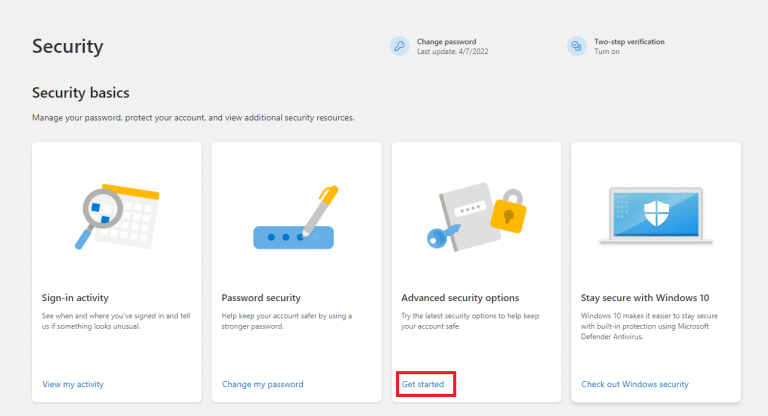
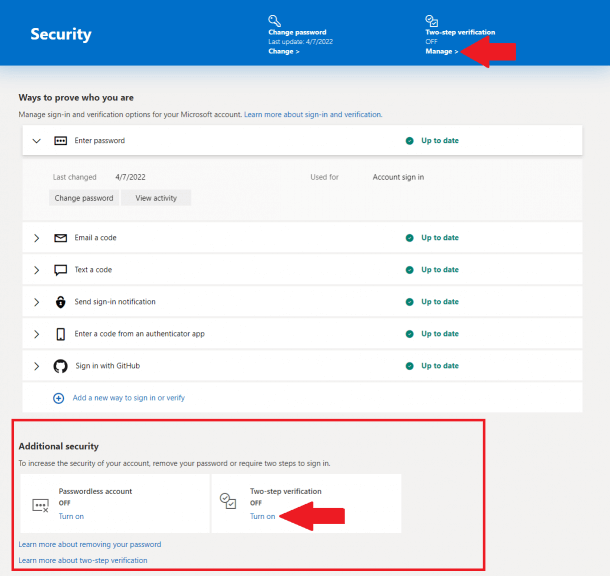
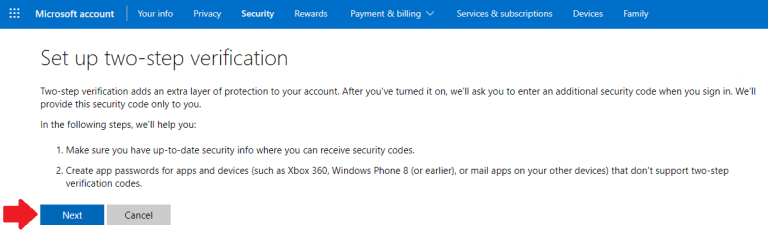
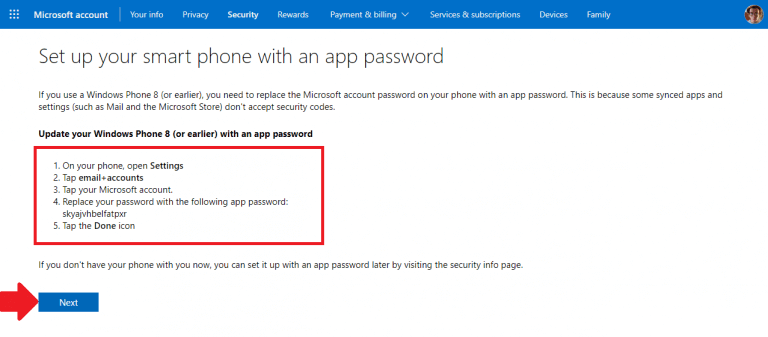
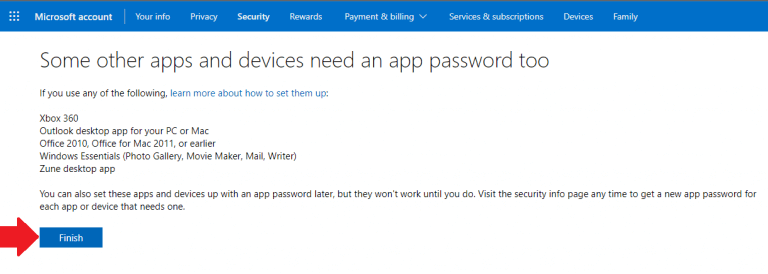
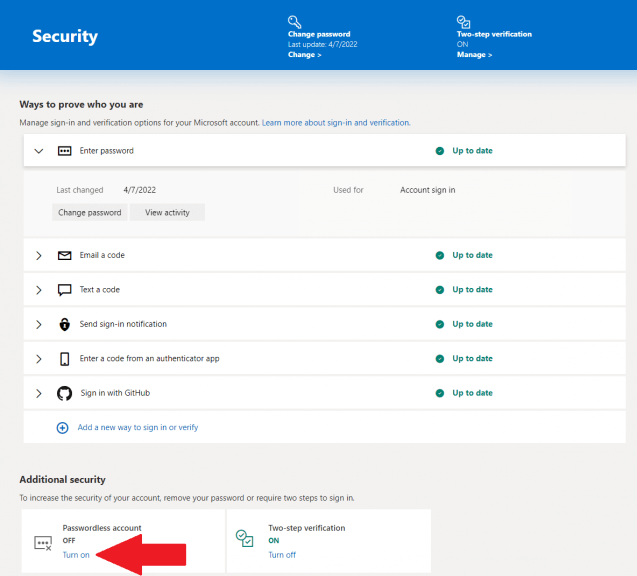
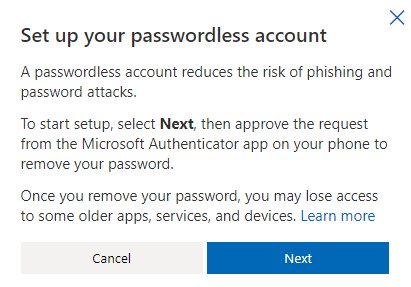
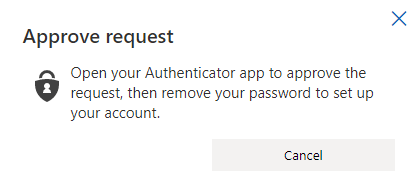
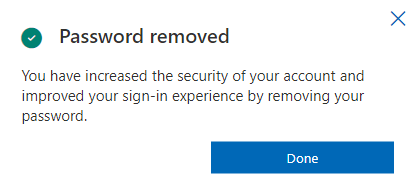


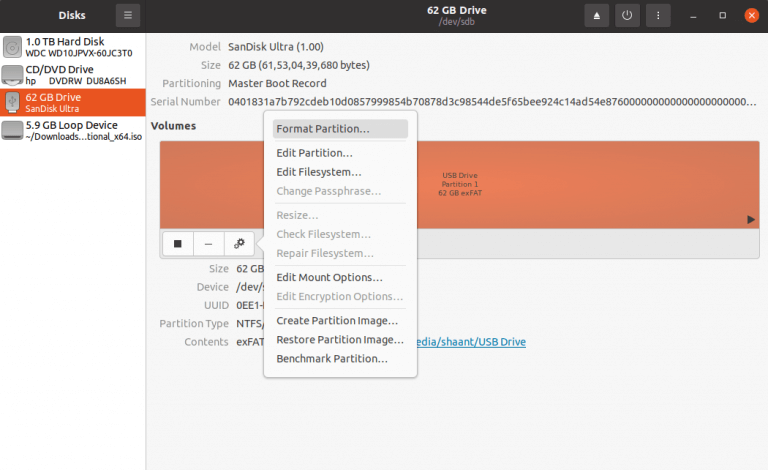
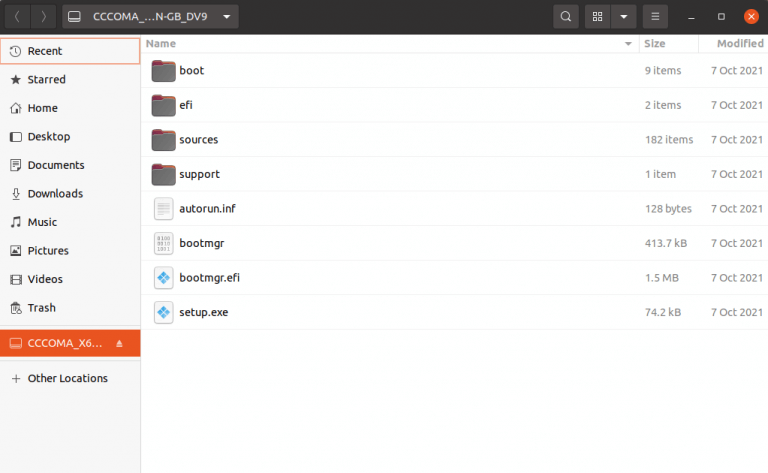
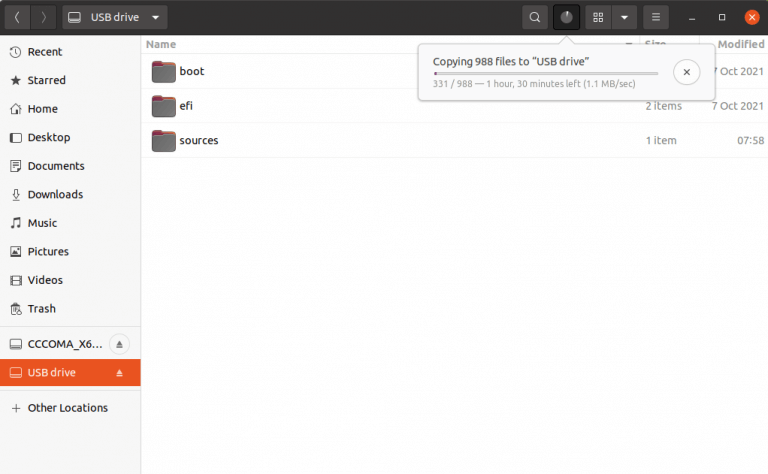
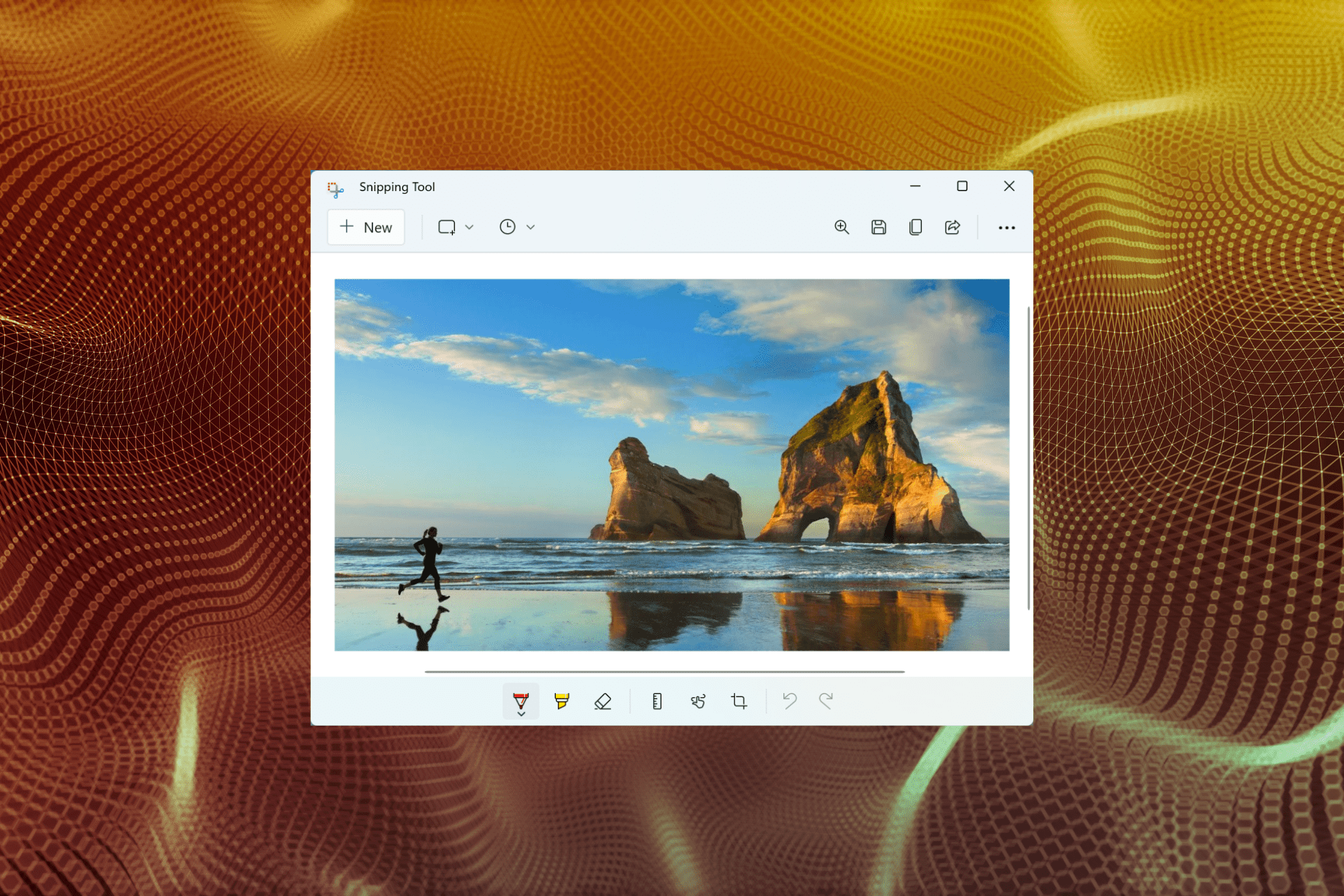

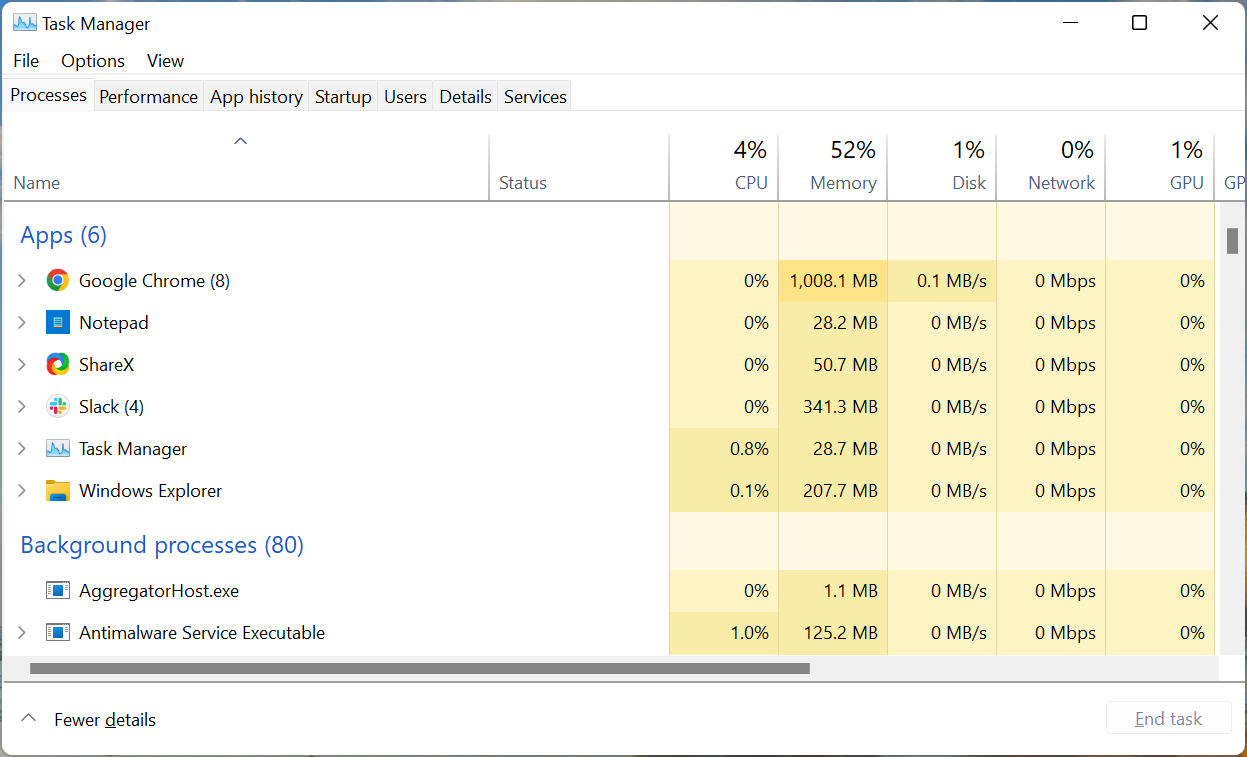
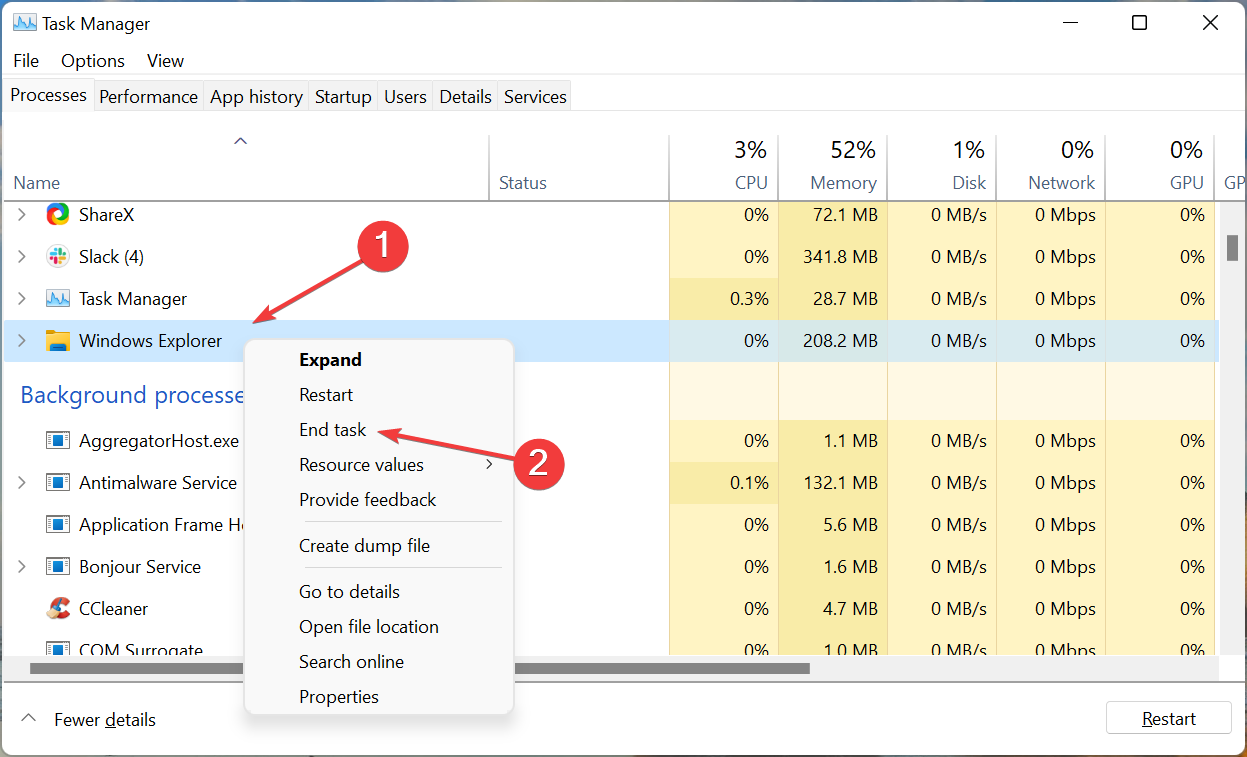
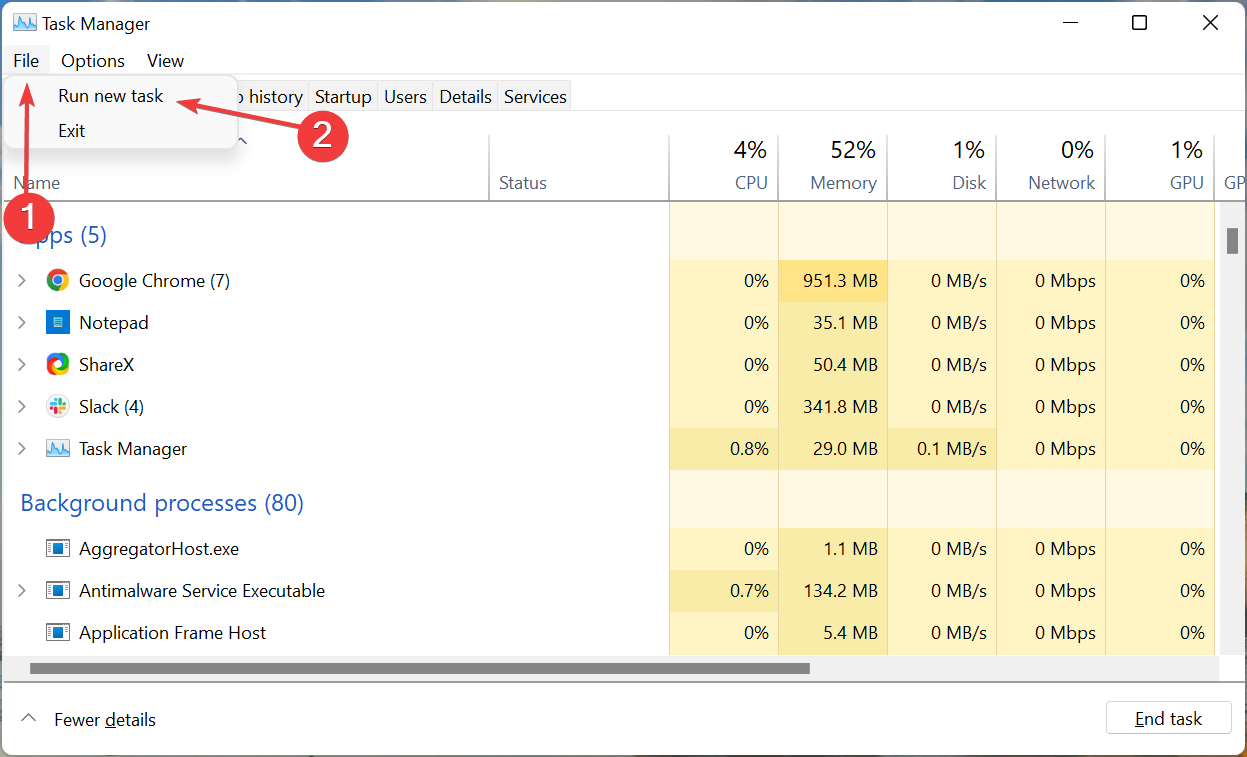
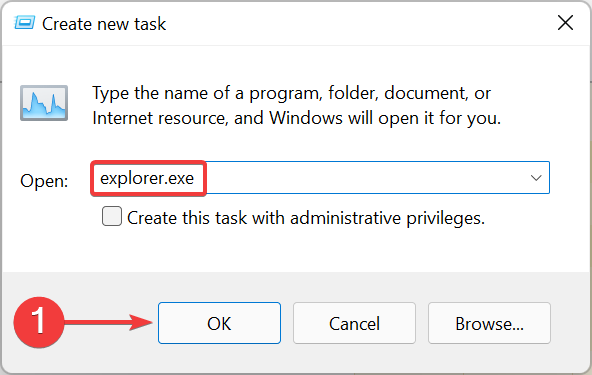
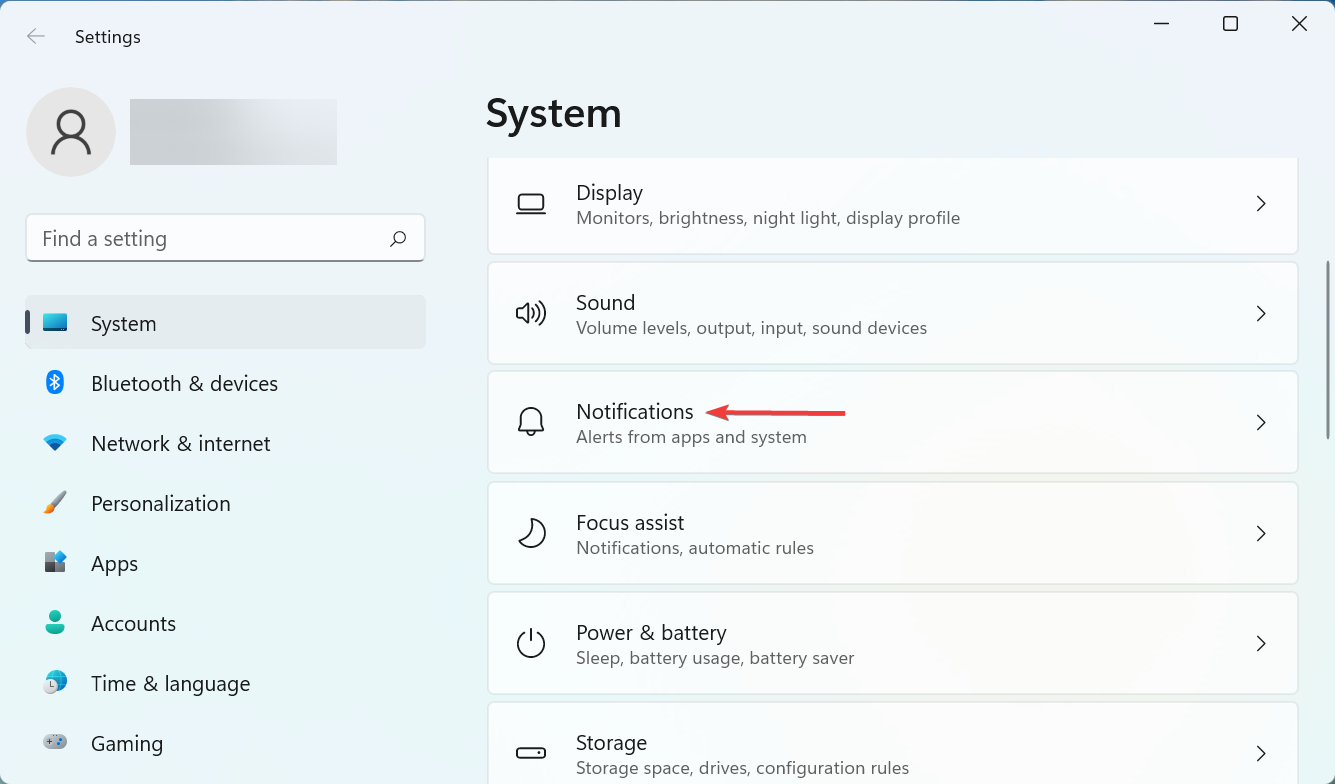
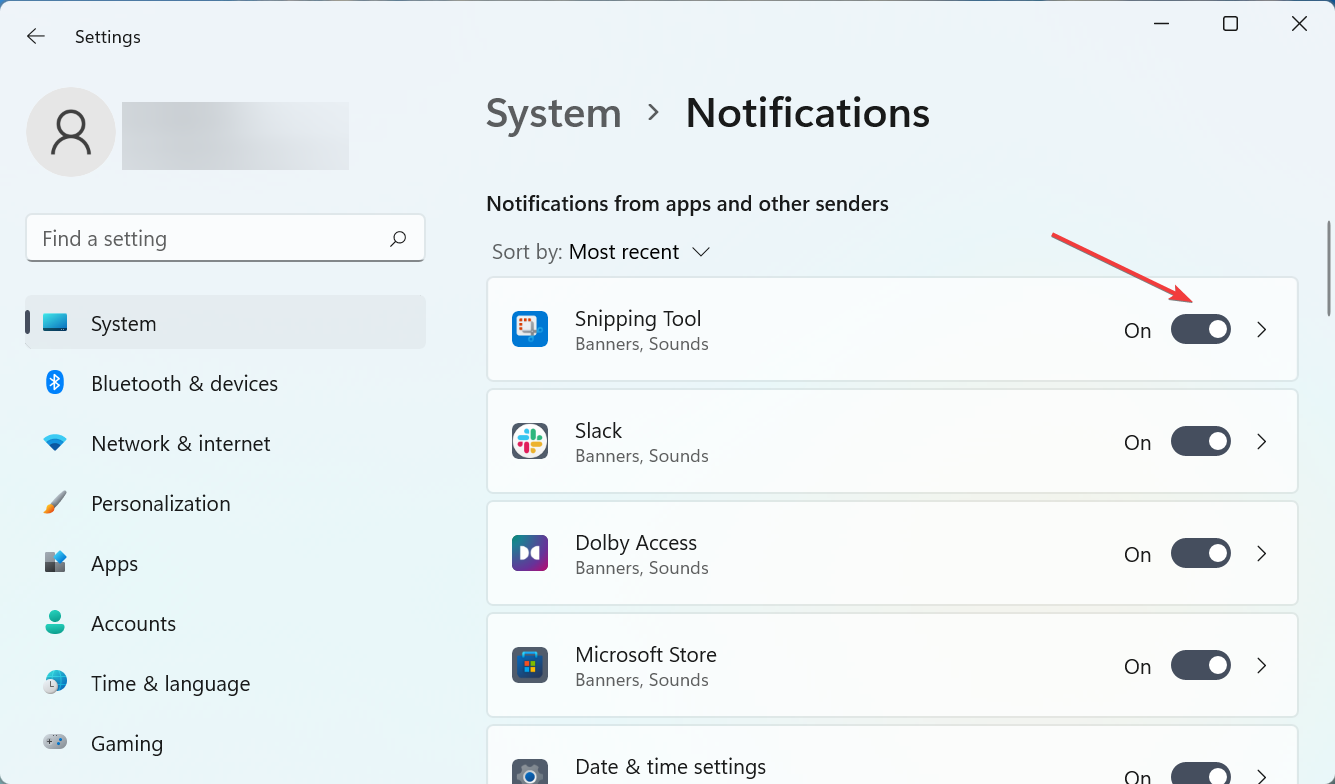
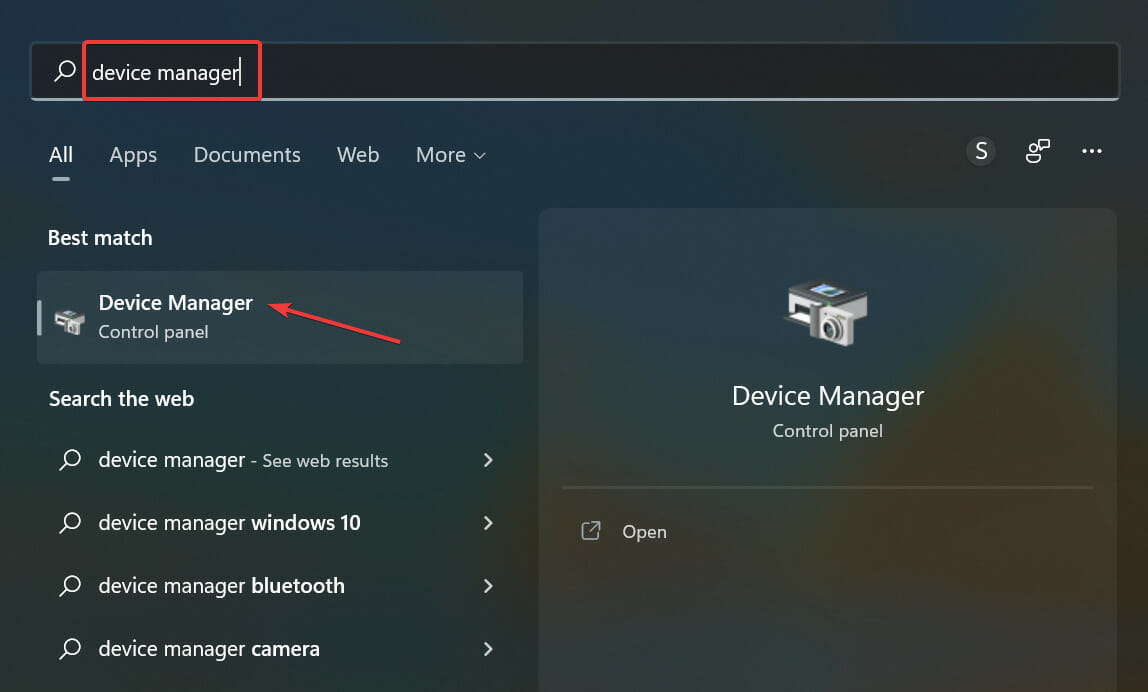
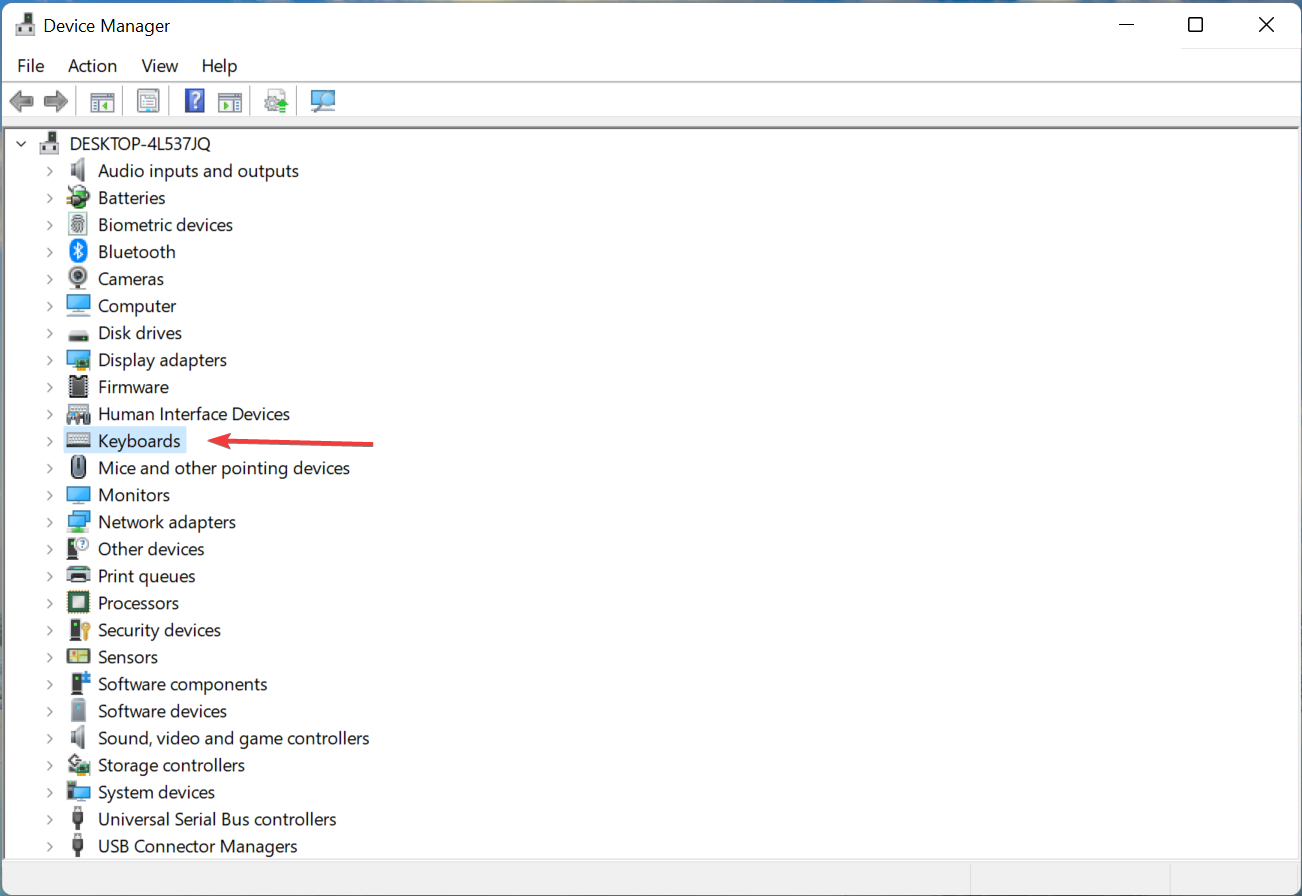
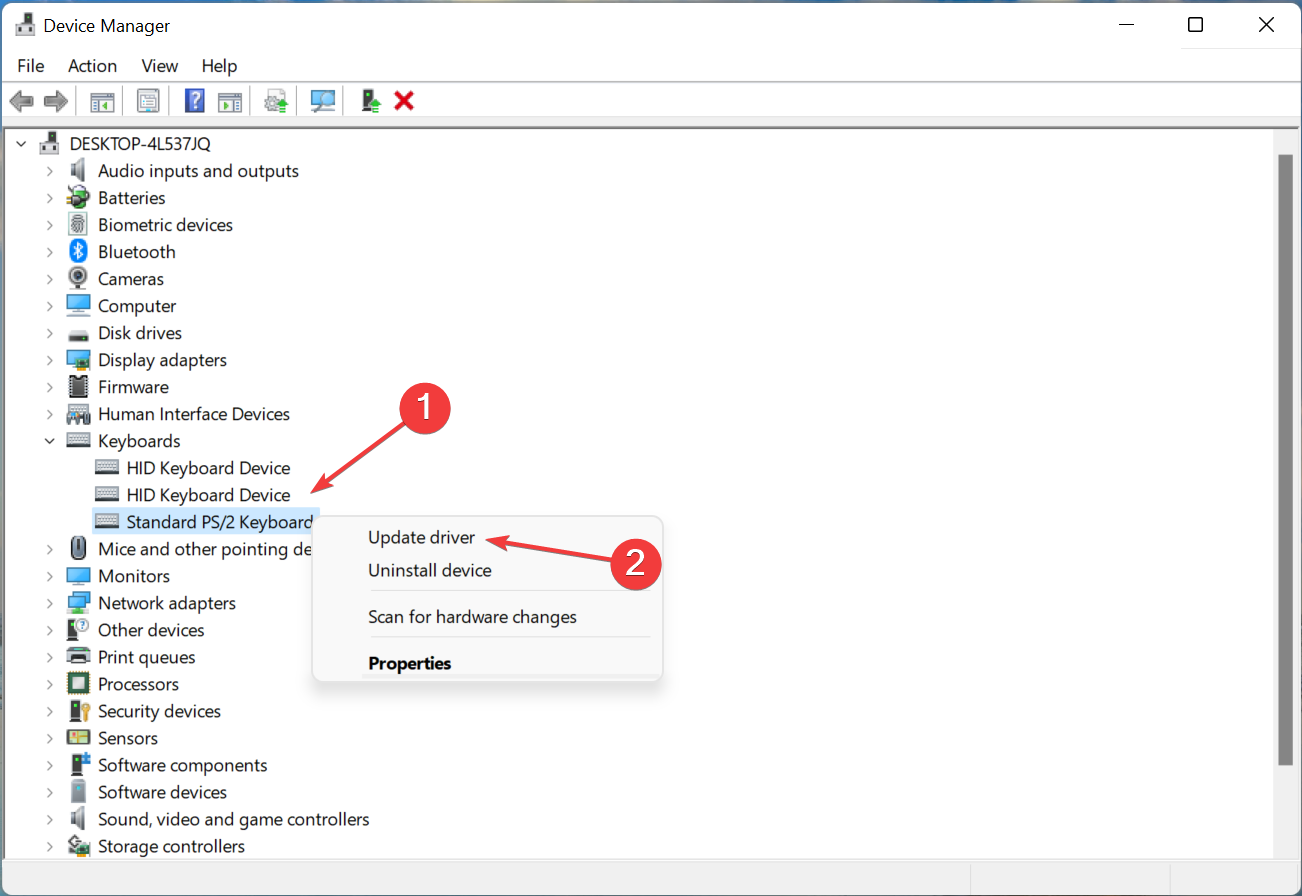
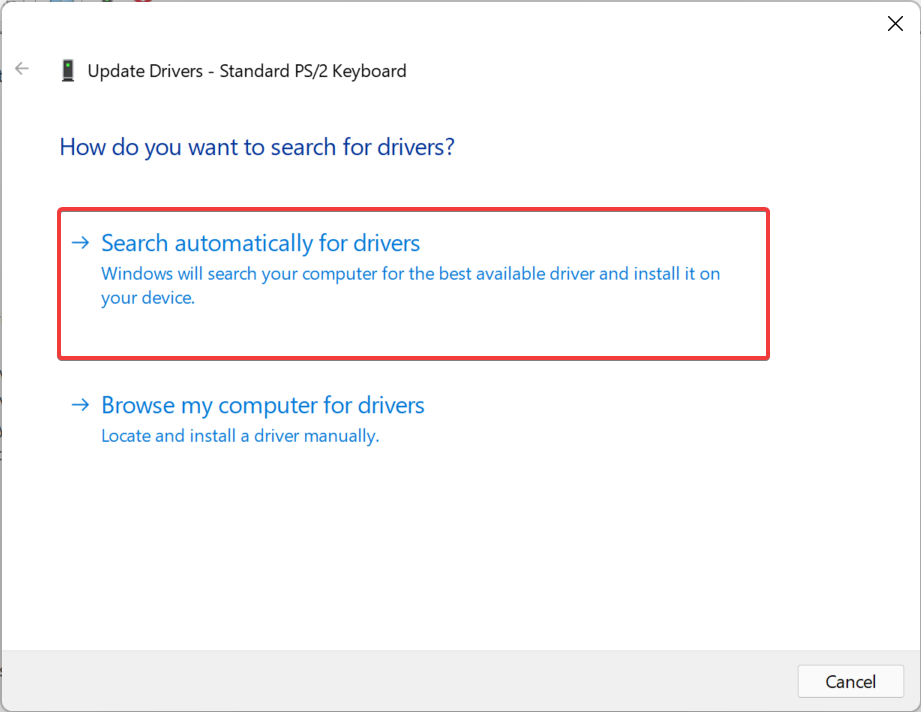
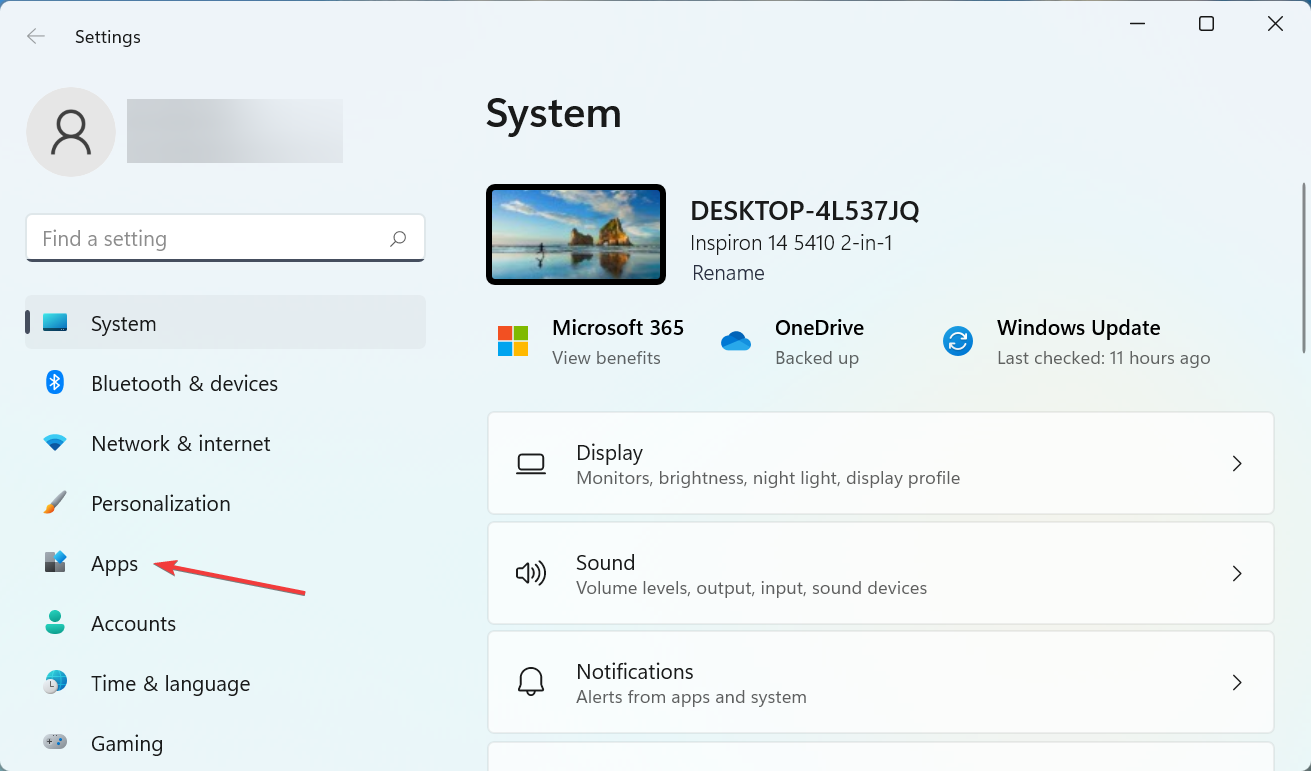
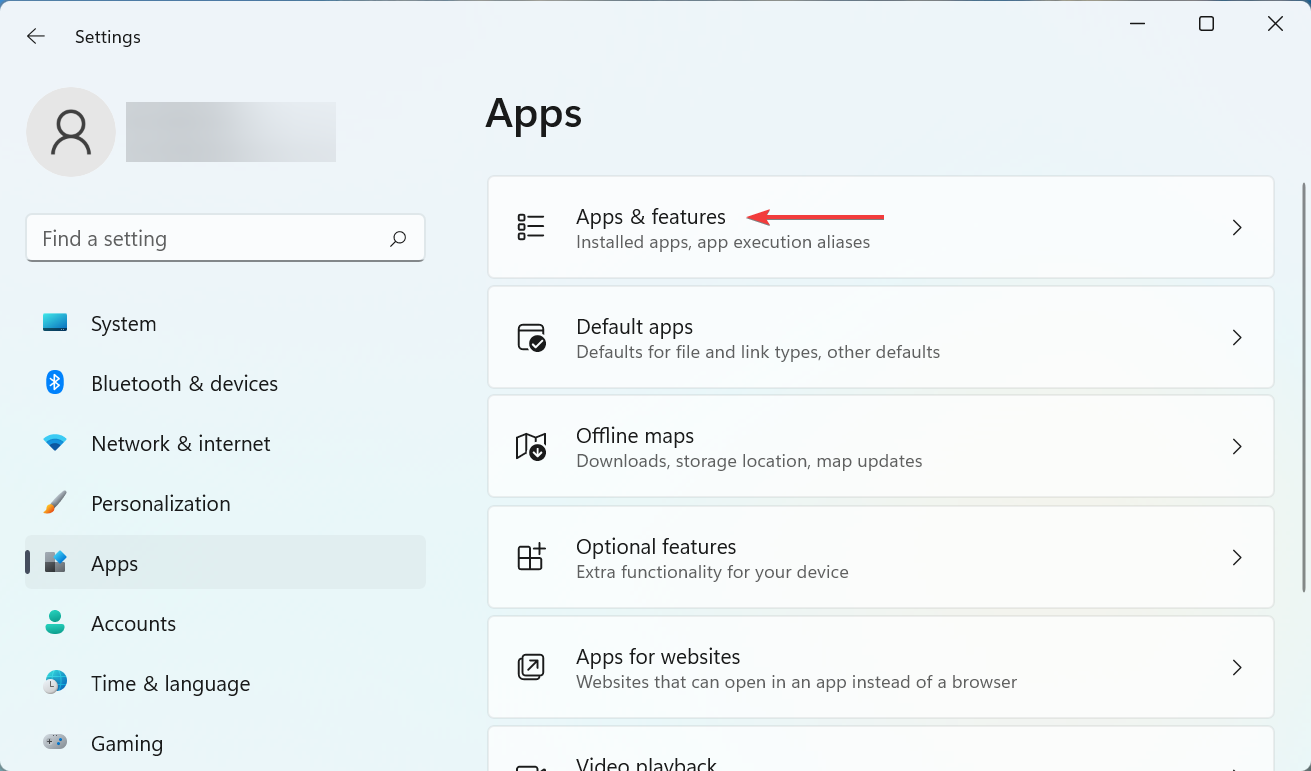
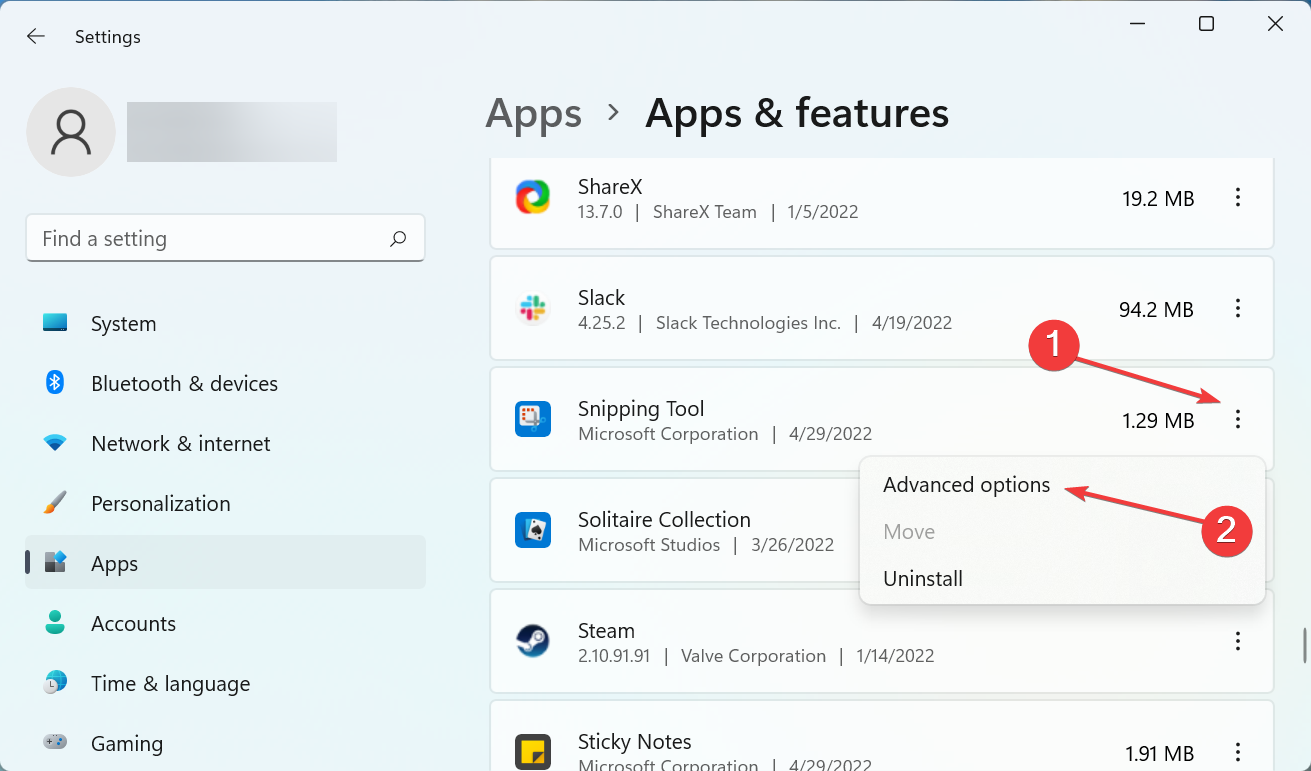
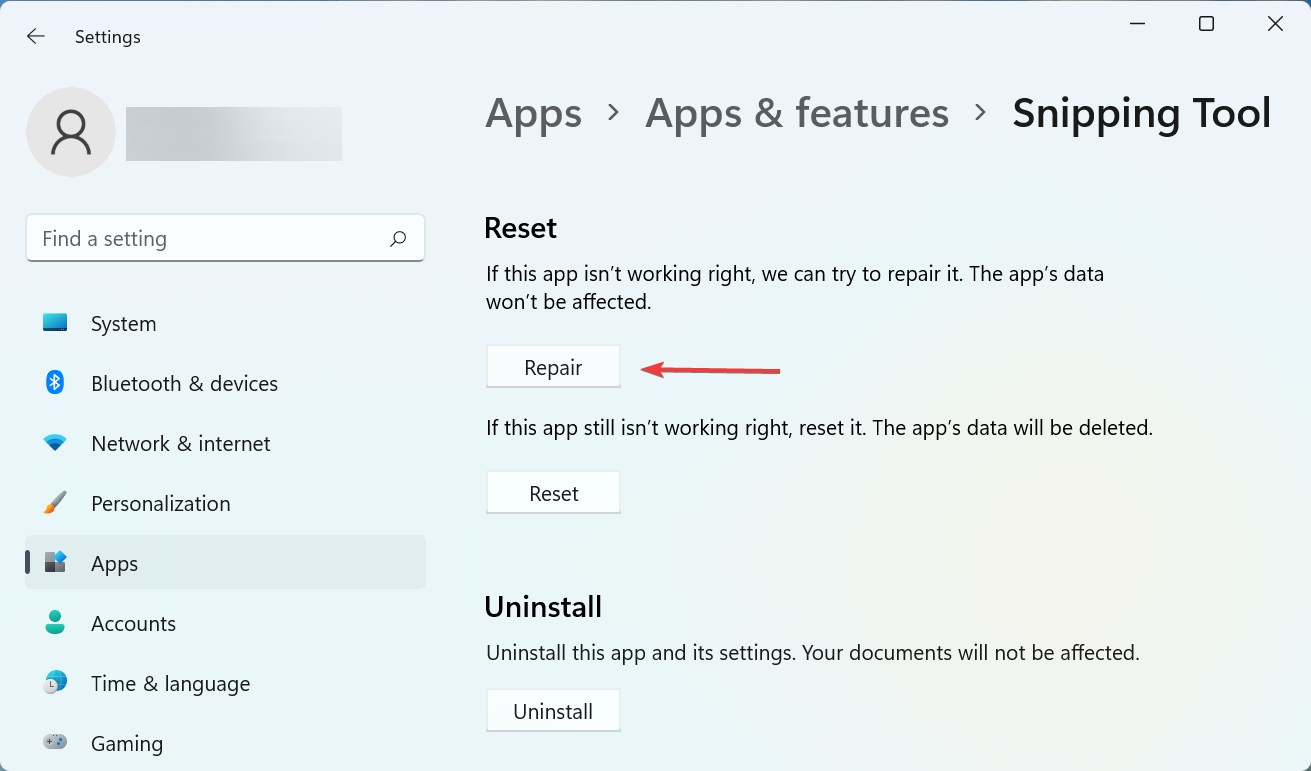
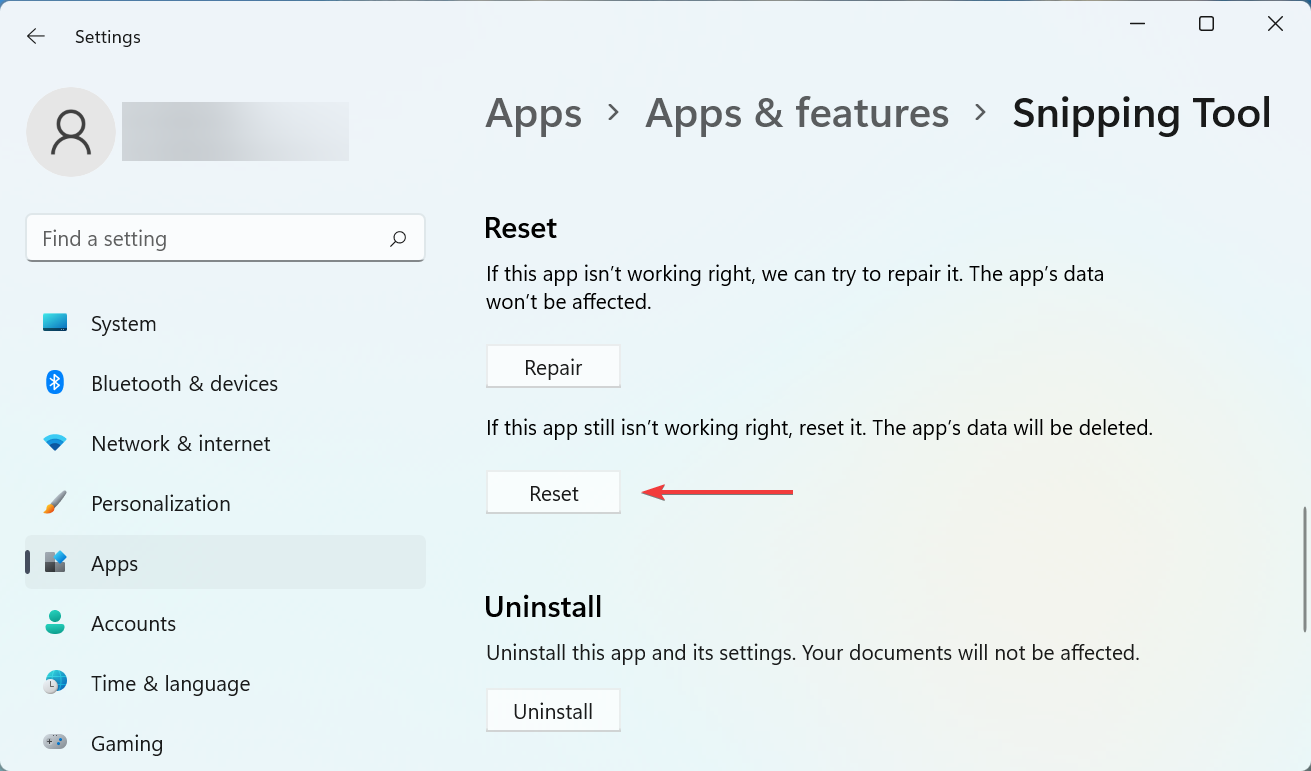
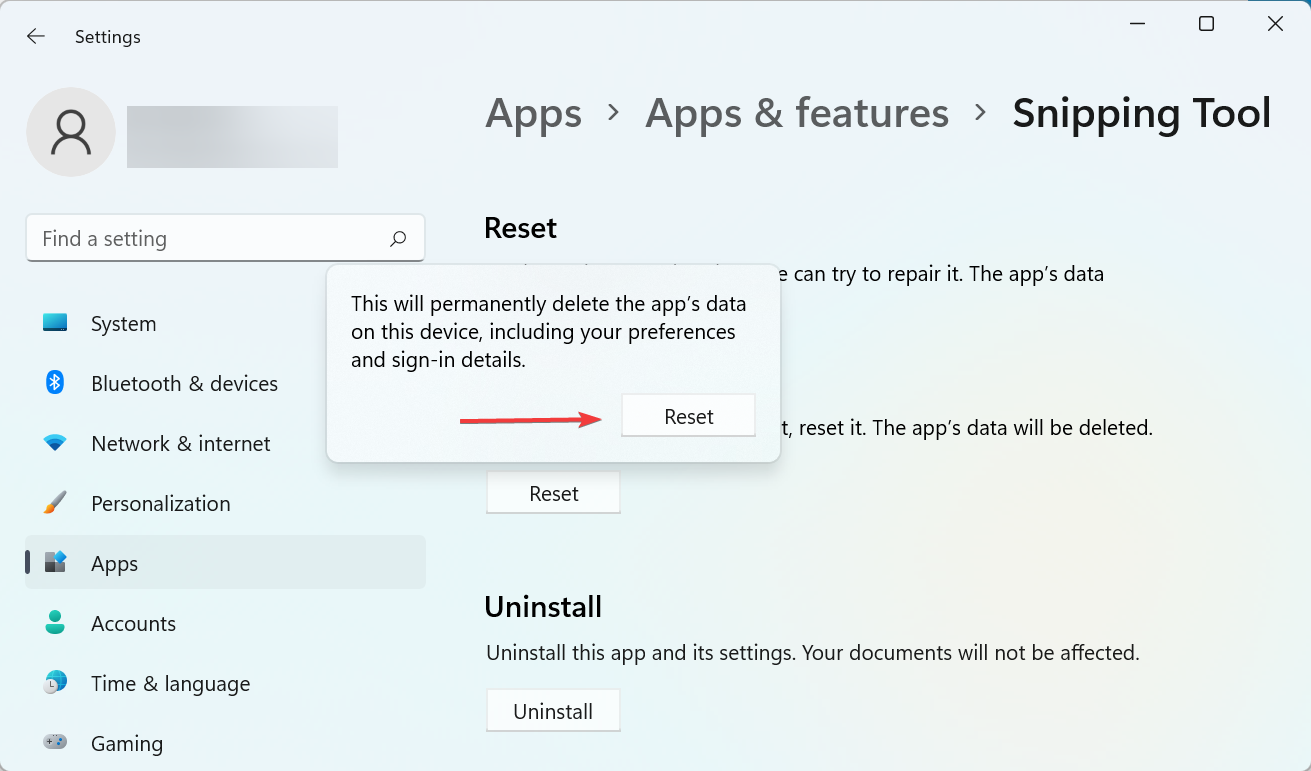
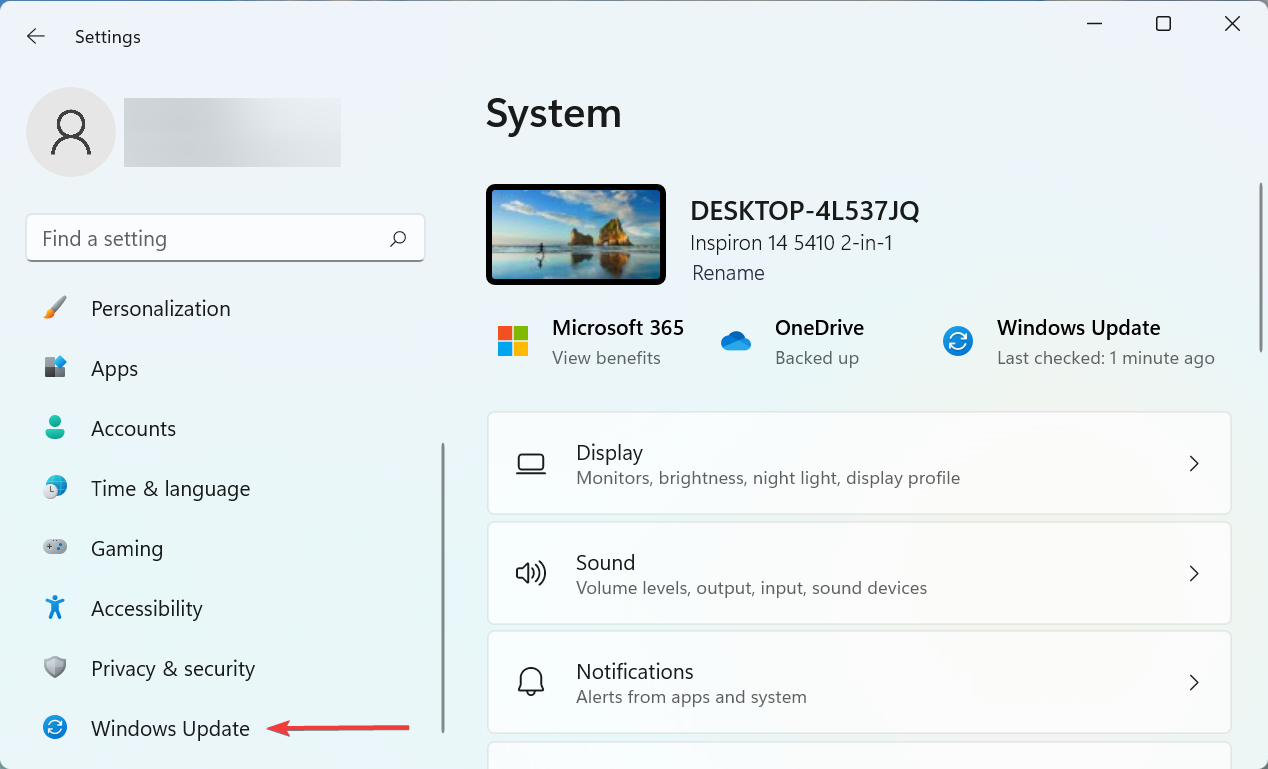
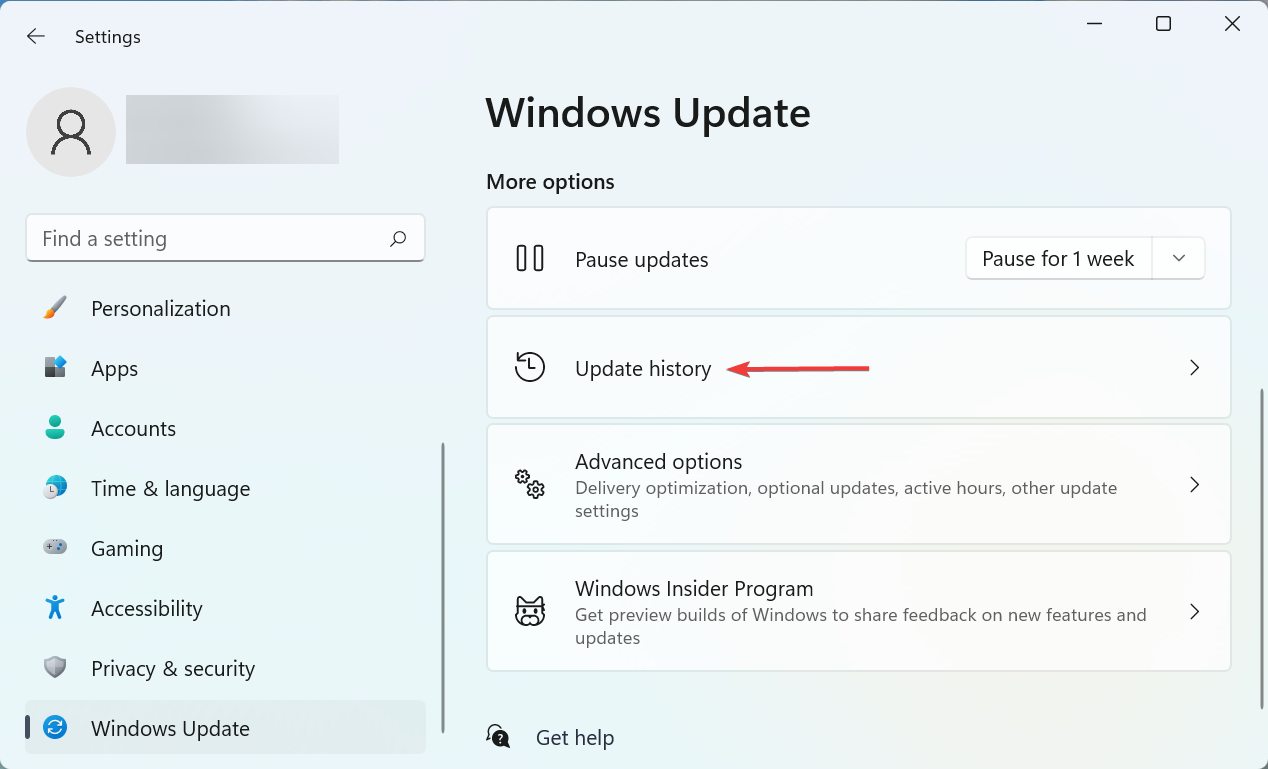
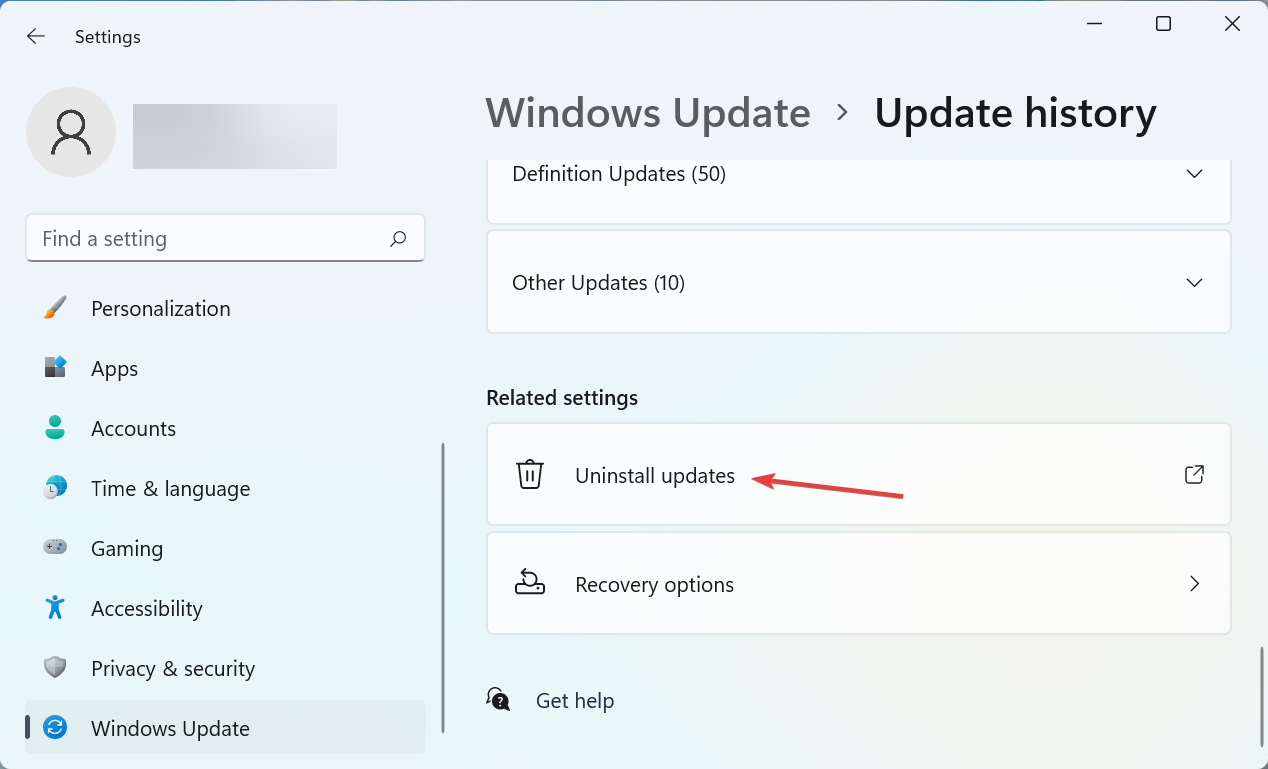
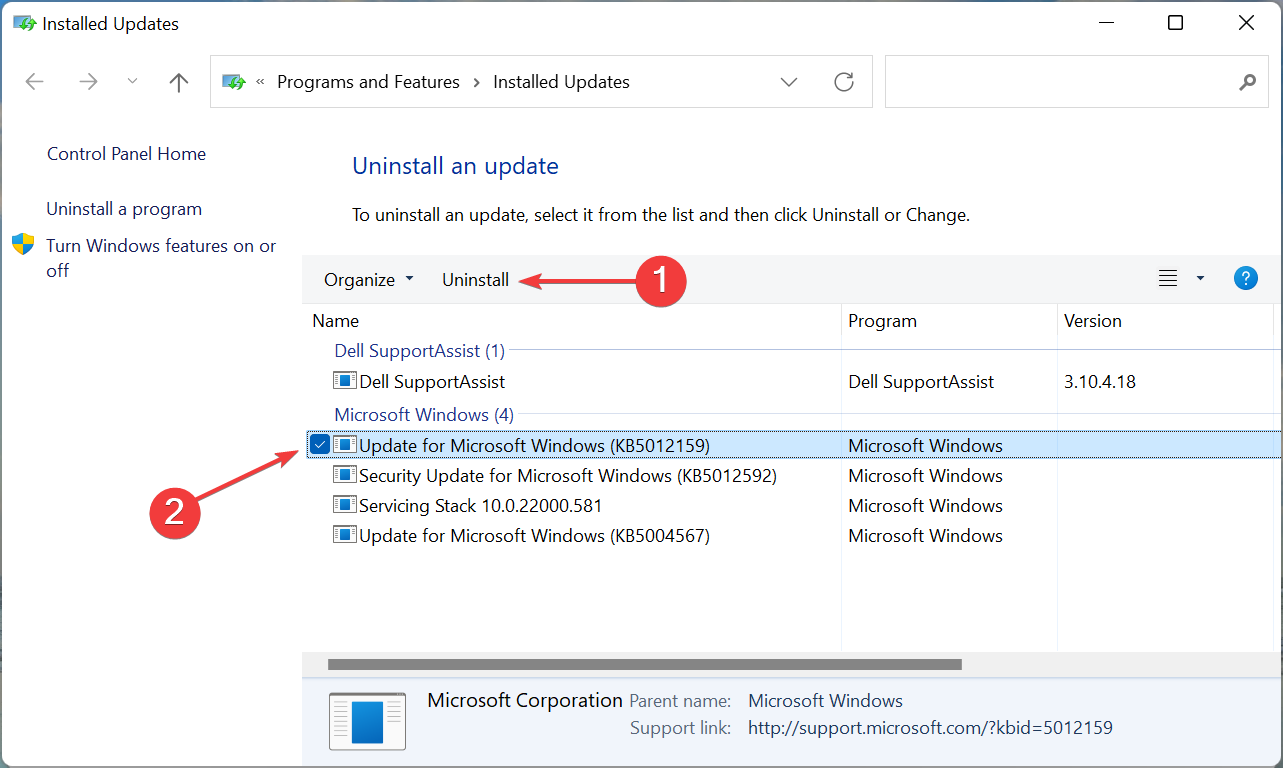
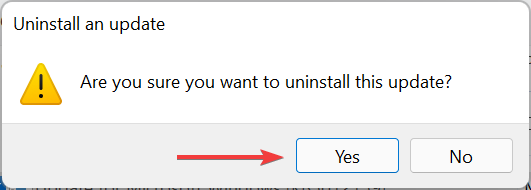
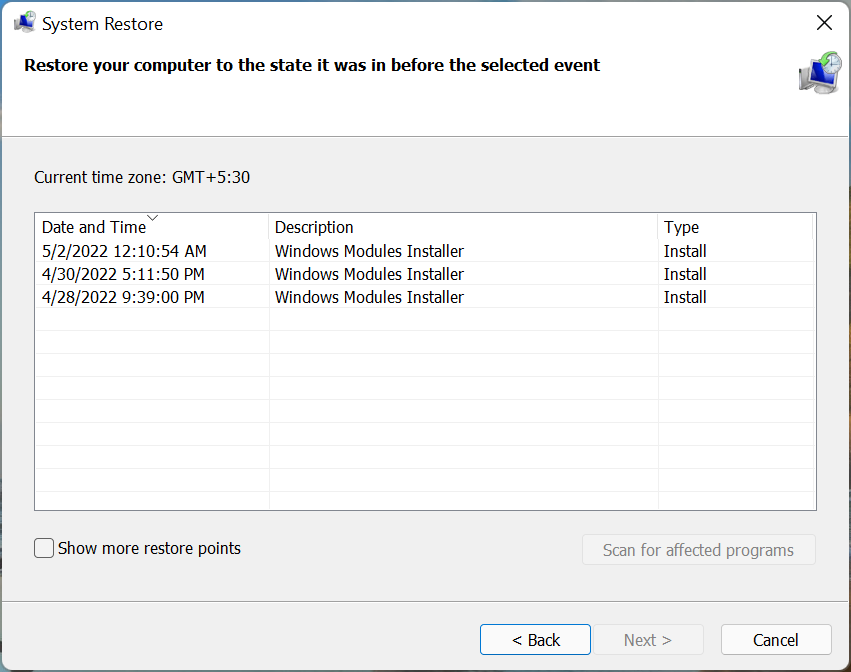
![How to Spot a Windows Defender Order Scam [Easy Guide]](https://windowsreport.com/wp-content/uploads/2022/04/Windows-defender-order-scam.jpg)

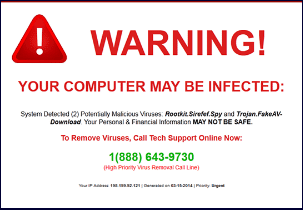

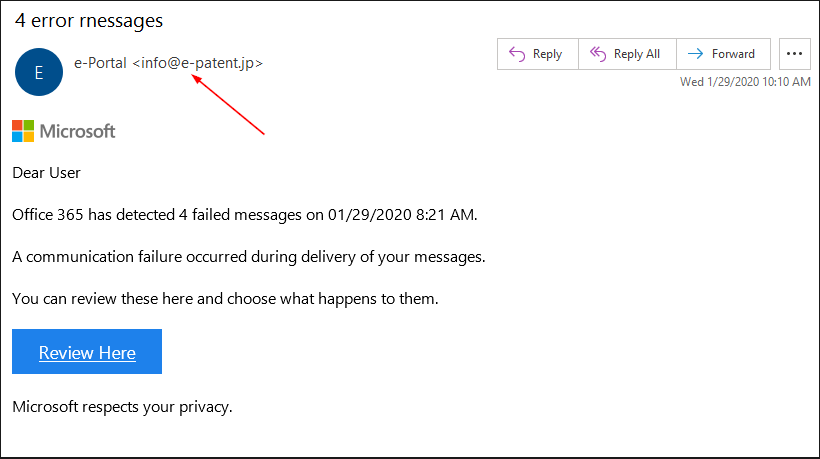
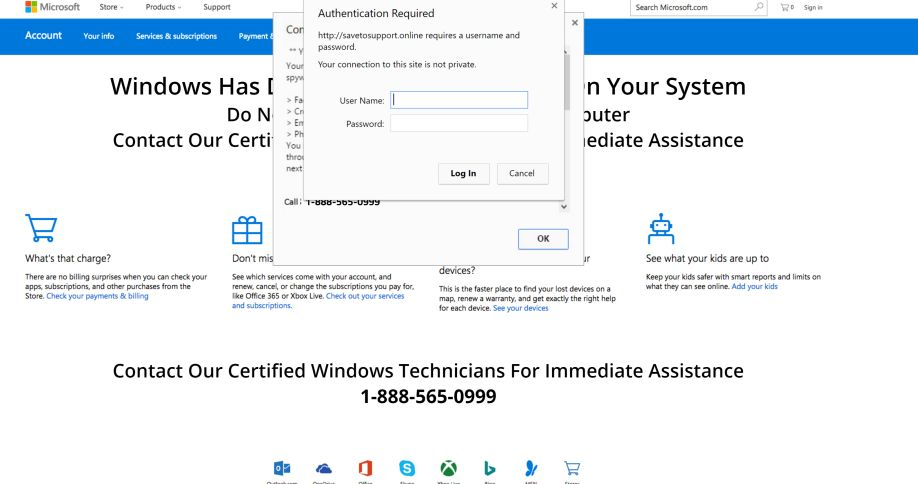
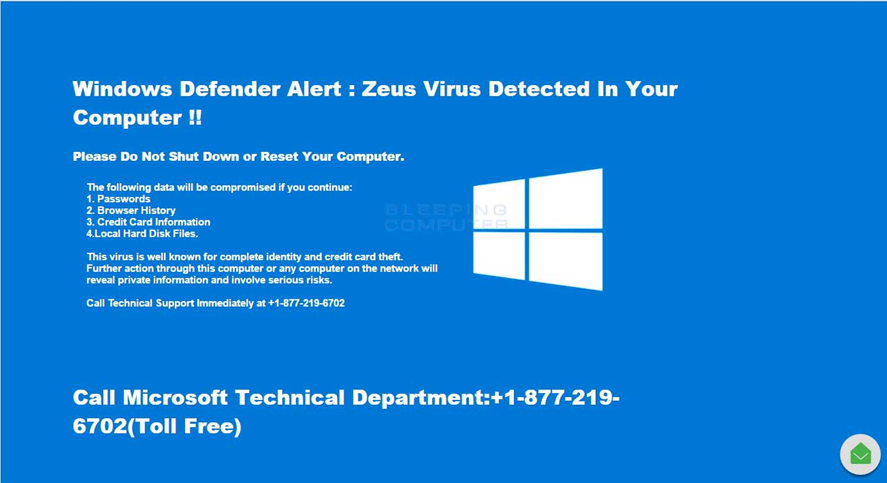
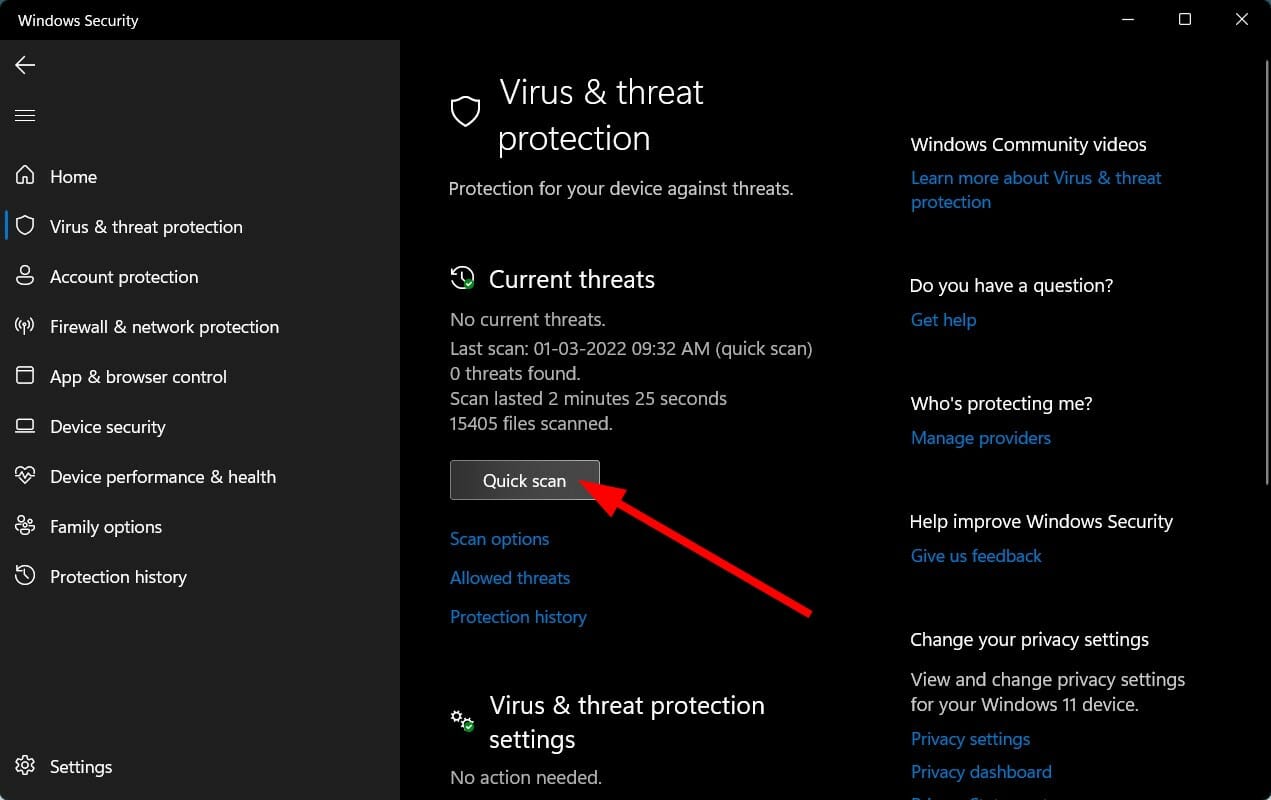



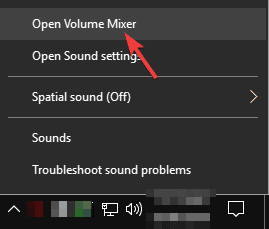


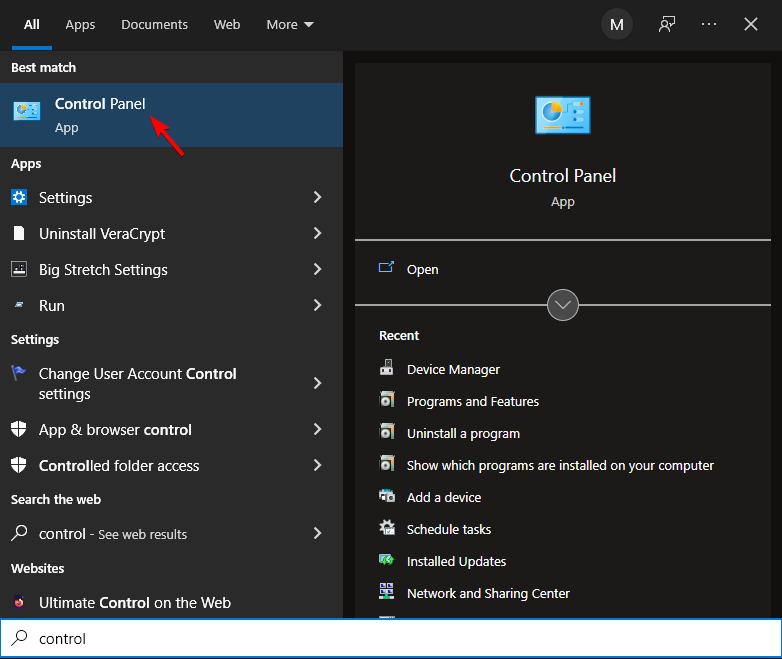
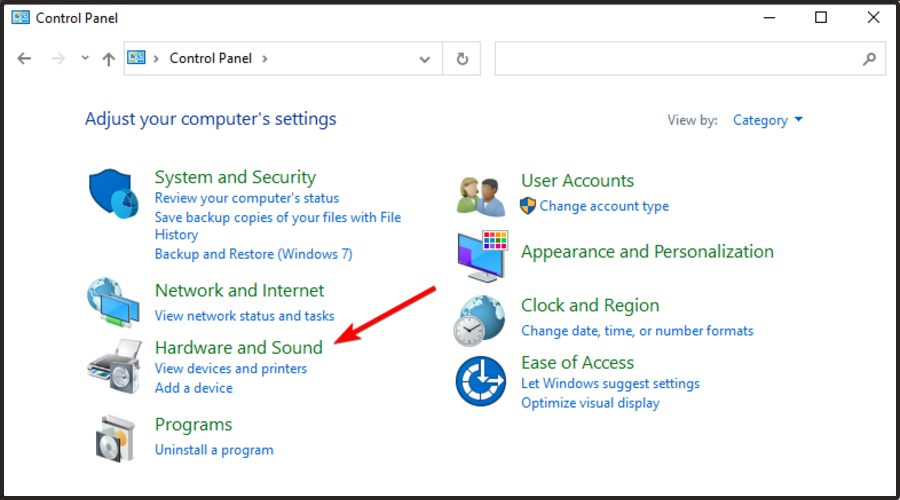


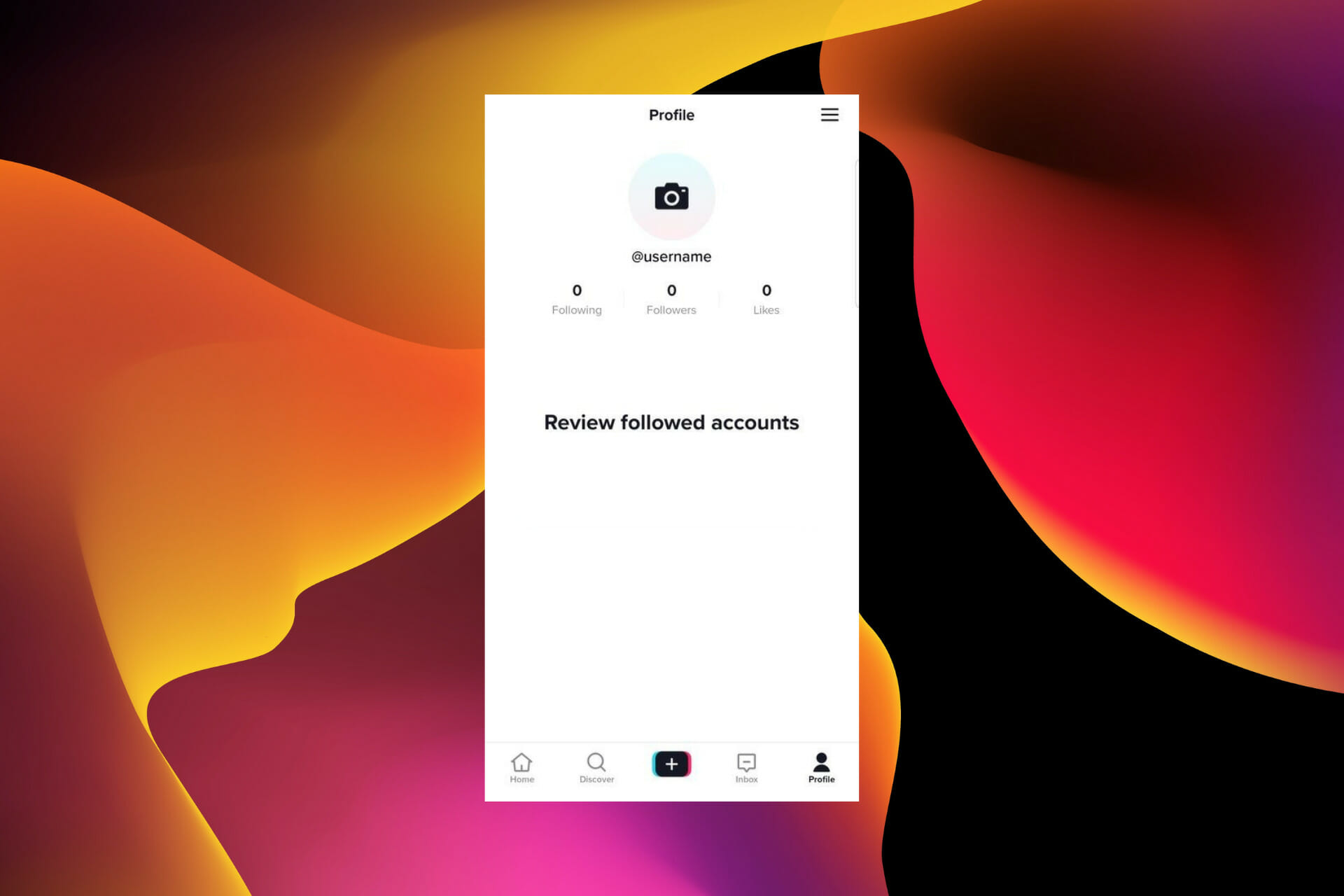
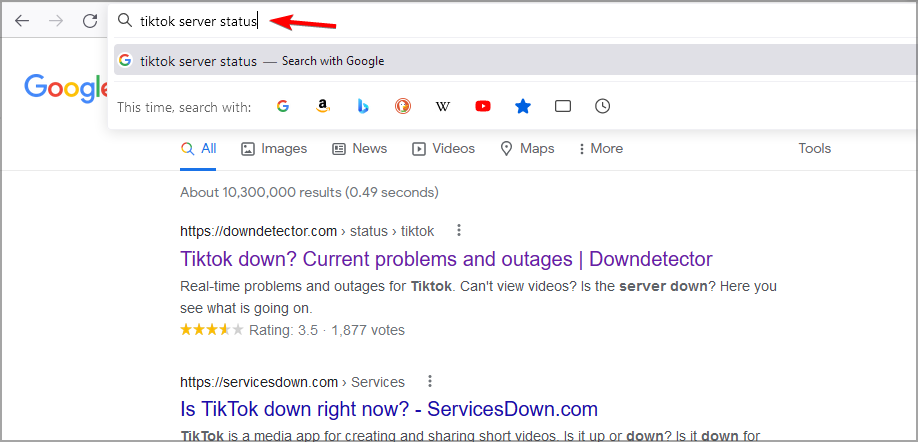
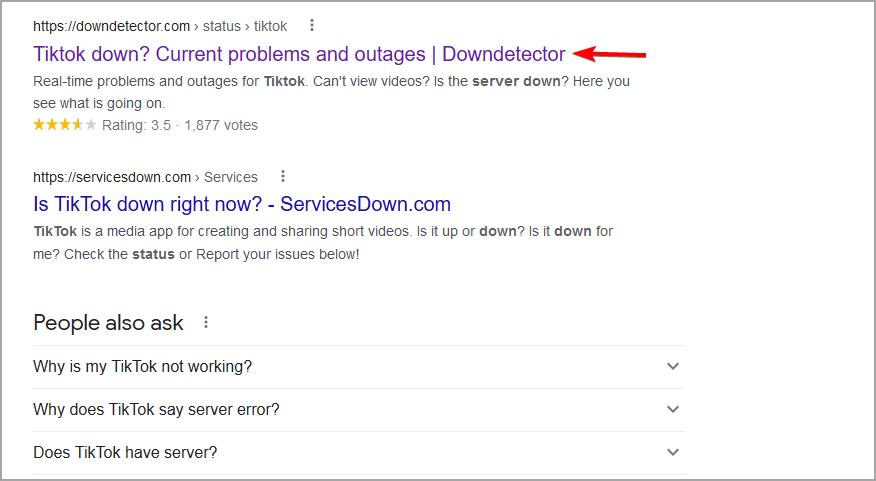
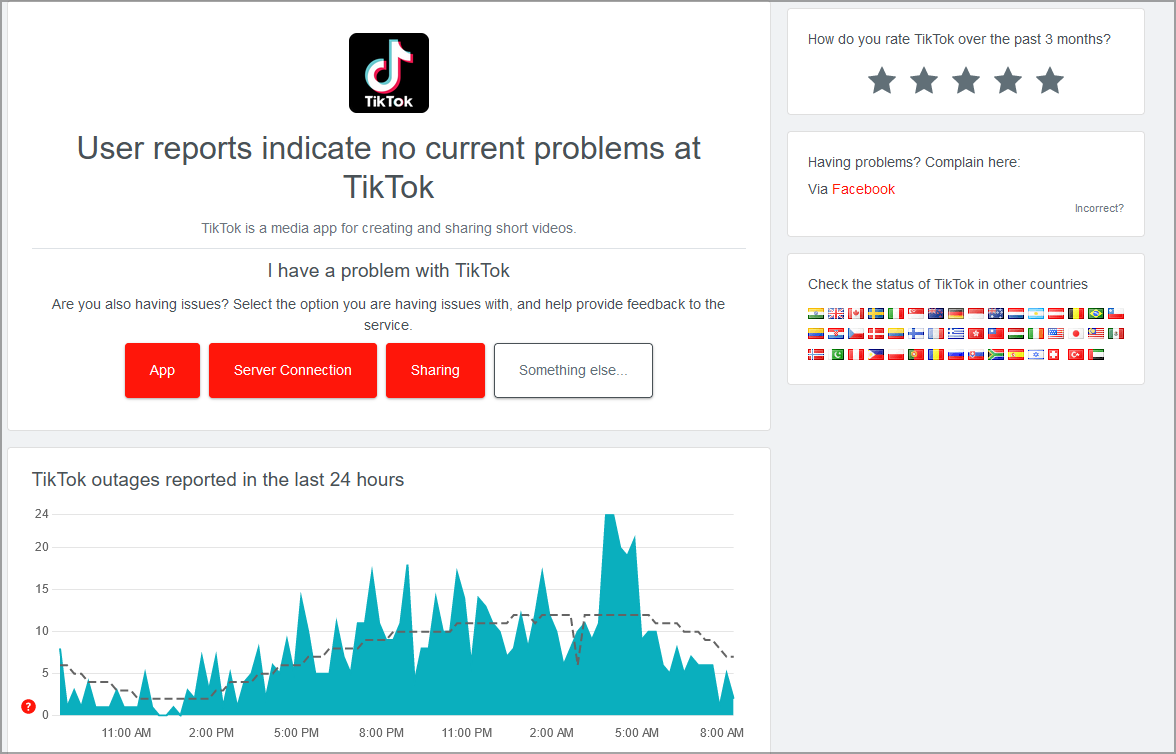
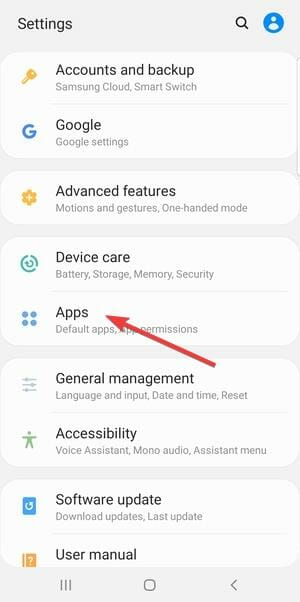
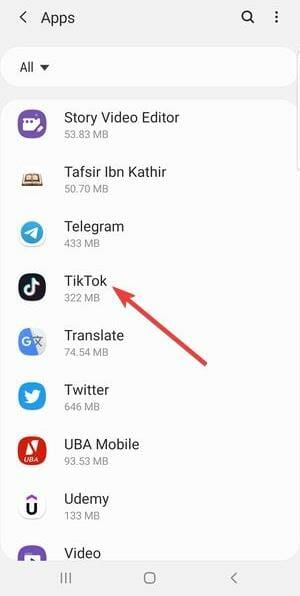
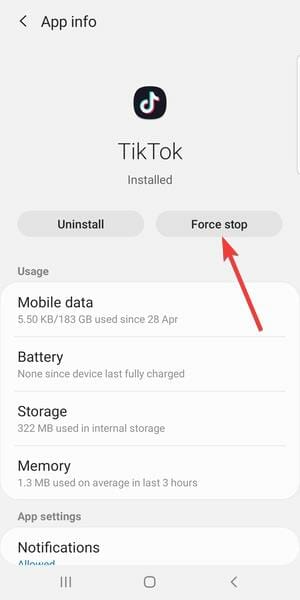
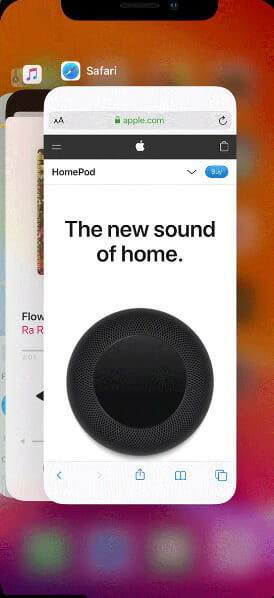
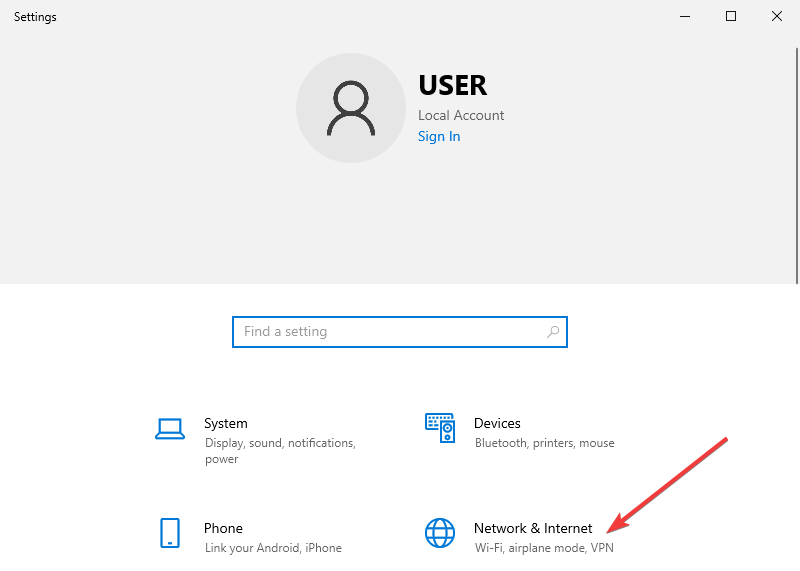
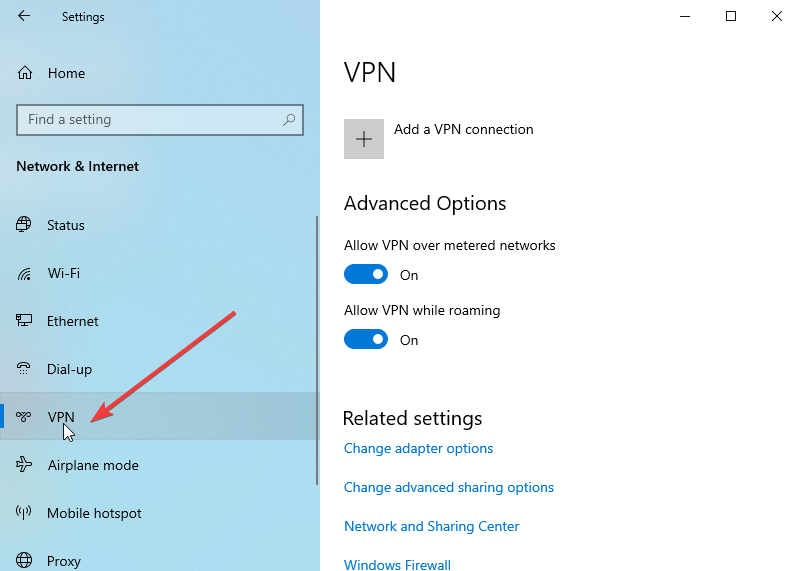
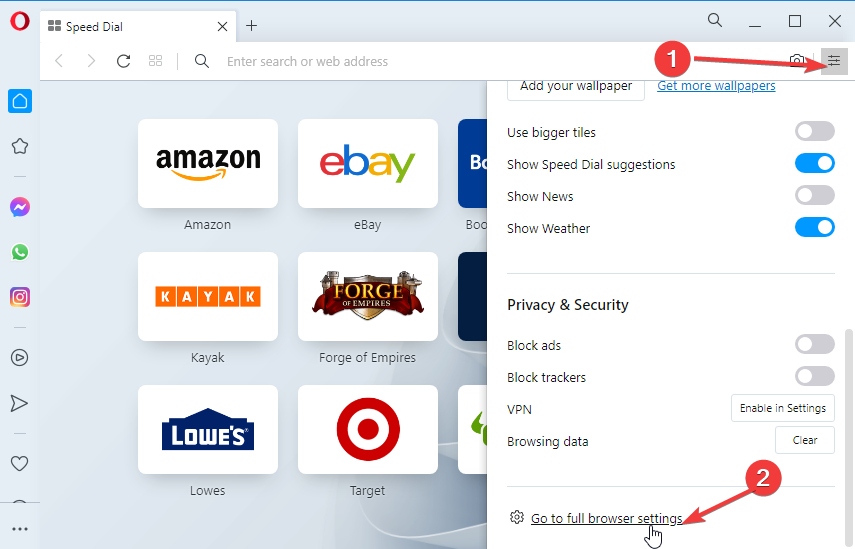
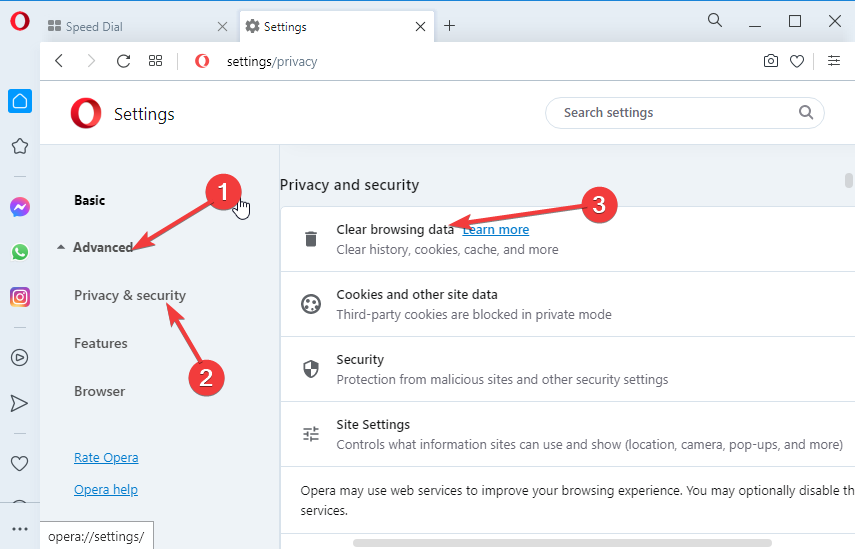
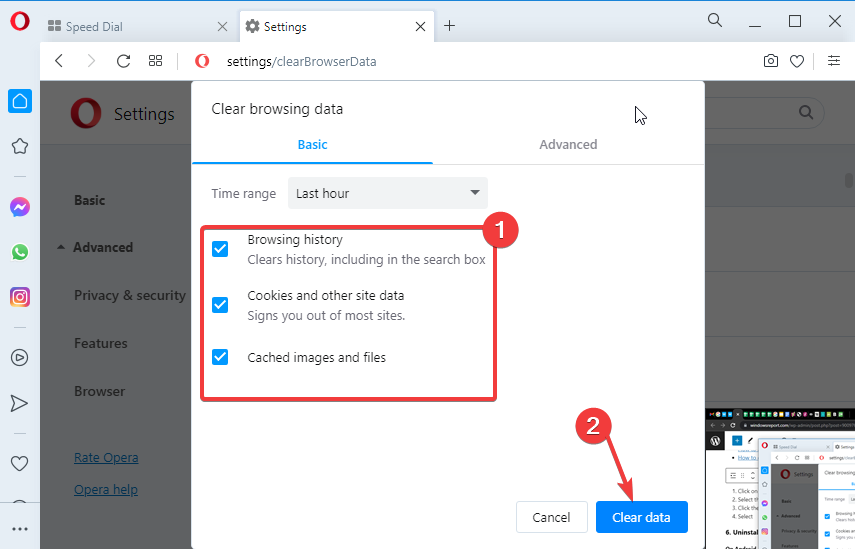
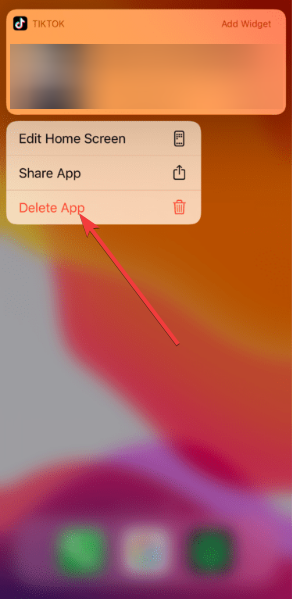
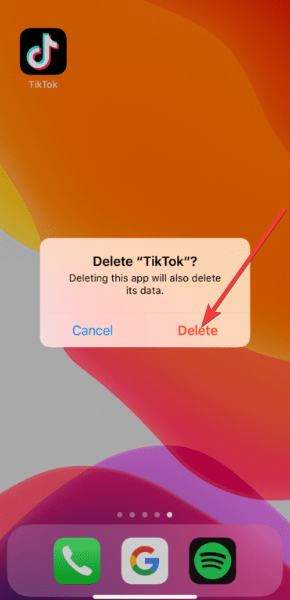
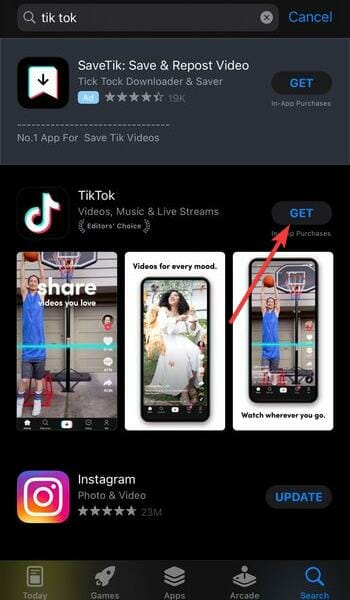
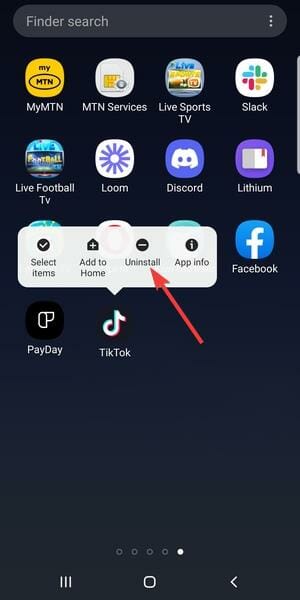

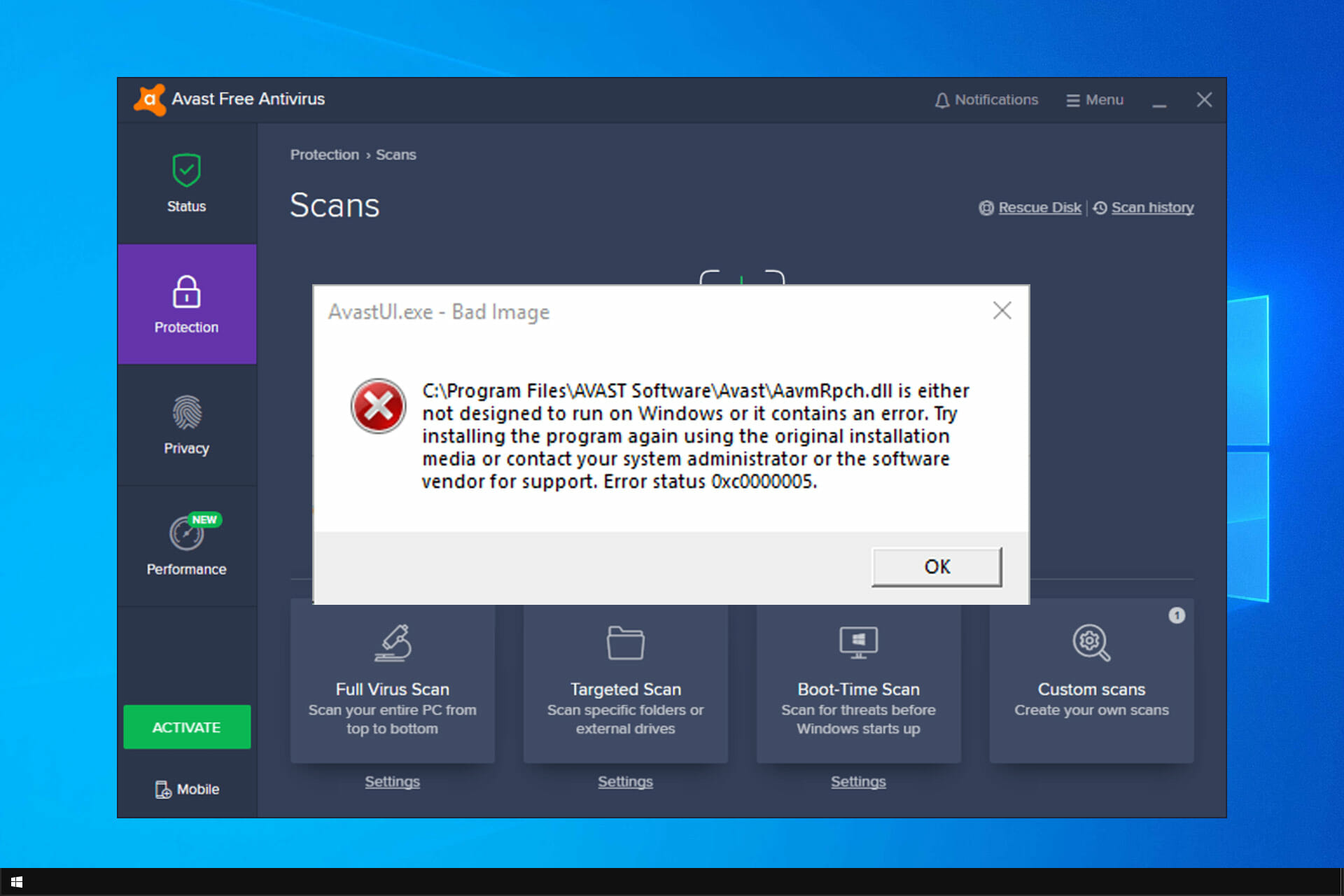
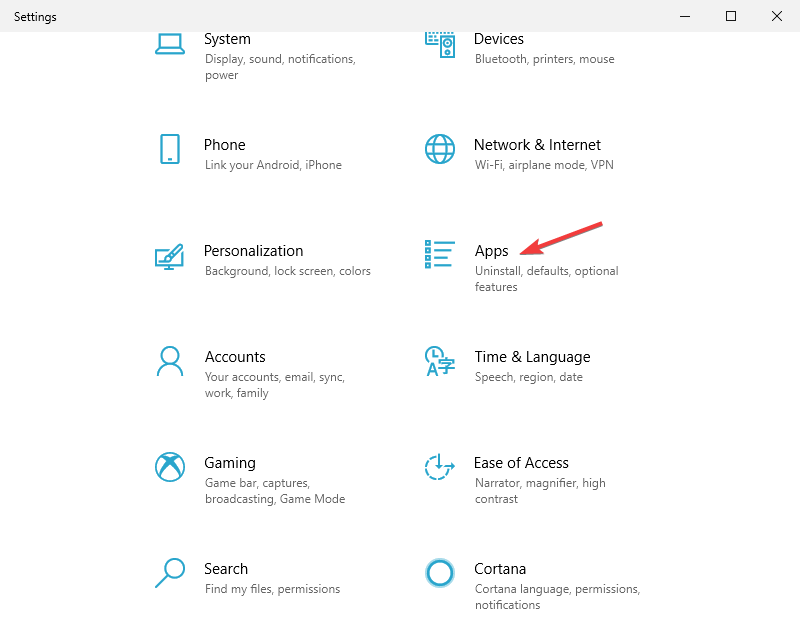
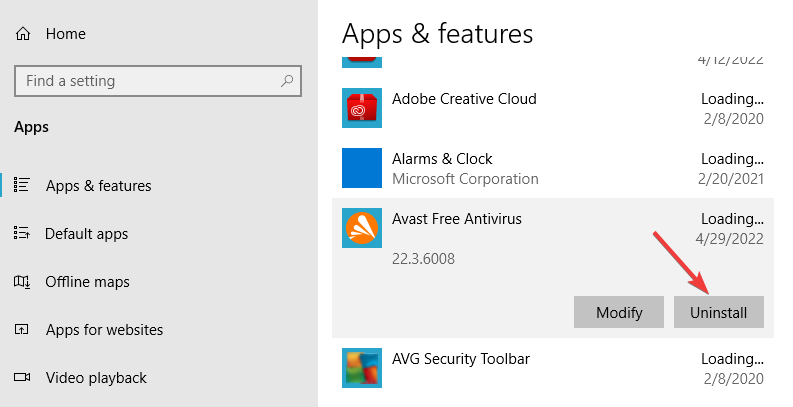
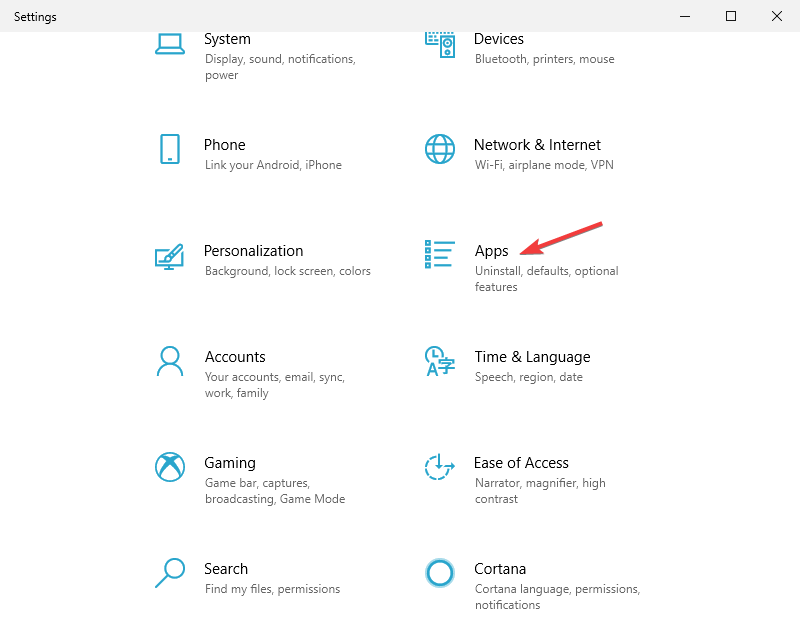
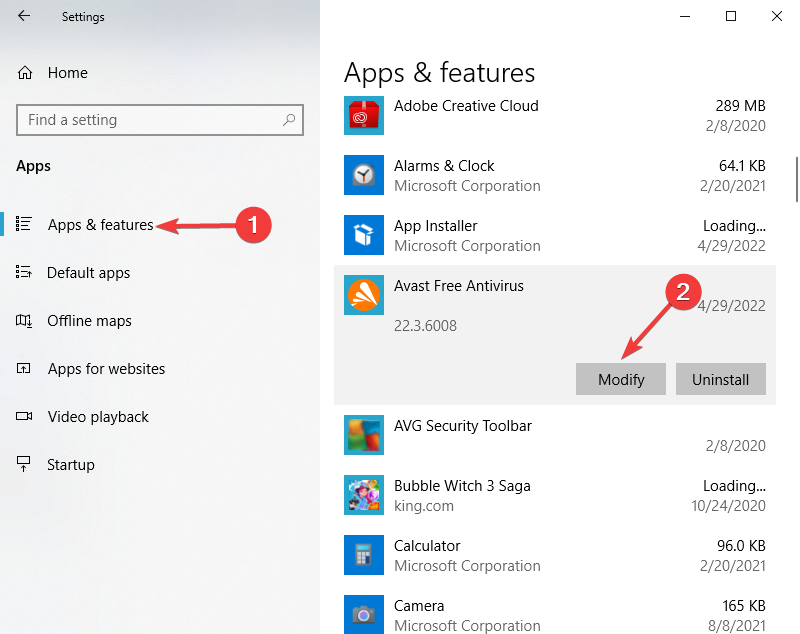
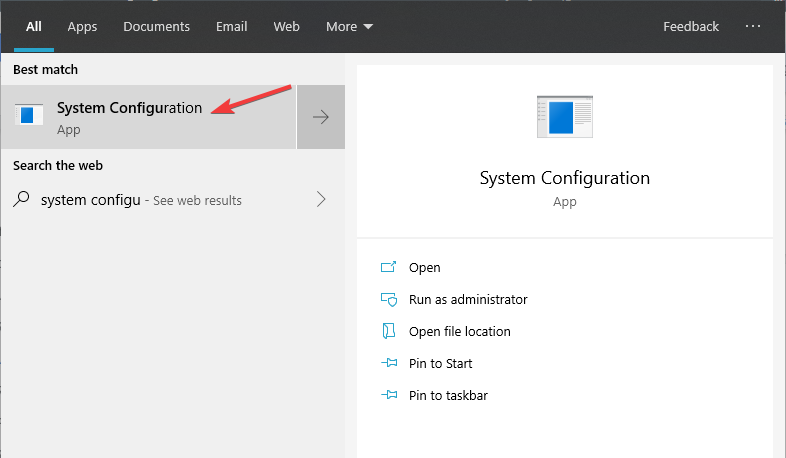
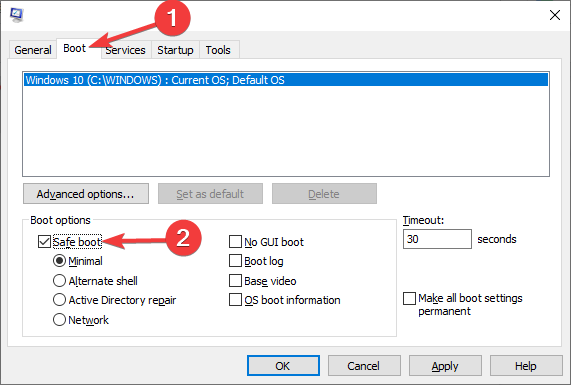
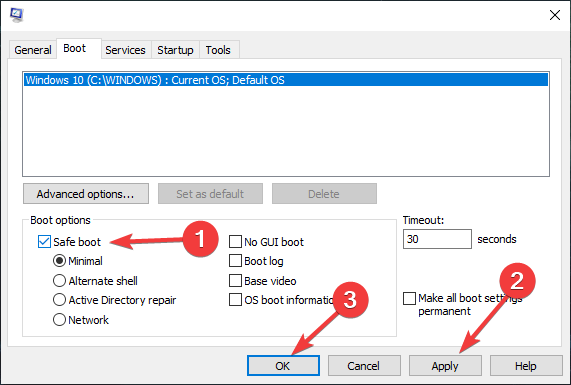
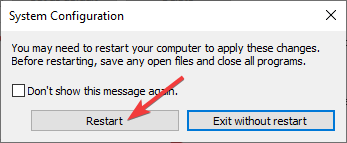
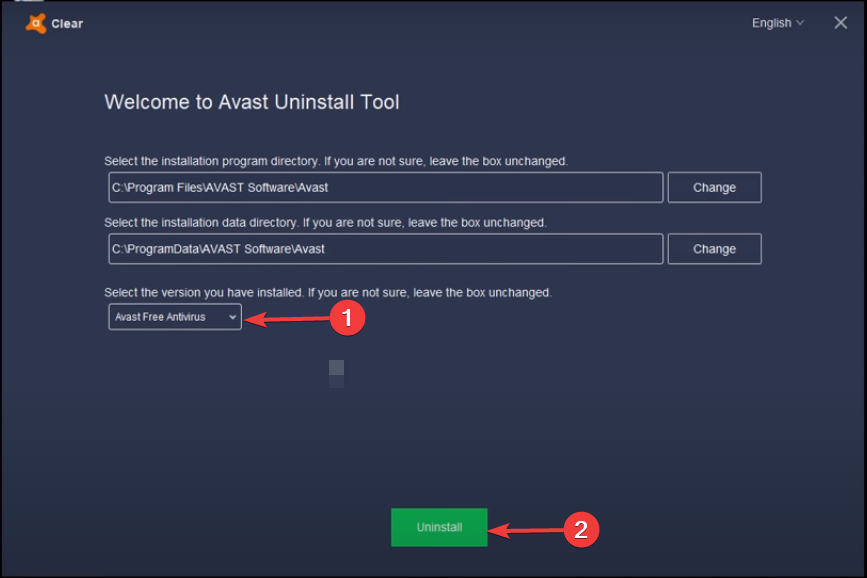
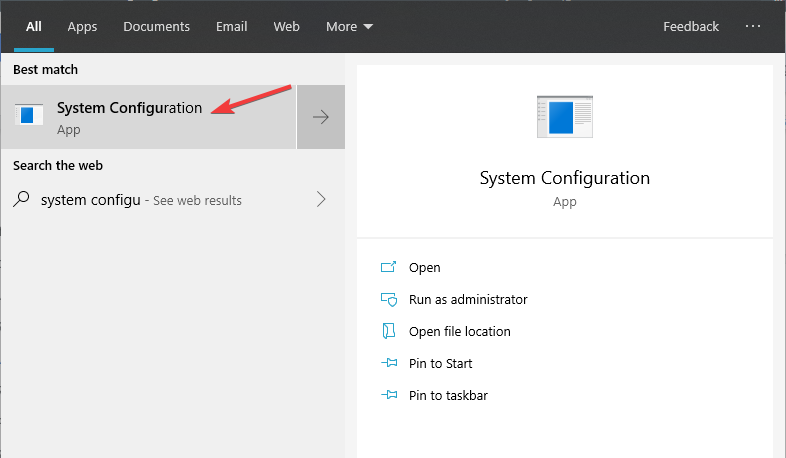
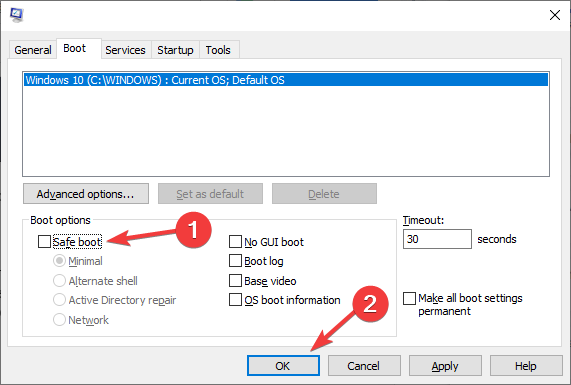
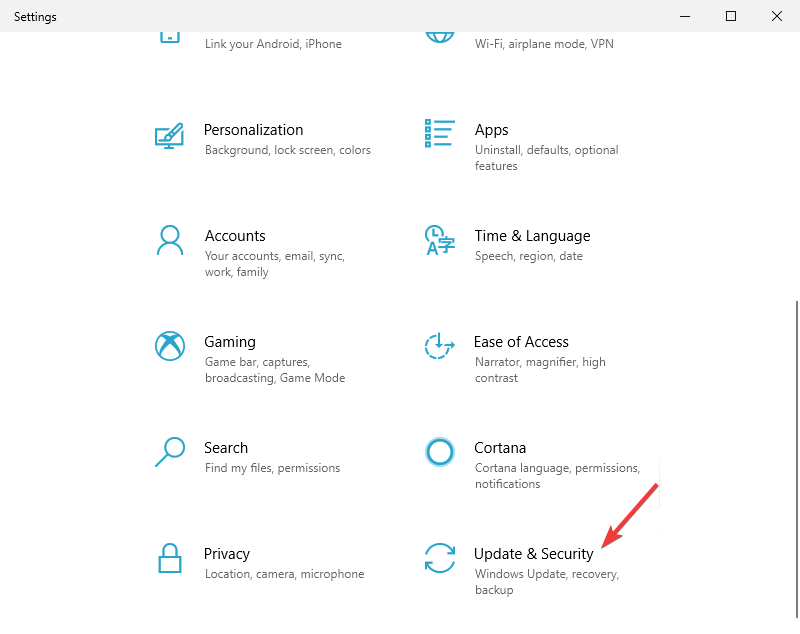
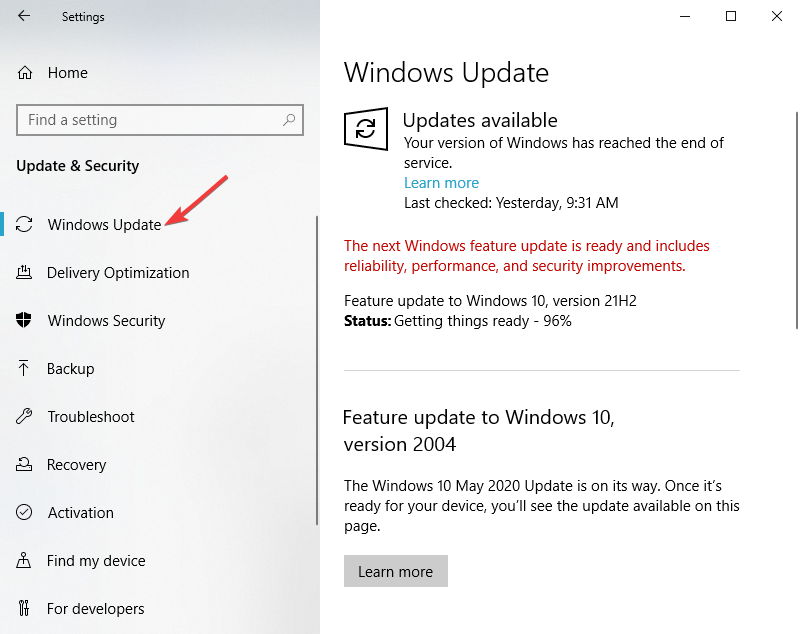
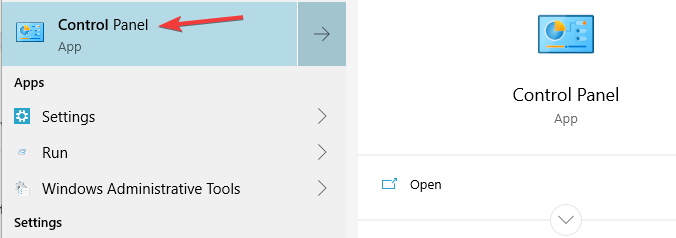
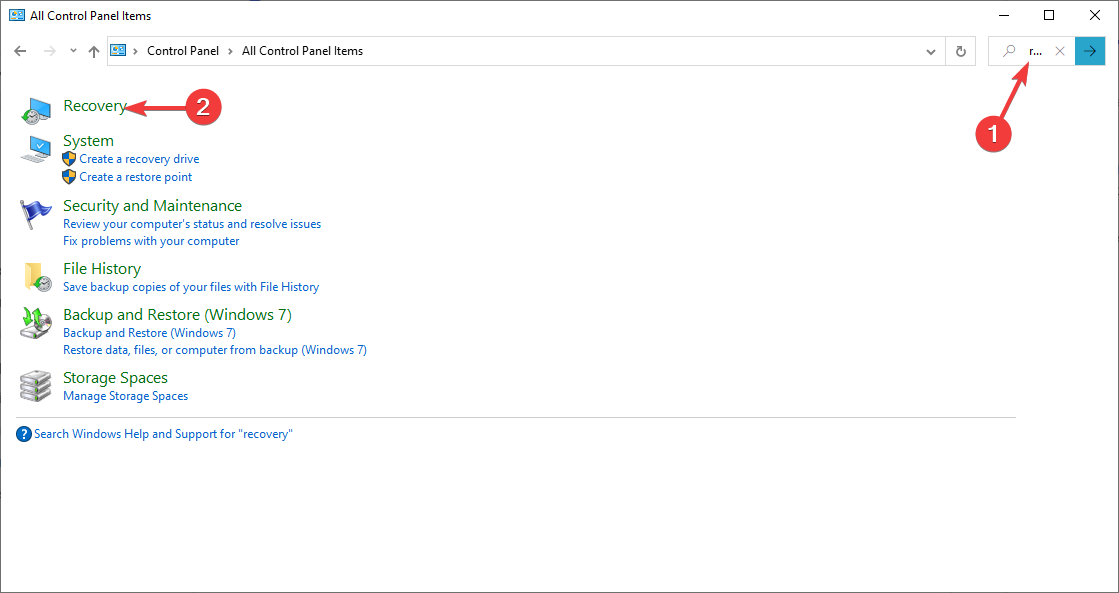
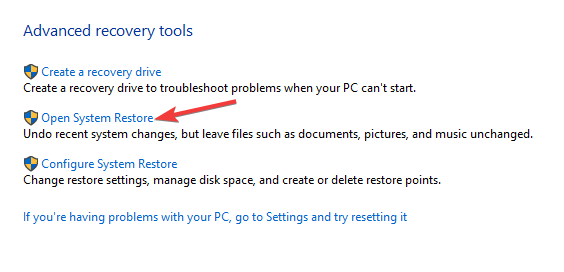
![PVP.net Patcher Kernel has Stopped Working [Fix]](https://windowsreport.com/wp-content/uploads/2022/04/PVP.net-patcher-kernel-has-stopped-working.jpg)



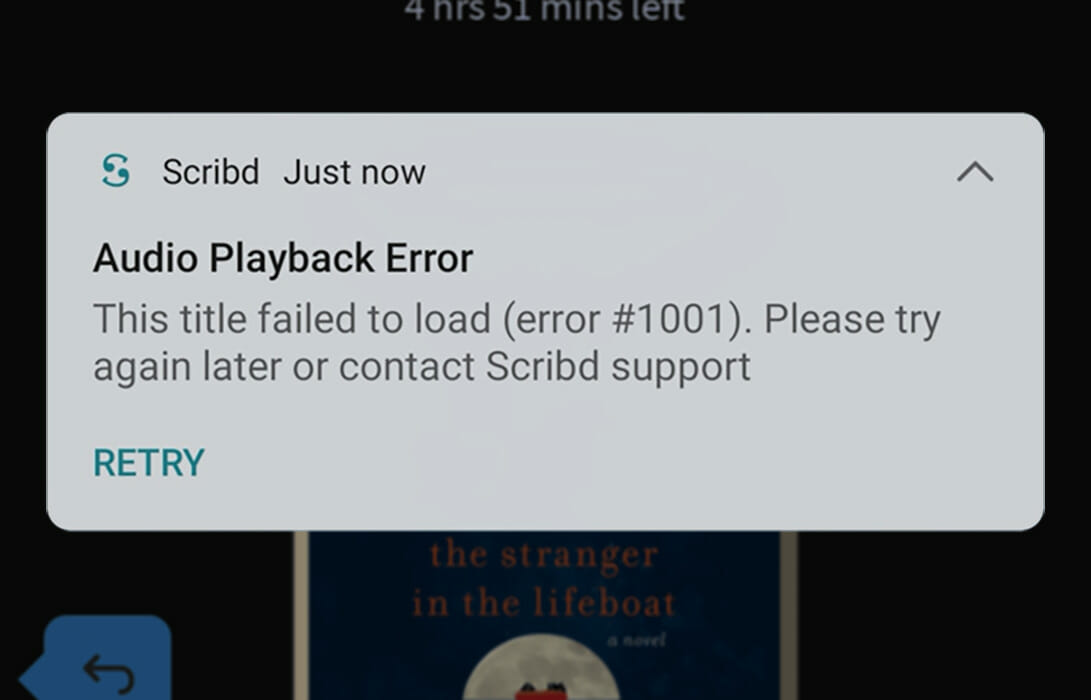






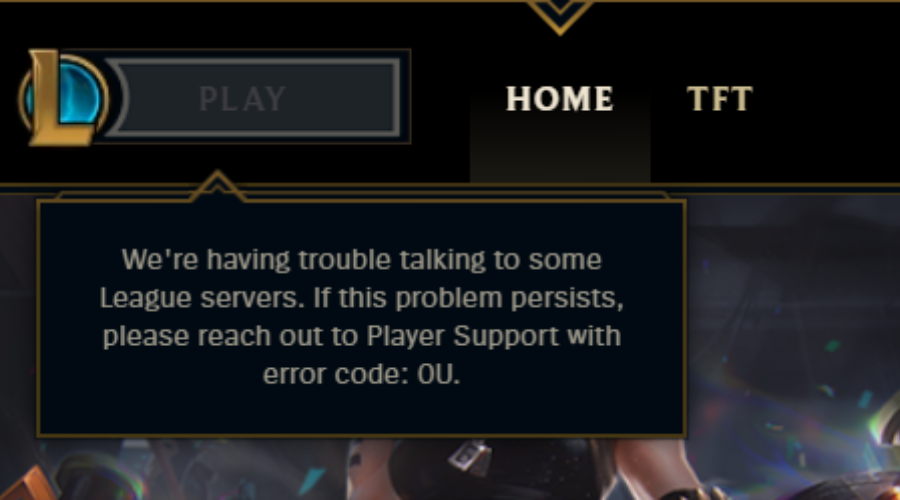


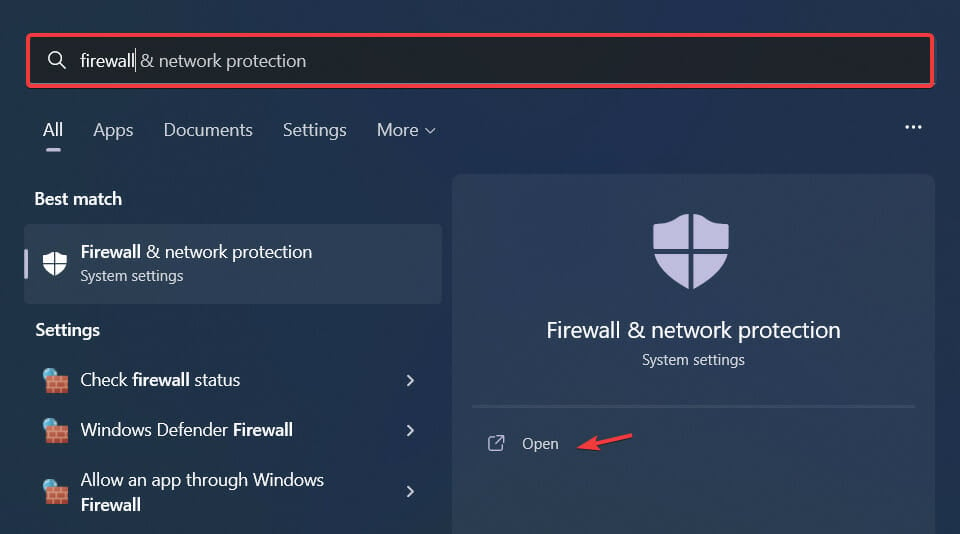
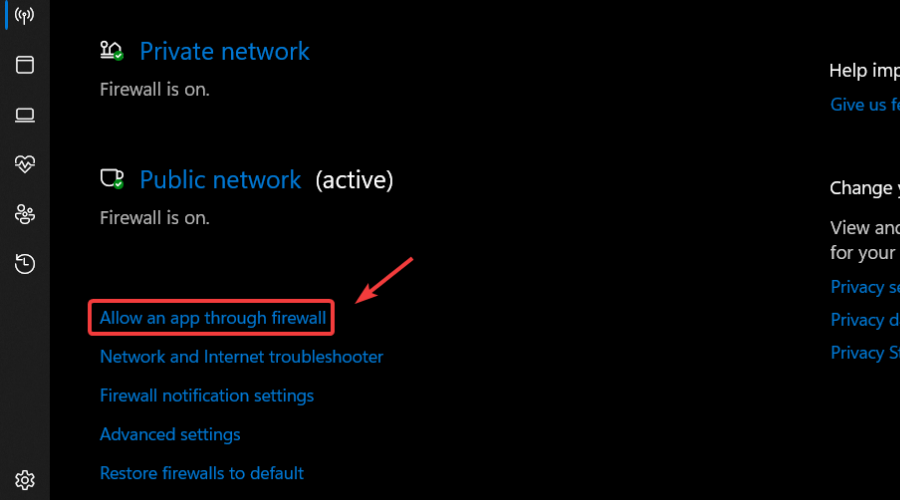
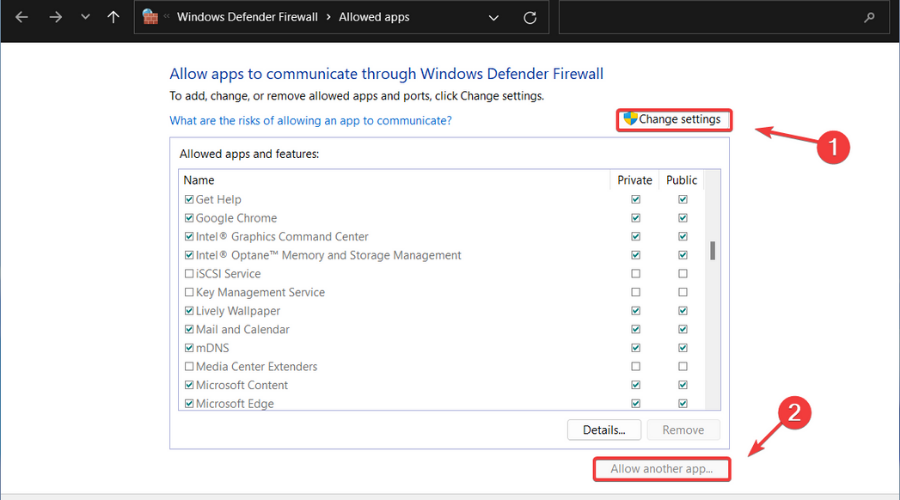
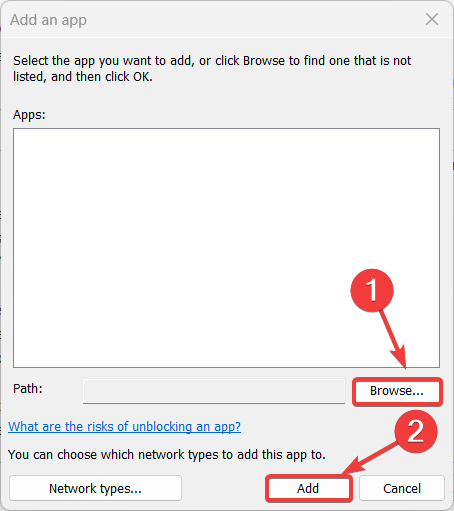


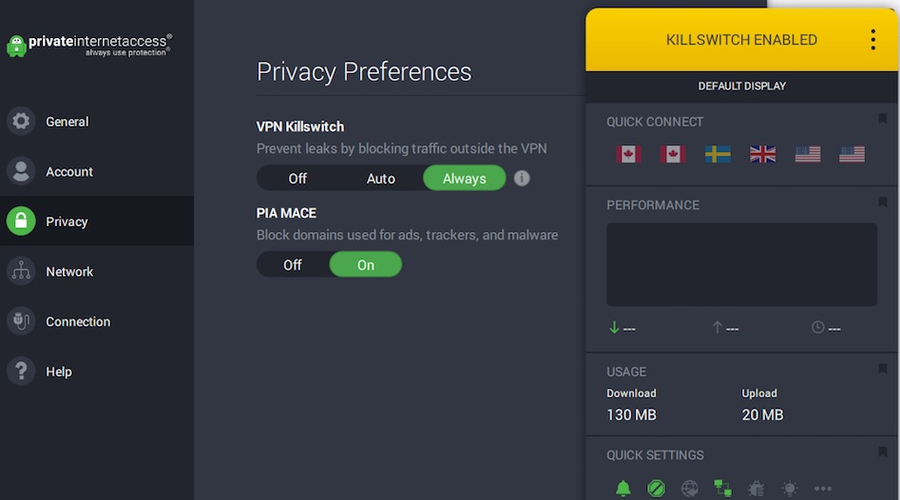






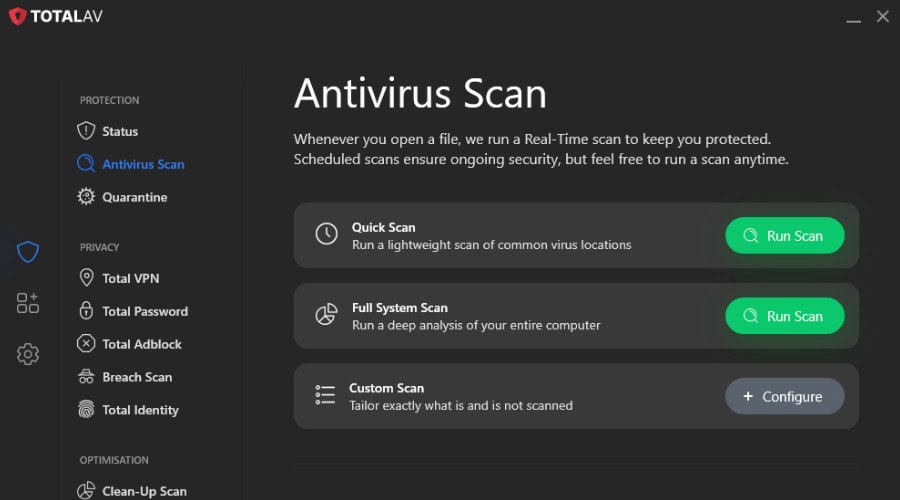

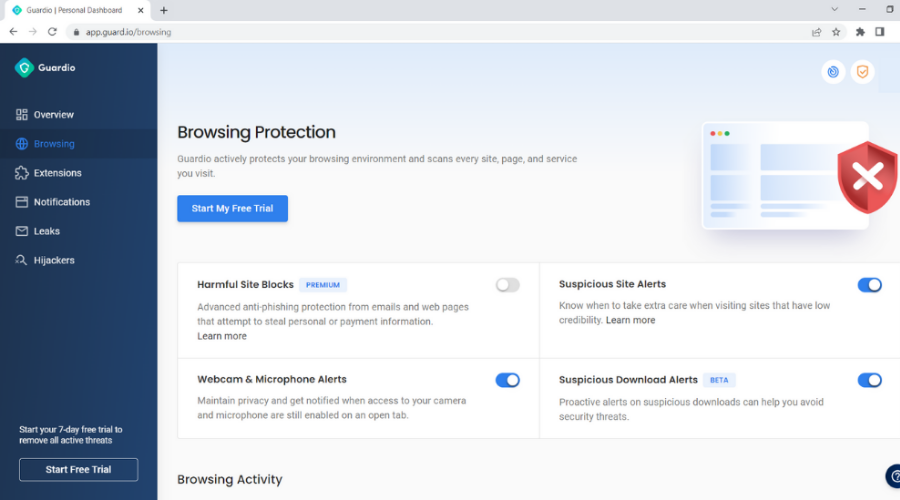



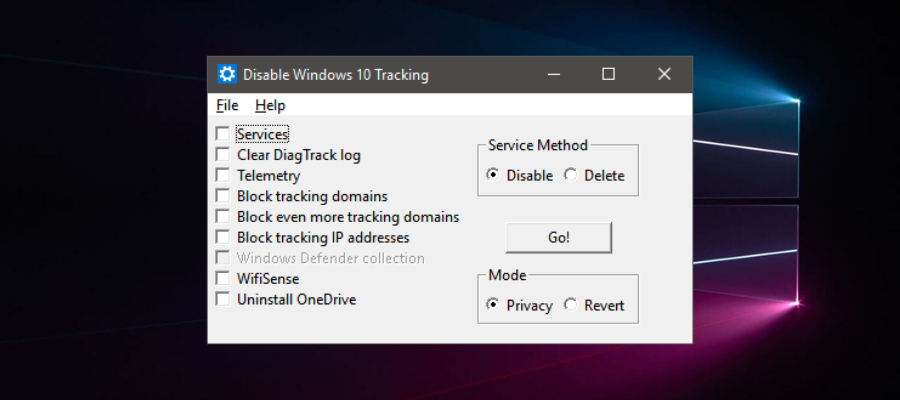


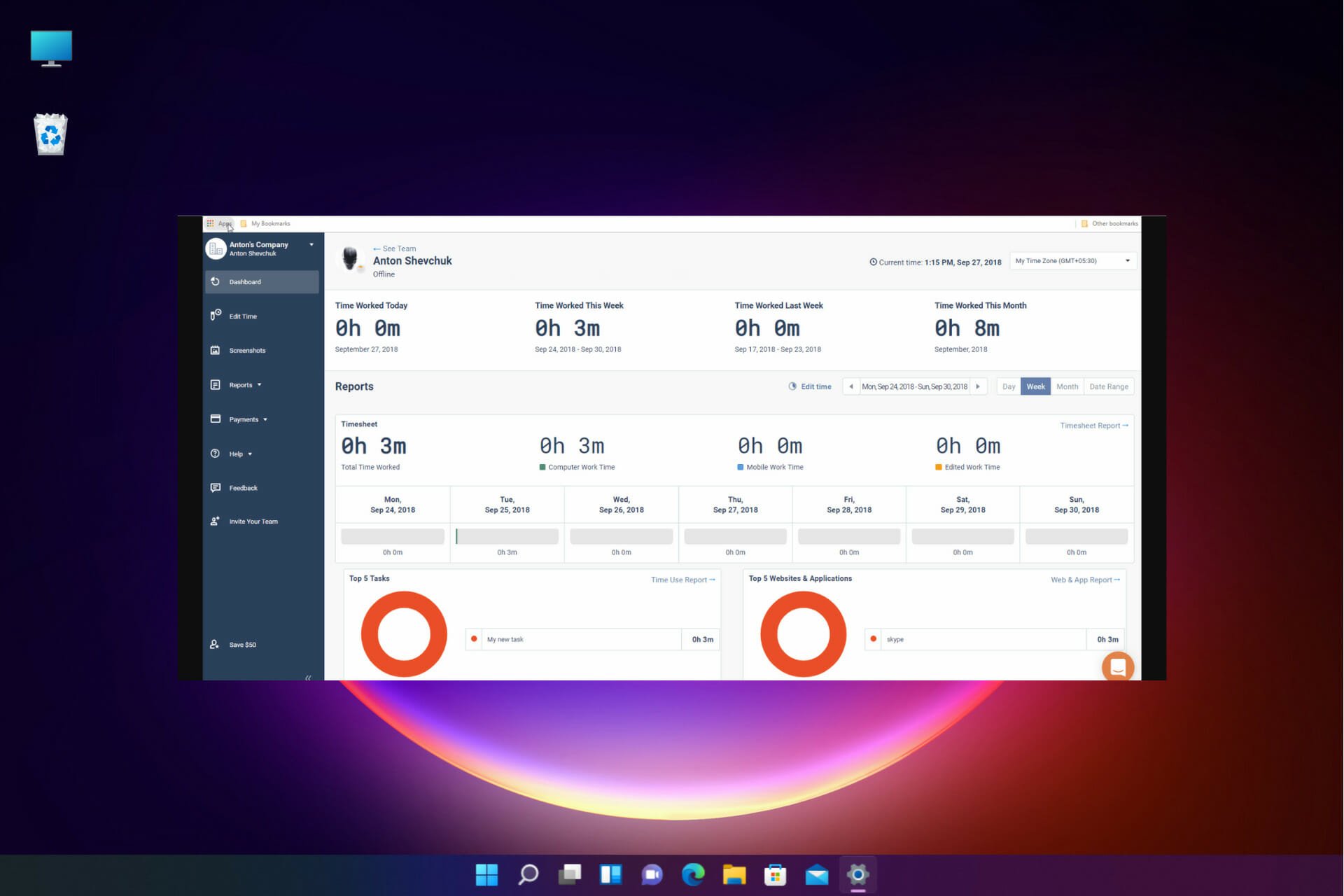
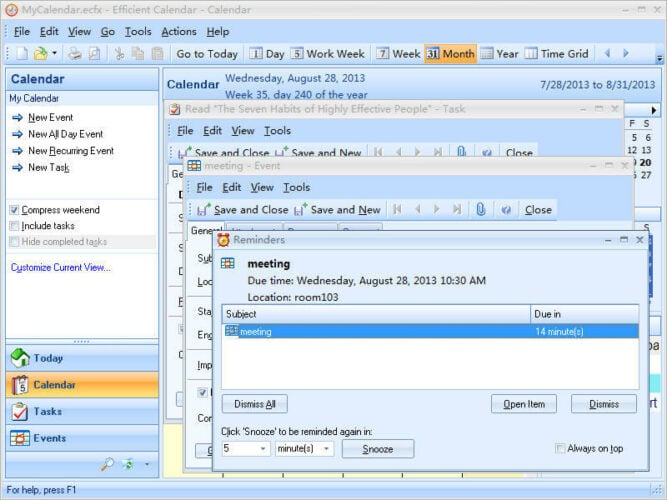
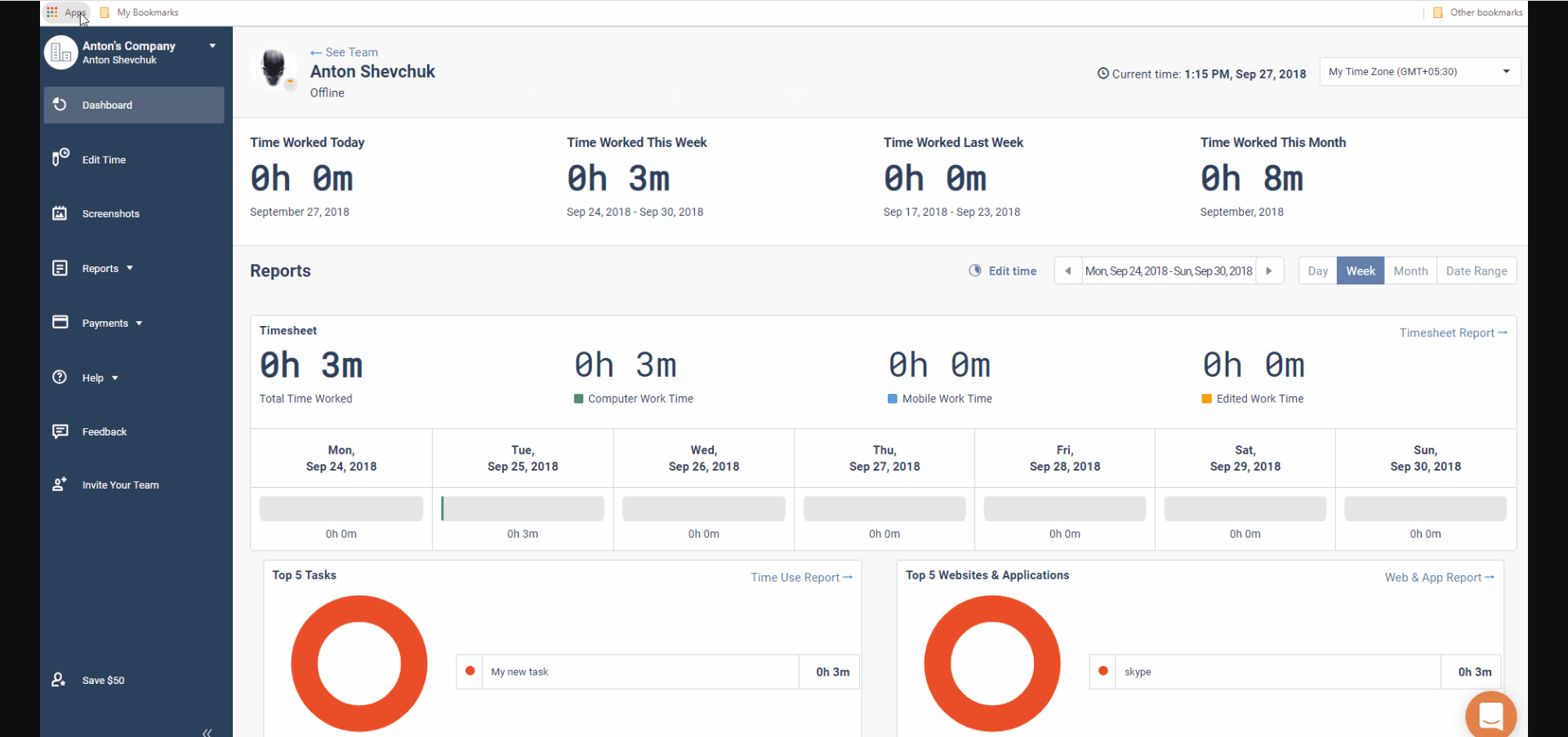
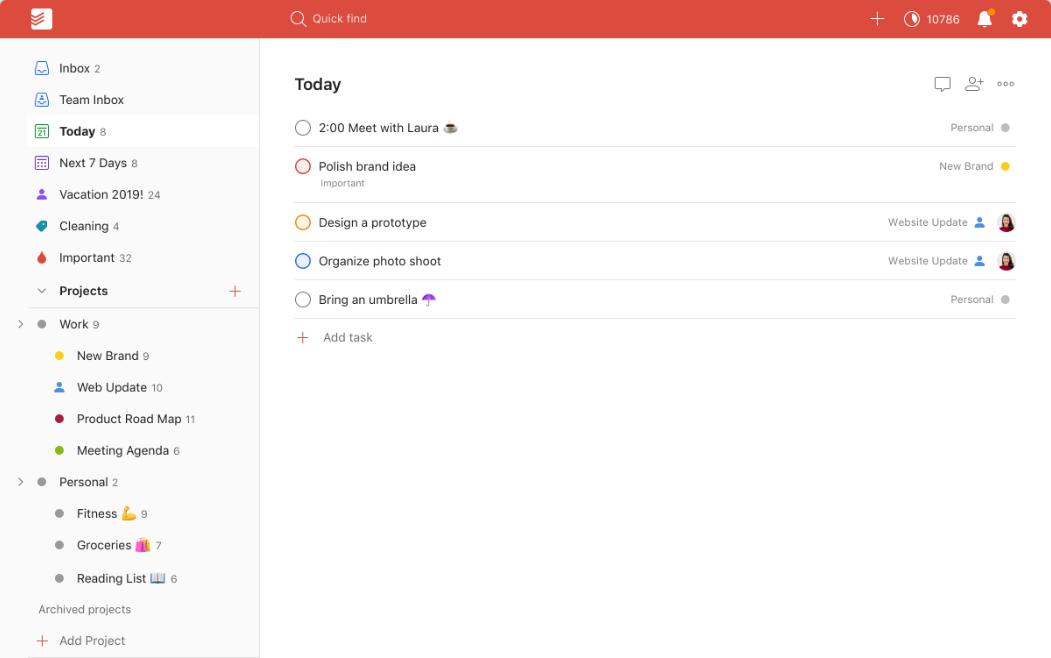
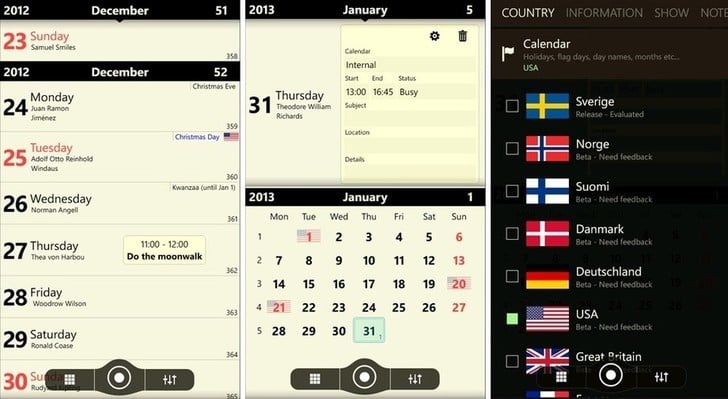
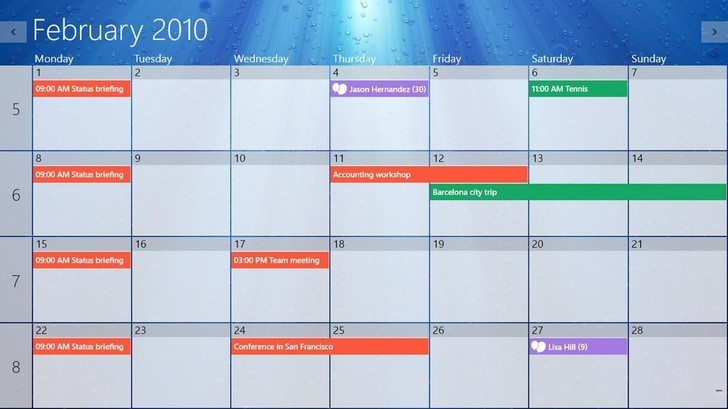
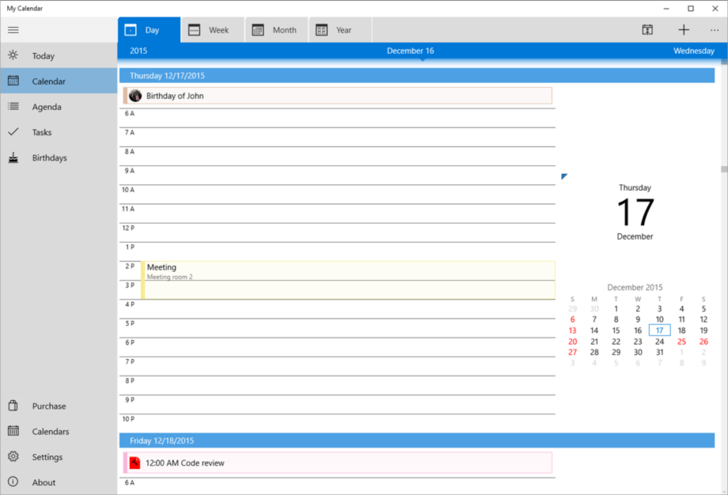
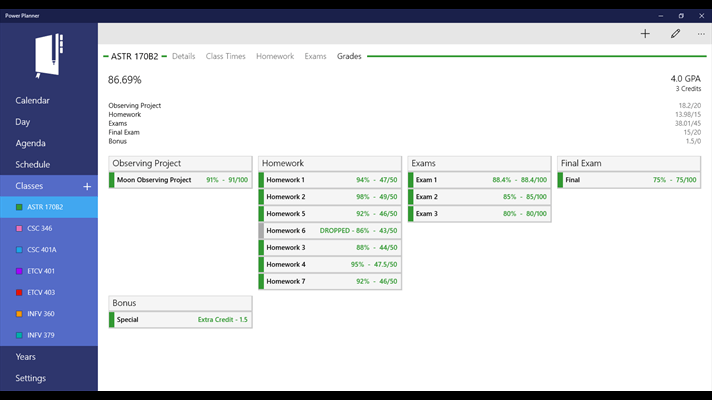
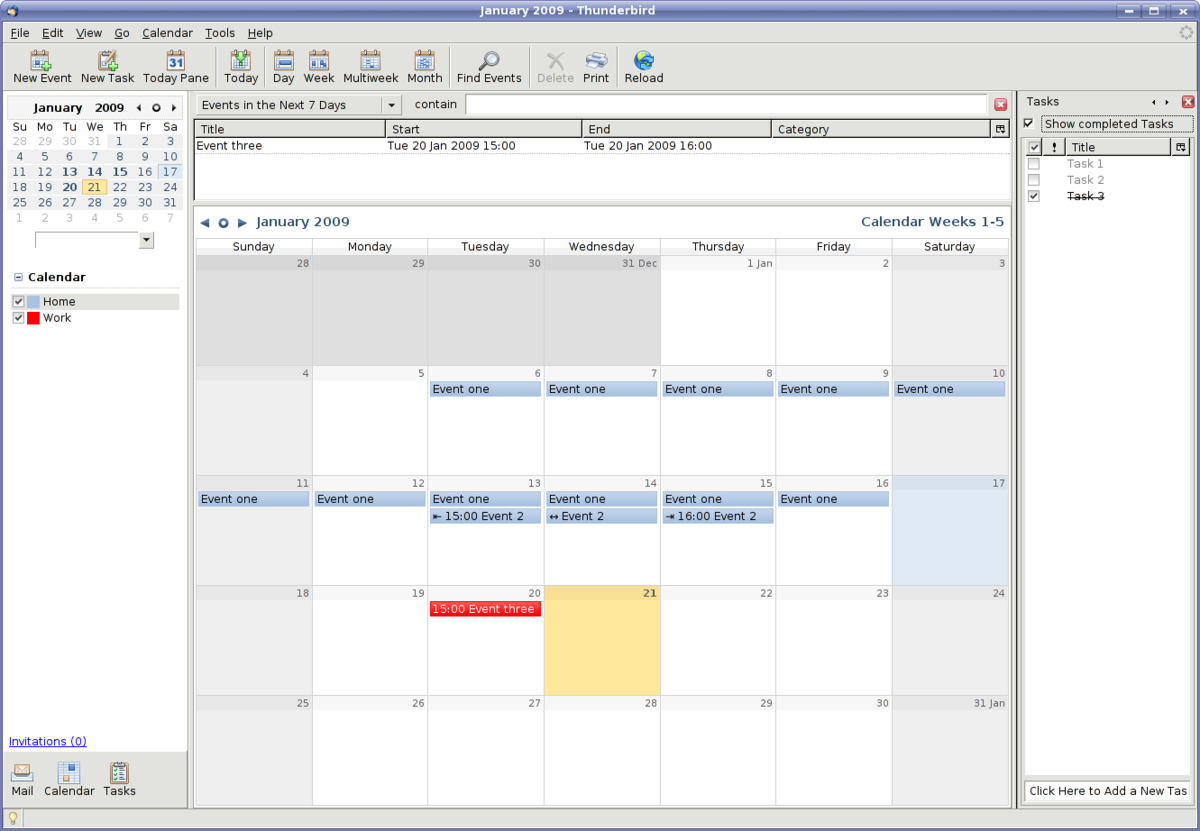
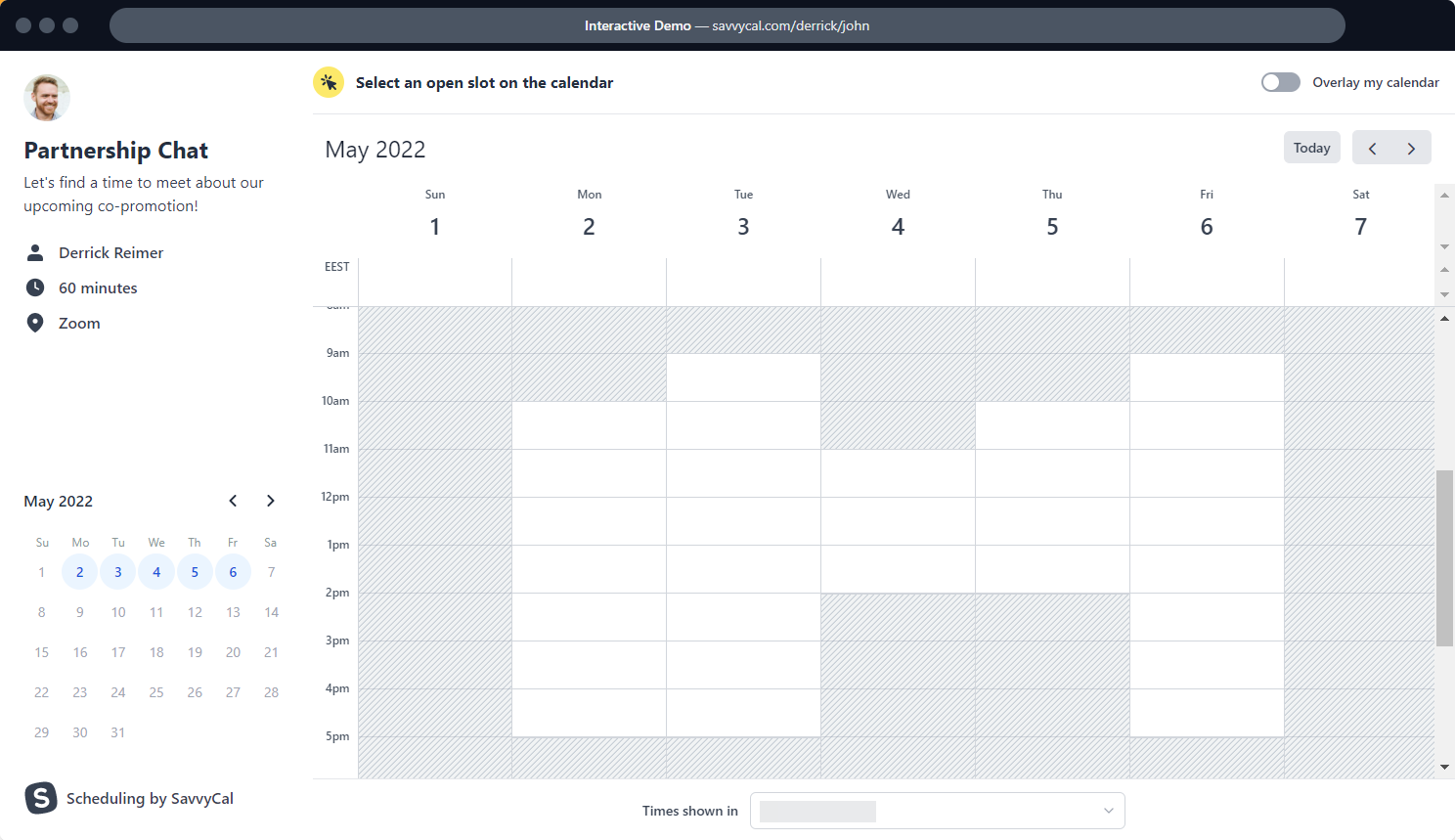
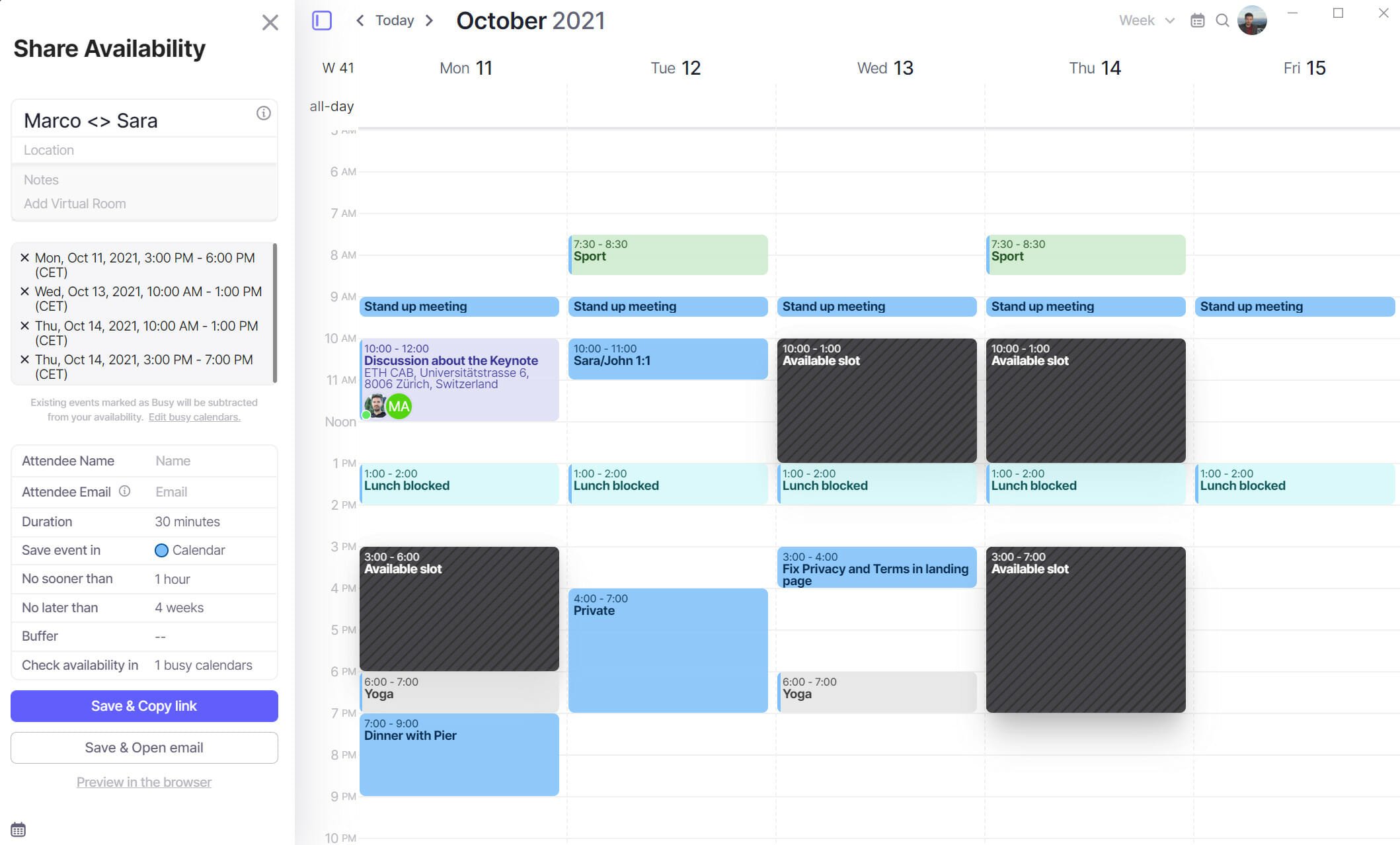

![NVidia Control Panel Display Settings Missing [Windows 11 Fix]](https://windowsreport.com/wp-content/uploads/2022/04/nvidia-control-panel.jpg)
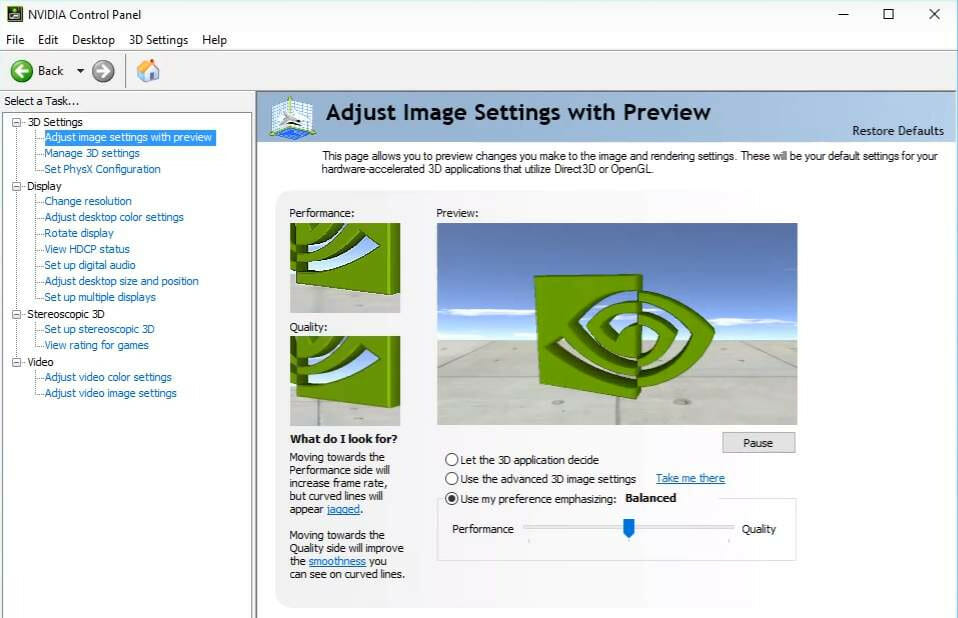


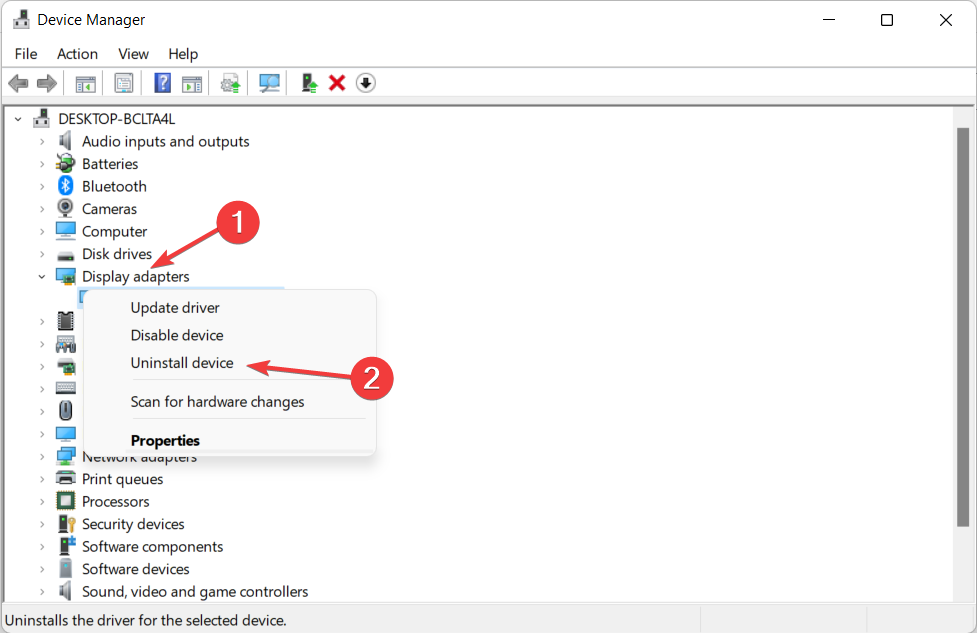


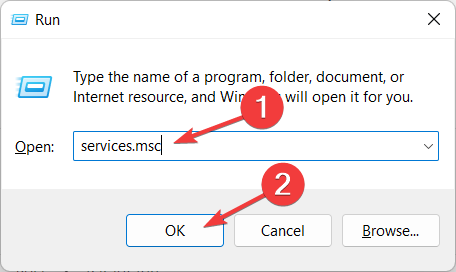
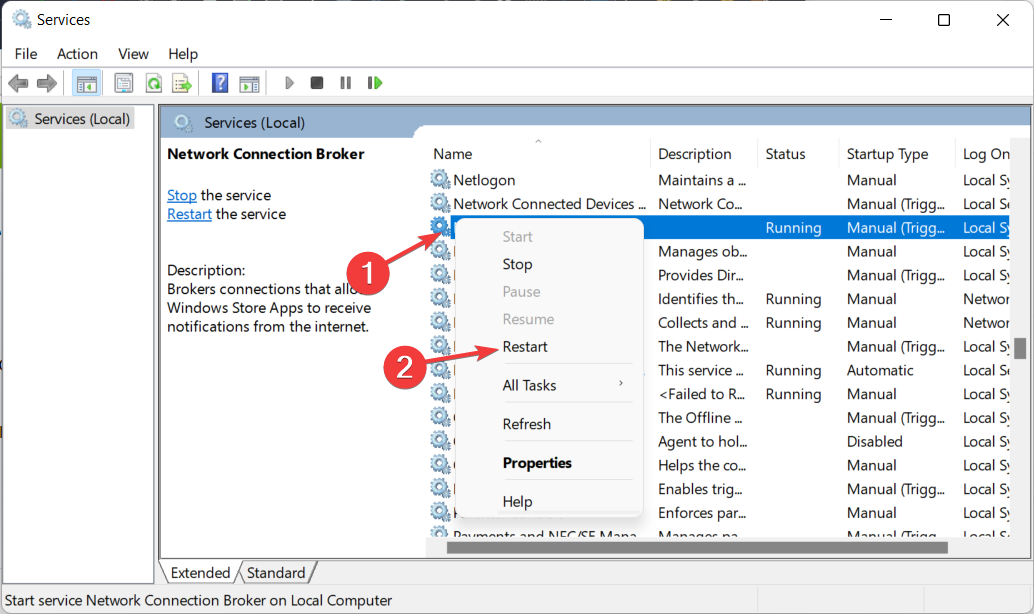
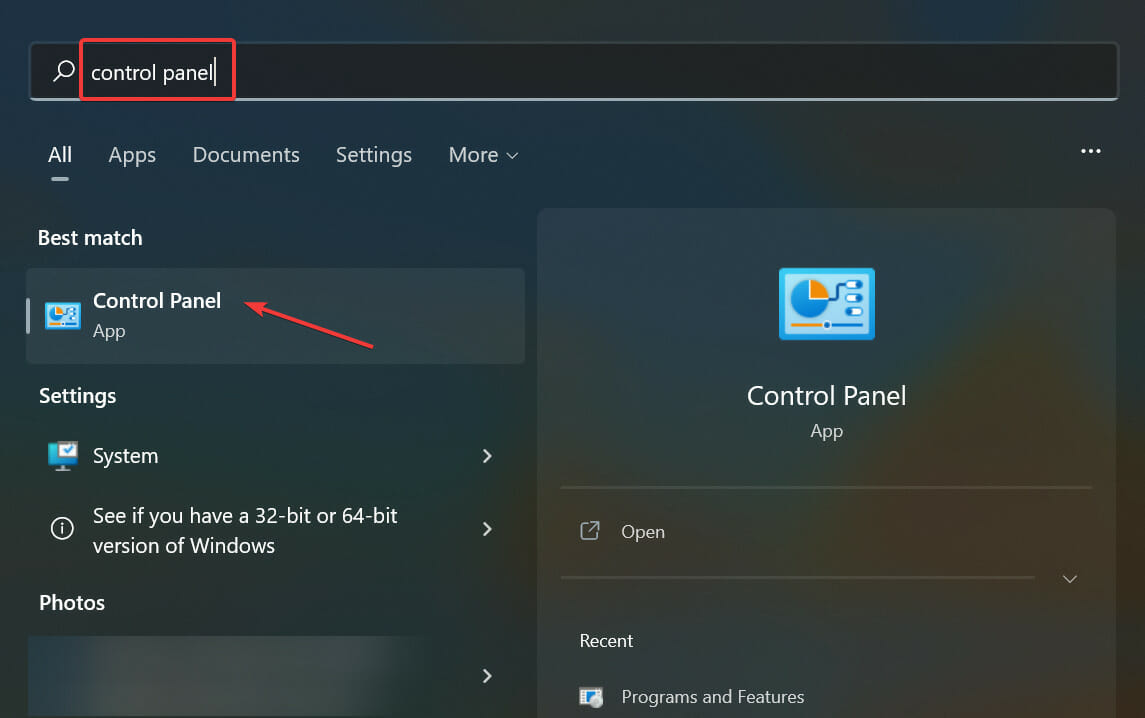
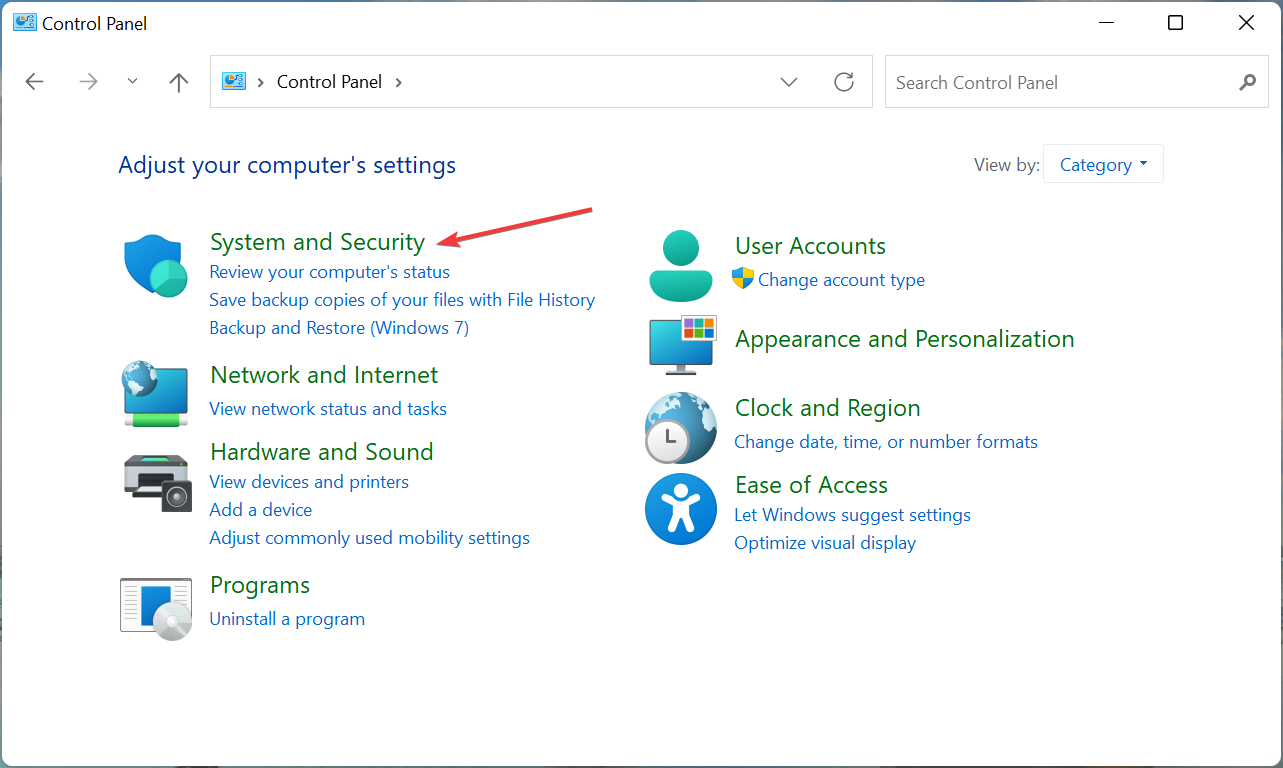
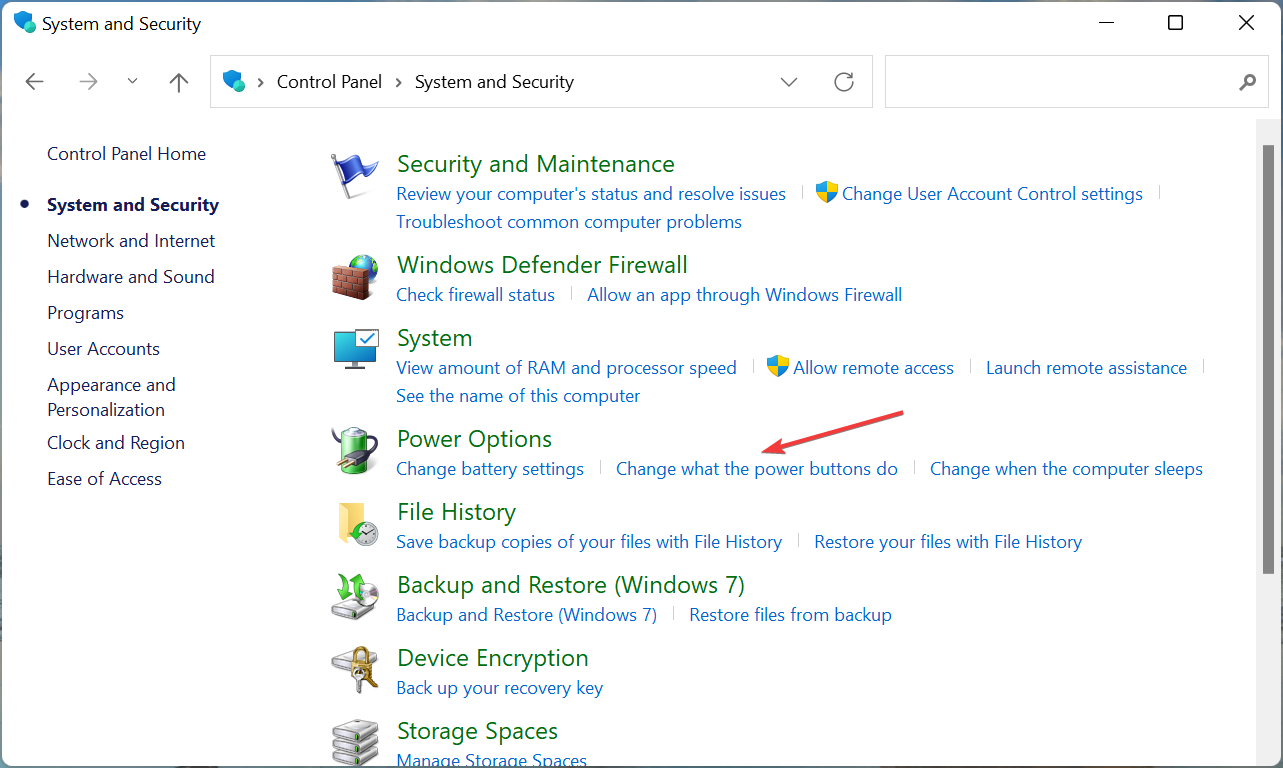
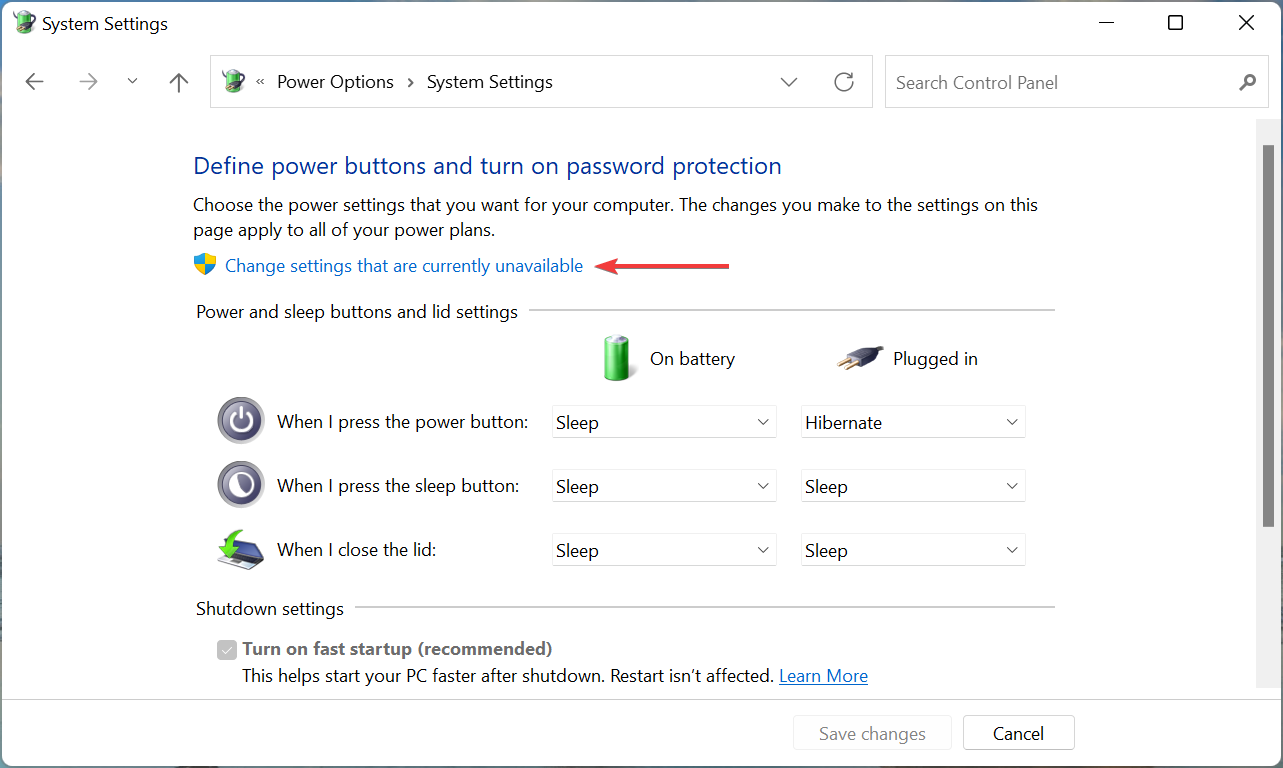
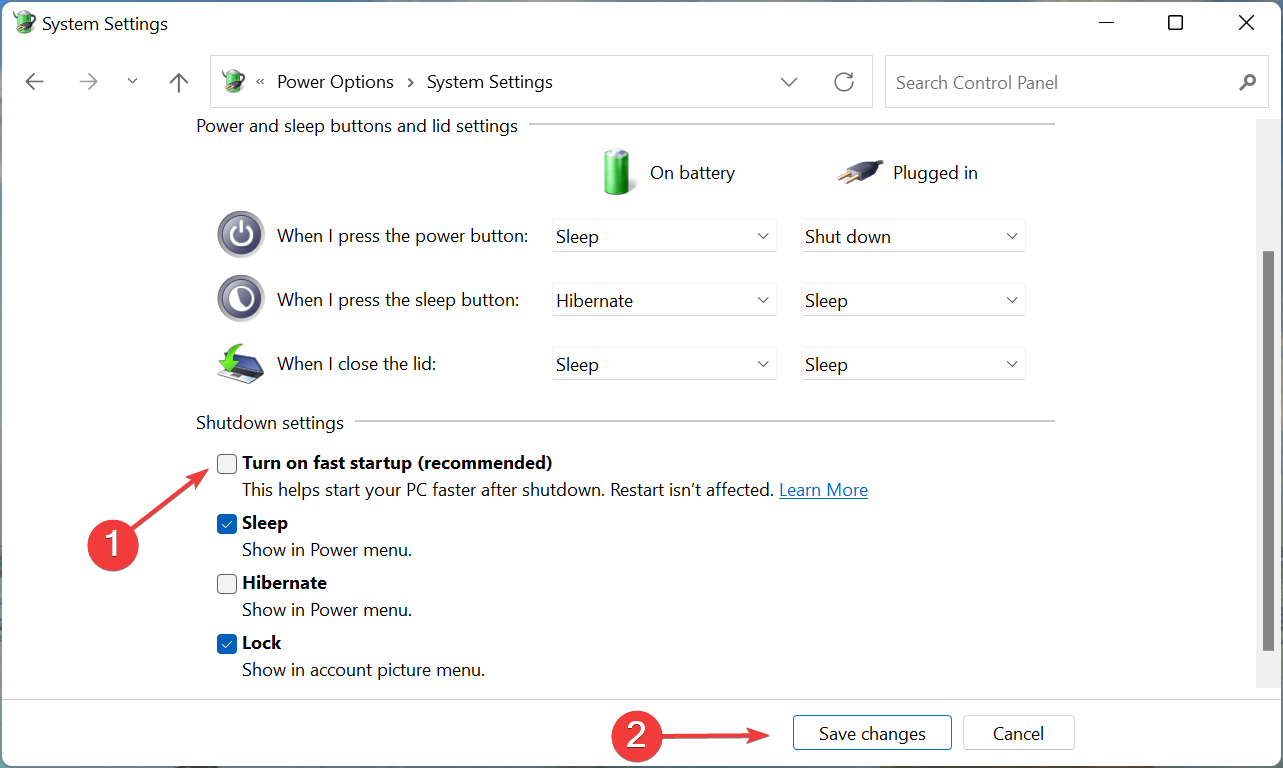
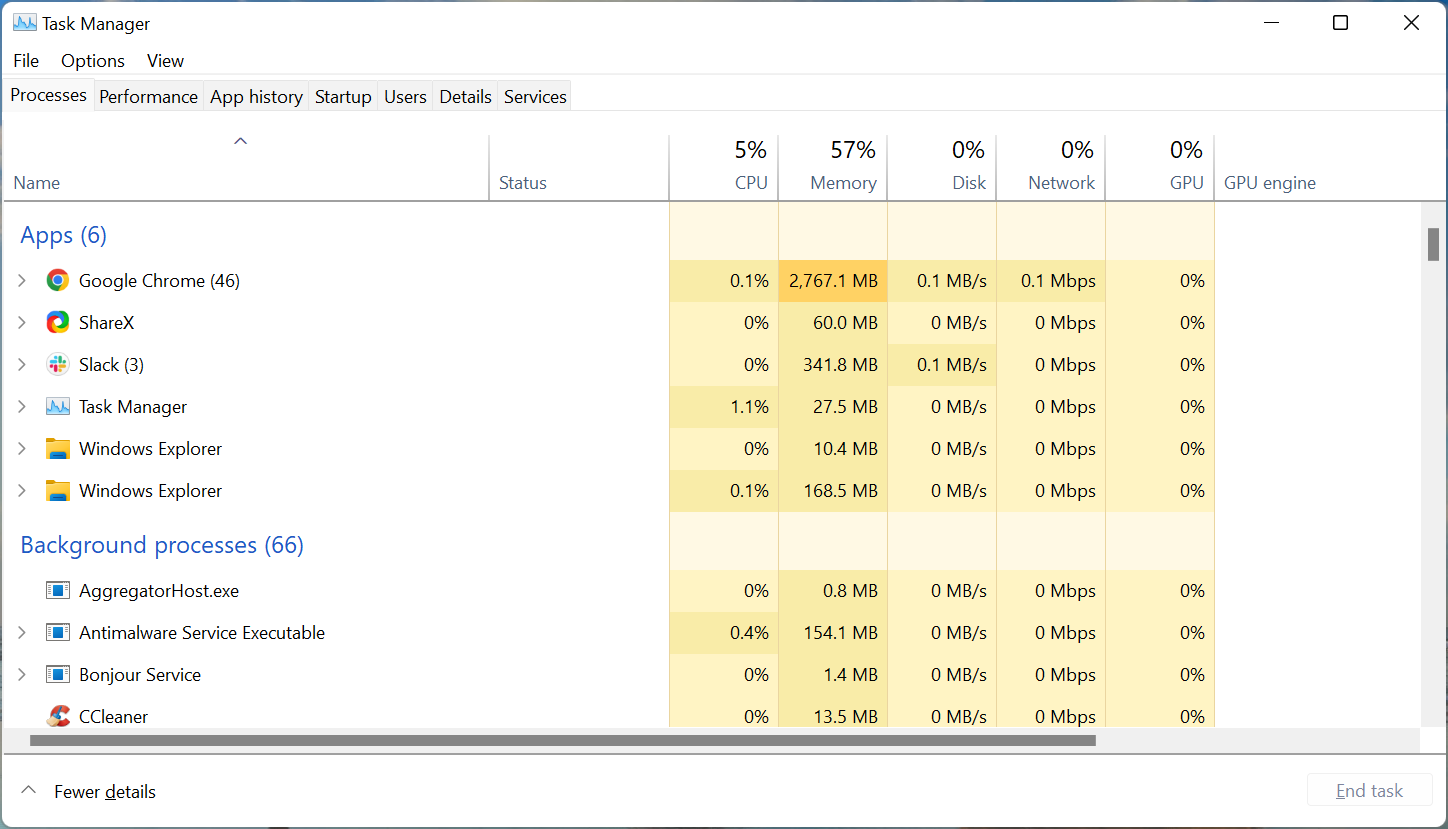
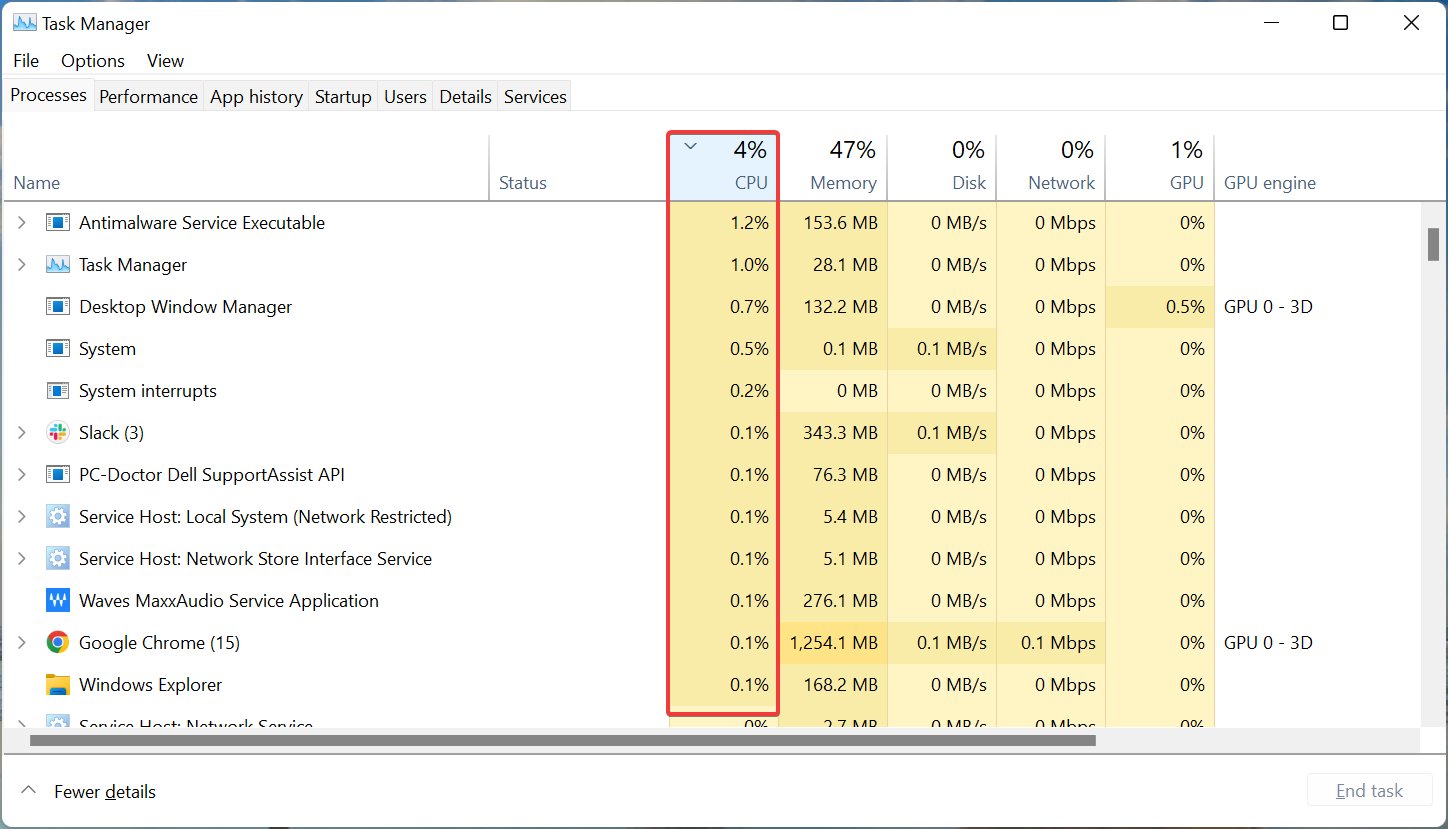
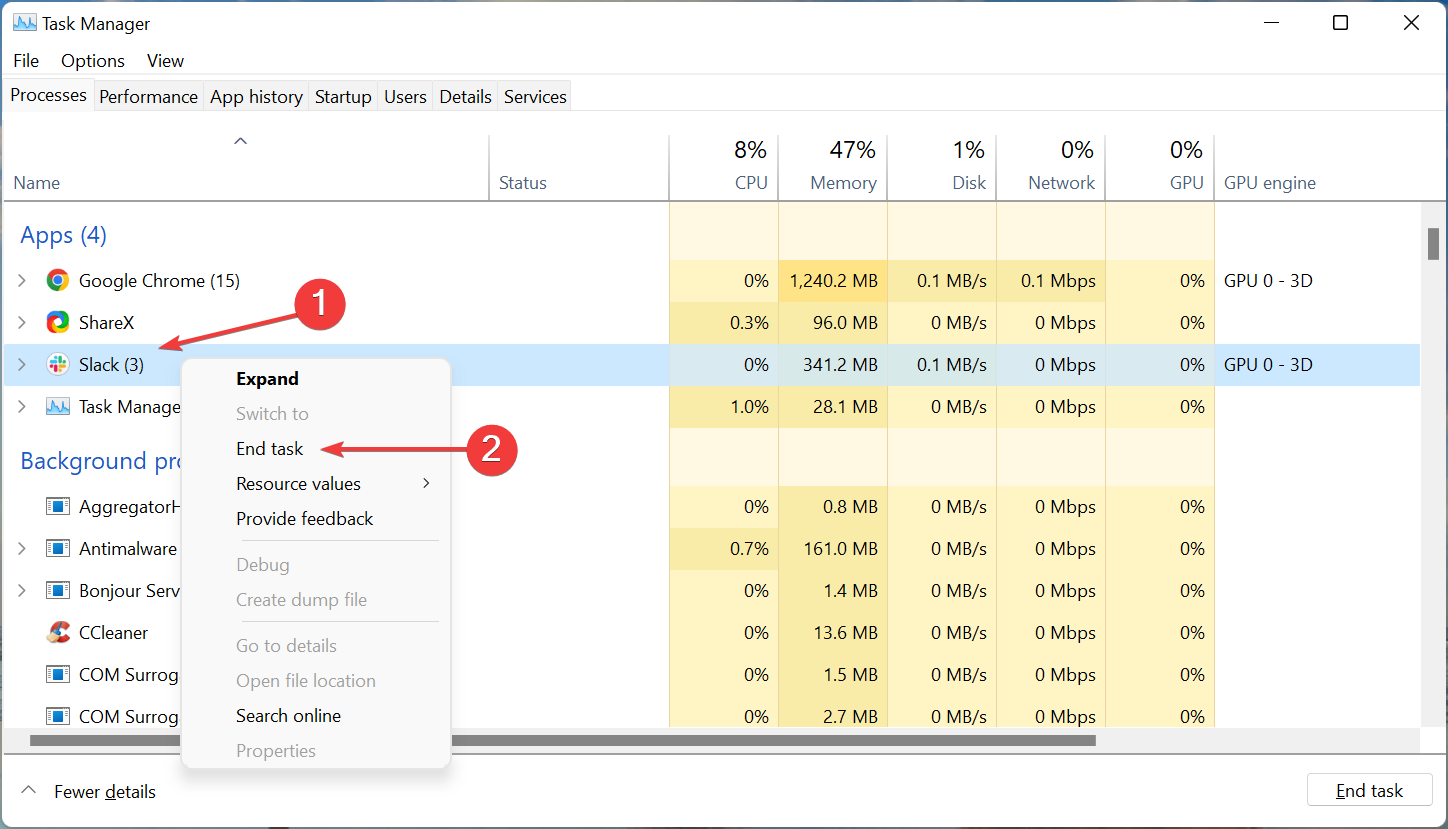
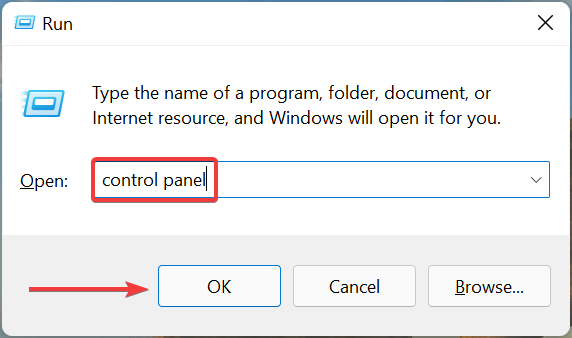
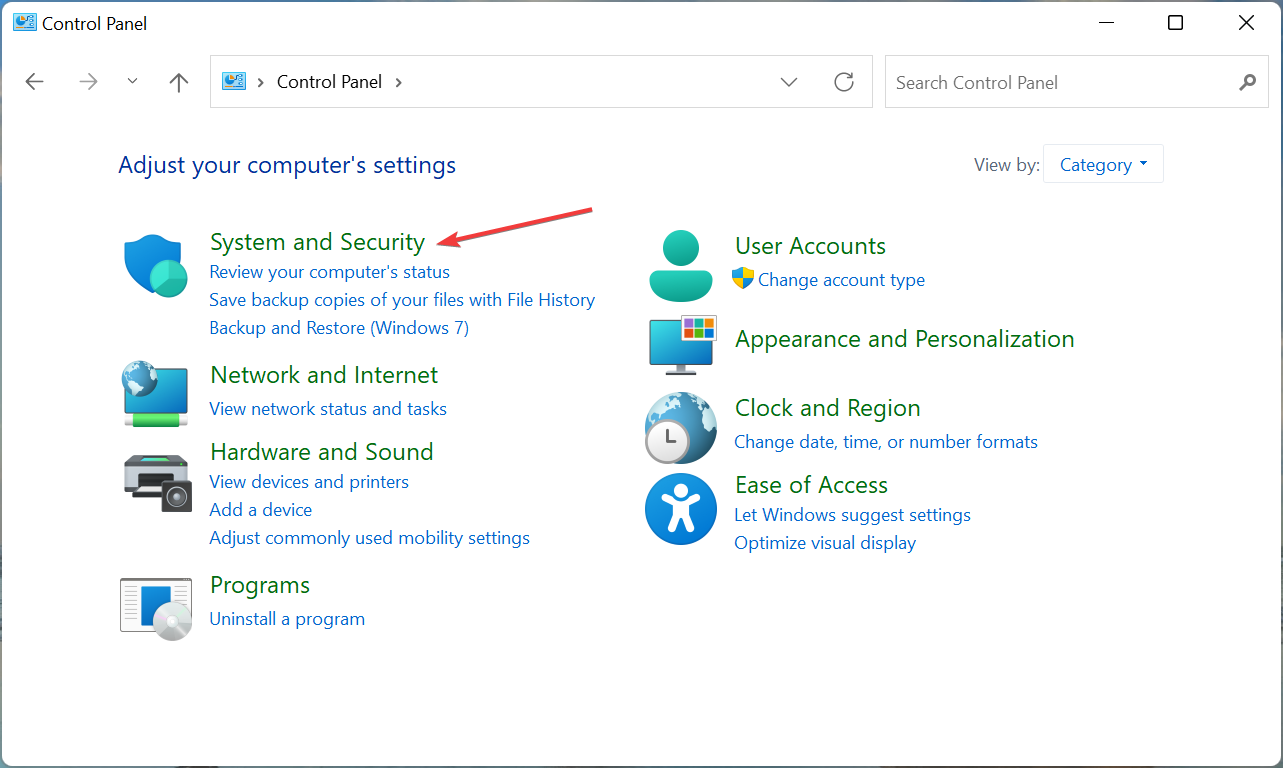
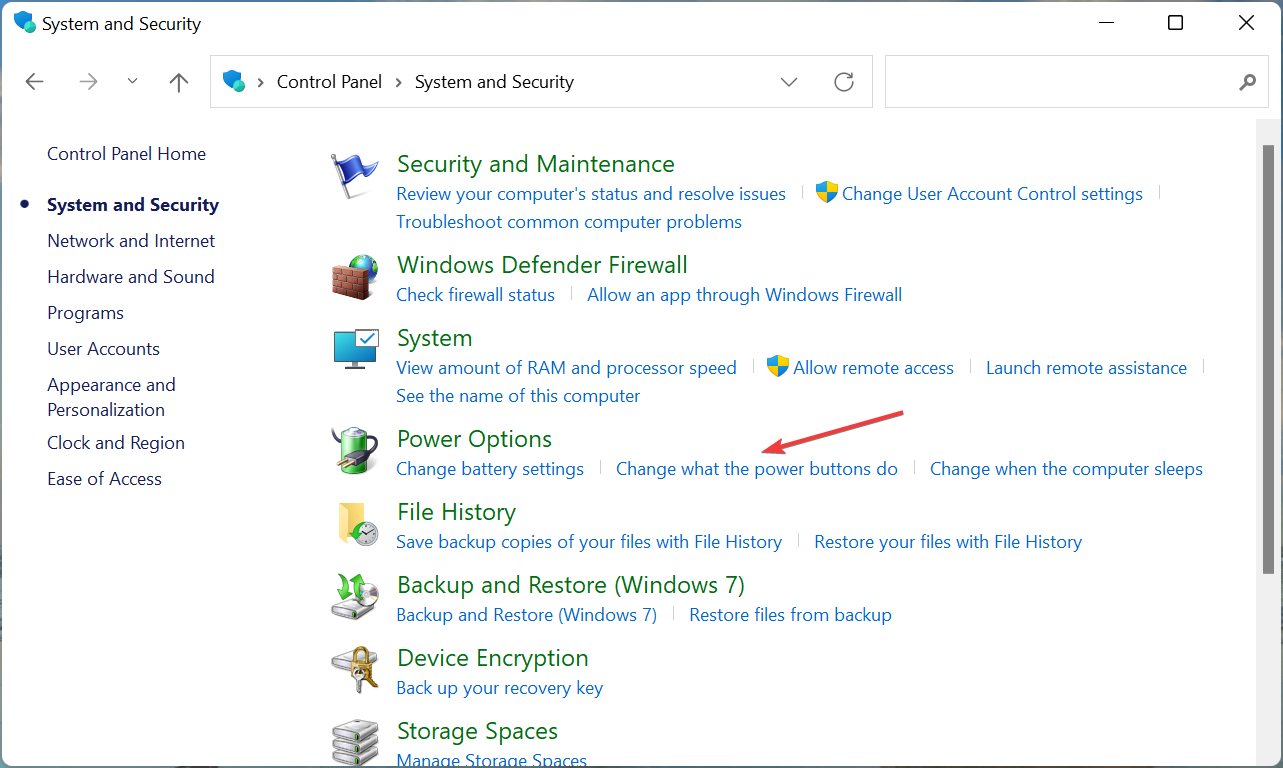


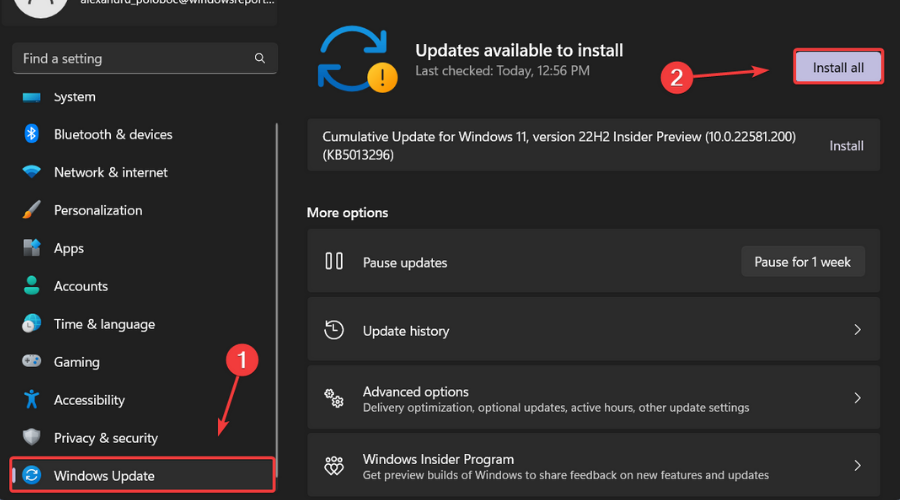
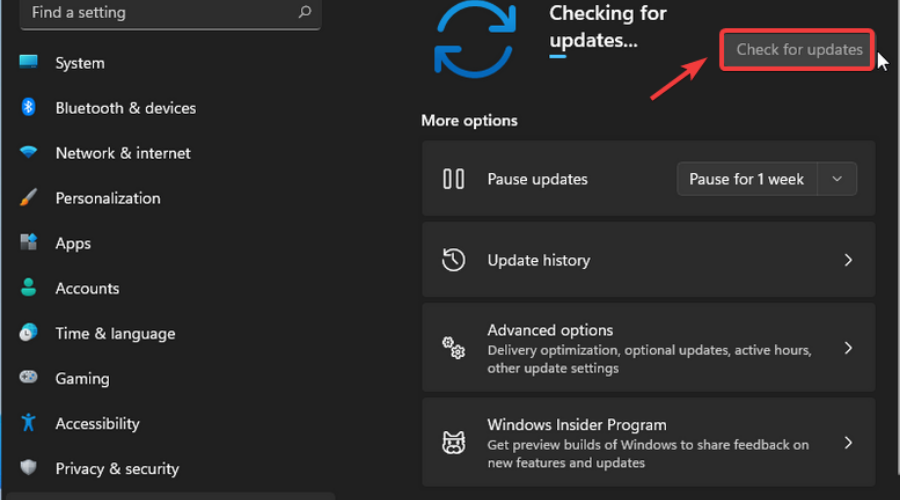
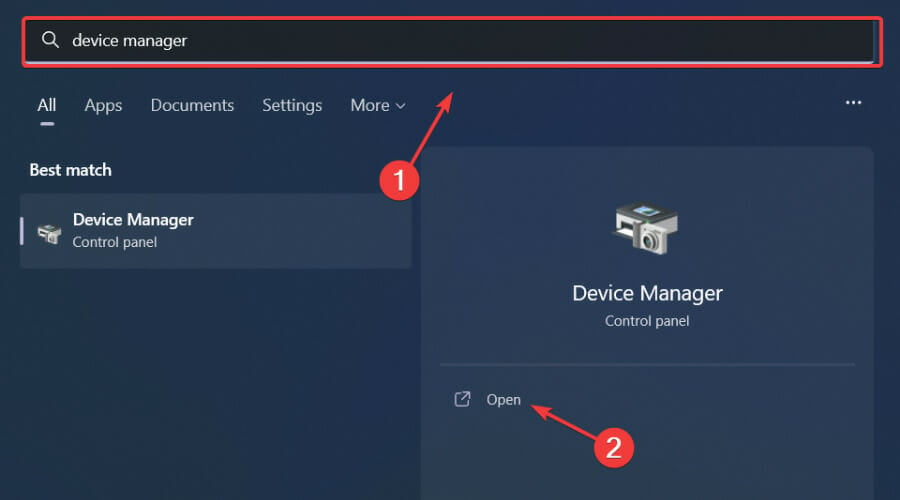
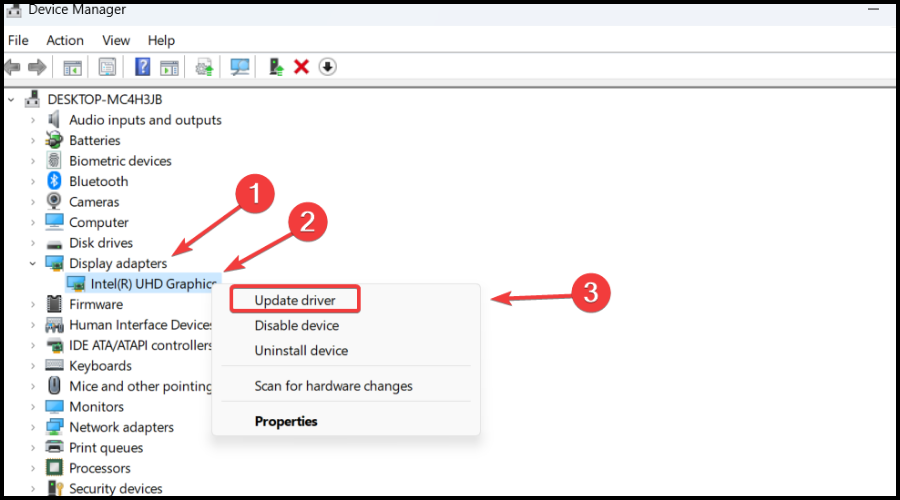
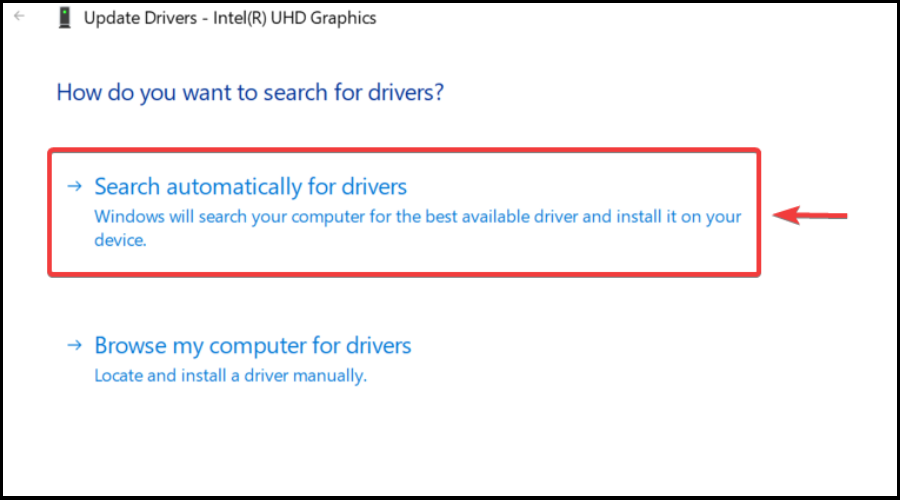


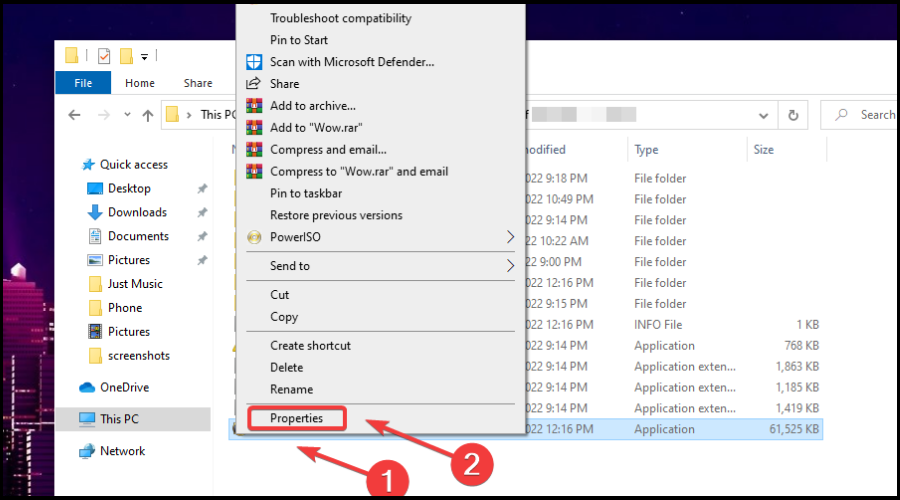
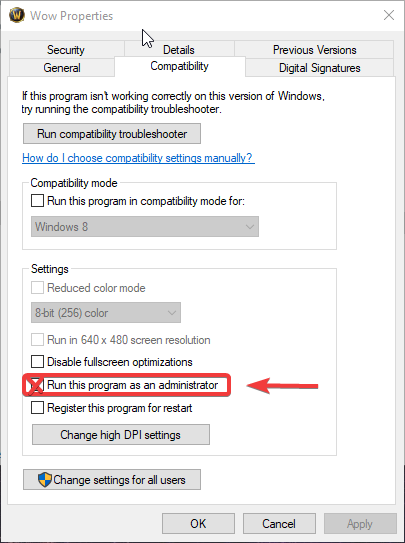
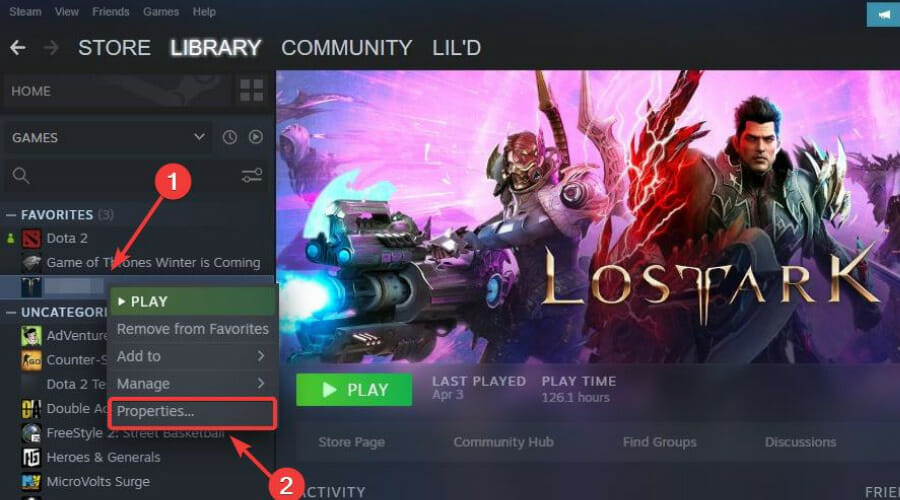
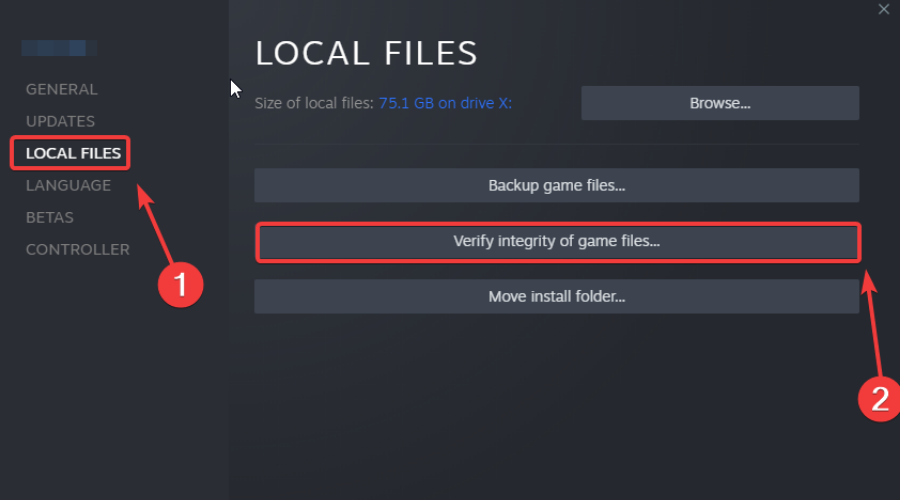






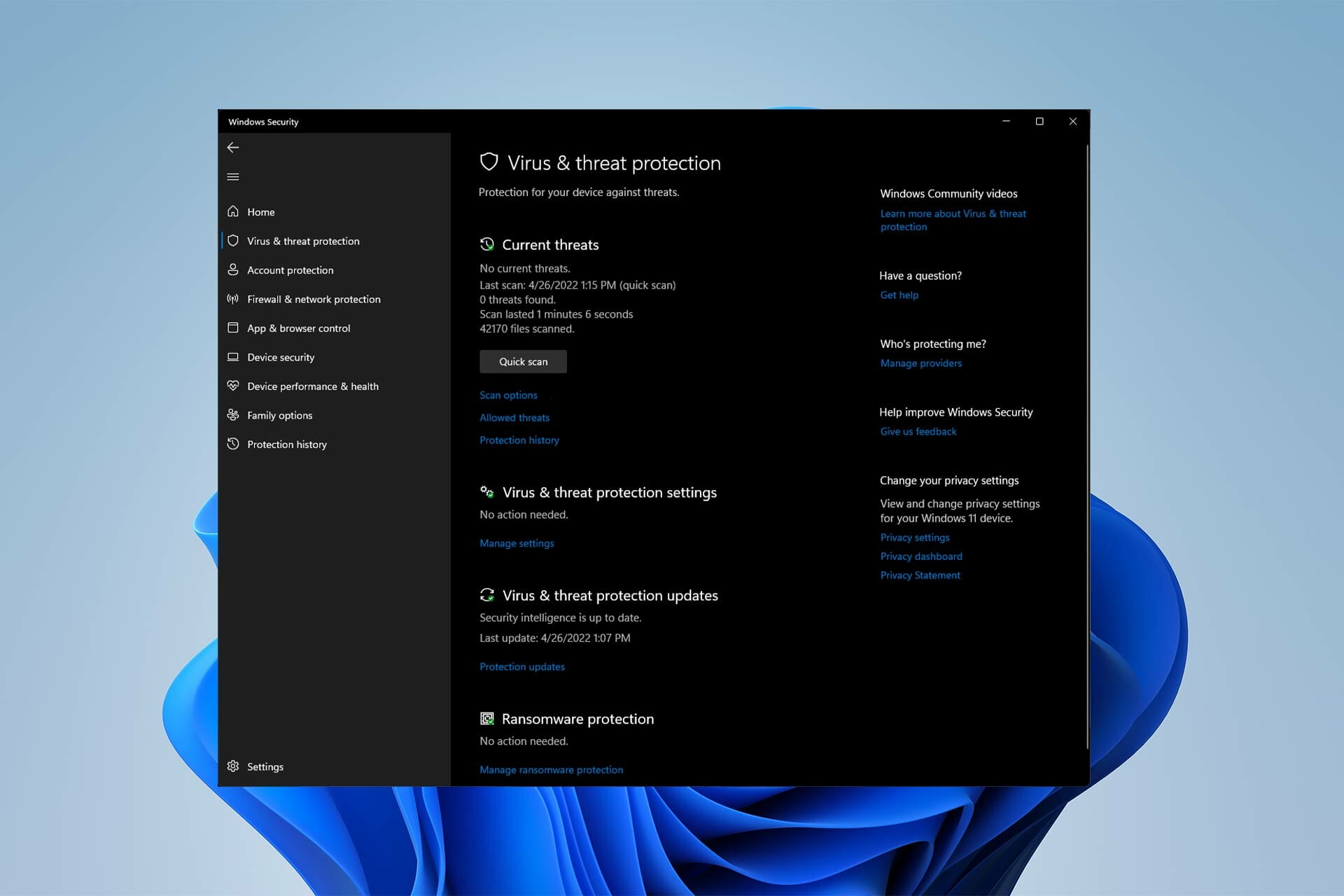
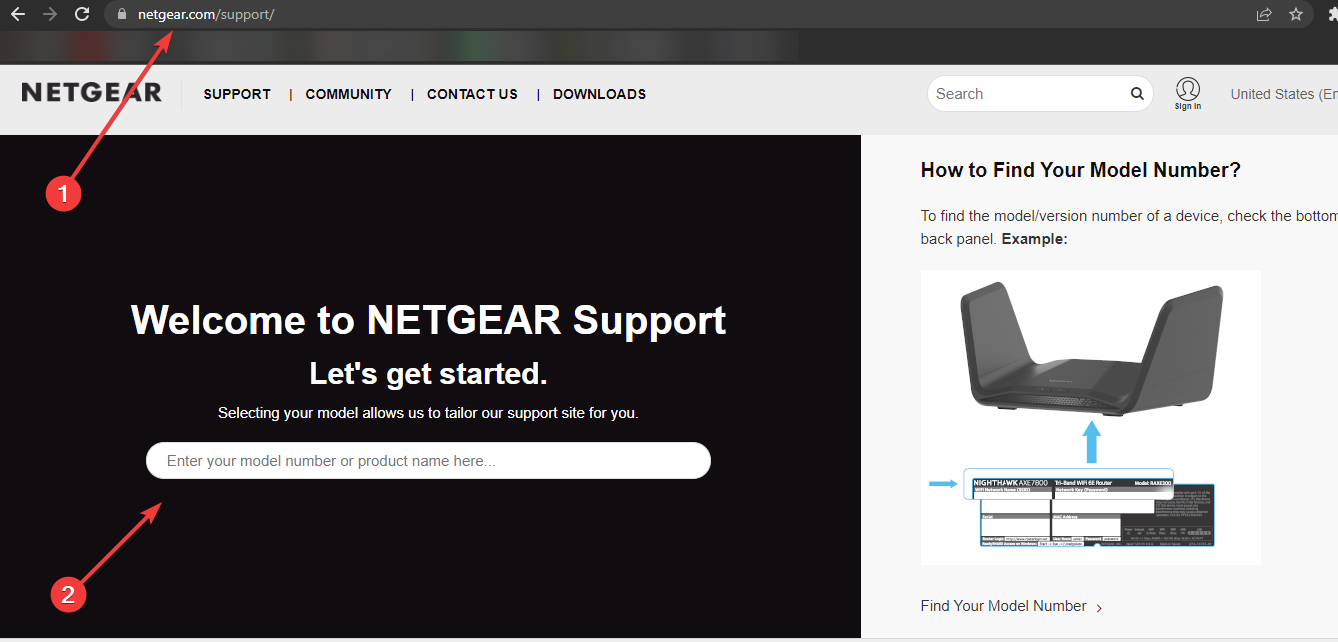
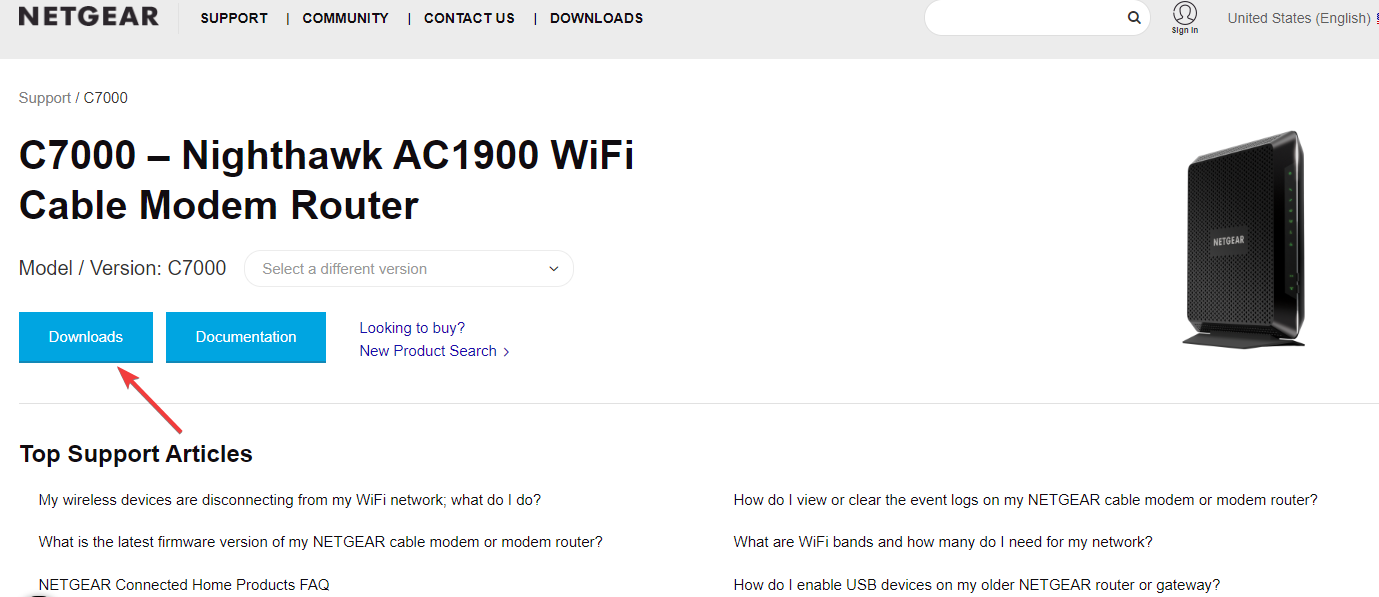
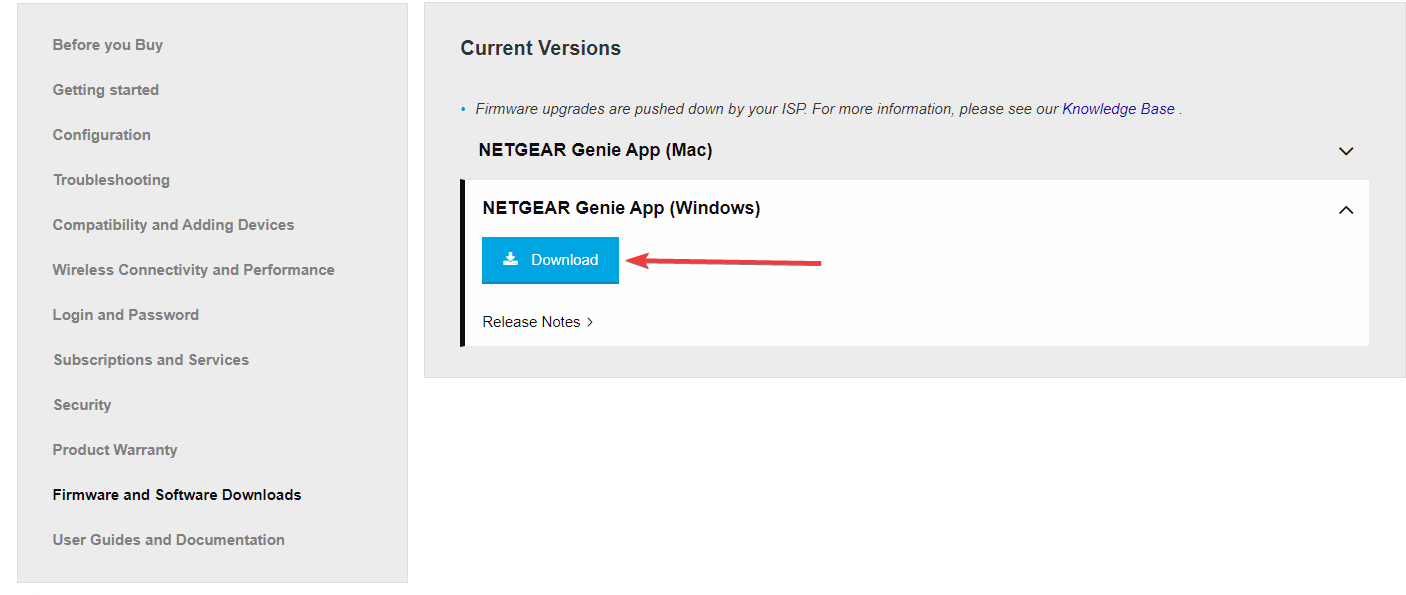
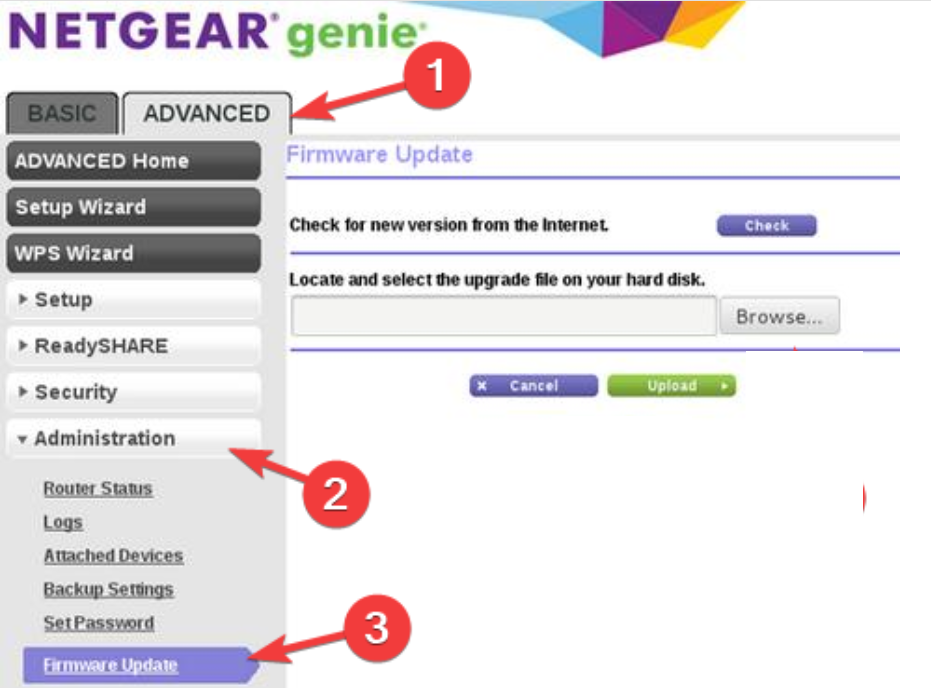
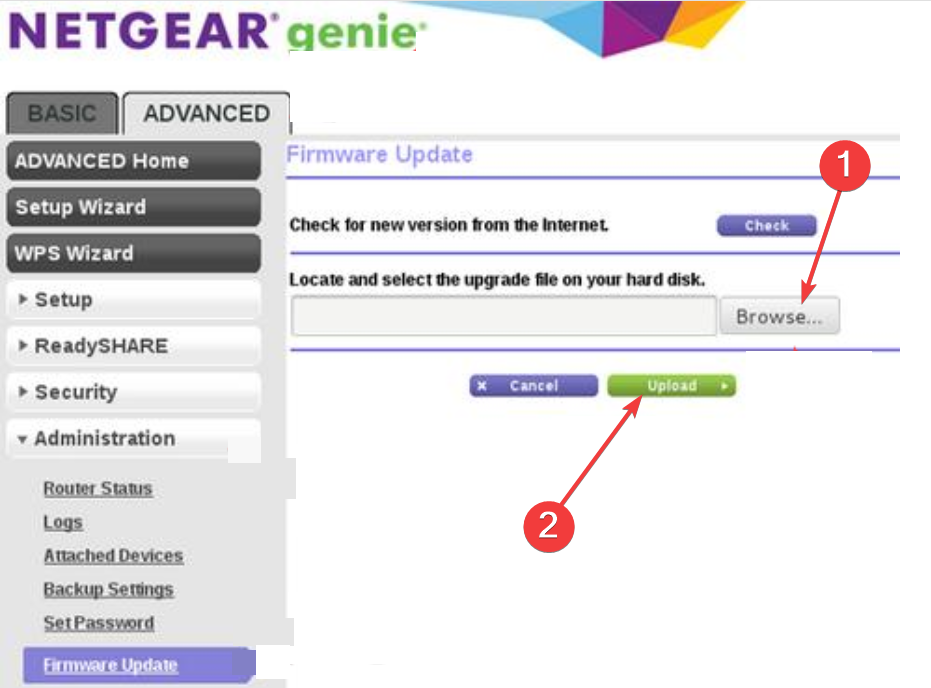
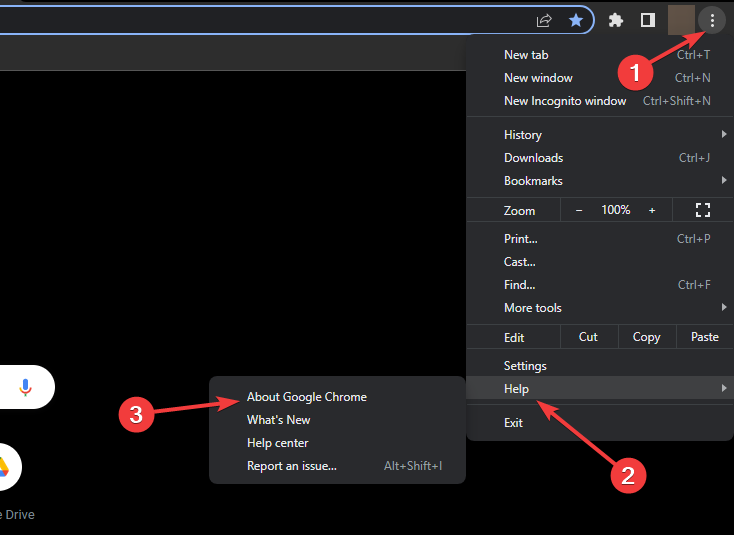
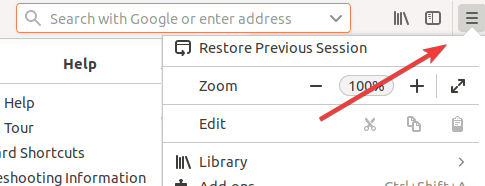
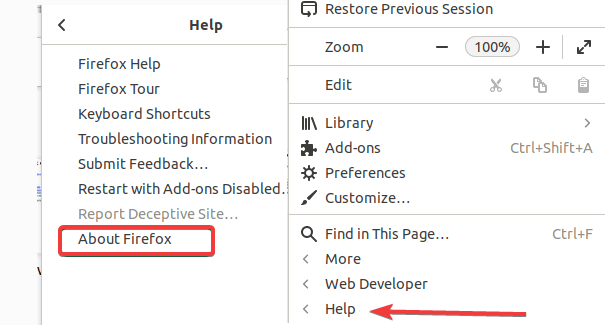
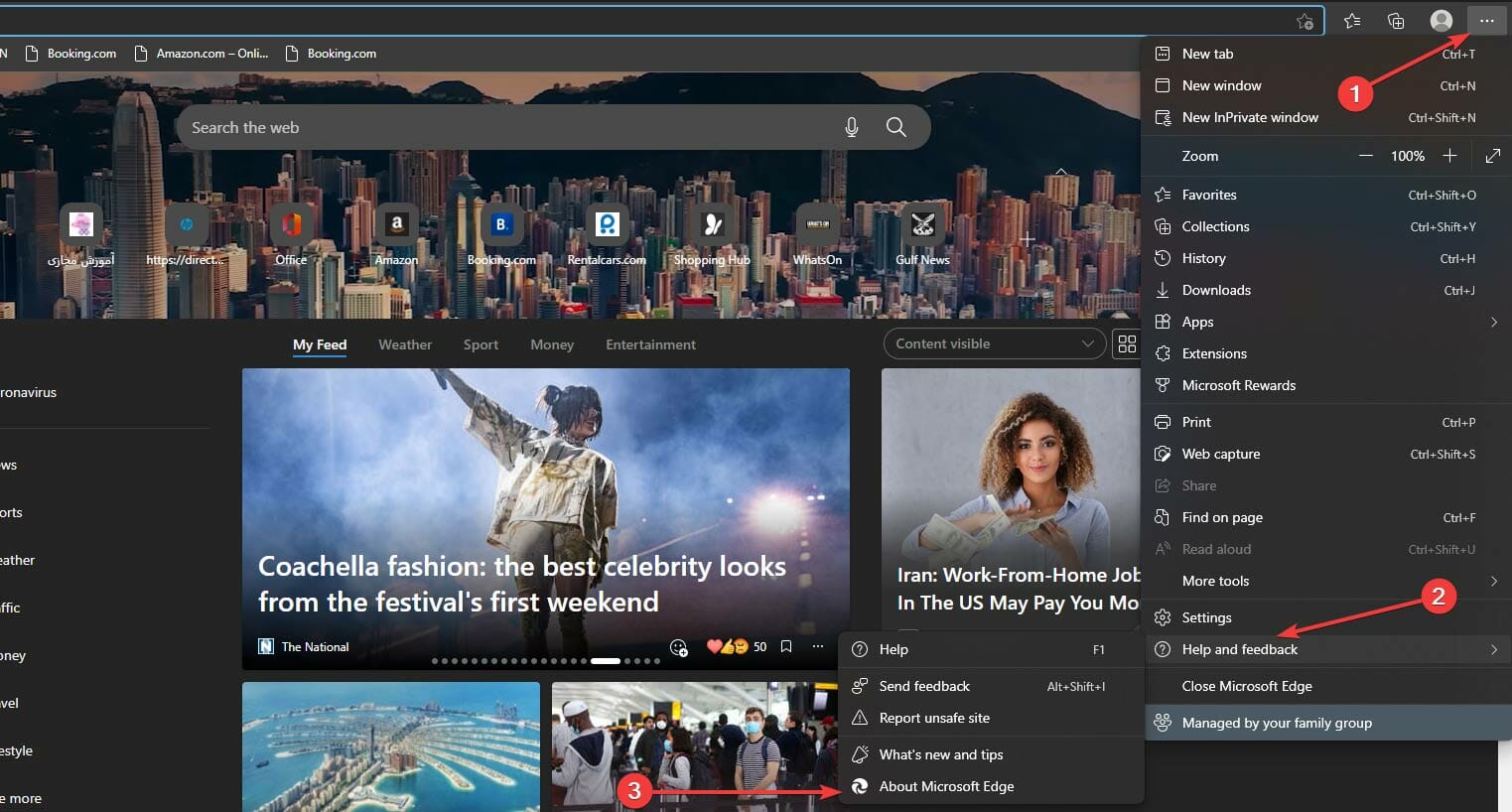
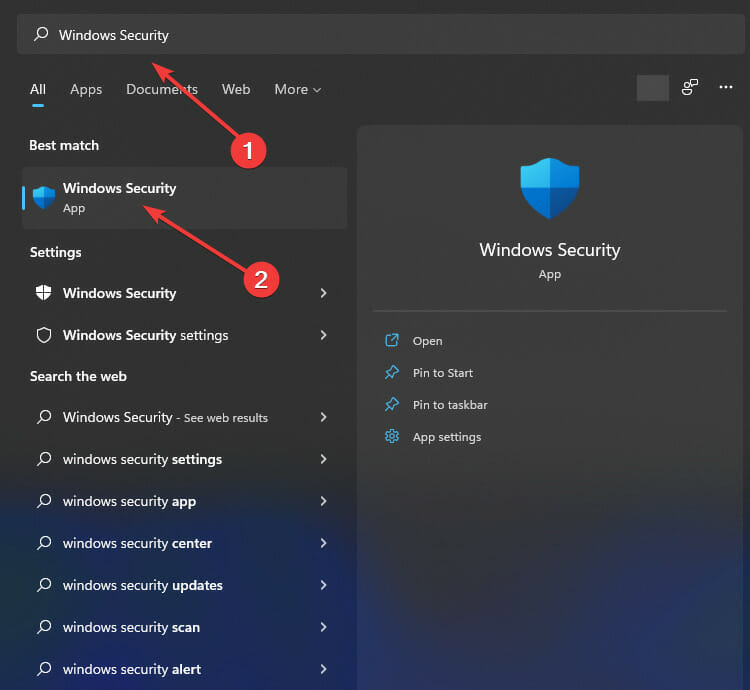
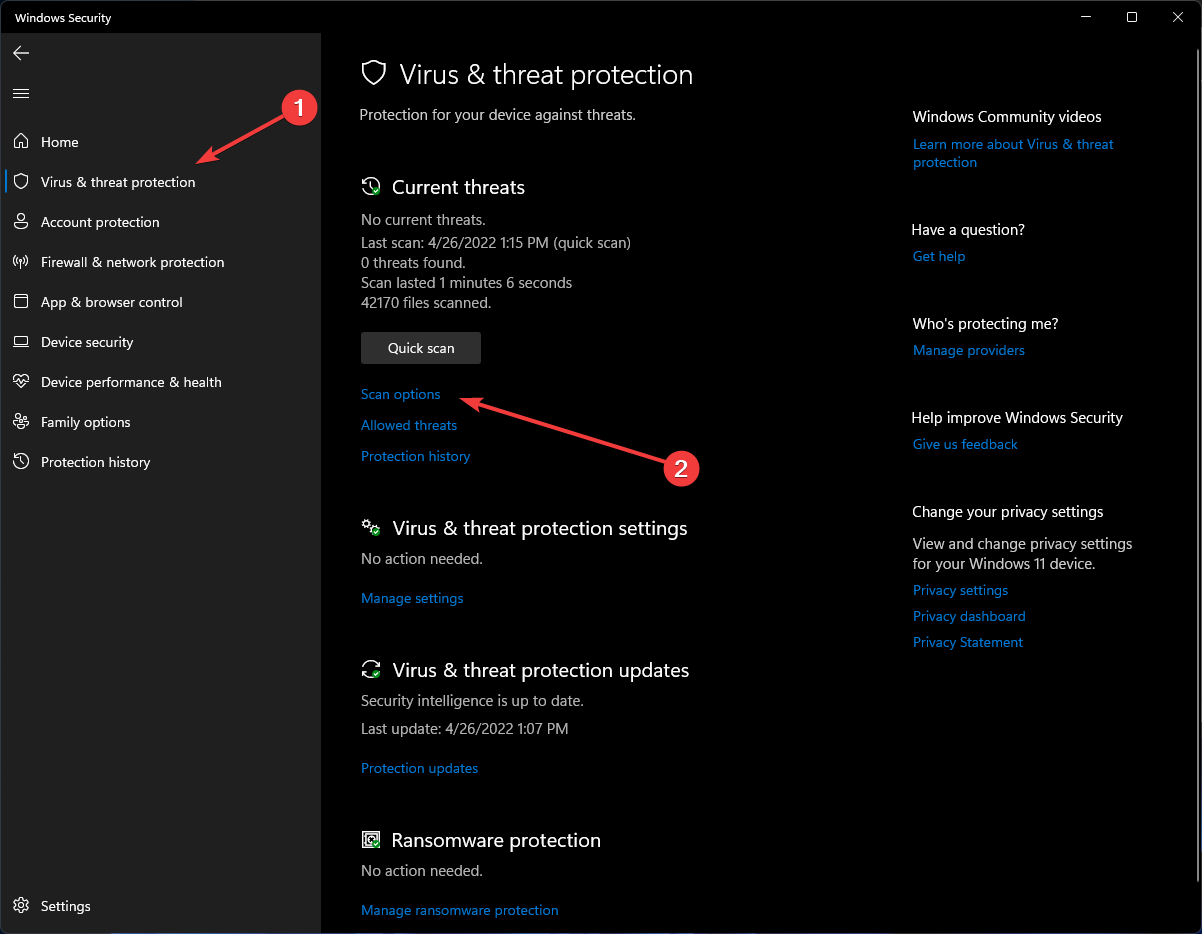
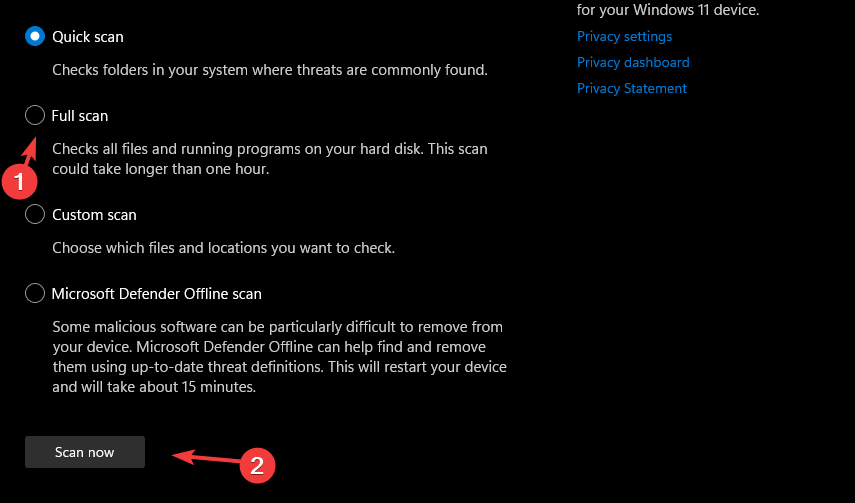
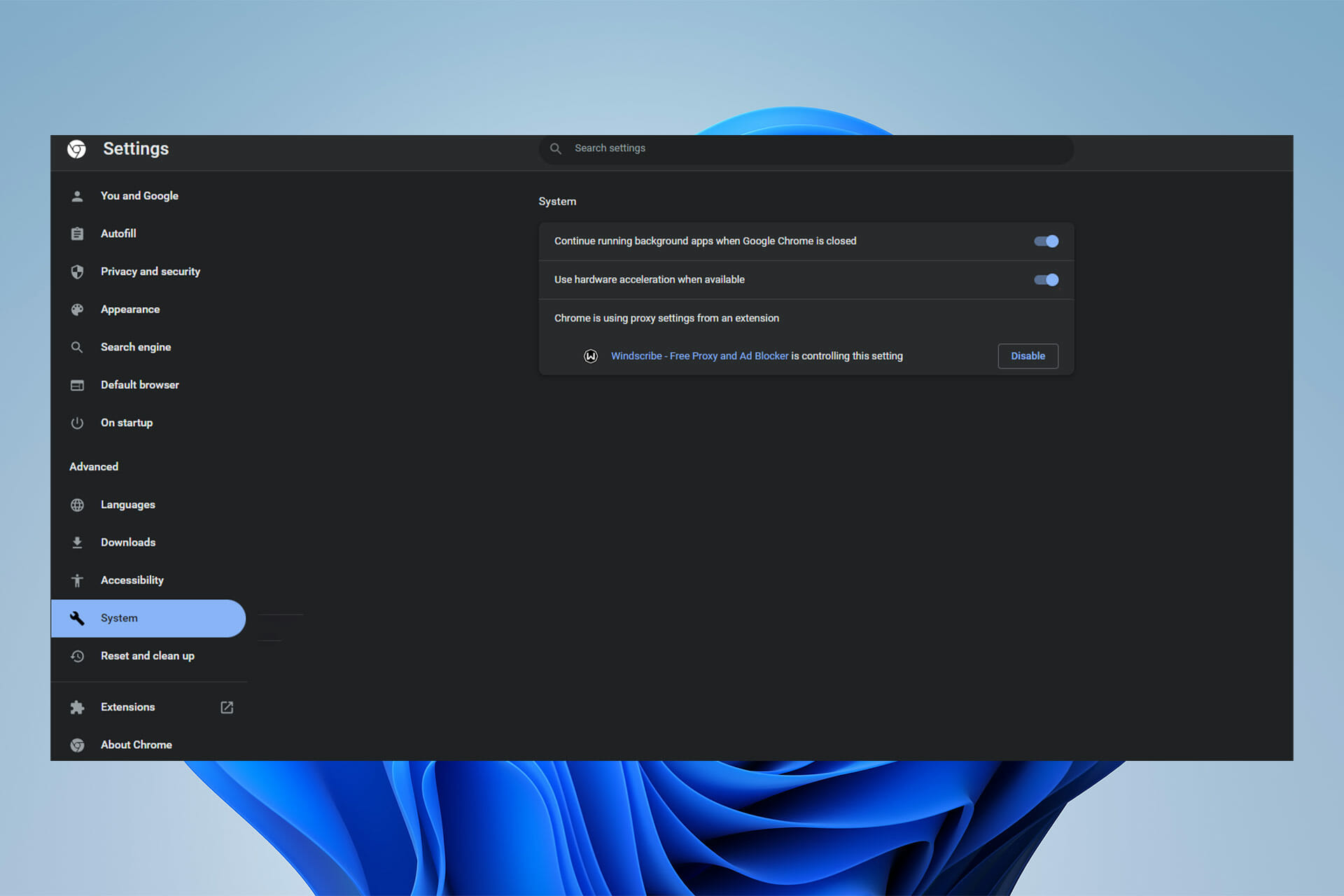


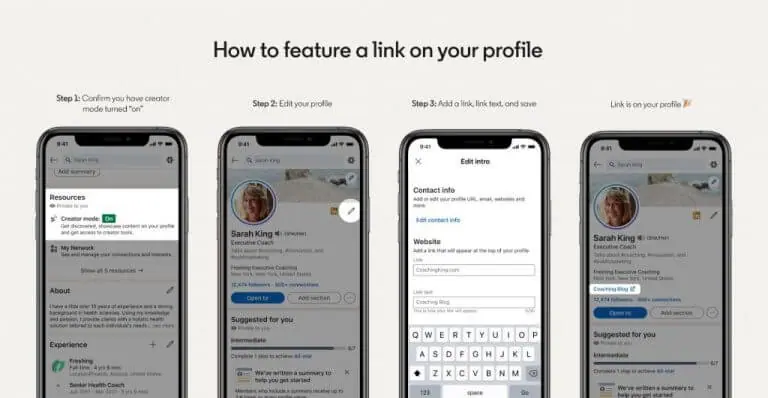
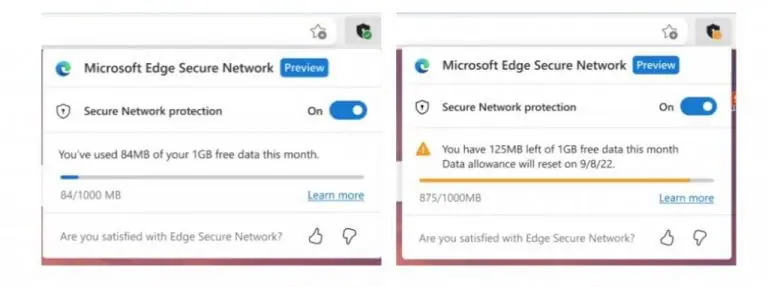

![System Reserved Partition Not Showing in Disk Management [Fix]](https://windowsreport.com/wp-content/uploads/2022/04/System-Reserved-Partition-not-Showing-in-Disk-Management-2.jpg)

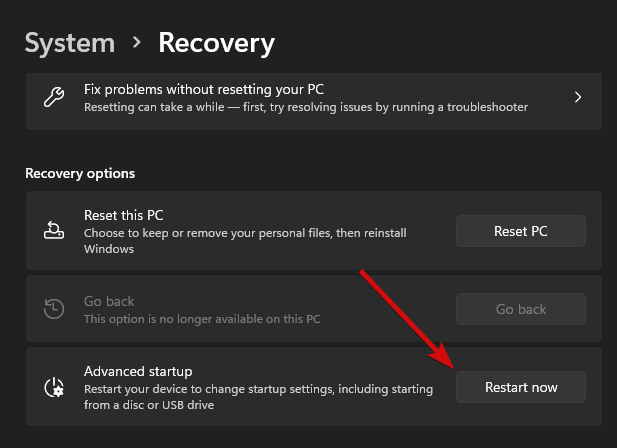


![Windows Can’t Get the Network Settings from the Router [7 Fixes]](https://windowsreport.com/wp-content/uploads/2022/04/modem-gc8120e2c0_1920.jpg)


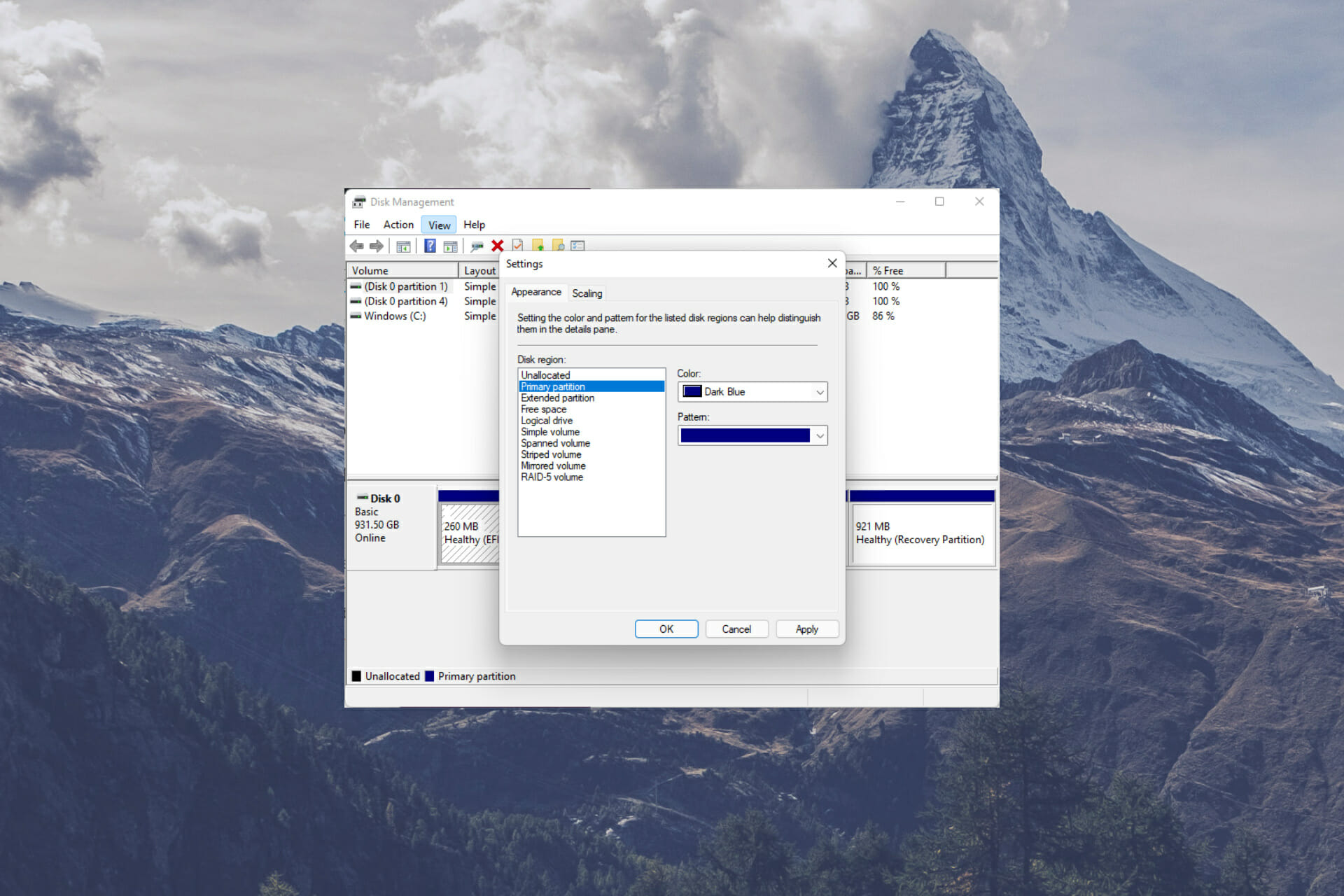

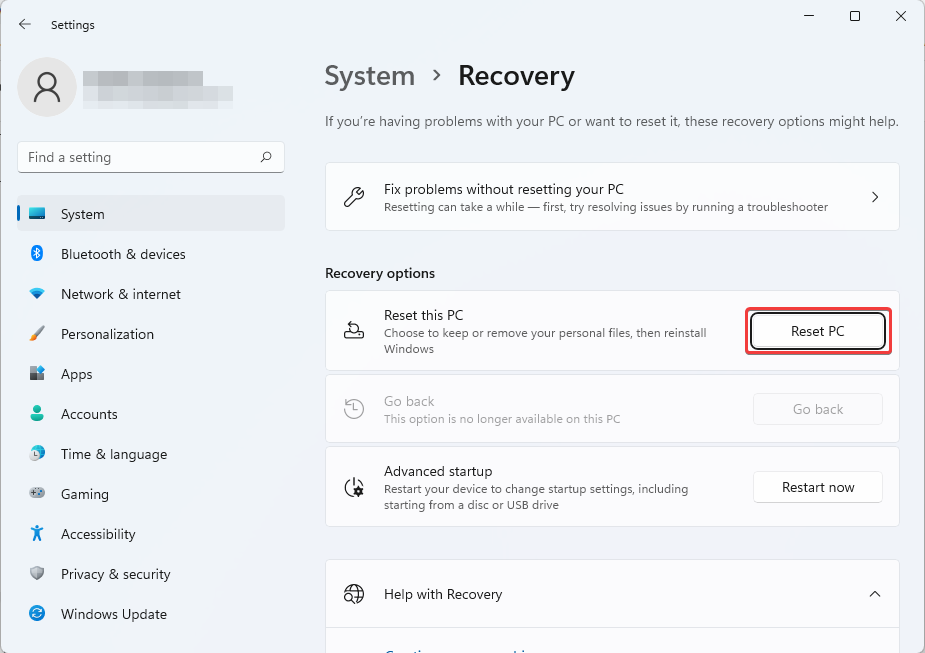


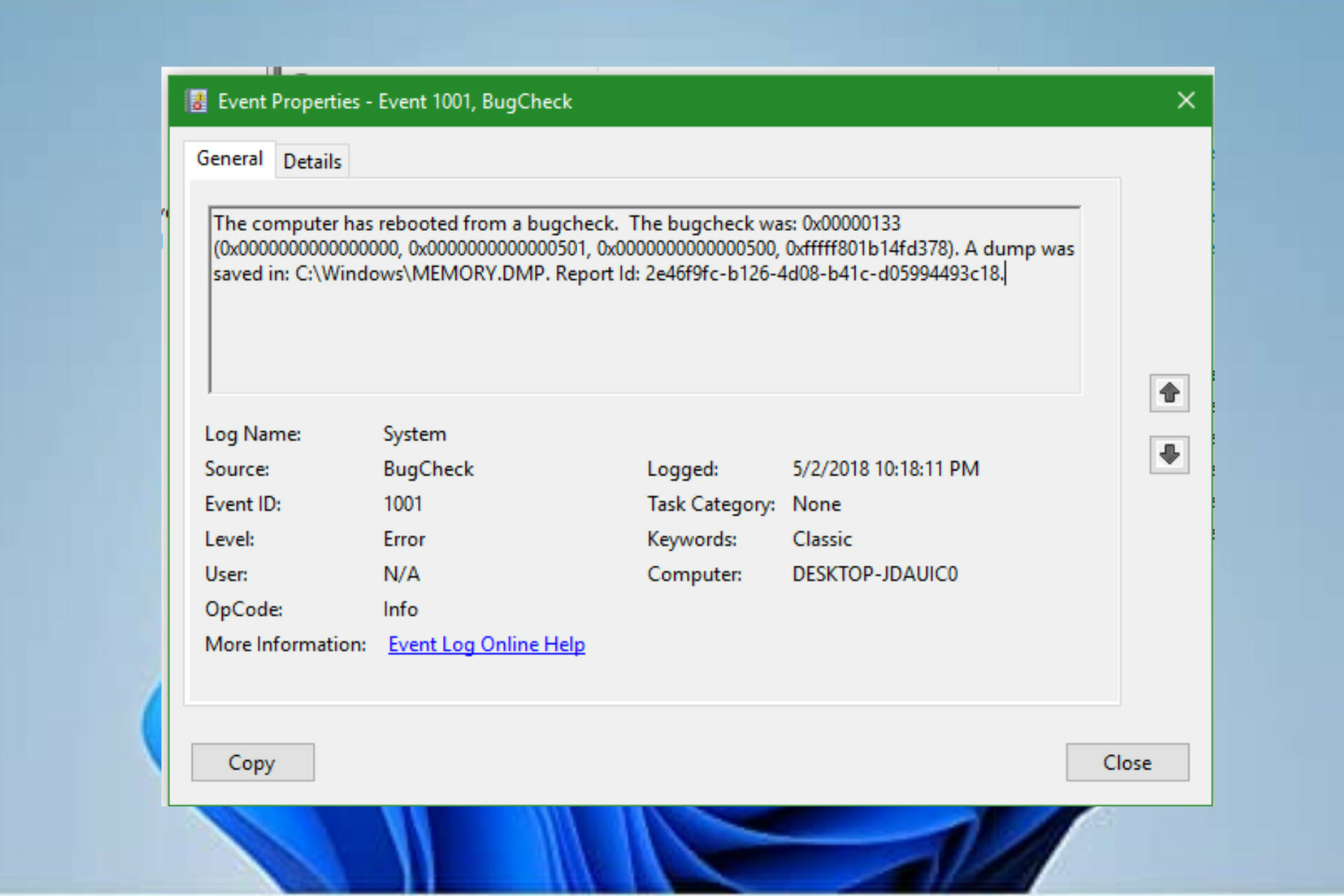





![Game data has not finished installing Resident Evil 7 [In-depth guide]](https://windowsreport.com/wp-content/uploads/2022/04/resident-evil-7-featured.jpg)