While there are different ways of reading manga comics, such as downloading the PDF file or reading it online, a few prefer using the Manga Browser on their smartphones or tablets.
For those who don’t know, Manga Browser does precisely what the name implies, it lets you read your favorite manga simply and efficiently.
Multiple features make Manga Browser a good-to-have application on your smartphone if you love reading manga comics.
Features such as the ability to search for your favorite manga with a single keyword, browse through all of your manga in one place, zooming options, viewing images in landscape and portrait mode, and compatibility with multiple formats including PNG, JPEG, BMP, and GIF, etc., make it an efficient manga reader or browser.
However, there are a few users that are reportedly facing an issue where the Manga Browser is not working on their smartphones or tablets.
If you are one of those users and are looking for ways to fix this problem, then you are in the right place. Because this guide will list down some of the best ways in which you will be able to resolve the Manga Browser not working issue for good and get back to reading your favorite manga.
Why is Manga Browser not working?
There can be several reasons for an application to misbehave or not work at all. While there could be a bug present in the current version of the app that is causing the issue, there could be a bunch of other issues that are preventing the app from malfunctioning.
In the case of Manga Browser, users’ reports indicate that this is one of the reasons they were facing the Manga Browser not working issue.
Due to poor internet connection
Because of corrupt cache and data files
Due to a failed session
The app installed is not the latest version
The OS does not support the app version
The app server is down
These are some of the most common reasons you will come across issues such as Manga Browser not working.
Thankfully, we have compiled a list of solutions that will possibly help you resolve the problem at hand.
Quick Tip:
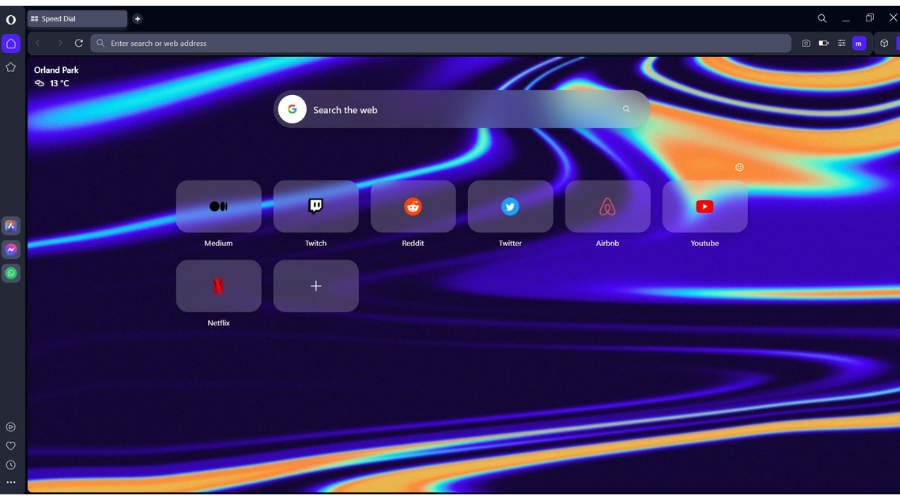
A practical workaround to avoid Manga Browser malfunctions is to utilize a new browser that promises faster navigation and useful reading tools for your manga books. We are talking about Opera One.
The Opera One browser comes with features that help you better organize not just your manga reading, but browsing over all. It comes with the very useful workspaces and tab islands and even a native AI.
Opera One
Have all your reading lists on this customizable browser to read your Manga anytime.
There could be an important file related to the Manga Browser app that failed to load during the previous session.
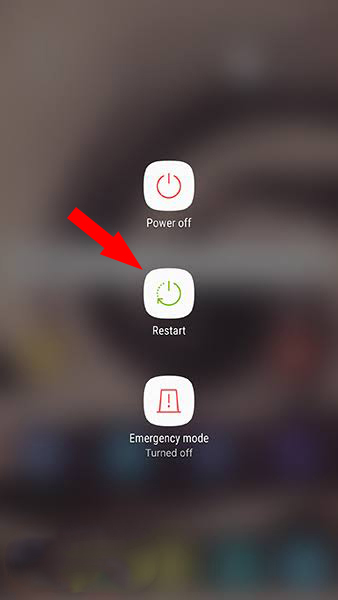
In such a case, we would advise you to go with the bare-bones solution, i.e., to simply restart your smartphone or tablet. After booting up, launch the app and check if this fixes the issue or not.
2. Check your internet connection
Internet is the most important thing for online apps to run perfectly. Any issues with your internet connection will trigger issues with the app.
We would advise you to make use of websites such as Fast.com or Speedtest to find out the actual speed and ping of your internet.
If you find any issues with your internet, then you can check in with your ISP and get your internet fixed.
Your smartphone stores cache files in order for them to remember your personalized settings and other aspects of the app. However, if for any reason, these cache files get corrupt, the app may find it difficult to function properly.
So, if you are facing Manga Browser not working issue, then we would advise you to clear the cache files of the app and relaunch the app and check if this fixes the issue or not.
4. Check for the update
Open Play Store.
Click on your profile icon.
Tap on Manage apps & device.
Click on See details button.
Check if a new update is available for the Manga Browser app or not. If yes, then tap the Update button and let the Play Store install the latest update.
Due to a bug or glitch present in the previous version of the app, it will throw up multiple problems.
To avoid this issue, it is always recommended that you not only keep the Manga Browser app, but all other apps, up to date to avoid any issues with them.
5. Reinstall the app
Long press the app icon.
Select Uninstall.
Go to Play Store.
Search for Manga Browser and download it on your phone.
6. Check for new OS update
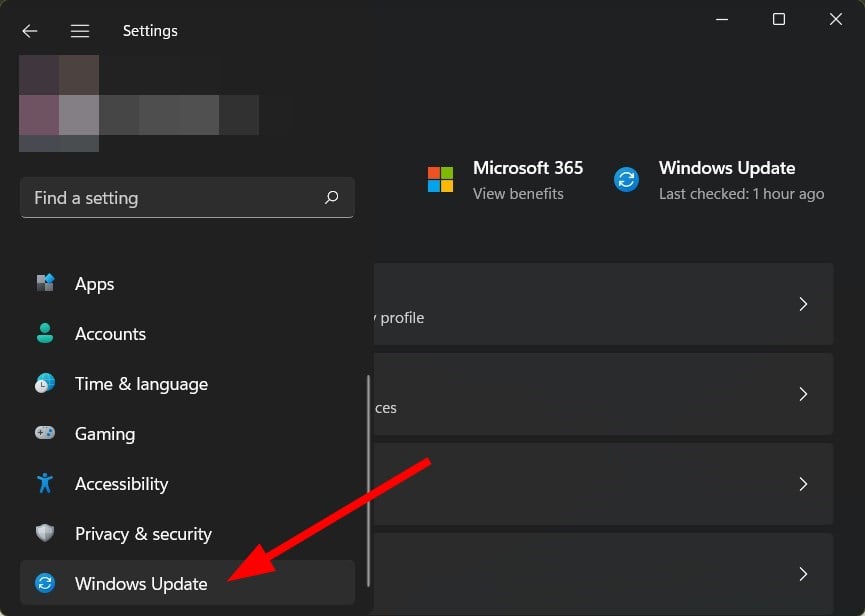
Open Settings on your smartphone.
Scroll down and tap on Software update.
Hit the Download and install button.
Let your smartphone check for a new update. If a new update is available, install it.
Often, when the operating system isn’t updated, certain apps become incompatible as newer versions are released by the developers.
There is a chance that your OS isn’t compatible with the version of the Manga Browser app. So, you should always keep your phone up to date with the latest available update, not only to run apps smoothly but to enjoy the latest features as well.
Why is Manga Browser not updating?
There can be different reasons why the Manga Browser app isn’t updating. Well, the above solutions should suffice and do the job as they cover the most simple to advanced methods to resolve the problem.
However, if nothing works, then we won’t suggest extreme solutions such as resetting your smartphone, because, in reality, Manga Browser isn’t worth that much.
If you are really interested in reading manga comics, then you can find tonnes of online manga websites, where you can easily read, bookmark, or even download manga comics.
There are few online options such as Manga Kakalot, Manga Owl, Manga Reborn, or even Crunchyroll.
There you have it from our side in this guide. Let us know in the comments below, which one of the above-mentioned solutions fixed the Manga Browser not working issue for you.
A lot of focus in the tech world is on what Apple is doing with ARM-based SoC like the M1 and M2. Microsoft, though, has what is known as “Always Connected PCs”, or as we enthusiasts like to say, Windows on ARM (WOA) devices. These are powered by ARM-based SoC from Qualcomm, as part of the Snapdragon Compute Platform.
It has truthfully been a complicated story for Windows on ARM, as flagships products like the Surface Pro X, or the Lenovo Flex 5G have struggled behind Apple’s M1 chip in terms of app emulation. Even when put up against Intel’s chips, many have found that the system performance isn’t there for WOA.
But the ThinkPad X13s is one of the newer Windows on ARM laptops that seeks to change that. I’ve been using it as my daily driver for the past two weeks after purchasing one from Lenovo. Powered by the Qualcomm Snapdragon 8cX Gen 3, I think this ThinkPad is unlike any other. And I certainly do feel like it’s one of the best Windows on ARM laptops in ages.
Specs & Price
My Windows 11 Pro-powered ThinkPad X13s cost me about $1,500 after taxes and shipping. Prices start at $1,100, but adds-ons like 5G connectivity, or a touch screen, will bring the price up a bit. I didn’t opt for 5G connectivity on my model, and I’ve just configured it with 32GB of RAM, and a 512GB SSD. All models are powered by the Snapdragon 8cx Gen 3 SoC.
The 13.3-inch display panel I have on my unit is touch-enabled, tuned at 1920 x 1200 resolution, rated at 300 nits of brightness, and set in the 16:10 aspect ratio. Ports on the laptop include two USB-C Gen 2 ports and a headphone jack. There’s also a 5-megapixel Windows Hello webcam, and a fingerprint reader built into the power button on my unit.
Note that this device also has Microsoft’s Pluton chip inside for extra security. You even can kill the webcam and microphone electronically with a switch on the keyboard.
SSD storage can be swapped out, but there’s no way to change the RAM, as it is soldered down. The battery is rated at 49.5 watts-hour. The weight of the system comes in at 2.35 pounds, and dimensions come in at 11.76 inches x 8.13 inches x 0.53 inches.
Design
The design of the ThinkPad X13s is definitely more business class than anything else. If you’ve ever seen a ThinkPad, then you’ll know what I mean. But if you haven’t, and are more familiar with the aluminum look and feel of MacBooks, then this laptop will feel different for you.
This ThinkPad sports a recycled magnesium design colored in a lone “Thunder Black” option. 90% of that magnesium is actually recycled, too. Lenovo is also using 97% of post-consumer recycled plastic (PCC) in the speaker enclosure, 30% PCC in the battery, and 90% PCC in the power charger. Even the solder is environmentally friendly, with it being low-temperature.
What this means is for an incredibly light and incredibly durable machine. Magnesium is lighter and more durable than aluminum, so this ThinkPad is built strong, with no flexing or bending to deal with. There are even neat speaker holes to the side of the keyboard deck, which are reminiscent of what Apple has done on the MacBook Air.
Some people, though (like myself,) might find that this magnesium on the ThinkPad feels a lot more like plastic than it does metal. You get this feel this on the palm rests, but the lid feels cooler to the touch and metal-like. Overall, though, the ThinkPad is lighter and smaller than a MacBook Air, as I explained in a post for my other publication where I put the two side by side. I definitely like this design for that reason. The ThinkPad is now one of the thinnest and lightest non-tablet devices that I own.
Ports
Ports on the ThinkPad X13s are limited. You’ll only get two USB-C Gen 2 and a headphone jack. While Apple is using Thunderbolt on its M1 Macs, Qualcomm doesn’t use the spec on Snapdragon-powered laptops. In the Windows space, Thunderbolt used to be Intel-only, but AMD is using it on the new AMD 6800U-series laptops. Most AMD laptops, though, don’t have the spec. If you’re worried that means slow speeds, then don’t! USB-C Gen 2 can still hit speeds of 20 GB/S, comparable to Thunderbolt 2.
In my use, I had no issues transferring podcast files from an SSD to the ThinkPad, and it was plenty fast for me. I think these speeds will be fine for business users. However, I still wish Lenovo threw in an SD card reader for extra storage, too. But with the X13s being so thin, space might have not allowed it.
Dongles are definitely a must for this machine for connecting to monitors or using USB-A accessories like USB drives. Which reminds me, I had no driver issues with monitors or docks. Even the Dell Dual Charge Dock (HD22Q) works fine on this machine. I was worried that Windows 11’s ARM flavor would not recognize my accessories, but they all worked fine.
Keyboard & Trackpad
The keyboard and the trackpad on the ThinkPad X13s remind me of a classic ThinkPad keyboard. Overall, the keyboard is very spacious and comfy, with generous key travel and actuation. Key presses on the keyboard deck are quite soft, are not that bouncy, and sound very quiet. This helps me in my speed typing, and get to around 84 words per minute in Bing’s typing tests.
The only thing that annoyed me though, was the positioning of both the FN key and the Control key. The Control key is usually on the right side of the keyboard, but Lenovo has it in the wrong place on the ThinkPad X13s. Instead, they end up putting FN one key over from where Control usually is. TO be fair, though, Lenovo lets you swap the location within the Lenovo Vantage app, or system BIOS to prevent accidental key presses.
The keycaps are also curved which helps your fingers not miss keys as you type. This is something that’s been on all ThinkPad models for a while. Oh, and if you accidentally spill water on the keyboard, you won’t need to worry as it is spill-proof. Keys are backlit up to two levels, and the white LED lighting is even and doesn’t bleed through.
As for the trackpad, it is one of the best on a ThinkPad. While it is not haptic like the one on the new ThinkPad Z series, it is still spacious and accurate. This is since it has both a right-click and left-click area on the bottom as well as the top with dedicated buttons for the Trackpoint. Made of glass, it measures about 4.33 inches.
A common problem with most ThinkPads, the X13s trackpad collects fingerprints like crazy, just like the surface of the laptop does. I often found myself wiping it down. It’s why I sometimes used the ThinkPad nub in the middle of the keyboard instead for finer precision scrolling when the trackpad gestures weren’t needed.
Display & Audio
I was very impressed with the 13.3-inch 16:10 aspect ratio and 1920 x 1200 resolution IPS display onboard the ThinkPad X13s. While it’s not as bright as the 400-500 nit screens, or 4K panels you’ll get on similar devices in his price range, it definitely still has bang for the buck.
Per Lenovo, the panel on my system hits 72% of the NTSC spectrum and gets 300 nits maximum brightness. I could not verify these numbers as my Spyder5 colorimeter software doesn’t work with Windows on ARM.
Still, though, a 16:10 aspect ratio screen means more stuff fits on the screen, and there’s a ton of room for multitasking. The lower resolution also helps with battery life. 300 nits might seem low, but I assure you it is still bright enough to work outdoors or under bright office lights. I tweeted a photo if you’re curious. When plugged in, that screen does seem to hit past 300 nits, even.
Here's me using the display out in my yard. It's a cloudy day but I'd say the display is still readable outside. It's clearly not as good as a MacBook which has a 500 bit panel, obviously. But it's still readable and usable outdoors. pic.twitter.com/uA5HoASfji
As far as multimedia goes, I did feel like the display gets really deep blacks and bright colors. The red-on-black Lenovo logo on the boot screen, for example, really sticks out. When watching a nature movie featuring undersea creatures, the purple colors of coral really looked vibrant. Even the blue in a Blue tang fish looked bright.
Related to that multimedia are the speakers. The ThinkPad X13s has Dolby Audio with 2 user-facing speakers next to the keyboard deck. Lenovo doesn’t provide specs on the speakers, but it says that there’s a bunch of tech under the hood of the laptop.
That includes AI-based noise suppression & echo cancellation & Qualcomm aptX audio technology. When I listen to songs on Spotify, they were pleasing on the ThinkPad, though there’s not as much bass as I expected. I definitely preferred headphones for music but for audio calls, these speakers excel.
Webcam performance & microphone
With a 5-megapixel webcam, the ThinkPad X13s is already in front of most Windows systems. It is high-quality and makes this system great for hybrid work. I called my friend in Los Angeles on Skype using the ThinkPad, and she asked me if I was using my 4K webcam for the call. That’s how good the webcam is.
You can check the video above to see how I looked when using the ThinkPad X13s for a podcast. The microphone is also up to snuff, as there are a ton of AI-feature under the hood that backs it. You can optimize the microphone and have it suppress noise, and use acoustic echo cancellation or optimize it for interviews, your voice, or multiple voices.
Again, this all means this ThinkPad will have your back for video conferencing. There are even optional computer vision human-presence detection alerts onboard this webcam, too. This is so that the system can lock if you walk away.
Performance
Editor’s note: Windows on ARM limits which kind of testing software we can use. We also don’t have paid access to most testing software, but we did our best to benchmark based on our real-world experiences.
The performance of the ThinkPad X13s is what makes this one of the best Windows on ARM systems in a while. The Qualcomm Snapdragon 8cX Gen 3 might not be an Apple M1 killer, but in the Windows on ARM class, it is at the top. In fact, so close to the top that it even approaches a quad-core Intel Core i5 processor in performance.
But as good as that sounds, there is a warning. Do not depend on the ThinkPad X13s for GPU-intensive tasks unless that app is ARM native or ARM optimized. Stick to basic emulated Win32 apps and ARM-native Windows apps instead. Here’s the story as to why.
Specs-wise, the Qualcomm Snapdragon 8cX Gen 3 has 8 cores, and 8 logical processors. The GPU on board is Qualcomm Adreno 690 graphics (on my unit graphics have 16GB of virtual shared memory.) It can hit speeds of up to 3.0 GHz. Lenovo and Qualcomm claim that you can see up to an 85% generational CPU performance increase, and a 60% generational GPU performance increase. System-level performance can also be boosted by up to 57%, according to Lenovo. Oh, and do note this is a 5nm SoC, which even Intel hasn’t accomplished yet.
Okay, so enough marketing jargon. Here are the numbers. In Geekbench 5, the ThinkPad scores great for its class The ThinkPad x13s netted 1,118 single-core and 5,776 multi-core results. Yes, it’s behind the MacBook Air M1, which got 1,727 single-core and 7,585 multi-core results, but there’s a need to dig deeper in the Windows space.
Compared to the Lenovo Flex 5G, which has the Snapdragon 8cx 5G inside, the difference is amazing. The Flex 5G’s 700 scores in the single-core test and 2,802 in the multi-core test. This is even ahead of the HP Elite Folio with Qualcomm Snapdragon 8cx Gen 2, which has an 801 single-core Score, and a 3,139 multi-core score. As for the Surface Pro X with SQ2, that hits a 722 single-core score, and a 2623 multi-core score.
For reference, a quad-core Intel Core i5-11320H CPU on a Dell Inspiron 15 nets a 1,429 single-core score and a 4,275 multi-core score. So, Lenovo and Qualcomm have hit close to Intel’s performance for the first time, and on a lower-wattage chip! And, on paper, this is the highest-scoring ARM-based Windows laptop, ever.
But those are just numbers. In real-world office tasks, the ThinkPad X13s excels. In using 10+ tabs in Edge, the 32-bit version of Chrome, and Teams, I noticed no slowdowns or other issues. That’s mainly because Teams and Edge are optimized for ARM. These apps can run all day without performance hits.
However. Chrome isn’t optimized yet, and is known to be a performance hog. To my surprise, it runs great on this ThinkPad. The Speedometer 2.0 score results of 87.2 can attest to that, as it closes in close to the 100 target range we get with most Windows laptops. It’s also why I noticed no performance hits when running Chrome exclusively under emulation.
The Speedometer 2.0 score is 87.2. Usually, 100 is what most Intel laptops get. My Mac Mini M1 got a 282, for reference. The M1 MacBook Air gets a 220. This doesn't mean much for web browsing, though. It's another subjective benchmark. CC @gustavokov who asked me to do this. pic.twitter.com/BR4LENDWt0
But thanks to the new 64-bit app-emulation in Windows 11, even an app like Wondershare Filmora Wondershare will run on the ThinkPad X13s. That’s where the fault comes though.
While apps like Visual Studio 2022 are optimized for Windows on ARM and can read the Adreno GPU on board the system, most apps that run under the new 64-bit emulation layer in Windows 11 on ARM (or even the 32-bit layer) have issue with it due to the CPU and GPU being passively cooled. Instead, it depends on the CPU, and that really cuts out the potential power of the ThinkPad x13s.
Encoding videos and using GPU-intensive apps, for example, will not be a great experience on this machine. In my test with Cinebench, which runs under emulation, the ThinkPad just sees the CPU and netted some really poor results with 2,029 for multi-core, and 554 single-core. It could just be me, though. Some seem to indicate that they’ve been able to see the GPU used on some 32-bit and 64-bit Windows 11 apps in Windows on ARM (see the comments for more.)
I still think that if you want to buy this, definitely don’t do so for video editing. I tried to edit the OnPodcast on this machine, and it didn’t end well, with the encoding of a 30-minute podcast taking nearly as long as the podcast itself. Photo editing, though, should work quite well. While I didn’t test it as I don’t have the software in my suite, there are native Adobe Photoshop and Adobe Lightroom versions for Windows on ARM.
Hmm, is my favorite video editor, Wondershare Filmora optimized for Windows on ARM? It doesn't show in 32-bit mode like Chrome and other apps do. It acts like it sees the GPU but doesn't use it? A short pod takes 25 mins to encode on the ThinkPad X13s. Not good, I guess. pic.twitter.com/IheEhrhBAI
That also means gaming isn’t ideal on the ThinkPad X13s. This is still a machine meant for office work and not for gaming, other than through the cloud. I tried playing CS: Go full screen, and the ThinkPad kept freezing. I had to put it into a windowed mode to get better frames and lower the settings to very basic graphics levels. Other than that, basic Steam games like Broforce played well, and so did Windows Store games that are optimized for ARM, like Asphalt 8. Many people have asked me this question for some reason, and I will say I won’t trust the ThinkPad X13s for playing titles like Doom. For that, you need a real gaming laptop as a passively cooled machine like this one can’t handle it.
It runs nicely in the windowed mode at a solid 30 frames tho with settings on low. But you shouldn't have to do this. pic.twitter.com/iRnVHdR1Tq
All in all, Microsoft has fixed a lot of the problems with Windows on ARM thanks to 32-bit and 64-bit app emulation support. Along with the physical performance changes with the 8cx Gen 3, this enables the ThinkPad X13s to unlock power and be a well-performing machine for office tasks, and the basics businesses might need — especially when compared to other WOA systems.
Beyond that, though, the ThinkPad X13s will struggle if a GPU-hungry app hasn’t been fully optimized to run on Windows on ARM. Basic Win32 apps, though, will be fine. It’s why there’s the App Assurance Program that businesses can use through Microsoft to ensure their apps run on this device. I still think Microsoft needs to figure out how to unlock the GPU for app emulation on Windows on ARM for this platform to be taken seriously, but for now, the gains with the 8cx Gen 3 are great.
Another problem that’s yet to be addressed? Driver issues. Drivers for hardware like printers, games, and apps only work on this system if they were designed for Windows on ARM specifically. That means my printer didn’t work with my ThinkPad. Third-party antivirus and programs like Oracle Virtualbox also failed to work, too. Microsoft, though, does have Hyper-V on Windows 11 Pro, which I used on the ThinkPad x13s to use a Windows 10 VM.
Security & Pluton Chip
Hey again. The BIOS won’t update for some reason. It’s stuck in an update available loop and says it installed but it didn’t. Anyways I did enable Pluton through the BIOS settings as you showed. Now I have trusted security from Microsoft. pic.twitter.com/mI8zmbzBw0
I do want to mention that the ThinkPad X13s is a device with Microsoft’s Pluton Security Processor. I talked about Pluton before, but it is a new chip-to-cloud approach for security, with two big benefits you need to know about.
The first is the ability for Microsoft to update the firmware of the Pluton processor through Windows Update, to help keep the chip up to date against the latest threats. Second up, is physical attack resilience. Since Pluton is built into the die on the Qualcomm Snapdragon 8cX SoC found on the ThinkPad X13s, attack methods like bus interfaces, which might pass data between the SoC and other components won’t be exposed.
As Microsoft’s David Weston showed me on Twitter, Pluton is actually not enabled by default on the ThinkPad X13s. I had to manually enable it so the device will use Pluton over the in-built TPM. To enable it, I disabled Bitlocker, went into the BIOS, and choose the Microsoft Pluton option.
Battery Life
Battery life is the best part of Windows on ARM laptops, and why you might want to buy this. The ThinkPad X13s netted me about 12 hours of battery for web browsing in my tests, with a loss of 10% an hour. That’s with me using Edge, system apps, and the screen at 34% brightness. You can see how my testing evolved in the below Twitter thread.
Day 2 of battery testing in my real world. 100% charged at around 9:45 AM. down to 75% at 12:53 PM. Off for a quick trip now and will put the laptop on standby let's see what happens when I open it when I get home… pic.twitter.com/VMlecs869S
In my multimedia test, where I looped the 1080p Spiderman: No way Home trailer with the screen at 30% brightness, and Wi-Fi off, I got to 27 hours of battery. Most Windows laptops get around 9-10 hours of battery life for web browsing and similar numbers for multimedia replay, if not, worse.
Lenovo quotes up to 28 hours of battery for continuous battery playback. Battery life is the strength of Windows on ARM, but it’s boosted a bit extra on the ThinkPad X13s. This is thanks to the lower resolution screen.
A champion laptop for Windows on ARM
The Lenovo ThinkPad X13s is one of the best Windows on ARM laptops that you can buy. It sports killer battery life and really great day-to-day performance for a device of its class. That’s mainly thanks to 32-bit and 64-bit app-emulation in Windows 11 and the power of the Snapdragon 8cx Gen 3. Only the fact that emulated apps can’t leverage the GPU holds this back from being the perfect laptop.
There are books written about troubleshooting Windows 10 issues. However, there are rare and peculiar errors that can make usage as a nerve-wracking experience.
One of those error comes in many variations with the same result: something keeps you from copying the file in the Windows system surroundings.
In order to address this, we enlisted a few solutions. So if you’re unable to copy-paste a file or a folder in Windows 10, make sure to gradually progress through the list.
Now, even though File Explorer allows users to access certain archived/zipped files, it’s still a niche where third-party archivers are a better choice.
If an archived file is encrypted, Windows-own File Explorer will have a hard time recognizing it and it won’t be able to copy it from location A to location B.
What you’ll need to do is extract the individual files from the archive and copy them to the desired location afterward.
There are few tools for the job, but the best is by far WinZip. After you download and install this excellent tool, unarchiving the file is just 2 clicks away.
”WinZip”
”WinZip
”Free
&aff_sub2=Native” current_url=”true” button_text=”Get it now” image=”https://windowsreport.com/wp-content/uploads/2017/11/WinZip-button-210×160.png”]
2. Make sure that the file format is supported
Firstly, even though Windows shell supports an abundance of different file formats, it can have a hard time with the cross-system files which come from Linux.
So, one thing to take into consideration is double-checking the file extensions.
If you‘re copying a folder which contains a non-NTFSfile, the system won’t be able to recognize it. Thus, an error in the process will occur.
What you can do is, in case you have a dual–boot option, to transfer the file within the Linux system and then access and copy the file within the Windowsshell.
3. Scan for HDD errors
Right-click Start and open Command Prompt (Admin).
In the command-line, type the following line and press Enter: chkdsk /f C:
After the HDD is scanned for errors, restart your PC.
If this issue is caused by a malware infection, a powerful antivirus should be able to locate the infection and remove it before it causes other errors or damage to your system.
Look for an antivirus with anti-phishing, anti-fraud, advanced threat defense, and web attack prevention features.
Also, make sure to post your questions or alternative solutions in the comments section below. We’ll be glad to hear from you.
In this post, we have listed some of the best browsers that sync seamlessly with Etsy and can eventually help you close a sale.
Why can’t I get Etsy on my computer?
While Etsy works pretty well with some other browsers like Opera as well, it recommends a list of browsers that you can use to access the online shopping portal.
So, if you are not using any major browsers, it may be incompatible with the e-commerce portal.
However, if you are wondering how to update a compatible browser through my browser settings, check for the latest update on the browser’s settings page.
Here’s a quick rundown of the best browser recommendations to access Etsy.
Firefox has been offering features for online shoppers for over a decade now and it’s easily a pro at it.
It offers a good range of add-ons specially dedicated to online shoppers that helps you to stay updated on special offers and coupons.
Moreover, consumers can shop privately using its private browsing mode without any fear that their passwords, browsing history, or cookies would be saved.
Below are some of its other important features:
Auto-populate card details with complete security
Create emails from open tabs to create a product wishlist
Firefox monitor to help you check if you’ve been part of a data breach
Who doesn’t love a great adventure? With Xbox Game Pass, you can go on an unforgettable video game adventure any time you like, all without having to get up off the couch (except to raid the fridge on occasion).
Adventure games invite us to explore new worlds and meet fascinating characters. And often, we get a memorable story in the bargain. But if you’re new to Game Pass you may not know where to start with all this grand adventuring. We’ve got you covered with these Game Pass recommendations for those who seek the thrill of adventure.
Far: Changing Tides
Few games capture an atmosphere quite like this one. Published by Frontier Foundry, this grand adventure is set in a haunted post-deluge world brimming with danger. And players will have to brave those dangers to collect salvage and gather resources to keep their ship afloat.
ReCore
When Joule Adams awakes from her centuries-long cryo-induced sleep, she finds that her home – the utopian colony of Far Eden – lay in ruins. Don’t you just hate when that happens?
ReCore follows Joule’s quest to discover what happened to Far Eden in this intriguing open-world adventure that combines platforming, third-person shooter and exploration elements.
Sable
In this gorgeous open-world exploration adventure, players guide the eponymous young girl Sable on a coming-of-age quest. Sable must brave the perils of a ruined desert planet in search of a suitable mask with which she can return to her nomadic clan. Luckily, she has a customizable hoverbike to help her along the way.
Subnautica: Below Zero
Both the original Subnautica and its 2021 sequel Subnautica: Below Zero are available on Game Pass as of the time of this writing. Both are fine open-world, first-person survival adventures each in their own right. Explore a deep-sea alien world, collecting resources, crafting tools, building bases and constructing submersibles along the way. Survive the perils of the abyss and unveil the many secrets of planet 4546B.
The Forgotten City
A mystery adventure game with roleplaying aspects, The Forgotten City was originally a Skyrim mod released in 2015. A beautiful rendition of an ancient Roman City, The Forgotten City boasts an award-winning story that puts an entirely different spin on the phrase “The Golden Rule.”
Wrap up
So what do you think of our Game Pass recommendations for adventure games? Are there any games on this list that have you chomping at the bit to dive into? Let us know in the comments below. And if you don’t have Xbox Game Pass yet, you can check it out here. You can also visit the FAQ page for additional info.
Google Chrome just got bumped up to 103.0.5060.114. This version is in place to help Windows users bypass a zero-day vulnerability, which hackers use to compromise their system. As spotted by the folks at BleepingComputer, this marks the fourth Chrome zero-day patch update this year.
The zero-day bug fixed today (tracked as CVE-2022-2294) is a high severity heap-based buffer overflow weakness in the WebRTC (Web Real-Time Communications) component, reported by Jan Vojtesek of the Avast Threat Intelligence team on Friday, July 1.
According to a blog post by Google, they confirmed that they were aware of the CVE-2022-2294 exploit. The latest version has already hit general availability worldwide in the Stable Desktop channel. They further indicated that it would only take a couple of days or weeks till it was available across the entire userbase.
Google has indicated that the attacks via this threat “range from program crashes and arbitrary code execution to bypassing security solutions if code execution is achieved during the attack”. However, they are yet to provide a detailed account highlighting any of these attacks.
That said, Google has stated that “Access to bug details and links may be kept restricted until a majority of users are updated with a fix. We will also retain restrictions if the bug exists in a third-party library that other projects similarly depend on, but haven’t yet fixed.”
For Windows users, your browser is supposed to automatically install this update, but if this is not the case then you can go to your browser’s menu, then click on Help and select About Google Chrome to manually update it.
I have been very loyal to my Dell monitors for years, and it would take a lot of persuasion for me to switch to a different brand. But the Innocn 4K 27-inch monitor might have persuaded me to make the switch.
The Innocn 27C1U UHD 3848 x 2160px flat screen monitor has an IPS panel and LED backlighting delivers a nice bright interface and sharp images. The monitor has been designed to have a minimal frame which gives a maximum screen real-estate. The VESA ( Video Electronics Standards Association) stand is adjustable for height up to 120mm and pivots along its vertical axis up to 90 degrees if you prefer your monitor in portrait orientation. The monitor will also rotate 45 degrees in each direction on its stand and will tilt from 5 degrees forward to 20 degrees back from the vertical plane.
What is in the Innocn box?
In the box, there is the display screen, a type-C cable, a DP cable and a USB upstream cable. There is also a power adapter and cable, the stand and the base. In addition to the user manual, there is also a colour calibration report. The monitor is extremely well packed in its box so it is unlikely that it will suffer in transit to you.
On the right-hand side at the bottom of the monitor, there are five buttons underneath the screen. The button on the left invokes the menu, and the next button navigates through the menu options, and will also adjust the brightness of the monitor. The next button exits the menu or will change the input ports if you have the monitor connected to multiple units. The final button on the right is the power button.
Underneath the power button is an LED indicator which glows steady white when the monitor has power. AT the rear of the monitor there is one USB type C port and two HDMI ports. There are other connection ports at the rear of the display screen: Two USB Type-A ports and a USB Type-B port for transferring data. There is also a display port and a 3.5mm audio headphone jack next to the power port. I never managed to fill all of the ports – there were more than enough for my needs.
There are also two 5W speakers in this monitor which deliver a reasonable sound across the ranges – although the bass notes aren’t as rich as I like. I expect that audiophiles would connect headphones to the monitor for a richer sound. For the spoken voice on video calls and music played at average
Testing the Innocn 27C1U monitor
I ran a few tests using web-based software tools to check that the calibration of the monitor was not an exaggeration as can sometimes be found with lesser-known monitors.I used tools such as the Eizo monitor test and a browser-based refresh rate tool. I also checked the colour calibration.
The Eizo test suite allows you to test for defective pixels across a range of colours. You can check for the colour uniformity, colour distances, gradients and sharpness. I also had a look at the viewing angle, its gamma setting and the response time.
I found no defective pixels in the monitor across each colour. The image was uniform across the grayscale pattern and there were no areas of differing colours. The Innocn monitor was able to detect different colour distances of two grade differences clearly. Any closer than this and my eyes could have been the issue – not the monitor.
I also found that there was a good gradient across greyscale – even at 256 steps, the colours were easily discernible. The sharpness was good even at 10-point font size – impressive on a larger monitor.
I did, however, notice a difference when testing the viewing angle as I moved my head from side to side. This was not a significant difference and would not have impacted my viewing of the screen. I had a slight distortion of the shapes – nothing more.
The Gamma value was 1.2 according to the test, and the speed blur was 1510 pixels per second – but again – this might have been due to my eyes tracking across a larger screen.
I tested the refresh rate which was 60.050Hz – pretty standard I reckon. More accuracy could have been obtained in a dedicated test lab – but my home office would have to do for this test – I do not have lab-quality testing and measuring equipment.
The only drawback I could find about this monitor was the lack of an integrated webcam meaning I could not use this for my main screen. I would have to buy an external video camera to do web conferences – or position the monitor so that my image on the screen showed me looking roughly at the monitor itself, not off to one side. However, I am splitting hairs here. This monitor is designed for use in gaming or business and an additional webcam is a minor irritation.
Would I buy the Innocn 27C1U 27-inch monitor?
So all in all, I am impressed with the quality of the Innocn 27C1U 27-inch monitor which has far exceeded my expectations. It is bright and clear and the images have a good depth of colour. There is minimal blurring and the sound is good for office work. For a little over $400, the Innocn 27C1U 27-inch monitor is a bargain worth considering.
The Chromebook is a compact, lightweight, fashionable, and compatible laptop that runs on Google’s ChromeOS. And when it comes to games, there are a few excellent browser for Chromebook to have the best gaming experience.
It is a one-of-a-kind operating system that shares certain characteristics with Windows and Mac. It also includes excellent security and privacy features to keep you safe.
Google Chrome is the built-in internet browser on the Chromebook. Despite its reputation as the greatest online browser for ChromeOS, users may become tired of using the same browser over and over.
Experimentation and variety are appealing to most people, and more importantly, you may be looking for a more specialized gaming browser for your Chromebook. Let us introduce you to the best browsers for gamers that will work on your Chromebook.
Can Chromebook run Opera GX?
Opera GX is one of the most advanced browsers that can run on pretty much any operating system including Chrome OS on the Chromebook. And, it would work just as well as it does on Windows or Mac.
So, if you haven’t yet tried Opera GX, now is the time to install the best gaming browser for Chromebook.
Is Opera GX better than Chrome?
Both browsers have their set of pros and cons, but the pros for Opera GX far outweigh the ones for Chome. It doesn’t consume as much resources, so your PC is not always under undue stress.
Also, Opera GX offers several customizations to enhance your gaming experience. And, it comes with built-in features like an ad-blocker, VPN, and video popout with multimedia controls. So, it can be safely said that Opera GX is indeed better than Chrome.
There is no finer browser than Opera GX if you’re searching for a browser designed specifically for gamers.
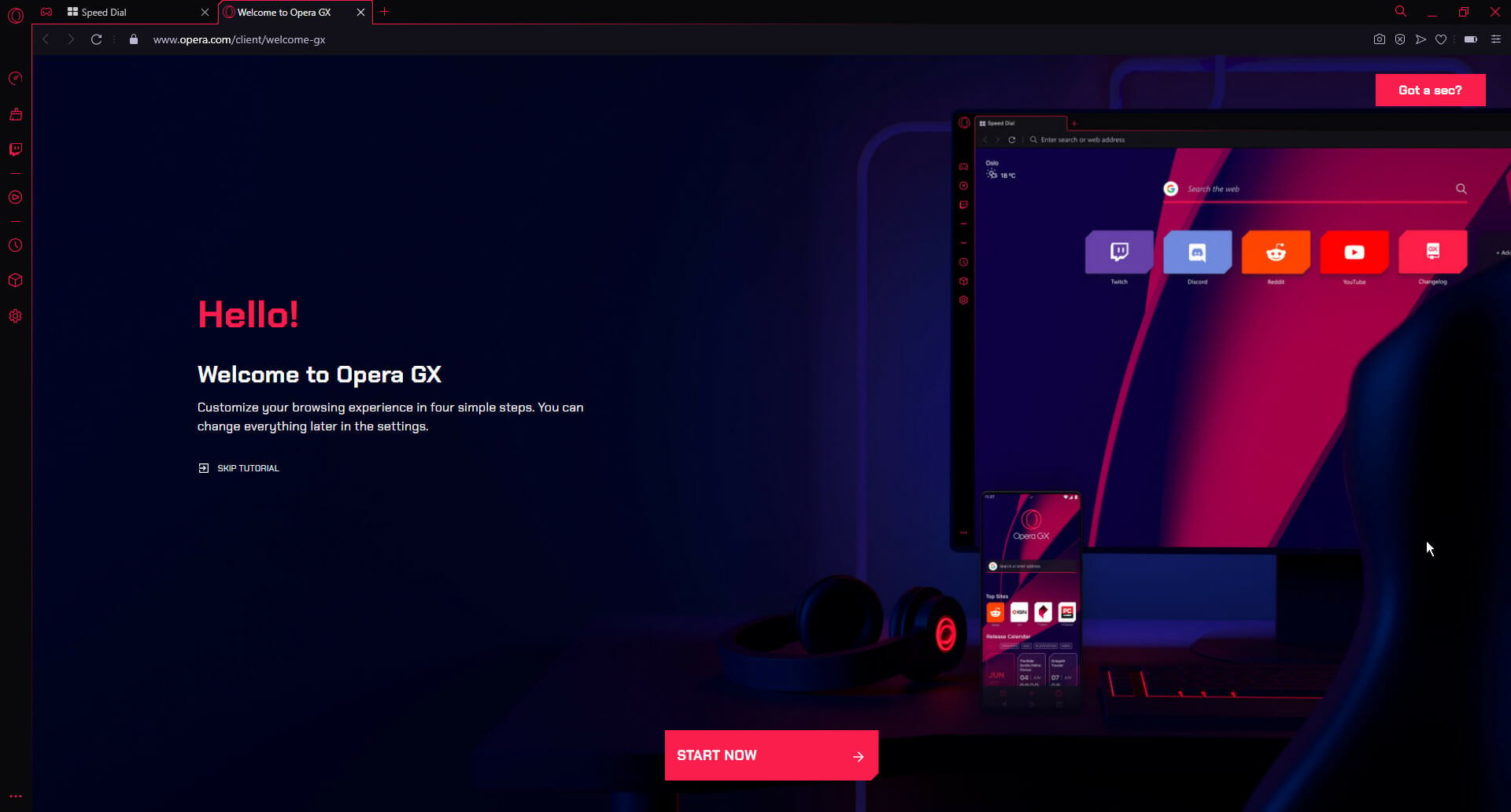
Opera GX is a variant of the original Opera browser that adds new tools to assist gamers in managing their resources. For example, you may employ RAM, CPU, and network limiters in this browser to locate the perfect balance for gaming quality and performance.
Opera GX is also a very light browser, which means it won’t tax your Chromebook’s resources, which is essential since web games may use a lot of them.
The Opera GX for Chromebook also has privacy features, personalization options, and even a mobile version of the browser so you can play games on the go.
There are several custom themes available to fit your favorite color. When your gaming sessions go too lengthy, you may switch to a dark mode to make it easier on the eyes, which can also help you concentrate better on your game.
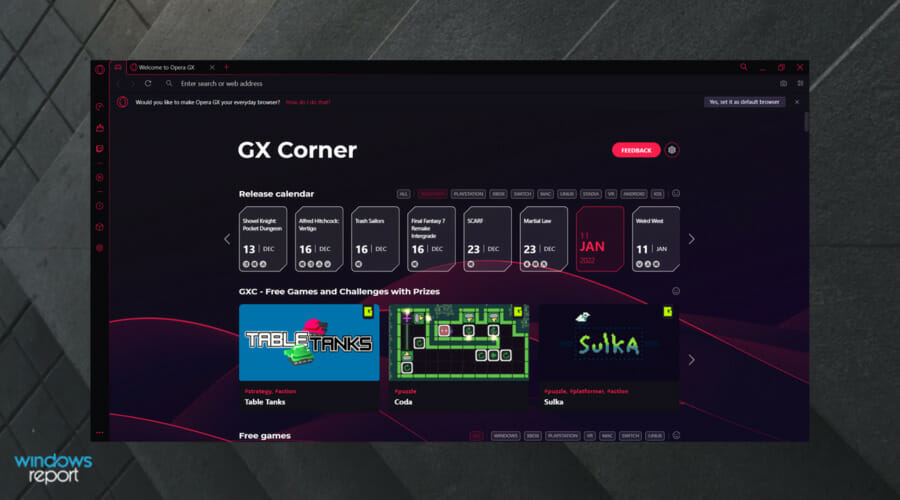
Opera GX has a GX area where you can discover free games and a calendar with popular game news and releases. Also, the developed recently introduced, Operius, an Opera GX offline game, you can try when the Internet connection is down.
Twitch, a broadcasting network, is now incorporated into the browser, allowing you to follow popular gamers with a single click. Discord is also integrated into the browser if you want to keep up with gaming mates or a team.
Other features include a messenger, a unique and fast video player, and pinboards. These tools are easy to access since they’re all grouped in a quick navigational menu.
Depending on whatever website you’re playing on, you’ll also be safeguarded by the browser’s free VPN and adblocker.
Important features:
Advanced theme customization
A video pop-out feature
Free unlimited bandwidth VPN
Opera GX
The world’s Number 1 browser made specifically for all gaming fans.
Gamers prefer having complete control of their software. If you share this sentiment, Vivaldi will be an excellent gaming browser for Chromebook.
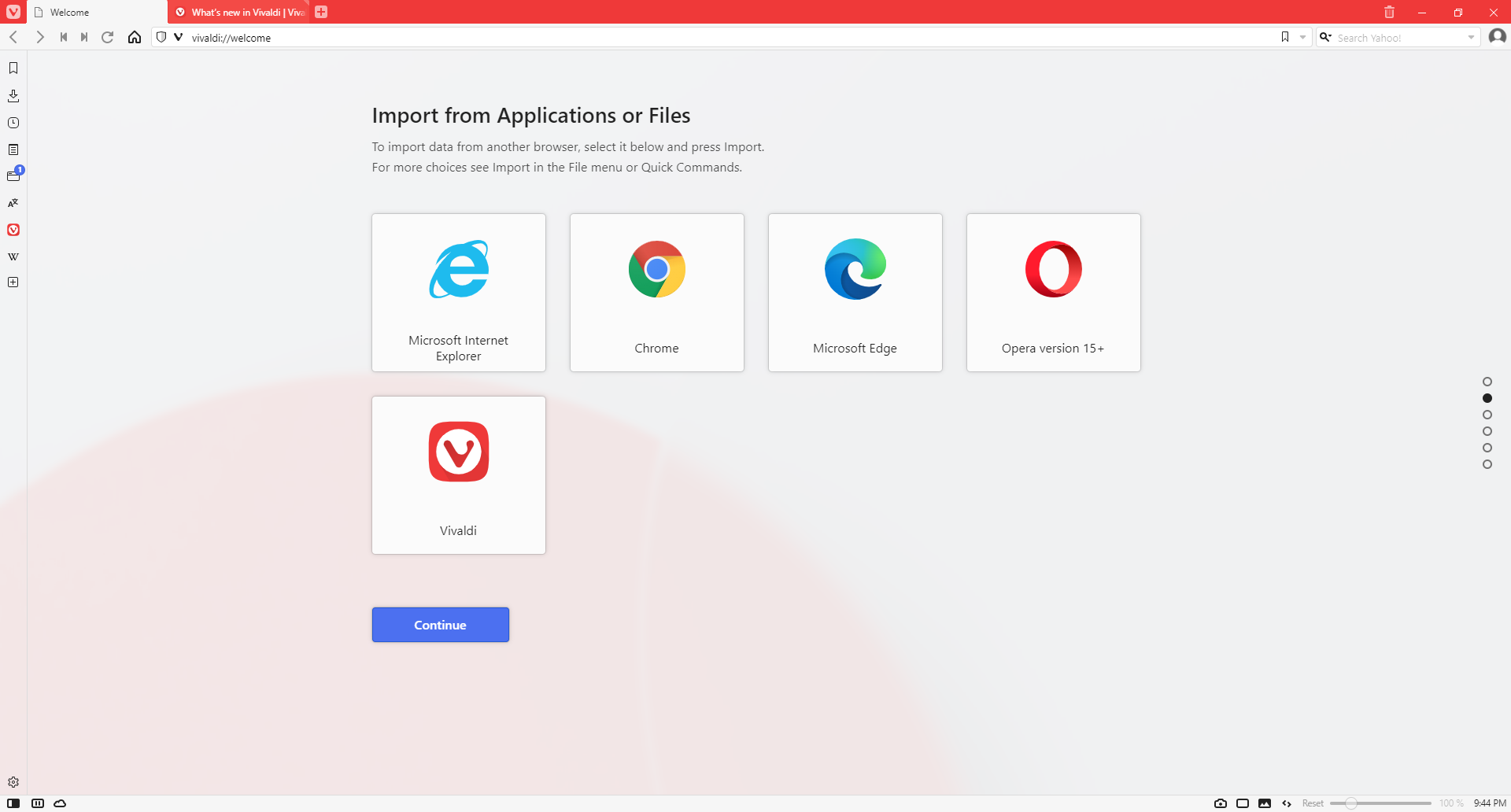
Vivaldi is a cutting-edge browser that allows for complete customization. You get to disassemble it down to the tiniest detail and customize its interface to your liking. As a result, Vivaldi can be configured to be anything from the simplest browser you’ve ever seen to a full-stack browser.
Several options may help you get rid of extra tools like Screen Capture, Notes, Image Properties, etc. This implies that you’ll have to use fewer resources to operate other applications and programs, leaving you with enough capacity to play browser games.
A custom search engine, configurable macros, tab grouping, a notes manager, split-screen tab viewing, and mouse gestures are some of the distinctive and popular Vivaldi features.
All its’ features are unique for gaming, but they also make surfing easier whether you’re reading gaming news, looking for new games, or keeping up with popular gamers online.
Vivaldi has privacy features, including a built-in ad blocker and a bespoke, private search engine. Search is not recorded for marketing reasons, and personal data isn’t collected.
If you’re one of those players who is constantly flooded with tabs, the option to operate tabs in two stacks can help keep things organized, even if you’re running ten or more at once.
If you prefer to use Vivaldi, there are a plethora of gaming themes to pick from to round out your gaming experience.
Mozilla Firefox is very different from Chrome-based browsers, and although it isn’t known to be the most secure or fastest browser on the market, it ticks a lot of boxes for gamers.
A key reason is that it has a gaming collection extension that gives you access to various browser games for smooth and relaxed gaming.
You may also utilize Firefox’s extensions and add-ons to increase versatility and better meet your gaming demands and tastes. In addition, this browser has an inbuilt tracker blocking mechanism that can stop practically any questionable code, ensuring that your privacy is protected.
It also has a social tracker, autoplay, and a cookie blocker, so you do not have to worry about your privacy while gaming.
You may personalize this browser as a gamer by using themes, configurable search bar settings, skins, and a tab layout to play and access games.
Brave is one of the fastest lightweight browsers, meaning it wouldn’t consume only a fraction of the resources taken up by Google Chrome.
Also, as per reports, it loads web pages 4-5 times faster than the browsers we usually use. This is majorly achieved by blocking ads and trackers, which are a serious security threat as well.
Another feature that helps Brave stand out from the crowd is that it rewards users to view curated ads. And, with Brave, you can easily import extensions, passwords, and other browsing data in less than a minute.
So, if you were planning to switch to a gaming browser for Chromebook, Brave would be a good choice.
If you are one to experiment with things, Dolphin would a great option since it allows users to customize the browser as per their requirements. It has a built-in ad blocker for enhanced security and a plethora of add-ons available for added functionality.
It’s safe, quick, and offers features that are yet to be introduced on other popular browsers. For instance, the option to customize gestures for various functions comes in handy.
Besides, Dolphin offers the option to sync data across multiple devices for easy access, making it one of the best browsers for Chromebooks.
There you have it, our top recommendations for gaming browsers for your Chromebook!
We like to emphasize that all these recommendations would make the ideal solution for you depending on your personal preferences; however, the Opera GX is famous for being customized as a strict gaming browser.
If you’re a fan of Safari, we have a great guide on Safari on Chromebook, so if you want to learn if it’s possible to install it, don’t miss our guide.
We look forward to reading your comments and knowing what gaming Chromebook browsers are your more preferred options.
Live streaming on YouTube is becoming increasingly popular as it allows gamers and influencers to connect more with their viewers. Having a high-quality stream is essential for growing an audience. Keep reading to find the solution to YouTube not receiving enough video to maintain streaming.
Can I stream 4K on YouTube?
YouTube does support streaming in 4K for users with compatible equipment and software. Viewers can watch 4K streams from YouTube from their PC and smartphones now that YouTube offers 4K support for Android and iOS.
The most common cause of a low-quality stream is a poor internet connection or low bandwidth. Internet connections that are unstable or from a public network are not very reliable and can reduce the quality of the stream.
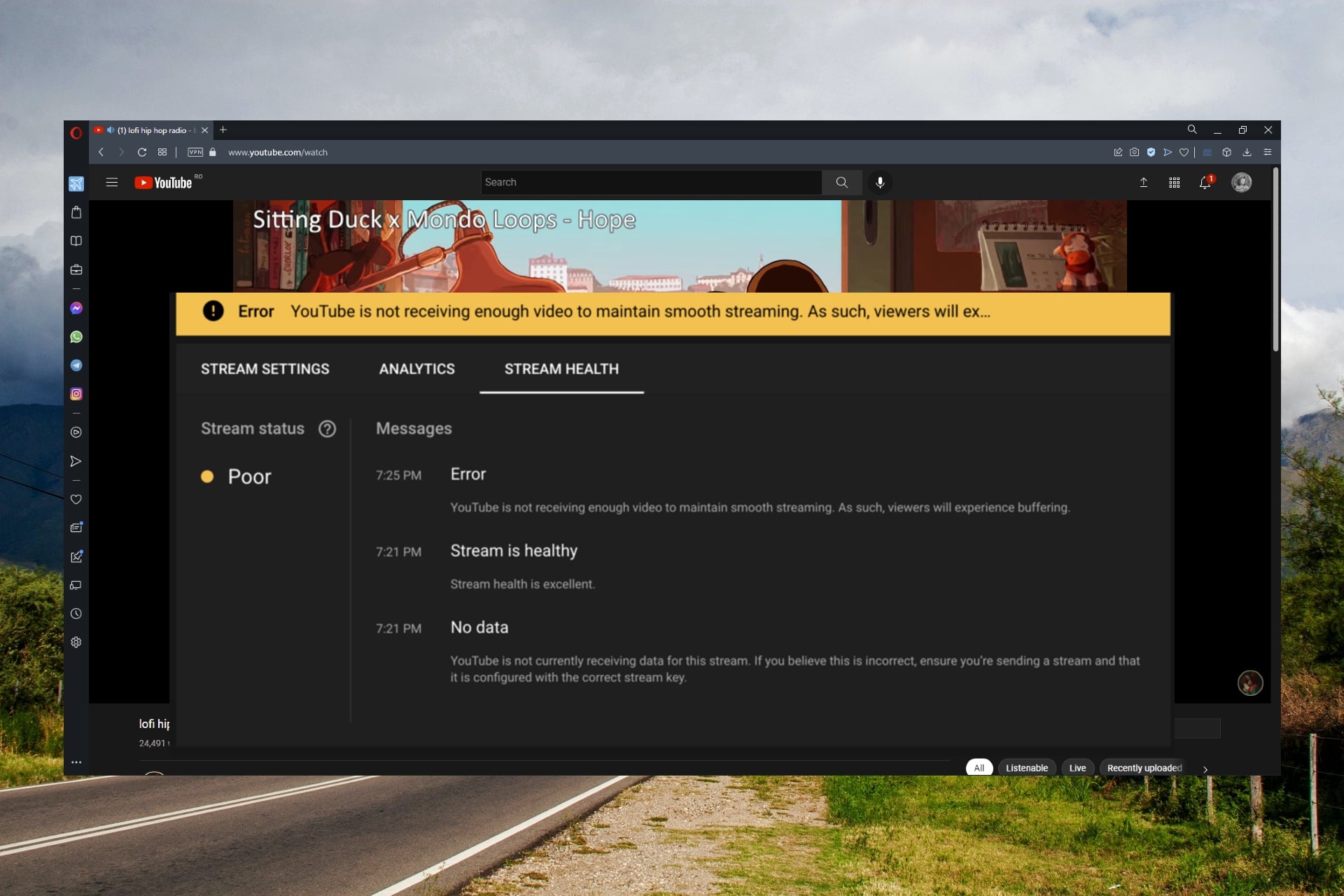
Another cause could be a build-up of YouTube’s stored data and cache or conflicting apps. Users report receiving the error: YouTube is not receiving enough video to maintain smooth streaming for the following platforms:
vMix
ATEM
OBS
FFmpeg
Wirecast
What can I do if YouTube can’t maintain streaming quality? How can I make my stream resolution better?
1. Check internet connection
Having a stable internet connection is essential for a good-quality stream. If you are getting the error: YouTube is not receiving enough video to maintain smooth streaming, the biggest culprit may be an unreliable connection.
However, users can monitor their network connection using tools. Check out our recommendations for the best ping monitoring software to ensure a low ping value.
Internet connection speed is the key to streaming video uninterrupted and preventing issues like YouTube Locate not working.
2. Adjust the bitrate
Video bitrate is the amount of data transferred during a period of time. For lag-free streaming, the recommended bitrate for a 1080p video is between 4,500 and 9,000 kbps.
YouTube, however, automatically sets a user’s stream to a Variable bitrate which means that YouTube detects the resolution and frame rate while streaming. Users can manually adjust their bitrate by turning on the manual resolution and thus maintain smooth streaming.
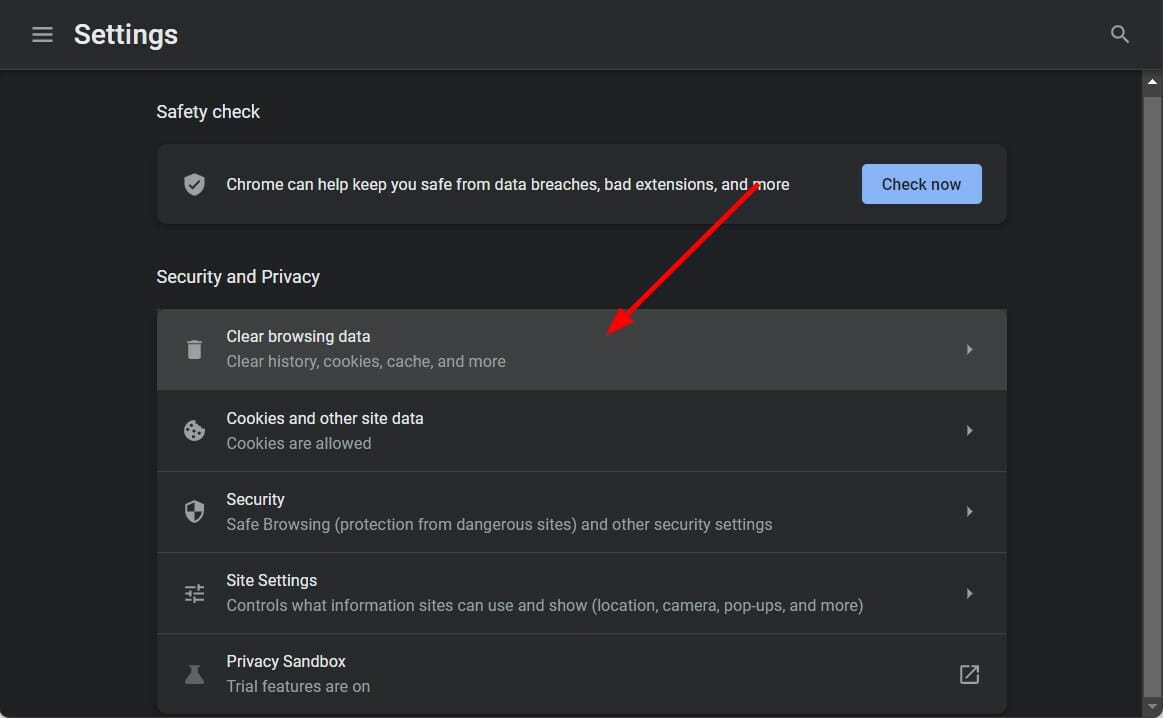
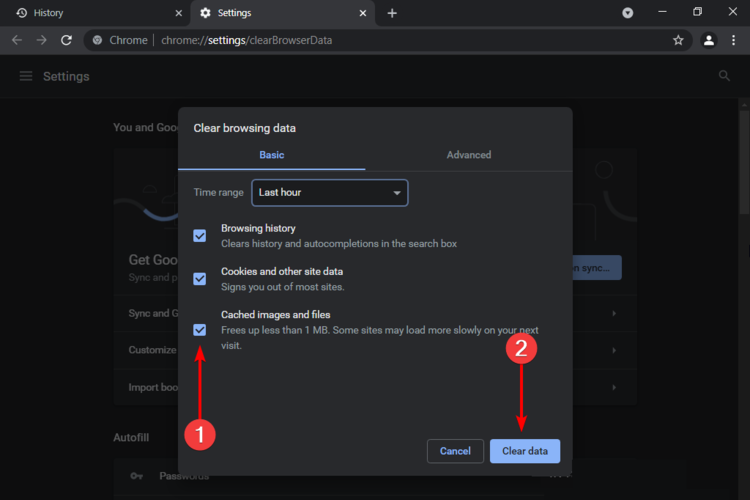
3. Clear browser cache
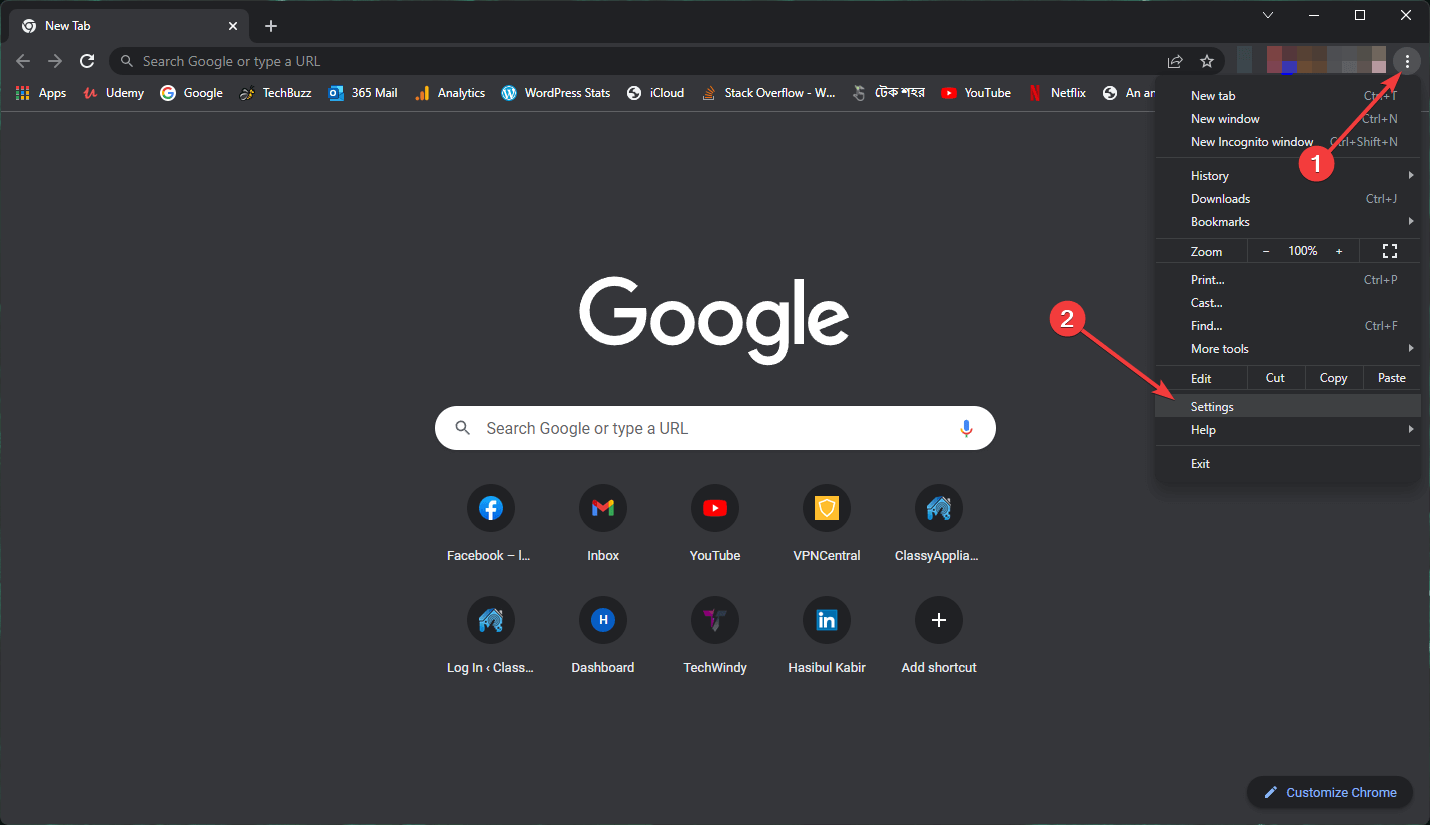
In your browser, open the menu located in the top corner.
Click on Settings.
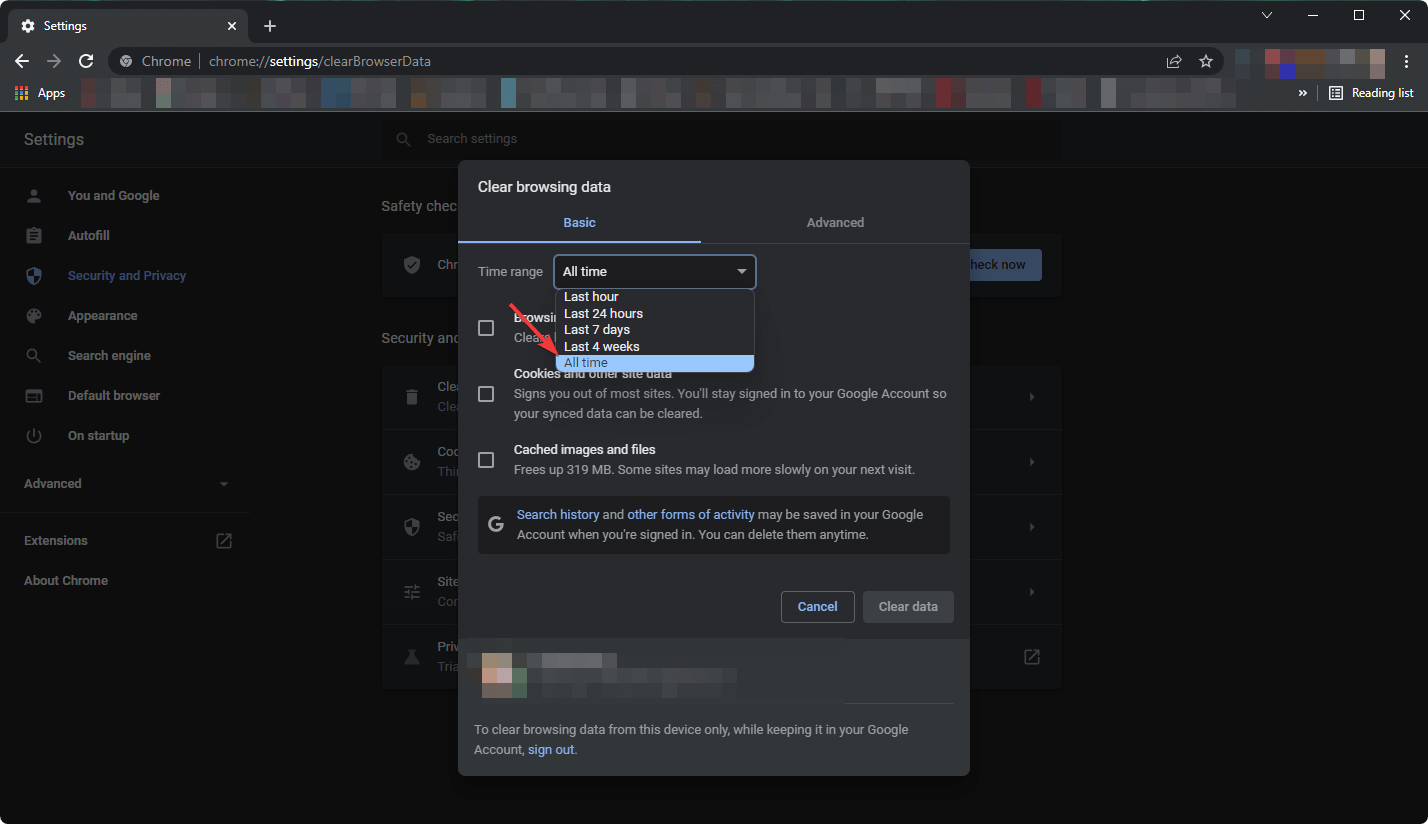
Under Privacy & security, select Clear browsing data.
Click Clear data.
Restart your browser.
If your browser cache and data haven’t been cleared in a while, it can cause issues and affect your YouTube streams. Clearing browser data can help improve resolution quality.
If you want more options and in-depth browser data analysis, use CCleaner to clean your browser. It organizes your data in more specific categories such as download history, cookies, last saved file, and more.
If after trying the above steps you’re still receiving the error, your best bet may be to reduce the video quality. Users can adjust the resolution in the video’s settings. If there is not enough bandwidth available or if it’s congested, then the only way to stream smoothly is to reduce the quality of the video.
What affects video streaming quality?
There are a number of aspects that can affect video streaming quality. Some of which are bandwidth and internet speed and settings. However, your computer’s processor speed and cache size also have a big impact on streaming quality.
Hopefully, one of the above solutions helped solve the error YouTube is not receiving enough video to maintain smooth streaming. Let us know which step helped you fix YouTube stream lagging or if a different solution not listed above worked.
A laptop by itself is already a highly convenient and handy device. However, you can further increase its usefulness by complementing it with various accessories.
Now, there are a wide variety of laptop accessories, ranging from USB ports to laptop backpack. Wondering what the best laptop accessories are? Check out the list below!
What are the best laptop accessories deals?
Laptop bags
Perhaps the most important accessory of them all is the laptop backpack.
Why is that? Well, the convenience and portability of a notebook computer are somewhat undermined without a proper suitcase or backpack to carry it around.
Basically, a laptop is pretty much incomplete without a proper bag.
Now if you are looking for a more traditional laptop bag, then you will want to check out the AmazonBasics 15.6 inch laptop bag.
This laptop bag is incredibly cheap and it offers enough space and compartments to make it a great buy. It is great for people who are looking for a bag that offers just the basics.
If you are looking for something that is ideal for your business trips and meetings, then we recommend the Kenneth Cole Reaction Colombian Leather suitcase specifically designed for laptops.
Modern, durable, and aesthetically very pleasing, this laptop bag is perfect for professionals who travel a lot. While it is the most expensive bag in this article, it is certainly worth it.
If you’re carrying important documents, it’s only fair to offer them perfect protection, and the Vintez Fireproof Document Bag with Lock does that and a lot more.
The fire and water protection are ensured by a 4-layer non-itchy silicone coated fiberglass that passed the SGS TEST (UL94 VTM-0 certified).
Your possessions are completely safe because this business bag is woven with strong seams of fireproof thread, has metal fastenings, a durable handle, and an adjustable shoulder strap.
The bag offers a lot of space within its 14.2×10.6×4 inches dimensions and comes with three compartments for all your certificates, documents, cards, passports, money, and electronics, including your laptop.
Laptop Wireless Mouse
Arguably the next most important accessory for a laptop is a wireless mouse. Now of course you can always buy a mouse with a cord, but these tend to be far less convenient than wireless mice.
The reason behind this is that you will have to untangle the wires of your cord mouse every time you take it out of your laptop bag.
Furthermore, constantly moving your accessories around can damage the cord that is connected to the mouse.
Typically, cord mice are ideal for stationary desktop computers, while wireless mice are best for portable laptop computers.
On the other hand, if you are looking for a laptop wireless map that is designed for gaming, then we recommend the Razer Lancehead (Tournament Edition).
The gaming mouse has advanced optical sensors, great exterior design and form, light customizations, DPI buttons, and much more. It is the perfect esports-level mouse for gaming.
External Hard Drive
Typically, buying a laptop with a lot of integrated memory is quite costly. Therefore, purchasing an external hard drive usually goes hand in hand with purchasing a new laptop.
Even if you do not need the extra space, a HDD allows you to transfer large files of projects, reports, etc from device to device.
Another good option for an external hard drive (with USB 3.0) is the Toshiba HDTB410XK3AA Canvio Basics. It comes in four capacities: 1TB, 2TB, 3TB, and 4TB.
It is easy to use and doesn’t need software to install. Therefore, it quickly adds more storage capacity to your laptop.
USB 2.0 is compatible with no external AC power cord needed.
At an affordable price, this is a reliable and easy to come accessory for your laptop.
This external HDD from Seagate is a favorite among many. This is not surprising as the HDD is fast, ultra-slim, looks great, and is available on Amazon.
It needs no additional power source, as transfers and power supply are done via the same cable when connected to the PC.
If you are looking for a portable device to transfer your files that is even smaller than a portable HDD, then check out the SanDisk Extreme.
This Flash Drive is capable of reading up to 245 megabytes per second and writing up to 100 megabytes per second.
This basically means you can transfer a large file, like a full-length film, in a matter of seconds.
However, perhaps the most unique thing about this USB drive is that it comes with security software from SanDisk that allows you to encrypt your files with 128-bit AES encryption.
If you’re looking for a gaming grate USB flash drive, PNY 1TB PRO Elite can be one of the best choices you’ve got.
This little gadget comes with 1 TB of storage and it’s on par with USB 3.1 technology. That translates into 400MB/s read speed and 250MB/s write speed if you plug it into a compatible port.
We wouldn’t recommend loading important documents on it but it will hold a lot of movies and music.
Well if you are looking for a port hub that offers just USB 3.0 ports, then you should check out the Sabrent USB Hub.
This device allows you to connect four more 3.0 USB devices and transfer data at lightning-fast speeds. The only downside to this port is that you will need to plug in the adapter to make it run.
However, if you do not mind this small inconvenience then this USB port is ideal because it is both cheap and fast.
Many users are wondering if they can get the Twitch audio-only option for the browser version, similar to the one available for mobile.
Since music streams have gotten a lot more popular lately, having the possibility to use Twitch as the mainstreaming/radio service would definitely be great.
In this article, we will explore what steps you need to make Twitch sound only if you are using the desktop app.
What is the best browser for Twitch audio-only?
Opera GX is one of the most popular browsers for gaming enthusiasts since it comes with integrated dedicated services.
It is dedicated to streaming and chatting apps, so you can always keep in touch with your favorite streamers.
Opera GX comes with a Twitch integration in the sidebar which makes it easier to check your favorite channels.
Thanks to the Twitch integration you can easily see all the channels you follow, and you can receive notifications when someone you follow goes online.
Check out some other Opera GX features:
Free VPN
Ad-blocker
Easy to use
Opera GX
Browse your Twitch content without draining all resources and use the audio-only feature anytime.
The Twitch Radio Mode extension first of is great for saving network bandwidth, RAM, and other resources.
In case you were wondering how to watch Twitch without video, thanks to this extension, you can play only the sound of a stream.
Once you install the extension, anytime you want to play the Twitch audio-only option in the browser, there is a radio button in the control panel that can be pressed.
Of course, there are other extensions you can try, but this one seems to be one of the user’s favorites.
As of right now, there is not a direct option to switch to the Twitch audio-only mode for the browser, other than the already presented extensions.
Taking this into consideration sending your suggestion is a great idea, using the Twitch forum.
Hopefully, the request will be taken into consideration and this feature will be added as soon as possible.
What should I know about Twitch audio-only?
Before discovering how to do sound only on Twitch’s PC version, let’s see what exactly is this and what benefits generates.
With the Twitch audio-only feature, the data usage will decrease considerably as well since running video takes a lot of extra resources.
Users who tried it are extremely pleased with how it works with the Twitch app. So, be ready to uncover more about how to use it in the desktop version.
Also, do not forget that you can also find the Twitch audio-only feature available for smartphones that work with Android.
We hope that the details we offered today helped you choose the best extension to use for the Twitch audio-only option when it comes to the browser.
If you have additional suggestions or recommendations, we would love to hear them in the comments section below.
There are different reasons RuneScape might not load. From problems within your PC to interference from another app, the causes are numerous. Below are some of the common ones:
Outdated drivers
Compatibility issues
Firewall interference
Problems with your version of the game.
Why is RuneScape stuck at loading application resources?
RuneScape will be stuck at loading application resources if you use a second screen connected via an HDMI cable. This is because the client and the loading screen must share the same monitor for the game to load properly.
The only way to fix this issue is to close the client, unplug the HDMI cable, and connect it back once the client finishes loading successfully.
How can I get RuneScape to load again?
1. Temporarily disable antivirus/firewall
If you have an antivirus or any firewall activated on your PC, it might be causing RuneScape not loading on Steam. This might create a false alarm and stop the game from connecting to its server.
In this case, the easiest way to fix the issue of Old School or the normal RuneScape not loading is to disable the antivirus software temporarily. After the game has established a connection, you can enable it again.
2. Update the graphics driver
2.1 Update driver manually
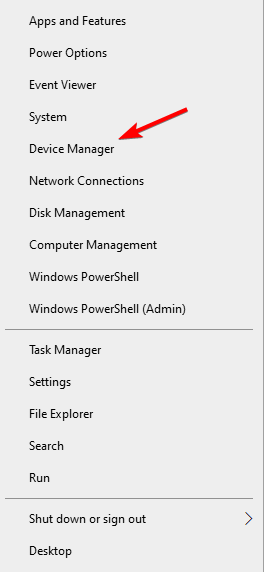
Press the Windows+ Xkeys and select Device Manager.
Click on the Display adapters option to expand it.
Right-click on any driver there and select the Update driver option.
Choose the Search automatically for drivers option.
Wait for the search to complete and update the driver if there are any.
Outdated drivers cause RuneScape not loading issues accompanied by a black screen. This manual driver update should help restore normalcy.
Instead of going through the numerous steps above to search and install a driver update, you can automate the process with a driver updater in Fortect Driver Updater.
This tool is a top-notch software that automatically scans, updates, and fixes drivers. Whether outdated, broken, or missing drivers, this tool keeps them all in top shape.
And with a very large database of original drivers, you can be sure it has everything you need to fix RuneScape stuck on loading, please wait, and other related issues.
Check the box for Run this program in compatibility mode for.
Finally, click the Apply button followed by OK.
This fix is effective if RuneScape is not loading after an update on your PC.
The RuneScape not loading can be exasperating, as the cause can sometimes be difficult to pinpoint. With the fixes recommended in this guide, you should be able to get the game working again.
A while ago, Firefox and Chrome users complained about sec_error_ocsp_future_response on the Mozilla forum. Unfortunately, this is still not in the past.
It seems then the error code: sec_error_ocsp_future_response pops out when users try to open webpages in Firefox and Chrome.
As frustrating as it may be, there are still ways to circumvent this error and we will explore them in the guide below. So, read on and discover how to fix sec_error_ocsp_future_response on Windows 7, 10, and 11.
What does Sec_error_ocsp_future_response mean?
This error occurs if the OCSP response isn’t valid. This can happen if there are problems with date and time on your PC.
The full error message states that the the OCSP response is not yet valid (contains a date in the future).
An error occurred during a connection to. The OCSP response is not yet valid (contains a date in the future). Error code: SEC_ERROR_OCSP_FUTURE_RESPONSE.
In this guide we’ll show you how to fix sec_error_ocsp_future_response in Firefox and Chrome, so let’s get started.
Quick Tip:
If you have trouble opening web pages in Firefox on a permanent basis, you should consider switching to Opera One.
Based on the impressive core features this browser has to offer, it’s safe to say you won’t be bothered by sec_error_ocsp_future_response again. The video pop-up, built-in VPN, integrated messenger, and My Flow are just some of its biggest enhancements.
Opera One
Looking for a fast and reliable browser with a redesigned UI? Suit yourself right away.
How to fix error code Sec_ error_ OCSP_ old_response?
1. Update the browser
OpenFirefox.
Click Firefox’s Open menu button. Click Help to open further menu options.
Select the About Firefox option.
Press the Restart to update Firefox button.
Error code: sec_error_ocsp_future_response can be triggered when users run an outdated version of the browser. Make sure you follow the steps we described above to bring Firefox up to date.
If you’re on Chrome, do the following:
Click the menu button and select Help. Now choose About Google Chrome.
Wait for the updates to download.
Restart your browser.
2. Check the time and date in Windows 10
Press the Windows key + S keyboard shortcut.
Enter the keyword time in the search box. Click Change the date and time.
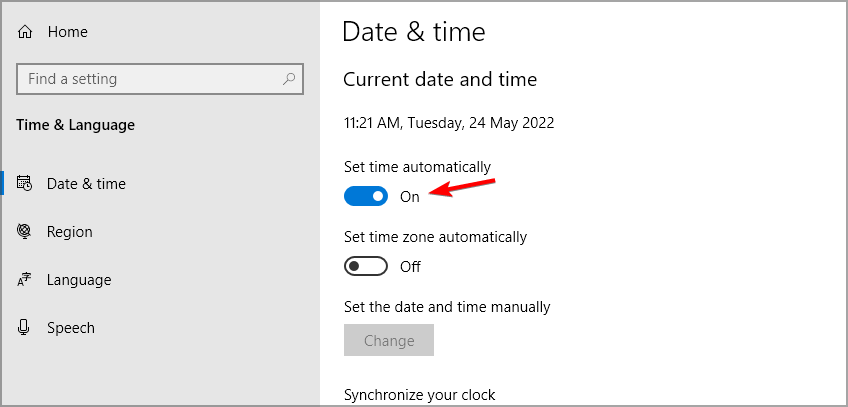
Turn on the Set the time automatically option.
Restart your desktop or laptop.
Click the Change button to manually adjust the time and date settings.
Press the Change button, and restart Windows.
The ocsp response is not yet valid (contains a date in the future). error code: sec_error_ocsp_future_response message appears if the date or time on your PC is wrong, so update it to fix this issue.
Note: You might also need to replace your PC’s CMOS battery if the date and time keep changing in Windows. You can do that by removing the old CMOS from the motherboard, but some users might prefer to hand their PCs to IT repair services to replace CMOS batteries.
3. Turn off OCSP verification
Launch Firefox.
Click the menu button and select Settings.
Click Privacy and Security on the left of the tab. Scroll down to the Query OCSP responder servers to confirm the current validity of the certificates option and disable it.
Close and restart Firefox.
One way to circumvent the Unable to check ocsp response due to network error is to disable certain security features in the browser, so you might want to try that as well.
By following these steps, you should be able to completely fix the SEC_ERROR_OCSP_FUTURE_RESPONSE error in Mozilla Firefox.
Discord is the best web-communication tool that you can use to communicate with friends and family members.
With multiple mods, you can even enhance your voice chatting features on Discord. One such mod is Voicemod.
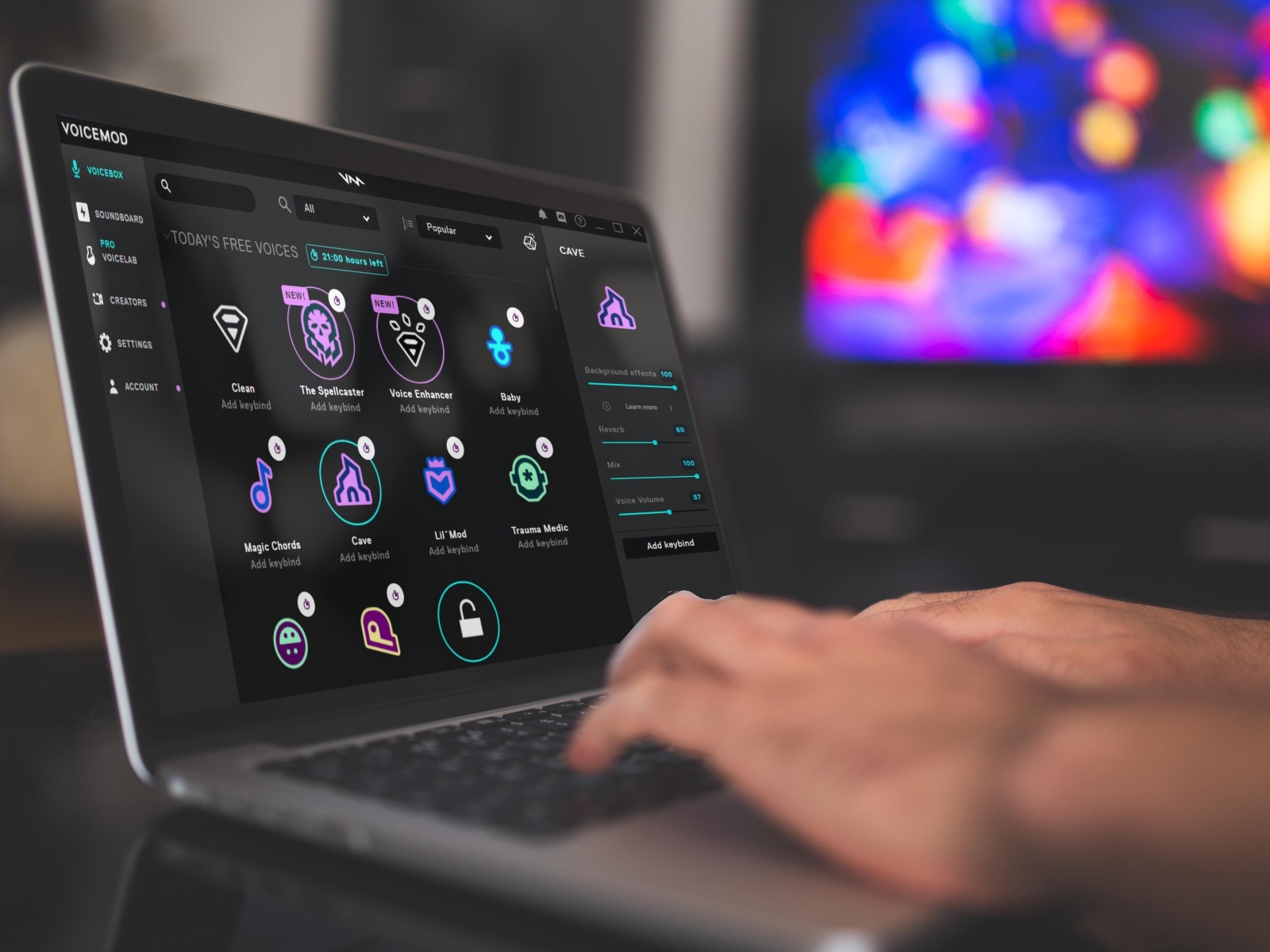
Voicemod is a free voice changer that lets you change your voice by applying filters that bring the fun factor while voice chatting with your friends. Do note that there is an extensive list of voice filters from which you can choose within Voicemod.
However, Voicemod is known to misbehave often, and sometimes it won’t work at all with Discord. Several users have experienced Voicemod not recognizing the mic issue.
This prevents users from using the voice filters using the mod and, hence, makes the chatting on Discord a little less fun.
If you are one of such users and are looking for solutions to fix Voicemod not recognizing mic issue, then you are in the right place.
Because in this guide, we will explain to you all the features that will help you fix the problem at hand. Let us check out the guide.
How to add Voicemod to Discord?
Visit the official Voicemod website and download the app.
Install the app on your PC.
Verify your account by login in using your email ID, Twitch ID, or Discord ID.
On the homepage, Voicemod will ask you to select your default Select your microphone, and Select your speaker. Do the necessary selections.
Now open the Discord app.
Click on the Settings icon.
From the left pane, select Voice & Video.
Under the INPUT DEVICE option, select the Microphone (Voicemod Virtual Audio Device (WDM)) and select your headphone as your OUTPUT DEVICE.
Then it will open the Voicemod app.
You will be asked to do some tweaks under Discord User Settings, i.e., disable Input Sensitivity, Noise Suppression, Echo Cancellation, Noise Reduction, and Automatic Gain Control.
After you do all the above-said tweaks, you can use the Voicemod voice changer application with your Discord app and have some fun chatting with your friends by applying voice filters.
How can I fix Voicemod not recognizing mic issue?
1. Restart your PC and app
The first simple solution that we would advise you to try out to fix the problem is to simply restart your PC.
There are chances that the settings that you have chosen with the Voicemod or Discord app did not really apply to these apps, and they require a restart.
In such a case, you can turn off your PC, and wait for about 10 seconds before booting it back up again. Also, you can try to close the Voicemod and Discord apps and open them back again to check if this resolves the Voicemod not recognizing mic issue.
2. Set up your input device properly
Press Win + I keys together to open Settings.
Select Sound.
Scroll down and under the Input section, select the correct microphone device.
Open Control Panel.
Click on Sound.
Switch to the Recording tab.
Make sure to enable the correct microphone device.
Restart the Voicemod application and check if this fixes the Voicemod not recognizing mic issue or not. Similarly, make sure to select the correct output device under the Playback tab.
Under the APP SETTINGS section in the left pane, click on Voice & Video.
Under the INPUT DEVICE option, select the Microphone (Voicemod Virtual Audio Device (WDM)) and select your headphone as your OUTPUT DEVICE.
In order for Voicemod to work correctly with your target app, you need to configure it appropriately. The best part is that whenever you download Voicemod, it prompts you to perform the settings for it to function correctly.
Follow the above steps to select the correct input device in the target application, and check if Voicemod is working as intended or not.
Furthermore, if you are facing any microphone or audio-related issues with Discord, you can check out our dedicated guides Is the Discord mic not working in browser/app, or Can’t hear anyone on Discord? [3 Easy Solutions] for quick fixes.
4. Reinstall Voicemod drivers
Press the Win + R keys to open the Run dialog.
Type the below command and press Enter. devmgmt.msc
Expand the Audio inputs and outputs section.
Right-click on the Microphone (Voicemod Virtual Audio Device (WDM)) and select Uninstall device from the pop-up menu.
Your system will check for any available updates and prompt you to install it if found any.
Your PC may not function smoothly and may display multiple errors, including the Voicemod not recognizing mic issue, due to a system glitch or bug in the current version of the Windows update.
In such a case, we would advise you to check for a fresh update and install it. Microsoft typically upgrades its operating system on a regular basis, including the most recent security features and bug fixes.
6. Reinstall Voicemod
There are chances that the previous instance of Voicemod installed on your PC did not install correctly and missed a few important files during the process.
To rule out this doubt, you can uninstall Voicemod from your PC, head over to the official website, and download the latest version of Voicemod.
Follow the on-screen instructions to install the app on your PC and connect with your target app, such as Discord, and go through the steps mentioned above to set it up and finally check if this fixes the issue or not.
Voicemod can’t hear myself: How to quickly fix it
There are several user reports on various forums and Reddit that indicate that they cannot hear themselves in Voicemod.
Since it has been reported by multiple users, it does seem to be a pretty serious issue. While there is no perfect solution to fix this, as users have fixed it by applying different solutions, we have a few effective tips that may help you fix the problem, if you haven’t already fixed it.
➡ Turn off mic-exclusive mode
Launch Voicemod.
Go to Settings.
Expand Advanced settings.
Turn off the toggle for MIC EXCLUSIVE MODE.
➡ Contact customer support
As a last resort, for any of your Voicemod-related problems, you can get in touch with its customer support and hopefully get your query resolved.
You can visit this official support page, select the topic of the query, enter your issue, along with your name, email address, country, etc., and expect a reply from their end for a solution.
Business laptop bags tend to be boring, black, and boxy. In an ocean of similar-looking bags, they will not win you any points for personality and style.
But let’s be honest, in this day and age, you don’t want to be embarrassed about carrying a nasty laptop bag around.
This is the exact reason for which we have selected a series of well-made, trendy, and smart business laptop bags for traveling. A great laptop bag can make traveling to your next business destination a bit less stressful.
The tech-savvy bags we’ve got prepared below mean business when it comes to organizing and protecting your stuff. These models will amaze you as they’re not only useful but incredibly stylish as well.
What are the best business laptop bags that I can buy?
Topping off our list is a business bag that looks simple and yet has a bit of elegance to it without sacrificing utility at all.
It is made with durable, water-resistant canvas, and together with the inner padding, it is excellent for protecting whatever you are carrying in it, including a laptop.
Speaking of which, if you want it as a dedicated laptop bag, know it can handle any model up to 15.6-inch in diagonal.
If you are looking for a business laptop bag that won’t draw too much attention and focuses on utility, then the Ytonet laptop bag is the model you need.
It has plenty of pockets, the interior is very roomy, and it can be further expanded via a zipper that will allow you to fit even more things inside.
It is also very padded for extra protection from whatever you are carrying, and the water-resistant material makes it great if you’re caught in the rain.
Sometimes brand-name products are not worth the money since the logo is pretty much what skyrockets the price, so Amazon basics are a great alternative.
This is also the case with the 13 best business travel laptop bags, as it is an incredibly affordable option for those who really need a laptop travel bag but have a tight budget.
However, this bag isn’t wrong at all, as it has all the essential features that you would expect from such a product, and they are surprisingly well-built, too.
Business laptop bags don’t all have to be black, serious, and plain, especially if you’re a lady who likes to treat herself just right.
The EaseGave briefcase is the epitome of what it means to be elegant, cute, and functional simultaneously, thanks to the Vintage Purple Saffiano Eco-leather build.
It is great for work and school, and its design allows it to double as a regular bag as well, not just a bag for laptops or documents.
CoolBELL is at the cutting-edge of fashion trends. The company pursues the best quality in laptop bags and is devoted to offering the best products to its customers.
This laptop bag features three carrying styles. You can use it as a backpack, shoulder bag, and messenger bag. The straps can also be hidden when you use them as messenger and shoulder bags.
Here are the complete bag specifications:
Size: 18.8 x 5.1 x 13.7 inches; Fits laptops up to 17.3 inches.
This CoolBELL laptop bag for business traveling features two main compartments designed for keeping your laptop/tablet and other items.
The accessory compartment features pockets inside for keeping items like power cords, mice, keys, phones, passports, etc. The three front pockets have a zipper.
The bag is perfect for keeping your items safe thanks to the two layers of shockproof solid padding.
Users are very satisfied with the bag’s quality. The only setback identified by some users is the bag’s aspect was deemed a little strange. However, we really like the overall design of this laptop bag.
This business travel laptop bag has a classic look that will definitely turn heads. It is made out of Full Grain Napa Calfskin Leather.
The bag features a front zipper pocket for small miscellaneous items, and a front zipper organizer pocket for pens, business cards, and small devices.
The front zipper compartment features two sections for documents. The back zipper compartment features a padded laptop compartment that holds and protects most laptops up to 15.6 in size.
Users confirmed that this bag is an excellent product. Buyers appreciated especially the leather that the bag is made of.
This bag is made out of high-quality thick top oil leather and you should also know that it’s handmade by professional artisans. Every inch is inspected to ensure the highest standard of quality.
Here’s a brief list of the bag’s specs:
It has one laptop compartment inside
Dimensions:38(L)*11.5(W)*30.5(H)cm /15*4.5*12 Inch. Net Weight:1.48KG
It will fit 14″ Laptop,100% Brand New & Top Quality
You can wear it as a daily life bag, business or traveling bag, and so on
The bag’s price is around $150, a medium price for its value
Business traveling can be hard without ensuring the safety of your items, and the Vintez Fireproof Document Bag certainly takes care of that.
It has a size of 14.2×10.6×4 inches, and it comes with a lock, file organizer bag, home office travel safe bag, two fire, and water-resistant zippers, and multi-layered portable filling storage for documents and laptop.
The fireproof, waterproof bag has plenty of space and has three compartments to store all your documents, cards, passports, money, certificates, and electronics.
Vintez’s bag comes with a 4-layer non-itchy silicone-coated fiberglass that passed the SGS TEST (UL94 VTM-0 certified) for fire and water hazards.
The exterior material of the bag is made out of super durable water-resistant nylon fabric, and the inner material is soft fleece.
Here are the product’s specs:
External Dimensions: 15.83 x 1.18 x 11.26 inches, 40.2 x 3x 28.6CM (L x W x H).
Package Dimensions: 17 x 12.5 x 1.5 inches
Item Weight: 1.4 pounds
It is great for the most popular up to 15.6 Inch Laptops / Notebooks / Ultrabooks; it may not fit perfectly all computers due to variations in the sizes of different models.
Check out some of the bag’s key features and advantages:
Its sleek design lets you carry it with ease, and it gives you a light business fashion experience.
Its top handle can hide away and retract into the pocket, and the luggage belt from the back provides the function of fixing on the luggage trolley.
The bag is universal, and it is not designed for a particular model. But you should check your laptop’s dimensions and ensure it will fit into the internal compartment.
Most users are delighted with the product, judging by their reviews. They especially appreciate its water-resistant feature.
This Lifewit bag features some unique crazy horse leather that becomes nicer with age. Its rugged and scarred styling gives off a vintage and timeless appeal.
Check out more features of this bag below:
The messenger bag’s exterior is water-resistant, and it will manage to protect the stored items from rainy weather
The heavy-duty shoulder strap and the top carrying handle offer multiple ways of carrying
The ample storage capacity will safely secure everything from tablets, laptops, tablets, cables, documents, wallets, and so on
Its great functionality, coupled with the timeless unisex design, will make the messenger bag an ideal companion for men and women in business and casual settings
Here are the bag’s specs:
Materials: Waxed canvas & Crazy horse leather
Color: Gray
External Dimensions: 43 x 32 x 10cm/16.93 x 12.6 x 3.94in
Laptop Compartment Dimensions: 40 x 24 x 4cm/15.75 x 9.45x 1.57in
Adjustable Shoulder Strap: 27.5 – 50.5 inches
The laptop pocket on the back of the backpack can hold computers of up to 15″ in size. The integrated anti-collision isolation pad protects devices against impacts from bumps and drops.
This Viosi business laptop bag is the only product from its class that is certified by TUV Germany for RFID shielding for all standard frequencies. It keeps your credit cards safe from identity thieves.
The manufacturer used a new and improved leather treatment to eliminate color transfer. It is made from the finest selection of full buffalo hides, offering maximum strength and minimal stretch.
The bag’s specs are the following:
Exterior: it has 2 Large Front Pockets: 10.5″ x 6″, 3 Pen Holders, 1 Passport Slot with Button Snap: 4.50″, 1 Front Pocket: 3.40″
Interior: it has 2 Pen Holders, 1 Pocket: 6″ x 4.50″, 1 Pocket: 3.50″ x 4.50″, 1 Zipper Pocket: 9.50″ x 7″, 1 Padded Laptop Holder with Velcro Strap: 16″ x 12″
Large Exterior Zipper Compartment: 11″ x 8″
Overall: 16″ x 12″ x 3″
Item Weight: 5 pounds
The bag includes a ten-year, no-fussle warranty by the California-based family business.
This was our list of 13 business laptop bags. We bet that one matches your taste and style these, so find it and get it while it’s still in stock.
Every aspect of your outfit is crucial, and this naturally includes your accessories, starting from your shoes and finishing with your laptop bag.
You can now carry your electronics with style, and you have plenty of options. Get your favorite business laptop bug and go beyond the boring traditional laptop bags.
If you think a backpack would be more suited for you and it also happens to game on your laptop, you can check our best laptop backpack for travel, maybe you’ll find what you are looking for.
Pokemon is a top-rated franchise with games on multiple platforms. And, there are many Pokemon browser games available that you must try, both free and paid options, though we will be focussing on the former here.
With there being so many options available, it often becomes difficult to find the best Pokemon game, and that too, one that doesn’t consume considerable resources and can be played online.
In this article, we’ll show you how to play a Pokemon browser game easily from your computer without downloading.
Is there a free online Pokemon game?
There is not one but several free online Pokemon games. Most of these would work well on any PC especially when you’re experiencing server issues with games like Pokemon Home on your phone.
Many online platforms have a dedicated section for Pokemon games, and you will find many titles displayed there.
Also, we have listed some of the best platforms to play Pokemon games on your browser:
You can try them all out or choose the one that seems best and play Pokemon online.
How can I play Pokemon on my computer browser?
Open your web browser, and go to the Crazy Games website.
Choose a title from the ones listed here.
Click on the Play Now button to start.
The process is more or less the same for all Pokemon browser games. Some might require you to first register on the platform using an email address.
For the best in-game performance, it’s advised to use a proper browser, such as Opera GX for example.
This browser is focused on gaming, and it comes with features that limit the amount of CPU, RAM, and bandwidth your browser uses.
By limiting the bandwidth and resource usage, you can rest assured that other processes are running smoothly in the background.
The browser has a GX corner that allows you to be updated with the latest news from the gaming industry. There’s also an integrated messenger, which can be useful during gaming sessions.
Additional features include a built-in ad blocker, free unlimited VPN, and a pop-out video player. Due to its low hardware requirements, Opera GX will be perfect for all your gaming needs, so try it out.
Opera GX
If you love playing Pokemon browser games, then might s well play them in a browser that will make you feel like a real gamer.
Playing Pokemon games in your browser is incredibly simple, and you can run the game in less than a minute without it occupying any space on your computer. In case you’re having issues with some games, we have a guide on how to fix Pokemon Home error code 400, and error code 10104 so don’t miss it.
If you love watching anime online, then 9Anime is the best streaming website. It gives you access to a bunch of exciting animes to watch for free.
The website, which was launched in 2016 has come a long way since its launch and also offers HD quality anime streaming. Moreover, you can watch animes from various genres such as action, comedy, demons, historical, school, romance, and much more.
9Anime keeps itself up to date with the latest releases so that you have the latest episode available to watch for free.
However, during the process of updating or due to some technical glitch, you may come across multiple issues when streaming 9Anime.
Google Chrome users, especially, have reported that for them 9Anime is not working, preventing them to watch their favorite anime online.
The errors come with different error code numbers, but the fact of the matter is that 9Anime is not working for users on Google Chrome. If you are also one of such users and are looking for solutions, then you are in the right place.
Because, in this guide, we will give you solutions to fix 9Anime not working in Chrome issue. Let us check out the guide.
Why is 9Anime not working on Google Chrome?
It is the burning question that we have on our hands. Understand this in a way that since 9Anime is a free website and does not hold any rights to the content that it publishes on its websites, it has to source content, i.e., anime from various sources.
One of the reasons 9Anime is not working on Chrome could be because the original creator of the anime might have caught 9Anime and blocked the website.
There are some other reasons that might trigger 9Anime not working on the Chrome issue, which we have listed below:
Ad blockers are conflicting with the website and treating the streaming window as a false positive and blocking it.
9Anime servers may be down because either the website is refreshing with new content or there are some technical difficulties that they are trying to fix.
The browser data, i.e., cookies or cache data might be corrupt.
The Google Chrome browser is not up to date.
Your internet connection isn’t stable.
How can I fix 9Anime error 502 / 521 / 522 / 404 issue?
1. Check 9Anime server status
Often issues related to 9Anime are server-related and they can pop up anytime. They might be undergoing maintenance or having some issues.
In any case, you will see a 9Anime page showing you a server issue error or any error code containing the error message.
You can check the official Reddit page of 9Anime or the official Twitter handle, to check if the website is experiencing any issues or undergoing any refresh. Till that time, all you can do is wait for some time before loading the page back again.
For a complete set of quick fixes that cover all common errors, see our full guide on 9anime not working.
2. Turn off or delete Adblockers
Launch Chrome.
On the top-right toolbar, click on the Adblocker extension.
Turn off or Pause the adblocker and check if this fixes the 9Anime not working on Chrome issue or not.
Alternatively, you can right-click on the Adblocker extension icon.
Select Remove from Chrome.
Again press Remove to uninstall the extension from Google Chrome.
Simply restart the browser and check if this fixes the issue or not. Adblockers, no matter how effective they are, often trigger false positives and can cause multiple issues with websites, especially streaming websites.
Since they block video ads as well, sometimes adblockers may block the content that is streaming. In such a case, you can either disable or pause the adblocker or uninstall it from your browser to see if this fixes the 9Anime not working on Chrome problem.
From, the left pane, select Privacy, and Security.
Select Clear browsing data on the right side.
Check the boxes next to Cached images and files and Cookies and other site data.
Hit the Clear data button.
Cookies and cache data are temporary files that browsers store for all websites to load all the personalized settings and options.
However, if this cache and cookies get corrupt, these can pile up and cause the browser to malfunction. In such a case not only with 9Anime but you will come across errors with other websites as well on Chrome.
So, we would advise you to follow the above steps and clear the browser cookies and cache data and check if this fixes the 9Anime not working on Chrome issue or not.
How can I fix 9Anime DNS error?
Apart from multiple 9Anime error messages with error codes 502 / 521 / 522 / 404, you will come across a specific issue known as 9Anime DNS error.
While you can follow the above steps and try to fix the problem, there are a few more solutions that can possibly help you fix the 9Anime DNS error in case the above solutions don’t work.
➡ Restart your router or modem
The issue with the DNS configurations of your router is the main reason you could come across a 9Anime DNS error.
A simple restart of your router or modem will fix this problem, and will also refresh the internet settings.
A temporary glitch might be causing the issue with 9Anime. In such a scenario, we would advise you to simply refresh the web page and wait for it to completely load.
➡ Switch to a different browser
Since several user reports are regarding 9Anime not working on Chrome, you can always switch over to a different browser and see if the error exists in those browsers as well.
If you are confused about which browser to choose for your PC and to stream content from 9Anime, you can check out our best browsers for Windows 11 guide.
➡ Try Other 9Anime Mirrors
9Anime is blocked by some ISPs. This is the reason why you are not able to access the website, while your friend with a different ISP is able to stream 9Anime content.
Do not worry, as there are multiple 9Anime mirrors, that you can opt for and check which one works for you. Check out the list of the best 9Anime mirrors:
9anime.to
9anime.id
9anime.pl
9anime.tv
That’s it from us in this guide. We hope the above solutions helped you fix the 9Anime not working on Chrome issue and you got back to streaming your favorite anime on 9Anime.
Additionally, if you are facing similar problems on other streaming platforms, you can follow this guide to fix HiAnime not working with step-by-step solutions.
Although Java applets have been disappearing from the web, some websites still have them. So, some users might still encounter an error message that states, Your browser does not support Java.
Fixing this error message is simpler than you think, and in this short guide, we’ll show you the best methods to fix it.
Java applets used to be required to correctly open web-based pages. Most browsers already had the Java applet built-in and all computers used to have the Java application installed.
The technologies have however evolved and many browsers started implementing more modern technologies to enable an even better web experience.
For this reason, Java applets are no longer used, but the Java application is still available for personal use and may come in handy in some situations.
Which browsers still support Java?
The most notable browser that still supports Java, is Opera One. By using this browser, you will have built-in Java support.
Why did browsers stop supporting Java in the first place if it’s such a good program? This is a topic that many of you have asked, and we think it’s safe to say that it’s a question that has merit. They did not, in any case.
Java is a web technology that continues to enjoy massive popularity. The plugins, on the other hand, are a very other matter. Because of safety concerns, the plugin architecture of the vast majority of current browsers has been extensively rethought.
Java plugins are susceptible to viruses, and hackers often take advantage of this feature to inject harmful code into your system in a way that is undetectable by the sentinels that protect it.
However, this does not imply that each and all Java plugins or material written in Java is a ticking time bomb ready to go off.
If you aren’t using a browser that supports Java, you will get the Your browser does not support Java error message or one of the variations below:
Your web browser does not support Java, which is required to launch this course
Please login with a Java-compliant browser and try again
If you see this you don’t have a Java-enabled web browser
Here’s a picture of what you are missing
Cannot display applet
Your browser does not have Java enabled or it does not support it
The visualization runtime could not be started
The browser does not support Java
The Java plug-in is not installed or the applet could not be loaded
Your current browser version no longer supports Java
You may choose to either use designfor digital signing or any browser version with Java support for DSC
This browser does not support applets
What can I do if the Java browser is not supported?
1. Your browser does not support Java Edge
Click the three-dot menu in the top right corner and choose Settings.
Click Default browser on the left side of the tab.
Select Always on the Let Internet Explorer open sites in Edge drop-down menu.
Turn on the Allow sites to be reloaded in Internet Explorer mode option. Finally restart Edge to solve the Your browser does not support Java issue.
2. Your browser does not support Java Internet Explorer
Click Internet Explorer’s Tools menu button then select Internet Options to open that window.
Select theSecurity tab on the Internet Properties window and press the Custom level button.
Then scroll down to the Scripting of Java applets setting and Enable it. Select OK to apply the new setting.
Click Trusted sites on the Security tab.
Reduce the Allowed levels for this zone bar to Low then click the Sites button.
Enter the URLs for the webpage the Java not supported error arises to, and click the Add button.
Click Close to exit the Trusted site window and select Apply in order to save the changes made.
Once you make these changes, check if Your browser does not support Java message is still shown.
3. Your browser does not support Java Opera One/Chrome
Open the IE Tab extension page in a Chromium-based browser such as Opera One or Chrome and click on the Add to Opera One (or Chrome) button.
Select the Add extension option to confirm.
Next, click on the IE Tab extension button. An ietabhelper.exe will download when you click that button.
Double-click the ietabhelper.exe and select Run to complete the IE Tab extension installation.
Thereafter, you can click the IE Tab button to open a page with the Internet Explorer rendering engine. Click that extension button for webpages the Java support error arises.
After doing that, check if Your browser does not support Java message is still there. The IE Tab add-on is available for the Google Chrome web browser, as well as other Chromium-based browsers.
Users are granted the ability to view webpages using the MSHTML browser engine when the extension is installed. This may be used to see sites that will only display correctly in Internet Explorer or will not operate at all in any other browser.
NOTE
The latest Java version still needs to be installed and enabled for Java content to work in Chromium browsers with the IE Tab extension.
4. Your browser does not support Java Firefox
Open the Uninstall Java Versions webpage in a browser and click the I Agree to the Terms and Want to Continue button on that page to download the Java Uninstall Tool.
Open the Java Uninstall Tool’s window and select the Agree option.
Next, select a listed Java version and press the Next button to uninstall the selected Java version.
Then double-click on the downloaded Java installer to reinstall the latest Java.
You can also thoroughly uninstall outdated Java versions with dedicated PC cleaner software. There’s a certain tool designed to remove any unwanted software in one click.
Moreover, rest assured that it cleans up the leftovers as it includes a registry cleaner as well.
As we have already mentioned, not all browsers support Java anymore and you will have to either use a third-party extension or tweak your settings to get your browser to support Java. The same goes if you get the Your current browser version no longer supports Java error message.
Don’t worry if you will have to change your browser to another one, as exporting your bookmarks is easier than ever before.
We recommend you check out our article on how to enable Java support inside the browsers that have the option to do so.
So, that’s how Internet Explorer and non-IE users can feasibly fix the Java not supported browser error. With that error fixed, websites will then run Java applets without any issues.
Online security is an invaluable part of the everyday web-browsing experience. Chrome, for example, has a quite strict policy on downloads, especially the EXE files, which are mostly installation packages.
Speaking of which, sometimes your antivirus blocks EXE files, in order to prevent malicious files from affecting your PC.
It’ll make sure to inform you that, well, the program you’re trying to obtain is possibly a virus and can cause inexplicable damage to your system.
But, the ”This type of file can harm your computer” message can get on your nerves after some time, especially when you’re certain that the installation file comes from a trusted source.
If you’re downloading files frequently and the file’s extension triggers an annoying prompt message, this might help you. So make sure to check out the explanation below.
The fixes listed in this article will also prove helpful if you are experiencing any of these issues:
This type of file can harm your computer: This is a common message, and it appears if you download an unverified file.
Chrome this type of file can harm: Chome has its own file scanner, and if a suspicious file is detected, you’ll get this message.
This type of file can harm your computer turn off: It’s possible to turn off this notification. Sometimes you might get false positives, so many users choose not to use this feature.
This type of file can harm your computer Chrome: As previously mentioned, this is a standard message in Chrome, and it’s designed to inform you about malicious files.
This type of file can harm your computer. Do you want to keep: Messages such as these will give you a choice to keep a file or remove it. If you think that the file is safe, you can keep it, and if it’s not, you can block the download.
Was blocked because this type of file can harm your device Chrome: Some files will be automatically blocked since they don’t come from reliable sources.
What is file might be harmful?
This is just a security warning that appears when you try to open certain files. Usually, this happens when you try to open files that you downloaded or transferred from another PC.
This issue occurs due to your security settings, and it can be fixed simply by adjusting them.
Quick Tip:
Use a browser that offers strong online security without annoying, false alerts. Opera One is a great option, with built-in website filtering.
Not only that, but the browser is able to detect potentially harmful files and boosts your privacy using its anti-tracking and VPN features.
Opera One
Use trustworthy security features and browse without worries about online threats.
Bottom line is, you can’t disable this feature. You can merely tweak the download settings in order to avoid it.
But, then again, it might be easier to confirm that the suspected file is indeed non-harmful than to enable Ask where to save each file before downloading. If you’re downloading multiple files in a succession, this isn’t the way out.
With that, we can conclude this article. We hope that you managed to fix This type of file can harm your computer on Windows 10/11.
Pinterest is a great website to share images on, allowing users to set up boards that include an image collection. As such, it’s a visual bookmarking tool for saving pictures directly from the web. However, users are demanding a way to batch download Pinterest images.
Unfortunately, it doesn’t include an option to batch download images in order to save them to a hard drive folder. Something like this would come in handy for users with lots of photos to keep.
Nevertheless, you can still download all images from a Pinterest board with a few browser extensions and desktop software.
Are images from Pinterest copyright free?
Pinterest has a license for the material on its site that is both non-exclusive and transferable on a global scale. This indicates that others will be able to share and store any material that is submitted on that platform.
However, this only applies to Pinterest. It does not imply that you are permitted to copy stuff from there and publish it elsewhere.
Whether you are not absolutely positive that the picture may be shared (for example, if you have permission from the owner or if it is in the public domain), you should refrain from sharing the image anywhere else on the Internet.
The protection afforded by copyright is crucial for the integrity of any original work of writing. Any kind of creative expression may fall under this category. If you have developed anything and represented it in a definite form, you immediately acquire ownership rights under copyright law.
Can you copy images from Pinterest?
You are only permitted to repin photos on Pinterest. This means that you cannot duplicate them to use them on another service/platform.
Due to the fact that you are solely responsible for everything that you publish on Pinterest, you run the risk of infringing on someone else’s intellectual property rights if the picture you’re repinning was uploaded to Pinterest without the author’s consent.
Quick Tip:
You should consider using a lightweight and fast browser like Opera One. You’ll make sure you’ll be done with the task without errors.
Plus, the Download all images extension in the Opera One add-ons shop allows you to download any image from a web page, including full Pinterest boards.
Opera One
Quickly download whole Pinterest boards with handy in-browser add-ons!
In order to batch download Pinterest images in Chrome, open the image downloader web extension and click on Add to Chrome. Image Downloader adds the extension shown directly below to Chrome’s toolbar.
Open one of your boards on Pinterest.
Click the Image Downloader button on the toolbar to open the extension.
Doing that displays all the pictures on the page, including those saved to your Pinterest board. To filter out images that aren’t saved to your board, enter media cache in the Filter by URL text box.
Select the Pinterest board thumbnail images displayed there with the cursor, or click the Select all option instead and press the Download button to save the selected photos to your folder.
You can edit where they download to by entering an alternative subfolder in the extension’s path text box. To further configure the extension, you can right-click its toolbar button and select Options.
The first extension to note is ImageDownloader for Google Chrome. This is an extension that enables you to select multiple images on website pages to download in a single batch.
To download multiple Pinterest images, navigate to the PinDown extension to add the extension to your browser and configure Chrome’s settings before using the PinDown tab that opens. (Note that you’ll also need to restart the browser after installing PinDown.)
Open one of your Pinterest boards in Chrome, then, the PinDown toolbar icon will include a small number highlighting how many pinned images an album includes as shown directly below.
Click the PinDown extension button to save the album to your HDD.
You can enter an alternative title for the Pinterest picture subfolder in the text box shown to you. However, you can’t enter alternative folder paths for the subfolder.
Press the Let’s rock! button to save the Pinterest board to the download folder.
If you wonder how to use PinDown, we’ve got you covered. PinDown is a Google Chrome extension that enables you to download a full image collection within a Pinterest board. You can download up to 250 pictures per album with PinDown Free, with no restrictions in the full version that retails for $0.99.
3. Use Image Picka
In order to batch download Pinterest images in Firefox, navigate to the Image Picka add-on and press the Add to Firefox button to install the add-on, then restart the browser.
Open your Pinterest board in Firefox and click the Pick Images button to open the extension’s window as below.
Press the Show All button to include all the album’s images. Then, you can select the board pictures to download.
Press the Browse button to choose a folder directory to save the files to, then click Save to download the Pinterest album.
PinDown and Image Downloader are Chrome extensions, but Firefox users can batch download Pinterest pictures with ImagePicker.
This extension is pretty similar to Image Downloader as it enables you to select multiple pictures on a page and download them in a batch.
Although PinDown and Pinterest Downloader only support Pinterest.com and Instagram.com, you can batch download pictures from any site with Image Picker and Image Downloader.
How do I convert my Pinterest boards to PDF?
Open up your Pinterest board then right-click anywhere in the window to choose Print.
Next, select Save as PDF under the Destination option and click Save.
This is how you can save your boards as PDF files. Furthermore, you might be interested in learning how to use the Pinterest Windows app and download it as well.
You won’t need a web browser to use the Pinterest app that’s available in the Windows 10/11 Store since it provides access to the popular site. Simply said, it is a wrapper that, once installed, will deliver the service or website in question right to your desktop in a matter of moments.
It goes without saying that you’ll need a Pinterest account in order to make use of it, but you probably already knew that. Without a genuine account, the website won’t even function properly, so you’ll have no choice but to keep plugging away at it.
If you have any other suggestions or questions, don’t hesitate to leave them in the comments section below.
As a casual Windows 7 user thinking of Internet Explorer 11, let us tell you from the start that you can follow the links below to download the RTM version to your 32 or 64-bit version of Windows 7.
The preview version of Internet Explorer 11 has been released in June, last year, but Microsoft’s browser has been officially launched along with the Windows 8.1 introduction.
Actually, for those who don’t know, Internet Explorer 11 is included by default in Windows 8.1 and comes with a lot of optimization for touchscreens.
Even if it’s an older browser, there are ways to continue using Internet Explorer on Windows 11, and we covered that in a separate guide.
Windows 7 is still a popular OS choice, so the RTM version of Internet Explorer 11 is appreciated by its users worldwide.
What is the latest version of Internet Explorer 11 for Windows 7?
Although Internet Explorer has been discontinued, you can still download it for Windows 7 right from Microsoft’s website.
As for the available version, the latest one is 11.0.0.4, so keep on reading to learn how to download IE11.
Can I still use Internet Explorer after 2022?
You can still use Internet Explorer after 2022, but Microsoft is working hard to retire it completely, so you the official support won’t be available in the upcoming years.
As a result, Internet Explorer will become unsafe to use, so it’s recommended that you switch to a different web browser that is regularly maintained.
Quick tip:
You can use a new-age browser that is still receiving updates, then rest assured that Opera One is a great choice for you. An up-to-date browser means better Internet security.
The browser comes with a free VPN and Ad-blocker, not to mention that it has one of the fastest and most liquid UI. Plus, it comes with integrated messengers and web apps for those in need.
Opera One
Launch this modern browser on your Windows 7 PC without functionality issues.
After doing that, the download should start automatically.
Once the file is downloaded, run it and follow the instructions on the screen to complete the process.
If you’re looking for a 32-bit version, here’s the 32-bit version of Internet Explorer to download. Keep in mind that Internet Explorer 11 for Windows 7 32-bit requires a Service Pack 1, so be sure to install it.
You can also use Internet Explorer 11 for Windows 7 32-bit/64-bit offline installer, the official page is available, but it lacks the download links, so we doubt that you can use it.
2. Use the Windows Updater
Open the Windows Start Button.
Type Update in the search box, select Windows Update from the results, then press Enter.
Click Change Settings on the left pane.
On Important Updates, select that you want them.
Then, under Recommended Updates, select that you want them delivered to you the same way as the Important Updates.
Fortunately, for those who already have an old version of Internet Explorer installed on their operating system, there is an easier way.
If you have Windows Update ticked to deliver automatic updates, then you are supposed to get the latest version automatically. Make sure to enable automatic updates by following the aforementioned steps.
Why can’t I install Internet Explorer 11?
If you can’t install Internet Explorer 11, check if your system is compatible. Currently, you can install IE11 on the following systems:
Windows 7, 32-bit/64-bit with Service Pack 1 (SP1), or later
Windows Server 2008 R2 with Service Pack 1 (SP1), or later
In addition, you need to ensure that you have all the prerequisite updates installed. It’s also important to install the correct version, and you won’t be able to install the 64-bit version on the 32-bit operating system.
Lastly, if you have previous versions of Internet Explorer, uninstall them and then try installing the latest version.
Internet Explorer used the be the most used browser as it was the default browser for Windows 8.1. Now, many users upgraded from Windows 8 to Windows 10, and things have drastically changed.
If you need a different browser, then you might want to check out our guide on the best browsers for Windows 7.
If that’s still your browser of choice, you can always find the necessary tips and tricks on our website.
Some users have said that Windows 10’s Firewall blocks Chrome for no apparent reason. The Windows Firewall has blocked some features of this app error message appears for those users. One user stated in a forum post:
Every time I boot up my computer, I get pop up from Windows Firewall that some features have been blocked for the same apps: Chrome, Steam, and any steam game that I boot up.
Why is my computer blocking Chrome?
This Windows Defender blocking Chrome situation could appear if the system identifies malicious software or questionable behavior on the Internet.
Your computer’s built-in Windows Defender as well as any other antivirus software that you have installed will instantly prevent Google Chrome from installing.
How can I tell if my firewall is blocking something?
Press Windows + R and type control in order to open Control Panel.
Click on System and Security.
Click on Windows Defender Firewall.
From the left pane, select Allow an app or feature through Windows Defender Firewall.
Click on Change settings then scroll through all the apps and check those that you want to be allowed through your Firewall. If the box is unchecked then your Firewall will block the app. Don’t forget to click OK to save the changes.
Quick Tip:
The built-in proxy VPN of the Opera One browser can help you change your IP address, and does not conflict with the Windows firewall whatsoever.
It’s built on the Chromium engine, just like Chrome, and every saved password, bookmark, and other data can easily be transferred to Chrome so you can have at least a backup when something happens.
Opera One
Make the switch and use setup your Firewall settings, and have another reliable browser at hand.
How do I allow Chrome through my firewall in Windows 10/11?
1. Check the Windows Defender Firewall permissions
If you wonder how to remove Chrome from Firewall, check the Windows Defender Firewall permissions for Google Chrome. Press the Windows key + S hotkey to open the search utility then enter Windows Defender in the search box and click on the topmost result.
Click Allow an app or feature through Windows Defender Firewall to open the options shown directly below.
Press the Changesettings button and check all the boxes for Google Chrome if they’re not already selected and click the OK button.
If Windows Defender was blocking Chrome, the steps from above should fix it. In case you are wondering the process to allow Chrome to access the network in your firewall or antivirus settings are similar.
2. Disable Network adapters
Users have confirmed that they’ve fixed the firewall error by disabling network adapters. To do that, press the Windows key + X hotkey and select Device Manager to open that window.
Click the Network adapters category to expand it and then right-click on the first option to choose Disable device.
3. Uninstall VPN software
The Chrome firewall blockage can be due to VPN software (especially Tunnelbear), and users have said that they’ve fixed the issue by uninstalling VPNs. To do that, open Run pressing Windows + R, and enter appwiz.cpl then click on OK.
Select the VPN software listed within the uninstaller window and click Uninstall to remove the software.
Restart the desktop or laptop after uninstalling the VPN.
Some users might still need to delete a remaining VPN network adapter. To do so, enter ncpa.cpl inside the Run box and click OK.
Then right-click the VPN connection and select the Delete option.
4. Turn off Chrome extensions
In order to fix the Windows 10 blocking Chrome install error, start a new Chrome window and click on the three-dot menu followed by More tools and Extensions.
Next, turn off the toggle next to all of your extensions.
5. Reset Google Chrome
Resetting Google Chrome will turn off all its extensions, which might fix the Windows Firewall has blocked some features of this app error. Users can reset the browser by clicking on the three-dot menu followed by Settings.
From the left menu select Reset and clean up.
Now click on the Restore settings to their original defaults option.
And lastly, click on Reset settings.
After doing this, you should successfully reset Chrome firewall settings and the problem should be gone.
How to check if Chrome is blocked by antivirus
In order to check whether your antivirus is blocking Chrome or not, you need to open it and go to the Blocked apps section. In there you will see all of the files and apps that your antivirus deems unsafe.
By clicking on a specific app you will be shown options to unblock it and label it a safe app.
Unacademy is an online learning platform that offers free courses in various topics such as programming, marketing, UX design, and more.
The website also provides students with a lot of resources like videos and PDFs which can be used to learn new skills. However, not all browsers are compatible with this site.
For this, you will need a good browser that can save a webpage as a PDF among other things when the need arises. The best browsers will be fast, secure, and easy to use.
Does Unacademy work on Firefox?
Yes, Unacademy works on Firefox. All you have to do is download it from the Mozilla website and then install it on your computer or laptop. You can also access all courses on the mobile app for iOS and Android or get Unacademy App for PC.
Can I use Unacademy on my laptop and mobile?
Unacademy is a web-based platform so you can use it from anywhere in the world. You don’t have to install anything on your computer or mobile phone. All you need is a web browser and an internet connection.
Opera offers a number of features that make it a great choice for anyone who spends a lot of time reading online.
It has a Speed Dial feature that lets you create custom shortcuts for your favorite websites so you can access them easily the next time you launch your browser.
Additional features:
Reader mode is activated to allow you to concentrate
Built-in battery saver
Notes feature included
Opera
Get ready for meaningful exams or take courses on Unacademy from this upgraded browser.
Chrome is the most popular browser on Android phones and tablets, as well as on desktop PCs. It’s fast, smooth, and syncs with your Google account, which makes life easier if you use Chrome on multiple devices.
Another advantage is that it also has many extensions that add extra features like password management or ad blocking.
Apple’s browser isn’t as popular as Chrome or Firefox, but it’s still a solid option for browsing the web on Unacademy.
Safari is one of the most popular browsers on the Internet because it has a simple user interface and offers plenty of speed improvements over older versions of other browsers like Internet Explorer and Firefox.
Additional features:
Quick downloads feature
Private Browsing allows you to browse without saving cookies or history
Microsoft Edge browser has many features that make it a good option for Unacademy users. The browser is fast and lightweight, so it can handle your favorite websites without slowing down your computer.
It also has a built-in reading mode that makes it easy to read the text without distractions, including ads allowing you to concentrate.
Additional features:
Advanced ad blocking
Reading View that lets you focus on the text without distractions
Pin tabs so they stay open while you browse other sites
PC privacy screen filters keep confidential data safe from wandering eyes. String passwords and encryption software help you keep your private work data private.
But such tools can’t stop someone from peering at your screen from over your shoulder or snapping a picture of what you are working on.
This is called visual hacking, and it is a serious security threat that businesses shouldn’t ignore anymore. Fortunately, the issue can be easily fixed with privacy filters that adhere to a machine’s display.
These filters severely restrict the viewing angle in such a way that only someone who is sitting in front of the screen can see what’s on it.
Anyone who tries to sneak a peek from the sides or the top will only get to see a blank screen.
Why should I use a privacy screen?
In addition to protecting your documents from being viewed by prying eyes, a privacy filter can also help eliminate excessive glare from your computer screen.
Did you know that glare causes all types of conditions ranging from chronic headaches to Presbyopia which is actually the weakening of your eye muscles?
When you are able to eliminate glare from your computer screen, you can work much longer house without feeling tired or getting a headache.
People who have complained of headaches at the end of every day found a significant improvement in their condition as soon as they installed an anti-glare filter on their computer screen.
How do privacy filters work?
Privacy screens are quite low-tech, and they consist of only a polarized plastic sheet. Polarization works as an optical filter that blocks out light from particular angles.
This is the same technology that is used for polarized sunglasses and some types of camera lenses.
What to look for in a high-quality privacy filter?
➡ Clarity of image
Privacy filters have the tendency of blocking some light from the PC’s screens making them appear dimmer. Dimming can be offset by turning out a screen’s brightness, on the other hand.
➡ Application
The way that you apply the filter to the screen varies from model to model, and you should look for a filter that is easily applied and removed over and over again.
The best filters adhere to using reusable micro-suction strips that will not leave any sticky residue.
➡ Matte finish
Some privacy filters can give glossy screens a matte look, and this will help ward off distraction reflections, but it can also make the display look pretty dull.
Some filters are reversible, and they let you choose between a matte or a glossy side before you apply them.
➡ Colors
Privacy filters come in more colors, and the basic ones will look black once you apply them when they are viewed from an angle.
You can also get filters that give off a gold sheen when they are viewed from the side.
Such gold filters will be a bit more expensive because they will not dim your screen so much but on the other hand, they also tend to be more reflective than black ones.
This means that they are not that good for people who are working outdoors. To make your task easier, we selected 4 of the best privacy filters for PC using the criteria listed above.
What are the best privacy filters for your Windows PC?
In case you fear that lots of people are prying around and snooping into your desktop screen, we have the perfect solution for you.
If you hesitate to enter the passwords or to read, view, or surf your desktop content in an office environment for the same reason, install this privacy filter from Mosiso and you can relax.
No more prying eyes, the screen is dark from the side (beyond 30 deg) but clear from the front.
The advanced micro-replication technology and 12 layers of film make Privox Privacy Filter one of the best privacy screens on the market.
It is designed to fit all widescreen laptop LCD monitors (19.0″ screen and a 5:4 aspect ratio) and it has an extra slim, lightweight, and frameless design.
The Computer Privacy Screen Filter provided by Vintez is designed for 24-inch 16:9 widescreen computer monitors.
However, they offer lots of such films for all sizes, from 19 to 32 inches providing anti-glare and anti-scratch protection besides the obvious confidentiality.
The screen is perfect for public and high-traffic areas and it can fit any brand of monitor, including HP, Samsung, Dell, Lenovo, Acer, Asus, LG, ViewSonic, and others.
After you apply the privacy filter, the monitor will appear dark when looked at from an angle higher than 30°- 60°, but bright when looking directly at it.
This filter fits most 22 to 24-inch widescreen monitors with a 16:10 or 16:9 aspect ratio.
It manages to narrow the field of vision on the monitor to +/- 30 degrees, helping you keep the information on your screen to yourself.
The spring-loaded mount attaches to the screen without hassle or adhesives. The textured surface with a light tint minimizes glare and improves contrast, and it also reduces harmful blue light by up to 30%.
Its hard-coated surface protects the sensitive flat panel screen from smudges and damage.
The Vintez Computer Privacy Screen Filter limits the viewing angle of your screen to a straight position such that only you can see the contents of your monitor screen while everyone on either side of it sees only a darkened monitor screen.
It also helps improve the confidentiality of your information, your surfing details, and so on. In other words, it reduces the risk of any visual hacking or visual theft.
Users who access corporate networks from remote locations pose a potential danger to data confidentiality because they are in an unsecured and uncontrolled area.
The danger consists in allowing unauthorized people to view the data that you are accessing, and this is why you really need a privacy screen filter.
All the filters that we have presented are ideal for keeping your privacy as it should be, private.
A Dreamcast emulator for PC lets you play classic Dreamcast games right on your Windows 10 computer without needing the original console.
If you’re looking for the best Dreamcast emulator in 2025 that’s free to download and offers the most accurate gameplay, this guide will help you find the right one. Whether you want smooth performance or the closest experience to the real thing, we’ll cover the top options for your Windows 10 PC.
DEmul is a popular Dreamcast emulator for Windows that many players consider to be the best one. This emulator is compatible with basically any Dreamcast ROM out there, thus we recommend it as the best PC Dreamcast emulator.
Besides Dreamcast games, DEmul can also emulate arcade hardware, like Naomi 1, Naomi 2, Hikaru, and Atomiswave.
DEmul uses a plug-in system for video and audio outputs, to provide you with the best possible experience. And indeed, Dreamcast games work pretty well on DEmul, without any major bugs or lags.
The virtual memory card is also supported, which allows you to save the game progress at any time.
The developer of DEmul stopped supporting the emulator a long time ago. However, a Russian firm took over so the emulator still works perfectly in Windows operating systems, including Windows 10.
If you want to download the best Dreamcast emulator for Windows 10/11, you can do so for free from the link below.
NullDC is an open-source Dreamcast emulator for Windows. It is also considered another best PC Dreamcast games emulator on the market.
This emulator can run basically any Dreamcast game, including commercial games. This ability gives NullDC an instant advantage because very few emulators are capable of running commercial games.
According to users’ reviews, NullDC provides a great gaming experience. Graphics and sound are on an exceptional level.
NullDC uses a plug-in architecture for graphics, sound, memory cards, and reading games burned to CD-ROMs. Unfortunately, NullDC is no longer under active development, as the latest version was released in 2011.
However, despite the fact the developer doesn’t release an update for NullDC anymore, it should run without any problems on your Windows PC.
One of the leading Sega Dreamcast emulator in this category is most certainly Reicast.
Widely acknowledged as the best Dreamcast emulator for Android, it is also available for Windows 10/11. It brings to the table nice looking interface and a joyful experience.
One of the main traits of Reicast is great stability and relatively regular updates. Regular updates will also make sure this experience is available for Windows 10 users.
Beyond that, you just can sit in a time travel machine, relax and let the memories of the past get to you.
Chankast is a simple and easy-to-use Dreamcast emulator. It was the first of its kind to run commercial games. It was initially designed for Windows XP/2003, but it runs without any problems on Windows 7/8/10.
The reason behind that is the minimum requirements you’ll need: Pentium 4 with at least 1.6 GHz, 256 MB Ram, Windows 10/8/7/XP/2003, latest DirectX, a dedicated graphics card such as Nvidia or Ati, DC Bios.
It’s a fun little emulator that can help you do your thing without any headaches.
Redream is another great Dreamcast emulator that promises to be one of the, if not the best. Part of the reason is that Redream is an ongoing process that keeps evolving.
An important aspect of this emulator is that it can run Sega Dreamcast games on Windows 10/11 in HD.
Besides that, you can always render your games in 1080p or 4k to change the gaming experience completely.
Redream can support almost all of the Dreamcast’s library and unlike other emulators, you don’t have to configure your controller or your files.
You just have to add your favorite games and play them. Even more, keep in mind that there are two versions: a Lite one – that is free, and a Premium one – that costs $5.
The difference between them is that on the Premium one you have HD rendering and on Lite you don’t.
2.8Ghz Pentium 4 processor or a 2.0Ghz AMD Processor
128 graphics card
512 RAM
Reicast
CPU: AMD Athlon XP/64/Turion at 2 GHz or Intel Pentium D at 2.1 GHz or equivalent
Video Card: Nvidia GeForce 4 Ti or ATi Radeon 8500
RAM: 1GB
DirectX 9.0 or greater
Chankast
Pentium 4 with at least 1.6 Ghz
256 MB Ram
Windows XP or 2003 (It won’t work under any other Windows)
Latest DirectX
Powerful Graphic Card such as Nvidia or Ati
DC Bios
Redream
Windows 7+ 64-bit, macOS 64-bit or Linux 64-bit
x86_64 compatible with AVX2 or SSE2 support
512 MB RAM
OpenGL 3.1 graphics
Resident Evil: Code Veronica, The House of The Dead 2, Crazy Taxi 2, Sonic Adventure 1 and 2, and Virtua Tennis – these are a few games presented by Sega for this amazing console that ended way too soon.
How do you play Dreamcast games on PC?
You will need an emulator in order to play games designed for the Sega Dreamcast on a computer running Windows 10/11. This is a sort of program that transforms your personal computer into a Sega Dreamcast gaming console, enabling you to play any of the system’s games on it.
What is the most accurate Dreamcast emulator?
Demul is a well-known Dreamcast emulator for Windows that was developed by a variety of programmers, including Wind, DreamZzz, and ajax16394, among others. You may play a variety of video games by using this emulator, including Hikari, Naomi 1, and others.
This Dreamcast emulator makes use of the plug-in system for both visual and audio output, and it works faultlessly on Windows versions up to and including Windows 10.
Additionally, since it is compatible with memory cards, this emulator allows you to store your progress when playing games. This indicates that you will be able to pick up playing the game just where you left off.
Even though the maker of this fantastic Dreamcast emulator has ceased providing maintenance for it, another company in Russia has ensured that it continues to function without any issues whatsoever. You may get it by clicking the button that’s been provided below.
Wrap up
Maybe Dreamcast has lost the battle, but the legacy that made a mark in the gaming industry is still alive. Since you are looking for some fun, check out these all-in-one emulators with which you can play any old or arcade game.
Do you ever want to just play songs on your browser without being redirected to another app or audio player? That’s what browser audio players are for, and almost every browser is fitted with this feature.
Audio and visual content capture the audience’s attention more than mere texts in the content market. While it was easy to integrate images and videos on web pages, adding audio files was still a mystery.
After Internet Explorer broke the ice and became the first browser to support audio players by simply adding an audio tag, it was a long process of fine-tuning the feature.
In 2015, HTML5 audio was introduced to simplify the process of adding audio to web pages.
The HTML5 audio allows users to tweak audio settings (pause, skip, play, etc.), but there were limitations with accessing the audio frequency and volume.
However, web audio players have evolved with newer software that goes beyond the limitations of HTML5. Read on and find out some of the best browser audio players you can use.
Can browsers play MP3?
Almost all browsers can play MP3; however, there are modifications to which versions can support MP3 and which cannot.
Here are some browsers that support MP3:
Google Chrome 4 to 6
Safari browser 4 to 11.1
Opera One browser version 15 to 53
Mozilla Firefox 22 to 60
Microsoft Edge browser 12 to 18
How do I play music files in my browser?
Open your browser app on your computer.
Open a new tab.
Press CTRL + O.
Select an audio file from your file manager and press enter.
You can control the sound from the top right corner of the screen by clicking the media control icon.
You can perform several functions such as pause, skip, and go to the next or previous song. Your audio will continue playing even if you leave the tab.
How do I add audio to Chrome?
Open the Chrome browser on your PC.
Click on the Menu icon (the three dots) to access the options and select Settings.
Scroll down and click on privacy and security.
Select site settings from the options.
Select Additional content settings.
Click on Sound.
Turn on the Allow sites to play sounds feature by clicking the toggle beside it.
It’s not enough to have a browser audio player. Finding the right one with the right tools for your website is just as important. Let’s check out some of the best free browser audio players:
Quick Tip:
Before going in-depth with other players, consider a perspective shift with a new browser, Opera GX.
This browser is designed for gamers or regular users who need a player integration on the sidebar containing all your music services in one glance.
So enjoy your music from YouTube or Spotify readily from this full-featured browser choice.
Opera GX
Consider this option for an integrated player and many other unique browsing tools.
The Audio Waveform player adopts some of the design concepts from SoundCloud and throws in some fantastic features, including start and end time, playback speed, playlists, sound download, social sharing, tooltips, and many more.
The Audio Waveform player with playlist is perfect for self-hosted audio like podcasts and bands hosted on Google Drive. The visual features are unique and can be easily customized to the user’s taste.
This audio player comes with a stylish design with a wide range of color options and playlists to choose from.
The Disk Audio Player for WordPress is very user-friendly and easy to navigate with several unique features, including an autoplay option, duplicate functionality, and keyboard control, among many others.
Integrating the Chameleon HTML Audio player into your website is straightforward. It is easy to customize and features a variety of color schemes and great audio features for your site, including the ability to create playlists from MP3 files.
The software is compatible with mobile devices, supports multiple instances, and has 35+ JS options, among many other excellent features.
The Apollo – Sticky with Full-width HTML5 Audio Player is customizable and can be integrated to fit your website design.
It features standard and sticky audio player versions, a responsive interface, a pop-up window player, and a playlist search and buy button.
One of the best things about this audio player is its extensive audio player controls and social media share options that make displaying and previewing your audio easier. Users can also download lyrics with this audio player.
This audio player’s design is similar to that of SoundCloud, and it features different schemes and themes that make it very customizable.
It is SEO friendly, responsive to adobe flash backup, and touch-optimized. It also uses an API key that supports SoundCloud streams and YouTube audio streaming.
We hope this article has answered all your questions on browser audio players and also helped you to find the best free HTML5 audio player for your website.
If you’re looking for a way to boost your PC audio, here’s a list of sound volume booster software.
For any other suggestions or questions, you’re welcome to use the dedicated comments section below.
There are lots of errors and difficulties you can encounter on your browsers, specifically Google Chrome. Most times, they are not as complicated as they look. One of the errors users complain about is the question mark in chrome.
While trying to use the Chrome browser or in the process, a question mark can pop up. It signifies that something wrong with Chrome or the site you are working on.
Also, it can indicate that something is missing, e.g., an icon or some text. However, there are some effective fixes for the question mark in Chrome error.
What does it mean when Google Chrome has a question mark?
It means something is missing from the browser or the website you are trying to load. Also, it indicates uncertainty in the action you are performing, like downloads. This can range in the case of how much time is left, the size of your downloads, etc.
Another meaning is that your computer cannot display the character you want to load.
Why is there a question mark on Google Chrome? (common causes)
1. Chrome can’t display characters
You can get a question mark if chrome encounters an issue while loading contents for you. This error prompts the question mark.
2. Uncertainty in the action
Google Chrome can show a question mark while you are downloading documents or media files. It indicates that chrome can’t say the exact size of the file. Also, it can signify that the time left for action is indefinite.
3. Missing texts or thumbnails
When some content on your browser is missing, it can prompt the question mark. Also, the Chrome logo can show a question mark, which means it is inaccessible, or it’s been deleted.
4. Network issues
It means that your chrome can’t connect to its servers due to poor internet connection.
Quick Tip:
It’s no secret that Chrome uses quite a lot of system resources. You could try a Opera one for a change. it consumes much less resources as systems like VPN, Ad blocker and AI come already built in.
Opera One has its own system of alerting you whenever a webpage seems unsecured or malicious. That being said, it has way fewer errors, so you can trust that it won’t give you false positives.
Opera One
Browse the web freely and prevent slow connections, errors and high resource usage.
Press and hold the Ctrlkey and press F5. (For Windows)
Hold down Command + Shift keys and press the R key. (For macOS)
2. Check your Internet connection
Make sure your Internet connection is stable. You can do this by performing a power cycle on your router. Also, you can switch to a wired connection for a more stable internet connection.
Launch Chrome, click the More icon, and select Settings.
Click Privacy and Security on the left pane.
Select Site setting and tick the Allow sites to save and read cookie databox.
Another solution is to restart your PC. Restarting your computer will help it sync better and run smoothly.
Also, you can learn about easy fixes to use when Google Chrome isn’t responding or working. Let us know which of the above solutions worked for you in the comments area below.
If Pinterest is not working on Chrome, you won’t be able to view your saved pages or even access the website. Today, we’ll show you how to fix it.
In most cases, third-party apps like Survey Junkey cause this error. Certain extensions, as well as adblockers, can also prevent Pinterest from working. Here’s how to stop them:
What can I do if Pinterest doesn’t work in Chrome?
Press the Windows key + I to open the Settings app.
Go to Apps and choose Installed apps.
Locate Survey Junkie Pulse software on the list.
Click the three dots next to it and choose Uninstall.
Follow the instructions on the screen to remove it.
Sometimes, other apps on your PC can interfere with your browser and stop Pinterest from working. The most common culprit we know of is Survey Junkie Pulse, but others could cause it to.
If you have this app, make sure to remove it.
And if Pinterest stopped working on Chrome after you installed something on your computer, order the Installed apps by date (most recent), and remove the latest ones you added.
2. Disable other extensions
Launch the Chrome browser and click the extension icon.
Select Extensions Manager.
Disable other extensions by toggling off the blue icon beside them.
Users reported that Vimego – Simple Video Downloader, OrangeMonkey, and MyJDownloader Browser extensions are the most common causes, but other ones can also cause this problem.
If you’re blocked from Pinterest, you most likely violated the terms of service. If that’s not the case, you should contact Pinterest support.
These are the most effective fixes for fixing Pinterest not working in Chrome. If you have managed to fix the problem, you might be interested in our guide that shows you how to save pictures from Pinterest to your computer.
If none of these fixes solve the issue, it may be related to your account or site verification. In that case, check this guide on fixing Pinterest validation error for more advanced troubleshooting steps.
Let us know which solution worked for you in the comments area below.
Discovery Plus is a streaming service for movies, shows, and other programs owned by Warner Bros.
Areas with accessibility include the United States, Brazil, Canada, parts of Asia, and Europe. Nevertheless, there are other ways to watch it outside of these locations.
Discovery Plus offers thousands of episodes of your favorite shows on the cable network, including cooking shows, true-crime series, dramas, and nature programs.
Can I watch Discovery Plus on a browser?
You can watch Discovery Plus on a browser. However, if you want an excellent viewing experience, downloading the Discovery Plus app is recommended.
Discovery Plus is an excellent value if you don’t have pay-TV service.
Does Discovery Plus work on Chrome?
Of course, you can stream Discovery Plus on Chrome. In fact, you can do that on almost any major browser.
After you sign up, download, and install it, you will be able to stream Discovery Plus with the browser and enjoy good speeds and an enhanced viewing experience.
The Opera One browser stands out for its brilliant user interface, making it an ideal choice for web-based streaming. So, enjoying services like Discovery Plus is no issue.
Asides from its attractive interface, the browser boasts a host of top-notch security features to enhance users’ viewing experience. Opera One is truly one of the most versatile browsers around.
Key features:
Built-in Ad blocker, VPN, tracking blocker
Native AI and modular AI-ready design
Integrated messengers and social media
Workspaces and tab islands
Opera One
Watch your documentaries and favorite content from this integrated browser.
Apple developed Safari web browsers as an alternative to Internet Explorer, Netscape Navigator, and Cyberdog for Mac computers. Safari versions 10 and above support Discovery Plus.
However, you should note that Apple has stopped developing the browser for the Windows Platform. Nevertheless, the old versions still work well with Discovery Plus.
The Mozilla Foundation and Mozilla Corporations developed the Firefox browser. It uses Gecko engines to display web pages. The Mozilla Firefox browser is a free and open-source browser.
Discovery Plus supports Firefox versions 47 and above. Firefox gives a great Discovery Plus experience; however, not all functions are accessible.
Android WebView is a component of the Android operating system that permits users to view the contents of a webpage directly from an app.
The WebView allows users to view specified HTML strings inside the application, and you can stream Discovery Plus on Android WebView versions 70.0.3 and above.
The first thing anyone notices when using any of these recommended browsers for Discovery Plus is how fast it is without buffering and freezing.
You can also stream Discovery Plus on your Apple TV, Android TV, Roku, Amazon Fire TV, Samsung Smart TV, and Xbox. However, you may be inclined to try out the Discovery Plus app to access more features.
Thank you for reading this article, and please remember to share your thoughts in the comments section.
Google TV is a Smart TV interface from Google which runs on Android OS. It supports an inbuilt Chromecast that allows you to share content from your devices with the Google TV browser.
GoogleTV offers Google Assistant integration to give you access to streaming platforms like Netflix, YouTube, Hulu, Sling TV, and so on.
If you wish to use your browser to access streaming platforms, your smart TV can stream countless movies, documentaries, and TV series.
As far as Google TV browsers go, it’s important that you use one that has adblocking capabilities so that you can enjoy the browsing experience unhindered.
In this article, we’ll discuss the best browsers for Google TV that have this attribute.
Is there a web browser for Google TV?
As a Google product, it’s only natural that its line of smart TVs come with the native Chrome browser. It is easy to navigate on the web browser.
On the left-hand side of the screen, you can access your favorite search engines, bookmarks, and the settings menu.
Do any streaming devices have web browsers?
Roku has a couple of dedicated web browsers. Also, the Amazon FireStick has the Amazon Silk browser, while Chrome is available for Google TV.
However, devices like Apple TV have no dedicated web browser. However, you can still use the AirPlay feature on your iOS device to connect to Apple TV and then use its browser.
Can I install the Chrome browser on Google TV?
Yes, it is possible to install the Chrome browser on Google TV. There are two approaches available, both of which require some side loading on your TV to get the Chrome browser.
You can start by installing Aptoide on your Google TV. Afterward, launch the Aptoide app and run a search utilizing the search box at the top of the page for Google Chrome.
Click on the correct search result and select the Install button from the list of options at the top. Follow the on-screen prompts to confirm the installation, and leave the rest to Aptoide.
It has a straightforward, familiar, and beautiful renewed user interface that supports private browsing with its incognito mode feature.
This means Opera One won’t collect your information, leaving zero traces of your data or browsing history, plus it will block all annoying ads thanks to its advanced AdBlocker.
Key features
Google ad-block
Tab Islands
Dark Mode
Opera One
Download Opera One and enjoy ad-free, secure, and seamless browsing on your Google TV!
Google Chrome is the default browser for Google TV. It’s one of the best cyber-secure browsers available and is designed to protect users from malicious sites.
One of the pros of Google Chrome is that it synchronizes your bookmarks, browsing history, and other synced content. It secures your data with advanced security features like sandboxing, and site isolation
Firefox is one of the top browsers for Google TV. It’s a popular solution for users that are concerned about secure internet use, particularly for its selection of privacy configuration and security add-ons.
You can get it on your Google TV by sideloading the file either sent from your phone or downloaded from alternative app stores for your TV like Aptoide.
This browser works with your Android TV’s basic remote, making it an excellent choice for all users. It works differently from other browsers in that it renders web pages via its own cloud, rather than directly.
This reduces the risk of infecting your device with malware and other undesirable elements. The Puffin TV browser is lightweight, fast, and has top-grade encryption protocols.
Key features
QR codes for adding your favorite sites to the app
TV Bro is a browser with a TV remote. It’s open-source, accessible, and works well. In addition, it has adaptive mouse speed and comprehensive remote control enabled.
A built-in download manager makes downloading photos, videos, movies, and other files easy. It also has a great user interface and advanced security features.
Kiwi Browser is an excellent browser for Google TV with one of the best page loading speeds. Its incognito mode is quite secure, and it has other extensive privacy attributes.
The Kiwi browser can manage downloaded files and adjust the search bar to any place on the screen for comfortable surfing. It can also block all types of ads and pop-ups on websites.
Key features
The ability to switch to dark mode
A built-in translator app that translates the pages on the go
TVWeb Browser for TV is made for smart TVs and has good performance on Google TV. The user interface is very intuitive, making it easy to perform different functions like accessing web history and using the search engine
It seamlessly operates entertainment, games, media, news, and sports websites and has a simple interface for easy usage.
You found this article because your Topaz Signature Pad is not showing signatures, but here is what you must know.
As far as electronic signature pads go, Topaz is one to look out for. While signing, these signature pads will display your signature on the pad and computer screen.
It is an excellent electronic signature solution that will work wherever you have to go for business.
That said, you may find it to bug every once in a while, especially on your browser. Hence we will be taking you through the process of what to do when Topaz Signature Pad is not working in Chrome.
Try installing the Topaz Signature extension to Opera One instead. It’s a Chromium-based browser that fully supports all the Google Chrome extensions.
It’s fast and runs a modern UI packed with handy tools and features. Opera One even comes with a native AI, and support for other AI technologies through it’s modular AI-ready design.
Opera One
Say goodbye to annoying errors with this up-to-date browser that offers peak performance!
When your Tropaz Signature Pad stops working, it could be any of the following reasons:
A bad connection
Outdated or corrupted software
How do I get my Topaz signature pad to work?
1. Check for an internet connection
You may have easily overlooked the fact that you are not connected to the internet. You should double-check your connection, either replug in your ethernet cable or restart your Wi-Fi.
Once you have the internet restored, you should try it again.
2. Enable the Chrome extension
Launch your Google Chrome browser.
Paste the Chrome extensions link below in the URL locator and hit Enter: chrome://extensions/
Lastly, search for the Topaz Signature extension and toggle on the switch.
3. Update the Chrome browser
Launch your Google Chrome browser.
Paste the Chrome Settings link below in the URL locator and hit Enter: chrome://settings/
On the browser’s left pane, click the About Chrome option.
Now you can connect the Topaz Signature pad and use it on your browser; you may want to start by running a Topaz Signature pad test.
With these fixes, you will be able to use your device on Chrome.
While we have focused on getting it to work on Chrome, some users have also experienced issues with the Topaz Signature pad not working on Windows 10/11. In such cases, you may consider reinstalling the drivers to get it running again.
Leave us a comment and let us know if this guide has been helpful.
An Outlook Lite app for Android has been added to the roadmap. Whilst details are limited, the new app is designed to bring the best bits of Outlook to low-end devices, using less storage space and being less network intensive.
Samsung Gaming Hub rolls out today, bringing Xbox Game Pass to Samsung 2022 smart TVs
Xbox Game Pass has officially arrived on Samsung 2022 smart TVs, after the company began rolling out its Samsung Gaming Hub. The new feature allows owners of 2022 smart TVs by Samsung to stream games via Xbox Game Pass directly to their TV, removing the need for an Xbox console.
Collections in Microsoft Edge is getting the ability to save images and videos
Updates to the Collections feature in Microsoft Edge have been announced. In a future version of Microsoft Edge, it will be possible to save images and videos into Collections, providing a space to quickly store content that is useful or interesting, as well as share it with others in order to collaborate.
That’s it for this week. We will be back next week with more Microsoft news.
When you use a trading platform like Trust Wallet, it’s important to have a browser that works well with the platform.
Otherwise, you may run into problems accessing your account or sending and receiving funds. Here are three ways to make sure your browser is compatible with Trust Wallet.
Today we’ll look at the best ways you can make your browser work again on Trust Wallet if you’ve been having problems recently. So read this to find out more.
Can you use Trust Wallet on browsers?
No, Trust Wallet can’t be used on a browser. It only works on your mobile device, within the app for Android and iOS.
The app has its own browser called DApp. As you will see below, sometimes, this browser is not activated on Android, and below we explain how to do that.
In June 2021, due to modified App store guidelines, Trust Wallet had to remove its browser from Apple iOS devices.
Why can’t I browse on Trust Wallet?
There are a few possible reasons why you may not be able to browse the Internet on Trust Wallet. The most common causes are:
DApp browser is not enabled in the Trust Wallet app
Your device is not connected to the Internet
The website you’re trying to access is down or experiencing technical difficulties
You’re using an outdated version of the Trust Wallet app
How do I enable my browser in Trust Wallet?
As we’ve explained above, Trust Wallet comes with its own in-built browser called DApp. This is for security reasons, and you can enable it from settings within the Trust Wallet app.
Unfortunately, you can’t even use Trust Wallet on your PC unless you’re using an Android emulator.
What can I do if my browser doesn’t work on Trust Wallet?
1. Check your browser settings
Open Settings and tap on Preferences.
Then tap on DApp Browser.
Choose Enable.
2. Restart your device
Long-press the power button until you see options on the screen.
Tap on Reboot/Restart and wait for the device to restart.
3. Update the Trust Wallet app
Go to Play Store and search for Trust Wallet. If there’s an update available, you should see the option.
How do I use the Trust Wallet browser on iPhone?
As we’ve written above, Trust Wallet had to remove the browser on the iOS app but you can still use an open protocol called WalletConnect to fix that.
Here’s exactly what to do:
Open your browser on your iPhone and go to a transaction website, for instance, PancakeSwap.
Click on the Connect Wallet button at the top right-hand corner of your browser and choose the WalletConnect option.
Now, click on Trust Wallet and click on Open when you’re prompted to use the Trust Wallet app.
The one thing left to do is to link your wallet to the DApp. The PancakeSwap site you opened before will show you are connected via browser and that means you are ready to make transactions.
We have shown you how to use the DApp browser on iPhone by using WalletConnect but there are lots of other options, including Opera Wallet, Metamask, and more.
Which is better, MetaMask or Trust Wallet?
There is no clear answer to this question as it depends on personal preferences. MetaMask is a popular Ethereum wallet that offers some unique features, such as the ability to access DApps directly from the browser extension.
Trust Wallet is also a popular Ethereum wallet that has been around for longer than MetaMask.
Trust Wallet offers a mobile app as well as a desktop app, which may be preferable for some users. Ultimately, it is up to the individual to decide which wallet is better for them.
So, there you have it, you should be able to handle any issues that come up when using Trust Wallet.
Chrome is a popular browser with millions of users, and it is by Google. It uses the chromium code. With many features, it offers one of the best internet services.
QuickBooks is a tool for managing business and financial projects. It is an accounting software by Intuit. Some features help manage accounting, payroll, expenses, budgeting, payments processing, tax filing, invoicing, and inventory.
However, users complain about QuickBooks not working in Chrome. This issue can occur for different reasons, which we’ll discuss as we dive into this article.
Why is my QuickBooks Online not opening?
1. Browser cache and cookies
Cache and cookies can cause some issues because they can block the path of web pages from connecting to the server.
2. Browser compatibility
If some features are not available to help your browser run it, it can prompt QuickBooks to not work in chrome. Also, it means there are some browsers that QuickBooks supports.
3. Poor network connection
To be able to load QuickBooks smoothly on your browser, you must have a stable networking connection. A bad internet modem or router can make QuickBooks not work on your browser.
4. Outdated browser
Most times, not using an updated version of your browser can make you encounter issues with loading some sites. It is because these sites require some features that are not present in the current version.
Does QuickBooks work with Chrome?
Chrome is the best browser that QuickBooks supports and works with smoothly. It is because chrome has a lot of features that help it run web apps like QuickBooks.
The QuickBooks web app requires a responsive browser that’s able to load all its features properly. A good alternative to Chrome is Opera One because it’s light and fast.
With a very low error rate, this browser has crucial features to help you avoid such errors: a battery saver mode that uses fewer resources, an adblocker, a hardware acceleration option, and an AI.
Opera One
Focus on your finances without worrying about errors or connection problems with Opera One, the ideal browser for Quickbooks!
How do I fix QuickBooks if it doesn’t work in Chrome?
1. Clear your browser’s cache and cookies
Launch Chrome and click More.
Select More Tools and click Clear browsing data.
Select All time under time range
Tick the boxes next to Cookies & other site data and Cached images and files.
Click Clear data.
2. Switch to a supported browser
To fix the QuickBooks not working in chrome issue, switch to another browser. It will help you detect if the issue is from Chrome or QuickBooks server.
3. Restart your router
It will help improve your network connection and also help your router receiver work better. It can help QuickBooks work on your browser.
If there’s an update available, it’ll update automatically.
Chrome is the default browser for QuickBooks. Hence, it is recommended as the best option to use with the QuickBooks browser version.
You should also learn more about some interesting QuickBooks deals & sales. Your friends and family members might also want to organize their business finances from a dynamic platform.
Is JavaScript not working on Safari? If you are a Mac or iPhone/iPad user and facing this problem, this article can help you.
Below, we’ll explore why this happens, but first, let’s see how we can fix it:
How do I fix JavaScript on Safari?
1. Disable third-party extensions
1.1 Disable third-party extensionson macOS
Open Safari.
Press Command + , to go to Safari preferences.
Go to the Extensions tab and untick the extensions you want to disable.
1.2 Disable on iOS
Go to Safari Settings.
Tap on Extensions.
Toggle the switch off the extensions you want to disable.
Last year, Apple brought extension support for Safari on both iPhone and iPad. Disabling some like ad script blockers may fix JavaScript not working on Safari on iPad or iPhone.
2. Clear browsing data
2.1 On macOS
Go to Safari preferences.
Go to the Privacy tab and click on Manage website data.
Click on Remove all.
2.2 On iOS
Go to Safari Settings.
Tap on Clear History and Website Data.
Clearing browsing data will not only fix the problem on macOS but also fix JavaScript not working issue on iPhone.
3. Update Safari
3.1 Update on Mac
Click on the Apple icon on the menu bar and go to About This Mac.
Click on Software Update.
It will check for new updates and prompt if anything available.
Install any available updates.
On older macOS, Safari gets an update with the OS. However, on any version of modern macOS, Safari gets separate updates.
3.2 Update on iPhone/iPad
Go to iOS Settings.
Go to General and tap on Software Update.
Updating the browser as well as the macOS and iPad OS will both help to get rid of JavaScript-related issues on Safari.
4. Try another browser
You can consider using a different web browser if the problem repeats itself. For this, we suggest Opera One, a very lightweight and fast browser with a lot of privacy and security settings.
Being based on Chromium, it is more compatible and robust than Safari. Opera One is available on both macOS and iOS, with the capacity of translating JavaScript language more accurately.
Opera One
Easily enable/disable Javascript using Opera’s simple settings menu!
Is CSS not loading in Chrome? This can be a big problem as it will cause your pages not to be rendered properly and make the website unusable.
Although this can be a major issue, fixing it is relatively simple, and in today’s guide we’re going to show you a couple of solutions that you can use.
Why is my CSS file not working on Chrome?
The web designer used different encoding for HTML and CSS.
Corrupted cache and cookies can sometimes cause this issue.
Internet connection problem.
CDN server that has hosted CSS may be down or going through errors.
Third-party extensions or outdated versions of Chrome browser.
There may be other reasons. But, in most situations, these are the ones you will see.
What can I do if CSS is not loading in Chrome?
Before we start fixing this issue, there’s one thing you need to check:
Check the name of your file. A few users reported fixing the issue after renaming the file from style.css to styles.css.
1. Update Chrome
Open the Google Chrome.
Click on three vertical dots and Settings.
Go to About Chrome.
Google will check for the update and install if any update is available.
Relaunch Chrome.
Quick Tip:
It may be a real nuisance to deal with CSS problems on your current browser, so won’t you consider a change?
For instance, Opera One brings enhanced navigation for advanced UI websites, integration features with popular apps, and even Web3 browsing technology.
Opera One
Don’t ever worry about broken CSS, and obtain smooth browsing today.
Check Cache images and files and then click on Clear data.
3. Disable problematic extensions
Type the following address in the Chrome address bar and press Enter. chrome://extensions/
Toggle the switch off next to the extensions you want to disable.
4. Check if the web server has a problem or not (for designers/developers)
Navigate to the web server provider and check if it’s working properly.
If you’re using CDN, try to open the CSS file directly in your browser.
In case that’s not working, check your links and ensure the CSS file is properly added.
Alternatively, contact the web hosting provider.
5. Correct CSS encoding and format (for designers)
Open the CSS and HTML files on the editor.
Click on the encoding format name like UTF-8 on the right-bottom side and choose the correct format.
Save changes.
6. Disable CSS minification and lazy loading (For developers)
If you see WordPress is not loading CSS in Chrome properly, it may be because of CSS minification and combination.
Try to disable it from your cache plugin.
Also, disable Lazy loading and see if it helps.
7. Try a different network
If your internet connection fails to load all website resources, CSS may not work in Chrome or any other browser. So, you can try to use a VPN or a different network to check if everything is OK.
We suggest Private Internet Access (PIA) as it is the most stable-performing VPN due to its largest global network.
What to do if CSS is not working in Chrome but works in Firefox?
This issue is widespread. You may see that CSS is not working on Google Chrome but works on IE, Firefox, Edge, or any other browser.
The reason can be the corrupted temporary data, different CSS encoding, and a third-party Chrome extension that utilizes CSS stylesheets. The above methods are enough to solve this type of situation. You will not need to follow anything else.
This can be an inconvenient issue, but our fixes should be able to help you. Keep in mind that this can affect other problems, and many reported that CSS is not working in Firefox and CSS issues in Safari.
This article has shown the most effective ways to fix CSS not working on Chrome and similar problems. If you know other methods, write in the comment box.




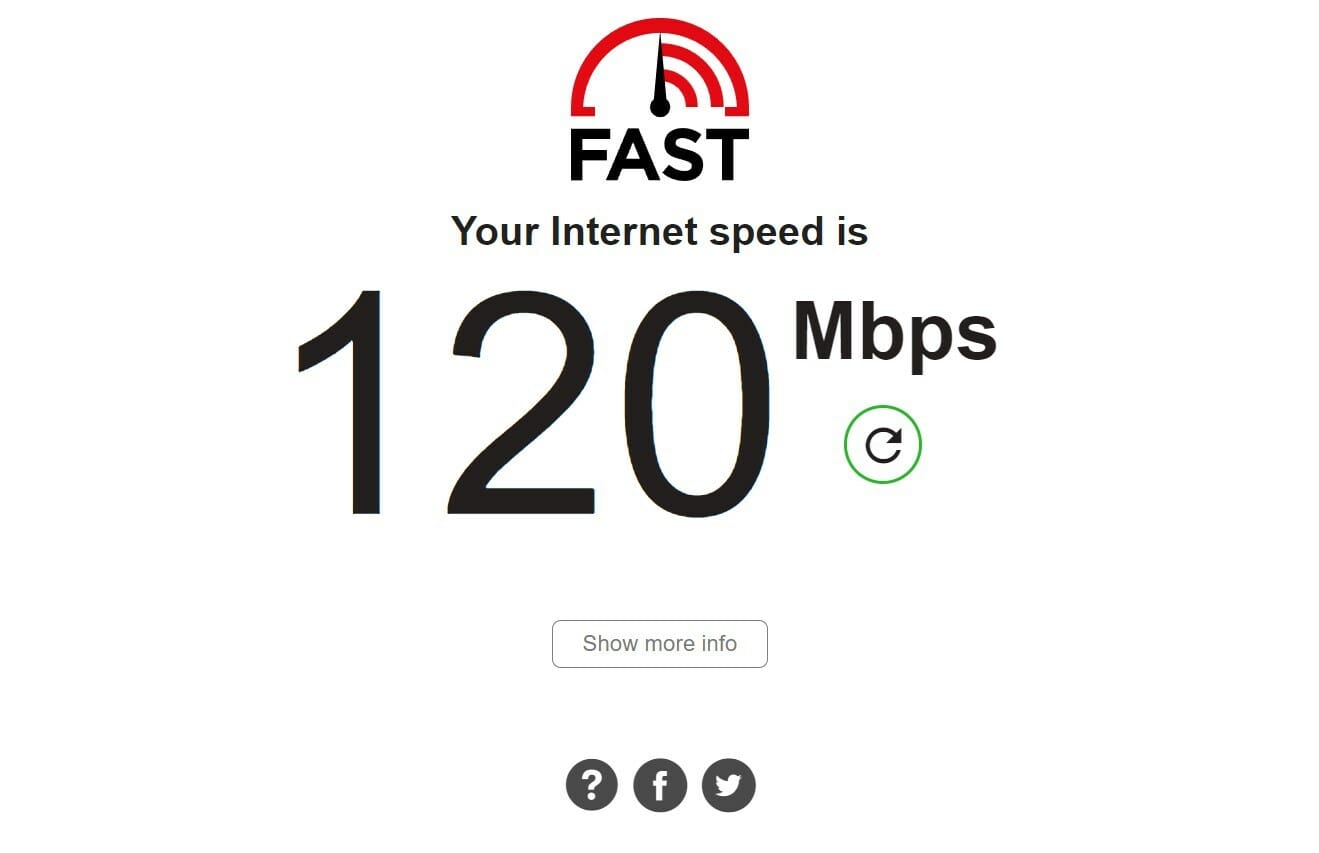


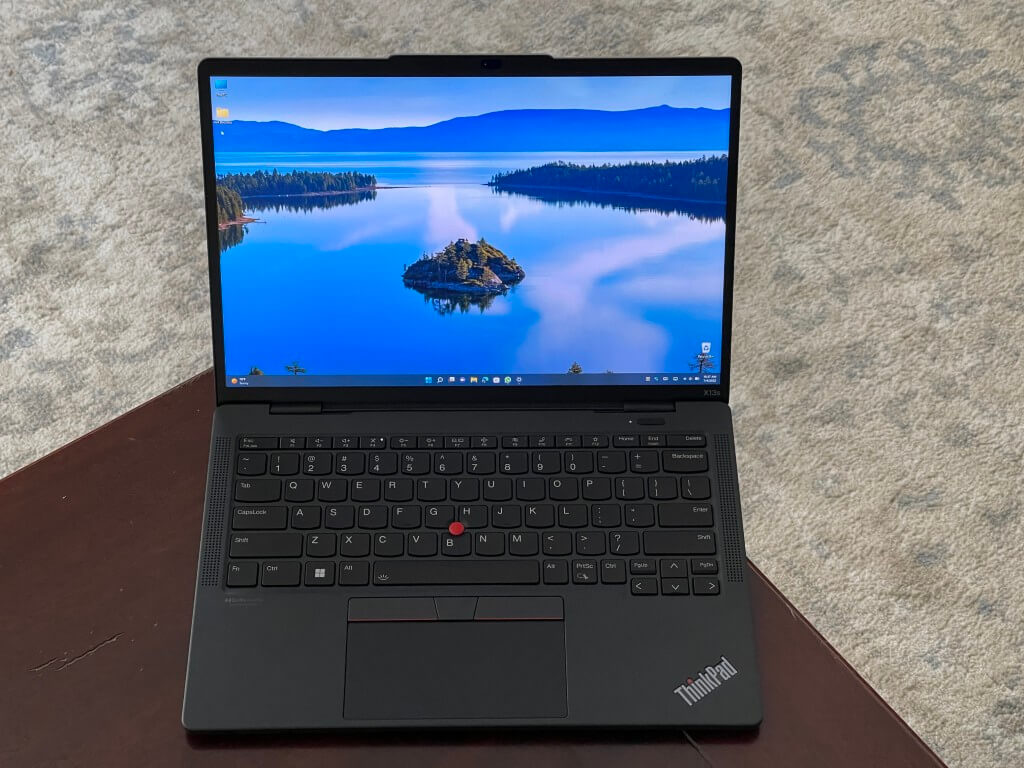
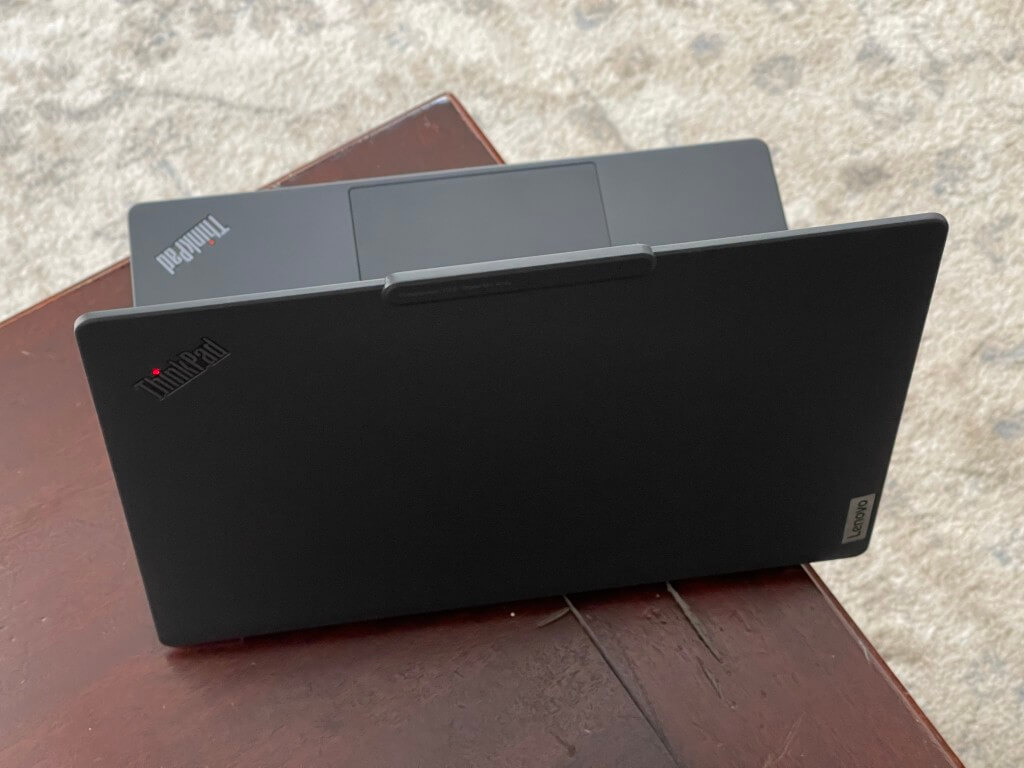
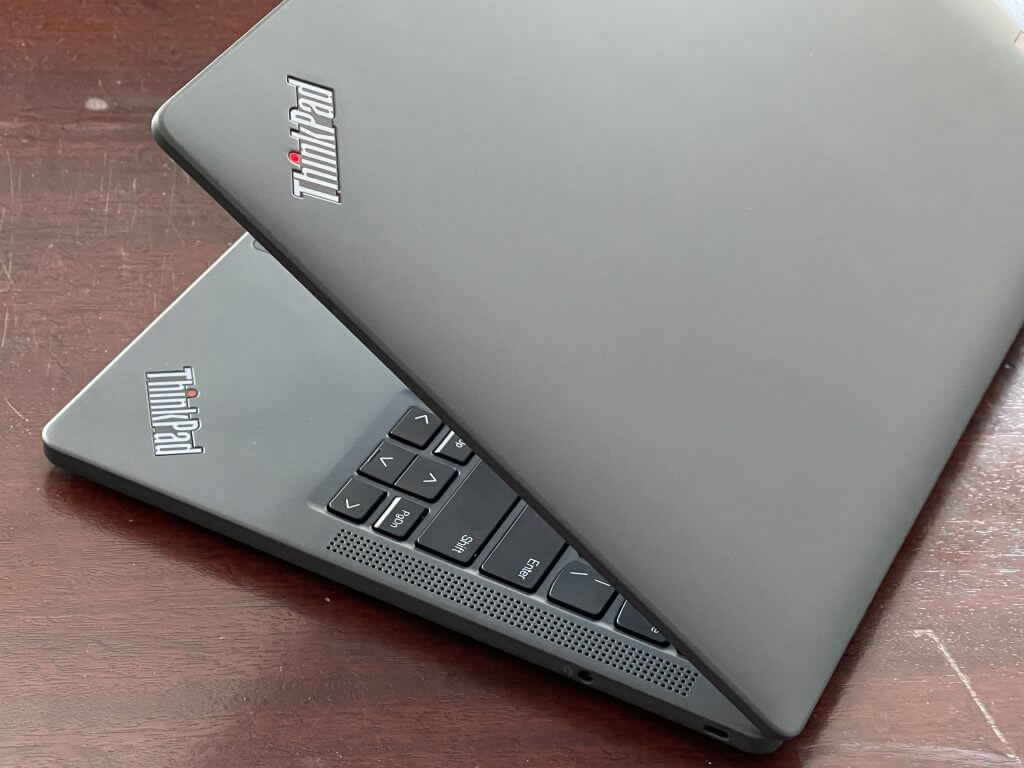
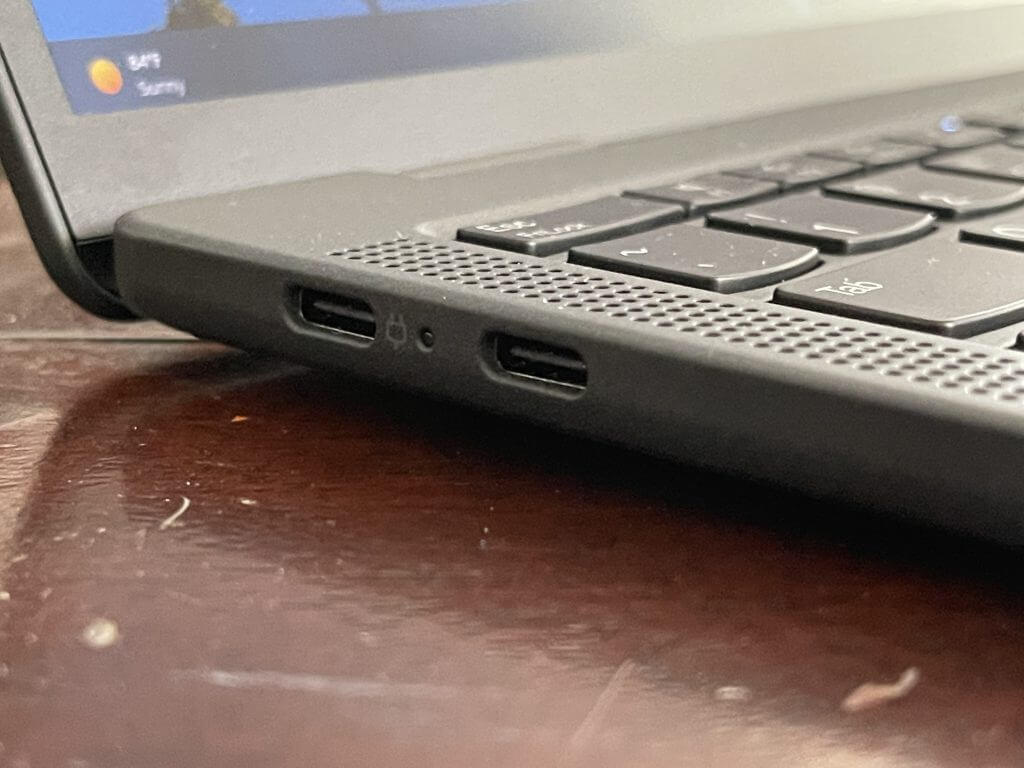
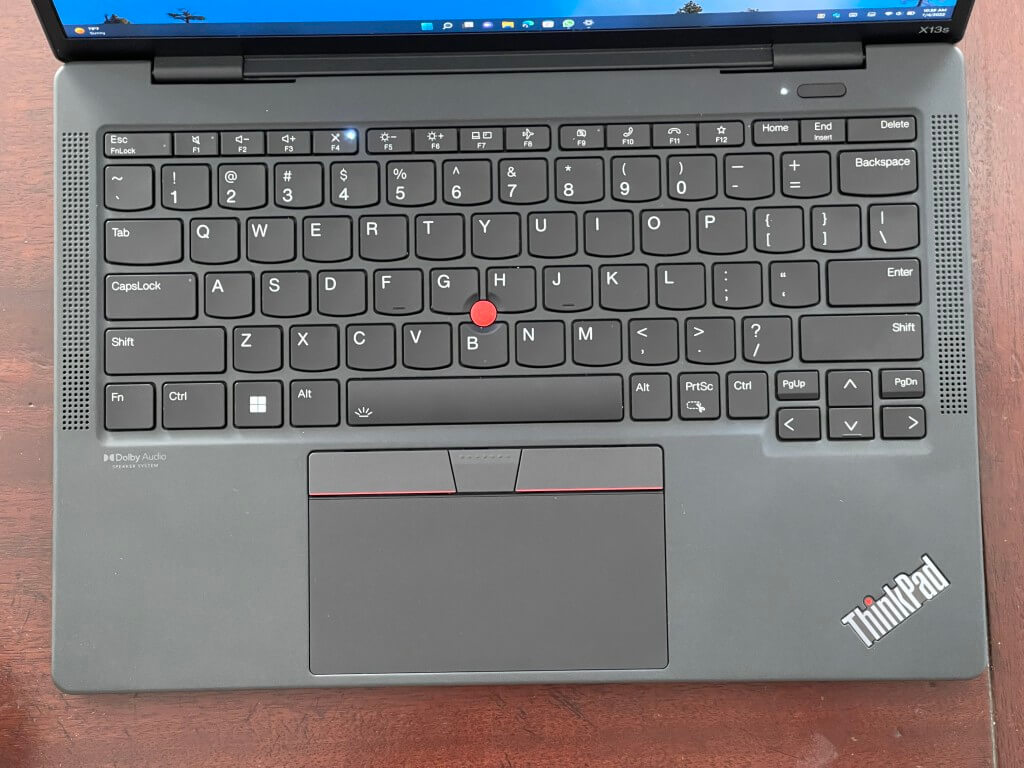
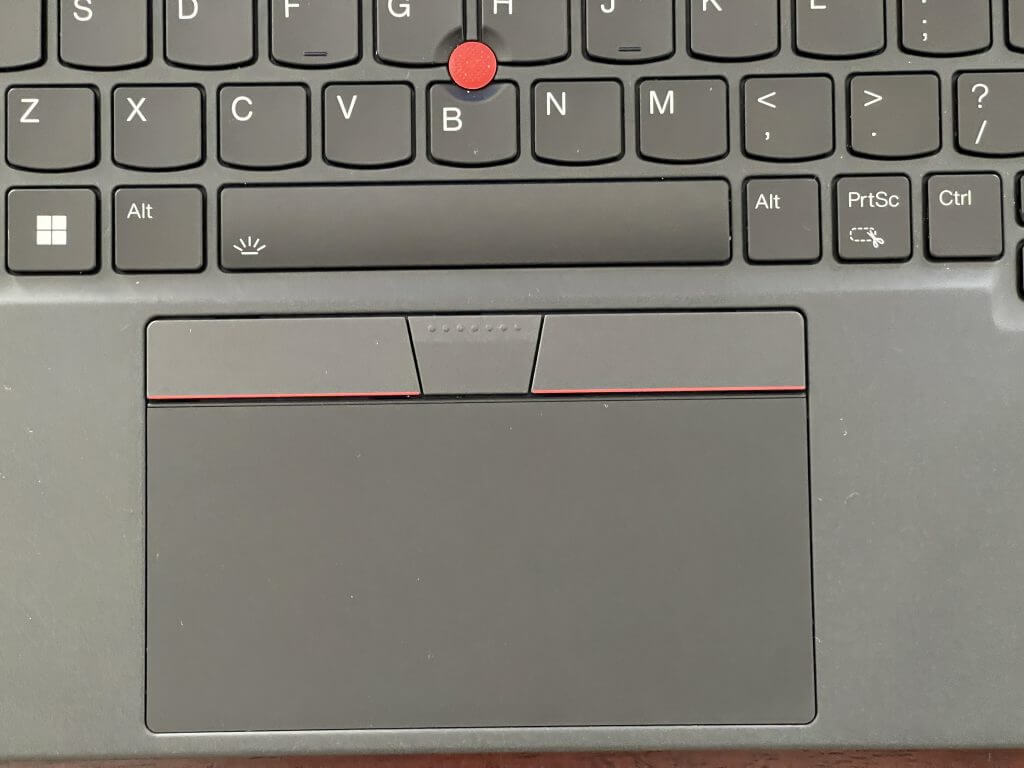
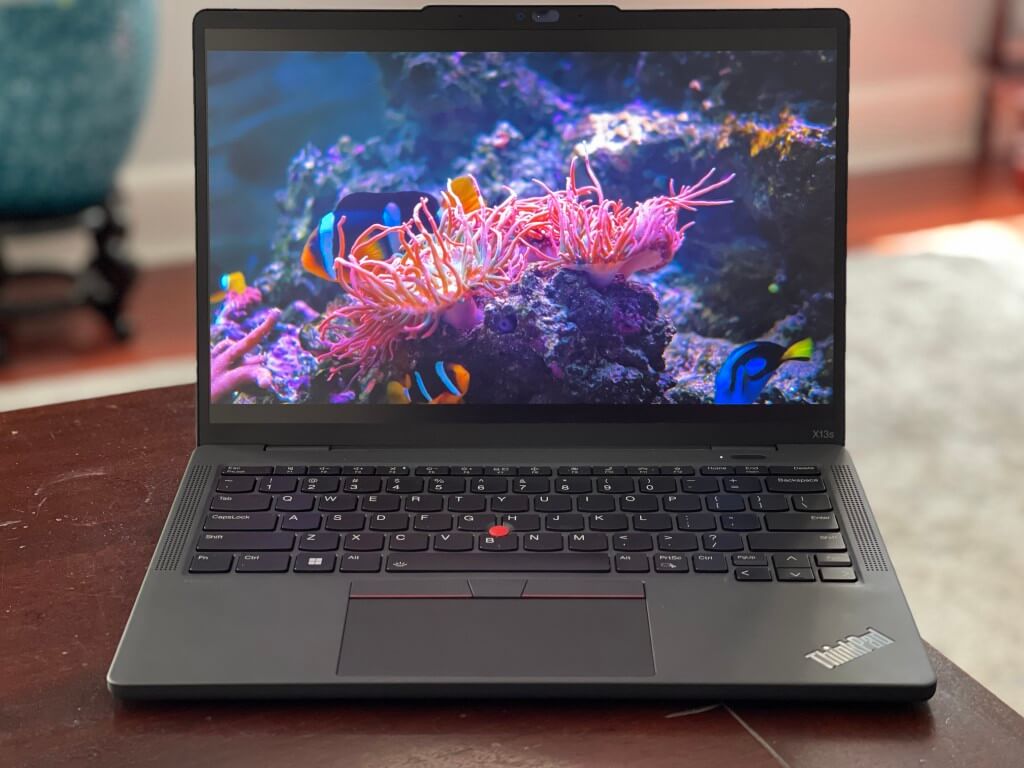
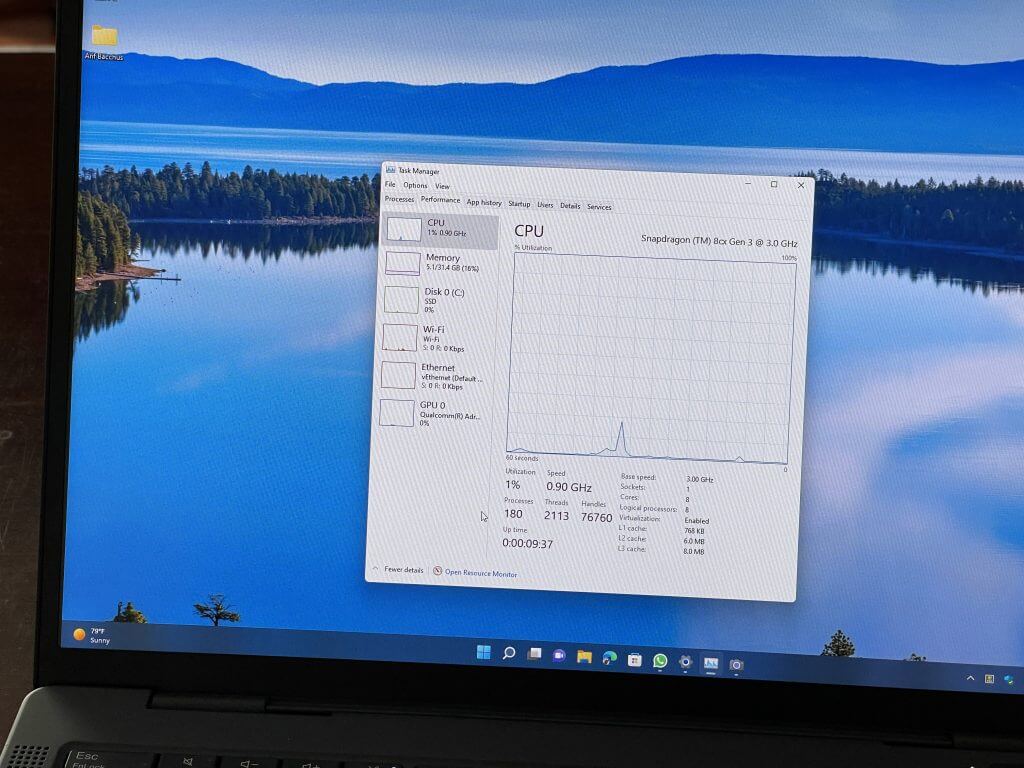
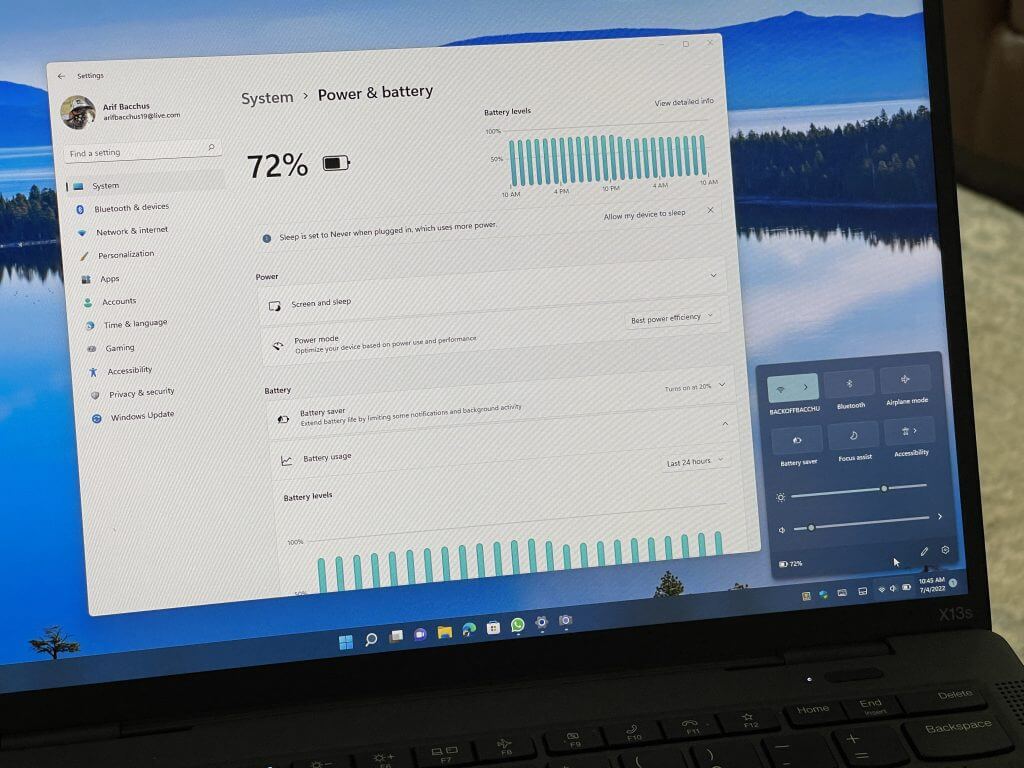





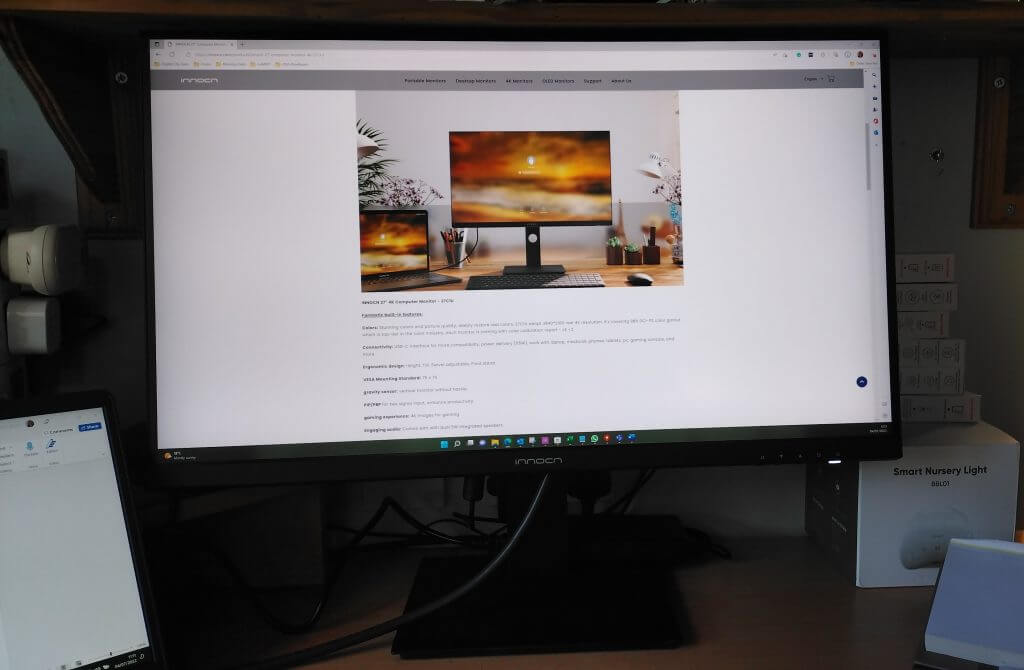
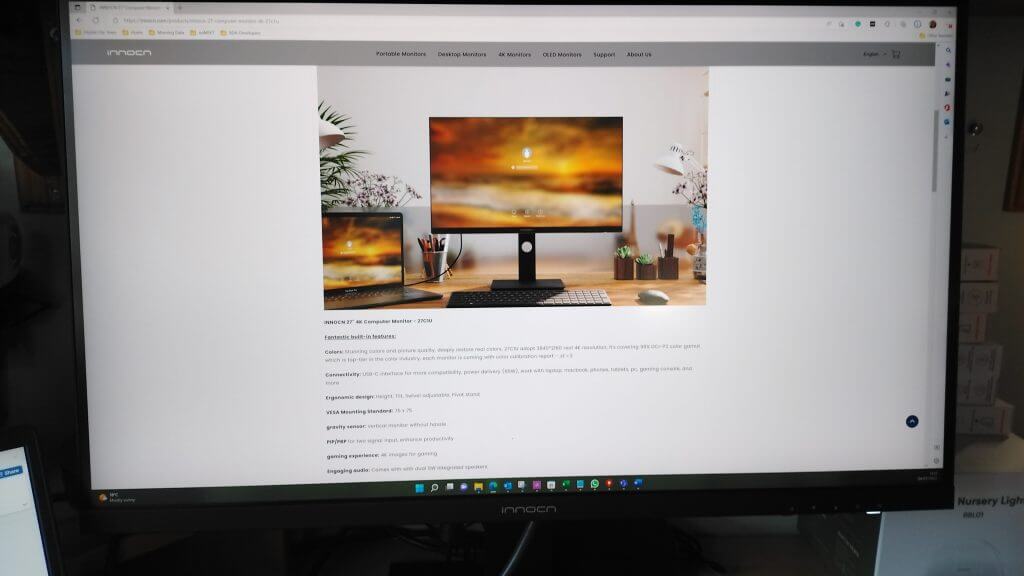 The
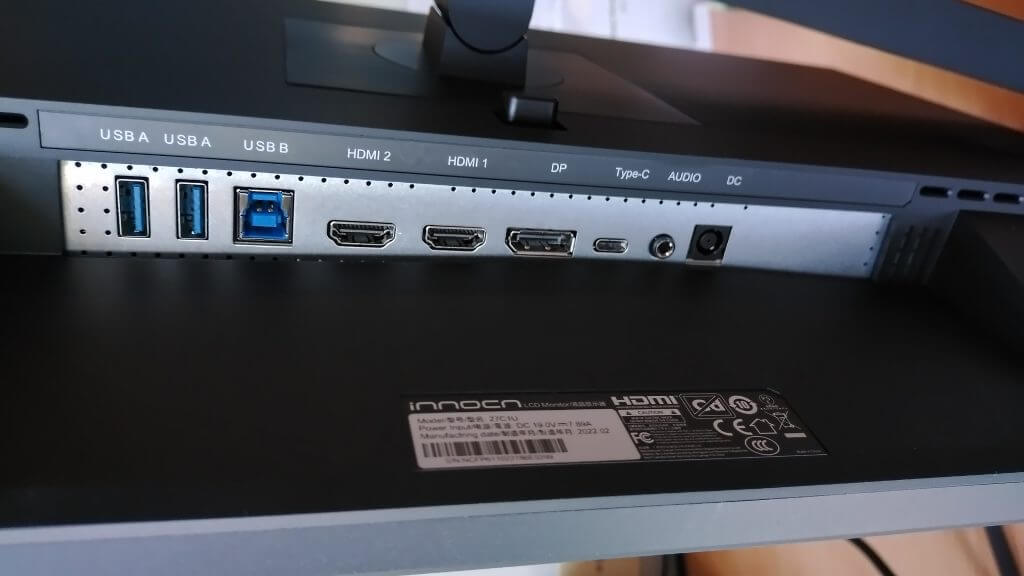 On the right-hand side at the bottom of the monitor, there are five buttons underneath the screen. The button on the left invokes the menu, and the next button navigates through the menu options, and will also adjust the brightness of the monitor. The next button exits the menu or will change the input ports if you have the monitor connected to multiple units. The final button on the right is the power button.