Twitch is a fun-filled game streaming platform that keeps going from strength to strength. It provides the perfect channel for creators and viewers to connect, provide value, and have fun.
One of the easiest ways to create that connection is to stream the best browser games on Twitch. These games require no download or registration for the creator or the audience.
What’s more, some of these games already have Twitch integration, which makes things easier. This guide has gathered a list of the five best browser games to ensure your time on Twitch is worth it.
What kind of games can you play on Twitch?
There are a series of games you can stream on Twitch. From Windows PC and Mac games to browser games and integrated games for Twitch.
The only condition is that it must not violate the Twitch community guidelines. Aside from that, there is no limit to the games you can play.
Are games on Twitch free?
Twitch offers free games to download and keep forever. But you must subscribe to the Prime package before getting this benefit.
However, you can stream any type of game on your browser or the app for free on Twitch. You only need to create an account as a creator or stream without registration as a viewer.
This is one of the kid-friendly browser games that integrate with Twitch. It is a fun game that draws inspiration from the popular childhood game called Telephone.
Gartic Phone involves drawing what you see on the screen and guessing what you drew later. This game is more fun as it can be confusing to identify what you saw before even drawing them.
Chess needs no introduction, as it is one of the world’s most creative games. So, it is not surprising that creators are starting to make it available on Twitch.
While you can always play chess with many apps on your PC or phone, streaming and getting your viewers to participate on Twitch will be easier if you go through the online website.
However, viewers need to get the Vote chess extension to guess your next moves.
This is a competitive Twitch browser game that tests your smartness. In this game, you will be provided with a scrambled word.
You will use this to form several words correctly. Your viewers help to make guesses on the letters that should be present in some of the words while you guess the letter that begins them.
This is the game to go for if you want to get your viewers involved. It involves going to the website to connect your Twitch account and getting words to act out.
The members of your chat can guess this word for a limited time, after which you will need to act out the word. No wonder it is considered one of the most fun-filled Twitch browser games available.
Any game that is against the Twitch community guidelines is not allowed. Examples are games that feature hate speech, nudity, extreme violence, or gratuitous gore.
Some prohibited games listed by Twitch include 3DXChat, Battle Rape, and Criminal girls, among others. The list is non-exhaustive, and it is regularly updated. So make sure to check frequently and stick to the guidelines.
The most-watched game on Twitch presently is Just Chatting. The game that involves chatting with males and females to befriend them and overcome obstacles leads the way by a large margin.
But the all-time most-watched game on Twitch is the League of Legends game, with over 8 billion hours watched in total.
Is Twitch only for gamers?
Although Twitch started as a platform for video game streaming, it is now much more than that. Note that it has other sections like In Real Life (IRL), where streamers chat live with their viewers.
Another section is Cooking, which is all about food and cooking shows, and there is also the Creative category, majorly for designers, artists, programmers, and others along that line.
The best Twitch browser games help you to get viewers to your channel without having them download any software. With the options in this list, you have a variety of creative and fun-filled categories to choose from either as the creator or viewer.
If you need the list of the best browsers for Twitch for optimal streaming experience, check our guide for the top options available.
Feel free to let us know the game that piques your interest on our list in the comments section below.
Over the past few years, web development has seen several dramatic shifts. New programming languages compete with older versions in a bid to find the best solution in digital communication.
JavaScript is one of the three core scripting languages, the other two being HTML and CSS. The language enables various endpoints in a browser, attempting to link clients with users efficiently.
Without JavaScript, a site isn’t interactive. And it won’t be possible to get those pop-ups and notifications that you get in your browser.
However, your browser can run into JavaScript errors when attempting to load a website.
One of these, the browser.analyzeis not a function error is caused by a JavaScript TypeError. Read on to find out what this means and how to fix this issue.
What is a function in JavaScript?
Functions are blocks of code corresponding to one specific type of computer action. A function is a set of organized instructions corresponding to a specific task or specialized capability that a user wishes to apply in their code to accomplish a single intended output.
Functions are an essential aspect of programming since they allow for the creation of reusable code.
What is JavaScript TypeError?
This error occurs when an operation cannot be completed because a value isn’t of the anticipated type.
A JavaScript TypeError can be caused by trying to alter a value that cannot be changed or when you try to misuse a value.
Why is my JavaScript not working on Chrome?
If your JavaScript is not working on Chrome, most likely it’s because it’s not activated or enabled on your Chrome. In Node.Js, a Typeerror occurs when an operation fails because the resulting value is unexpected.
Quick Tip:
Opera One is a powerful browser that supports JavaScript, which is enabled by default to display dynamic interactions on JavaScript-based websites such as ad banners and animations.
Try and check whether the TypeError is not a function issue that may be resolved with the Opera One browser since it often translates the JavaScript language more accurately. Plus, it comes with it’s own AI.
Opera One
You may enable or disable JavaScript in the browser settings anytime.
Scroll down to the Contentsection and click on Javascript.
In theDefault behavior section, enable Sites can use JavaScript.
After this, you can reload the browser.
2. Check client-side storage
Websites are able to store data on the browser in various ways. For instance, in Chrome Developer Tools, the Application panel grants you access to examine, modify, delete and add values held in cache storage, localStorage, Web SQL, IndexedDB, and cookies.
For each domain, a certain amount of storage space is allowed for these databases. However, much of the API is simultaneous, and there may be hindrances to other processes in data writing or reading. And if the website makes Javascript requests frequently.
3. Check the browser Task Manager
Chrome, Firefox, and many other browsers have native task managers that display key metrics for individual processes.
You’ll have to check the ongoing memory and CPU usage to know the problematic features.
If you’re still getting the browser.analyze error, then you can disable Javascript altogether, especially if CMS like WordPress powers the site. Note that you’ll be unable to do this for other kinds of websites.
Nevertheless, you should be aware that disabling Javascript will not enhance your browsing experience, particularly regarding the interactivity involved.
5. Use the Chrome Performance Monitor
In the DevTools, the browser has a Performance Monitor that tracks processes in real-time. So, you can check it out to view potentially problematic processes like CPU usage, DOM nodes, and Document Frames.
JavaScript is a programming or computer language that may be used to construct complicated features on web pages, such as presenting detailed maps and animated 2D/3D visuals.
If you run into a browser analyze is not a function error, you can fix it using the above solutions. Let us know which one worked for you in the comments area below.
And, since we’re on the subject of retiring obsolete things, the Redmond company reminded customers that the Exchange Server 2013 mail and calendaring platform will reach its extended end-of-support date on April 11, 2023.
Upgrade to a supported version of Windows Exchange Server
This software was released in January 2013, and Exchange Server 2013 entered its ninth year of service, after it already reached the mainstream end date more than four years ago, on April 10, 2018.
As you know by now, after the end of support, Microsoft will stop providing technical support and bug fixes for newly discovered issues that may impact this version.
Furthermore, admins will not be provided with security fixes addressing vulnerabilities impacting servers running Exchange Server 2013, so think about that for a second.
Of course, Exchange Server 2013 will continue to run after this date. However, due to the risks listed above, Microsoft strongly recommends that you migrate from Exchange Server 2013 as soon as possible.
That being said, if you haven’t already begun your migration from Exchange Server 2013 to Exchange Online or Exchange Server 2019, now seems like the perfect time to start planning.
If you want your software to still receive bug fixes and security updates for newly discovered flaws are advised to upgrade on-premises servers to Exchange Server 2019.
However, before triggering this entire process make sure that your network, hardware, software, and clients meet the requirements.
Microsoft recommends migrating to its hosted Exchange Online email and calendaring client, available as a stand-alone service or via an Office 365 subscription.
Remember that the Microsoft 365 migration options and methods you should use are available on Microsoft’s documentation site.
Have you successfully migrated to a newer, supported version of Windows Exchange Server? Share your experience with us in the comments section below.
Instagram is among the most popular social media platforms in the world. It is fast-growing and from time to time, new updates are always available to patch the platform.
Social media platforms like Instagram can be addictive and is dangerous to our health. Since the release of Dark Mode themes by Google and Apple, many app developers are adding dark themes to their apps.
Dark Mode in mobile devices allows you to toggle between Light Mode or Dark Mode of display. It changes the color scheme of your display interface to match the dark colors.
However, because of the amount of time most people spend on platforms like Instagram, it is advisable to use Dark Mode. It reduces eye fatigue and aids concentration.
Also, it reduces the amount of blue light that goes through the eyes.
Furthermore, many people don’t know how to enable Instagram’s Dark Mode. The Instagram browser app functions like a mobile app, and you can use the dark theme.
This article will take you through the tips to turn on Dark Mode across different operating systems.
Is there a Dark Mode for the Instagram browser?
There are ways to enable Dark Mode for Instagram browsers. This mode is limited to Instagram mobile apps and some other features. It doesn’t mean you can’t use Dark Mode for Instagram on your browsers.
Although it may not be from Instagram developers, you can make some changes on your device that’ll affect the Instagram display. There are several ways to go around it, which we’ll discuss more later in this article.
Is Dark Mode good for the eyes?
The simple answer is yes. Brightness is one thing that can damage the eyes, depending on how long you expose your eyes to it.
Using the Dark Mode reduces the amount of blue light from the light and prevents headaches that come with it. Also, it helps to focus on what you are doing on your device without having eye strain.
The Dark Mode is always gentle on the eyes, especially when working late into the night. It reduces the brightness of your device to a less harmful level. Thus, the Dark Mode is good for the eyes, and you should use it.
How do you enable Dark Mode on the Instagram browser?
1. Enable Dark Mode on my Instagram browser (desktop)
1.1 Use a custom URL
Launch your browser (the Dark Mode applies to Chrome, Firefox, Edge, Safari, and other browsers).
Note that loading the Instagram webpage with a dark theme custom URL doesn’t set it on Dark Mode permanently. Hence, Instagram will return to the default display theme.
However, to ensure that you always open the dark theme mode, bookmark the link and use it whenever you want to use Instagram.
1.2 Use the Chrome flag
Launch your browser on your PC.
Click on the address bar and type in the browser name://flags (If you’re using Chrome, you’ll input chrome://flags for Instagram Dark Mode Chrome).
On the Flag page, click the search bar and search for dark.
Click the Default button against the Auto Dark Mode for Web Contents option to prompt the drop-down and select Enable from the drop-down.
Close and relaunch your browser, then open Instagram.com to load the Dark Mode.
Using experimental flags like this is only available for Google Chrome and other Chromium-based browsers. It allows you to force Dark Mode for Instagram web and other web content.
1.3 Use Dark Mode Extension for Instagram
Go to the Chrome Web Store and search for Night Mode for Instagram.
On the right-hand side of the screen, click on Add to Chrome and click the Add extension option.
Open Instagram on a new tab and click the Night Mode for Instagram extension on the top right side of your screen.
The page will then immediately change from light mode to Dark Mode. Unlike a custom URL, this extension keeps the dark theme even when you reload the page. However, you can tap on the extension icon to switch to light mode.
1.4 Use easy setup in Opera One
Setting up the dark mode in Opera One only for accessing through the URL, does not apply to the integration also.
Toggle between Dark and System and access Instagram.
2. Enable Dark Mode on my Instagram browser on Mac
2.1 Toggle on the Dark Mode feature on your Mac
In the top-left corner of your screen, click the Apple logo.
Click on the System Preferences option from the drop-down.
On the System Preferences page, select General.
In General, select the Dark option from the Appearance menu.
It will instantly change your display theme to Dark Mode. However, it affects your browser display theme too. So, whenever you launch your browsers on your Mac, you can load Instagram in Dark Mode.
Likewise, note that Safari is the best for this process, as it is the default browser for Apple devices. Changing your Mac’s appearance to dark can enable Instagram browser Dark Mode in Safari.
To switch to the Light Mode, follow the same steps and select light from the Appearance menu.
3. Enable Dark Mode on my Instagram browser (iPhone)
Launch the Settings app on your iPhone, and click on Display & Brightness.
Select Dark from the Appearance options.
Launch the Safari browser and go to Instagram.
Selecting the Dark Mode changes Safari’s display theme because it uses system default settings. So, iPhone changes affect its browser and the pages you load.
Another way of using the Instagram browser in Dark Mode on your iPhone is by loading the page through a custom URL. By loading https://www.instagram.com/?theme=dark, you’ll be able to use Instagram on your browser in the dark theme.
4. Enable Dark Mode on my Instagram browser (Android)
4.1 Toggle on the Dark theme button
Launch the Settings app on your Android device.
Select the Display option, scroll down to the Dark theme option and click on it.
Toggle on the Use Dark theme button.
Although the dark theme on the android device only works with compatible apps and browsers, you can still use it on your browser.
Click on the address bar and type in the browser name://flags (If you’re using Chrome browser, input chrome://flags for Instagram Dark Mode Chrome).
On the Flag page, click the search bar and search for dark.
Click the Default button against the Auto Dark Mode for Web Contents option to prompt the drop-down and select Enable from the drop-down.
Close and relaunch your browser, then open Instagram.com to load the Dark Mode.
4.3 Try the custom URL
You can use the browser Instagram Dark Mode on your android devices also by using the custom URL. This can be done by adding ?theme=dark at the end of Instagram.com.
How do you change from Dark to Light Mode on Instagram?
1. Switch to the Light theme in Instagram App
Launch the Instagram app on your device and click on your profile.
Tap the 3 lines symbol at the top-right hand corner of the screen and click on Settings.
Select Themes.
Tick the Light option to change from dark theme to light theme.
2. Turn off Dark Mode on your Android
Open Settings on your phone.
Select the Display option.
Scroll down to the Dark theme option and click on it
Toggle off the Use Dark theme button.
3. Turn off Dark Mode on your iPhone
Launch the Settings app and click Display & Brightness.
Under Appearance, select Light.
Launch Instagram, and it will load on the light theme mode.
Using Dark Mode for Instagram on your browser is simple if you follow the tips above. More so, the custom URL option works for all browsers across different OS (Operating System) but is always temporary.
However, using Dark Mode browser extensions will allow you to load websites with the dark theme on even when you reload.
While this is a welcome development, it comes at the cost of the integration of ads. With this, users must deal with adverts frequently breaking the flow of music.
This can be pretty frustrating. Thankfully, this guide contains seven proven ways to block ads on your Spotify.
Why is Spotify playing so many ads?
To make the free version available, Spotify greatly depends on the ads to generate revenue to pay artists. Understandably, artists require the payment to keep delivering content.
However, you can have an ad-free Spotify by subscribing to the premium version. Also, you can take advantage of the one-month trial to know whether it is worth it.
However, they sometimes fail as Spotify consistently devises new means to bypass them. So, you can always have the ad blockers work today and get ads the next day.
Does AdGuard block Spotify ads?
AdGuard is one of the strongest ad blockers you can use on various devices and apps. It has a standalone app version that is compatible with most devices and an extension that works with popular browsers.
It is known to block Spotify ads on various devices and browsers effectively. However, as mentioned earlier, things are not straightforward, and Spotify works tirelessly to ensure ads are available on the free version.
So, you might sometimes experience some problems with the Spotify app when you have the AdGuard ad blocker activated.
How do I block ads on my Spotify browser?
1. Use an ad blocker on your Spotify browser (Windows)
1.1. Use a dedicated ad blocker
Another option is to install a dedicated ad blocker from trusted sources like EZBlocker and BlockTheSpot to remove the ads.
These apps will block Spotify ads before it starts playing at all either on the browser or the app. Also, the EZBlocker for example will automatically mute any stubborn ads that get past the adblock.
It is important to state that the app is not free or open-source software. Hence, it can’t be edited or altered.
Tip
It was announced that Spotify would start banning users with mod apps. Hence, you should avoid solutions that involve altering the source program. u003cbru003eu003cbru003eAlso, some solutions might require you to alter your PC’s host file. These methods are not only difficult but also not guaranteed, as they need a deep knowledge of your operating system.
1.2. Use a VPN with built-in ad blocker
The best solution to block Spotify ads on the web app and desktop version on Windows is to use a VPN with a built-in ad blocker. A great example is Private Internet Access (PIA).
It has a built-in MACE blocker that eliminates ads, malware, and trackers. Also, being a VPN service, you get access to music from locations that would have otherwise been unavailable.
Blocking Spotify ads on browsers is pretty straightforward. The easiest option is to install an ad blocker extension.
Many options are available to you, like the SpotiAds and uBlock Origin for Chrome and other Chromium-based browsers. There are also numerous Spotify adblock extensions for Firefox in the Mozilla add-ons store.
2.2. Use a browser with built-in ad blocker
Another option is to use a browser with a built-in ad blocker like Opera One. The Opera One browser is known to have one of the most effective free built-in ad blocker.
It blocks ads on most websites, including Spotify. Finally, it allows you to install other adblock extensions from its addons store and Chrome Web Store.
3. Use an ad blocker on your Spotify browser (Android)
The easiest way to block Spotify apps is to install an ad blocker like AdGuard or an ad silencer like Mutify. In the case of an ad blocker, it blocks all Spotify Ads before it starts at all.
However, sometimes if the ad blocker fails, a silencer will mute the ads or skip them. With this, you can enjoy your music without the annoying ads.
4. Use a great ad blocker on Spotify browser (mobile)
For a general solution to block ads on all mobile devices, it is advisable to use an app firewall like Tracker Control. These apps get rid of trackers, ads, and malware sites.
Also, you can use ad blockers that are available on all major devices. A good example is the AdBlock app available on Google Play Store and Apple Store.
5. Use a Spotify adblock on Linux
There are dedicated ad blockers for Linux that are sure to eliminate Spotify ads. The Github-based project, Spotify-adblock, has proved to be effective.
However, some of these apps have exceptions with certain Spotify versions. Hence, ensure to read the about product section before downloading.
6. Upgrade to Spotify premium
If you are tired of combining different ad blockers and apps across various devices to block Spotify apps, maybe it is high time you upgraded to the premium version.
With this upgrade comes the craved the ad-free Spotify experience. Also, you get improved sound quality and other features that are not available in the free version.
If you can’t live with the price of Spotify, you can try an alternative streaming service instead. And you certainly do not lack options.
You can switch to Pandora, Amazon Music, and other similar top options. While most of them have paid versions, they are mostly cheaper than Spotify.
Why do I still get ads on Spotify premium?
The premium Spotify is designed to give you an ad-free experience. However, you might still get third-party ads.
These ads are recommended by the creator of the content you are listening to, not Spotify. Most users experience this when listening to podcasts especially.
Spotify ads are pretty annoying, as they interrupt your music often. But it is a major source of the music streaming company’s revenue to make the free version available.
However, with the solutions in this guide, you can block these ads and enjoy your music.
Feel free to let us know the solution that helped you get an ad-free Spotify experience in the comments below.
Zoho is a popular cloud service with SaaS applications for businesses and employees. The software offers an automated CRM for businesses to keep track of sales, marketing, consumer reports, and more all in one place. Keep reading to see our picks for the best browsers for Zoho.
Does Zoho have a browser?
Zoho does not have a designated browser, but it does support the latest versions of Google Chrome, Firefox, Microsoft Edge, Opera, and Safari.
Which is the fastest browser for Zoho?
Ultimately, it depends on your operating system to determine which browser will run the fastest with Zoho. Chrome has some of the best multitasking features and it is optimized for Zoho, but it also consumes a lot of PC resources which could cause problems later.
Opera is one of the best browsers for productivity with an integrated messaging system easily accessed from the sidebar. The Workspaces feature allows users to separate tabs and webpages depending on the topic to keep organized.
Zoho Marketplace and extensions are also compatible with Opera and run seamlessly. Opera is a Chromium-based browser so it also has access to the Chrome Web Store addons.
Key features of Opera:
Integrated messaging system
Workspaces for organizing tabs
Access to Chrome Web Store addons
Opera
Use the integrated messaging system to stay connected while using Zoho.
Chrome is a popular browser because of its Google applications integration, but it also works great with Zoho. Users can easily search for keywords by highlighting the text and right-clicking to search with their preferred web engine.
Users can also group tabs together and visually organize them for a cleaner and less cluttered browsing experience.
Firefox claims to use less memory and RAM than Chrome and thus can run faster with other programs open. It’s optimized with Zoho and has its own extension library so users can personalize their browser to their liking.
Users can sort bookmarks by category and easily access them from the address bar. Firefox Sync will give users access to their bookmarks and favorites from any device.
Safari is the default browser for many Apple users because of its sleek design and usability. This browser now has tracking prevention and fingerprint protection for extra security while browsing. With Auto-fill, passwords and login information is stored and secured in the keychain.
However, the latest version of Safari is only compatible with macOS and is not available for Windows or Linux users.
We hope you enjoyed our picks for the best browsers for Zoho. If you’re interested in recommendations for the best automated CRM software like Zoho CRM, we have suggestions for that. Let us know in the comments which browsers you prefer to use for Zoho apps.
If you’re looking for a mini PC for your setup that doesn’t have a lot of space, then you’re probably familiar with products from Intel NUC, Minisforum, and Beelink. Recently though, a new Chinese brand has emerged to shake things up a bit and offer similar products to a wider global audience.
GEEKOM already sells PC products, gaming laptops, and computer accessories, but they recently sent me the MiniAir 11 Mini PC for review. After using this budget mini PC for a week, I feel like this when put up against an Intel NUC, it is really a cost-effective and well-performing system. And this is all for the price of $279,
Specs & price
The unit I am reviewing is now available on the GEEKOM website. It comes configured with an 11th Generation Intel Celeron N5095 Processor. That’s paired with 8GB of DDR4 RAM, as well as a 256GB M.2 PCIe SSD. Note that this Intel processor has 4 cores, 4 threads, and a 2.90 GHz Turbo boost, running at 15 watts.
The OS under the hood is Windows 11 Pro. GEEKOM also mentions on the product listing that you can install Linux, Android x86, Ubuntu, and FydeOS, if you please. I don’t see why you would though. That’s because, going back to my headline, the GEEKOM MiniAir 11 offers a lot of Windows value for the price. If you’re on the hunt for a Windows 11 Pro PC, you’re probably going to have to spend well over $400 for something from Beelink or another mini PC maker.
And, if you buy an Intel NUC and other build your own Mini PC kits, you’d have to pay $300 for a Windows 11 Pro license, or a Windows 10 Pro license. Pre-built NUC Mini PCs with Windows included, meanwhile, retail close to $800. The GEEKOM MiniAir 11 is cheaper than a Windows 11 Pro license on its own, and you get the benefit of a full-blown computer. It’s even cheaper than Intel’s own NUC 11 essential kit, which has similar specs but doesn’t come with a Windows license or HDD and RAM.
Note that GEEKOM is kind enough with its packaging. You get the system, an HDMI cable, a Mini Displayport to HDMI adapter, the VESA Mount, as well as a storage bag. This is all in the box.
Design
The GEEKOM MiniAir 11 is designed very similarly to an Intel NUC. It has an ultra-slim space-saving design. If you’re wondering about the dimensions, it measures 117 x 112 x 34.2 mm. That’s 4.60 x 4.40 x 1.3 inches. Weight comes in at 500.3 grams or just under 1.1 pounds. For reference, an Intel NUC measures 117 x 112 x 37 mm. Overall, it’s very portable, and GEEKOM even includes a carrying bag for you. I included my Mac Mini as a photo above, just to show how compact this device is.
In other areas of design, the top part of the GEEKOM MiniAir 11 is made of plastic. You can pull it off to expose the built-in quiet fan. The chassis is reinforced with a metal inner frame, making this mini PC feel premium. That’s different from Beelink’s U59, which is all plastic. And it’s similar to an Intel NUC, which has the same reinforced metal frame.
If you want, you also can upgrade the GEEKOM MiniAir 11. This is built into the design. Just unscrew the feet on the bottom, and pull off the cover. You have full access to the RAM, as well as the M.2 SSD. It reminds me of the Intel NUC, which has great upgradability. The CPU though, can not be changed, unlike on some Intel NUC models.
Ports
The GEEKOM MiniAir 11 has a ton of ports. On the front, the mix includes a USB-C port (data only,) USB 3.2 Gen 2, and a speaker/headset combo. The right side has a Kensington security lock, and the left side has a full-size SD card reader. The back is where all the other ports are at. There’s a mini DisplayPort, Ethernet, 2 USB 3.2 Gen 1 ports, a USB-C port for data only, and an HDMI port.
Do note that the GEEKOM MiniAir 11 also has a built-in wireless LAN, so you can connect to the internet without cables. There’s even Bluetooth built-in. These ports are even different from Beelink’s similarly specced system. The Beelink U59 Mini-S has USB-A and HDMI, but no USB-C.
Performance
Powered by the 11th generation Intel Celeron N5095 CPU, the GEEKOM MiniAir 11 is a great system for office work and productivity. I typically don’t like mentioning Geekbench numbers in my reviews, but I will in this case so I can back my experience with multitasking and office work.
The device nets a 621 Single-Core score, and a 1979 Multi-Core on Geekbench 5. For comparison, a system like the Surface Go 2, which has an Intel Core m3 processor nets 579 Single-Core and 1445 Multi-Core. So, The Intel Celeron inside here is definitely up to snuff and up against a mobile processor and is good for the form factor and price you’re paying.
You might think that these numbers are poor, but I was actually able to fire through a lot of things in my daily workflows on the GEEKOM MiniAir 11. I had about 6 tabs open in Microsoft Edge, Microsoft Teams, and system apps like the webcam, Office apps as well as the Microsoft Store, and the GEEKOM MiniAir 11 handled it nicely.
Considering that it’s powered by a low-end Intel Celeron processor, I was quite surprised at how well it works for office-related and web browsing, and the Speedometer score of around 70 can attest to that. Usually, a 100 score is what we get on most Windows systems, so considering the value, a 70 score isn’t all too bad.
Thanks to Windows 11 Pro, I even hooked the GEEKOM MiniAir 11 to my network and ended up using it as a remote PC for my iPad Pro, so I can get Windows 11 on my iPad and access Windows apps my iPad can’t run.
As far as gaming, GEEKOM is quick to mention on the product listing page that this isn’t a gaming system. I tried testing out Minecraft on the device, and it ran just under 30 frames per second. Again, if you’re into gaming, GEEKOM’s other mini PCs are something you’re worth considering. This isn’t meant to be a gaming PC, though it might work well as a cloud gaming system or as a remote server when plugged into the back of a monitor or TV.
Great value
Overall, I’m very impressed with the GEEKOM Mini Air 11. This system packs a lot of value for the price, and the performance is great for office work and many day-to-day tasks. Combined with the fact that you get full-blown and activated Windows 11 Pro right out of the box, this is a mini PC that’s hard to turn down for the price, and something Intel’s NUC should look out for.
Have been trying to run Windows 11 on your device, but have been unable to because of the set Microsoft’s restrictions? Microsoft made it mandatory for the user to have a Microsoft Account first, this being specifically tied to Windows 11 Home. However, Windows 11 Pro would allow users to bypass this requirement, as a local account would suffice. Though this changed recently as Windows 11 Pro also picked up on this, and made it mandatory for the user to have a Microsoft Account set up first.
There are unofficial workaround’s to Microsoft’s set of fairly strict restrictions for installing Windows 11, including the open source bootable USB drive utility Rufus. If you are using Rufus’ latest pre-release version 3.19 Beta, you will be able to bypass the mandatory Microsoft Account requirement on Windows 11 22H2. This was unpacked as one of the key features in the new selection dialog for Windows 11 setup customization in Rufus. Check out the full changelog, to see the changes and enhancements made.
Spotify is an excellent music streaming app that consistently delivers quality. With it, you can explore the music world far and wide. Also, you can download a Spotify equalizer and other tools to extend its feature for an optimal experience.
On your PC, you can use the desktop app or the web version of the streaming software. While the two options deliver high-quality performance, they are distinctively different.
This guide will show you the one with the better performance, their preferred use cases, and other information to help you maximize their features.
Spotify Web Player vs. Desktop App
Spotify web vs app: sound quality
The sound quality is the most important aspect of music nowadays. This is especially important in a world where people can easily detect the slightest disparity between two music quality.
The Spotify desktop app boasts considerably higher sound quality than the web version. Free users get up to 160kbps bitrate on the app, while the premium version offers a highly 320kbps.
On the other hand, free users on the web app get only 128kbps, and paid users get up to 256kbps bitrate. The golf in quality is wide indeed.
Why is Spotify’s web player louder than the app?
The problem when the web player is louder than the Spotify app lies in your settings. The app should be as audible as the web player or with a slight, unnoticeable difference in loudness.
Foremost, set the volume level of the Spotify app to loud. Also, you might have activated the sound normalization feature of the app that regulates the volume between songs.
Deactivating this feature has proved to make the sound on par with web players for every song.
How do I get better sound quality on Spotify?
Launch the app and click the More options button (three horizontal dots) in the top left corner.
Select the Edit option followed by Preferences.
Scroll down to the Audio quality section and click the Streaming quality dropdown.
Now, select Very high.
Note that this option is only available on the premium Spotify account. With this activated, the sound quality will improve exponentially to the best available.
However, selecting the streaming quality Very High could cause issues like Spotify is not playing some songs; read this guide to learn more.
Will Spotify ever go lossless?
Spotify has previously announced plans to go lossless in the near future. This is expected to close the gap to the other big players like Apple and Tidal that offer the much-craved quality.
An indication of that effect is the expected launch of Spotify Hi-Fi. This is expected to produce a high-quality sound. So, hopefully, Spotify will indeed go lossless real soon.
Spotify browser version vs app: Offline listening
Offline listening is a prominent feature of the Spotify desktop app. It allows users to download songs and listen to them when they are offline.
However, this feature is unavailable on the web app. Whether you have a free or premium account, you only get to play Spotify music on your browser when you are online.
Similar to it is the offline syncing available on the desktop app but lacking on the Spotify browser version.
Spotify browser vs app: Portability
The portability of a tool makes it usable on the go. This cannot be associated with desktop apps; Spotify is no different.
You will always need your PC to use the app, which will not always be easy. But the web version only requires an account; you will always have access to Spotify from anywhere.
Other features
Adding and playing local files
This feature is only available on the desktop app. It allows you to add and play songs from your PC on the Spotify app.
This adds so much versatility. Also, the Spotify app has a much better organization of music playlists.
Hotkeys
Hotkeys aid navigation. You can easily use key combinations on the Spotify desktop app for better control.
This feature is also available in the web version, but you will need to download extensions on your browser to get them working.
Responsiveness
The Spotify desktop client is faster and more responsive than the web app. The app is optimized and runs smoothly depending on the PC and network connection.
Also, with the desktop app, you don’t need to worry about other tabs competing for the same resources as in the web version. But, the difference in the responsiveness is not too vast.
The desktop and mobile Spotify apps give you easy access and a premium experience. However, the desktop version is expectedly better because of the much higher resources available on PCs.
Though they both have a lot in common and some unique features, the desktop Spotify app, for example, offers high organization and features like played songs history.
The mobile app is more suitable for use on the go, with features like car streaming, blend, and equalizer available.
Is Spotify premium worth it?
While the free Spotify gives you access to many songs from virtually all playlists, the premium version is more than worth the pay.
It offers unrestricted access to full on-demand songs on mobile and desktop versions. Also, you get to enjoy a sound quality that is far higher than the free version can ever produce.
There is also the total elimination of ads, which is a big plus. The premium version packs many features that make it worth a try.
Spotify browser vs app: verdict
While the Spotify browser and desktop app are good options, the latter ranks well in the features that matter. From sound quality to ease of use and responsiveness, the Desktop version ticks the right boxes.
However, you can also download the best Spotify browser extensions to improve quality. Also, it is the most portable option available to you. So, it is also worth using.
Feel free to share your experience with the Spotify app and web version in the comments below.
Microsoft has recently updated the Surface app on both Windows 11 and Windows 10 moving it up to version 61.6067.139.0. The new update unpacks several new features to the application such as additional support for color assets for all keyboards and mice, a new purchase experience that can be made via Live support chat, and finally, a few tweaks have been made to the tail click button experience. (via Neowin)
MS Complete purchase experience via Live support chat
Added support for color assets for all Keyboard & Mice
Changes to tail click button experience in Pen first run experience
Remember, as we had earlier reported, the Surface app recently got better notification support as well as enhancements to audio equalizer and headphones tutorials volume among other features. Be sure to update your Surface App to the latest version, to gain access to all these features that will help you improve your user experience.
Music audio and video streaming have become a huge thing, and the evolution of web browsers has made this possible. Apple Music is one such streaming platform, and we shall explore customization for its Dark Mode setting.
Before diving into it, note that the Apple Music app is only available on Apple devices and Androids, but not on PC. Many users prefer the experience of using Apple Music on a browser.
With that said, let’s discuss some customization.
Does Apple Music have Dark Mode on PC?
You will need a browser to listen to Apple Music on a PC. Unfortunately, web Apple Music does not have a Dark Mode setting, but you can configure this on the operating system. Doing this can produce the Apple Music Dark Mode effect on browsers like Chrome.
Is Dark Mode better for your eyes?
The Dark Mode is sometimes more aesthetically pleasing and gentler on the eyes than the light one.
How do I turn on Dark Mode on the Apple Music browser?
Click on the Easy Setup button at the browser’s top right corner.
From the options, select Dark.
Navigate to Apple Music on the browser, and it should display in Dark Mode.
Note that this will only work on browsers like Opera One with the Dark option. If you use Chrome, go to the next step.
2. Enable Dark Theme on Windows 11
Click on the Start menu and select the Settings app.
Select Personalization on the left pane and select Colors on the right.
Click on the Choose your mode dropdown box and select Dark.
Launch your browser, and it should display now in Dark Mode.
This setting should affect all the apps in Windows 11, and the Apple Music Dark theme on Windows 11 will only work when you tweak the OS settings.
If you use Windows 10, you could use the next solutions to customize Dark Mode.
3. Enable Dark Theme on Windows 10
Click on the Start menu and select theSettings app.
Click on the Personalization option.
On the left pane, select Colors, and then scroll down on the right pane and select Dark under the options to Choose your default Windows mode and Choose your default app mode.
Launch your browser, and it should display now in Dark Mode.
This process is very similar to Windows 11, with minor user interface differences. Once you make this tweak, Apple Music Dark Mode will be the default on Windows 10 browsers.
4. Tweak the settings on Android
Launch the Apple Music app.
Click the three dots to the top right.
Select the Settings option.
Scroll down and click on Themes, then select the Dark option.
Once done, you can explore Apple Music in Dark Mode on Android devices.
5. Enable Dark Mode in Mac from General settings
Click on the Apple menu, select System Preferences, and click on General.
Under the Appearance option, click on Dark.
Now launch Apple Music, and it should display in Dark Mode.
That is how to make Apple Music Dark Mode on Mac. Changing the appearance of your Mac in the System Preferences is the simplest method to enable Dark Mode for Apple Music.
6. Tweak the Display setting on Chromebook
On your browser, navigate to the following address: chrome://flags
Type Dark in the search box.
Enable the options for Force Dark Mode for Web Contents and Dark/light mode of system UI.
Scroll to the bottom and click the Restart button.
Open the Settings app, type Dark theme in the search box, and then toggle on the Dark Theme switch.
Launch your Apple Music, and it should display in Dark Mode.
How do you make Apple Music dark on an iPhone? Well, Apple Music’s built-in control cannot be used to turn on Dark Mode for iOS devices directly. You may switch on Dark Mode on your iPad or iPhone through the Display settings.
How do I customize Apple Music?
There are many customizable features of Apple Music; here are a few we like to recommend:
Customize the library – You can decide what tabs appear or don’t on your music library.
Music update – You can use the For You to display your new music and music Apple thinks you may like.
Love and Like buttons – You can use these buttons to help Apple figure out your music taste.
Lyrics – You can choose to view music lyrics by clicking on the menu while a song is playing.
Depending on your device, you can employ different solutions if you need your Apple Music browser to display in Dark Mode.
Generally speaking, universal color settings on your devices will usually affect your browser. And this will also work on other sites you visit or applications you use on your device.
Tab Management is the ability of your browser to enhance your browsing experience by organizing your tabs. It helps you keep track and allows you to preview them. There are other advantages to using a web browser with tab management capabilities.
Browsers can be classified as the best for different reasons that can range from looks to functionality and so on. However, almost everyone uses the internet at least once a day.
Meanwhile, some people need it to help them get through daily activities like work and study.
It will help you have a smooth browsing experience without bothering about crashing. As we go further, we shall discuss the browsers that have the best tab management features.
Which browser can handle the most tabs?
The browser with the capability of handling most tabs without a glitch is Opera. The browser uses a feature known as Opera One workspace to manage tab workload without any issues.
Which browsers have the best tab management feature?
This browser is known for being the best for productivity and workability. It has some advanced inbuilt tabs management features that allow it to handle many tabs at a go.
These features allow you to manage your tabs into groups and workspaces depending on your need. Also, you’ll be able to navigate your browser tabs easily without wasting time checking them. It becomes easier to delete unnecessary browser tabs.
Also, Opera One has a Tab menu that manages browser tab activities like active tabs and recently closed.
Some extension suggestions for Opera One are:
Easy Tab manager: it allows users to keep many tabs in good order.
Vertical tabs: this extension helps users convert tabs into a list you can go through.
Simple Vertical tabs: this tool allows you to pin/unpin browser tabs and sort them into an orderly list.
Opera One
Workspaces and tab grouping make tab management practically appealing to tackle.
Google Chrome is a good tab management browser that helps users organize their browsing activities. It makes use of browser extensions to manage tabs.
These extensions stand in place for the inbuilt features. Google Chrome allows you to download browser extensions and utilize them for the browsing experience.
They allow you to access your active tabs and see the browser tabs you have cleared. Hence, Chrome is one of the best browsers for many browser tabs management.
Some extension suggestions for Chrome are:
Tabs outliner: it allows you to manage your tabs, add text notes to tabs, share tab lists, and lots more.
One tab: it helps reduce tab miss-ups and rowdiness by converting them to a list for easy access.
Group your tabs: this extension allows you to manage multiple tabs by listing them in any order you want.
This Chromium-based browser is ideal if you need tab optimization and lightweight usage while navigating many websites.
Firstly, there is tab grouping you can use to manage numerous tasks at once and surf the web completely secured with forced HTTPS encryption.
This optimized browser is renowned for privacy-oriented tools such as the Privacy Cleaner tool, automatic adblocker, anti-fingerprint tools, or Stealth mode to erase browsing data.
It’s also possible to increase task productivity with customization elements like different backgrounds or tab organization tools.
Regarding extensions, you have Chrome-compatible ones that work perfectly on this browser and you can install them anytime.
AVG Secure Browser
Organize your tabs efficiently with AVG to finish multiple activities instantly.
Also, Firefox uses add-ons like extensions to organize and manage multiple tabs. These add-ons help you arrange your browser tabs into groups that you can easily access and arrange.
Edge uses chromium codes, and this makes it different from some browsers. There are tools in Microsoft Edge that allow users to open and organize multiple tabs while browsing.
Features like drag and drop, duplicating and restoring, tab pin, and mute allow users to organize tabs easily.
However, Edge is a preferable option to consider for tab management.
Some extension suggestions for Edge are:
Tab Manager: this is a simple extension for organizing tabs.
Tab Group: it allows users to turn browser tabs into groups for easy access.
Vivaldi has a lot of features that help it manage tabs. These features allow users to group browser tabs by dragging them over each other.
Most browsers don’t have the tools that let you organize your browser tabs the way you want. Though Vivaldi doesn’t have a store where you can get extensions, you can add them from the Chrome extension repository.
Are you a savvy internet user who spends hours working, watching videos, generating content, sharing, and exploring? Vivaldi has several fantastic features that will improve and simplify things.
The best Windows 11 laptops do not have to be expensive. There are a series of budget-friendly laptops with incredible features if you know your way around the market.
Companies are now making Windows 11 PCs with high-speed CPUs and memory. Also, some have extraordinary battery lives found in the most expensive laptops.
Most importantly, these devices can use hardware like external GPUs and other sophisticated tools.
In this guide, we have selected seven budget Windows 11 laptops available for under $500 that you can purchase today.
How do we choose the best budget-friendly Windows 11 laptops?
Before adding any of these devices to this list, our team of experts tested them rigorously at various stages, including in-depth analysis of computer requirements and market research.
The team, aided by over 15 years of experience testing hardware, checked these devices on single-unit capabilities and head-to-head with alternative devices. Let’s explore some critical elements when choosing a budget-friendly Windows 11 laptop.
Tip
Editor’s tip:
The following are some of the factors you need to consider in a budget-friendly Windows 11 laptop to make sure you pick the best one:
➡ CPU type and speed ➡ RAM capacity and speed ➡ Hard disk capacity ➡ Battery life ➡ Design
Below we will discuss these elements in detail, so check that section out.
This list of reliable Windows 11 laptops was born to ease your selection.
What to consider when choosing a Windows 11 laptop under $500?
➡ CPU type and speed
Intel or Ryzen
The two most popular processors today are Intel and Ryzen. The Ryzen processors are cheaper and more efficient than their Intel counterparts.
However, the Intel can have a clock speed that reaches and exceeds 5.0GHz, while the AMD Ryzen starts to heat up when it reaches that threshold.
As you would expect from the two major players, the difference in quality is not far. So, anyone you find on your laptop is fine.
➡ Processing speed
The minimum acceptable processing speed in budget Windows 11 laptops is 2.3GHz. However, this should be good enough to handle your daily tasks.
However, to be on the safer side of the spectrum, you can get a PC with a 2.6GHz processor speed and above.
➡ RAM and Hard disk
RAM is important in the ability of a laptop to multitask. Therefore, the minimum you should settle for on Windows 11 laptops under $500 is 4GB.
But, if you can get a PC with 8GB RAM or above, that will be better.
The Hard disk, on the other hand, is essential for the boot speed and file transfer. So you either get an SSD or HDD hard disk.
SSD is faster and better but more expensive. So, if you get a laptop with 128 GB hard disk SSD upward, you should be ready.
➡ Battery life
Your PC’s battery life depends on the activity you use it for. A Windows 11 budget laptop with 7 hours of battery life after full charge, irrespective of the task, is considered ideal.
To be assured of your battery life, however, you can go for a device with 9 hours and above.
➡ Design
– Backlit keyboard
This is one of the modern designs in laptops. Unfortunately, while it makes it easy to use your keyboard at night, it is not the most important.
– Display
It would be best if you always went for a modern laptop with an HD display, regardless of price. Also, the resolution is another thing you should consider depending on what you need the computer for.
– Connectivity
Your laptop should at least have a USB 3.0 and below port for connectivity. The high-end ones have USB 3.2 (Type-C).
Also, it would be best if you were looking for a device with an HDMI port. This makes sure you do not lack any connection method.
Tip
Buyer’s Tip:
➡ To ensure you get the maximum return on your investment, the Acer Aspire and HP Pavilion stand out in our review of the best Windows 11 under $500 laptops. These two devices tick all the right boxes and the essential features well. ➡ All the products on this list are reliable and offer good value. ➡ If it comes down to the RAM size, the HP Pavilion offers the highest.
After considering all these factors, let’s look at the laptops that made a list despite the rigorous testing by our experts.
The HP Pavilion Laptop is a stunning PC by all definitions. It is one of the top-notch laptops with 16 GB RAM, which is enough to perform any task.
This budget-friendly laptop also comes with a 1TB SSD memory. With this, you can perform file transfer at unmatched speed and have a fast boot time.
Also, this HP Pavilion laptop comes with the impressive Intel Celeron Quad-Core Processor. Add its superb Intel UHD Graphics, and you see why it is considered one of the best laptops at under $500.
It will be hard to look past this product if you are looking for a budget Windows 11 laptop under $500 with high productivity. Acer Aspire 5 A515-45-R74Z is a slip laptop with a powerful AMD Ryzen 5 5500U Hexa-Core Mobile Processor.
It is speedy and can carry out multiple tasks with ease. It also boasts an 8 GB RAM, the minimum requirement for productivity on Windows 11 these days.
What’s more, Acer Aspire 5 is enhanced with a fast 256 GB NVMe SSD. This allows you to carry out file transfer and other activities at searing speed.
If you have been searching for a top-notch touchscreen Windows 11 laptop at a budget price, this might be the best product you will ever come across. It is an excellent device with a high-bandwidth 8GB RAM.
This allows you to multitask without worrying about your PC slowing down. What’s more, Lenovo IdeaPad 3 boasts an 11th Gen Intel Core i3-1115G4 Dual-Core processor.
This processor has an incredible 3.0GHz processor speed. Lastly, the CPU has an intelligent cache of about 6MB.
This is another highly-rated budget-friendly Windows 11 laptop from HP. It boasts a 14-inch HD display with an anti-glare and micro-edge bezel screen.
This gives you an unparalleled view, whether watching a video or surfing the web. Also, it has a built-in HD webcam coupled with a dual array microphone.
Finally, HP 14 Laptop has an 8GB system memory that can run multiple programs smoothly.
The impressive Lenovo IdeaPad Flex 5i 2-in-1 laptop is to cap off this list. This superb device comes with a 14-inch Full HD IPS touchscreen display.
It is also endowed with a fast 11th Generation Core i3-1115G4 Processor. This allows you to carry out multiple tasks on your PC simultaneously without a noticeable drop in performance.
Finally, it has a high-bandwidth 4GB RAM, which helps you run programs smoothly.
Bottom runners
Aside from the products in our top list, other superb Windows 11 laptops are still available for under $500. While they are inferior to the options listed earlier, they are still perfect PCs you can find helpful.
This lovely laptop didn’t reach our top five because of its incredibly low 64 GB hard disk. However, it still has some incredible features that make it worth considering.
Lenovo IdeaPad Laptop 1 has 4GB DDR4 RAM that can easily handle enough tasks. Also, it is pretty slim and light if you want a portable budget laptop.
This is another excellent laptop that would have otherwise made our top 4 list if not for its low memory. HP Stream 11 is stylish with a design sure to catch the eye.
Also, while its processor is not as powerful as the top products on this list, it still does well for itself. Therefore, it will be worth considering if you need a pocket-friendly Windows 11 laptop to carry out basic day-to-day activities.
There you have it: the list of the best Windows 11 laptops and 2-in-1s under $500. The laptops in this guide are typical modern devices worth the investment.
If you are looking for the best gaming laptops you can buy, check our guide for the cost-effective options available.
This guide will list the best Windows 11 printers you can purchase now. These printers run perfectly well with Windows 11.
Having a printer takes away the need to go to a shop to get a printout of your important documents for school, work, or to print your holiday pictures.
Whether you are a professional looking for a printer at your disposal to print photos for framing, scan documents, copy or fax, or want it for personal use, there is a printer for every need.
Different needs may require other printers, and some might be looking for an all-in-one inkjet or a black-and-white laser printer.
If you are confused about which one is the latest and the best Windows 11 printer to buy right now as per your need, do not worry.
Because this guide lists down some of the best Windows 11 printers you can buy, more importantly, the one that best fits your needs, let us check out the guide.
How do we choose the best Windows 11 printers?
Our team of expert testers, with a combined experience of over 15 years, carry out a variety of testing tasks for almost every technology device that comes their way.
Their experience and day-to-day use of these devices are vital in determining the products we include in this guide. Also, some other crucial factors have been taken into consideration.
The device we have included in this list offers excellent quality and covers a wide range of price ranges, making this guide suitable for users looking for the best printer compatible with their Windows 11 PC.
Tip
Editor’s tip: To ensure that you choose the best Windows 11 printer, you should keep in mind some aspects before going ahead with your purchase: ➡ Compatibility ➡ Functions ➡ Easy to use ➡ Fast printing speed ➡ Support for different papers
This list of the best Windows 11 printers will ensure that no matter whichever printer you choose, you get the best one at a price that fits your needs along with all the essentials you require out of a printer.
What to consider when choosing a Windows 11 printer?
Compatibility
Before going on printer shopping, the first criteria are to look at the specifications and compatibility list. Notably, in our case, the printer should support Windows 11 OS.
But that shouldn’t be a problem since Windows 11 is built on the solid foundation of Windows 10; any printer working or compatible with Windows 10 will work with no issues on a Windows 11 PC.
This opens up a wide window of printers to choose from, which might make selection a bit confusing for some. However, do not worry, as this guide lists down the best seven printers.
Functions
What are the functions you are looking for from a printer? For example, are you looking for a printer that can scan, fax, color print, black and white print, or all of the above?
Depending on your answer, you can choose the printers from this list. Some people are looking for a specific type of printer. For instance, some may want a laser printer, while others wish for an inkjet printer.
Easy to use
Another critical thing to look out for when purchasing a printer is its ease of use. Modern-day printers are simple and easy to use as most are plug-n-play.
But you should also check if the printer is compatible to connect with an Android or an iOS device, whether the printer requires some additional software every time it is used, etc.
Fast printing speed
Printing speed may not be a criterion for an average user but could be very important for a person looking to use the printer for their professional use.
A person running a print shop may want the printer to print fast so he can offer his services to more people.
Support for different papers
The printer that you are choosing should be versatile. By versatile, we mean that it should be able to print on different paper sizes.
For example, it should support paper sizes such as A, A+, Legal, Letter, A4, Executive, 8×10″, 5×7″, 4×6″, 3.5×5″, A6, Half Letter, envelope, user-defined (2.2×3.4″ to 8.5×78.7″), and more.
Inkjet vs. Laser printers
Notably, two types of printers are available in the market, i.e., Inkjet and Laser printers. If you know the difference between these two, you can easily pick up the best printer based on your needs.
However, if you don’t know the difference between inkjet and laser printers, then you should check out our comparison table below to better understand printers.
Inkjet printers
Laser printers
Printing process
The heat vaporizes ink droplets onto a paper
A laser beam is passed through a paper
Availability
Commonly available
It is now commonly available
Size
Compact
Bigger than inkjet printers
Price
It depends on the model, but cheaper than laser printers
Quite expensive than inkjet printers
Quality
Low quality
High quality
Functions
Can come with scan, print, or fax
Includes scan and fax functions by default, along with print
Printing Speed
Slow
Fast
Maintenance
Low
High
Usage
Google for daily use
For office and professional use
Tip
Buyer’s tips: ➡ If you are looking for the best Windows 11 monochrome laser printer, then Brother MFC-L2750DW is our pick. ➡ However, taking the top spot is the Canon Pixma TR8620, thanks to its capability of scanning/copy/fax and excellent quality printing. ➡ The Epson EcoTank ET-2800 is another decent printer option, as it will save a lot of money over a long time. ➡ This list includes some other Windows 11 compatible printer options that you can opt for. They are well capable and are available in different price ranges.
Keeping the above things in mind, let’s check out what our experts concluded after rigorously testing a variety of printers available currently in the market.
Our top pick among the lot is the Canon Pixma TR8620 inkjet printer. It has been chosen as the ultimate product because it provides excellent printing quality with some good features.
The features include easy print and scan from mobile phones, fast printing speed, auto 2-sided printing, wireless connectivity, etc.
The Canon Pixma TR8620 printer is compatible with Windows 11 and can color print a 4800 x 1200 dpi resolution for more fantastic detailed prints.
This printer is suitable for a home, office, or any work you do. It will get your job of print, scanning, copying, or faxing, done in a breeze.
If color printing is not your need, then you can opt for the Brother MFC-L2750DW XL monochrome laser printer, which is good for so many reasons.
Thanks to its 36 pages per minute printing speed, it is a nice companion for a busy home or a small office setup. The toner included with the printer can run you up to two years.
You can also print or scan directly from popular cloud services. There are other features such as wireless connectivity, color touchscreen for input, NFC support, and automatic 2-sided printing to save some extra bucks.
Overall, the Brother MFC-L2750DW XL is easy to use and one of the best monochrome laser printers available on the market.
If your work involves printing in color, just enough so that you are in the market for a color printer, then Epson EcoTank ET-2800 should be an excellent choice.
The maintenance and price per print are deficient, making it an excellent option for a small setup. It also offers a two-year cost of ownership, which is the best in class.
While you shouldn’t expect the best print quality, the Epson EcoTank ET-2800’s print quality is decent enough and can be good enough for regular home or small office use.
This printer comes with a built-in scanner and copier and offers other features such as wireless connectivity, voice-activated printing, a color display, and a 2-year warranty.
The HP Color LaserJet Pro MFP M479fdw is the best laser printer that can be suitable for your office or if your work involves high-quality color printing.
This printer is feature-rich, and you get the option to scan documents, high-speed printing, and high page yield. In addition, it has pro-grade security features that can help you safeguard your company data from cyberattacks.
You can apply a saved setting to save you a ton of time. In addition, the HP Color LaserJet Pro MFP M479fdw can work with or without the internet, thanks to the built-in Wi-Fi direct feature.
Do note that using the HP Color LaserJet Pro MFP M479fdw comes with a high maintenance cost as the replacement toner is expensive. Also, we won’t advise you to go for this printer if your requirements involve photo printing as the output isn’t the best.
Unlike the HP Color LaserJet Pro MFP M479fdw laser printer, if your work involves printing photos in volume, we recommend you go for HP Envy 7855.
It produces one of the best photo print qualities at a reasonable price per photo. Though the printing speed isn’t that exciting, the photo samples it makes offer well-rounded colors, saturation, and details.
Other features that the HP Envy 7855 comes equipped with include printing documents, scanning, copying on the flatbed scanner, faxing, printing directly from an SD card or USB, wireless connectivity, etc.
If you opt for HP’s Instant Ink subscription service, you can lower the cost of printing photos; however, you should be printing many of them.
Bottom runners
Apart from the printers listed on this list of best Windows 11 printers, a few printers have proved their capabilities during testing.
However, note that they may not be directly comparable to the abovementioned options. But they can come in handy in a scenario one may find perfect.
Though not a direct alternative to the Canon PIXMA TR8620, the Canon imagePROGRAF PRO-300 is a fantastic option if you are looking for a printer that can produce great-quality photo prints.
Speaking of price, this printer is a bit on the higher side but would cover up when you print out detailed, sharp, and color-accurate photos, ready to be framed.
Another printer that could be a good option for buyers looking for low operating costs is the Brother MFC-J6945DW.
It has a built-in ADF scanner that can help you scan larger formats. The Brother MFC-J6945DW is a comprehensive format model, letting you print more pages at a low cost. However, paper jams could be a problem you could encounter while using this printer.
The HP OfficeJet Pro 9025 is an excellent all-rounder printer that would work flawlessly with your Windows 11 PC.
It comes with fast printing speeds, a large automatic document reader (ADF), good paper handling capacity, and sports a design that looks nice.
Will all printers work with Windows 11?
Printers that work great with Windows 10 will work on Windows 11 without hiccups. The only thing that you should keep in mind for the wired printers is whether your laptop or PC has the necessary ports to connect or not.
So, all you need to get is a cable that would help you connect both. You can also check in with your manufacturer by going to the official website and downloading the latest drivers that support Windows 11, although Windows 10 drivers will work fine.
These are some of the best Windows 11 printers. Let us know down in the comments which printer you liked or are already using with your Windows 11 PC.
Opera GX is a particular version of the traditional Opera browser. Only this time, it’s designed for gaming. It has exclusive features like CPU, RAM, and Network limiters to help you get huge benefits out of both gaming and browsing.
This award-winning gaming browser gives you speed, privacy, theme customization, a built-in ad blocker, Twitch, and Discord integration.
The browser is based on Chromium and supports languages like English, Chinese (Simplified and Traditional), Swedish, Danish, Thai, Dutch, Finnish, and so on. Please read below to learn more about this app and how well it works on Windows 7.
What are the system requirements for Opera GX?
For Opera GX to run seamlessly on a Windows PC, it must have a minimum OS of version 7. Anything less will be incompatible. It would be best if you also had up to 2GB of RAM and a processor speed of 2Ghz.
If you want to check out more useful information, feel free to explore our in-depth Opera GX guide.
Is Opera GX good for low-end PCs?
The app generally consumes up to 2GB of RAM, which puts it out of the reach of many low-end PCs. However, the RAM limiter helps users to restrict just how much memory it consumes.
Thus, RAM consumption goes down to about 1.5GB, about the range of other browsers like Chrome and Firefox.
How much RAM does Opera GX use?
Opera GX can take up anywhere between1.6GB to 2GB of Random Access Memory. Users can set the amount of RAM the browser can use because the application has a limiter.
Does Windows 7 support Opera?
The Opera browser works on Windows 7 or higher. It’s also one of the top browsers for the OS.
The app enhances the browsing experience and has an interface specially created for gaming. It also offers a great deal of customizability, with the ability to alter the UI and tweak system settings. Users can also benefit from attributes like the Battery Saver, Instant Search Bar, and page screenshot utility.
As a PC gamer, you’ll want an all-in-one platform to play free games and be updated on the best deals in the community. You can check out this comprehensive list of gaming browsers for more information.
If you’re interested in the regular version, we have a great guide on how to download Opera for Windows 7, so don’t miss it.
Thank you for reading! Please share your comments in the section below.
ADP is the largest HR firm in the world and hundreds of thousands of companies rely on its services for employee payrolls and taxes. ADP isn’t compatible with every browser, so here are our picks for the best five browsers for ADP.
While most browsers offer security protection features, a VPN is the best way to ensure total privacy. Check out our recommendations for the best VPNs for laptops for an added layer of protection.
What browser works with ADP?
ADP supports the latest versions of Chrome, Firefox, Microsoft Edge, Opera, and Safari, all of which tested and approved for key functionality. The latest versions of Firefox, Chrome, and Safari are the browser requirements for ADP Freedom.
Does ADP work with Internet Explorer?
ADP does work with Internet Explorer Version 11 on Windows 7, 8.1, and 10. However, to print checks on blank check stock, users must enable Microsoft ActiveX. Support for Internet Explorer will end in June 2022.
Does ADP use Flash?
Adobe no longer supports Flash, however, ADP will still function with Flash Version 17 or higher. Users need Adobe Reader DC for printing reports, pay statements and other PDF documents with ADP.
Opera Browser makes the top of our list as the best browser for ADP because of its privacy and security measures. The built-in VPN provides an extra layer of security for users, which is essential for websites like ADP where sensitive information is handled.
With a built-in ad blocker that is easily accessed from the address bar, users can browse quickly and securely. Users can also create a whitelist for websites, like ADP, that need the ad blocker disabled to function.
Key features of Opera:
Built-in free VPN
Ad blocker whitelist
Accessible security features from the sidebar
Opera
Keep your sensitive information protected at all times with Opera’s free VPN.
Firefox is the default browser for many users because of its compatibility with websites like ADP and simple user interface. With the extensive add-on library, users can customize Firefox as much as they like.
The password manager helps users create strong passwords and encrypts them on your hard drive so you don’t have to worry about remembering complex logins.
Chrome allows users to have separate accounts on one browser which is great for users with shared computers or those who want to keep their work and personal life separate. The password manager also works with separate profiles and remembers login information.
Users can stay organized with its efficient tab management system by grouping tabs or pinning them for easy access.
Edge is a popular browser among employees and businesses because of its usability and productivity features. In addition to its usability, Edge provides business-grade PDF support which allows users to access PDFs from the browser with features like information protection and digital signatures.
With malware protection and an HTTPS security indicator, which will let users know if they are browsing on a secure website.
Safari is the default browser for Apple users and is optimized to work on Macs, claiming to be the fastest browser for Apple products. Moreover, with Apply Pay integration, users can complete online transactions with Touch ID or Face ID for safe finance management.
However, the latest version of Safari that is required for ADP is only available for Apple devices and will not work on other operating systems.
Unfortunately, APD has fallen victim to hacking attacks. With the internet growing and evolving, cyberattacks and hacking are also getting more sophisticated. In recent years, ADP has taken extra steps to enhance its fraud protection program to keep user information safe.
Does ADP have 2-factor authentication?
ADP does have a two-factor authentication process, where users are asked to confirm their identity at login by verifying a code via phone or email.
Does ADP sell data?
ADP does not sell user data to third-party companies and only shares data with ADP Group Companies, business partners, and service providers that are bound by law to protect personal data.
By using these browsers, you’ll avoid ADP error code 100 and other potential issues, so don’t hesitate to try them.
We hope you enjoyed our list of the best browsers for ADP. Comment below which browser you prefer to use for ADP.
Airplay is a proprietary wireless communication system developed by Apple. It allows users to wirelessly cast audio or video from their iPhone, iPad, or Mac to an Apple TV or an AirPlay-compatible smart TV.
You should use this feature to connect your device to the same Wi-Fi as the TV. Since Airplay was introduced in the Apple TV, a significant amount of increase has been observed in its popularity.
However, there’s a minor issue with the Apple TV. It doesn’t seem to have a web browser, making it challenging to browse the web.
Well, we’ve got you covered. Using Airplay, you can use a web browser on your Apple TV or AirPlay-compatible smart TV. Keep reading this post to learn the best browser for Airplay.
Can you AirPlay from a browser?
Yes, you can Airplay from a browser. You’ll have to navigate to the web video you want to play on your Apple device.
All compatible web videos will have an AirPlay icon in the video controls at the bottom of the video window. Click the AirPlay icon and choose your Apple TV.
Is there a Web browser for Apple TV?
No, Apple TV doesn’t have any web browser. You cannot use Safari or Google Chrome on the Apple TV because there isn’t one available on the device. However, you can use Airplay to mirror a web browser from an iOS or Mac device.
The most straightforward explanation is that the Apple TV isn’t designed to work with a browser. Apple TV can efficiently run a web browser, but Apple wants its users to use their phones to connect and stream content to the device.
The main idea is to make users use their phone as a remote, and they can pick and choose content to cast to their Apple TV device. But, of course, Apple wants you to use the native apps that come with the device itself.
Opera One is the best browser for Airplay if you want something lightweight but speedy. This Chromium-powered web browser is frequently referred to as a more polished version of Google Chrome.
Regarding bugs, Opera One as a web browser performs an excellent job. Furthermore, it is incredibly privacy-conscious, keeping all of your data safe and secure.
Furthermore, when it comes to features, Opera One will not disappoint you. This web browser contains a variety of functionality for modern users. It includes a VPN service, an ad blocker, a native chat app, and other features.
Other key features of Opera One include:
Ad blocker
Tracker blocker
VPN
Paste Protection
Video pop-up
Opera One
A perfect combo between AirPlay and a browser, to watch videos anywhere and anytime.
Google Chrome is one of the best browsers available for Airplay. As we know, Chrome’s browsing experience isn’t most privacy-oriented; it is refined. It also offers a number of extensions, privacy controls, and a simple user interface.
The cross-platform availability on the Apple TV Chrome browser makes it easy to sync data across all your devices. Some other features it offers are a website task manager, visual browser history, and media controls.
It is one of the best browsers to use on your Apple TV via Airplay. Chrome is extremely fast, especially when loading websites owned by Google, such as Gmail and YouTube. While other browsers may take a while to load a video on YouTube, Chrome starts playing the video immediately when on a good internet connection.
Firefox is among the best privacy-oriented browsers for Airplay to use in 2022. While using this, you don’t need to turn any incognito mode to escape trackers; the stealth mode is turned on by default in the browser. It blocks ads and trackers, making your browsing experience clean and tracking-free.
Some of the basic features Firefox offers are default ad blocking and tracking, a clean user interface, and Siri shortcuts to clear history with voice commands.
Firefox is the best browser by Mozilla that caters to all your browsing needs. Its advanced privacy protection features make it among the best Web browser for Apple TV 4K. The lack of tabs can sometimes be annoying, but otherwise, it is a decent browser app.
Brave Browser is an idle choice that may fix numerous problems at once. First and foremost, it maintains an easy-to-use and straightforward interface. It also prioritizes removing those pesky adverts that crop up everywhere when you’re browsing the internet.
The intriguing thing is that you may choose any search engine as your default in Brave. As a result, this browser on Airplay will not hamper your surfing experience but rather make it better.
Aside from that, it once again distinguishes out in terms of privacy protection. It not only protects your data but also hides your IP address to prevent others from following you. Brave browser is frequently regarded as the best Apple TV web browser app in terms of overall performance.
Vivaldi is another web browser from the same family as Chrome. However, unlike Google Chrome or Firefox, Vivaldi lacks in terms of functionality and privacy. However, its easy-to-use interface makes it one of the best browsers for Airplay.
It enables you to personalize every aspect of the web browser, giving it whatever shape you like. Furthermore, it has some very decent features that may be useful while browsing. It can be considered among the best Apple TV web browser app.
You can also install this web browser on Apple TV without Mac.
Connect your iPhone, iPad, or iPod touch to the same Wi-Fi network as your Apple TV or AirPlay-compatible smart TV.
Open Control Center:
On iPhone X or later or iPad with iPadOS 13 or later: Swipe down from the screen’s upper-right corner.
On iPhone 8 or earlier or iOS 11 or earlier: Swipe up from the bottom edge of the screen.
Tap Screen Mirroring and select your Apple TV or AirPlay-compatible smart TV from the list.
If an AirPlay passcode appears on your TV screen or Mac, enter the passcode on your Apple device.
To stop mirroring your iOS or iPadOS device, open Control Center, select Screen Mirroring, then tap Stop Mirroring. Or press the Menu button on your Apple TV Remote.
These were the five best browsers for Airplay to use today. Among the above-mentioned, Opera One and Firefox are the two most recommended ones you can try.
If this guide was helpful, do let us know in the comments below.
The Opera browser has been present on the market for more than two decades, and over the years it went through various changes.
It is now available on almost all desktop and mobile platforms, and a couple of years ago, Opera has introduced a new member of its browser family called Opera GX.
Opera GX is similar to the regular version of Opera, but with some unique features that gamers would like. In today’s guide, we’re going to compare the two and see how Opera GX compares to Opera, but you can also explore our in-depth review of Opera GX.
Opera GX
Browse your gaming world using this optimized homepage with awesome features.
According to the company that made the Opera browser that we all know and love, their Opera GX browser is an improved or specialized version of Opera.
Some enthusiasts see network, CPU, and GPU limiters as critical necessities, while others believe them to be superfluous frills.
The web browsers Opera and Opera GX are created by the same company but target different user groups.
On the other hand, there are numerous similarities between the two, which is to be expected considering that the same company makes them. Both are based on Chromium and use privacy standards that are similar to one another.
Opera
Navigate smarter, faster, and more securely on this user-oriented browser.
Opera: stable, fast, and reliable browsing for everyone
Interface
As soon as you start Opera you’ll notice its clean and friendly user interface. The application is divided into two parts, the main window you use for browsing and the sidebar.
The sidebar allows you to quickly access certain features, including bookmarks, history, and integrations from other services.
The interface is customizable, and you can hide the sidebar if you don’t plan on using it. There are also several wallpapers to choose from to spice up your Speed Dial page.
If you’re not happy with the choice of wallpapers, you can download additional ones from Opera’s website, or you can use your own.
Workspaces
The first feature that caught our eye was the Workspaces feature. Well, it allows you to organize your tabs, which is handy if you want to keep your work and personal tabs separated.
By default, there are two workspaces available in the sidebar, and you can switch between them with a single click. Of course, you can add more workspaces if you need to.
Search in tabs
A feature that will go along nicely with Workspaces and multitasking is the Search in tabs one. With this feature, you can search for open tabs on all workspaces and switch instantly to the desired tab.
You enter the tab’s title to search for it, but the feature will also scan the content of open pages and find the desired tab based on its content.
To access it, you can use the search icon in the title bar or hold Ctrl + Space together to enter it quickly.
Privacy Protection
Opera comes with its ad blocker, so if you don’t want to deal with ads anymore, be sure to enable this feature.
Tracking protection is another feature that you can use to finally say goodbye to tracking cookies that some websites tend to use.
Snapshots
Opera has a built-in snapshot tool that allows you to capture parts of a page and save it. The process is straightforward, and there’s even a simple editor that lets you add highlights and annotations.
Flow
If you use Opera on multiple devices, as you should, there’s a handy Flow feature that lets you share pages, links, and files seamlessly.
Simply pair your phone, access the Flow feature from the sidebar, and share any content that you want with ease.
Music player
Moreover, Opera has support for various audio streaming services, such as Spotify, YouTube Music, and Apple Music, so you can listen to your favorite tunes while browsing the web.
Social media and messenger
If you want to keep in touch with your friends, Opera has support for Facebook Messenger, Telegram, and WhatsApp, and you can have the messenger open in the sidebar while browsing the web.
The same goes for social networks; currently supported networks include Twitter, Instagram, and VK. More might be added in the future.
VPN
Opera focuses on user privacy, and therefore it comes with a built-in VPN. It is completely free with unlimited bandwidth, but it only offers three different locations to choose from.
Sadly, this feature isn’t available out of the box, except in Private Mode, so you’ll need to enable it from the settings page first.
Opera GX: Opera, but with a gaming twist
Opera GX is based on the regular version of Opera but with a gaming twist and a couple of unique features.
All the features that we mentioned above are available in Opera GX, so we’ll focus only on the features that are unique to Opera GX.
Interface
The first thing you’ll notice about Opera GX is its dark theme with a red neon glow that has a cyberpunk feel to it.
The theme is customizable, and you can change both the primary and secondary colors to any value, or you can use one of many available themes if you don’t feel like experimenting.
GX Corner
The GX Corner feature is designed to bring you the latest gaming information at a glance. Using this feature you can view the release dates of the upcoming games on a specialized calendar.
You can also find major discounts as well as free games on all digital distribution platforms. The latest trailers and gaming news are also available, so you can keep up with the world of gaming.
GX Control
GX Control is one of those features that make Opera GX stand out from other browsers on the market. With this feature, you can limit network, RAM, and CPU usage.
This is useful if you’re on a low-end PC, or if you’re gaming and your browser is using more resources than it should, thus affecting your performance.
Another feature that is worth mentioning is Hot Tabs Killer. This feature lets you see both CPU and RAM usage of all your open tabs at a glance.
Is some open tab using more RAM than it should or slowing down your browser? End it instantly right from the Hot Tabs Killer section.
GX Cleaner
GX Cleaner is nothing revolutionary since it’s just a quick way to clean your browsing data. Nonetheless, it is easy to access, thus incentivizing users to use it more often.
Moreover, the feature allows you to see how much data and files your browser has stored. This is useful if you are the curious type like us.
Integrations
The software offers all the same integrations as the regular version of Opera, but Opera GX comes with both Twitch and Discord integration.
Want to follow your favorite streamers or watch streams while browsing? Just open Twitch from the sidebar, and that’s it.
The same goes for Discord, enable it, sign in, and you can stay in touch with your friends over at Discord at all times.
Regarding the security of your browsing experience, we can confidently claim it is quite secure. The web browser utilizes the Chromium engine, just like Opera, so their security is similar. In addition, Chromium itself is a highly protected online environment.
The Opera GX browser is a speedy one that opens new tabs in a very short amount of time. It’s about as fast as other popular browsers like Opera, Chrome, or Firefox, which is to say it’s pretty fast.
When you have many tabs open in the browser, it utilizes somewhat more RAM than Chrome does. Nonetheless, these variations should not impact the overall speed of the browser.
You may pick how much RAM to use when surfing the Internet thanks to Opera GX’s RAM control function.
As a result, it may use less RAM than any other browser on the market. If you do not change those options, it will utilize a similar amount as Opera.
Additionally, you may opt for a RAM cleaner or optimizer that works with Windows 10/11 to optimize your PC’s storage and speed.
Opera GX vs Opera, our final thoughts
As you’ve seen already, Opera GX offers all the great features that regular Opera has. Plus a few ones that gamers might like.
Features such as GX Control, Twitch, and Discord integrations are more than welcome. Some users might not like the aesthetics of it, but in our opinion, the design looks sleek and minimalistic.
Should you use Opera GX? If you’re a gamer or you use Twitch and Discord frequently, then it will be perfect for your needs.
Even if you’re not a gamer, the Control GX feature can be useful for everyday users. Especially if you want to stop your browser from using all your resources.
Alternatively, for a more detailed description of Opera GX, check out our post with an in-depth review of Opera GX.
If you’re not into gaming and you want something that is less gaming-oriented, then the regular version of Opera will provide you with all the features that you need.
Was this guide useful to you? Don’t hesitate to share your thoughts in the comments section below.
Snapchat is on the rise and its popularity lures more and more users on a daily basis. What’s so unique about it and why should you know how to download Snapchat without the App Store?
It’s the ephemeral nature of the items you share that aims to replicate the natural interaction flow. It’s all about instant communication whether we’re talking about chats, photos, live videos, stories, memories, and so on – the recipient can only hold on to it temporarily before it vanishes forever.
Yet another characteristic that distinguishes Snapchat from conventional social networks and messaging apps is its mobile-based architecture.
By default, Snapchat caters to smartphone users and is only available for download via the Google Play store on Android, respectively the Apple App Store on iOS.
Can I open Snapchat on my computer? You can only download Snapchat for iOS or Android as of now, but we’re glad to confirm that desktop users are no longer to be deprived of this perk.
Can I get on Snapchat without the app?
The short answer is yes. Thanks to Opera One, you can use Snapchat inside your browser without having to download the app on your device.
In case Snapchat is not downloading from the App Store or Play Store, this is the most common workaround to start enjoying the software again.
Moreover, some of you asked how to download Snapchat without a password. Unfortunately, there is no workaround for that specific issue. You will have to hit the Forgot your password button in order to retrieve access to your account.
Without further a do, let’s see how to use Snapchat without the app and note that the solutions below also work if you’re wondering how to download Snapchatwithout the App Store on iPhone. Keep on reading!
How can I download Snapchat without the app?
1. Use Snapchat in your browser
Open the officialOpera One download page, press the Download Opera button, and choose the location on your PC before hitting Save.
Click the executable file and feel free to use the Options checkbox to further customize the installation if you want to. Then press Install.
Your freshly installed browser should launch automatically. Use the URL address bar to search for the Snapchat website and open it.
In the top left corner, you will see the Menu button. Click on it.
Select Accounts from the list in order to sign in.
Note that if you’re new to Snapchat, you’ll still have to create your account by using your phone.
Snapchat works on a browser too, both on mobile and on your PC. We recommend you log in using Opera One because it’s fast and light, so it supports the multimedia content in Snapchat with no effort.
Can I use Snapchat on the web?
You can use Snapchat online directly in your browser, even though the process is mainly designed for mobile users.
In fact, you can use it on Opera One, Chrome, or any other modern browser you fancy with the same effectiveness. However, the experience will be slightly limited.
While you will be able to use Snapchat on the web to view stories, chat, and explore the news feed, you won’t be able to upload content or take selfies.
2. Use an Android emulator to download Snapchat on your PC
Next, click on the Download BlueStacks button and define the download location for the installation package.
Press Save and then click the .EXE file to launch the installation process. Once the emulator is installed, open it and select the Play Store icon.
Sign in with your Google account to sync the information.
Open the store’s library and search for Snapchat.
Click Install and wait for the magic to happen.
Now, we must stress that the latest versions of BlueStacks do not support Snapchat, so you might want to check out more options just to be on the safe side.
The first thing you can try is to search for an older version of BlueStacks that is compatible with the popular messaging app.
Can I use Snapchat on a laptop without Bluestacks? If you no longer wish to deal with BlueStacks, you can give LD Player a chance or explore more popular Android emulator alternatives for Windows 11 and 10.
While this is an extremely appealing ability, the Windows Subsystem for Android works in collaboration with the Amazon App Store, not the Google Play Store.
In short, you can technically install the Amazon Appstore on Windows 11 (even outside the US) and download Android apps as APK files. However, (at least for now) the Amazon App Store does not have all the apps.
Such is the case with Snapchat which is not officially available in the Amazon Store and consequently not ready for Windows 11 out of the box.
Press the shortcut key combination Win + R to launch the Run console.
In the search bar, type either of the below paths and hit Enter: C:\Program Files\Java\jreJAVA_VERSION\bin\javacpl.exe OR C:\Program Files (x86)\Java\jreJAVA_VERSION\bin\javacpl.exe
Replace jreJAVA_VERSION with the Java version installed on your PC.
How to open the Java control panel from CMD?
If the above methods fail to get back the missing Java applet, then you can follow the below steps:
Open the Run console by pressing the Win + R keys simultaneously.
In the search box, type cmd and hit Enter.
Now, run the below command in the Command Prompt window and hit Enter: “c:\Program Files (x86)\Java\jre6\bin\javacpl.exe”
Make sure to run the command with the quotes, but replace the Java version with the one installed on your PC.
If your browser is not allowing redirects and you wish to change it, you’ve come to the right place. Pop-ups and redirects can be helpful, but they can also be annoying and raise suspicions about the website’s integrity.
Therefore, the level of authorization granted to pop-ups and redirects will change depending on the requirements of the users.
Pop-up windows and redirection were utilized on websites belonging to merchants and payment providers. This would enable retailers to collect payments without having to close current sessions in the browser, which would be a huge time saver.
The merchant site was able to detect payment completions and revenue attribution in the most straightforward manner possible using this method.
These two main features—pop-ups and redirect—were, however, frequently exploited in order to spam the user or compromise their credentials due to a large number of spammers and phishing sites on the internet. This results in cons and frauds being committed online.
As a consequence of this, merchant and eCommerce websites are now collecting payments through the use of payment gateway redirection.
Following the same procedure, you input the card data in the same window inside the merchant sites, and the banking websites are simply used for the authentication component of the transaction.
It is acceptable to employ redirection for the purpose of payment gateways. Nevertheless, several websites abuse this capability in order to trick their consumers.
Why are my redirects not working?
The blocker for pop-up windows and redirection is a useful tool that, by default, prevents certain types of interruptions from occurring.
Additionally, Chrome, as well as other browsers, have the option to add the URL of a particular website, which can then be set to either deliver pop-up windows or be prohibited from doing so.
After enabling the pop-ups and redirection blocker on your machine, you will be able to navigate between websites without having to worry about accidentally landing on a malicious website while doing so.
However, this option won’t allow benign redirects from occurring either. This is the primary cause of the redirects not working.
In a similar manner, you have the option to either block or enable pop-ups while using the Chrome browser on Android. Moreover, you have the option to whitelist specific websites so that they are allowed to transmit pop-ups on mobile devices.
If, on the other hand, you require the website to deliver pop-ups, you may disable the pop-up blocker that is included in the web browsers. Follow along as we will show you how to achieve that!
How do I enable redirects?
1. In Chrome
Open Google Chrome and click on the three-dot menu from the top right corner.
Select Settings and scroll down to the Privacy and Security section to select the Site settings option.
Scroll down and check the box next to the Sites can send pop-ups and use redirects option. The Chrome not allowing redirects issue will now be resolved.
2. In Safari
Open the Safari browser app on a Mac computer and select Safari from the menubar options.
Select the Preferences… option under the Safari menu and switch to the Websites tab.
Select the Pop-up Windows in the sidebar and select Allow next to When visiting other websites select Allow. The browser not allowing redirects issue will be now fixed.
3. In Opera
Open Opera Browser and click on the Settings option from the sidebar.
Scroll down until you find the Advanced Settings section and go to thePrivacy and Security section.
Tap to open the Site Settings tab and scroll down to the Content section.
Next, click on Pop-ups and redirects options.
Enable the toggle button to allow pop-ups and redirects on the Opera browser. This way the browser not allowing redirects problem will be resolved.
4. In Firefox
Open Firefox and click on the burger menu on the top right corner to choose Settings.
Next, go to Privacy and Security, scroll down until you meet the Block pop-up windows, and uncheck it.
5. In Edge
Open Microsoft Edge and click on the three-dot menu option to select Settings.
Select the Cookies andSite Permissions option from the sidebar menu.
Select the Pop-ups and redirects option within Site permissions.
Toggle the buttonto allow the pop-ups and redirects. This is how to fix the browser not allowing redirects issue.
How do I fix browser redirect problems?
The process of resolving an existing URL to a different URL is known as redirecting URLs. This successfully communicates to both your website visitors and Google Search that a page has moved to a new address. The following are some examples of situations in which redirects are very helpful:
You have decided to transfer your website to a new domain, and now you want to ensure that the change goes through without a hitch.
People can go to your website through a variety of different URLs.
You are in the process of combining two websites and want to ensure that any connections to obsolete URLs are moved to the appropriate pages before you do so.
You’ve decided to delete a page and direct readers to a different one instead.
The browser redirects not working issue may be fixed on your computer by either installing the most recent version of your browser or deleting it and then reinstalling it.
For more information check out our post on what to do if you get too many redirects on Chrome in order to fix them.
The activation process of pop-up blocker for Internet Explorer 11 is typically difficult for users. When you use this option, your online browsing experience will be less disrupted by the appearance of brief pop-up windows.
If your browser is not allowing redirects and you wish to change it, you’ve come to the right place. Pop-ups and redirects can be helpful, but they can also be annoying and raise suspicions about the website’s integrity.
Therefore, the level of authorization granted to pop-ups and redirects will change depending on the requirements of the users.
Pop-up windows and redirection were utilized on websites belonging to merchants and payment providers. This would enable retailers to collect payments without having to close current sessions in the browser, which would be a huge time saver.
The merchant site was able to detect payment completions and revenue attribution in the most straightforward manner possible using this method.
These two main features—pop-ups and redirect—were, however, frequently exploited in order to spam the user or compromise their credentials due to a large number of spammers and phishing sites on the internet. This results in cons and frauds being committed online.
As a consequence of this, merchant and eCommerce websites are now collecting payments through the use of payment gateway redirection.
Following the same procedure, you input the card data in the same window inside the merchant sites, and the banking websites are simply used for the authentication component of the transaction.
It is acceptable to employ redirection for the purpose of payment gateways. Nevertheless, several websites abuse this capability in order to trick their consumers.
Why are my redirects not working?
The blocker for pop-up windows and redirection is a useful tool that, by default, prevents certain types of interruptions from occurring.
Additionally, Chrome, as well as other browsers, have the option to add the URL of a particular website, which can then be set to either deliver pop-up windows or be prohibited from doing so.
After enabling the pop-ups and redirection blocker on your machine, you will be able to navigate between websites without having to worry about accidentally landing on a malicious website while doing so.
However, this option won’t allow benign redirects from occurring either. This is the primary cause of the redirects not working.
In a similar manner, you have the option to either block or enable pop-ups while using the Chrome browser on Android. Moreover, you have the option to whitelist specific websites so that they are allowed to transmit pop-ups on mobile devices.
If, on the other hand, you require the website to deliver pop-ups, you may disable the pop-up blocker that is included in the web browsers. Follow along as we will show you how to achieve that!
How do I enable redirects?
1. In Chrome
Open Google Chrome and click on the three-dot menu from the top right corner.
Select Settings and scroll down to the Privacy and Security section to select the Site settings option.
Scroll down and check the box next to the Sites can send pop-ups and use redirects option. The Chrome not allowing redirects issue will now be resolved.
2. In Safari
Open the Safari browser app on a Mac computer and select Safari from the menubar options.
Select the Preferences… option under the Safari menu and switch to the Websites tab.
Select the Pop-up Windows in the sidebar and select Allow next to When visiting other websites select Allow. The browser not allowing redirects issue will be now fixed.
3. In Opera
Open Opera Browser and click on the Settings option from the sidebar.
Scroll down until you find the Advanced Settings section and go to thePrivacy and Security section.
Tap to open the Site Settings tab and scroll down to the Content section.
Next, click on Pop-ups and redirects options.
Enable the toggle button to allow pop-ups and redirects on the Opera browser. This way the browser not allowing redirects problem will be resolved.
4. In Firefox
Open Firefox and click on the burger menu on the top right corner to choose Settings.
Next, go to Privacy and Security, scroll down until you meet the Block pop-up windows, and uncheck it.
5. In Edge
Open Microsoft Edge and click on the three-dot menu option to select Settings.
Select the Cookies andSite Permissions option from the sidebar menu.
Select the Pop-ups and redirects option within Site permissions.
Toggle the buttonto allow the pop-ups and redirects. This is how to fix the browser not allowing redirects issue.
How do I fix browser redirect problems?
The process of resolving an existing URL to a different URL is known as redirecting URLs. This successfully communicates to both your website visitors and Google Search that a page has moved to a new address. The following are some examples of situations in which redirects are very helpful:
You have decided to transfer your website to a new domain, and now you want to ensure that the change goes through without a hitch.
People can go to your website through a variety of different URLs.
You are in the process of combining two websites and want to ensure that any connections to obsolete URLs are moved to the appropriate pages before you do so.
You’ve decided to delete a page and direct readers to a different one instead.
The browser redirects not working issue may be fixed on your computer by either installing the most recent version of your browser or deleting it and then reinstalling it.
For more information check out our post on what to do if you get too many redirects on Chrome in order to fix them.
The activation process of pop-up blocker for Internet Explorer 11 is typically difficult for users. When you use this option, your online browsing experience will be less disrupted by the appearance of brief pop-up windows.
If you’re struggling with the Opera GX Mini Player not working, keep reading. The picture-in-picture feature may face issues when you use an outdated version of the browser or due to DRM.
Luckily, it’s fairly easy to fix. We’ll guide you through the steps so you can get back to watching videos or streaming music in no time.
What can I do if the Opera GX mini player is not working?
1. Update Opera
Click the Menu icon in the top left corner.
Choose Update & Recovery.
Opera will check for available updates and download them automatically.
In most cases, this happens when you integrated and dedicated GPU, but updating Opera fixes the issue.
2. Change Opera’s flags
Enter the following in the address bar: opera://flags
Look for Override software rendering and set it to Enabled.
Open Opera GX and hit the Opera icon in the upper left corner.
Select Extensions and then Extensions.
Toggle off the button for all extensions to disable them.
Go back to the Mini player and see if it’s working.
If this fixes the problem, go back to the extensions settings and re-enable them one by one. Check each time if the Mini player is still working to identify the one that’s interfering.
Dropbox is one of the most popular tools for cloud and file storage. Users can use Dropbox from their browser or download the app. However, users have reported receiving the error: upgrade your browser to use Dropbox. Follow the tips below to solve this issue.
What browser does Dropbox use?
Users can download and transfer files using Dropbox on most browsers, but it works best on Google Chrome, Firefox, Microsoft Edge, or Safari.
What does it mean when Dropbox says your browser is no longer supported?
Because Dropbox is constantly improving, it may no longer be compatible with older operating systems or outdated browsers.
Dropbox will stop syncing changes and not work properly if used on a non-supported or outdated browser, however, your files will still be protected and remain on your Dropbox account.
How can I get rid of the upgrade your browser to use Dropbox message?
1. Use a different browser
If you’re not already, try using one of the browsers recommended by Dropbox for compatibility and optimization. Also, ensure you’re using the latest version of the browser.
If you want a professional browser that works with your Dropbox sharing tool, most likely that you need to pick Opera.
This browser is constantly upgraded and it can offer integrated apps like My Flow to share files between your mobile and PC in a second. So you have high compatibility with any online services or apps right on the homepage.
Opera
Use the Dropbox service with no errors with this improved and customizable browser
In your preferred browser, click on the menu button located in either the top corner.
Click on Settings.
Under privacy and security settings, select clear browsing data.
Click Clear data.
If you haven’t cleared your browser data in some time, it may be affecting the performance, and this can include Dropbox functions. Clearing your cache and data regularly can help speed up your browser.
In addition, clearing your cache and cookie data can be done more efficiently and less manually using the most-used cleanup software CCleaner.
3. Disable addons and blockers
In your preferred browser, click on the menu button located in either the top corner.
Click on Settings.
Under privacy protection toggle any blockers to off.
Click on the browser menu and select Extensions.
Disable all extensions.
Sometimes blockers for ads and trackers can prevent Dropbox from working properly. Any extensions and add-ons may also interfere with Dropbox and cause the error.
For users receiving this error with the KeeAnywhere plugin, there is a new build to try that fixes this issue.
Hopefully, the above solutions helped get rid of the error: upgrade your browser to use Dropbox. If you’re having other issues, like the Dropbox app not opening in Windows 11, we have fixes for that as well.
Do not hesitate to let us know in the comments if a different solution that is not listed worked.
It is the successor of the ABC programming language. In addition to replacing the Unix shell and the C programming language for system administration, it is also in charge of exception handling and the interface with the Amoeba operating system.
Follow along as we will see why this error occurs, what it means, and how to fix it. Keep on reading!
What is Specified module could not be found?
ImportError: DLL load failed: The specified module that could not be found is a RunDLL error, which means the DLL files connected to the Windows Registry and used to perform tasks can’t be found.
RunDLL failures are most common when a program does not have permission to access a particular code. For example, this issue might arise due to using incorrect or out-of-date device drivers, which tweaked certain DLL files.
Damaged entries in the Windows registry are another factor contributing to the occurrence of the error.
The following are some of the Python libraries in which the ImportError: DLL load failed: The specified module could not be found error had shown:
TensorFlow
NumPy
PyCharm
PyQt5
Cv2 DLL
SciPy
Sklearn
Matplotlib
How do you fix DLL load failed the specified module could not be found?
1. Reinstall the Python library
Find the library that causes the error. It can be found in the output lines above the error inside your Terminal.
Use the following commands to uninstall and reinstall the library. Make sure to replace lib_name with the library’s name: pip uninstall lib_name pip install lib_name
Check out what to do if PIP is not recognized inside your PyCharm terminal and how to install its library on your computer to fix the ImportError: DLL load failed: The specified module could not be found issue.
2. Use a third-party software
It’s possible for Dynamic Link Library files, commonly known as DLLs, to get corrupted or disappear for a variety of reasons. They are critical to the operation of your computer system, even though they are vulnerable to corruption.
A dedicated tool will resolve the issues with the software, crashes in memory, and even broken registry files.
These troubleshooters have an extensive collection of DLL files that have been brought up to date and will be of great assistance, serving to replace any files that need to be refreshed. Thus, fixing DLL-related errors such as ImportError: DLL load failed: The specified module could not be found.
3. Run an SFC scan
Click on the magnifying glass icon from your Taskbar and type cmd. Right-click on the top result to choose Run as administrator.
Type or copy-paste the following command into the interface and press Enter to fix the ImportError: DLL load failed: The specified module could not be found error: sfc /scannow
Windows 11 LTSC refers to the Long-Term Servicing Channel, a version of Windows that supports and upgrades the operating system over an extended time.
Instead of getting feature updates every two years as we did with Windows 10, the new operating system will only receive one update each year. Unfortunately, that also implies the timescale for support won’t be the same.
In the Admin Center, look for Subscriptions on the left menu.
Navigate to Software.
Search for Windows 10 Enterprise LTSC 2021.
Pick a download option, open the installation file, and follow the on-screen prompts to install it.
What is Windows LTSC?
The Long-Term Servicing Channel and the Semi-Annual Channel were the principal release channels accessible with previous versions of Windows Server, including Windows Server 2016 and Windows Server 2019.
Long-Term Servicing Channel, also known as LTSC, is an option available for a more extended period and emphasizes stability.
In contrast, Semi-Annual Channel, also known as SAC, offered more frequent releases, making it possible for customers to take advantage of innovation more quickly.
LTSC will be the sole primary release channel supported, beginning with Windows Server 2022. Containers and microservices were the primary focus of development for earlier versions of Windows Server’s Semi-Annual Channel. This line of innovation will continue with Azure Stack HCI.
A new major version of Windows Server is typically released once every two to three years when using the Long-Term Servicing Channel. Users have a right to get five years of mainstream support and five years of extended support.
This channel offers a lengthy servicing option for computers and functional stability. It may be deployed with either the Server Core or the Server with Desktop Experience installation choices.
The Semi-Annual Channel releases do not impact the deployments of the Long-Term Servicing Channel of Windows Server. LTSC users will continue to get security and non-security upgrades, but they won’t get any new features or functionality added to their accounts.
How long is LTSC supported?
For Windows 10, the autumn update receives 30 months of support for commercial organizations or enterprises, but the spring update only gets 18 months of support for individual users.
The Home, Pro, Pro for Workstations, and Pro Education editions of Windows 11 will receive 24 months of support, while the Education, Enterprise, and Education editions will receive 36.
It is expected that Windows 11 will continue to provide extra time and flexibility for the validation and at-scale deployments that are common in those editions.
Windows 11 LTSC will only receive support for five years, when before it was supported for ten years.
Microsoft has confirmed that Windows 11 will include long-term support and servicing version valid for five years, as stated in an AMA (ask me anything) thread connected to the lifetime and servicing of Windows 10 and Windows 11.
Does LTSC have Edge?
Beginning with Windows 10 Enterprise 2021 LTSC and Windows 10 IoT Enterprise 2021 LTSC, the kiosk mode for Microsoft Edge will be available for LTSC versions.
Is there a Windows 11 LTSC?
As Microsoft announced, Windows 11 LTSC’s release date will be around 2025.
We announced the next Windows LTSC would be built on Windows 10, version 21H2, and yes it will be a 5-year support lifecycle. We can expect that the next LTSC *after* Windows 10 Enterprise LTSC 2021 will be built on Windows 11. And it will also keep the 5-year support. However, that’s expected in 3 years or so, so anything can happen in that timeframe. If you need to use LTSC for a longer period, we recommend moving to Windows 10 IoT LTSC.
Until then, we recommend that you install Windows 11 on your computer and rely on it until further editions are released.
Alternatively, please take a look at our performance comparison between Windows 10 and 11 to decide whether you want to switch to the latter or not.
Is Windows 11 Enterprise ready?
October of 2021 saw Microsoft’s introduction of Windows 11 Enterprise, along with the other editions of the OS.
Although the revised operating system features a new appearance and feel, it also comes with increased hardware requirements, which may prevent certain companies from adopting it.
The basic codebase for Windows 11 Enterprise is identical to that of Windows 10. Despite this, the operating system provides several new features. That is geared toward end-users who significantly rely on their desktop computers to perform their work.
Even though most of these capabilities are included in all editions of Windows 11, Enterprise edition customers may use some of the most important additions.
Navigating and surfing the internet is a massive part of our lives. From doing simple research to entertainment, there are no limits to what we will find on the internet.
However, it is easy to get things muddled up since modern browsers permit you to open as many tabs as possible.
Hence we recommend using browsers that have or allow workspaces or tab groupings. This way, you do not have to mix up your tabs and can always know where to find what.
If you need a browser with workspaces, stick around because we share all you need to know and our recommendations in this article.
Opera One Workspaces transform a disorganized browser into a valuable and productive instrument. You may use this capability to create several workplaces for various activities.
For instance, you might make workspaces for networking, sports, commerce, and business.
Does Vivaldi have workspaces?
While Vivaldi does not call it workspaces, it has similar features. We will discuss this later.
Does Firefox have workspaces?
You may not have workspaces on Firefox, but it has extensions for this functionality.
Let us start by saying this is the king of workspaces. By right-clicking on the tabs you can shift them into whatever workspaces you desire. It is straightforward and efficient.
Other than that, the Opera One browser comes with an elegant design and is appealing and feature-rich. At the left pane, you can integrate messenger, Twitch, and other functionality.
It is our favorite to use and will allow you to create an Opera One workspace shortcut.
Additional features:
Built-in adblocker and VPN
Import Bookmarks
Up to date AI
Modular AI-ready design
Tab Islands
Opera One
Organize tabs and integrate every tool you need for a fully functional workspace!
The Chrome browser, owned by Google and is the most used globally. We love it because it has a vast extension library that you can add to its already robust functionality. Unfortunately, the downside is that it is resource-intensive.
However, with the Chromes Workspaces extension, you may designate a workspace for a specific academic topic, personal project, holiday wish list, or vacation itinerary.
Here is another robust browser. Off the box, you may lack the functionality of the workspace, but it has several alternatives in the form of extensions.
Tab Workspaces is one we love. To display the Palette, which lets you browse for tabs independent of the workspace or windows they are in, click the extension icon and select a workspace.
Lastly, Firefox is a privacy-conscious browser that offers a private mode browsing option for elevated privacy.
Microsoft Edge was introduced in Windows 10 and 11 and has since started gaining popularity.
In addition to its many functions, it also has added the Workspaces functionality. It was created to streamline the user’s surfing experience by using different windows for various unrelated activities.
The best part of this browser is that users will now be able to use the extensive Chromium extension library.
While Vivaldi does not offer Worsspaces per se, it has two great features that fulfill the role. First is the Web Panels that allow you to create different web browser windows.
Secondly, it has an already integrated tab management system called tab stacks. You can create stacks by grouping them according to themes.
This is the browser explicitly made for Workspaces and dubbed the browser for tech pros.
With Ghost browser, assigning a unique proxy to every tab or group of tabs in a flexible manner is possible with color-coded sessions because they contain independent cookie jars that allow you to connect to many accounts at once.
Tick the Allow this extension to run in Private Windows checkbox, and click the Okaybutton.
Click on the tab Workspaces icon and then click the plus icon.
Any new tab you open will fall under this new workspace.
And there it is, the best browser options that use workspaces. So while some of them have the feature out of the box, you will need a browser extension in others.
Let us know which browsers are your favorites to use with workspaces.
Zoom is a video conferencing platform. It allows users to organize meetings and join a meeting. However, the meeting activities are available via two modes, the application and web browser.
Since the Zooms web app was released, users have always joined their meetings through their browsers. All that you need to use the web app is a browser.
Another advantage is that you don’t necessarily have to create an account before joining a meeting. However, all you need to do is click a link, then go straight to the meeting page.
Despite the accolades about the Zoom web app, not all browsers work well with it. It means that to use Zoom video conferencing on your browser, it must be compatible with Zoom.
Nonetheless, you must keep some features in mind when choosing a browser for Zoom conferencing. Some features are oriented towards browser security, picture quality, and WebRTC capabilities in the browser environment.
Nevertheless, this article will examine the best browsers for Zoom video conferencing for a great user experience.
Can Zoom be used on all browsers?
Zoom video conferencing requires a stable, fast, and strong browser to function well. However, not all browsers can provide such quality support for Zoom. Thus, not all browsers can smoothly run the Zoom web app for video conferencing.
Does it matter which browser I use?
It matters which browser you use for Zoom video conferencing. It is because of some vulnerabilities and threats you can encounter with an unreliable browser. So, to ensure that your connection to the meeting link is safe, you need a browser with a vibrant security system.
Likewise, some browsers’ WebRTC (Web Real-Time Communication) is not stable, resulting in media leaks. Hence, consider how secure the browser is. However, we have put together some best picks of browsers for you to select.
Does Zoom work better with Chrome or Firefox?
Zoom works better on Google Chrome than it does on Firefox. It is a browser with rich features that makes it reliable for web apps like the one you are using.
It works better with Zoom because of inbuilt features like an advanced mobile app suite and WebRTC support. Also, it gains more credit for its security and privacy system, which is essential for Zoom. How fast a browser determines how smoothly it works with Zoom.
Opera One is a browser that is similar to Google Chrome. They both function on the Chromium code and enable them to be fast and resourceful to use. It has a lot of functionality that allows it to give its user the best browser experience.
Opera One has stable browser security that keeps it safe from foreign intruders. It allows you to join Zoom links without threats from hijackers due to built-in tracking blocker, VPN and Ad Blocker.
Opera One also has great built-in features for work organization such as workspaces, tab islands and a native AI.
Opera One
Enjoy crystal-clear video conferencing with this fast and secure browser with minimal system impact.
Chrome is a fast and secure web browser. It is one of the best browsers you can use for surfing the internet. It has extensions that you can download for different purposes. Chrome has features that help keep your browser activities safe from hijackers or malware.
One of its main features is data syncing. It helps store information about your activities on the internet and allows you to access it on another device.
The browser uses a stable web app suite that helps it run browser apps like Zoom smoothly. It supports WebRTC, which allows you to make conference video calls like Zoom video conferencing.
Firefox is a browser that supports different operating systems. It comes with lots of plug-ins and extensions that allow users to access features in the browser. It is simple to use and flexible to customize. It lets the user configure the browser to suit their needs.
Zoom video conferencing can work on Mozilla Firefox because it has WebRTC as an inbuilt feature. It has a privacy system that protects your data from intruders. Also, it uses a high graphic performance to give a clear media quality.
Edge browser is by Microsoft which is the default browser for Microsoft devices. It is available on different operating systems. Also, it has features that support video conferencing apps like Zoom and is fast to use.
However, a popular feature of Edge is security. It uses high-standard security tools to protect your online activities from web attachments. Also, Edge supports WebRTC, which makes it a perfect browser for Zoom video conferencing.
Microsoft Edge uses the Chromium code, making it faster and accessible to more features like add-ons and ad blockers.
Safari is a browser by Apple. It comes as the default browser for Apple devices. Considering how the Apple system works, Safari uses tools with features. It is a compatible browser for Zoom because it supports WebRTC.
Also, using an older version of Safari can be a problem. However, keeping your safari browser up to date can help it run Zoom video conferencing smoothly. Another feature of Safari is security. It protects your internet data from external agents.
It works well with syncing your data with other browsers across the Apple server. It works when you have multiple Apple devices. Another amazing about the Safari browser is that it can store your browser data in iCloud. It allows you to access your browser information on another Apple device.
Vivaldi is one of the best apps that work with Zoom video conferencing. Zoom is a browser that requires a stable network and a browser that is fast with loading pages.
Thus, Vivaldi helps you access Internet pages fast and ease the stress of bothering about online hijackers. It comes with customizable features that allow you to configure your browser how you want.
Vivaldi supports peer-to-peer networking, which is a good feature for video conferencing, as in the case of Zoom. Likewise, you can add chrome extensions to Vivaldi by downloading them from Chrome’s repository.
Avast is an antivirus program that works for securing your devices from any form of threat. It is a Chromium code browser with lots of features that help you get the best of the internet. It works smoothly with Zoom and keeps your connection with others secure.
Some notable features of Avast’s secure browser are webcam protection, ads blocker, and others. These features keep the browser safe and fast for better performance.
Tor is a browser that combines an open network, which allows you to surf the internet invisibly. This is possible because it routes your connection traffics through anonymous servers.
So, when you want to browse the internet or certain websites privately, Tor gives a safe route. It allows you to join Zoom meetings as anonymous and keeps your connection safe. It is resourceful for ensuring speed and safety at the same time.
This is another browser that keeps your Internet activities off record and prevents attacks from hijackers.
It is best for security reasons and it allows you to get information about potential threats. It works fine for Zoom video conferencing because of its good screen settings.
Dolphin is a browser with lots of customizable features that allow users to choose how it functions. The best part of this browser is the gesture options.
These gesture options allow you to set gestures for a different part of the browser. It is fast, reliable, and easy to use. It is a perfect browser for Zoom video conferencing.
Likewise, it allows multiple tabs, and you can also browse the internet while on Zoom calls without interruption.
Puffin Browser is a fast web browser with features that makes it safe for surfing the internet. It has a stable connection speed and protects you from malware and viruses.
Sometimes, hackers infiltrate links like that of Zoom and try to find a loophole in your devices. However, Puffin uses a security system that blocks away threats like this.
Also, note that it works with a standard graphic display and peer-to-peer connection.
Freenet is a simple browser that allows people to connect and share files and data. It uses end-to-end encryption code to protect the information it sends across the servers.
Freenet uses advanced network settings that allow it to surf the internet without slacking. It works well with a workload like multiple tabs, unlike other browsers. The browser runs the Zoom web app perfectly without affecting its parts. It lets you configure your browser setting to your taste and need.
Waterfox is a browser that uses open-source code from Firefox. It comes with lots of features that give it an edge over Firefox. For instance, it explores 64-bit Windows computers, while Firefox explores 32-bit.
It focuses on how to secure your internet connections from external threats. It blocks any tracking agents with links like Zoom invite links for meetings.
Another good thing about Waterfox is that it works across different operating systems like Linux, macOS, Windows, and Android.
An important feature of Epic is security and privacy. It ensures that your internet activities are safe and intruders can’t infiltrate them. Its configuration keeps threats away and allows you to use Zoom video conferencing safely.
Epic Browser is more focused on securing your browser data, but it works well for Zoom.
In recent years, gaming on browsers has become more in vogue. This is because browsers have become much more sophisticated in playing games. However, selecting the best browser for Agar.io and others can make or mar your gaming experience.
Agar.io is a massively multiplayer online action game created by Brazilian developer Matheus Valadares.
The game is simple, and you’ll notice little circles in the backdrop connecting the various colored dots.
If you consider yourself a victim of consistently occurring lag, here is a list of practical strategies that may enable you to combat it.
Play on your continent’s server.
Turn off skins: In the game menu, go to settings (the blue cog button located to the left of play) and turn off skins.
Restart your modem or router/check your Internet connection.
Close all other programs: The less multitasking your computer has to perform, the better.
Change the screen resolution of your monitor to minimal.
Why is Agar so Laggy?
Whether ping or FPS, lag is a massive killer in Agar.io. There are several factors responsible for this. First, when Agar is laggy, it is purely because of all the people playing it, meaning you won’t be able to do much about lag.
Opera GX is the topper for the best browser for Agar.io. The browser greets users with a gamey feel and its customizable cyberpunk interface.
Built specifically for gamers, Opera GX ensures games perform seamlessly with the GX Control function. This feature allows users to adjust RAM and CPU usage to provide a lag-free gaming experience.
Key features:
Customizable gamey interface
Adjust RAM and CPU usage with GX Control
Keep up with new releases with the release calendar
Twitch and Discord integration
Opera GX
With the built-in ad blocker, you’ll have fewer hassles and Agar.io will load quicker.
Google Chrome is one of the most popular browsers because of its speed and performance. Both are vital features when it comes to cloud gaming.
Chrome also appeals to gamers because of its customizable user interface. Hence, an excellent browser for Agar.io.
However, Chrome is notorious for consuming large amounts of RAM and CPU, especially with multiple tabs open. Over time, this can lead to Chrome slowing down or lagging during gameplay.
The main focus of Firefox is user privacy and transparency; the browser can also handle multimedia and games.
It’s worth mentioning that Firefox is available on all primary desktop and mobile platforms, and thanks to the sync feature, all your browsing information will stay with you.
Brave browser is another tremendous Chromium-based browser for gaming and was the first browser featured on the Epic Games Store. Thus, it makes our list one of the best browsers for Agar.io.
Brave also uses less energy and is more memory efficient than its competitors. As a result, gamers can play their favorite games and not worry about Brave hogging up PC resources.
Having tested the desktop versions of all the major internet browsers, including those provided above, and compiled their results, we’ve concluded that Google Chrome and Opera GX were nearly tied for first place.
Speed can come at the cost of other essential factors in a browser, such as security and features.
These are the best browsers for Agar.io. However, if you want to play other browser games, check out our guide on the best Safari games to play.
Slack is a popular application used by professionals for project management and communication. In addition, it is majorly used in workplaces as a communication platform.
If you have used Slack for some time, especially on Mac, chances are very high that you have come across a Slack trying to install helper tool message as a pop-up on your screen.
This pop-up message is not an error. You should not be worried about it because all you need to do is allow the installation. However, you might get this message often, making it difficult for you to use Slack effectively.
What is Slack helper?
The Slack helper tool is a Scrum assistant that plays a vital role for co-located and distributed teams using Slack for communication and project management.
In addition, it is used by groups that want to integrate Slack with other applications. This reduces meeting times and overheads while at the same time increasing the efficiency of Slack.
Quick Tip:
As a workaround, you can consider a fully integrated browser to help you with Slack right on your homepage. We are talking about Opera One
You won’t even need to install Slack on your desktop because it offers fast navigation to access Slack without problems in your browser. Plus, it comes with built-in AI, VPN and an Ad blocker.
Opera One
Pick this experienced browser to communicate on Slack without any functionality problems.
Navigate to your downloads folder and then run the downloaded file. Follow the on-screen prompts to complete installation and sign in to your Slack account. The Slack helper will be fixed.
2. Change the Slack application owner
Press the Windows + Rcombination, then type cmd.
Press Enter.
Enter the following command to change the ownership of Slack. chown YourUsername PathToSlackInstallation
Make sure to replace YourUsername with the name you use on your computer, and then use the right path to the Slack installation folder.
Press Enter.
3. Move the Slack app to the Applications folder (Mac users)
Open Finder from the dock.
In the search button at the top, type Slack to locate where it is installed.
Move the Slack application to the Applications folder.
How do I remove Slack helper from my PC?
You can also remove the Slack helper tool from your PC. To do that, you need to find the installation location of the Helperbot. Once you find it, you can right-click on it and delete it.
Of course, there is a workable solution for thoroughly uninstalling Slack from your PC, including any remaining files and registries. When it comes to removing apps that can’t be uninstalled from your PC, a third-party uninstaller like CCleaner comes in handy.
When you install something, a component of your computer known as the registry keeps track of where everything is and sets flags on your hard drive. When this occurs, you have a slew of floating strings. Ccleaner performs an excellent job of removing these floating strings.
This will make it easy for you to do almost everything you want, from editing, deleting, or archiving a Slack channel to making VoIP calls on Slack, among others, without any problems. This also solves the problem with Slack trying to install a helper tool.
With many art web apps available, artists now prefer to use their browsers for designs. You can easily access the web for creative ideas and other fun features like playing drawing games online without needing to change apps.
The best browser for artists should have enabled features like a clean and customizable interface, art extensions, and other tools. But with the number of browsers available, choosing one that fits the bill might be challenging.
This guide has selected four exceptional options you can always use across various devices.
Opera One is the undisputed number one browser for artists. It is designed with ease of use as the focus on bringing out your creative best.
Opera One has a series of art extensions in its addons store, giving you increased functionality. These add-ons include the Clip Art Search, which provides you access to millions of images online.
Also, you can install Chrome extensions on Opera One, allowing you to take advantage of the numerous art addons on the Web Store. Moreover, this browser has social integrations like Instagram and others, making it the best browser for artists on these social media platforms.
Other features:
Easy to customize
Intuitive interface
Fast and secure with built-in VPN and Ad blocker
Easy access to social media platforms and messaging apps
Google Chrome is a browser grounded in many aspects and thrives in the art sector. It is an ideal browser for artists, thanks to the enormous art extensions in the Chrome Web Store.
There are extensions like Google Arts and Culture that shows you different arts from its endless database whenever you open a new tab. Also, you can install extensions like Muzli 2.
This extension displays the most relevant designs, arts, and photographs daily to match your taste for art. These addons, plus Chrome’s compatibility with most web apps, provide you with the tools needed to thrive in your craft.
This is another browser that is smooth and easily customizable. Firefox has a series of organizational features that allows you to keep your tabs and projects arranged.
Also, it works well with the best browser apps for artists like Procreate and Adobe Photoshop Sketch. This allows you to express yourself to the fullest without any problems.
What’s more, Firefox has a series of addons in the Mozilla store that can enhance your creativity. For example, with extensions like Art Up Your Tab and Art Saver, you can download the best artworks from top gallery websites and organize them well for future use.
Safari is the default browser for Mac users, and it is not surprising that it is the best to use on the device. It is a fast browser with a simple design that can be easily customized.
Safari has numerous art plugins that every artist will surely appreciate. In addition, you have extensions like Image Search that allow setting the parameters for images to find on the Google Image Search engine.
Lastly, you can use most of the art web apps on Safari and play drawing games on it.
Although all the browsers above work well for Canvas, the recommended browsers are Chrome, Firefox, and Safari.
The pick of the bunch will be Chrome, thanks to users’ highest recommendation. However, the latest versions of most modern browsers should work well with Canvas.
Having the ideal browser for artists helps to increase your creativity on the web and gives you unrestricted access to art web apps and tools. With the browsers on this list, there should be no end to what you can achieve online creatively.
If your Google Calendar is not loading in Firefox, likely, it’s not due to the speed of your internet connection. Google Calendar was created to help with time management and scheduling.
If you work in a group or with a large number of clients, this can make your life a lot easier. With Google Calendar, it is possible to avoid over or underbooking and identify which team members are not that busy and which are more occupied.
Once your team members have permission, you may look at their schedules and decide how things are going.
When organizing your schedule, Google Calendar is the best option. You can create a unique schedule for your private, professional, or holiday calendars with Google Calendar if you want to set a reminder for any of these things at any time.
People can use Google Calendar to create events, reminders, and add goals. The app can be used on Android and IOS devices. There is also a desktop version available. And best of all, Google Calendar can be synced across devices if you have multiple devices.
How do I access my Google Calendar from my browser?
First, you must visit the official Google Calendar website using a web browser on your PC. As with all other tools in the Google Suite, you need to have a Google account to enjoy the services. So, if you don’t have one (unlikely as it is), ensure to create one first before you proceed.
If you have an existing account that’s already logged in, you’ll be redirected to Google Calendar as soon as you sign in.
If you want to alter any options, click on the gear icon in the upper right corner of the page to access the settings.
Although Google Calendar is more common on mobile devices, it’s also available as a desktop app. The desktop app is sleek and is available for Windows devices. And the interface is similar to the web-based version, so you can easily navigate it. So, it’s a matter of convenience and choice for you.
Quick Tip:
If you keep having problems, try installing the dedicated Google Calendar extension for Opera One. You may have better luck with this browser, users praise it for its speeds and responsiveness.
Opera One is Chromium-based and supports pretty much all Google services without any problems along the way. It’s easy to use, and secure, with built-in Ad blocker, VPN and AI.
Opera One
Access Google Calendar in seconds with one of the fastest and most performance-oriented browsers on the market!
Click on the menu icon at the top-right-hand corner of the interface.
From the list of options, select Addons and Themes.
Look to the left-hand side of the page and select Extensions.
To make the best of this step, you must first switch to incognito mode to see if there are any recently installed, conflicting Firefox calendar extensions and remove them. Afterward, go back and launch the Google Calendar website to ensure that it’s working normally again.
2. Fix your DNS
Using your ISP’s Internet Protocol (IP) address, the Domain Name System (DNS) connects your IP address to a server.
To use the internet efficiently, you must clean the cache of your DNS server. To do so, type ipconfig into the Command Prompt and press Enter.
Then, you can search for potential issues with your service’s connection. Finally, you can use several free DNS services to get around this problem.
Scroll down until you see the Cookies and Site Data section.
Select Clear data.
Check the Cookies and Site Data box and selectClear.
Having your Google Calendar fail to load is a significant issue experienced by users of the tool. Unfortunately, this makes it difficult to enjoy the several benefits. The leading causes of the problems include:
An outdated browser
Poor internet connection
Conflicting extensions
It’s possible to ruin your Calendar with some extensions. However, to test this theory, you should use the incognito mode since extensions will not function in this mode. Then, see if your Google Calendar is functional.
This cloud-based and calendaring program is a must-have tool for keeping track of personal appointments, professional chores, or school projects on the go.
With Google Calendar, you’ll be able to keep track of everything that’s going on and receive reminder notifications every time. In addition, using the tool, you can share actual dates with friends and family.
The excitement of Google Calendar is that every calendar in your master Calendar may be customized with its color and style. So you can always know what events are scheduled on each calendar.
MSI Afterburner is among the most used apps for controlling your PC’s RGB settings and personalization.
However, during regular use or while playing games, the program may encounter issues like the MSI mystic light not showing up or opening in the Dragon Center.
These issues can become problematic for you. Fortunately, these issues are easy to fix. Read on to find out how you can fix these issues.
How do I add MSI mystic light to dragon center?
To add MSI mystic light to dragon center, your PC must meet the software and hardware requirements. For the hardware, you need an MSI graphics card with DYNAMIC DASHBOARD, such as the GeForce RTX™ 2080 Ti Lightning Z and GeForce RTX™ 2080 Ti Lightning.
In addition, you must have Windows 10 or above installed on your PC per software requirements. Anything less will have compatibility problems.
To add MSI mystic light to the Dragon Center, you have to, first of all, install the Dragon Center.
Click on the live update icon and scan to find out what program you need to download.
Select Mystic Light.
Install the program and restart your PC.
Is Mystic light compatible with iCUE?
Yes, Mystic Light is compatible with iCUE. iCUE allows users to customize the lighting and thematic gaming experience fully.
How do I fix mystic light not showing in Dragon Center?
1. Uninstall any apps that cause conflict
Press WIN + R keys to access the Run window.
To open the control panel, type control and press OK.
Tap on Programs.
When you find the conflicting apps, delete them.
Windows allows apps to co-exist and work cooperatively. MSI Mystic Light can, however, be adversely affected by other applications that are incompatible with it.
2. Install the most recent version of Dragon Center
Open the download page and install the Dragon Center app.
Reboot your PC and relaunch the app.
Alternatively, you can open the app and search for updates with the live scan tool.
The most up-to-date Dragon Center version is always available on the MSI website, so make sure that the file you’re installing is the official one.
The new software has a revamped interface that’s quite different from older, problematic versions. Additional features include snap streaming, a real-time assistant, and system tuning.
Thank you for reading! Please share your thoughts in the section below.
In Windows 10, you can access the most common settings from the Windows Settings. But, some settings still exist in the Control Panel.
However, you can switch to the classic mode to view all the features of the Control Panel as explained below.
How do I get to the old Windows Control Panel?
Follow the below instructions to get to the old Windows Control Panel easily:
Press the Win + R keys together to launch the Run console.
Type control in the search bar and hit Enter to open the Control Panel window.
Now, navigate to the upper right side, and next to View by, select Small icons from the drop-down.
This method will not just help you to open the Control Panel in classic view, but also help you to see all items in it.
What does File History in Windows do?
File History in Windows works to automatically backup all your recently used folders. Additionally, you can also use it to add, delete, and exclude folders for backup.
However, the File History will only back up files and folders inside the C:\Users\<username> location.
Nowadays, having technology you can rely on is a must, especially if most of the time you spend is in front of a computer screen.
The Internet provides endless opportunities and it’s up to us to take advantage of each and every one of those and strive to be better and get better results.
Thus, the tools that we use need to be fast, simple, and efficient. Now, since we mentioned the Internet, we’re also going to need a good browser to properly navigate it.
Do browsers support AV1?
People use browsers for a lot of things, but today we’re going to focus on the ones that offer the best video-watching experience, as we know that a lot of you are looking for that.
And, we cant talk about watching videos on browsers without mentioning the AV1 format. What is AV1 support, you ask?
Looking for a quick Windows guide to enable smooth playback? Check out how to play AV1 files using the right codecs and players.
Well, you should know that it is an open, royalty-free, next-generation video coding format from the Alliance of Open Media Video.
Now let’s take a closer look at the top five browsers that have AV1 support, so you can make an educated guess and choose the one you like best.
We’re going to start this list with Opera, a browser that is available on multiple platforms, so it’s no wonder it also has AV1 support.
Opera has the ability to block ads out of the box so you can enjoy the ad-free browsing experience, and it can also compress videos and save your bandwidth and even make videos load faster.
You should also know that this AV1-compatible browser comes with a sleek user interface, and since it’s lightweight it should handle any website without any slowdowns.
Opera features:
Sleek user interface
Ability to block ads out of the box
Video compression feature
Smart news feeds
Ability to zoom on any page
Opera
Opera is a lightweight, add-free browser that is totally AV1 compatible and will offer you the best experience.
Most of you are already familiar with the browser located in our second position, so there’s not really much that can still be said about Google’s browser.
As you already know, the Chrome Web browser is based on the open-source Chromium project and will offer you a pretty safe and stable experience.
It is known to be a pretty power-hungry browser, but it functions extremely well, it will keep you safe, and it is also AV1 compatible.
Google Chrome features:
Customizable start page
Native support for Chromecast devices
Built-in adblocker
Thousands of available extensions
Built-in malware scanner that can detect malicious websites
Here’s another great, popular browser with AV1 decoding support. Again, just as in the case of Chrome, we’re sure that many of you have heard of or even used Firefox so far.
The main focus of Firefox is user privacy and transparency, but know that the browser can handle multimedia and games as well.
Thanks to the pop-out video feature, you can watch your favorite streams in a separate mini window while focusing on other tasks.
Windows users have undoubtedly used the Microsoft Edge browser at least once since installing the OS. Even the people that decided to go with a different one had to use it in order to download it.
Edge has gone through some massive changes over the years, and Microsoft has completely revamped the browser recently.
With the redesign, there’s a new sleek user interface, and the entire browser now also runs on the Chromium engine, in case you were wondering.
This browser is, just as the ones mentioned above, AV1 compatible, so you should include Edge in your query because you might just end up liking it.
Edge features:
Improved tracking protection
4K streaming support on Netflix
SmartScreen feature that will warn you about malicious websites
We’re going to show you a browser that is pretty light on your resources, and according to Apple, it’s 1.6x faster than other web browsers.
Yes, we are talking about Safari, which offers tracking protection, and thanks to the sandboxing feature, your computer will keep the malicious threats contained in the web browser.
If you are going to use it, you have to keep in mind that the browser is optimized for Mac, so it lets you browse up to 3 hours longer and stream up to 4 hours longer on your MacBook.
That is a very good question you asked there and we, as always, will provide the answer for you. AV1 was specifically designed to replace Google’s VP9 and compete with H.265/HEVC.
Note that AV1 is targeting an expected improvement of about 30% over VP9/HEVC with only reasonable increases in encoding and playback complexity.
So, if you are looking for a new browser and the number one condition is that it must be AV1 compatible, you now have five great choices to pick from.
Has this guide been helpful to you? Let us know in the comments section below.
If the Afterburner is not showing the FPS counter, it’s most likely because the app was not updated or you didn’t install the RivaTuner Statistics Server. It might also be because the framerate option is not selected under the Monitoring tab, or the On-Screen Display support is not enabled in the Riva Tuner.
Although it’s unlikely, the game you’re playing might not support a FPS counter. Here’s how to fix the MSI Afterburner FPS counter.
How do I turn on my MSI Afterburner FPS counter?
1. Reinstall MSI Afterburner
Press the Win + R keys together to launch the Run console.
In the search bar, type appwiz.cpl and hit Enter to open the Uninstall or change a program window.
Go to the right side of the Control Panel window, right-click on MSI Afterburner and select Uninstall.

![5 Best Browser Games on Twitch [Most Watched, Kid-friendly & More]](https://windowsreport.com/wp-content/uploads/2022/06/twitch-browser-games.png)
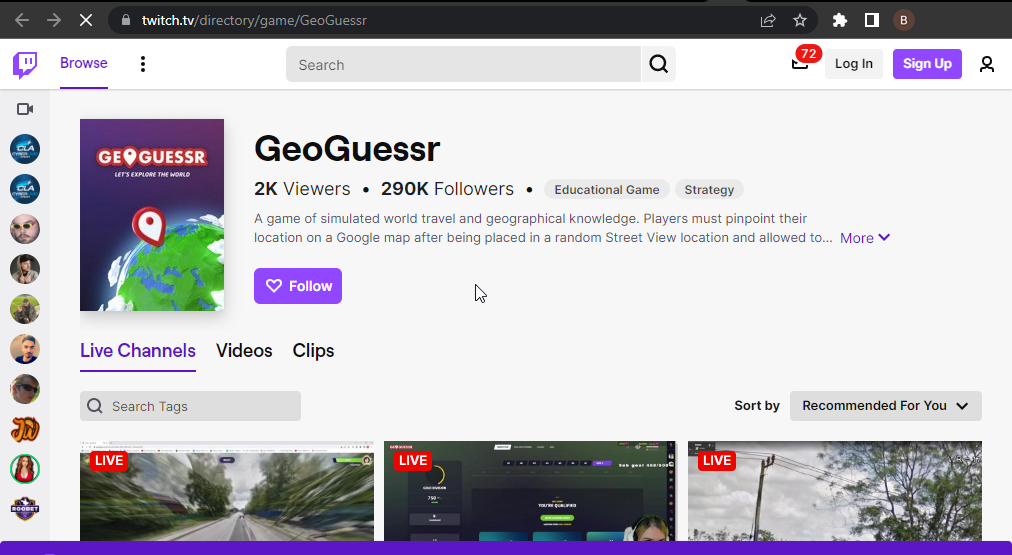
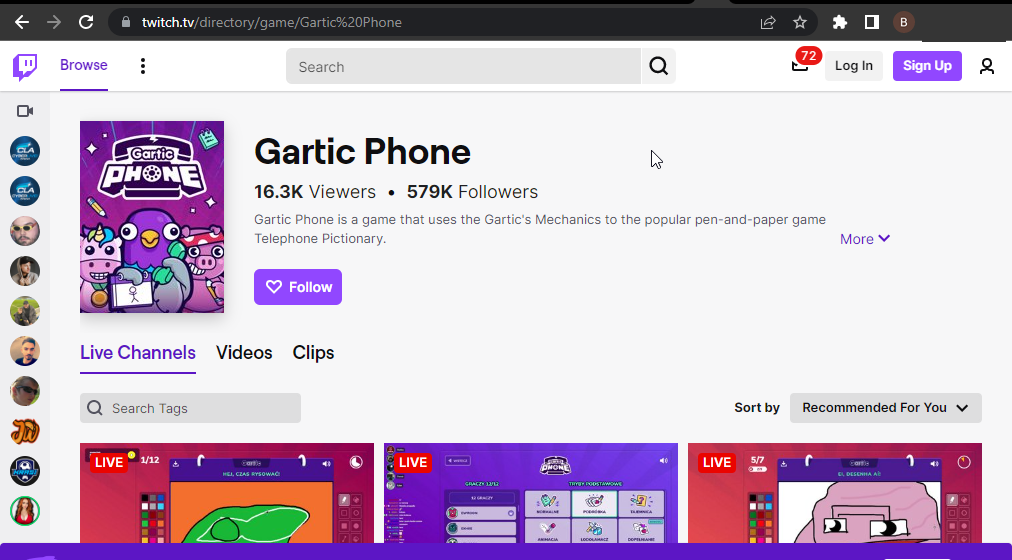
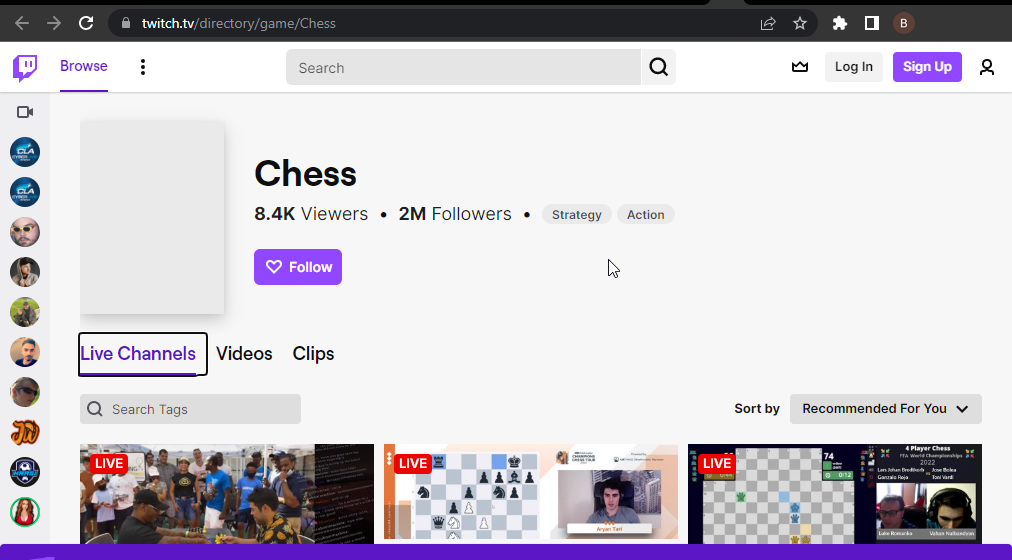
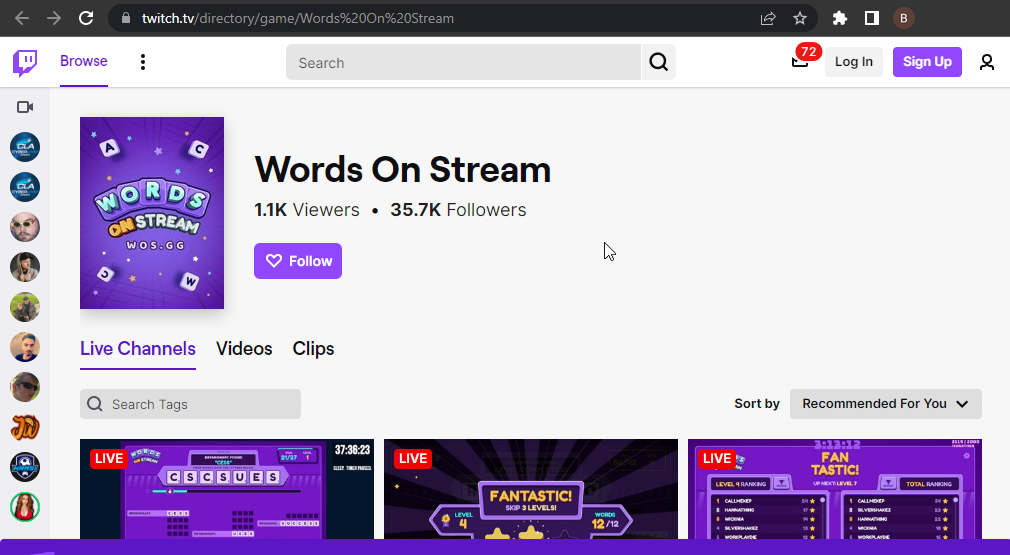
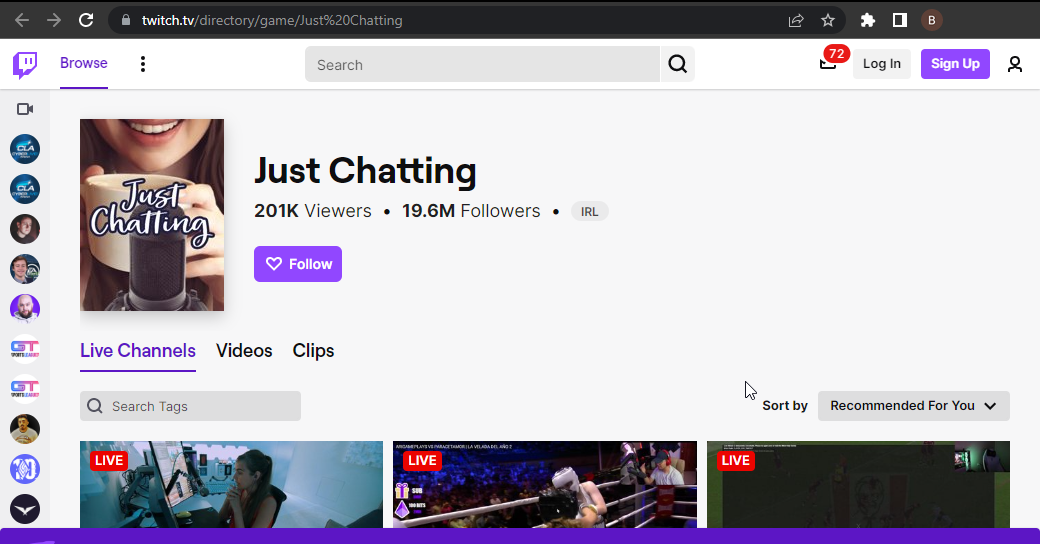
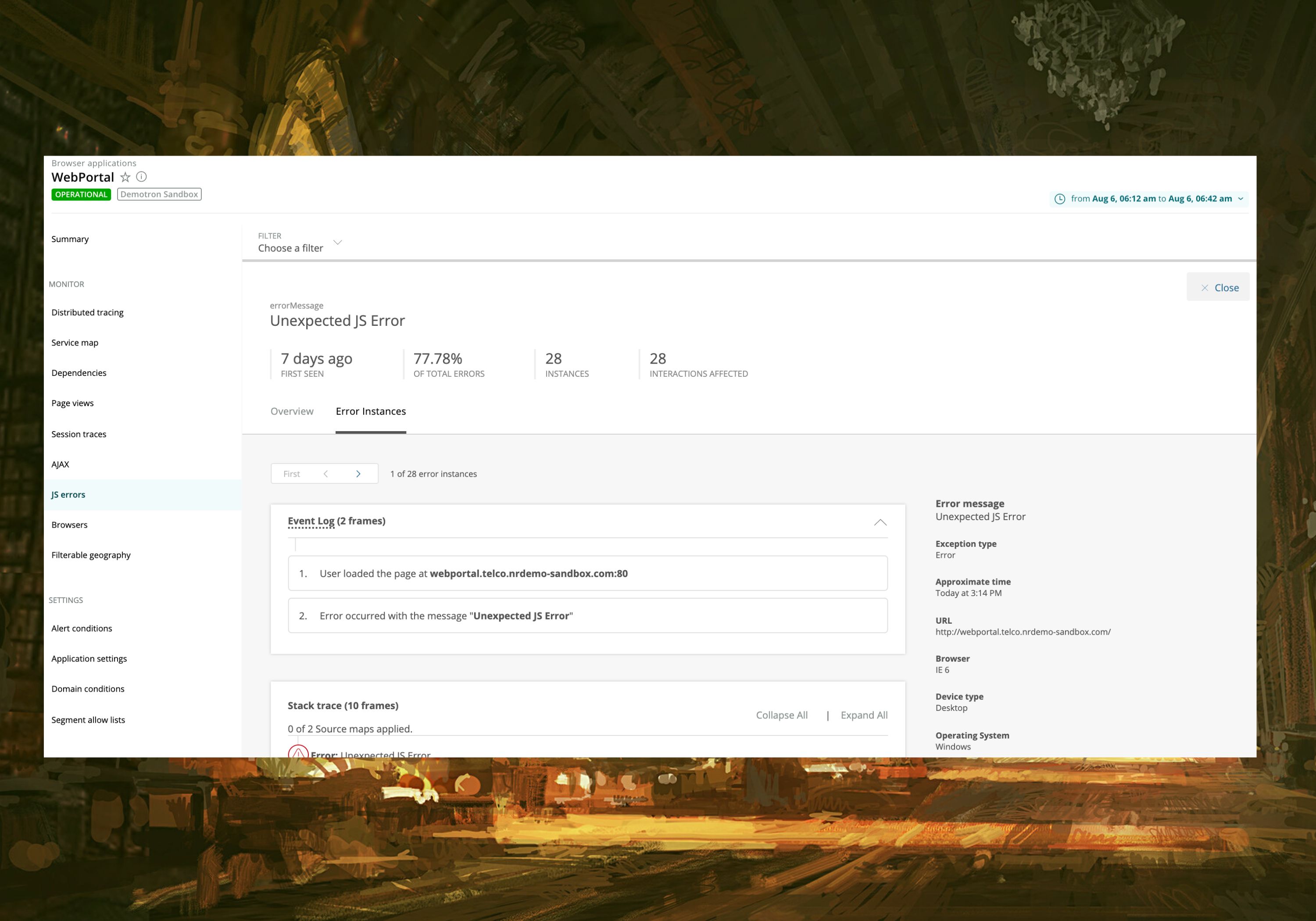


![9 Tips to Turn On Dark Mode on Instagram Browser [Prevent Eye Strain]](https://windowsreport.com/wp-content/uploads/2022/06/best-browser-for-google-workspace-8.jpg)
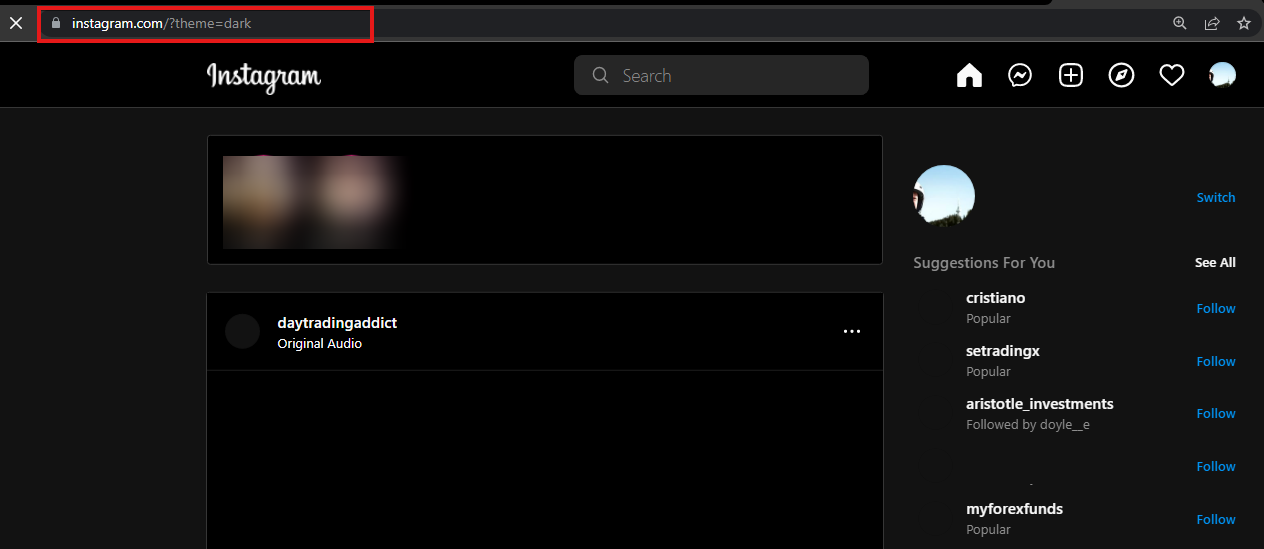
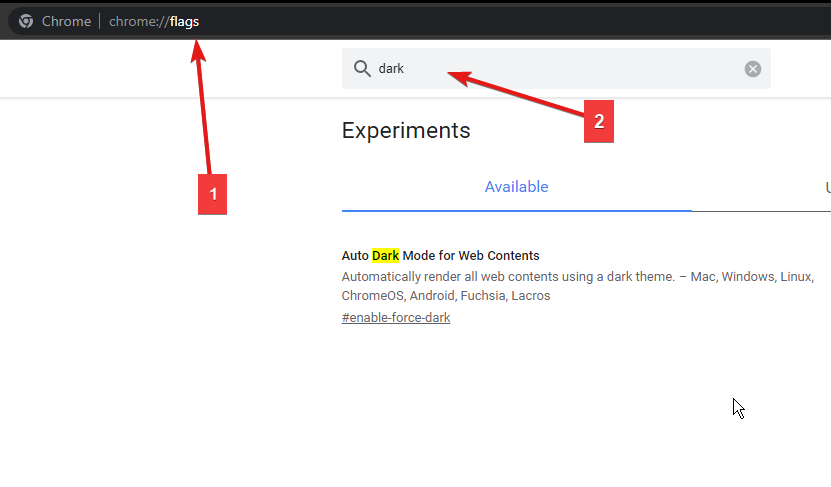


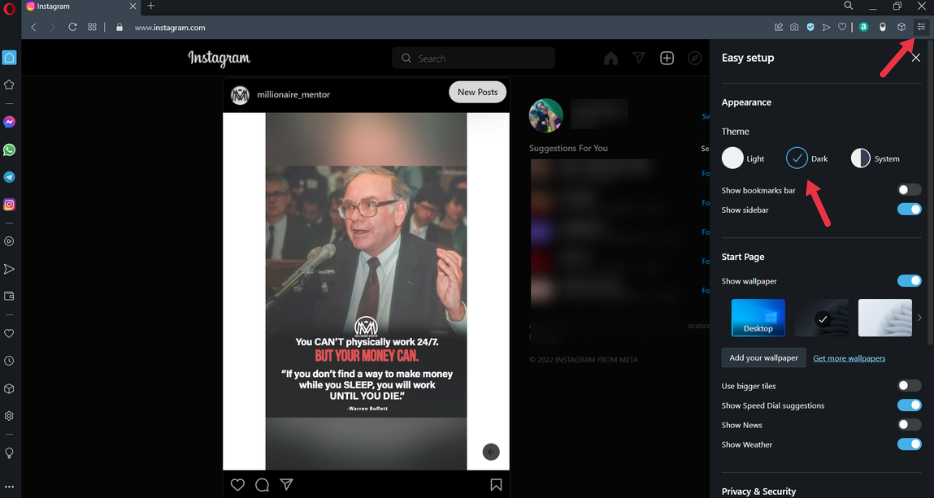


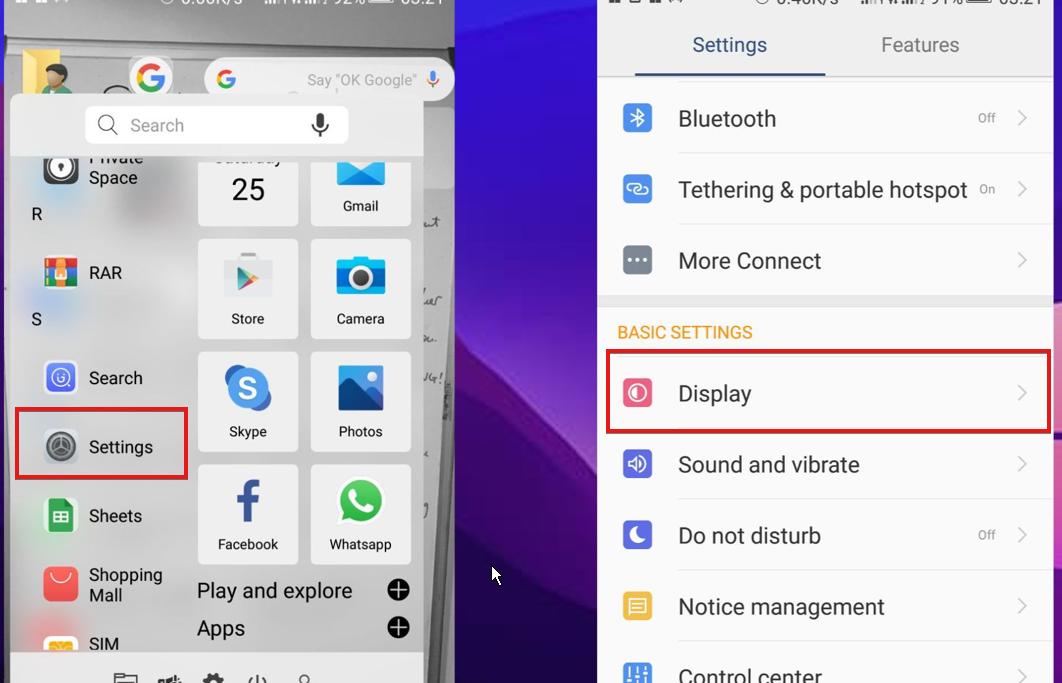
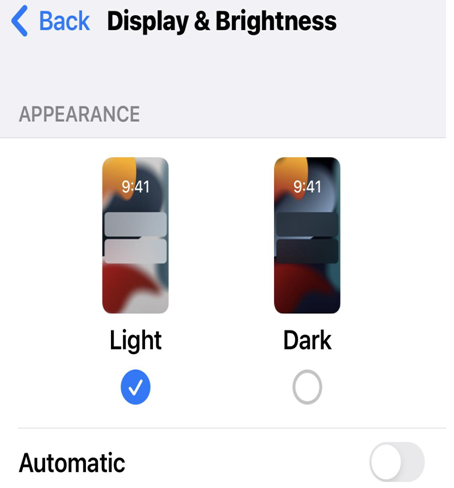
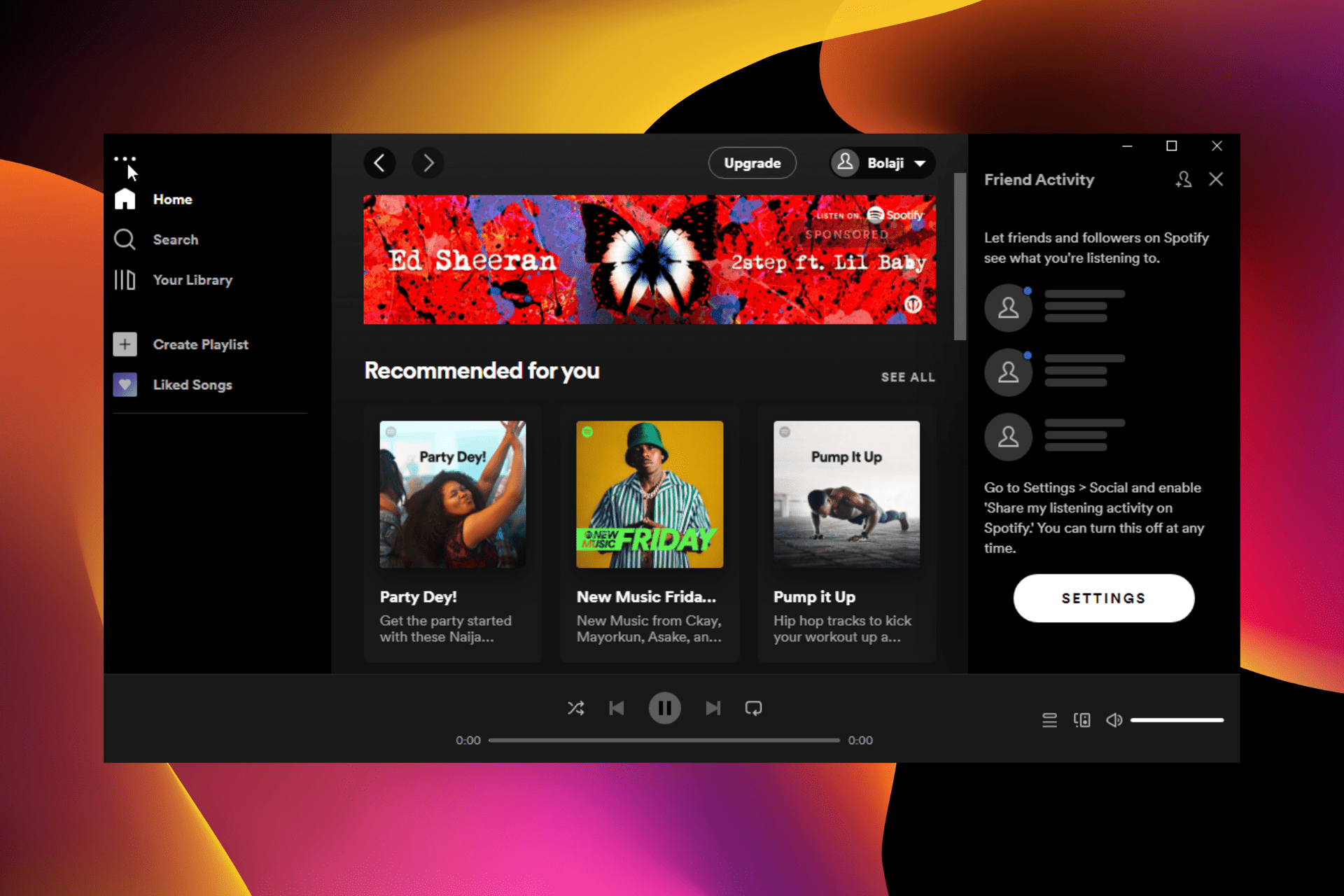


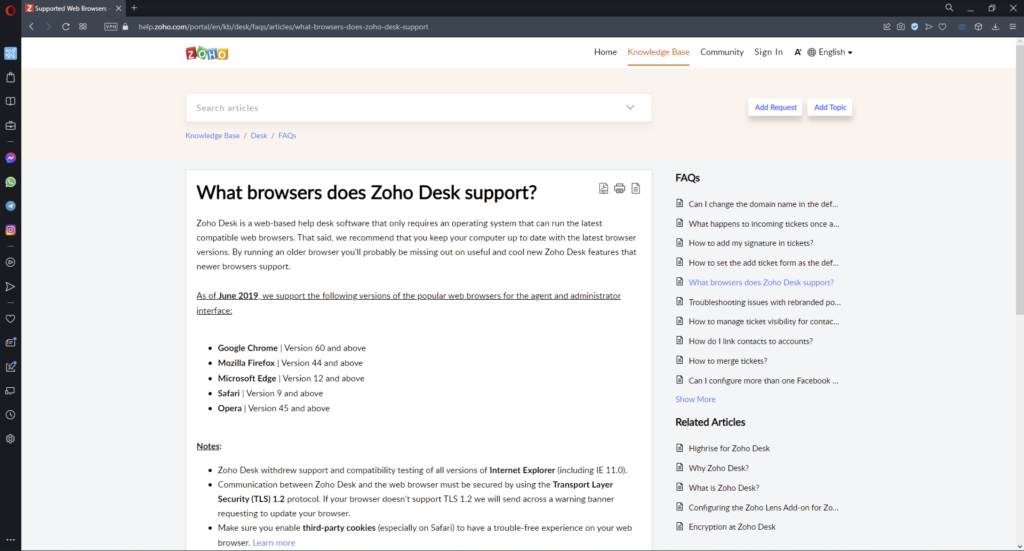
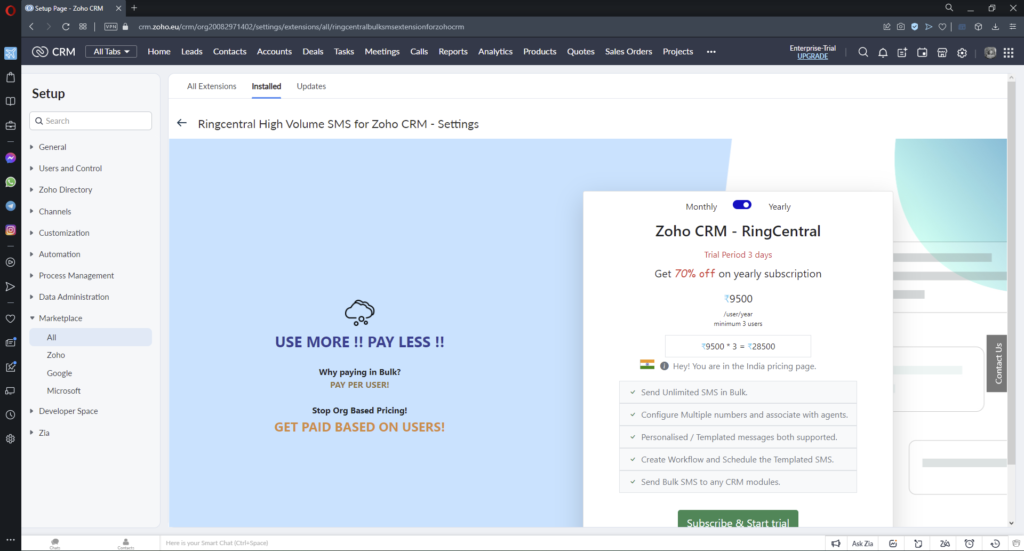

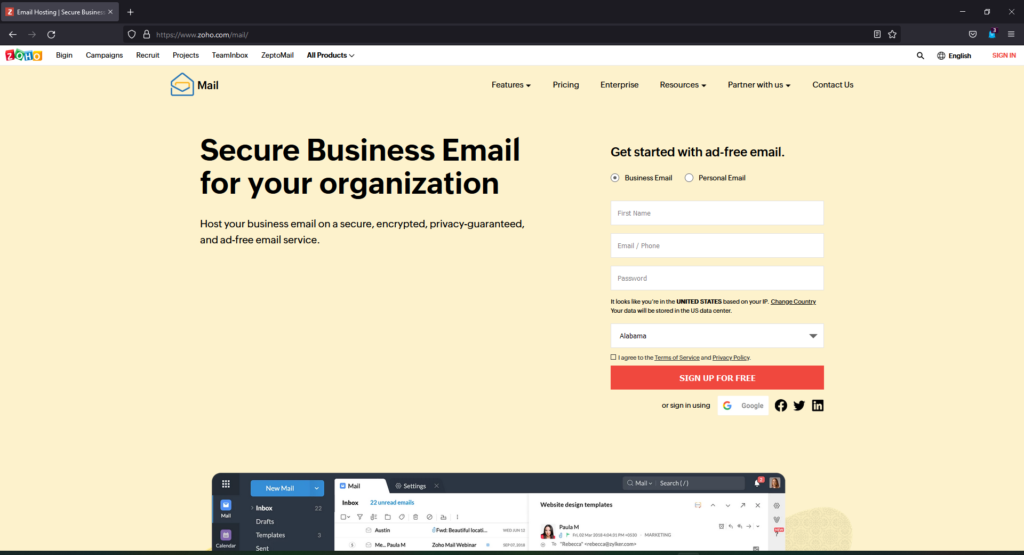
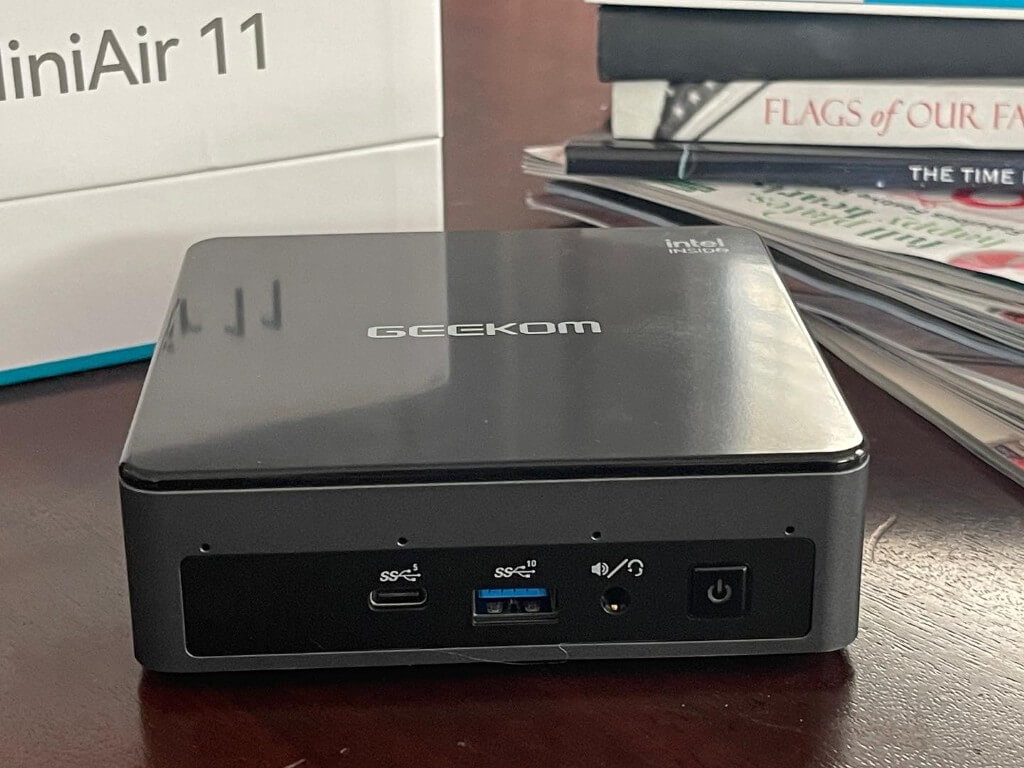
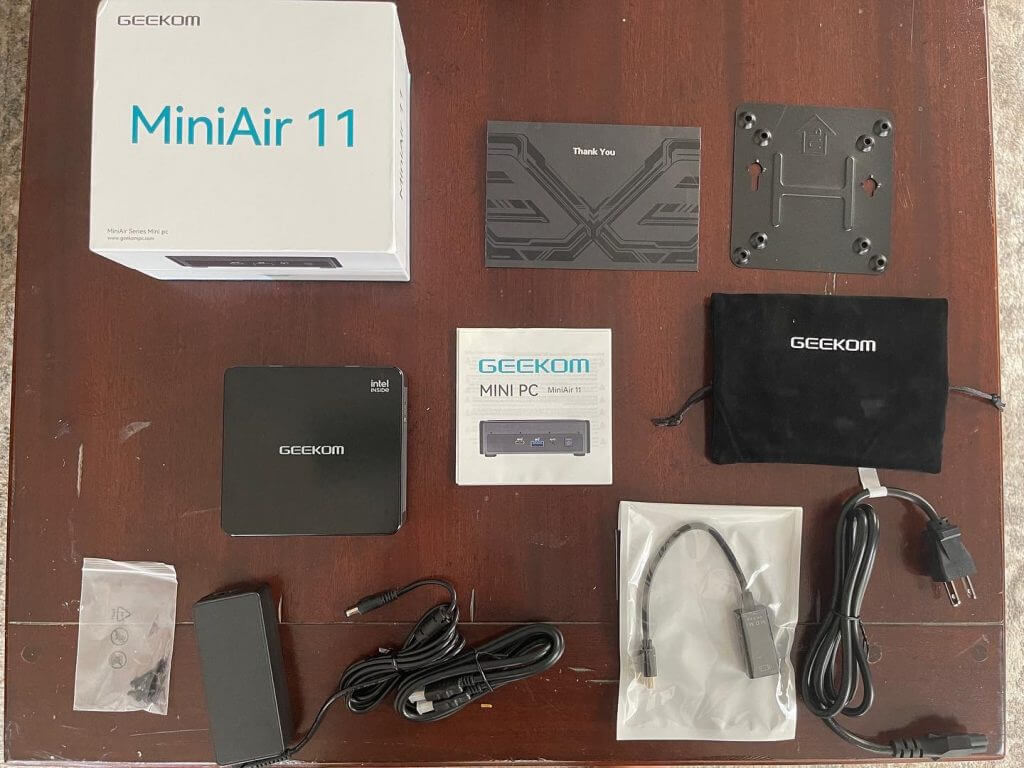
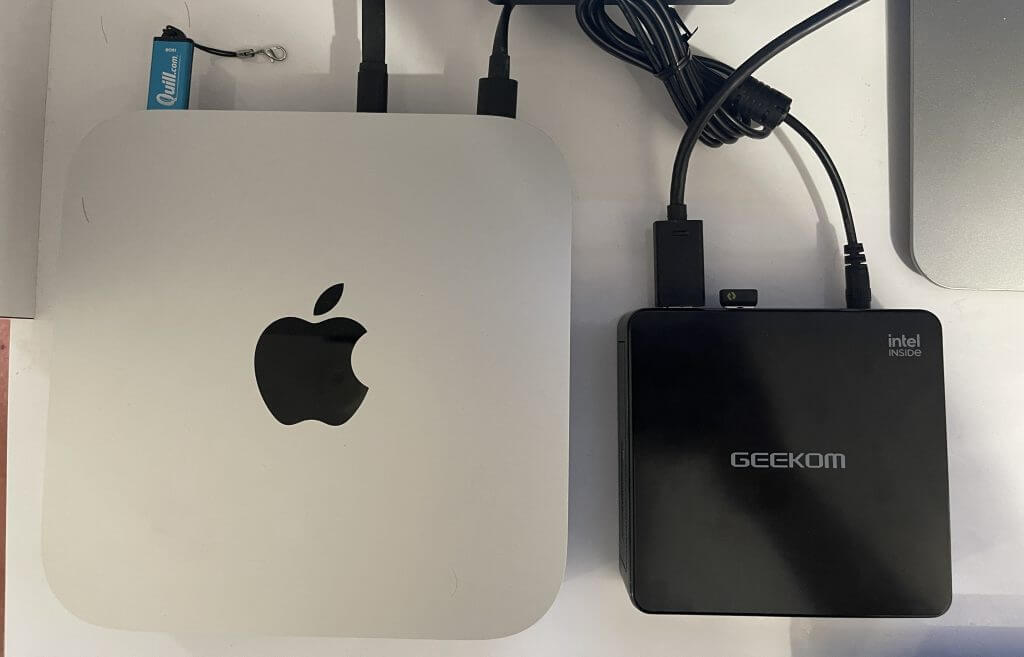
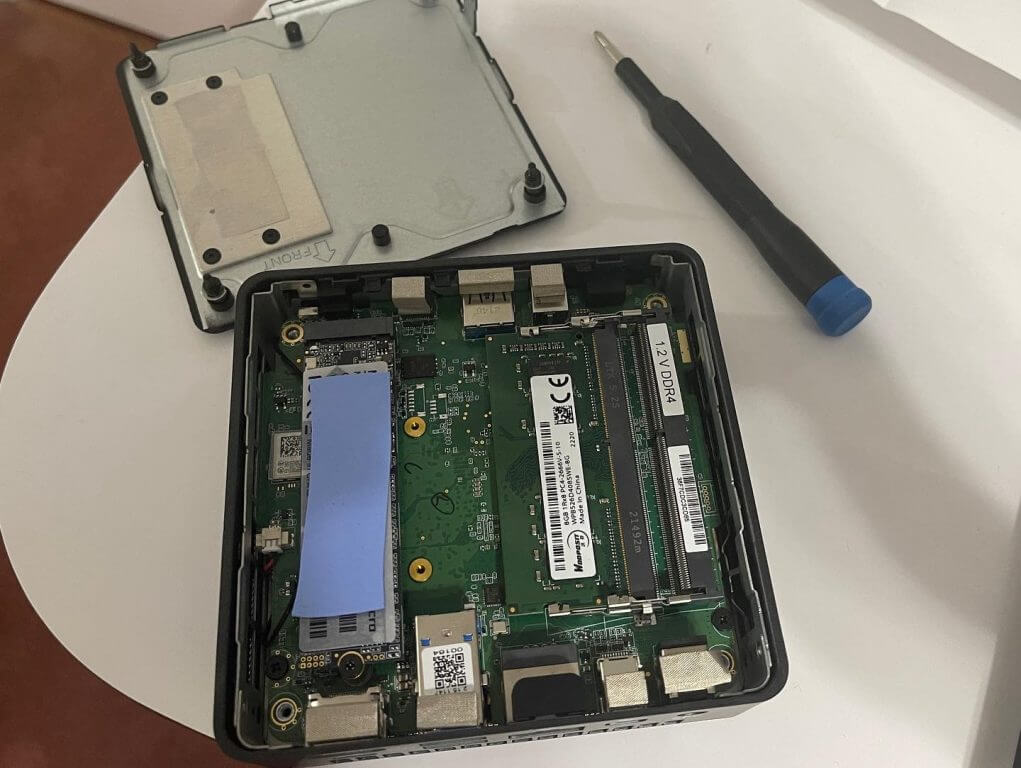
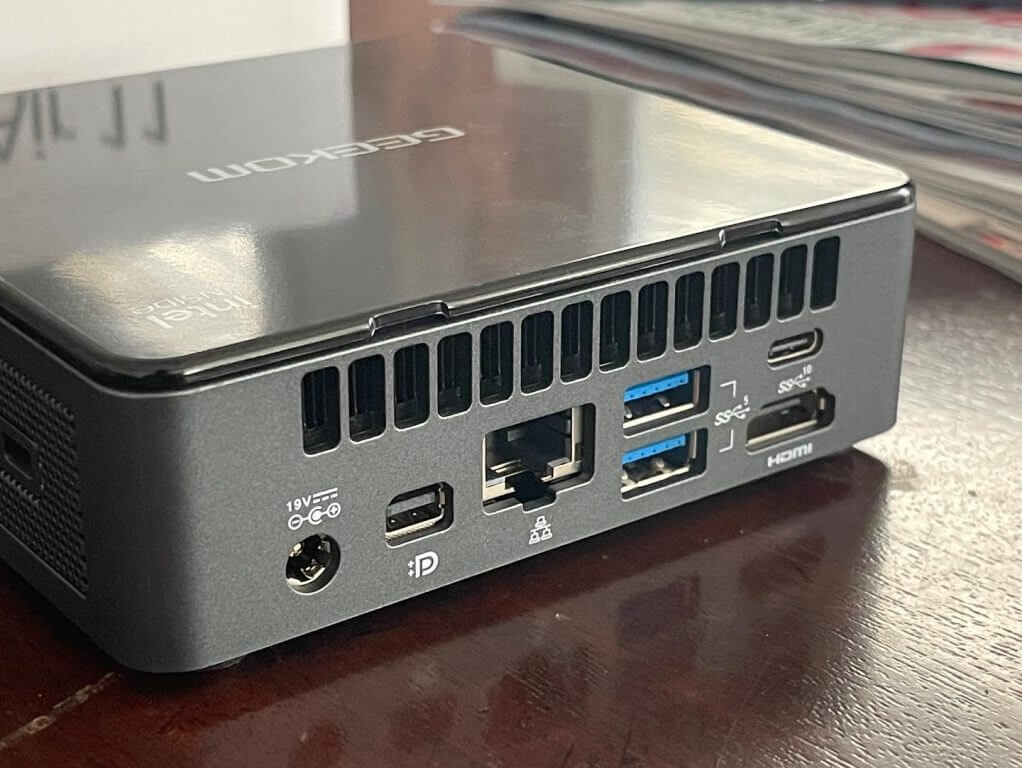
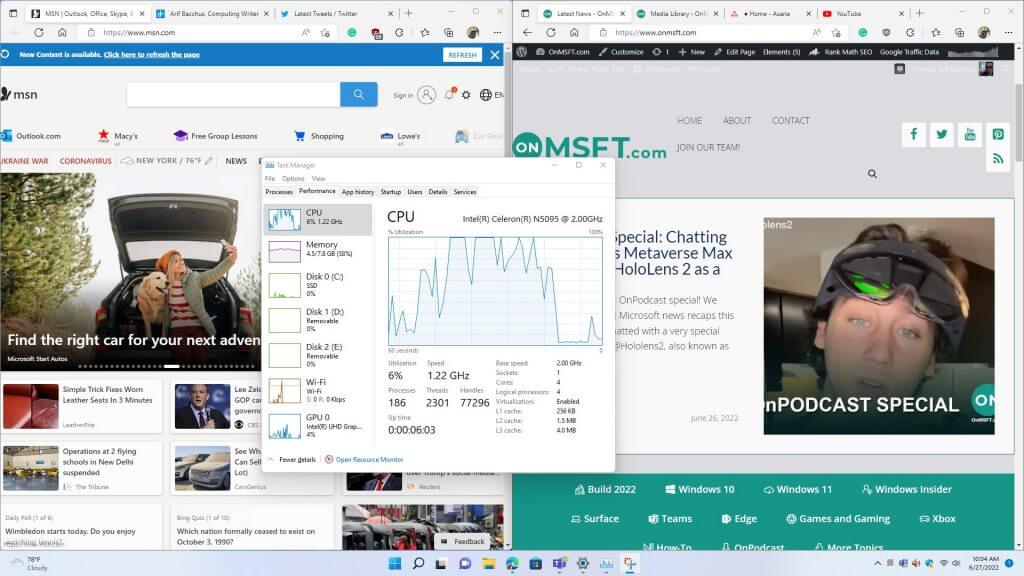
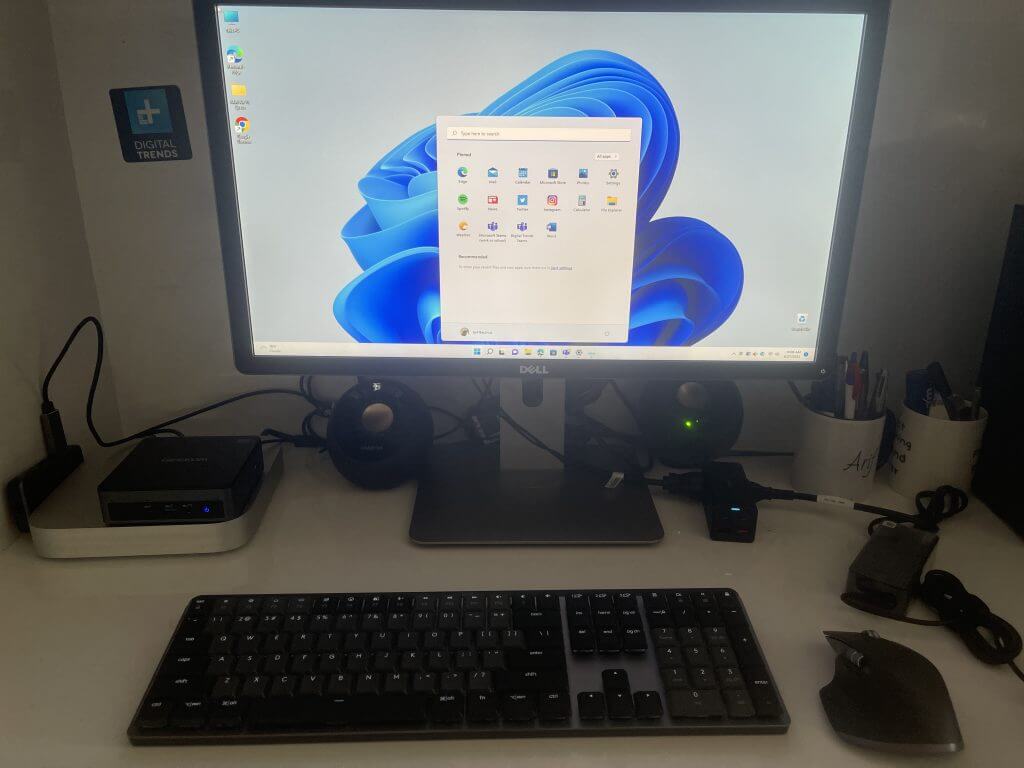
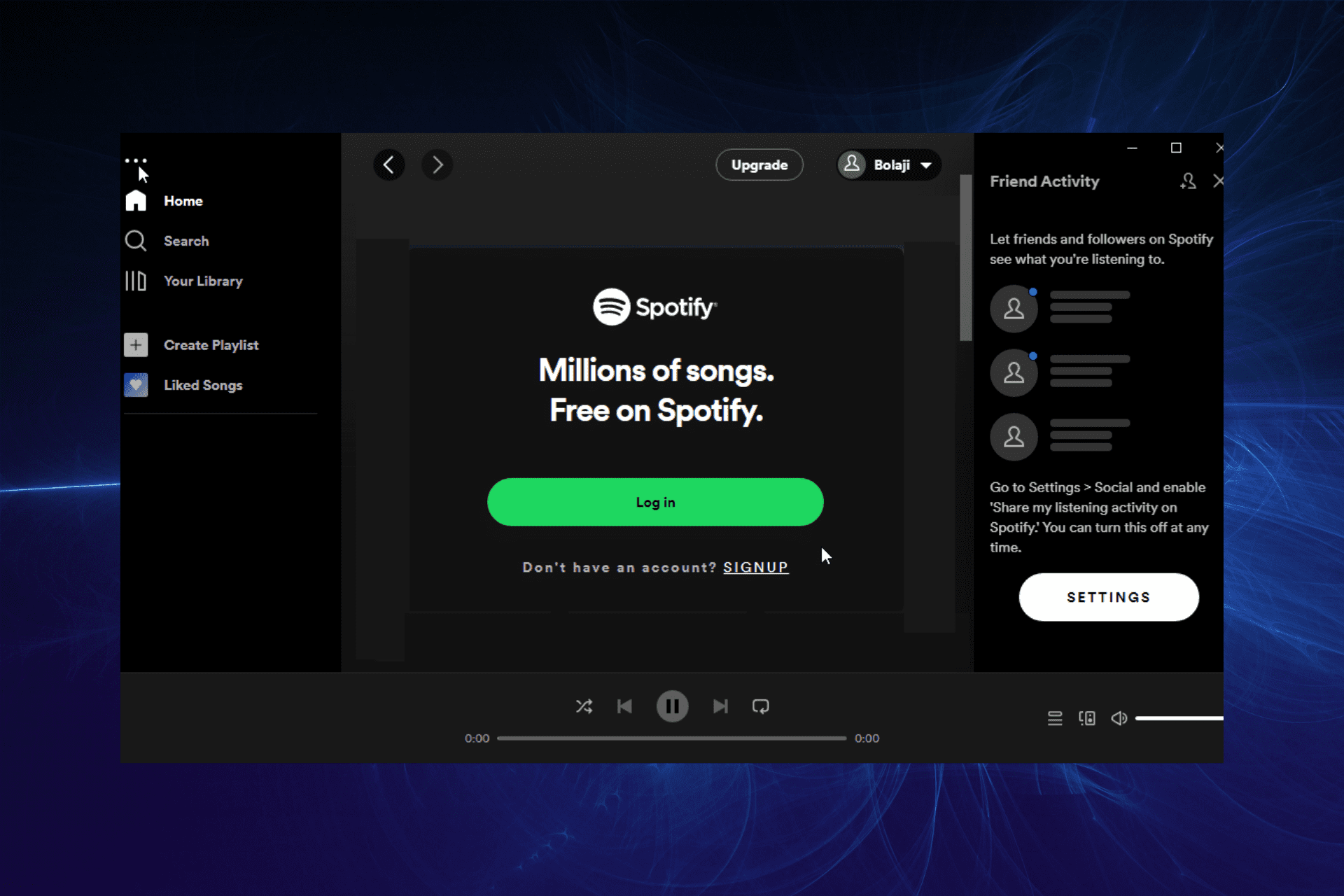


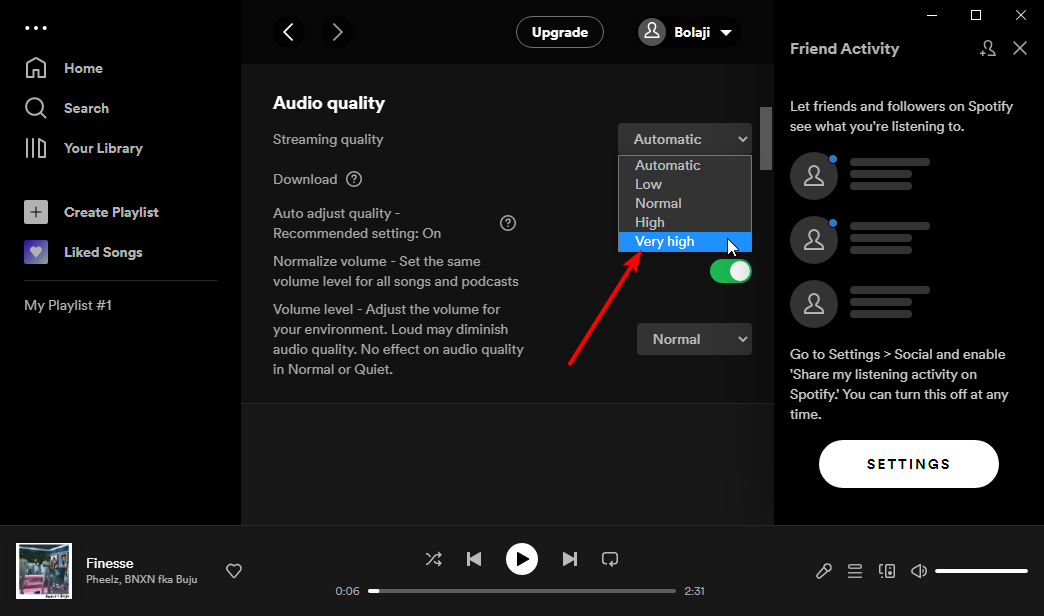


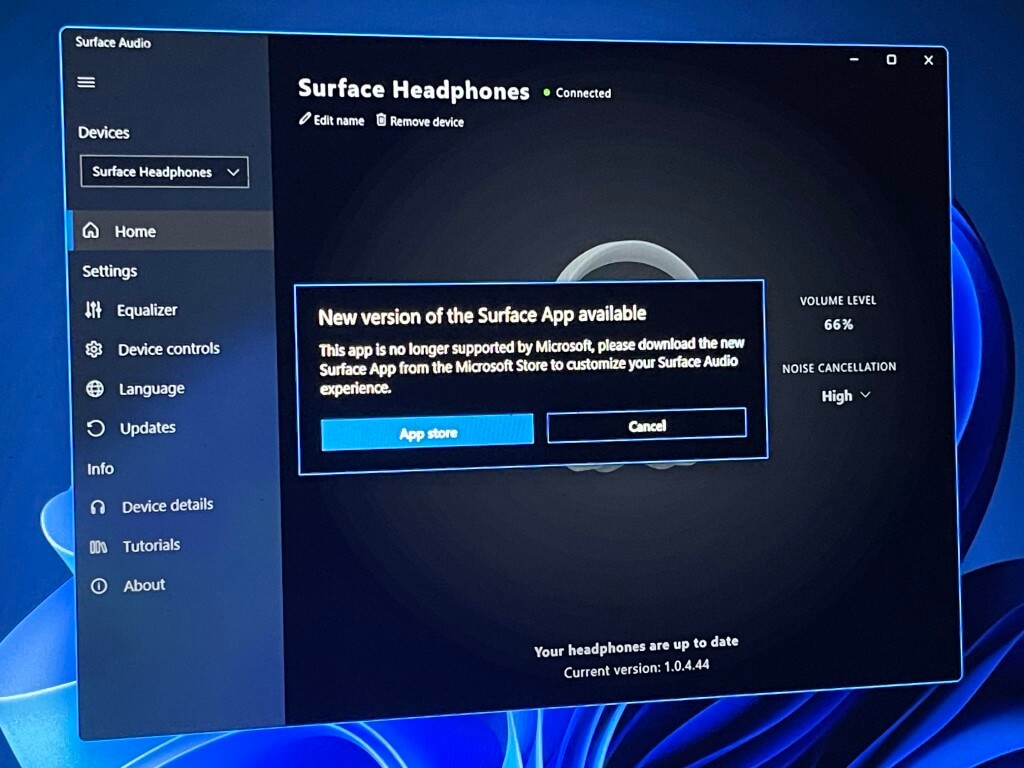

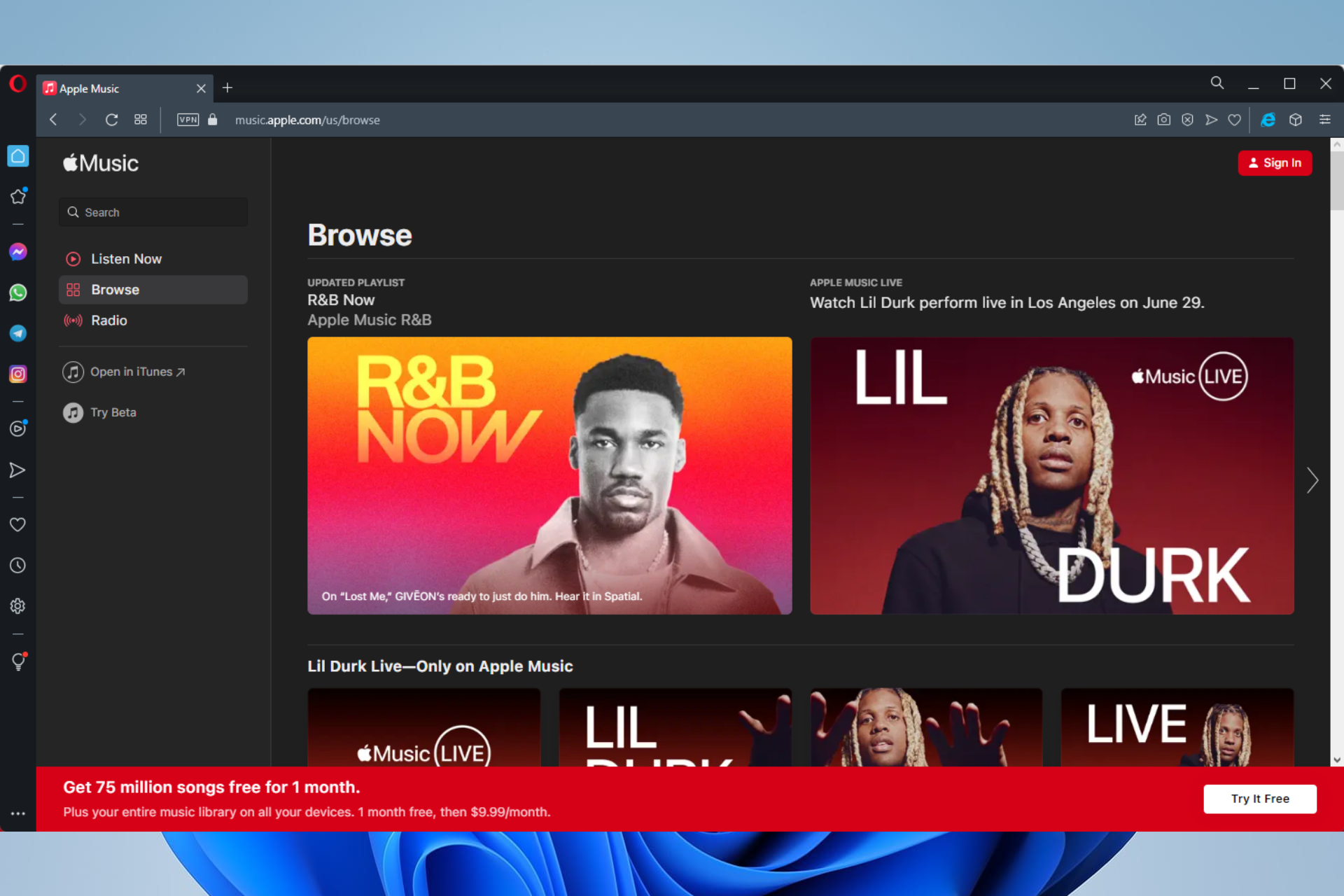











![Best Printers Compatible With Windows 11 [Home Office]](https://windowsreport.com/wp-content/uploads/2022/06/best-windows-11-printer-featured.jpg)


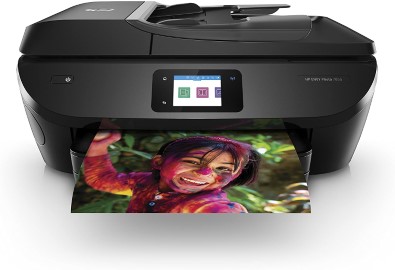
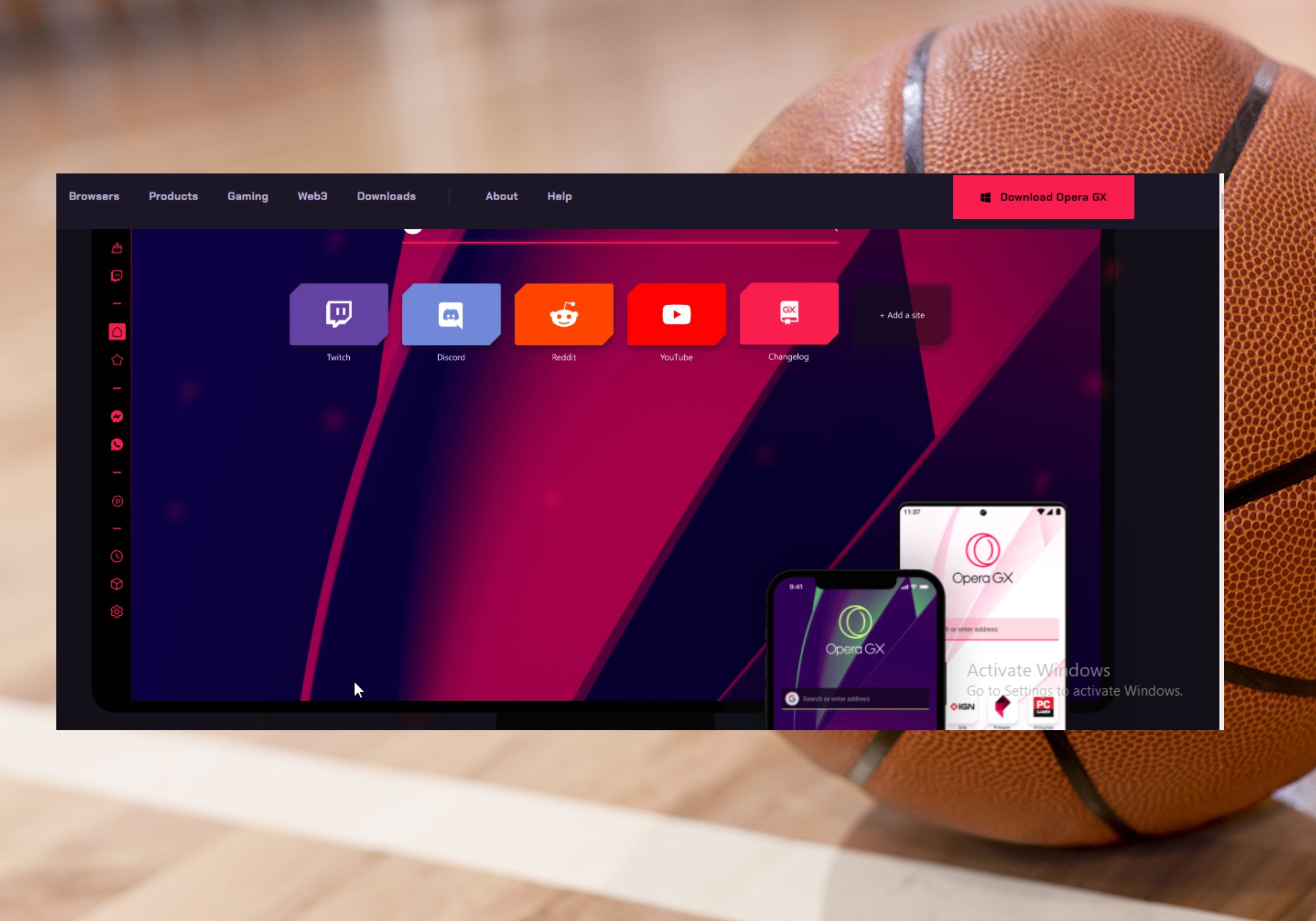


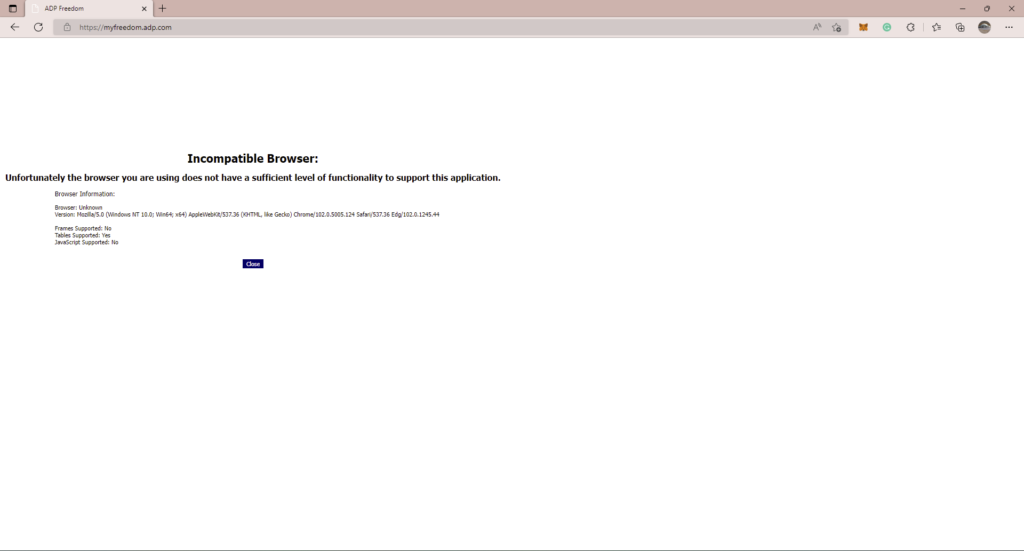
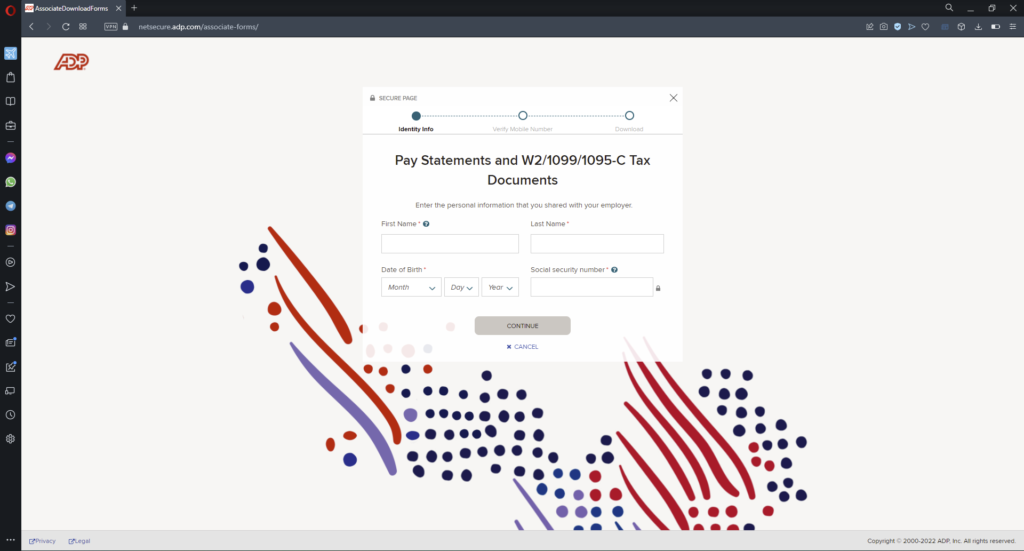

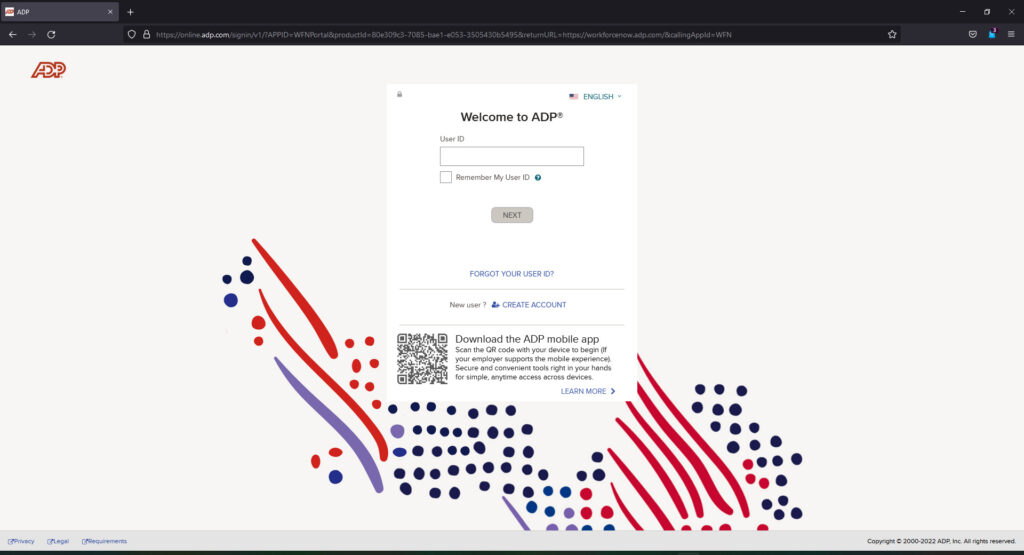
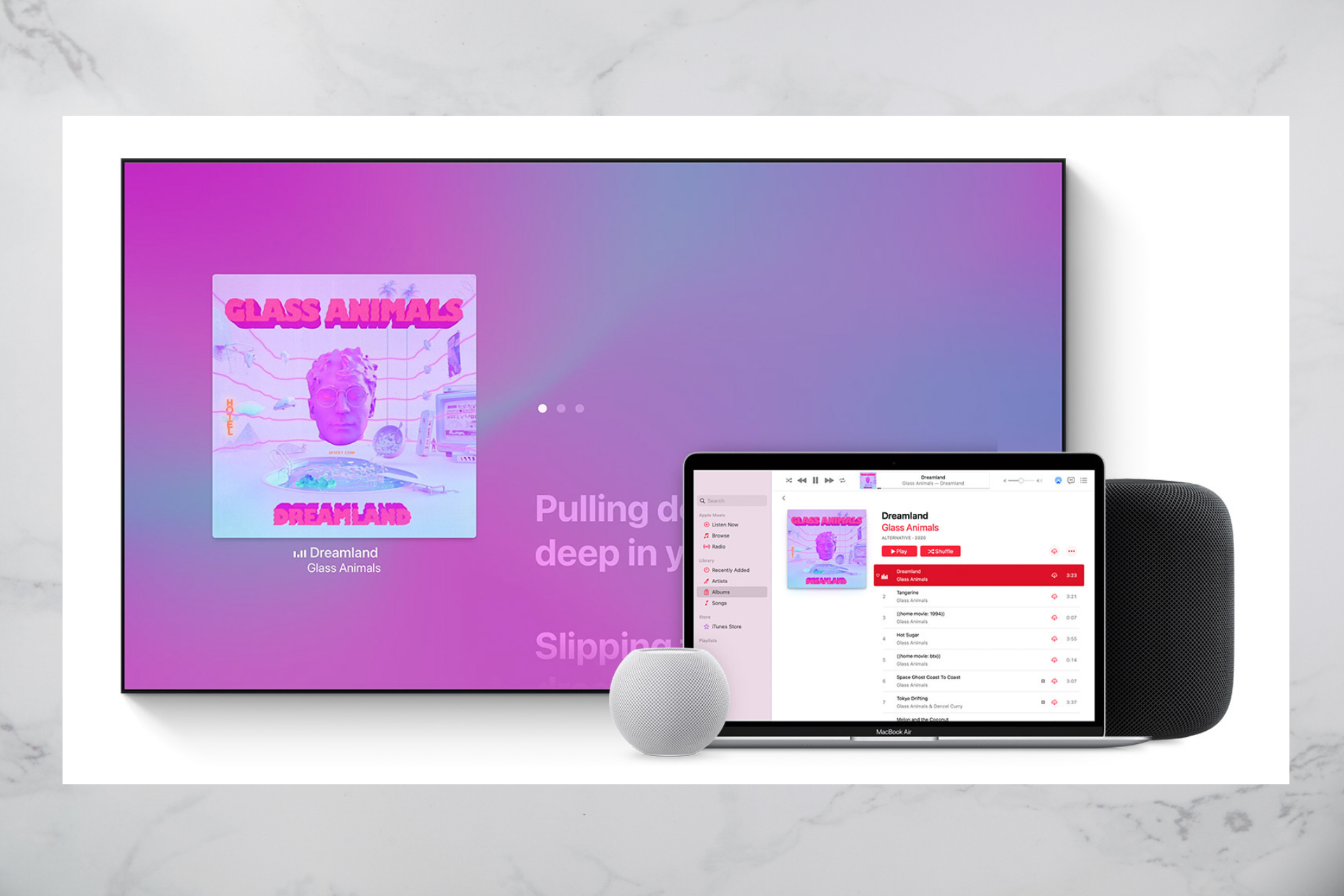
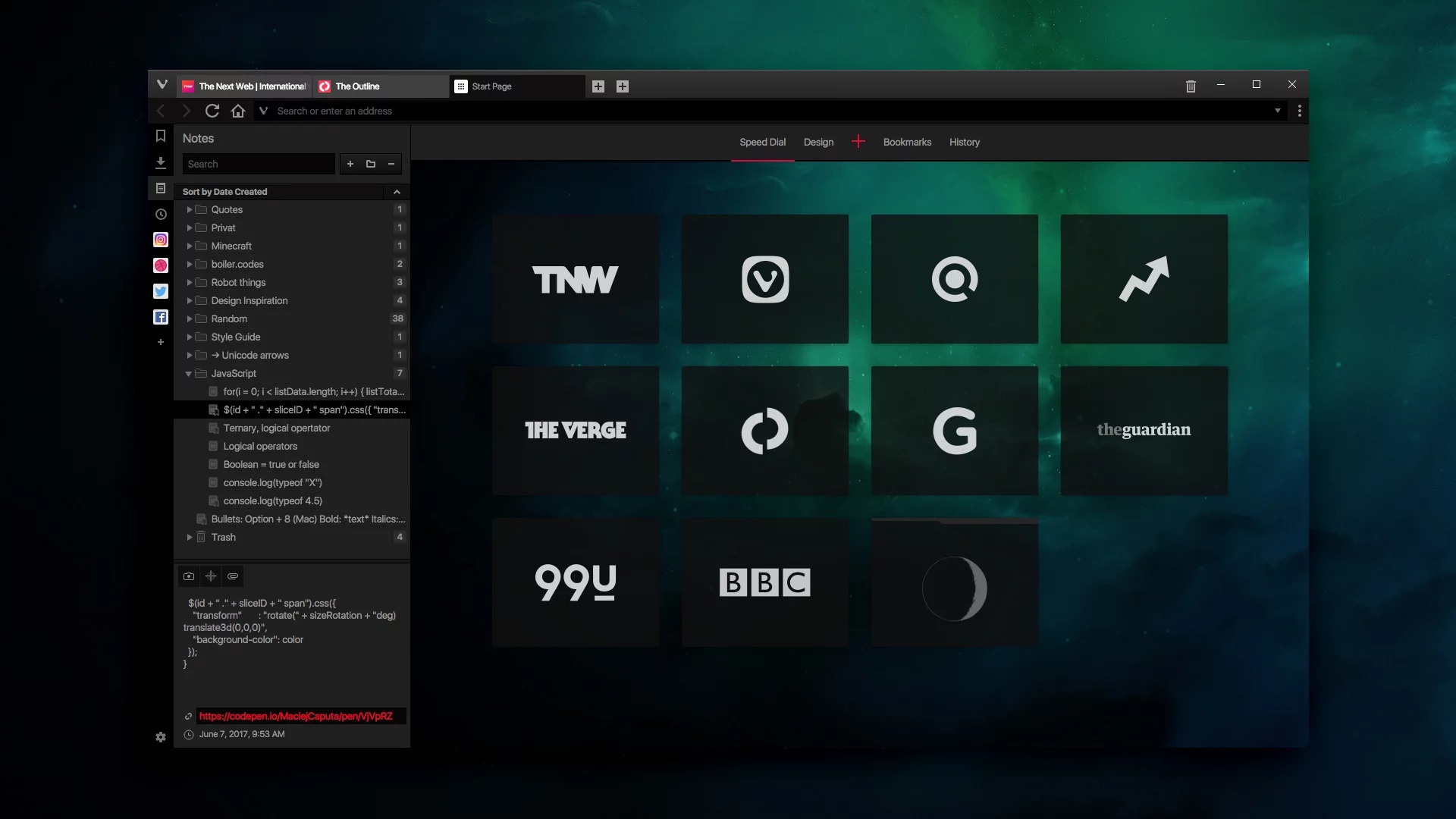
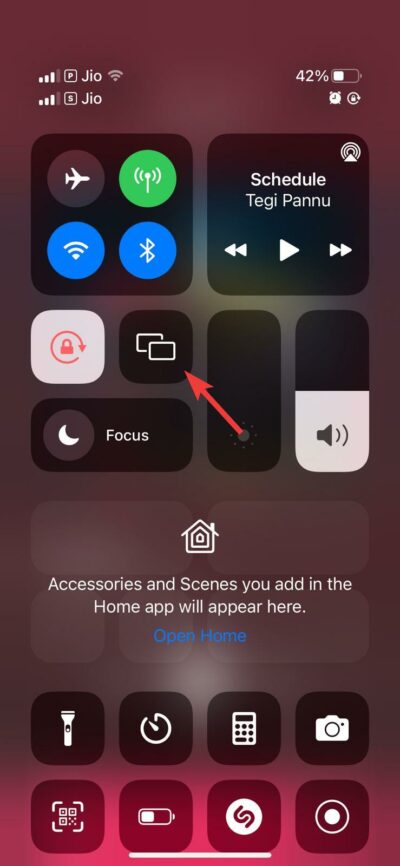


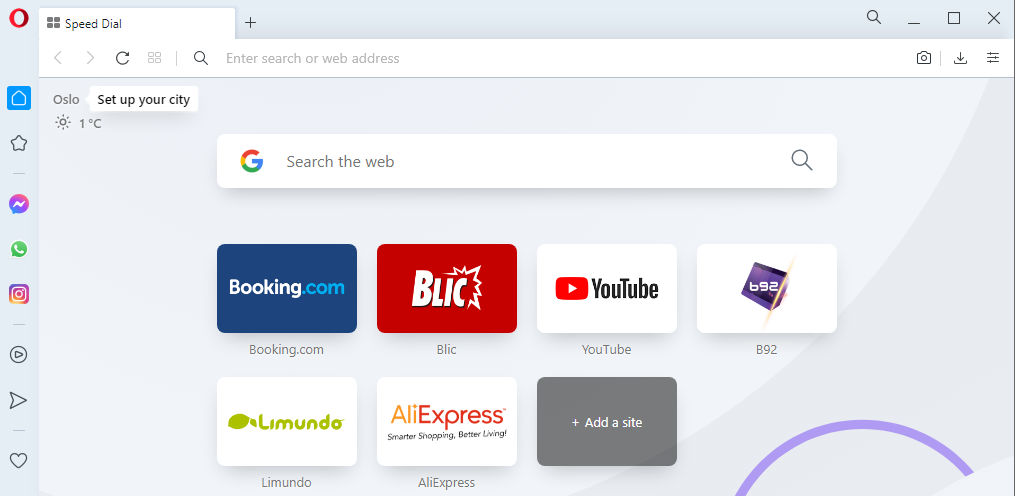


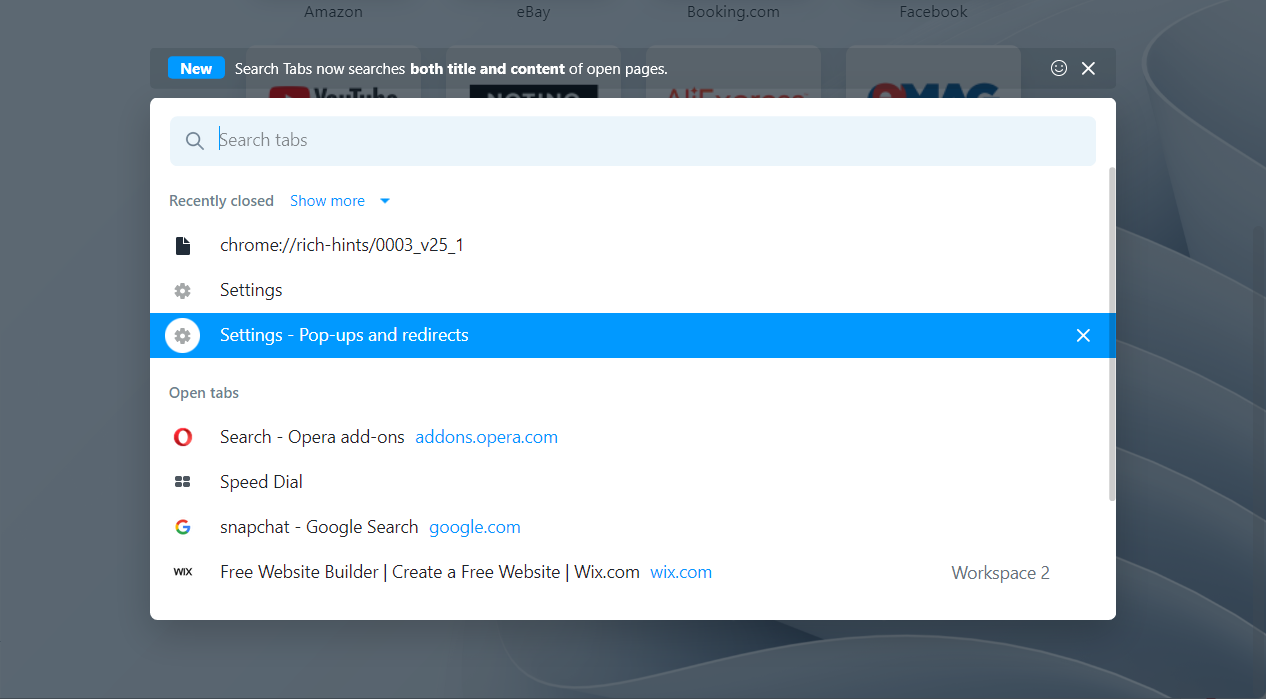

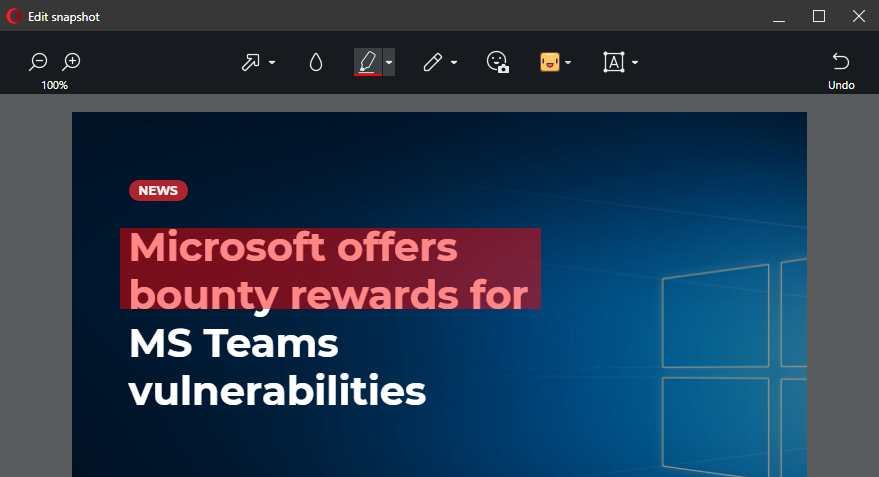

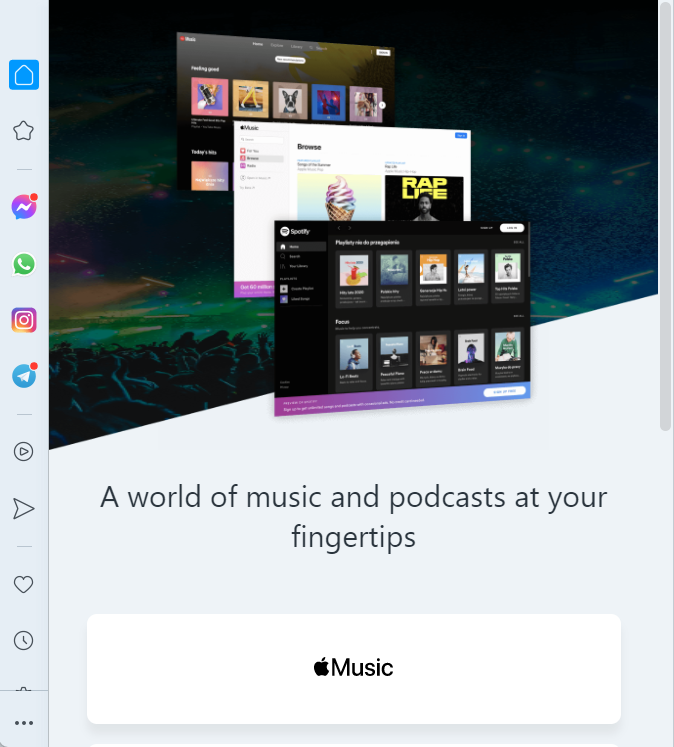


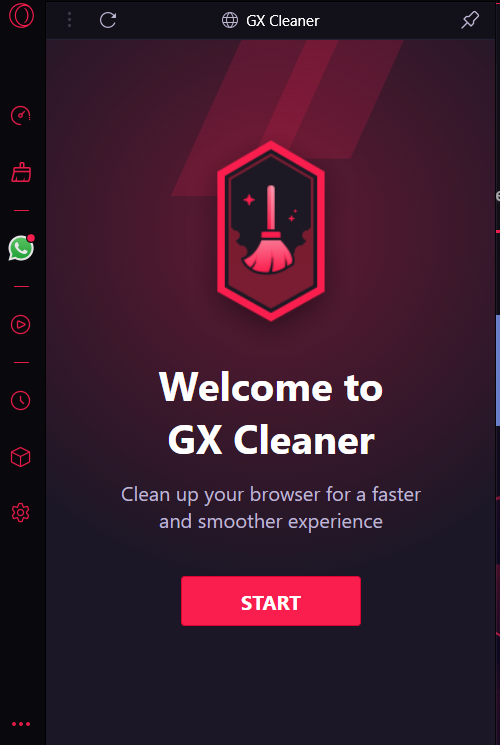

![How to Download Snapchat Without the App Store [PC Guide]](https://windowsreport.com/wp-content/uploads/2022/06/snapchat-w11.png)


![Java Application Not Found in Control Panel [Fix]](https://windowsreport.com/wp-content/uploads/2022/06/Untitled-design-97.png)

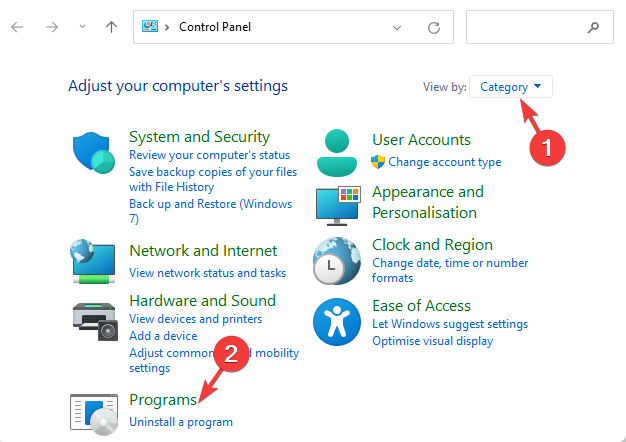
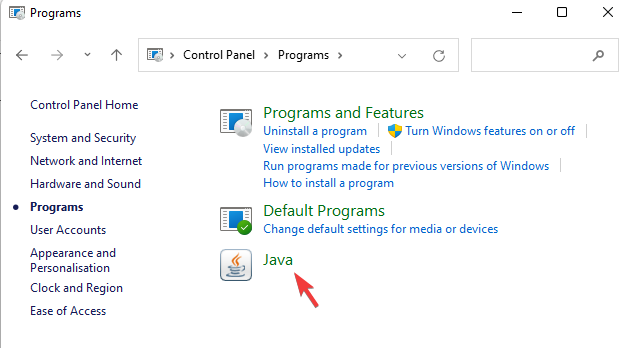
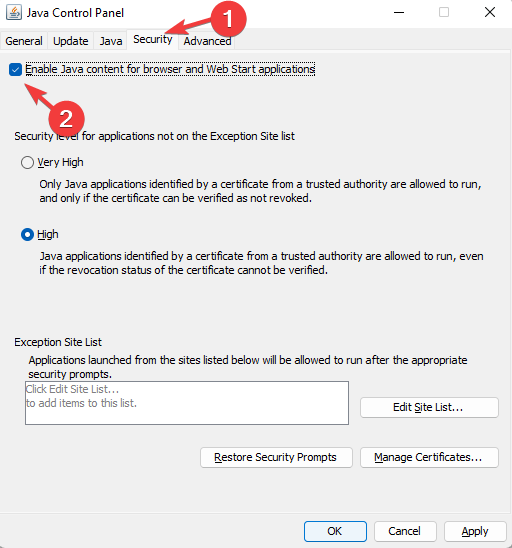
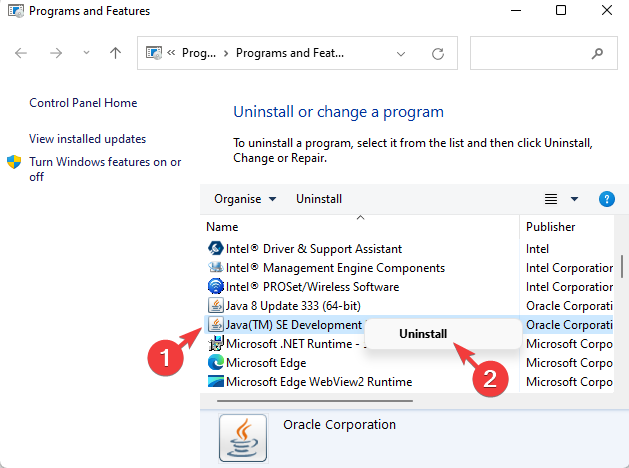
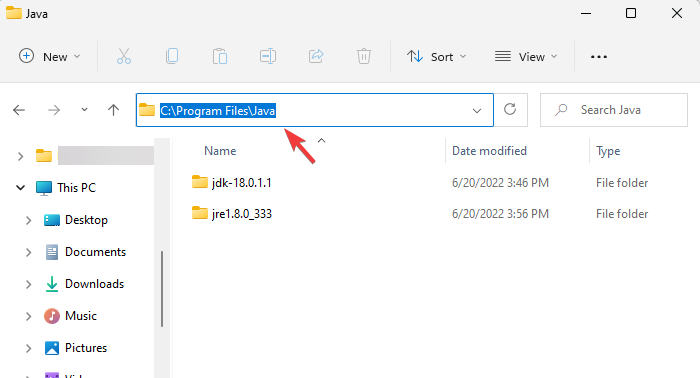


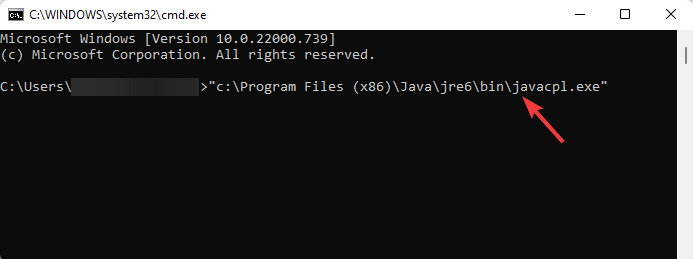
![How to Enable Redirects in Your Browser [Chrome, Safari, Opera]](https://windowsreport.com/wp-content/uploads/2024/02/chrome-settings-big.jpg)
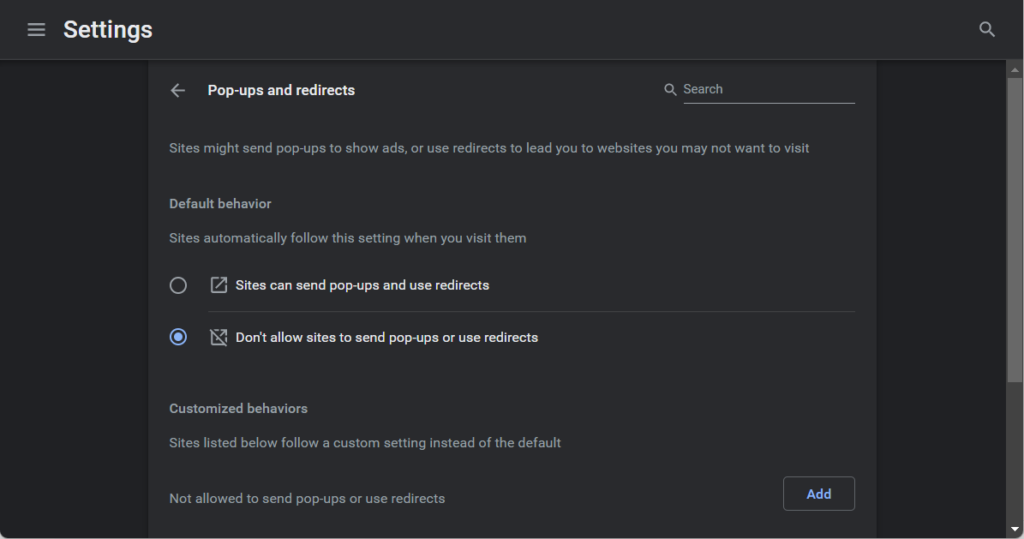
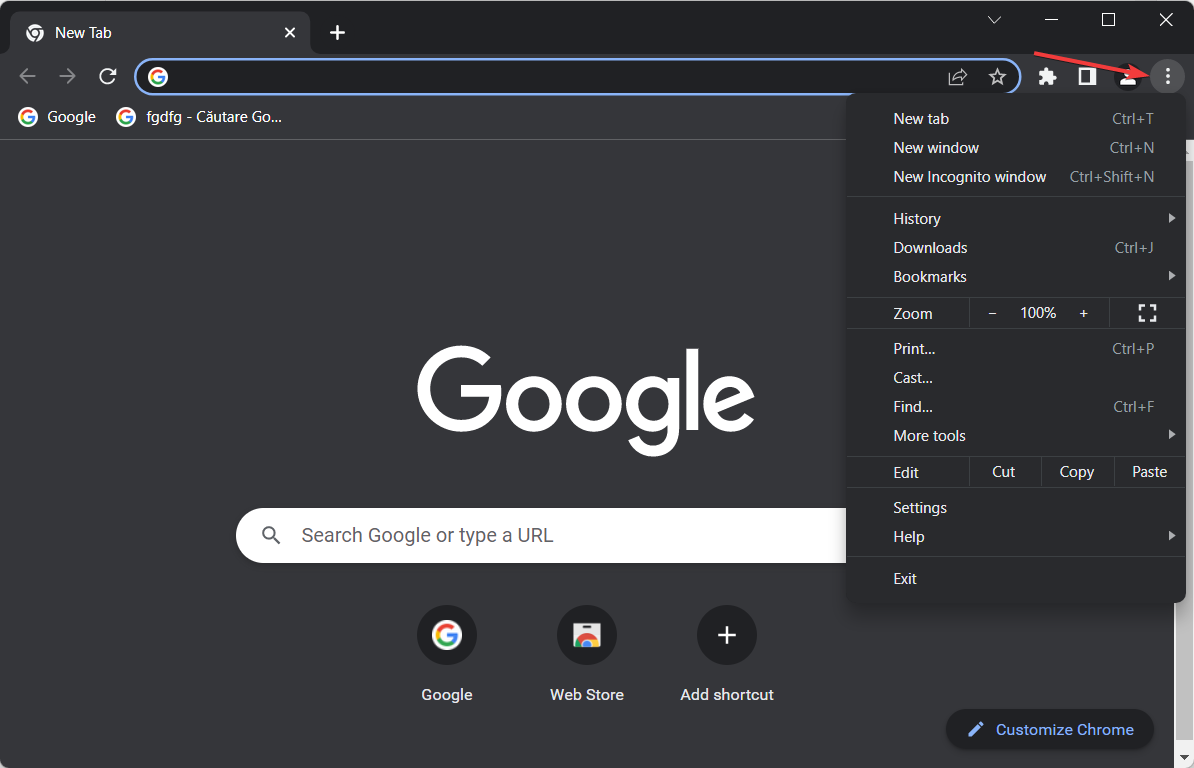
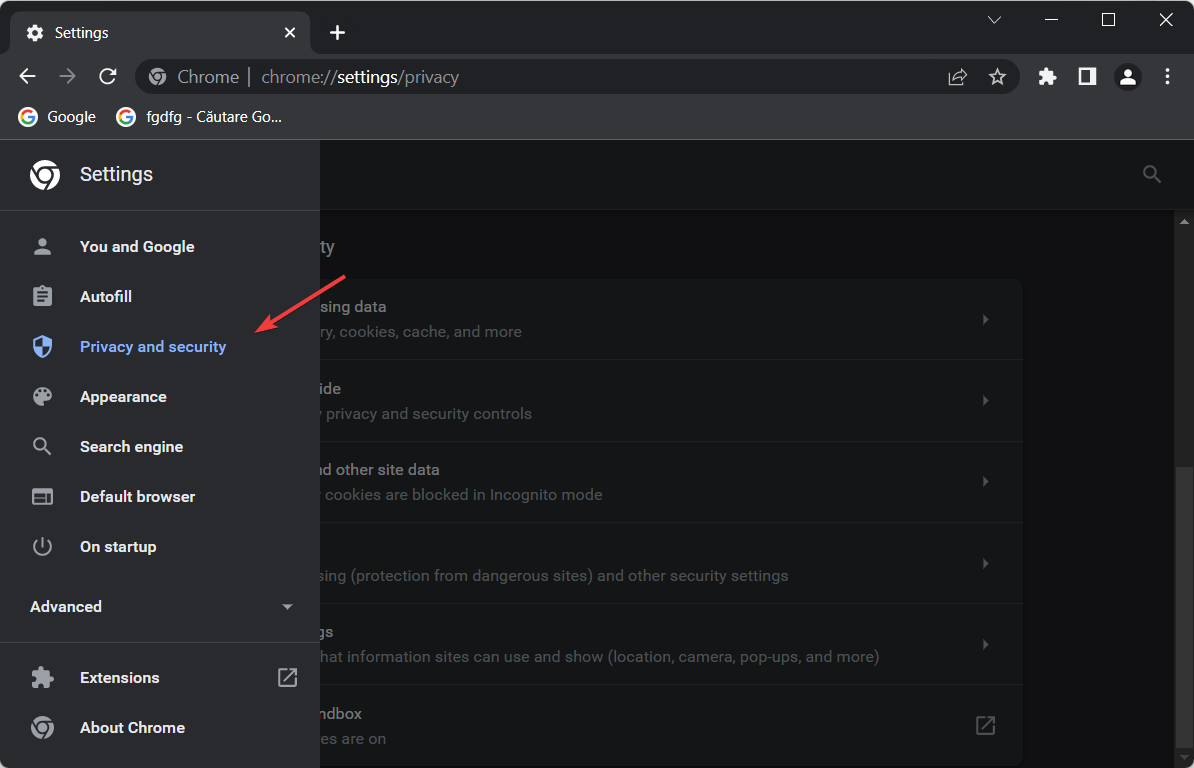
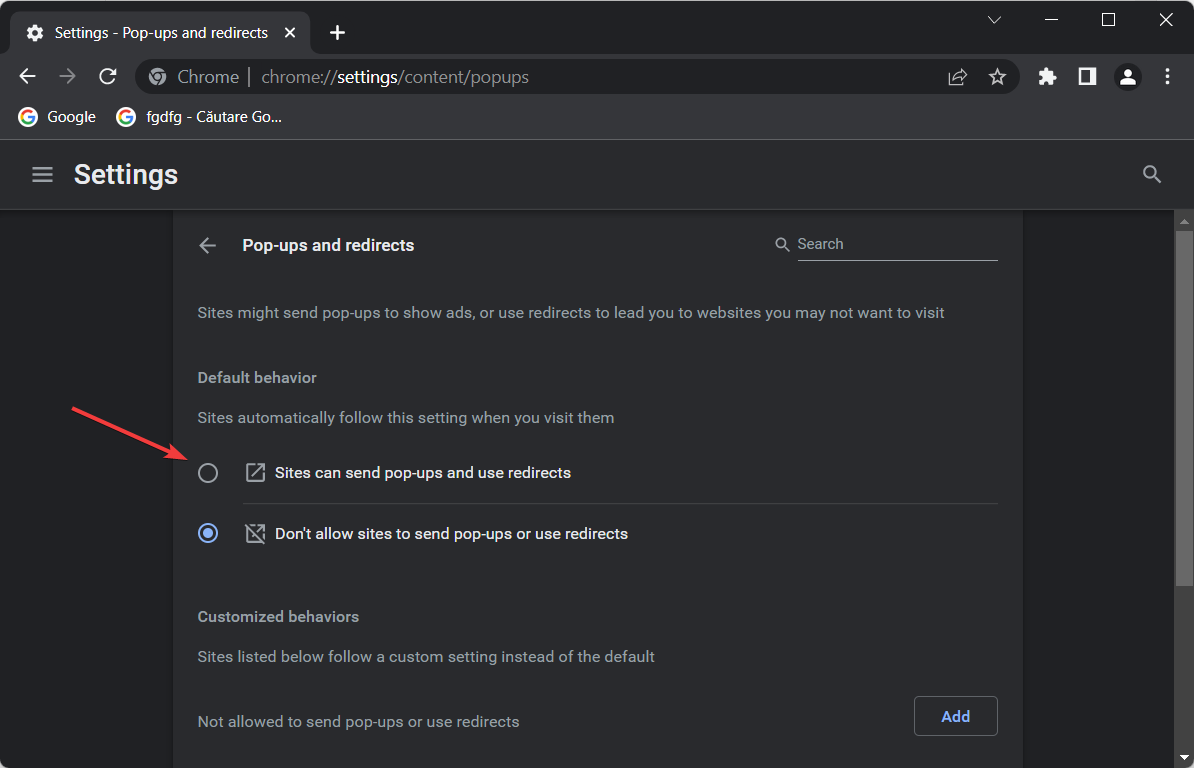
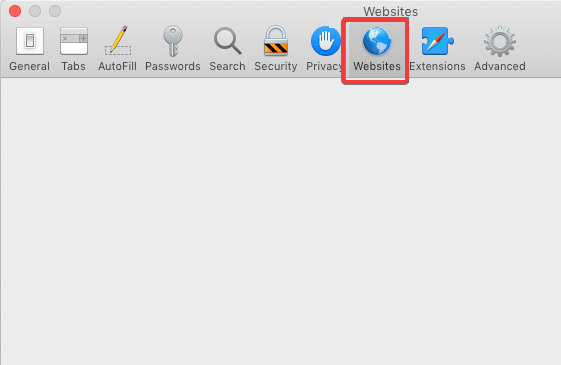
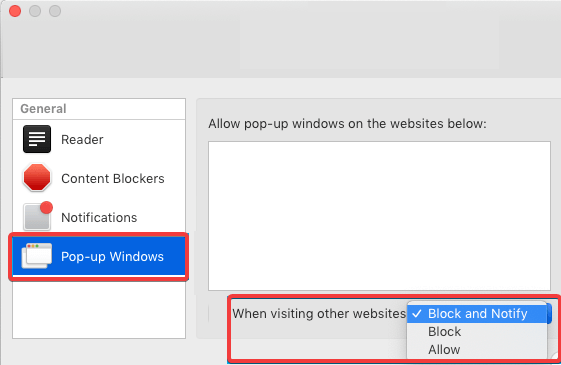
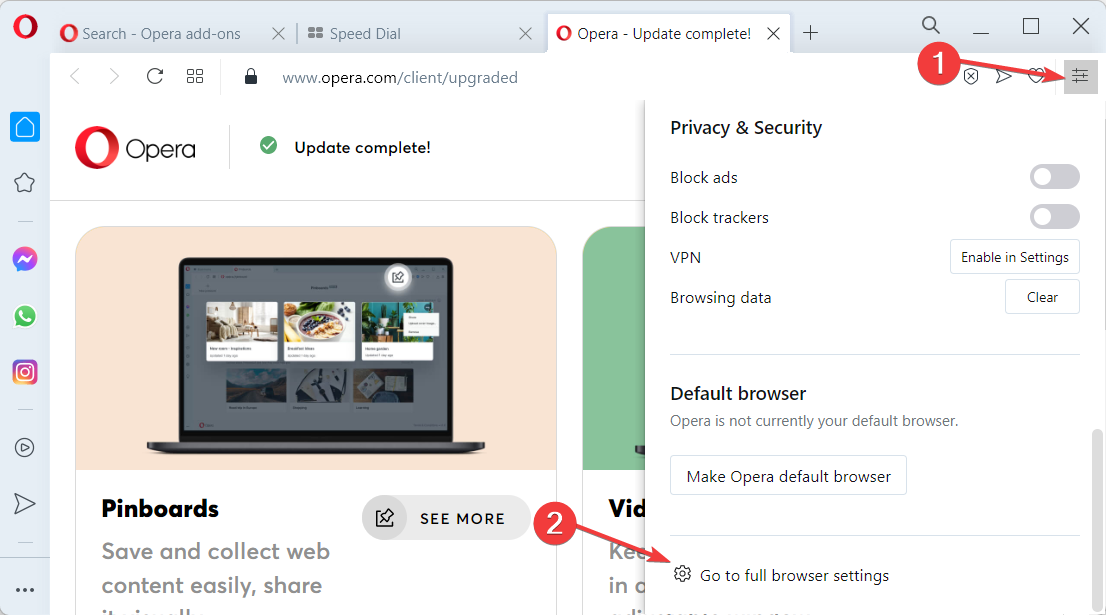
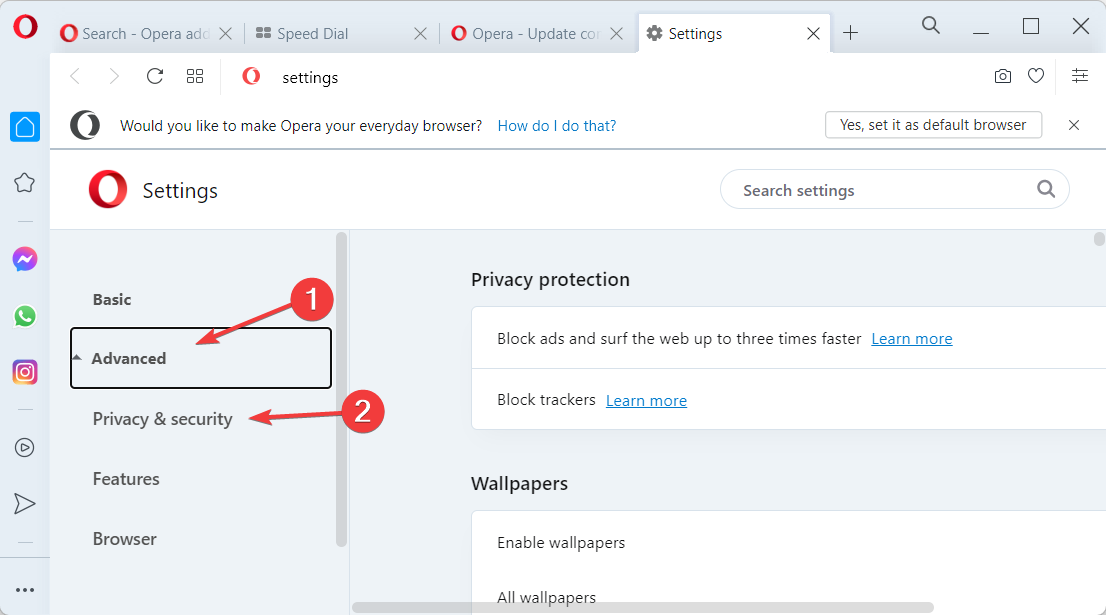
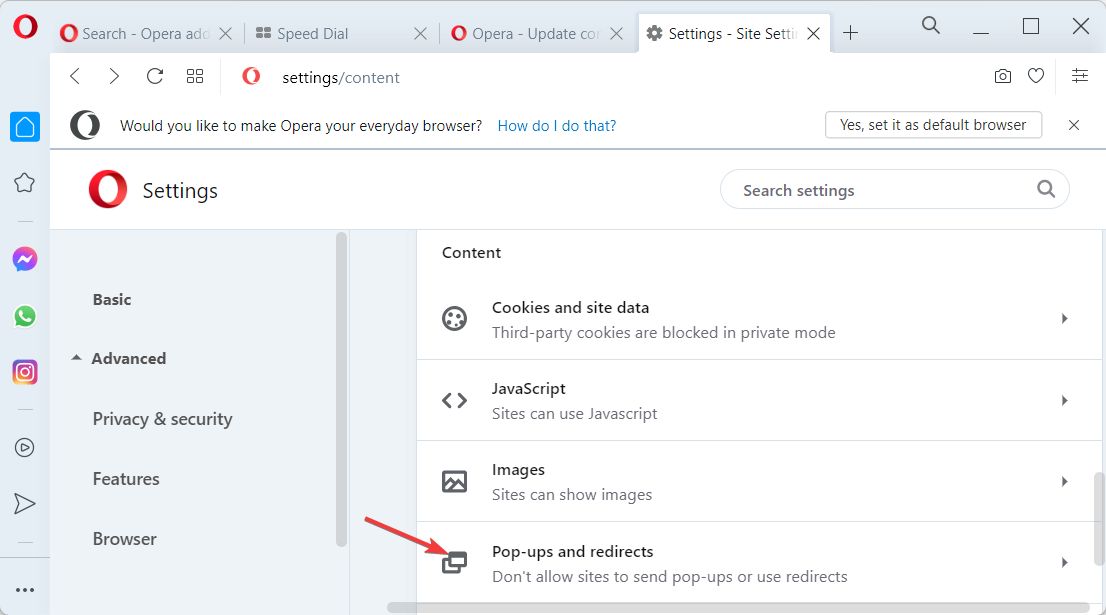
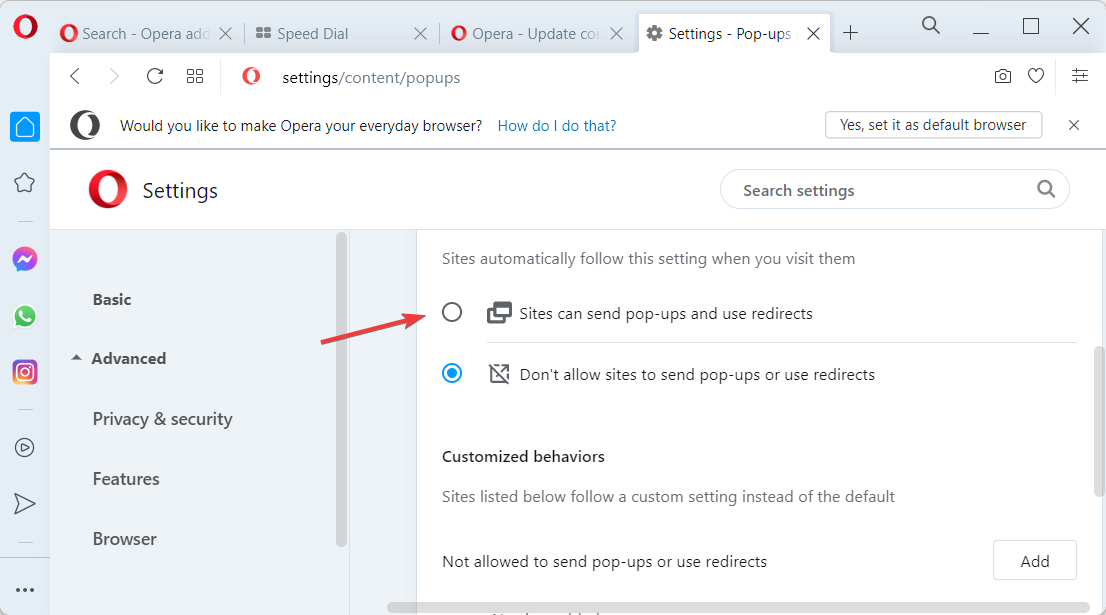
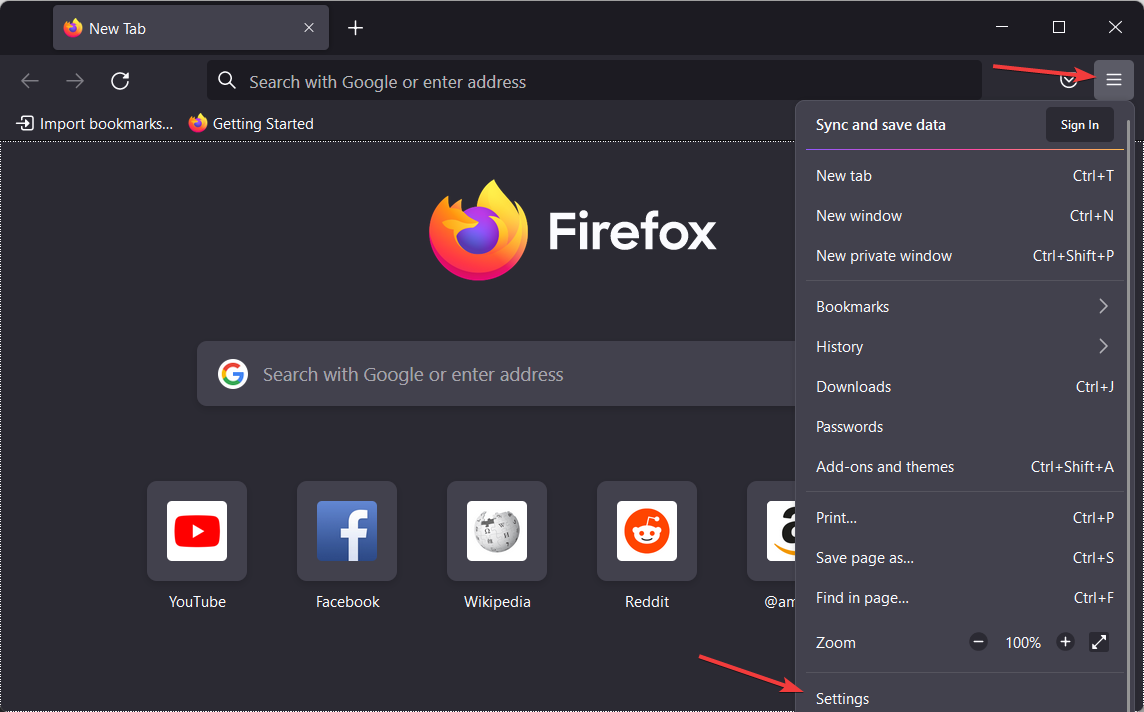
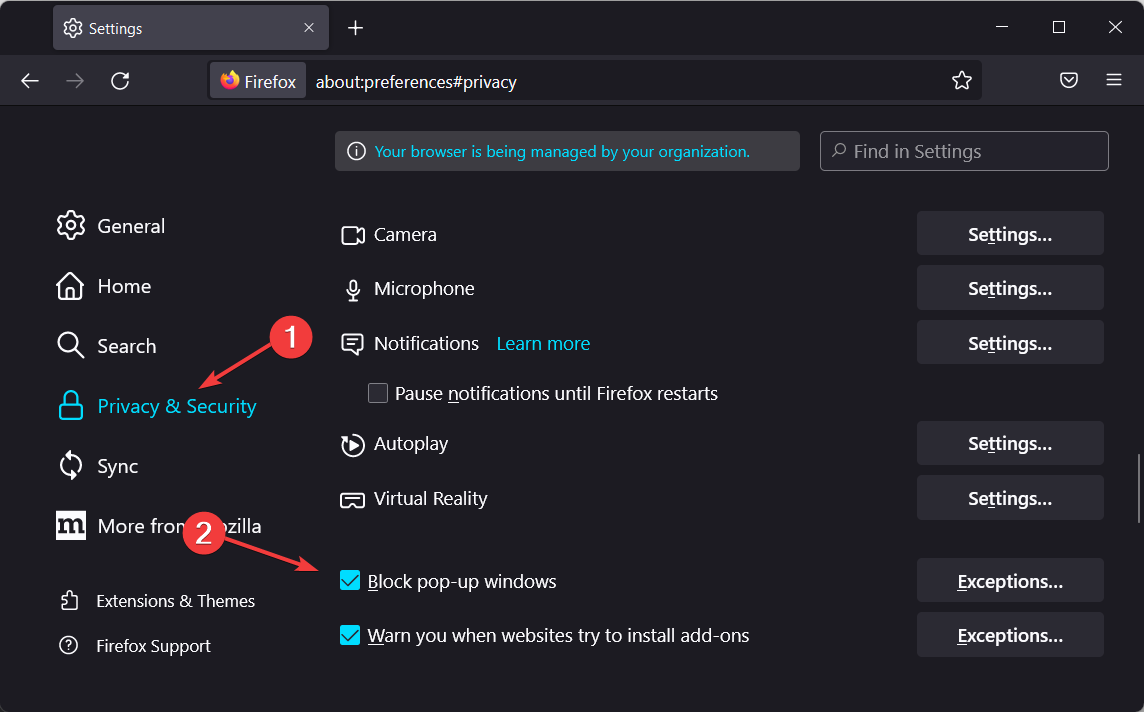
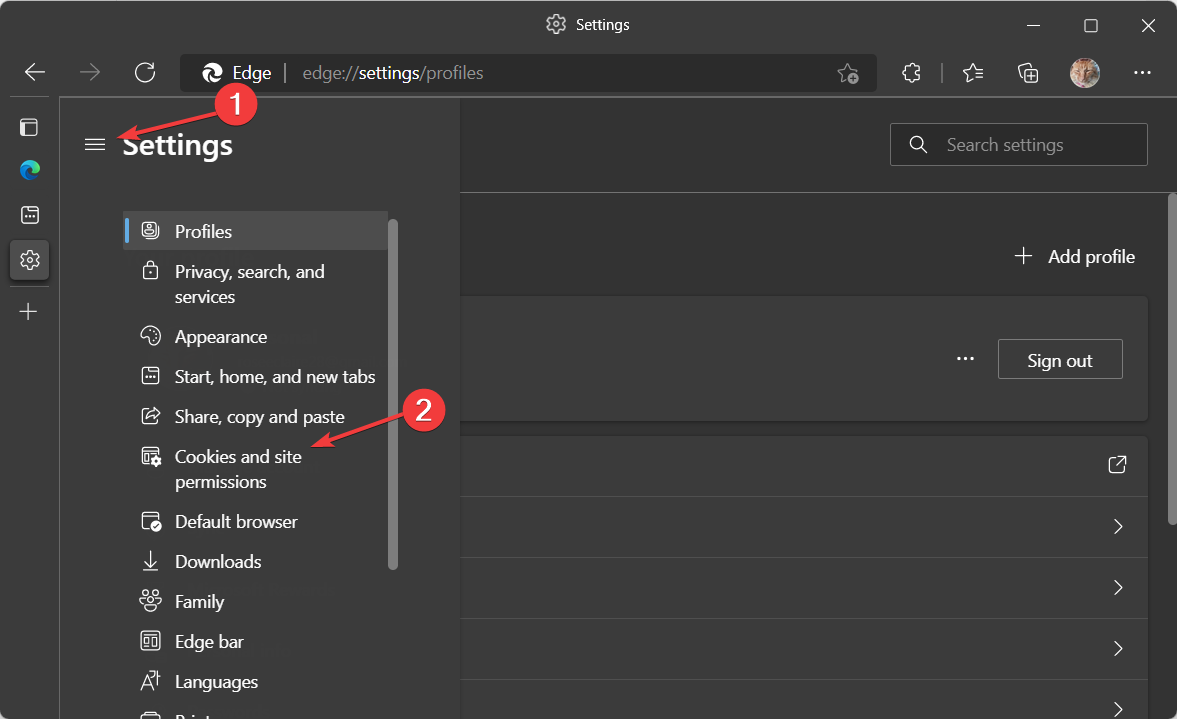
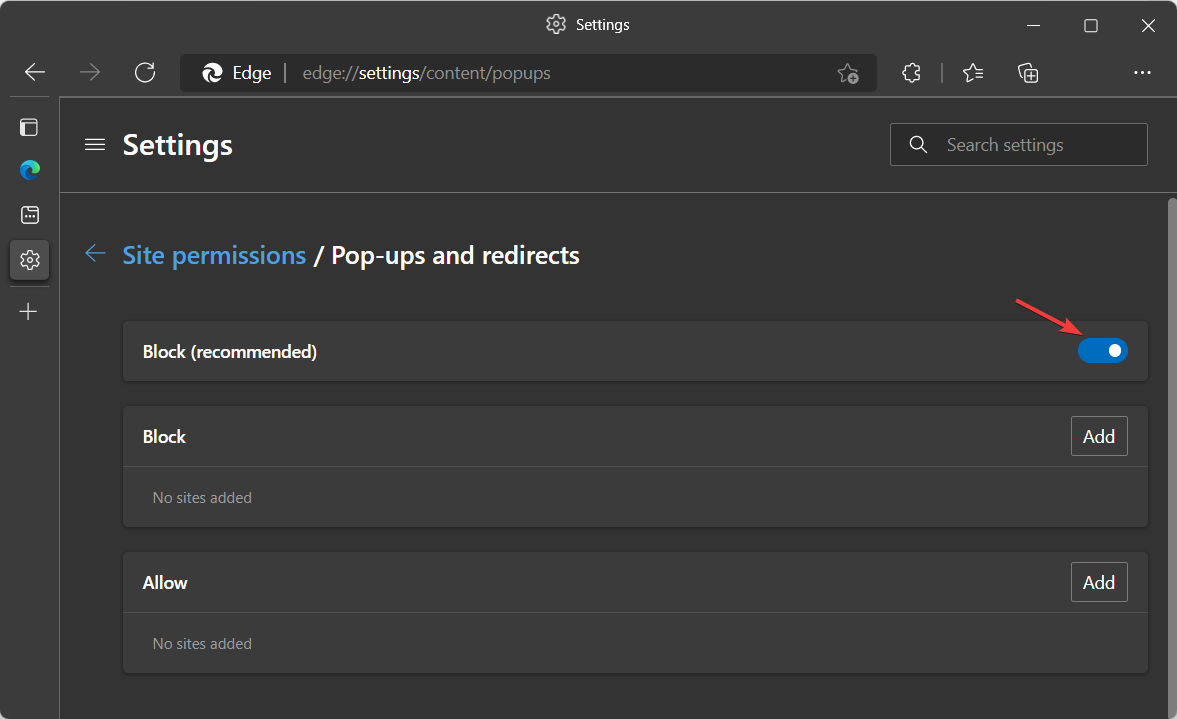
![How to Enable Redirects in Your Browser [Chrome, Safari, Opera]](https://windowsreport.com/wp-content/uploads/2024/02/chrome-settings-big-1.jpg)