How to Backup PS4 Save Data & Game Saves [Easy Guide]

You can have multiple reasons to back up PS4 save data and game saves. However, the most common reason is being responsible with your data to have a backup ready when something goes south.

Sony offers multiple ways to back up your PlayStation 4 saves. You can either use the cloud option that requires a PS+ subscription or go with the more traditional backup to the external drive method.

This article explores how you can back PS4 and save data and games easily.

?️  Quick Tip:

For a hassle-free experience, check out the useful AOMEI Backupper, as it allows you to easily create a complete backup of your PlayStation 4 hard drive on your external hard drive.

This powerful tool becomes essential if you plan to upgrade to an SSD from your old PlayStation HDD, so download it by clicking the button below.

AOMEI Backupper

Try this lightweight but powerful software that enables you to create backups of your PS4 hard drives with ease.

How can I backup saved data on PS4?

1. Backup PS4 save data to the cloud

backup PS4 save data
  1. From the PlayStation menu, open Settings.
  2. Next, scroll down and select the Application Save Data Management.
  3. Open Saved Data in System Storage
  4. Select Upload to Online Storage.
  5. Now select the game for which you want to back up the game save.
  6. Press the X button on your control to select the Saved Data.
  7. Once done, click the Upload button (bottom right corner).
  8. Now, repeat the steps for all the games that you want.

You can restore the game data by signing into your PlayStation Plus account on any PS4 console.

Note icon NOTE
Before proceeding with the steps below, ensure you have a PlayStation Plus membership. If not, follow the second step instead.

Setup automatic game data backup

backup PS4 save data
  1. Open the Settings
  2. Select Application Saved Data Management
  3. Scroll down and open Auto–Upload.

You can also select which game saves to upload from the Auto-Upload options.

If you set up the backup option for the first time, it may take a few hours to upload your game data.

Enabling the auto-upload option will allow the PS4 to automatically upload saved data while the PS4 is turned on or in rest mode.

Make sure you have enabled Stay connected to the Internet when in rest mode option for this feature to work. If not, here is how to enable it.

  1. Open Settings.
  2. Select Power Settings.
  3. Open Set Features Available in Rest Mode.
  4. Make sure the Stay Connected to the Internet feature is enabled.

Upload saved data from the game’s menu

backup saved data on PS4
  1. From your PlayStation home screen, highlight any game.
  2. Press the Options button on your controller to bring up the context menu.
  3. Select Upload/Download Saved Data.

Proceed with the on-screen instructions, if any, to successfully backup the saved data for the highlighted game. You need to repeat these steps for other games as well.

2. Manually backup game saves to USB

backup saved data on PS4
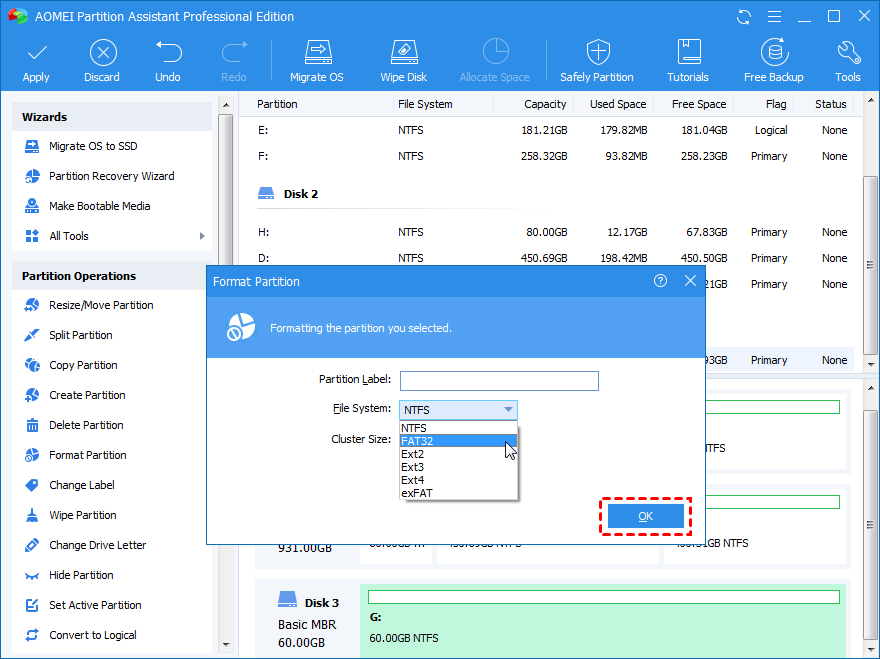
  1. Ensure you format the USB driver to a FAT32 or exFAT protocol.
  2. Insert the formatted USB drive into your PlayStation.
  3. Go to Settings from the menu.
  4. Scroll down and select Application Saved Data Management.
  5. Select Copy to USB Storage Device.
  6. Scroll through and select all the games you want to create a backup.
  7. Click the Copy button (bottom right corner).

That’s it. You can upload the game files from your USB drive to your cloud storage device if you want to have a backup copy.

While storing your PS4 saved data in the cloud on PS Plus offers a convenient and hassle-free experience, the data is only accessible as long as you have a PS Plus membership.

However, having a game data backup stored in your external or USB drive allows you to restore them whenever you want, even if you don’t have internet access.

You can easily backup PS4 save data & game saves using the built-in backup option in your PlayStation 4 console. After you’re done with backing up, you can easily format the PS4 hard drive on Windows 11, if needed.

While uploading the data to the PlayStation cloud is notably easy, having a local copy works even if you don’t have an active PS Plus subscription, which is required to restore the data.

Screen Reading Software for Visually Impaired: 6 Best in 2026

Screen readers are computer software that assists the blind or visually impaired in using computers, by either reading the text that shows up on the screen or by presenting them on a braille display.

Essentially, it serves as a platform for the visually impaired to communicate with their computers. Screen readers can either be instructed to read the text on the screen out loud or to automatically speak out the changes that occur on the screen.

Each screen reader comes with its own unique set of command structures. They are able to perform tasks such as read a word, a line or even a full text, inform the user about the location of the mouse’s cursor on the screen, and tell them what item is being focused on.

Some screen readers can also perform advanced tasks such as reading pre-designated parts of the screen (useful when surfing the Internet), and even reading the items on the cells of a spreadsheet document.

There are several things one must consider before being invested in a particular screen reading software. Firstly, one must be sure that the screen reader is compatible with their computer’s operating system.

Also, since most visually impaired users find the use of braille displays very helpful, the screen reader has to be compatible with them.

One must also check if the software is compatible with the applications that the user most frequently uses. Finally, it is wise to check the command structures and keystrokes of the software beforehand, so as to be sure that they are easy to remember and not in conflict with existing keystrokes.

There are currently several different Screen reading software available for personal computers. Some are free while others can set you back as much as $1200.

What are the best screen reading software tools for PC?

JAWS (Job Access with Speech)

Job Access with Speech, commonly abbreviated as JAWS is the most popular screen reading software in the world. According to a 2015 survey of screen reader users, 30.2% of all users used it as their primary screen reader, while 43.7% reported having used it often. Developed by Freedom Scientific and Distributed by The Chicago Lighthouse, JAWS is able to convert the various components of the Windows operating system into speech, making it possible for the blind or visually impaired user to use the OS.

Here are some of the tasks the user can fulfill using JAWS:

  • Surfing the Internet
  • Reading text out loud from the computer screen
  • Reading e-books and other articles
  • Word processing
  • Telecommunications

JAWS supports all the versions of Windows since Windows Vista. In order to operate, it requires a minimum of 1.5 GHz of processor speed and 4GB of RAM. Also a Windows compatible sound card is a must. It supports Braille displays as well as speech synthesizers as it’s output devices.

There are two different versions of JAWS: the Home edition, which is for non-commercial use, and the professional edition, which is designed for commercial use. The suggested price for the Home edition is $900, whereas the suggested price for the Professional edition is $1,100. The product comes with a 30-day money-back satisfaction guarantee, and a limited 90-day warranty for manufacturing defects.

Download JAWS


NVDA (NonVisual Desktop Access)

NonVisual Desktop Access, commonly abbreviated as NVDA, is a very popular free screen reader. Its developers claim that their goal is to enable the blind and the vision impaired to use computers with ease. It can either read out the text on the screen via a computerized voice, or convert and present it as braille, via a braille display. Users can control what is read by moving the cursor across the screen.

Users can either download the software to their PC or upload it on to a USB stick and use it with any computer they want.

Here are some of the unmissable features of NVDA:

  • Since it is free, you can use it at work with no cost to your employer
  • Makes operating email, messaging and social networking websites and apps easier
  • Helps with online tasks such as online shopping, banking and transport info
  • Supports word processing, Powerpoint, Excel and more
  • Helps with Internet research, news, online curriculum and e-books

NVDA supports all 32-bit and 64-bit versions of Windows since Windows XP, all the way up to Windows 10. This includes the server operating systems. NVDA required at least 1.0 GHz of processor speed, 256MB of RAM and 90 MB of storage space to run smoothly. That makes it pretty light-weight compared to the other entries on this list.

Unlike most screen readers, which are ridiculously expensive, NVDA is completely free to download and use. It’s developers claim that it’s been downloaded over 70,000 times, in 43 different languages. They encourage users with means to donate to the project. This donation helps support the developers who work to keep the system up to date, and also makes sure that the software remains free.

Download NV Access


COBRA

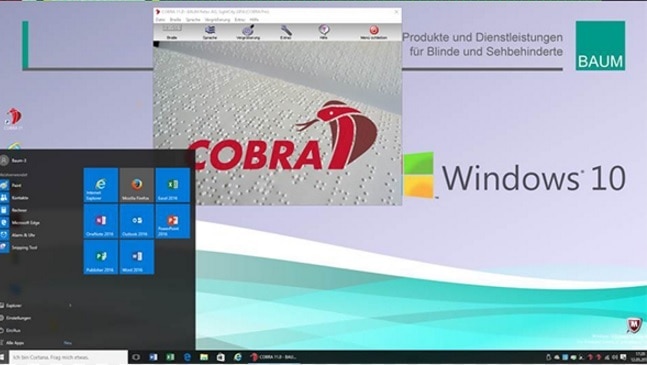
COBRA is another popular paid screen reading software. It allows the user to modify their desktops as per their needs, defining features you frequently need, in order to create a productive work environment. Customized functions also allow for a more efficient workflow. COBRA is currently available in two different versions: COBRA 11 for Windows 8 and 10 users, and COBRA 10 for Windows 7 (32- and 64-bit), Windows XP (32-bit) and Vista (32-bit).

Here are some of the features of COBRA:

  • Easy and intuitive operation
  • Supports MS Office 2016
  • Clean and natural-sounding speech synthesizer
  • Free updates for up to 4 years
  • Supports speech, braille, and/or magnification for output

In order to run COBRA you computer must have a minimum of 2 GHz of processor speed (with Dual Core or higher processing speed recommended), 4GB of RAM, at least 2GB of hard disk space and a Windows compatible sound card with the latest driver.

Each version of COBRA comes in three different avatars: COBRA Zoom, COBRA Braille, and COBRA Pro. COBRA Zoom is priced at $649, COBRA Braille at $749, while COBRA Pro is priced at $849.

Download COBRA


Dolphin Screen Reader

Dolphin Screen Reader, developed by Dolphin Computer Access Inc., is another popular paid screen reader. It was formerly marketed as SuperNova Screen Reader. Its speech and braille access makes it possible for the blind or visually impaired user to be in complete control of their computer.

Here are some of the notable features of Dolphin Screen Reader:

  • Has natural-sounding text-to-speech voice, that can read documents, articles, emails etc.
  • Its Dolphin Cursor and Item Finder makes it easy to know what’s on the screen.
  • Speak out characters and words as you type them, hence increasing accuracy.
  • They can scan and read (via OCR) various paper documents and PDFs.
  • Supports speech and braille for output

In order to run Dolphin Screen Reader, one needs a computer with a processor speed of 1.5 GHz or faster, a minimum of 2GB RAM, 5GB of storage space, and a Windows compatible sound card with speech output. It supports tablets, laptops and desktop computers running Windows 7, 8, 8.1 or 10.

Dolphin Screen Reader can either be bought under a single user license or a multiple-user license. The single user version of the software, which is ideal for personal use, costs $955. The multi user license costs $955 for the first user and $685 for each additional user. The multi-user license is ideal for organizations that are looking to provide access across single or multiple networks. Dolphin Screen reader comes with a Software Maintenance Agreement (SMA) for updates. The upgrades are delivered to your inbox.

Download Dolphin Screen Reader


System Access

System Access, developed by Serotek Corporation, is one of the more affordable screen readers for Personal Computers. It provides blind or visually impaired users full access to the Windows environment. It supports the numerous applications, including the likes of Adobe Reader, Outlook Express, Skype, and Microsoft Office.

Here are some of the notable features of System Access:

  • Makes it easier to browse the Internet
  • Natural sounding text-to-speech voices with NeoSpeech
  • Free software upgrade
  • Free technical support

System Access is relatively cheaper compared to the other paid screen reading softwares. System Alone Standalone sells for $399, whereas for $499 you can get System Access Mobile. System Access Mobile is also available for $21.99 a month.

Download System Access


ZoomText

ZoomText is a paid screen reading software for the blind or the visually impaired developed by Ai Squared. It is available in three different versions:

  1. ZoomText Magnifier: Enlarges and enhances everything on the computer screen to perfect clarity.
  2. ZoomText Magnifier/Reader: Does everything ZoomText Magnifier does, and also reads out text from the screen.
  3. ZoomText Fusion: Does everything Magnifier/Reader does, and also functions as a full screen reading software.

Here are some of the important features of ZoomText:

  • Free technical support, even for the Trial version
  • Touch screen support
  • Crystal clear magnification, from 1.25x all the way up to 60x
  • Reads everything on the computer screen out loud
  • Lets you customize your views (change colors, contrast etc.

There are three different versions of ZoomText available: ZoomText Fusion, which costs $1,200, ZoomText Magnifier/Reader, which costs $600, and ZoomText Magnifier, which costs $400. Ai Squared also offers paid in-person training, paid certification programs and free webinars on ZoomText.

Download ZoomText

You’ve reached the end of our list. The tools listed above are great for the blind or visually impaired, allowing them to use computers and connect to the world.

If you have used other screen readers that you think we should add to this list, let us know in the comments below.

Barcode Scanner for Windows: 5 Best to Use in 2026

When we want to decode the details of a barcode and do a search for the item, we often can’t find the right tool. You can now easily avoid such situations by turning your Windows 10 device into a barcode scanner.

What are the best Windows 10 barcode scanner tools to use?

QR Code and Barcode Reader

QR Code and Barcode Reader windows 10


QR Code and Barcode Reader is perhaps the most comprehensive barcode scanner software when it comes to reading barcodes. Using this app is very simple, all you need to do is point your computer webcam on a code and the details will show immediately at the bottom of the app bar. QR Code and Barcode Reader, as its name suggests also offers the possibility to read codes located on images and even save them in the “Catalog” if you need to use them later. You can also scan codes from images stored on your device.

Apart from barcodes, the tool also supports the following content types: URL, Windows Store URL, contact information and business cards (vCard, meCard, bizCard), email messages, SMS, WiFi, and SEPA Credit Transfer (Giro Code).

You can buy QR Code and Barcode Reader for $2.49 from the Windows Store.

One Scan QR Code

scan barcode reader windows 10

One Scan QR Code is a fast and user-friendly QR reader and barcode scanner. It’s easy to use, simply install it, turn on your computer’s camera and you’re ready to go. One Scan QR Code is a very reliable app, it catches even blurry barcodes, and it doesn’t bring any unwanted ads.

Scan recognizes all of the popular barcode types (UPC, EAN, and ISBN) and shows you pricing, reviews, and more. However, barcode scanning requires a high-resolution camera in order to work reliably as older devices don’t usually provide the resolution or focus required for barcode scanning.

One Scan QR Code also keeps the history logs and pictures of all of your past scans and allows you to customize how it works in Settings.

⇒ Get One Scan QR Code

BcWebCam

BcWebCam barcode scanner windows 10

This free barcode scanning tool instantly scans your barcode and displays the results online. You can simply install the app and use your webcam to scan the barcodes, there is no need to customize any settings. Start bcWebCam, place the cursor in the target field of your app, and hold the barcode in front of the camera. The barcode will be read automatically.

The only disadvantage of BcWebCam is the limited list of supported codes, which include only EAN 13 and EAN 8. However, you can use this tool to read QR codes used in magazines and web sites.

You can download BcWebCam for free from the tool’s official page.

Free Barcode Scanner & Reader Software

Free Barcode Scanner Reader Software

Barcode Scanner Software is a free barcode reader software that supports reading and scanning 10+ linear barcode types and QR Code, Data Matrix, and PDF417. It supports the following file formats: GIF, JPEG, PNG, and TIFF files.

Recognizing barcodes from images is simple: all you need to do is click on BarcodeLabelsScanner.exe to launch the app, choose your barcode type in your scanning image, then click on the button “Load Barocd Image” to open your reading image. The software will scan the image, and display the barcode value in the bottom text box.

You can download the Barcode Scanner and Reader Software for free from OnBarCode.

Scandit Barcode Scanner

scandit barcode scanner windows 10

The latest version for this tool, Scandit SDK 4.10 offers support for UWP apps, which means that you can use it on both Windows 10 PC and Mobile. Thanks to Scandit, you can now turn your Windows 10 device into an enterprise-grade barcode scanning and data capture tools.

This tool is very reliable, and is able to decode barcodes even in the low light environments. Skewed angles, blurry, damaged, and small barcodes are all decodable even on low resolution cameras. Scandit can also deal with barcodes in motion and multiple barcodes at once.

The tool uses a wide software data base, allowing it to support a plethora of barcode types inclusing: UPC-A / UPC-E, EAN-8 / EAN-13, EAN-2 / EAN-5, Interleaved-Two-of-Five, Code 39, MSI Plessey, GS1 Databar and more.

Of course, Scandit’s price tag reflects its value and reliability. You can purchase the tool for $199.00 for a monthly subscription, or $1,999.00 a year and you can install it on up to 100 devices.

FAQs

What is a barcode scanner for Windows?

A barcode scanner for Windows is a hardware or software tool that reads and decodes barcodes on products, documents, or digital screens. It sends the decoded data directly into Windows applications like Excel, Word, or inventory systems.

Can I use my PC camera as a barcode scanner?

Yes. Many apps allow you to use your PC’s webcam to scan barcodes. Simply install a Windows-compatible barcode scanner app, grant camera access, and point your webcam at the barcode to capture it.

Which barcode formats are supported on Windows scanners?

Most barcode scanners for Windows support popular formats such as UPC, EAN, QR codes, Code 39, and Code 128. Some advanced scanners also recognize Data Matrix and PDF417 codes used in logistics and ID cards.

How do I connect a barcode scanner to my Windows PC?

You can connect a barcode scanner via USB, Bluetooth, or Wi-Fi. Windows usually detects it automatically as an input device, so scanned data appears wherever your cursor is active (like typing text).

As you can see, the barcode reading apps listed in this article can be used for various purposes. You can install a free barcode reading tool if you’re planning to only use the software occasionally.

If you’re looking for professional barcode scanner software, then you should purchase the Scandit Barcode Reader.

If you’re looking to design and print your own barcodes, check out this guide on the best software to create barcodes. It covers powerful Windows tools that let you generate professional barcode labels quickly and integrate them with your existing inventory or retail systems.

Server Mirroring Software: 5 Best to Use [Out of 15 Tested]

Server mirroring is a network management process in which a full duplicate copy of a server is established for backup purposes. Organizations need to keep server backup copies in the event that something happens to their primary servers.

To do that, organizations need server-mirroring software, otherwise known as disk-cloning utilities. Disk-cloning utilities enable users to establish an exact image clone of hard drives.

However, standard edition disk-cloning software might not be enough for enterprise users with servers. Thus, some disk-cloning utilities have server (or advanced) editions that are more specifically tailored for enterprise users.

What is the best server-mirroring software?

Acronis Cyber Protect Home Office

Acronis Cyber Protect Home Office is a chock-a-block with handy backup and restore features. It doesn’t have a server edition, but the full disk-imaging options in the Advanced and Premium editions will be sufficient for business users.

One good reason to consider this tool is the enhanced protection offered by the antivirus functionality added to the back-up feature.

While not particularly marketed as an antivirus tool, Acronis still offers ultimate protection against any type of cyber-criminals.

Acronis Cyber Protect Home Office Advanced and Premium editions boast a Duel Protection feature that enables users to replicate a disk image copy to the cloud for an online copy.

In addition to its clone disk tool, this software also incorporates handy disk clean-up, rescue media builder, SD storage and mobile device backup, and system restore utilities.

Acronis Cyber Protect Home Office

Intuitive and reliable back-up tool, combined with an efficient antivirus function.
Check price Visit website

AOMEI Backupper Server

software mirroring tools

This is the server edition of the AOMEI Backupper software that’s more specifically for Windows Server platforms from 2003 to 2019.

Although this is advanced backup software, it’s one of the most simple and straightforward utilities to utilize for various backup types.

You can choose from System Backup, Disk Backup, Partition, and File Backup options, depending on your needs.

AOMEI Backupper Server enables incremental & differential backups, and it also incorporates handy options for backup scheduling.

Using the Restore & Clone features, you’ll be able to retrieve the entire OS or only part of it in case of total damage. The cloning process is efficient and quick, with no impact on other active processes.

AOMEI Backupper Server

A complete solution for data protection, cloning, and recovery for small and mid-size businesses.
Check price Visit website

Paragon Backup and Recovery

OS mirroring tools

Paragon Backup and Recovery is among the most highly rated disk-cloning utilities. Enterprise users will need the Backup and Recovery Business edition that supports Windows Server.

With this utility, users can set up backup images for disc, secure hard drive partition, or network drive storage.

Being a flexible backup software, users can set up custom backup parameters such as one-time back-ups, separate, partial, or full back-up and more.

Paragon’s business package also includes additional features for virtual machine operations, such as migrating or backing up virtual systems.

The tool uses a Set & Run technology that allows for easy set and run automated backup jobs, with minimum intervention on your side. 

Paragon Backup and Recovery

Paragon Backup and Recovery

Create your own system back-up and restoration schedule with this intuitive and flexible tool.
Free trial Visit website

EaseUS Todo Backup Enterprise

best server backup tools

EaseUS Todo Backup has had some rave reviews. This backup utility comes in four versions, which include the Enterprise edition for both small and large businesses.

With support for a wide range of server platforms and storage devices, this is one of the most comprehensive disk-cloning utilities.

EaseUS Todo Backup incorporates tools for system, disk partition, file, and even email backups along with a system clone utility.

Enterprise edition users can utilize the software for Windows Server, SQL Server, and Exchange Server backup and recovery.

The EaseUS Todo Backup commercial editions also incorporate virtualization tools for migrating servers to virtual machines.

”EaseUS

”EaseUS

”A
”Free
&subid2=Native” current_url=”false” button_text=”Visit website” image=”https://windowsreport.com/wp-content/uploads/2019/11/EaseUS-Todo-Backup-210×160.jpg”]

Macrium Reflect Server

Macrium reflect server

Macrium Reflect Server is another disk-cloning utility specifically designed for business server mirroring. This is a reliable utility that will eclipse the requirements of most organizations.

With Macrium Reflect Server, you can back up an entire non-virtual or virtual servers to an image file in just a few clicks. The utility wizards guide you through the process, only to add to the intuitive drag and drop UI design.

This software enables users to set up and launch Microsoft Hyper-V virtual machines with instant virtual booting, which is a great feature. Macrium Reflect Server also boasts Rapid Delta tech for both faster cloning and recovery speeds.

⇒ Download Macrium Reflect

These are some of the most highly rated server-mirroring software for Windows platforms. They’re ideal utilities for cloning hard disks that will also come in handy for more general folder and file backup purposes.

Home users who don’t need to mirror servers can also check out the freeware editions of those image backup utilities.


FIX: An old HDD is not showing up in Windows 10/11

Here’s the scenario: you added a brand new HDD or SSD and installed Windows 10 on that dedicated partition. You decided to keep the old IDE HDD as a storage drive.

This would be the standard, non-stress procedure but the old and sturdy HDD suddenly disappeared and it is nowhere to be found. It just won’t show up in Windows 10.

This seems to be a common problem for a lot of users that undergo exact or similar scenarios. Luckily, when there’s a problem – there’s a solution.

Or a few of them, to be exact. If you faced the same situation as many others, make sure to check the steps provided below.

What can I do if my old HDD disappeared after an upgrade?

  1. Format the HDD and create a new partition
  2. Check hardware
  3. Inspect BIOS and Disk Manager

1. Format the HDD and create a new partition

This might seem like a rather radical solution since it involves forgetting about the old HDD. But if you have a backup of your data on an alternative machine or device, you can transfer it later in no time.

At least, with the formatting, you’ll be able to use the old HDD just like before and increase the PC storage space substantially.

To make sure you’re getting all the steps right, we recommend a dedicated tool to help you with the process, namely AOMEI Partition Assistant.

AOMEI is a multifunctional assistant, that will manage, partition, and optimize your hard drive according to your needs.

If you have a backup, as mentioned, you can use AOMEI to split, move, resize and manage your partitions, without data loss, to make the most of your disk space.

On the other side, without a backup, the Partition Recovery tool would be the first to use, since it recovers lost partitions. Afterward, you can manage the data as mentioned.

Other useful features of AOMEI are Rebuild MBR, Windows to Go Creator, Disk Cloned Wizard, or Make Bootable Media.

AOMEI Partition Assistant

AOMEI Partition Assistant

Safe all-in-one partition assistant to recover lost partitions, or resize, optimize, or move them, to optimize your PC performance.
Check priceVisit website

2. Check hardware

why is my old hdd lost after upgrade

A basic check-up is always a good idea. So, confirm that the HDD is properly plugged in. Make sure that HDD is connected with both the power supply and motherboard data cable.

Also, make sure that you have the right means to run the 3.5-inch drive. If your motherboard doesn’t support IDE, you can always get a converter and plug it in as a USB drive.

Additionally, there’s also the health question. In order to inspect HDD health, you’ll be needing a third-party bootable drive with the diagnostic tool. In this article, we thoroughly explained the diagnostics and monitoring of HDD in the Windows platform. So, make sure to check it out.

If you’re positive that everything is spot on and your HDD is still not visible, try connecting it to an alternative PC. If you’re unable to access your HDD on a different PC configuration, we’re sad to inform you that it’s probably the end of the road for that HDD device.

On the other hand, if it works great on an alternative configuration, move on with the additional steps.

3. Inspect BIOS and Disk Manager

  1. Restart your PC and press repetitively Delete (F2 or F10) on your keyboard to access BIOS/UEFI settings. (These steps can differ so make sure to follow on-screen instructions or Google your motherboard and find out.)
  2. Navigate to the BOOT tab.
  3. If you’re seeing old HDD on the list of available boot devices, we’re good to go.

Furthermore, once we can safely say that the motherboard is recognizing the HDD, then the system is the problem. And that’s where the Disk Manager utility comes in handy.

Before we start meddling with this tool, we need to draw your attention that misusing this tool will cause more damage to your OS. So, follow the steps closely and we should be good to go:

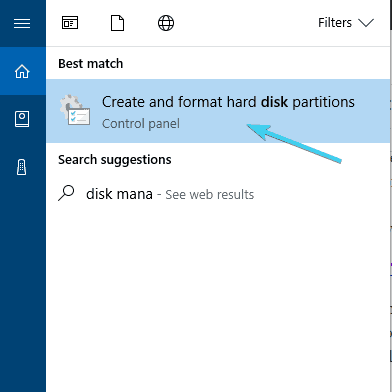
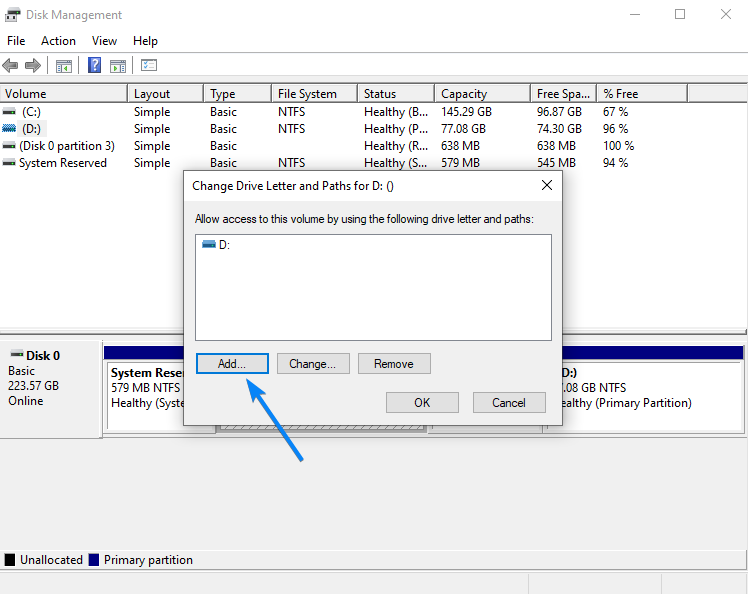
  1. In the Windows Search bar, type Disk management and open Create and format disk partitions.old hdd not showing up
  2. Locate the troubling drive.
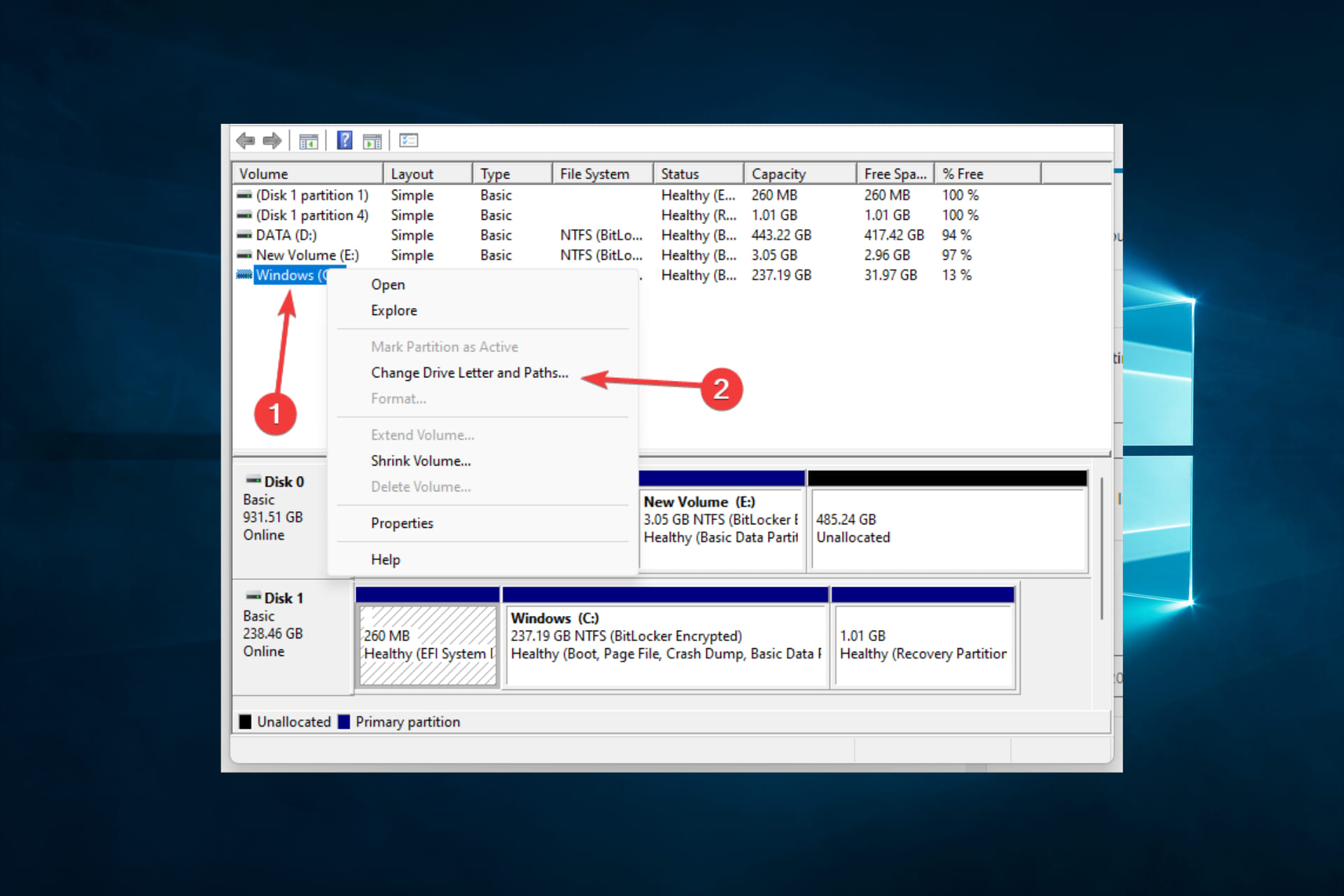
  3. Right-click on it and select Change drive letter and paths.
  4. Click on Add.
  5. Select Assign the following drive letter and grant any available letter to drive partition.
  6. Hit OK.

After that, you should be able to see the brand new drive in This PC. If that’s not the case and your HDD is identified as a drive that’s not initialized and without allocated space, formatting is the only solution.

So these are the solutions we propose to find the missing HDD on your Windows 10 PC. In case you have questions or alternative solutions, the comments section is just below.

FIX: Setup was unable to use the existing partition

I know that many of you tried to roll back to a previous Windows version at one point or another. In this case, we are going to talk a bit about rolling back from Windows 10 to Windows 7 or Windows 8.1.

In this article, you will learn what you can do in order to fix Windows 10 and get rid of the error message Setup was unable to use the existing partition because it does not contain the required free space.

Usually, the error message appears when you have additional hard drives connected to your device or the partition you are trying to install Windows 10 on is not completely blank.

First of all and most importantly, you will need to create a backup copy of your current files, folders, and any other important documents to prevent any future issues before attempting the steps below.

How do I fix an existing partition that cannot be used?

  1. Format the problematic partition
  2. Unplug all peripherals
  3. Remove all partitions
  4. Create a new boot partition

1. Format the problematic partition

1.1 Format the partition using the installation media

  1. Turn on your Windows 10 device.
  2. After the device started, insert your Windows 10 Installation Media into the CD or DVD ROM.
  3. Reboot your Windows device with the installation media inserted.
  4. It will ask you to press any key to boot from the CD or DVD.
  5. Follow the instructions and press any key on the keyboard to boot from the CD or DVD.
  6. In the first window that appears from the installation media, select your language.
  7. After you are done, click on the Next button.
  8. Select the Install Windows button.
  9. In the Enter the product key to activate Windows window, type the Windows 10 product key.
  10. The next page will be Please read the license terms
    • Simply need to check the I accept the license terms box and then hit Next.
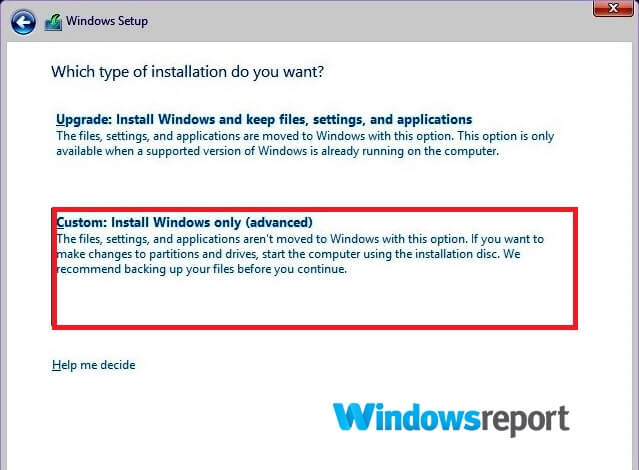
  11. The system will now ask you which type of installation you prefer.
  12. Click on the Custom button.
  13. You will be prompted to provide the location where you want to install Windows.
    • Select the Drive options (advanced) feature.
  14. Select the partition where you want to install Windows 10.
  15. Click on the Format feature and keep following the on-screen instructions.
  16. After you are done, select the Next button.
  17. Follow the on-screen instructions and finish your Windows 10 install process.
  18. Reboot your device once more and you are done.

As explained, after you made the necessary backup copy of your important data, you will need to completely format the partition you wish to install Windows 10 on.

If you don’t know how to create Windows installation media, we have an excellent guide that will help you do that.

You can also use dedicated software to format your partition, just like the one recommended below.

Using this tool will be far much easier than following all of the steps mentioned above.

1.2 Format the partition using a dedicated drive management tool

  1. Download and install the software using the link below.
  2. Launch the program.
  3. Choose the troublesome partition and select Format Partition.
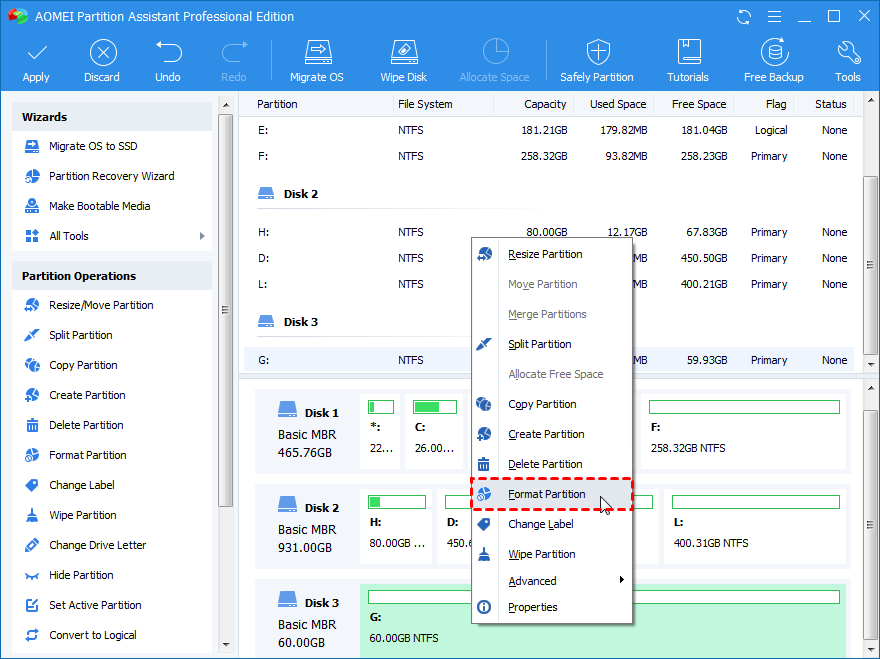
  4. Select the partition settings that include: Label, File system and The cluster size.
  5. Confirm your choices, and then select Proceed.
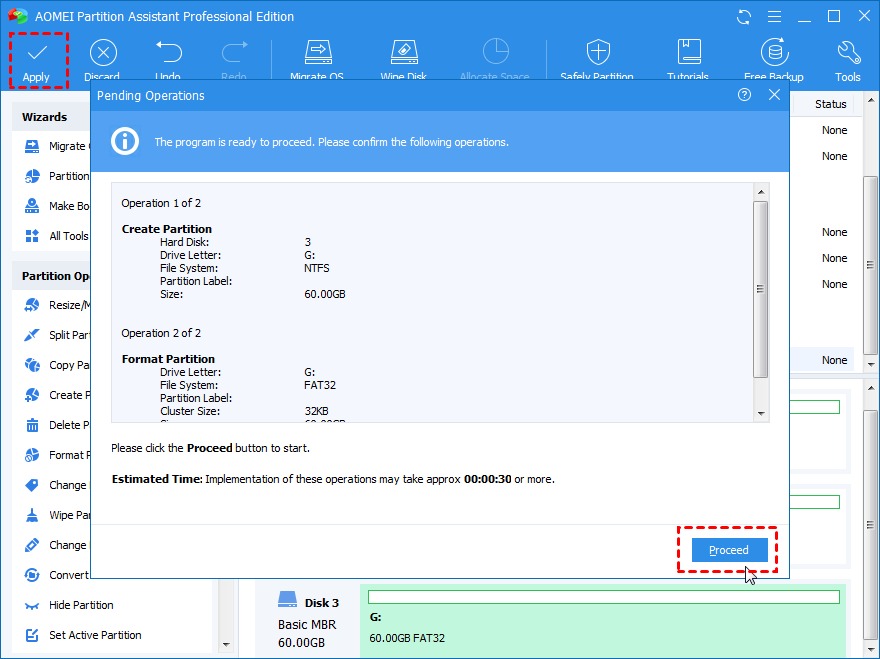
Ultimately, with this specialized partition management software, you get the opportunity to manage your hard drive securely before performing a restore or backup action, thus keeping all the information intact.

2. Unplug all peripherals

  1. Unplug any USB sticks and peripherals that might be connected to your device.
  2. Reboot your Windows 10 operating system without plugging in any of them.
  3. Try running the setup process again and see if you still get the same message telling you that you do not have enough free space.

Although it seems unusual, the connected peripherals can lead to this issue so unplugging them is a smart decision.

3. Remove all partitions

  1. Open the partition selection screen, disconnect the USB drive and select Next.
  2. The error message Windows is unable to install to the selected location should appear on the screen.
  3. Now, simply plug your USB drive back in and click Refresh, and then Next.
  4. The process should resume.

Some users confirmed they quickly solved this problem by removing all partitions on the drive and unplugging the USB drive so follow the steps above to do so.

4. Create a new boot partition

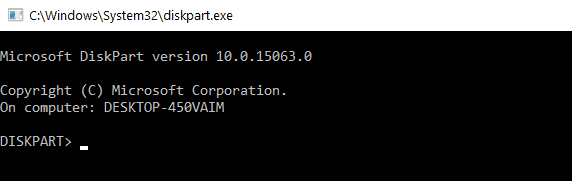
  1. When the setup error pop-up appears on the screen, go to Start, enter diskpart.exe, and press Enter.
  2. In the Diskpart window, type the following commands:
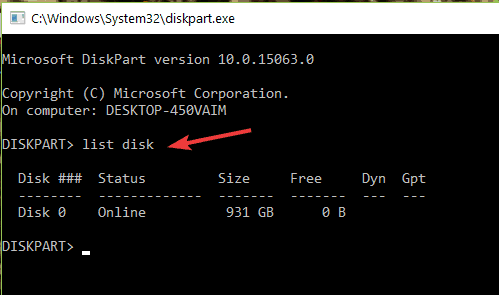
    • list disk – this will list all the disks available on your computerlist disk command
    • select disk=0 – keep in mind that disk 0 is your destination drive and all data stored on this drive will be deleted.
    • create partition primary size=x – Replace x with the actual size of the new partition.
    • select partition=1
    • active
    • format fs=ntfs quick
    • assign
    • exit
  3. Open your USB flash drive and copy the files from your USB drive to your C drive.
  4. Run the following commands to make your C: drive bootable:
    • bootsect /nt60 c:
    • bootsect /nt60 c: /mbr
  5. You can now remove the USB drive from your PC.
  6. Restart your machine and go to Windows Setup and click on the Install Now option.

If nothing worked, try creating a new boot partition manually. Although this method may seem a bit complicated, follow the instruction below and you should be able to solve the problem in just a few minutes.

That’s it, the error message Setup was unable to use the existing partition because it does not contain the required free space should no longer appear on the screen.

As this issue can be easily solved by correctly partitioning your drives, check out the best partitioning software tools that can help you quickly manage your drives.

If you need additional help, you can use the comments section below and we will help you further as soon as possible.

Automatic Music Organizer: 6 Best to Use in 2026

Because we all love listening to our favorite music, it is very important to be able to organize our music library. This task has become harder than ever in the 21st century because of ever-increasing storage spaces. Today, only one hard-drive can contain millions of songs, which can make sorting out those songs a hard task, even for those of us with great patience.

In this article, we will explore some of the best software options that allow you to organize your library in order to find the favorite songs with ease.

Top 6 best music organizer software

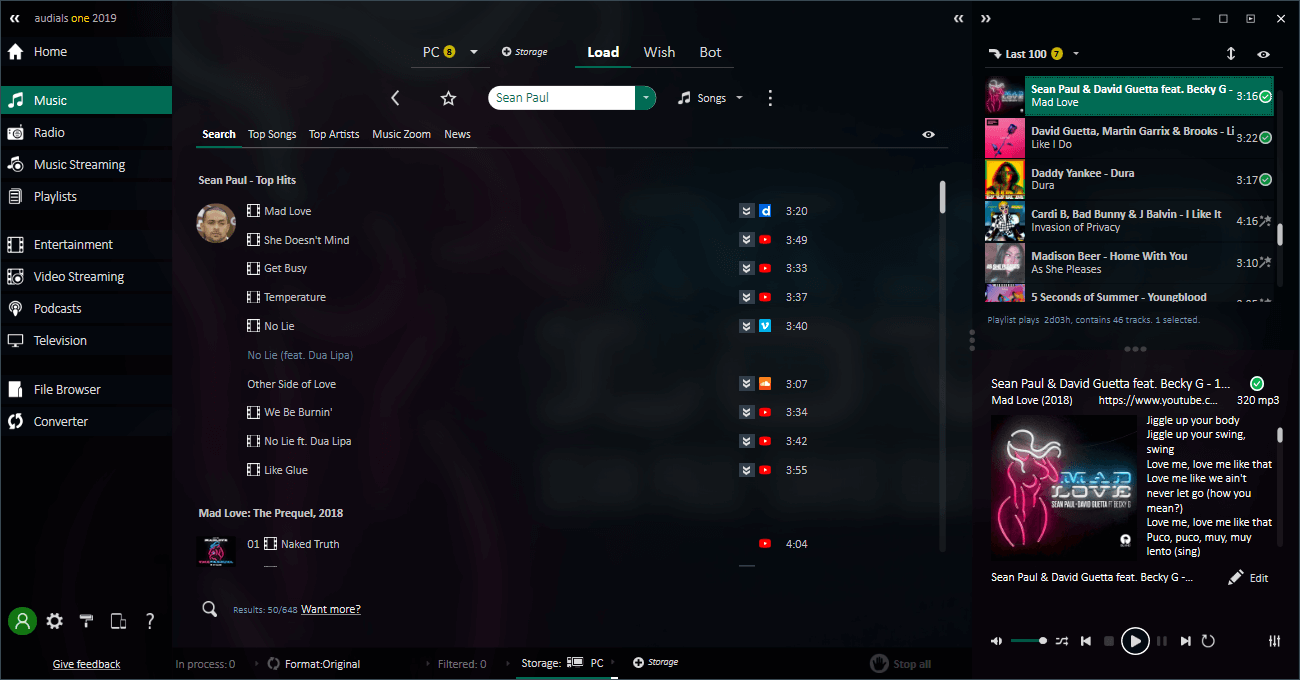
Audials One

Audials One organize music

Audials One is a really powerful and versatile software solution. You can use it stream music, charts, videos, movies, TV series, live TV shows and more in the best quality possible.

The tool offers one of the largest music database with 12,000,000 MP3s by 3,000,000 musicians! In other words, all the pieces of music that you always wanted to listen to, as well as the latest charts are at your disposal.

But navigating through all these files can sometimes be difficult. Don’t worry, Audials One has some very nice music organizing features that allow to quickly organize your music files so as to find them when you need them.

There are very few software solutions that offer so many additional features: podcasts, player, music management, music library, universal converter for all file formats and all devices, you name it.

⇒ Get Audials One

Magix MP3 Deluxe

Magix Mp3 Deluxe - Music organizer

Magix MP3 Deluxe is another amazing tool that allows you to organize your music library. This software can also convert audio files and create playlists.

This software has a wide range of great features. With Magix MP3 you can:

  • Organize your music easily
  • Transfer playlists to smartphones and tablets (Windows & Android)
  • Listen to over 6000 internet radio stations
  • Import and export audio files
  • Ability to rip CDs with automatic cover and title downloads
  • MP3 converter
  • Ability to find & delete duplicate tracks
  • Design CD covers – with quick print feature
  • Sleep timer – you can the timer to turn off Magix and your computer at a specified hour
  • AAC support

⇒ Get Magix MP3 Deluxe 19

MusicBee

MusicBee - Music organizer

MusicBee is a great software option that can be used to play and organize your music library with ease. Its simple user interface makes it accessible to any user, and the powerful features in this program allow you to simplify your listening experience. For detailed setup and compatibility guidance, check out MusicBee for Windows 11, which covers installation steps and optimization tips for the latest OS version.

This music player/organizer has the ability to play online radio, and also supports a wide range of add-ons including theater mode designs, skins, plugins, visualizers, etc.

MusicBee allows you yo adjust your sound with 10-band and 15-band equalizer and DSP effects, has an option for gapless playback, and also supports WinAmp plugins. This allows you to customize the program even further, to fit perfectly to your needs.

⇒ Get MusicBee

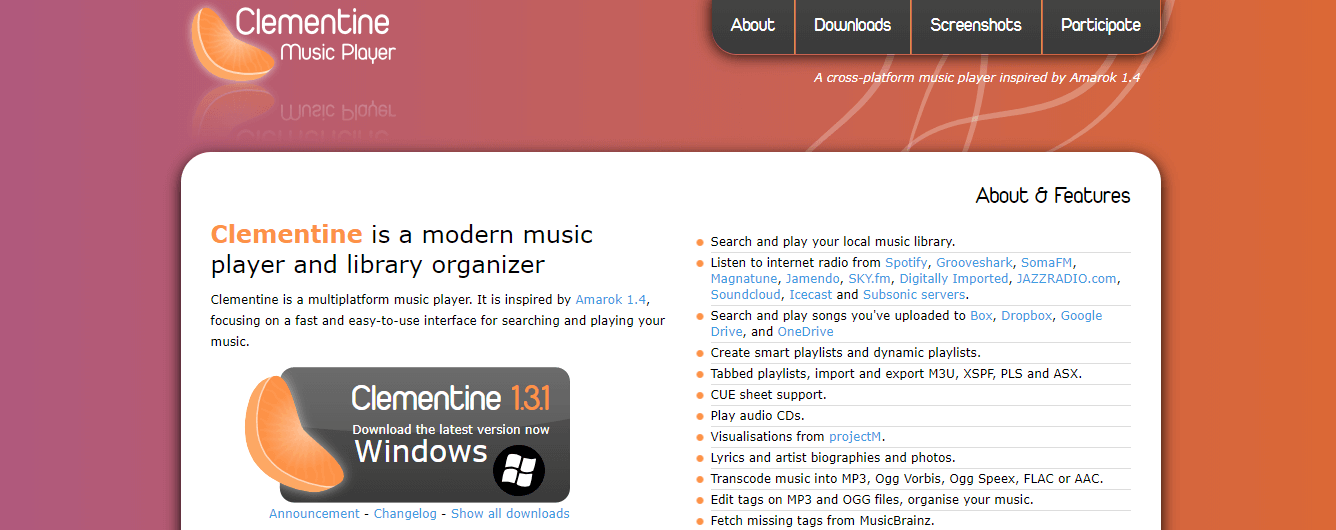
Clementine

Clementine - Music organizer

Clementine is a multiplatform music player that can also help you easily organize your music into folders, playlists, or based on bitrate and genre.

You can use Clementine to listen to the music on your PC, organize it using its tabbed playlists feature, search for metadata automatically, or you can stream radio from services like Spotify, Grooveshark, etc.

Key features include :

  • Listen to songs you uploaded to Dropbox, Google Drive, etc.
  • You can create smart playlists
  • CUE sheet support
  • You can download lyrics and artist biographies
  • Can transform music into MP3, FLAC, etc.
  • Automatically download missing tags from MusicBrainz
  • Can be controlled remotely by using an Android device or the command-line

⇒ Get Clementine

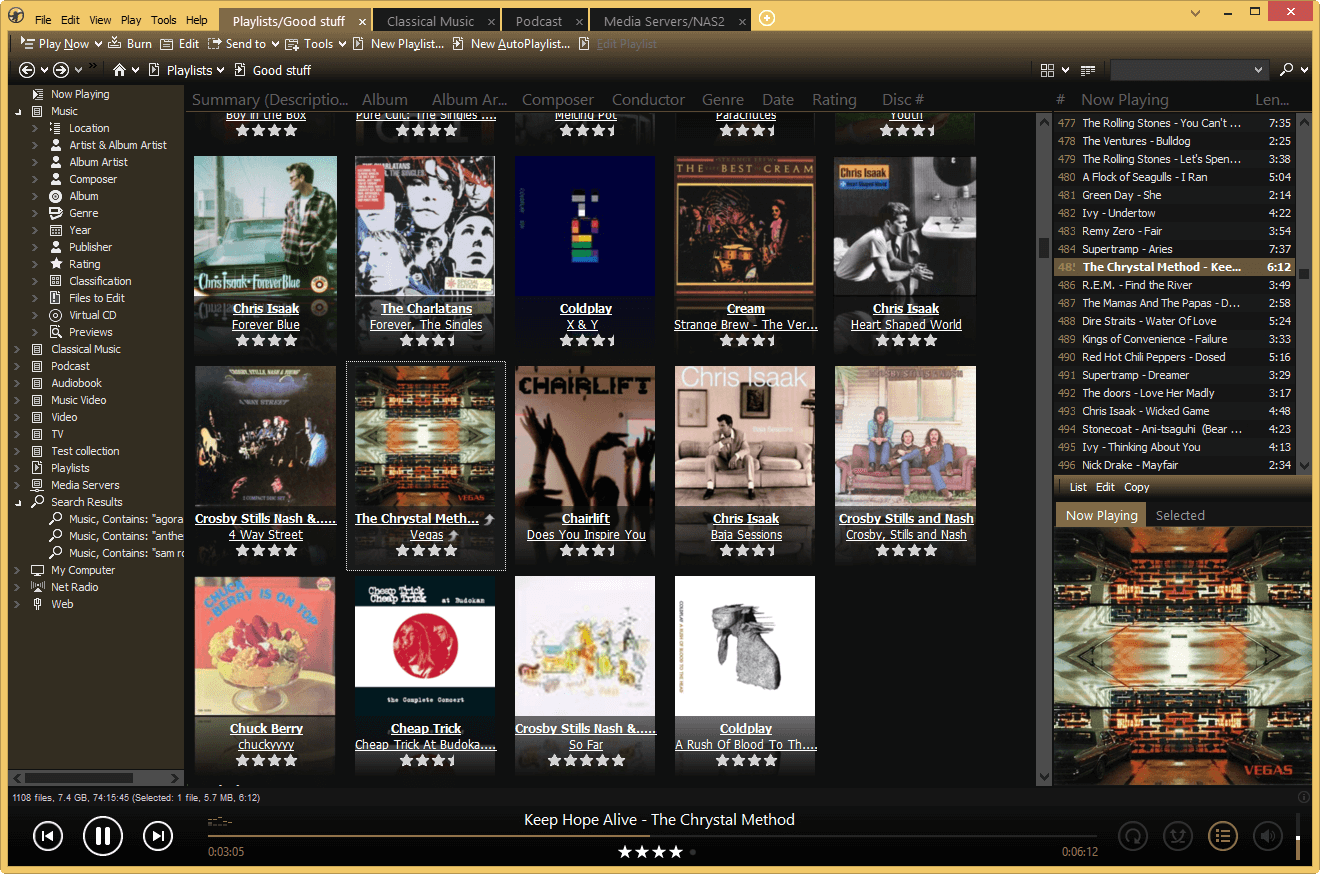
MediaMonkey

mediamonkey - Music organizer 2

MediaMonkey is a great piece of software that makes it easier than ever to sort out millions of songs from your PC. This tool has a powerful yet simple user interface that can help you organize your entire music library, add missing album artwork, find lyrics, etc.

MediaMonkey can manage both big and small collections of audio files from your hard drive, network and CDs. This software can also be easily customized with skins, plugins, visualizations, etc. You can also tag any audio or video format.

The free version of this software has some great features :

  • Manage a great number of music files
  • Record CDs, download music, podcasts, etc.
  • Automatic search for metadata — album art, lyrics, etc.
  • Can manage your library based on music genre
  • Can sync through Wi-Fi with Android devices
  • Ability to convert MP3s, M4A, OGG, FLAC, WMA, etc.
  • Find duplicate tracks and missing Tags

The Gold version of MediaMonkey bolsters all the features provided in the free version with some notable additions :

  • Accurate-rip database – allows you to accurately rip any media and match it to the database
  • Support for customized collections
  • Share to devices using UPnP / DLNA
  • Advanced searches and auto playlist creation
  • Unlimited MP3 encoding
  • Virtual CD / Previews & Sleep Timer
  • Automatic library organizer (as a background process)
  • High-speed conversion

    ⇒ Get Media Monkey

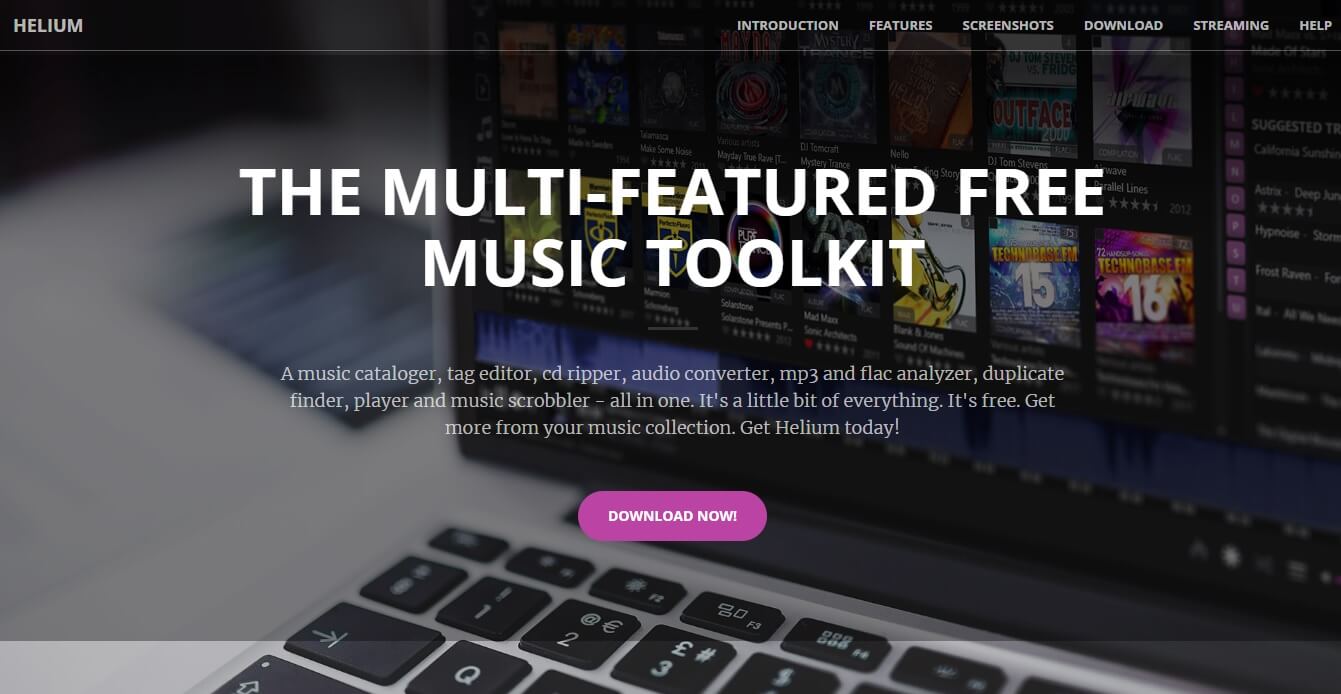
Helium Music Manager

Helium Music Manager - Music organizer

Helium Music Manager is another great software option that allows you to easily sort through thousands of music files and can also be used as an audio converter, cd ripper, or music player.

Helium offers you various ways to see your music library. This feature allows you to sort through your music fast and you can also use the search feature to shorten the time of searching even more.

Keyt features include:

  • Catalogue multiple database types
  • Can edit tags while listening to songs
  • Download album art, convert and automatically rename files
  • Vizualization plug-ins
  • Can be automated using Helium’s script engine

The free version of Helium Music Manager is limited in its powers. It can be used by one user, can provide basic searches and SQL databases.

The Premium version of this software can support up to 5 users, allows you to use its advanced search features, multiple database support, advanced dynamic statistics and also gives you access to client-server multi user support.

⇒ Get Helium Music Manager

Conclusion

In this article we covered some of the best software options that allow you to easily sort out your music library. The features these programs offer include a wide range of other features besides the managing of your music.

You can use this software to listen to your songs, play online radio, automatically download album art and lyrics, and, for a more visual experience, you can even use visualizations while listening to your music.

For easy listening on restricted networks, explore our guide to free unblocked music sites.

Use the comment section below to let us know which software you chose from this list and why.

RELATED STORIES YOU NEED TO CHECK OUT:

Please insert the disk error on Windows 10/11 [Ultimate Guide]

Computer errors will occur on your PC sooner or later, and if that happens, you should know how to fix them. One error that users reported is Please insert the disk error.

Many things could cause this error message to appear, ranging from hardware problems specific to your CD or DVD readers to software problems related to your system.

The issue is prevalent in most Windows 10 PCs, and it is quite annoying, so today we’re going to show you how to solve this problem on your PC.

How can I fix Please insert the disk errors on Windows 10?

  1. Use a third-party partition manager
  2. Check for physical damage
  3. Update the USB drivers
  4. Run the Hardware Troubleshooter

How do I fix Please insert the disk into removable disk error?

1. Use a third-party partition manager

  1. Download and install Aomei Partition Assistant.
  2. Choose the partition and select Format Partition.
  3. Select the new partition settings.
  4. Confirm your choices, and then select Proceed.

While you could manage your PC’s partitions using Windows 10’s built-in tools, they are very clunky to use and you can easily get them wrong somehow.

However, if you use a dedicated partition manager, you can create, manage, format, delete, and pretty much do whatever you like with your partition without losing any data with just a click of a button.

In the case at hand, solving the error can be done by formatting the troublesome partition, which you can do as shown above.

AOMEI Partition Assistant

Keep your data intact, and use this dedicated tool to create and manage your partition more easily.

2. Check for physical damage

If your USB port is damaged, you obviously won’t be able to use it properly. So, if none of the software solutions got the job done, check if your USB port is physically damaged.

The same goes for the USB drive as well, since USB sticks can also get damaged. Check for dents, foreign objects, cracks, or anything that would signal possible problems.

3. Update the USB Hub drivers

  1. Go to Search, then type devicemngr, and open Device Manager.
  2. Expand Universal Serial Bus controllers
  3. Right-click the USB Root Hub, and go to Update driver.
  4. Let the wizard find new updates (if available) and finish the installation.
  5. Restart your computer.

If you haven’t updated your drivers in a while, there’s a chance your current USB Hub driver interferes with the current version of Windows 10, in which case you need to update the drivers.

Update drivers automatically

You can also approach the issue with a dedicated driver updater that will do all the job for you from the moment you launch it.

Not only will it fix the drivers automatically, but it will do so by itself, periodically scanning your hardware for newer versions so you don’t need to worry anymore.

⇒ Get Outbyte

4. Run the Hardware Troubleshooter

  1. Go to the Settings app.
  2. Go to Updates & Security > Troubleshoot.
  3. Select Additional troubleshooters. 
  4. Select Hardware and Devices, and go to Run the troubleshooter. 
  5. Wait for the process to finish, and follow further on-screen instructions.
  6. Restart your computer.

If none of the solutions listed above managed to solve the problem, we’re going to try Windows 10’s own hardware troubleshooter. This tool is actually multi-functional, but fortunately, it features a hardware department.

Here’s how to run the Windows 10 Troubleshooter to solve the Please insert the disk into removable disk error. If you’re having trouble opening the Setting app, take a look at this article to solve the issue.

How do I fix the Please insert the disk error?

  1. Edit your registry
  2. Change the drive letter
  3. Download the latest updates
  4. Run the Hardware and Devices troubleshooter
  5. Download and install a different chipset driver
  6. Use the default DVD driver
  7. Disable the USB device from Device Manager
  8. Repair the installation

1. Edit your registry

  1. Press the Windows Key + R and enter regedit.
  2. Press Enter or click OK.
  3. When the Registry Editor opens, in the left panel navigate to the following key:
    HKEY_LOCAL_MACHINESYSTEMCurrentControlSetControlWindows
  4. In the right panel, double-click the ErrorMode DWORD to open its properties.
  5. Enter 2 in the Value data field and set the Base as Decimal.
  6. Click OK to save changes.
  7. After making changes to your registry, restart the PC and check if the problem is resolved.

According to users, you can fix this problem on your PC simply by making a few changes to your registry.

Editing your registry can be somewhat dangerous, therefore we strongly advise you to create a backup of your registry before making any changes.

If you can’t edit your Windows 10 registry, read this handy guide and find the quickest solutions to the issue.

2. Change the drive letter

  1. Press Windows Key + X to open Win + X menu.
  2. Select Disk Management from the list of options.
  3. When Disk Management opens, locate your SD card, right-click it, and choose Change Drive Letter and Paths.
  4. Click the Change button.
  5. Make sure that Assign the following drive letter option is selected.
  6. Now select a different drive letter from the menu.
  7. Some users are suggesting choosing a letter V, W, or X since those letters are almost never used by Windows.
  8. After you’re done, click OK to save the changes.

Users reported that this error occurs when you insert a card into a card reader, and to fix this problem, you need to insert the card into the card reader and change the drive letter.

This solution works for card readers, USB flash drives, and any other removable storage device that you might use.

3. Download the latest Windows updates

Many Windows 10 issues are fixed by installing the latest updates, and the same applies to this problem.

If you’re having Please insert the disk error on your PC, be sure to check if you have the latest Windows 10 updates installed. If not, visit the Windows Update section and download them.

4. Run the Hardware and Devices troubleshooter

  1. Press Windows Key + S and enter troubleshooting.
  2. Select Troubleshooting from the list of results.
  3. When Troubleshooting window opens, click View all in the menu on the left.
  4. Select Hardware and Devices from the list.
  5. When Hardware and Devices Troubleshoot opens, click Next and follow the instructions on the screen.

You can sometimes solve Please insert the disk error simply by running the Hardware and Devices troubleshooter.

This troubleshooter is designed to fix common problems, and sometimes it can be used to fix this specific problem as well.

After the troubleshooter scans your PC, the problem should be completely resolved. You can’t open Control Panel? Take a look at this step-by-step guide to find a solution.

5. Download and install a different chipset driver

According to users, sometimes you can fix this problem simply by downloading the appropriate chipset driver and installing it.

This is a simple procedure, and in order to do it just go to your motherboard manufacturer’s website and download a different set of chipset drivers. After doing that, your issue should be resolved.

6. Use the default DVD driver

  1. Press Windows Key + X and select Device Manager from the list.
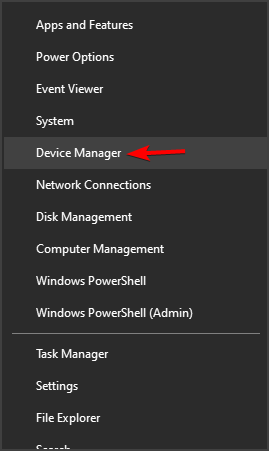
    device manager
  2. When Device Manager opens, locate your DVD drive, right-click it, and choose Uninstall.
  3. When the confirmation message appears, click OK.
  4. After you remove your driver, restart the PC.

One way to fix Please insert the disk error is to use the default DVD driver. To do that, you need to uninstall your current DVD driver and let Windows 10 install the default driver instead.

After your PC restarts, the default driver will be installed and the problem will hopefully be fixed.

7. Disable the USB device from the Device Manager

Users reported that this problem can sometimes occur due to problems with their printers. For example, users reported this issue with a printer that has a USB port on it.

This port can be used to attach a USB flash drive and print pictures quickly. However, sometimes your computer might recognize that USB port on your printer as a USB port on your PC.

That can lead to all sorts of problems. One way to fix this problem is to open the Device Manager, locate this port, and disable it. While doing this, be sure not to disable any USB ports on your PC.

How do I fix the Please insert the disk 1 error?

  1. Repair the installation
  2. Run the proper setup file
  3. Copy the installation files to your computer

1. Repair the installation

  1. Press Windows Key + S and enter programs and features.
  2. Select Programs and Features from the list of results.
  3. A list of all installed applications will appear.
  4. Locate AutoCAD software, select it, and choose Repair from the menu on the top.
  5. Alternatively, you can click on AutoCAD and choose Repair.

Users reported this issue while installing AutoCAD software on their PC, and according to them, you can fix this problem by installing the 64-bit version of the software.

To do that, simply insert the installation CD, navigate to the 64-bit folder and run the setup.msi file. After that, you should be able to install the application without any errors.

2. Run the proper setup file

  1. Go to the following directory: cdrom/setup/x86/acad
  2. Locate the acad.msi and double click it to start the setup.

According to users, this error can occur while installing AutoCAD, and if you want to fix it you need to run the proper setup file.

Users reported that running setup.exe will ask you to insert disk 1, but you can avoid this problem by using the method above. If you’re trying to install 64-bit version, you need to do the following:

  1. Open AutoCAD ISO file using any ISO application.
  2. Locate setup.ini file, move it to your PC and open it in Notepad.
  3. Add the following under [SETUP]: USE_REMOVABLE_DRIVE=YES
  4. Save the file and replace it on the ISO.
  5. Now run setup.exe and try to install the software again.

If you don’t like Notepad and you’re looking for an alternative, take a look at this list with the best note-taking apps for Windows 10.

3. Copy the installation files to your computer

If you’re having this error while installing AutoCAD 2016, you can easily fix it simply by copying the installation files to your computer.

Copy the entire installer folder from the installation media to your computer and try to run Setup.exe again. After doing that, you should be able to install the application without any problems.

If you’re trying to install a different application on your PC, you can just copy the contents of the ISO file to your hard drive and run the setup process from there and the problem will be solved.

Please insert the disk error can be caused by incorrect drive letter or by your security permissions, but you should be able to fix this problem by using our solutions.

If you are having trouble managing the files on your HDD, take a look at this thorough list of the best disk management tools and choose one that fits your needs.

If you have any other questions or suggestions, don’t hesitate to leave them in the comments section below and we’ll be sure to check them out.

How to fix Windows 10/11 Clipboard issues for good

clipboard issues on Windows 8

Copying a text file to clipboard either from a Word document or a Notepad document in Windows 10, Windows 8 usually can be done very easily. For those of us who don’t exactly know the principle, we will explain it in a few words. When you use the “Ctrl” and “C” key combination to copy a text and “Ctrl” and “V” to paste the text in another document,  the copied text is stored in the Clipboard feature.
Basically, if you copy a text to clipboard in Windows 10, Windows 8 and you don’t paste it somewhere else it will remain there as long as you do not restart the PC or copy another text to the clipboard.

Nevertheless there are some applications in Windows 10,Windows 8 where you might have trouble with the system clipboard and for this reason, I will explain a few methods below how you can solve your clipboard issue either for the whole system or for a specific app you installed.

Fix Windows 10, 8 clipboard issues

We are going to enumerate below some fixes for clipboard depending on the app you are trying to use.

1. Fix Clipboard issues on Skype in Windows 10, 8:

For repairing the Skype app to use the clipboard, we will need to uninstall the add-on for Internet explorer or Mozilla Firefox. Close any browser you have open.

  1. Go Windows 10,Windows 8’s Control Panel
  2. From the “Programs and Features”, you will need to remove the Skype “Click to Call” option.
  3. After this reboot your Windows 10, Windows 8 PC and see if you have the same issue.
  4. If it is still not working, you will have to completely uninstall Skype and install the newest version for your Windows 10system.
uninstall skype

2. Fix Clipboard issues on Internet Explorer in Windows 10, 8:

  1. Click on “Internet Options” situated in the upper side of Internet Explorer.
  2. Click on the “Advanced” tab in the upper side of the window “Internet Options”
  3. Under “Reset internet explorer settings” click (left click) on “Reset”.
  4. After this click (left click) on “OK” in the lower side of the “Internet Options” window.

  5. Reboot yourWindows 10, 8 PC and see if the clipboard works for you now.

For more than one browser (example: if you have installed Mozilla, Opera and Internet Explorer):

You will have to uninstall one browser and see if Copy/paste works, if it doesn’t try Uninstalling all the browsers and install the latest versions available for Windows 10, 8.

Comfort Clipboard Pro is a great clipboard manager that will help you get rid of these problems. By using it you will be able to classify your clipped content in order to access it in a systemized way whithout any problems. We recommend you to use it until you do not fix  Windows native clipboard issues.

⇒ Get Comfort Clipboard

3. Fix Clipboard issues in Windows Remote Desktop:

  1. You will have to open the task manager by pressing and holding “Ctrl”, “Alt” and “Delete” buttons on the keyboard.
  2. Go to the “Processes” tab and click (left click) on “RDPCLIP.EXE” or Remove Desktop Connection > click on “End Process” button situated in the lower right side of the “Task Manager” window.end remove desktop connection task
  3. Go to the “Applications” tab and click on “New Task” button in the lower right side of the “Task Manager” window.
  4. In the “Create new task” window that opened type in there “rdpclip.exe”
  5. Click (left click) on the “OK” button in the “Create new task” window.

4. Fix Clipboard issues on Adobe Acrobat in Windows 10, 8:

The only way to fix your clipboard issue with Adobe Acrobat is to uninstall the application by going to “Control Panel” and then reinstall the newest version of the app for Windows 10, 8.

Update the Adobe Flash Player to the latest version available for Windows 10, 8 when you get prompt by the browser you are using.

If you cannot find the clipboard issue you are having on the steps above follow the indications below.

Erase the Windows Clipboard:

  1. Press and hold the “Windows” button and the “R” button.
  2. In the box next to “Open” we need to type cmd /c “echo off | clip” (include the quotes in the text)
  3. Click(left click) on the “OK” button presented in the lower side of the Run window.

We will try here to edit the Windows Registry:
Note: you need to be signed in as Administrator to do this option.

  1. Press and hold the “Windows” button and the “R” button.
  2. Type in the box next to “Open” the word “Regedit”
  3. In the “Registry Editor” window double click (left click) on “HKEY_CURRENT_USER”
  4. Under “HKEY_CURRENT_USER” double click (left click) on “Software”
  5. Under “Software” double click (left click) on “Microsoft”
  6. Under “Microsoft” double click (left click) on “Windows”
  7. Under “Windows” double click (left click) on “CurrentVersion”
  8. Under “CurrentVersion” double click (left click) on “Internet Settings”
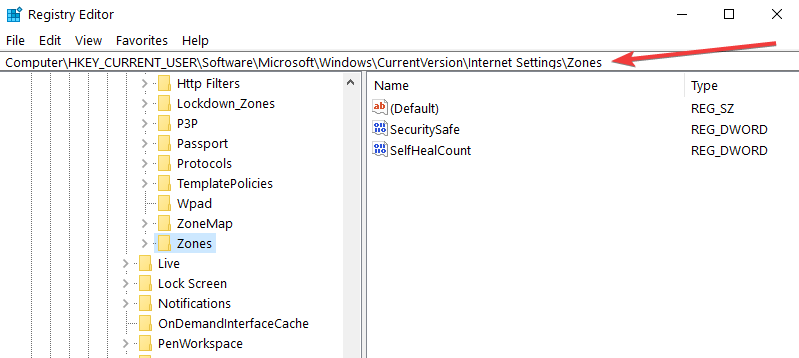
  9. Under “Internet Settings” double click (left click) on “Zones”.change internet settings zones
  10. In the “Zones” folder if you see a character out of the ordinary like an empty rectangle or an “L” we need to delete it. Note: Do not delete anything else and if you don’t have the character mentioned above don’t make any other modifications to this folder.
  11. Close the “Registry Editor” Window.
  12. Reboot your Windows 10, 8 PC and see if your clipboard is working now.

So, the solutions described above have the specific steps either for an app on Windows 10,Windows 8 or for the entire Windows 10, 8 system in order to resolve your problems regarding the clipboard. Write to us below for any additional information that you might need on the subject.

Rtl_ul Non Existent CD Drive: 4 Ways to Remove It

An extra drive letter might appear, for example, E:/ with the name RTL_UL after Windows updates.

The virtual CD drive is created by the Realtek USB wireless adapter driver software. When you plug in the Realtek USB wireless adapter, it automatically mounts the virtual CD drive as if it were a physical one.

Here’s how to remove it:

How do I remove the rtl_ul drive?

1. Assign a new drive path

  1. Press and hold the Windows+ X key.
  2. Left-click on the Disk Management option.
    Disk management - SSD drive won't format/SSD format error occured at offset
  3. Look under the upper and lower windows to see if the CD drive that appeared is detected.
  4. If you can see the drive in the Disk Management window, right-click on the drive and click Change drives letter and paths option.
    rtl_ul
  5. Next, assign a new path for the specific drive.
    rtl_ul

2. Use a restore point

  1. Press and hold the Windows + R key.
  2. In the run dialog box, write: rstrui and hit Enter.
    rstrui windows 10
  3. Click on the System Restore button.
    rtl_ul
  4. Select the Choose a different restore point option and click Next.
    rtl_ul
  5. If you don’t have the Choose a different Restore Point option, simply click Next.
  6. Select a restore point and hit Next.
  7. Click on Finish to initiate the restore process.
  8. Finally, Windows will restart the system after the system has been restored to an earlier state.

3. Eject your drive

  1. Open the File Explorer window by pressing Windows + E.
  2. Right-click on the drive that you have issues with.
  3. Next, left-click on the Eject option.
  4. After you successfully ejected it, reboot your Windows 10.

4. Use a partition Wizard

If the issue persists and the phantom drive remains, you can install and run the Aomei Partition Assistant.

This software lets you view and manage all the drives on your computer, including the mysterious drive we’re discussing.

After installing the software, you must select and format the newly found partition.

⇒ Get AOMEI Partition Assistant

That is as much as we will cover in this article. If you have read this far, the rtl_ul drive should no longer be an issue.

If you have any other questions or suggestions, please leave them in the comments section below.

9 best decryption software for Windows 10/11

Ransomware is probably the worst kind of malware that can infect your computer. This type of malware will encrypt and lock your files, and the only way to get access to them is to pay the ransom to the hacker.

Fortunately, today we have a list of the best ransomware decrypt tools for Windows 10 that can help you fix this problem.

What are the best ransomware decrypt tools for Windows 10?

In order to remove ransomware from your computer, you first have to find out with what type of ransomware is your computer infected with.

To do that, you can use services such as ID Ransomware to identify the ransomware. After you’ve successfully identified the ransomware, you can delete it by using one of the following tools.

HitmanPro (recommended)

This is another tool that will help you access your computer, even if you’re completely locked. All that you have to do is to put HitmanPro on a USB flash drive and boot your computer from it, and the program will automatically delete the ransomware.

hitman-pro

Decrypter for AutoLocky and Decrypt Protect

Decrypter for AutoLocky comes from Emsisoft and it is used to delete AutoLocky ransomware. If your computer is infected by AutoLocky, your files will be renamed to *.locky and encrypted. By using Decrypter for AutoLocky you should hopefully be able to remove this malicious software.

Emisoft has also released tool for removing Decrypt Protect, so you might want to try that one as well. Emisoft is rather devoted to fighting ransomware, and they have LeChiffre, CryptoDefense, HydraCrypt and many other ransomware decrypters available on their website.

decrypt protect

Jigsaw Decryptor

Certain ransomware, such as Jigsaw, will delete all your files if you don’t pay the ransom to the hacker, but with tools such as Jigsaw Decryptor you can easily remove this software from your computer.

Kaspersky Ransomware Decryptor

This tool comes from a famous antivirus company Kaspersky, and according to its creators, it can remove both CoinVault and Bitcryptor ransomware from your computer. It’s worth mentioning that Kaspersky released several other tools for removing following ransomware: XoristDecryptor, ScatterDecryptor, RakhniDecryptor, and many others. These tools are available for download from Kaspersky’s website.

coin-vault

RannohDecryptor

Kaspersky also released RannohDecryptor for CryptXXX ransomware, so if your computer is infected by this malware, make sure you try this tool.


If you’re interested in other anti-ransomware solutions, check out our wide collection of guides.


Kaspersky WindowsUnlocker

Certain ransomware will completely block access to your computer, but fortunately for you, there are tools such as Kaspersky WindowsUnlocker that can fix this problem.  To remove ransomware using this tool just download the .iso file and use it to create a bootable USB flash drive. After that, boot your PC from it and follow the instructions.

Trend Micro AntiRansomware Tool

Similarly to the two previously mentioned tools, Trend Micro AntiRansomware Tool can be used to access your computer and remove ransomware by booting from a USB flash drive.

trendmicro-ransomware

Cisco TeslaCrypt Decryption Tool

Cisco also released its decryption tool for ransomware, and this tool is designed to remove TeslaCrypt. TeslaCrypt Decryption Tool comes as a command line tool, and it can hopeful help you remove this ransomware from your PC.

Operation Global III Ransomware Decryption Tool

Certain ransomware will encrypt files and change their extensions to .exe. If you’re having the same problem on your computer, you might want to try using this tool.

Petya Ransomware Decrypt Tool

Sometimes ransomware will change your Master Boot Record thus preventing you to boot to Windows or Safe Mode. One ransomware that does this is PETYA, but you can easily remove it by using the Petya Ransomware Decrypt Tool.

Decrypter for HydraCrypt and UmbreCrypt Ransomware

If your PC is infected with HydraCrypt or UmbreCrypt Ransomware, you should try to remove it by using the Decrypter for HydraCrypt and UmbreCrypt Ransomware.

There are all sorts of ransomware available along with many tools for removing the specific types of ransomware, so we hope that our list of decrypt tools was helpful to you. In order to protect your PC from ransomware, you might want to use tools such as Bitdefender BDAntiRansomware in the future.

READ ALSO: What to do if Microsoft Edge is hijacked

Facebook Live Streaming Software for PC

For most people who plan to start a Facebook live show, the things that stop them are usually fear and the right gear. People feel afraid to take the leap for fear of saying something wrong or something silly, and knowing social media, that one moment could go viral even before you can explain why it happened.

Other times, they’re just worried something will get spoilt, or the webcam will fall over, or just some other form of disaster will occur.

For those in business, especially the owners or the marketing team, who may or may not have technological challenges, they feel they don’t have the perfect equipment and setup to start, so they don’t do it at all until the moment is just right.

It is expected to be nervous, but the key is to channel that into your performance during the broadcast, and this is why doing warm-ups and voice tests before you go live is essential. Check out our top favorites to get you started with the best software to go live on Facebook.

Which software is best for Facebook live?

Crowdcast – Best Facebook live streaming software

Crowdcast does not only let you live-stream but also chat and highlight comments, which are all great for social media. With this tool, you can stream to Facebook Live, Periscope, and YouTube and also let people know where the conversation is happening.

It’s easy to get started, in fact, in just seconds, with no clunky downloads, from registration to the event and automatic recording. You can also send emails from the app, accept payments, engage your audience with Q&A and polls, invite them on screen, use automatic replays, and use analytics to strengthen your outreach or marketing efforts if it’s for business.

It is also interactive and powerful and does everything so you can focus on engaging and connecting with your audience.

Streaming is not delayed and is in HD resolution, so you can connect with your audience without technical distractions. You can invite anyone on screen, share screens, create multi-session events or duplicate them, and export all your data in one click.

Crowdcast

A platform for hosting engaging conversations, promoting your business, teaching online, and broadcasting events on Facebook!
Check price Visit Website

Wirecast – Multi-platform live stream

Facebook Live is the largest live streaming platform that brings people and brands together, which is why you need the best software to go live on Facebook to build a bigger audience through professional videos or broadcasts, which are rich in style and content.

Wirecast is another advanced software that lets you live stream on multiple platforms simultaneously, or simulcast as it is known in social media circles, to YouTube Live, Twitch, or Facebook Live among others.

While it also doesn’t come cheap, it is popular among professionals and beginners alike for live video switching needs. It also has a Facebook Live integration facility, and you can integrate it with multiple input sources for easy sharing, plus leverage its many editing tools for interactive services.

The downside is users cannot see live comments within Wirecast, but it is still flexible and operational which is why beginners love it, plus it is available for use with Windows computers.

Wirecast

A complex tool for both beginners and professionals that allows you to record audio and video, produce a show, and stream it live on Facebook!
Check price Visit Website

BeLive – Cloud-based software

This is one of the best-known streaming software to go live, and the good thing is it has a free trial, though it only works for Facebook Live, and your broadcast is branded with BeLive.

With BeLive, you can broadcast a maximum of two 20-minute live videos weekly, invite guests, and work with up to three people simultaneously in one broadcast on the screen.

If you want a non-branded version with more flexibility and features, you can pay and get the paid subscription to get the BeLive Lite, add your logo, and share your screen. Especially for how-to videos, highlight comments while they’re displayed on the screen, and use a green room of up to 10 guests waiting to appear on your live broadcast.

It is easy to use, keeps being improved, and is web-based, so it works on Windows computers. However, web-based apps are prone to glitches compared to installing one on your computer.

BeLive

Try this cloud-based multi-streaming studio with an intelligent assistant to broadcast from a browser, PC, or mobile device.
Check price Visit Website

Zoom – Popular choice

Zoom is more of a video conferencing and webinar software, with integration for Facebook Live. It is akin to Skype, and you can use it to chat with one or more people, share your screen, and even have several guests together, with better quality than Skype.

Its webinar add-on can be used to conduct a full webinar with a big audience, and you can live stream video to Facebook Live while saving your recordings in HD to use or upload later. However, you cannot add images, scenes, or videos to the screen.

The Facebook integration by Zoom features a simple and fast log-in without the need to create a password, and you can use an existing account. It is also integrated with Facebook IM, so you can see when your pals are online or offline and search for them by their names.

For video, you can meet up to 25 of your Facebook contacts, share documents, photos, and websites on your desktop screen (or even smartphone and tablet), or start an instant Facebook meeting or message with them.

Zoom also has an online 24/7 support system that lets you record your videos and use the split-screen layout if you host a guest.

The downside is it is a bit pricey, especially if you need the feature that lets you record your videos and do live Facebook streaming at a go, which is about $50 a month. Its setup is also complicated, with several steps to set up Facebook live streaming.

⇒ Get Zoom

OBS Studio – Impressive recording

This is one of the most advanced and powerful software to go live on Facebook. It is not only free and available for Windows 10 computers but also lets you broadcast to Facebook Live, YouTube, Periscope, and any other platform. However, it needs a powerful computer and has a steep learning curve.

Among its features is a scene set up (done in advance) so you can say to your audience something like ‘coming soon’ before you go live, with some background music for professionalism. Additionally, you can only broadcast to one platform simultaneously, compared to others that let you do more than one.

OBS (Open Broadcaster Software) also records impressive videos from your computer’s screen and webcam, plus you can share content on different social media platforms.

The benefits of using OBS Studio include an interactive user interface, many advanced features, video formats to save your clips, rich video quality and size maintained; you can tweak settings and access shortcuts to start/stop Facebook live streaming and capture audio from a mic or soundcard.

⇒ Get OBS Studio

Tip: If you’re broadcasting on your desktop and want to display your mobile device screen, try Reflector 2, available for Windows computers, and connect your phone wirelessly then your screen will appear in your live video screen. It can be used with BeLive, OBS Studio, or Wirecast.

Is there software to go live on Facebook that you use and it works wonders for you? Let us know in the comments section below.

FIX: Something went wrong error on Twitter

Twitter is the social media platform used for distributing short messages across the world. A platform that allows us to tweet whatever we wish, be it the latest news or letting your peers know you’re on vacation.

Twitter also reaffirms its role as a tool for the spread of information. With high-profile users reaching out to literally thousands upon thousands of followers to get their message across be it a humanitarian cause or the latest trends.

Having millions of monthly active users, with numbers on the rise as time passes, Twitter is a growing network for everyone around the world. From the common user to aspiring journalists, and to companies whose social networking presence is part of their media strategies.

So you’re on your mobile device or computer, and in the mood for tweeting something, but all of a sudden you’re greeted by Something went wrong message. Fortunately for you, we have a few solutions that might help you fix this problem.

Fix: Something went wrong but don’t fret – it’s not your fault

  1. Clear the browser cache
  2. Edit your layout
  3. Use Incognito mode

1. Clear the browser cache

A simple method involves going to your browser settings and clearing up your cache and cookies. For a better sweep of Twitter cookies, you can use cookie cleaner software for better results. This should help with your login.

The tool scans your browser and detects all clutter that can safely be removed in order to get better performance. It can take care of history, cached files, cookies, and more.

2. Edit your layout

Another solution involves some quick editing to the page layout, found on a Reddit thread. This solution works for consent_violation_flow errors.

  1. When you open the page, right-click it and choose Inspect.
    inspect something went wrong twitter
  2. Open up the code and keep deleting elements until you’re left with just the header bar.
  3. After doing that, simply log out as usual.

3. Use Incognito mode

If previous workarounds didn’t help, try using Incognito mode, which disables local data from being stored on your machine. To open Incognito mode, do the following:

  1. Open your browser.
  2. Click the Menu icon in the top-right corner and choose New incognito window.
    incognito window something went wrong
  3. Check if the problem still persists.

If Incognito mode doesn’t work, you can try using a different web browser, and try to log in with it.

Remember, if you’ve had your account suspended, follow up on community guidelines.

Have you faced problems with Something went wrong Twitter error? Let us know in the comment section.

Windows Search Alternative Tools: 13 Best in 2026

If you tend to install many programs or create many files on your computer, finding a particular file can be a challenging task. If you don’t use dedicated folders for various file types, chances are you’ll never going to find the file you’re looking for.

When users are looking for a particular file, their first instinct is to use Windows’ search box. However, sometimes the native Windows 10 search box is not capable of delivering the best results.

In that case, you can also resort to a series of Windows 10 desktop search alternative tools that will do the detective work in your place and find the files you’re looking for.

Windows 10 desktop search alternatives

Editor’s choice: Copernic Desktop Search (recommended)

Copernic Desktop Search

Copernic Desktop Search is a brilliant alternative to Windows Search. This software allows you to centralize your document, file & email searches in one unique interface.You can search any documents on your computer, external and network drives with the full version.

This search solution is available in two editions: Free and Full. The Free edition fits for standard Windows users.
The Full edition is suited for professionals inside businesses and their teams.

Here are some of Copernic’s strongest points :

  • Faster searching speed for Microsoft Outlook
  • Performance-oriented search experience: our solution has the lowest memory footprint and computer resource usage.
  • Keep your information Private
  • User-friendly search experience
  • Once you have saved a file, let Copernic Desktop Search look for it on your PC

    ⇒ Get Copernic Desktop Search now 

Listary

This search tool is very fast and it suitable for both regular and professional Windows users. For power users, Listary integrates tools such as Total Commander, Directory Opus, XYplorer, Xplorer2, WinRAR, FileZilla and more. This tool will help you to find the long lost files, apps and games in a split of a second.

Listary is regularly updated for a better user experience and the latest version of the tool brings enhanced support for Windows 10, as well as many bug fixes.

Other features include:

  • Search the entire disk drive from any window or folder
  • Copy or move files to any folder from any folder with easy context menu commands
  • Open a file with a specific program from anywhere
  • Instantly jump from file manager to a target folder with a simple key command
  • Create a Favorites list of commonly used files and apps for fast access
  • Quickly browse your recent app and file history to continue working where you left off.

You can download Listary from the tool’s official website for free. The professional version of the tool cost $19.95.

Everything

Everything locates your files and folders by name instantly. Installing and using this tool is very simple: you download it, install it, launch it, and then wait for a couple of minutes for the tool to index your files and folders.

Once these stages are completed, you can simply type the name of the file you’re looking for and Everything will quickly show its location.

Everything doesn’t search file contents, it searhses only file and folder names, and monitors file system changes. For more information about this tool, you can check out the FAQ section of the tool’s official webpage.

Other features include:

  • Small installation file
  • Clean and simple user interface
  • Quick file indexing
  • Quick searching
  • Quick startup
  • Minimal resource usage
  • Small database on disk
  • Real-time updating.

You can download Everything for free from VoidTools.

Lookeen


Lookeen  is a reliable and accurate desktop search software for Windows 10 that will save you from clicking through individual folders. This tool was developed for search purposes only, and is one of the best Windows search alternatives.

Lookeen is available as a stand-alone Windows tool, capable of integrating itself seamlessly into Outlook. Using this tool is very intuitive as its interface is similar to the interface of Windows and Outlook.

Also, Lookeen uses a series of search filters that aren’t available in Windows search.

Other features include:

  • Scans Microsoft Outlook and Exchange Server
  • Desktop search in Windows and on the entire network
  • Integrated directly into Outlook as a plugin
  • Compatible with virtual desktop environments like VMware, Citrix and Terminal Server
  • Supports all common file and graphic formats
  • No index or data limit
  • Clear presentation of search results
  • Advanced search query and filter functions
  • Editing text documents in preview mode
  • All data is stored locally
  • Lifetime single-user license
  • Free support.

You can download Lookeen from the tool’s official webpage. Lookeen offers you a 14-day free trail period, and you can buy the tool for $50.22.

DocFetcher

DocFetcher is an open-source desktop search tool for Windows 10 that supports an impressive number of file formats. According to the tool’s developer, DocFetcher is the Google of your files.

All matches in the files are highlighted in yellow, and you can also filter the results by file size, file type and location.

Other features include:

  • A portable version, which means that you can also use this DocFetcher on a USB drive
  • Unicode support: Unicode support available for all major formats, such as Microsoft Office, OpenOffice.org, PDF, HTML, RTF and plain text files
  • Archive support: zip, 7z, rar, and the whole tar.* family
  • Search in source code files: you can use this tool to search in any kind of source code and other text-based file formats
  • Outlook PST files: DocFetcher allows searching for Outlook emails
  • Detection of HTML pairs: DocFetcher detects pairs of HTML files and treats the pair as a single document
  • Regex-based exclusion of files from indexing: you can use regular expressions to exclude certain files from indexing (use the expression .*.xls to exclude Excel).

You can download DocFetcher for free from SourceForge.

FileSeek


file seeker

FileSeek is a lightning fast, small and easy to use desktop search tool. For easy access, you can also integrate it into Windows Explorer’s right-click menu.

This tool doesn’t rely on background indexing, which means that your computer’s performance won’t be reduced when FileSeek is not running.

Other features include:

  • Lightning fast searching: FileSeek uses multi threading technology to improve the search speed.
  • Search profiles: you can save your search criteria as a search profile, and change these criteria anytime.
  • Tabbed interface: thanks to this feature, you can start a new search before the current search is completed.
  • Sync your settings: you can easily sync your search profiles between computers for easy access anywhere you are.
  • Search result actions: you can copy, delete, and drag the search results into other applications. Personalize the tool by choosing what FileSeek should do when you double-click on a search result by selecting from a number of pre-defined options.

You can download the free version of File Seeker, and you can also buy one of the Pro versions available for a price tag ranging from $9 to $599.

FileSearchy

filesearchy-windows-10-desktop-search

FileSearchy is a powerful and easy to use tool you can use to search files on your Windows 10 computer. This tool also supports instant file search, and searching by content string, date and size.

FileSearchy highlights the matching results in order for you to find information easier. If you need to make several searches and then compare the results, you can open several search tabs. File content search is supported as well with search through contents of plain text, office, PDF and more. For more accurate results, you can  skip binary files such as programs, music, or videos.

Other features include:

  • Search for multiple strings at one time
  • Exclude strings that shouldn’t appear in results
  • Invoke search using folder context menu in Explorer and other compatible applications
  • History of searched strings
  • Copy selected files to clipboard
  • Case sensitive search
  • Search contents of eBooks (EPUB, FB2, MOBI).

You can download FileSearchy for free from the tool’s webpage.

Search My Files

Search My Files


Search My Files is another reliable alternative for Windows’ native desktop search module. This tool allows you to use a series of search filters to find the files you’re looking for as soon as possible. You can search by last modified, created, last accessed time, by file attributes, file content and file size.

To launch SearchMyFiles, you can simply run the executable file. Then the Search Options dialog-box will be displayed, where you can select the folders or drives that you want to search, as well as the search options. Click on the OK button to launch the search, or on Stop to stop it.

Other features include:

  • 12 search options available
  • Duplicate search mode: SearchMyFiles also allows you to search duplicate files on your system
  • Summary mode: SearchMyFiles displays a general summary of all scanned folders, instead of file lists.

You can download Search My Files for free from NirSoft.

HDDB File Search

HDDB stands for Hard Disk Database and the first thing you’ll notice about this tool is its resemblance to Everything. Once you have installed the tool, it will notify you that your database is empty. HDDB doesn’t update its database automatically, which speeds up the loading process on start up.

When the database has been filled, you can launch the search. If you want HDDB to search the information in the entire database, don’t use any path information criteria.

Other features include:

  • Command line support
  • Windows Explorer context menu support
  • HDDB relies on manual database updates.

You can download HDDB for free from SnapFiles.

AstroGrep

astrogrep-windows-10-desktop-search-tool

AstroGrep is a powerful and compact desktop search tool for Windows 10. The tool is very easy to use as there’s no setup required and no indexing module, and the interface is very well designed.

AstroGrep is very small, about 800 KB and the search process takes quite some time because there is no indexing. Of course, you can help the tool to search faster by narrowing down the search path. Other than this, this tool offers a series of impressive features:

  • It can search individual folders, particular folder trees or entire drives
  • Recursive directory searching
  • A context feature is available, selecting the lines above and below your search expression
  • Versatile exporting and printing options
  • Store most recently used file names, file types, and search expressions
  • Match whole word only
  • File encoding detection (ability to turn off and override for individual files).

You can download AstroGrep for free from SourceForge.

UltraSearch

ultrasearch-windows-10-desktop-search-tool

UltraSearch is one of the fastest desktop search tools for Windows 10. It works directly on the Master File Table of the NTFS partitions which allows it to deliver the search results in a split of a second.

The first search results appear while you are still typing – yes, UltraSearch is that fast.

UltraSearch supports regular expressions and searches file content as well. Another advantage is the presence of the Explorer context menu inside the tool.

Other features include:

  • You can exclude folders, files or file types from searches via an exclude filter.
  • You can sort the search results, print or export them as text, RTF, HTML, CSV, and Excel files.
  • UltraSearch can suggest patterns or autocomplete manually entered patterns automatically.

You can download UltraSearch for free from Jam Software.

Launchy

As its name suggests, Launchy can quickly find and open the files and folders what you need. This free tool can successfully replace quite a few Windows 10 features, including the Start Menu, your desktop icons and your File Manager.

But how does Launchy do that? Once you’ve downloaded and installed it on your computer, it immediately scans and indexes all your programs and documents.

You can then open your files, folders and bookmarks just by typing a few letters.

Download Launchy 

MasterSeeker

MasterSeeker

MasterSeeker is one of the fastest file search engines for Windows 10. You can use it to search files, folders, documents and directories by file name or file size. You can then sort your files and directories if you need to filter information.

The tool supports NTFS, FAT, FAT32 and exFAT file systems and well as real-time NTFS drive updates. You can also use keyboard shortcuts and save or export the search results into a specific file.

Keep in mind that while MasterSeeker does not officially support Windows 10, but you can run it on your Win10 computer without any problems.

Download MasterSeeker

Have you already tried out some of these Windows 10 desktop search tools? Tell us more about your experience in the comment section below.

RELATED STORIES YOU NEED TO CHECK OUT:

Birthday Reminder App for PC: 5 Best to Use in 2026

A birthday signifies one’s first day in life and the joy that comes with living. It’s thus a momentous occasion and one of the biggest personal annual landmarks. But because of the hustle and bustle of daily life, one can easily forget their or a friend’s big day. And that’s where software for birthday reminder helps.

This is what these software do: You simply set up your annual important birthday dates and the software will take care of the rest.

Indeed, these software are quite comprehensive. They not only display daily countdowns but also send live reminders, notifications, and even send notifications to friends.

Now, there are a number of world-beating options in the market currently. Here is a preview of the best four.

Birthday reminders for Windows 10

Efficient Reminder (recommended)

efficient birthday software reminder final

Efficient Reminder is a professional, multi-purpose, and easy-to-use birthday software program.

It’s designed to help manage you and your friend’s birth dates and related events such as anniversaries.

Efficient reminder helps you catch up with friends D-days and amaze them with your ‘unfailing memory’ as you’ll never miss a single one of the events.

You can even synchronize the dates across all the PCs, laptop, and your mobile phone to help you schedule reminders anywhere, anytime.

It also provides multiple calendar views so you can access a summary of daily, weekly, and monthly birthdays.

Uniquely, the program incorporates an efficient document editor so you can easily write your comments about your mom’s birthday or any other event.

Lastly, it includes a recycle bin so deleting past events is a breeze.

Overall, Efficient reminder works wonderfully!

(Note that the complimentary mobile version is 100% free).

— RELATED: 7 best online e-card maker sites for the perfect invitation card

TimeLeft Birthday Reminder Software

timeleft final

TimeLeft is one of the most customizable birthday software and comes with an interesting combination of powerful features.

For a start, it displays messages in advance to give you sufficient time to prepare for the important activities like buying presents.

Besides, you can program it to show a countdown on your desktop so you will always be aware of which of the important birthdays comes first.

You can also configure it to remind you minutely, hourly, daily, or weekly for birthdays which are very close.

There is also the option for monthly reminders useful for the distant birthdays.

Additionally, you can set TimeLeft functions to alert you about an important activity as part of the countdown by playing an alarm.

TimeLeft uses the lively Winamp skins to display digits and text.

Then, set up is quite easy while all the features run without bothersome bugs.

— RELATED: Best Greeting Card apps for Windows 10, 8 [2018 List]

Zhorn’s Birthday Reminder

zhorns birthday reminder final

Zhorn’s birthday reminder is a straightforward application but very dependable.

This birthday reminder software shows the birthdays of those you have previously added to its database sorted from the earliest to the latest.

It can also display this information according to the number of days remaining as you had set beforehand.

And that’s not all. It also counts and religiously shows how old all your buddies (or you) will be coming birthday.

You just click the options button you to start managing the birthdays and set how far ahead you want it to notify you for each person.

And like all the best software for birthday reminder, you can minimize the reminder window or maximize the date entry control when typing to make everything visible.

Best of all? The software is totally free!

— RELATED: Set up a new calendar with personalized calendar software

SS Birthday Reminder

birthday and anniversary reminder software

This has a built-in birthday manager to help you organize all your friends’ birthdays so the embarrassment of forgetting your partner’s birthday will be a thing of the past.

It’s a slick option and lets you store all the details about the people who you hold close to your heart in a customized way for recognizable reminders.

For example, you can set the contact using their nicknames so the birthday alerts are issued as per the hard-to-forget nicknames each time you boot your PC!

The software is widely recognized as among the best reminder software and it’s easy to see why: To begin with, you can insert additional fields to better sort the birthday data.

Secondly, it’s light and fast so it saves your PC storage and memory.

Moving on, it allows you to import your friend’s details from Yahoo, Outlook, and Google instead of adding each record manually. Plus, the easy-to-use interface makes it a dream for non tech-savvy users.

It’s free to use for 5 pals but you have to purchase a license for unlimited use.

— ALSO READ: 5 best reminder software to never forget anything

Birthday Lab

birthday reminder website Used by thousands of people, this excels in sending birthdays and events alerts via emails/SMS.

In essence, you get an email every time an important birthday nears to make sure you won’t miss the fun.

One of the features to win a lot of praise is the web-based application manager because of how easy it simplifies the process of entering dates and the rest of the details.

The other attractions include the intelligent estimation of remaining periods and the fact that you can easily import birthdays from Facebook.

You can even choose to share the dates (and invitation) with family members, your company team, and all your friends.
Additionally, you set your time zone and the hour you want to send/get notifications and the number of days in advance to get additional reminders so there’s no way to miss.

And it’s not just about birthdays: the software recognizes that you may forget a meeting, an anniversary, or an item in your daily to-do things so you can as well configure them.

You can download Birthday Lab Desktop application or use the online version

Conclusion

Forgetting your buddy’s birthday (or worse still, your own birthday) definitely raises eyebrows.

But it may happen especially considering today’s busy life so it could be wise of you to obtain software for birthday reminder.

And you don’t even need to have the budget: Even the free ones are as good as their licensed counterparts.

We have given you the best option so you only need to click the download button!

RELATED STORIES YOU NEED TO CHECK OUT:

6 best DJ software to use without a controller

In the past, DJs used to carry large crates of vinyl records and spent hours at the records store choosing their music one vinyl at a time. Next came the DJ that used CDs and USB sticks to store their music.

Nowadays, with the rise of digital technology and the increased power and portability of laptops, DJs use specialized software to play and mix their songs — this has quickly become the norm.

DJ software allows you to mix and perform music the same way the traditional vinyl DJ does but at a lower cost and with a lot more convenience and flexibility.

In this article, we will explore some of the best options of DJ PC software that can be used without a controller or any other external device.

What are the best DJ software to use without a controller?

Zulu DJ is a complete DJ blender software that uses intense elements in a simple-to-use interface, allowing you to blend your music easily.

Your music will remain tuned to the beat, because of the programmed beat identification feature. Once you load a track onto the virtual deck, Zulu DJ automatically checks for the beat (BPM) of the track to synchronize it with the rest of the mix.

Zulu DJ can cross blur between tracks and allows you to hear the tracks by using earphones. This program also has programmed beat recognition, continuous pitch, rhythm control and console hotkeys.

Zulu DJ from NCH is ideal for beginners because of its simple interface and works perfectly with various configurations including WAV, MP3, WMA.

Key features and capabilities include:

  • Easily cross-fade between tracks
  • Real-time pitch and tempo adjustment
  • Auto-play mode for hands-free, seamless music mixing
  • Beat synchronization between the decks
  • Apply effects in real-time, includes all popular effects like distortion and reverb
  • Record DJ mixes and saves as an audio file
  • Loop sections within a track and synchronize to the BPM
  • VST plugin support for additional effects
  • Add loops and samples to the sample bank
  • Safe live mode prevents accidents for flawless shows
Zulu DJ Software

Zulu DJ Software

Zulu DJ is so simple to use but it’s so advanced that even a beginner will look like a pro DJ.
Check priceVisit website

DEX 3 – PCDJ

The DJ Mixing Software from PCDJ was designed for any possible level and needs of a DJ. Actually, there are three options you can go with featurewise.

If you’re a beginner or you just want to test the software you can go with DEX 3 LE (limited edition) which is free. DEX LE is ideal if you want to learn how to DJ because it’s equipped with the same mixing technologies found in the full version.

The DEX 3 LE skin and transport controls look just like the most common DJ equipment. You will even have the mixing controls that you can usually see on physical DJ mixers.

The dedicated buttons for hot cues, effects, beat-sync, pitch-bend and the quantized automatic looping will add to the overall great DJ feel you would expect from such software.

If you’re happy with the LE version you can go up to the more advanced DEX 3 RE version which comes with added features like the fully automated auto-mix, a one-click beat sync function, or a mix-now button for quick cross-fade and plays.

If you want to go all the way you can op for the DEX 3 full version which is an audio and video mixer but also has full Karaoke features. This version has a 4 deck, DJ controller support (from over 100 supported). And DEX 3 also comes with Beatport and Beatsource LINK Streaming support.

DEX 3

DEX 3

Whether you start with the limited edition version or you go all the way to DEX 3, you are bound to have the best DJ experience.
Check priceVisit website

Traktor Pro

Traktor Pro is another great software option designed to be used by professionals. This tool can edit and create new sounds easily. Perhaps some of the two best features of Traktor are its creative mixing system, and the powerful looping tools.

The user interface of Traktor is designed to be simple to utilize, giving you a better focus on the task at hand and not wasting time searching for the effects you need.

This DJ program allows you to zoom in on your waveform keeping in mind the end goal to be as exact as could be expected under the circumstances. Traktor Pro programming has a remix deck, or test deck includes, that is remarkable.

The example decks have four openings each and are intended to handle the greater part of your circles and one-shot specimens by playing them in a state of harmony with your fundamental track decks.

⇒ Download Traktor Pro

Mixmeister Fusion

Mixmeister Fusion is another great tool that allows you to create custom party and DJ music. In addition to creating mashups or mixing songs, you can also burn CDs.

You can use Mixmeister for mixing, mashups or to stream over websites and use it for live performances as well.

This program uses its automatic sync abilities to ensure a smooth playback while also giving you the ability to combine up to eight melodies and the capacity to stack tests and sound impacts over it.

⇒ Download Mixmeister Fusion

DJ Mixer Pro

DJ Mixer Pro is a great tool to use for your DJ blending no matter what your level of proficiency is. Its simple UI has virtual blending devices that allow you to control every aspect of your song to the smallest details.

This program has four decks and it automatically coordinates your beats. It also has real-time impacts, sampler, consistent circles, key lock, pitch moving, MIDI controller bolster, vinyl reproduction, blending, in addition to numerous more awesome elements.

⇒ Download DJ Mixer Pro

In this list, we explored some of the best DJ software options on the market right now. The software presented here cover all your DJ-ing tasks, no matter if you’re just starting out or if you are a professional DJ. Moreover, if you need software for older systems like Windows 7, we can help out!

The wide range of features supported by these tools will surely take your DJ-ing experience to the next level.

Let us know which software you chose in the comment section below.

Lenovo’s ‘Show Mode’ finally brings Amazon’s Echo Show display to Windows 10 PCs

Today, Lenovo announced its rollout of Alexa Show Mode support for its Windows 10 PCs. Back in January of this year during CES, Lenovo debuted its Alexa Show mode on its flagship Yoga Slim 9i laptop and set a roadmap for release in Q2 2021. Well, here we are in the first week of May and for many companies their Q2 fiscal year.

As a refresher, Alexa Show Mode will begin rolling out on Lenovo’s Yoga IdeaPad and ThinkPad lines and effectively turn those Windows 10-powered devices into Amazon Echo Show-like displays.

Alexa Show Mode

For anyone with an Amazon Echo Show, today’s rollout of supported features should seem familiar as it includes support for:

  • Ask for information on a wide range of topics
  • Play music and games
  • Set reminders and create to-do lists
  • Ask Alexa to read your favorite audiobook from Audible
  • View popular recipes
  • Watch news highlights
  • Easily control compatible smart home devices, or use Drop In to instantly check-in with approved contacts with just your voice
  • View the weather at a glance, and more

As powerful as a mouse click or keystroke, Alexa for PC lets you get more done with your PC with just your voice. Ask Alexa to play music from Amazon Music, favorite apps, and local radio and glance at song titles and album art from across the room or up close; your PC mics with far-field technology help Alexa to hear your voice commands clearly even while music is playing.

You can also set reminders and control your smart home while multitasking on your laptop. Students learning remotely can ask Alexa questions to help them with their homework. Or simply view rotating interesting updates and content such as the weather forecast for the week, things to try with Alexa, recommendations for music to listen to, and more as you move through your day.

Starting today Alexa Show Mode will be enabled on select ThinkPad and IdeaPad’s in the US, UK, Germany, Japan, India, Ireland, Austria, Canada, France, Italy, Spain, Australia and New Zealand. Lenovo plans to support more of its Alexa-enabled PCs with Show Mode later this year.

Microsoft Teams is getting Live Transcription support for unscheduled and channel meetings

Microsoft is planning to expand the AI-powered Live Transcription feature to unscheduled and channel meetings in Teams. Indeed, the company recently added new entries to the Microsoft 365 Roadmap, indicating that these updates are coming to Teams meetings in July (via Neowin).

Microsoft Teams launched the new Live Transcription with speaker attribution feature for meetings in March this year. Currently, the transcription capability is only supported on the Teams desktop app, and it is available for scheduled meetings. It identities each speaker, captures audio in near real-time and then generates a transcript of everything that’s said by the participants. The transcription can be accessed both during and after the meeting.

Next up, Microsoft Teams is adding Together Mode for Virtual Desktop Infrastructure (VDI) this month. This means that users using the Teams desktop client in virtualized environments will be able to enable Together Mode during meetings. The feature uses AI to segment the face and shoulders of the participants and place them together with other people in a virtual space.

Finally, the desktop version of the app is set to receive new Power Automate templates. It will enable managers to create teams quickly with predefined channels and preinstalled apps for effective collaboration. This update will begin rolling out to all users at some point later this month.

Dragon Quest Builders 2 video game launches on Xbox consoles and Windows 10

Dragon Quest Builders 2 is now live and ready to download and play on Microsoft’s Xbox One and Xbox Series X console families and Windows 10 PCs via the Microsoft Store online store. The game can also be played for free on console or PC for those that have an active Xbox Game Pass subscription.

Dragon Quest Builders 2 is a roleplaying game spin-off from the main Dragon Quest video game series that incorporates block-building mechanics, an open-world to explore and build in, and support for online multiplayer with up to four players.

Here’s the official game description and trailer:

Dragon Quest Builders 2 is the critically acclaimed block-building RPG from Dragon Quest series creators Yuji Horii, character designer Akira Toriyama and composer Koichi Sugiyama.

Embark on an epic journey and become the master Builder! Customize your character and set off to revive a forsaken world alongside a mysterious companion named Malroth. Then, take your builder online and join your friends to collaborate and create something truly magnificent.

Don’t let the name fool you, despite the 2, this is a completely standalone experience featuring new characters, an expansive world, unlimited building combinations, and a storyline that’s sure to satisfy long-time fans and newcomers alike!

This version includes: Hotto Stuff Pack, Modernist Pack, Aquarium Pack, Designer’s Sunglasses, Historic Headwear, Dragonlord’s Throne, and more!

Dragon Quest Builders 2 originally launched on the Nintendo Switch and Sony’s PS4 back in 2018 before coming to Windows via the Steam storefront in late-2019.

Let us know which platform you’re planning on playing Dragon Quest Builders 2 on in the comments below and then follow us on Twitter and Pinterest for more Xbox gaming content.

DRAGON QUEST BUILDERS 2
Developer:
SQUARE ENIX
Price:
$49.99

FIX: Malware detected Windows Defender is taking action

If you just received a system pop-up from Windows Defender saying malware detected Windows Defender is taking action to clean detected malware but nothing happens, you need to make sure that everything is still secured.

A virus or malware might be causing all these problems, though, on the other hand, it might be only a compatibility issue between Windows Defender and another third-party antivirus program.

So, before taking any action you need to make sure that Windows Defender is properly running on your Windows 10 system.

How do I get rid of the Malware detected alert?

1. Use Windows Defender

The first thing you should do when encountering the Windows Defender took action against threats message is to verify its scanning history.

The default Windows antivirus might have found infected files but it is not able to properly remove them, especially when you get repeated alerts.

If the Windows Defender keeps saying threats found, then identify these files and manually remove them. You can also run the Microsoft Safety Scanner in order to extend the tool’s functionality.

Note icon NOTE

2. Run a System Scan

  1. Press the Windows Key + S and open Run.
  2. Type msconfig and press Enter.
  3. Select the Boot tab, and toggle Safe Boot.
  4. Press Ok and select Restart.
  5. Now your computer should restart in Safe Mode.
  6. Next, press the Windows Key + S and type cmd.
  7. Run Command Prompt as an admin.
    scannow
  8. In the cmd box, type the following and press Enter: SFC /scannow

You can also initiate the system scan through Safe Mode – in safe mode, third-party apps and processes are disabled by default

Therefore, certain malware won’t be able to interfere with the scanning and removal process, so you can get rid of the Windows Defender taking action on threats taking too long alert.

3. Use a third-party antivirus software

If the history log isn’t showing any infected files it might be because Windows Defender detects the same virus but in different locations, and so it does not make a history entry.

However, some viruses are too clever for the basic Windows Defender. Perhaps, the software can detect suspicious activity, but it cannot remove it, so you’re stuck in a loop.

If that’s the case, you should consider choosing a different antivirus solution that can perform a more complex scan and remove anything suspicious or dangerous.

In that matter, we recommend installing security software that uses advanced AI and machine learning to find threats ranging from simple spyware and adware to Trojans.

The tool is easy to install, the UI is intuitive, and it is lightweight, so it won’t consume your system’s resources. And that’s not all. This program can also keep your sensitive information private.

It has proven its capability of detecting multiple types of malware and completely cleaning the system if you choose to do so

During the installation process, Windows Defender should be automatically disabled. If it’s not, you need to perform this operation manually:

  1. Press the Win + R keys and enter gpedit.msc.
  2. From there, navigate to Computer Configuration, then Administrative Templates.
  3. After, go to Windows Components, and Windows Defender.
  4. Select Turn off Windows Defender from the right panel of the main window.
  5. Choose Enable – this will actually disable the default Windows Defender software.
  6. In the end, run the software and initiate a full scan.

Once you make sure that your Windows Defender is disabled, and after you finished installing the antivirus tool, perform a scan using it. If malicious files will be found, they will be removed.

TotalAV

A strong antivirus software that will secure your information, keep your identity private, and remove any threat from your device.
Check Price Visit Website

So, now you should know how to react when noticing the malware detected Windows Defender is taking action to clean detected malware pop-up message displayed by Windows Defender.

In the same manner, if you’d like to see more similar products, take a look at our list of antivirus tools with lifetime licenses, and use it to choose a third-party antivirus that suits you.

Tell us how these solutions helped you, and give us any other feedback regarding the subject in the comment section below.

Steam is disconnected by VAC on Windows 10/11 [Fix it now]

Steam disconnected by VAC: You cannot play on secure servers error occurs if the game files have been modified or have become corrupted for any reason.

Usually, this happens because a third-party software tried to modify the files associated with Steam.

It is worth mentioning that there are some software options that can alter the way Steam runs, and can even cause the error we mentioned above.

In order to avoid any further issues, it is recommended that you close those applications while using Steam. Here are a few examples:

  • CCleaner
  • Powershell
  • Sandboxie
  • Cheat Engine
  • IObit Start Menu 8
  • Process Hacker
  • DLL Injectors
  • Hypervisors
  • Steam Idlers

Fortunately for you, there are a few methods that have helped other users deal with this issue. Our team at WindowsReport chose the best and most efficient ways to do this. Read on to find out more.

What to do if you’re disconnected by VAC for no reason?

  1. Close all Steam processes and restart
  2. Repair the Steam Service
  3. Repair system files

1. Close all Steam processes and restart

Steam disconnected by VAC: You cannot play on secure servers message can appear if there’s a glitch with Steam. To fix it, do the following:

  1. Right-click on your Taskbar, and choose Task Manager.
  2. In the Task Manager’s Processes tab, search for any Steam running processes, select them one by one and hit End Task for each of them.
  3. Click on Startup tab, and remove Steam from the list of applications that run at startup.
  4. Now restart your computer.
  5. After the process is completed, you can try to open up Steam again and see if the problem persists.

2. Repair the Steam Service

  1. First, make sure you exit Steam.
  2. Use the following keyboard shortcut: Windows + R.
  3. Type the following command: C:\Program Files (x86)\Steam\bin\SteamService.exe/repair
  4. Retry opening up Steam and connecting again

Another way to fix Steam disconnected by VAC: You cannot play on secure servers is to repair the Steam Service. To do that, follow these steps:

Note icon NOTE
Replace the directory provided above with the location of your Steam installation.

3. Repair system files

In some instances, you can fix Steam disconnected by VAC: You cannot play on secure servers by repairing your system files. Do that by following these steps:

  1. Exit Steam.
  2. Hit the Windows key, type cmd, right-click on Command Prompt, then choose to Run as administrator.
  3. In the opened window, type the following command, then press on Enter: sfc / scannow
  4. After the process is completed, restart your computer, and then try to run Steam again.

In this article, we explored 3 solutions that can help you fix the Steam disconnected by VAC: You cannot play on secure servers error.

Please feel free to let us know if these solutions solved your issue by using the comment section below.

Posted in Fix

Twitter update brings search, threads, and promoted tweet changes to Windows 10 and web

The latest release notes have been published for the web version of Twitter which powers both the official Windows 10 Twitter app and the web experienced accessed via web browsers.

The notes confirm that the new threaded conversations style that recently rolled out on the iOS and Android apps has now come to this version of the Twitter social network and that a new search and promoted tweets experience has begun rolling out to users.

Other updates made to Twitter over the past month or so include a variety of accessibility improvements, a stronger focus on Topics, and improved video playback.

Here’s the full release notes:

New

  • Promoting Tweets: An improved and simplified flow for promoting your Tweets is rolling out on Twitter.com. Keep an eye out for it through the Tweet activity screen!
  • Search: We’re experimenting with different ways of rendering typeahead search results to make it easier for you to quickly find and select what you’re looking for when searching.
  • Threaded Conversation Units: We’ve enabled threaded conversation units on the home timeline! This will help provide additional context and insight into conversations.

Updated

  • Accessibility: Improved screen reader detection of related elements within groups like drawers, modals, and popovers.
  • Accessibility: Screen readers will now be able to provide more context around checkbox controls.
  • Checkbox Controls: Improved responsiveness when clicking on checkbox control elements.
  • Interstitials: Reduced padding and improved visibility for interstitials on smaller screens.
  • Search: Attempting to add a new saved search when you’ve reached the maximum of 25 will now inform you of the limit via error message.
  • Topics: On Topics related pages, you’ll now see suggested Topics in the sidebar.
  • Video: Promoted video overlays have been updated to better address right-to-left languages.

Fixed

  • Accessibility: Fixed certain elements that were focusable even when disabled.
  • Composer: Corrected issues with line height and text visibility in the composer on certain browsers.
  • DMs: Fixed an issue where reporting a DM from the inline dropdown would show an error screen.
  • DMs: Resolved an issue where the DM composer was not clearing immediately after sending a message.
  • DMs: The “x” button on DM message requests will no longer open the conversation.
  • DMs: When scrolling back through a DM conversation, you should no longer fall into a state where the loading indicator displays, and the conversation is not loaded.
  • DMs: Resolved issues where the image preview in DMs wouldn’t display, or the overlay controls would overlap.
  • Image Cropper: Zooming within the image cropper should now work as expected.
  • Input Fields: Entering non-numeric values into certain input fields will no longer cause the description to overlap the input.
  • Search: The search field will no longer exceed the container height on mobile devices.
  • Tweets: Corrected instances where replying to a Tweet wouldn’t increase the reply count appropriately.
  • Video: Video playback on Safari should no longer be interrupted or paused due to hovering elements like labels and popovers.
  • Video: Addressed specific scenarios where multiple videos could playback simultaneously.

The web/Windows version of Twitter continues to update on a very regular basis. A recent update added support for Fleets while evidence of Twitter Spaces, the service’s voice rooms, being tested on the web has also been found.

Want more Windows app news? Follow us on Twitter.

How to update your Windows 10 virus protection

If there is one thing you should worry about, It is your Windows PC security state. Today, we will show you how to update virus protection on your Windows 10 PC.

Lots of malware, viruses, and the likes on the Internet can possibly infect your PC while surfing the web. It is extremely important that your antivirus software is up-to-date so as to keep your PC safe.

Windows 10 PC comes with Windows Defender, built-in antivirus software; you could probably use third-party antivirus software as well to avoid falling prey to malware and other threats. 

But it is very important that your antivirus program is updated so as to shield your PC from the latest viruses. Before you proceed, you need to check your virus protection state.

How do I check the virus protection state on Windows 10?

  1. Go to Start, then click on Control Panel.
  2. Select System and Security, then System.
  3. In the System window, locate Security and Maintenance at the lower-left corner.
  4. Select Security, head to display recent messages, and then click on it.
  5. Follow the prompts to resolve any detected issues.

You can check virus protection state by accessing the Security and Maintenance feature on your system.

Alternatively, you can access Security and Maintenance by typing security and maintenance in the search box on Windows, and then clicking on it.

How do I update my virus protection on Windows 10?

1. Run the Windows Update

  1. Go to Start and type update in the search box, then click on Windows Update to proceed.
  2. In the Windows Update window, check for updates and install all the available ones.
  3. After the update is complete, restart your Windows PC

If you are wondering how to update your antivirus in a Windows 10 PC or laptop, the simplest way is by running Windows Update. In addition, Windows updates can also protect your system’s stability and performance.

The latest Windows updates by Microsoft contain up-to-date components which are applicable for Windows Defender (built-in Windows Antivirus).

2. Update your antivirus program

  1. Go to Start, type Windows Defender, and hit Enter.
  2. In the Windows Defender window, locate the check for updates now option and click on it.update virus protection windows 10
  3. Wait for the update process to be complete and then restart your PC.

Meanwhile, we highly recommend that you regularly update your antivirus programs so as to keep your computer secure. If you do not have any antivirus program on your PC, it is ideal that you get one.

You should look for one that is known for being trustworthy and protecting users from all kinds of threats, such as malware, spyware, adware, data theft, and many others.

Additionally, third-party antivirus software would also protect your sensitive data and your identity when browsing the internet and making online payments.

⇒ Get TotalAV

3. Update via your antivirus website

If your antivirus program does not have the update option, you can update virus protection by downloading new virus definitions from the developer’s website.

However, it is recommended that you know basic information such as whether your Windows PC is 32-bit or 64-bit, the antivirus version on your PC, and other system information.

This will enable you to download the correct utility update on your PC before you upgrade.

We also comprised this useful list of the best antivirus software with a lifetime license to help you decide what tool you’d like to try out, in case you aren’t happy with your current antivirus.

In conclusion, frequent antivirus updates will protect your Windows PC from the latest malwares and viruses.

Do share with us any of your experiences after you update the virus protection on your Windows PC. Feel free to do so in the comment section below.

Download SpeedFan for Windows 11, 10 & 7

SpeedFan is a lightweight PC utility that regulates the speed of your PC’s fan speed, allowing you to increase or decrease its speed, depending on your needs.

Given the software’s utility, it is especially useful for those of you that are bothered by their nosy fans, or laptop owners that want a little bit of extra airflow into their device, especially if they lack a cooling pad to help them out.

SpeedFan’s system requirements

Because of the nature of this tool, there aren’t really any system requirements as with other types of software, meaning that you can have pretty much any CPU or amount of RAM, just as long as your PC is fast enough to run your supported OS.

That being said, SpeedFan works under the following versions of Windows:

  • Windows 9x
  • Windows ME
  • Windows NT
  • Windows 2000
  • Windows 2003
  • Windows XP
  • Windows Vista
  • Windows 7
  • Windows 8
  • Windows 10

Additionally, this utility also works well under multiple versions of Windows Server:

  • Windows Server 2003
  • Windows Server 2008
  • Windows Server 2012

In both cases, SpeedFan works fine on 64 bit too, so you can run it regardless of PC architecture.

Keep your laptop cool, or make it run more silently

As mentioned above, and as you can notice from the above screenshot, SpeedFan is fairly simplistic in what it does and how you can use it, and that’s precisely why it is so great to use.

SpeedFan is a hardware monitoring software that is able to change fan speeds according to system temperatures. SpeedFan can read S.M.A.R.T. values (and temperatures) from your hard disks and change the FSB speed.

Clock control

Anyone that ever tried squeezing more power out of their PCs knows about the concept of overclocking, and SpeedFan lets you take advantage of that feature as well.

The Clock tab lets you set the right fan speed based on Motherboard type, and CPU needs. It comes with an automatic mode that can be extremely helpful for anyone that isn’t all that experienced using similar features.

Constantly developed, and completely free

SpeedFan is updated quite often, and it needs top, especially considering the speed at which new motherboards and other PC components are released on the market.

This also leaves room for a lot of software tweaking, with bug fixes being released constantly.

In great contrast to this active development policy, the software is still freeware and available for anyone to download, with no ads or hidden downloads included, which is nothing more than another bonus.

⇒ Get SpeedFan

Epic Games v. Apple case unveils Sony chose revenue over crossplay

In the court battle of Epic Games v. Apple over monopolistic App store practices, anti-gamer info regarding Sony’s position with Crossplay somehow surfaced.

While the industry’s eyes are peeled on how Epic Games’ lawsuit alleging Apple’s App Store of anticompetitive behavior shakes out, the early discovery portion of the trial is already fielding casualties of association.

As Epic Games builds its case against Apple, emails between itself and Sony were unmasked presumably as they relate to cross-platform gaming. Among the piles of communications, Epic Games had with partners, a particular correspondence between Epic and Sony has come to light. Several emails between Sony and Epic illuminate the rather anti-gamer/pro revenue position Sony maintained to keep Crossplay functionality from becoming a feature on its platform.

Sony-Epic Games Correspondance

Despite Epic dangling in font of Sony, exclusive promotions, conference partnerships, and various other ties in with one of the most profitable and culturally relevant games in Fortnite, Epic was unable to sway Sony’s decision to enable Crossplay between gamers on different hardware at the time.

Instead, Sony held onto the position that, “many companies are exploring this idea and not a single one can explain how cross-console play improves the PlayStation business.”

When Sony finally did warm to the idea, it was only in the context of revenue sharing and truncating potential revenue loss and not encouraging broader gaming experiences between already contentious console fans.

Sony Cross-Platform Revenue Share/ Epic Games

Documents show that as late as 2019, Sony devised a compromise to participate in Crossplay by introducing a “Cross-Platform Revenue Share” which would force publishers to pay Sony a royalty when PS gamers contributed more to a certain percentage of total cross-platform game profit. In effect, Cross-Platform Revenue Share would be put into place to prevent Sony from taking any potential losses in revenue that otherwise would have been had through exclusive play solely on the PS Network.

In addition to forcing publishers to pay out of pocket for continued gameplay, Sony’s CPRS also required a kill switch be baked into the Crossplay functionality that would disable all cross-platform interactions.

While all of the above seems clearly anti-gamer on the part of Sony, it’s unclear at this point, what stipulations and concessions were made by publishers to get Microsoft and Nintendo on board the Crossplay train.

It’s early in the Epic Games v. Apple trial and we expect to see more confidential industry news surface that’ll give more insight into the complex business of gaming. For its part, Microsoft seems to be backing Epic Games position both in spirit and practice as it recently lowered its own percentage share with publishers in its game store.

Verizon’s Yahoo deal proves Microsoft dodged an acquisition bullet

Verizon has sold 90 percent of its stake in its Yahoo holdings for $5 billion to the private equity firm Apollo Global, just $39 billion shy of what Microsoft was once willing to pay for it.

The year was 2008, and amid the burgeoning search advertisement wars, a struggling Microsoft sought to bolster its presence with a $44.6 billion bid to Yahoo to incorporate its relatively substantial search engine market share into its own portfolio.

Yahoo countered with an asking price of $57 billion, presumably undervaluing its own shares in China-based Alibaba, then Microsoft CEO Steve Ballmer left the negotiating table defeated. At the time, some industry analysts called Microsoft’s failed acquisition of Yahoo a black spot in its portfolio as it continued to struggle against Google for mind and market share of advertising platforms.

Steve Ballmer Yahoo Verizon Deal

Eight years later, Verizon eventually sweet-talked then Yahoo CEO Marissa Myer into selling Yahoo for just $4.83 billion. At the time, Microsoft and Yahoo had reworked a continuous contract that, “required use of Bing results in Yahoo searches from 100% to 51%, and to allow Yahoo to kill the deal altogether “at-will” any time after October 2015.” Myers seemed eager to relinquish the Microsoft contract and the Verizon acquisition was a quick way to cut ties in her opinion.

Myers never got to officially end Yahoo’s contract with Microsoft and in an interesting twist, Verizon tapped Microsoft to become the exclusive search advertising platform for the network.

Fast forward 12 years, a few dozen new platforms and some questionable executive decisions from Yahoo, and the company is now being passed around for 90 percent less than what it once asked Microsoft for.

According to Verizon News Center, “funds managed by affiliates of Apollo (the “Apollo Funds”) entered into an agreement to acquire Verizon Media for $5 billion. Verizon will retain a 10% stake in the company, which will be known as Yahoo at close of the transaction and continue to be led by CEO Guru Gowrappan.”

Verizon 5g Ceo

While Microsoft’s early $44 billion Yahoo bid was a play for search advertising market share, Verizon’s later acquisition was more of a data-based ad play. Unfortunately for Verizon, Yahoo had already begun making investments in content creation under Marissa Myers that also continued into replacement Tim Armstrong’s tenure, ultimately choking the aging advertisement platform of financial resources to compete.

Neither Verizon nor Microsoft were able to affect their advertising market share via Yahoo, but only one company is really paying for that failed dream today.


Over 70 new Xbox One games now support FPS Boost on Xbox Series X|S consoles

Microsoft is adding FPS support to over 70 Xbox One games running on Xbox Series X|S consoles today. Free to play games like Paladins, Smite, Reams Royale, and Hyperscape can now run at 120 FPS on both the Series X and the Series S when connected to a 120Hz monitor, while other AAA games such as Far Cry 5, Anthem, or Assassin’s Creed are making the jump from 30FPS to 60FPS.

Overall, there are now 97 Xbox One games supporting FPS Boost on Xbox Series X|S consoles, and the full list is available on this page. Alien Isolation, Dishonored: Death of the Outsider, Halo Wars 2, Mad Max, Shadow of the Tomb Raider, Tom Clancy’s The Division, and Wasteland 3 are also getting FPS support today, though please note some of these games don’t support FPS Boost on the less powerful Series S.

FPS Boost is a system-level feature on Xbox Series X|S consoles that can double or sometimes quadruple the framerate on backwards-compatible Xbox One games. Along with Auto HDR, FPS is a feature that can really breathe some new life into these old games, and it really benefits games that were locked to 30FPS.

On the Series X, FPS Boost won’t be enabled automatically when the feature requires the game’s resolution to be reduced to ensure smooth performance. For games that support it, FPS Boost can be turned on and off under the Compatibility Options in the Manage game and add-ons setting, as explained in the video below.

It’s great to see FPS Boost support making its way to an increasing number of Xbox One games, and it’s definitely a killer Series X|S feature that Sony’s PlayStation 5 can’t match for now. Microsoft really deserves credit for its work on backwards compatibility, and many of the games supporting FPS Boost are currently available in Xbox Game Pass and EA Play.

Microsoft had plans to reduce its Xbox Store cut to 12%

If Xbox remains a challenger at the beginning of the 9th console generation, Microsoft was apparently planning to shake up the console market by reducing its cut on digital games sales on the Xbox Store to just 12%. That’s according to a confidential document from January filed in the Epic Games vs Apple case (via The Verge), where a table about Microsoft Store Standard Fees mention that all PC and Xbox games will move from the standard 30% cut to 12% in 2021.

Microsoft made headlines last week when it announced that the Windows 10 Microsoft Store would reduce its cut on game sales to just 12 percent in August 2021, matching what the Epic Games Store has been offering since launch. Adopting this same 12 percent cut for Xbox games would have been truly unprecedented, especially since console makers are used to selling consoles at a loss or with razor-thin margins while making big profits on games sales.

Confidential Microsoft Store Document 12% Cut On Xbox Games

However, Microsoft has now denied in two separate statements shared with The Verge that it’s planning to reduce its Xbox Store cut to 12%. Keep in mind that the aforementioned document was filed in January, and it’s not clear what happened since then.

A Microsoft spokesperson initially said “we have no plans to change the revenue share for console games at this time,” in a statement to The Verge on Saturday, before issuing a clearer statement on Sunday.

“We will not be updating the revenue split for console publishers,” says a Microsoft spokesperson. Microsoft still refuses to answer whether the document is inaccurate, or simply that plans changed.

If it makes sense for Microsoft to follow Epic Games’ lead with its PC games store and put more pressure on market leader Steam, the company probably didn’t have a real incentive to adopt a 12% revenue cut on its Xbox Store. The move may have put some real pressure on its competitors in the console market, though it’s possible the loss in revenue could have been too important for Microsoft, especially at a time when the company is spending a lot of money to acquire new studios and bring games to its Xbox Game Pass subscription service.

“Console makers such as Microsoft invest significantly in developing dedicated console hardware but sell them below cost or at very low margins to create a market that game developers and publishers can benefit from. Given these fundamental differences in the significance of the platform and the business model, we have more work to do to establish the right set of principles for game consoles,” said Rima Alailyk, Vice President and Deputy General Counsel at Microsoft last year.

Xbox Game Pass adds Red Dead Online and 4 months of Spotify Premium in May

Microsoft has just unveiled the first wave of new games coming to Xbox Game Pass this month. After Grand Theft Auto V came back to Xbox Game Pass for Console in April, Red Dead Online will follow up this month on May 13.

For those unfamiliar, Red Dead Online is the standalone multiplayer experience that also ships with Rockstar Games’ critically-acclaimed Red Dead Redemption 2. While not as popular as GTA Online, Red Dead Online has some fun missions that can be played in co-op, and it remains one of the most beautiful open-world games released during the previous console generation. Just like GTA V, Red Dead Online will also be available via Xbox Cloud Gaming on Android, iOS, and PCs.

Red Dead Online will be joined by Just Cause 4: Reloaded, Dragon Quest Builders 2, Just Cause 4: Reloaded, and more this month. For Xbox Game Pass Ultimate and Xbox Game Pass for PC members, FIFA 21 will also be available via EA Play starting Thursday, May 6 (EA Play isn’t included with the standard Xbox Game Pass subscription).

You can find the full list of new Xbox Game Pass games with their release dates below:

  • Dragon Quest Builders 2 (Console and PC) – May 4
  • FIFA 21 (Console and PC) EA Play – May 6
  • Outlast 2 (Cloud, Console, and PC) ID@Xbox – May 6
  • Steep (Cloud and Console) – May 6
  • Final Fantasy X/X-2 HD Remaster (Console and PC) – May 13
  • Just Cause 4: Reloaded (Cloud, Console, and PC) – May 13
  • Psychonauts (Cloud, Console, and PC) – May 13
  • Red Dead Online (Cloud and Console) – May 13
  • Remnant: From the Ashes (PC) – May 13

If you have yet to subscribe to Spotify Premium, the new Xbox Game Pass Ultimate Perks for May 2021 also include 4 months of Spotify Premium in select markets, in addition to a MyTEAM bundle for NBA 2K21 and a Star Wars-themed cosmetic item for Apex Legends. All these free Xbox Game Pass Ultimate perks will be available starting tomorrow, May 4.

Last but not least, Microsoft announced today that Alan Wake, Battlefleet Gothic: Armada 2, Dungeon of the Endless, Final Fantasy IX, Hotline Miami, and Plebby Quest: The Crusades will leave the Xbox Game Pass catalog next week on May 15. That’s it for now, but stay tuned for the second wave of new Xbox Game Pass games coming later this month.

Microsoft Edge adds reverse image search feature for some Insiders

Microsoft Edge is getting a new search experience that’s designed to let users perform a reverse image search in a sidebar. As spotted by Reddit user Leopeva64-2, the company is currently testing the sidebar search option with select Insiders on the Dev channel, but we noticed that it’s available in Edge Canary, too.

With the sidebar search, Microsoft Edge users will be able to run reverse image searches in a side panel without leaving the current tab. The search functionality is performed with Bing, and currently, the web browser isn’t offering an option to change the search engine to Google. It is similar to the “Search in sidebar” feature which was introduced to Edge stable back in January this year, and it allows users to search for information on the web.

To try out this feature, Edge Insiders will need to right-click on an image and then select the “Search in sidebar for image” option from the context menu. Search results will immediately show up in a dedicated pane on the right side of the page, showing web results and a list of related content. The feature also extracts text from the image directly and provides an option to copy it.

The reverse image search capability is only available in the most recent Microsoft Edge Canary and Dev versions at the time of writing. It appears to be a controlled rollout, as the feature isn’t available for everyone yet. This search experience will need to go through different Edge Insider channels before it becomes generally available in the production version of the web browser.

Adobe Photoshop not installing on Windows 7 [Full Fix]

Many users are still utilizing older Windows 7 compatible Adobe Photoshop applications. However, some users have said in support forum posts that they’ve had Photoshop installation errors in Windows 7.

Many people encountered installation issues with the latest Photoshop CC version, so you may get the error message Installation failed when you try to download it.

If you have the same problem and you can’t install the Adobe Photoshop app, you will find the answers you are looking for right in this article.

Consequently, those users can’t install Adobe’s flagship image editor on that platform, so today we’re going to show you how to fix this problem.

How can I fix Adobe Photoshop install errors on Windows 7?

1. Uninstall old Photoshop software

  1. Type Control Panel in the Windows Search bar.
  2. Find Programs and select the Uninstall a program option.
    Oblivion crashes on new game issue
  3. Navigate trough the list and find Adobe Photoshop application.
  4. Right-click on it and select Uninstall/Change.
  5. Follow the process of uninstalling the program.

Thoroughly uninstall any existing Photoshop installations you might have on your PC before installing new Photoshop software. The best way to do that is to remove old Photoshop software with practical tools.

The most efficient way to uninstall programs from the system is by utilizing uninstaller tools. With the right tool, you can totally remove unwanted applications without leaving file leftovers behind.

Hence, consider one of the best uninstaller programs and completely remove the outdated Photoshop app from your PC.

2. Run Photoshop’s setup.exe file as an administrator

  1. Open the folder that includes the setup.exe (installation) file for your Photoshop software.
  2. Right-click that setup.exe and select the Run as administrator option on the context menu.
  3. Then try installing the software again.

This is a simple workaround, but it might help you if Adobe Photoshop is not installing on Windows 7.

3. Disable third-party antivirus software

  1. Right-click any third-party antivirus utility icon in your system tray.
  2. Then look for and select a disable option on the context menu that opens.
  3. Select to disable the antivirus software for about one hour before you try to install Adobe Photoshop.

This is another workaround that can help you if Photoshop not installing on your Windows 7 PC.

4. Try installing Photoshop in Safe Mode

  1. Launch the Run accessory, which has a Windows key + R hotkey.
  2. Type in this MSConfig command: msconfig
  3. Press the OK option to open MSConfig’s System Configuration window.
  4. Then select the Boot tab shown directly below.
    Boot tab adobe photoshop not installing on windows 7
  5. Select the Safe boot checkbox.
  6. Click the Apply button.
  7. Then select the OK option to close MSConfig.
  8. Click Restart on the System Configuration dialog box prompt that opens.
  9. Try installing Adobe Photoshop when Windows 7 has restarted in Safe Mode.
Note icon NOTE
You can restore your PCu2019s original startup configuration by deselecting that setting on the Boot tab.

5. Check available hard drive space

  1. Press the Windows and E keys at the same time to launch Windows Explorer.
  2. Click Computer on the left of Windows Explorer.
  3. Right-click your C drive and select Properties to open the disk space pie chart. That will show you if you have enough free hard drive space for Adobe Photoshop.
  4. Then click OK to exit the window.
  5. If your hard drive has very little free space for new software, try making some more space on it by uninstalling software you don’t need.

Not having enough storage space could be one of the main reasons why Adobe Photoshop is not installing on Windows 7, so be sure to check if you have enough storage space available.

6. Disable Windows Aero

  1. Click the Start button.
  2. Then select Control Panel on Windows 7’s Start menu.
  3. Click Appearance and Personalization in the Control Panel.
  4. Next, click Personalization to open the themes selection shown directly below.
  5. Select a non-Aero theme, such as Windows 7 Basic.

Sometimes the Aero theme can interfere with Photoshop installation on Windows 7, so try disabling it and check if that helps.

7. Run the Program Install and Uninstall troubleshooter

The Program Install and Uninstall troubleshooter might fix some issues that prevent Adobe Photoshop from installing. To get it, click the Download troubleshooter button on Microsoft’s webpage (linked below).

Then click the downloaded MicrosoftProgram diagcab file to go through the troubleshooter.

⇒ Get Program Install and Uninstall troubleshooter

So, there are various potential resolutions for fixing Adobe Photoshop installation issues on Windows 7.

You can also get in touch with Adobe support if you need more potential fixes by clicking the Contact us button on Adobe Photoshop’s support page.

Compatibility Troubleshooter not Working: Use These 6 Fixes

Some users reported that the Windows 10 Programs Compatibility Troubleshooter doesn’t work for them. When those users try to launch it, the troubleshooter displays a loading error message with code.

The compatibility troubleshooter also hangs on detecting issues for some users. This can be a problem, but we’ll show you how to fix it in today’s guide.

Why is the Compatibility troubleshooter not working?

It may be a significant issue when the Compatibility troubleshooter stops functioning, and any of the following could be easy triggers:

  • Malware or virus – infections on your device are a primary cause of malfunction with the Compatibility troubleshooter.
  • Corrupted system files – Just like many functions on the OS, if there are corrupt files, it would likely affect the troubleshooter.
  • Driver issues – Outdated or incompatible software or drivers could also trigger issues with the Compatibility troubleshooter.

It is usually an easy problem to fix, so let us show you how.

What can I do if the Compatibility troubleshooter not working?

1. Check the TEMP and TMP variables are set for your C: drive

  1. First, press the Windows key + S key combination to open a search utility.
  2. Next, enter Control Panel in the search text box.
  3. Click Control Panel to open its window.
  4. Then enter the keyword environment in the Control Panel’s search box.
  5. Click on Edit the system environment variables.
    compatibility troubleshooter not working
  6. Select the Environment variables button.
    compatibility troubleshooter not working
  7. Click on TEMP and select Edit.
  8. Make sure the path is set to the C drive, and change its Variable value to this: C:\Temp
    compatibility troubleshooter not working
  9. Press the OK button.
  10. Double-click TMP if its environment variable is not configured for your C: drive.
  11. Change the Variable value to: C:\Temp
  12. Next, click OK on the Edit User Variable window.
  13. Then click OK on the Environment Variables window.

Sometimes modifying the environmental variables helps if the Compatibility troubleshooter is not working on Windows 10, so be sure to try that.

2. Run Windows 10 in Safe Mode

  1. Open the Windows 10 Start menu.
  2. Click the Power button.
  3. Press and hold the Shift key and click Restart.
  4. When Windows 10 restarts, select the Troubleshoot option.
    compatibility troubleshooter not working
  5. Then select Advanced options and choose Startup settings to open a Restart button.
  6. Click the Restart button.
  7. After that, press the F4 key to select the Enable Safe Mode option on the Startup Settings menu.
  8. Then try running the Programs Compatibility Troubleshooter in Safe Mode.
Note icon NOTE
Note: If the Programs Compatibility Troubleshooter works in Safe Mode, a third-party program or service most likely conflicts with it outside of Safe Mode.

3. Disable third-party antivirus software and firewalls

  1. Click on the hidden access arrow in the Taskbar.
    compatibility troubleshooter not working
  2. Click on your antivirus icon, hover over Avast shields Control and select Disable for 10 minutes (This step varies for different antivirus software).
    compatibility troubleshooter not working

Third-party antivirus utilities and firewalls are the most likely software to conflict with the Programs Compatibility troubleshooter.

So, disable any third-party antivirus utility or firewall software you have installed by right-clicking its system tray icon and selecting a disable option.

4. Check the Cryptographic service is enabled

  1. Press Windows Key + R. Next, type services.msc, and hit Enter.
  2. Double-click Cryptographic Services.
  3. Select the Automatic option on the Startup type menu if that setting isn’t currently selected.
  4. Click Start to run the service.
  5. Select the Apply option.
  6. Press the OK button to close the Cryptographic Services window.

If the Compatibility Troubleshooter is not working, ensure you enable the necessary services by following the abovementioned steps.

5. Flush the DNS cache and reset Winsock Catalog

  1. Press Start, type cmd, and select Run as administrator.
  2. First, input this command and press Enter:
    ipconfig /flushdns
  3. Next, type this reset command into the Prompt and press Enter:
    netsh winsock reset
    NVIDIA GeForce driver error code 0x0003
  4. Restart Windows 10 after entering those commands.

After running these commands, check if the Compatibility troubleshooter is still not working on Windows 10.

6. Reset Windows 10

  1. Press the Windows key and I at the same time to open Settings.
  2. Click Update & Security to open a Windows Update tab.
  3. Select Recovery on the left of Settings and click the Get started button for the Reset this PC utility.
    compatibility troubleshooter not working
  4. Select the Keep my files option, and click Next.
  5. Click the Next and Finish buttons to reset Windows 10’s default factory configuration.

Users have said the above potential resolutions have helped them resolve issues with the Programs Compatibility Troubleshooter not working.

Some of the above fixes might also feasibly fix similar loading issues for different troubleshooters, so be sure to try them all.

We have not written these solutions in a particular order, and we advise you to try what seems most appropriate. Lastly, let us know in the comments what worked for you.

Windows 10 news recap: Microsoft Store reducing fee for game sales to 12%, more than 1.3 billion active devices, and more

Welcome back to our Windows 10 news recap, where we go over the top stories of the past week in the world of Microsoft’s flagship operating system.

Microsoft is finally solving one of Windows 10’s most annoying issues with external monitors

An issue with multi-monitor setups on Windows 10 where desktop windows may rearrange themselves each time you resume from sleep, could finally get resolved, as Microsoft has begun testing a tweak to fix the problem.

Windows 10 Logo And Pc

The Windows 10 Microsoft Store is reducing its cut on game sales to 12 percent

Developers will get a bigger slice of their game sales on the Microsoft Store in Windows 10, as Microsoft is reducing its sales fee to 12%. It is hoped that this will help encourage developers to publish their games on the store.

Windows 10 Microsoft Store For Pc Gamers

Instagram for Windows 10 goes full PWA in latest update

The latest update for Instagram on Windows 10 has converted it into a full Progressive Web App. The update is rolling out, and it is hoped that this change will mean more speedier feature releases for Instagram on Windows 10.

Instagram PWA

Microsoft announces more than 1.3 billion Windows 10 active devices

Microsoft has announced that Windows 10 now carries more than 1.3 billion monthly active devices.

Windows 10 Logo Generic Featured Image Hero

That’s it for this week. We’ll be back next week with more Windows 10 news.

Microsoft news recap: Q3 FY21 revenue up across the board, Fortnite won’t be coming to Xbox Cloud Gaming, and more

Microsoft news recap is a weekly feature highlighting the top Microsoft news stories of the past week. Sit back, grab some coffee, and enjoy the read!

Microsoft Acquires Flatcar maker Kinvolk

This week saw Microsoft formally announce its acquisition of Kinvolk, the Berlin-based creator of Flatcar Container Linux, an enterprise-grade open cloud native stack. The amount paid has not been disclosed.

Azure cloud deployment

Halo Infinite will support cross-play and cross-progression between Xbox and PC

It has been confirmed that the next instalment of Halo, Halo Infinite, will support both cross-play and cross-progression between Xbox and PC when it launches in Fall 2021.

Epic Games won’t bring Fortnite to Microsoft’s Xbox Cloud Gaming service

Epic Games has dashed hopes of Fortnite coming to Microsoft’s game streaming service, Xbox Cloud Gaming, after their Vice President of business development hinted that Xbox Cloud Gaming competes with its Epic Games Store offering on PC, and therefore Fortnite would not be coming to Xbox Cloud Gaming.

Fortnite on Xbox One

Microsoft’s Q3 FY21 earnings point to high demand for its products

Microsoft’s latest earnings figures show a 19% revenue increase year-over-year. Areas across the company showed growth, including Xbox revenue increasing 50%, whilst Windows OEM revenue grew 10%, followed by search advertising revenue growing 17%.

Microsoft Logo
Microsoft Logo

This week in Microsoft Teams

New Calling experience is coming to Microsoft Teams in May

The timeline in the Microsoft 365 Admin Centre has been updated to reflect that the new Calling experience for Microsoft Teams is expected to launch in May 2021. The update is aimed at providing a more streamlined calling experience across both Windows and macOS desktop apps.

Microsoft Teams now lets meetings organizers mute audio from individual attendees

Meetings organisers can now mute audio from individual attendees, preventing the individual from unmuting. This provides an ideal solution from the current workaround of having to mute all attendees.

GitHub app in Microsoft Teams gets new personal app experience, scheduled reminders, and more

The GitHub app in Microsoft Teams has received a bunch of new features. One of the main improvements is the new ‘personal app experience’, which allows users to follow their repositories and get notifications for key events, such as commits or issues, amongst other features and improvements.

Viva Learning is now available in preview in Microsoft Teams

Viva Learning has entered public preview in Microsoft Teams. Viva Learning is designed to make it easy to find training content from providers such as LinkedIn Learning, Microsoft Learn, as well as third-party providers.

That’s it for this week. We will be back next week with more Microsoft news.

Fix: Can’t Install Microsoft Visual C++ 2015 Redistributable

Visual C++ 2015 Redistributable packages install run-time components required to run C++ applications built using Visual Studio 2015. However, several users have reported an error when installing Microsoft Visual C++ 2015 Redistributable.

This error can occur for several reasons, including an existing installation of the redists. Also, if you have a newer version of Redists installed, check it for compatibility issues.

In this article, we have listed a few troubleshooting steps to help you resolve the error installing Microsoft Visual C++ 2015 Redistributable issue.

Why can’t I install Microsoft Visual C++ 2015 Redistributable?

Several elements could hinder you from installing Microsoft Visual C++ 2015 Redistributable. Here are some possible reasons and solutions:

  • Conflicting software – If another version of Visual C++ is installed on your computer, it may conflict with the 2015 version. 
  • Corrupted files – The installation files for Visual C++ 2015 may be corrupted or damaged, preventing the installation. 
  • Lack of administrative privileges – If you do not have administrative privileges on your computer, you may be unable to install the software. So, it would be best if you double-check your account privileges.
  • Antivirus software – Your antivirus app or firewall may be blocking the installation of Visual C++ 2015. 
  • Incompatible operating system – Visual C++ 2015 may not be compatible with your operating system.

What can I do if I can’t install Microsoft Visual C++ 2015 Redistributable?

1. Remove the existing Visual C++ 2015 Redistributable package 

  1. Press the Windows key + R to open Run.
  2. Type control panel and hit Enter to open the Control Panel.
  3. Go to Programs and click on Programs and Features.
  4. Click the Visual C++ 2015 Redistributable item and select Uninstall.
  5. Once uninstalled, download the Microsoft Fix It tool.
  6. Run the tool and click on the Advanced option.
  7. Check the Apply repairs automatically box and click Next.
  8. Choose the Installing option from the next screen. 
  9. Now you will be presented with a list of apps. Choose Visual C++ 2015 Redistributable from the list and click Next. 
  10. Follow on-screen instructions and apply the recommended fixes.
  11. Next, download the  Visual C++ 2015 Redistributable and 2015 Redistributable Update 3 RC to your PC.
  12. Lastly, reboot the computer and install Visual C++ 2015 Redistributable again to see if the error is resolved.

If Visual C++ 2015 Redistributable does not appear in the Add/Remove Programs list. However, you still get the error 0x80070666 – Another version of this product is already installed – try installing the redistributable using the Command Prompt.

If the issue persists, try to install available Windows updates and other patches. Skip this step if you don’t want to install pending Windows updates.

2. Install Windows updates and patches 

  1. Press the Windows key + I.
  2. Go to Update & Security.

  3. Click Check for updates, then download and install pending Windows updates and other patches.
  4. Lastly, reboot the computer and check if you can install the package without the error.

After installing the updates, check if the error still appears while installing Microsoft Visual C++ 2015 Redistributable.

3. Remove Visual C++ 2015 Redistributable through Command Prompt 

  1. Ensure you have the latest version of the Visual C++ 2015 Redistributable downloaded to your PC.
  2. Next, Press Windows + E and navigate to the folder where you have saved the redistributable file. Copy the path to your clipboard.
  3. Open Command Prompt as administrator. 
  4. Enter the following command and hit Enter to execute. Make sure to change the path in the below command to where you downloaded the file:
    cd C:\Users\WindowsReport\Downloads
  5. Once you are in the directory, execute the following command depending on what you have downloaded:
    vc_redist.x64.exe /uninstall
    vc_redist.x86.exe /uninstall
  6. A pop-up will appear with an option to repair the distributable package installation. Proceed with the repair option and wait for it to complete.
  7. Once the repair is complete, reboot the computer and try to install Visual C++ 2015 Redistributable. 

Changing your directory to the relevant folder in Command Prompt is important before executing the uninstall command.

4. Reinstall Visual Studio 2017 Redistributable package 

  1. Press the Windows key + R to open Run.
  2. Type appwiz.cpl and hit Enter.
  3. Locate and select Visual Studio C++ 2017 Redistributable package.
  4. Click Uninstall and click Yes to confirm.
  5. In the Setup window, click Uninstall again and follow the on-screen instructions.
  6. Once you have uninstalled the package, reboot your computer.
  7. After the restart, download and install Visual C++ 2015 Redistributable.
  8. Finally, download and install the latest version of Visual Studio 2017 Redistributable package if successfully installed.

As a workaround, uninstall the 2017 Redistributable package and then reinstall again after installing the 2015 Redistributable package.

This is a workaround, but it might work if you get an error while installing Microsoft Visual C++ 2015 Redistributable.

Reinstalling the Microsoft Redistributable app can help you fix the Dark and Darker server error, read this guide to learn more.

5. Remove the temp files 

  1. Press the Windows key + R to open the Run box.
  2. Type %temp% and click on OK. This will open the Temp folder in File Explorer.
  3. Next, please select all the files in the temp folder and delete them.
  4. Once the folder is empty, run the installer and check if the Visual C++ 2015 Redistributable installation goes through.

6. Re-register the Windows Installer service 

  1. Press the Windows key + R.
  2. Type the following in the Run box and hit Enter.
    msiexec /unregister
  3. Next, type the following in the Run box and click OK to execute.
    msiexec /regserver
  4. Lastly, the Command Prompt will register the Windows Installer service.

Once you have successfully re-registered the Windows installer service, you can install the Visual Studio C++ Redistributable package without errors. 

The error installing Microsoft Visual C++ 2015 Redistributable usually occurs due to an existing installation of the identical package or newer version, but that can be easily fixed. And this becomes all the more important when Corel VideoStudio won’t open.

Fixing this issue can be very important, especially when you are trying to install OpenCL on your Windows 11 computer; read this guide to learn more.

Lastly, please tell us which fixes worked for you in the comments section.

0x800F0830 Windows Update or Upgrade Error: 6 Easy Fixes

Updating or upgrading the OS is usually a hassle-free process and shouldn’t take too long. But we often come across Windows Update errors. One such is 0x800f0830, encountered both during the update as well as installing a new iteration of the OS.

The complete error message reads, We couldn’t install Windows 10. We have set your PC back to the way it was right before you started installing Windows. 0x800F0830-0x20003: The Installation failed in the Safe_OS phase with an error during INSTALL_UPDATES operation.

It could also be a slight variation, but the fixes usually remain the same and are generally simple. So, let’s get straight to it.

What is the 0x800F0830 error?

The Windows Update error is encountered when running the installer and appears after the process fails due to one of the following reasons:

  • Problems with the BIOS: In most cases, it’s an outdated BIOS or misconfigured settings that lead to the update/upgrade error in Windows.
  • Corrupt Windows Update components: When there are corrupt Windows Update Components on the PC, you are bound to face issues installing updates.
  • Third-party software blocking the process: Often, third-party software could conflict with the process and trigger the Windows updates error 0x800F0830.

How do I fix 0x800F0830 0x20003??

Before we head to the slightly complex solutions, here are a few quick ones to try:

  • Restart the computer and try the update/upgrade again.
  • After downloading the ISO file, disconnect the PC from the Internet, either disable Wi-Fi or unplug the Ethernet cable, as the case may be, and then run the setup.
  • Use the Disk Cleanup utility to clear storage on the PC.
  • Install any pending Windows updates.
  • Disable the installed antivirus, firewall, or any other similar security software. If that works, we recommend you proceed with the installation and then get a reliable antivirus for Windows.
  • Check for corrupt system files by running the DISM commands and the SFC scan (sfc /scannow).

If none work, move to the solutions listed next.

1. Use a specialized repair utility

A good system repair utility can fix a wide range of Windows errors. Third-party system repair software will typically run preliminary scans and enable users to fix detected issues with the click of a button.

So, good PC repair software for Windows might provide an easy fix for error 0x800f0830.

2. Change the Secure Boot settings

Tip icon Tip
The BIOS interface is different for each manufacturer. So check the official website for the exact steps to access and change the BIOS settings.

Secure Boot is a security feature and a critical requirement in Windows 11, but it isn’t the case with Windows 10, and users may face update/upgrade issues due to it.

Secure Boot in BIOS

So, check the current Secure Boot setting by accessing the BIOS, whether enabled or not, and choose the opposite state. For instance, if it’s enabled, turn it off, and vice-versa. Once done, verify whether the 0x800f0830 error is fixed in Windows 10.

3. Reset the BIOS

  1. Turn on the computer and press F1, F2, F12, or Dell as soon as the display lights up to access the BIOS.
  2. Now, locate and select the Default option.defaults to fix 0x800f0830
  3. Click OK in the confirmation prompt that appears.ok

4. Uninstall third-party antivirus

  1. Press Windows + R to open Run, type appwiz.cpl in the text field, and hit Enter.appwiz.cpl
  2. Locate the installed third-party antivirus, select it, and click Uninstall.uninstall antivirus to fix 0x800f0830
  3. Follow the on-screen instructions to complete the process.

If disabling the antivirus didn’t do the trick, and the other solutions, too, didn’t help get rid of the 0x800f0830 error, you could always uninstall the program. Also, you could use an effective uninstaller software to delete any left-over files and registry entries.

5. Perform an in-place upgrade

  1. Go to Microsoft’s official website, and click on the Download tool now button to get the Windows 11 Media Creation Tool.download tool now
  2. Once downloaded, launch the setup, and click Yes in the UAC prompt.
  3. Wait for the setup to get things ready.getting things ready
  4. Click on Accept to agree to the license terms.accept
  5. Now, choose the Upgrade this PC now option, and click Next.upgrade this PC now to fix 0x800f0830
  6. Wait for the download to complete and follow the on-screen instructions to perform an in-place upgrade.in-place upgrade to fix 0x800f0830

When other options fail work to work, an in-place upgrade usually comes as a savior and helps fix the 0x800f0830 error in no time. And you don’t lose any files or installed apps in the process. Once done, check whether you can now upgrade the OS.

6. Install Windows using a bootable USB

In case nothing worked, we recommend you upgrade Windows using conventional means, though it’s slightly more complex. So, start by creating a bootable drive for Windows 10.

Installing Windows from a bootable USB

Now, connect the drive to the computer, restart it, access the boot options, and boot the PC through it. When the Windows Setup appears, follow the on-screen instructions to complete the installation.

One of these solutions should have helped fix the error 0x800f0830 in Windows 10 and allowed you to update or upgrade to the desired version finally.

And once done, do check some quick tips to improve the performance in Windows 10.

For any queries or to share more solutions with us, comment below.