FIX: There was a problem reading this document [Adobe error]

Adobe error 14 pops up for some users when they try to open PDF documents. The full error message states: The document could not be saved. there was a problem reading this document (14).

Consequently, users can’t open PDFs in AR. Obviously, you can try to repair your document in order to eliminate the PDF error 14. But there are other quicker solutions as well. In the end, it’s all up to you.

Here are a few resolutions that might fix Adobe Error 14: There was a problem reading this document.

How do I fix Adobe Reader error 14?

1. Update Adobe Reader

The Adobe error 14 is often due to outdated Adobe software. PDF documents set up with the most recent Adobe software won’t always open in earlier AR versions. Thus, updating your AR software to the latest version will probably fix the issue if there are updates available.

In many cases, the version you have can still have issues after updating it as it has previous function errors. In this case, we strongly suggest you re-check the source if you use genuine software. If it’s not from the official Adobe website, you should uninstall it and delete all its entries.

After that, you can get a copy from the official website. Check the same PDF to see if the error there was a problem reading this document is still there.

2. Repair the PDF File

This error might also pop up if the PDF file is in some way corrupted. Thus, you might need to repair the file in order to open it. And you can do so easily with specialized PDF repair tools.

The guidelines are pretty straightforward and similar to most software available on the market. To ease your search we recommend using Stellar PDF Repair. So, here goes:

  1. Download Stellar PDF Repair tool.
  2. Install the product and then launch it.
  3. Select the PDF file you want to men, and click Repair.
  4. Wait for the software to finish the process, and then try to open the PDF file.

3. Open the PDF with alternative software

This resolution might not exactly be a fix, but there are plenty of alternatives to Adobe Reader. If you get that there was a problem reading this document error in Adobe, you might give it a try from a different PDF reader.

Even browsers such as Edge can view these files now. So why not give it a go? We recommend you pick a fast and lightweight tool that can act as a PDF opener and editor alike.

⇒ Get Soda PDF

4. Extract pages from the PDF

Some users have confirmed that extracting pages from PDF documents can fix Adobe error 14. You’ll need to open the pages separately in Adobe Reader after extracting them.

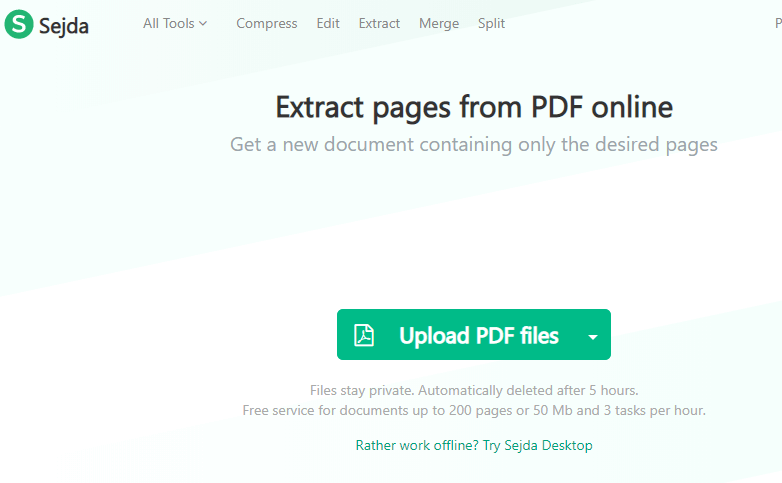
This is how you can extract pages from PDFs with the Sejda PDF extractor.

  1. Click here to open the Sejda PDF extractor in a browser.
  2. Press the Upload PDF files button to select a document on your HDD.
  3. Or you can click the small arrow to select a file from Google Drive or Dropbox.
  4. Then, select the pages to extract from the document by clicking their thumbnail images.
  5. Press the Extract pages button.
  6. A window then opens from which you can click Download to save the extracted PDF.

By following any of these steps or using any of the software solutions listed below, you should now be able to fix PDF error 14 and any PDF-related issues for that matter.

Let us know what step or which product helped you most sharing your feedback in the comments section below.

4 Best Lossless Audio Converters for Windows 10/11

The digital media boom has created hundreds of file formats for audio and video content and various files compatible with desktops, smartphones, tablets, or audio players.

When music is being recorded in a studio, besides mastering and editing, the sounds go through a compression process.

It allows the artists/record labels to compress the size of the audio file into smaller pieces for burning it on CDs and other optical data storage systems.

One of the best-known and most used audio format is MP3. It is very versatile, compatible with different peripherals, and doesn’t require much storage space.

This allows you to easily store your MP3 files in small-sized containers – MP3 Players, CDs, etc.

The main issue with using the MP3 format is that the quality of the audio file is drastically reduced (at the same time reducing the file size) in the process of compressing.

Sounds are distorted because a machine believes the human ear can’t perceive the change. Listeners can often pick up on these subtle differences, and that gives you the feeling that you’re listening to low-quality music.

This is where ‘losless’ files come into play, allowing you to listen to every single bit of detail from the original recording while reducing file sizes considerably – high bit-rate audio.

Even if your files are not lossless (FLAC), the market offers a wide array of software that can transform MP3 files into lossless audio. Still, note that these files are prone to errors like the property requested was not found that prevent editing.

In this article, we will explore the 4 best options on the market to do just that. Use these tools to get a high-quality audio experience no matter what the base format of your files is.

Which are the best lossless audio converters?

Stellar Audio Video Converter – Best lossless audio converter

This software allows you to convert audio files into various formats easily and helps you transfer them to various portable devices.

Stellar Pheonix Audio Converter has a user-friendly interface and allows you to convert entire music labraries in a batch, saving you time.

Stellar Audio Video Converter key features:

  • Converts audio/video files into popular formats playable on different media players and devices
  • Supports audio-to-audio, video to video, and video to FLAC conversion
  • Facilitates ripping an audio CD to extract specific audio tracks
  • Converts multiple audio or video files simultaneously through batch processing
  • Exports files to MP3, WAV, ACC, Flac, Etc
  • Cost-effective conversion
  • Step-by-step guide to the best optimization of your converted files
  • Adjusting bitrate and sample rate
  • Conversion of stereo audio track to mono

Stellar Audio Video Converter

Just add files, preview them, and convert them into your desired format in one go.
Free trial Visit Website

Xilisoft Audio Converter – Intuitive layout

This software from Xilisoft has a very intuitive layout and can import and export all the important audio formats.

It can also extract audio files from a wide range of video files – MPEG, WMV and MP4. However, keep in mind that both the exporting and extracting of your audio files take longer than the best programs we tested.

This makes it not very efficient when it comes to either transforming large files or for when you need to batch process your music library.

Xilisoft Audio Converter key features :

  • Allows batch processing of audio files
  • Add effects like chorus, normalize the volume, etc
  • You can use it to convert files taken from vinyl recordings or cassettes
  • Compatibility with many HD video files but also audio files – MP3, WMA, WAV, AAC; FLAC, APE, etc.
  • Processing of audio segments
  • Splitting of audio files
  • Option to output files to exact sizes
  • Editing ID3 info
  • Adding and adjusting audio effects
  • Multithreading support
  • Multi-core CPU processing

Xilisoft Audio Converter

Convert almost all audio formats and also extract music files from various video files.
Check price Visit Website

Switch Plus Audio Converter Software – Stable audio file converter

Switch Plus is the most comprehensive and stable audio file converter on the market. It allows you to easily convert your sound files to an endless variety of formats in order to suit the type of experience you want to have.

You can add the files you want to convert, choose the output file type, and simply click the ‘Convert‘ button.

Switch Plus is very vast. Many users confirmed that this tool is almost twice as fast as similar tools.

Of course, the results depend on the type of files used and your machine hardware configuration.

It doesn’t seem like a big-time difference but when you need to transform an entire library of music, a few seconds add up to minutes of your precious time.

Switch offers a batch-converter feature that can transform thousands of files without you needing to supervise the operation. It is compatible with 40 audio formats and can convert audio files to 26 output formats.

Switch Plus Audio Converter also gives you the feature of extracting audio from DVD and other video formats like AVI, MPEG and more but also allows you to easily record audio from popular streaming services like Spotify and Pandora.

Key features:

  • Automatically normalize audio while converting
  • Access to an online database to add song information as you convert
  • Import multiple file formats at the same time and convert to one output format
  • Ability to play tracks prior to conversion
  • Import and convert a playlist (m3u and pls)
  • Import video files and extract audio (avi, mov, mpeg)
  • Convert audio from DVDs
  • MP3 encoder supports constant or variable bit rates from 8 to 320kbps with optional error correction and stereo modes
  • WAV encoder supports sample rates between 6000 and 196000Hz in PCM as well as a number of other audio codecs
  • Allows up to 32000 files to be converted in one batch
  • Optimized CPU usage and efficient code allows for the fastest conversion times

Switch Audio File Converter

Convert between over 40 audio file formats now with the most comprehensive audio file converter on the market!
Check price Visit Website

AnyMP4 Audio Converter – Super fast conversion

AnyMP4 Audio Converter is one of the simplest programs to use and offers you a wide array of options to convert and process both audio and video files.

It can convert audio files quickly with one of the fastest speeds recorded in our tests, allowing users to transform entire libraries with just a few clicks of the mouse.

AnyMP4 is compatible with tens of audio file formats. At the same time, the tool can convert these audio files to 14 different output formats. This is a very nice feature and places AnyPM4 among the best audio converters.

This simple yet powerful tool also allows you to efficiently extract audio data from different formats of videos: M4V, MOV, MP4, MPG and WMV.

The official site of AnyMP4 Audio Converter offers you a comprehensive FAQ section and you also have the option to contact the company directly via email with a guaranteed answer within 24 hours.

AnyMP4 Audio Converter key features:

  • Simple user interface and super fast conversion
  • Converts audio/video to various audio formats – FLAC, ALAC, MP3, M4A, AAC,etc
  • Extract audio files from video and convert them to the desired audio format
  • Convert audio files for you to be able to listen to them on different mobile devices – iPhone/iPod/iPad, Zune, Creative Zen, Adroid devices, etc.
  • Cuts audio files or merges them into new audio
  • Edit audio effects and listen in advance
  • Fast conversion speed
  • Batch conversion of a maximum 8 audio files

AnyMP4 Audio Converter

This audio converter will let you easily cut audio clips or merge them in a new audio file.
Check price Visit Website

This article covers 4 of the most efficient audio software converters the market has to offer. The choices provided here allow you to make an informed decision about the best options available on the market.

Use these tools when you need to convert any audio file format to lossless (FLAC) or any other format, extract audio from video files, batch process and edit your audio library, and add effects to get the finest and fastest results possible.

5 Best Email Software Picks for Small Businesses

Owning a business and managing every aspect of it perfectly is a task that everybody needs some help with.

Whether you choose to use automated onboarding software, time-off software, or any other software to help you deal with your everyday tasks, having a reliable and safe email client for your business is crucial.

Only the managing of emails received every day, in a small company can be an extremely daunting and time-consuming process.

This activity could take you hours every day, especially if you have multiple email accounts with different email providers (Yahoo, Gmail, etc.).

Owning the right email client allows you to streamline the process of managing your emails, reply to emails easily, manage contacts and calendars, email encryption, and many other useful features.

Let’s explore some of the best email client services for small businesses available on the market in 2019.

What are the best software for managing business emails?

Mailbird Pro – Unlimited number of email accounts

Mailbird Pro is an incredibly useful and lightweight email app for Windows PCs, that can be used by small to medium-sized businesses. Even though it has a very small file size, this app still packs a great range of features.

Mailbird has a great-looking user interface that can be easily customized to suit your needs perfectly, and the fact that it can easily be integrated with other apps allows hassle-free communication across departments and companies.

One of the best features of Mailbird is that it offers you a way to set up keyboard shortcuts, cutting the time invested in email management a lot.

This software was designed to be easy to understand and use, which is why it gives you the possibility to quickly read received emails, reply fast, and also great options for bulk deleting and archiving, at great speeds.

When dealing with a large number of emails, it is very important that we categorize those emails for easy access.

Mailbird achieves this goal by the use of folders, which can be used as labels, making it easier than ever to identify any urgent emails, archiving in specific folders, etc. You can also assign colors to folders to quickly identify them.

Other notable features of Mailbird Pro:

  • Unlimited number of email accounts
  • Has the ability to postpone annoying emails
  • Speed reader features – gives you access to the information in your email fast
  • Can provide a quick preview of your attachments
  • Offers great priority support
  • Mailbird essential options – gives you access to super focus mode with business essentials

There is also a free version available for Windows, with limited features and only licensed for personal use, that offers you multi-account support (IMAP and POP3, etc.).

The free version also gives you access to a contacts manager and supports app integrations.

Mailbird Pro

Power up your business with this powerful email client.
Check Price Visit website

eM Client – Automatically translates emails

eM Client is another great email client that can help you manage every aspect of your email correspondence with ease. This app is designed to migrate any number of messages from clients like Gmail, Exchange, and Outlook.

This software also allows you to import your schedules from your calendar, and also contacts. All these options can be easily deactivated if you choose to do so and manage all these aspects on your own.

eM Client has a great set of useful features that include an integrated chat app, which works perfectly with Google Chat and other platforms of this type.

What really makes eM Client stand out from the crowd is its useful advanced features.

You can use this app for automatically translating emails, and to set up a delayed send of your email, and also offers great encryption, so you don’t have to worry about your information getting stolen (using PGP).

The free version of this software still offers you a great set of tools for your email managing tasks, but it is limited to only 2 accounts.

In order to be able to use an unlimited number of accounts, it is recommended that you pay a one-time fee and get the Pro version.

Beyond the unlimited number of accounts, with the Pro version of eM Client, you also get VIP support, and the right to use this email client in a commercial setting.

eM Client

Stay on top of your mailing lists with this amazing email client.
Check Price Visit website

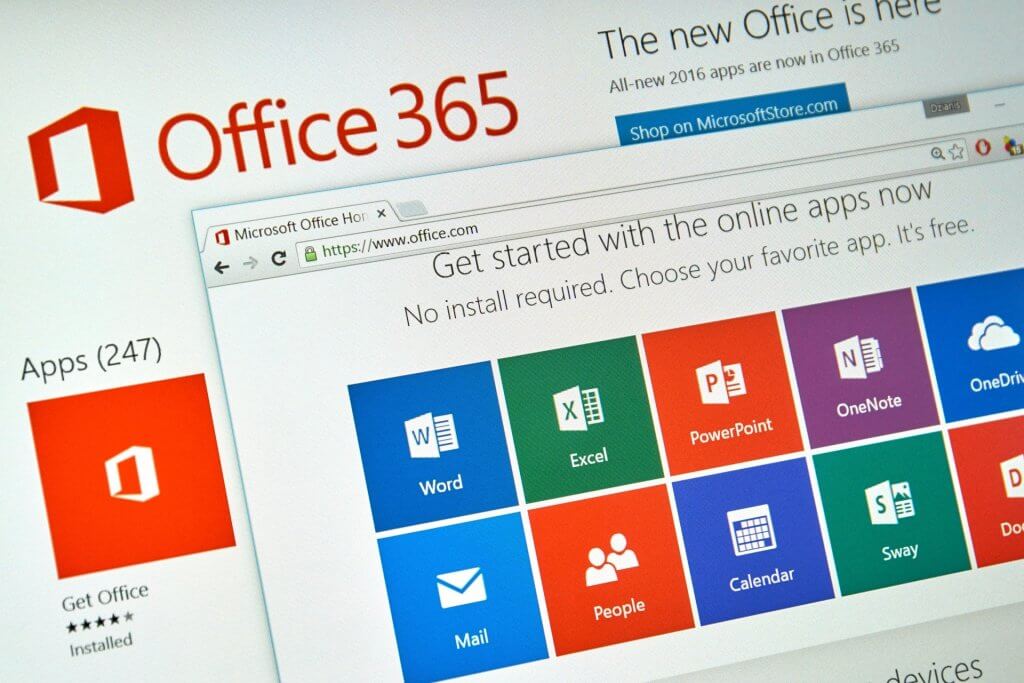
Office 365 – Protection against data loss

Microsoft offers protection against Office 365 reply all mailstorm

This is another useful and very powerful tool that can manage every aspect of your company’s email. It is suitable for companies that already use the Microsoft Office apps like Word, Excel, and PowerPoint.

If that’s the case, then the Business Premium plan of Office 365 is exactly what you need.

By using this software you get access to services relating to sending and receiving emails, allows you to set custom domains, and also offers you protection against data loss.

Office 365 Business Premium adds a great set of features to the standard Office apps, offering your team members access to a team chat tool called Microsoft Teams, an internal social app called Yammer, and another very useful task management app that is named Microsoft Planner.

The Business Premium plan offers you the power to host up to 300 accounts, 50GB of storage for each account, and access to all the features presented above, and also the Exchange online plan offers you great email hosting, the ability to share calendars, and a worldwide address list.

⇒  Try Microsoft Office 365


Mozilla Thunderbird – Easily search the web

This email client from Mozilla called Thunderbird, is an incredibly powerful app that allows you to manage an unlimited number of accounts, offers a great range of plugins for customization, and has a wide range of other powerful features.

One of the best features of Thunderbird is the fact that it can back up your email messages to a local storage space (PC hard drive, USB stick, etc.), and never have to worry about mistakenly deleting an email.

Thunderbird also reminds you of upcoming appointments, allows you yo use multiple types of calendars, and also includes a RSS reader. This feature allows you to quickly browse through the headlines, and react fast to any important information.

Because all these features are contained under a fresh looking, and easy-to-use interface, you don’t have to open up dozens of tabs in your browser to be able to respond to emails, check calendars and the latest news, make appointments, etc.

Thunderbird is constructed in the same way Mozzila Firefox is built, by the use of tabs, that allow you to keep the information on your screen organized, and also allows you to quickly change between them to reach the information you need.

When you decide to exit Thunderbird, it will automatically save all open tabs, and restore them when you open it next. This option allows you to make sure that none of your important emails can disappear if your computer suddenly shuts down.

Another incredibly useful feature found in Thunderbird is the ability to easily search the web (by choosing your preferred search engine), or quickly sort through your emails by the use of the Quick Filter Toolbar.

This feature works instantly, showing you results as you type. You can also choose to filter your emails by different characteristics – tags, people sending them, etc.

For a full list of features offered by Mozzila Thunderbird, you can check out the official page.

You can find a great set of useful guides in the support section of the official Thunderbird webpage.

⇒  Download Mozzila Thunderbird

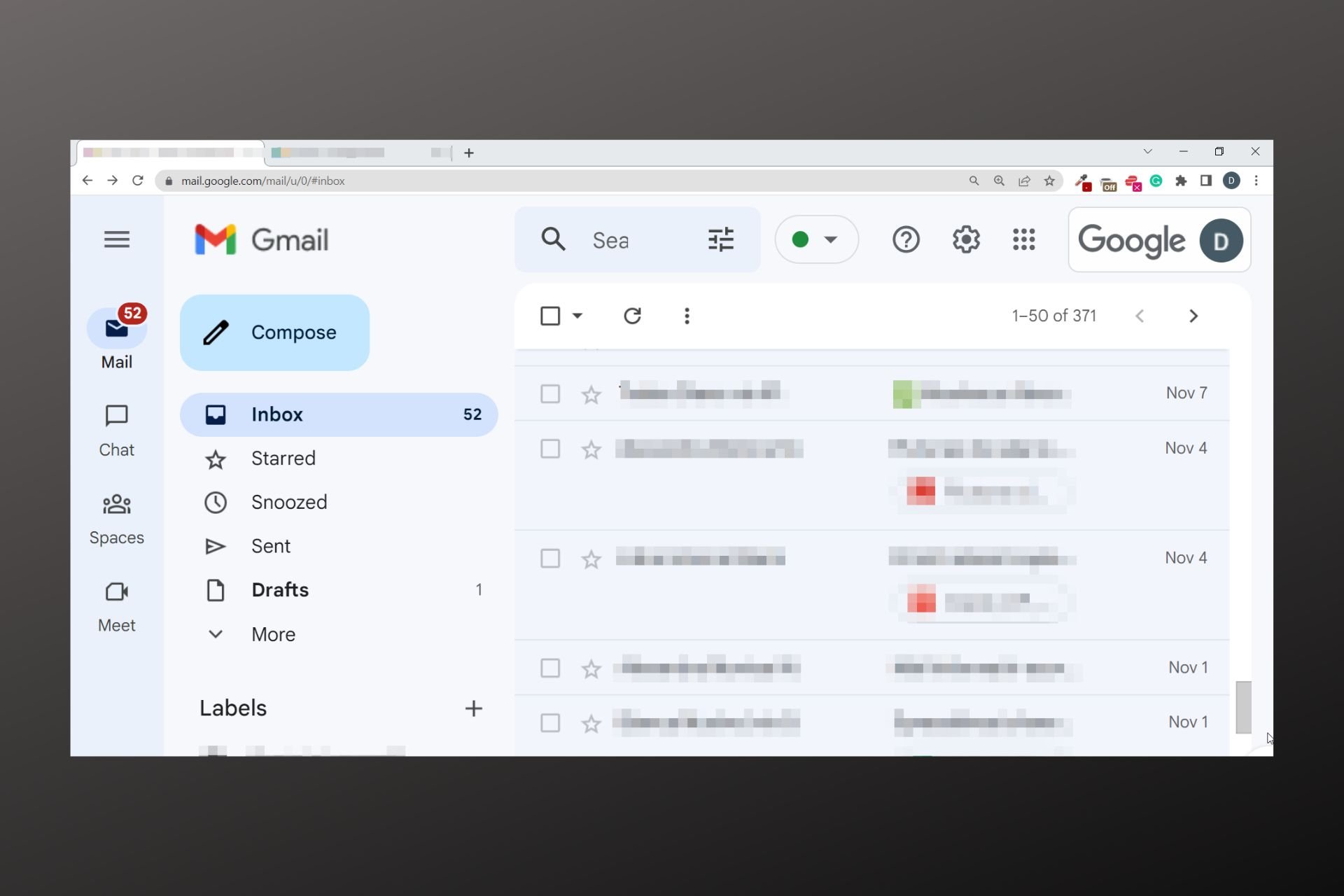
Google Suite – Business-level email through Gmail

resize gmail to fit screen

G Suite is a great toolset released by Google that runs entirely in the cloud. Besides having access to this suite from anywhere in the world, G Suite allows you to save your work instantly, create regular back-ups of your emails and files, and easy files sharing.

This suite contains a good range of software, each covering a series of needs for your small company:

Gmail – This email app is incredibly fast and reliable, and offers a wide range of incredible features:

  • Can add labels and filters
  • IMAP/POP support – allows you to set expiry dates for your emails
  • Great integration with Google Calendar and Google Keep

Google Calendar – designed specifically to fit perfectly within Gmail, this app has an easy-to-understand user interface with some great features:

  • Can compare calendars to your colleagues
  • Ability to color code events for easy managing and scheduling
  • Adjusts the time zones according to your trips
  • Has the ability to add guest lists and other files to your events

Google Hangouts – when it comes to chatting, G Suite also contains this useful option. This feature allows you to chat and connect with your friends from anywhere in the world by both video calling and text.

Google Drive – Another very important part of the G Suite, this element allows you to store the entire database of your company in the cloud, and access it easily from anywhere in the world.

It is also worth mentioning that G Suite also includes great online tools like Google Docs, Sheets, Slides and Forms, which form the base of this software option. These features allow you to manage every aspect of your business, in the same way you would by using Microsoft Office tools, but in the cloud.

This software was released in three different ‘flavors’ , each catering to the needs of different types of users.

For individuals, there is a Basic option that offers the office suite with 30GB of storage included, and other useful features like :

  • Business-level email through Gmail
  • Can preview attachments
  • Allows you to see read receipts so you know when the messages have been read
  • Can recover your deleted emails for 30 days
  • Gives you top-of-the-range spam protection
  • Supports multiple aliases
  • Allows you to access your email even without connection to the internet

The Business version contains all the features found in the Basic version and also offers you unlimited storage space, and access to the Vault for eDiscovery and archiving.

The Enterprise version contains all the features found in the two previous options and also adds great features like – data loss protection and the ability to integrate it with third-party archiving tools.

⇒ Try G Suite


Can I have a free business email?

Yes, you can, as long as you have a domain name and a website.

Because it is already hard enough to manage every aspect of your business, in this article we explored some of the best options on the market that are designed to take some weight off your shoulders. This can be achieved by managing every aspect of your company’s email with the software we explored above.

The features included in the software options we presented in this article will surely cover all your company’s needs. These types of apps can help you and your colleagues save time, and become more efficient and productive.

We would love to know what software option you chose from the list above. Please feel free to let us know in the comment section below.

6 Best File Sync Software for Your Windows 7 PC This Year

Synchronization of files and data across related systems is essential in several setups, as it provides access to all necessary files from a single location. But the process is often tricky on older PCs. So, we decided to help you find the best file sync software for Windows 7.

This allows teams to increase productivity and is helpful to a great extent. But when it comes to finding the fastest file sync software, things are not simple. So, let’s find out the best ones!

What is file synchronization software?

File synchronization ensures that data in one location is the same as in another. For computers, it means that the synced files on one PC should reflect in the same format on the other. And any program that helps achieve this is file synchronization software.

Here are some of the benefits of file synchronization:

  • Enhanced accessibility: One of the primary advantages when you download a file sync software is that it allows you to connect a bunch of computers over the network and seamlessly access files available on any without the need to share these.
  • Serves as an alternative for backups: In case of a crash or when required to reinstall Windows, users can always restore the lost files that were synced previously from the other device.
  • Boosts productivity: Corporations usually go with file syncing, given its direct relation with productivity and its huge impact.

What is the best file sync software for Windows 7?

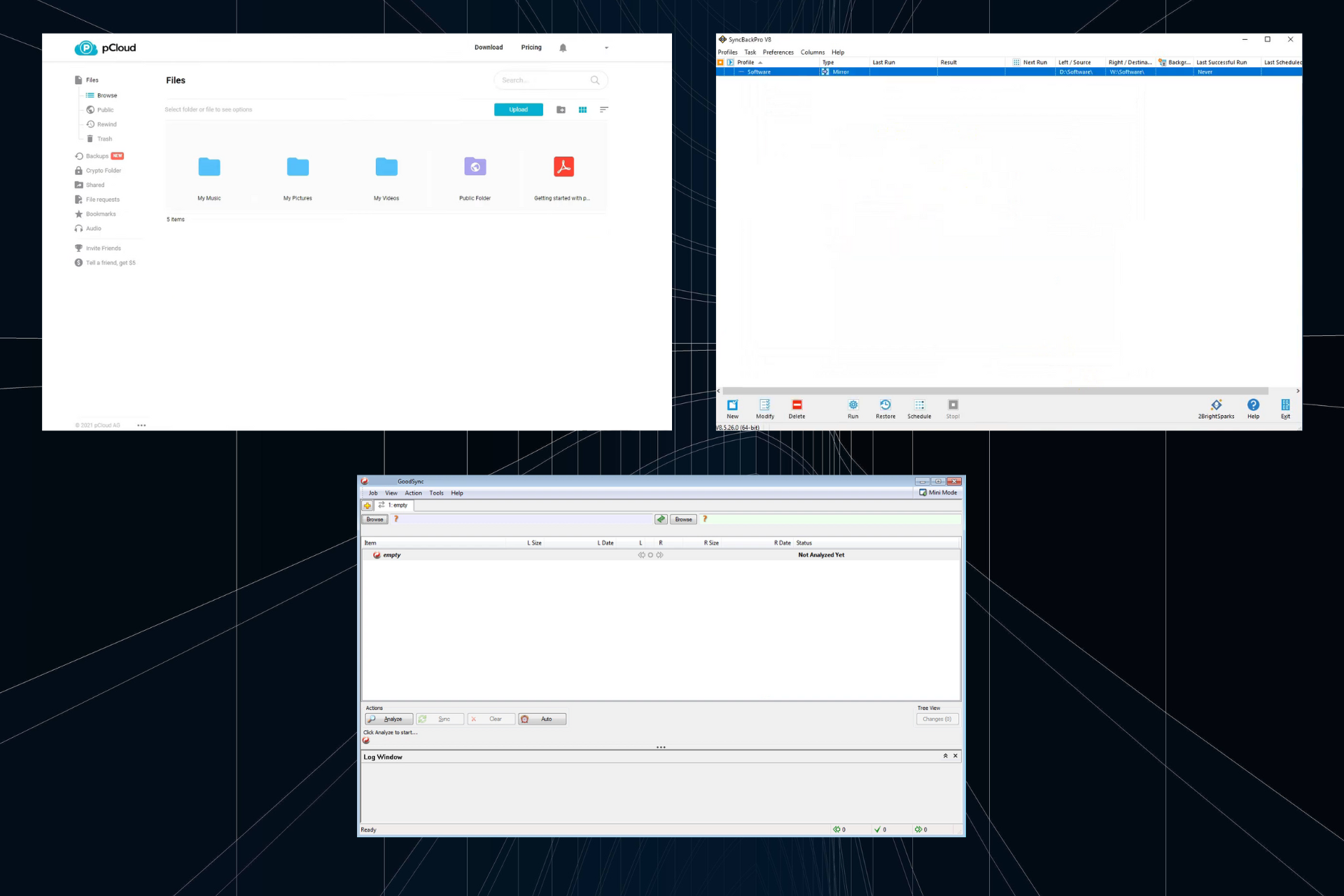
pCloud – For all your needs

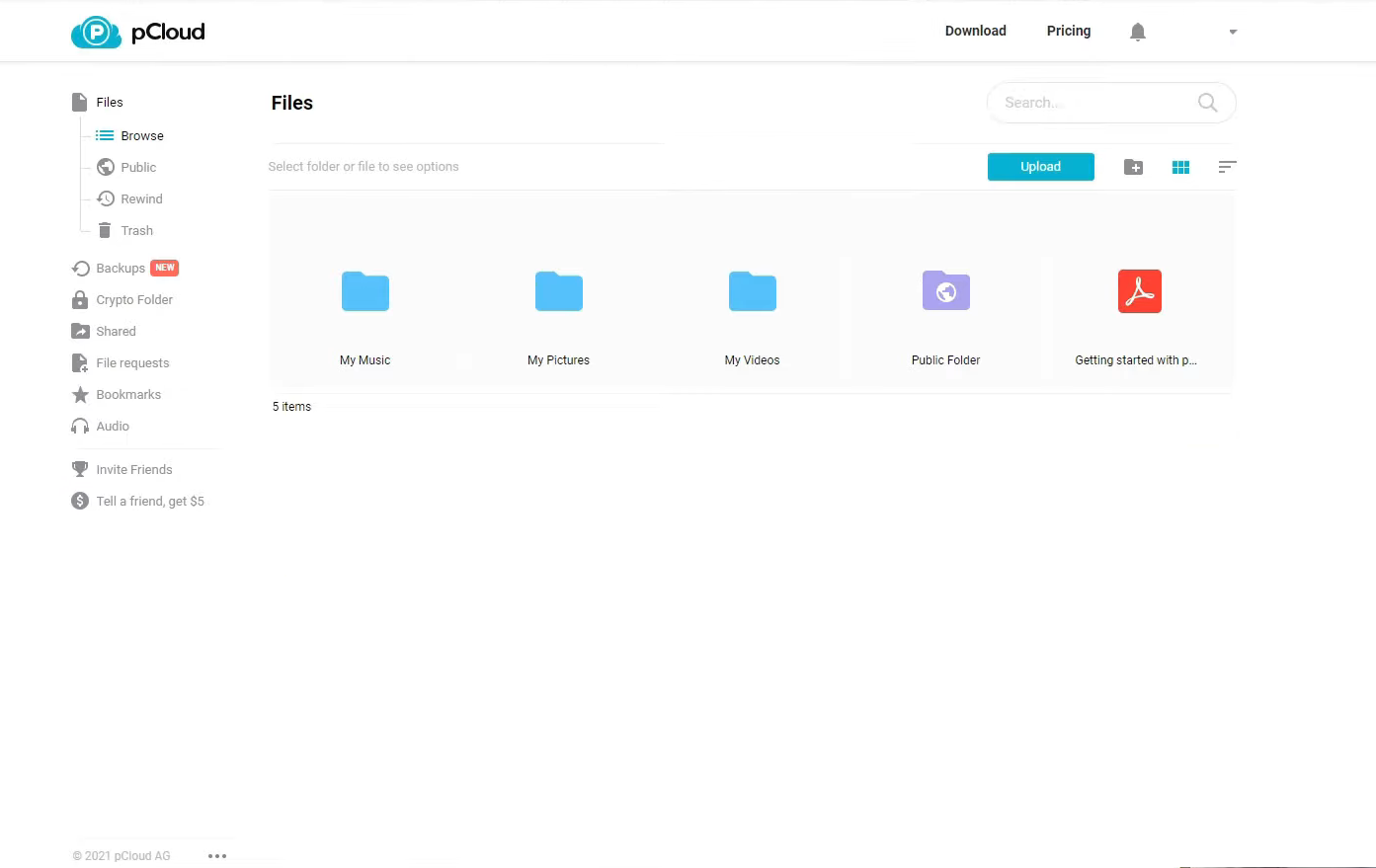
pcloud file sync software windows 7

Topping off our list of the best file sync tools for Windows 7 is pCloud, a world-famous cloud storage service that allows you to store, share and access all files using one simple and highly secure platform, regardless of the time and location.

The pCloud software prioritizes security, and its feature, Swiss data protection, ensures the highest grade of data confidentiality. The program is available on all major platforms, both mobile and PC, and all you need is Internet access to connect to the service and sync the files instantly.

As such, the service is divided into three inter-locking sub-services:

  • pCloud for Web: Can be used via any web browser on any PC, be it Windows or macOS.
  • pCloud Drive: The tool is similar to Google Drive or OneDrive’s virtual drive tools. It allows easy syncing and storage of the data on your PC.
  • pCloud for Mobile: It is the Android and iOS versions of the service. Besides the different architecture, there aren’t any differences between the mobile and desktop services in terms of functionality.

More so, the files stored in pCloud can be easily shared with anyone, as it comes packed with multiple file-sharing options so that you can share (send and receive) large files with anyone.

pCloud

Sync your Windows 7 files fast and easily with pCloud, and see what real cloud storage is all about.
Check price Visit website

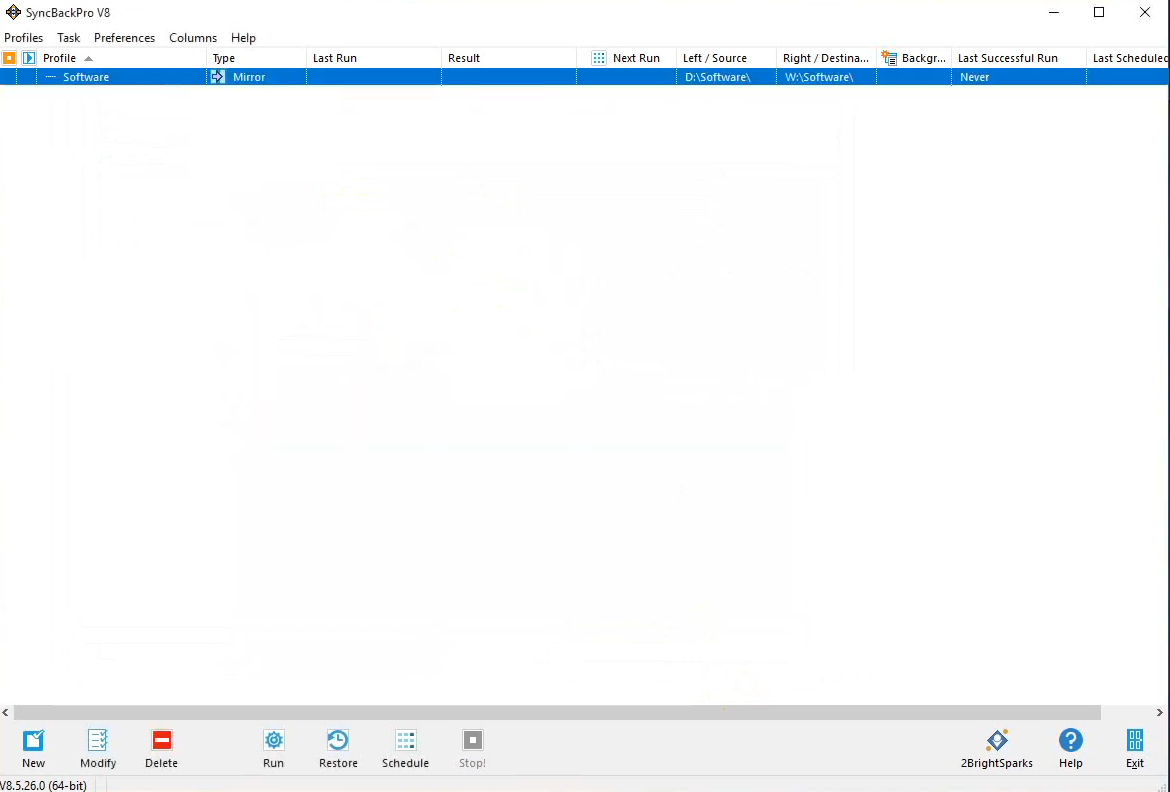
SyncBack – Free version offers more features than any

syncback file sync software windows 7

SyncBack is one of the best free file sync software for Windows 7. It offers four versions, including a free and professional version. Though the paid ones offer an extensive range of options, the free version should do for most users in a home setup.

SyncBack’s free version, as gathered from reviews, offers more benefits to its users when compared to other free sync software.

In addition, SyncBack offers a backup feature (for your files and folders) that facilitates file retrieval when needed. The software supports cloud storage services, such as Google Drive, Azure, DropBox, and more. It is also compatible with notable cloud servers like FTP, SFTP, and FTPS servers.

SyncBack has a simple interface equipped with a support wizard that assists users in navigating the software with ease. Besides, the software hosts a set of advanced configuration options, which allow you to modify some of its functions to suit your needs.

In fact, SyncBack is supported on almost all Windows versions, including Windows 7, all thanks to its compact size.

SyncBack

Synchronizes files on your computer quickly and easily
Check price Visit website

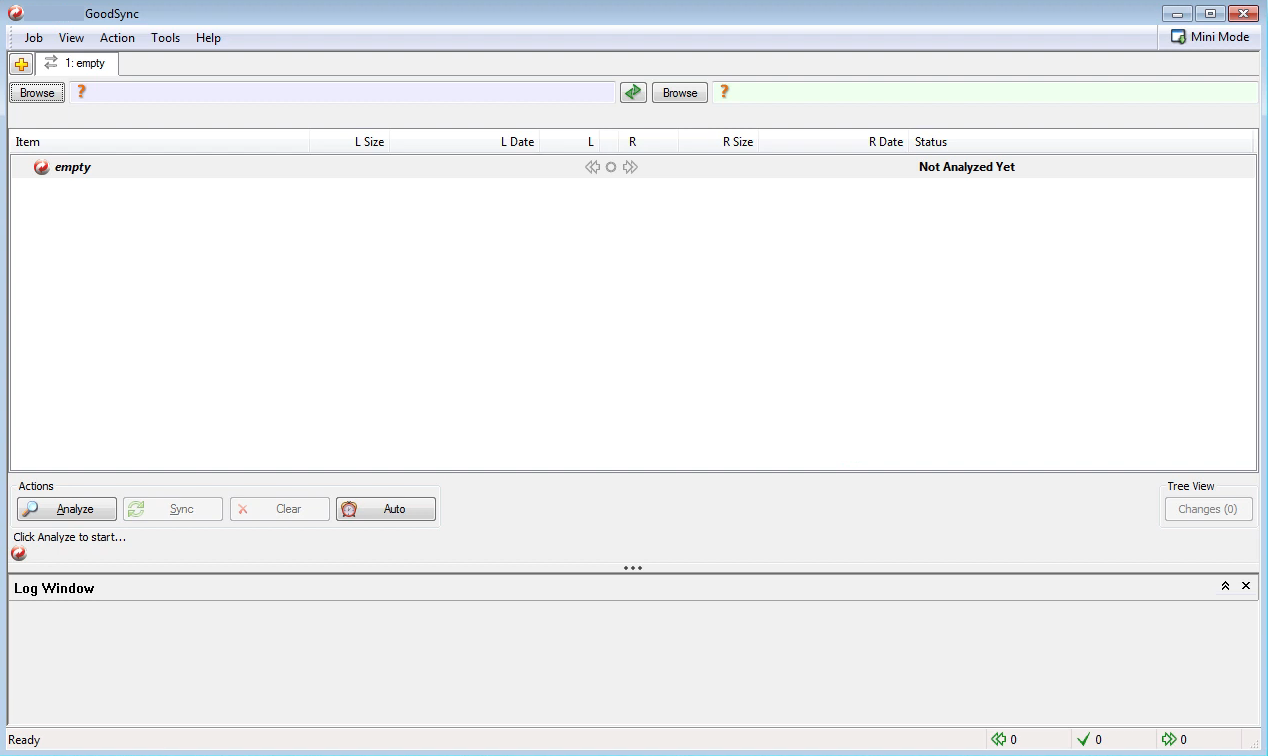
GoodSync – Easily customizable

good sync file sync software windows 7

GoodSync is one of the best available file sync tools in the market. The software is widely flexible and can easily be customized to suit the needs of your team. The tool offers a user-friendly interface, with a menu and critical options in an organized and easy-to-navigate format.

GoodSync provides a 30-day free trial to test the software, after which you have to subscribe to one of its paid subscription plans.

Typically, GoodSync is equipped to synchronize a minimum of 2 folders. However, you can add more folders to the shared portfolio. All relevant team members can easily access these shared files.

Besides, GoodSync offers the option to connect the software with a smartphone or tablet. Using this feature, you can easily back up your smartphone files on your PC or even import/export files seamlessly from the phone to your computer.

The software is equipped with a scheduler to set time and automate the transfer of time-sensitive files. Also, GoodSync supports a host of popular cloud storage tools like Google Drive, Dropbox, Azure, Office 365, and more. You can also connect to SFTP, WebDAV, and FTP servers.

⇒ Get GoodSync

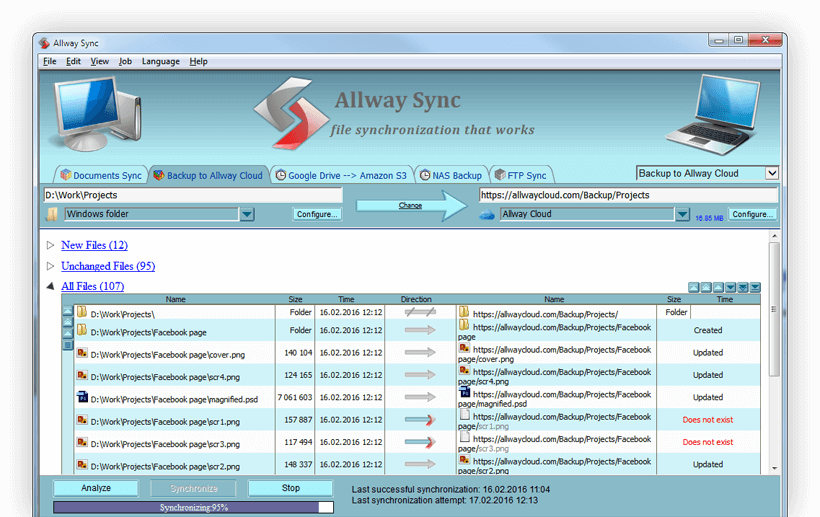
Allway Sync – Easy-to-use interface

file sync software windows 7

Allway Sync is undoubtedly one of the best file sync software in Windows 7. It hosts every relevant functionality, making it stand out as one of the best. The software offers cloud-sync functionality, thus allowing users to share unlimited files, even large ones.

Allway Sync uses an automated function to detect and execute minor actions like deleting file(s) from paired devices. In this case, once a file is deleted from a synced device, Allway automatically deletes the file from other connected devices.

Also, the syncing tool hosts an easy-to-navigate interface and supports a wide range of languages for its culturally-diverse clientele.

Allway Sync allows you to synchronize the system with removable devices (flash drives, memory drives, and so on). It also supports cloud storage tools like Dropbox, Google Drive, and more.

Lastly, Allway Sync has a free version, specially designed for home setups. And its Pro version (paid) is designed to serve businesses and teams.

⇒ Get Allway Sync

Resilio Sync – Uses peer-to-peer process

resilio sync

Resilio Sync is quite different from other sync tools regarding operational patterns. The software utilizes a peer-peer sync process, making it outstanding as one of the best available sync tools.

Besides, Resilio Sync has risen in prominence over the past few years. Today, it is widely used as the official file sync tool of more than one hundred businesses worldwide.

The file sync software for Windows 7 PC is built on BitTorrent technology, facilitating faster connection and allowing the software to handle vast data.

The peer-to-peer sync function protects Resilio Sync from problems such as a congested central server. Also, it supports cloud storage services like Azure, AWS, Blob storage, and others, besides being compatible with mobile devices.

Resilio Sync offers a free version, which comes with limited features. To access them all, upgrade to the Pro version. If you own a business that operates at the peer-to-peer level, Resilio Sync is the way to go.

⇒ Get Resilio Sync

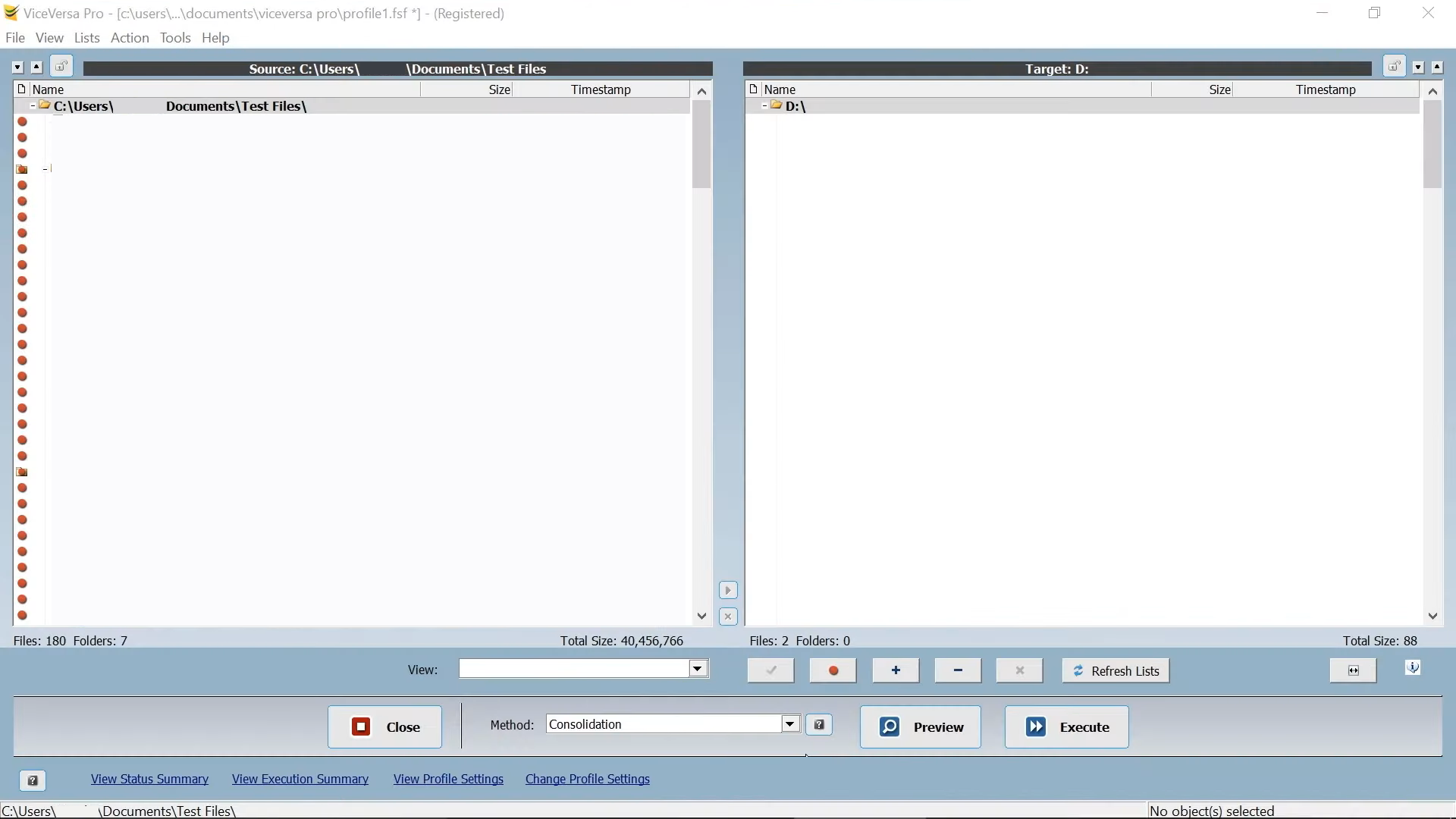
ViceVersa – Refined and fast

vice versa

ViceVersa offers some of the most refined and up-to-date sync features available. It hosts reliable sync and backup features, which enables you to compare files and replicate target folders.

ViceVersa operates on an intuitive and user-friendly interface, providing a side-by-side view of all features and shared files.

ViceVersa allows you to schedule sync processes, enabling seamless sharing of time-sensitive files and so on. Also, the software supports different connections and options like LAN and external storage devices.

ViceVersa is cost-efficient, and it offers flexible pricing plans. You get an initial 30-day free trial period, after which you will be put on a paid plan and upgraded to ViceVersa Pro.

⇒ Get ViceVersa

These were the best file sync software for Windows 7, each offering a range of dedicated features to meet the needs of individual users and corporations.

Also, if you plan to upgrade the OS, check our curated list of the best folder and file sync programs for Windows 10.

If you want something simpler, you can still get SyncToy for Windows 7, so be sure to give it a try.

Do tell us your favorite pick from the options listed above in the comments section.

New job listing elaborates on Microsoft’s continued “family services” push

Microsoft’s Modern Life Experience (MLX) team could be expanding soon based on a recent job posting that’s focused on “family services.”

At a high level, the Senior Designer employment position listed on Microsoft’s Career job board is seeking an individual who “will concept and craft unique and compelling motion design for Family experiences including Family Safety Mobile, Web, Windows, and Xbox interactions.”

More specifically, Microsoft is looking for someone who can help connect with broader design communities within the company to extend motion experiences across multiple company offerings.

  • Highly adept with After Effects, C4D, Octane, and other software for creating user interface animations and rapid mockups, motion studies, and prototypes
  • Effective at visualizing experiences in the abstract and then driving that vision into concise motion design deliverables and hands-on building with engineering teams
  • Able to lead the definition and communication of motion design guidelines, development best practices, and standards
  • Be a dependable partner with software engineers to leverage the scale offered by our platform, without compromising core experiential principles and customer intent
  • Connect with the broader design community to extend motion experiences across the array of offerings 
  • Ability to collaborate with teams across design, research, product, engineering, etc. 
  • Commitment to diversity of thought, perspectives, and people 

ZDNet reporter Mary Jo Foley, recently elaborated on Microsoft’s “family services” agenda as evident by this new job listing, to explain the company’s continued goal to attract non-enterprise consumers.

Microsoft has repeatedly chased the consumer dragon to varying degrees of success and failure. However, it seems the company has figured out an end-around to its legendary consumer misfires by simply expanding its successful enterprise tools to incorporate and blend families’ needs.

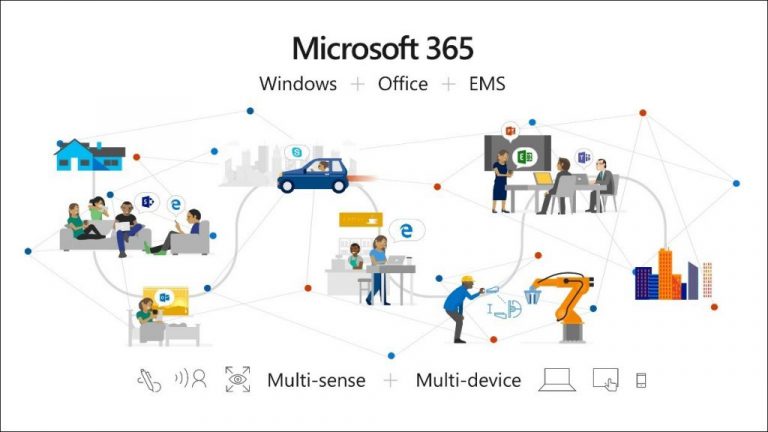
Microsoft 365 Family Services

Microsoft 365 is the growing amalgamation of the company’s efforts to foster a prosumer audience of individuals who use Microsoft software and services at work but could also make use of their work tools for their family endeavors.

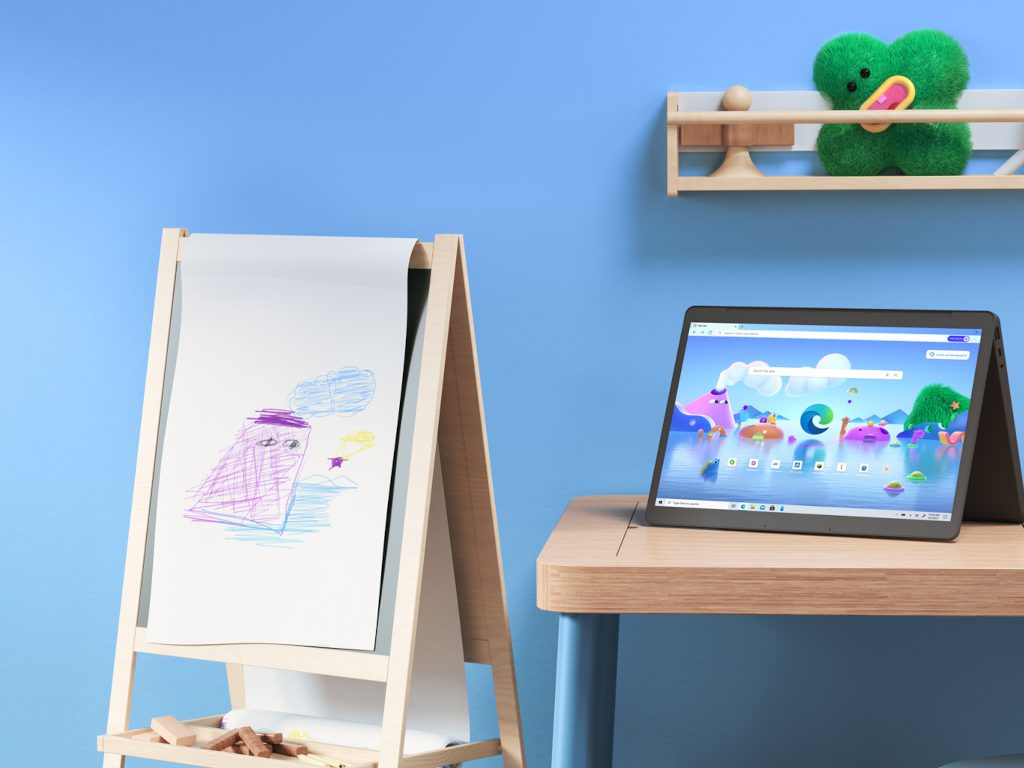
Some recent instances of Microsoft’s prosumer push have come in the way of a new feature in Excel called Money in Excel, Teams for Personal Life, “Kids Mode” for Edge, and Viva Learning.

According to Foley, Microsoft’s Modern Life Planning team, a consortium of investment bankers, consultants, and finance professionals, are ironing out details and partnerships to help expand its M365 “family services” to more prosumers in the future.

Best Audio Converter for PC: Top 11 Picks

An audio converter is software used to convert one type of audio file (like an MP3, WMA, WAV, etc) to another. For instance, if you have an audio file whose format is not supported by any of your computer programs, then you won’t be able to play the file without converting it to a format that your computer supports.

This is where audio converter software comes in handy.

To enjoy music stored in exotic formats that your media player doesn’t support, you’ll need to install an audio converter software that promises to convert the audio tracks to a supported format.

Various audio formats exist, and each has its own unique features. Some maintain excellent sound quality, some can be played only on specific devices, some offer compact size, and others are so rare that you have no idea which programs can open them.

The best audio converter software supports multiple input and output file formats like MP4, MP3, WAV, WMA, etc. They also make file conversion task simpler along with maintaining high-quality sound. In this article, we will discuss the best audio converter software that you should use.

What are the best audio converter software?

Aiseesoft Total Media Converter (recommended)


Aiseesoft Total Video Converter can easily convert between various video formats such as MP4, H.264/MP4 AVC, H.265/HEVC, MTS, MXF, MOV, AVI, as well as 4K, HD, and 3D video formats.

It can be as video conversion software that converts any of your videos to MP4, MP3, WMV, MOV, etc. for playback on your TV or mobile device.

Besides its enormous converting potential, this tool is very easy to use. The interface is very intuitive, and it unlocks the most needed/ interesting/ powerful features really easily.

The Converter also gives the users some customizable options,  such as video-enhancing functions and audio conversion preferences.

You can try the converter for free, but after the trial period is up, you will have to pay for a permanent license. However, for the features proposed, this product is worth every cent.

Aiseesoft Total Media Converter

Aiseesoft Total Video Converter has a great converting power and offers large support for a lot of video and audio formats.
Check price Visit website

Xilisoft Audio Converter

Xilisoft can convert audio from multiple file formats as well as rip audio from CD. Its conversion prowess is remarkable. It only takes a few clicks to convert audio, change the bitrate, and rip audio from CDs.

Xilisoft provides an intuitive layout and a very friendly user interface that makes file conversion easy and fun.

Just like Switch, Xilisoft enables you to extract audio from video files. Some of the supported video file formats include MP4, MOV, M4V, MKV, AVC, AVI, WMV, among others.

This converter is compatible with 18 different file formats and is capable of converting files to 16 different output formats. Xilisoft is one of the most versatile audio converter software in our lineup.

Xilisoft Audio Converter

Xilisoft Audio Converter

With Xilisoft Audio Converter you only need a few clicks to convert your audio files or rip audio from your favorite CDs.
Check priceVisit website

GiliSoft Audio Converter Ripper

GiliSoft Audio Converter Ripper allows you to convert over 40 audio formats, including MP3, WMA, WAV, M4A, AMR, OGG, FLAC, MP2, etc. and encode them to any key audio format.

Thanks to the included Clip Audio Segments feature, you may even convert just a certain segment; then, don’t hesitate to adjust a range of basic and advanced output parameters to fully customize your output audio file.

The best bit? That’s also your chance to create the perfect ringtone of your favorite song instead of the standard sound as you can convert audio files to M4A format for Apple devices – iPhone, iPad, iPod, Apple TV, as well as iTunes.

The self-explaining interface makes the process work like a breeze. You finally have your digital audio tracks saved in the desired format, and nothing stops you from loading them to your favorite audio player, be it a portable Apple iPod or Sony’s Walkman.

GiliSoft Audio Converter Ripper

GiliSoft Audio Converter Ripper

This awesome tool helps you convert over 40 audio formats and even create personalized ringtones for your smartphone.
Check priceVisit website

Stellar Video & Audio Converter

Stellar is a fast and affordable converter that not only converts audio files but video files as well. It’s one of the few converters capable of converting both video and audio files.

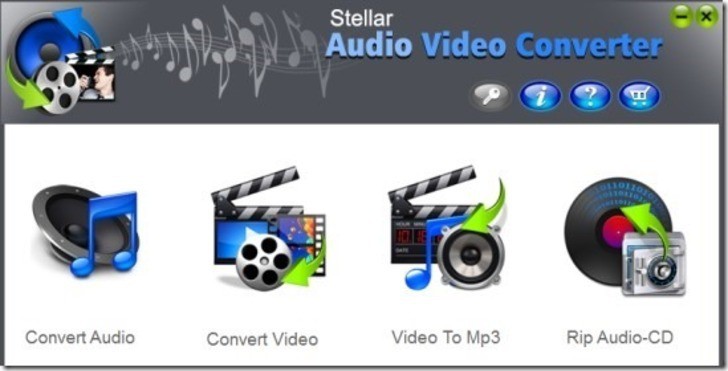
When you launch the program, it prompts you to select between the various file conversion options it offers: convert video, convert audio, convert video to MP3, or Rip audio CD.

Stellar is compatible with 7 of the most popular audio file formats—MP3, MP4, WMA, WAV, AAC, OGG, and FLAC. Not as broad as the one for the top converters, but good enough to convert most of the popular audio files.

The program is also capable of extracting audio data from video files. And just as the name implies, it does a stellar job converting video file formats to different formats.

Stellar Video & Audio Converter

Stellar Video & Audio Converter

Stellar not only help you convert your audio files but does a very good job with converting videos as well.
Check priceVisit website

Switch

Best audio converter software - Switch

Switch combines exceptional audio compatibility, internet audio recording ability, and an easy-to-use interface all in one program. This is a top-of-the-line converter capable of converting multiple audio formats and fast audio conversion without errors.

One unique feature that you won’t find in many audio converter software is the Audio stream wizard. Switch enables you to stream and record music from the internet, breaks the process into 3 steps, and walks you through the steps.

Not only does it support a dozen of file formats, Switch also converts those formats to any of the 26 file formats it offers. Another amazing feature is its ability to extract audio data from videos.

Switch is capable of extracting audio from a wide variety of video formats, including MP4, WMV, MPG, MOV, and M4V. You can also use it to import CDs and convert audio to any of the formats it supports.

⇒ Get Switch Audio File Converter

Super

super_audio_converter_software

Super is a very popular and free audio converter. You will be surprised at the long list of audio formats it supports. If you have an audio file recorded in a rare format and you want it converted to a more common format, you should try out the Super audio converter.

Input formats include MP3, MP2, WMA, WAV, WV, TTA, RM, RAM, OGG, MPP, M4A, FLAC, MMF, APE, AAC, AMR, and AC3.

Output formats include MP3, MP2, MMF, FLAC, APE, WMA, WAV, WV, TTA, OGG, MPC, AMR, AC3, and AAC. Super also makes it possible to extract audio data from video files and save as any of the above-listed output formats.

⇒ Get Super

Free Studio

free_studio_audio_converter_software

Free Studio is a free and superior audio converter software that supports multiple formats. Since it consists of a group of several programs, you’ve to specify the task i.e. audio conversion. Just navigate the main menu and click convert, then choose the Audio converter option.

It’s not only the best MP3 converter on the internet, but also creates superior MP3 sound with the help of the available lame encoder presets (Insane and Extreme).

This converter is highly customizable with flexible settings. There is a preset editor provided for each format to help you customize it to your style. You can edit, create new presets, or delete olds ones.

Free Studio supports 28 input audio formats including MP3, FLAC, WAV, and WMA. Output formats supported include MP3, WAV, M4R, M4B, OGG, FLAC, AMR, ALAC, AAC, and WMA. It also lets you extract audio from CDs, YouTube, and most video formats.

⇒ Get Free Studio

Freemake Audio Converter

freemake_audio_converter_software

Freemake is a feature-rich and extremely easy to use audio converter that supports multiple input and output audio file formats. With Freemake, you can combine multiple files into one large audio file.

This software also allows you to adjust the output quality before file conversion starts. Input formats supported include MP3, WMA, WAV, OGG, M4R, M4A, FLAC, AC3, AMR, and AAC. Output formats supported include MP3, WMA, WAV, OGG, M4A, FLAC, and AAC.

Note: When installing the Freemake Audio Converter, make sure to uncheck what you don’t want as the Freemake installer will attempt to install other programs not related to the converter.

⇒ Get Freemake Audio Converter 

MediaHuman Audio Converter

mediahuman_audio_converter_software_for _windows

MediaHuman audio converter is neat with a minimalistic design that is easy to work with. Its simplicity makes it a very useful audio converter software. Just drag and drop the audio you want to convert, select the output format and Media Human will take it from there.

It even allows you to set the bitrate before the conversion starts. It supports a long list of 26 audio input formats including MP3, WAV, FLAC, and AAC. Supported output formats include WAV, MP3, FLAC, M4R, ALAC, AIFF, AC3, WMA and AAC.

⇒ Get MediaHuman Audio Converter 

Total Audio Converter

Total_audio_converter_software

Total Audio converter is a flexible software that is capable of converting even the rarest formats such as OPUS to MP3. Some of the output audio formats it support includes MP3, WMA, WAV, FLAC, MP4, MPC, OPUS, and over 20 more formats.

Along with that, it can also rip audio from CDs and convert YouTube videos to the various output formats it supports. Total has been online for over 10 years and is being used by millions of users.

⇒ Get Total Audio Converter

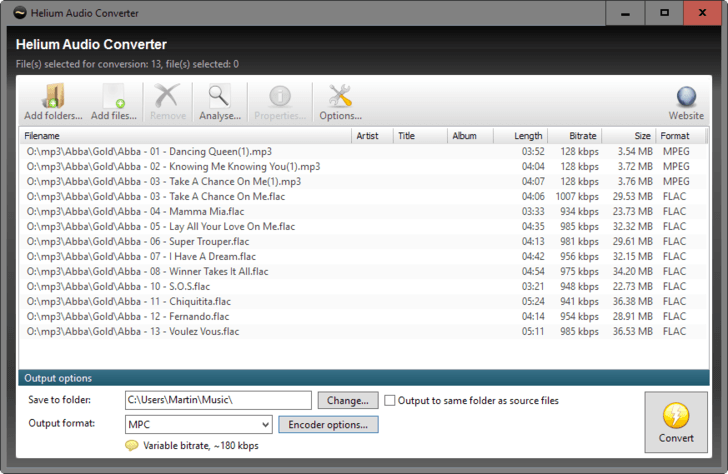
Helium Audio Converter

helium-audio-converter-software

Helium Audio Converter is a fully-featured freeware that makes audio conversion a piece of cake for the user. It has an intuitive interface that offers many options to simplify the conversion process.

Once you’ve installed the software, all you will need to do is add files/folders, select the format option, click the convert button and you are done. You can also drag and drop the files you want to convert. Formats supported include MP4, MP3, FLAC, MPC, M4B, M4A, AAC, WMA, WAVE, and more.

⇒ Get Helium Audio Converter 

While the main purpose of an audio converter software is to convert audio from one format to another, there are other features you should look for to better manipulate the audio.

For instance, a program that can extract audio from the video can save you time as you don’t have to use a separate program to do the same.

A converter that allows you to extract audio data from CDs can help you save your audio in a more useful format. These are some of the top features you will find in most of the products we’ve reviewed.

If you are looking for a way of converting an audio file from M4A to MP3, we recommend you check out this guide for easy steps.

Have you used any of the audio converter software listed above? Let us hear your experiences in the comments section below.

5 Best Motherboard Diagnostic Software for a Complete Overview

Whether you want to check hardware compatibility, update drivers, or are just curious, knowing your motherboard’s information is very important.

There are various situations where knowing your motherboard’s model number can be very useful. For instance, if you intend to upgrade your computer, the upgrade capabilities of your PC are set by the motherboard model you are using. So you will require this information.

Also when buying new hardware or upgrading your drivers, you’ll need the right expansion slots for card-based upgrades. Getting the motherboard information is not easy considering that many manufacturers don’t print the name or model number on the motherboard.

There are various methods you can use to get your motherboard’s information. You can crack open the computer and check the model number, but that would render the warranty void.

If you still have the system manual, you can flip through the pages and look for the motherboard information, which is kind of tedious.

So you’ll need to learn how to get this information the easy way, and that’s where motherboard information software comes in. These are hardware identification programs that display the system’s information including the motherboard particulars. In this article, we’ll discuss the best motherboard information software.

Speccy (suggested)

Created by Piriform, the creators of the famous CCleaner, Speccy is one of the most reliable motherboard information software to use.

Not only does it show the motherboard’s model number, but clicking on the motherboard entry in the left-hand navigation column reveals detailed information about the motherboard including the voltage settings and the chipset.

Speccy provides all the information you need on an uncluttered interface.

There is a page that gives a brief summary of important system information such as the OS, RAM, CPU, Optical drive, and peripherals. More detailed information on each category is organized on the left pane. Additional features include sharing options and the ability to export and print the system’s information.

Speccy is compatible with all versions of Windows from Windows XP through Windows 10. Best of all, it’s available as freeware.

Speccy

Get this freeware software now for all the valuable information about your PC’s hardware components.
Check price Visit website

System Information for Windows (SIW)

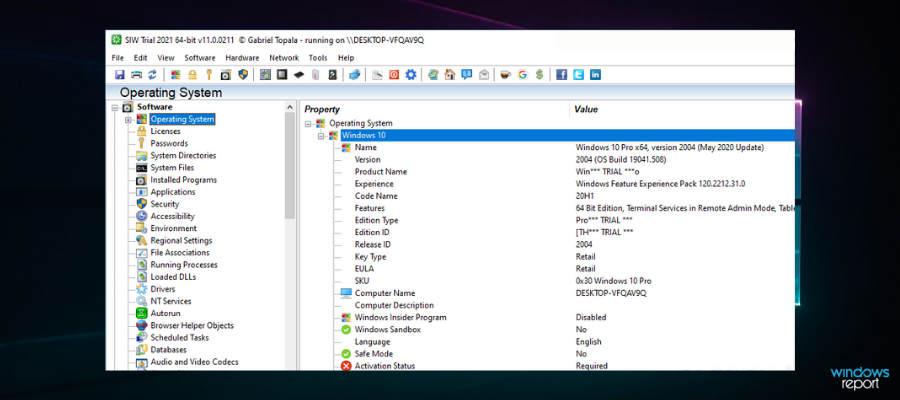
SIW is a Windows utility that is portable, easy to use, and very informative. It is so detailed that everything it has is divided into three easy-to-navigate sections named: Software, Hardware, and Network.

Here you’ll find detailed specs for motherboard, CPU, BIOS, network traffic, memory, page file usage, network shares, system uptime, open files, users, serial numbers (CD keys), processes, installed programs, operating system, peripherals, ports, disk drives, videos, hidden passwords, etc.

In addition to the system information, SIW also reveals details about all the installed applications. You can generate a summary report and SIW allows you to export the info to an HTML file.

It’s loaded with so much information that sometimes it takes time for the information to populate once the application is launched.

⇒ Get SIW 

ASTRA32

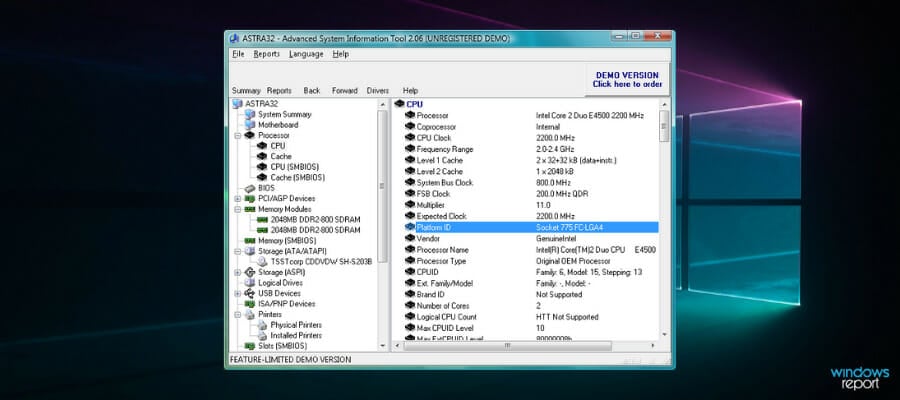
ASTRA32 is a portable cross-platform tool for Windows designed to give you detailed information about your computer’s hardware. It scans through a wide range of components to give you detailed information about your system’s specs. This tool has 9 sections that give detailed reports about the computer’s motherboard, operating system, networks, video card and monitors, storage devices, memory, and ports.

ASTRA 32 gives very detailed information about the motherboard and the processor. Motherboard details revealed include the model number, vendor, chipset, BIOS date as well as BIOS support features such as ACPI, PnP, and certain boot options.

Processor information revealed includes brand ID, clock speed, voltage, current speed, temperature, cache information, support, etc. ASTRA32 also shows a detailed list of all the applications installed on your computer. The program is available as freeware and is compatible with all versions of Windows.

⇒ Get ASTRA32 

Belarc Advisor

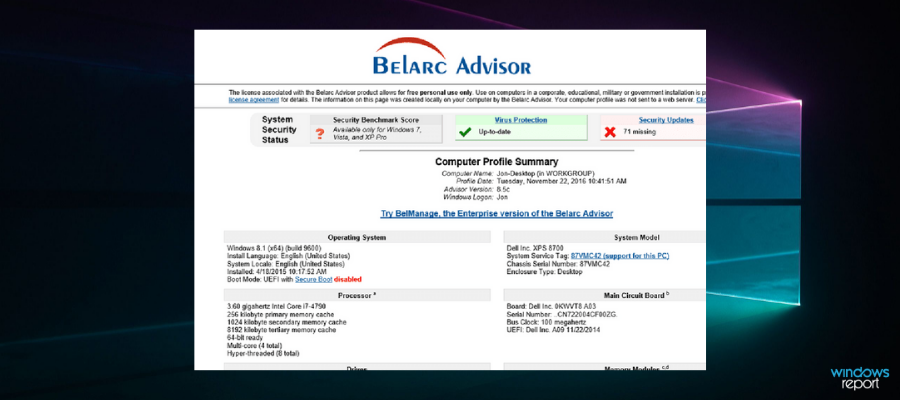
Belarc Advisor is another free utility that gives you all the information about your operating system and hardware specifications by performing a full system scan. Though not as detailed as the other utilities discussed above, basic information about the motherboard, operating system, memory, processor, display, and bus adapters are displayed.

In addition to the hardware information, Belarc Advisor also displays a full list of all the USB storage devices that were connected to your computer for the last 30 days. It even lists for you all the security updates that Windows is missing.

⇒ Get Belarc Advisor

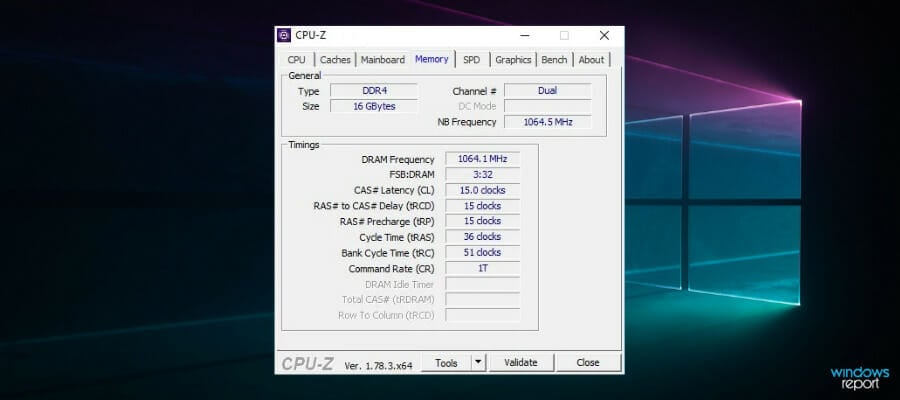
CPU-Z

CPU-Z is a very popular tool for checking all the hardware resources information and it can also be used for checking important information about your motherboard.

After installation, navigate to the ‘Mainboard’ tab and CPU-Z will give you all the motherboard information with respect to the vendor, model, version, chipset, BIOS etc.

If you need to know more about your CPU, it will show you the name, core, clock speed, voltage, cache information, etc. It also gives you information about memory and graphics. If it’s too basic for you, check out CPU-Z alternatives.

⇒ Get CPU-Z

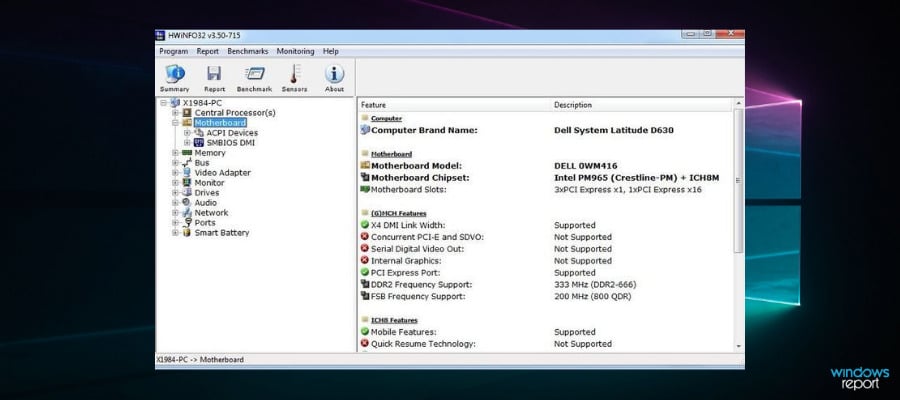
HWiNFO

HWiNFO is an excellent system utility that provides an in-depth review of your computer hardware resources. While other tools also display software specifications, HWiNFO concentrates solely on Hardware information. The information it gathers is categorized into 10 sections: motherboard, CPU, network, audio, drivers, monitor, ports, bus, memory, and video adapter.

The motherboard information gathered includes vendor name, model number, the number of open and used slots, chipset, supported USB versions, and a list of ACPI devices. It also shows BIOS information and detailed information about the processor. HWiNFO is available as freeware and is compatible with all versions of Windows.

⇒ Get HWiNFO

Conclusion

If you are not comfortable with third-party applications, you can also use the System Information utility to check details of your computer hardware including motherboard information. All you have to do is type “System Information” in your Windows start menu and click on the System Information icon that will pop up.

It will display all the details of your hardware including the motherboard model number. However, if you need detailed information about the motherboard, the above mention motherboard information software will display it all.

How to Convert an MBR Partition Table to GUID on a Mac

If you own a Mac PC, then you should know that whenever you need to install your OS, your main partition needs to be GUID (or GPR), and not MBR which is primarily specific to Windows.

Of course, there are situations when you need to convert from MBR to GPR.  These situations include:

  • Upgrading your Mac to a newer version that no longer supports MBR
  • Installing Windows on a Mac
  • Changing the PC’s hard drive, but it comes as MBR by default

Because of this, we’ve decided to make a step-by-step guide on how you can convert an MBR partition to a GUID on a Mac device.

How do I convert my MBR partition to GPT?

1. Use the Disk Utility tool

  1. Boot from your OS X Installer Disc.
  2. Choose your language and click on Continue. A menu bar should appear.
  3. Go to the Utilities menu.
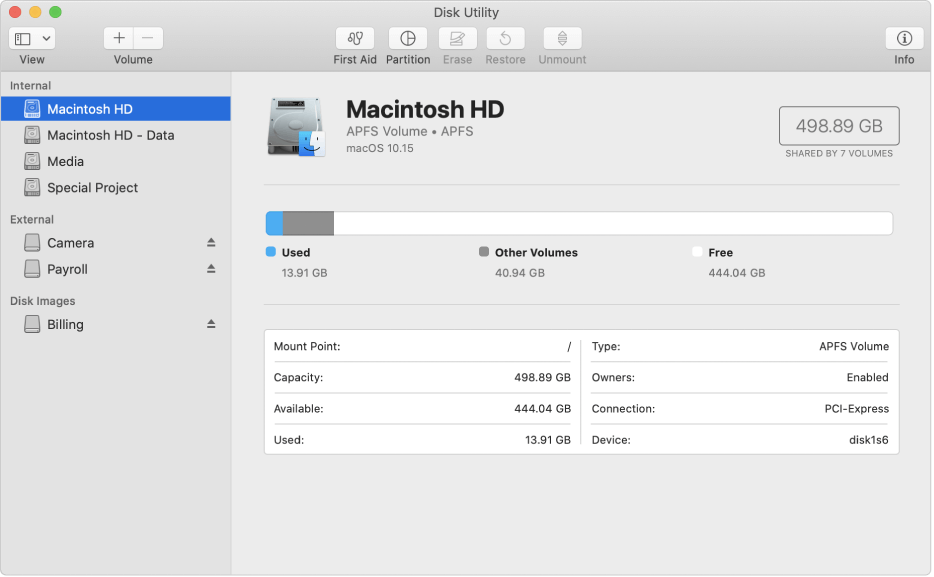
  4. Select Disk Utility.mac disk utility
  5. When the Disk Utility loads select your hard drive.
  6. Under the Volume Scheme heading set the number of partitions to one.
  7. Click Options.
  8. Set the partition scheme to GUID.
  9. Click OK.
  10. Set the format type to Mac OS Extended (Journaled).
  11. Click on the Partition button.
  12. Wait for the process to run its course.
  13. Select the freshly created volume.
  14. Click on the Erase tab.
  15. Set the format type to Mac OS Extended (Journaled).
  16. Click on Security.
  17. Check the button for Zero Data.
  18. Click on OK to return to the Erase window.
  19. Click on Erase.
  20. Wait for the process to run its course.

2. Use a third-party tool

When you want to get the job done quicker and not waste too much time on this, using a dedicated third-party tool is the most convenient solution.

Paragon’s Hard Disk Manager for Mac is an excellent choice to manage your Mac’s disk partitions.

With a simple-to-use interface, Paragon provides powerful solutions to backup, resegment, and wipe your disk. Recovering deleted or lost files is also possible with just a few clicks.

Converting and redistributing the unused space between the partitions is among the most used tool option and you will be able to fully benefit from it.

⇒ Get Paragon Hard Disk Manager for Mac

By following these steps you should now have converted an MBR drive to a GUID (GPR) drive without any issues.

Note icon NOTE
This procedure involves erasing your partition. Backing up your data is recommended.

You can reverse the changes at any time by following the steps mentioned above, only this time you select MBR instead of GUID.

Did you find this article useful? Let us know what your opinions are in the comment section below.

FIX: Can’t hear audio in Movie Maker on Windows 10

Movie Maker is a simple tool that allows you to create and edit videos, but some users report that they can’t hear the audio in their Movie Maker project. This looks like an unusual problem, but fortunately for you, there are few solutions available.

Users report that when they add music to their Movie Maker project, the video works without any problems but there is no music available. This is an unusual problem, and if you’re using Movie Maker on regular basis this could be a big problem for you. If you’re having this issue with Movie Maker you might want to have a closer look at our solutions below.

Movie Maker audio not working, how to fix it??

Movie Maker is popular video editing software, but some users reported audio problems while using Movie Maker. Speaking of audio issues, here are some common problems that users reported:

  • Windows Movie Maker no sound on imported video – This is a common problem, but in most cases you can fix it simply by restarting the Windows Audio service.
  • Windows Movie Maker audio problems, no sound after saving, music not playing, cannot hear sound – These are some common audio problems that can occur with Windows Movie Maker, but you should be able to fix this problem by using one of our solutions.
  • Windows Movie Maker mkv no sound – If you’re having this problem only with MKV files, the issue might be the lack of video codecs. Simply install a codec pack and the problem will be resolved.

Solution 1 – Restart the Windows Audio service

According to users, if you’re having audio problems in Movie Maker, the issue might be your Windows Audio service. Sometimes there might be some issues with this service, and that can cause problems with audio in Movie Maker. To fix the problem, you just have to restart this service. This is relatively simple to do, and you can do it by following these steps:

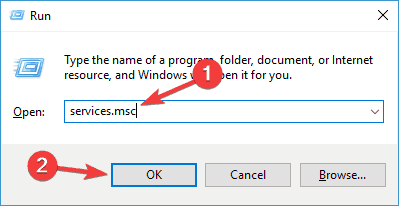
  1. Press Windows Key + R and enter services.msc. Now press Enter or click OK.
    Windows Movie Maker no sound on imported video
  2. When Services window opens locate Windows Audio in list of services.
  3. Right-click the service and choose Stop from the menu.
  4. Right-click the same service again but this time choose Start from the menu.

Sound should be now working in Movie Maker.

There’s also a different way to do this:

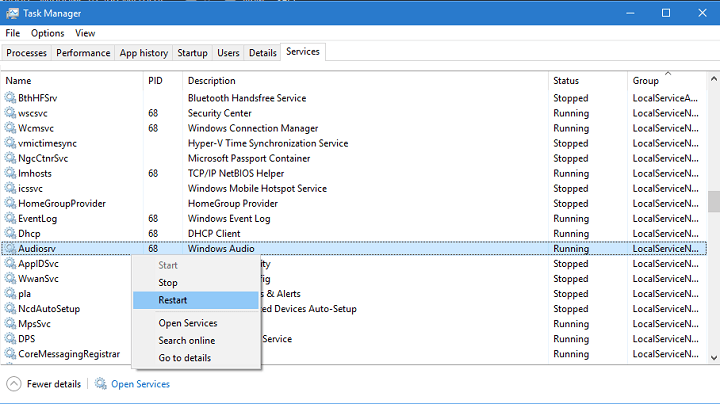
  1. Start Task Manager. You can do that by pressing Ctrl + Shift + Esc on your keyboard.
  2. Go to Services tab.
  3. Locate AudioSrv (Windows Audio), and right-click it.movie maker sound problem
  4. Choose Restart from the list of options and after 10 seconds this service should be restarted.

Although this is a working solution, you’ll have to do it every time you start a Movie Maker project or restart your computer.

Solution 2 – Turn off DTS Sound

If you’re having audio problems in Movie Maker on Windows 10, the issue might be DTS sound. This is a useful feature, but it can sometimes cause this error to appear. To fix the issue, users are suggesting to disable this feature completely. To do that, follow these steps:

  1. In the Search bar type DTS sound and click DTS Sound from list of results.
  2. When the DTS Sound window opens click the power button icon on the left to turn it off. Now the DTS Sound window should become gray meaning that it has been turned off.
  3. Go back to Movie Maker and try if the audio works.

If you need to use DTS sound you can just set it to internal from the main screen instead of turning it off completely. It has reported that this also resolves the issue with Movie Maker.

Solution 3 – Use WMV format instead

This might not be the most practical solution but users have reported that WMV files work without any problems in Movie Maker, so if you’re having any issues with sound, convert your files to WMV format and then use them in Movie Maker. This might not be the fastest or the most elegant solution, but users claim that it works.

In order to convert your files to the WMV format, you’ll need appropriate software. There are many great converters available on the market, but if you want a simple but reliable converter, we suggest you try Any Video Converter Ultimate.

In addition, some users are suggesting converting .mp4 file to .mp4 file in order to solve the audio issues. We know that this sounds unusual, but it works according to users. Alternatively, you can convert the file to .wmv format and then convert it to .mp4.

Some users also reported issues while using .mp3 and . wma files in Movie Maker. However, you might be able to fix this issue by converting those files to .wav format.

Solution 4 – Repair Windows Live Essentials

Movie Maker is a part of Windows Live Essentials, and if you’re having audio problems in Movie Maker, perhaps your installation is damaged. To fix the problem, users are recommending repairing your Windows Live Essentials installation. To do that, follow these steps:

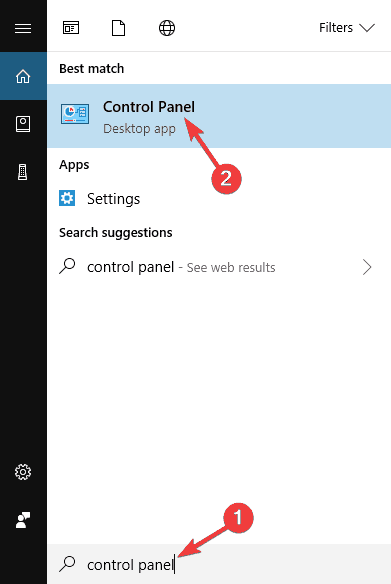
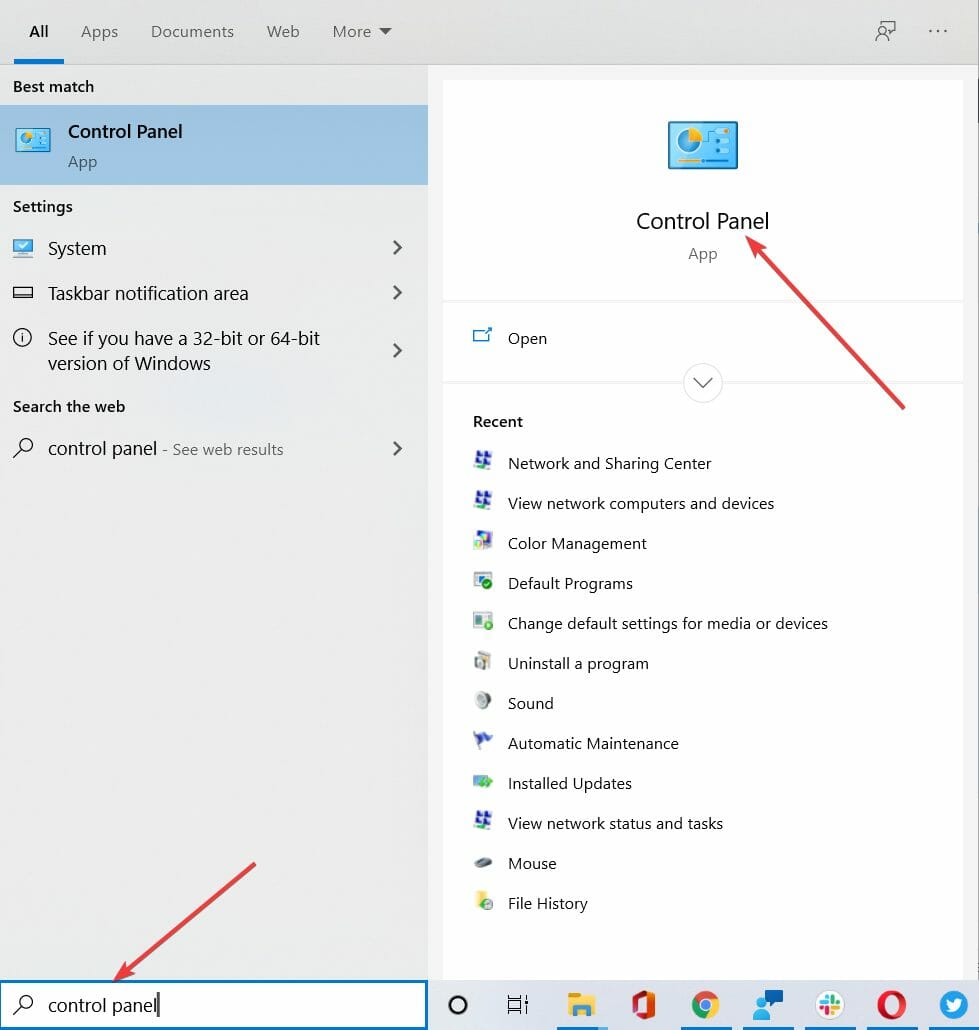
  1. Press Windows Key + S and enter control panel. Select Control Panel from the list of results.
    Windows Movie Maker no sound on imported video
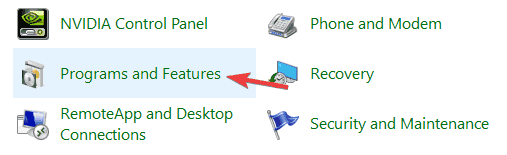
  2. When Control Panel opens, go to Programs and Features section.
    Windows Movie Maker no sound after saving
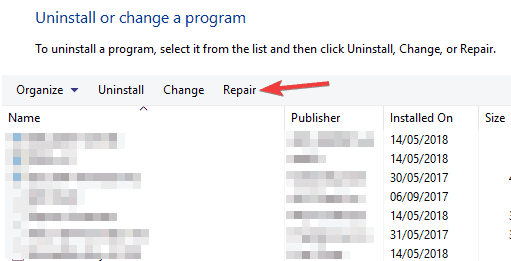
  3. Now select Windows Live Essentials from the list and click Repair.
    Windows Movie Maker mkv no sound
  4. Follow the instructions on the screen to complete the repair process.

Once the Windows Live Essentials installation is repaired, check if the problem is still there. If the issue is still present, perhaps you should try reinstalling Windows Live Essentials. You can do that right from Control Panel, but that’s not always effective.

Regular uninstall processes can leave certain files and registry entries behind, and those files can cause problems in the future.

However, you can completely remove Windows Live Essentials from your PC with the help of a third-party utility such as CCleaner.

Use the built-in uninstall feature to remove the app, and then the PC cleaning and registry optimization tools to make sure there are no leftovers.

Once you remove Windows Live Essentials using this tool, install Movie Maker once again and the issue should be permanently resolved.

Solution 5 – Install a codec pack

Your PC might not be able to play certain video files unless you have the proper codecs available, and in some cases Movie Maker won’t play any audio. This can be a big problem, but you can fix the issue simply by installing the necessary codecs.

According to users, they managed to fix this issue simply by using the K-Lite codec pack, so if you’re having any problems with Movie Maker, install this codec pack and the issue should be resolved.

Solution 6 – Install QuickTime

According to users, they experienced some Movie Maker audio issues on their PC, but they managed to fix the problem by installing QuickTime. This is a multimedia player, but it comes with certain video codecs, and once you install it, you should install the necessary codecs as well.

Once the codecs are installed, the problem with audio in Movie Maker should be resolved.

Solution 7 – Change your sound settings

If you don’t have audio in Movie Maker, the problem might be your sound settings. According to users, sometimes you need to have Exclusive Mode disabled in order to get sound in Movie Maker. To change your sound settings, just do the following:

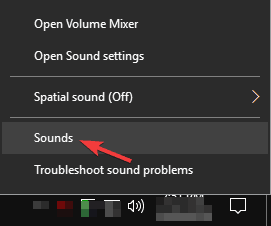
  1. Right-click the Sound icon in your Taskbar. Now choose Sounds from the menu.
    Windows Movie Maker music not playing
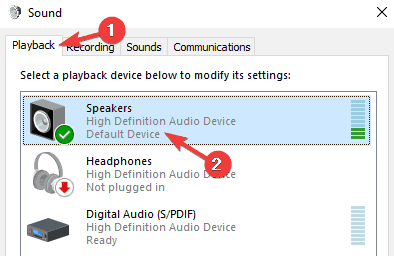
  2. Go to the Playback tab and double-click your current audio device. In our case that’s Speakers, but it might be different for you.
    Windows Movie Maker mkv no sound
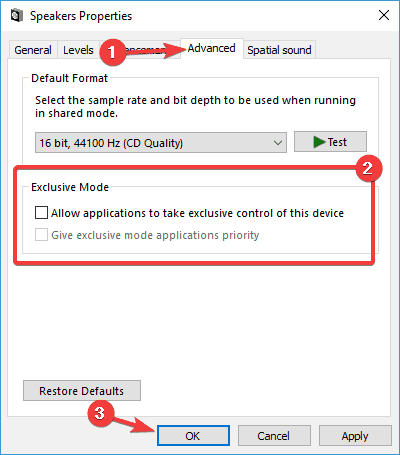
  3. Go to Advanced tab and disable all option in Exclusive Mode section. Now click Apply and OK to save changes.
    Windows Movie Maker no sound on imported video

After making these changes, the issue with audio in Movie Maker should be completely resolved.

Solution 8 – Run the application in Compatibility Mode

According to users, sometimes issues with audio in Movie Maker can occur due to compatibility issues. However, you can fix this issue easily by setting Movie Maker to run in compatibility mode. In case you don’t know, Windows has a Compatibility Mode feature that allows you to run old applications.

To run Movie Maker in Compatibility Mode, you just need to do the following:

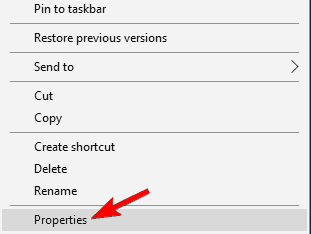
  1. Locate the Movie Maker shortcut, right-click it and choose Properties from the menu.
    Windows Movie Maker audio problems
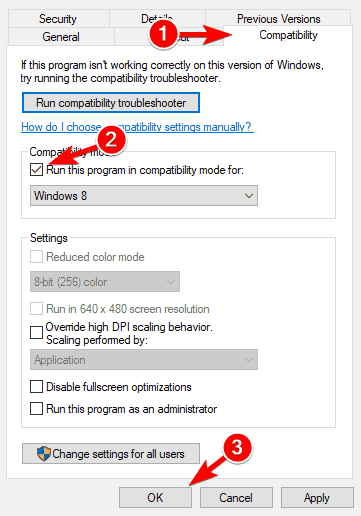
  2. Now navigate to Compatibility tab and check Run this program in compatibility mode for. Select any older version of Windows and click Apply and OK to save changes.
    Windows Movie Maker mkv no sound

After doing that, try to start the application again. If the problem still occurs, you might have to experiment with your settings and try different versions of Compatibility Mode.

Solution 9 – Try using a different video editing tool

If you’re keep having audio problems in Movie Maker, perhaps you should consider switching to a different video editing software. Even though many users are familiar and comfortable with Movie Maker, you should know that Movie Maker is older software, and issues such as this one can occur.

If you’re frequently editing videos, perhaps you should consider switching to a different video editing software. CyberLink PowerDirector 16 offers great features, and it’s great if you want to perform smaller adjustments or create professional videos. If you’re looking for a proper Movie Maker replacement, be sure to try this tool.

Audio problems in Movie Maker can be annoying, but you should be able to fix most of them using one of these solutions.

Error Code exFAT File System: 5 Easy Ways to Fix it

The exFAT_file_system is a BSoD error in Windows 10 that usually indicates something is wrong with the exFAT file system.

This type of error appears more often when trying to upgrade the operating system to a newer version or when a program starts. This guide will show you how to fix the error convincingly.

What causes exFAT file system error?

  • Outdated drivers: An outdated driver or two is among the leading causes of this problem. The solution to this is to update your drivers to the latest version.
  • Memory issues: Sometimes, this issue can be down to problems with your hard drive. You need to check for and fix memory issues on your PC.
  • Outdated PC: If your PC is outdated, you can get the stop code exFAT file system. Updating your operating system should solve the problem.

How do I fix exFAT file system error?

1. Use a dedicated software

Since the exFAT_file_system error can be caused by something faulty with the file, we first recommend using dedicated software to fix it.

2. Update outdated drivers

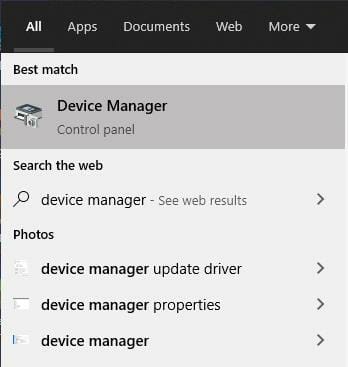
  1. Press the Windows key + X and select the Device Manager option.
    device manager exfat file system
  2. Select the category you want to update the driver and right-click the device there.
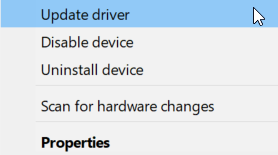
  3. Now, select the Update driver option.
    update driver
  4. Finally, choose Search automatically for drivers and install all available updates.
    search auto

Most BSOD errors, including the exFAT file system, happen due to outdated device drivers. The lack of an up-to-date system can lead to lag and other system issues.

To avoid these types of problems, you can use automatic driver updaters like Fortect Driver Updater to find, download, and install the correct driver version on your Windows PC in just a few clicks.

3. Restrict Windows from automatically restarting

  1. Press Windows key + E to open File Explorer, right-click This PC, and select Properties.
    properties exfat file system error
  2. Choose Advanced system settings.
    advanced system
  3. Now, click the Advanced tab.
  4. Next, click the Settings button under Startup and Recovery.
  5. Uncheck the box from Automatically restart.
  6. Finally, click OK to save the changes.

After you perform these steps, Windows will no longer prompt a sudden reboot. Therefore, once you have used this solution, you should be able to solve the exFAT file system error.

4. Install all available updates

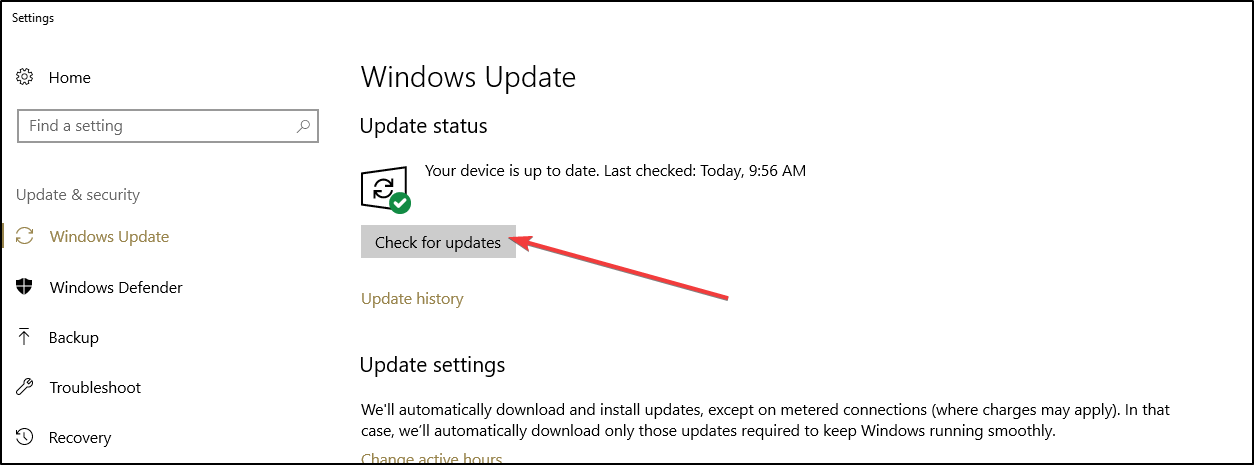
  1. Click on Start and select Settings from the options.
  2. Select Update & Security.
  3. Now, click the Check for updates button and download any available updates.
  4. Finally, allow the installation process to finish and restart your device.

Keeping your system up to date can keep you safe from many errors. Microsoft constantly updates Windows to improve the system’s stability and fix various issues.

5. Check the memory issues

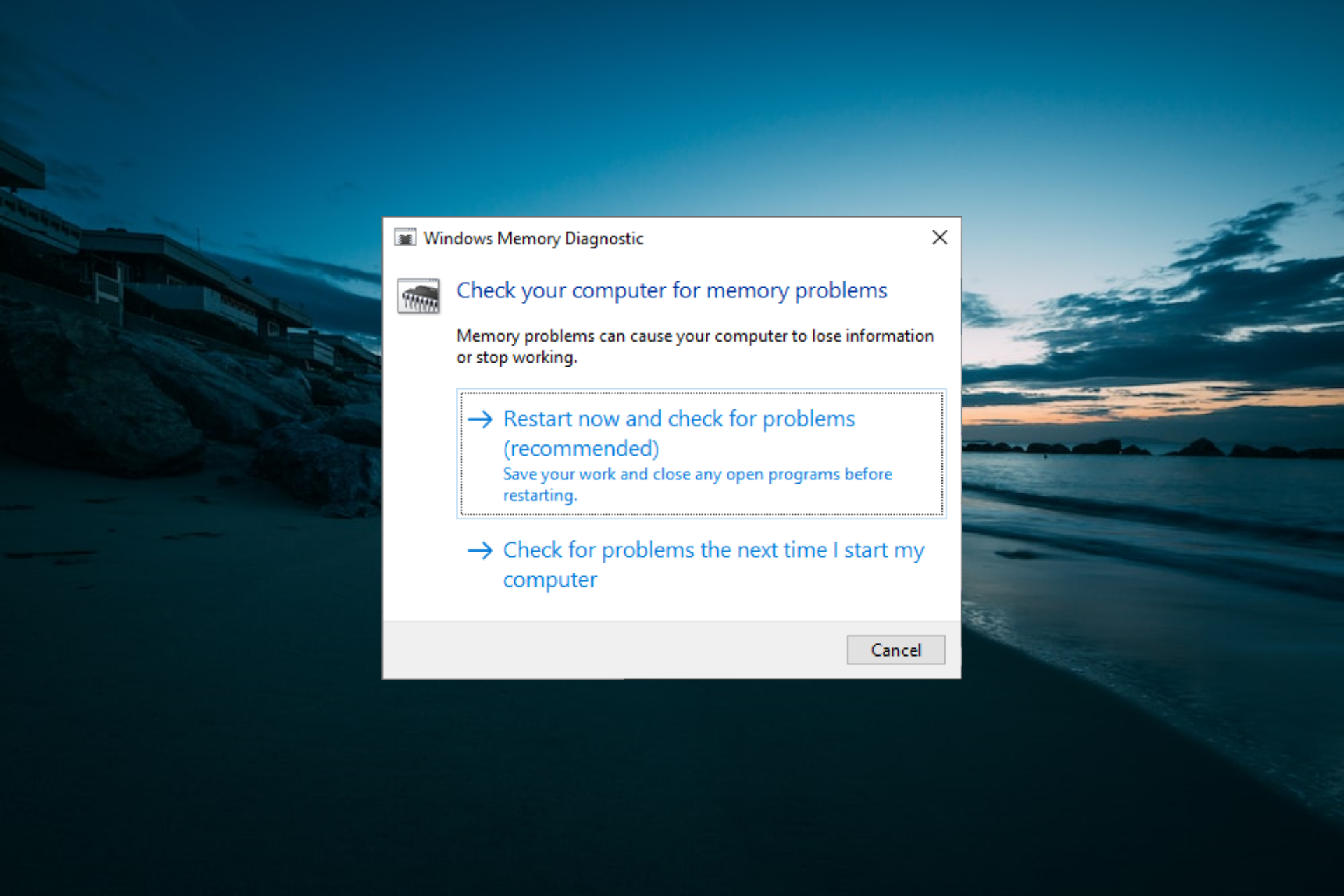
  1. Press the Windows key, type memory, and select the Windows Memory Diagnostic option.
  2. In the wizard window, select Restart now and check for problems (recommended).
  3. Now, Windows will reboot and will proceed to detect any RAM issues.

These are the most effective and efficient ways to solve the exFAT file system error BSOD in Windows 10. We hope that one of the solutions presented has helped you successfully resolve this issue.

If you are facing other issues, like the file being too large for the destination file system, check our detailed guide on switching file systems: exFAT to FAT32 conversion.

Please share which solution worked best for you in the comments below.

Windows 10 Sun Valley’s Floating Taskbar redesign is hidden in latest Windows Insider builds

Though Microsoft hasn’t admitted it, Windows 10 Sun Valley is rumored to be coming this Fall and could finally bring a massive design overhaul to Windows 10. We’ve yet to see any major hints of this redesign in the latest Windows Insider builds, but one software engineer has done some tweaking to expose what could end up becoming Windows 10 Sun Valley’s Floating Taskbar menu (via Windows Latest.)

Naturally, the feature isn’t publicly available and is tucked away under a flag in the Windows Shell Experience Host. Once toggled, it looks quite beautiful. As seen above, the jump menus (also known as right-click menus) in the Windows 10 Taskbar end up looking a lot like what we’ve seen in Windows 10X. Basically, these menus no longer end up being a glued part of the Windows 10 Taskbar and now has a small space between Taskbar and the desktop, hence the “floating” name. You also see that the design language has shifted to more rounded corners, too, instead of the flat rectangular shapes in the current versions of Windows.

This currently only works with a limited scope, as the menus do appear to have borders in some cases, according to Windows Latest. But Microsoft could be moving more of 10X design elements into Windows 10, too. That’s because the software engineer who uncovered this also revealed in a separate tweet that new “gripper” and “expander” elements from Windows 10X are hidden in the Windows 10 Notification Center, too.

As far as we can tell, this is the first time that we’ve seen live-code of elements of Windows 10 Sun Valley inside an active Windows Insider Build. Previously, we only knew of the Sun Valley redesign through floating Start Menu mock-ups released by Windows Central’s Zac Bowden.

It is a bit of a stretch to say so, but this does seemingly hint that more Sun Valley design elements could be on the way since Microsoft has now put it into the code for the Windows Shell. We’ll be keeping an eye on this, so best tune into our Windows 10 news hub if you’re hoping to get the latest, right when we learn more.

How to open .hlp files on Windows 10/11 [Full Guide]

Windows 10 is a modern operating system, therefore it has few compatibility issues with older software. For example, it can’t natively open .hlp files and there are several causes for this problem.

Many programs come with their own help files, and some older applications use .hlp format for those files.

This format was supported by older versions of Windows, but Windows 10 doesn’t have native support for it, which means that you can’t open .hlp files on the newest OS from Microsoft.

Hlp files are commonly used for reading help documentation for older applications. However, according to users, they are unable to view .hlp files.

In this article, we’re going to present you with the solutions to fix this predicament, and how to open hlp files on your Windows 10 computer.

How do I open .hlp files in Windows 10?

1. Use a dedicated third-party tool

If you want to open .hlp files on Windows 10, you can always use third-party solutions. We recommend you a tool that can be used for both authoring and opening these types of files.

It will also help you to create Help, policy, and knowledge base content. Using rich media, you can be sure that your text looks awesome and is easy to understand.

After creating the content, you can choose to generate the output for multiple platforms, web or mobile, or select from a variety of presets, such as PDF, HTML5, and more.

Adobe RoboHelp

Adobe RoboHelp

Open any .hlp files from your Windows 10 with one of the best software solutions available.
Free trialVisit website

2. Copy winhlp32.exe from Windows XP PC

Windows 10 doesn’t have a winhlp32.exe file that is in charge of .hlp files, and to fix this issue you can copy this file from Windows XP if you have any old PC running Windows XP.

Also, if you have a Windows XP installation disc you can set up a virtual machine with Virtualbox on your PC, install Windows XP, and transfer winhlp32.exe.

If you don’t know how to set up a VM or what tools to use, we recommend you to take a look at our dedicated guide and learn everything you need to know.

You might be able to download this file online from third-party sources, but that file can contain malware, therefore, use extra caution and be sure to scan it with your antivirus.

3. Convert .hlp files to PDF documents

Although .hlp files have their advantage, some users are suggesting that the best way to view those files is to convert them to PDF documents.

This is a relatively simple procedure, but in order to do it, you need to find a proper converter online. There are many free converters online, so feel free to try any of them.

4. Use Command Prompt

  1. Create a TEMP folder on your D drive. The location of the directory would be D:TEMP.
  2. Now copy winhelp32.exe to D:TEMP directory.
  3. Open Notepad and paste the following lines:

@echo off

set crtpth=%CD%

takeown /f "%windir%winhlp32.exe" >nul

icacls "%windir%winhlp32.exe" /grant *S-1-5-32-544:F >nul

copy /y "%crtpth%winhlp32.exe" %windir%

icacls "%windir%winhlp32.exe" /setowner "NT ServiceTrustedInstaller" >nul

echo.

echo Done.

echo.

echo Press any key to Exit

pause >nul

exit

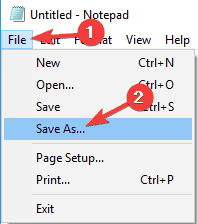
  1. Now click on File, then Save as.
    Can't open hlp files in Windows 8.1
  2. Set Save as type to All Files. Enter the desired file name as Win10-Hlp32-Fix.cmd. Select D:TEMP as the save location and click the Save button.
    How to open .hlp files in Windows 10
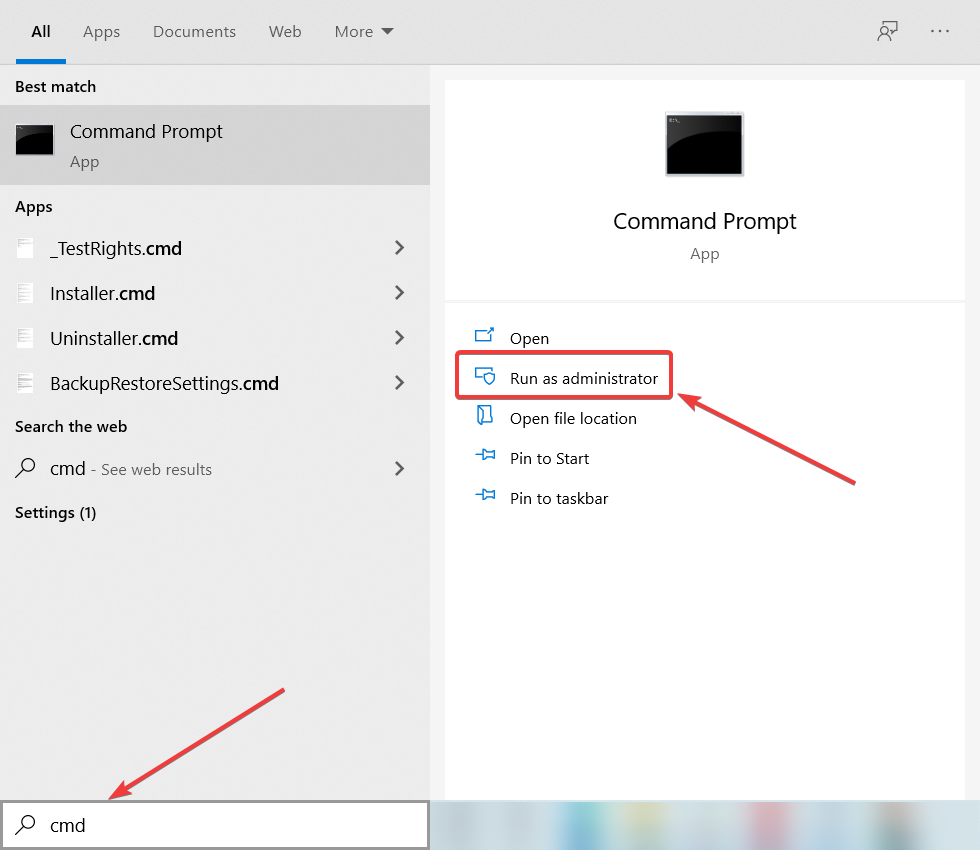
  3. Now you need to start Command Prompt as administrator. To do that, simply type cmd in the Windows search bar.
  4. When Command Prompt starts, switch to D:TEMP directory and run: Win10-Hlp32-Fix.cmd
  5. If you’re not familiar with Command Prompt, you should be able to switch the directory using the cd command.

According to users, you might be able to open .hlp files on your PC simply by running a few commands from Command Prompt, but you need to copy winhlp32.exe from Windows XP.

Keep in mind that you need to copy the file from a 32-bit version of XP if you’re using a 32-bit version of Windows 10. The same goes for 64-bit versions.

If you copy winhlp32.exe from a 32-bit version of Windows XP to a 64-bit version of Windows 10, this procedure might not work.

After running Win10-Hlp32-Fix.cmd the issue should be resolved and you’ll be able to view .hlp files on your PC. This is an advanced solution, so please read and follow the instructions carefully.

5. Drag the desired file to the winhlp32.exe

According to users, in order to view .hlp file naturally on Windows 10, you need to copy winhlp32.exe from a Windows XP.

However, you might also have to change your security permissions and replace certain system files.

According to users, you might be able to avoid all this trouble simply by finding the .hlp file that you want to open and dragging into the winhlp32.exe file.

This will open the .hlp file automatically without changing your security permissions and you’ll be able to view the contents of the file.

6. Install the patched winhlp32.exe

  1. Download this archive.
  2. Once you download it, extract all files to your PC.
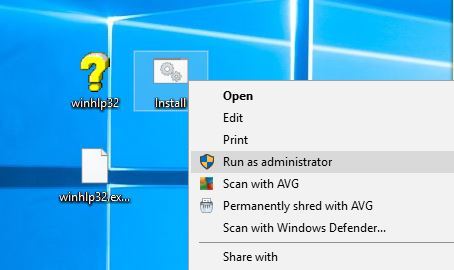
  3. Locate Install file, right-click it and choose Edit.
  4. Notepad will now open. Locate the Settings area and add these two lines if they aren’t there already:
    • set WindowsVersion=7goto
    • BypassVersionError
  5. Now right-click Install file again and choose Run as administrator.
  6. Command Prompt will open and run certain commands. After the procedure is completed you just need to press any key to close Command Prompt.
  7. After you’ve done that, just drag and drop a .hlp file to the winhlp32.exe icon in order to open it.

The default application used to read .hlp files in older Windows platforms is Winhelp32.exe. Thus, we will try to install a version that is compatible with Windows 10.

To do this, you need to be able to open Command Prompt as admin. If you can’t open it as an administrator, you need to resolve this firstly, with the help of our comprehensive guide.

After installing it, you should be able to run .hlp files on your PC. Keep in mind that this solution is rather advanced, and if you’re not careful you can cause damage to your Windows installation.

Windows 10 doesn’t have native support to open .hlp files, but if you have an older application that still uses those files you can try to avoid this limitation by using one of our solutions.

If you have any other files with unknown extension, you can try to open them with these best software to open all types of files on Windows 10.

We’d like to hear your opinions on this issue so feel free to comment in the dedicated section below.

Microsoft admits that a Windows 10 update is affecting games

The latest Windows 10 has caused lots of distress for many PC gamers as it has brought freezing and frame issues as well as outright crashes and body fee drops in video games.

The great thing is that not only Microsoft has acknowledged the issue but they have also rolled out a repair. In a recent post regarding the known issues, Microsoft stated the identified problem:

A small subset of users have reported lower than expected performance in games after installing KB5000842 or later update. Some customers have reported decrease recreation efficiency in the full display or borderless windowed mode when utilizing a number of displays.

Lower game performance

According to Microsoft the affected platforms are

  • Client: Windows 10, version 20H2; Windows 10, version 2004
  • Server: Windows Server, version 20H2; Windows Server, version 2004

The performance issue concerning video games seems to be solved on April 23 by removing the KB5001330 code that was actually causing this issue to occur.

They have used the Known Issue Rollback service to fix the problem, which enables them to quickly revert to a previously released behavior, that worked fine.

Even though the problem has been solved, Microsoft states that it may take up to 24 hours for the problem to subside, and restarting the device is recommended:

It might take up to 24 hours for the resolution to propagate automatically to consumer devices and non-managed business devices. Restarting your device might help the resolution apply to your device faster.

According to gamers’ comments on Reddit, after Microsoft announced the issue has been solved, it does seem to have worked and the efficiency in video games seems to be restored.

As always, your thoughts on this subject are more than welcomed, so don’t hesitate to leave us a comment in the dedicated section below.

Viva Learning is now available in preview in Microsoft Teams

Microsoft has announced that Viva Learning is available in public preview in Microsoft Teams starting today. The Viva Learning app had previously been available in the form of a private preview since February. It is an enterprise learning platform that brings together first and third-party training resources to help employees learn and grow.

“The Viva Learning app for Microsoft Teams is a central hub for learning where people can discover, share, assign, and learn from best-in-class content libraries across the organization—including LinkedIn Learning, Microsoft Learn, third-party content providers, and an organization’s own custom content—to help teams and individuals to make learning a natural part of their day,” the company explained.

Viva Learning will be available as a tab in Microsoft Teams channels, and it allows employees to search for the training content in the learning library to share with their colleagues. Furthermore, the Viva Learning app enables managers to assign courses to employees or track their completion status and helps business leaders improve the skills of their employees for creating an agile work environment.

Keep in mind that Viva Learning is still a work in progress and the preview version of the app still lacks some features that will be delivered in the final product. Microsoft noted that the app will get additional features and integrations with new learning management systems later this year. The firm also plans to expand its availability to Education and Government customers in the coming months.

With regards to pricing, the Viva Learning app is available for all business customers with paid subscription access to Microsoft Teams. IT Admins will be able to configure it for employees in their organization by heading to the Teams Admin Center. If you are interested in signing up for Viva Learning public preview, we invite you to check out the Microsoft Viva blog.

Dragon Quest Builders 2 is coming to Xbox Game Pass for Console and PC on May 4

Dragon Quest Builders 2, an RPG sandbox game previously released on Nintendo Switch, PS4, and Windows is coming to Xbox consoles and Xbox Game Pass next week on May 4. Following Outriders last month, this will be another Square Enix game launching on Xbox Game Pass at the same time as its Xbox release, and Dragon Quest Builders 2 will also be available on Windows 10 and Xbox Game Pass for PC thanks to Xbox Play Anywhere support.

“Dragon Quest Builders 2 is the acclaimed block-building RPG from Dragon Quest series creators Yuji Horii, character designer Akira Toriyama, and composer Koichi Sugiyama. It features a compelling story, charming characters, and the potential for incredible creativity,” explained Duncan Heaney, Content Communications Manager, Square Enix.

Last year, Xbox Game Pass subscribers also got to play Dragon Quest XI S: Echoes of an Elusive Age – Definitive Edition on its launch day, December 4. Along with Sega, Square Enix appears to be one of the biggest supporters of Microsoft’s Xbox Game Pass service. When you also add all the Final Fantasy games that joined the Xbox Game Pass catalog in recent months, it’s interesting to see Microsoft adding more and more J-RPGs titles to its game subscription service.

If you don’t have Xbox Game Pass, Dragon Quest Builders 2 is available for pre-order on the Microsoft Store where it’s priced at $49.99. Thanks to Xbox Play Anywhere, the game can be played on PC and Xbox at no additional cost, with a convenient cross-save system between the two platforms.

DRAGON QUEST BUILDERS 2
Developer:
SQUARE ENIX
Price:
$49.99

NTFS_File_System Error on Windows 10/11 complete fix

Windows 10 brings a lot of tweaks and fixes to Windows 8 that frankly should have been part of Windows 8 from the beginning.

Unfortunately, these tweaks and fixes come at the cost of upgrading – a process known for the various problems it causes.

One of such troubles is the NTFS_File_System blue screen error. BSoD’s happen when the operating system has nowhere else to go – it has tried everything it could and simply cannot handle the error.

A BSOD is an unhandled exception, and sometimes figuring out what is exactly causing this error can get quite a bit tricky.

Here, we are going to attempt to fix this error in the hope of recovering the operating system.

How do I fix The NTFS_File_System Error on Windows 10?

  1. Use a third-party system restoration tool
  2. Check your disk for errors
  3. Clean boot your computer
  4. Run the SFC scan
  5. Use the Media Creation Tool
  6. Format your driver & reinstall Windows

1. Use a third-party system restoration tool

Operating systems have lots of sensible data that, if corrupted or damaged, will break the entire device and cause bugs, errors, and other problems to happen.

When it comes to repairing crucial system files, your safest bet is to download a specialized tool that automatically scans your computer for problems and solves them accordingly.

2. Check your disk for errors

  1. Go to Start > type cmd > launch Command Prompt.
  2. Enter the following command and press Enter: chkdsk C: /f
  3. Replace C with the letter of your hard drive partition where you installed the OS.
  4. To fix the errors and repair physical issues, you need to run a second command: chkdsk C: /r

If the disk where you installed Windows 10 is corrupted, you may get various error codes when booting up your computer.

You can quickly check your disk for errors with the help of a specific command that you can run in Command Prompt.

3. Clean boot your computer

  1. Go to Start > type msconfig > hit Enter to launch System Configuration.
  2. Go to the General tab > select Selective startup > uncheck Load startup itemsdisable startup items
  3. Go to the Services tab > check Hide all Microsoft services > click Disable alldisable microsoft services
  4. Click Apply > click OK > Restart your computer.

Software compatibility issues may also trigger the NTFS_File_System error. You can fix this problem by performing a clean boot and start Windows with minimal set of drivers.

4. Run SFC scan

  1. Go to Start > type cmd and launch Command Prompt as administrator.
  2. In the new Command Prompt window, enter the following command: sfc /scannowscannow
  3. Wait until the scanning process completes and then restart your computer

If certain system files are missing or are corrupted, you can use the System File Checker tool to fix the problem.

5. Use the Media Creation Tool

  1. You need to download the Media Creation Tool from Microsoft.NTFS_File_System Error on WIndows 10
  2. Once you have the Media Creation Tool, open it and select create installation media for another PC.
  3. Then, select the appropriate architecture, language, and edition for the PC you need to fix and start the download.
    • If you don’t know what you need to pick contact someone who can help.
      NTFS_File_System Error on WIndows 10
  4. Once you have selected the correct version etc, select ISO file or USB flash drive depending on whether you want to make a bootable DVD or a bootable USB stick.
  5. Then, click Next and wait for it to finish downloading and creating the bootable media.
  6. Once you have the bootable DVD or USB, restart your PC and boot with it – note that in some cases you might need to go to your BIOS and change your boot priority settings.
  7. Once you are in the Windows setup, click Next and click on Troubleshoot, then click Advanced Options.NTFS_File_System Error on WIndows 10
  8. In Advanced Options, click Startup Repair and simply follow the onscreen instructions from there.
    • It might restart your PC if it needs to do so in order to repair your Windows installation.

Doing this should fix most of your issues with Windows – it will repair any corrupted files and fix most of the errors caused by any misconfiguration.

If for some reason it does not help, you could use similar steps also try a System Image Recovery using the new Windows installation files present in your bootable drive.

Although that will most likely not help if Startup Repair failed.

6. Format your driver & reinstall Windows

You also always have the option to simply format your drive and reinstall Windows.

Windows 10 saves the license information in the cloud and your key is linked to your PC, thus reinstalling Windows should still give you your free copy of Windows 10.

Since we already downloaded the correct installation files for Windows using the Media Creation Tool,  you already have most of the work done for you.

But do remember to backup your data before wiping off your previous Windows installation, as reinstalling Windows will delete all of your data and settings, unlike an upgrade.

We hope that the solutions listed in this article helped you fix the NTFS_File_System error for good. If you’re interested in what causes BSoDs, you should read this thorough article dedicated to the subject.

If you’ve got additional tips and suggestions on how to fix this error, you can list the troubleshooting steps in the comments below.

Download InSpectre to check for CPU performance issues

When a new cyber threat is detected, security specialists jump into the action trying to develop the antidote or at least some means to help users detect and block the respective threats.

InSpectre is an interesting tool that you can use to assess the damage that the latest CPU vulnerabilities, Meltdown and Spectre, have done to your computer.

Microsoft already confirmed that the latest Meltdown and Spectre pacthes may cause various performance issues on your machine.

Windows 10 is less prone to this problem. However, if you’re running Windows 7 on an old computer, chances that you may experience performance problems and computer slowdowns are pretty high.

Taking into account this information, downloading and installing InSpectre is a pretty wise decision.

InSpectre checks your PC’s health

InSpectre is a lightweight tool that runs a series of tests on your computer in order to identify potential performance impact of Microsoft’s Meltdown and Spectre updates.

This InSpectre utility was designed to clarify every system’s current situation so that appropriate measures can be taken to update the system’s hardware and software for maximum security and performance.

You can download InSpectre for free from GRC. Simply double click on the program to launch it and it will instantly display the result of the scan.

For example, in my case, my good old HP ProBook 470 is vulnerable to both of these threats, but its performance has not been affected yet.

InSpectre also offers you more details on the analysis it just run on your system, as well as tips on how to protect your machine.

If you want to enable Meltdown and Spectre protection, all you need to do is click on the corresponding buttons and block the threats.

At the same time, the program offers your the possibility to disable Meltdown and Spectre protection in case Microsoft’s patches significantly  drop your computer’s performance.

InSpectre also works offline as it doesn’t require an Internet connection to check your system.

Microsoft reveals the cost for Windows 7 extended security updates

Microsoft has pretty much made it clear to its users that Windows 7 will no longer be supported by the company beyond January 14, 2020.

That means that the users of the aging operating system will be deprived of free security patches.

We must agree with the fact that despite being an old operating system, Windows 7 is still widely being used by most of organizations around the world.

There are different reasons for most of them to stick to Windows 7 such as an unwillingness to upgrade, a sense of nostalgia, legacy requirements, or lack of funds for upgrading.

While there is bad news for them, they should keep in mind that clinging to an old operating system will cost a significant amount to most organizations.

The tech giant has plans to charge a fee for its Extended Security Updates for Windows 7. While most of the Education, Business, and Enterprise customers have planned their migration to Windows 10 just before the deadline.

Cost Of Windows 7 Extended Security Updates (ESU)

The software gainst has not only revealed the eligibility and cost of the extended security updates but also reached out to most of its users and informed them privately.

Microsoft has decided to offer Windows 7 Extended Security Updates to Microsoft 365 and Enterprise customers on a per device basis.

Sr. NoYear DurationCost
(Windows 7 Pro)
Cost
(Windows Enterprise (add-on))
1Year 1January 2020 - January 2021 $50 per device $25 per device
2Year 2January 2021 - January 2022$100 per device$50 per device
3Year 3January 2022 - January 2023$200 per device$100 per device

Goodbye Windows 7

As we can see that the pricing is on a per-device basis so most of the Windows 7 users (Individual or Personal) are soon going to consider it as a very expensive option.

Moreover, the price is also increasing on a yearly basis.

We can clearly see that things could get expensive Surprisingly, Microsoft is hinting at providing bulk discounts for those who are planning to upgrade to Windows 10.

The news is encouraging for users who want to avoid the expensive fee. It is recommended that you must contact your Microsoft account team asap to grab the opportunity right now.


How to fix Epson printer 0xf errors with ease

Some Epson printer users have posted on the Microsoft forum about a 0xf1 error. While there are 4 similar errors, specifically 0xf1/ 0xf2/ 0xf3/ 0xf4, they all can be solved with the same steps. One user stated:

When I switch on my Epson XP-435, I get a message: Printer error, turn power off and on again. Error code 0xf1.

Consequently, users can’t print when that error arises on Windows 10 PCs. To fix that issue, check out some of the potential resolutions below.

How can I fix the Epson printer error 0xf?

1. Reset the printer

  1. First, try resetting the printer as the 0xf1 error message suggests. Turn off the printer.
  2. Unplug the printer’s USB power cable from both wall and printer.
  3. Turn off your desktop or laptop, if it’s on, as well.
  4. Wait for about 10 minutes.
  5. Then plug the printer back in.
  6. Turn the printer on.

2. Update the printer’s driver

Use Device Manager to manually update your drivers

  1. Go to the Search bar and type device manager.
  2. Click and open Device Manager.
  3. You’ll be opening a list of devices where you must click on Print Queues.
  4. Select your printer device, and right-click on it.
  5. Select Update driver.

The 0xf1 error might also be due to an incompatible or antiquated printer driver.

You can manually update your drivers from Device Manager, but you can simplify your work by updating your drivers with the help of a driver updater software.

Update you drivers automatically with a third-party driver updater tool

Updating the drivers may not be your favorite easiest activity. That’s why a professional driver updater tool is one of the most efficient options to take into consideration in order to install the latest drivers on your Windows 10 PC.

You can save time, stress, and causing even more problems to your PC by choosing to update the drivers automatically with specialized software.

3. Remove jammed printer

  1. Turn off the printer first.
  2. Remove all the paper from the paper feed tray.
  3. Open the printer’s scanner unit to check if there’s any jammed paper from inside.
  4. Remove any jammed sheets you find.
  5. Close the printer.
  6. Then remove the duplexer at the rear of the printer.
  7. Remove any jammed paper from the duplexer.A printer duplexer printer error 0xf1/ 0xf2/ 0xf3/ 0xf4
  8. Place the duplexer back in the printer.

The 0xf1 error can often be due to a printer paper jam.

4. Remove debris from the paper feed

Some users have said they’ve fixed the 0xf1 error by removing debris, such as paperclips, from their printers’ paper feeds.

So, turn off your printer; and then check if there is any debris stuck in the paper feed. If so, remove the debris from the paper feed.

5. Move the Printer Head Assembly to the left

  1. Trn off the printer.
  2. Then unplug the printer’s USB cable.
  3. Next, open up the printer.Open Epson printer printer error 0xf1/ 0xf2/ 0xf3/ 0xf4
  4. Carefully move the Printer Head Assembly to the far left. Don’t force the Printer Head Assembly if it doesn’t easily move.
  5. Then move the Printer Head Assembly to the right to restore it to the original position.
  6. Plug the printer back in, and turn it on.
  7. Repeat the steps above three to four times if required.

Moving the Printer Head Assembly might resolve the 0xf1 error for some users

6. Run the Printer troubleshooter

  1. To open that troubleshooter, click the Type here to search button.
  2. Input the keyword troubleshoot in Windows 10’s search box.
  3. Click Troubleshoot settings to open the Troubleshoot tab in Settings.The Troubleshoot tab printer error 0xf1/ 0xf2/ 0xf3/ 0xf4
  4. Select the Printer troubleshooter.
  5. Press the Run the troubleshooter button to open the Printer troubleshooter.
  6. Select the printer to fix the 0xf1 error for.
  7. Then click Next to go through the troubleshooter.

Windows 10’s Printer troubleshooter might also come in handy for fixing error 0xf1.

If, however, other fixes are needed, check the warranty period for your printer to see if you can return it to Epson for repairs without additional charges.

For any other questions or suggestions, don’t hesitate to reach for the comments section below.

Snipping Tool is moving and we’ll tell you where it’s heading

Many Windows 10 users have seen this alert on their PC screen:

Snipping Tool is moving. In a future update, Snipping Tool will be moving to a new home. Try improved features and snip as usual with Snip & Sketch.

As you can see, Microsoft is planning to replace the good old Snipping Tool with the Snip & Sketch app.

Many users don’t like the idea of Snipping Tool being phased out in favor of the new Snip and Sketch App.

While the big M says that using Snip & Sketch is much easier compared to its predecessor, most users are still reluctant to switch to the new app.

Snip & Sketch already took over many of the key features of Snipping Tool, but it’s not that popular among users.

Moreover, many users don’t agree with Microsoft’s strategy of leaving them no choice but to download certain apps from the Store. Yes, you need to download the new app if you want to take screenshots on your PC.

I’m really quite frustrated with Microsoft’s insistence on moving apps that were once included in the operating system into the Windows Store.

As an administrator in a High School environment, we have locked down the Windows Store in earlier releases of Windows 10. Now we have to look at how to manage it given that things like Snip and Sketch, and Photos can only be found in the Windows Store.

However, it seems that even after 2 major Windows 10 updates (v2004 and x20H2), the Snipping tool is still here, still displaying the same old error message:

Naturally, users have been asking on the official Microsoft forums about the question:

[…] The message can’t be hidden, which is not helpful, and also the message is confusing because there’s no explanation what it means. Does it mean you’re getting rid of the Snipping Tool? If so why? it’s such a simple and easy to use tool.

The answer froma Microsoft representative was quick to come, although it wasn’t very conclusive:

Even through Microsoft consider to remove snipping to away from Windows 10, but have not release exact data or system version when the tool will be removed.
We could go ahead to use it and ignore that sentence. But as it is based on hard coding, so it is not available to remove that sentence.

We could feedback to Microsoft through Windows build-in application Feedback Hub about this behavior to check if any management option will be released in feature.

What’s your take on this? Do you think it’s a good idea for Microsoft to offer Snipping Tool as a stand-alone app download after it has removed it from the OS?

Share your thoughts in the comments below.

What is Wab.exe File and How to Remove it for Good [Answer]

Wab.exe is the executable file for the Windows Address Book – a legitimate process file developed by Microsoft Corporation. Usually, it is located in C:Program Files on Windows systems.

On the other hand, the Windows Address Book program is an archaic Windows program available on old Windows OS such as Windows XP and Windows Vista.

However, malware coders create several viruses and name them after legitimate program files in order to lure unsuspecting PC users to download them. One of such malware threats is the wab.exe file.

How do I know if my PC was infected with wab.exe malware? Windows PCs infected with the wab.exe malware usually exhibits the following symptoms:

  • Wab.exe utilizes high CPU space
  • Constant system crashes
  • Web browser redirects automatically to inappropriate websites
  • Windows PC slows down consistently
  • Unsolicited pop-up ads start appearing on your PC

The malware effect can be frustrating as this makes it difficult for you to use your PC after start-up in the long run.

Users who experience the wab.exe in Windows 10 problem should remove it out rightly with the following methods.

How can I remove wab.exe malware files?

1. Scan your PC for malware

1.1 Use Windows Defender

  1. Open Windows Security by clicking on the shield from the taskbar notification area.
  2. Choose Virus & threat protection.fix corrupt battery
  3. Choose Scan options.fix corrupt battery
  4. Click on the Windows Defender Offline scan.
  5. Click Scan now.fix corrupt battery
  6. Your PC will restart and the scanning process will begin.

Using Windows Defender from Windows 10 will most likely solve this problem but it’s not a failproof solution. Some clever viruses may get away.

2.2 Use a dedicated, third-party solution

Windows Defender is the default antivirus in Windows 10 and most time it will offer great protection. However, this malware may prove to be powerless against this threat.

Therefore, you should consider using a stand-alone antivirus specialized in removing such annoying virus and to further protect your PC so that none of this repeats.

The recommended antivirus below is a trusted, award-winning solution that combines multi-layered protection with the versatility and privacy protection that you need.

TotalAV

Remove the malware with this TotalAV tool that restores the order on your PC and protects it in the long run.
Free Trial Visit Website

2. Use a dedicated cleaning tool

Since some unwanted programs can be very stubborn when trying to remove them it is always a good idea to employ the help of professional cleaning and optimization tools.

This kind of software comes with powerful built-in utilities that will allow you to scan for, identify, and easily remove any unwanted programs that may cause harm to your computer.

3. Repair corrupted files with SFC

  1. Press the Windows key.
  2. Type Command Prompt in the search dialogue box.
  3. When the results appear, click on Run as administrator to start Command Prompt with full privileges.
  4. In the command prompt window, type in this line, and press Enter: sfc/scannowscannow
  5. Wait for the SFC to run and follow the prompts.
  6. Afterward, type this line, and exit after the process: dism /online /cleanup-image /restorehealth
  7. Restart your PC afterward.

System File Checker (SFC) tool checks for corrupt files on your system fixes them. Running this tool will help you to fix system files corrupted by the wab.exe file.

If the scannow command has stopped before finishing the process, check out this comprehensive guide to help you fix the problem.

4. Recommended Tasks to perform after removing wab.exe

After removing wab.exe file, it is highly recommended that you perform the following operations on your PC to prevent something similar from happening again.

  • Install a strong antivirus program

A strong antivirus program with malware blocking capabilities will enable you to surf the web without risk of malware infection.

The recommended antivirus program recommended above will do just great but if the threat came via your e-mail, you could also try one of the best e-mail scanning software.

  • Run Windows update

Frequent Windows updates released by Microsoft Corporation ensure that your systems are stable and immune to the latest threats.

Moreover, Windows updates are known to fix issues such as the wab.exe malware problem. Follow these steps to run Windows update:

  1. Go to Start, type update in the search box, and then click on Check for updates to proceed.
  2. In the Windows Update window, check for updates and install the available updates.
  3. After the update is complete, restart your Windows PC.

We hope that our article helped you understand what is wab.exe remove the wab.exe malware and you restored the security on your PC. Leave a comment if you have any questions or suggestions.

FIX: Printer error 0x10 [Simple Guide]

Epson printers are usually very reliable. However, some users have encountered a 0x10 error when utilizing their Epson printers. The printers show a Printer error 0x10 on their displays when turned on.

The 0x10 error often has something to do with the printer’s scanner mechanism. Below are some potential resolutions for Printer Error 0x10 on Windows 10.

How can I fix Printer: Error 0x10 on my Epson printer?

1. Remove small debris

First, try looking for and removing small debris around the scanner area, such as small bits of paper, paper clips, etc. Make sure you clean the dust off of your printer as well, with this occasion.

Open the scanner cover to check for and carefully remove any small debris. In addition, open up the printer to check if there is any debris there.

Note icon NOTE
If your printer is still within its warranty period, you can return it to Epson for repairs (or even a replacement) with a warranty claim.

2. Reset your printer

  1. First, remove the USB power cable from the printer.
  2. Wait a few minutes before restarting the printer.
  3. Press and hold the printer’s power on button.
  4. Hold the power button for about 50-60 seconds, and then plug the USB cable back into the printer whilst still holding the power button.

Resetting the printer might fix the 0x10 error for some users. This process is simple, and it usually fixes any random errors.

3. Fix the printer driver

  1. Press the Windows Key + S and search for the Device Manager.
  2. In the Device Manager, search for your printer.
  3. Right-click on it then select Update driver.

The 0x10 error can also be due to a faulty printer driver. You can use the Device Manager to update your driver.

Update drivers automatically

Using the Device Manager to update your drivers isn’t always the best solution, since the tool is not that accurate. This means that you will not always get the latest driver versions.

To check if that’s the case, a professional driver updater tool can find and repair missing or out-of-date device drivers.

You can thus securely manage your PC driver without affecting the system with faulty or incompatible drivers. The software will automatically update any driver from its rich online database.

Then, proceed with this driver updater program to fix your printer driver within minutes without any struggle.

⇒ Get Outbyte Driver Updater

Those are a few of the resolutions that might fix Printer Error 0x10. Note, however, that those fixes aren’t always guaranteed as Printer Error 0x10 can be more of a hardware issue.

If you have any other questions or suggestions, leave them in the comments section below and we’ll be sure to check them out.

Windows 10 news recap: News and Interests coming to the taskbar, Xbox Cloud Gaming enters private beta on Windows 10, and more

Welcome back to our Windows 10 news recap, where we go over the top stories of the past week in the world of Microsoft’s flagship operating system.

All Windows 10 users will get News and Interests in their taskbar in the coming weeks

A new News and Interests section is set to arrive in the taskbar for all Windows 10 users over the coming weeks. The new section is designed to surface local weather, news, stocks, traffic, and other relevant information, removing the need to open any specific apps to get the latest updates.

Showing news and interests on the taskbar with content just for you. Clicking a story opens a streamlined reading experience so you can save time and stay focused

Surface Laptop 4 welcomes AMD to its Secure Core certification

Starting with the Surface Laptop 4, AMD has been added to Microsoft’s Secure Core certification, adding support for AMD’s Ryzen processors, helping further bolster security.

Microsoft-Secured Core

Microsoft is reportedly planning big changes for its Windows 10 app store

The Microsoft Store on Windows 10 app could be set to receive an overhaul, as Microsoft is reportedly planning some large changes to help improve adoption of the Windows 10 app store. One of the core changes that could arrive is the ability for developers to submit .EXE or .MSI packages directly to the store, negating the need for developers to package their software up separately for the store. Developers may also gain the ability to use their own payment system for in-app purchases, helping maximise their income by removing Microsoft’s app store fee for payments.

Microsoft Store Windows 10

Xbox Cloud Gaming on Windows 10 PCs enters private beta

Game streaming has finally begun to arrive for Windows 10 PCs, as Microsoft has launched the private beta for Xbox Cloud Gaming. Xbox Game Pass Ultimate members are beginning to receive invites to the beta, enabling them to stream games to their Windows 10 PCs, and other devices with supported browsers, such as iOS.

Xbox Cloud Gaming

That’s it for this week. We’ll be back next week with more Windows 10 news.

FIX: avira.servicehost.exe has encountered a problem

Applications as complex as antiviruses certainly have a lot of related processes and services. They are mostly working in the background without a greater effect on the system.

However, there are various reports about an issue with Avira’s servicehost.exe, which seems to cause an error.

It appears that this error prevents users from running Real-Time protection on Avira as the application fails and the avira.servicehost.exe has encountered a problem error appears.

In order to resolve this, we provided you with the solutions as presented below. Make sure to try them out.

How do I fix Avira’s servicehost.exe issue on Windows 10?

1. Update Avira

  1. In the Windows Search bar, type control and open Control Panel.
  2. Choose Uninstall a program under the Programs section.avira.servicehost.exe has encountered a problem
  3. Remove Avira and all related programs and restart your PC.
  4. Download Avira Free Antivirus, here.avira.servicehost.exe has encountered a problem
  5. Install the application.

This exact error doesn’t seem to bother users of contemporary iteration of the Avira suite. So, the best way to resolve this is to ditch the older version and get the latest one.

Due to massive changes, the application update might not suffice, and therefore the clean reinstallation is a preferred approach.

2. Make sure you have an administrative permission

  1. Navigate to the installation folder where Avira resides. Usually, the path is C:\Programs\Avira.
  2. Right-click on the Avira executable file and open Properties.
  3. Select the Compatibility tab.
  4. Check the Run this program in compatibility mode for box and select Windows Vista from the drop-down menu.
  5. Check the Run this program as an administrator box and confirm the changes.avira.servicehost.exe has encountered a problem
  6. Restart your PC and try enabling Real-Time protection.

Another thing you should take a closer look at concerns permissions. Namely, the avira.servicehost.exe might fail to execute if you try to enable Real-Time Protection without administrative permission.

This isn’t as strict in the later iterations, but if you’re, for some peculiar reason stranded with the older version, the administrative permission is a must if you want to let Avira operate in a seamless manner.

3. Use another third-party tool

  1. Type windows security in the Search bar and open Windows Security Center.
  2. Select Virus & threat.avira.servicehost.exe has encountered a problem
  3. Choose Scan options.
  4. Select Windows Defender Offline scan and then Scan Now.avira.servicehost.exe has encountered a problem
  5. Your PC will restart and the scanning procedure will commence.

Avira is a great freeware tool to use in order to keep your computer free from malware. However, it sometimes can interfere with other software, thus, not working correctly. 

Windows 10 comes with a built-in security solution, that is also free to use. Windows Defender is a great alternative to Avira. We have shown you above how simple is to use it.

However, it offers only basic protection. For a more advanced solution, we recommend you to use a modern antivirus, with no functionality issues, that si also trusted by millions of users.

TotalAV

Keep your computer safe from malware, with an error-free antivirus, fully compatible with Windows 10.
Check Price Visit Website

This should wrap it up. Your Avira antivirus should now be working and completely functional again.

Additionally, if you want to discover new tools to protect your computer online threats, check our guide including best lifetime license antivirus tools.

In case you’re experiencing this error and have a better idea of how to resolve this, make sure to share it with us in the comments section below.

No Sound after AVG Install on Windows 10/11 Computers

Some users reported no sound after installing AVG Antivirus. This can be a major problem since you won’t be able to enjoy any multimedia until you resolve this issue.

Luckily, this issue can be fixed, and there are a few simple solutions that you can use, so without further ado, let’s see what causes this issue and how to fix it on your PC.

Why is there no sound after installing AVG Antivirus?

  • File corruption or corrupted AVG installation can sometimes cause this issue to appear.
  • Outdated drivers will often cause issues such as this one.
  • In some rare instances, missing Windows updates can lead to this problem.

What can I do if there’s no sound after installing AVG Antivirus?

1. Run a full system scan with Windows Defender

  1. Press the start button and select Settings.
  2.  Select Update & Security.
  3. From the left pane select Windows Security and select Virus & threat protection.
  4. In the new window, click the Scan options button.
  5. Check the Full scan option to launch a full system malware scan.no sound after avg install

Viruses and malware can cause damage to your audio device. Run a full system scan on your PC to remove every possible virus corruption.

2. Run the CHKDSK command

  1. Go to Start and type command prompt.
  2. Right-click on it, and select Run as administrator.
  3. Now, type: CHKDSK C: /F
  4. Hence, type the following command in the Command Prompt and hit the Enter key: CHKDSK C: /R no sound after avg install
  5. After CHKDSK process, restart your PC and attach the second hard drive afterward.

Another way of fixing the no sound after AVG install problem is to perform CHKDSK on your Hard Drive.

Check Disk operation checks for and fixes Disk error, which could be responsible for the no sound problem on your PC. Also, it prevents the loss of program data. 

3. Update the audio device driver

  1. Go to Start and type Device Manager in the search box and select Open.
  2. On the left pane, locate the Sound, video, and game controllers section, and then press the arrow to expand it.
  3. Hence, right-click on the audio device driver, and then click on the Update driver option to proceed.configure and test Surround Sound on Windows 10
  4. After the update, restart your PC.

Another applicable solution is to update your audio device driver to the latest version. You may use Device Manager to update the driver.

However, we strongly recommend using a tool that automatically detects and downloads all the outdated drivers on your Windows 10 computer.

Finding them on your own is time-consuming, and sometimes, you can install the wrong drivers, causing even more issues to your computer.

4. Reinstall AVG program

  1. Go to Start and type Control Panel. Select it from the search results. no sound after avg install
  2. Choose Programs and Features.
  3. In the Programs and Features window, locate and uninstall AVG Antivirus.
  4. After the complete uninstall, restart your PC.
  5. Go to the official AVG website to download the program.
  6. Double-click on the executable file, and then follow the prompts to complete the new install of AVG.

If the issue persists, your only option might be to switch to a different antivirus software.

5. Use System Restore

  1. Press down the power button until the Automatic Repair message appears.
  2. Go to Troubleshoot and choose Advanced options. Lastly, select System Restore.system restore
  3. Now, select your username and enter your password.
  4. Click on Next, select the desired restore point, and follow the instructions on the screen to restore your PC.
  5. After your PC is restored, check if the problem still appears.

System Restore is a Windows feature that enables you to reinstate your system to a previous state and fix any recent problems, especially the sound issue. 

If you want to learn more about System Restore, what it is, and how to use it, don’t hesitate to check our System Restore guide.

6. Run Windows Update

  1. Go to Start and type update in the search box and then click on Check for Update to proceed.How to check for updates
  2. In the Windows Update window, click the check for updates button and install the available updates.
  3. After the update is complete, restart your Windows PC, and then test your audio device.

Why not use AVG Antivirus?

  • It can be demanding on your resources and sluggish on older PCs.
  • Minor issues can occur from time to time.
  • Comes with nonessential features.
  • A free antivirus usually isn’t as reliable as a paid one.

While many reported no sound after installing AVG Antivirus, your restart and shutdown options can also become missing.

Sadly, this isn’t the only issue you can encounter, and many reported that AVG won’t install on Windows 10 or that AVG won’t update or uninstall.

This can be a big problem if AVG service is causing high CPU usage, and you can’t remove the software. Luckily, we covered all these issues in separate guides, so you should be able to fix them.

We’d love to hear from you. Share in the comments section below whether these solutions helped with the no sound after AVG install problem.

TechBrolo malware: How it works and how to remove it

This article covers everything you need to know about the TechBrolo malware or supportscam:js/techbrolo!rfn, what it is, how it works, and how to completely remove it from your computer.

Malware simply means malicious software (or badware), and these are created with the intent to harm or destroy your data, and devices.

This malware is hosted on malicious sites, which is why it takes the form of advertising or paid search results, cold calls from tech support agents, popup warnings or ads, and popular email scams.

What is TechBrolo Malware and how it infects your computer?

TechBrolo is a JavaScript malware (Trojan), usually classified as rogue, or support scam.

The main characteristic of the TechBrolo virus is the fake alerts that require you to call tech support, then pay a fee in order to get assistance.

How TechBrolo gets into your computer system?

Unsuspecting users are tricked into downloading freeware, or opening spam emails, and other third-party installation setups, which ideally is an open door for letting TechBrolo, and other malware in.

Sometimes the usual activity such as playing online games, downloading pirated software, using infected devices, visiting suspicious links such as popups or torrents can get you into trouble.

Updating your programs or applications from unsupported links is also a sure way for TechBrolo to gain access.

Once in, TechBrolo wastes no time and immediately adds malicious codes that corrupt your files and compromise your computer’s security.

Some symptoms you will begin to see (or probably have already) manifest because of TechBrolo include:

  • Bogus popup warnings, and alerts that your computer is at risk due to critical error or severe virus or malware
  • Notice that you should purchase a registered version to overcome those issues

If left unchecked, TechBrolo malware can degrade your system’s performance, change your browser settings and redirect to unusual sites.

It can also insert unknown infections and malicious codes to your Registry Editor and other executable files, keep sending fake error warnings and slows down network connectivity.

What’s worse is that it steals private data (like IP address, login credentials, browsing history etc.) and the next thing is to find out that you have less money in your account.

How can I remove TechBrolo malware from my PC?

1. Remove TechBrolo malware manually

1.1 End the process in Task Manager

  1. Right-click the Start button and select Task Manager from the list.
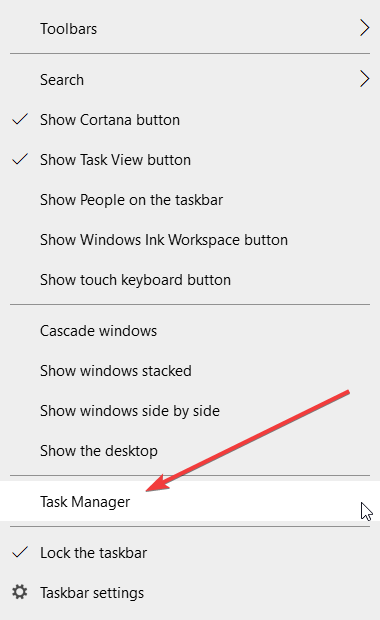
  2. Click on Processes.
  3. Identify any process related to Rogue:JS/TechBrolo, select it, then click on the End task button.

This is a preliminary action you need to take in order to be able to remove it from your registry.

1.2 Remove the registry files

  1. Press the Windows key + R to open the Run window.
  2. Type regedit and press Enter or click OK.
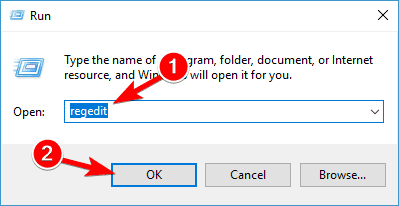
  3. Find all registry files related to Rogue:JS/TechBrolo.

Removing the registry files related to this malware is essential for getting rid of it so try that out.

1.3 Remove the apps related to the malware

  1. Type control in Windows search and select Control Panel from results.
  2. Click on Apps.
  3. Find Rogue:JS/TechBrolo and related software, select it, then click on the Uninstall button.
  4. Follow the instructions on the screen to get through with the uninstallation.

Finally, reboot your computer, and see if there is any remaining suspicious programs in the system.

3. Use a more effective, third-party antivirus

Windows Defender can be a great tool for basic protection, but when it comes to dangerous malware like Rogue:JS/TechBrolo, you will probably need a more powerful ally.

The security solution recommended below can pack a big punch in detecting and removing all malware from your PC.

Moreover, after you will scan your computer and get rid of this pesky threat, you will still be left with one of the best protection tools for your PC.

With just one license you will be able to protect all your devices, including your smartphone, your router and even your webcam so you won’t ever need to go through this again.

This antivirus comes with anti-phishing, anti-ransomware and anti-malware protection and it’s trusted by over 110 million of users around the world so give it a try.

TotalAV

Remove any malware from your PC right away and further protect your system with this great tool.
Check Price Visit Website

4. Perform a scan using Windows Defender

  1. Click on the shield from the taskbar notification area from the bottom right corner to open Windows Security.
  2. Choose Virus & threat protection.
  3. Select Scan options under the Quick scan button.
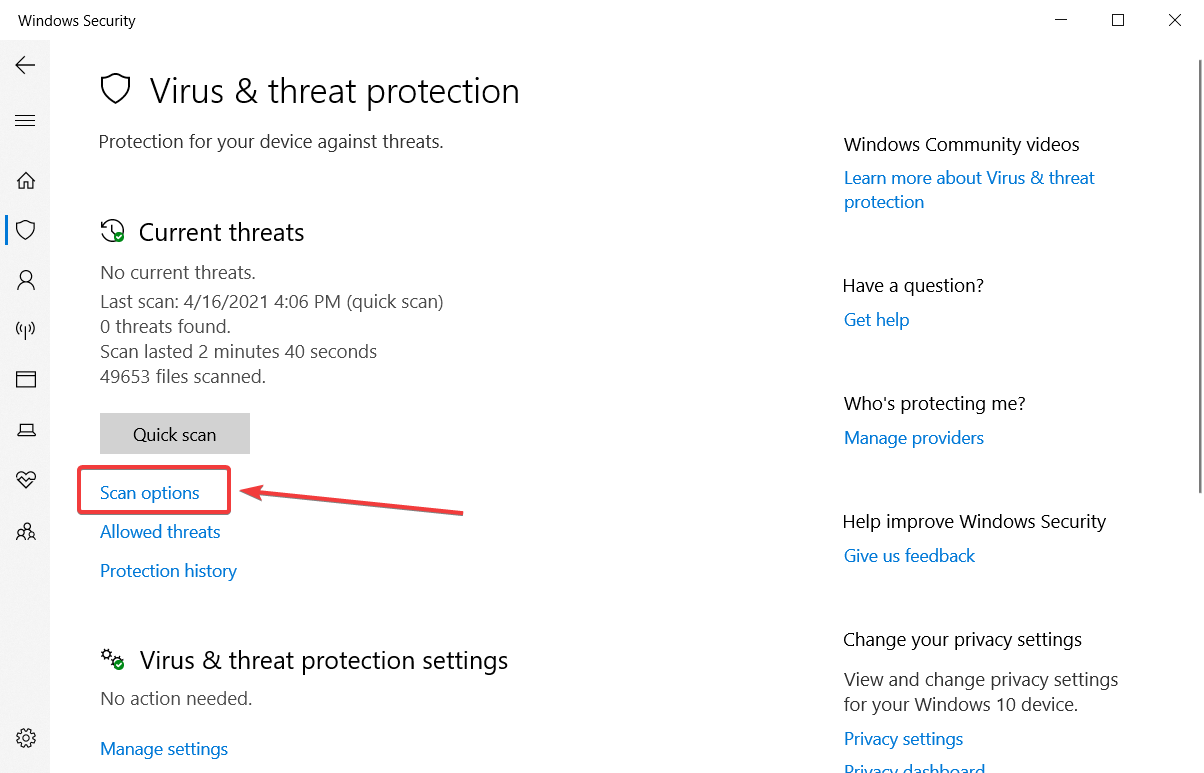
  4. Scroll down and click on the Windows Defender Offline scan.
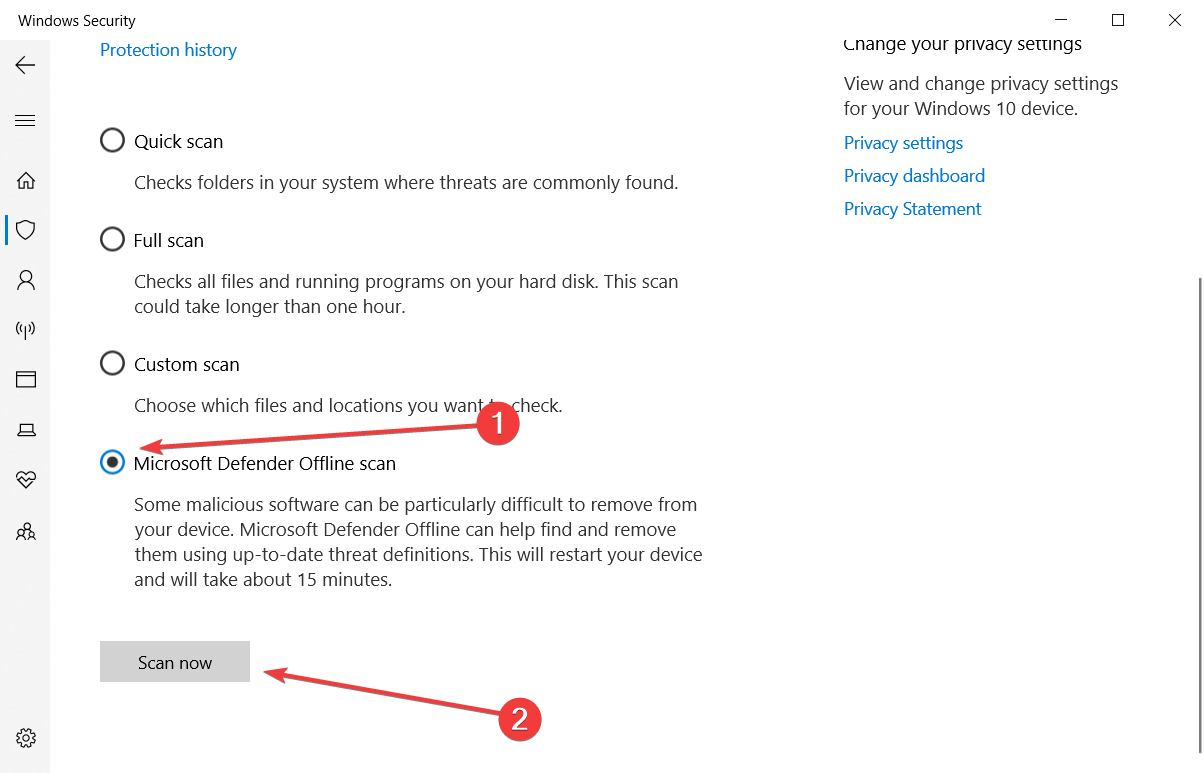
  5. Click Scan now.
  6. Your PC will restart and the scanning process will begin.

This is an important step in the process of eliminating the malware as the native antivirus tool from Windows can be effective.

5. Use a dedicated software

If you already performed the steps above, the malware should have gone away and your PC should be safe now.

However, if it had time to act and the antivirus eliminated all the infected files, you will be left with programs that are not functioning properly.

That means you will have to uninstall and reinstall them again. You’ve seen how to uninstall any apps in step 1.3 above.

Unfortunately, the standard uninstallation procedures are not perfect and some files will still reside on your computer, and they may block or clog a future install of the same program.

The solution is to use a dedicated PC cleaning utility that will eliminate absolutely all traces of the program you want to uninstall.

We recommend CCleaner because quick, light on your system, and performs the steps automatically so you won’t bother with any technicalities.

⇒ Get CCleaner

6. Remove TechBrolo extensions and add-ons

If you’re using Chrome, internet Explorer, Firefox, or Microsoft Edge, here’s how to remove any extensions and add-ons related to TechBrolo malware.

Remember, TechBrolo brings changes to your browser settings, so you also need to clean it up.

Chrome

  1. Open Google Chrome.
  2. Click the menu button (the three vertical dots on the top right corner) on the Chrome browser toolbar.
  3. Select More tools and click on Extensions.
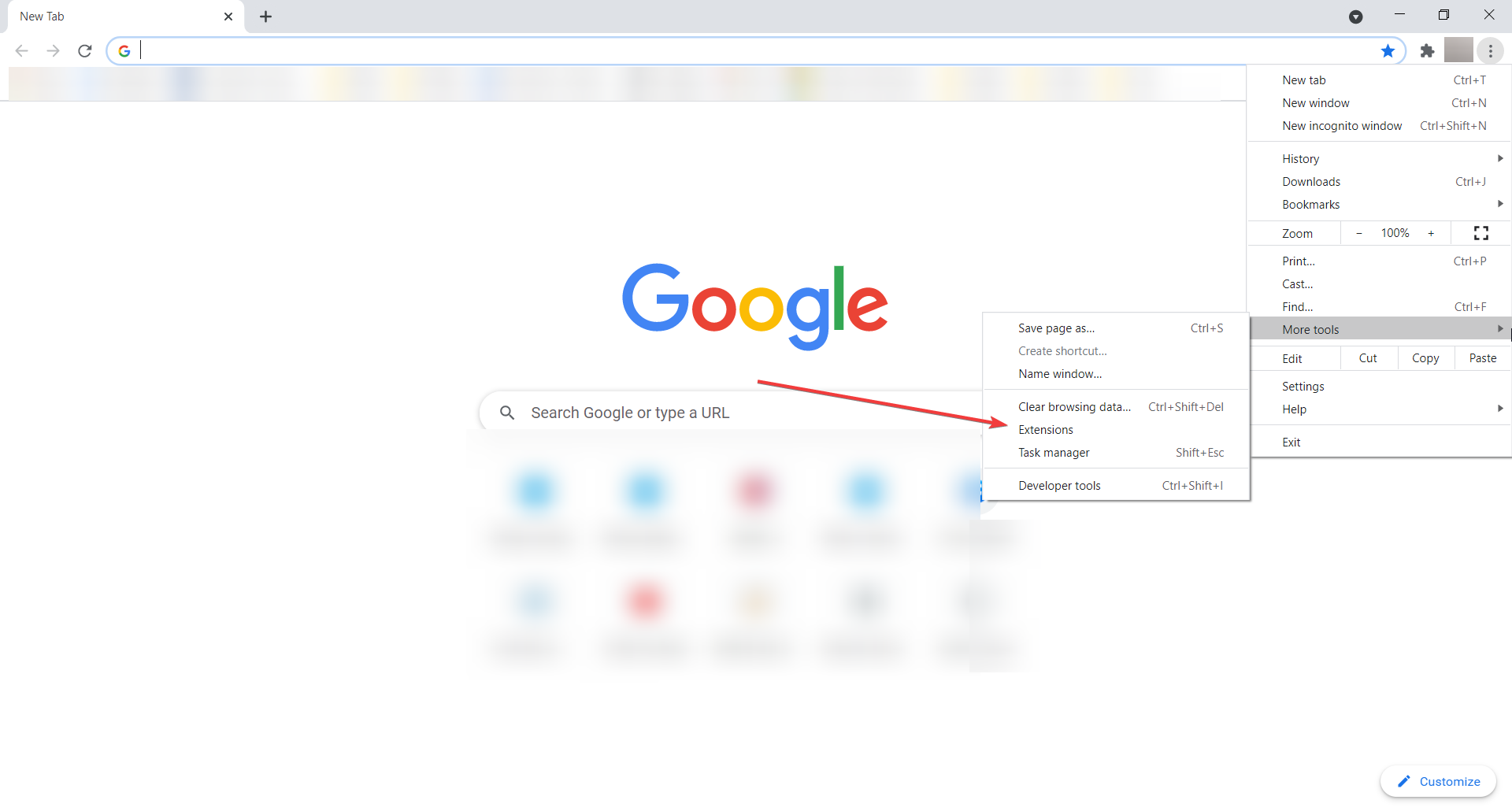
  4. Click the trash icon on the extensions you want to get rid of.
  5. Select Remove on the dialog that appears.

Microsoft Edge

  1. Open Microsoft Edge.
  2. Click on the menu button (the three horizontal dots from the top right corner).
  3. Select Extensions.
  4. Remove any extensions connected with this malware.

To reset all settings to default click on the menu, and select Settings, then click on the three horizontal lines from the top left corner and select Reset settings.

Finally, click on Restore settings to their default values and click again on the Reset button.

This procedure will reset all settings, including start-up pages, will disable the extensions, clear all cookies and history, but it won’t delete your passwords.

Firefox

  1. Open Firefox.
  2. Go to the menu and choose Add-ons and Themes.
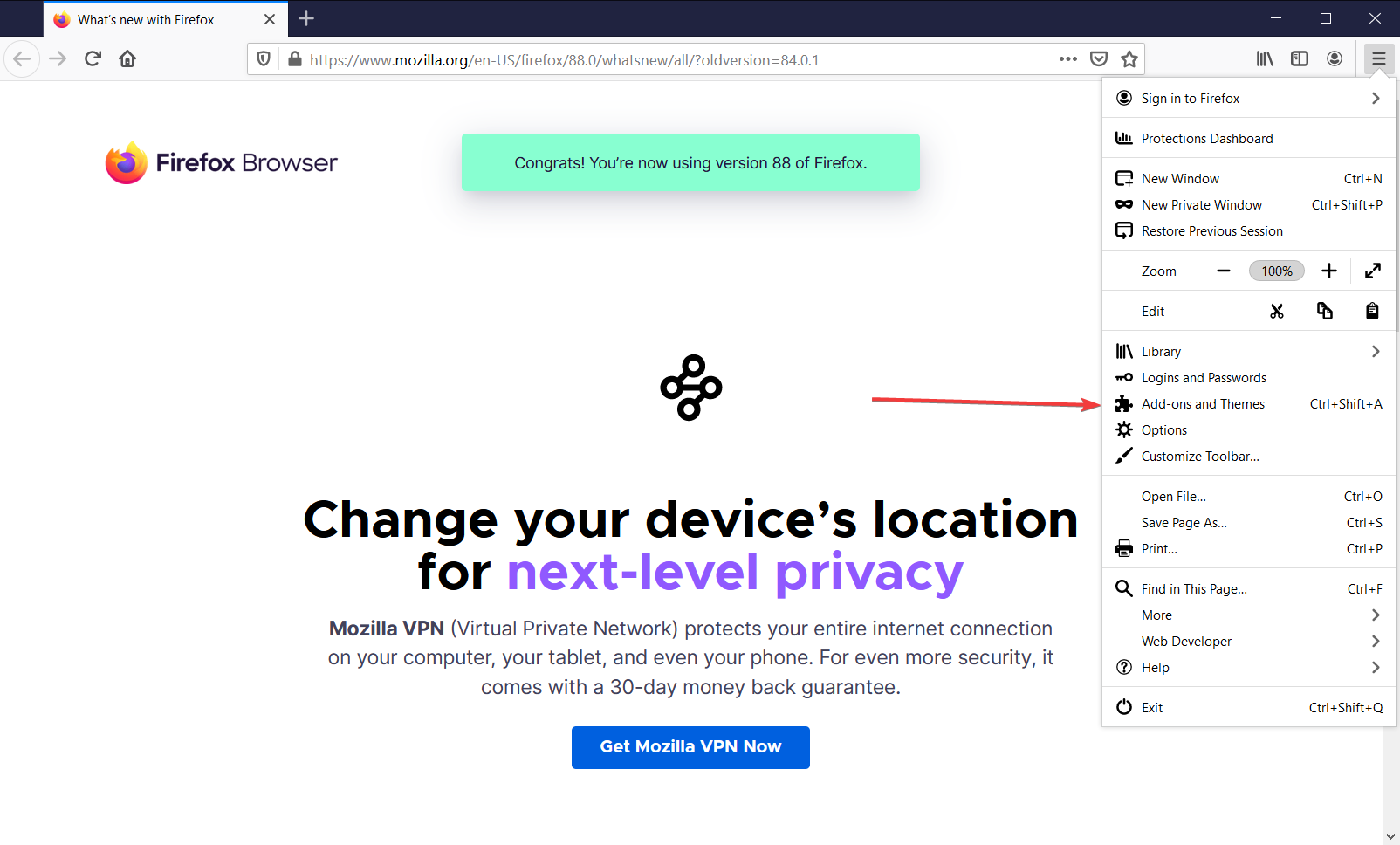
  3. Select Extensions.
  4. Remove unwanted extensions.
  5. Click Disable/Remove.
  6. Select Restart now (in case it pops up).

Hopefully, you managed to clear all problematic extensions and add-ons from all your browsers and you are now completely safe.

Tips to prevent malware attacks

In order to protect your computer from any future malware entry or attacks, here are some tips you can use:

  1. Use strong passcodes and two-step verification where applicable.
  2. Connect to secure Wi-Fi.
  3. Keep your system regularly updated.
  4. Block popups and turn off auto-fill when you revisit a website to prevent identity theft.
  5. Clean up your desktop to speed up your computer.
  6. Install an antivirus if you don’t have one.
  7. Conduct regular scans.
  8. Clean up your disk drive and defragment your computer (speeds up the machine).
  9. Always check your downloads and delete what you don’t need.
  10. Backup important files – you can also back up your data offline (using storage disks) or online (cloud storage) – as often as daily.
  11. Avoid opening spam emails, suspicious links, visiting unknown websites, and making purchases from unverified sellers.

Types of malware

Virus: Just like viruses that affect the human system, computer viruses attach themselves to your files and infect them, then spread hysterically while corrupting your files (sometimes deleting them) and damaging your system’s functionalities. These usually appear on your laptop as .exe or executable files.

Ransomware: This type holds your computer hostage threatening to destroy or erase your files and data, unless a ransom is paid to its creator.

Trojan: The Trojan horse comes across as legitimate software but hides among your other clean files and if it goes unnoticed, it moves silently, creating backdoors in your computer’s security system, which then allows other malware into your system.

Spyware: As its name suggests, this malware is meant to spy on your system. It hides in your system, taking stock of all your online activities while saving important and private details such as your passwords, credit card details, and your browsing history.

Worms: This type infects your devices using your network’s interface. The more devices they find their way into, the higher the rates of infection.

Adware: This disguises itself through advertising software that can compromise your computer’s security system to serve you with ads, which then let in more malware.

Checklist of the common warning signs for malware infection

  • Unexpected onscreen ads appear, some say virus detected, but they’re rogue;
  • An audio message starts playing;
  • Popups that ask you to pay for a program to remove a virus;
  • System is slow when starting up, and overall performance is sluggish (and it’s not caused by your computer memory);
  • Lack of storage space on your hard drive;
  • Files are missing, or are encrypted;
  • System freezes or shuts down;
  • Programs open and close automatically;
  • Odd error messages;
  • Your hard disk is excessively active – warning signs include continual noises or constant spins even when not using your computer;
  • Sluggish web browser;
  • The browser on your home page keeps changing or you keep being redirected to unusual websites;
  • Increased activity (from the usual) on your Internet connection;
  • Email and social media pages hijacked – this is common today when your email contacts and social media; acquaintances or friends, receive messages from you that you didn’t post or send;
  • Computer security is compromised such that you cannot install or even open your antivirus program or firewall;
  • You’re unable to use common tools such as Task Manager or Registry Editor;
  • You get a message saying your administrator has disabled this…;
  • A program demands that you pay a ransom before accessing your files again;
  • A security program sends scary popup warnings, yet you never installed it in the first place;
  • Sometimes everything may look okay, but some malware like bots hide quietly waiting for instruction before executing commands, or a remote Trojan is busy picking up information; always run a scan to be sure.

Keep your computer healthy, and it will serve you well for a long time. We hope that our solutions and tips helped you get rid of the malware on your PC.

The TechBrolo malware can hit the offices of your business too so be proactive and get yourself one of the best antiviruses for Windows Server and protect your company data.

Did you manage to safeguard your computer using our solutions? Do you have others instead? Let us know how you did in the comments section below.

What is Livanletdi and how to remove it for good

What is Livanletdi? Livanletdi.exe is yet another piece of malware that gives a hard time to various antivirus solutions.

It looks like the variation of so many hijackers or keyloggers, and it’s usually located in Task Manager.

In the given location, the virus functions like any other background service so it might be hard to recognize or eliminate it. 

But, in this article, we’ll try to give you a better insight into what this intruding service is and how to deal with it accordingly.

How to remove Livanletdti.exe for good from your system?

1. How Livanletdi works

Livanletdti.exe infiltrates into your system and stays active in the background without noticeable resource trace.

Apparently, it comes as the side-loaded hidden installer with some other suspicious apps. Meaning that its entry point is probably connected to some applications with liability that are mostly malware on their own.

So, in order to avoid further infections, make sure to avoid suspicious software from untrusted sources. The worst thing about Livanletdti.exe is that it’s incredibly hard to deal with.

Most of the antivirus solutions can’t track it down and remove it. Furthermore, it seems that the by-hand approach doesn’t guarantee a positive outcome, as well.

Nonetheless, we prepared some troubleshooting steps that should help you get rid of Livanletdi.exe for good.

2. Remove Livanletdi.exe manually

  1. Right-click the Start button and select Task Manager from the list.
  2. Locate Livanletdi.exe, right-click on it, and go to Open file location to see where the virus is located in your system.remove livanletdi manually
  3. Then, boot in Safe Mode and navigate to the malware location.
  4. Delete it and restart your PC.

This simple procedure will hopefully remove the malware from your computer and restore things to normal so try it out.

3. Run a full scan of your computer

We strongly recommend that you run an in-depth or full scan of your computer, that should remove any malicious elements.

The software recommended below is a powerful antivirus that keeps improving its detection rates every year and is known to recognize a wide range of viruses, worms, Trojans, rootkits, and other harmful software.

What’s more, it shields your browsers and warns you when you accidentally visit malicious or fraudulent websites that contain threats; plus, it detects vulnerabilities in connected external drives.

Overall, the tool is quite popular, thanks to its user-friendly interface and intuitive options. The installation process is quick and easy.

Once you finalize the setup, the antivirus takes over the computer’s defenses and replaces Windows Defender as your primary anti-malware solution.

Run the on-demand scan option periodically and especially if you suspect or know that your device has been infected. Allow the tool to check for vulnerabilities in your device’s system.

TotalAV

Get rid of any malware on your PC and protect your system with the best antivirus solution.
Check Price Visit Website

That should do it. We hope that our solutions helped you get rid of the Liveandletdi malware from your system.

Don’t forget that this problem can also happen at the office so you might need to use one of the best antiviruses for Windows Server to get rid of it.

Tell us in the comments below if you managed to get rid of this malware or if you used another solution. Other users may benefit from the information.

5 Best Antivirus Software for Windows 10/11 Home Users

Typically, we recommend Windows Defender for your daily antivirus protection, but if you prefer third-party antiviruses, then you’re in the right place to find out your best antiviruses for Windows 10.

You need to know that even if you want to use the antivirus on your home Windows 10 PC, you can’t make any compromises on security and privacy.

The antivirus market is populated with different software that comes with strong virus detection or efficient anti-malware software.

Here you can discover and use exhaustive antivirus protection that boosts Windows Defender’s security by far due to enhanced benefits like firewall, ransomware or phishing attacks shield, and many others.

What is the best antivirus software for Windows 10?

TotalAV – Clever malware shield

TotalAV is an antivirus that offers effective security against malware and prevents complex malware types from infecting your PC.

With this famous software, you benefit from real-time protection from cyber threats such as trojans, ransmoware, or phishing threats.

Plus, there are intelligent tools designed to deliver safety for cloud services with the Zero Day cloud scanning mechanism.

You will also have web protection against tracking cookies and data breach monitoring to safeguard sensitive data from the online world, including emails or financial websites.

An additional benefit is that you can schedule your PC scans whenever it suits your schedule, so your system remains protected.

Let’s see what its main features are:

  • Live malware protection for all files
  • Dangerous cyber threats removal
  • High compatibility with Windows, Mac, and mobiles
  • Remote firewall

TotalAV

Entirely secure your Windows Home PC with this full-package antivirus that removes any type of malware.
Check price Visit website

ESET Internet Security – Machine learning malware detection

Just if you’re using antivirus for home it doesn’t mean that you have to install weak protection software. That’s why we recommend ESET Internet Security as a top choice.

This is a trusted solution for more than 110 million users and that can be a guarantee for its security options and features.

And if by any chance, your computer at home is a laptop, this tool will make sure that you will stay online longer by using its battery-saving mode.

We also need to mention the SysInspector, an advanced diagnostic tool that captures the most important information from the system and then helps you troubleshoot security and compatibility issues.

Let’s see what are some of the best features of this tool:

  • Gamer mode for minimizing and halting all other intensive operations
  • Saves internet bandwidth with tiny update packages
  • ESET Machine Learning in the cloud for detecting advanced, never seen before malware
  • Blocks attacks that usually evade antivirus detection
  • Eliminates lock screens and ransomware

ESET Internet Security

If protecting your home system is a priority, this software is what you’re looking for.
Free trial Visit website

Avira – Speed up system tools

Avira is another powerful free antivirus that will surprise you with its many features.

For instance, this software comes with a free VPN. It comes with a limited bandwidth usage per month but it’s still great for those times you really need to connect to a free hotspot.

Avira also includes antivirus with tune-up software that will increase the overall performance of your PC and extend the lifetime of your hardware components in the process.

This solution even includes features for updating your apps and drivers, which means that your system will run in tip-top shape all the time.

Let’s see what its main features are:

  • Free VPN (500 MB/month)
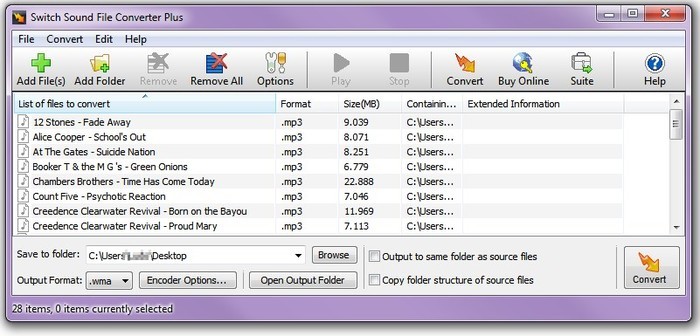
  • Speeds and accelerate booting
  • PC cleanup and tune-up tools included
  • Extremely easy to operate and maintain
  • Easy-to-use interface

Avira

Check out the incredible bundle for all your protection and tune-up needs of your PC.

Bitdefender – Robust firewall security

There are probably not many people that didn’t hear about Bitdefender and for good reason, because it’s one of the safest bets out there whether you’re talking about home or business protection.

And although it uses minimal resources from your system, it even uses optimization tools to speed up your PC’s boot time and increase its performance.

With Bitdefender on your computer, you can rest assured that you can do banking procedures or any payments online without fearing your accounts being hijacked.

Let’s see what some of Bitdefender’s main features are:

  • Game, movie, and work modes for uninterrupted activity
  • Low-performance impact on your PC
  • Multi-layered protection for zero-day threat detection
  • Friendly and easy-to-use interface
  • Anti-phishing protection

Bitdefender

Bidtefender has low impact on your home PC resources so it can be the perfect choice.
Free trial Visit website

Avast Free Antivirus

antivirus old pc

A free security solution is definitely not a poor decision. At least not if we’re talking about Avast Free Antivirus which has many features.

Whether you’re a gamer or you’re working from home, the Do Not Disturb mode will perform magic by stopping any pesky popups or distractions that may disturb you.

Nowadays, malware can be very cunning in misdirecting a basic antivirus. However, Avast employs some of the newest technology in a behavioral shield that keeps an eye on any change in your apps.

Say goodbye to any infections from your e-mail client because the built-in Mail Shield will actively scan all your messages for any scam or phishing attempts.

Take a look at some of Avast’s top features:

  • Do Not Disturb mode for uninterrupted work or play
  • Very light on your system and easy to use
  • Friendly interface and automatic updating
  • Smart scanning with a low percentage of false positives
  • Advanced ransomware protection

Avast Free Antivirus

Consider this free solution to definitely secure your PC with this feature-rich antivirus.

This is our top selection with the best antiviruses for your home PC. You can try several of them before making a choice because all of them have at least free trial versions.

Even if you’re on your home PC, you should still protect your e-mails. We also have guides including the best e-mail scanning software for your system.

Did you choose your favorite solution? Tell us more about your decision in a comment in the dedicated section below.

What is Ryuk ransomware and how to protect yourself from it?

Cyber criminals are using a new form of ransomware for targeting large businesses and getting money from them.

Ryuk group ended up earning $4 million by installing malicious encryption software on high-value targets in a very short period.

Several notable attacks have been reported during the past few months. Take a look below at how this ransomware note looks like.

Users should be trained to use an email protection platform that is able to recognize the malicious spams in the first attempt.

These malicious scripts should be stopped from installing on the system by using anti-exploit technology. 

The companies should also invest in effective security solutions and update them frequently.

Network segmentation is another approach that can be used to reduce the damage from a ransomware attack.

In this way, protection can be provided to stop Ryuk ransomware and hence prevent serious damage to the systems.

How do I protect my PCs against Ryuk attacks?

1. Use a dedicated malware-removal tool

When it comes to dealing with any type of ransomware, the security solution recommended below is the go-to tool for the job.

Not only is it easy-to-use by pretty much anyone around, but it is highly effective at keeping malware attacks at bay and fixing malware that was already on your system.

This includes, but is not limited to Ryuk ransomware, thus helping your business from having its data encrypted.

What’s more, the program is also very resource-efficient, so no need to worry about a lagging PC, not even during scans

TotalAV

Get rid of any ransomware and malware and stop all threats before getting into your PC.
Check Price Visit Website

2. Backup your data with religiousness

A lot of companies use a strategy called a 3-2-1 backup plan and it’s called that way because it has three big steps to implement.

  1. Create at least 3 copies of your important data, including the original.
  2. Save the 2 copies on different storage devices or media. That will add another layer of security because if one of those fails, you will still have the other one. You can even use different types of storage for each copy.
  3. Save one of the copies to another location than your business site, disconnected from your local network. You can physically store them in another place or use a cloud backup solution. This way, the hackers or a natural disaster won’t be able to reach and destroy the data.

Of course, you can tailor this strategy to your own business requirements and to the amount of data that you need to back up.

How does Ryuk attacks its victims?

The ransomware named Ryuk ransomware works by encrypting the important data that is available on the network.

The attackers then provide the decryption key to users in return for ransom in cryptocurrency.

The attackers usually aim to hack as many machines as possible, but Ryuk ransomware works in a unique way. The way hackers prepare for the strike makes the attack rare and unique in its nature.

The trickbot trojan is first installed on the system. The trojan basically aims to stay on the system for longer periods of time.

The organizational network is mapped at the next step, and now the attackers can steal the credentials by compromising the network.

Now one of the two standard ransomware notes is sent to the victim’s system just after compromising the system.

The target company is politely advised through the ransom note to decrypt their systems by paying a specific ransom amount in Bitcoin.

The message further threatens the victims to destroy all the files if they fail to pay the ransom. Finally, a contact email and a Bitcoin wallet address are shared with the victims.

If the victim ignores the first ransom message the second ransom note is sent to the victim that threatens him about the consequences.

It is worth mentioning that the new ransomware is alarming for users and might compel them to pay the ransomware.

Half a Bitcoin is added to the amount to be paid with each passing day. The amount to be paid is estimated to be roughly $224,000.

The attackers need to have a clear idea about the financial condition of the target network before launching the attack.

The main reason behind implanting Ryuk into the target systems is the identification of the most important computers and datasets.

Experts still don’t have any idea about the origin of Ryuk. Some of the attackers claim it to be from Russia while others are of the view that it’s originally from North Korea.

We hope that our solutions above helped you protect against Ryuk and you managed to remove it.

You can also try one of the best antiviruses for Windows Server in case that your company uses this type of OS.

Has your company been a victim of this Ryuk ransomware or other such threats? Tell us your story in a comment below.

How to avoid malware attacks from fake Adobe Flash updates

If you receive an unexpected message asking you to update your Adobe Flash Player, think twice before pressing the update button. This is an old strategy used by hackers to install malware on your computer.

Unfortunately, their trick really works because the fact of using a reliable software developer’s name gives credibility to the update pop-up.

And it’s not the first time. Users have experienced other fake pop-up update messages before. The fake Adobe Flash Update window is extremely well-designed, leaving no reason for suspicion.

What is worse is that sometimes, the content of these fake update pop-ups is actually distributed through legitimate websites, which gives the illusion of legitimate-enough update windows.

According to users, the malware often takes over your search engine, pop-ups various ad windows or slows down your computer.

How can I prevent malware attacks from fake Flash updates?

1. Proceed with caution

  1. Always download the software directly from Adobe’s official website, and never follow links in pop-ups or emails.
  2. When installing the software/ the update, allow your computer to automatically perform the action for you.
  3. Use a browser that bundles Flash Player as a built-in component. The advantage is that the browser and the OS handle the updates, no separate download or installation is required.

If you’ve already clicked on the fake update invitation, run a full system scan and install one of the anti-hacking tools listed in our best anti-hacking software for Windows 10 article.

Note icon NOTE

2. Use a native Flash support browser

Flash is dead, and there is nothing to do about that. It’s not even recommended to use Flash any longer because it’s not secure anymore.

However, you might have some content lying around on your PC and you shouldn’t be deprived of it. If so, you can still use a browser that still offers native support for Flash.

We’re talking about the software recommended below, a free and light browser that you can still use to open your Flash content.

Moreover, this browser is fast and can offer more features than more popular browsers. The built-in VPN service and the social media integration make the difference.

Opera

Opera

If you still have Flash content, you can open it with Opera, a fast and reliable browser available for free.

3. Install a powerful antivirus

You may be wondering about how to remove the fake Adobe Flash update virus from your PC, and the quick and only answer is by installing a strong antivirus to get rid of it.

If you already clicked on the fake update and even took the next step to download the malware that is the only reasonable thing to do.

The tool recommended below not only that will remove this threat, but it will also prevent further installation of such unwanted software.

Moreover, with the same license you will protect all your devices, including IoT gadgets like the webcam from any hijacking.

The tool can be tested for 30 days before buying so you can really make sure that it fits your requirements and needs.

⇒ Get TotalAV

4. How to avoid being tricked by fake Adobe Flash update pop-ups

false adobe flash player update pop-up

Recently I have had four IE 11 pop-ups to a tab. three have asked me to install an IE 11 patch. The web address is not Microsoft. Today I received the same type of pop up but looking like adobe. Look at the web address. any ideas?

Adobe reacted on this issue and has confirmed it uses strict and redundant security controls to make sure the software it ships is authentic.

The company added it can’t do anything to stop these fake Adobe Flash update pop-ups as long as users are getting them from another source.

In general, humans are easier to defeat than modern software security.  Attackers will frequently design fake Flash Player update popups, and many even wrap totally legitimate Flash Player installers inside their malware distribution. 

Sometimes they’re distributed on perfectly legitimate websites through fake ads or bugs that allow attackers to post executable javascript. 

As the user, you see a legitimate-enough looking dialog, click a button on a third-party website, it takes you to a random website with a download, and you get a working Flash Player with a side of malware.

Adobe pulled their support from Flash on December 31th 2020 so it’s impossible to get any legitimate update messages so if you receive such an invitation, you shouldn’t act on it.

Even if you got away this time, it’s not safe to leave your computers unprotected, especially for your company. This can also happen at work so check out the best antiviruses for Windows Server.

We hope that our advice and solutions helped you avoid any unpleasant situations. If you’ve had any trouble with these fake alerts, leave a comment in our section below.

Remove pre-installed software from your PC with AdwCleaner

AdwClearner is a popular tool that removes toolbars, adware, and Potentially Unwanted Programs (PUP) from your PC. It helps you to improve the overall performance of your system.

Starting with version 7.4.0, AdwCleaner received the ability to detect and remove pre-installed software from your system.

Many people don’t have any idea that they should go for a custom install in order to avoid the automatic installation of unwanted programs. AdwCleaner comes to the rescue in such situations.

How can I delete pre-installed programs from my PC?

1. Use AdwCleaner

  1. Use the link below to download and install the program.
  2. Start the tool and press the Scan Now button.
  3. Depending on your system’s configuration, this process will vary in duration.
  4. You will now see a list of software that you may want to remove.
  5. Select the bloatware like any other piece of software.

This tool is very simple to use and thanks to the update, it can eliminate the preinstalled software from Windows right away.

⇒ Get AdwCleaner

2. Uninstall the software manually

  1. Click on the Windows Start button and select the Settings app.
  2. Click on the Apps option.
  3. In the new window, you will see a list of apps installed on your PC. Scroll down and find the app you want to remove.
  4. Click on the app and select Uninstall.
  5. Follow the instructions on the screen to remove the app.

Since the bloatware removal feature is somehow new, it is bound to be imperfect, and thus the possibility of leaving leftover files is pretty high.

If you notice that that is the case with your PC as well, then maybe a professional cleanup tool may come in handy.

This specialized software below can easily be used in conjunction with AdwCleaner in order to remove bloatware from your PC without a trace.

⇒ Get CCleaner

3. Install a powerful antivirus

Before the release of patch 7.40, AdwCleaner was focused only on adware and potentially unwanted programs, and that seems to be the case now as well.

However, this doesn’t mean that AdwCleaner is any good at removing security threats already in your system.

That being the case, the best security measure that you can take is installing the dedicated antivirus recommended below.

This solution will make sure that no adware, spyware, or malware come near your system in the first place and you can try it for 30 days before buying.

As a matter of fact, you can try the most efficient antivirus software available right now on the market.

⇒ Get TotalAV

We hope that our solutions helped you remove any unwanted software from your PC and you regained the space that you needed for your more important apps.

You can also avoid bloatware by installing a powerful antivirus. And if you want to save money in the process, you can go for the best antivirus with lifetime license that will also save you some money.

Did you manage to get rid of the programs you wanted to get rid of? Do you have other methods for doing that? Let us know in a comment below.

Norton 360 error: 8504, 104, 8920, 200 [Solved]

If you have the Norton Antivirus installed, you may encounter errors 8504, 104, 8920, and 200 while installing updates or launching the security tool.

What is Norton error 8504 and 104? These errors can occur if you have another security product installed or due to failed installation of updates.

However, the error 8920, 200 can occur due to corrupt installation or software glitches. Fortunately, you can easily fix the error by running LiveUpdate or reinstall Norton security.

In this article, we explore a couple of troubleshooting tips to help you resolve the Norton 360 error in Windows 10.

How do I fix the Norton Antivirus error 8504 and 104?

1. Run Norton Remove and Reinstall Tool

  1. Download the Norton Remove and Reinstall tool. Save the file to your PC.
  2. Double-click on the NRnR icon from your desktop or download folder.
  3. Read the license agreement and click Agree.
  4. Click on Advanced Options.
  5. Select Remove Only.
  6. Click on Remove.
  7. Once done, click on the Restart Now button.

Before proceeding with the steps below, make sure you have restarted your system once. Restarting the computer seems to have fixed the error for many users.

Your computer will now restart. Follow the on-screen instructions to reinstall Norton antivirus. Once installed, relaunch Norton 360 and check if the error is resolved.

2. Check for conflicting software

  1. Press the Windows Key + R.
  2. Type appwiz.cpl and click OK to open Control Panel.
  3. Go through the list of installed apps.
  4. Check if you have other security software like Panda Security, Malwarebytes, etc. installed.
  5. Select the software and click on Uninstall.
  6. Click OK to confirm the action.
  7. Once uninstalled, restart your computer.

If you have another antivirus or security software installed, it can conflict with Norton antivirus. It is recommended to use only one antivirus security software for each system.

How do I fix the Norton 360 Error 8920 and 200?

1. Run LiveUpdate

  1. Launch Norton Security.
  2. Open the My Norton Windows, next to Device Security.
  3. Double-click on the Security option.
  4. Click on LiveUpdate.
  5. Norton will check for pending updates and install them.
  6. Click OK.
  7. Run LiveUpdate until you see the message Your Norton product has the latest protection updates.
  8. Exit all programs and restart the computer.

If the issue persists, after installing the updates, use the Norton Removal tool exactly like in the first solution to fix the issue.

2. Replace your antivirus with a more reliable one

Norton Antivirus is pretty good, but as you can see, it can be prone to suck errors that can be disruptive or even annoying so you should consider changing it with a better one.

The security solution recommended below is installed by over 110 million users around the world and that makes it a perfect, trustworthy replacement for your current antivirus.

This tool will protect your sensitive data, will secure your online payments, passwords, smart home devices and webcam, all with the same license.

You have a 30-day trial period to test it so you will know exactly if it fits your requirements or not.

TotalAV

This TotalAV tool will offer the best protection and make you forget about errors.
Free Trial Visit Website

The Norton Antivirus errors 8504 and 104, and 8920, 200 can occur due to corrupted installation or a third-party software conflict. Follow the steps in the article to learn how to fix the errors.

This problem can also happen on the company computers so you should also read our selection of the best antiviruses for Windows Server that you can use right now.

If you know about any other solutions or you have other suggestions, leave them in a comment below.

Audiobook Player for Windows: 11 Best We Tested

Sometimes, you may feel too tired to read a book on your computer or e-reader, and you just want to liberate your eyes for a bit. But on the other hand, you don’t want to give up your books.

Is there any solution? Of course, there is, and it’s listening to audiobooks. There are lots of audiobook programs out there which allow you to play audiobooks and they’re available in different formats.

The audio player tools let you create playlists, find lyrics, announce tracks, add bookmarks, edit tags, and more.

Using audiobook players can offer you a great experience, and you will also be able to navigate easily through your files.

You will have many easy playback options available so you can move back and forth in the audiobook.

The audiobook software is also able to remember up to where your file was last time played, and it will continue the task from the same point you left it.

This will make it easier for you to listen to audiobooks and it will save you time, especially in comparison with other music player software.

What are the best audiobook players for Windows PCs?

Boom 3D – Most competitive sound

YouTube volume booster

Boom 3D is an award-winning audio enhancement software that can calibrate itself relying on your sound system card.

You can safely increase the volume of each individual application that is running up to its regular limits using the special feature – Boom Volume Booster.

Boom 3D has an Audio Player feature that helps you have a great audiobook experience.

You can enjoy all your locally stored audiobooks with unbeatable Boom effects, organize your audiobook collections, and create playlists of your favorite ones. 

With its 3D effects, you can enjoy a high-performance experience and listen to your favorite audiobook from any headphones, player, or streaming service.

With its special audio effects feature, you can control the voice of the audiobook’s reader according to your own preferences.

Here are some of the best Boom 3D features:

  • Volume booster
  • Audio controller
  • Quick controls
  • Special audio effects 

Boom 3D

Take your audiobook experience to the next level with Boom 3D! Try it now and enjoy your favorite content in high quality!
Free Trial Visit Website

Music Bee – Ideal for audiobooks

MusicBee - Music organizer

This is a simple music–player which can also be used as an audiobook player software. You can use it to play AIF, MP3, WAV, and WMA files.

You can search for the files using filters such as artist, title, filename, and other details.

The program also has a dedicated Audio Book player button that will help you play audiobook files, you can add them to the library, you can create playlists, and also perform various tasks.

The program also supports a mini-player, and it provides information on the tracks.

You also have the possibility to play, stop, pause, view equalizer, repeat, forward, rewind. You will get the sound control option and shuffle options, as well.

The software features lockdown options as it requires a password to get unlocked, to disable web access, and to access the full-screen mode.

⇒ Get Music Bee

Free Audio Reader – Complete audio solution

Free Audio Reader (FAR) is a straightforward audiobook reader program that includes several features that can be used to add bookmarks, edit tags, create playlists, and view cover art.

You can also use the software as a slideshow playback and as text-to-speech software.

You will be able to resume the playback from the same position from where you previously left off, and the files stopped playing. The software can play MP3, WMA, WAV, MID, FSB, FBM, and TXT files.

Some of the playback options that are available include the following: play, top, index, next file, and more.

The playlists from this software can be saved, and you can also use the options to repeat, shuffle, and edit the playlist. If you want to add an audiobook to the playlist, you will have to click on the Open button.

Then you have to select the files and add them to the playlist. You have to click on the Play button to play the first file or Double click on any file that you want to play.

This free audiobook player features a TextRead option which you can use to read TXT files.

More options are available for the following actions: open, play, skip ahead, skip back, stop, and change the volume of playback.

The software can also be used to copy text, paste text, and choose the font of the displayed text.

By using the play and pause button, you will be able to play/pause the reading. The bookmarks can be saved in FBM format.

⇒ Get Free Audio Reader

Audiobook – Open source tool

This is an open source audiobook player software which features a straightforward interface.

The coolest part of the program is the fact that it can remember the status of the file that is being played and it can resume playing from the same location anytime you want.

You can use it to add audiobooks available in the MP3 format to the audiobook library by choosing the option to add the from folders or to add individual files.

The program displays the cover of the audio book for easy recognition. You can also create playlists, and you can arrange all kinds of audiobooks in various playlists.

The player is a simple one with options including play control, exit, settings, and slider. It will display the file name or path.

⇒ Get Audiobook

My Audiobook Reader – Intuitive and functional

My Audiobook Reader is a simple audiobook reader software that you can use to play MP3 audiobooks. The MP3 audiobooks can be saved to a playlist.

The playlist will display the track, title, year, album, genre and also information related to duration. By using the bookmark option, you can bookmark multiple files to keep track of the playing location.

You are able to move back and forth in the audio book by using the jog button.

The program also has the options to play, pause, stop, load list, save list, add files, clear list and total time to help you play and also organize audiobooks.

This audiobook software shows you the progress track to track your process on an audiobook.

It also shows the volume control which you can use to set the volume, and playlist progress which shows you the overall progress on a playlist.

The software features more options such as the fact that it lets you change pitch, voice speed, move 10/60 seconds back, move at the start position, move 10/60 seconds forward, and you can also move to the end.

You can choose the option to save your playlist and to load it as well.

⇒ Get My Audiobook Reader

WorkAudiobooks – Suitable for language learning

WorkAudiobooks is a simple audiobook reader software that supports audiobooks in MP3 file format. It has various features that make this software one of the best audiobook player software for Windows.

The program plays the files step by step, and it is able to display the subtitles if there are any available. The subtitle can be in HTML, TXT, or SRT format.

Some words can be marked as difficult, and they will be repeated one more time when they are encountered in the text.

The audiobook can be divided into phrases, and you will have the ability to select your own preferable length of phrases.

While playing the book, you will be able to browse between words and you can also choose to search for their meanings in the dictionary.

You also have some options available that will let you bookmark a file, play bookmarked files, delete the files, and so on. In order to do so, you just have to click on the * button that is available.

This audiobook reader software provides you with various options such as creating notes for folders and files, generating lists of words for studying, and performing writing practice.

You can also use the tool to edit subtitles.

⇒ Get WorkAudiobooks

Trout – Stripped down player

This is lightweight software with quite a simple interface, and you can use it to play files, add files and folders to your list, clear your list, load your playlist to save it, and add URLs.

The software can be used to remove duplicate files, remove dead entries, open file locations, and edit tags.

The feature that makes this program extremely ideal for audiobooks is its option to track announcements. You can also find the lyrics from LyricWiki.org.

You will also get various play modes available in the program that will let you make playlists, files, repeat lists, play random files from the playlist, and also shuffle files in the playlist.

The play controls will let you play, pause, stop, browse to the previous file, go to the next file, play the first file, and also play the last file.

The program is able to display the information of the files that you added; it will show the file name, year, genre, title, type, path, time, size, bit rate, and composer.

You can also edit file tag information under the Edit menu including the track, title, artist, album, year, title, or genre.

It supports AIFF, AIF, AIFC, MP1, MP2, MP3, OGA, OGG, WAV, MO3, XM, MOD, S3M, IT, and MTM file formats. You can get some plugins to play more audio formats as well including the following:  FLAC, WMA, WMP, WMV, ASF, MID, MIDI, RMI, KAR, WV, WVC, AAC, MP4.

⇒ Get Trout

1by1 – Practical audio lists

This is a free fast audio player which is very small and it provides a environment to listen to your music and your audiobooks without the need for playlists or databases.

When you open the player, it will display your PC drives at the left common, and you just have to find your music and your audiobook dictionary.

It will directly play your folders, and the most important one of its features is the fact that it can remember the last track and the position which makes it a lot easier to listen to your audiobooks without wasting time.

You have the options of copying, moving, and renaming while you are playing files. The software allows you to change the track position and volume.

Track repeat is also available for the program. The elapsed and the total time shown in the title bar option will make you aware of how much time you need to finish a file.

The supported formats of the program include MP3, OGG, WAV, FLAC, AAC, CD, and MP4.

⇒ Get 1by1

MP3 Book Helper – Best audio manager

MP3 Book Helper is a free audiobook player that can be used to play and organize your audiobooks.

Besides the fact that the software can be used to play and organize audiobooks, you can also use it to edit file tags, swap tag field, export tags and import tags.

You can get the artist and the album information from the FreeDB database from the web.

You will have to chose from more available options which include play, stop, pause, next rewind, previous rewind, and also jump to 10, 20, 30 and 60 seconds before.

You can use this software to generate playlists, to create PAR/SFV files, SFV/SV files, to produce SVF files only and to make MD5 files only.

You can use the toolbar option to add, open, clear, save tags as txt files, load tags from txt files, to show pictures and to show lyrics. You can also export your tags as CSV files with standard or custom format.

You can import tags from CSV files. You just have to select a CSV file and click on the Read File button to read it.

You can also create a playlist in the M3U format in the Generate menu, and you can use it to generate MD5 files and more.

There are also some audiobooks file filters options available from the options duplicate only, no duplicate, loaded only, load missing, missing only, corrupted only and more.

The task tab will show tasks that are completed, and the log tab will show the event details.

⇒ Get Mp3 Book Helper

iTunes – Famous Mac player

uninstall itunes

This is one of the most popular media player software, and it can be used as an audiobook player software as well. It features various tools that allow you to listen to audiobooks.

You also have the ability to add your own audiobooks and play them whenever you want to. When using iTunes, you can Synchronize your audiobooks to your iPhone or iPad.

You can also choose to browse for media files automatically and to play them at any moment. These files can be added to the playlist, and you can also convert the ID3 tag and create AAC versions of the audiobooks.

You can also sort audiobooks based on some filters that include name, genre, title, year, and so on. The repeat option is available as well, and you can use it to replay your favorite files.

⇒ Get iTunes

Angel’s Vox – Old-school audio interface

This is the first audiobook player for Windows on the market, and it will save you valuable time, it will help you learn new foreign languages and also features lots of unique elements for listening to your audiobooks.

It supports MP3, OGG, MPEG-4 and Wav audio file formats and it features a nice simple interface.

The program can speed up playback to save time, it stores a volume level and playback speed, and it also has a sleep timer feature.

You can shutdown, reboot or log off Windows at the specified time. The tool also allows you to lower the volume level progressively at the end of the scheduled period

You will also get the ability to export or import playlists into an intermediary format for transferring audiobooks, generating reports and more.

⇒ Get Angel’s Vox

Check out all these tools for playing audiobooks and pick your favorite. If you have any other suggestions or questions, don’t hesitate to leave them in the comments section below.

4 Best Emulators for Ragnarok Mobile [2026 List]

Have you ever wanted to play your favorite Android games on your PC to take advantage of the bigger screen , but didn’t know how to? Read on to find out how you can play Ragnarok M on PC.

In order to reach this goal, you need to use specialized emulator software solutions. This type of software creates a virtual environment that perfectly imitates the Android platform. This allows you to play an incredibly wide range of games, use Android apps, etc.

Because there is a wide range of emulating software on the market, it can become frustrating trying to find the perfect fit. Some emulators work better with some games, while others don’t work at all, and there are even situations in which the emulator installer has malware files.

Most commonly, there are issues with choosing the right Android emulator, because of the large number of software options on the market.

It’s very important to choose an emulator that doesn’t impact your system’s performance so much that you can’t play at a decent FPS level.

Because nobody wants any unnecessary issues and complications when trying to play a game, in this article we will explore some of the best software options that allow you to emulate the latest Ragnarok game on your Windows 10 PC.

At the end of this article, we even included a strategy that allows you to improve the performance of your Ragnarok M game, for both BlueStacks and NoxPlayer emulators. Read on to find out how you can do it.

Which are the best Android emulators for playing Ragnarok M?

LDPlayer

change the emulator to ld player

If you’re going to play Ragnarok on PC, it means one of three things: you either love the Ragnarok franchise, you don’t have a high-end PC otherwise you’d play the PC version, or a combination of both.

Well, if PC performance is your main concern, and let’s face it, Ragnarok is by no means a resource-intensive game, then we recommend an Android emulator that will not take up all of your CPU and RAM, or at least not more than it needs.

That’s why we recommend that you give LDPlayer a try, since not only is in the most resource-efficient emulator on the market, it is also available completely free, without any type of functional limitations.

Through this tool you will be able to access and play all of the games on the Google Play library, as well as test out apps, since it lets you emulate the effect of a touchscreen via a simple mouse or keyboard.

The interface is sleek and uncluttered, and if you connect with your Google account you’ll gain access to all the apps and the progress that you have in them through your PC, basically turning games into multi-platform titles.

LDPlayer

LDPlayer

Run Ragnarok M: Eternal Love on your PC and play it as a native title thanks to LDPlayer!
Free downloadVisit website

Bluestacks

BlueStacks - Ragnarok emulator

BlueStacks is one of the most popular emulators that allow you to play all the latest Android games and apps.

After the most recent update, Bluestacks 4 contains a wide range of additional features, and a powerful performance boost.

The BlueStacks team claims that this version is 6 times faster than Samsung Galaxy S9+ and up to 8 times faster than the previous version of the software.

Among the many additional features, Bluestacks 4 also gives you the power to customize gaming controls, can run multiple apps or games at the same time, and has a better looking user-friendly interface.

Even though you have an almost unlimited range of apps that you can use with BlueStacks, this software has some great features that are designed specifically for gaming.

One of the best features that BlueStacks has under the hood is the fact that you can personalize the mapping of your keyboard.

You can create custom keyboard maps that can be used specifically for a certain type of game, or keyboard maps that apply to your entire use of this software.

This allows you to use your keyboard and mouse exactly how and when you want to.

The new and improved version of BlueStacks is light-weight and more powerful than its previous versions, meaning that you can use this software on medium-end PCs.

⇒ Get Bluestacks + Ragnarok M Eternal Love

NoxPlayer

NoxPlayer - ragnarok emulator

NoxPlayer is another great software option that allows you to easily emulate the latest version of Ragnarok. This app has a wide range of customization options and features and  everything is tied together by a well-built, and friendly user-interface.

It is recommended that NoxPlayer is used with an above-average PC for an optimal experience, because of the impact it has on your PCs resources, but that doesn’t mean it can’t be ran by PCs on the low end of the performance spectrum.

The use of your computer’s resources will increase if you’re planning on playing multiplayer games, or running more instances of Nox at once. You have the possibility to run as many instances of this software as your computer can afford.

As we mentioned above, NoxPlayer has a good range of customization power when it comes to your settings.

One of the most useful customizations is the ability to choose between displaying your game in complete full-screen mode or play using 720p or Full HD capabilities.

You also have access to change the graphical settings of the app – DirectX and OpenGL, and also settings relating to your CPU speed and the use of RAM, and apps are easily installed by using drag-and-drop.

One of the best features of NoxPlayer is the fact that it comes with pre-enabled Root access. Root access allows you to access the :/C partition of your virtual Android device.

This allows the installation of software that changes information in the root partition.

After enabling this option from the System Settings, Nox will automatically install SuperSU – a small app that will be the ‘control center’ of your rooted virtual device, allowing you to grant root access or deny it.

⇒ Get Nox Player

MuMu Emulator

Mumu emulator - ragnarok emulator

MuMu emulator is another great software option that allows you to emulate and play your Ragnarok M game on your PC. This software is a light-weight option compared to Bluestacks and NoxPlayer, but also has a great range of features.

It’s interface is designed to be user-friendly, and allows you access to customization options relating to the computer power and RAM you want to allocate to your virtual Android device.

It has easy drag-and-drop features, and also allows you to change resolution settings, for an optimal gaming experience.

You can also connect your controller with MuMu, to get rid of using the keyboard and mouse.

This works well for the users that are already used to playing games using controllers, but you can also set custom keyboard shortcuts for every action you would take in the game.

⇒ Download MuMu


How to change Ragnarok FPS for better performance?

As we mentioned above, we found a hack on the Internet that allows your computer to reach a level of 60 fps (frames per second) while running the latest Ragnarok on BlueStacks 4 and NoxPlayer.

These settings will only work if your system is capable of handling the required power. If you own a low-end or average computer, don’t use this method.

Tip icon Tip
Note: This is not an actual hack, as it does not imply any unofficial tinkering. It is actually just a set of settings that can be applied to your software, allowing you to increase performance.

Settings for BlueStacks 4:

  1. Find and click on the Gear button at the top right corner of your Bluestacks window, and then click on Settings
  2. In the Display tab – set your resolution to the largest that your display allows, and also set your DPI to High
  3. In the Engine tab, set the graphics mode to DirectX, CPU cores to 4, and memory to 4096 MB
  4. Click the Restart Now button to restart the software and apply all changes

Settings for NoxPlayer:

  1. Find and click on the Gear icon in the upper right corner of NoxPlayer
  2. Click on Advanced Settings, and in the Performance tab,  set it to Custom , then choosing the largest resolution available
  3. In the tab Startup Settings choose the option Table‘
  4. Set the rendering mode to Speed (DirectX), and the framerate settings to 60.

You can of course choose the best resolution settings in order to fit your own screen. When it comes to RAM memory allocation to your virtual Android device, you can calculate the amount of MB resulted by multiplying 1GB by 1024. (eg. 5 GB RAM x 1024 = 5192MB).

Ragnarok M in-game settings:

  1. Click on More > Settings – found in the upper right corner of the game screen
  2. Set resolution to Default – this will apply the resolution of your emulator settings
  3. In Power Saver Mode uncheck the Screen Saver – this will avoid auto-low graphic settings when in idle mode
  4. Click on the Displayed Players tab, and set it to High – this option allows you to see all players in the game

In this article, we explored some of the best Android emulator software on the market in 2019, that allows you to play Ragnarok M: Eternal Love on your Windows PC.

The tools listed in this guide give you the power to customize every aspect of your emulator settings in order to create a tailored gaming experience.

You can set the resolution depending on the screen you’re using, processing power and allocated RAM, root access for apps, and can even run multiple instances of the software – NoxPlayer and BlueStacks.

MuMu is a great light weight option that is compatible with systems with lower power, offering you the possibility to play your favorite game no matter how powerful your rig is.

We would love to know your opinion and experience regarding the usage of the software presented in this article. Please feel free to let us know what you think in the comment section below.

How to recover forgotten OneNote passwords on Windows 10/11

Microsoft OneNote is a built-in notebook organizing application that can be used for taking notes in classes, business meeting, to create a grocery list or to do lists. OneNote uses sections to organize and group together similar notes. Users can protect all the OneNote section with a password lock.

Password protected OneNote sections are inaccessible to anyone but the authorized users with access to the password. While this is a handy feature, what is not handy is that OneNote does not have a password recovery option if you happen to forget the password.

Microsoft’s online community forum is filled with tons of questions from the users who are in a similar situation and looking for a way to recover the lost OneNote password on their Windows or Mac computer.

Unfortunately, Microsoft did not give any recovery option to recover the forgotten password for OneNote notes. However, on the brighter side, you can make unlimited attempts to recover the password and still don’t get locked out of the system for multiple failed attempts at opening the password protected file.

In case you have forgotten the password for a OneNote section and couldn’t crack the password even after multiple attempts, here are a couple of password recovery tools for OneNote that can help you to open the password-protected OneNote section by cracking it.

In this article, we take a look at the best password recovery tools to recover forgotten OneNote section password in Windows.

There are multiple password recovery software, and we have listed the best after testing them for their accuracy. However, make sure that you take the trial version of these tools for a spin before buying the complete paid version.

What software can I use to recover OneNote passwords?

Passware Kit Basic

Passware Kit Basic

  • Price – Free demo / $49

Passware is a premium password recovery solution using which you can try to recover the forgotten password for your OneNote section. Passware Kit comes in multiple editions including Windows Key Business, Standard Plus, and Basic.

The Passware Kit Basic edition is capable of recovering password for 50+ file types. The other editions offer even more. It is an easy to use solution with an intuitive user interface and handy features like batch file processing etc.

Passware can recover OneNote Section password for any version of OneNote. The recovery process can take anywhere from a few minutes to several hours depending on the complexity of the password.

It uses advanced recovery attacks such as Dictionary, Xieve, Brute-Force, Known Password/Part and Previous Password to recover the password. The combined attack mode uses a combination of both characters and numeric to crack the generic password.

Apart from OneNote password recovery, Passware Kit Basic can also recover Windows administrator password, MS Excel, MS Word, Web browsers, PowerPoint and other Windows related files and system.

The free demo can recover a file containing three letter password or first three letters of any password. The processing time is also limited to one minute, which means the demo version cannot crack complicated password which requires more than one minute.

Using the tool is easy. Launch Passware Kit Basic, select the file for which you want to recover the password or simply drag and drop it onto the Passware window. Next, select the folder in which you want to save the recovered file (optional). Click on the Recover Password button to begin the process.

If the software cracks the OneNote section password, it will display it in the Password section under Passwords Found tab. You can also pause and resume the operation anytime.

⇒ Download Passware Kit Basic 

Last Bit OneNote Password

LastBit OneNote Password Recovery

  • Price – Free demo / €39

Last Bit offers password recovery solutions for Windows devices. The company also has a OneNote password recovery solution OneNote Password. It is a lightweight desktop application that can help you recover the forgotten OneNote section password.

OneNote Password is a premium application and costs around €39 which is quite expensive by any standard. However, since these applications are used only once by most of the users, the developers tend to price them on the higher side.

OneNote Password is a multi-user utility, so if you want to use it for commercial use, that’s a possibility as well.

To recover a password, the software uses different attack methods. The first one is Brute Force Attack – through this method the software tries to use every possible characters combination as a password. Dictionary Attack – through this method the software tries every word from the dictionary as a password and lastly Smart Force Attack – through this mode the software assumes the password to be in the letters only, and the combination of letters used for the password are meaningful.

Using the software is easy. Once installed, launch the program and click on Open icon. Select the OneNote password protected file from the list. Select Automatic or Custom for Recovery Mode and click Next.

OneNote Password will select Dictionary Mode to crack the password. You can either use in a built-in medium-sized dictionary or the one from Last Bit. In addition, also enter the last password you remember using and click OK.

The software will try all the possible password combination and try to crack the password. If found, it will show a success message with other details such as time elapsed and recovered password.

⇒ Download Last Bit OneNote Password 

OneNote Password by Thegrideon Software

OneNote Password by Thegrideon Software

  • Price – Free trial /Home $29.95 single user

Thegrideon Software’s OneNote Password is a OneNote section password recovery tool. It is a premium application with a free trial on offer. To get the full version of the tool you need to spend $29.95 for a single user license.

This software is compatible with all the version of OneNote documents. Similar to other password recovery tools, OneNote Password also uses multiple modes of attacks including Advanced mixed attacks for precise search range setup, Brute-force attacks and Dictionary attacks.

In addition, it can save the recovered password in a separate file. On the customization front, you can select types of attacks to use, a number of CPU cores to use, enable or disable GPU acceleration and to open a music file or web link upon the completion of password recovery session automatically.

The user interface is simple and easy to use. After launching the tool, click on the Open button and select the OneNote file that you want to recover. Next, select the attack mode and click Add/Remove depending on your requirement.

Check “Save password to a file option” if you want to save the password on a separate file. Click Start and wait for the process to complete. We tested the tool with a OneNote file protected with three letters easy password, and it was able to detect the password in a few seconds.

However, on the trial version, the password will be hidden with *** which means you need to buy the premium version to see the password.

⇒ Download OneNote Password by Thegrideon Software 

  • Also Read: OneNote for Windows 10 now lets you graph math equations

OneNote Password Recovery by Passcape Software

OneNote Password Recovery by Passcape Software

  • Price – Free trial / Premium $29

Passcape Software’s OneNote Password Recovery tool claims to employ the most advanced recovery technique developed by the company to crack OneNote section password.

It is also a premium tool and costs $29 for the full version. However, you can download the free but limited version of the tool for evaluation. The free version can show the first three letters of a cracked password which means you need to upgrade to the full version to recover the full password.

The user interface is simple, and the tool is just as easy to use as the ones mentioned earlier. This password recovery tool uses over ten types of modes to recover the password. In addition, it also comes with features such as advanced audit report, ability to create and manage dictionaries, built-in support for ASCII, UNICODE, UTF8, PCD, RAR and ZIP formats, word manipulation programs and more. Out of the box, it supports three languages English, French and Russian.

To recover OneNote password, launch OneNote Password Recovery. Click on Open Documents and select the OneNote file. Go to Recovery Tab and click on the Run button to begin the recovery process.

A small pop-up shows the status of the recovery after the process is completed. If any password found, it will display it on the progress tab.

In addition, it also shows hardware usage and recovery reports. You can change the type of attacks in Options tab and choose from Smart, Common and Advanced attack options. It also has a batch attack option to recover multiple files at once.

⇒ Download OneNote Password Recovery by Passcape Software 

Conclusion

All the software in this list are capable of recovering OneNote Section password. However, the time and success rate of recovering the password depends on the complexity of the password.

While Microsoft does not offer any built-in option to recover the password, you can use these third-party tools to recover OneNote section password.

Although none of these tools are free, you can download the trial version of the software to test its capabilities first and then buy the premium version in case it recovers the password and hides it behind asterisks.

So, give these tools a shot and let us know if you were able to recover the password for OneNote document in the comments below.

RELATED STORIES YOU MAY LIKE:

How to add Web captures to your Edge Collections

A Microsoft Insider spotted a new option that Microsoft has added to the Edge Collections feature. Namely, an Add to Collections button for each new web capture.

While this detail is only visible for those part of the Insider Program, running Edge Canary, it certainly adds to the many improvements brought to Microsoft’s flagship browser lately.

How to save a screenshot to your Collections

  1. In Edge, use the CTRL+Shift+S key combination to take a screenshot.
  2. Select if you want to capture the full screen or only a part of it.
  3. Hit the Add to Collections button in the upper right corner of the snapshot.
  4. Select the desired Collections folder.
add screenshot to collections edge

Web capture is a very useful built-in Edge tool that allows users to take snapshots of their screens and save them for later use. It successfully replaces Windows’s Snipping Tool, in case you don’t want to exit your browser for this job.

Presently, only actions such as preview, copy, share or annotate screenshots are available for general use. But when using the new option, the saved image will sync across all devices using the same Microsoft account.

On this note, you’ll be pleased to know that the developers have recently fixed crashes generated when the Collections sync option was enabled.

This new button was noticed on a 64-bit system, as the user pointed out, but it should be visible on Edge Canary running in 32-bit Windows 10 as well.

For sure, Edge developers are riding the big wave these weeks with all these changes. In case you missed out on the news, last week a Performance Mode and an Add text to PDF were added to Edge Canary.

Whether you’re part of the Insider Program or not, what do you think about all these new additions? Tell us in the comments.