Microsoft’s ID@Xbox Developer Accelerator Program recently brought forth the latest news about the sales performance of the Xbox Series X|S consoles. According to a slide from the event tweeted by a user, the combined sales of the Xbox Series X|S have impressively surpassed the 21 million unit milestone. Adding to this achievement, Microsoft has also sold a total of 79 million consoles when considering the Xbox One as well.
Xbox Series X|S console sales are at 21M+ according to Microsoft at BIG Festival in Brazil.
Of particular interest is the fact that nearly half of the Xbox Series S owners, specifically 48%, are new to the Xbox ecosystem. This influx of new users highlights the appeal and attractiveness of the Series S, contributing to its growing popularity. Notably, the Xbox platform has experienced a substantial increase in monthly users, with approximately 15.6 million active users per month. This figure represents a noteworthy 20% growth compared to the previous year.
Beyond the console market, Microsoft’s presence in the PC gaming arena is equally significant. Currently, there are an impressive 248.6 million active Windows gaming PCs, demonstrating the strong foothold Microsoft has in this domain. Additionally, the Windows Store attracts a substantial number of visitors, with approximately 168.3 million individuals exploring the store on a monthly basis. Moreover, the number of paid unique users has witnessed a year-on-year growth of 3%, indicating a steady increase in user engagement.
Microsoft’s popular subscription service, Game Pass, continues to enhance the gaming experience for its users. Game Pass boasts an extensive library of over 400 console games and more than 300 PC games. These offerings appeal to a wide international audience, with the majority of the games originating from the United States, Brazil, and Mexico.
In another development, a slide presented during the event hinted at the introduction of in-game advertising on the Xbox platform in the near future. This potential addition suggests that Microsoft is exploring new avenues to enhance the gaming experience and provide additional opportunities for developers and advertisers to connect with the Xbox community.
Updating is an integral part of the Windows OS use. It protects you from bugs and a host of security flaws. However, the process may be hindered by errors like the 0x800f8011 code. This guide shows you how to fix it in easy steps.
Before going into the solutions, try this workaround:
Disable your antivirus temporarily before the update.
1. Run the Windows Update troubleshooter
Press Windows + I to open the Settings app.
On the right pane, scroll down and click Troubleshoot.
Select Other troubleshooters.
Select the Run option for Windows Update.
Apply any recommendation the tool provides, then restart your computer and verify it fixes the 0x800f8011 update error.
2. Run the System File Checker
Press Windows + R to open the Run dialog.
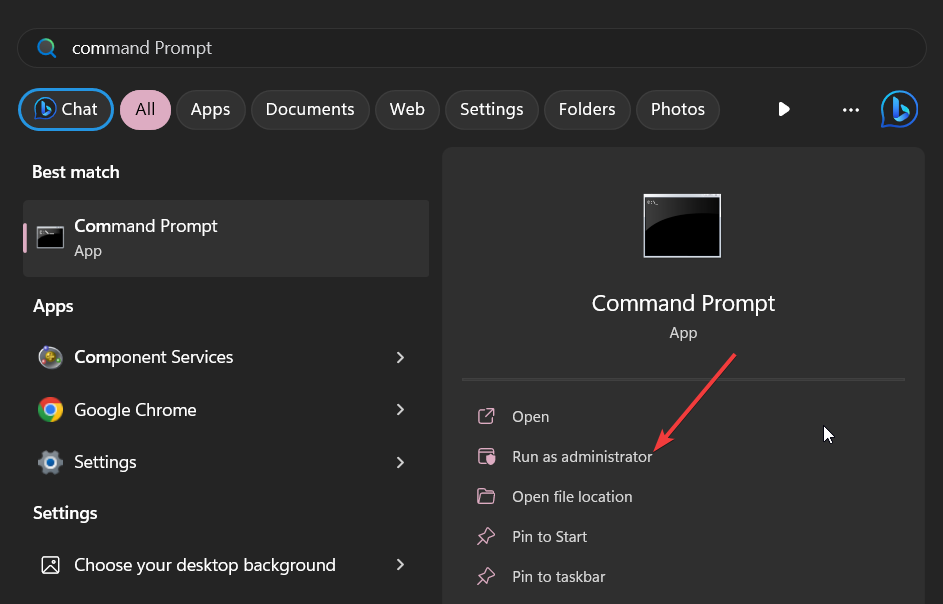
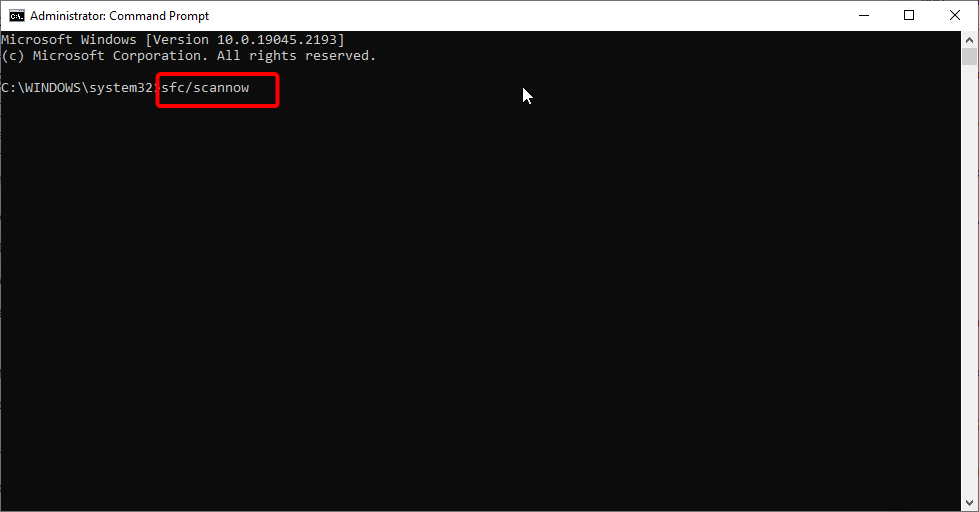
Type cmd and hit Ctrl + Shift + Enter to open an elevated Command Prompt.
Input the script below and hit Enter. sfc /scannow
While the scan last, follow any prompts given, and finally, restart your computer.
After completing the scan, check if the error code is still there.
If you’re searching for a faster method, you can use a highly recommended third-party repair software to automate this process.
3. Reset Windows update components
Press Windows + R to open the Run dialog.
Type cmd and hit Ctrl + Shift + Enter to open an elevated Command Prompt.
Enter the scripts below in the Command Prompt and hit Enter after each one to stop vital update components. net stop bits net stop wuauserv net stop appidsvc net stop cryptsvc
Press Windows + E to open File Explorer.
Navigate to the path below and rename SoftwareDistribution to SoftwareDistribution.old. C:\Windows
Navigate to the path below and rename Catroot2 to Catroot2.old. C:\Windows\System32\
Once again, open an elevated Command Prompt and restart the vital Windows services by running the scripts below: net start bits net start wuauserv net start appidsvc net start cryptsvc
Finally, restart your computer and verify it fixes the 0x800f8011 update error.
NOTE
Resetting your Windows Update components may delete any pending Windows updates. You will need to rerun Windows Update to install any previously pending updates.
Click the General tab, select Selective startup, and untick Load startup items.
Select the Services tab, check Hide all Microsoft services, and select Disable all.
Click the Startup tab and click Open Task Manager.
Click on any enabled program and click the Disable button. Do this for as many programs as you see.
Restart the computer and retry the update.
Any of the solutions discussed above should come in handy, so start with whichever feels the most applicable. You may also read our other guide on Windows 11 Update errors to understand why updates may fail.
Lastly, let us know which solutions were the most effective for you in the comments section.
Microsoft’s Dev Home hopes to be the ultimate hub for developers. Dev Home offers a comprehensive range of tools, resources, and insights to empower developers to create exceptional applications and shape the future of Windows. In this guide, we will delve into the intricacies of Dev Home, exploring its features, benefits, and how it can accelerate your journey as a Windows developer.
Microsoft continues to push boundaries with their latest operating system, Windows 11. One of the most exciting features introduced in this new iteration is the Dev Home, a powerful control center that offers developers an array of tools and functionalities. In this article, we will delve into the depths of Dev Home, exploring its capabilities and highlighting its significance for developers in the Windows ecosystem.
What is Dev Home?
Dev Home serves as the central hub for developers using Windows 11. It provides a unified interface where developers can access a plethora of tools, settings, and resources to streamline their development process. By integrating various features, Dev Home empowers developers with the ability to efficiently create, debug, and optimize applications for the Windows platform.
The Dev Home dashboard offers a range of customizable widgets to effectively monitor your workflows. These widgets provide valuable insights and information. Let’s take a look at some of the default widgets available:
GPU: Keep track of your machine’s GPU performance using this widget.
SSH keychain: Access a list of SSH connections available in your ssh/.config file. Simply select an SSH item to open the corresponding connection in Windows Terminal.
Memory: Monitor the performance of your machine’s memory in real-time.
Network: Stay informed about your machine’s network performance.
CPU: Keep an eye on your machine’s CPU performance.
In addition to these default widgets, the Dev Home GitHub extension (available by default) provides seamless integration with your GitHub credentials. This extension offers customizable widgets and notifications to enhance your experience. However, you may still need to sign in to your GitHub account to access the extension’s integrated features. If you want to add a widget to the dashboard, follow these steps:
To add a widget to the dashboard, click on “Add a widget” located at the top-right corner.
Next, you’ll see a list of widget options, when you find the one you want to use, click “Pin” to pin the widget to your dashboard. Keep in mind, some widgets may require customization before adding them to your dashboard.
If you want to customize the widgets further, you can do so by clicking the three-dot menu in the upper right of the widget, where you will see the self-explanatory options, including Small, Medium, Large, Customize, and Remove Widget.
While the GitHub extension comes pre-installed, you may be able to create and share your own custom-built extensions in a future app update. Discover further details about extensions, including guidance on creating customized GitHub widgets, and configuring GitHub notifications.
Conclusion
Harnessing the power of Dev Home is a vital step towards achieving success in the ever-evolving digital landscape. By leveraging the comprehensive features and resources provided by Dev Home, you can propel your development projects to new heights and position yourself as a frontrunner in the competitive realm of Windows 11 application development.
AI has taken over the world, and you will see new AI websites popping up very frequently. ChatGPT is one of the famous names in the AI world. However, there are several other websites apart from ChatGPT that you should try in 2023.
In this guide, we have created a curated list of some of the best AI websites that you should try and take your productivity to the next level. Let us check out the websites.
What are the best AI websites you should check out?
Well, AI has not only catered to the image or writing department, but you can also create professional-looking videos using AI tools such as Synthesia.
The best part is that all you need to do is have a script ready for your video, select the tone, and you are all done. Synthesia can create videos from any text using AI’s power.
Virtual humans will present your videos and speak on your topic. You can select from a good range of virtual AI presenters or create an AI presenter of yourself using your voice.
Here are the best features of Synthesia:
Create a video from any piece of text.
Use AI presenters to present your video.
Create how-to, explainers, training, and other videos.
The video creation is pretty fast.
Create videos in over 120 languages.
Comes with a powerful built-in video editing tool.
Synthesia
Create professional videos without needing any equipment or editing skills.
Modifying voice is one of the easiest tasks an AI can do. However, doing it ideally is the need, and Altered AI has got you covered on that front.
You can use Altered AI and modify your voice to choose among the best professional voices in the field. The voices sound realistic and are far from robotic.
It gives you access to a complete AI voice studio, where you can select your chosen voice, tweak it as per your needs, and use it for your projects.
Some of the best features of Altered AI are:
You can work from anywhere as it doesn’t need a professional studio.
Choose among 20 professional voices.
Over 800 voices of common people can be used as secondary voices.
Select emotions such as emotional, angry, whisper, shout, etc.
Altered
Get Altered and choose between 20 professional voices and over 800 voices as secondary voices.
If you want to extract data such as app details, businesses, YouTube videos, job postings, etc. from any website, then you can use one of the best AI websites Browse AI.
Using this scrapping tool, users can extract data from any website without knowing code. This is a perfect tool for businesses that are into data management.
You can use this tool to stay ahead of your competitors and gather information regarding marketing campaigns, offers, deals, etc. that they might be offering.
Check out the best features of Browse AI:
Easy and simple data extraction tool.
Lets you extract any data from any website.
You do not need to know coding, and the website uses natural language processing (NLP).
For writing, many prefer ChatGPT as it is the most advanced AI tool available to facilitate writing or use as a conversational tool.
However, Jasper AI infuses AI’s power to create engaging marketing copies, essays on any topic, captions for your social media posts, and much more.
Jasper AI also offers multiple templates for different categories that you can use and uses Natural Languages Generation (NLG) to convert RAW data into meaningful words.
Some of the key features of Jasper AI are listed below:
You can select the tone of the writing.
Use it as a document editor.
Use among the several templates for different categories.
Beautiful.ai – Powerful AI presentation slide maker
AI has also entered the world of making presentations. You can use the powerful Beautiful.ai to make presentations from simple texts. It is one of the best AI websites that you should definitely check out in 2023.
All you are required to do is to input the text on which you wish to create a slide, and then Beautiful.ai will do its magic and prepare a slide based on your input.
The best part is that you can ask it to create a slide on any topic and also add images, videos, or any other media content. It adds images and sources data from authentic sources across the globe.
Some of the best features of Beautiful.ai are:
Offers AI features like automatic layout design, smart resizing, content suggestions, and even data analytics.
Fast and easy presentation-making process.
Plethora of presentation templates to choose from.
Can integrate it with Slack, Monday.com, Dropbox, and PowerPoint
If you are into music and want AI’s help to create some of your masterpieces, then you should check out one of the best AI websites called Soundraw.
With Soundraw AI, you can create original music tracks and use them for your next performance. The best part is that all tracks you create using this AI are customizable so you can have your own tint with it.
All you need to do is select the mood of the music, genre, and length; the website will do its magic and create your track. The creation process is simple and hassle-free, and it is suited for beginners and professionals.
Here are the key features of Soundraw AI:
The user interface is easy to use.
With minimum inputs, you can create your own original track.
Avatar AI – Create interesting avatars of your photo
Avatar AI is another popular AI that helps create mesmerizing AI avatars of your uploaded photo. Using this website, you can create high-quality realistic avatars of yourself.
Notably, you can transform the uploaded image into different styles and scenarios. The best part is that all you need to do is upload your image, and the website will do the rest.
Some of the popular styles include passport, fashion model, medieval, gym, Instagram model, cyberpunk, etc.
Well, AI isn’t just for fun; it does some serious jobs too. You can visit the DoNotPay website and get yourself an AI lawyer.
You can use the DoNotPay AI lawyer to sue anyone, fight corporations, or even governments. It can help find hidden money, help users draft legal documents, report potholes, broken streetlights, and much more.
One of the best things that you can do with DoNotPay is it will generate a virtual credit card that you can use to avail free trials of any software or website. Once the trial ends, the trial is automatically canceled on the virtual card.
Some of the highlights of the DoNotPay AI are:
It can help draft legal documents.
You can use it to fight legal battles.
Avail of free trials with the free virtual card.
Also, solve issues such as incorrect food orders or receiving compensation from an airline.
If you are looking for an AI writing assistant that helps you learn coding, solve mathematical problems, and craft well-structured research papers, then check out Caktus AI and read this guide to learn more about the tool.
And if you find the mathematical problems a bit difficult to understand, SciSpace Copilot can help you explain them in simpler terms.
That is it from us in this guide. Let us know in the comments below which one of the above AI websites you liked and are actually using.
If you prefer using regular apps, we have a great guide on the best AI software for PC, so don’t miss it.
Feel free to let us know if there are any other AI websites that you are using apart from ChatGPT and would like to share with others.
Sihost.exe, also known as the Shell Infrastructure Host process, is a core Windows background process located in the C:\Windows\System32 sub-folder. It is responsible for the proper functioning of various elements of Windows PC, such as the taskbar, action center and Cortana, and context menu.
Even though the process is an innate part of the Windows operating system, it is known to cause a series of issues like high CPU usage, unknown hard drive errors, and even system crashes.
What are the errors caused by sihost.exe?
Although the sihost.exe is a safe executable file and is not a threat to Windows, you are likely to run across several errors related to the process. Some of them are as follows:
Sihost.exe – Bad Image
SiHost.exe- Unknown Hard Error
Cannot find sihost.exe
Sihost.exe could not be installed
Sihost.exe could not be launched. Class not registered
Error starting program: sihost.exe
Sihost.exe could not be started
Sihost.exe failed to initialize properly
Faulting Application Path: sihost.exe
Sihost.exe could not be found
How to fix sihost.exe-related errors?
Before moving on to elaborate methods for fixing the issue, try these workarounds.
Delete the instances of the sihost.exe file other than the one in the System32 sub-folder of the File Explorer window.
1. Check the file authenticity
Right-click the Windows icon and choose Task Manager from the quick links menu.
Look for Shell Infrastructure Host in the Processes tab, right-click it, and choose the Properties option from the context menu.
Switch to the Details tab of the properties window and look for Microsoft Corporation, mentioned next to the Copyright section.
The copyright information will verify that the executable file is authentic. In case the details are missing, it is indicative that the file is infected or is malware disguising itself as a core Windows file.
2. Fix system file errors
Press the Windows key, type cmd in the search box, and click the Run as administrator option from the search result.
Press Yes on the User Action Control prompt to launch the command prompt with elevated permissions.
Type or paste the following command and press the Enter key in the SFC scan. SFC /scannow
After the scan is complete, paste the following command and initiate the DISM scan. DISM /online /cleanup-image /restorehealth
After the DISM (Deployment Image Servicing and Management) scan finishes, boot up your Windows PC and see if the ihost.exe unknown hard error is resolved.
If you don’t want to go through the manual procedure, you can let third-party repair software do the job for you.
3. Fix hard drive errors
Click the Windows icon on the taskbar, type cmd in the search bar on top, and choose the Run as administrator option from the search result.
Press Yes on the User Action Control prompt to launch the Command Prompt with elevated permissions.
Type or paste the following command and press the Enter key to initiate the check disk utility. You can replace the letter C with the hard drive letter containing the operating system. chkdsk C: /f /r
The CHKDSK command will automatically scan your hard disk for errors and detect its bad sectors resolving the sihost.exe error.
Launch the Run dialog box using the Windows + R shortcut. Type the following command in the text box and press the Enter key. Msconfig
In the General tab of the System Configuration window, disable the checkbox for the Load startup items and enable the one for the Load system services option.
Next, go to the Services tab and check the box preceding the Hide all Microsoft services option on the bottom left, and hit the Disable all button.
Click the Apply button to save the changes and OK to exit the System Configuration window.
Once done, boot up your PC in a clean state and note whether the sihost.exe hard drive error shows up. If no, it means the error a program recently installed on your PC is conflicting with the sihost.exe process. Uninstallating those programs should fix the problem.
5. Roll back your system to a previous point in time
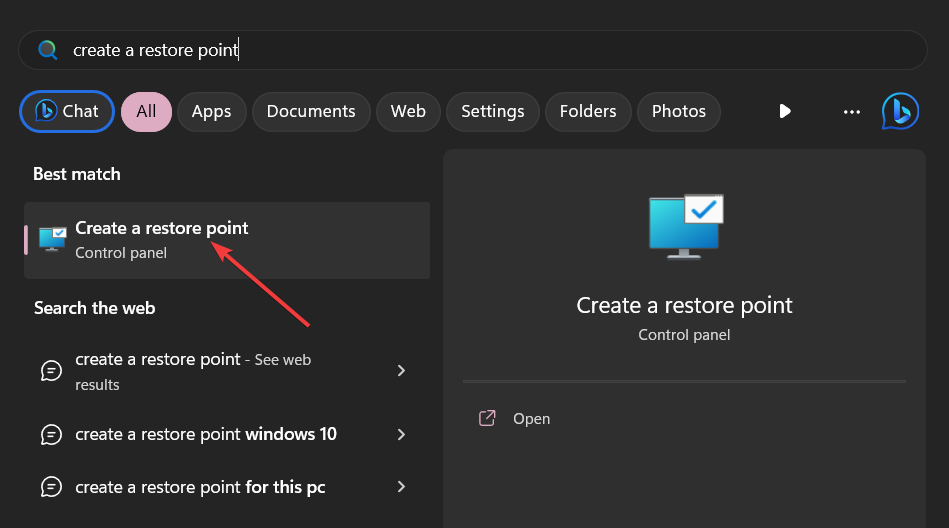
Press the Windows key to launch the Start menu, type create a restore point in the search bar, and choose the relevant search result to open the System Properties window.
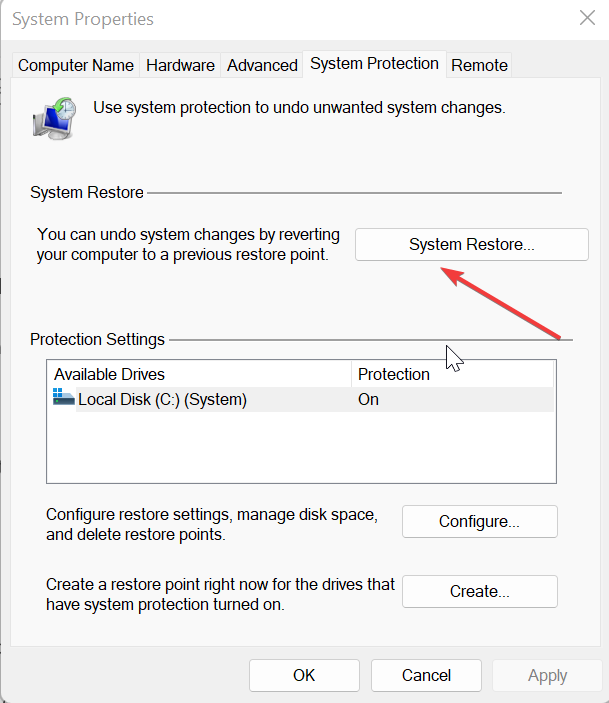
Hit the System Restore button located in the System Protection tab.
Select that restore point from the list of options where your PC did not encounter the sihost.exe hard drive error and press the Next button on the bottom right.
Press the Finish button on the next page to confirm and initiate the system restoration process.
For the uninitiated, restoring your PC to a previous state is only possible if you have already created a restore point on your system before your PC runs into this pesky issue.
If the issue commenced right after making a significant change on your computer such as installing a new program or drive, rolling back the changes will restore your PC to a healthier state.
A lot of times on Windows 11, you’ll get a lot of automated updates for the devices your PC is connected to. If this happens in an organization, then you have no choice but to agree, since they are sent out by an IT manager.
But sometimes printers, and especially HP printers can automatically download apps and updates on your Windows 11, and if you don’t specifically use them, then there is no point in keeping them around.
However, these updates left some users concerned. Are HP printers pushing boundaries? On Reddit, especially, there is a thread on how this particular way of updating the HP printers is not really the proper way.
If you consider that HP is bugging you with this prompt window, there are some ways to disable the automated downloading and running apps. And you can do it very easily, with a few clicks. Follow along and we’ll show you.
How to stop HP printer automatic updates on Windows 11
In the Search box, type in Manage advanced share settings and click on it.
Once you’re there go to the Private Networks pane and uncheck Set up network connected devices automatically.
That’s it.
Now you should no longer receive the HP printer automatic updates. It’s also good to know that Microsoft Store automatically downloads the updates, so if you want to make sure you won’t get them again you can also just do the following thing.
On the Start box, type in Change device installation settings, and click on it.
Select No, and click on Save Changes.
This will stop Microsoft Store from downloading any updates or apps for your devices, from it.
Have you experienced this issue? Do you consider that HP printers push some boundaries when asking for permission to install and run apps? Let us know your opinion in the comments section below.
Xbox game bar and Task Manager are often showing different status when playing a game. For example, this Reddit user caught the moment the two software apps showed different things.
However, what can you do when the Xbox game bar and the Task Manager show different info, especially when you’re playing a game? Well, as the word say, when two are fighting, the third wins. So, we hate to break it to you, but unfortunately, there is not much you can do about it.
Why are the Xbox game bar and Task Manager showing different info?
Well, an explanation could be that each app focuses on their own processes. In other terms, Windows 11 prioritizes functions. So when you click on the task manager, the percentages will go down. But if you’re going to the game, it will go back up.
One user suggested that you should play your game in a windowed mode, and see how the Task Manager reacts to that.
But other users agree that neither app is reliable and that you should get a third-party app to do the job instead. You can use MSI Afterburner or HWinFO.
Select an option that is fit for your PC, download it, and install it.
Now you can track your PC’s info with HWinFO.
Try this one too and see how it compares to the Xbox game bar and the Task Manager. And be sure to let us know your experience in the comments section below.
So what’s happening here, from a very non-magical perspective? Why is Windows showing files from tomorrow in File Explorer? Well, we’re exploring the possibilities of it happening.
Why is File Explorer showing you files from tomorrow?
If Files Explorer is showing you files from tomorrow, the first thing you’ll need to think about is the site where you’ve downloaded the last file.
The affected files are usually in the Download file, which means you downloaded them from somewhere, and their Date Modified details are slightly delayed from your specific Time Zone.
This means that the files you downloaded already have a date on them. And that date usually refers to the next day. So when you download them, their date automatically changes to the next day. In your File Explorer, it means tomorrow.
It could also mean a lot of things. Downloading files from suspicious sites could be a possibility. You could deal with a virus or malware file. If it’s not a suspicious site, then the site you’re downloading them from is in another time zone. If you’re in the US, and the site’s timezone is set to Australia, then you might get this weird bug.
Another possibility is that your Windows 11 is somehow corrupted. Running a scan sfc /scannow in your Command Prompt with admin rights should do the trick. If it’s not Windows, then it must be the file.
But you should pay attention to File Explorer. If it happens once time, then it’s probably the file. If it happens every time you download something, then your Windows 11 can be corrupted.
But rest assured. Your PC is not a magician or a time traveler. It might just have a tiny problem with recognizing the correct time.
Have you experienced this issue? Let us know how you fix it in the comments section below.
In the latest FTC v Microsoft hearing, Microsoft CEO Satya Nadella said that console exclusive shouldn’t be a thing, as reported by The Verge.
If it was up to me I would love to get rid of the entire exclusives on consoles, but that’s not for me to define especially as a low share player in the console market. The dominant player there [Sony] has defined market competition using exclusives, so that’s the world we live in. I have no love for that world.
He went on to sort of blame Sony for defining market competition using console exclusives. Just a day earlier, PlayStation chief Jim Ryan said that titles like Starfield, an Xbox exclusive, were not anti-competitive.
He also said that the Game Pass is destructive, and Sony will invest in keeping an edge on the competition caused by Game Pass.
At the Xbox Games Showcase 2023 and Starfield Direct event, Microsoft announced that there are over 5000 new games in development for Xbox, a record in the console’s history. So the competition for exclusivity is really going strong.
So what about console-exclusive games?
Should they exist? Should they not exist? Well, console-exclusive games were almost as old as the video games themselves. Important titles such as Resident Evil, or Silent Hill were PlayStation exclusive at first.
The Xbox came with franchises such as HALO, or now Starfield, which, as we mentioned earlier, will be an Xbox exclusive.
Some of the biggest names in gaming are exclusive, and they were built with a console’s engine in mind. Take Legend of Zelda, for example, which is a Nintendo exclusive, and probably Nintendo’s greatest title. If we don’t mention Mario.
The console-exclusive games are forging a competition, that’s for sure. And even though they offer diversity, there is still a lot to discuss, especially in this age and day, on what it means to buy an Xbox or any other console just to play a game that’s bound to that console.
Not long ago, the world has actually experienced a shortage of computer chips, which affected all consoles, as well as the whole technological industry. Wouldnt’t be more sustainable if all these games could be played on just one device, instead of having to buy different devices?
That’s a tough question, especially when we talk about business. But Microsoft is planning to move Windows 11 to the cloud, so maybe cloud gaming, including console-exclusive games, might happen in the future.
What do you think about this? Would you like it if you had access to all games on just one console? Let us know in the comments section below.
Numerous Xbox One users have encountered the 0x80270300 Xbox error code while attempting to update or install games on their console, regardless of whether they use digital or disc-based versions.
The focus of this piece is to delve into 0x80270254 Xbox error code, which has been extensively covered.
However, we will now concentrate on rectifying this troublesome error and offer a comprehensive troubleshooting guide. Come along with us as we uncover the essential steps to fix this exasperating problem.
What is 0x80270300 Xbox error?
This is an Xbox error, and it’s caused by the following:
Due to game updates running in the background or a corrupted game.
System glitches on your console.
How do I fix the 0x80270300 Xbox error?
You can fix this issue sometimes by doing the following:
Restart the Xbox console and check if that solves the problem.
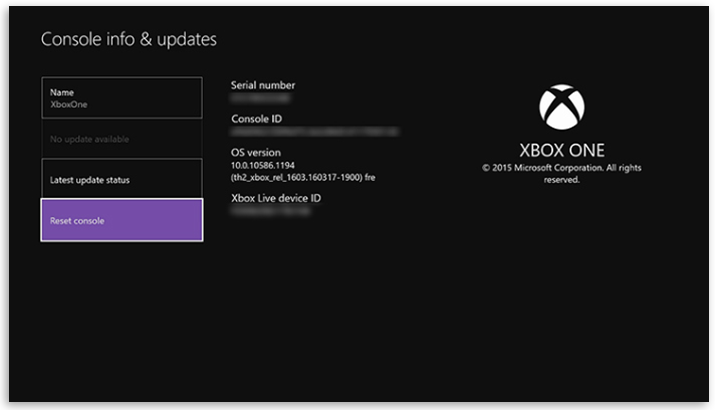
1. Reset Xbox carefully
Press the Xbox button on the console.
Next, choose Profile & System.
Scroll to Settings, then locate System.
Now select Console info.
After that, select Reset console.
Lastly, choose Reset and keep my games & apps on the confirmation page.
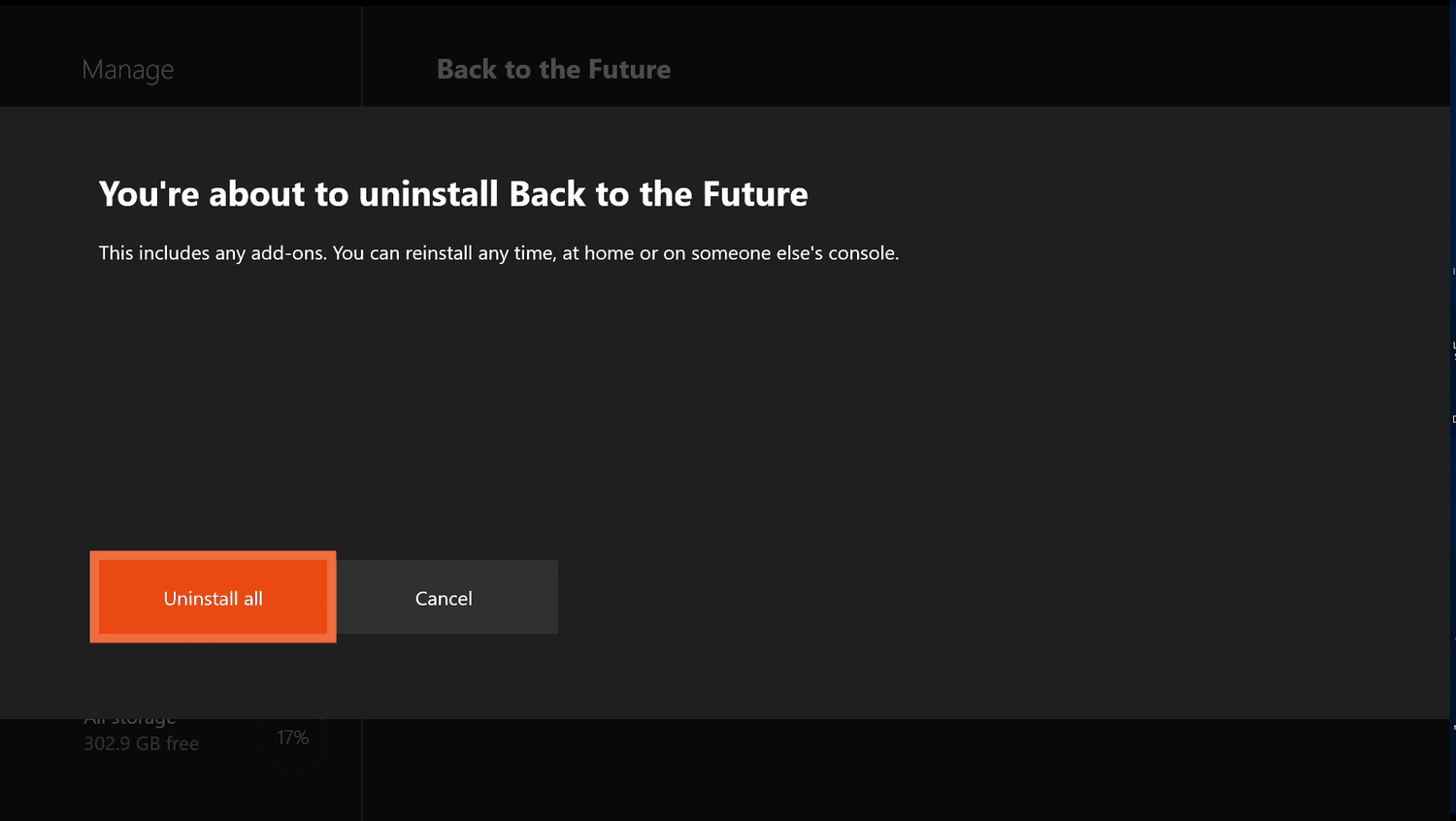
2. Delete and reinstall the game
Press the Xbox button to open the guide, then select My games & apps.
Monitor the game, press the Menu button on your controller, and select Uninstall.
Scroll to Ready to install, locate the game, and reinstall it.
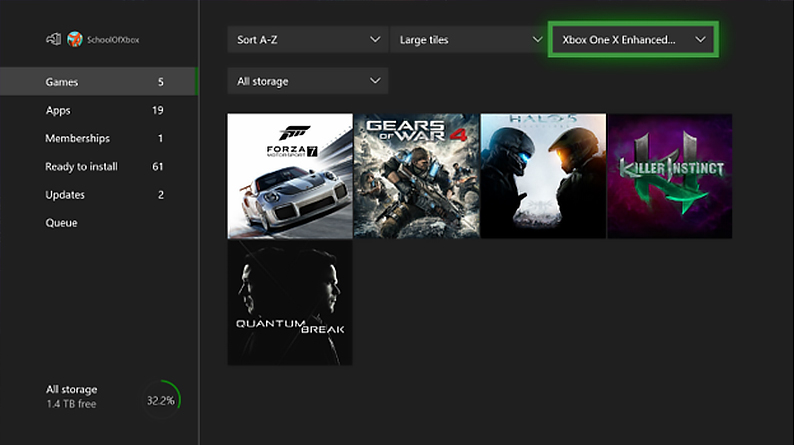
3. Check if the Game is updating
On your home screen, go to My games & apps, and choose See All.
Choose Manage.
Now select Queue to see if the game you want to play is getting an update.
We are confident that our guide has equipped you with the necessary tools to tackle your concern. Although it may seem intimidating at first, as demonstrated earlier, addressing this issue isn’t as daunting as it may appear.
However, should you encounter any further obstacles, we suggest referring to our extensive guide on 0x87e50007 Xbox error. This invaluable resource provides solutions that could be precisely what you require.
We eagerly await your feedback on this matter. Please don’t hesitate to leave a comment below and let us know which solution proved most effective for you. Your insights are of utmost importance and greatly appreciated.
You’ll have two options, which feature ads in different designs. According to Microsoft, you can change this feature at any time in Settings. But it is unknown if you can disable it altogether.
The Default layout shows dismissible ads in your mailbox, maximing your screen space. The Banner layout shows ads above your mailbox. You can change this at any time in Settings. Your choice will apply to Outlook across all your devices.
The new Outlook is a pretty good-looking app that you can store your emails. Microsoft recently added a feature for Gmail accounts, and now you can use almost any type of email on it. While the older version keeps a Windows 10 design, you can still use it on Windows 11 as well.
However, you need to know that by using Outlook to open your emails, any link from the emails will be open in Edge by default. You can change this in settings, but if you haven’t used Outlook before, then you should know.
What does the new Outlook ads layout mean for you?
Well, it means that more ads will soon come to your inbox. Or every time you open your Outlook. But fortunately, they are dismissable, per Microsoft’s account. However, this doesn’t mean they will disappear.
You will be able to choose the layout when you first start using Outlook. There might be a possibility of not seeing these layouts at all.
But this option means you should roll back to the old Outlook version. For now, you can easily do that by disabling the old version.
More than that, there is nothing you can do for now, especially if you’re keen on using the new Outlook version.
What do you think about this new feature? Do you agree with it or not? Let us know in the comments section below.
Renaming the user folder can help you maintain an organized file structure and make your user profile more identifiable.
However, renaming the user folder on Windows 10 might initially seem complicated or confusing.
This guide will walk you through the steps to quickly do it, ensuring a seamless transition without impacting your user profile or data.
Is it safe to rename my user folder name?
Changing the user folder name on Windows 10 differs from renaming ordinary folders. It is important to note that the user folder name will remain the same when you change your user account name.
Usually, performing the process is not advised as it might prevent some apps from working as the registered path name for these would be changed from the default.
However, you can change the path of the faulty apps and processes to fix it. If you still want to proceed with the steps, move to the next section.
How can I quickly rename the user folder on Windows 10?
Before we go to the advanced fixes, here are a few preliminary checks you should do:
Make sure you have an extra copy of your important data.
Ensure you are using an administrator account.
Once you have checked these, follow these steps to get it done.
1. Use the Command Prompt
1.1 Create an admin account
Press the Windows key, type cmd, and click Run as administrator.
Type the following command to create a new user account and hit Enter: net user Administrator /active:yes
Now press the Windows key, locate the user account, and choose Logout.
Select the Administrator account you just created to log in. The Windows might take some time to load up.
1.2 Rename the folder (for Windows Pro & Enterprise Users)
Right-click the Windows icon and select Computer Management.
Select Local Users and Groups from the left pane.
Click Users.
Now right-click the user folder and select Rename to change the name.
Press Windows + E to open File Explorer.
In the File Explorer window, navigate to the C:\Users directory.
Right-click on the user folder and select Rename from the top bar menu.
If you are a home user, you can follow Steps 5 to 7 to rename the folder.
1.3 Get the security identifier
Press the Windows key, type cmd, and click Run as administrator.
Copy & paste the following command to get the list of SID numbers for all the user accounts present on your device and hit Enter: wmic useraccount get name,SID
Note down the SID associated with the account for which you want to change the name.
1.4 Modify a registry entry
Press Windows + R on your keyboard to open the Run dialog box.
Type regedit and click OK to open the Registry Editor.
In the Registry Editor, navigate to the following path: Computer\HKEY_LOCAL_MACHINE\SOFTWARE\Microsoft\Windows NT\CurrentVersion\ProfileList
Expand the ProfileList key and look for a subkey matching the SID number you copied.
Once found, locate the ProfileImagePath entry on the right-hand side.
Double-click on ProfileImagePath and modify the old username to the new username you have chosen.
Click OK to save the changes and close the Registry Editor.
Once done, restart your computer to apply the changes. Renaming the user folder may affect some apps or settings associated with the previous username. So, you might have to modify the settings as per your preferences.
1.5 Delete the user account
Press the Windows key, type cmd, and click Run as administrator.
Type the following command to create a new user account and hit Enter: net user Administrator /active:no
2.1 Create a temporary user account via the Settings app
Press Windows + I to open the Settings app.
Go to Accounts.
Select Family & other users from the left pane, then click Add someone else to this PC under Other users.
Follow the prompts to create a new user account with the desired username.
Now, click Change account type, select Administrator, and click OK.
Press the Windows key, right-click the current user account, click Logout, and sign in using the new account.
2.2 Rename the folder
Press Windows + E to open File Explorer.
In the File Explorer window, navigate to the C:\Users directory.
Locate the current user folder that you want to rename. By default, it is named after your previous username. Right-click on the user folder and select Rename from the context menu.
Type in the new desired name for the user folder and press Enter.
You will see a warning dialog asking if you want to proceed with the folder name change. Click Yes to continue.
Once done, follow the instructions in Solution 1.3 to edit registry entries, and once done, you can restart your computer to complete the action.
3. Use a Third-Party Tool
NOTE
If you are not confident making changes to the Registry Editor or using Command Prompt, you can use this method to migrate your profile instead.
Double-click the .msi installer file and follow the onscreen instructions to install the app.
Launch the app. In User Profile Wizard, select the user profile you want to rename from the list of available profiles.
Click on the Next button to proceed.
Enter the desired new username for the user profile and click Next to continue.
Follow the on-screen prompts to complete the renaming process. Once finished, restart your computer to apply the changes.
So, you can follow the methods to get the instructions to quickly rename your user folder and maintain a well-organized file structure on your Windows 10 computer.
Users have recently reported difficulty signing into their OneDrive account through the OneDrive application on Windows, with an error code of 0x8004e4a1 OneDrive error code being displayed. Interestingly, this problem seems to only affect certain accounts, which is quite peculiar.
In this article, we aim to address the vexing issue of how to fix 0x8004de88 OneDrive error code. While this error has been covered extensively, we will now provide a detailed troubleshooting guide.
Join us as we explore the crucial steps that must be taken to rectify this frustrating problem and bid adieu to this pesky error for good.
What is 0x8004e4a1 OneDrive error code?
When it comes to OneDrive, error code 0x8004e4a1 can be caused by a variety of factors including the following:
Network connectivity issues.
Improperly configured Windows Firewall.
Interference from antivirus software.
How can I fix the 0x8004e4a1 OneDrive error code?
Before we start fixing this issue, perform the following checks:
Power cycle your router and check if that helps with the issue.
Check the Internet connection and make sure your network is stable.
1. Uninstall and reinstall OneDrive
Hold the Windows + I keys together to open Settings.
Now select Apps, and click on Apps & Features.
Locate the OneDrive app below, click on the three dots, and Uninstall.
Lastly, try to sign in to see if the issue persists.
2. Disable VPN or proxy
Hold the Windows + R keys together to launch the Run box.
In the command box type the following and press Enter to open Internet Properties:inetcpl.cpl
Click on the Connection tab and select the LAN settings option.
Be certain that the Automatically detect settings option is checked. Then uncheck the Use a proxyserver for your LAN beneath the Proxy server section. Click OK to save the changes.
Lastly, reboot your PC.
After doing that, check if 0x8004e4a1 error in OneDrive is gone.
Hold the Windows + R keys together to launch the Run box, and input cmd inside the box to launch the Command Prompt.
Once the window has opened type the following command and press Enter: netsh winsock reset catalog
Now reboot your system.
We are delighted to assure you that our guide has equipped you with all the necessary skills to tackle your concerns.
However, in case of any further hiccups, we recommend consulting our comprehensive guide on resolving the OneDrive Error Code 0x8004de40.
We eagerly await your feedback on how these solutions worked for you. Do not hesitate to drop a comment below and let us know which method proved most effective for you.
Coming across errors while using your PC is, sadly, inevitable. One such error you may encounter is the 0x8007045a, accompanied by the ERROR_DLL_INIT_FAILED message.
A common one, it can lead to slow running or even PC failure with Blue Screen of Death issues. In this article, we’ll explore the problems that cause it, along with some solutions that will help you resolve them. Let’s get right into it.
What does error code 0x8007045a mean?
The 0x8007045A error code, along with an ERROR_DLL_INIT_FAILED message, can occur while simply browsing your computer, though most users report they see it while using Windows Update.
Typically, the issue emerges when a dynamic-link library, or DLL, can’t initialize while startup or running particular software. A damaged or missing msxml.dll file most commonly triggers it.
What causes the 0x8007045a ERROR_DLL_INIT_FAILED?
Damaged DLL files: DLLs are libraries with code and data that can be used by multiple programs simultaneously. If a DLL is corrupted or misplaced, it most likely will lead to such an error.
Compatibility issues: Occasionally, a mismatch between your OS and the program you’re trying to run can result in the issue.
Infected computer: Malware infections can cause various problems for your device. If your system is targeted by malicious software, it could damage DLL files, which could, in turn, outcome in such an error.
Now that we’ve pointed out some of the most common reasons behind the issue let’s see how to fix it:
How do I fix error 0x8007045a?
Before your try out our tested solutions, you should:
Stop your VPN: Using VPN might hinder the update process. Try switching it off and see if that helps.
Restart your PC: Sometimes, a simple reboot could resolve most of the Windows update errors, but if you’re stuck, proceed to the solutions below:
1. Run the DISM and SFC commands
Hold Windows + S to open the Start menu. Search for Command Prompt and choose Run as administrator.
A UAC (User account control) message should pop up. Click Yes.
Type the following commands into the Command Prompt window and press Enter after each one: dism /online /cleanup-Image /restorehealthsfc /scannow
Restart your PC.
The System File Checker scan is a native Windows component that searches and restores damaged system files. An empty window, as a result, means no corrupted ones have been found.
2. Replace the damaged files and re-register them
Copy these DLL files from a device that is working fine to yours: msxml3.dll, msxml3a.dll, and msxml3r.dll. They should be in the following directory: C:\Windows\System32
Register the files by pressing Windows + R to open the Run dialog.
Start with the first by typing the following in the open box and clicking OK: REGSVR32 C:\WINDOWS\SYSTEM\MSXML.DLL
Re-register the second file by repeating the first two steps, but this time typing the command below, followed by clicking Enter: REGSVR32 C:\WINDOWS\SYSTEM\MSXML2.DLL
Repeat the process for the last file by typing this command and clicking Enter: REGSVR32 C:\WINDOWS\SYSTEM\MSXML3.DLL
Restart your PC.
Malicious software can infect your DLL files and cause various errors, including this one. To ensure your system is protected against such threats, perform regular checks using Virus & threat protection or a trusted anti-malware program.
3. Update the Microsoft XML parser
Check if you have the latest version of the Microsoft XML parser by visiting Microsoft’s official website. If not, follow the instructions there to update it.
Restart your PC and verify whether the error has vanished.
The 0x8007045a error is related to Microsoft’s XML Core Services (MSXML). If everything’s working correctly, MSXML is installed automatically by Windows Update.
The issue can lead to severe PC issues, such as a blue screen or system crashes. Typically, it pops up on your desktop, indicating you need to restart. That is, if it hasn’t restarted automatically already.
If you panic and force a reboot, this could mean you can lose important data in the process. Don’t forget to always back up your important files!
Congrats! This should help you get rid of the frustrating 0x8007045a ERROR_DLL_INIT_FAILED error.
If you want to be safe, you should regularly create restore points. That way, if you accidentally trigger an error, you can go back to a previous state before the issue.
Do you have any questions or comments? Let us know in the section below:
The FTC v Microsoft hearing has been revealing a lot of secrets, from everywhere. It seems Microsoft wanted to buy Sony out of business, just to erase competition for Xbox.
Speaking of Xbox, executives from Microsoft agree that it’s losing the console war. And in a race to not lose it, Microsoft is reportedly eyeing video games development studios for acquisition.
The documents for the hearing also revealed that Microsoft paid $117 million for Ninja Theory, the studio that developed Senua’s Sacrifice. And they also revealed one more important thing. It seems that the next-gen consoles will hit the market in 2028, as reported by IGN.
This gives Xbox developers a lot of time de redesign the next Xbox controller. It seems that users want a new controller, and some of them even have ideas when it comes to it. So what should the next Xbox controller look like?
Here’s what the next Xbox controller should look like
Some of the users would love new buttons, especially ones that include good features, such as automatically muting mics when pushed.
Honestly I feel that next gen controller should come with buttons or paddles on the back that are their own dedicated buttons and push to mute buttons on the controller that work for all mics.
I don’t care about haptic feedback, and I surely don’t want a microphone in the controller to constantly hear other people’s buttons being pressed. What I would like to see: mechanical buttons; trigger stops; hall effect sticks; paddles; I wouldn’t change anything about the shape or design.
Some other users agree that they should do something about the noise it releases when pushed. So the next gen Xbox controller should be as quiet as it can get.
Others would love it if the next-gen Xbox controller would borrow some elements from the PlayStation 5 controller.
I would like to see 3 things: Adaptive triggers. This is my favorite feature on the PS5 controller. 3D rumble. The vibration effect in the joycons and PS5 controllers really brings in a new level of emersion. Magnetic joysticks. Controller drift has become a really large issue in this current gen and it needs to go.
But there are users who think that the current Gen Xbox controller is just fine the way it is now.
Next gen?? Not a feature, but for all I wish, they should already work on improve its internal components, boards, develop a better analog stick internal piece so it has no drift, increasing its lifespan.
All I care about is that it’s comfortable and functional. I could use extra back buttons, more mapping options are always nice, and I’d like Microsoft to remove the clicky noise from the d-pad. Other than that, I’m good.
The perfect Xbox controller would be the current one, but with less noise and with greater durability. If you prefer the classic controller, explore the stunning revival of the classic Xbox Controller S for Xbox S/X in our in-depth review.
Do you agree with them? How do you see the next-gen Xbox controller? What should it have? Let us know in the comments section below.
If your system drive is running low on free space, a huge pagefile.sys might be behind it. The paging file is used as virtual memory and an integral part of your OS.
Though, it can sometimes occupy quite a significant amount of disk space. Today, you’ll learn what you can do about your pagefile.sys size and how to free up valuable storage space on your PC.
Do I need pagefile.sys on my computer?
To answer that you must first understand its role in your OS. When your computer determines the available RAM is insufficient, the paging file steps up, acting as a temporary storage for the data that hasn’t been used recently.
This way, it frees up RAM for other, more important programs. In other words, it helps your computer run smoothly and prevent system crashes even when physical memory is heavily used.
The paging file also acts as a backup to your RAM. The latter keeps data only temporarily and resets itself when the PC is switched off or if there’s a power shortage.
In contrast, pagefile.sys store information about the computer’s state much longer, making it accessible even after a crash or power interruption.
The pagefile.sys file can become too large when:
Running demanding applications: When this happens, your system needs to allocate additional virtual memory to accommodate the increasing demand.
Insufficient disk space: Windows can increase the paging file size to compensate for the low free space. A large pagefile.sys can improve your PC performance; thus, the best way to handle a huge pagefile.sys is to invest in additional storage space.
Is it safe to delete pagefile.sys?
Its large size sometimes makes it a target for those who want to free up some space. However, pagefile.sys is crucial to your system operations, and deleting it could have serious consequences.
If you remove the paging file, you remove your temporary memory storage and RAM backup. This could tank your PC’s stability, slow down its performance, and cause frequent software and system crashes. Delete it at your own risk!
The only scenario in which removing pagefile.sys is maybe safe is when your PC has a much larger amount of RAM (think 32GB and up).
However, that’s not the case with most users, so we’d recommend resizing the file instead or adding more RAM. If anything, you should be thinking about increasing your virtual memory.
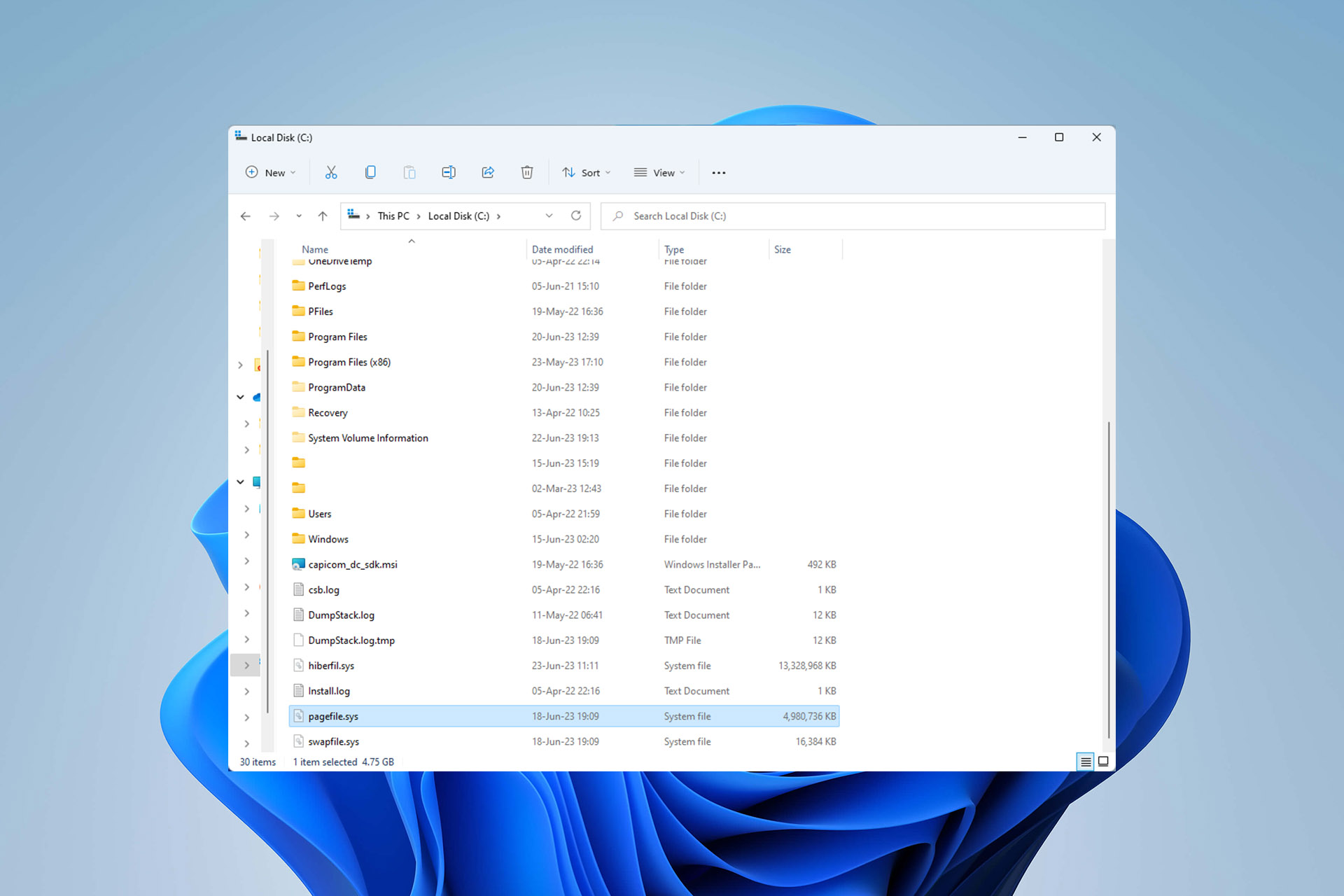
Before you can do anything with the paging file, you first need to be able to view it:
How do I view pagefile.sys?
Press Windows + E to launch File Explorer.
Click on the View tab, then on Show, and check the Hidden items box.
Click on the three vertical dots on the right and open Options.
Go to the View tab and uncheck Hide protected operating system files (Recommended) in Advanced settings.
A warning message will appear. Confirm by clicking Yes.
We suggest you skip directly to the resizing part, but if you’ve chosen to ignore our warnings and are determined to remove it, you can learn how below.
How do I fix a huge pagefile.sys?
1. Delete pagefile.sys
Open your computer (This PC icon on your desktop), right-click on an empty area, and choose Properties.
Click on Advanced system settings.
This takes you to the System Properties window. Find the Performance section under the Advanced tab and open its Settings.
Go to the Advanced tab and click on Change in the Virtual memory section.
Uncheck the box next to the Automatically manage paging file size for all drives and enable the No paging file option. Click on Set.
Click OK to confirm.
Reboot your PC.
Even if your pagefile.sys is huge, resize it to a smaller value instead of deleting it. This will free up some disk space and allow you to retain vital virtual memory. Reducing is also a much safer option!
2. Resize pagefile.sys
Press Windows + S to access the Start menu, type View advanced system settings, and open it.
Go to the Advanced tab and find the Performance section. Open its Settings.
Open its Advanced tab, locate the Virtual memory section, and click on Change.
Uncheck Automatically manage paging file size for all drives and enable Custom size. Choose theinitial and maximum size and click on Set.
Click OK and restart your PC for the changes to take effect.
Typically, Windows manages the paging file size. If you’re wondering what to put, you can follow this rule of thumb: the paging file should be from 1.5x to 3x the amount of RAM installed.
This way, it’s big enough to fit your entire RAM if needed but small enough not to occupy a significant amount of your disk space. Keep in mind that reducing the paging file size or deleting it altogether won’t help with a memory leak.
Today, Microsoft has released Windows 11 Dev Channel build 23493, and it’s a big one. The banner news is that Windows Copilot, the generative AI assistant built on Bing Chat for Windows, is making its first appearance, but there’s even more news than that. Let’s dive in:
Windows Copilot
First announced at Build 2023, Windows Copilot promises to bring generative AI directly into Windows. So instead of searching for settings or features, manually summarizing websites, fumbling with creating a screenshot or an image, Windows Copilot will soon be able to all this and a lot more for you just by asking in a sidebar.
Some notable points about this first iteration of Windows Copilot for Windows Insiders in the Dev Channel:
Requires Dev Channel build 23493 or up, and Edge version 115.0.1901.150
Windows Copilot is rolling out, not all Dev Channel Insiders will have access right away
Will launch in a sidebar, by clicking on a new taskbar icon or using the Win Key + C keyboard combo
Will use the same Microsoft Account or AAD account you’re signed in to Windows with
The new Windows Copilot Sidebar “will appear as a side bar docked to the right where it won’t overlap with your desktop content and will run unobstructed alongside your open app windows, allowing you to interact with Windows Copilot anytime you need.”
One final note, and it’s a bit of a doozy (I can hear Paul Thurrott banging his head on the table from here!):
Windows Copilot with Bing Chat generates responses that are contextual and improves your experience in Windows. You may see inline recommendations we think are relevant through ads in Bing. We’ll continue to learn and listen to customer feedback.
New Settings Home Page
As if the introduction of Windows Copilot wasn’t enough, Dev Channel build 23493 also offers a new Settings homepage experience “that offers you a dynamic and personalized experience. It provides an overview of your device, quick access to key settings, and helps manage your Microsoft account.”
This new Settings experience is built using up to seven interactive cards at start (with more on the way) that group settings into device and account related functions. Here’s the initial seven:
Recommended settings
Cloud storage
Account recovery
Personalization
Microsoft 365
Xbox
Bluetooth Devices
You’ll be able to change settings directly from this page without having to dig deeper, and as you use it the page will evolve to personalize the page even more:
As you use your device, it’ll adjust to provide the most relevant and useful information based on your usage and preferences
Expanded App Restore
With Windows 11 Insider build 23466 for the Dev Channel, announced during Build 2023, Microsoft introduced App Restore, the ability to back up and then restore Microsoft Store apps. This is now being expanded to include apps not in the Store, where you’ll be directed to the appropriate website to re-download the app installer.
Expanded native archive file format read support
Build 23493 adds additional file formats the OS will be able to read, including .tar, .tar.gz, .rar, .7z, and more.
New Volume Mixer in Quick Settings
This build is introducing a new enhanced volume mixer into Quick Settings, with “quick customization of audio on a per-app basis, with additional control to swap devices on the fly,” and a new keyboard shortcut, Win Key + CTRL +V, to open the new experience.
Narrator voices for Japanese and Great Britain English
Build 23493 adds new narrator voices (Microsoft Nanami and Microsoft Keita) for Japanese, and Microsoft Sonia and Microsoft Ryan for British English. These voices can be added to your PC for natural sounding Narrator voices that are stored on device and available without an internet connection.
Even more changes and improvements
As usual, there’s a list of changes and improvements, fixes and known issues with this build, including a new suggestions for snap layouts feature. Be sure to check out the blog post for all the details.
What do you think of Windows Copilot? Let us know in the comments below.
Skype was one of the most influential messaging apps in the last decade, but many are wondering how many people use Skype today.
It’s safe to assume that the popularity of Skype has waned over the past few users, and Windows 11 replaced Skype with Microsoft Teams. However, that doesn’t mean that Skype is forgotten.
Join us while we take a closer look at Skype’s user statistics in the current year and see how well the messaging giant holds up after all these years.
Which country has the most Skype users?
United States – 32 million active users (12.23%)
India – 3.1 million active users (7.25%)
Russian Federation – (6.71%)
Brazil – 1.2 million active users (5.29%)
The United Kingdom – 6.7 million active users (3.84%)
This is because many companies, especially in the United States, still use Skype.
Country:
Number of companies:
United States
38,537
United Kingdom
8,004
India
3,994
Canada
3,414
France
2,077
Australia
1,991
Brazil
1936
China
1445
Italy
1244
Germany
1223
The same goes for personal users. Many have friends and other contacts on Skype, so moving them all to a new platform isn’t easy.
The following countries have at least 1 million Skype users:
United States
United Kingdom
India
Canada
Australia
France
China
Brazil
Germany
How many people use Skype?
Skype numbers expected to rise
Although Skype isn’t popular as it used to be, the numbers say otherwise.
Experts estimate that the number of Skype users will rise in the future, and according to Statista, it’s estimated that in 2024, Skype will have 2.27 billion registered users.
According to data, Skype has 300 million active users every month in 2023, and every day 40 million users worldwide use it.
Monthly users
Daily users
300 million
40 million
What age group uses Skype the most?
According to data from SimilarWeb, Skype has 40.53% female and 59.47% users. Regarding the age distribution, Skype is mostly used by people in the 25-34 age bracket.
Age:
Percent:
18 - 24
21.38
25-34
33
35-44
20
45-54
13
55-64
8
65+
5
Here’s a visual representation of the data:
What industries use Skype the most?
Skype is widely used in various industries, and the vast majority of users are in computer software and information technology.
Industry:
Number of users in millions:
Computer Software Industry
8.6
Information Technology and Services Industry
6
Education Management Industry
3
Hospital and Healthcare Industry
3
Higher Education Industry
2
Marketing and Advertising Industry
2
Financial Services Industry
1.67
Retail Industry
1.62
NGO Management Industry
1.5
Construction Industry
1.3
However, Skype is used in various other industries, and you can see its stats in the graph below:
Does anyone still use Skype?
Yes, Skype is still used, mostly by business users, but personal users are moving away from the platform and are switching to alternatives.
We’ll briefly cover some of the alternatives and see how Skype compares to them:
Skype vs Teams
Probably the biggest reason why Skype is losing popularity is Microsoft Teams. It’s intended as a Skype replacement, and it shares many similarities with it. To learn more, we suggest reading our Skype vs Microsoft Teams guide.
Here’s a quick overview of the differences between the two:
Microsoft Teams
Skype
Pricing
$0 to $12.50
per user/month
$0
Cheapest plan
$4
$0
Max number of participants
1,000
100
Live streaming
Yes
No
Meeting length
24h max
60 minutes in free plan
24h
Screen sharing
Yes
Yes
Record meetings
Only on paid plan
Yes
Group and individual messages during calls
Yes
Yes
Whiteboard
Yes
No
Live meeting transcription
Only on paid plans
Yes
Breakout rooms
Yes
No
Joining restrictions
Yes
Yes
Hand rasing
Yes
Yes
Emoji reactions
Yes
Yes
Cloud storage
Starting from 5GB per user
Starting from 5GB per user
Integrations
Over 700
Not supported
Support
24/7 support on paid plans
Limited support
Security
Advanced
Standard
As you can see, Skype is more useful for smaller teams and home users, while Teams offers more collaboration features, and it’s better for larger teams.
Skype vs Zoom
During the pandemic, Zoom emerged as a popular alternative for collaboration and video conferencing, and it took the market by storm.
If you haven’t tried this software, we have a great guide on how to download and install Zoom, so be sure to check it out.
Here’s a quick comparison between Skype and Zoom:
Zoom
Skype
Price
$0-19.99 monthly/per licence
Free
Maximum participants
Up to 1,000
Up to 100
Max call duration
Up to 30h, 40-minute limit on meetings with free plan
Up to 24h
OS compatibility
Mac OS, Windows, iOS, Android, Linux
Windows, Linux, Android, iOS, Mac OS, Xbox, Amazon Alexa devices
Video quality
Up to 1080p
Up to 1080p
Recording meetings
Yes
Yes
Screen sharing
Yes
Yes
Document sharing
Yes
Yes
In-meeting chats
Yes
Yes
Join meetings via phone or video
Yes
Yes
Background blur
Yes
Yes
Background change
Yes
Yes
Breakout session
Yes
No
Whiteboard
Yes
No
Meeting transcripts
Only on Business and Enterprise plans
No
Audience polling
On paid plans
No
Streaming on social media
On paid plans
No
Customer support
Varies by plan
Online help
Account required to attend meetings
No
No
Zoom offers better functionality, and in our opinion, it’s a better choice if you’re planning to hold large meetings, so it’s perfect for larger companies.
Skype vs Discord
Discord is a popular messaging app, but how does it compare to Skype? It’s not easy to compare the two since they have different purposes besides instant messaging.
To learn more, we strongly suggest reading out Skype vs Discord guide for in-depth information.
Here’s a quick overview of the two services:
Discord
Skype
Premium
$4.99/month
No
Audio quality
64 kbps
100 kbps
Max participants
25
100
Ability to call phone numbers
No
Yes
Screen sharing
Yes
Yes
Audio recording
No
Yes
Video recording
No
Yes
Max size for file sharing
Up to 8MB for free users, up to 50MB for Nitro users
300MB
Ability to connect other services
Facebook, Skype, Twitter, Steam, and more
Facebook, Docs, Excel, Powerpoint
Requires account
Yes
No
Live captions
No
Yes
As previously mentioned, these two services are quite different, and Discord is designed to create a community and share content, while Skype is made primarily for video calls and instant messaging.
In that regard, Skype is a better option since it’s free, it offers recording features, better sound quality, and support for more participants.
However, if you want to organize and chat with fellow gamers, Discord is no doubt a better option.
Skype vs WhatsApp
When comparing Skype to WhatsApp, it’s important to mention that WhatsApp is primarily a messaging app for your phone, so it will lack many features that Skype has.
Of course, you can get WhatsApp for Windows 11, but it offers the same features as the web app.
Let’s quickly compare the two:
WhatsApp
Skype
Number of users
1.5+ billion since 2017
1.33+ million users since 2017
Requires a phone number
Yes
No
Uses contacts from the phone's contact list
Yes
No
Audio quality
Decent
Refined HD quality
Call recording
No
Yes
Maximum participants in a call
4
100
End-to-end encryption
Enabled by default
Not enabled by default
Cloud storage sync
No
Yes
Cost
Free
Free
Both services are similar, but if you want to collaborate with others, then Skype might be a better option.
On the other hand, if you just want to chat with friends, WhatsApp is one of the most popular instant messaging apps, which makes it a better choice.
Skype vs Google Meet
Another great Skype alternative is Google Meet. In case you’re not familiar with it, we have a great guide on how to use Google Meet on Windows 11, so be sure to check it out.
Google Meet
Skype
Requires an account
Yes
No
Maximum meeting length
1h for Free users, up to 24h with Workspace account
24h
Maximum number of participants
Up to 100 on Free plan, up to 500 on Business Plan
100
Third-party integrations
Yes
Yes
Ability to call dial-in numbers
Yes
Yes
Available on all major platforms
Yes
Yes, including Xbox
Synchronization with calendar
Yes
No
Screen sharing
Yes
Yes
Meeting recording
Only on Enterprise plan
Yes
YouTube broadcasting
Only in Enterprise or Education plan
No
Google Meet offers simplicity and ease of use, and it’s a great option for free users, as long as you don’t mind the 1h meeting length for free users.
On the other hand, with a built-in recording feature, Skype is a better choice for some businesses.
Skype vs Slack
Slack is one of the most popular collaboration platforms in the world. To learn more about it, we have a great Slack vs Skype guide that you should check out if you want to learn more.
Here’s a quick comparison:
Slack
Skype
Pricing
Free with 3 different premium plans
Free
Max participants in a call
2 for free, 50 for paid
100
Search
Advanced filtered search
Basic text search
File sharing
Free: 90 days of message history, Premium plans start at 10GB per member
Starting from 5GB per user
Screen sharing
Yes
Yes
Record meetings
No
Yes
Transcriptions
No
Yes
Channels and threads
Yes
No
Integrations
Over 2,400 integrations
Very limited
Support
Standard
Limited
Slack is a superior platform for collaboration since it supports threads and channels, but if you’re looking for large video conferencing with screen recording, Skype is a far better option for free users especially because of the international calls.
Skype’s popularity is slowly fading when it comes to home users especially after the Skype phone number option was sunset, but the service is still incredibly popular with many businesses, especially in the United States.
However, we expect this to change in the upcoming years slowly. If you’re not a fan of Skype, then you might want to try some of these Skype alternatives.
Are you still using Skype? Let us know in the comment section below.
Once again, the US Federal Trade Commission’s injunction case against Microsoft has knocked over another handful of confidential information as well as shed some light on how the CEOs of both Activision and Microsoft feel about the gaming industry.
While it’s fair to equate the Xbox business with overall ethos of the Microsoft company, head of Xbox Phil Spencer reiterated several times during his day three testimony that the gaming division works as an almost independent business within Microsoft, similar to Google within Alphabet. With that being said, Microsoft CEO Satya Nadella took the stand yesterday to express his distaste of the exclusivity paradigm in the gaming industry after confirming several SEC disclosures about how well or not well the Xbox division was doing for the company.
FTC lawyers got first crack at Nadella and went over a litany of financial disclosures in regards to the Xbox’s 2022 financial results where there were several instances of the gaming division exceeding performance metrics and briefly overtaking the PlayStation 5 for console sales in 2021.
While the FTC attempted to paint Microsoft’s relative success as precursor to an argument about market dominance, Nadella was quick to point out that the Xbox’s exceeding goals were compared to relatively low internal projections from the company, a sandbagging of sorts.
Having questioned the head of Xbox for a full day, predictably Nadella’s questioning went towards his strong suit of cloud services where the FTC presented a document stating Microsoft “continues to lead in the fast-growing gaming cloud gaming market.”
Nadella, who continues to push Microsoft into the company into the very lucrative cloud services industry, remains bullish on cloud computing but had to admit that its ambition for cloud streaming games hasn’t bore out the results predicted.
I don’t think of it as strictly substitute for the console. I mean, at least the market feedback to date has been people love their consoles, people love their PCs, people love their phones and use cloud gaming as an adjunct.
Nadella also spent his time being questioned to help clarify what cloud gaming could mean in the future while defining what it practically means for gamers today. While the go-to reference is cloud streaming Nadella asserts, “Just to make sure that it’s clear. Whenever I think about the cloud in the context of the Xbox pillars of content, cloud, and community, Xbox Live is part of the cloud. So even when you’re thinking about a console or a PC, the cloud is actually very integral to the experience. So, it’s not just streaming alone when I think about the cloud.”
When questioned by Microsoft lawyers, Nadella admitted that he “would love to get rid of the entire exclusives on consoles” business, but also acknowledged that Microsoft is a low share player in a market defined by Sony’s success.
Nadella also took this time to once again state Microsoft’s official position on keeping Call of Duty on the PlayStation platform and not making it an exclusive for the Xbox. Both the head of Xbox and the CEO of Microsoft have committed to the very argument that Call of Duty will remain a multiplat game for the foreseeable future, “100 percent.”
Call of Duty: Modern Warfare II video game on Xbox and Windows
Prior to Nadella taking the stand, Activision Blizzard’s CEO Bobby Kotick spent time in the hot seat mostly reaffirming known information but opened up about his personal dislike of subscription services and as CEO he has no plans to offer any Activision game licenses to any subscription services if the Microsoft deal falls through.
“I have a general aversion to the idea of multi-game subscription services.”
Following several lines of contentious questioning from the FTC, Kotick acknowledged that there might be a small benefit for offering content to game subscription services for a limited time. With Activision Blizzard having to intentions of offering its games to subscription services, a previous argument used by the UK’s Competition and Markets Authority body is shot out the window as it believed blocking the Microsoft acquisition would force Activision to provide its own licensing infrastructure to support up and coming streaming services.
Kotick confirmed that if he were to walk away from the deal with Microsoft, business would continue as it currently has where Activision can force Microsoft to create parallel revenue sharing deals, limit its access to other platforms and maintain its marketing exclusivity deal with PlayStation.
Kotick’s line of questioning ended with the topic of putting Call of Duty on the next Nintendo console, with the FTC ushering the Activision CEO into “considering” it if the publisher had the specs. Activision Blizzard famously skipped Call of Duty for the Switch and Judge Corley chimed in as well to find out why the company hadn’t done if for the Switch already. Kotick didn’t give a direct answer to the judge’s question but once again reiterated that if could be done, and done well, Activision may consider it, but currently has no plans to bring CoD to Nintendo’s platform.
Day four ended with some more expert testimony from Microsoft’s economist Dr. Elizabeth Bailey who helped to define where Nintendo sits in the rage of console competition.
Bailey used the broadest but most straightforward reasoning that explains that Nintendo’s platforms compete for gamers attention and dollars just as much as consoles or PCs. Bailey’s arguments don’t land as well as other previous Microsoft witnesses with the FTC finding gaps in her logic and results, however, any way Bailey’s data was chopped up, Microsoft came in last place for gaming, distribution, and support.
The day ended with a heat exchange between the FTC and another Microsoft expert by the name of Dr. Dennis Carlton who was brought to testify to Sony’s investment with the Activision deal being squelched.
FTC lawyers brought up citations that included the Verge regarding Microsoft’s deal with NVIDIA, as well as whether or not gamers will automictically become Xbox gamers if the deal closes or if they move onto other platforms such as Nintendo or PC gaming, which highlighted flaws in Dr. Lees share models presented the day before.
After a few intense back and forth’s, Judge Corley hoped into clarify a few things for the court and then ended the day.
Beyond all the verbal court room drama, observers were also privy to some poorly redacted info from both Microsoft and Sony that revealed the list of acquisition targets for Microsoft as well as the development budgets for some of PlayStations highest grossing titles.
Among Microsoft’s consideration for acquisitions included SEGA, Bungie, Hello Games, Team Cherry, Moon Studios, and Striking Distance Studios to name a few.
On the PlayStation side, we learned that Horizon Forbidden West cost $212 million to develop over five years with a team of 300 employees while The Last of US 2 topped $220 million with a team of 200 employees. We also find out how lucrative the Call of Duty alliance between Sony and Activision has been with nearly one million PlayStation players dedicating their time specifically to the game and the title producing $800 million in revenue for PlayStation for 2021 in just the US, while globally accounting for $1.5 billion.
June 29, 2023 marks the last day for oral arguments with Xbox CFO Tim Stuart, Microsoft CFO Amy Hood (written) and Nintendo’s SVP of developer relations (video) leading to the final day of the trial on Friday June 30, 2023, where Judge Corley will make a determination after asking questions of her own.
Microsoft has recently introduced a novel AI training program via LinkedIn’s training platform as a part of its Skills for Jobs initiative. The tech giant aims to offer learners the opportunity to acquire the first Professional Certificate on Generative AI within the online learning market by providing complimentary courses developed by LinkedIn. The curriculum will encompass fundamental AI concepts along with responsible AI frameworks.
In a blog post on LinkedIn, Kate Behncken, Corporate Vice President of Microsoft Philanthropies, highlights the inclusion of several key initiatives within the framework. These include the introduction of the first Professional Certificate on Generative AI in the online learning sphere, a novel open global grant challenge in collaboration with data.org to foster innovative approaches in training personnel on generative AI, and enhanced accessibility to free digital learning events and resources aimed at boosting AI proficiency for all individuals.
The Microsoft AI Skills Initiative includes new, free coursework developed with LinkedIn, including the first Professional Certificate on Generative AI in the online learning market; a new open global grant challenge in coordination with data.org to uncover new ways of training workers on generative AI; and greater access to free digital learning events and resources for everyone to improve their AI fluency, the blog post added.
The Professional Certificate on Generative AI is presently accessible in English and will soon roll out in Spanish, Portuguese, French, German, Simplified Chinese, and Japanese on LinkedIn Learning.
Furthermore, the company is set to introduce a trainer toolkit tailored for educators, encompassing easily downloadable and digestible content for trainers. Additionally, an AI course has been designed for teachers and other trainers.
Microsoft has also revealed an exciting open grant program for AI to elevate historically marginalized communities. The Generative AI Skills Grant Challenge is a collaborative effort between data.org, Microsoft’s AI for Good Lab, and GitHub. The program aims to explore, develop, and implement strategies for training and empowering the workforce in effectively utilizing generative AI, specifically within nonprofit organizations, social enterprises, as well as research and academic institutions.
Beneficiaries of the grant will not only receive financial support but also benefit from group learning opportunities, data training, and guidance, along with access to Microsoft events and cloud-computing resources. Applications for the grant program are currently being accepted, and the deadline for submission is August 15th.
While using word processors, expressing scientific notations and mathematical expressions is often needed. For many accomplishing this may be too much to ask. However, we have done some research, and in this guide, we deal with the exponent in Word, showing you the best ways to write them.
If you do not use the Microsoft tool already, you can learn how to download Microsoft 365 in our other guide.
Why would you want to type exponents in Word?
Exponents are a mathematical notation for expressing repeated multiplication, and you may need them in Word for the following:
To write mathematical equations or formulas.
In representing scientific notation.
To show the power of a number.
To make your documents more visually appealing.
To save space.
You may also be interested in trying other Windows 11 word processors that offer similar functionality to Microsoft Word.
How do I write exponents in Word?
1. Using the Equation Editor
Press the Insert menu.
Click on the tiny arrow by the Equation option, and select an equation you need.
Use the Arrow keys to navigate the equation while substituting the values with any keyboard entry you please.
2. Using the Symbol dialog box
Click the Insert tab.
Select the Symbol button.
From the Subset option, select the Superscript and Subscripts option.
Select the exponent you want to use and click on the Insert button.
Alternatively, press Ctrl + Shift + =, then type the text you need to exponentiate.
3.2 Using Alt combination variations
Place your cursor where you need the exponent in Word.
Press Alt + 0185 for 1, Alt + 0178 for 2, and Alt + 0179 for 3.
After this, you can continue typing normally; nothing else would come in the exponent format.
4. Using the Word superscript icon
Type that value you need to make an exponent.
Press the Home menu.
Select the X2 icon.
How to create exponent shortcuts in Word
Click on the File menu and Options on the left pane.
On the left pane, click on Proofing, the on the right, click AutoCorrect Option.
In the Replace box, enter the shortcut you want to use, enter the superscript it should represent in the With box, then click the OK button.
Now, when you use this shortcut, you will get the exponent you indicated.
This guide has covered all the essential elements of exponents in Microsoft Word. It would be best to use whatever solutions are most convenient for you.
In other guides, we cover some cool features, like how to add watermarks in Word. You may want to check it out.
Moody’s, a renowned global entity headquartered in New York, is expanding its prowess with a newly announced alliance with Microsoft. The collaboration will enable Moody’s to harness the potential of generative AI within its enterprise.
To accomplish this feat, the company will leverage the Microsoft Azure OpenAI service as the dynamic force that unlocks crucial research information and enhances risk assessment capabilities. One of the initial offerings to be implemented is Moody’s CoPilot, an internal tool designed to facilitate smoother data retrieval and research access for its 14,000 employees worldwide.
The tool will combine Moody’s data, analytics, and research with the latest large language models and Microsoft’s AI technology to drive innovation and improve employee productivity within a secure digital environment.
Generative AI represents a once-in-a-generation opportunity to enhance how companies navigate the ever-evolving world of exponential risk. By combining Microsoft’s cutting-edge AI capabilities with our proprietary data, research, and analytics, Moody’s is positioned to lead the next generation of risk analysis, helping our customers make better decisions by unlocking deeper, more integrated, and unmatched perspectives on risk, said Rob Fauber, President, and Chief Executive Officer of Moody’s Corporation.
In addition, the financial giant is adopting Microsoft Teams as a platform to enhance collaboration, productivity, and communication while ensuring compliance standards are met.
Microsoft will also utilize Moody’s solutions, such as the Orbis database, for internal use and co-innovations. This database is renowned for its comprehensive information and can be applied to areas such as reference data, risk assessment, and supply chain management.
Moreover, the research assistant would generate tailored and comprehensive evaluations of a company or industry by seamlessly consolidating data from various dimensions. These dimensions include firmographic data, credit indicators, economic predictions, and risk and reputational profiles.
Bill Borden, the corporate vice president of worldwide financial services at Microsoft, stated that this partnership would amalgamate the exceptional insights from Moody’s with Microsoft Cloud’s wide-ranging capabilities, trustworthiness, and breadth. Specifically, this includes Azure OpenAI Service, Fabric, and Teams.
Microsoft has recently introduced a major feature to Bing Chat for desktops. The company has started testing an image recognition system powered by OpenAI’s GPT-4, aiming to enhance the image search experience within Bing.
The new Bing Image Recognition Feature utilizes OpenAI’s ChatGPT-4 vision model, which employs optical character recognition (OCR) to identify and understand objects within images. Users will receive detailed explanations accompanied by real-life examples. Although this feature is currently being rolled out to a limited group of users, it has the potential to greatly improve the functionality of Bing Chat.
Users who have got access to the Bing Chat vision feature will notice a new option besides the voice icon. This option allows them to paste web images into the chat and request explanations, or directly upload images for analysis. With the integration of image recognition capabilities, Bing Chat has become a more comprehensive tool for visual searches.
Microsoft emphasizes that the image recognition tool is currently in A/B testing mode, with a random selection of users granted access. Less than 10% of frequent Bing Chat users have been included in this testing phase, indicating that the feature is still being evaluated for wider deployment.
It is worth noting that Microsoft has already introduced similar functionality in Copilot, where users can ask the AI to describe or generate similar images by dragging and dropping them. The company plans to expand the availability of the Bing Image option in the coming weeks, providing a broader user base with this innovative feature.
As part of its ongoing efforts to enhance Bing Image Creator, Microsoft is utilizing its own AI technologies. The integration of Bing plugins is expected to further enhance Bing Chat’s capabilities. These plugins will enable users to customize and personalize their Bing Chat experience, enhancing various search aspects within the platform.
The integration of GPT-4 into Microsoft Chat marks a significant advancement in Bing Image Recognition. With GPT-4’s multi-modal artificial intelligence capabilities, users can conduct image-based searches within Bing Chat, providing a comprehensive search experience. Microsoft’s dedication to enhancing Bing through future plugin integration showcases its commitment to delivering an advanced and intelligent search platform.
In previous articles, we have spoken at length about various executables like vapm.exe and vpnui.exe. In this guide, we take a look at the Qualysagent.exe file.
We will explain what it does and give you expert recommendations if the file can be uninstalled on your Windows devices.
What is QualysAgent?
QualysAgent.exe is a legitimate executable associated with the Qualys Cloud Agent, a security software that can protect devices from various malware and threats. The file is normally located in the path below:
C:\Program Files\Qualys\QualysAgent
You may suspect malware and perform a scan with an efficient antivirus program if you find a file with the same name in a different directory.
What is QualysAgent EXE used for?
Collecting data from your devices, such as system information and installed software.
Sending collected data to the Qualys Cloud Platform.
Scanning for threats and providing security recommendations.
Updating and managing the Qualys Cloud Agent software.
Providing support for other Qualys products.
Should I Uninstall QualysAgent.exe?
The choice is up to you. Uninstalling it may be beneficial in the following ways:
You may improve the devices’ performance by removing unneeded software.
You may reduce the risk of your computer being infected with malware.
However, you may experience the following if you uninstall the executable:
Loss of some security features provided by the Qualys Cloud Agent.
A need to reinstall the Qualys Cloud Agent if you have to re-enable it in the future.
How do I uninstall QualysAgent.exe?
1. Using the Control Panel
Press Windows + R to open the Run dialog.
Type appwiz.cpl and hit Enter.
Click on Qualys Cloud Agent and click the Uninstall button.
Finally, follow the wizard to complete the process.
Type cmd and hit Ctrl + Shift + Enter to open the Command Prompt.
Type the script below and hit Enter. "%ProgramFiles%\Qualys\QualysAgent\uninstall.exe" Uninstall=True
Finally, you may verify that qualysagent.exe is no longer on the computer.
How do I know if Qualys Agent is installed?
Use the Task Manager
Press Ctrl + Shift + Esc to open the Task Manager.
Click on the Processes tab.
Check through the processes list, and it is installed if you find Qualys Cloud Agent.
That is as much we cover in this guide. If you actively use the Qualys Cloud Agent on your computer, you will typically need the QualysAgent.exe executable.
If you are looking for alternative Windows security applications, we cover a few that we love in this other guide. So you may take a look.
Finally, let us know in the comment section if we omitted something in this guide. Our readers would love to hear from you.
When you think of computers, Microsoft is sure to enter the chat. It’s almost like the two are synonymous. This just goes to show how big of a name Microsoft really is. After all, in the operating systems market share stats, Microsoft is leading.
And while we all have a rough idea about the tech giant, there are still some interesting facts about Microsoft hiding under the surface.
To give you a little snippet, here are some little-known facts we bet you never knew:
Microsoft was to have a hyphen in its name; Micro-Soft
Although assumed to be rivals in the same market, Microsoft once helped Apple avoid bankruptcy
The first hardware Microsoft ever came up with was a mouse
These are just the tip of the iceberg, so if you want to discover other mind-blowing facts about Microsoft, keep reading.
What are some of the most important facts about Microsoft?
1. Microsoft was not the original name
Microsoft easily makes sense and just flows through the tongue. However, you’ll be surprised that although this was the first name proposed for the company, it was hyphenated. Micro-Soft was to be the name of the company.
The thinking behind this is that the first ever Windows version, 1.0 was on microcomputers, and the OS was new software. Paul Allen, a co-founder of the company, suggested the name.
Years later, we couldn’t imagine Micro-Soft as the official brand name. Microsoft just makes sense whenever it appears in logos.
2. Microsoft’s first-ever hardware was a mouse
Mice today have evolved from wired to wireless and have a bunch of features compared to the first-ever mouse from Microsoft. Despite possessing all these features, they still don’t come close to Microsoft’s first mouse in terms of price.
m
Released in 1993, the mouse was going for a whopping $195! Today, that amount could easily get you a desktop PC. It begs the question: Why was the first mouse so pricey?
Well, it had applications bundled in, such as Microsoft Word and Notepad. Still, the company didn’t make crazy sales as expected.
Since then, the PC accessory has evolved, and so has the price. You can easily get low-budget mice that do a decent job. After all, mice today are simply navigating tools and if your mouse is not working, you can easily use your keyboard.
3. Microsoft once helped Apple out of a rubble
How many people do you know that would help their enemies get back on their feet? Well, Microsoft did. In the tech industry, Microsoft and Apple produce similar software and hardware, so they are always competing for a piece of the market.
Although Microsoft has been leading for years, Apple is a worthy opponent. In 1997, Apple ran into some financial problems and almost closed shop.
Microsoft helped Apple get off the ground when it was on its last legs. Apple was struggling with poor sales and an overly expensive operating system that wasn’t catching on with consumers.
However, their savior would be Bill Gates, the Microsoft founder who would inject $150 million to save the sinking ship.
This move teaches us about healthy competition. Recognizing that you do not kick your opponent when they are down. Bill Gates could have chosen to ignore and build his equally young company at the time, but he didn’t.
4. Microsoft’s startup sound was created on a MAC
You must have heard that distinct startup sound whenever you power up your Windows PC. The startup sound first debuted when Microsoft launched Windows 95 back in 1995. It was a milestone for the company and the world of technology.
Brian Eno is the musical genius behind the 6-second sound that has entertained us when we switch on our computers. Amazingly, the talented musician says he created this sound when he was lost in his career.
It’s almost as if this project gave him the rebirth he needed. He explains that he had become so engrossed with this project that he created 84 sounds.
The most interesting thing about this process is that he used Microsoft’s rival, Apple’s Mac. When asked about it, his answer was simple. He just never liked PCs.
5. The Microsoft original logo was created in a day
If you were to approach a graphic designer and ask them to create a logo for your company in less than 24 hours, they’d probably think you’re crazy. This doesn’t hold for Microsoft, as its first logo was created in a day.
Of course, nobody paid attention to such details back then, but creating a distinct and recognizable logo that will be identified with your company is no small feat.
The logo has since evolved, and anyone can tell from afar that it is a Microsoft product just from the logo.
What is Microsoft most known for? We can already answer what you’re thinking. Of course, it’s Windows. But besides Windows, what else can you associate Microsoft with?
Microsoft is a worldwide software corporation that offers products and services in various areas, including computer hardware, consumer electronics, personal computers, servers, gaming consoles, productivity applications, and mobile phones.
The company has introduced us to some amazing products over the years, and while some have fallen by the wayside, others have continued to thrive and evolve.
Here’s a look at some of the most famous:
1. Windows operating system
Windows is arguably Microsoft’s most successful product ever. It is the name of a series of operating systems developed by Microsoft. Windows has become the world’s most popular operating system, with each iteration better than its predecessor.
Microsoft Office is the most widely used productivity suite in the world, with applications including Word, Excel, PowerPoint, and Outlook.
The software has become synonymous with workplace productivity and can be found on nearly every computer sold today. Although other Microsoft Office alternatives exist, it remains the unquestionable leader in this area.
3. Xbox gaming console/platform
Microsoft launched its first Xbox gaming console in 2001 as an attempt to compete with Sony’s PlayStation 2 console.
The company later released an updated version called Xbox 360, one of the biggest-selling game consoles ever made. Microsoft also released two new versions of Xbox One, a sleeker model in 2013 and a slimmer version in 2015.
4. Bing search engine
Bing search engine is owned and operated by Microsoft. It is the second largest search engine in the U.S., after Google’s web search service.
Microsoft may not come first in the search engine wars, but at least it is among the top ones. The search engine continues to evolve, and now, it has integrated AI into Bing to help users automate tasks.
5. Cortana
Cortana is a digital assistant created by Microsoft for Windows Phone, Bing, Xbox One, iOS, Android, and Windows.
The name Cortana is derived from the fictional artificial intelligence character Cortana in Microsoft’s Halo video game series. Cortana is a voice-activated digital assistant that will help you with searches and other tasks on your PC.
6. Internet Explorer
Internet Explorer (IE) is a web browser developed by Microsoft Corp. It has been the dominant web browser since its inception, but today it faces stiff competition from Google Chrome, Mozilla Firefox, and Opera Software’s Opera Web browser.
Internet Explorer has undergone various enhancements and is today known as Microsoft Edge.
7. Windows Phone mobile operating system
This might be Microsoft’s least-performing product. Microsoft’s mobile operating system has struggled to gain market share against Android and iOS, but it has a decent user base.
If you’re a Windows Phone fan, you can’t help but be a little disappointed that the mobile operating system has yet to make any significant gains in popularity.
But even if you’re not a fan of Microsoft’s mobile OS, there are many other things the company is known for that have nothing to do with smartphones and tablets.
8. Skype
Microsoft acquired this popular messaging app in 2011 and it has since become one of its flagship products.
Skype allows users to make voice calls over the internet, send text messages, and share files. It’s also available on many different types of devices, such as smartphones, tablets, desktop computers, and many others.
Skype was really a hit, but it took a tumble in 2020 during the COVID-19 pandemic when a lot of people were working from home and needed to video call a lot.
Apps like Teams, Zoom and other video-conferencing software took advantage of this situation to put themselves on the map which explains why Skype was left behind.
9. Teams
Microsoft’s Teams feature is a collaborative tool that lets you create and manage team conversations. You can use it to discuss projects, assign tasks and reply to comments with the rest of your team.
It’s a Skype alternative that has made notable strides, especially in the last few years.
10. OneDrive
It wouldn’t be a complete list if we didn’t feature the cloud-based feature that allows us to back up our files.
The service is integrated into Windows and allows users to work on documents offline and then sync them back to the cloud once connected.
In addition to being a great way to organize your life, OneDrive is a great place to store pictures and videos from your phone or camera. And if you want more space for all those holiday photos, you can upgrade your storage plan.
This list is in no way exhaustive of all the products and services that Microsoft has under its belt. The company has acquired other businesses and continues introducing other products and services to the market.
50 things you didn’t know about Microsoft
Now, away from the tech jargon into the fun facts. These fun facts about Microsoft probably won’t help you in any way but are still mind-blowing.
1. Microsoft’s founders Bill Gates and Paul Allen once hacked their school’s computer
The two were a curious lot, but instead of being expelled, they were tasked with working toward the improvement of the overall security of the computer system. This also happens to be one of the few schools with a computer at the time.
2. Both founders of Microsoft dropped from college
Gates dropped out from Harvard after three semesters, and Allen from Washington State after two years. Harvard would years later award Gates with an honorary degree.
3. Microsoft was the second company created by Gates and Allen
Contrary to popular opinion, Microsoft is not the first company created by the two childhood friends. Their first was created while they were still in high school and was called Traf-O-Data.
4. Microsoft and Apple worked together before
In the beginning, the two friends came up with the first Macintosh computer. Gates and Jobs, however, became rivals after Gates announced he was developing Windows, and soon, they parted.
5. Paul Allen parted from Microsoft eight years after it was born
It had nothing to do with disagreements, as he and Gates were childhood friends. He was diagnosed with Hodgkin’s disease, a type of cancer. He, unfortunately, died in 2018.
6. Microsoft could have owned YouTube
The tech giant had the opportunity to acquire YouTube but passed on the chance and let Google acquire it for double the price.
7. Stockholders are in plenty
As of July 2022, Microsoft has 86,465 stockholders, and Gates is the largest individual shareholder at 1.38%.
8. Bill Gates rides in economy
Despite Microsoft’s founder Bill Gates being a billionaire, he flew in economy class until he could buy his own plane.
9. Microsoft’s founder was a time-freak
In its infant years, Microsoft’s founder Bill Gates had memorized many of his employees’ number plates to keep track of when they came in and left.
10. Males dominate Microsoft
Microsoft’s employees are predominantly male, with 76% and 23% females.
11. Windows was not the first OS
Windows was actually not the first OS from Microsoft. Xenix was the first one, but since it was co-developed with Apple, Microsoft abandoned it to create its own unique software.
12. Microsoft created the first smartwatch
The first-ever smartwatch was courtesy of Microsoft. It was water-resistant and required Windows 3.0 to run.
13. Stay hydrated
Microsoft’s Redmond headquarters has 35 cafeteria which offers free drinks to all its employees.
14. Newbies have a nickname
Employees working for Microsoft have been nicknamed softies. It could easily translate that you’re into software.
15. Windows 10 is the most installed OS
Windows 10 is the most installed OS ever. You can check the Windows yearly market share to see what OS has been dominating. It will be interesting to see whether Windows 11 will take this position shortly.
16. The interview at Microsoft is something else
If you ever want to work at Microsoft, forget the usual interview questions. Microsoft uses a different approach that requires you to think outside the box. The famous Why a manhole cover is round is one of the questions you can expect.
17. How many employees does Microsoft have
Microsoft started with three employees but has since grown, and as of 2022, it stands at 221,000.
18. From the screens to the CEO seat
Steven Anthony Ballmer, who was once Microsoft’s CEO for over a decade, was the main character in Windows’s first-ever commercial.
19. Art heals
Microsoft is a huge fan of the artwork, so much so that in its 150 campuses, at least 5,000 art pieces can be found displayed. These artwork pieces help relieve stress and boost productivity.
20. Word is more than just a text editor
The Quick Brown Fox Jumps over the Lazy Dog is not just a sentence that contains all the letters in the alphabet. Microsoft has created a command that, when entered in Word, will produce the sentence. The command is =rand(200,99),.
21. Microsoft may as well be a home for rabbits
The Microsoft Corporate Campus is full of rabbits but not out of choice. It is believed someone dumped these animals as part of a joke, but Microsoft has been unable to get rid of them. The rabbits have continued multiplying, and it seems the company has since given up on getting rid of them.
22. Healthy competition or just good at what it does
Microsoft was once in court for driving its competitors out of the market. It was, however, settled with restrictions imposed on Microsoft to ensure every business had a fair chance at competing.
23. Billionaire at 31
Bill Gates became a billionaire two years in after Microsoft was founded. This cannot be said about other businesses, given that 90% of startups are destined to fail.
24. Largest patent holder
Microsoft is one of the largest patent owners, with over 10,000 under its name. This puts into perspective how vast Microsoft’s creations are. Perhaps a motivating factor is that any employee who secures a patent is rewarded with a $1,500 bonus, among other benefits.
25. Retired but still making bank
It has been over two decades since Bill Gates was the Microsoft CEO. He has also retired from the company but is available to advise on key projects.
26. Space wasn’t an issue back then
The first Windows OS was 256 kb. This is roughly the size of a single JPEG image today.
27. From thousands to millions
When Microsoft first went public, it only made $16,000 in revenue. To put this amount in perspective, a software engineer at Microsoft roughly now earns $106,000.
28. Shares have catapulted since 86
A single Microsoft share in 1986 cost $21. Now, that same stock is worth $15,000.
29. Microsoft has produced at least 12,000 millionaires
Out of all the millionaires in the world, at least 12,000 come from Microsoft.
30. The original names were not cool
Aside from the company name almost being named Micro-Soft. Windows was also almost named Interface Manager.
31. Over 100 businesses acquired
Microsoft has so far acquired over 190 businesses since its inception. How many of these do you know?
32. Worst acquisition ever
The Nokia acquisition is one of the worst and most expensive merger acquisitions by Microsoft. It cost $7.1 billion, and it was so bad that two years later, Microsoft had to let it go. Makes you wonder why it would pass YouTube for $500 million, which has stood the test of time.
33. The first website came later
Microsoft only owned a website in 1993. Yes, it’s weird, and yes, there was a browser back then named Mosaic.
34. Microsoft does not sell software
You will never own any Microsoft software. It sounds ridiculous, as you might be reading this on your Windows PC, but it is true. Although Microsoft has a bunch of software, they never sell. What they actually sell is the licenses and retain the full ownership of the software. This way, they can easily withdraw their license if you ever breach their terms and conditions.
35. Excel was an unexpected success
Microsoft Excel was the first-ever successful app from the company. This prompted the company to venture into the now extensive family available in the Microsoft Office suite.
36. Office was initially for Apple
Before Microsoft Office came to Windows, it was first launched for Macintosh, which belongs to Apple.
37. Cortana’s voice has come from far
Jen Taylor who is the official Cortana voice assistant and was also the voice from the Halo game series.
38. A fair trade
Microsoft did not originally own the domain windows2000.com. It was owned by a gentleman named Bob. Oddly enough, Microsoft had previously launched software named Bob which was a complete failure and had the domain Bob.com and was spearheaded by Gates’s former wife, Melinda. The two parties agreed to exchange their websites.
39. The famous mugshot
Bill Gates was once arrested for overspeeding and forgetting his license. Here’s where it gets interesting. In Microsoft Outlook 2010, the default placeholder picture is his mugshot.
40. Not such a good acronym
The Critical Update Notification Utility wasn’t its original name. It was first named Critical Update Notification Tool but given how Microsoft is fond of using acronyms, this one wouldn’t make the cut for obvious reasons.
41. Pizza is well represented
In the 35 cafeterias available, Pizza is the most popular food among Microsoft employees.
42. Anniversaries are a serious thing
As a company tradition, each Microsoft employee on their anniversary is expected to bring a pound of M&Ms for every year they have worked there.
43. MikeRoweSoft earned an Xbox
You’ve heard of Microsoft but what of MikeRoweSoft? Sounds similar, right? The latter is a website created by a student that Microsoft sued for trademark infringement. After much back and forth, it was an out-of-court settlement with the student getting various Microsoft perks such as an Xbox and an all-expense paid trip.
44. Bing-o
The search engine Bing comes from the word Bingo. This is what you would usually say when you find exactly what you’re looking for.
45. Again, not the original names
Excel and PowerPoint were initially named Multiplan and Presenter.
46. Most viewed image is from Windows
The Windows XP background image is the most viewed in history. It was taken by Charles O’Rear in 1996, and Microsoft purchased the rights to the image four years later.
47. Accurate predictions
Bing accurately predicted that Argentina would win the 2014 FIFA World Cup against Germany.
48. Honest mistake or deliberate sabotage?
Microsoft once developed tablets for an NFL game to be referred to as the official device, but this was a flop as commentators kept referring to the tablet as an iPad.
49. From temps to nooglers
If you’re not a permanent employee at Microsoft, your email will have a – before the @, commonly referred to as dash trash. It has been said that this makes it hard for them to work well with others because they’re often dismissed. However, once you move to the next stage and become part of the team, you become a Noogler.
When I was on the Microsoft contract, I was called "Dash Trash" meaning I was a vendor, where your email starts with "v-" and some people wouldn't deal with you. Now I'm the new person at Google, they call us "Nooglers" – I much prefer that.
While Microsoft has certainly had its ups and downs, the company has a solid track record.
What we can pick from these facts about Microsoft is that they remain in business today partly because of their willingness to try new things and because they are always looking into the future to see what is coming next.
That was quite a mouthful, but hopefully, you’ve learned something about Microsoft that you’ve probably questioned before or were just curious.
And because we’re all about informing you about some interesting facts, check out our other article on facts about Google Drive.
Have you heard about any other Microsoft facts you think we should know? Let us know in the comment section below.
If you have encountered NVIDIA Share.exe on your Task Manager and wondering what it is, this guide can help!
We will delve into the purpose of NVIDIA Share.exe, exploring its functionalities with effective solutions to fix the common issues related to it.
What is NVIDIA Share.exe?
NVIDIA Share.exe is an integral part of NVIDIA’s GeForce Experience software suite, designed to enhance the gaming experience on computers equipped with the company’s graphics cards.
It enables users to capture and share their gaming moments effortlessly, whether recording gameplay footage, capturing screenshots, or streaming live gameplay sessions.
The file is usually located in C:\Program Files (x86)\NVIDIA Corporation\NVIDIA GeForce Experience
However, like any software application or process, NVIDIA Share.exe can encounter errors that hinder its proper functioning.
These errors may manifest in various ways, such as crashes, unresponsive behavior, or issues with capturing or sharing content.
How can I fix the errors related to NVIDIA Share.exe?
Before engaging in advanced troubleshooting steps, you should consider performing the following checks:
Try restarting your computer.
Make sure Windows is up to date.
Once you finish these checks, move to the detailed solutions to fix the problems.
1. Run the app in Compatibility mode
Press Ctrl + Shift + Esc to open the Task Manager app.
Go to the Processes tab, locate NVIDIA Share, and right-click it to select Open File Location.
On the File Explorer window, right-click NVIDIA Share and choose Properties.
Switch to the Compatibility tab, under Compatibility mode, and place a checkmark next to Run this program in compatibility mode for.
Now from the drop-down, select Windows 8. Click Apply, then OK to confirm the changes.
2. Renable NVIDIA Share
Press the Windows key, type geforce experience, and click Open.
Locate and click Settings from the top right corner.
Go to General, then toggle off the switch near Share to deactivate it.
Close the app, restart the computer, follow the same steps, and turn on the NVIDIA Share to check if the issue persists.
3. Disable the Instant Replay option
Press the Windows key, type geforce experience, and click Open.
Now press Alt +Z to open the in-game overlay.
Choose the Instant Replay option and click the Turn off option to disable it.
If you want to enable it afterward, follow the steps mentioned above. Alternatively, you can press Alt + Shift + F10 to turn Instant Replay on or off quickly.
If you have come across upc.exe on your Task Manager, and wondering what it is, then this guide can help!
We will explore the file’s purpose, its use, its common error scenarios, and solutions to fix them effectively.
What is upc.exe?
Upc.exe is a file found within the Ubisoft Game Launcher directory, responsible for managing Ubisoft games on your PC.
The file is specifically located within the C:\Program Files (x86)\Ubisoft\Ubisoft Game Launcher directory.
While Upc.exe plays a crucial role in the functioning of the Ubisoft Game Launcher, there are instances where errors may occur.
These errors can manifest as crashes, error messages, or unexpected behavior generally caused due to corrupted files, malware infection, conflicts with other software, or outdated versions of the Ubisoft Game Launcher.
How can I fix errors related to upc.exe?
Before engaging in advanced troubleshooting steps, you should consider performing the following checks:
Run an antivirus scan. If a virus is disguised under the name of the file, it will detect it.
Once you have performed these, move to the detailed troubleshooting methods.
1. Run SFC and DISM scans
Press the Windows key, type cmd, and click Run as administrator.
Type the following command to repair system files and hit Enter: sfc/scannow
Wait for the scan to complete and copy & paste the following command to restore Windows OS image files and press Enter: Dism /Online /Cleanup-Image /RestoreHealth
Once the command is executed successfully, restart your computer to let the changes take effect.
2. Verify the game files
Press the Windows key, type ubisoft connect and click Open.
On Ubisoft Connect, click Games.
Select the game that is causing the issue, and click Properties.
Now click the Verify files button. Ubisoft Connect will start the process; wait for it to complete.
Type appwiz.cpl and click OK to open the Programs and Features window.
Scroll down the list of installed programs, locate Ubisoft Connect, and select Uninstall/Change.
Follow the on-screen prompts to uninstall Uplay from your computer.
Visit the official Ubisoft website and click Download for PC to download the latest version of Ubisoft Connect.
Once downloaded, run the installer and, select the language, then click OK.
follow the installation prompts to reinstall Uplay on your PC.
Upc.exe is a crucial component of the Ubisoft Game Launcher; therefore, errors related to this file can disrupt the functionality of the game launcher.
The solutions mentioned above can work for all the general issues and scenarios; however, for specific errors, you might have to reach out to Ubisoft support for further assistance.
Microsoft has been putting a lot of budget into funding AI research lately. Orca 13B is open source to the public after a team of researchers assembled and funded by Microsoft built it.
LongMem is Microsoft’s hope for unlimited context length in AI models. And it’s also a product of research funded by the Redmond-based tech giant.
Phi-1, a new language model for coding, is capable of learning and developing knowledge on its own. Microsoft funded the research for it.
And it seems Embodiment AI is the next quest in AI development. But Microsoft might just have the answer with another research on AI. This time it’s about Kosmos-2, a new AI model that lays the foundation for Embodiment AI.
Microsoft’s Kosmos-2 is the Embodiment AI prototype
Maybe this is the first time you hear about Embodiment AI. Well, the name is pretty suggestive in itself. So what is Embodiment AI, you might ask?
Embodiment AI is a field of artificial intelligence that focuses on the development of intelligent agents that have a physical body and can interact with the world in a meaningful way.
The concept is based on the idea that the physical body plays a significant role in how an agent learns and makes decisions.
In other words, if AI would have a body and would move, then it could learn from this and respond and form answers, as well as interact accordingly. And if you think we enter science fiction territory, hold your ground. AI was always supposed to become physical.
According to the research, Kosmos-2 is a language model that enables new capabilities of perceiving object descriptions (e.g., bounding boxes) and grounding text to the visual world. The researchers represented refer expressions as links in Markdown, i.e., “text span”, where object descriptions are sequences of location tokens.
Together with multimodal corpora, they constructed large-scale data of grounded image-text pairs (called GrIT) to train the model. In addition to integrating the existing capabilities of MLLMs in Kosmos-2, the model also integrates the grounding capability into applications.
This means the language has taken steps forward into perceiving space and coming up with its own perception, action, and world modeling. The researchers think this way Kosmos-2 is the foundation for a physical AI. You can read the research here.
What do you think about Microsoft Kosmos 2? Would it be good if AI has a physical form or not? Let us know in the comments section below.
Node.exe is a downloadable binary executable file developed by Joynet, Inc which contains all the essential files required to run Node.js applications on Windows PC. This exe file is responsible for controlling the important features of an application, including file syncing and input-output tasks such as disk access.
Node.exe file constantly runs in the background and provides an environment to create dynamic web apps and other server-side programs.
Why should I remove the node.exe file?
Generally, node.exe is a safe executable file. However, many Windows users have a constant complaint that the process continuously runs in the background despite the related application not running at the moment.
This results in high CPU usage for no reason, which causes performance issues and PC slowdown. The unwanted burden on the CPU results often prevents the other processes from running and sometimes even results in a system crash.
Apart from this, there are also high chances that a trojan or virus may disguise as a genuine node.exe file causing a series of errors. Some of them are as follows:
Node.exe program error
Node.exe is not a Win32 program
Can’t locate node.exe
Node.exe can’t be found
Node.exe encountered a problem and will close
Error starting program: node.exe
Node.exe not working
Node.exe: app path is faulting
How to check if node.exe is a virus?
The legit node.exe file is located within the C:\Program Files (x86) location and sometimes within some other sub-folder of C:\. Some of its legitimate instances are as follows:
A straightforward way to check the authenticity of the executable file is to verify its digital signature.
Use the Windows + E shortcut to launch File Explorer and navigate to the node.exe file location mentioned above.
Right-click node.exe and choose Properties from the context menu.
Access the Digital Signatures tab of the Properties window and check if Microsoft Corporation is the name of the signer.
On the other hand, if the Name of Signer section of the node.exe process reads Unable to verify, there is a high chance of the executable being a virus or a trojan.
How to fix errors by node.exe file?
We will recommend you try these workarounds before moving on to the below solutions.
Uninstall the recently installed programs to prevent interference.
Search File Explorer (Ctrl + E) for view.exe instances that are not in the System32 folder and delete them.
If you still experience issues, perform the following methods.
1. Temporarily end node.exe
Right-click the Windows icon and choose the Task Manager option from the Quick links section.
Look for and right-click the node.exe file in the Processes tab and select the End task option from the context menu.
If the node.exe file is consuming too much CPU causing the system to freeze, ending the background task will release the occupied resources and should solve the problem temporarily.
2. Disable the startup service
Bring up the Task Manager using the Shift + Ctrl + Esc shortcut.
Switch to the Startup tab of the task manager window.
Right-click Adobe Updater Startup Utility and select Disable option from the context menu.
Now exit the Task Manager window and the node.exe service will not start up automatically in the background upon system restart.
Since Node.exe is used by several Adobe apps, such as Photoshop CC suite, you can disable other Adobe-related startup processes to prevent node.exe from automatically running in the background.
3. Uninstall Node.js
Exit the Node.js app on your Windows PC.
Press the Windows key, type the control panel in the search bar on top, and choose the relevant search results.
Select the Category option in the View by drop-down, located on the top right, and select Uninstall a program option.
Scroll down and select Node.js under the list of apps and click the Uninstall option on the top.
Now follow the on-screen instructions to uninstall the program.
Wait patiently until the application is uninstalled completely from your PC. After this, reboot your computer and see if the problems caused because of the node.exe file are resolved.
There are chances that the stubborn node.exe file may still be lurking behind after the node.js program is uninstalled. In such a scenario, we would recommend a clean install of Windows which will eradicate the malicious files.
In case you need any further assistance, feel free to reach out to us in the comments section.
Many of our readers have come across the 0x800ac472 Excel error, which pops up when the program is loaded. MS Excel immediately crashes and shows a message Error 0x800AC472: Microsoft Excel has encountered a problem and needs to close. We are sorry for the inconvenience.
In this guide, we will give you a list of solutions that will help resolve the 0x800ac472 Excel error at your end. Let us check out the solutions.
What is 0x800ac472 MS Excel error?
The runtime error 0x800ac472 could pop up because the code did not run at that particular time. Chances are it could be fixed with a restart, but there are other reasons that could trigger this error.
MS Excel glitch – Some underlying glitch with Microsoft Excel is causing the problem, which is why you are getting this error.
Graphics driver issue – Often the graphics driver is also responsible for the runtime errors of a program.
Multiple instances of the program are running – You might be running multiple instances of MS Excel, because of which it crashes and shows a 0x800ac472 error.
Runtime libraries aren’t updated – Chances are the runtime libraries on your PC aren’t updated and are causing the runtime error.
Presence of corrupt system files – Some important system files might be corrupt from your computer, which is why you are getting the error.
Let us now check the advanced solutions that will help you resolve the runtime error 0x800ac472 occurring on MS Excel.
How can I resolve the runtime error 0x800ac472?
Before going ahead with the advanced solutions, let us apply the simple solutions and hopefully fix the runtime error 0x800ac472.
Make sure that your PC is running the latest update, as the new update also brings bug fixes, which could be the reason the program is throwing errors.
Scan your PC for viruses. An infected computer can result in multiple errors with the programs installed on it. Here is the list of the best antivirus tools that you can try.
Restart the computer and the MS Excel program itself. Chances are it is a temporary problem.
Reinstall the MS Excel program, which comes as a part of the MS Office suite of apps, and check if this resolves the issue or not.
Make sure that only one instance of Microsoft Excel is opened on your PC. If there are multiple instances, close each one and open only a single instance.
If the above solutions did not help, then we would suggest you apply the below solutions to fix the problem.
1. Re-install Runtime Libraries
Press the Win key to open the Start menu.
Open Control Panel.
Click on Programs and Features.
Choose the Microsoft Redistributable Package and hit the Uninstall button.
Re-installing the Runtime Libraries will help you resolve the runtime error associated with any app, in our case, it is the MS Excel error 0x800ac472.
For Windows 11 users, you should ensure to install the latest Windows update, because the redistributable packages are bundled as a part of the Windows update.
2. Fix corrupt system files
Press the Win key to open the Start menu.
Type command prompt and run it as an administrator.
Type the below command and press Enter: sfc /scannow
SFC Scan will fix the corrupt system files.
Type the below commands and press Enter after each one: Dism /Online /Cleanup-Image /CheckHealthDism /Online /Cleanup-Image /ScanHealthDism /Online /Cleanup-Image /RestoreHealth
Restart your computer.
Some important system files required by Microsoft Excel might be missing because of which you are getting the runtime error 0x800ac472.
Select the drive where you have the OS installed and select System Restore.
Choose the restore point and hit Next.
Click Finish to begin the restore process.
You should perform a system restore to take your system back to a state where Microsoft Excel was working without any issues, and you weren’t getting the 0x800ac472 error.
Notably, the system will work only if you have created a restore point on your PC. For that, you can check out our guide, which explains how to create a restore point. If you face other Excel errors like #NAME in your worksheet; read this guide to learn more.
That is it from us in this guide. Let us know in the comments below which one of the above solutions resolved the 0x800ac472 error in Microsoft Excel for you.
Multiple readers have reported that when they try to activate Microsoft 365, they come across the error code 0xcaa70007.
In this guide, we will share some solutions that will help you resolve the 0xcaa70007 error and explain why this error pops up.
What causes the 0xcaa70007 Microsoft 365 activation error?
There are plenty of reasons that could trigger the 0xcaa70007 Microsoft 365 activation error on your computer. Here are some of them:
Running an old version of Windows – You might have not installed the latest version of the Windows update on your computer, which is why you are getting this error.
Microsoft 365 isn’t updated – Chances are that Microsoft 365 isn’t updated on your PC, which is not allowing you to update the program and throwing a 0xcaa70007 error.
The Firewall is blocking the action – Often Firewall raises false alarms and blocks certain actions, which is why you are getting the error.
Important services aren’t running – Chances are some important services related to Microsoft Office are not running on your computer.
IPv6 is enabled – Often this error pops up because the IPv6 is enabled and it interferes with the activation process.
Let us now check out the solutions that will help you resolve the 0xcaa70007 Microsoft 365 activation error.
How can I resolve the 0xcaa70007 error?
Before applying the advanced solutions, let us apply the simple solutions and hopefully resolve the problem:
You should ensure that your PC has the latest available Windows update installed to avoid any conflicts.
Windows Firewall is often known to block certain actions on the PC related to other apps. You can try disabling the Firewall on your computer and check if this resolves the 0xcaa70007 error.
Let us go ahead and apply the advanced solutions in case the above fixes did not do their job.
1. Reset Microsoft 365 activation state
1.1 From the Registry Editor
Press the Win + R keys to open the Run dialogue.
Type regedit and press Enter.
Navigate to the below path and press Enter. HKEY_CURRENT_USER\Software\Microsoft\Office\16.0\Common\Identity\Identities
Delete all the identities under the Identities registry key.
1.2 From the Credentials Manager
Press the Win key to open the Start menu.
Open the Control Panel.
Select Credentials Manager.
Remove all the credentials mentioned for Microsoft 365.
Following the above methods, you can clear the Microsoft 365 activation state as it might have been partially activated. This has helped several users fix the 0xcaa70007 Microsoft 365 activation error.
Click on Turn Windows Defender Firewall on or off from the left pane.
Check the radio buttons for Turn off Windows Defender Firewall (not recommended) for both Public and Private networks.
Click OK to apply the changes.
You can try activating the Microsoft 365 app after disabling the Firewall on your computer. Chances are that the Windows Firewall is blocking the URL for activation and causing the 0xcaa70007 error.
Do note that each antivirus or Firewall program has different ways to enable access to the URLs. You should check out the methods for your antivirus program to disable it.
3. Reset Winsock
Press the Win key to open the Start menu.
Type the command prompt and run it as an admin.
Type the below command and press Enter. netsh int ip reset
Execute the below command and press Enter. netsh winsock reset
Restart your computer and try activating Microsoft 365.
Some users have also fixed the 0xcaa70007 error by simply resetting the Winsock on their computers. This is because when you reset the Winsock, it restarts the communication required between your device and the network.
4. Disable IPv6
To open the Start menu, press the Win key.
Open Control Panel.
Select Network and Sharing Center.
Select Change adapter options.
Right-click your network connection, and select Properties.
Uncheck the Internet Protocol version 6 option and try to activate Microsoft 365 again.
Disabling the IPv6 has helped users fix the 0xcaa70007 Microsoft 365 activation error. You can also try the above steps and check if this fixes the issue or not.
5. Ensure important services are running
Press the Win + R keys to open the Run dialogue.
Type services.msc and select OK.
Make sure that the following services are all running by opening them and selecting the Start button under the Startup type:
Network Connected Devices Auto-Setup
Network List Service
Network Location Awareness
Windows Event Log
If any of these services aren’t running, then you should Start them.
That is it from us in this guide. Feel free to let us know in the comments below, which one of the above solutions fixed the 0xcaa70007 error on your computer.
If you don’t feel like showing your face on camera at a Teams meeting, you can have a modern 3D virtual avatar do the job for you.
In this guide, we will discuss the step-by-step instructions to design and use Microsoft Teams Avatars using the avatar creator.
Benefits of Using Avatars on Teams
Provides a visual representation of users, which makes it easier to identify who is speaking or contributing to the meeting.
Lowers your anxiety and relieves you from the pressure.
Maintains a level of privacy by allowing team members to use representations.
Add a human touch to digital interactions, which creates an engaging and cohesive team environment.
How do I set up my own avatar on Microsoft Teams?
Before proceeding with any steps to create a Microsoft Teams avatar, go through the following preliminary checks:
Ensure you have access to an active & valid Teams work or school account, and you must be at least 18 years old to use Avatars for Teams.
A PC with a two-core CPU with 6GB RAM.
Permission to edit your profile settings within Microsoft Teams (if it is an organization account)
Need to be a part of the Technology Adoption Program (Mesh TAP).
Must have Microsoft 365 Enterprise E3, Teams Essentials, Microsoft 365 Enterprise E5, Microsoft 365 Business Basic, Microsoft 365 Business Standard, or Microsoft 365 Business Premium licenses.
1. Download the Avatars app
NOTE
We have used Teams 2.0 here, but you can use the same steps on Teams Classic as well.
Press the Windows key, type teams, and click Open to access Teams client.
Select Apps from the left pane of Teams, and in the search box, type Avatars, then click Add.
Click Add.
If you don’t see it in search results, click Manage your apps from the bottom left corner and locate Avatars.
2. Create a new avatar
Once the Avatars app is added, click Apps and search for it to open.
Click Get started.
Select the + icon and click Create new to start the process.
Select the base avatar that looks most like you to start, and click the Use Avatar button.
3. Customizing your avatar with Mesh Avatars
You can click + and select Duplicate to make a copy of the base avatar, as you can create up to three distinct avatars for different occasions (causal, day-to-day, professional meetings).
Once done, click Customize to edit the base avatar.
Click Avatar builder, select Body, then go to Body Shape, Prosthetic, and Skin Tone, and adjust the body shape, skin tone, and prosthetic (if applicable).
Next, go to Face, then go to Face Shape, Eyes, Nose, Mouth, Ears, and Hearing Aids, and select the appropriate options.
Switch to Hair to choose Hair Style, Facial Hair, & Eyebrow, then switch to the Appearance tab, to select Lip Color, Blush, Eyeshadow, Lashline, Face Lines, & Bindi.
Go to Wardrobe, select Underlayer, Outerwear, Headwear, and Eyewear to complete the look.
Now, use your mouse’s scroll wheel to zoom in or out to preview the avatar. You can also hold down your left mouse button and drag your mouse to rotate the avatar to look at it from different angles.
Once satisfied, click Save.
Every option comes with three customization options, Toggle, Filter, and Rainbow wheel; the Toggle button in the Body and Face section allows you for smaller tweaks like your waist or your head width.
However, the Rainbow wheel in the Hair, Appearance, and Wardrobe section allows you to change the color of certain characteristics like your hair and shirt.
The Filter feature in the Hair and Wardrobe section helps you find what you are looking for more efficiently.
4. Utilizing your avatar in meetings and other interactions
Join the meeting while your camera is turned off. Click the More icon next to the Camera and select Effects & Avatars from the drop-down menu.
Choose a preferred avatar from the Avatars tab.
From the Avatar reactions option, click Show All.
Under All reactions, select the desired emote and click them to Pin to the list. You can only pin up to 5 emotes, so unpin the ones you don’t want to clear up the list.
For Avatar backgrounds, click Show all and select a background according to your meeting setup.
For Avatar mood, move the slider to adjust your avatar’s facial expression.
Next, select the camera angle for your avatar from the Avatar camera option and click Preview.
Search for mesh avatars, select the Avatars app, and choose Allow to set the Status to Allowed.
To preinstall avatars for Teams app users, go to Teams apps> Setup policies.
Choose the policy you want to edit or click Add to create a new one, then add the policy name and description.
Now locate Installed apps, and click Add apps.
Under Search based on this app permission policy, choose Global.
Type avatar, click the Search icon, select Avatars, and click Add.
Select the Add button, then click Save.
Once created a policy, you need to assign it to the users, groups, or teams you created to apply to. You can also pin the apps for them; under Setup policies, select the policy, and click Edit, toggle on the User pinning option. Go to Pinned apps and add Avatars to the list.
Are there any Teams Avatar creators?
Apart from the app Avatars, Live 3D is another Microsoft Teams Avatar creator app that can help you create rich 3D avatars.
Adding these mesh avatars not only prevents video call fatigue but is really cool way to engage with your colleagues during online meetings.
Another incredible addition to Microsoft Mesh for Teams is immersive spaces, which is available in public preview for Teams users as of now.
It allows you to add Avatars, 3D environments, seat assignments, spatial audio & audio zones, in-built interactive activities, and Live reactions, with the goal of bringing people together.
Other than Teams’ 3D avatar, what other features would be a great addition to the app? Feel free to let us know in the comments section below.
The importance of encryption is self-explanatory, especially for IT professionals in organizations that handle sensitive customer data. The data encoding technique is even more critical today as more and more enterprises utilize Microsoft 365-based remote workforce collaboration tools.
It, therefore, comes as no surprise that Microsoft is beefing up security for its Microsoft 365 platform with double-key encryption.
Microsoft 365 Double Key Encryption rolls out to public preview
If you’re a Microsoft 365 E5 or Office 365 E5 user, you will be able to use the Double Key Encryption feature to protect your most sensitive files and emails in Microsoft 365 Apps on Windows, including Word, Excel, PowerPoint, and Outlook.
The feature, which is rolling out next month, in July, comes in handy when you need to protect mission-critical business data. Apart from that, the service covers the kind of information whose loss or theft would get you into legal or financial trouble.
With the new encryption solution, Microsoft keeps one of the keys while you retain the other. Nobody can extract your data without access to both keys in this case.
Double Key Encryption enables you to protect your highly sensitive data while keeping full control of your encryption key. It uses two keys to protect your data—one key in your control, and a second key is stored securely in Microsoft Azure. Viewing data protected with Double Key Encryption requires access to both keys.
Plus, it becomes much more difficult for brute force decryption to work with that level of protection.
According to Microsoft, Double Key Encryption for Microsoft 365 has three main benefits, namely:
You retain full control of your key, and you can keep it in the cloud or on-premises.
You take advantage of the Azure Information Protection unified labeling client.
Microsoft provides you with the code to quickly get started with Double Key Encryption for your Microsoft 365 enterprise data.
Do you think double-key encryption makes a significant difference when it comes to enforcing cloud data security? You can always drop us a message in the comments section below.
If you have encountered a 0x80072f0d error code while trying to update your Windows or open Microsoft Store and other Windows apps, this guide can help!
We will explore the practical methods to fix the issue right after discussing the common causes of the problem.
What causes the 0x80072F0D error on Windows 10/11?
There could be various reasons for this Windows Update error to occur; some of the common ones are mentioned here:
Expired or invalid SSL certificate – The error may occur if the SSL certificate used by the application or service has expired or is not recognized as valid. Check the date or time on your PC.
Proxy server issues – If you use a proxy server to connect to the internet, misconfigured proxy settings can interfere with the SSL certificate validation process, leading to the error.
Firewall or antivirus software – The error could occur if your antivirus software blocks the necessary connections for SSL certification validation. Turn off the antivirus temporarily and try again.
Network connectivity issues – If there are network connectivity problems, such as unstable or intermittent internet connection, it can result in failed SSL certificate validation and trigger the error.
So, now you know the causes of the problems, let us check out the solutions.
How can I fix the 0x80072F0D error on Windows 11?
Before engaging in advanced troubleshooting steps, you should consider performing the following checks:
Type msconfig and click OK to open the System Configuration window.
In the System Configuration window, go to the Services tab.
Remove the checkmark next to Hide all Microsoft services, then click the Disable all button.
Go to the Startup tab and click on the Open Task Manager link.
In the Task Manager, select the enabled startup programs and click Disable.
Close the Task Manager and go back to the System Configuration window. Now click Apply, then OK to save the changes.
Click Restart to reboot your PC.
After the restart, check if the error persists. If not, it indicates a software conflict. You can selectively enable services and startup programs to identify the conflicting software.
5. Reset the Windows Update components
Press the Windows key, type cmd, and click Run as administrator.
Type the following commands to stop Windows Update, BITS & Cryptographic services, and press Enter after every command:
net stop bits
net stop wuauserv
net stop appidsvc
net stop cryptsvc
To delete the qmgr*.dat files, copy & paste the following command and hit Enter:Del "%ALLUSERSPROFILE%\Application Data\Microsoft\Network\Downloader\qmgr*.dat"
To clear the Windows Update cache to allow Windows 11 to re-download the updates, type the following commands one by one and press Enter after every command:
Type the following command and press Enter:cd /d %windir%\system32
To re-register the BITS files & the Windows Update-related dll files, copy & paste the following commands one after the other and hit Enter after every command:
Type the following command to reset Winsock and press Enter:
netsh winsock reset
netsh winsock reset proxy
Copy & paste the following commands to start Windows Update, BITS & Cryptographic services, and press Enter after every command:
net start bits
net start wuauserv
net start appidsvc
net start cryptsvc
Reboot your PC to confirm the changes.
How can I fix the 0x80072F0D error on Windows 10?
To fix this error on Windows 10, you can follow the methods mentioned above for Windows 11.
As a last resort, you can reset your PC using this informative guide to resolve this problem on your Windows computer.
So, these are methods that you can use to fix the 0x80072F0D error on Windows 11/10. If you have questions or suggestions, please mention them in the comments section below.
The future is here, Microsoft boasts, as the Redmond-based tech giant announces a new preview of new tech called Windows 365 Boot. Here’s some good news: in short, you’ll soon be able to boot a physical PC into a virtual, cloud one, so you can stop running an operating system like Windows 11 locally.
On behalf of our team, I’m extremely excited to announce that Windows 365 Boot is now available to deploy in public preview! A feature we worked on over 1,5y across multiple teams in Microsoft. Log on to your Cloud PCs from the Windows 11 initial login screen! A unique new experience to get to your #CloudPC. Exciting times.
With Windows 365 Boot activated, users will experience a seamless login process. The lock screen will display the Windows 11 screen, and users can log in with their Microsoft account. After validation, users are instantly connected to their Cloud PC.
Then, when logging off, the Cloud PC state reflects the local Windows login screen, allowing for easy re-login or for another user to connect to their own Cloud PC.
When will Windows 365 Boot arrive in general availability?
Here’s the bad news. There are no official words from Microsoft regarding the specific release date of Windows 365 Boot for general users yet. The company has not made any public announcements regarding the availability of this feature, but we will keep you updated as we go.
To participate in the preview of Windows 365 Boot, you must be enrolled in the Windows Insider Program Dev Channel. This can be done through the Windows Insider Program page in Settings, where users can sign in with their Microsoft account and select the Dev Channel for enrollment.
Plus, you’ll also need a PC with Windows 11 (obviously), a Windows 365 Cloud PC license, and Microsoft Intune Administrator rights.
Not too long ago, we’ve also reported that Microsoft’s new AI assistance tool, Copilot, is coming to Windows 11. The future is, indeed, here.
Update: it seems that Microsoft wants to fully integrate Windows 11 into the cloud on all devices. That means your device as well. The latest FTC v. Microsoft hearing and internal state of business presentation from June 2022 were brought up.
The document argues that Microsoft wants to build on Windows 365 to enable a full Windows operating system streamed from the cloud to any device, according to The Verge.
What is your opinion on this? Would you see yourself booting Windows 11 from the cloud? Let us know in the comments!
Many Windows users have recently reported encountering a mbamtray.exe application error on their PCs. The error can appear randomly and impede the activities of the system. However, this article will take you through ways to fix the mbamtray.exe error.
There can be several reasons for encountering a mbamtray.exe application error. Here are a few common causes:
Conflicts between Malwarebytes and other security software or third-party applications can lead to application errors.
If the installation of Malwarebytes or its associated files is incomplete or corrupted, it can result in application errors.
Malware or viruses can target and corrupt Malwarebytes files, including mbamtray.exe.
Outdated or incompatible device drivers on your system can cause conflicts with Malwarebytes.
How do I fix the mbamtray.exe application error?
Before attempting any advanced fixes, try the following preliminary checks:
Restart your computer to resolve temporary issues and clear any conflicting processes causing the application error.
Perform a clean boot to start your computer with minimal drivers and programs.
Consider temporarily disabling background apps or uninstalling any recently installed security software
Update Malwarebytes to install bug fixes and improvements that can resolve application errors
If the issue persists after trying these steps, proceed with the solutions below:
1. Disable the Self-Protection module in Malwarebytes
Launch the Malwarebytes client on your computer.
Click the Settings icon in the top bar, then select the Advanced Settings option from the left pane menu.
Then, uncheck the box for the Enable Self-Protection module option.
Exit the Malwarebytes app and check if the mbamtray.exe application error persists.
Disabling the Self-protection module can resolve the security settings causing the mbamtray.exe application error.
2. Uninstall and reinstall Malwarebytes
Launch your browser and download the Malwarebytes Support Tool on your PC.
Double-click the mb-support-x.x.x.xxx.exe file, then click Yes to continue the installation.
Check the box for Accept the License Agreement. Then, click Next to complete the installation.
In the Malwarebytes Support Tool, click Advanced, then Clean.
Click Yes on the Malwarebytes Cleanup pop-up, then click OK to restart your PC.
Then, tap the Yes button on the Reinstall Malwarebytes for Windows prompt.
Follow the on-screen instructions, then click Install. The Malwarebytes client will launch automatically, then check if the mbamtray.exe application error persists.
Reinstalling the Malwarebytes client will fix corrupt files and install the latest Malwarebytes versions. Also, it resolves any configuration conflicting with the mbamtray.exe executable process.