Animal Crossing is one of the best Nintendo Switch games that have made their way to Android devices and emulators.
However, many users are having issues running Animal Crossing on BlueStacks. Users reported Animal Crossing not compatible message while trying to run the game in BlueStacks.
In today’s guide, we’ll show you how to fix this problem once and for all.
Can you play Animal Crossing on BlueStacks?
Animal Crossing started as a Nintendo Switch game. Fortunately, it is now available on Android devices.
However, it still does not have a PC version. So, to play it on your PC, you need an Android emulator like BlueStacks. Thankfully, it is one of the games available on the platform.
How do I make my device compatible with Animal Crossing?
Some of the latest Animal Crossing games have requirements that your device must meet. For example, the newest Pocket Camp version requires you to be running Android OS in 64-bit.
To know if your device meets this criterion, you can download the 64-bit app checker from the Google Play Store.
How can I fix the Animal Crossing not compatible error?
1. Change the engine settings
Open Bluestacks.
Click on Settings, and select Performance.
Set the number of cores to 4, and change the memory to a minimum of 3GB (the value cannot exceed the actual memory you have on your device).
Now click on Graphics from the left pane and check the Compatibility box under the Graphics engine mode.
Click the Save changes button and check if that solves your problem.
Sometimes you might get a Device not compatible message in Bluestacks due to your settings, and this can prevent you from running certain applications and games.
However, you can fix this problem simply by making some adjustments. Just follow the above steps to solve this issue quickly.
2. Install a high-quality emulator software
There are instances when the Animal Crossing not compatible BlueStacks error will appear. Many users have reported that even after trying some fixes, this error did not disappear.
If you have also encountered this situation, another emulator software might greatly help you run Animal Crossing and other games without issues.
The tool recommended below is a professional gaming emulator for PC. It allows you to recreate an Android gaming platform on your computer.
Use it to benefit from powerful game optimization and enjoy a superior gaming experience. This software offers exclusive emulator features such as high FPS, multi-instance, smart keymapping, and macro support.
If you want to play popular games developed for mobile platforms using your keyboard and mouse, give this solution a try.
LDPlayer
Use LDPlayer, an Android emulator that offers the highest performance and supports the most popular games and apps.
The BlueStacks Animal Crossing error should be solved quickly when using an Android device. This isn’t an ideal workaround, but sometimes it’s the only thing you can do.
You have another alternative, and this involves reinstalling BlueStacks. Try updating and reinstalling the application and check if that helps.
Why do some games not work on BlueStacks?
If some of your games are not working on BlueStacks, it might be because of some bug on your PC.
The issue can also be down to running an outdated version of BlueStacks. Simply updating the emulator should solve the problem in this case.
The BlueStacks Animal Crossing not compatible error can give you a lot of headaches, but hopefully, you managed to fix it using our solutions.
We recommend you try another emulator with this game, install a VPN, or install the game from Google Play Store.
Try out our solutions and write us about your experience using them in the comments below.
You need a reliable parental control browser if your kids are using the internet. Using a dedicated browser for kids’ protection gives a parent some control over what their kids are doing online.
Your kids are at risk of visiting the sites you use. Their activities can spring some children’s unethical or illegal areas. But with the right browser, parents can stay in control.
So, it’s possible to screen, restrict, or outrightly block any unwanted sites from their kids or wards. This article presents the best browsers for parental controls.
How do I monitor my child’s browsing?
The best answer we can give you is to use specialized software for doing so unless you want to spend all your time behind them.
Opera One is a popular security-oriented browser that offers parental controls via its extensive options. You may either utilize the native settings or the extensions to get additional control over what your youngster accesses online.
In terms of parental control extensions in Opera One, Disconnect, an add-on that bans any sites you select, is one of the finest. While it was not designed specifically for parental control, the ability to utilize it as such is rather convenient.
It also prevents over 2,000 third-party websites from tracking your child’s online activity. Under Opera One, you may also block all photos or specify site exceptions for images in Privacy Settings.
Adult Blocker is another excellent Opera One addon that filters your search results from potentially hazardous websites. This plugin also allows you to manually blacklist domains and prevent advertisements.
The Opera One browser has a free, unrestricted proxy VPN service that anonymizes browsing data and prevents websites from monitoring online behavior. The built-in ad blocker is also a feature that protects your kid’s activity online.
Opera One
Vast settings for parental controls, privacy protection, and extensions for the most secured connections.
UR Browser presents users with a resourceful, easy-to-use, and user-friendly browser with features to help secure the user experience.
UR Browser, one of the best browsers for parental controls, includes its VPN, ad-tracker, and virus-scanning features.
With these features and more, the UR browser can unblock any site, keep your kid’s activities safe from malware and phishing, and go unnoticed by third-party users.
Incorporating these features does not take away from the performance you know other browsers have. But it is an added advantage to give you a secure and better browsing experience.
With UR, you enjoy the Ninja mode for your data security, 4 x faster downloads, and more. It is built on Chromium technology; hence you want the same benefits with more features this time.
Visit the Chrome Web Store to download and install the parental control extensions and keep your kids safe.
UR Browser
Prevention-oriented browser with fewer security features, but reliable and fast.
Qustodio is an exciting and innovative design that can stand as the best browser for parental controls with its array of features.
Qustodio works across multiple devices and platforms on Windows and even your smart devices to help filter your kid’s online presence. In addition, it offers free and paid versions.
Parents can determine time schedules, and restrictions, and block certain unwanted sites. The paid versions offer better protection, SMS monitoring, social media controls, and monitoring per app.
It also filters HTTPS for unsupported browsers and tracks your kid’s location. The best browser for parental controls cannot replace the parent in securing and guiding the child’s online experience.
However, most browsers offer features to restrict or create privacy levels online and can be accessed from browser settings.
Qustodio
Specifically designed for parental control and to keep your child’s activity monitored.
Kiddle by Google is an innovative browser with parental controls. It presents one of the children-friendly browsers that aid their home research but require parents’ supervision.
Kiddle offers suggestions with relevance to the kids when they conduct searches using the browser. It provides responses that are closer to the kids’ language rather than what would be relevant to adults.
However, there are additional steps to take to further restrict your kid’s access to more unwanted sites than just using Kiddle search.
You might need to download and install extensions and or manage Chrome access to keep children within limits.
There are many ways you can achieve that. However, the easiest ones are monitoring your child’s activity the whole time and using specialized software.
You can also apply restrictions, preventing certain websites or content from being accessed by children while using the PC/tablet/phone.
That being said, we’re pretty sure that after exploring all of the above information, you will find it easier to keep your family safe from unwanted online content.
The best measures still include installing extensions and relying on other privacy features, VPNs, and more to restrict children’s online activities. And that’s what UR browser offers all in one package.
Thus, refer to one of the solutions mentioned in this guide for the best parental control for web browsing.
Parental control for internet usage is a must nowadays since there is so much stuff that you don’t want kids of a certain age to see or learn.
You can also implement parental control for Google Chrome, so don’t worry, the possibilities are many when it comes to online safety.
Please let us know which one you prefer in a comment below, or if you use another browser that we should include in this list.
A VPN connects your home with your workplace so that you can remotely use your company’s resources in LAN. But a VPN is also a must-have tool for privacy-concerned users who want to stay safe from cyber-criminals.
With the aid of a virtual private network solution, you can view restricted content on the Internet, defeat government censorship, and safely connect to public hotspots while traveling.
However, not all VPNs are equal, so it’s essential to find the right fit. If you have a Dell laptop computer, check out the 5 best VPNs that grant you total Internet freedom while strengthening your device’s security.
How to connect to VPN on a Dell laptop?
Decide on a VPN service. We use Private Internet Accessbecause it has a large server network, unlimited bandwidth, and very easy-to-use apps.
Download and install the VPN to your Dell PC.
Launch the app and log in with your credentials.
Click on the power button in the main UI Window to automatically connect to a VPN server.
Now your device is completely secured and you can browse safely and privately without the risk of leaking any type of private data.
What are the best VPNs for my Dell laptop computer?
Made by Kape Technologies, Private Internet Access (PIA) is the best VPN for your Dell notebook, thanks to a wide network of high-speed VPN servers and top-notch security options.
You can use static and dynamic IP addresses, enable port forwarding, protect up to 10 devices at the same time, and quickly access streaming or torrenting VPN servers.
The VPN client can be installed on all major platforms.
Moreover, you can easily set up this VPN on an Arris modem or any other router, thanks to the fact that it has VPN manual configuration mode for OpenVPN, PPTP, and L2TP.
What else you should know about PIA:
+3,300 VPN servers in 48 countries
Exclusive DNS
No logs
30-day money-back guarantee (no free trial)
If you need any assistance with the tool, you can resort to its 24/7 live chat support.
Private Internet Access
Use PIA to protect your Internet traffic on your Dell laptop.
Operated by Tefincom & Co., NordVPN is a top-ranked VPN for your Dell notebook, which is indispensable for your journeys.
You can use it to unblock streaming services easily.
NordVPN has numerous security features, such as Onion-over-VPN and obfuscated servers. You can use it to access websites that typically reject VPN connections, as well as make Windows 10 auto-connect to the VPN at startup.
It uses OpenVPN to encrypt your data traffic and supports 6 simultaneous connections.
But you can also install NordVPN on your router to provide VPN access to all nearby devices. It’s one of the few VPNs that can stop Verizon throttling.
What else you should know about NordVPN:
+5,100 VPN servers in 59 countries
Exclusive and custom DNS servers
No logs
NordVPN is a subscription-based VPN with a 30-day money-back guarantee.
NordVPN
Get unrestricted website access on your Dell laptop by using this top-rated VPN.
Surfshark supports a variety of VPN protocols, including OpenVPN and WireGuard.
What else you should know about Surfshark:
+1,700 VPN servers in +63 countries
Private DNS on each VPN server
No logs
30-day money-back guarantee (no free trial)
You can also make Windows connect to L2TP VPN, use obfuscated servers, protect your browsing sessions with a malware blocker, and set up split-tunneling mode.
Surfshark VPN
Protect your Dell notebook online while traveling abroad by connecting to the secure servers of this VPN.
Also owned by Kape Technologies, CyberGhost VPN is the best free VPN for Dell laptops.
In fact, it’s one of the few free virtual private network providers you should trust with your browsing traffic.
With the help of CyberGhost VPN, you can safely access files through VPN, defend your router from hackers, and protect your banking information when connecting to unencrypted Wi-Fi networks.
It allows 7 simultaneous connections.
Additionally, you can set up split tunneling, a smart feature that helps manage your Internet traffic on limited bandwidths.
What else you should know about CyberGhost VPN:
+6,500 VPN servers in 89 countries
Private DNS
No data logs
45-day money-back guarantee (1-day free trial)
The app supports the OpenVPN protocol and has a super-intuitive UI for casual users.
Cyberghost VPN
Keep your Dell laptop’s safety in check by turning to this trustworthy VPN.
ExpressVPN is another reliable VPN that has native applications for plenty of devices, including Windows-operated Dell laptops.
The VPN is very easy to set up, you just have to install the application, enter your credentials, and connect at the press of a button.
The best VPN server location for your configuration is automatically detected so you get to enjoy high-speed and secure internet without having to guess.
Alternatively, if you have your own preferences, you can also manually pick a server location by just clicking it from a comprehensive list of all options available.
ExpressVPN has 160 server locations in 94 countries and uses powerful privacy features to let you access geo-restricted content across the globe.
It is proven to work well with video-on-demand services, allowing users to enjoy buffer-free shows and movies.
Other key features of ExpressVPN include:
IP address masking
24/hur live chat support
Compatible with all major devices
Split tunneling
Private DNS
Secure Killswitch
ExpressVPN is a subscription-based VPN service with a 30-day money-back guarantee.
Express VPN
Connect in just one click and enjoy anonymous and secure internet browsing.
To summarize, you can use a VPN to protect your Dell laptop when you’re on the move, whether you’re interested in streaming, browsing, gaming, torrenting, shopping, or online banking.
All you have to do is get equipped with the right VPN for the job. However, if you can’t decide between those 5 options we presented above, we suggest going with PIA.
Join our Dell section to keep track of this company’s products and services.
Return to our Traveling Hub to see how to improve your journeys with a VPN.
Today, we’ll show you how to access Windows 11 Advanced System Settings. With them, you can fine-tune your system, but they’re a bit difficult to access.
Let’s explore where to find these settings from sysdm.cpl and discuss how they can improve your OS.
How can I open Advanced System Settings?
Below are 2 quick ways to open the Advanced System Properties/ Settings in Windows:
1. Using the Run Dialog Box
Before you can use Advanced System Settings to tweak and speed up your device, you need to know how to access this menu. A quick method is through the Run dialog.
1. Press the Windows + R keys on your keyboard to open the Run dialog.
2. Type sysdm.cpl in the text box.
3. Press Enter on your keyboard.
4. The System Properties menu will open.
5. Navigate to the Advanced tab.
6. You are now in the Advanced System Settings menu.
2. From Control Panel
Type Control Panel in the Windows search bar and open it.
Locate the System section.
Click on the Advanced System settings link.
How to Speed up your PC using Advanced System Settings
Open the Windows Search function and type in View advanced system settings. Click on the topmost result.
Here, you will be provided with Performance settings, User Profiles settings, and Startup & recovery settings.
Inside the Performance settings, you can tweak your visual elements which can slow down your computer sometimes. By adjusting your settings for the best performance, you will be able to have a better and faster user experience.
Under the User Profile settings, you will be able to see your profiles and copy them or change their type.
Inside the Startup and Recovery settings section, you can change what your PC will do after a system failure, such as automatically restarting itself.
If you have a problem like Decentraland not connecting to MetaMask wallet, you are at the right place. This article will give you the appropriate troubleshooting guide with practical methods to overcome this problem.
MetaMask is the best way to experience Decentraland. Even though there are other ways to log into this virtual world, MetaMask can help you get the smoothest experience. But, That doesn’t mean you will not encounter any problems.
Recently, Many people have reported that Decentraland was not connecting with this wallet properly. Here, you will know the solutions to this trouble you may have faced.
In some other cases, users have reported that even though they managed to log into their Metamask account, the tokens were not being displayed.
Before that, you should know more about this unexpected issue to understand better its principles and what causes it to appear.
Why won’t my MetaMask connect to Decentraland?
Many factors can cause problems with the MetaMask, and Decentraland may not be able to communicate with this wallet.
The followings are the most significant factors that can cause this problem.
Internal problem with the browser
Faulty network connection
Extension or add-on problem
Problem with Decentraland
Fortunately, you can apply some practical solutions to get rid of this MetaMask wallet issue with Decentraland.
Do I need MetaMask for Decentraland?
No. You do not need MetaMask to enjoy Decentraland. You can connect it with other wallets as well. Even there is a guest login option. However, MetaMask wallet is officially recommended by the Decentraland authority.
It works great with this virtual world. However, with guest mode, you will lose your progress if you uninstall the browser/game or change the device. But, Signing in with MetaMask ensures you can sync the progress on any other devices.
So, you may not need MetaMask for Decentraland. But, to get the best experience, you must need it.
Quick Tip:
MetaMask is great and very safe, but sometimes the issue can’t be solved in any way. So, the only option is to log into Decentraland using another wallet.
While using more apps can be annoying, Opera GX comes with its own Ethereum-based crypto wallet integrated into the gaming browser, making it capable of exploring Web 3.0.
Opera GX
Protect yourself within Decentraland with a built-in tracker blocker and a free VPN.
How can I fix Decentraland not connecting to Metamask?
1. Update browser
1.1 Update Chrome
Open Google Chrome.
Click on three vertical dots on the top right corner and click on Settings.
Go to About Chrome.
Google Chrome will check for updates for itself and install them automatically.
Relaunch Chrome.
1.2 Update Firefox
Click on three vertical lines and then on help.
Click on About Firefox.
It will open the about page and update the browser automatically.
Any browser that uses Chromium as the main engine will have a similar updating process to Chrome. And for Firefox-based browsers, it’s all identical to the Mozilla Firefox updating process.
2. Update MetaMask extension
2.1 Update chrome extensions
Open Chrome.
Type the following address in the address bar and hit enter. chrome://extensions/
Toggle on the switch to turn on developer mode and click on Update.
2.2 Update Firefox add-ons
Open Mozilla Firefox.
Type the following address in the address bar and press enter: about:add-ons
Click on the gear icon and then click on Check for updates.
If the current version of the MetaMask extension or add-on is not compatible, updating it will fix any issue that prevents Metamask from being used in Decentraland.
3. Change site access preference for MetaMask
Right-click on the MetaMask extension icon on your browser.
Change site access preference to On all sites.
If you cannot use MetaMask on Decentraland’s website, doing the above will help.
Press Win + I on the keyboard to open Windows Settings.
Go to Network & Internet.
Click on Ethernet.
Click on the Edit button next to the DNS server assignment.
Next, Type your preferred DNS server addresses. Usually, 8.8.8.8 and 8.8.4.4 (Google DNS) is best for all-purpose.
Click on Save.
4.2 Change DNS for Wi-Fi
Open Windows settings like before.
Go to Network & Internet like before.
Click on Wi-Fi.
Go to Hardware Properties.
Click on Edit next to the DNS server assignment.
Set DNS Settings from Automatic to Manual.
Enable IPv4 or IPv6, depending on your preference.
Input the preferred DNS addresses.
Click on Save.
4.3 Flush DNS
Open Start Menu, type cmd, and enter to open the command prompt.
Please type the following command and press enter to execute it.ipconfig /flushdns
After doing the above things, log in to Decentraland using MetaMask. Then, you should no longer face the problem if DNS was the main culprit.
5. Use a different browser
Try another one if you encounter Decentraland not connecting to MetaMask on a browser. Because, in some cases, the problem may be related to the web browser or the extension available for that specific browser.
For example, if you use Chrome and face the problem, try Mozilla Firefox or Microsoft Edge, or Opera instead to get rid of this problem. For the best experience, you can look at these best browsers for Decentraland.
6. Use VPN
If something is wrong with the Internet network you are using; you may encounter this problem. For example, it may be related to your ISP. In this case, using a premium VPN can help.
For Decentraland, We recommend Private Internet Access (PIA). This VPN hides your original IP and passes your internet traffic within its network so you can easily access any type of content.
If your IP address or ISP’s IP range has issues with either Decentraland or MetaMask server, you may notice that Decentraland is not connecting to MetaMask. In this case, using PIA can help you.
Why you should not play Decentraland using the guest login
There are multiple ways to sign in to Decentraland. You can log in using MetaMask, Formatic, WalletConnet, and the Guest login. But, It is not recommended to play this Metaverse game as a guest.
The guest mode is appropriate if you want to explore the game for a while. But, If you want to take Decentraland seriously, then the wallet login is ideal.
Because, If you clear your browser data or run this game into another browser or device, playing as a guest will not sync your data and progress. As a result, you may lose the progress achieved by hard work.
Also, Decentraland is a great game to earn NFTs and cryptocurrencies. Using a wallet, particularly the MetaMask, will help save progress, sync between devices, and make money.
After considering these facts, you can understand that guest login is not ideal for most users and is just a waste of your time. However, according to the Decentraland official website, MetaMask is the most recommended way to play this virtual world game.
How to buy MANA on MetaMask?
Go to MetaMask and click on Import Tokens.
Search for MANA.
Select one and click on Next.
Click on Import Tokens.
Now, you can swap your other currency for MANA.
Ignore the first four steps if you have already added MANA on MetaMask. For example, if you are already playing Decentraland, MANA is probably added to your MetaMask.
You can directly buy MANA from any exchange and import it to MetaMask. Alternatively, it is also possible to buy Ethereum or other supported currency to swap it for MANA.
These methods mentioned in this article effectively fix Decentraland not connecting to MetaMask error. Do not hesitate to comment if you know a better way to get rid of this issue.
Having a rip of Wii games on PC allows you to keep the original game discs safe from accidental scratches.
Wii is traditionally a closed system, and to backup Wii games on a PC, you require a few third-party tools like Homebrewed Channel and Clean Rip to create game ISO.
In this article, we explore how to copy Wii discs on a PC running Windows 10 to help you keep your valuable classics safe.
Quick Tip:
Every aspect that creates a smooth game experience is important for gamers. Making the best out of every gaming session is what we all want.
Opera GX provides us with a gaming environment inside the browser. Play games right from the browser, and see the latest deals and the newest releases with Opera’s GX Corner.
Opera GX
A powerful browser that creates a controlled environment for gamers.
Yes, you can easily rip Wii games a PC, using a bunch of dedicated third-party software. This saves you the cost of purchasing a console to play these games.
The process to dump Wii games on a PC is slightly complex, but it’s worth the effort if you are a fan of the titles on the gaming console.
Is there a Wii emulator for PC?
Yes, you would find a bunch of Wii emulators for PC, but most users go with the Dolphin Emulator, as it’s a far more simpler and convenient option.
It offers compatibility with all major operating systems and controllers. New updates are released regularly with patches for previously known bugs. In case you have been wondering how to rip Wii games to PC for Dolphin, check the next section.
How do I back up Wii games on Windows 10 PC?
1. Backup using GameBackupSystem
GameBackupSystem offers a complete backup solution for your Windows, Wii, Xbox, and PlayStation games.
Using the tool, you can make perfect copies and backups of your games.
The GBS allows you to make a 1:1 copy of virtually any game on most of the popular console platforms.
It eliminates the fear of scratching your expensive Wii game collection by having to use the game CD to play the game.
You can dump the Wii game ISO to your PC over the network. For this, we need a few tools such as Homebrew Channel installed on your Wii and a DVD Dump tool. Here’s how to use it.
NOTE
Homebrew Channel installation is safe, but there is a risk of bricking your console. Proceed at your own risk.
Prepare Homebrew installation (Wii Menu version 4.2 and older)
Make sure you have an SD card formatted with FAT16 or FAT32.
Extract the DVD Dump Tool and put it in the apps folder on your SD card.
Insert your SD card into your Wii.
Launch the DVD Dump Tool from the Homebrew Channel on Wii.
Press the Right button on the d-pad ad then press A.
Choose the disc that you want to copy, such as Wii Single-Layer Disc or Wii Dual-Layer Disc, and then press A.
Now insert the game disc to your Wii console.
Note down the Wii URL/IP Address shown on the screen.
Open a web browser on your computer and then type the URL shown on Wii, and then hit Enter.
On the Wii DVD Dumper page, click on Click here to download RSPP.iso.
Your PC will start downloading the ISO to your computer.
The transfer speed could be much slower, so you may have to wait for hours, depending on the game size.
3. Backup using Clean Rip
For this method, we need an SD card or USB driver with at least 4.7 GB of free space. If you are dumping a dual-layer disc, then use a 9.4 GB (minimum) SD card.
Make sure you have followed the steps above to install Homebrew Channel before proceeding with these.
Make sure the SD Card is formatted with FAT16 orFAT32.
Extract the CleanRip zip file and then put it in the \apps folder of your SD card.
Insert your SD card into Wii and then launch CleanRip from Homebrew Channel.
Select your device that you want to dump the game to your USB or SD card.
Click Yes in the next step.
Insert the Wii game that you want to back up into the Wii console.
If you are dumping a dual-layer disc, then set Dual Layer to Yes. You can find out which game has a dual-layer disc with a little search on the internet using the game title.
Press A to continue.
CleanRip will start dumping the disc to your SD card or USB drive.
The dumping process may take some time, so wait till it is finished. Once done, you can move the ISO file to your computer and save it as a backup.
4. Use the Dolphin Emulator
If you have the ISO file, the Dolphin Emulator would be a great way to play Wii games on your computer. It’s one of the best emulators available and perfectly does the job.
Just go to the Dolphin Emulator’s official website, download the software, and extract it using 7-Zip or any other similar tool. Once done, you just have to add the path to the folder with the ISO files for the Wii games, and these should run without any issues.
In case the banners are missing, you would have to run the games at least once, relaunch the Dolphin Emulator software, and these would appear.
Is Dolphin Emulator legal?
Yes, the Dolphin Emulator software is completely legal and perfectly safe to use. However, how you obtain the ISO for games running on the emulator is what’s critical here.
If the copies acquired are pirated, you could run into issues. But if you are running from the original disc, things should be just fine.
That’s it. By following any of the methods above, you can easily backup and copy programs for Wii games to your PC. Do note that these steps will only work on Wii consoles running Wii Menu version 4.2 or below.
While trying to access some websites, users have reported seeing this error message: This server could not verify that you are authorized to access the document requested. Either you supplied the wrong credentials (e.g., bad password), or your browser doesn’t understand how to supply the credentials required.
Seeing this error message means you can’t use your favorite browser to access the information on the website (s) you subscribed to by using the fast log-in method with either a Gmail or Facebook account, amongst others. Microsoft Edge users mostly encountered the error.
Here are a few platforms you may come across the error on:
This server could not verify that you are authorized to access the document requested on Apache
WordPress – This server could not verify that you are authorized to access the document requested
In this article, we will explore how to bypass 401 Unauthorized and fix the Your browser doesn’t understand how to supply the credentials required error message so that you can log into your preferred services without any issues. Read on to find out how.
What can I do if my browser doesn’t supply the required credentials?
1. Try a different browser
To eliminate this problem, try logging in with a different browser. Opera One is a fast and secure browser, and unlike other solutions, it doesn’t collect any personal information about you.
In fact, Opera One’s primary focus is user privacy and security, which is achieved thanks to the built-in VPN.
Plus, you get way more than a simple browser by deciding to use Opera One. With just one single app, you can eliminate the clutter and stress of running third-party software for each and every one of your digital needs.
Opera One covers pretty much all of them, from safe, anonymous browsing and unblocking geo-restricted content through its in-built VPN tool to taking snapshots without ever leaving the browser.
Its most powerful features focus on the user and were designed specifically with the end user’s browsing experience in mind. That is why features like the adblocker or the integrated workflows and floating video windows were injected into Opera One during its latest transformation.
Let’s quickly look at itskey features:
It also comes with support for VR Players
Standard security protocols
Integrated ad-blocker
New readers, battery saver mode
Countless customization options
Opera One
This stand-alone web app can surely change the way you manage credentials supplying.
2. Clear browser cache and install the latest updates
Launch the browser, and press Ctrl + Shift + Del to open the Clear browsing data utility.
Select All time from the Time range dropdown menu.
Now, select the checkboxes for all the options here and click on the Clear data button.
A cluttered cache may cause some issues within your browser. Thankfully, clearing the cache is a pretty straightforward process for most browsers, and it should fix the Microsoft Edge Basic Authentication error.
Once done, verify if the Your browser doesn’t understand how to supply the credentials required error is eliminated, and you can sign in. In case the problem persists, you can use a reliable third-party cleaner tool.
Award-winning CCleaner is both powerful and fast, allowing you to clean up your computer in literally seconds.
Packed with advanced features, this PC optimization tool frees up space, clears your online tracks, including your browsing history and cache, and speeds up your system.
The best part is that you can test its excellent capacities for free since the Pro version also includes a general free trial.
Open the software -> select the Custom Clean button.
Select which of your browser’s caches you want to clear by ticking the appropriate boxes.
Click on Run Cleaner and wait for the process to complete.
3. Verify that the username and password are valid
Make sure that your password is correct while logging in. In many cases, users received the Your browser doesn’t understand how to supply the credentials required error when entering invalid credentials.
If you’re certain that the password is correct, contact the website administrator, or use the account recovery options available. If Edge is still not prompting for credentials, head to the next method.
Check if this error appears for other users. This error can happen on the server of any website, even websites that don’t require you to log in at all.
A good way to find out if others too are facing issues accessing the website is to use a platform like Downdetector. Enter the address for the website throwing the Your browser doesn’t understand how to supply the credentials required error, and it will display the results.
If Edge basic authentication is still not working, head to the final method.
5. Make sure the link you’re using to access the website is valid
Another reason for causing this error could be that you don’t have the appropriate link to access the site or are trying to access a premium or restricted part of the website.
Try and check the web address to make sure this is not the case. Or, you could access the website through a search engine.
In this article, we explored the best solutions for the Your browser doesn’t understand how to supply the credentials required error.
In case the error still doesn’t go away, you could crosscheck the Edge Policies from edge://policy, and disable the extensions installed on the browser.
Die-hard Microsoft users will surely remember that Microsoft announced Dev Box three months ago, a tool that enables developers to take advantage of pre-configured environments to write code without worrying about architecture.
That being said, you will also remember that back then this service was only available in private preview with a waitlist.
All that is about to change, however, as Microsoft’s Dev Box has finally hit public preview today, and we’re about to check it out.
What can we do with Microsoft’s Dev Box?
Just in case you missed it at the time, the general idea behind Dev Box is to offer developer-ready workstations hosted in the cloud.
Of course, these integrate with Azure Deployment Environments, Intune, and Endpoint Manager, so users can get up and running in no time with existing project templates.
By using this tool, developers can actually focus on writing the code only they can write instead of trying to get a working environment that can build and run the code.
All the dev boxes are ready-to-code and preconfigured by the team with all the tools and settings developers need for their projects and tasks.
Furthermore, just in case you were wondering about this, developers can create their own dev boxes whenever they need to quickly switch between projects.
This also works when they need to experiment on a proof-of-concept or kick off a full build in the background while they move on to the next task.
Yes, we’ve anticipated your next question and we have the answer. Access to these Dev Boxes can be controlled with Azure Active Directory (AAD).
Needless to say, different devices can be spun up for various use cases, and start from 4 vCPUs/16GB RAM and go up to 32 vCPUs/128GB RAM.
Developer flexibility and productivity can’t come at the expense of security or compliance. Microsoft Dev Box builds on Windows 365, making it easy for IT administrators to manage dev boxes together with physical devices and Cloud PCs through Microsoft Intune and Microsoft Endpoint Manager.
That means that IT admins can set conditional access policies if they want to ensure users only access dev boxes from compliant devices while keeping dev boxes up to date.
This can be done using expedited quality updates to deploy zero-day patches across the organization and quickly isolate compromised devices.
Also keep in mind that, since this is a managed service with a pay-as-you-go (PAYG) model, the pricing is based on hourly usage and is highly dependent on your resource consumption.
Of course, automation can be implemented to warm up a Dev Box at the start of the day and have it be halted when it’s idle near the end of the day.
So, that being said, know that with Dev Box now being available in public preview, interested organizations can head over to Azure Portal to download their preferred environments.
Were you waiting on the opportunity to use Microsoft’s Dev Box? Share your thoughts and opinions with us in the comments section below.
If you have an old PC that’s holding on to its dear life, you are going to love Chrome OS Flex. Windows 11 came with stringent system requirements that would make it hard for users to download the OS, especially those with old devices but this here comes as a breath of fresh air.
Chrome OS Flex is a lightweight operating system designed to work on low-cost hardware and it can be installed on many different devices.
If you are still on the fence or would like to know a little bit more about the two different operating systems, we have a detailed comparison of Windows 11 and Chrome OS to help you get a feel of both worlds.
Can I install Chrome OS Flex on Windows 10 & 11?
You don’t necessarily need a Chromebook to run Chrome OS Flex. But you will need a Google-certified device and enough space on your hard drive, at least 4GB RAM.
Because it’s not a traditional operating system, there’s no need for an installer or a separate partition. Just download and run the Chrome OS Flex and you’re all set.
Which is better: Chrome OS or Chrome OS Flex?
Chrome OS and Chrome OS Flex are both very similar in that they’re both based on Google’s Chrome web browser, which is also available for Windows, macOS, Linux, Android, and iOS.
Both are lightweight operating systems that prioritize speed and simplicity over power and flexibility. However, there are some key differences between the two versions of Chrome OS. The biggest difference is how much control you have over your Chromebook hardware.
Chrome OS is designed to run on low-cost Chromebook laptops with limited storage space, memory, and processing power. It’s intended as an affordable alternative to Microsoft Windows or macOS for people who want a simple laptop that performs basic tasks well without any fuss.
Chrome OS Flex allows you to run many more apps than regular Chrome OS and brings a touch of modernity to your already old computer. It promises to deliver a faster booting process and bump up your security with the sandboxing feature.
Its security claims to be so good that you can do away with antivirus programs, unlike Windows users who need to rely on more than the default Windows Security. Being a cloud OS, you can rest assured that your data will be secure through the various encryption standards emulated.
Quick Tip:
Keeping everything as lightweight as possible is essential in achieving good performances on an old PC. That’s why we recommend a browser that will run with ease even on old computers.
Opera One browser is designed to offer a smooth experience. The browser also comes with built-in features, such as Ad blocker, VPN, AI, Workspaces and Tab Islands.
Opera One
Don’t miss out on any feature by having them already installed.
No. The only other way to install the Chrome OS Flex is to download the ISO file manually then, to extract the zip file and install Rufus to help create a bootable drive.
Does ChromeOS Flex work without Internet?
ChromeOS Flex is a new operating system that promises to make Chromebooks more powerful. But what about the internet? ChromeOS Flex relies on Google services like Gmail and Chrome for most of its functionality. Does it work without the internet?
The answer is yes, but you’ll need to be willing to give up some powerful features. ChromeOS Flex uses local files stored on the device to provide some functionality while offline. For example, ChromeOS Flex allows you to view and edit documents stored in Google Drive by using Google Docs Offline Mode.
Can I install apps on ChromeOS Flex?
The question for many people is whether or not they can install apps on ChromeOS Flex devices. Chrome OS Flex does not allow users to install apps from the Google Play Store.
With most operating systems, it’s possible to sideload an Android app onto your device, even if that isn’t officially supported by the developers. However, with Chrome OS Flex, the Android compatibility seems to be something that needs to be worked on.
And that’s how to download and install the Chrome OS Flex on your Windows 10/11. If you have managed to try out this OS, we are curious to hear your thoughts on performance, stability and any other feature you feel is worth mentioning. Feel free to leave us a comment down below.
Microsoft To-Do is a cloud-based task management application that allows users to manage their work on a desktop or mobile gadgets.
It has an intuitive interface with multiple options that increase productivity and help users manage their tasks with ease.
Recently, Microsoft has improved Azure and Teams to offer a better experience to users who want to work together and share data. Microsoft To-Do was not left behind.
There were updates to Microsoft To-Do as well, including a new entry bar and reminders.
How can I assign tasks to list members in Microsoft To-Do?
Now, you can work together on tasks, as the tech giant added a task assignment feature in To-Do.
If you work on a shared list, all you have to do is to @mention someone to assign them a task. This is the simplest method, but you can also assign tasks in the classic way.
The traditional method consists of manually assigning tasks to members from the app’s menu. All you need to do is navigate to the Task you want somebody else to do, and assign it to them.
1. Open Microsoft To-Do on your device.
2. Navigate to the Tasks section in the menu on the left side of the screen.
3. Click on the task that you want to assign.
4. In the right details panel that appears, click onAssign to.
5. Now you will see a new pop-up window with the list members. Click on the member to whom you want to assign the task.
6. Also, if you don’t want to clutter your lists with too many related tasks, you can create steps or sub-tasks to keep everything in order.
7. Go back to the details panel and click onAdd step.
8. Complete the step’s text box with whatever you want.
9. Add as many steps to your task as you want by repeating the process from steps 7 and 8.
10. After you add the steps, you will always find them in thedetails panel, where you will be able to check them off as soon as they’re completed.
This way, with some added steps and task assignments, you will increase your workflow and productivity. You will also keep things more organized and easy to access.
After you assign a task to a member, all the other members in your shared list will be able to see who has which task.
Don’t forget to share your experience with Microsoft To-Do in the comments section below. If you have further questions, leave them there as well, and we’ll be sure to check them out.
Making sure that your browser runs smoothly should be your priority, and to achieve that, it’s advised that you clear your cache frequently.
Many extensions can help you with that, but one of the more popular ones is Click&Clean. In today’s article, we’re going to take a closer look at it and see how safe this extension is.
Pros
Simple to use
Can clear browsing history, cache, and other browsing data
Can clear just the last browsing session
Ability to remove individual cookies
Cons
Frequent notifications
How do I use Click&Clean?
You can use this software to quickly delete your browsing data, open windows, browsing history, cookies, downloads history, form data, caches, and much more.
You need one click or the keyboard shortcut command (Ctrl + Shift + E) to delete all of the above-mentioned elements. It’s really easy to use.
Here’s everything you need to know about Click&Clean
What is Click&Clean?
Click&Clean is a privacy extension for Chrome and Firefox. Before we start, we have to mention that we had issues installing the Firefox version, so we only tested the Chrome version.
Using this extension, you can easily delete your browsing history, remove your download history, erase temporary files, and clear cache and cookies.
The extension will also delete client-side Web SQL Databases and remove Flash Cookies.
You can also clear all these files and entries with a single click, or you can view the files and choose the ones you want to remove.
Click&Clean also has an incredibly useful feature called a Securely close browser that will close your browser, but it will remove your browsing history and your other browsing data before closing it.
You can always configure the extension and choose which components will be removed when using this option.
You can also use the extension to quickly access hidden Chrome settings, plug-ins, extensions, etc.
Yes, this awesome tool is available for free, and it’s also extremely easy to install. Needless to say that the simple yet useful design is easy to navigate, even for a beginner.
Furthermore, if you have anything you need clarification on, the Help section should answer any questions about using the program.
Is Click&Clean safe?
Click&Clean seems pretty safe to use, and it offers legitimate features that some users might find handy.
The extension is rated at almost five stars on Chrome Web Store, with over 2,000,000 users. The only drawback might be frequent pop-up messages asking you to clear your history.
Fortunately, we didn’t encounter any pop-ups during our testing, and we assume that they are caused by the companion AppNHost software that Click&Clean tries to install.
Click&Clean is a simple but powerful Chrome extension that will help you clear your cache, browsing history, and other personal data.
So, it goes without saying that if you needed an alternative to the Browser Cleaner extension, you can check out Click&Clean for your Chromebook and not only.
Keep in mind that Click&Clean isn’t only for Chrome; you can get Click&Clean for Firefox as well.
The extension seems safe to use, and the only issue might be pesky pop-ups that appear occasionally, but you should be able to get rid of them easily.
The Minecraft RTX beta has been released, however, it is not as straightforward as you’d think to take part. Today we’re looking at how to turn on RTX in Minecraft.
After the announcement that the game will be updated to have ray tracing support, gamers couldn’t wait for the update to come through. Now we can all breathe a sigh of relief, as it has finally been released.
What is Minecraft RTX?
Please keep in mind that Minecraft RTX is really an official Nvidia-developed patch for Minecraft adding real-time DXR raytracing to the Windows 10 version of this popular title.
As Nvidia so eloquently put it, this version is a refit of the game, with path tracing, which dramatically affects the way light, reflections, and shadows work inside the game engine.
Sounds pretty enticing, doesn’t it?
Is Minecraft RTX free on PC?
Yes, as a matter of fact, it is! The Ray tracing feature is available for DirectX compatible devices, such as GeForce RTX GPU and select AMD GPUs.
And it is completely free, so go ahead and check it out if you have a capable rig that will run the enhanced version without a problem.
Quick Tip:
You can play Minecraft on your PC for free in a browser designed just for gamers, Opera GX. Additional graphics, sound, and audio options in Opera GX can improve your entire gaming experience.
The colorful UI and bandwidth limiters provide a pleasant gaming experience. You may now chat with your Minecraft pals on Discord directly from the sidebar integration.
Opera GX
Play Minecraft RTX in a gaming browser and have your graphic settings toggled instantly.
The very first thing you will need to do is to install the Xbox Insider Hub. As the update is in beta, to turn on RTX in Minecraft you will need to become a beta tester.
Before you will start, it is highly recommended that you back up all your Minecraft worlds, as they can become corrupted when testing features that are not ready for a final release.
2. Sign up for the Minecraft RTX beta
Open Xbox Insider Hub.
Go to Insider Content.
Click on Minecraft > Manage.
Select the radial button next to Minecraft for Windows 10 RTX Beta.
Click on Done.
Once you have selected the RTX beta, you can fire up Minecraft and wait for the update notification to pop up. Additionally, you can also reinstall Minecraft after you’ve backed up your worlds.
Keep in mind that not all versions of Minecraft are getting the RTX treatment. If you want to turn on RTX on Minecraft, you will need either the Bedrock Edition or Minecraft for Windows 10.
You will see that the game update will not come straight away. During our testing, we had to wait a few hours for the game to update to the beta version, so be patient if you see a pending message on the Insider Hub.
Be sure to check if you have the minimum system requirements to turn on RTX in Minecraft:
GPU: NVIDIA GeForce RTX 2060
CPU: Intel Core i5 or AMD equivalent
RAM: 8GB
Storage: 2GB (Game, plus all worlds and resource packs)
Operating System: Windows 10 x64
3. Download resources
Start Minecraft.
Go to Marketplace > Worlds > All Worlds.
Search for RTX.
Select the world you want and download it.
nVidia has created several worlds where they show off the improvements RTX brings to Minecraft. These have been specifically curated and showcase the blocks which have the most striking effects.
4. Create your own RTX world in Minecraft
These worlds are free to download and roam, but unfortunately, you will not be able to create your own Minecraft RTX world just yet. To do this, you will need to download the resource packs provided by nVidia.
Once you have downloaded the resource packs, unzip them and copy the folders to the Minecraft game folder. On Windows 10, you will find it at this address:
After you copy the resource packs, start Minecraft and create a new world. In the world creation screen, go to Add-Ons > Resource Packs > My Packs > Activate the RTX resource packs.
For more information on RTX in Minecraft, visit the official nVidia game guide. Also, if you want to see the worlds created by nVidia to showcase RTX in Minecraft, you can check out the press release.
Which Minecraft has ray tracing?
As we mentioned previously, ray tracing is a free feature included in the Minecraft game for the Windows operating system.
That being said, if you own Minecraft on Windows, you can experience ray tracing for free if your device meets the minimum technical requirements for the game.
Thus, if you want to turn on RTX for Minecraft Java, you now know exactly what you have to do. And, just in case you want to know how to turn on RTX for Minecraft Bedrock, follow the guide above.
The official Minecraft RTX download link is also included above, so you basically have everything you need to start your visually enhanced adventure.
Let us know if you’ve managed to turn on RTX in Minecraft and what you think about it in the comments section below. We love how the game looks and we think you will too.
If you’re an avid gamer, you’ve probably seen the CPU GPU network icon pop up on your computer screen a few times. This icon is supposed to help you identify if your computer is experiencing network connectivity issues that could be causing lag in your game.
However, some users report that this icon will not go away even after they fix whatever issue it was warning them about.
The CPU, GPU, and Network activity icons are part of the Task Manager. The Task Manager is a program used to monitor the programs running on your computer.
It shows you how much memory each program uses, how much CPU power it requires, whether your GPU memory is full and what network resources it uses.
You can close programs or processes that aren’t needed at that moment but if it is constantly popping up, it can be annoying.
Why does the CPU GPU network icon keeps popping up?
If the CPU GPU network icon keeps popping up, you’re probably wondering what could be the reason. Here are a few possible causes:
Low on memory – If possible, reduce the number of tabs open in your browser and close any programs that are not essential to the task you are working on to make room for your computer’s memory.
Virus/malware – If your computer has a virus or malware, it could be causing the CPU GPU Network icon to appear in your Taskbar.
Misconfigured or corrupt antivirus software – Antivirus software is a very important aspect of your computer’s security. It protects you from malware and viruses but it can also be the cause of issues with your PC.
Corrupt Windows registry – Windows Registry contains all the settings of your system. If there is any error in the registry, it will create a lot of issues in your system so you will need to fix the corrupt registry and see if that solves the problem.
Now that you are aware of some of the common causes, proceed to troubleshoot using one or more of the methods recommended below.
How can I get rid of the CPU GPU network icon?
1. End tasks in Task Manager
Hit the Windows key, search for Task Manager and click Open.
Navigate to the Processes tab and select programs running that you are not using and click End task.
The Processes tab shows which programs are currently running and how much of your computer’s resources they’re using.
In addition, you’ll see an overall CPU usage readout at the top of this screen. You can also see how much RAM is being used by all processes combined under the Memory section. If a program isn’t responding or has crashed, you can choose End process to close it down.
Press the Windows key, search Windows Security and click Open.
Select Virus & threat protection.
Next, press Quick scan under Current threats.
Wait for the process to finish and restart your system.
For a thorough scan of your PC, you can try a third-party antivirus like TotalAV. It also provides the user with military-grade encryption of files in case of USB or laptop loss.
3. Temporarily disable antivirus
Hit the Windows button, type Windows Security in the search bar, and click Open.
Click on Firewall & network protection then select Public network.
Locate Microsoft Defender Firewall and toggle the off button.
If the CPU of your computer seems to always be high, we have recommended various ways to fix high CPU usage to avoid lagging and freezing.
Whereas these methods may work, it is not always a guarantee that this issue won’t resurface. Perhaps your GPU could need a little upgrade. If so, we have the best graphic cards for gamers that guarantee you an enjoyable experience.
Be sure to drop us a comment if you have been able to fix this issue.
If your keyboard started typing on its own, don’t panic. It’s not necessarily a virus or a hardware failure. It could be something much simpler, like a stuck key, an outdated driver, or even interference from connected devices.
In this guide, we’ll walk you through the most common causes (and fixes) so you can stop the ghost typing and get back to work.
How to fix a keyboard that’s typing on its own
1. Run the keyboard troubleshooter
Press Windows + I to open the Settings app and navigate to the Update & Security section.
Select Troubleshoot from the menu on the left. In the right pane, select keyboard and click the Run the troubleshooter button.
Follow the instructions on the screen to complete the troubleshooting process.
Once the troubleshooting process is finished, check if the problem is still there. According to users, the problem might be a temporary software glitch, and running the troubleshooter should fix it.
2. Update/Reinstall the keyboard driver
2.1 Update the driver
Press Windows + R, type devmgmt.msc, and hit Enter.
Locate the keyboard driver, right-click on it, and select Uninstall driver.
Select Search automatically for drivers.
Check if the keyboard is still typing on its own.
Don’t forget that downloading drivers manually is a process that carries the risk of getting the wrong driver installed, which may lead to severe malfunctions on your PC.
You can update your keyboard drivers using an automatic tool; our preferred method.
Alternatively, if Device Manager doesn’t identify a new driver, a tool like Fortect Driver Updater can save you time and frustration. This tool automatically scans your system, finds outdated or missing drivers, and installs the correct versions, all in a few clicks.
It’s especially helpful when your keyboard is glitching out and you’re not sure if the problem is hardware or software.
Fortect Driver Updater
Fix your keyboard ASAP with automatic driver updates and scans!
Select Ease of Access Center, then Change how your keyboard works.
Disable all options in the Make it easier to type section. Now click Set up Sticky Keys.
Disable all options and click Apply and OK to save changes.
According to users, if your keyboard is automatically typing, that can be due to the Sticky Keys feature. Check if the issue persists after disabling it.
6. Install the latest updates
Press Windows + I to open the system Settings.
Click on Update & Security.
Select Windows update from the left pane and choose Check for updates.
7. Perform a clean boot
Press Windows + R, type msconfig, and hit Enter.
Go to the Services tab and check Hide all Microsoft services, then click Disable all.
Go to the Startup tab and click Open Task Manager. Disable all startup items, then close Task Manager.
Click OK in the System Configuration window and restart your PC.
A clean boot can help you locate interfering apps and processes that mess up your keyboard.
Windows will check for available updates and try to download them automatically in the background. Once the updates are downloaded, they’ll be installed as they’ll restart your PC.
Once your system is updated, check if the problem is resolved.
Spider-Man Remastered for PC released only days ago for Steam and the Epic Games Store, and already the game’s files have yielded some potentially telling info.
But more interestingly however, is the discovery that Sony may be planning to introduce its own PC games launcher. This is something which other industry titans like Ubisoft, Rockstar, and Activision Blizzard have already done. VGC has reportedly verified the files containing the reference to the PlayStation PC Launcher.
Just last week we reported that Sony had launched a PlayStation games for PC webpage on the official PlayStation site. The PC game offerings on the page currently link to the Steam and Epic game stores. In our post we reported that Sony expects to see considerable growth in the PC gaming sector. So it would make a lot of sense for Sony to want to roll out its own launcher for PlayStation games on PC, integrated with the PSN network.
We’ve been seeing a lot of software getting released by Microsoft lately, mostly due to the fact that we had the Patch Tuesday rollout last week.
This wasn’t one of Microsoft’s busiest weeks, but even so, the Redmond giant released 121 new security updates, meant to address various CVEs.
Windows 7 and Windows 8.1 also received critical security updates, as a part of the same event, so you might want to check that out immediately if you are using one of the outdated operating systems.
And, since we’re on the topic of Microsoft, let us also remind you that the tech colossus has confirmed and is now investigating issues with opening XPS files in Windows on both 10 and 11.
Furthermore, just in case you missed it, the Bing search engine has just received a highly valuable annotation feature.
Circling back to why we are all here, allow us to remind you that Microsoft has just released a brand new cumulative update for Windows 10 Insiders on the Release Preview Channel.
What’s new in Windows 10 Build 19044.1947?
Just as we said above, the Redmond-based tech giant has just released build 19044.1947 (KB5016688) to the Release Preview Channel.
This new software actually adds the ability for IT admins to remotely add and manage languages, as well as improvements to Microsoft Defender for Endpoint.
Know that this is still Windows 10 version 21H2 being rolled out to Release Preview, while Windows 10 22H2 has still not gotten an official release date yet.
Let’s take a closer look and see exactly what this cumulative update brings to the table for Release Preview Channel Insiders.
Gave IT admins the ability to remotely add languages and language-related features. Additionally, they can now manage language scenarios across several endpoint managers.
Enhanced Microsoft Defender for Endpoint’s ability to identify and intercept ransomware and advanced attacks.
Fixed an issue that causes ServerAssignedConfigurations to be null in a few full configuration scenarios.
Fixed a known issue that causes Microsoft Edge to stop responding when you use IE mode. This issue also prevents you from interacting with a dialog.
Fixed an issue that affects transparency in layered windows when you are in High Definition remote applications integrated locally (RAIL) mode.
Fixed an issue that might generate error 0x1E when you shut down or restart a device.
Fixed an issue that causes a subscription activation to fail under certain conditions.
Fixed an issue that might cause some game installations to fail because of a licensing issue.
Fixed an issue that prevents virtualized App-V Microsoft Office applications from opening or causes them to stop working.
Fixed an issue that might cause the deployment of the Windows Hello for Business certificate to fail in certain circumstances after you reset a device.
Fixed an issue that degrades BitLocker performance.
Fixed an issue that causes the Resultant Set of Policy tool (Rsop.msc) to stop working when it processes 1,000 or more “File System” security settings.
Fixed an issue that continues to trust a revoked Attestation Identity Key (AIK) certificate and fails to generate a new certificate.
Fixed an issue that causes the Take a Test app to remove all policies related to lockdown enforcement when you close the app.
Fixed an issue that affects the jump list icon colors in the Search app.
Fixed an issue that affects Focus Assist functionality for applications that run in full screen.
Fixed an issue that prevents devices from receiving an offer from Windows Update for the same extension driver when that extension driver is already installed without the base driver.
Fixed a race condition that causes the Local Security Authority Subsystem Service (LSASS) to stop working on Active Directory domain controllers. This issue occurs when LSASS processes simultaneous Lightweight Directory Access Protocol (LDAP) over Transport Layer Security (TLS) requests that fail to decrypt. The exception code is 0xc0000409 (STATUS_STACK_BUFFER_OVERRUN).
Fixed an issue that affects a lookup for a nonexistent security ID (SID) from the local domain using read-only domain controller (RODC). The lookup unexpectedly returns the STATUS_TRUSTED_DOMAIN_FAILURE error instead of STATUS_NONE_MAPPED or STATUS_SOME_MAPPED.
Fixed an issue that might cause cldflt.sys to reference invalid memory in race conditions.
Fixed an issue that affects input and output in the Storport driver and might cause your system to stop responding.
This is the entire list of fixes and improvements that were made to this version of the Windows 10 operating system and released to the Release Preview Channel.
Have you found any other issues while testing this cumulative update? Share your experience with us in the comments section below.
Since Microsoft and Canonical, the leading company for providing services and support for Linux variation Ubuntu, began working together some months ago, they’ve been trying to make using .NET in Ubuntu easier. Now today, in a post on the .NET blog, Microsoft is announcing that .Net 6 is available on Ubuntu, and it can be installed with just one command, “apt install dotnet6.”
There are multiple packages available, and you can install the .NET6 SDK, ASP.NET Core, or the .NET Runtime all with simple apt commands. There are a few caveats, there’s no Arm64 support just yet, nor .NET7 builds, and .NET MAUI workloads aren’t supported on Linux.
Microsoft and Canonical have also worked together to introduce .NET in Chiseled Ubuntu Containers. Chiseling “delivers the smallest container footprint while still being the Ubuntu you know and trust.”
You can read more about .NET6 on Ubuntu and Chiseling with lots of detail in the blog post.
Do you use Ubuntu? Is .NET6 a welcome addition? let us know in the comments below.
If you checked out our coverage of this year’s Xbox & Bethesda Games Showcase, then you probably remember a game titled “High on Life.” It would be pretty hard not to, right? With its ultra-colorful visual style and anthropomorphic weaponry, the game made quite an impression. If you somehow missed the trailer, you can check it out here.
Microsoft recently revealed that they had identified a malicious attack. The attack is closely linked to Russian-based hackers as the objectives behind it seem to favor them. SEABORGIUM hacker group is said to be behind this attack, and Microsoft has further indicated that they are currently investigating the matter while they try to trace their digital footprint in their servers to identify any loopholes that could further subject them to susceptibility.
Microsoft Threat Intelligence Center has been closely following the moves the hacker group has been making since 2017 and established a pattern. Through constant impersonation and rapport building with targeted parties, they are able to intrude and access credential information.
Microsoft was able to identify the challenges posed by SEABORGIUM’s infiltration especially in OneDrive thus allowing (Microsoft Threat Intelligence Center) MSTIC with all the necessary information that would allow them to salvage the situation as they already had identified the affected customers.
MSTIC partnered with abuse teams in Microsoft to disable accounts used by the actor for reconnaissance, phishing, and email collection. Microsoft Defender SmartScreen has also implemented detections against the phishing domains represented in SEABORGIUM’s activities.
Here’s an example of how the hacker group sends out emails impersonating the lead of an organization to unsuspecting members with the aim of infiltrating their system.
Microsoft has further discovered a couple of avenues that the hacker group uses among them is including a URL directly to the body of their phishing email, a PDF file attachment that contains a URL, and OneDrive link to a PDF file that contains a URL.
Once a user clicks on the URL, they are automatically redirected to an actor-controlled server hosting a phishing framework which as observed by Microsoft often attempts to bypass automated browsing and detonation by fingerprinting browsing behavior. On the final page, the user is prompted to key in their credentials as the platform mirrors the sign-in page of the organizations. Upon completion, the attackers gain access to your account.
Microsoft has gone ahead and provided detailed informationhighlighting how their customers can avoid falling victims to these malicious attacks. Microsoft’s digital event held yesterday on Microsoft Security and ransomware touched on numerous ways that users can deal with these malicious attacks.
A while ago, we shared with you the Windows app Nesbox that you could use to emulate NES games. Now, I’ve spotted the relatively new Genstalgia app, a Sega Genesis Emulator, for Windows 10 users, which has been recently released in the Windows Store.
Genstalgia is a new Windows app released by developer Hereafter who apparently has good experience in bringing old console games to the Windows 10 environment.
Genstalgia is a moniker derived from Genesis and Nostalgia and is actually a Sega Genesis and Mega Drive emulator optimized for Windows 10 and Windows RT devices that you can download for $3.49 from the Windows Store but there’s also a free trial option available, which is really useful.
Is there a Sega Genesis emulator?
Yes, there is! Actually, there are quite a few Sega Genesis emulators for PC to relive the experience of playing the old classic games.
And, if we were to look at the options, Genstalgia seems to be the simplest and the most viable option. Many users reported getting a decent enough performance while playing games on Sega Genesis games on Genstalgia.
How do I install a Sega Genesis emulator on my PC?
Genstalgia, the Sega Genesis emulator, is not available for download on the Microsoft Store anymore. But, fret not! There are still other options you could go for.
Just head to the Fusion emulator website, and download the software. It would be a compressed file, so you would have to extract it. Once done, you can directly launch the emulator and add the Sega Genesis games you want to play.
Genstalgia brings old Sega Genesis games to Windows 10
Genstalgia is an evolving Sega Genesis emulator optimized for Windows 10 and Windows RT. To play your favorite old school games, additional game cartridge files (ROM) are required, which can be in .smd, .gen, .md, .bin and .zip file extensions.
By installing Genstalgia on your Windows 10 tablet, you will be able to play those games that used to keep you glued to your TV for hours until your mom gave you the last warning.
The app itself comes with only a single game – Fix it Felix Jr. This is actually a game that wasn’t launched in the past as it’s part of the Wreck-it Ralph animated movie, which was later on transformed into one of the many Disney games that we also reviewed for Windows 10 users.
For additional games, you will need to have cartridge files downloaded on your Windows device or tablet, with the following extensions – .smd, .gen, .md, .bin, and .zip file.
What’s really cool is that besides touch and keyboard+mouse controls, you can also attach Xbox 360 controllers to it. The game, with the option of saving and loading game states, also supports 60Hz monitors and 30Hz high-definition TV.
So, if you can set up wireless connectivity between your Windows tablet and your TV, you will be able to see the games on a much bigger screen.
Are there any safe emulators for PC?
Yes, there is a wide range of emulators available for PC for almost all major gaming consoles. You just need to find the right one for the best gaming experience.
For instance, Fusion is currently the best emulator for Sega Genesis games or the Dolphin Emulator for Wii games.
Sega Genesis was a great console, and as result, we have a range of emulators for Windows 10. And reliving the experience by using Genstalgia has been a treat for many users.
Security is one of the most critical aspects while browsing the Internet. However, sometimes there might be issues that can cause the Your connection to this site is not secure message to appear.
The error can be encountered on almost any website, which makes it challenging to identify and eliminate the underlying cause. And, when it appears, users are unable to access the affected website.
So common occurrences of the error include:
Your connection to this site is not secure Certificate invalid: Encountered when the website does not have a valid security certificate
Edge Your connection to this site is not secure: The error code is just as frequently encountered on Microsoft Edge.
WordPress Your connection to this site is not secure: Users see the error message when trying to reach WordPress, and it’s generally due to a problem at their end.
So today, we’re going to show you how to fix the Your connection to this site is not secure error in Windows.
What does it mean when your connection is not secure?
When your browser shows that the connection is not secure, it points to an issue with the website’s SSL certificate, which basically indicates that the connection is not encrypted.
In most cases, the website either doesn’t have a security certificate, it’s expired, or has not been correctly set up. And connections to these sites are generally deemed risky since your data might be compromised or misused.
However, it could be a temporary issue and resolved within some time. In case you don’t see the error code automatically disappear, try the solutions listed in the next section.
Quick Tip:
If you want to avoid any future security issues, we recommend Opera One. The browser comes with a blacklist of phishing and malware sites and will warn you if the website you have requested is bad.
Opera One is the only browser coming with an integrated VPN that you can activate with just a click of the mouse. The VPN feature creates a layer of security by encrypting your Internet connection.
Opera One
Detects and blocks those scripts which are considered unsafe, securing your online connections.
Press Windows + S to open the Search menu, enter Change date and time and click on the relevant search result.
Now, click on the Change button.
Next, set the correct date and time using the various dropdown menu, and click on Change.
One of the most common causes of Your connection to this site is not secure message in Chrome is incorrect date and time. Many websites use security certificates, and each certificate has its own expiration date.
If the time or date on your PC isn’t correct, your browser might detect the required certificate as outdated, thus giving you this message. After setting the correct date, restart your browser and check if the problem is resolved.
2. Disable your antivirus software
Disable ESET
In ESET, press F5 to open Advanced setup.
ExpandWeb and email section and select SSL/TLS.
Now, disable the Enable SSL/TLS protocol filtering option.
Click OK at the bottom to save the changes.
Disable BitDefender
Open BitDefender.
Go to Privacy Settings and click on Disable Scan SSL.
Disable Avast
Click on the Menu option near the top right and select Settings.
Select Protection and then Core Shields from the left.
Select the Web Shield tab under Configure shield settings, and uncheck the Enable HTTPS scanning option.
Disable Bullguard
Open Bullguard dashboard.
Click on Antivirus settings > Browsing.
Uncheck Show safe results option for the websites that are giving you the error message.
Disable Kasersky
Open the Kaspersky dashboard, and click on Settings in the bottom-left corner.
Click on Additional and then on Network.
Now navigate to Encrypted connections scanningsection and check Do not scan encrypted connections.
After you’re done, restart your PC.
If your antivirus doesn’t have this feature available, you might have to remove your antivirus and switch to a different one.
Consider one of the best antivirus software because a good tool will ensure excellent protection without interrupting your usual activity. Also, you could go with a truly free antivirus, though it wouldn’t offer the same features as a paid one.
Once done with the steps, check if the Your connection to this site is not secure error message disappears. If not, head to the next method.
3. Clear the browsing data
Launch Chrome and press Ctrl + Shift + Del to open the Clear browsing data utility.
Click on the Time range dropdown menu, and select All time.
Now, select all the options listed here, and click Clear data.
Once done, relaunch the browser, and check if the Your connection to this site is not secure error is fixed.
4. Disable or uninstall Adguard
Adguard is a useful software that can prevent ads from appearing online. Although this tool is great, sometimes it can interfere with your connection and cause Your connection to this site is not secure message to appear.
According to users, you can easily resolve this problem simply by disabling Adguard. To do that, first you need to close the browser completely.
After that, close Adguard, wait for a few moments and turn it back on again. After doing that, launch the browser again and check if the problem is resolved.
If the issue appears again, you might want to consider disabling Adguard permanently or switching to another adblocking software.
Press Windows + S to launch the Search menu, enter Internet Options in the text field, and click on the relevant search result.
Navigate to the Content tab.
Click the Clear SSL state button.
6. Update the browser
Launch Chrome, paste the following path in the address bar, and hit Enter:chrome://settings/help
Now, wait for Chrome to locate and install the latest update.
After the updates are installed, check if the Your connection to this site is not secure error is fixed. In case it persists after the update or a newer version was not available, head to the next method.
7. Restart your router
Press the Power button on your router (if you have a separate modem and router, you should turn off your modem as well).
After turning off your modem, wait for about 30 seconds.
Now press the power button again to start your router/modem.
Wait while the device boots. Once your router reboots, check if the problem is still there.
Sometimes the Your Connection to This Site is Not Secure error message can appear due to problems with your router. To fix those problems you just have to restart your router.
This is a quick and easy solution, but it might not be permanent, so you’ll have to repeat it if the problem reappears.
8. Reinstall certificates in Adguard
Close all open browsers.
Open Adguard.
Navigate to General Settings.
Scroll all the way down and click on Reinstall Certificates.
Several users reported that they fixed the Your connection to this site is not secure error message simply by reinstalling certificates in Adguard, so you may as well give it a try if you use the software.
Locate the account that you want to remove, click on the ellipsis for it, and select Remove from family group.
Windows allows you to use your Microsoft account to create an account/profile on the desktop and have the data synced. Thanks to this feature, you can protect your account using the Family Safety option.
This feature is great if you want to protect your household members from malicious websites. However, this feature can also interfere with your Internet connection and cause Your connection to this site is not secure message to appear. After doing that, check if the problem is resolved.
10. Check for malware
Sometimes malicious applications can change your system settings. As a result, Your connection to this site is not secure message can appear.
To fix this problem, we advise you to scan your PC for malware and remove any suspicious software. After the scan, check if the problem is entirely resolved.
To do that, download Malwarebytes and install it, and then let Malwarebytes scan your PC and remove all infected files.
Once the scan is run, the issue should be permanently fixed. Keep in mind that you might have to boot Windows in Safe Mode to execute this solution.
11. Bypass the warning
When the message appears, click on Advanced.
Now click on Add Exception.
Click on Confirm Security Exception. If you want, you can view more information regarding the problematic certificate by clicking the View button.
If you come across the Your connection to this site is not secure message on a trusted website, bypass the warning by adding an exception for it. Make sure to check the URL for typos before you do.
12. Stop Chrome from checking SSL certificates
Right-click on the Chrome shortcut and select Properties.
Now, paste the following in the Target field after adding a space:--ignore-certificate-errors
Once done, click on Apply and then OK to save the changes.
Though not recommended, you can stop Chrome from checking SSL certificates when encountering the error on a reliable and trusted website. This would prevent the Your connection to this site is not secure message from showing up.
How do I open an unsecure website?
The first part is to identify whether the website is actually unsecure or your browser identifies it as one. In case it’s the latter, the solutions listed above should fix things.
But if the website is actually unsecure, you can disable the certificate check or try opening it in Incognito Mode in Chrome. Though we recommend not opening such websites, and if you have to, at least not provide any personal or critical information on these.
The Your connection to the site is not secure error message can be quite serious and prevent you from visiting certain websites, but you should have it fixed by now.
If you are a school or college student and looking for the best laptop which includes a powerful processor, great display quality, dedicated GPU, and bigger battery life then Microsoft’s partners offer plenty of choices.
These laptops not only help the student to successfully make the school project but when the student’s not studying the laptops also help entertain them, streaming TV shows and films, and playing PC games. These laptops all include Windows 11, which makes every task easier, especially when it comes to helping prepare students for the school year.
Well, there is great news for students. This Windows Blog post is promoting the best laptops for the students, highlighted the Acer Aspire 5, Lenovo Yoga 6, HP Envy 60, Samsung Galaxy Book 2 Pro, and more laptops which offers great performance as well as good display quality, and bigger battery life.
The Acer Aspire 5
These laptops not only sport decent specifications but have great ergonomics design which allows students to work anywhere they want. Also, we made a detailed post on the best Windows 11 laptops for the back-to-school season have a look at it.
All these laptops run on Windows 11 OS out of the box and all thanks to Windows 11 which makes every day of students’ academic year easier.
For more latest and exclusive tech news updates follow us on Google News.
Are you encountering Origin error code 14-8 or similar problems? This article will help you to get rid of it quickly.
EA Origin is a popular online publishing and game-sharing platform that allows users to play their games from anywhere and anytime. However, the Origin desktop client has some known installation issues, one of which is Origin error code 14-8 Could not connect to Origin services.
This error occurs while installing Origin on a Windows computer and fails to install the software. Several users have reported a similar mistake in the Reddit Community.
When I try to install Origin I get this error message and it says it can’t connect to Origin Services. I don’t know what to do, I just want to play Battlefield 1.
If you are also troubled by this error, here are a couple of troubleshooting tips to resolve origin error codes 14-8 in your system.
What can I do if I could not connect to Origin services?
1. Perform Clean Boot
Try to start your computer in Clean Boot mode and check if that helps.
Press Win + R to open Run.
Type the following command to open the System Configuration: msconfig
In the System Configuration window, click the Services tab.
Check the “Hide all Microsoft services” box.
Next, click on Disable all button to disable all the non-Microsoft services.
Now click the Startup tab and click on Open Task Manager.
In the Startup tab, right-click on all the services listed in the Startup tab and select Disable.
Once done, close the Task Manager.
Go back to the System Configuration window and click OK.
Restart the computer.
After the restart, install Origin and check if the error code 14-8 is resolved.
2. Use your Phone’s WiFi Hotspot
This Origin error may appear due to a network issue. So, it will be wise to enable your mobile hotspot and connect to it. If your network were the reason Origin could not connect to its server, it would help to fix it.
Alternatively, you can use a VPN like Private Internet Access (PIA) to see if it works. PIA is one of the best gaming and high-performing VPNs out there.
3. Clear Origin Data Cache
If the Origin installer is running, close it.
Open the Task Manager from the Taskbar and end all Origin-related tasks.
Press Win + I on the keyboard to open Run.
Type %ProgramData% and click OK.
Open the Origin folder.
Delete all the files and folders inside the origin folder except the LocalContent folder.
After that, open Run again.
Type %AppData% and click OK.
Delete the Origin folder inside the Roaming folder.
Next, go back to the AppData folder.
Open the Local folder and delete the Origin folder here as well.
Reboot the computer and check for any improvements.
4. Try to disable your Antivirus
If you have antivirus software installed, try to disable it temporarily.
Some users have reported that their Antivirus was blocking the connection, thus resulting in origin error code 14-8.
Internet Explorer was once among the finest web browsers for a long time, and it still retains a reasonably substantial user base.
Some Internet Explorer 11 users have stated that IE doesn’t recognize Adobe Flash Player even though they have installed the latest Flash version and enabled it in the browser.
Consequently, website pages open in Explorer display blank boxes instead of Flash videos. That usually happens if Flash is not configured correctly, ActiveX filtering is on, or if the flash.ocx file is corrupted.
These are a few resolutions for Internet Explorer 11’s Flash player not working in Windows 10.
If Adobe Flash Player is not working on your browser before the End of Life date, it can be due to some settings. For example, if you have ActiveX filtering enabled on Internet Explorer, it might cause Flash Player not to work.
Also, the websites you want to play content from might not be in compatibility view. Lastly, it might just be a general issue with your browser.
Since Adobe finally ceased support for Adobe Flash player starting December 2020, maybe that’s why you have Flash issues on Internet Explorer.
If you’re on Windows 8.1 and still want to access archived Flash files, you can review this detailed guide on downloading Adobe Flash Player for Windows 8.1 to understand the safest available options.
Quick Tip:
If you still want to use Flash content Opera One it’s one of the best browser to still do so with specialized add-ons. Opera One also comes with a built-in AI and a modular AI-ready design for other AI technologies integration.
Opera One is great at this due to it’s enhanced and built-in features such as, VPN, Ad blocker, anti-mining protection and tracker blocker.
Opera One
Opera One can keep you safe if you want to try running Flash content.
Enter this in the Command Prompt. regsvr32 c:\windows\system32\macromed\flash\flash.ocx
Press the Return key.
Click OK on the RegSvr32 dialog box that opens.
Restart your desktop and or laptop.
How can play Flash games after 2020?
With the major browsers like Chrome and Firefox stopping support for Flash, playing flash games is becoming increasingly difficult.
However, you can still download the BlueMaxima Flashpoint software. This software was designed to preserve web games and will give you an optimal experience.
One, or more, of the above resolutions, will probably fix Flash Player in your Internet Explorer browser.
Aside from those fixes, make sure that your IE browser has had all the latest updates, which you can do by clicking Check for Windows updates now on the Microsoft support page.
In addition, you could try uninstalling and reinstalling Flash.
Halo: The Master Chief Collection is trendy, and it consists of 6 fantastic Halo experiences that stand out thanks to their unique sci-fi setting.
Unfortunately, many users complain that when trying to play the game, Halo: The Master Chief Collection is not loading or gets stuck and in freezing mode.
Why isn’t my Halo Master Chief collection loading?
This situation mainly occurs when the files for your game get corrupted and will no longer function properly when prompted.
You can try and repair/restore your game files from the Windows Settings app, but if that doesn’t work, you will have to reinstall the game entirely.
In this article, we will explore the exact steps you need to take to solve this problem and be able to play the game again, so make sure to keep on reading.
How can I fix the Halo Master Chief Collection not loading?
1. Reinstall the game
Go to the Search box and type in remove.
From the list, select the Add or remove programs.
Here locate the Halo The Master Chief Collection game and uninstall it.
Download the Xbox app for PC and launch it.
Once it is launched, sign in using your Xbox Game Pass subscription.
Next, in the search bar, type in Halo.
From the resulted list, select Halo: The Master Chief Collection.
Next, click on the Installbutton.
Sometimes, reinstalling the game might help if Halo Master Chief Collection is not loading, so be sure to try that.
2. Wait for the game to load
Although it’s highly unpleasant when the game is not working correctly, the next fix is one of the easiest ways of solving the problem.
Many users report that after waiting for a few minutes, the screen unfroze itself, and they can start playing the game successfully again.
The problem seems related to the syncing process in the background, so allowing it to finish will fix the problem.
If you have tried the above recommendations and the Halo: The Master Chief Collection is still not loading, then checking the Halo Support is recommended.
On their page, in the Known issues section, you can see if there is a current problem on their side that could be causing this issue.
If that is the case, there should also be some recommendations from them on what you should do next, and following them will most surely solve this issue.
4. Create a Halo Ticket
In the unfortunate case of no issue announced on their site, and you still cannot have the game unfreeze, you can also go to their website and create a Halo support ticket.
All you need to do is to fill out the available form with as much information as possible so that the issue you are facing can be understood easily.
Make sure not to submit multiple issues on the same ticket, but create a separate ticket for each problem you face.
You will find the Submit a ticket option at the bottom of every article right below. Was this article helpful? Feedback area.
How do I fix Halo MCC fatal error?
First thing’s first, we have to perform a disk clean-up, as you are about to see in the steps below:
Type Disk Cleanup in your taskbar search bar and open the app.
Next, press the Clean up system files button.
Next, click the Delete Files button.
After performing the disk clean-up, it’s time to set up the best performance plan for your current device.
Type performance in the search bar and open Adjust the appearance and performance of Windows.
Select Adjust for best performance and then click the Apply button.
Finally, go to the power settings in your Settings app, and select the best performance plan there. This will make everything run like clockwork.
Type Power in the search bar and open Power&Sleep settings.
Select High performance.
Throughout time, players have been complaining about a lot of situations that involve this game, among which are:
Halo Master Chief Collection PC Game Pass not working
Halo Master Chief collection stuck on loading screen on PC
Halo Master Chief Collection Halo Reach not launching
Halo Master Chief Collection not loading on Steam
This is about all. With these last recommendations, we will conclude our article on what you can do to fix Halo: The Master Chief Collection if it’s not loading.
Which one of the presented solutions worked best for you? Please share with us in the comments section below any additional recommendations or suggestions you may have.
An unexpected issue left many people frustrated when trying to access Canva. While attempting to load Canva, Something went wrong Error 500 popped. As a result, users can’t access the app.
Canva is one of the best poster and banner design tools that amateur and professional designers utilize. The website can be used to create both web and print media graphics.
The Sorry, something went wrong (500)error is usually caused by network issues or incorrect settings. If you’re struggling with this issue, try following the list of solutions presented below.
What does Something went wrong error in Canva mean?
The Something went wrong error on Canva occurs when the web app couldn’t save or load your design. This can be due to network issues or a problem with your browser.
If you are getting the Canva 500 internal server error instead, it can be caused by server downtime. Irrespective of the cause, we have a proper fix to eliminate the issue in this guide.
Quick Tip:
This issue might also be created by big amounts of saved cookies and cached data. While Opera One comes with an ad blocker, it doesn’t load that many resources, so switching to it might just do the trick.
Opera One is a user-friendly browser that has all its features built-in the browser, so the chances of errors are drastically reduced. WhatsApp, ad blocker, free VPN, and a even a native AI
Opera One
Faster, safer, smoother, always focusing on user needs.
Before trying to tweak your computer settings, the first thing you should do is check Canva’s server status. Sometimes the servers may crash, leading to the sorry something went wrong (405) error on Canva.
To find out if other people are also experiencing issues with Canva, you should check the server status on DownDetector.com.
When encountering issues with Canva servers, many users send reports to Down Detector. So, if you notice many crash reports lately, the problem could be caused by a Canva server crash.
Therefore, there is no need to make changes to your system. Wait until the issue has been fixed on Canva’s end.
2. Try a different third-party tool
Canva is a top-notch graphic design platform, but that doesn’t mean that it is the only way you can create social media graphics, presentations, posters, and other visual content.
A third-party tool from Adobe can be considered just as good or arguably better, depending on how you view it.
This is mainly because it can do pretty much everything that Canva can do while also capable of motion graphics, audio recording, music, text, and photos.
Thus, besides social media content, it can also be used to produce short animated videos, narrated explainer videos, and more for platforms such as YouTube.
Make sure that your Internet is working properly. A slow working connection could stop Canva from loading properly. Perform a speed test on your internet connection using the SpeedTest website.
If you notice that your Internet is running slower than usual, perform a hard reset on your router/modem.
To hard reset your router, unplug it from the outlet.
Wait a couple of minutes.
Plug it back in, then wait for it to set up.
Now check your connection again.
If hard resetting your router/modem doesn’t make any difference, contact your Internet provider and tell them about this issue.
Make sure your PC is connected to the Internet using a wired connection. Wi-Fi connections tend to be less reliable.
4. Update your browser
Click the Three button icon in the top right corner of the browser.
Scroll to the Help section and expand it.
Click About Google Chrome.
The update process will then start on its own.
Hit the Relaunch button after the update is done.
Updating your browser is an important aspect to consider. Having your internet browser up to date ensures that the issue isn’t occurring on the browser side.
5. Clear the browser data
Click the three dots icon on the top right corner of Google Chrome.
Select More tools.
Click Clear browsing data.
Click the dropdown next to Time range and select All time.
Mark the boxes for Browsing history, Cached files and images, and Cookies and other site data.
Click the Clear data button.
Your browser registers your browsing history data. Having too much data stored could cause crashes and improper functioning of the browser. This has also been reported as one of the causes of something went wrong while uploading images on Canva.
Clearing Chrome’s cache is a way to make it run smoother.
Click the Three button icon on the top right corner of the browser.
Expand the More tools menu.
Select Extensions.
Disable the extensions by clicking the toggle switch next to their name – the toggle turning gray means the extension is disabled.
Add-ons that you have installed could impact the proper running of Google Chrome. It can also lead to something went wrong with the Canva issue.
First, you should disable all your extensions. If this doesn’t fix the issue, enable them back one by one to see which is the extension causing errors.
Why won’t Canva save my design?
If you are having a problem saving your design on Canva, it means something went wrong with your internet connection or browser.
You can apply the fixes in this guide to solve the problem for good.
There you have it: a detailed guide on how to fix something went wrong on Canva error. Contact your internet provider if none of the above solutions work for you. Your ISP could block Canva.
When you try installing a game on GOG Galaxy and the Installation failed / Configuration error message pops up, it’s usually because of an outdated video card driver.
Also, the error might be caused by a faulty installation file or incomplete installation altogether.
How do I fix the installation failed / Configuration error in GOG?
1. Verify the game files in GOG
Open GOG Galaxy.
Click on the game to verify its files in the Library section.
Click on the dropdown before More.
Hover your mouse on the Manage Installation option.
Click on the Verify/Repair option.
Click on VERIFY GAME to confirm the action.
Wait for the verification process to complete.
2. Update your video card drivers
Press the Windowskey + X and select Device Manager.
Double-click on the Display Adapters option to expand it.
Right-click on any driver there and select Update driver.
Click the Search automatically for drivers option.
Install the updates if there are any available.
All avid gamers know installing the latest drivers can get you out of trouble. So, this might be the quickest way to fix the GOG Galaxy installation failed E4, E3, E7, E9, E2, E1, and other variations of the error.
Also, if you don’t want to go through the stress of installing the drivers manually, you can automate the process with a third-party tool.
Fortect Driver Updater is a top-notch driver updater that automatically searches, installs, and fixes missing, broken, and outdated drivers. You only need to grant permission for the driver installation, which takes care of the rest.
Press the Windows+Rkeys to open the Run dialog box. It looks like this.
Now, type in the command below and click the OK button. This should open the folder where galaxy.db file is. C:ProgramDataGOG.comGalaxyStorage
Delete the file.
After that, restart GOG Galaxy.
Galaxy.DB is the database file for GOG Galaxy, and it can get corrupt. By deleting it, GOG Galaxy creates a new one. In other words, it repairs the database.
The first step is to uninstall GOG Galaxy by running unins000.exe. You can find it in the default installation folder: C:Program Files\(x86)\GOG Galaxy
In File Explorer, go to View, then check Hidden files.
Remove the following folders: C:ProgramDataGOG.com C:UsersAll UsersGOG.com C:UsersyouruserAppDataLocalGOG.comGalaxyConfiguration
Your user is your account name for Windows.
After you restart your system, go to GOG Galaxy’s official website and download the latest version.
Right-click on it and click Run as administrator.
Start GOG Galaxy and check if the problem is solved.
Is GOG better than Steam?
GOG is a distinctively different platform from Steam. As expected, these two top online video game stores have pros and cons.
However, the difference in quality and overall performance between them is small. For the top classic games, GOG should be your ideal pick.
But if you want a platform to play online multiplayer games with your friends, Steam is your go-to option.
So, these are the fixes we invite you to try if you ever encounter an Installation failed / Configuration error when installing a game in GOG Galaxy.
Many have experienced net::err_connection_aborted error in Chrome and this issue can prevent them from accessing certain pages.
However, there are ways to fix this issue, and this guide will show you how to do it.
What causes the err_connection_aborted error?
Server downtime or issues with your browser and its settings can cause this issue. In some cases, your antivirus can also be responsible.
How can I fix the Err_connection_aborted error?
1. Check if the site’s temporarily down
As stated, it might be the case that the website’s just down. A quick way to tell is to open the Downforeveryoneorjustmepage.
Type the URL of the page that isn’t opening into the text box and click or just me? This page will then tell you if the site is down or not.
2. Disable Antivirus software and Firewall
Press the Windows key + R to open the Run utility.
Type control in the run box and hit Enter.
Select System and Security.
Click on Windows Defender Firewall.
Now, choose Turn Windows Firewall on or off in the left pane.
Tick the radio buttons for Turn off Windows Firewall(Not recommended) for the public and private networks.
Click the OK button.
To disable antivirus software, right-click the taskbar and select Task Manager.
Now, right-click any antivirus software on the Processes tab, and select End task.
Quick Tip:
If you are looking for a workaround for err_connection_aborted, a solution worth trying is switching to another browser.
On Opera One you can open as many tabs as you need, organize them into workspaces and tab islands. The browser also comes with quite unique features, like VPN, Ad Blocker, AI and social media integration.
Opera One
Most used online features cumulated in one browser.
Click on the downloaded installer and follow the simple onscreen instruction to complete the process.
7. Flush DNS
Go to Search, type cmd, and open the Command Prompt as Administrator.
When Command Prompt opens, type the following lines and press Enter after each one: ipconfig /flushdns ipconfig /registerdns ipconfig /release ipconfig /renew NETSH winsock reset catalog NETSH int ipv4 reset reset.log NETSH int ipv6 reset reset.log Exit
8. Run the Troubleshooter
Open the Settings app.
Choose the Updates &Security option.
Select Troubleshoot in the left pane.
Select Additional troubleshooters.
Click on Internet Connections.
Now, click on the Run the troubleshooter button.
Follow further instructions, and let the wizard finish the process.
Restart your PC.
9. Run DISM
Type cmd in the Windows search bar and right-click on the Command Prompt,
Click the Run as administrator option.
In the command line, copy and paste the commands below and press Enter after each: DISM /online /Cleanup-Image / ScanHealth DISM /Online /Cleanup-Image /RestoreHealth
Wait until the procedure ends (it might take up to 10 minutes).
Restart your PC.
How do I fix a website that refuses to connect?
When a website refuses to connect to the internet, it can be down to your internet connection. Also, it can be down to the network settings on your PC. An easy way to fix the issue is to flush your DNS, as shown in this guide.
Also, you can disable your antivirus temporarily and clear your browser data.
So that’s how you can fix the err_connection_aborted error in Windows 10. Then you should be able to open the pages and websites that didn’t open in Google Chrome.
Getting a No Network Connection when trying to install Opera even though your internet is up and running?
We’ll help you figure out what’s causing this and help you put an end to it. Just follow the steps below.
How do I fix Opera not installing due to no network?
Make sure to try all of the fixes if you don’t get it right with the first one.
1. Try alternative installer options
1.1. Use the offline installer
Open the Opera download page. Next to the Download button, you will see an option to Download the offline package for 64-bit respectively 32-bit Windows versions.
Choose the one that suits your case and select a download location before clicking on Save.
Run the executable file (feel free to hit the Options button to customize the installation further if you need to).
Finally, press Install, and you will soon be able to enjoy Opera.
The Opera installer no network connection error can be caused by issues with the download server. To circumvent it, you can try using Opera’s offline installer.
This installation is larger but has all the necessary components, so you won’t need to download any additional files from the server.
Click the Download now button and transfer the installation package to your USB key.
That’s it. Now you have a portable version of Opera directly on your USB drive, ready when you are!
This is a full-scale version of the browser packed with all the functionalities you know and love about Opera. Plus, it will not affect your PC settings nor leave any file traces scattered in your system.
2. Disable firewall and antivirus
While antiviruses and firewalls are extremely helpful, it’s a known fact that security software can often be overzealous and prevent you from downloading legitimate apps.
If that’s the case, temporarily disable it until you finish up the installation. Remember to re-enable it as soon as you’re done to stay protected against real threats.
3. Disable Proxy
Press the Windows + I keys to open the Settings app.
Then, head over to the Network and Internet section.
Go for the Proxy tab and disable these options: Automatically detect settings and Use a proxy server.
Generally speaking, there is no need to enable proxy on local servers as this can alter IP settings.
Users spotted a notification stating that Opera was using their computer’s system proxy settings to connect to the network.
Once you disable the proxy, the Opera installer no network connection error should disappear.
Choose to open the Command Prompt with admin privileges.
In the new window, type the following command and press Enter: ipconfig /flushdns
Flushing your DNS cache should help you clear any corrupt data that might be causing the Opera installer no network issue.
There you have it: a detailed guide on fixing the Opera installer no network connection error message. While the error can be frustrating, it is not the most difficult to solve.
Twitch is one of the leading streaming platforms for games (or any other) live content these days. The usage is seamless and intuitive on both sides for channel handlers, a.k.a, streamers, and viewers.
However, some users recently ran into the problem as they could not delete past broadcasts for some reason. They get the Twitch error when deleting the video.
As you already know, you can access previous broadcasts, take snippets as highlights, and delete them later. On the other hand, here’s what one user had to say:
I got the notification that I’m part of a test, and now I can’t delete past broadcasts. I click the confirmation button, but nothing happens.
Why am I getting the Twitch error deleting video message?
If you are getting the Twitch error deleting video message, it might be because of the accumulation of corrupt browser data. While this data help to improve your browsing experience, it can lead to all sorts of problems when corrupt.
Also, the issue might occur if you still have the highlight of the broadcast you are trying to delete. Irrespective of the cause, you will surely find a proper fix in this guide.
What can I do if I encounter the Twitch error deleting video?
1. Clear browser cache and cookies
1.1. Google Chrome
Hit the Windows key, type Chrome, then click on the first result.
Use the following keyboard shortcut to open the Clear browsing data menu:Shift + Ctrl + Delete.
Select All time as the Time range.
Checkmark Cookies and other site data and Cached images and files.
Click on the Clear Data button.
1.2. Mozilla Firefox
Press on the Windows key, type Firefox and open the first result.
Click on the three horizontal lines button from the top right corner.
Navigate to History.
Click on Clear Recent History.
Click on the Time range dropdown menu and select Everything.
Checkmark the History and Data sections then hit the OK button.
1.3. Microsft Edge
Press the Windows key, type Edge, then click on the first result.
In the upper-right corner of the window, click on the three horizontal dots to open Edge Menu.
Navigate to Settings.
From the left window pane, select Privacy, search and services.
Scroll down to the Clear browsing data section, then click on Choose what to clear.
Drop down the Time range menu, then select All time.
Checkmark Cookies and other site data and Cached images and files, then click on Clear now.
2. Try a different browser
Alternatively, log into your Twitch account from an alternative browser and try like that. The only way to delete your videos is from the web-based client, so keep trying until you succeed.
We highly recommend Opera GX, a performance-oriented browser built specifically for gaming and streaming. It provides exceptional speed rates and gives you quick access to Twitch.
Opera GX comes with highly customizable options that users of Opera are already familiarized with but with a more specific focus.
Twitch users can integrate the platform with the browser and easily access it from a sidebar.
You can also integrate other platforms such as Discord and access the GX Corner to get free games and information about new releases and other news in the field.
Check out some other amazing characteristics of OperaGX:
Integrated music player that supports multiple music platforms
3. Check for highlights from the broadcast you are trying to delete
Ensure that no broadcast highlights come from the video you are trying to delete. If that’s the case, delete them first from the Video Manager section. Navigate here to access it.
Once you’ve removed all the highlights, try deleting the video again, and, hopefully, a Twitch error when deleting the video won’t appear.
Opera is popular on mobile, but how does it compare to other browsers? This Opera vs Kiwi Browser will answer all your questions regarding it.
Opera vs Kiwi browser: Which one should you choose?
Interface and design
Opera has an intuitive and eye-catching interface. The design is simple in the eye but packs in many features that make your browsing easy.
This easy-to-use interface is fully customizable. You can customize the fonts and colors as you want. Though it is not at the desktop version’s level, it misses some features like the sidebar that further enhances the ease of use.
Kiwi browser also incorporates a simple yet fully customizable interface. One of its endearing features is its stunning night mode that allows users to enjoy a rare dark theme.
Also, the address bar can be moved to the bottom for easy access, especially if you are using only one hand. Lastly, it has a swipe support feature that allows you to perform a series of activities by just swiping your phone in any direction.
Speed
Kiwi boasts an incredible page loading speed thanks to its well-optimized rendering engine. Whether you are loading news feed pages or video-related pages, it loads everything as quickly and smoothly as possible.
Opera is synonymous with speed. Its mobile version is especially lightweight and loads up pages pretty fast. Like most Chromium-based browsers, it does not lag irrespective of the site you are loading. In fact, some users see Opera as the best browser for video streaming on Android.
Supported Platforms
Kiwi Browser is not in the same league as Opera when it comes to supported platforms.
Kiwi browser is only available for Android devices. On the other hand, Opera is available on Android, iPhone, and iPad, and that is just talking about mobile devices only.
On PCs, it is available on Windows, Linux, and Mac. Also, it has more than just one mobile version. Opera Mini and Opera Touch are available on Android devices only.
Kiwi browser is indeed not a match for Opera in this comparison aspect.
Features
Adblocker
Opera comes with a built-in ad blocker that eliminates unnecessary ads during your browsing sessions. The ad blocker is usually turned off by default, but you can easily activate it in the settings.
The Opera built-in adblocker has three default filter lists. These lists are frequently upgraded with some rules that will help detect and block banners, trackers, and ads automatically.
One important filter list is the NoCoin filter, specifically for security against cryptocurrency miners that might want to use your phone’s resources for mining. You can add more filter lists if you need more protection.
Kiwi browser is also not a pushover in the ad blocker space. It incorporates a powerful Ad and Pop-blocker that eliminates even the most stubborn ad.
It is worth noting that the Kiwi browser is credited to be the first Android browser to incorporate the filter mentioned above that stops hackers from using your phone’s resources to mine cryptocurrency.
VPN
With the continuous monitoring and tracking of users’ data online, having a VPN is more important than ever.
Opera has a free VPN that allows you to traverse the internet without getting noticed. It protects you from tracking and keeps your identity hidden.
Furthermore, it allows you to access location-restricted resources. Unlike some paid VPN services with devices limitations, you can use the Opera VPN on unlimited devices.
This is because it requires no login or any personal data to function. Hence, it is regarded as one of the best free VPNs available.
Kiwi browser has no built-in VPN. If you ever feel the need to use a VPN with this browser, you will need to get a paid VPN or other free VPNs.
Integrations and extensions
Kiwi browser is the only mobile browser that allows you to use extensions from the Chrome web store on mobile. This sets it apart from all other mobile browsers and will enable you to enjoy some of your desktop chrome features on Android.
Opera is on an island of its own when it comes to extensions and integrations. Its integration spans various fields, from social media to instant messaging platforms to file editors.
You only need to install it to know the full extent of the integrations you can get on it.
Syncing
Syncing is another strong point of Opera, thanks to its vast number of supported platforms. You can sync important data such as bookmarks, history, and passwords across various devices.
Kiwi Browser, on the other hand, has no syncing feature. It only allows you to import and export your browsing data across different browsers.
Opera is a pretty secure browser. It has sandboxing security characteristics that prevent website codes from getting to other parts of your devices.
The aforementioned ad blocker and VPN features keep you anonymous on the internet and protect you against fraud and trackers.
Lastly, it features fraud and malware protections that continuously block malicious sites and hackers.
Kiwi browser is also one of the most secure mobile phone browsers available. Its ad blocker plays an important role in fending off hackers and intruders.
Its incognito mode also helps against tracking and doesn’t save your browsing data upon exit.
What are the benefits of Kiwi Browser?
Kiwi Browser supports Chrome extensions, which isn’t common for mobile browsers. It also blocks trackers while offering great speed.
What is the difference between Kiwi Browser and Chrome browser?
Kiwi Browser is more intuitive to use then Chrome, and it also offers extension support. However, Chrome offers in-depth integration with Google’s services. To learn more, our Kiwi Browser vs Chrome is a great source of information.
Can I install Kiwi Browser on my laptop?
Kiwi is available only on Android, but if you want to install it, you can run it with Android emulator software.
Opera vs Kiwi browser: Final verdict
An Opera vs Kiwi Browser comparison can only be limited to Android devices. This is due to the latter’s compatibility with just one platform.
While Kiwi Browser is a stunning mobile browser, especially in terms of browsing speed and privacy, it is still no match for Opera in its overall qualities.
From integrations and extensions that can make or mar users’ browsing experience to syncing ability for easy access on various devices, the Kiwi Browser has a long way to go to catch up with Opera.
But as mentioned earlier, it is still a nice browser for simplicity, speed, and security.
No valid sources are available for this video message on Chrome or Firefox will prevent you from viewing multimedia content in your browser. This can be a major problem, so let’s see how we can fix it.
What does “no valid sources” mean?
This message means that the video source isn’t accessible. This occurs due to browser glitches, but incompatible formats or extensions can also cause it.
How do I fix no valid sources are available for this video?
1. Update the Browser
1.1. How to update Google Chrome
Click on the three dots at the top right corner of the browser and select Settings.
Click on About Chrome on the left pane.
You will get a notification to update on the right pane if an update is available.
After updating the browser, the No valid sources are available for this video error in Chrome will be gone.
1.2. How to update Firefox
Click on the ellipses at the top right corner, and select Help.
Click on About Firefox.
If it is not up to date, you will have an option to update it.
2. Clear the browser’s cache
2.1. How to clear the cache on Google Chrome
Click on the three dots at the top right of the browser and select More tools.
Select Clear browsing data.
Click on the Basic tab, select a time range, and check Browsing history, Cookies and other site data, and Cached images.
Click the Clear data button.
2.2. How to clear the cache on Firefox
Click on the ellipses at the top right corner, and select Settings.
On the left pane, click on Privacy & Security.
Scroll down to the Cookies and Site Data section and select the Clear Data… button.
Check the Cookies and Site Data and Cached Web Content options, then click the Clear button.
After clearing the cache, check if No valid sources are available for this video in Firefox is gone.
3. Restart the browser task
Right-click on the Start menu and select the Task Manager option.
Click on the Processes tab, under the Apps section, right-click on your browser, then select the End task option.
We hope you could fix the No valid sources are available for this video error, and we’d love to know which of these solutions did it for you. Please leave your comments below.
World of Tanks is one of the most popular online games with millions of players around the world, World of Tanks Blitz has been available in the Windows Store as a universal game for Windows 10 and 11 and Windows Mobile for two years now.
It sports an almost perfect 5 out of 5 ratings, demonstrating that Windows users find it an awesome experience.
Let us tell you all you need to know about downloading and playing it on your PC.
World of Tanks Blitz PC requirements
To play this game on Steam, here are the minimum requirements:
OS
Windows 7, 8.0, 8.1, 10, 11
Memory
2 GB RAM
Processor
2 GHz
Graphics
DirectX 11 compliant video card with 256 MB RAM
Storage
3 GB available space
World of Tanks Blitz vs World of Tanks
WOT Blitz is the mobile version of WOT, and it features a reduced tank set but continues to offer an extensive vehicle catalog. World of Tanks Blitz also aims at delivering an improved high-octane style, albeit with shorter games of about 5 minutes.
Here are the main differences between the two:
Numbers of players – WOT offers 15 players per team and 30 players combined, while Blitz offers only 14 players combined.
Number of tanks – Blitz has 370 armored cars compared to the 600 that WOT offers.
Map sizes – Unsurprisingly, WOT offers four times bigger maps than Blitz.
Duration of single battles – WOT battles may go as long as 15 minutes compared to 7 minutes of Blitz battles.
Armored profiles – Strenght and weakness profiles are not displayed in WOT, while Blitz shows weak spots to allow you to know where to target.
Quick Tip:
We all browse the web while we wait for our turn in games. Still, if this experience creates lag, you can smooth it out by switching to a gaming browser.
Don’t worry about how many windows you open in Opera GX because you can set a CPU and RAM usage limit. It also has built-in Discord and WhatsApp to keep you connected.
Opera GX
Browse the web throughout the gaming session without any lag.
As we said at the beginning of this article, gamers love World of Tanks Blitz. The title is fun and highly addictive.
However, there have been instances where the gaming experience has been anything but perfect. For example, World of Tanks Blitz is sometimes affected by a series of issues that limit your gaming experience, with the most common bugs including graphical issues, freezes, and crashes.
The good news is that most of the time, you can fix them by installing the latest game and Windows 11 updates, running the System File Checker tool, or running a full antivirus scan.
Sonic the Hedgehog has been SEGA’s flagship game series since the early 1990s. The best titles in the Sonic series are thrilling, fast-paced platform games. The heyday of the Sonic series was its 16-bit Genesis era during the 1990s.
You can play all earlier retro Sonic games from the golden 16-bit era in your web browser.
If you loved the early days of Sega, then you are in good company. Luckily this followership has led to the development of many online Sonic games. So, yes, there are many of them, and you will be spoiled with choice.
We will give you our top recommendations for where to go and experience this classic online.
Can you play Sonic on computer?
Browser games are a new and more recently booming game niche, before browser games, it was mainly console games, then PC games.
Most of the Sonic games you find online probably had PC versions long before.
Quick Tip:
Since most of the classic old games are played right from the browser, you might wanna check out a gaming browser specifically made for gamers.
Opera GX brings out the GX Corner, a place where you can probably find all your old-school favorites, play them, check the latest deals, and even know about the newest releases.
Opera GX
Old school meets new school gaming inside the features of this great browser.
Play Emulator is a retro game website that includes a wide range of console emulators. This website includes SEGA Genesis, Master System, Game Gear, Saturn, and NDS games.
So, it features an extensive collection of Sonic games that SEGA released for those consoles. You will find a lot of Online free Sonic games on Emulator.
Overall, it’s a good website for playing retro games generally, including game news and feature articles.
Retro Games Online includes a collection of official and unofficial Sonic games from the SEGA Genesis era. There are 55 Sonic games for players to play here, including Sonic games for kids.
This retro game website also includes a few more emulator customization options than some of the other alternatives. For example, players can configure the games’ image settings, aspect ratio, and shader settings.
Retro Games Online’s emulators also include a Save Manager with three alternatives save slots to save your progress.
Emulator Games Online is a well-organized website to play retro Sonic games online and includes game series pages where you can quickly find all games on the site for a specific franchise.
Here you’ll find three pages of Sonic platform, racing, and pinball games for the Master System, Genesis, and Nintendo DS.
Play the best fan-made Super Sonic games online for free.
BoredBro includes a plethora of unofficial, fan-made games based on several big game franchises, such as Sonic and Mario.
It does have some retro Sonic games released for the SEGA consoles as well. However, this website is chock-a-block with fan-made Sonic games. We can’t vouch for the quality of those games, but the website says they are vetted for quality.
Arcade Spot – Best ROM hacks of original Sonic games
Despite this website’s title, Sonic games online Arcade Spot is an emulator site that includes a wide variety of console and mobile games and retro arcades.
It features a collection of Sonic games for Genesis, Master System, Game Gear, and Game Boy Advance, some of which are ROM hacks of original Sonic games that include modified maps and new stages.
As you dodge obstacles, foes, and monsters, dash through varied scenarios while collecting emeralds and golden rings!
Here, you may choose from a wide variety of Sonic games, ranging from the well-known Sonic the Hedgehog game series to hundreds of high-quality fan-made ROM hacks.
Enjoy the classic games and have fun while you remember your youth. Increase your degree of difficulty by playing through levels that other gamers have developed.
Sonic Games Online is an emulator site dedicated to the Sonic franchise. This website includes 124 official and unofficial Sonic games you can play in your web browser.
The game emulator on this site lacks control scheme customization options. However, players can play the Sonic games with gamepads at Sonic Games Online by installing additional Adobe Air and Nestbox Companion apps.
Mario is Nintendo’s mascot and the most famous game character in the gaming industry. The Mario series is among the biggest and longest-running game franchises. Since the 1980s, the brave plumber has starred in some of the best console games.
Of course, Mario games are exclusive to Nintendo consoles and have never graced Windows. Nevertheless, you can still play some of Mario’s finest, albeit oldest, games on retro game emulator websites.
There are numerous emulator websites on which you can play Mario games for the NES, SNES, and N64 consoles, among others.
Can I play Mario online for free?
As browsers have evolved, so have their use case. Online games are a niche that has tapped into this tech, especially in recent years.
Now you can play many of your old classics, including Mario. On some of the best emulators, you will even be able to play Mario for free online.
This article will show you the best Mario games to play online.
Is there a free Mario game?
The simple answer is yes, and some games we will discuss are Mario games to play online for free. Depending on the emulator, you can play your favorite Mario game online for free on fullscreen.
Quick Tip:
Nowadays old games can be played right from the browser. If you want to relive that old-school feeling, Opera GX is one of the best gaming browsers for gamers.
Opera GX offers some great features that help you maximize your gaming experience. With built-in Discord and Twitch, integrated forced dark pages for any website, be sure to have an engaging game session.
Opera GX
The features needed by any gamers in one powerful yet simple browser.
Mario 64 was a watershed in the history of its series, as it was the first 3D Mario game.
This was the game that established a thrilling new 3D perspective for its series and firmly broke away the two-dimensional shackles of its earlier counterparts.
So, it’s little wonder that many fans rate this the best Mario game ever (and one of the best games ever).
Super Mario World was the launch title for the 16-bit SNES console, one of the first Mario games to include a more open map for players to explore and play through in slightly different ways.
This Super Mario World online game includes 96 levels for players to discover; the Mario game also introduced Yoshi the dinosaur, which can gobble up enemies.
Although it wasn’t quite as revolutionary as Mario 64, Super Mario World propelled the series to new heights.
Super Mario All-Stars is primarily a compilation of the NES Mario games with revamped 16-bit graphics.
This is one of the best Mario games online as it includes Super Mario Bros, Mario Bros 2, Mario Bros 3, and Mario Bros Lost Levels within a single package. It also includes Super Mario World to boot.
You will enjoy all the classic NES Mario platform games with better graphical and audio quality for you to play.
Yoshi’s Island isn’t always considered a part of the Mario platform series, but it is the sequel to Super Mario World.
Yoshi might be the show’s star in this game, but little Mario is still riding the dinosaur. This platform game has a more distinct graphical style than other Mario titles and incorporates some nice effects to boot.
It also features more unique gameplay mechanics, such as Yoshi’s flutter jump (also included in Mario Galaxy 2). So, this is another excellent Mario platform game, albeit with a Yoshi angle.
Mario Kart is among Nintendo’s most significant game series. Super Mario Kart for SNES is the game that began one of the big N’s original game series.
This was an entirely new breed of go-kart racing game in which players could collect items, such as mushrooms, stars, and shells, to win races and battle modes.
Few racing games have been as fun, and you can play through the original Mario Kart’s cup races at retro game emulator websites.
We hope you will enjoy returning to this classic. Equipped with any of the best browsers for gaming, you’ll have the best experience with our selection.
If you have loved the games we introduced you to in this article, then you should check out more Mario games at retro game emulator websites.
GPU usage at 0 is one of the multiple errors when your device has an issue. The GPU handles intense graphic applications and processes to reduce the CPU load.
The GPU utilization 0% issue is usually due to driver problems and sometimes, the system uses the built-in GPU as a consequence. Incompatible discrete GPUs can also cause this problem.
How do I fix GPU utilization 0?
1. Disable third-party apps active in the background
In the Windows Search bar, type msconfig, and open System Configuration.
In the Services tab, check the Hide all Microsoft services box.
Click Disable all to disable all active third-party services.
2. Update display drivers
Press the Windows + R keys to launch the Run dialogue box and input devmgmt.msc.
Locate Display adapters and expand them.
Right-click on the GPU device and select Update driver.
Choose Search automatically for drivers.
You should fix the GPU at 0% problem by updating the driver. Alternatively, you can use a specialized driver updater to download all the latest drivers for your PC without going through the stress of manual downloads.
3. Adjust graphics card settings
Right-click on the desktop and select Nvidia Control Panel.
Click Use the Advanced 3D Image Settings, adjust image settings, and click Take Me There.
Change CUDA-GPUs to All and edit the Low Latency mode to On.
Under OpenGL Rendering, select GPU.
Change Power management mode to prefer maximum performance.
Adjust the texture filtering quality to high performance and turn on the Shader Cache.
After adjusting all these settings, click apply.
These are the core settings that can affect performance usage. Adjusting all these should fix the GPU at 0% issue.
4. Change BiOS graphics settings
Power on the computer and press the f10, F12, f2, or DEL to load the BiOS.
Search for a primary graphics adapter or onboard VGA.
Change it from Auto to your GPU.
While this is the last resort, be careful not to tamper with the BiOS unless you know what to do.
5. Adjust startup settings in Task Manager
Press Ctrl + shift + ESC to launch the Task Manager window.
Select the Startup tab.
Locate all the third-party apps and Disable them.
Restart your PC.
Any third-party app that prevents your GPU functionality will be disabled from working in the background. Hence, the GPU low usage error will be fixed.
Why is my GPU usage at 0 while gaming?
Consider these two options:
CPU Bottleneck: If the GPU is too powerful for the CPU, it may not process enough data that complement the GPU’s needs. Hence, the GPU may become non-functional.
The game may not be optimized to harness the GPU and the CPU: Hence, it may use the integrated GPU in the CPU. As such, this would make dedicated graphics cards useless.
Press the Windows + I keys to launch the Settings app.
Go to System > Display.
Locate Related Settingsand select Graphics.
Select the app from the list and click Options.
Select High performance, and click Save.
How do I switch from CPU to GPU?
Power on the computer and press the f10, F12, f2, or DEL to load the BiOS.
Search for a primary graphics adapter or onboard VGA.
Change it from Auto to your GPU.
These are the ways to fix your GPU at 0 problems. Although the problem is not common, that doesn’t mean you may not encounter it. Hence, equipping yourself with knowledge may be useful.

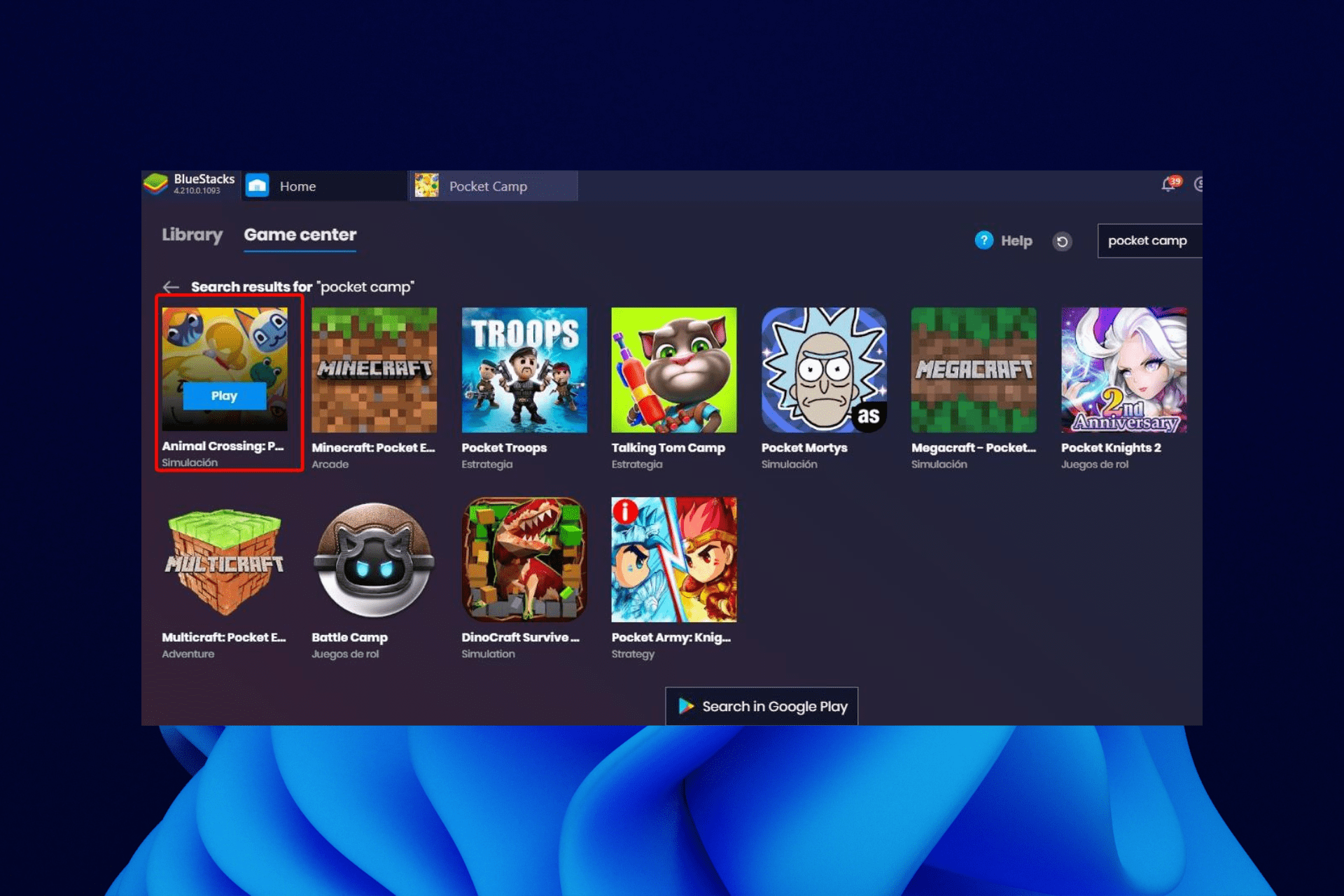
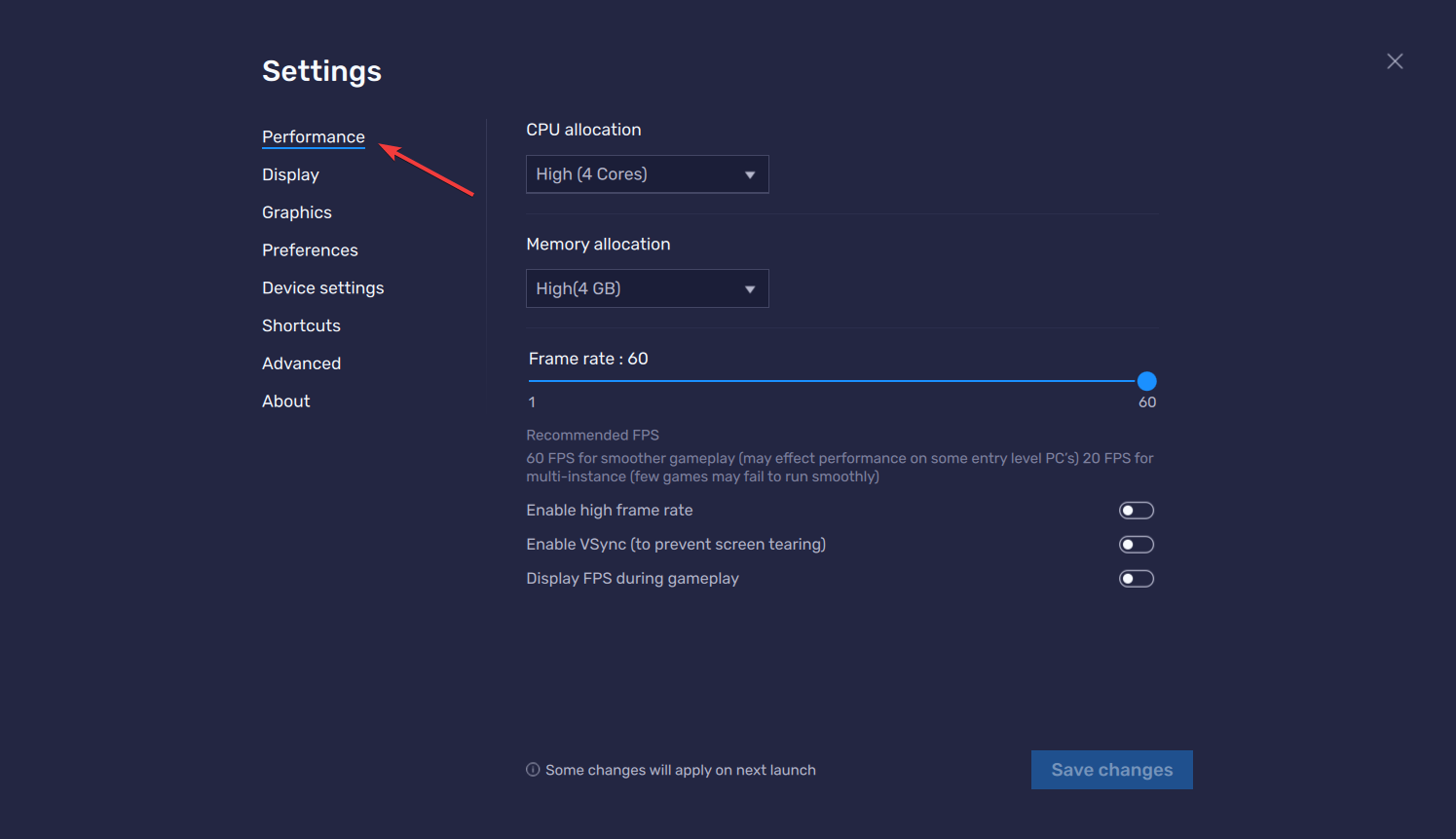
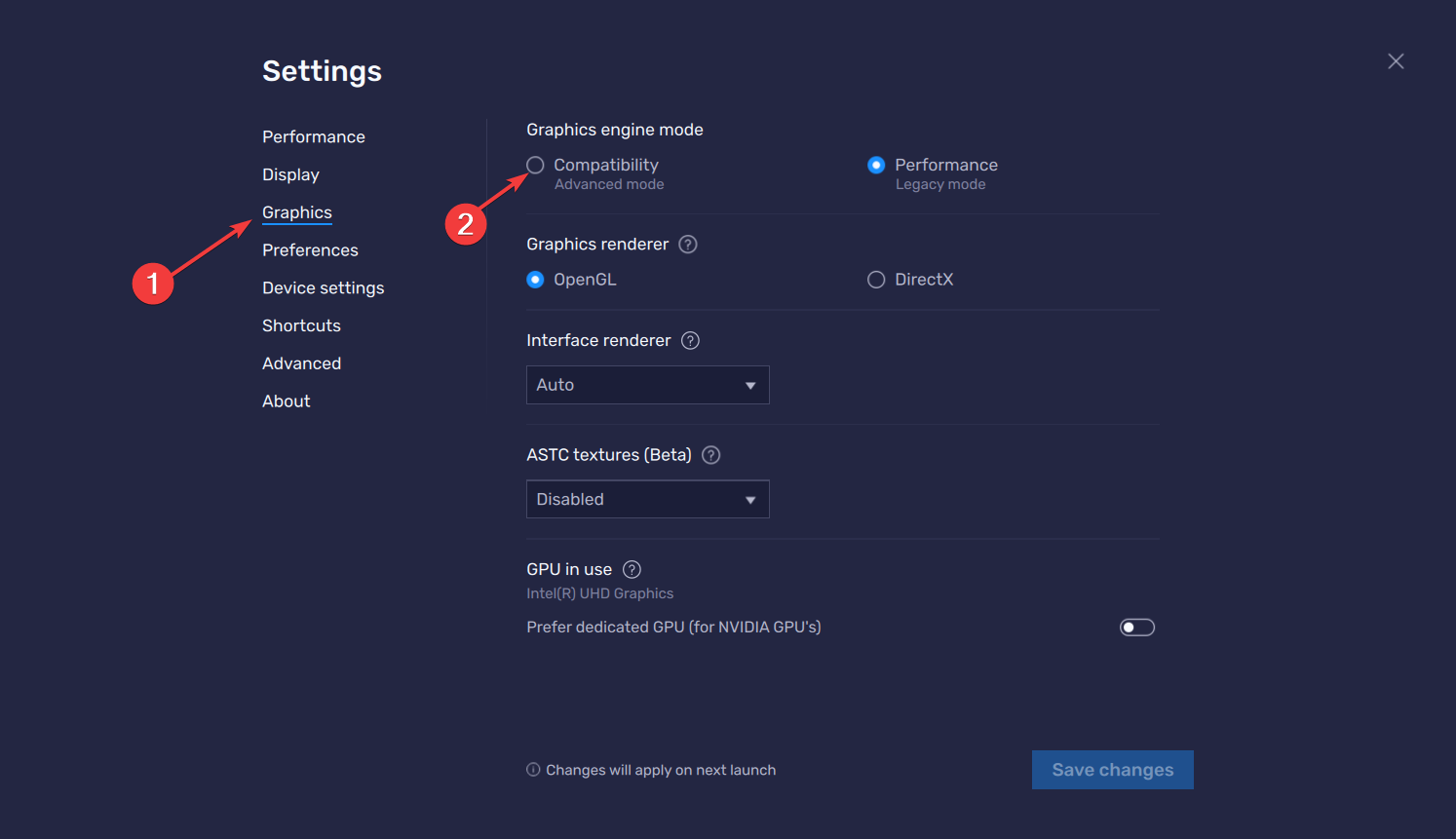
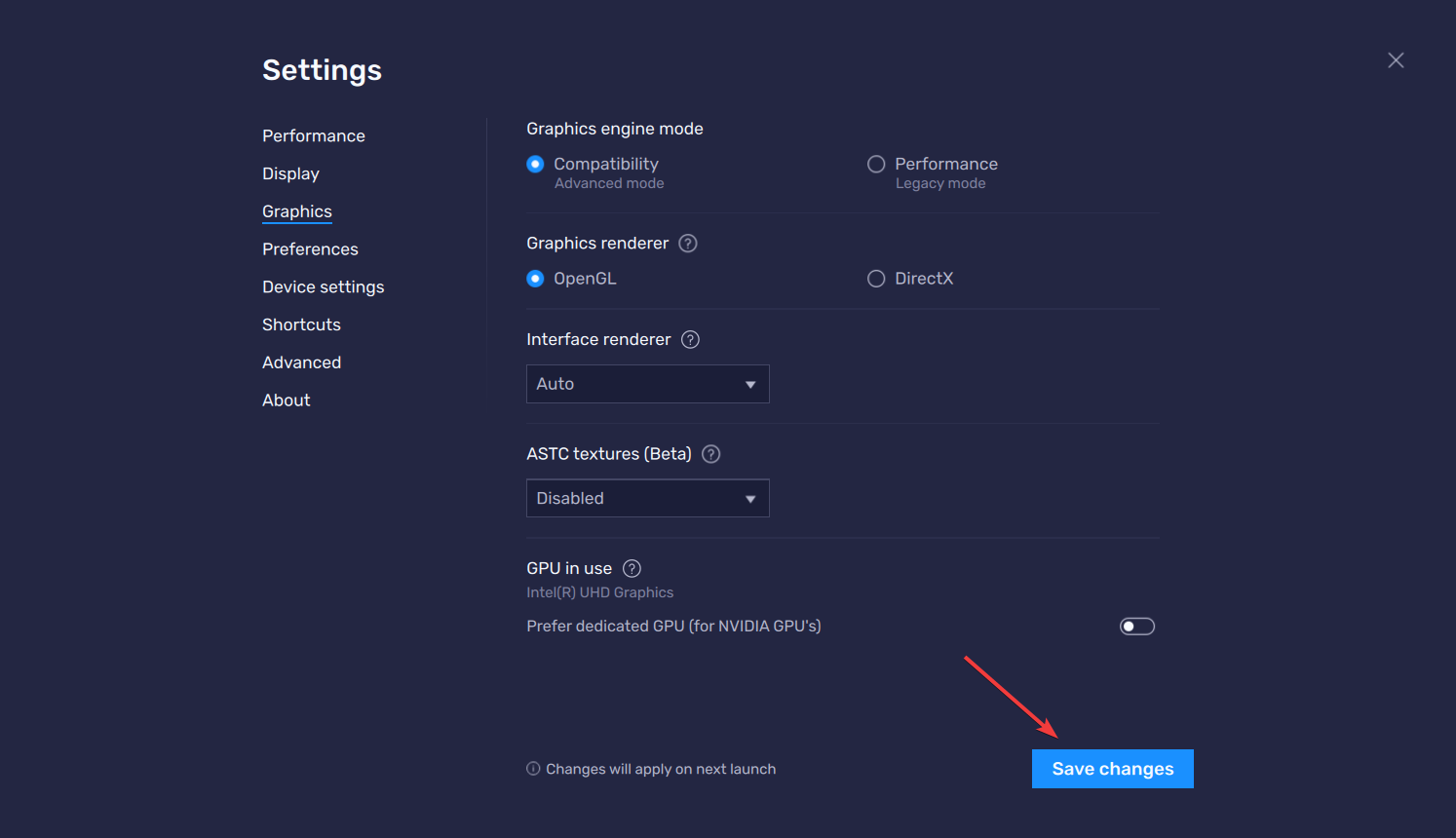

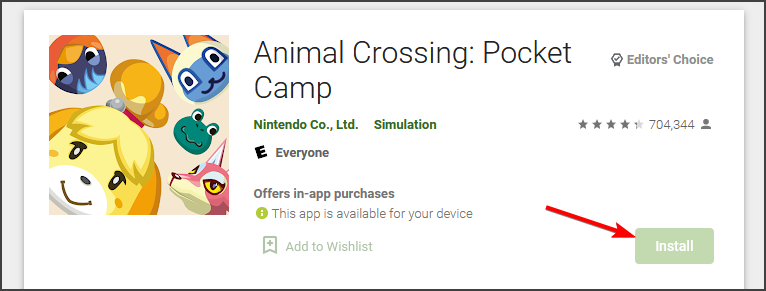
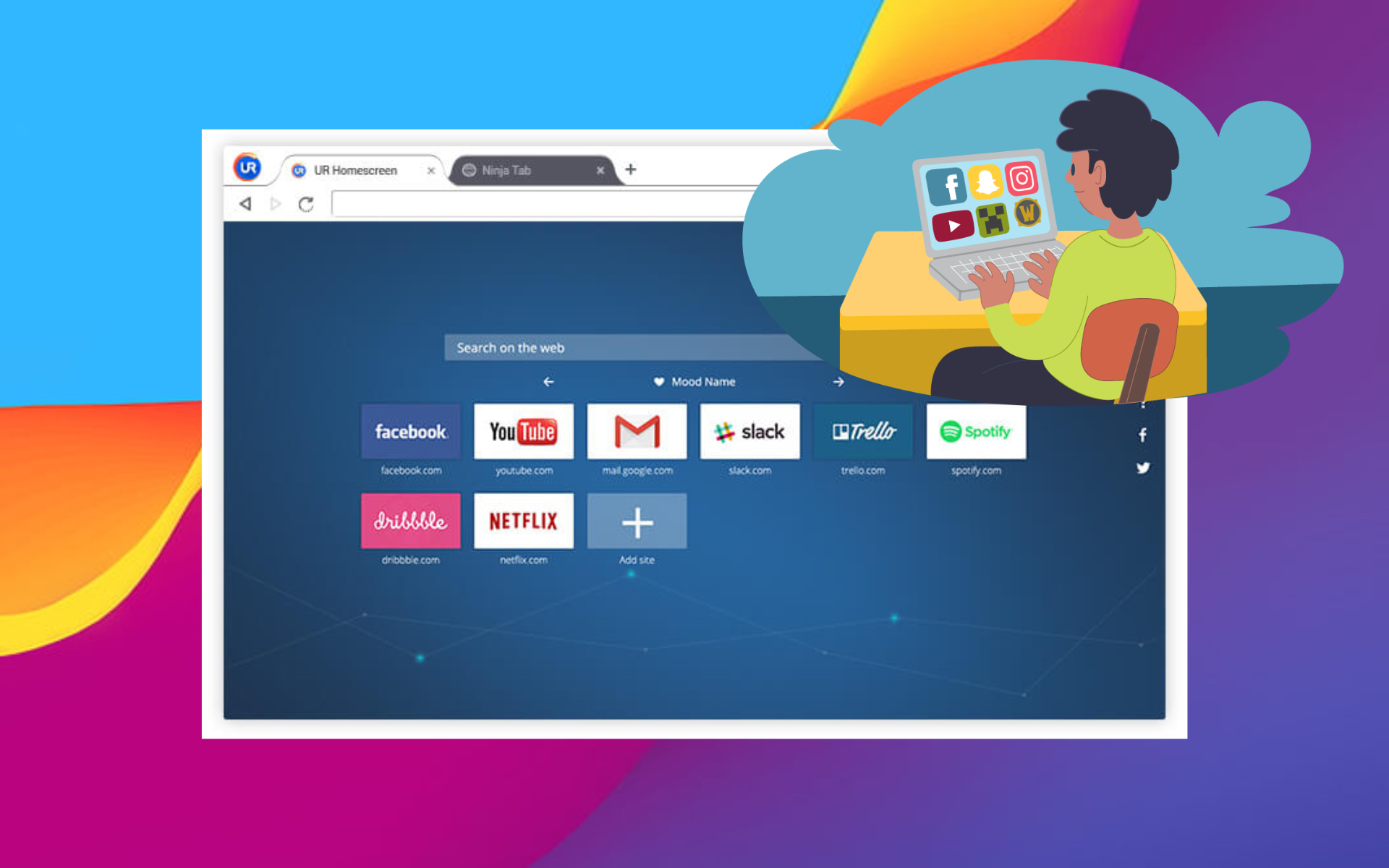




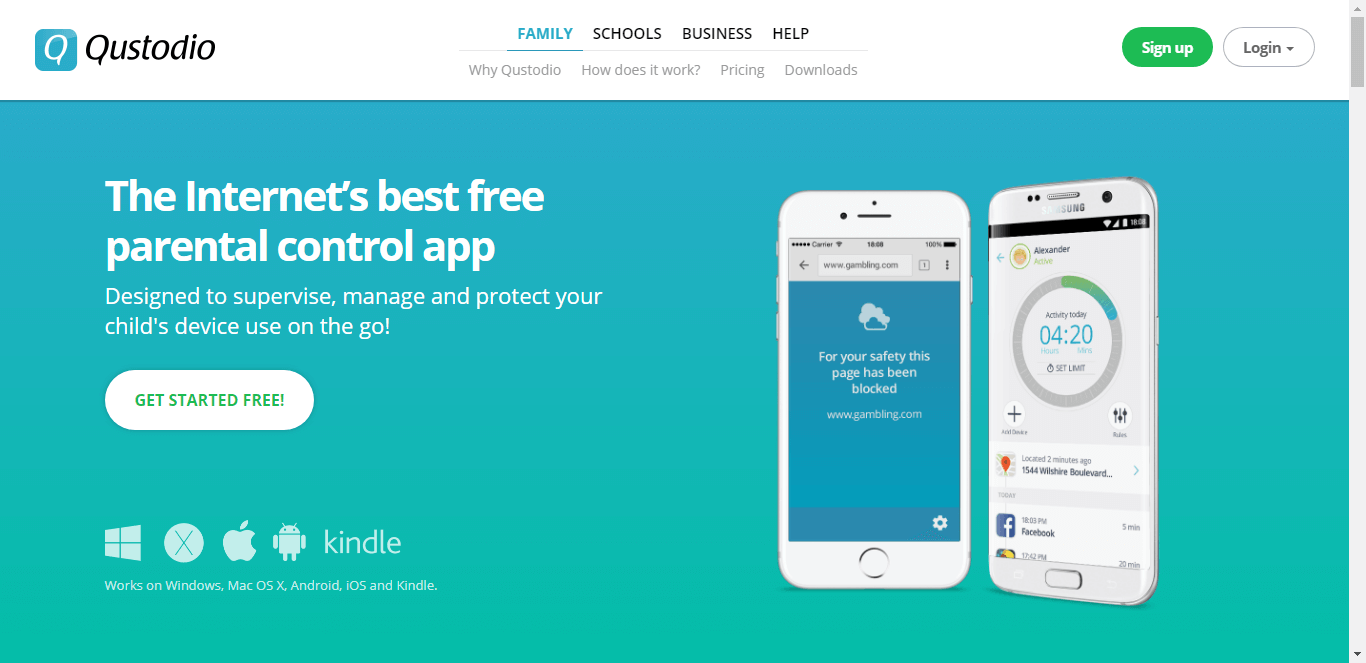

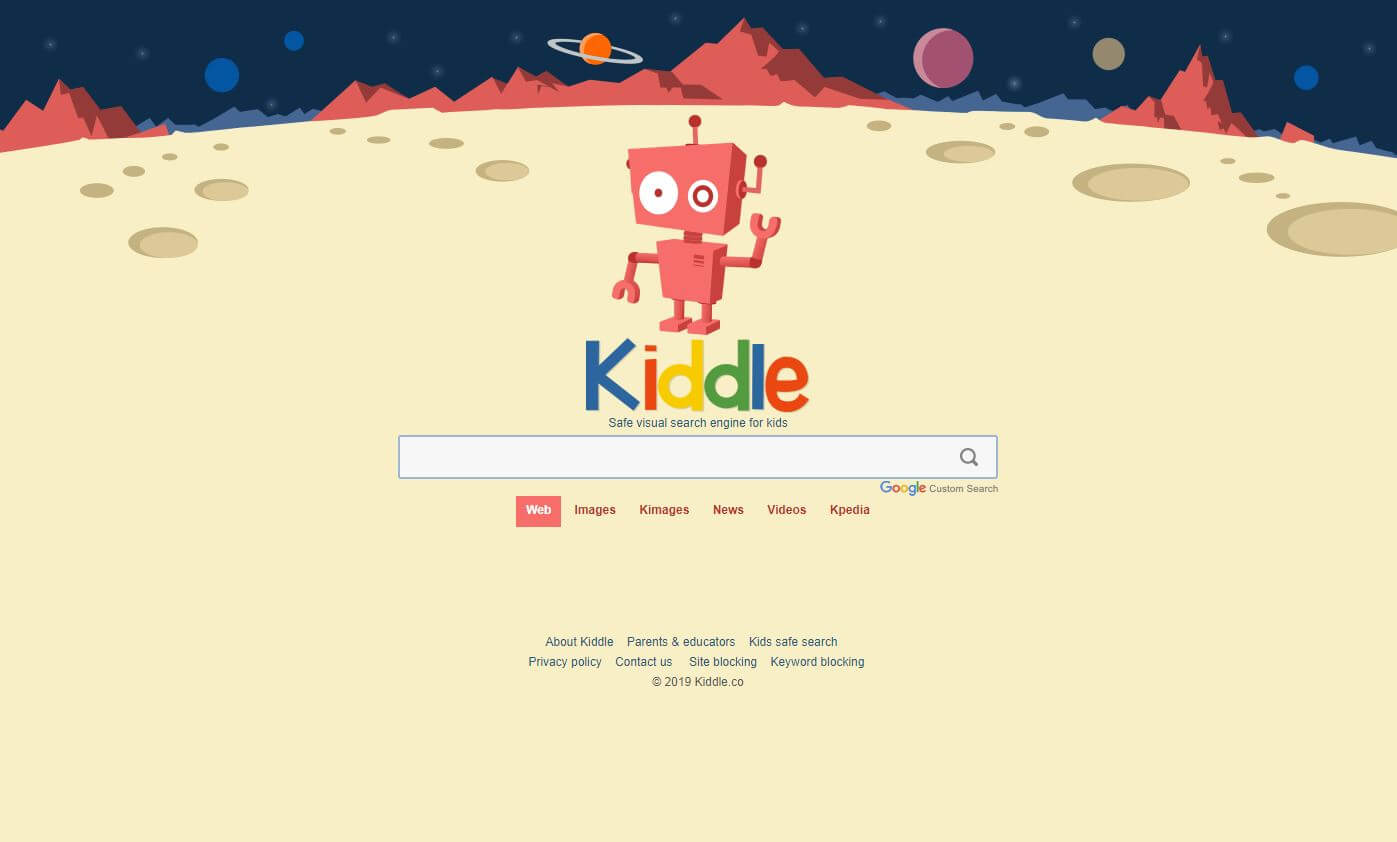
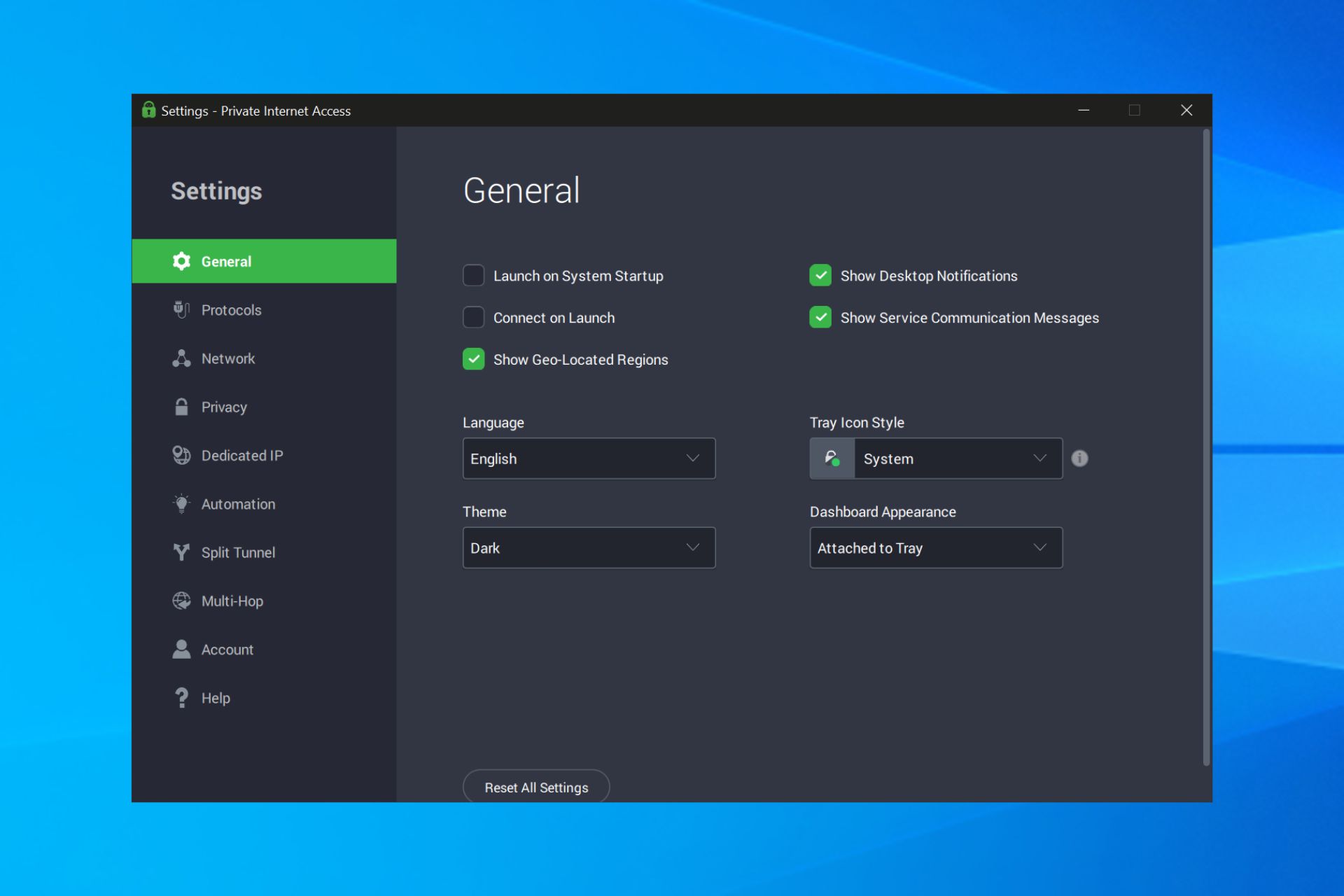
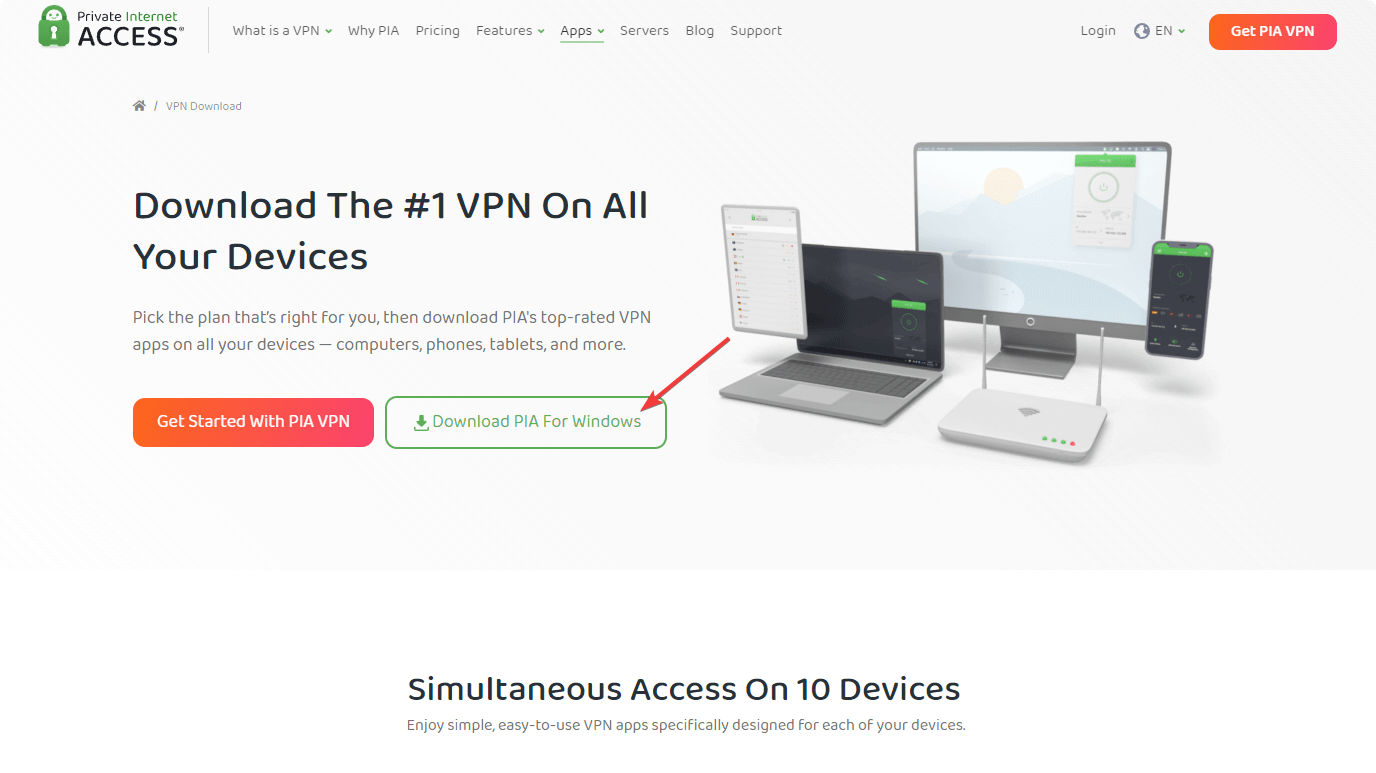
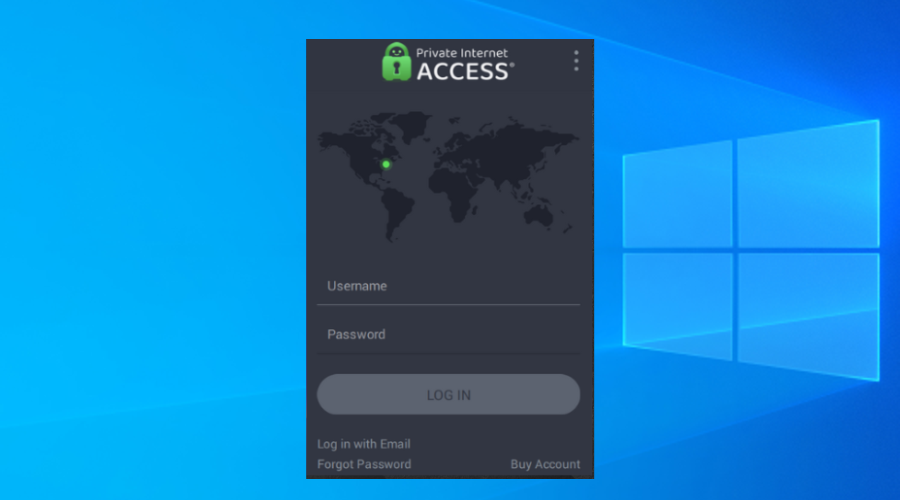
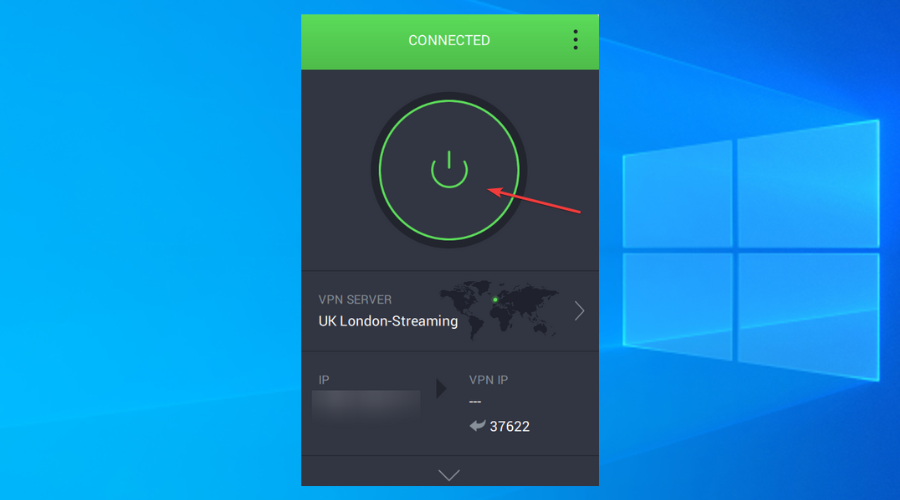
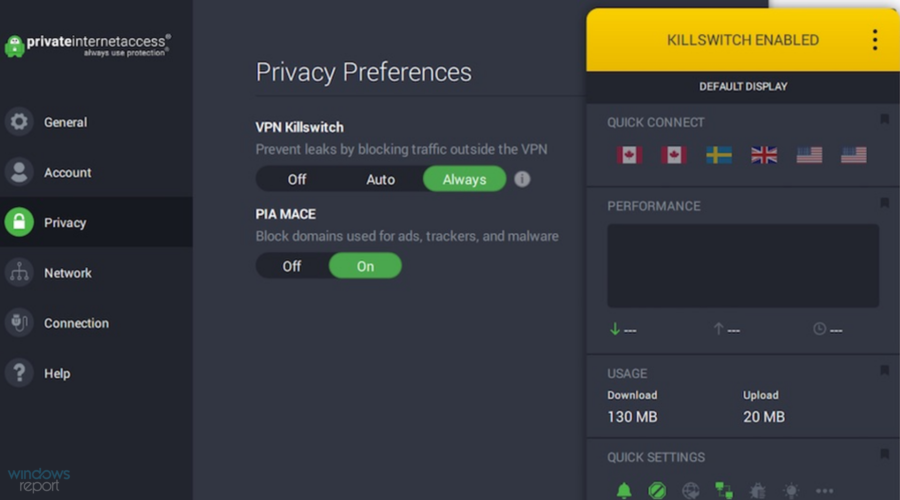

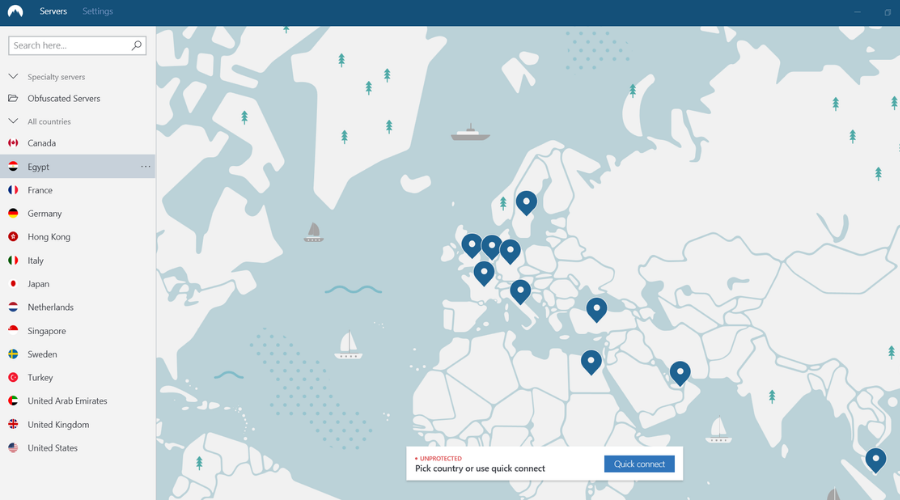

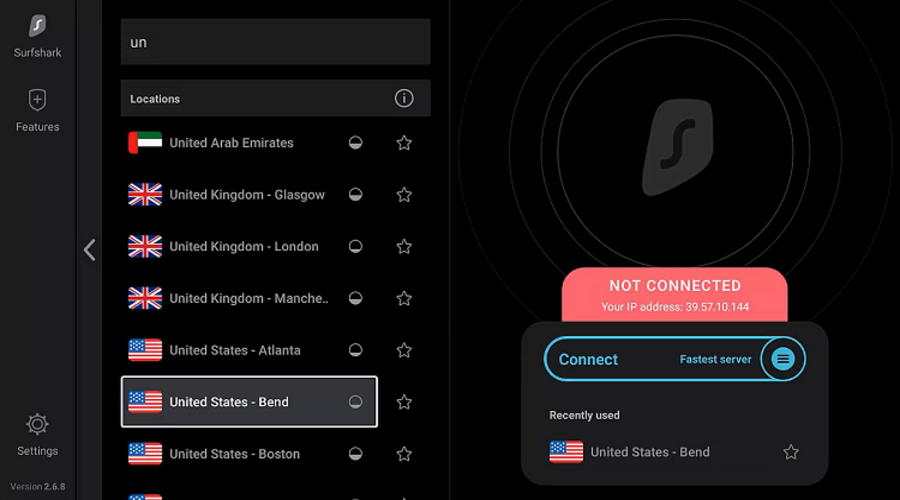

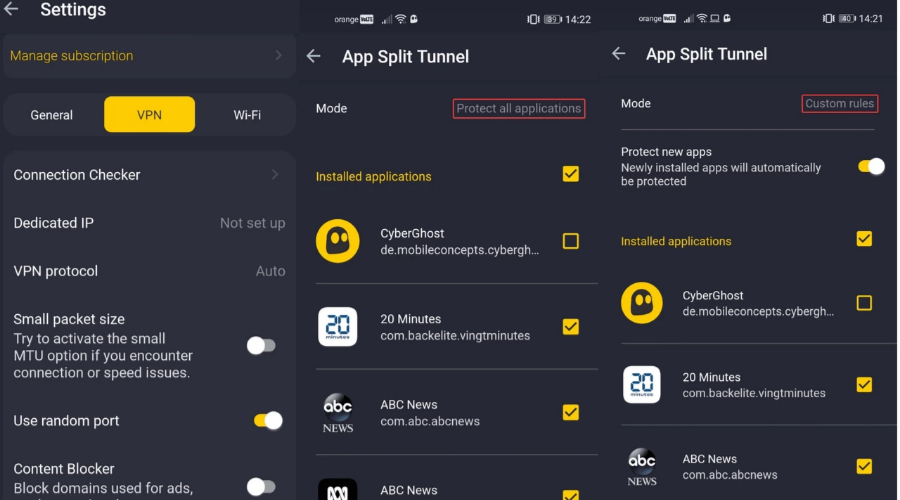

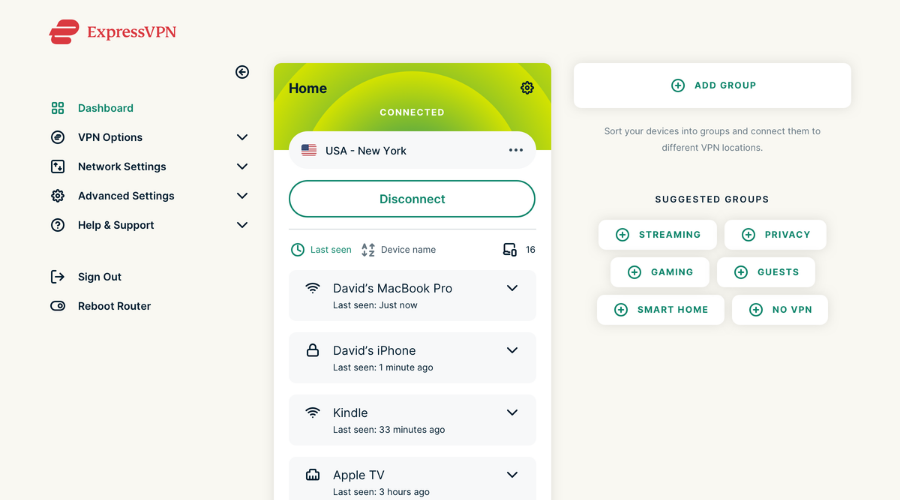

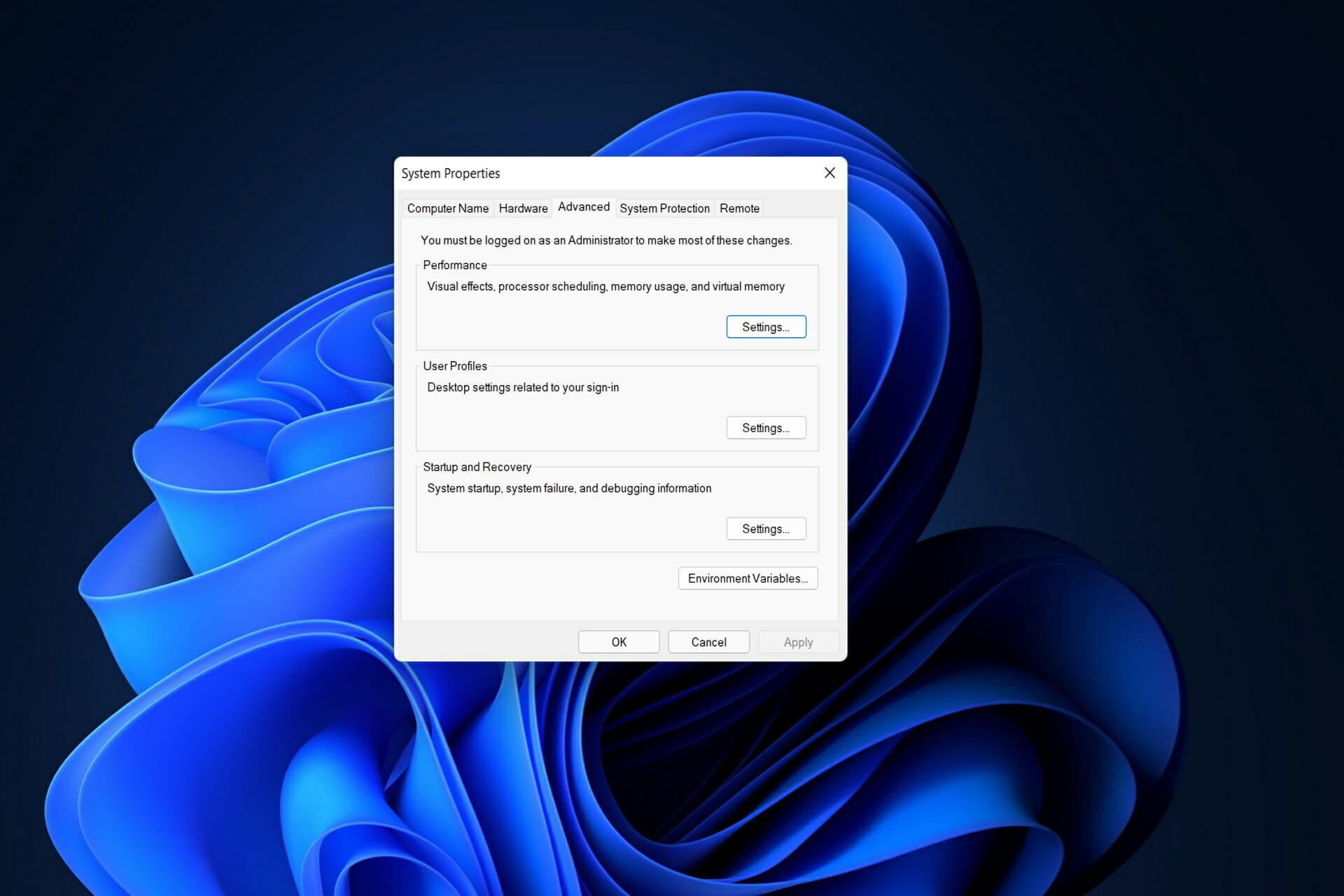


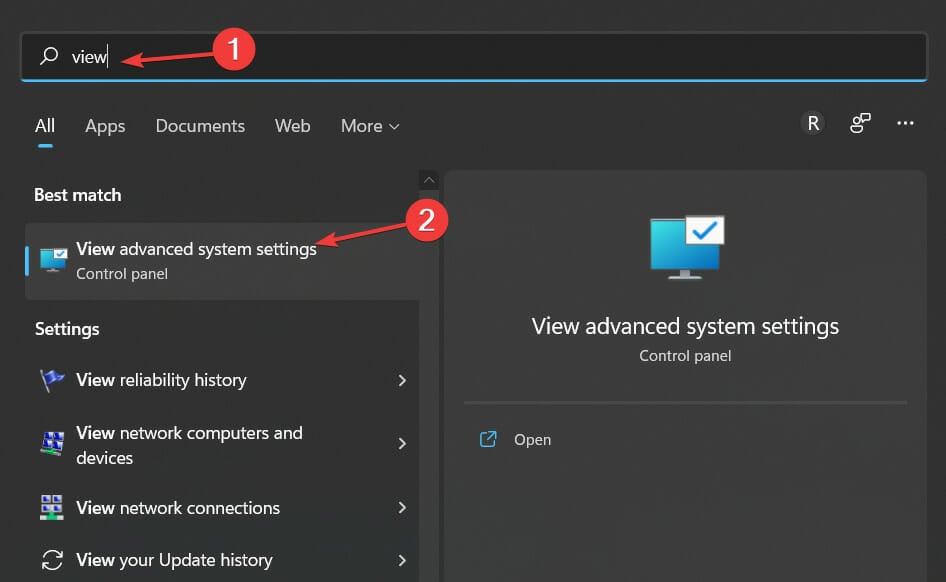
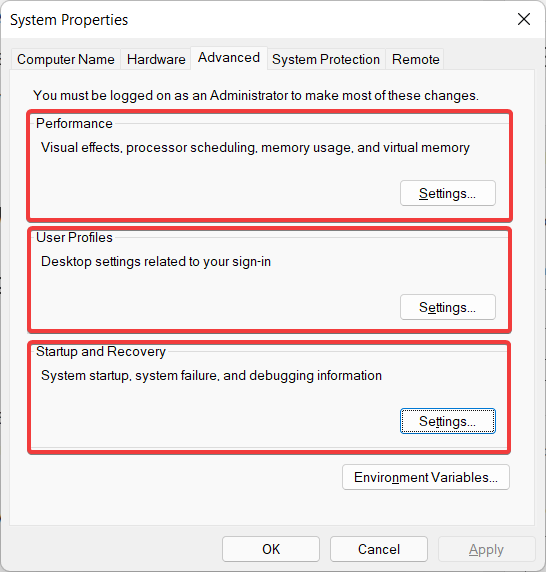
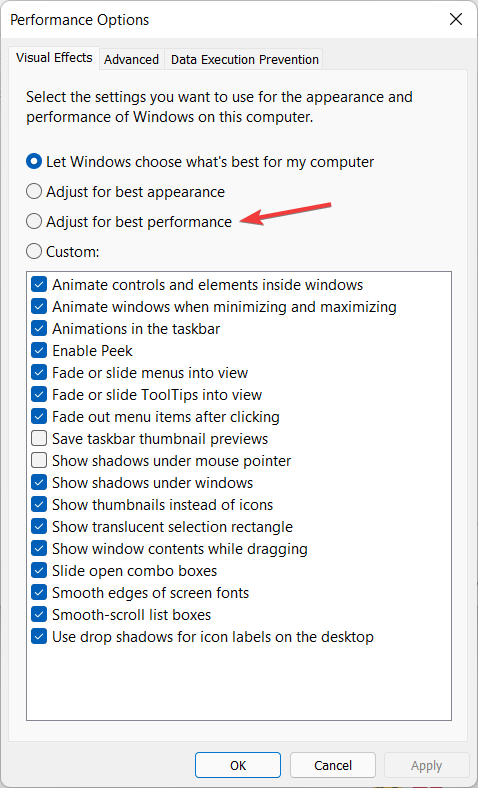

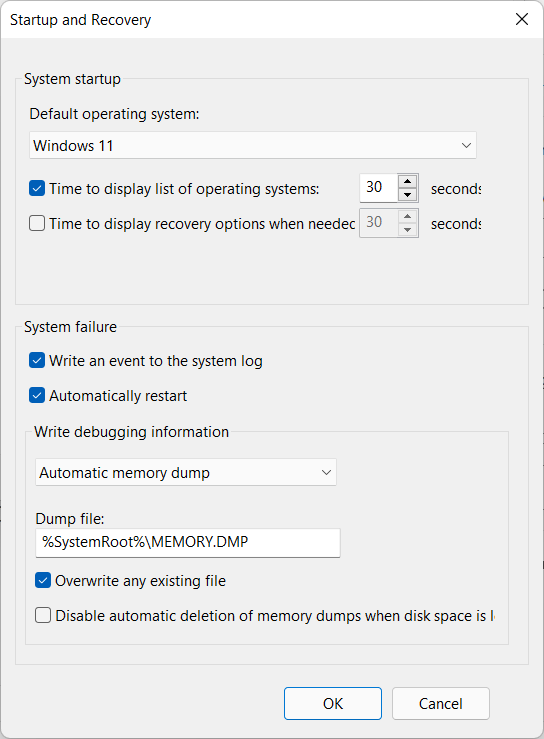


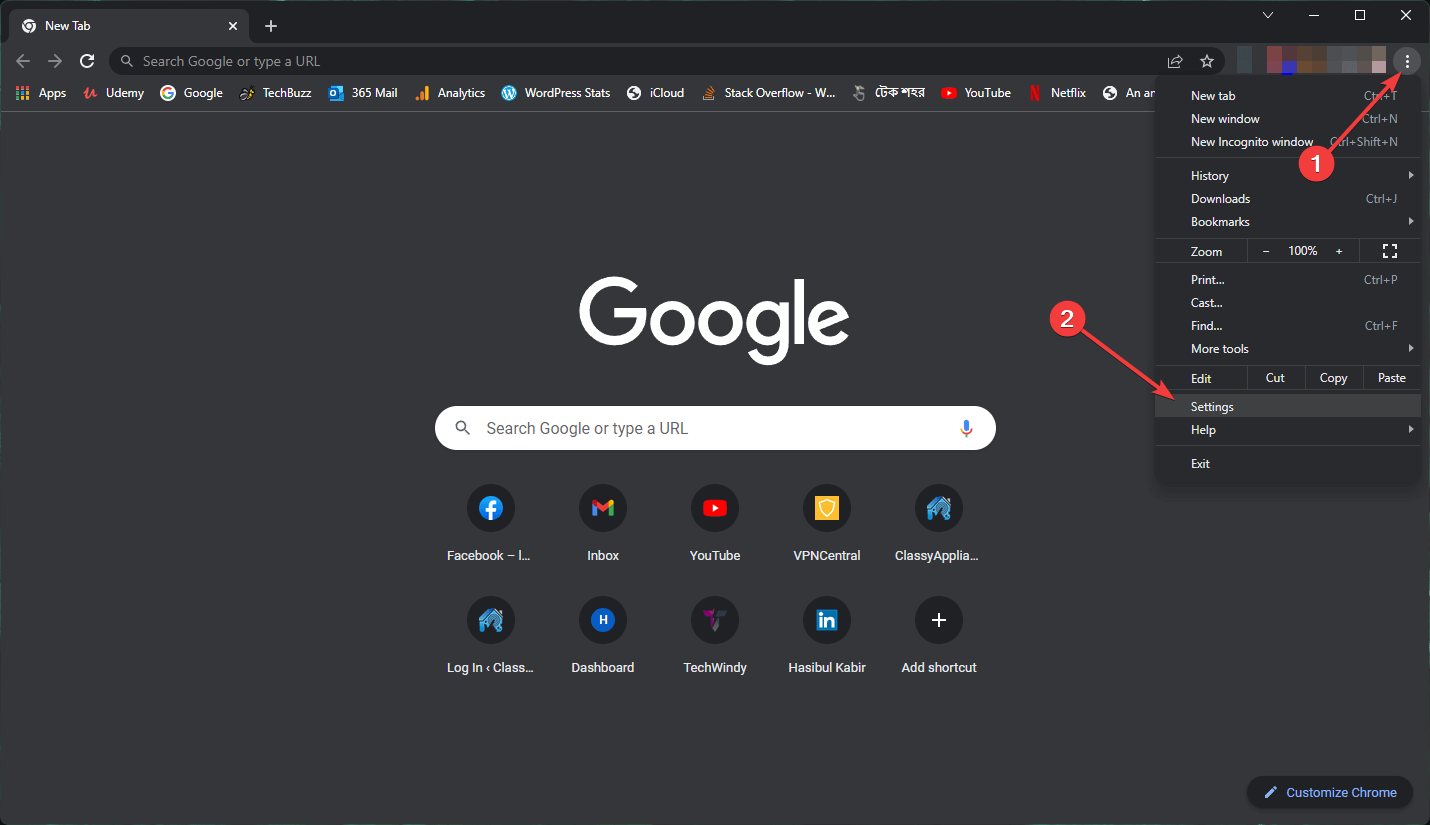
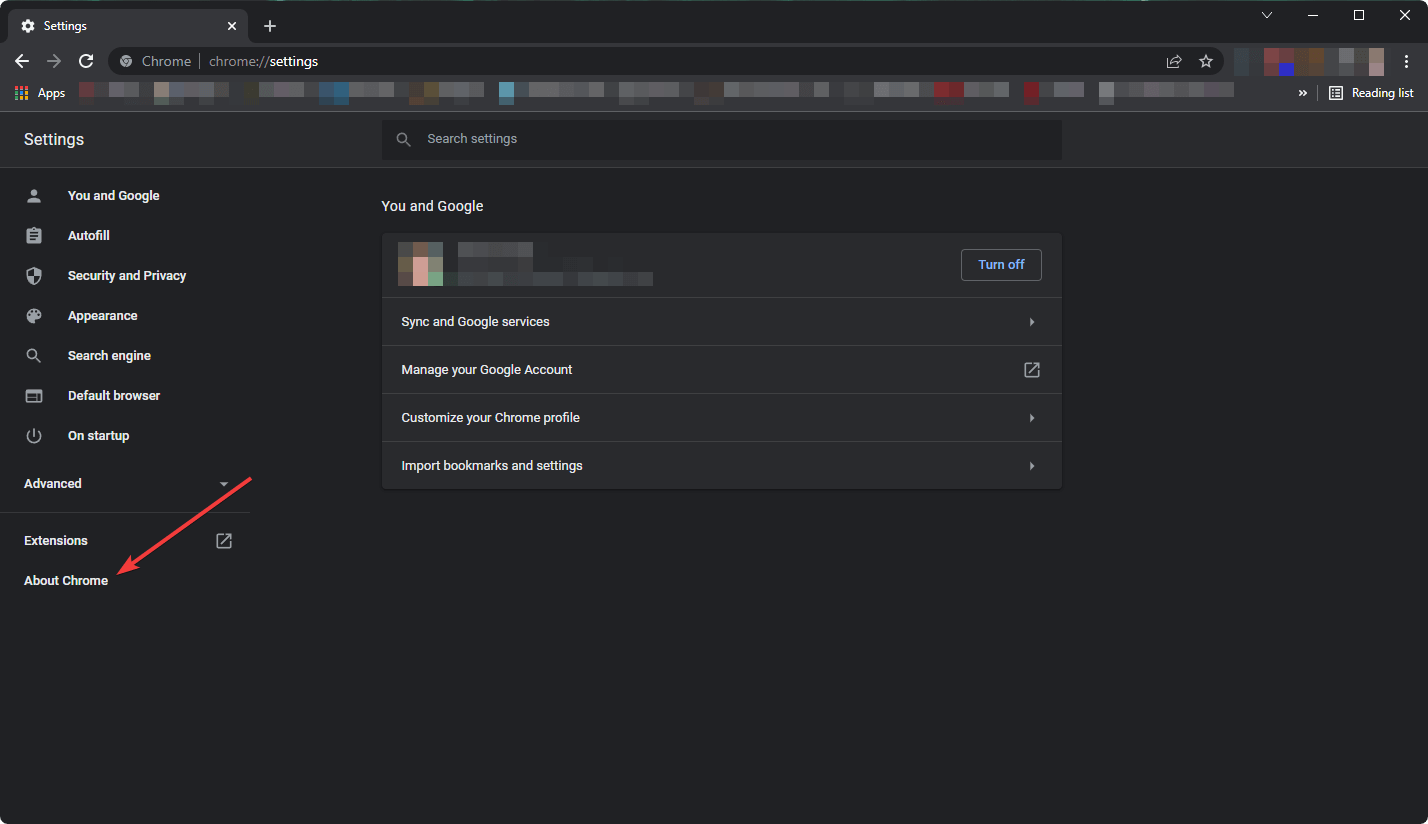
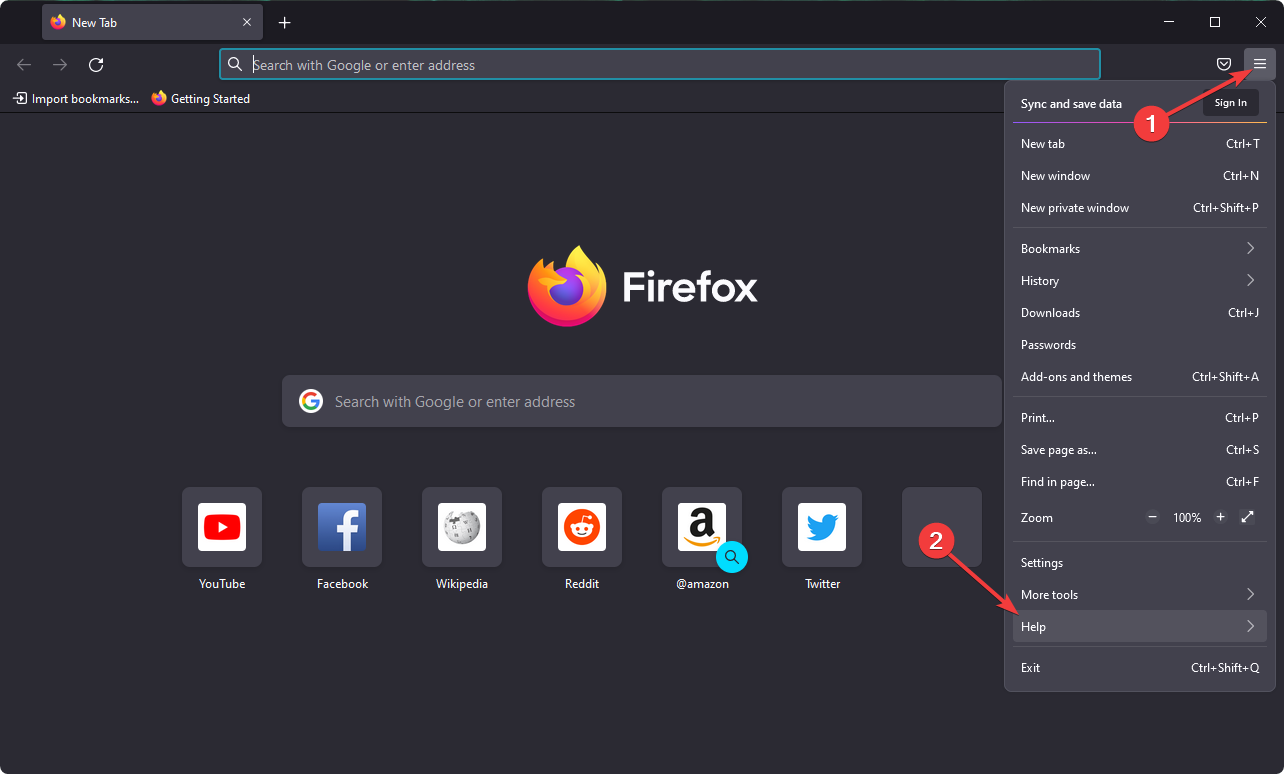
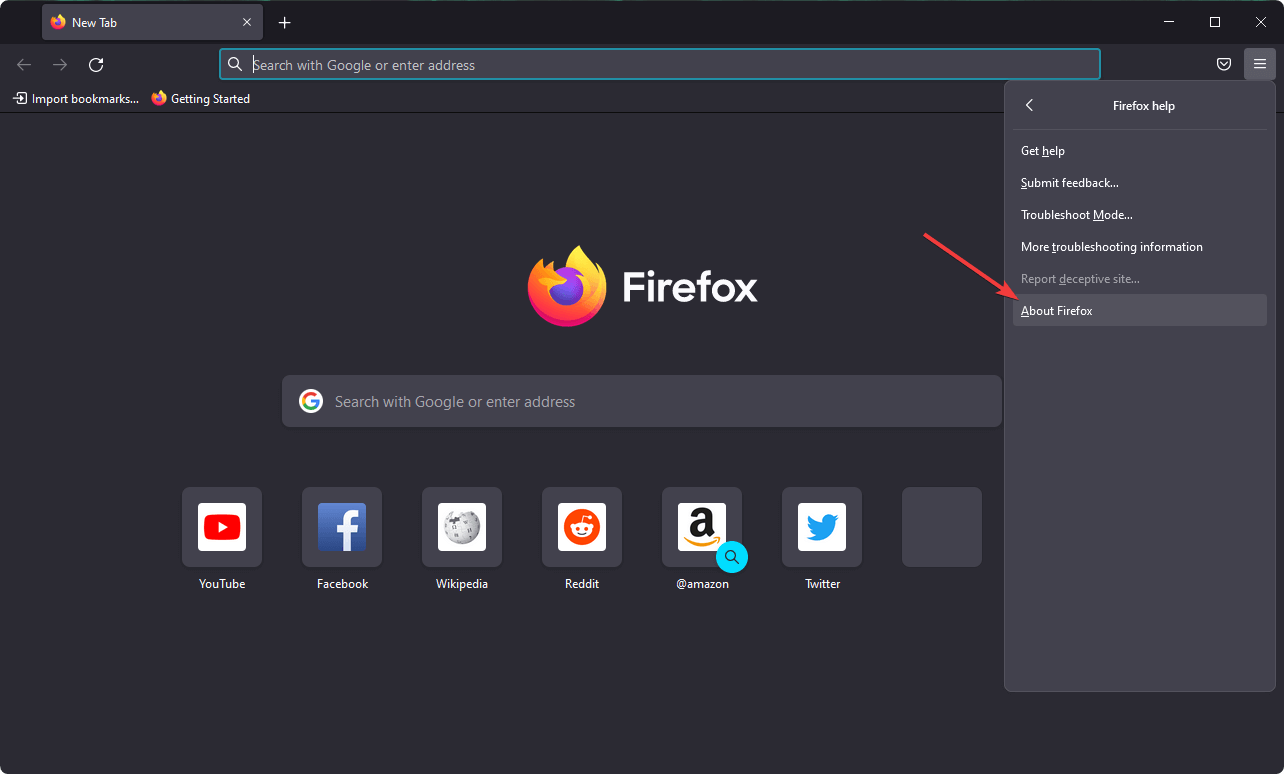
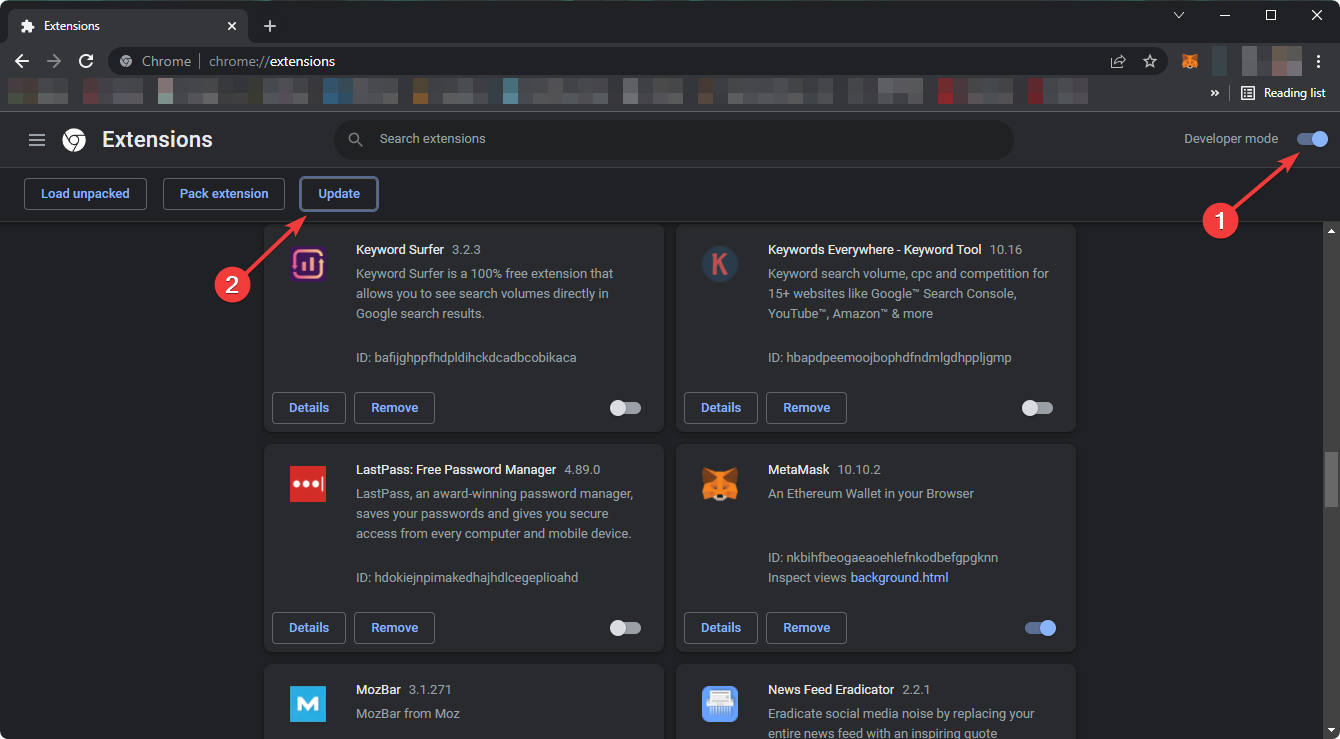

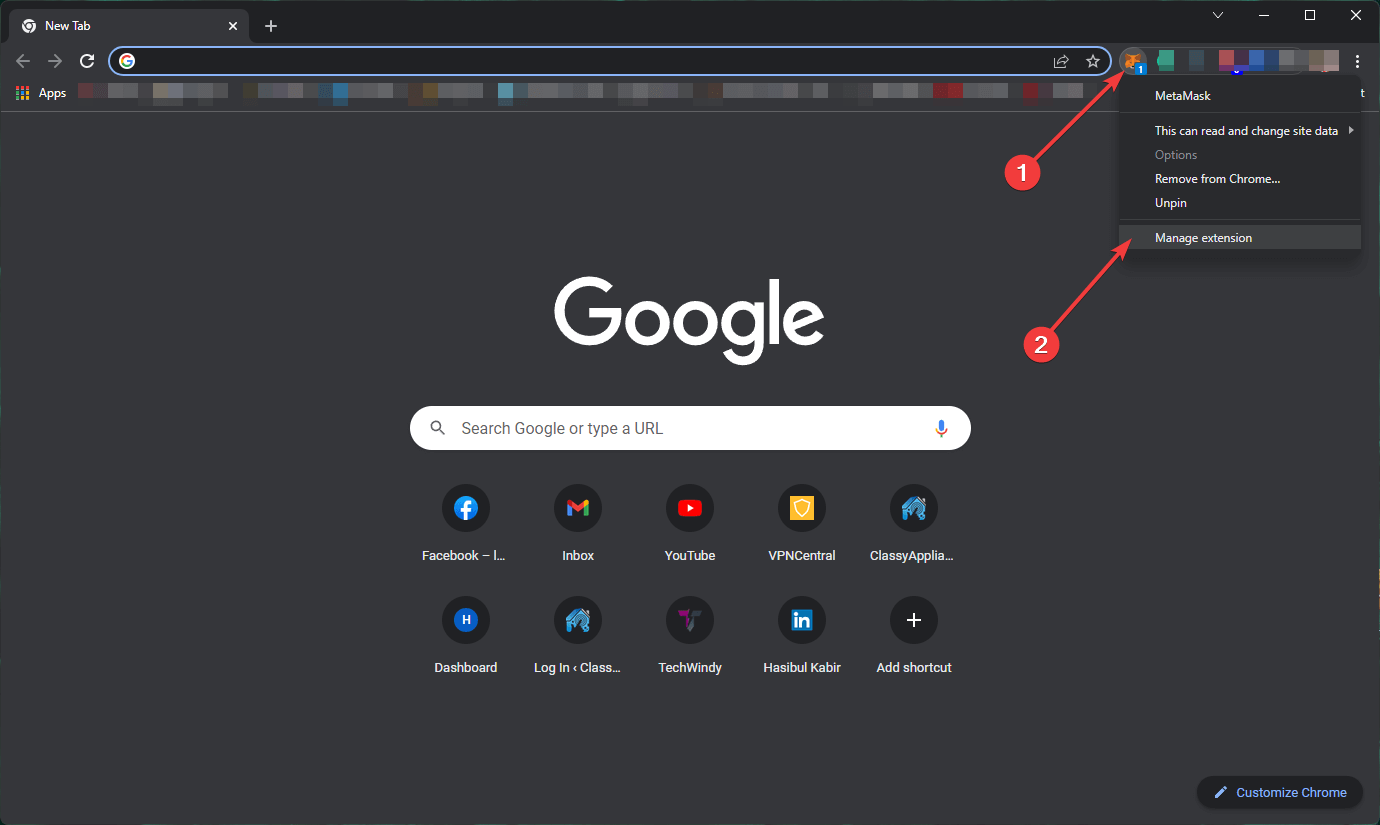
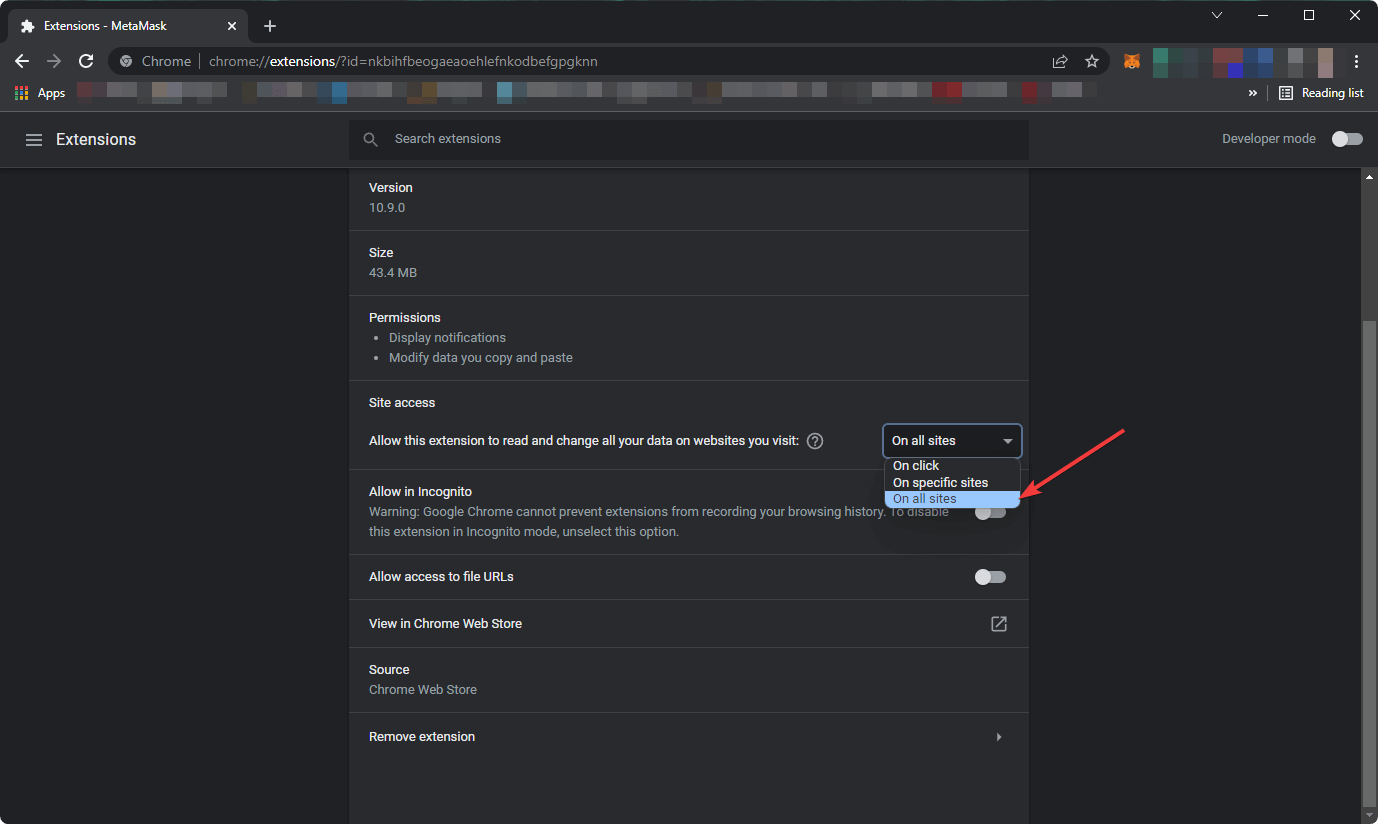
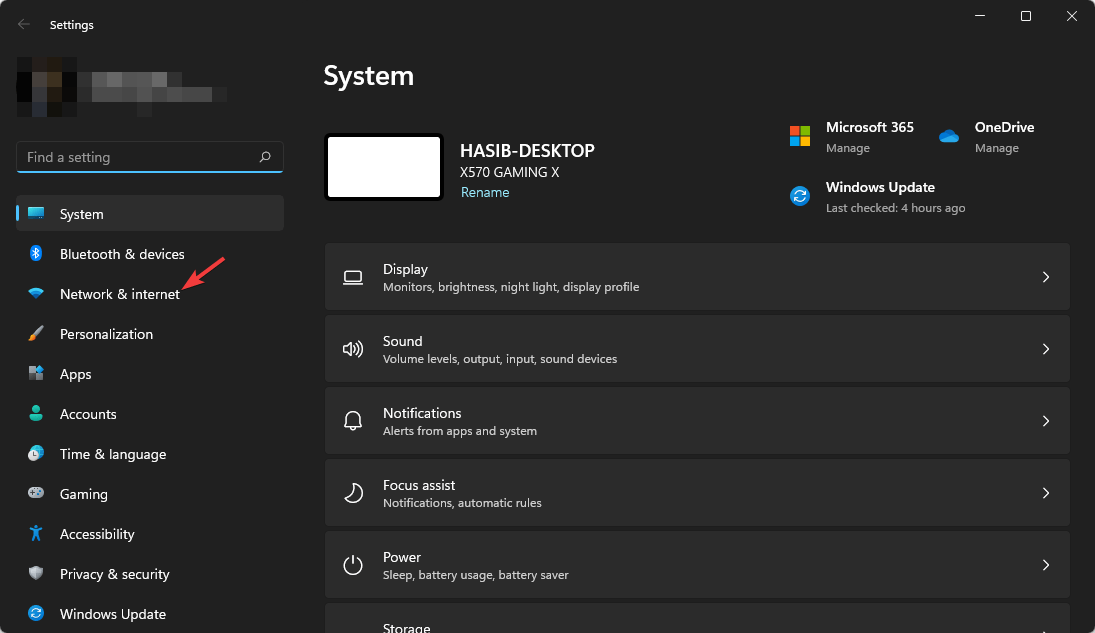
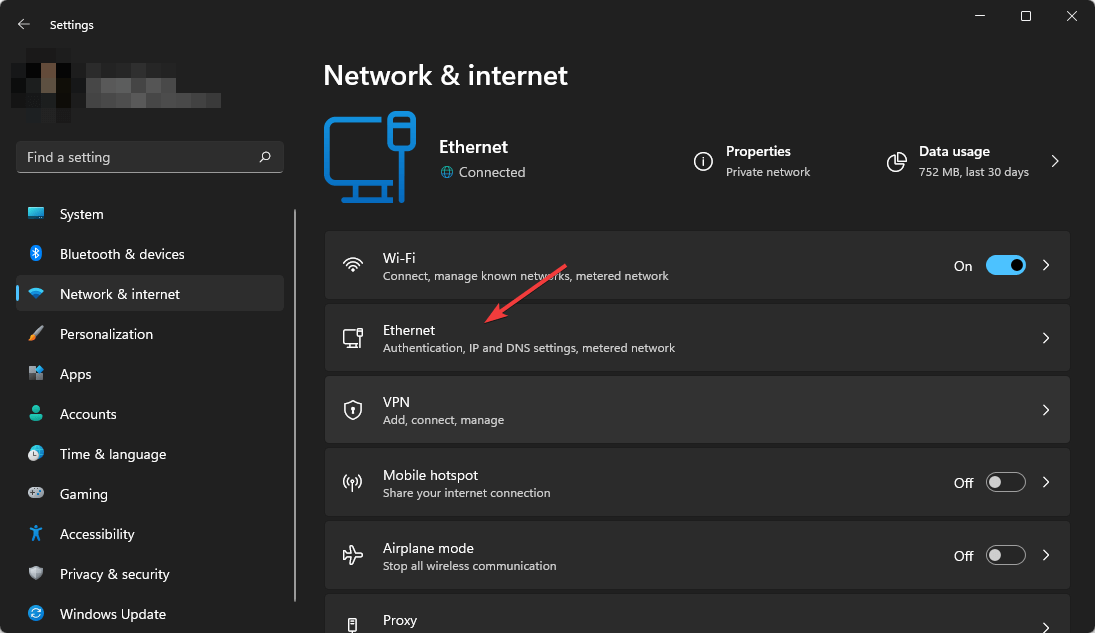
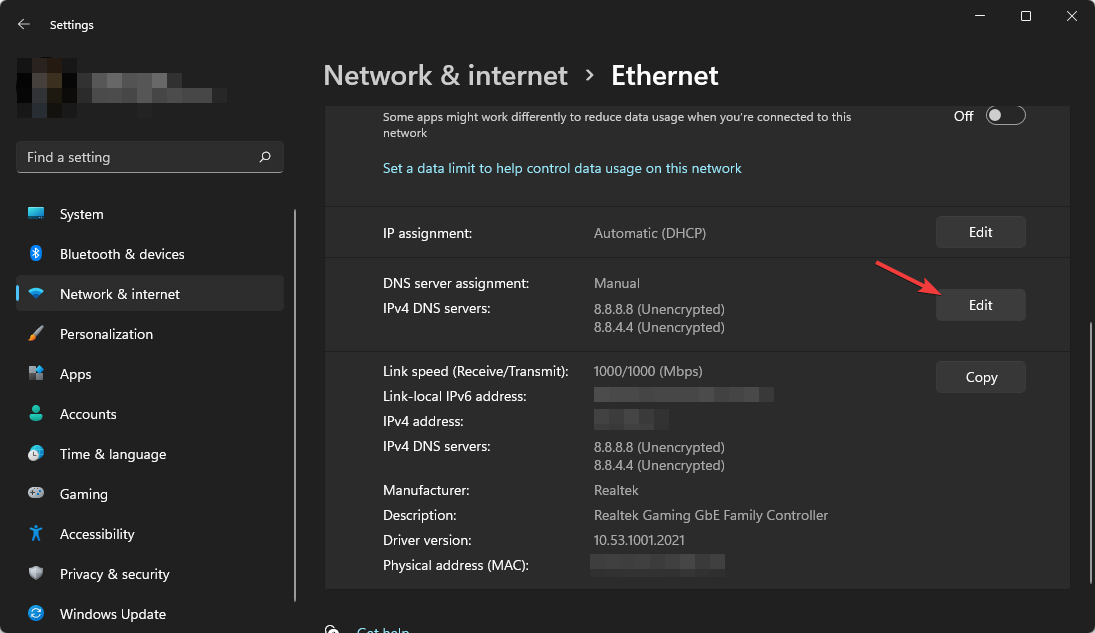
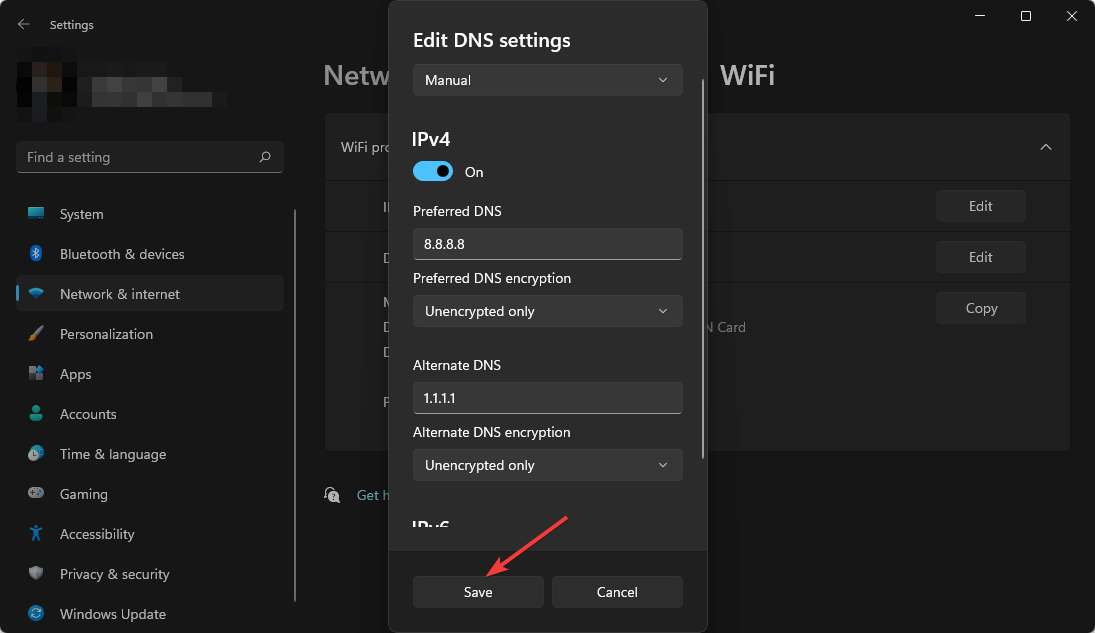
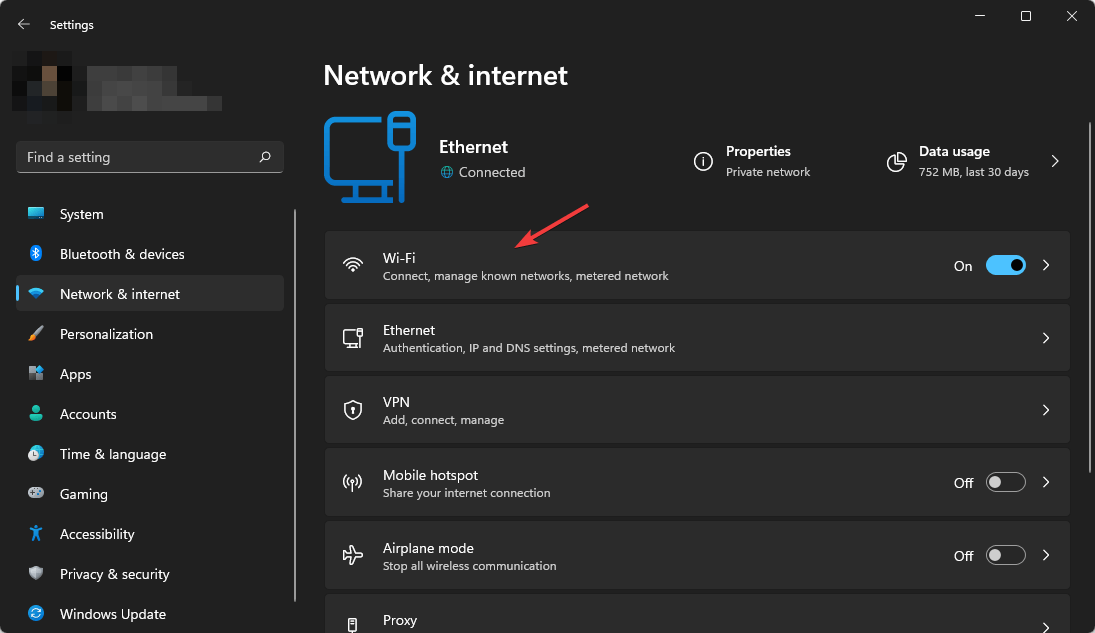
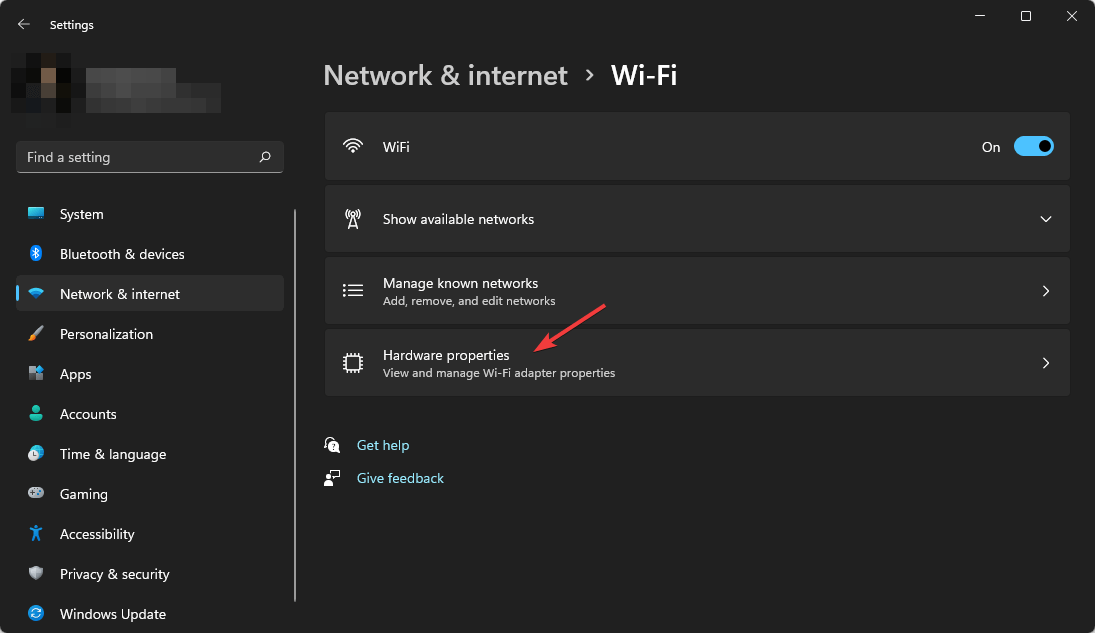
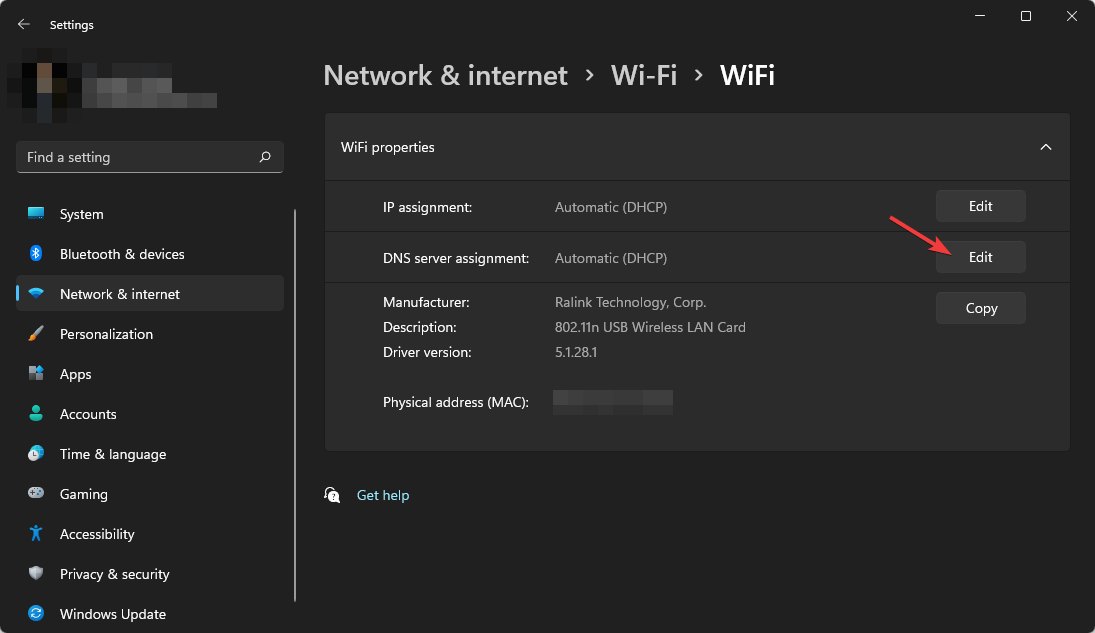
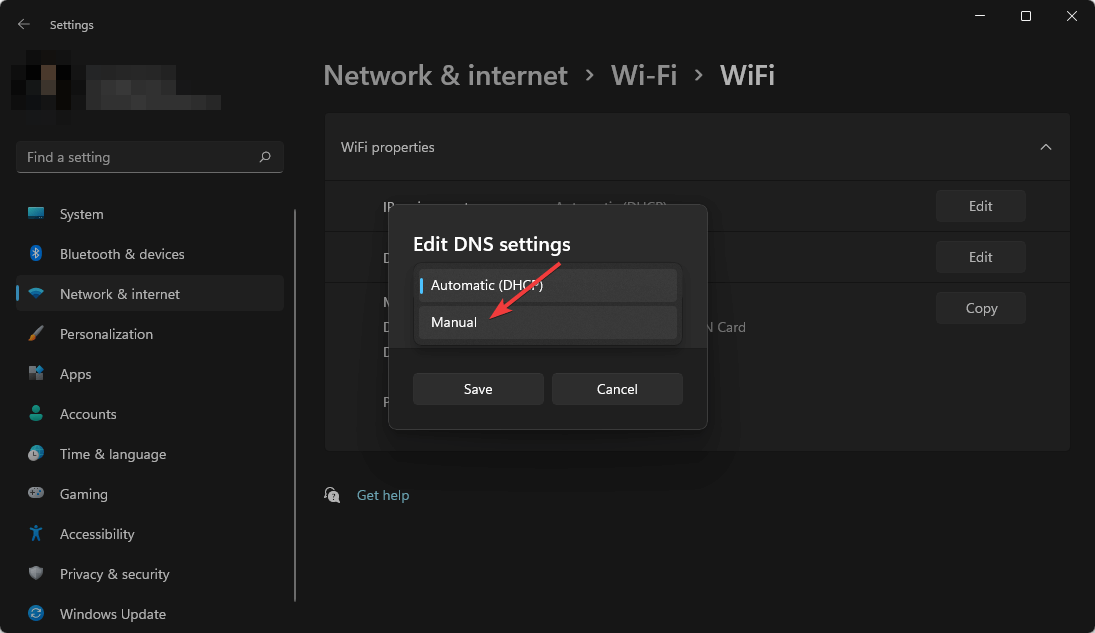
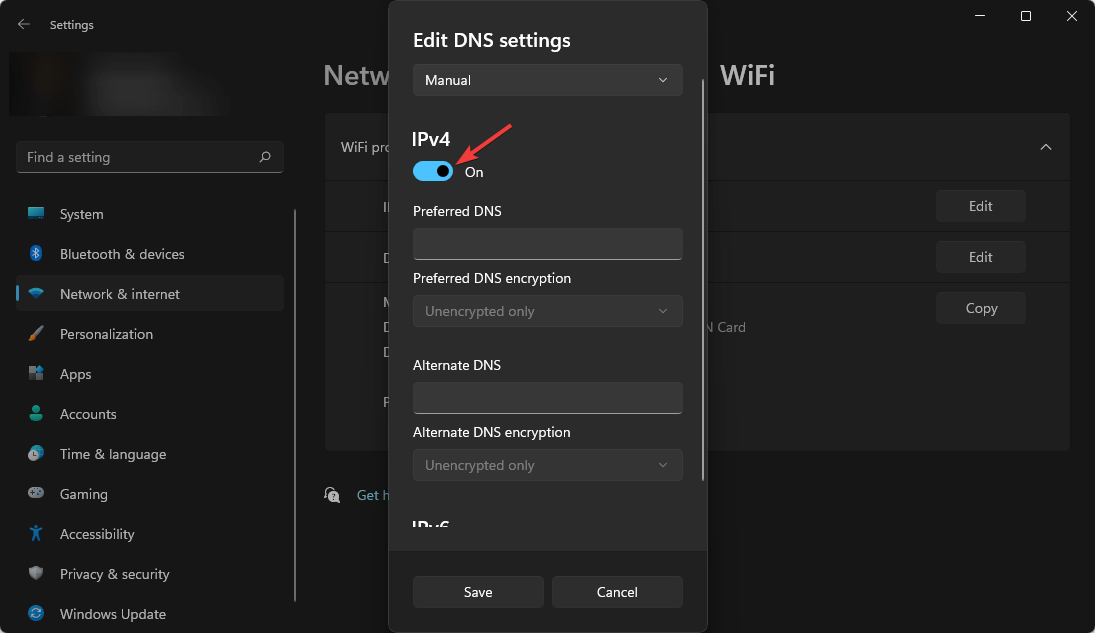
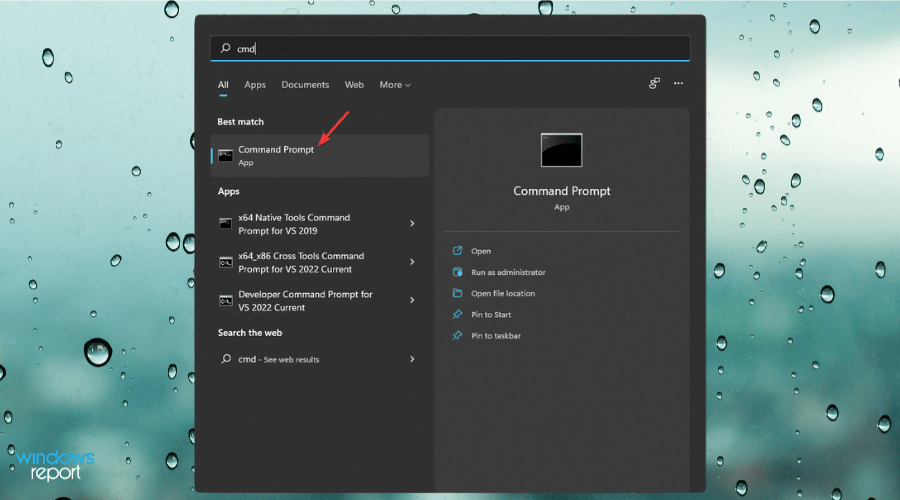
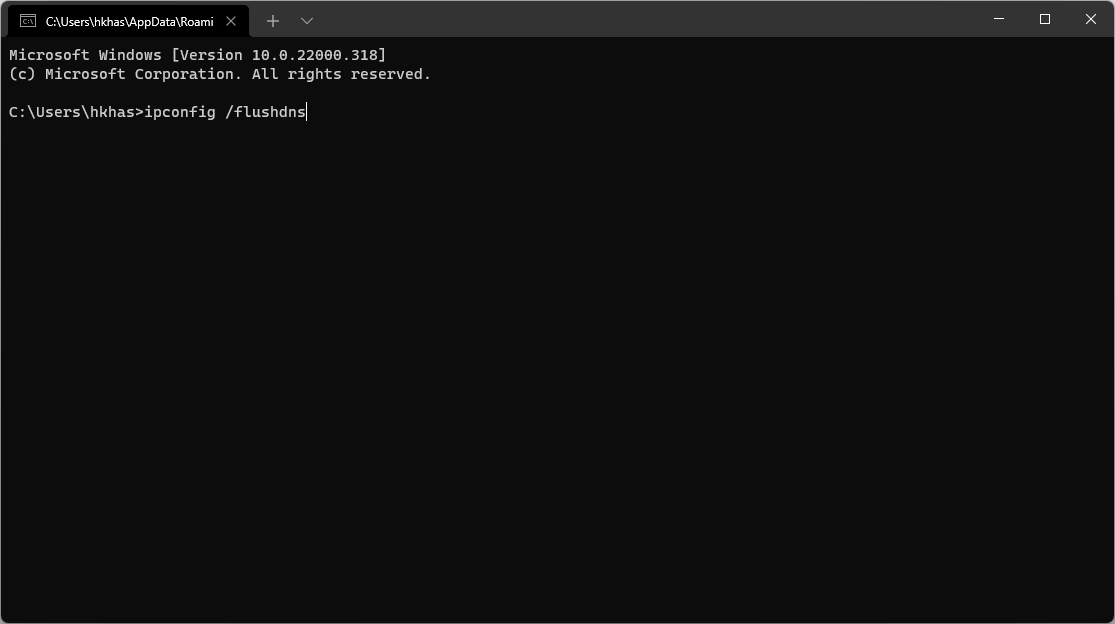


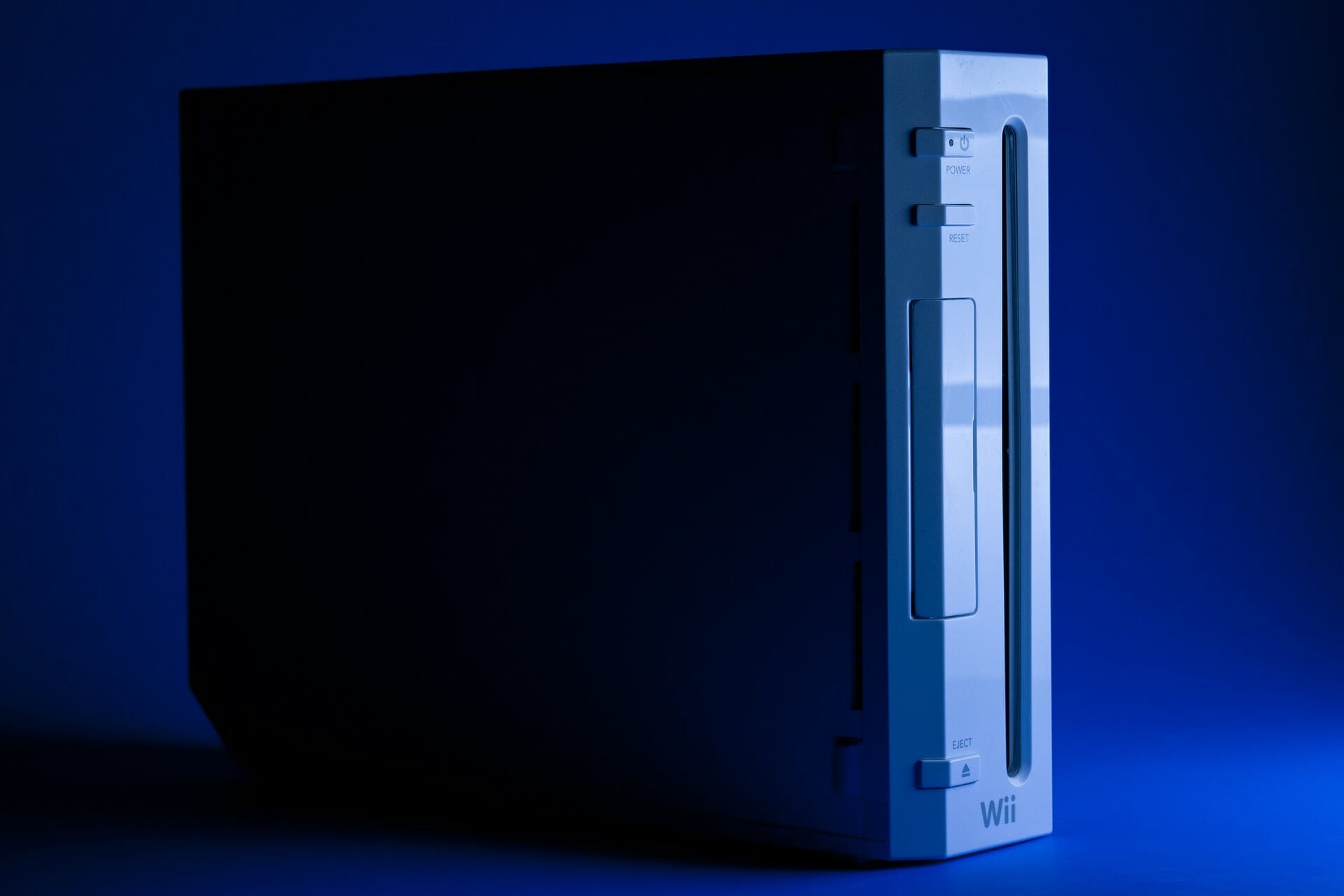



![Browser Doesn’t Supply the Credentials Required [Fix Easily]](https://windowsreport.com/wp-content/uploads/2020/07/your-browser-doesnt-understand-how-to-supply-the-credentials-required.png)


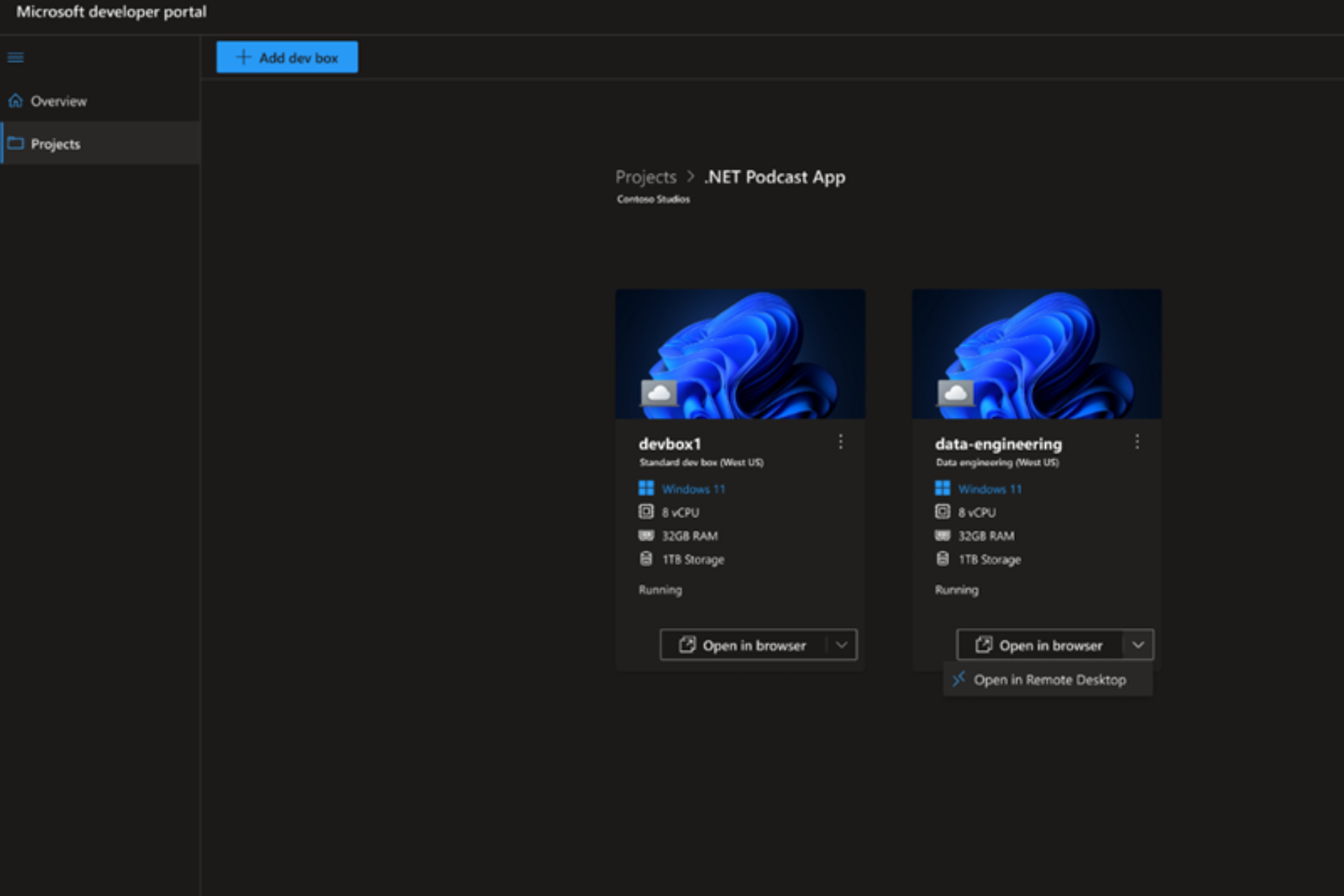
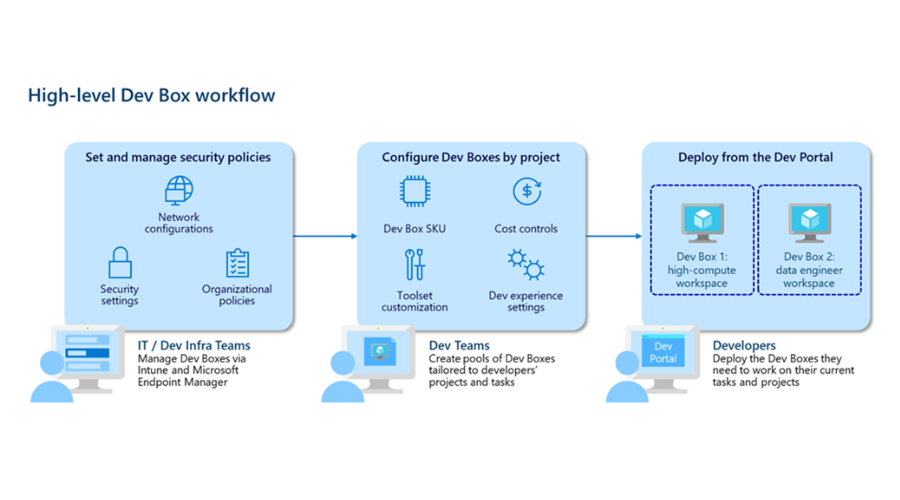

![Chrome OS Flex: How to Download & Install [ISO for PC]](https://windowsreport.com/wp-content/uploads/2022/08/Welcome-to-cloudready.jpg)
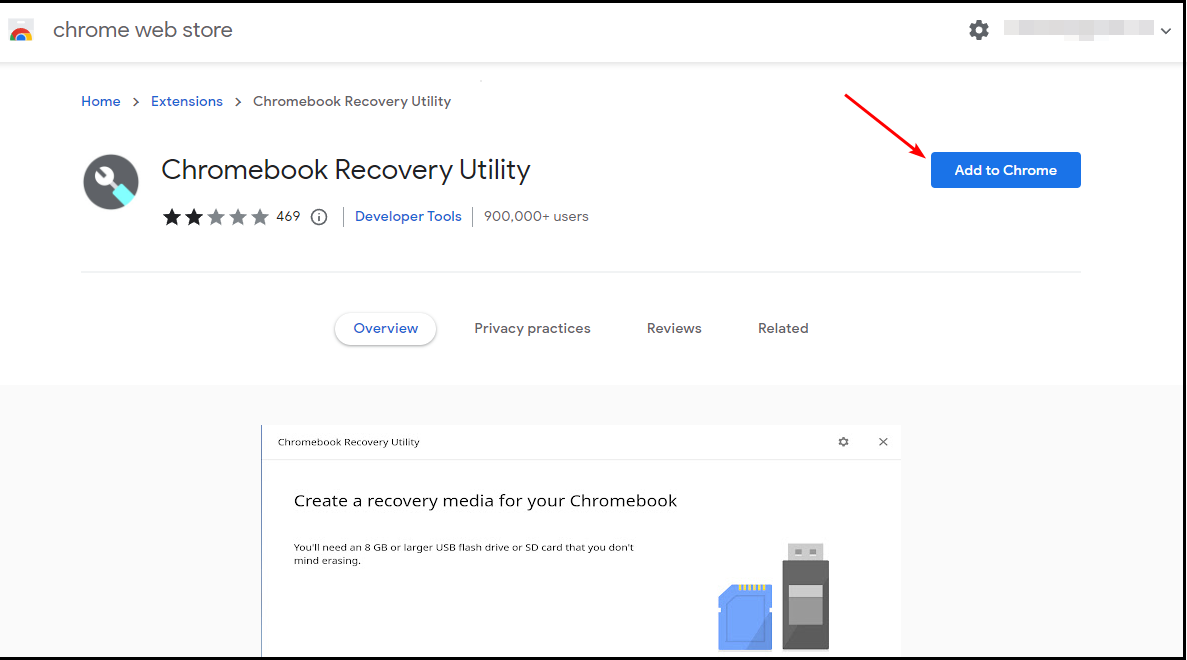
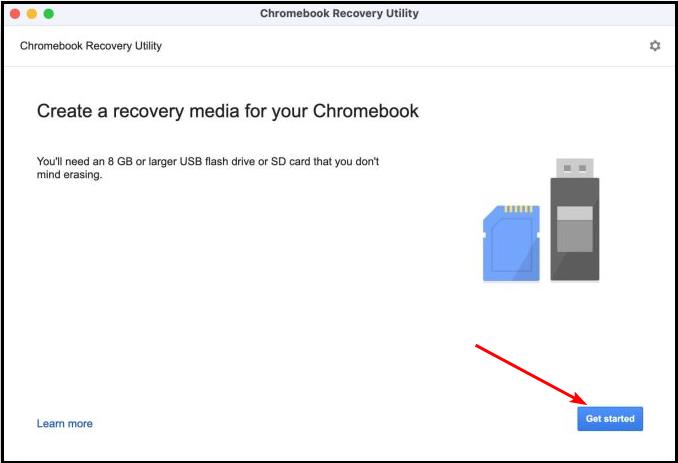
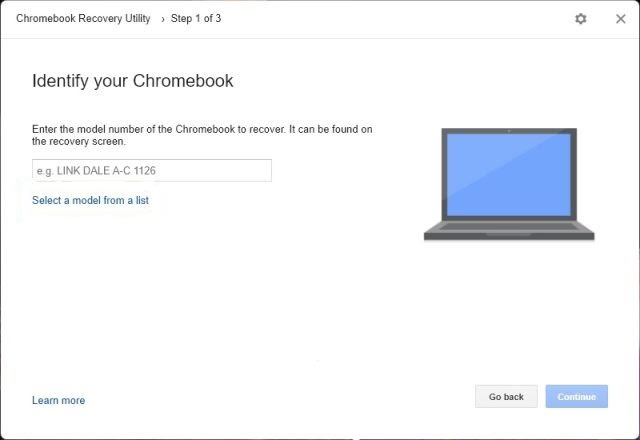
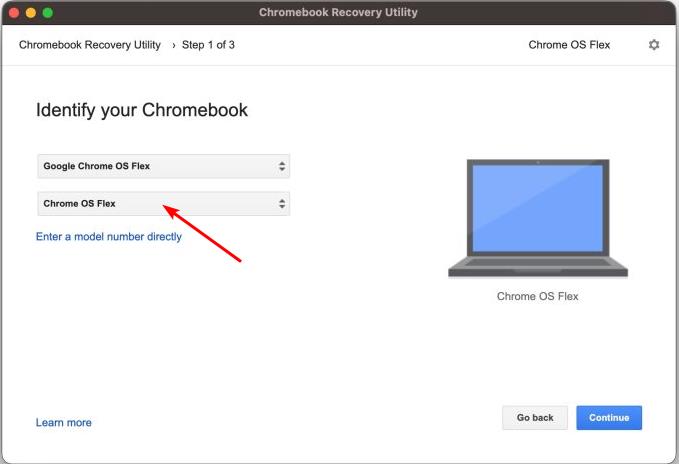
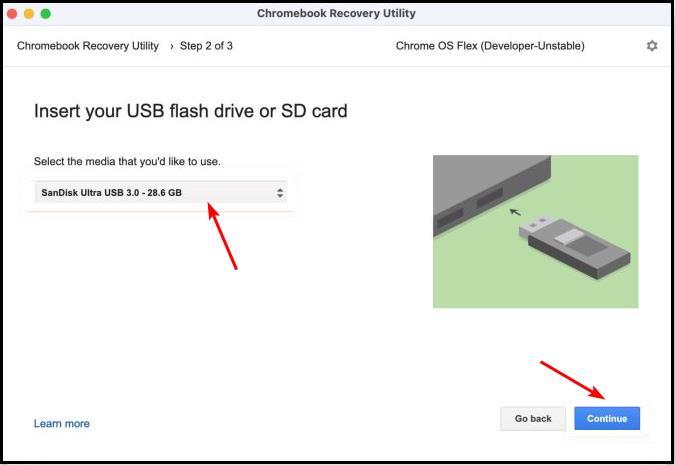
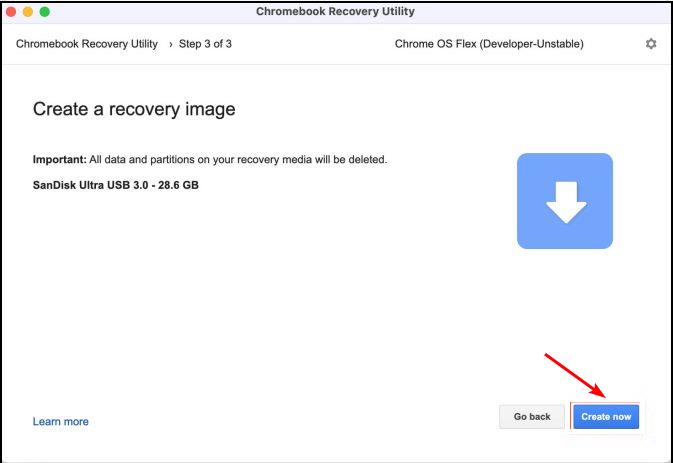
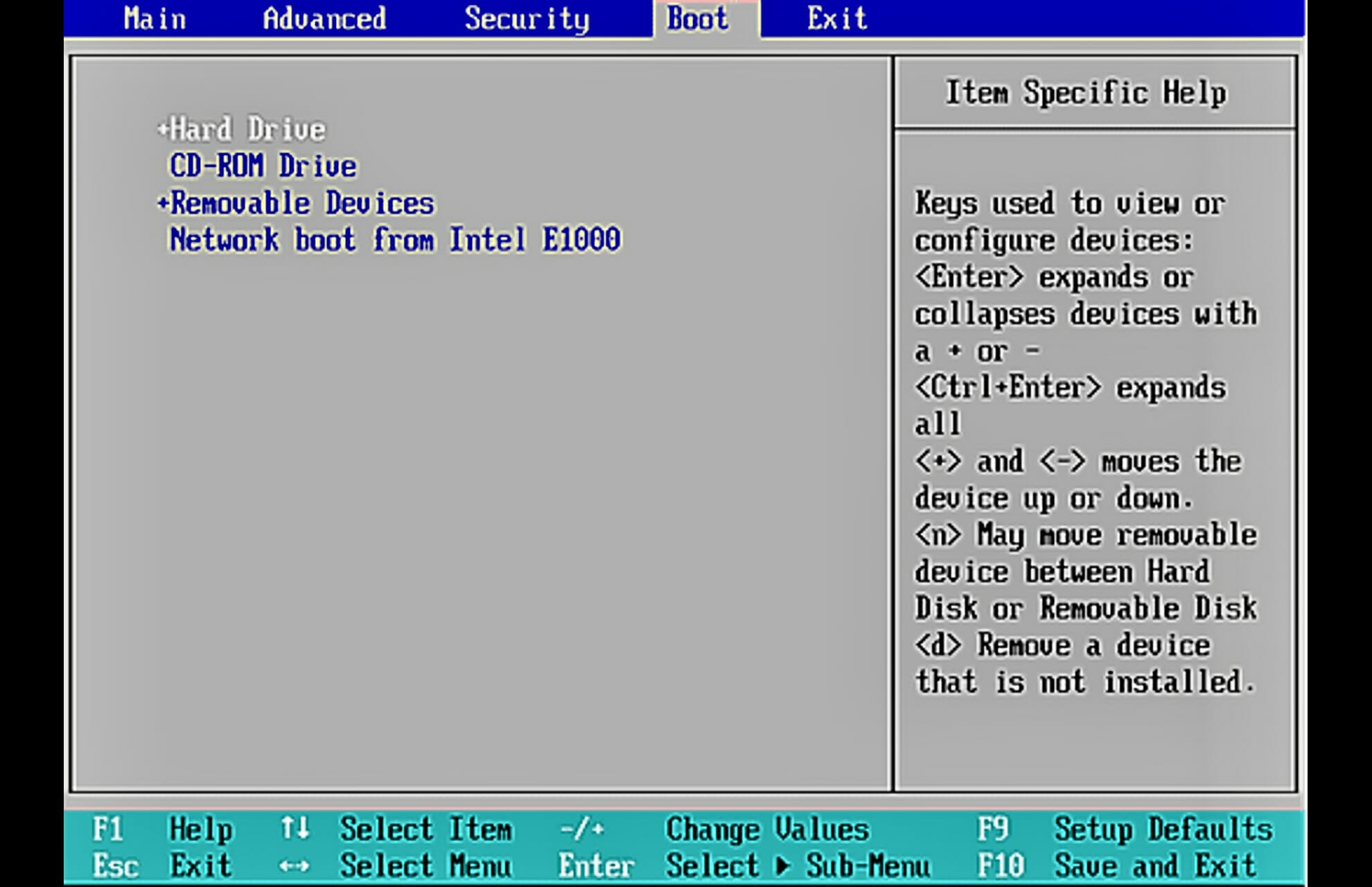
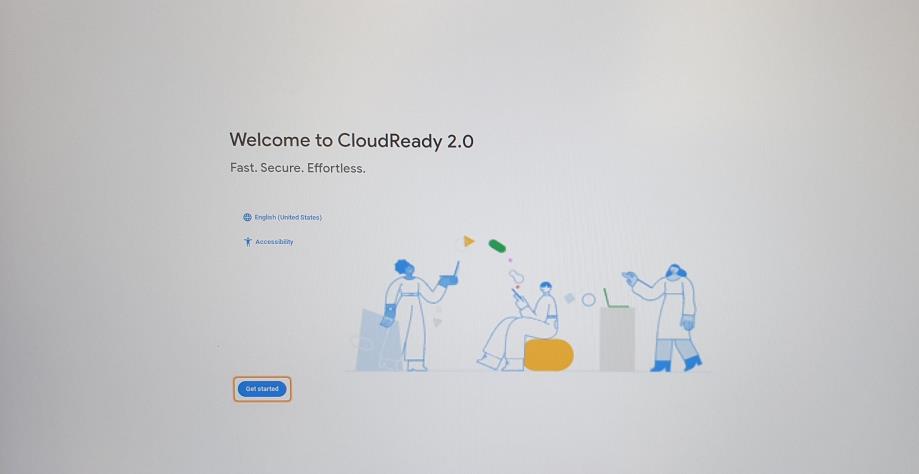

![How to Assign Tasks in Microsoft To-Do [Quick Steps]](https://windowsreport.com/wp-content/uploads/2019/08/How-to-assign-tasks-in-Microsoft-To-Do.jpg)


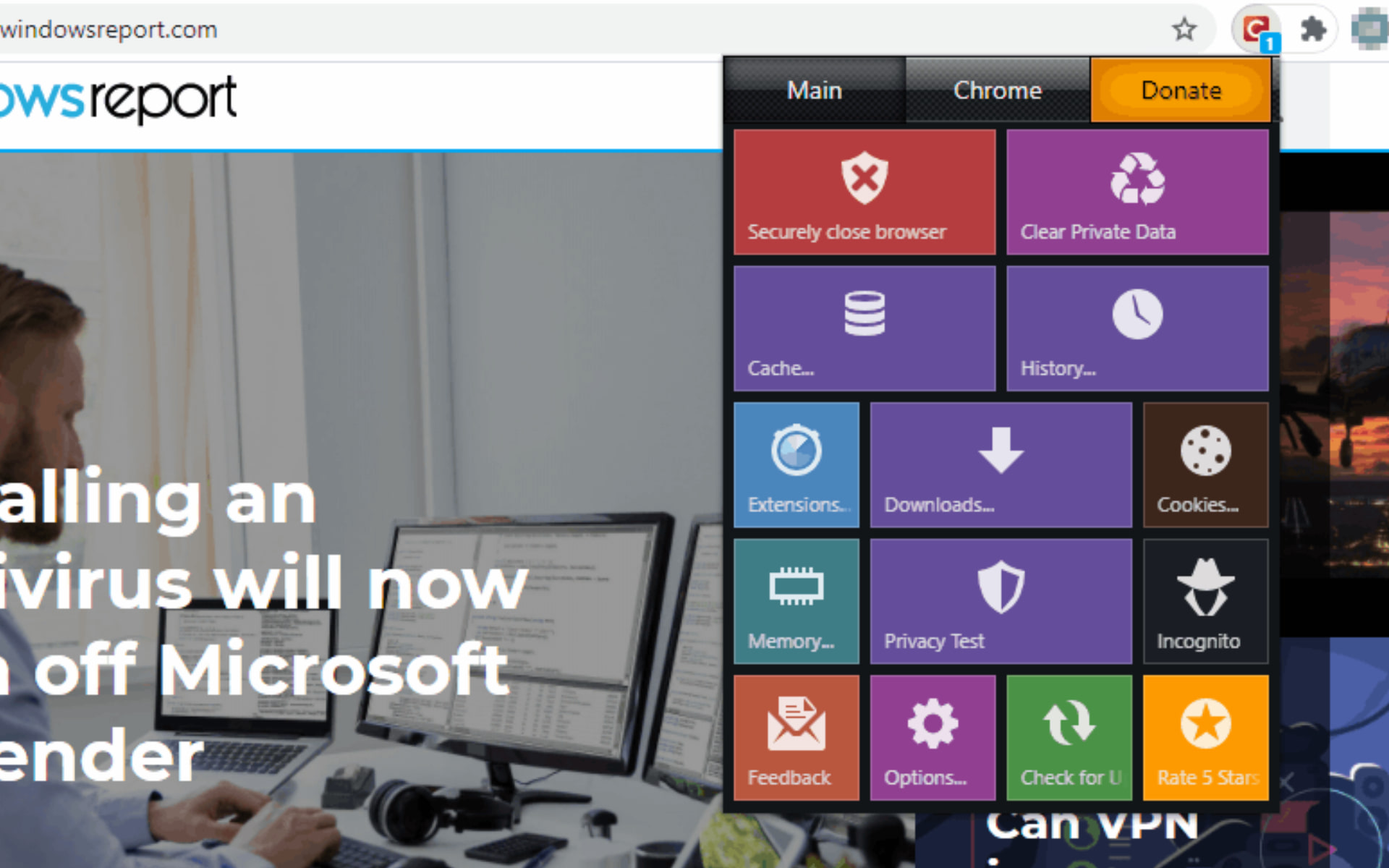
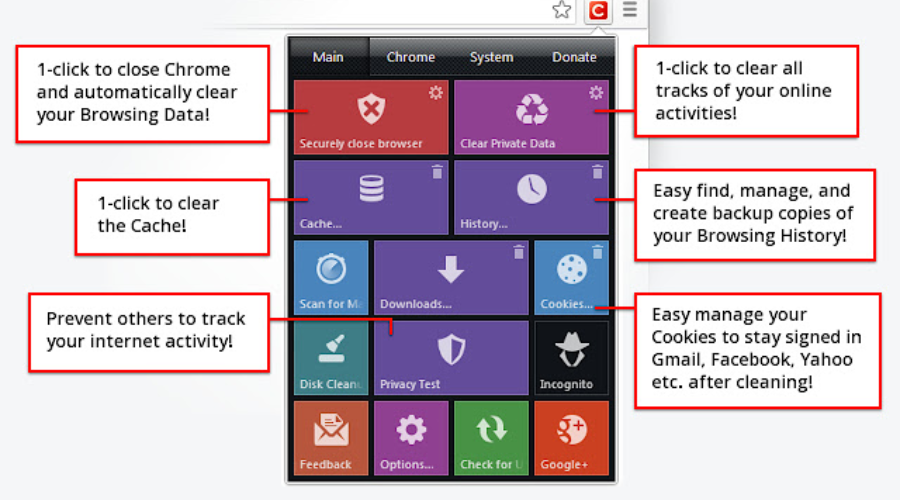

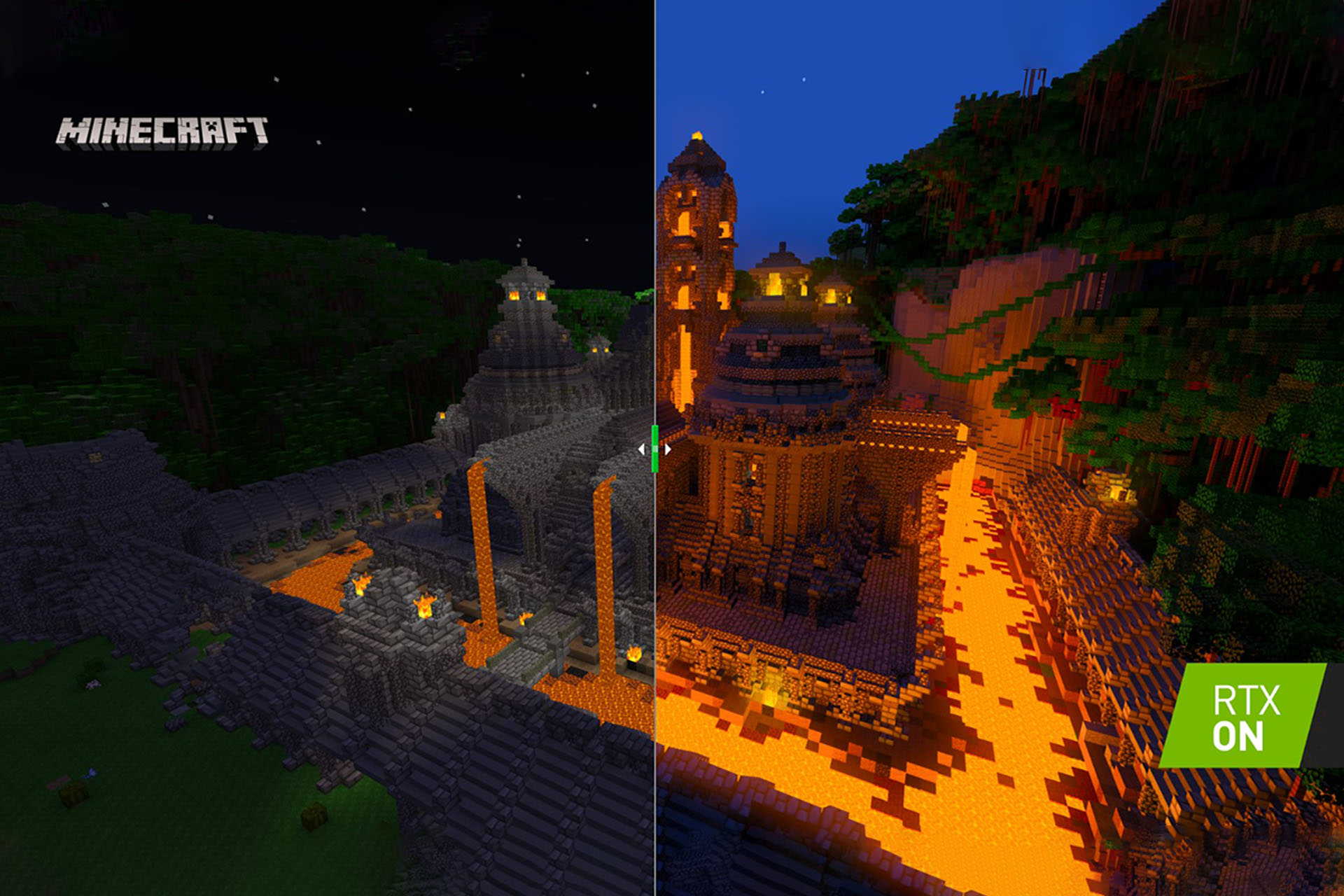





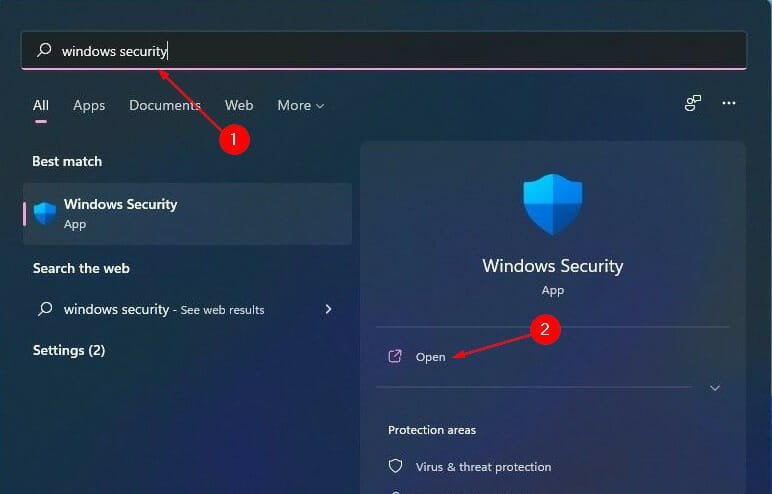
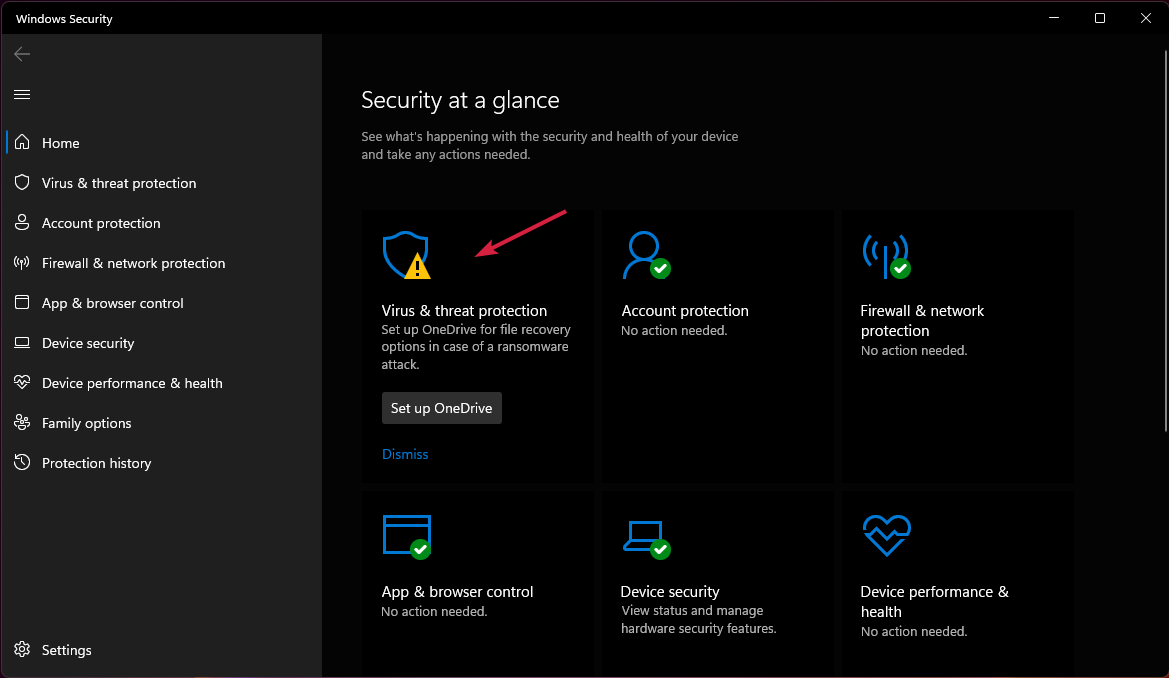
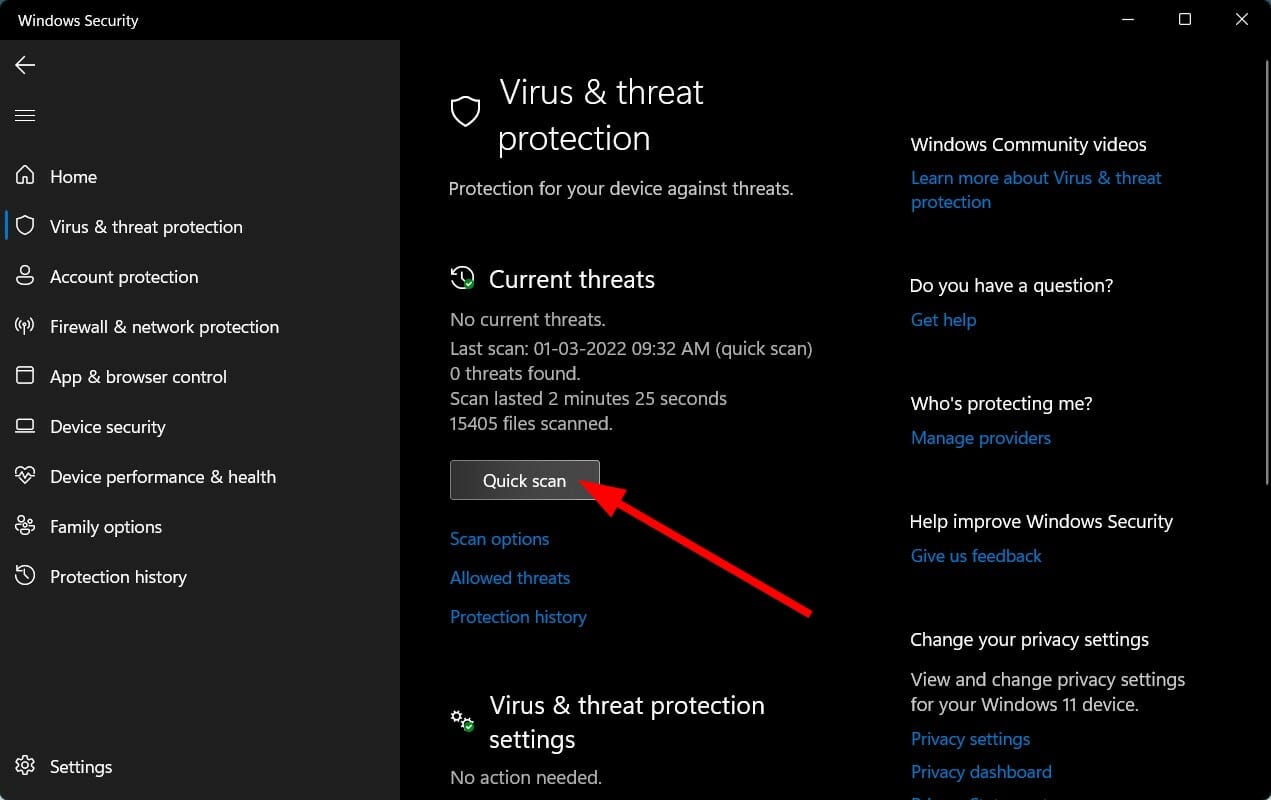
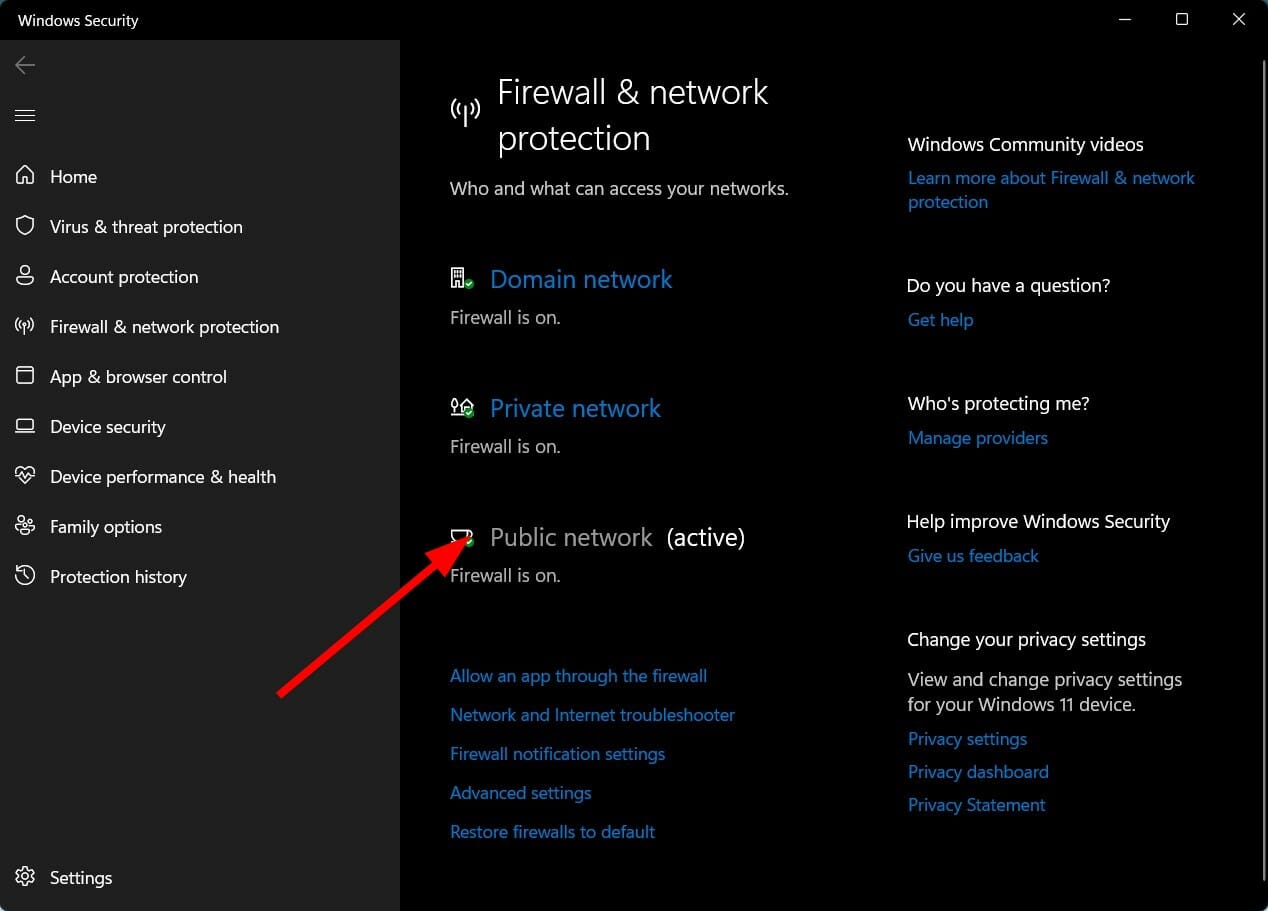

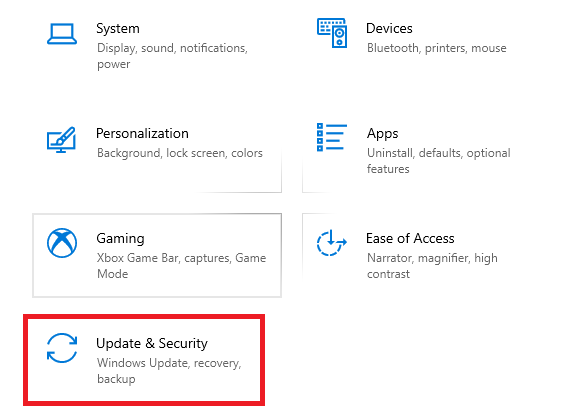
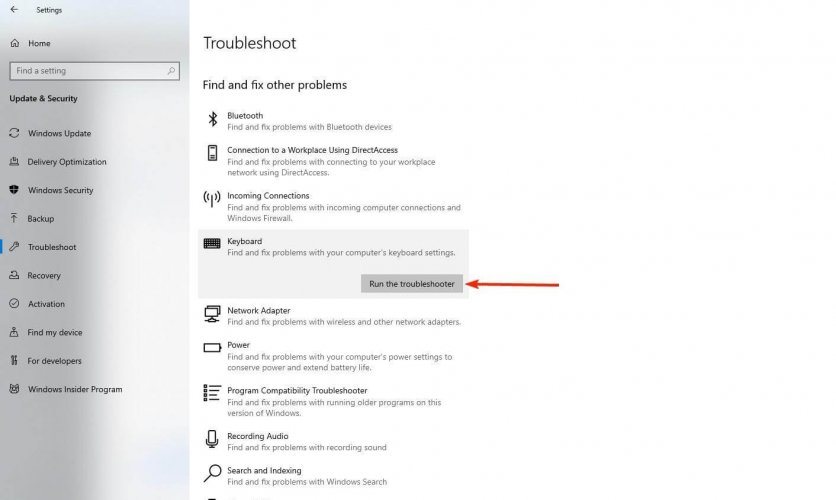
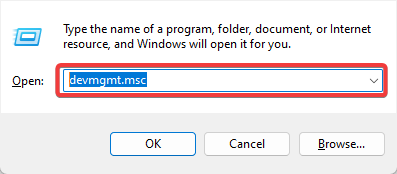
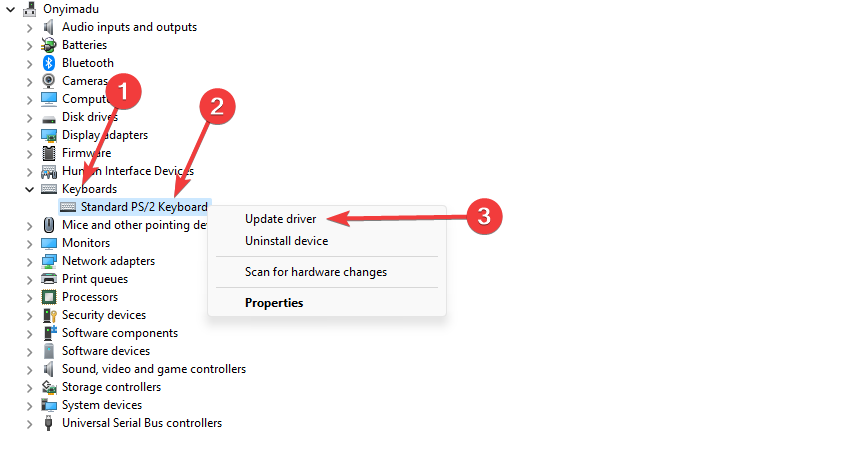
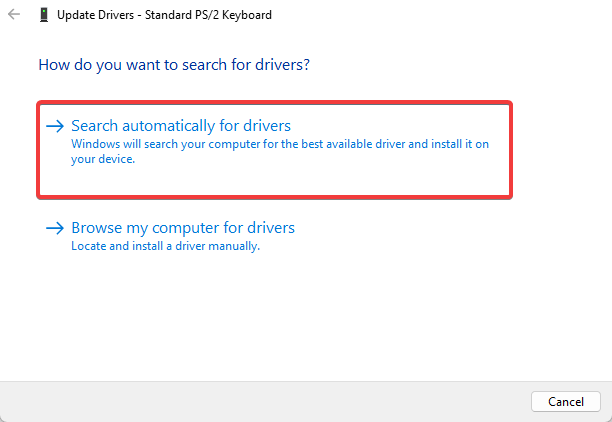
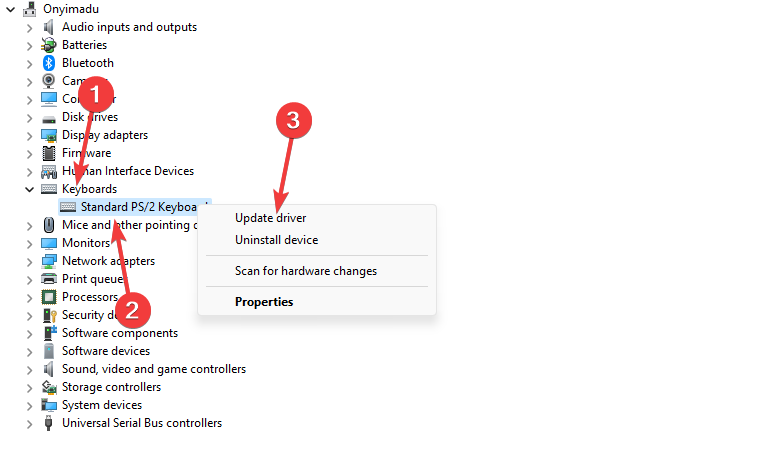
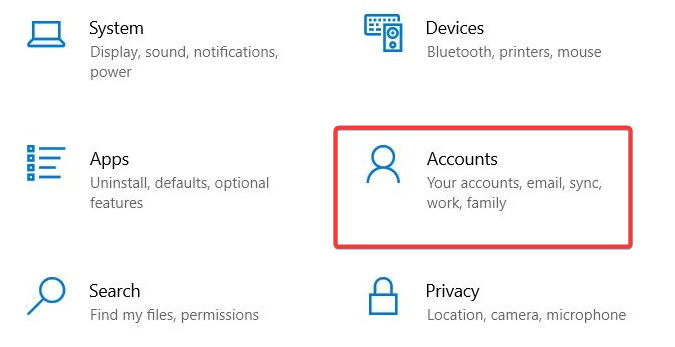
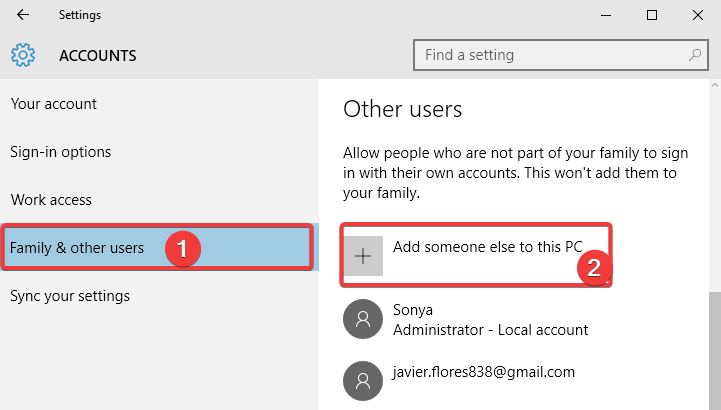
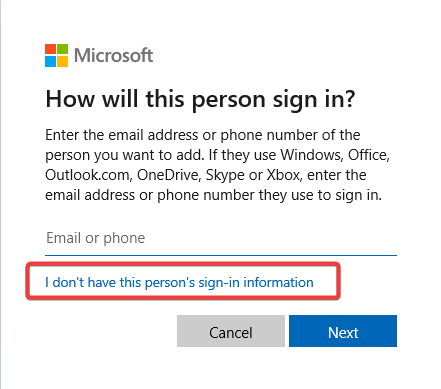
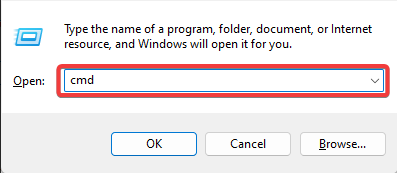
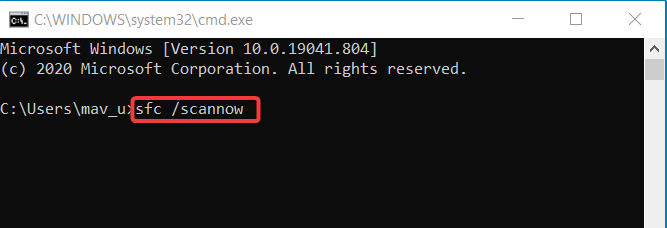
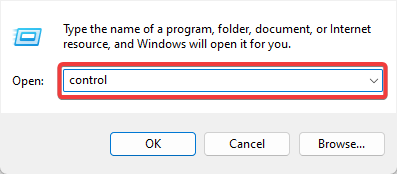
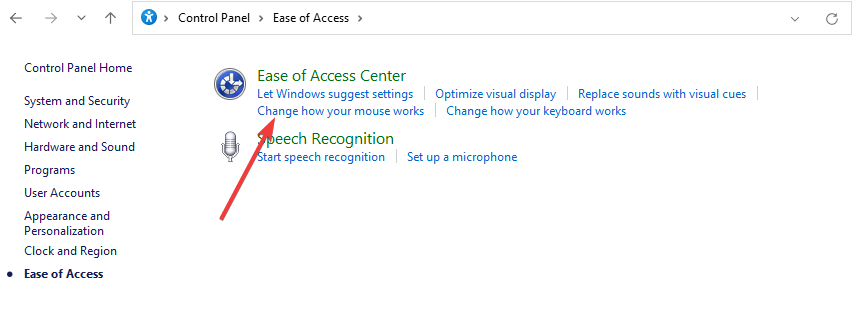
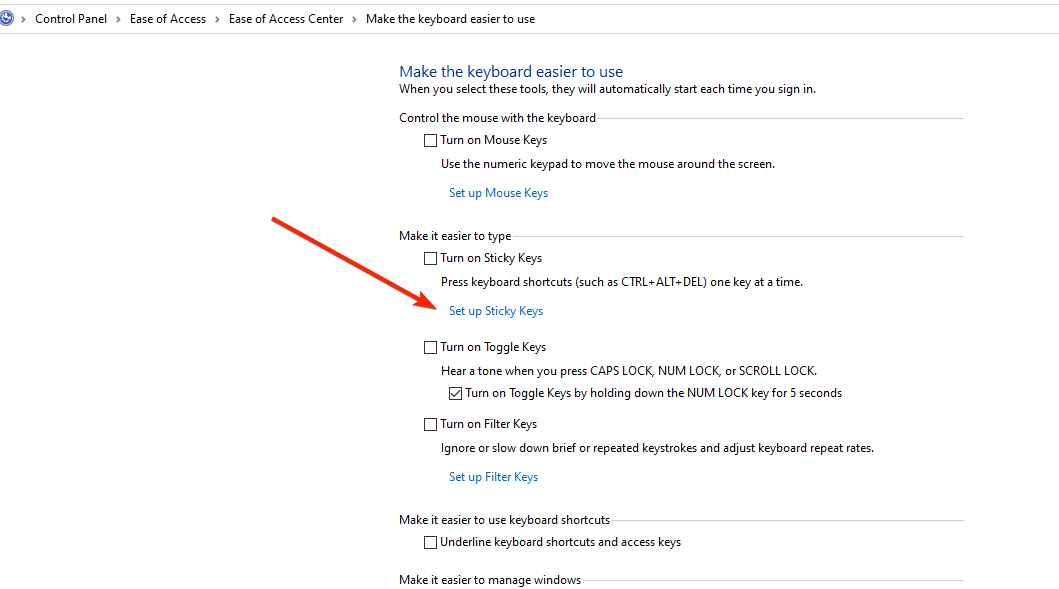
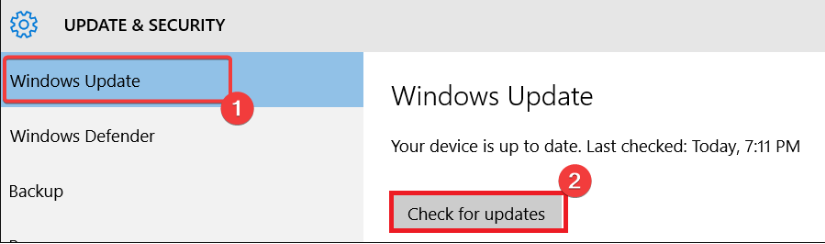




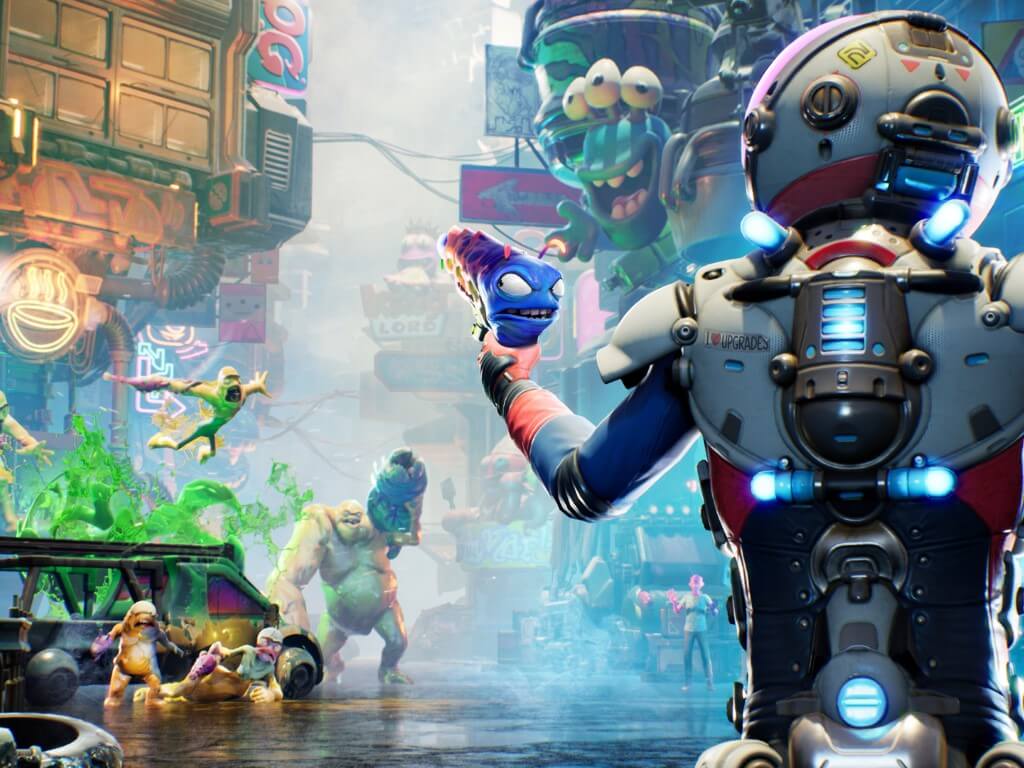

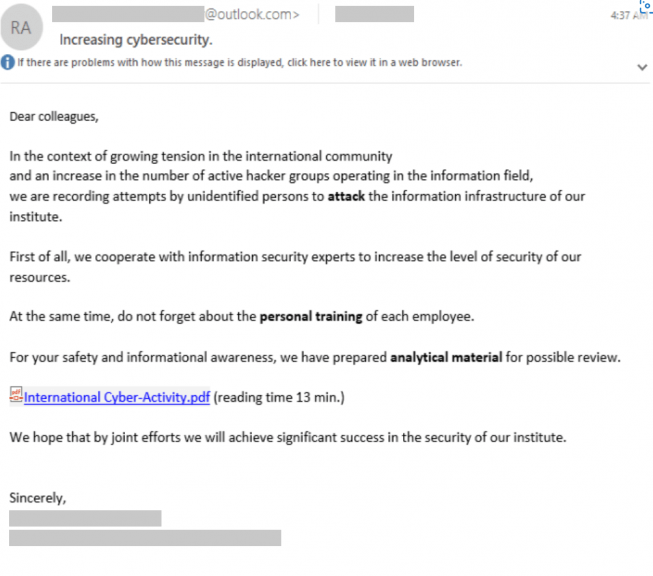
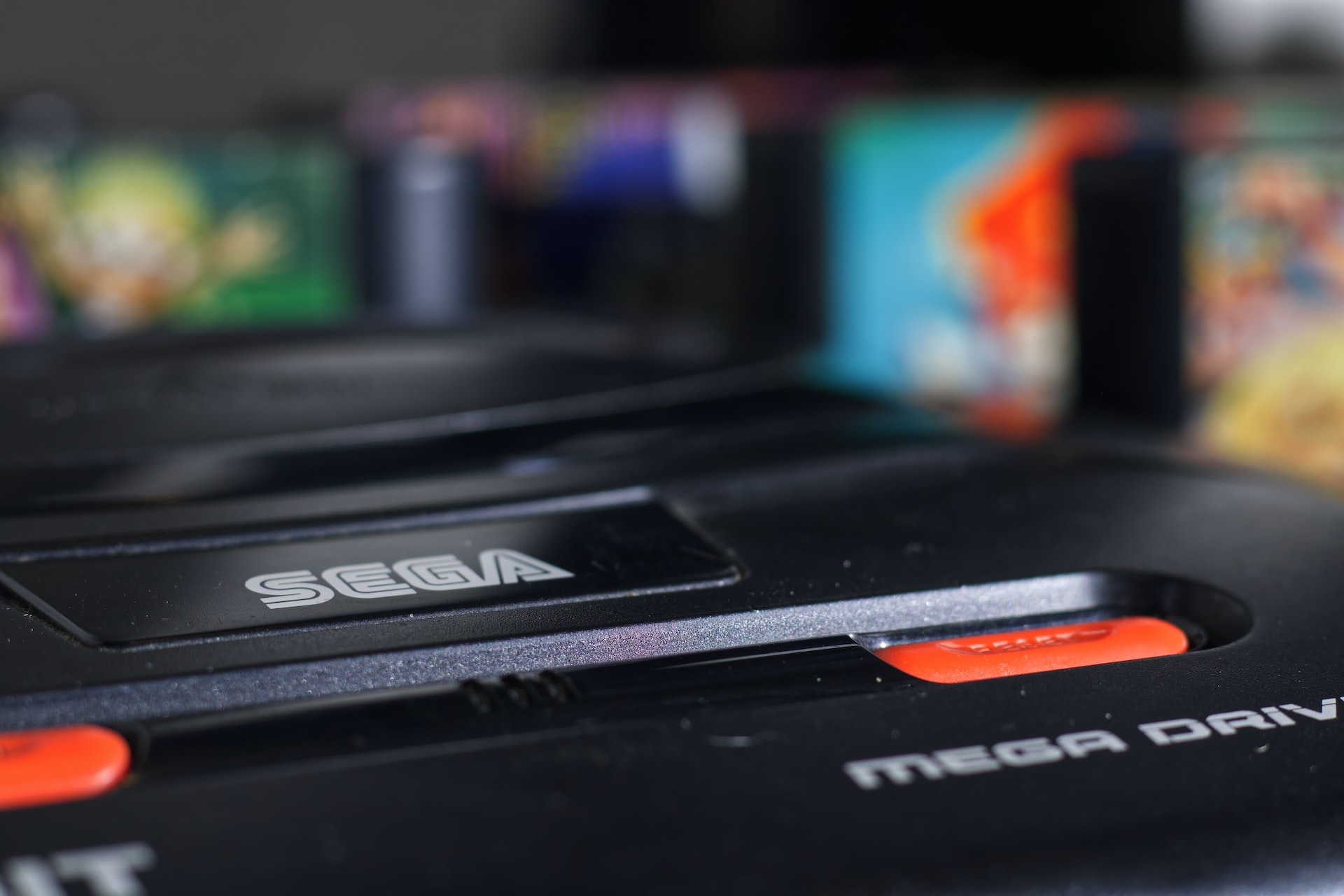






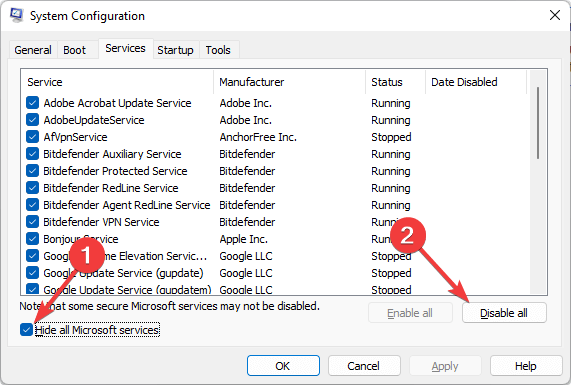
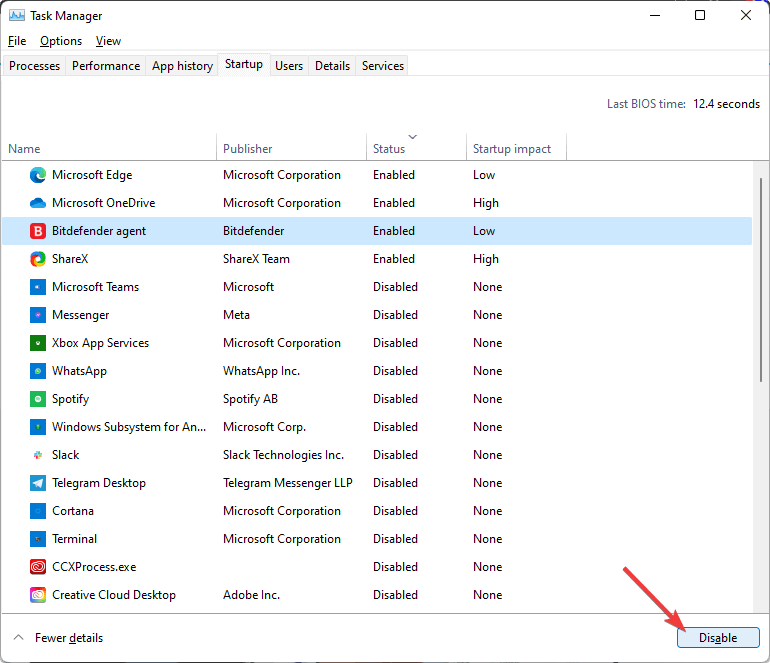
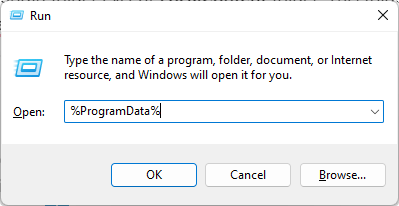
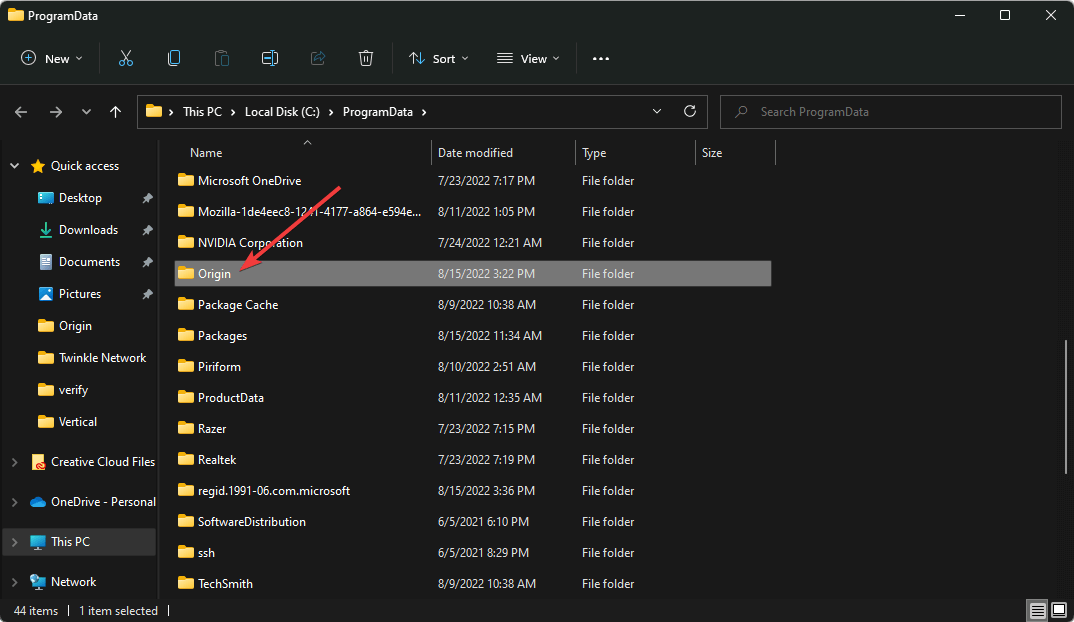
![Computer Won’t Recognize Adobe Flash Player [Complete Guide]](https://windowsreport.com/wp-content/uploads/2022/08/computer-wont-recognize-adobe-flash-player.png)




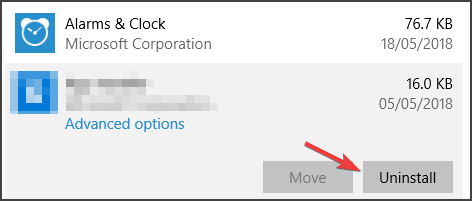




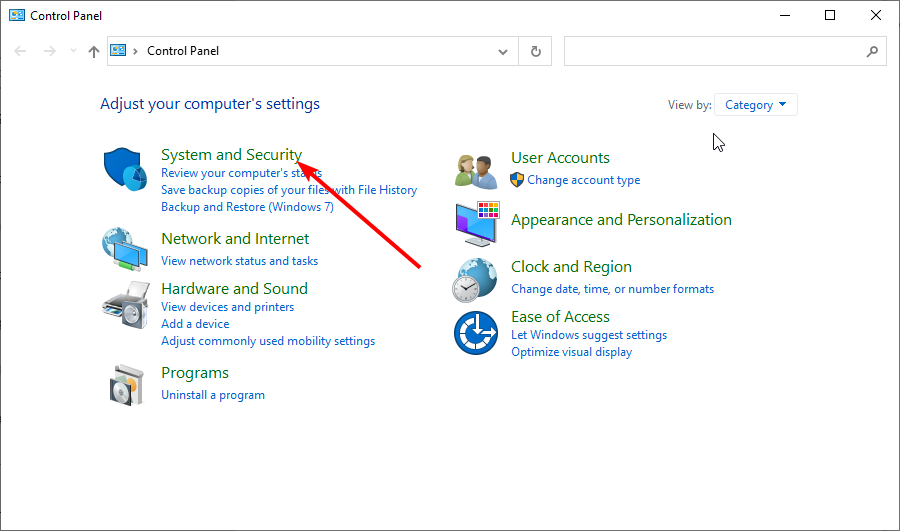





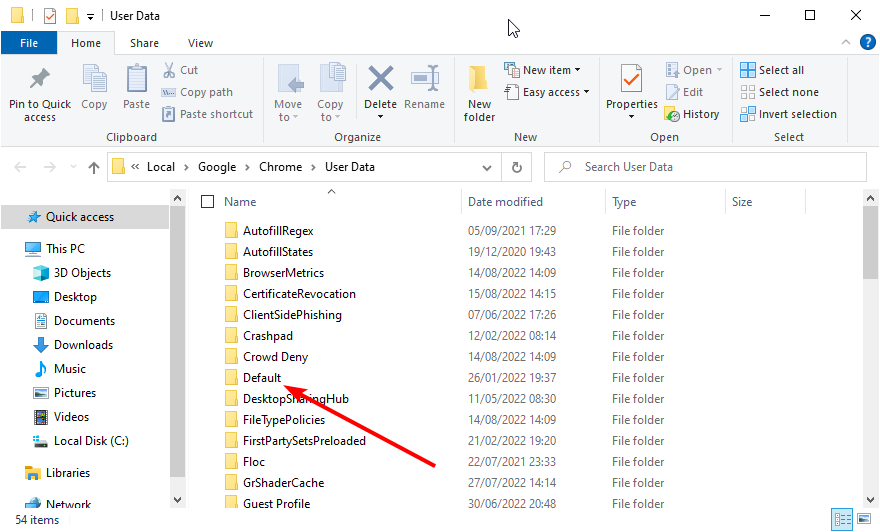
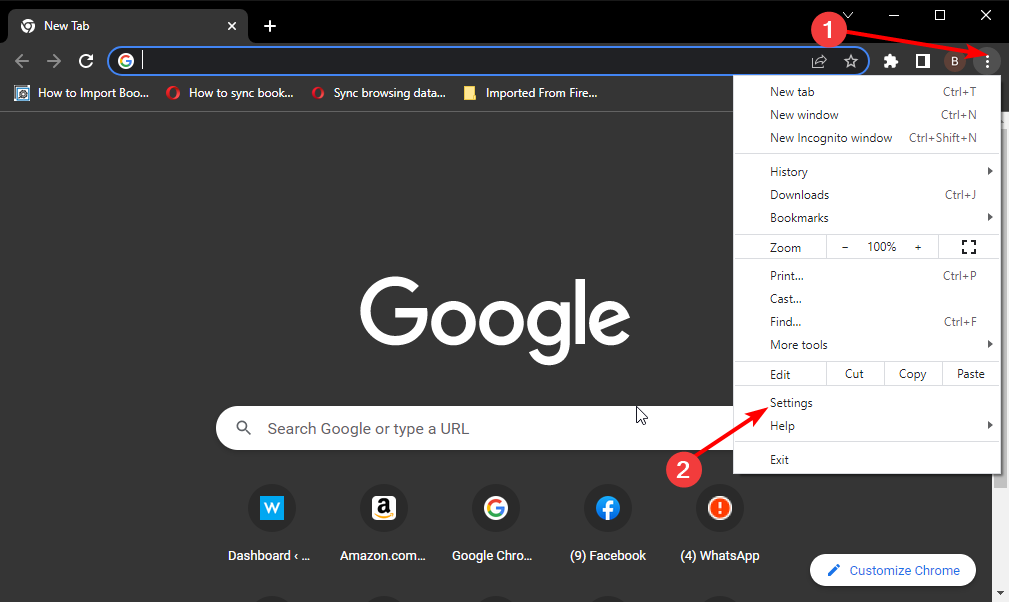

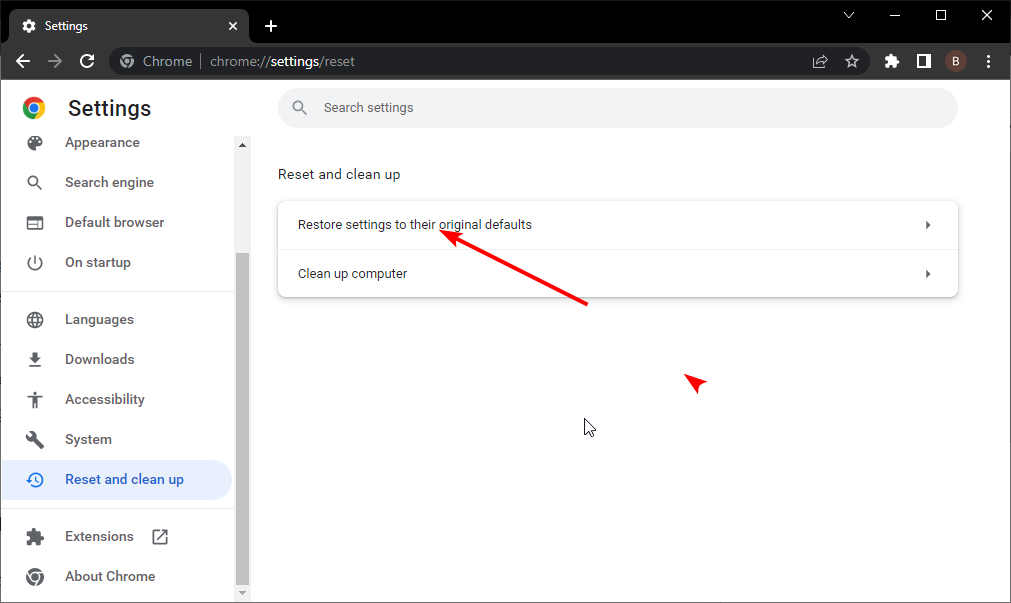
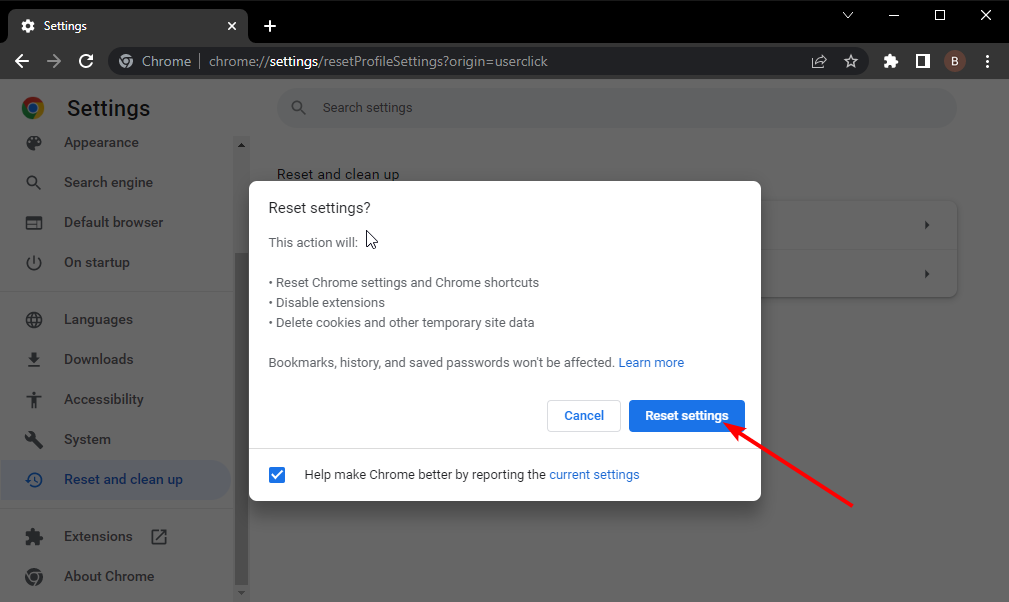


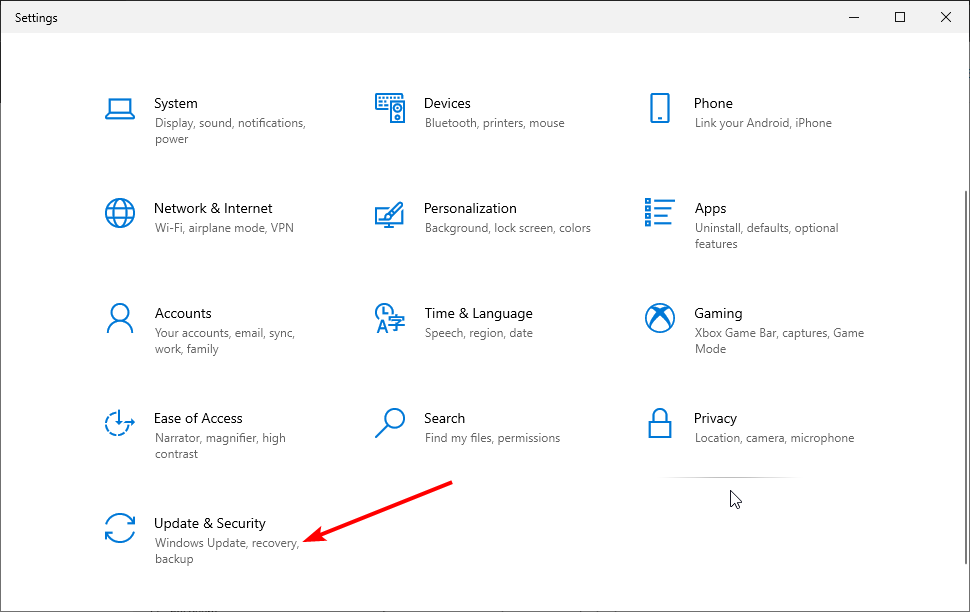
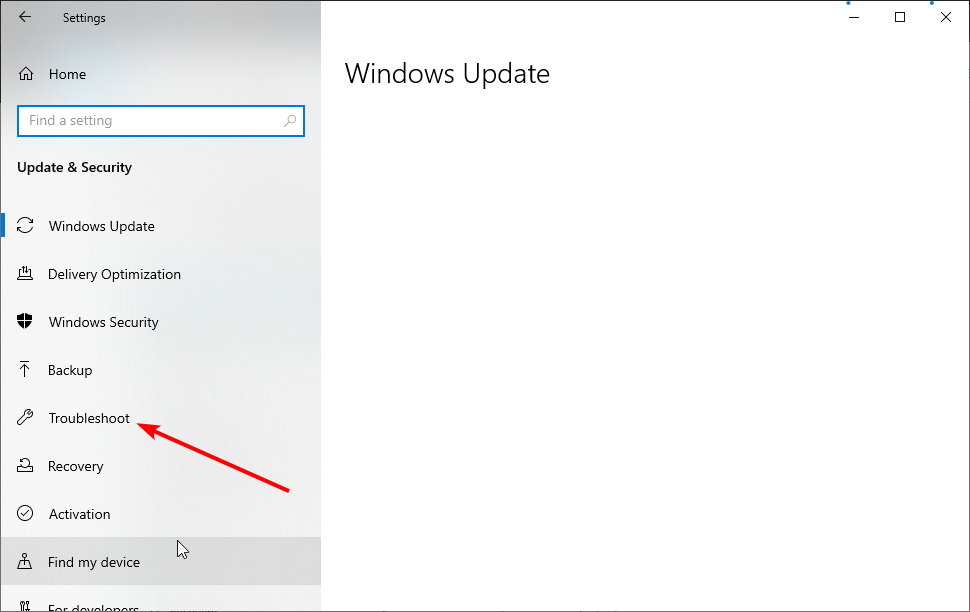
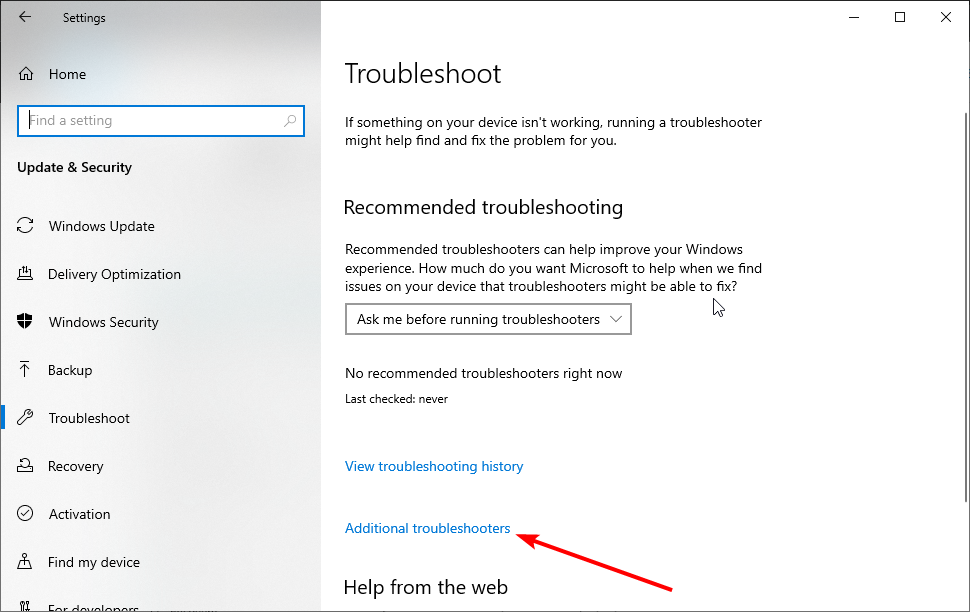
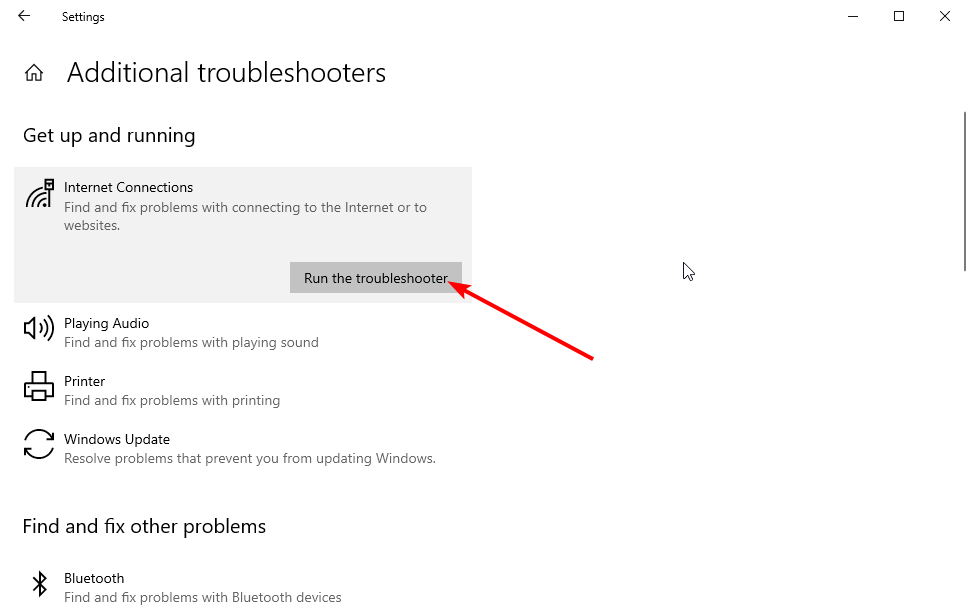

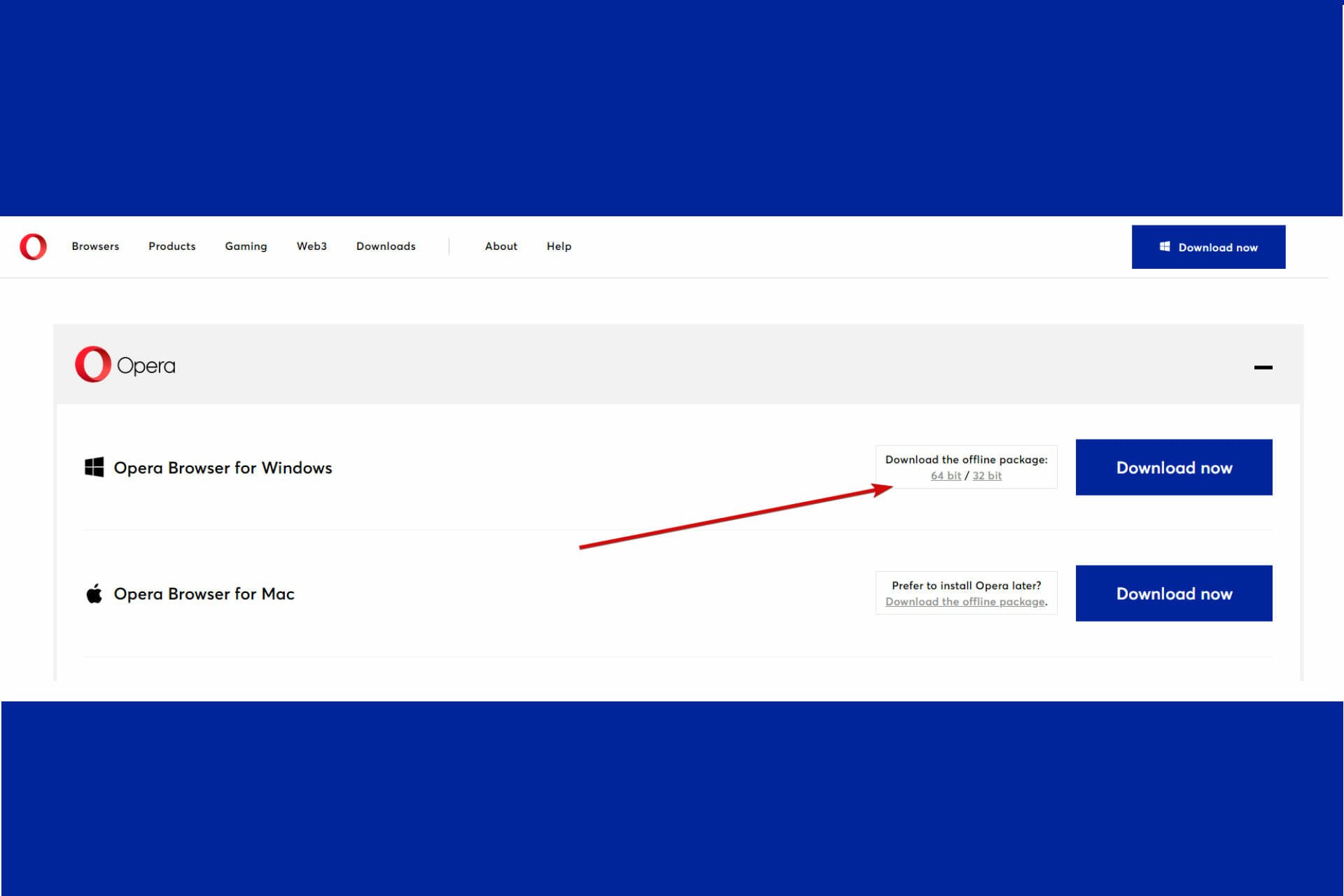



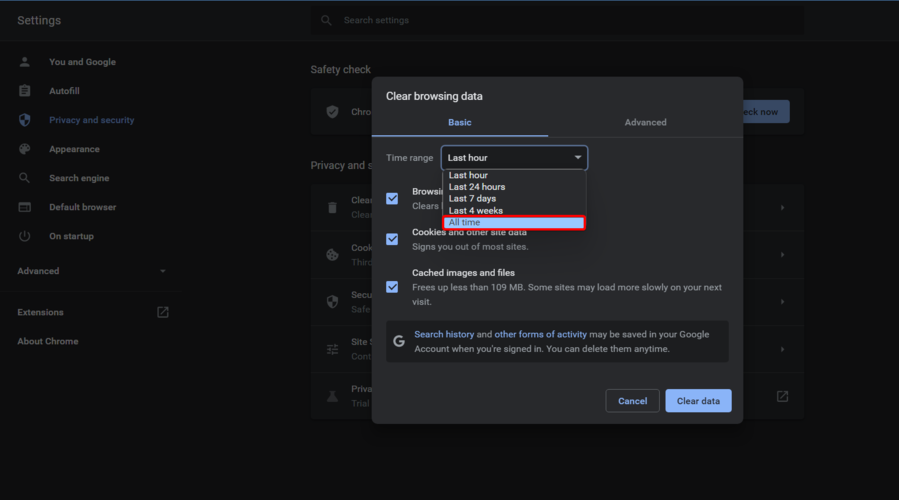
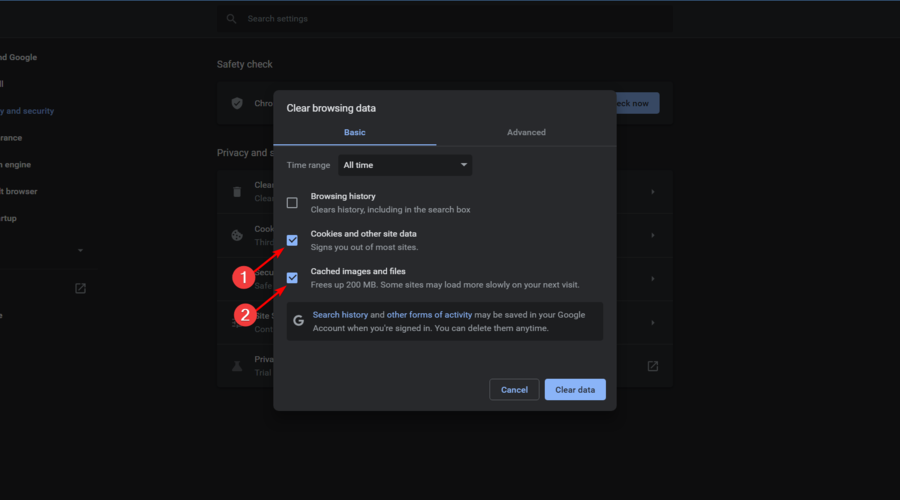


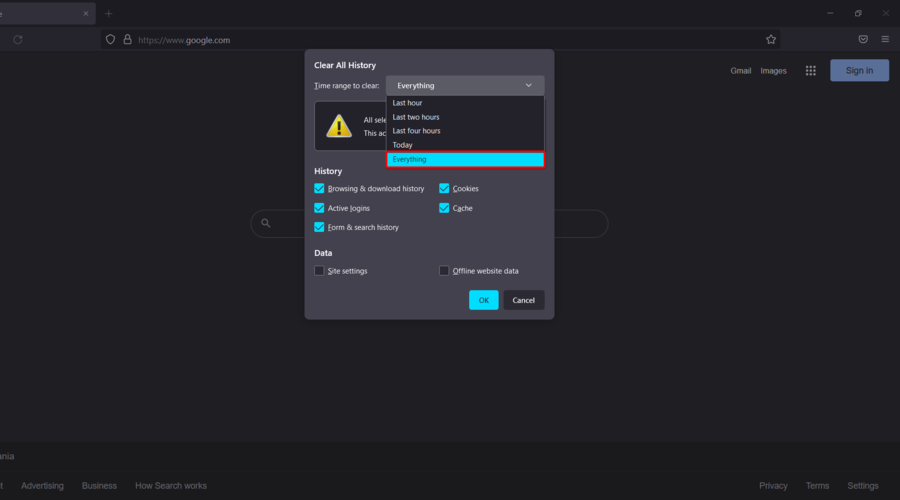

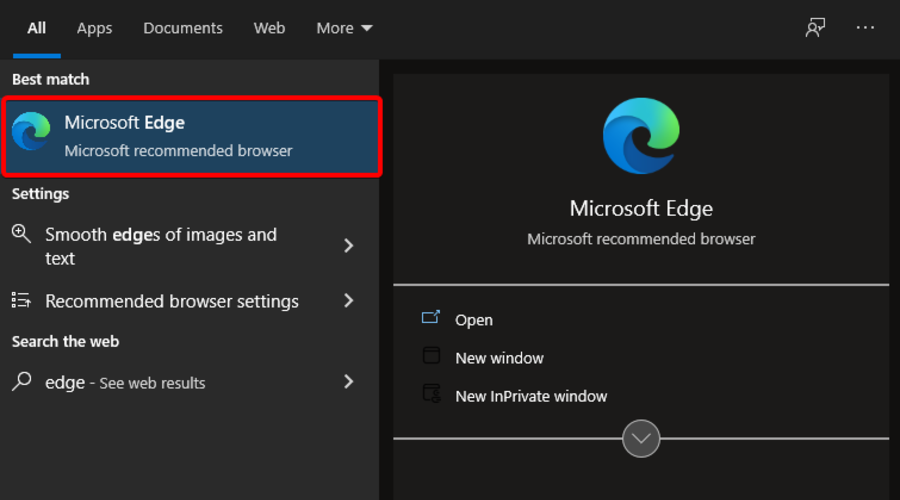


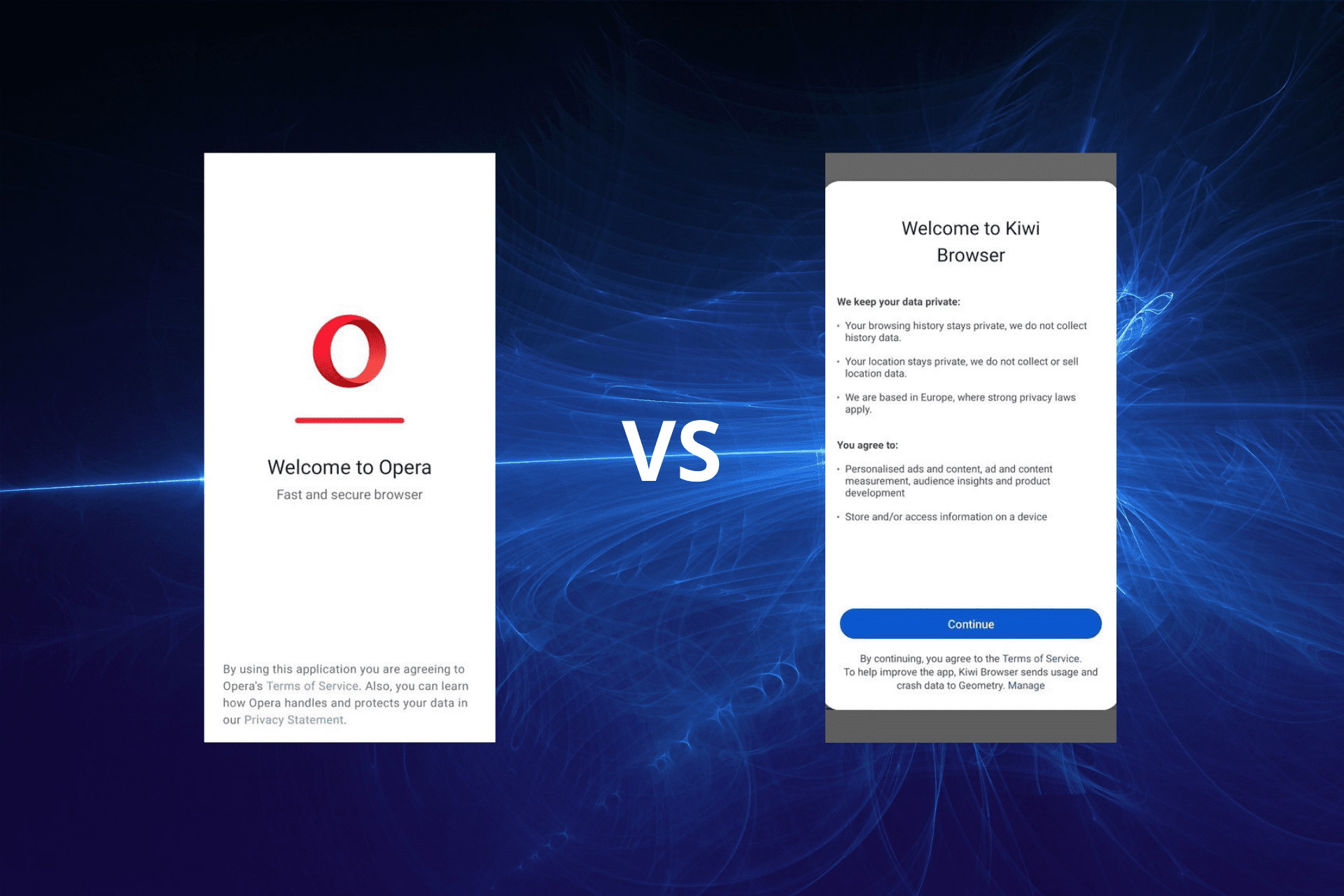




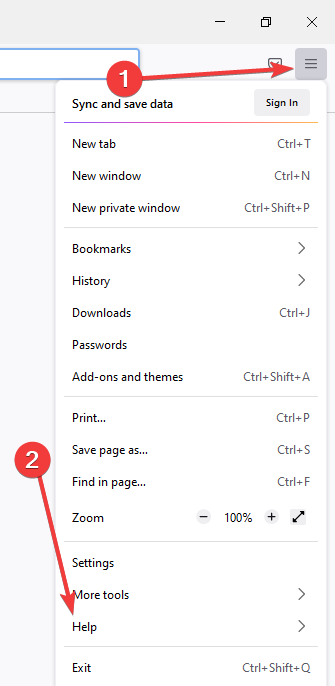


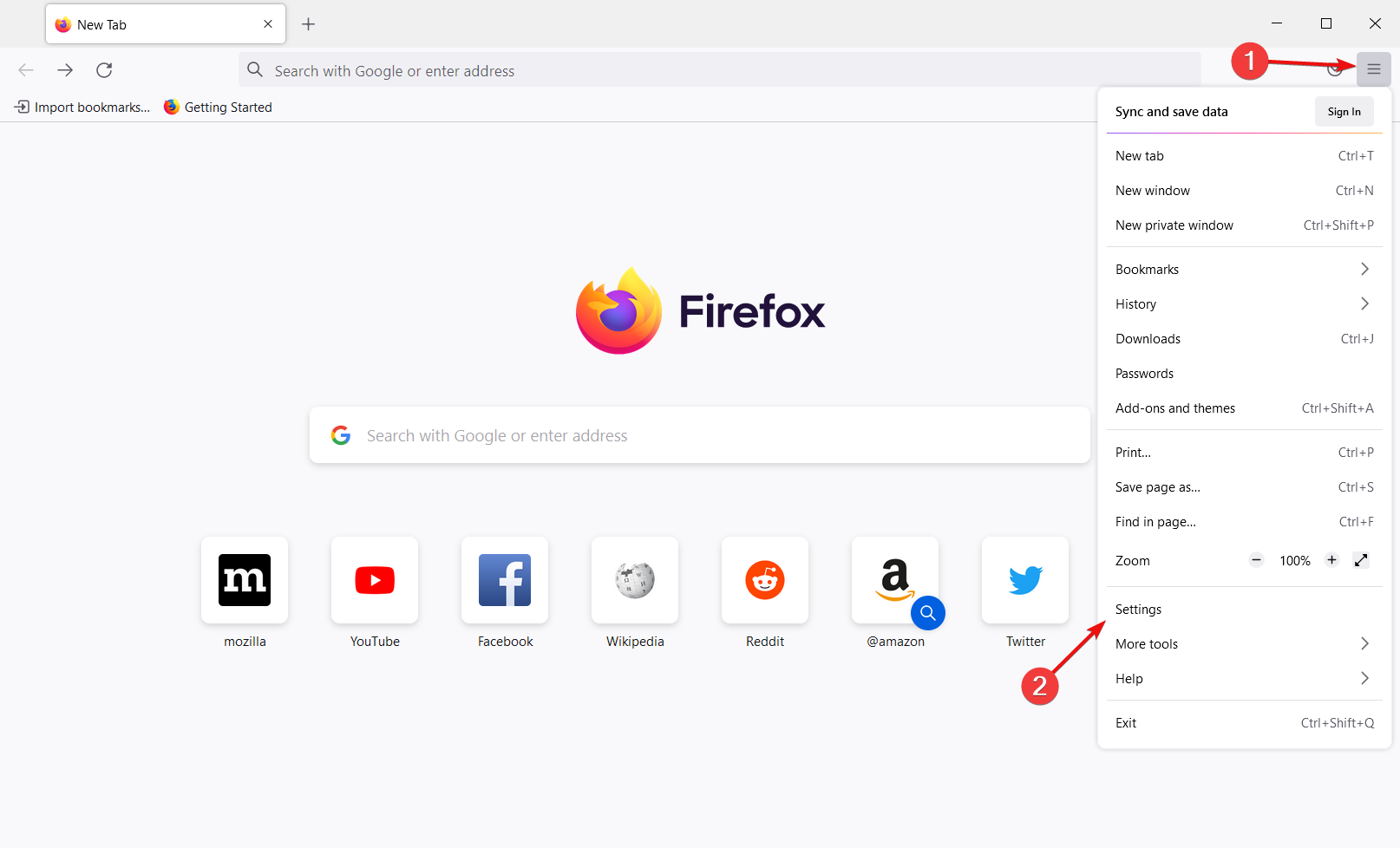









![6 Best Mario Games to Play Online [Gamer selection]](https://windowsreport.com/wp-content/uploads/2022/08/Super-mario1.jpg)