DayZ is a realistic zombie survival game developed by Bohemia Interactive where players try to overcome threats and challenges to survive as long as possible. However, North American users have reported receiving Bios errors in DayZ.
The game is available for PC via Steam or cloud gaming, Xbox, and Play Station. DayZ is a sandbox multiplayer game and in its popularity, Bohemia Interactive has released a new DLC map called DayZ Livonia.
Are the DayZ servers down?
Users can check if the DayZ servers are down by checking their social media. When performing updates and bug fixes, DayZ temporarily shuts down the servers and during this time the game is unavailable for play.
What is the Bios error?
Users have reported being unable to log in to their account and receiving a Bios error that states resources are not accessible.
How do I fix the Bios error in DayZ?
1. Play on Xbox Cloud Gaming
Users that play Day Z on their Xbox consoles have reported that switching to cloud gaming removes the issue. With Xbox Pass Ultimate, users can switch between their console and Xcloud if everything is saved under one account.
2. Free up drive space
Press the Xbox button on your controller to open the menu.
Select Profile & system, then go to Settings.
Under System, select Storage.
Under Manage stored devices select Clear local saved games.
Freeing up drive space can help improve the speed and performance of your Xbox console and may help with the Bios error in DayZ. Keep in mind that this will delete games that are saved on the hard drive, but the games will be saved to the cloud.
When you start up the game to play, your most recent savegame that was stored in the cloud will allow you to pick up where you left off.
Press the Xbox button on your controller to open the menu.
Select Profile & system, then go to Settings.
Navigate to Network settings then Advanced settings.
Under Change settings, select Alternate MAC address then Clear.
Restart the console.
Users have reported that resetting the MAC address on their console helped fix the Bios error in DayZ. Doing this will also help with any network issues.
Hopefully, one the of above solutions helped fix the Bios error in DayZ. If you’re experiencing packet loss in DayZ, we have a guide for that as well.
Let us know in the comments which solution worked for you or if you have a suggestion for a solution that is not listed above.
New to game pass and don’t know where to start? We’ve got you covered with these Game Pass recommendations for all the enigmatologists out there. Who doesn’t love a good, challenging puzzle from time to time? And Xbox Game Pass has a great selection of puzzle games for everyone from the casual player to those who seek the most brain-busting of challenges, and everyone in between. Check out these great puzzle games.
Bridge Constructor Portal
Are you a fan of the first-person shooter/puzzle-platform Portal series? Are you also a fan of the Bridge Constructor franchise? If you answered yes to either of these then you’ll enjoy this engineering simulation/puzzle game. And if you answered yes to both, then you are going to have an absolute field day with Bridge Constructor Portal.
The game blends elements from the two series, and the result is a combination almost as perfect as peanut butter and jelly. Players must construct bridges to get trucks from one point to another within Aperture Laboratories, all under the watchful eye of super AI GLaDOS.
Visit a cyberpunk Singapore in the year 2037. Take on the role of brand-spanking-new private investigator Amira Darma in this point and click puzzle-adventure sleuthing game.
The game takes a lot of its inspiration from the classic Carmen Sandiego games, and has the player tackling a range of different cases that at first seem to be isolated, until the pieces of a wider conspiracy begin to come together…
Another point and click adventure. A “noir adventure spanning time and space,” Genesis Noir is played through a series of vignettes. Independently developed and Kickstarter-funded, the game features a unique narrative that blends a creation (and destruction) myth with the presentation style of a film-noir detective movie. It is quite an original concept, to say the least. Gameplay is a combination of exploration and interactions that come mostly via on-screen prompts.
The puzzle classic Lumines now has enhanced visuals and support for higher resolutions. This remastered edition on Game Pass also introduces “Trance Vibration,” which allows players to use multiple controllers in single player games to experience a sense of synesthesia courtesy of the controller’s vibration functions (which are synchronized to the game’s music).
Lumines is an addictive puzzle game in the vein of Tetris and Bejeweled. If you are a fan of such classic puzzle games and have never tried a Lumines title, this is the perfect one to start with.
Paradise Killer
Paradise Killer is a sleuth adventure game with plenty of visual style and interesting characters. As detective Lady Love Dies, the player returns to Paradise Island 24 after a 3-million-day exile to investigate the wholesale murder of the Syndicate – a group of immortal aliens who kidnap humans from Earth to live on Paradise Island as a social experiment.
A delightfully bizarre detective game like no other, Paradise Killer presents a unique take on the puzzle-adventure genre that no fan of it should miss.
Peggle 2 is a great choice for casual puzzle gamers. It is the official sequel to 2007’s Peggle. Inspired by Japan’s Pachinko machines, Peggle 2’s gameplay consists of shooting a finite number of balls at a field of differently-colored pegs to clear out specifically marked pegs, while trying to attain a high score through skilled shot planning.
It sounds simple, and it is – at least on paper. It is also highly addictive. Peggle 2 doesn’t stray too far from its predecessor, which has been called one of the best puzzle games of all time. And that’s probably for the best.
We round out our Game Pass recommendations with an entry from the most legendary of puzzle game franchises. This installment released on Xbox consoles and Windows PC in 2020. It won Game of the Year from several publications that year as proof positive that Tetris is back and better than ever.
Tetris Effect: Connected puts a contemporary spin on time-tested classic with the “Tetris Effect,” a mechanic in which the gameplay is tied to the beat of the music, with themes and music across 30 stages. The game has other surprises in store for Tetris veterans and newcomers alike.
Wrap up
That’s it for our Game Pass puzzle game recommendations. Now that fans of the genre know what to play on Game Pass, tell us what you think of this selection? Are any of these your personal favorites? Let us now in the comments.
If you don’t yet have a subscription to Xbox Game Pass, you can sign up here. You can also learn more about Game Pass over on its FAQ page. And don’t forget to check out our other “What to play on Game Pass” posts for other Game Pass recommendations.
There are all sorts of web browsers on the market, but many users prefer using fast and feature-loaded options like the Slimjet browser, and will review it today.
Most users haven’t heard of Slimjet, but it proves to be a viable alternative and offers everything one is looking for.
So, let’s find out all about the Slimjet browser, whether it’s safe, should you use it, and the download process in this review.
What is Slimjet browser?
Developed by FlashPeak Inc. and built on the Chromium engine, Slimjet is a popular alternative to Google Chrome offering several features that are missing in the latter. And, that’s one of the reasons why many go for it.
Also, it’s relatively lightweight when compared to Chrome, so you wouldn’t have to deal with high resource consumption. Slimjet claims to offer a higher download speed and a photo upload speed 20x faster than Chrome, Firefox, or Safari.
Mouse gestures in Slimjet
Another feature integrated into Slimjet that makes browsing easier is support for Mouse Gestures. Simply draw preset shapes to perform a bunch of actions. And, there is a lot more that you can try after downloading the Slimjet browser!
Is the Slimjet browser safe?
Slimjet isn’t associated with Google, and unlike Chrome, it won’t send any of your data to Google. In addition, the browser has anti-tracking technology that will block tracking cookies and scripts.
There’s also phishing and malware protection, as well as a sandboxing feature that should keep all your tabs isolated. So, in all Slimjet is a safe browser and offers security protocols and features that even some of the big names don’t.
Why should I use Slimjet browser?
Slimjet browser comes with a built-in ad blocker so it will block all types of ads out of the box. The browser uses the Blink rendering engine, which makes it fast and responsive.
The browser has its download manager that uses multiple connections, and it can download files up to 12x faster. You can also resume downloads between browsing sessions.
Speaking of downloads, Slimjet supports video downloads, and it can even record online videos. If needed, you can also extract mp3 from downloaded videos.
Customize the toolbar in Slimjet
The browser offers a customizable toolbar, and you can also modify the home page with multiple search engines. Slimjet also supports URL aliases allowing you to type long URLs faster.
What are the lightest browsers for Windows?
Slimjet is a solid browser, but it’s not exactly lightweight and will end up consuming considerable resources after running for a while. Though there are several other lightweight browsers that you could go for, in case your system has a low configuration.
But, none performs as well as Opera One! It’s a privacy and security-oriented lightweight browser, offering all the critical features built-in.
The browser has its own ad blocker as well as tracking protection which will make your web pages load faster. For an additional layer of security, there’s a free VPN with unlimited bandwidth.
Opera One will also block crypto-mining scripts out of the box. As for additional features, there’s the ability to organize tabs into workspaces, integrated messenger, and Instagram.
Opera One is available on all major desktop and mobile platforms and it supports Chrome extensions, so there’s no reason not to try it out.
Opera One
Opera One is the ultimate browser that combines security and privacy with fast page loading and customization.
Now, click on any of the links listed here depending on whether you want to download the 64-bit version or 32-bit version of the Slimjet browser, and the type of installer you wish to go for. We went with the 64-bit full installer.
Once the download is complete, launch the setup, and follow the on-screen instructions to complete the installation.
That’s it! Wait for a few moments until the installation is done, and you can start using Slimjet, a feature-loaded web browser.
Slimjet is a pretty good Google Chrome alternative regarding privacy, but it can’t compare to other browsers, such as Opera One, in terms of quality.
Are you going to try the Slimjet browser after this review? Let us know in the comments below.
Getting certificate errors in Edge? You’re certainly not alone. As you may have guessed, this usually signals a problem with the website’s security certificate.
However, other things can prompt it too. Incorrect date and time, security software, and misconfigured settings can all have an impact. Regardless of the root cause, here are the fixes:
How do I fix a navigation blocked certificate error?
1. Remove Trusteer Rapport
Press Windows + R to launch the Run command, enter appwiz.cpl in the text field, and then click OK.
Find Trusteer Rapport, right-click on it, and then select Uninstall.
Or better yet, use uninstaller software. In addition to removing programs, the uninstaller software will remove all files and registry entries associated with that application.
A few users are also suggested to disable Entrust certificate, so you might want to try that. If Entrust certificate isn’t causing this problem, you might want to disable a different certificate.
2. Make sure that your date and time are correct
Press Windows + S to launch the Search menu, enter Date & time settings, and click on the relevant search result.
If the date or time isn’t correct, turn off the Set time automatically option, and then click on the Change button.
Use the dropdown menu to set the correct date and time, and then click the Change button.
After setting the correct time and date, the NET::ERR_CERT_AUTHORITY_INVALID error in Edge should be fixed. This also helps with the doh.xfinity.com certificate error.
3. Change the Security level
Press Windows + S, enter Internet Options, and then click on the relevant search result.
Go to the Security tab and then click Trusted sites. Now, lower the Security level for this zone to Medium-low.
Click Apply and OK to save changes.
Restart your browser and check if the issue is resolved.
Users are also suggesting changing ActiveX controls.
To do that, open Internet Options and go to the Security tab.
Click the Custom level button.
Locate Download unsigned ActiveX controls and then set it to Enable or to Prompt.
Click OK to save changes.
Keep in mind that changing ActiveX settings can cause security issues, therefore use extra caution if you decide to change ActiveX settings.
4. Disable certificate address mismatch warnings
Press Windows + S, search for Internet Options, and then open it.
Navigate to the Advanced tab. Uncheck the Warn about certificates address mismatch option and then click OK to save the changes.
After doing that, your security settings will be changed and the Microsoft Edge certificate not secure error should be resolved.
5. Use Command Prompt
Press Windows + S, enter Terminal, right-click on the relevant search result, and then select Run as administrator.
Click Yes in the UAC.
Press Ctrl + Shift + 2 to open the Command Prompt.
Now, paste the following command and then hit Enter:certutil -setreg chainEnableWeakSignatureFlags 8
After the command is run, restart your PC and check if your problem is resolved.
6. Check your antivirus software
Sometimes your antivirus can interfere with Microsoft Edge. So you might want to change its configuration and disable specific settings.
If that’s not working, consider switching to a different antivirus solution that won’t interfere with other processes running on your PC.
7. Create a new user profile
Press Windows + I to open the Settings, select the Accounts tab from the left, and then click on Family & other users.
Click on the Add account button under Other users.
Choose I don’t have this person’s sign-in information.
Select Add a user without a Microsoft account option.
Enter the desired user name and then click Next to proceed. Passwords are not mandatory for a local account.
After switching to a new user account, the issue will be fixed. You might have to move all your personal files to a new account and start using it instead of your main account.
Certificate error messages
While the causes and solutions are similar, depending on a few particularities, Edge will display a wide range of error messages, such as:
No matter the specific message you’ve gotten, you should be able to fix it with the above-mentioned steps.
Other similar situations have a simpler fix:
How do I fix the There is a problem with this website’s security certificate error when there’s no option to continue?
If you come across the error, there’s usually a Continue to this website option available at the bottom. In case it’s not there, you could modify the settings to stop looking for certificate address mismatch or install the certificates.
As you have seen, the certificate errors in Microsoft Edge can be fixed in most cases using the recommended solutions. Still, if that doesn’t work, you can disable the certificate check or disable SSL verification in Edge.
We’d like to hear which one worked for you, so feel free to use the comments section to drop us a line.
AMD has one of the best collections of graphics cards in the market and is perfect for both normal use and gaming. However, several users reported their AMD driver crashes frequently.
This is not a good sign and points to a problem with the driver, the graphics card, or the system settings. But in most cases, it is a simple issue that can be fixed rather easily.
So, let’s now walk you through everything there’s to know about the AMD driver crash and the most effective fixes for it.
Why does my AMD driver keep crashing?
Before you proceed to the actual fixes, it’s imperative to identify why the AMD driver keeps crashing in Windows 10/11. There are a lot of reasons for it, but generally, it was an outdated or problematic driver that causes the issue.
Also, there are certain applications that conflict with the functioning of the driver and cause it to crash. If such apps are configured to launch at startup, the problem would be even more severe.
Besides, it could have to do with hardware issues as well. Overclocking, for instance, is often found to affect the performance of the computer. Dust accumulation is another common reason, along with overheating.
Now that you have a fair idea of the underlying causes, here’s a list of cases when one might encounter the AMD driver crash in Windows.
AMD driver crash black screen issues: These occur due to outdated software or OS versions and can be fixed by installing the latest driver or software updates.
AMD driver crash blue screen errors: BSOD errors are extremely annoying and often difficult to fix. Unfortunately, AMD drivers may also cause BSOD errors when they crash.
AMD driver crash on YouTube: Appears when users try to launch YouTube. In rare cases, the video stops playing, and a black screen appears. The AMD driver may suddenly recover and the video start playing again, only to fail a few minutes later.
The AMD driver crash during mining: Encountered when users are mining and is generally a result of overclocking.
AMD driver crash after sleep: Appears when the system doesn’t fully recover after being in sleep mode.
AMD driver crash Valorant: Users have the ability to build graphics profiles using NVIDIA’s Control Panel and AMD’s Catalyst Control Center, both of which allow users to override program settings and, as a result, can cause VALORANT to not work properly.
AMD driver crash Warzone: An incorrect, malfunctioning, or outmoded graphics driver is the root cause of a variety of gaming issues, including crashing and freezing.
AMD crash defender has detected an issue with your display driver: It’s possible that your AMD driver crashed because there was too much dust on the fan of your graphics card; in that case, you should clean your graphics card.
AMD drivers freezing Windows 10: If AMD drivers are freezing in Windows 10, we recommend that you run an SFC scan in order to clean your files.
PC crashes when installing AMD drivers: While the installation is going, be sure to monitor the temperatures of the CPUs in order to avoid a computer crash.
Let’s now head to the most effective fixes for the AMD driver crash in Windows 10 & 11, and get back to normal tasks.
What do I do if the AMD drivers crash in Windows 10?
1. Update the AMD drivers
In order to fix the AMD driver crash in Windows 10, press Windows + X to launch the Power User menu, and select Device Manager from the list.
Locate and double-click on the Display adapters option to expand and view the devices under it.
Right-click on the installed graphics card, and select Update driver from the context menu.
Next, select Search automatically for drivers from the options in the Update Drivers window.
Wait for the system to install the best available version of the driver.
Many times, running an outdated version of the driver could lead to issues with it. And, in this case, updating the driver should eliminate issues causing AMD driver crash in Windows 10. With each update, the manufacturers release patches for previously known bugs.
If you do not have the necessary computer skills to update/fix the drivers manually, we strongly suggest a specialized tool.
Dedicated software such as Fortect Driver Updater can scan your computer and identify the right drivers for your components. Within a few minutes, you can have the tool download your fresh drivers and install them.
Press Windows + R to launch the Run command, enter appwiz.cpl in the text field, and click OK to launch the Programs and Features window.
Locate Lucid Virtu MVP, select it, and then click on Uninstall.
Now, follow the on-screen instructions to complete the process.
Few users reported Lucid Virtu MVP as the main culprit for AMD driver crash on Windows 10, and if you use this application, it’s recommended that you uninstall it in order to fix the problem.
3. Modify the Registry
Press Windows + R to launch the Run command dialog box, enter regedit in the text field, and either press Enter or click OK to launch the Registry Editor.
Click Yes in the UAC (User Account Control) prompt that pops up.
Paste the following path in the address bar at the top and hit Enter. Alternatively, you can use the navigation pane on the left to follow the path:ComputerHKEY_LOCAL_MACHINESYSTEMCurrentControlSetControlGraphicsDrivers
Right-click anywhere in the right pane, hover the cursor over New, select DWORD (32-bit) Valuefrom the list of options, and name it as TdrDelay.
Double-click on the newly created TdrDelay entry.
Now, enter 8 in the text field under Value data with the Base set to Hexadecimal, and click OKto save changes.
Once done, restart the computer for the changes to come into effect.
Modifying the Registry has helped a lot of users eliminate the AMD driver crash issue but you will have to be careful with the process since a minor lapse could considerably damage the computer. In case of an issue, you can always restore the Registry in Windows 10.
4. Undo overclocking on your PC
In order to improve the stability of your graphic card, some users suggest undoing any overclocking of the CPU. Overclocking, though effective in most cases, has often been found to affect the functioning of the computer and lead to crashes with applications and drivers.
Therefore it’s recommended that you undo any change made to the CPU and revert to the original state. Once done, check if the AMD driver crash issue is fixed. In case it persists, head to the next method.
AMD driver can crash due to excess dust on your graphic card fan, and if that’s the case, you should clean your graphic card. To do that, you need to open your computer case, remove your graphic card, and wipe the dust.
Remember to be cautious during the process since the components are fragile and excessive force could damage them. If your computer is under warranty, you might want to take it to a certified service center.
6. Remove problematic browser extensions
NOTE
The steps listed here are for Google Chrome. In case you use another browser, find the exact steps for it on the official website.
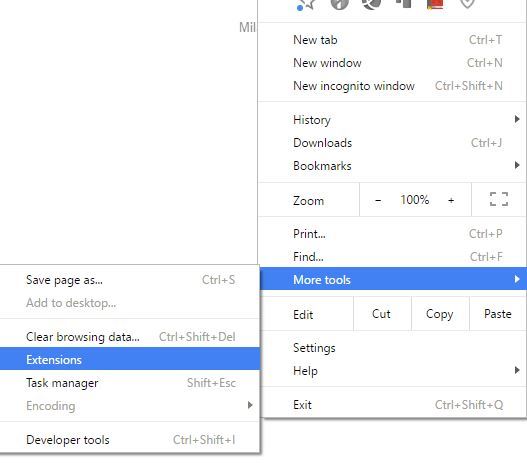
Launch the browser, click on the ellipsis near the top-right corner, hover the cursor over More tools, and select Extensions from the list of options that appear.
Click on the Remove button under the problematic extension to uninstall it.
Oftentimes, it’s the browser extensions that cause the AMD driver to crash while downloading files. In this case, it’s recommended that you remove the problematic browser extensions to eliminate the problem.
7. Update Windows 10
Press Windows + I to launch the Settings app, and select Update & Security from the options here.
Next, click on Check for updates on the right to scan for the latest available version of the OS.
Let Windows finish searching and click on Download and install, in case a newer version is listed.
Make sure that you’re running the latest Windows version on your computer. Microsoft constantly rolls out updates in order to improve the system’s stability and fix various issues, including known driver issues.
8. Repair your registry
Press Windows + R to launch the Run command, enter cmd in the text field, and either click on OK or hit Enter to launch an elevated Command Prompt.
Click Yes in the UAC prompt that appears.
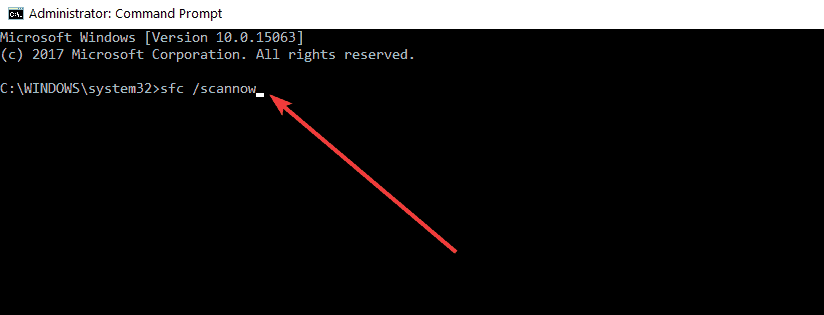
Now, paste the following command and hit Enter to run the SFC scan:sfc /scannow
Wait for the scan to complete and then restart your computer.
The SFC (System File Checker) scan is one of the most effective ways to identify and replace corrupt files on your computer. It’s quick and easy to run, though remember that it might not work every time.
What do I do if the AMD drivers crash in Windows 11?
If the AMD driver freezes or crashes, it is probable that the problem lies with your browser. As a consequence of this, it is strongly suggested that you turn off your browser for the time being until the issue has been fixed.
It has been reported that using Chrome or Firefox may result in a crash of the AMD drivers; therefore, uninstalling these two browsers may be required in order to remedy this problem.
After you have removed them, we strongly recommend that you switch to a browser that is more trustworthy and comes with both an up-to-date user interface and a free virtual private network (VPN).
Virtual private networks (VPNs), for those who aren’t familiar with the word, are a technology that allows you to browse the internet in total anonymity by redirecting all of your traffic via secure servers that are situated in different parts of the world.
After the installation of a graphics card driver, some customers have claimed that their computers have shut down unexpectedly and displayed a black screen. The problem may be fixed for the user only after they have entered Safe Mode and uninstalled the GPU driver.
Thus, you need to manually uninstall the GPU driver and then reinstall it. You also have the option of using specialized uninstaller software to fully delete all of your driver files, after which you can manually reinstall the drivers by downloading them from the original manufacturer’s website.
It’s also possible that this problem occurs because AMD drivers are disabled. Few users reported this issue after updating their operating system, so you should look into that. Also, if the issue started after updating the AMD driver, there are a bunch of easy methods to fix the problem.
These are all the ways you fix issues that cause the AMD driver to crash and get things up and running in no time. Also, once you have gotten things under control, many recommend disabling the AMD driver from updating automatically to prevent the issue from reappearing.
Besides, these methods will help fix issues that lead to AMD drive crash in Windows 11 and 7 as well.
If you have any other queries or know of a method that’s not listed here, drop a comment in the section below.
We have the best solutions in this article if you can’t delete your search history.
Browsers are widely used to access information available on the World Wide Web. Besides that, they store data; they remember everything you do on the internet.
Users, therefore, sometimes need to erase the history of what they have searched so far. However, they fail in this attempt and complain that browsing history is not deleted or will not be clear.
A bug usually creates this problem, preventing the browser’s history, cookies, cache, or other data from deleting.
Consequently, your browsing history is not deleted; follow the methods below to tackle this problem.
Generally, deleting your search history should be straightforward, and the process should always work. Here are the common culprits on the rare chance that you can’t successfully get rid of your search history.
You are not signed in to your profile or browser account
Your browser is out of date
Restriction brought on by permissions
Syncing of data across devices
Third-party extensions and apps
No matter why your search history is not deleting, our solutions will help resolve it.
How do I permanently delete my search history?
1. Using the History tab
1.1 Using the history tab in Opera One
Open your Opera One browser.
Press Ctrl + H to open the history tab.
On the top-right corner, select Clear browsing data.
Select what you wish to delete, then click on Clear data.
If you can’t delete website data on your browser, check if it is up-to-date. If a more recent version of Opera One is available, we suggest you download and install it.
To update your browser, open it, click on the Opera One logo, then select Update & Recovery. Click on the Check for updates button. If any updates are available, they will automatically be installed.
Opera One is a web browser that prioritizes security and privacy above all else. To that extent, it has a built-in VPN, ad-blocker, and tracking-blocker.
These tools work in unison to ensure maximum privacy while surfing the internet without installing extensions or third-party software.
Opera One
Thanks to this extremely privacy-oriented web browser, don’t worry about your browsing history being revealed.
Select what you wish to delete, then click on Clear data.
2. Reset the browser
2.1 How to reset Opera One
Launch the Opera One browser.
Click on the Address bar, paste the path below, and then hit Enter. opera://settings/resetProfileSettings
Click the Reset button.
Now try deleting the history again using the history tab as we did in the first solution.
2.2 How to reset Chrome
Launch the Chrome browser.
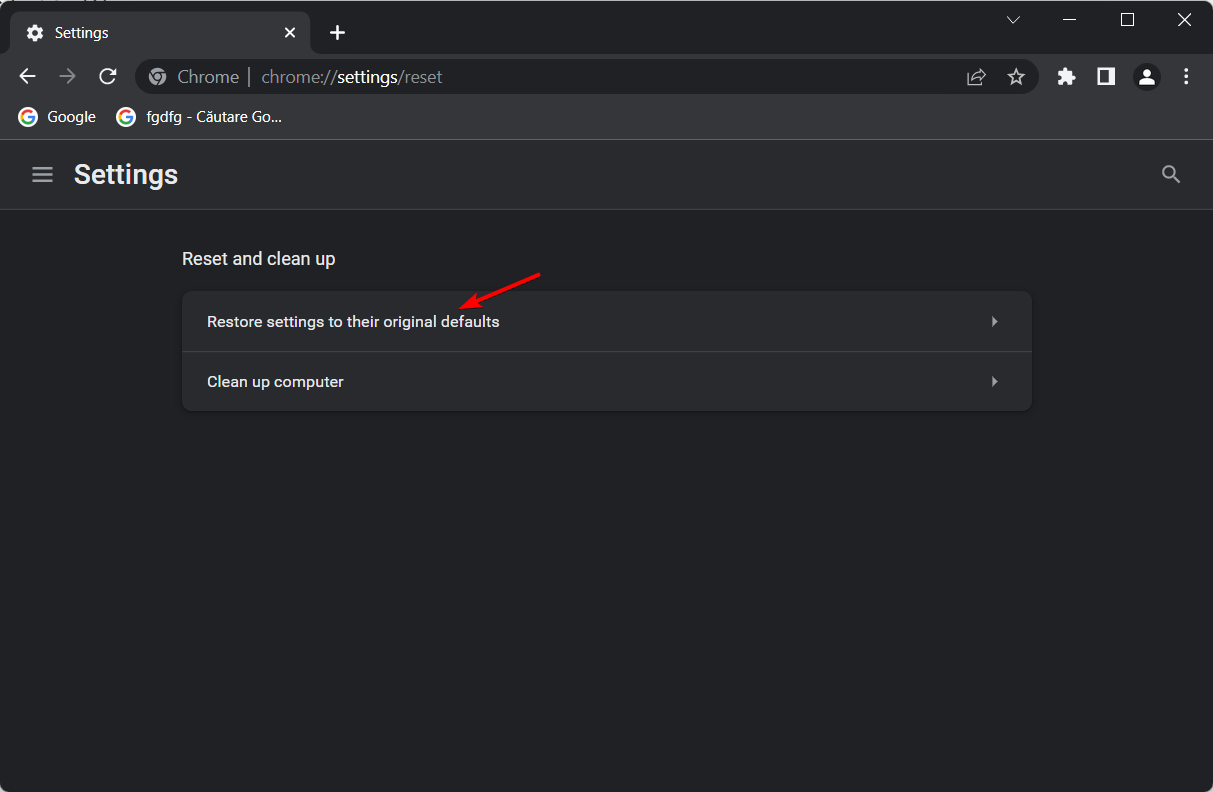
Click on the Address bar, paste the path below, and then hit Enter. chrome://settings/reset
Click on Restore settings to their original defaults.
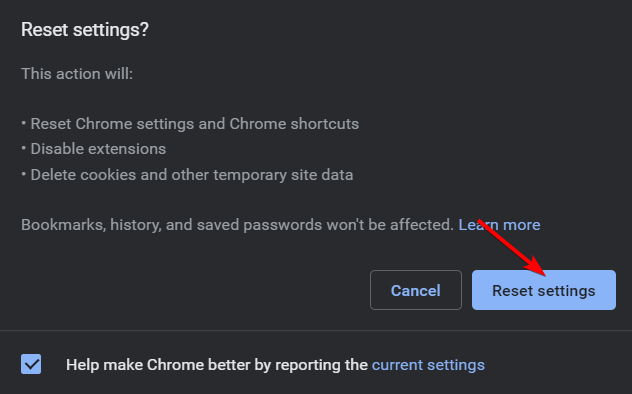
Finally, click on the Reset settings button.
Now try deleting the history again using the history tab as we did in the first solution.
3. Update the browser
3.1 How to update Google Chrome
Launch your Chrome browser.
Click on the menu, select Help, and click on the About Google Chrome option.
If there is an update, it will be automatically updated, after which you should restart the browser.
Now try deleting the history again using the history tab as we did in the first solution.
Usually, Chrome updates in the background when you close and reopen your browser. You can also update it manually if you want to make sure you’re using the latest version.
Click on the icon and select the Update & Recovery option.
If there is an update, it will be automatically made; then, you should click on the Relaunch now button.
Now try deleting the history again using the history tab as we did in the first solution.
4. Delete the history folder
4.1 How to delete Chrome history folder
Open the File Explorer.
Navigate to the path below, and be sure to replace USERNAME with your actual username. C:\Users\USERNAME\AppData\Local\Google\Chrome\User Data\DEFAULT\Cache
Right-click on the Cache_data folder and select delete.
4.2 How to delete Opera One history folder
Open the File Explorer.
Navigate to the path below. Be sure to replace USERNAME with your actual username. C:\Users\USERNAME\AppData\Local\Opera Software\Opera Stable\Cache
Right-click on the Cache_data folder and select delete.
5. Unsync your devices
5.1 Unsync in Opera One
Launch the Opera One browser.
In the Address bar, paste that path below and hit Enter. opera://settings
Scroll down to the synchronization menu, and if you are already synced, you will have an option to turn it off.
Now try deleting the history again using the history tab as we did in the first solution.
5.2 Unsync in Chrome
Launch the Chrome browser.
In the Address bar, paste that path below and hit Enter. chrome://settings/syncSetup
Click the Turn off button.
Now try deleting the history again using the history tab as we did in the first solution.
Who can see my deleted Search history?
First, let us start by saying that nothing is truly deleted. Anyone accessing your account can log into your browsers and see your deleted search history.
That said, it will take some technical know-how, so you should not worry about the everyday person gaining access to deleted search history.
Following the abovementioned steps, you can delete your history from your browsers without encountering any problems.
We hope this article helped you solve your problem. We’ve included many valuable solutions. Please let us know if you have anything to add regarding the subject.
In this article, we explore the best browser for Foundry VTT.
If you’re a fan of tabletop and roleplaying games, you might be familiar with Foundry Virtual Tabletop. It’s an excellent online service that allows you to play RPGs with friends online.
To ensure the best experience, you need to use a reliable browser, and while the service will work in almost any application, some might be better than others.
In today’s guide, we’ll take a closer look at the web browsers for Foundry VTT, so let’s get into it, shall we?
Also, note that for general gaming, any of these five best browsers for gaming will be a great choice, and you should use the best laptop for Foundry VTT to get the best experience.
Is Foundry VTT browser-based?
Yes, Foundry VTT is a web app that can only be accessed in a web browser; you can experience it in any modern web browser.
Remember that this web app might work better in some browsers, so we’ll help you pick the best one in this guide.
Opera GX is the world’s first gaming browser optimized for gamers. The software comes with a highly customizable interface, so you can change how your browser looks.
Like the original version of Opera, it offers integration with various messaging services, such as Facebook, WhatsApp, Telegram, VK, and even Instagram and Twitter support.
However, this version has Discord integration so that you can easily organize your gaming sessions with friends, and there’s even Twitch support if you want to keep up with the latest streams.
Opera GX also has a unique GX Control feature that limits the number of resources your browser use, so you can rest assured that it won’t slow down your PC.
Key features of Opera GX:
Built-in adblock
VPN
GX Control for resource management
Discord and Twitch integration
Support for instant messengers
Opera GX
Run web apps and games smoothly with Opera’s world’s first gaming web browser.
You might want to consider this software if you need a fast and reliable browser. The browser is lightweight, which makes it perfect for all types of demanding web applications.
It’s important to mention that the browser is highly customizable, so you can change how it looks and personalize it any way you want. You can also arrange your favorite websites in groups to access them quickly on your PC.
This browser is focused on privacy and security, so it can block ads and block cookies from tracking you. Of course, the built-in antivirus scanner will alert you if you try to download suspicious files.
Overall, UR Browser is a great choice if you want to protect your privacy or if you want a lightweight browser that can handle more demanding web apps such as Foundry VTT.
Key features of UR Browser:
Lightweight
Comes with tracking protection
Built-in VPN
Highly customizable
Built on Chromium
UR Browser
Lightweight and secure, UR Browser is the perfect choice for users who want a fast browser that doesn’t collect personal information.
Regarding browsing, Chrome is one of the best browsers on the market, and it comes with a powerful address bar that can perform all sorts of tasks ranging from giving you weather reports to calculating or translating.
The browser is also safe with its password generator, so you’ll always have a strong and unique password to protect your online accounts. Of course, all your data is synced, so you’ll never lose your passwords or bookmarks.
Overall, it’s a reliable and secure browser, so it’s perfect for all types of web applications, and it will be a great choice for Foundry VTT, so be sure to consider it.
Firefox is a well-known web browser, and it’s known for its privacy features. The software blocks the ad trackers by default, so you can rest assured that websites aren’t tracking your browsing history.
The software has a built-in password manager to generate and store unique passwords securely.
The browser is customizable, comes with multiple themes, a dark mode, and offers a highly customizable user interface.
Firefox isn’t feature-rich as other browsers, but it’s lightweight, so it’s perfect for all types of web applications.
There are a couple of things that you can do. For example, you can try decreasing the maximum framerate to preserve resources. Shadows can also be a problem, so disabling soft shadows can help you with your performance.
The service also has a special mode called the Haste module that will stop rendering the main board unless objects move. By using this feature, you’ll reduce resource usage and improve performance, especially on low-end devices.
According to the developers, the minimum amount of RAM is 8GB, but users reported running Foundry VTT on less RAM while using fewer modules, so you might be able to run it even if you have 4GB RAM.
For optimal experience without any performance issues, it’s recommended to have 16GB RAM.
Foundry VTT is an excellent service for all fans of tabletop roleplaying games, and unlike other services, it offers amazing graphics.
However, it’s also a bit more demanding, so you’ll need a good browser if you want to run it. If you’re looking for more similar services, you can visit our best 5 virtual tabletops article for more information. And make sure to check out the best VTT in 2022.
Which is your browser of choice for tabletop games? Let us know in the comments section below.
In this article, we share our list comparing the best browsers for HBO GO. HBO GO is a fantastic streaming service that lets you watch your favorite HBO shows on almost any device. It is an excellent alternative to streaming platforms like Netflix and Amazon Prime.
Some users prefer using their web browser for multimedia, and if that’s the case with you, today, we’ll show you the best browsers to watch HBO Go.
Which browsers support HBO GO?
Many modern browsers support HBO GO, but for optimal performance, here are our top recommendations:
Opera One
Edge
Chrome
UR browser
Firefox
We will tell you why we love these browsers later in the article but note that since there are a lot of compatible browsers, this is not an exhaustive list.
There are a few good streaming browsers, including Edge and Safari, but Opera One has an advantage over every other streaming browser. And would be our top recommendation.
We will talk more about this browser later in this article.
The first item on our list is the Opera One browser. This browser has low hardware requirements, so it will leave more than enough power for streaming.
Thanks to the built-in ad blocker, the hardware used is even lower, and your multimedia content will load up to 90% faster.
The browser also has a battery saver feature that can give you up to an extra hour of battery life.
It’s worth mentioning that Opera One supports customization, allowing you to tweak your start page with various news feeds easily.
If you use it for multimedia, you’ll be pleased to hear that Opera One has a video pop-out feature that lets you watch videos in a separate mini window while working on other tasks.
Lastly, with native integration for services like Twitch, Discord, and various messaging and social media apps it is an excellent choice for multitasking.
Notable Opera One features:
Built-in VPN with unlimited bandwidth
Screenshot tool
Available on all major desktop and mobile platforms
Ability to easily share files and links between devices with Opera Flow
Advanced tab organization with workspaces and tab islands
Built-in AI, free and up to date
Opera One
Opera One is the number 1 browser for streaming thanks to its low hardware requirements and built-in ad blocker and VPN!
If you want to watch HBO GO, Microsoft Edge might be the best browser for the service. Edge was recently completely revamped, and it now has various new and exciting features.
Edge has a native 4K support for streaming, but this feature only currently works with Netflix.
Although Edge was previously exclusively available on Windows 10, the revamped version can also work with older builds.
That’s not all; the new version is available on macOS, iOS, and Android. It also has better privacy control and protection, so you can choose what tracking cookies you want to block.
Notable Edge features:
New and sleek interface based on Chromium engine
Support for Chrome extensions
Ability to customize your home page
Immersive Reader
Built-in malware protection
Microsoft Edge
Edge works on all platforms, and it is continuously updated so it’s great for all purposes.
Chrome needs no introduction since it’s currently one of the most popular browsers in the world. The browser is great for multimedia, especially if you’re using Chromecast devices.
Thanks to native Chromecast support, you can easily stream content from your PC or phone to any Chromecast device.
As for additional features, we have to mention thousands of available extensions that let you customize and enhance your browser.
Speaking of customization, Chrome allows you to customize your start page with various themes easily.
Regarding performance, this browser is optimized for multitasking and can easily handle multiple tabs.
Notable Chrome features:
Available on all major desktop and mobile platforms
Built-in password manager
Adblocker
Native translation feature that can cover entire pages
Protection against malicious websites
Google Chrome
This is the most popular browser for good reasons and it’s perfect for streaming HBO GO.
If you’re looking for a browser that works with HBO GO and protects your privacy, you should consider Firefox.
This browser is completely open-source, and since a non-profit organization makes it, it won’t sell your browsing data to third parties.
Regarding multimedia, Firefox has a pop-out video player that lets you watch videos while working on different tasks. As for privacy, Enhanced Tracking Protection can block more than 2,000 other trackers.
Firefox also lets you store your passwords, but you can easily access them on any platform with the Firefox Lockwise app.
Notable Firefox features:
Hundreds of available extensions
Ability to inform you if your account is compromised in a data breach
Customizable user interface
Available on all desktop and mobile platforms
Synchronization feature
Mozilla Firefox
Enjoy your HBO GO content with a browser that blocks trackers and annoying ads.
There you have it, our list contains recommendations for the best browser for HBO GO. Note that these also make our list of the best browsers for HBO MAX.
Remember that this service is not available in every country, so you may also need to use any of the best browsers for streaming to get the best content and viewing experience.
Did you find our list helpful? If so, let us know in the comments below.
The Xbox video games, Tropico 6, For The King, and MLB The Show 22 are now free to play on Microsoft’s Xbox One and Xbox Series X console generations until the end of the weekend.
It is worth noting that both Tropico 6 and MLB The Show 22 are currently both available to play as part of Xbox Game Pass so those with an active Xbox Game Pass subscription can already play these for free (as part of their subscription) and will likely be able to play them for a while after this weekend is over.
With that in mind, For The King is the clear choice for Xbox gamers with an active Xbox Game Pass subscription. Of course, those with just an Xbox Live Gold membership only have the next two days to try all three.
Here’s the official game description and trailer for For The King:
For The King is a strategic RPG that blends tabletop and roguelike elements in a challenging adventure that spans the realms. Set off on a single player experience or play cooperatively both online and locally. None before you have returned from their journey. Will you put an end to the Chaos?
For The King is a challenging blend of strategy, turn-based combat, and roguelike elements. Each playthrough is unique with procedural maps, quests, and events. Explore Fahrul in either single player, local, or online co-op. Just remember adventurer, you do this not for riches or fame but for your village, for your realm, For The King!
In times of political turmoil and social unrest, the people are calling for visionary leaders, who will steer the fate of their country with foresight and ingenuity. Prove yourself once again as a feared dictator or peace-loving statesman on the island state of Tropico and shape the fate of your very own banana republic through four distinctive eras. Face new challenges on the international stage and always keep the needs of your people in mind.
For the first time in the series, manage extensive archipelagos, build bridges to connect your islands and use new means of transportation and infrastructure. Send your Tropicans on raids to steal the wonders of the world, including the Statue of Liberty and the Eiffel Tower. Customize your palace at will and give election speeches from your balcony, to win the favor of your subjects.
Every pitch. Every hit. Every win. Make your mark and Own The Show in MLB® The Show™ 22.
Create and use multiple Ballplayers, beyond your Road to the Show personalized Baseball RPG experience, and customize your Ballplayers how you want to aid in your progression.
Diamond Dynasty is back and better than ever! Play, collect, and build on your fantasy card collection and bring to life on the diamond.* Try the new Mini Seasons mode, where each season brings new challenges as you face off against a new set of competition!
Face your friends with cross-platform play.** With cross progression, continue your progress and earn and use content on other console platforms.***
Stepping up to the plate for the first time? Tailor your experience with gameplay styles and two new difficulty settings to help you get the hang of the basics.
New Intro Presentations provide the most immersive ballpark experience yet.
Play March to October in your style, with updated mode tools to utilize custom uniforms, logos, and created stadiums.
Live out your dream Baseball matchups with new Legends joining the diamond.
While playing Youtube videos, you must have experienced no sound on the Edge browser. We should help you get it fixed in this article.
With Windows 10 and 11 came a new web browser called Edge. And it brought many changes and improvements compared to its predecessor, Internet Explorer 10.
It is one of the best browsers to use on a Windows OS. However, users reported playback issues with YouTube while using the Edge browser on Windows 10 and 11, so today, we’re giving you a few tips on how to fix this issue.
This is not peculiar to Edge, and some users have also struggled with issues of no sound in Google Chrome.
Why is YouTube playing with no sound?
When YouTube plays without sound, there could be a few factors responsible. Some are peculiar to Youtube or the browser, while others are system-wide problems.
Here are the most common reasons why you can’t get sound on YouTube:
The Edge tab is muted
YouTube is muted
Outdated sound drivers
Muted system speakers
A Corrupted browser
How do I find audio settings in Edge?
Other than the ability to mute tab volumes, or individual videos playing from a browser, there are no sound settings on Edge, and you will only be able to tweak the sound from the computer Settings.
Speaking of audio issues in Edge, users reported the following problems:
No sound YouTube Edge – This is a common problem with Microsoft Edge, and if YouTube audio is missing, it’s advised that you reinstall or update your audio driver.
Microsoft Edge sound problem – Various audio problems can appear in Microsoft Edge. If you’re having any audio issues, be sure to try some of our solutions.
Microsoft Edge YouTube not working – Several users reported that YouTube isn’t working at all in Edge. This is a big problem; however, you might be able to fix it by disabling Adobe Flash Edge.
Microsoft Edge YouTube playback error – YouTube playback errors can sometimes appear in Microsoft Edge, and if that happens, the problem might be your rendering settings. To fix that, be sure to switch to software rendering in Edge.
Microsoft Edge browser no sound – Many users reported that they don’t have sound in their browser. Try clearing your history and cache to fix this issue and check if that helps.
Quick Tip:
Try loading YouTube videos with a lighter browser, such as Opera One, for better audio quality. Enable its hardware acceleration feature to boost up speed even more.
Opera One runs on a Chromium engine and uses very few CPU and RAM resources. Make sure to activate the built-in adblocker to remove the need to load unnecessary ads. The battery-saver feature will also help.
Opera One
Get the best out of YouTube with this lightweight, performance-oriented browser.
Click the Hub icon on the top right of the browser.
Next, click on Settings.
Click on Privacy, search, and service on the left pane, then select Choose what to clear.
Select the items you wish to clear and click the Clear button.
Restart the Edge browser.
2. Reinstall the audio driver
Press Windows Key + X and choose the Device Manager from the list.
When Device Manager opens, locate your audio device.
Right-click it and choose Uninstall device.
Click Uninstall to confirm.
Click on Scan for hardware changes icon.
Now verify that the no sound on Edge on Windows 10/11 is fixed; if not, move on to the next solution.
3. Turn off Adobe Flash
Click the Hub icon on the top right of the browser.
Click on Settings.
Next, click on View advanced settings.
Find the Use Adobe Flash player and disable it.
Restart the Edge browser.
If the issue of no sound in Edge while playing YouTube videos persists, go to the next solution.
4. Use software rendering
Press Windows Key + S, type Internet options, then select Internet Options.
Click the Advanced tab.
Go to the Accelerated Graphics section.
Check the Use software rendering instead ofGPU rendering.
Click Apply, then OK to save changes.
5. Restart Edge
Restarting your browser is an effective way of fixing many minor browser issues. When the browser is relaunched, it allows some processes to close and startup correctly.
If you’re having audio problems with Edge, you might be able to fix them with this simple workaround.
Remember that this is a temporary solution, so the issue may reappear.
6. Change User agent string
Open the Edge browser.
Click the menu button in the top right corner.
Click on More tools, then Developer Tools.
Go to the Emulation tab and set the User agent string to Internet Explorer 10.
After doing that, the problem with YouTube audio should be resolved. This is an unusual solution, but some users claim it works for them, so you might want to try using this workaround.
To achieve the best results, open the desired video, and change the User agent string as we showed you above.
Remember that you’ll have to repeat this solution for every YouTube video you want to watch, so this probably isn’t the best long-term solution.
7. Change the audio format
According to users, Microsoft Edge supports surround sound and Dolby Digital Plus Portable audio.
However, sometimes Dolby Digital Plus audio format can be problematic and cause audio problems with YouTube videos in Edge.
You must change your audio settings from the 7.1 to the 2.1 channel to fix this issue. After that, save changes, and the problem with YouTube videos should be resolved.
8. Unmute sound on the tab
Launch the browser.
Open a video on YouTube.
Finally, right-click on the tab playing the video and select the unmute option.
You should also ensure the YouTube player does not mute the video.
9. Turn off Windows Defender SmartScreen
Open the Edge browser.
Click the menu button in the top right corner.
Click on Settings.
On the left pane, click on Privacy, search and services, then toggle off the switch for Microsoft Defender SmartScreen.
Note that your internet security can be compromised if SmartScreen is disabled. After you have finished watching YouTube videos, you may turn on SmartScreen protection once again.
10. Try using Playing audio troubleshooter
Open the Settings app.
Go to Update & security section.
On the left pane, select Troubleshoot, then on the right pane, choose Playing Audio, and finally click the Run the troubleshooter button.
Lastly, follow the instructions on the screen to complete it.
Microsoft Edge not showing in volume mixer
Microsoft Edge sound settings are usually found in the volume mixer of your computer. However, if you do not see Edge on the volume mixer, it is most likely because you do not have any sound playing from the browser. In such cases, there is nothing you can do till sound starts playing.
Sometimes, there may be a real problem with the browser sound, and the solutions in this guide should restore sound to the volume mixer. In extreme cases, you may have to reinstall the browser.
That’s all; we hope at least some of these solutions helped you with your YouTube problem in Microsoft Edge.
If you have any comments, suggestions, or maybe another solution for this issue, don’t hesitate to write to us in the comment section below.
Who hasn’t heard of Minecraft? The best-selling video game of all time that has reached over 120 million users worldwide already.
For sure, if you’re a gamer, you’ve been immersed in the Minecraft block environment. And you’ve experienced game issues at some point without a doubt.
Even though not new (but still problematic), is an error message that pops up when opening Minecraft on Twitch:
Failed to download file, the file contents differ from what was expected.
Name: jna-4.4.0.jar
The path and the URL are also mentioned in the error.
Besides the mentioned situation, the same issue might arise when trying to launch Minecraft from its folder or from the official launcher.
Both Windows and Mac users have experienced the issue, and luckily, there’s one single solution that applies to both systems.
How can I fix the Minecraft Failed to Download File, the File Contents Differ Error?
In the steps below we will show you how to easily fix the “Failed to Download File, the File Contents Differ” Error:
1. Open a browser and copy/paste the link found in the URL as displayed in the error.
2. Download the file.
3. Then, go to the file path mentioned in the error (the path differs from one user to the other, but it begins with /Users/*Your Username*/Library/ etc.).
4. In the respective location, you should find the .jar file that was originally installed(on some occasions, the file is missing).
5. Drag and drop here the file you’ve just downloaded (replace the .jar file that’s already found there).
6. Try to open the game once again. It should start smoothly.
Mind that the error has been reported with several versions of Minecraft – 4.4.0.jar, 4.5.0.jar, or 4.6.0.jar.
So the solution should be adapted to the version you were trying to open.
We hope that this simple solution worked for you and that now you’re back to playing your favorite game.
Is Twitch not remembering where you left off? Make sure you read this article completely as it is dedicated only to you.
The Videos On Demand Twitch feature allows users who missed a live stream to watch it later. Also, it keeps a timestamp of your previous view of the video so you can get back to where you left off.
This is, by all means, a necessary feature but it lately started bothering some users. Namely, they report that Twitch is not remembering where they left off. Here’s what one user said on the Twitch subreddit:
Twitch no longer remembers how far into a VOD I was when I stop watching. Like on youtube videos, if you stop watching and then come back, youtube will remember the place you left off. Twitch used to do the same with VODs, but in the past week it seems to no longer do that, and I have to navigate to where I think I left off. Anyone else having this issue?
Before learning how to easily fix our presented issue, let’s take a look at some reasons that explain why it can appear.
Why is Twitch not remembering where I left off?
Cache and cookies – The browser’s cookies and cache may sometimes block the streaming process, making your app unable to remember where you left off. Thus, it is recommended to constantly clear them, as we are going to explain a bit later.
Extensions – Some of your browser extensions might not be compatible with your Twitch app. In these terms, you should try disabling them.
Hardware acceleration – Faulty hardware acceleration would harm your PC and streaming performance, so it’s best to disable it. You should know that it can affect your experience especially when running games or chatting/streaming apps.
Temporary bugs – Like any other app or platform, Twitch can run into different troubles, which appear randomly and for a short-term. We also have a solution in this matter, so make sure you keep on reading.
Browser related issues – Because Twitch is an extremely complex platform, it needs a specialized browser that would keep you away from any issue. You’re going to discover the best option on the market, at the end of this guide.
What can I do if Twitch is not remembering where I left off?
1. Clear browser’s cache
1.1 Google Chrome
Hit the Windows key, type Chrome, then open the first result.
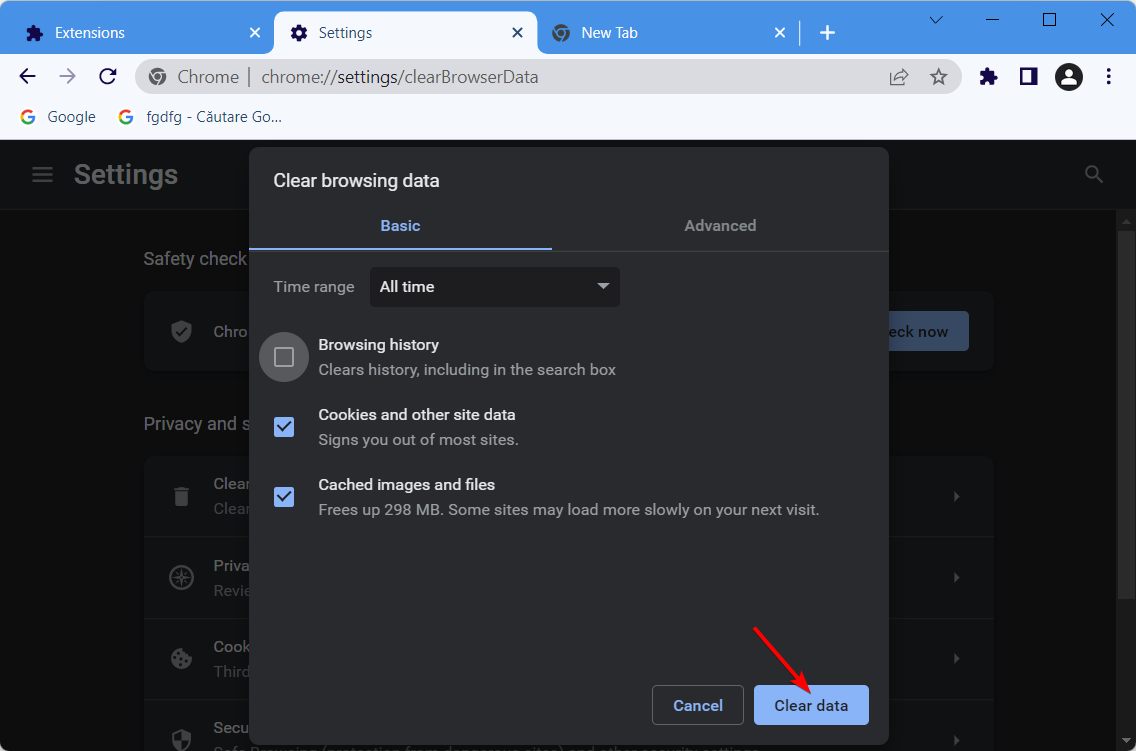
Use the following keyboard shortcut to open the Clear browsing data menu: Shift + Ctrl + Delete.
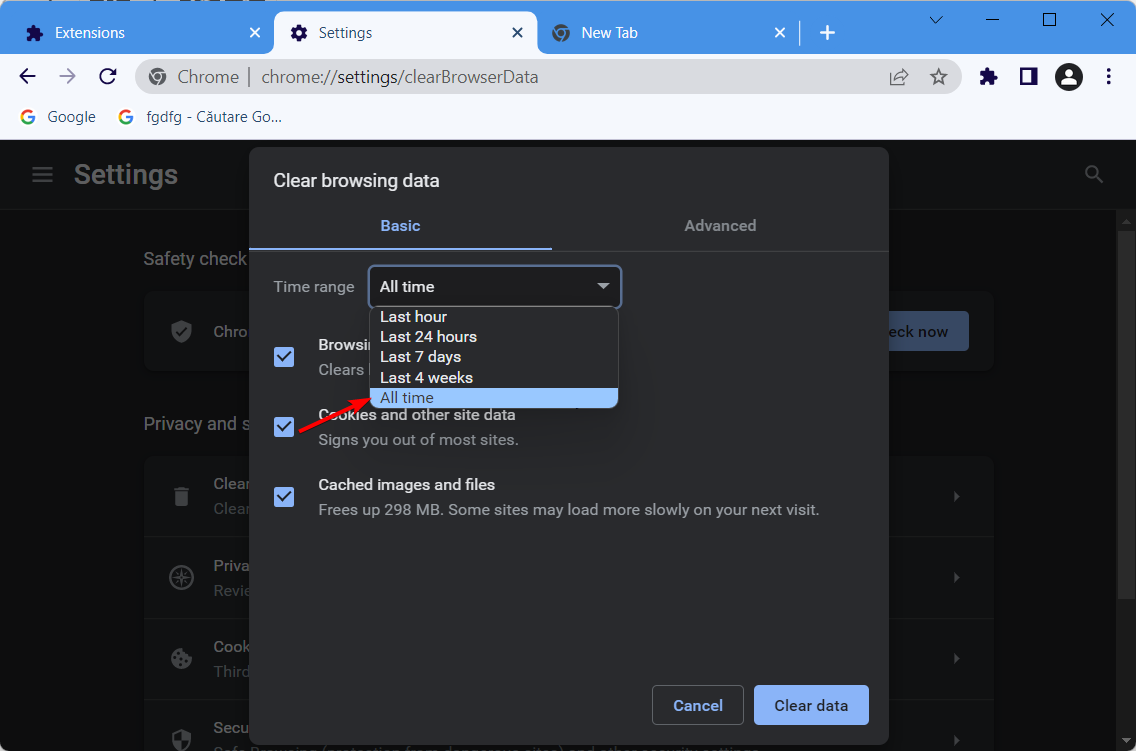
Choose All time as the Time Range.
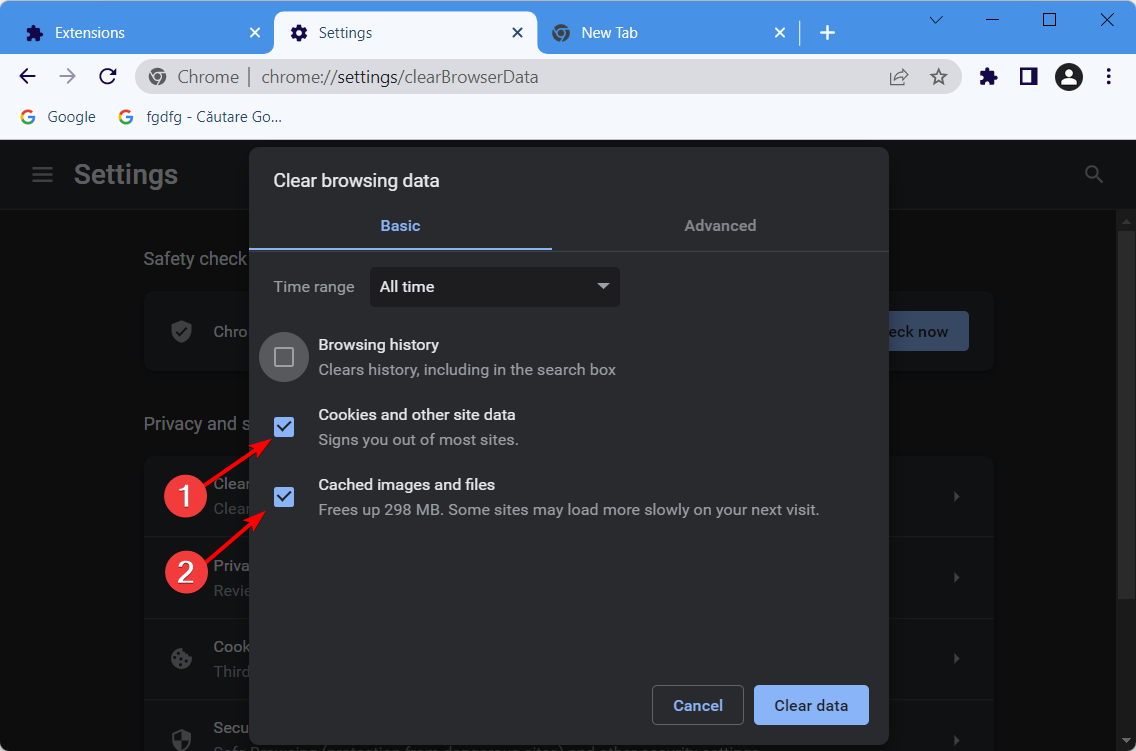
Focus on deleting Cookies and other site data and Cached Images and files.
Finally, click on the Clear Databutton.
1.2 Mozilla Firefox
Use the following keyboard shortcut to open the Windows search box: Windows + S.
Type Firefox, then click on the first result.
Once your browser is opened, press simultaneously on the following keys: Shift + Ctrl + Delete.
Set the Time range on Everything.
Now, checkmark only the Cookies and Cache options, then click on Ok.
1.3 Microsoft Edge
Press on the Windows key, typeEdge, then open the first result.
Use the following keyboard shortcut to open the Clear browsing data section:Ctrl + Shift + Delete.
Check the Cookies and other site data and Cached images and files section, then click on Clear now.
If Twitch is still not remembering where you left off, make sure you keep on reading.
2. Disable browser extensions
2.1 Google Chrome
Hit the Windows key, type Chrome, then open the first result.
Click on the 3-dots menu (from the upper-right corner of the window).
Hover the mouse over More tools, then navigate to Extensions.
Toggle the button from Ad-Blockers and Proxy extensions to disable them.
Restart the browser, then navigate to the Twitch website again.
2.2 Mozilla Firefox
Press on the Windows key, type Firefox, and click on the first result.
Click on the 3 lines menu, from the top-right corner of the page.
Navigate to Add-ons and themes.
From the left window pane, select Extensions.
Disable the Proxy extensions and Ad-blockers by toggling the button on Off.
2.3 Microsoft Edge
Hit the Windows key, type Edge, then open the first result.
Click on the 3 horizontal dots menu, from the top-right corner of the window.
Navigate to Extensions.
Now, in the pop-up window, click on Manage Extensions.
Now, disable the Proxy extensions and Ad-blockers by toggling the button on Off.
3. Disable Hardware acceleration
3.1 Google Chrome
Hit the Windows key, type Chrome, then open the first result.
Look at the top-right corner of the window, then click on the 3 vertical dots (the Chrome General menu).
Navigate to Settings.
From the left window pane, expand the Advanced section, then click on System.
Locate the Use hardware acceleration when available option and disable it.
Restart your browser.
3.2 Mozilla Firefox
Press on the Windows key, type Firefox, and open it.
Go to the Firefox General menu (marked as 3 horizontal lines in the top-right corner of the window).
Click on Settings.
Now, in the right side of the window, scroll down until you find the Performance section.
There, uncheck the Use recommended preferences settings option, then the Use hardware acceleration when available one.
3.3 Microsoft Edge
Hit the Windows key, type Edge, then open the first result.
From the upper-right corner of the page, click on the 3 dots menu.
Navigate to Settings.
Look at the left window pane and click on System and performance.
Turn off the Use hardware acceleration when available option.
Click on your profile avatar in the top right corner.
Select Log out.
Try accessing Twitch VODs while not signed-in as seemingly Twitch remembers where you left off that way.
That’s it. Hopefully, these steps were helpful and Twitch now remembers where you left off. If you are still bothered by the error, make sure to send the ticket to Twitch Support.
Of course, if you encounter any related questions, the comment section below it is always here to help.
Free video editing software can help create some quick videos and there are plenty to choose from for Windows 11. However, if you have some more complex projects, you might want to check some of the premium solutions we have also listed here.
These are great for those who want to create videos fast without any costs. However, one has to be very careful with them as they only have basic features, which can be challenging for a serious project.
There is a high demand for videos in the world with the emergence of social media platforms like TikTok and YouTube, where video is the second most-consumed content on the web.
In this article, we discuss the best free video editing software for Windows 11 and their features.
How can I benefit from free video editors?
Video editors create engaging, emotional, educational, and empathetic videos. It helps someone stamp some authority, i.e., in marketing, and pass a certain message.
On personal brands, videos ensure the brand can communicate with its audience on different platforms.
With editors, you can make different types of videos for different functions. However, you might have to optimize your PC beforehand for more advanced tasks.
Movavi Video Editor is a comprehensive video editing software that can perform all the basic operations, such as trim, cut, merge, and split video clips, and apply various effects and transitions.
But that’s far from what this tool can do! Its AI-powered features like noise and background removers, help you create desired crisp content with just a click.
It lets you enhance audio tracks by removing background noise, normalizing audio levels, and adding audio effects.
The AI upscaling feature helps you improve the resolution of your videos up to 8 times, providing a clear output.
Apart from the smart tools, Movavi Video Editor features a simple and modern interface suited for anyone, with clear and intuitive menus.
This video editing tool allows you to convert your videos to all the popular formats, including MP4, AVI, MOV, WMA, MKV, FLV, and more.
It also comes with a screen recorder that lets you capture screenshots and record anything happening on your screen.
Some of the key features include:
Allows you to add text titles, captions & watermarks
Converts audio files & image files to different formats
Enables you to create DVDs and Blu-ray discs
Comes with video stabilization tools
Processes multiple videos simultaneously
Movavi Video Editor
For a user-friendly editor with powerful features, check out Movavi Video Editor. It’s perfect for beginners and pros alike!
Adobe Premiere Rush is a free video editing software for desktop and mobile devices that allows users to create and share videos from anywhere.
Using this flexible video editor you have the skilled tools for making eye-catching videos and adjusting them how you prefer.
Thus, the software has practical tools like transitions overlays that help in manipulating the videos or color correction presets for proper video coloring.
This app is for beginners who have an interest in creating videos in a short period. You can create content that you can use to interact with your audience.
Plus, you can add customized titles to different scenes, and import or modify audio tracks into your video, and even produce voiceover.
Some of the other features include:
Easy transition.
Free 100GB cloud storage space.
It has built-in templates where you can start editing videos.
Presets to save videos or share them on social media.
Adobe Premiere Rush
For a versatile and easy-to-use video editing tool, check out Adobe Premiere Rush
Clipchamp is a free video editing software with 17+ million users community across 200 countries for editing and creating outstanding videos with ease.
This video-editing software guarantees high-quality tools for memorable videos with your loved ones. You can use customizable video templates or create new videos from scratch in a short time.
You can use this intuitive video editor right in your browser and craft unique video projects with tools such as trimming, cropping, or filters and transitions.
Clipchamp is extremely intuitive and can be used by anyone with or without technical knowledge. You only have to add media files, drag and drop videos or images into the timeline, and just create!
It is also possible to edit and improve your clips with practical options such as splitting and combining to cut longer videos into small parts, and adding text, titles, or personal logos/watermarks.
To obtain an improved outcome with your videos, manually change the color balance or even add backgrounds for different frames.
Some of the other features include:
Library with stock footage
Intuitive video editor
Camera and screen recorder
Text to speech generator
Brand kit with fonts, colors, and logos
Clipchamp
Try out this extremely simple video editor to get useful editing tools and captivate your spectators from minute one.
Canva is a world of media content creation, not just a video editor, but it also does that very well.
First, this solution is cloud-based, so everything you create or edit will be available from almost any device anywhere in the world.
That means you don’t need to install anything on a PC, and Canva also has collaboration features.
Whether you want to create or edit a video, you will find many free templates to choose from, and the interface is so intuitive that anyone can master it in just a few minutes.
Inserting new clips, cutting the existing ones, and adding music is a child’s play through drag-and-drop functionality.
You can easily create credits and subtitles, design and set up logos for your videos, and add many elements that will make your video much more exciting.
Take a look at Canva’s top features:
Friendly, easy-to-use interface
Cloud-based dashboard, accessible from almost any device
Great library of video templates to choose from
Simple timeline with lots of transitional effects available
Easy to add text and elements to spice-up the video
Canva
Canva Video Editor is a great choice for easy and quick video editing.
Wondershare Filmora is another lightweight video editing program. It’s a lightweight and simple-to-use program that works with Windows 11
It can record a live cast of the user’s computer screen and supports practically every video, audio, and image format.
Filmora is an all-in-one video editor that includes all of the essential tools for editing videos, including cropping, splitting, cutting, and combining.
Face-off, filters, overlays, transitions, motion effects, picture-in-picture, and mosaics are among the special effects capabilities included. It also allows you to edit videos with a green screen.
It is an all-in-one application that can assist create great videos, with editing options for everyone from beginners to professionals and well over 300 video effects.
One disadvantage of this video editor is that it might become unstable at times, especially when the user is editing many films.
Other features include:
Motion tracking tool
Preset video templates
Green screen and video effects
Silence detection
Audio ducking
Filmora
Get a lightweight video editing program. It’s a lightweight and simple-to-use program that works with Windows 11.
Videopad is one of the best video editors with the best audio support due to its ability to upload unlimited audio.
It also has a lot of sound effects to use in your video. It is better for audio professionals and 3D video editors.
Using this software you gain the support to burn finished movies on DVD with HD quality and the option to directly share your videos online.
You can choose from a variety of video transitions for more dynamic and structured videos. Plus, the audio effect functionality allows you to add echo or distortion sound to the video.
Other features include:
It allows 3D video editing
Easier to share on social media platforms without leaving the editor.
It is simple to use.
The software supports camera stabilization.
VideoPad
Get a free video editor used for other purposes, not commercial. It also has a premium version for extra features.
Visme is design software that provides professional designs or videos for a variety of purposes, such as corporate or book covers.
Thousands of editing options for presentations, cover designs, and many other types of visuals are available in this powerful program.
In other words, because of the customizable capabilities that allow you to arrange any graphics any way you like, your book will communicate to the reader just by its cover.
Additionally, Visme can ensure a valuable brand image, implying that accurate data or images can be used to better represent the message.
As a result, you may create handcrafted book covers with stickers, characters, or dynamic text to visually communicate your story.
Other features include:
Professional video templates
Animated assets and free stock videos
Brand Kit video creator
Drag and drop tools
Social media sharing options
Visme
Create proudly your future published book cover with this comprehensive design editing tool.
This is one of the best free video editor software, and it has released a lot of big projects like 28 Daya Later and Pulp Action.
It’s free to use and has an amazing user interface that makes it easier to use. You can customize the UI interface by dragging windows to meet your desired layout.
It offers tutorials that guide users to navigate and enjoy the editing process if stuck or you want to know something.
Plus, you have access to original stock photos, music, and videos that you can integrate into your project.
The software has real-time support where you can share your project with others while you are still working on another project.
Lightworks possesses high-speed optimization due to the ability to import new videos while you continue to edit.
It offers additional features through a paid version. Some of the other features include:
High Multicam support enables users to sync clips from multiple cameras.
Supports 720p export for Youtube videos.
Has Hollywood features that make it easier to create such projects in less time.
HitFilm Express it’s a free editor with over 150+ effects. It has an amazing 3D composition with 3D effects that help produce amazing effects for music videos, Youtube videos, movies, and films.
Its animation features make it easy to turn transitions without organizing for difficult shots.
It supports 360 video editing for both 2D and 3D, and 4K video export making it have the same features as paid editors like Adobe Premiere Pro.
The only disadvantage it has is that you have to share the news on social media to start using it. For other features like color grading, you have to pay subscription fees.
Some of the other notable features include:
Ability to upload Youtube videos directly while on your editor.
Produces fine sound due to its audio mixer.
It has basic features like transitioning, cropping, timeline tracking, and splicing.
Easier to trim clips after adding them to the project’s timeline.
Has the ability to produce free shaky clips with the help of an auto-stabilizer.
You can copy effects from one clip and apply them to another or the whole video project.
DaVinci Resolve is one of the most used video editors by professionals due to its ability to combine visual effects, audio editing, 8K editing, and color correction into one.
They are commonly used by video editors, film producers, YouTubers, shows, and commercials.
This software was first designed to work with the Black Magic accessories like cameras and hardware where you can edit directly from the cameras when shooting.
It has high performance, and you can use facial recognition to change skit tone, eyes, and lips colors.
Other features include:
Easy syncing of video and audio clips.
Over 2000 tracks of audio.
Some of the other tools include picture-in-picture effects, zoom, adding texts e.t.c
Use of Fairlight tools to mix channels during editing.
You can use it when you have a small budget.
High-quality motion changes to slow or speedup clips.
OpenShot is a free and open-source editor that allows different developers to work on it. It has some features that take too long to load or apply some changes.
It is the best editor for beginners who are new to video editing and are eager to quickly learn more.
The editor has the basic features to crop, edit, rotate, and resize. You can also make some adjustments like brightness, contrast, color grading, and more. It also offers a real-time preview inside the app.
OpenShot has a drag and drop interface which makes it easier for everyone to use no matter the expertise level.
It also has other features like credit scrolling, time mapping, and frame stepping to meet the user’s needs.
Other features include:
Ability to create animation using the editor’s animation features.
If you want to produce videos fast, you may also check out InVideo. With this free video editor software, you can access a library of over 5000 professionally-made templates to start off with.
Another feature that helps automate the process is Shortcuts. You are able to create an entire sequence of actions with a single click and apply it to the elements in your videos.
For instance, you may eliminate the background in a photo and apply a dedicated filter with one click.
Moreover, the powerful AI technology inside InVideo allows you to convert text into meaningful video in seconds just by using text prompts.
You may also use animations and collaborate with your team on a corporate video for instance.
Clipify is the best video editing software for Windows 11 that will suit both amateur and seasoned users pressed for time. With the intuitive program, it will take seconds to give your footage a polished look.
The software is crammed with pro-level tools to take your videos to a new level. Even though it’s a powerful and feature-rich program, Clipify is still extremely easy to use, so you can create engaging movies right after installing the video editor on your Windows 11 computer.
Zoom-in effects, color grading with Curves, stabilizing shaky footage, and even overlaying videos will be absolutely hassle-free.
Here, you’ll have countless editing features at your disposal to craft a compelling narrative – write your text on video clips, add a voiceover, and record your voice comments right in the video editor.
In other words, this free video editing software will be perfect for any task, whether you want to enhance the quality of your family footage, prepare an important project at work, or create a jaw-dropping video for your YouTube channel.
Some of the other features include:
Clear interface
Chroma Key
450+ effects and titles
200+ free music tracks
50+ input file formats supported
Clipify Video Editor
Try the smart tools of the laptop-friendly Windows 11 video editor to wow your friends and family with outstanding content.
Having a better video depends on the scope of your project. If the project is too big, you have to get a more advanced video editor. But for small projects like posting videos for fun or a hobby, then the free editors will help you out.
Every editor has its advantages and disadvantages, which you are now aware of, and making a decision based on this information will be helpful to you.
Do you have another free video editor you feel we didn’t discuss? Let us know in the comment section.
Ever since the pandemic hit, both educators and students have been affected adversely. As a result, Microsoft Teams has been been on the receiving end when it comes to features and updates that will help the student thrive in school regardless of these unfavorable circumstances.
A notable feature that has made it to Teams with the aim of facilitating this goal is New Assignments and Grades report in Education Insights. This feature is in place to bridge the gap created when carrying out these learning sessions virtually, in that the students are able to interact with the course facilitator. With this in place, the teacher will be able to identify students that need more assistance in a particular area.
Besides that, the feature is more comprehensive and detailed. The course tutor is able to track the student’s progress over time, which gives them more insight in regards to their performance and whether the mode of teaching they are using is efficient. Teachers can filter through and check which assignments had the highest performance index and those that didn’t, which therefore allows them to make adjustments accordingly.
According to the blog post, the feature “provides additional data about students’ progress, including their grade trends, categories, and group assignment information. And teachers can use the class overview to zero in on data specific to a student or assignment, or to compare a student to the entire class”.
Moreover, the app gives the course facilitator access to the students’ assignments dashboard where they can check the progress the students have made on the tasks assigned and even provide support to those who are stuck. The new Teams color coding has also made it easier for the teachers to keep track of these assignments.
To access these features, you will need to navigate through Teams by clicking on the Insights Tab, then heading over to the Assignments report where you will now be able to view all the data regarding the students’ learning progress.
And finally, the Immersive Reader has been made more “inclusive and accessible” to help enhance the learning process by helping students brush up on their reading skills. “Microsoft is making the tool freely available to all PowerSchool Unified Classroom® Schoology Learning customers”. Be sure to also check out our expert guide on how to use Immersive Reader.
In the blog post, Microsoft indicated that Rubrics will be rolled out soon in Assignments that can be linked to Insights. They also intend to provide tutors with visual representations of grading that will help them identify topics that students did not perform well in. A resource accessed tab will also be introduced where course facilitators can attach reading material that they would like students to reference before class or for a particular topic. The twist here is that they will be able to tell which resources students are currently using.
Sometimes, when you try to access an online flash game or a project, you’re welcomed with the error message The browser could not allocate enough memory for the WebGL content.
If you are the developer of this content, try allocating less memory to your WebGL build in the WebGL player settings.
This isn’t a problem that you can encounter, and many users reported Your browser does no support WebGL message, but we already covered this in a separate guide.
One user made sure to explain the nature of the problem on Reddit.
[ERROR] most of the games I tried give me the error “The browser could not allocate enough memory for the WebGL content. If you are the developer of this content, try allocating less memory to your WebGL build in the WebGL player settings”
Firstly, ensure that you meet the game’s system requirements. If that’s the case, start the troubleshooting procedure with the steps we provided below.
What browser supports WebGL?
All modern web browsers support WebGL. This includes, Chrome, Chromium, Firefox, Safari and many others.
If you’re wondering if your browser supports this technology, just visit the WebGL page and check if the WebGL works.
With that said, we can continue and see how we can fix The browser could not allocate enough memory for the webgl content, if you are the developer of this content, try allocating less memory to your webgl build in the webgl player settings error.
How can I increase WebGL memory in browsers?
1. Use a dedicated gaming browser
Apart from the features that Opera already has, Opera GX comes with some exclusive features. This web browser targets mostly the gaming community.
Opera Gx comes with great gaming features:
News related to various categories such as entertainment, gaming, and technology
Twitch subscriptions integrated.
Gaming deals can be checked from the browser.
Aside from that, Opera GX still offers the same features as other browsers, such as free ad blocker and VPN, and social media services integrated (Facebook Messenger, Telegram, WhatsApp, and VK).
Within the Opera GX browser, you can always keep track of your RAM and CPU consumption.
That being said, to enable hardware acceleration:
Go to about:config
On the left-hand menu, click Browser.
Click the Show advanced settings checkbox.
Check the box: Use hardware acceleration when available.
Relaunch Opera for any changes to take effect.
Opera GX
Enjoy a significantly lower loading time for webpages with this high-speed browser that uses the Chromium base build.
Type about:config in the address bar and hit Enter.
In the Filter box type webgl.disabled.
Then double-click it to set its value to true.
Exit and restart Firefox.
How do I optimize WebGL?
First off, set your optimization level to Faster in Build Player. In addition, you can set the Exception support to None in player settings.
It’s also advised to check Profiler documentation to see how to properly use it. Disabling Application.runInBackground can also help you if you’re having optimization issues.
Lastly, use Application.targetFrameRate to limit your frame rate and reduce CPU usage.
These are some of the WebGL player settings that you can use to optimize the content and improve your performance.
As you can see, this issue can be easily solved, and you can do that by following the instructions from this guide.
Adding a new theme to Chrome is one of the best ways to customize the browser. If you’ve been wondering how to customize your Chrome theme, there are two ways to do so.
One way is to code a theme with a manifest.json file. However, you can also design a customized theme for the browser with a few web apps. ThemeBeta is one web app that allows you to add custom colors and images to Chrome.
This article will present a step-by-step guide on customizing your Chrome theme. Keep on reading!
How can I customize my Google Chrome theme?
1. Use the Customize Chrome button
Open a new Chrome tab and click the Customize Chrome button from the bottom right corner.
Here, you can choose a custom Chrome background image.
Next, by clicking on the Color and Theme option you can set custom colors. Once you finish customizing your theme, click on Done.
2. Use a dedicated web app
Open the ThemeBeta web app and enter a title for the theme inside the text box under the Basic tab.
Navigate to the Images tab and press the Choose Image button for the NTP Background in order to add one.
Select the fit-to-screen option shown to ensure the background image doesn’t leave any blank spaces in your custom Chrome background.
Continue with the other customizable spaces such as Frame and Toolbar. If you press on the square next to the Choose Image button, you will be able to set a custom color instead of an image.
Next, select the Colors tab. Here, you can adjust the color scheme for the theme’s text and buttons by clicking on the square icon next to the component.
When you’ve set up a completed theme, select the Pack tab and press Pack and Install to add the new theme to Chrome. If you wonder how to add custom Google Chrome themes check out our introductory section before the list of apps.
The online ThemeBeta website is a straightforward custom Chrome theme creator app, designed for those who are not familiar with the.json file format. It offers a straightforward method for modifying photos, selecting colors, generating a preview, and packing your theme online.
Then click the same Customize Chrome button from a new Chrome tab in the bottom right corner.
Make any changes to the existing theme such as changing the Google Chrome background, while keeping the other elements. This way you will have a semi-customized theme.
How to upload your own theme on Google Chrome?
Once you download the file or folder with your custom theme for Google Chrome, open the browser and enter chrome://extensions/ inside the search bar.
Next, click the Developer mode option in order to turn it on.
Now, simply drag and drop the downloaded file with your theme onto this page.
Click Add theme in case you are asked for confirmation whether to add it or not. Your custom theme will now be added.
It will be applied to your browser. In case you want to reverse the changes, click the Undo button.
How to apply custom Chrome themes?
Once you add the custom theme to your browser, as we’ve done above, it will also be applied to Chrome. Thus, you won’t need to take any further action.
How do I customize my Chrome color?
Open Chrome and click on the Customize Chrome that’s in the bottom right corner.
Next, click on the Color and Theme option and select any colors you want for your Chrome. Once you’re done, click the Done button.
The idea of color psychology has become a popular issue in a variety of fields, including marketing, art, and design, even though there is a general dearth of study in this area.
Researchers and industry professionals have produced a few significant findings and observations on the psychology of color and the influence it has on people’s moods, sentiments, and behaviors; nevertheless, the majority of the data in this developing field is, at best, anecdotal.
Cool hues, such as blue, purple, and green, are found on the side of the color spectrum that is closer to the color blue. Although these hues are frequently said to be calming, one may also associate them with emotions of melancholy or apathy instead.
Warm colors are those located in the red portion of the color spectrum. Examples of warm colors are red, orange, and yellow. Depending on the individual, these warm hues may elicit a wide range of responses, from ones of warmth and comfort to ones of wrath and aggression.
Keep this in mind when customizing your Chrome colors to get your desired result out of the colors.
If you’re looking for more themes, we have a guide on how to make a Chrome AI theme, so don’t miss it.
Please comment below and let us know which option you used to customize your theme. Thanks for reading!
Kayo Sports is an over-the-top video streaming subscription service available to Australian users. This service allows users to stream live sports on demand from Fox Sports, ESPN, beIN Sports, and Racing.com.
Using their preferred web browser, they may take advantage of this service on their smartphones, smart TVs, and on the web.
But recently, many users have complained about the Kayo Sports browser not being supported on their computers. If you are also among those, keep reading this post to learn how you can fix it.
What browsers does Kayo support?
You can stream your favorite sport on any computer, tablet, or mobile phone with Kayo Sports. This is because Kayo is compatible with several web browsers.
However, for the ultimate experience, using the latest version of Chrome, Safari, Microsoft Edge, or Firefox is recommended.
Why is Kayo not working on my computer?
Users may experience some technical issues with Kayo. If you also face this issue, confirm if you use the app on a Kayo-compatible device.
Further, try deleting and re-installing the app to ensure you are using the updated version. Finally, if still facing the error, try logging in using an alternative device or a web browser.
What can I do if Kayo sports says my browser is not supported?
1. Clear browsing data, cache data, and cookies
On Chrome
Open Google Chrome and click on three vertical dots at the top right corner.
Click on Settings.
Navigate to Privacy and Security.
Click on Clear Browsing Data.
Check the options Cookies and other site data and Cached images and files.
Once done, click on Clear Data.
If Chrome’s cache data gets corrupt or full, it can cause the Kayo sports browser not supported error. Clear Chrome’s cache data and cookies, then check if Kayo browser not supported gets fixed.
Deleting the browsing data can help you prevent issues like error code 403 while accessing any website, including Fox Sports.
On Firefox
Open Firefox and click on the hamburger icon at the top right corner.
Click on Settings.
Navigate to Privacy & Security.
In the Cookies and Site Data section, click on Clear Data.
Now click on Clear to confirm the process.
On Microsoft Edge
Open Microsoft Edge and click on the gear icon at the bottom right corner to open Settings.
Navigate to Privacy, Search, and Services.
Now click on Choose What to Clear under Clear Browsing Data.
Select Cached images and files and hit Clear Now.
2. Disable VPN
Press Windows key + I to open the Settings app.
Navigate to Network & Internet and select VPN from the left pane.
In the right pane, pick your VPN connection and click on Remove.
If you’re using a VPN client, make sure to disconnect from the VPN.
Using a VPN modifies your IP address; as a result, your device will use a foreign server to connect with Kayo. Doing so could trigger many errors, especially if the service you are trying to use isn’t available in that area.
Turn off your VPN, restart your device, and check if the Kayo sports browser not supported is resolved.
Open Google Chrome and click on the three vertical dots menu at the top right corner.
Click on Settings.
Now select Reset and clean up, click on Restore settings to their original defaults and follow the on-screen instructions.
On Firefox
Open Firefox and click on the hamburger icon at the top right corner.
Click on Help and select More troubleshooting information.
Click on Refresh Firefox.
On Microsoft Edge
Open Microsoft Edge and click on the gear icon at the bottom right corner to open Settings.
Now navigate to Reset settings.
Click on Restore settings to their default values and follow the instructions on screen.
This was how you can fix the Kayo Sports browser not supported. If the troubleshooting methods didn’t solve this error, consider using another browser to stream videos online.
If you still have any issues, feel free to drop a comment below. We’re eager to hear from you.
Discord is a popular VoIP service for gamers, but what makes Discord so special is the ability to work in any web browser.
It seems like users are more and more interested in running the app through such a solution.
Since Discord works in all browsers, we have to ask the question, what’s the best option? In today’s article, we’ll try to find that out.
Is it better to use Discord on browser?
Many users are concerned about their data, so it is important to know that the Discord web browser version is safe.
With the right privacy settings and monitoring, you can run it without any problems. If you choose Opera GX, note that it comes with an ad and tracking blocker, being ideal in that regard.
There’s always a risk when it comes to sites and apps with open chat. Therefore, keep in mind that the safest way to use Discord is to only accept friend requests and participate in private servers with people you already know.
If you’re planning to use it for other activities, do not hesitate to check the best antiviruses compatible with Windows 10. These options will scan and keep cyber threats away from your private data.
What browsers work with Discord?
All modern browsers work with Discord, but as this is mainly a communication platform preferred by gamers, you would want to go for a specialized browser.
Also, for Discord, you want to look for a browser that is privacy-oriented so that your conversations remain truly private.
Discord is a VoIP service that is primarily, if not entirely, dedicated to gamers, so what better web browser to access and use it through than Opera GX.
Opera GX brands itself as the world’s first web browser for gamers, and it is currently the only one of its kind too.
What makes it so gamer-oriented is the sleek design powered by Razer Chroma, and the GX Control panel, where you gain access to a CPU, RAM, and bandwidth limiter so that the browser will never interfere with your gaming sessions.
Opera GX also has native Twitch integration, so you can watch your favorite streams faster and better.
As for the other tools, Opera GX has all the tools that regular Opera has as well, including a VPN that doesn’t have a traffic quota of any kind.
Here are some of the perks of using Opera GX:
Has built-in VPN services
Razer Chroma-powered graphics
Features native Twitch integration
CPU, RAM, and bandwidth limiters
Comes with an ad and tracking blocker
Opera GX
Talk to your teammates on Discord with the help of the world’s best web browser made for gamers!
Microsoft Edge is also another solid browser for Discord, and with the recent redesign, it got even better.
Producers revamped Edge completely, and now it runs on Chromium engine. This means that Edge follows the same standards as Chrome, and it can also run Chrome extensions.
Out of all browsers on the list, Edge is the only one that currently supports 4K streaming on Netflix, so it’s perfect for your multimedia needs.
If you’re concerned with private browsing, Microsoft Edge’s InPrivate Browsing feature will always support you.
It allows you to browse and search the web in private, by opening a new dedicated window that prevents sites, cookies, and trackers from accessing your browsing activity.
Regarding its features, here’s what Microsoft Edge has to offer to its users:
Support for 4K streaming on Netflix
Immersive reader feature that will get rid of all distractions on a web page
Availability on Windows, macOS, iOS, and Android
Support for various extensions
Ability to change your workspace with vertical tab support
Enhanced InPrivate browsing mode
Microsoft Edge
With Microsoft Edge, you’ll play your favorite games without being worried that Discord will run into trouble.
Mozilla Firefox is another well-known browser, and it’s a perfect choice for web apps, such as Discord.
This is an open-source browser, so you can rest assured that all your data is perfectly safe. To protect your privacy, Firefox offers enhanced Tracking protection that will block tracking cookies on websites.
So, even if it has a built-in password manager that will memorize all your passwords for you, it will keep any of your data safe and hidden from potential cyber-attacks.
It also offers great performance, relatively low resource usage, and a customizable user interface that you can rearrange any way you want.
You’ll be able to create a unique experience while running Discord. You can go from light mode to dark mode, or even to several custom themes (rainbow unicorns, etc.). It just depends on your mood or preference.
Firefox offers great features, and here are a few most notable ones:
Firefox Monitor feature that lets you know if your information is compromised in a data breach
A customizable interface that lets you rearrange elements any way you want
Support for various extensions
Built-in password manager that will memorize all your passwords for you
Sync support that lets you easily sync your history and bookmarks between multiple devices
Mozilla Firefox
Are you looking for performance and low resource usage while running Discord? Firefox is a great solution.
As we’ve highlighted at the beginning of this article, using the Discord web version requires privacy features and Brave delivers them.
This browser doesn’t only come with a private browsing mode, but also comes with Private browsing with Tor mode.
It acts like a VPN because it conceals your online identity by using a network of private-own computers. This makes it perfect for using it on Discord but also for online banking and transactions.
What are the differences between the Discord browser and the desktop version?
Now, that you already have the best three browser options, we consider properly delivering a few differences between the browser and desktop versions of Discord.
Push to Talk – This feat is enabled all the time in the desktop app, while the browser version allows it to work only when the browser window is in focus. Thus, remember that it is not available while playing.
Configuration mode – One of the main advantages of the Discord web browser design is that it doesn’t require a download. In these terms, feel free to use it anywhere, on any PC.
Usage – You should remember that the web app lowers the bar for entry. To understand better imagine that you’re playing with your teammates and you want to invite an outside player into the voice chat. They simply need to click on your invite link, enter a temporary username (if they don’t already have one), and that’s it.
There you go, these are the best browsers for Discord that you can use. All of these browsers offer great features, but if we had to pick one, we would choose Opera because of its low hardware requirements.
The AT&T Wi-Fi Gateway is more than just a router that provides internet connectivity. It combines the functions of both a modem and a router to handle your home internet needs.
It is designed to seamlessly support a home full of smart devices and your most demanding Wi-Fi connections. Thanks to its advanced mesh technology, you’ll have the best and fastest connection for each of your internet needs – wherever it is needed in the home.
Have you just gotten yourself an AT&T router but you have no idea how to set it up for use? Worry less, in this article, we will provide certain information that will be useful and also describe how to access your router with ease.
What is the IP address of my AT&T router?
The IP address is required when accessing the AT&T router’s web interface to configure it. Users have reported that their AT&T routers have had the following IPS (more common higher in the list)
192.168.1.254
192.168.1.1
To use the IP address of your AT&T router, you need to make use of a web browser. You can check for viable browsers that we recommend. Follow the steps below to know the IP address of your AT&T router.
Launch the web browser on your computer or mobile device.
Visit the official AT&T page or enter any of the IP address https://192.168.1.254 above into the browser’s URL bar.
Once there, you have access to the following gateway and network features: Gateway User Interface for Wi-Fi gateways.
Is my AT&T modem also a router?
Yes, AT&T’s Wi-Fi Gateway is a modem-router combo device that not only brings the internet into your home but also transmits the signal throughout your house for whole-home Wi-Fi.
Your AT&T modem/router is required for your internet connection to work. You have the option to connect your own router. When a secondary router is connected to the AT&T modem/router it will be important to set up an IP Passthrough.
How can I access my AT&T router remotely?
Connect your computer to the internet.
Open your browser and type 192.168.1.254 into your address bar.
You will then be directed to a login page.
Once done, you will find your router’s web interface and access the Settings.
Enter the Admin Login, then clickLogin.
NOTE
The default admin login is attadmin. The admin login can be found at the bottom of the device.
What’s the difference between a router and a modem?
Your modem is a box that connects your home network to the wider Internet. A router is a box that lets all of your wired and wireless devices use that Internet connection at once and also allows them to talk to one another without having to do so over the Internet.
Often, your Internet service provider will give you one box that serves as both modem and router (just as AT&T router here) but they’re still different technologies. Do note that, not all modems include routers and not all routers have modems.
With the aforesaid, you need both router/modem, integrated or not, in order to provide an Internet connection for all the devices in your home. We also hope you’ve found your way through accessing your AT&T router at this point.
We would like to explore the best browser options for slow Internet in this following list with the best picks.
With Internet connectivity becoming more prevalent worldwide, websites have become more elaborate, containing far more media in the form of pictures and videos than ever before.
And that has only added to the website’s appeal, given that the images and videos make the site more informative, interactive, and visually attractive.
What happens when bandwidth is low?
When bandwidth is low, it means that data transmitted over a network connection is limited. This can cause several issues, such as:
Slow internet speeds – Low bandwidth can result in slower internet speeds, making it difficult to load web pages, stream videos, or download files.
Poor video quality – When streaming video over a low-bandwidth connection, the video may appear pixelated or blurry due to buffering.
Voice and video calls drop – In VoIP (Voice over IP) calls, low bandwidth can cause issues like dropped calls, poor audio quality, and delayed responses.
Slow file transfers – When transferring files over a low-bandwidth network, it can take longer for the file to transfer, which can be frustrating.
Difficulty in online gaming – Low bandwidth can cause lag or latency issues while playing online games, resulting in poor performance and delayed responses.
Inability to connect – If bandwidth is extremely low, connecting to certain websites or online services may become difficult.
As mentioned above, the low bandwidth can cause slowdowns, but even that can be countered with the right built-in technology.
That’s where data-saving browsers come into the picture. Such browsers have built-in data-saving bits and can be effective in areas with low bandwidth internet is the norm.
Therefore, we list the top browsers that go easy on your bandwidth. Check them out below.
The Opera One browser isn’t new to having data-saving elements built into it. However, Opera One and Opera Mini were among the first to integrate data compression features into the mobile browser.
Opera One also comes with a built-in ad blocker that does an excellent job of keeping the bandwidth-hogging ads at bay.
This ensures a consistent and superior user experience even with less-than-optimum Internet connection speeds.
This browser has superior features to shut out trackers, ensuring better performance and a safe and secure environment for your online tasks.
As for Opera One’s Speed Dial, it makes access to all sites so much quicker than ever. Enter Settings, Advanced, then Browser, and turn on Show Speed Dial suggestions.
Some Opera One key features you’re about to enjoy:
Quickly add the site’s thumbnails to the browser’s start page
Multitask with tab islands
Delay loading of background tabs
Native ad blocker
Easy to customize browser experience
Opera One
Opera One is the best browser for PC users with low bandwidth thanks to its ad-blocker and Speed Dial.
The UR Browser is one of the best browser options for slow internet and works great under low bandwidth conditions.
This makes it best suited for areas where internet speed isn’t consistent or remains mainly below par. The browser thrives in such conditions while delivering superior performance and efficiency.
Not only does the browser helps get the job done, but it also does so while complying with the highest safety and security standards.
That makes the browser something you can depend on, even with the internet connection faltering.
The excellent ad-blocking attributes of the UR Browser and its ability to do away with trackers ensure you have only page load times compared to other browsers.
Also, with the trackers gone, you can rest assured there isn’t anyone watching your online activities.
If you are looking for a safe and secure browser that delivers superior performance while still being easy to use, look no further than the UR Browser.
Some UR Browser key features you’re about to enjoy:
Private browsing mode
Built-in ad blocker
VPN integration
Anti-fingerprinting technology
UR Browser
This isn’t a simple browser. With excellent ad blocking, UR Browser is perfect even for slow Internet connections!
The UC Browser is one of the best browsers for slow Internet. Based on the Chromium platform, the UC Browser does an excellent job when it comes to compressing images to save on bandwidth.
This is done via the Cloud Boost method, which must be manually enabled for data compression.
You can do this simply by clicking on the icon of a small rocket on the address bar and selecting the Enable boost now button.
This will ensure the images are sent to the UCWeb servers, where they are compressed to the maximum extent without sacrificing the image quality.
You will also get to see the rocket icon animating while the images are being compressed though there are no statistics to reveal how much data you have saved.
Another highlight of the UC Browser is its superior ad-blocking technology, contributing to its speed advantage over others in low bandwidth conditions.
Some UC Browser key features you’re about to enjoy:
The Yandex browser is another one to be Chromium-based and comes integrated with data-saving means.
This happens to be similar to the Turbo mode as seen in Opera One though the difference here is that the mechanism gets activated automatically in Yandex.
So, each time the download speeds drop below 128 Kbit/s, the Turbo mode kicks in automatically and converts JPEG images to WebP.
Similarly, HTML gets Gzipped while everything is transferred from the Yandex servers in the SPDY protocol.
This ensures you have speedy performance even in areas with low bandwidth. The Turbo mode gets deactivated if the internet speed is detected below 512 Kbit/s.
Some Yandex Browser key features you’re about to enjoy:
Brave is a light and multi-platform browser that has evolved significantly in the last few years and is turning more heads. It is one of the best browser options for slow internet.
That’s because it can run on any PC and has an exclusive feature that no other browser has.
Browsing with Tor mode works just like a VPN that will speed up your connection and help you avoid some problems with your connection.
Apart from that, the software is highly customizable, and its interface looks neat and modern, so you should try it because it’s free.
Some Brave Browser key features you’re about to enjoy:
Twitch TV is a popular online platform that helps to connect game streamers with their audience. Previously, game streaming was only restricted to YouTube.
However, we can see that the live gameplay is now considered as an industry itself. Many people are now using the Windows 10 application offered by Twitch to do the same, while others are sticking to the web-based app.
The user reports suggest that achievements not updating or unlocking for Twitch users. Apparently, it is a widespread issue and affected a good number of users. One of the users explained the problem on Reddit:
I know this is almost 2 weeks old, but im having trouble unlocking the most basic of achievements, so far i havent unlocked any of the ‘it begins’ achievements though i have done everything the achievements ask of me to do (seems a bit petty when i write it out but they are starting to bug me lol) i dont suppose you had this difficulty as well?
This isn’t the only issue, and many reported that Twitch is not loading on Chrome or Firefox. If you are in the same boat with achievements, we have listed some simple steps that you can use to resolve the issue.
Why aren’t my achievements updating on Twitch?
Even though this problem can be solved in a few seconds, you must know the most common causes that lead to it.
Incorrect GMT time zone(Greenwich Mean Time) – Keep in mind that time-based achievements use the GMT time zone. In these terms, you have to make sure that you’re using the correct configuration. Fortunately, we’re going to show you how to easily do it.
Browser related issues – Like any other app or program, your browser might get into several troubles while using Twitch. Our recommendation is to use a browser built especially for chatting or streaming apps, and you’re going to discover it later in this guide.
Achievements stuck – It is also probable that your achievements got stuck. In this case, we suggest waiting a period of time.
Other bugs – Because there are always additional explanations for any problem you encounter, this one right here might occur due to some other bugs. If it’s happening to you, the Twitch support team definitely got your back.
How long does it take Twitch achievements to update?
For Twitch achievements to update, it usually takes one or two days for everything to fully sync, so just keep using the platform and eventually, your achievements should update.
However, if your Twitch affiliate achievement is not updating, you can try to fix it by using the solutions mentioned in this guide.
What can I do if my achievements aren’t updating on Twitch?
1. Check for GMT time zone
Many people don’t know that time-based achievements use the GMT zone. For instance, you are streaming from 5:00 PM to 9:00 PM according to your local time. When the clock strikes 8:00 PM as per your local time, it is equivalent to midnight GMT.
There are situations when you are streaming on the next day according to your time zone but it’s actually the day based on the GMT zone. So, it will not be counted as a unique day because you have already streamed on that day.
However, if your stream on 7 different days is not updating and your achievements are stuck, go ahead and try one of our other solutions.
2. Access Twitch from a different browser
Twitch is a dedicated streaming platform for gamers, so what better way to access it than via a browser that is also made for gamers?
Opera GX fits the description perfectly, as it is the world’s first web browser for gamers.
It has a neat-looking UI powered by Razer Chroma, and it features native Twitch integration so that accessing and using Twitch is made faster and more efficient.
More so, if you start gaming yourself, you can rest assured that Opera GX will not hinder your experience, since it comes with a RAM and bandwidth limiter in it as well.
Given the Twitch integration, achievements may update faster when using this browser. If not, you still have a very fast and gorgeous-looking browser.
Check out some other amazing Opera GX features:
Free VPN
Ad-blocker
Easy to use and user-friendly interface
Dedicated to streaming apps
Opera GX
Watch streams in full HD and 4K at 60 FPS with the best web browser for gamers that features native Twitch integration.
You need to understand the fact that the number of new affiliates is growing with each passing day. Therefore, you might need to wait for a few days to unlock the achievements.
Many users confirmed that the achievements unlocked after waiting for a couple of days. So if your Twitch dashboard is not updating, simply give it time and wait patiently until the achievements are updated.
Now enter your information and describe the problem.
Send the message.
This process will speed up the process for you and resolve the issue with Twitch achievements not updating followers.
What achievements can I get on Twitch?
1. It Begins
For those just starting out, these achievements will help you set up and start your first stream. In this case, you got several other achievements such as:
Start your first stream
Explore your dashboard
Update your system title
Update your category
2. Path to Affiliate
After you have the basics down, Path to Affiliate will help you track your progress towards eligibility for the Twitch Affiliate program. The Path to Affiliate includes four achievements:
Reach 50 followers
Stream for 8 hours
Stream on 7 different days
Average of 3 viewers (concurrent viewership including hosts and raids)
The Path to Partner is designed to help you track your progress towards being eligible to apply to the Twitch Partner program. The achievements are as follows:
Stream for 25 hours
Stream on 12 different days
Average of 75 viewers (concurrent viewership excluding hosts, raids and embeds)
4. Build a Community
Completing this achievement unlocks the ability to grant VIP status to members of your community. In this case, you’ll benefit from the following:
Get 5 people chatting at the same time
Reach 50 followers
As you can see, it’s pretty simple to fix Twitch achievement issues, as long as you follow the instructions from this guide.
Several circumstances can prompt the Device Manager detection verification error. The Device Manager allows the user to see if any hardware components or drivers are missing from the installation.
Also, it manages the hardware that is installed on your PC. However, it can run into some errors when there’s an issue with the hardware or the drivers on your computer.
The Device Manager detects and lists hardware and device drivers on your computer. Likewise, it reads their status information. It allows you to access the driver settings and information on your computer. Every device connected to your computer stores the status code in the Device Manager.
Furthermore, the Device Manager detection verification error signals a faulty device driver or a hardware device issue. Hence, this article will discuss the error, its cause, and how you can fix it.
What is detection verification in Device Manager?
Detection Verification is a device that the Device Manager shows if the Realtek audio driver is missing. It is usually not preinstalled on the device, but some things can prompt it.
However, it means that a driver is missing. Also, it can indicate that it is not available on the device.
What can cause detection verification errors?
The detection verification error in the Device Manager has several causes. However, the most common is a bad audio (sound) driver. Another cause of the detection verification error is a hardware device problem.
Every device connected to the computer stores its activities and status in the Device Manager, in form of a status code. Hence, when there’s something wrong with a hardware device or driver, it can prompt the detection verification error in the Device Manager.
How can I fix the detection verification error in Device Manager?
1. Uninstall and reinstall the Audio driver
Press the Windows + S keys, input Device Manager in the search space, and launch it.
Click on the Device Manager and scroll down to the bottom of your screen.
Double-click on the Sound, video, and game controllers option.
Click on the audio device, and select Uninstall device from the options
Tick the Attempt to remove the driver for this device box and click on Uninstall.
Restart your computer to take effect.
Windows will automatically reinstall the suitable driver for the audio device once your computer has rebooted successfully.
2. Detect and redownload the driver that is causing the issue
Press the Windows + S keys, input Device Manager in the search space, and launch it.
Right-click on the Start button and check if you see any ? or ! symbols against any driver.
Select the driver and right-click on it.
Select the Properties option and click on the Display tab.
Then, select Hardware IDs from the drop-down and copy the first line.
Paste it into Google to search for the manufacturer of the device.
Then, go to the System/Motherboard maker’s site and download the latest version of the driver.
Alternatively, you can make use of Outbyte Driver Updater to download the latest drivers for your PC. Further, you can also auto-update all the outdated or corrupt drivers directly rather than downloading them individually.
You surely heard about all of the security updates that the Redmond-based tech colossus has released during this month’s Patch Tuesday rollout.
All of the versions of the Windows operating system that are still eligible for these security software downloads have received the latest improvements.
For Windows 10 users, KB5015811 is available for version 1809, and KB5015807 is available for Windows 10 versions 20H2, 21H1, and 21H2.
We’re going to take a closer look at this cumulative update and determine what are the most notable changes with this patch.
What does KB5015807 bring to Windows 10?
Similar to the Windows 11 update, both the above-mentioned updates address a problem with PowerShell as well as fix various security issues.
Needless to say, besides all the fixes and tweaks, these updates also bring a lot of improvements to the already popular OS.
The only difference between KB5015807 and KB5014666, which was released at the end of June, is the fix for the PowerShell issue.
Here’s what’s new
Addresses an issue that redirects the PowerShell command output so that transcript logs do not contain any content. Transcript logs might contain decrypted passwords if you turn PowerShell logging on. Consequently, the transcript logs lose the decrypted passwords.
Adds IP address auditing for incoming Windows Remote Management (WinRM) connections in security event 4262 and WinRM event 91. This addresses an issue that fails to log the source IP address and machine name for a remote PowerShell connection.
Adds Server Message Block (SMB) redirector (RDR) specific public File System Control (FSCTL) code FSCTL_LMR_QUERY_INFO.
Addresses an issue that affects the Cloud Clipboard service and prevents syncing between machines after a period of inactivity.
Addresses an issue that prevents the Pashto language from appearing in the language list.
Addresses an issue that affects the touchpad area that responds to a right-click (the right-click zone). For more information, see Right-click zone.
Addresses an issue that affects some certificates chains to Root Certification Authorities that are members of the Microsoft Root Certification Program. For these certificates, the certificate chain status can be, “This certificate was revoked by its certification authority”.
Addresses an issue that leads to a false negative when you run scripts while Windows Defender Application Control (WDAC) is turned on. This might generate AppLocker events 8029, 8028, or 8037 to appear in the log when they should not.
Addresses an issue that prevents the use of Encrypted File System (EFS) files over a Web-based Distributed Authoring and Versioning (WebDAV) connection.
Addresses an issue that causes a domain controller to incorrectly write Key Distribution Center (KDC) event 21 in the System event log. This occurs when the KDC successfully processes a Kerberos Public Key Cryptography for Initial Authentication (PKINIT) authentication request with a self-signed certificate for key trust scenarios (Windows Hello for Business and Device Authentication).
Addresses an issue that causes the LocalUsersAndGroups configuration service provider (CSP) policy to fail when you modify the built-in Administrators group. This issue occurs if the local Administrator account isn’t specified in the membership list when you perform a replace operation.
Addresses an issue in which malformed XML inputs might cause an error in DeviceEnroller.exe. This prevents CSPs from being delivered to the device until you restart the device or correct the XML.
Addresses an issue that causes Microsoft NTLM authentication using an external trust to fail. This issue occurs when a domain controller that contains the January 11, 2022 or later Windows update services the authentication request, is not in a root domain, and does not hold the Global Catalog role. The affected operations might log the following errors:The security database has not been started.
The domain was in the wrong state to perform the security operation.
0xc00000dd (STATUS_INVALID_DOMAIN_STATE).
Addresses a known issue that might prevent you from using the Wi-Fi hotspot feature. When attempting to use the hotspot feature, the host device might lose the connection to the internet after a client device connects.
Addresses a known issue that might prevent the Snip & Sketch app from capturing a screenshot or from opening using the keyboard shortcut (Windows logo key+Shift+S). This issue occurs after installing the February 8, 2022 and later updates.
These are the changes coming to Windows 10 users via KB5015811 and KB5015807. You can install these updates from your Windows Updates tool, or through the Microsoft Update Catalog.
Are you still not sure what is the best browser for streaming on Twitch effortlessly? Our today’s article will clarify this once and for all, so make sure you read it completely.
Twitch TV is, without any doubt, the leading online platform for game streamers and their numerous public. Watching live gameplay slowly shifted from being a YouTube niche to being an industry by itself.
What browsers does Twitch support?
Twitch is supported by all the modern browsers but not all of them offer you ideal conditions.
At first look, it seems insignificant what browser you use to watch famous streamers wreak havoc in Apex Legends, PUBG, or Fortnite or stream on your own.
However, there are nuances you, an avid follower and streamer, need to consider before choosing a browser.
Is Twitch better in browser?
Although Twitch offers a Windows application, numbers don’t lie. A large majority of users stick to the web-based Twitch application. That’s where a good web browser comes into play.
That’s why we made sure to provide you with the list of top browsers for seamless streams. Check them out below.
Why should I use the best browser for Twitch streaming?
First of all, using the Twitch web version will help you prevent overloading your PC with different apps. You won’t necessarily need to download the desktop app, so you’ll keep your computer clean.
Keep in mind that you can use any HTML5 web browser to access Twitch. However, the platform requires more resources to stream video games seamlessly.
In these terms, it is always recommended to choose a browser that will be light on system resources.
Using the best browser for live streaming is crucial. In some cases, the browser version of Twitch proved to be more efficient and popular than the desktop app.
Opera GX is a dedicated gaming browser that’s been specially optimized to offer you the best possible in-browser gaming and streaming experience.
GX comes with built-in Twitch integration so that you can keep up with all the live streams you’re interested in.
Twitch is placed in your sidebar displaying information on who’s online and the channels you follow. You can also set up notifications when your favorite streamers go live.
Of course, there’s a quick shortcut to the Twitch website which will load up quite fast since the browser engine is based on Chromium so you can expect full compatibility. Live streaming shouldn’t be an issue as long as your Internet connection is fine.
Thanks to the GX Control feature, you can control just how much CPU power, RAM, and bandwidth your browser can access.
In this manner, you can direct all your computer resources to Opera while playing games so as to enjoy smooth, lag-free gaming sessions.
You know that sound quality is crucial for an immersive and entertaining gaming experience. GX Sound brings you top-notch sound effects at the tip of your fingers.
What are you waiting for? It’s pretty clear by now that Opera is the best Twitch browser out there. It manages to offer enough options that you can take advantage of to get the most out of your browsing sessions and gaming experience.
Here you can find the most important features of Opera GX:
Built-in Twitch integration
Free VPN
AdBlocker
CPU, RAM, and bandwidth control
Fast and easy to manage
Opera GX
Every gamer should use Opera GX for its performance and Twitch integration right in the sidebar.
Mozilla Firefox is a free web browser available on any platform you can think of. Since it was revamped, like a phoenix from the ashes, it raised to challenge Chrome for the throne.
And with more than a few things going in its favor. Especially when it comes to lower resource usage and a larger focus on privacy.
When it comes to streaming content on Twitch, Firefox does rather well. With a few tweaks, you can do no wrong.
You can stream Twitch in 1080p on Firefox, albeit some users have issues with buffering on higher quality settings.
With a few add-ons, like Alternate Player or Twitch Live, you can make streaming Twitch content on Firefox even better.
Our next pick is another user favorite browser that packs an impressive set of features in a highly functional and simple user interface.
Google Chrome is one of the best browsers for watching Twitch and is an excellent choice for any user.
Not only that, but it is also very secure, with easy to set up privacy controls. These include a safety check that notifies you whenever it detects a security threat such as a compromised password.
The extensive Extension Library makes Chrome stand out as one of the most customizable browsers out there.
Twitch users can implement various extensions that can significantly improve their watching experience and allow them to access Twitch more easily, get notified about important events, and more.
Of course, it is also essential to mention that with Chrome you have quick and secure access to Google services such as Google Drive or Google Translate.
You can also sync your google account and access your browser preferences on multiple devices.
Chrome is a free-to-download browser. The current version is compatible with Windows 7 or later. It is also compatible with macOS, Linux, Android, and iOS.
Other key features of Google Chrome include:
Stores passwords and payment options
Calculate, convert currencies, check the weather, and more, directly from the search bar
UR Browser is a freeware web browser that is created by AdaptiveBee. Barely two years after it was launched, it reached over 3 million downloads.
It is a web browser that has an interface that is clean and modern. As with Opera, it is also based on the Chromium engine.
UR Browser makes various security checks so you will not fall prey to phishing attacks. It also performs HTTPS redirection whenever possible, and it can easily stream 1080p quality videos.
With the UR browser, you can view different tabs simultaneously, hide every element of the browser, and load the browser within seconds.
Besides, the UR browser does not take much of the computer resources when on Twitch.
The built-in VPN might help you with ISP throttling your bandwidth, while supreme privacy features will ensure that you are anonymous while enjoying your favorite content.
Check out UR Browser’s most impressive features:
Popular among worldwide users
Stream to Twitch from browser
Allows you to live stream with quality videos
Built-in VPN
Antiphishing tools
UR Browser
Stream safe and at the high-quality level on Twitch with one of the best browsers on market!
Despite being relatively new as opposed to other options on this list, Brave Browser does provide the necessary features to support a seamless Twitch watching experience.
This browser is very much focused on privacy, with more advanced security features than other standard browsers.
It is also oriented toward performance, promising to load pages up to 6 times faster than other browsers. This is backed up by their own speed tests which are available on their website.
Brave lets you import and integrate your favorite settings from your current browser, so you can easily adjust them to your own needs.
Not only that, but it also supports all extensions that are available for Google Chrome, so you can benefit from the Twitch-oriented extensions we mentioned earlier.
Another important thing to note is that this browser integrates a cryptocurrency token that you can use to quickly donate to your favorite streamer.
In terms of security, Brave comes with an extensive set of tools that include a built-in password manager, an autoplay control, anti-tracking controls, and support for clearing all browsing data.
Brave is a free-to-download browser that is compatible with Windows operating systems as well as macOS, Android, and iOS.
For those of you that seek uninterrupted high-quality streaming, Vivaldi is another great option.
It is a free, open-source browser that implements performance-oriented features meant to reduce memory usage and allow fast loading speeds.
The tool is very customizable, allowing you to create the workspace that you feel most comfortable with. You can integrate all features within the main window, or make it minimalistic, with access to essential controls.
In terms of the toolset, it integrates everything a basic browser would require, from tab grouping options and access to multiple search engines.
Along with those, it also offers additional features that include a split-screen view for tabs, a built-in email client, screenshot support, and a notes manager.
The tool also focuses on providing a private browsing experience, with an integrated adblocker and anti-tracking feature.
Vivaldi is available on multiple device platforms, offering dedicated applications both for desktop and mobile.
Microsoft Edge is a web browser created by Microsoft. After Microsoft launched Windows 10, Microsoft Edge was included as a default browser.
It got so many ups and downs along the way that Microsoft decided to switch to the Chromium platform and remodel Edge.
If it was a bit subpar compared to the competition, this new architecture should work much better. Edge Chromium is quite well-suited for streaming, with a clean interface and good stability.
It’s similar to Chrome (remotely identical) but doesn’t take as many resources as Google’s browser.
It supports Chrome’s add-ons, so you’ll be able to add some 3rd-party flash players or content trackers and improve the experience.
You can take full advantage of the streaming quality provided (up to 1080p) and enjoy the uncluttered interface.
These are the most important features of Microsoft Edge:
What problems can I encounter with the Twitch web version?
There are several problems you can encounter with the Twitch web version:
Twitch browser error 3000 – This one indicates that your browser encountered an error while decoding a video. If it’s happening to face it, make sure you check our specialized guide to fix it.
Browser won’t support video playback on Twitch – This error might appear when using the Firefox browser. However, you can also encounter it on other browsers. As always, we’ve compiled a useful list of solutions.
Those were our top picks for the best browser to stream Twitch. What’s your weapon of choice? Tell us in the comments section below.
Neon is a streaming service offered in New Zealand that gives users access to hundreds of blockbuster movies and TV shows. However, users have reported having streaming and buffering issues with Neon NZ. Keep reading to find a quick solution.
Neon is a Sky Network Television Limited division and was created as a rival to Netflix in New Zealand. In 2020, Neon acquired Lightbox, another popular streaming service in New Zealand, to offer more movies and TV shows to subscribers.
Why will Neon not load?
Neon being unable to load may be due to a poor internet connection. If using public WiFi or an unstable connection, you might encounter loading issues. Another common cause may be that there are too many users using the service at the same time.
If you’re using a device that is not compabile with Neon, that may also cause issues. Ensure that you’re using a supported device and browser.
How many devices can you have on Neon?
Subscribers can have up to five devices registered on one account and can stream on up to two devices at the same time. Neon is compatible with Windows, Linux, macOS, Android, iOS, Apple TV (Gen4), and smart TVs.
How can I fix buffering issues in Neon NZ?
1. Use a different browser
Sometimes buffering issues can be caused by a browser that is unable to handle a streaming service. We recommend using Opera One Browser for fast and secure streaming. With a built-in ad blocker, users don’t need to download a third-party extension to block ads that slow down streaming.
Opera One is also extremely fast without hogging up PC resources and is easy on your laptop’s battery so you can stream for longer without a charger.
However, one feature that makes Opera One the best for streaming is the video pop-out function. Opera One also features a free VPN, Ad Blocker and native AI, all built-in so there is no need to use third party software.
Opera One
Enjoy buffer-free streaming on Neon NZ using Opera One Browser.
Users can adjust the playback quality in the Neon video settings. Reducing the video quality a bit will help fix buffering but at the cost of the image quality. However, lowering the quality will provide a buffer-free stream.
You can increase the playback quality with a stronger internet connection. See the next step to help improve your network connection.
3. Connect the device to a router
If you’re having buffering issues on Neon and suspect that your WiFi may be the culprit, try connecting your device directly to the router using an Ethernet cable. This will strengthen your connection for a buffer-free streaming experience.
4. Temporarily disable firewall and antivirus
Click on the Start menu and search Windows Security.
Under Firewall & network protection, click on Private network.
Toggle Microsoft Defender Firewall to off.
Open Neon in your browser.
If you use a third-party firewall or antivirus, you can temporarily disable it in its settings. These programs work to protect your PC from cyberattacks and malware, but they can present errors in streaming.
Remember to turn your firewall and antivirus back on when done to keep your device secure. Most firewall and antivirus programs will automatically turn back on after a set amount of time. If you’re looking for the best antiviruses compatible with Windows 11, we have recommendations for that.
Hopefully, one of the above solutions helped fix buffering issues in Neon NZ. Let us know in the comments which step worked for you or if you have a suggestion for a solution.
Now and then, certain errors seem to pop up, just like with any other software. One of these errors is Your browser is not supported when you try to play a Roblox game in your browser on Windows 10/11.
Follow along as we’ve put together a comprehensive list of solutions to fix the Roblox Studio issues and get back to creating your games.
Why is my Roblox Studio not opening?
The most common cause of this issue is an outdated browser. If the update automatically option is not selected in your browser, you might be running a pretty old version of the software which leads to compatibility issues between it and Roblox Studio.
Another relevant cause is using the wrong browser. As we will show below, only certain browsers will support Roblox Studios.
How do I get a supported browser on Roblox?
Head to the Roblox Studio support page to see what the system and browser requirements are for Roblox. If you want to be safe, go with the browsers they have mentioned. Otherwise keep in mind that others, but not all, browsers support Roblox as well.
What other errors can I encounter when using Roblox?
Users reported multiple errors that we have addressed today. Besides the browser not supported by Roblox Studio error, the following are the most common ones:
Roblox requires Microsoft Internet Explorer 6.0 or greater – In this particular case, if you are using an older IE version, Roblox will instantly send you a pop-up message that it is incompatible with the browser version. Simply switch your browser or update it to a newer version.
Roblox Studio not opening – Clearing the temporary files will ensure your browser doesn’t interfere with Roblox in bad ways.
Roblox Studio could not read response from server – Perhaps their servers are temporarily down, to check this visit Roblox’s status page and see whether they are indeed the cause of the error or not.
This being said, let’s jump into the list of solutions and see which one works best for you. Keep on reading!
What can I do if my browser is not supported in Roblox Studio?
1. Use a dedicated gaming browser
Since Roblox is a game at its core, it goes without saying that a gaming browser would be more than compatible with it, and that is where Opera GX comes into the picture.
This web browser brands itself as the first gaming browser, sporting cutting-edge looks powered by Razer Chroma, and a few gaming tools that make it great during intense gaming sessions.
These tools include a CPU, RAM, and Bandwidth limiter, so even if you are running the latest games, you can still have a few browser tabs opened in the background.
As for running Roblox, the browser’s lightweight build will make it run faster and better even on older PCs.
Opera GX
Run all of your favorite Roblox games in the world’s first web browser for gamers without any compatibility issues.
The first thing you should do is restart your computer. In certain instances, the error might be fixed by just restarting the program with a fresh slate, without any additional steps being required.
In the same spirit, try quitting and restarting your browser to see if that helps. Restarting the browser is a good way to rectify problems of this nature since browsers can become bogged down in the temporary files they store.
We’ll use Google Chrome as an example but you can follow similar steps for your current browser. Thus, open the browser then click on the three-dot menu from the top right side followed by Settings.
Now click on About Chrome from the left menu then check whether Chrome is up to the most recent version available. An Update button will appear in case it is not up to date.
4. Reset the settings of your browser
Note that resetting Google Chrome will delete its current configuration thus potentially fixing the Roblox Studio browser not supported error. Start by clicking on the three-dot menu followed by Settings.
From the left menu select Reset and clean up.
Next, click on the Restore settings to their original defaults option.
And lastly, click on Reset settings.
5. Clear cookies and cache
Open Chrome and use the following keyboard shortcut to open the Clear browsing data menu:Shift + Ctrl + Delete. Next, select All time as the time range.
Make sure to check the Cookies other site data and Cached images and files options.
And lastly, select Clear Data in order to delete your cookies and cache. Pretty simple, isn’t it?
A cookie is a small text file that is saved on your computer after being generated by your web browser in response to a request from a website. These files hold a variety of information, including the contents of shopping carts and authentication data.
When you return to a website, the cache will load the page more quickly since it has already saved the data from the website (such as the text or the graphics).
It is in your best interest to clear the cache on your browser because doing so stops you from utilizing outdated forms, safeguards the confidentiality of your personal information, and facilitates the improved performance of your browser.
6. Disable the Firewall
Press the Windows key then type in Windows Defender Firewall and select the top result.
Now, click on the Turn WindowsDefender Firewall on or off option from the left panel.
Lastly, check the radio button next to Turn off Windows Defender Firewall (not recommended) under the Private network settings section or the Public networks settings section if you are using public Wi-Fi.
After following all the steps properly, Roblox should be working without any problems and you can enjoy your favorite games again.
Which browser is best for Roblox?
The gaming community was prioritized throughout the development of the Opera GX browser, which is a variant of the Opera web browser. Because of this, we suggest it as the best Roblox browser, and it currently holds the number one spot in our rankings.
This web browser is quite practical for day-to-day use, and it provides a diverse selection of skins, sounds, and layouts that may be adjusted and optimized to put you in the frame of mind required for playing games.
Your creativity is the only limiter since Roblox provides you with a diverse selection of games and servers to choose from.
Playing Roblox in Opera GX offers a one-of-a-kind experience, and this is the case regardless of whether your goal is to merely construct an attractive home, engage in conversation with other users, or even take some shots at other avatars.
Opera GX has a sophisticated built-in VPN service that it employs to ensure that users may access even geo-restricted servers. Alternatively, users can choose to connect to a server that is geographically close to them in order to maintain their anonymity without sacrificing performance.
Can you still play as a guest in Roblox?
You can play Roblox as a guest but the number of trial plays is limited to 20. If you want to continue playing and access the full game features, you need to create an account on Roblox and download the game on your computer.
Don’t hesitate to leave a comment in the section below and share your thoughts with us. Thanks for reading!
Formerly a video library, Videoland has come leaps and bounds to become one of the high-ranking streaming services. It focuses majorly on films and series in the Dutch language.
But it is not just limited to Dutch movies, as it has many quality international films. You can enjoy Videoland on the mobile app for Android and iOS devices but not on PCs yet.
To stream movies on the website on your computer, you need one of the supported browsers. We have curated the three best browsers to watch Videoland across various devices in this guide.
What browsers does Videoland support?
Videoland does not have any browser restrictions. It works on most modern browsers like Opera One, Chrome, Firefox, and Safari. You only need to be in a supported region.
Opera One is the obvious browser choice when it comes to watching Videoland online. This is because it packs many excellent features that make streaming easy.
Opera One has a built-in VPN allowing you to access regional-based content on Videoland. Also, it is one of the fastest browsers available that can guarantee lag-free streaming.
What’s more, Opera One is ranked as one of the most secure browsers currently in the industry. Finally, this browser boasts an interface that enhances the graphics of any video you watch.
Other features:
Workspaces and tab islands
Social media and messaging apps
Built-in adblocker
Native AI and modular AI-ready design
Opera One
Visit your favorite websites without worrying about errors when displaying special characters with this fantastic browser.
Google Chrome is an excellent browser for various activities, and streaming on Videoland is no different. This browser is frequently talked about as the fastest browser available.
Also, its built-in auto-translate feature is handy on the Dutch-focused Videoland website. You can also install the Google Translate extension from its Web Store to make the translation more effective.
Another excellent feature of Chrome is its security. It protects you from tracking and warns against malicious websites.
You might find Firefox enticing if you are looking for a lightweight browser to watch Videoland and other streaming websites. This is an app built for improved productivity and excellence.
Firefox has also seen a welcomed improvement in browsing speed. This, plus some of its built-in features, ensure your streaming does not lag.
Finally, this browser has its own add-ons store that you can use to extend its features considerably.
Videoland works superbly in the USA with no restrictions. You can use the Videoland app on your devices or watch it on your browser. The only condition is that you need to create an account and sign in.
Videoland gives you a series of options, as it does not restrict the type of browsers you can use. The browsers in the guide are easily the best you can use on the website without worry.
Most of you already know what time it is, so let’s get right into it and discover what’s new. Indeed, we are talking about the latest Windows 11 build and all it comes with.
We’re saying that because Microsoft has just released Windows 11 Insider build 25158 to the Dev Channel Insiders today.
Just so you know, this is the Sun Valley 3 (Windows 11 23H2) development for Windows Insiders, which will eventually become the version that is released in 2023.
What’s new in Build 25158?
We’ve recently covered the July 2022 Patch Tuesday rollout, since we’re talking about updates, so go ahead and check that out as well.
Before you go ahead and ask about the novelties that this new Insider Preview build came with, allow us to tell you that Microsoft is beginning to roll out even more dynamic Widgets content to your taskbar with notification badging for Widgets.
Now, when you open the Widgets board, a banner will appear at the top of the board providing more information on what triggered the notification badge.
You should also know that the Camera app has been updated to match the fresh look and feel of Windows 11.
Furthermore, in addition to the existing support for camera, video, document, and whiteboard capture modes, Microsoft will introduce QR code and barcode scanning as well.
Changes and improvements
Thank you to all the Insiders who gave us feedback on our first exploration of lightweight interactive content on the Windows desktop! Starting with this week’s flight, we are concluding this initial exploration, so if you received this experience, it will be removed on your next reboot.
As described in our in our blog post here, Windows Insiders who use the Dev Channel may get to try out new ideas, longer lead features, and experiences that are intended to help validate concepts. Starting with this build, some devices will receive different visual treatments for search on the taskbar. We are excited to learn from your feedback on this, so please use the Feedback Hub to provide feedback if you receive this experiment. NOTE: A reboot is required after updating to this build to trigger this experience but please note that not all Windows Insiders will have this experience enabled even after reboot.
Example of new visual treatments for the Search entry on the taskbar.
[DNS over TLS]
DNS over TLS testing is now available for Windows DNS client query protection. DoT is another protocol in addition to DNS over HTTPS (DoH) which is already supported in Windows 11 and Windows Server 2022. For setup instructions, see this Windows Networking blog post. The setup requires command line use and is recommended for advanced networking users.
[Input]
The Nyala font has been updated to support syllables for the Gurage language orthography from the Ethiopic Extended-B Unicode range. Also revised and replaced Ethiopic kerning to fix gaps and errors in earlier implementation improving the overall texture of text in Ethiopic languages.
Fixes
[General]
Fixed an issue causing some Insiders to experience bugchecks with error message KMODE_EXCEPTION_NOT_HANDLED in NetAdapterCx.sys in recent flights.
Fixed an issue which was leading some PCs hanging at black screen when resuming from a low power state in recent flights.
Fixed an issue believed to generally be impacting performance across Windows shell experiences in the last few flights.
Fixed an issue where the Mica material and Acrylic blur effect was rendering incorrectly in OS surfaces like the Start menu, Notification Center and other areas sometimes in recent flights.
[File Explorer]
Fixed an issue where closing command bar flyouts could in some rare cases crash explorer.exe.
Fixed an issue which could lead to explorer.exe crashing when navigating through File Explorer with OneDrive enabled.
CTRL + F4 should work to close the current tab now. We updated the tooltip when hovering over a tab to suggest using CTRL + W to close the tab (rather than CTRL + F4, which didn’t work).
Opening a zipped folder in a new tab should no longer have a blank tab name.
If focus is on the tab row, CTRL + W will no longer unexpectedly close two tabs instead of just the tab in focus.
Fixed an issue where CTRL + Tab wouldn’t cycle in the correct order after rearranging tabs.
We made some adjustments so when using “Show full path in title”, the folder name is always visible in the tab at the top of File Explorer.
[Taskbar]
Fixed an underlying issue which could lead to pinned app icons getting stuck on the taskbar after uninstalling the app in recent flights.
Fixed a high hitting explorer.exe crash in the last few flights related to loading Widgets.
[Start]
Start shouldn’t crash anymore when using CTRL + Shift + Right Arrow to move a pinned app into a folder that’s the last item in Start.
Fixed a crash some Insiders were experiencing when opening Start.
Narrator will now read the prompt that opens when trying to uninstall an app from Start correctly.
[Search]
Fixed an issue when using IRowsetPriorititization where setting the scope priority for a query rowset did not properly alter the indexing speed of the rowset, resulting in slower indexing overall.
Searching for “power mode” should now return an entry for power modes in Settings.
[Settings]
Updated the “System” entry under Network & Internet > Advanced network settings > Data Usage, to now be called “System and Windows Update” to help make it more clear.
Made another fix to address an issue where the “Listen to this device” option for audio devices would stop working after a reboot.
Fixed a crash some Insiders were seeing when navigating Bluetooth & Devices > Printers & Scanners.
Fixed an issue where the “Allow Bluetooth devices to find this PC” checkbox under Bluetooth & Devices > Devices > More Bluetooth Settings wouldn’t display the correct state sometimes.
Fixed an issue which was causing Quick Settings to crash for ARM64 PCs when attempting to use the Cast section to cast to certain devices.
Fixed an issue that could cause the eye icon beside the Wi-Fi password box in Quick Settings to disappear after its first use.
[Input]
Fixed a crash in textinputhost.exe initialization which was happening in some cases in recent flights.
Fixed an issue where the “Sync across your devices” option under Settings > System > Clipboard wouldn’t stay enabled.
Updated the Times New Roman font family so it includes U+061D / ARABIC END OF TEXT MARK.
[Windowing]
We made some improvements to help with the performance of opening Task View.
[Narrator]
Made a fix so the two-finger triple tap touch gesture to dismiss context menus with Narrator is working correctly again.
[Task Manager]
Fixed an issue where some services were being unexpectedly grouped under Microsoft Edge when they weren’t actually child processes.
[Other]
Fixed an issue which would lead to losing network connectivity after turning on mobile hotspot.
Addressed an issue that could result in the mobile hotspot button getting unexpectedly stuck in a greyed out state in certain cases.
Fixed an underlying issue which was leading to Your Phone crashes in certain cases.
Fixed an underlying issue when recording game clips using the Xbox Game Bar, which could lead to the resulting saved video not displaying correctly when viewed later on an iOS device.
Made some improvements to help address an issue resulting in apps in the Microsoft Store failing to download with error 0x80080204.
Addressed an underlying issue leading to Microsoft Store app remediation failures with error 0x803FB004.
Did some work to address an issue where the print dialog wasn’t launching centered in the application (for example, in Notepad).
Known issues
[General]
[NEW] We’re investigating reports that SQL Server Management Studio is failing to launch for some Insiders.
Some games that use Easy Anti-Cheat may crash or cause your PC to bugcheck.
[File Explorer]
The up arrow is misaligned in File Explorer tabs. This will be fixed in a future update.
We’re working on a fix to address reports that launching File Explorer in certain ways when using dark mode (for example, from the command line) is showing the body of File Explorer unexpectedly in light mode.
[Widgets]
[NEW] Notification badge number may appear misaligned on the taskbar.
[NEW] In some cases, the notification banner for some badging will not appear in the widgets board.
We’re working on the fix for an issue causing Widgets preferences (temperature units and pinned widgets) to unexpectedly get reset to default.
[Live captions]
Certain apps in full screen (e.g., video players) prevent live captions from being visible.
Certain apps positioned near the top of the screen and closed before live captions is run will re-launch behind the live captions window positioned at top. Use the system menu (ALT + Spacebar) while the app has focus to move the app’s window further down.
Today we will focus on how to get rid of the Chrome flash download failed error one and for all.
Why are my downloads not working on Chrome?
In most cases, this error is caused by malware, so you should try using a dedicated tool to scan your device. You can also try resetting Chrome since in some cases your settings can cause this issue.
If this doesn’t fix your problem, change the antivirus settings, or modify the Windows Attachment Manager restrictions.
So keep on reading to find out how to fix Failed network error download in your browser.
Quick Tip:
We recommend trying to download the files in Opera One, a lightweight, fast, and highly customizable browser. The Synchronization option allows you to import bookmarks, pages, and other data from your default browser.
Further on, you can continue to customize the browser to your needs, by adding icons, sidebars, workspaces, and other extensions.
Opera One
Try Opera One and convince yourself of its speedy processes that allow you to download any file within seconds.
Find Advanced setup, Additional, or Components. (Note: These can differ according to your antivirus software.)
You will see HTTPS scanning or Encrypted connection scanning. Uncheck it.
Now try downloading the file.
Security settings can often cause Couldn’t download network issue, but after adjusting them, the issue should be gone.
If this doesn’t solve the problem, perform a Cleanup to remove harmful software:
Open Chrome.
Click the menu button and then go to Settings.
Select Reset and clean up from the left side.
Now select Clean up computer.
After that, click on Find and wait for the scan to finish.
Change settings for Windows Attachment Manager
Press Windows key + R and type inetcpl.cpl. Next, hit Enter.
Choose the Security tab. In the Select a zone to view or change security settings click on Internet and then Custom level.
Scroll down to Downloads. Locate Miscellaneous and set Launching applications and unsafe files and check Enable.
Hit OK and try to download your file.
Windows Attachment Manager comes with Windows 10 and acts as a guard dog, protecting your PC from malware or unwanted software.
If Windows Attachment Manager decides that the file you are trying to download is not secure, it will automatically block the action, and you might get Failed network error when downloading large files.
Don’t forget to revert back to your initial settings after you download the file. Allowing unsafe apps and files on your PC can be harmful.
These are useful solutions, and they can help you with Selenium Chrome failed download error, so be sure to try them all.
We hope that one of these solutions helped you get past the Chrome download failed Network error and that you successfully retrieved the files you needed.
New to Game Pass and don’t know where to start? We’ve got you covered with these Game Pass recommendations for those of you out there who have always wanted to take to the skies. These are the best flying games that Game Pass subscribers can avail themselves of right now.
So cinch those safety belts, double-check the instrumentation and get ready to take off on a trip around the best flying games on Game Pass.
Chorus
This third-person space combat game from Deep Silver Fishlabs puts players in the role of a heroine named Nara. Nara pilots a sentient spaceship known as Forsaken in an open-world space setting. Forsaken can be outfitted with a range of weaponry and abilities. And Nara will need every one of them in her struggle against The Prophet – a despot who seeks to dominate the universe.
This original Xbox classic has stood the test of time, and is still well worth experiencing today.
Set in an alternate history in which air transport has taken over the skies of North America – and with it, air piracy – Crimson Skies can best be described as the video game analogue of Dieselpunk classics such as Leviathan (Crimson Skies itself has seen multiple volumes of literary adaptations) and films like Sky Captain and the World of Tomorrow.
Co-creator Jordan Weisman has stated of the game’s aesthetic that the team wanted to “take the idea of 16th century Caribbean piracy and translate into a 1930s American setting.”
As far as gameplay is concerned, Crimson Skies forgoes the simulation-style controls of many other flight games in favor of a more casual-friendly, arcade-style control setup. This, combined with a gorgeous semi-open world filled with plenty of aerial action made Crimson Skies one to remember.
Everspace 2 is described as “a fast-paced single-player space shooter with deep exploration, tons of loot and classic RPG elements.” From ROCKFISH Games, the partly Kickstarter-funded Everspace 2 is still in early access form as of right now. The full release is tentatively slated for early 2023, with the developer stating that they simply need more time to polish the game.
Everspace 2 (Game Preview) is a direct sequel to its predecessor, and is currently available on PC Game Pass.
In Exo One players take control of an alien spacecraft and traverse the surface of procedurally generated worlds that can only be described as surreal. All this exoplanetary exploration is done using a gravity-based movement system. The game delivers the thrilling sensation of piloting a supersonic spacecraft, with atmospheric visuals and an exhilarating electric guitar soundtrack.
Microsoft Flight Simulator
Have we saved the best for last? That question is very much up for debate, but few can argue that Microsoft Flight Simulator has made its mark on the video game landscape over the course of its now 40-year history.
The iconic flying game has never looked better with visuals that are nothing short of awe-inspiring. And there has never been a better variety of aircraft with which to explore the wide-open skies, with several new additions waiting for intrepid virtual pilots in Microsoft Flight Simulator 40th Anniversary Edition.
Now for the landing…
So now that you would-be aeronauts know what to play on Game Pass, let us know what you think of the awesome selection of flying games featured here. If you don’t yet have a subscription to Xbox Game Pass, you can sign up here. And if you would like to find out more about Game Pass, you can visit the FAQ page. And don’t forget to check out our other “What to play on Game Pass” posts to check out our Game Pass recommendations for other kinds of games.
Acorn TV is a subscription-based streaming service with quality shows from Britain and some other parts of the world. It is available on several devices, from Smart TVs to mobile phones.
Unfortunately, its app is only limited to a few devices at this time, with a noticeable absence of a PC version. Thankfully, it has a web version that you can watch on a web browser on any device.
However, you need to use a supported browser to get the full experience. In this guide, we have curated the best browsers to watch Acorn TV on PC and other devices.
Can I watch Acorn TV on my computer?
You can watch Acorn TV on various devices, including your computer. Although it does not have an app to use on your system, you can always watch it on the web.
There are some recommended web browsers for streaming on Acorn TV. However, it still works with the vast majority of modern browsers.
Is BritBox and Acorn TV the same?
BritBox and Acorn TV are distinctively different. Though both have a series of shows from Britain, Canada, Ireland, and some other countries, their contents have little to no similarities.
Also, the pricing for the two streaming services is different, among other distinguishing properties.
What are the best browsers for Acorn TV?
Opera One – Best browser for Acorn TV on all devices
Opera One needs no introduction, as it is a household name in the industry. It is a web browser packed with features that makes streaming on Acorn TV seamless on Windows 10, Mac, and other devices.
Acorn TV is only available in a handful of countries. To access it from other locations, you need a VPN which is one of the built-in features of Opera One.
With the Opera One VPN, you can watch your favorite shows without restrictions. In terms of browsing speed, this browser also measures well.
Other features:
Video pop-up
Turbo mode for improved browsing speed
Battery saving mode
Built-in AI and AI-ready design
Opera One
Watch crystal clear Acron TV content with this lightweight and safe browser!
For good reasons, Google’s web browser is one of the recommended platforms to watch Acorn TV online. It boasts a clean interface that ensures you get excellent viewing quality.
Also, it has extensions in its Web Store that allow you to improve your streaming experience considerably. Finally, it is one of the most secure browsers you can ever use.
Firefox ticks all the right boxes when watching content on stream services. It is a web browser officially supported for Acorn TV, in no small part due to its impressive browsing speed.
One of the standout features of this browser is its minimal resource usage. Firefox also thrives on the security front with features like anti-tracking and anti-phishing to keep you safe online.
What to do if Acorn TV is not available in your country?
The only option available to you if Acorn TV is unavailable in your country is to use a VPN. And there is no better one to access location-restricted content than Private Internet Access (PIA).
PIA is an award-winning VPN that breaks every location restriction easily. It replaces your IP address with a virtual one from any location of your choice.
Recently, it started offering IP addresses in every US state. This and its other servers worldwide allow you to watch your favorite shows on Acorn TV and other popular streaming services.
⇒ Get PIA
There is no difference in the quality of programs you can watch with Acorn TV on the app and a supported web browser. But you need to use the best browsers, which we have listed in this guide.
Check our guide for the most enticing picks if you need a list of the best browsers to watch Hayu on any device.
Feel free to let us know the browser that gives you the highest streaming quality in the comments below.
Hayu is undoubtedly one of the highly ranked streaming services with numerous excellent shows. While it is a subscription-based service, you can enjoy a free trial before committing to it.
This streaming service has a carefully designed app available on numerous devices. However, it is still lacking on PCs, Macs, and other devices.
Thankfully, you can watch Hayu on browsers via the website. To ensure you enjoy your streaming experience on any device, we have compiled a list of the best browsers for watching Hayu.
What browser does Hayu use?
Hayu supports most of the recognized browsers with no restrictions. Also, it works on these browsers on various devices from Windows to Mac and Smart TV.
The only condition is that you should not use ad blockers on your browser, as the Hayu website is not friendly towards them.
Can I get Hayu on my Smart TV?
Hayu works on most Smart TVs, provided you have an account. It has an app for smart TVs and also works well on browsers.
But if you have an account, you only need to sign up on the Hayu official website and then log in on the app on your TV for pairing.
Opera One is a stunning browser that makes streaming on Hayu effortless. It boasts the required features to make the time spent on the online streaming service worthwhile.
It is based on the Chromium engine, making it one of the fastest browsers. Also, it ensures your safety online, thanks to its outstanding security features.
What’s more, with its built-in VPN, you can access most location-based content. Lastly, it is available on virtually all devices.
Other features:
Compatible with Chrome extensions
Built-in adblocker and VPN
Native AI and modular AI-ready design
Workspaces and tab islands
Opera One
Load videos fast and have a seamless watching experience with dedicated features for peak performance!
This browser is created by AVG brand and it centers around privacy due to its VPN support to watch Hayu content.
You can rely on this solution due to its practical tools that ensure private navigation and high security against phishing attacks.
In addition, you have the Cast option right on your homepage for streaming support online. You will also be protected against malware or tracking scripts.
AVG Secure Browser
Watch Hayu streaming content from this encrypted browser with VPN integration.
Chrome is a household name in the browser industry, and it is no surprise that it features on this list. Streaming on Hayu on Chrome is smooth, thanks to its impressive speed.
What’s more, Chrome is one of the safest browsers out there. Lastly, it has numerous extensions in its Web Store, like a video downloader. This is especially useful when watching videos online.
If you are looking for a fast browser to watch Hayu on any device, you might have just stumbled on the perfect one. Firefox is every streamer’s joy as it loads pages with top speed, irrespective of the device.
It does not lag and boasts an interface that enhances your viewing. Lastly, it is light on PC resource usage.
Being the built-in browser for Windows, Microsoft Edge is predictably the best you can use for watching Hayu on your PC. It is based on the Chromium engine, making it one of the fastest browsers you can use.
Also, it is not just limited to Windows. You can use it on other devices like Mac, to great effect.
Safari – Best Hayu browser for Mac and iOS devices
Safari is a browser known for prioritizing speed and productivity over meaningless integrations. It is the default browser for Mac and iOS devices, and you will enjoy watching videos on Hayu with it.
It is no slouch in terms of security. Finally, its features can also be extended with extensions like most modern browsers.
Open Opera One and click the Settings icon on the sidebar.
Choose the Clear browsing data option under the Privacy and security section.
Click the dropdown next to Time range and choose All time.
Check the box for Cached images and files.
Click the Clear data button to complete the process.
Hayu might not work on your browser if the cache is corrupt. Clearing this browser data should help restore normalcy.
As effective as the Hayu app is, there are times when it will be better to access the service on a browser. And to get maximum value from your streaming, you can choose any of the browsers listed in this guide.
Feel free to let us know which browser you enjoy using for streaming on our list in the comments below.
Microsoft has a new tool to give you a street-by-street view of digital inequality in the USA. Built on PowerBi, the tool looks at 20 different indicators of digital equity and tells a story of access to the internet and other digital technologies.
Available here, Microsoft’s tool was developed by their Chief Data Science Officer Juan Lavista Ferres and the Microsoft AI for Good Lab. The tool pulls data from public places. That includes the Census Bureau, Federal Communications Commission (FCC), BroadbandNow, and Microsoft’s own Broadband Usage Data. Also in consideration with the tool are factors like broadband access, usage, education, and poverty rates.
The goal of this tool is to give policy makers the tools they need to find trends and places in states that need investments in digital resources like broadband internet. As an example, Microsoft points out that in Ferry County, Washington, 97% of the county aren’t using the internet at broadband speeds. That goes against the FCC’s own data that claims only 0.4% of households lack access to broadband. Even in Los Angeles, more than a quarter of residents aren’t using the internet at broadband speeds, according to Microsoft’s data.
Check it out now, and you might end up surprised as to which percentage of the population doesn’t have access to proper digital resources in your neighborhood.
Jitsi is a free voice and video conferencing software that’s open-source and compatible with web browsers for Windows, Linux, and Mac. Keep reading for our picks for the best browsers for Jitsi meetings that are fully supported.
Does Jitsi work in browser?
It’s recommended that users use the software in-browser. Jitsi supports Chromium-based browsers, Firefox, and Safari.
Which browser is the most compatible with Jitsi?
Users report that Chromium-based browsers work best with Jitsi, which is what many browsers are based on. For example, Google Chrome, Opera, Microsoft Edge, and more are all fully compatible with Jitsi.
Does Jitsi work with Firefox?;
Jitsi does support Firefox; however, users have reported some bugs when using Jitsi on Firefox with macOS.
Does Jitsi work on a mobile browser?
Jitsi supports Chromium-based browsers and Firefox for Android. For iOS devices, however, it supports Safari and browsers using WKWebView.
Opera is great for online video conferencing because of its integrated features like the messaging system that is easily accessed from the sidebar. This feature offers messaging from WhatsApp, Instagram, Discord, and more.
Users can easily take screenshots from the browser with a built-in snapshot tool. This can be really helpful for meetings and messengers.
Google Chrome is integrated with Google apps like Drive and Gmail so users can have everything in one place. In addition, with Chromecast, users can cast their meetings to their TV for a better meeting experience.
Tabs can be sorted into groups so users can easily manage web pages for streamlined browsing. Jitsi also offers an extension for the Chrome Web Store so users can join Jitsi meetings quickly.
Vivaldi is a Chromium-based browser that is designed for complete user autonomy without needing to install extensions. But if users do want addons, Vivaldi is compatible with the Chrome Web Store.
Users can create separate profiles on Vivaldi to keep browsing data separate for those with shared devices. The context menu includes a bookmark page and, in addition, allows users to add pages to their own panel for easier viewing.
Edge offers three levels of tracking protection that allows users to customize their level of privacy. This will enable users to rest easy when joining Jitsi meetings and sending messages.
The built-in assistant, Cortana, makes navigating the web much easier and faster. Cortana is the virtual assistant for Windows making Edge streamlined for Windows devices.
Firefox is a secure browser with ad and tracker blocking and fingerprinting protection. While not a Chromium browser, it has a great selection of addons and is open source.
In addition to being secure, Firefox has a user-friendly interface without sacrificing customization options. It also has a picture-in-picture feature that allows users to minimize videos in a floating frame while browsing.
Hopefully, you enjoyed our picks for the best browsers for Jitsi. If you’re interested in our recommendations for the best browsers for Zoom, we have a list for that. Let us know in the comments which browser you use for Jitsi.
The service, known as PlayStation Stars, will be free, and once users join they can start earning rewards points for completing activities such as earning specific game trophies, winning online tournaments, and in some cases, simply playing specific games. PlayStation Stars members will also automatically earn loyalty points for making purchases in the PlayStation Store.
The program seems very similar to Microsoft Rewards, which is available on Xbox. Xbox Gamers can already earn daily points for unlocking achievements, as well as completing quests, and earn bonus points for keeping a streak. Those points can then be redeemed for Microsoft or partner gift cards, and entries into sweepstakes. The Xbox Game Pass app on Xbox also offers ways to earn Microsoft Rewards points, too.
In Sony’s case, a monthly “check-In” campaign will reward users for simply playing any game. But what exactly are these rewards?, you may be wondering. According to the official PlayStation blog, “Points can be redeemed in a catalog that may include PSN wallet funds and select PlayStation Store products.”
Introducing PlayStation Stars, an all-new loyalty program celebrating players that’s free to join.
The blog also mentions the introduction of something it calls “digital collectibles.”
Also, as part of PlayStation Stars, we are unveiling a new type of reward called “digital collectibles.” Collectibles are as diverse as our portfolio of products and franchises. They are digital representations of things that PlayStation fans enjoy, including figurines of beloved and iconic characters from games and other forms of entertainment, as well as cherished devices that tap into Sony’s history of innovation. There will always be a new collectible to earn, an ultra rare collectible to strive for, or something surprising to collect just for fun.
Could they be actually talking about NFTs? In an interview with The Washington Post, vice president of network advertising, loyalty and licensed merchandise Grace Chen stated that
They aren’t non-fungible tokens, despite also being digital and collectible…it’s definitely not NFTs. Definitely not. You can’t trade them or sell them. It is not leveraging any blockchain technologies and definitely not NFTs.
Nevertheless, PlayStation Stars will no doubt be a welcome feature for PlayStation fans when it launches sometime in 2022.
Find below what you can try when Brave Browser has stopped working, isn’t opening, or keeps crashing. We looked into the main causes of these issues and addressed each and every one of them.
So, regardless if it’s a firewall issue, corrupt system files or just a full cache, just follow the step-by-step instructions below to get it back on track:
How to fix Brave Browser not working
1. Clear browsing data
Launch the Brave browser, and press Ctrl + Shift + Del to open the Clear browsing data window.
Click on the Time range dropdown menu, and select All time from the list of options.
Select all the three options here, and click on Clear data.
Many users confirmed that three or more days of browsing are sometimes enough to make the browser laggy and even cause freezes and crashes. So, in this case, the best solution is to remove your browsing history and get rid of the cache.
2. Run SFC scan
Press Windows + S to launch the Search menu, enter Terminal, right-click on the relevant search result, and select Run as administrator.
Click Yes in the UAC prompt.
Press Ctrl + Shift + 2 to open Command Prompt.
Paste the following command and hit Enter:sfc /scannow
Wait until the scanning process is complete and then restart your computer.
If the Brave browser stopped working on Windows due to file corruption, you can fix it using the System File Checker.
3. Re-install the Brave Browser folder
NOTE
Reinstalling will remove history, bookmarks, and saved passwords from your browser. Make sure to back up your information before you start.
Press Windows + R to launch the Run command, enter appwiz.cpl in the text field, and click OK.
Select Brave browser from the list, click on Uninstall, and follow the on-screen instructions to complete the process.
You now have to delete any leftover files. To do that, press Windows + E to launch File Explorer, and navigate to the following path. Make sure to replace Username with the actual account name.C:\Users\Username\AppData\Local
Select the BraveSoftware folder here, and hit the Del key.
Now, go to the following path:C:\Users\Username\AppData\Roaming
If you find a Brave folder here, delete it.
Delete all the copies of the installers to make sure all the files and folders have been removed

![3 Ways to Fix Bios Error in DayZ [Quick Solutions]](https://windowsreport.com/wp-content/uploads/2022/07/feature-image-bios-error-dayz.jpg)










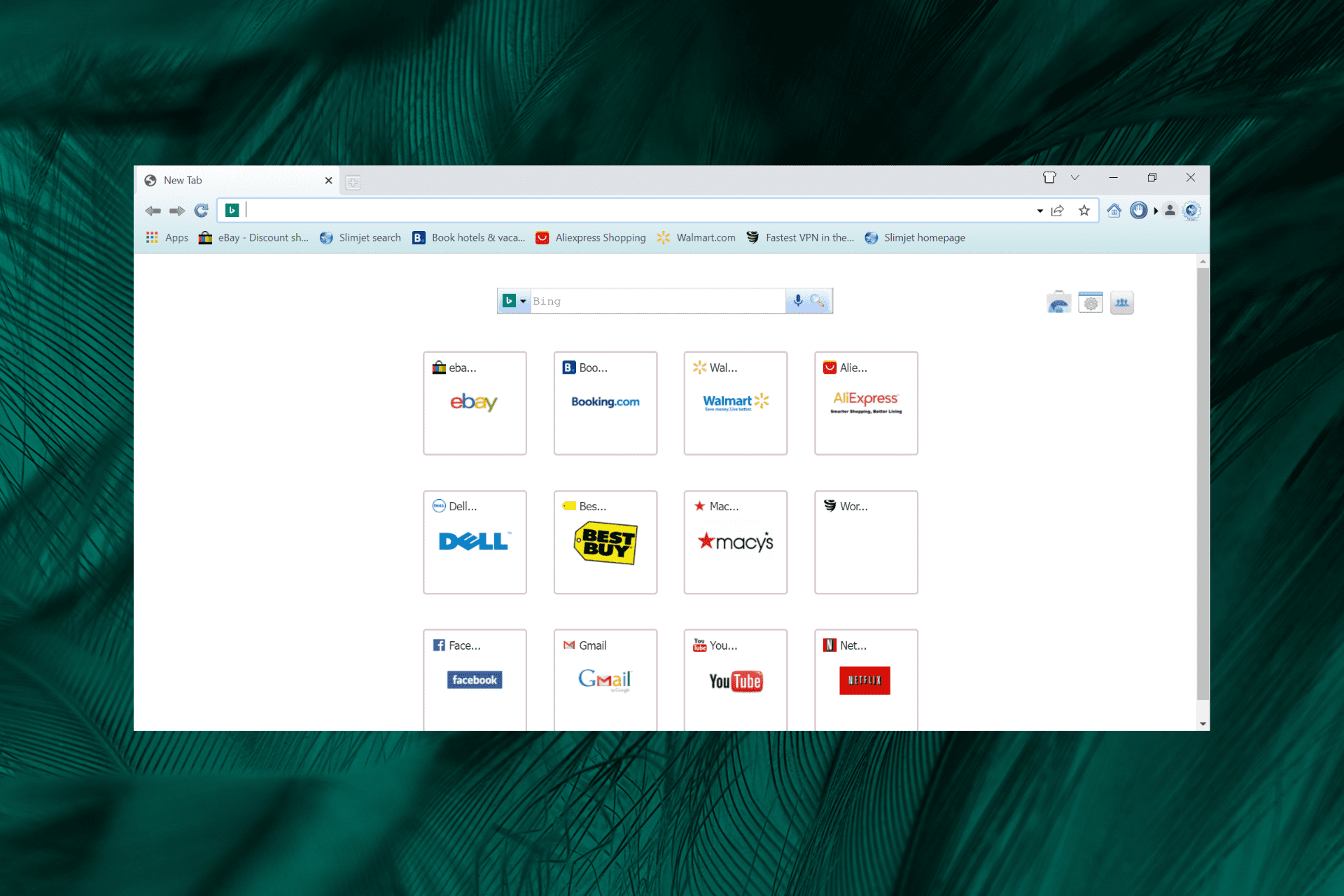

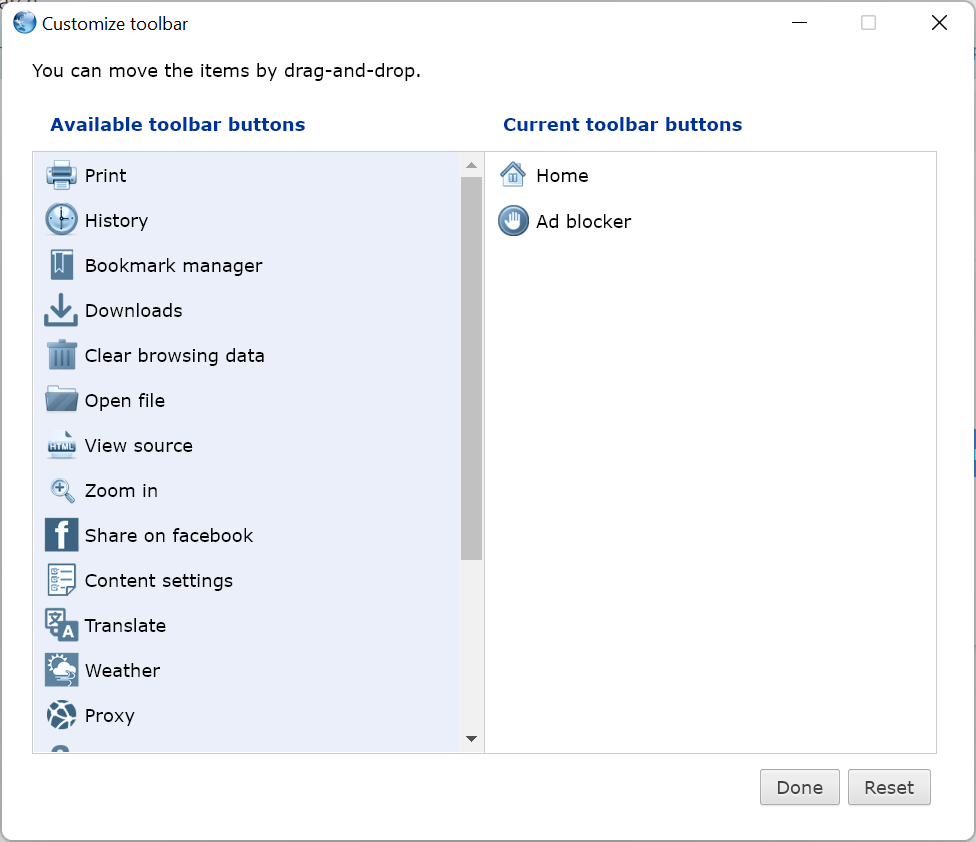


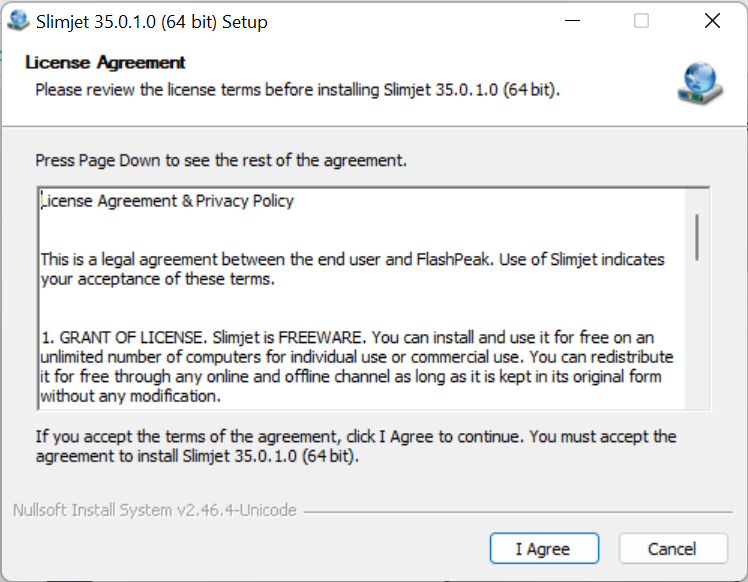
![Fix Certificate Errors In Microsoft Edge[2026 Guide]](https://windowsreport.com/wp-content/uploads/2021/11/microsoft-edge-certificate-error-1.png)


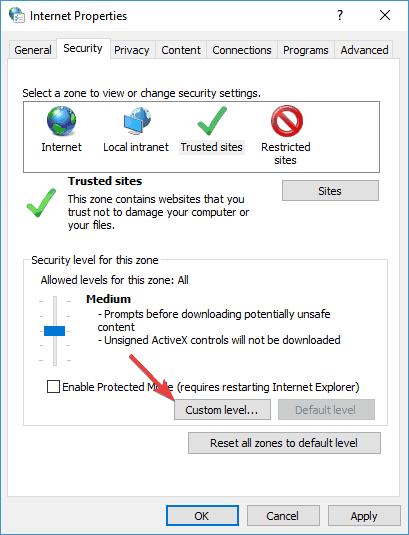


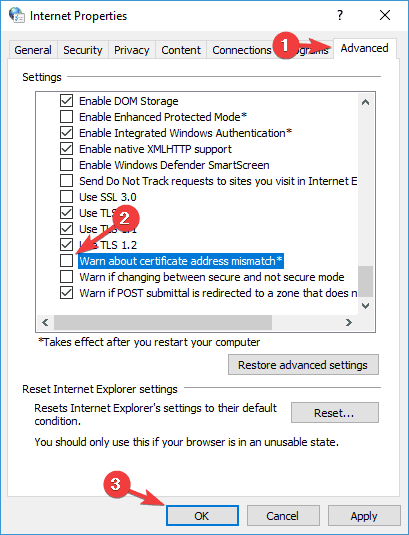


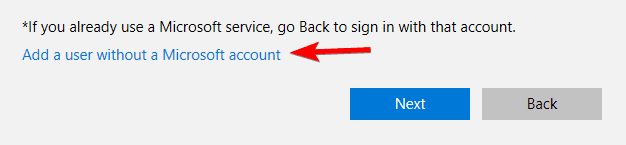
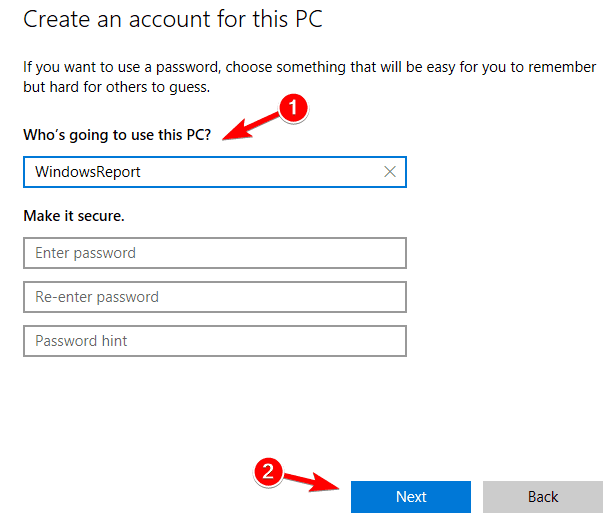

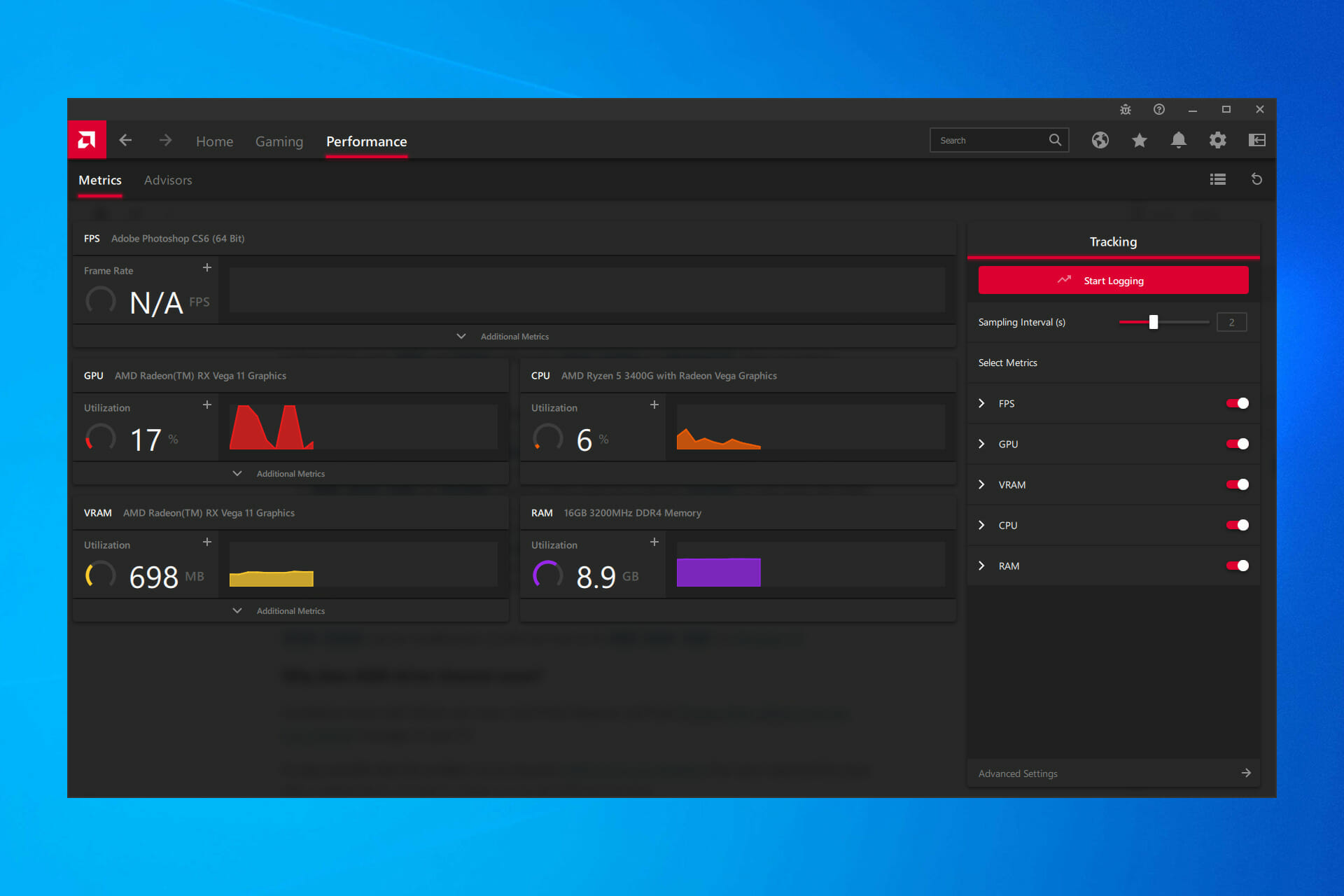
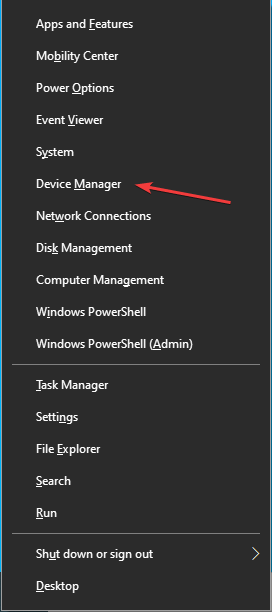
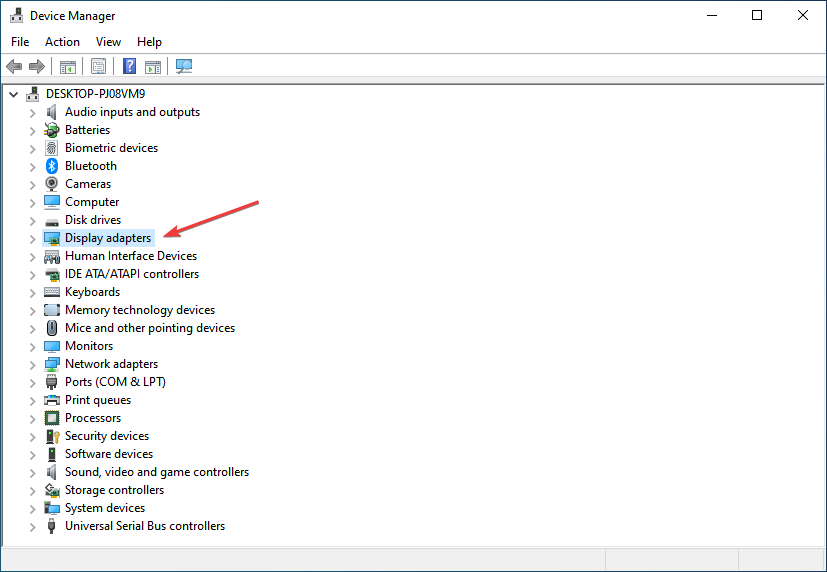
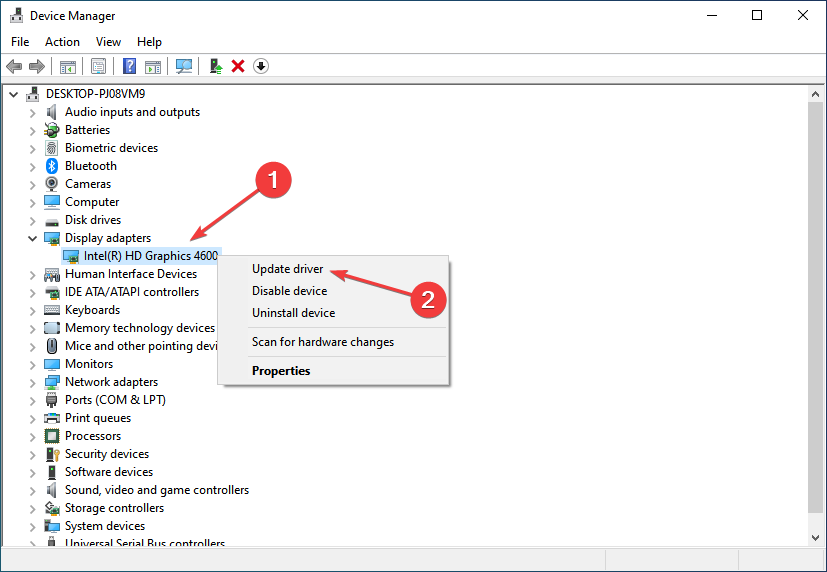
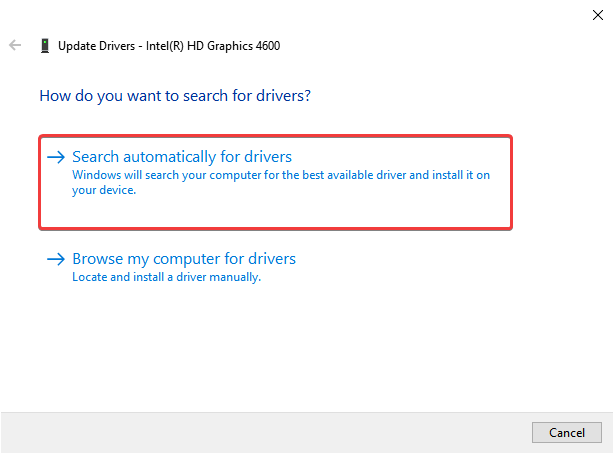
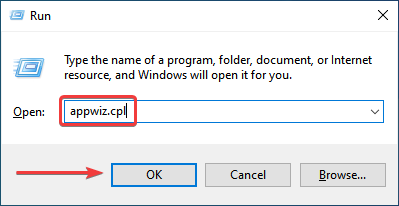
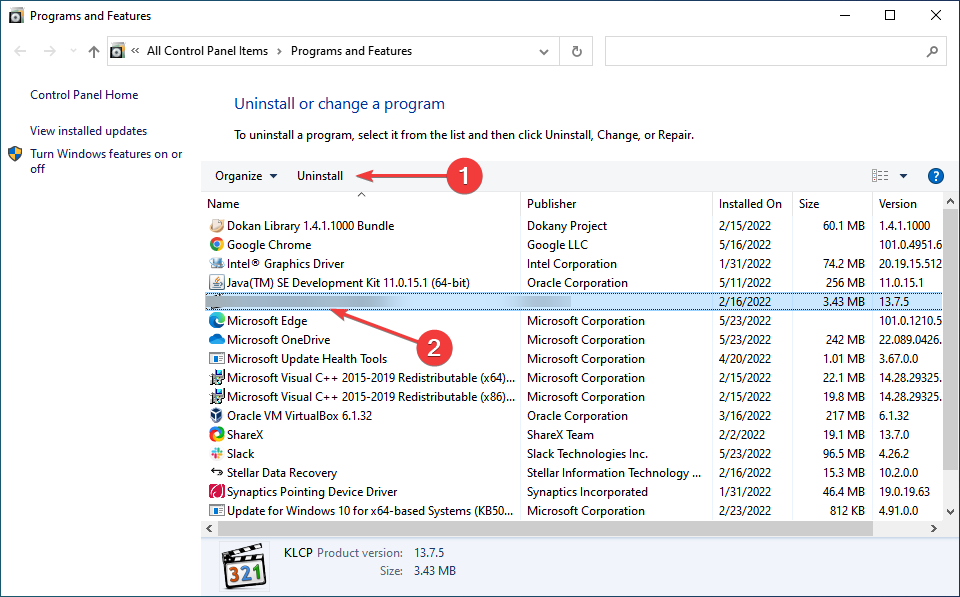
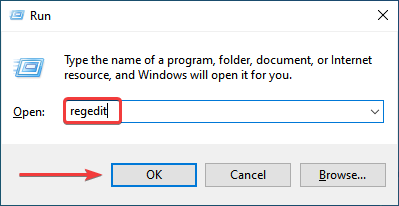
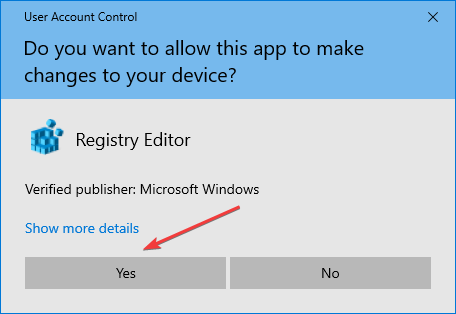
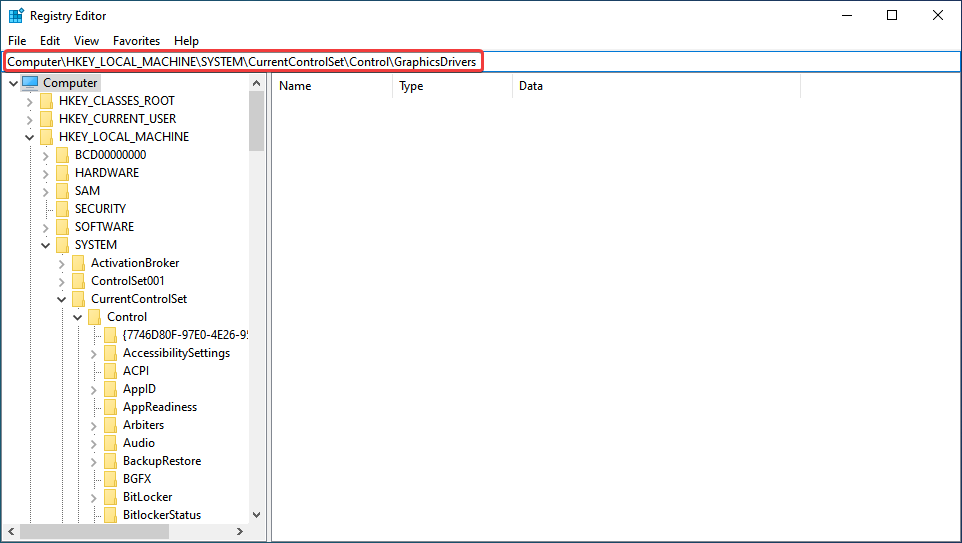
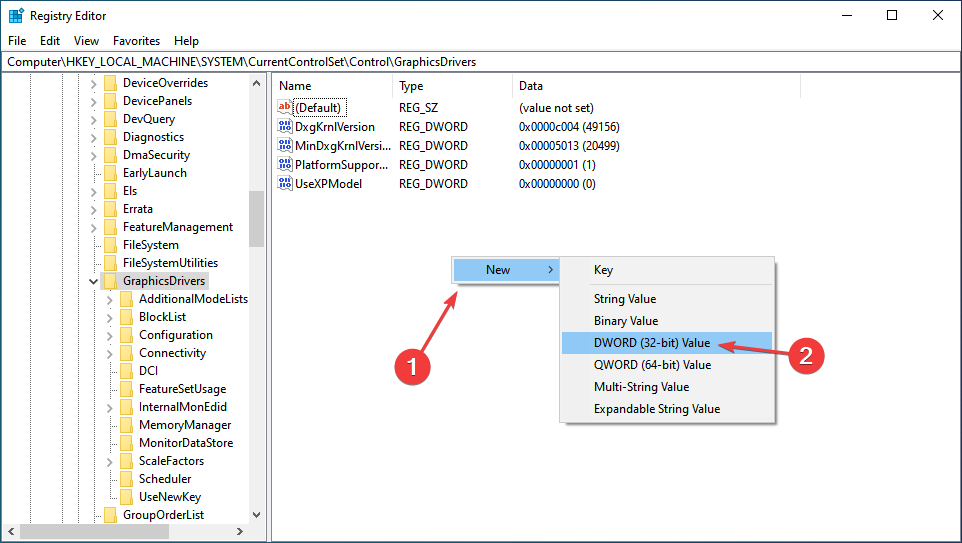
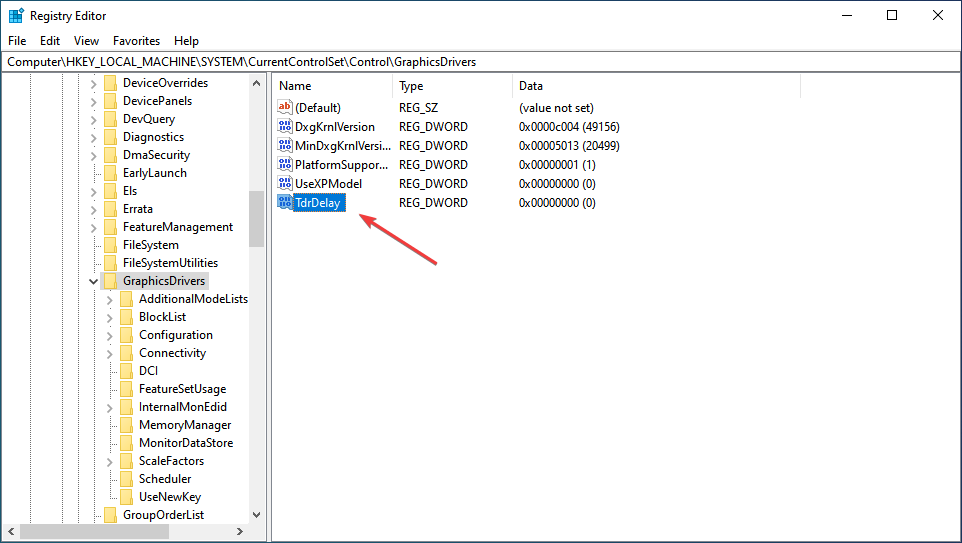
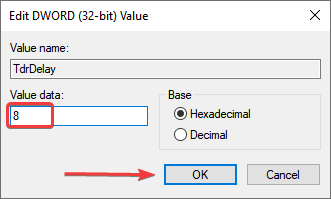

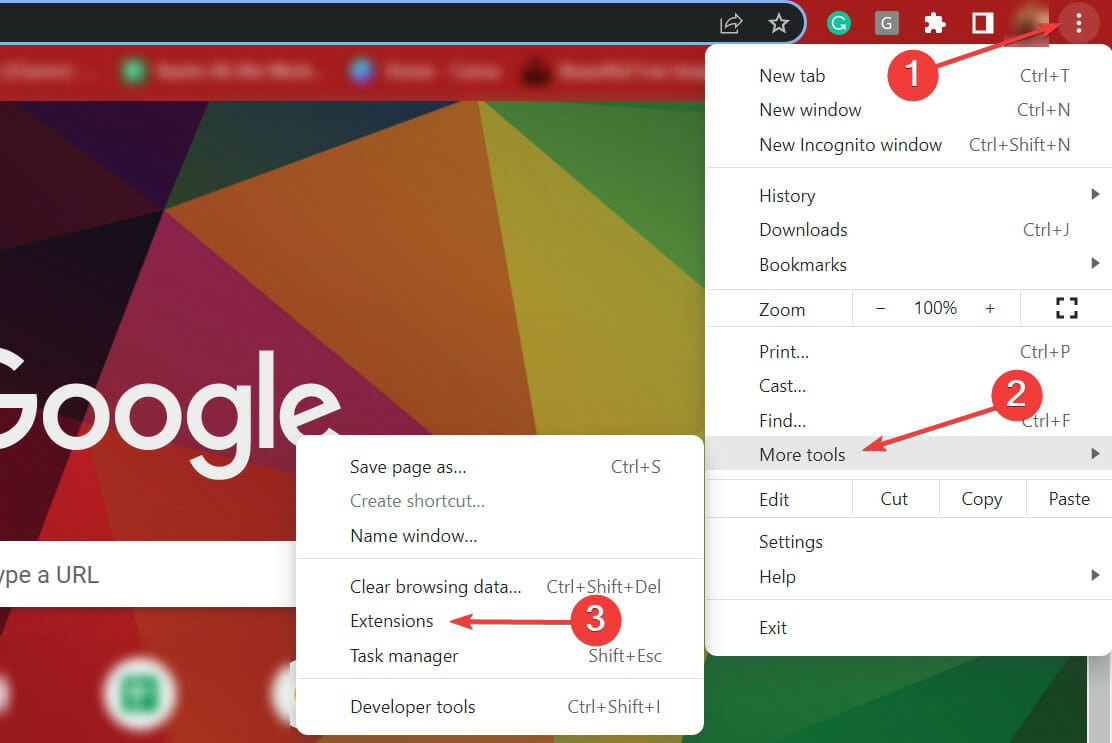
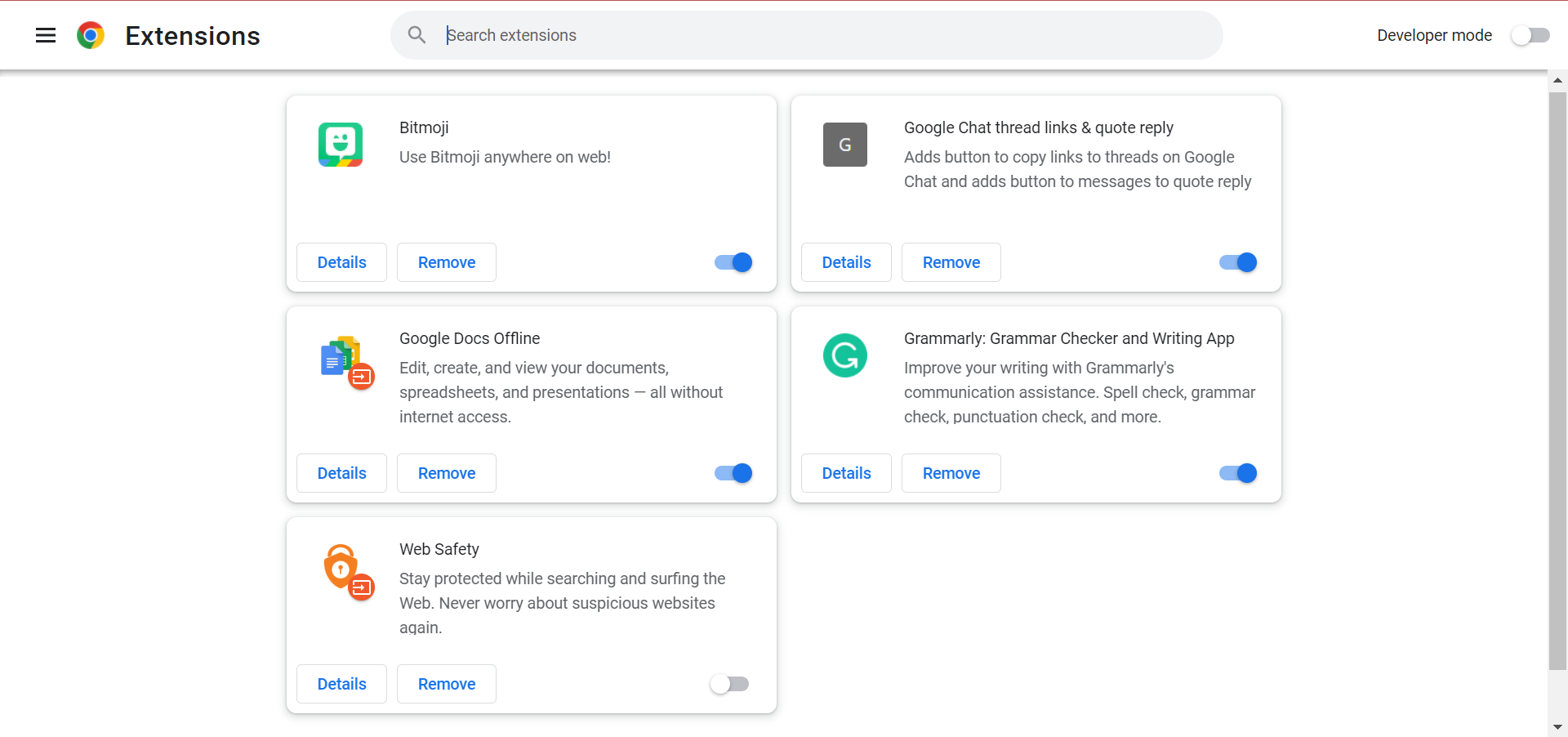
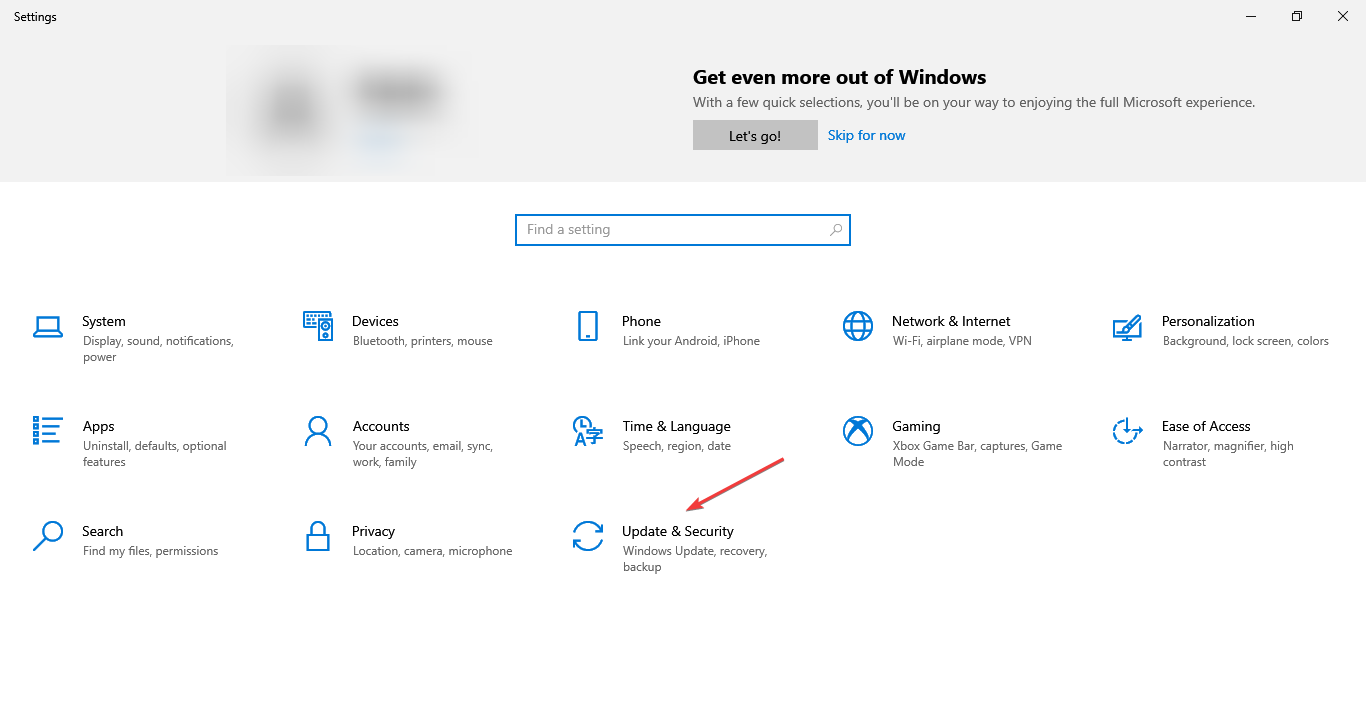
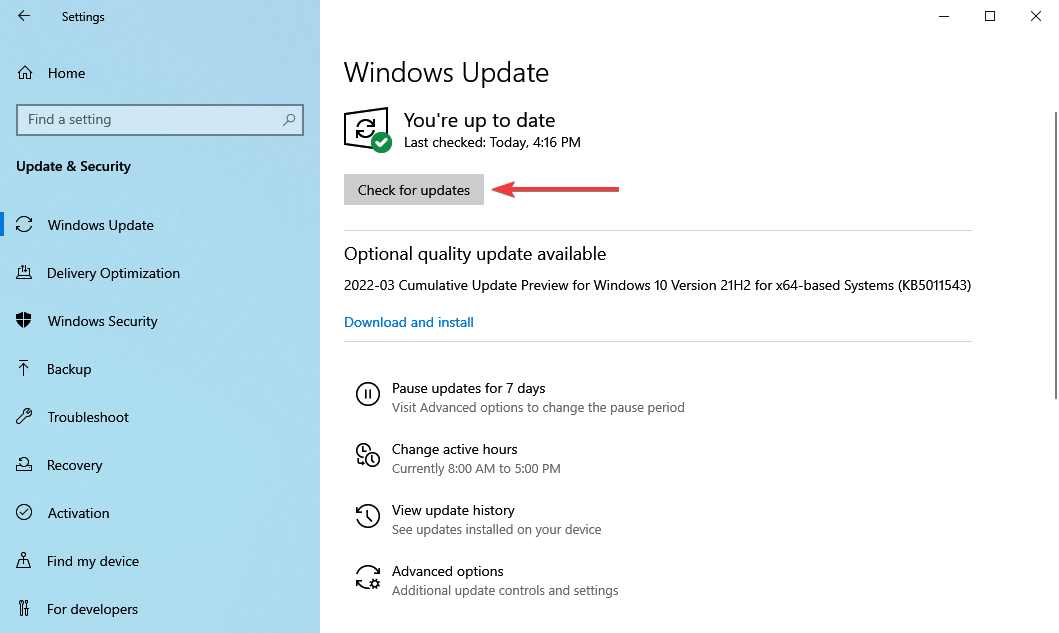
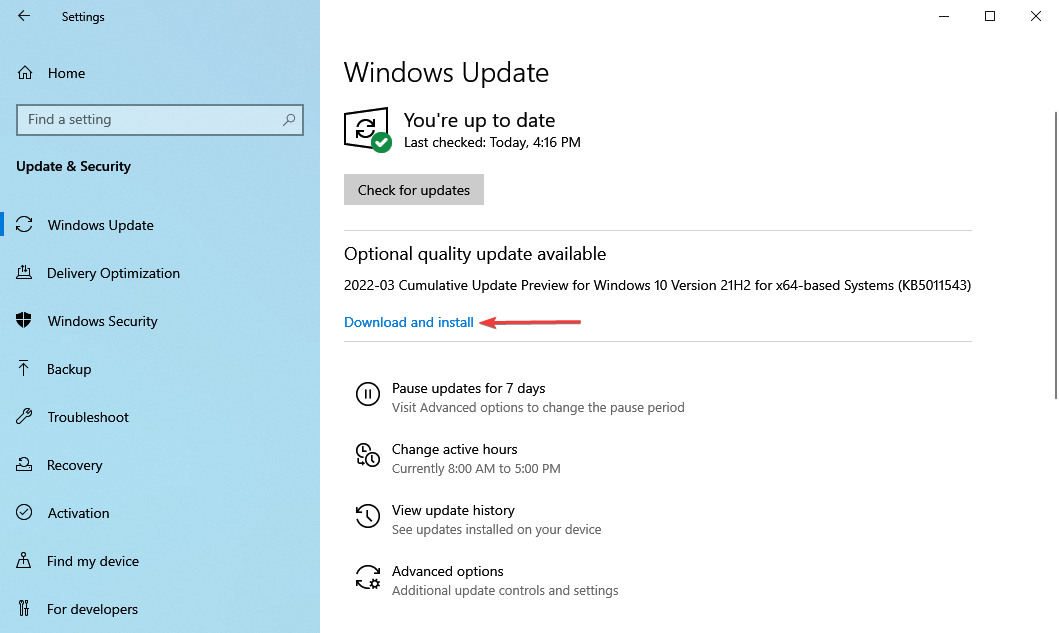
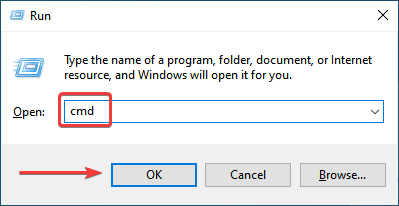
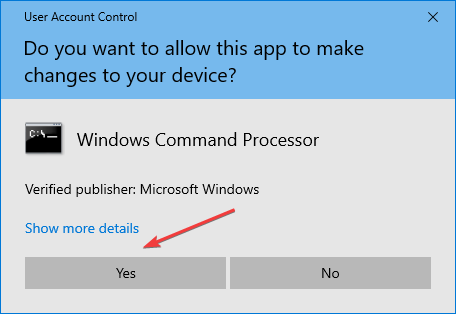
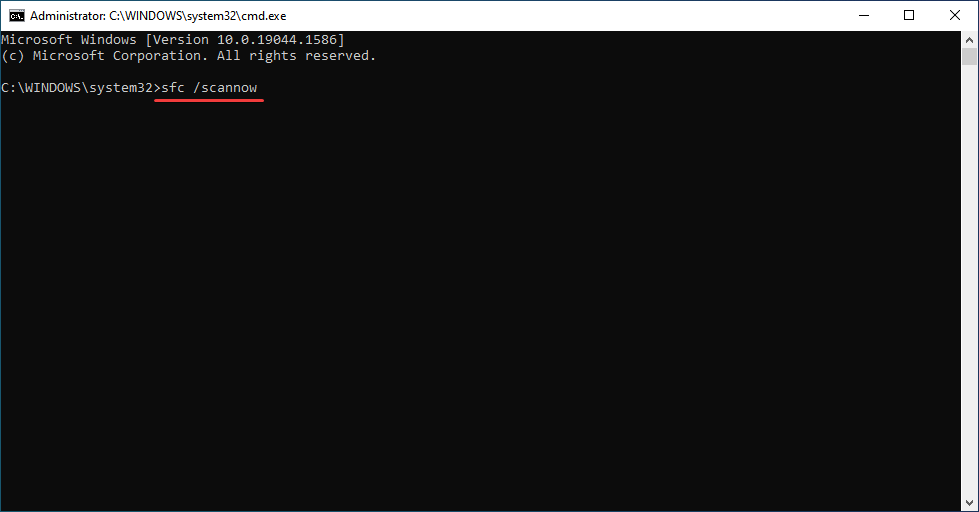
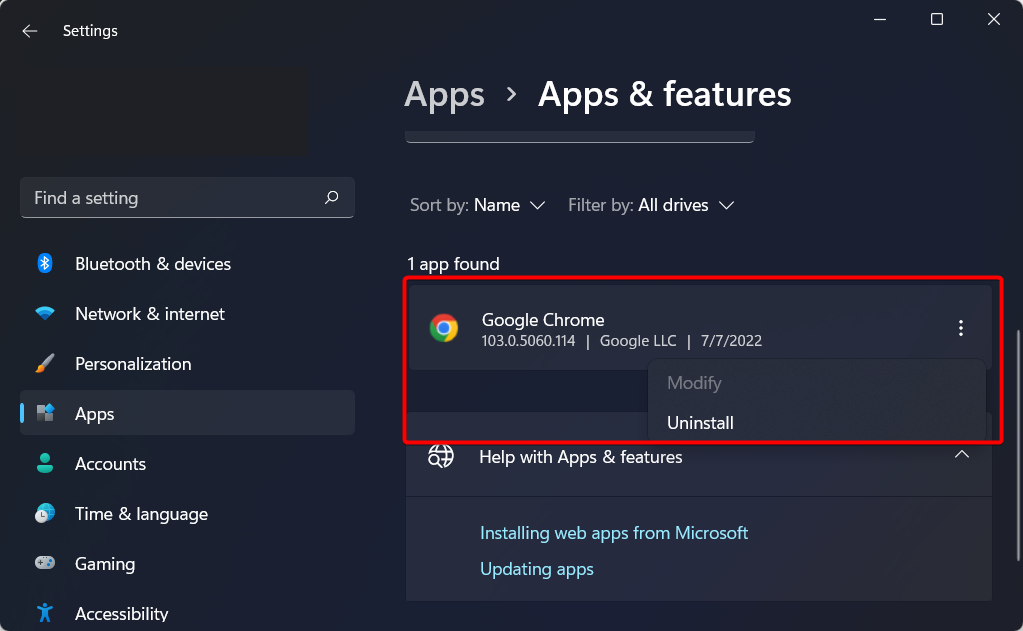
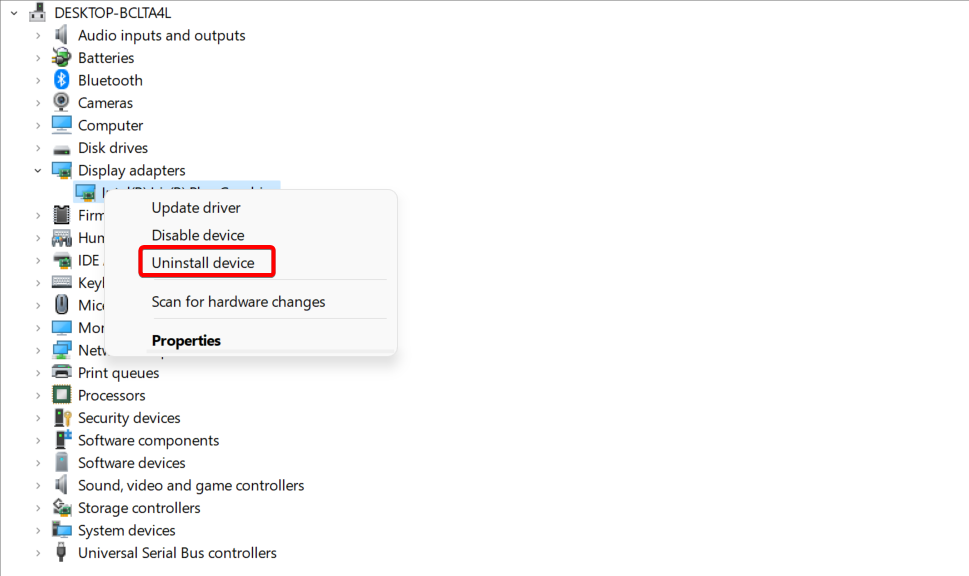


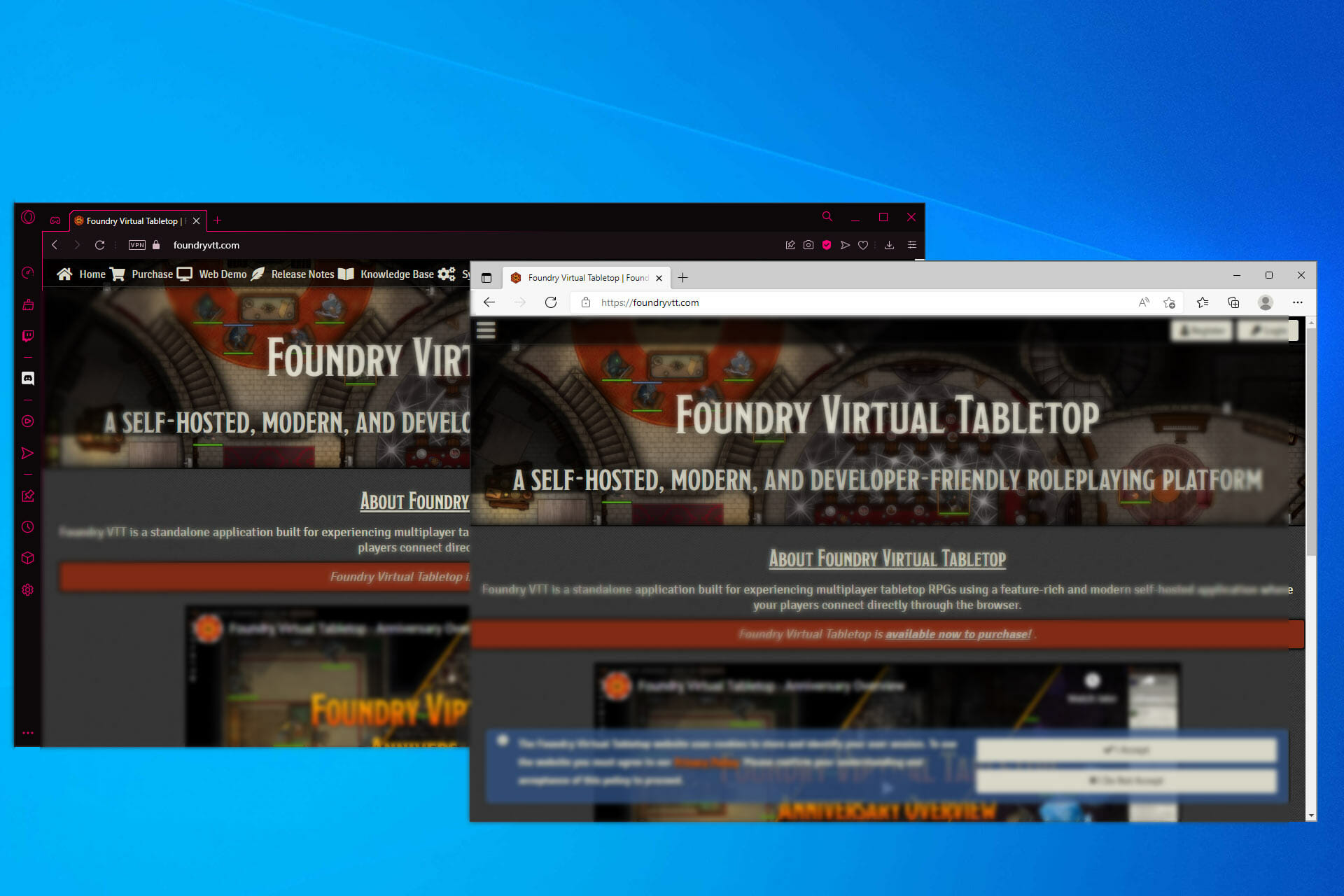
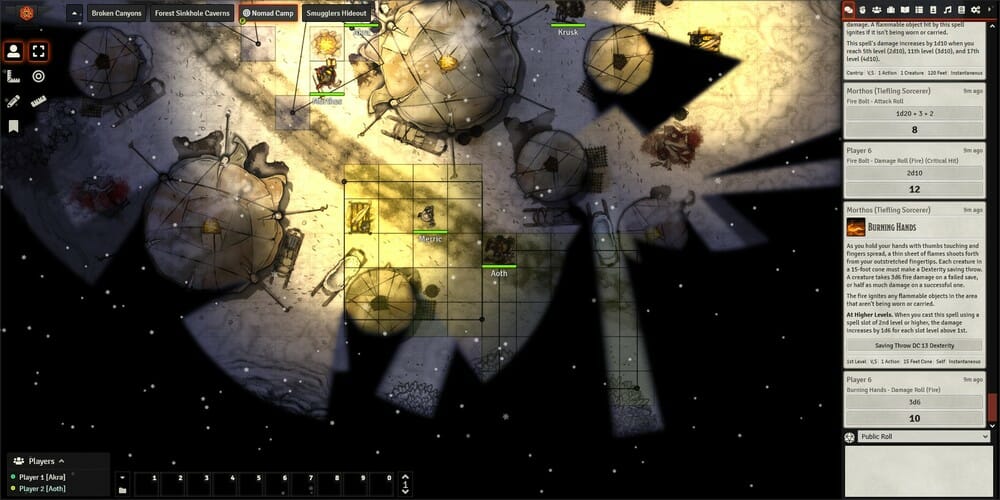
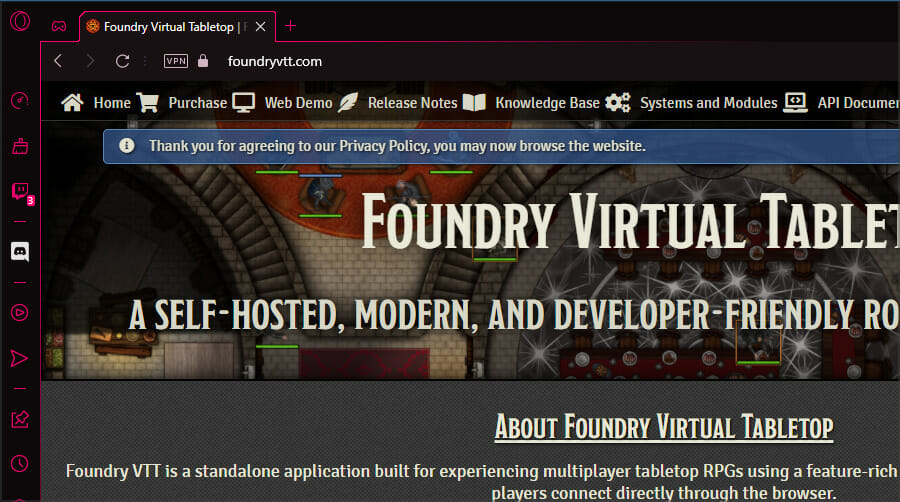





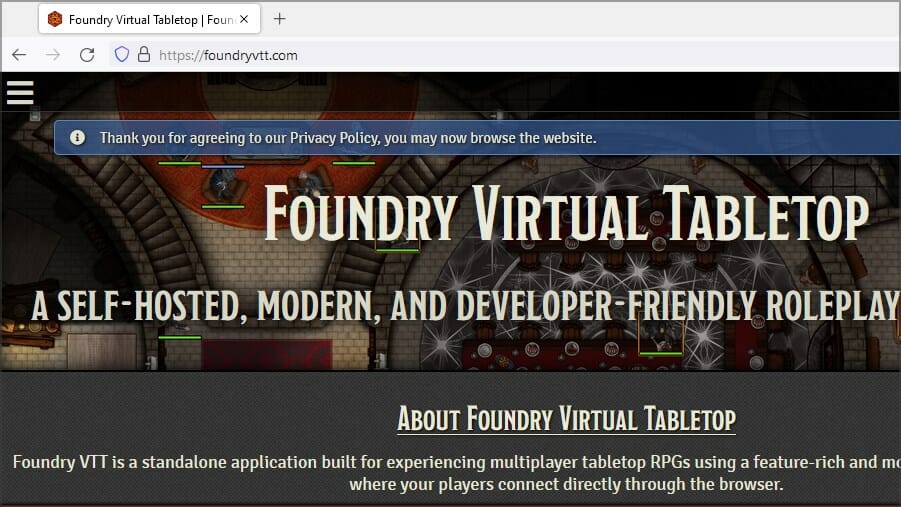
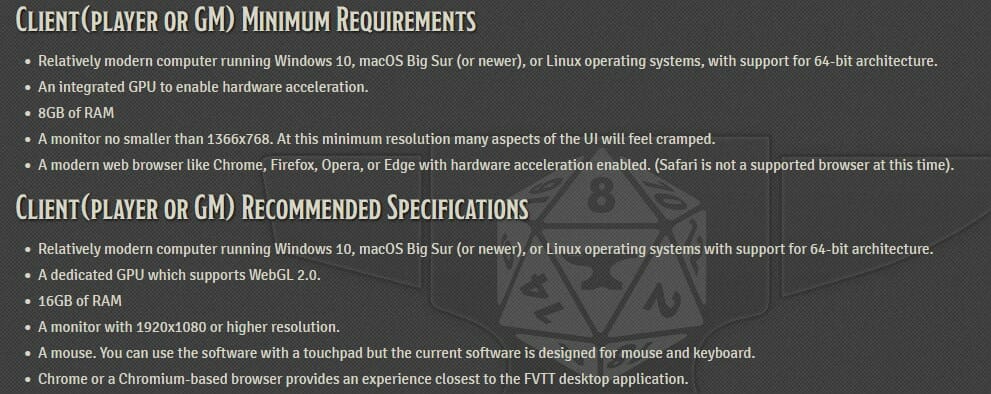










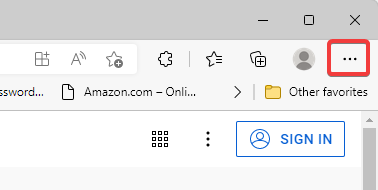
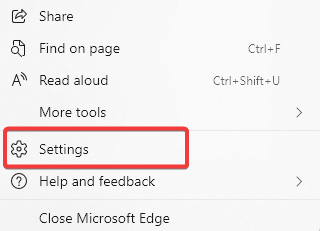

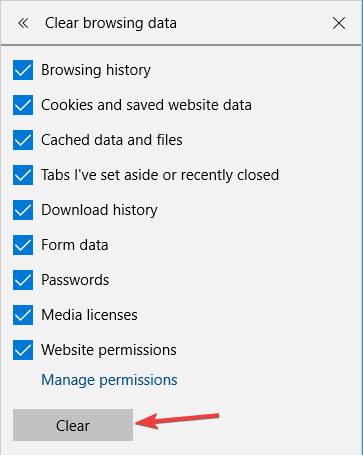
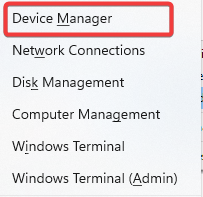
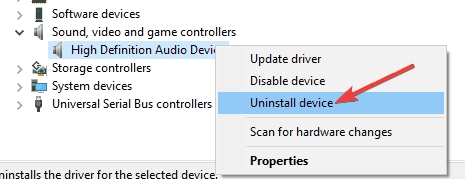
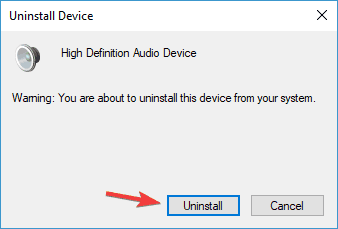
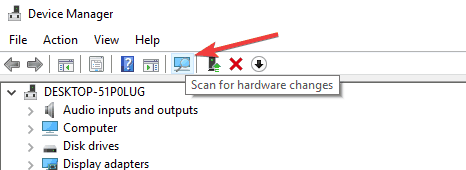
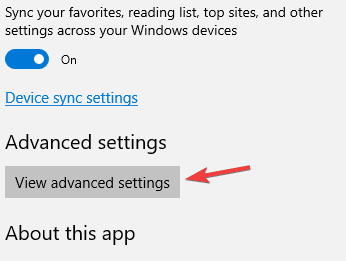
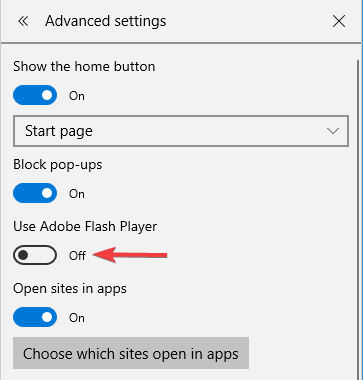
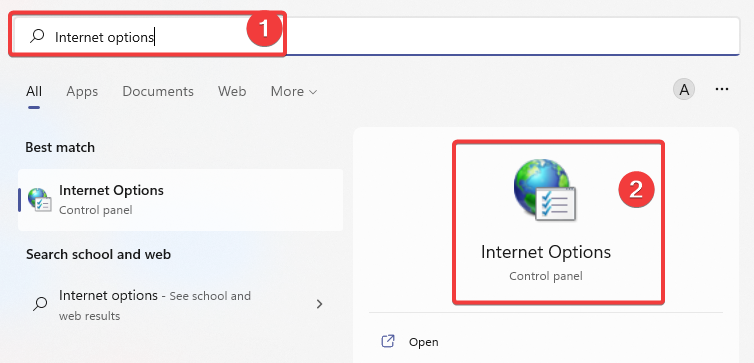
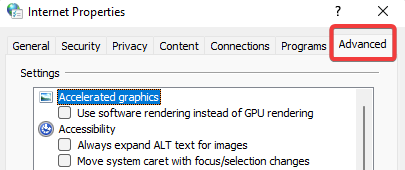
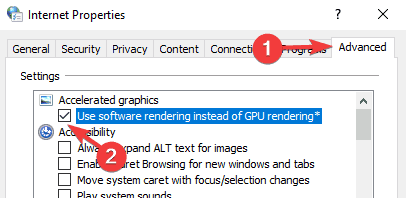
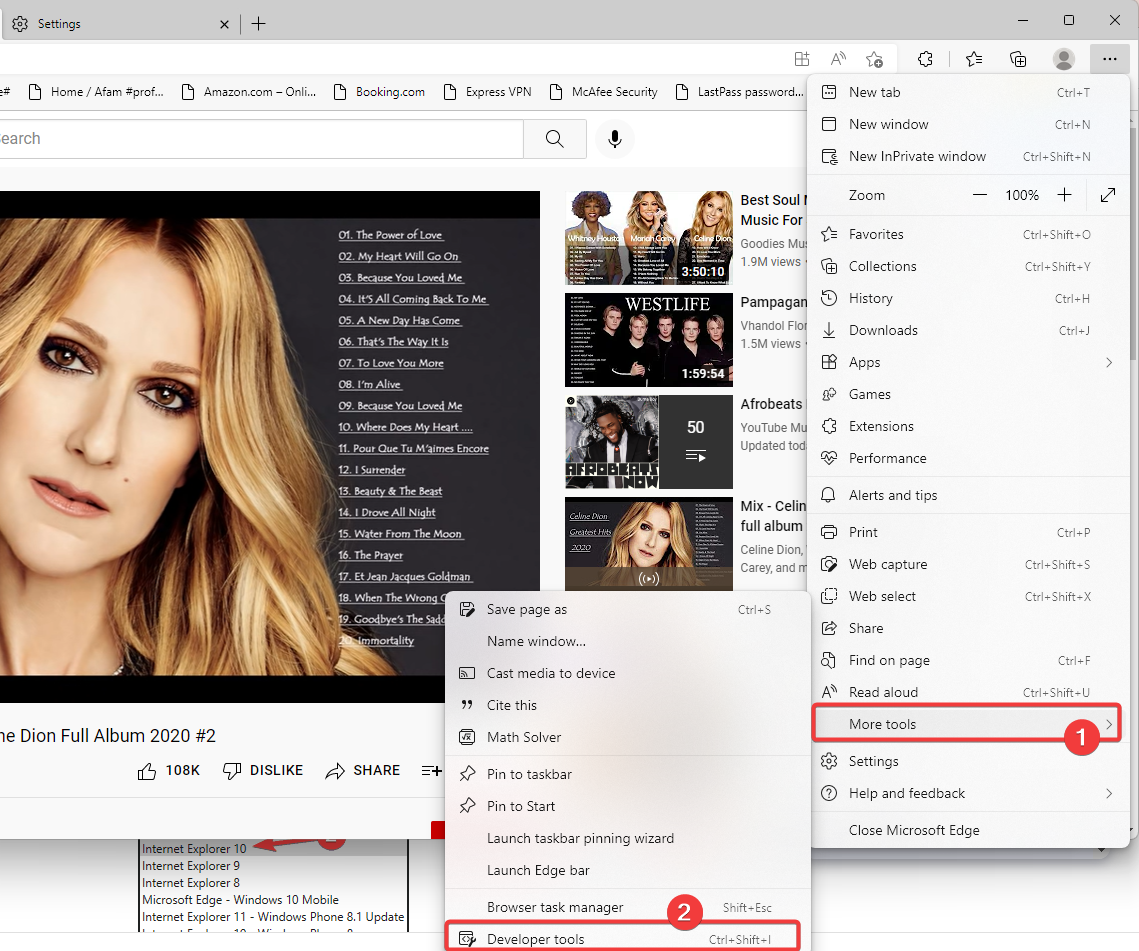
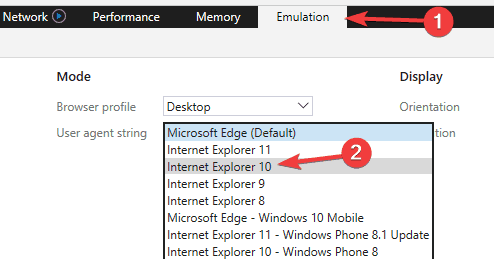
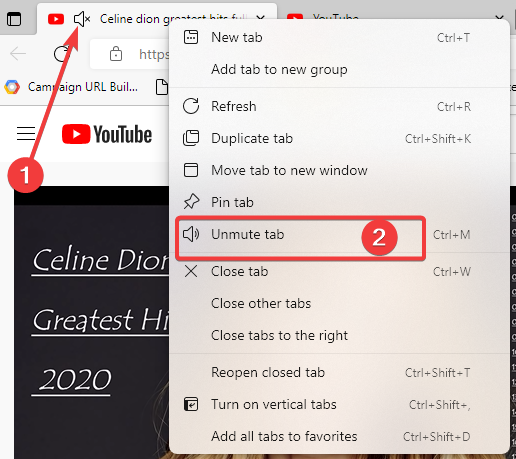
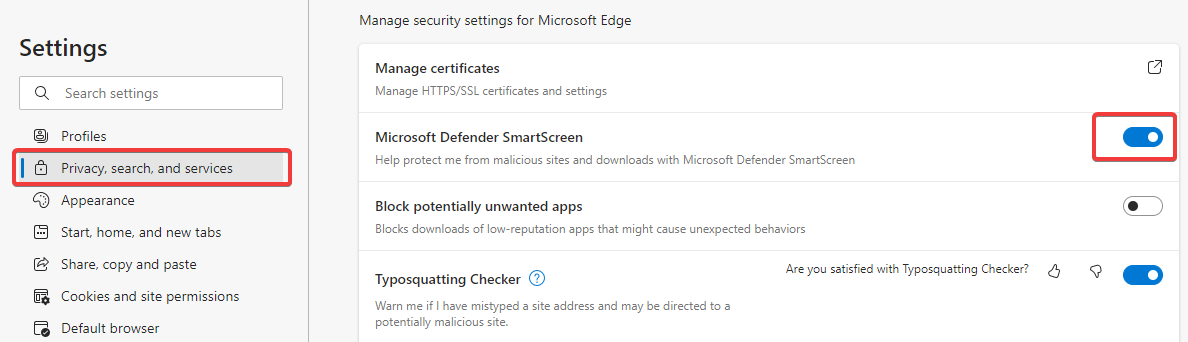
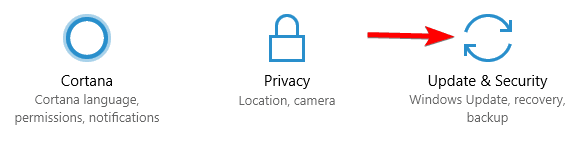
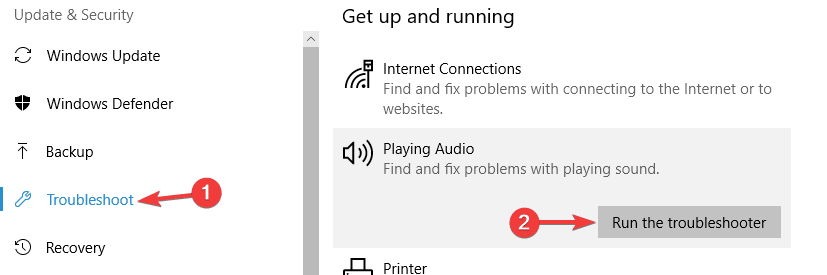


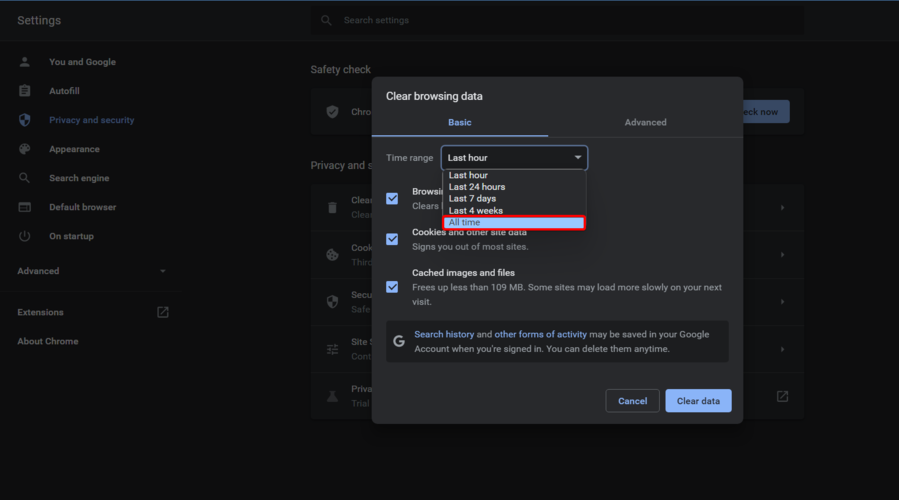
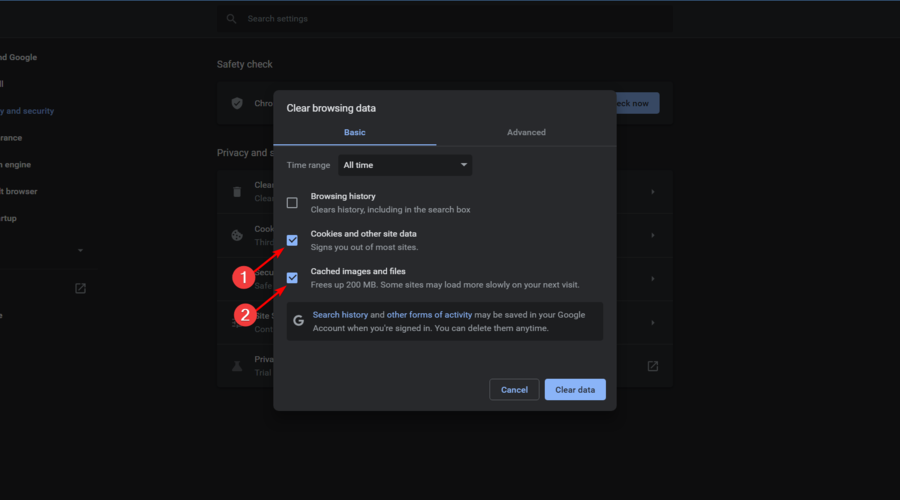


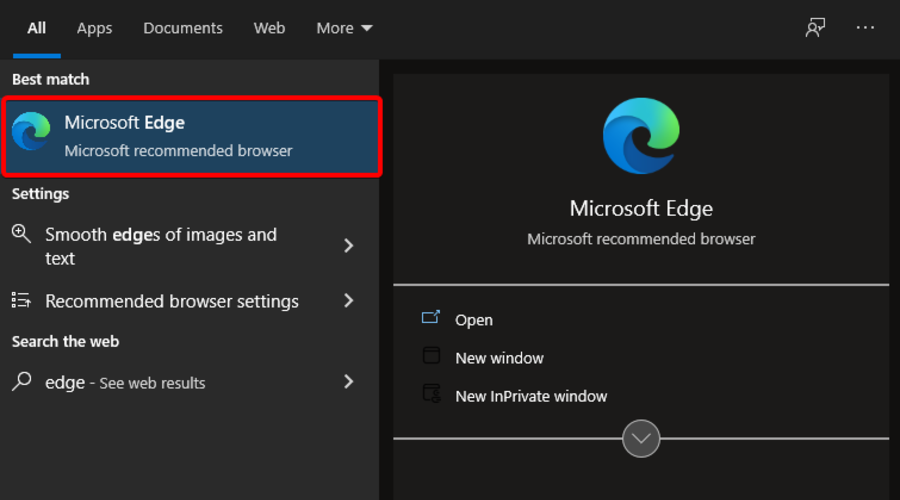

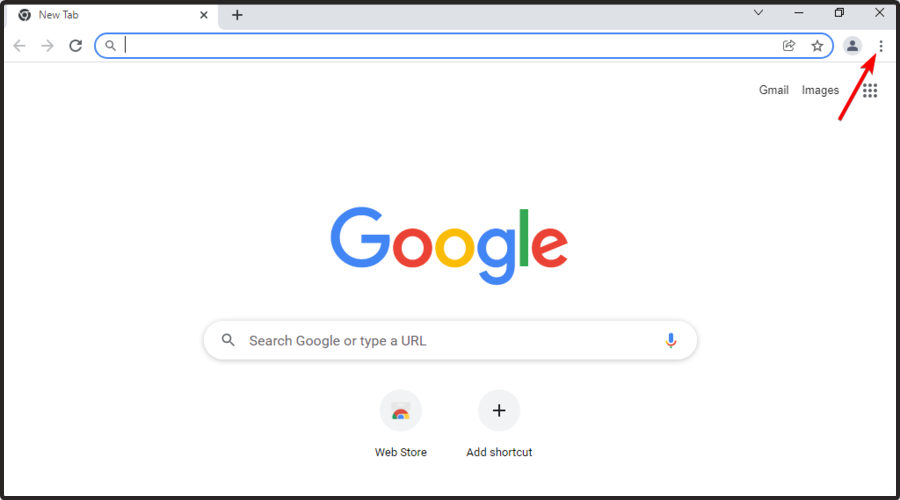
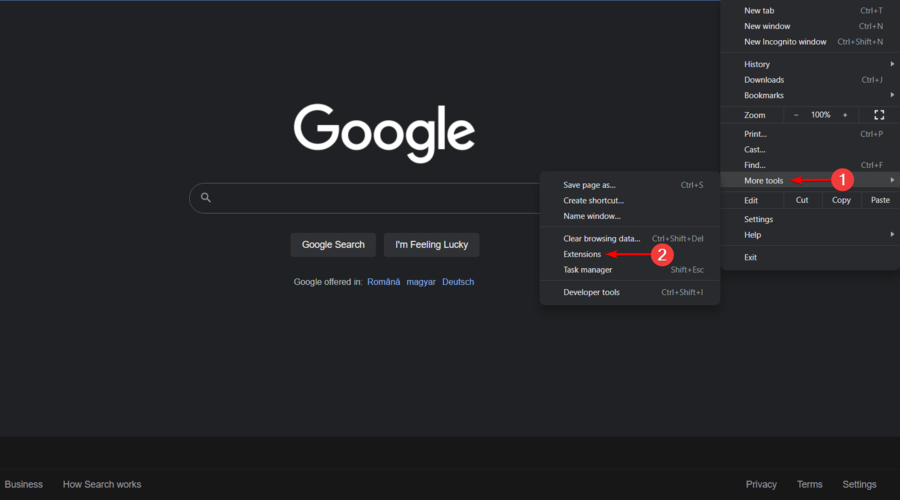


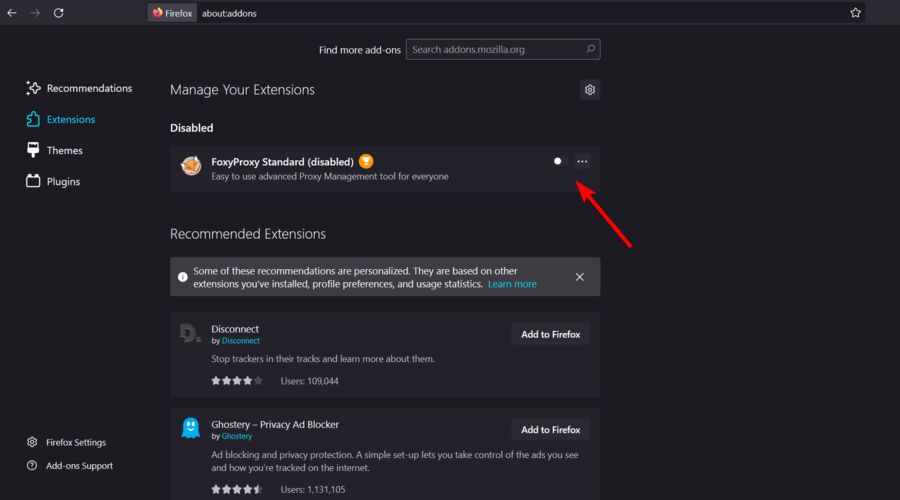


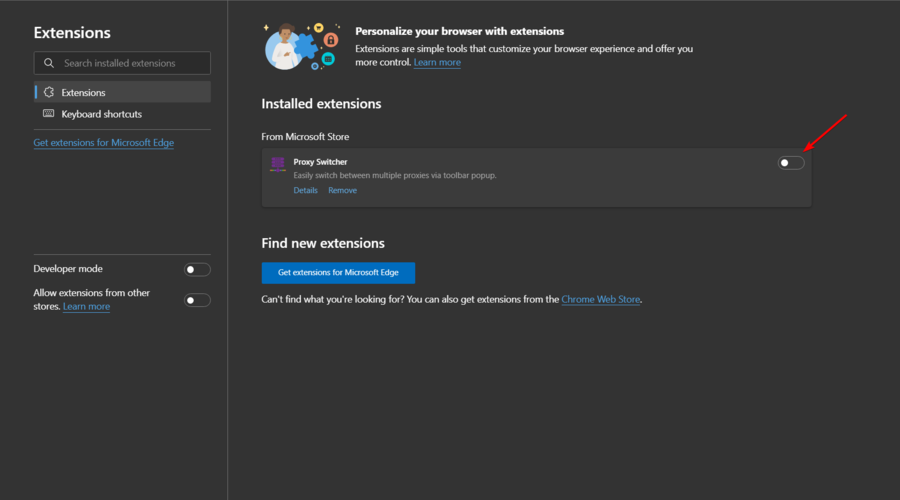
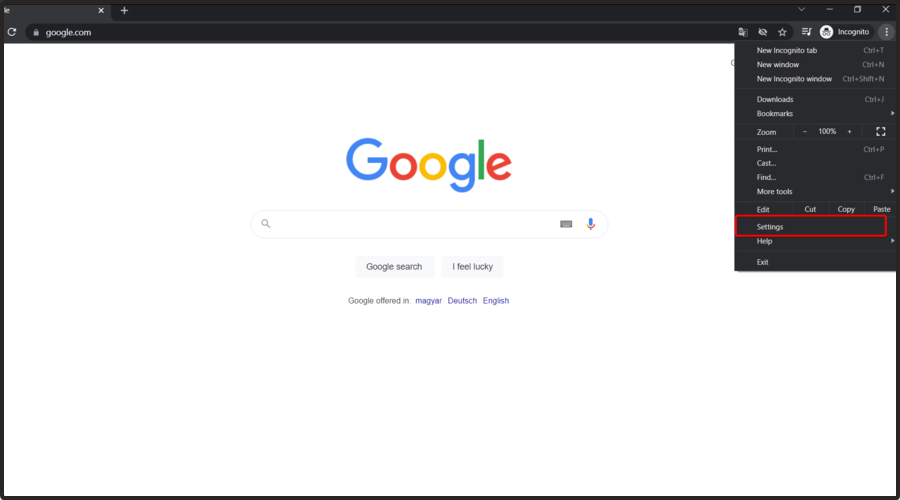
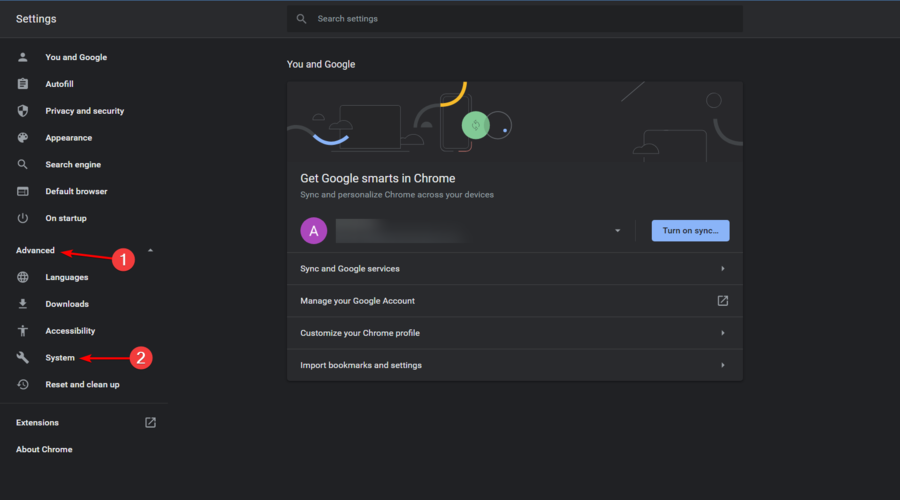


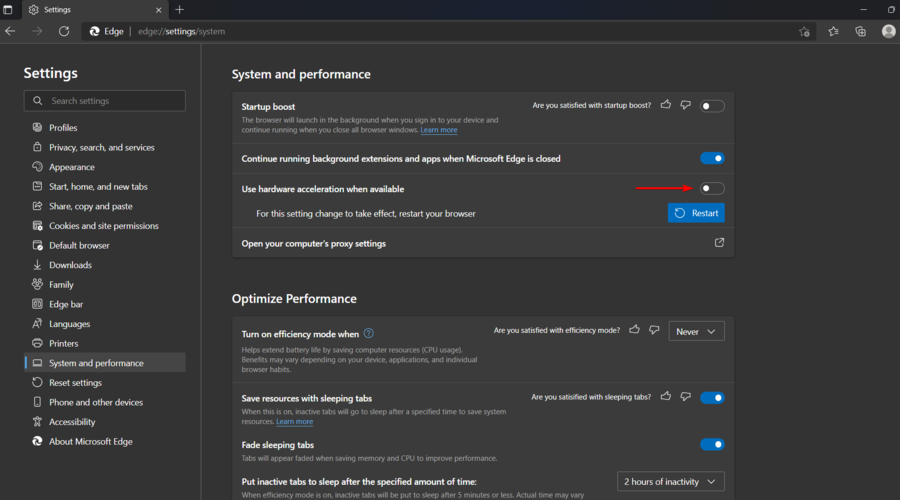
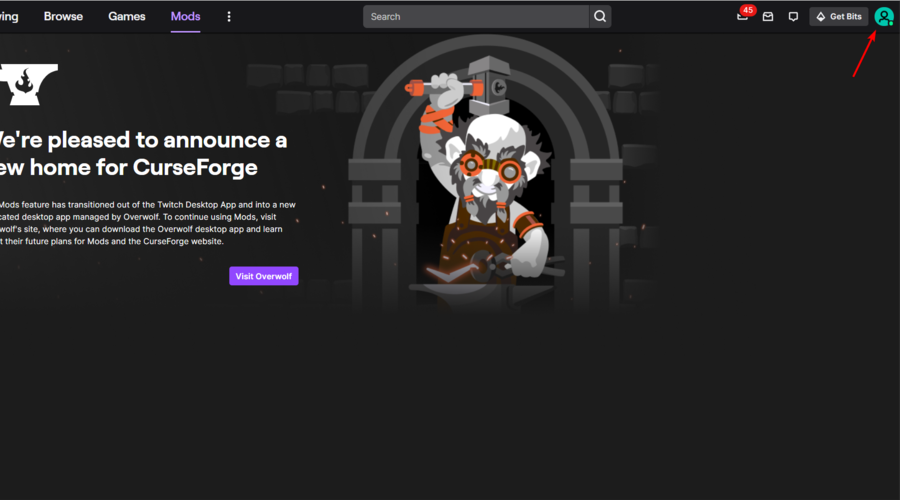



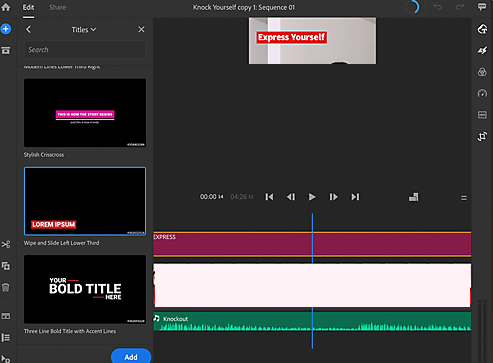
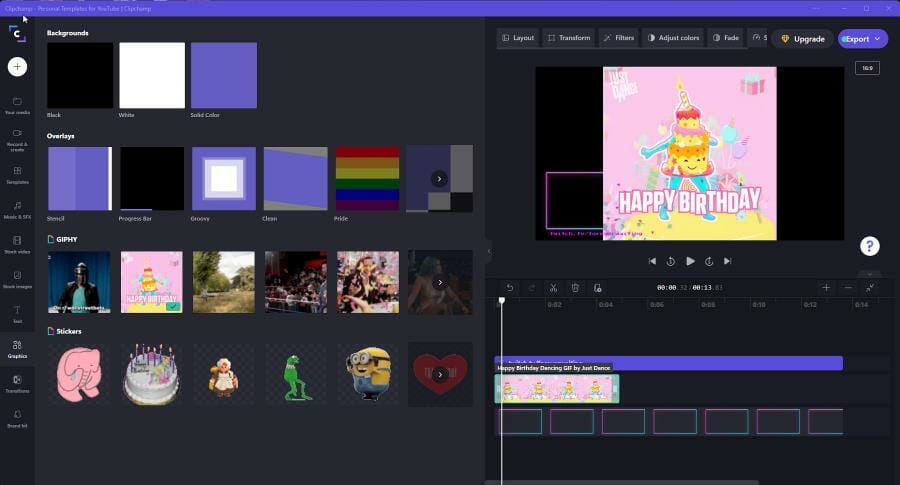
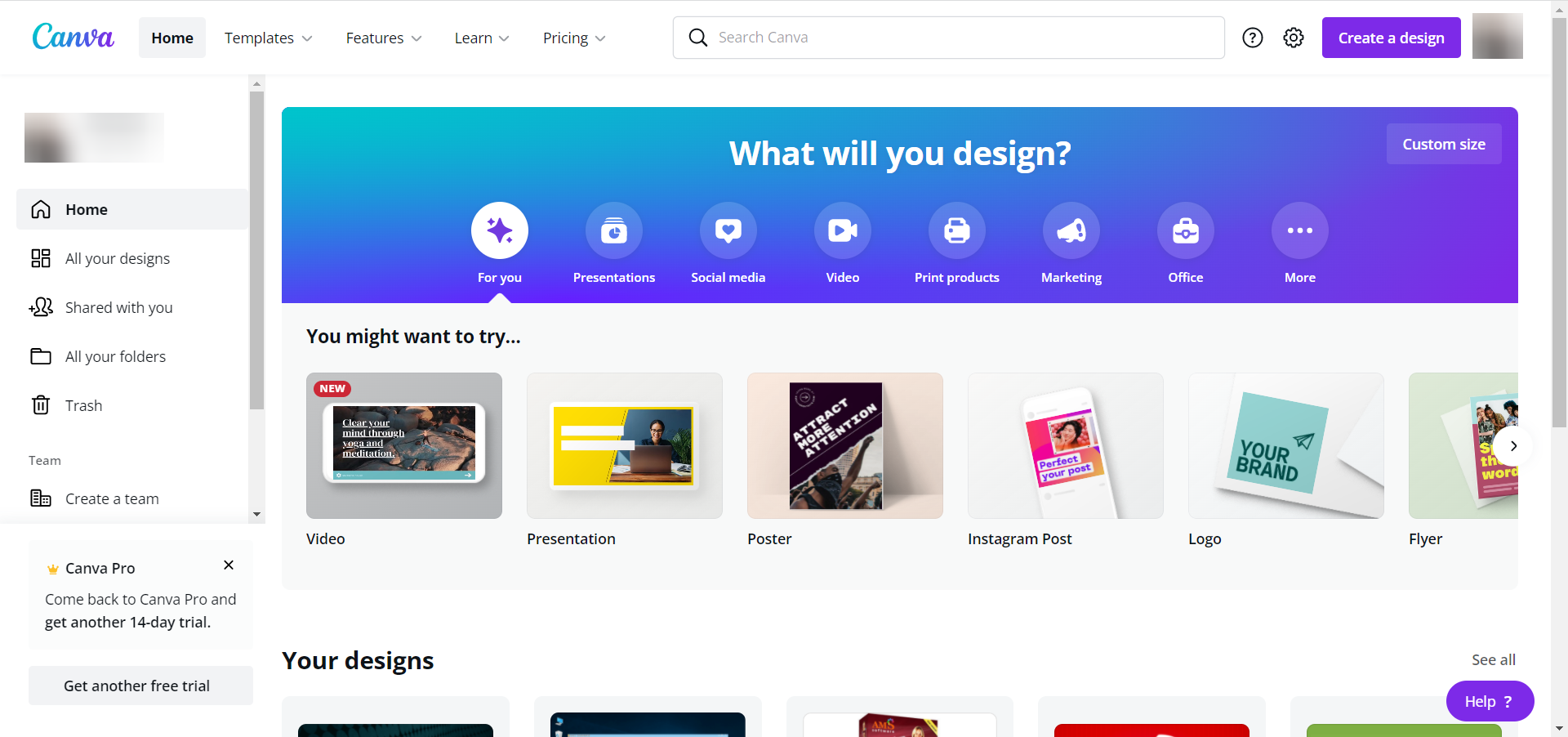

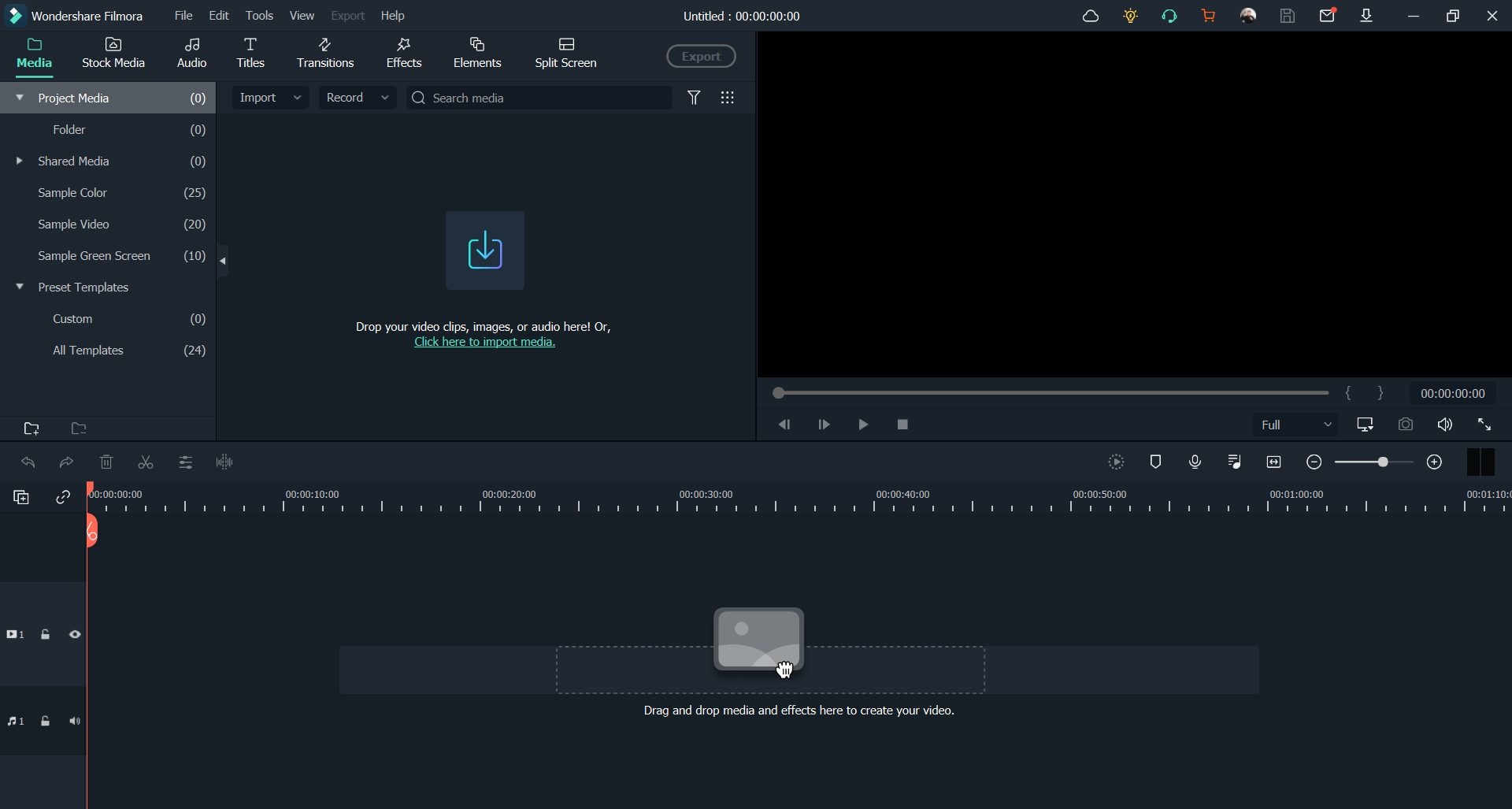

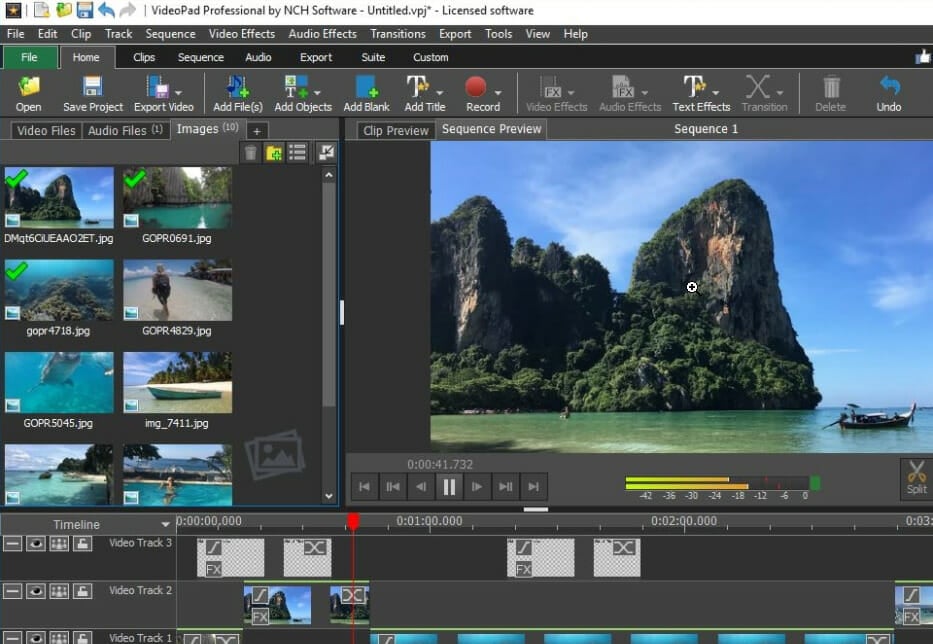



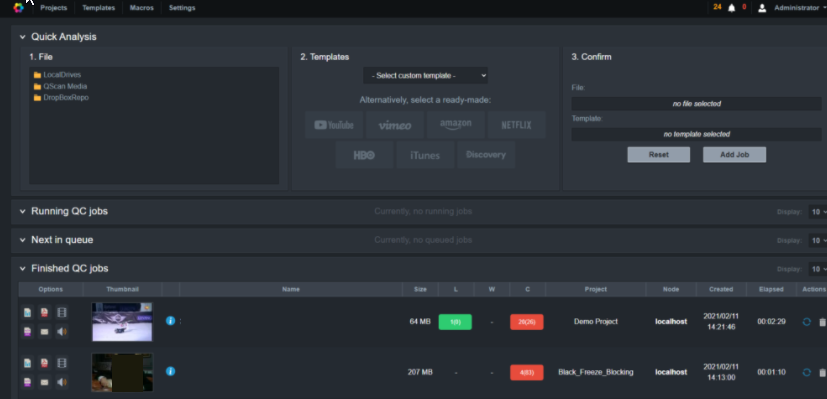
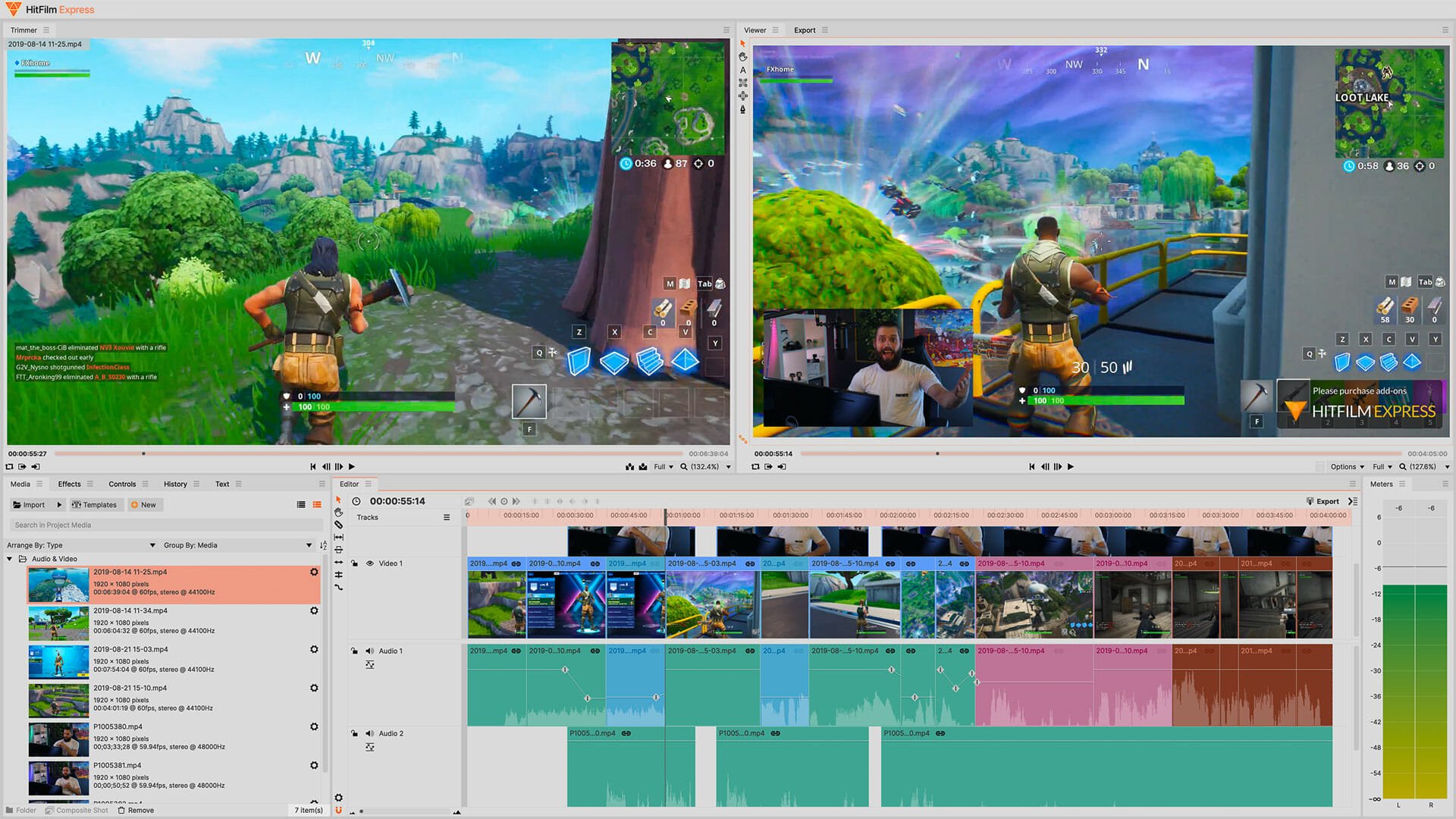

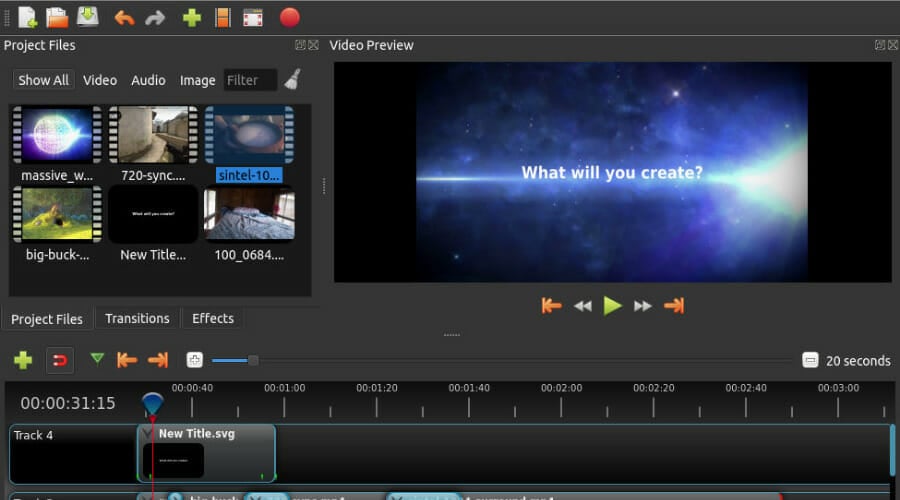



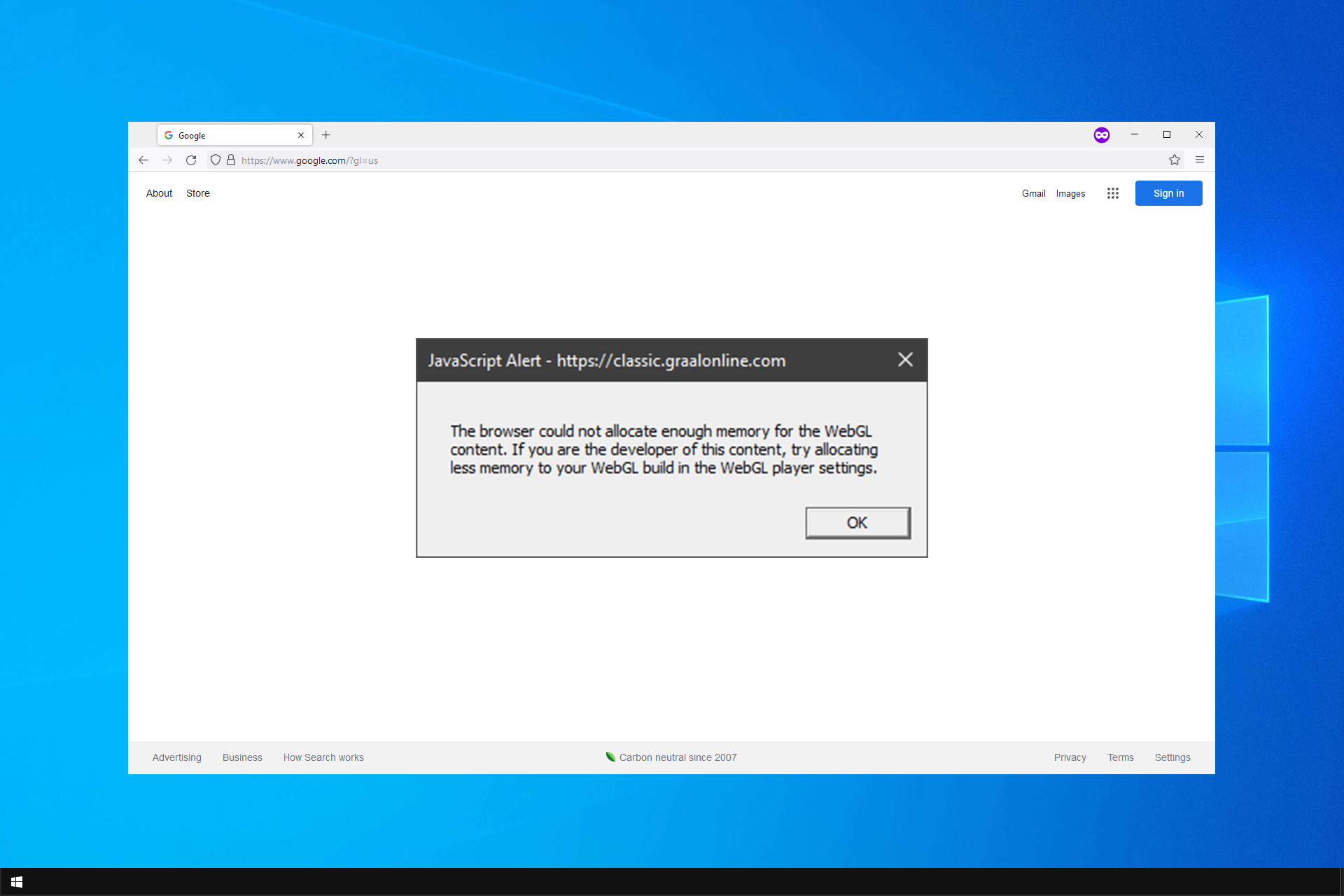


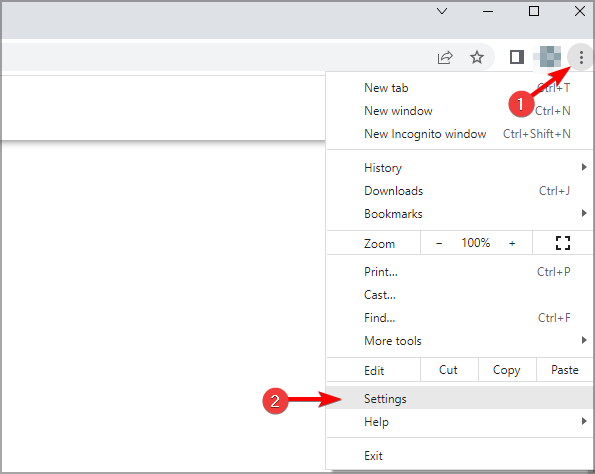

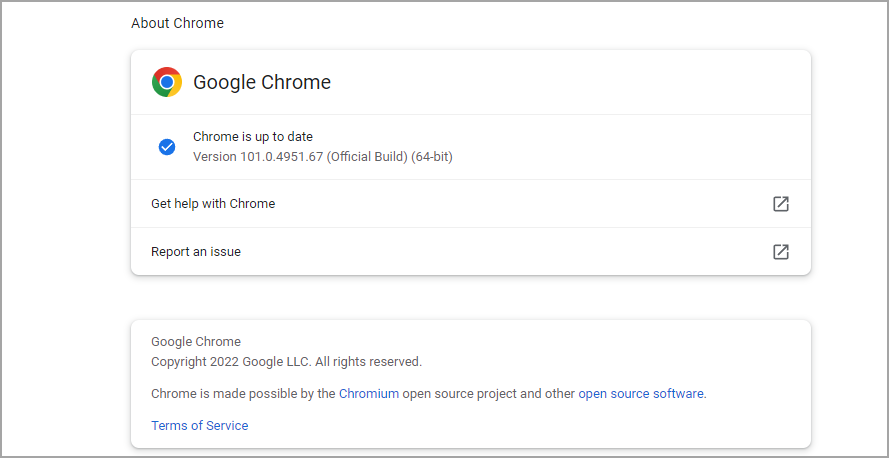
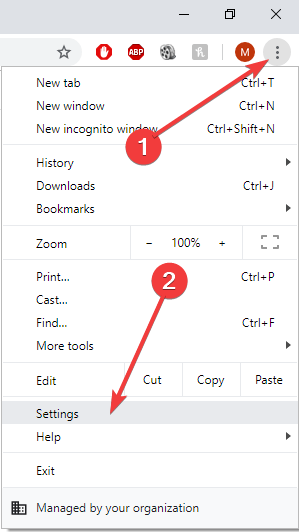

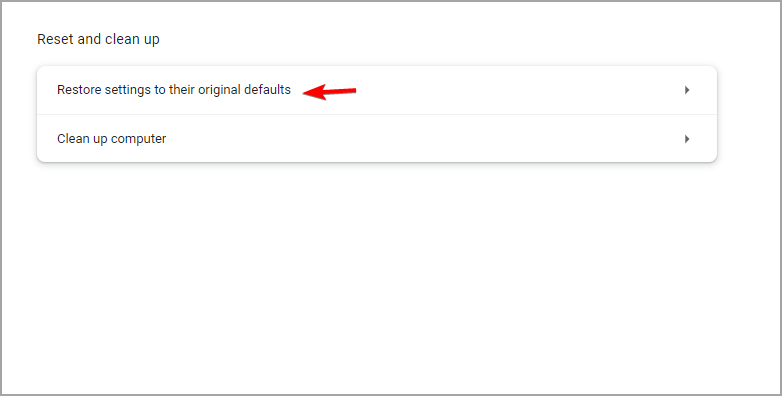
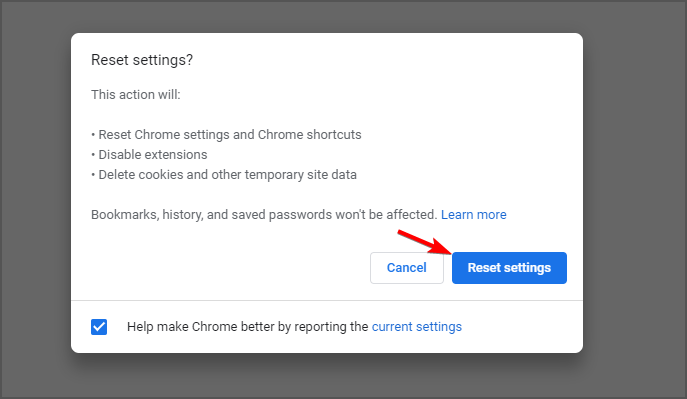
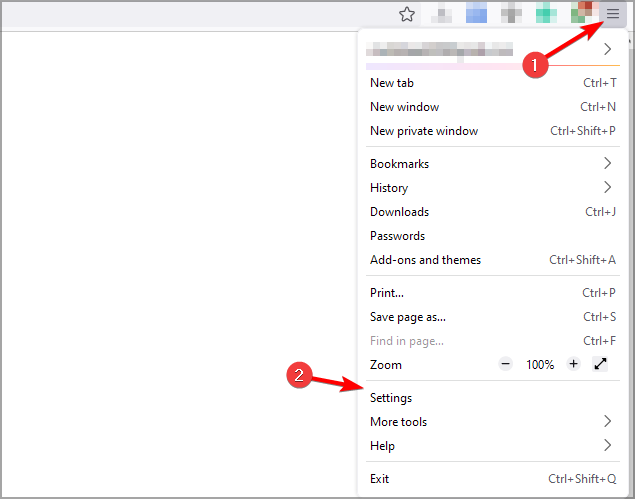


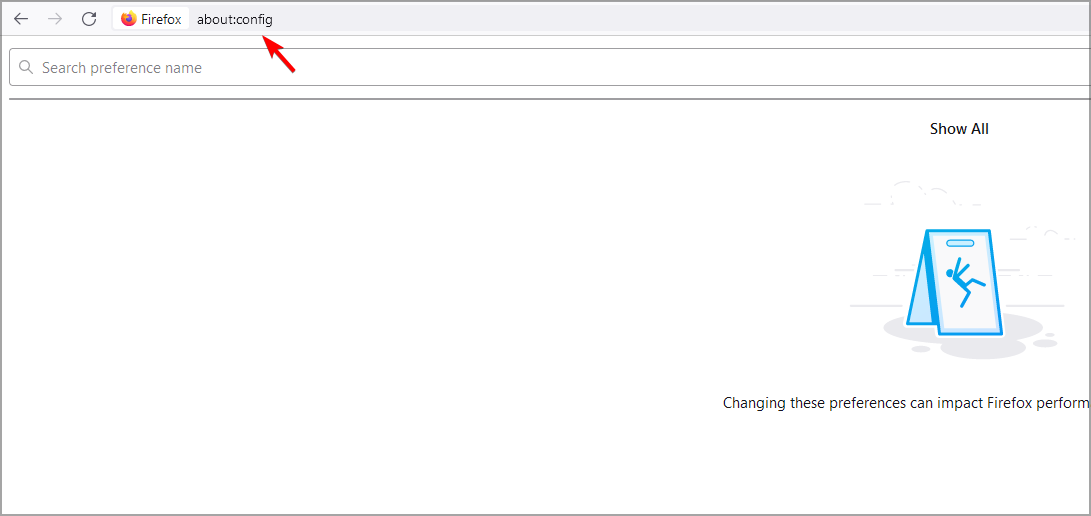




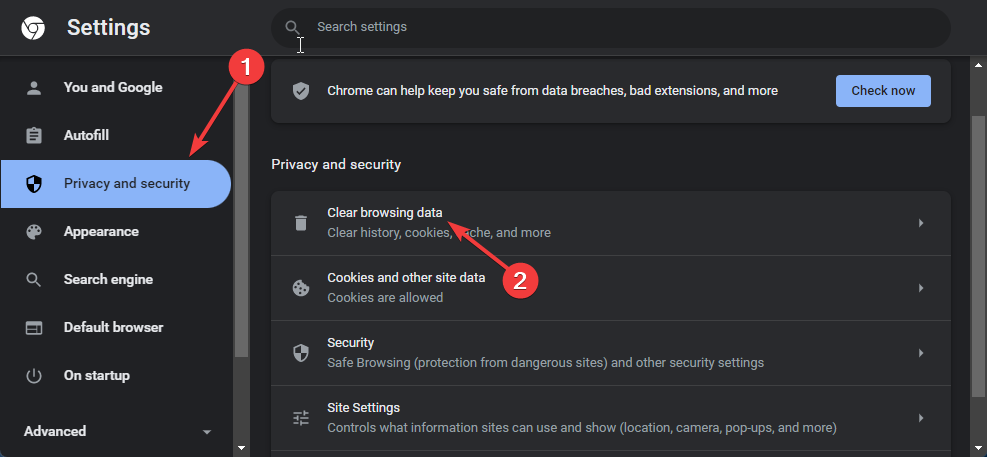
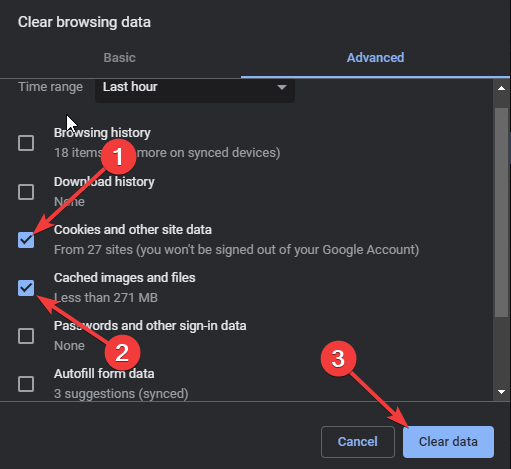
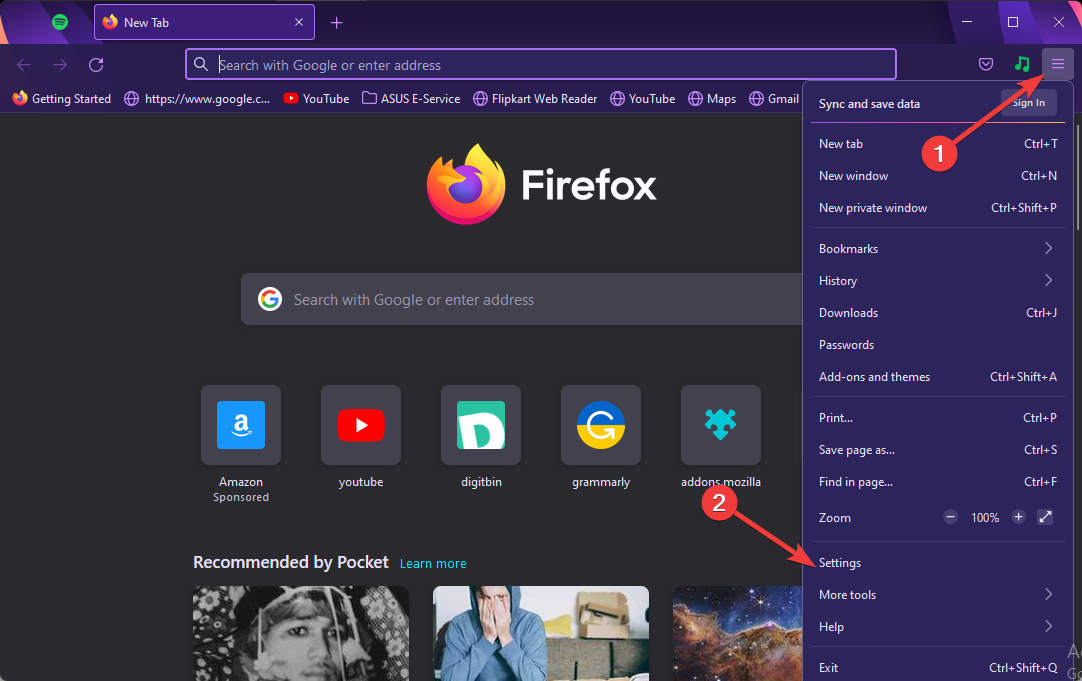
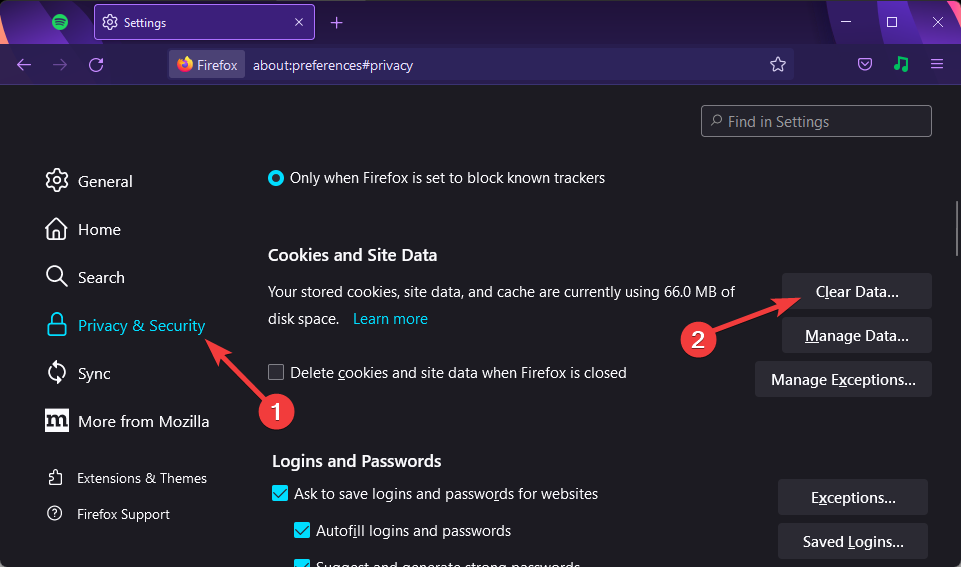
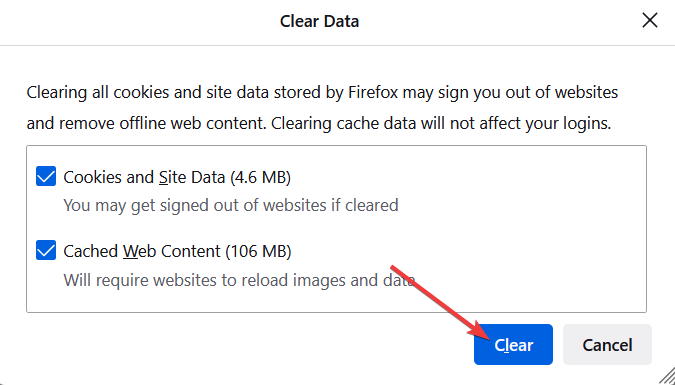
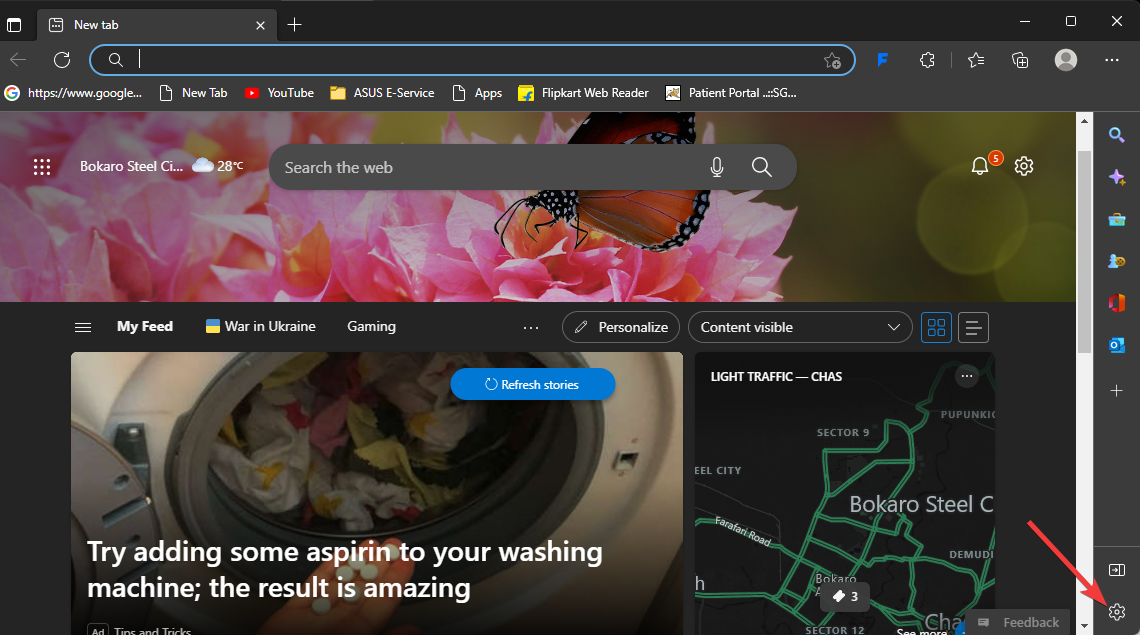
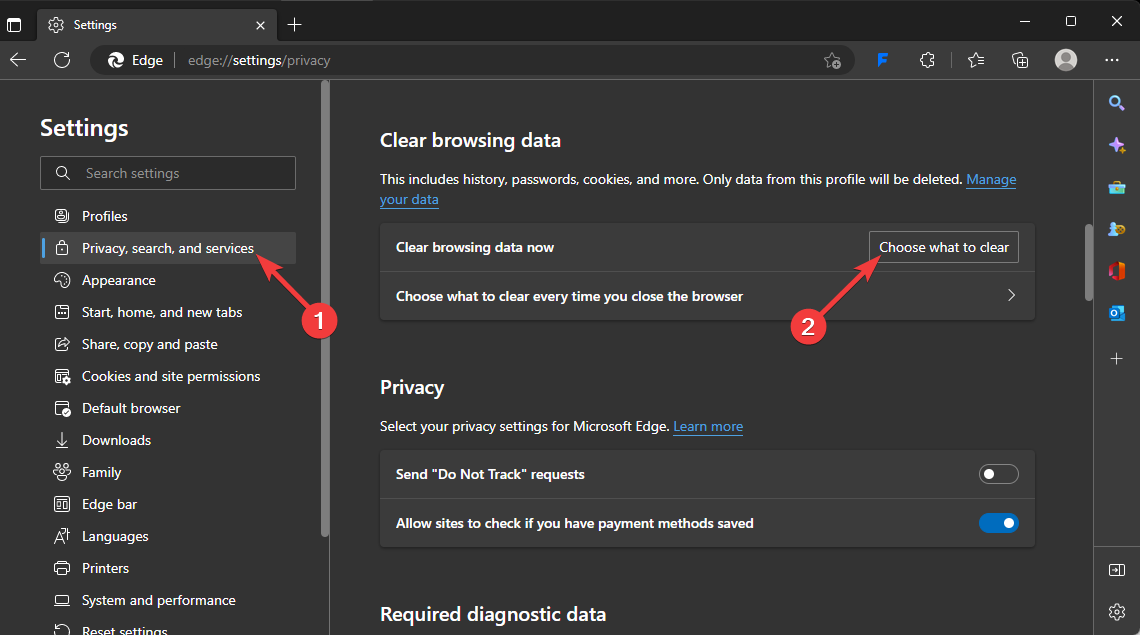
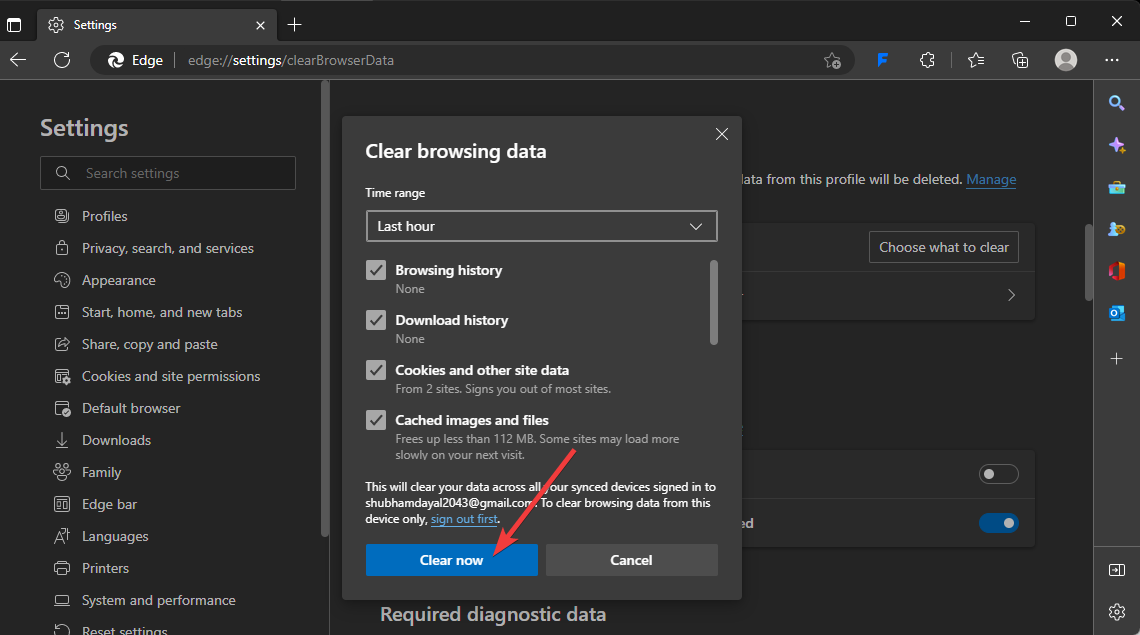
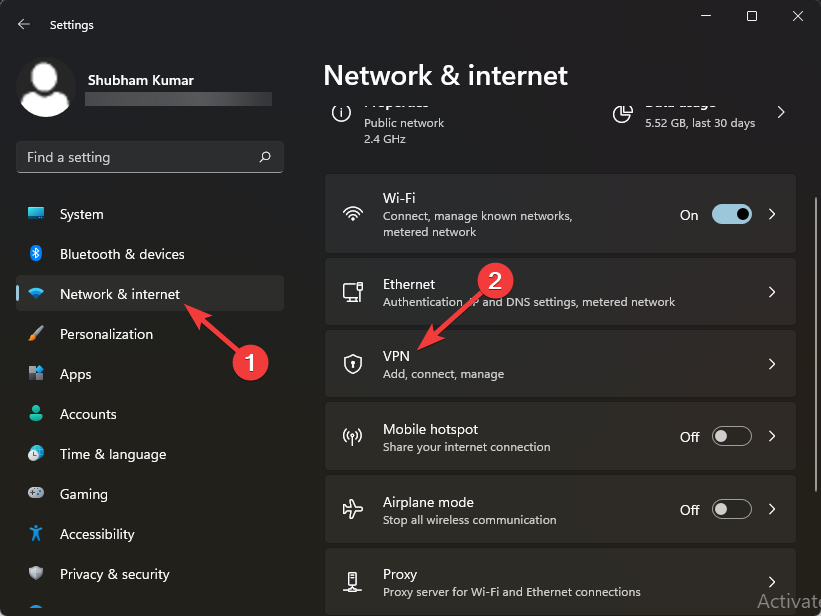

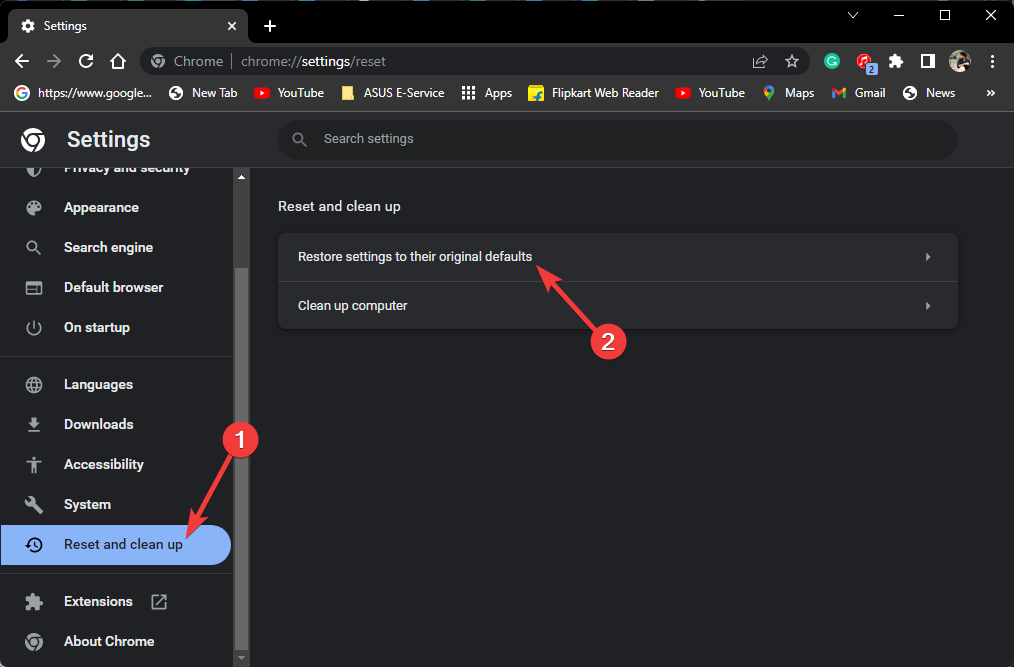
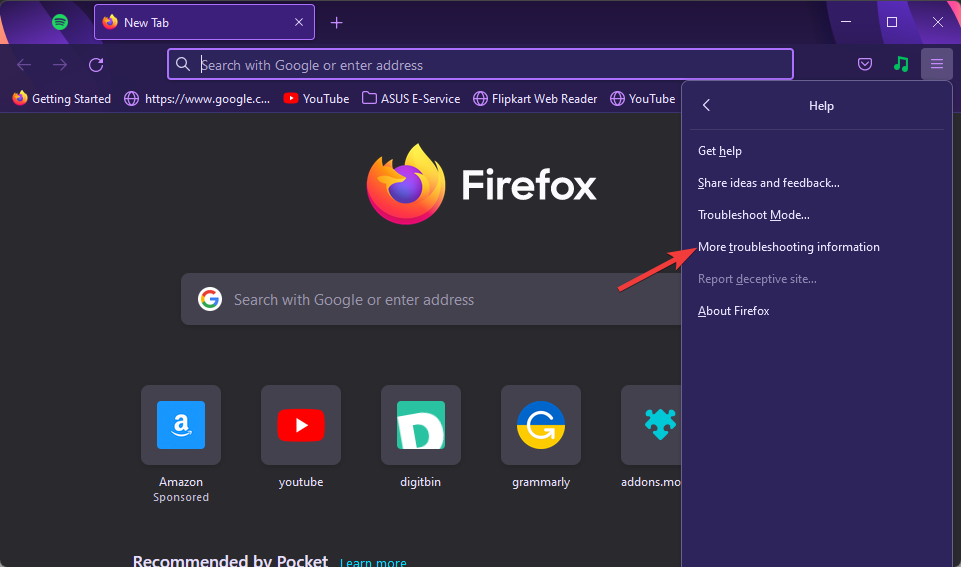
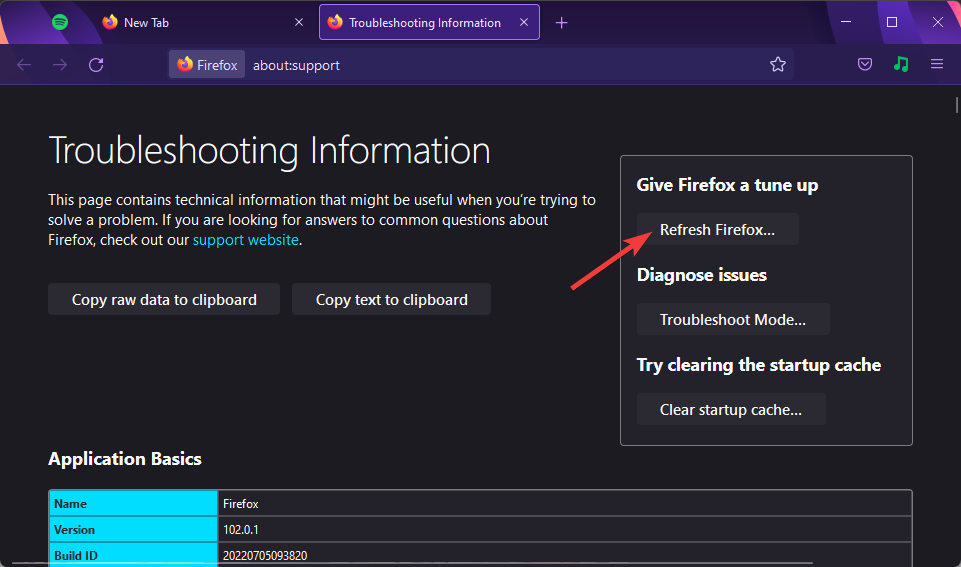
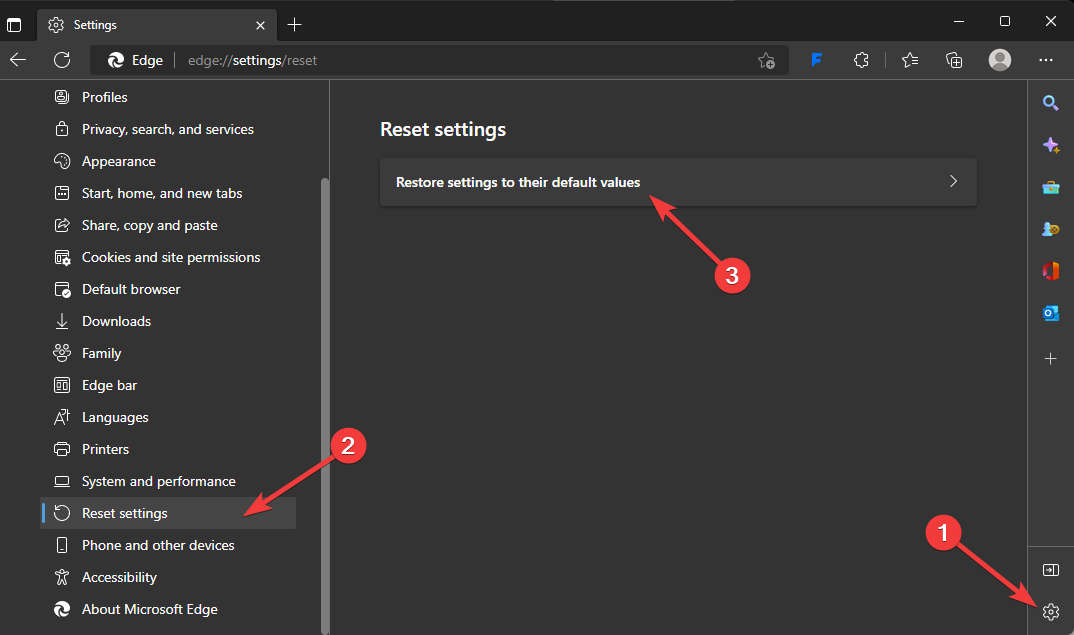
![5 Best Browsers For Discord [Ranked By Speed]](https://windowsreport.com/wp-content/uploads/2022/07/Best-Browsers-for-Discord.jpg)


![How to Login to Your AT&T Router [Easy Access Guide]](https://windowsreport.com/wp-content/uploads/2022/07/best-browser-for-google-workspace-11.jpg)


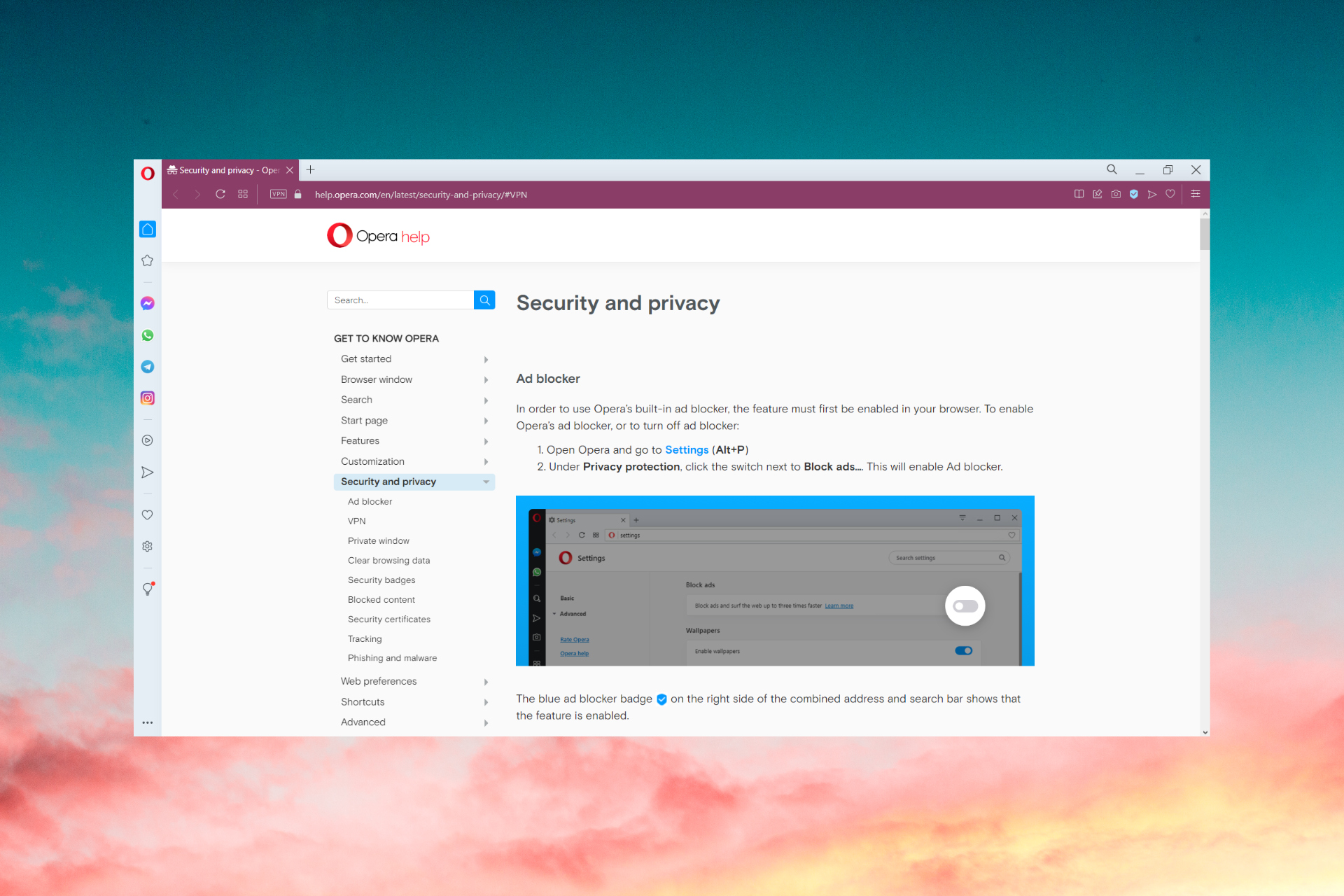





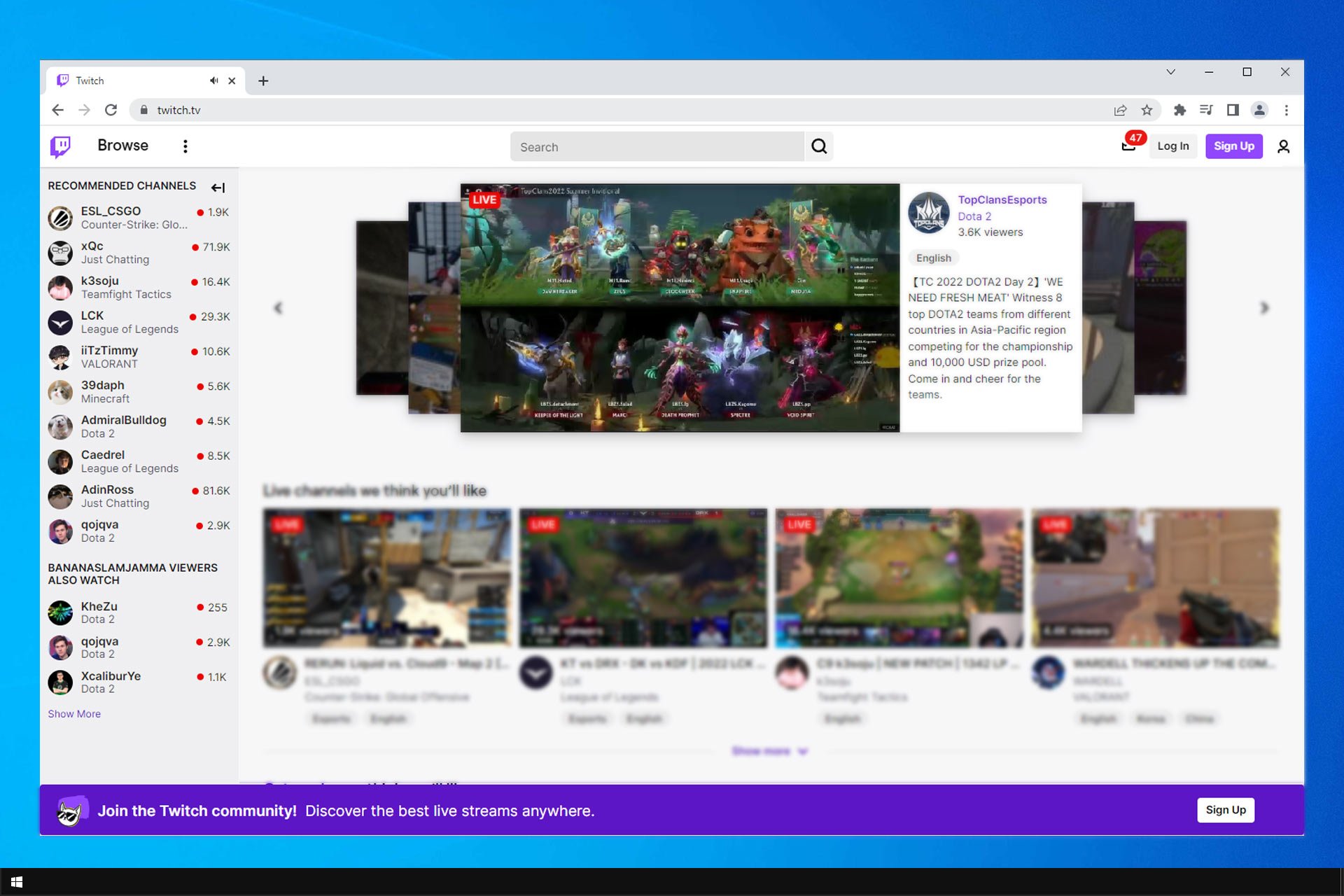
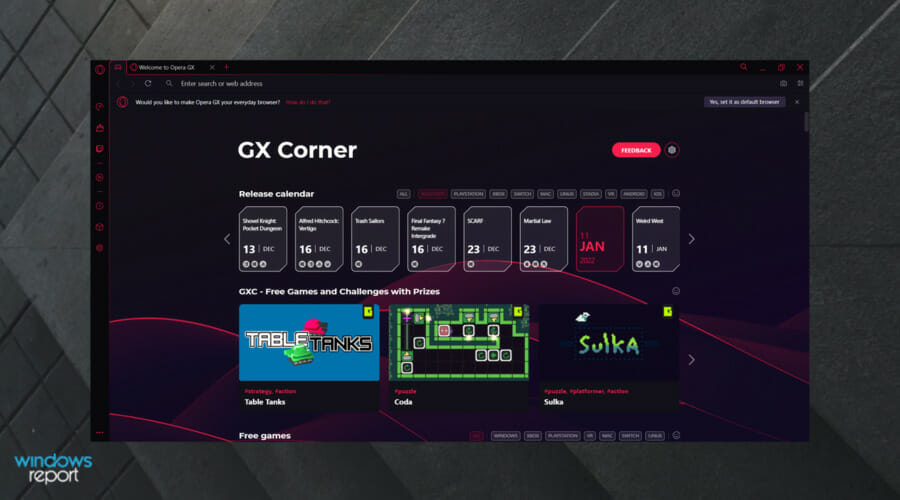


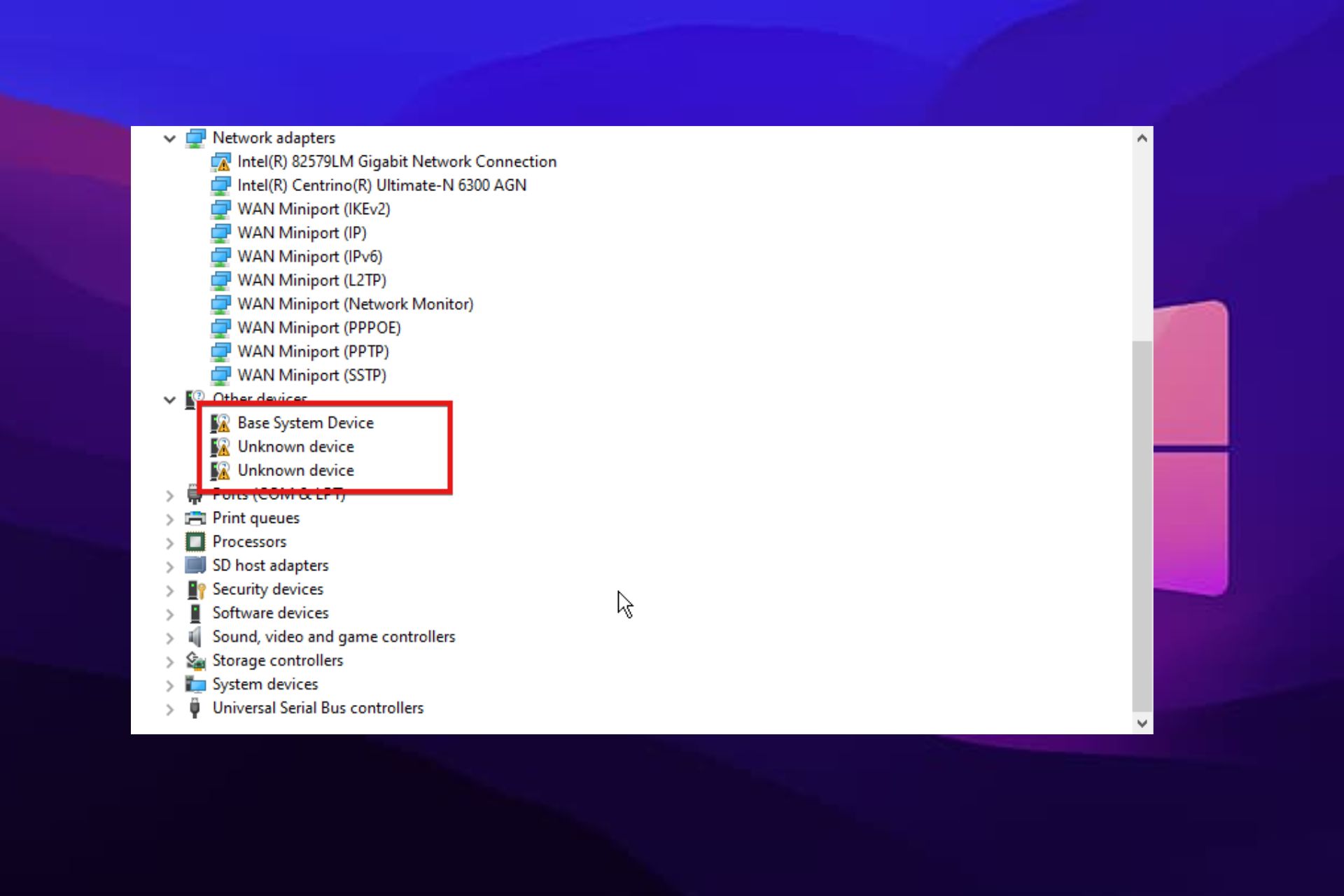



![7 Best Browsers for Twitch Streaming [Ranked by Performance]](https://windowsreport.com/wp-content/uploads/2022/07/Best-Browsers-for-Twitch-Streaming.jpg)